APPROACH
®
Z82
Owner’s Manual

© 2020 Garmin Ltd. or its subsidiaries
All rights reserved. Under the copyright laws, this manual may not be copied, in whole or in part, without the written consent of Garmin. Garmin reserves the right to change or
improve its products and to make changes in the content of this manual without obligation to notify any person or organization of such changes or improvements. Go to
www.garmin.com for current updates and supplemental information concerning the use of this product.
Garmin
®
, the Garmin logo, and Approach
®
are trademarks of Garmin Ltd. or its subsidiaries, registered in the USA and other countries. Garmin Golf
™
and Garmin Express
™
are
trademarks of Garmin Ltd. or its subsidiaries. These trademarks may not be used without the express permission of Garmin.
Apple
®
is a trademark of Apple Inc., registered in the U.S. and other countries. The BLUETOOTH
®
word mark and logos are owned by the Bluetooth SIG, Inc. and any use of such
marks by Garmin is under license. Windows
®
is a registered trademark of Microsoft Corporation in the United States and other countries. Other trademarks and trade names are those
of their respective owners.

Table of Contents
Introduction......................................1
Device Overview...................................... 2
Status LEDs..........................................3
Charging the Device................................ 3
Turning On the Device............................. 4
Standby Mode......................................... 4
Adjusting the Eyepiece............................4
Bluetooth® Connected Features....... 4
Pairing Your Smartphone........................4
Playing Golf......................................5
Measuring the Distance to the Pin......... 5
Hole View................................................. 6
Viewing PlaysLike Distance................ 7
Viewing the Direction to the Pin......... 7
Enabling Tournament Mode............... 8
Changing Holes................................... 8
Ending a Round....................................8
Keeping Score......................................... 8
Enabling Statistics Tracking............... 8
Measuring a Shot.................................... 9
Changing the Green.................................9
Sight Something............................... 9
Measuring the Distance to a Target.......9
Customizing Your Device..................9
Settings.................................................... 9
Calibrating the Compass.................. 10
System Settings................................ 10
Device Information......................... 10
Device Care............................................10
Cleaning the Device...........................10
Long-Term Storage........................... 10
Attaching the Carabiner Clip................ 11
Specifications........................................11
Viewing E-label Regulatory and
Compliance Information....................... 11
Troubleshooting............................. 11
Ranging Accuracy................................. 11
Acquiring Satellite Signals.................... 12
My device cannot find nearby golf
courses.................................................. 12
Disconnecting the USB Cable........... 12
Restoring All Default Settings.............. 12
Product Updates................................... 12
Setting Up Garmin Express............... 12
Getting More Information..................... 13
Index.............................................. 14
Table of Contents i


Introduction
WARNING
See the Important Safety and Product Information guide in the product box for product warnings and other
important information.
Introduction 1
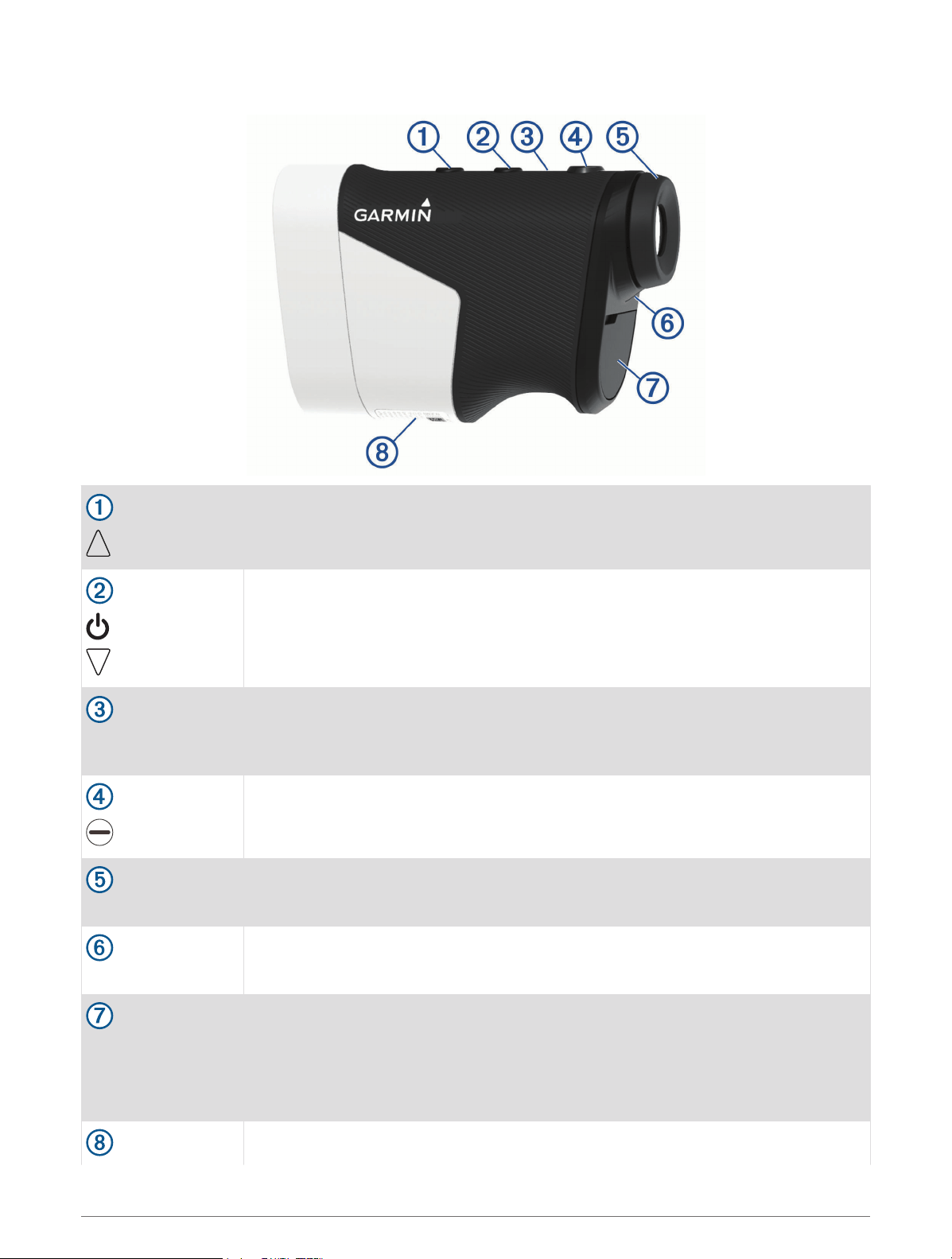
Device Overview
Press to open the menu and scroll through menu options.
Press to turn on the device.
Press to open the menu and scroll through menu options.
Hold to turn off the device.
Tournament mode
LED
View tournament mode status.
Press to range with the laser. While playing golf, the flag finder feature starts automati
cally.
Press to select menu options.
Adjustable diopter
Rotate the eyepiece to focus the screen.
Status LED
View device and battery status.
Weather cap
Micro-USB power
and data port (under
weather cap)
Pull up to access the micro-USB power and data port.
Connect a compatible USB cable to charge the device or transfer data using your
computer.
View manufacturer's identification and certification.
2 Introduction
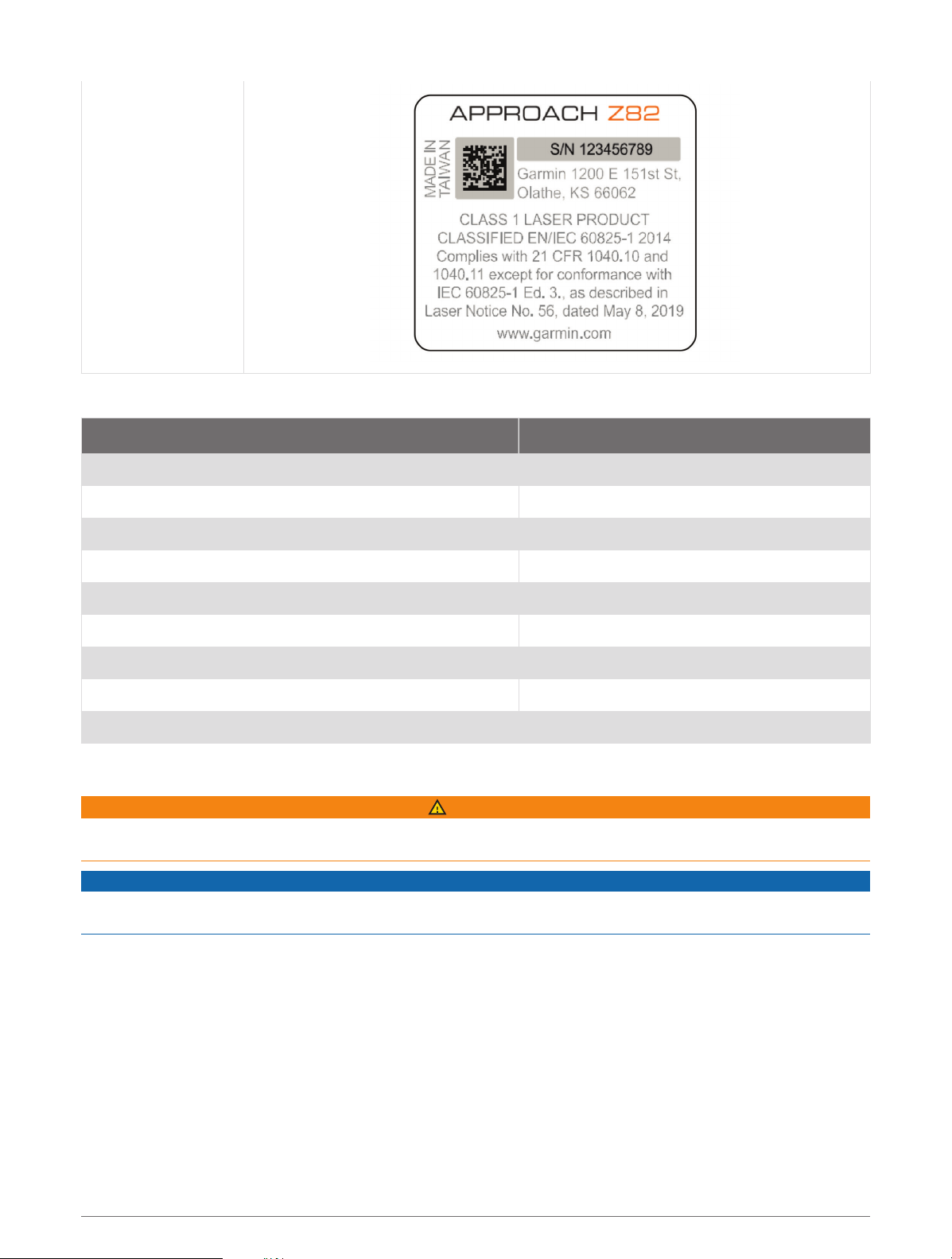
Device label
Status LEDs
LED Activity Status
Solid blue (for 5 seconds after turning on) The device is turned on.
Alternating red and blue (for 5 seconds after turning on) The battery is low.
Off The device is in active mode.
Slow flashing blue The device is in standby mode.
Solid red (after holding the power button) The device is turned off.
Rapid flashing red (connected to a power source) The device is charging in energy-saving mode.
Solid blue and flashing red (connected to a power source) The device is charging.
Solid red (connected to a power source) Charging is complete.
Slow flashing red A software update is in progress.
Charging the Device
WARNING
This product contains a lithium-ion battery. To prevent the possibility of personal injury or product damage
caused by battery exposure to extreme heat, store the device out of direct sunlight.
NOTICE
To prevent corrosion, thoroughly dry the USB port, the weather cap, and the surrounding area before charging or
connecting to a computer.
The device is powered by a built-in lithium-ion battery that you can charge using a standard wall outlet or a USB
port on your computer.
NOTE: The device will not charge when outside the approved temperature range (Specifications, page 11).
1 Pull up the weather cap from the USB port.
2 Plug the small end of the USB cable into the USB port on the device.
3 Plug the large end of the USB cable into an external power source, such as an AC adapter or a USB port on
your computer.
4 Charge the device completely.
TIP: You can turn off the device to charge it faster.
Introduction 3
Turning On the Device
The first time you turn on the device, you are prompted to choose a language, select a unit of measure, and set
your driver distance.
1 Press .
2 Follow the on-screen instructions.
Standby Mode
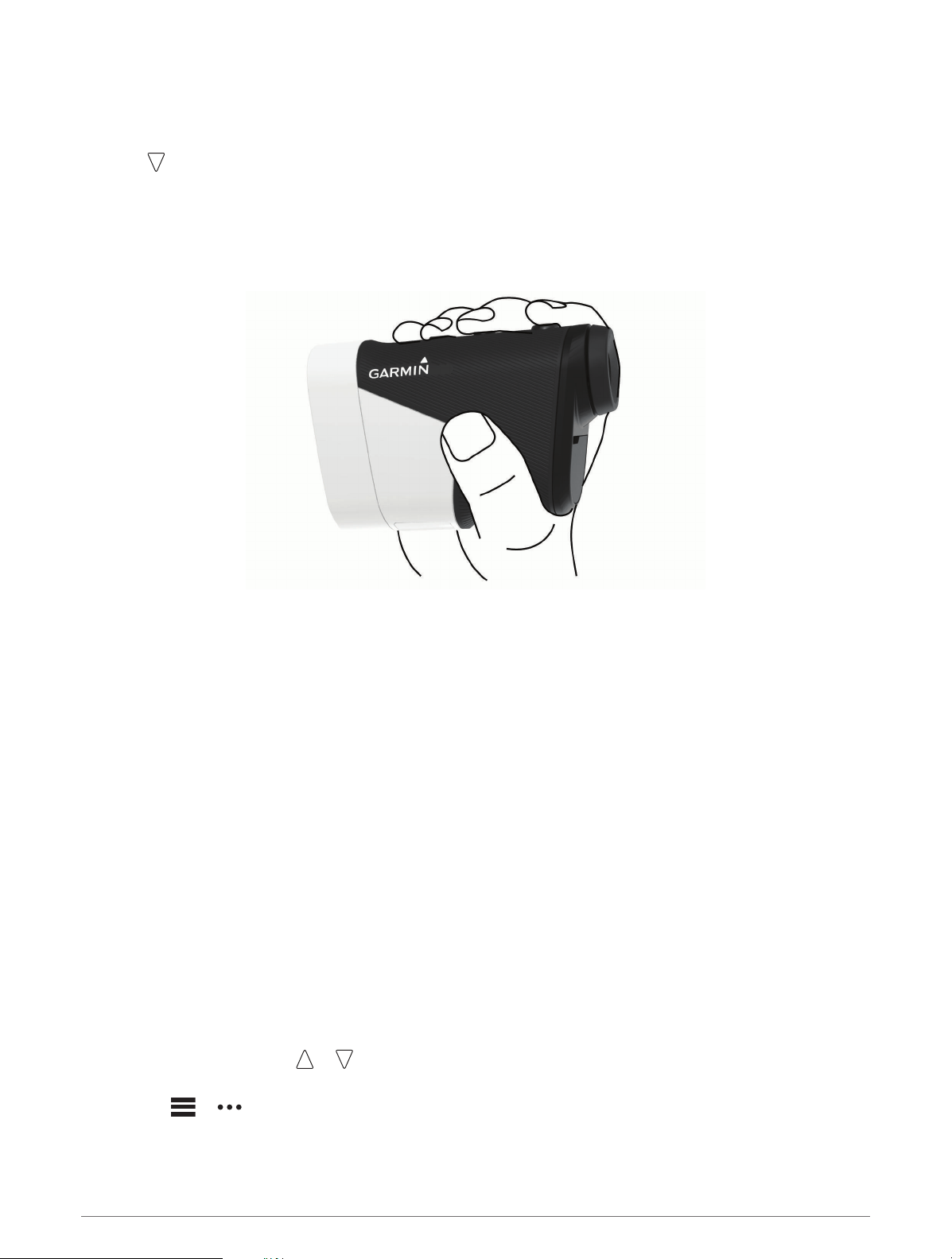
To conserve battery life, the device goes into standby mode when not in use. The device wakes up when you
hold it with your thumb in the groove on the bottom of the device or push any button.
Adjusting the Eyepiece
The device features an adjustable eyepiece (+/- 4 diopter adjustment). This allows you to focus the screen for
your eyesight.
Rotate the eyepiece to focus the screen.
Bluetooth
®
Connected Features
This device includes Bluetooth connected features for your compatible mobile device using the Garmin Golf
™
app.
Scorecard uploads to Garmin Golf: Automatically sends scorecards to the Garmin Golf app when you sync your
device. This allows you to view detailed statistics and participate in online leaderboards.
Wind speed and direction: Shows the wind speed and direction on the hole view screen. The wind direction is
relative to the pin.
Find My Garmin: Allows you to use the Garmin Golf app to locate your rangefinder using its last known location.
Pairing Your Smartphone
To use the connected features of your rangefinder, it must be paired directly through the Garmin Golf app,
instead of from the Bluetooth settings on your smartphone.
1 From the app store on your smartphone, install and open the Garmin Golf app.
2 Bring your smartphone within 10 m (33 ft.) of your device.
3 On your rangefinder, select or to open the menu.
4 Select Settings > Bluetooth > Pair.
5 From the or menu in the app, select Garmin Devices > Add Device, and follow the on-screen
instructions.
4 Bluetooth
®
Connected Features

Playing Golf
Select Play Golf.
The device locates satellites and calculates your location. The nearest course is selected, and the hole
closest to your current location is displayed automatically.
NOTE: You can select a course from the list if there is more than one course near your current location.
Measuring the Distance to the Pin
You can use the flag finder feature to target the flag and measure the distance from your current position to the
pin. This feature helps get an accurate distance to the pin by filtering out other objects in the background.
1 Start playing a round of golf.
2 Align the rangefinder reticle with the flag.
NOTE: For best results, you should hold the device steady, and align the reticle with the flag instead of the
pin.
3 Press .
The measured range to the pin appears. A red arc appears on the map at the laser-ranged distance. If the
device is able to target the flag, the device vibrates, a flag icon appears, the distance arc is yellow, and the
hole view map automatically transitions to a close up of the green.
TIP: You can return to the hole view by pointing the device away from the green and pressing .
Playing Golf 5
Hole View
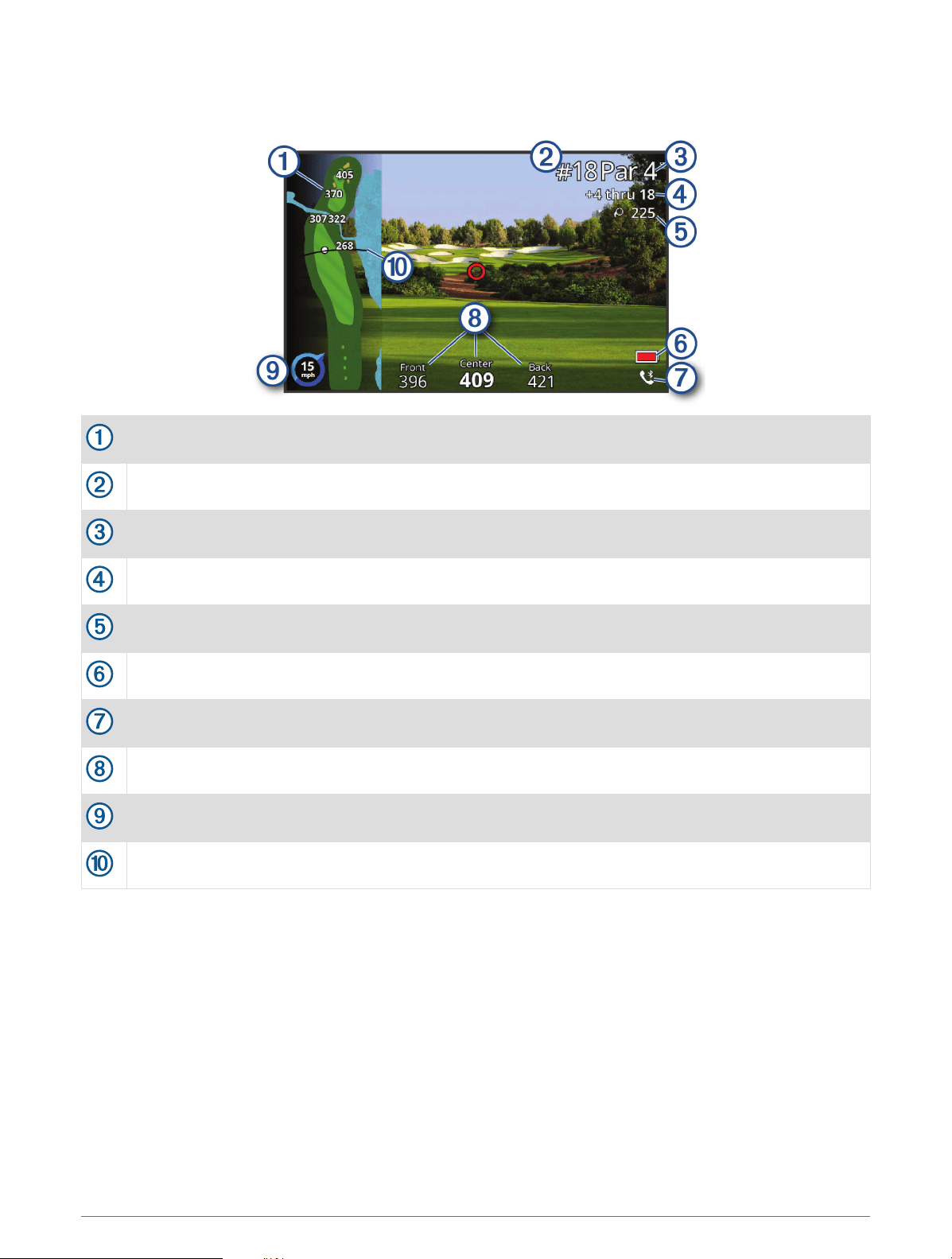
The device shows the current hole you are playing, and automatically transitions when you move to a new hole.
Displays distances to the beginning of the fairway, and the front and back of hazards.
Displays the current hole number.
Displays the par for the current hole.
Displays your recorded score.
Displays the distance from the last ranged location.
Displays a low battery indicator when the battery level is low.
Displays your phone connectivity status.
Displays distances to the front, center, and back of the green.
Displays wind direction and speed.
Displays your driver distance when you are on the tee box.
6 Playing Golf
Viewing PlaysLike Distance
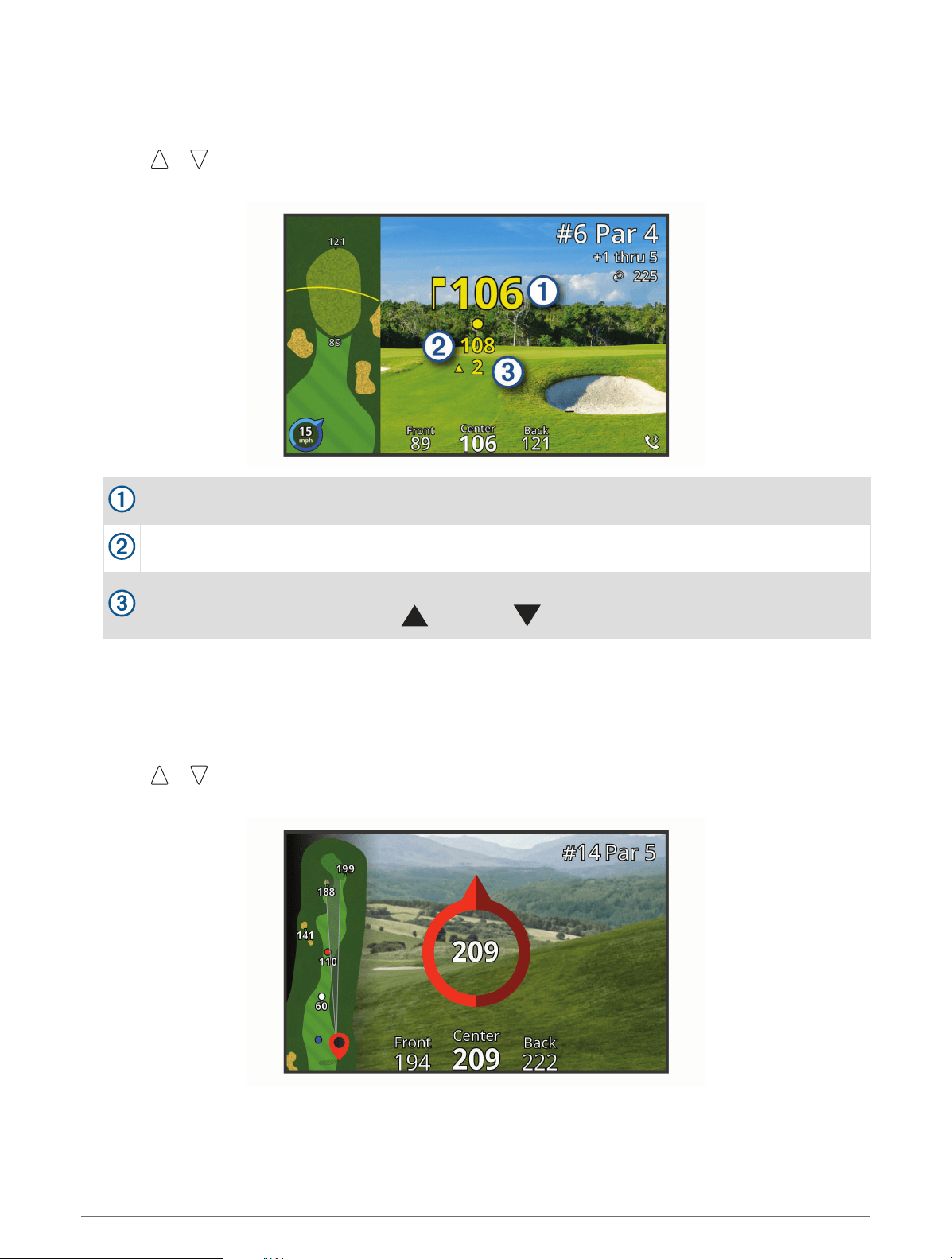
The plays like distance feature accounts for elevation changes on the course by showing the adjusted distance
to the flag.
1 Select or to open the menu.
2 Select PlaysLike Distances.
Distance to the flag as measured by the laser.
PlaysLike distance to the flag, adjusted for slope.
Elevation difference between you and the target based on the slope of the rangefinder. The symbol
indicates whether the slope is uphill or downhill .
Viewing the Direction to the Pin
The PinPointer feature is a compass that provides directional assistance when you are unable to see the green.
This feature can help you line up a shot even if you are in the woods or in a deep sand trap.
NOTE: Do not use the PinPointer feature while in a golf cart. Interference from the golf cart can affect the
accuracy of the compass.
1 Select or to open the menu.
2 Select PinPointer.
The compass arrow points to the pin location. A cone appears on the map to help orient you toward the pin.
TIP: You can press any key to return to the hole view.
Playing Golf 7
Enabling Tournament Mode
The tournament mode setting disables the PinPointer and PlaysLike distance features. These features are not
allowed during sanctioned tournaments or handicap calculation rounds.
1 Select or to open the menu.
2 Select Settings > Tournament Mode.
The tournament mode LED on top of the device appears solid blue when the tournament mode setting is
enabled.
Changing Holes
You can change holes manually from the hole view screen.
1 Select or to open the menu.
2 Select Change Hole.
3 Select an option.
Ending a Round
1 Select or to open the menu.
2 Select End Round.
Keeping Score
1 Press or to open the menu.
2 Select Scorecard.
NOTE: If scoring is not enabled, you can select Start Scoring.
3 If necessary, press or until the hole you want to score is highlighted.
4 Press to select the hole.
5 Press or to set the score.
6 Hold any key to exit.
Enabling Statistics Tracking
When you enable statistics tracking on the device, you can view your statistics for the current round. You can
compare rounds and track improvements using the Garmin Golf app.
1 Press or to open the menu.
2 Select Settings > Stat Tracking.
Recording Statistics
Before you can record statistics, you must enable statistics tracking (Enabling Statistics Tracking, page 8).
1 From the scorecard, select a hole.
2 Set the total number of strokes taken, including putts, and press .
3 Select an option:
NOTE: If you are on a par 3 hole, fairway information does not appear.
• If your ball hit the fairway, select .
• If your ball missed the fairway, select or .
4 Set the number of putts taken, and press .
NOTE: The number of putts taken is used for statistics tracking only and does not increase your score.
8 Playing Golf

Measuring a Shot
1 Enable the Auto Measure Shots feature (Settings, page 9).
2 While playing golf, use your rangefinder to measure the distance to the pin.
3 Walk to your ball.
The distance from the ranged location is automatically measured and appears on the hole view screen.
The distance resets the next time you use your rangefinder to measure the distance to the pin.
Changing the Green
If you are playing a hole with more than one green, you can change the green.
1 Press or to open the menu.
2 Select Change Green.
3 Select a green.
Sight Something
Measuring the Distance to a Target
You can use the device to measure the distance from your current position to a target, such as on a driving
range.
NOTE: The device can measure distances from 5 to 411 m (5.5 to 450 yd.).
1 Select Sight Something.
2 Align the rangefinder reticle with the target.
3 Press .
The measured range appears.
Customizing Your Device
Settings
Select Settings.
Bluetooth: Allows you to enable Bluetooth technology or pair your smartphone with your rangefinder (Pairing
Your Smartphone, page 4).
Tournament Mode: Disables the PinPointer and PlaysLike distance features. These features are not allowed
during sanctioned tournaments (Enabling Tournament Mode, page 8).
Stat Tracking: Allows you to enable statistics tracking on the device (Enabling Statistics Tracking, page 8).
Auto Measure Shots: Allows you to enable automatic shot measurements based on your last ranged location.
Laser Distance Precision: Allows you to set the number format for ranged values.
Driver Distance: Sets the average distance the ball travels on your drive. This distance appears as an arc on the
hole view screen when you are on the tee box.
Compass Calibration: Allows you to manually calibrate the compass sensor (Calibrating the Compass,
page 10).
Gender: Allows you to set your gender. This is used for gender-specific course ratings for select tees when
calculating handicaps, and for gender-specific par values (where available).
System: Sets system settings, such as the text language on the device, the units of measure, and time format
(System Settings, page 10).
About: Displays device information, such as the unit ID, software version, regulatory information, and license
agreement (Viewing E-label Regulatory and Compliance Information, page 11).
Sight Something 9
Calibrating the Compass
NOTE: You must calibrate the electronic compass outdoors. Do not stand near objects that influence magnetic
fields, such as cars, buildings, or overhead power lines.
Your device was already calibrated at the factory, and the device uses automatic calibration by default. If the
PinPointer feature is not working properly, for example, after moving long distances or after extreme
temperature changes, you can manually calibrate the compass.
1 Select Settings > Compass Calibration.
2 Follow the on-screen instructions.
System Settings
Select Settings > System.
Language: Sets the text language on the device.
NOTE: Changing the text language does not change the language of user-entered data or map data.
Units: Sets the unit of measure for distance.
Time Format: Sets the device to show time in a 12-hour or 24-hour format.
Brightness: Sets the brightness level of the backlight.
Auto Standby: Adjusts the amount of time before the device automatically goes into standby mode (Standby
Mode, page 4).
Reset: Allows you to reset user data and settings (Restoring All Default Settings, page 12).
Device Information
Device Care
NOTICE
Do not store the device where prolonged exposure to extreme temperatures can occur, because it can cause
permanent damage.
Avoid chemical cleaners, solvents, and insect repellents that can damage plastic components and finishes.
Secure the weather cap tightly to prevent damage to the USB port.
Cleaning the Device
NOTICE
Do not use a dry cloth to clean the lens. Use of a dry cloth may damage the lens.
Avoid chemical cleaners and solvents that can damage plastic components.
1 Wipe the outer casing and lens with a soft, non-scratch cloth dampened with water or alcohol.
2 Wipe the outer casing dry, and allow the lens to air dry.
Long-Term Storage
When you do not plan to use the device for several months, you should charge the battery to at least 50% before
you store the device. You should store the device in a cool, dry place with temperatures around the typical
household level. After storage, you should fully recharge the device before using it.
10 Device Information
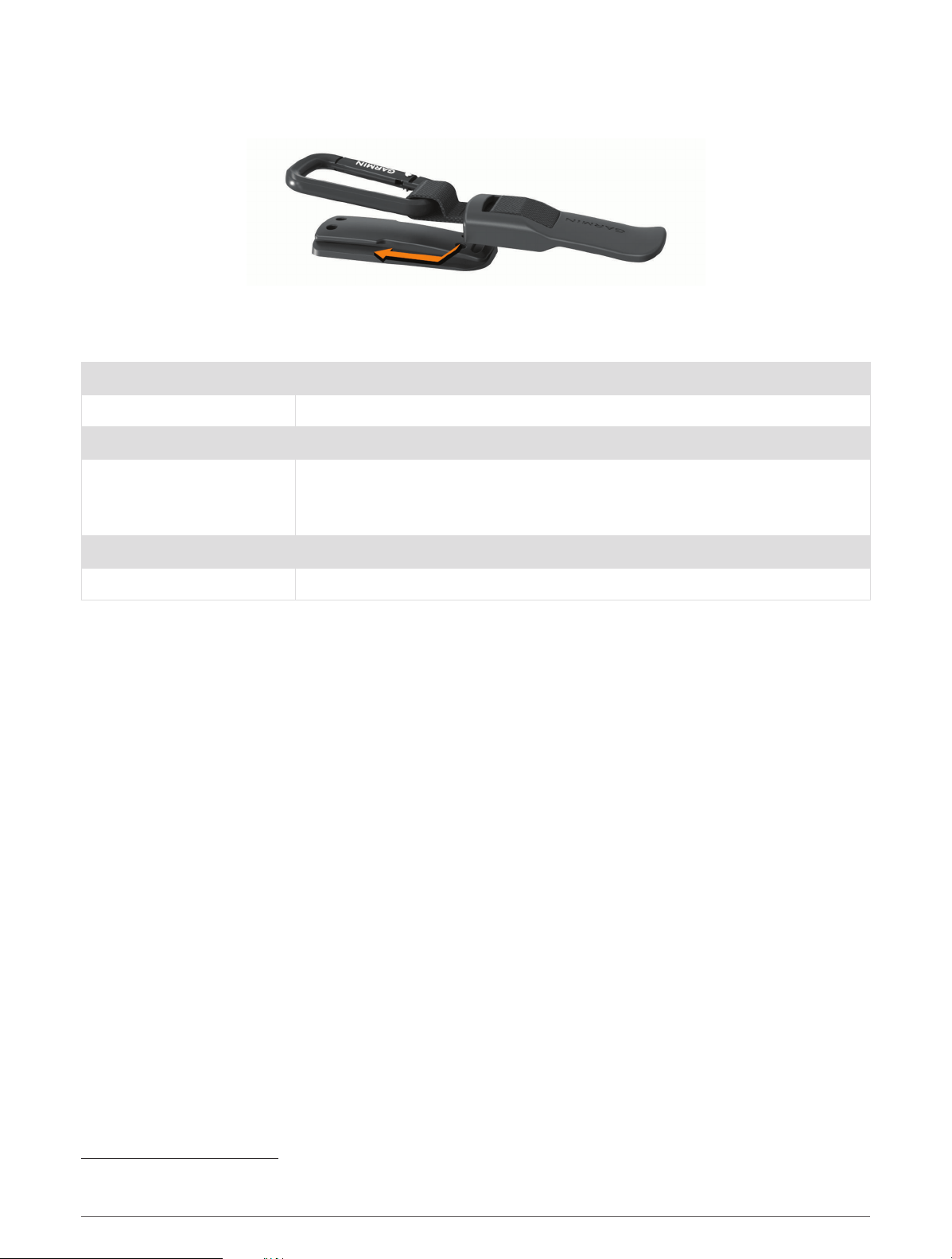
Attaching the Carabiner Clip
1 Position the carabiner clip in the slots on the mounting spine of the carry case.
2 Slide the carabiner clip up until it locks in place.
Specifications
Battery type Rechargeable, built-in lithium-ion battery
Battery life Up to 15 hr. typical use
Water rating IEC 60529 IPX7
1
Operating temperature range
From -10º to 55ºC (from 14º to 131ºF)
NOTE: The device protects itself from overheating and shuts down automati
cally if the internal temperature exceeds the operating temperature threshold.
Charging temperature range From 10º to 45ºC (from 50º to 113ºF)
Wireless frequency/protocol 10.1 dBm @ 2.4 GHz
Viewing E-label Regulatory and Compliance Information
The label for this device is provided electronically. The e-label may provide regulatory information, such as
identification numbers provided by the FCC or regional compliance markings, as well as applicable product and
licensing information.
1 Select Settings.
2 Select About.
Troubleshooting
Ranging Accuracy
External factors may affect ranging accuracy, such as ambient light, weather conditions, target reflectivity, and
target size.
• The device can target longer ranges in lower light conditions, such as on overcast days. Bright sunlight
minimizes ranging ability.
• Rain minimizes ranging ability.
• The device can target longer ranges when measuring the distance to brightly colored, reflective, or shiny
objects. Black objects are less reflective, and can be targeted at shorter ranges.
• Larger objects are easier to target than smaller objects. For example, you should target the flag instead of the
pin.
• The device can target longer ranges when the angle to the target is closer to 90 degrees. A smaller angle to
the target limits ranging ability.
1
The device withstands incidental exposure to water of up to 1 m for up to 30 min. For more information, go to www.garmin.com/waterrating.
Troubleshooting 11

Acquiring Satellite Signals
The device may need a clear view of the sky to acquire satellite signals. The time and date are set automatically
based on the GPS position.
1 Go outdoors to an open area.
The top of the device should be oriented toward the sky.
2 Wait while the device locates satellites.
It may take 30–60 seconds to locate satellite signals.
My device cannot find nearby golf courses
If a course update is interrupted or canceled before it completes, your device may be missing course data. To
repair missing course data, you must update the courses again.
1 Download and install course updates from the Garmin Express
™
application (Product Updates, page 12).
2 Safely disconnect your device (Disconnecting the USB Cable, page 12).
3 Go outside, and start a test round of golf to verify the device finds nearby courses.
Disconnecting the USB Cable
If your device is connected to your computer as a removable drive or volume, you must safely disconnect your
device from your computer to avoid data loss. If your device is connected to your Windows
®
computer as a
portable device, it is not necessary to safely disconnect the device.
1 Complete an action:
• For Windows computers, select the Safely Remove Hardware icon in the system tray, and select your
device.
• For Apple
®
computers, select the device, and select File > Eject.
2 Disconnect the cable from your computer.
Restoring All Default Settings
1 Select Settings > System > Reset.
2 Select an option:
• Select Reset Default Settings to reset all of the device settings to the factory default values and save all
user-entered information.
• Select Delete Data and Reset Settings to delete all user-entered information and reset all of the device
settings to the factory default values.
Product Updates
On your computer, install Garmin Express (www.garmin.com/express).
This provides easy access to these services for Garmin
®
devices:
• Software updates
• Course updates
• Product registration
Setting Up Garmin Express
1 Connect the device to your computer using a USB cable.
2 Go to www.garmin.com/express.
3 Follow the on-screen instructions.
12 Troubleshooting


Index
A
accessories 13
apps, smartphone 4
B
battery 4
charging 3
storage 10
Bluetooth technology 4
C
carabiner clip 11
compass 7
calibrating 10
courses
playing 5
selecting 5
customizing the device 9, 10
D
device, care 10
display settings 4
distance, measuring 5, 7, 9
G
Garmin Express 12
updating software 12
Garmin Golf 4
golf round, ending 8
GPS, signal 12
green view 9
pin location 7
H
holes, changing 8
K
keys 2
M
maps, symbols 6
measuring a shot 9
menu 2
P
pairing, smartphone 4
pin location, green view 7
R
resetting the device 12
S
satellite signals 12
scorecard 8
settings 4, 8, 12
sleep mode 4
smartphone, pairing 4
software, updating 12
specifications 11
statistics 8
system settings 9, 10
T
troubleshooting 10–13
U
USB, disconnecting 12
user profile 4
14 Index

support.garmin.com
GUID-705CC09E-FFD5-464F-836C-8864F48560FF v2November 2021