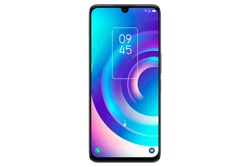
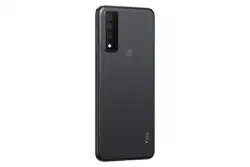
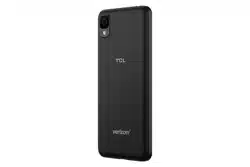
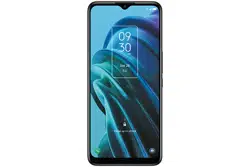
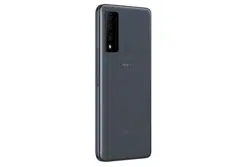
For more information on how to use the phone, please go to tcl.com and download
the complete user manual. Moreover, on the website, you can also find answers
to frequently asked questions.

1 2
8.5 Connecting to virtual private networks ................................................. 48
9 Google applications �������������������������������������������������������������������������������� 50
9.1 Play Store............................................................................................. 50
9.2 Chrome ................................................................................................ 50
9.3 Maps .................................................................................................... 50
9.4 YouTube ............................................................................................... 51
9.5 Drive ..................................................................................................... 51
9.6 YT Music .............................................................................................. 51
9.7 Google Play movies & TV .................................................................... 51
9.8 Duo ....................................................................................................... 51
9.9 Photos .................................................................................................. 52
10 Settings ������������������������������������������������������������������������������������������������������ 53
10.1 Wi-Fi ..................................................................................................... 53
10.2 Bluetooth .............................................................................................. 53
10.3 Mobile network ..................................................................................... 53
10.4 Connections ......................................................................................... 53
10.5 Home screen & lock screen ................................................................. 55
10.6 Display ................................................................................................. 55
10.7 NXTVISION .......................................................................................... 55
10.8 Sound & vibration ................................................................................. 56
10.9 Notifications .......................................................................................... 56
10.10 Buttons & Gestures .............................................................................. 56
10.11 Advanced features ............................................................................... 56
10.12 Smart Manager .................................................................................... 57
10.13 Security & biometrics ........................................................................... 57
10.14 Location ................................................................................................ 57
Table of contents
1 Your mobile ������������������������������������������������������������������������������������������������� 4
1.1 Keys and connectors ............................................................................. 4
1.2 Getting started........................................................................................ 6
1.3 Home screen .......................................................................................... 9
2 Text input ��������������������������������������������������������������������������������������������������� 17
2.1 Using the Onscreen Keyboard ............................................................. 17
3 Phone call, Call log and Contacts ���������������������������������������������������������� 19
3.1 Phone ................................................................................................... 19
3.2 Contacts ............................................................................................... 25
4 Messages ��������������������������������������������������������������������������������������������������� 29
4.1 Write message ..................................................................................... 29
4.2 Manage messages ............................................................................... 30
4.3 Adjust message settings ...................................................................... 31
5 Camera ������������������������������������������������������������������������������������������������������� 32
6 Gmail ���������������������������������������������������������������������������������������������������������� 35
7 Calendar ,Clock & Calculator ������������������������������������������������������������������ 41
7.1 Calendar ............................................................................................... 41
7.2 Clock .................................................................................................... 42
7.3 Calculator ............................................................................................. 43
8 Getting connected ������������������������������������������������������������������������������������ 44
8.1 Connecting to the Internet.................................................................... 44
8.2 Connecting to Bluetooth devices ........................................................ 45
8.3 Connecting to a computer .................................................................... 47
8.4 Sharing your phone's mobile data connection ..................................... 47
3 4
SAR
This product meets applicable national SAR limits of 1.6 W/kg.
The specific maximum SAR values can be found in the “SAR
Information” section.
When carrying the product or using it while worn on your
body, either use an approved accessory such as a holster
or otherwise maintain a distance of 15 mm from the body to
ensure compliance with RF exposure requirements. Note that
the product may be transmitting even if you are not making a
phone call.
1
Your mobile ��������������������������������������������
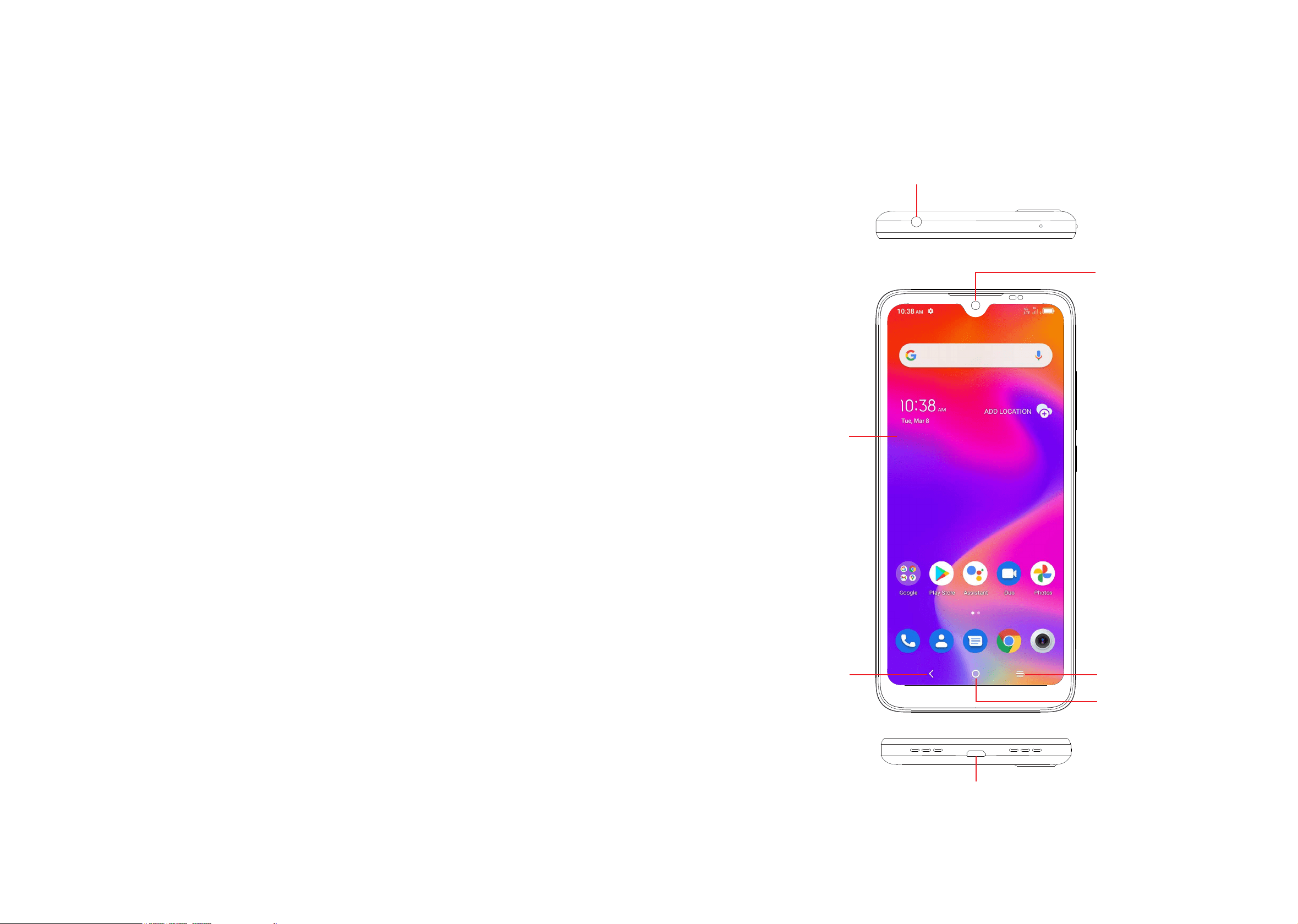
1�1 Keys and connectors
Headset connector
Home
Back Recent Apps
Micro-USB connector
Front camera
Touch screen
10.15 Privacy ................................................................................................. 57
10.16 Safety & emergency ............................................................................. 58
10.17 Apps ..................................................................................................... 58
10.18 Storage ................................................................................................. 58
10.19 Users & accounts ................................................................................. 58
10.20 Digital Wellbeing & parental controls ................................................... 59
10.21 Google .................................................................................................. 59
10.22 Accessibility .......................................................................................... 59
10.23 System ................................................................................................. 59
11 Making the most of your phone �������������������������������������������������������������� 61
11.1 FOTA Upgrade ..................................................................................... 61
Safety and use ��������������������������������������������������������������������������������������������������� 62
Radio waves ������������������������������������������������������������������������������������������������������� 65
Licenses ������������������������������������������������������������������������������������������������������������� 68
General information ������������������������������������������������������������������������������������������ 70
Electronic Information �������������������������������������������������������������������������������������� 71
5 6
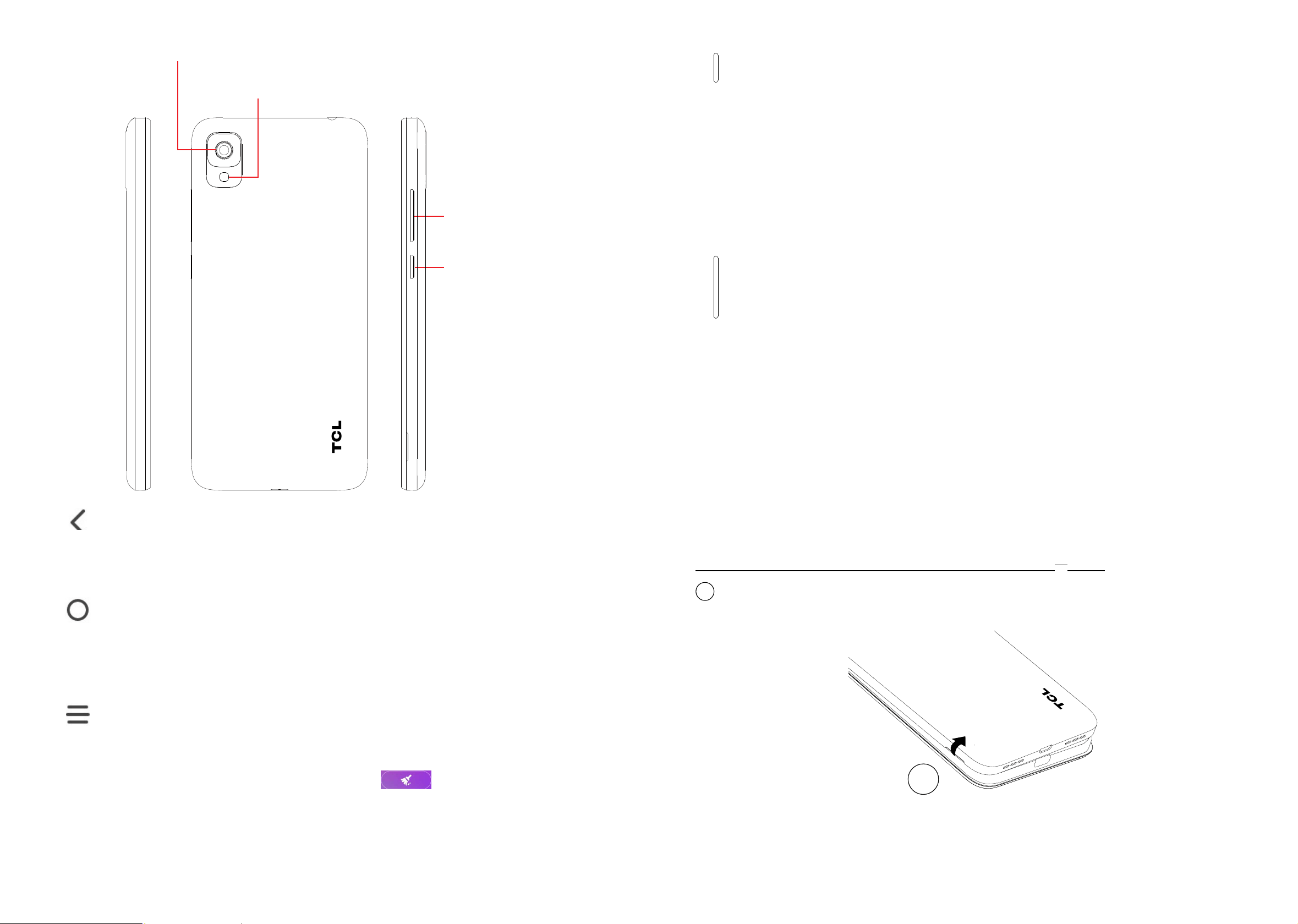
Power key
Volume key
Flash
Rear Camera
Back
• Tap to go back to the previous screen, or to close a dialog box, options
menu, the notification panel, etc.
Home
• From any application or screen, tap to return to the Home screen.
• Touch and hold to activate Google Assistant.
Recent Apps
• Tap to open a thumbnail list of apps you've worked with recently. Tap
a thumbnail to open an app. Swipe up on the screen to remove a
specific thumbnail from the list, or tap
to remove all thumbnails
from the list.
Power key
• Press: Lock the screen or light up the screen.
• Press and hold: Show the pop-up menu to select from Power off, Restart,
Airplane mode.
• Press and hold the Power key for more than 11 seconds to reboot.
• Press and hold the Power key and Volume down key to capture a
screenshot.
Volume Keys
• During a call, adjusts the earpiece or headset volume.
• While listening to music, video or streaming, adjusts the media volume.
• Adjusts the ringtone volume.
• Mutes the ringtone of an incoming call.
• While using the camera, press Volume up or down key to take a photo.
1�2 Getting started
Set up
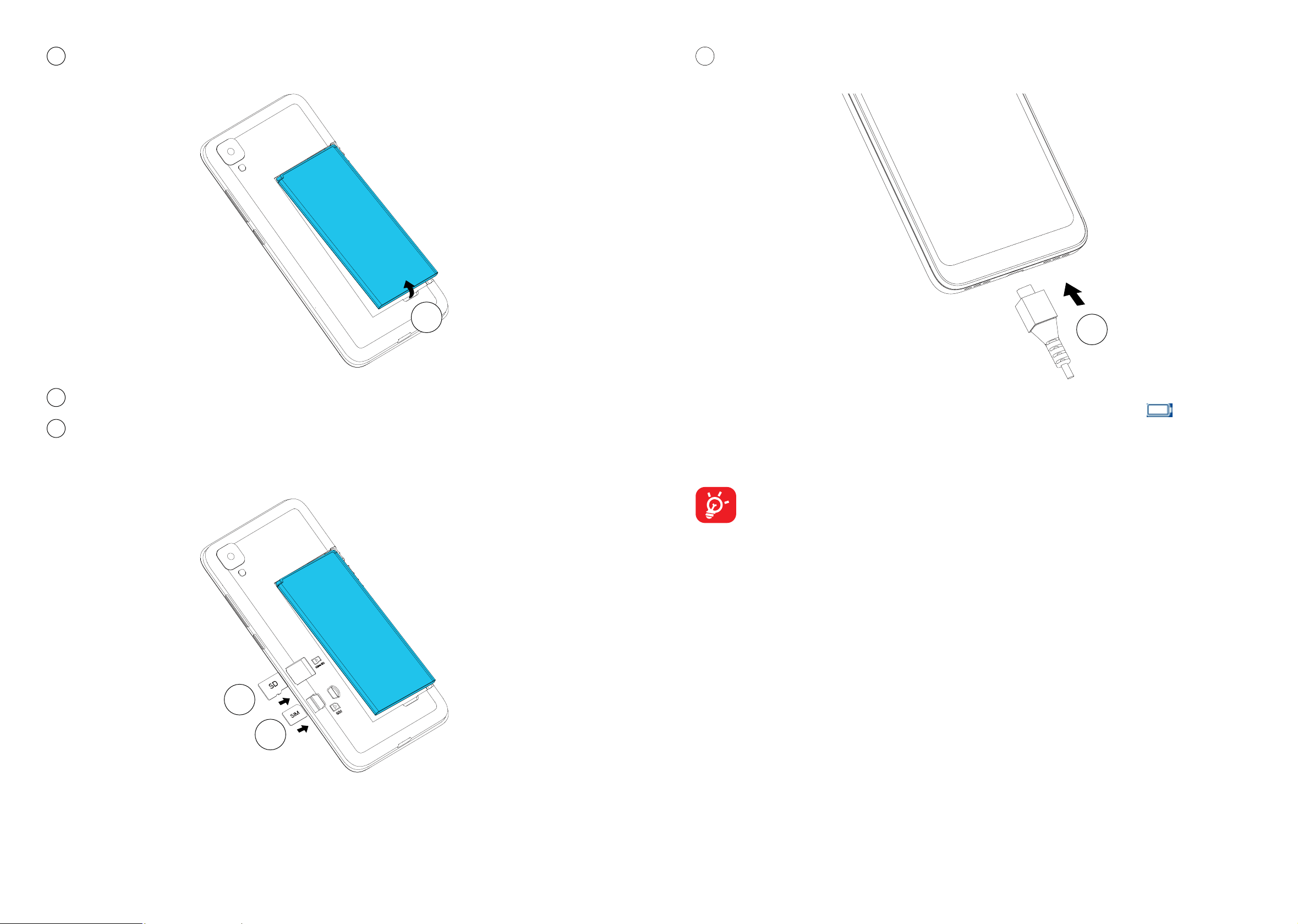
Installing or removing the SIM card and microSD
TM
card
1
With the phone face down, remove the back cover by gently pulling up on the
indentation on the bottom left of the cover.
1
7 8
2
Insert the battery by connecting the gold contacts in the device battery cavity.
The battery will only fit one way.
2
3
Place the Nano SIM card into the slot labeled "SIM".
4
If applicable, insert the microSD
TM
card into the slot labeled "SD".
Note: microSD
TM
cards are sold separately. Only use Nano SIM cards with your
phone.
3
4
5
Your new phone is partially charged. Charge the battery by using the Micro-
USB cable and charger provided.
5
It is advised that you fully charge your battery before first use (
). Connect
the charger to your phone and an outlet. Charging status is indicated by the
percentage on screen while the phone is powered off. The percentage increases
as the phone is charged.
To reduce power consumption and energy waste when the battery is fully
charged, disconnect your charger from your phone; switch off Wi-Fi, GPS,
Bluetooth or background-running applications when not in use; reduce the
backlight time, etc.
Power on your phone
Hold down the Power key until the phone powers on, unlock your phone (screen
lock, face unlock, etc.) if necessary and confirm. The Home screen is displayed.
If you do not know your PIN/password or pattern, or if you have forgotten it, contact
your service provider. Do not leave your PIN/password or pattern with your phone.
Store this information in a safe place when not in use.
Set up your phone for the first time
The first time you power on the phone, you'll be able to select your language,
choose a network, log in to your Google Account and Google Services, and set a
screen lock.

9 10
Power off your phone
Hold down the Power key from any screen until the phone options appear, and
then select Power off.
1�3 Home screen
You can bring all of the items (applications, shortcuts, folders and widgets) you
use most frequently to your Home screen for quick access. Tap the Home key to
get instant access to the Home screen.
Status bar
• Status/notification indicators
• Drag down to open the Notification panel.
Tap an icon to open an application, folder, etc.
Favorite Applications tray
•Tap to open the application.
•Touch and hold to move or change applications.
The Home screen is provided in an extended format to allow more space for
adding applications, shortcuts, etc. Slide the Home screen horizontally to get a
complete view.
Using the touchscreen
Tap
To open an application, tap it with your finger.
Touch and Hold
Touch and hold the item to view options for the item, such as Move, Remove, and
more.
Drag
Place your finger on the screen to drag an object to another location.
Slide/Swipe
Slide or swipe on the screen to scroll through the applications, images, web
pages, and more.
Pinch
Place two fingers on the screen surface and together to scale an element on the
screen.
Rotate
Automatically change the screen orientation from portrait to landscape by turning
the device sideways to have a better view. Auto-rotate can be changed at any time
in Settings
.

11 12
Status bar
From the status bar, you can view both phone status and notification information.
Status icons
GSM Vibrate mode
WCDMA Alarm is set
LTE
Connected to a Wi-Fi network
Signal strength Speakerphone is on
No signal No SIM card inserted
Airplane mode Battery is charging
Bluetooth connected Battery is low
Headset connected Battery is partially drained
GPS is on Battery is full
Notification icons
New Gmail message Missed call
New text or multimedia
message
Connect to open Wi-Fi network
Upcoming event Uploading data
Downloading data System update available
Drag down the Status bar to open the Quick Settings panel or Notification panel.
Drag up to close the panels.
Notification panel
When there are notifications, drag down the Status bar to open the Notification
panel to read the detailed information. Tap on the notification directly to open the
notification within the respective app.
Tap to clear all event–based notifications (other
ongoing notifications will remain).
With the Notification panel open, drag down
again to see the Quick Settings menu.
Quick settings panel
Drag down the Notification panel to open the Quick Settings panel, where you can
enable or disable functions or change modes by tapping the icons.
Tap to open the full Settings menu.

13 14
Search bar
The phone provides a search function which can be used to locate information
within applications, the phone or the web.
Search by text
• Tap the Search bar from the Home screen.
• Type the text/phrase you want to search for.
• Tap the
icon on the keyboard if you want to search on the web.
Search by voice
• Tap
from the Search bar to display a dialog screen.
• Speak the word/phrase you want to search for. A list of search results will
display for you to select from.
Lock/Unlock your screen
To protect your phone and privacy, you can lock the phone screen by creating a
variety of patterns, PINs or passwords etc.
To lock the phone screen
• If your phone remains inactive for a period of time, it will automatically lock the
screen and enter sleep mode to save power. Go to Settings > Display > Sleep
and select a screen timeout period.
• You can also manually lock the screen by pressing the Power key once.
To unlock the phone screen
Press the Power key once to light up the screen. Swipe up to unlock the screen
with the method you have set.
• Enter a password to unlock the screen
Once the screen is turned on, swipe up from any position on the screen to display
the password input panel. Then enter your lock screen password.
• Use pattern unlock
Draw the same pattern you have set to unlock the screen.
• Use Face unlock
From the app list, tap Settings > Security & biometrics > Face unlock. Before
using the face unlock, you need to set a pattern/PIN/password�
Hold your phone 8-20 inches from your face. Position your face in the square
shown on the screen. For best results, we suggest that the face key is enrolled
indoors and away from direct sunlight.

15 16
Personalize your Home screen
Add
You can touch and hold a folder, an application or a widget to activate the Move
mode, and drag the item to any Home screen as you prefer.
Reposition
Touch and hold the item to be repositioned to activate the Move mode, drag the
item to the desired position and then release. You can move items both on the
Home screen and the favorite tray. Hold the icon on the left or right edge of the
screen to drag the item to another Home screen.
Remove
Touch and hold the item to be removed to activate the Move mode, drag the item
up to the top of the Remove icon, and release after the item turns red.
Create folders
To improve the organization of items (shortcuts or applications) on the Home
screen and the favorite tray, you can add them to a folder by stacking one item
on top of another. To rename a folder, open it and tap the folder’s title bar to input
the new name.
Wallpaper customization
Touch and hold the Home screen, then tap Wallpapers
to customize wallpaper.
Widgets and recently used applications
Consult Widgets
Touch and hold the Home screen to enter applications and widgets list.
Slide left and right to view all applications and widgets. Tap Widgets
to access
the category directly.
To return to the Home screen, tap the Home button
.
Consult Themes
Touch and hold the Home screen to enter Themes list.
Apply the theme style you prefer to your device.
Note: Some apps may close, and unsaved data may be lost.
Consult recently used applications
To consult recently used applications, tap Recent APPs
from the Home
screen. Tap a thumbnail in the window to open the related application.
Slide horizontally to view all thumbnails of recently used applications.
Tap one thumbnail and slide it up to remove it.
Tap
to close all the running applications.
Volume adjustment
Using the Volume key
Press the Volume key and then tap
to adjust the volume. To activate the vibrate
mode, press the Volume down or up key and tap , then tap . While in vibrate
mode, press the Volume down or up key and tap , then tap to activate the
silent mode.
Using the Settings Menu
Swipe up on the Home screen, then tap Settings
> Sound & vibration to set
the volume for call, ring, notification, media, alarm, etc. to your preference.
17 18
2
Text input ������������������������������������������������
2�1 Using the Onscreen Keyboard
Onscreen keyboard settings
Swipe up on the Home screen, and select Settings
> System > Languages
& input > Virtual Keyboard. A series of settings will become available for your
selection.
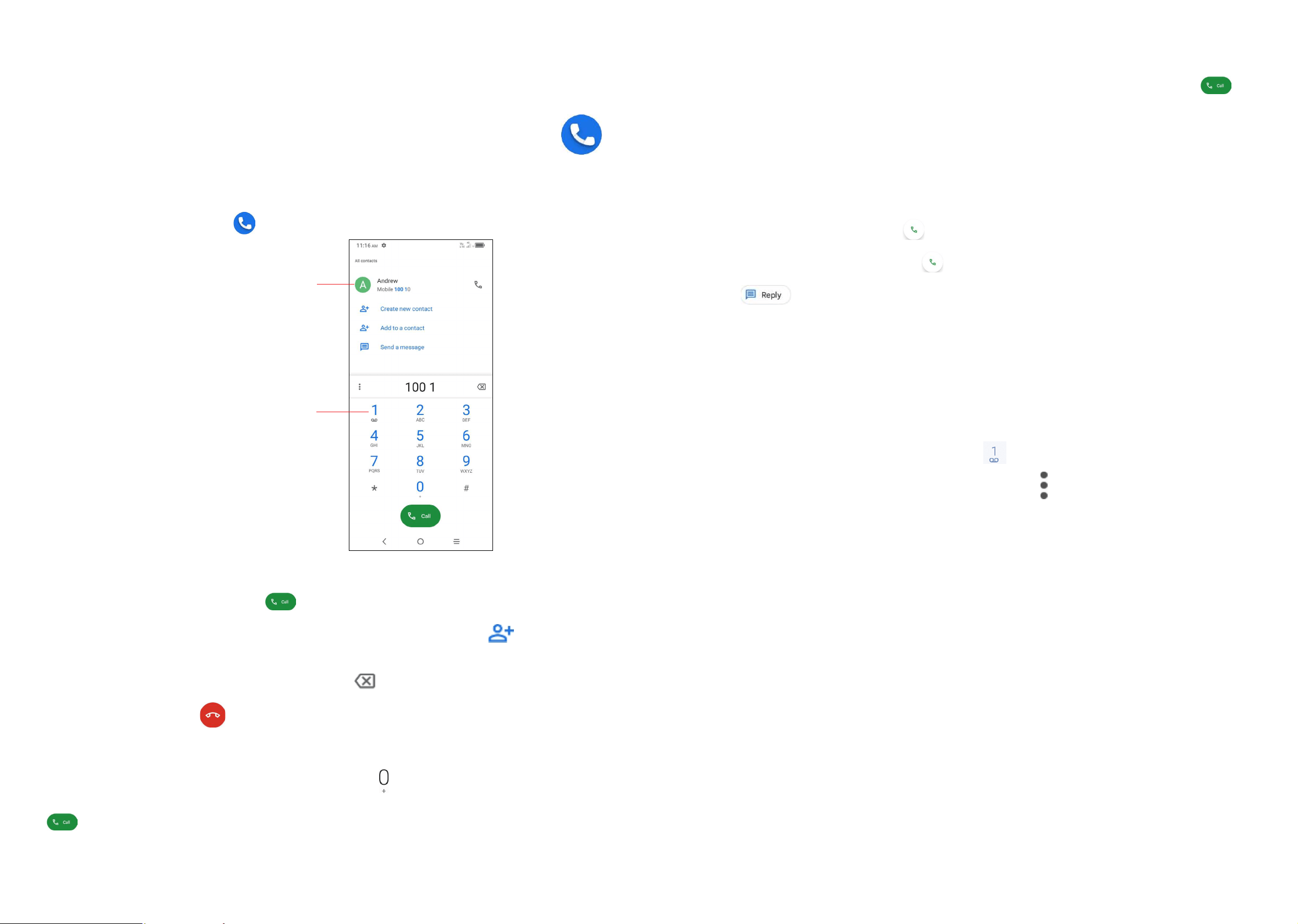
Gboard
2
3
4
1
5
6
7
1
Tap to send the SMS or MMS message.
2
Touch and hold to switch language (if additional language keyboards are activated).
3
Insert a picture from gallery or shoot one directly.
4
Insert a GIF, contact, location, or other file.
5
Tap to input a comma. Touch and hold to access keyboard settings or enter left
or right hand input mode.
6
Tap to switch to "abc/Abc" mode; Touch and hold to switch to "ABC" mode.
7
Tap to access the symbols and numbers keyboards.
Text editing
You can edit the text you have entered�
• Touch and hold or double tap the text you would like to edit.
• The following options will show: Cut, Copy, Share, Select all�
You can also insert new text�
• Tap where you want to type, or touch and hold the blank area, the cursor will
blink, and the tab will show. Drag the tab to move the cursor.
• If you have selected any text, tap the tab to show the Paste and Select all
options which allows you to paste immediately.
19 20
3
Phone call, Call log and Contacts �������
3�1 Phone ��������������������������������������������������������������
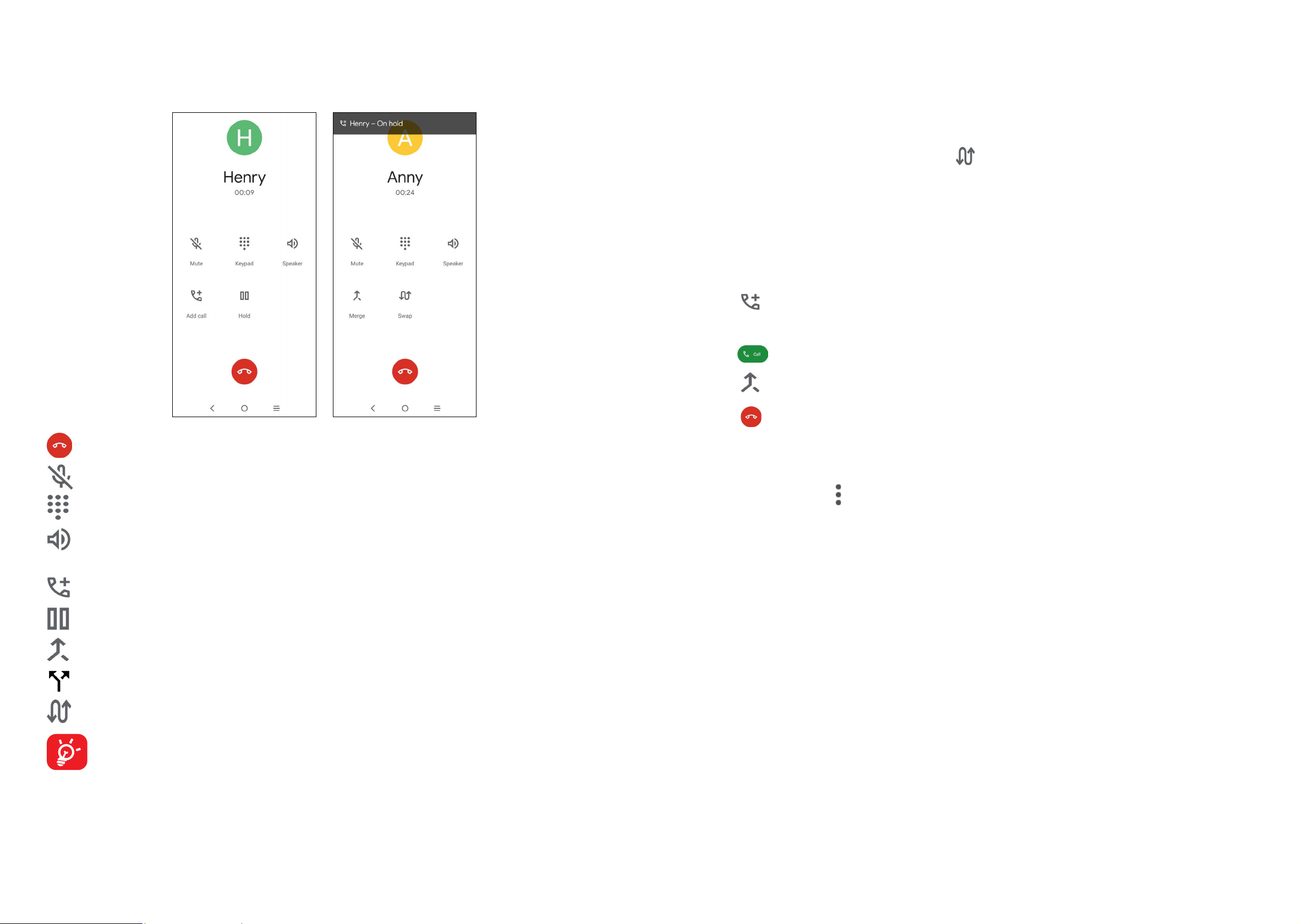
Placing a call
To make a call, tap Phone from the Home screen.
Touch and hold to
access voicemail.
Display the suggested
number(s).
Enter the desired number from the keyboard directly or select a contact from
Contacts or Recents, then tap to place the call.
The number you entered can be saved to Contacts by tapping
Create new
contact.
You can delete the incorrect digits by tapping
if there is any typing mistakes.
To hang up a call, tap
.
International call
To dial an international call, touch and hold
to enter “+”, then enter the
international country prefix followed by the full phone number and finally tap
.
Emergency call
If your phone has network coverage, dial emergency number and tap
to
make an emergency call. This works even without a SIM card and without typing
the PIN code.
Answering or rejecting a call
When you receive a call:
• Tap ANSWER, or swipe up
to answer.
• Tap DECLINE, or swipe down
to reject.
• Tap
to reject the call by sending a preset message.
To mute the ringtone volume of an incoming call, press the Volume up/down key.
Calling your voicemail
Your voicemail is provided by your network to avoid missing calls. It works like an
answering machine that you can consult at any time.
To access your voicemail, touch and hold
on the dial pad.
To set your voicemail number, tap the Menu icon
from the Phone screen, then
tap Settings > Voicemail > Advanced Settings > Setup > Voicemail number.
21 22
During a call
To adjust the volume during a call, press the Volume up/down key.
End the current call.
Tap to mute the current call. Tap this icon again to unmute the call.
Display the dial pad.
Tap to activate the speaker during the current call. Tap this icon again to
deactivate the speaker.
Make another call.
Put a call on hold.
Merge calls to start a conference call.
Split a conference call into multiple calls.
Swap the calls.
To avoid accidental operation of the touch screen during a call, the screen
will be locked automatically when you put the cellphone close to your ear;
and it will be unlocked when the cellphone is taken away from your ear.
Managing multiple calls
With this phone you can handle multiple calls at the same time.
Swap calls
When you accept two calls, tap the
icon to switch between two lines. The
current call will be put on hold and you are able to join the other call.
Conference calls
(1)
You can set up a conference call as follows:
• Place a call to the first participant of the conference call.
• Tap
to add another call.
• Enter the phone number of the person you want to add to the conference and
tap
. You can also add participants from Call logs or Contacts.
• Tap
to start the conference.
• Tap
to end the conference call and disconnect all callers.
Call settings
Tap the Menu icon from the Phone screen, then tap Settings. The following
options are available:
Display options
•Sort by
To set the contacts display by First name or Last name.
•Name format
To set the name format by First name first or Last name first.
•Choose theme
To set Light, Dark or System default.
Sounds and vibration
Adjust volume or select ringtone for your call, notification, alarm, etc.
(1)
Depending on your network carrier.

23 24
Quick responses
Tap to edit quick responses which will be used when you reject a call with
messages.
Calls
Tap to forward your calls or access other voice call settings.
Blocked numbers
Block the numbers and you won't receive calls or texts from them.
Voicemail
Tap to access voicemail service and number settings.
•Notifications
Tap to select the notification sound.
•Service
Tap to open a dialog box where you can select your provider's voicemail service
or another service.
•Setup
You can enter the phone number in the pop-up dialog box to use for listening to
and managing your voicemail, if your provider's voicemail service is available.
Accessibility
•Hearing aids
Tap to enable hearing aid compatibility.
•Vibrate Reminder
Tap to enable vibrate when outgoing calls connect successfully.
Assisted dialing
Assisted dialing predicts and adds a country code when you call while traveling
abroad.
Caller ID & spam
•See caller and spam ID
Identify business and spam numbers
•Verified Calls
See the caller ID and reason for incoming calls from business
Nearby places
When you search from the phone app, this feature will use your location to find
nearby places that match your query, even if they are not in your contacts.
Caller ID announcement
Tap to enable your device to read out the caller's name and number when receiving
incoming calls.
Flip To Silence
Allow your device to silence an incoming call when you place it face down on a
flat surface.
Call log
You can access your call log by tapping from the Phone screen to view missed
calls, outgoing calls and incoming calls.
Tap one call to view information or further operations. You can launch a new call,
send a message to the contact or number, or view detailed information of the call.
To delete the call history of a selected contact or number, touch and hold the
contact and choose Delete.
25 26
3�2 Contacts ���������������������������������������������������������
Contacts enables quick and easy access to the people you want to reach. You
can view and create contacts on your phone and synchronise these with your Gmail
contacts or other applications on the web or on your phone.
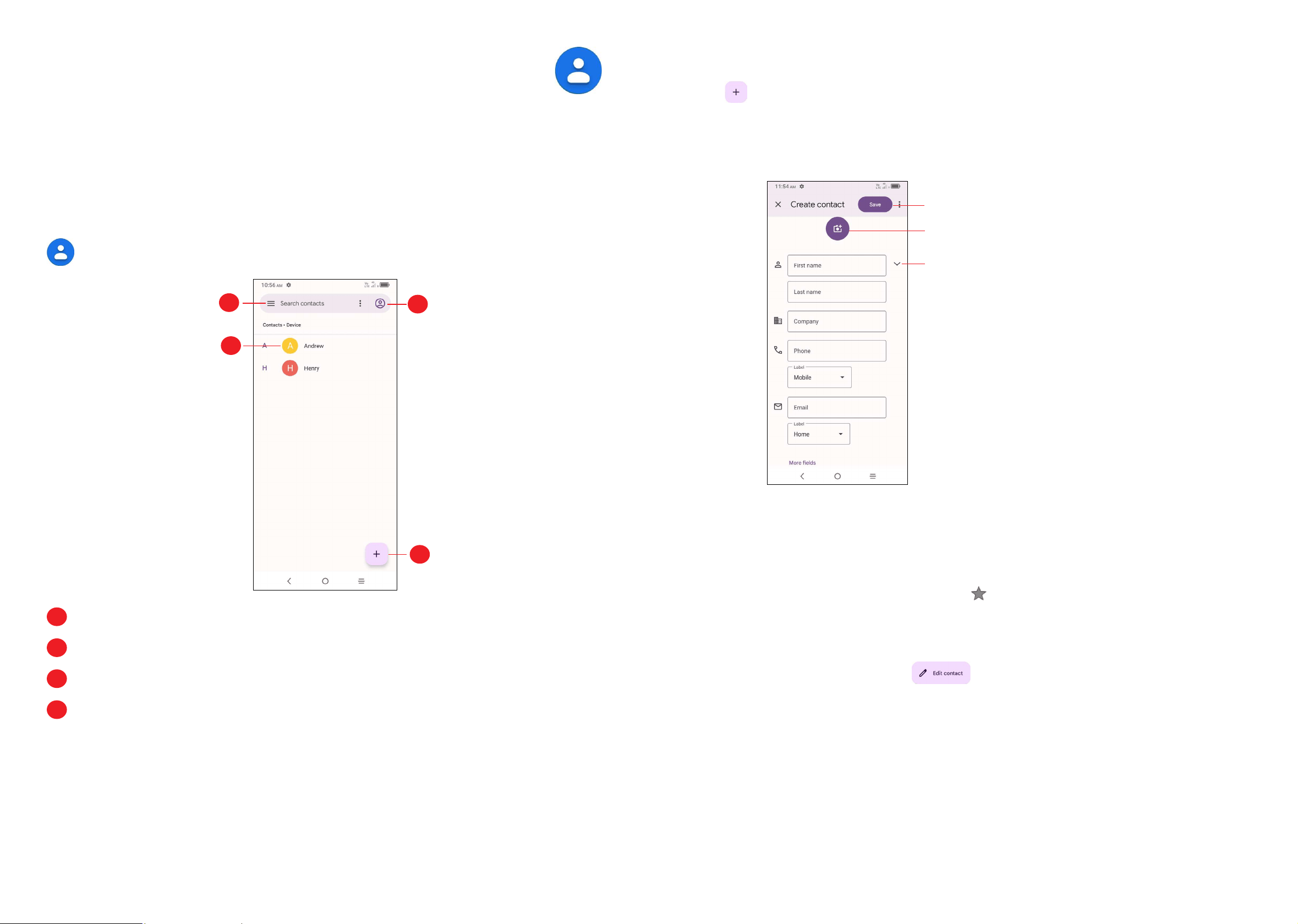
Consult your Contacts
To access this feature, swipe up on the Home screen, and then select Contacts
.
2
1
4
3
1
Tap to select accounts.
2
Tap to open menu options.
3
Tap to view the contact’s detailed information.
4
Tap to add a new contact.
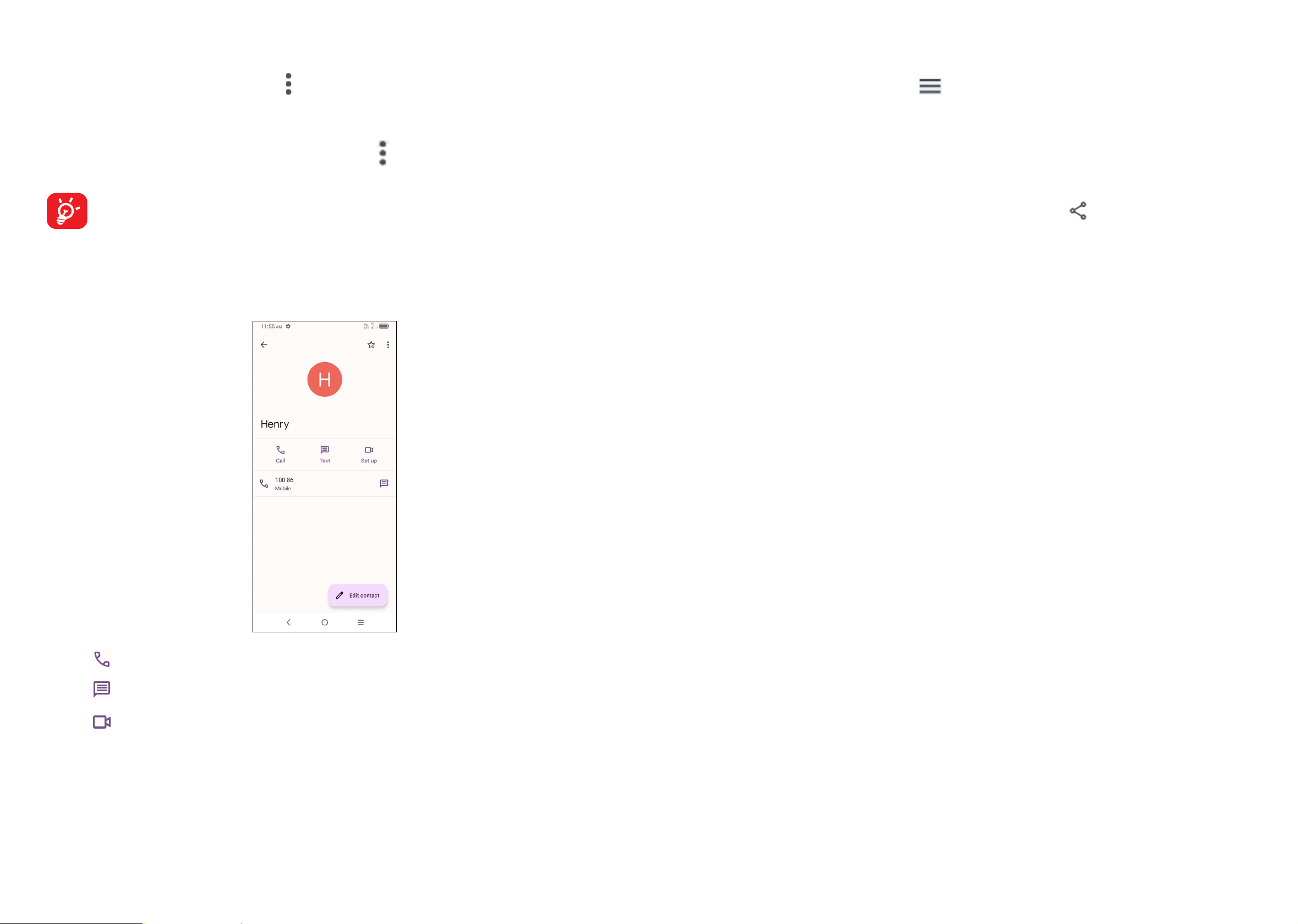
Adding a contact
Tap to create a new contact.
You are required to enter the contact's name and other contact information. By
scrolling up and down on the screen, you can move from one field to another
easily.
Tap to save
Tap to select a picture for the contact
Tap to open available labels
Add to/remove from Favorites
(1)
To add a contact to favorites, you can enter Phone app > Favourites screen, click
Add to add contact fo favourites.
To remove a contact from favorites, tap
on the contact details screen.
Editing your contacts
To edit contact information, tap . When finished, tap SAVE.
Change a contact’s default phone number
The default phone number (the number which has priority when making a call or
sending a message) will always be displayed under the contact name.
To change the default phone number, touch and hold the number you want to set
as the default number from the contact's details screen, then select Set default.
Note: This choice is only available when the contact has more than one number.
(1)
Only phone and account contacts can be added to Favorites.
27 28
Set ringtone for a contact
(1)
On the contact's detail screen, tap
to set ringtone.
Delete a contact
To delete a contact, tap the contact and then tap
> Delete to delete the selected
contacts.
The contact you have deleted will also be removed from other applications
on the phone or web the next time you synchronize your phone.
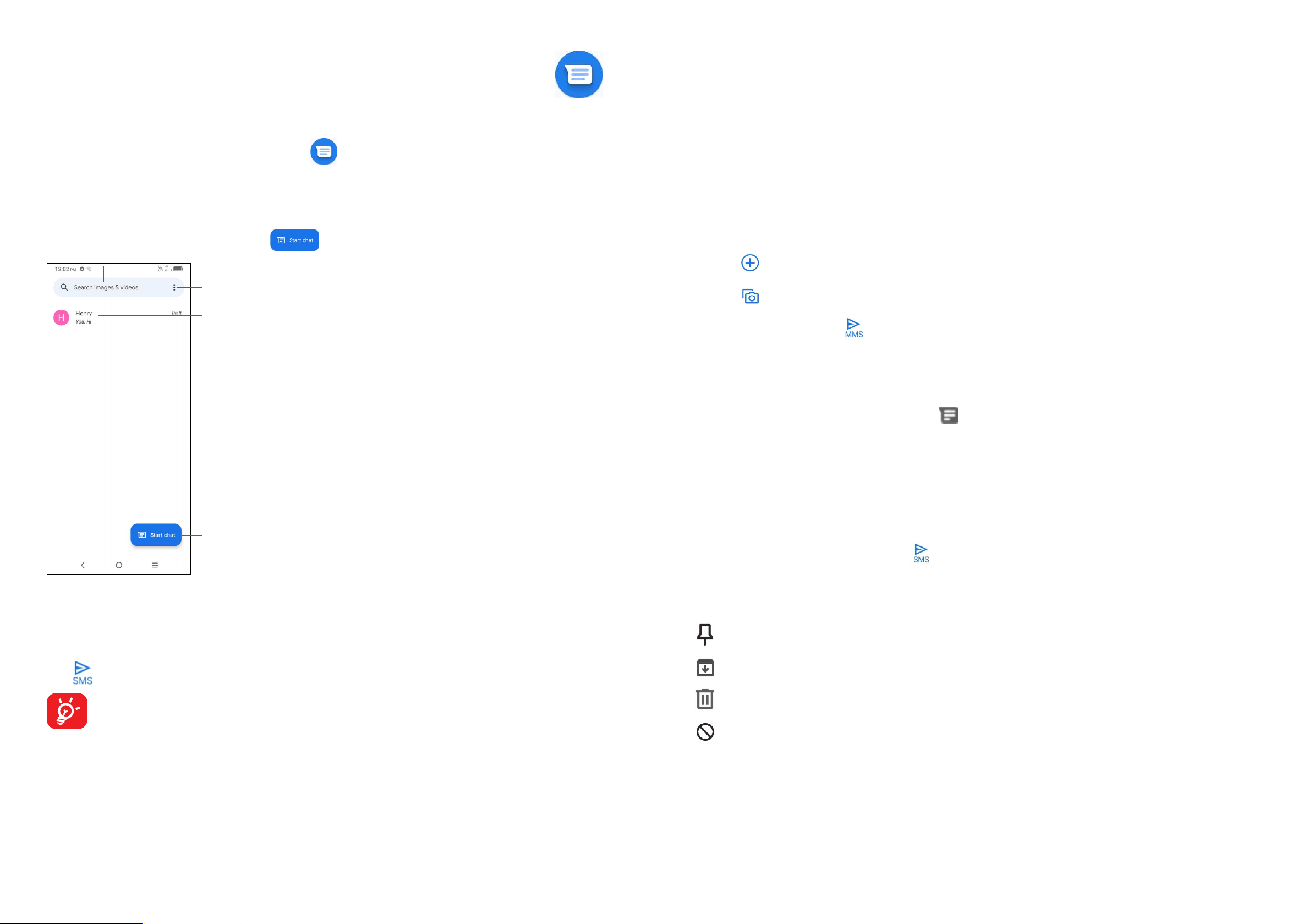
Communicating with your contacts
Tap a contact to open the Quick contact panel.
• Tap or the number to make a call.
• Tap
to send a message.
• Tap
to make a video call.
The icons available on the Quick Contact panel depend on the information you
have for the contact and the applications and accounts on your phone.
(1)
You can only set a ringtone for established contacts.
Contacts importing, exporting, and sharing
From the Contacts screen, tap to open the options menu. Tap
Settings >
Import
or
Export
, then select to import/export contacts from/to your SIM card,
phone, micro SD card, etc.
Share a single contact or multiple contacts with others by sending the contact's
vCard to them via Bluetooth, Gmail, etc.
Touch and hold the contact (s) you want to share, tap
.
29 30
4
Messages �����������������������������������������
You can create, edit, and receive SMS and MMS with this phone.
To access this feature, tap Messages
from the Home screen.
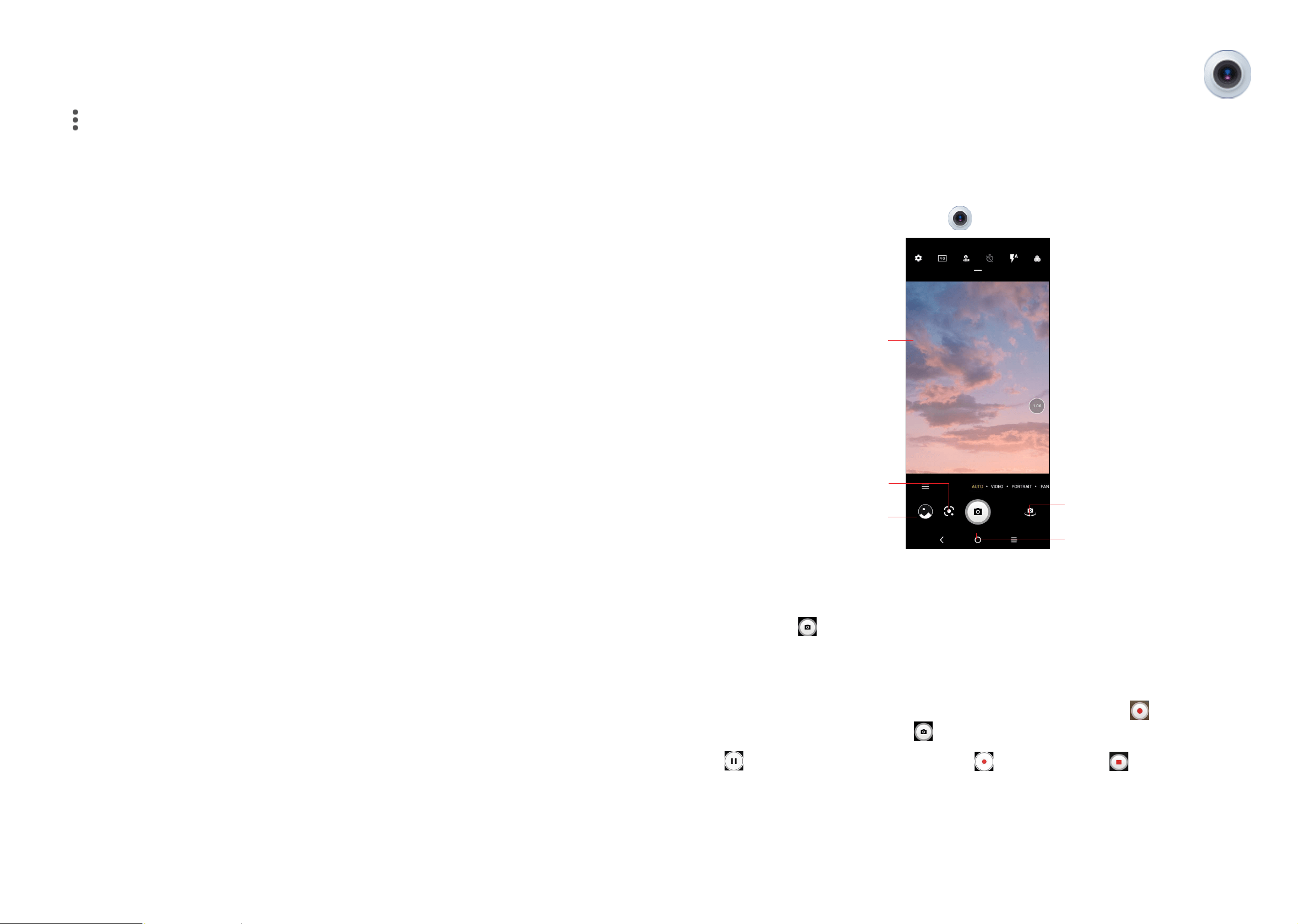
4�1 Write message
On the message list screen, tap to write text/multimedia messages.
Tap to create a new message
Tap for more options.
• Tap to view the whole message thread.
• Touch and hold to activate delete mode.
Tap to search in all messages.
Sending a text message
Enter the mobile phone number of the recipient in the To bar or select a contact,
then tap the Text message bar to type the text of the message. When finished,
tap
to send the text message.
An SMS of more than 160 characters will be split and sent as multiple SMS.
A counter will be displayed on the right of the text box to remind you of how
many characters can be entered in one message. Specific letters (accent)
will also increase the size of the SMS, this may cause multiple SMS to be
sent to your recipient.
Sending a multimedia message
MMS enables you to send video clips, images, photos, animations, slides and
sounds to other compatible mobiles and e-mail addresses.
An SMS will be converted to MMS automatically when media files (image, video,
audio, slides, etc.) are attached or subject or email addresses are added.
• To send a multimedia message, enter the recipient's phone number in the To
bar.
• Write the text of the message in the Text message bar.
• Tap
to give access to your location, share a contact, or attach files.
• Tap
to take a photo/video or attach a photo/video you have taken.
• When finished, tap
to send the multimedia message.
4�2 Manage messages
When receiving a message, an icon will appear on the status bar as notification.
Drag down the status bar to open the Notification panel, tap the new message to
open and read it. You can also access the Messaging application and tap the
message to open.
Messages are displayed in conversational order.
To reply to a message, tap the current message to enter message composing
screen, enter the text, then tap
.
Long press an SMS in message list screen. The following message options are
available for selection:
Pin the selected messages.
Archive the selected messages.
Delete the selected messages.
To block calls or texts from the contact. The selected conversation will be
removed to "Spam & blocked".
31 32
4�3 Adjust message settings
You can adjust a set of message settings. From the Messaging application screen,
tap and then Settings.
•Notifications
Mark the checkbox to display message notifications in the status bar.
•Bubbles
Set bubbles for all conversations or selected conversations.
•Hear outgoing message sounds
Tap to enable this function.
•Your current country
Tap to set the country.
•Automatic previews
Tap to select the settings of previews in messages.
•Spam protection
Tap to enable spam protection.
•Advanced
Tap to enable/disable more settings, such as Auto-download MMS, Use simple
characters, etc.
•About, terms & privacy
Tap to view the Version info, Privacy Policy and Terms of Service
5
Camera ���������������������������������������������
Your mobile phone is equipped with a camera and a camcorder for taking photos
and shooting videos.
Before using the camera or camcorder, please be sure to remove the protective
lens cover before use to avoid it affecting your picture quality.
To access this function, tap Camera
from the Home screen.
View the photos or
videos you have taken
Take a photo
Tap the screen to focus
Switch between front/
back camera
Google Lens
To take a picture
The screen acts as the viewfinder. First position the object or landscape in the
viewfinder, tap
to take the picture which will be automatically saved. Touch and
hold to take burst shots.
To take a video
Tap VIDEO to change the camera mode to video, then tap
to start video
recording. You can also tap the to take a picture during video recording.
Tap
to pause video recording and tap to continue. Tap to stop recording.
The video will be automatically saved.

33 34
Further operations when viewing a picture/video you have taken
• Slide left or right to view the photos or videos you have taken.
• Tap
, then select Gmail/Bluetooth/MMS/etc to share the photo or video.
• Tap Back button to return to Camera.
Modes in framing mode
•MORE
Tap to access more modes. These modes can be moved to the main screen by
tapping
.
•AUTO
Auto is the default mode for Camera.
•VIDEO
Tap to access video mode.
•PORTRAIT
Tap to create a depth of field effect. You can compose an image that highlights
your subject while producing a gorgeously blurred background.
•PANO
Tap to turn on the panorama function. Tap the shutter button to start taking a
panoramic photo and move the phone steadily along in the direction indicated by
the onscreen line. Once the slots are filled, the photo will be automatically saved.
If the slots are not fully filled, tap the shutter button again to save the photo
Settings
Tap to adjust several settings in framing mode.
•Photo size
Tap to select photo size.
•Video quality
Tap to select video progressive scan output and definition.
•Volume button function
Tap to set volume button function in camera mode.
•Storage
Show the storage location for the photo.
•Save location information
Tap to turn on/off save location information when taking a picture.
•Shutter sound
Switch the toggle to enable/disable shutter sound when taking a photo.
•Reset settings
Tap to reset settings to default.
Other applications
(1)
The previous applications in this section are preinstalled on your phone. You can
also download thousands of 3rd party applications by going to the Google Play
Store on your phone.
(1)
Application availability depends on country and provider.

35 36
6
Gmail �������������������������������������������������
As Google's web-based email service, Gmail is configured when you first set up
your phone. Gmail on your phone can be automatically synchronized with your
Gmail account on the web. Unlike other types of email accounts, each message
and its replies in Gmail are grouped in your inbox as a single conversation; all
emails are organized by labels instead of folders.
To access Gmail
• Swipe up on the Home screen, then tap Gmail.
To create and send emails
• Tap Compose icon from the Inbox screen.
• Enter recipient(s)’s email address in the To field, and if necessary, tap
and
then add a copy or a blind copy to the message in the Cc or Bcc field.
• Enter the subject and the content of the message.
• Tap to add an attachment.
• Finally, tap
to send.
• If you do not want to send the email out right away, you can tap
and Save draft
or tap Back button to save a copy. To view the draft, tap display all labels,
then select Drafts.
• If you do not want to send or save the email, you can tap Discard to discard.
• To add a signature to emails, tap the icon from the inbox screen and then
tap Settings, choose an account, then tap Mobile signature�
To receive and read your emails
When a new email arrives, you will be notified by a ringtone or vibration, and
will appear on Status bar.
Tap and drag down the Status bar to display the Notification panel, tap the new
email to view it. Or you can also access the Gmail Inbox label and tap All mail to
read it.
You can search for an email by sender, subject, label, etc.
• Tap the Search mail bar from the Inbox screen.
• Tap
to say something or enter the keyword you want to search for in the
searching box and tap .
To reply or forward emails
•Reply
When viewing an email, tap
to reply to the sender of this mail.
•Reply all
Tap
and select “Reply all” to send message to all people in a mail loop.
•Forward
Tap
and select “Forward” to forward the received mail to other people.
•Add star
Tap
to add star.
•Print
Tap
and select "Print" to save the email as PDF and print it.
Managing Emails with Labels
To conveniently manage conversations and messages, you can organize them
using a Label.
To view conversations by labels when viewing your inbox or another conversation
list, tap
to view a list of conversations with that label.
Touch and hold an email to activate batch mode and produce the following options:
Tap to archive the email message.
Tap to delete the email message.
/ Tap to mark an email message as read or unread.
Tap
to show additional options:
•Move to
Tap to move the email to other labels.

37 38
•Snooze
Tap to set the notification of the email.
•Change labels
Tap to change the label of the email message or conversation.
•Mark important
To Mark the email as important or not important.
•Mute
Tap to mute the email.
•Print all
Tap to save the email as PDF and print it.
•Report spam
To report the email message/conversation as spam.
Gmail settings
To manage Gmail settings, tap
from the inbox screen and then tap Settings.
General settings
•Theme
Tap to set theme for your email.
•Default notification action
Tap to set the default notification action when touched as Archive or Delete.
•Manage notifications
Tap to manage email notifications.
•Conversation view
Mark the checkbox to enable group emails in the same conversation together for
IMAP, POP3, and Exchange accounts.
•Conversation list density
Tap to adjust conversation list density.
•Swipe actions
Tap to select the swipe actions to archive in conversation list.
•Default reply action
Tap to choose the default reply action.
•Auto-fit messages
Tap to mark the checkbox to shrink messages to fit the screen and allow zooming.
•Auto-advance
Tap to select which screen to show after you delete or archive a conversation.
•Open web links in Gmail
When this setting is on, links will open in your Gmail app for faster browsing.
•Confirm before deleting
Mark the checkbox and you will need to confirm before deleting emails.
•Confirm before archiving
Mark the checkbox and you will need to confirm before archiving emails.
•Confirm before sending
Mark the checkbox and you will need to confirm before sending emails.
Tap an account and the following settings will display:
•Account
Tap to manage your Google account.
•Inbox type
To set messages in this inbox as the default important first, Unread first, standard
first or priority inbox.
•Notifications
Select to activate notification when a new email arrives.
•Inbox notifications
Tap to set Play sound, Vibrate and Notify once when each new message arrives.

39 40
•Manage labels
Tap to open the Label screen, where you can manage synchronization and
notifications.
•Manage notifications
Tap to manage email notifications.
•Chat
Mark the checkbox and the chat and spaces tabs would display in the email.
•Default reply action
Tap to set default reply action.
•Mobile signature
To add a signature text to the end of each mail you send.
•Conversation view
Mark the checkbox to enable group emails with same topic to gather together.
•Smart features and personalization
This function allows Gmail, Chat and Meet to personalize your experience and
provide smart features with access to your email, chat and video contents.
•Smart Reply
Mark the checkbox to enable the suggested replies shown when available.
•Vacation responder
Tap to set the notification when on vacation.
•Show the Meet tab for video calling
Tap to mark the checkbox and the Meet tab would be shown during video calling.
•Limited data usage
Mark the checkbox to adjust call quality for saving data.
•Reply and follow up
Tap to set the function of reply and follow-up per your preference.
•Inbox Tips settings
Tap to set inbox tips settings.
•Sync Gmail
Mark the checkbox to turn on/off Gmail sync.
•Days of mail to sync
Tap to set the duration of days for mail sync.
•Download attachments
Mark the checkbox to auto download attachments for recent messages via Wi-Fi.
•Images
Tap to set always show image or ask before showing.

41 42
7
Calendar ,Clock & Calculator ���������������
7�1 Calendar ���������������������������������������������������������
Use Calendar to keep track of important meetings, appointments, etc.
To access this function, swipe up on the Home screen, then tap Calendar.
Multimode view
You can display the Calendar in daily, weekly, monthly, or agenda view.
To change your Calendar view, tap
to open a drop-down menu of Day, 3 days,
Week and Month for your options. Tap to return to Today's view.
In Schedule, Day or Week view, tap an event to view its details. Tap a day in
Month view to open that day's events.
To create new events
You can add new events from any Calendar view.
• Tap
to access new event edit screen.
• Fill in all required information for this new event. If it is a whole-day event, you
can turn on All-day.
• When finished, tap Save from the top of the screen.
To quickly create an event from Day, Week view screen, tap an empty spot or an
event to open the event details screen of the time you have previously selected.
Event reminder
If a reminder is set for an event, the upcoming event icon will appear on the
Status bar as a notification when the reminder time arrives.
Tap and drag down the Status bar to open the notification panel, tap an event name
to view the Calendar notification list. Tap the Back button to keep the reminders
pending in the Status bar and the notification panel.
7�2 Clock��������������������������������������������������������������
Your mobile phone has a built-in clock.
To access this function, swipe up on the Home screen, then tap Clock
.
Alarm
From the Clock screen, tap Alarm to enter.
• Tap
to enable the alarm.
• Tap
to add a new alarm, and tap to save.
• Tap a currently existing alarm to enter the alarm editing screen.
• Tap DELETE to delete the selected alarm.
Clock
To view the date and time, tap Clock.
• Tap
to add a city from the list.
Timer
From the Clock screen, tap Timer to enter.
• Set the time.
• Tap to enter numbers to set countdown time.
• Tap
to pause.
• Tap
to reset.
Stopwatch
From the Clock screen, tap Stopwatch to enter.
• Tap
to start the Stopwatch.
• Tap
to show a list of records according to the updated time.
• Tap
to pause.
• Tap
to reset.
• Tap
to share.
43 44
Adjust Clock settings
Tap to access Clock and Alarm settings.
7�3 Calculator �������������������������������������������������������
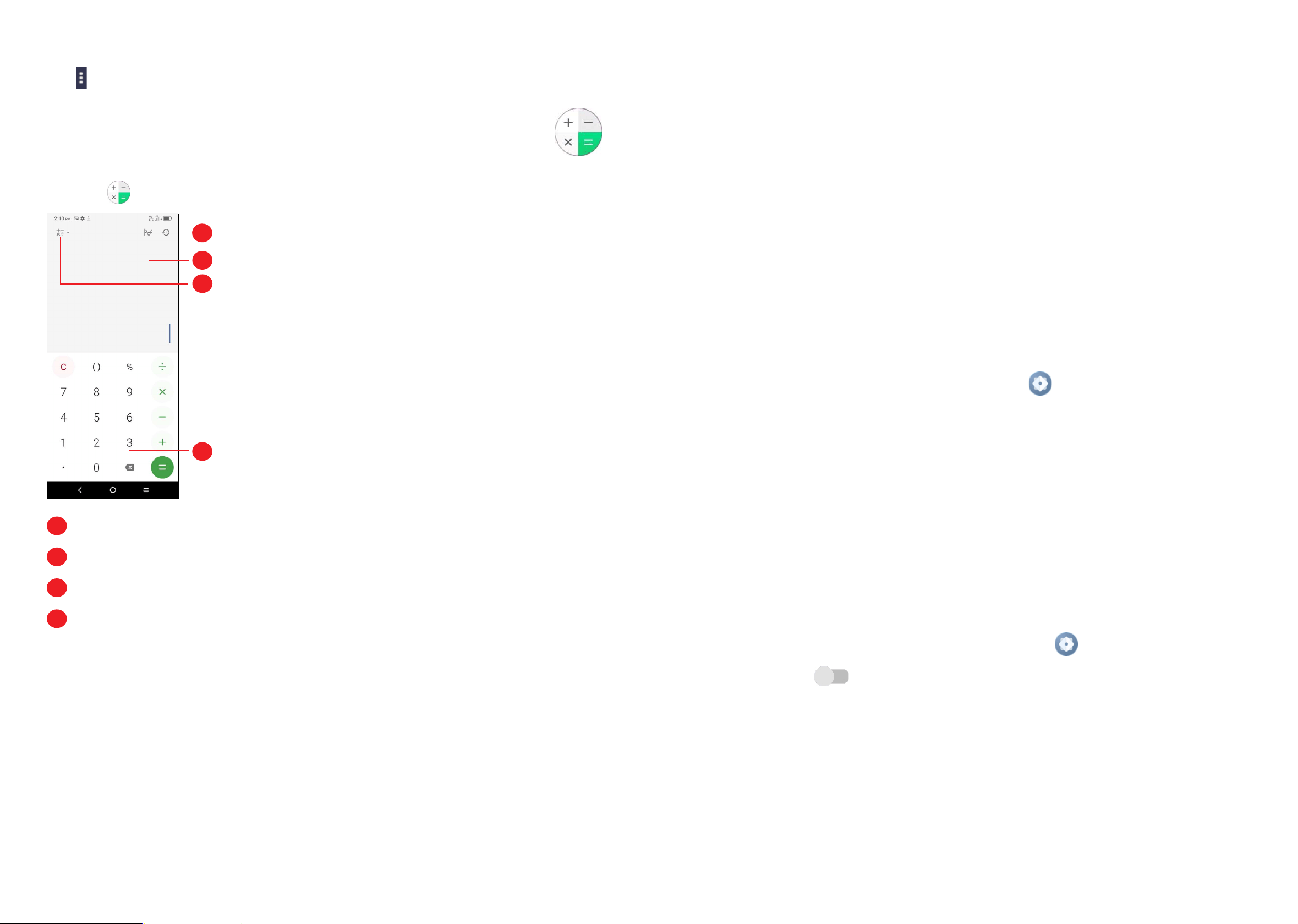
To solve mathematical problems with Calculator, swipe up from the home screen,
then tap
.
1
2
3
4
1
Calculation history
2
Tap to switch between Basic calculation and Scientific calculation
3
For more options about Currency and Unit conversion
4
Tap to delete digits one by one
8
Getting connected ���������������������������������
To connect to the internet with this phone, you can use 4G network or Wi-Fi,
whichever is more convenient.
8�1 Connecting to the Internet
4G
The first time you turn on your phone with network signal, it will automatically
configure your network service: 4G
(1)
.
To activate/deactivate Data roaming
When roaming, you can decide to connect/disconnect to a data service.
• Swipe up on the Home screen, then Settings
> Mobile network.
• Select Data roaming to set roaming mode.
• When Data roaming is disabled, you can still perform data exchange with a
Wi-Fi connection (refer to "8�1�2 Wi-Fi").
Wi-Fi
Using Wi-Fi, you can connect to the Internet when your phone is within the range
of a wireless network. Wi-Fi can be used on your phone even without a SIM card
inserted.
To turn Wi-Fi on and connect to a wireless network
• Swipe up on the Home screen, then tap Settings
> Wi-Fi.
• Tap the switch
to turn Wi-Fi on or off
(2)
.
• Once Wi-Fi is turned on, detected Wi-Fi networks are listed.
• Tap a Wi-Fi network to connect. If the network you selected is secured, you are
required to enter a password or other credentials (you may contact the network
carrier for details). When finished, tap CONNECT.
(1)
Depending on your network carrier.
(2)
Wi-Fi is turned on by default when you power on the phone for the first time.

45 46
To activate notification when a new network is detected
When Wi-Fi is on and the network notification is activated, the Wi-Fi icon will appear
on the status bar whenever the phone detects an available wireless network within
range. The following steps activate the notification function when Wi-Fi is on:
• Swipe up on the Home screen
, then
tap Settings > Wi-Fi > Wi-Fi
preferences.
• Mark/Unmark the Open network notification checkbox to activate/deactivate
this function.
To add a Wi-Fi network
When Wi-Fi is on, you may add new Wi-Fi networks according to your preference.
• Swipe up on the Home screen, then
tap
Settings > Wi-Fi > Add network.
• Enter the name of the network and any required network information.
• Tap CONNECT.
You can also scan QR code to join Wi-Fi by tapping
�
When successfully connected, your phone will be connected automatically the
next time you are within the range of this network.
To forget a Wi-Fi network
The following steps prevent automatic connections to networks which you no
longer wish to use.
• Turn on Wi-Fi, if it’s not already on.
• On the Wi-Fi screen, tap the name of the saved network.
• Tap Forget in the dialog that opens.
8�2 Connecting to Bluetooth devices
(1)
Bluetooth is a short-range wireless communication technology that you can use to
exchange data or connect to other Bluetooth devices for various uses.
To access this function, swipe up on the Home screen, then
tap
Settings >
Bluetooth > Pair new device, your device and other available ones will show on
the screen.
(1)
You are recommended to use TCL Bluetooth headsets, which have been tested and
proved compatible with this phone. You can go to tcl.com/us for more information
about TCL Bluetooth headsets.
To turn on Bluetooth
• Swipe up on the Home screen, then
tap
Settings > Bluetooth�
• Tap
to activate/deactivate this function.
To make your phone more recognizable, you can change your phone name which
is visible to others.
• Swipe up on the Home screen, then tap Settings > Bluetooth.
• Tap Device name and Rename this device.
• Enter a name, and
tap
RENAME to confirm.
To show received files
• Swipe up on the Home screen, then tap Settings
> Bluetooth.
• Tap Received files to view your transfer history.
To pair/connect your phone with a Bluetooth device
To exchange data with another device, you need to turn Bluetooth on and pair your
phone with the Bluetooth device with which you want to exchange data.
• Swipe up on the Home screen, then tap Settings
> Bluetooth > + Pair new
device.
• Tap a Bluetooth device you want to be paired with on the list.
• A dialog will pop up, and
tap
PAIR to confirm.
• If the pairing is successful, your phone will connect to the device.
To disconnect/unpair from a Bluetooth device
• Tap
next to the device name
• Tap
and FORGET DEVICE to confirm

47 48
8�3 Connecting to a computer
With the USB cable, you can transfer media files and other files between your
microSD card/internal storage and the computer.
To connect/disconnect your phone to the computer:
To connect:
• Use the USB cable to connect the phone to a USB port on your computer. You
will receive a notification that the USB is connected.
• Open the Notification panel and choose the way in which you want to transfer
files. By default, Charge this device is selected.
• To disconnect your phone from the computer, unplug the USB cable from your
computer's USB port.
Before using MTP, make sure that the driver (Windows Media Player 11 or
higher version) has been installed.
To locate the data you have transferred or downloaded to internal storage, tap
Files. All data you have downloaded is stored in Files, where you can view media
files (videos, photos, music and others), rename files, install applications into your
phone, etc.
8�4 Sharing your phone's mobile data connection
You can share your phone's mobile data connection with a single computer via
USB cable (USB tethering) or with up to ten devices at once by turning your phone
into a portable Wi-Fi hotspot.
The functions below may incur additional network charges from your
network carrier. Extra fees may also be charged in roaming areas.
To share your phone's data connection via USB
Use a USB cable to connect the phone to a USB port on your computer.
• Tap Settings
> Connections > Hotspot & tethering�
• Tap the switch next to USB tethering to activate/deactivate this function.
To share your phone's data connection as a portable Wi-Fi hotspot
• Tap Settings
> Connections > Hotspot & tethering�
• Tap Mobile hotspot to activate/deactivate this function.
To share your phone's data connection via Bluetooth
• Tap Settings
> Connections > Hotspot & tethering.
• Tap Bluetooth tethering to activate/deactivate this function.
To rename or secure your portable hotspot
When a Portable Wi-Fi hotspot is activated, you can change the name of your
phone's Wi-Fi network (SSID) and secure its Wi-Fi network.
• Tap Settings
> Connections > Hotspot & tethering�
• Tap Mobile hotspot to change the Hotspot name or set your network security.
8�5 Connecting to virtual private networks
Virtual private networks (VPNs) allow you to connect to the resources inside a
secured local network from outside that network. VPNs are commonly deployed
by corporations, schools, and other institutions so that their users can access local
network resources when not inside that network, or when connected to a wireless
network.
To add a VPN
• Swipe up on the Home screen, then tap Settings
> Connections > VPN
and then tap .
• In the screen that opens, follow the instructions from your network administrator
to configure each component of the VPN settings.
• Tap SAVE.
The VPN is added to the list on the VPN settings screen.

49 50
To connect/disconnect to a VPN
To connect to a VPN:
• Swipe up on the Home screen, then tap Settings
> Connections > VPN.
• VPNs you have added are listed; tap the VPN you want to connect with.
• In the dialog that opens, enter any requested credentials and tap CONNECT.
To disconnect:
• Tap a connected VPN, then select DISCONNECT.
To edit/delete a VPN
To edit a VPN:
• Swipe up on the Home screen, then tap Settings
> Connections > VPN.
• VPNs you have added are listed; tap
next to the VPN you want to edit.
• When finished, tap SAVE.
To delete:
• Tap
next to the VPN.
• Tap FORGET to delete.
9
Google applications
(1)
��������������������������
Google apps are preinstalled on your phone to improve work efficiency and help
you enjoy life.
This manual briefly introduces the apps. For detailed features and user guides,
refer to related websites or the introduction provided in the apps.
You are recommended to register with a Google Account to enjoy all of the
functions.
9�1 Play Store
Serves as the official app store for the Android operating system, allowing users
to browse and download applications and games. Applications are either free of
charge or at a cost.
In the Play Store, search for the app you need, download it and then follow the
installation guide to install the app. You can also uninstall, update an app, and
manage your downloads.
9�2 Chrome
Using the Chrome browser, you can enjoy surfing the Web. Your bookmarks,
browsing history, and settings across all devices with the browser installed can be
synchronized with your Google Account.
To get onto the Web, go to the Home screen and tap the Chrome icon
in the
Favorites tray.
9�3 Maps
Google Maps offers satellite imagery, street maps, 360° panoramic views of
streets, real-time traffic conditions, and route planning for traveling by foot, car,
or public transportation. By using this application, you can get your own location,
search for a place, and get suggested route planning for your trips.
(1)
Availability depends on phone variants.

51 52
9�4 YouTube
YouTube is an online video-sharing application where users can upload, view,
and share videos. Available content includes video clips, TV clips, music videos,
and other content such as video blogging, short original videos, and educational
videos. It supports a streaming function that allows you to start watching videos
almost as soon as they begin downloading from the Internet.
9�5 Drive
Google Drive is a file storage and synchronization service created by Google,
which allows users to store files in cloud, share and edit files.
Files in Drive are well kept and you can reach your files from any device by logging
in to your Google Account. Files or folders can be shared privately with particular
users that have a Google Account.
9�6 YT Music
A music streaming service and online music locker operated by Google.
You can upload and listen to a large number of songs for free. In addition to
offering music streaming for Internet-connected devices, the YT Music app allows
music to be stored and listened to offline. Songs purchased through the YT Music
app are automatically added to the user's account.
9�7 Google Play movies & TV
Movies and television shows can be viewed online via Google Play Movies & TV.
You can also download movies and TV shows for offline viewing. Some content is
only available for rental or purchase.
9�8 Duo
Google Duo is a video chat mobile app; it allows users to use phone numbers
to easily call people from their contact list. The app will automatically control the
video quality by sensing the network connectivity.
9�9 Photos
Google Photos stores and backs up your photos and videos. It also automatically
analyses photos and organizes them into groups, so that you can quickly locate
the photo you need.

53 54
10
Settings �����������������������������������������
To access this function, swipe up on the Home screen and then tap Settings .
You can also swipe down from the notification panel and tap
.
10�1 Wi-Fi
Using Wi-Fi, you can now surf the Internet without using your SIM card whenever
you are in the range of a wireless network. The only thing you have to do is to
enter the Wi-Fi screen and configure an access point to connect your phone to
the wireless network.
For detailed instructions on using Wi-Fi, please refer to section "8�1�2 Wi-Fi".
10�2 Bluetooth
For detailed instructions on using Bluetooth, please refer to section "8�2
Connecting to Bluetooth devices".
10�3 Mobile network
•
Data roaming
If you don’t need to transmit data on other provider’s mobile networks, unmark
the checkbox to avoid incurring significant roaming charges.
•Access Point Names
You can select your preferred network with this menu.
10�4 Connections
Airplane mode
Use Airplane mode to simultaneously disable all wireless connections including
Wi-Fi, Bluetooth and more.
You can also open Airplane mode by tapping Airplane mode on the Quick setting
bar or in phone options when long pressing Power key.
Hotspot & tethering
This function allows you to share your phone's cellular data connection via USB
or as a portable Wi-Fi access point (refer to "8�4 Sharing your phone's mobile
data connection").
Data usage
Tap to view settings related to your data usage. Mark the checkbox to set cellular
data limit. Your cellular data connection will be disabled when the specified limit is
reached. You can also choose a data usage cycle to view the statistics and related
applications of used data by your phone.
Data usage is measured by your phone, and your provider may count
differently. Please consider using a conservative limit.
VPN
Virtual private networks (VPNs) allow you to connect to the resources inside a
secured local network from outside that network. VPNs are commonly deployed
by corporations, schools, and other institutions so that their users can access local
network resources when not inside that network, or when connected to a wireless
network. (refer to "8�5 Connecting to virtual private networks").
Private DNS
Tap to select the Private DNS Mode of the device.
USB connection
With a USB cable, you can charge your device, transfer files or photos (PTP)
between your phone and a computer.
To connect your phone to the computer
• Use the USB cable that came with your phone to connect the phone to a USB
port on your computer. You will receive a notification that the USB is connected.
• Open the Notification panel and choose the way which you want to transfer
files or tap Settings > Connections > USB connection to select. By default,
Charge this device is selected.

55 56
Printing
Tap Printing to activate Print services� You can select your Default print service.
Chromebook
Link your phone to chromebook so that you can text from your computer, share
your phone's Internet connection and simplify unlocking.
Nearby Share
The device location setting needs to be on for Bluetooth and Wi-Fi to detect
nearby devices.
Android Auto
Use apps on your car screen.
10�5 Home screen & lock screen
With this menu, choose your favorite wallpapers and theme styles, set your Lock
screen style, etc.
10�6 Display
In this menu, you can adjust your dark mode, status bar, font size, etc.
To rotate screen contents when device is rotated, tap Auto-rotate screen.
10�7 NXTVISION
•Image enhancement
Tap to enhance image contrast automatically, sharpness and dark details.
•Video enhancement
Tap to enhance the color, contrast and depth of detail of video to bring a cinema-
grade visual experience.
•Game enhancement
Tap to improve the shadow detail and enhance overall gaming graphics.
•Reading mode
Tap to optimize the screen display to make the reading experience as comfortable
as physical books.
•Eye comfort mode
Tap to filter out blue light and adjust the color temperature of your display to
reduce eye strain.
•Sunlight display mode
Tap to increase readability under sunlight.
•Color mode & temperature
With this menu, you can change display gamut based on display content like
Vivid, Nature, etc.
10�8 Sound & vibration
Tap to adjust call and notification ringtones, music, and other audio settings.
10�9 Notifications
Tap to manage apps notification. You can set permission of apps notification, the
authority to show the notifications on the lock screen, etc.
10�10 Buttons & Gestures
To set some buttons and gestures for convenient use, such as button layout, flip
to mute, 3-finger screenshot, 3-finger regional screenshot, split-screen gesture, lift
to wake, etc.
10�11 Advanced features
With this menu, you can set Smart App Recommend, Screen Recorder, etc.

57 58
10�12 Smart Manager
Smart Manager ensures your phone is operating in top form by automatically
scanning and optimizing data usage to preserve battery levels, manage storage
and protect against security threats.
Restricting auto-start apps can make the system run faster and extend battery life.
You can also update some options manually for further optimization.
10�13 Security & biometrics
•Screen lock
Select one method such as Swipe, Pattern, PIN or Password to unlock the
screen.
•Face unlock
Face unlock allows you to unlock your device with your facial data. Set it
according to the on-screen steps.
Ensure that you are facing the phone screen when using face recognition.
NOTE: you need to set a pattern, PIN, or password before using Face unlock.
•Smart Lock
Smart Lock keeps your device unlocked when it's safe with you and locked
when it detects that it's been put down.
•Others
You can also set Device admin apps, SIM card lock, Encryption & credentials,
Trust agents, Screen pinning, etc. under this menu.
10�14 Location
Tap to set whether to allow an app to access your device's location.
10�15 Privacy
To protect your privacy, you can set an app to be allowed or forbidden access to
your location, SMS, phone, etc. Also, whether or not to show passwords, choose
the activities and info that you want Google to save.
10�16 Safety & emergency
Access Settings > Safety & emergency > OPEN EMERGENCY INFORMATION
to set medical information and emergency contacts.
Adding medical information and emergency contacts can help first responders in
an emergency.
Anyone can read this information from your lock screen and dial your contacts by
tapping their names, without unlocking your phone.
You can also set Emergency SOS, Emergency Location Service or Emergency
alerts in this interface.
10�17 Apps
Tap to view details about the applications installed on your phone, to manage their
data usage or force them to stop.
In the Permission manager menu of an application, you can grant permissions
for the app, such as allowing the app to access your microphone, contacts,
calendar, etc.
10�18 Storage
Enter to check the usage of storage space and free up more when necessary.
10�19 Users & accounts
Tap to add, remove, and manage your email and other supported accounts. You
can also use these settings to control how and whether all applications send,
receive, and synchronize data on their own schedules, and whether all applications
can synchronize user data automatically.
Tap Add account to add an account for the selected app.

59 60
10�20 Digital Wellbeing & parental controls
In this menu you can find how much time you have spent on the phone and even
on each app. You can customize the time limit for using the phone to ensure a
healthy and balanced life.
In addition, parents are able to restrict their children's usage time to manage their
browsing habits.
10�21 Google
Tap to configure your Google Account and services settings.
10�22 Accessibility
Use the Accessibility settings to configure any accessibility plug-ins you have
installed on your phone.
10�23 System
•About phone
View basic information for your phone such as model name, CPU, camera,
Storage, etc.
You can also check legal information, build number, status and other specs.
•System Update
Tap to check for System updates.
•Update APPS
Check for apps update and keeps your apps up to date.
•Languages & input
Tap to configure language settings, virtual keyboard, secure input, physical
keyboard, etc.
•Date & time
Use Date & time settings to customize your preferences for how date and time
are displayed.
•Backup
Turn on to back up your phone’s settings and other application data to Google
servers. If you replace your phone, the settings and data you’ve backed up will
be restored onto the new phone when you sign in with your Google Account.
•Reset
Tap to reset all network settings and app preferences, you won't lose your data
with these settings.
If Factory data reset is selected, all data in your phone's internal storage will be
erased, please back up your data before reset.
•Users
Share your phone by adding new users. Each user has a personal space on your
phone for custom Home screens, accounts, apps, settings, and more.
•Regulatory & safety
Tap to view product information such as Product model, Manufacturer name,
IMEI, CU reference, Bluetooth Declaration ID, etc.

61 62
11
Making the most of your phone ��������
11�1 FOTA Upgrade
Using the FOTA Upgrade tool you can update your phone's software.
To access System update, please Swipe up on the Home screen, then go to
Settings
> System > System Update. Tap CHECK FOR UPDATES, and
the phone will search for the latest software. The latest software will automatically
download when the device is connected to a wireless network. After it is complete,
please tap Install now to complete the upgrade. Now your phone will have the
latest software version.
You should turn on data connection or connect through Wi-Fi before searching for
updates.
Safety and use �������������������������������������������
We recommend that you read this chapter carefully before using your phone.
The manufacturer disclaims any liability for damage, which may result as a
consequence of improper use or use contrary to the instructions contained herein.
TRAFFIC SAFETY:
Given that studies show that using a phone while driving a vehicle constitutes a
real risk, even when the hands-free kit is used (car kit, headset, etc.), drivers are
requested to refrain from using their phone when the vehicle is not parked. Check
the laws and regulations on the use of wireless phones and their accessories in
the areas where you drive. Always obey them. The use of these devices may be
prohibited or restricted in certain areas.
CONDITIONS OF USE:
• You are advised to switch off the phone from time to time to optimize its
performance.
• Remember to abide by local authority rules of mobile phone use on aircrafts.
• If your phone is a unibody device, where the back cover and battery are not
removable, disassembling the phone will void your warranty. Disassembling the
phone can cause bodily injury if the battery is punctured.
• Always handle your phone with care and keep it in a clean and dust-free place.
• Do not allow your phone to be exposed to adverse weather or environmental
conditions, such as moisture, humidity, rain, infiltration of liquids, dust, sea air,
etc. The manufacturer’s recommended operating temperature range is -10°C
(14°F) to +45°C (113°F). At over 45°C (113°F), the legibility of the phone’s
display may be temporarily impaired.
• Do not open, dismantle, or attempt to repair your phone yourself.
• Do not drop, throw, or bend your phone.
• Use only batteries, battery chargers, and accessories which are recommended
by TCL Communication Ltd. and its affiliates and which are compatible with your
phone model. TCL Communication Ltd. and its affiliates disclaim any liability for
damage caused by the use of other chargers or batteries.
• Your phone should not be disposed of in a municipal waste. Please check local
regulations for disposal of electronic products.

63 64
• Remember to make backup copies or keep a written record of all important
information stored on your phone.
• Some people may suffer epileptic seizures or blackouts when exposed to flashing
lights, or when playing video games. These seizures or blackouts may occur even
if a person has never experienced them before. If you have experienced seizures
or blackouts, or if you have a family history of such occurrences, please consult
your doctor before playing video games on your phone or enabling a flashing-
lights feature on your phone.
• Parents should monitor their children’s use of video games or other features that
incorporate flashing lights on the phones. All persons should discontinue use
and consult a doctor if any of the following symptoms occur: convulsion, eye or
muscle twitching, loss of awareness, orientation, or movements.
PRIVACY:
Please note that you must respect the laws and regulations in force in your
jurisdiction or other jurisdiction(s) where you will use your phone regarding taking
photographs and recording sounds with your phone. Pursuant to such laws and
regulations, it may be strictly forbidden to take photographs and/or to record the
voices of other people or any of their personal attributes, and reproduce or distribute
them, as this may be considered to be an invasion of privacy. It is the user's sole
responsibility to ensure that prior authorization has been obtained, if necessary,
in order to record private or confidential conversations or take a photograph of
another person; the manufacturer, the seller or vendor of your phone (including
the carrier) disclaim any liability which may result from improper use of the phone.
BATTERY:
For a non-unibody device:
Observe the following precautions:
• Do not attempt to open the battery (due to the risk of toxic fumes and burns).
• Do not puncture, disassemble, or cause a short circuit in the battery.
• Do not burn or dispose of a used battery in household garbage or store it at
temperatures above 60°C (140°F).
Batteries must be disposed of in accordance with locally applicable environmental
regulations. Only use the battery for the purpose for which it was designed. Never
use damaged batteries or those not recommended by TCL Communication Ltd.
and/or its affiliates.
This symbol on your phone, the battery, and the accessories means that
these products must be taken to collection points at the end of their life:
• Municipal waste disposal centers with specific bins for these types of
equipment.
• Collection bins at points of sale.
They will then be recycled, preventing substances being disposed of in the
environment, so that their components can be reused.
In European Union countries:
These collection points are accessible free of charge.
All products with this sign must be brought to these collection points.
In non-European Union jurisdictions:
Items of equipment with this symbol are not to be thrown into ordinary bins if your
jurisdiction or your region has suitable recycling and collection facilities; instead
they are to be taken to collection points for them to be recycled.
In the United States you may learn more about CTIA’s Recycling Program at http://
www.gowirelessgogreen.org/
CAUTION: RISK OF EXPLOSION IF BATTERY IS REPLACED BY AN INCORRECT
TYPE. DISPOSE OF USED BATTERIES ACCORDING TO THE INSTRUCTIONS.
WARNING: This product contains chemicals known to the State of California to
cause cancer and birth defects or other reproductive harm.
CHARGERS:
Home A.C./ Travel chargers will operate within the temperature range of: 0°C
(32°F) to 40°C (104°F).
The chargers designed for your phone meet the standard for safety of information
technology equipment and office equipment use. Due to different applicable
electrical specifications, a charger you purchased in one jurisdiction may not work
in another jurisdiction. They should be used for the purpose of charging only.
Characteristics of power supply (depending on the country):
Travel charger: Input: 100-240V, 50/60Hz, 0.2A
Output: 5.0V, 1.0A
Battery: Lithium 3000mAh

65 66
Radio waves �����������������������������������������������
THIS PHONE MEETS THE GOVERNMENT’S REQUIREMENTS FOR EXPOSURE
TO RADIO WAVES.
Your phone is a radio transmitter and receiver. It is designed and manufactured
not to exceed the emission limits for exposure to radio-frequency (RF) energy.
These limits are part of comprehensive guidelines and establish permitted levels
of RF energy for the general population. The guidelines are based on standards
that were developed by independent scientific organizations through periodic and
thorough evaluation of scientific studies. These guidelines include a substantial
safety margin designed to ensure the safety of all persons, regardless of age and
health.
The exposure standard for phones employs a unit of measurement known as the
Specific Absorption Rate, or SAR. The SAR limit set by public authorities such as
the Federal Communications Commission of the US Government (FCC), or by
Innovation, Science and Economic Development Canada (ISEDC), is 1.6 W/kg
averaged over 1 gram of body tissue. Tests for SAR are conducted using standard
operating positions with the phone transmitting at its highest certified power level
in all tested frequency bands.
This device is complied with SAR for general population /uncontrolled exposure
limits in ANSI/IEEE C95.1-1992 and had been tested in accordance with the
measurement methods and procedures specified in IEEE1528.
The FCC has granted an Equipment Authorization for this model phone with
all reported SAR levels evaluated as in compliance with the FCC RF exposure
guidelines. SAR information on this model phone is on file with the FCC and
can be found under the Display Grant section of www.fcc.gov/oet/ea/fccid after
searching on FCC ID : 2ACCJH152
Although the SAR is determined at the highest certified power level, the actual
SAR level of the phone while operating can be well below the maximum value.
This is because the phone is designed to operate at multiple power levels so as
to use only the power required to reach the network. In general, the closer you
are to a wireless base station antenna, the lower the power output of the phone.
Before a phone model is available for sale to the public, compliance with national
regulations and standards must be shown.
The highest SAR value for this model phone when tested is
0.73 W/Kg for use at the ear and 1.07 W/Kg for use close to the body.
While there may be differences between the SAR levels of various phones and
at various positions, they all meet the government requirement for RF exposure.
For body-worn operation, the phone meets FCC RF exposure guidelines provided
that it is used with a non-metallic accessory with the handset at least 15 mm from
the body. Use of other accessories may not ensure compliance with FCC RF
exposure guidelines.
Additional information on SAR can be found on the Cellular Telecommunications
& Internet Association (CTIA) Web site: http://www.ctia.org/
The World Health Organization (WHO) considers that present scientific information
does not indicate the need for any special precautions for use of phones. If
individuals are concerned, they may choose to limit their own or their children’s
RF exposure by limiting the length of calls, or using “hands-free” devices to
keep phones away from the head and body. Additional WHO information about
electromagnetic fields and public health is available on the following website:
http://www.who.int/peh-emf.
Note: This equipment has been tested and found to comply with the limits for
a Class B digital device pursuant to part 15 of the FCC Rules. These limits
are designed to provide reasonable protection against harmful interference
in a residential installation. This equipment generates, uses and can radiate
radio frequency energy and, if not installed and used in accordance with the
instructions, may cause harmful interference to radio communications. However,
there is no guarantee that interference to radio or television reception, which can
be determined by turning the equipment off and on, the user is encouraged to try
to correct the interference by one or more of the following measures:
• Reorient or relocate the receiving antenna.
• Increase the separation between the equipment and receiver.
• Connect the equipment into an outlet on a circuit different from that to which the
receiver is connected.
• Consult the dealer or an experienced radio/ TV technician for help.
Changes or modifications not expressly approved by the party responsible for
compliance could void the user’s authority to operate the equipment.
For the receiver devices associated with the operation of a licensed radio service
(e.g. FM broadcast), they bear the following statement:
This phone complies with Part 15 of the FCC Rules.
Operation is subject to the following two conditions:
• This device may not cause harmful interference.
67 68
• This device must accept any interference received, including interference that
may cause undesired operation.
Your phone is equipped with a built-in antenna. For optimal operation, you should
avoid tapping it or degrading it.
As mobile devices offer a range of functions, they can be used in positions other
than against your ear. In such circumstances the device will be compliant with the
guidelines when used with a headset or usb data cable.
If you are using another accessory ensure that whatever product is used is free
of any metal and that it positions the phone at least 15 mm away from the body.
Please note that when using an accessory some of your personal data may be
shared with the main device. It is your own responsibility to protect your own personal
data, not to share with it with any unauthorized devices or third party devices
connected to yours. For products with Wi-Fi features, only connect to trusted Wi-Fi
networks. Also when using your product as a hotspot (where available), use network
security. These precautions will help prevent unauthorized access to your device.
Your product can store personal information in various locations including a SIM
card, memory card, and built-in memory. Be sure to remove or clear all personal
information before you recycle, return, or give away your product. Choose your
apps and updates carefully, and only install them from trusted locations. Some apps
can impact your product’s performance and/or have access to private information
including account details, call data, location details and network resources.
Note that any data shared with TCL Communication Ltd. is stored in accordance
with applicable data protection legislation. For these purposes TCL Communication
Ltd. implements and maintains appropriate technical and organizational measures
to protect all personal data, for example against unauthorized or unlawful
processing and accidental loss, destruction or damage, whereby the measures
shall provide a level of security that is appropriate with regard to:
• the technical possibilities available;
• the costs for implementing the measures;
• the risks involved with the processing of the personal data; and
• the sensitivity of the personal data processed.
You can access, review, and edit your personal information at any time by logging
into your user account, visiting your user profile or by contacting us directly. Should
you require us to edit or delete your personal data, we may ask you to provide us
with evidence of your identity before we can act on your request.
Licenses �����������������������������������������������������
microSD Logo is a trademark of SD-3C, LLC.
The Bluetooth word mark and logos are owned by the Bluetooth
SIG, Inc. and any use of such marks by TCL Communication Ltd.
and its affiliates is under licence. Other trademarks and trade
names are those of their respective owners.
TCL 4188O Bluetooth Declaration ID
D059652
The Wi-Fi Logo is a certification mark of the Wi-Fi Alliance.
Google, the Google logo, Android, the Android logo, Google
Search
TM
, Google Maps
TM
, Gmail
TM
, YouTube and Google Play
Store
are trademarks of Google Inc.
The Android robot is reproduced or modified from work created and shared by
Google and used according to terms described in the Creative Commons 3.0
Attribution License (the text will appear when you tap Google legal in Settings >
System > About phone > Legal information)
(1)
.
You have purchased a product which uses the open source (http://opensource.
org/) programs mtd, msdosfs, netfilter/iptables and initrd in object code and other
open source programs licensed under the GNU General Public Licence and
Apache Licence.
You may download the source codes from https://sourceforge.net/projects/tcl-
mobile/files/. The provision of the source code is free of charge from the internet.
US Information Concerning the Federal Communications
Commission (“FCC”) Requirements for Hearing Aid
Compatibility with Wireless Devices
When wireless devices are used near hearing devices (such as hearing aids and
cochlear implants), users may detect a buzzing, humming, or whining noise. Some
hearing devices are more immune than others to this interference, and wireless
devices also vary in the amount of interference that they generate.
(1)
May not be available in all countries.

69 70
The wireless telephone industry has developed ratings to assist hearing device
users in finding wireless devices that may be compatible with their hearing devices.
Not all wireless devices have been rated. Wireless devices that are rated will have
the rating displayed on the box together with other relevant approval markings.
The ratings are not guarantees. Results will vary depending on the user’s hearing
device and hearing loss. If your hearing device is vulnerable to interference, you
may not be able to use a rated wireless device successfully. Consulting with your
hearing health professional and testing the wireless device with your hearing
device is the best way to evaluate it for your personal needs.
This smartphone has been tested and rated for use with hearing aids for some
of the wireless technologies that the smartphone uses. However, other wireless
technologies may be used in this smartphone that have not been tested for use
with hearing aids. It is important to try the different features of your smartphone
thoroughly and in different locations to determine if you hear any interfering noise
when using this smartphone with your hearing aid or cochlear implant. Consult
your wireless service provider about its return and exchange policies, and for
information about hearing aid compatibility.
Hearing aid compatibility rating for this smartphone: M4/T3.
How the ratings work
M-Ratings: Wireless devices rated M3 or M4 meet FCC requirements and are
likely to generate less interference to hearing devices than wireless devices that
are not labeled. M4 is the better or higher of the two ratings.
T-Ratings: Wireless devices rated T3 or T4 meet FCC requirements and are likely
to be more usable with a hearing device’s telecoil (also known as a T Switch or
Telephone Switch) than unrated wireless devices. T4 is the better or higher of the
two ratings. Note that not all hearing devices have telecoils in them.
Hearing devices may also be measured for immunity to this type of interference.
Your hearing device manufacturer or hearing health professional may help you
find results for your hearing device. The more immune your hearing aid is, the less
likely you are to experience interference noise from wireless devices.
For more information about the actions that the FCC has taken with regard to
hearing aid compatibility with wireless devices and other steps that the FCC has
taken to ensure that individuals with disabilities have access to telecommunications
services, visit www.fcc.gov/cgb/dro.
FCC ID: 2ACCJH152.
a) 20.19(f)(1): an explanation of the ANSI C63.19 rating system.
b) 20.19(f)(2)(i) specified disclosure for handsets certified under ANSI C63.19 and
not tested for T-Coil operations in accordance with the guidance issued by OET
in KDB Publication 285076 D02 will require disclosure that the handset does
not meet the relevant rating(s) with respect to such operation(s).
General information ����������������������������������
• Website: www.tcl.com
• Call support: 1-855-224-4228 (US and Canada)
• Web support: https://support.tcl.com/contact-us (email only for mobile products)
• Manufacturer: TCL Communication Ltd. (address: 5/F, Building 22E, 22
Science Park East Avenue, Hong Kong Science Park, Shatin, NT, Hong Kong)
Electronic labeling path: Tap Settings > System > Regulatory & safety or
press *#07# to find more information about labeling
(1)
, such as FCC ID.
An electronic version of the device user guide is available in English and other
languages (according to availability) on our website: www.tcl.com
Download files for your device at:
https://support.tcl.com/us-mobile-product-downloads
Protection against theft
(2)
Your phone is identified by an IMEI (phone serial number) shown on the packaging
label and in the phone’s memory. We recommend that you note the number the
first time you use your phone by entering *#06# and keep it in a safe place. It may
be requested by the police or your carrier if your phone is stolen. This number
allows your phone to be blocked preventing a third person from using it, even with
a different SIM card.
Disclaimer
There may be certain differences between the user manual description and the
phone’s operation, depending on the software release of your phone or specific
carrier services.
TCL Communication Ltd. shall not be held legally responsible for such differences,
if any, nor for their potential consequences, which responsibility shall be borne by
the carrier exclusively.
(1)
This may vary depending on country.
(2)
Contact your service provider to check service availability.
71
Warranty
For information on warranty of your device, visit the USA and Canada websites at
https://www.tcl.com/us/en/mobile/warranty
WARNING Cancer and Reproductive Harm
www.P65Warnings.ca.gov
Electronic Information ������������������������������
For more information on Electronic Recycling:
1) Visit TCL Electronic Recycling Program website at https://www.tcl.com/us/en/
mobile/accessibility-compliance/tcl-mobile-electronic-recycling-program.html,
or
2) Call TCL USA Customer Support at 1-855-224-4228.
Battery Recycling (USA & Canada):
TCL partners with Call2Recycle® to offer a safe and convenient battery recycling
program. For more information on our Battery Recycling Program, please visit
the USA and Canada website at https://www.tcl.com/us/en/mobile/accessibility-
compliance/tcl-mobile-battery-recycling-program.html
TCL Communication Ltd. reserves
the right to alter material
or technical specification
without prior notice.