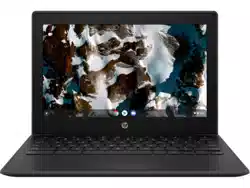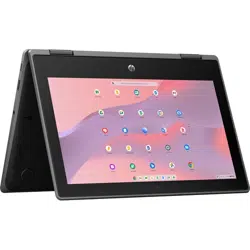

User Guide
SUMMARY
This guide provides basic information for using and upgrading this product, including topics such as
components, features, networks, and HP resources.

Legal information
© Copyright 2023 HP Development
Company, L.P.
Chrome, ChromeOS, Chromebook, Google,
and Google Drive are trademarks of
Google LLC. Windows is either a registered
trademark or trademark of Microsoft
Corporation in the United States and/or
countries. USB Type-C® and USB-C® are
registered trademarks of USB Implementers
Forum.
First Edition: February 2023
Document Part Number: N38466-001
Product notice
This guide describes features that are
common to most models. Some features
may not be available on your computer.
Software terms
By installing, copying, downloading, or
otherwise using any software product
preinstalled on this computer, you agree
to be bound by the terms of the HP End
User License Agreement (EULA). If you
do not accept these license terms, your
sole remedy is to return the entire unused
product (hardware and software) within 14
days for a full refund subject to the refund
policy of your seller.
For any further information or to request
a full refund of the price of the computer,
please contact your seller.

Safety warning notice
Reduce the possibility of heat-related injuries or of overheating the computer by following the practices
described.
WARNING! To reduce the possibility of heat-related injuries or of overheating the computer, do not
place the computer directly on your lap or obstruct the computer air vents. Use the computer only on a
hard, flat surface. Do not allow another hard surface, such as an adjoining optional printer, or a soft
surface, such as pillows or rugs or clothing, to block airflow. Also, do not allow the AC adapter to come
into contact with the skin or a soft surface, such as pillows or rugs or clothing, during operation. The
computer and the AC adapter comply with the user-accessible surface temperature limits defined by
applicable safety standards.
iii

About this guide
This guide provides basic information for using and upgrading this product.
WARNING! Indicates a hazardous situation that, if not avoided, could result in serious injury or death.
CAUTION: Indicates a hazardous situation that, if not avoided, could result in minor or moderate
injury.
IMPORTANT: Indicates information considered important but not hazard-related (for example,
messages related to property damage). Warns the user that failure to follow a procedure exactly as
described could result in loss of data or in damage to hardware or software. Also contains essential
information to explain a concept or to complete a task.
NOTE: Contains additional information to emphasize or supplement important points of the main text.
TIP: Provides helpful hints for completing a task.
iv About this guide

Table of contents
1 Components............................................................................................................................................................................................................................................. 1
Right......................................................................................................................................................................................................................................................... 1
Left........................................................................................................................................................................................................................................................... 2
Display .................................................................................................................................................................................................................................................. 3
Keyboard area................................................................................................................................................................................................................................. 4
Touchpad ................................................................................................................................................................................................................................. 5
Special keys........................................................................................................................................................................................................................... 5
Action keys .............................................................................................................................................................................................................................6
Bottom ...................................................................................................................................................................................................................................................7
Labels .................................................................................................................................................................................................................................................... 8
2 Navigating the screen...................................................................................................................................................................................................................10
Using touchpad and touch screen gestures ..........................................................................................................................................................10
Tap...............................................................................................................................................................................................................................................10
Scrolling (touchpad only)............................................................................................................................................................................................10
One-finger scrolling (touch screen only) ........................................................................................................................................................11
One-finger swipe (touch screen only) ............................................................................................................................................................... 11
Two-finger pinch zoom (touch screen only).................................................................................................................................................. 12
3 Power and battery............................................................................................................................................................................................................................13
Factory-sealed battery........................................................................................................................................................................................................... 13
Charging the battery.....................................................................................................................................................................................................13
4 Printing...................................................................................................................................................................................................................................................... 14
Printing with built-in ChromeOS solution................................................................................................................................................................... 14
Printing from Google Chrome............................................................................................................................................................................................ 14
5 Backing up, resetting, and recovering ............................................................................................................................................................................... 15
Backing up .......................................................................................................................................................................................................................................15
Resetting........................................................................................................................................................................................................................................... 15
Recovering.......................................................................................................................................................................................................................................15
Option 1: Recovering using an internet connection................................................................................................................................16
Option 2: Installing the Chromebook Recovery Utility...........................................................................................................................16
Creating recovery media ...........................................................................................................................................................................................16
Recovering the Chrome operating system with recovery media..................................................................................................17
Setting up your computer after a reset or recovery..........................................................................................................................................17
Erasing and reformatting the recovery media .......................................................................................................................................................17
6 More HP resources..........................................................................................................................................................................................................................19
7 Specifications.....................................................................................................................................................................................................................................20
v

Input power.....................................................................................................................................................................................................................................20
Operating environment .......................................................................................................................................................................................................... 21
8 Electrostatic discharge............................................................................................................................................................................................................... 23
9 Accessibility .........................................................................................................................................................................................................................................24
HP and accessibility..................................................................................................................................................................................................................24
Finding the technology tools you need............................................................................................................................................................24
The HP commitment......................................................................................................................................................................................................24
International Association of Accessibility Professionals (IAAP).................................................................................................. 25
Finding the best assistive technology............................................................................................................................................................. 25
Assessing your needs ..................................................................................................................................................................................... 25
Accessibility for HP products ................................................................................................................................................................................ 25
Standards and legislation ...................................................................................................................................................................................................26
Standards............................................................................................................................................................................................................................. 26
Mandate 376 – EN 301 549 ............................................................................................................................................................................ 26
Web Content Accessibility Guidelines (WCAG).............................................................................................................................26
Legislation and regulations......................................................................................................................................................................................27
Useful accessibility resources and links ...................................................................................................................................................................27
Organizations.....................................................................................................................................................................................................................27
Educational institutions..............................................................................................................................................................................................27
Other disability resources .......................................................................................................................................................................................28
HP links...................................................................................................................................................................................................................................28
Contacting support..................................................................................................................................................................................................................28
Index................................................................................................................................................................................................................................................................ 29
vi
Components1
Your computer features top-rated components. This chapter provides details about your components,
where they are located, and how they work.
Right
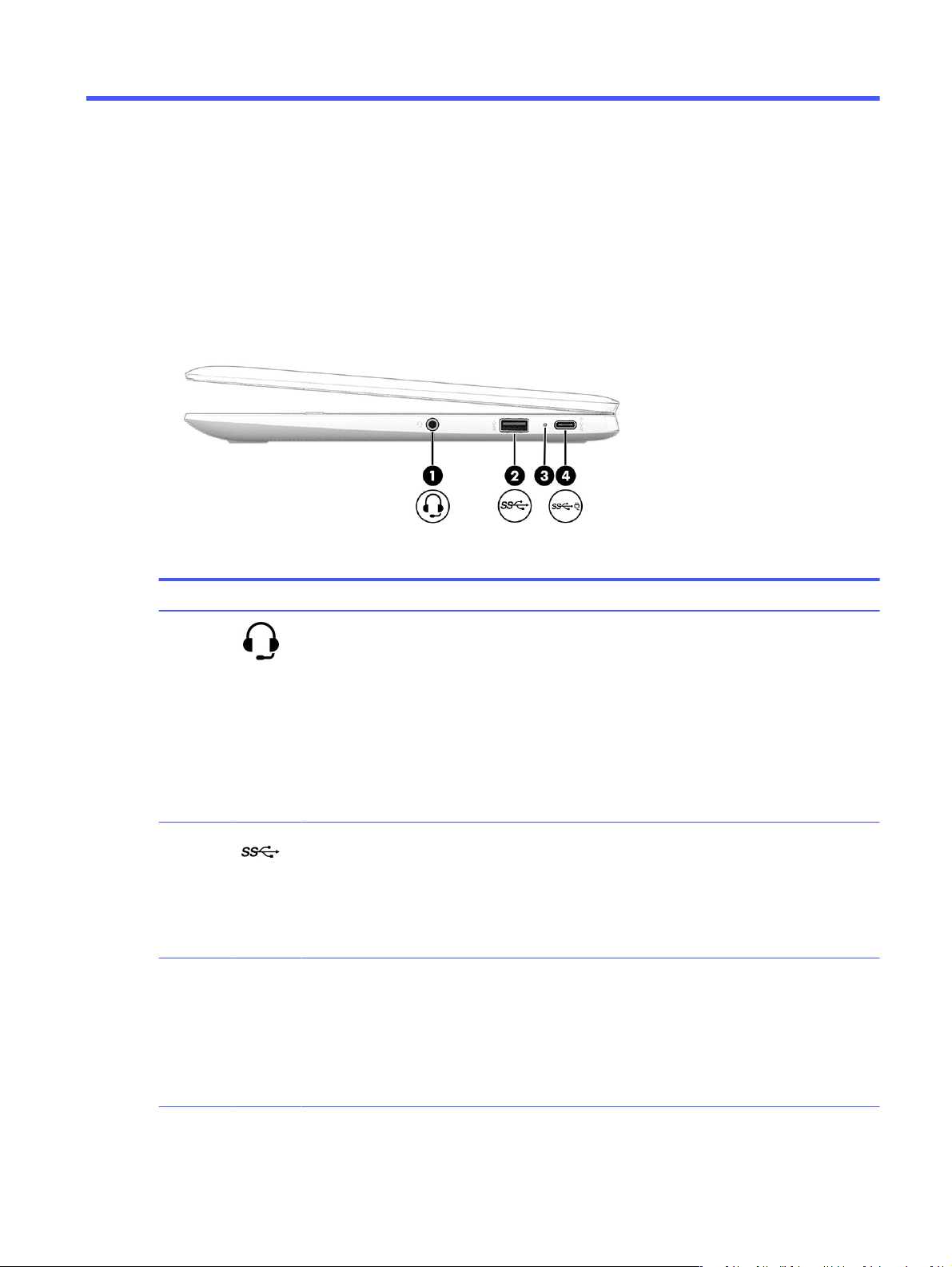
Use the illustration and table to identify the components on the right side of the computer.
Table 1-1 Right-side components and their descriptions
Component Description
(1) Audio-out (headphone)/Audio-in
(microphone) combo jack
Connects optional powered stereo speakers,
headphones, earbuds, a headset, or a television audio
cable. Also connects an optional headset microphone.
This jack does not support optional standalone
microphones.
WARNING! To reduce the risk of personal injury, adjust
the volume before putting on headphones, earbuds, or a
headset. For additional safety information, see the
Regulatory, Safety, and Environmental Notices
.
NOTE: When a device is connected to the jack, the
computer speakers are disabled.
(2) USB SuperSpeed 5 Gbps port Connects a USB device, provides high-speed data
transfer, and (for select products) charges small devices
(such as a smartphone) when the computer is on or in
Sleep mode.
NOTE: Use a standard USB Type-A charging cable or
cable adapter (purchased separately) when charging a
small external device.
(3) AC adapter and battery light ● White: The AC adapter is connected and the battery
is fully charged.
● Amber: The AC adapter is connected and the
battery is charging.
● Blinking amber: The battery has an error.
● Off: The battery is not charging.
Components 1
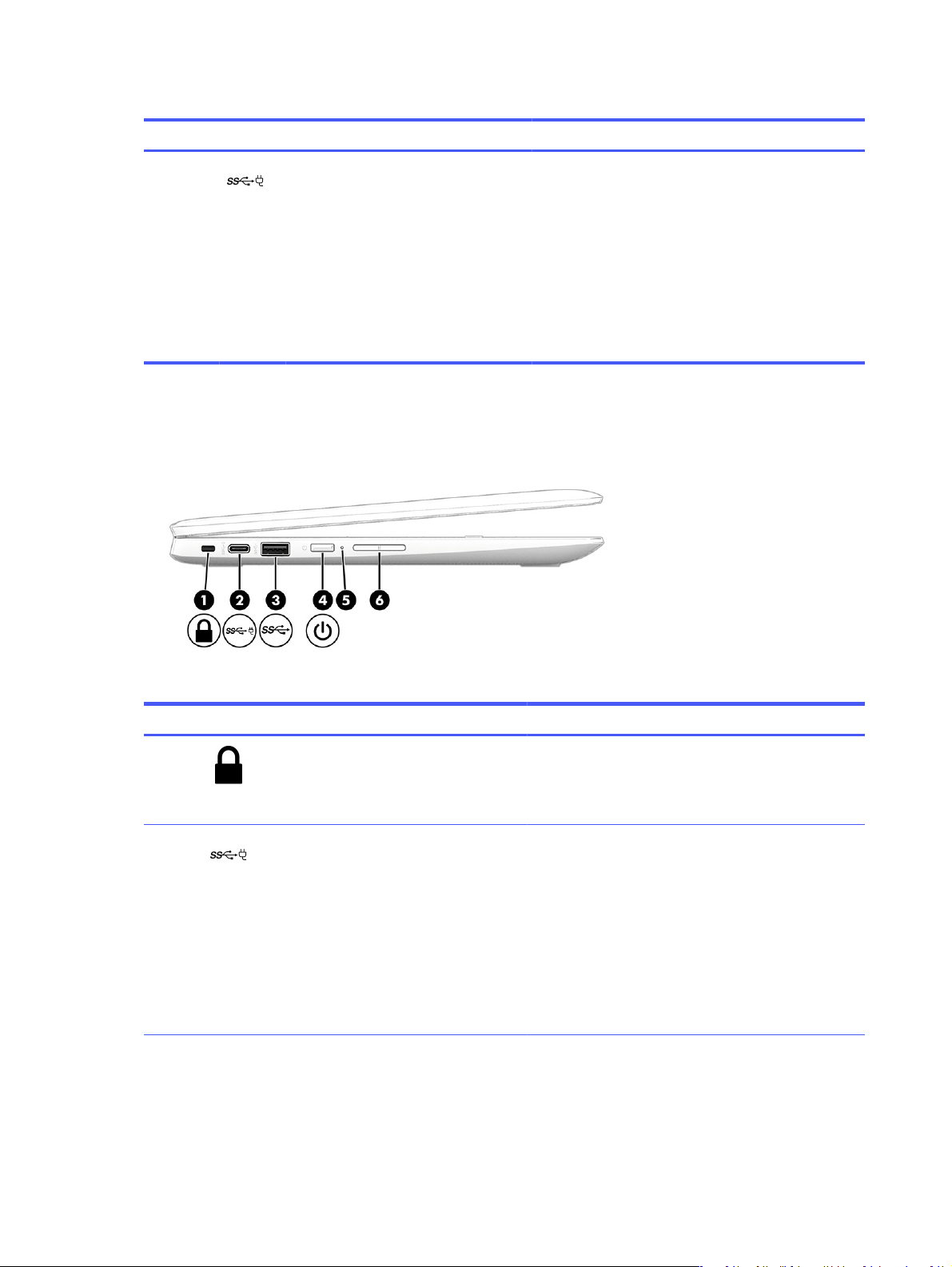
Table 1-1 Right-side components and their descriptions (continued)
Component Description
(4) USB Type-C power connector and
SuperSpeed 5 Gbps port
Connects an AC adapter that has a USB Type-C
connector, supplying power to the computer and, if
needed, charging the computer battery.
– and –
Connects a USB device, provides high-speed data
transfer, and charges small devices (such as a
smartphone), even when the computer is off.
NOTE: Use a standard USB Type-C charging cable or
cable adapter (purchased separately) when charging a
small external device.
Left
Use the illustration and table to identify the components on the left side of the computer.
Table 1-2 Left-side components and their descriptions
Component Description
(1) Security cable slot Attaches an optional security cable to the computer.
NOTE: The security cable is designed to act as a
deterrent, but it might not prevent the computer from
being mishandled or stolen.
(2) USB Type-C power connector and
SuperSpeed 5 Gbps port
Connects an AC adapter that has a USB Type-C
connector, supplying power to the computer and, if
needed, charging the computer battery.
– and –
Connects a USB device, provides high-speed data
transfer, and charges small devices (such as a
smartphone), even when the computer is off.
NOTE: Use a standard USB Type-C charging cable or
cable adapter (purchased separately) when charging a
small external device.
2 Chapter 1 Components
Table 1-2 Left-side components and their descriptions (continued)
Component Description
(3) USB SuperSpeed 5 Gbps port Connects a USB device, provides high-speed data
transfer, and (for select products) charges small devices
(such as a smartphone) when the computer is on or in
Sleep mode.
NOTE: Use a standard USB Type-A charging cable or
cable adapter (purchased separately) when charging a
small external device.
(4) Power button ● When the computer is off, press the button briefly to
turn on the computer.
● When the computer is on, press the button briefly to
initiate Sleep.
● When the computer is in the Sleep state, press the
button briefly to exit Sleep (select products only).
● When the computer is in Hibernation, press the
button briefly to exit Hibernation.
IMPORTANT: Pressing and holding down the power
button results in the loss of unsaved information.
If the computer has stopped responding and shutdown
procedures are ineffective, press and hold the power
button for at least 10 seconds to turn off the computer.
(5) Power light ● White: The computer is on.
● Blinking white: The computer is in the Sleep state.
● Off: The computer is off.
(6) Volume button Controls speaker volume on the computer.
Display
Use the illustration and table to identify the components on the display.
Display 3
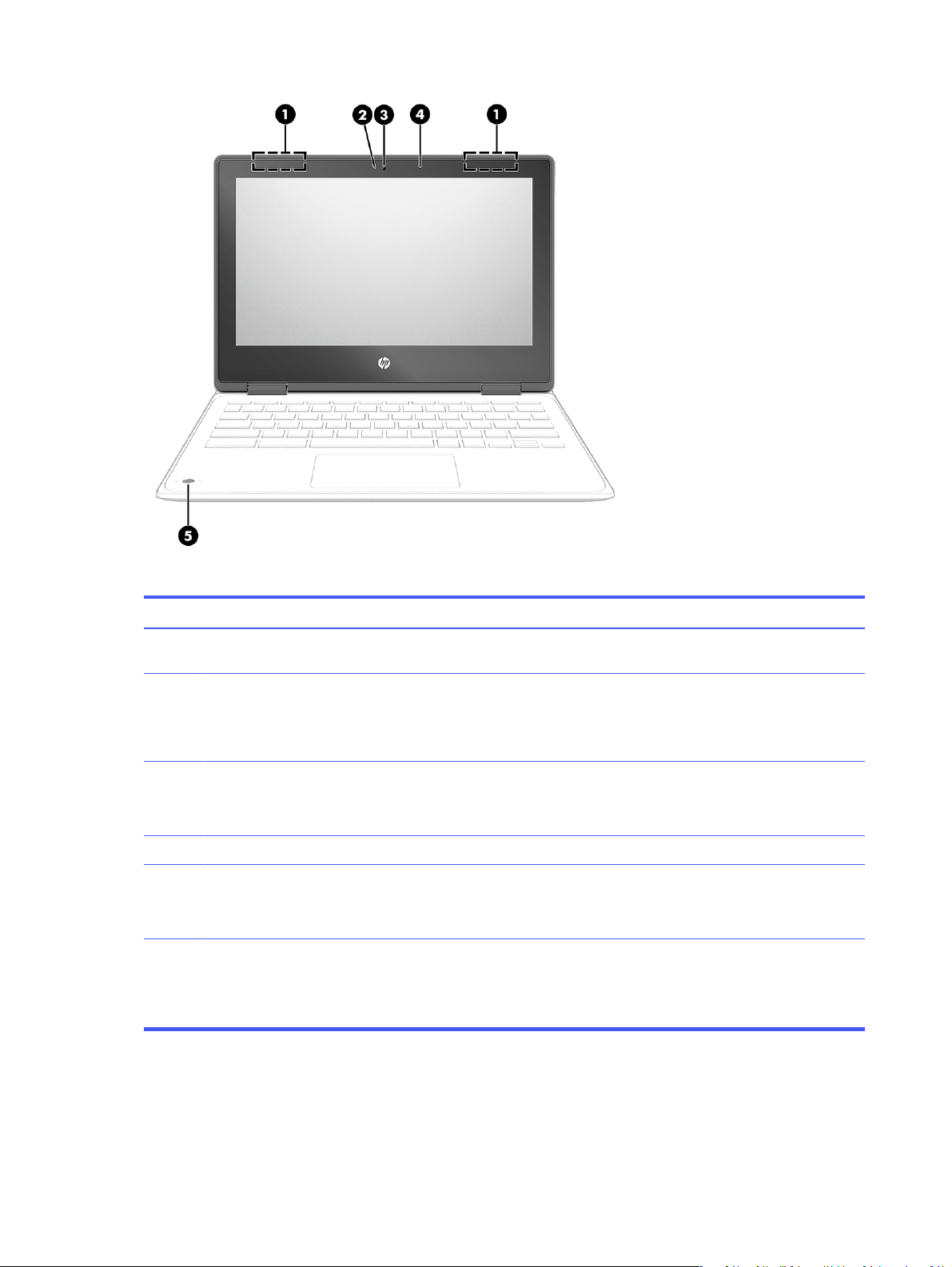
Table 1-3 Display components and their descriptions
Component Description
(1) WLAN antennas* Send and receive wireless signals to communicate with wireless
local area networks (WLANs).
(2) Camera light On (white): The camera is in use.
On (amber): The camera is turned off by the switch.
Off: The camera is turned off by the software.
(3) Camera Allows you to video chat, record video, and record still images.
NOTE: Camera functions vary depending on the camera
hardware and software installed on your product.
(4) Internal microphone Records sound.
(5) Camera (select products only) Allows you to video chat, record video, and record still images.
NOTE: Camera functions vary depending on the camera
hardware and software installed on your product.
*The antennas are not visible from the outside of the computer. For optimal transmission, keep the areas immediately around
the antennas free from obstructions.
For wireless regulatory notices, see the section of the
Regulatory, Safety, and Environmental Notices
that applies to your
country or region.
Keyboard area
Keyboards can vary by language.
4 Chapter 1 Components
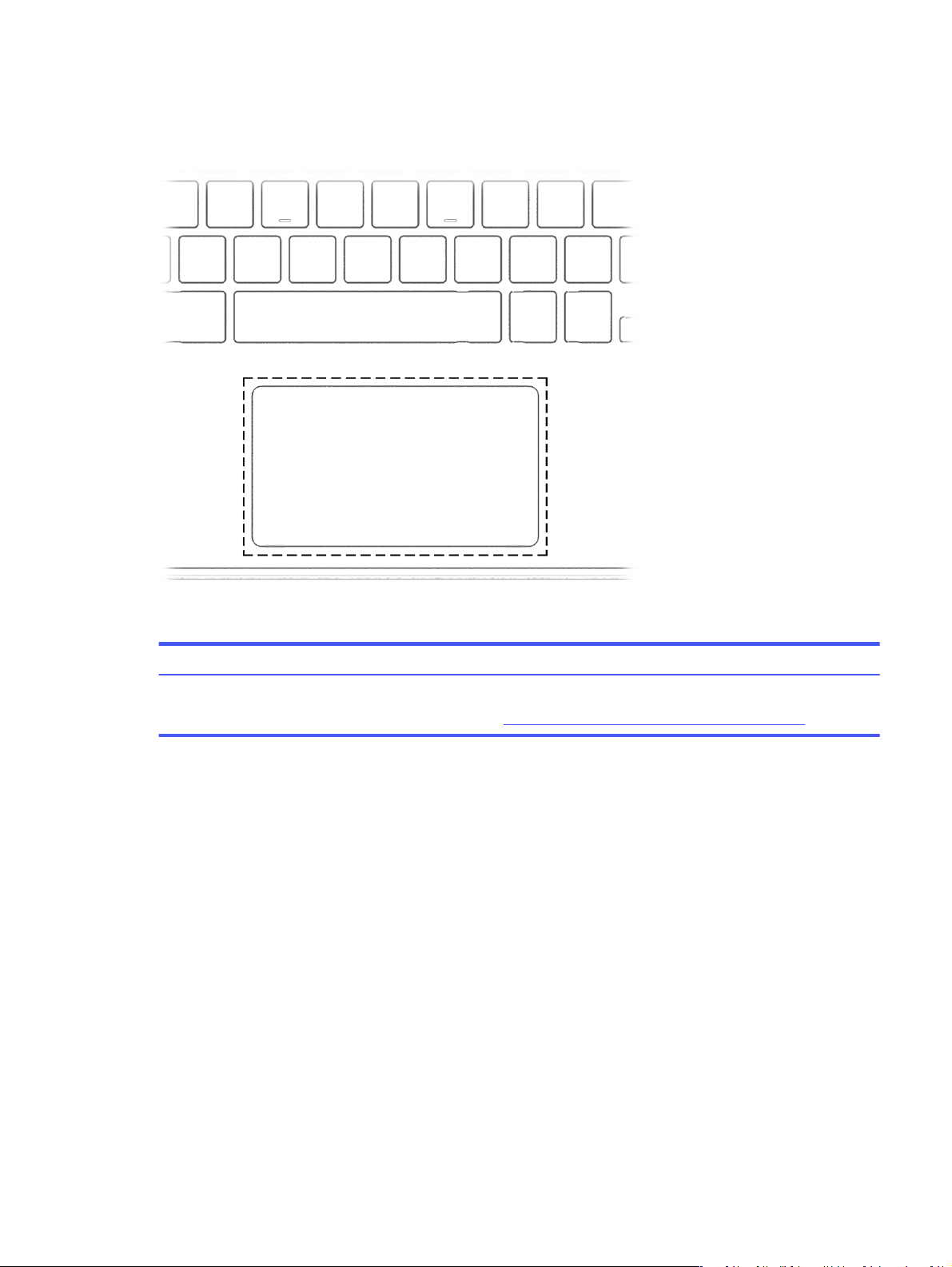
Touchpad
The touchpad settings and components are described here.
Table 1-4 Touchpad component and description
Component Description
Touchpad zone Reads your finger gestures to move the pointer or activate items on the screen.
NOTE: For more information, see Using touchpad and touch screen gestures on page 10.
Special keys
Use the illustration and table to locate the special keys.
Touchpad 5
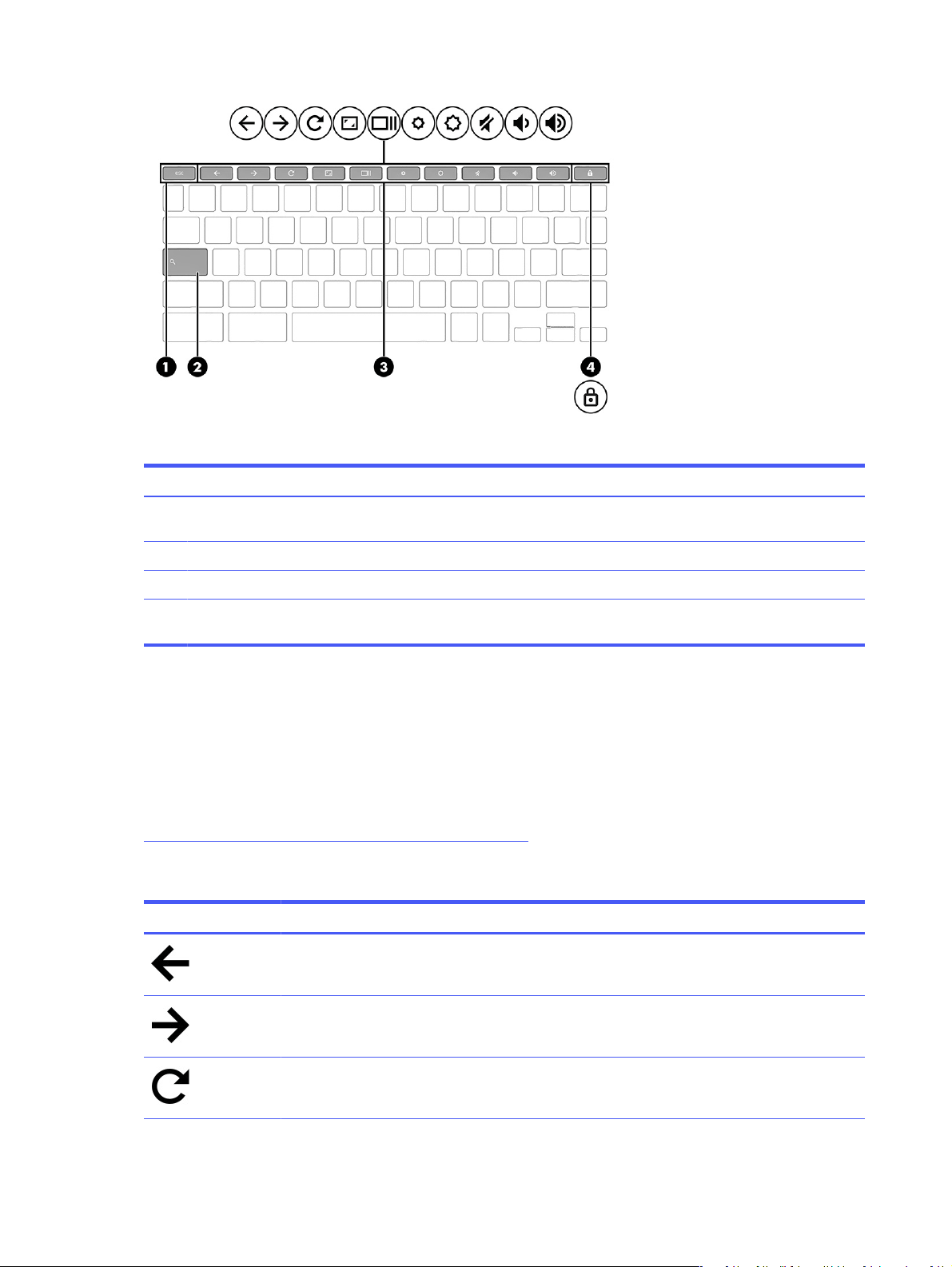
Table 1-5 Special keys and their descriptions
Component Description
(1) esc key Activates certain computer functions when pressed in
combination with other keys, such as tab or shift.
(2) Search key Opens the search dialog.
(3) Action keys Execute frequently used system functions.
(4) Lock key Closes and locks the screen, requiring users to type a
password to unlock the screen.
Action keys
Action keys perform specific functions and vary by computer. To determine which keys are on your
computer, look at the icons on your keyboard and match them to the descriptions in this table.
■
To use an action key, press and hold the key.
For more information about action keys and keyboard shortcuts, go to
https://support.google.com/chromebook/answer/183101. Select your language at the bottom of the
page.
Table 1-6 Action keys and their descriptions
Icon Key Description
Back Displays the previous page in your browser history.
Forward Displays the next page in your browser history.
Reload Reloads your current page.
6 Chapter 1 Components
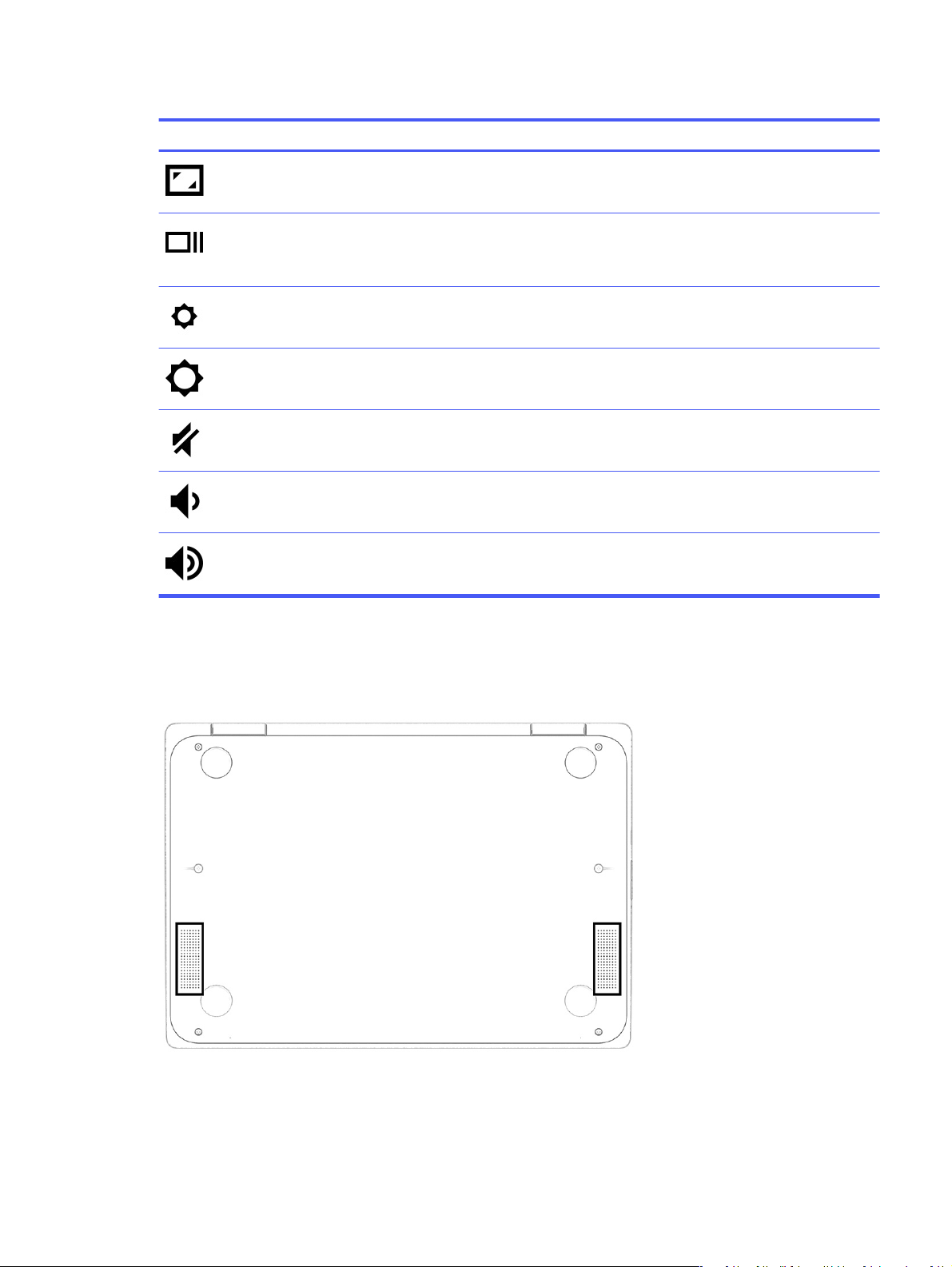
Table 1-6 Action keys and their descriptions (continued)
Icon Key Description
Full screen Opens your page in full-screen mode.
Display apps Displays open apps.
NOTE: Pressing this button in conjunction with ctrl takes a
screenshot.
Brightness down Decreases the screen brightness incrementally as long as you hold
down the key.
Brightness up Increases the screen brightness incrementally as long as you hold
down the key.
Mute Mutes speaker sound.
Volume down Decreases speaker volume incrementally as long as you hold down
the key.
Volume up Increases speaker volume incrementally as long as you hold down the
key.
Bottom
Use the illustration and table to identify the bottom components.
Bottom 7
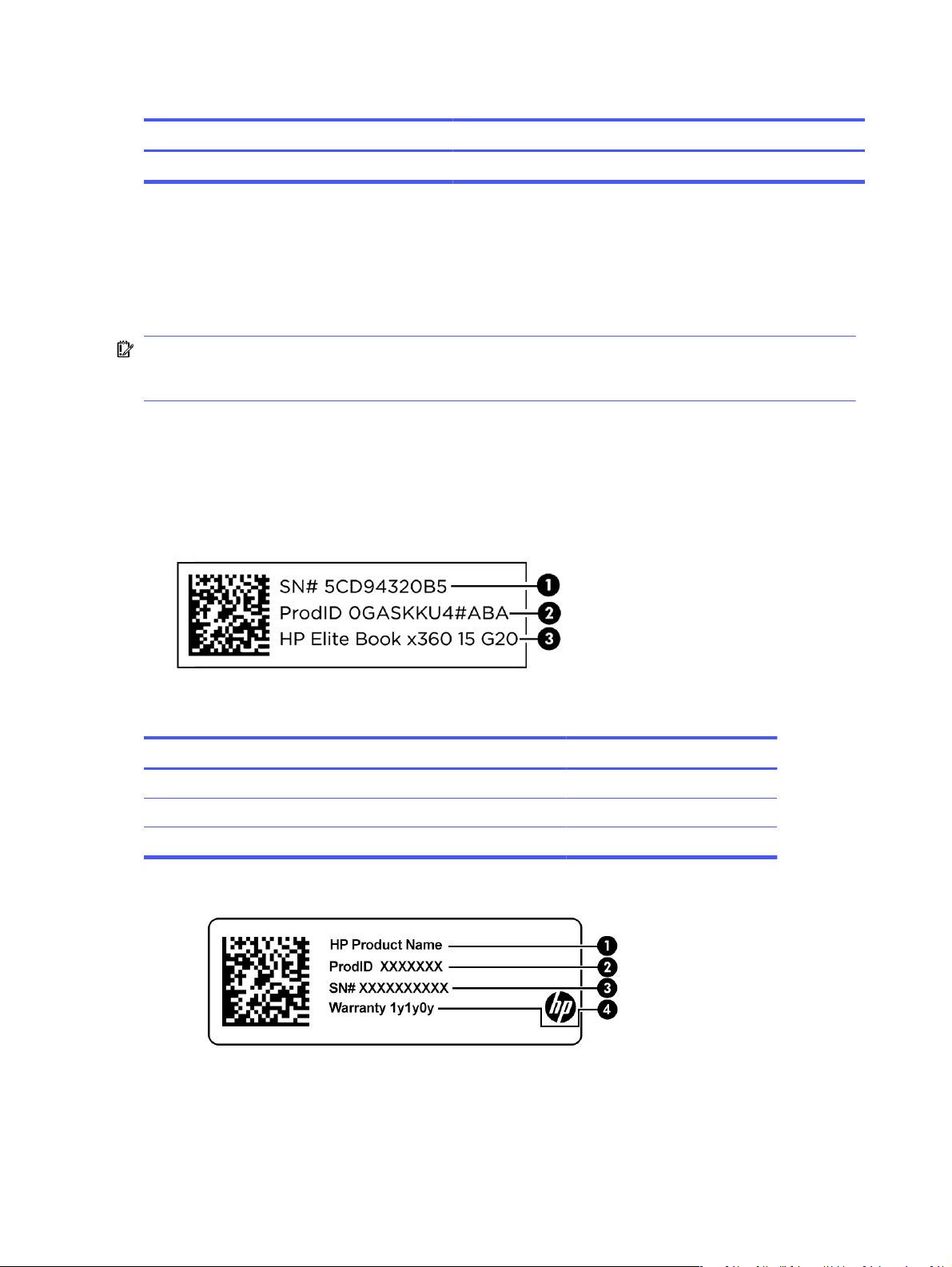
Table 1-7 Bottom component and description
Components Description
Speakers Produce sound.
Labels
The labels affixed to the computer provide information you might need when you troubleshoot system
problems or travel internationally with the computer. Labels might be in paper form or imprinted on the
product.
IMPORTANT: Check the following locations for the labels described in this section: the bottom of the
computer, inside the battery bay, under the service door, on the back of the display, or on the bottom of
a tablet kickstand.
● Service label—Provides important information to identify your computer. When contacting support,
you might be asked for the serial number, the product number, or the model number. Locate this
information before you contact support.
Your service label will resemble one of the following examples. Refer to the illustration that most
closely matches the service label on your computer.
Table 1-8 Service label components
Component
(1) Serial number
(2) Product ID
(3) HP product name
8 Chapter 1 Components
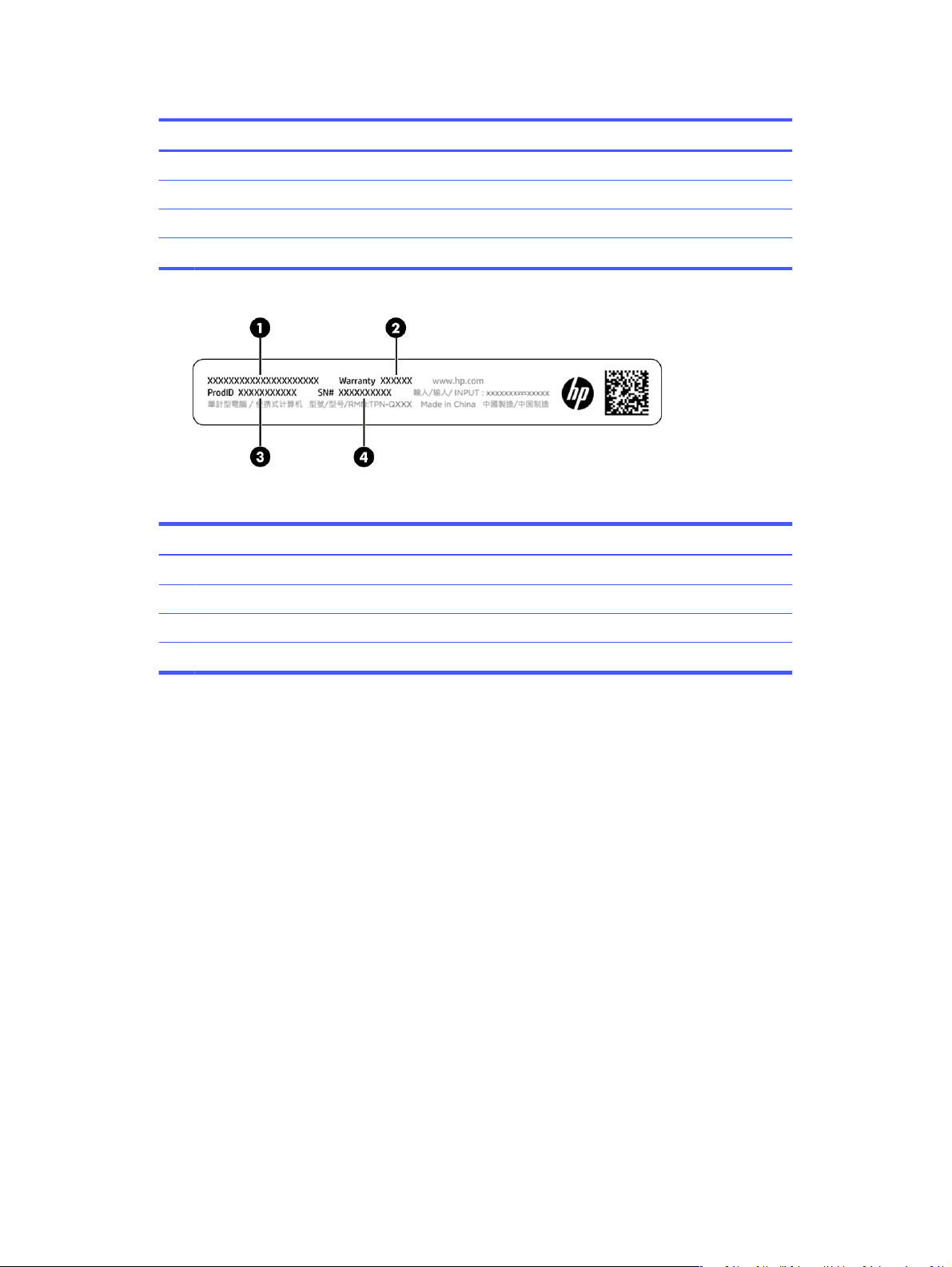
Table 1-9 Service label components
Component
(1) HP product name
(2) Product ID
(3) Serial number
(4) Warranty period
Table 1-10 Service label components
Component
(1) HP product name
(2) Warranty period
(3) Product ID
(4) Serial number
● Regulatory labels—Provide regulatory information about the computer.
● Wireless certification labels—Provide information about optional wireless devices and the approval
markings for the countries or regions where the devices have been approved for use.
Labels 9

Navigating the screen2
Depending on your computer model, you can navigate the computer screen using one or more methods.
● Use touch gestures directly on the computer screen.
● Use touch gestures on the touchpad.
Using touchpad and touch screen gestures
The touchpad helps you navigate the computer screen and control the pointer using simple touch
gestures. To navigate a touch screen (select products only), touch the screen directly using gestures
described in this chapter.
Tap
Use the tap or double-tap gesture to select or open an item on the screen.
● Point to an item on the screen, and then tap one finger on the touchpad zone or touch screen to
select the item. Double-tap to open it.
● Tap two fingers on the touchpad zone or touch screen to bring up a context-sensitive menu.
Scrolling (touchpad only)
Scrolling is useful for moving up, down, or sideways on a page or image. Scrolling to the left or the right
with two fingers scrolls the screen, if there is more content viewable to either side, or moves back and
forth through web browser history.
● Place two fingers slightly apart on the touchpad zone, and then drag them up, down, left, or right.
NOTE: Scrolling speed is controlled by finger speed.
10 Chapter 2 Navigating the screen
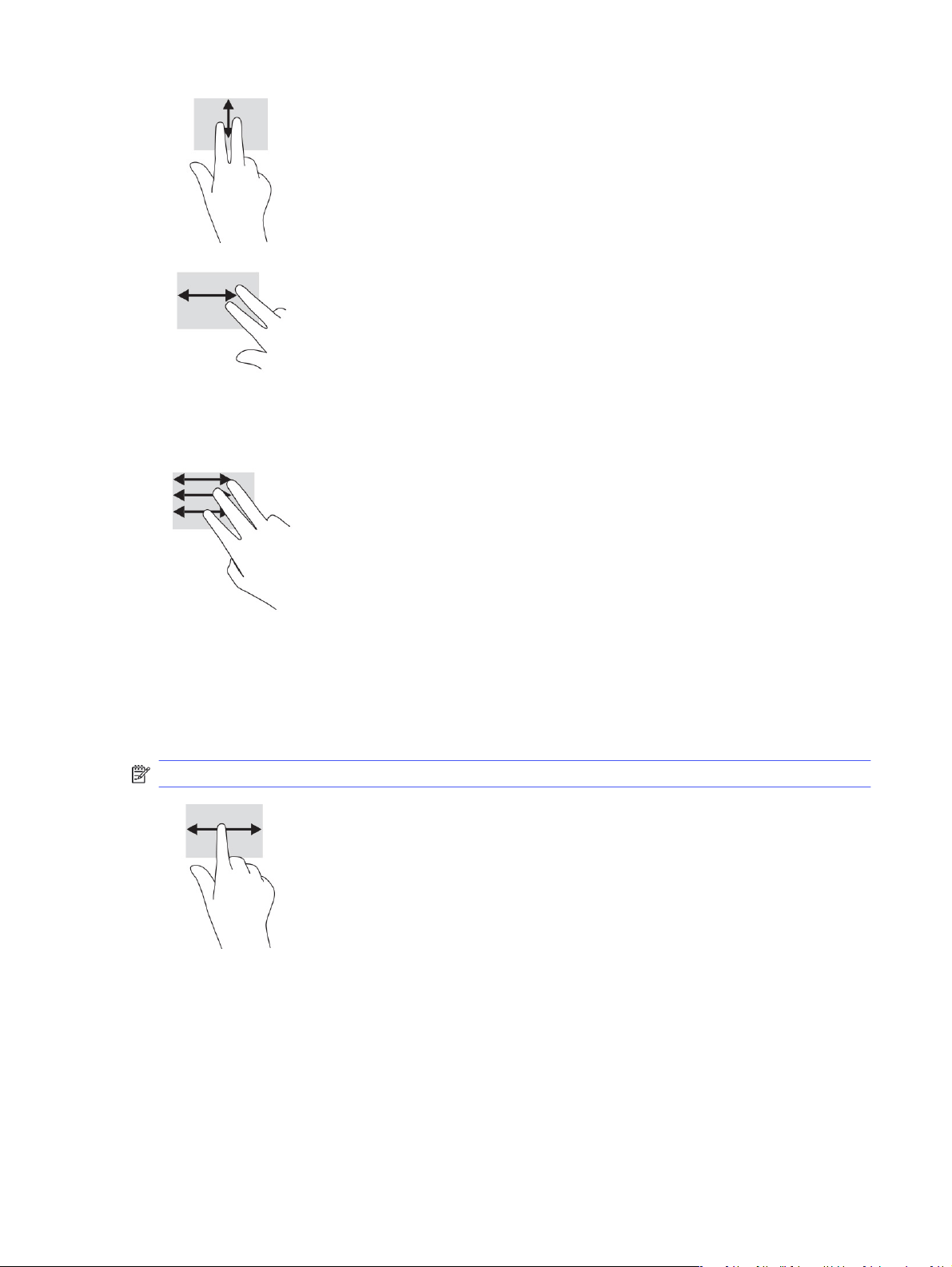
● To scroll between open tabs in Chrome™, slide three fingers left or right on the touchpad zone.
One-finger scrolling (touch screen only)
Scrolling to the left or the right with one finger moves back and forth through web browser history.
● Place one finger on the touch screen, and then drag it across the touch screen in a left or right
motion.
NOTE: Scrolling speed is controlled by finger speed.
One-finger swipe (touch screen only)
Swiping up with one finger hides or shows your shelf. The shelf contains a list of popular shortcuts to
apps so that you can find them easily.
● Place your finger on the bottom of the screen, quickly slide your finger up a short distance, and then
lift it.
One-finger scrolling (touch screen only) 11

Two-finger pinch zoom (touch screen only)
Use the two-finger pinch zoom to zoom out or in on images or text.
● Zoom out by placing two fingers apart on the touch screen and then moving your fingers together.
● Zoom in by placing two fingers together on the touch screen and then moving your fingers apart.
12 Chapter 2 Navigating the screen

Power and battery3
Your computer can operate on either battery power or external power. When the computer is running
on battery power and an external power source is not available to charge the battery, it is important to
monitor and conserve the battery charge.
Factory-sealed battery
You cannot easily replace the battery in this product. Removing or replacing the battery could affect
your warranty coverage. If a battery is no longer holding a charge, contact support.
When a battery reaches the end of its useful life, do not dispose of the battery in general household
waste. Follow the local laws and regulations in your area for battery disposal.
Charging the battery
When you connect the computer to external power, the battery begins to charge, and the Power icon
changes appearance.
1. Connect the AC adapter to the computer.
2. Verify that the battery is charging by checking the AC adapter and battery light. This light is located
on either the right or left side of the computer, next to the power connector.
Table 3-1 AC adapter light and status description
AC adapter light Status
White The AC adapter is connected and the battery is charged.
Amber The AC adapter is connected and the battery is charging.
Off The computer is using battery power.
3. While the battery is charging, keep the AC adapter connected until the AC adapter and battery light
turns white.
Power and battery 13

Printing4
You have several ways to print from your computer.
● Print with built-in ChromeOS solution.
● Print from Google Chrome using the HP Print for Chrome app.
NOTE: If you use HP Print for Chrome, you cannot register the printer with the Google ChromeOS
printing solution.
Printing with built-in ChromeOS solution
Google Chrome has a built-in printing solution for Chromebooks. HP printers produced in 2017 and later
are supported automatically. For more information, see the Google Chrome support website.
1. Go to https://support.google.com/chrome.
2. Select the search icon, type set up printer, and then select Set up printer.
NOTE: Do not press enter.
3. Follow the on-screen instructions.
Printing from Google Chrome
For an alternate method to print from Google Chrome, use the HP Print for Chrome app. You can install
the HP Print for Chrome app from the Chrome Web Store. For more information, see the HP website.
1. Go to http://www.hp.com/support.
2. Select the search icon at the upper right of the page, type Printing with the HP Print
for Chrome App, and then press
enter.
3. Follow the on-screen instructions.
14 Chapter 4 Printing

Backing up, resetting, and recovering5
This chapter provides information about the standard procedures of backing up your personal data,
resetting your computer to original factory conditions, and recovering your operating system.
Backing up
You can back up your data to an optional USB flash drive or SD memory card or through Google Drive™.
For detailed information about creating a backup, go to http://www.support.google.com.
Resetting
A factory reset erases the information on your computer hard drive, including files in the Downloads
folder. Before you reset, back up your files to an optional USB flash drive, to an SD memory card, or
through Google Drive. The factory reset will not delete your files at these locations.
You might want to reset your computer in the following circumstances:
● You see the message "Reset this Chrome device."
● You are having problems with your user profile or settings.
● You restarted your computer, and it still doesn’t work properly.
● You want to change the owner of your computer.
To reset your computer:
1. Under the Settings menu, select Advanced.
2. In the Powerwash section, select Powerwash.
3. Select Restart.
4. In the window that appears, select Powerwash, and then select Continue.
5. Follow the on-screen instructions to reset your computer, and sign in with your Google Account.
NOTE: The account you sign in with after you reset your computer is recognized as the owner
account.
6. After you complete the reset, you can set up your computer and check to see whether the problem
is fixed.
Recovering
When your ChromeOS™ doesn’t work properly, you can perform a recovery. A recovery reinstalls the
operating system, software programs, and original factory settings. It deletes locally saved files and
saved networks for all accounts. A system recovery does not affect Google Accounts and data synced
to Google Drive.
Backing up, resetting, and recovering 15

IMPORTANT: Recovery permanently erases everything on your computer hard drive, including your
downloaded files. If possible, back up your files before you recover your computer.
NOTE: For more information about performing a system recovery on your computer, go to
http://www.support.google.com.
Before you begin the recovery process, you need the following prerequisites:
● A USB flash drive or SD memory card with a capacity of 4 GB or greater. All data is erased from this
storage device when the recovery media is created, so back up all files from the device before you
begin.
● A computer with internet access. You must also have administrative rights to the computer.
● A computer AC adapter. The computer must be plugged into AC power during recovery.
● The “ChromeOS is missing or damaged” screen displaying on your computer. If this message is not
already displayed:
– Turn on the computer, press and hold the esc+f3 keys, and then press the power button. The
computer restarts, and the screen shows the “ChromeOS is missing or damaged” screen.
Option 1: Recovering using an internet connection
Use these instructions to recover the Chrome operating system on your computer without recovery
media:
1. Disconnect any external devices connected to your computer, plug in the power cord, and then turn
on the computer.
2. To enter recovery mode, press and hold the esc+f3 keys, and then press the power button. When
the “ChromeOS is missing or damaged” screen appears, select Recover using internet connection
and follow the on-screen instructions.
NOTE: The computer must have internet access.
3. When the “System Recovery is complete” message appears, reboot your computer.
The computer restarts with ChromeOS reinstalled.
Option 2: Installing the Chromebook Recovery Utility
The Chromebook™ Recovery Utility recovers the original operating system and software programs that
were installed at the factory. You can install this utility from the Chrome Web Store on any computer.
NOTE: Use this option if you do not have Internet access on your computer.
To install the Chromebook Recovery Utility:
■
Open the Chrome Web Store, search for chrome recovery, select Chromebook Recovery Utility
from the Apps list, and follow the on-screen instructions.
Creating recovery media
You can use recovery media to recover the original operating system and software programs that were
installed at the factory.
To create recovery media:
16 Chapter 5 Backing up, resetting, and recovering

1. Turn on a computer that has internet access.
NOTE: You must have administrative rights to the computer.
2. Select the Launcher icon, and then select All Apps.
3. In the Apps window, select Recovery, and then select Get started.
4. Follow the on-screen instructions to create the recovery media.
NOTE: All data and partitions on your recovery media will be deleted. Do not remove the USB flash
drive or SD memory card until the process is complete.
Recovering the Chrome operating system with recovery media
Use these instructions to recover the Chrome operating system on your computer using the recovery
media that you created.
1. Disconnect any external devices connected to your computer, plug in the power cord, and then turn
on the computer.
2. To enter recovery mode, press and hold esc+f3, and then press the power button. When the
“ChromeOS is missing or damaged” screen appears, insert the recovery media into your computer.
The recovery process begins immediately.
3. Wait while Chrome verifies the integrity of the recovery media.
NOTE: If you need to cancel the recovery during the verification process, press and hold the
power button until the computer turns off. Do not disrupt the system recovery process after the
verification step is complete.
NOTE: If an error message is displayed, you might need to run the Chrome Recovery Utility again
or use a different USB flash drive or SD memory card.
4. When the “System Recovery is complete” message appears, remove the recovery media.
The computer restarts with ChromeOS reinstalled.
Setting up your computer after a reset or recovery
After a reset or recovery is complete, perform the initial setup process.
For details about setting up the computer, go to http://www.support.google.com.
Erasing and reformatting the recovery media
When you create recovery media, the USB flash drive or SD memory card is formatted as a recovery
tool. After recovery, you must erase the recovery media to reuse your storage device. Follow these steps
to use the Chromebook Recovery Utility to erase the recovery media.
1. Select the Launcher icon, and then select All Apps.
2. In the apps window, select Recovery.
3. Select the Settings icon, and then select Erase recovery media.
Recovering the Chrome operating system with recovery media 17

4. Select the USB flash drive or SD memory card that you inserted, select Continue, and then select
Erase now.
5. After the recovery media is erased, select Done to close the Chromebook Recovery Utility, and then
remove the USB flash drive or SD memory card.
The media is ready to be formatted using a formatting tool provided by your operating system.
18 Chapter 5 Backing up, resetting, and recovering

More HP resources6
To locate resources that provide product details, how-to information, and more, use this table.
Table 6-1 Additional information
Resource Contents
Setup Instructions
● How to set up the computer
● Help to identify computer components
HP Support Assistant
app (select products only)
Install HP Support Assistant to get access to HP tools
and troubleshooting for printers and peripherals. Go
to the Chrome Web Store and install the HP Support
Assistant app.
● Optimizes computer performance and resolves problems using
the latest software updates, diagnostic tools, and guided
assistance
HP website
To access the latest user guide, go to
http://www.hp.com/support, and follow the instructions
to find your product. Then select Manuals.
● Support information
● Ordering parts and finding additional help
● Accessories available for the device
Worldwide support
To get support in your language, go to
http://www.hp.com/support, and select your country.
● Online chat with an HP technician
● Support telephone numbers
● HP service center locations
Safety & Comfort Guide
Go to http://www.hp.com/ergo.
● Proper workstation setup
● Guidelines for posture and work habits that increase comfort
and decrease risk of injury
● Electrical and mechanical safety information
Regulatory, Safety, and Environmental Notices
This guide is provided in the box.
● Regulatory and safety information
● Battery disposal information
Limited Warranty
*
Go to http://www.hp.com/go/orderdocuments.
● Warranty information
*You can find your HP Limited Warranty located with the user guides on your product and/or on the CD or DVD provided in the
box. In some countries or regions, HP may provide a printed warranty in the box. For countries or regions where the warranty is
not provided in printed format, you can request a copy from http://www.hp.com/go/orderdocuments. For products purchased in
Asia Pacific, you can write to HP at POD, PO Box 161, Kitchener Road Post Office, Singapore 912006. Include your product name,
and your name, phone number, and postal address.
More HP resources 19

Specifications7
When you travel with or store your computer, the input power ratings and operating specifications
provide helpful information.
Input power
The power information in this section might be helpful if you plan to travel internationally with the
computer.
The computer operates on DC power, which can be supplied by an AC or a DC power source. The AC
power source must be rated at 100 V–240 V, 50 Hz–60 Hz. Although the computer can be powered from a
standalone DC power source, it should be powered only with an AC adapter or a DC power source that is
supplied and approved by HP for use with this computer.
The computer can operate on DC power within one or more of the following specifications. The voltage
and current for your computer is located on the regulatory label.
20 Chapter 7 Specifications

Table 7-1 DC power specifications
Input Power Rating
Operating voltage and current 5 V dc @ 3 A / 9 V dc @ 3 A / 12 V dc @ 2.5 A / 15 V dc @2 A – 30
W USB-C®
5 V dc @ 2 A / 12 V dc @ 3 A /15 V dc @ 3 A – 45 W USB-C
5 V dc @ 3 A / 9 V dc @ 3 A / 12 V dc @ 3.75 A /15 V dc @ 3 A – 45
W USB-C
5 V dc @ 3 A / 9 V dc @ 3 A / 10 V dc @ 3.75 A / 12 V dc @ 3.75 A /
15 V dc @ 3 A / 20 V dc @ 2.25 A – 45 W USB-C
5 V dc @ 3 A / 9 V dc @ 3 A / 12 V dc @ 5 A / 15 V dc @ 4.33 A /
20 V dc @ 3.25 A – 65 W USB-C
5 V dc @ 3 A / 9 V dc @ 3 A / 10 V dc @ 5 A / 12 V dc @ 5 A / 15 V
dc @ 4.33 A / 20 V dc @ 3.25 A – 65 W USB-C
5 V dc @ 3 A / 9 V dc @ 3 A / 10 V dc @ 5 A / 12 V dc @ 5 A / 15 V
dc @ 5 A / 20 V dc @ 4.5 A – 90 W USB-C
5 V dc @ 3 A / 9 V dc @ 3 A / 12 V dc @ 5 A / 15 V dc @ 5 A /
20 V dc @ 5 A / 5 V dc USB-A port @ 2 A – 100 W USB-C + 10 W
USB-A
19.5 V dc @ 2.31 A – 45 W
19.5 V dc @ 3.33 A – 65 W
19.5 V dc @ 4.62 A – 90 W
19.5 V dc @ 6.15 A – 120 W
19.5 V dc @ 6.9 A – 135 W
19.5 V dc @ 7.70 A – 150 W
19.5 V dc @ 10.3 A – 200 W
19.5 V dc @ 11.8 A – 230 W
19.5 V dc @ 16.92 A – 330 W
20 V dc @ 14 A – 280 W
NOTE: This product is designed for IT power systems in Norway with phase-to-phase voltage not
exceeding 240 V rms.
Operating environment
Use the operating specifications for helpful information when you travel with or store your computer.
Table 7-2 Operating environment specifications
Factor Metric U.S.
Temperature
Operating 5°C to 35°C 41°F to 95°F
Nonoperating
–20°C to 60°C –4°F to 140°F
Operating environment 21

Table 7-2 Operating environment specifications (continued)
Factor Metric U.S.
Relative humidity (noncondensing)
Operating 10% to 90% 10% to 90%
Nonoperating 5% to 95% 5% to 95%
Maximum altitude (unpressurized)
Operating –15 m to 3,048 m –50 ft to 10,000 ft
Nonoperating –15 m to 12,192 m –50 ft to 40,000 ft
22 Chapter 7 Specifications

Electrostatic discharge8
Electrostatic discharge is the release of static electricity when two objects come into contact—for
example, the shock you receive when you walk across the carpet and touch a metal door knob.
A discharge of static electricity from fingers or other electrostatic conductors may damage electronic
components.
IMPORTANT: To prevent damage to the computer, damage to a drive, or loss of information, observe
these precautions:
● If removal or installation instructions direct you to unplug the computer, first be sure that it is
properly grounded.
● Keep components in their electrostatic-safe containers until you are ready to install them.
● Avoid touching pins, leads, and circuitry. Handle electronic components as little as possible.
● Use nonmagnetic tools.
● Before handling components, discharge static electricity by touching an unpainted metal surface.
● If you remove a component, place it in an electrostatic-safe container.
Electrostatic discharge 23

Accessibility9
HP's goal is to design, produce, and market products, services, and information that everyone
everywhere can use, either on a standalone basis or with appropriate third-party assistive technology
(AT) devices or applications.
HP and accessibility
Because HP works to weave diversity, inclusion, and work/life into the fabric of the company, it is
reflected in everything HP does. HP strives to create an inclusive environment focused on connecting
people to the power of technology throughout the world.
Finding the technology tools you need
Technology can unleash your human potential. Assistive technology removes barriers and helps you
create independence at home, at work, and in the community. Assistive technology helps increase,
maintain, and improve the functional capabilities of electronic and information technology.
For more information, see Finding the best assistive technology on page 25.
The HP commitment
HP is committed to providing products and services that are accessible for people with disabilities.
This commitment supports the company's diversity objectives and helps ensure that the benefits of
technology are available to all.
The HP accessibility goal is to design, produce, and market products and services that can be effectively
used by everyone, including people with disabilities, either on a standalone basis or with appropriate
assistive devices.
To achieve that goal, this Accessibility Policy establishes seven key objectives to guide HP actions. All
HP managers and employees are expected to support these objectives and their implementation in
accordance with their roles and responsibilities:
● Raise the level of awareness of accessibility issues within HP, and provide employees with the
training they need to design, produce, market, and deliver accessible products and services.
● Develop accessibility guidelines for products and services, and hold product development groups
accountable for implementing these guidelines where competitively, technically, and economically
feasible.
● Involve people with disabilities in the development of accessibility guidelines and in the design and
testing of products and services.
● Document accessibility features, and make information about HP products and services publicly
available in an accessible form.
● Establish relationships with leading assistive technology and solution providers.
● Support internal and external research and development that improves assistive technology
relevant to HP products and services.
24 Chapter 9 Accessibility

● Support and contribute to industry standards and guidelines for accessibility.
International Association of Accessibility Professionals (IAAP)
IAAP is a not-for-profit association focused on advancing the accessibility profession through
networking, education, and certification. The objective is to help accessibility professionals develop and
advance their careers and to better enable organizations to integrate accessibility into their products
and infrastructure.
As a founding member, HP joined to participate with other organizations to advance the field of
accessibility. This commitment supports HP’s accessibility goal of designing, producing, and marketing
products and services that people with disabilities can effectively use.
IAAP will make the profession strong by globally connecting individuals, students, and
organizations to learn from one another. If you are interested in learning more, go to
http://www.accessibilityassociation.org to join the online community, sign up for newsletters, and learn
about membership options.
Finding the best assistive technology
Everyone, including people with disabilities or age-related limitations, should be able to communicate,
express themselves, and connect with the world using technology. HP is committed to increasing
accessibility awareness within HP and with our customers and partners.
Whether it’s large fonts that are easy on the eyes, voice recognition that lets you give your hands a rest,
or any other assistive technology to help with your specific situation—a variety of assistive technologies
make HP products easier to use. How do you choose?
Assessing your needs
Technology can unleash your potential. Assistive technology removes barriers and helps you create
independence at home, at work, and in the community. Assistive technology (AT) helps increase,
maintain, and improve the functional capabilities of electronic and information technology.
You can choose from many AT products. Your AT assessment should allow you to evaluate several
products, answer your questions, and facilitate your selection of the best solution for your situation.
You will find that professionals qualified to do AT assessments come from many fields, including those
licensed or certified in physical therapy, occupational therapy, speech/language pathology, and other
areas of expertise. Others, while not certified or licensed, can also provide evaluation information.
You will want to ask about the individual's experience, expertise, and fees to determine if they are
appropriate for your needs.
Accessibility for HP products
These links provide information about accessibility features and assistive technology, if applicable and
available in your country or region, that are included in various HP products. These resources will help
you select the specific assistive technology features and products most appropriate for your situation.
● HP Aging & Accessibility: Go to http://www.hp.com, type Accessibility in the search box. Select
Office of Aging and Accessibility.
● HP computers: For Windows products, go to http://www.hp.com/support, type Windows
Accessibility Options in the
Search our knowledge search box. Select the appropriate
operating system in the results.
● HP Shopping, peripherals for HP products: Go to http://store.hp.com, select Shop, and then select
Monitors or Accessories.
International Association of Accessibility Professionals (IAAP) 25

If you need additional support with the accessibility features on your HP product, see Contacting
support on page 28.
Additional links to external partners and suppliers that may provide additional assistance:
● Microsoft Accessibility information (Windows and Microsoft Office)
●
Google Products accessibility information (Android, Chrome, Google Apps)
Standards and legislation
Countries worldwide are enacting regulations to improve access to products and services for persons
with disabilities. These regulations are historically applicable to telecommunications products and
services, PCs and printers with certain communications and video playback features, their associated
user documentation, and their customer support.
Standards
The US Access Board created Section 508 of the Federal Acquisition Regulation (FAR) standards to
address access to information and communication technology (ICT) for people with physical, sensory, or
cognitive disabilities.
The standards contain technical criteria specific to various types of technologies, as well as
performance-based requirements which focus on functional capabilities of covered products. Specific
criteria cover software applications and operating systems, web-based information and applications,
computers, telecommunications products, video and multimedia, and self-contained closed products.
Mandate 376 – EN 301 549
The European Union created the EN 301 549 standard within Mandate 376 as an online toolkit for public
procurement of ICT products. The standard specifies the accessibility requirements applicable to ICT
products and services, with a description of the test procedures and evaluation methodology for each
requirement.
Web Content Accessibility Guidelines (WCAG)
Web Content Accessibility Guidelines (WCAG) from the W3C's Web Accessibility Initiative (WAI) helps
web designers and developers create sites that better meet the needs of people with disabilities or
age-related limitations.
WCAG advances accessibility across the full range of web content (text, images, audio, and video)
and web applications. WCAG can be precisely tested, is easy to understand and use, and allows web
developers flexibility for innovation. WCAG 2.0 has also been approved as ISO/IEC 40500:2012.
WCAG specifically addresses barriers to accessing the web experienced by people with visual, auditory,
physical, cognitive, and neurological disabilities, and by older web users with accessibility needs. WCAG
2.0 provides characteristics of accessible content:
● Perceivable (for instance, by addressing text alternatives for images, captions for audio, adaptability
of presentation, and color contrast)
● Operable (by addressing keyboard access, color contrast, timing of input, seizure avoidance, and
navigability)
● Understandable (by addressing readability, predictability, and input assistance)
● Robust (for instance, by addressing compatibility with assistive technologies)
26 Chapter 9 Accessibility

Legislation and regulations
Accessibility of IT and information has become an area of increasing legislative importance. These links
provide information about key legislation, regulations, and standards.
● United States
●
Canada
●
Europe
●
Australia
Useful accessibility resources and links
These organizations, institutions, and resources might be good sources of information about disabilities
and age-related limitations.
NOTE: This is not an exhaustive list. These organizations are provided for informational purposes
only. HP assumes no responsibility for information or contacts you encounter on the internet. Listing on
this page does not imply endorsement by HP.
Organizations
These organizations are a few of the many that provide information about disabilities and age-related
limitations.
● American Association of People with Disabilities (AAPD)
● The Association of Assistive Technology Act Programs (ATAP)
● Hearing Loss Association of America (HLAA)
● Information Technology Technical Assistance and Training Center (ITTATC)
● Lighthouse International
● National Association of the Deaf
● National Federation of the Blind
● Rehabilitation Engineering & Assistive Technology Society of North America (RESNA)
● Telecommunications for the Deaf and Hard of Hearing, Inc. (TDI)
● W3C Web Accessibility Initiative (WAI)
Educational institutions
Many educational institutions, including these examples, provide information about disabilities and
age-related limitations.
● California State University, Northridge, Center on Disabilities (CSUN)
● University of Wisconsin - Madison, Trace Center
● University of Minnesota computer accommodations program
Legislation and regulations 27

Other disability resources
Many resources, including these examples, provide information about disabilities and age-related
limitations.
● ADA (Americans with Disabilities Act) Technical Assistance Program
● ILO Global Business and Disability network
● EnableMart
● European Disability Forum
● Job Accommodation Network
● Microsoft Enable
HP links
These HP-specific links provide information that relates to disabilities and age-related limitations.
HP comfort and safety guide
HP public sector sales
Contacting support
HP offers technical support and assistance with accessibility options for customers with disabilities.
NOTE: Support is in English only.
● Customers who are deaf or hard of hearing who have questions about technical support or
accessibility of HP products:
– Use TRS/VRS/WebCapTel to call (877) 656-7058 Monday through Friday, 6 a.m. to 9 p.m. Mountain
Time.
● Customers with other disabilities or age-related limitations who have questions about technical
support or accessibility of HP products:
– Call (888) 259-5707 Monday through Friday, 6 a.m. to 9 p.m. Mountain Time.
28 Chapter 9 Accessibility

Index
A
AC adapter light 1
accessibility 24, 25, 27, 28
accessibility needs
assessment 25
action keys 6
back 6
brightness down 7
brightness up 7
display apps 7
forward 6
full screen 7
identifying 5
mute 7
reload 6
volume down 7
volume up 7
assistive technology (AT)
finding 25
purpose 24
AT (assistive technology)
finding 25
purpose 24
audio-in (microphone) jack,
identifying 1
audio-out (headphone) jack,
identifying 1
B
back action key 6
backing up 15
battery
charging 13
factory sealed 13
light 1
Bluetooth label 8
brightness down action key 7
brightness up action key 7
buttons
power 3
C
camera 4
identifying 4
camera light, identifying 4
Chromebook Recovery Utility,
installing 16
components
bottom 7
display 3
keyboard area 4
left side 2
right side 1
connector, power 2
customer support,
accessibility 28
D
display apps window action key 7
E
electrostatic discharge 23
esc key, identifying 5
F
forward action key 6
full screen action key 7
H
headphone (audio-out) jack 1
HP Assistive Policy 24
HPSA, identifying 19
I
input power 20
internal microphone,
identifying 4
International Association of
Accessibility Professionals 25
J
jacks
audio-in (microphone) 1
audio-out (headphone) 1
K
keys
esc 5
L
labels
Bluetooth 8
regulatory 8
serial number 8
service 8
wireless certification 8
WLAN 8
lights
AC adapter and battery 1
camera 4
power 3
M
microphone (audio-in) jack,
identifying 1
mute action key 7
O
operating environment 21
P
ports
USB SuperSpeed 1, 3
USB Type-C power connector
and SuperSpeed port 2
power
light 3
power button, identifying 3
power connector
identifying USB Type-C 2
Power light 3
printing 14
product name and number,
computer 8
R
recovery media
creating 16
erase 17
recovery, performing 15
regulatory information
regulatory label 8
wireless certification labels 8
reload action key 6
resetting 15
resources, accessibility 27
Index 29

S
scrolling touch screen gesture 11
scrolling touchpad gesture 10
Section 508 accessibility
standards 26
security cable slot, identifying 2
serial number, computer 8
service labels, locating 8
slots
security cable 2
speakers, identifying 8
special keys 6
key lock 6
specifications 20
standards and legislation,
accessibility 26
support 19
swiping touch screen gesture 11
system recovery
Chrome operating system 17
Chromebook Recovery
Utility 16
internet connection 16
recovery media 16
T
tap gestures 10
touch screen gestures
one-finger scrolling 11
one-finger swipe 11
two-finger pinch zoom 12
Touchpad and touch screen
gestures, tap 10
touchpad gestures, scrolling 10
touchpad zone, identifying 5
traveling with the computer 8
two-finger pinch zoom touch
screen gesture 12
U
USB SuperSpeed port,
identifying 1, 3
USB Type-C power connector and
SuperSpeed port,
identifying 2
V
volume button, identifying 3
volume down action key 7
volume up action key 7
W
wireless certification label 8
WLAN antennas, identifying 4
WLAN device 8
WLAN label 8
30 Index