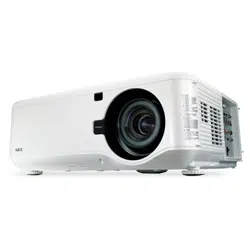
Projector
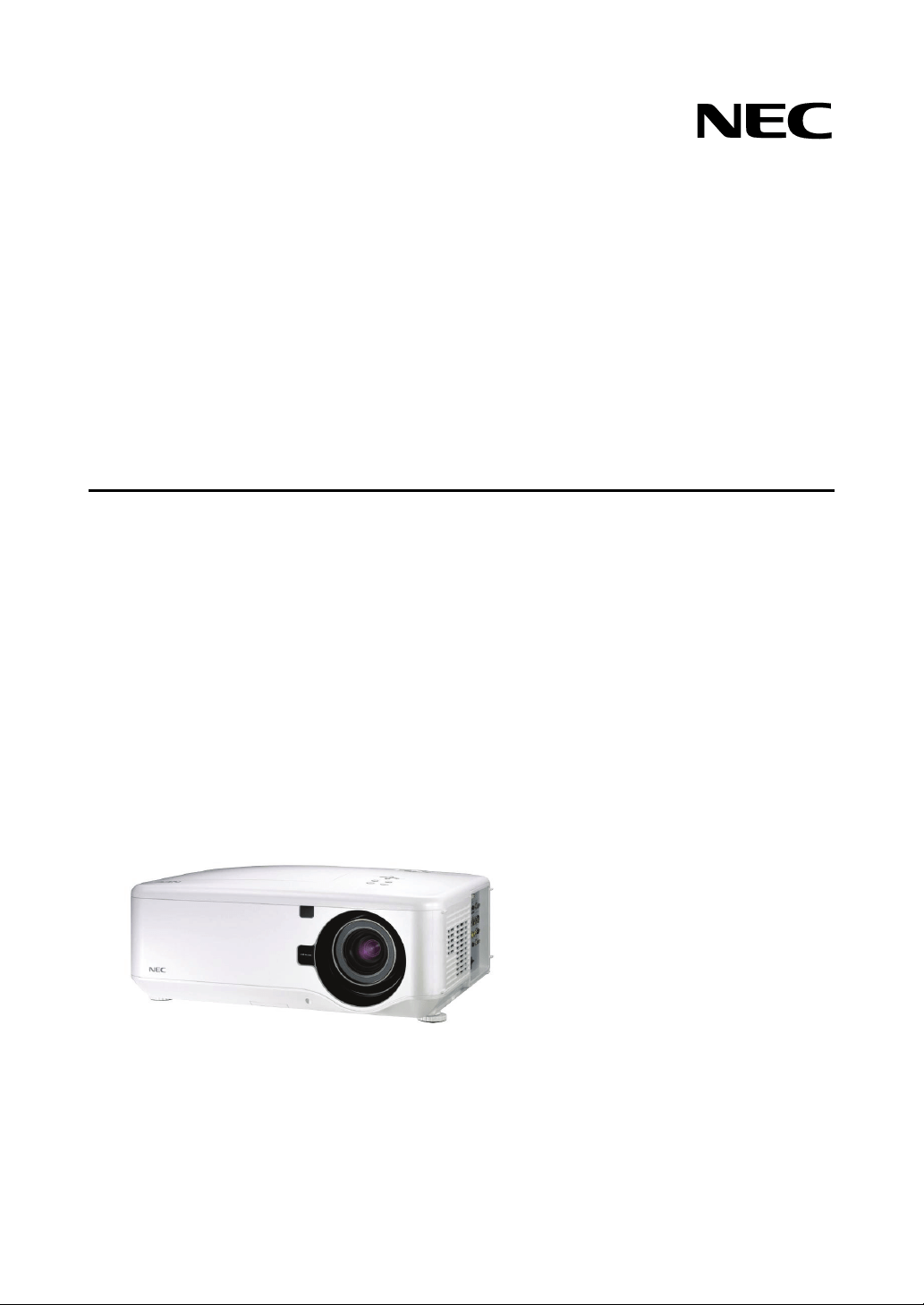
NP4100/NP4100W
User’s Manual

Second edition, March 2009
• DLP, BrilliantColor and DynamicBlack are trademarks of Texas Instruments.
• IBM is a trademark or registered trademark of International Business Machines Corpora-
tion.
• Macintosh, Mac OS X and PowerBook are trademarks of Apple, Inc., registered in the
U.S. and other countries.
• Windows, PowerPoint, Internet Explorer, Windows 98, Windows Me, Windows 2000,
Windows XP or Windows Vista are trademarks or registered trademarks of Microsoft
Corporation.
• VESA is a registered trademark of Video Electronics Standards Association.
• Trademark PJLink is a trademark applied for trademark rights in Japan, the United States
of America and other countries and areas.
• Other product and company names mentioned in this user's manual may be the trade-
marks or registered trademarks of their respective holders.
Notes
(1) The contents of this user’s manual may not be reprinted in part or whole without permis-
sion.
(2) The contents of this user’s manual are subject to change without notice.
(3) Great care has been taken in the preparation of this user’s manual; however, should you
notice any questionable points, errors or omissions, please contact us.
(4) Notwithstanding article (3), NEC will not be responsible for any claims on loss of profit or
other matters deemed to result from using the Projector.
i
Important Information
Safety Cautions
Precautions
Please read this manual carefully before using your NEC NP4100/NP4100W projector
and keep the manual handy for future reference. Your serial number is located on the
bottom of your projector.
Record it here:
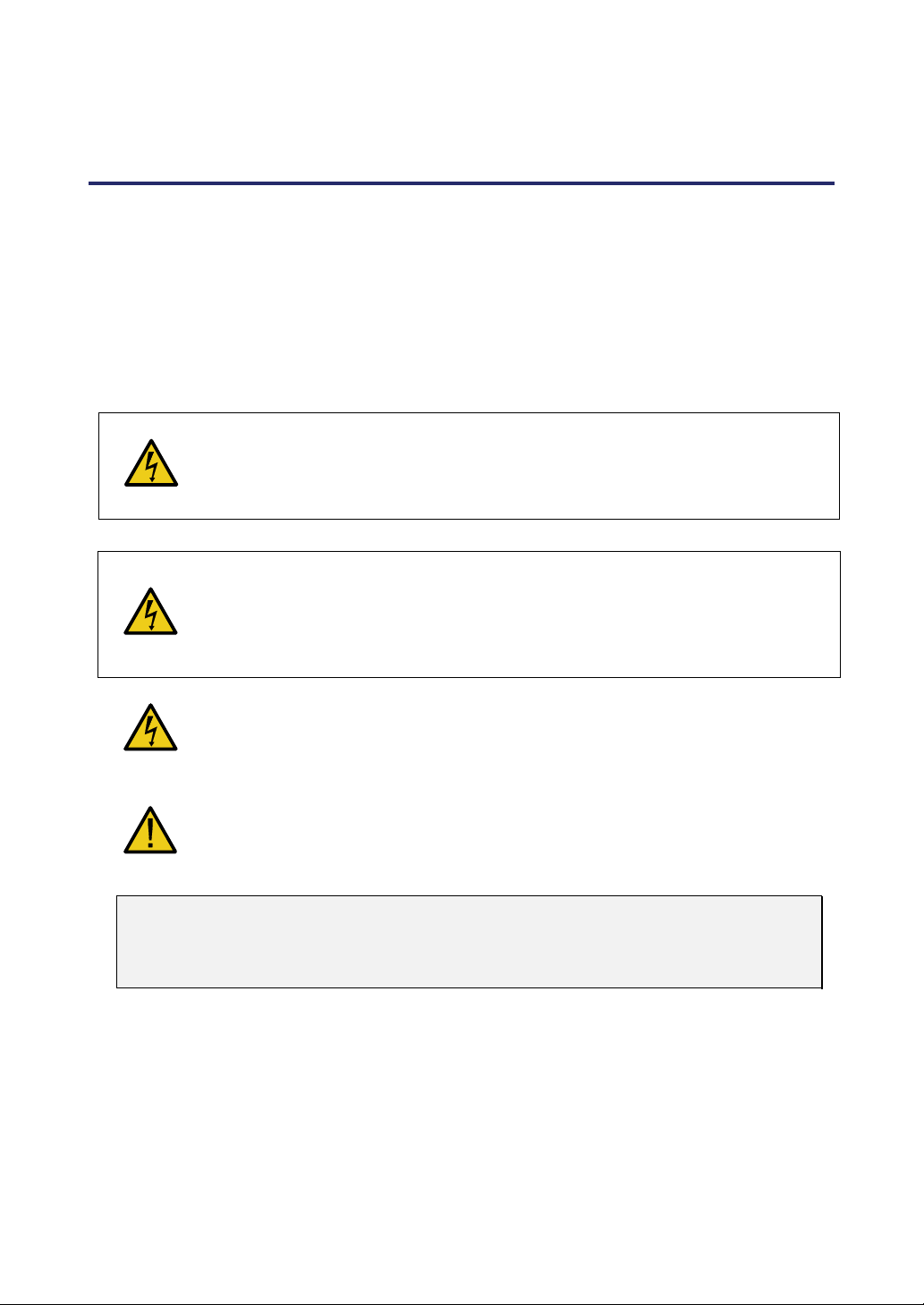
CAUTION:
To turn off main power, be sure to remove the plug from power outlet. The
power outlet socket should be installed as near to the equipment as possible,
and should be easily accessible.
CAUTION:
• TO PREVENT SHOCK, DO NOT OPEN THE CABINET.
• THERE ARE HIGH-VOLTAGE COMPONENTS INSIDE.
• REFER SERVICING TO QUALIFIED SERVICE PERSONNEL.
This symbol warns the user that un-insulated voltage within the unit may be
sufficient to cause electrical shock. Therefore, it is dangerous to make any
kind of contact with any part inside of the unit.
This symbol alerts the user that important information concerning the opera-
tion and maintenance of this unit has been provided.
The information should be read carefully to avoid problems.
WARNING:
To prevent fire or shock, do NOT expose this unit to rain or moisture. Do NOT use
this unit’s plug with an extension cord or in an outlet unless all the prongs can be
fully inserted.
DOC Compliance Notice (for Canada only)
This Class B digital apparatus meets all requirements of the Canadian Interference-
Causing Equipment Regulations.
Machine Noise Information Regulation - 3. GPSGV (for Germany only)
The highest sound pressure level is less than 70 dB (A) in accordance with EN ISO
7779.
Important Information
ii
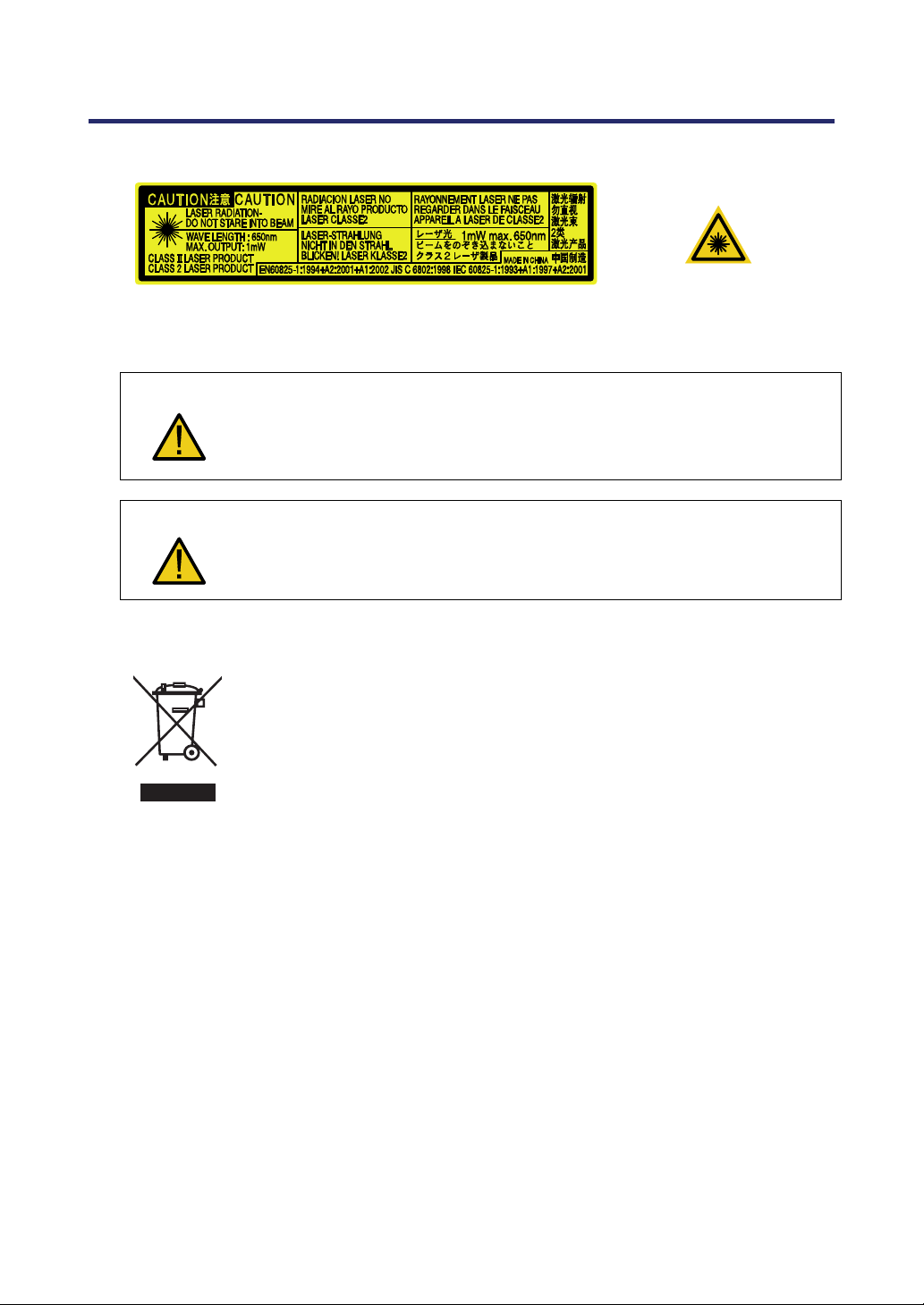
Laser Rating
This label is on the side of the remote control.
This mark is on the top
of the remote control.
CAUTION
Use of controls or adjustments or performance of procedures other than
those specified herein may result in hazardous radiation exposure.
CAUTION
Do not look into the laser pointer while it is on and do not point the laser
beam at a person. Serious injury could result.
Disposing of your used product
EU-wide le
g
islation as implemented in each Member State require
s
that used electrical and electronic products carr
y
in
g
the mark
(
left
)
must be disposed of separately from normal household waste. This
includes pro
j
ectors and their electrical accessories or lamps. When
y
ou dispose of such products, please follow the
g
uidance of
y
ou
r
local authorit
y
and/or ask the shop where
y
ou purchased the product.
After collecting the used products, the
y
are reused and rec
y
cled in a
proper wa
y
. This effort will help us reduce the wastes as well as the
ne
g
ative impact such as mercur
y
contained in a lamp to the human
health and the environment at the minimum level. The mark on the
electrical and electronic products only applies to the current Euro-
pean Union Member States.
WARNING TO CALIFORNIA RESIDENTS:
Handling the cables supplied with this product will expose you to lead, a chemical known
to the State of California to cause birth defects or other reproductive harm. Wash hands
after handling.

Important Information
iii
RF Interference (for USA only)
WARNING:
The Federal Communications Commission does not allow any modifications or
changes to the unit EXCEPT those specified by NEC Display Solutions of Amer-
ica, Inc. in this manual. Failure to comply with this government regulation could
void your right to operate this equipment. This equipment has been tested and
found to comply with the limits for a Class B digital device, pursuant to Part 15 of
the FCC Rules. These limits are designed to provide reasonable protection
against harmful interference in a residential installation. This equipment gener-
ates, uses, and can radiate radio frequency energy and, if not installed and used
in accordance with the instructions, may cause harmful interference to radio
communications. However, there is no guarantee that interference will not occur in
a particular installation.
If this equipment does cause harmful interference to radio or television reception,
which can be determined by turning the equipment off and on, the user is encour-
aged to try to correct the interference by one or more of the following measures:
Reorient or relocate the receiving antenna.
Increase the separation between the equipment and receiver.
Connect the equipment into an outlet on a circuit different from that to which the
receiver is connected.
Consult the dealer or an experienced radio / TV technician for help.
For UK only: In UK, a BS approved power cable with molded plug has a Black (five
Amps) fuse installed for use with this equipment. If a power cable is not supplied with
this equipment please contact your supplier.
Important Safeguards
These safety instructions are to ensure the long life of your projector and to prevent fire
and shock. Please read them carefully and heed all warnings.
Installation
• Do not place the projector in the following conditions:
On an unstable cart, stand, or table.
Near water, baths or damp rooms.
In direct sunlight, near heaters or heat radiating appliances.
In a dusty, smoky or steamy environment.
On a sheet of paper or cloth, rugs or carpets.
Important Information
iv
• If you wish to have the projector installed on the ceiling:
Do not attempt to install the projector yourself.
The projector must be installed by qualified technicians in order to ensure proper
operation and reduce the risk of bodily injury.
In addition, the ceiling must be strong enough to support the projector and the in-
stallation must be in accordance with any local building codes.
Please consult your dealer for more information.
CAUTION:
When shipping the projector, remove the optional lens beforehand. The lens
and the lens shift mechanism may encounter damage caused by improper
handling during transportation.
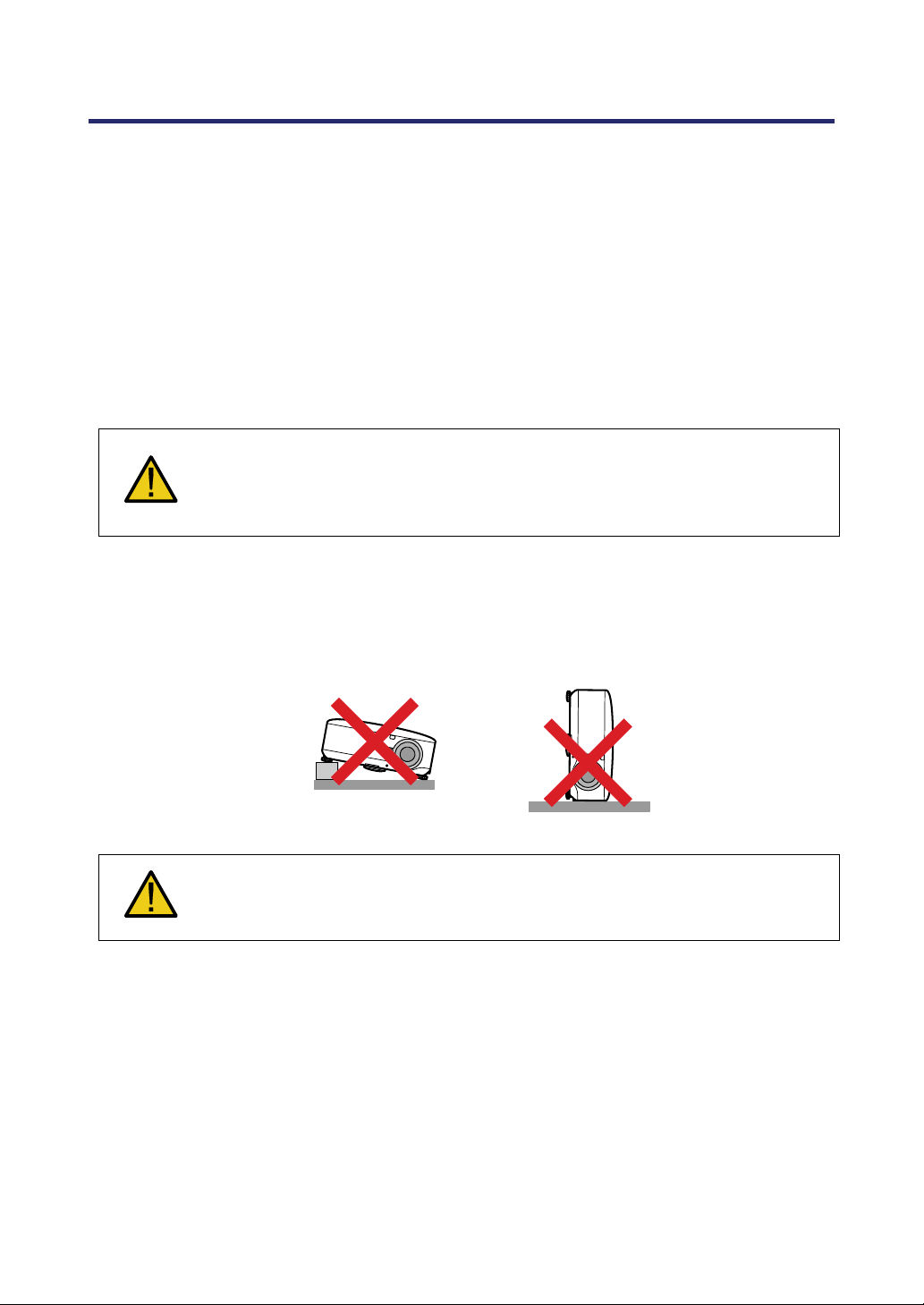
Place the projector in a horizontal position
Do not put the projector on its side when the lamp is turned on. Doing so may cause
damage to the projector.
CAUTION:
Do not drop the projector on your hand or fingers while lifting the projector to
replace the filters. Doing so could injure your hand or fingers.
Important Information
v
Fire and Shock Precautions
• Ensure that there is sufficient ventilation and that vents are unobstructed to prevent
the build-up of heat inside your projector (see page ix, x).
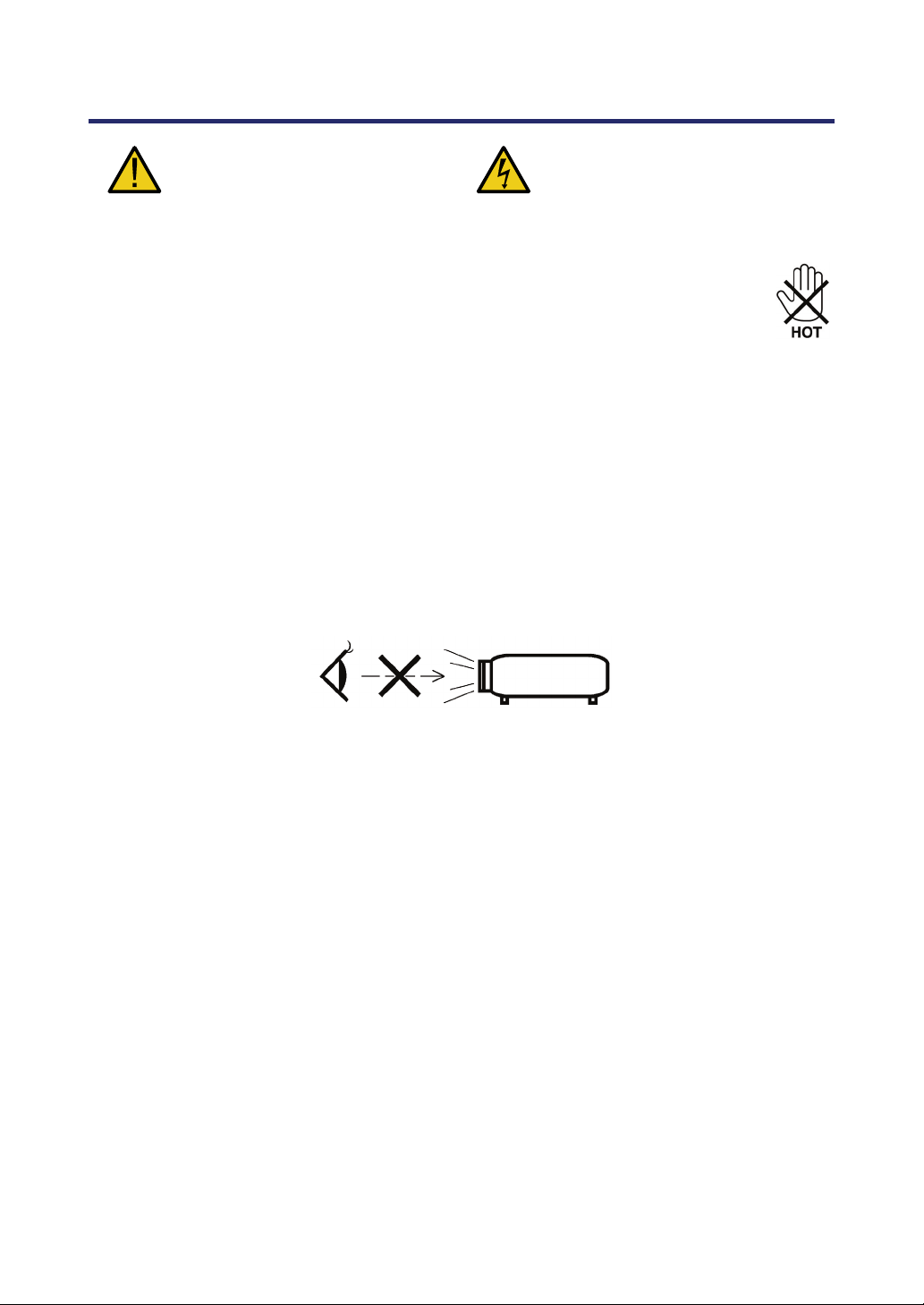
• Do not try to touch the ventilation outlet on the rear as it can become heated
while the projector is turned on and immediately after the projector is turned
off.
• Prevent foreign objects such as paper clips and bits of paper from falling
into your projector. Do not attempt to retrieve any objects that might fall into your pro-
jector. Do not insert any metal objects such as a wire or screwdriver into your project.
If something should fall into your projector, disconnect it immediately and have the
object removed by qualified service personnel.
• Do not place any objects on top of the projector.
• Do not touch the power plug during a thunderstorm. Doing so can cause electrical
shock or fire.
• The projector is designed to operate on a power supply of 100-240V AC 50/60 Hz.
Ensure that your power supply fits this requirement before attempting to use your
projector.
• Do not look into the lens while the projector is on. Serious damage to your eyes could
result.
• Keep any items such as magnifying glass out of the light path of the projector. The
light being projected from the lens is extensive, therefore any kind of abnormal ob-
jects that can redirect light coming out of the lens, can cause unpredictable outcome
such as fire or injury to the eyes.
• Do not cover the lens with the black lens cap or equivalent while the projector is on.
Doing so can lead to melting of the cap and possibly burning your hands due to the
heat emitted from the light output.
• Do not place any objects, which are easily affected by heat, in front of the projector
lens or a projector exhaust vent. Doing so could lead to the object melting or getting
your hands burned from the heat that is emitted from the light output and exhaust.
• Handle the power cable carefully. A damaged or frayed power cable can cause elec-
tric shock or fire.
Do not use any power cables other than the one supplied by NEC.
Do not bend or tug the power cable excessively.
Do not place the power cable under the projector, or any heavy object.
Do not cover the power cable with other soft materials such as rugs.
Do not heat the power cable
Do not handle the power plug with wet hands.

Important Information
vi
• Turn off the projector, unplug the power cable and have the projector serviced by
qualified service personnel under the following conditions:
When the power cable or plug is damaged or frayed.
If liquid has been spilled into the projector, or if it has been exposed to rain or
water.
If the projector does not operate normally when you follow the instructions
described in this user's manual.
If the projector has been dropped or the cabinet has been damaged.
If the projector exhibits a distinct change in performance, indicating a need for
service.
• Disconnect the power cable and any other cables before carrying the projector.
• Turn off the projector and unplug the power cable if the projector is not to be used for
an extended period of time.
• When using a LAN cable:
For safety, do not connect to the connector for peripheral device wiring that might
have excessive voltage.
• Turn off the projector and unplug the power cable before cleaning the cabinet or re-
placing the lamp.
CAUTION:
• Always carry your projector by using the carrying handle.
• Do not use the tilt-foot for purposes other than originally intended. Misuses
such as using the tilt foot to carry or hang (from the wall or ceiling) the projec-
tor can cause damage to the projector.
• Do not send the projector in the soft case by parcel delivery service or cargo
shipment. The projector inside the soft case could be damaged.
• Do not unplug the power cable from the wall outlet or projector when the pro-
jector is powered on. Doing so can cause damage to the AC IN connector of
the projector and (or) the prong plug of the power cable.
• To turn off the AC power supply when the projector is powered on, use a
power strip equipped with a switch and a breaker.
• The projector can be unplugged during its cool down period after it is turned
off.
• Do not try to touch the ventilation outlet on the rear as it can become heated
while the projector is turned on and immediately after the projector is turned
off.
• Do not turn off the AC power for 60 seconds after the lamp is turned on and
while the POWER indicator is blinking green. Doing so could cause premature
lamp failure.
• Do not place your hands near the lens opening while shifting the lens. Shifting
the lens could pinch your fingers or hands causing injury.
Important Information
vii
Remote Control Precautions
• Handle the remote control carefully.
• If the remote control gets wet, wipe it dry immediately.
• Avoid excessive heat and humidity.
• Do not heat, take apart, or throw batteries into fire.
• If you will not be using the remote control for a long time, remove the batteries.
• Ensure that you have the batteries' polarity (+/–) aligned correctly.
•
Do not use new and old batteries together, or use different types of batteries together.
• Dispose of used batteries according to your local regulations.
Lamp Replacement
To replace either of the lamps, follow all instructions provided on page 112.
Be sure to replace the lamp when the following is displayed on the screen:
If you continue to use the lamp after the lamp has reached the end of its usable life, the
lamp bulb may shatter, and pieces of glass may be scattered in the lamp case. Do not
touch them as the pieces of glass may cause injury.
If this happens, contact your dealer for lamp replacement.
Important Lamp Characteristic
The projector has a high-pressure mercury lamp as a light source.
A characteristic of mercury lamps is that brightness gradually decreases with age. Also
repeatedly turning the lamp on and off will increase the possibility of reduced brightness.
CAUTION:
When removing the lamp from a ceiling-mounted projector, make sure that no
one is under the projector. Glass fragments could fall if the lamp has been
burned out.
CAUTION:
In rare cases the lamp bulb may burn out during normal operation and cause
glass dust or shards to be discharged outward from the rear exhaust vent.
Do not inhale or do not touch glass dust or shards. Doing so could result in
injury.
Important Information
viii
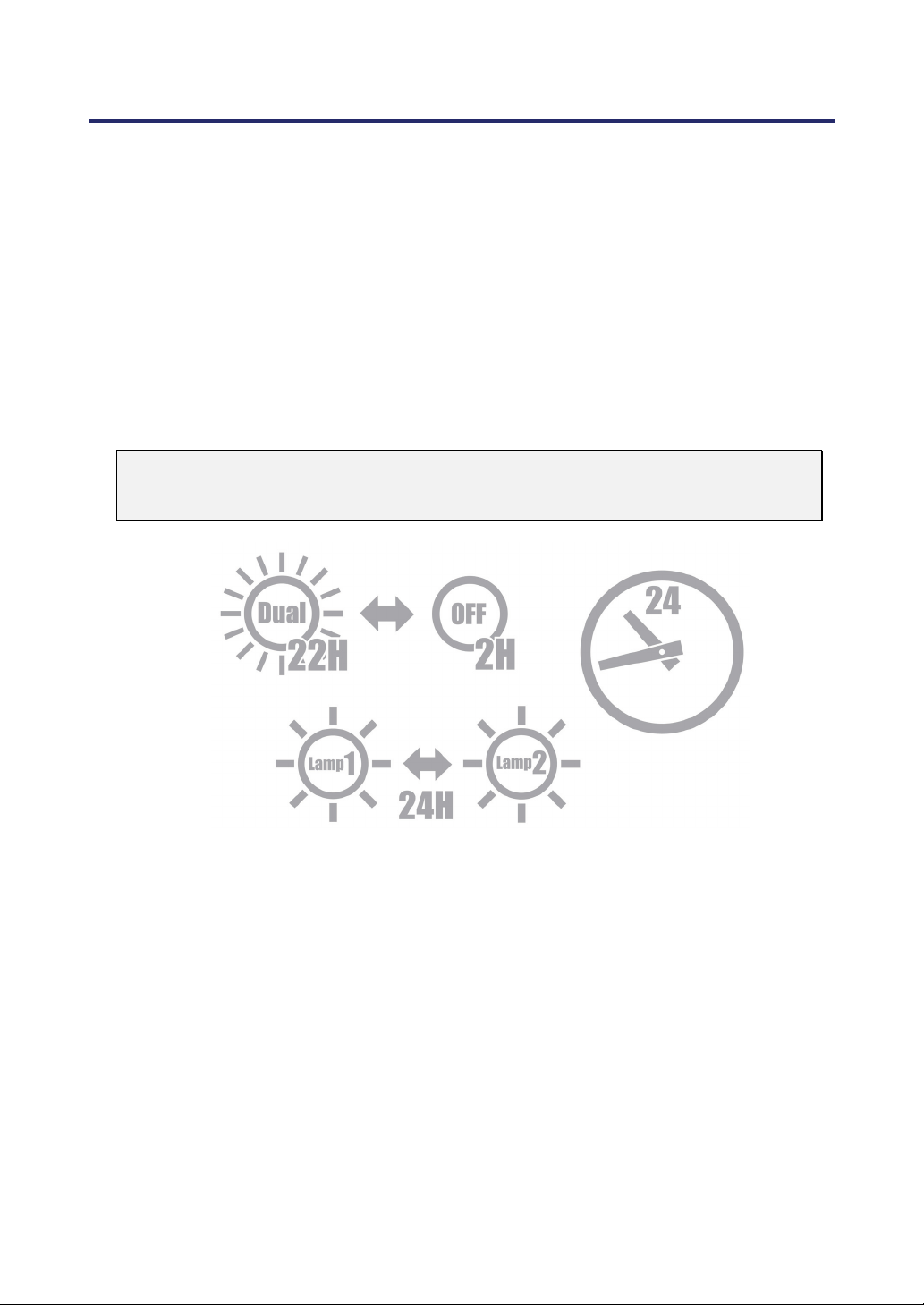
[Important 1] Operating the Lamp Continuously
If using the projector continuously for a long period, use of the menu (OSD) is recom-
mended in order to properly cycle the lamps as described below.
To use the projector continuously in the dual lamp mode
Allow 2 hours per day of non usage time per lamp. Do this for both lamps at the same
time or for “Lamp 1” and “Lamp 2” at separate 2 hour intervals.
To use the projector continuously in single lamp mode
Use the two lamps (Lamp 1 and Lamp 2) alternately in a cycle of 24 hours or less.
Allow 2 hours or longer per day of no-use time for each lamp.
Contact your dealer for more details.
Note:
If using the menu, select "Off" for "Lamp Interval" from the on-screen menu
(see page 82).
Important Information
ix
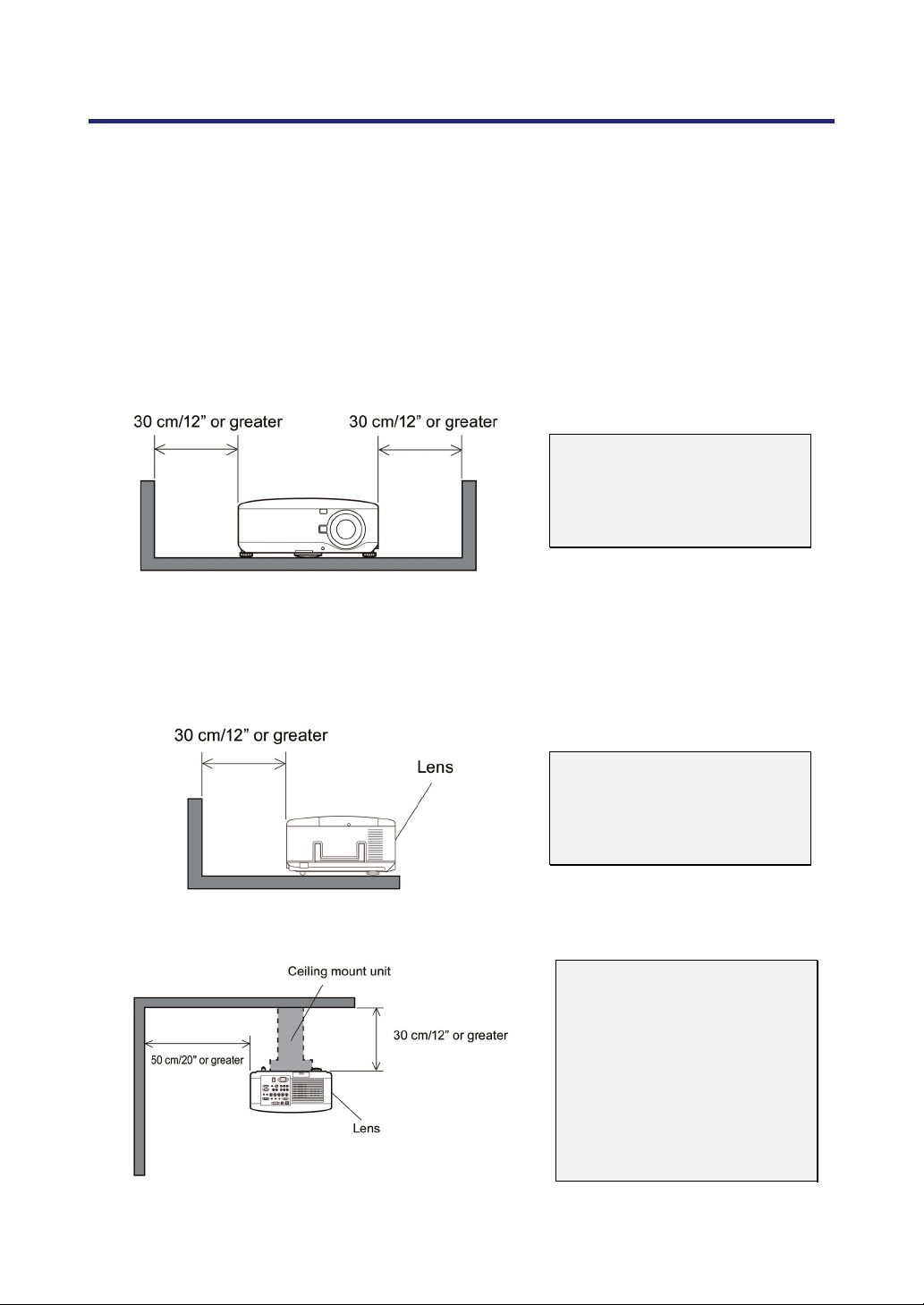
[Important 2] Clearance for Installing the Projector
Allow ample clearance between the projector and its surroundings as shown below.
Avoid installing the projector in a place where air movement from the HVAC is directed
at the projector.
Heated air from the HVAC can be taken in by the projector's intake vent. If this happens,
the temperature inside the projector will rise too high causing the over-temperature pro-
tector to automatically turn off the projectors power.
Example 1 – If there are walls on both sides of the projector.
Note:
The drawing shows the
proper clearance required
for the front, back and top of
the projector.
Example 2 – If there is a wall behind the projector.
(1) For floor installation:
Note:
The drawing shows the
proper clearance required
for the back, sides and top
of the projector.
(2) For ceiling mounting:
Note:
1. The drawing shows the
proper clearance required
for the front, sides, back and
bottom of the projector.
2. If suspending the projec-
tor 30 cm/12 inches away
from the ceiling, allow ample
clearance for all four sides
and the under the projector.

Important Information
x
(3) Upward or downward projection:
When using the projector in an upward projection angle, allow 1 m/ 40 inches or
greater between the exhaust vent and the wall.
When using the projector in a downward projection angle, allow 0.5 m/ 20 inches or
greater between the exhaust vent and the wall.

xi
Table of Contents
IMPORTANT INFORMATION............................................................................................................. I
SAFETY CAUTIONS................................................................................................................................I
1. INTRODUCTION ..............................................................................................................................1
WHAT’S IN THE BOX? ......................................................................................................................1
INTRODUCTION TO THE PROJECTOR...............................................................................................2
Features you’ll enjoy:....................................................................................................................2
PART NAMES OF THE PROJECTOR..................................................................................................3
Front-right view..............................................................................................................................3
Top View.........................................................................................................................................4
Carrying the Projector...................................................................................................................5
Bottom view....................................................................................................................................6
TOP FEATURES................................................................................................................................7
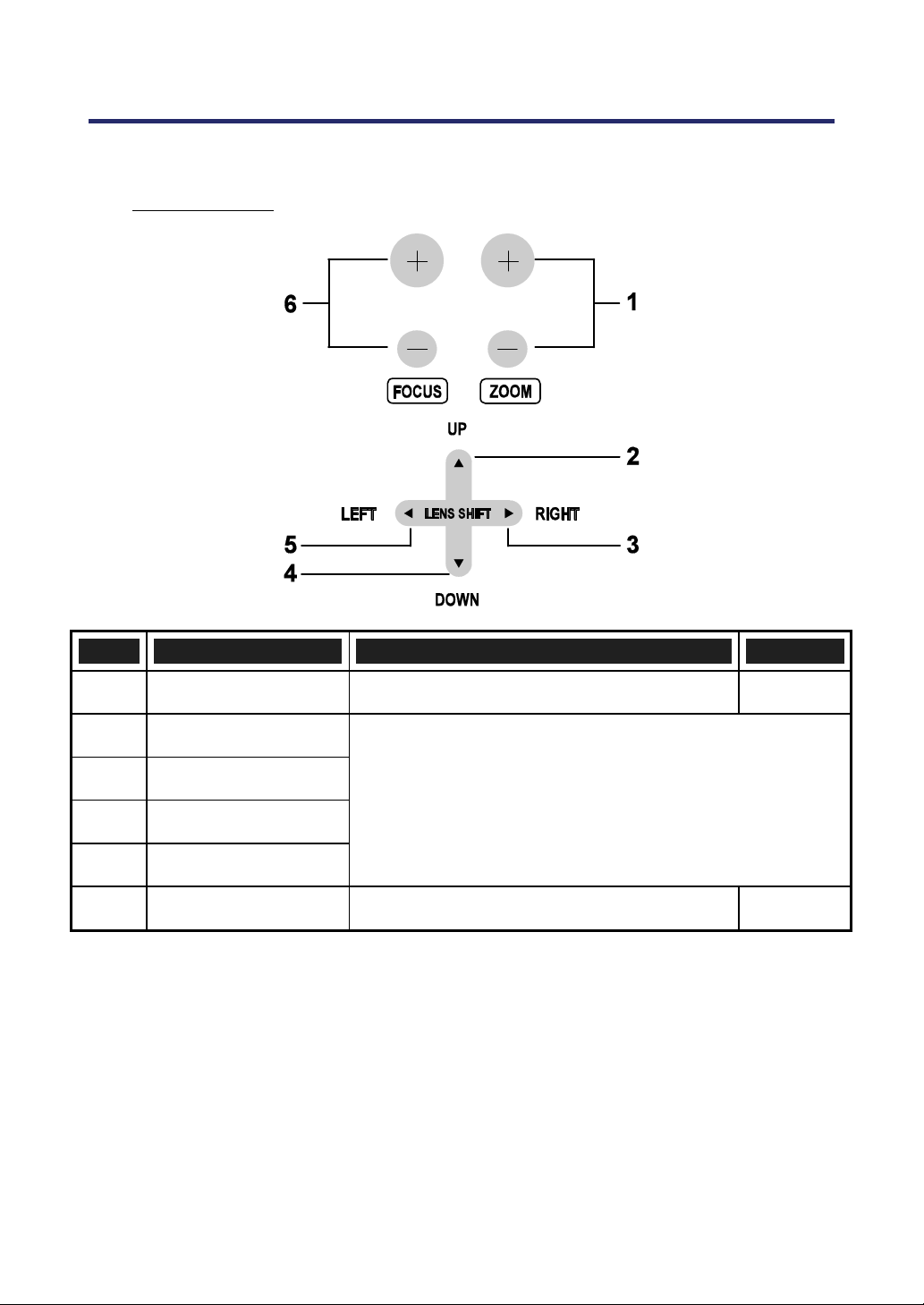
Lens Controls.................................................................................................................................7
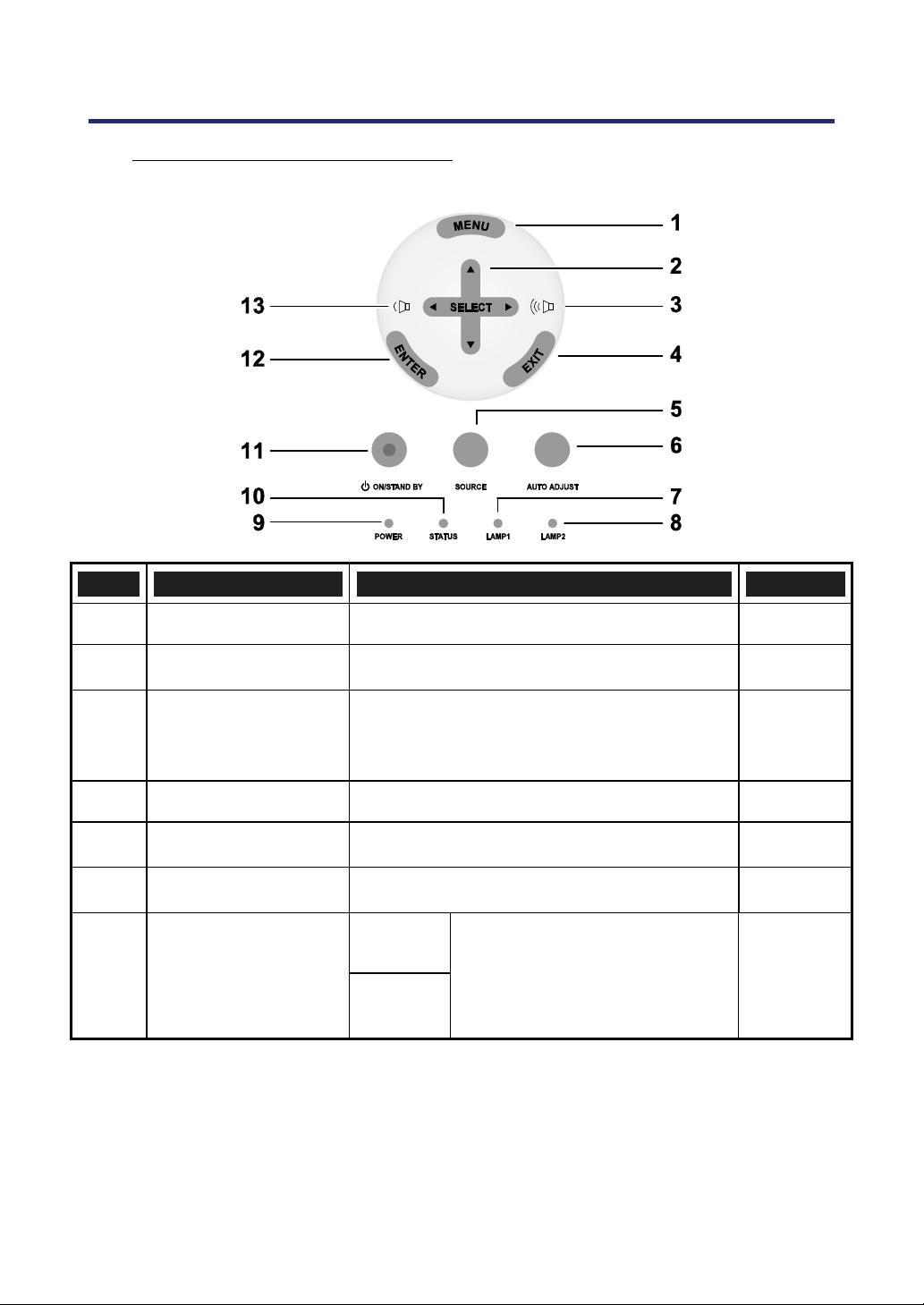
OSD Controls and Status LEDS .................................................................................................8
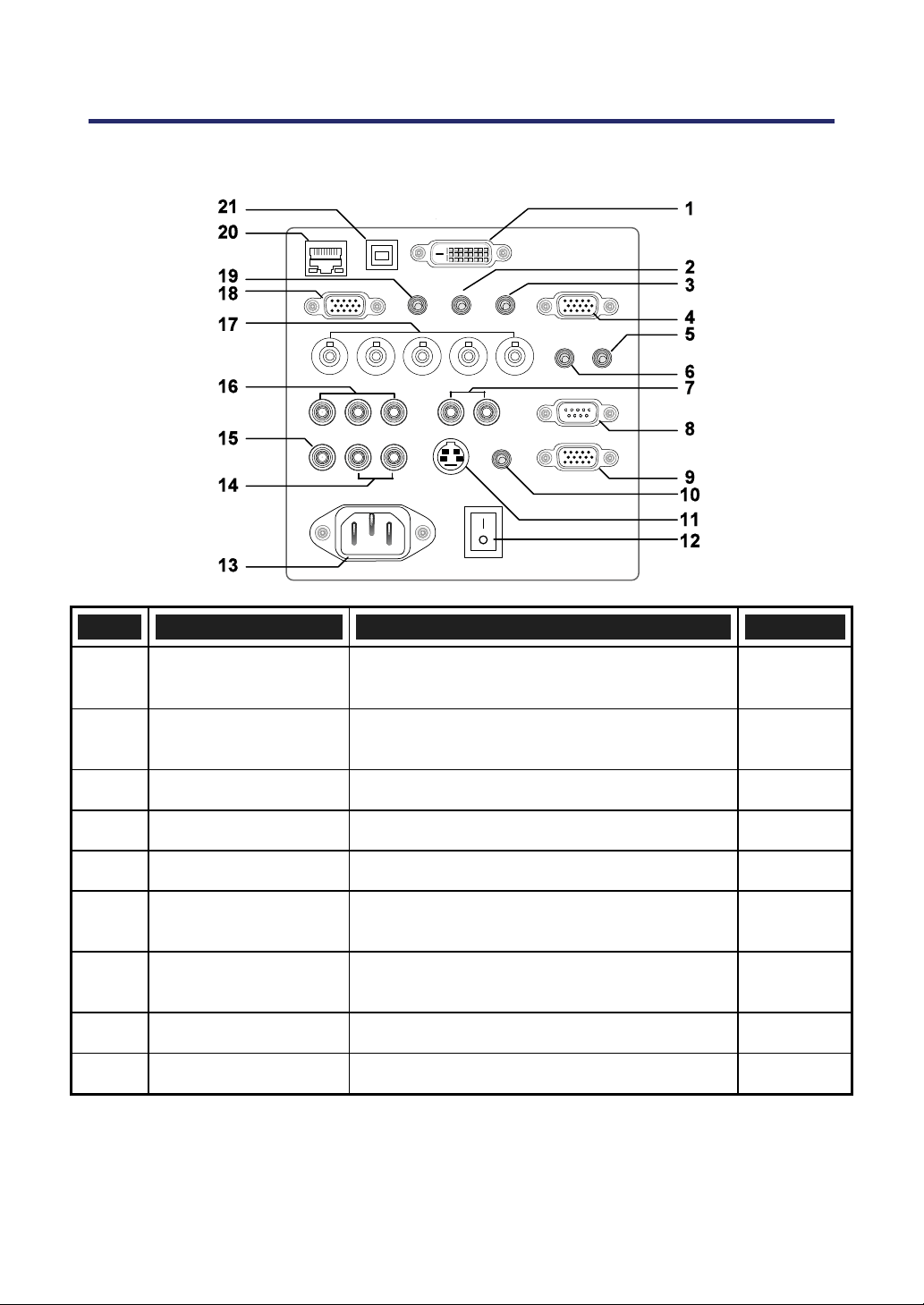
TERMINAL PANEL FEATURES ........................................................................................................10
PART NAMES OF THE REMOTE CONTROL.....................................................................................12
Battery Installation.......................................................................................................................14
Operating Range for Wireless Remote Control ......................................................................15
Remote Control Precautions .....................................................................................................15
Using the Remote Control in Wired Operation .......................................................................16
2. INSTALLATION AND CONNECTIONS......................................................................................17
SETTING UP THE SCREEN AND THE PROJECTOR .........................................................................17
SELECTING A LOCATION................................................................................................................18
INSTALLING OR REMOVING THE OPTIONAL LENS .........................................................................19
Removing the Existing Lens From the Projector ....................................................................19
Installing the New Lens ..............................................................................................................21
Installing the New Lens Using the anti-theft screw ................................................................21
THROW DISTANCE AND SCREEN SIZE ..........................................................................................22
NP4100 Throw Distance and Screen Size Values.................................................................23
NP4100W Throw Distance and Screen Size Values .............................................................24
REPLACING COLOR WHEEL ..........................................................................................................27
MAKING CONNECTIONS.................................................................................................................31
Connecting Your PC or Macintosh Computer.........................................................................31
Connecting an External Monitor................................................................................................33
Connecting Your DVD Player with Component Output .........................................................34
Connecting Your VCR ................................................................................................................35
CONNECTING TO A NETWORK .......................................................................................................36
CONNECTING THE SUPPLIED POWER CABLE ...............................................................................37
3. PROJECTING AN IMAGE (BASIC OPERATION) ...................................................................38
TURNING ON THE PROJECTOR ......................................................................................................38
Note on Startup Screen (Menu Language Select screen) ....................................................39
SELECTING A SOURCE ..................................................................................................................40
ADJUSTING THE PICTURE POSITION AND PICTURE SIZE..............................................................41
Adjusting Picture Position Manually .........................................................................................41

Table of Contents
xii
Lens Shift Adjustable Range .....................................................................................................43
From the Remote Control Unit ..................................................................................................43
Adjusting the Projector Level.....................................................................................................45
OPTIMIZING AN RGB IMAGE AUTOMATICALLY..............................................................................46
Adjusting the Image Using Auto Adjust....................................................................................46
ADJUSTING VOLUME UP AND DOWN.............................................................................................47
TURNING OFF THE PROJECTOR ....................................................................................................48
About Direct Power Off...............................................................................................................49
After Use.......................................................................................................................................49
4. CONVENIENT FEATURES ..........................................................................................................50
TURNING OFF THE IMAGE AND SOUND .........................................................................................50
FREEZING A PICTURE ....................................................................................................................50
ADJUSTING THE FOCUS/ZOOM MANUALLY...................................................................................51
Adjusting by Using the OSD Control Panel.............................................................................51
CHANGING LAMP MODE ................................................................................................................52
Changing Lamp Mode by Using the Projector's OSD Control Panel...................................52
Changing Lamp Mode by Using the Remote Control ............................................................53
GETTING INFORMATION.................................................................................................................54
ADJUSTING POSITION/CLOCK .......................................................................................................55
Adjusting Position/Clock/Phase by Using the OSD Control Panel ......................................55
Correcting Keystone by Using the Remote Control ...............................................................56
PREVENTING THE UNAUTHORIZED USE OF THE PROJECTOR ......................................................58
Locking the Projector ..................................................................................................................58
Unlocking the Projector ..............................................................................................................60
USING THE PHYSICAL LOCK ..........................................................................................................61
Using the Kensington Lock ........................................................................................................61
Using the Security Chain Lock ..................................................................................................61
5. USING ON-SCREEN DISPLAY ...................................................................................................62
USING THE MENUS ........................................................................................................................62
Navigating the OSD ....................................................................................................................62
MENU TREE ...................................................................................................................................64
MENU ELEMENTS ..........................................................................................................................66
SOURCE MENU DESCRIPTIONS AND FUNCTIONS .........................................................................67
ADJUST MENU DESCRIPTIONS AND FUNCTIONS ..........................................................................68
Picture menu................................................................................................................................68
Image Options Menu ..................................................................................................................69
Video Menu ..................................................................................................................................73
DETAIL SETTINGS MENU DESCRIPTIONS AND FUNCTIONS ..........................................................76
General .........................................................................................................................................76
White Balance..............................................................................................................................78
Color Correction ..........................................................................................................................79
SETUP MENU DESCRIPTIONS AND FUNCTIONS ............................................................................80
General .........................................................................................................................................80
Installation ....................................................................................................................................86
Network Settings .........................................................................................................................93
Options..........................................................................................................................................94
INFORMATION MENU DESCRIPTIONS AND FUNCTIONS...............................................................101
Usage Time................................................................................................................................101
Source.........................................................................................................................................102
LAN..............................................................................................................................................103

Table of Contents
xiii
Version........................................................................................................................................104
RESET MENU DESCRIPTIONS AND FUNCTIONS ..........................................................................106
6. MAINTENANCE............................................................................................................................107
CLEANING THE PROJECTOR ........................................................................................................107
Cleaning the Cabinet ................................................................................................................107
Cleaning the Lens .....................................................................................................................107
Cleaning the Filters ...................................................................................................................108
REPLACING CONSUMABLE PARTS ..............................................................................................110
Replacing the Filters .................................................................................................................110
Replacing the Lamps ................................................................................................................112
Resetting the Lamp Hours Counter........................................................................................114
7. APPENDIX.....................................................................................................................................115
USING THE OPTIONAL REMOTE MOUSE RECEIVER (NP01MR)................................................115
Connecting the remote mouse receiver to your computer ..................................................115
When operating a computer through the remote mouse receiver .....................................115
When connecting using the USB terminal.............................................................................116
Operating your computer’s mouse from the remote control ...............................................116
About Drag Mode ......................................................................................................................116
TROUBLESHOOTING ....................................................................................................................117
Indicator Messages...................................................................................................................117
Common Problems and Solutions ..........................................................................................119
Tips for Troubleshooting...........................................................................................................119
IMAGE PROBLEMS .......................................................................................................................120
Lamp Problems..........................................................................................................................121
Remote Control Problems........................................................................................................121
Audio Problems .........................................................................................................................122
HAVING THE PROJECTOR SERVICED ..........................................................................................123
8. SPECIFICATIONS........................................................................................................................124
PROJECTOR SPECIFICATIONS .....................................................................................................124
Optical Specifications ...............................................................................................................124
Electrical Specifications............................................................................................................125
Mechanical Specifications........................................................................................................126
Environmental Considerations ................................................................................................126
Regulations ................................................................................................................................126
CABINET DIMENSIONS .................................................................................................................127
PIN ASSIGNMENTS OF MINI D-SUB 15 PIN INPUT CONNECTOR ................................................128
COMPATIBLE INPUT SIGNAL LIST ................................................................................................129
PC CONTROL CODES AND CABLE CONNECTIONS .....................................................................131
SCREEN TRIGGER .......................................................................................................................133
OPERATION USING HTTP BROWSER.........................................................................................134
Overview.....................................................................................................................................134
Preparation Before Use............................................................................................................134
Handling of the Address for Operation via a Browser..........................................................134
Configuring Network Settings..................................................................................................135
Structure of the HTTP Server..................................................................................................137
15 PIN GPIO CONTROL .............................................................................................................139
9. TROUBLESHOOTING CHECK LIST........................................................................................140
1
1. Introduction
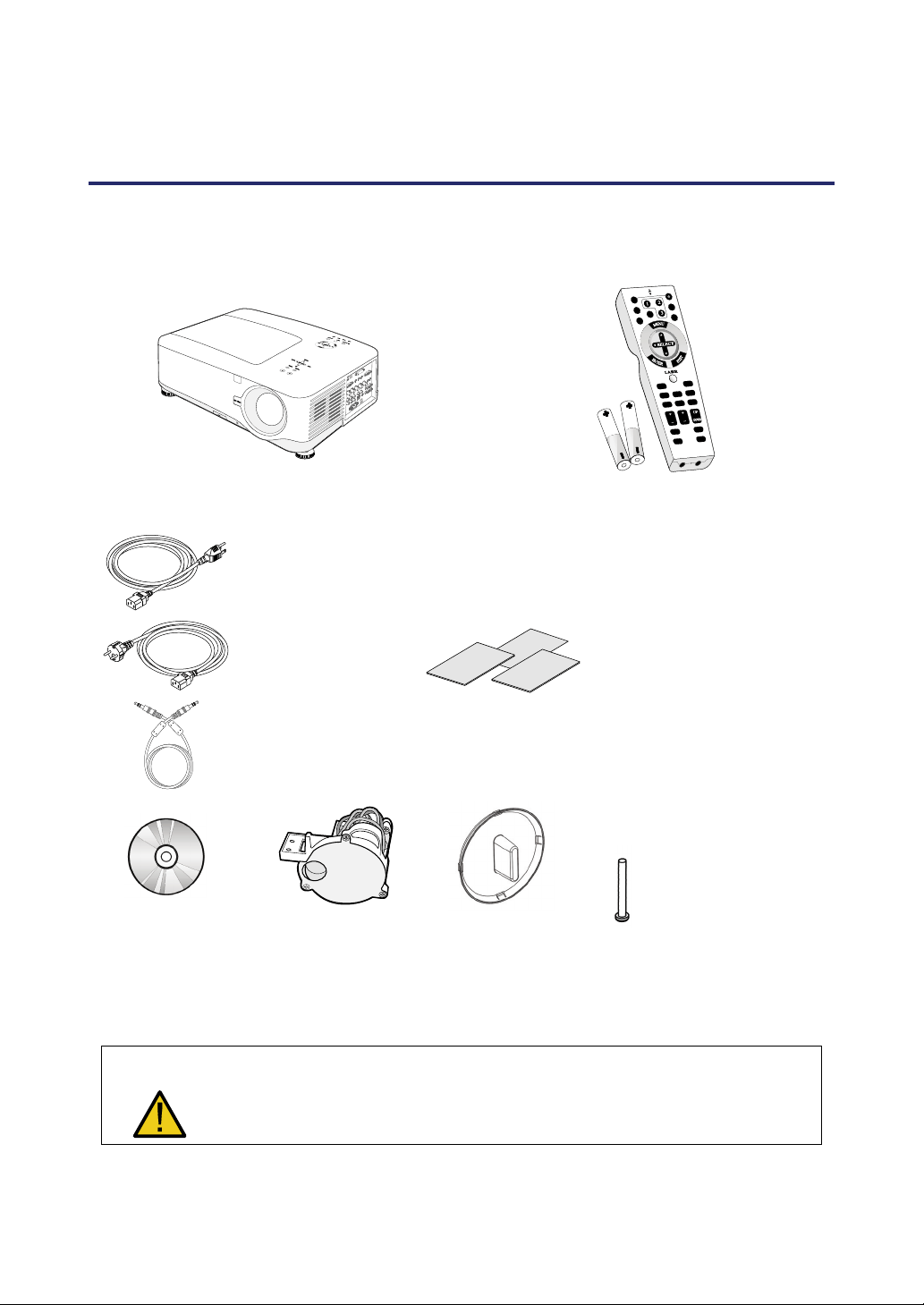
What’s in the Box?
Carefully unpack the projector and check that the following items are included:
NP4100/NP4100W Projector Remote Control (79TD5521)
(with Two AA alkaline batteries)
North America
(AC 120V)
(79TD5701)
Europe
(AC 230V)
(79TD5711)
Remote Cable
10m/33ft
(79TD5481)
Quick setup guide
(79TD6151)
Important Information
(79TD6141)
For North America Only:
Registration Card
Limited Warranty
For customers in Europe: You
will find our current valid Guaran-
tee Policy on our Web Site:
www.nec-display-solutions.com
CD-ROM
(This User’s manual)
(79TD6131)
6 Segment Color
Wheel
(79TD5371)
Lens Hole Cap
(Installed)
Anti-Theft Screw for
lens x 1
(79TD5811)
Security Sticker
Contact your dealer immediately if any items are missing, appear damaged, or if the unit does not
work.
CAUTION
Avoid using the projector in dusty environments.

1. Introduction
2
Introduction to the Projector
Features you’ll enjoy:
DLP projector with high resolution
Native WXGA support (NP4100W only)
A WXGA (1280 x 800) resolution provides wide screen display with an aspect ratio of
16:10.
High brightness
High brightness output of 6200 and 5500 lumens (NP4100 and NP4100W respec-
tively) is achieved using the 4-segment color wheel.
Dual Lamp system
Two lamp system offers increased lamp life and energy savings along with redundancy.
Extensive optional lens with bayonet mount
Five types of optional lenses are available.
Powered Lens Shift, Zoom, and Focus offer installation flexibility
Powered Horizontal and Vertical lens shift provides the ability to project from off center
screen installations. Powered zoom and focus provide quick and easy adjustment.
Direct Power Off and Auto Power On
The projector has a feature called “Direct Power Off”. This feature allows the projector
to be turned off (even when projecting an image) using a power strip equipped with a
switch and a breaker.
Note:
Before using Direct Power Off, be sure to allow at least 20 minutes immediately
after turning on the projector and starting to display an image.
Also, the power cable can be removed immediately after turning off the projector.
Auto Start eliminates the need to always use the POWER (ON/STANDBY) button
on the remote control or projector cabinet.
A variety of input ports and a comprehensive array of system control interfaces
This projector supports input signals including BNC, DVI-D, analog RGB, component,
S-video, and composite.
3W+3W Stereo speaker
Built in 3W x 2 speakers are provided.
Preventing unauthorized use of the projector
Enhanced smart security settings for password protection, cabinet control panel lock to
help prevent unauthorized access, adjustments and theft deterrence.
Integrated RJ-45 connector for wired networking capability for property management.
Combination of BrilliantColor™ and 6-segment color wheel offers a more true color re-
production
1. Introduction
3
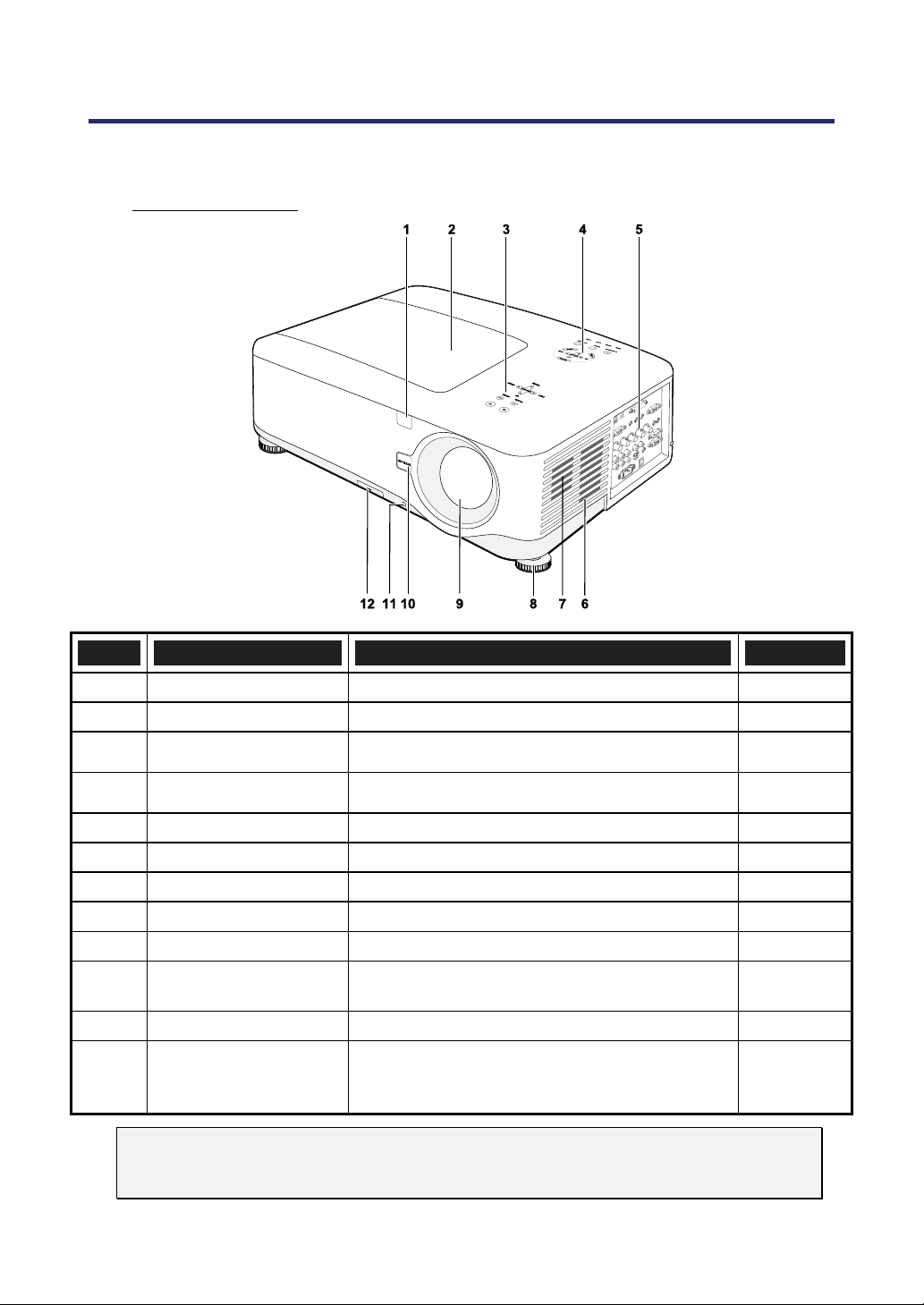
Part Names of the Projector
Front-right view
ITEM LABEL DESCRIPTION SEE PAGE:
1.
IR receiver Receiver for IR signal from remote control
12
2.
Lamp cover Remove cover to replace lamp or color wheel
112
3.
Lens control panel See Lens Controls
7
4.
OSD control panel See OSD Controls and Status LEDS
8
5.
I/O connector panel Connect various input devices
10
6.
Intake vent Lamp cooling vent – do not obstruct
—
7.
Speakers Built-in stereo speakers
—
8.
Height adjuster Adjusts level of projector
6, 45
9.
Lens Remove lens hole cap before use
—
10.
Lens release button
Press the release button before removing the
lens
—
11.
Anti-Theft Screw Prevent theft of the lens
—
12.
Intake vent and front
filter
Keeps the front fan free of dust
– clean regularly for optimum performance
– do not obstruct
108
Important:
Grill openings on the projector allow for good air circulation, which keeps the pro-
jector lamp cool. Do not obstruct any of the grill openings.
1. Introduction
4
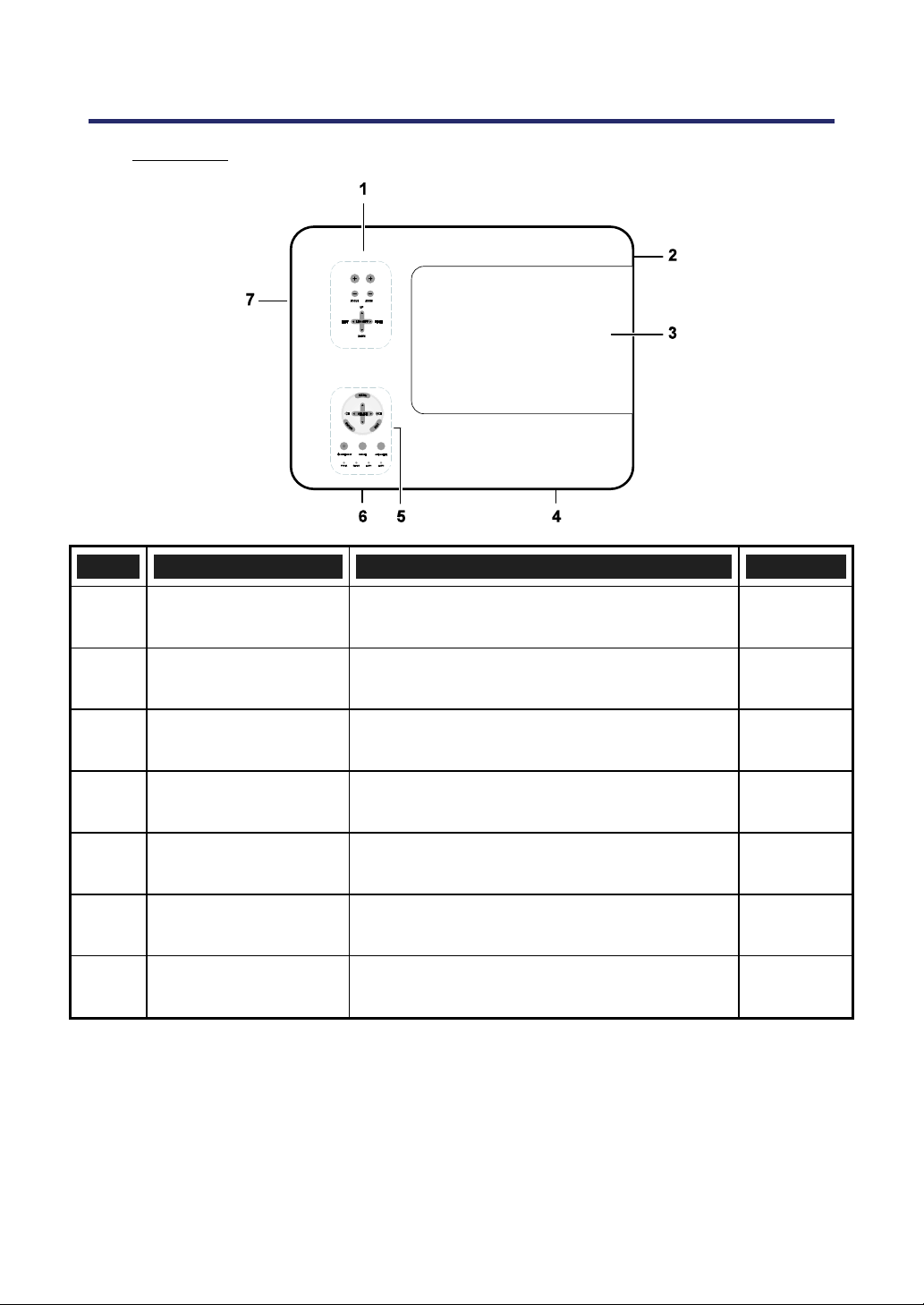
Top View
ITEM LABEL DESCRIPTION SEE PAGE:
1.
Lens control panel See 3Lens Controls
7
2.
Right-hand speaker Right-hand speaker
—
3.
Lamp cover Remove cover to replace lamp or color wheel
112
4.
Exhaust vent Exhaust vent – do not obstruct
—
5.
OSD control panel See 3OSD Controls and Status LEDS
8
6.
Rear intake vent Rear cooling intake – do not obstruct
—
7.
Left intake vent Left-hand cooling intake – do not obstruct
—
1. Introduction
5
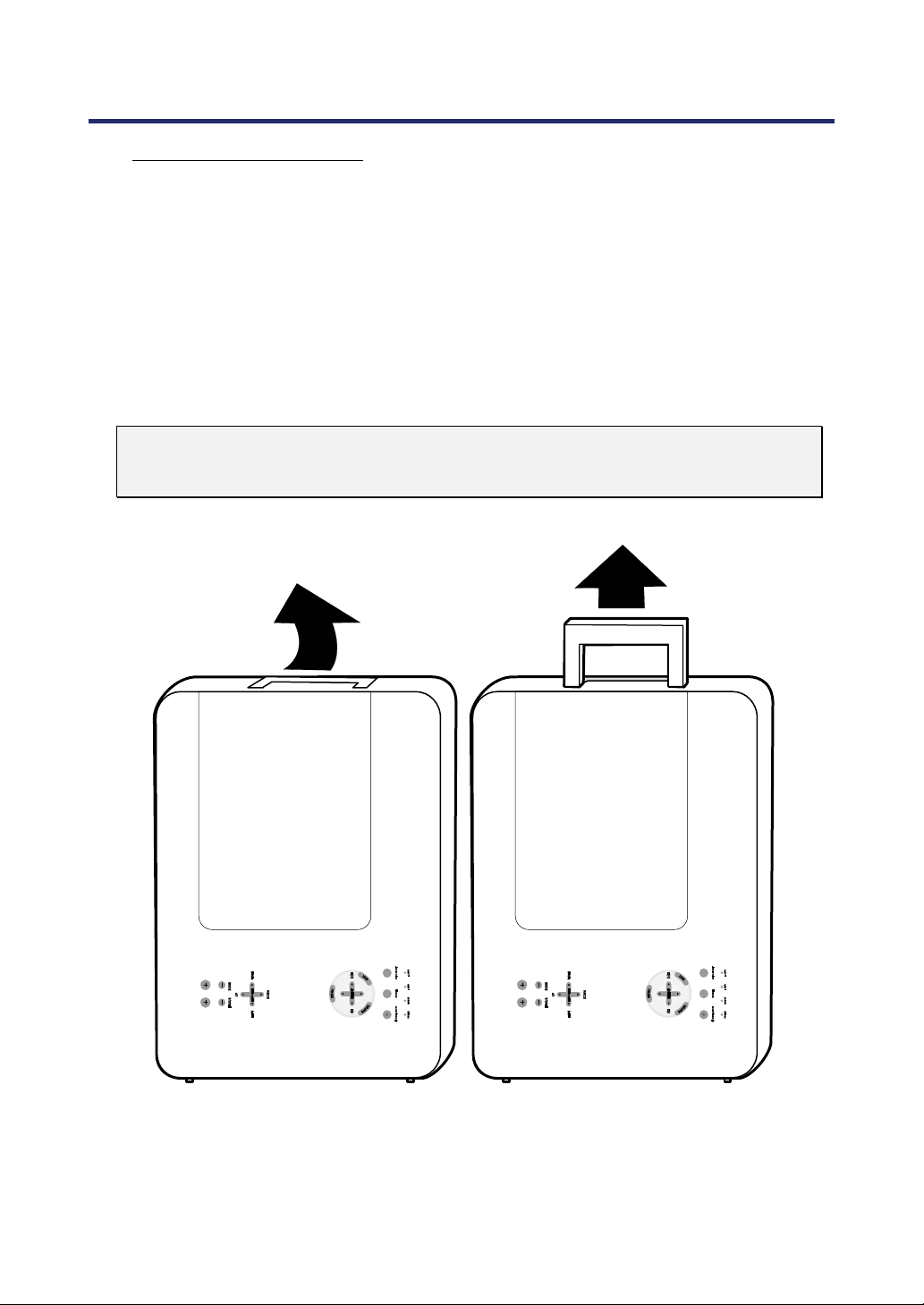
Carrying the Projector
Always carry your projector by the handle.
Before moving or carrying the projector, disconnect the power cable and any other ca-
bles that may be attached to it.
When moving the projector or when the projector is not in use, cover the lens with the
lens cap.
To extend the projector handle, refer to the following guide.
1. Stand the projector on its end with the control panels at the bottom.
Note:
Stand the projector on its end by lifting the cabinet. Do not use the handle to place
the projector upright.
2. Lift the handle in the direction shown until it is fully extended.
1. Introduction
6
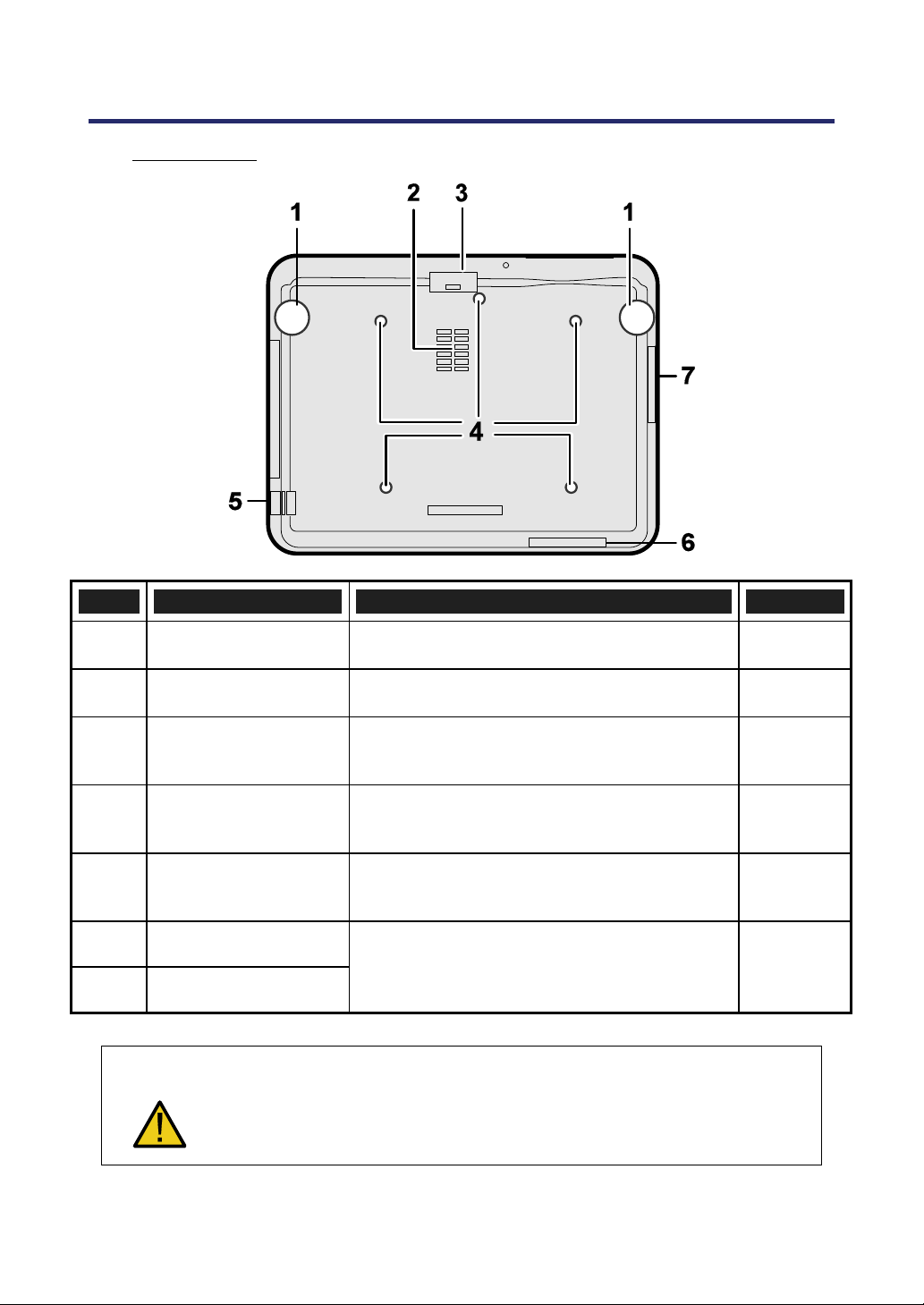
Bottom view
ITEM LABEL DESCRIPTION SEE PAGE:
1.
Height adjusters Adjust projection height
45
2.
Intake vent Color wheel cooling vent – do not obstruct
—
3.
Front filter
Keep the fan free of dust – clean regularly for
optimum performance
108
4.
Ceiling support holes
Contact your dealer for information on
mounting the projector on a ceiling
—
5.
Security chain
opening
Attach anti-theft device –
see Using the Phy
sical Lock
61
6.
Rear filter
7.
Side filter
Keep the fans free of dust –
clean regularly for optimum performance
108
CAUTION
With ceiling installation, use approved mounting hardware & M4 screws;
maximum depth of screw: 12 mm; distance from ceiling/ wall: 50/50 cm,
20/20 inch for proper ventilation; distance from fluorescent lamps: at least
50 cm front and back of then projector. For permanent installations, follow
local codes.
1. Introduction
8
OSD Controls and Status LEDS
ITEM LABEL DESCRIPTION SEE PAGE:
1.
MENU Open / Close the OSD
62
2.
SELECT PAD Navigate and change settings in the OSD
62
3.
RIGHT CURSOR/
VOLUME
INCREASE
Increase volume
47
4.
EXIT Exit the On-Screen Display (OSD)
63
5.
SOURCE
Change or select the input device
40
6.
AUTO ADJUST Optimize image size, position, and resolution
46
Green
7.
LAMP 1
Flashing
See Indicator Messages
118
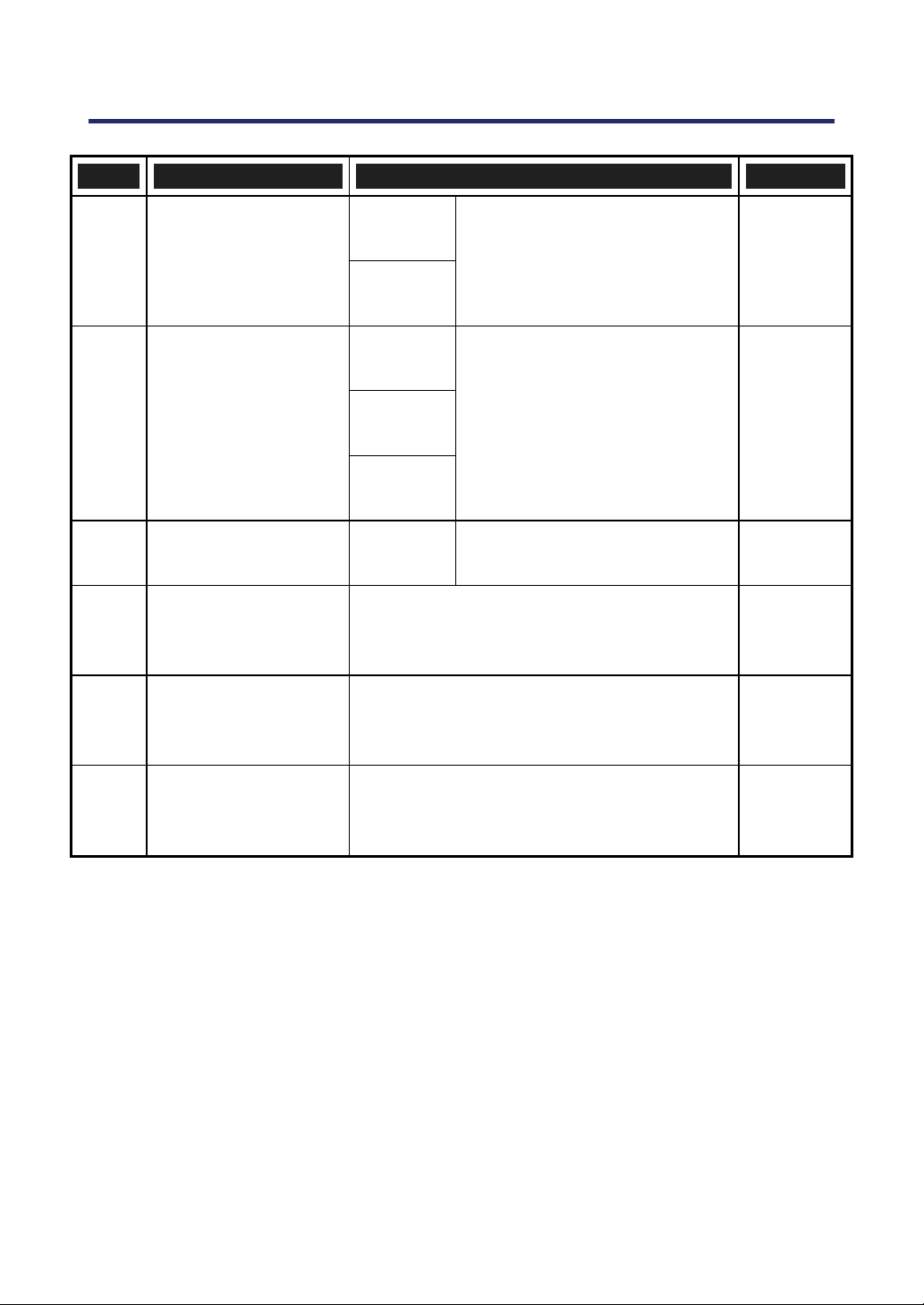
1. Introduction
9
ITEM LABEL DESCRIPTION SEE PAGE:
Green
8.
LAMP 2
Flashing
See Indicator Messages
118
Green
Orange
9.
POWER (LED)
Flashing
See Indicator Messages
117
10.
STATUS (LED) Green
Lamp ready you can safely turn
on or off the projector
117
11.
ON/STAND BY
Turn the projector on or off
(main power switch must be turned on first)
10, 38
12.
ENTER Select or change settings in the OSD
62
13.
LEFT
CURSOR/VOLUME
DECREASE
Decrease volume
47
1. Introduction
10
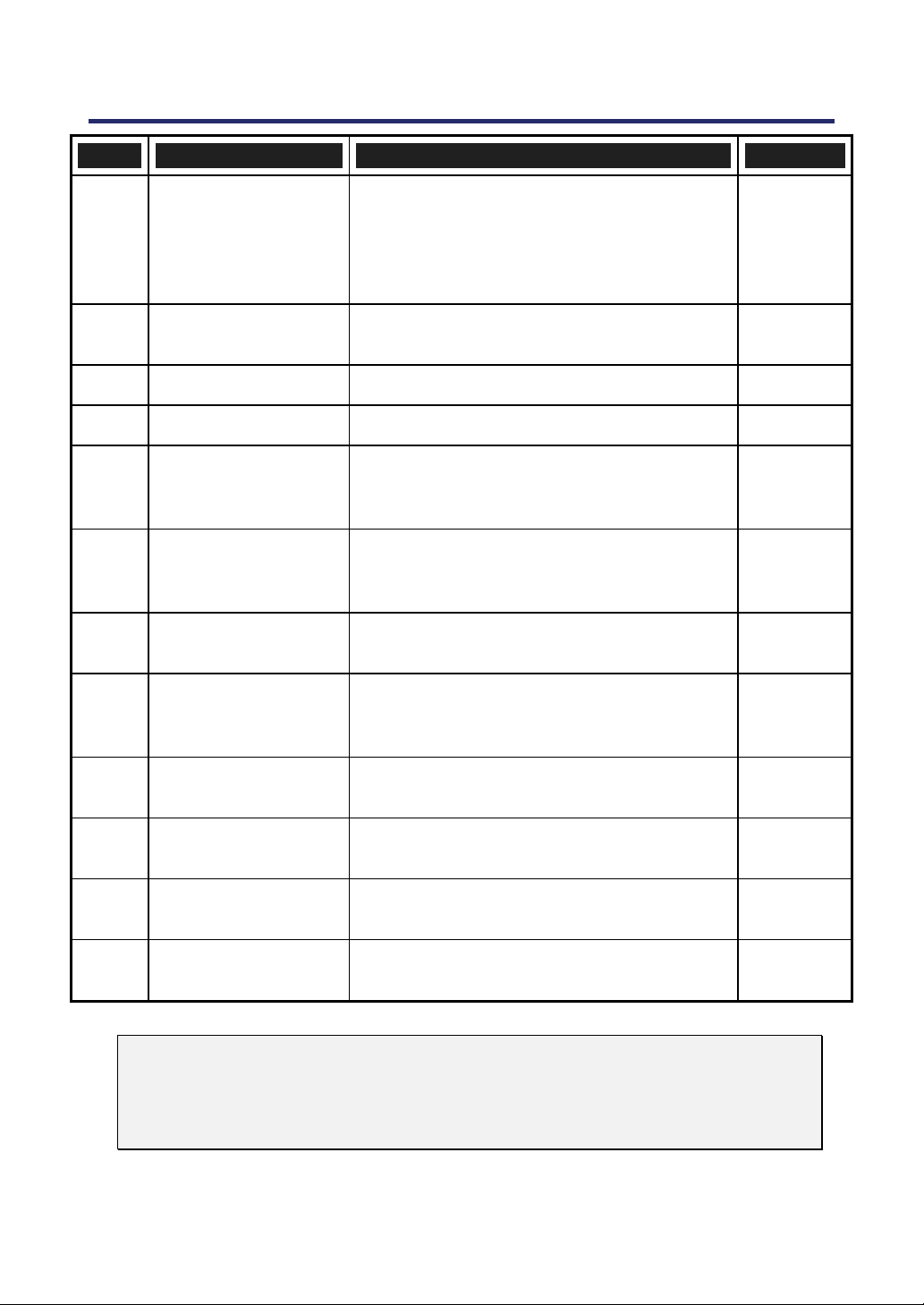
Terminal Panel Features
ITEM LABEL DESCRIPTION SEE PAGE:
1.
COMPUTER 3 IN
Connect the DVI cable (not supplied) from a
computer
31
2.
AUDIO IN (3)
Connect the audio cable (not supplied) from
the input device
—
3.
AUDIO OUT Audio loop-thru
—
4.
MONITOR OUT Connect to a monitor
—
5.
REMOTE 2 Connect the remote to the projector
16
6.
AUDIO IN (2)
Connect the audio cable (not supplied) from
the input device
—
7.
L/MONO, R
(COMPONENT)
Connect an RCA audio cables (not supplied)
from the input device right and left channels
—
8.
PC CONTROL Installation control
131
9.
REMOTE 1 For external control
139
1. Introduction
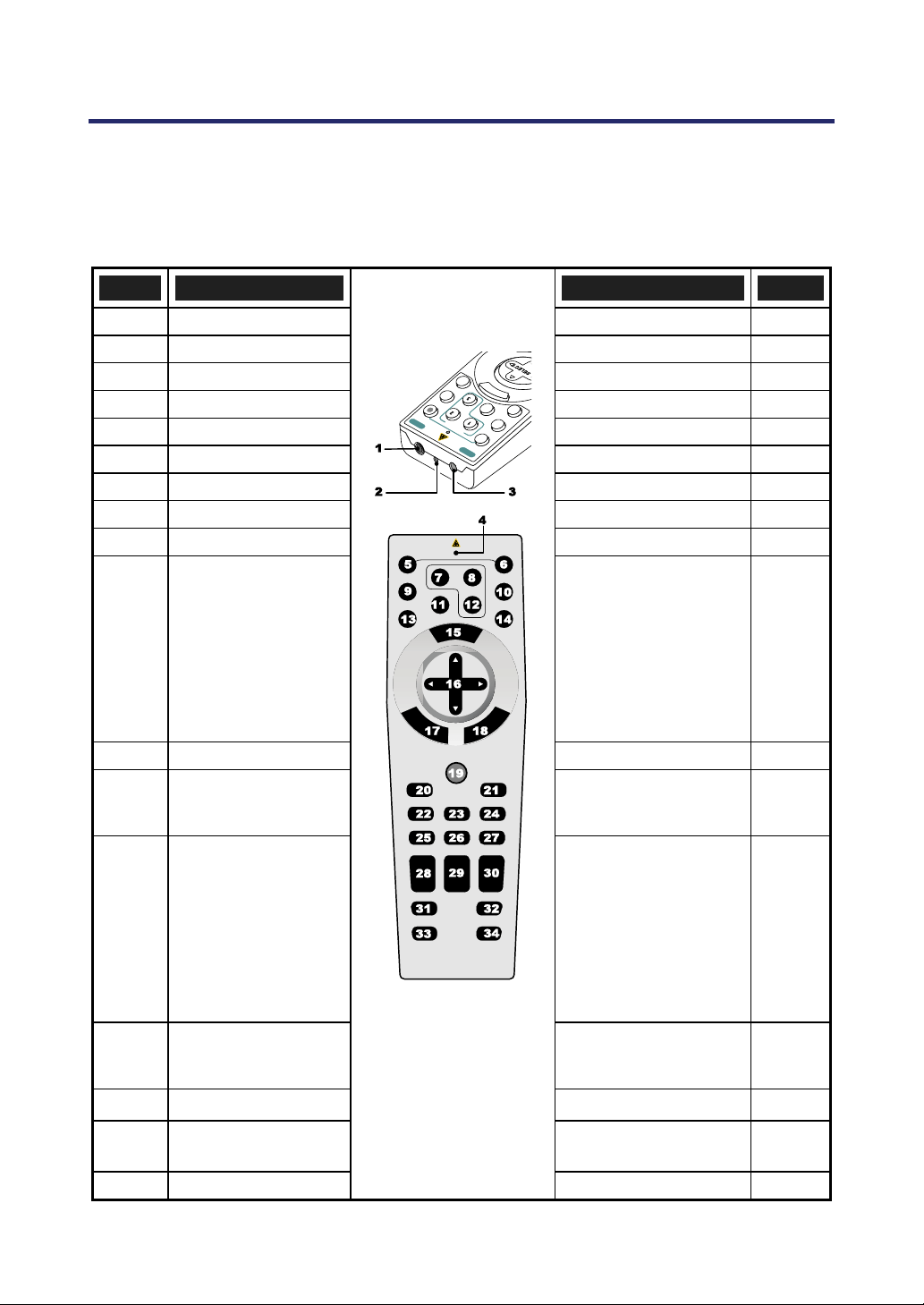
11
ITEM LABEL DESCRIPTION SEE PAGE:
10.
SC TRIGGER
When connected to the screen through a
commercially available cable, the screen de-
ploys automatically on start up of the
projector. The screen retracts when the pro-
jector is powered off (see notes below)
133
11.
S-VIDEO
Connect a commercially available S-video
cable from a video device
35
12.
POWER SWITCH Turn on/off the projector
38, 48
13.
AC IN Connect the supplied power cable
37
14.
L/MONO, R
Connect RCA audio cables (not supplied)
from the input device right and left channels.
This audio jack is shared with S-Video input.
—
15.
VIDEO IN
Connect a composite video cable (not sup-
plied) from a video device to the yellow RCA
jack
35
16.
COMPONENT IN
(Y, Cb/Pb, Cr/Pr)
Connect a component video enabled device
34
17.
COMPUTER 2 IN
(R/Cr, G/Y, B/Cb,
H, V)
Connect RGBHV or Component signal from
computer or component video enabled device
31
18.
COMPUTER 1 IN
Connect a VGA cable (not supplied) from a
computer
31
19.
AUDIO IN (1)
Connect the audio cable (not supplied) from
the input device
—
20.
LAN
Connect a LAN cable (not supplied) from a
computer
103
21.
SERVICE
Connect the USB cable (not supplied) from a
computer. For service personnel only.
—
Note:
To use this feature, you must turn on the Screen Trigger function on OSD.
Screen controllers are supplied and supported by screen manufacturers.
Do not use this jack for anything other than intended use. Connecting the wired
remote control to the Trigger mini jack causes damage to the remote control.
1. Introduction
12
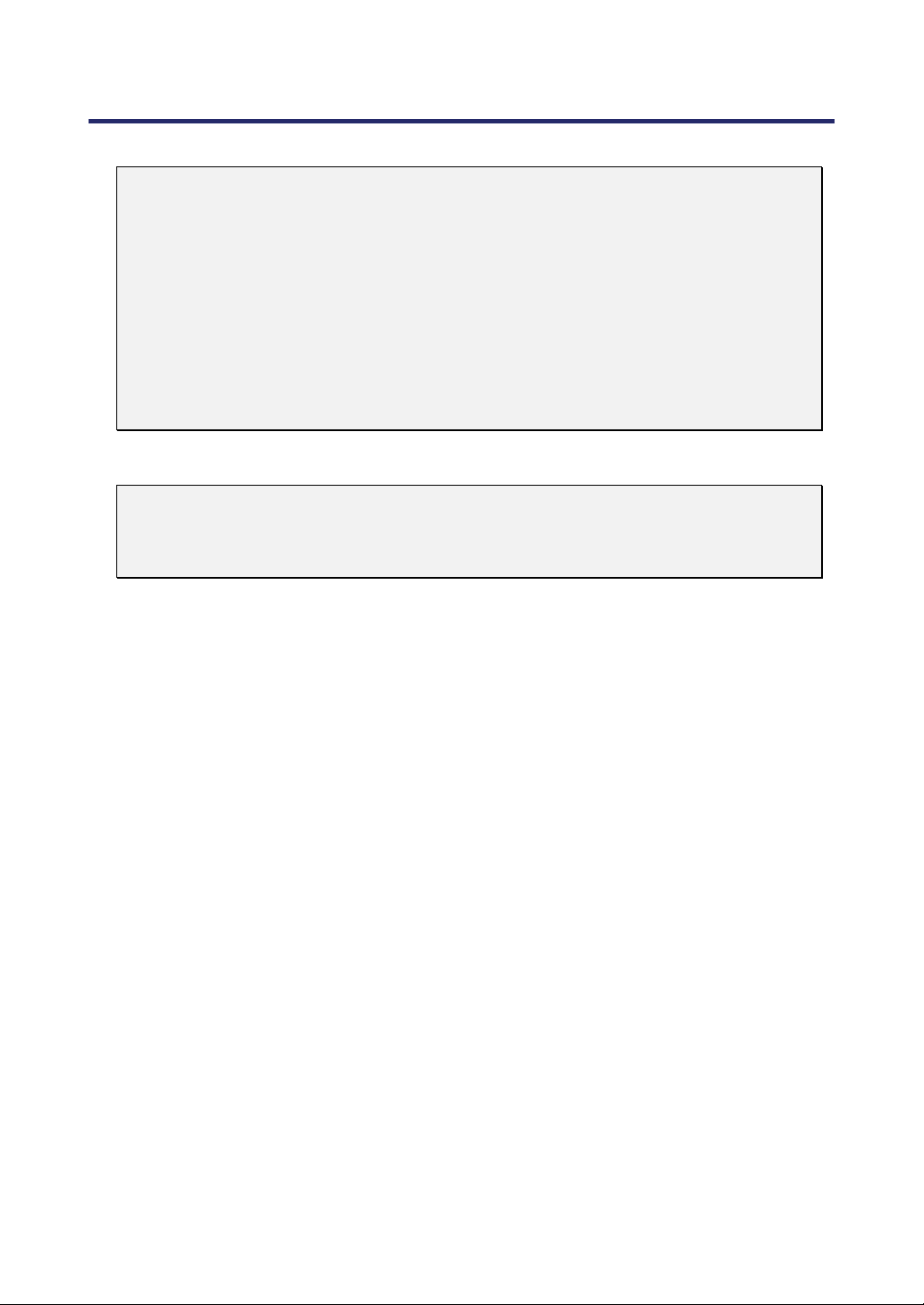
Part Names of the Remote Control
The Remote Control unit supplied with the projector combines ergonomic design and utility
and includes features such as Volume and Zoom Control, Freeze Frame and a useful point-
ing tool in the form of a laser. Refer to the following diagram and table for button location and
functionality.
ITEM LABEL LABEL ITEM
1.
Remote jack Exit button
18.
2.
Laser pointer Laser button
19.
3.
Infrared transmitter L-Click button
20.
4.
LED R-Click button
21.
5.
Power OFF button* Focus/ Zoom button
22.
6.
Power ON button** Freeze button
23.
7.
Computer 1 button Lens shift button
24.
8.
Computer 2 button Aspect button
25.
9.
Video button Lamp mode button
26.
10.
Viewer button
(The VIEWER and
PAGE buttons will
work with the other
models, which have a
Viewer function.
NP4100/NP4100W
does not have this
function).
Auto ADJ. button
27.
11.
Component button Volume buttons
28.
12.
Computer 3 button
Magnify button
(Not available on
NP4100W)
29.
13.
S-Video button
Page Up/Down buttons
(The VIEWER and
PAGE buttons will
work with the other
models, which have a
Viewer function.
NP4100/NP4100W
does not have this func-
tion).
30.
14.
LAN button
(Not available on
NP4100/NP4100W)
Picture button
31.
15.
Menu button Keystone button
32.
16.
Select ▲▼◄►
button
PIC-Mute button
33.
17.
Enter button
Help button
34.
1. Introduction
13
Important:
1. Avoid using the projector with bright fluorescent lighting turned on. Certain high-
frequency fluorescent lights can disrupt remote control operation.
2. Be sure nothing obstructs the path between the remote control and the projec-
tor. If the path between remote and projector is obstructed, you can bounce the
remote signal off certain reflective surfaces such as projector screens.
3. The buttons and keys on the projector have the same functions as the corre-
sponding buttons on the remote control. This user’s manual describes the
functions based on the remote control.
Note:
*To turn off the projector, press the Power OFF button twice.
**To turn on the projector, press and hold the Power On button for a minimum of
two seconds.
1. Introduction
14
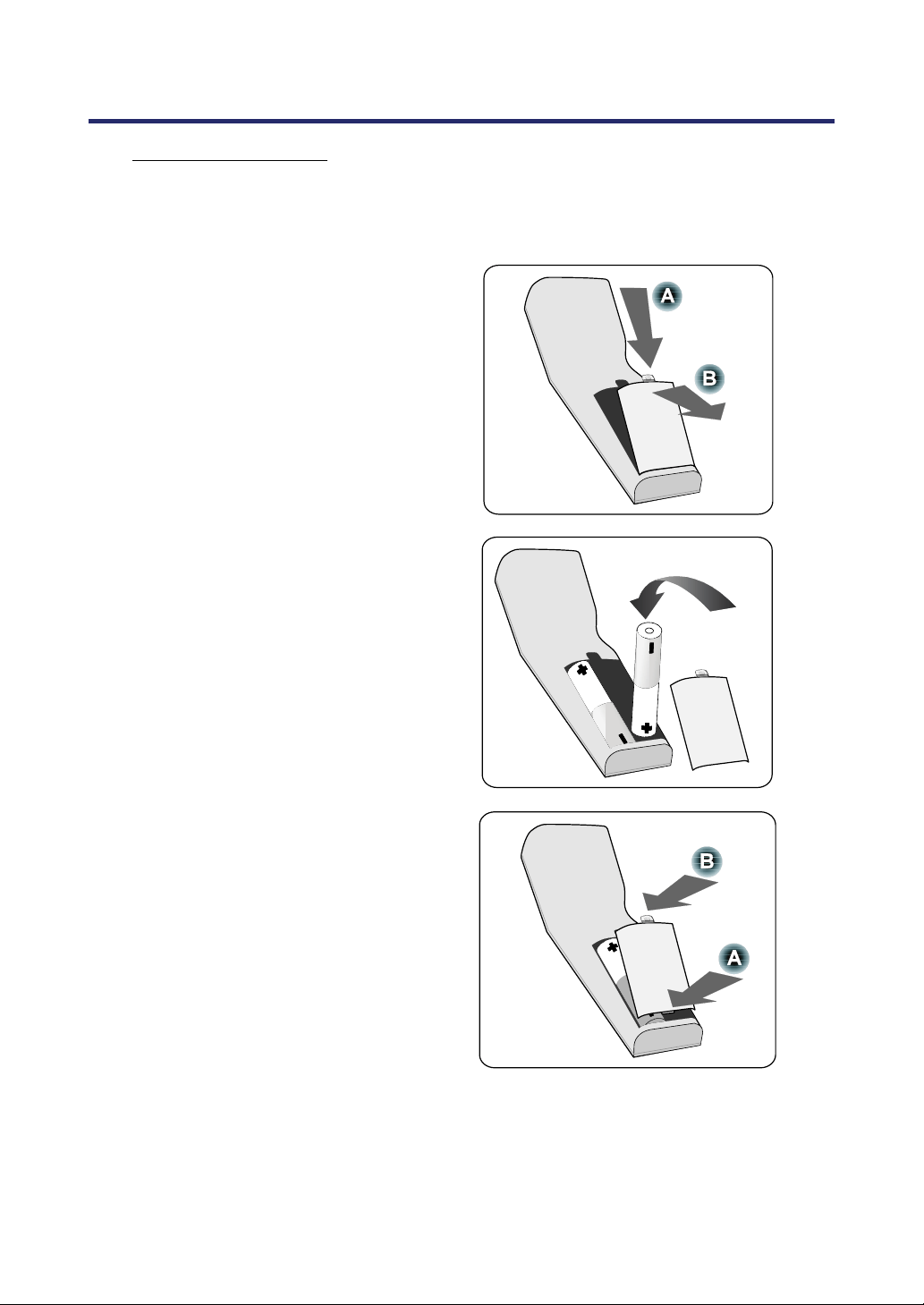
Battery Installation
The Remote Control unit included with the projector does not contain batteries, though
batteries are supplied as part of the complete package. To insert (or replace) the batter-
ies, refer to the following guide.
1.
Remove the battery compartment
cover by squeezing the locking
catch (A) and sliding the cover in
the direction of the arrow (B).
2.
Insert the supplied batteries tak-
ing note of the polarity (+/-) as
shown.
3.
Replace the cover locator (A),
and then click locking catch into
place (B).

1. Introduction
15
Operating Range for Wireless Remote Control
The infrared signal operates by line-of-sight up to a distance of about 22 feet (7m) and
within a 60-degree angle of the remote sensor on the projector cabinet.
The projector will not respond if there are objects between the remote control and the
sensor, or if strong light falls on the sensor. Weak batteries will also prevent the remote
control from properly operating the projector.
Remote Control Precautions
The following precautions ensure that the remote operates correctly and safely.
Handle the remote control carefully.
If the remote control gets wet, wipe it dry immediately.
Avoid excessive heat and humidity.
Do not heat, take apart, or throw batteries into fire.
For extended periods of inactivity, remove the batteries.
Ensure that the batteries' polarity (+/–) aligned correctly.
Do not use new and old batteries together, or different types of batteries to-
gether.
Dispose of used batteries according to local regulations.
1. Introduction
16
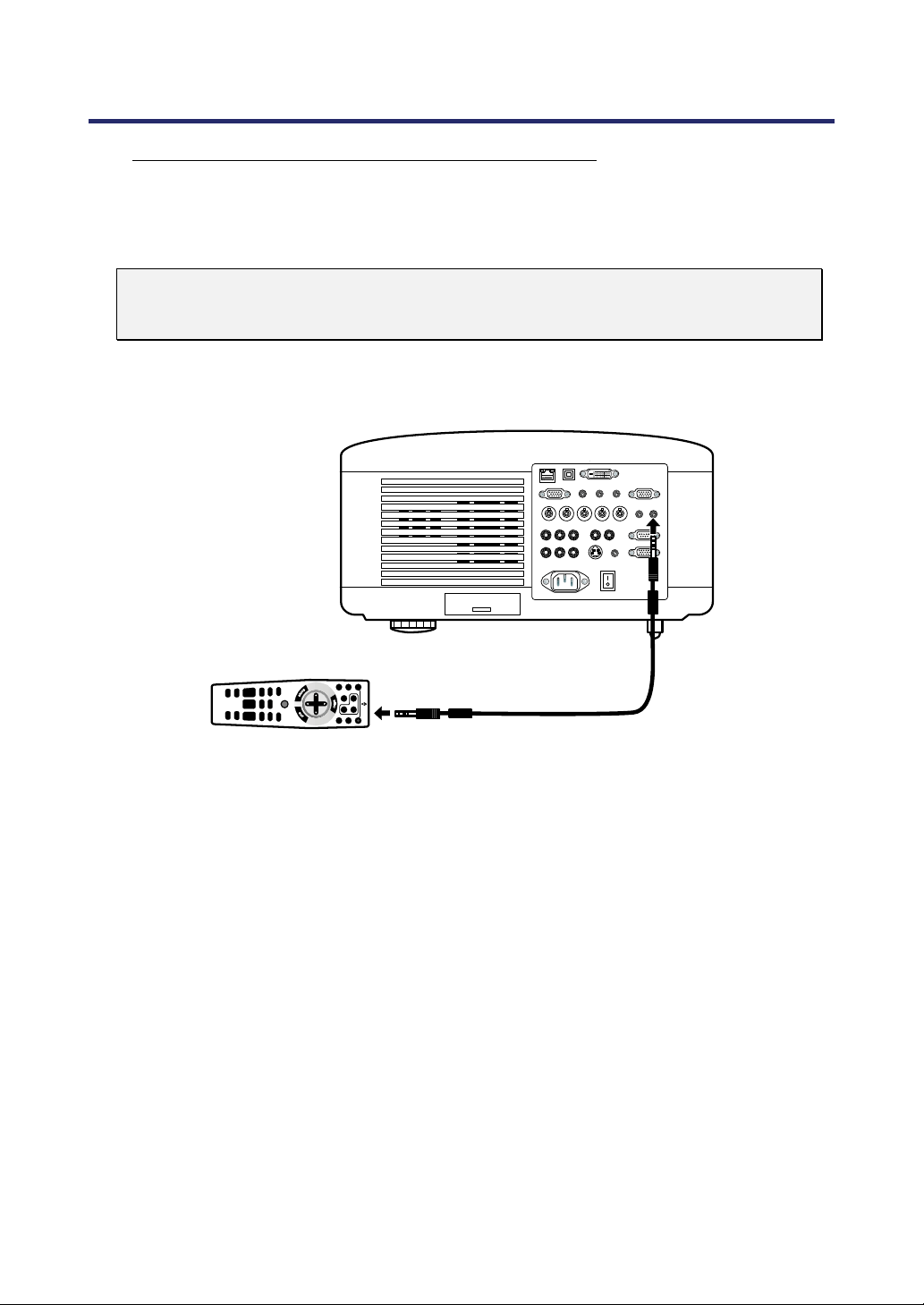
Using the Remote Control in Wired Operation
Connect the supplied remote cable to the REMOTE2 jack on the projector (see Ter-
minal Panel Features on page 10) an
d the other end to the remote jack on the remote
control (see item 1, Part Names of the Remote Control on page 12).
Note:
Connecting the remote cable to the REMOTE2 jack on the terminal panel will
make the wireless operation unavailable.
17
2. Installation and Connections
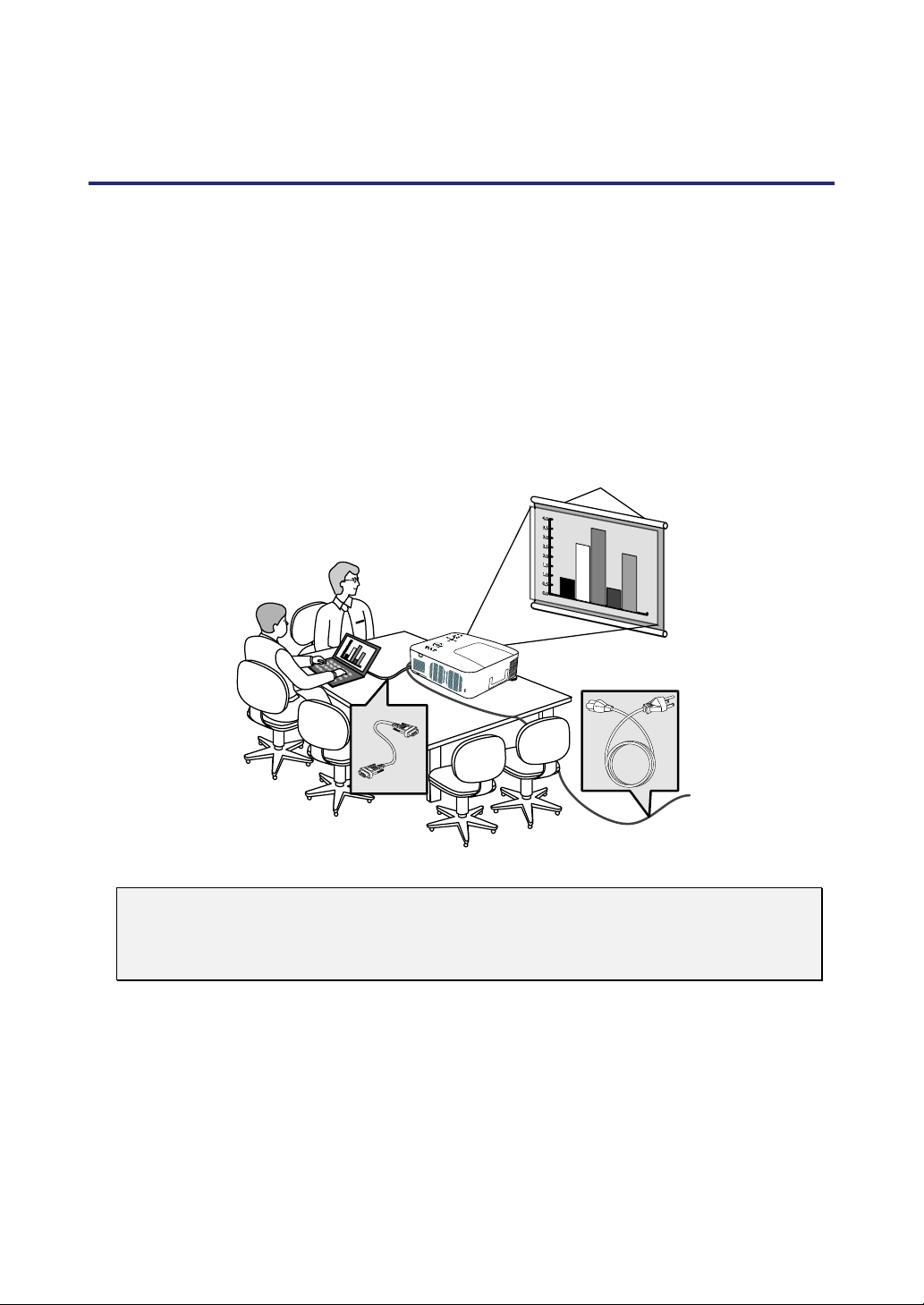
Setting Up the Screen and the Projector
This section briefly describes how to set up your projector and how to connect video and
audio sources.
Your projector is simple to set up and use. But before you get started, you must first:
• Set up a screen and the projector.
• Connect your computer or video equipment to the projector.
See Making Connections on pages 31, 32, 33, 34, and 35.
• Connect the supplied power cable.
See Connecting the Supplied Power Cable on page 37.
Note:
Ensure that the power cable and any other cables are disconnected before mov-
ing the projector. When moving the projector or when it is not in use, cover the
lens with the lens cap.
2. Installation and Connections
18
Selecting a Location
Locating the projector correctly ensures optimum performance and a longer parts life.
Take note of the following when setting up the projector:
• The projector table or stand should be level and sturdy.
• Position the projector so that it is perpendicular to the screen.
• Ensure cables do not cause a trip hazard.
2. Installation and Connections
19
Installing or Removing the Optional Lens
CAUTION:
• Do not shake or place excessive pressure on the projector or the lens compo-
nents as the projector and lens components contain precision parts.
• When shipping the projector with the optional lens, remove the optional lens
before shipping the projector. The lens and the lens shift mechanism may en-
counter damage caused by improper handling during transportation.
• Before removing or installing the lens, be sure to turn off the projector, wait
until the cooling fans stop, and turn off the main power switch.
• Do not touch the lens surface when removing or installing the lens.
• Keep fingerprints, dust or oil off the lens surface. Do not scratch the lens sur-
face.
• Work on a level surface with a soft cloth under it to avoid scratching.
• If you remove and store the lens, attach the lens cap to the projector to keep
off dust and dirt.
Removing the Existing Lens From the Projector
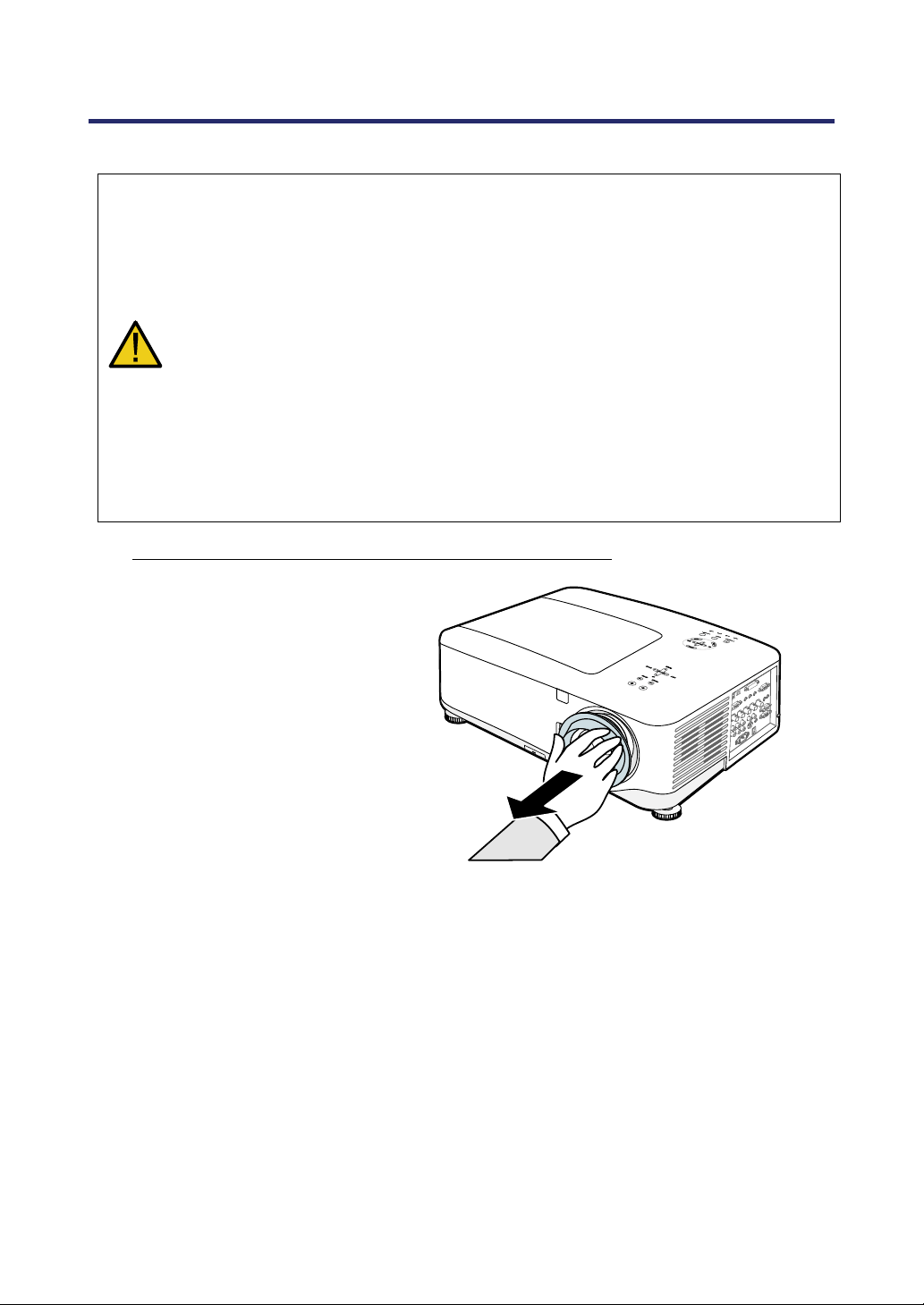
1.
Pull out the lens cap.
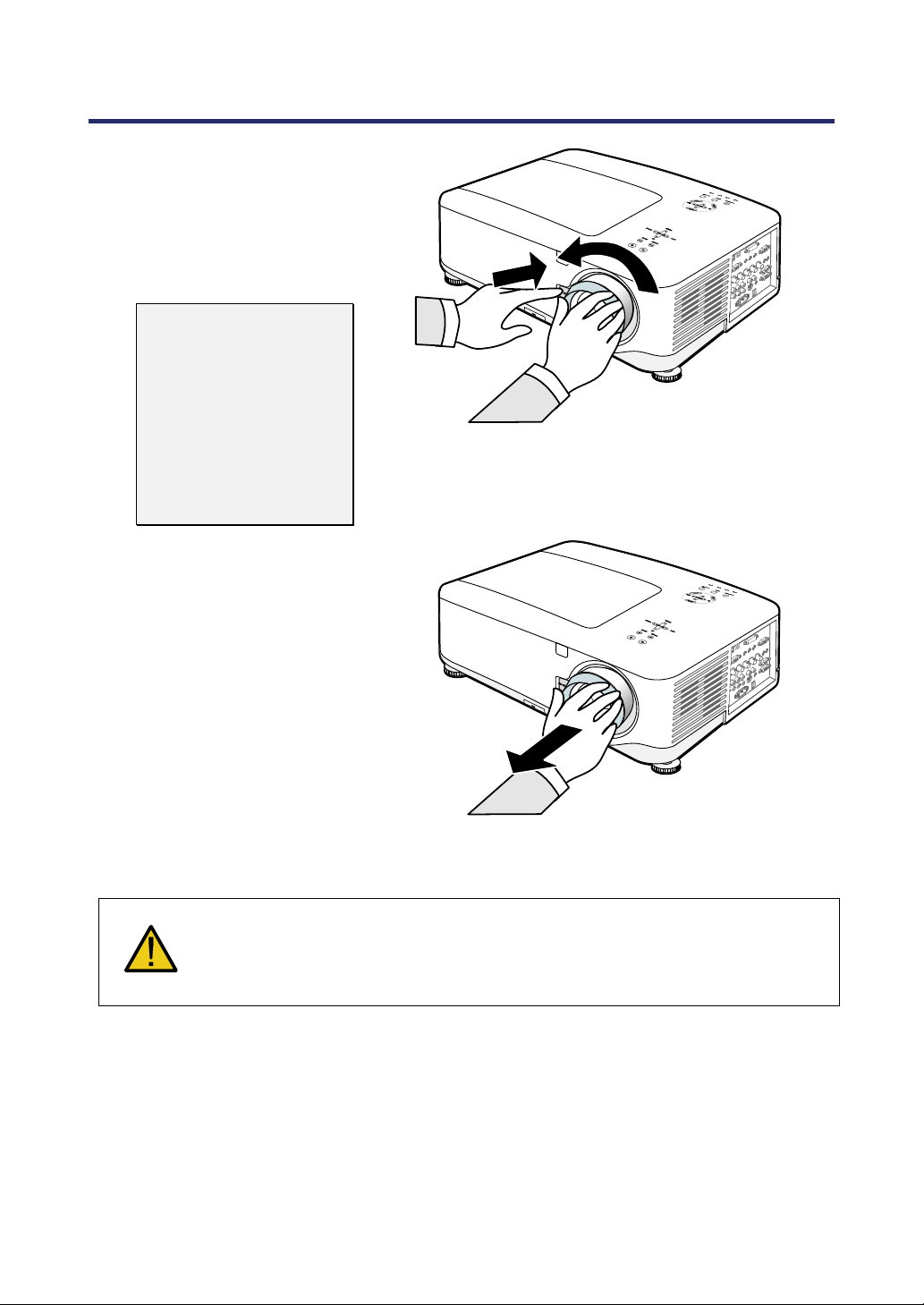
2. Installation and Connections
20
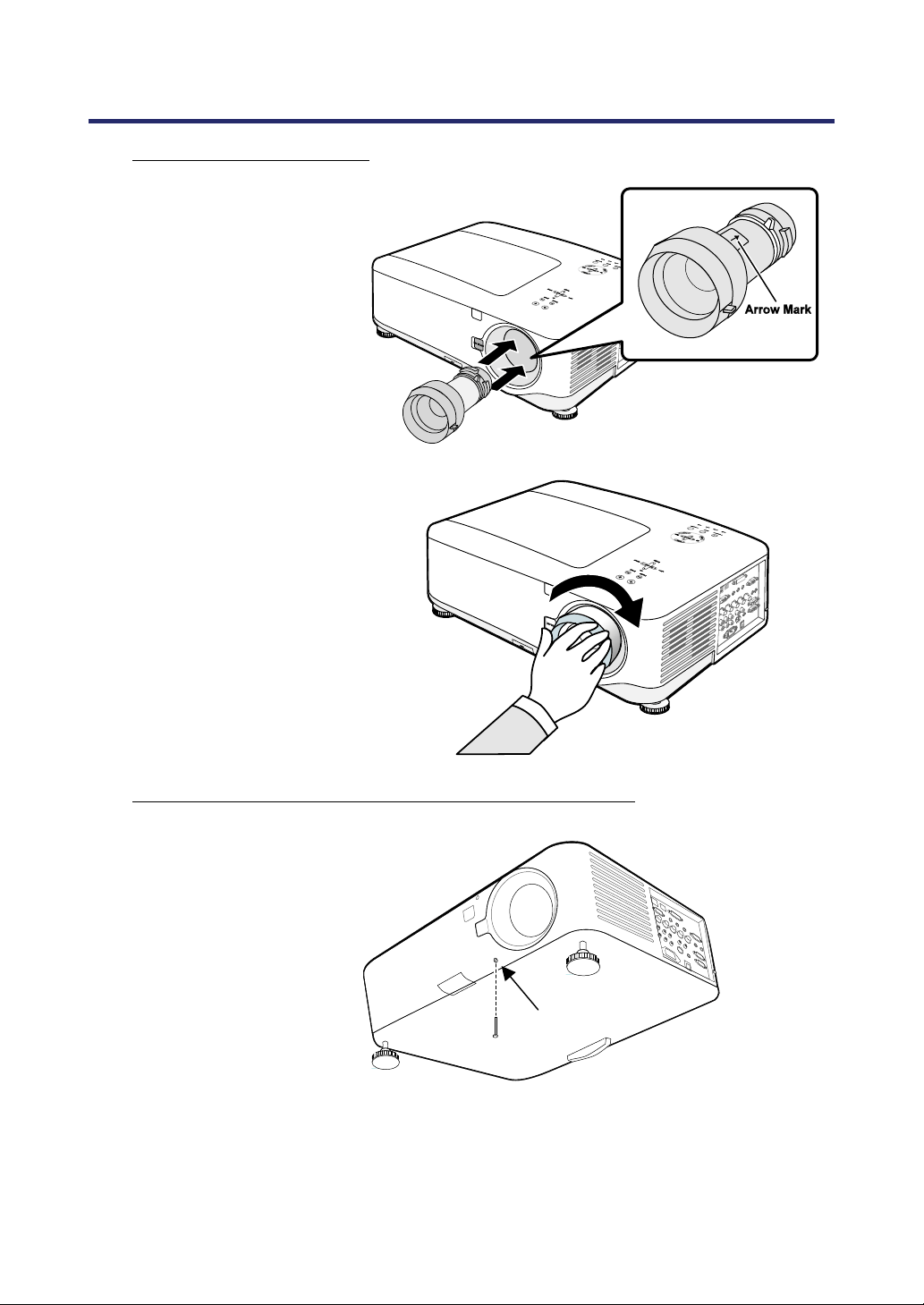
2.
Push the LENS
RELEASE button all the
way in and rotate the lens
counterclockwise.
The existing lens will be
disengaged.
Note:
If the lens cannot be
removed even by using
the LENS RELEASE
button, the anti-theft
screw for lens may be
in use to secure the
lens. If that is the case,
remove the anti-theft
screw first.
3.
Pull out the existing lens
slowly.
CAUTION:
When Installing the lens into the projector, be sure to remove the lens cap
from the back of the optional lens before installing the optional lens into the
projector. Failure to do so will cause damage to the projector.
2. Installation and Connections
21
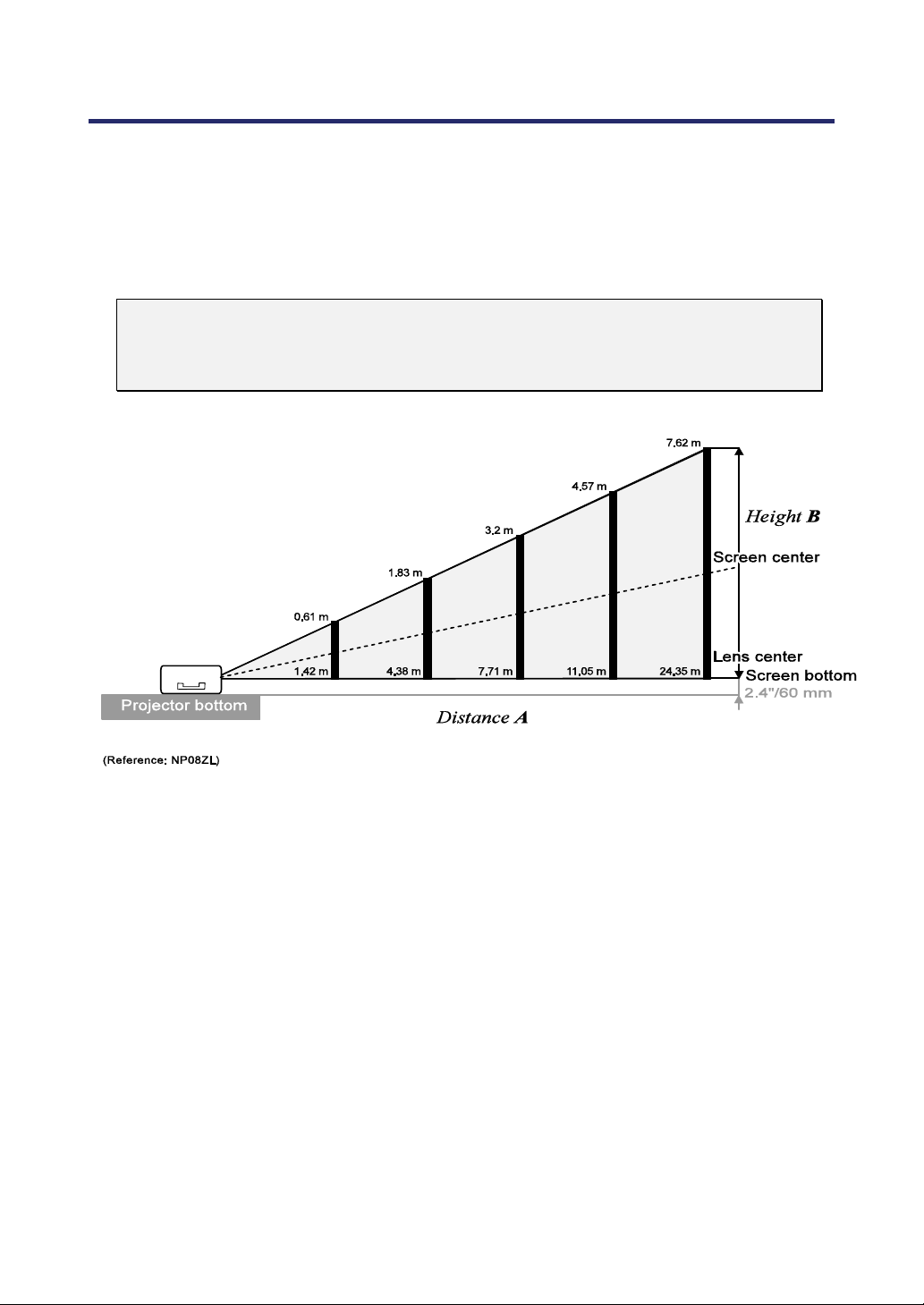
Installing the New Lens
1.
Insert the lens with the
arrow mark on top.
2.
Rotate the lens clock-
wise until you feel it
click into place.
Installing the New Lens Using the anti-theft screw
Using the anti-theft
screw to prevent theft of
the lens.
Tighten the supplied
anti-theft screw on the
front bottom.
A
A
n
n
t
t
i
i
-
-
t
t
h
h
e
e
f
f
t
t
s
s
c
c
r
r
e
e
w
w
2. Installation and Connections
22
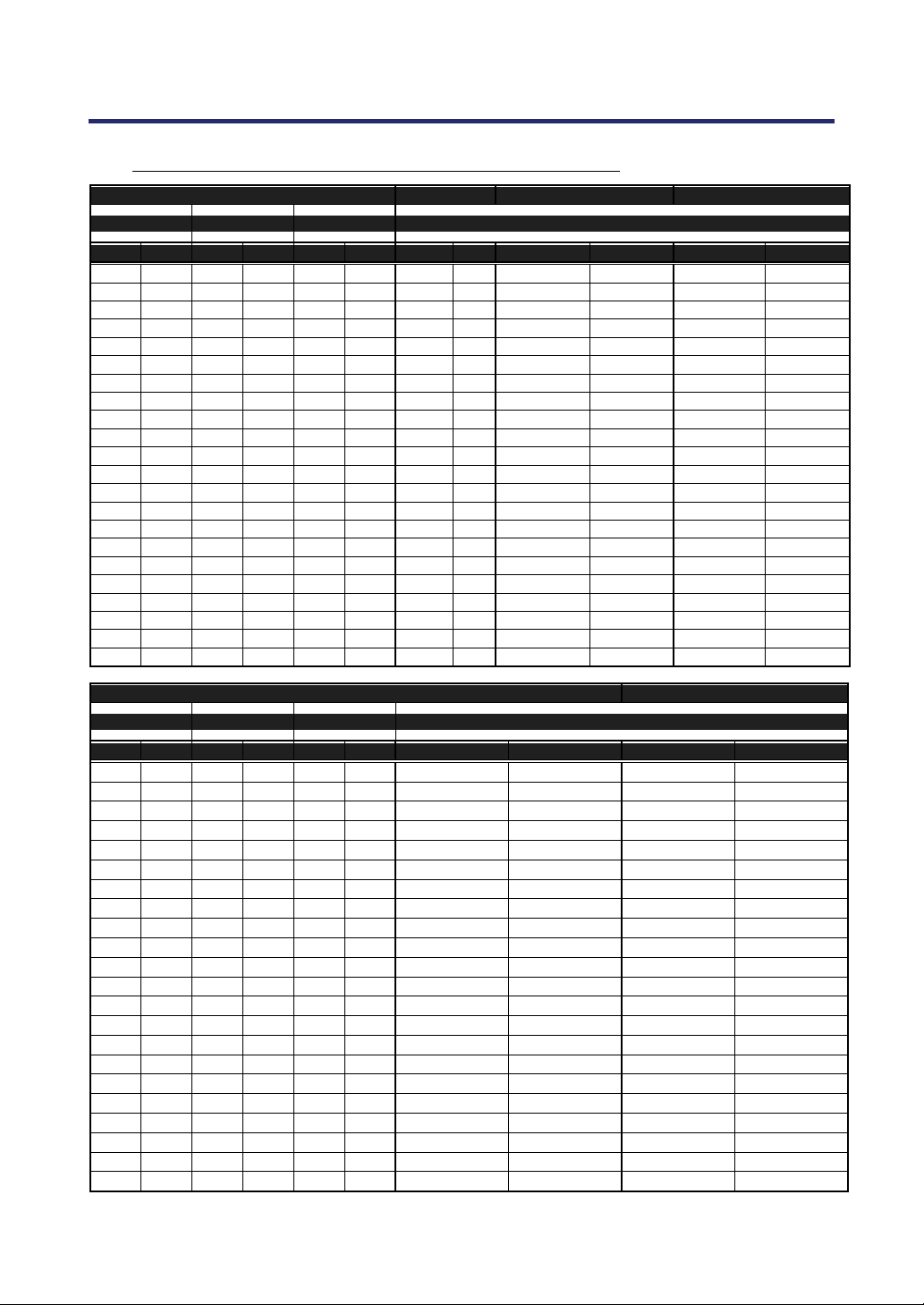
Throw Distance and Screen Size
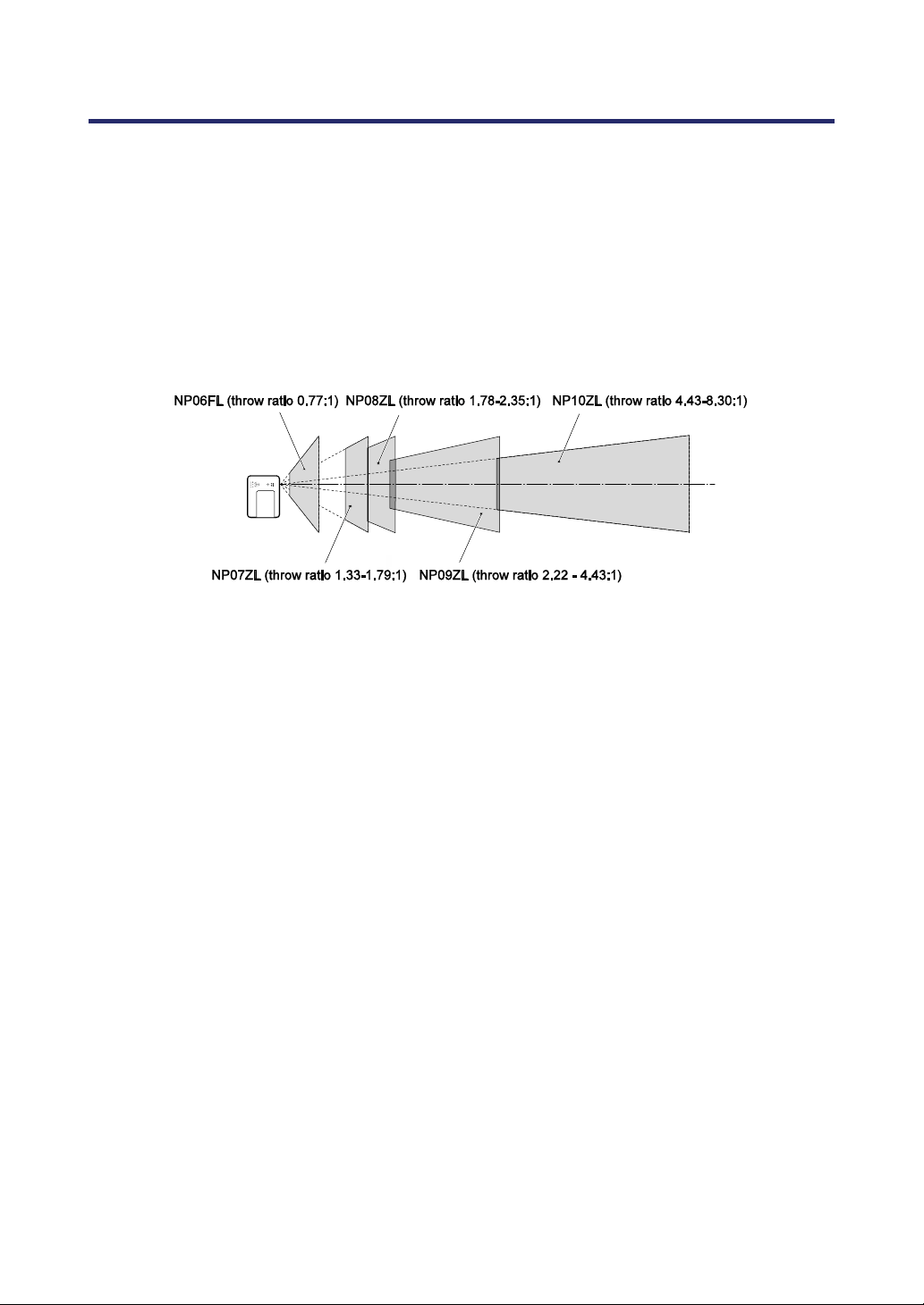
Example of NP08ZL:
The further your projector is from the screen or wall, the larger the image. The minimum size
the image can be is approximately 40 inches (1 m) measured diagonally when the projector is
roughly 65 inches (1.7 m) from the wall or screen. The largest the image can be is 500 inches
(12.7 m) when the projector is about 843 inches (21.4 m) from the wall or screen.
Note:
The following image represents the NP4100 model. For the corresponding
NP4100W values, see NP4100W Throw Distance and Screen Size Values on
page 24.
2. Installation and Connections
23
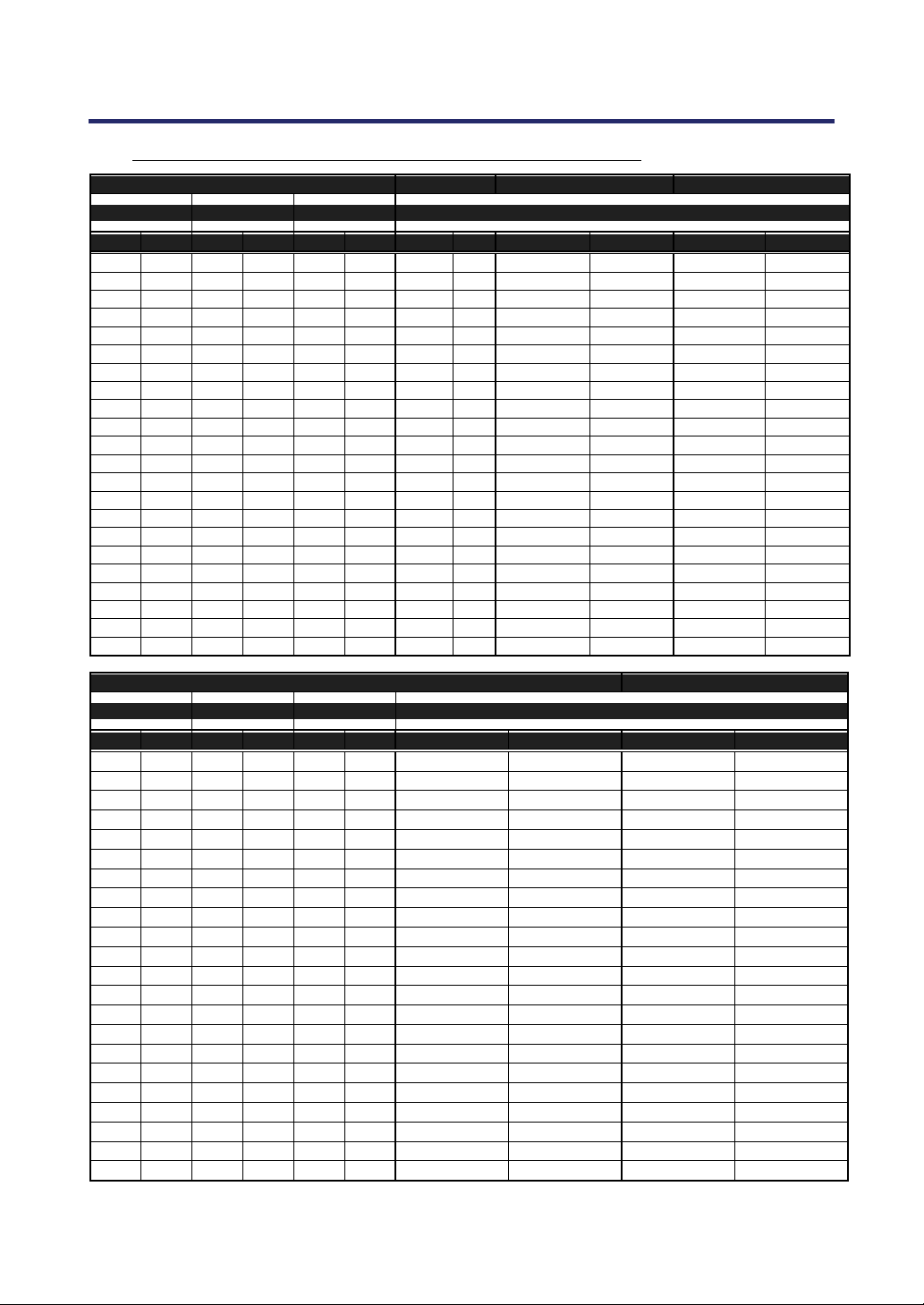
NP4100 Throw Distance and Screen Size Values
Screen Size NP06FL NP07ZL NP08ZL
Diagonal Width (C) Height (B)
Distance (A)
[inches] [m] [inches] [m] [inches] [m] [inches] [m] [inches] [m] [inches] [m]
40 1.02 32 0.81 24 0.61 41.7 - 56.8 1.06 - 1.44 55.8 - 74.4 1.42 - 1.89
50 1.27 40 1.02 30 0.76 30.7 0.78 52.6 - 71.5 1.34 - 1.82 70.4 - 93.7 1.79 - 2.38
60 1.52 48 1.22 36 0.91 37.1 0.94 63.5 - 86.1 1.61 - 2.19 85.0 - 112.9 2.16 - 2.87
67 1.70 54 1.36 40 1.02 41.6 1.06 71.1 - 96.4 1.81 - 2.45 95.2 - 126.4 2.42 - 3.21
72 1.83 58 1.46 43 1.10 44.9 1.14 76.6 - 103.7 1.94 - 2.63 102.5 - 136.0 2.60 - 3.45
80 2.03 64 1.63 48 1.22 50.0 1.27 85.3 - 115.4 2.17 - 2.93 114.1 - 151.3 2.90 - 3.84
84 2.13 67 1.71 50 1.28 52.6 1.34 89.6 - 121.3 2.28 - 3.08 120.0 - 159.0 3.05 - 4.04
90 2.29 72 1.83 54 1.37 56.5 1.44 96.2 - 130.1 2.44 - 3.30 128.7 - 170.6 3.27 - 4.33
100 2.54 80 2.03 60 1.52 63.0 1.60 107.0 - 144.7 2.72 - 3.68 143.3 - 189.8 3.64 - 4.82
120 3.05 96 2.44 72 1.83 75.9 1.93 128.8 - 174.0 3.27 - 4.42 172.5 - 228.2 4.38 - 5.80
150 3.81 120 3.05 90 2.29 95.3 2.42 161.5 - 218.0 4.10 - 5.54 216.2 - 285.9 5.49 - 7.26
180 4.57 144 3.66 108 2.74 114.6 2.91 194.1 - 261.9 4.93 - 6.65 260.0 - 343.6 6.60 - 8.73
200 5.08 160 4.06 120 3.05 127.6 3.24 215.9 - 291.2 5.48 - 7.40 289.1 - 382.0 7.34 - 9.70
210 5.33 168 4.27 126 3.20 226.8 - 305.9 5.76 - 7.77 303.7 - 401.3 7.71 - 10.19
240 6.10 192 4.88 144 3.66 259.5 - 349.8 6.59 - 8.89 347.5 - 458.9 8.83 - 11.66
261 6.63 209 5.30 157 3.98 282.3 - 380.6 7.17 - 9.67 378.1 - 499.3 9.60 - 12.68
270 6.86 216 5.49 162 4.11 292.1 - 393.8 7.42 - 10.00 391.2 - 516.6 9.94 - 13.12
300 7.62 240 6.10 180 4.57 324.8 - 437.7 8.25 - 11.12 435.0 - 574.3 11.05 - 14.59
350 8.89 280 7.11 210 5.33 379.2 - 511.0 9.63 - 12.98 507.9 - 670.4 12.90 - 17.03
400 10.16 320 8.13 240 6.10 433.7 - 584.3 11.02 - 14.84 580.8 - 766.5 14.75 - 19.47
450 11.43 360 9.14 270 6.86 488.1 - 657.5 12.40 - 16.70 653.7 - 862.6 16.60 - 21.91
500 12.70 400 10.16 300 7.62 542.6 - 730.8 13.78 - 18.56 726.6 - 958.7 18.46 - 24.35
Screen Size NP09ZL NP10ZL
Diagonal Width (C) Height (B)
Distance (A)
[inches] [m] [inches] [m] [inches] [m] [inches] [m] [inches] [m]
40 1.02 32 0.81 24 0.61 69.4 - 142.3 1.76 - 3.61 139.2 - 266.9 3.54 - 6.78
50 1.27 40 1.02 30 0.76 87.8 - 178.9 2.23 - 4.54 175.3 - 335.0 4.45 - 8.51
60 1.52 48 1.22 36 0.91 106.2 - 215.5 2.70 - 5.47 211.5 - 403.1 5.37 - 10.24
67 1.70 54 1.36 40 1.02 119.0 - 241.2 3.02 - 6.13 236.8 - 450.8 6.01 - 11.45
72 1.83 58 1.46 43 1.10 128.2 - 259.5 3.26 - 6.59 254.8 - 484.9 6.47 - 12.32
80 2.03 64 1.63 48 1.22 142.9 - 288.8 3.63 - 7.34 283.7 - 539.4 7.21 - 13.70
84 2.13 67 1.71 50 1.28 150.3 - 303.5 3.82 - 7.71 298.2 - 566.6 7.57 - 14.39
90 2.29 72 1.83 54 1.37 161.3 - 325.4 4.10 - 8.27 319.9 - 607.5 8.12 - 15.43
100 2.54 80 2.03 60 1.52 179.7 - 362.1 4.56 - 9.20 356.0 - 675.6 9.04 - 17.16
120 3.05 96 2.44 72 1.83 216.4 - 435.3 5.50 - 11.06 428.3 - 811.8 10.88 - 20.62
150 3.81 120 3.05 90 2.29 271.6 - 545.2 6.90 - 13.85 536.6 -
1016.1
13.63 - 25.81
180 4.57 144 3.66 108 2.74 326.7 - 655.1 8.30 - 16.64 645.0 -
1220.5
16.38 - 31.00
200 5.08 160 4.06 120 3.05 363.5 - 728.3 9.23 - 18.50 717.3 -
1356.7
18.22 - 34.46
210 5.33 168 4.27 126 3.20 381.9 - 765.0 9.70 - 19.43 753.4 -
1424.8
19.14 - 36.19
240 6.10 192 4.88 144 3.66 437.0 - 874.9 11.10 - 22.22 861.8 -
1629.1
21.89 - 41.38
261 6.63 209 5.30 157 3.98 475.6 - 951.8 12.08 - 24.18 937.7 -
1772.2
23.82 - 45.01
270 6.86 216 5.49 162 4.11 492.2 - 984.7 12.50 - 25.01 970.2 -
1833.5
24.64 - 46.57
300 7.62 240 6.10 180 4.57 547.3 -
1094.6
13.90 - 27.80
1078.6
-
2037.8
27.40 - 51.76
350 8.89 280 7.11 210 5.33 639.2 -
1277.8
16.24 - 32.46
1259.2
-
2378.3
31.98 - 60.41
400 10.16 320 8.13 240 6.10 731.1 -
1460.9
18.57 - 37.11
1439.9
-
2718.9
36.57 - 69.06
450 11.43 360 9.14 270 6.86 823.0 -
1644.0
20.90 - 41.76
1620.5
-
3059.4
41.16 - 77.71
500 12.70 400 10.16 300 7.62 914.9 -
1827.2
23.24 - 46.41
1801.2
-
3400.0
45.75 - 86.36
2. Installation and Connections
24
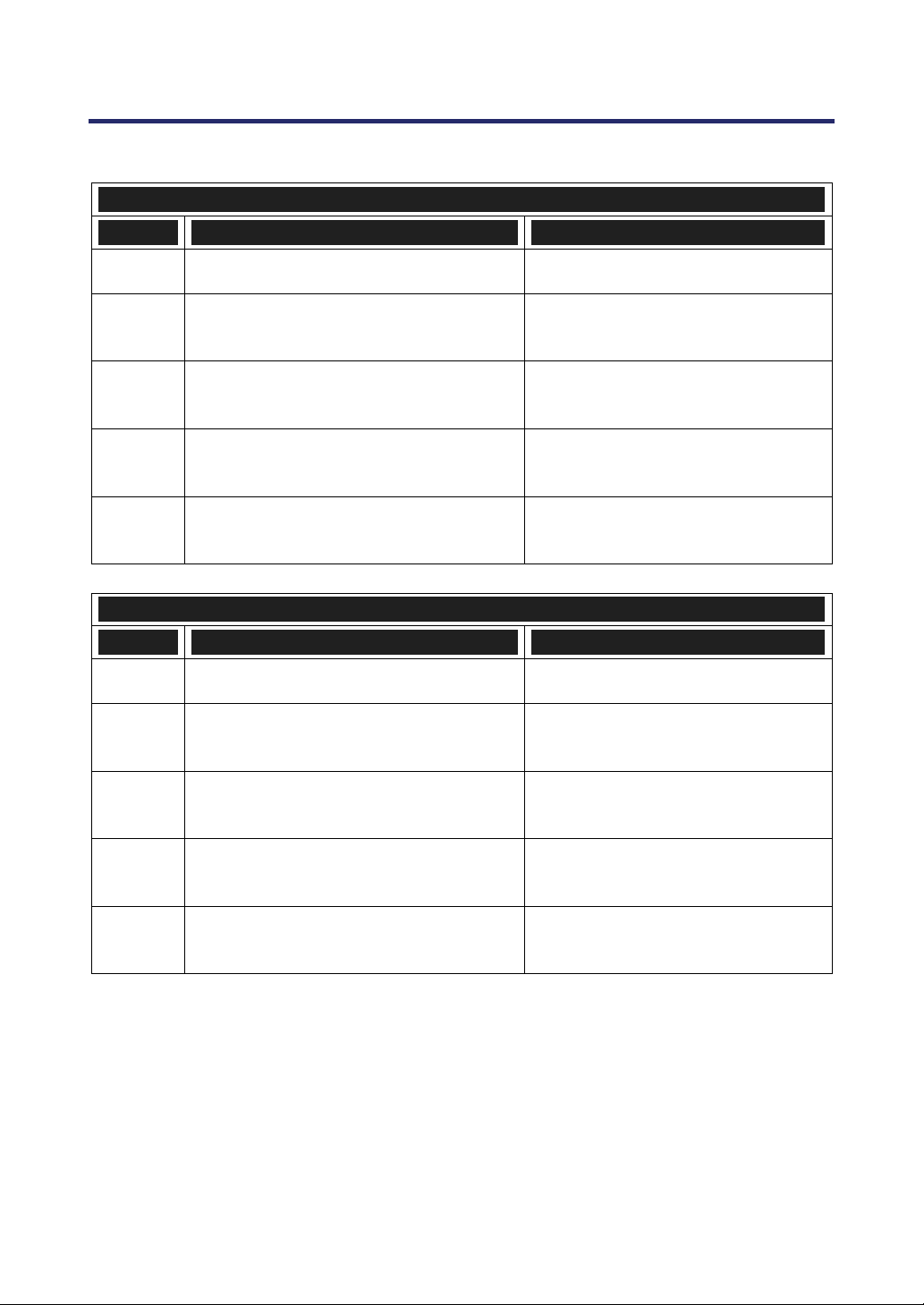
NP4100W Throw Distance and Screen Size Values
Screen Size NP06FL NP07ZL NP08ZL
Diagonal Width (C) Height (B)
Distance (A)
[inches] [m] [inches] [m] [inches] [m] [inches] [m] [inches] [m] [inches] [m]
40 1.02 34 0.86 21 0.54
44.8
-
61.1 1.14
-
1.55 60.2
-
80.1 1.53
-
2.04
50 1.27 42 1.08 26 0.67 33.1 0.84 56.5
-
76.8 1.44
-
1.95 75.8
-
100.8 1.93
-
2.56
60 1.52 51 1.29 32 0.81 40.0 1.02 68.2
-
92.5 1.73
-
2.35 91.5
-
121.4 2.32
-
3.08
67 1.70 57 1.44 36 0.90 44.9 1.14 76.4
-
103.6 1.94
-
2.63 102.4
-
135.9 2.60
-
3.45
72 1.83 61 1.55 38 0.97 48.3 1.23 82.3
-
111.4 2.09
-
2.83 110.2
-
146.2 2.80
-
3.71
80 2.03 68 1.72 42 1.08 53.9 1.37 91.6
-
124.0 2.33
-
3.15 122.8
-
162.7 3.12
-
4.13
84 2.13 71 1.81 45 1.13 56.6 1.44 96.3
-
130.3 2.45
-
3.31 129.0
-
171.0 3.28
-
4.34
90 2.29 76 1.94 48 1.21 60.8 1.54 103.3
-
139.7 2.62
-
3.55 138.4
-
183.4 3.52
-
4.66
100 2.54 85 2.15 53 1.35 67.7 1.72 115.0
-
155.4 2.92
-
3.95 154.0
-
204.0 3.91
-
5.18
120 3.05 102 2.58 64 1.62 81.6 2.07 138.4
-
186.9 3.52
-
4.75 185.3
-
245.3 4.71
-
6.23
150 3.81 127 3.23 79 2.02 102.4 2.60 173.5
-
234.1 4.41
-
5.95 232.2
-
307.2 5.90
-
7.80
180 4.57 153 3.88 95 2.42 123.1 3.13 208.6
-
281.3 5.30
-
7.14 279.2
-
369.2 7.09
-
9.38
200 5.08 170 4.31 106 2.69 137.0 3.48 232.0
-
312.7 5.89
-
7.94 310.4
-
410.5 7.88
-
10.43
210 5.33 178 4.52 111 2.83
243.7
-
328.4 6.19
-
8.34 326.1
-
431.1 8.28
-
10.95
240 6.10 204 5.17 127 3.23
278.8
-
375.6 7.08
-
9.54 373.0
-
493.0 9.47
-
12.52
261 6.63 221 5.62 138 3.51
303.3
-
408.6 7.70
-
10.38 405.8
-
536.4 10.31
-
13.62
270 6.86 229 5.82 143 3.63
313.9
-
422.8 7.97
-
10.74 419.9
-
555.0 10.67
-
14.10
300 7.62 254 6.46 159 4.04
349.0
-
470.0 8.86
-
11.94 466.8
-
616.9 11.86
-
15.67
350 8.89 297 7.54 185 4.71
407.5
-
548.6 10.35
-
13.93 545.0
-
720.1 13.84
-
18.29
400 10.16 339 8.62 212 5.38
465.9
-
627.2 11.83
-
15.93 623.2
-
823.4 15.83
-
20.91
450 11.43 382 9.69 238 6.06
524.4
-
705.8 13.32
-
17.93 701.4
-
926.6 17.82
-
23.54
500 12.70 424 10.77 265 6.73
582.9
-
784.5 14.81
-
19.93 779.6
-
1029.8
19.80
-
26.16
Screen Size NP09ZL NP10ZL
Diagonal Width (C) Height (B)
Distance (A)
[inches] [m] [inches] [m] [inches] [m] [inches] [m] [inches] [m]
40 1.02 34 0.86 21 0.54 74.8
-
153.2 1.90
-
3.89 149.9
-
286.5 3.81
-
7.28
50 1.27 42 1.08 26 0.67 94.6
-
192.5 2.40
-
4.89 188.8
-
359.4 4.79
-
9.13
60 1.52 51 1.29 32 0.81 114.3
-
231.9 2.90
-
5.89 227.6
-
432.4 5.78
-
10.98
67 1.70 57 1.44 36 0.90 128.1
-
259.4 3.25
-
6.59 254.8
-
483.5 6.47
-
12.28
72 1.83 61 1.55 38 0.97 138.0
-
279.1 3.51
-
7.09 274.2
-
520.0 6.97
-
13.21
80 2.03 68 1.72 42 1.08 153.8
-
310.6 3.91
-
7.89 305.3
-
578.3 7.75
-
14.69
84 2.13 71 1.81 45 1.13 161.7
-
326.3 4.11
-
8.29 320.8
-
607.5 8.15
-
15.43
90 2.29 76 1.94 48 1.21 173.6
-
349.9 4.41
-
8.89 344.1
-
651.3 8.74
-
16.54
100 2.54 85 2.15 53 1.35 193.3
-
389.2 4.91
-
9.89 383.0
-
724.2 9.73
-
18.40
120 3.05 102 2.58 64 1.62 232.8
-
467.9 5.91
-
11.89 460.6
-
870.2 11.70
-
22.10
150 3.81 127 3.23 79 2.02 292.0
-
586.0 7.42
-
14.88 577.2
-
1089.0 14.66
-
27.66
180 4.57 153 3.88 95 2.42 351.3
-
704.0 8.92
-
17.88 693.7
-
1307.9 17.62
-
33.22
200 5.08 170 4.31 106 2.69 390.7
-
782.7 9.92
-
19.88 771.3
-
1453.8 19.59
-
36.93
210 5.33 178 4.52 111 2.83 410.5
-
822.0 10.43
-
20.88 810.2
-
1526.8 20.58
-
38.78
240 6.10 204 5.17 127 3.23 469.7
-
940.0 11.93
-
23.88 926.7
-
1745.7 23.54
-
44.34
261 6.63 221 5.62 138 3.51 511.2
-
1022.6 12.98
-
25.98 1008.3
-
1898.9 25.61
-
48.23
270 6.86 229 5.82 143 3.63 529.0
-
1058.1 13.44
-
26.87 1043.2
-
1964.5 26.50
-
49.90
300 7.62 254 6.46 159 4.04 588.2
-
1176.1 14.94
-
29.87 1159.7
-
2183.4 29.46
-
55.46
350 8.89 297 7.54 185 4.71 686.9
-
1372.8 17.45
-
34.87 1353.9
-
2548.2 34.39
-
64.72
400 10.16 339 8.62 212 5.38 785.6
-
1569.5 19.96
-
39.87 1548.1
-
2913.0 39.32
-
73.99
450 11.43 382 9.69 238 6.06 884.4
-
1766.2 22.46
-
44.86 1742.3
-
3277.8 44.25
-
83.26
500 12.70 424 10.77 265 6.73 983.1
-
1962.9 24.97
-
49.86 1936.5
-
3642.6 49.19
-
92.52
2. Installation and Connections
25
For screen sizes between 40 inches and 500 inches not indicated in the tables on pages 23
and 24, use the formulas below for the throw distance:
THROW DISTANCE FOR NP4100
LENS [INCHES] [METERS]
NP06FL C × 0.808 - 1.654 C × 0.808 - 0.042
NP07ZL
C × 1.361 - 1.85
through C × 1.831 - 1.811
C × 1.361 - 0.047
through C × 1.831 - 0.046
NP08ZL
C × 1.823 - 2.52
through C × 2.403 - 2.441
C × 1.823 - 0.064
through C × 2.403 - 0.062
NP09ZL
C × 2.298 - 4.134
through C × 4.579 - 4.213
C × 2.298 - 0.105
through C × 4.579 - 0.107
NP10ZL
C × 4.516 - 5.315
through C × 8.514 - 5.512
C × 4.516 - 0.135
through C × 8.514 - 0.140
THROW DISTANCE FOR NP4100W
LENS [INCHES] [METERS]
NP06FL C × 0.817 - 1.535 C × 0.817 - 0.039
NP07ZL
C × 1.379 - 1.969
through C × 1.854 - 1.811
C × 1.379 - 0.050
through C × 1.854 - 0.046
NP08ZL
C × 1.844 - 2.362
through C × 2.435 - 2.48
C × 1.844 - 0.060
through C × 2.435 - 0.063
NP09ZL
C × 2.328 - 4.134
through C × 4.639 - 4.173
C × 2.328 - 0.105
through C × 4.639 - 0.106
NP10ZL
C × 4.580 - 5.433
through C × 8.604 - 5.354
C × 4.580 - 0.138
through C × 8.604 - 0.136
* “C” means the screen width.

2. Installation and Connections
26
CAUTION
Ceiling installation must be done by a qualified professional. Contact your
NEC dealer for more information.
It is not recommended you install the projector yourself.
Only use the projector on a solid, level surface. Serious injury and dam-
age can occur if the projector falls to the ground.
Do not use the projector in an environment where extreme temperature
occurs. The projector must be used at temperatures between 41 degrees
Fahrenheit (5 degrees Celsius) and 104 degrees Fahrenheit (40 degrees
Celsius).
Screen damage will occur if the projector is exposed to moisture, dust or
smoke.
Do not cover the vents on the projector. Proper ventilation is required to
dissipate heat. Damage to the projector will occur if the vents are cov-
ered.
2. Installation and Connections
27
Replacing Color Wheel
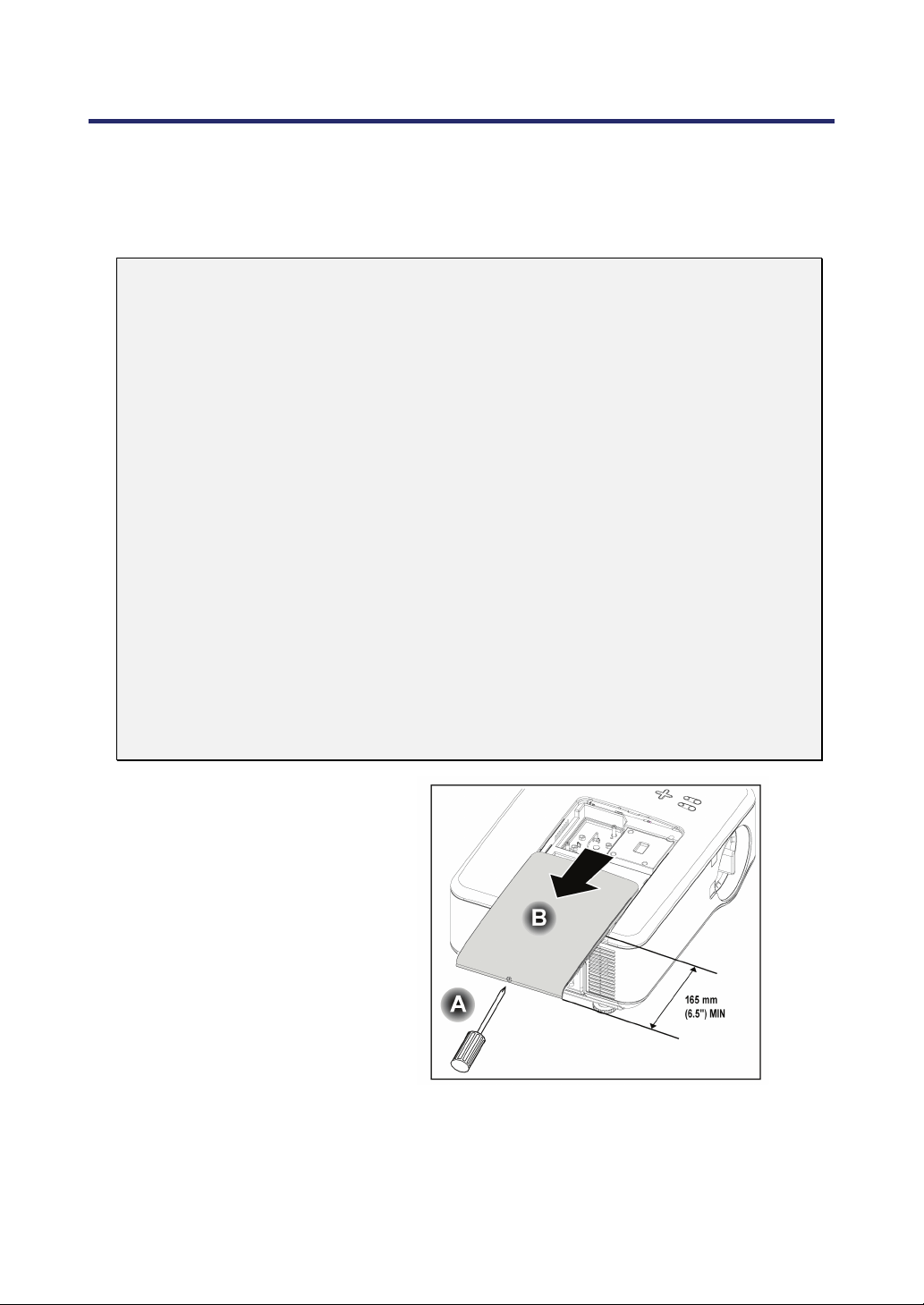
The NP4100/NP4100W projector comes with a four-segment color wheel installed. An addi-
tional six-segment color wheel comes included. To replace the color wheel (located under the
lamp cover adjacent to lamp 1) refer to the following guide.
Note:
• Before replacing the color wheel, be sure to turn off the projector, wait until the
cooling fans stop, and turn off the main power switch.
• Wait until the lamp house and the color wheel cool off.
• Do not touch the disk of the color wheel. Doing so may scratch the disk or leave
fingerprints, causing the image quality to degrade.
• Heed the following information if you own two or more NP4100/NP4100W pro-
jectors:
When replacing or re-installing the color wheel, the original color wheel pre-
installed or supplied as an accessory must go back to its original projector. Your
color wheel and projector color wheel cover are given an identification number. Be
sure to use the color wheel pre-installed or supplied with your projector to match
its identification number.
If you remove a color wheel from one NP4100/NP4100W projector and re-install it
into another NP4100/NP4100W projector, performance may be compromised.
• Be sure turn off the main power switch before replacing the color wheel. Failure
to do so may result in electrical shock or damage to the projector, and cause an ir-
regular color of the projected image.
1.
Loosen the captive
screw (A) on the lamp
cover.
2.
Remove the lamp cover
by sliding in the direc-
tion of the arrow (B).
2. Installation and Connections
28
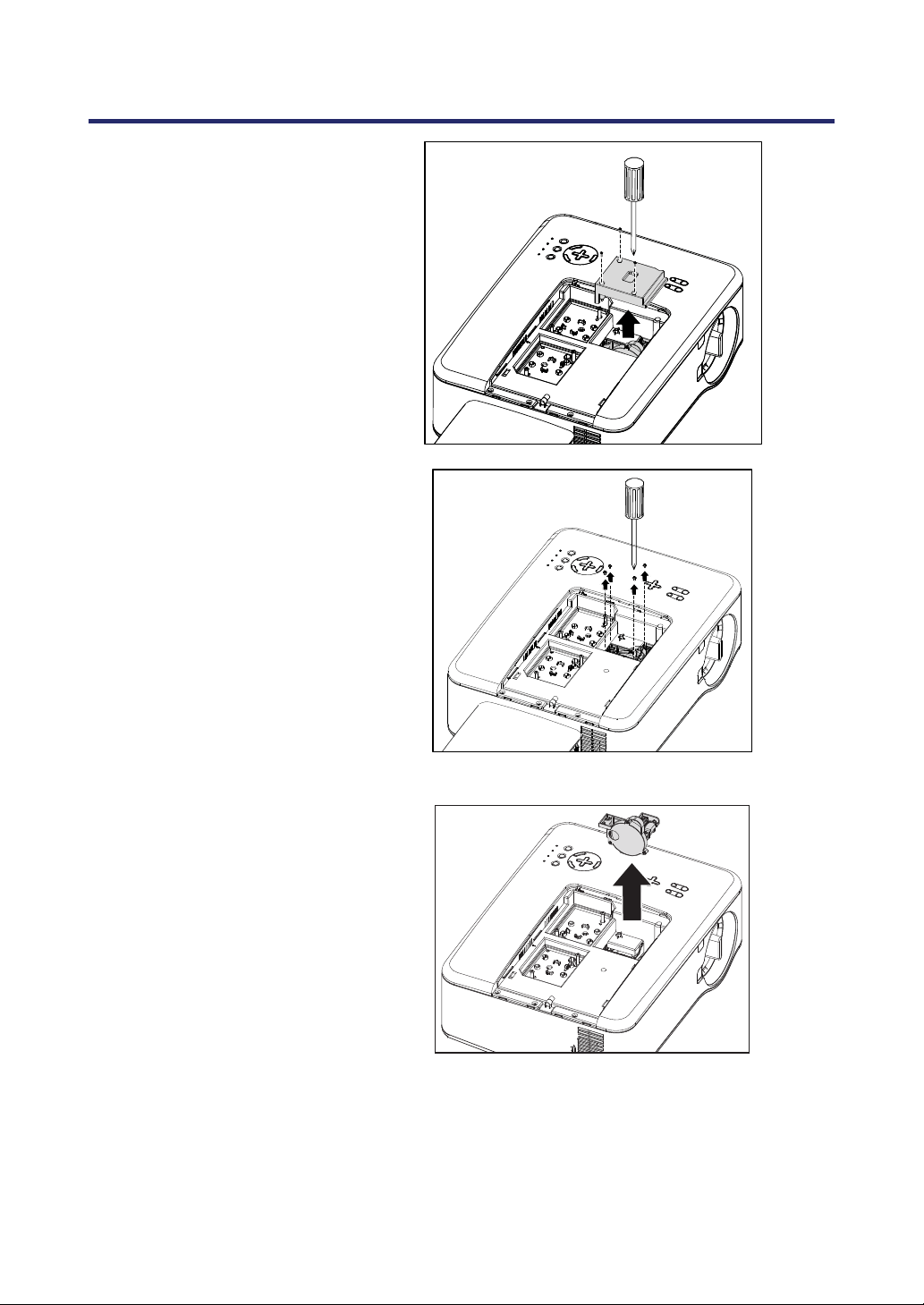
3.
Remove the screws
from the color wheel
cover. Lift cover in the
direction shown and
place on a clean, dust
free surface.
4.
Unscrew the retaining
screws on the
four-segment color
wheel.
Note:
Improper (loose)
installation of the color
wheel prevents an
image from being
displayed.
5.
Lift the unit in the direc-
tion shown.
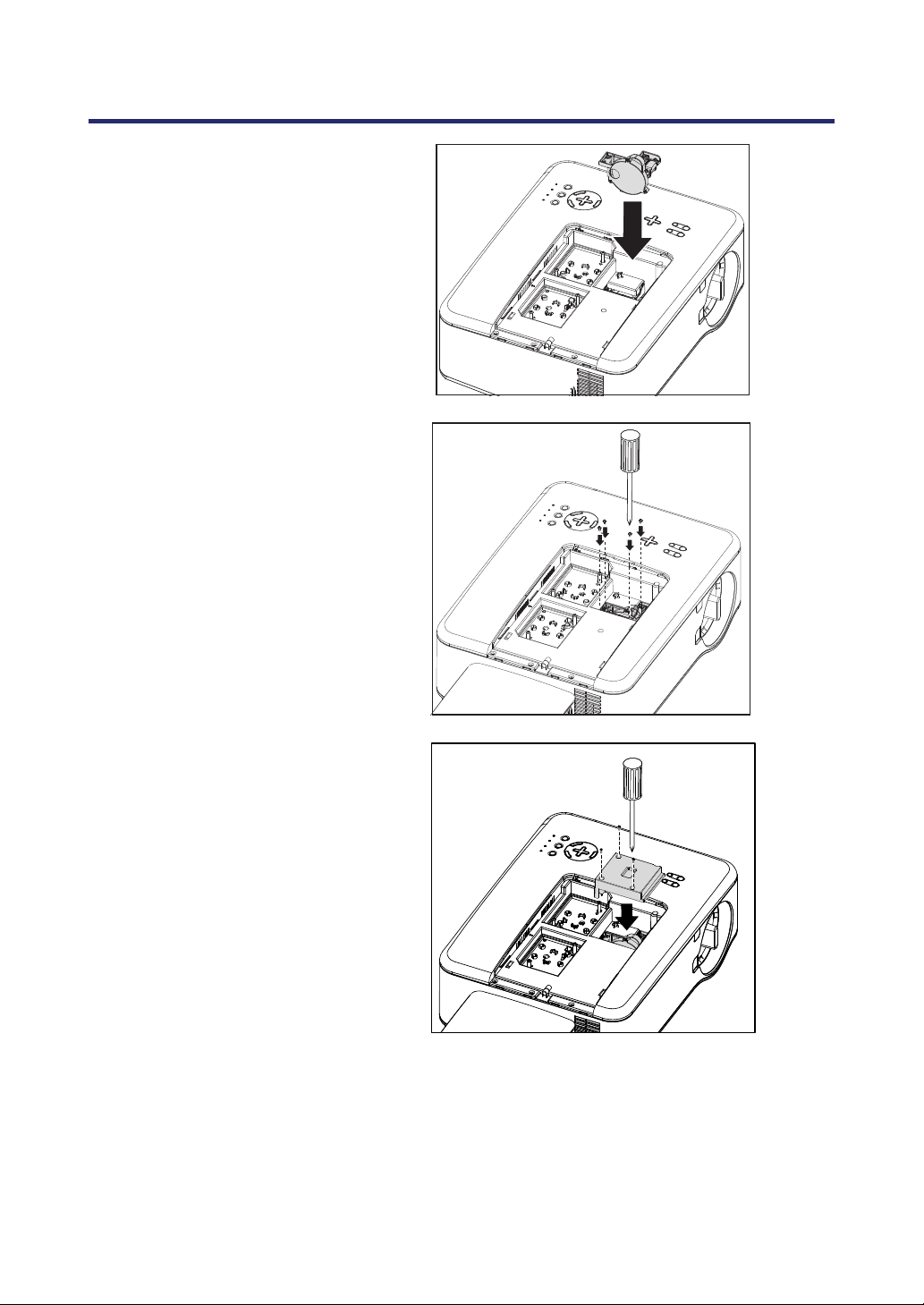
2. Installation and Connections
29
6.
Insert the six-segment
color wheel
7.
Secure the retaining
screws as shown.
8.
Replace the wheel cover
as shown and secure the
screws to lock the cover
in place.
2. Installation and Connections
30
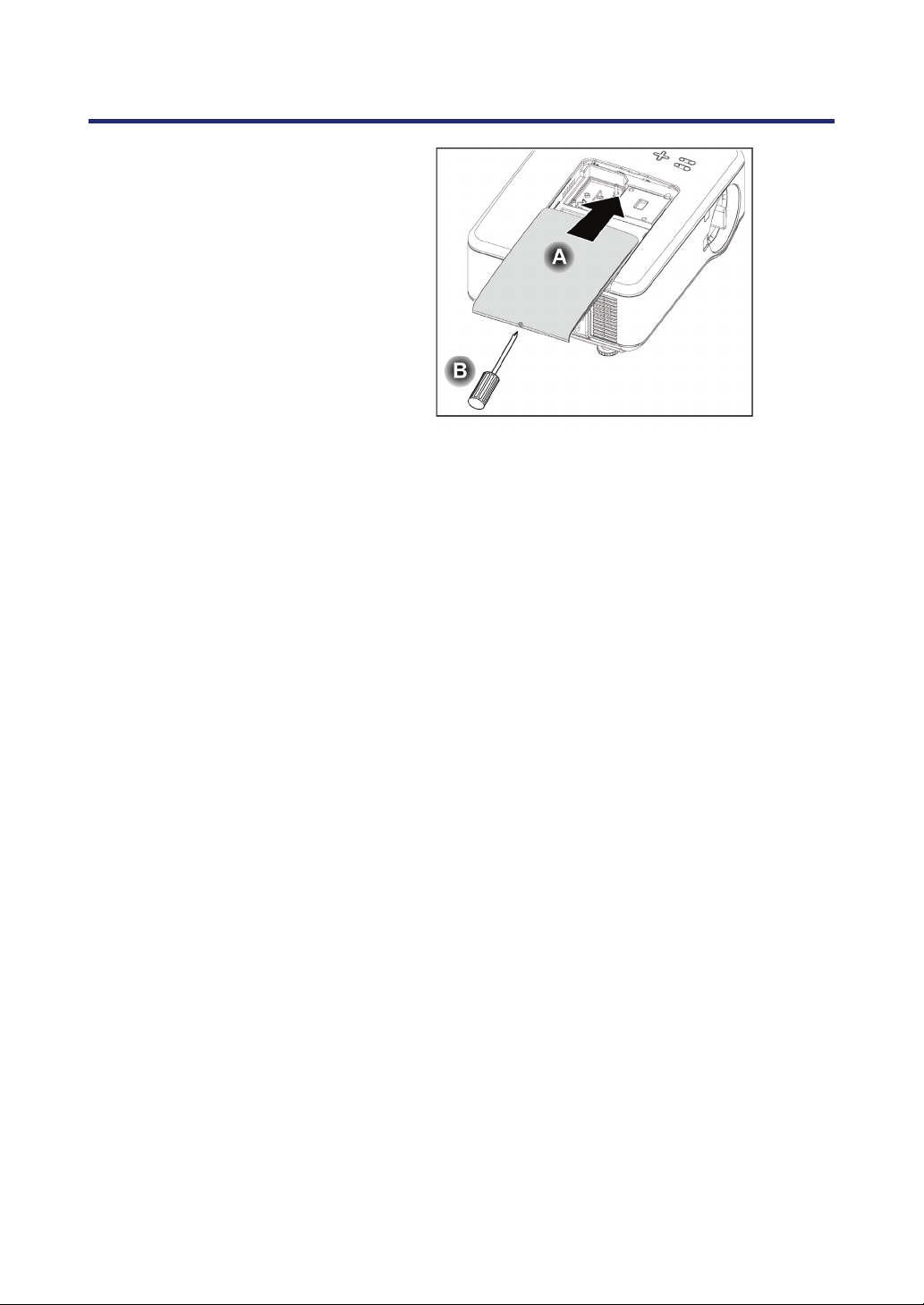
9.
Align the lamp cover
(A) with the arrow mark
on the cabinet and slide
it into place.
10
.
Secure the captive
screw (B).
Storing Unused Color Wheel:
Keep the unused color wheel in the zipper bag in which the supplied 6-segment color wheel
was packaged.
This bag prevents dust from falling or collecting on the color wheel.

2. Installation and Connections
31
Making Connections
Connecting Your PC or Macintosh Computer
Enabling the computer’s external display
Displaying an image on the notebook PC’s screen does not necessarily mean it outputs
a signal to the projector. When using a PC compatible laptop, a combination of function
keys will enable/disable the external display. Usually, the combination of the Fn-key
along with one of the 12 function keys gets the external display to come on or off. For
example, NEC laptops use Fn + F3, while Dell laptops use Fn + F8 key combinations to
toggle through external display selections.
To connect a PC or Macintosh computer to the projector, refer to the following guide.
1. Connect a computer to the projector through one of the three available input data
connections before turning on the PC or the projector. The best signal order
(from best to least suitable) is as follows:
Computer 3 (DVI-D connector with HDCP) in as shown below (see item 1,
Terminal Panel Features on page 10) is a digital signal and offers the best
connection to your computer.
Note:
The DVI (DIGITAL) connector (COMPUTER 3) accepts VGA
(640x480), SVGA (800x600), 1152x864, XGA (1024x768), SXGA
(1280x1024), and SXGA+(1400x1050) on the NP4100.
The DVI (DIGITAL) connector (COMPUTER 3) accepts VGA
(640x480), SVGA (800x600), 1152x864, XGA (1024x768), WXGA
(1280x800), SXGA (1280x1024), and WXGA+(1440x900@ up to
75Hz) on the NP4100W.
What is HDCP/HDCP technology?
HDCP is an acronym for High-bandwidth Digital Content Protection.
High bandwidth Digital Content Protection (HDCP) is a system for pre-
venting illegal copying of video data sent over a Digital Visual Interface
(DVI).
If you are unable to view material via the DVI input, this does not nec-
essarily mean the projector is not functioning properly. With the
implementation of HDCP, there may be cases in which certain content
is protected with HDCP and might not be displayed due to the deci-
sion/intention of the HDCP community (Digital Content Protection,
LLC).
Computer 2 in (see item 17, Terminal Panel Features on page 10) is an
analog signal; use a DSUB-15 cable-to-5BNC connection.
Computer 1 in (see item 18, Terminal Panel Features on page 10) an
analog signal that uses a standard RGB computer cable.
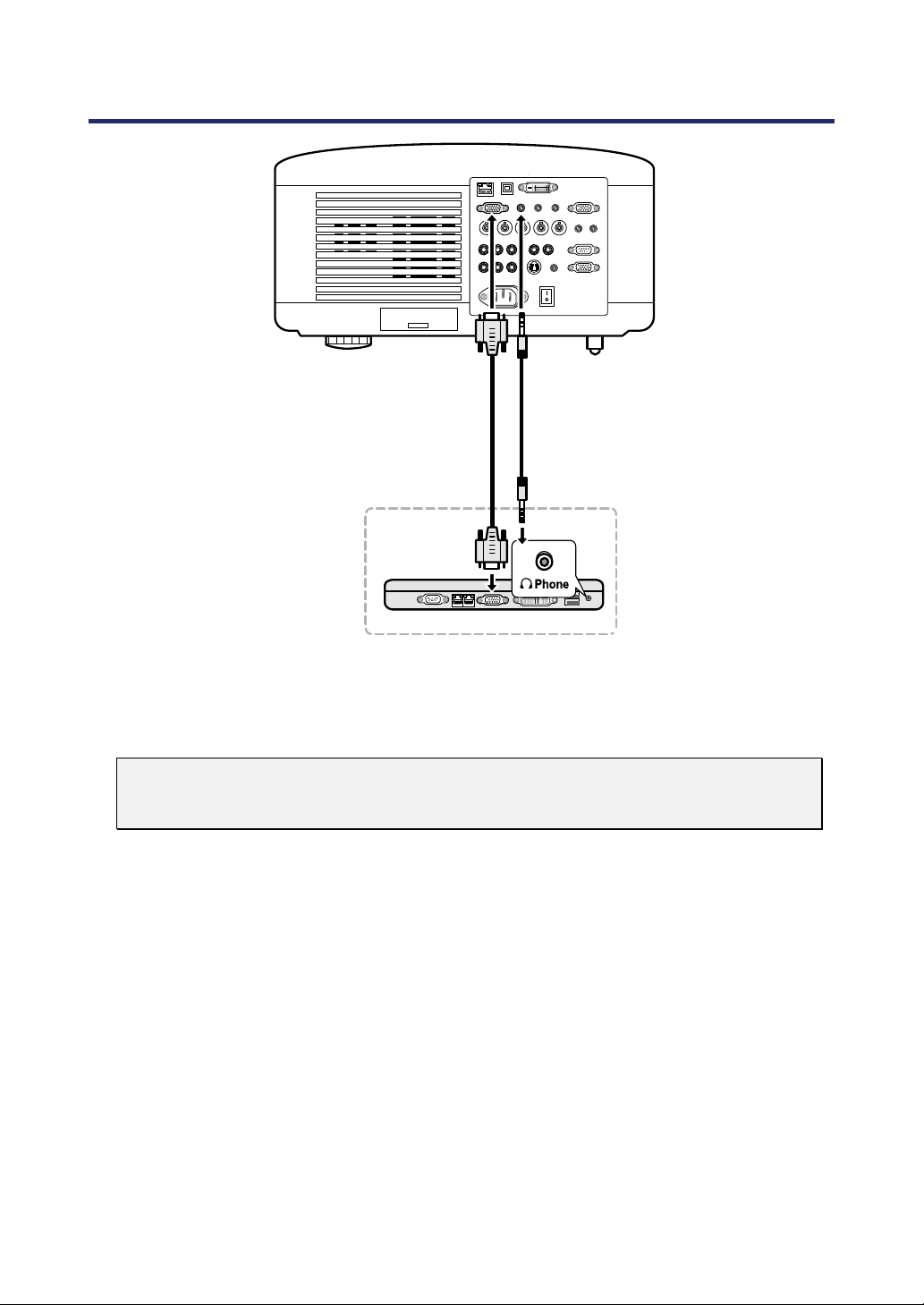
2. Installation and Connections
32
2. Turn on the projector and select the chosen method of connection from the
source menu before turning on the PC (see Selecting a Source on page 40).
3.
Turn on the PC.
Note:
Failure to follow the above steps may not activate the digital output of the graphics
card resulting in no picture being displayed. Should this happen, restart your PC.
2. Installation and Connections
33
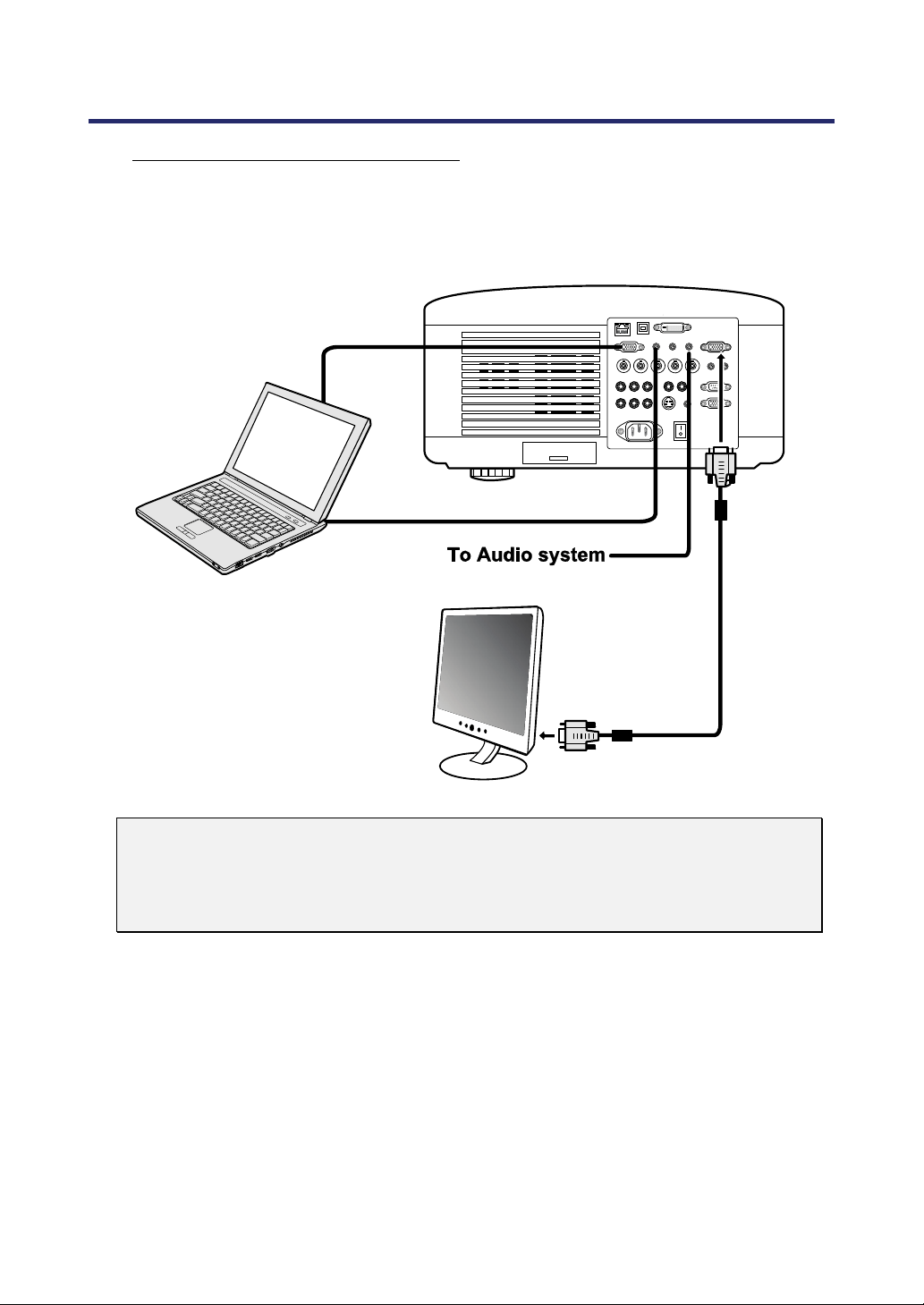
Connecting an External Monitor
Connect an external monitor to the projector through RGB out connections as shown be-
low (see item 4, Terminal Panel Features on page 10).
Note:
• Daisy chain connection is not possible.
• The MONITOR OUT connector will output no video signal (Digital signal) from
the COMPUTER 3 IN connector.
• When audio equipment is connected, the projector speaker is disabled.
2. Installation and Connections
34
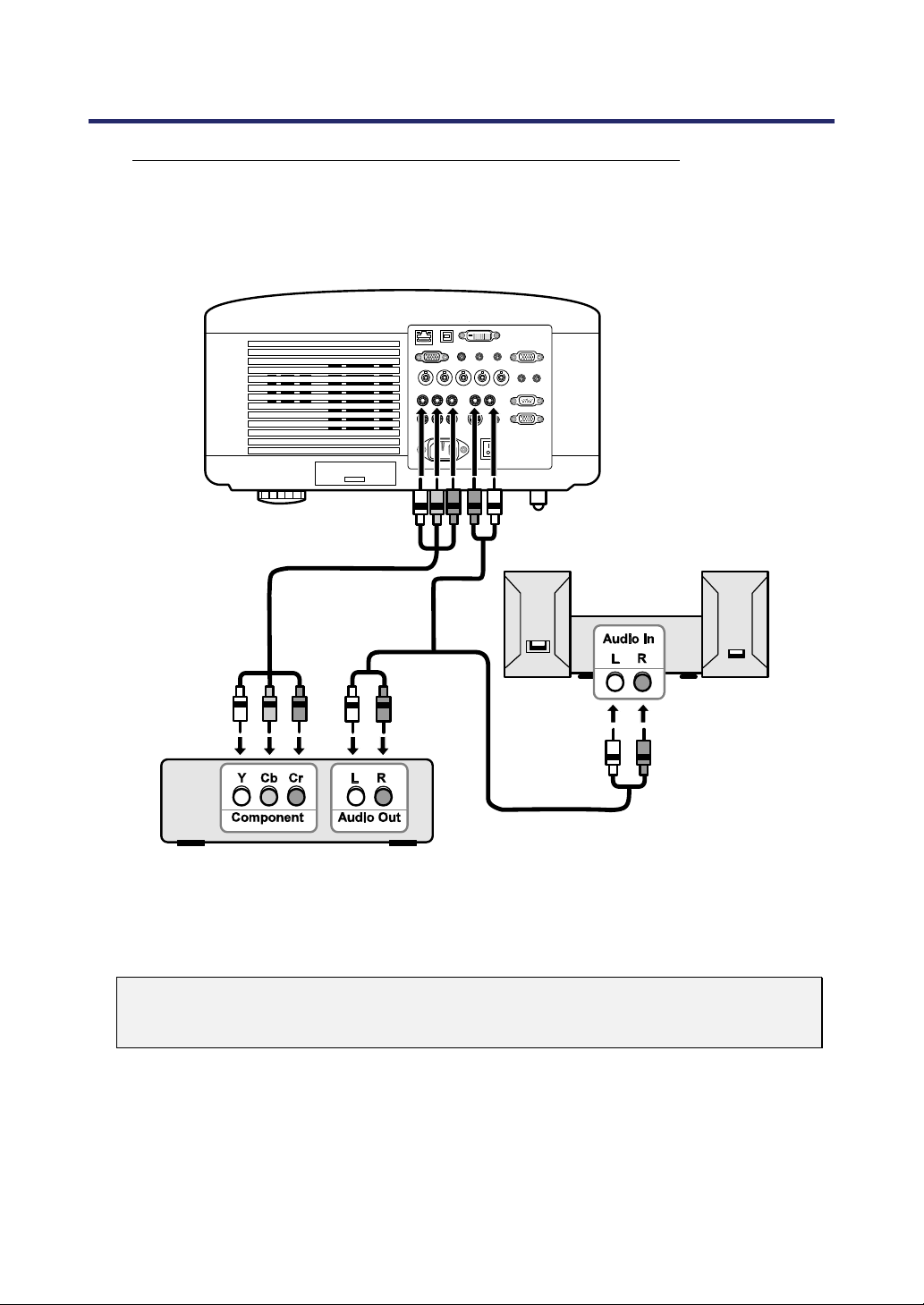
Connecting Your DVD Player with Component Output
To connect a DVD Player to the projector, refer to the following guide.
1. Connect the DVD Player to the projector as shown below before turning on the
Player or the projector.
2. Turn on the projector and select Component from the source menu before turn-
ing on the DVD Player (see Selecting a Source on page 40).
3.
Turn on the DVD Player.
Note:
Refer to your DVD player's owner's manual for more information about your DVD
player's video output requirements.
2. Installation and Connections
35
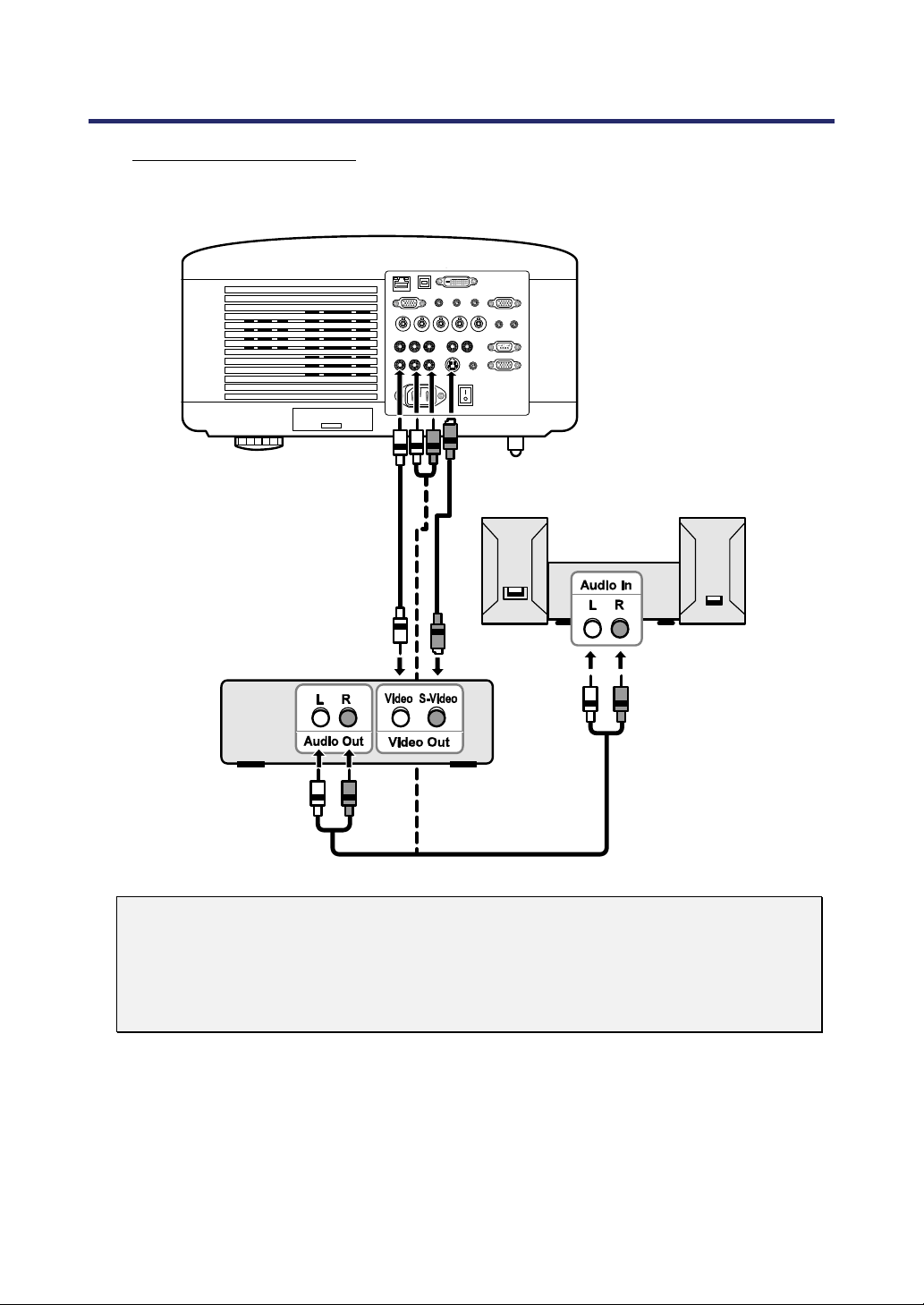
Connecting Your VCR
To connect you VCR, refer to the following diagram.
Note:
Refer to your VCR owner’s manual for more information about your device’s re-
quirements.
Images may not be displayed correctly when using an S-Video or Video connec-
tion to fast-forward or fast-rewind scanning.
The AUDIO IN RCA jack is shared between VIDEO IN and S-VIDEO IN.
2. Installation and Connections
36
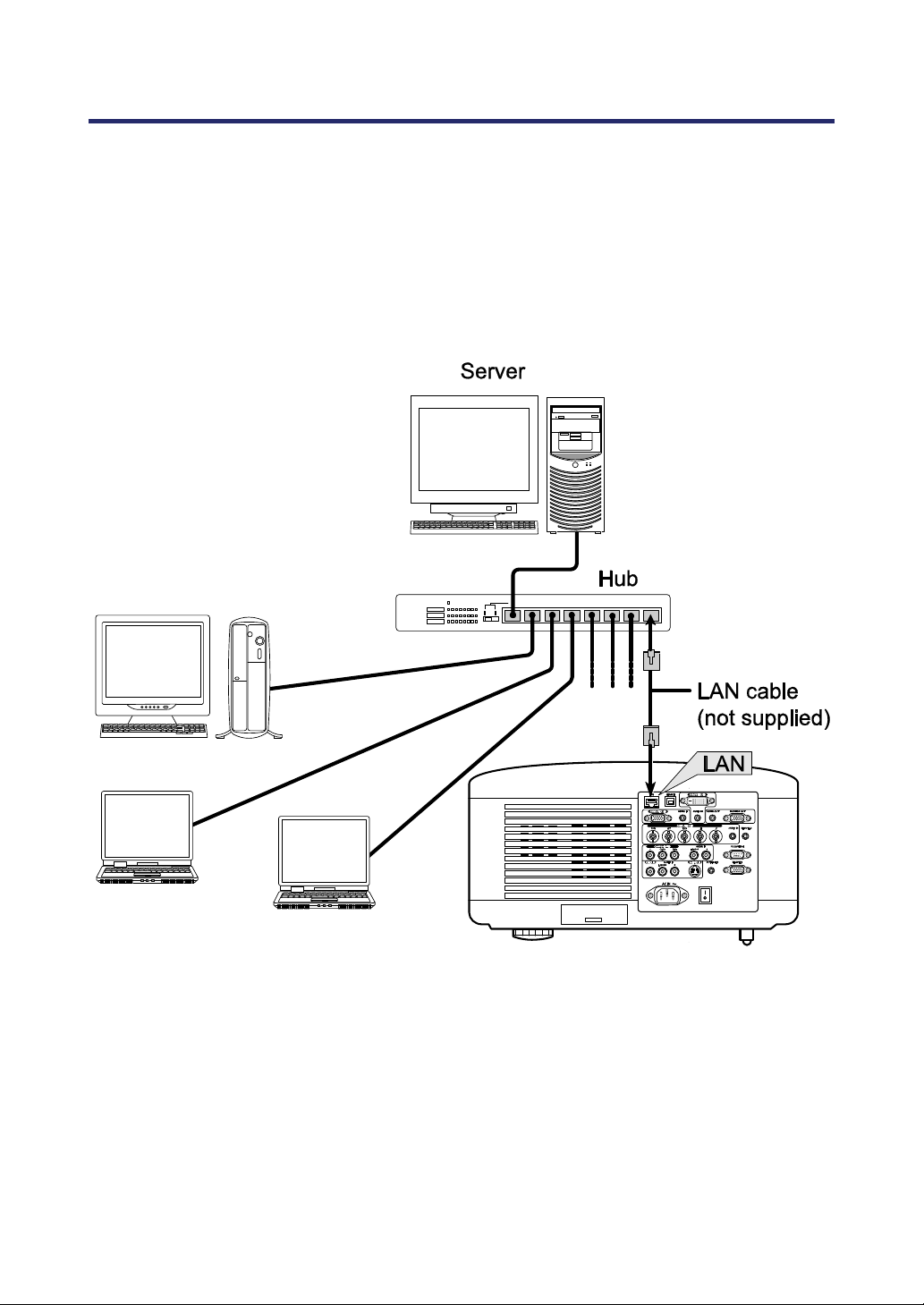
Connecting to a Network
The projector comes standard with a LAN port that provides network connectivity using a
LAN (RJ-45) cable. Network settings and Alert Mail settings for the projector can be adjusted
after connecting to your network through a LAN cable.
To use a LAN connection, open your web browser and assign the project an IP address on
the Network Settings screen. See page 91.
Example of LAN connection:
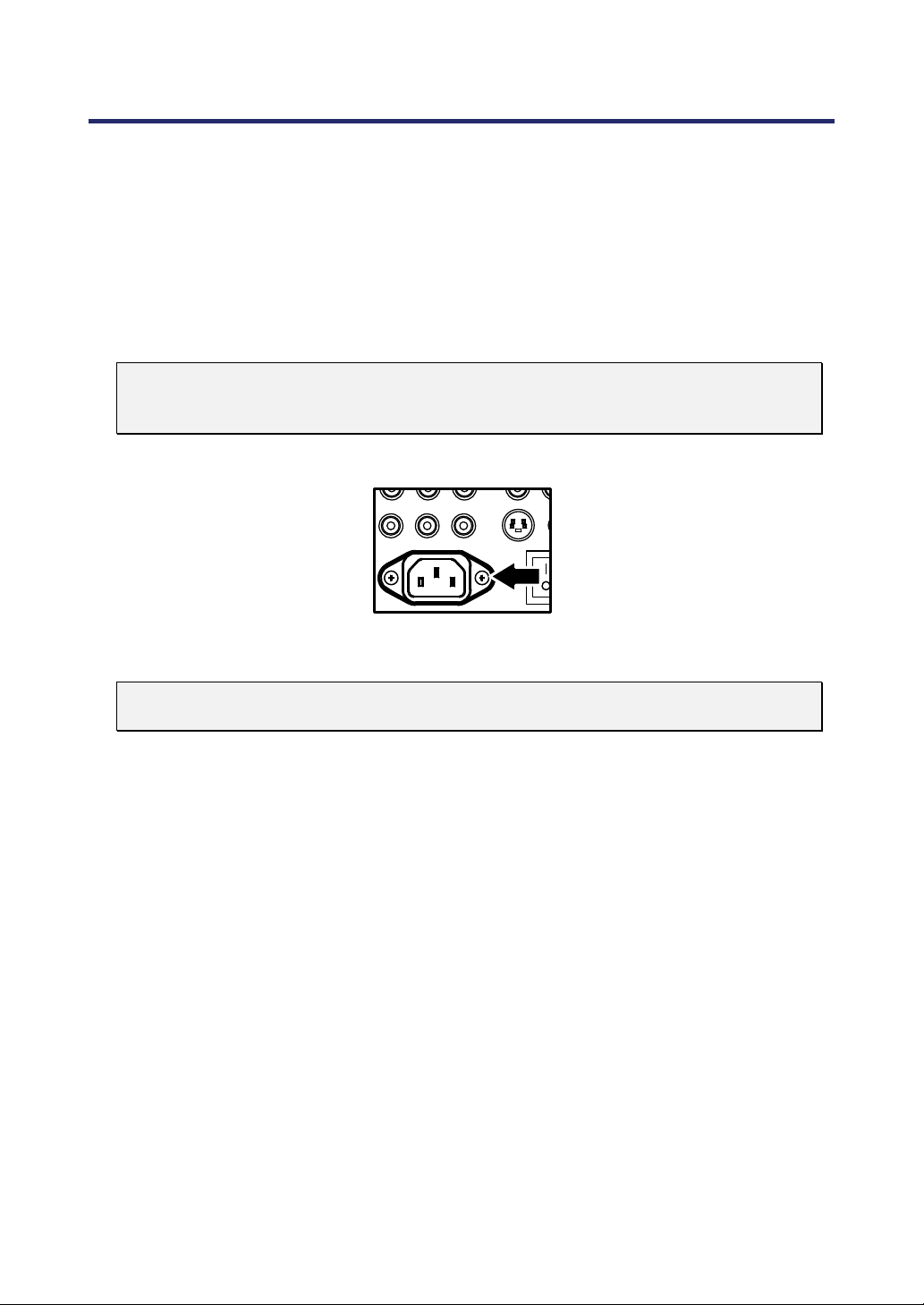
2. Installation and Connections
37
Connecting the Supplied Power Cable
Refer to the following guidelines to connect the power supply to the projector.
1. Locate the projector correctly. See Selecting a Location on page 18.
2.
Ensure Main Power switch is in the off position (O).
3. Connect power cable to mains outlet.
4. Connect power cable to power inlet (AC IN) on the projector, see Terminal
Panel Features on page 10.
Note:
Make sure that the prongs are fully inserted into both the AC IN and the wall
outlet.
Note:
Ensure that the cables do not create a trip hazard.
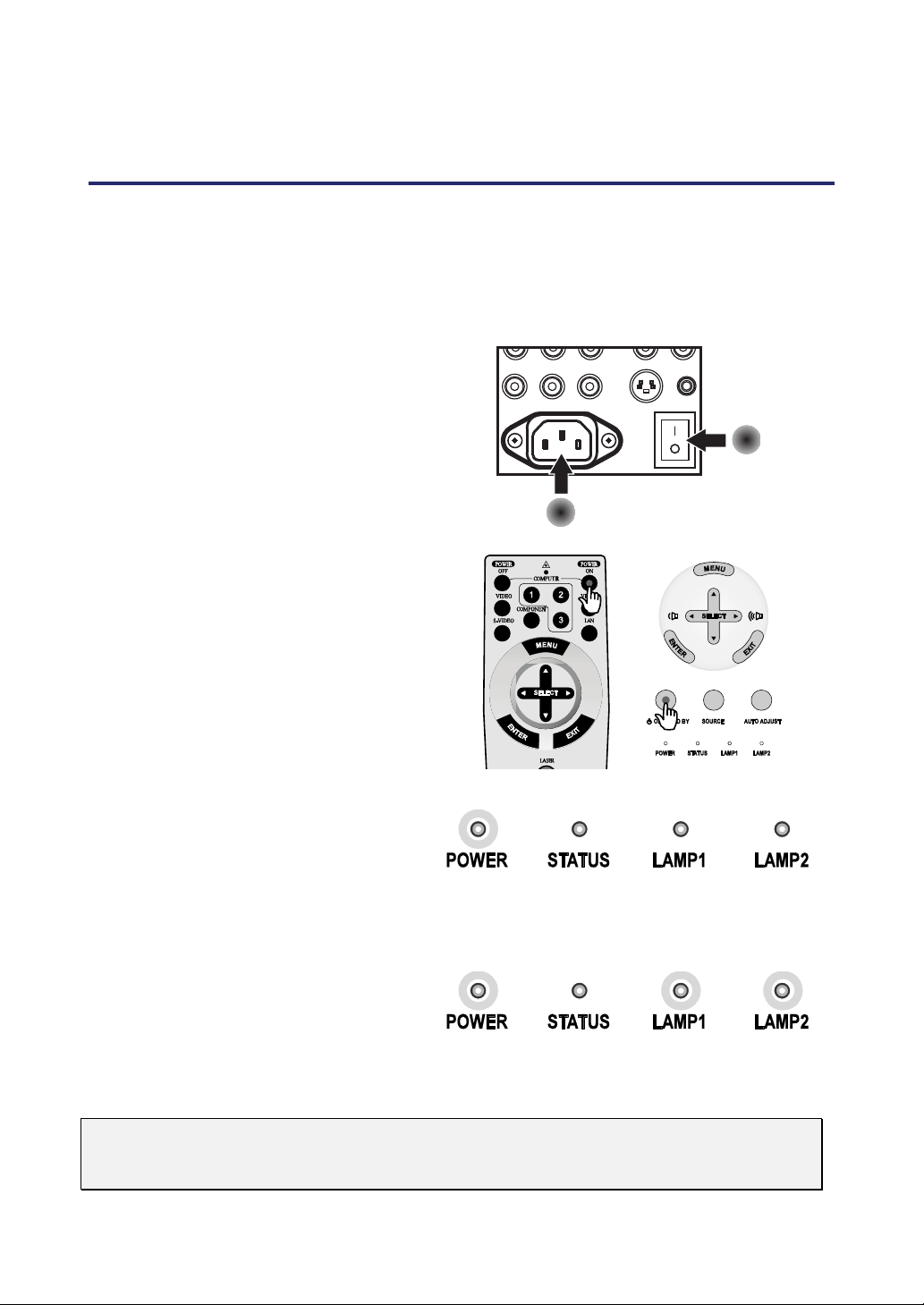
38
3. Projecting an Image (Basic Operation)
Turning on the Projector
Once the projector is correctly located and the power cable and other connections are in
place, it is important that the projector is powered on correctly in order to avoid damage to
components and unnecessary wear and tear. Refer to the following guide to power on the
projector.
1.
Connect the power cable (A).
Press the main power switch ( I )
to the on position as shown (B).
The power LED lights orange.
B
A
2.
Press the On/Standby button
once (see
3OSD Controls and
Status LEDS on page 8). The
power LED lights green and the
internal cooling fan starts.
3.
After approximately 10 seconds,
the power LED flashes intermit-
tently green.
4.
The Lamp1 and Lamp2 LEDs
light green and the Power LED
flashes more rapidly.
5.
Once the power LED is lit
solidly green, the projector is
ready for use.
Note:
If any of the LEDs remain flashing or blink there may be a problem with the startup.
Please refer to the
Troubleshooting section on page 117.
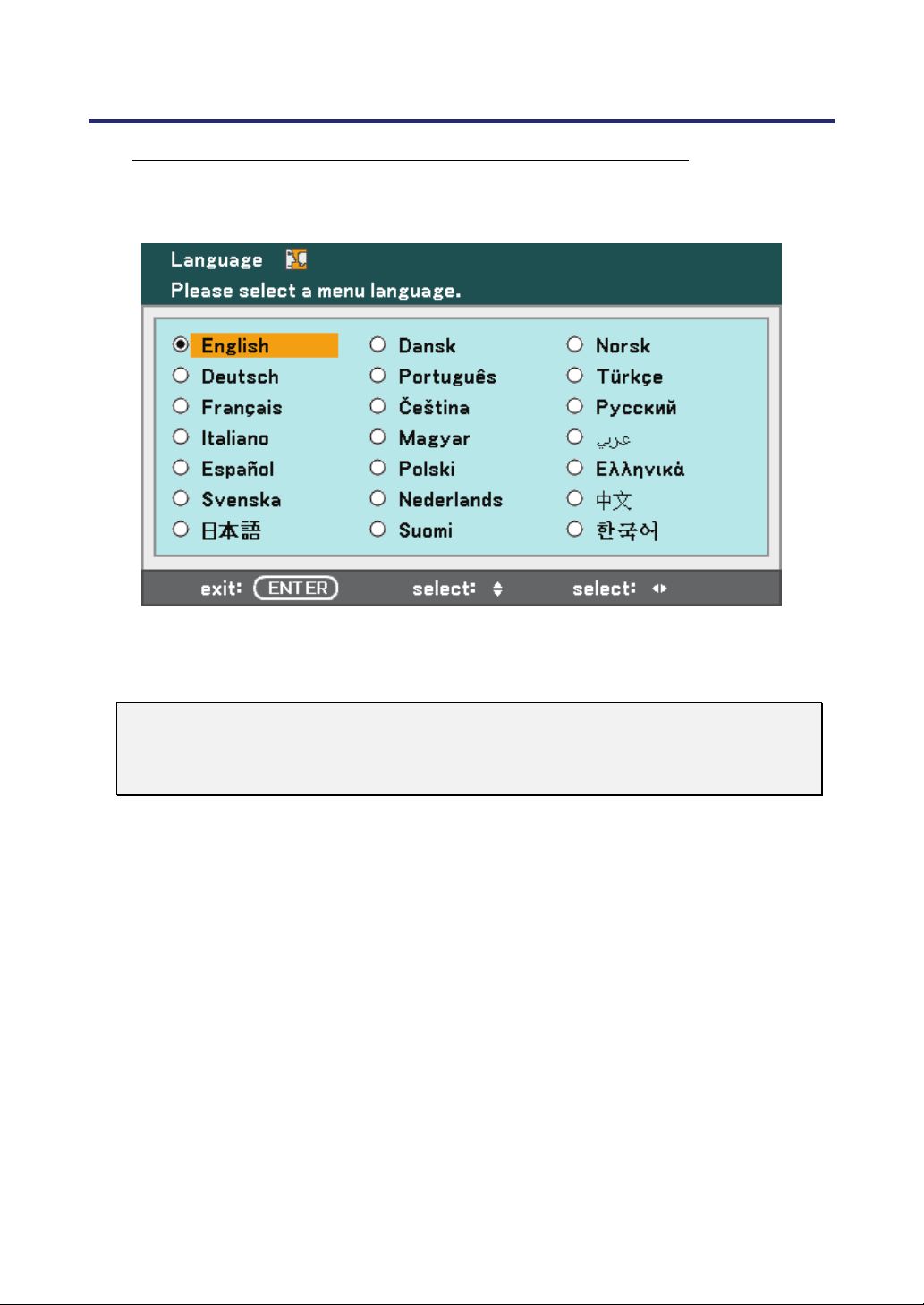
3. Projecting an Image (Basic Operation)
39
Note on Startup Screen (Menu Language Select screen)
In the first instance of powering on the projector, the language menu is displayed to se-
lect the default language.
Select the required default language using the ▲ or ▼ buttons on the OSD menu panel
or the remote control unit and press Enter.
Note:
The language select screen only appears on the first instance of power on. All
subsequent operations assume the selected default language. To change the de-
fault see page 85.
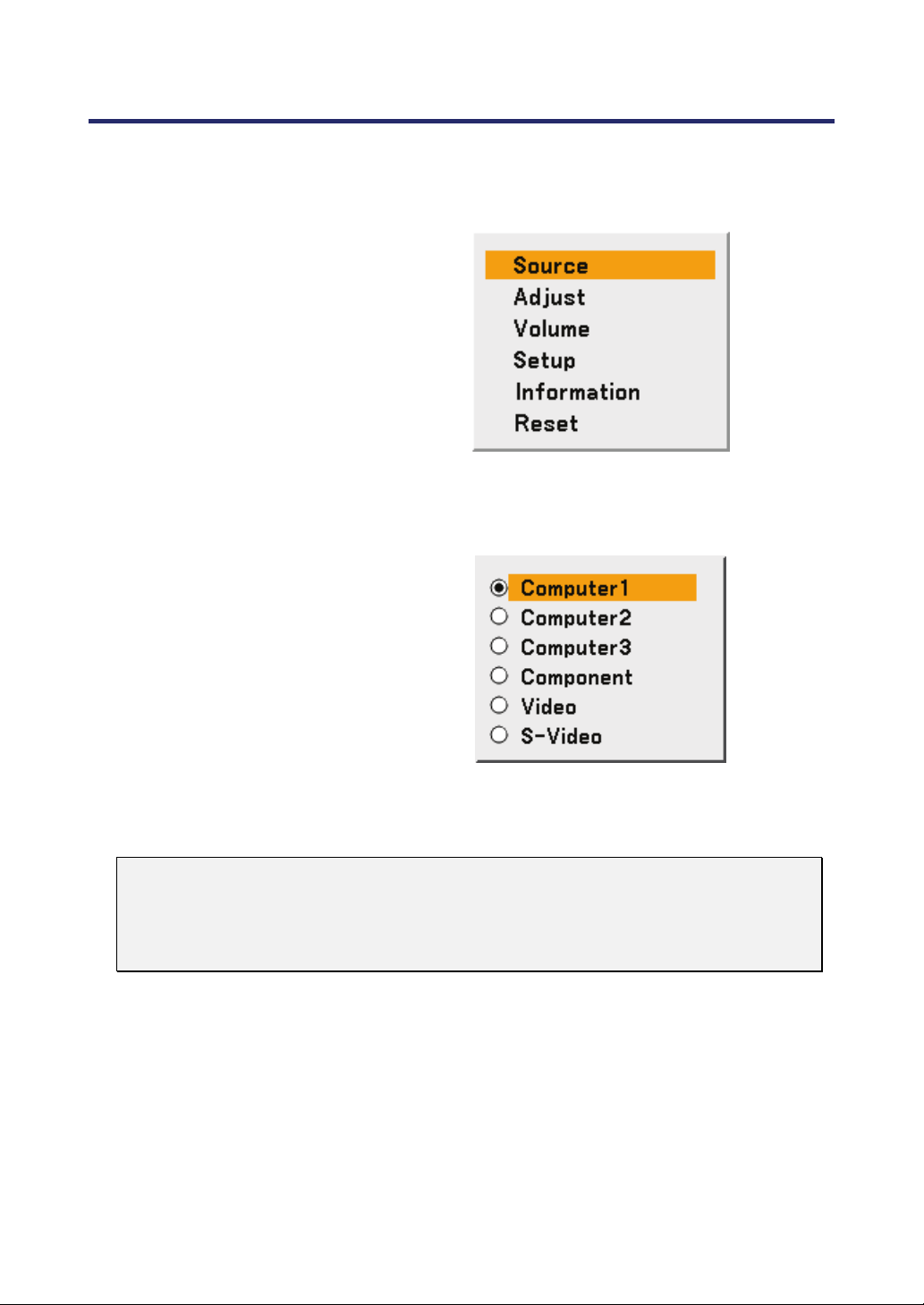
3. Projecting an Image (Basic Operation)
40
Selecting a Source
The Source can be selected from the projector's control panel or from the remote control unit.
Refer to the following guide to select Source.
1.
Press Menu on the OSD
control panel or on the
remote control unit to dis-
play the Main Menu.
Scroll to the Source menu
using ▲or▼ and press
Enter.
Note:
Return to the projected
image by pressing Exit
twice.
2.
Select the required source
using ▲or▼ and press
Enter.
Note:
If an XGA signal is not correctly recognized on NP4100W, set "WXGA Mode" to
Off (see page 99).
To check if the signal is recognized, go to "Source" under "Information" menu (see
page 3102).
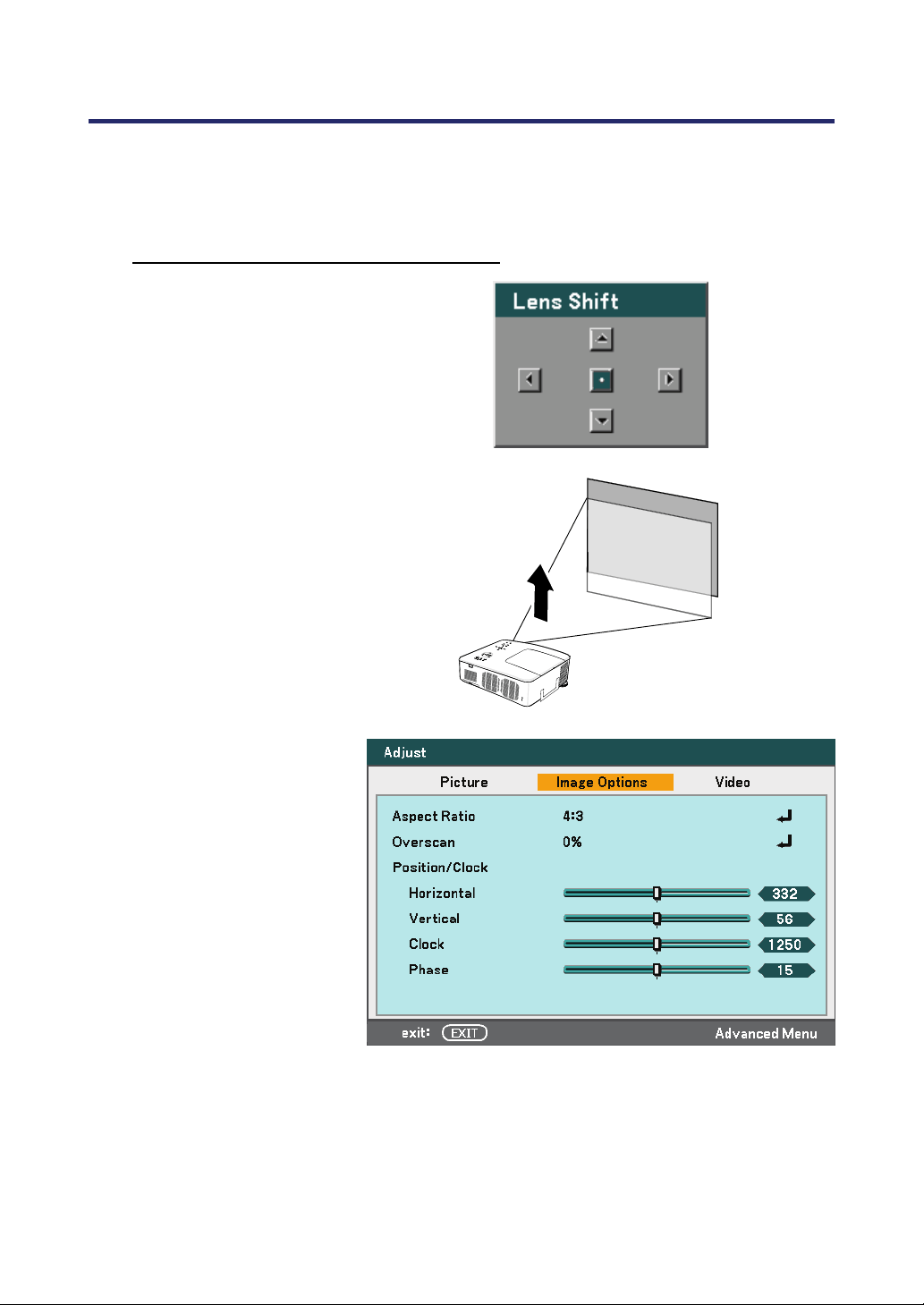
3. Projecting an Image (Basic Operation)
41
Adjusting the Picture Position and Picture Size
The Picture Position and Picture Size can be adjusted manually from the lens control panel or
from the remote control unit. Refer to the following guides to adjust Picture Position manually.
Adjusting Picture Position Manually
1.
Press the Select keypad in
any direction to bring up
the Lens Shift window.
2.
Press the directional key
as required to shift the
image. Releasing the
directional arrow will
re-center the cursor.
3.
To alter the picture size,
press Menu and select the
Adjust menu using
▲or▼. Press Enter to
open the Adjust menu.
Press ◄or► to select Im-
age Options followed by
▲or▼ to select the
Aspect Ratio. Press
Enter.
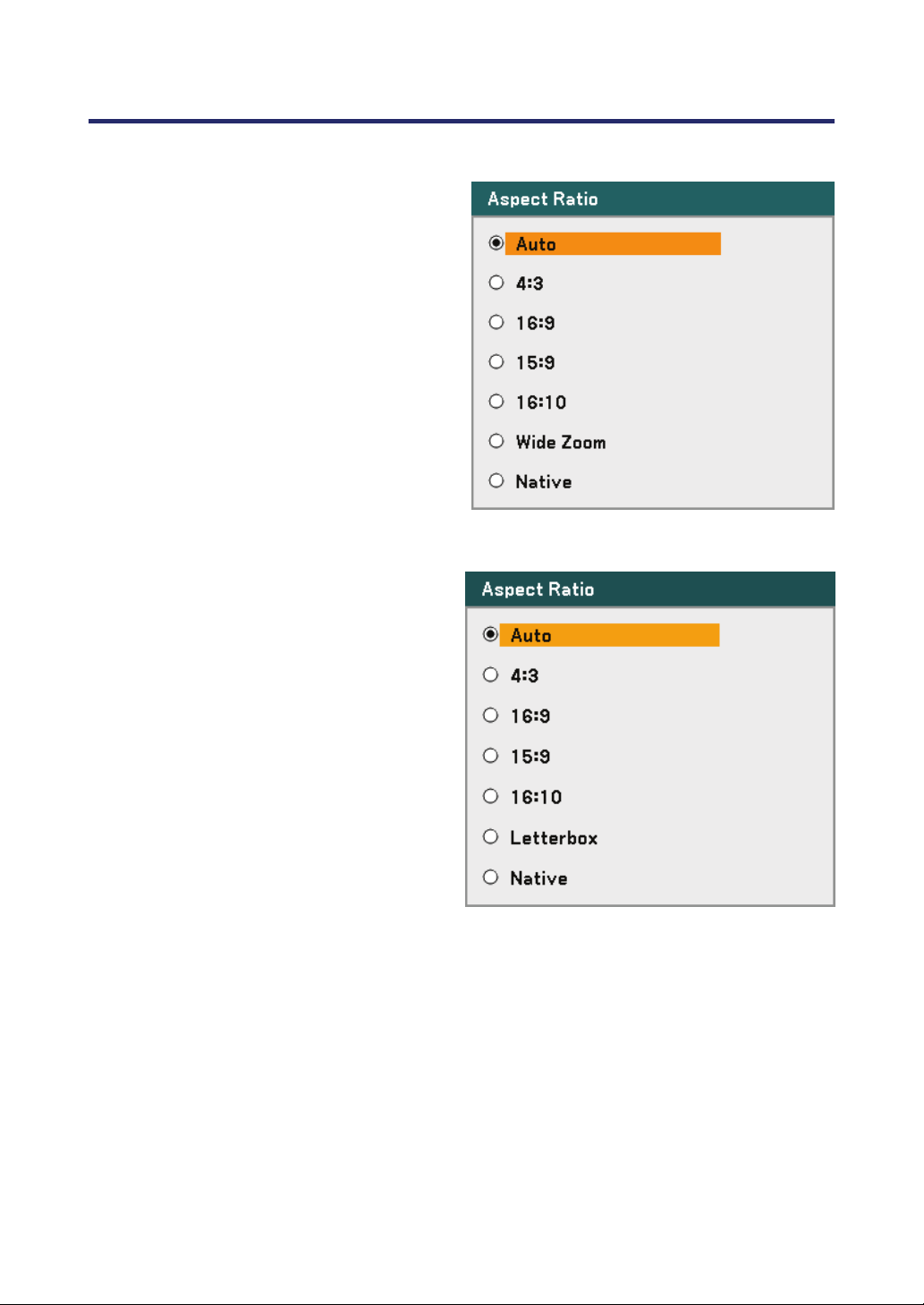
3. Projecting an Image (Basic Operation)
42
4.
The Aspect Ratio win-
dow is displayed. Select
the desired picture size
using ▲or▼ and press
Enter.
Note:
The NP4100 and
NP4100W support differ-
ent Aspect Ratio options
as shown.
5.
When finished, press Exit
to return to the projected
image.
NP4100 Aspect Ratio Options
NP4100W Aspect Ratio Options
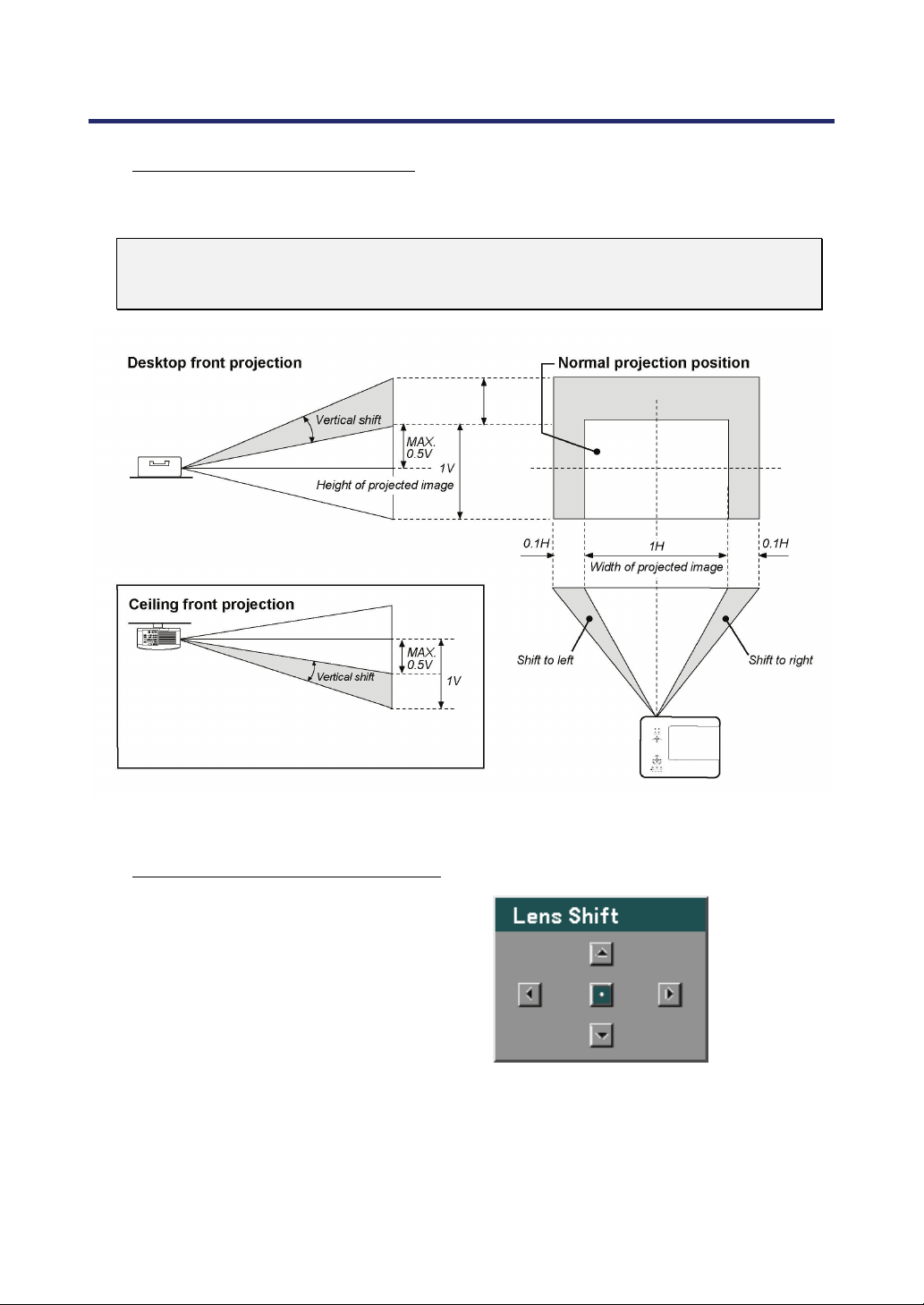
3. Projecting an Image (Basic Operation)
43
Lens Shift Adjustable Range
The adjustable range for lens shift is tabulated below and subject to the conditions listed.
Note:
The drawings below are applied to the lenses for NP07ZL, NP08ZL, NP09ZL, and
NP10ZL. The lens for NP06FL does not have a lens shift feature.
From the Remote Control Unit
1.
Press the Lens Shift but-
ton to bring up the Lens
Shift window.
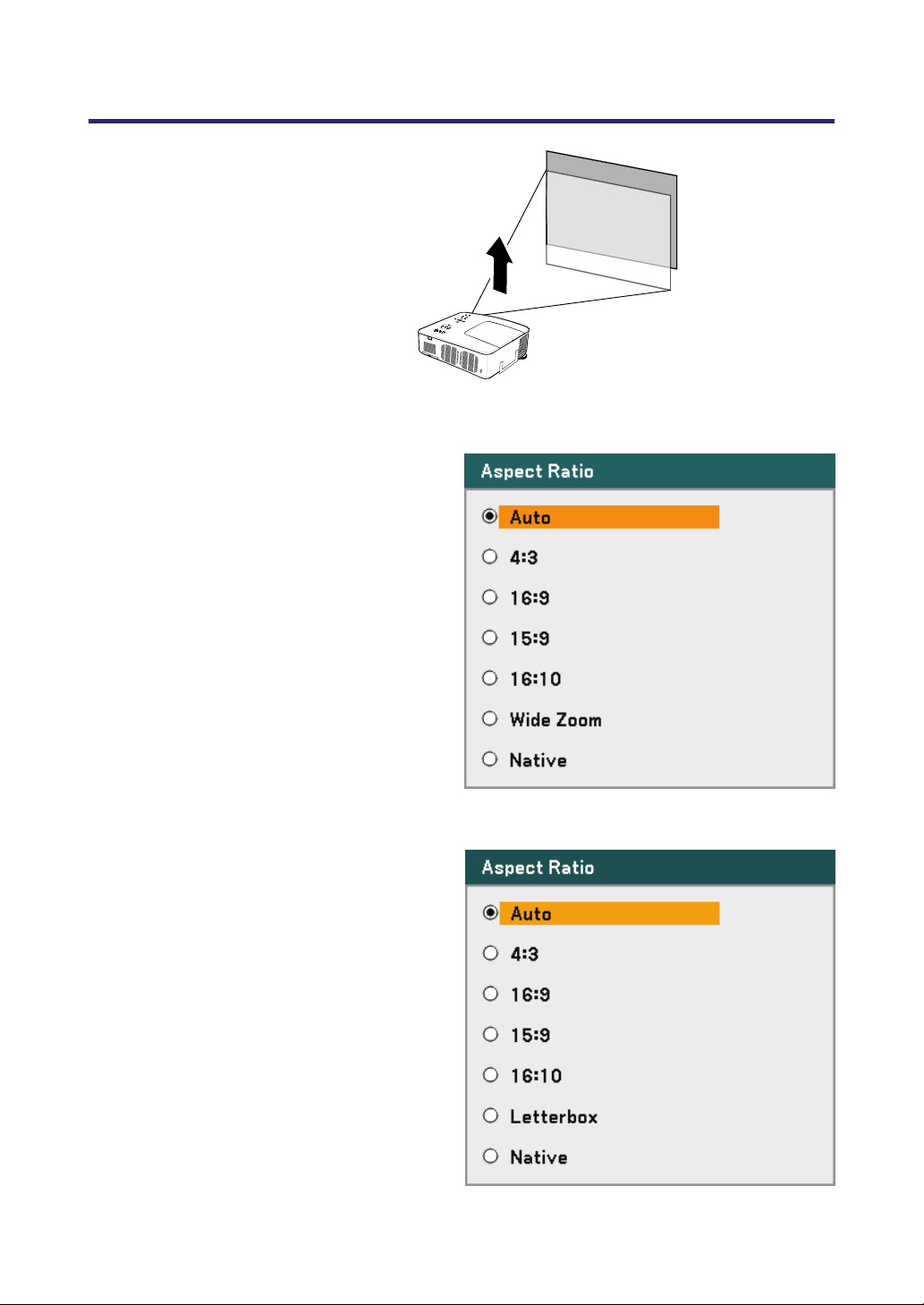
3. Projecting an Image (Basic Operation)
44
2.
Press the directional keys
as required to shift the
image. Releasing the di-
rectional arrow will re-
center the cursor.
3.
To alter the picture size,
press the Aspect button to
display the Aspect Ratio
window.
Note:
The NP4100 and
NP4100W support differ-
ent Aspect Ratio options
as shown.
4.
Select the desired picture
size using ▲or▼ and
press Enter.
5.
When finished, press Exit
to return to the projected
image.
NP4100 Aspect Ratio Options
NP4100W Aspect Ratio Options
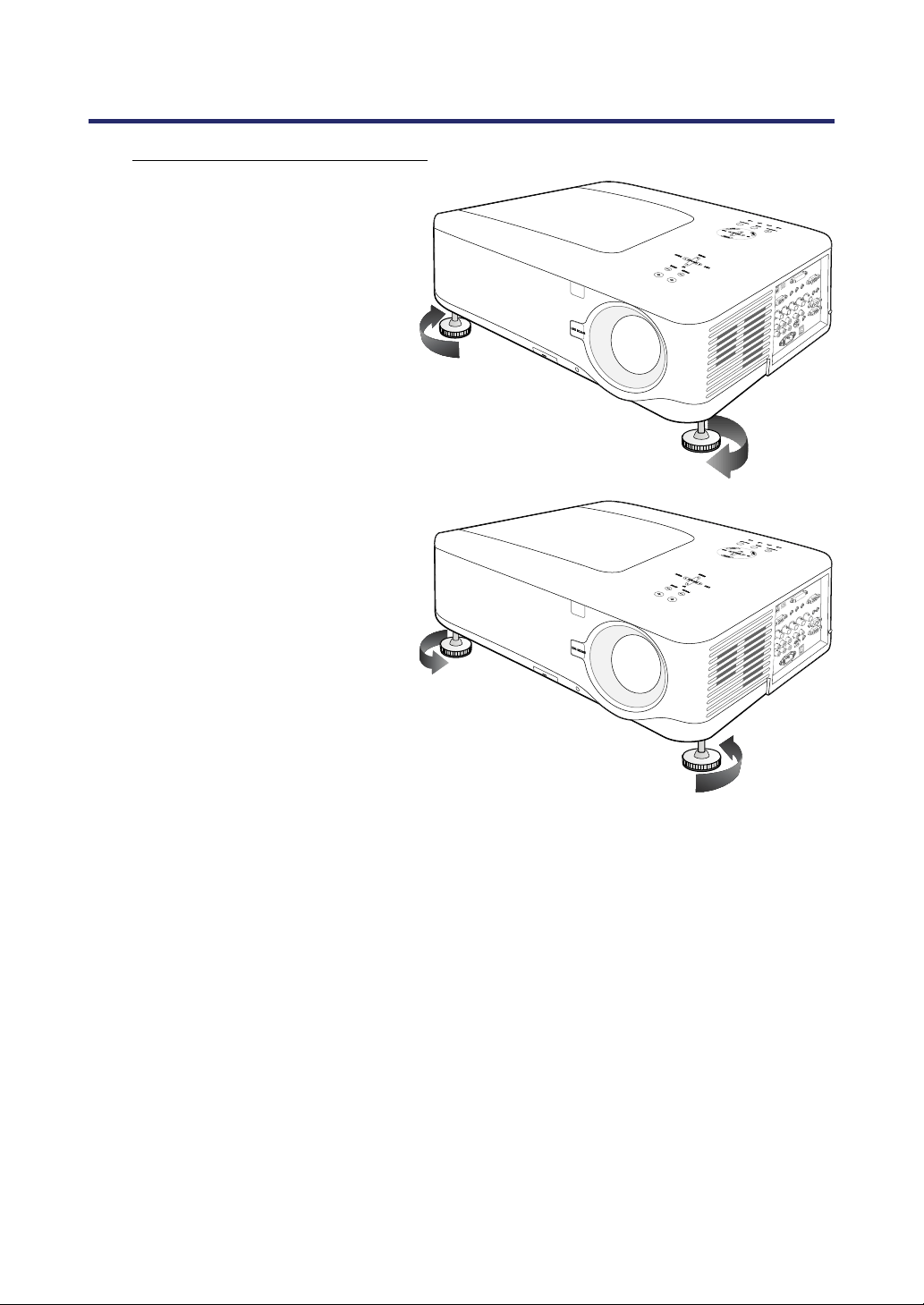
3. Projecting an Image (Basic Operation)
45
Adjusting the Projector Level
1.
To raise the level of the projec-
tor, twist the adjusters clockwise.
2.
To lower the level of the projec-
tor, lift the projector and twist
the adjusters counter clockwise.
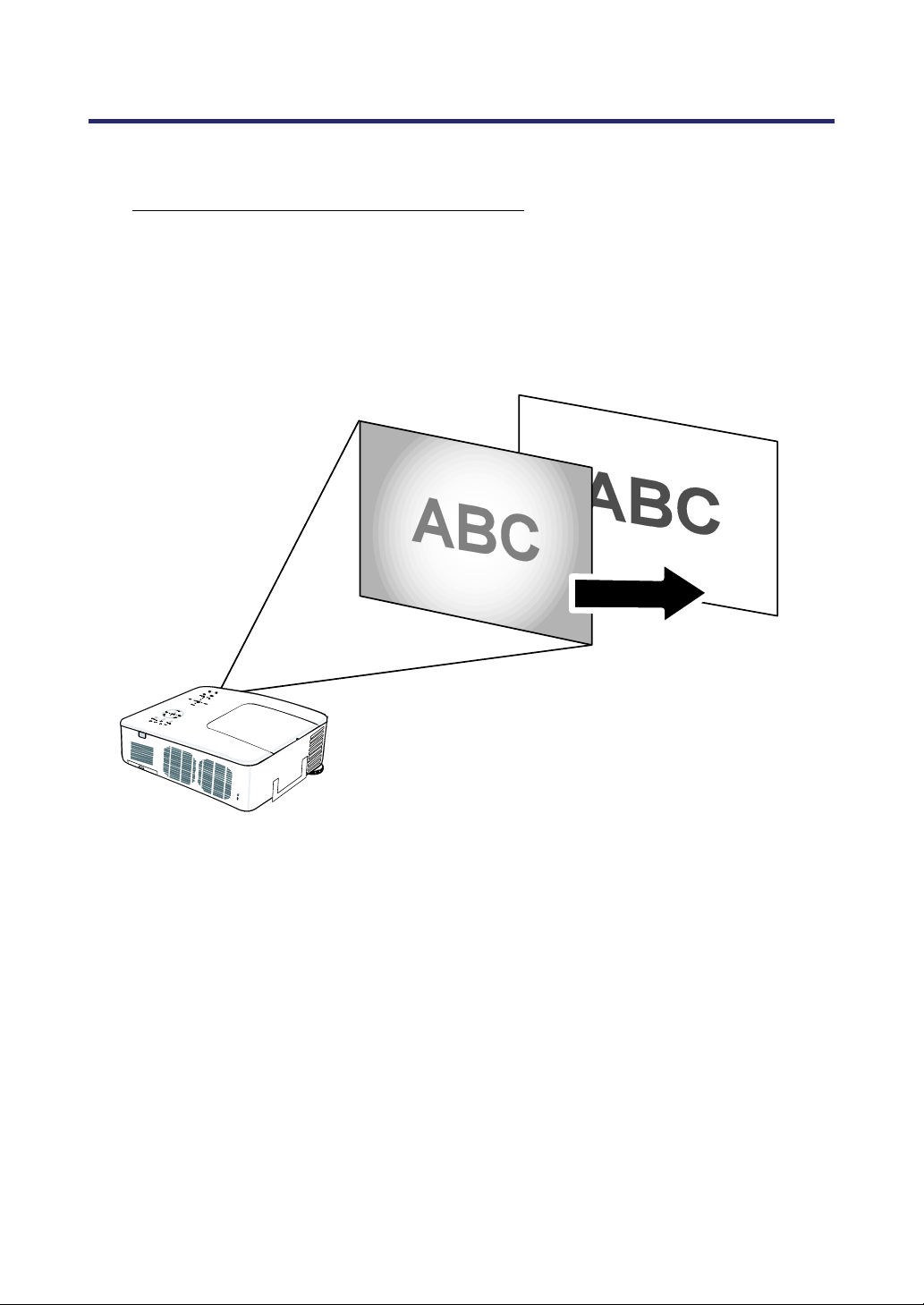
3. Projecting an Image (Basic Operation)
46
Optimizing an RGB Image Automatically
Adjusting the Image Using Auto Adjust
To optimize an RGB image automatically refer to the following guide.
Press the Auto ADJ. button on the Remote Unit (see item 27, Part Nam
es of the Re-
mote Control on page 12) to optimize an RGB image automatically.
This adjustment may be necessary when you connect your computer for the first time.
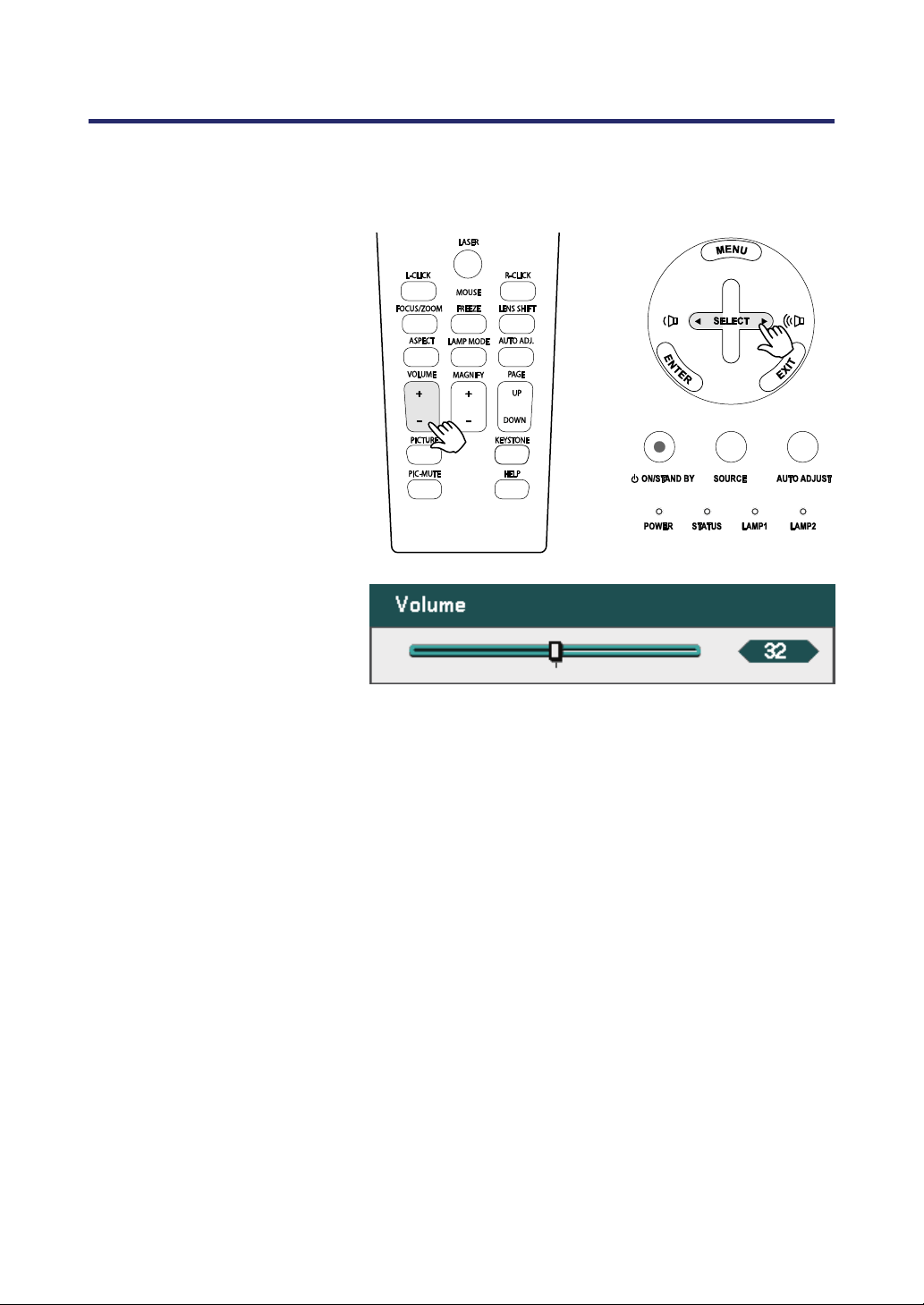
3. Projecting an Image (Basic Operation)
47
Adjusting Volume Up and Down
The volume can be adjusted from the OSD Control Panel or with the Remote Control unit.
Refer to the following as a guide.
1.
Press the Volume +/-
buttons on the remote
control or the Select pad
left and right keys on the
OSD control panel. The
volume level is displayed
on screen.
2.
Use the Volume +/- but-
tons or the Select pad left
and right keys on the OSD
control panel to adjust the
level.
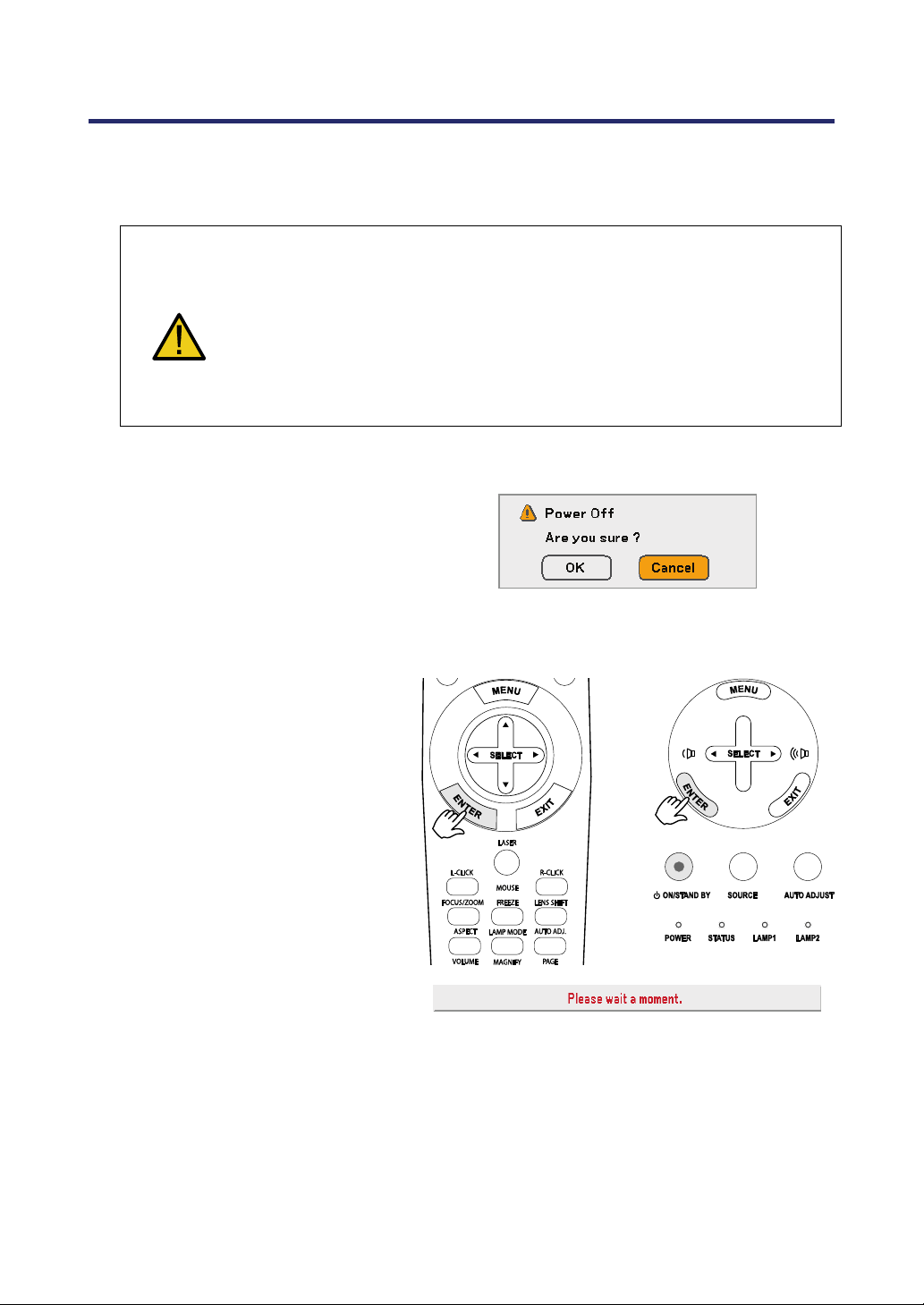
3. Projecting an Image (Basic Operation)
48
Turning off the Projector
Once the projector is no longer required, it is important to shut it down correctly to avoid
damage or unnecessary wear and tear to the projector.
CAUTION
• Do not unplug the power cable from the wall outlet or projector when
the projector is powered on. Doing so can cause damage to the AC IN
connector of the projector and (or) the prong plug of the power cable.
To turn off the AC power supply when the projector is powered on,
use a power strip equipped with a switch and a breaker.
• Do not turn off the AC power supply within 10 seconds of making ad-
justment or setting changes and closing the menu. Doing so can
cause loss of adjustments and settings and return to default.
Refer to the following guide to shut down the projector.
1.
Press the On/Standby button
once. The OSD displays the
message shown on the right.
2.
Press the On/Standby button
again or Enter on the OSD con-
trol panel or the remote control
to verify power off.
The cooling fans keep operating
for a while (Cooling-off time).
The cooling fans stop operating
when the projector turns off
3.
The projector enters Standby
mode and the power LED lights
orange.
4.
Press the Main Power switch to
the off position (O) to turn off
the projector.

3. Projecting an Image (Basic Operation)
49
About Direct Power Off
The projector has a feature called "Direct Power Off". This feature allows the projector to
be turned off (even when projecting an image) using a power strip equipped with a
switch and a breaker.
Note:
Before using Direct Power Off, be sure to allow at least 20 minutes immediately
after turning on the projector and starting to display an image.
After Use
Preparation: Make sure that the projector is turned off.
1. Unplug the power cable.
2. Disconnect any other cables.
3. Return the height adjusters to their original, minimum position.
4. Cover the lens with the lens cap.
50
4. Convenient Features
Turning Off the Image and Sound
The projected image and sound can be turned off for short periods of time with the remote
control. This feature is useful for breaking up presentations or for other brief interruptions in
projections. To turn off the picture and image, refer to the following guide.
1. Press the PIC-MUTE button on the remote control once
(see Part Names of the Remote Control on page 12).
2.
To resume projection, press the PIC-MUTE button once more.
Note:
For extended periods of time it is recommended that the projector be powered off.
Freezing a Picture
The projected image can be frozen for short periods of time via the remote control. This fea-
ture is useful for capturing still images from movies or freezing an animation at a particular
point. To freeze the projected image, refer to the following guide.
1. Press the Freeze button on the remote control once
(see Part Names of the Remote Control on page 12).
2.
The screen freezes.
3. To resume, press the Freeze button once more.
Note:
For extended periods of time it is recommended that the projector be powered off.
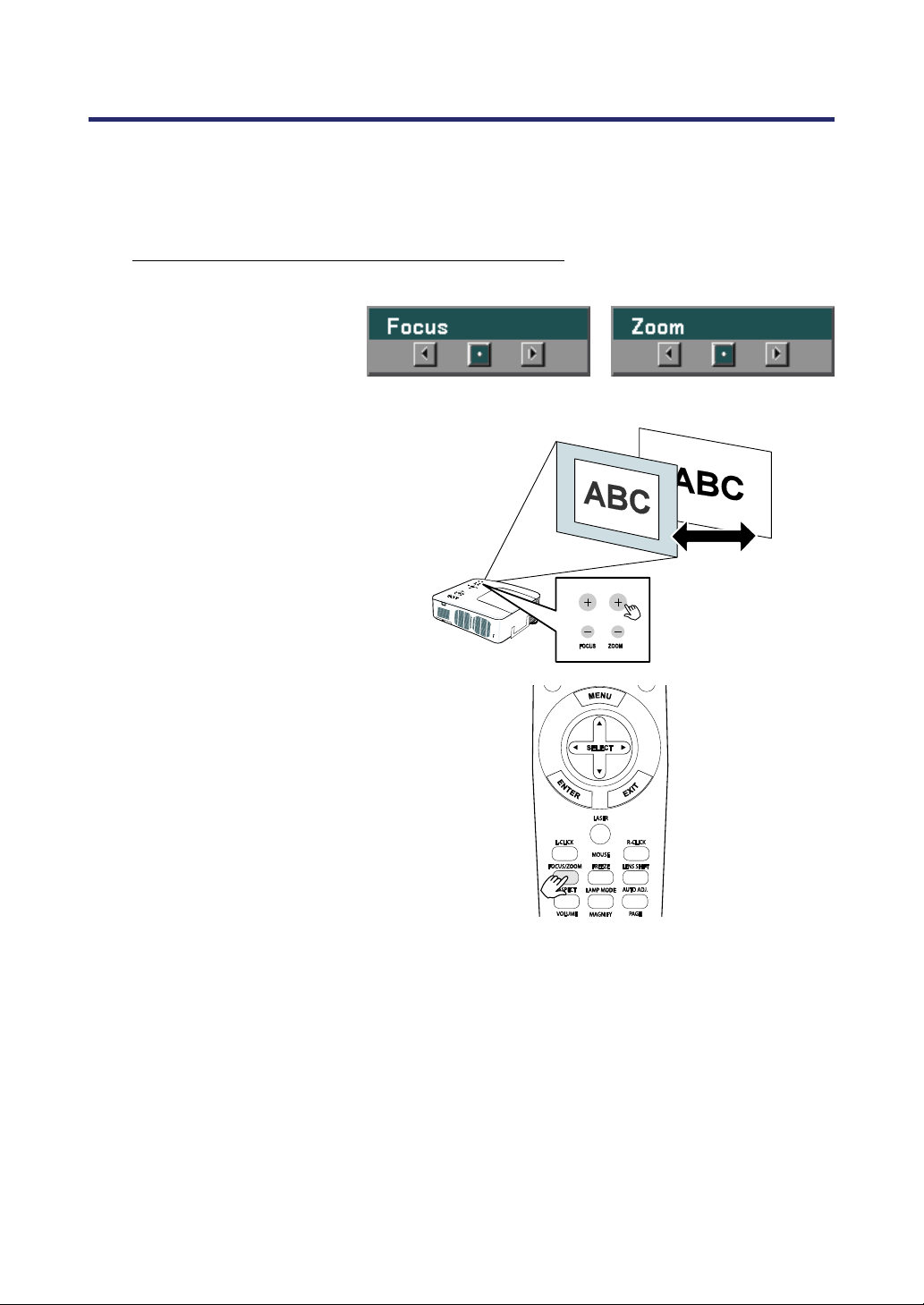
4. Convenient Features
51
Adjusting the Focus/Zoom Manually
The focus and zoom can be adjusted manually from the projector focus/zoom panel or from
the remote control unit. Refer to the following guides to adjust the focus and zoom manually.
Adjusting by Using the OSD Control Panel
1.
Press the Focus or Zoom
button on the projector
panel to display the
appropriate window.
2.
Adjust the focus/zoom
using the increase and
decrease buttons as
required.
3.
Press Exit to return to the
projected image.
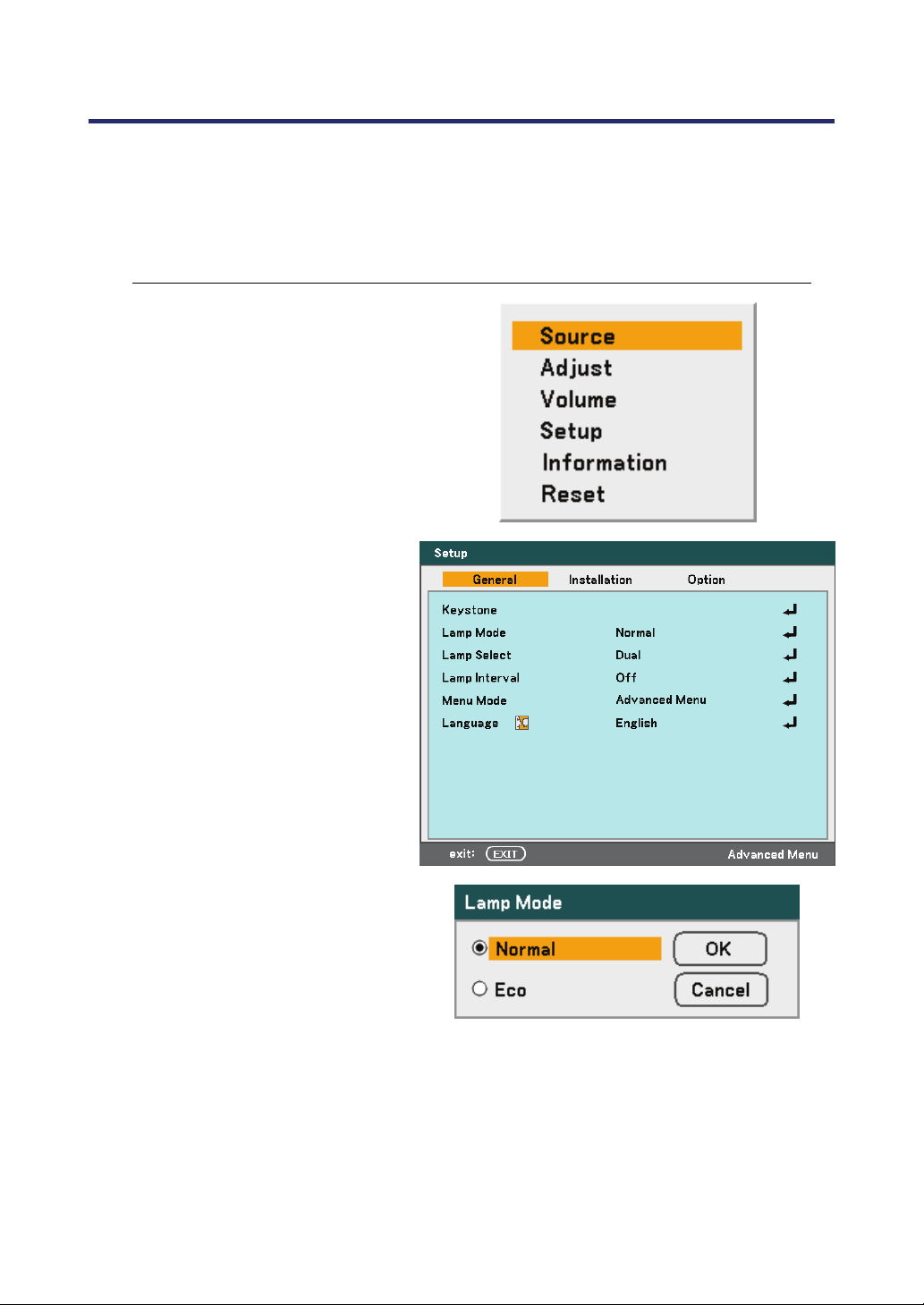
4. Convenient Features
52
Changing Lamp Mode
The projector has two lamp modes available, Normal and Eco. The Normal mode is used for
everyday standard projection, whereas the Eco mode is used for saving power and lamp life.
To change the Lamp Mode, refer to the following guides.
Changing Lamp Mode by Using the Projector's OSD Control Panel
1.
Press Menu on the projector's
OSD control panel to display the
Main Menu. Scroll to the Setup
menu using ▲or▼ and press
Enter.
2.
Select the General tab using
◄or► and select Lamp Mode
using ▲or▼. Press Enter.
3.
From the Lamp Mode window,
select Normal or Eco using
▲or▼. Select OK and press
Enter.
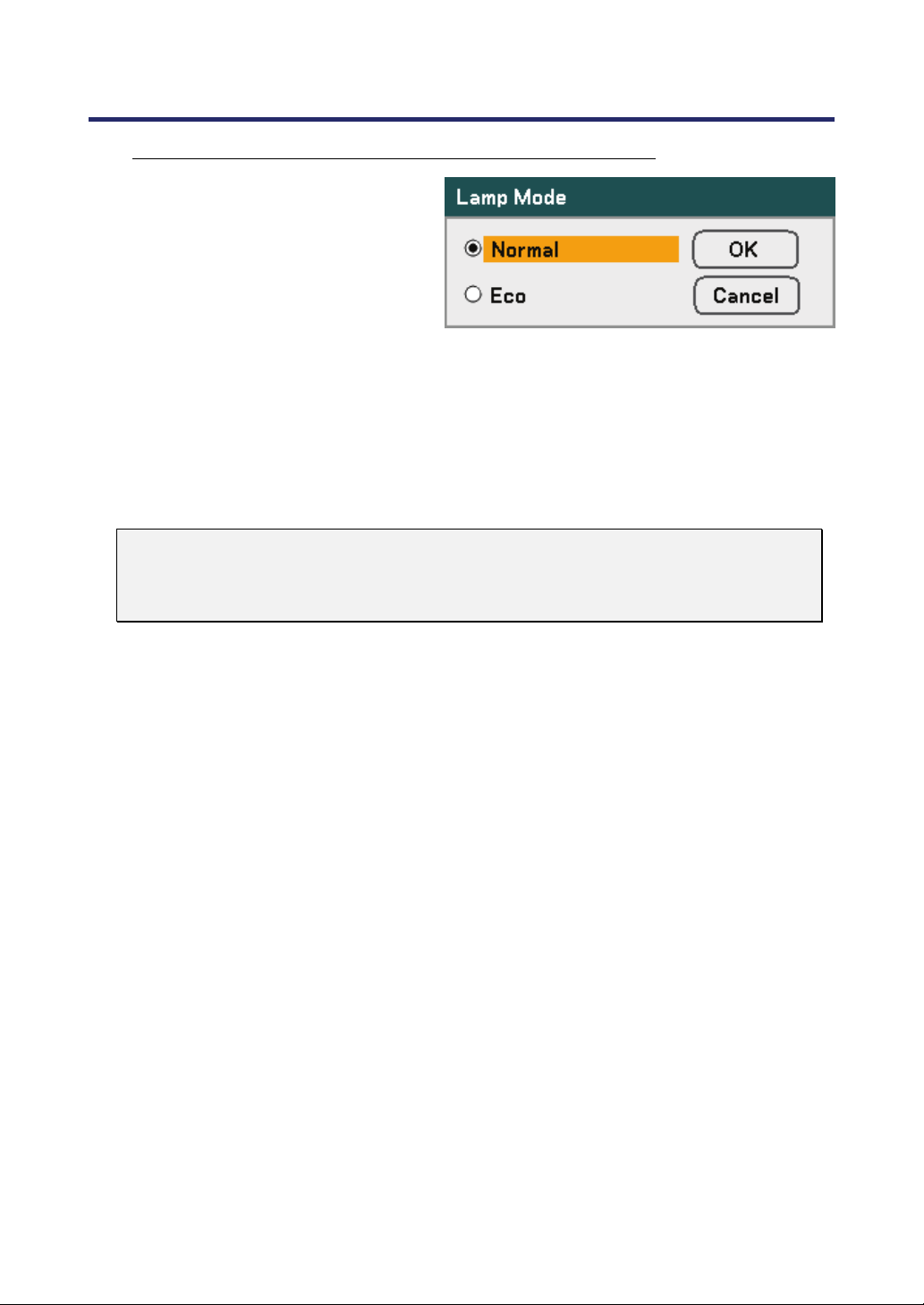
4. Convenient Features
53
Changing Lamp Mode by Using the Remote Control
1.
Press the Lamp Mode button on
the remote control to access the
Lamp Mode menu.
2.
From the Lamp Mode window,
select Normal or Eco using
▲or▼. Move the cursor to OK
and press Enter.
Note:
When the projector is in Eco mode, brightness may be affected.
Normal Mode: 100% Brightness
Eco Mode: approx. 85% Brightness
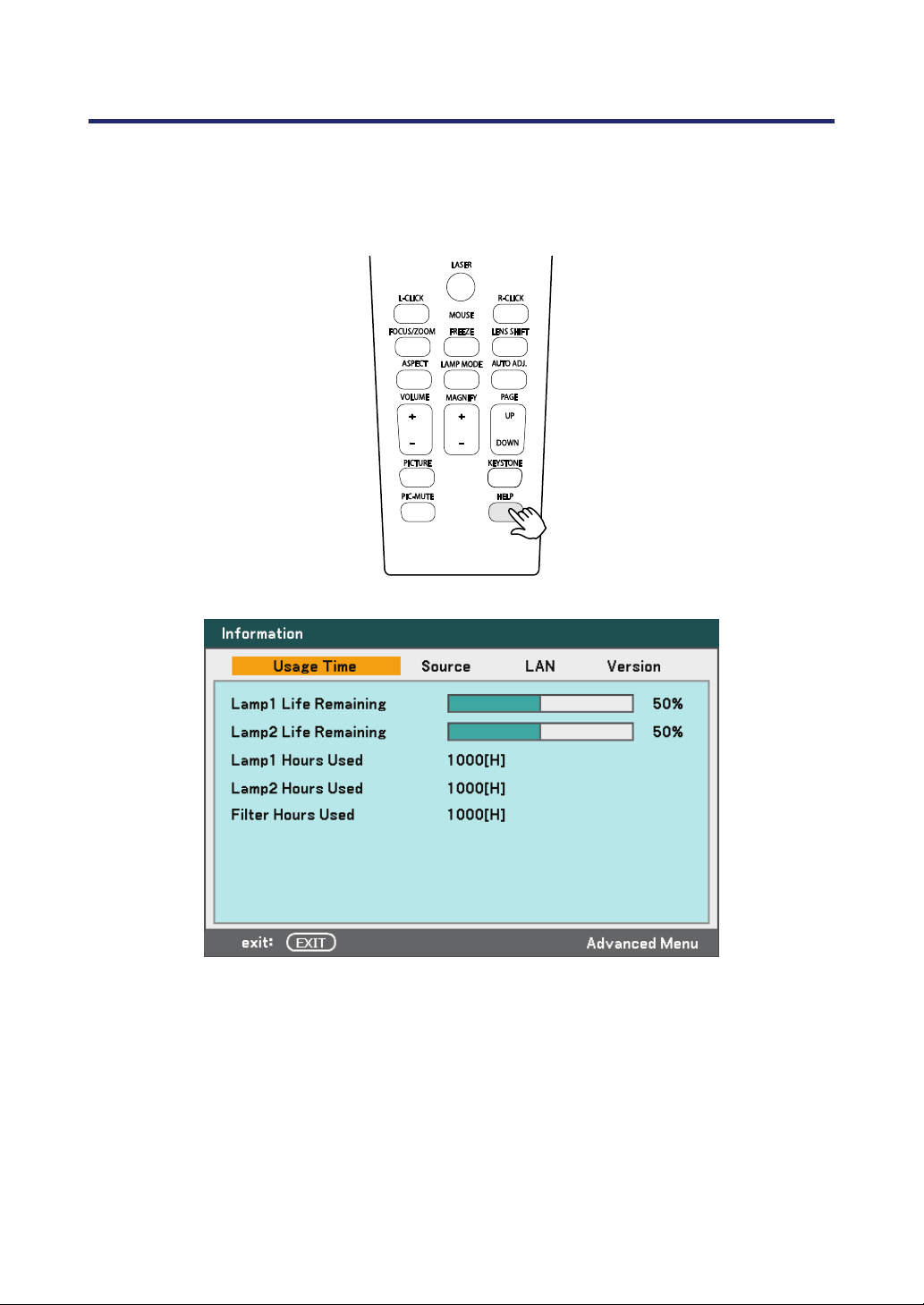
4. Convenient Features
54
Getting Information
Press the HELP button on the remote control to display the "Information" screen. Use ◄ or
► to select a tab.
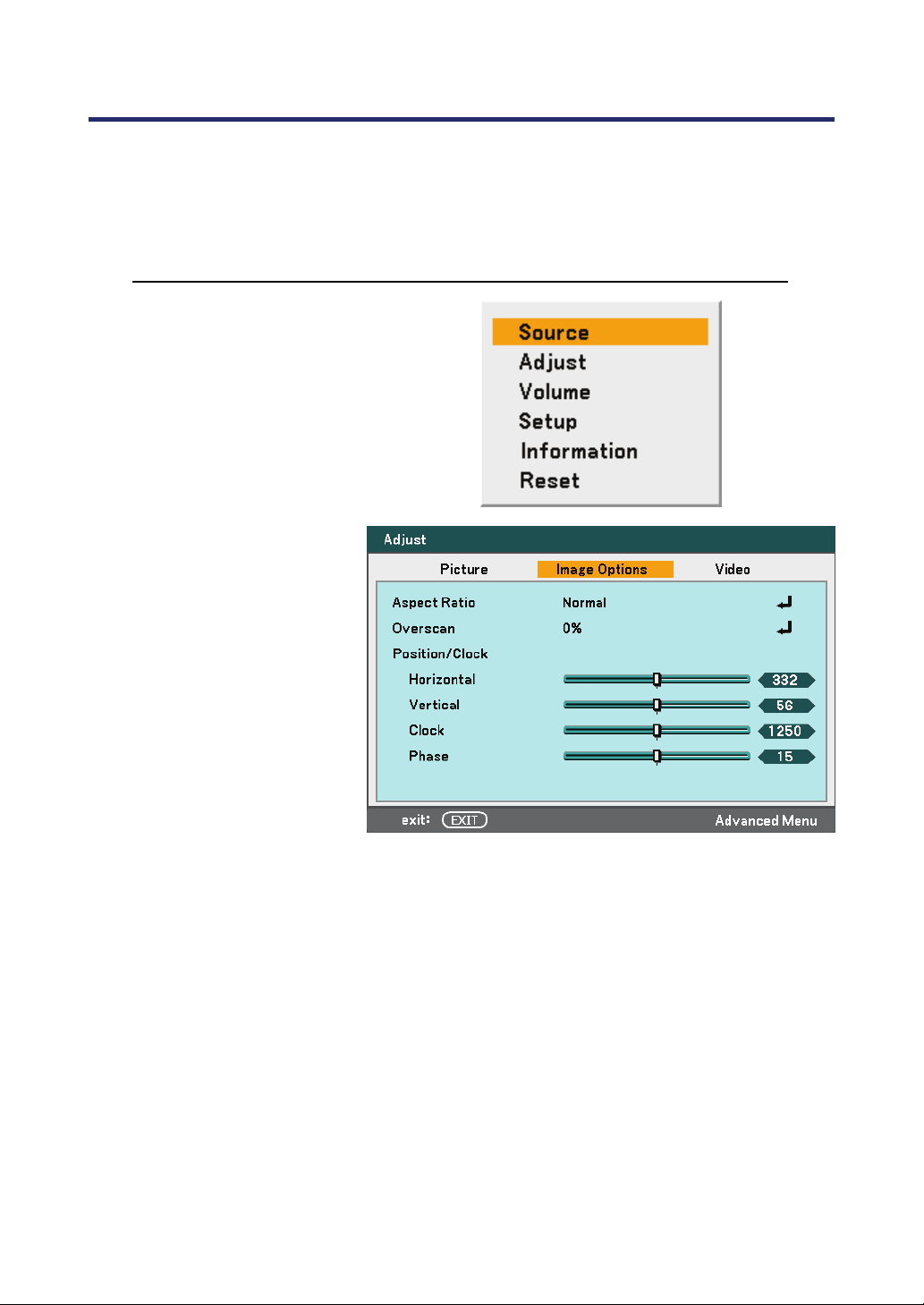
4. Convenient Features
55
Adjusting Position/Clock
The Position/Clock/Phase and Keystone Correction can be adjusted manually from the pro-
jector's control panel or from the remote control unit. Refer to the following guides to adjust
the Keystone Distortion manually.
Adjusting Position/Clock/Phase by Using the OSD Control Panel
1.
Press the Menu button to
display the Main menu.
Select the Adjust menu
using ▲or▼ and press
Enter to display the
Adjust menu.
2.
From the Adjust menu,
press ◄or► to select Im-
age Options and scroll
using ▲or▼ to
Horizontal, Vertical,
Clock, or Phase.
3.
Adjust the Horizontal,
Vertical, Clock, or Phase
sliding bars using the se-
lect ▲▼◄► buttons.
4.
Press Exit to return to the
projected image.
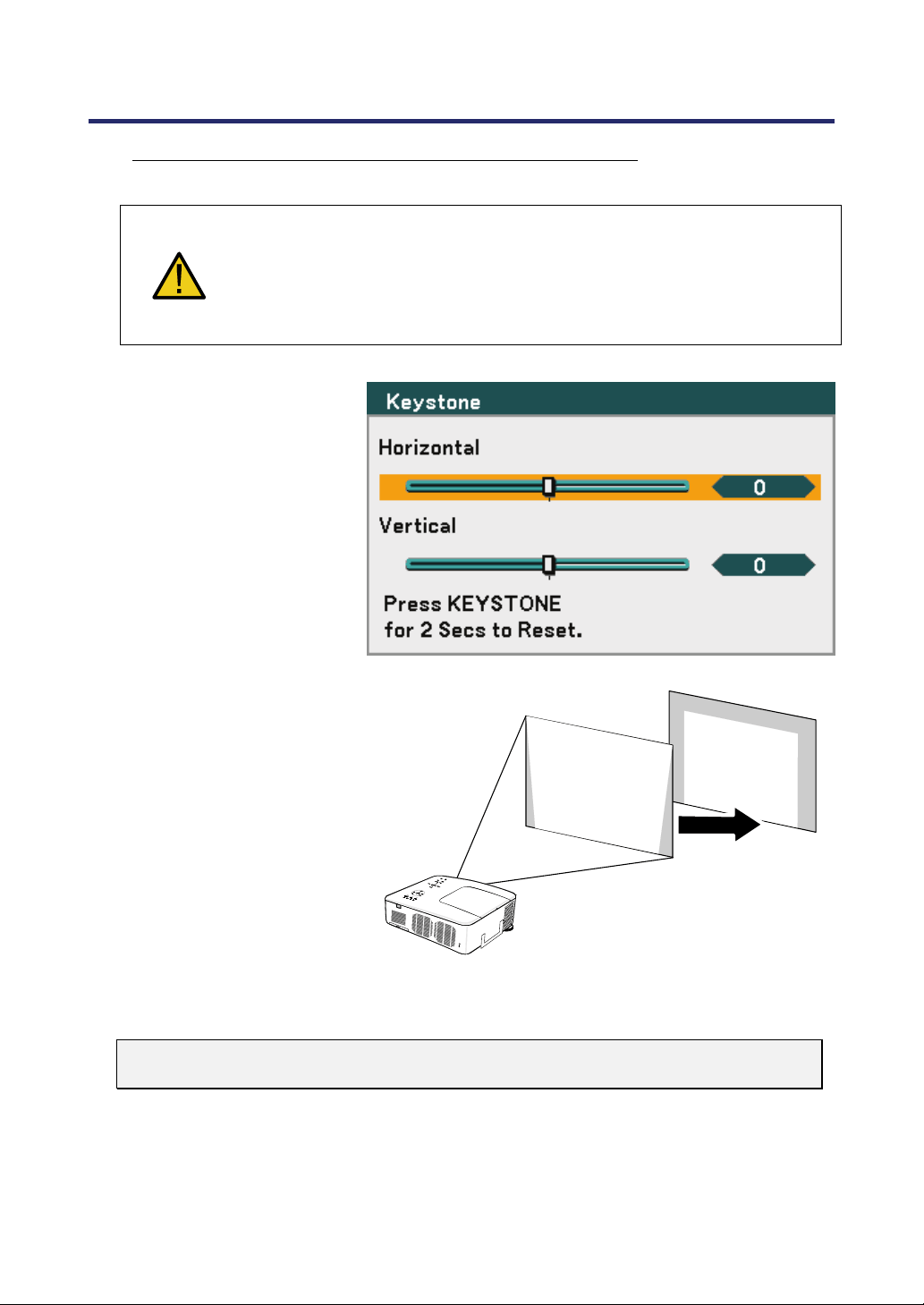
4. Convenient Features
56
Correcting Keystone by Using the Remote Control
IMPORTANT:
When adjusting the keystone, set the lens shift position to the following.
• Horizontal: the lens center
• Vertical: the bottom of the projected image is aligned with the lens
center line in height.
1.
Press the Keystone button
to display the Keystone
window.
2.
Adjust the Horizontal and
Vertical sliding bars us-
ing the select ▲▼◄►
buttons.
3.
Adjust the slide bars until
the screen trapezoid is a
regular shape (see
diagram).
4.
Press Exit to return to the
projected image.
Note:
Holding down the Keystone button 2 seconds resets the default keystone values.
4. Convenient Features
57
ADJUSTMENT HORIZONTAL VERTICAL
Keystone Max. +/– 35° approx. Max. +/– 40° approx.
The following are conditions under which the maximum angle is achieved:
When the NP08ZL lens is used
When the lens shift position is set to the following.
Horizontal: the lens center
Vertical: the bottom of the projected image is aligned with the lens center line in
height.
If you adjust the lens shift:
Image is projected in Wide mode
Resolution is XGA (NP4100) / WXGA (NP4100W)
Note:
Higher resolution than XGA (NP4100) / WXGA (NP4100W) narrows the ad-
justable range.
Aspect Ratio ........... 4:3 (NP4100) / 16:10 (NP4100W)
Horizontal and Vertical are adjusted separately.
A combination of both adjustments narrows the adjustable range.
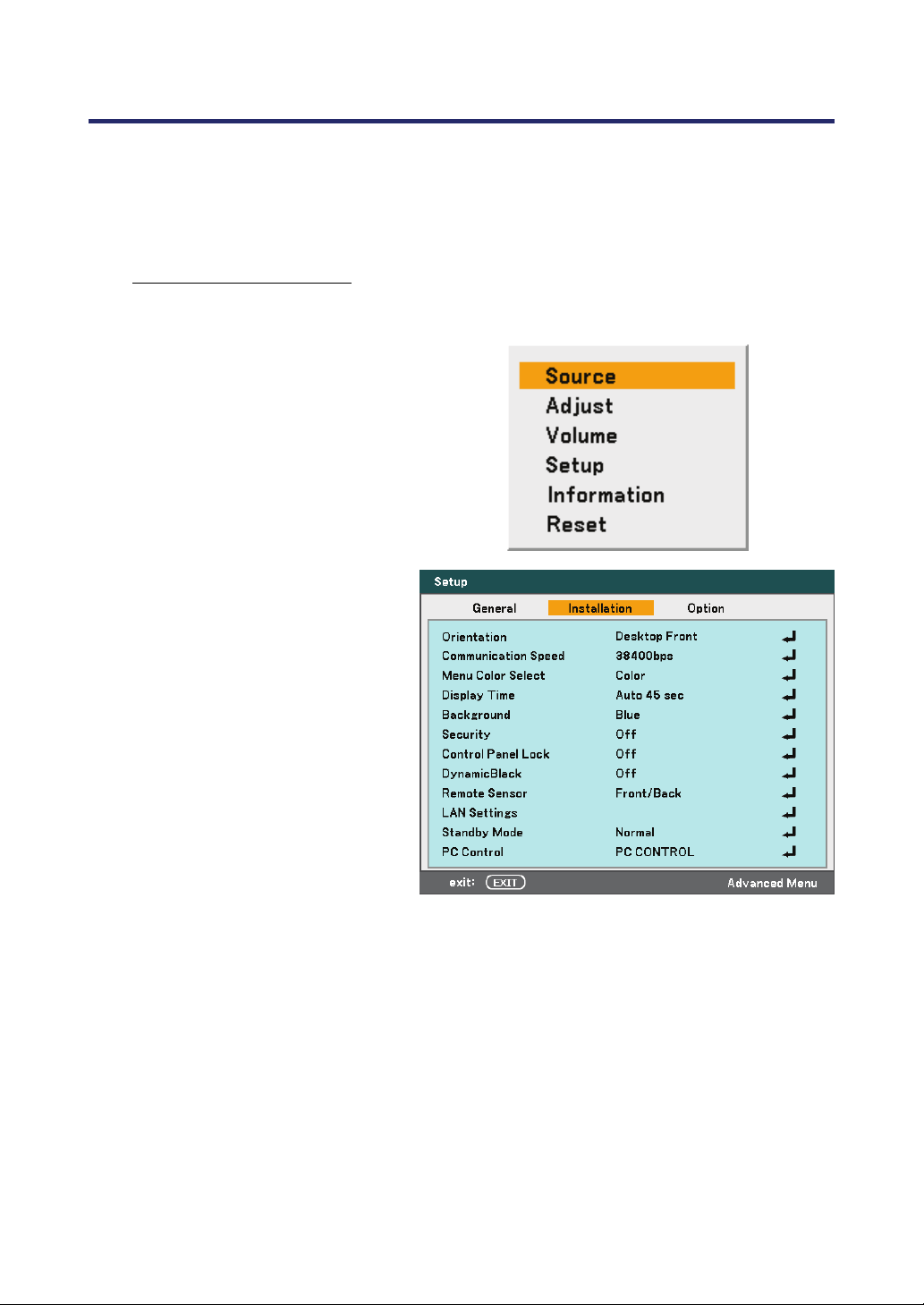
4. Convenient Features
58
Preventing the Unauthorized Use of the Projector
The projector has an inbuilt security feature to lock the OSD control panels and deny remote
control operation. The security feature has no default keyword; in the first instance of ena-
bling the security feature, the user must define a keyword.
Locking the Projector
To setup the security keyword, refer to the following guide.
1.
Press Menu on the OSD control
panel on the projector or remote
control to display the Main
Menu. Scroll to the Setup menu
using ▲or▼ and press Enter.
2.
The Setup menu is displayed.
Select the Installation tab using
◄or► and select Security using
▲or▼. Press Enter.
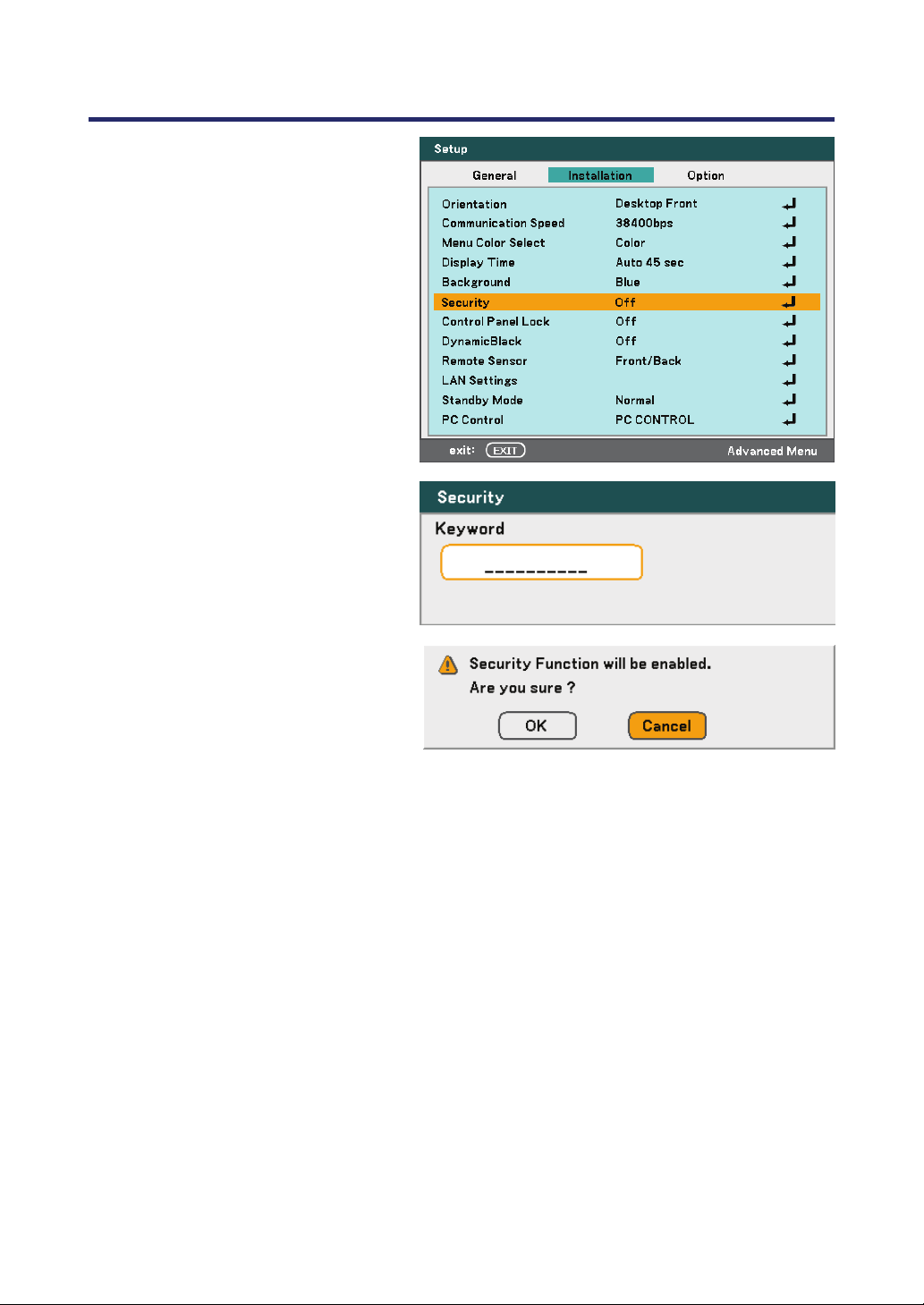
4. Convenient Features
59
3.
You are prompted to enable the
Security Function. Select OK
and press Enter.
Select On using the ▼ button.
4.
The keyword window is dis-
played. Enter a keyword between
4 and 10 characters using
▲▼◄►. Press Enter.
5.
Once a successful keyword is
entered, a confirmation screen is
displayed. Enter the same
password as the previous step
and write it down for later
reference. Press Enter. A
security activation message is
displayed. Select Cancel to re-
turn to the Setup menu or select
OK to enable security.
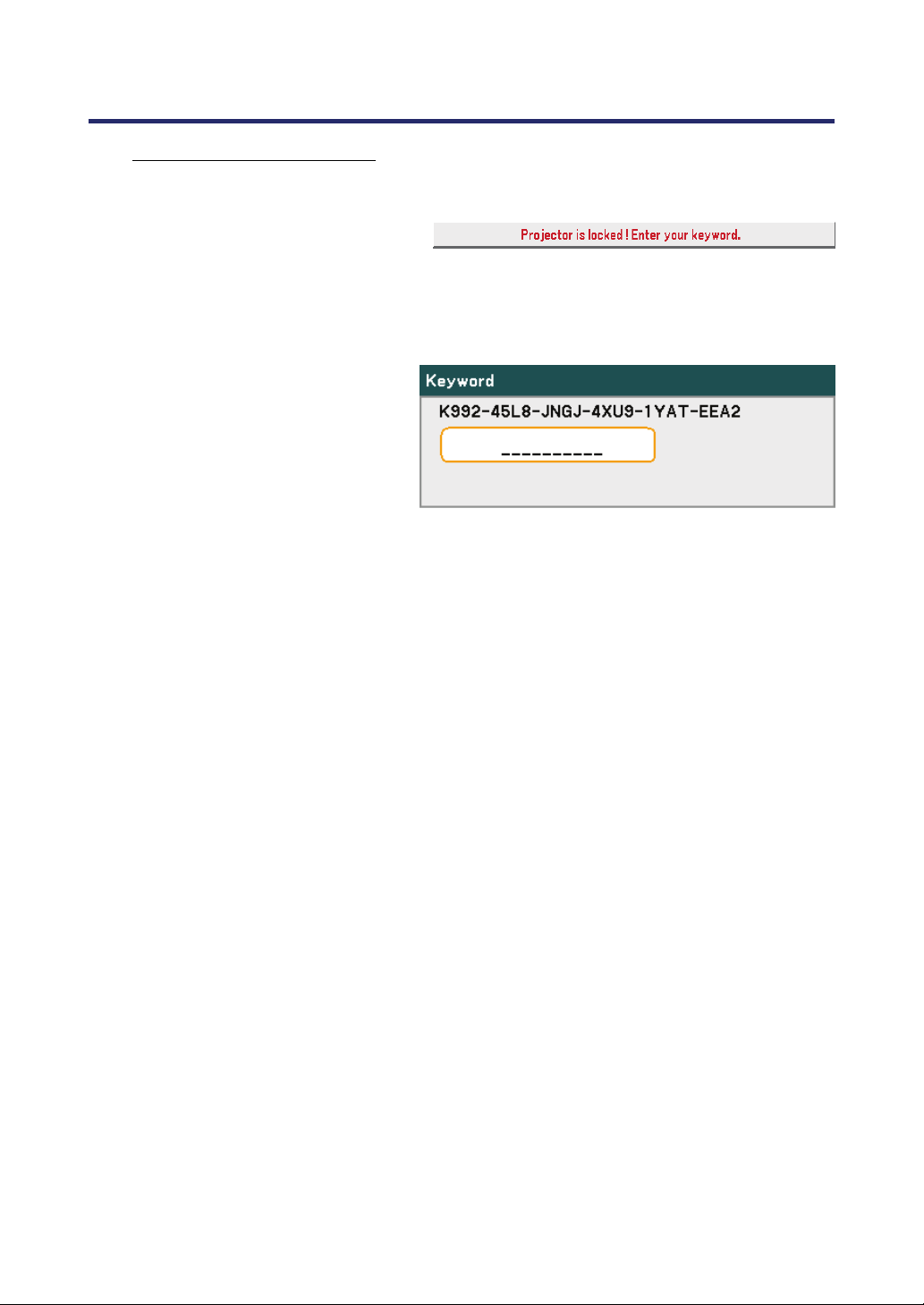
4. Convenient Features
60
Unlocking the Projector
To unlock the projector, refer to the following guide.
1.
When the projector is locked,
either by request during opera-
tion or at start up, the locked
message is displayed.
2.
To unlock the projector, press
Menu on the control panel or
remote control. The keyword
window is displayed. Enter the
previously defined keyword to
activate the projector.
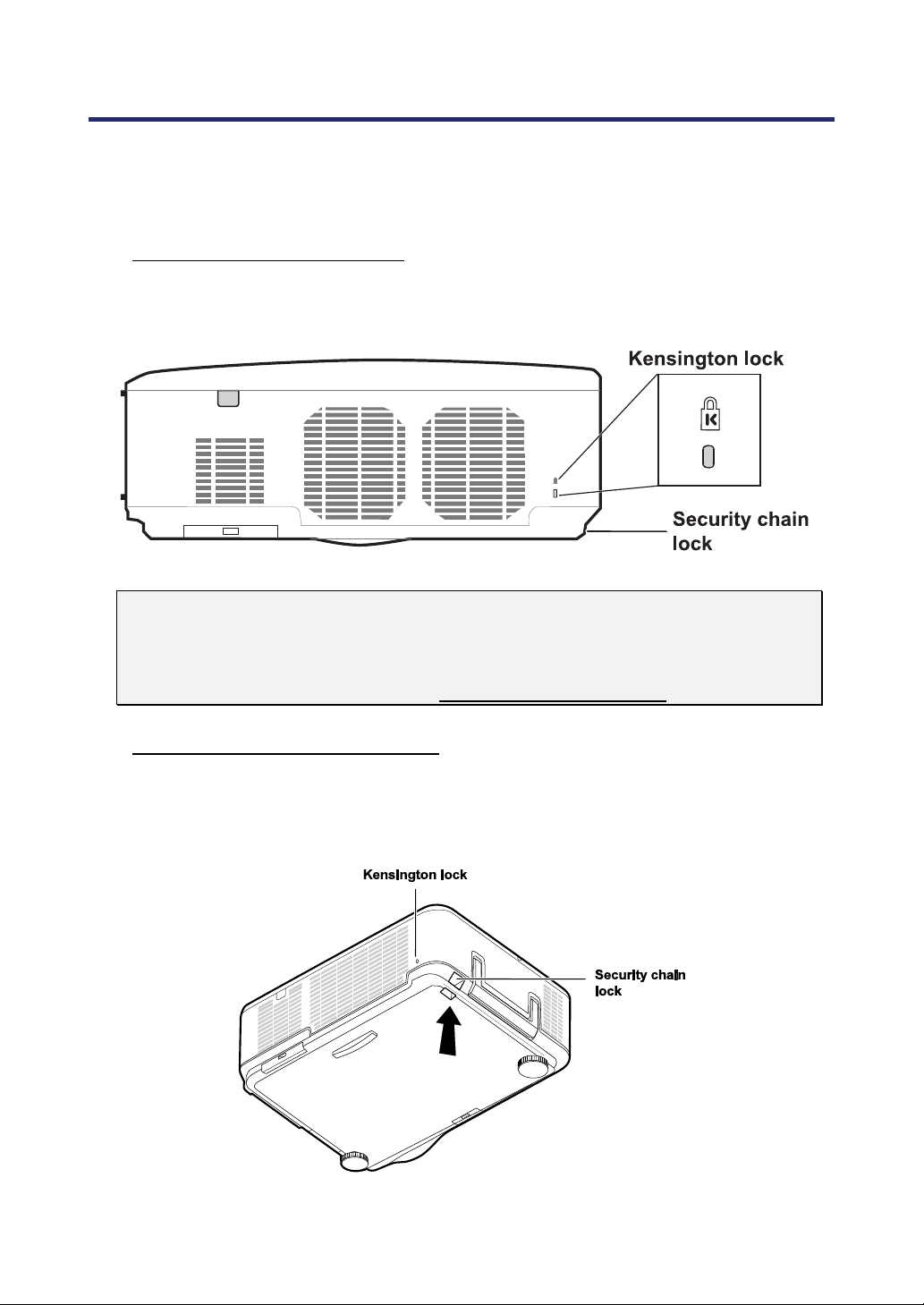
4. Convenient Features
61
Using the Physical Lock
For security and authorized usage, the projector comes with two types of security features,
the Kensington Lock and the Security Chain Lock.
Using the Kensington Lock
If you are concerned about security, attach the projector to a permanent object with the
Kensington slot and a security cable.
Note:
Contact your vendor for details on purchasing a suitable Kensington security ca-
ble. The security lock corresponds to Kensington’s MicroSaver Security System. If
you have any comment, contact: Kensington, 2853 Campus Drive, San Mateo,
CA94403, U.S.A. Tel: 800-535-4242, http://www.Kensington.com.
Using the Security Chain Lock
In addition to the password protection function and the Kensington lock, the Security
Chain Opening helps protect the NP4100/NP4100W from unauthorized use.
See the following picture.
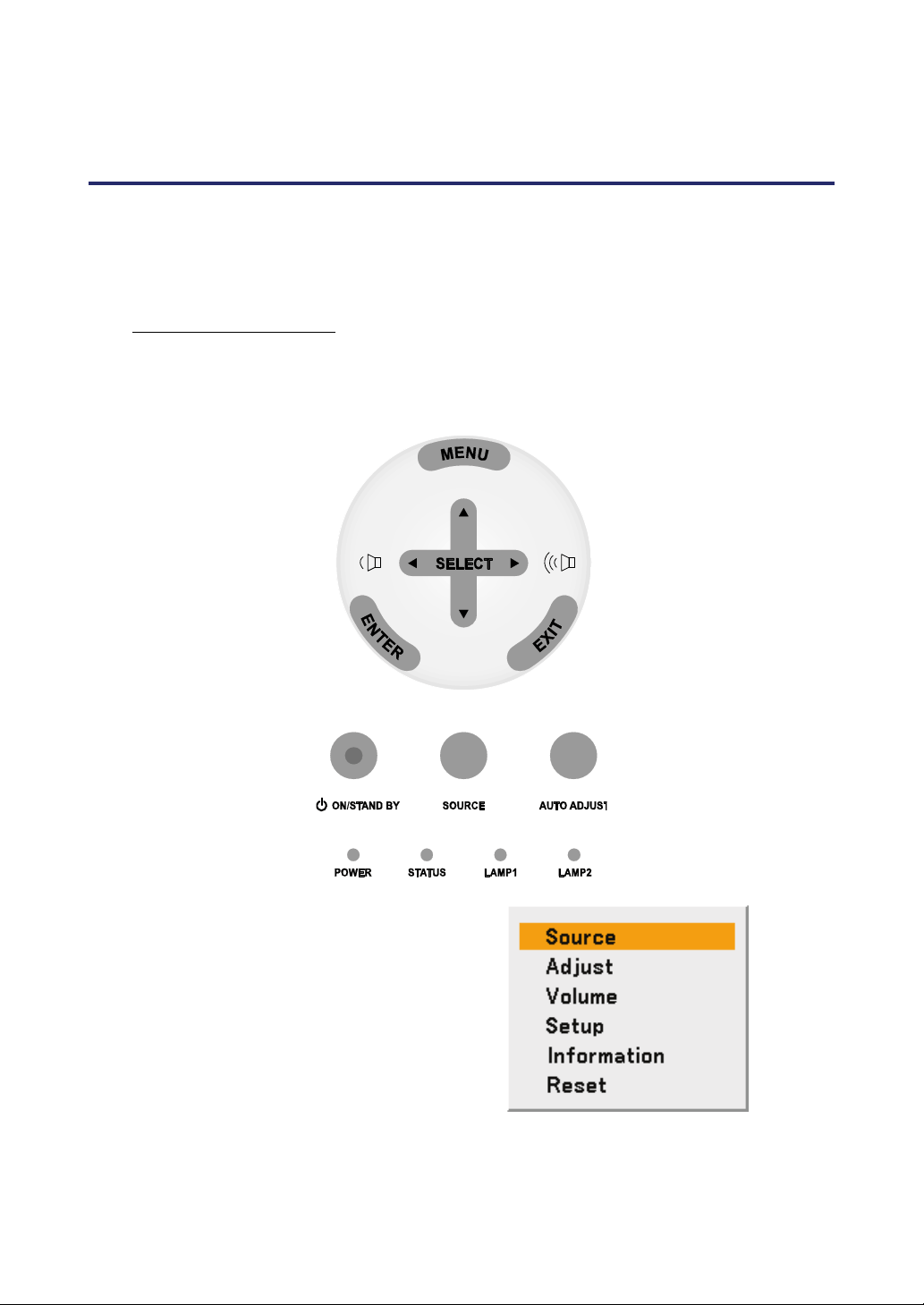
62
5. Using On-Screen Display
Using the Menus
The projector has an On-Screen Display (OSD) that lets you make image adjustments and
change various settings.
Navigating the OSD
You can use the remote control or the buttons on the top of the projector to navigate and
make changes to the OSD. The following illustration shows the corresponding buttons
on the remote control and on the projector.
1.
To open the OSD, press the
Menu button on the OSD control
panel or remote unit. There are
six initial menus. Press the cur-
sor ▲or▼ buttons to move
through the initial menus and
Enter to select the desired menu.
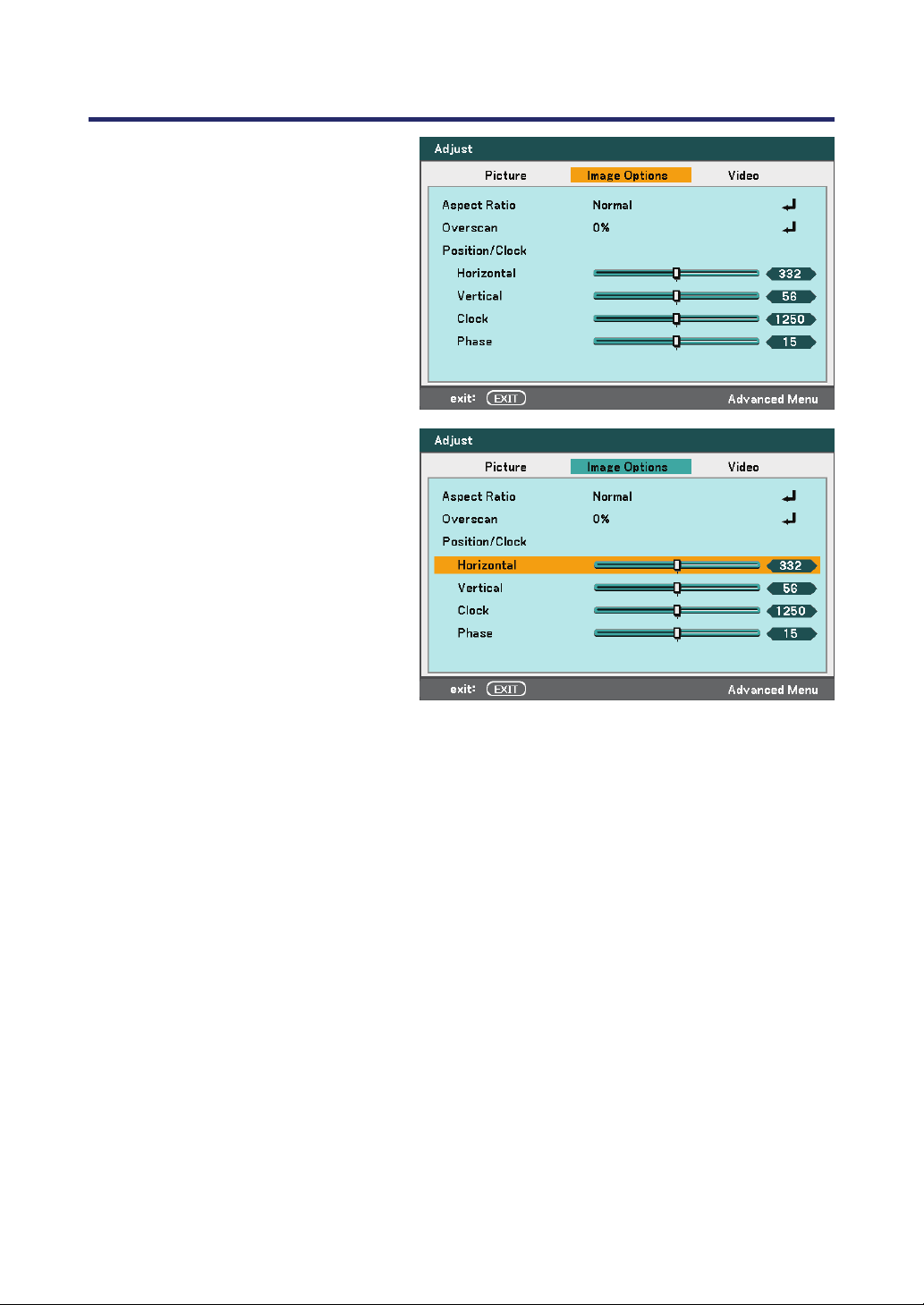
5. Using On-Screen Display
63
2.
Press the cursor ◄ or ► button
to move through secondary
menus.
3.
Press ▲or▼ to select menu
items and ◄or► to change val-
ues for settings. Press Enter to
confirm the new setting.
4.
Press Exit to close the OSD or
leave a submenu.

5. Using On-Screen Display
64
Menu Tree
The gray shaded area indicates factory default settings.
MENU
ITEM
Source Computer 1, Computer 2, Computer 3, Component, Video, S-Video
Adjust Picture Preset High-Bright/Presentation/Video/Movie/Graphic/sRGB
Detail Settings General Reference
High-Bright/Presentation/
Video/Movie/Graphic/sRGB
Gamma
Correction
Dynamic/Natural/Black Detail
Color
Temperature
5000K/6500K/7800K/
8500K/9300K/10500K
BrilliantColor
White
Balance
Brightness R
Brightness G
Brightness B
Contrast R
Contrast G
Contrast B
Color
Correction
Red, Green, Blue, Yellow,
Magenta, Cyan
Contrast
Brightness
Sharpness
Color
Hue
Reset
Image
Options
Aspect Ratio
NP4100: Auto/4:3/16:9/15:9/16:10/Wide Zoom/Native
NP4100W: Auto/4:3/16:9/15:9/16:10/Letterbox/Native
Overscan 0%/5%/10%/15%
Position/Clock Horizontal
Vertical
Clock
Phase
Video Noise Reduction Off/Low/Medium/High
3D Y/C
Separation
Off/On
Deinterlace Off/Still/Normal/Movie
Color Matrix Auto/RGB/SDTV/HDTV
Telecine Off/2-2/2-3 Auto/2-2 On/2-3 On
Volume 0~61
Setup General Keystone
Horizontal
Vertical
Lamp Mode Eco/Normal
Lamp Select Dual/Single/Lamp1/Lamp2
Lamp Interval Mode/Switching Time/Current Time
Menu Mode Basic Menu/Advanced Menu
Language
English/Deutsch/Français/Italiano/Español/Svenska/日本語/
Dansk/Português/Čeština/Magyar/Polski/Nederlands/Suomi/
Norsk/Türkçe/Русский/ﻲﺑﺮﻋ/Ελληνι κά/中文/한국어
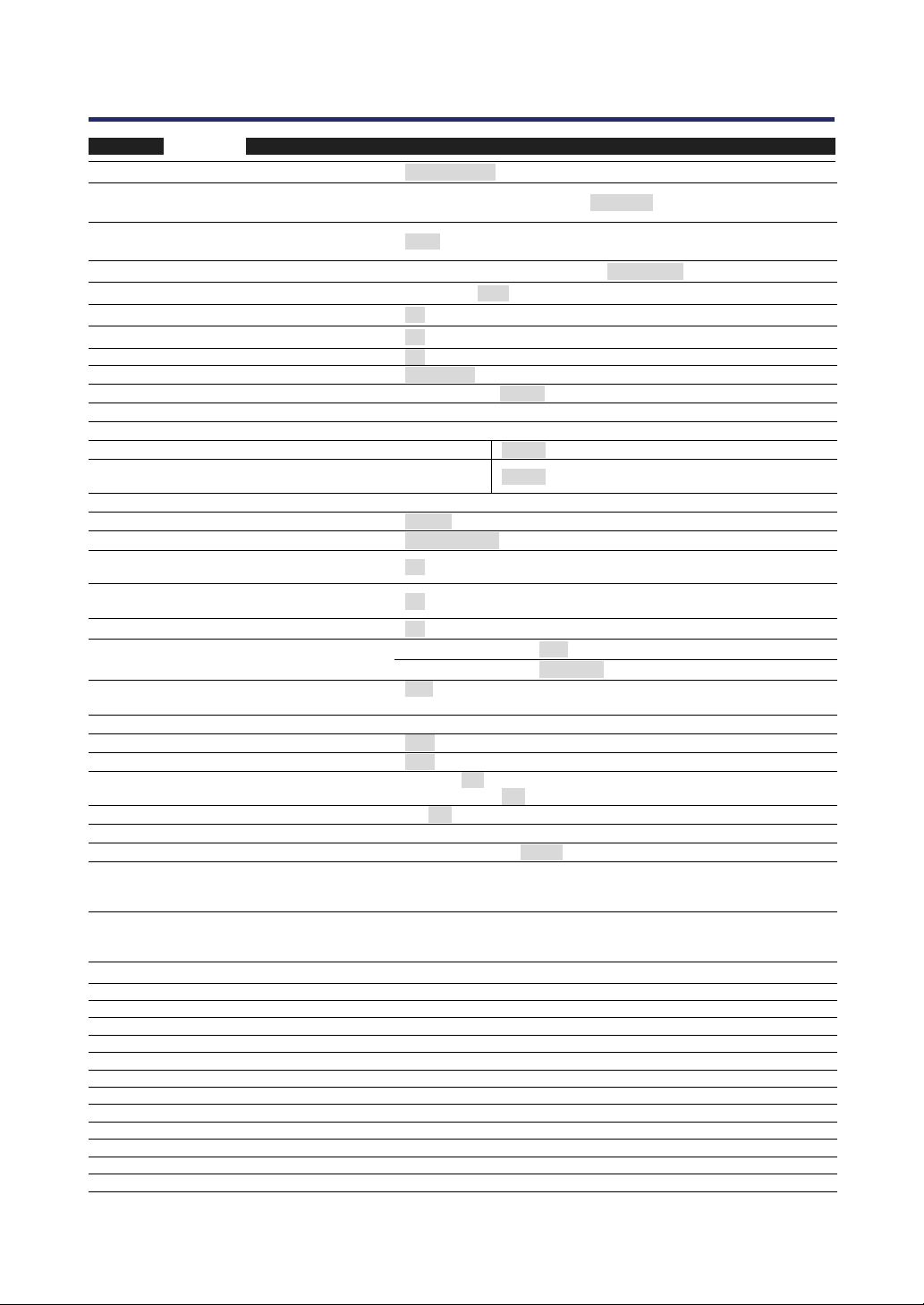
5. Using On-Screen Display
65
MENU
ITEM
Installation
Orientation Desktop Front/Ceiling Rear/Desktop Rear/Ceiling Front
Communication
Speed
4800bps/9600bps/19200bps/38400bps
Menu Color
Select
Color/Monochrome
Display Time Manual/Auto 5 sec/Auto 15 sec/Auto 45 sec
Background Blue/Black/Logo
Security Off/On
Control Panel Lock Off/On
DynamicBlack Off/On
Remote Sensor Front/Back, Front, Back
Network Settings DHCP Enable/Disable
IP Address
Subnet Mask
Gateway Enable/Disable
DNS
Server
Enable/Disable
Apply Settings
Standby Mode Normal/Power-saving
PC Control PC CONTROL/LAN
Options
Auto Power On
(AC)
Off/On
Auto Power Off Off/0:05/0:10/0:20/0:30
Screen Trigger Off/On
Mode Auto/High Attitude
Fan Mode
Orientation
Horizontal/Vertical
Default Source
Select
Last/Auto/Computer1/Computer2/Computer3/
Component/Video/S-Video
Color System
Video Auto/NTSC3.58/NTSC4.43/PAL/PAL-M/PAL-N/PAL60/SECAM
S-Video Auto/NTSC3.58/NTSC4.43/PAL/PAL-M/PAL-N/PAL60/SECAM
WXGA Mode
NP4100: Off/On
NP4100W: Off/ On
Source Display Off/ On
Control ID 1-254
Filter Message Off/100[H]/200[H]/500[H]/1000[H]
Infor-
mation
Usage
Time
Lamp 1 Life Re-
maining, Lamp 2
Life Remaining
Lamp 1 Hours
Used, Lamp 2
Hours Used
Filter Hours Used
Source Input Terminal
Source Name
Horizontal Frequency
Vertical Frequency
Video Type
Sync Type
Sync Polarity
Scan Type
LAN IP Address, Subnet Mask, Gateway, MAC Address
Version Product, Serial Number, Firmware, Data
Reset Current Signal, All Data, Clear Lamp 1 Hours, Clear Lamp 2 Hours, Clear Filter Hours
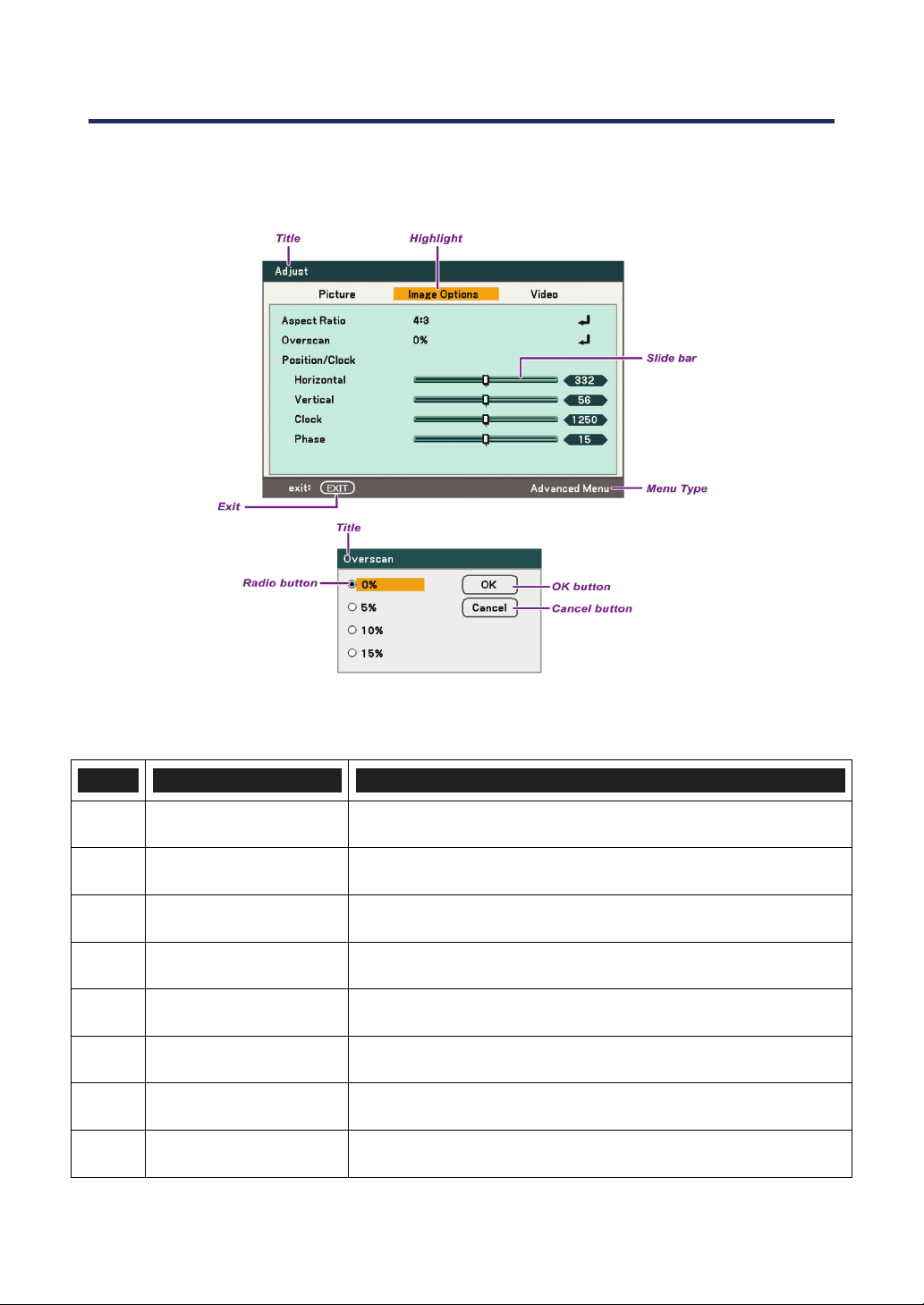
5. Using On-Screen Display
66
Menu Elements
Some menus and windows contain large amounts of information in a small area. Refer to the
following guide to navigate through options more easily.
Menu windows or dialog windows typically contain the following elements:
ITEM LABEL DESCRIPTION
1.
Title Indicates the menu title.
2.
Highlight Indicates the selected menu or item.
3.
Menu type Advanced Menu or Basic Menu.
4.
Radio button Use this round button to select an option in a dialog box.
5.
Slide bar Indicates settings or the direction of adjustment.
6.
Exit Return to the previous menu.
7.
OK Press to accept and save settings.
8.
Cancel Press to reject modified settings.
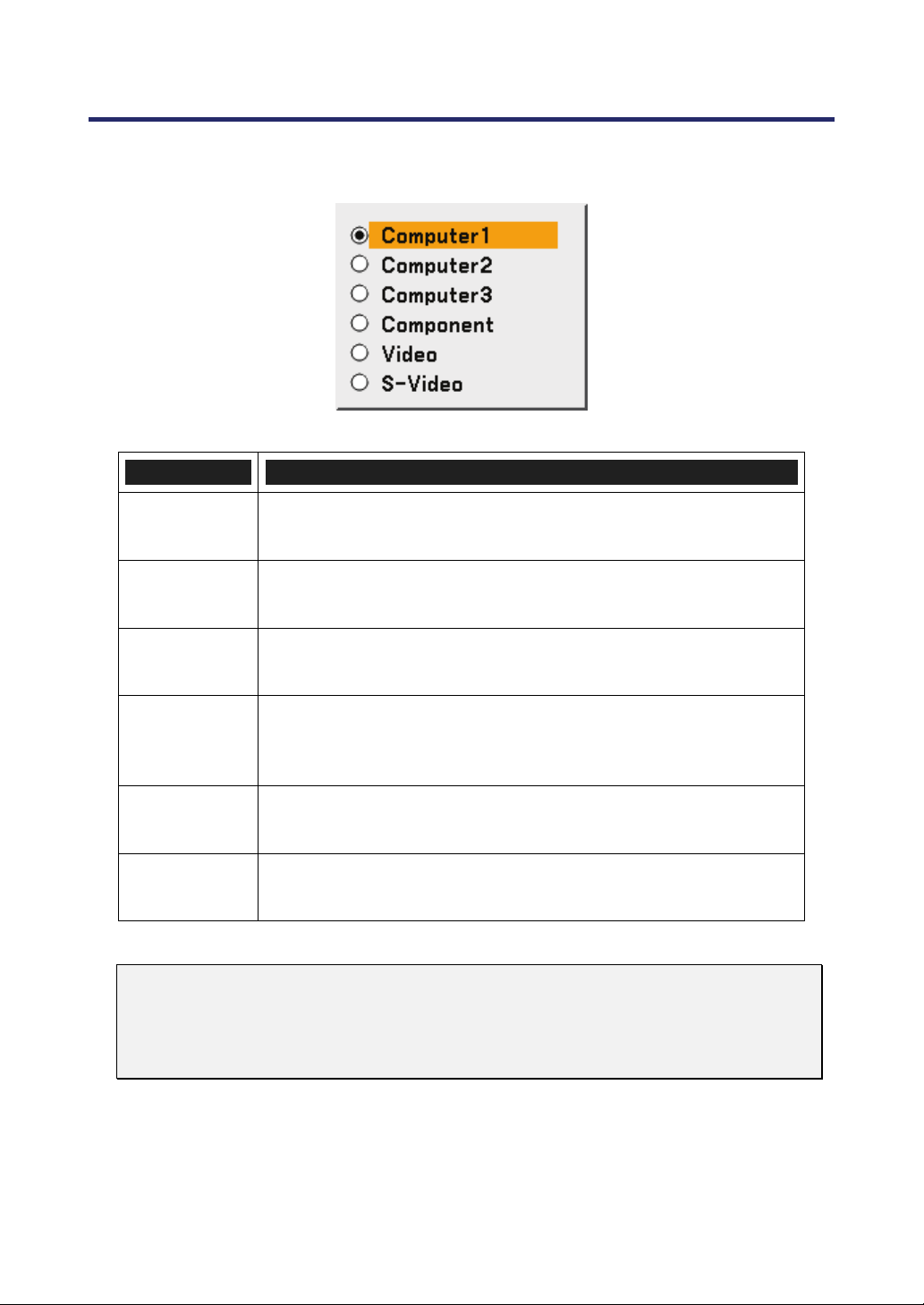
5. Using On-Screen Display
67
Source Menu Descriptions and Functions
The Source menu displays all supported image sources.
Select the required source from the menu using ▲ or ▼ and press Enter to confirm.
ITEM DESCRIPTION
Computer 1
Select the source connected to the Computer 1 input
(see Connecting Your PC or Macintosh Computer on page 31).
Computer 2
Select the source connected to the Computer 2 input
(see Connecting Your PC or Macintosh Computer on page 31).
Computer 3
Select the source connected to the Computer 3 input
(see Connecting Your PC or Macintosh Computer on page 31).
Component
Select the source connected to the Component input
(see Connecting Your DVD Player with Component Output on
page 34).
Video
Select the source connected to the Video input
(see Connecting Your VCR on page 35).
S-Video
Select the source connected to the S-Video input
(see Connecting Your VCR on page 35).
Note:
If an XGA signal is not correctly recognized on NP4100W, set "WXGA Mode" to
Off (see page 99).
To check if the signal is recognized, go to "Source" under "Information" menu (see
page 102).
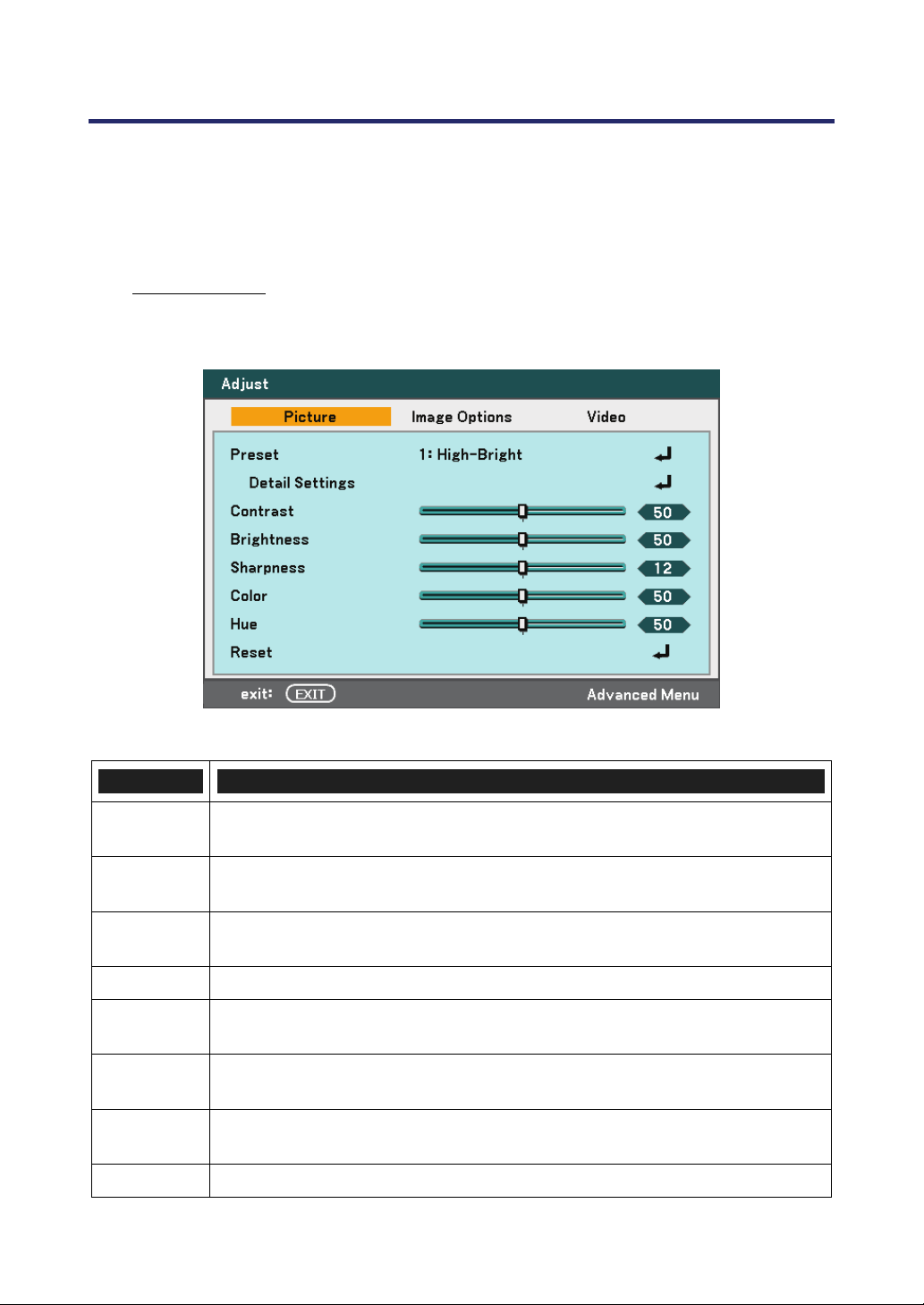
5. Using On-Screen Display
68
Adjust Menu Descriptions and Functions
The Adjust menu contains overall projector settings for image output such as sharpness,
overscan and color matrix.
Three tabs are accessible through the Adjust menu, Picture, Image Options and Video.
Picture menu
The picture menu is used to alter picture settings and can be accessed from the Adjust
menu.
The following table lists all functions with a description and the default setting.
ITEM DESCRIPTION
Preset
Select a set of preset values using ◄or► from the list. Notice that the be-
low values will change depending on the preset selected.
Detail
Setting
See Detail Settings Menu Descriptions and Functions on page 76.
Contrast
Adjust the Contrast value using ◄or► to highlight the differences between
light and dark areas of the picture.
Brightness Adjust the Brightness value using ◄or► to lighten or darken the picture.
Sharpness
Adjust the Sharpness value using ◄or► to sharpen or blur the borders be-
tween colors and objects.
Color
Adjust the Color value using ◄or► to increase or decrease color input to
the picture.
Hue
Adjust the Hue value using ◄or► to increase or decrease the color Hue of
the picture.
Reset The settings and adjustments for Picture will be returned to factory settings.
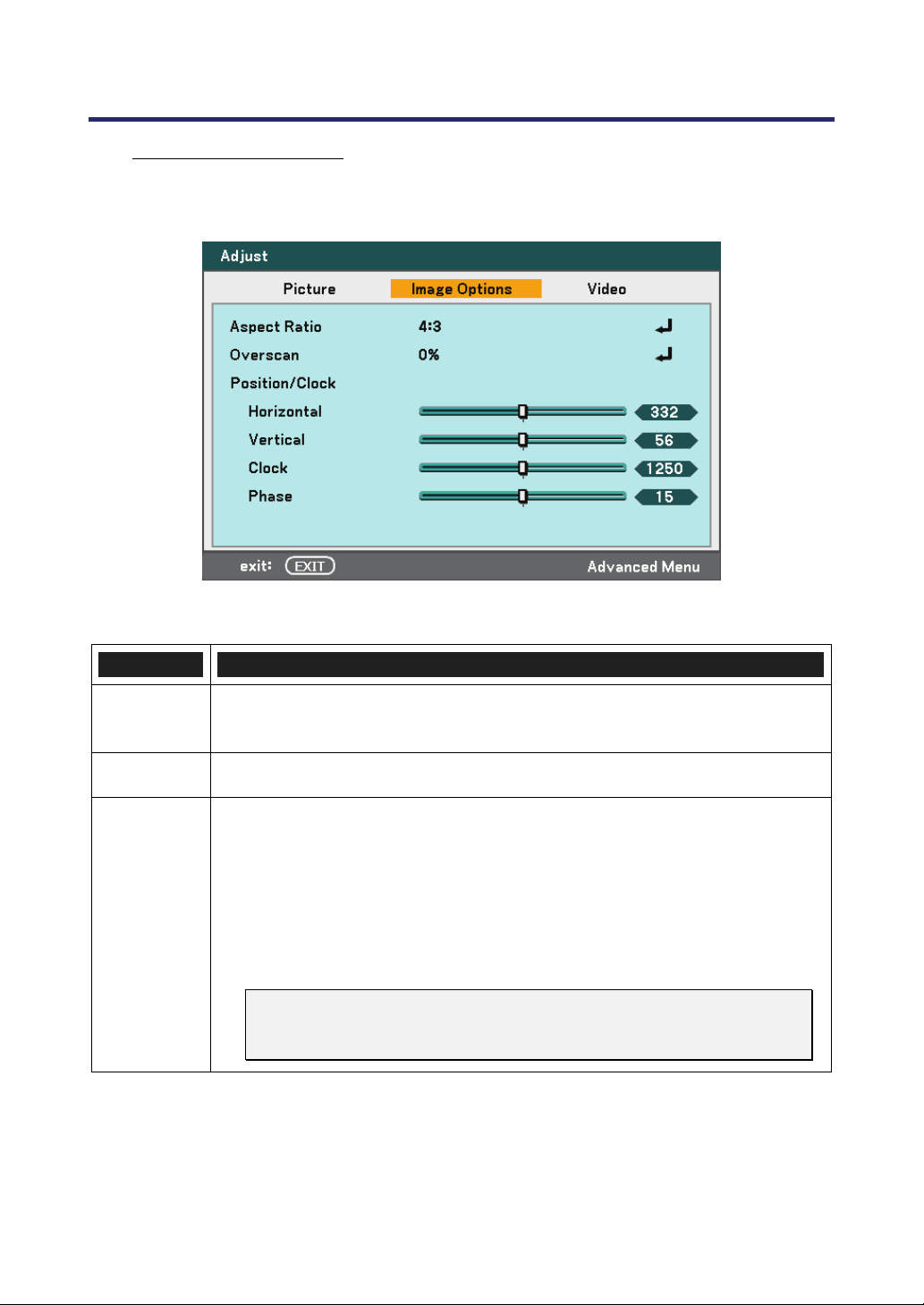
5. Using On-Screen Display
69
Image Options Menu
The Image Options menu is used to configure image options such as screen positioning
and aspect ratio. Access the image options menu in the Adjust menu.
The following table lists all functions with a description and the default setting.
ITEM DESCRIPTION
Aspect
Ratio
Select Aspect Ratio using ◄or► from the list (see page 70).
Overscan Set the Overscan value using ◄or► (see page 72).
Position/
Clock
Adjust the Position/Clock values using the slides.
Horizontal: Adjusts the image location horizontally using ◄or►.
Vertical: Adjusts the image location vertically using ◄or►.
Clock: Fine tune a computer image or remove any vertical banding
that might appear.
Phase: Adjust the clock phase or reduce video noise, dot interference
or cross talk.
Note:
Only use the Phase settings after the clock settings have been
modified.
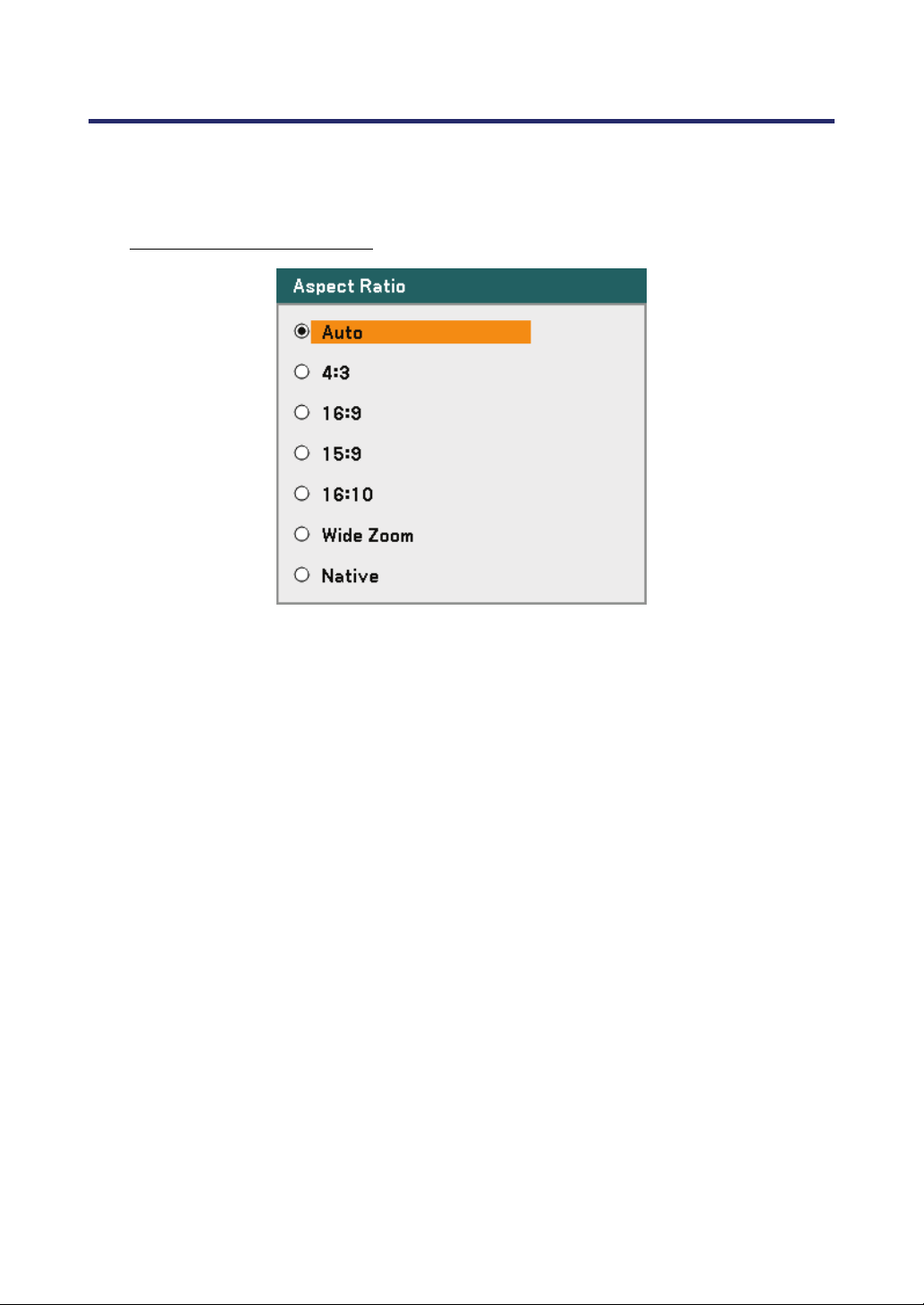
5. Using On-Screen Display
70
Aspect Ratio
Aspect Ratio alters the appearance or Ratio of the projected image. The NP4100 and
NP4100W support different Aspect Ratio options as shown.
NP4100 Aspect Ratio Options:
Auto – Displays the current image in its aspect ratio.
4:3 – Standard TV screen (4:3), proportionally four units wide for every three units high,
no matter the size of the screen.
16:9 – A wide-screen aspect ratio for video.
15:9 – For a video signal with an aspect ratio of 15:9
16:10 – For a video signal with an aspect ratio of 16:10
Wide Zoom – Crop the image.
Native – Displays the current image in its true resolution.
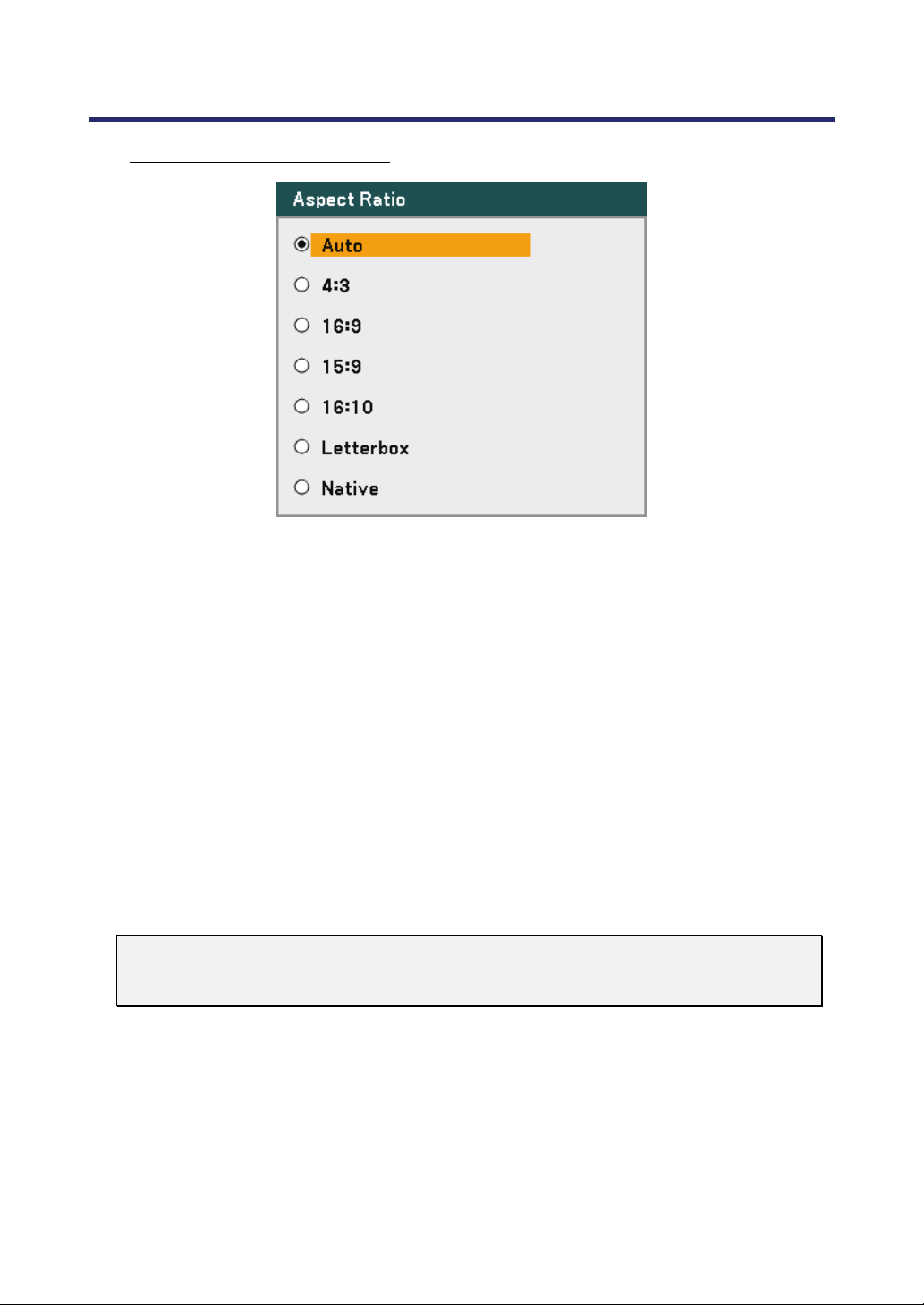
5. Using On-Screen Display
71
NP4100W Aspect Ratio Options:
Auto – Displays the current image in its aspect ratio.
4:3 – Standard TV screen (4:3), proportionally four units wide for every three units high,
no matter the size of the screen.
16:9 – A wide-screen aspect ratio for video.
15:9 – For a video signal with an aspect ratio of 15:9
16:10 – For a video signal with an aspect ratio of 16:10
Letterbox – Reduced image to display the true aspect with black borders on top and bot-
tom.
Native – Displays the current image in its true resolution.
Note:
To display an XGA (1024 x 768) signal in its original resolution, select "Off" for
"WXGA Mode" (see page 99) and select "Native" for "Aspect Ratio".
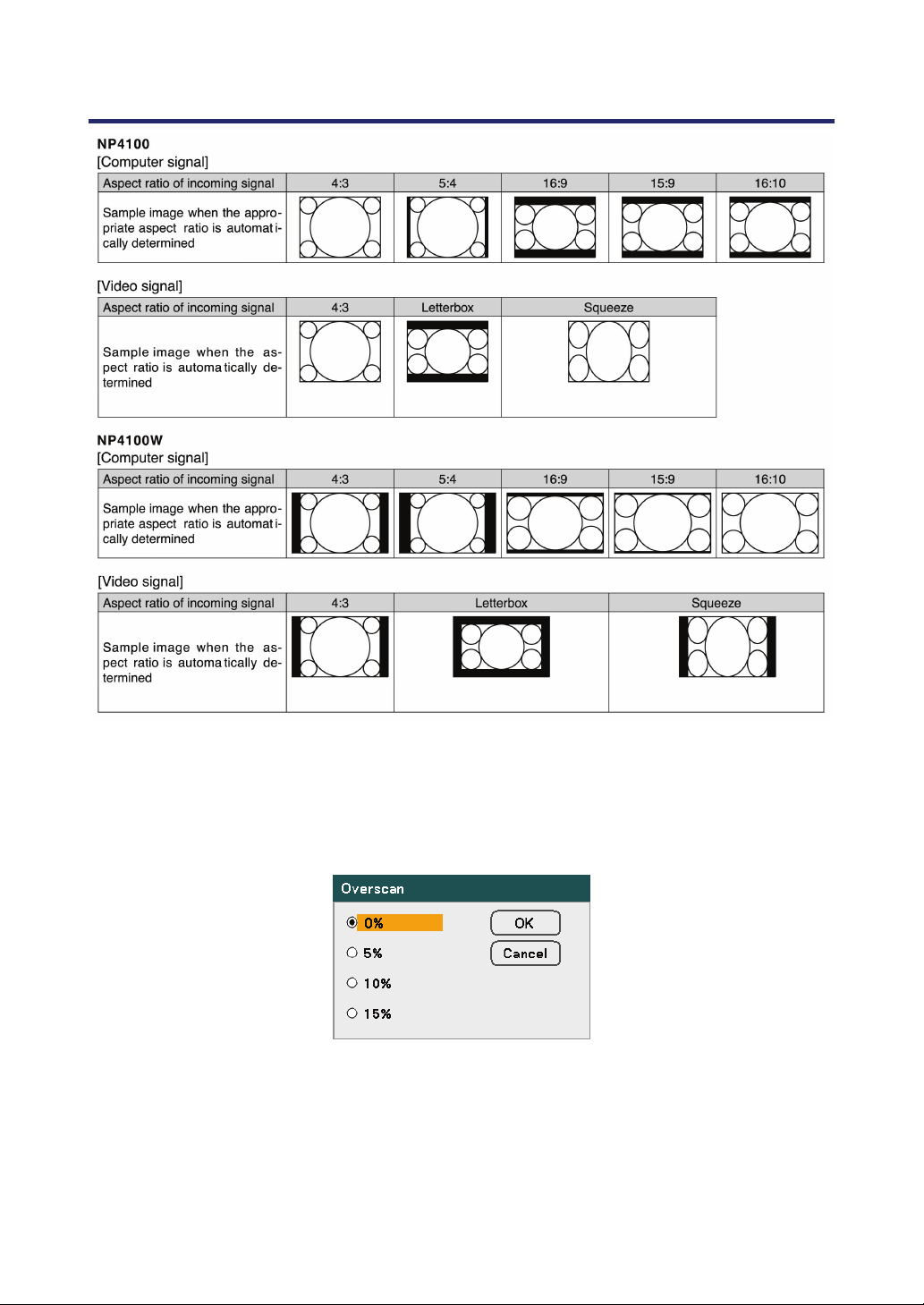
5. Using On-Screen Display
72
Overscan
Video images normally exceed the size of the display screen. The edge of the picture
may or may not de displayed correctly. The border area that is cropped can be adjusted
by using the Overscan menu.
Set the overscan percentage between 0 – 15% to compensate for different screen sizes.
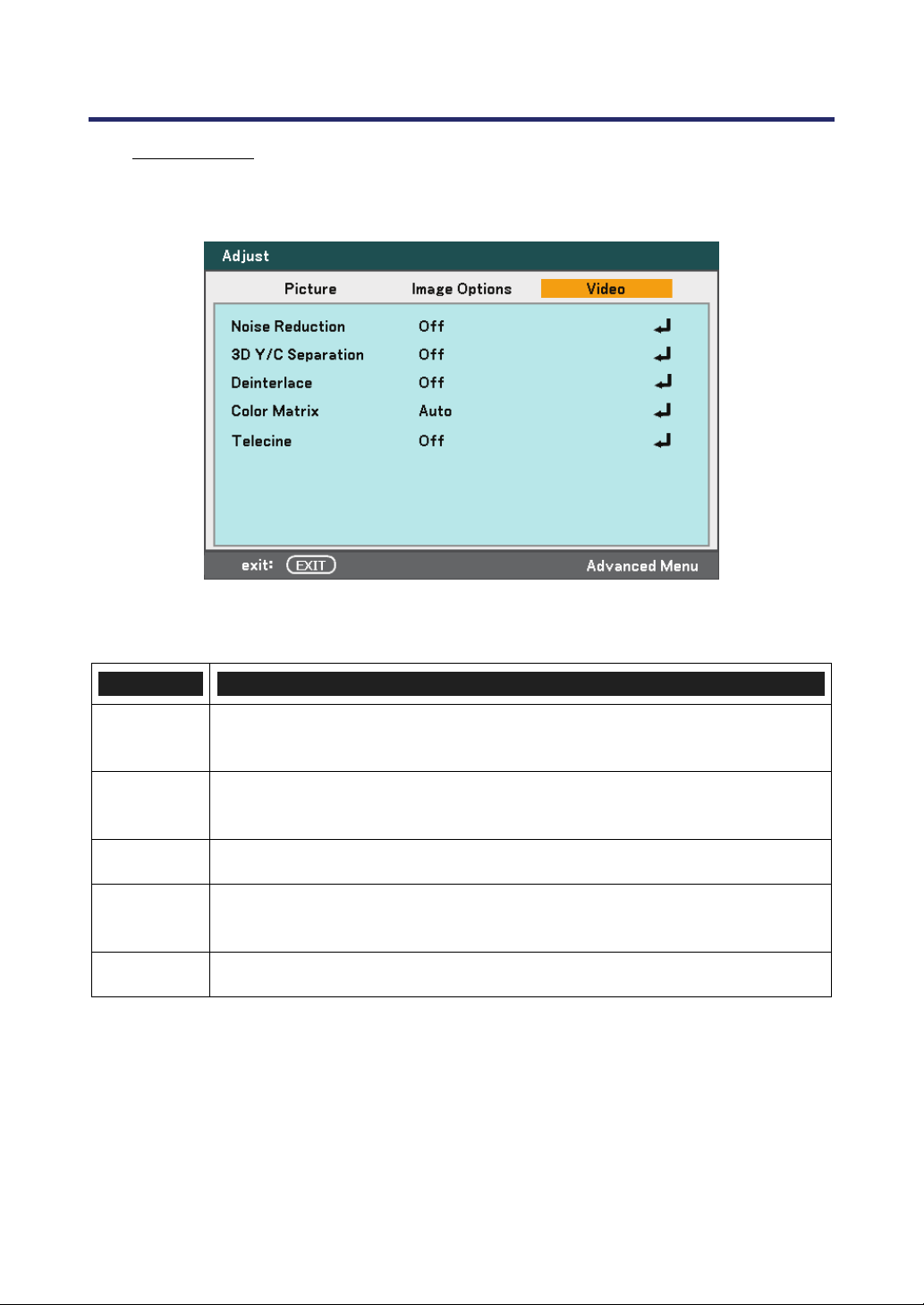
5. Using On-Screen Display
73
Video Menu
The Video menu is used to configure image options such as deinterlace and telecine.
Access the Video menu in the Adjust menu.
The following table lists all functions with a description and the default setting. A detailed
description follows the table.
ITEM DESCRIPTION
Noise
Reduction
Select Noise Reduction mode (see page 74).
3D Y/C
Separation
Select 3D Y/C Separation mode (see page 74).
Deinterlace
Select Deinterlace mode (see page 74).
Color
Matrix
Select Color Matrix mode (see page 75).
Telecine Select Telecine mode (see 4Telecine on page 75).
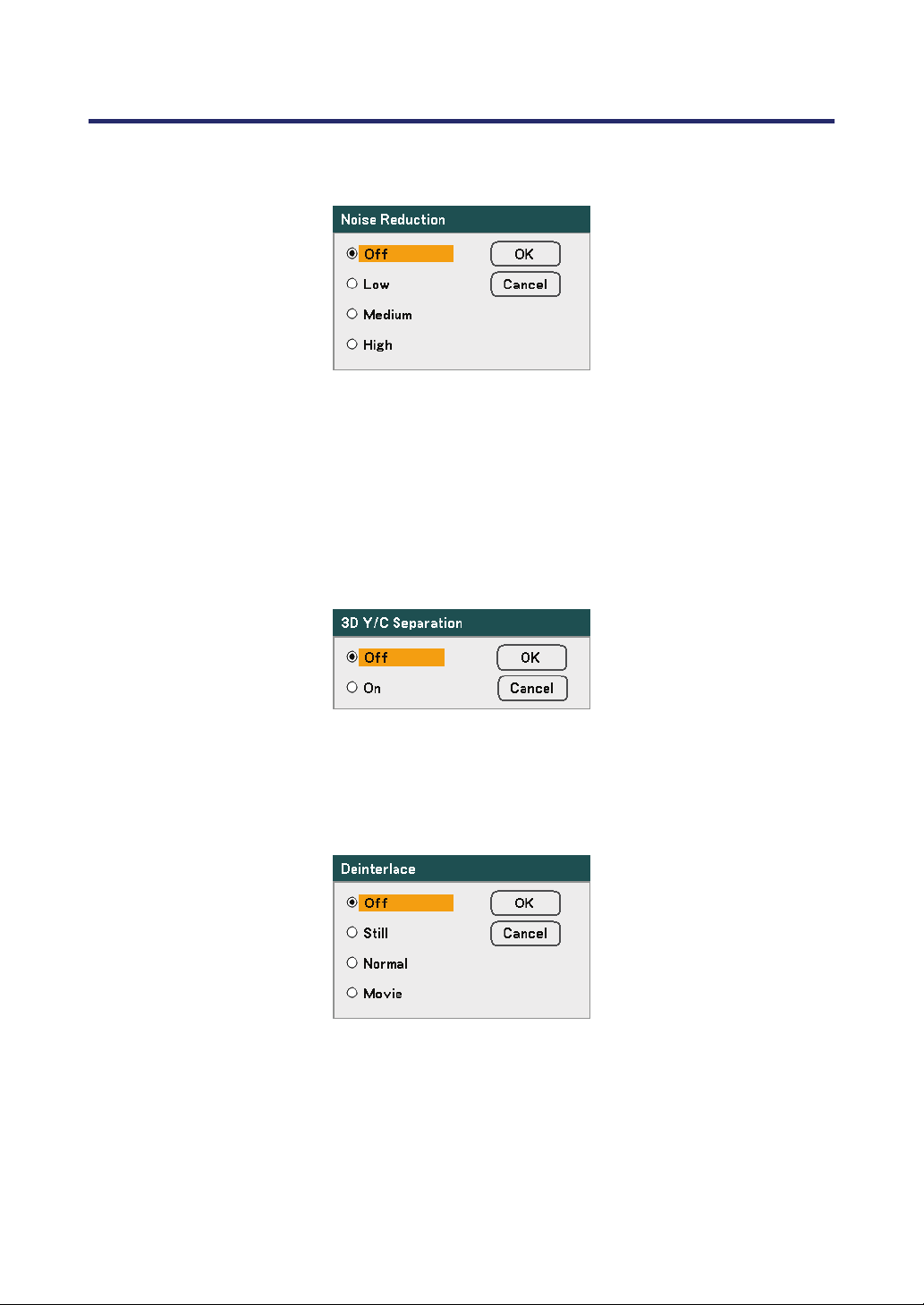
5. Using On-Screen Display
74
Noise Reduction
Select the level of noise reduction required.
Range: Off, Low, Medium, High.
3D Y/C Separation
3D Y/C Separation separates composite signal to Y (brightness) signal and C (color)
signal, and can help to produce clearer and sharper images without overlapping colors
(rainbow effect).
Set 3D Y/C Separation On or Off.
Deinterlace
Deinterlace converts an interlaced image to a progressive scan image.
Select the form of Deinterlacing required from:
Still – Select for stills such as slide projections or screen shots.
Normal – Select Normal for non-specialized projection.
Movie – Select for movie projection.
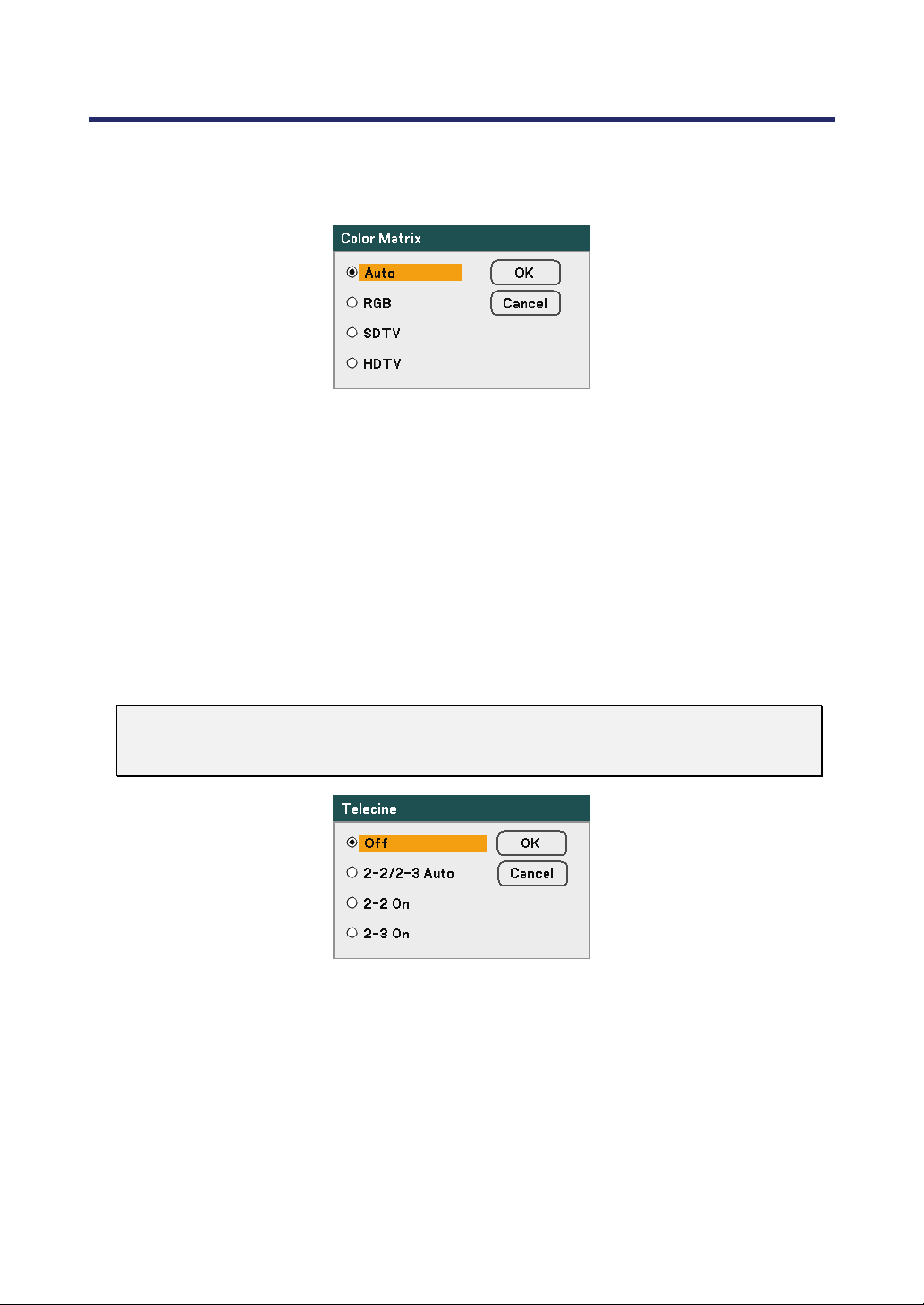
5. Using On-Screen Display
75
Color Matrix
Color Matrices define the amount of the three-color components R (red), G (green), and
B (blue) in a single point in color space.
Select from the following:
Auto – Auto selects the color matrix.
RGB – Sets the color matrix to RGB, use for PC monitor or camera imaging.
SDTV – Sets the color matrix to SDTV, use for Standard Definition imaging.
HDTV – Sets the color matrix to HDTV, use for High Definition imaging.
Telecine
Telecine aids in converting motion picture film images into video. The process adds ad-
ditional frames to the picture in order to increase the frame rate.
Note:
This feature is only available when deinterlace is turned on and SDTV
signal is selected.
Select from the following:
Off – Telecine mode is turned off.
2-2/2-3 Auto – Detects pull-down correction method.
2-2 On – Uses 2-2 pull-down correction method.
2-3 On - Uses 2-3 pull-down correction method.
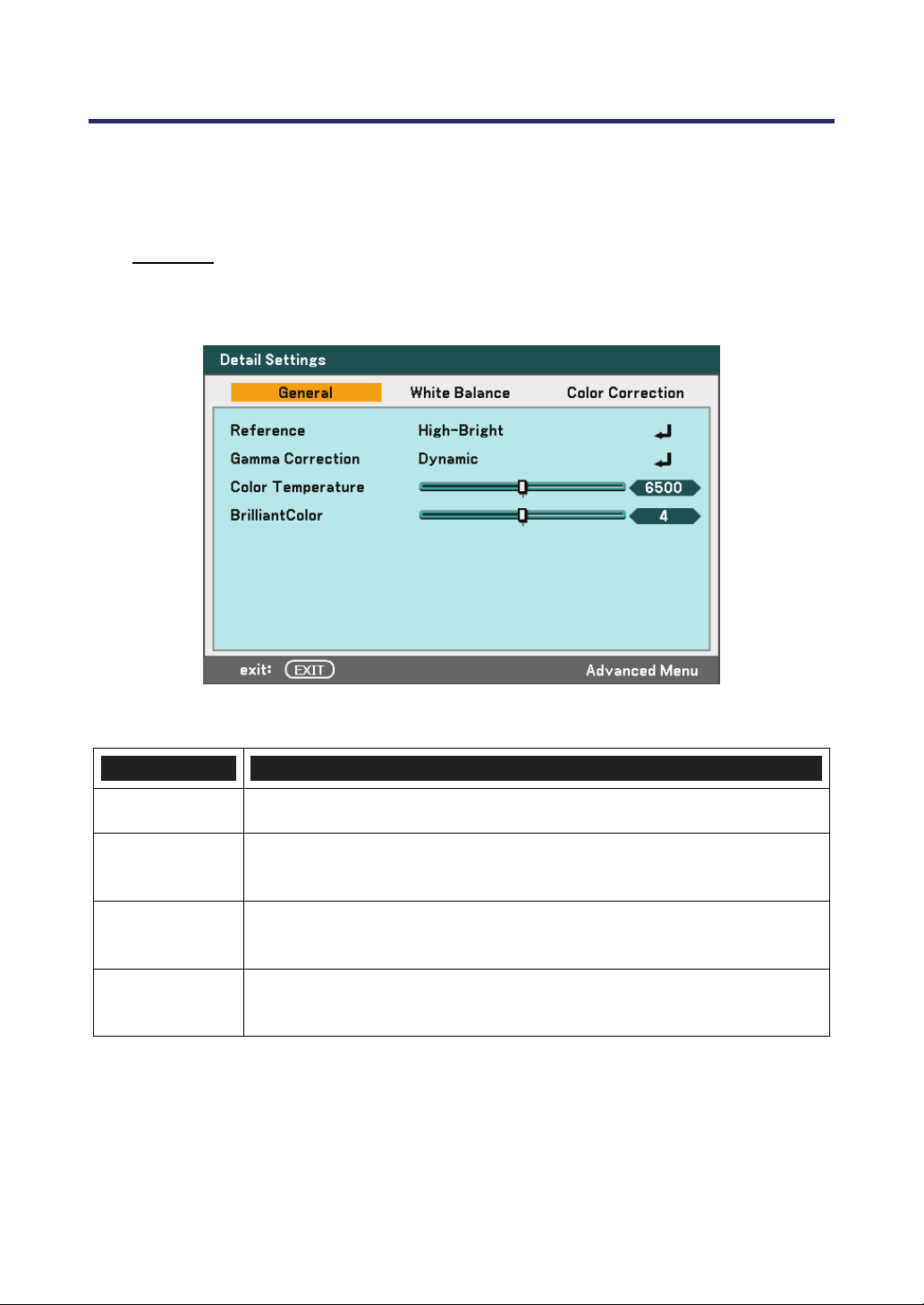
5. Using On-Screen Display
76
Detail Settings Menu Descriptions and Functions
The Detail Settings menu contains basic and advanced color adjustment options such as
gamma correction, color contrast and color correction.
General
The General tab contains general Detail Settings such as gamma correction and color
temperature. Access to the General tab is through the Detail Settings menu.
The following table lists all functions with a brief description.
ITEM DESCRIPTION
Reference Set Reference mode (see page 77).
Gamma
Correction
Select Gamma Correction mode (see page 77).
Color
Temperature
Set the color temperature value in Kelvin (K). Compensate for the
amount of light available. Daylight is approximately 5500K.
BrilliantColor
TM
Set the BrilliantColor value. BrilliantColor extends the exposure range
and sharpens detail for grain free images.
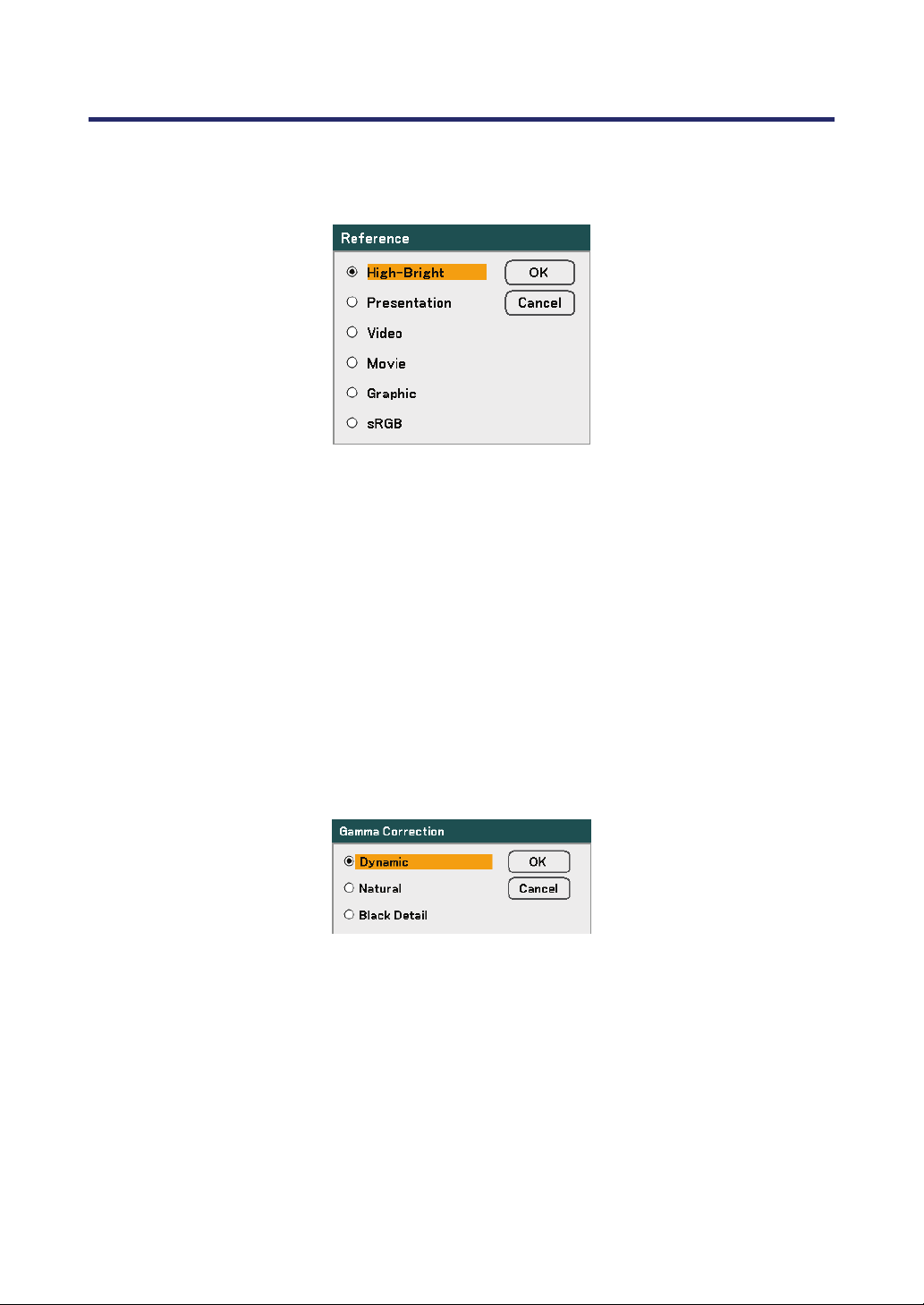
5. Using On-Screen Display
77
Reference
The Reference mode allows the projector to differentiate between source materials for
example movies, PC images or video stills.
Select from the following:
High-Bright – Select for use in a brightly lit room.
Presentation – Select if the projector is to be used for presentation purposes.
Video – Select for video projection.
Movie – Select for Movie projection.
Graphic – Select Graphic for still images.
sRGB – Select for projecting PC or web page images.
Gamma Correction
Gamma Correction enables adjustment to the light intensity (brightness) of an image in
order to match the source more closely.
Select from the following:
Dynamic – Allows the projector to dynamically alter the gamma correction automatically.
Natural – Attempts to emulate the original source as closely as possible.
Black Detail – Black Detail highlights boundaries between light and dark areas of the
image more clearly.
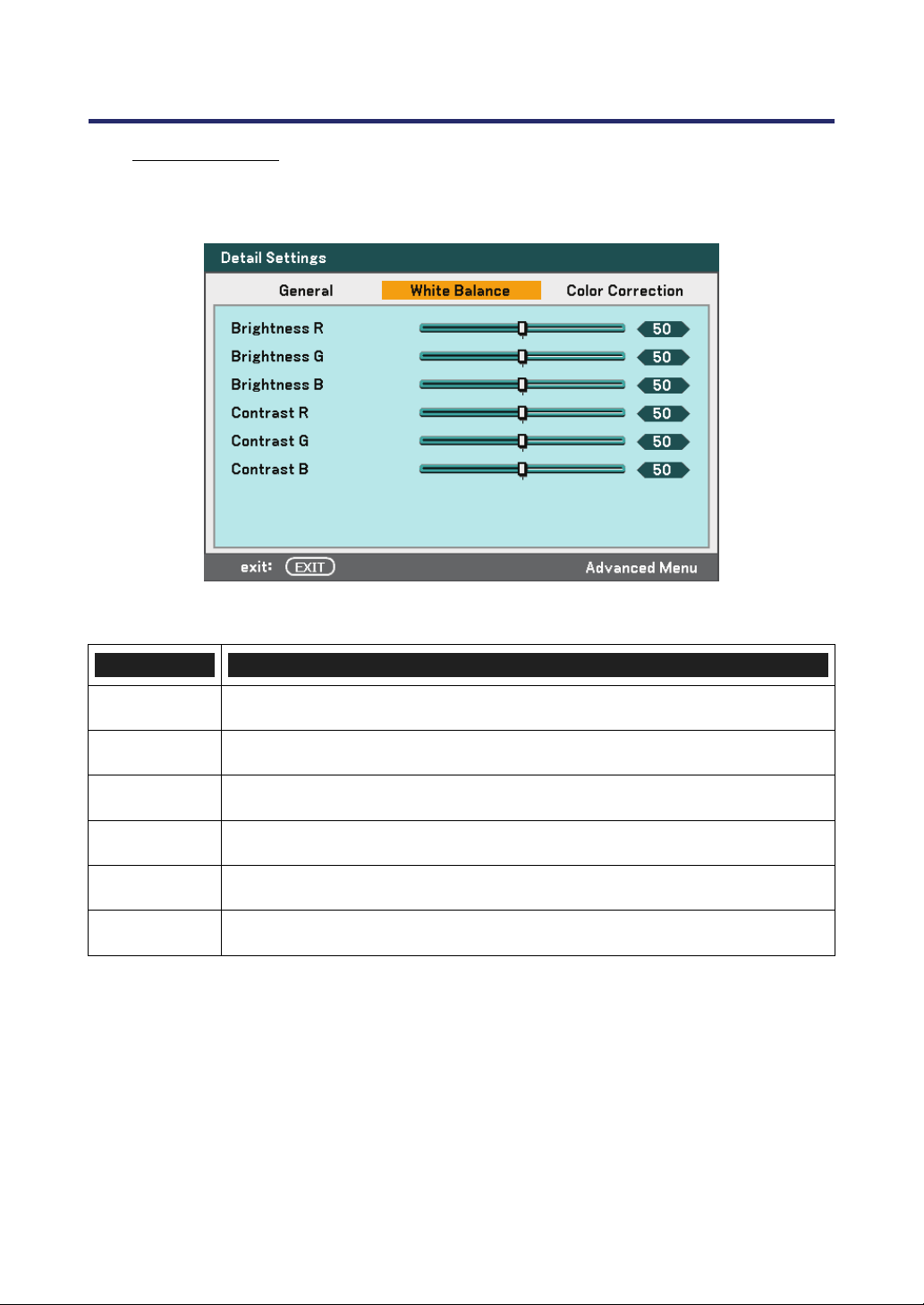
5. Using On-Screen Display
78
White Balance
White Balance allows the projector to compensate for different colors of light being emit-
ted by different light sources.
The following table lists all functions with a brief description.
ITEM DESCRIPTION
Brightness R Set the Brightness R value to compensate for red light sources.
Brightness G Set the Brightness G value to compensate for green light sources.
Brightness B Set the Brightness B value to compensate for blue light sources.
Contrast R Set the Contrast R value to compensate for red light sources.
Contrast G Set the Contrast G value to compensate for green light sources.
Contrast B Set the Contrast B value to compensate for blue light sources.
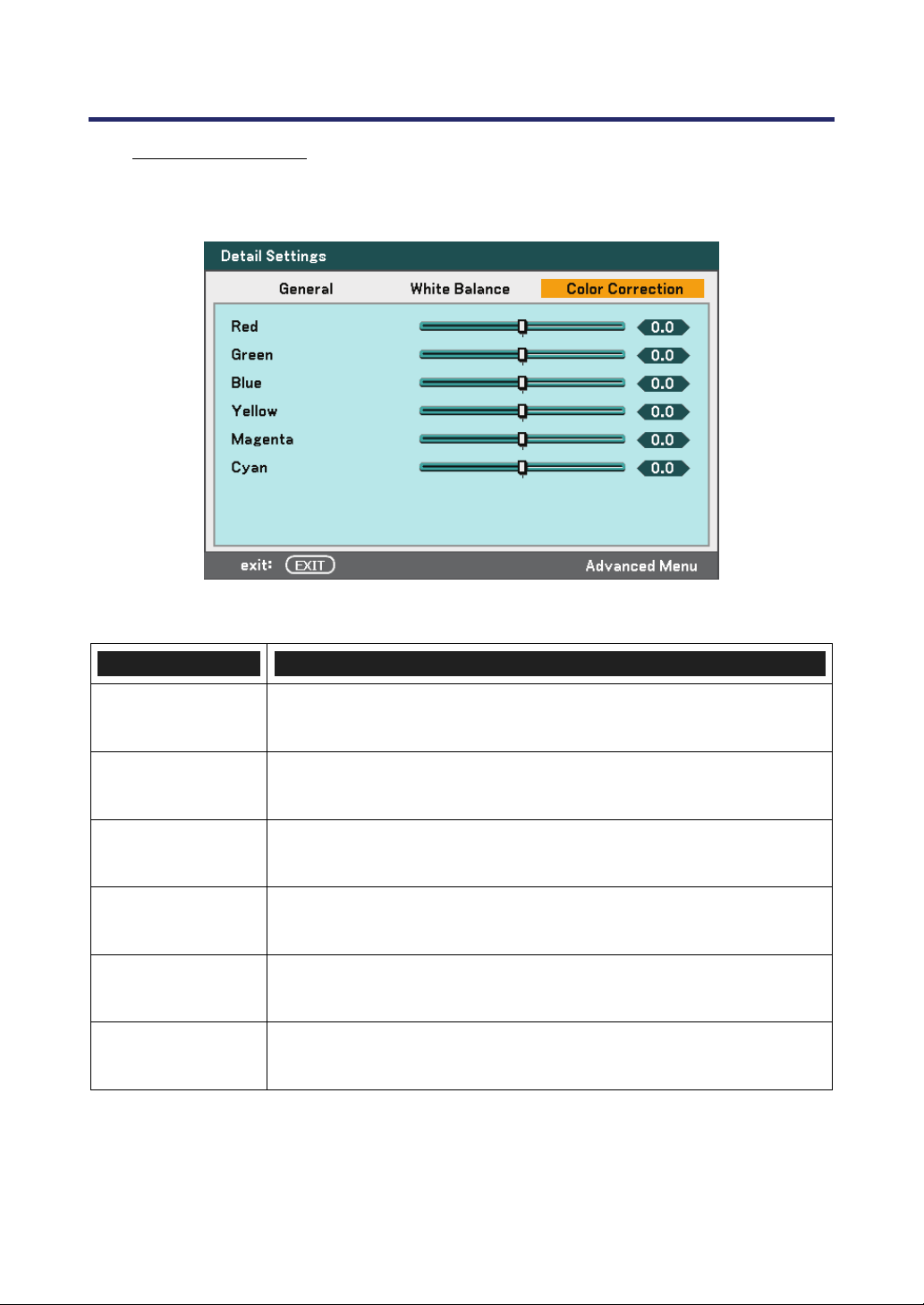
5. Using On-Screen Display
79
Color Correction
The Color Correction tab enables the adjustment of color values in an image to remove
unwanted effects, improve color, characteristics or add more of a particular color.
The following table lists all functions with a brief description.
ITEM DESCRIPTION
Red
Increase or decrease the amount of red in the projected output using
◄ and ►.
Green
Increase or decrease the amount of green in the projected output
using ◄ and ►.
Blue
Increase or decrease the amount of blue in the projected output
using ◄ and ►.
Yellow
Increase or decrease the amount of yellow in the projected output
using ◄ and ►.
Magenta
Increase or decrease the amount of magenta in the projected output
using ◄ and ►.
Cyan
Increase or decrease the amount of cyan in the projected output
using ◄ and ►.
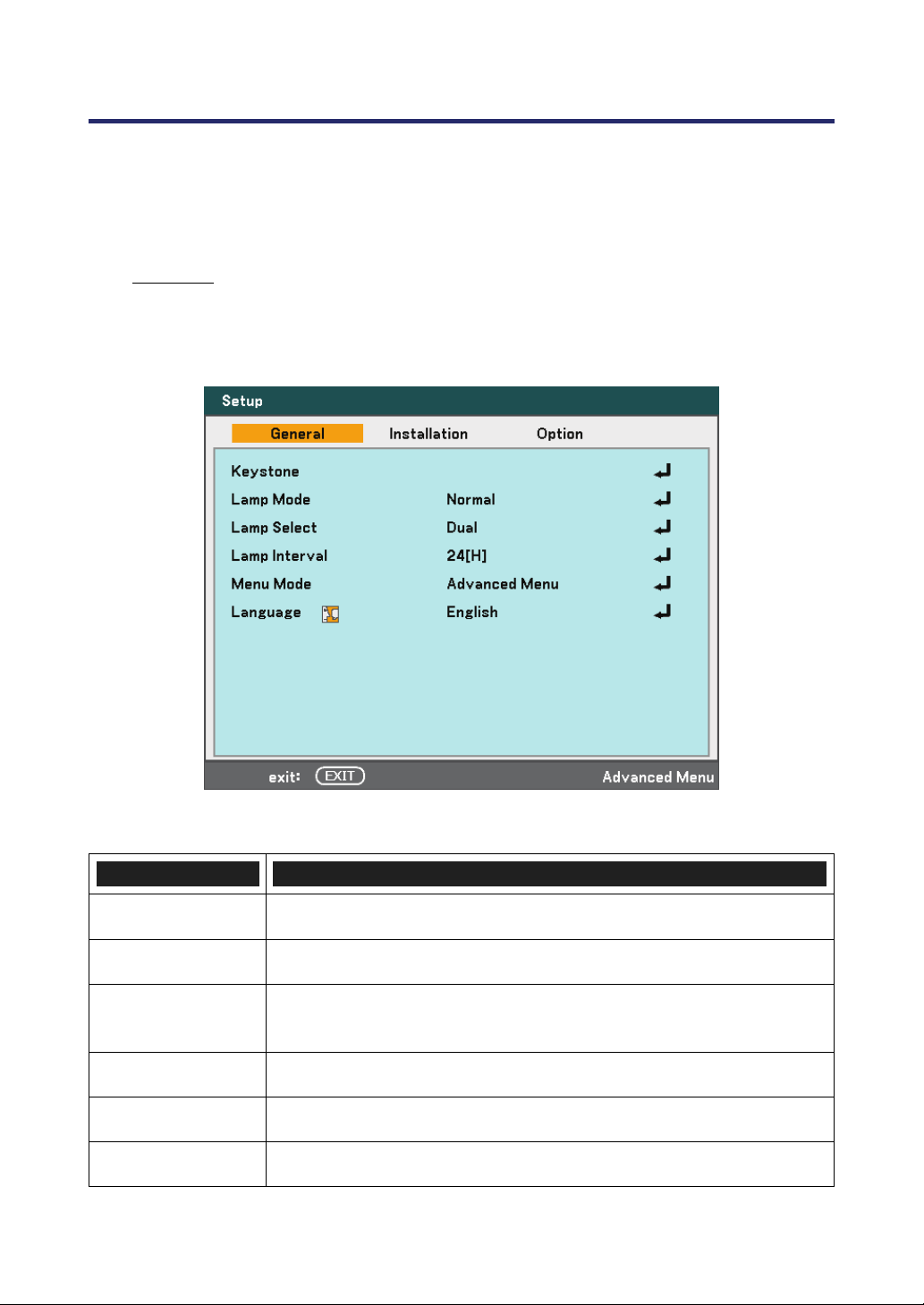
5. Using On-Screen Display
80
Setup Menu Descriptions and Functions
The Setup menus contain the most often used settings during installation and options to
customize the general output of the projector. Three tabs are accessible through the Setup
menu, general, installation and option.
General
The General tab contains general setup options such as lamp mode and OSD language
settings and can be accessed with the projector control panel or with the remote control
unit.
The following table lists all functions with a brief description.
ITEM DESCRIPTION
Keystone Adjust the Keystone trapezoid (see pages 56 and 81).
Lamp Mode Select Lamp Mode. Range: Normal or Eco.
Lamp Select
Select Lamp configuration. Range:
Dual, Single, Lamp1 and Lamp2.
Lamp Interval Select Lamp Interval Mode. Switching Time and Current Time.
Menu Mode Select Menu Mode. Range: Advanced Menu or Basic Menu.
Language Select the OSD language (see Language on page 85).
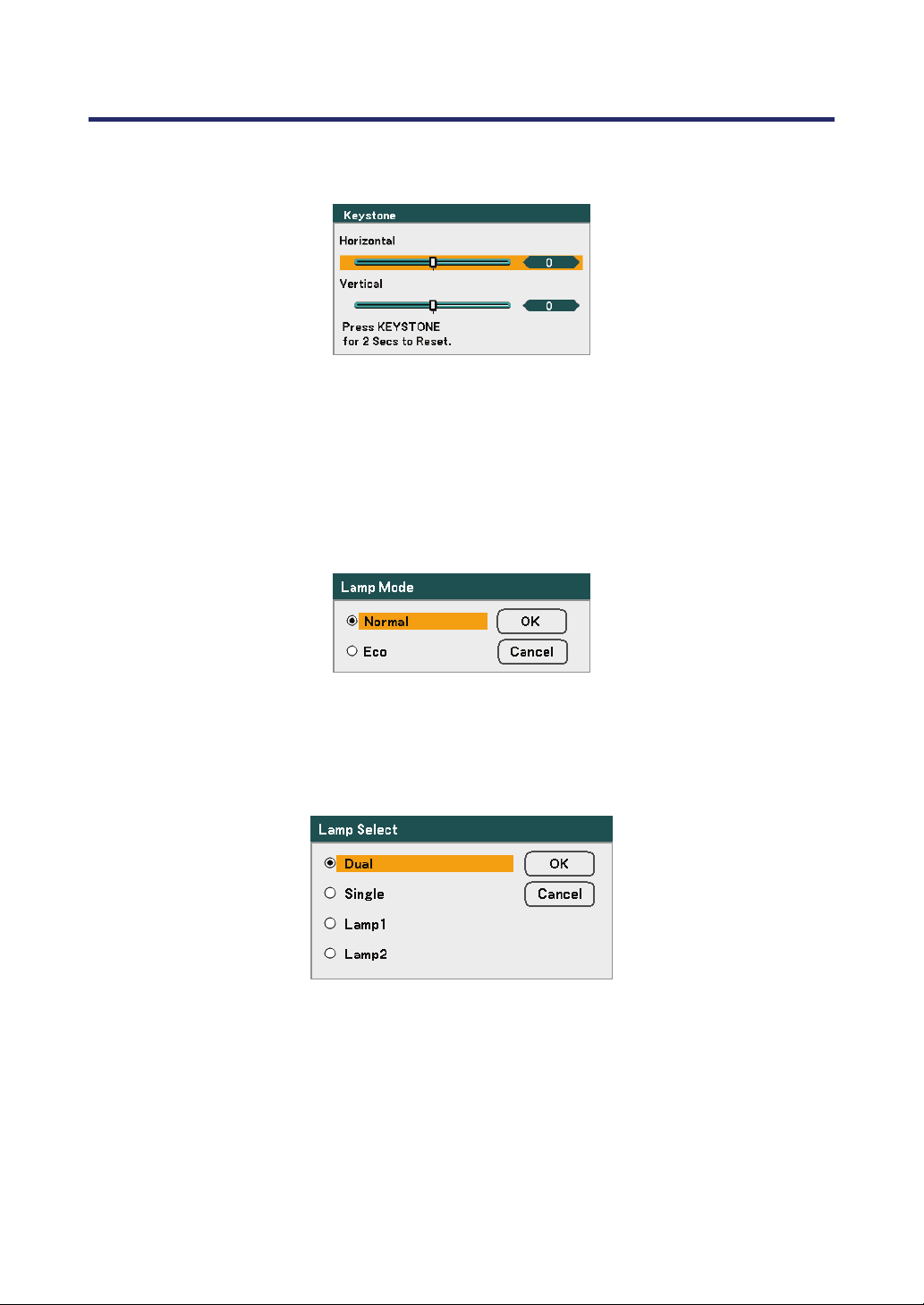
5. Using On-Screen Display
81
Keystone
The keystone trapezoid can be adjusted by selecting this option.
Select Horizontal or Vertical using ▲ or ▼ then, use ◄ or ► to adjust the projected
image appearance as required.
Lamp Mode
Select Normal or Eco from the lamp mode window. The lamp life can be extended by us-
ing the Eco mode and the fan noise can be reduced.
Lamp Select
Select the lamps to be used for projection.
Select from the following:
Dual – Lights both Lamp 1 and Lamp 2.
Single – Lights either lamp 1 or 2 which was most recently lighted. This option also se-
lects Lamp 1 or Lamp 2 according to the time preset with Lamp Interval.
Lamp1 – Lights Lamp1.
Lamp2 – Lights Lamp2.
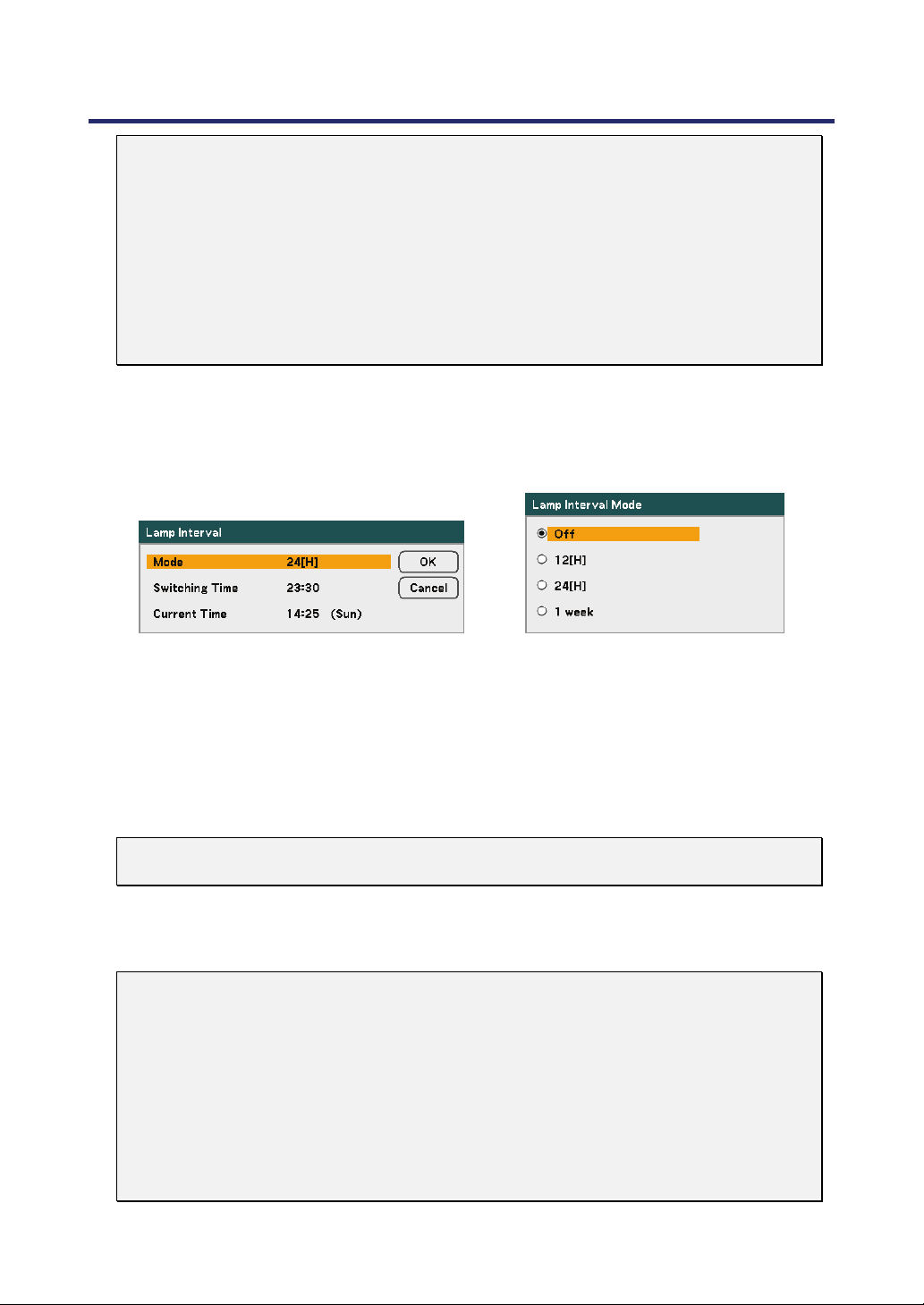
5. Using On-Screen Display
82
Note:
‧
If using the projector continuously for a long period, set Lamp Interval as shown
below.
‧
To use the projector continuously in Dual mode: allow 2 hours per day of non-
usage time per lamp. To do so, select Lamp Interval → Mode → Dual and set
Switching Time and Current Time.
‧
To use the projector continuously in Single mode: use the two lamps (Lamp 1
and Lamp 2) alternately in a cycle of 24 hours or less.
To do so, select Lamp Interval → Mode → Single and set Switching Time and
Current Time.
Lamp Interval
Lamp Interval is used to setup the interval to switch the lamp when Dual or Single is
selected from Lamp Select.
Select from the following:
Mode – ・When Dual is selected for Lamp Select:
The lamp 1 and lamp 2 will be turned off alternately for 2 hours of time differ-
ence in the cycle you selected. Set Switching Time.
・When Single is selected for Lamp Select:
The lamp 1 and lamp 2 will be turned off alternately in the cycle you selected.
Set Switching Time.
Note:
12[H] and 1 week is only available when lamp select is Single.
Switching Time – Set the time and day for changing the lamp.
Current Time – Set the current time and day.
Note:
‧
The option Lamp Interval is not available when Lamp 1 or Lamp 2 is selected
for Lamp Select.
‧
When using the built-in clock, put the projector in the standby condition and do
not turn off the main power. Also, do not select Power-saving for Standby Mode.
Turning off the main power or selecting Power-saving for Standby Mode will stop
the built-in clock.
‧
After setting the Current Time, if the value between Current Time and Switching
Time is less than five (5) minutes, the first lamp switching instance does not take
place.
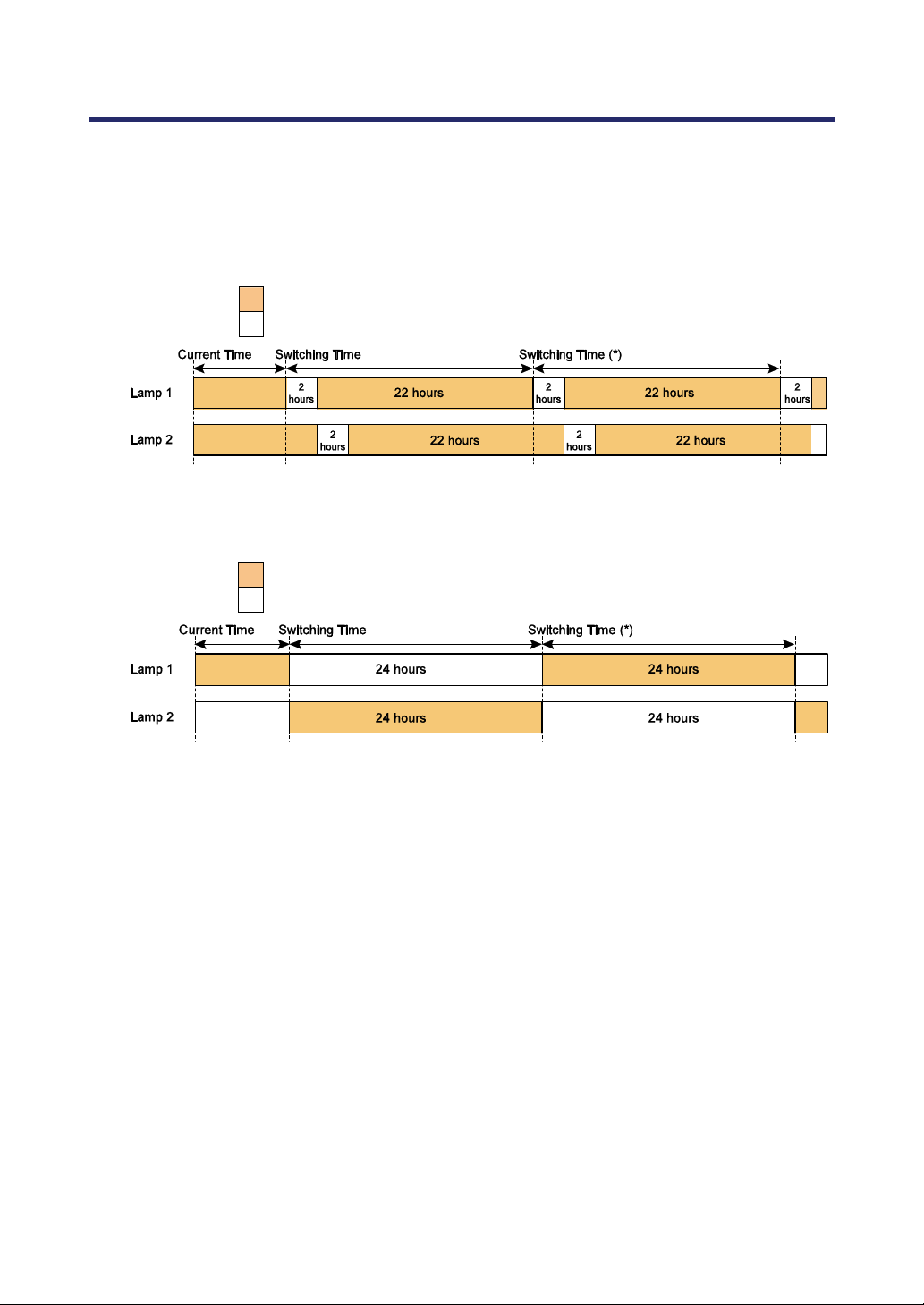
5. Using On-Screen Display
83
Lamp Select Examples:
Reference: The lamp switching procedure is different between Dual and Single for Lamp
Select as shown below.
Example 1 – When lamp select is Dual and mode select is 24[H]:
This indicates the lamp is turned on.
This indicates the lamp is turned off.
(*) Selecting 12[H] for Mode will update the switching time in 12 hours.
Example 2 – When lamp select is Single and mode select is 24[H]:
This indicates the lamp is turned on.
This indicates the lamp is turned off.
(*) Selecting 12[H] for Mode will update the switching time in 12 hours.

5. Using On-Screen Display
84
Menu Mode
Select the Menu Mode to display.
Select from the following:
Basic Menu – Displays menus with minimum essential options. This setting is best
suited to novices.
Advanced Menu – Displays menus with all available options. This setting is best suited
to experienced operators.
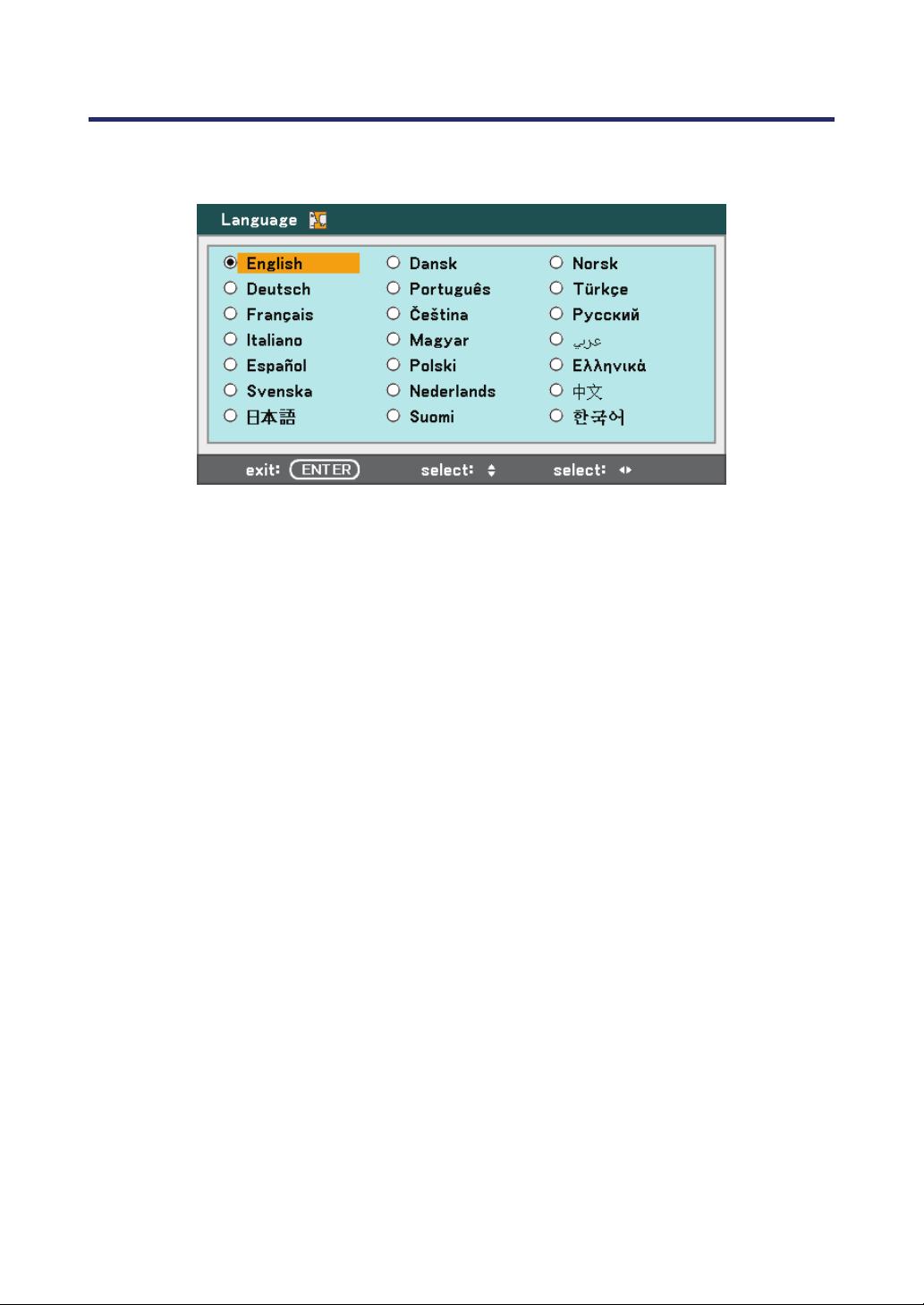
5. Using On-Screen Display
85
Language
Select the OSD language to be used.
Select from the following:
English Norwegian
German Turkish
French Czech
Italian Hungarian
Spanish Polish
Swedish Russian
Japanese Greek
Dutch Arabic
Danish Simplified Chinese
Portuguese Korean
Finnish
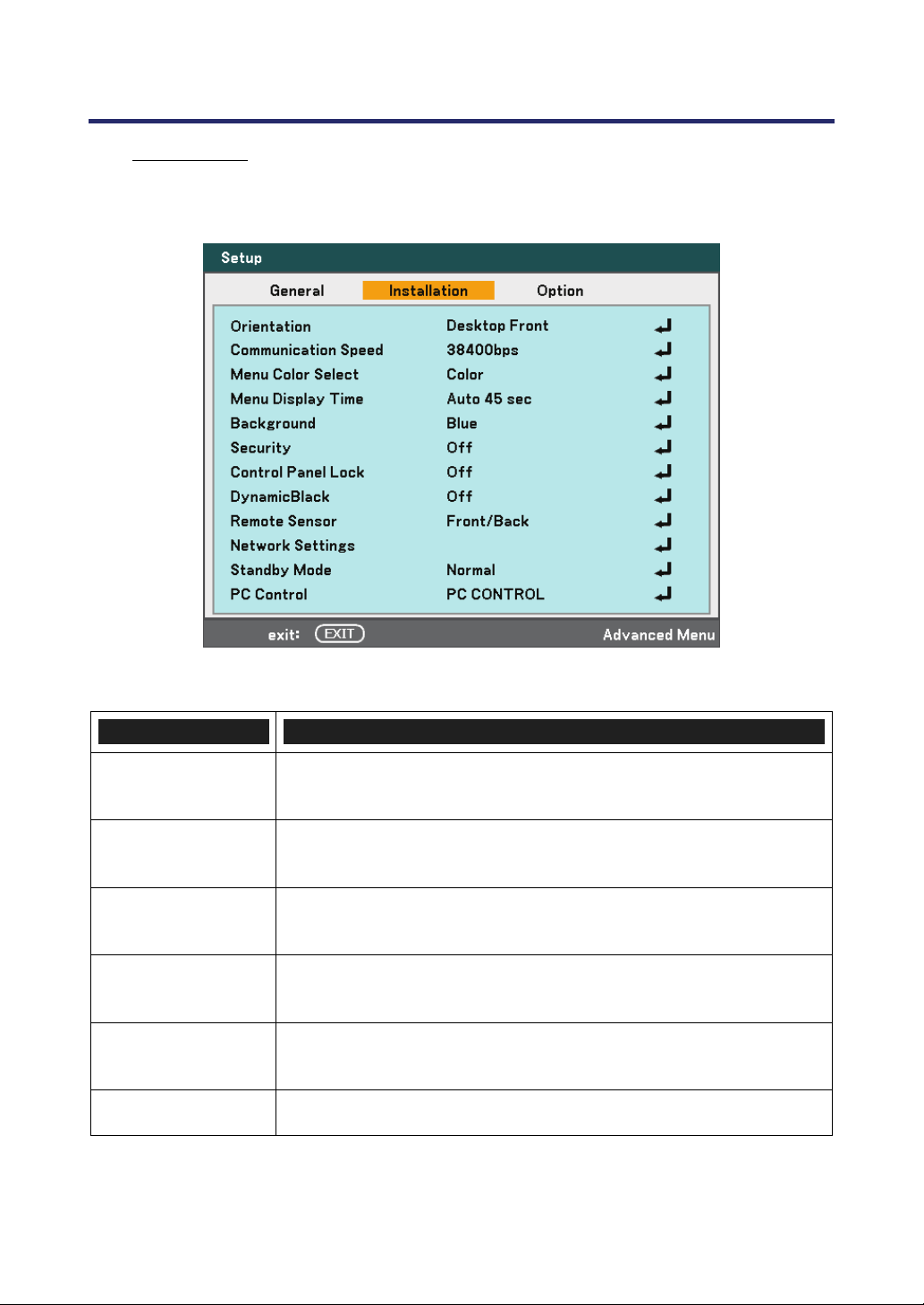
5. Using On-Screen Display
86
Installation
The Installation tab contains menu options for various setup conditions such as orienta-
tion and remote sensor mode and is accessed through the Setup menu.
The following table lists all functions with a brief description.
ITEM DESCRIPTION
Orientation
Select from four projection methods depending on projection site
(see page 87).
Communication
Speed
Select Communication Speed.
Range: 4800bps, 9600bps, 19200bps, 38400bps
Menu Color
Select
Select the menu color from the list.
Range: color or monochrome.
Menu Display Time
Select Display Time.
Range: Manual, Auto 5s, Auto 15s, Auto 45s
Background
Select Background appearance when there is no signal.
Range: blue, black or logo
Security Set Security On/Off (see Security on pages 58 and 90).
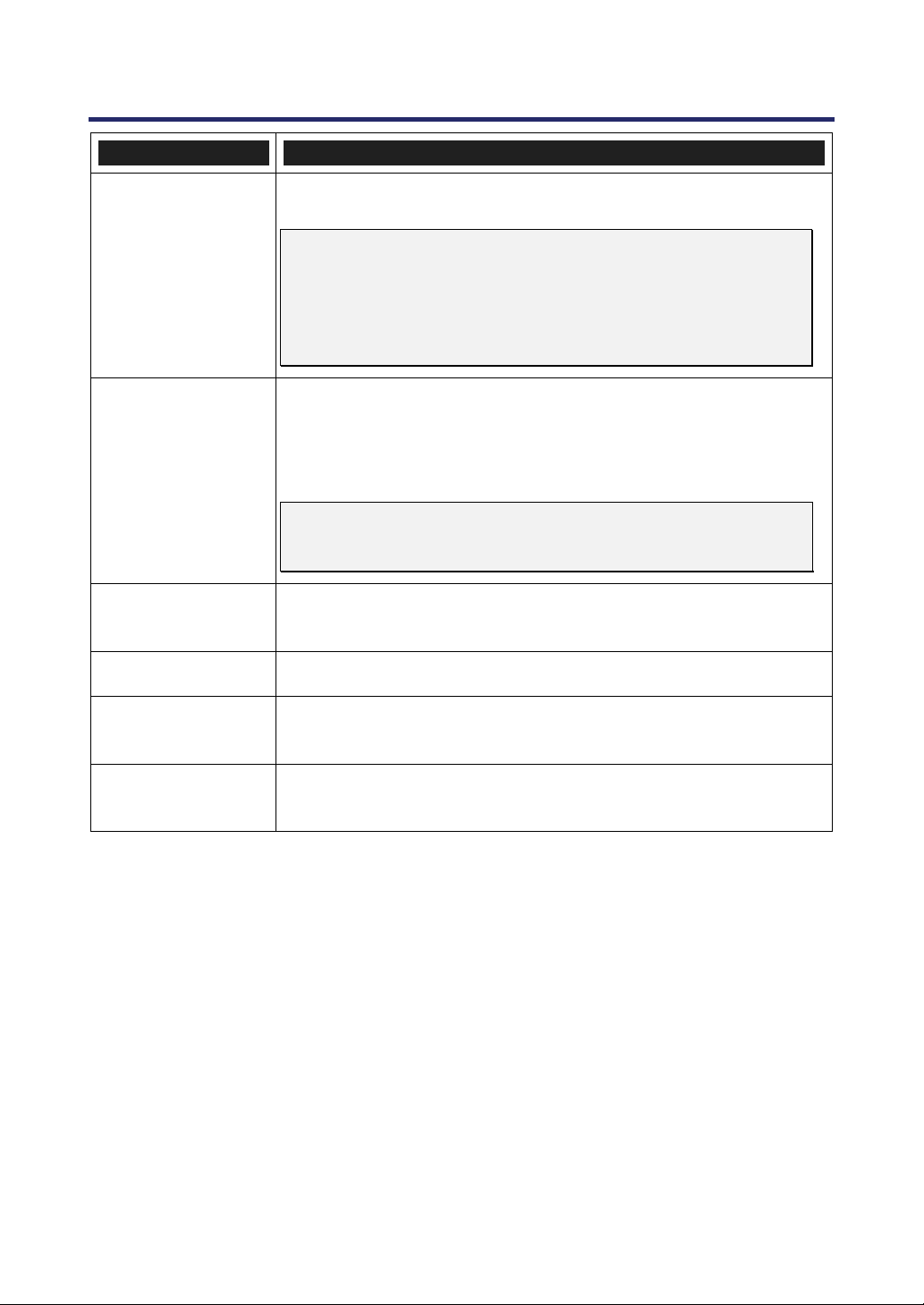
5. Using On-Screen Display
87
ITEM DESCRIPTION
Control Panel Lock
Set Control Panel Lock On/Off.
Note:
This Control Panel Lock does not affect the remote control
functions.
When the control panel is locked, pressing and holding the
Exit button on the projector cabinet for about 10 seconds.
The setting will change to Off.
DynamicBlack
(TM)
DynamicBlack improves the black level of the projector. Black
level is the darkest part of a picture and varies between viewing
devices and environments.
Set DynamicBlack on/off.
Note:
DynamicBlack is only available when Lamp Select is set to
Dual.
Remote Sensor
Set Remote Sensor fields.
Range: Front/Back, Front, Back
Network Settings Opens Network preferences tab (see Network Settings on page 93).
Standby Mode
Select Standby Mode.
Range: Normal and Power-saving
PC Control
Enables the path selection for PC control.
Select PC Control. Range: PC CONTROL or LAN.
Orientation
Orientation enables you to set how the projected image is displayed.
Select from the following:
Desktop Front – Standard forward facing projection (Default setting).
Desktop Rear – Standard rear projection. Enables the projector to produce the image
from behind the screen by reversing the image.
Ceiling Front – Forward facing ceiling mounted projection. Enables ceiling mounted
projection by inverting the image.
Ceiling Rear – Rear ceiling mounted projection. Enables ceiling mounted projection
from behind the screen by inverting and reversing the image.
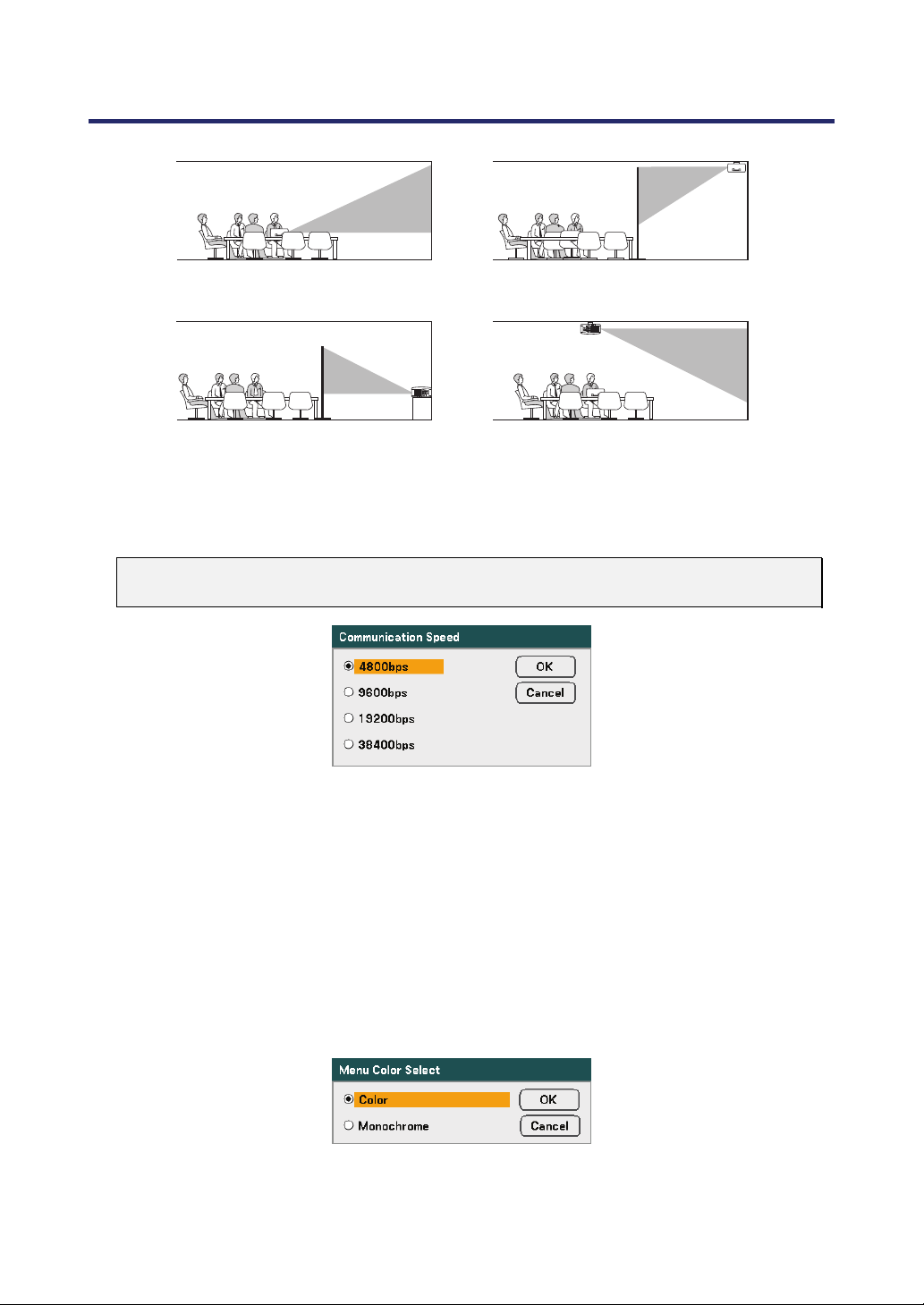
5. Using On-Screen Display
88
Desktop front Ceiling rear
Ceiling frontDesktop rear
Communication Speed
Select communication speed to set the baud rate of the connection.
Note:
Longer cable connections may require lower settings.
Select from the following options:
4800bps
9600bps
19200bps
38400bps
Menu Color Select
Select color modes to set the menu color.
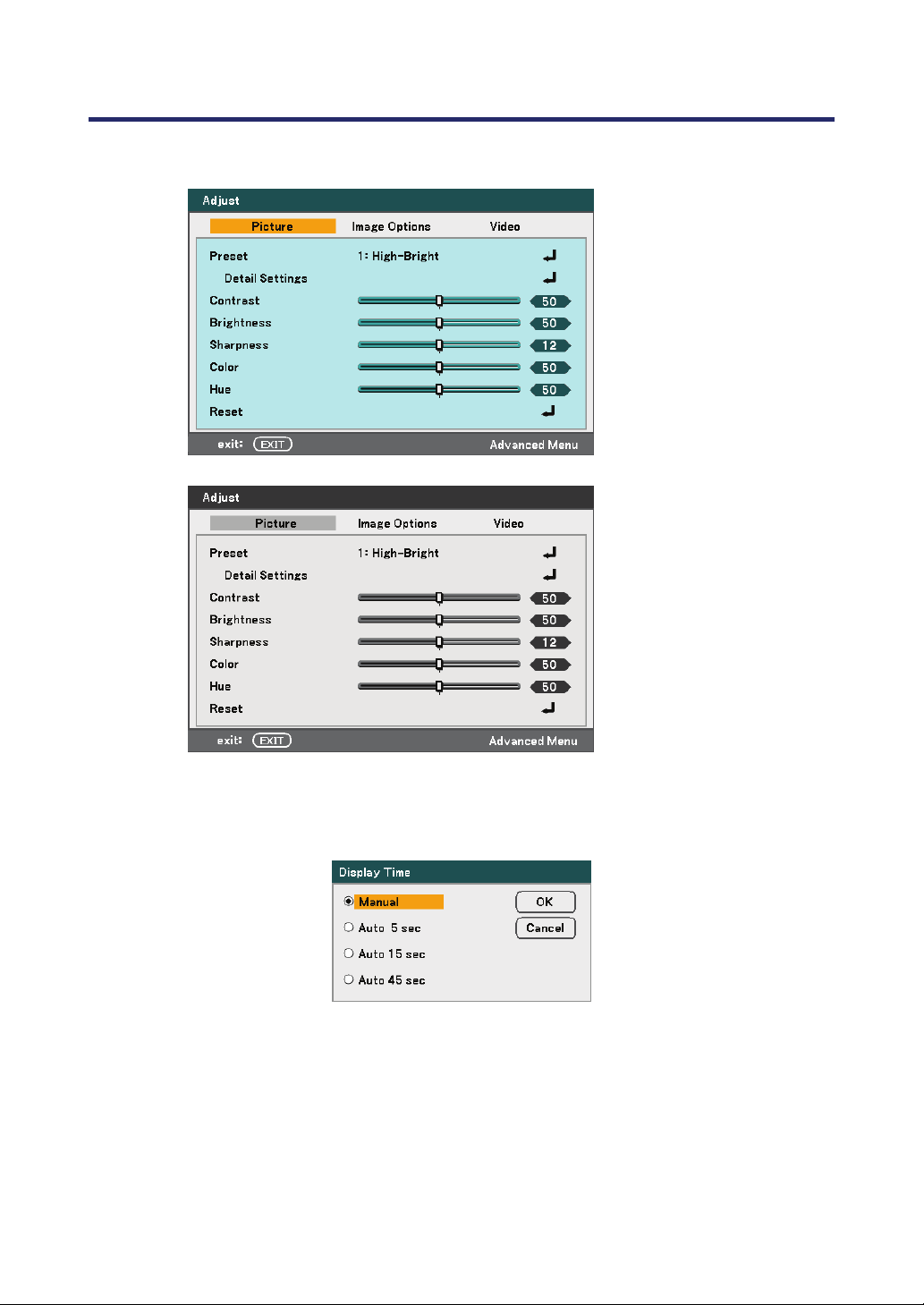
5. Using On-Screen Display
89
Select from the following options:
Color
Monochrome
Display Time
Sets the amount of time a menu is displayed.
Select from the following:
Manual – Menus stay on screen until the Menu button is pressed again.
Auto 5 sec – Menu is displayed for 5 seconds.
Auto 15 sec – Menu is displayed for 15 seconds.
Auto 45 sec – Menu is displayed for 45 seconds.
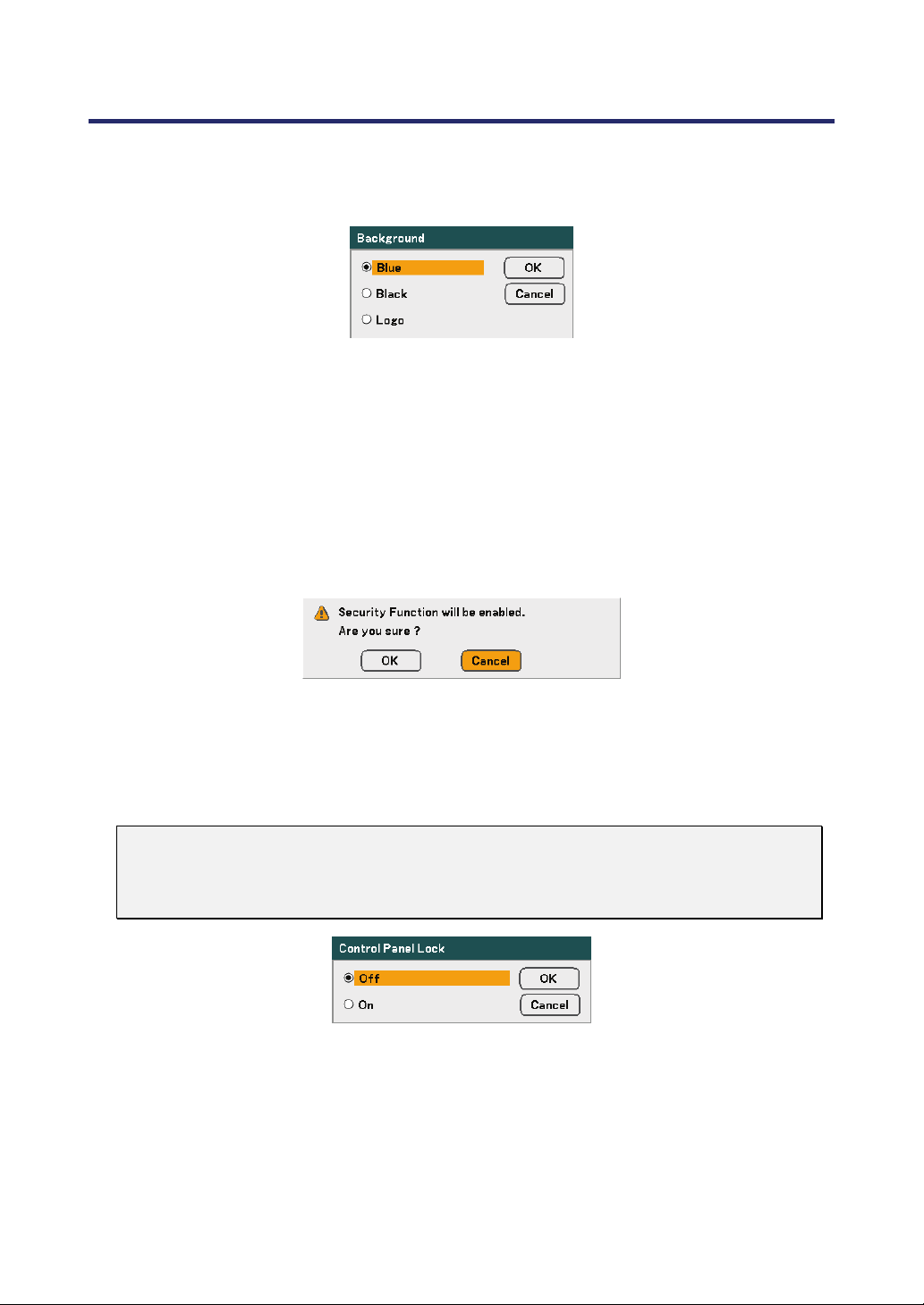
5. Using On-Screen Display
90
Background
Background enables you to display a blue/black screen when there is no signal. The de-
fault background is Logo.
Select from the following:
Blue
Black
Logo
Security
See Preventing the Unauthorized Use of the Projector on page 58.
Control Panel Lock
Turn On/Off the Key Lock function for cabinet buttons.
Note:
This Control Panel Lock does not affect the remote control functions.
When the control panel is locked, pressing and holding the Exit button on the
projector cabinet for about 10 seconds. The setting will change to Off.
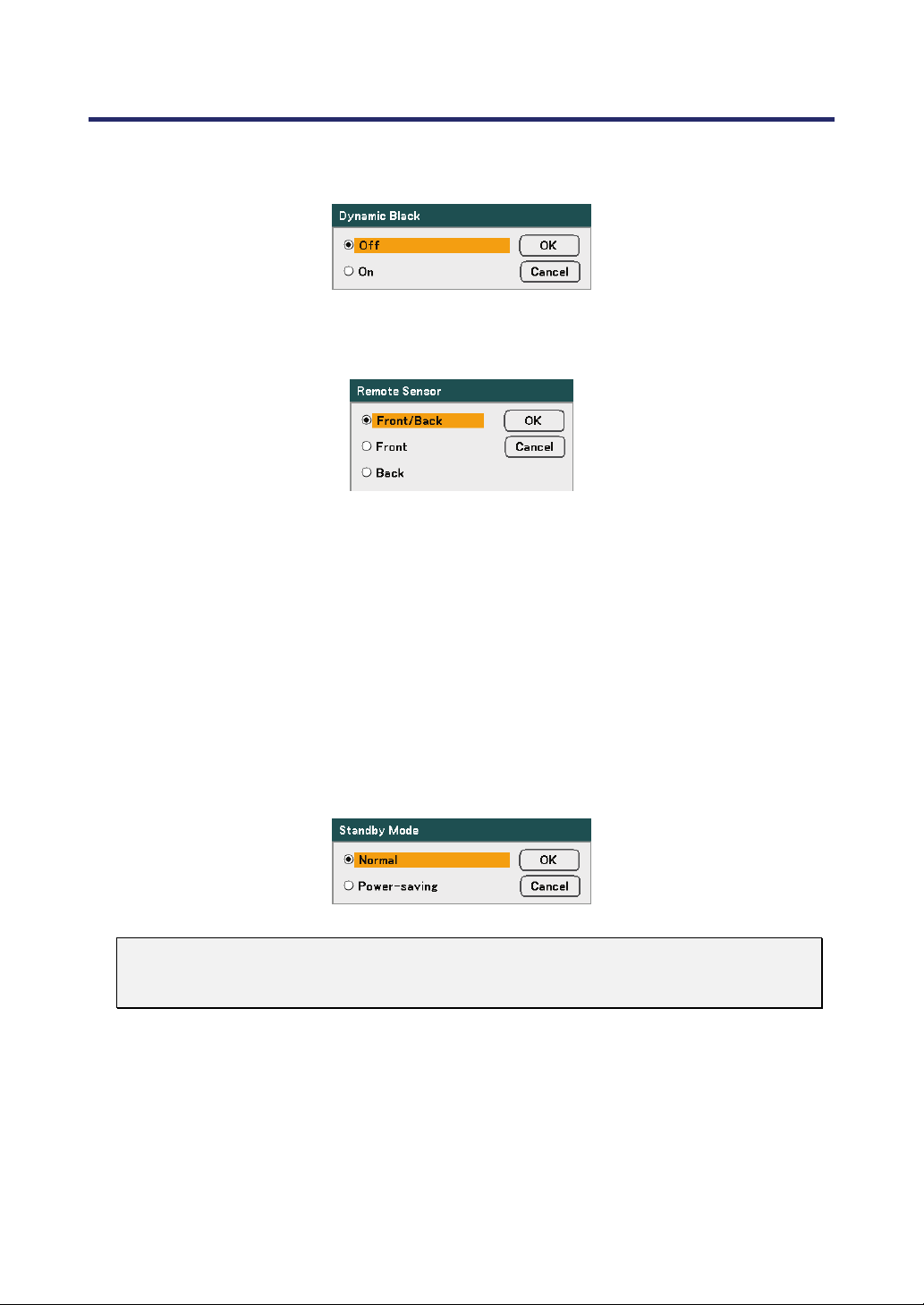
5. Using On-Screen Display
91
DynamicBlack
DynamicBlack enables you to improve the black level of the projector.
Remote Sensor
Set the operating range for the wireless remote control.
Select from the following:
Front/Back
Front
Back
Network Settings
See Network Settings on page 93.
Standby Mode
There are two standby modes available: Normal and Power-Saving. Power-Saving
mode allows you to put the projector in the standby condition to consume less power
than Normal.
Note:
Be sure to connect the projector and computer while the projector is in standby
mode and before turning on the computer.
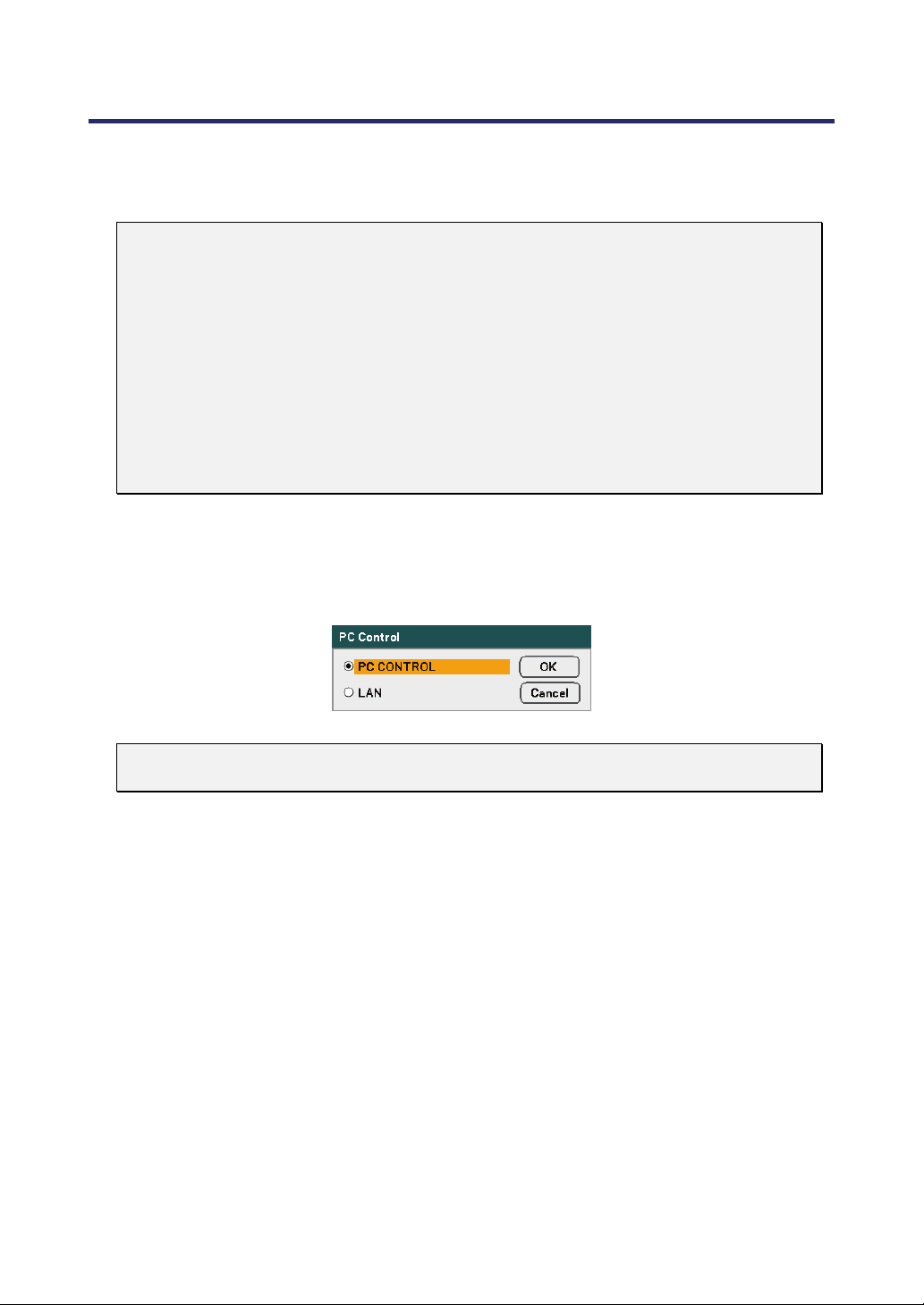
5. Using On-Screen Display
92
Select from the following:
Normal
Power-saving
Note:
The HTTP server functions are not available during Power-saving mode.
The MONITOR OUT function is not available during Power-saving mode.
Control through the PC Control connector and LAN mode is not available during
Power-saving mode. For PC control and LAN mode of the projector it is recom-
mended to leave the projector in the Normal mode.
Normal mode: Power indicator: Orange light
Status indicator: Green light
Power-saving mode: Power indicator: Orange light
Status indicator: Off
PC Control
This function enables you to select the path for PC Control (see PC Control Codes
and Cable Connections on page 131).
Note:
In the LAN mode, Communication Speed function is not available.
Select from the following:
PC CONTROL
LAN
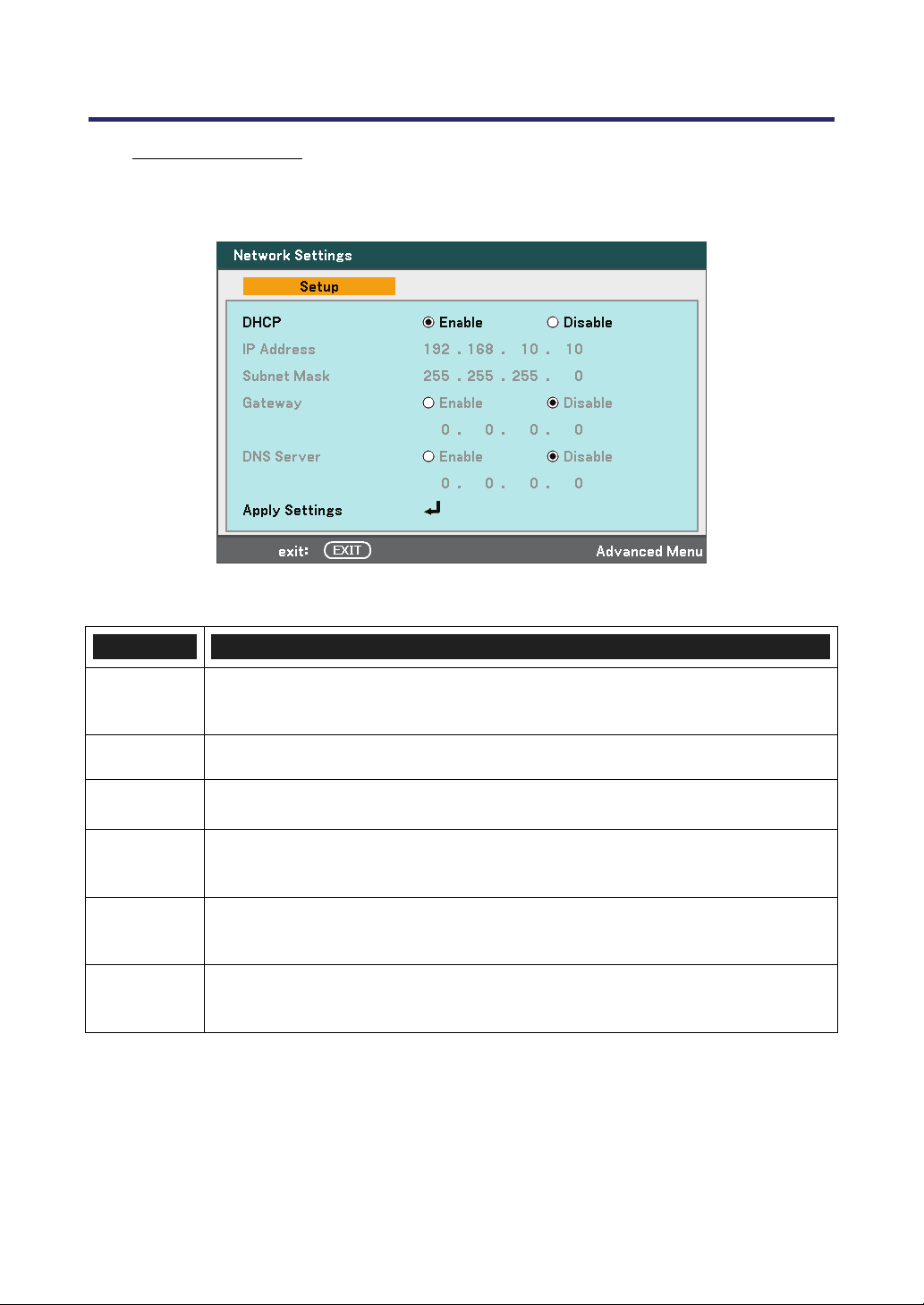
5. Using On-Screen Display
93
Network Settings
The Network Settings tab is accessed by using the Setup/Installation tab and contains
general network settings.
The following table lists all functions with a description and the default setting.
ITEM DESCRIPTION
DHCP
Select either a static IP or DHCP IP setting by selecting the appropriate radio
button.
IP Address Displays the IP address.
Subnet
Mask
Displays the subnet mask.
Gateway
Enable or disable the network gateway setting. Click on the radio button to
change the setting.
DNS
Server
Enable or disable the DNS server settings. Click on the radio button to
change the setting.
Apply
Settings
Apply and save settings.
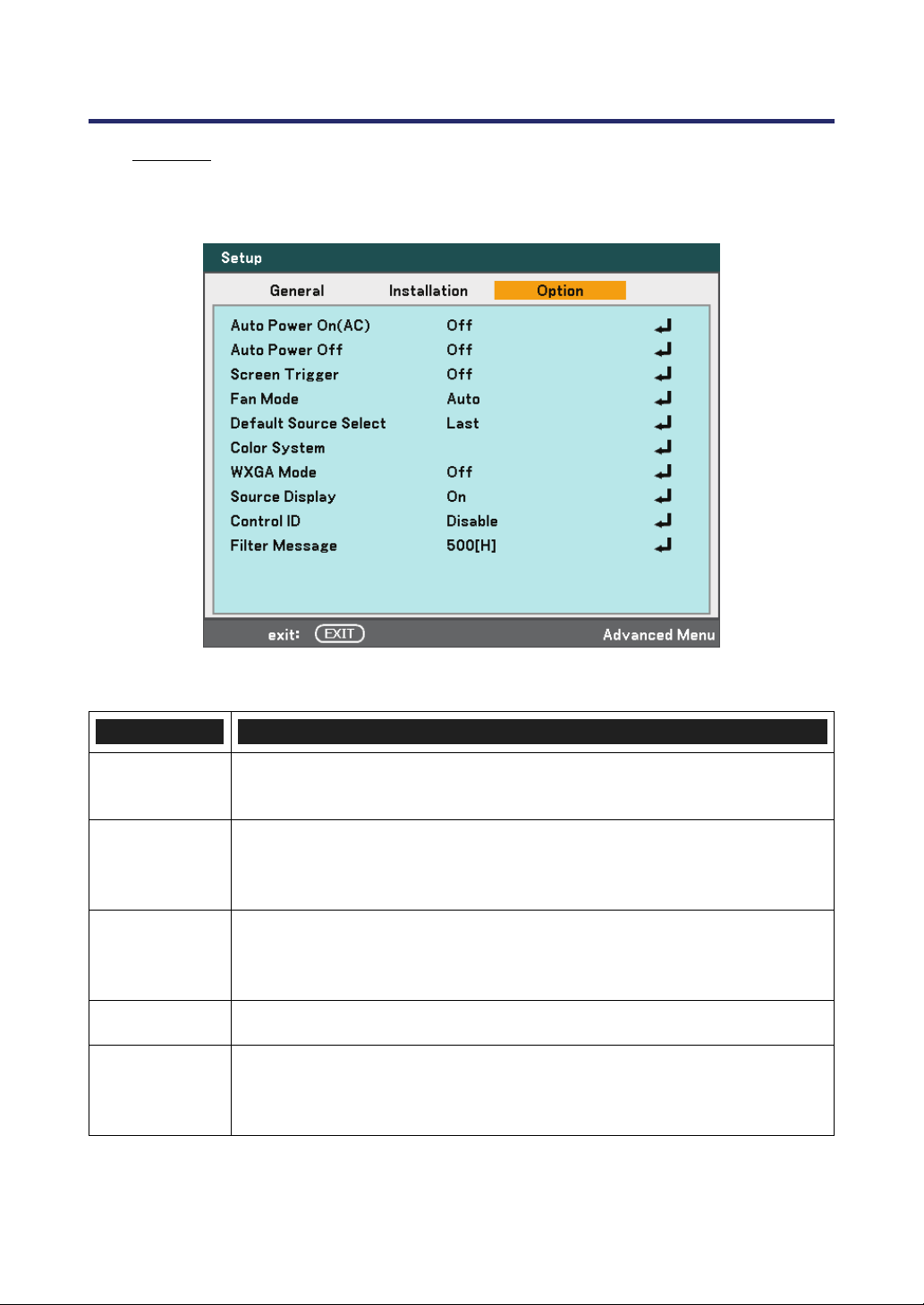
5. Using On-Screen Display
94
Options
The Options tab contains miscellaneous setup menu settings such as Auto Power Off
and Default Source Select and can be accessed by using the Setup Menu.
The following table lists all functions with a description and the default setting.
ITEM DESCRIPTION
Auto Power
On (AC)
Set this item on to enable the projector to power up when AC plug in.
Range: On or Off (see page 95).
Auto Power
Off
Select the amount of time the projector remains idle before powering
down.
Range: Off, 0:05, 0:10, 0:20, 0:30 (see page 96).
Screen
Trigger
Set this item to On to enable the projector to automatically lower the pro-
jection screen when powering on.
Range: on or off (see pages 96 and 133).
Fan Mode
Select Fan Mode or Orientation (see page 97).
Default
Source Select
Select the default source for projection.
Range: Last, Auto, Computer1, Computer2, Computer3, Component,
Video, S-Video (see page 98).
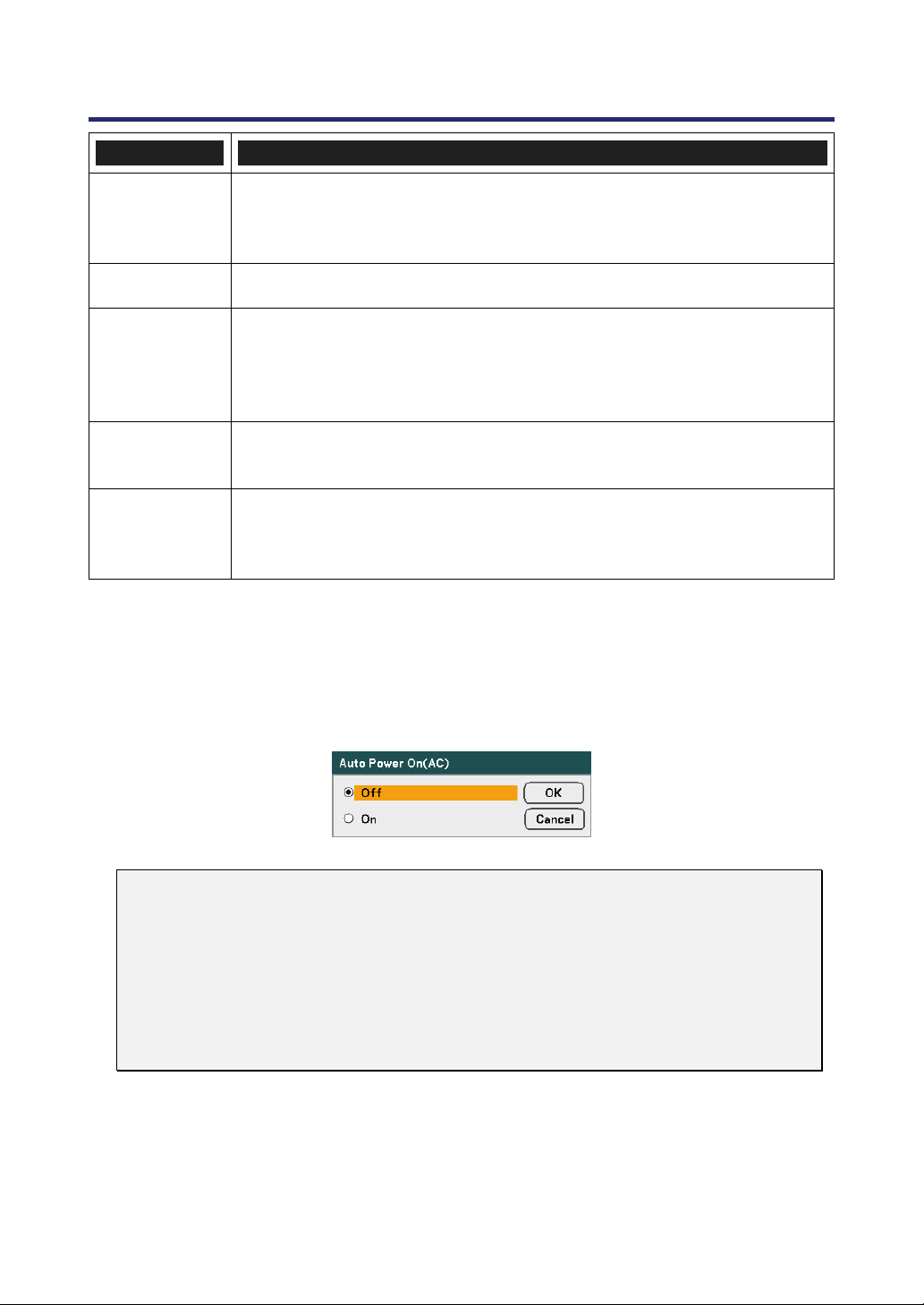
5. Using On-Screen Display
95
ITEM DESCRIPTION
Color System
Select the default Color System to use for Video or S-Video input.
Range: Auto, NTSC3.58, NTSC4.43, PAL, PAL-M,
PAL-N, PAL60, SECAM (see page 99).
WXGA Mode
Select WXGA mode (see page 99).
Source
Display
Select the message display such as Computer 1, Computer 2, Computer 3,
Component, Video, and No Input to be displayed on the top right of the
screen.
Range: On or Off (see page 99).
Control ID
Set the Remote Control ID code.
Range: 1~254 (see page 100).
Filter Message
Set this item to on to have the projector display a message when the air
filter needs servicing.
Range: Off, 100[H], 200[H], 500[H], 1000[H] (see page 100).
Auto Power On (AC)
Auto Power On (AC) enables the projector to start automatically when the power cable is
connected to an active power outlet and the main power switch is on. This eliminates the
need to always use the POWER (ON/STANDBY) button on the remote control or projec-
tor cabinet. To use the Auto Power On (AC) function, you must first press the main
power switch to On before connecting the power cable.
Note:
When the projector is off by using the POWER button (or put in the standby
mode) and the power cable is disconnected, Auto Power On (AC) will not activate
after power (AC) is applied.
When the projector is off by using the Direct Power Off function or after the
power (AC) is removed (no standby mode), Auto Power On (AC) will be activated
after power (AC) is applied.
The Direct Power Off function means you can turn off the power (AC) to the
projector by using a power strip equipped with a switch and a breaker.
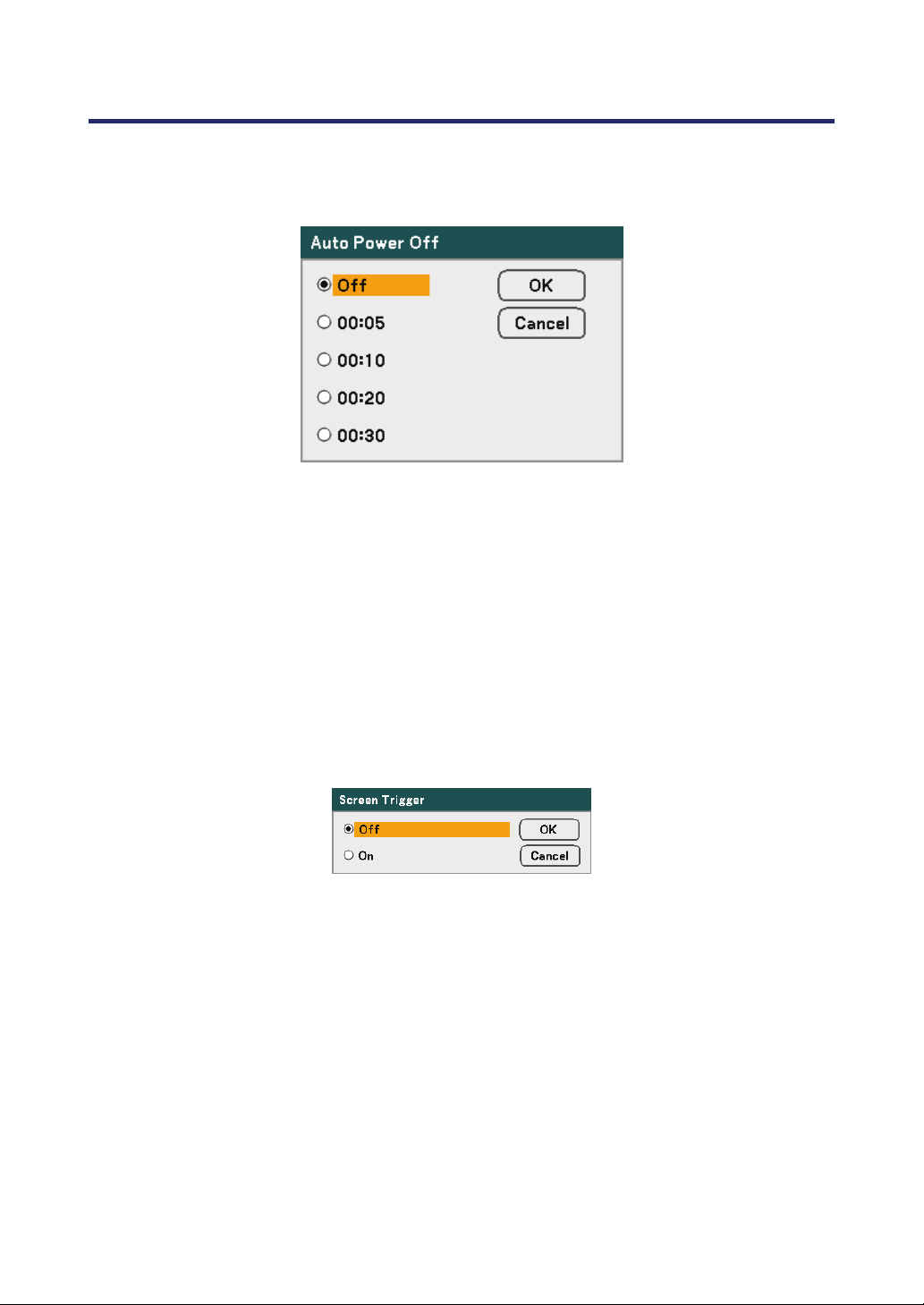
5. Using On-Screen Display
96
Auto Power Off
Auto Power Off enables the projector to automatically turn off if there is no signal re-
ceived by any input.
Select from the following:
Off
5 minutes
10 minutes
20 minutes
30 minutes
Screen Trigger
Set Screen Trigger to On to enable the projector to automatically lower the projection
screen when powering on. When powering off, Screen trigger stops sending a low volt-
age trigger to the screen controller and the screen goes up.
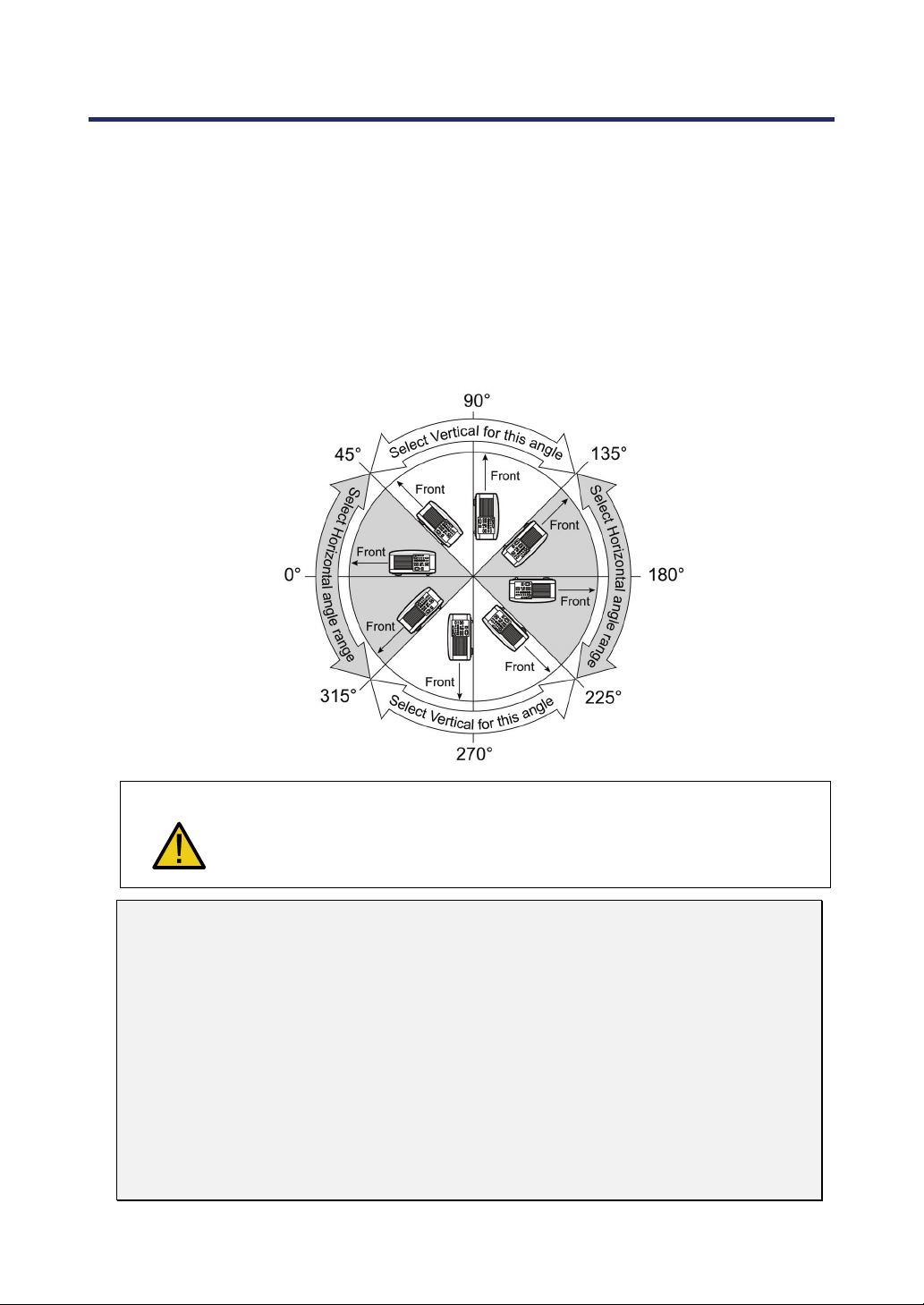
5. Using On-Screen Display
97
Fan Mode
Fan Mode is used to set the speed of the internal cooling fan.
Mode – Normally select Auto, which enables the projector to automatically detect fan
requirements. Select High Altitude when using the projector at altitudes ap-
proximately 5000 feet/1500 meters or higher. The built-in fans run at a high
speed.
Orientation –
Select either Horizontal or Vertical according to the installation angle of the
projector. Select Horizontal for angles of range from 45° to 315° and from
135° to 225° indicated in gray. Select Vertical for the other angle ranges.
CAUTION
When the projector is mounted on the ceiling at the installation angles
from 45° to 135°, make sure that no one is under the projector. Glass
fragments could fall if the lamp has been burned out.
Note:
‧
Set Fan Mode to High Altitude when using the projector at altitudes approxi-
mately 5000 feet/1500 meters or higher.
‧
Using the projector at altitudes approximately 5000 feet/1500 meters or higher
without setting to High Altitude can cause the projector to overheat and the protec-
tor could shut down. If this happens, wait a couple minutes and turn on the
projector.
‧
Using the projector at altitudes less than approximately 5000 feet/1500 meters
and setting to High Altitude can cause the lamp to overcool, causing the image to
flicker.
‧
Using the projector at altitudes approximately 5000 feet/1500 meters or higher
can shorten the life of optical components such as the lamp.
‧
Your setting will not be affected even when Reset is done from the menu.
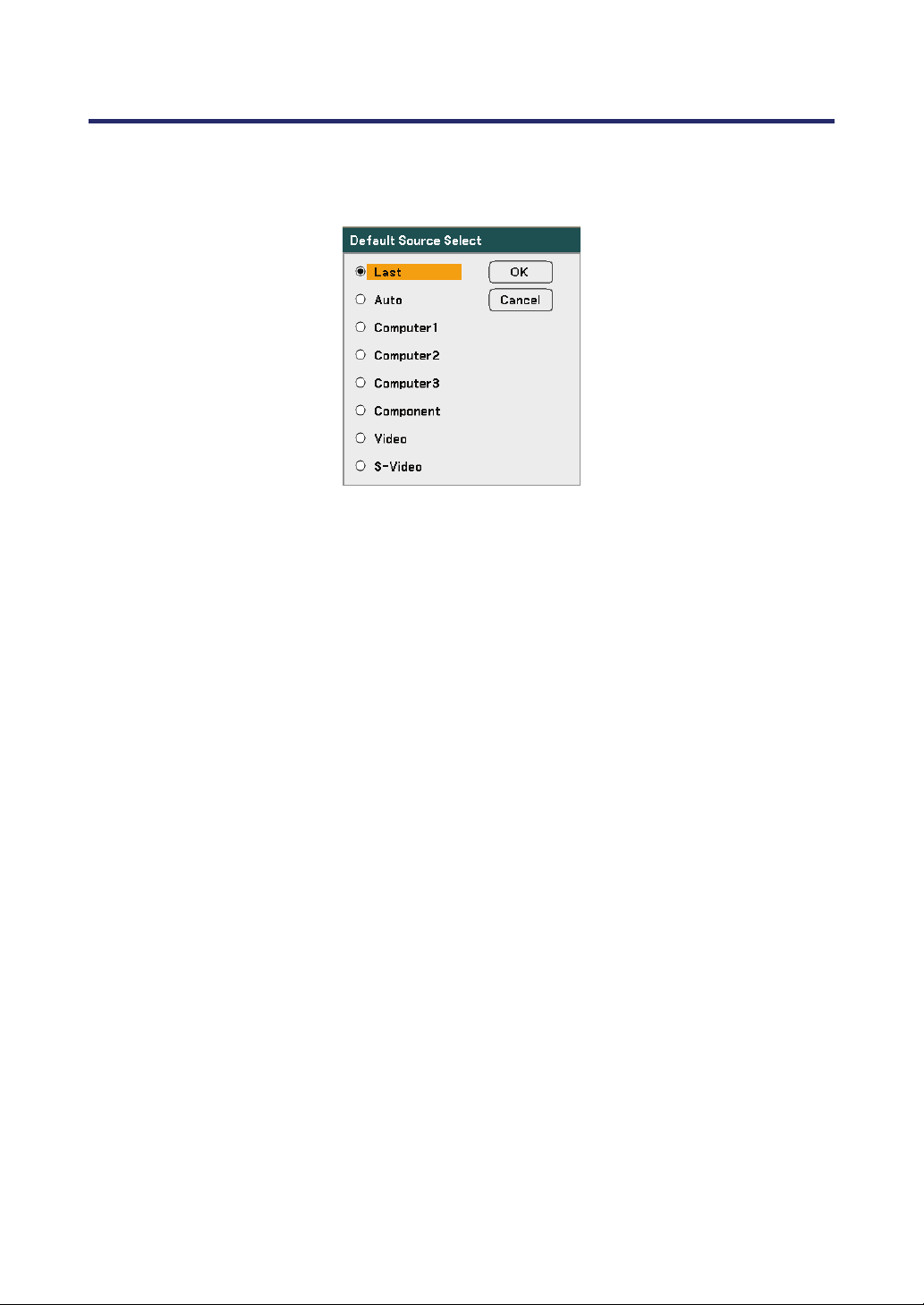
5. Using On-Screen Display
98
Default Source Select
The Default Source is the image source that the projector will search for automatically
on startup.
Last – Uses the most recently used image source.
Auto – Auto detects the default image source.
Computer1/2/3 – Uses Computer1, 2 or 3 as the default image source.
Component – Uses last component as the default image source.
Video – Uses last video input as default image source.
S-Video – Uses last S-video input as default image source.
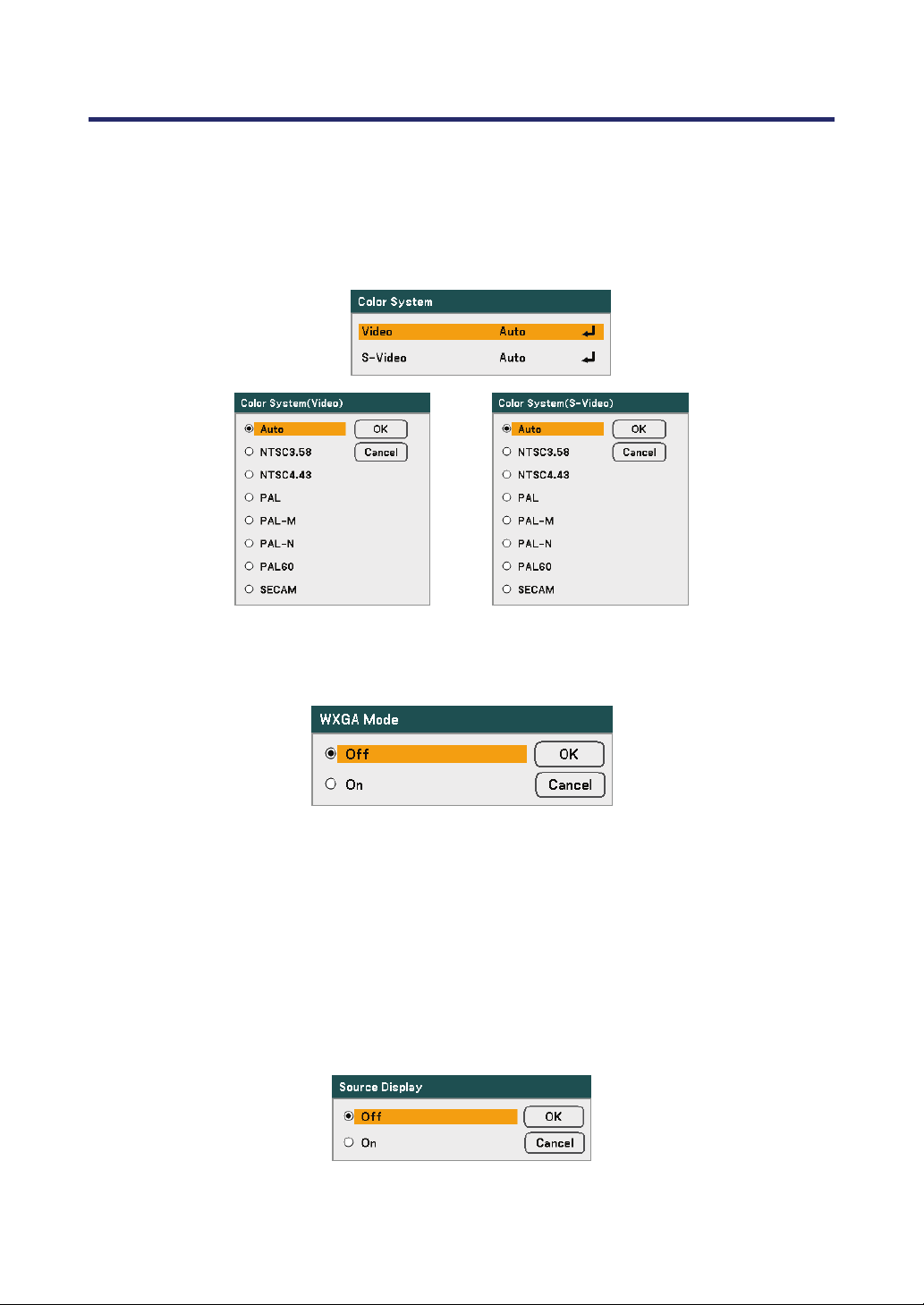
5. Using On-Screen Display
99
Color System
Color System enables you to select video standards manually. In the normal condition,
select Auto and the projector will automatically detect the video standard. When the pro-
jector has difficulty detecting the video standard, you can select the appropriate video
standard from the menu. This must be done for Video and S-Video Connector sepa-
rately.
WXGA Mode
Selecting On will give priority to a WXGA (1280 x 800) signal in recognizing an input
signal.
When "WXGA Mode" is set to On, an XGA (1024 x 768) signal may not be recognized
on NP4100W. In this case, select Off.
To check if the signal is recognized, go to "Source" under "Information" menu (see page 102).
Source Display
This option turns on or off input name display such as Computer 1, Computer 2, Com-
puter 3, Component, Video, and No Input to be displayed on the top right of the screen.
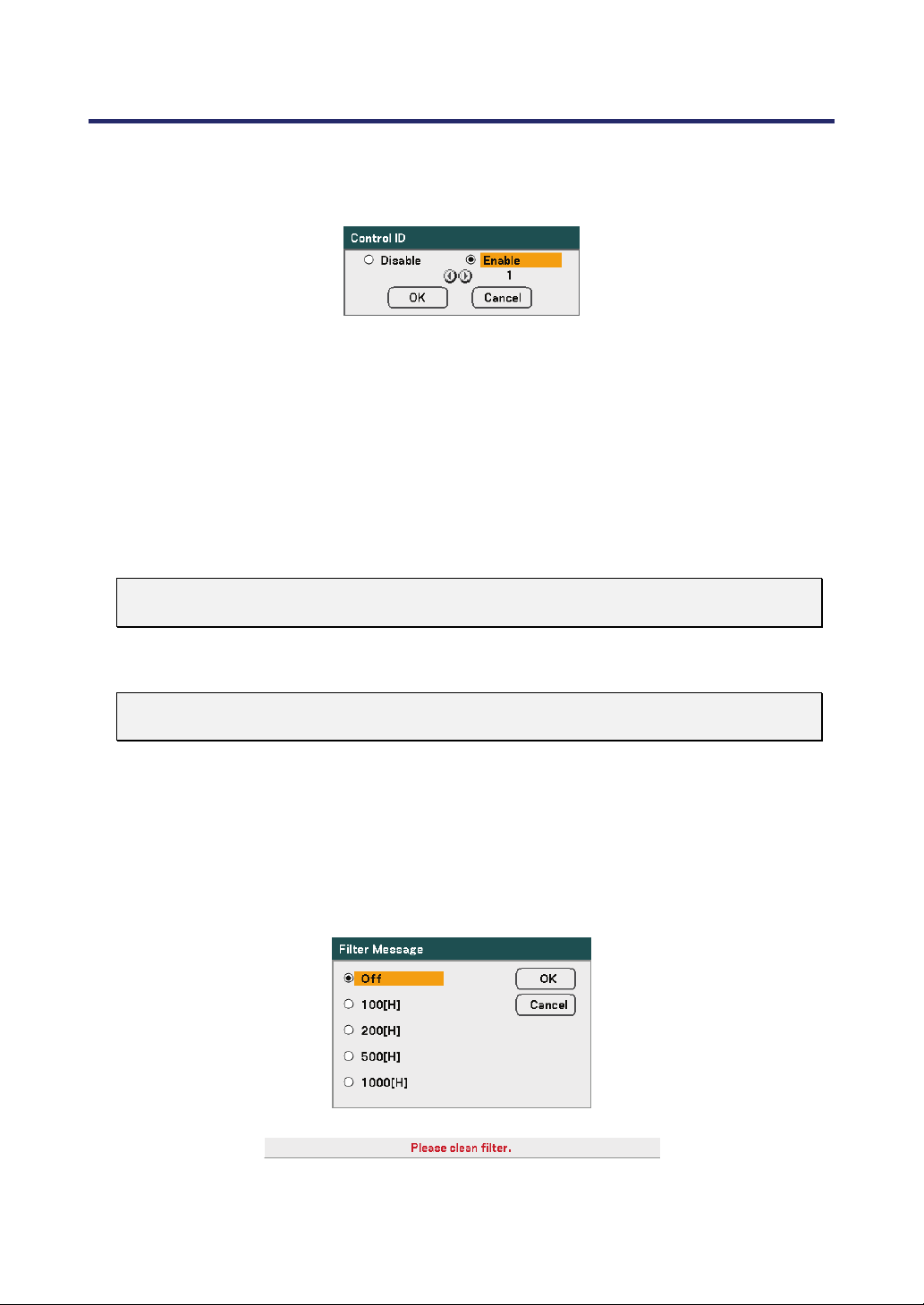
5. Using On-Screen Display
100
Control ID
Control ID selection allows units placed in close proximity to one another to have differ-
ent IR transmissions so only one unit is controlled at a time.
Assigning or Changing the Control ID:
(Available only when the optional remote control NP02RC is used)
1. Display the current control ID on the Control ID screen.
2. Press one of numeric keypad buttons while pressing and holding the ID SET button
on the remote control (NP02RC).
No ID means that all the projectors can be operated together with a single remote con-
trol. To set "No ID", enter "000" or press the CLEAR button.
Note:
TIP: The range of IDs is from 1 to 254.
3. Release the ID SET button.
Note:
The IDs can be cleared in a few days after the batteries are run down or removed.
Filter Message
Select the time preference between displaying the message for cleaning the filters.
Clean the filter when you get the message "Please clean filter." (see page 108)
Five options are available: Off, 100[H], 200[H], 500[H], 1000[H].
The default setting is 500[H]. Change the interval time depending on the degree of dust
and dirt on the filters.
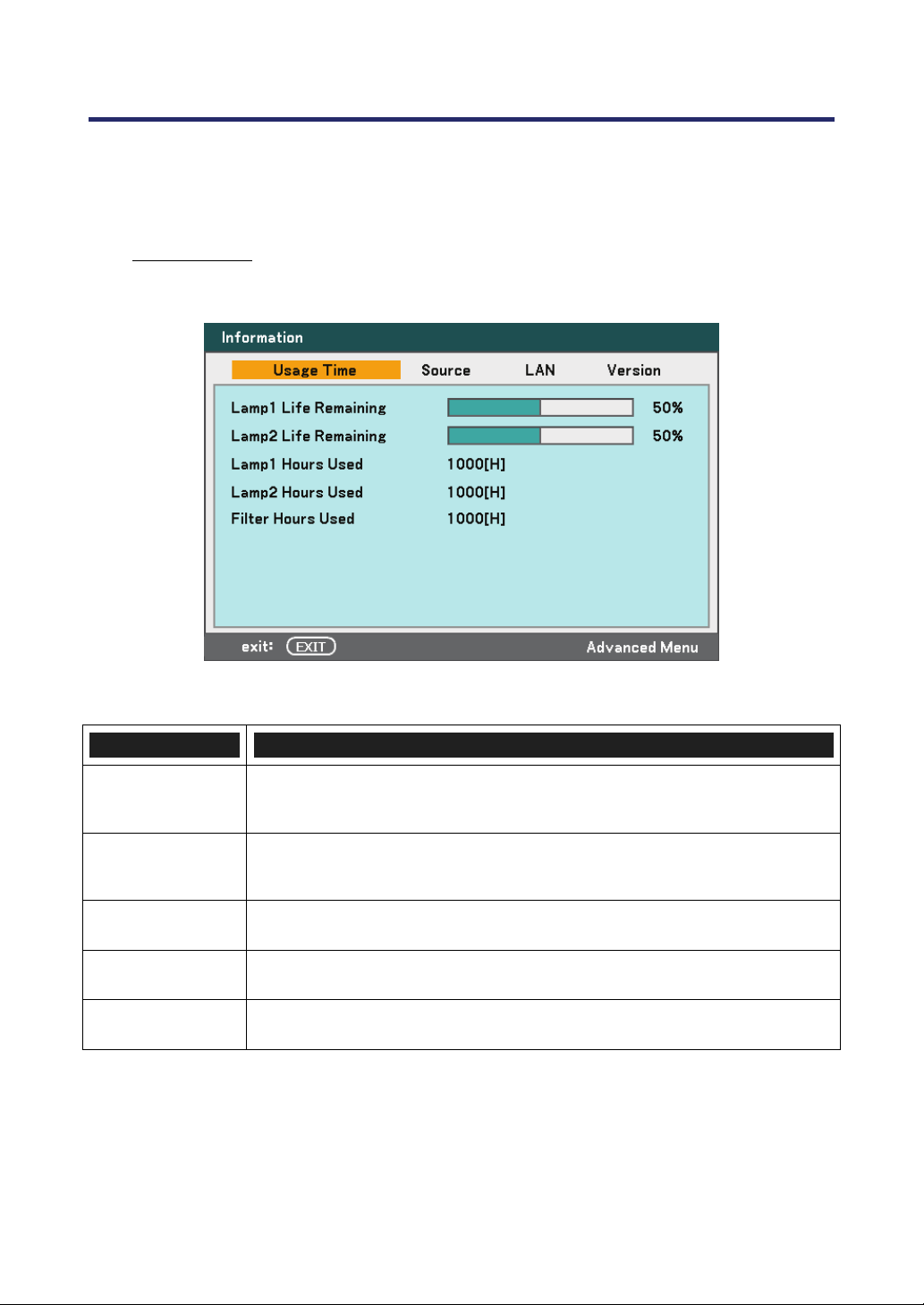
5. Using On-Screen Display
101
Information Menu Descriptions and Functions
The information menu provides only screens to access details quickly. The Information menu
contains four distinct tabs.
Usage Time
The Usage Time tab displays information about lamp usage and remaining lamp life.
The following table lists all items with a description.
ITEM DESCRIPTION
Lamp1 Life
Remaining
Displays the Lamp1 life remaining as a percentage.
Lamp2 Life
Remaining
Displays the Lamp2 life remaining as a percentage.
Lamp1 Hours
Used
Displays the Lamp1 total usage in hours.
Lamp2 Hours
Used
Displays the Lamp2 total usage in hours.
Filter Hours
Used
Displays the filter total usage in hours.
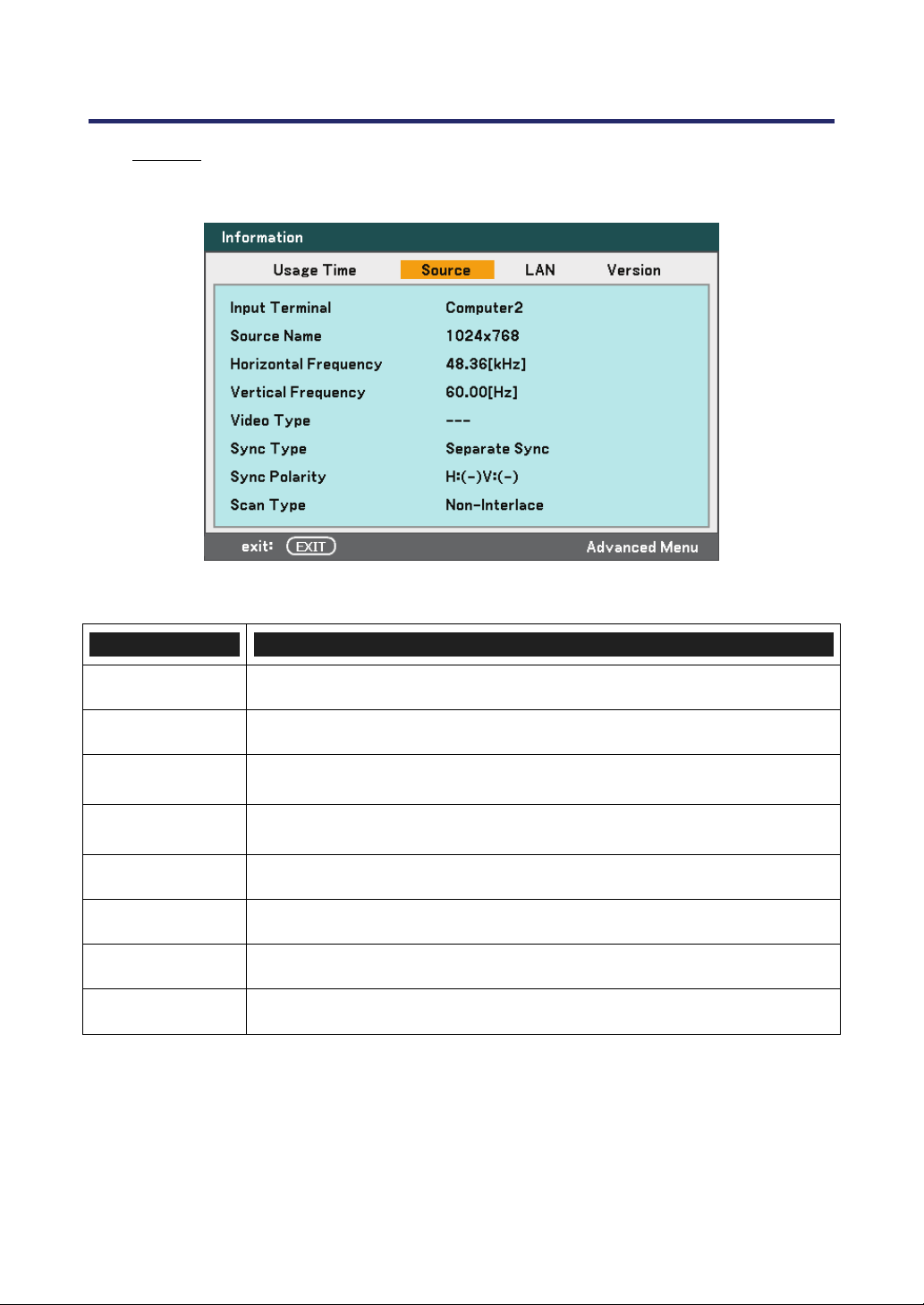
5. Using On-Screen Display
102
Source
The Source tab displays various source and frequency values at a glance.
The following table lists all items with a description.
ITEM DESCRIPTION
Input Terminal Displays the Input Terminal that is presently being used.
Source Name Displays the Source name of the signal presently being used.
Horizontal
Frequency
Displays Horizontal Frequency in KHz.
Vertical
Frequency
Displays Vertical Frequency in Hz.
Video Type
Displays Video type.
Sync Type
Displays Sync Type.
Sync Polarity
Displays Sync Polarity.
Scan Type
Displays Scan Type.
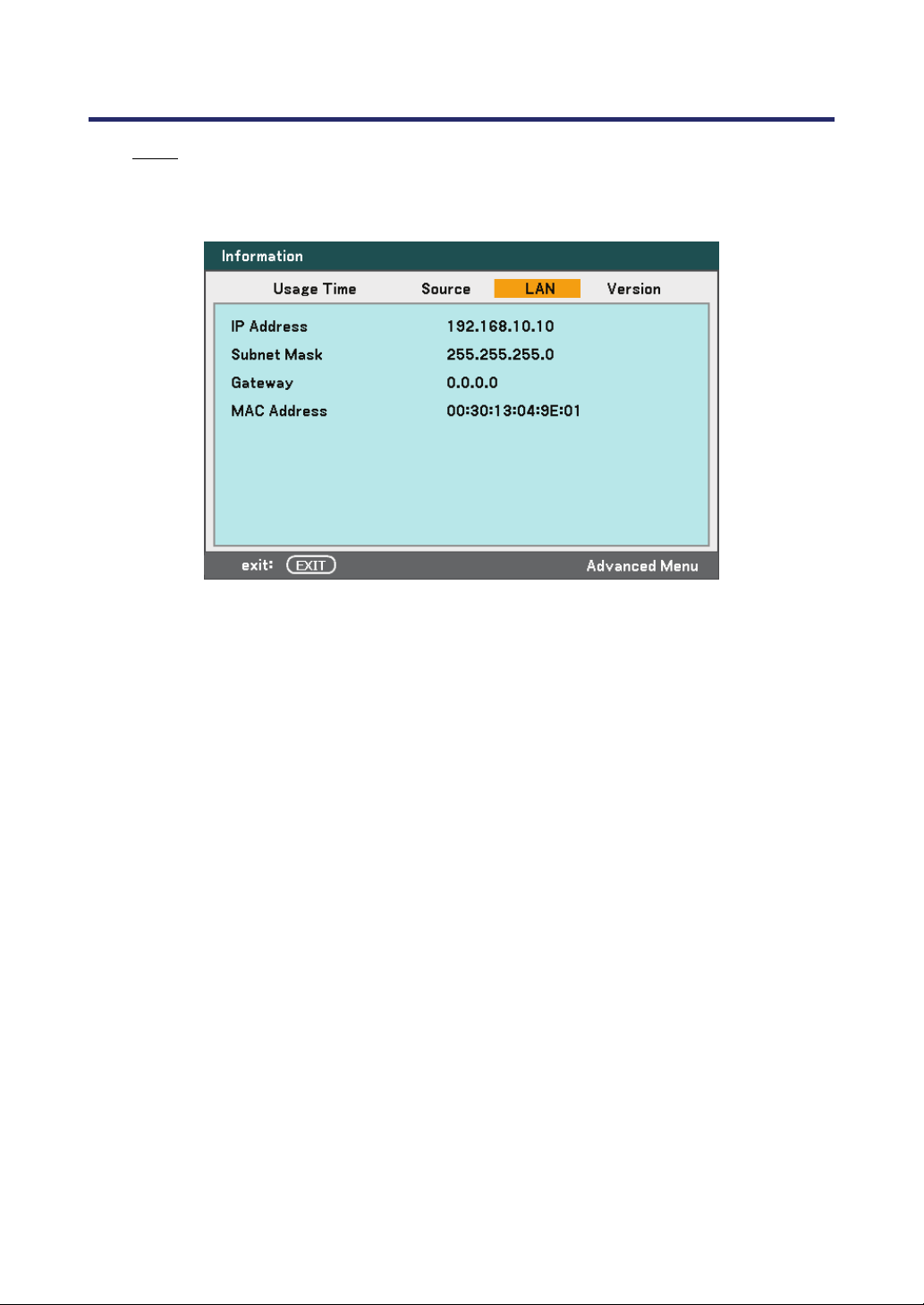
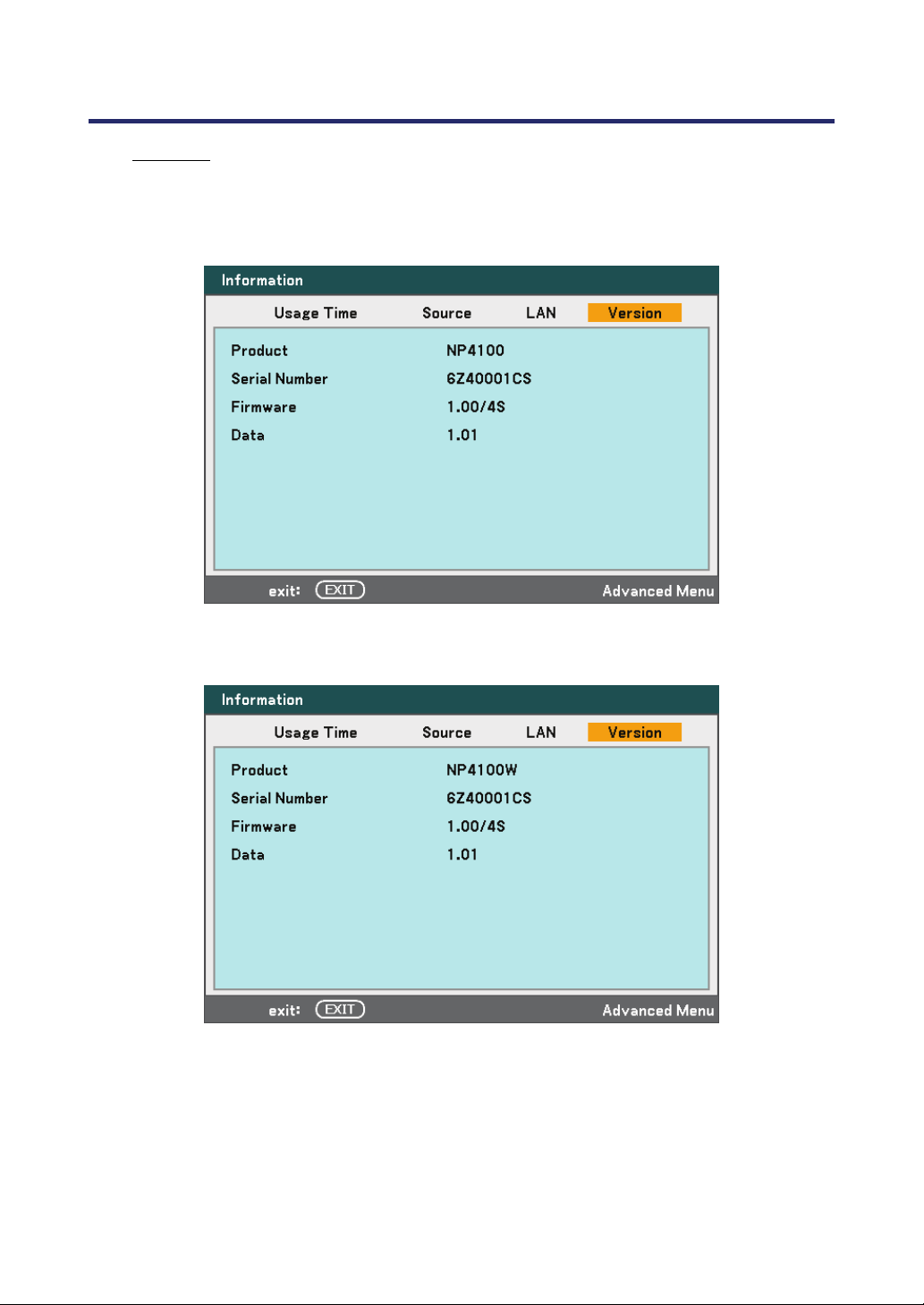
5. Using On-Screen Display
104
Version
The Version tab displays all the version and product details of the projector and associ-
ated software.
NP4100 Version Screen:
NP4100W Version Screen:
5. Using On-Screen Display
105
The following table lists all items with a description.
ITEM DESCRIPTION
Product Displays Product ID.
Serial Number Displays projector Serial Number.
Firmware
Displays Firmware version and Color Wheel currently installed (4-seg
or 6-seg).
Data
Displays Data version.
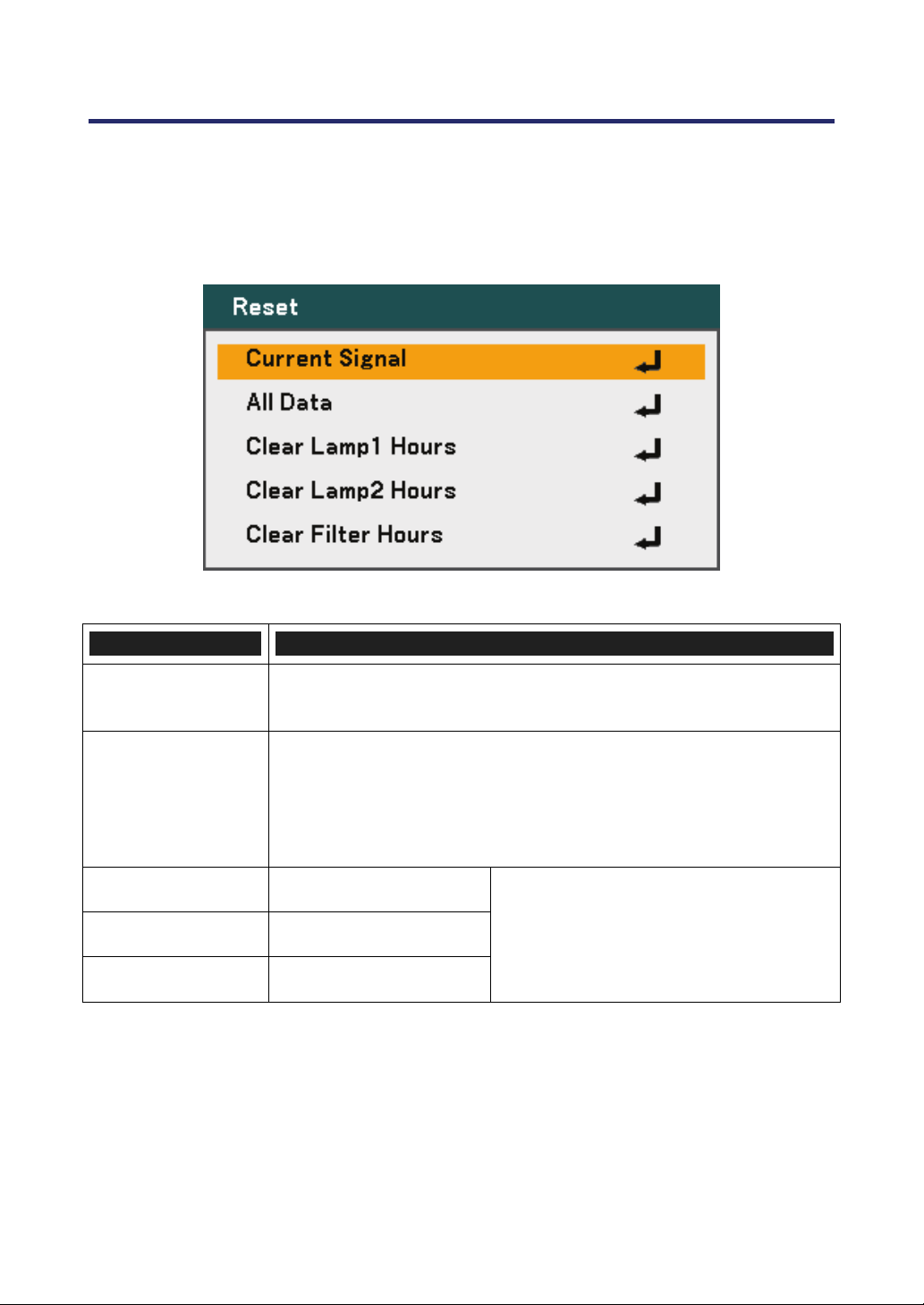
5. Using On-Screen Display
106
Reset Menu Descriptions and Functions
Occasionally, circumstances may require that factory defaults are reset, for demonstration
purposes for example, or when components are replaced.
The Reset menu contains options for returning settings to the factory default and is accessed
via the Main menu.
The following table lists all items with a description.
ITEM DESCRIPTION
Current Signal
Reset the adjustments for current signal to factory preset levels. All
items in Adjust can be reset.
All Data
Reset all the adjustments and settings for all the signals to the factory
preset except Language, Communication Speed, Background, Se-
curity, Control Panel Lock, Network Settings, Standby Mode,
PC Control, Fan Mode, Control ID, Filter Message, Lamp Life
Remaining, Lamp Hours Used, and Filter Hours Used.
Clear Lamp1 Hours
Reset lamp1 hours
Clear Lamp2 Hours
Reset lamp2 hours
Clear Filter Hours
Reset filter hours
These options should only be used when
components are cleaned or replaced
(see 6. Maintenance on page 110).
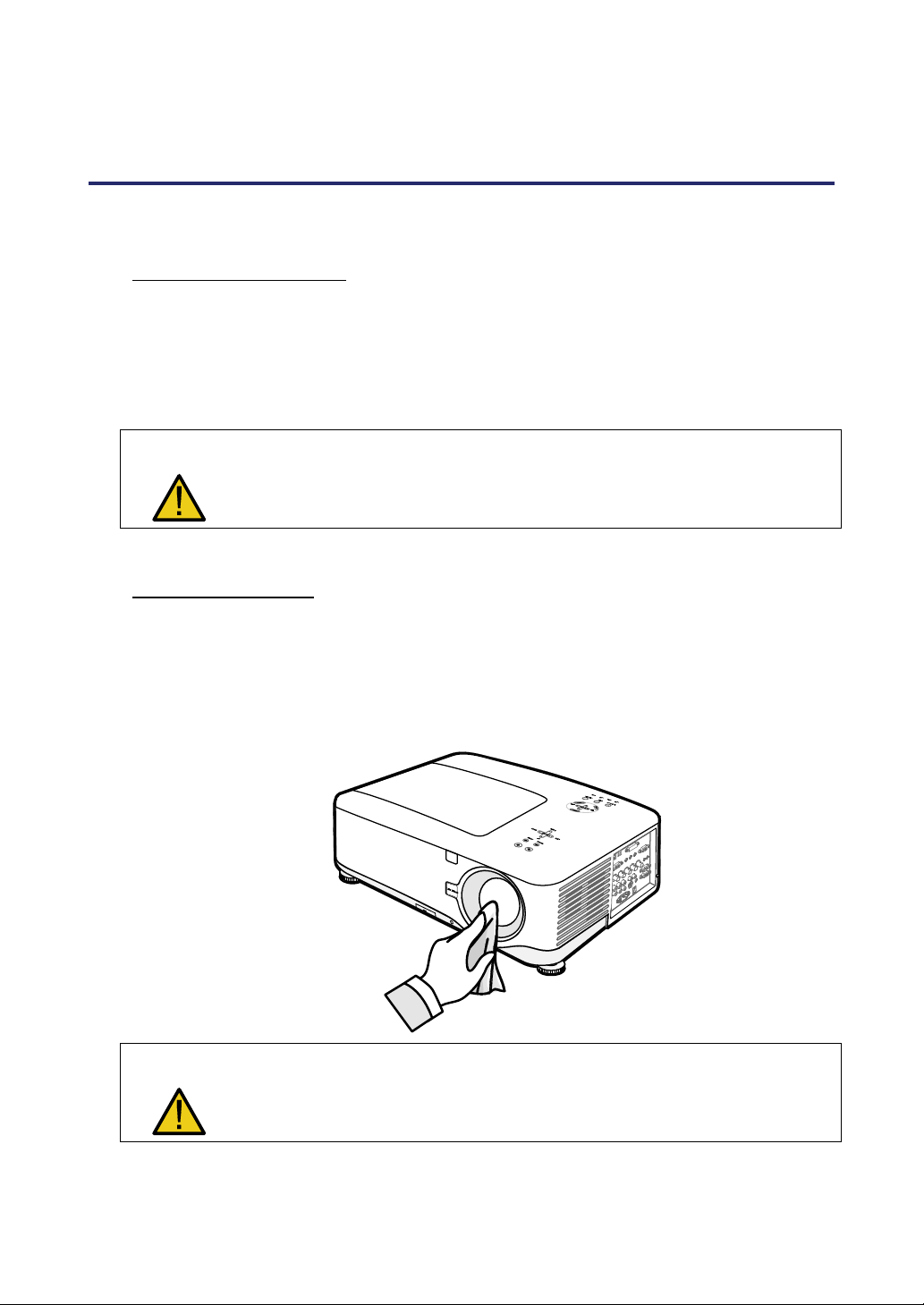
107
6. Maintenance
Cleaning the projector
Cleaning the Cabinet
Refer to the following guide to clean the projector cabinet.
1. Wipe off dust with a clean dampened cloth.
2. Moisten the cloth with warm water and mild detergent and wipe the cabinet.
3. Rinse all detergent from the cloth and wipe the projector again.
CAUTION
To prevent discoloration or fading of the case, do not use abrasive alco-
hol-based cleaners.
Cleaning the Lens
Refer to the following guide to clean the projector lens.
1. Apply a little optic lens cleaner to a clean, lint free cloth (do not apply the cleaner
directly to the lens).
2. Lightly wipe the lens in a circular motion.
CAUTION
Do not use abrasive cleaners or solvents.
To prevent discoloration or fading, avoid getting cleaner on the projector
case.
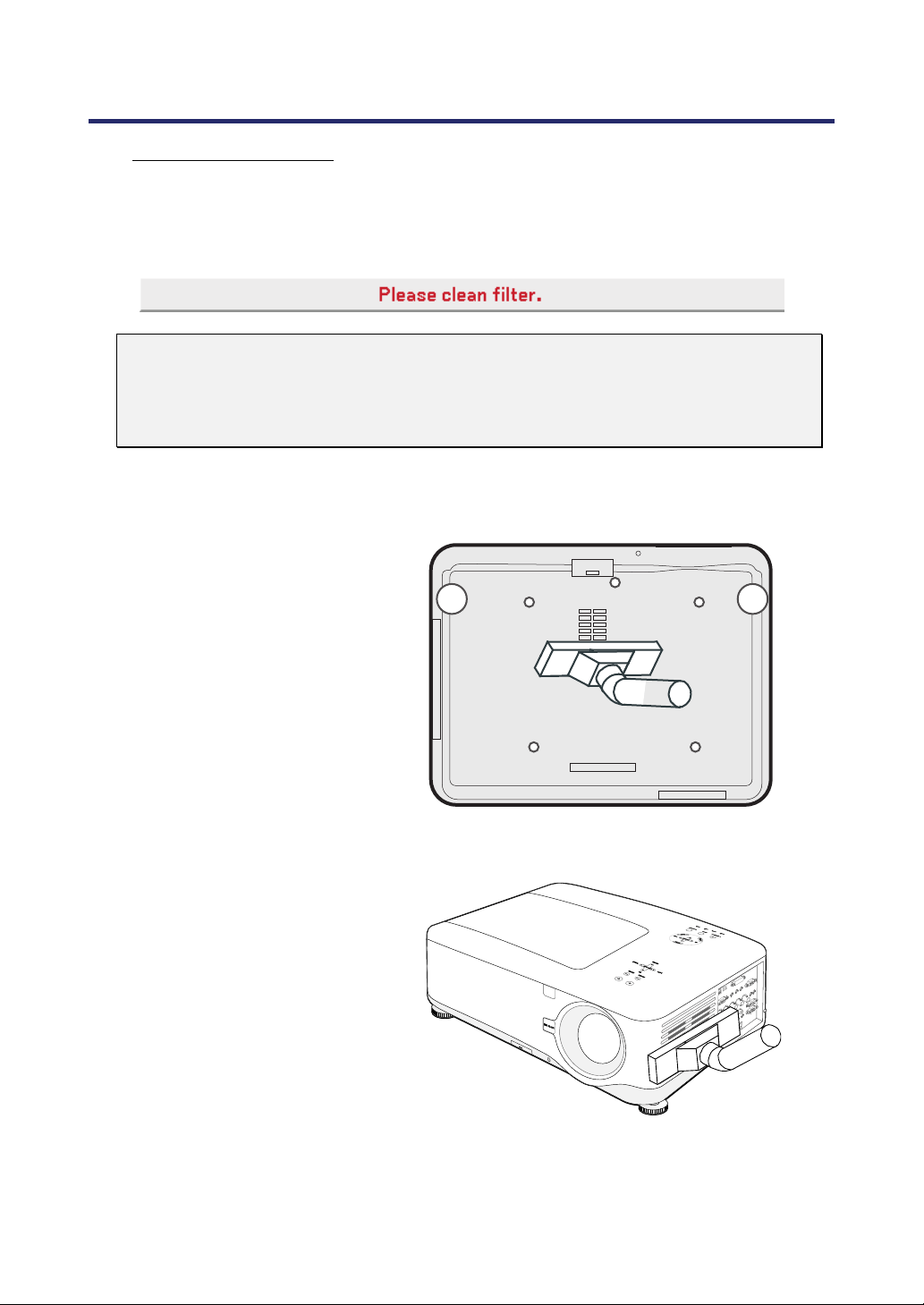
6. Maintenance
108
Cleaning the Filters
The projector uses three filters to keep the fans free of dust and other particles, and
should be cleaned every 500 hours of operation. In dustier environments, it is recom-
mended to clean the filters more frequently. If the filter is dirty or clogged, your projector
may overheat. When the message below is displayed the filters must be cleaned.
Note:
When the Please clean filter message is displayed, please clean or replace
all three filters at the same time to synchronize the hours used display.
The Filter Message item should be enabled in the Options menu. Refer to Op-
tions on page 100.
Refer to the following guide to clean the filters.
1.
Lift the projector to
expose the underside to
locate the first filter.
See the drawing on the
right.
Note: Only clean the out-
side of the exhaust vents
with a vacuum cleaner.
Bottom view
2.
The left-hand filter can be
accessed as shown.
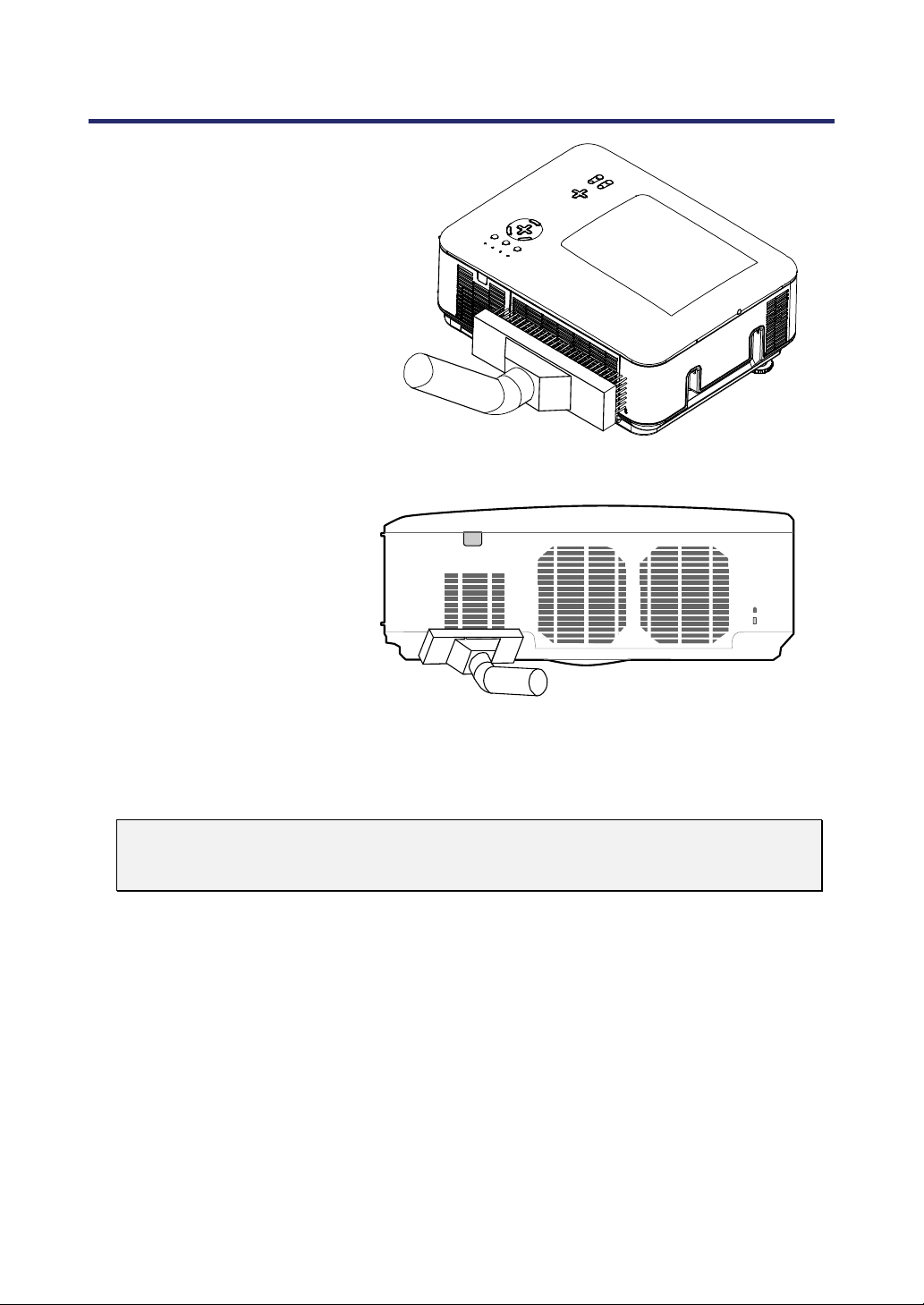
6. Maintenance
109
3.
The rear filter can be
accessed as shown.
Once the filters are cleaned, please reset the filter hours via the Clear Filter Hours op-
tion in the Reset Menu Descriptions and Functions on page 106.
Note:
Using the projector without the air filter fitted inside, dirt and dust are sucked into
the projector, causing failure.
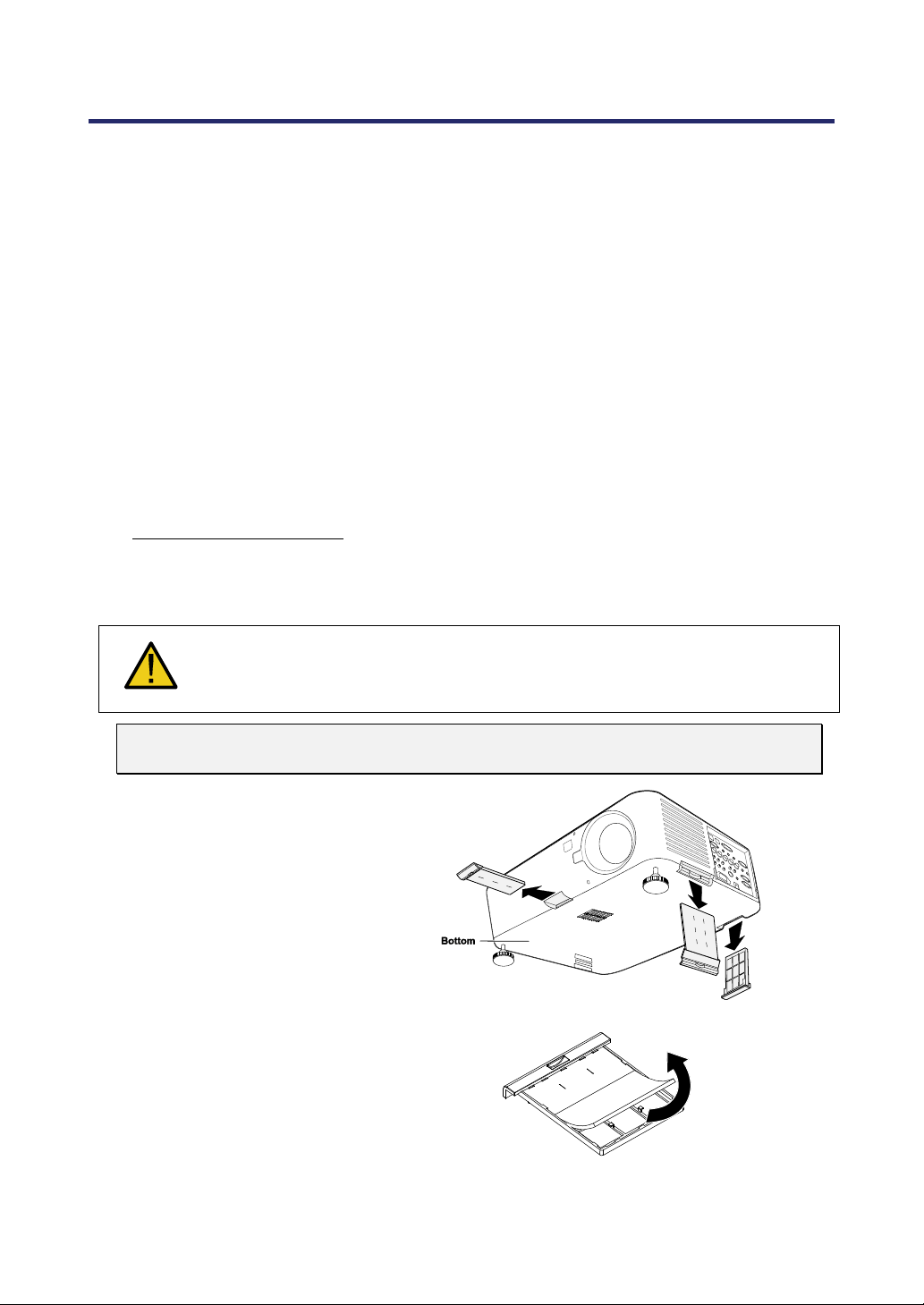
6. Maintenance
110
Replacing Consumable Parts
During the course of normal usage, consumable parts become worn out resulting in reduced
performance. The following guides detail how to replace the various consumable parts within
the projector quickly and safely.
Before replacing any of the parts, please take note of the following:
• Ensure that the projector is turned off and disconnected from the power supply.
• Ensure that the projector is in a clean, stable position before replacing parts.
• Allow at least one hour after shutdown for the projector to cool before attempting to
replace any consumable parts.
• Do not interchange Lamp 1 and Lamp 2 after the projector has been used once.
Doing so will not allow the projector to display the correct lamp usage hours.
• A minimum space is required for replacement. See pages 27 and 111 fo
r more de-
tails.
Replacing the Filters
When the lamps are replaced, the filters should also be replaced, not cleaned.
Refer to the following guide to replace the filters.
CAUTION:
Do not drop the projector on your hand or fingers while lifting the projector to
replace the filters. Doing so could injure your hand or fingers.
Note:
The filters on the side and the rear are located on the bottom.
1.
Gently slide the filter
covers in the direction
shown.
2.
Lift the foam from all
three filters in the
direction shown. Remove
completely from the filter
cover and discard.
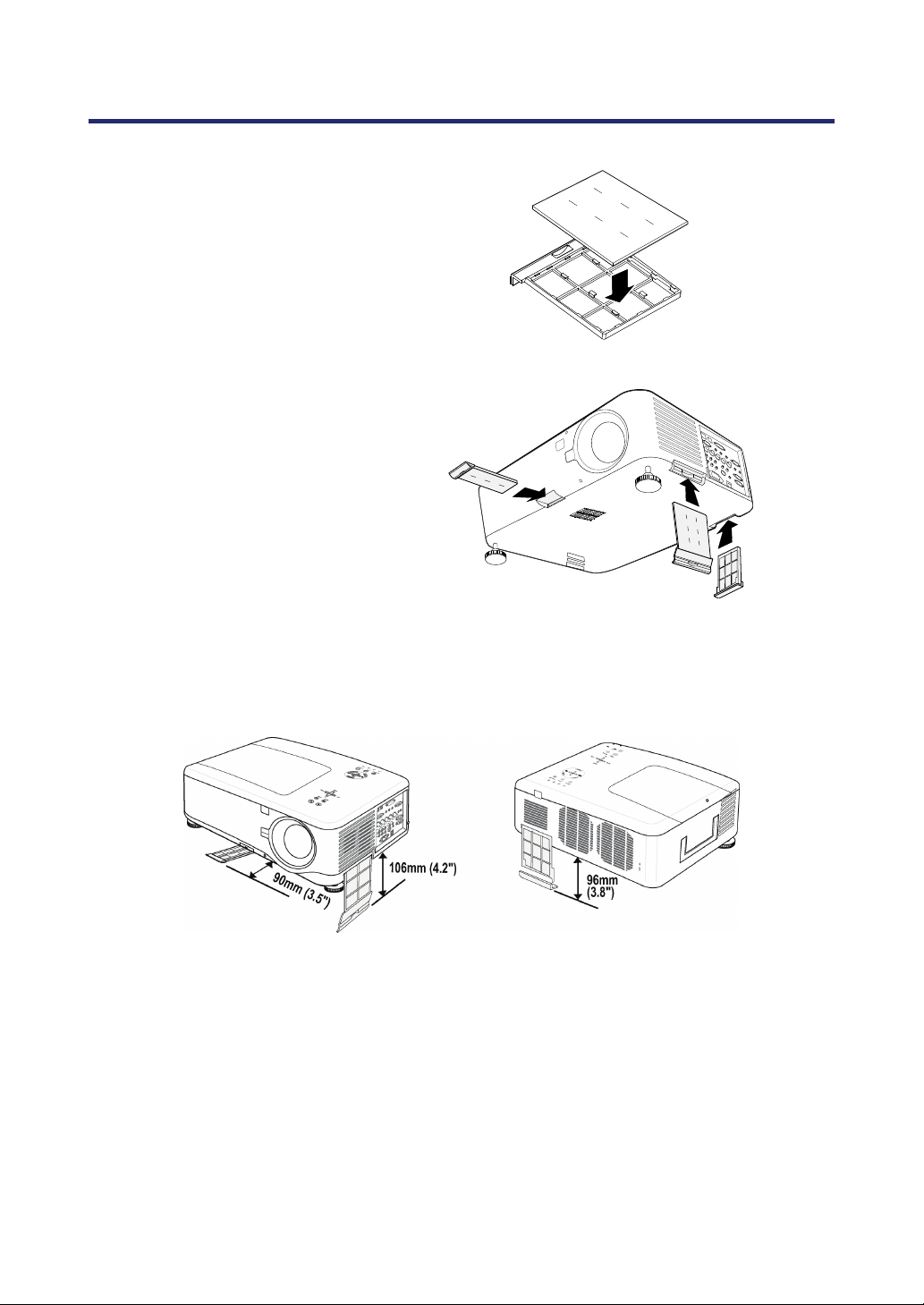

6. Maintenance
112
Replacing the Lamps
When a lamp reaches the end of it’s usable life, the following message is displayed. Re-
place the lamp.
The projection lamps should be replaced when they burn out. They should only be re-
placed with a certified replacement part (NP12LP), contact your local dealer if unsure.
Note:
1. Lamps are positioned differently. Take care not to force the lamps when replac-
ing.
2. Installation of both lamp modules (Lamp 1 and Lamp 2) is required to operate
the projector in dual or single lamp mode. If only a single lamp module is installed,
the projector's lamp will not turn on and will appear as a lamp failure
3. Lamps last approximately 2000-2100 hours (3000-3100 hours in Eco mode)
and the End of lamp life message is displayed during the lamps' final 100 hours of
operational life. Please replace during 2000-2100 hour.
Important:
1. The lamp contains a certain amount of mercury and should be disposed of ac-
cording to local ordinance regulations.
2. Avoid touching the glass surface of the new lamp: doing so may shorten its op-
eration life.
3. If the lamp’s useful life ends and projector could not turn on over 2100 hours,
please have the projector serviced.
Note:
The projector turns off and goes into standby mode after 2100 hours (up to 3100
hours in Eco mode) of service. In this condition you cannot clear the lamp hour
meter using the menu. Should this condition exist, press the HELP button on the
remote control for 10 seconds to reset the lamp clock back to zero.
Ensure the lamp is replaced before performing this operation.
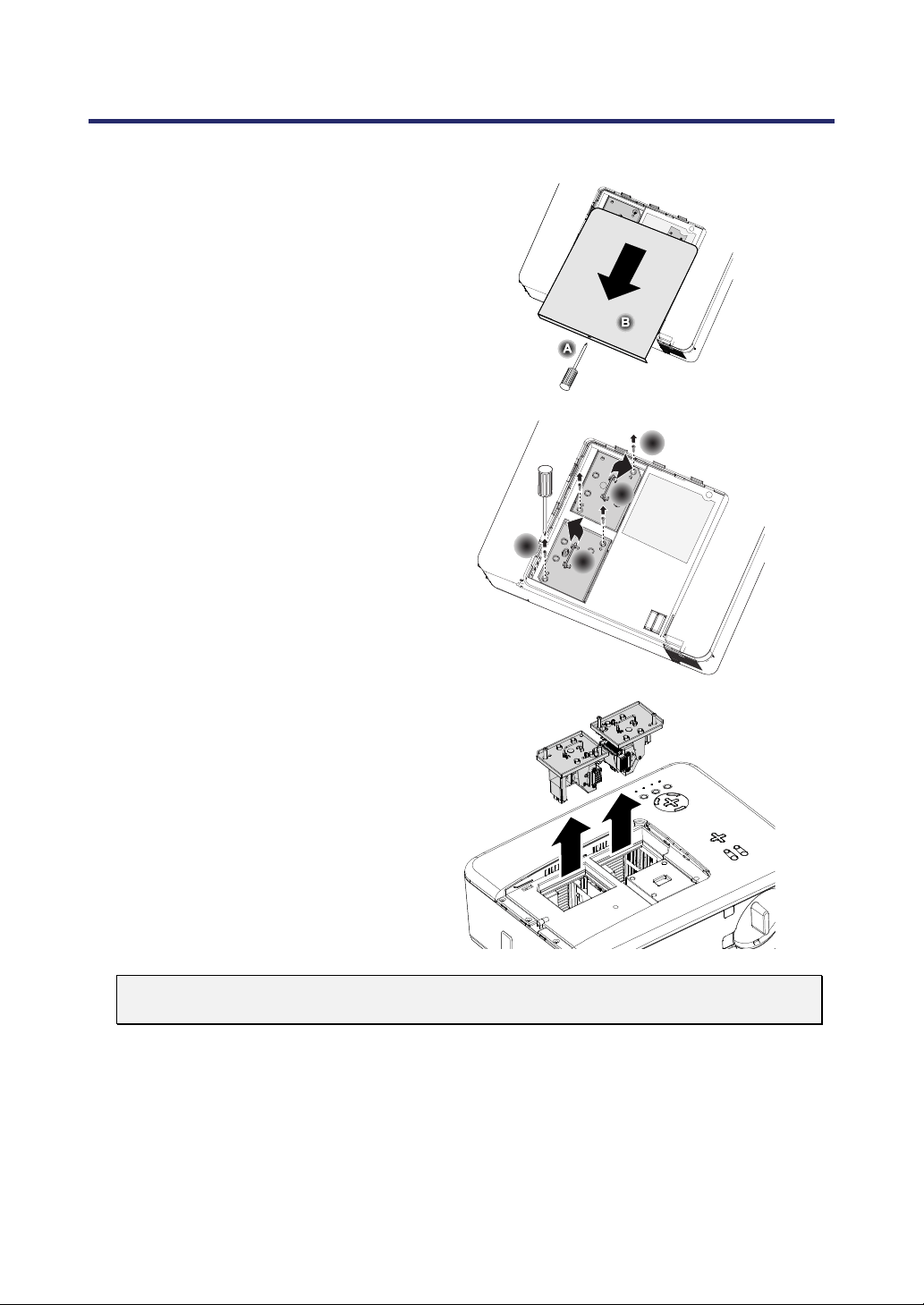
6. Maintenance
113
To replace the lamp, refer to the following.
1.
Loosen the screw on the lamp
cover (A), and remove the
lamp cover as shown (B).
2.
Loosen the two captive screws
(A) on the lamp module. Lift
the module handle up (B) in
the direction shown.
A
A
B
B
3.
Pull firmly on the module
handle in the direction shown
to remove the lamp.
4.
Reverse steps 1 to 3 to install
the new lamp module and re-
place the lamp cover.
Note:
The filters should be replaced when replacing the lamp modules.
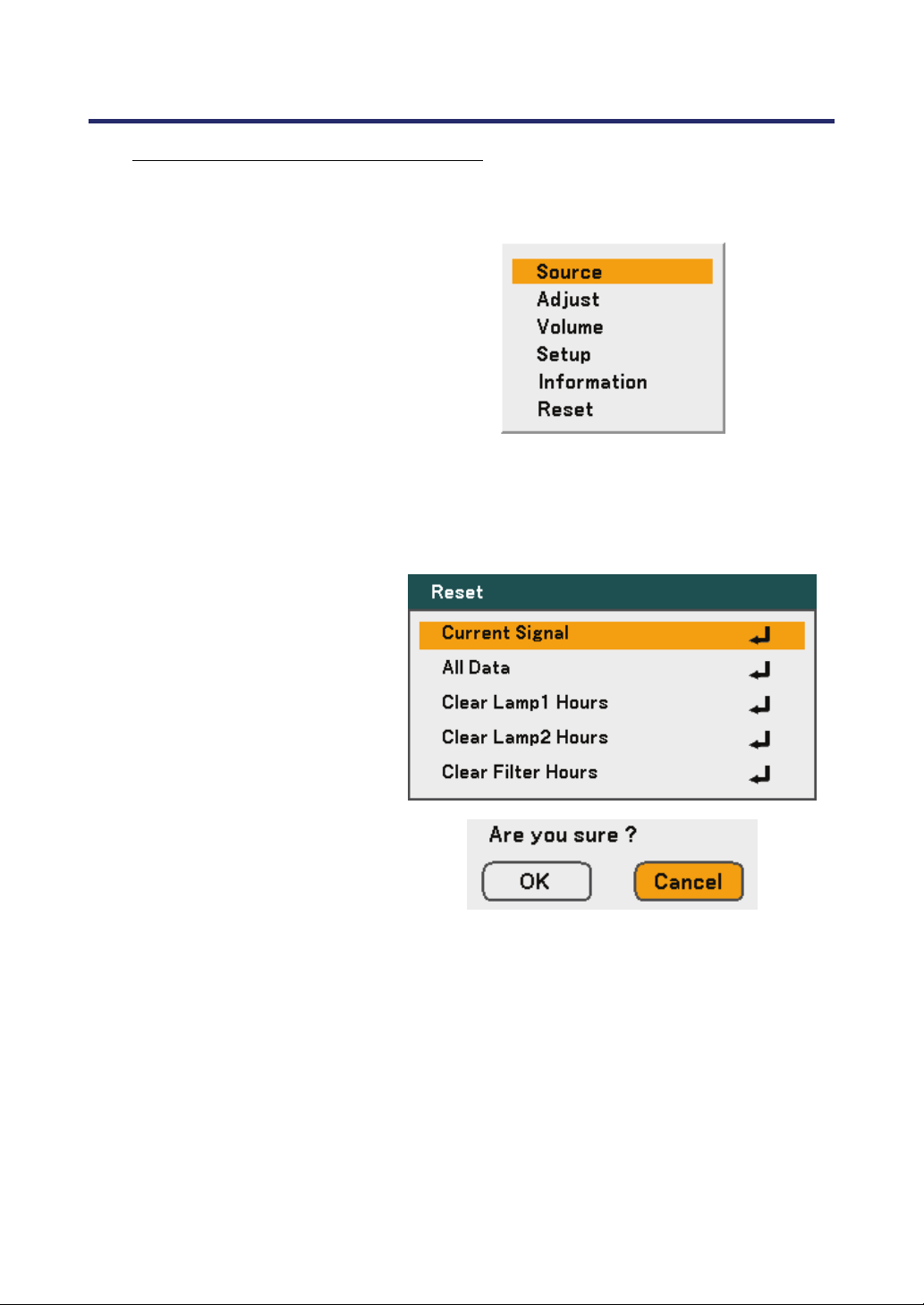
6. Maintenance
114
Resetting the Lamp Hours Counter
After replacing the lamp(s), the lamp hour counter(s) should be reset to zero. Refer to
the following guide:
1.
Press the Menu button on the
OSD control panel or Re-
mote Control to open the
Main menu.
2.
Press the ▲or▼ button
to
move to the Reset menu and
press Enter.
3.
The Reset menu is displayed.
Select Clear Lamp 1 or
Clear Lamp 2 as required
using ▲or▼ and press En-
ter.
4.
A confirmation box is dis-
played. Select OK using
◄ or ► and press Enter to
reset the selected Lamp hours
to zero.
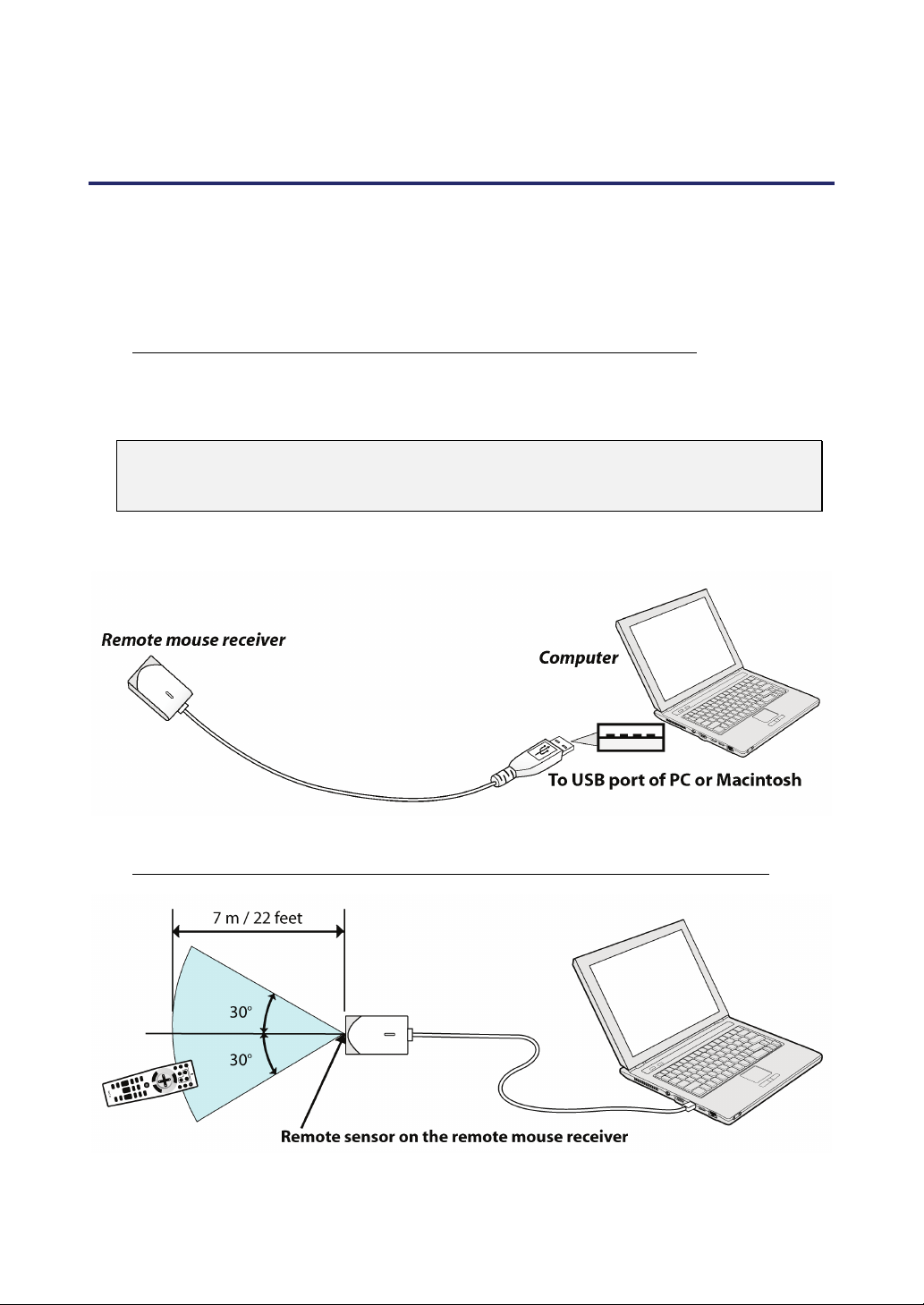
115
7. Appendix
Using the Optional Remote Mouse Receiver (NP01MR)
The optional remote mouse receiver enables you to operate your computer’s mouse func-
tions from the remote control. It is a great convenience for clicking through your computer-
generated presentations.
Connecting the remote mouse receiver to your computer
If you wish to use the remote mouse function, connect the mouse receiver and computer.
The mouse receiver can be connected directly to the computer’s USB port (type A).
Note:
Depending on the type of connection or OS installed on your computer, you may
have to restart your computer or change your computer settings.
When operating a computer through the remote mouse receiver
7. Appendix
116
When connecting using the USB terminal
The mouse receiver can only be used with a Microsoft Windows 98/Windows Me/ Win-
dows 2000/ Windows XP*/Windows Vista PC system or a Mac OS X 10.0.0 or later
operating system.
Note:
In Windows XP, if the mouse cursor will not move correctly, do the following: Clear
the Enhance pointer precision check box underneath the mouse speed slider in
the Mouse Properties dialog box [Pointer Options tab].
Note:
Wait at least 5 seconds after disconnecting the mouse receiver before reconnect-
ing it and vice versa. The computer may not identify the mouse receiver if it is
repeatedly connected and disconnected in rapid intervals.
Operating your computer’s mouse from the remote control
You can operate your computer's mouse from the remote control.
PAGE UP/DOWN Button – scrolls the viewing area of the window or to move to the pre-
vious or next slide in PowerPoint on your computer.
SELECT ▲▼◄► Buttons – moves the mouse cursor on your computer.
MOUSE L-CLICK Button – works as the mouse left button.
MOUSE R-CLICK Button – works as the mouse right button.
Note:
The PAGE UP and DOWN buttons do not work with PowerPoint for Macintosh.
When you operate the computer using the SELECT ▲▼◄► buttons with the
menu displayed, both the menu and the mouse pointer will be affected. Close the
menu and perform the mouse operation.
About Drag Mode
By pressing the MOUSE L-CLICK or R-CLICK button for 2 or 3 seconds then releasing,
the drag mode is set and the drag operation can be performed simply by pressing the
SELECT ▲▼◄►buttons. To drop the item, press the MOUSE L-CLICK (or R-CLICK)
button. To cancel it, press the MOUSE R-CLICK (or L-CLICK) button.
Note:
You can change the Pointer speed on the Mouse Properties dialog box on the
Windows. For more information, see the user documentation or online help sup-
plied with your computer.
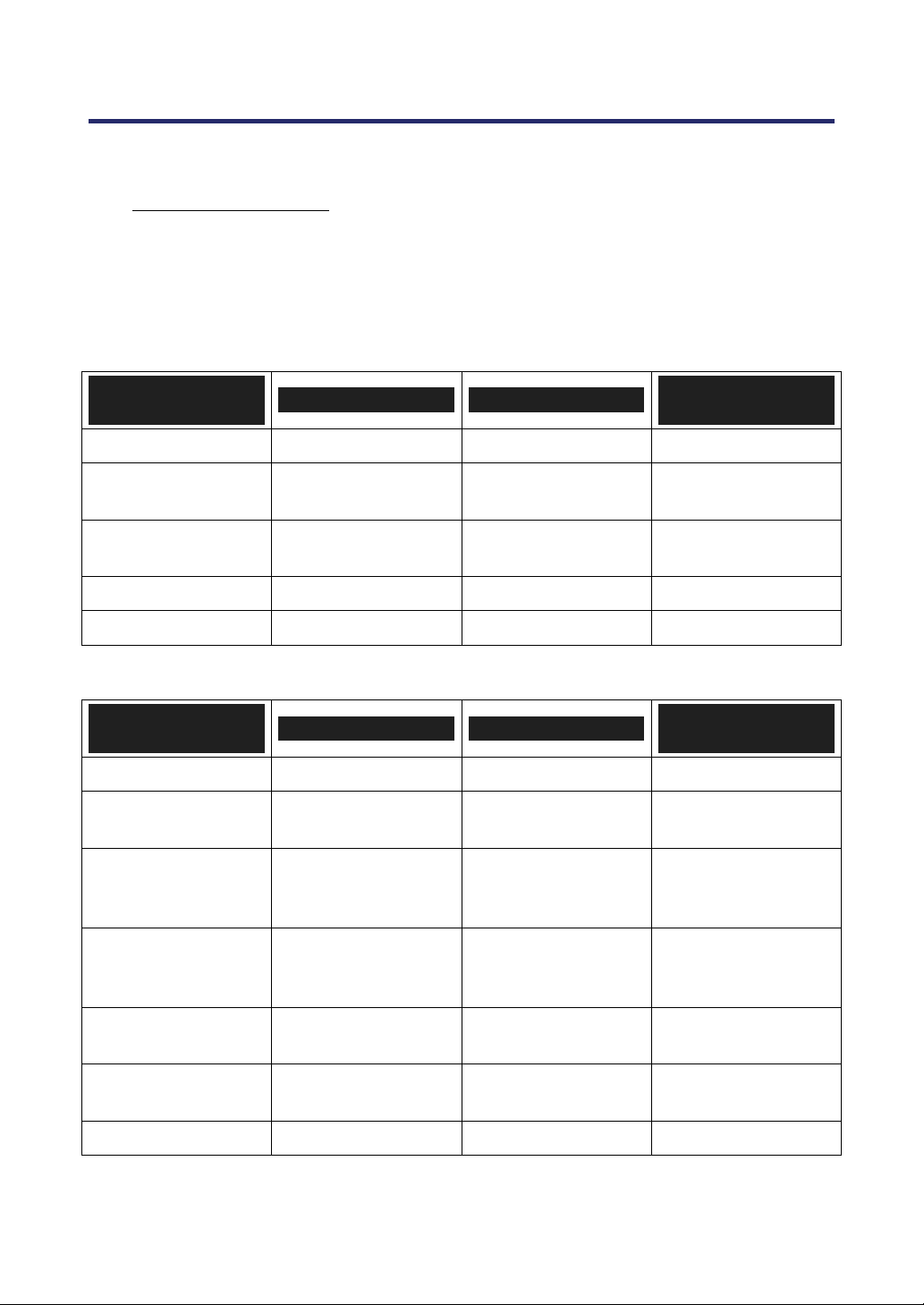
7. Appendix
117
Troubleshooting
Indicator Messages
Several indicator messages are used by the projector to alert users of problems with
setup or internal parts. The LEDs on the top surface of the projector show the status of
the power, lamps 1 and 2 as well as the general working order of the projector through
the status LED (see OSD Controls and Status LEDS on page 8 for loc
ation). The follow-
ing tables describe the various states of the 4 LEDs.
The Power LED
PROJECTOR
STATUS
LED CONDITION LED SEQUENCE
PROJECTOR
CONDITION
AC off Off Off Off
Cooling Orange blink
0.5 secs on
0.5 secs off
After power off
Power up sequence Green blink
0.5 secs on
0.5 secs off
Start up
Standby Orange on On Standby
Power on Green on On On
The Status LED
PROJECTOR
STATUS
LED CONDITION LED SEQUENCE
PROJECTOR
CONDITION
Normal condition Off Off Power on
Cover ERROR
Red 1 time blink
(repeatedly)
0.5 secs on
2.5 secs off
ERROR
Temperature
ERROR
Red 2 times blink
(repeatedly)
(0.5 secs ON > 0.5
secs OFF) * 2 > 2.0
secs OFF
ERROR
Fan ERROR
Red 4 times blink
(repeatedly)
(0.5 secs ON > 0.5
secs OFF) * 4 > 2.0
secs OFF
ERROR
Keylocked
(when push key)
Orange light up On
Keylocked function
enabled
Standby
(Power-saving)
Off Off
Standby
(Power-saving)
Standby (Normal) Green light On Standby (Normal)
7. Appendix
118
The Lamp LEDs
PROJECTOR
STATUS
LED CONDITION LED SEQUENCE
PROJECTOR
CONDITION
Lamp off Off Off Lamp off
End of the lamp life Red blink
0.5 secs on
0.5 secs off
Replace lamp
(see notes below)
No lamp
Red 1 time blink
(repeatedly)
0.5 secs on
2.5 secs off
ERROR
Lamp ERROR
Red 6 times blink
(repeatedly)
(0.5 secs ON > 0.5
secs OFF) * 6 > 2.0
secs OFF
ERROR
Cooling lamp Orange blink
0.5 secs ON > 0.5
secs OFF
Switching lamp1
and 2
Re-light up se-
quence
Green blink
0.5 secs ON > 0.5
secs OFF
Start up
Lamp life over
(cannot lamp on)
Red on On
Replace lamp
(see notes below)
Eco mode Orange on On Power on
Normal mode Green on On Power on

7. Appendix
119
Common Problems and Solutions
These guidelines provide tips to deal with problems you may encounter while using the
projector. If the problem remains unsolved, contact your dealer for assistance.
Often the problem is something as simple as a loose connection. Check the following
before proceeding to the problem-specific solutions.
• Use some other electrical device to confirm that the electrical outlet is working.
• Ensure the projector is turned on.
• Ensure all connections are securely attached.
• Ensure the attached device is turned on.
• Ensure a connected PC is not in suspend mode.
• Ensure a connected notebook computer is configured for an external display.
(This is usually done by pressing an Fn-key combination on the notebook.)
Tips for Troubleshooting
In each problem-specific section, try the steps in the order suggested. This may help you
to solve the problem more quickly.
Try to pinpoint the problem to avoid replacing non-defective parts.
For example, if you replace batteries and the problem remains, put the original batteries
back and go to the next step.
Keep a record of the steps you take when troubleshooting: The information may be use-
ful when calling for technical support or for passing on to service personnel.

7. Appendix
120
Image Problems
Problem: No image appears on the screen
1. Verify the settings on your notebook or desktop PC.
2. Turn off all equipment and power up again in the correct order.
Problem: The image is blurred
1. Adjust the Focus on the projector.
2. Press the Auto Adjust button on the remote control or projector.
3. Ensure the projector-to-screen distance is within the specified range.
4. Check that the projector lens is clean.
5. Remove the lens cover.
Problem: The image is blurred and distorted on NP4100W
Check the WXGA Mode is set to Off. (see page 99)
When "WXGA Mode" is set to On, an XGA (1024 x 768) signal may not be recog-
nized on NP4100W. In this case, select Off.
To check if the signal is recognized, go to "Source" under "Information" menu.
(see page 102)
Problem: The image is wider at the top or bottom (trapezoid effect)
1. Position the projector so it is as perpendicular to the screen as possible.
2. Use the Keystone button on the remote control or projector to correct the
problem.
Problem: The image is reversed or upside down
Check the Orientation setting on the Setup menu of the OSD.
Problem: The image is streaked
1. Set the Clock and Phase settings on the Adjust menu of the OSD to the de-
fault settings.
2. To ensure the problem is not caused by a connected PC’s video card, con-
nect to another computer.
Problem: The image is flat with no contrast
1. Adjust the Contrast setting on the Adjust menu of the OSD.
2. Adjust the Brightness setting on the Adjust menu of the OSD.
Problem: The color of the projected image does not match the source
image.
Adjust the Color Temperature and Gamma Correction settings on the Detail
Settings menu of the OSD.

7. Appendix
121
Lamp Problems
Problem: There is no light from the projector
1. Check that the power cable is securely connected.
2. Ensure the power source is good by testing with another electrical device.
3. Restart the projector in the correct order and check that the Power LED is
green.
4. If you have replaced the lamp recently, try resetting the lamp connections.
5. Replace the lamp module.
6. Remove the lens cover.
7. Put the old lamp back in the projector and have the projector serviced.
Problem: The lamp goes off
1. Power surges can cause the lamp to turn off. Press the power button twice to
turn off the projector. When the Power LED is orange, press the power button.
2. Replace the lamp module.
3. Put the old lamp back in the projector and have the projector serviced.
Remote Control Problems
Problem: The projector does not respond to the remote control
1. Direct the remote control towards remote sensor on the projector.
2. Ensure the path between remote and sensor is not obstructed.
3. Turn off any fluorescent lights in the room.
4. Check the battery polarity.
5. Replace the batteries.
6. Turn off other Infrared-enabled devices in the vicinity.
7. Have the remote control serviced.

7. Appendix
122
Audio Problems
Problem: There is no sound
1. Adjust the volume on the remote control.
2. Adjust the volume of the audio source.
3. Check the audio cable connection.
4. Test the source audio output with other speakers.
5. Have the projector serviced.
Problem: The sound is distorted
1. Check the audio cable connection.
2. Test the source audio output with other speakers.
3. Have the projector serviced.

7. Appendix
123
Having the Projector Serviced
If you are unable to solve the problem, you should have the projector serviced. Pack the pro-
jector in the original carton. Include a description of the problem and a checklist of the steps
you took when trying to fix the problem. The information may be useful to the service person-
nel. Return the projector to the place you purchased it.
124
8. Specifications
Projector Specifications
This section provides technical information about the projector's performance.
Optical Specifications
Optical NP4100 NP4100W
Projection System
Single DLP
TM
chip
(0.7 inches, aspect 4: 3)
Single DLP
TM
chip
(0.65 inches, aspect 16:10)
Resolution*1 1024 x 768 pixels 1280 x 800 pixels
Lens Motorized zoom, focus, and lens shift
NP06FL: Power focus, throw ratio 0.77:1, F2.0, f=11.4 mm
NP07ZL: Power zoom and focus, throw ratio 1.33 – 1.79:1,
F1.8-2.3, f=19.3-25.8 mm
NP08ZL: Power zoom and focus, throw ratio 1.78 – 2.35:1,
F1.7-1.9, f=26-34 mm
NP09ZL: Power zoom and focus, throw ratio 2.22 – 4.43:1,
F2.1-2.9, f=32-63 mm
NP10ZL: Power zoom and focus, throw ratio 4.43 – 8.3:1, F2.2-
3.1, f=63.5-117.4 mm
Lamp 280 W AC (230 W in Eco mode), Dual lamp system
Light Output*2 *3
6200 (NP4100) / 5500 (NP4100W) on NP08ZL,
Dual lamp (approx. 85% in Eco mode)
Contrast Ratio*3
(full white: full black)
1000:1, 2100:1 with DynamicBlack
Image Size (Diagonal)
50 inches – 200 inches / 1.27m – 5.08m (NP06FL)
40 inches – 500 inches / 1.02m – 12.7m
(NP07ZL, NP08ZL, NP09ZL, NP10ZL)
Lens Shift
Vertical + 0.5V, Horizontal +/- 0.1H
(NP07ZL, NP08ZL, NP09ZL, NP10ZL)
*1 Effective pixels are more than 99.99%.
*2 This is the light output value (lumens) when the [Preset] mode is set to [High-Bright]. If any
other mode is selected as the [Preset] mode, the light output value may drop slight.
*3 Compliance with ISO21118-2005.
8. Specifications
125
Electrical Specifications
Inputs
1 Analog RGB (Mini D-Sub 15P),
1 Analog RGB R/Cr, G/Y,B/Cb, H, V(BNC x 5),
1 Digital RGB (DVI-D 24P),
1 Component Y, Cb/Pb, Cr/Pr(RCA x 3),
1 Component (Mini D-Sub 15P) shared with COMPUTER 1 IN,
1 S-Video (Mini DIN 4P),
1 Video, 3 Stereo Mini Audio, 2 (L/R) RCA Audio,
1 Remote Control (Stereo Mini)
Outputs 1 RGB (Mini D-Sub 15P), 1 Stereo Mini Audio, 1 Screen Trigger
PC Control 1 PC Control Port (D-Sub 9P), 1 GPIO (Mini D-sub 15P)
USB Port 1 B Type (for Service)
LAN Port RJ-45
External Control RS232, IR, LAN, GPIO
Color Reproduction 16.7 million colors simultaneously, Full color
Compatible Signals*4
Analog:
VGA/SVGA/XGA/WXGA/WXGA+/SXGA/SXGA+/UXGA
480i/480p/576i/576p/720p/1080i/1080p
Digital:
VGA/SVGA/XGA/WXGA/WXGA+/SXGA/SXGA+
480p/576p/720p/1080i
Video Bandwidth RGB: 100 MHz (-3dB)
Scan Rate
Horizontal: 15 kHz to 90 kHz (RGB: 31 kHz or over)
Vertical: 50 Hz to 85 Hz
Sync Compatibility Separate Sync/Composite Sync/Sync on G
Horizontal Resolution
540 TV lines: NTSC/NTSC4.43/PAL/PAL-M/PAL-N/PAL60
300 TV lines: SECAM
Built-in Speaker 3W x 2
Power Requirement 100 – 240V AC, 50/60Hz
Input Current 7.5A
Power Consumption
710W in Dual Lamp Normal mode / 580W in Dual Lamp Eco mode
375W in Single Lamp Normal mode / 315W in Single Lamp Eco mode
< 30W in Standby mode Normal
< 1W in Standby mode Power saving
*4 An image with higher or lower resolution than the projector’s native resolution (NP4100:
1024 x 768/NP4100W: 1280 x 800) will be displayed with scaling technology.
8. Specifications
126
Mechanical Specifications
Installation
Orientation: Desktop/Front, Desktop/Rear,
Ceiling/Front, Ceiling/Rear
Dimensions 19.9 inches (W) x 7.8 inches (H) x 15.2 inches (D)
505 mm (W) x 197 mm (H) x 385 mm (D)
(protrusions exclusive)
Weight 38.6 lbs/17.5 kg
Environmental Considerations
Operational
Temperatures
41° to 104°F / 5° to 40°C,
20% to 80% humidity (non-condensing)
Storage
Temperatures
14° to 122°F (-10° to 50°C), 20% to 80% humidity
(non-condensing)
Regulations
UL/C-UL Approved (UL 60950-1, CSA 60950-1)
Meets DOC Canada Class B requirements
Meets FCC Class B requirements
Meets AS/NZS CISPR.22 Class B
Meets EMC Directive (EN55022, EN55024, EN61000-3-2, EN61000-3-3)
Meets Low Voltage Directive (EN60950-1, TÜV GS)
For additional information visit:
US : http://www.necdisplay.com
Europe : http://www.nec-display-solutions.com
Global : http://www.nec-display.com/global/index.html
For information on our optional accessories, visit our website or see our brochure.
The specifications are subject to change without notice.
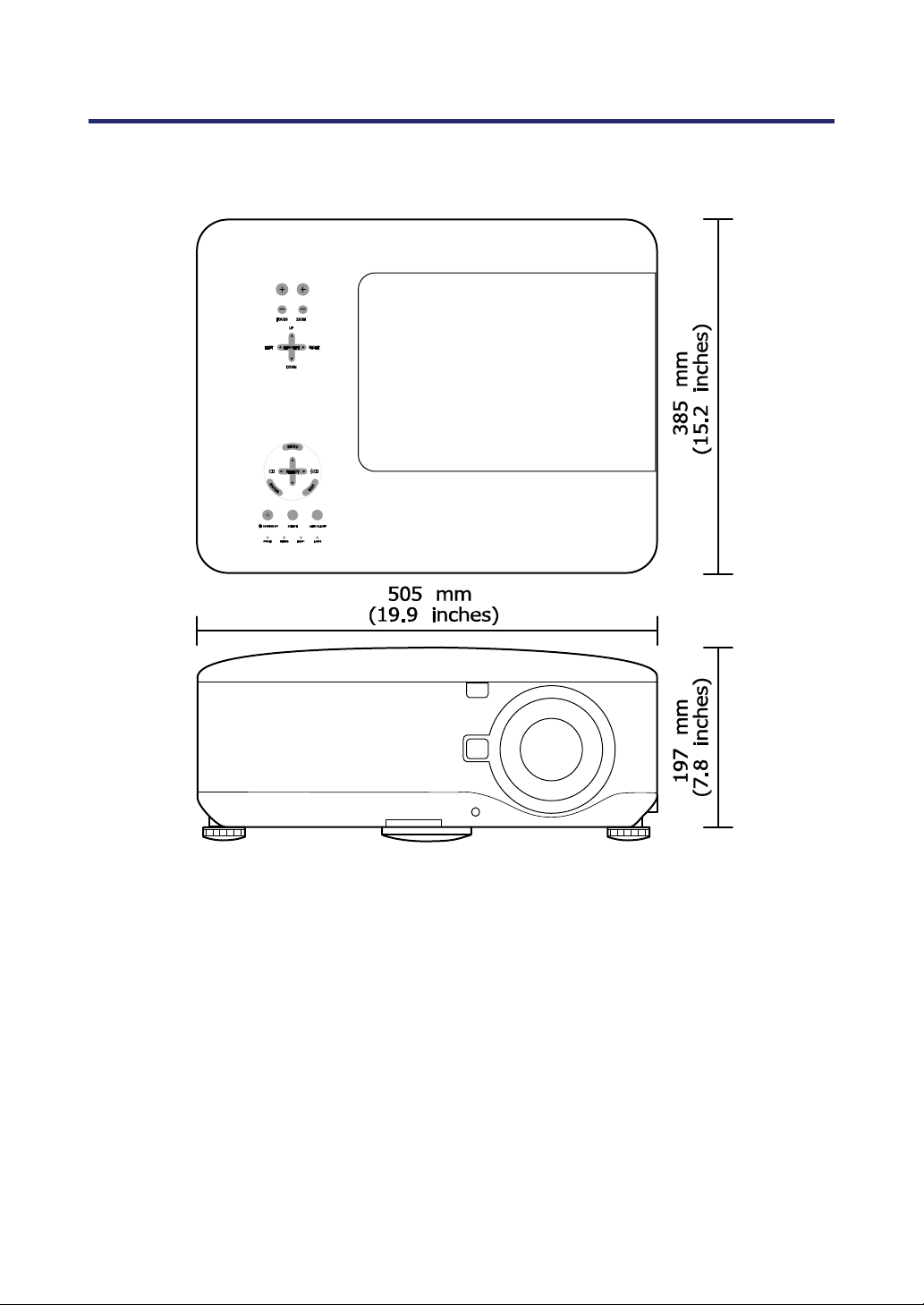
8. Specifications
127
Cabinet Dimensions
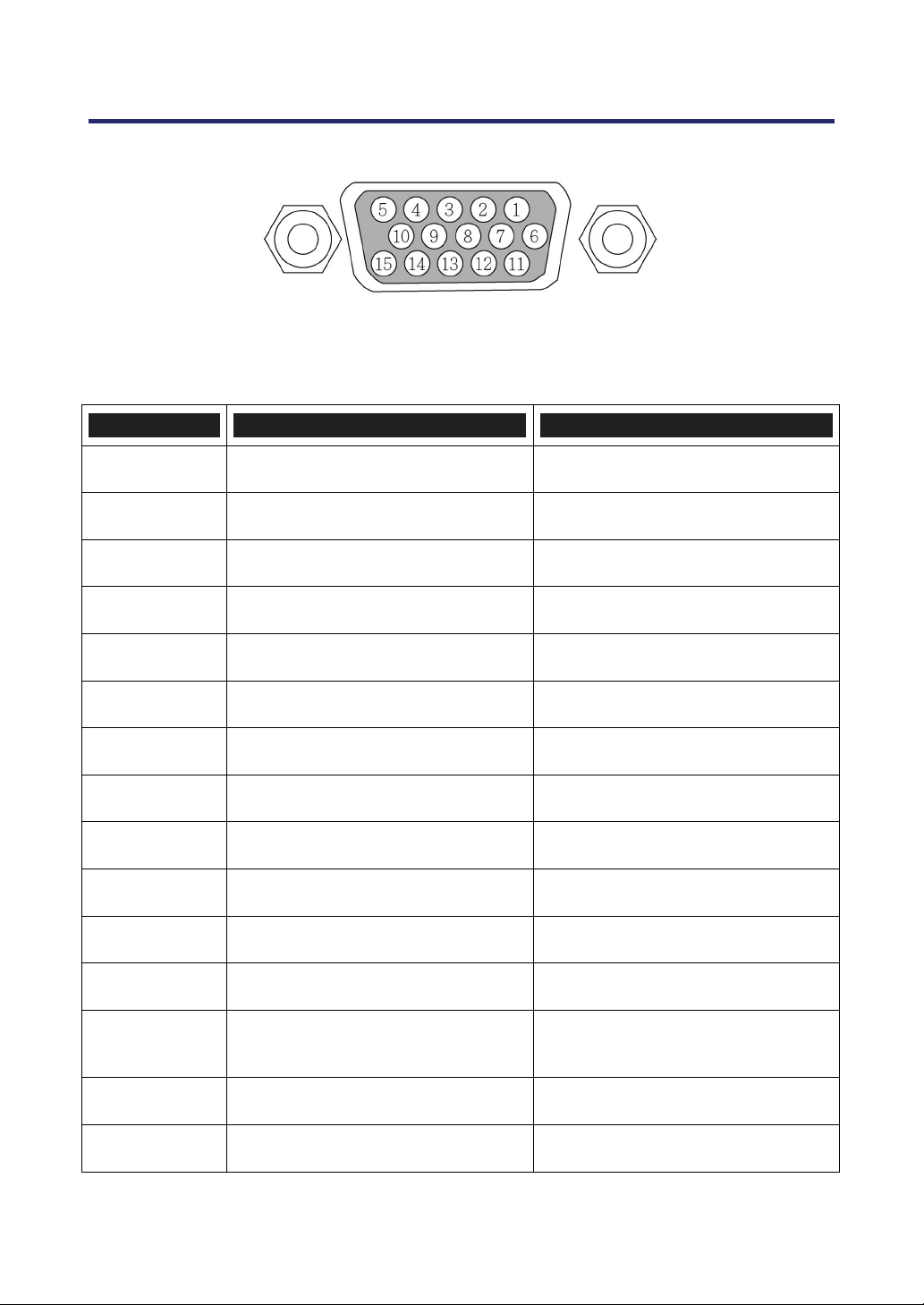
8. Specifications
128
Pin Assignments of Mini D-Sub 15 Pin Input Connector
Signal Levels
Video signal: 0.7Vp-p (Analog)
Sync signal: TTL level
PIN NUMBER RGB SIGNAL (ANALOG) YCBCR SIGNAL
1.
Red Cr
2.
Green or Sync on Green Y
3.
Blue Cb
4.
Ground
5.
Ground
6.
Red Ground Cr Ground
7.
Green Ground Y Ground
8.
Blue Ground Cb Ground
9.
No Connection
10.
Sync Signal Ground
11.
No Connection
12.
Bi-directional DATA (SDA)
13.
Horizontal Sync or Composite
Sync
14.
Vertical Sync
15.
Data Clock
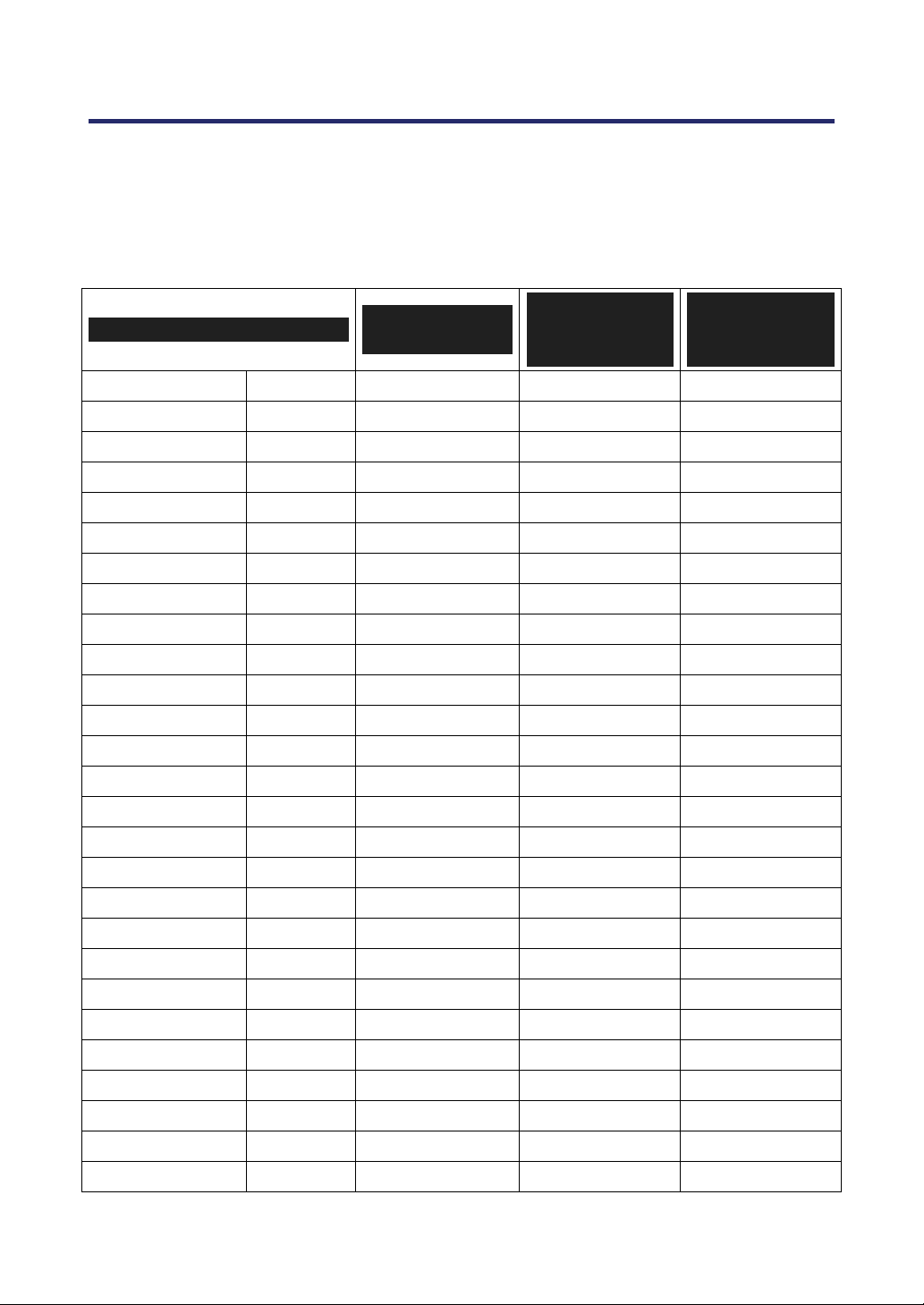
8. Specifications
129
Compatible Input Signal List
The following table shows compatible signal types, their resolution and frequency refresh
rates.
Horizontal: 15 kHz, 31kHz to 90 kHz
Vertical: 50 Hz to 85 Hz
SIGNAL
RESOLUTION
(DPI)
FREQUENCY
REFRESH RATE
(KHZ)
FREQUENCY
REFRESH RATE
(HZ)
NTSC – – 15.73 60.00
PAL – – 15.63 50.00
PAL60 – – 15.73 60.00
SECAM – – 15.63 50.00
VESA D 640 x 480 31.47 59.94
MAC D 640 x 480 35.00 66.67
VESA D 640 x 480 37.86 72.81
VESA D 640 x 480 37.50 75.00
VESA D 640 x 480 43.27 85.01
VESA D 800 x 600 35.16 56.25
VESA D 800 x 600 37.88 60.32
VESA D 800 x 600 48.08 72.19
VESA D 800 x 600 46.88 75.00
VESA D 800 x 600 53.67 85.06
MAC D 832 x 624 49.72 74.55
VESA D 1024 x 768 48.36 60.00
VESA D 1024 x 768 56.48 70.07
MAC D 1024 x 768 60.24 74.93
VESA D 1024 x 768 60.02 75.03
VESA D 1024 x 768 68.68 85.00
VESA D 1152 x 864 67.50 75.00
* VESA D 1280 x 768 47.80 60.00
* VESA D 1280 x 768 60.30 75.00
* VESA D 1280 x 768 68.60 85.00
* VESA D 1280 x 800 49.70 60.00
* VESA D 1280 x 800 62.80 75.00
* VESA D 1280 x 800 71.60 85.00
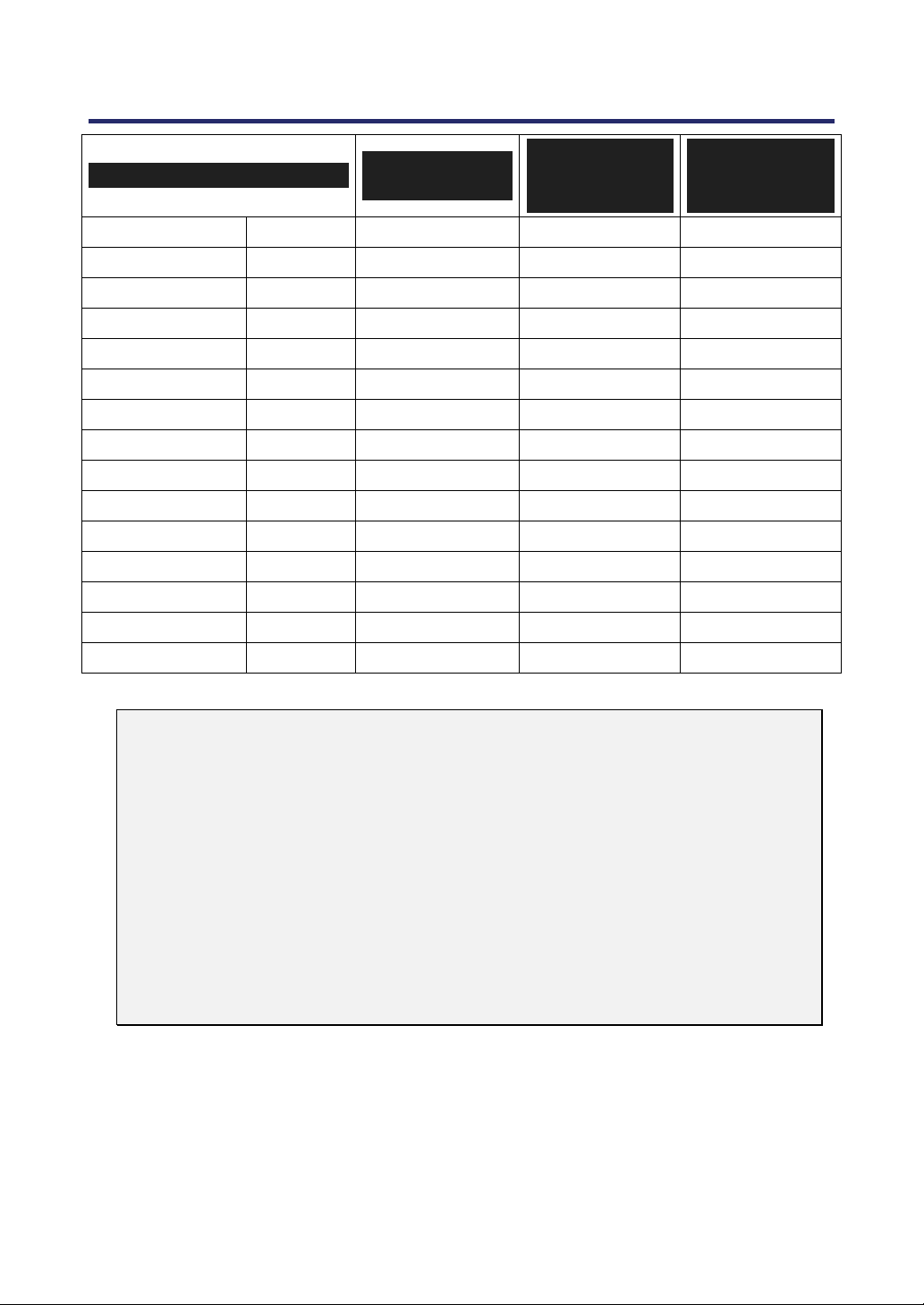
8. Specifications
130
SIGNAL
RESOLUTION
(DPI)
FREQUENCY
REFRESH RATE
(KHZ)
FREQUENCY
REFRESH RATE
(HZ)
VESA D 1280 x 960 60.00 60.00
VESA D 1280 x 1024 63.98 60.02
VESA D 1400 x 1050 65.30 60.00
* VESA D 1440 x 900 55.90 60.00
* VESA D 1440 x 900 70.60 75.00
HDTV (1080p/60) – 1920 x 1080 67.50 60.00 Progressive
HDTV (1080p/50) – 1920 x 1080 56.25 50.00 Progressive
HDTV (1080i)(1125i) – 1920 x 1080 33.75 60.00 Interlace
HDTV (1080i)(1125i) – 1920 x 1080 28.13 50.00 Interlace
HDTV (720p)(750p) – 1280 x 720 45.00 60.00 Progressive
HDTV (720p) – 1280 x 720 37.50 50.00 Progressive
SDTV(576p)(625p) – – 31.25 50.00 Progressive
SDTV (480p)(525p) – – 31.47 59.94 Progressive
DVD YCbCr – – 15.73 59.94 Interlaced
DVD YCbCr – – 15.63 50.00 Interlaced
Note:
Images above flagged with "D" are supported by digital signal.
Images above flagged with “*” are supported by the NP4100W only.
An image with higher or lower resolution than the projector’s native resolution
(1024 x 768: NP4100, 1280 x 800: NP4100W) will be compressed.
Under some conditions of input signals, the auto adjustment of video images may
not be available even though the AUTO ADJUST button is pressed, and manual
adjustment of "Clock" and "Phase" may be required (see page 69). Manual ad-
justment of "Clock" and "Phase" may not be available for composite sync signals
or sync on G signals.
Signals other than those specified in the table above may not be displayed cor-
rectly. If this should happen, change the refresh rate or resolution on your PC.
Refer to Display Properties help section of your PC for procedures.
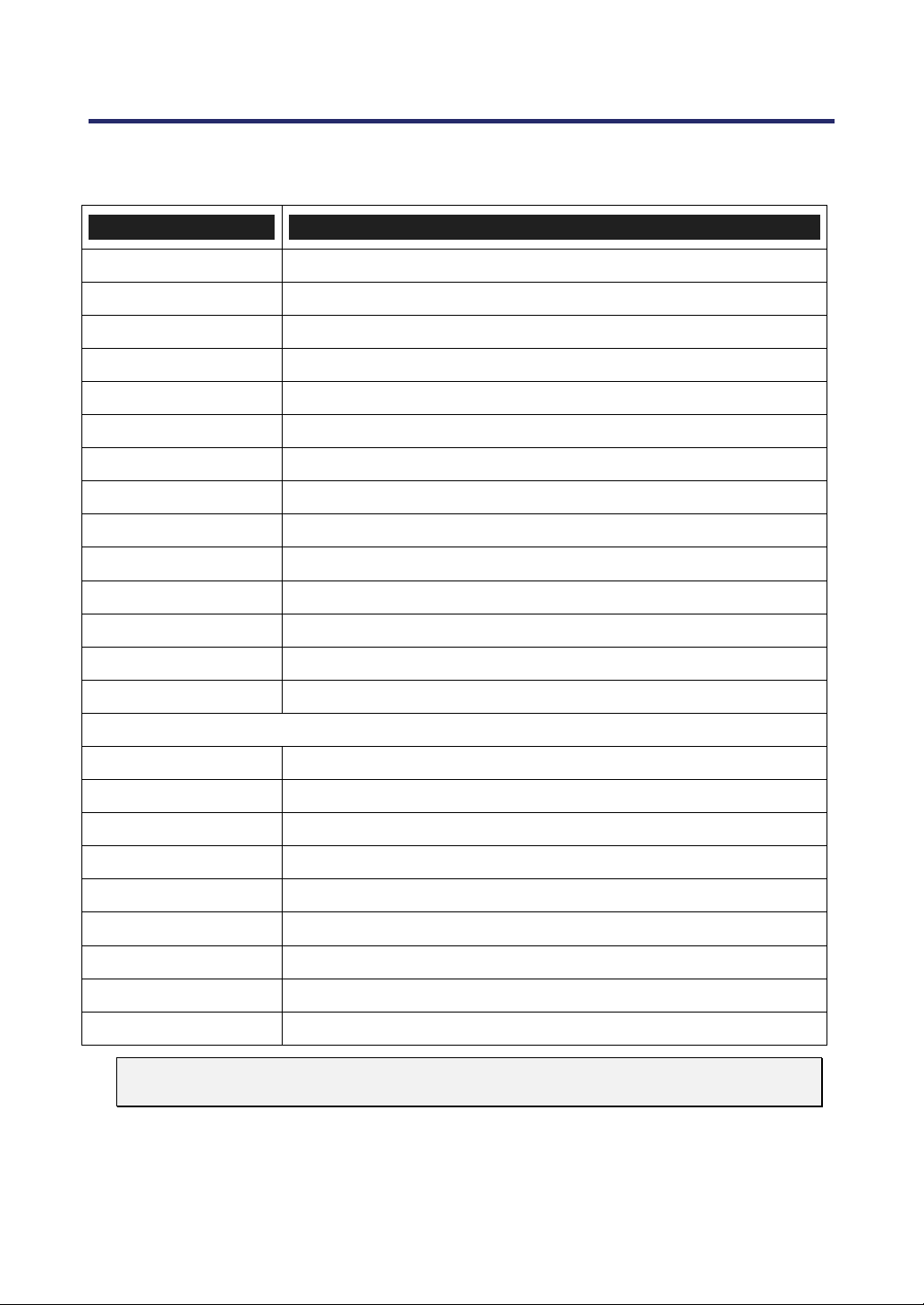
8. Specifications
131
PC Control Codes and Cable Connections
The following table shows PC functions and their associated code data.
FUNCTION CODE DATA
POWER ON 02H 00H 00H 00H 00H 02H
POWER OFF 02H 01H 00H 00H 00H 03H
INPUT SELECT COMPUTER 1 02H 03H 00H 00H 02H 01H 01H 09H
INPUT SELECT COMPUTER 2 02H 03H 00H 00H 02H 01H 02H 0AH
INPUT SELECT COMPUTER 3 02H 03H 00H 00H 02H 01H 1AH 22H
INPUT SELECT COMPONENT 02H 03H 00H 00H 02H 01H 10H 18H
INPUT SELECT VIDEO 02H 03H 00H 00H 02H 01H 06H 0EH
INPUT SELECT S-VIDEO 02H 03H 00H 00H 02H 01H 0BH 13H
PICTURE MUTE ON 02H 10H 00H 00H 00H 12H
PICTURE MUTE OFF 02H 11H 00H 00H 00H 13H
SOUND MUTE ON 02H 12H 00H 00H 00H 14H
SOUND MUTE OFF 02H 13H 00H 00H 00H 15H
ON-SCREEN MUTE ON 02H 14H 00H 00H 00H 16H
ON-SCREEN MUTE OFF 02H 15H 00H 00H 00H 17H
ASPECT RATIO
Auto 03H 10H 00H 00H 05H 18H 00H 00H 05H 00H 35H
4:3 03H 10H 00H 00H 05H 18H 00H 00H 00H 00H 30H
16:9 03H 10H 00H 00H 05H 18H 00H 00H 02H 00H 32H
15:9 03H 10H 00H 00H 05H 18H 00H 00H 0DH 00H 3DH
16:10 03H 10H 00H 00H 05H 18H 00H 00H 0CH 00H 3CH
Wide Zoom (NP4100 only) 03H 10H 00H 00H 05H 18H 00H 00H 03H 00H 33H
Letterbox (NP4100W only) 03H 10H 00H 00H 05H 18H 00H 00H 01H 00H 31H
Native 03H 10H 00H 00H 05H 18H 00H 00H 0EH 00H 3EH
AUTO ADJUST 02H 0FH 00H 00H 02H 05H 00H 18H
Note:
Contact your local dealer for a full list of the PC Control Codes if needed.
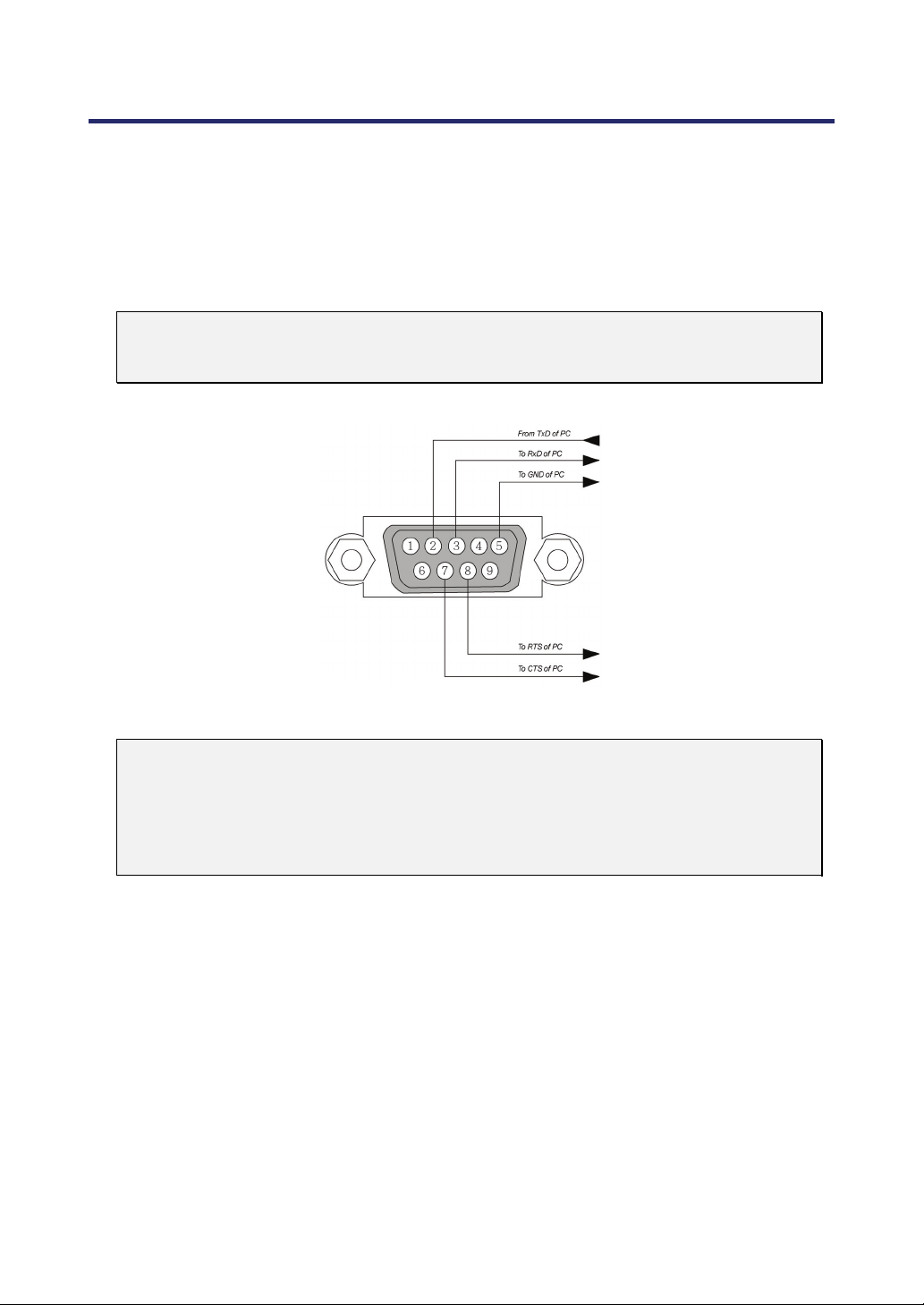
8. Specifications
132
Communication Protocol
Baud rate ........................................ 38400 bps
Data length ..................................... 8 bits
Parity .............................................. No parity
Stop bit .......................................... One bit
X on/off .......................................... None
Communications procedure ........... Full duplex
Note:
Depending on the equipment, a lower baud rate may be recommended for long
cable runs.
PC Control Connector (DIN-9P)
Note:
1. Pin 1, 4, 6 and 9 are not used.
2. Jumper “Request to Send” and “Clear to Send” together on both ends of the
cable to simplify the cable connection.
3. For long cables, it is recommended to set communication speed within projector
menus to 9600 bps.
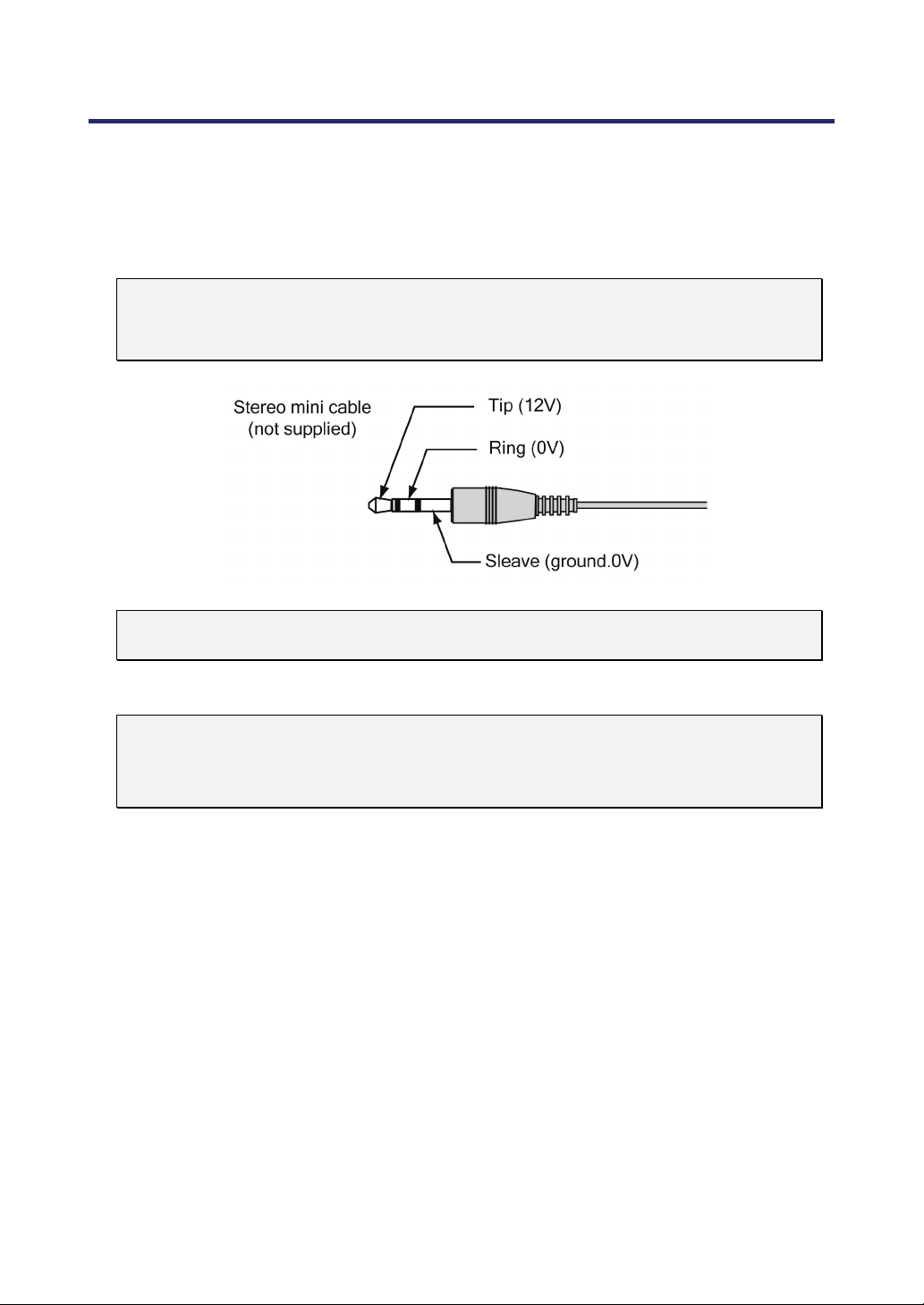
8. Specifications
133
Screen Trigger
When the projector is powered ON the screen trigger output sends a low voltage trigger to
the screen controller and the screen will go down. When the projector is powered OFF the
screen trigger stops sending a low voltage trigger to the screen controller and the screen will
go up.
Note:
To use this feature, you must turn on the Screen Trigger function. See Screen
Trigger on page 96 for more information.
Note:
Screen controllers are supplied and supported by screen manufacturers.
Note:
Do not use this jack for anything other than intended use. Connecting the wired
remote control to the SC. TRIGGER Mini Jack causes damage to the remote con-
trol.

8. Specifications
134
Operation Using HTTP Browser
Overview
The use of HTTP server functions will allow control of the projector from a web browser
without the installation of special software. Please be sure to use “Microsoft Internet Ex-
plorer 4.x” or a higher version for the web browser. (This device uses “JavaScript” and
“Cookies” and the browser should be set to accept these functions. The setting method
will vary depending on the version of browser. Please refer to the help files and the other
information provided in your software).
Access is gained to the HTTP server functions by specifying the following address in the
entry column of the URL:
http:// <the projector’s IP address> /index.html
http:// <the projector's IP address> /lanconf.html
Note:
The display or button responses can be slowed down or operation may not be ac-
cepted depending the settings of your network. Should this happen, consult your
network administrator. The projector may not respond if its buttons are repeatedly
pressed in rapid intervals. Should this happen, wait a moment and repeat. If you
still can’t get any response, turn off and back on the projector.
Preparation Before Use
Make network connections, set up the projector and confirm that it is complete before
engaging in browser operations (see Network Settings on page
93 for more information).
Operation with a browser that uses a proxy server may not be possible depending on
the type of proxy server and the setting method. Although the type of proxy server will be
a factor, it is possible that items that have actually been set will not be displayed de-
pending on the effectiveness of the cache, and the contents set from the browser may
not be reflected in operation. It is recommended that a proxy server not be used unless it
is unavoidable.
Handling of the Address for Operation via a Browser
Regarding the actual address that is entered for the address or entered to the URL col-
umn when operation of the projector is via a browser, the host name can be used as it is
when the host name corresponding to the IP address of the projector has been regis-
tered to the domain name server by a network administrator, or the host name
corresponding to the IP address of the projector has been set in the “HOSTS” file of the
computer being used.
Example 1:
When the host name of the projector has been set to pj.nec.co.jp,
http://pj.nec.co.jp/index.html is specified for the address or the entry column of the URL.
Example 2:
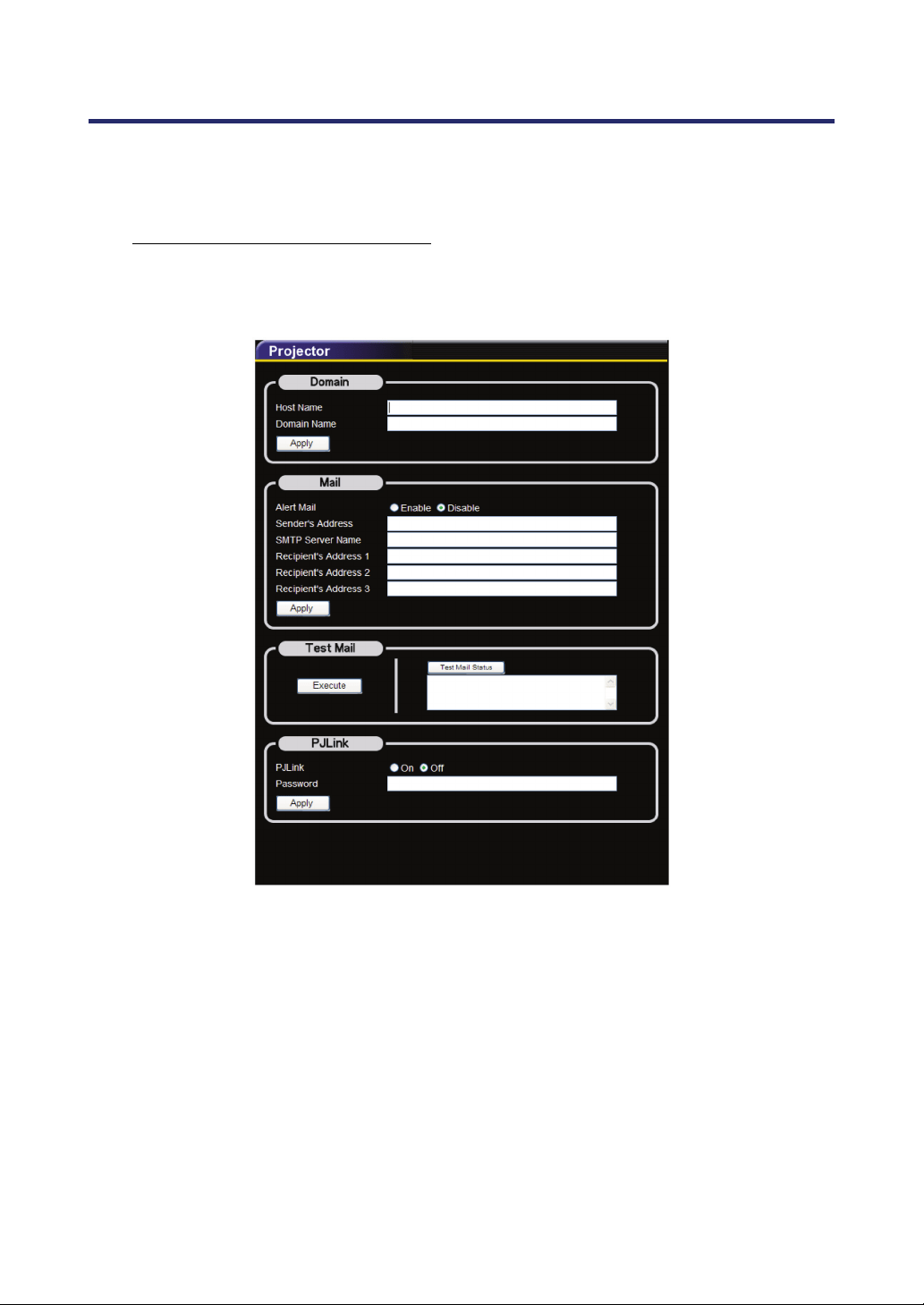
8. Specifications
135
When the IP address of the projector is 192.168.73.1, access is gained to the HTTP
server functions by specifying http://192.168.73.1/index.html for the address or the en-
try column of the URL.
Configuring Network Settings
The Network Settings screen is displayed as follows:
http:// <the projector's IP address> /lanconf.html
Domain
Host Name: Type in a hostname. Up to 60 alphanumeric characters can be used.
Domain Name: Type in domain name of the network connected to the projector. Up to
60 alphanumeric characters can be used.
Apply: Click to reflect the entries.

8. Specifications
136
Mail
Alert Mail: Click “Enable” to enable Alert Mail feature. This option notifies your computer
of an error message via e-mail when using wired LAN. The error message will be noti-
fied when the projector lamp has reached the end of its usable life or an error occurs in
the projector.
Sender's Address: Specify the sender’s address. Up to 60 alphanumeric and symbols
characters can be used.
SMTP Server Name: Type in the SMTP server name to be connected to the projector.
Up to 60 alphanumeric characters can be used.
Recipient's Address 1 to 3: Type in your recipient's address. Up to 60 alphanumeric
and symbols characters can be used.
Apply: Click to apply the settings.
Test Mail
Send a test mail to check if your settings are correct. Click to “Execute” to enable this
feature.
Test Mail Status Button: Click to display the test result.
Sample of a message sent from the projector:
Projector Name: X X X X
Lamp 1 or 2 Hours Used: xxxx [H]
The lamp is at the end of its usable life. Please replace the lamp.
Note:
If you entered an incorrect address in a test, you may not receive an Alert mail.
Should this happen, check if the Recipient's Address is correctly set.
Unless any one of the [Sender's Address], [SMTP Server's Name] or [Recipient's
Address 1-3] is selected, [Test Mail] is not available.
PJLink
This option allows you to set a password when you use the PJLink feature.
On/Off: Enable or disable the password.
Password: Enter a password (up to 32 characters)
Note:
PJLink is a standardization of protocol used for controlling projectors of different
manufacturers. This standard protocol is established by Japan Business Machine
and Information System Industries Association (JBMIA) in 2005.
The projector supports all the commands of PJLink Class 1.
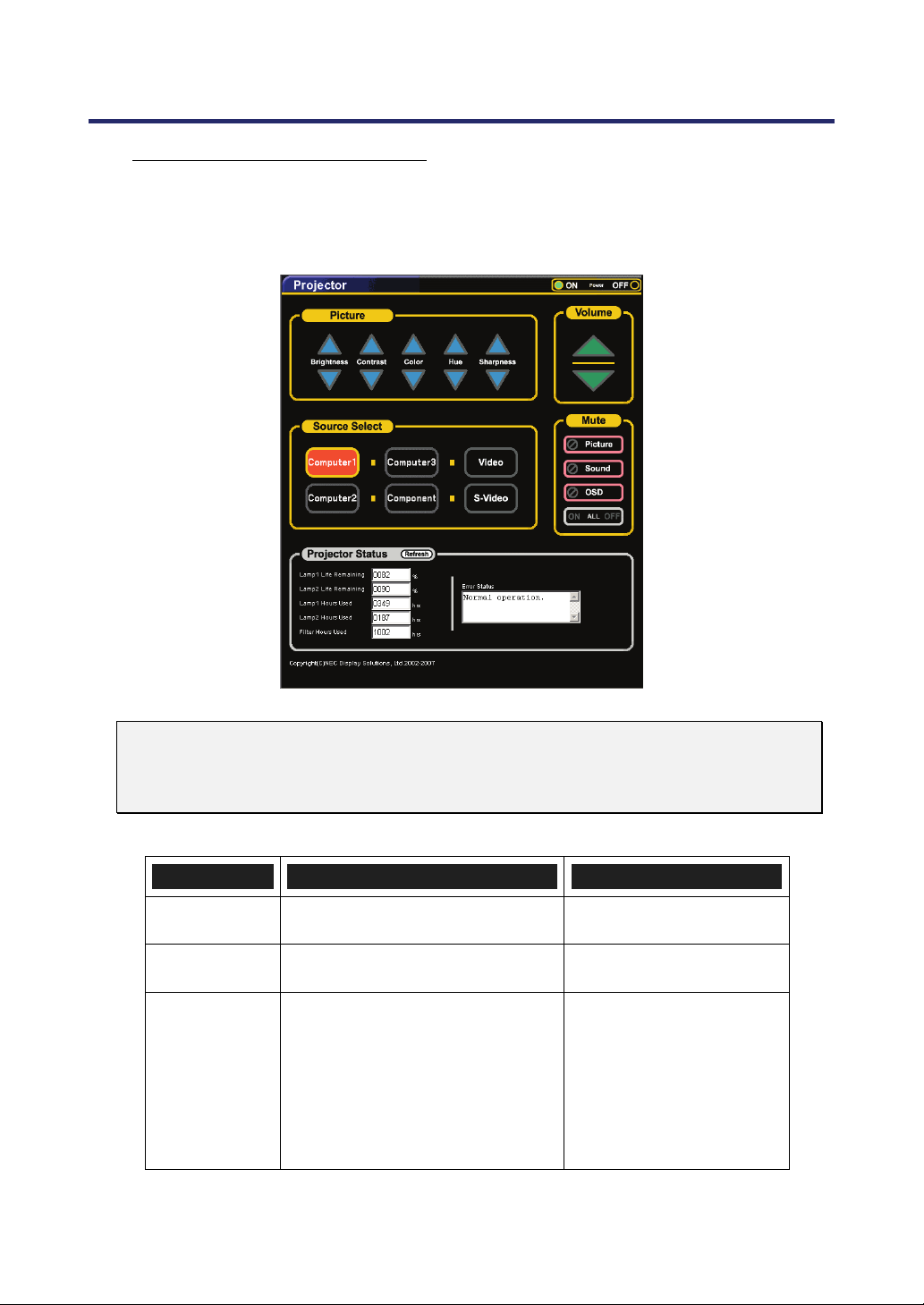
8. Specifications
137
Structure of the HTTP Server
Once the projector is connected to a network and configured correctly, the following
screen is displayed through the web browser.
http:// <the projector's IP address> /index.html
Note:
The HTTP browser may not reflect the actual settings or status information of the
projector depending on the projector status. Should this happen, use the Refresh
button to update your browser.
FUNCTION SETTING DESCRIPTION
Power Panel On
Off
This controls the power to the projector
Volume Panel ▲ – Increases the volume adjustment value
▼ – Decreases the volume adjustment value
This controls the volume of the
projector
Mute Panel Picture On – Mutes the video
Picture Off – Cancels the video muting
Sound On – Mutes the audio
Sound Off – Cancels the audio muting
OSD On – Mutes the on-screen display
OSD Off – Cancels the muting of the on-screen
display
All On – Mutes each of the video, audio, and on-
screen display functions
All Off – Cancels the muting of each of the video,
audio, and on-screen display functions
This controls the mute functions of the
projector
8. Specifications
138
FUNCTION SETTING DESCRIPTION
Picture Panel
Brightness ▲▼ – Increases or decreases the
brightness adjustment value
Contrast ▲▼ – Increases or decreases the contrast
adjustment value
Color ▲▼ – Increases or decreases the color
adjustment value
Hue ▲▼ – Increases or decreases the hue
adjustment value
Sharpness ▲▼ – Increases or decreases the
sharpness adjustment value
Controls the video adjustments of the
projector
Source Select Panel Computer1 – Switches to the COMPUTER 1 IN
connector
Computer2 – Switches to the COMPUTER 2 IN
connector
Computer3 – Switches to the COMPUTER 3 IN
connector
Component – Switches to the COMPONENT IN
connectors
Video – Switches to the VIDEO IN connector
S-Video – Switches to the S-VIDEO IN connector
This switches the input connector of the
projector
Projector Status Panel Refresh – Updates the panel with the latest
information available
Lamp 1 Life Remaining – Displays the remaining
life of Lamp1 as a percentage
Lamp 1 Hours Used – Displays the number of
hours Lamp1 has been used
Lamp 2 Life Remaining – Displays the remaining
life of Lamp2 as a percentage
Lamp 2 Hours Used – Displays the number of
hours Lamp2 has been used
Filter Hours Used – Displays the number of hours
Filter has been used.
Error Status – Displays the status of errors
occurring within the projector
This displays the status of selected
projector functions
Note:
The functions that can be controlled will vary depending on the signal being input
to the projector (see
Selecting a Source on page 40 for more information).
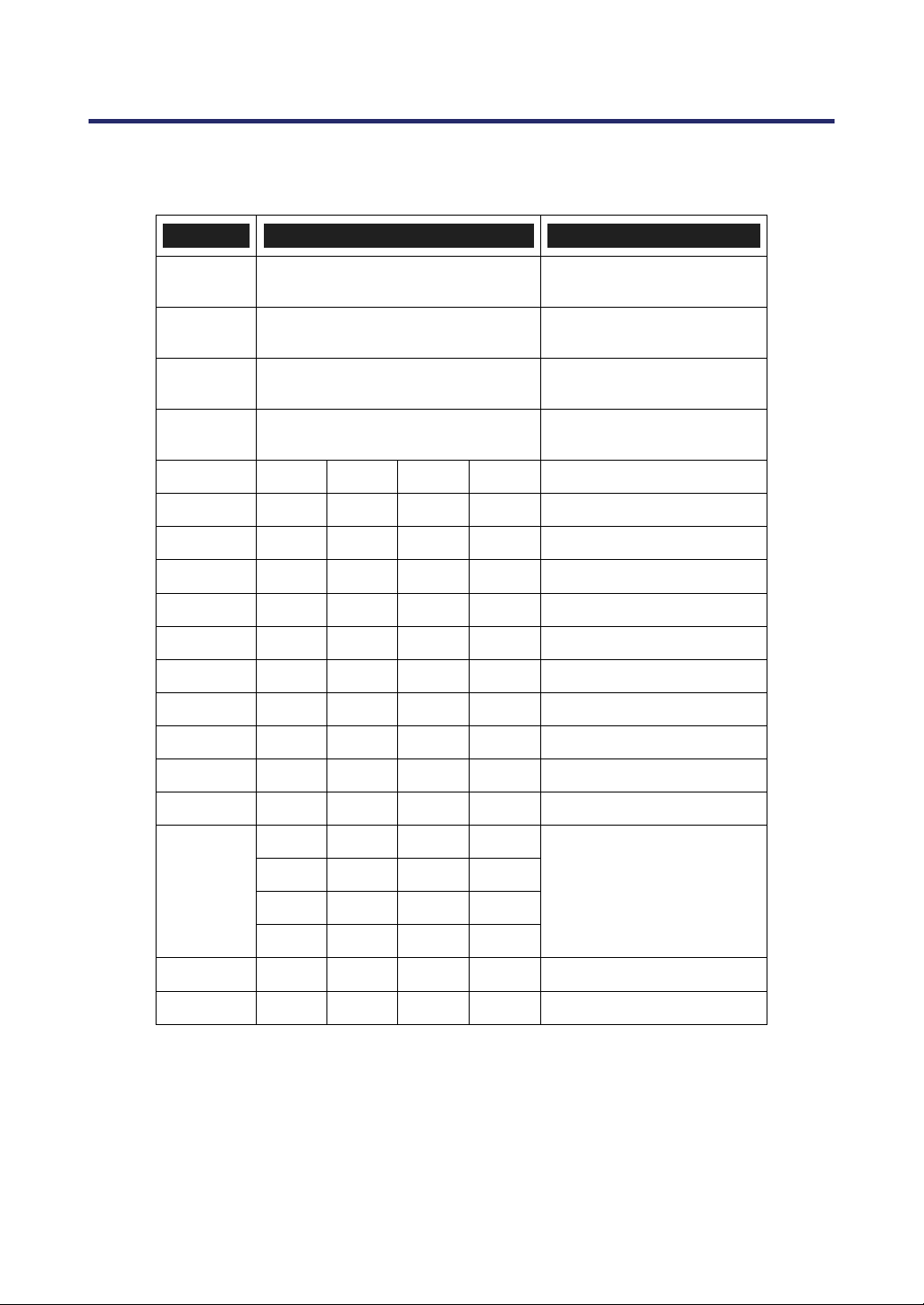
8. Specifications
139
15 Pin GPIO Control
Type: 15Pin D-SUB black female type
PIN NO. SHORT/OPEN FUNCTION
14 SHORT
OPEN
EXTERNAL CONTROL MODE ON
EXTERNAL CONTROL MODE OFF
5
SHORT
OPEN
POWER ON
POWER OFF
10
SHORT
OPEN
PICTURE MUTE ON
PICTURE MUTE OFF
3
SHORT
OPEN
SOUND MUTE ON
SOUND MUTE OFF
4, 8, 12, 11 11 12 8 4
OPEN OPEN OPEN OPEN COMPUTER1
OPEN OPEN OPEN SHORT VIDEO1
OPEN OPEN SHORT OPEN S-VIDEO1
OPEN OPEN SHORT SHORT COMPONENT
OPEN SHORT OPEN OPEN NOT AVAILABLE
OPEN SHORT OPEN SHORT COMPUTER2
OPEN SHORT SHORT OPEN NOT AVAILABLE
OPEN SHORT SHORT SHORT NOT AVAILABLE
SHORT OPEN OPEN OPEN COMPUTER3 (DVI)
SHORT OPEN OPEN SHORT NOT AVAILABLE
SHORT OPEN SHORT OPEN NOT AVAILABLE
SHORT OPEN SHORT SHORT NOT AVAILABLE
SHORT SHORT OPEN OPEN NOT AVAILABLE
SHORT SHORT OPEN SHORT NOT AVAILABLE
SHORT SHORT SHORT OPEN NOT AVAILABLE
SHORT SHORT SHORT SHORT NOT AVAILABLE
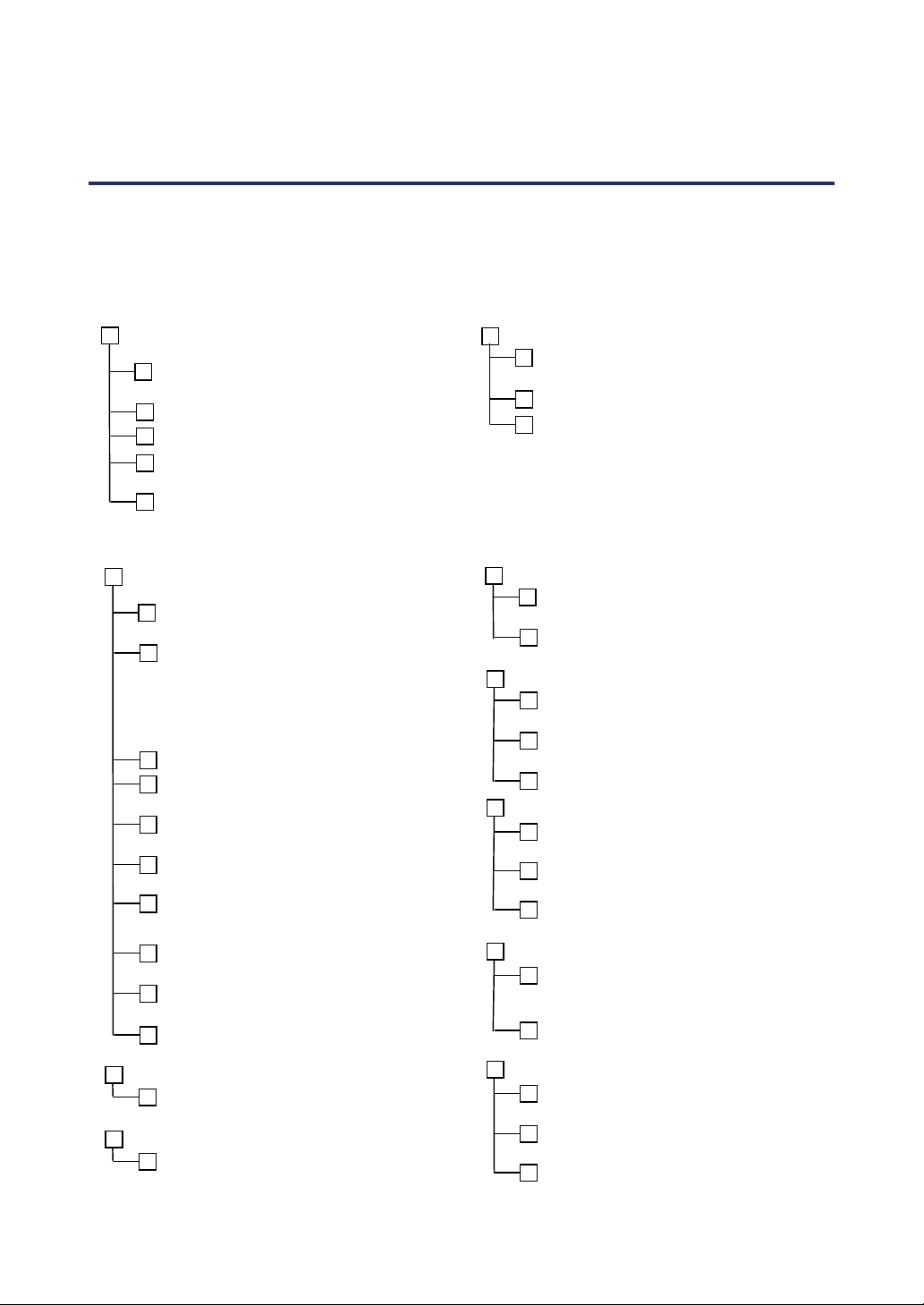
140
9. Troubleshooting Check List
Before contacting your dealer or service personnel, check the following list to be sure repairs
are needed also by referring to the Troubleshooting section on page 117 of your user’s
manual. This checklist below will help us solve your problem more efficiently.
Frequency
of Occurrence always sometimes (How often?________) other (________)
Power
No power (POWER indicator does not light green) See
also “Status Indicator (STATUS)”.
Power cable's plug is fully inserted into the wall out-
let.
Main power switch is pressed to the ON position.
Lamp cover is installed correctly.
Lamp Hours Used (lamp operation hours) was
cleared after lamp replacement.
No power even though you press and hold the
POWER button for a minimum of 2 seconds.
Shut down during operation.
Power cable's plug is fully inserted into the wall out-
let.
Lamp cover is installed correctly.
Auto Power Off is turned off (only models with the
Auto Power Off function).
Video and Audio
No image is displayed from your PC or video equipment
to the projector.
Still no image even though you connect the projec-
tor to the PC first, then start the PC.
Enabling your notebook PC’s signal output to the
projector.
• A combination of function keys will enable/disable
the external display. Usually, the combination of the
“Fn” key along with one of the 12 function keys
turns the external display on or off.
No image (blue background, logo, no display).
Still no image even though you press the AUTO
ADJUST button.
Still no image even though you carry out [Reset] in
the projector’s menu.
Signal cable's plug is fully inserted into the input
connector
A message appears on the screen.
( __________________________________ )
The source connected to the projector is active and
available.
Still no image even though you adjust the bright-
ness and/or the contrast.
Input source's resolution and frequency are
supported by the projector.
Image is too dark.
Remains unchanged even though you adjust the
brightness and/or the contrast.
Image is distorted.
Image appears to be trapezoidal (unchanged even
though you carry out the [Keystone] or [3D Reform]
adjustment).
Parts of the image are lost.
Still unchanged even though you press the AUTO
ADJUST button.
Still unchanged even though you carry out [Reset]
in the projector’s menu.
Image is shifted in the vertical or horizontal direction.
Horizontal and vertical positions are correctly ad-
justed on a computer signal.
Input source's resolution and frequency are sup-
ported by the projector.
Some pixels are lost.
Image is flickering.
Still unchanged even though you press the AUTO
ADJUST button.
Still unchanged even though you carry out [Reset]
in the projector’s menu.
Image shows flickering or color drift on a computer
signal.
Image appears blurry or out of focus.
Still unchanged even though you checked the sig-
nal’s resolution on PC and changed it to projector’s
native resolution.
Still unchanged even though you adjusted the fo-
cus.
No sound.
Audio cable is correctly connected to the audio in-
put of the projector.
Still unchanged even though you adjusted the vol-
ume level.
AUDIO OUT is connected to your audio equipment
(only models with the AUDIO OUT connector).
9. Troubleshooting Check List
141
Other
Remote control does not work.
No obstacles between the sensor of the projector
and the remote control.
Projector is placed near a fluorescent light that can
disturb the infrared remote controls.
Batteries are new and are not reversed in installa-
tion.
If present on the remote control, projector selector
switch is not used.
Buttons on the projector cabinet do not work (only
models with the Control Panel Lock function).
Control Panel Lock is not turned on or is disabled in
the menu.
Still unchanged even though you press and hold the
EXIT button for a minimum of 10 seconds.
In the space below please describe your problem in detail.
Information on application and environment where your projector is used
Projector
Model number:
Serial No:
Date of purchase:
Lamp operating time (hours): Lamp Mode: Normal Eco
Information on input signal:
Horizontal synch frequency [ ] kHz
Vertical synch frequency [ ] Hz
Synch polarity H (+) (–)
V (+) (–)
Synch type Separate Composite
Sync on Green
STATUS Indicator:
Steady light Orange Green
Flashing light [ ] cycles
Remote control model number:
Installation environment
Screen size: inch
Screen type: White matte Beads Polarization
Wide angle High contrast
Throw distance: feet/inch/m
Orientation: Ceiling mount Desktop
Power outlet connection:
Connected directly to wall outlet
Connected to power cord extender or other (the number
of connected equipment______________)
Connected to a power cord reel or other (the number
of connected equipment______________)
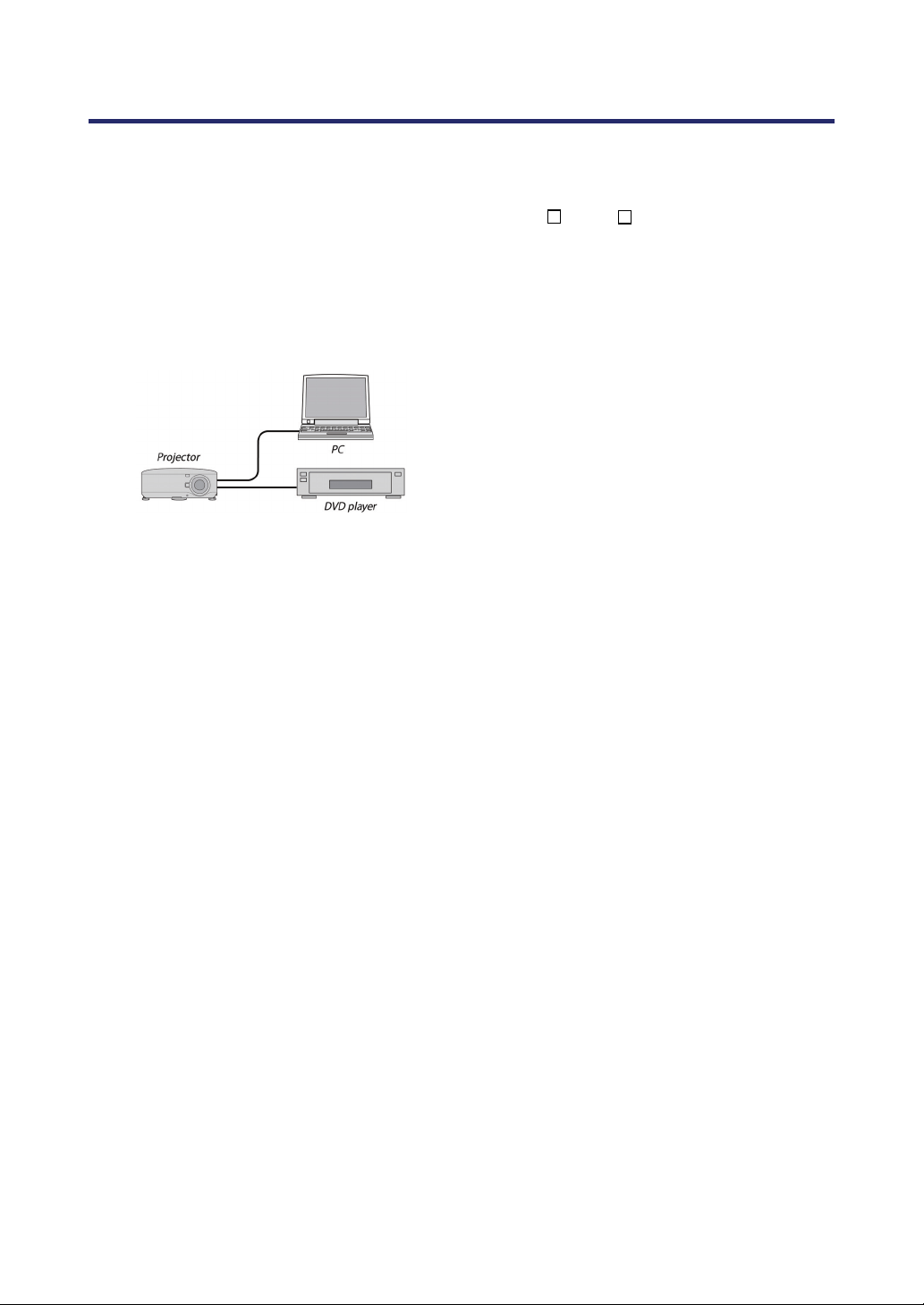
9. Troubleshooting Check List
142
Signal cable
NEC standard or other manufacturer’s cable?
Model number: Length: inch/m
Distribution amplifier
Model number:
Switcher
Model number:
Adapter
Model number:
Computer
Manufacturer:
Model number:
Notebook PC / Desktop
Native resolution:
Refresh rate:
Video adapter:
Other:
Video equipment
VCR, DVD player, Video camera, Video game or other
Manufacturer:
Model number: