
Integrated High Definition LED
Television User’s Guide:
32L4300U / 39L4300U / 50L4300U
50L7300U / 58L7300U / 65L7300U
If you need assistance:
Toshiba's Support Web site
support.toshiba.com
For more information, see “Troubleshooting” on page 160 in this guide.
Owner's Record
The model number and serial number are on the back and side of your television.
Record these numbers, whenever you communicate with your Toshiba dealer about
this Television.
Model name:
Serial number:
Register your Toshiba Television at register.toshiba.com
Note: To display a High Denition
picture, the TV must be receiving a
High Denition signal (such as an over-
the-air High Denition TV broadcast, a
High Denition digital cable program,
or a High Denition digital satellite
program). For details, contact your TV
antenna installer, cable provider, or
satellite provider
GMA300019012
4/13
2
TOSHIBA CARES
• Manufacturers, retailers and the rest of the consumer electronics industry
are committed to making home entertainment safe and enjoyable.
• As you enjoy your television, please note that all televisions – new and
old- must be supported on proper stands or installed according to the
manufacturer’s recommendations. Televisions that are inappropriately
situated on dressers, bookcases, shelves, desks, speakers, chests, carts,
etc., may fall over, resulting in injury.
TUNE IN TO SAFETY
•
ALWAY S follow the manufacturer’s recommendations for the safe
installation of your television.
• ALWAY S read and follow all instructions for proper use of your television.
• NEVER allow children to climb on or play on the television or the
furniture on which the television is placed.
• NEVER place the television on furniture that can easily be used as steps,
such as a chest of drawers.
• ALWAY S install the television where it cannot be pushed, pulled over or
knocked down.
• ALWAY S route cords and cables connected to the television so that they
cannot be tripped over, pulled or grabbed.
WALL OR CEILING MOUNT YOUR TELEVISION
•
ALWAY S contact your retailer about professional installation if you have
any doubts about your ability to safely mount your television.
• ALWAY S use a mount that has been recommended by the television
manufacturer and has a safety certication by an independent laboratory
(such as UL, CSA, ETL).
• ALWAY S follow all instructions supplied by the television and mount
manufacturers.
• ALWAY S make sure that the wall or ceiling where you are mounting the
television is appropriate. Some mounts are not designed to be mounted
to walls and ceilings with steel studs or cinder block construction. If you
are unsure, contact a professional installer.
• Televisions can be heavy. A minimum of two people is required for a
wall or ceiling mount installation.
MOVING AN OLDER TELEVISION TO A NEW PLACE IN YOUR
HOME
• Many new television buyers move their older CRT televisions into a
secondary room after the purchase of a at-panel television. Special care
should be made in the placement of older CRT televisions.
•
ALWAY S place your older CRT television on furniture that is sturdy and
appropriate for its size and weight.
•
NEVER place your older CRT television on a dresser where children may
be tempted to use the drawers to climb.
• ALWAY S make sure your older CRT television does not hang over the
edge of your furniture.
CHILD SAFETY:
PROPER TELEVISION PLACEMENT MATTERS
CE.org/safety
3
Dear Customer,
Thank you for purchasing this Toshiba LED TV.
This document will help you use the many exciting
features of your new LED TV. Before operating your
LED TV, carefully read this manual completely.
Safety Precautions
WARNING: TO REDUCE THE RISK OF FIRE
OR ELECTRIC SHOCK, DO NOT EXPOSE
THIS APPLIANCE TO RAIN OR MOISTURE.
WARNING
RISK OF ELECTRIC SHOCK
DO NOT OPEN.
WARNING: TO REDUCE THE RISK OF ELECTRIC
SHOCK, DO NOT REMOVE COVER (OR BACK).
NO USER-SERVICEABLE PARTS INSIDE. REFER
SERVICING TO QUALIFIED SERVICE PERSONNEL.
The lightning ash with arrowhead
symbol, within an equilateral triangle,
is intended to alert the user to the
presence of uninsulated “dangerous
voltage” within the product’s
enclosure that may be of sufcient
magnitude to constitute a risk of
electric shock to persons.
The exclamation point within an
equilateral triangle is intended to
alert the user to the presence of
important operating and maintenance
(servicing) instructions in the literature
accompanying the appliance.
WARNING
To prevent injury, this apparatus must be securely
attached to the oor/wall in accordance with the
installation instructions. See item
26) on page 4.
WARNING:
If you decide to wall mount this
television, always use a mounting bracket that has
been Listed by an independent laboratory (such as
UL, CSA, ETL) and is appropriate for the size and
weight of this television. The use of inappropriate or
non-Listed mounting brackets could result in serious
bodily injury and/or property damage. See
“To Display
your LED TV using a Wall Bracket:” on page 6.
NOTE TO CATV INSTALLERS
This is a reminder to call the CATV system installer’s
attention to Article 820-40 of the U.S. NEC, which
provides guidelines for proper grounding and, in
particular, species that the cable ground shall be
connected to the grounding system of the building,
as close to the point of cable entry as practical. For
additional antenna grounding information, see items
33) and 34) on page 5.
Important Safety Instructions
1) Read these instructions.
2) Keep these instructions.
3) Heed all warnings.
4) Follow all instructions.
5) Do not use this apparatus near water.
6) Clean only with dry cloth.
7) Do not block any ventilation openings. Install in
accordance with the manufacturer’s instructions.
8) Do not install near any heat sources such as
radiators, heat registers, stoves, or other products
(including ampliers) that produce heat.
9) Do not defeat the safety
purpose of the polarized
or grounding type plug. A
polarized plug has two blades
with one wider than the other. A
grounding type plug has two blades and a third
grounding prong. The wide blade or the third
prong are provided for your safety. If the provided
plug does not t into your outlet, consult an
electrician for replacement of the obsolete outlet.
10) Protect the power cord from being walked on
or pinched, particularly at plugs, convenience
receptacles, and the point where they exit from
the apparatus.
11) Only use attachments/accessories specied
by the manufacturer.
12) Use only with the cart, stand,
tripod, bracket, or table specied
by the manufacturer, or sold
with the apparatus. When a cart
is used, use caution when moving
the cart/apparatus combination to
avoid injury from tip-over.
13) Unplug this apparatus during lightning storms
or when unused for long periods of time.
14) Refer all servicing to qualied service
personnel. Servicing is required when the
apparatus has been damaged in any way, such
as power-supply cord or plug is damaged, liquid
has been spilled or objects have fallen into the
apparatus, the apparatus has been exposed to
rain or moisture, does not operate normally, or
has been dropped.
Additional Safety Precautions
14a) CAUTION: If the TV is dropped and the cabinet
or enclosure surface has been damaged or the
TV does not operate normally, take the following
precautions:
• ALWAYS turn off the TV and unplug the power
cord to avoid possible electric shock or re.
• NEVER allow your body to come in contact with
any broken glass or liquid from the damaged
television. The LCD panel inside the TV contains
Wide blade
4
24) When selecting a location for the TV,
• NEVER allow any part of the TV to hang over
the edge of the supporting furniture,
• NEVER place the TV on tall furniture (for
example, entertainment centers or bookcases)
without anchoring both the furniture and the TV
to a suitable support,
• Never place cloth or other material between the
TV and the supporting furniture.
• NEVER allow children to climb on the TV.
25) To avoid damage to this product, never place or
store the TV in direct sunlight; hot, humid areas;
or areas subject to excessive dust or vibration.
26) Always place the TV on the oor or a sturdy, level,
stable surface that can support the weight of the
unit. Secure the TV using one of the following
methods:
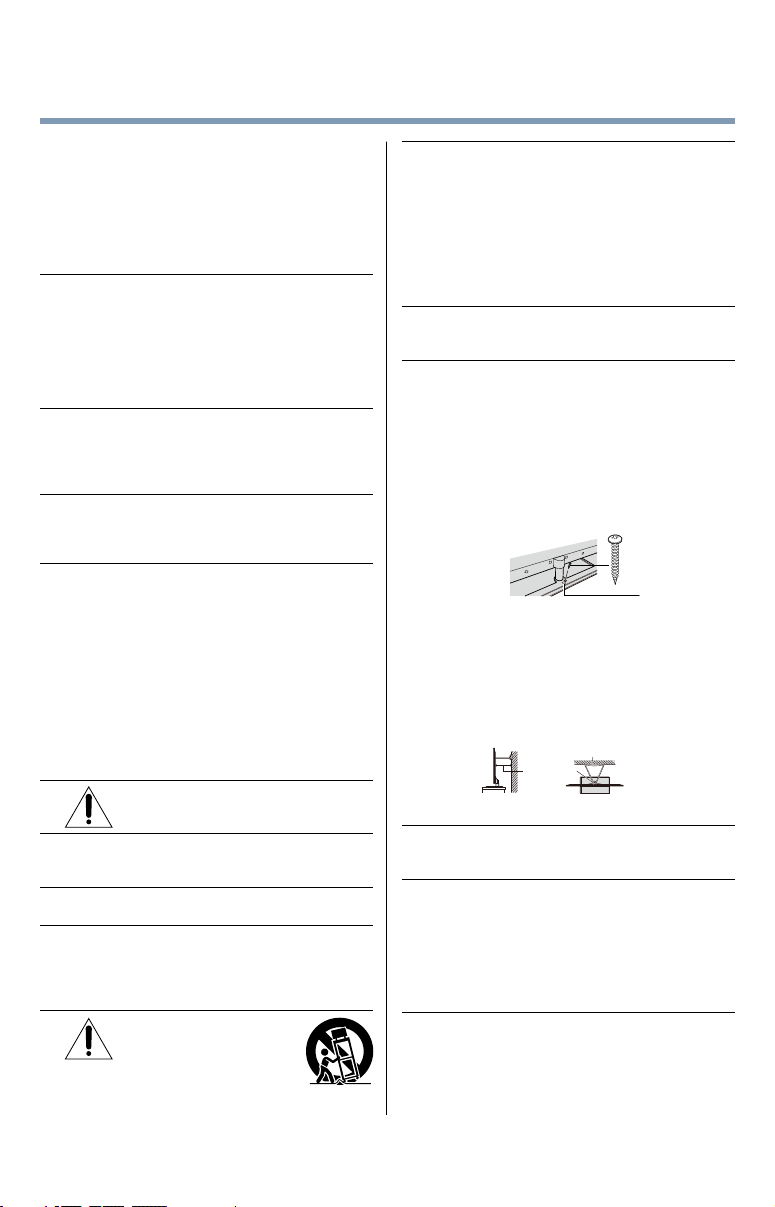
(1) Secure the TV with a mounting screw
(Recommended.)
• Place the TV on a sturdy surface that has a
sufcient thickness and screw the unit on the
surface securely by using the mounting screw
and the fall-prevention screw hole.
TV Back
Screw hole
Mounting screw
(2) Secure the TV with a sturdy strap to a wall
stud, pillar, or other immovable structure. When
connecting the strap:
• attach the strap to the TV using the hooks on
the back of the TV, the clips on the pedestal, or
the hole in the base of the pedestal as available.
• make sure the strap is tight, secure, and parallel
to the oor.
7”
min.
TV Side
Sturdy strap (as short as possible)
Hook
TV Top
27) The apparatus shall not be exposed to dripping or
splashing, and that no objects lled with liquids,
such as vases, shall be placed on the apparatus.
28) Never block or cover the slots or openings in the
TV cabinet back, bottom, and sides. Never place
the TV:
• on a bed, sofa, rug, or similar surface;
• too close to drapes, curtains, or walls; or
• in a conned space such as a bookcase,
built-in cabinet, or any other place with poor
ventilation.
29) Always leave a space of at least 4 (four) inches
around the TV. The slots and openings are
provided to protect the TV from overheating and
to help maintain reliable operation of the TV.
glass and a toxic liquid. If the liquid comes in
contact with your mouth or eyes, or your skin
is cut by broken glass, rinse the affected area
thoroughly with water and contact your doctor
immediately.
• ALWAYS contact a service technician to inspect
the TV any time it has been damaged or
dropped.
15) CAUTION:
• To reduce the risk of electric shock, do not
use the polarized plug with an extension cord,
receptacle, or other outlet unless the blades
can be inserted completely to prevent blade
exposure.
• To prevent electric shock, match wide blade of
plug to wide slot; fully insert.
16) CAUTION:
• Do not let children swallow any small parts
included on or with the product or play with the
plastic bag. Keep the small parts and the plastic
bag out of the reach of children.
17) CAUTION:
• Do not let water or other liquids come into
contact with the product, as it may result in
damage.
18) WARNING:
• To prevent the spread of re, keep candles or
other open ames away from this product at all
times.
• Keep the product away from direct sunlight, re
or a heat source such as a heater. This may
reduce the product lifetime or result in re.
Installation, Care, and Service
Installation
Follow these recommendations and precautions and
heed all warnings when installing your TV:
19) WARNING: NEVER expose batteries
to excessive heat such as sunshine,
re, or the like.
20) ALWAYS plug the product into an outlet that is
located in such a manner that it can be easily
unplugged in case the product requires service.
21) NEVER route the product’s power cord inside a
wall or similar enclosed area.
22) Never modify this equipment. Changes or
modications may void: a) the warranty, and b)
the user’s authority to operate this equipment
under the rules of the Federal Communications
Commission.
23) DANGER: RISK OF
SERIOUS PERSONAL
INJURY, DEATH, OR
EQUIPMENT DAMAGE
Never place the TV on an unstable
cart, stand, or table. The TV may fall, causing
serious personal injury, death, or serious damage
to the TV.
5
30) Never allow anything to rest on or roll over the
power cord, and never place the TV where the
power cord is subject to wear or abuse.
31) Never overload wall outlets and extension cords.
32) Always operate this equipment from a 120V AC,
60 Hz power source.
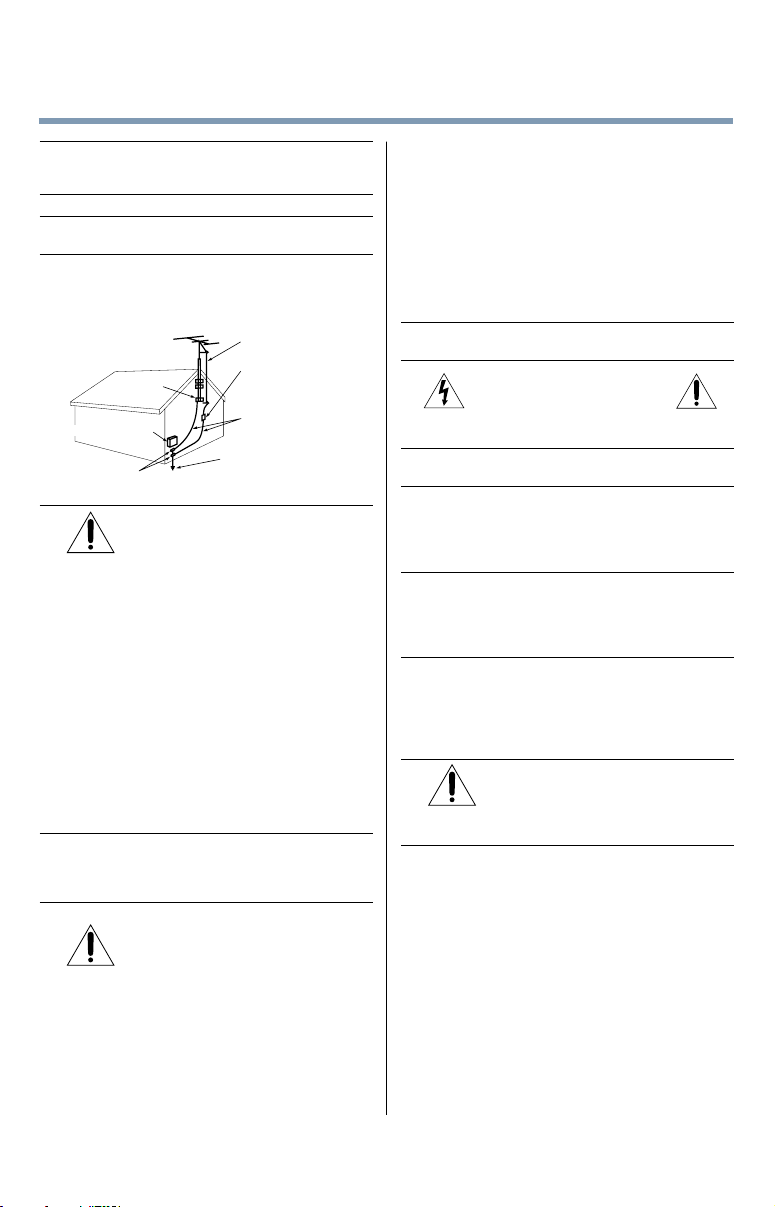
33) Always make sure the antenna system is properly
grounded to provide adequate protection against
voltage surges and built-up static charges (see
Section 810 of the National Electric Code).
Ground clamp
Antenna discharge unit
(NEC Section 810-20)
Grounding conductors
(NEC Section 810-21)
Power service grounding
electrode system (NEC Art 250 Part-H)
Ground clamps
Antenna lead-in wire
Electric service equipment
34)
DANGER: RISK OF SERIOUS
PERSONAL INJURY OR DEATH!
• When installing a rooftop antenna, use extreme
care to make sure you are never in a position
where your body (or any item you are in contact
with, such as a ladder or screwdriver) can
accidentally touch overhead power lines.
Never locate the antenna near overhead power
lines or other electrical circuits.
• Never attempt to install any of the following
during lightning activity: a) an antenna system;
or b) cables, wires, or any home theater
component connected to an antenna or phone
system.
Care
For better performance and safer operation of your
TOSHIBA TV, follow these recommendations and
precautions:
35) If you use the TV in a room whose temperature is
32° F (0° C) or below, the picture brightness may
vary until the LCD warms up. This is not a sign of
malfunction.
36)
WARNING: RISK OF SERIOUS
PERSONAL INJURY OR EQUIPMENT
DAMAGE!
• Never use chemicals (such as air fresheners,
cleaning agents, etc.) on or near the TV
pedestal. Studies indicate that plastics may
weaken and crack over time from the combined
effects of chemical agents and mechanical
stress (such as the weight of the TV). Failure to
follow these instructions could result in serious
injury and/or permanent damage to TV and TV
pedestal.
• Always unplug the TV before cleaning. Gently
wipe the display panel surface (the TV screen)
using a dry, soft cloth (cotton, annel, etc.).
A hard cloth may damage the surface of the
panel. Avoid contact with alcohol, thinner,
benzene, acidic or alkaline solvent cleaners,
abrasive cleaners, or chemical cloths, which
may damage the surface. Never spray volatile
compounds such as insecticide on the cabinet.
Such products may damage or discolor the
cabinet.
37) Never hit, press, or place anything on the back
cover. These actions will damage internal parts.
38)
WARNING:
RISK OF ELECTRIC SHOCK!
Never spill liquids or push objects of any kind into
the TV cabinet slots.
39) During a lightening storm, do not touch the
connecting cables or product.
40) For added protection of your TV from lightning and
power surges, always unplug the power cord and
disconnect the antenna from the TV if you leave
the TV unattended or unused for long periods of
time.
41) Always unplug the TV to completely disconnect
from mains power. When the TV is turned off
using the on/off switch, it is not completely
disconnected from power and a minute amount of
current is still consumed.
42) During normal use, the TV may make occasional
snapping or popping sounds. This is normal,
especially when the unit is being turned on or off.
If these sounds become frequent or continuous,
unplug the power cord and contact a Toshiba
Authorized Service Provider.
43) WARNING: RISK OF SERIOUS
PERSONAL INJURY OR EQUIPMENT
DAMAGE!
Never strike the screen with a sharp or heavy
object.
44)
• The LCD screen of this product can be damaged
by ultraviolet radiation from the sun. When
selecting a location for the television, avoid
locations where the screen may be exposed to
direct sunlight, such as in front of a window.
• Never touch, press, or place anything on the
LCD screen. These actions will damage the
LCD screen. If you need to clean the LCD
screen follow the instructions (in item 36) on
page 5.
6
4) Always use the screws supplied or recommended
by the wall mount manufacturer.
5) Follow the instructions provided with your wall
bracket. Before proceeding, make sure the
appropriate bracket(s) are attached to the wall and
the back of the TV as described in the instructions
provided with the wall bracket.
6) After attaching the appropriate bracket(s) to the
wall and the back of the TV, remove the pedestal
stand from the TV, as described below.
7) VESA Mounting Pattern
TV Size Hole Pattern (HxV) Screw Size
32L4300U 200x200 mm M6
39L4300U 200x200 mm M6
50L4300U 400x400 mm M8
50L7300U 400x200 mm M6
58L7300U 400x400 mm M6
65L7300U 400x400 mm M6
(unit in mm)
Removing the Pedestal Stand
1) Carefully lay the front of the unit face down on a
at, cushioned surface such as a quilt or blanket.
Leave the stand protruding over the edge of the
surface.
Note: Extreme care should always be used when
removing the pedestal stand to avoid damage to
the LCD panel.
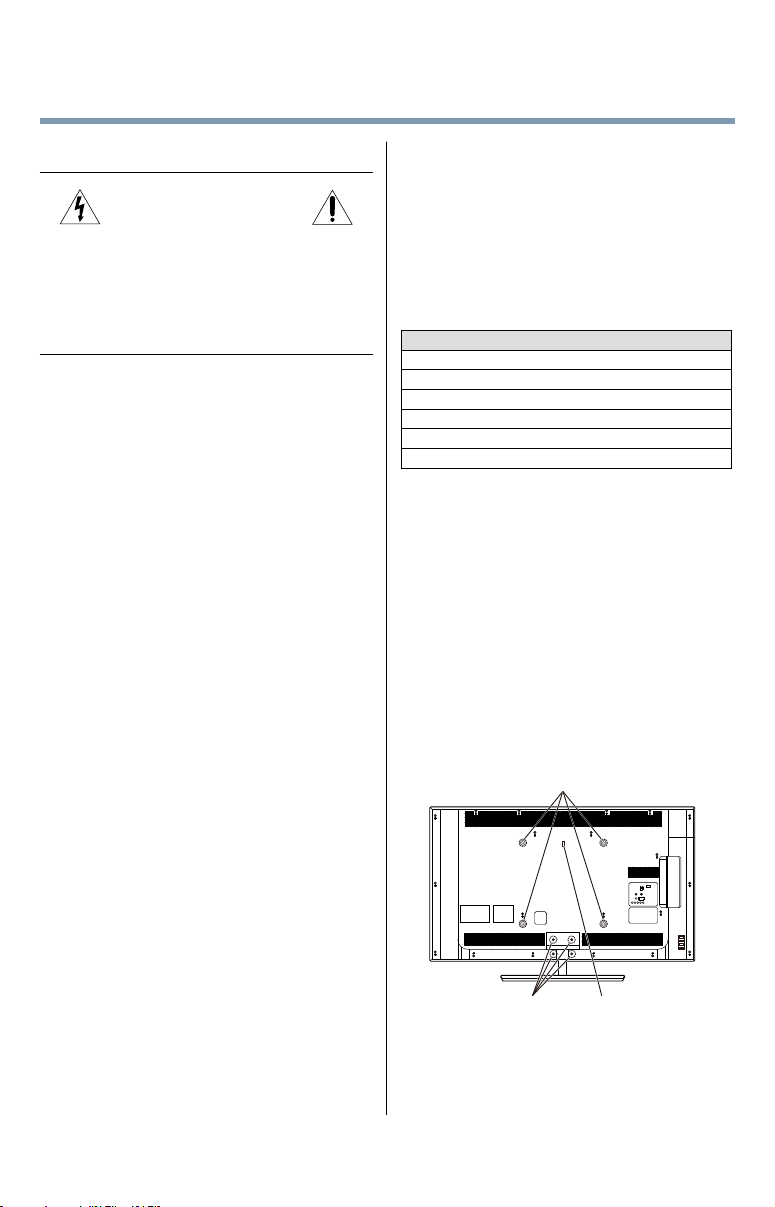
2) Remove the screws shown in the below diagram.
This will allow removal of the pedestal stand.
3) Once you have removed all of the screws holding
the pedestal stand in place, remove the pedestal
stand from the TV.
L7300 Series
50"/ 58"/ 65" VESA Mounting Pattern
One clipFour stand screws
Service
45)
WARNING:
RISK OF ELECTRIC SHOCK!
Never attempt to service the TV yourself. Opening
and removing the covers may expose you to
dangerous voltage or other hazards. Failure
to follow this WARNING may result in death or
serious injury. Refer all servicing not specied
in this manual to a Toshiba Authorized Service
Provider.
46) If you have the TV serviced:
• Ask the service technician to use only
replacement parts specied by the manufacturer.
• Upon completion of service, ask the service
technician to perform routine safety checks
to determine that the TV is in safe operating
condition.
Choosing a location for your LED TV
To Display your LED TV on the included Pedestal
Stand:
Observe the following safety precautions:
1) Read and follow the pedestal assembly
instructions included with the pedestal.
CAUTION: Before beginning pedestal assembly,
carefully lay the front of the LCD Panel face down
on a at, cushioned surface such as a quilt or
blanket. Leave the bottom of the unit protruding
over the edge of the surface and assemble the
pedestal as indicated below.
Note: Extreme care should always be used when
attaching the pedestal stand to avoid damage to
the LCD panel.
2) Place the TV on a sturdy, level surface that can
support the weight of the TV.
3) Be sure to secure the TV to a wall, pillar, surface,
or other immovable structure see item 26) page 4
for additional details.
To Display your LED TV using a Wall Bracket:
If you decide to wall mount your LED TV, always use
a wall bracket Listed by an independent laboratory
(such as UL, CSA, ETL) that is appropriate for the
size and weight of the TV (see page 2):
1) CAUTION: Two people are required for
installation.
2) Unplug and remove any cables and/or other
component connectors from the rear of the TV.
3) Remove the screws of the VESA Mounting
Pattern show in the table if applicable.
CAUTION: Do not use the screws removed from
the back cover to attach the wall mount bracket to
the TV.
7
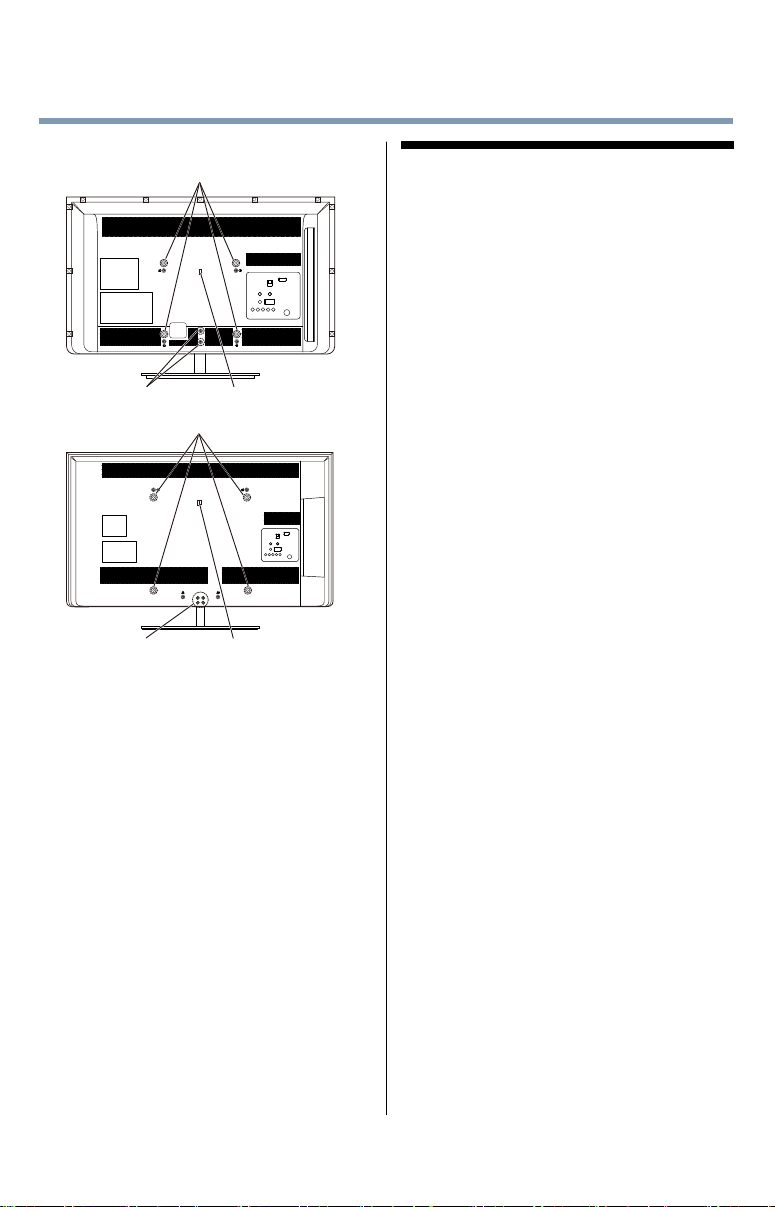
L4300U and L7300U Series
32"/ 39" VESA Mounting Pattern
One clipTwo stand screws
50" VESA Mounting Pattern
One clipFour stand screws
CAUTION: Always place the TV on the oor or a
sturdy, level, stable surface that can support the
weight of the unit. Secure the TV as described in
item 26) of the Important Safety Instructions in
this document.
FCC Caution
To assure continued compliance, follow the attached
installation instructions. Any changes or modications
not expressly approved by Toshiba America
Information Systems, Inc. could void the user’s
authority to operate this device. Service Center or an
experienced radio/TV technician for help.
FCC Declaration of Conformity
Compliance Statement (Part 15):
Toshiba television models 32L4300U, 39L4300U,
50L4300U, 50L7300U, 58L7300U and 65L7300U,
comply with Part 15 of the FCC Rules.
Operation is subject to the following two conditions:
(1) This device may not cause harmful interference, and
(2) This device must accept any interference received,
including interference that may cause undesired operation.
The party responsible for compliance to these rules is:
Toshiba America Information Systems, Inc. 9740 Irvine
Blvd., Irvine, CA 92618. Phone: 800-631-3811
Note: This equipment has been tested and found
to comply with the limits for a Class B digital device,
pursuant to Part 15 of the FCC Rules. These limits
are designed to provide reasonable protection against
harmful interference in a residential installation. This
equipment generates, uses, and can radiate radio
frequency energy and, if not installed and used in
accordance with the instructions, may cause harmful
interference to radio communications. However, there
is no guarantee that interference will not occur in a
particular installation. If this equipment does cause
harmful interference to radio or television reception,
which can be determined by removing and applying
power to the equipment, the user is encouraged to
try to correct the interference by one of the following
measures:
• Reorient or relocate the receiving antenna.
• Increase the separation between the equipment and
receiver.
• Connect the equipment into an outlet on a circuit
different from that to which the receiver is connected.
• Consult the dealer or an experienced radio/TV technician
for help.
Caution: Changes or modications to this equipment
not expressly approved by Toshiba could void the
user's authority to operate this equipment.
Wireless Radio
For product available in the USA/Canada market,
only channel 1–11 can be operated. Selection of other
channels is not possible. The device could automatically
discontinue transmission in case of absence of information
to transmit, or operational failure. Note that this is not
intended to prohibit transmission of control or signaling
information or the use of repetitive codes where required
by the technology. If this device is going to be operated in
5.15–5.25GHz frequency range, then it is restricted to an
indoor environment only.
Important: Any changes or modications not
expressly approved by the party responsible for
compliance could void the user's authority to operate
this equipment. This device and its antenna(s) must
not be co-located or operating in conjunction with any
other antenna or transmitter.
8
Important notes about your TV
The following symptoms are technical limitations of
LCD Display technology and are not an indication of
malfunction; therefore, Toshiba is not responsible for
perceived issues resulting from these symptoms.
1) An afterimage (ghost) may appear on the screen
if a xed, non-moving image appears for a long
period of time. The afterimage is not permanent
and will disappear in a short period of time.
2) The LCD panel contained in this TV is
manufactured using an extremely high level
of precision technology; however, there may
be an occasional pixel (dot of light) that does
not operate properly (does not light, remains
constantly lit, etc.). This is a structural property of
LCD technology, is not a sign of malfunction, and
is not covered under your warranty. Such pixels
are not visible when the picture is viewed from a
normal viewing distance.
Note: Interactive video games that involve shooting a
“gun” type of joystick at an on-screen target may not
work with this TV.
Trademark Information
• AutoView, Cinema Series, ClearScan, ColorMaster,
ColorStream, CQ Engine, DynaLight, GameTimer,
Native Mode and TriVector are trademarks
or registered trademarks of Toshiba America
Information Systems, Inc.
• ActiveX is a registered trademark of the Microsoft
Corporation.
• Android is a trademark of Google Inc.
• Manufactured under license from
Audyssey Laboratories.
U.S. and foreign patents pending.
Audyssey Premium Television™ is a
trademark of Audyssey Laboratories.
Audyssey Premium Television™ is a
suite of technologies that remove the
acoustical problems caused by small
speakers and drivers.
Working together these technologies
deliver a better translation of the
audio content and make the television
experience sound closer to the original.
• Blu-ray Disc™, Blu-ray™, and the logos are
trademarks of the Blu-ray Disc Association
• CinemaNow is a registered trademark of BBY
Solutions, Inc.
• DivX
®
, DivX Certied
®
, DivX Plus
®
HD and
associated logos are trademarks of Rovi
Corporation or its subsidiaries and are used under
license.
• Manufactured under license from Dolby
Laboratories. Dolby and the double-D
symbol are trademarks of Dolby
Laboratories.
FCC Radiation Exposure Statement: This equipment
complies with FCC radiation exposure limits set forth
for an uncontrolled environment. This equipment
should be installed and operated with minimum
distance 20cm between the radiator & your body.
Wireless Radio
For product available in the USA/Canada market, only
channel 1–11 can be operated. Selection of other channels
is not possible.
The device could automatically discontinue transmission
in case of absence of information to transmit, or
operational failure. Note that this is not intended to prohibit
transmission of control or signaling information or the use
of repetitive codes where required by the technology.
Important: Any changes or modications not
expressly approved by the party responsible for
compliance could void the user's authority to operate
this equipment.
IMPORTANT NOTE:
IC Radiation Exposure Statement: This equipment
complies with IC RSS-102 radiation exposure limits
set forth for an uncontrolled environment. This
equipment should be installed and operated with
minimum distance 20cm between the radiator & your
body.
ENERGY STAR
®
User Information
ENERGY STAR User Information Statement: the factory
default settings of this television meet ENERGY STAR®
requirements. Changing Picture Settings may increase
energy consumption, possibly beyond the limits required
forENERGYSTARqualication.
To ensure your television is operating at optimal energy
efciency,select[Home]modeduringinitialactivation.
Toreturnto[Home]modesettings,select[Home]under
theInstallationTaboftheTVMenu..[AutoView]modeis
recommended for normal home use.
ENERGY STAR
®
qualiedTV.
Products that earn the ENERGY STAR
prevent green house gas emissions by
meeting strict guidelines set by the
U.S. Environmental Protection Agency.
ENERGY STAR and the ENERGY STAR
mark are registered U.S. marks.

9
• ENERGY STAR and the ENERGY STAR mark are
registered U.S. marks.
• The terms HDMI and HDMI High-Denition
Multimedia Interface, and the HDMI logo are
trademarks or registered trademarks of HDMI
Licensing LLC in the United States and other
countries.
• Intel and the Intel logo are trademarks of Intel
Corporation in the U.S. and/or other countries.
• iTunes Store is a trademark of Apple Inc., registered
in the U.S. and other countries.
• MPEG Layer-3 audio coding technology licensed
from Fraunhofer IIS and Thomson.
• Netix is a registered trademark of Netix, Inc.
• Skype, the Skype logo and the "S" logo are
trademarks of Skype and are used with the
permission of Skype
• VUDU, Vudu Apps, and Vudu HD Movies are
trademarks and registered trademarks of VUDU,
Inc
• WiFi is a registered mark of the Wi-Fi Alliance.
• Designed with UEI Technology™. Under License
from Universal Electronics Inc.
Portions © UEI 2000-2012.
• All other brand and product names are trademarks
or registered trademarks of their respective
companies.
• THIS PRODUCT IS LICENSED UNDER THE
AVC PATENT PORTFOLIO LICENSE FOR THE
PERSONAL AND NONCOMMERCIAL USE
OF A CONSUMER TO (i) ENCODE VIDEO IN
COMPLIANCE WITH THE AVC STANDARD
(“AVC VIDEO”) AND/OR (ii) DECODE AVC
VIDEO THAT WAS ENCODED BY A CONSUMER
ENGAGED IN A PERSONAL AND NON-
COMMERCIAL ACTIVITY AND/OR WAS
OBTAINED FROM A VIDEO PROVIDER LICENSED
TO PROVIDE AVC VIDEO. NO LICENSE IS
GRANTED OR SHALL BE IMPLIED FOR ANY
OTHER USE. ADDITIONAL INFORMATION MAY
BE OBTAINED FROM MPEG LA, LLC. SEE
HTTP://WWW.MPEGLA.COM
• THIS PRODUCT IS LICENSED UNDER THE
VC-1 PATENT PORTFOLIO LICENSE FOR
THE PERSONAL AND NONCOMMERCIAL USE
OF A CONSUMER TO (i) ENCODE VIDEO IN
COMPLIANCE WITH THE VC-1 STANDARD
(“VC-1 VIDEO”) AND/OR (ii) DECODE VC-1
VIDEO THAT WAS ENCODED BY A CONSUMER
ENGAGED IN A PERSONAL AND NON-
COMMERCIAL ACTIVITY AND/OR WAS
OBTAINED FROM A VIDEO PROVIDER LICENSED
TO PROVIDE VC-1 VIDEO. NO LICENSE IS
GRANTED OR SHALL BE IMPLIED FOR ANY
OTHER USE. ADDITIONAL INFORMATION MAY
BE OBTAINED FROM MPEG LA, LLC. SEE
HTTP://WWW.MPEGLA.COM
• THIS PRODUCT IS LICENSED UNDER THE
MPEG-4 VISUAL PATENT PORTFOLIO LICENSE
FOR THE PERSONAL AND NON-COMMERCIAL
USE OF A CONSUMER FOR (i) ENCODING
VIDEO IN COMPLIANCE WITH THE MPEG-
4 VISUAL STANDARD (“MPEG-4 VIDEO”) AND/
OR (ii) DECODING MPEG-4 VIDEO THAT WAS
ENCODED BY A CONSUMER ENGAGED IN A
PERSONAL AND NON-COMMERCIAL ACTIVITY
AND/OR WAS OBTAINED FROM A VIDEO
PROVIDER LICENSED BY MPEG LA TO PROVIDE
MPEG-4 VIDEO. NO LICENSE IS GRANTED
OR SHALL BE IMPLIED FOR ANY OTHER USE.
ADDITIONAL INFORMATION INCLUDING THAT
RELATING TO PROMOTIONAL,INTERNAL AND
COMMERCIAL USES AND LICENSING MAY BE
OBTAINED FROM MPEG powered LA,LLC. SEE
HTTP:// WWW.MPEGLA.COM
Copyright
This guide is copyrighted by Toshiba America Information
Systems, Inc. with all rights reserved. Under the copyright
laws, this guide cannot be reproduced in any form without
the prior written permission of Toshiba. No patent liability
is assumed, however, with respect to the use of the
information contained herein.
©2013 by Toshiba America Information Systems, Inc. All
rights reserved.
Notice
The information contained in this manual, including but not
limitedtoanyproductspecications,issubjecttochange
without notice.
TOSHIBA CORPORATION AND TOSHIBA
AMERICA INFORMATION SYSTEMS, INC.
(TOSHIBA) PROVIDES NO WARRANTY WITH
REGARD TO THIS MANUAL OR ANY OTHER
INFORMATION CONTAINED HEREIN AND
HEREBY EXPRESSLY DISCLAIMS ANY IMPLIED
WARRANTIES OF MERCHANTABILITY OR
FITNESS FOR ANY PARTICULAR PURPOSE WITH
REGARD TO ANY OF THE FOREGOING. TOSHIBA
ASSUMES NO LIABILITY FOR ANY DAMAGES
INCURRED DIRECTLY OR INDIRECTLY FROM
ANY TECHNICAL OR TYPOGRAPHICAL ERRORS
OR OMISSIONS CONTAINED HEREIN OR FOR
DISCREPANCIES BETWEEN THE PRODUCT
AND THE MANUAL. IN NO EVENT SHALL
TOSHIBA BE LIABLE FOR ANY INCIDENTAL,
CONSEQUENTIAL, SPECIAL, OR EXEMPLARY
DAMAGES, WHETHER BASED ON TORT,
CONTRACT OR OTHERWISE, ARISING OUT
OF OR IN CONNECTION WITH THIS MANUAL
OR ANY OTHER INFORMATION CONTAINED
HEREIN OR THE USE THEREOF.

10
Contents
Chapter 1: Introduction ...................................................18
Safety icons ............................................................... 18
Features .................................................................... 19
Overview of installation, setup, and use .................... 20
TV front and side panel controls and connections ..... 21
Front panel .......................................................... 22
Left side ............................................................... 22
TV back panel controls and connections ................... 23
Back panel controls ............................................. 24
Back panel connections ....................................... 25
Chapter 2: Connecting Your TV .......................................26
Overview of cable types............................................. 26
Coaxial cable (F-type) .......................................... 26
Standard A/V cables (red/white/yellow) ............... 26
Component video cables (red/green/blue) ........... 27
HDMI
™
cable (with HDMI Logo) ........................... 27
Dual-wand IR blaster cable .................................. 27
Optical audio cable .............................................. 28
Analog RGB (15-pin) computer cable .................. 28

Contents
11
3.5mm Stereo to RCA Y-cable ............................. 28
LAN cable ............................................................ 29
About the connection illustrations ....................... 29
Connecting an antenna, satellite receiver, and/or
cable TV box ....................................................... 29
Connecting DVD to ColorStream
®
or VCR to
composite video ................................................. 31
Connecting remote IR devices ................................... 32
Using the IR blaster OUT terminal ....................... 32
Connecting a digital audio system ............................. 35
Connecting an HDMI
™
or DVI device to the HDMI
™
input ................................................................... 36
Using the TV remote and HDMI
™
CEC Control to
control other devices .......................................... 38
Connecting an HDMI
™
audio system ......................... 39
Connecting a computer ............................................. 40
Connecting a computer to the TV’s PC IN
terminal .......................................................... 40
Connect a computer to the TV’s HDMI
™
terminal .......................................................... 41
Connecting to a home network .................................. 43
Connecting the TV directly to a computer
without an Internet connection ..................... 43
Connecting the TV to a home network without an
Internet connection ........................................ 43
Connecting the TV to a home network with an
Internet connection - wired ............................ 44
Connecting the TV to a home network with an
Internet connection - wireless ........................ 45
Chapter 3: Using the Remote Control ..............................47
Controlling other devices .......................................... 47
Installing batteries ..................................................... 47
Remote control effective range ................................. 49
Learning about the remote control ............................ 50

12
Contents
Chapter 4: Initial Setup and Menu ...................................52
Initial setup ............................................................... 52
Performing the initial setup ................................. 53
Navigating the menu system ............................... 62
Quick Menu ......................................................... 63
Chapter 5: Setting up your TV .........................................64
How to navigate the menu ......................................... 64
Changing initial settings ...................................... 64
Individual settings ............................................... 64
Storing channels in memory (optional) ............... 66
Skipping channels ............................................... 67
Skipping video inputs .......................................... 68
Labeling analog TV channels ............................... 68
Labeling video inputs ........................................... 69
Configuring shared input ..................................... 69
Chapter 6: Basic features ................................................. 70
Tuning Channels ........................................................ 70
Tuning to the next programmed channel ............. 70
Tuning to a specific channel (programmed or
unprogrammed) ............................................. 70
Using Channel Return .......................................... 70
Selecting the video input to view ............................... 71
Using closed captions ............................................... 72
Analog CC mode .................................................. 72
Digital CC settings ............................................... 73
Setting the PIN code ............................................ 74
Entering a new PIN code ..................................... 75
Changing or deleting your PIN code .................... 75
Forgotten PIN code .............................................. 75
Using parental controls ............................................. 76
Blocking TV programs and movies by rating
(V-Chip) ......................................................... 76
Downloading an additional rating system ............ 76

Contents
13
Displaying ratings ................................................ 79
Unlocking programs ............................................ 79
Locking specific channels ......................................... 79
Locking video inputs ........................................... 80
Setting a time limit for games .............................. 80
Locking the control panel .................................... 81
Using HDMI
™
CEC Control ......................................... 81
Controlling HDMI
™
CEC playback devices ............ 82
HDMI
™
CEC Control input source selection .......... 83
Adjusting the amplifier’s audio ............................ 83
Other HDMI
™
CEC Control functions .................... 84
Viewing the HDMI
™
signal information ...................... 84
Using your computer with the TV .............................. 85
Adjusting the image ............................................. 85
Setting the computer audio ................................. 86
Setting the timer to turn on the TV ............................ 86
Setting the sleep timer .............................................. 87
Setting No Signal Power Down ................................. 88
Setting TV Power On Control .................................... 89
Displaying TV status information .............................. 89
Viewing support information ..................................... 90
Resetting to Factory Defaults .................................... 90
Power failure ............................................................. 90
Chapter 7: Picture and Sound Controls ...........................91
Selecting the picture size ........................................... 91
Scrolling the picture .................................................. 95
Using the Auto Aspect feature ................................... 96
Using the 4:3 Stretch ................................................ 96
Adjusting the picture ................................................. 97
Selecting the picture mode .................................. 97
Adjusting the picture quality ................................ 98
Using the advanced picture settings features ............ 99
Edge Enhancer ..................................................... 99
Dynamic Contrast ................................................ 99
DynaLight
®
........................................................ 100

14
Contents
ClearScan
®
........................................................ 100
Cinema Mode (L4300U Series) .......................... 100
MPEG NR .......................................................... 101
UltraClear DNR .................................................. 101
Ambient Light Sensor ........................................ 102
ColorMaster™ .................................................... 102
Base Color Adjustment ...................................... 102
Color temperature .............................................. 103
Resetting advanced picture settings to the
factory default .............................................. 103
Setting the expert picture settings ........................... 103
Test Pattern ............................................................. 103
RGB Filter .......................................................... 104
White Balance .................................................... 104
Adjusting the audio ................................................. 105
Muting the sound .............................................. 105
Selecting stereo/SAP broadcasts ....................... 105
Adjusting the audio balance ............................... 106
Adjusting the range ........................................... 106
TV Speakers On/Off ........................................... 106
Setting the Primary Audio Language ................. 106
Selecting the optical audio output format .......... 107
Using the Dolby
®
Digital Dynamic Range
Control feature ............................................. 108
Audyssey Premium Television™ ........................ 108
Using Audyssey EQ
®
for Wall Mounted or
Table-top TVs ............................................... 109
Using Audyssey Dynamic Volume
®
.................. 109
Audyssey ABX™ ................................................ 109
Using the surround sound feature ..................... 110

Contents
15
Chapter 8: Advanced features ........................................ 111
Using your home network ....................................... 111
When using a Wireless network connection ...... 112
Setting up the Network ............................................ 113
Wireless Setup .................................................. 113
Advanced Network Setup ................................... 118
Network Connection Test ................................... 120
Using the software keyboard ................................... 121
Enter text using the software keyboard .............. 122
Performing a Software Upgrade .............................. 123
Viewing the Software Licenses ................................ 123
Using Intel
®
WiDi .................................................... 124
Changing the Intel
®
WiDi Device Name.............. 125
Device List ......................................................... 125
Using the Cloud TV Service ..................................... 126
Using the Cloud TV Service features ....................... 126
eMANUAL .......................................................... 127
Featured apps .................................................... 127
Netflix
®
.............................................................. 127
VUDU™ HD Movies and VUDU™ Apps .............. 128
Internet .............................................................. 129
Using Skype™ ................................................... 131
MediaShare (Videos, Music, and Photos) .......... 141
MediaShare specifications ................................. 142
Basic operation .................................................. 142
Viewing movie files ............................................ 145
Playing music files ............................................. 149
Viewing photo files ............................................ 151
Search ............................................................... 154
Network Device Setup ............................................. 155
External Control Setup ....................................... 155
Setting up the Media Renderer feature .............. 156

16
Contents
Chapter 9: Cloud TV Companion Apps ..........................157
Using Apps on a Tablet or Smart phone .................. 157
Apps Control Profile ................................................ 158
Pairing ..................................................................... 159
Chapter 10:
Troubleshooting ...........................................160
General troubleshooting .......................................... 160
Picture problems ..................................................... 161
Sound problems ...................................................... 162
Remote control problems ........................................ 163
Channel tuning problems ........................................ 163
Closed caption problems ......................................... 164
Rating blocking (V-Chip) problems ......................... 164
HDMI
™
CEC Control operation ................................. 164
HDMI
™
problems ..................................................... 165
Network problems ................................................... 165
Wireless network problems ..................................... 167
MediaShare problems ............................................. 167
Light Indicator ......................................................... 168
Power On/Standby light .......................................... 168
If the problem persists after trying the solutions..... 168
Appendix A:
Specifications ............................................... 169
Television system .................................................... 169
Channel coverage .................................................... 169
Power source .......................................................... 170
Power consumption ................................................ 170
Audio power ............................................................ 170
Speaker type ........................................................... 171
Video/audio terminals ............................................. 171
Video/audio input .............................................. 171
ColorStream
®
(component video) HD input ....... 171
HDMI
™
input ...................................................... 171
Digital audio output ........................................... 172
PC input ............................................................. 172

Contents
17
Wireless connection ................................................ 172
Ethernet ............................................................. 172
USB ................................................................... 172
Dimensions with table stand ................................... 173
Weight (mass) with stand ....................................... 173
Operating conditions ............................................... 173
Supplied accessories ............................................... 174
Acceptable signal formats for PC IN and HDMI
™
..... 175
PC IN signal formats .......................................... 175
HDMI
™
signal formats ........................................ 176
Operating the TV with combination buttons ............ 177
Appendix B:
Wireless QWERTY keyboard with touchpad
....178
International Key ................................................ 181
Index ..............................................................................182
18
Introduction
Safety icons
This manual contains safety instructions that must be observed to avoid
potential hazards that could result in personal injuries, damage to your
equipment,orlossofdata.Thesesafetycautionshavebeenclassied
according to the seriousness of the risk, and icons highlight these
instructions as follows:
Indicates an imminently hazardous situation which, if not avoided, will result in
death or serious injury.
Indicates a potentially hazardous situation which, if not avoided, could result in
death or serious injury.
Indicates a potentially hazardous situation which, if not avoided, may result in
minor or moderate injury.
Indicates a potentially hazardous situation which, if not avoided, may result in
property damage.
NOTE
Provides important information.
Chapter 1

Introduction
19
Features
❖
Integrated digital tuning (8VSB ATSC and QAM) —
Eliminates the need for a separate digital converter set-top box (in
most cases).
❖
1920 x 1080 display resolution.
❖
Four HDMI
™
—Digital,High-DenitionMultimediaInterfaces
with 1080p input support
❖
HDMI
™
capabilities ARC (Audio Return Channel)—Enables the
audiosignaloftheTVtobesenttoanAVamplierviaanHDMI
™
cable.
❖
HDMI
™
CEC Control—Allows control of external devices from
the TV remote via HDMI
™
connection
❖
ColorStream
®
HD—High-resolution component video input.
❖
Digital Audio Out—Optical audio connection with Dolby
®
Digital
optical output format, see
“Connecting a digital audio system” on
page 35.
❖
CQ Engine™—A powerful video processing engine with an array
of advanced technology including Edge Enhancement, Dynamic
Gamma, ColorMaster, Expert Mode and new UltraClear DNR that
creates superior picture quality.
❖
UltraClear DNR—The new Dynamic Noise Reduction technology
thatltersoutvideonoisewithoutdecreasingpicturesharpnessfor
clean, crystal-clear images, see “DNR” on page 101.
❖
PC IN (Analog RGB)—Computer Input terminal, see “Connecting
a computer” on page 40.
❖
IR Blaster Out— Controls infrared remote controlled devices from
the TV.
❖
Built-in WLAN—Allows the television to access your home
wireless network.
❖
Intel
®
WiDi—Allows direct wireless connection between the TV
and Intel
®
WiDi equipped computers or mobile devices
❖
ColorMaster
™
—Allows you to adjust the TV’s standard colors, see
“ColorMaster™” on page 102.
❖
ClearScan
®
120Hz—Technology utilizes advanced backlight
control with image synchronization to double the television refresh
rate for clearer fast motion video. This technology is ideal for
watching action movies, sports and video games. (For L4300U)
Features

20
Introduction
❖
ClearScan
®
240Hz—Technology uses both frame interpolation
technology and advanced backlight control with image
synchronization to quadruple the TV refresh rate for an even clearer
fast motion video.
❖
AutoView
®
—Allows you to automatically adjust picture settings
including Brightness, Contrast, Gamma, and Sharpness based
on ambient room light conditions and incoming picture content
to create the best possible picture settings without any manual
adjustment. See
“ENERGY STAR
®
User Information” on page 8.
❖
Audyssey Premium Television
®
— includes innovative audio
enhancement technologies that create clear, rich, and natural sound.
These technologies include EQ
®
, ABX
™
, Dynamic Volume
®
,
Volume ExtensionTM, and Day/Night and Wall/Table Modes. see
“Audyssey Premium Television™” on page 108.
❖
MediaShare—Allowsyoutoviewphotolesandplaymusicor
movieles,see“MediaShare (Videos, Music, and Photos)” on page
141.
❖
Cloud TV—Enhanced content discovery includes real time
streaming news, true social interaction features, and mobile device
interaction.
❖
ENERGY STAR
®
qualied
Overview of installation, setup, and use
Follow these steps to set up your TV and begin using its many exciting
features.
1 Carefully read the important safety, installation, care, and service
information. Keep this manual for future reference.
2 To choose a location for the TV:
❖
Read “Important notes about your TV” on page 8.
❖
PlacetheTVontheoororasturdy,level,stablesurfacethat
can support the weight of the unit. Secure the TV to a wall,
pillar, or other immovable structure, see 24) on page 4.
❖
PlacetheTVinalocationwherelightdoesnotreectonthe
screen.
❖
Place the TV far enough from walls and other objects to allow
proper ventilation. Inadequate ventilation may cause overheating,
which will damage the TV. THIS TYPE OF DAMAGE IS NOT
COVERED UNDER THE TOSHIBA WARRANTY.
Overview of installation, setup, and use
Introduction
21
3
Do not plug in any power cords until after you have connected all
cables and devices to your TV.
4 Before connecting cables or devices to the TV, review the functions
of the TV’s connections and controls, see “Overview of cable types”
on page 26.
5 Connect your other electronic device(s) to the TV, see “Connecting
Your TV” on page 26.
6 Install the batteries in the remote control, see “Installing batteries”
on page 47.
7 See “Using the Remote Control” on page 47 for an overview of
the buttons on the remote control.
8 After connecting all cables and devices, plug in the power cords for
your TV and other devices. Then press the POWER button on the
TV control panel or remote control to turn on the TV.
NOTE: If the TV stops responding to the buttons on the remote
control or TV control panel and you cannot turn the TV off or on,
unplug the power cords for a few seconds and then plug them in and
try again.
9 See “Navigating the menu system” on page 62 for a quick
overview of navigating the TV’s menu system.
10 Program channels into the TV’s channel memory, see “Auto
Tuning” on page 66.
11 For details on using the TV’s features, see chapters 6, 7, and 8.
12 For help, refer to “Troubleshooting” on page 160.
13 Fortechnicalspecications,see“Specications”onpage169.
TV front and side panel controls and connections
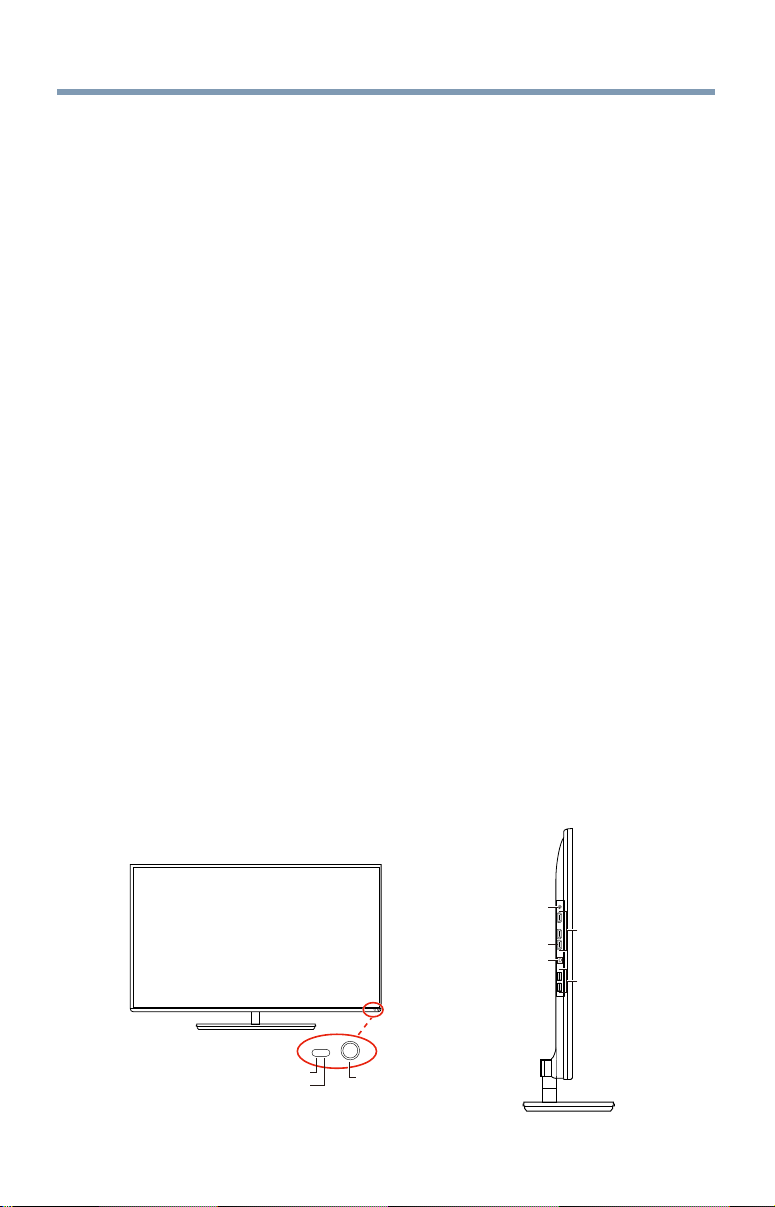
Power LED
Remote sensor
Ambient light sensor
2 USB ports
1 Analog
Video port
ARC HDMI
TM
only port
3 HDMI
TM
ports
1 Digital
Audio jack
(Sample Illustration) L7300U Series front and side panel controls and
connections
TV front and side panel controls and connections
22
Introduction
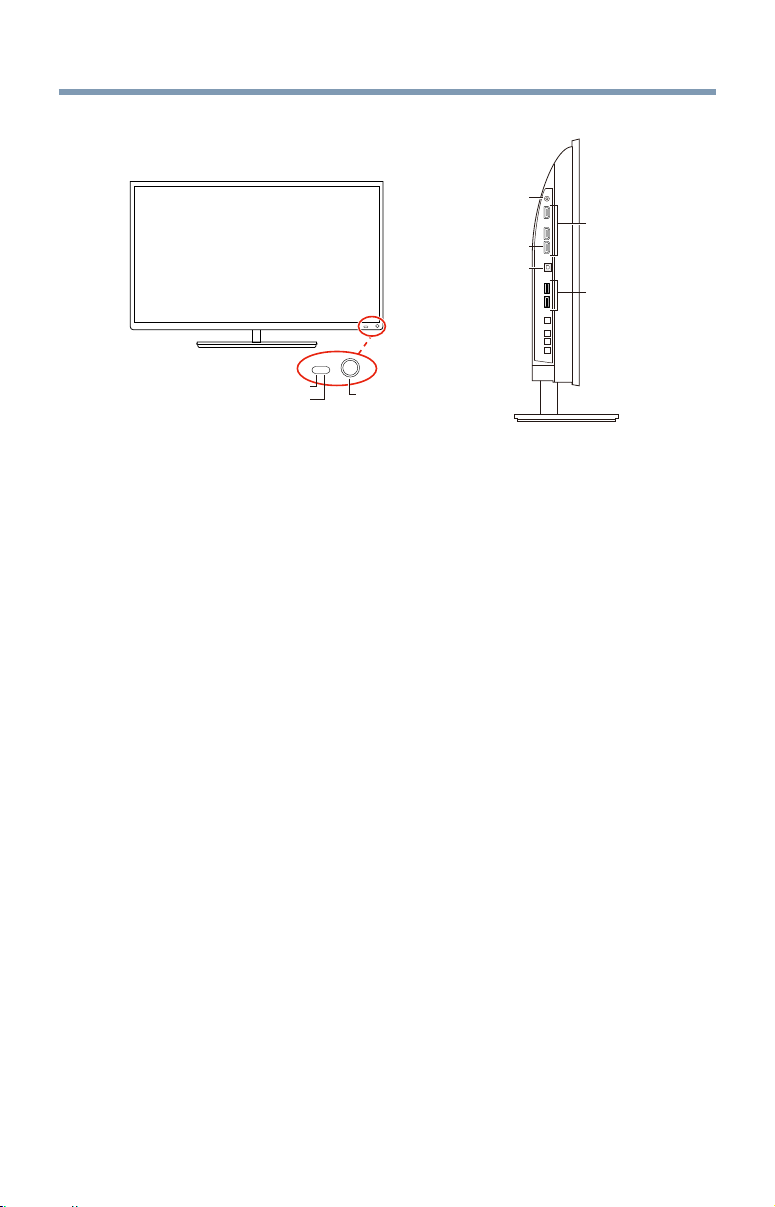
Power LED
Remote sensor
Ambient light sensor
2 USB ports
1 Analog
Video port
ARC HDMI
TM
only port
3 HDMI
TM
ports
1 Digital
Audio jack
(Sample Illustration) L4300U Series front and side panel controls and
connections
Front panel
1 Power On/Standby LED—Power indicator light, (glows green
when the TV power is On).
2 Ambient light sensor—This sensor detects the ambient light
conditions to optimize the backlighting levels, see “Ambient Light
Sensor” on page 102.
3 Remote Sensor—Point the remote control toward this remote
sensor, see “Remote control effective range” on page 49.
Left side
4 Analog Video Port—Analog
V
ideo input. Connect using a
commercially available conversion cable.
5 3 HDMI
™
Ports—High-DenitionMultimediaInterfaceinput
receives digital audio and uncompressed digital video from an
HDMI
™
device or uncompressed digital video from a DVI device.
HDMI
™
connection is necessary to receive 1080p signals.
6 ARC HDMI
™
only port—Audio Return Channel (ARC) enables
theaudiosignaloftheTVtobesenttoanAVamplierviathe
HDMI cable.
7 Digital Audio Jack—Optical audio output in Dolby
®
Digital or
PCM (pulse-code modulation) format for connecting an external
Dolby
®
Digitaldecoder,amplier,A/Vreceiver,orhometheater
system with optical audio input.
8 2 USB Ports—Usedtoaccessvideo,music,orphotoleswith
USB device. Works with wireless keyboard (but only included with
L7300).
TV front and side panel controls and connections
Introduction
23
TV back panel controls and connections
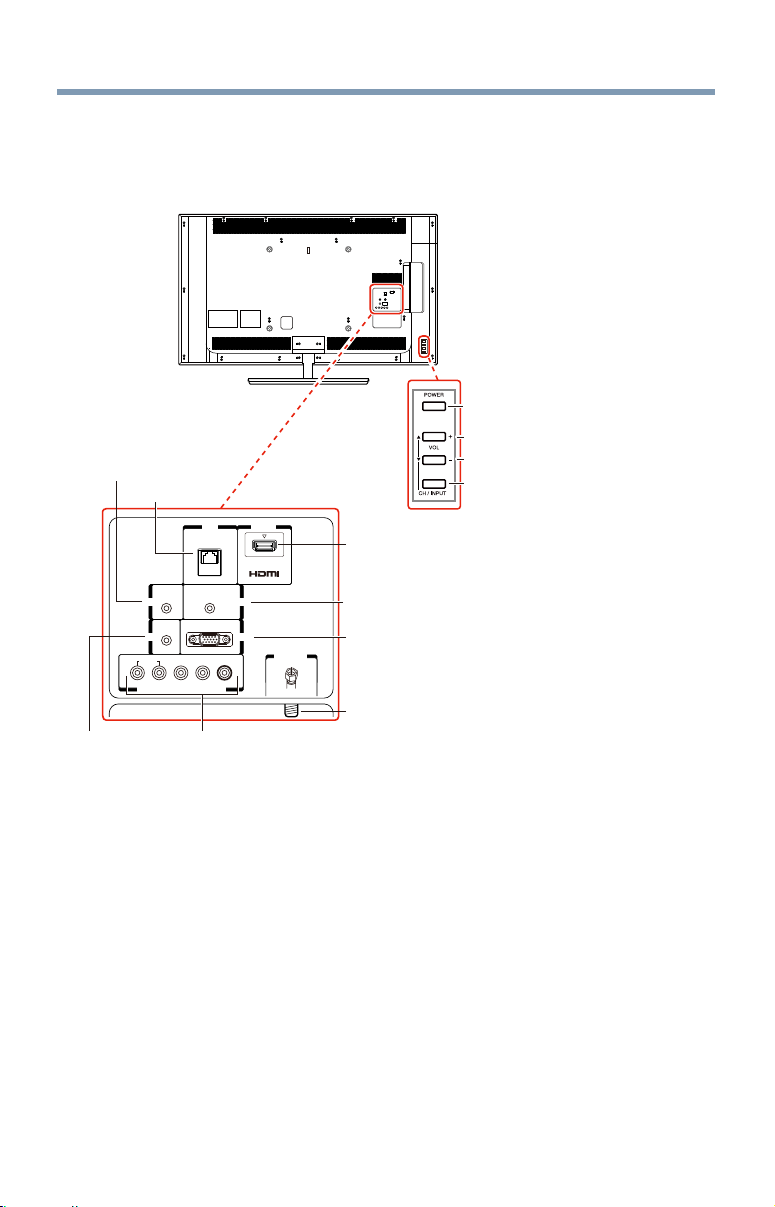
For explanations of cable types and connections, see “Connecting Your
TV” on page 26.
HDMI IN
4
ANT/CABLE
LAN
FIXED
AUDIO
IR
OUT
PC / HDMI 2
AUDIO
OUTOUT
PC IN
COLOR STREAM HD / VIDEO 2 IN
R
IN
AUDIO L / MONO
P
R
P
B
Y / VIDEO
POWER button
Volume up
Volume down
Switches the function of VOL+/-
buttons to select volume, channel, or
input mode.
HDMI
TM
IN port
PC / HDMI
TM
Audio IN
IR Blaster OUT
LAN
Analog Audio OUT
PC IN
Antenna / Cable
Colorstream
®
HD /
Video 2 IN
(Sample Illustration) L7300U Series back panel controls and
connections
TV back panel controls and connections
24
Introduction
TV back panel controls and connections
HDMI IN
4
ANT/CABLE
LAN
FIXED
AUDIO
IR
OUT
PC / HDMI 2
AUDIO
OUTOUT
PC IN
COLOR STREAM HD / VIDEO 2 IN
R
IN
AUDIO
L / MONO
P
R
P
B
Y / VIDEO
ANT/CABLE
HDMI
TM
IN port
PC / HDMI
TM
Audio IN
IR Blaster OUT
LAN
Analog Audio OUT
PC IN
32/39/50L4300 58L4300
Antenna / Cable
Colorstream
®
HD /
Video 2 IN
POWER button
Volume up
Volume down
Switches the function of
VOL+/- buttons to select
volume, channel, or input
mode.
Left Side
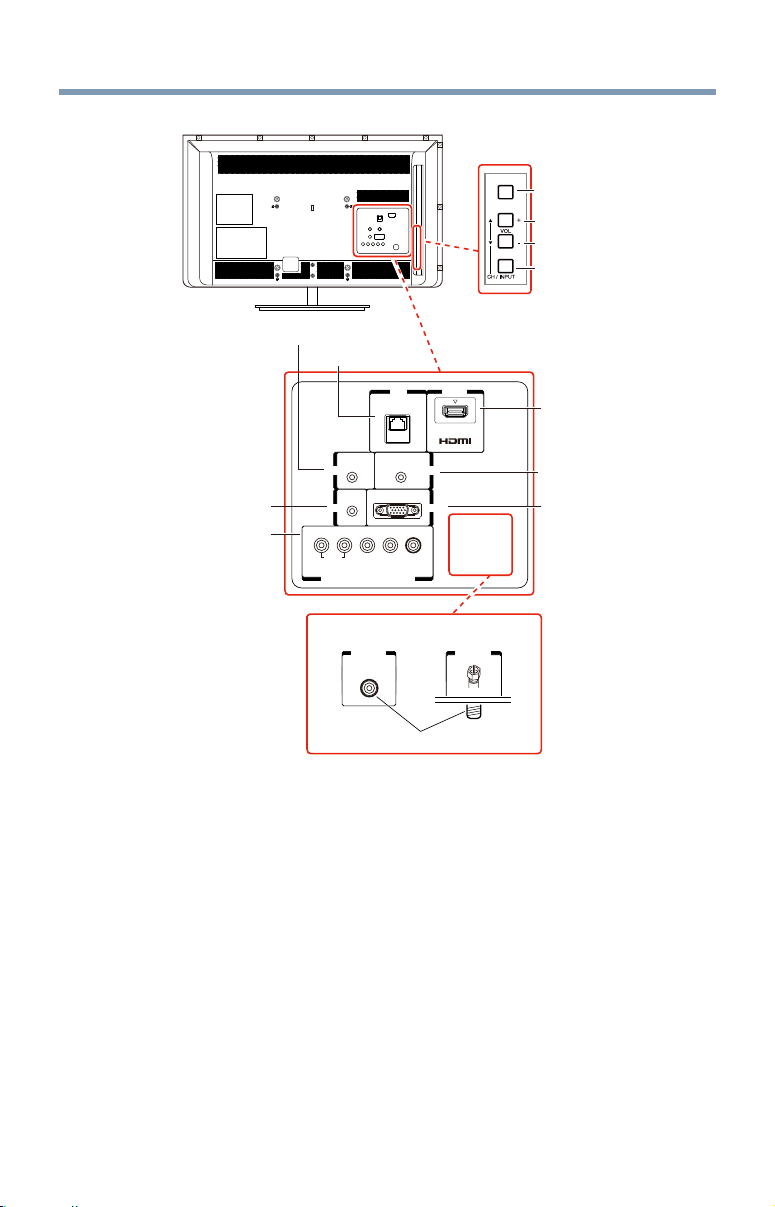
(Sample Illustration) L4300U Series back panel controls and
connections
Back panel controls
1 POWER—Turns the TV On and Off.
2 VOL +/– —Adjust the volume level, change the channel, or change
the input or source you are viewing, depending on the mode, which
is selected by the CH/INPUT button.
3 CH / INPUT— Switches the function of the VOL +/– buttons to
select the volume, channel, or input mode.
❖
In Volume mode, the arrow buttons increase or decrease the
volume.
❖
In Channel mode, the arrow buttons change the channel up or
down.

Introduction
25
Back panel connections
4 LAN—Connects the TV to your home network.
5 HDMI
™
IN—High-DenitionMultimediaInterfaceinputreceives
digital audio and uncompressed digital video from an HDMI
™
device or uncompressed digital video from a DVI device. HDMI
™
connection is necessary to receive 1080p signals.
6 Analog Audio Port—Analog audio outputs for connecting an audio
amplier.
7 PC IN—For use when connecting a personal computer.
8 ANT/CABLE—Antenna input that supports analog (NTSC) and
digital (ATSC) off-air antenna signals and analog and in the clear,
unencrypted digital Cable TV (QAM) signals.
9 ColorStream
®
HD/ Video 2 IN—These include standard A/V
connections, see
“Connecting DVD to ColorStream
®
or VCR to
composite video” on page 31.
10 PC/HDMI
™
Audio IN—PC audio input terminals are shared
with HDMI
™
-2 analog audio input terminals, and their use can be
conguredintheConguringsharedinputsmenu,see
“Conguring
shared inputs” on page 69.
11 IR Blaster OUT—Used to connect and control infrared remote-
controlled devices.
NOTE
Component/Standard (composite) video cables carry only video
information; separate audio cables are required.
TV back panel controls and connections
26
Connecting Your TV
Overview of cable types
Before purchasing cables, know the connector types your devices require.
You can purchase cables from most stores that sell audio/video devices.
Coaxial cable (F-type)
(Sample Illustration) Coaxial cable
Coaxial (F-type) cable connects your antenna, cable TV service, and/or
cable converter box to the ANT/CABLE input on your TV.
NOTE
Please tighten this connection by hand. Using tools may damage the
connection.
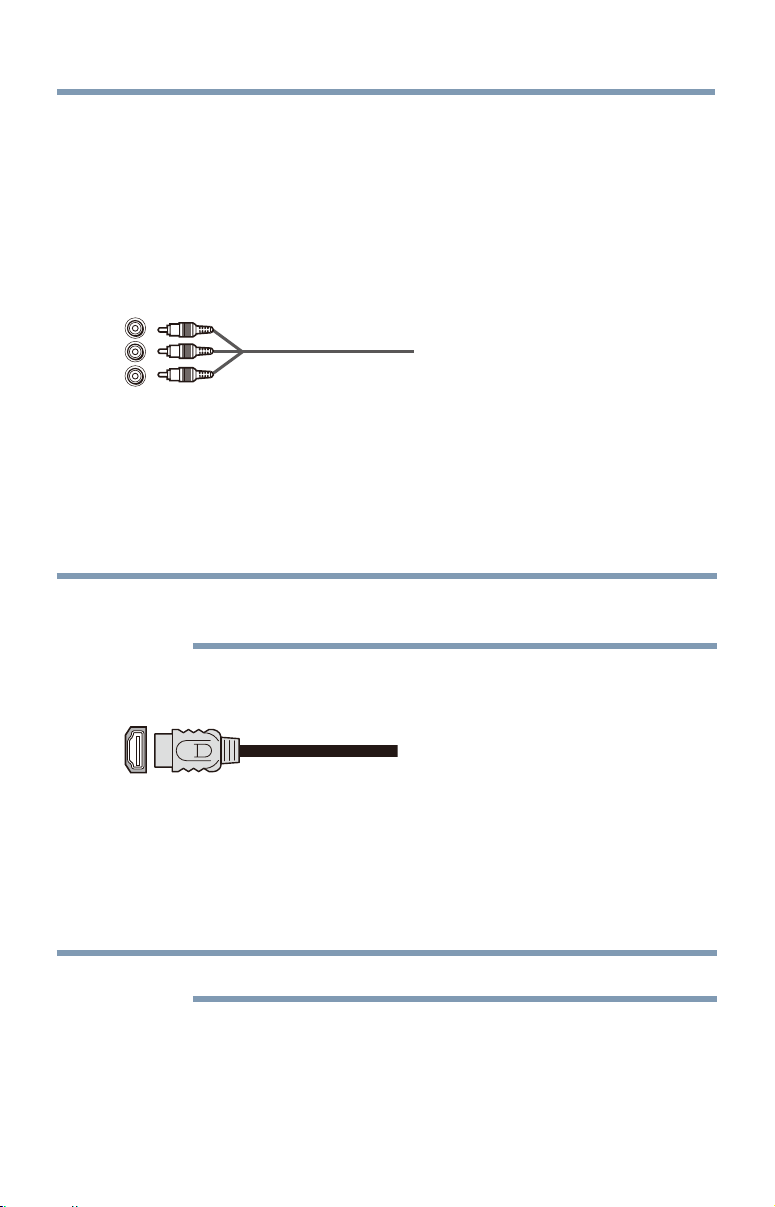
Standard A/V cables (red/white/yellow)
(Sample Illustration) Standard A/V cables
Chapter 2
Connecting Your TV
27
Standard A/V cables (composite video) usually come in sets of three, and
connect to video devices with analog audio and composite video output.
These cables (and the related inputs on your TV) are typically color-
coded according to use: yellow for video, red for stereo right audio, and
white for stereo left (or mono) audio.
Component video cables (red/green/blue)
(Sample Illustration) Component video cables
Component video cables come in sets of three and are for use with video
devices with component video output. (ColorStream
®
is Toshiba’s brand
of component video.) These cables are typically color-coded red, green,
and blue. Separate audio cables are required for a complete connection.
NOTE
Component video cables provide better picture quality than composite
video cables.
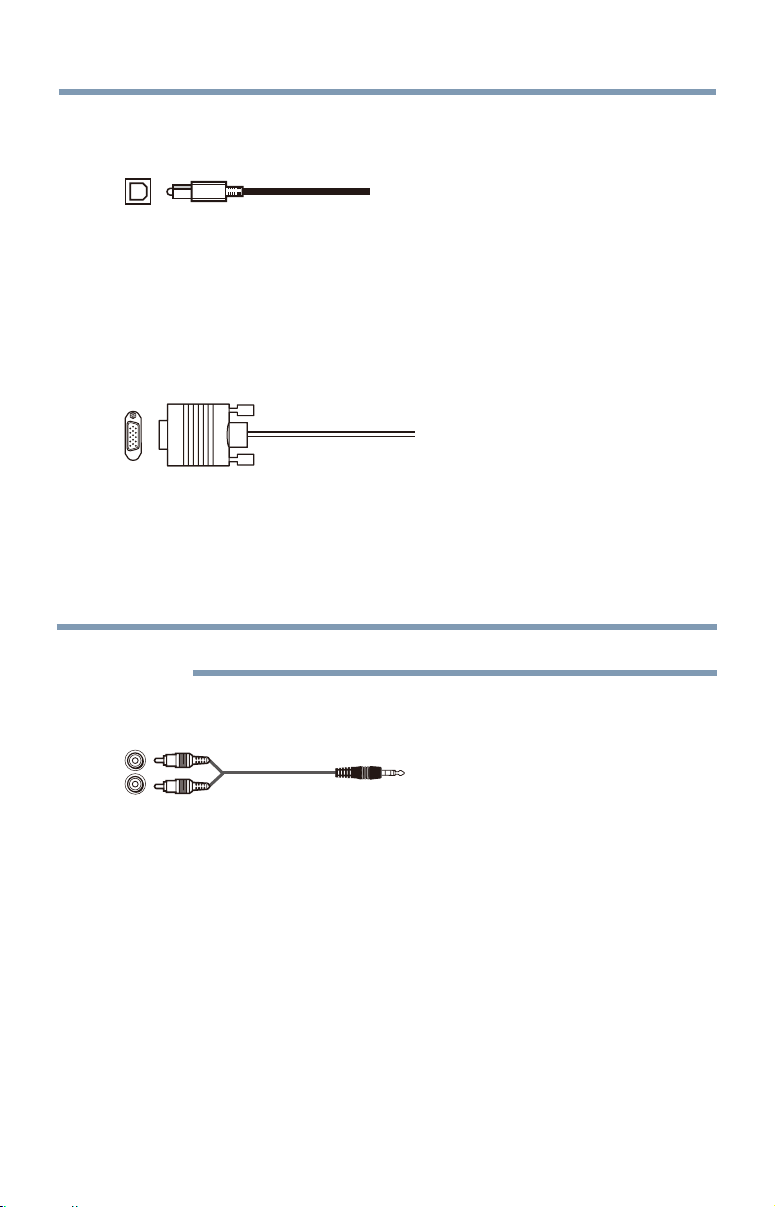
HDMI
™
cable (with HDMI Logo)
(Sample Illustration) HDMI
™
cable
HDMI
™
(High-DenitionMultimediaInterface)cableconnectstodevices
that have an HDMI
™
output. An HDMI
™
cable delivers digital audio and
video in its native format. Separate audio cables are not required, see
“Connect a computer to the TV’s HDMI
™
terminal” on page 41.
NOTE
HDMI
™
cables provide the best audio and picture quality.
Dual-wand IR blaster cable
Connect the dual-wand IR blaster cable to the IR blaster terminal to
control infrared remote controlled devices from the TV.
Overview of cable types
28
Connecting Your TV
Optical audio cable
(Sample Illustration) Optical audio cable
Optical audio cable connects receivers with Dolby
®
Digital or PCM
(pulse-code modulation) optical audio input to the TV’s Digital Audio
Out terminal, see
“Connecting a digital audio system” on page 35.
Analog RGB (15-pin) computer cable
(Sample Illustration) Analog RGB (15-pin) computer cable
Analog RGB (15-pin) computer cable connects a computer to the to the
TV’s PC IN terminal, see “Connecting a computer to the TV’s PC IN
terminal:” on page 40.
NOTE
Separate audio cables are required.
3.5mm Stereo to RCA Y-cable
(Sample Illustration) 3.5mm Stereo to RCA Y- cable
3.5mm Stereo to RCA Y-cable connects an audio signal from DVI device
to TV.
Overview of cable types
Connecting Your TV
29
LAN cable
(Sample Illustration) LAN cable
Standard LAN cable connects the TV to your home network, see
“Connecting the TV to a home network with an Internet connection -
wired” on page 44.
Crossover LAN cable connects the TV directly to a computer, see
“Connecting the TV directly to a computer without an Internet
connection” on page 43.
About the connection illustrations
You can connect different types and brands of devices to your TV in
severaldifferentcongurations.Theconnectionillustrationsinthis
manual are representative of typical device connections only. The input/
output terminals on your devices may differ from those illustrated. For
detailsonconnectingandusingyourspecicdevices,refertoeach
device’s owner’s manual.
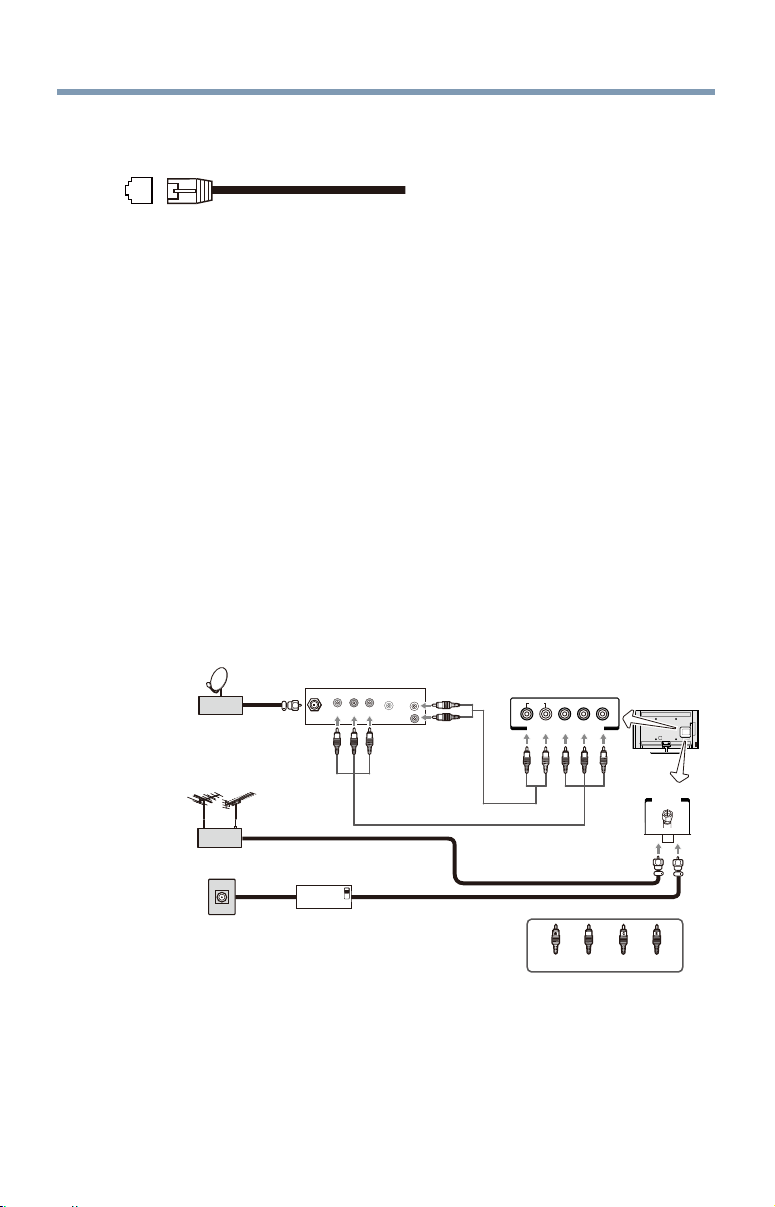
Connecting an antenna, satellite receiver, and/or cable TV
box
IN
OUT
CH 3
CH 4
VIDEO
OUT
AUDIO
OUT
COMPONENT VIDEO
L
R
Satellite
IN
P
B
P
R
Y
COLOR STREAM HD / VIDEO 2 IN
R
AUDIO L / MONO
P
R
P
B
Y / VIDEO
ANT/CABLE
G
B R
W
R
G
BR
R W
TV back panel
Coaxial cable
Cable box
Cable TV
VHF/UHF
Antenna
Satellite receiver with component video
Standard
audio cable
Component video cable
Satellite dish
R
White Red Green Blue
(Sample Illustration) L7300U Series—Connecting to an antenna,
satellite receiver, and/or cable TV box
Connecting an antenna, satellite receiver, and cable TV box

30
Connecting Your TV
IN
OUT
CH 3
CH 4
VIDEO
OUT
AUDIO
OUT
COMPONENT VIDEO
L
R
Satellite
IN
P
B
P
R
Y
COLOR STREAM HD / VIDEO 2 IN
R
AUDIO
L / MONO
P
R
P
B
Y / VIDEO
ANT/CABLE
G
BR
R W
W
R
G
B R
TV back panel
Coaxial cable
Cable box
Cable TV
VHF/UHF
Antenna
Satellite receiver with component video
Standard
audio cable
Component video cable
Satellite dish
R
White Red Green Blue
(Sample Illustration) L4300U Series—Connecting to an antenna,
satellite receiver, and/or cable TV box
Items needed:
❖
Coaxial cables
❖
Standard AV cables
❖
Component video cables (red/green/blue)
NOTE
When you use a cable box, you may not be able to use the remote control
to program or access certain features on the TV.
To view the antenna or cable signal:
Select ANT/CABLE video input source on the TV.*
To view basic and premium cable channels:
Select the ANT/CABLE video input source on the TV.* Tune the TV to
channel 3 or 4 (whichever channel the cable box output is set to). Use the
cable box controls to change channels.
To view the VCR or camcorder video:
Turn On the VCR or camcorder video. Select VIDEO input source on the
TV.*
*To select the video input source, press the INPUT button on the remote
control, see
“Selecting the video input to view” on page 71.
Connecting an antenna, satellite receiver, and cable TV box
Connecting Your TV
31
NOTE
The unauthorized recording, use, distribution, or revision of television
programs, videotapes, DVDs, and other materials is prohibited under the
Copyright Laws of the United States and other countries, and may subject
you to civil and criminal liability.
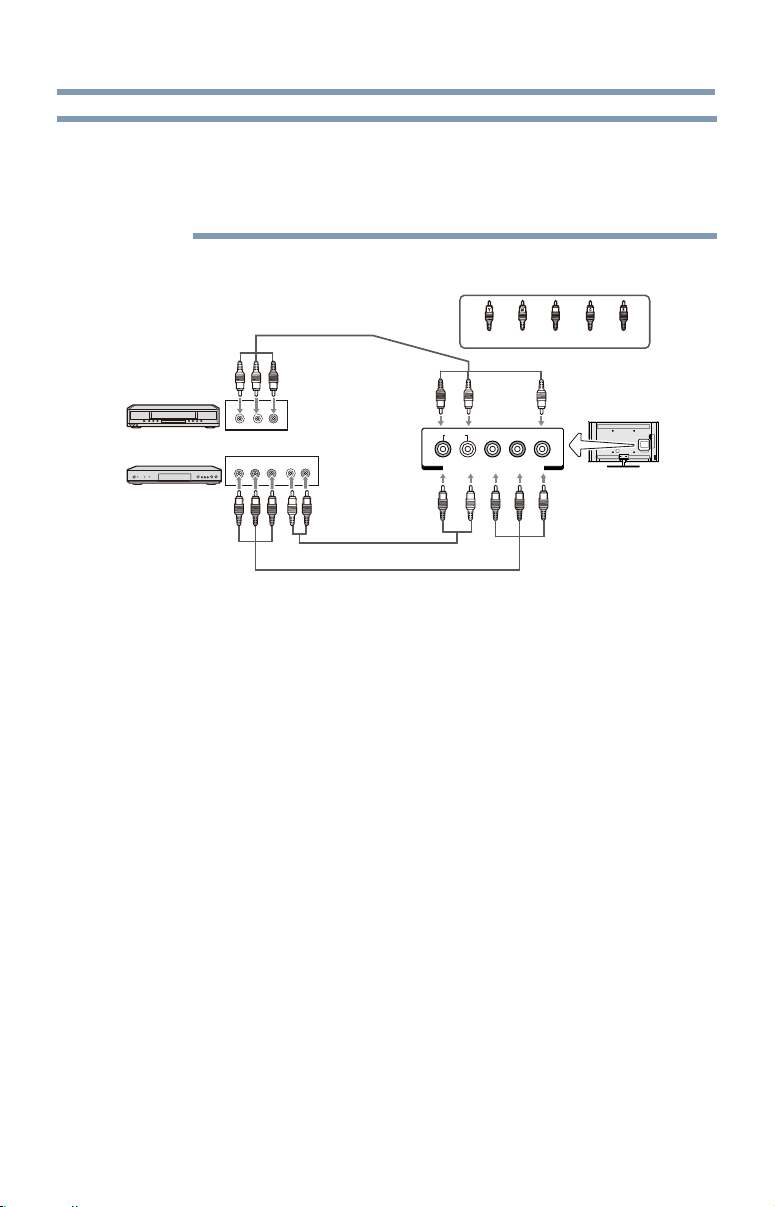
Connecting DVD to ColorStream
®
or VCR to composite video
VIDEO AUDIO
L R
COMPONENT VIDEO
P
B
P
R
Y
AUDIO
OUT
L R
R
COLOR STREAM HD / VIDEO 2 IN
R
AUDIO L / MONO
P
R
P
B
Y / VIDEO
G
BR
G
B
R
R W
R W
RW
RWY
Y
TV back panel
Yellow
VCR
DVD player
White Red Green Blue
Component video cable
Standard audio cable
Standard A/V cable
(Sample Illustration) L7300U Series—Connecting a DVD with
ColorStream® or a VCR with composite video
Items needed:
❖
Coaxial cables
❖
Standard AV cables
❖
Standard audio cables
❖
Composite or component video cables
❖
You can connect the component video cables (plus audio cables)
from the DVD player or satellite receiver to the COLOR
STREAM HD terminal in the TV. The COLOR STREAM
HD terminal can be used to display Progressive (480p, 720p,
1080p) and Interlaced (480i, 1080i) scan systems.
If your DVD player or satellite receiver does not have
component video, connect a standard A/V cable to the AUDIO/
VIDEO terminal. If your DVD player has HDMI
™
video, see
“Connecting an HDMI
™
or DVI device to the HDMI
™
input” on
page 36.
Connecting DVD to ColorStream
®
or VCR to composite video

32
Connecting Your TV
NOTE
When you use ColorStream
®
HD or Video, please switch to the appropriate
AV mode.
To view antenna or Cable channels:
Select the ANT/CABLE video input source on the TV.*
To view the DVD player:
Turn ON the DVD player. Select the ColorStream
®
HD video input source
on the TV.*
To view satellite programs using the component video connections:
Turn ON the satellite receiver. Select the ColorStream
®
HD video input
source on the TV.*
To view the VCR or view and record antenna channels:
Turn ON the VCR. Tune the VCR to the channel you want to watch.
Select the VIDEO video input source on the TV.*
To record a TV program while watching a DVD:
Turn ON the VCR. Tune the VCR to the channel to record. Select the
ColorStream
®
HD video input source on the TV* to view the DVD.
*To select the video input source, press the INPUT button on the remote
control, see
“Selecting the video input to view” on page 71.
NOTE
The unauthorized recording, use, distribution, or revision of television
programs, videotapes, DVDs, and other materials is prohibited under the
Copyright Laws of the United States and other countries, and may subject
you to civil and criminal liability.
Connecting remote IR devices
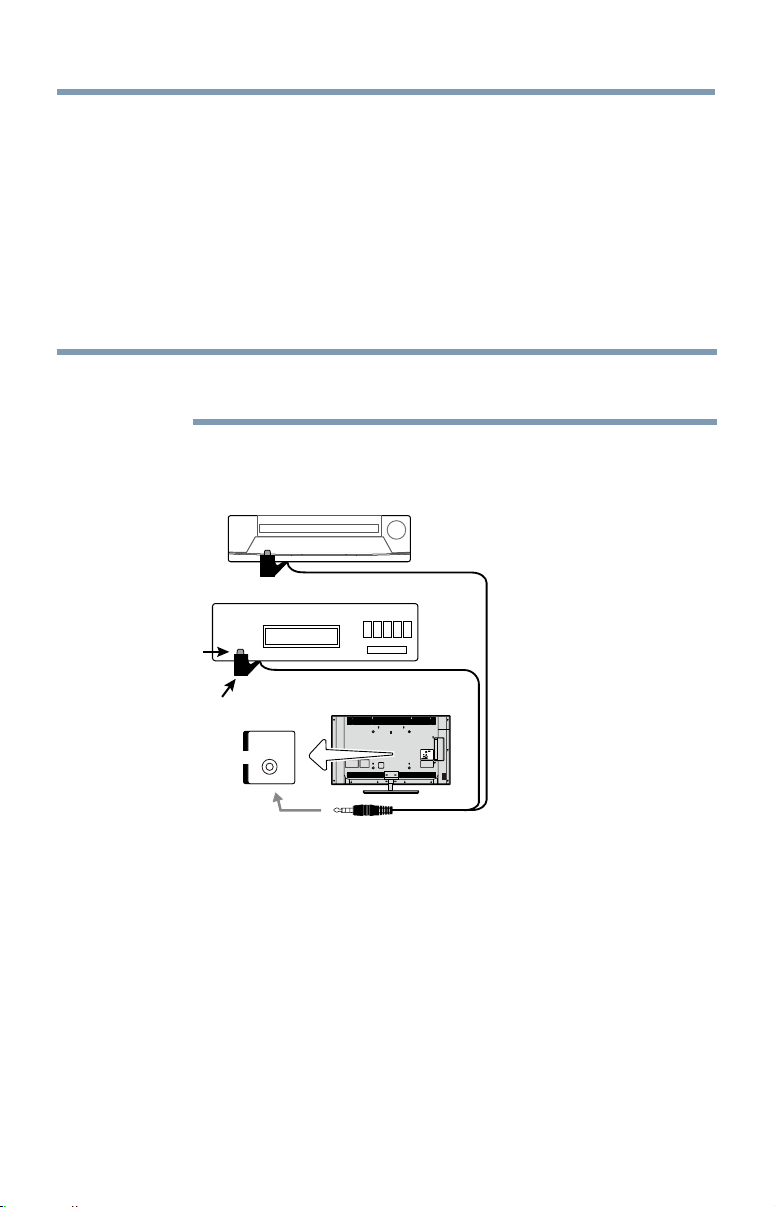
Using the IR blaster OUT terminal
You can use the TV’s IR OUT terminal to remotely operate many infrared
remote-controlled devices enclosed in an entertainment center or similar
cabinet.
Items needed:
❖
Dual-wand IR blaster cable (see “Dual-wand IR blaster cable” on
page 27
)
❖
Other cables as required to connect the device(s) to the TV (see
“Overview of cable types” on page 26)
See the remote IR blaster setup section (see page 58).
Connecting remote IR devices
Connecting Your TV
33
To connect the IR blaster cable:
1 Locate the infrared sensor on the front of your device. This sensor
is marked on some devices. If you are having issues locating the
device's infrared sensor, see “If you cannot locate the device’s
infrared sensor:” on page 34.
2 Align one of the IR blaster cable’s wands approximately 1 inch
away from the infrared sensor on the front of the device and attach
it using double-sided mounting tape. If you have a second device,
attach the second wand in a similar manner.
NOTE
If you do not have a second device, coil the second wand with a rubber
band and leave it behind the TV.
3 Plug the IR blaster cable’s plug into the TV’s IR Blaster Out
terminal.
IR
OUT
OUT
Front of IR-controlled DVD player (for example)
Infrared
sensor
Dual-
wand IR
blaster
cable
IR blaster cable wand
(approx. 1 inch from device)
Front of IR-controlled audio device (for example)
TV back panel
(Sample Illustration) L7300U Series—Using the IR blaster OUT
terminal
Connecting remote IR devices
34
Connecting Your TV
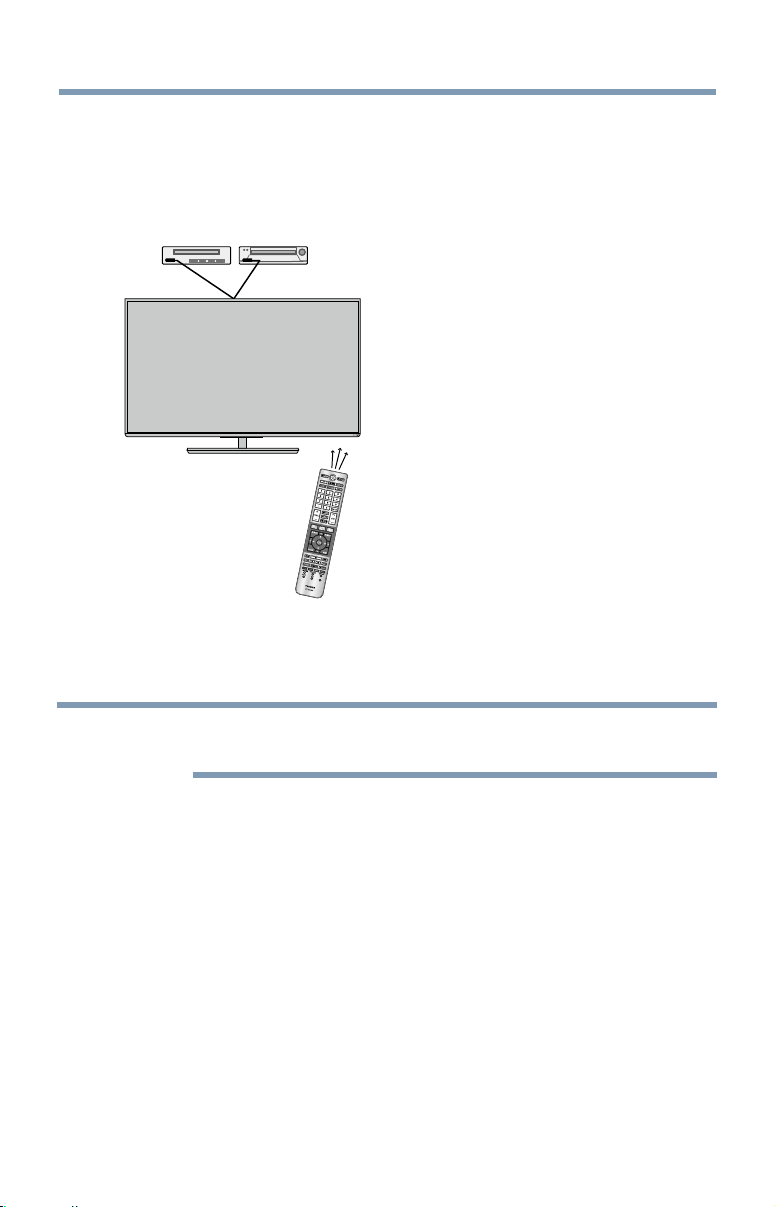
To control the device(s):
Point the TV remote control toward the front of the TV and press the
button for the desired function. The signal passes from the remote
control through the TV to the device via the IR Blaster cable. For more
information, see
“Setting the IR Blaster” on page 58.
(Sample Illustration) Controlling the device(s) - remote control
NOTE
The IR pass-through feature does not support all IR controlled devices.
Satisfactory quality may not be attainable with certain devices.
If you cannot locate the device’s infrared sensor:
1 Turn off the device.
2 Starting at the device’s lower-left corner, place the end of the
device’s remote control (with the infrared emitter) so it touches the
front of the device. Press the POWER button.
(Do not use the TV’s remote control for this step.)
3 If the device turns on, the sensor is located where the remote control
touched the device.
4 If the device does not turn on, move the remote control slightly to
the right and press the POWER button again.
5 Repeat the previous steps if necessary.
Connecting remote IR devices
Connecting Your TV
35
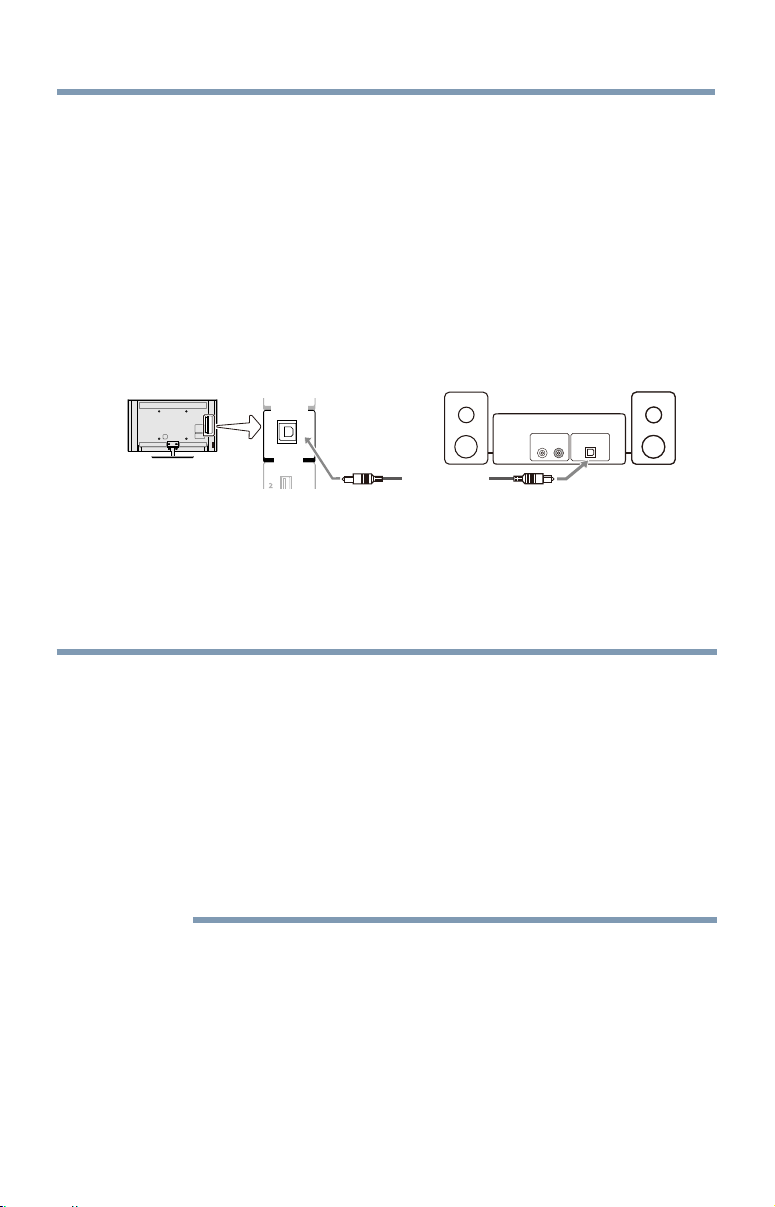
Connecting a digital audio system
The TV’s Digital Audio Out terminal outputs a Dolby
®
Digital or
2-channel down-mixed PCM (pulse-code modulation) signal for using
with an external Dolby
®
Digital decoder or other external audio systems
with optical audio input.
You will need an Optical audio cable (Use an optical audio cable that
has the larger “TosLink” connector and not the smaller “mini-optical”
connector.)
OUT
DIGITAL AUDIO
HDMI IN
TV back panel
Digital audio system
Optical audio cable
Optical
Audio IN
LINE IN
L R
(Sample Illustration) L7300U Series—Connecting a digital audio
system
Before controlling the audio, see “Selecting the optical audio output
format” on page 107.
NOTE
Some audio systems may not be compatible with Dolby Digital bitstream
signals. Older audio systems that are not compatible with standard optical
out signals may not work properly, creating a high noise level that may
damage speakers or headphones. THIS DAMAGE IS NOT COVERED BY
YOUR WARRANTY. The DIGITAL AUDIO OUT terminal may not output some
digital audio sources because of copy restrictions.
❖
The Dolby Digital format is available in the following situations:
- When tuned to a digital RF channel
- When an HDMI input is used
- When network devices are used
Connecting a digital audio system
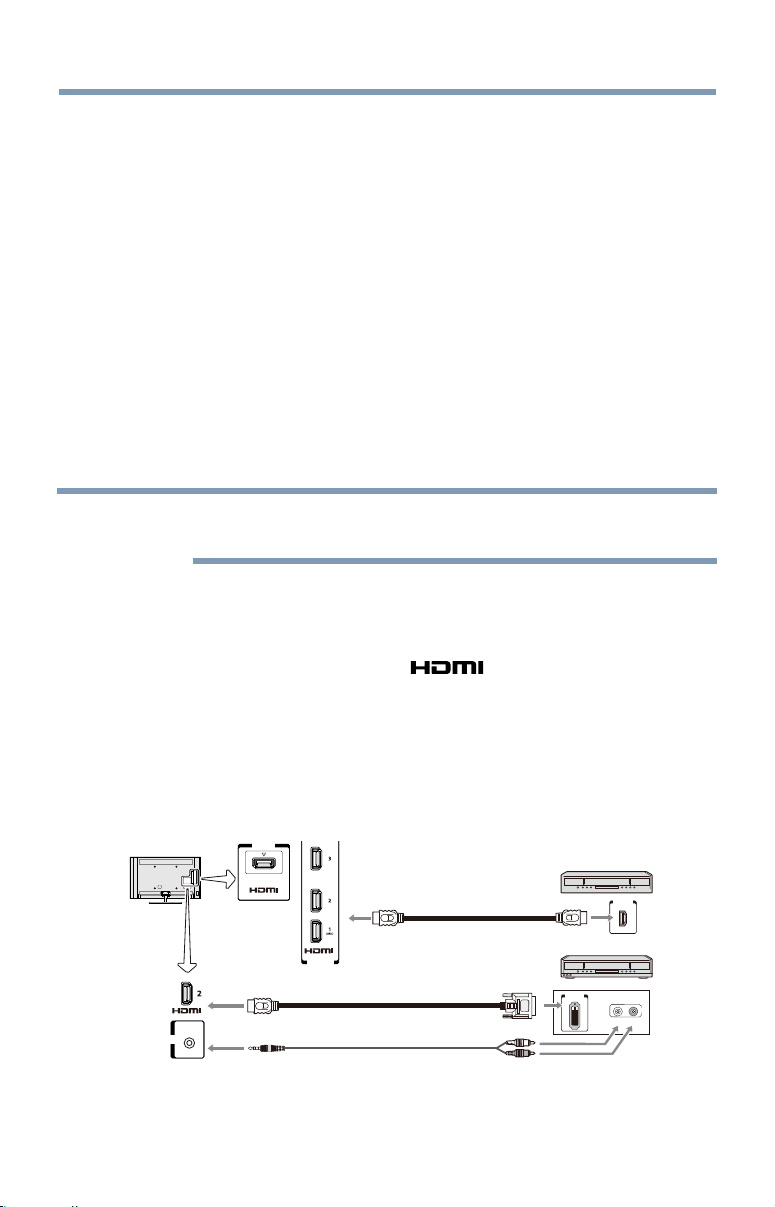
36
Connecting Your TV
Connecting an HDMI
™
or DVI device to the HDMI
™
input
The HDMI
™
input on your TV receives digital audio and uncompressed
digital video from an HDMI
™
source device, or uncompressed digital
video from a DVI (Digital Visual Interface) source device.
This input is designed to accept HDCP (High- Bandwidth Digital-Content
Protection) program material in digital form from EIA/CEA-861-D–
compliant[1]consumerelectronicdevices(suchasaset-topboxorDVD
player with HDMI
™
or DVI output).
The HDMI
™
input can accept and display VGA, SVGA, XGA, WXGA,
SXGA, 480i (60Hz), 480p (60Hz), 720p (60Hz), 1080i (60Hz), and 1080p
(24Hz/30Hz/60Hz)signalformats.Fordetailedsignalspecications,see
“HDMI
™
signal formats” on page 176.
The supported Audio formats are Linear PCM and Dolby
®
Digital,
sampling rate 32/44.1/ 48 kHz.
NOTE
To connect a PC to the HDMI
™
input, see “Connect a computer to the TV’s
HDMI
™
terminal” on page 41.
To connect an HDMI
™
device, you will need one HDMI
™
cable (type A
connector) per HDMI
™
device:
❖
For proper operation, it is recommended that you use an HDMI
™
cable with the HDMI
™
Logo (
).
❖
To display an 1080ip/60Hz signal format, you will need a High
Speed HDMI
™
cable. A conventional HDMI
™
/DVI cable may not
work properly.
❖
HDMI
™
cables transfer both video and audio. Separate analog audio
cables are not required (see illustration).
HDMI
OUT
DVI/HDCP
OUT
R
L
OUT
HDMI IN
HDMI IN
4
PC / HDMI 2
AUDIO
IN
Analog audio cable
HDMI
TM
-to-DVI adapter cable
HDMI
TM
cable
DVI device
TV back panel
HDMI
TM
device (satellite or
cable box, DVD player, etc)
(Sample Illustration) L7300U Series—Connecting an HDMI
™
or DVI
device to the HDMI
™
Input
Connecting an HDMI
™
or DVI device to the HDMI
™
input

Connecting Your TV
37
To view the HDMI
™
device video:
Select HDMI 1, HDMI 2, HDMI 3 or HDMI 4 video input source
on the TV. (Press the INPUT button on the remote control. For more
information, see
“Selecting the video input to view” on page 71.
To connect a DVI device, you will need:
❖
HDMI
™
to DVI adapter cable
For proper operation, the length of an HDMI
™
to DVI adapter cable
should not exceed 9.8 ft (3m). The recommended length is 6.6 ft
(2m).
❖
3.5mm Stereo to RCA Y-cable
An HDMI
™
to DVI adapter cable transfers video only. Separate
analog audio cables are required (see illustration).
NOTE
To ensure that the HDMI
™
or DVI device is reset properly:
❖
When turning on your electronic components, turn on the TV first, and
then the HDMI
™
or DVI device.
❖
When turning off your electronic components, turn off the HDMI
™
or
DVI device first, and then the TV.
NOTE
[1] EIA/CEA-861-D compliance covers the transmission of uncompressed
digital video with high-bandwidth digital content protection, which is being
standardized for reception of high definition video signals. Because this is
an evolving technology, it is possible that some devices may not operate
properly with the TV.
Connecting an HDMI
™
or DVI device to the HDMI
™
input
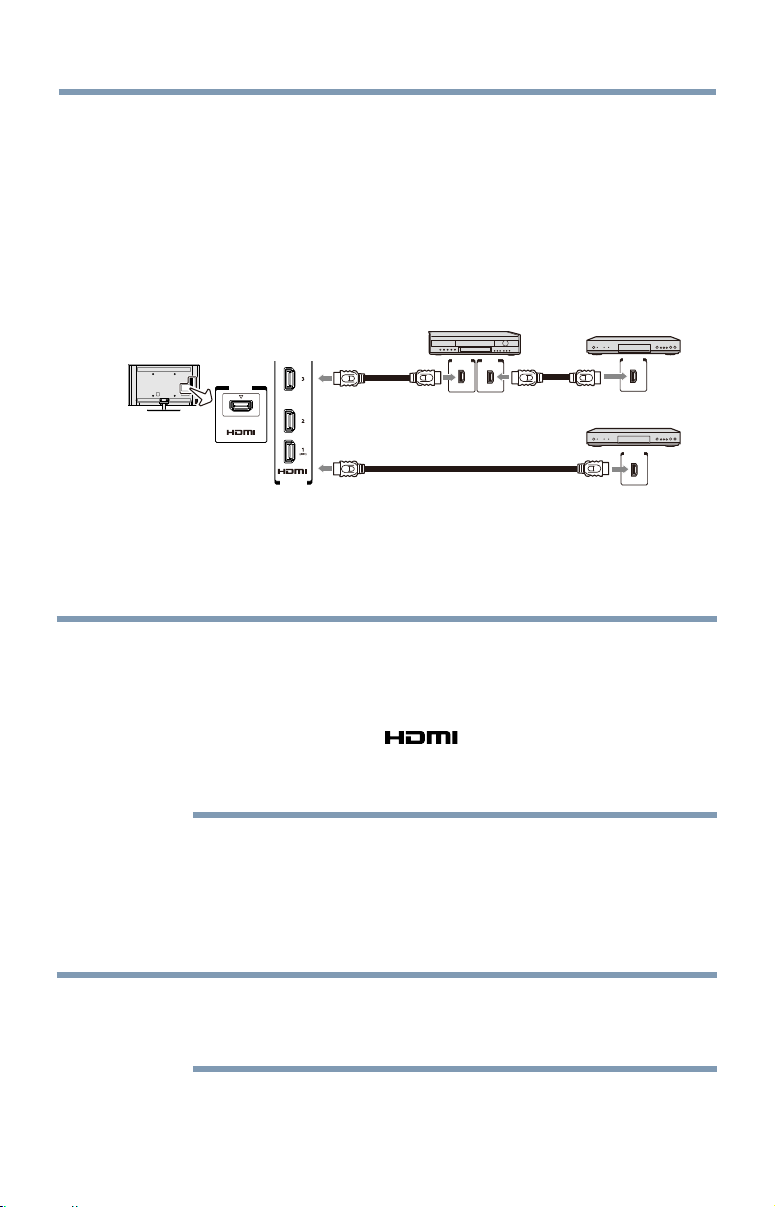
38
Connecting Your TV
Using the TV remote and HDMI
™
CEC Control to control other
devices
To control the basic functions of connected audio/video devices using
the TV’s remote control, connect an HDMI
™
CEC compatible audio
system or playback device. The HDMI
™
CEC Control feature uses CEC
technology as regulated by the HDMI
™
standard.
HDMI
OUT HDMI IN
HDMI
OUT
HDMI
OUT
HDMI IN
HDMI IN
4
TV back panel
HDMI
TM
cable
HDMI
TM
cable
Playback device
Audio system
Playback device
(HDMI™ CEC DVD player, etc.)
(HDMI™ CEC DVD player, etc.)
(Sample Illustration) L7300U Series—Connecting an HDMI
™
CEC
compatible audio system and playback device
To connect an audio system and playback devices, you will need HDMI
™
cables, see
“HDMI
™
cable (with HDMI Logo)” on page 27.
NOTE
❖
If several devices are connected, HDMI
™
CEC Control feature may not
operate properly, see “HDMI
™
CEC Control input source selection” on
page 83.
For proper operation, it is recommended that you use HDMI
™
cables
with the HDMI
™
Logo ( ).
❖
HDMI
™
CEC devices can be controlled by TV remote only when it is
the TV mode.
Before controlling the devices:
❖
For an explanation of setup and operations, see “Other HDMI
™
CEC Control functions” on page 84
.
❖
Conguretheconnecteddevices.Seeeachdevice’soperation
manual.
NOTE
This feature is limited to models incorporating HDMI
™
CEC Control feature.
However, Toshiba is not liable for those operations. See the individual
instruction manuals for compatibility information.
Using the TV remote and HDMI
™
CEC Control to control other devices
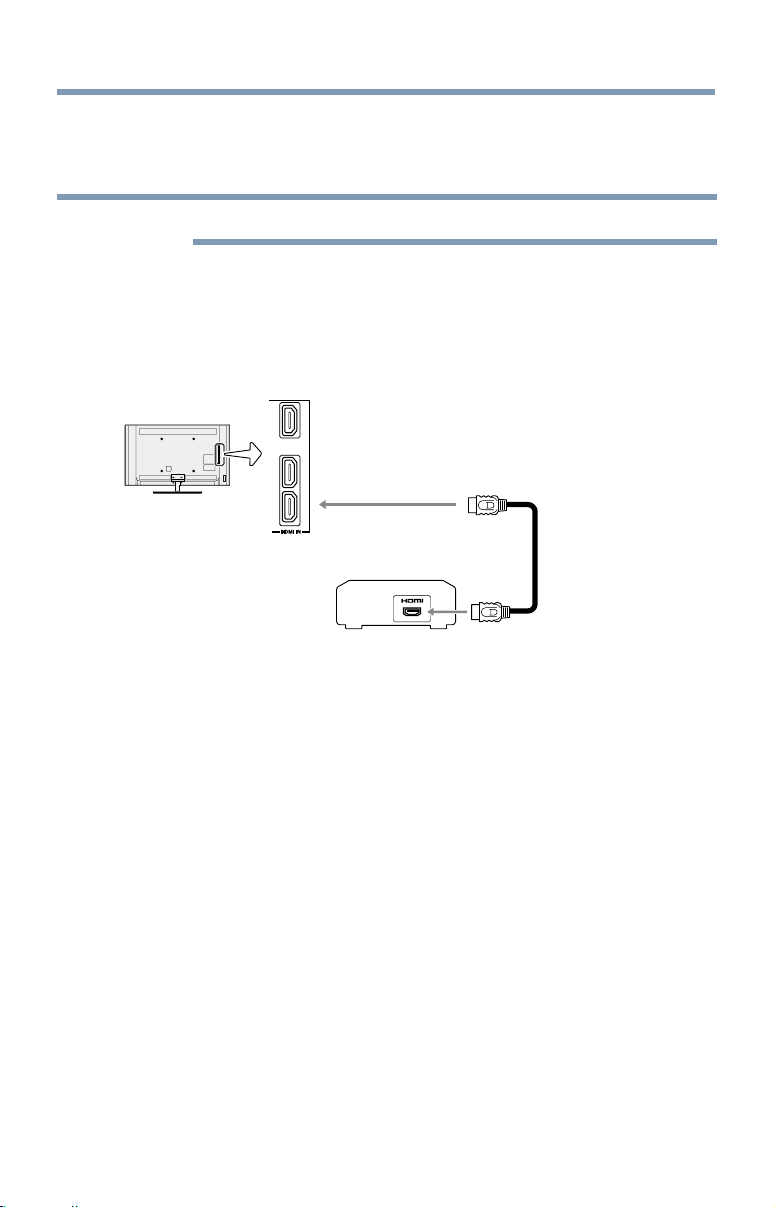
Connecting Your TV
39
WhenusinganexternalAVamplierthepictureandsoundmaynotbe
properly synchronized. In this case, adjust the delay time of the sound on
theAVamplier.
NOTE
The control range of the delay time differs according to the device you use.
Connecting an HDMI
™
audio system
If your HDMI
™
audio system supports ARC, audio from the TV can be
sent to the audio system via an existing HDMI
™
cable.
You will need an HDMI
™
cable.
TV back panel
HDMI
cable
Audio system that
supports ARC
1
2
3
(ARC)
(Sample Illustration) /L7300U Series— Connecting to HDMI
™
ARC
HDMI
™
's ARC (Audio Return Channel) feature
This feature enables the audio signal of the TV to be sent to an audio
system via the HDMI
™
cable. It will not be necessary to connect a cable
from the audio output of the TV to the audio input of the audio system to
reproduce the audio received from the tuner of the TV through the audio
system.
Connecting an HDMI
™
audio system
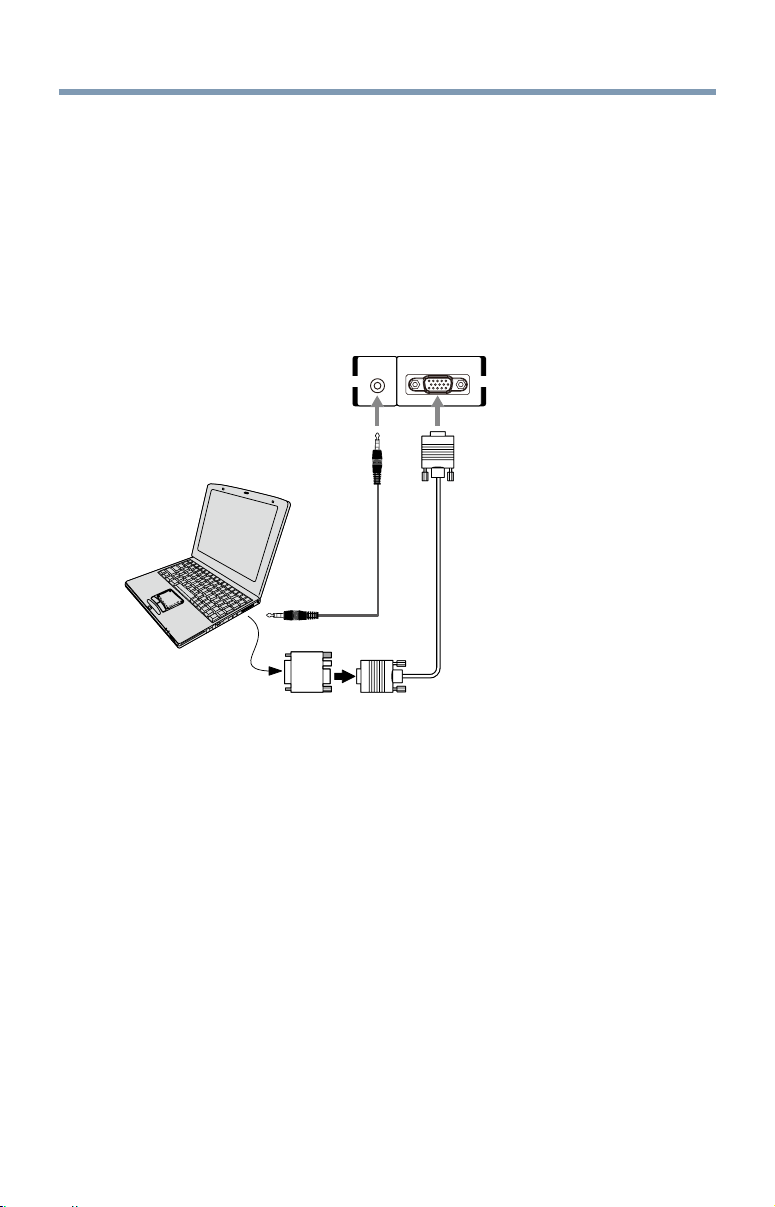
40
Connecting Your TV
Connecting a computer
With either the PC IN or HDMI
™
connection, you can view your
computer’s display on the TV and hear the sound from the TV’s speakers.
Connecting a computer to the TV’s PC IN terminal
When connecting a computer to the PC IN terminal on the TV, use an
analog RGB (15-pin) computer cable and a PC audio cable. For more
information, see “Overview of cable types” on page 26.
Conversion adapter
(if necessary)
PC audio
cable
PC audio
output
PC / HDMI 2
AUDIO
PC ININ
TV back panel
(Sample Illustration) L7300U Series—Connecting to a computer
through analog RGB cable
To use a computer, set the monitor output resolution on the computer
before connecting it to the TV. The supported signal formats are VGA,
SVGA,XGA,WXGAandSXGA.Fordetailedsignalspecications,see
“Acceptable signal formats for PC IN and HDMI
™
” on page 175
.
Other formats or non-standard signals will not be displayed correctly.
To display the optimum picture, use the computer setting feature, see
“Using your computer with the TV” on page 85.
Connecting a computer

Connecting Your TV
41
NOTE
❖
The PC audio input terminal on the TV is shared with the HDMI 2
terminal. For configuration information, see “Setting the computer
audio” on page 86.
❖
Some computer models cannot be connected to this TV.
❖
If the computer has a compatible mini D-sub15-pin terminal, an
adapter is not required.
❖
Depending on the content’s title and the computer’s specifications,
some scenes may be skipped or you may not be able to pause during
multi-angle scenes.
Signal names for mini D-sub 15-pin connector:
Pin
No.:
Signal
Name:
Pin No.: Signal
Name:
Pin No.: Signal
Name:
1 R 6 Ground 11 NC
2 G 7 Ground 12 SDA
3 B 8 Ground 13 H-sync
4 NC* 9 5V 14 V-sync
5 Ground 10 Ground 15 SCL
*NC=Not connected
Connect a computer to the TV’s HDMI
™
terminal
When connecting a computer with a DVI port to the HDMI
™
terminal on
the TV, use an HDMI
™
to DVI adapter cable and analog audio cables.
When connecting a computer with an HDMI
™
port, use an HDMI
™
cable
(type A connector). Separate analog audio cables may not be necessary,
depending on computer hardware and setup.
For more information, see
“Overview of cable types” on page 26.
Connecting a computer
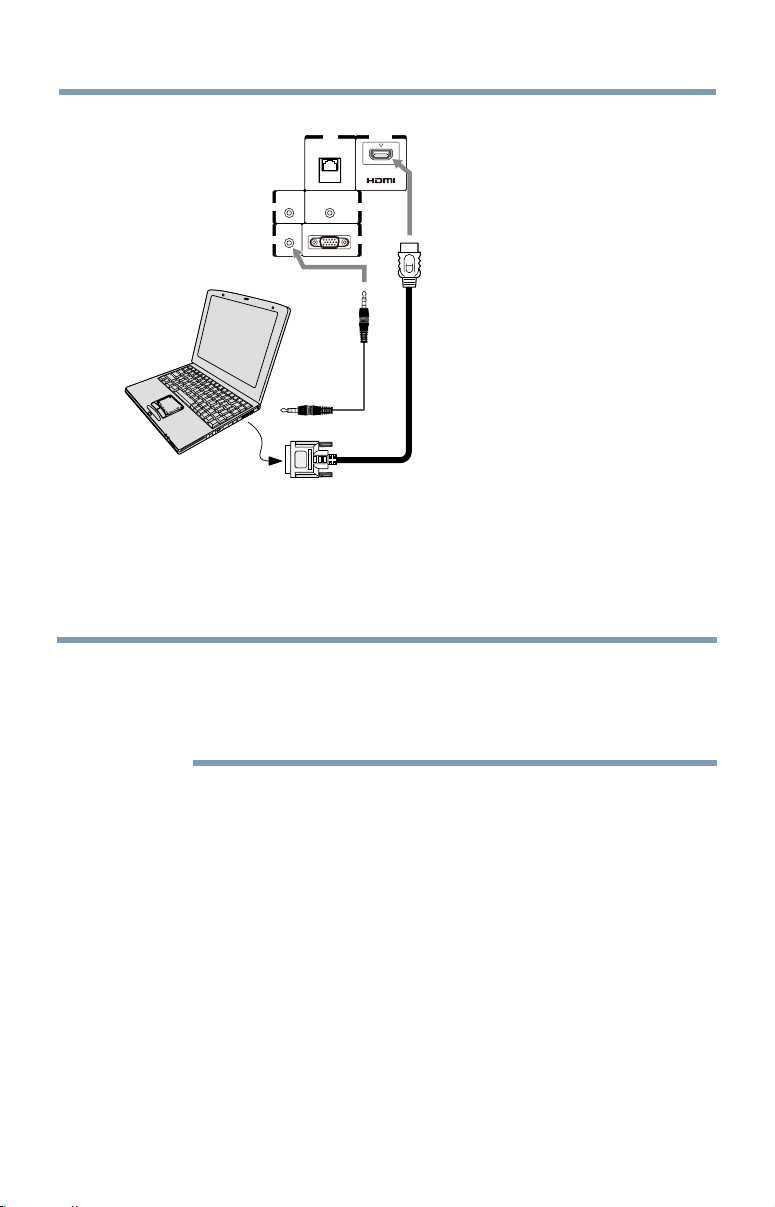
42
Connecting Your TV
HDMI IN
4
LAN
FIXED
AUDIO
IR
OUT
PC / HDMI 2
AUDIO
OUTOUT
PC ININ
(Sample Illustration) L7300U Series—Connecting to an HDMI
™
terminal
The supported signal formats are VGA, SVGA, XGA, WXGA, SXGA,
480i (60Hz), 480p (60Hz), 720p (60Hz), 1080i (60Hz), and 1080p
(24Hz/30Hz/60Hz).Forsignalspecications,see“Acceptable signal
formats for PC IN and HDMI
™
” on page 175
.
NOTE
❖
The edges of the picture may be hidden.
❖
If receiving a 480i (HDMI), 480p (HDMI), 720p, 1080i, or 1080p
signal program, Native mode scales the video to display the entire
picture within the borders of the screen (i.e. no overscanning).
Connecting a computer
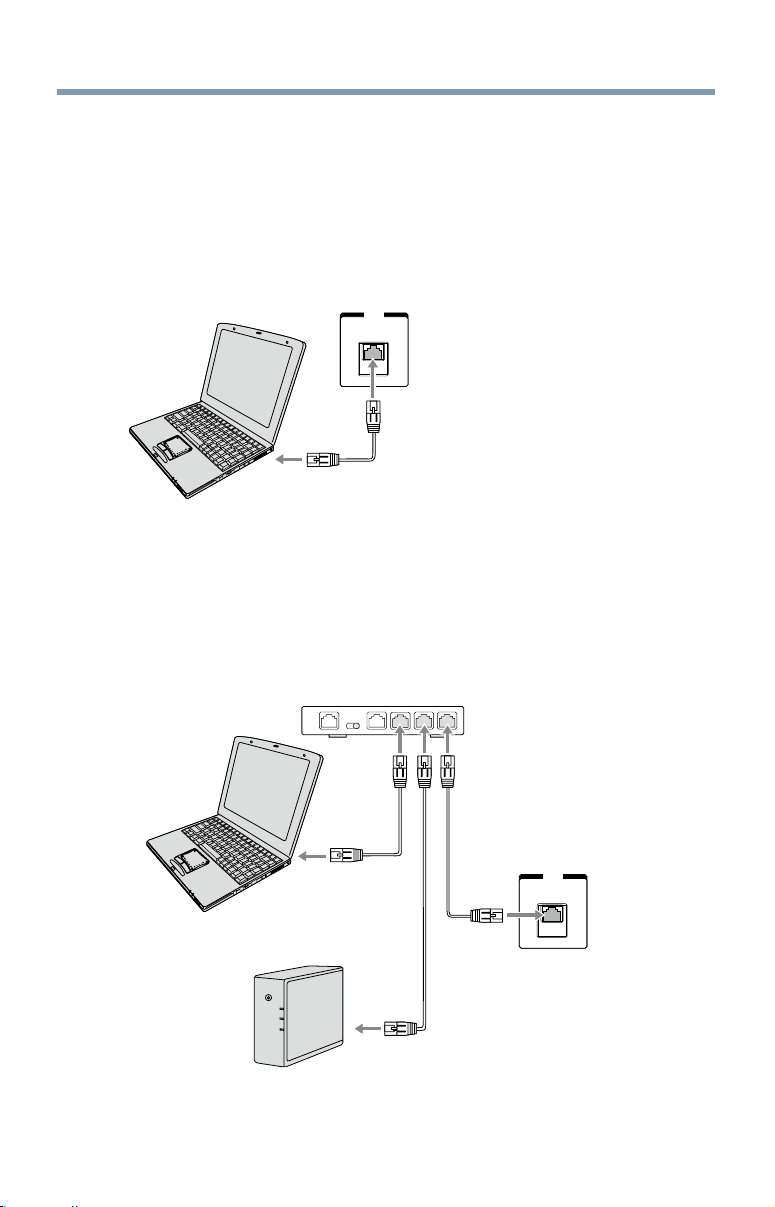
Connecting Your TV
43
Connecting to a home network
The LAN port allows your Toshiba TV to connect to your home network.
Youcanusethishomenetworktoaccessphotos,movies,andmusicles
that are stored on a connected Media Server and play them on your TV.
Connecting the TV directly to a computer without an Internet connection
You will need a Crossover LAN cable.
LAN
(Sample Illustration) L7300U Series—Connecting a computer without
Internet connection
Connecting the TV to a home network without an Internet connection
Items needed:
❖
Standard LAN cables
❖
Router with a hub
LAN
Computer
Computer
Router with a hub
TV back panel
(Sample Illustration) L7300U Series—Connecting a network without
Internet connection
Connecting to a home network
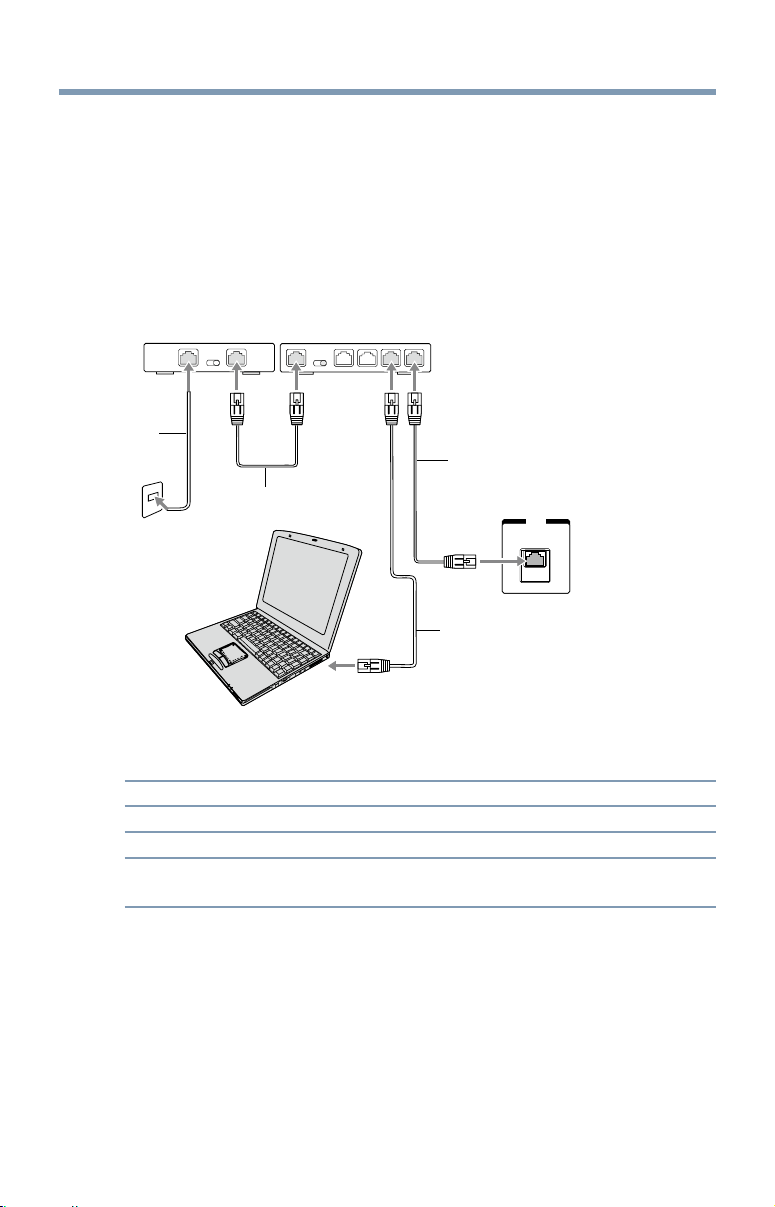
44
Connecting Your TV
Connecting the TV to a home network with an Internet connection -
wired
Items needed:
❖
Coaxial or telephone cable (depending on your modem type)
❖
Standard LAN cables
❖
Router with Hub
❖
Modem (DSL or cable)
LAN
Cable or
Phone jack
1
2
2
2, 3
Computer
Modem (DSL or cable) Router with a hub
TV back panel
(Sample Illustration) L7300U Series—Connecting with Internet
connection - wired
Item: Description:
1 Coaxial or telephone cable (depending on your modem type)
2 Standard LAN cable
3 Do NOT connect a phone jack directly to the TV’s LAN
port.
Connecting to a home network
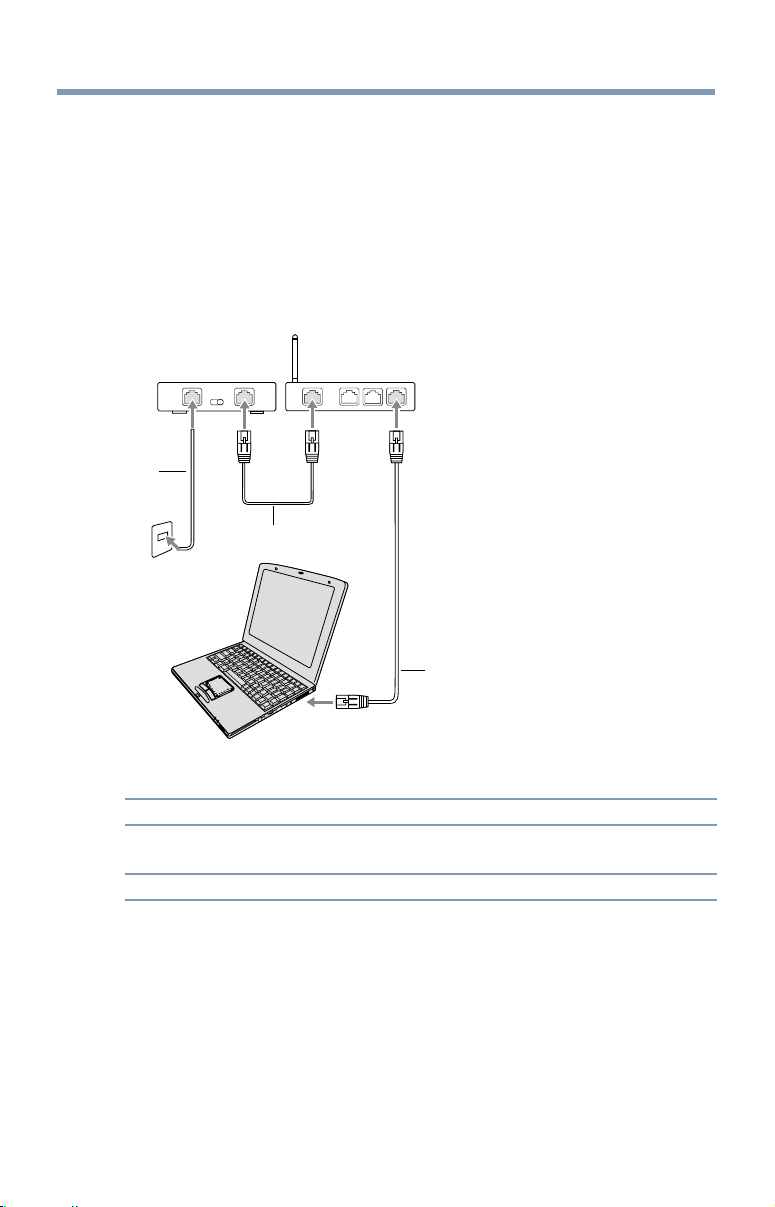
Connecting Your TV
45
Connecting the TV to a home network with an Internet connection -
wireless
Items needed:
❖
Coaxial or telephone cable (depending on your modem type)
❖
Standard LAN cables
❖
Wireless LAN access point or wireless router
❖
Modem (DSL or cable)
Cable or
Phone jack
Built-in WLAN system:
It is not nessesary to connect an
external WLAN adaptor to the TV
1
2
2
Computer
Modem (DSL or cable) Wireless LAN access point
(Sample Illustration) L7300U Series—Connecting with Internet
connection - wireless
Item: Description:
1 Coaxial or telephone cable (depending on your modem
type)
2 Standard LAN cable
The transmission speed over the wireless LAN and the distance over
which wireless LAN can reach may vary depending on surrounding
electromagnetic environment, obstacles, access point design and
conguration,andclientdesignandsoftware/hardwarecongurations.
The actual transmission speed will be lower than the theoretical maximum
speed.
Connecting to a home network

46
Connecting Your TV
NOTE
The Built-in WLAN Adapter is based on the IEEE 802.11n specification and
may not be fully compatible with, or support some features (e.g., security)
of certain Wi-Fi equipment that are based on the draft version of IEEE
802.11n.
Connecting to a home network
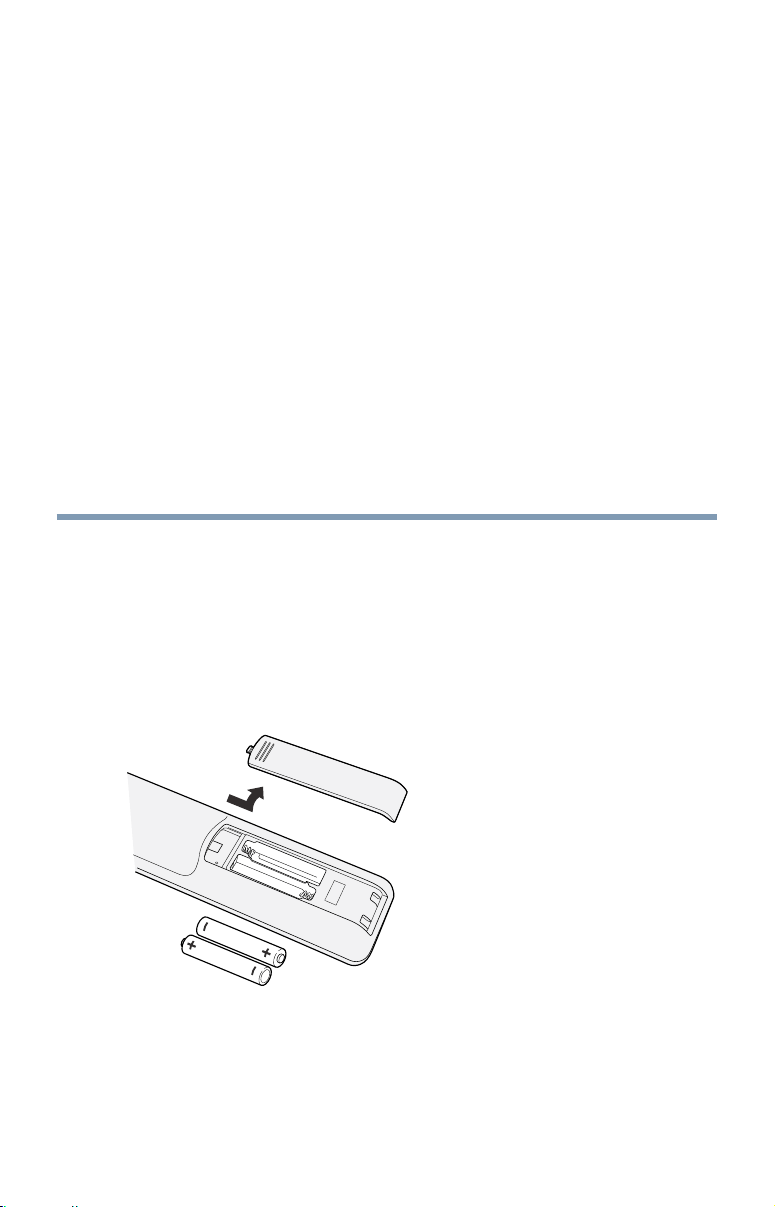
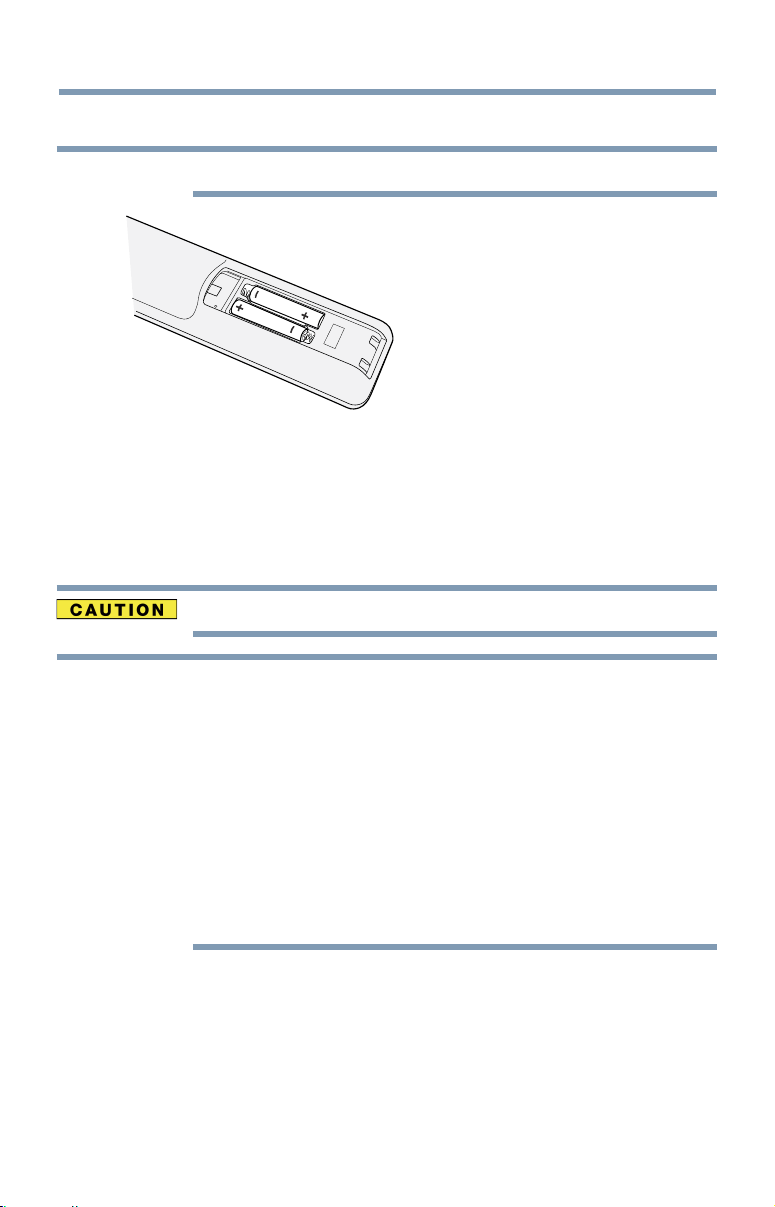
48
Using the Remote Control
2 Install two AAA size batteries.
NOTE
Use carbon zinc batteries or alkaline batteries.
(Sample Illustration) installing the batteries
3
Slide on the cover.
Do not expose batteries to excessive heat such as sunshine, fire, etc.
NOTE
❖
Dispose of batteries in a designated disposal area.
❖
Always consider the environment when disposing of batteries.
❖
Always follow applicable laws and regulations.
❖
If the remote does not operate correctly, or if the operating range is
reduced, replace the batteries.
❖
Always replace both batteries with new ones. Never mix battery types
or use new and used batteries together.
❖
Always remove batteries from the remote if they are dead or if the
remote control is not to be used for an extended period of time.
This prevents battery acid from leaking into the battery compartment.
Installing batteries
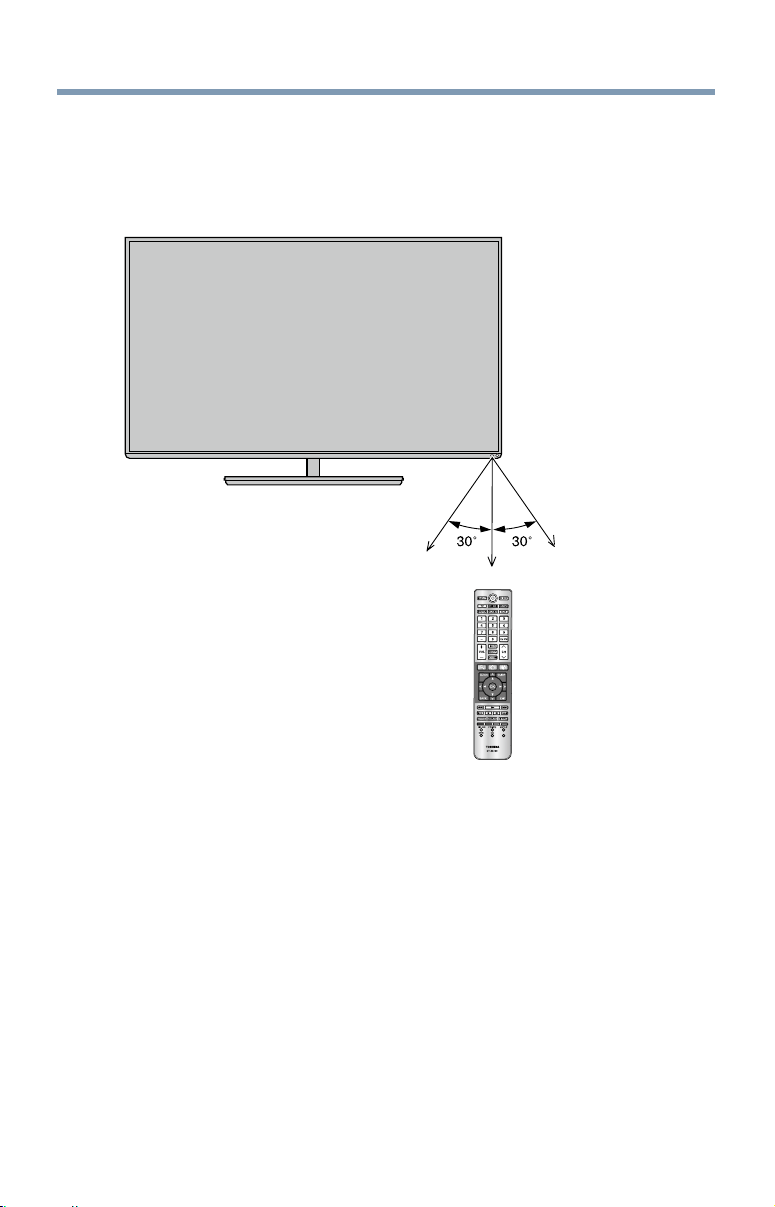
Using the Remote Control
49
Remote control effective range
1 For optimum performance, aim the remote control directly at the TV
and make sure there are no obstructions between the remote control
and the TV.
16.4 ft (5m)
(Sample Illustration) Remote control effective range
Remote control effective range
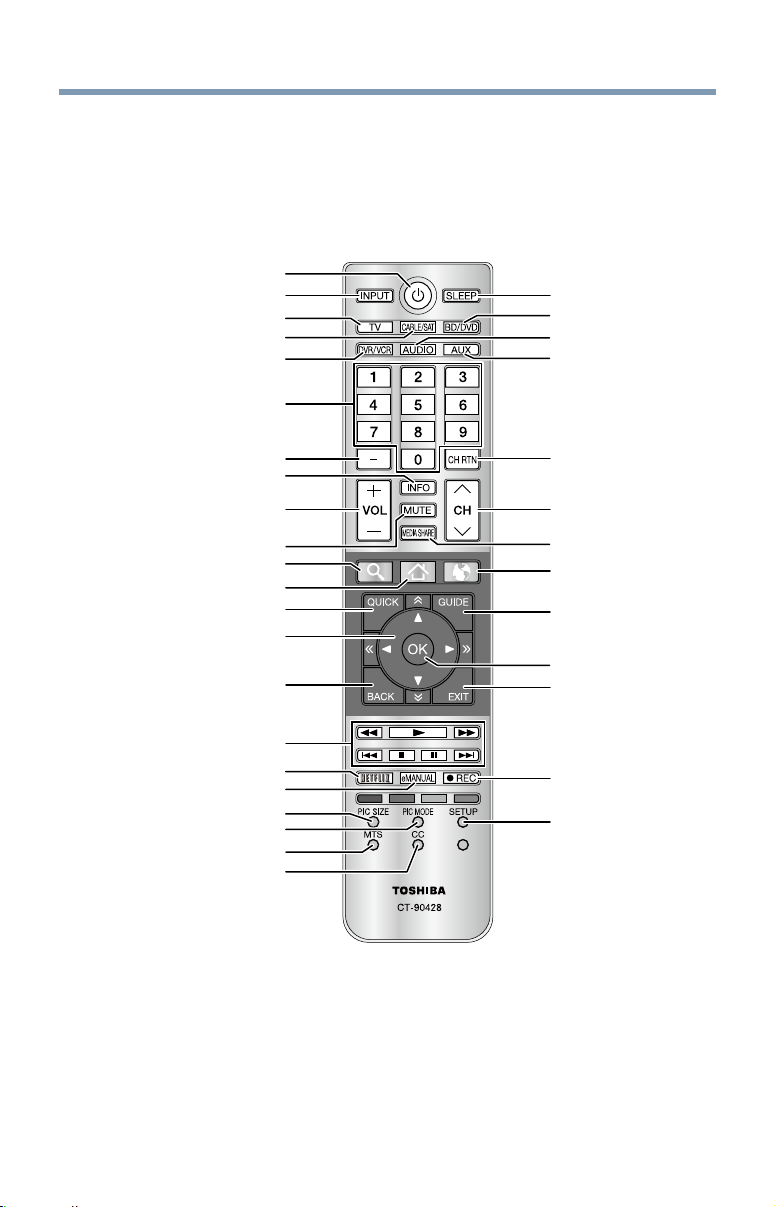
50
Using the Remote Control
Learning about the remote control
Only the buttons used to operate the TV are described in this section.
For the HDMI
™
CEC Control functions, see
“Using HDMI
™
CEC
Control” on page 81.
1
2
4
5
7
10
11
13
14
16
18
19
21
23
25
27
28
29
31
32
34
35
3
6
8
9
12
15
17
20
22
24
26
30
33
(Sample Illustration) Remote control overview
Learning about the remote control

Using the Remote Control
51
NOTE
The error message “Not Available” may appear if you press a button for a
function that is not available.
Learning about the remote control
Item: Description: Function:
1 POWER button Turns the TV On and Off. When
the TV is on, the power LED
indicator on the TV front glows
green.
2 INPUT button Selects the video input source.
3 SLEEP button Accesses the sleep timer.
4 TV button
Sets the remote control mode to
control the device: TV, CABLE/
SAT, BD/DVD, DVR/VCR,
AUDIO, or AUX
5 Cable/Satellite
button
6 BD/DVD button
7 DVR/VCR button
8 Audio button
9 Auxillary button
10 Channel Number
buttons (0-9)
Directly tunes channels.
11 (–) button Enters 2-part channel numbers.
12 CH RTN button Returns to the last viewed
channel or source.
13 INFO button Displays TV status information
as well as program details, when
available.
14 VOL (+ / -) buttons Adjusts the volume level.
15 CH (
p
/
q
) buttons Cycles through programmed
channels.
16 MUTE button Reduces or turns off the sound.
17 MEDIA SHARE
button
Accesses the MediaShare
Service.
18 SEARCH button Accesses the SearchAll function.
19 HOME button Accesses the Cloud TV Portal
Pages.
20 INTERNET button Launches the web browser on-
screen.
Item: Description: Function:
21 QUICK button Launches the Quick menu.
22 GUIDE button Launches the MediaGuide
application on-screen.
23 (
p
/
q
/
t
/
u
) Selects or adjusts programming
buttons menus when a menu is
on-screen.
24 OK button Selects the highlighted items on
the screen.
25 BACK button Returns to the previous screen.
26 EXIT button Closes on-screen menus.
27 (
u
/
tt
/
uu
/
Z
/
z
/
n
/
W
)
u
: PLAY button
tt
: REWIND button
uu
: FAST FORWARD button
Z
: SKIP-BACK button
z
: SKIP-FORWARD button
: STOP button
W
: PAUSE button
28 NETFLIX button Launches the Netflix
®
application on-screen.
29 eMANUAL button Launches the eManual
application on-screen.
Internet connection required.
30 REC button Used for TV, Cable/Sat, BD/
DVD, Aux devices
31 PIC SIZE button Cycles through the picture sizes.
32 PIC MODE button Selects the picture mode.
33 SETUP button Accesses the main TV menu
system.
34 MTS button Accesses the MTS options.
35 CC button Accesses the closed-caption
feature.

52
Initial Setup and Menu
Initial setup
WhenyourstturnonorresettheTV,theMenu Language screen
appears.
NOTE
❖
You can stop Initial setup by pressing the EXIT button. However, if you
do not finish Channel Tuning setting, the Quick Setup screen will
appear every time you turn on your TV.
❖
The EXIT button does not work until after you have set the Store/
Home Mode setting.
Chapter 4
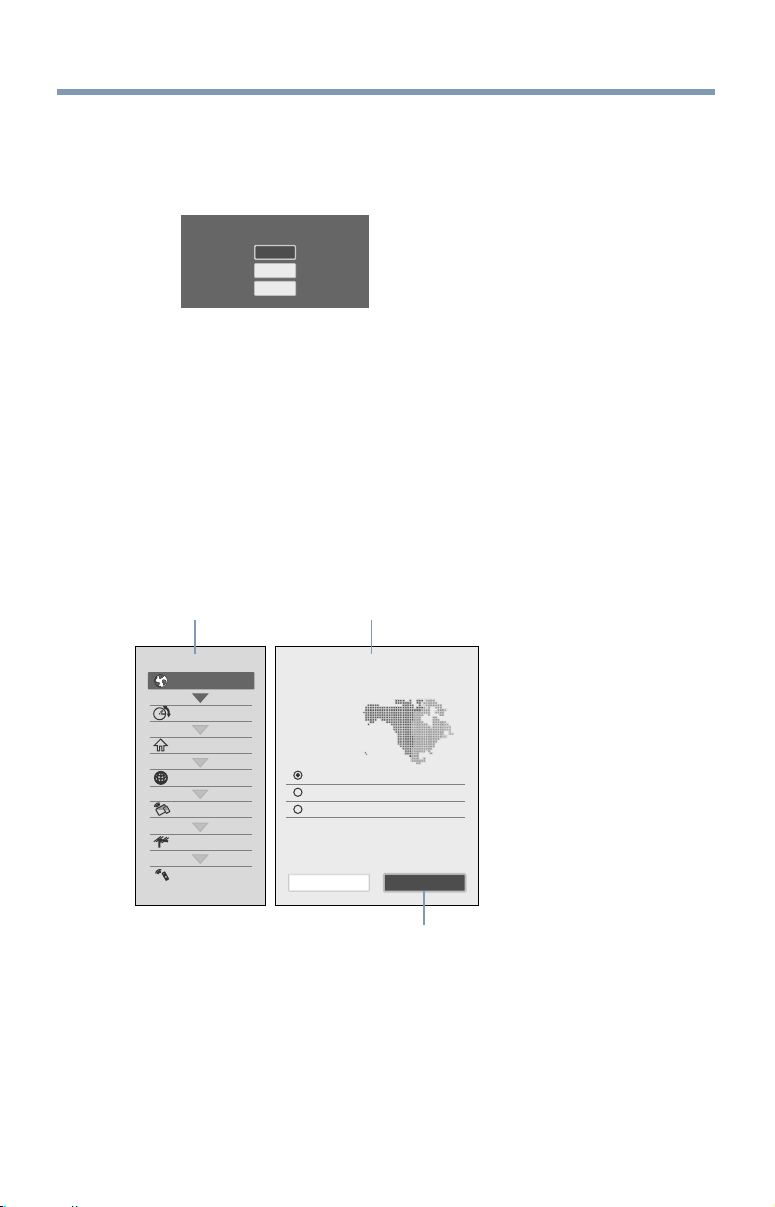
Initial Setup and Menu
53
Performing the initial setup
1 Menu Language
Select a language and press the OK button.
Please press [OK] to proceed.
Menu Language
English
Français
Español
(Sample Illustration) Selecting Menu Language
❖
Quick Setup screen will appear.
About the Quick Setup screen
The Quick Setup screen is divided into the progress window and setup
window.
❖
The progress window shows the Quick Setup items being set up.
Thenisheditemsaredark,andthenishmark(
3
) appears by
them.
❖
The setup window shows the settings.
Country
Store/Home Mode
Time Zone
Network
Smart TV
Channel Tuning
IR Blaster
Quick Setup
Welcome
Thank you for choosing Toshiba TV
Country
Canada
U.S.
Mexico
Previous Next
Progress window
Setup window
Next
(Sample Illustration) Quick Setup and Welcome window.
Performing the initial setup
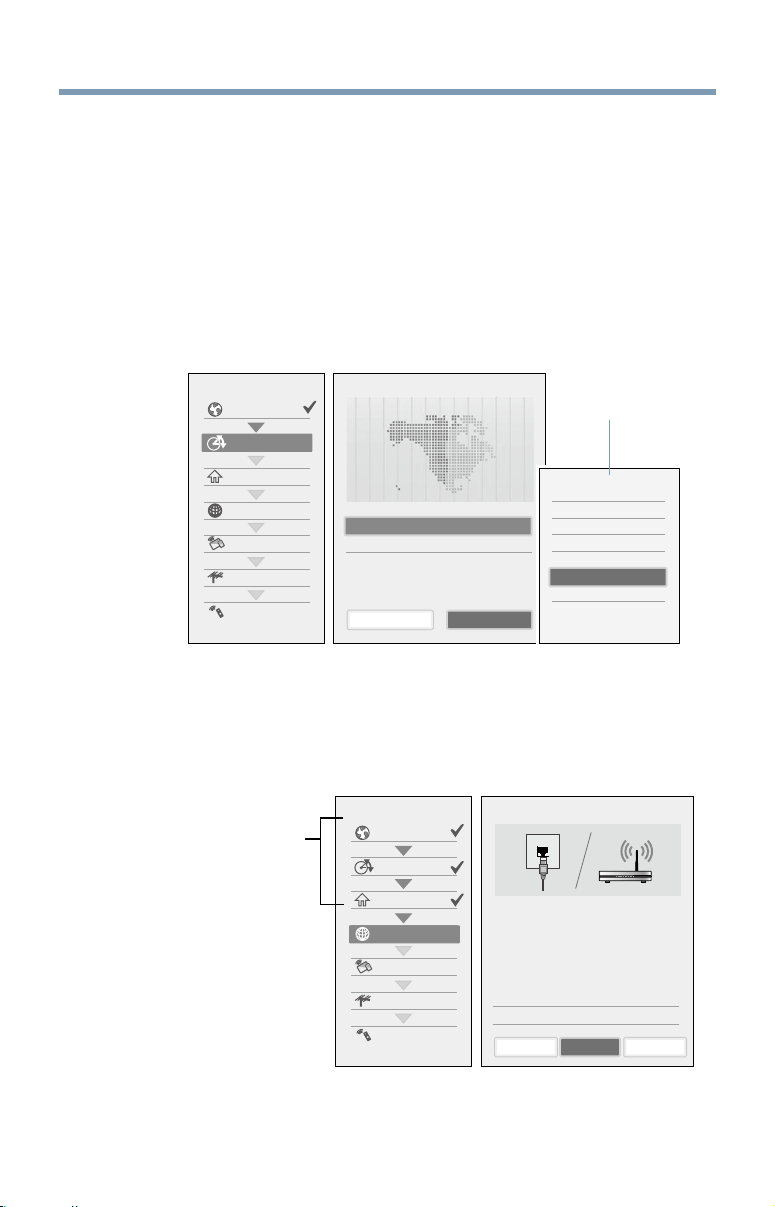
54
Initial Setup and Menu
Basic Operations in Quick Setup
1 Use the
p
/
q
(arrow) buttons to select an item on the setup window,
and press the OK button.
2 Select Next and press the OK button.
The next item will appear.
❖
Some items have sub menus, which appear when the OK button is
pressed.
Use the
p
/
q
(arrow) buttons to select an item on the sub menu,
and press the OK button.
Time Zone
Country
Store/Home Mode
Network
Smart TV
Channel Tuning
IR Blaster
Quick Setup Time Zone 1/3
Time Zone Eastern
Daylight Saving Time Off
Previous
Eastern
Newfoundland
Atlantic
Hawaii
Alaska
Mountain
Central
Pacific
Next
(Sample Illustration) Quick Setup and Welcome window.
❖
Alternatively, press the
u
(arrow) button to show the sub menu.
❖
When the
t
(arrow) button is pressed on the setup window, the
focus moves to the progress window. On the progress window, you
canselectanisheditemusingthe
p
/
q
(arrow) buttons.
Can be selected
using the
p
/
q
(arrow) buttons.
Time Zone
Country
Store/Home Mode
Network
Smart TV
Channel Tuning
IR Blaster
Quick Setup Network Type 1/5
Network Type
Network setup allows you to access content on your
home network and the internet. Enjoy online video,
music, games, news and more provided by Smart TV
portal
and keep your TV up to date with new
software.
Availability is dependant on country selection
Please select from Wired or Wireless
Wired
SkipNextPrevious
(Sample Illustration) Quick Setup and Welcome window.
Repeat the above procedure to continue setting up.
Performing the initial setup
Submenu

Initial Setup and Menu
55
Performing the Quick Setup
1 Country
S
elect a country then press the OK button.
2 Time Zone
Select Time Zone, and select a time zone from the submenu.
Select Daylight Saving Time, and select On or Off from the
submenu.
Select Next.
3 Store / Home Mode
Select Store / Home Mode, and select Home or Store from the
submenu.
To use at home, select Home.
Select Next.
NOTE
Store Mode is only available if the TV is set to Store Mode at initial setup.
This option is hidden in the Home Mode.
4 Network
❖
To make full use of the functions, it is recommended that you
set up a network and connect to the Internet.
To start the Network Setup, select Next on the screen or to skip
the setup, select Skip. If you skip this setup, you can setup the
Network at any time through the Network menu.
Network setup
1 Select Network Type, and select Wired or Wireless from the
sub menu.
Select Next.
❖
If you select Wired, proceed to the Network Connection
Test (Step 3). If you selected Wireless, please proceed to
the following step.
2 Select Wireless Setup, and select Easy Setup, Assisted
Setup, or Manual Setup from the sub menu.
Select Next.
Performing the initial setup

56
Initial Setup and Menu
NOTE
❖
Easy Setup. If your Access Point (AP) supports WPS, this method
can be used. WPS is a standard designed to simplify the connection of
wireless LAN equipment and the setup of network security features.
❖
Assisted Setup (setup using the AP's notification information).
The Network Name, Authentication, and Encryption are decided based
on information from the AP. You need to manually set the Security Key
for this method.
❖
Manual Setup (to input all settings manually).
3 Onceyourwiredorwirelessnetworkhasbeencongured,
perform a Network Connection Test.
A network connection test screen will appear while the test
is being performed. If the test was successful, the successful
connection screen will appear.
If the network connection test failed, the connection failure
screen will appear.
For more information, see “Setting up the Network” on page
113 .
4 Press the OK button.
When the network can be accessed, Software Upgrade
availability check starts automatically. When Software
Upgrade is completed, proceed to the next step.
NOTE
In order to secure your home network, it is strongly recommended that you
use a wireless access point with encryption.
5 Smart TV
Select TV Power On Control, and select Enabled or Disabled
from the sub menu.
If you select Enabled, you can turn on or off the television from
the companion devices such as Tablet or Smartphone.
Select Next.
❖
When Enabled is selected, perform the following procedure:
1 Select Enable Control, and select On or Off from the sub
menu.
When On is selected, you can control the TV using companion
devices such as a tablet or smartphone.
Performing the initial setup
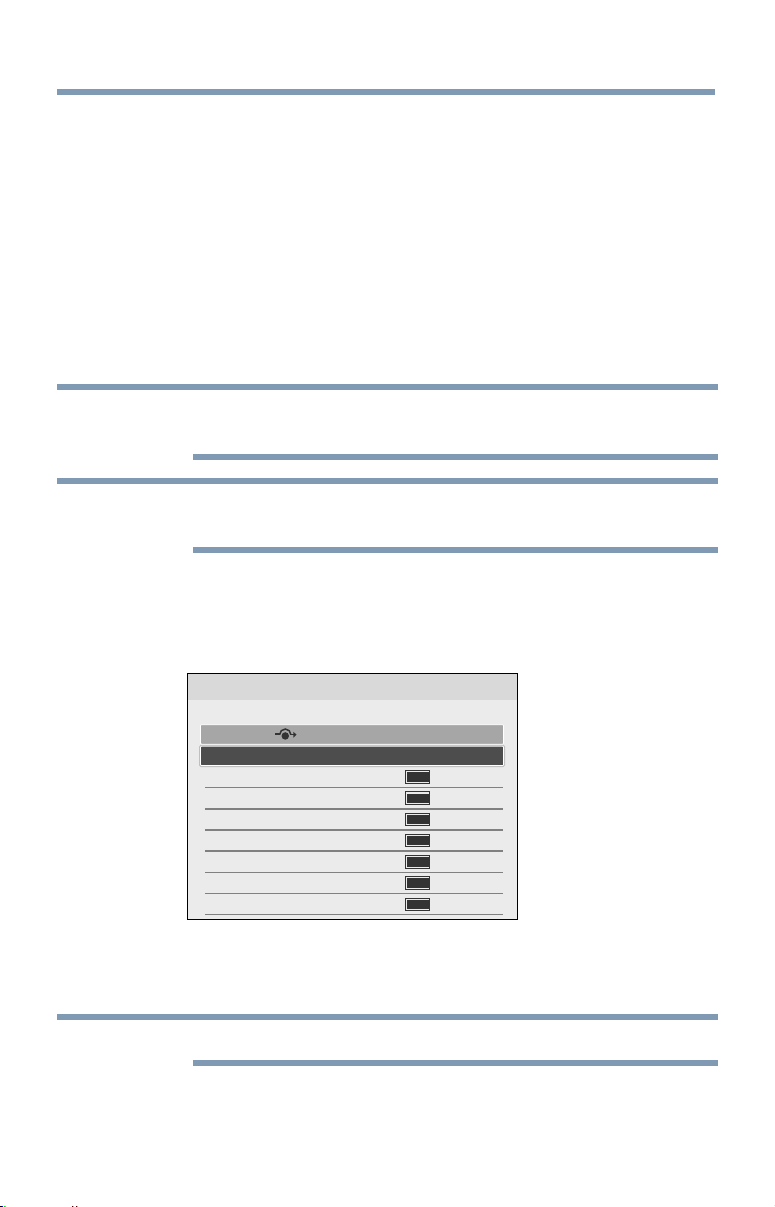
Initial Setup and Menu
57
Performing the initial setup
2 Select Media Renderer, and select On or Off from the sub
menu.
When On is selected, the Media Renderer function can be
used.
3 Select Next.
6 Channel Tuning
Select Antenna or Cable, and select Start Scan.
Auto Tuning will start.
While scanning is in progress, the Auto Tuning Progress screen
appears.
NOTE
If you do not want to scan channels, you do not need to make a selection
for Channel Tuning. Select Skip to skip this step.
NOTE
If you want to stop scanning, pressing the EXIT button while scanning is in
process.
While scanning is in progress, the Auto Tuning Progress screen
appears.
After scanning is complete, the auto tuning results screen (such as
the one below) will appear.
ATV
ATV
ATV
ATV
DTV
DTV
DTV
Auto Tuning (Antenna)
Antenna Channels Found: 13
Ch.
101 - 201
201
101 - 201
201
101 - 201
201
101 - 201
201
Type RF Ch.
0
11
22
33
44
55
66
77
(Sample Illustration) Auto Tuning Results screen
Press the OK button.
NOTE
The encrypted channels are not listed on the auto tuning result screen.

58
Initial Setup and Menu
Performing the initial setup
If some channels are not found after scanning:
❖
Check the antenna/cable connections, and scan again.
❖
Connect the TV to the antenna or cable box directly and scan again.
1 Press the SETUP button. Select Installation > Quick Setup
and press the OK button.
Aconrmationmessageappears.
2 Select Ye s then press the OK button.
3 Repeat setup to step 6 (Channel Tuning).
❖
If you selected Antenna previously, selecting Cable
might be effective.
❖
If you selected Cable previously, selecting Antenna
might be effective.
4 Select Start Scan.
7 IR Blaster
Select Next or Skip.
❖
To start the IR Blaster setup, select Next on the screen, or to
skip the setup, select Skip. If you skip this setup, you can setup
the IR Blaster at any time through the Installation > IR Blaster
Setup menu.
NOTE
The IR Blaster may not work with some devices, and it may not control
certain features on your external devices.
Setting the IR Blaster
IR Blaster Setup
1 Select Add on the screen.
Device Type screen will appear.
Device Type
1 Select Device Type, and use the
t
/
u
(arrow) buttons to select
a device type from the following:
❖
Cable Box
❖
Satellite Box
❖
VCR
❖
Blu-ray, DVD Player
❖
Receiver, Misc Audio
❖
Amplier
❖
CD Player
❖
Video Accessory

Initial Setup and Menu
59
2 Press the
q
(arrow) button then press the GREEN button.
The Brand screen will appear.
3 Use the
p
/
q
(arrow) buttons to select the brand name then
press the OK button.
❖
SelectaeldandpresstheOK button to show the
softwarekeyboard.Entertherstfewcharactersofthe
brand name and press the GREEN button. The brand
name starting with the entered characters will appear on
the Brand screen.
4 Press the OK button.
Model Name screen will appear.
Model Name
1 Press the GREEN button.
The Model Name screen will appear.
2 Use the
p
/
q
(arrow) buttons to select the model name then
press the OK button.
❖
SelectaeldandpresstheOK button to show the
softwarekeyboard.Entertherstfewcharactersofthe
model name and press the GREEN button. The model
name starting with the entered characters will appear on
the Model Name screen.
3 Press the
q
(arrow) button to select Code Set then press the
OK button.
Code Set screen will appear.
Code Set
1 Use the
t
/
u
(arrow) buttons to select the code.
❖
After the code is selected, press the RED button to show
the Test screen. The test will start automatically.
NOTE
If a model has more than one Code Set, a message will appear stating “This
model has more than one Code Set. Please select and test your preferred
Code Set.” You will need to choose a code set using the
p
/
q
(arrow)
buttons and perform the Test option to ensure the correct Code Set has
been selected.
2 Press the OK. button
Input & Mode Key screen will appear.
Performing the initial setup

60
Initial Setup and Menu
Input & Mode Key
1 Use the
t
/
u
(arrow) buttons to select the TV input
to which
the IR device is connected
.
❖
--- (Appears when Device Type is set to Receiver, Misc
Audio or Amplier)
❖
ANT/CABLE
❖
Video1
❖
Video2
❖
ColorStream HD
❖
HDMI 1
❖
HDMI 2
❖
HDMI 3
❖
HDMI 4
❖
PC
2 Press the
q
(arrow) button.
3 Use the
t
/
u
(arrow) buttons to select device mode key.
❖
CABLE/SAT
❖
BD/DVD
❖
DVR/VCR
❖
Audio
❖
AUX
4 Press the OK button.
❖
When Device Type is set to Receiver, Misc Audio or
Amplier, the Volume Control screen will appear.
❖
When Device Type is set to Cable Box, Satellite Box,
Blu-ray or DVD Player, the Guide Preferences screen
will appear.
❖
When Device Type is set to VCR, CD Player or Video
Accessory, press the OK button on the IR Blaster Setup
complete screen.
Support Information screen will appear.
Performing the initial setup

Initial Setup and Menu
61
Volume Control
1 Use the
t
/
u
(arrow) buttons
to set up the Volume control to
select:
❖
TV (this is the default)
❖
External
The Volume + or – and MUTE buttons will control the
external equipment through the IR blaster.
2 Press the OK button.
Press the OK button on the IR Blaster Setup complete screen.
Support Information screen will appear.
Guide Preferences
1 Use the
t
/
u
(arrow) buttons
to set up the Guide preferences
to select:
❖
TV MediaGuide
❖
External Device Guide
2 Press the
q
(arrow) button to select Interval Time.
❖
0.125 sec
❖
0.25 sec
❖
0.375 sec
❖
0.5 sec
❖
0.625 sec
❖
0.75 sec
❖
0.875 sec
❖
1 sec
❖
After the interval time is selected, press the RED button to
show the Test screen. The test will start automatically.
3 Press the OK button.
Press the OK button on the IR Blaster Setup complete screen.
Support Information screen will appear.
8 Support Information
Read through the information, and press the OK button.
❖
The initial setup is completed.
NOTE
Refer to this information if there is a problem and you need to contact
Customer Support. To find help, the following operation can be performed
at any time. SETUP button > Get Help > System Information > OK
button.
Performing the initial setup
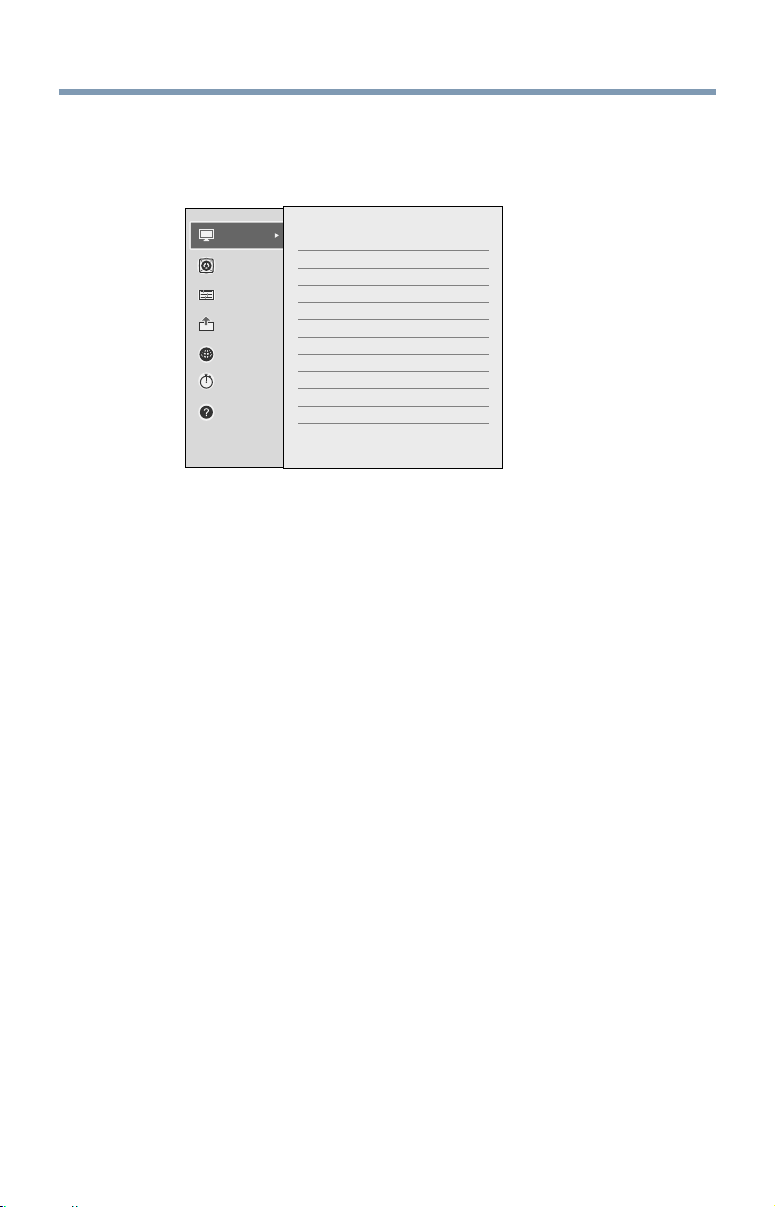
62
Initial Setup and Menu
Navigating the menu system
❖
To open the menu system, press the SETUP button on the remote
control.
Picture
Sound
Options
Installation
Network
< Picture
Reset
Picture Mode Standard
0
100
0
0
0
0
Backlight
Contrast
Brightness
Color
Tint
Sharpness
Advanced Picture Settings
Expert Picture Settings
Display Settings
Get Help
Timers
(Sample Illustration)
Main menu
❖
When a menu is open, press the
p
/
q
/
t
/
u
(arrow) buttons on the
remote control to move in the corresponding direction.
To show the setup items or sub menus, press the
u
(arrow) button (or
the OK button).
To select a highlighted item or save your menu settings, press the
OK button. (A highlighted menu item appears in a different color in
the menu.)
❖
All menus close automatically if no selection is made within
approximately 60 seconds.
❖
To close a menu instantly, press the EXIT button.
Navigating the menu system

Initial Setup and Menu
63
Quick Menu
Quick menu helps you access some options more quickly.
Press the QUICK
button
to display the Quick menu and press the
p
/
q
(arrow)
buttons to select an option.
NOTE
Quick menu items differ depending on the current mode.
Quick Menu Item Page
Intel
®
WiDi
page 124
Picture Mode page 97
Picture Size page 91
Sleep Timer page 87
HDMI CEC Device Control page 81
Speakers page 106
Device Information page 144
Wireless Information page 117
Interval Time page 152
Repeat page 146
Sound page 105
Picture page 91
Background Music page 153
Play List page 146
Quick Menu

64
Setting up your TV
How to navigate the menu
❖
Press the SETUP button. Select Installation, Main menu,
Submenu, and then press the OK or EXIT button.
Changing initial settings
From Quick Setup:
1 Press the SETUP button.
2 Select Installation > Quick Setup, and press the OK button.
Aconrmationmessageappears.
3 Press the
t
/
u
(arrow) buttons to select Yes.
4 Press the OK button.
To change settings, see “Initial setup” on page 52.
Individual settings
Menu Language
You can choose from three different menu language settings (English,
Français, and Español). The TV displays menus and messages in your
preferred language.
1 Press the SETUP button.
2 Select Installation > Menu Language and press the OK button.
3 Press the
p
/
q
(arrow) buttons to select your preferred language.
4 Press the OK button.
Chapter 5

Setting up your TV
65
Country
You can select the country in which you reside.
1 Press the SETUP button.
2 Select Installation > Country and press the OK button.
3 Press the
p
/
q
(arrow) buttons to select the country.
4 Press the OK button.
Time Zone
This setting allows you to specify the correct time zone for your region.
1 Press the SETUP button.
2 Select Installation > Time Zone and press the OK button.
3 Press
p
/
q
(arrow) buttons to select
your time zone
.
4 Press the OK button.
Daylight Saving Time
1 Press the SETUP button.
2 Select Installation > Daylight Saving Time and press the OK
button.
3 Press the
p
/
q
(arrow) buttons to select
On or Off
.
4 Press the OK button.
Store / Home Mode
You can select Store or Home to designate the TV location. Select Home
for normal home use.
1 Press the SETUP button.
2 Select Installation > Store / Home Mode and press the OK button.
3 Press the
p
/
q
(arrow) buttons to select
Home or Store
.
4 Press the OK button.
NOTE
Store Mode is only available if the TV is set to Store Mode at initial setup.
ANT/CABLE In
ThissettingcongurestheantennainputsourcefortheANT/CABLE
terminal.
1 Press the SETUP button.
2 Select Installation > Channel Tuning > ANT/CABLE In and
press the OK button.
Individual settings

66
Setting up your TV
3 Press the
p
/
q
(arrow) buttons to select
Antenna or Cable.
4 Press the OK
button
.
5 Select Start Scan.
After scanning is complete, the auto tuning results screen will
appear.
6 Press the OK or EXIT button.
Storing channels in memory (optional)
To make sure your TV stops only on the channels you want when you press
the CH
p
/
q
buttons on the remote control or the control panel, store
those channels in the TV’s memory.
Auto Tuning
NOTE
You must set up the antenna/cable input source first. See “Initial setup” on
page 52.
You can set up the TV to detect all active channels in your area and store
them in its memory. Then you can manually store or skip individual
channels from memory.
Option: Description:
Cable Note: If you select Cable, auto tuning deletes previously stored channels
from memory.
This setup requires some time, but you do not need to repeat the setup
unless your cable TV service’s lineup changes significantly.
Antenna To skip an antenna source channel and remove it from memory, set the
channel to be skipped. See “Skipping channels” on page 67.
NOTE
To tune to channels not stored in memory, use buttons 0–9 and the DASH
button on the remote control.
1 Press the SETUP button.
2 Select Installation > Channel Tuning > Auto Tuning, and then
press the OK button.
Aconrmationscreenappears.
3 Press the OK button to start Auto Tuning or press EXIT button to
abort.
The TV cycles through the channels and stores all active channels
in memory.
Storing channels in memory (optional)
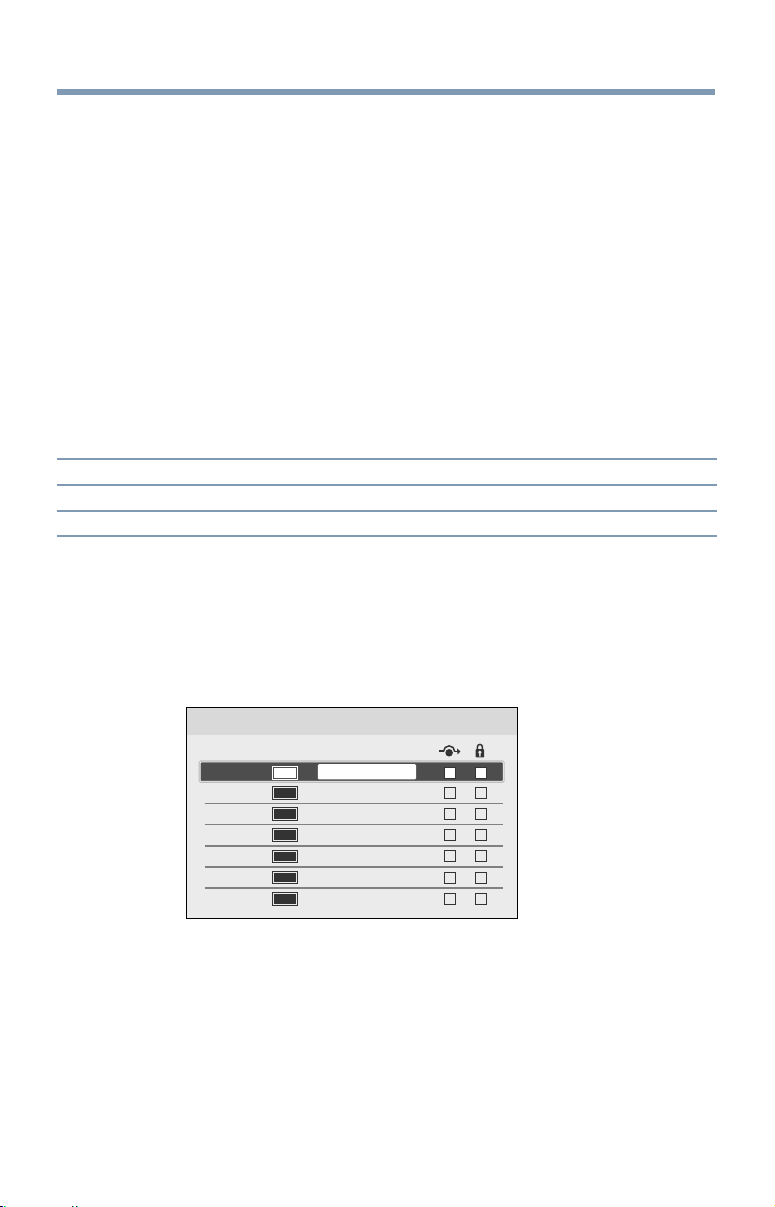
Setting up your TV
67
4
To view the programmed channels, press the CH
p
/
q
buttons.
Manual Tuning
After storing channels in memory, you can manually enter channels if the
channel number is known.
1 Press the SETUP button.
2 Select Installation > Channel Tuning > Manual Tuning, and then
press the OK button.
3 Use buttons 0–9 on the remote control to enter the channel number
(for example, 56).
4 Press the OK button.
5 Press the OK button again to begin Manual Tuning.
The channels found are listed at the bottom of the screen.
Option: Description:
ATV Analog channel
DTV Digital channel
Skipping channels
To prevent a channel from being viewed, you can set it to be skipped.
1 Press the SETUP button.
2 Select Options > Channel Options and then press the OK button.
The list of channels appears.
ATV
DTV
ATV
ATV
DTV
DTV
DTV
Channel Options
101 - 201
201
101 - 201
201
101 - 201
201
101 - 201
Label
CH-1
CH-2
Ch Type
(Sample Image) Channel options
3
Press the
t
/
u
(arrow) buttons to select the Skip column (
8
) and
press the
p
/
q
(arrow) buttons to select a channel to skip.
4 Press the OK button.
The box is selected.
5 To clear the selection, press the OK button.
Skipping channels
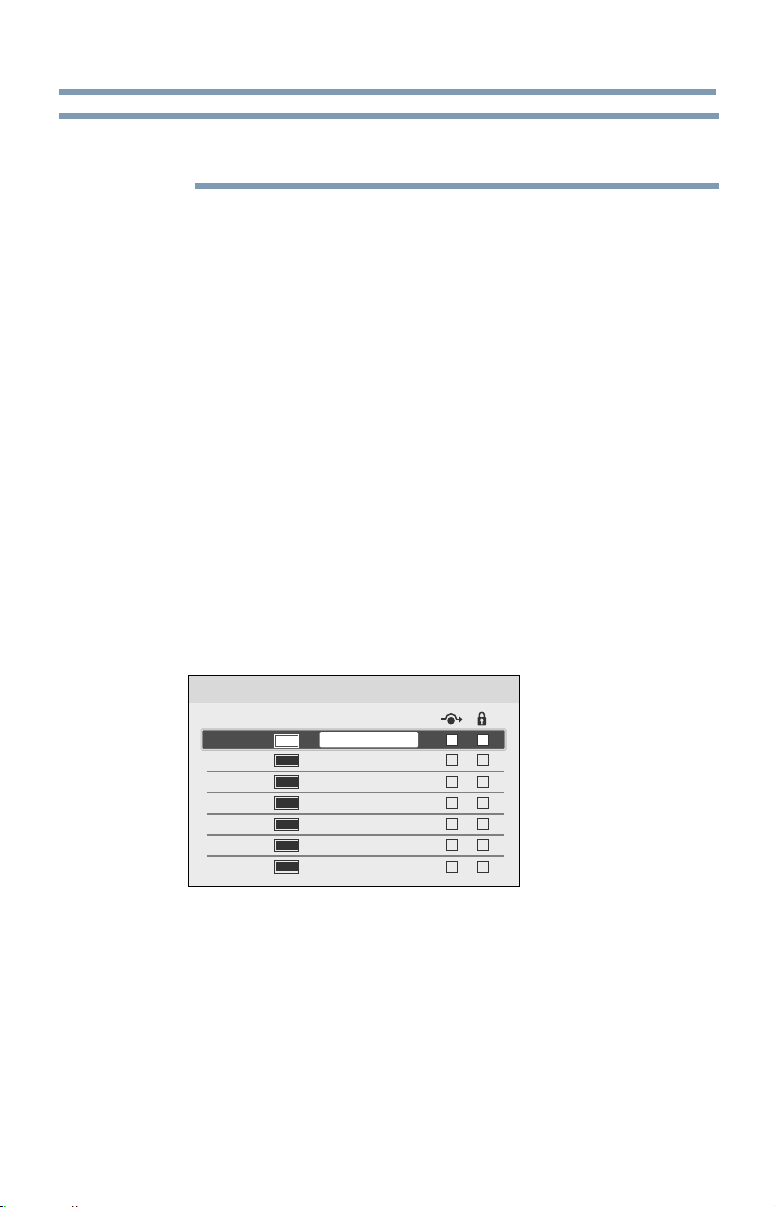
68
Setting up your TV
NOTE
You cannot tune skipped channels using the CH
p
/
q
buttons. Use
buttons 0–9 and the DASH button on the remote control.
Skipping video inputs
You can set video inputs to be skipped when selecting inputs in the Input
selection screen.
To turn on skip
1 Press the SETUP button.
2 Select Options > Input Option > Input Labeling and press the
OK button.
3 Press the
p
/
q
(arrow) buttons to select the item you wish to skip.
Then press the RED button to turn on Skip.
To turn off skip
Press the RED button again to turn off Skip.
Labeling analog TV channels
1 Press the SETUP button.
2 Select Options > Channel Options, and then press the OK button.
The list of channels appears.
ATV
DTV
ATV
ATV
DTV
DTV
DTV
Channel Options
101 - 201
201
101 - 201
201
101 - 201
201
101 - 201
Label
CH-1
CH-2
Ch Type
(Sample Image) Channel options
3
Press the
p
/
q
(arrow) buttons to select a channel to label.
4 Press the OK button.
The Software Keyboard window appears.
5 Input a name using the Software Keyboard, see “Using the software
keyboard” on page 121.
6 Press the GREEN button.
Skipping video inputs

Setting up your TV
69
Labeling video inputs
Labeling video inputs
The input labels are shown in the input selector and banner displays. You
can label video inputs according to the devices you have connected to the
T V.
1 Press the SETUP button.
2 Select Options > Input Option > Input Labeling and press the
OK button.
3 Press the
p
/
q
(arrow) buttons to select the item you wish to label.
Press the
t
/
u
(arrow) buttons to select Receiver, Cable, DVD,
Game, PC, Recorder, Satellite, VCR or Blu-ray ™.
❖
When entering arbitrary characters, press the GREEN button.
The Software Keyboard window appears.
Input a name using the Software Keyboard, see “Using the
software keyboard” on page 121.
4 Repeat Step 3 for other video inputs.
Configuring shared input
To set Shared PC Audio
1 Press the SETUP button.
2 Select Options > Input Option > PC/HDMI 2 Audio and press the
OK button.
3 Press the
p
/
q
(arrow) buttons to select PC or HDMI 2
.
NOTE
To apply the setting, switch the input to PC or HDMI 2.

70
Basic features
Tuning Channels
Tuning to the next programmed channel
Press the CH
p
/
q
buttons on the remote control or TV control panel.
Tuning to a specific channel (programmed or unprogrammed)
Channel: Description:
Analog Use the 0–9 buttons on the remote control. (For example, to select channel
125, press 1, 2, 5.), and then press the OK button.
Digital Use the 0–9 buttons on the remote control to enter the major channel
number. (and press the DASH button if needed, (For example, to select
digital channel 125- 1, press 1, 2, 5, –, 1.)), and then press the OK button.
Using Channel Return
You can switch between two channels without entering a channel number
each time. This feature also works for external inputs.
1 Selecttherstchannelyouwanttoview.
2 Select a second channel using the Channel Number buttons (and
press the DASH button if needed).
3 Each time you press the CH RTN button, the TV switches between
the last two channels that were tuned.
Chapter 6

Basic features
71
Selecting the video input to view
To select the video input to view:
1 Press the INPUT button.
2 Change the input:
❖
Press 0–7.
❖
Repeatedly press the
p
/
q
(arrow) button and then press the
OK button.
❖
Repeatedly press the INPUT button.
Inputs
0 ANT/CABLE
1 Video 1
2 Video 2 / ColorStream HD
3 HDMI 1
4 HDMI 2
5 HDMI 3
6 HDMI 4
7 PC
NOTE
❖
You can label the video input sources according to the specific devices
you have connected to the TV, see “Labeling video inputs” on page
69.
❖
You can skip sources, see “Skipping video inputs” on page 68.
❖
Inputs that are set to be skipped will be skipped when selecting by
repeatedly pressing the INPUT button or the
p
/
q
(arrow) buttons.
❖
You can select inputs that are set to be skipped using the number
buttons.
❖
If one or more HDMI
™
CEC devices are connected to an HDMI
™
input,
the icon appears in the input selector. In this case, the label, see
“Labeling video inputs” on page 69 will not appear in the input
selector.
Selecting the video input to view

72
Basic features
To select an HDMI
™
CEC device:
1 Press the
p
/
q
(arrow) buttons to select an HDMI
™
input.
2 Press the
u
(arrow) button. The list of HDMI
™
CEC devices for
that input appears.
3 If the input has multiple HDMI
™
CEC devices, press the
p
/
q
(arrow) buttons to select a device.
4 Press the OK button.
Using closed captions
To turn on the closed caption mode:
1 Press the SETUP button.
2 Select Options > Closed Captions.
3 Press the OK button.
4 Press the
p
/
q
(arrow) buttons to select Closed Captions Display
and press the OK button.
5 Press the
p
/
q
(arrow) buttons to select On or Off.
NOTE
If Closed Captions Display is set to Off, Analog CC Mode and Digital CC
Settings will be not available.
Analog CC mode
The closed caption mode has two options:
Mode: Description:
Captions Displays the dialogue, narration, and sound effects of TV programs
and videos that are closed captioned (usually marked “CC” in program
guides).
Text Displays information not related to the current program, such as weather
or stock data (when provided by individual stations).
To view captions or text:
1 Press the SETUP button.
2 Select Options > Closed Captions.
3 Press the OK button.
4 Press the
p
/
q
(arrow) buttons to select Analog CC Mode and
press the OK button.
Using closed captions
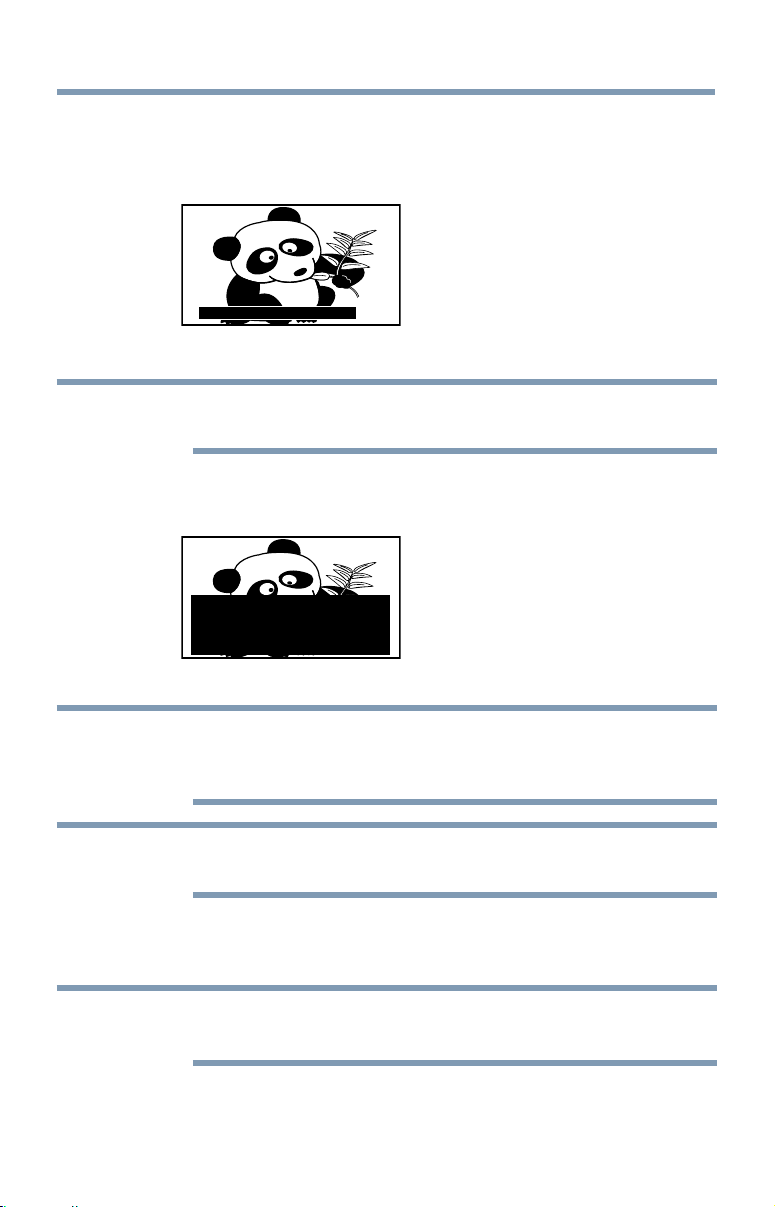
Basic features
73
To view captions:
Press the
p
/
q
(arrow) buttons to highlight CC1, CC2, CC3, or
CC4.
Giant pandas eat leaves.
(Sample Illustration) Captions
NOTE
If the program or video you have selected is not closed captioned, no
captions will be displayed.
To view text:
Press the
p
/
q
(arrow) buttons to highlight T1, T2, T3, or T4.
WORLD WEATHER
Temps Current
F C Weather
LONDON 51 11
MOSCOW
PARIS
ROME
TOKYO
57 14
53 12
66 19
65 18
Cloudy
Clear
Cloudy
Rain
Clear
(Sample Illustration) Captions - text
NOTE
If text is not available in your area, a black rectangle may appear on the
screen. You can remove this rectangle by setting Closed Captions Display
to Off.
NOTE
A closed caption signal may not be displayed when a videotape is dubbed,
signal reception is weak, or signal reception is non-standard.
Digital CC settings
You can customize the closed caption display characteristics.
NOTE
❖
These settings are available for digital channels only.
❖
You cannot set Caption Text and Background as the same color.
Using closed captions

74
Basic features
Mode: Description:
Caption Size Auto, Small, Standard, Large
Caption Text Type Auto, Default, Mono (with Serif), Prop. (with Serif), Mono
(without Serif), Prop. (without Serif), Casual, Cursive, Small
Capitals
Caption Text Edge Auto, None, Raised, Depressed, Uniform, Left Drop Shadow,
Right Drop Shadow
Caption Text Color Auto, Black, White, Red, Green, Blue, Yellow, Magenta, Cyan
Text Foreground Opacity Auto, Transparent, Translucent, Flashing, Solid
Background Color Auto, Black, White, Red, Green, Blue, Yellow, Magenta, Cyan
Text Background Opacity Auto, Transparent, Translucent, Flashing, Solid
Caption Text Edge Color Auto, Black, White, Red, Green, Blue, Yellow, Magenta, Cyan
To customize the closed captions:
1 Press the SETUP button.
2 Select Options > Closed Captions.
3 Press the OK button.
4 Press the
p
/
q
(arrow) buttons to select Digital CC Settings.and
then press the OK button.
5 Press the
p
/
q
(arrow) buttons to select a characteristic and then
press the OK button.
Press the
p
/
q
(arrow) buttons to select the format for that
characteristic.
Using the Closed Caption button
If you press the CC button when an analog channel is tuned or from an
external input (480i signal from the video input):
❖
The CC bar will appear and will display the options, CC1-4, T1-4.
If you press the CC button when a digital channel is tuned:
❖
The CC bar will appear and will display the available caption
options for that channel or service.
Setting the PIN code
A PIN code is necessary for some menus.
NOTE
The Parental Control and Locks menu is grayed out if no PIN has been set.
Using closed captions

Basic features
75
Using closed captions
Entering a new PIN code
1 Press the SETUP button.
2 Select Options > Parental PIN Setup.
3 Press the OK button.
4 Usethenumberbuttonstoentera4-digitnumber,andthenconrm
the code.
NOTE
The PIN code cannot be set to “0000”.
Changing or deleting your PIN code
1 Press the SETUP button.
2 Select Options > Parental PIN Setup.
3 Press the OK button.
4 Use the number buttons to enter your 4-digit PIN code.
5 Select Change PIN or Delete PIN, and then press the OK button.
NOTE
❖
The PIN code cannot be set to “0000”.
❖
If you delete the PIN code, the settings of Parental Controls and Locks
are reset.
Forgotten PIN code
1 Press the SETUP button.
2 Select Options > Parental PIN Setup.
3 Press the OK button.
4 Press the INFO button 4 times quickly.
5 Select Change PIN and press the OK button.
6 Enter a new PIN code.

76
Basic features
Using parental controls
Blocking TV programs and movies by rating (V-Chip)
Some TV programs and movies include signals that classify the content
of the program (as unsuitable for younger viewers). The V-Chip feature
in this TV detects the signals and blocks the programs according to the
ratings you select.
NOTE
The V-Chip feature in this TV supports the U.S. V-Chip system only.
1 Press the SETUP button.
2 Select Options > Parental Control and Locks.
3 Press the OK button.
4 Enter your 4-digit PIN code.
5 Press the
p
/
q
(arrow) buttons to select Enable Rating Blocking
and press the OK button.
6 Press the
p
/
q
(arrow) buttons to select On.
7 Press the
p
/
q
(arrow) buttons to select Edit Rating Limits, and
then press the OK button.
The Edit Rating Limits screen appears.
8 Press the
p
/
q
/
t
/
u
(arrow) buttons.
9 Press the OK button to select a level of blocking.
A box with an “X” indicates a rating that will be blocked. As you
highlightarating,therating’sdenitionappearsatthebottomof
the screen.
10 Select Done and then press the OK button.
NOTE
This feature will not be available if no PIN code is set.
Downloading an additional rating system
An additional rating system may be available for use in selectively
blocking TV programs and movies.
NOTE
The currently tuned station must be receiving a digital signal before an
additional rating system can be downloaded.
Using parental controls

Basic features
77
1 Press the SETUP button.
2 Select Options > Parental Control and Locks.
3 Press the OK button.
4 Enter your 4-digit PIN code.
The Parental Control and Locks screen appears.
5 Press the
p
/
q
(arrow) buttons to select Enable Rating Blocking
and press the OK button.
6 Press the
p
/
q
(arrow) buttons to select On.
7 Press the
p
/
q
(arrow) buttons to select Edit Rating Limits, and
then press the OK button.
The Edit Rating Limits screen appears.
8 Select Alt RS, and then press the OK button.
The Edit Alternate Ratings screen appears.
NOTE
❖
The Alt RS button is only available if an additional rating system is
currently available.
❖
The download may take several minutes.
❖
The information displayed on the Alternate Ratings screen depends on
the configuration of the additional rating system available at the time
of download.
9 Press the
p
/
q
/
t
/
u
(arrow) buttons.
10 Press the OK button to select the desired level of blocking. A box
with an “X” indicates the rating that will be blocked.
NOTE
❖
You can only download the additional rating system once. You cannot
download updates if they become available.
❖
The additional rating system is not designed, transmitted, or controlled
by the TV or Toshiba, nor is the availability of an additional rating
system determined or controlled by Toshiba.
Similarly, the rating of programs in an additional rating system is not
determined, transmitted, or controlled by the TV or Toshiba.
❖
The additional rating system is an evolving technology; therefore,
availability, content, and format may vary.
Using parental controls

78
Basic features
Rating system
Independent rating system for broadcasters:
Ratings: Description and Content themes:
TV-MA Mature Audience Only (This program is specifically designed to be viewed
by adults and therefore may be unsuitable for children under 17. L) Crude or
indecent language S) Explicit sexual activity V) Graphic violence
TV-14 Parents Strongly Cautioned (This program contains some material that
many parents would find unsuitable for children under 14 years of age.)
D) Intensely suggestive dialogue L) Strong, coarse language S) Intense
sexual situations V) Intense violence
TV-PG Parental Guidance Suggested (This program contains material parents
may find unsuitable for younger children.) D) Some suggestive dialogue L)
Infrequent coarse language S) Some sexual situations V) Moderate violence
TV-G General Audience (Most parents would find this program suitable for all
ages.)
TV-Y7,
TV-Y7FV
Directed to Older Children (This program is designed for children age 7 and
above.
NOTE: Programs in which fantasy violence may be more intense or more
combative than other programs in this category are designated TV-Y7FV.)
TV-Y All Children (This program is designed to be appropriate for all children.)
Independent rating system for movies
Ratings: Description and Content themes:
X X-rated (For adults only)
NC-17 Not intended for anyone 17 and under
R Restricted (Under 17 requires accompanying parent or adult)
PG-13 Parents Strongly Cautioned (Some material may be inappropriate for children
under 13)
PG Parents Strongly Cautioned (Some material may be inappropriate for children
under 13)
G General Audience (Appropriate for all ages)
Indication other than rating system
Display: Description:
NONE The program is rated None.
(No rating appears) No rating information is provided.
Using parental controls
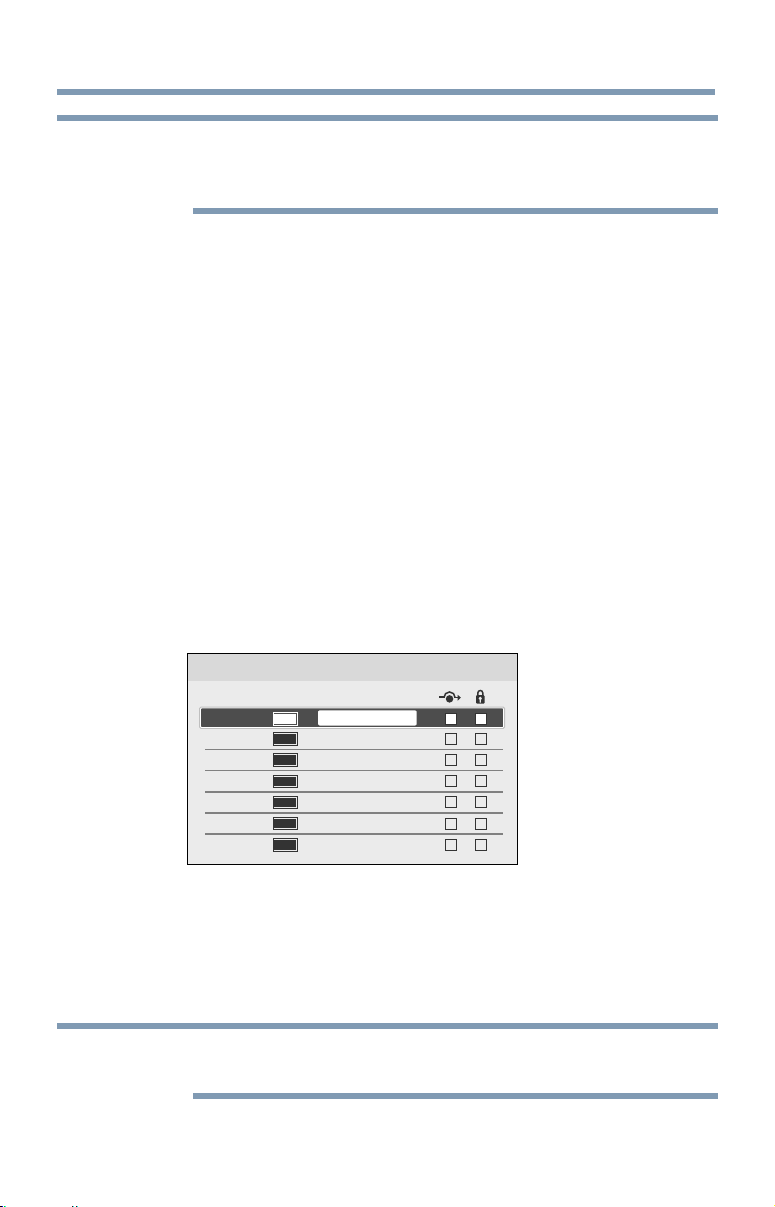
Basic features
79
NOTE
If you place an “X” in the box next to “Rated “None””, programs rated “None”
or “Not Rated” will be blocked; Programs that do not provide any rating
information will not be blocked.
Displaying ratings
To display the rating of the program you are watching, press the INFO
button on the remote control.
Unlocking programs
If you try to tune to a program that exceeds the rating limits you have set,
the TV will enter program lock mode and a warning message will appear
on screen. Follow the instructions to temporarily unlock the program.
Locking specific channels
AchannelthatisconguredasLockedcannotbeviewedunlessthePIN
codeisenteredrst,see“Setting the PIN code” on page 74.
1 Press the SETUP button.
2 Select Options > Channel Options.
3 Press the OK button.
The list of channels appears.
ATV
DTV
ATV
ATV
DTV
DTV
DTV
Channel Options
101 - 201
201
101 - 201
201
101 - 201
201
101 - 201
Label
CH-1
CH-2
Ch Type
(Sample Illustration) Channel options
4
Press the
u
(arrow) button and then press the
p
/
q
(arrow) buttons
to select a channel in the lock column, and then press the OK
button.
5 You must enter your PIN code to lock channels.
NOTE
If no PIN code has been set, a warning appears. See, “Setting the PIN code”
on page 74.
6 The box is selected. To clear the selection, press the OK button.
Lockingspecicchannels

80
Basic features
Locking video inputs
You can lock video inputs. You cannot view the input sources until you
unlock the inputs by entering the PIN code.
1 Press the SETUP button.
2 Select Options > Parental Control and Locks.
3 Press the OK button.
4 Enter your 4-digit PIN code.
5 Press the
p
/
q
(arrow) buttons to select Input Lock and press the
OK button.
6 Press the
p
/
q
(arrow) buttons to select Video or Off.
Mode: Description:
Video Locks Video 1, Video 2, ColorStream HD, HDMI 1, HDMI 2, HDMI 3,
HDMI 4, and PC.
Off Unlocks all video inputs.
Setting a time limit for games
You can use the GameTimer
®
to set a time limit for playing a video game.
When the time expires, the TV locks all external inputs.
1 Press the SETUP button.
2 Select Timers > GameTimer.
3 Press the OK button.
4 Enter your 4-digit PIN code.
5 Press the
p
/
q
(arrow) buttons to select 30, 60, 90, or 120 minutes.
6 To cancel the timer, select Off.
To deactivate the Input Lock once the GameTimer
®
has activated it:
❖
Set the Input Lock to Off, see “Locking video inputs” on page 80.
NOTE
❖
A message appears when 10 minutes, 3 minutes, and 1 minute are
remaining.
❖
If the TV loses power with time remaining, the TV will enter Input
Lock mode when power is restored (as if the GameTimer had been
activated). You must deactivate the Input Lock, see “Locking video
inputs” on page 80
.
Lockingspecicchannels

Basic features
81
Locking the control panel
You can lock the control panel to prevent your settings from being
changed accidentally (by children, for example). When Panel Lock is set
to On, none of the controls on the control panel operate except POWER.
1 Press the SETUP button.
2 Select Options > Panel Lock and press the OK button.
3 Press the
p
/
q
(arrow) buttons to select On.
NOTE
When Panel Lock is set to On, “Panel Lock” appears on screen when the
buttons on the TV control panel are pressed. Unless the TV is in "Active
Standby", then control panel POWER button can turn on the TV
To unlock the control panel:
❖
Select Off in Step 3 above.
Using HDMI
™
CEC Control
This feature uses CEC technology and allows you to control Toshiba
HDMI
™
CEC compatible devices from the TV remote control via HDMI
™
connection.
When Enable HDMI CEC Control in the HDMI CEC Control Setup
menu is set to On, the following HDMI
™
CEC Control functions are
enabled.
To set HDMI
™
CEC Control Setup
1 Press the SETUP button.
2 Select Options > HDMI CEC Control Setup and press the OK
button.
3 Press the
p
/
q
(arrow) buttons to select Enable HDMI CEC
Control and press the OK button.
4 Press the
p
/
q
(arrow) buttons to select On.
NOTE
If you set Enable HDMI CEC Control to Off, the other items under HDMI
CEC Control Setup will be grayed out.
5 Press the
p
/
q
(arrow) buttons to select an item and press the OK
button.
Press the
p
/
q
(arrow) buttons to select On or the desired mode:
❖
TV Auto Power: On/Off
❖
Auto Standby: On/Off
Using HDMI
™
CEC Control

82
Basic features
❖
AmplierControl:On/Off
❖
Initial Speaker Setting: TV Speakers/Amplier
NOTE
These functions depend on the connected devices.
Controlling HDMI
™
CEC playback devices
With your TV’s remote control, you can control the connected HDMI
™
CEC playback device (DVD player, etc.) you are watching.
Button: Description:
u
Begins playback
v
Stops playback
W
Pauses the picture during play or record mode
z
Skips forward.
Z
Skips backward.
uu
Fast forward
tt
Rewind/reverse
p
q
t
u
Menu navigation, etc.
OK Enters content with a menu
RED, GREEN,
YELLOW, BLUE
Controls various operation
0–9 buttons Controls various operation, e.g. tuning to a specific channel for tuner
device.
Channel
p
/
q
Changes to the next available channel up or down in the sequence
NOTE
These functions depend on the connected devices.
HDMI
™
CEC Player Control menu functions
1 Press the QUICK button to open the Quick menu.
2 Select HDMI CEC Device Control, and then press the OK button.
3 Press the
p
/
q
(arrow) buttons to select the item you want to
control, and then press the OK button.
Item: Description:
Power Turns the selected device On and Off
Root Menu Accesses the selected device’s top menu
Contents Menu Accesses the content list when the OK button is pressed
Setup Menu Accesses the device’s setup menu
Audio Select the divice's sound
Eject Ejects the device's media
Using HDMI
™
CEC Control

Basic features
83
NOTE
These functions depend on the connected devices.
The HDMI
™
CEC Device Control item is not available under the following
conditions:
❖
A non-HDMI
™
input is selected
❖
The Enable HDMI CEC Control item is set to Off
❖
The connected HDMI
™
CEC device is not a playback, recording, or
tuner device
HDMI
™
CEC Control input source selection
If an HDMI
™
CEC device with HDMI
™
switching capability (e.g. an
amplier)isconnectedtotheHDMI
™
input, you can select another
HDMI
™
CEC device that is connected to the master HDMI
™
device.
Use the INPUT button on the remote control or the control panel, see
“Learning about the remote control” on page 50.
Adjusting the amplifier’s audio
Using the TV’s remote control, you can adjust or mute the sound volume
of your audio system.
❖
The VOL (+ -) buttons adjust the volume level.
❖
The MUTE button turns off the sound.
1 Press SETUP button.
2 Select Options > HDMI CEC Control Setup and press the OK
button.
3 Press the
p
/
q
(arrow) buttons to select Initial Speaker Setting
and press the OK button.
4 Press the
p
/
q
(arrow) buttons to select Amplier.
NOTE
Confirm that a connected HDMI
™
CEC device (such as DVD player, etc.) is
selected for the Amplifier input source.
NOTE
❖
You can also use this function when the audio system is connected to
the TV’s DIGITAL AUDIO OUT terminal (not HDMI
™
connection).
Select a digital audio input mode on the amplifier.
❖
These functions depend on the device connected.
Using HDMI
™
CEC Control

84
Basic features
Other HDMI
™
CEC Control functions
When Enable HDMI CEC Control and all items in the HDMI
™
CEC
Control Setup menu are set to On, the following functions will be
enabled:
Item: Description:
TV Auto Power If an HDMI
™
CEC device is turned on, the TV turns on automatically.
Auto Standby If the TV is turned off, it will send a message to turn off all of the
HDMI
™
CEC devices connected to the TV.
Amplifier Control If Amplifier Control is set to On, you can adjust the sound volume
or turn off the sound using the remote control.
Initial Speaker
Setting
With this item, you can set your audio output preference to the TV
Speakers or the Amplifier. When this item is set to Amplifier, the remote
control can be used to adjust or mute the volume of the audio. This
item will not be available and set to TV Speakers automatically unless
an HDMI
™
CEC compatible audio system is connected.
NOTE
When you turn on the audio system, change its input source, or adjust the
sound volume, the sound will be output from the audio system’s speakers
even if TV Speakers has been selected. Turn the TV off and on again to
output the sound from the TV speakers.
Viewing the HDMI
™
signal information
1 Press the SETUP button.
2 Select Options > HDMI Information Display and press the OK
button.
3 Press the
p
/
q
(arrow) buttons to select On.
4 Press the INFO button.
HDMI
™
Information is shown (Resolution, Scan Type, Frame
Rate, Aspect, Bit Depth, Color Space, RGB/YUV, Chroma
Format), and the normal banner and signal information banner
appear.
NOTE
❖
The signal information banner will appear when this feature is set to
On and you watch an HDMI
™
input and press the INFO button. The
signal information will disappear after 60 seconds.
❖
If you press the INFO button when this feature is set to Off, only the
normal banner will appear.
Viewing the HDMI
™
signal information

Basic features
85
Using your computer with the TV
Adjusting the image
If the edges of the picture are hidden, readjust Horizontal Position and
Vertical Position. If the picture is affected by interference, readjust Clock
Phase and Sampling Clock.
1 Select PC input mode, see “Selecting the video input to view” on
page 71.
2 Press the SETUP button.
3 Select Picture > Display Settings and press the OK button.
4 Press the
p
/
q
(arrow) buttons to select PC Settings, and then
press the OK button.
NOTE
If a computer is not connected or there is no PC input signal, this menu will
not be available.
5 Press the
p
/
q
(arrow) buttons to select an item and press the OK
button.
6 Press the
t
/
u
(arrow) buttons to make adjustments.
NOTE
The screen is disrupted momentarily when adjusting the PC settings.This is
not a sign of malfunction.
Mode: Description: Adjustment Range
Horizontal Position Moves the picture left/right Within ±10 from center*
Vertical Position Moves the picture up/down Within ±10 from center*
Clock Phase Helps to reduce noise and sharpen
the picture
Within ±32 from center*
Sampling Clocks Helps to reduce noise and minimize
periodic vertical stripes on the screen
Within ±5 from center*
* The default settings and/or adjustment ranges vary depending on the input signal
format.
To reset the PC Settings:
Select Reset, and then press the OK button.
Using your computer with the TV

86
Basic features
Setting the computer audio
You can output sound from your computer when connecting it to your TV,
using the AUDIO IN terminal and PC audio cable.
1 Press the SETUP button.
2 Select Options > Input Options and press the OK button.
3 Press the
p
/
q
(arrow) buttons to select PC/HDMI 2 Audio and
press the OK button.
4 Press the
p
/
q
(arrow) buttons to select PC.
NOTE
To apply the setting, switch the input to PC or HDMI 2.
Setting the timer to turn on the TV
You can set the on timer to turn on the TV to a preset channel or input at a
preset time.
To activate the timer:
1 Press the SETUP button.
2 Select Timers > On Timer.
3 Press the OK button.
4 Press the
p
/
q
(arrow) buttons to select Enable On Timer and
press the OK button.
5 Press the
t
/
u
(arrow) buttons to select On.
NOTE
If the Enable On Timer is set to Off, other menus under On Timer
cannot be changed.
It can take the TV approximately 60 seconds to turn on through the ON
TIMER feature.
To set the timer:
1 Press the SETUP button.
2 Select Timers > On Timer.
3 Press the OK button.
4 Set these options to your preference:
Setting the timer to turn on the TV

Basic features
87
Item: Description:
Input Video input source
Channel Channel to view
Volume Volume level
Time until Power On Desired length of time until the TV turns on:
minimum=00:10, maximum=12:00
Press
t
/
u
(arrow) buttons
Use the number buttons
5 Select Done, and then press the OK button.
NOTE
If you do not operate the TV for 1 hour after it is powered on by the On
Timer feature, it turns off.
To cancel the timer:
1 Press the SETUP button.
2 Select Timers > On Timer.
3 Press the OK button.
4 Press the
p
/
q
(arrow) buttons to select Enable On Timer and
press the OK button.
5 Press the
t
/
u
(arrow) buttons to select Off.
Setting the sleep timer
YoucansettheTVtoturnoffafteraspecicamountoftime
(maximum = 12 hours).
Using the remote control:
1 Press the SLEEP button.
2 Set the amount of time until the TV turns off.
❖
Repeatedly press the SLEEP button to increase the time.
❖
Press the
p
/
q
(arrow) buttons to increase or decrease the time.
Using the on-screen menus:
1 Press the SETUP button.
2 Select Timers > Sleep Timer.
3 Press the OK button.
4 Select the amount of time until the TV turns off.
❖
Use the number buttons.
❖
Press the
p
/
q
(arrow) buttons to increase or decrease the time.
Setting the sleep timer

88
Basic features
NOTE
If a power failure occurs, the sleep timer setting may be cleared.
To display the time remaining until the TV turns off, press the SLEEP
button.
To cancel the sleep timer, press the SLEEP button repeatedly or press the
p
/
q
(arrow) buttons until it is set to 0 minutes.
NOTE
When the following features are set, the feature that is set for the nearest
time will function.
❖
Sleep Timer
❖
Auto shutdown after 1 hour of inactivity (after powering on by On
Timer)
❖
No signal auto power off (after approximately 15 minutes of no signal)
Setting No Signal Power Down
When an input's setting in this feature is set to On, The TV will
automatically turn itself off after about 15 minutes if no signal is detected.
You can change each input's setting to Off: ANT/CABLE, Video 1, Video
2, ColorStream HD, HDMI 1, HDMI 2, HDMI 3, HDMI 4, or PC.
1 Press the SETUP button.
2 Select Options > Power Management > No Signal Power Down,
and then press the OK button.
3 Press the
p
/
q
(arrow) buttons to select the item you want to
change and press the OK button.
4 Press the
p
/
q
(arrow) buttons to select On or Off.
5 Press the EXIT button.
NOTE
❖
Default setting for each input is On.
❖
A warning message will appear 1 minute before turning off.
Setting No Signal Power Down

Basic features
89
Setting TV Power On Control
When the TV is connected to the home network via Wireless LAN with
the TV Power On Control in Enabled, your TV can be turned on by
control from Apps.
1 Press the SETUP button.
2 Select Options > Power Management > TV Power On Control
and press the OK button.
3 Press the
p
/
q
(arrow) buttons to select Enabled (Active Standby).
NOTE
❖
Depending on the device connected to the home network, it may take a
while for the TV to turn on.
❖
Depending on the device connected to the home network, this feature
may not work.
❖
If the unencrypted Wireless Setup is done, this feature can not be
used.
❖
The power consumption during Active Standby is more than it during
Normal Standby.
❖
After the change from Power On state to Active Standby, there may be a
period of several seconds when the TV does not receive the operation
from a remote control or external apparatus.
Displaying TV status information
To display TV status information, press the INFO button.
The following information will be displayed (if applicable):
❖
Current input (ANT/CABLE, Video, etc.)
❖
Either “CABLE” (for cable TV) or “ANT” (for over-the-air
broadcasts), if ANT/CABLE is the current input
❖
Channel number (if in ANT/CABLE mode)
❖
Input label (if set)
❖
Digital signal strength indicator (for ATSC/QAM signals only)
❖
Stereo, Mono, or SAP audio status (when in HDMI
™
input mode,
PCM)
❖
Video resolution
❖
Aspect ratio of incoming video signal (4:3 or 16:9)
❖
V-Chip rating status (if available)
❖
GameTimer (if set)
❖
Channel Label (if set or received)
Setting TV Power On Control

90
Basic features
To close the screen, press the INFO button again.
The following additional information (only available for ANT/CABLE
input) will display for digital channels (if applicable):
❖
Title
❖
Duration
❖
Detailed description
❖
Next program’s information
Viewing support information
1 Press the SETUP button.
2 Select Get Help > System Information.
3 Press the OK button to display support information containing Web/
Customer service numbers for US, Canada, and Mexico.
Resetting to Factory Defaults
You can reset all settings and channels to Factory Defaults.
1 Press the SETUP button.
2 Select Installation > Reset TV.
3 Enter your PIN code (if a PIN code has been set).
Aconrmationscreenappears.
4 Select Ye s, and then press the OK button.
The TV will turn off automatically.
To cancel the reset:
❖
Press the
t
/
u
(arrow) buttons to select No, and then press the OK
button.
Power failure
If power is lost while you are watching the TV, the Last Mode Memory
feature automatically turns on the TV when power is restored.
Viewing support information

91
Picture and Sound
Controls
Selecting the picture size
You can view many program formats in several picture sizes— Native, 4:3,
Full, TheaterWide 1, TheaterWide 2, TheaterWide 3, Normal, and Dot by
Dot.
NOTE
❖
The picture size illustrations are examples only. The format of the
image (in any of the picture sizes) depends on the format of the signal
you are currently watching. Select the picture size that displays the
current program in the way that looks best to you.
❖
Using these functions to change the picture size (i.e., changing the
height/width ratio) for any purpose other than your private viewing
may be prohibited under the Copyright Laws of the United States and
other countries, and may subject you to civil and criminal liability.
❖
Some picture sizes may not be available depending on the format of
the signal being received.
❖
If you select a TheaterWide
®
picture size, the top and bottom edges of
the picture (including subtitles or captions) may be hidden. To view
these edges, adjust the Picture Position or try viewing the program in
4:3 or Full, see
“Scrolling the picture” on page 95.
Chapter 7
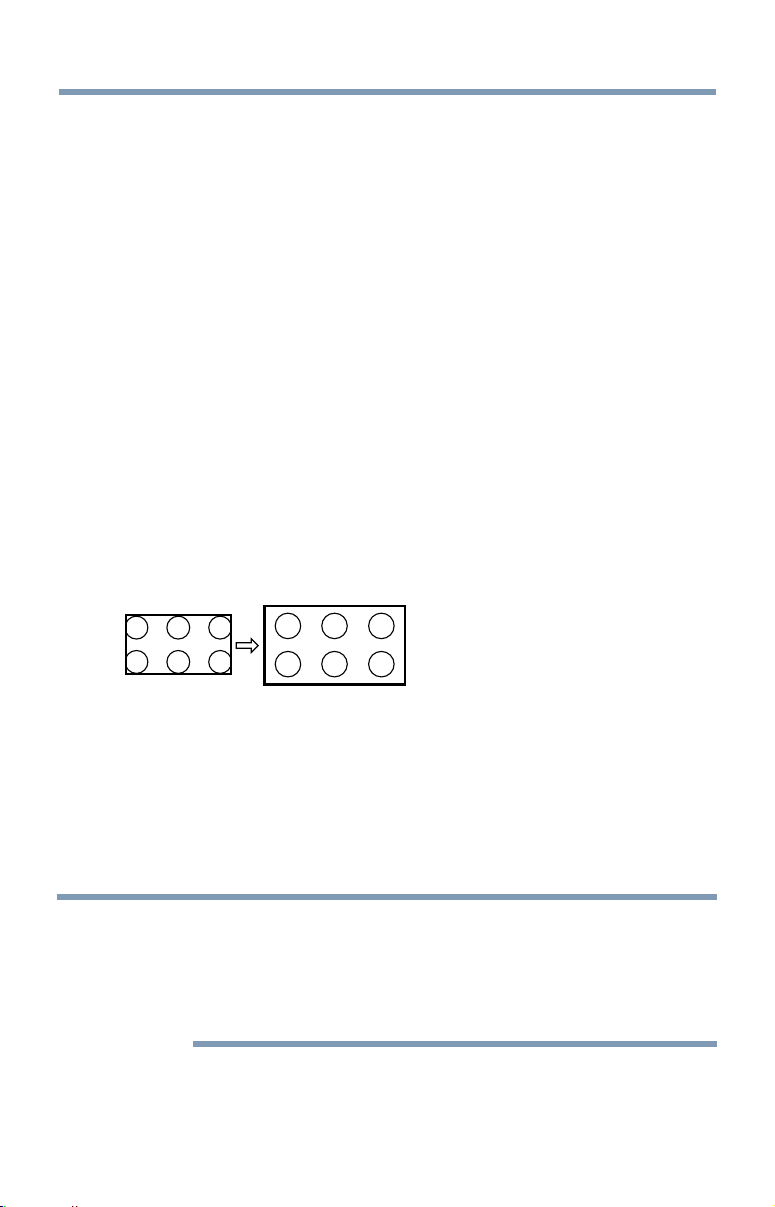
92
Picture and Sound Controls
You can save separate picture size preferences for each input on your TV.
To select the picture size using the Quick menu:
1 Press the QUICK button to open the Quick menu.
2 Select Picture Size, and then press the OK button.
3 Press the
p
/
q
(arrow) buttons to select the Picture Size, and then
press the OK button.
To select the picture size using the remote control :
1 Press the PIC SIZE button.
2 While the Picture Size screen is open, repeatedly press the PIC
SIZE button.
Native Mode™
This applies pixel-for-pixel image reproductions of Full HD content and
eliminating overscanning; you see all of the original picture within the
screen and eliminate scaling artifacts for a more accurate image.
These settings are for viewing in 480i (HDMI
™
), 480p (HDMI
™
), 720p,
1080i, and 1080p signal programs.
(Sample Illustration) Picture size - Native
❖
If receiving a 1080i, 1080p, 720p, 480i (HDMI
™
), or 480p (HDMI
™
)
signal program, the video is scaled to display the entire picture
within the borders of the screen (i.e. no overscanning).
❖
This is especially useful for external HD sources such as DVHS
movies, video games, or computer graphics.
❖
None of the picture is hidden.
NOTE
❖
This mode is supported only for HDMI
™
(1080i, 1080p, 720p, 480i,
and 480p), ColorStream
®
(1080i and 720p), and ANT/CABLE (digital)
inputs (1080i, 1080p, and 720p).
❖
Depending on the input signal, the picture’s border may be hidden,
displayed in black, or noisy.
Selecting the picture size
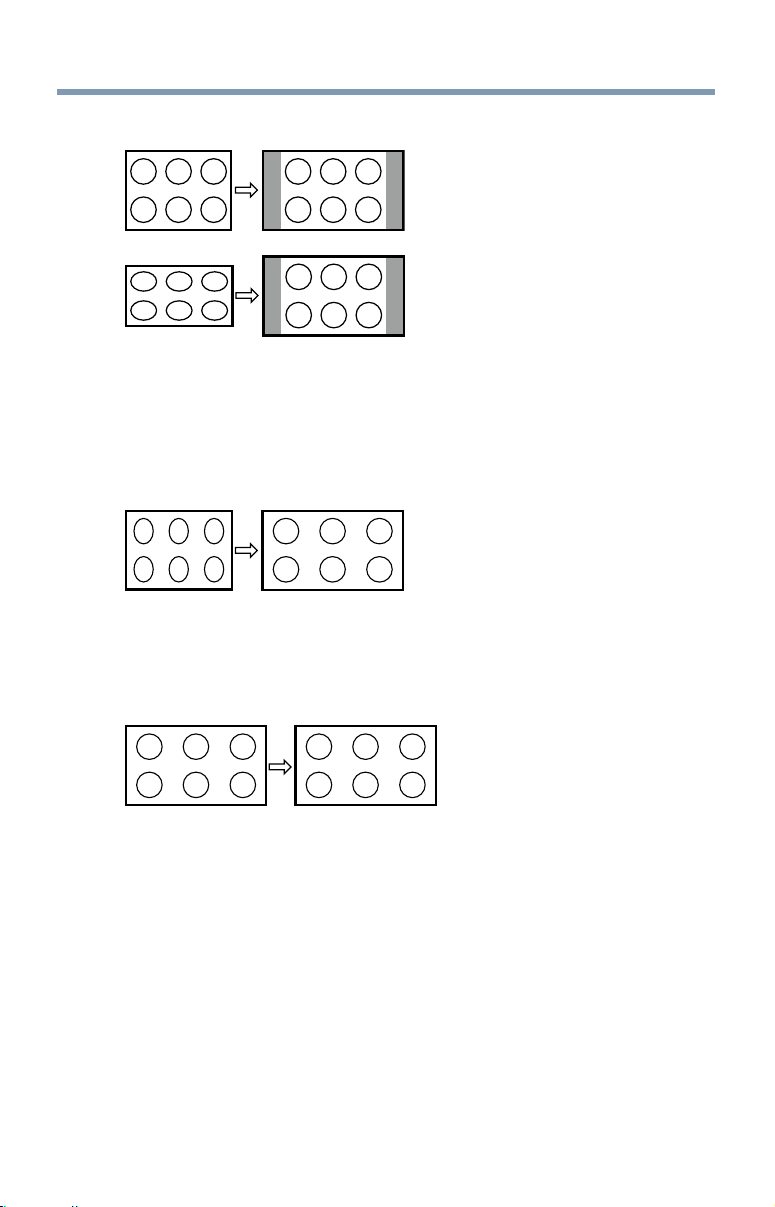
Picture and Sound Controls
93
4:3
(Sample Illustration) Picture size - 4:3
Some program formats will display with sidebars and/or bars at the top
and bottom.
Full
This setting is for viewing in the 16:9 (480i, 480p) source programs only.
(Sample Illustration) Picture size - Full 16:9
If receiving a squeezed 4:3 format program, the picture is stretched
horizontallytollthewidthofthescreenbutnotstretchedvertically.
This setting is for viewing in the 1080i, 1080p, and 720p program source.
(Sample Illustration) Picture size - Full
The edges of the picture may be hidden.
Selecting the picture size
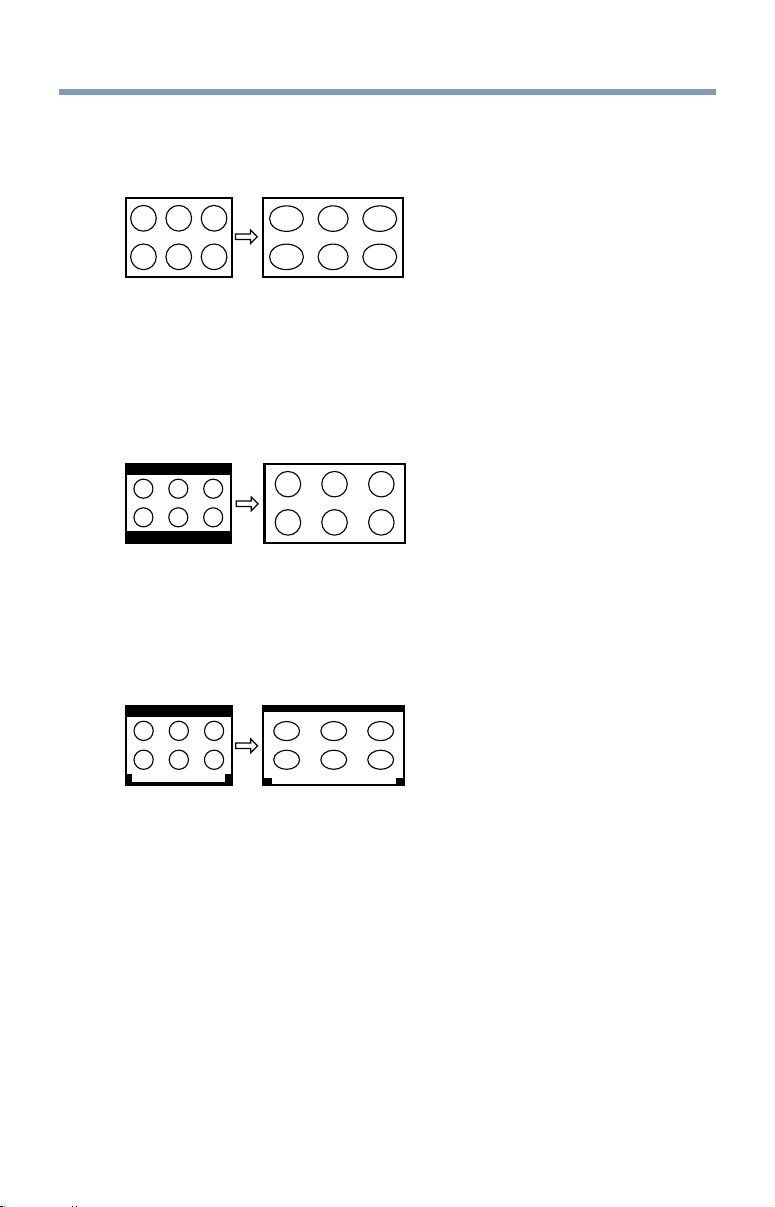
94
Picture and Sound Controls
TheaterWide1
This setting is for viewing in 4:3 format programs.
(Sample Illustration) Picture size - TheaterWide1
The center of the picture remains close to its original proportions, but the
leftandrightedgesarestretchedhorizontallytollthescreen.
TheaterWide2
This setting is for viewing letter box programs.
A B C D E F G - - - - - - - - - - - - - - - -
(Sample Illustration) Picture size - TheaterWide2, letter box
The picture’s top and bottom edges may be hidden*.
TheaterWide3
This setting is for viewing letter box programs with subtitles.
A B C D E F G - - - - - - - - - - - - - - - -
A B C D E F G - - - - - - - - - - - - - - - - - - - - - - - - - -
(Sample Illustration) Picture size - TheaterWide3, letter box with
subtitles
The picture’s top and bottom edges are hidden*.
Selecting the picture size
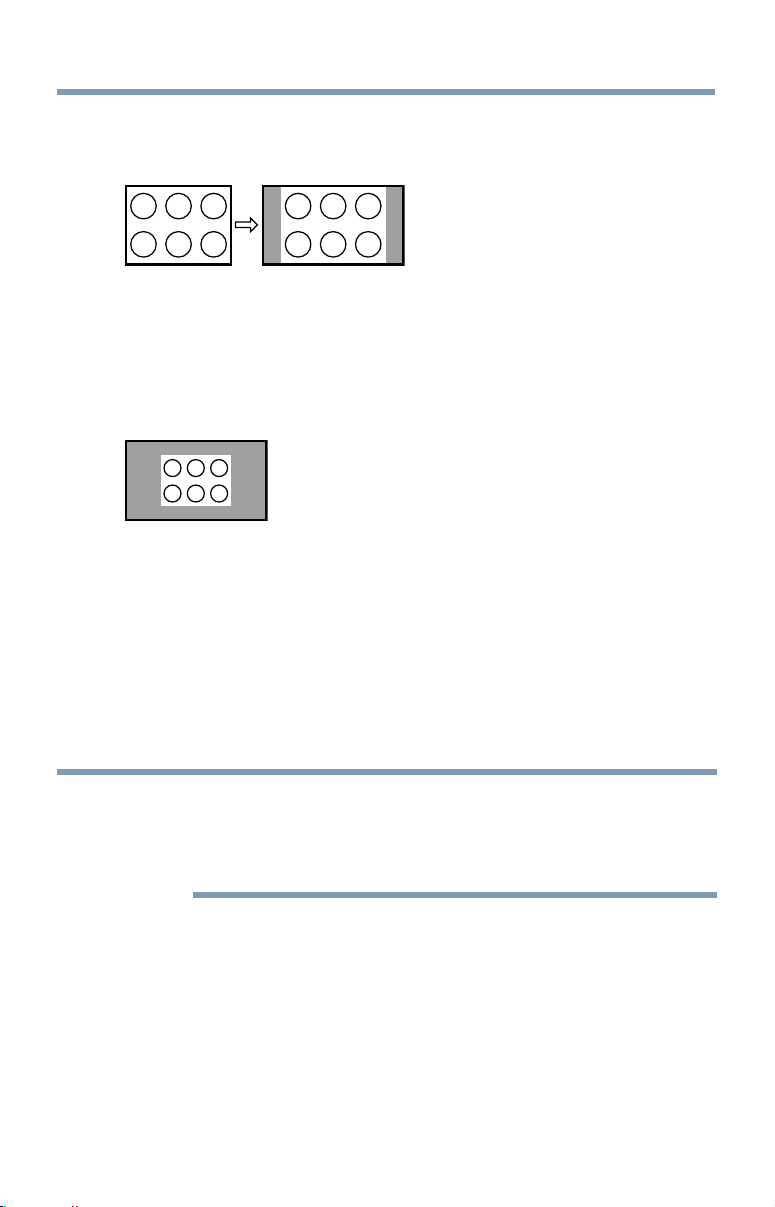
Picture and Sound Controls
95
Normal
This setting is for viewing SVGA, XGA, WXGA, and SXGA sources.
(Sample Illustration) Picture size - Normal
This size is a non-stretched display. Some input signal formats will
display with sidebars and/or bars at the top and bottom.
Dot by Dot
This setting is for viewing SVGA, XGA, WXGA, and SXGA sources.
(Sample Illustration) Picture size - Dot by Dot
“Dot by Dot” is a non-scaling display. Depending on the input signal
format, the picture appears with sidebars and/or bars at the top and
bottom, for example, SVGA input source.
* To view the hidden areas (such as subtitles or captions), see
“Scrolling
the picture” on page 95.
Scrolling the picture
If the edges of the picture are hidden, you can adjust the image’s position.
NOTE
❖
You can adjust the picture position when the picture size is set to
TheaterWide2 or TheaterWide3.
❖
When viewing Cloud TV, MediaShare, or Internet content this feature
is not available.
1 Press the SETUP button.
2 Select Picture > Display Settings > Picture Position and press the
OK button.
3 Press the
p
/
q
(arrow) buttons to select Vertical Position and press
the OK button.
4 Press the
t
/
u
(arrow) buttons to make the appropriate adjustments.
The adjustment range is from -5 to +10.
Scrolling the picture

96
Picture and Sound Controls
Using the Auto Aspect feature
Using the Auto Aspect feature
When this feature is set to On, the TV will automatically select the picture
size when one of the following input sources is received:
❖
480i, 480p, 720p, 1080i digital signal from the ANT/CABLE input
❖
480i, 480p, 720p, 1080i, 1080p, or VGA (60/72/75 Hz) signal from
the HDMI
™
1/2/3/4 input
NOTE
The auto aspect ratio feature is not applicable to the PC input.
1 Press the SETUP button.
2 Select Picture > Display Settings > Auto Aspect and press the OK
button.
3 Press the
p
/
q
(arrow) buttons to select On.
4 Press the EXIT button.
Using the 4:3 Stretch
When 4:3 Stretch is activated, the TV displays 4:3 programs as a full-
screen picture.
NOTE
This feature is available when Auto Aspect is set to On.
1 Press the SETUP button.
2 Select Picture > Display Settings > 4:3 Stretch and press the OK
button.
3 Press the
p
/
q
(arrow) buttons to select On.
4 Press the EXIT button.

Picture and Sound Controls
97
Adjusting the picture
Selecting the picture mode
You can select your desired picture settings from the modes described
below.
Mode: Description:
AutoView
®
Automatically adjusts multiple picture settings including Brightness,
Contrast, Gamma, and Sharpness based on ambient room light conditions
and incoming picture content to create the best possible picture settings
without any manual adjustment.
Dynamic Maximizes Contrast, Color Saturation, Sharpness, Gray Scale and
Brightness to create more vivid and dynamic images
Standard Standard picture settings
Movie Lower contrast for a darkened room
Game Optimized for playing video games by displaying the images in their
purest form (4:4:4) without the loss of color information. The result is
superior image quality and shorter signal to screen time for a faster gaming
experience.
PC Optimized for viewing your personal computer
NOTE
❖
PC mode is available for HDMI
™
and PC inputs only (not displayed for
other input sources).
❖
Game mode is not available in ANT/CABLE input.
1 Press the SETUP button.
2 Select Picture > Picture Mode and press the OK button.
3 Press the
p
/
q
(arrow) buttons to select a mode.
4 Press the EXIT button.
NOTE
The picture mode you select affects the current input only. You can select a
different picture mode for each input.
Adjusting the picture

98
Picture and Sound Controls
Adjusting the picture quality
The adjustments you make to picture quality under a picture mode are
saved to that picture mode.
Selection Press (
t
) Press (
u
)
Backlight* Darker Lighter
Contrast Lower Higher
Brightness Darker Lighter
Color Paler Deeper
Tint Reddish Greenish
Sharpness Softer Sharper
* Backlight: Adjusts the brightness of the entire screen. When in video mode and
no signal is input, this selection is set to 0. (Settings are stored in memory.)
NOTE
Some settings cannot be adjusted when the picture mode is set to
AutoView.
To adjust the picture quality:
1 Press the SETUP button.
2 Select Picture and press the OK button.
3 Press the
p
/
q
(arrow) buttons to select the setting you would
like to adjust (Backlight, Contrast, Brightness, Color, Tint, or
Sharpness).
4 Press the
u
(arrow) button.
5 Press the
t
/
u
(arrow) buttons to adjust the setting.
6 Press the EXIT button.
NOTE
❖
Any picture settings that you adjust affect the current input only.
You can adjust the picture quality separately for each input.
❖
Depending on a Sharpness value, the Edge Enhancer effect may be
reduced.
To reset to the factory defaults:
1 Press the SETUP button.
2 Select Picture > Reset.
3 Press the OK button.
Aconrmationscreenappears.
4 Press the
t
/
u
(arrow) buttons to select Yes, and then press the OK
button.
Adjusting the picture

Picture and Sound Controls
99
Using the advanced picture settings features
NOTE
Some of the Advanced Picture Settings features will not be available for
adjustment when the Picture Mode is set to AutoView.
Edge Enhancer
If the Edge Enhancer set to On, the clarity levels can be adjusted
automatically.
1 Press the SETUP button.
2 Select Picture > Advanced Picture Settings > Edge Enhancer and
press the OK button.
3 Press the
p
/
q
(arrow) buttons to select On.
4 Press the EXIT button.
NOTE
❖
If the picture mode is set to AutoView, Edge Enhancer is not
available.
❖
This feature may not work properly depending on the content.
❖
Noise may appear on the image depending on the device connected to
the TV (e.g. a device with a specific enhancer function).
Dynamic Contrast
Dynamic Contrast detects changes in picture quality that affect the
appearance of your contrast settings and then automatically adjusts the
video.
1 Press the SETUP button.
2 Select Picture > Advanced Picture Settings > Dynamic Contrast
and press the OK button.
3 Press the
p
/
q
(arrow) buttons to select High, Middle, Low, or
Off.
4 Press the EXIT button.
Using the advanced picture settings features

100
Picture and Sound Controls
DynaLight
®
The DynaLight
®
dynamic backlight control monitors the brightness of
each video frame and automatically adjusts backlight intensity based
on the content to create higher dynamic contrast, for deeper blacks and
increased depth.
1 Press the SETUP button.
2 Select Picture > Advanced Picture Settings > DynaLight and
press the OK button.
3 Press the
p
/
q
(arrow) buttons to select On or Off.
4 Press the EXIT button.
ClearScan
®
ClearScan
®
120Hz technology utilizes advanced backlight control with
image synchronization to double the television refresh rate for clearer fast
motion video. This technology is ideal for watching action movies, sports
and video games. (For L4300U series)
ClearScan
®
240Hz uses both frame interpolation technology and advanced
backlight control with image synchronization to quadruple the TV refresh
rate for an even clearer fast motion video. (For L7300U series)
1 Press the SETUP button.
2 Select Picture > Advanced Picture Settings > ClearScan and
press the OK button.
3 Press the
p
/
q
(arrow) buttons to select Cinema, Smooth,
Standard, or Off.
4 Press the EXIT button.
NOTE
If the picture mode is set to Game or PC mode, this feature is automatically
not available.
Cinema Mode (L4300U Series)
This feature provides smoother motion and a crisper image.
1 Press the SETUP button.
2 Select Picture > Advanced Picture Settings > Cinema Mode and
press the OK button.
3 Press the
p
/
q
(arrow) buttons to select On or Off.
4 Press the EXIT button.
Using the advanced picture settings features

Picture and Sound Controls
101
NOTE
If the picture mode is set to Game or PC mode, this feature is automatically
set and is not available.
MPEG NR
The MPEG noise reduction feature allows you to reduce visible
interference caused by MPEG compression.
1 Press the SETUP button.
2 Select Picture > Advanced Picture Settings > Noise Reduction
and press the OK button.
3 Press the
p
/
q
(arrow) buttons to select MPEG NR and press OK.
4 Press the
p
/
q
(arrow) buttons to select Low, Middle, High, or
Off.
5 Press the EXIT button.
NOTE
If the picture mode is set to Game or PC, this feature is not available.
UltraClear DNR
DNRisaDynamicNoiseReductiontechnologythatltersoutvideo
noise without decreasing picture sharpness for clean, crystal-clear images.
1 Press the SETUP button.
2 Select Picture > Advanced Picture Settings > Noise Reduction
and press the OK button.
3 Press the
p
/
q
(arrow) buttons to select DNR and press the OK
button.
4 Press the
p
/
q
(arrow) buttons to select Low, Middle, High, Auto,
or Off.
5 Press the EXIT button.
NOTE
The differences may not always be noticeable. For the best results, use
lower settings, as picture quality may be greatly reduced if the setting is too
high.
If the picture mode is set to Game or PC, this feature is not available.
Using the advanced picture settings features

102
Picture and Sound Controls
Ambient Light Sensor
When the ambient light function of Ambient Light Sensor is set to On,
the TV optimizes the backlighting levels to suit ambient light conditions.
1 Press the SETUP button.
2 Select Picture > Advanced Picture Settings > Auto Brightness
Sensor and press the OK button.
3 Press the
p
/
q
(arrow) buttons to select On or Off.
4 Press the EXIT button.
NOTE
When the picture mode is set to AutoView
®
, this feature is automatically
set to On.
ColorMaster™
The ColorMaster™ feature allows you to adjust standard colors.
1 Press the SETUP button.
2 Select Picture > Advanced Picture Settings > ColorMaster and
press the OK button.
3 Press the
p
/
q
(arrow) buttons to select On or Off.
4 Press the EXIT button.
Base Color Adjustment
When ColorMaster™ is set to On, the list of base colors appears.
You can select a base color to adjust.
1 Press the SETUP button.
2 Select Picture > Advanced Picture Settings > Base Color
Adjustment.
3 Press the OK button.
The Base Color Adjustment screen appears.
4 Press the
p
/
q
(arrow) buttons to select a color. Press
u
(arrow)
button.
5 Press the
t
/
u
(arrow) buttons to select Hue, Saturation, or
Brightness.
6 Press the
p
/
q
(arrow) buttons to adjust the setting.
7 Repeat Steps 4 through 6 to adjust other colors. To reset the
adjustments to the factory defaults, select Reset on the screen, and
then press the OKbutton.(Aconrmationscreenappears.Press
t
/
u
(arrow) buttons to select Yes, and then press the OK button.)
Using the advanced picture settings features

Picture and Sound Controls
103
Color temperature
1 Press the SETUP button.
2 Select Picture > Advanced Picture Settings > Color Temperature
and press the OK button.
3 Select Color Temperature and press the OK button. Press the
p
/
q
(arrow) buttons to select Cool, Medium, or Warm.
4 Press the OK button.
5 Press the
p
/
q
(arrow) buttons to select the Red Level, Green
Level, or Blue Level.
6 Press the
u
(arrow) button.
7 Press the
t
/
u
(arrow) buttons to adjust the color level. The
adjustment range is -10 (less of selected color) to +10 (more of
selected color).
8 Press the EXIT button.
NOTE
This feature is not available in Standard and Movie mode.
Resetting advanced picture settings to the factory default
1 Press the SETUP button.
2 Select Picture > Advanced Picture Settings > Reset.
3 Press the OK button.
Aconrmationscreenappears.
4 Select Ye s, and then press the OK button.
Setting the expert picture settings
NOTE
This feature is only available in Standard and Movie mode.
Test Pattern
When the test pattern is on screen, you can navigate the Picture submenus
without removing the image. When you move to a non-Picture menu, or
close the menus, regular video will be restored.
1 Press the SETUP button.
2 Select Picture > Expert Picture Settings > Test Pattern and press
the OK button.
3 Press the
p
/
q
(arrow) buttons to select On.
4 Adjust picture settings.
Setting the expert picture settings

104
Picture and Sound Controls
RGB Filter
This feature individually enables or disables the red, green, and blue
components of the picture to allow for more accurate adjustment of each
color.
1 Press the SETUP button.
2 Select Picture > Expert Picture Settings > RGB Filter and press
the OK button.
3 Press the
p
/
q
(arrow) buttons to select Red, Green, or Blue to
adjust.
4 Press the
u
(arrow) button.
5 Press the
p
/
q
(arrow) buttons to select On, and then press the OK
button.
6 Press the
q
(arrow) button to select Color or Tint, press
t
/
u
(arrow) button to adjust.
7 Press the EXIT button.
NOTE
It is not possible to turn off all three colors simultaneously.
White Balance
Window Display
This feature displays the Window Pattern to adjust the white balance.
1 Press the SETUP button.
2 Select Picture > Expert Picture Settings > White Balance and
press the OK button.
3 Press the
p
/
q
(arrow) buttons to select Window Display and press
the OK button.
4 Press the
p
/
q
(arrow) buttons to select On.
5 Adjust the picture settings.
Setting Type
You can adjust the white balance setting.
2P White Balance:
1 Press the SETUP button.
2 Select Picture > Expert Picture Settings > White Balance >
Setting Type and press the OK button.
3 Press the
p
/
q
(arrow) buttons to select 2P and the press the OK
button.
Setting the expert picture settings

Picture and Sound Controls
105
4 Press the
p
/
q
(arrow) buttons to select 2P White Balance and
press the OK button.
5 Press the
p
/
q
(arrow) buttons to select Red-Offset, Green-Offset,
Blue-Offset, Red-Gain, Green-Gain, or Blue-Gain.
6 Press the
u
(arrow) button.
7 Press the
t
/
u
(arrow) buttons to adjust.
10P White Balance:
1 Press the SETUP button.
2 Select Picture > Expert Picture Settings > White Balance >
Setting Type and press the OK button.
3 Press the
p
/
q
(arrow) buttons to select 10P and the press the OK
button.
4 Press the
p
/
q
(arrow) buttons to select 10P White Balance and
press the OK button.
5 Press the
p
/
q
(arrow) buttons to select IRE, Red, Green, or Blue.
6 Press the
u
(arrow) button.
7 Press the
t
/
u
(arrow) buttons to adjust.
Adjusting the audio
Muting the sound
Press the MUTE button to partially reduce (1/2 Mute) or turn off (Mute)
the sound. Each time you press the MUTE button, the mute mode
changes in the following order: 1/2 Mute, Mute, Volume, 1/2 Mute, etc.
NOTE
If you modify items in the Sound menu while Mute is active, Mute is
cancelled.
Selecting stereo/SAP broadcasts
The MTS (multi-channel TV sound) feature is only available for analog
signals on the ANT/CABLE input. When the TV receives a stereo or SAP
(second audio program) broadcast, the icon STEREO or SAP appears on
screen when the INFO button is pressed.
To listen in stereo sound:
1 Press the SETUP button.
2 Select Sound > MTS and press the OK button.
3 Press the
p
/
q
(arrow) buttons to select Stereo.
4 Press the EXIT button.
Adjusting the audio

106
Picture and Sound Controls
NOTE
❖
You can typically leave the TV in Stereo mode because it outputs the
type of sound being broadcast (stereo or monaural).
❖
If the sound is noisy, select Mono.
❖
If there is no sound in SAP mode, select Stereo.
Adjusting the audio balance
You can adjust the audio balance.
1 Press the SETUP button.
2 Select Sound > Balance and press the OK button.
3 Press the
t
/
u
(arrow) buttons to adjust the balance.
4 Press the EXIT button.
Adjusting the range
You can adjust bass and treble.
1 Press the SETUP button.
2 Select Sound > Bass or Treble.
3 Press the OK button.
4 Press the
t
/
u
(arrow) buttons to adjust the range.
5 Press the EXIT button.
TV Speakers On/Off
This feature allows you to turn the TV speakers off when connecting the
audio system.
1 Press the SETUP button.
2 Select Sound > TV Speakers and press the OK button.
3 Press the
p
/
q
(arrow) buttons to select On or Off.
To turn on the built-in speakers:
1 Choose On in step 3 above.
Setting the Primary Audio Language
You can set the Primary Audio Language of the digital broadcast.
1 Press the SETUP button.
2 Select Sound > Primary Audio Language and press the OK
button.
3 Press the
p
/
q
(arrow) buttons to select English, Français, or
Español.
4 Press the EXIT button.
Adjusting the audio

Picture and Sound Controls
107
Selecting the optical audio output format
You can select the optical audio output format when you connect a
Dolby
®
Digital decoder or other digital audio systems to the TV’s
DIGITAL AUDIO OUT terminal.
Audio Format
1 Press the SETUP button.
2 Select Sound > Digital Audio Output > Audio Format and press
the OK button.
3 Press the
p
/
q
(arrow) buttons to select Auto or PCM.
4 Press the EXIT button.
Audio Delay
1 Press the SETUP button.
2 Select Sound > Digital Audio Output > Audio Delay and press the
OK button.
3 Press the
p
/
q
(arrow) buttons to select Auto or Manual.
Auto: This mode automatically adjusts the audio timing to meet
the video timing.
The time lag might be large between the image and sound
dependingontheconnectedequipment(amplieretc.).In
that case, select Manual.
Manual: You can manually adjust the audio signal timing to meet
the video signal timing.
4 Press the EXIT button.
Delay Adjustment
1 Press the SETUP button.
2 Select Sound > Digital Audio Output > Delay Adjustment and
press the OK button.
3 Press the
t
/
u
(arrow) buttons to adjust the audio signal timing (0 –
250ms) to meet the video signal timing.
4 Press the EXIT button.
NOTE
❖
This feature is grayed out when Audio Delay is in Auto.
❖
A time lag will occur when the video signal or audio signal is changed.
Adjust the timing accordingly.
❖
When adjusting the timing, turn down the volume of the AV equipment
used as far as possible.
Adjusting the audio

108
Picture and Sound Controls
Depending on the equipment, noise etc. may occur when the signal is
changed.
❖
Depending on the connected equipment (amplifier, etc.), adjustment
may not be possible.
❖
When the optical audio output setting (Auto
t
PCM) is changed, it
may be necessary to adjust the timing again.
❖
Do not use other than for audio output from the AV amplifier, etc.
(Malfunction may occur)
Using the Dolby
®
Digital Dynamic Range Control feature
You can further compress Dolby
®
Digital and Dolby
®
Digital Plus
dynamic range so you can switch from digital to analog broadcasts at the
same dynamic range.
1 Press the SETUP button.
2 Select Sound > Dynamic Range Control and press the OK button.
3 Press the
p
/
q
(arrow) buttons to select On.
NOTE
This feature is available when Dolby
®
Digital or Dolby
®
Digital Plus is input
to the TV in the following situations:
❖
When tuned to a digital RF channel
❖
When an HDMI
™
input is used
This feature is automatically set to Off when Dynamic Volume (Audyssey
Dynamic Volume
®
) is set to Day or Night.
This feature will also affect Digital Audio Output when the optical audio
output format is set to PCM.
Audyssey Premium Television™
These televisions use a suite of technologies for better sound including:
❖
Audyssey EQ
®
—provides clear, accurate and natural sound right
out of the box. This technology ensures you enjoy your audio
experience as much as your video.
❖
Audyssey ABX™—technology uses sophisticated driver analysis
and low frequency monitoring to extend the range and bass of small
speakers. This enables the system to produce lower frequencies than
would be possible with a traditional system of the same size.
❖
Audyssey Dynamic Volume
®
—automatically adjusts volume to
Adjusting the audio

Picture and Sound Controls
109
Adjusting the audio
provide a consistent sound level between television programs,
commercials, and between the loud and soft passages of movies.
❖
Audyssey Volume Extension
®
—doubles the volume capability in
small speakers while blocking distortion so your TV gets loud and
still sounds great.
❖
Day/Night Modes—automatically keeps the volume of the TV at
the perfect level for day or night.
❖
Wall/Table Modes—automatically keeps the volume at the perfect
level for television mounted on a wall or located on a table-top.
Using Audyssey EQ
®
for Wall Mounted or Table-top TVs
This feature automatically keeps the volume at the perfect level for
television mounted on a wall or located on a table-top.
1 Press the SETUP button.
2 Select Sound > Audyssey Premium Television > TV Mounting
and press the OK button.
3 Press the
p
/
q
(arrow) buttons to select Wall or Table.
Using Audyssey Dynamic Volume
®
This feature provides a consistent sound volume between television
programs, commercials, and between the loud and soft passages of
movies.
1 Press the SETUP button.
2 Select Sound > Audyssey Premium Television > Dynamic
Volume and press the OK button.
3 Press the
p
/
q
(arrow) buttons to select Night, Day, or Off.
NOTE
❖
If Dynamic Range Control is set to On, this feature is automatically set
to Off.
❖
This feature does not affect the audio signal output from the DIGITAL
AUDIO OUT terminal.
Audyssey ABX™
Audyssey ABX™ technology uses sophisticated driver analysis and low
frequency monitoring to extend the range and bass of small speakers.
To turn on Audyssey ABX™:
1 Press the SETUP button.
2 Select Sound > Audyssey Premium Television > Audyssey ABX

110
Picture and Sound Controls
and press the OK button.
3 Press the
p
/
q
(arrow) buttons to select Off, Low, or High.
Audyssey EQ
®
and Audyssey Volume Extension
®
are default settings that
are set to On.
Using the surround sound feature
Surround settings help to create a thrilling surround sound experience
with deep, rich bass from stereo sound sources. Your TV’s audio will
sound fuller, richer, and wider.
❖
Press the SETUP button. Select Sound > Surround, and then select
On or Off.
Adjusting the audio

111
Advanced features
Using your home network
❖
This TV can share videos, music, and photos across your home
network and other connected products through the MediaShare
feature.Inordertodothis,youwillhavetocongurethenetwork
settings on your TV, see “MediaShare (Videos, Music, and Photos)”
on page 141.
❖
If you want to use your home network with an Internet connection,
youwillhavetocongurethenetworksettingsonyourTV.
If necessary, change the network settings, see “Setting up the
Network” on page 113.
If you use Internet services, see the following note before use.
Third party Internet services are not provided by Toshiba, may change or
be discontinued at any time, and may be subject to third party restrictions.
Toshiba makes no warranties, representations, or assurances about the
content, availability, or functionality of third party content or services.
Third party internet services may require the creation of a separate
account through a computer with internet access, and payment of one-
time and/or recurring charges.
Certain features currently not available in Canada/Mexico.
Chapter 8

112
Advanced features
When using a Wireless network connection
Wireless LAN and your Health:
Wireless LAN products, like other radio devices, emit radio frequency
electromagnetic energy. However, the level of energy emitted by Wireless
LAN devices is much less than the electromagnetic energy emitted by
wireless devices like mobile phones.
Because Wireless LAN products operate within the guidelines found
in radio frequency safety standards and recommendations, Toshiba
believes Wireless LAN is safe for use by consumers. These standards
andrecommendationsreecttheconsensusofthescienticcommunity
and result from deliberations of panels and committees of scientists who
continually review and interpret the extensive research literature.
In some situations or environments, the use of Wireless LAN may be
restricted by the proprietor of the building or responsible representatives
of the organization. Such restrictions may apply in environments where
the risk of interference to other devices or services is perceived or
identiedasharmful.
If you are uncertain of the policy that applies to the use of wireless
devicesinaspecicorganizationorenvironment,youareencouragedto
ask for authorization to use the Wireless LAN device prior to turning on
the equipment.
Using the TV in a wireless LAN environment:
❖
It is recommended to use IEEE 802.11a or IEEE 802.11n on 5 GHz
for audio and SD video streaming.
❖
It is recommended to use IEEE 802.11n on 5 GHz for HD video
streaming.
❖
It is recommended that the encoding rate of video content be 20
Mbps or less.
❖
It is not recommended to use 2.4 GHz for audio and video
streaming.
❖
Content playback may be interrupted by surrounding interference.
Using your home network

Advanced features
113
Setting up the Network
You can select the Network Type.
1 Press the SETUP button.
2 Select Network > Network Setup > Connection Type and press
the OK button.
3 Press the
p
/
q
(arrow) buttons to select Wired or Wireless.
4 Press the OK button.
❖
If you select Wired, see “Advanced Network Setup” on page
118.
If you select Wireless, see the next section.
Wireless Setup
NOTE
Continued AP (Access Point) connection is not guaranteed.
Connection may be lost while watching TV.
There are three methods for wireless setup:
❖
Easy Setup (WPS)
If AP supports WPS, this can be used.
❖
WPS is a standard designed to simplify the connection of
wireless LAN equipment and the setup of network security
features.
❖
AssistedSetup(setupusingtheAP'snoticationinformation)
Network Name, Authentication, and Encryption are decided based
on information from the AP. You need to manually set the Security
Key.
❖
Manual Setup
Requires manually entering all settings.
NOTE
❖
In order to secure your home network, it is strongly recommended that
you use a wireless access point with encryption.
❖
When Encryption is set to “None”, data transmitted over a wireless
LAN is not securely protected. Unauthorized users may access your
data and network without appropriate security measures. Selecting an
encryption setting from your Toshiba TV and using a secure network
for wireless LAN transmissions may help avoid unauthorized access
to your important data and/or TV. Toshiba disclaims any and all
responsibility or liability resulting from any wireless transmissions
over the Internet through your Toshiba TV.
Setting up the Network

114
Advanced features
Easy Setup using PBC (Push button configuration)
1 Press the SETUP button.
2 Select Network > Network Setup > Wireless Setup and press the
OK button
3 Press the
p
/
q
(arrow) buttons to select Easy Setup and press the
OK button.
4 Press the
p
/
q
(arrow) buttons to select PBC.
5 Press the
q
(arrow) button to select Start Scan, and then press the
OK button.
6 Following the on-screen instructions, push the appropriate button on
your AP.
7 When a screen reporting that “the setup has succeeded” appears,
press the OK button.
To cancel searching for the AP:
❖
Press the BACK button while searching for the AP. A message
appears. Press the
t
/
u
(arrow) buttons to select Yes, and then press
the OK button.
Easy Setup using PIN (Personal Identification Number)
1 Press the SETUP button.
2 Select Network > Network Setup > Wireless Setup and press the
OK button.
3 Press the
p
/
q
(arrow) buttons to select Easy Setup and press the
OK button.
4 Press the
p
/
q
(arrow) buttons to select PIN.
5 Press the
q
(arrow) button to select Start Scan, and then press the
OK button.
The Scan screen appears.
6 Enter the PIN displayed on this screen into your computer or AP.
7 Press the
p
/
q
(arrow) buttons to select the desired AP, and then
press the OK button.
NOTE
Check the MAC address on the label or in the manual of the AP and select
an AP.
8 When a screen reporting that “the setup succeeded” appears, press
the OK button.
Setting up the Network

Advanced features
115
To cancel searching for the AP:
❖
Press the BACK button while searching for the AP. A message
appears. Press the
t
/
u
(arrow) buttons to select Yes, and then press
the OK button.
Assisted Setup
1 Press the SETUP button.
2 Select Network > Network Setup > Wireless Setup and press the
OK button.
3 Press the
p
/
q
(arrow) buttons to select Assisted Setup and press
the OK button.
4 Press the
p
/
q
(arrow) buttons to select the desired AP, and then
press the OK button.
NOTE
Check the MAC address on the label or in the manual of the AP and select
an AP.
5 Select Security Key, and then press the OK button.
The Software Keyboard appears.
6 Input the Security Key using the Software Keyboard. For more
information, see “Using the software keyboard” on page 121.
7 To save your settings, press the GREEN button.
NOTE
The Security Key must adhere to the following conditions:
❖
TKIP/AES: 8-63 ASCII or 64 Hex characters
❖
WEP: 5 or 13 ASCII or 10 or 26 Hex characters
8 Select Done, and then press the OK button.
NOTE
Settings are not saved if the BACK button is pressed before Done is
selected.
Manual Setup
1 Press the SETUP button.
2 Select Network > Network Setup > Wireless Setup and press the
OK button.
3 Press the
p
/
q
(arrow) buttons to select Manual Setup, and then
press the OK button.
Setting up the Network

116
Advanced features
Setting up the Network
4 Press the
p
/
q
(arrow) buttons to select Network Name, and then
press the OK button.
The Software Keyboard window appears.
5 Input the Network Name using the Software Keyboard. For more
information, see “Using the software keyboard” on page 121.
6 To save your settings, press the GREEN button.
7 Press the
p
/
q
(arrow) buttons to select Authentication and press
the OK button.
Press the
p
/
q
(arrow) buttons to select Open System, Shared
Key, WPA-PSK, or WPA2- PSK.
8 Press the
p
/
q
(arrow) buttons to select Encryption and press the
OK button.
Press the
p
/
q
(arrow) buttons to select None, WEP, TKIP, or
AES.
NOTE
Certain encryption types are only compatible with specific authentication
types.
❖
When Authentication is Open System and Shared Key, only WEP or
None are compatible.
❖
When Authentication is WPA-PSK or WPA2-PSK, only TKIP or AES
are compatible.
When incompatible Authentication/Encryption pairings are attempted, a
warning message will be displayed, and no connection attempt will be
made until the incompatibility is resolved.
9 Press the
p
/
q
(arrow) buttons to select Security Key, and then
press the OK button.
The Software Keyboard window appears.
10 Input the Security Key using the Software Keyboard. For more
information, see “Using the software keyboard” on page 121.
11 To save your settings, press the GREEN button.
NOTE
This item is grayed out when Encryption is set to None.
12 Select Done, and then press the OK button.
When Encryption is set to None, a message appears.
13 Press the
t
/
u
(arrow) buttons to select Yes, and then press the OK
button.

Advanced features
117
NOTE
Settings are not saved if the BACK button is pressed before Done is
selected.
Wireless Information
ThesettingsconguredinWirelessSetupcanbeconrmed.
1 Press the QUICK button.
2 Select Wireless Information, and then press the OK button.
3 Press the RED button to check the availability of surrounding APs.
A Wireless Information screen appears when a connection is
successfully made.
Item: Description:
Status The message, “Connected” appears when the TV is connected to
the AP
The message, “Disconnected” appears when the TV is disconnected
from the AP
Signal Connection signal strength with the AP (STRONG/MEDIUM/WEAK)
Speed The link speed with the AP
Mode Working mode (11a, 11b, 11g, 11n)
Channel The channel in use (1-165)
Network name SSID set
Authentication Authentication set
Encryption Encryption set
Security key Security Key set
AP MAC address The AP’s MAC address appears when the TV is connected to the AP
TV MAC address The TV’s MAC address
DHCP The message, “Enabled” appears when you use DHCP.
The message, “Disabled” appears when you do not use DHCP.
IP address The TV’s IP address
Subnet Mask Value of the Subnet Mask
Default Gateway Default GATEWAY’s address
DNS DNS’s address
NOTE
Even if an AP for IEEE 802.11n is used when Encryption is set to WEP or
TKIP, the Speed value might be low. We recommend that the Encryption
setting are changed to AES (Under manual setup).
Setting up the Network

118
Advanced features
Advanced Network Setup
NOTE
When manually setting the IP Address, set Auto Setup to Off.
IP Address Setup
NOTE
The settings in Auto Setup are linked to those selected in the DNS Setup
menu. If Auto Setup is set to On, then Auto Setup in the DNS Setup menu
will also be set to On.
Auto Setup:
1 Press the SETUP button.
2 Select Network > Network Setup > Advanced Network Setup
and press the OK button.
3 Press the
p
/
q
(arrow) buttons to select IP Address Setup, and
then press the OK button.
4 Press the
p
/
q
(arrow) buttons to select Auto Setup and press the
OK button.
5 Press the
p
/
q
(arrow) buttons to select On.
NOTE
Other items are grayed out when Auto Setup is set to On.
Manual Setup:
1 Press the SETUP button.
2 Select Network > Network Setup > Advanced Network Setup
and press the OK button.
3 Press the
p
/
q
(arrow) buttons to select IP Address Setup, and
then press the OK button.
4 Press the
p
/
q
(arrow) buttons to select Auto Setup and press the
OK button.
5 Press the
p
/
q
(arrow) buttons to select Off.
6 Press the
p
/
q
(arrow) buttons to select IP Address.
7 Press the
t
/
u
(arrow) buttons to select the IP Addresseldand
use the 0-9 buttons to enter in a digit. Press the
u
(arrow) button
toselectthesubsequentelds.Tosavethesetting,presstheOK
button.
Setting up the Network

Advanced features
119
NOTE
IP address field numbers must be between 0 and 255. If you input an
incompatible number and press the OK button, the field number will be
reset to the previous value.
8 Press the
p
/
q
(arrow) buttons to highlight Subnet Mask, and edit
in the same way as IP Address.
9 Press the
p
/
q
(arrow) buttons to highlight Default Gateway, and
edit in the same way as IP Address.
NOTE
If you manually set the IP address, you must not use the same IP address
with any other device. The IP address you use should be a private address.
If you do not know the correct values to use, contact your network
administrator or internet service provider.
DNS Setup
NOTE
❖
When the DHCP function of the router connected to this TV is Off, set
Auto Setup to Off, and manually set the DNS address(es).
Your Internet Service Provider should have provided these to you.
❖
The settings in Auto Setup are linked to those selected in the IP
Address Setup menu. If Auto Setup is set to On, then Auto Setup in the
IP Address Setup menu will also be set to On.
Auto setup:
1 Press the SETUP button.
2 Select Network > Network Setup > Advanced Network Setup
and press the OK button.
3 Press the
p
/
q
(arrow) buttons to select DNS Setup, and then press
the OK button.
4 Press the
p
/
q
(arrow) buttons to select Auto Setup and press the
OK button.
5 Press the
p
/
q
(arrow) buttons to select On.
NOTE
Other items are grayed out when Auto Setup is set to On.
Manual setup:
1 Press the SETUP button.
2 Select Network > Network Setup > Advanced Network Setup
and press the OK button.
Setting up the Network

120
Advanced features
3 Press the
p
/
q
(arrow) buttons to select DNS Setup, and then press
the OK button.
4 Press the
p
/
q
(arrow) buttons to select Auto Setup and press the
OK button.
5 Press the
p
/
q
(arrow) buttons to select Off.
6 Press the
p
/
q
(arrow) buttons to select Primary DNS Address.
7 Press the
t
/
u
(arrow)buttonstoselecttheeldyouwantto
change, and then use the number buttons to input the Primary DNS
Address. To save the setting, press the OK button.
NOTE
DNS address field numbers must be between 0 and 255. If you input an
incompatible number and press the OK button, the field number will be
reset to the previous value.
8 Press the
p
/
q
(arrow) buttons to select Secondary DNS Address,
and edit in the same way as Primary DNS Address.
MAC Address
YoucanviewthexedMACaddressfortheTV.
1 Press the SETUP button.
2 Select Network > Network Setup > Advanced Network Setup
and press the OK button.
3 Press the
p
/
q
(arrow) buttons to select MAC Address, and then
press the OK button.
Network Connection Test
This function checks Internet connectivity.
1 Press the SETUP button.
2 Select Network > Network Setup > Network Connection Test,
and then press the OK button.
A message appears to indicate whether the connection was
successful or not.
NOTE
Favorable Network Connection Test results do not guarantee an Internet
Connection. Depending on the situation, some Internet features may not be
available.
To cancel Network Connection Test, press the EXIT button while
searching for the Internet connection.
Setting up the Network
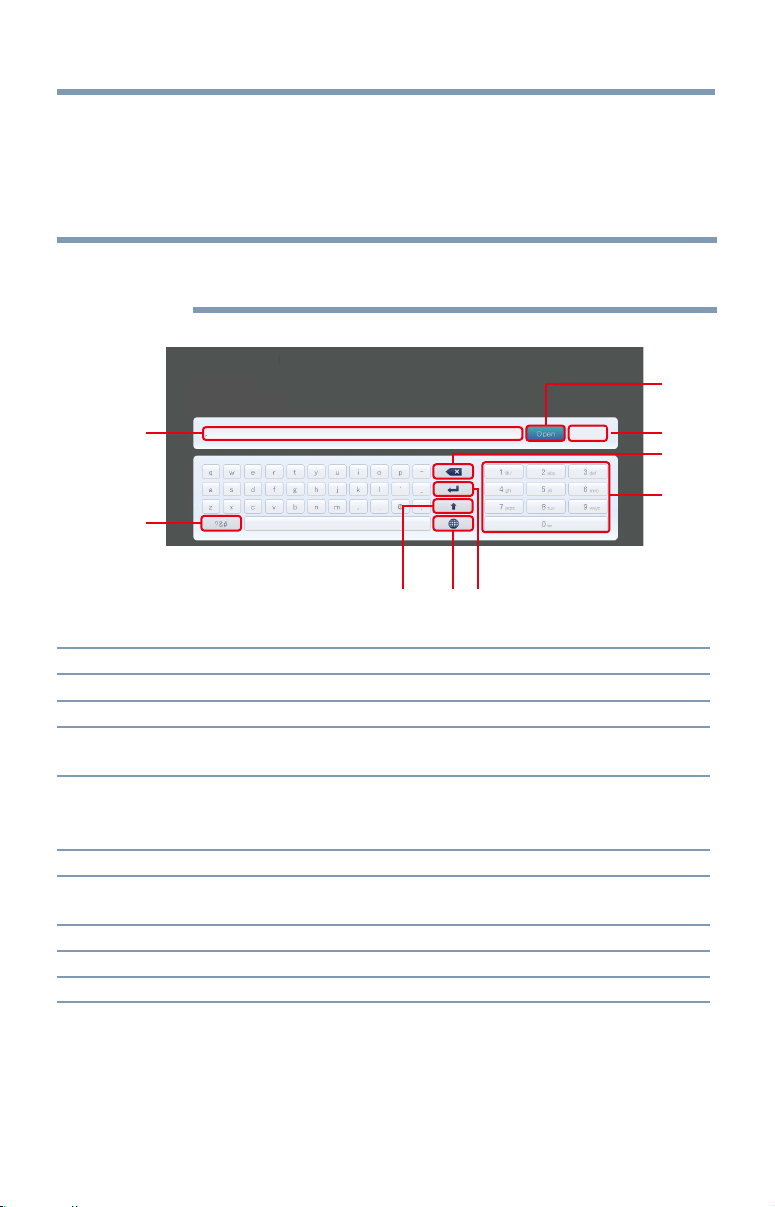
Advanced features
121
Using the software keyboard
You can enter text using the Software Keyboard.
The Software Keyboard window will appear when you press the OK
buttononaeldthatacceptscharacterinput.
NOTE
When using the SmartTV features, software keyboard availability depends
on the Internet service being accessed.
1
2
3
4
5
6
789
Done
(Sample Illustration) Software keyboard
Item: Description:
1 Text entry field Press the OK button on this field, caret moving.
2 Symbol To switch Symbol character.
3 Open Display the Multi Line Input field. If it does not work,the button
will be grayed out.
4 Done Saves whatever text was entered, exits the software keyboard
and enters that text into the appropriate text field on the previous
screen.
5 Delete Deletes one character to the left of the cursor
6 Number pad Inputs numbers. In keypad, these keys are used to select a
character for entry.
7 Line Break To enter the Line Break.
8 Switch Language Display the Switch Keyboard Language Popup.
9 Shift To shift.
Using the software keyboard

122
Advanced features
Enter text using the software keyboard
1 Highlight the desired character on the on-screen software keyboard.
2 Press the OK button.
3 Repeat Step 1 and 2 until you have entered all desired text.
4 Select Done or press the GREEN button to save your settings and
return to the previous screen.
NOTE
If the BACK button is pressed, changes are not saved and the software
keyboard window is closed.
Input operation on the remote control:
Item: Description:
OK Inputs the selected character
0-9 These keys are used to select a character for entry.
p
/
q
/
t
/
u
Moves the character highlight
RED Deletes one character to the left of the cursor
GREEN Done
YELLOW Shortcut key for Shift
BLUE To display the help
BACK Closes the Software Keyboard window without saving changes
Using the software keyboard

Advanced features
123
Performing a Software Upgrade
TOSHIBA may offer upgrades for the TV's software in the future.
The TV's software is upgraded via the Network.
NOTE
An Internet connection is required.
Before downloading software:
1 CongureyourTVtoconnecttotheInternet.
NOTE
❖
You will not be able to use the TV set while performing the upgrade.
❖
Do not turn off the TV during the upgrade.
❖
By upgrading, the factory default values may be changed.
2 Press the SETUP button.
3 Select Get Help > Software Upgrade.
4 Press the OK button.
The Network Upgrade screen appears.
5 Press the OK button.
NOTE
If the network is not available, a warning message appears.
6 After a successful download, the TV software upgrade will start
automatically.
Viewing the Software Licenses
The Licenses for the software used in this TV are available for viewing.
1 Press the SETUP button.
2 Select Get Help > Software Licenses.
3 Press the OK button.
A screen appears displaying all the licensing information required
for the television’s software.
Performing a Software Upgrade

124
Advanced features
Using Intel
®
WiDi
Intel
®
Wireless Display (Intel
®
WiDi) is supported on this TV. Toshiba has
also included peer-to-peer wireless technologies to allow direct wireless
connection between the TV and Intel
®
WiDi equipped PC or mobile
device. If your PC or mobile device has Intel
®
WiDi, the Toshiba Cloud
TVs allow you to display the small screen content on the big screen
quickly and easily.
1 Press the QUICK button to open the Quick Menu.
2 Press the
p
/
q
(arrow) buttons to select Intel
®
WiDi and then press
the OK button.
A prompt will appear on the screen when Connection Type is set to
Wireless. Select Yes.
3 Launch the Intel
®
WiDi software on your device and select “scan for
available adaptors”.
Intel
®
WiDi device name and ID list will then be displayed on the
device screen.
Select the TV which you wish to connect to.
“Connecting” will be shown on the TV.
4 Connecting your PC to the TV the rst time
WhenselectingtheToshibaTVforthersttime,a4-digitor8-digit
code will appear on your TV screen. This code needs to be inputted
into your computer to authenticate the connection.
If authentication has already taken place
“Please Wait” will appear on screen.
5 After the Intel
®
WiDi connection is complete, the TV screen will
mirror the content shown on the device screen.
NOTE
❖
When connecting Intel
®
WiDi, device must have power turned on.
❖
When the TV Network Settings are set to Wireless and Intel
®
WiDi
software is starting up, other TV applications cannot be used.
❖
Intel
®
WiDi device name of the TV can be changed from the Intel
®
WiDi software.
To exit Intel
®
WiDi:
Exit Intel
®
Wireless Display by pushing the disconnect button on Intel
®
WiDi software on the device or by pressing the EXIT button on the TV
remote control.
Using Intel
®
WiDi

Advanced features
125
NOTE
If the device has been inactive for some time, the Intel
®
WiDi connection
will be disconnected automatically.
Changing the Intel
®
WiDi Device Name
The TV's Intel
®
WiDi device name can be changed.
1 Press the SETUP button.
2 Select Network > Network Device Setup > Intel
®
WiDi Setup and
press the OK button.
3 Press the
p
/
q
(arrow) buttons to select Intel
®
WiDi Device Name
and press the OK button.
4 Select the Intel
®
WiDi Device Name and press the OK button.
The Software Keyboard window will appear.
5 Input the Intel
®
WiDi device name by using the software keyboard.
Press the GREEN button.
6 Select Done and press the OK button to save your setting.
Device List
Device List displays a list of MAC addresses for previously connected
device that have been connected before. The maximum number that can
be stored is 20.
If the list run out of space, the least-recently-used MAC address will be
deleted and the new MAC address added automatically.
1 Press the SETUP button.
2 Select Network > Network Device Setup > Intel
®
WiDi Setup and
press the OK button.
3 Press the
p
/
q
(arrow) buttons to select Device List and press the
OK button.
Device List will appear.
The registered device can be deleted one by one by pressing Red button
in the List.
When doing so the following text can be seen “Do you want to
unregister this device? Yes/No” (default cursor is “No”).
Using Intel
®
WiDi

126
Advanced features
Using the Cloud TV Service
Toshiba's universal portal for internet content and services. (services are
dependent on country).
NOTE
You need to connect to the Internet before using this feature, see “Setting
up the Network” on page 113.
1 Press the
button.
The menu screen of the Cloud TV service is displayed.
2 Press the
p
/
q
/
t
/
u
(arrow) buttons to select a Cloud TV service,
and press the OK button.
Using the Cloud TV Service features
NOTE
❖
You need to connect to the Internet before using this feature, see
“Setting up the Network” on page 113.
❖
Certain services may not be currently available in your area.
❖
User registration or login may be required to use some services.
❖
Third party Internet services are not provided by Toshiba, may change
or be discontinued at any time and may be subject to Internet service
provider restrictions. Toshiba makes no warranties, representations,
or assurances about the content, availability or functionality of third-
party content or services. Use of third party Internet services may
require the creation of a separate account through a computer with
Internet access and/or payment of one-time and/or recurring charges
and membership. Not all third party services may be available on or
compatible with this product. In order to experience the full suggested
capabilities of this product, fully-compatible devices may be required.
NOTE
❖
If the display of the date and time is wrong, try to turn off the TV, and
turn it on again.
❖
The menu items for features like the Apps may change in the upgrade
process.
Using the Cloud TV Service

Advanced features
127
eMANUAL
The eMANUAL provides on-screen, context-sensitive, instructions that
describe the TV features.
To access the eManual, press the eMANUAL button on the remote
control and select "eManual". Or you can access the eManual through
the icon on the Cloud TV Portal pages.
Featured apps
With easier content discovery, Cloud TV puts you closer than ever to
thethingsyoulove—likeNetix
®
and Hulu Plus
®
, along with video on
demand, broadcast programming, the Web, even music, photos and videos
on your home network.
NOTE
Apps will vary by country and availability may change in the future with
respect to current apps.
Netflix
®
Watching movies with Netflix
®
1 Press the NETFLIX button on the remote control and select the
Netix
®
icon.
2 Follow the on-screen instructions.
AfterhavingactivatedNetix
®
player and prepared an Instant Queue,
movies and TV episodes in your Instant Queue will appear on the TV
screen. Select the desired content using the remote control.
NOTE
❖
The resolution of video content streamed from Netflix
®
varies
depending on the communication speed and bit-rate and is controlled
by Netflix
®
.
❖
Future upgrades can change the screens and messages displayed in
the Netflix
®
feature.
❖
Netflix
®
is supported in the U.S. and Canada, and may not be available
in other countries or regions.
TocloseNetix
®
, press the EXIT button.
To conrm the Netix ESN (Electronic Serial Number):
1 Press the SETUP button.
2 Select Network > Smart Apps Setup > Netix Setup and press the
OK button.
Using the Cloud TV Service features

128
Advanced features
Using the Cloud TV Service features
3 Press the
p
/
q
(arrow) buttons to select ESN, and then press the
OK button.
TheNetixESNscreenappears.
To deactivate your device:
1 Press the SETUP button.
2 Select Network > Smart Apps Setup > Netix Setup and press the
OK button.
3 Press the
p
/
q
(arrow) buttons to select Deactivation, and then
press the OK button.
4 Press the
t
/
u
(arrow) buttons to select Yes, and then press the OK
button.
VUDU™ HD Movies and VUDU™ Apps
VUDU™ HD Movies and VUDU™ Apps offer on-demand service that
offershighdenitionmoviesontheWeb.
1 Press the
button.
2 Press the
t
/
u
(arrow) buttons to select VUDU, and then press the
OK button.
NOTE
❖
Use of VUDU™ requires a working broadband Internet connection (1
to 2 Mbps for SD video, 2.25 to 4.5 Mbps for HD video, and 4.5 to 9
Mbps for HDX video).
❖
The message "Buffering..." will display if the speed of your Internet
connection can not keep up with the speed of the streaming content
from VUDU™.
To close VUDU, press the EXIT button.
To deactivate your device:
1 Press the SETUP button.
2 Select Network > Smart Apps Setup > VUDU Deactivation.
3 Press the OK button.
4 Press the
t
/
u
(arrow) buttons to select Yes, and then press the OK
button.
NOTE
If the VUDU™ icons are not shown in the Cloud TV, you may need to
update the TV firmware. You can access VUDU™ through the web browser.

Advanced features
129
Internet
Open/Web Browser
The open/web browser with HTML5 video and audio codecs which allow
you to explore the web the way you want. Search for, bookmark, and
browse your favorite sites to enjoy the content you want, with simple,
intuitive navigation.
The web browser on this device:
❖
does not support platform-dependent technologies such as ActiveX
®
.
❖
only supports preinstalled plug-ins.
❖
may not support media formats other than the following: JPEG /
PNG / GIF.
❖
uses a single built-in font. Some text may not be displayed as
intended.
❖
doesnotsupportdownloadingoflesorfonts.
❖
is a TV browser. It may work differently than PC browsers.
❖
does not support parental control or locks in the content, and it is
the responsibility of the user to monitor browser usage by minors.
NOTE
Some pages may not be displayed correctly or may display differently on
different devices.
Using the web browser
1 Connect to the network.
2 Press the
button on the remote control to access the web browser
page.
3 Use the
p
/
q
/
t
/
u
(arrow) buttons to select to the URL Address
Bar and press the OK button.
4 Enter the desired URL address by using the software keyboard, see
“Using the software keyboard” on page 121.
Press the GREENbuttonwhennished.
5 You can now browse websites on your TV using the
p
/
q
/
t
/
u
(arrow) buttons on the remote control.
NOTE
❖
When you press the GREEN button while browsing web content, you
can use the
p
/
q
/
t
/
u
(arrow) buttons on the remote control in
mouse control mode.
❖
You can use the Wireless QWERTY keyboard in addition to the
software keyboard. (L7300U series only)
Using the Cloud TV Service features

130
Advanced features
Browsing favorite websites
1 Connect to the network.
2 Press the
button on the remote control to access the web browser
page.
3 Use the
p
/
q
/
t
/
u
(arrow) buttons to select the Favorites STAR
icon on the browser menu bar and press the OK button.
NOTE
By adding frequently visited websites to Favorites, you can browse them
easily.
You can view the addresses of the websites you visited previously.
4 Select the item or folders to move to the desired URL address and
press the OK button.
NOTE
You can press the GREEN button on the remote for thumbnail view of all
your favorites.
5 You can now browse websites on your TV using the
p
/
q
/
t
/
u
(arrow) buttons on the remote control.
NOTE
When you press the GREEN button while browsing web content, you
can use the
p
/
q
/
t
/
u
(arrow) buttons on the remote control in mouse
control mode.
Adding favorite websites
1 Connect to the network.
2 Press the
button on the remote control to access the web browser
page.
3 Follow “Using the web browser” on page 129 to display your
desired website.
4 Press the Navigation buttons to scroll to Favorites STAR on the
Browser Menu Bar and press the OK button.
NOTE
By adding frequently visited websites to Favorites, you can browse them
easily.
You can view the addresses of the websites you visited previously.
5 Press the OK button to save the desired website to your favorites.
Using the Cloud TV Service features

Advanced features
131
NOTE
The desired website is highlighted and displayed on the top row with the +
(Add) icon.
The + (Add) icon will change to a page icon after the website has been
saved to favorites.
6 Press the BACK button on the remote to return to browsing your
website.
PIP (Picture-in-picture) function
When viewing the web browser page, currently airing programs or images
from external inputs can be displayed in a PIP window (sub-screen).
1 Press the RED button while viewing the web browser page.
The currently airing program or images from external inputs are
displayed in a PIP window.
❖
The position of the PIP window, and whether it is displayed or
not can be set in the web browser Settings.
To stop displaying the PIP window:
Press the RED button when the PIP window is displayed.
NOTE
The CH
p
/
q
buttons cannot be used when the PIP window is displayed.
Using Skype™
Skype™-ready Toshiba TVs bring your family and friends closer to your
home. Skype™ on your Toshiba TV allows you to share special moments
no matter the distance.
Before using Skype™ - Preparation
❖
Connect the FREETALK HD Camera: TALK-7291 to the TV’s
USB terminal. Do not use a USB hub. For a Skype™-ready Toshiba
TV compatible camera, please visit the following website: http://
shop.skype.com
❖
Arrange the HD camera on top of the TV, ensuring it's in the center.
❖
Connect to the network.
Using the Cloud TV Service features
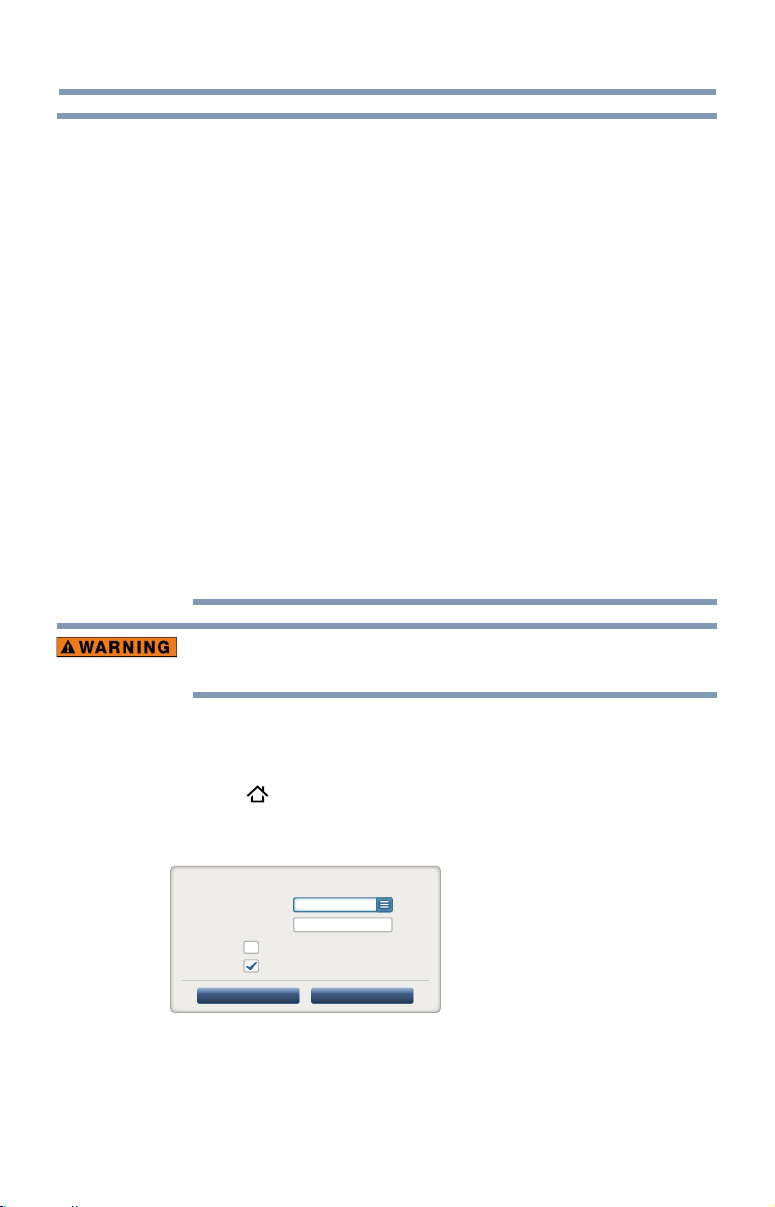
132
Advanced features
NOTE
❖
The HD camera is sold separately.
❖
Do not connect a camera other than the recommended HD camera.
❖
Using a wireless network may result in degraded call quality.
❖
Some of the features available on other versions of Skype™ are not
available on the television.
❖
When using Skype™, some functions of the TV will not be available.
❖
The sound settings are switched to Skype™ mode.
❖
If you cannot hear the person you're speaking with, check your TV
volume.
❖
When Optical Digital output or Analog output is used and you are
signed in, the ring tone may not sound.
❖
The volume level on Skype™ may differ from other features on your
TV.
❖
When the Reset TV feature is used from the TV Menu, Skype™
information is reset to factory default settings.
❖
Screenshots used in this manual may differ from the TV Menu,
Skype™ will be reset to its factory default settings.
No emergency calls with Skype™
Skype™ cannot be used for emergency calls.
Getting started
1 Press the button on the remote control.
2 Select Skype and press the OK button.
“Welcome to Skype” screen appears.
Welcome to Skype
Skype Name
Password
Press [OK]
Press [OK]
Sign in when Skype starts
Sign in Create Account
Start Skype when TV starts
(Sample Image) Welcome Skype screen
3
Select Sign in or Create Account.
Using the Cloud TV Service features
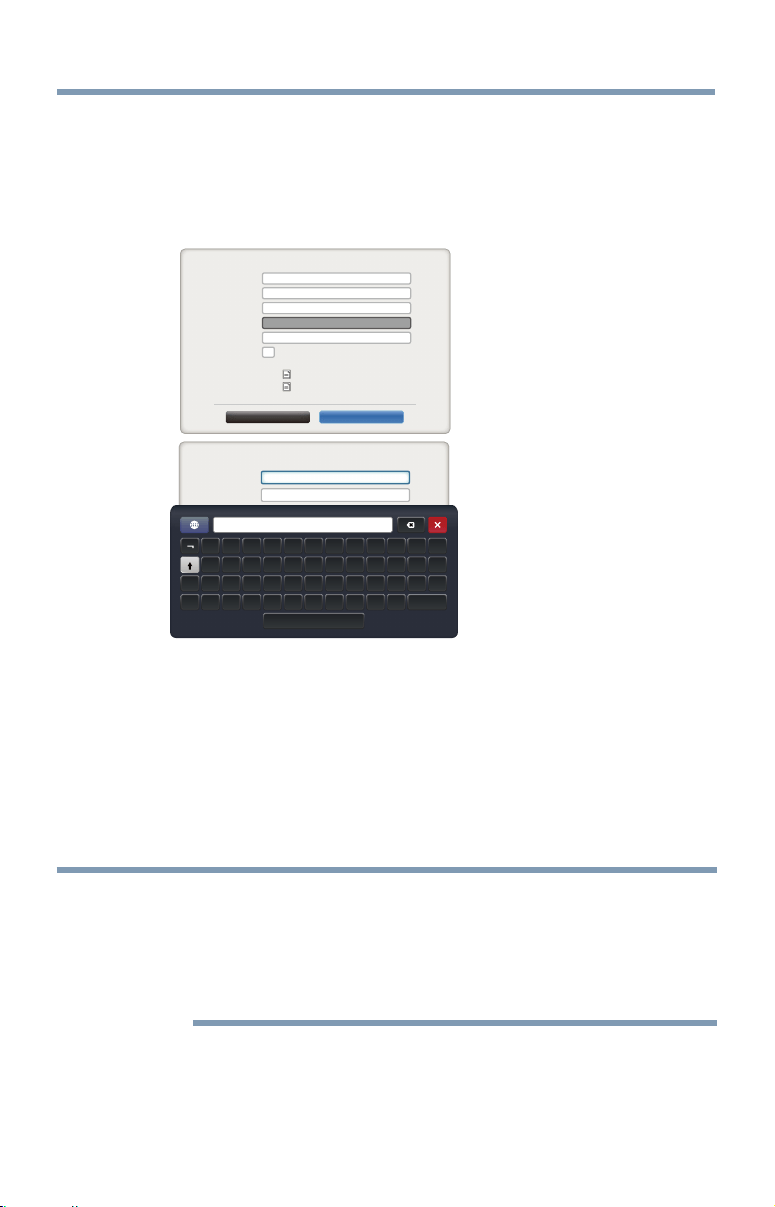
Advanced features
133
To create a new account:
If you do not already have a Skype™ account, you can create a new one
from your TV.
1 Select Create Account in the Welcome to Skype screen and press
the OK button.
Create new Skype account
Skype Name
Full Name
Password
Repeat Password
Email
1~70 characters
6 and 32 characters
6~20 characters
6~20 characters
Press [OK]
Yes, send me Skype news and special offers.
I have read and accept:
the Skype Terms of Use
the Skype Privacy Statement
I agree - create account Cancel
Create new Skype account
Skype Name
Full Name
1~70 characters
6 and 32 characters
!“£$%^ &* ()_+
QWERTYUIOP {}
ASDFGHJKL:@~
Z
Alt
Enter
|XCVBNM< >?
(Sample Image) Welcome Skype screen
2
Enter your Full Name, Skype Name, Password, Repeat password,
and Email.
❖
If you want to receive Skype™ news and special offers,
check the selection box. Skype™ will inform users about new
products, features and special offers by email.
3 Select “I agree - create an account” and press the OK button.
4 You'll now be signed into your new account.
NOTE
❖
Please ensure that you have entered your email address correctly. It is
required in case you lose or forget your password.
❖
If you forget your password, visit skype.com to retrieve it.
❖
If a message appears informing you that the entered Skype™ name is
already registered, please choose a different name.
Using the Cloud TV Service features
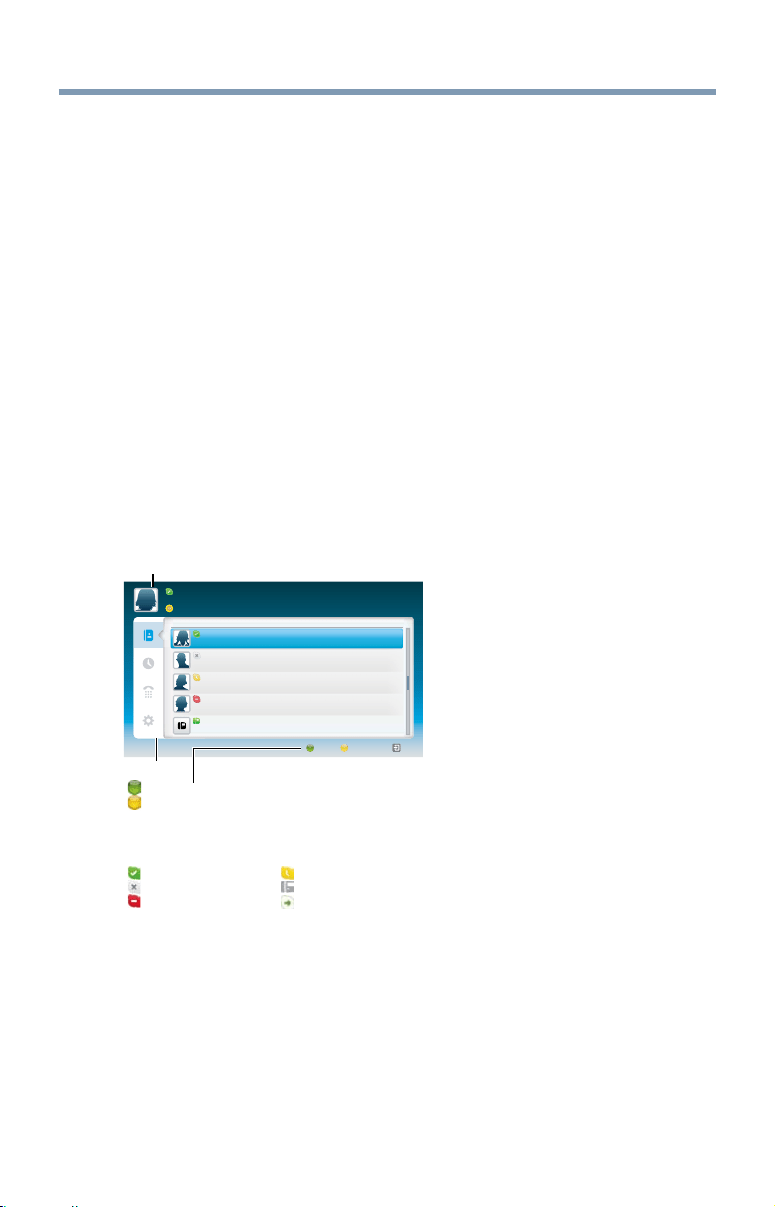
134
Advanced features
To Sign into Skype™:
If you have a Skype™ account, sign into Skype™ in the Welcome to
Skype screen.
1 Enter your Skype Name and Password.
2 Select Sign in and press the OK button .
❖
If “Sign in when Skype starts” is checked, your account will
sign in automatically when you launch Skype™ from the menu.
❖
If “Start Skype when TV starts” is checked, your account will
sign in automatically when you turn on the TV.
Basic Operation
Press the
p
/
q
(arrow) buttons to select a tab (Contacts/People, Recent,
Dialer, or Settings). Press the
c
/
p
/
q
(arrow) buttons to select a contact
from the list.
Your contact list will contain the following information:
Contactname/Currentonlinestatus/Prolepicture/Moodmessage
Name
ContactList
NameName
TextTe xtTextTe xtTextTextTextTe xtText
NameName
TextTe xtTextTe xtTextTextTextTe xtText
NameName
TextTe xtTextTe xtTextTextTextTe xtText
NameName
TextTe xtTextTe xtTextTextTextTe xtText
+8888888888888
-TextTextTextTextTextTextTextTextTextTextTextText
SkypeCredit
ExitAddContactStatus
Tab
Status: Change your availability status
Add Contact: Add a Skype account or phone number
EXIT:Return to previous screen. When at contact list, the EXIT button
will close Skype application without sign out.
The current status for each of your contacts are explained below:
: Online : Away
: Offline : Phone number
: Do not disturb
: Offline with voice messaging or
call forwarding enabled
Your profile picture, status, Skype Name, mood message and available
Skype Credit.
(Sample Image) Skype
TM
contact list menu
Using the Cloud TV Service features
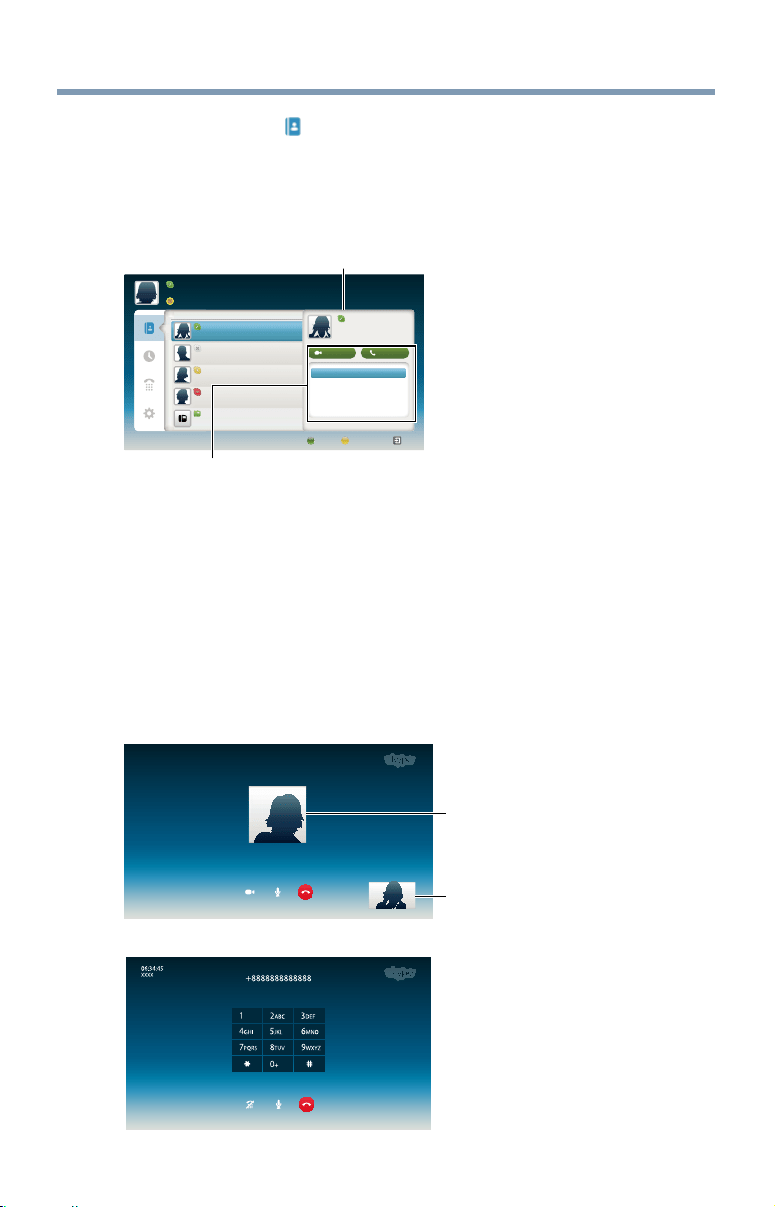
Advanced features
135
Contacts/People
Press the
p
/
q
(arrow) buttons to select Contacts tab. Press the
c
/
p
/
q
(arrow) buttons to select a contact.
After pressing the OK button on each contact, the following functions
will be displayed:
Name
ContactList
NameName
TextTe xtTextTe xtTextTextTe xtTextText
NameName
TextTe xtTextTe xtTextTextTe xtTextText
NameName
TextTe xtTextTe xtTextTextTe xtTextText
NameName
TextTe xtTextTe xtTextTextTe xtTextText
+8888888888888
-TextTextTe xtTextTe xtTextTextTe xtTextTe xtTextText
SkypeCredit
ExitAddContactStatus
ViewProfile
SendVoiceMessage
Block
Remove
NameName
VoicecallVideocall
No blocked contactor
Initiate Video Call
View Profile - View contact profile (including Skype name, full
name, birth date, gender, location, mobile
number and email).
Send Voice Message
- Send Voice Message to contact
Block- Block / unblock contact
Remove- Remove contact from list
(Sample Image) Skype
TM
contact list - select menu
Video or Voice call
Press the
p
/
q
/
t
/
u
(arrow) buttons to select Video call or Voice call,
your screen will now display your call as shown below.
Other side
Own side
Video call
Voice call
(Sample Image) Skype
TM
video/voice call screen
Using the Cloud TV Service features
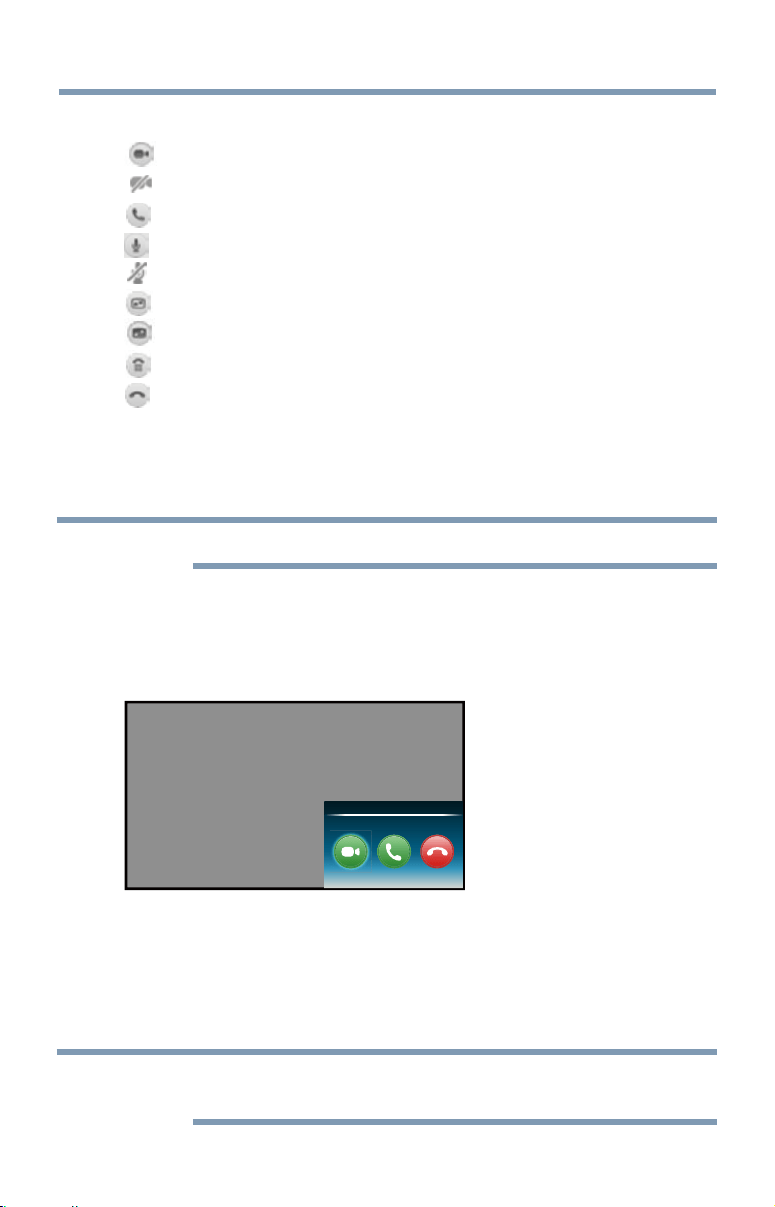
136
Advanced features
Below is all icon pictures in conversation window.
Start video
Stop video
Resume the call
Unmute the webcam mic
Mute the webcam mic
Normal size video
Full screen video
Open dial pad
End call ( Hang up the call )
Group calls
Using your Toshiba TV, you can join Skype™ group voice and video
calls. However, you can only send and receive audio while on these calls.
NOTE
You must be invited on to a group call, you cannot initiate it from the TV.
Incoming call
Incoming calls on Skype™ will be displayed on the bottom right hand
corner of your TV screen. You'll also hear a ring tone which can be
adjusted using the Volume buttons on your remote control.
Incoming Call...
Name
Video Voice Decline
(Sample Image) Skype
TM
incoming call menu
You are given three options when an incoming call arrives:
❖
Video : Answer by video call.
❖
Voice : Answer by voice call.
❖
Decline : Decline the incoming call.
NOTE
If other applications are active or recording, you'll only get an "Incoming
call notification" until the application or recording has stopped.
Using the Cloud TV Service features
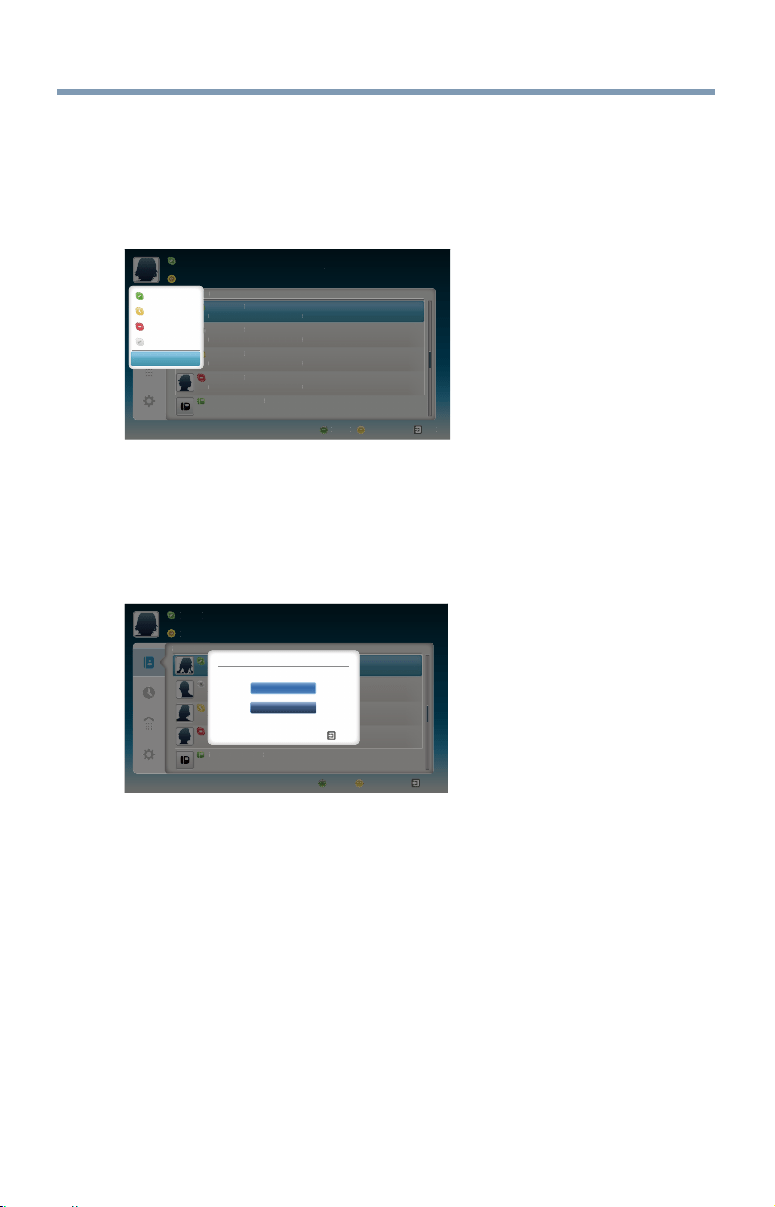
Advanced features
137
Status
When pressing the GREEN button, the change status window is
displayed as below. You can change your status by pressing the
p
/
q
(arrow) buttons and then pressing the OK button. Exit by pressing the
BACK button.
Name
Contact List
Name Name
Te xtTextTe xtTe xtTextTe xtTe xtTe xtText
Name Name
Te xtTextTe xtTe xtTextTe xtTe xtTe xtText
Name Name
Te xtTextTe xtTe xtTextTe xtTe xtTe xtText
Name Name
Te xtTextTe xtTe xtTextTe xtTe xtTe xtText
+8888888888888
- TextTe xtTextTextTextTextTextTextTextTextTextText
Skype Credit
ExitAdd ContactStatus
N
am
e
ist
Na
m
e
Na
m
e
T
ext
T
ext
T
ext
T
ext
T
ext
T
ext
T
ext
T
ext
T
ext
Na
m
e
Na
m
e
Te
xt
Te
xt
Te
xt
Te
xt
Te
xt
Te
xt
Te
xt
Te
xt
Te
xt
Na
m
e
Na
m
e
T
ext
T
ext
T
ext
T
ext
T
ext
T
ext
T
ext
T
ext
T
ext
Na
m
e
N
a
m
e
T
ext
T
ext
T
ext
T
ext
T
ext
T
ext
T
ext
T
ext
T
ext
+88888888888
88
-
T
ext
T
ext
T
ext
T
ext
T
ext
T
ext
T
ext
T
ext
T
ext
T
ext
T
ext
T
ex
t
S
kype
C
redit
E
xi
t
A
dd
C
o
n
tact
Status
Online
Do not disturb
Away
Invisible
Sign Out
(Sample Image) Skype
TM
status menu
Add Contact
You can add contacts to your contact list.
When you press the Yellow button on the remote control, the Add
Contact Type menu window will appear on the screen.
Name
Contact List
Name Name
Te xtTextTe xtTe xtTextTe xtTe xtTe xtText
Name Name
Te xtTextTe xtTe xtTextTe xtTe xtTe xtText
Name Name
Te xtTextTe xtTe xtTextTe xtTe xtTe xtText
Name Name
Te xtTextTe xtTe xtTextTe xtTe xtTe xtText
+8888888888888
- TextTe xtTe xtTextTe xtTe xtTextTe xtTe xtTextTe xtTe xt
Skype Credit
ExitAdd ContactStatus
Na
m
e
Co
n
tact
Li
st
T
T
T
T
+
8888888888888
-
T
ext
T
ext
T
ext
T
ext
T
ext
T
ext
T
ext
T
ext
T
ext
T
ext
T
ext
T
ext
S
k
y
pe Credit
E
x
it
A
dd
C
o
n
tact
Status
Phone Number
Skype Contact
Add Contact Type
Exit
(Sample Image) Skype
TM
Add Contact Type menu
Two sub-functions are supported.
Press the
p
/
q
(arrow) buttons to select Skype Contact or Phone
Number and press the OK button.
❖
Skype Contact
Enter the Skype Name of the person you're looking for. The search
result will show up after get response from Skype™ server.
❖
Phone Number
You can also enter a phone number in the search window.
Using the Cloud TV Service features
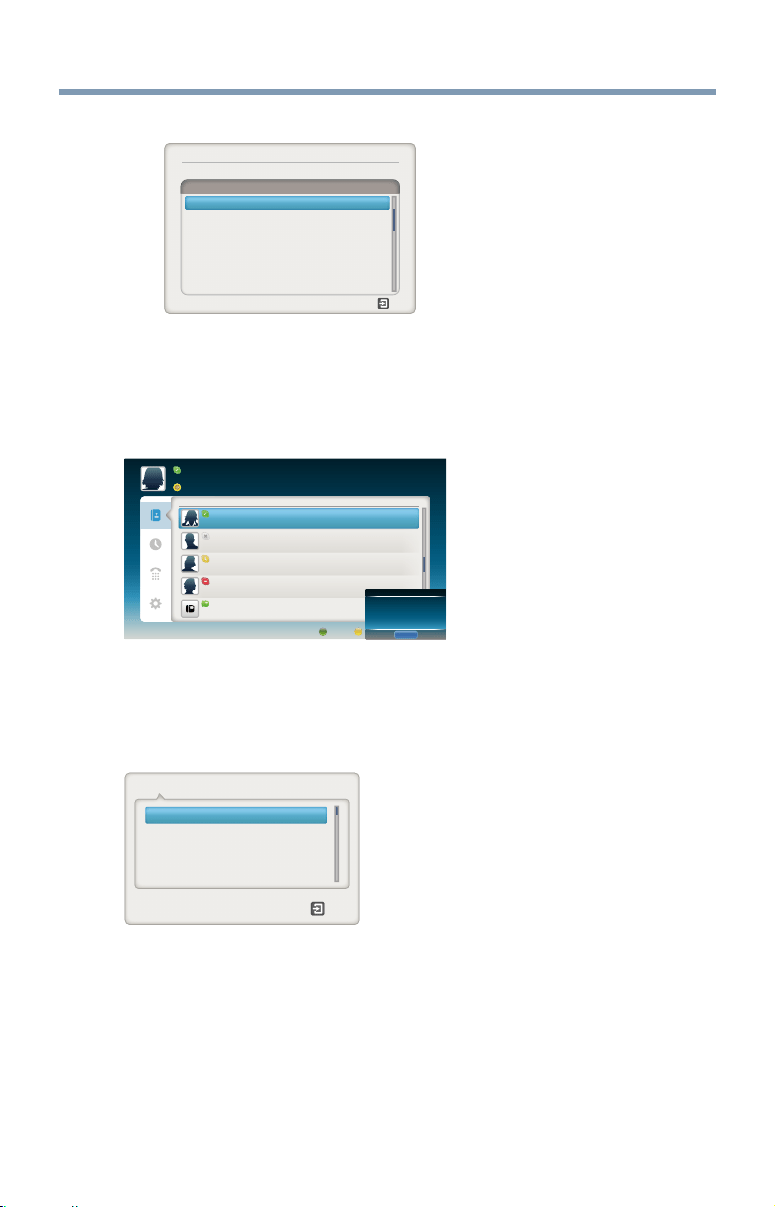
138
Advanced features
Contact Search Results
Back
Full Name Skype Name Country
Aaaaaa_0101 Aaaaaa_0101 USA
Bbbbbb007 Bbbbbb007 UK
Cccccc0709 Cccccc A01HK
Ddddddd Ddddddd DddTaiwan
Eeeeee_Eeee EE_Eeeee Japan
Ffffffffff_Fu Ffffffffff_Ff Taiwan
Gggggg_Ggg Gggggg_GggTaiwan
Add a Skype contact
Search Result: (jackyding)
(Sample Image) Skype
TM
contact search results screen
You can send a contact request to a person displayed in the search results.
Press the
p
/
q
(arrow) buttons to select a person and press the OK
button.
Notication of authorization request
Name
Contact List
Name Name
Te xtTextTe xtTe xtTextTe xtTextTextText
Name Name
Te xtTextTe xtTe xtTextTe xtTextTextText
Name Name
Te xtTextTe xtTe xtTextTe xtTextTextText
Name Name
Te xtTextTe xtTe xtTextTe xtTextTextText
+8888888888888
- TextTe xtTe xtTextTe xtTe xtTextTe xtTe xtTextTe xtTe xt
Skype Credit
ExitAdd AcountStatus
Notification
You have received a contact request.
OK
(Sample Image) Skype
TM
noticationofauthorizationrequestscreen
When you receive a contact request, a pop-up menu will appear where
you can choose to Accept, Block or Decline the request.
Press the
p
/
q
(arrow) buttons to select and press the OK button.
john5678236
Exit
ms_audi
Request Form
(Sample Image) Skype
TM
requestformscreen
Using the Cloud TV Service features
Advanced features
139
Press the
t
/
u
(arrow) button to select and press the OK button.
Hello! Please add me to your Contacts.
ms_audi
BlockDeclineAccept
(Sample Image) Skype
TM
requestformscreen
Recent
You can see a list of past events in “Recent”.
Press the
p
/
q
(arrow) buttons to select the Recent tab. Press the
c
/
p
/
q
(arrow) buttons to select an item and press the OK button.
Name
Resent
Name Name
Tue Jul 3 04:07:47 2012 Duration 00:10:00
Name Name
Tue Jul 3 03:44:58 2012 Duration 00:00:00
Name Name
Mon Jul 2 10:01:11 2012 Duration 00:01:06
Name Name
Name Name
Mon Jul 2 06:36:49 2012 Duration 00:03:04
Tue Jun 28 03:30:17 2012 Duration 00:00:08
- TextTe xtTe xtTextTe xtTe xtTextTe xtTe xtTextTe xtTe xt
Skype Credit
ExitAdd ContactStatus
View Profile
Send Voice Message
Listen to Voice Message
Add to Contacts
Delete This Item
Name Name
Voice callVideo call
(Sample Image) Skype
TM
recent screen
Press the
t
/
u
(arrow) buttons to select Video call or Voice call.
Each call has an icon with it. The meaning of each icon is as follows:
Icons Description
Incoming call
Outgoing call
Missed call
Unread voice message
Voice Message
Dialer
You can call mobiles and landlines from this screen.
Press the
p
/
q
(arrow) buttons to select the Dialer tab. Press the
c
/
p
/
q
(arrow) buttons to navigate this screen.
Using the Cloud TV Service features
140
Advanced features
Name
Dialer
Please input the country code
-Select One-
Taiwan
Tajikistan
Ta nzania
Thailand
Timor-Leste
To go
+886
+992
+255
+66
+670
+228
- TextTe xtTe xtTextTe xtTe xtTextTe xtTe xtTextTe xtText
Skype Credit
ExitAdd ContactStatus
(Sample Image) Skype
TM
dialer screen
Selectthecountryorregionrst,andthenenterthephonenumberwith
area code. You'll need a little Skype™ Credit in your account to call
mobiles or landlines using Skype™.
Emergency calls over Skype™ are not supported.
Settings
Press the
p
/
q
to select the Settings tab and press the OK button.
The Settings page will appear.
(1/2)
(D)(M) (Y)
Name Name
Gender
-Select One-
-Select One-
Press [OK]
Press [OK]
Press [OK]
Press [OK]
Press [OK]
Birth Date
Country/Region
State/Province
City
Home Phone
Office Phone
Mobile Phone
User Profile
Settings
Change Password
General Settings
Audio Settings
Privacy Settings
Blocked Contacts
Call Settings
About Skype
Exit
(Sample Image) Skype
TM
options screen.
You can change the following settings:
❖
UserProle
Add or change your personal information e.g. birth date, country/
region or phone number.
❖
Change Password
You can change your password by entering your existing password
and new password twice.
❖
General Settings
Select whether Skype™ should automatically start when turning on
the TV.
Using the Cloud TV Service features

Advanced features
141
❖
Audio Settings
Adjust the speaker / ringtone volume manually.
The volume of your speakers will be different on Skype™ compared
to your normal TV volume level. The speaker volume range is 0 -
100% by 1 steps, and ringtone volume is 0 - 100% by 25 steps.
❖
Privacy Settings
Set who you allow calls from, whether it's Anyone or People in my
Contact list only.
❖
Blocked Contacts
If you do not want someone to reach you, simply block them by
entering their Skype™ Name or phone number from this menu.
Successfully blocked contacts are displayed in this window.
❖
Call Settings
If you're not signed into Skype™, you can forward incoming calls
to another phone number, Skype™ name or choose to accept voice
messages. However you'll need to have Skype™ Credit to turn this
feature on.
❖
About Skype
Displays information about Skype™.
MediaShare (Videos, Music, and Photos)
MediaShare provides a simple graphic interface to quickly access and
sharevideos,music,andimagelesacrossyourhomenetworkandthe
other connected devices.
To access the MediaShare Service, press the MEDIA SHARE button on
the remote or select the MediaShare tab from the Cloud TV Portal pages.
NOTE
❖
To use MediaShare please configure the network settings on your TV.
For more information, see “Connecting to a home network” on page
43.
❖
Do not insert/remove a USB device while in use.
❖
The SETUP button is not available while using the MediaShare
feature.
Using the Cloud TV Service features

142
Advanced features
MediaShare specifications
Devices:
❖
USB device: USB Mass Storage Class devices (MSC)
❖
Connected Media Server:
Your computer (for example)
NOTE
❖
Connectivity is not guaranteed for all devices.
❖
Some functionality may be lost with a USB HUB connection.
Supportedlesystem:
❖
FAT16 and FAT32
NOTE
You must obtain any required permission from copyright owners to
download or use copyrighted content. Toshiba cannot and does not grant
such permission.
Basic operation
Using MediaShare with a USB device
When Auto Start is enabled, you will be asked if you want to start the
MediaShare when a USB device is inserted. If Auto Start is disabled
(or if you want to connect to a media server on the network), you must
manually start the MediaShare from the Cloud TV Portal pages or press
the MEDIA SHARE button on the remote control.
To change the Auto Start setting
1 Press the SETUP button.
2 Select Options > MediaShare Setup > USB Auto Start and press
the OK button.
3 Press the
p
/
q
(arrow) buttons to select On or Off.
Auto Start
1 Insert a USB device into the USB terminal.
A prompt appears.
2 Press the
t
/
u
(arrow) buttons to select Yes, and then press the OK
button.
3 Press the
p
/
q
(arrow) buttons to select Videos, Music, or Photos,
and then press the OK button.
4 To change the device, press the
p
/
q
/
t
/
u
(arrow) buttons to select
the devices on the screen, and then press the OK button.
Using the Cloud TV Service features

Advanced features
143
5 Press the
p
/
q
(arrow) buttons to select the device and then press
the OK button.
6 Press the
p
/
q
(arrow) buttons to select OK and then press the OK
button.
NOTE
If Auto Start is set to Off, you can start the MediaShare manually.
Manual Start
1 Insert a USB device into the USB terminal.
2 Press MEDIA SHARE.
3 To change the device, press the
p
/
q
/
t
/
u
(arrow) buttons to select
the devices on the screen, and then press the OK button.
4 Press the
p
/
q
(arrow) buttons to select the device and then press
the OK button.
5 Press the
p
/
q
(arrow) buttons to select OK and then press the OK
button.
To select a file in the list of contents
1 Press the
p
/
q
/
t
/
u
(arrow)buttonstoselectaleorfolder.
File:
Press the OK button to play or view.
Folder:
Press the OK button to move to the next layer, or press the BACK
button to return to the previous layer.
Sort
1 Select the Sort and press the OK button.
2 Press the
p
/
q
(arrow) buttons to select the sorting (File Name,
New or Old) rule and press the OK button.
3 Select OK and press the OK button.
NOTE
Sorting may take a little time.
To close the MediaShare
1 Press the EXIT button.
2 Press the
t
/
u
(arrow) buttons to select Yes and then press the OK
button.
The TV will return to the last-viewed channel or video input.
Using the Cloud TV Service features

144
Advanced features
Using MediaShare with a Media Server
Youneedtocongureahomenetworkbeforeusingthisfeature,see
“Setting up the Network” on page 113.
1 Press the MEDIA SHARE button.
2 To change the device press the
p
/
q
/
t
/
u
(arrow) buttons to select
the Device Name button on the screen, and then press the OK
button.
3 Press the
p
/
q
(arrow) buttons to select the device and then press
the OK button.
4 Press the
p
/
q
(arrow) buttons to select OK and then press the OK
button.
To select a file in the list of contents
1 Press the
p
/
q
/
t
/
u
(arrow)buttonstoselectaleorfolder.
File:
Press the OK button to play or view.
Folder:
Press the OK button to move to the next layer, or press the BACK
to return to the previous layer.
Sort
1 Select the Sort and press the OK button.
2 Press the
p
/
q
(arrow) buttons to select the sorting (Title, New or
Old) rule and press the OK button.
3 Select OK and press the OK button.
NOTE
❖
Sorting may take a little time.
❖
Depending on the Media server, this function may not be usable.
To close the MediaShare
1 Press the EXIT button.
2 Press the
t
/
u
(arrow) buttons to select Yes and then press the OK
button.
The TV will return to the last-viewed channel or video input.
To display the device information
1 Press the QUICK button to open the Quick menu in list mode or
Multi View mode.
2 Press the
p
/
q
(arrow) buttons to select Device Information.
Using the Cloud TV Service features

Advanced features
145
Viewing movie files
Basic Playback
1 Selectale,see“Toselectaleinthelistofcontents”onpage143.
2 Press the OK button or PLAY button to begin playback.
NOTE
Depending on the file size, it may take some time to start playback.
3 Press the STOP button to stop playback.
The screen returns to the list.
IfplaybacknishesbeforetheSTOP button is pressed, the screen
returns to the list.
NOTE
When the repeat mode is set to All, the next file will start playing
automatically.
Resume Playback
You can resume playback from where it was last stopped.
❖
Press the STOP button while playing the movie to memorize the
stopped position.
Ifthesameleisselectedandplayed,playbackwillresumefrom
the last stopped position.
NOTE
❖
If you play different content or exit MediaShare, the memorized
stopped position will be deleted.
❖
This function may not be available depending on the content.
To pause playback
❖
Press the PAUSE button during playback.
❖
To resume normal playback, press the PLAY button.
NOTE
The PAUSE button or operations during Pause may not be functional
depending on content or media server.
To locate a specific file
❖
Press the Skip Reverse or Skip Forward button repeatedly to
accessthedesiredle.
❖
(
Z
):Playbackstartsfromthebeginningofthecurrentleor
previousle.
❖
(
z
):Tolocatesubsequentles.
Using the Cloud TV Service features

146
Advanced features
To play in fast reverse or fast forward directions
❖
Press the
CC
or
cc
button during playback. Each time you press
the
CC
or
cc b
button, the playback speed will change.
NOTE
These features may not be operable depending on the content or media
server.
To set the repeat mode
1 Press QUICK button.
2 Press the
p
/
q
(arrow) buttons to select Repeat.
The current repeat setting appears.
3 Press the
t
/
u
(arrow) buttons to select Off, All, or 1.
4 Press the BACK button.
The setting is effective until the TV is turned off.
Mode: Description:
Off The content is played back only once
All All contents in the same folder are repeatedly played back
1 The same content is repeatedly played back
To select a movie from Play List (except for Media Renderer
function)
While playing a movie, you can select a different movie from the Play
List.
1 Press the QUICK button to open the Quick Menu.
2 Press the
B
/
b
(arrow) buttons to select Play List and press the OK
button.
The Movie List will appear.
3 Press the
B
/
b
(arrow)buttonstoselectalename.
To display the file status information
1 Press the INFO button during playback.
The information will be displayed at the bottom of the screen.
2 Press the INFO button again to hide the information.
NOTE
The information may not correctly display depending on the content or
media server.
Using the Cloud TV Service features

Advanced features
147
To register your TV to a DivX
®
account:
ThisTVallowsyoutoplaybacklespurchasedorrentedfromDivX
®
Video-On Demand (VOD) services. When you purchase or rent DivX
®
VODlesontheinternet,youwillbeaskedtoenteraregistrationcode.
1 Press the SETUP button.
2 Select Options > MediaShare Setup > DivX
®
VOD and press the
OK button.
3 Press the
p
/
q
(arrow) buttons to select DivX
®
VOD Registration,
and then press the OK button.
4 The DivX
®
VOD window will appear and you will see the
registration code. For details on registration, please visit the DivX
®
website at
http://vod.divx.com
5 CopytheactivationletoamemorydeviceandplayitontheTV.
To unregister your device:
1 Press the SETUP button.
2 Select Options > MediaShare Setup > DivX
®
VOD and press the
OK button.
3 Press the
p
/
q
(arrow) buttons to select DivX
®
VOD
Deregistration, and then press the OK button.
4 Aconrmationmessagewillappear.SelectYes and press the OK
button.
5 The DivX
®
VOD window will appear and you will see the
deregistration code. For details on registration, please visit the
DivX
®
website at
http://vod.divx.com
ABOUT DIVX VIDEO: DivX
®
is a digital video format created by DivX,
LLC,asubsidiaryofRoviCorporation.ThisisanofcialDivXCertied
®
device that plays DivX video. Visit divx.com for more information and
softwaretoolstoconvertyourlesintoDivXvideos.
ABOUTDIVXVIDEO-ON-DEMAND:ThisDivXCertied
®
device
must be registered in order to play purchased DivX Video-on-Demand
(VOD) movies. To obtain your registration code, locate the DivX
VOD section in your device setup menu. Go to vod.divx.com for more
information on how to complete your registration.
DivXCertied
®
to play DivX
®
and DivX Plus
®
HD (H.264/MKV) video
up to 1080p HD including premium content.
Using the Cloud TV Service features

148
Advanced features
To playback DivX Plus
®
HD content:
❖
To play in fast reverse or fast forward directions, press the
CC
or
cc
button during playback. Each time you press the
CC
or
cc
button, the playback speed will change.
❖
If the content contains no chapter, this TV generates original chapter
point in 10% increments for 10 chapters in total, that are accessible
by using the Number buttons on the remote control.
During playback, press the
z
button to skip to the beginning of the next
chapter. When the
z
button is pressed twice in succession, it will repeat
two times of above. If the
z
button is pressed at the last chapter, the
conrmationmessagewillappear.IfYe s is selected, playback will skip to
the beginning of the next content.
Press the
Z
button to skip to the beginning of the current chapter.
When the
Z
button is pressed twice in succession, it will skip to the
beginning of the previous chapter. If the
Z
button is pressed twice
continuouslyattherstchapter,playbackofthecurrentcontentwillstop
andtheconrmationmessagewillappear.IfYesisselected,playback
will skip to the beginning of the previous content.
❖
Press the
p
(arrow) button to skip to the beginning of the previous
content.
Press the
q
(arrow) button to skip to the beginning of the next
content.
The Number button is used for direct jump.
For example: If you press the 3 button and then press the OK button,
playback will jump to the beginning of 3rd chapter.
NOTE
❖
Depending on the content data will not be operated.
❖
The playback speed (
CC
/
cc
) may not change depending on the
stream.
Using Multi Title and Alternative Timelines Multi Title
DivX Plus
®
HDlesmaycontainupto100titles.
Youcanchangethetitle(Itcontainssamevideole)bypressingthe
RED button.
When the RED button is pressed, it will display the title change window
at the bottom on the screen (same as Subtitle or Audio change window).
The title is changed cyclically each time the RED button is pressed.
Playback starts from the beginning of the title, which is selected by the
p
or
q
(arrow) buttons.
❖
Pressing the
t
/
u
(arrow) buttons also changes the multi title.
Using the Cloud TV Service features

Advanced features
149
NOTE
Depending on the content data will not be operated.
File specifications:
USB use:
❖
File format: MPEG2 PS, MPEG2 TS, MPEG-2 VOB, AVI, MOV,
MP4, ASF, DivX, Xvid, MKV, Flash Video (FLV1), 3GPP, Motion
JPEG
❖
Video: MPEG2, H.264, MPEG-4 part2, DivX, Xvid, VC-1
(WMV9), RealVideo 8,9,10, Sorenson H.263 (FLV1), JPEG
❖
Audio: MPEG1-Layer2/MPEG1-Layer3/Dolby® Digital (AC3)/
LPCM, AAC, WMA7/8/9, ADPCM
❖
Maximum number of les: 1000 per folder
❖
Maximum video resolution: 640x480 (Motion JPEG), 1920 x 1080
(other)
Content on a connected Media Server:
❖
File format: MPEG2 PS, MPEG2 TS, MP4 (Low resolution)
❖
Video: MPEG2 (PS), H.264
❖
Audio: LPCM/MPEG1-Layer2/ MPEG2-Layer2/ Dolby Digital
(AC3)/AAC
❖
Maximum number of les: 1000 per folder
❖
Maximum video resolution: 1920 x 1080
NOTE
It may not be possible to use certain playback features or display some
files. In some cases certain files and servers may not support playback
features, such as pause.
Playing music files
Basic Playback
1 Selectale,see“Toselectaleinthelistofcontents”onpage143.
Press the OK button or the PLAY button to begin playback.
NOTE
Depending on the file size, it may take some time to start playback.
2 Press the STOP button to stop playback.
The screen returns to the list.
IfplaybacknishesbeforetheSTOP button is pressed, the screen
returns to the list.
Using the Cloud TV Service features

150
Advanced features
To pause playback
1 Press the PAUSE button during playback.
2 To resume normal playback, press the PLAY button.
NOTE
The PAUSE button or operations during Pause may not be functional
depending on content or media server. Certain processes may take some
time to complete.
To locate a specific file
❖
Press the Skip Reverse or the Skip Forward button repeatedly to
accessthedesiredle.
❖
(
Z
):Playbackstartsfromthebeginningofthecurrentleor
previousle.
❖
(
z
):Tolocatesubsequentles.
To play in fast reverse or fast forward directions
❖
Press the
CC
or
cc
button during playback. Each time you press
the
CC
or
cc
button, the playback speed will change.
NOTE
These features may not be operable depending on the content or media
server.
To set the repeat mode
1 Press the QUICK button.
2 Press the
p
/
q
(arrow) buttons to select Repeat.
The current repeat setting appears.
3 Press the
t
/
u
(arrow) buttons to select Off, All, or 1.
4 Press the BACK button.
The setting is effective until the TV is turned off.
Mode: Description:
Off The content is played back only once
All All contents in the same folder are repeatedly played back
1 The same content is repeatedly played back
To select a music from Play List (except for Media Renderer
function)
Whileplayingamusicle,youcanselectadifferentmusiclefromthe
Play List.
1 Press the QUICK button to open the Quick Menu.
Using the Cloud TV Service features

Advanced features
151
2 Press the
B
/
b
(arrow) buttons to select Play List and press the OK
button.
The Music List will appear.
3 Press the
B
/
b
(arrow)buttonstoselectalename.
To display the file status information:
1 Press the INFO button during playback.
The information appears at the bottom of the screen.
2 Press the INFO button again to hide the information.
NOTE
The information may not correctly display depending on the content or
media server.
File specifications:
USB use:
❖
File format: MP3, MP4 (AAC), WMA7/8/9, WAV (LPCM)
❖
Sampling frequency: 32 kHz, 44.1 kHz, 48 kHz
❖
Bit rate: From 32 to 320 kbps
❖
Maximum number of les: 1000 per folder
Content on a connected Media Server:
❖
File format: MP3, MP4 (AAC), WMA9 std, LPCM
❖
Sampling frequency: 32 kHz, 44.1 kHz, 48 kHz
❖
Bit rate: From 32 to 320 kbps
❖
Maximum number of les: 1000 per folder
NOTE
It may not be possible to use certain playback features or display some
files. In some cases certain files and servers may not support playback
features, such as fast-forward.
Viewing photo files
Multi View mode
This view mode allows you to search for photos in a grid format.
Thesepicturesaredisplayedusingthumbnaildataineachimagele.
1 Press the
p
/
q
/
t
/
u
(arrow) buttons to move the highlight by one
window.
Ifallofthephotoswillnottinonescreen,whenpressingthe
p
(arrow) button at the left thumbnail, the screen will scroll up one by
one. Similarly, when pressing the
q
(arrow) button at the bottom
thumbnail, the screen will scroll down one by one.
Using the Cloud TV Service features

152
Advanced features
2 When you select a folder, press the OK button to move to the next
layer.
Press the BACK button to move back to the previous layer.
3 Press the OK button to view the selected photo in Single View
mode.
NOTE
❖
Displaying thumbnail data may take time.
❖
In order to use the
p
/
q
(arrow) button to scroll the screen, there
must be enough content to take up two screens.
Single View mode
Inthisviewmode,onlyleslocatedintheselecteddirectoryare
displayed. When moving from Multi View mode to Single View mode,
the currently selected photo appears.
1 On Multi view mode, press the
p
/
q
/
t
/
u
(arrow) buttons to select
ale,andthenpresstheOK button.
2 Press the
t
/
u
(arrow)buttonstoviewthenextorpreviousle.
NOTE
Single view mode is changed to Multi View mode when the BACK button is
pressed.
Slide Show mode
This view allows you to watch a slide show of the photos. In this mode,
onlyleslocatedintheselecteddirectoryappear.
1 To switch to Slide Show mode, press the OK button while in Single
View mode.
To return to Single View mode, press the OK button again.
2 Press the
t
/
u
(arrow)buttonstoviewthenextorpreviousle.
Mode settings
1 Press the QUICK button to open the Quick menu while in Single
View mode or Slide Show mode.
2 Press the
p
/
q
(arrow) buttons to select the item (Interval Time or
Repeat).
3 Press the
t
/
u
(arrow) buttons to adjust the setting.
4 Press the BACK button to return to Single View mode or Slide
Show mode.
Using the Cloud TV Service features

Advanced features
153
Mode: Description:
Interval Time Sets a time interval at which to view photos
Repeat Displays photos in the same directory repeatedly (On/Off)
Rotate the image
While viewing the image in Single View mode or Slide Show mode, press
the
p
/
q
(arrow) buttons to rotate the image 90 degrees.
To zoom in/out photos (except for Media Renderer function)
During the Single View mode or Slideshow mode, the zoom function can
be used. The Slideshow mode changes to the Single View mode.
RED button : Zoom in
x1→x2→x4→x8zoom
GREEN button : Zoom out
x8→x4→x2→x1zoom
p
/
q
/
t
/
u
(arrow) buttons: Vertical or Horizontal scrolling
To set Background Music
1 Press the QUICK button to open the Quick Menu while in the
Slide Show mode or Single View mode.
2 Select Background Music and press the OK button.
3 Press the
B
/
b
(arrow) buttons to select On.
Themusicleinthesamefolderasthedisplayedphotowillstart
playing.
NOTE
❖
Al the music files in the same folder as the photo will be played
repeatedly.
❖
To stop music file playback, select Off in Background Music.
To select a photo from Play List (except for Media Renderer
function)
While in the Single View mode or Slide Show mode, you can select a
different photo from the Play List.
1 Press the QUICK button to open the Quick Menu from Single View
mode or Slide Show mode.
2 Press the
B
/
b
(arrow) buttons to select Play List and press the OK
button.
The Photo List will appear.
Using the Cloud TV Service features

154
Advanced features
3 Press the
B
/
b
(arrow)buttonstoselectalename.
Display file status information
1 Press the INFO button.
The information appears at the bottom of the screen.
2 Press the INFO button again to hide the information.
NOTE
The information may not correctly display depending on the content or
media server. Certain processes may take some time to complete.
File specifications:
USB use:
❖
Data compatibility: JPEG Exif ver 2.2
❖
File format: JPEG, BMP
❖
Maximum viewable resolution:
15360 × 8640 (JPEG:Base-line), 1024 × 768 (JPEG:Progressive),
9600 × 6400 (BMP)
❖
Maximum number of les: 1000 per folder
Content on a connected Media Server:
❖
Data compatibility: JPEG Exif ver 2.2
❖
File format: JPEG
❖
Maximum photo resolution: 4096 × 4096
❖
Maximum number of les: 1000 per folder
NOTE
It may not be possible to use certain function or display some files.
Search
To search for content,
1 Select the search.
2 Enter in keyword and the search will search for:
❖
Media server
Videos; Title name
Music; Title name/Artist name/ Album name
Photos; Title name
❖
USB
Videos/Music/Photos; File name
Using the Cloud TV Service features

Advanced features
155
NOTE
Folders are not subject to the search function.
3 The retrieval result is displayed.
4 Select one of the search results.
5 The selected content will play.
NOTE
The search retrieval stops when content is being played.
❖
The results screen shows different categories of media; Videos,
Music and Photos. Select the
b
below a category and press the
OK button to display results only for that category of media on the
screen.
❖
To return to the previous display, select
p
and press the OK button.
Network Device Setup
In order to set the access the External Control Setup, Media Renderer
Setup, or Device Name Setup, you must use the Network Device Setup
menu.
External Control Setup
1 Press the SETUP button.
2 Select Network > Network Device Setup > External Control
Setup and press the OK button.
3 Use the
p
/
q
(arrow) buttons to select and set Enable Control to
On or Off.
To access the Home Control Prole:
1 Press the SETUP button.
2 Select Network > Network Device Setup > External Control
Setup and press the OK button.
3 Use the
p
/
q
(arrow) buttons to select and set Enable Control to
On or Off.
4 Use the
p
/
q
(arrow) buttons to select Home Control Prole and
press the OK button.
TheHomeControlProlewindowwillappear.
Network Device Setup
b

156
Advanced features
Network Device Setup
5 Use the
p
/
q
/
t
/
u
(arrow) buttons to navigate to the User Name
or Passwordeld.Inputtheusernameandpasswordusingthe
Software Keyboard or Wireless QWERTY keyboard (for L7300U
series only).
❖
For more information, see “Using the software keyboard” on page
121.
NOTE
Only the 0-9 and capital/lowercase A-Z characters may be used for the user
name and password.
Setting up the Media Renderer feature
TheTVcanbeconguredasaMediaRenderer.Whenoperatingasa
Media Renderer, the TV displays content provided mobile devices or PCs.
The selection of the media is done by the media controller.
TheTVcanplayphoto,movie,oraudioleswhenoperatingasaMedia
Renderer.
1 Press the SETUP button.
2 Select Network > Network Device Setup > Media Renderer and
press the OK button.
3 Press the
p
/
q
(arrow) buttons to select On or Off, and then press
the OK button.
Device Name setup
The device name as a Media Renderer can be changed.
1 Press the SETUP button.
2 Select Network > Network Device Setup > Device Name Setup
and press the OK button.
3 Select the Device Nameeld.PresstheOK button.
The Software Keyboard screen appears.
4 Input the device name by using the Software Keyboard. To save
your setting, press the GREEN button.
5 Select Done. Press the OK button.
NOTE
The maximum number of characters allowed for the device name is 15.
Only 0-9, A - Z (upper case only), "-" can be used in the device name.

157
Cloud TV Companion
Apps
Using Apps on a Tablet or Smart phone
Toshiba provides apps for tablets and smart phones. The apps will vary by
country and availability may change in the future with respect to current
apps.
NOTE
Apps will vary by country and availability may change in the future on
current apps.
These apps are available for compatible Toshiba equipment using
compatible tablets and smart phones powered by Android™ or iOS. You
can download these apps through the Google Play™ or the iTunes Store.
Inordertousetheseapps,youmustcongurethesettingsthroughthe
AppsControlProle.
NOTE
❖
Third party Internet services are not provided by Toshiba, may change
or be discontinued at any time, and may be subject to Internet service
provider restrictions. Toshiba makes no warranties, representations,
or assurances about the content, availability, or functionality of third-
party content or services. Use of third-party Internet services may
require the creation of a separate account through a computer with
Internet access and/or payment of one-time and/or recurring charges
and membership. Not all third-party services may be available on or
compatible with this product. In order to experience the full suggested
capabilities of this product, fully-compatible devices may be required.
Chapter 9

158
Apps Collaboration
❖
Apps can only be used when your TV and your tablet or smart phone
are connected to the Internet.
❖
Starting and operation of this service may take several minutes.
❖
Software updates may be needed in order to use this service.
❖
In order to experience the full suggested capabilities of this product,
fully-compatible devices may be required.
❖
Certain features may not be available in all countries.
❖
Companion Apps available through the Cloud may be changed
or removed at any time. Not all operating system Apps may be
compatible with the Cloud. Services depicted in this eManual and
provided through the Cloud may not be available in your region and
may not be available to you. Please check your individual device for
app compatibility.
❖
As soon as the application is deployed, this feature can be used.
Apps Control Profile
To select the Apps Control Prole
1 Press the SETUP button.
2 Select Network > Network Device Setup > External Control
Setup and press the OK button.
3 Press the
p
/
q
(arrow) buttons to select and set Apps Control
Prole and press the OK button.
TheAppsControlProlewindowwillappear.
4 Press the
p
/
q
(arrow) buttons to select Device Registration Setup
and press the OK button.
The Device Registration Setup window will appear.
5 Use the
p
/
q
(arrow) buttons to select the Companion Device ID.
6 Select the Cancel, All, or Delete buttons.
NOTE
❖
If the maximum number of registered devices (20) is exceeded, no
additional devices can be registered. Delete unnecessary devices
before registering a new device.
❖
When re-registering a device which has been deleted from the list,
pairing must be carried out again.
AppsControlProle

Apps Collaboration
159
To enable the New Device Detection:
1 Press the SETUP button.
2 Select Network > Network Device Setup > External Control
Setup and press the OK button.
3 Press the
p
/
q
(arrow) buttons to select and set Apps Control
Prole and press the OK button.
TheAppsControlProlewindowwillappear.
4 Press the
p
/
q
(arrow) buttons to select New Device Detection and
press the OK button.
5 Use the
t
/
u
(arrow) buttons to select Enable or Disable.
6 Press the OK button to submit.
Pairing
To use Apps, it is necessary to connect a compatible tablet or smart phone
and this TV to your home network, and carry out pairing (using a 4 or 8
digit password to authenticate the device).
Refer to the Apps manual for more details about pairing.
NOTE
❖
Pairing with external devices cannot be carried out when the TV is
connected to an unencrypted wireless LAN access point. Activate the
encryption settings for the wireless LAN access point before carrying
out Pairing.
❖
When the Enable Control is not set to ON in External Control Setup,
Apps functions including Pairing cannot be used.
Pairing

160
Troubleshooting
General troubleshooting
Before calling a service technician, review this chapter or visit the
Toshiba Support Web site at "support.toshiba.com" for possible causes/
solutions for the problem you are experiencing.
Beforeyoubegintotroubleshootanyproblem,rstunplugtheTVfrom
the AC wall outlet, wait approximately one minute, and then plug the
TV back into the AC wall outlet. If the problem still exists attempt to
troubleshoot the problem.
Black box on screen.
The closed caption feature is set to one of the Text modes (T1, T2, T3, or
T4). Set the closed caption feature to Off, see
“Using closed captions” on
page 72.
TV stops responding to controls.
If the TV stops responding to the buttons on the remote control or TV
control panel and you cannot turn off the TV, unplug the TV from the AC
wall outlet and plug it back in.
If you cause a static discharge when touching the TV and the TV fails to
function, simply unplug the TV from the AC outlet and plug it back in.
The TV should return to normal operation.
Chapter 10

Troubleshooting
161
Other problems.
If your TV’s problem is not addressed in this Troubleshooting chapter or
the recommended solution has not worked, use the Reset Factory Defaults
procedure, see
“Resetting to Factory Defaults” on page 90.
TV will not turn on.
Check the AC wall outlet by trying another device in the AC wall outlet.
Ensure the power cord is plugged in properly, and then press the POWER
button.
Replace the batteries in the remote control, see
“Installing batteries” on
page 47.
Try the control panel buttons on the TV.
Picture problems
General picture problems.
Check the antenna/cable connections, see
“Connecting Your TV” on page
26.
Press the INPUT button on the remote control or on the TV and select a
valid video input source, see
“Selecting the video input to view” on page
71. If you have no picture after selecting a Input source, check the
device connected to that input for proper operation. For device connection
details, see “Connecting Your TV” on page 26.
Antenna reception may be poor. Use a highly directional outdoor antenna
(if applicable).
Thestationmaybehavingbroadcastdifculties.Tryanotherchannel.
Adjust the picture quality, see
“Using the advanced picture settings
features” on page 99.
If Edge Enhancer does not achieve a sharper picture, change the
Sharpness value to increase the sharpness level, see
“Edge Enhancer” on
page 99.
Video Input Selection problems.
If the Input Selection window does not appear when you press the INPUT
button on the remote control or the TV control panel, press the INPUT
button a second time. The TV displays the next video input source and the
Input Selection screen.
Cannot view external signals.
If you cannot view signals from external devices connected to VIDEO 1,
VIDEO 2, ColorStream HD, HDMI 1, HDMI 2, HDMI 3, HDMI 4 or PC,
ensure that the Input Lock is set to Off, see
“Locking video inputs” on
page 80.
Picture problems

162
Troubleshooting
Poor display color or no color.
Check for proper hookup connections between your devices
Thestationmaybehavingbroadcastdifculties.Tryanotherchannel.
Adjust the Tint and/or Color, see
“ColorMaster™” on page 102.
Poor composite picture.
If the TV is connected to an external A/V device (e.g. DVD player, video
game system, set-top box, etc.) try using a ColorStream or HDMI
™
video
connection instead.
Picture and sound are out of sync.
As with all products that contain a digital display, this may occur in
rare instances, when viewing certain content (e.g. television broadcasts,
video games, DVDs). The cause may include, without limitation, video
processing within the TV, video processing in an attached gaming system,
and video processing or different compression rates used by broadcasters
in their programming.
Try the following:
❖
If the TV is connected to an A/V receiver that has a programmable
audio delay feature, use this feature to help synchronize the sound
to the picture.
❖
If the problem occurs only on certain TV channels, inform your
local broadcast, cable, or satellite provider.
❖
The settings of PC/HDMI 2 Audio may be not correct. Check the
connections, see “Connecting a computer” on page 40.
❖
Turn off and unplug the TV from the AC wall outlet for a few
seconds and plug it back in.
Sound problems
Check the antenna/cable connections, see “Connecting a digital audio
system” on page 35.
Thestationmaybehavingbroadcastdifculties.Tryanotherchannel.
The sound may be muted. Press the VOL (+ -) buttons or MUTE button.
If you connect a computer using either the PC IN terminal or an HDMI
™
terminal, make sure that the Rear Shared Audio setting is properly set, see
“Connecting a digital audio system” on page 35.
Sound problems

Troubleshooting
163
Remote control problems
Remove all obstructions between the remote control and the TV.
Replace the remote control’s batteries, see
“Installing batteries” on page
47.
Your TV’s remote control may not operate certain features on your
external device. Refer to the owner’s manual for your other device to
determine its available features. If your TV remote control does not
operateaspecicfeatureonanotherdevice,usetheremotecontrolthat
came with the device, see
“Learning about the remote control” on page
50.
If the TV still does not act as expected, perform the Reset Factory
Defaults procedure, see
“Resetting to Factory Defaults” on page 90.
Channel tuning problems
Ensure that the remote control is set to the correct device mode, see
“Learning about the remote control” on page 50.
The Auto Tuning feature may have erased the channel from memory. To
add the channel to the channel memory, see
“Manual Tuning” on page
67.
The Lock feature may have blocked the channel. To unblock the channel,
see
“Unlocking programs” on page 79.
Ifyoucannottunedigitalchannels,checktheantennaconguration,see
“Initial setup” on page 52. If the problem persists, clear all channels
from the channel list and reprogram channels into memory, see “Storing
channels in memory (optional)” on page 66. For additional information,
see “TV stops responding to controls.” on page 160. If the problem
persists, use the Reset Factory Defaults procedure, see “Resetting to
Factory Defaults” on page 90.
Remote control problems

164
Troubleshooting
Closed caption problems
If the program or video you have selected is not closed captioned, no
captions appear on the screen.
If text is not available, a black rectangle may appear. If this happens, turn
off the closed caption feature, see
“Using closed captions” on page 72.
A closed caption signal may not display correctly under the following
circumstances:
❖
The recording is dubbed
❖
The signal reception is weak
❖
The signal reception is nonstandard
For additional information, see
“Using closed captions” on page 72.
Rating blocking (V-Chip) problems
Forgotten PIN code.
When the PIN code screen appears, press the INFO button 4 times within
approximately 5 seconds. The old PIN code is cleared, see
“Forgotten
PIN code” on page 75.
The V-Chip feature is available for U.S. V-Chip systems only, see
“Using
parental controls” on page 76.
HDMI
™
CEC Control operation
HDMI
™
CEC Control feature is available for Toshiba HDMI
™
CEC
compatible devices.
HDMI
™
cables.
Ensure that HDMI
™
cables with the (
®
) Logo are used.
The HDMI
™
CEC operation is not working correctly.
When the connected HDMI
™
CEC device does not work correctly after
you have changed the device’s settings, turn off the TV and unplug the
power cord. After approximately one minute, plug the power cord in and
turn on the TV. You may also try using a different HDMI
™
cable.
If several devices are connected, the HDMI
™
CEC Control feature may
not operate properly.
Read the instruction manual of the connected HDMI
™
CEC device.
Closed caption problems

Troubleshooting
165
HDMI
™
problems
HDMI
™
problems
HDMI
™
cables.
Ensure that HDMI
™
cables with the (
®
) Logo are used, see
“Connecting an HDMI
™
or DVI device to the HDMI
™
input” on page
36.
Network problems
Cannot connect to the Internet.
Check the modem and its incoming cable/telephone connections, see
“Connecting to a home network” on page 43.
Conrmyourmodem’soperation.
Ensure that your IP address is set up correctly, see
“IP Address Setup” on
page 118.
No network connection.
If using a wired network connection, check to ensure that the LAN cables
are connected properly, see
“Connecting the TV to a home network with
an Internet connection - wired” on page 44.
Ensure that the modem and router power cords are plugged in and the
devices are operating properly.
Ensure that your IP address is set up correctly, see
“IP Address Setup” on
page 118.
Check to ensure proper operation of other network connected devices.
Network Setup fails (Auto).
Check to ensure that the LAN cables are connected properly, see
“Connecting the TV to a home network with an Internet connection -
wired” on page 44.
DHCP is not enabled on the router, or no router is present. Refer to your
router’s documentation for instructions on enabling DHCP. If your router
does not support DHCP, you must manually set up the IP address.
Internet service is not available. Check your cable/DSL modem or contact
your ISP for Internet service issues.
Network Setup fails (Manual).
Ensure that the TV IP address is not the same as any other device on the
network.
❖
Example: IP address 192.168.0.100 and IP address 192.168.0.101
are different addresses on the same network.
Make sure the TV IP address is on the same subnet as the networked

166
Troubleshooting
computer.
❖
Example of proper setup: The computer has the IP address
192.168.0.100 with the Subnet mask 255.255.255.0, the TV has the
IP address 192.168.0.101 with the Subnet mask 255.255.255.0; both
are on the same subnet.
❖
Example of improper setup: The computer has the IP address
192.168.1.100 with the Subnet mask 255.255.255.0, the TV has the
IP address 192.168.0.101 with the Subnet mask 255.255.253.0; they
are on different subnets.
Unstable network connection.
When using a wired home network connection, unplug the LAN cables,
and then reconnect them.
When using a wireless home network connection:
❖
Reboot the router:
1 Remove AC power from the router and the television for
approximately one minute.
2 Reconnect AC power to the router.
3 Reconnect AC power to the television and turn it On.
4 After approximately two minutes, check connection stability.
❖
Connect with LAN cables, if possible, and check connection
stability.
❖
Repeat the wireless network setup procedure and check connection
stability.
The media server name is not displayed.
The LAN cables, if used, are not connected properly, see
“Connecting the
TV to a home network with an Internet connection - wired” on page 44.
TheWLAN,ifused,isnotconguredproperly.
The network setup on the Server is incorrect. Make sure both the media
server and TV are using the same network type (DHCP/manual) and have
compatible network settings.
Too many devices are connected. You cannot connect more than 32
sharing devices at one time.
The media server is not turned On.
The “server” is not a media server device.
Checktherewallandstreamingsettingsonthemediaserver.
Network problems

Troubleshooting
167
Wireless network problems
Check that the router/AP (Access point) power is On.
Afterstartingwirelessnetworksetup,conrmthatthenetworkis
conguredproperlybyperformingthenetworkconnectiontest,see
“Network Connection Test” on page 120 .
Check the router/AP’s connection status.
If the router/AP does not support PBC or WPS, Easy Setup (PBC) will
not work even if the push-button is pressed, see
“Wireless Setup” on page
113.
If the available router/AP list is not displayed in Easy Setup (PBC) or
Assisted Setup, the power of the router/AP may be Off. Check that it is
On, and then try restarting the scan for available routers/APs, see
“Easy
SetupusingPBC(Pushbuttonconguration)”onpage114.
Refer to the router/AP’s instruction manual.
MediaShare problems
Ensure that the devices (TV and Server) are connected correctly.
Incorrect functionality may occur when using a USB HUB connection.
Photolesthatwereprocessedandeditedusingthecomputer’s
application software may not be viewable.
When viewing content that supports two or more formats the TV may
select one format automatically.
Copyright protected content stored on the media server may not be
playable on the TV.
Contentplaybackstabilitymaybeaffectedbyheavynetworktrafc.
Content originally recorded on a computer may not play correctly.
Set the media sharing of the media server to the correct settings,
according to the media server instruction manual.
ConrmthatthecontentsofeitherthemediaserverortheUSBstorage
device are in formats that are supported by this TV, see “MediaShare
specications”onpage142.
Depending on the media server, access may be limited by the MAC
address. Set the server according to the media server’s instruction manual.
ThisTV’sMACAddresscanbeconrmedintheNetworkSetupportion
of the User Menu, see
“MAC Address” on page 120.
Wireless network problems

168
Troubleshooting
For Connected MediaShare
Depending on the media server, it may take time to display the list.
Media Renderer
Depending the state of this TV, Media Controller may not be able to
control a Media Renderer playback.
If Media Renderer playback starts regardless of the user's intention, set
Media Renderer to Off.
Light Indicator
The Power light on the front of the TV indicates the TV’s status, as
described below.
Power On/Standby light
Green:
❖
The TV is On and operating properly.
Red:
❖
The power is Off or in Standby.
If the problem persists after trying the solutions
In the U.S., visit TAIS Consumer Solutions on the web at
"support.toshiba.com" or call 800-631-3811.
In Canada, locate the nearest Toshiba authorized service depot. or
Visit
www.toshiba.ca, click “Home Entertainment,” and then click
“Support.”
Light Indicator
169
Specifications
NOTE
❖
This model complies with the specifications listed below.
❖
Designs and specifications are subject to change without notice.
❖
This model may not be compatible with features and/or specifications
that may be added in the future.
Television system
NTSC standard
ATSC standard 8VSB
Digital Cable 64 QAM, 256 QAM; in-the-clear, unencrypted
Channel coverage
VHF 2 through 13
UHF 14 through 69
Cable TV
Mid band (A-8 through A-1, A through I)
Super band (J through W)
Hyper band (AA through ZZ, AAA, BBB)
Ultra band (65 through 94, 100 through 135)
Appendix A
170
Specifications
Power source
120 V AC, 60 Hz
Power consumption
32L4300U 0.9 A (maximum current)
0.3 W in Standby mode
39L4300U 1.2 A (maximum current)
0.3 W in Standby mode
50L4300U 2.0 A (maximum current)
0.3 W in Standby mode
50L7300U 1.9 A (maximum current)
0.3 W in Standby mode
58L7300U 1.5 A (maximum current)
0.3 W in Standby mode
65L7300U 1.8 A (maximum current)
0.3 W in Standby mode
Audio power
32L4300U 7 W + 7 W
39L4300U 7 W + 7 W
50L4300U 7 W + 7 W
50L7300U 10W + 10 W
58L7300U 10W + 10 W
65L7300U 10W + 10 W
Power source
Specifications
171
Speaker type
32L4300U Main 11.7cm x 4.0 cm (4 3/5 x 1 3/5 inch) x 2 pcs
39L4300U Main 11.7cm x 4.0 cm (4 3/5 x 1 3/5 inch) x 2 pcs
50L4300U Main 11.7cm x 4.0 cm (4 3/5 x 1 3/5 inch) x 2 pcs
50L7300U Main 16.5 cm x 2.8 cm (6 1/2 x 1 1/10 inch) x 2 pcs
58L7300U Main 16.5 cm x 2.8 cm (6 1/2 x 1 1/10 inch) x 2 pcs
65L7300U Main 3.5 cm x 7.5 cm (2/5 x 2 19/20 inch) x 2 pcs
Video/audio terminals
Video/audio input
Video 1 V (p-p), 75 ohm, negative sync, NTSC.
Audio 200 mV (rms) (-20dBFS)
ColorStream
®
(component video) HD input
Video
Y: 1V (p-p), 75 ohm
PR: 0.7V (p-p), 75 ohm
PB: 0.7V (p-p), 75 ohm
Suggested formats: 1080p (60Hz), 1080i (60Hz), 720p
(60Hz), 480p, 480i
Audio 200 mV (rms) 22 k ohm or greater
HDMI
™
input
HDMI
™
compliant
HDCP compliant
Suggested formats See table on page 176
HDMI
™
Audio Dolby
®
Digital and 2-channel Linear-PCM; 32/44.1/48
kHz sampling frequency; 16/20/24 bits per sample
Speaker type

172
Specifications
Digital audio output
Optical type
PC input
15-Pin D-sub Analog RGB
Wireless connection
Standard IEEE 802.11a/b/g/n/
Host Interface USB 2.0 compatible
Frequency Range
5.15-5.35 GHz, 5.47-5.725 GHz, 5.725-5.850 GHz,
2.400–2.473 GHz
Security WEP 64/128, TKIP, AES, WPA/WPA2-PSK, WPS, None
Ethernet
IEEE 802.3.
USB
UniversalSerialBusSpecication,Revison1.1.
UniversalSerialBusSpecication,Revison2.0.
Wireless connection
Specifications
173
Dimensions with table stand
32L4300U
Width 28.9” (734 mm)
Height 19.8” (504 mm)
Depth 7.2” (182 mm)
39L4300U
Width 35.0” (889 mm)
Height 23.3” (591 mm)
Depth 8.0” (202 mm)
50L4300U
Width 44.8” (1139 mm)
Height 29.2” (742 mm)
Depth 9.5” (242 mm)
50L7300U
Width 44.5” (1131 mm)
Height 29.2” (741 mm)
Depth 9.2” (233 mm)
58L7300U
Width 51.4” (1306 mm)
Height 33.5” (851 mm)
Depth 13.1” (334 mm)
65L7300U
Width 57.9” (1470 mm)
Height 36.9” (938 mm)
Depth 14.1” (357 mm)
Weight (mass) with stand
32L4300U 15.0 lbs (6.8 kg)
39L4300U 19.2 lbs (8.7 kg)
50L4300U 38.4 lbs (17.4 kg)
50L7300U 42.5 lbs (19.3 kg)
58L7300U 61.1 lbs (27.7 kg)
65L7300U 79.8 lbs (36.2 kg)
Operating conditions
Temperature 32º - 95º F (0º - 35º C)
Humidity 20 - 80% (no moisture condensation)
Dimensions with table stand

174
Specifications
Supplied accessories
Supplied accessories
❖
Universal remote control (2x AAA” batteries)
❖
L7300U model number: CT-90428
❖
L4300U model number: CT-90428
❖
Resource Guide
❖
Pedestal and hardware
❖
Warranty information
❖
Wireless QWERTY keyboard with touchpad (2x AA batteries)
(Not available in Mexico.)
❖
L7300U : supplied
❖
L4300U : not supplied
❖
IR blaster cable
NOTE
The Wireless QWERTY keyboard supplied with L7300U series is a standard
U.S. layout keyboard. The accented characters for French and Spanish may
not be available in certain cases.

Specifications
175
Acceptable signal formats for PC IN and HDMI
™
PC IN signal formats
NOTE
❖
The PC IN on this TV only accepts signal formats which are compliant
with VESA-DMT as in the table below. Since some PCs input signals
are different from the resolution and frequency described in the table
below, the following problems may occur: incorrect display, false
format detection, picture position failure, blur, or judder. In these
cases, set the monitor output format on your computer to conform to
any of the signals in the table below.
❖
The signals whose vertical frequency is 56 Hz, 70 Hz, 72 Hz, or 75 Hz
are converted to a 60 Hz signal.
❖
When you connect a computer to this TV, it is recommended that you
set the refresh rate of your computer to 60 Hz.
❖
The PC IN on this TV does not accept the Sync on Green, Composite
Sync, and Interlace signals.
Format Resolution V.Frequency H.Frequency Pixel Clock
Frequency
VESA
Standard
(DMT)
VGA 640 x 480 59.940/60 Hz
31.469/31.500 kHz 25.175/25.200 MHz
•
72.809 Hz 37.861 kHz 31.500 MHz •
75.000 Hz 37.500 kHz 31.500 MHz •
SVGA 800 x 600 56.250 Hz 35.156 kHz 36.000 MHz •
60.317 Hz 37.879 kHz 40.000 MHz •
72.188 Hz 48.077 kHz 50.000 MHz •
75.000 Hz 46.875 kHz 49.500 MHz •
XGA 1024 x 768 60.004 Hz 48.363 kHz 65.000 MHz •
70.069 Hz 56.476 kHz 75.000 MHz •
75.029 Hz 60.023 kHz 78.750 MHz •
WXGA 1280 x 768 59.995 Hz 47.396 kHz 68.250 MHz •
59.870 Hz 47.776 kHz 79.500 MHz •
74.893 Hz 60.289 kHz 102.250 MHz •
1360 x 768 60.015 Hz 47.712 kHz 85.500 MHz •
SXGA 1280 x 1024 60.020 Hz 63.981 kHz 108.000 MHz •
75.025 Hz 79.976 kHz 135.000 MHz •
Acceptable signal formats for PC IN and HDMI
™

176
Specifications
HDMI
™
signal formats
NOTE
❖
The HDMI
™
inputs on this TV only accept VGA, SVGA, XGA, WXGA,
and SXGA signal formats which are compliant with VESA-DMT as in
the table below. Since some computer, HDMI
™
, or DVI device input
signals are different from the resolution and frequency described in
the table below, the following problems may occur: incorrect display,
false format detection, picture position failure, blur, or judder. In these
cases, set the monitor output format on your computer, HDMI
™
, or DVI
device to conform to any of the signals in the table below.
❖
The signals whose vertical frequency is 24 Hz, 56 Hz, 70 Hz, 72 Hz, or
75 Hz are converted to a 60 Hz signal.
❖
When you connect a computer to this TV, it is recommended that you
set the refresh rate of your computer to 60 Hz.
Format Resolution V.Frequency H.Frequency Pixel Clock
Frequency
VESA
Standard
(DMT)
VGA 640 x 480 59.940 Hz 31.469 kHz 25.175 MHz •
72.809 Hz 37.861 kHz 31.500 MHz •
75.000 Hz 37.500 kHz 31.500 MHz •
SVGA 800 x 600 56.250 Hz 35.156 kHz 36.000 MHz •
60.317 Hz 37.879 kHz 40.000 MHz •
72.188 Hz 48.077 kHz 50.000 MHz •
75.000 Hz 46.875 kHz 49.500 MHz •
XGA 1024 x 768 60.004 Hz 48.363 kHz 65.000 MHz •
70.069 Hz 56.476 kHz 75.000 MHz •
75.029 Hz 60.023 kHz 78.750 MHz •
WXGA 1280 x 768 59.995 Hz 47.396 kHz 68.250 MHz •
59.870 Hz 47.776 kHz 79.500 MHz •
74.893 Hz 60.289 kHz 102.250 MHz •
1360 x 768 60.015 Hz 47.712 kHz 85.500 MHz •
SXGA 1280 x 1024 60.020 Hz 63.981 kHz 108.000 MHz •
75.000 Hz 79.976 kHz 135.000 MHz •
480i 720 x 480i 59.940/60 Hz
15.734/15.750 kHz 27.000/27.027 MHz
480p 720 x 480p 59.940/60 Hz
31.469/31.500 kHz 27.000/27.027 MHz
720p 1280 x 720p 59.940/60 Hz
44.955/45.000 kHz 74.176/74.250 MHz
1080i 1920 x 1080i 59.940/60 Hz
33.716/33.750 kHz 74.176/74.250 MHz
1080p 1920 x 1080p 23.976/24 Hz
26.973/27.000 kHz 74.176/74.250 MHz
29.970/30 Hz
33.720/33.750 kHz 74.176/74.250 MHz
59.940/60 Hz
67.433/67.500 kHz
148.352/148.500 MHz
Acceptable signal formats for PC IN and HDMI
™

Specifications
177
Operating the TV with combination buttons
You can directly operate the TV power, input, picture size, and picture
mode by pressing a combination button while holding down a color
button.
Button Color Combination Button Behavior/Mode
RED
INPUT Power Off
POWER Power On
1 Input 1
2 Input 2
3 Input 3
4 Input 4
5 Input 5
6 Input 6
7 Input 7
8 Input 8
0 ANT/CABLE
MUTE Mute On
GREEN
1 Native (picture size)
2 4:3 (picture size)
3 TheaterWide 1 (picture size)
4 TheaterWide 2 (picture size)
5 TheaterWide 3 (picture size)
6 Full (picture size)
7 Normal (picture size)
8 Dot by Dot (picture size)
MUTE 1/2 Mute On
YELLOW
1 AutoView (picture mode)
2 Dynamic (picture mode)
3 Standard (picture mode)
4 Movie (picture mode)
5 - (picture mode)
6 Store (picture mode)
7 Game (picture mode)
8 PC (picture mode)
MUTE Mute Off
Operating the TV with combination buttons

178
Wireless QWERTY
keyboard with touchpad
❖
How to enter French or Spanish characters using the Wireless
QWERTY keyboard with touchpad, which is included with L7300
series
❖
For L4300 series, the Wireless QWERTY keyboard with
touchpad must be purchased separately.
❖
For how to use the Wireless QWERTY keyboard with touchpad,
refer to the User's Guide that comes with the keyboard.
Setting the keyboard layout
BeforeenteringFrenchorSpanishcharacters,congurethefollowing
setting on the TV:
1 Press the SETUP button.
2 Select Options > USB Keyboard Layout.
3 Press the OK button.
4 Press the
p
/
q
(arrow) buttons to select U.S. International Layout
and press the OK button.
For how to enter characters, refer to the table below:
NOTE
The input characters may be different from the table below depending on
the situation you are entering characters.
Appendix B
179
Printing
\
Simultaneous Key
normal Shift
Right Alt(Alt Gr) Shift + Right Alt
a and A a or A *
1
á or Á *
1
b and B b or B *
1
c and C c or C
*
1
© ¢
d and D d or D
*
1
Ð ð
e and E e or E
*
1
é or É *
1
f and F f or F *
1
g and G g or G
*
1
h and H h or H
*
1
i and I i or I
*
1
í or Í *
1
j and J j or J *
1
k and K k or K
*
1
œ or Œ *
1
l and L l or L *
1
ø or Ø *
1
m and M m or M *
1
μ
n and N n or N
*
1
ñ or Ñ *
1
o and O o or O *
1
ó or Ó *
1
p and P p or P *
1
ö or Ö *
1
q and Q q or Q *
1
ä or Ä *
1
r and R r or R *
1
®
s and S s or S
*
1
ß §
t and T t or T
*
1
þ or Þ *
1
u and U u or U *
1
ú or Ú *
1
v and V v or V *
1
w and W w or W
*
1
å or Å *
1
x and X x or X *
1
y and Y y or Y
*
1
ü or Ü *
1
z and Z z or Z *
1
æ or Æ *
1
1 and ! 1 ! ¡
2 and @ 2 @ ²
3 and # 3 # ³
4 and $ 4 $ ¤ £
5 and % 5 % €
6 and ^ 6 ¼
7 and & 7 & ½
8 and * 8 * ¾
9 and ( 9 ( ‘
0 and ) 0 ) ’
Spacebar Space Space
- and _ (underscore) - _
(underscore)
¥
= and + = + × ÷
[and{ [ { « “
180
Printing
\
Simultaneous Key
normal Shift
Right Alt(Alt Gr) Shift + Right Alt
]and} ] } » ”
\backslash and | \ | ¬
; and : ; : ¶ °
‘ and “ ´ ¨
Grave Accent(`) and
Tilde(~)
, and < , < ç or Ç
*
1
. and > . >
/ and ? / ? ¿
Keypad / / /
Keypad * * *
Keypad - - -
Keypad + + +
Keypad 1 1
Keypad 2 2
Keypad 3 3
Keypad 4 4
Keypad 5 5
Keypad 6 6
Keypad 7 7
Keypad 8 8
Keypad 9 9
Keypad 0 0
Keypad . .
*1: Character is Depends on CapsLock On/Off
181
International Key
To enter special characters, follow the table below:
Diacritic press rst
(Dead key)
press second
Space E e A a O o U u Y y I i Z z R r
Acute ' or ´ ' É é Á á Ó ó Ú ú Ý ý Í í Ź ź Ŕ ŕ
Grave ` ` È è À à Ò ò Ù ù Ỳ ỳ Ì ì
Umlaut Shift + ' (") ¨ Ë ë Ä ä Ö ö Ü ü Ÿ ÿ Ï ï
Tilde Shift + ` (~) ~ Ẽ ẽ Ã ã Õ õ Ũ ũ Ỹ ỹ Ĩ ĩ
Circumex Shift + 6 (^) ^ Ê ê Â â Ô ô Û û Ŷ ŷ Î î Ẑ ẑ
Breve Alt Gr +
Shift + 9
˘ Ĕ ĕ Ă ă Ŏ ŏ Ŭ ŭ Ĭ ĭ
Háček Alt Gr +
Shift + . (>)
ˇ Ě ě Ǎ ǎ Ǒ ǒ Ǔ ǔ Ǐ ǐ Ž ž Ř ř
Double
acute
Alt Gr +
Shift + 2
˝ Ő ő Ű ű
Ogonek Alt Gr +
Shift + 8
˛ Ę ę Ą ą Ǫ ǫ Ų ų Į į
Macron Alt Gr +
Shift + 3
¯ Ē ē Ā ā Ō ō Ū ū Ȳ ȳ Ī ī
Overdot Alt Gr + .
˙ Ė ė Ȧ ȧ Ȯ
o
·
Ẏ ẏ İ ı Ż ż Ṙ ṙ
Underdot Alt Gr +
Shift + -
. Ẹ ẹ Ạ ạ Ọ ọ Ụ ụ Ỵ ỵ Ị ị Ẓ ẓ Ṛ ṛ
Ring Alt Gr +
Shift + 0
0 Å å Ů ů ẙ
Diacritic press rst
(Dead key)
press second
Space M m N n P p W w S s G g K k L l C c
Acute ' or ´ ' Ḿ ḿ Ń ń Ṕ ṕ Ẃ ẃ Ś ś Ǵ ǵ Ḱ ḱ Ĺ ĺ Ć ć
Grave ` ` Ǹ ǹ Ẁ ẁ
Umlaut Shift + ' (") ¨ Ẅ ẅ
Tilde Shift + ` (~) ~ Ñ ñ
Circumex Shift + 6 (^) ^ Ŵ ŵ Ŝ ŝ Ĝ ĝ Ĉ ĉ
Breve Alt Gr +
Shift + 9
˘ Ğ ğ
Háček Alt Gr +
Shift + . (>)
ˇ Ň ň Š š Ǧ ǧ Ǩ ǩ Ľ ľ Č č
Double
acute
Alt Gr +
Shift + 2
˝
Ogonek Alt Gr +
Shift + 8
˛
Macron Alt Gr +
Shift + 3
¯
Overdot Alt Gr + . ˙ Ṁ ṁ Ṅ ṅ Ṗ ṗ Ẇ ẇ Ṡ ṡ Ġ ġ Ċ ċ
Underdot Alt Gr +
Shift + -
. Ṃ ṃ Ṇ ṇ Ẉ ẉ Ṣ ṣ Ḳ ḳ Ḷ ḷ
Ring Alt Gr +
Shift + 0
0 ẘ

182
Index
Numerics
4/3 stretch
using 96
A
advanced picture settings
Ambient Light Sensor 102
Base Color Adjustment 102
ClearScan
®
100
Color temperature 103
ColorMaster™ 102
DNR 101
DynaLight
®
100
Dynamic Contrast 99
Edge Enhancer 99
MPEG NR 101
resetting to factory default 103
using 99
audio
adjusting balance 105
adjusting range 106
Audyssey Dynamic Volume
®
109
bass/treble 106
Dolby
®
Digital Dynamic Range
Control 108
muting sound 105
optical audio output format 107
Auto Aspect
using 96
C
cables
3.5mm to RCA Y-cable 28
analog RGB (15-pin) 28
coaxial (F-type) 26
component video (red/green/blue)
27
Dual-wand IR blaster cable 27
HDMI
™
27
LAN 29
optical audio 28
overview of cables 26
standard A/V (red/white/yellow)
26
channel return 70
channels
auto tuning 66
labeling analog TV channels
68

Index
183
labeling video inputs 69
lockingspecicchannels79
manual tuning 67
next programmed channel 70
skipping 67
skipping video inputs 68
specicchannel70
storing in memory 66
closed captions
Analog CC mode 72
button 74
Digital CC settings 73
using 75
computer
adjusting image 85
setting the audio 86
to the TV’s HDMI
™
41
using with the TV 85
connecting
a computer 40
audio system 35
cable TV 29
camcorder 29
computer to TV’s PC IN 40
DVD player with ColorStream
®
31
DVI device to HDMI
™
input
36
HDMI
™
audio system 39
HDMI
™
device to HDMI
™
input
36
IR devices 32
satellite receiver 29
to a computer (no Internet
connection) 43
to a home network 43
to a home network (no Internet
connection) 43
to a home network (wired
Internet connection) 44
to a home network (wireless
Internet connection) 45
TV’s HDMI
™
41
VCR 31
VCR and antenna 31
control other devices
HDMI
™
-CEC Control 38
control panel
lock 81
controlling other devices
TV remote 38
E
expert picture settings
RGB Filter 104
setting 103
Test Pattern 103
White Balance 104
External Control Setup 155
F
Factory Defaults
reset 76
favorites
adding 130
browsing 130
features 19
H
HDMI
™
viewing signal information 84
HDMI
™
CEC
adjustingamplier’saudio83
controlling playback devices
82
input source selection 83
other functions 84
HDMI
™
CEC Control
using 81
HDMI
™
settings feature
using 84
home network

184
Index
using 111
I
icon
safety 18
IR Blaster Out terminal
using 32
IR Blaster setup 58
M
Media Renderer
device name setup 156
setup 156
MediaShare (Media Player)
basic operation 142
playingmusicles149
specications142
viewingmovieles145
viewingphotoles151
N
network
advanced setup 113
connection test 143
DNS setup 119
quick setup 55
setup 124
wireless setup 118
Network Device Setup 155
no signal power down
set 88
O
overview
installation 20
setup 20
use 20
P
parental controls
blocking programs/movies by
rating (V-Chip) 76
using 76
picture
adjusting 95
adjusting quality 98
picture mode
selecting 97
picture size
4/3 93
Dot by Dot 95
Full 93
Native 92
Normal 95
selecting 91
TheaterWide 1 94
TheaterWide 2 94
TheaterWide 3 94
pin code
changing 75
deleting 75
entering new pin code 75
forgotten 75
setting pin code 74
power failure 90
program ratings
displaying 79
unlocking programs 79
Q
quick setup
channel tuning 57
country 55
IR Blaster 58
network 55
smart TV 56
store / home mode 55
time zone 55
R
rating system 78
downloading additional 76
S
safety
icons 18
scrolling the picture 95

Index
185
shared inputs
conguring69
SmartTV
using 126
SmartTV™
Netix
®
127
VUDU™ 128
software keyboard
using 121
software licenses
show 123
software upgrade
performing 123
specications
acceptable signal formats 175
audio power 170
channel coverage 169
ColorStream
®
HD input 171
Digital audio output 172
ethernet 172
HDMI
™
input 171
HDMI
™
signal formats 176
mass (weight) 173
operating conditions 173
PC IN signal formats 175
PC input 172
power consumption 170
power source 170
remote, combination buttons
177
speaker type 171
supplied accessories 173
TV system 169
USB 172
video/audio terminals 171
wireless connection 172
support information
show 90
T
time limit
set for games 80
timer
sleep timer 87
turn on TV 86
troubleshooting 160
channel tuning problems 163
closed caption problems 164
contact Toshiba 168
HDMI
™
165
HDMI
™
CEC Control problems
164
light indicator 168
light indicator functions 168
MediaShare (Media Player)
problems 167
network problems 165
picture problems 161
Rating blocking problems 164
remote control problems 163
sound problems 162
wireless network problems 167
TV connections
front 21
side 21
TV panel connections
back 23
TV panel controls
front 22
left side 22
side 22
TV remote
control other devices 47
effective range 49
functionality 50
install batteries 47
TV status information
show 89
V
Video
video input
locking 80