E‑bookreader
ONYXBOOX
Quickstartguide


Thank you for choosing our product. We would like to
remindyouthatthedevice requirescarefulhandlingin
accordancewithoperatingrules.
Newsoftwareversionsmaychangethedevice'sfunctions
andtheirnumber.In thesecases,the information,con‑
tained in this manual, may become outdated. New
versionsofusermanualswillbeavailableontheweb‑page
http://onyxboox.com/

Completeset:
ONYXBOOXdevice;
Covercase;
USBcable;
Quickstartguide;
Warrantycard.
Thepurposeandfunctionalityofthedevice
Themainpurposeofthedeviceisoperatingandstoring
differenttypesoftextandgraphicfiles.Also,connectionto
the Internet is possible. Video files, however, cannot be
playedback.
1.VIEWANDCONTROL
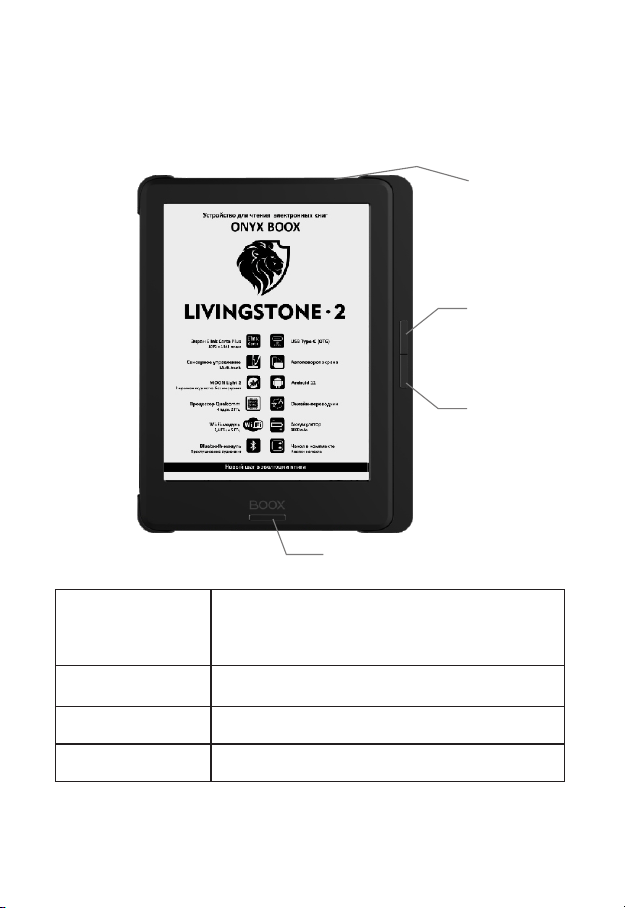
1.1.Front
Powerbutton
Pressandholdforabout2‑3seconds,ifthee‑readerisoff,this
turns it on. A longer press for 15‑20 seconds reboots the
device. A short press turns the device into a standby
(sleeping)mode.
Backbutton
Exitsapplicationsande‑booksorcancelsacurrentoperation.
PREVbutton
Previouspage.
NEXTbutton
Nextpage.
POWERbutton
PREV
button
NEXT
button
Backbutton
1.2.Bottom
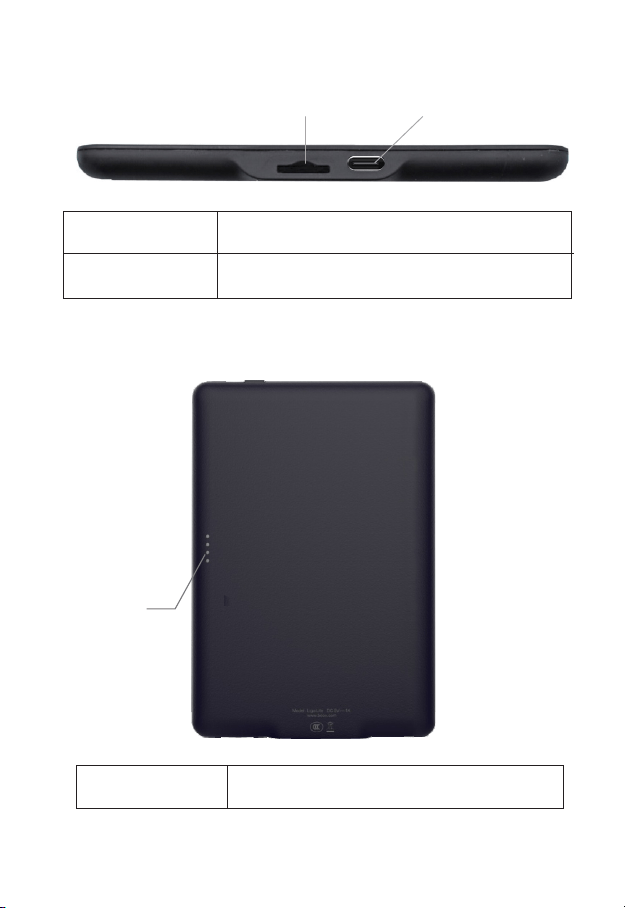
USB‑Cjack
Connects the device to a computerusing the enclosed USB
cabletosharedataortochargethee‑reader.
USB‑Cjack
microSD
microSDport
ToamicroSDcard(notincluded)youcanburnanyfilestouse
onBOOX.
1.3.Backside
Contact
plaorm
Contactplaorm
Designedtocommunicatewiththebuonsofthecase

2.GETTINGSTARTED
2.1.Howtoturnonthedevice?
a)PressandholdthePowerbuttonforabout3seconds.
Thedevicewillstartloading.
b)Releasethepowerbutton.
c)Waitforthedevicetoload.
2.2.Howtochargethebatteryofthedevice?
PlugtheUSBcableintothejackofthedeviceandconnectit
toaUSBportonaPC.
FullchargetimedependsonthevoltageofthePC.
2.3.HowtoconnectthedevicetoaPC?
a)TurnontheBOOX.
b)ConnecttheBOOXtoaUSBportofaPCusingtheUSB
cable.
c)Afterthedeviceisdetected,anactionsselectionmenu
willappearonthecomputerscreen.
d)Choose“Openthedevicetoviewfiles”.
e)Nowyouhaveaccesstofilesintheinternalmemory.

NOTE1.Thedeviceshouldnotbeoperatedwhen
connectedtothePC.
NOTE2.Beforeturningoffthedevice,disconnectitfrom
thePC.
NOTE3.RecommendedversionsofWindowsare7and
higher.
NOTE4.MacOSrequirestheAndroidFileTransfer
application.
2.4.Howtoturnoffthedevice?
a)PressandholdthePowerbuttonforabout2seconds.
b)Themenuwith“Poweroff”and“Restart”willappear.
Choose“Poweroff”.
3.MAINPAGE
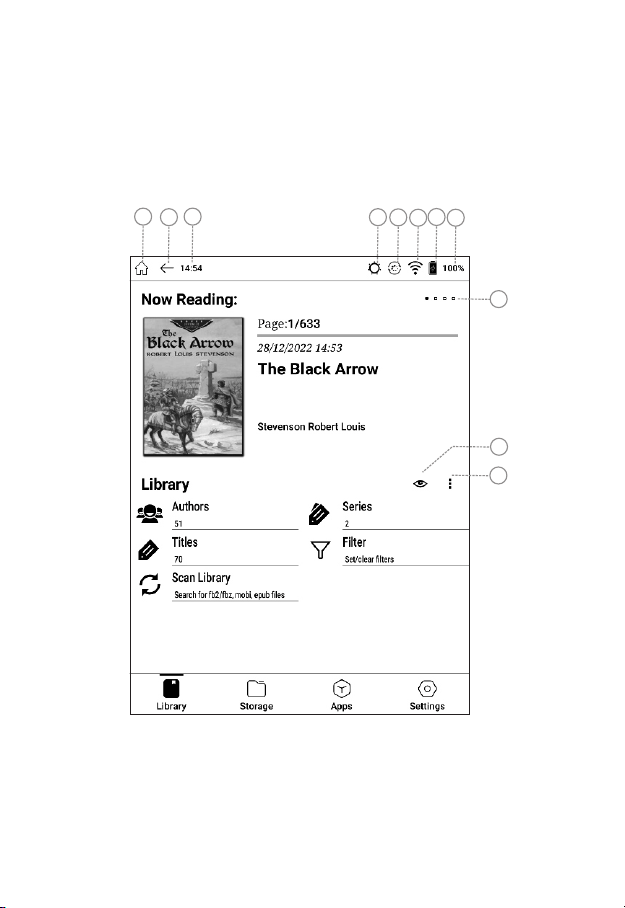
Themainpageallowstheusertogetquickaccesstoe‑
books, files, installed applications and settings. The
descriptionofvirtualbuttonsandindicatorsisgivenbelow.
1Home/2Back/3Time/4Lightingindicator/5Screen
modeindicator/6Wi‑Fiindicator/7Chargeindicator/8
Batterycharge/9Booknumberindicator/10Appearance/
11Informationtype
1
5
6
7
8
9
11
10
2
3
4

3.1.TheLibrary
The library displays e‑book‑format files in sorted view.
Groupingandsearchbyauthors,genre,seriesarepossible
only forformats containingthis information(fb2, epub,
mobi,pdf).Forotherfiles,thefilenameisshownasthe
titleand thedocumenttype isshownas theseries and
author(txt,docetc.).
Thankstothisfeatureyoudon'thavetospendtimesorting
booksintofoldersandrenamingfiles.
3.2.The“Nowreading”section
Thissectionappearswhenabookisopenedforthefirst
time. It contains the cover of the last book that was
opened.Additionalinformationcanbefoundontheright:
Thenumberofapagebeingreadandthetotalnumberof
pagesinthebook;
Readingprogressscale;
Dateandtimeofthelastopening;
Booktitle(iftherearenotitlesinmetadata,thefilename
isdisplayed);
Name of the author or authors (if this information is
containedinmetadata).
Atthetoprightthereisanindicatorofthebookcurrently
beingreadaswellasthethreepreviousbooks.
Toaccessapreviouslyreadbook,swipefromtherightto
theleftonthe“Nowreading”field.Theindicatorwillshow
whichofthefourrecentlyreadbooksisdisplayedatthe
moment.

4.WORKWITHBOOKSANDFILES
4.1.Gettingstartedwiththelibrary
The first time you open the library, you must scan the
internal memory. This will help the system extract
metadata,addbookstothecatalogueandsortthem.To
launchthisprocedure,presstheSCANLIBRARYbutton.
Eachtimeyourecordordeletebooksfromthememoryof
thedeviceitisnecessarytolaunchthescanmanuallyto
refreshthelibrary.
4.2.Sortingandfiltering
Inthe library,booksaregroupedbyauthors,series and
titles (for each group the number of items in it is dis‑
played).Withinthesegroupstheitemsaresortedalpha‑
betically(intheseriesbooksaresortedbytheirnumbersin
theseries),forauthorsandseriesthenumberofbooksis
indicated. The items beginning with digits or without a
namearelocatedattheendofthelist.
Onthemainpageofthelibraryitispossibletosetthefilter
bylanguage,genre,text,dateofthebook’spublicationand
dateoffilecreation.
Aftersettingthefilterinthegroups“Authors”,“Series”,
“Titles” books will be displayed by their corresponding
filterparameters.

The“Text”filterallowstheusertosortbooksbyapartof
thetitle,thenameoftheauthororbyapartoftheseries
name.Forthisfilteringitisnecessarytoenteratleasttwo
letters.Iftheenteredtextiscontainedinthenameofthe
element(titleofabookorofseries,nameoftheauthor),
this element and all the elements related to it will be
selected.Forexample,ifthesearchedtextiscontainedin
thenameoftheseries,thissameserieswillbeshownin
the“Series”groupafterfiltering,inthe“Authors”group–
authors from this series, in the “Titles” group – all the
books from this series, even though the names of the
authorsandthebooktitlesdonotcontaintheenteredtext.
The“Clearall”optionclearsallthefilterparameters.If
youwanttoclearonlyoneofthefilters,gotothecorre‑
spondingfilterandchoose“Clear”orerasethetextinthe
“Text”filter.
4.3.Workingwithlistsandbooks
A short tap on a list opens it and shows its content.To
returntoaleveluponthelist,touchthearrowintheupper
partofthelistorpresstheBACKbutton.
Ashorttaponabookopensthepagewiththedescription
ofthebook.Hereyoucanreadthedetailsofthebook:title,
author,genreandannotations.Butthesedetailsappear
only if they are contained in the file metadata.
Unfortunately, not all the e‑book files contain them or
containthementirely.Inthiscasethecorrespondingfields
willbeempty.

Alongtaponabookcallsthefollowingmenu:
Read‑chooseareadingapp;
Properties–thebookinformation;
Delete–deletingthebookfromthedevice.Ifthebookis
inthearchive,allofthearchivewithallthefilesinitwillbe
deleted.
TogotothemainpageofthelibrarypresstheBACKbutton
severaltimesorpressthe“Arrowtotheleft”iconinthetop
tray.
4.4.Thelibraryviewsetup
You can change the view of the library by touching the
‘’eye”iconandchoosingoneoftwovariants
Onecolumn
Twocolumns
4.5.Choosingthetypeofdisplayedinformation
Touchingthe“Informationtypes”icon(threedots)callsthe
followingmenu:
OpenFile–Thefilemanager(storage)displayingfolders.
Favorites–Auser’slistoffavoritebooks.
RecentFiles–Thelistofrecentlyopenedbooks.
Sort–Orderingbooks.Thisoptionisonlyavailableinthe
filemanager.

4.6.Thefilemanager
Tolaunchthefilemanagerofthelibrary,pressthe“Infor‑
mationtype”icon(threedots)andchoose“Openfile”.In
thefilemanageronlythosefilesaredisplayedwhichcan
beopenedwithoneofthereadingprograms.
NOTE: A folder containing thousands of files may not
displaytheentirelistoffilesbutonlyitsbeginning.
Intheupperlinethecurrentpathisshown.The“Arrow’
iconontherightaswellastheBACKbuttonservestogoa
levelupinthecatalogue.
Attention! The Library, the file manager, Favorites and
Recentfiles aresingle‑leveltypesofdisplayinginforma‑
tion. Multiple presses of the BACK button in the file
managerwillleadtotherootdirectoryofthefilesystem.
To go to the library, use the “Information types” icon
(threedots)andthenchoosethe“Library”option.
Filesandfolderscanbesorted(Menu–Sort)byname,by
dateandbysize.
Ashorttaponafileopensit.
Alongtaponafilecallsupthefollowingmenu:
Read‑chooseareadingapp;
Properties–thebookinformation;
Delete–deletingthebookfilefromthedevice. Ifthe
bookisinthearchive,theentirearchivewithallthefilesin
itwillbedeleted.

4.7.RecentFiles
To go to the list of recently opened books, touch the
“Informationtypes”icon(threedots)onthemainpageof
thelibraryandchoose“Recentfiles”.
Thesizeofthislistislimitedto256books.
Theviewandtheactionsherearesimilartothoseinthefile
managerexceptdisplayingfolders.
Togotothelibrary,tothefilemanagerorto“Favorites”use
the“Informationtypes”icon(threedots).
4.8.Favorites
Togotothelistoffavoritebooks,touchthe“Information
types” icon (three dots) on the home page and choose
“Favorites”.
Theviewandtheactionsherearesimilartothoseinthefile
managerexceptdisplayingfolders.
To add a book to the Favorites, you need to open the
“Properties”windowsthenpressthe“Star”iconinthetop
right.Thestarwillbecomedark.
Todeletethebookfromthefavoritelistpressbrieflythe
bookicon–the“Properties”windowwillopen.Pressthe
“Star”iconinthetopright.Thestarwillbecomelight.You
canalsocompletelyclearthelistoffavoritesbypressing
the “Information types” icon (three dots) and choosing
“Remove all”. The files themselves in this case are not
deletedandremaininstorage.
Files”listusethe“Informationtypes”icon(threedots).

Attention!Whenretrievingthecontextmenubypressing
the book pictogram for several seconds, the option
“Delete”willbecomeavailable.Choosingthisactionwill
deletethebooknotonlyfromthe“Favorites”listbutfrom
storageaswell.
TogototheLibrary,tothefilemanagerortothe“Recent
Files”listusethe“Informationtypes”icon(threedots).
5.GENERALPRINCIPLESOFTHEWORK
WITHREADINGPROGRAMS
Thereadingprogramspre‑installedinthee‑readerserve
forreadingthefollowingfilesTXT,HTML,RTF,FB2,FB2.zip,
DOC,MOBI,CHM,EPUB,PDF,DJVUandothers.
Toturnpagessimplytouchthesensorscreen.
Thereadingprogramallowsyoutoaddbookmarks.Inthe
AlReaderXapp bring upthe menuand then choosethe
option“AddBookmark”.IntheNeoReaderprogramitis
enoughtogotoadesiredpageandbrieflypresstheupper
rightcornerofthescreen.Itwillchange.Clickingtheicon
againwilldeletethebookmarkandtheiconwillreturnto
itsoriginalstate.Themenuinbothprogramswillallowyou
toseepreviouslyaddedbookmarksandtogotoacorre‑
spondingpage.
Youcanopensettingswithashorttouchtothecenterof
thescreen.

6.WARNINGSANDSAFETYCONDITIONS
6.1.Anewbatteryachievesitsmaximumcapacityafter2‑3
cyclesofrecharging.
6.2.Toavoidimportantdataloss,westronglyrecommend
you to save them periodically on alternative data
storages.Itisespeciallyimportanttosavedatabefore
updatingthedevice.Ourcompanydoesnotbearany
responsibilityforyourdatapreservation.
6.3.Please,donotdismantlethedeviceonyourown.
6.4. Avoid twisting and bending the device and other
deformationsofthecasing.
6.5.Avoidhittingthedeviceagainsthardsurfaces.
6.6. Avoid placing excessive pressure on the screen or
hittingit.Thescreenhasaglassbase.
6.7.Donotallowwatertogetintoorontoyourdevice.Do
notuseitclosetoopenwatersources.
6.8.AvoidusingtheBOOXinthefollowingconditions:
Lowtemperature;
Hightemperature;
Intensemagneticfield;
Highhumidity;
Highdustcontent;
Directsunlight.
NOTE: The range of temperature and humidity is indi‑
catedintheProductspecificationsofthismanual.
6.9. Do not use concentrated detergents. To clean the
device,useadrycottoncloth.

6.10.Donotreplacepartsofthedevice.
6.11.Usebatteries,poweradaptorsandotheraccessories
recommendedbythemanufacturer.Usingthird‑party
accessoriesmaybedangerousandcaninvalidatethe
warranty.
6.12.Whenrecyclingoutdatedproducts,followtherules
andlawsoftheterritoryofusage.
6.13.Ifanyproblemsoccurwiththedevice,getintouch
withanearestservicecenter.Informationabouthow
to contact service centers can be found on the
warrantycard.
6.14.Themanufacturerreservestherighttomakechanges
tothedevicewithoutnotifyingtheconsumers.
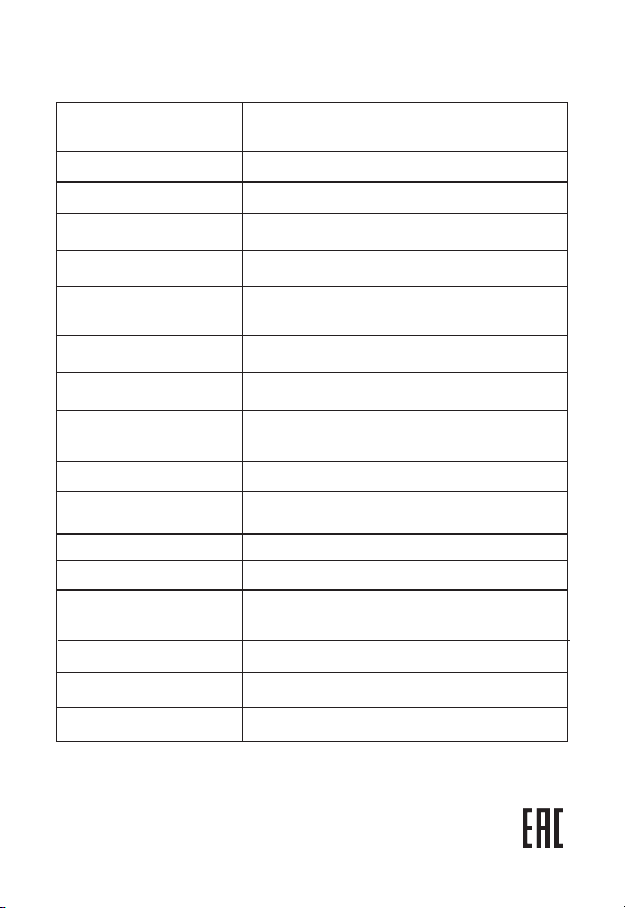
7.PRODUCTSPECIFICATIONS
Display
Frontlight
MOONLight2
Processor
4‑core,2GHz
RAM
ROM
16GB
Wirelessintarfaces
Wi‑FiIEEE802.11ac
Bluetooth5.0
Wiredinterface
USBType‑С
Operatingsystem
Android11
Supportedfileformats
Battery
3000mAh
Recommendedpower
adaptor
ACinput:100–240V,50/60GHz
DСoutput:5V–1A
Size
Weight
Operatingtemperature/
acceptablehumidity
0–50С/0%‑90%
Durability
2years
Warrantyperiod
1year
СЕ/ЕАС
Detailedinformationisavailableonthewebpage
http://onyxboox.com/
EInkCartaPlus,6"touchcapacitive,resolution
1072x1448,16shadesofgrey,withtheSNOWField
function
2GB
156х112.5х8.8mm
160gr
Note:Sincepartoftheflashmemoryvolumeisoccupiedbythesystem
software,theportionavailabletotheuser,islessthanthetotalsize
ofthememorychip.
Standardsconformity
TXT,HTML,RTF,FB2,FB2.zip,FB3,DOC,DOCX,PRC,
MOBI,CHM,PDB,EPUB,JPG,PNG,GIF,BMP,PDF,DjVu,
CBR,CBZ,MP3,WAV