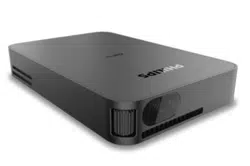
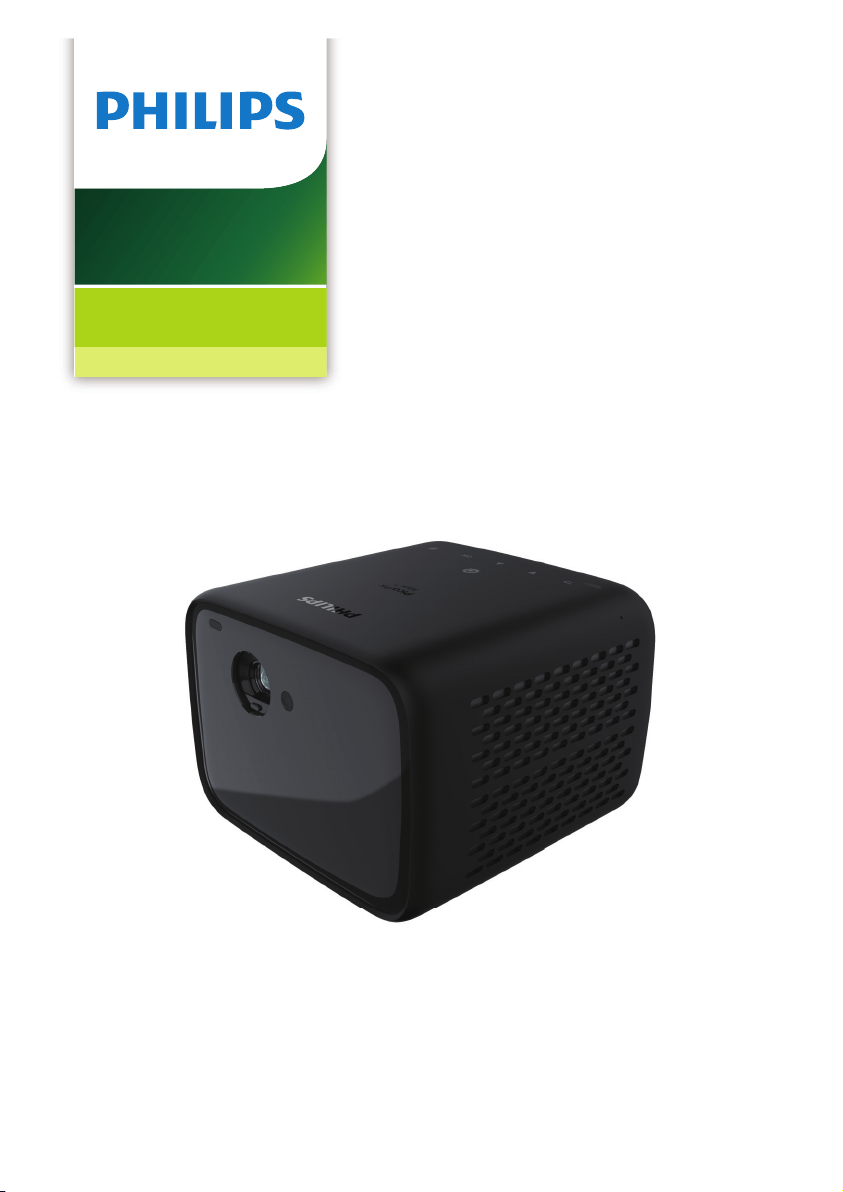
User Manual
Register your product and get support at
www.philips.com/support
PPX720/INT
PicoPix Max
TV
Portable projector

Introduction .................................................3
Dear customer ...............................................................3
About this user manual ..............................................3
What’s in the box ..........................................................3
Customer service centre ............................................3
1 General safety information ............... 4
Setting up the product .............................................. 4
Repairs ............................................................................ 4
Power supply .................................................................5
2 Overview ................................................5
Top view ...........................................................................5
Front view ....................................................................... 6
Rear view ........................................................................ 6
Remote control............................................................. 6
3 Initial setup ............................................ 7
Place the projector.......................................................7
Use a tripod (optional) ............................................... 8
Connect power supply .............................................. 8
Prepare the remote control ..................................... 9
Power on ........................................................................ 9
Image setup ..................................................................10
First time setup ............................................................11
4 Use home screen ................................ 12
Use Android TV ............................................................12
Settings of Android TV .............................................. 12
Access online services .............................................. 12
Customize Channels.................................................. 12
Use wired keyboard/mouse ...................................13
Use Bluetooth keyboard/mouse ..........................13
5 Bluetooth streaming .......................... 13
Stream from Bluetooth device .............................. 13
Stream to Bluetooth speaker .................................14
6 Chromecast streaming .....................15
7 Connect to playback devices ........... 15
Connect to devices through HDMI .......................15
Connect to devices through USB-C .....................16
Connect to devices through SPDIF ...................... 16
8 Other features ..................................... 17
Connect to external speakers or headphones 17
Use easy link ................................................................ 17
9 Change settings ..................................18
Android TV settings....................................................18
Projector system settings ........................................19
10 Service .................................................. 21
Built-in battery care ..................................................21
Cleaning ......................................................................... 21
Update software ......................................................... 21
Troubleshooting ......................................................... 22
11 Appendix ............................................. 24
Technical data ............................................................ 24
CE statement .............................................................. 25
FCC statement ............................................................ 25
Canada Regulatory Compliance .......................... 25
Other notice .................................................................26
Table of contents
Introduction 3
Introduction
Dear customer
Thank you for purchasing this projector.
We hope you enjoy this product and the many
functions it offers!
About this user manual
The quick start guide supplied with this product
allows you to start using this product quickly
and easily. Detailed descriptions can be found
in the following sections of this user manual.
Read the entire user manual carefully. Follow
all safety instructions in order to ensure proper
operation of this product (see General safety
information, page 4). The manufacturer
accepts no liability if these instructions are not
followed.
Symbols used
Notice
Troubleshooting
This symbol indicates tips that will help
you in using this product more effectively
and easily.
DANGER!
Danger of personal injury!
This symbol gives warning of danger
of personal injury. Physical injury or
damage can result from improper
handling.
CAUTION!
Damage to the product or loss of data!
This symbol gives warning of damage
to the product and possible loss of
data. Damage can result from improper
handling.
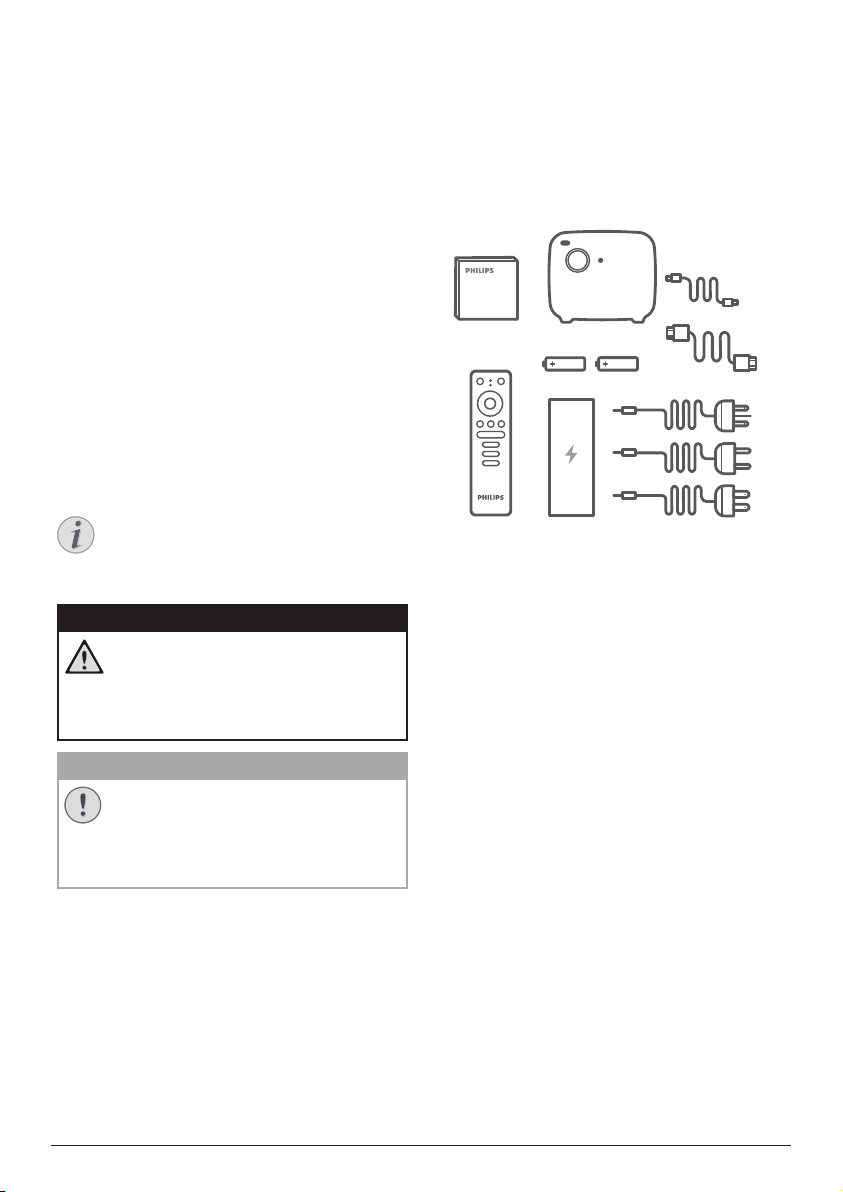
What’s in the box
a
Quick Start Guide
b
PicoPix Max
TV
projector (PPX720/INT)
c
USB-C to USB-C cable
d
HDMI to HDMI cable
e
Remote control with 2x AAA batteries
f
AC power adapter
g
3x power cable with plug (EU, UK, US)
Guide
Quick Start
a
b
d
c
e
f
g
Customer service centre
You can find the support hotline in the warranty
card or online:
Web: www.philips.com/support
Mail: philips.projector.eu@screeneo.com
International Phone: +41 215 391 665
Please ask your provider for international call
costs!
Access the electronic user manual at
https://support.philipsprojection.com
Access the community forum at
https://community.philipsprojection.com

4 Philips · PicoPix Max
TV
1 General safety
information
Take note of all warning and safety notes
indicated. Do not make any changes or settings
that are not described in this user manual.
Incorrect operation, and improper handling can
lead to physical injury, damage to the product
or loss of data.
Setting up the product
This product is for indoor use only. Place the
product securely on a stable, flat surface.
To help avoid possible injuries to persons or
damage to the product itself, position all cables
in such a way that no one will trip over them.
Do not operate the product in damp rooms.
Never touch the mains cable or the mains
connection with wet hands.
Never operate the product immediately after
moving it from a cold location to a hot location.
When the product is exposed to such a change
in temperature, moisture may condense on the
crucial internal parts.
The product must have sufficient ventilation
and must not be covered. Do not put the
product in closed cabinets, boxes, or other
enclosures when in use.
Protect the product from direct sunlight,
heat, intense temperature fluctuations and
moisture. Do not place the product in the
vicinity of heaters or air conditioners. Observe
the information on temperature listed in the
technical data (see Technical data, page 24).
Prolonged operation of the product causes the
surface to become hot. In case of overheating,
the product automatically switches to standby
mode.
Do not allow liquids to leak into the product.
Turn off the product and disconnect it from the
mains supply if liquids or foreign substances
leaked into the product. Have the product
inspected by an authorised service centre.
Always handle the product with care. Avoid
touching the lens. Never place heavy or sharp
objects on the product or on the power cable.
If the product gets too hot or emits smoke,
shut it down immediately and unplug the
power cable. Have your product checked by
an authorised service centre. Keep the product
away from open flames (e.g. candles).
The product has built-in battery. Do not
dissemble and modify. The built-in battery
should be replaced by qualified service staff
only.
Do not try to replace the built-in battery
yourself. Incorrect handling of the battery or
using the wrong type of battery can cause
damage to the product or cause injury.
DANGER!
Risk of explosion with incorrect type
of batteries!
There is a risk of explosion if the wrong
battery type is used.
Do not expose the batteries (battery pack or
embedded batteries) to excessive heat such as
sunshine, or open fire.
Under the following conditions, a layer of
moisture can appear inside the product which
can lead to malfunctions:
• if the product is moved from a cold to a
warm area;
• after a cold room is heated;
• when the product is placed in a damp
room.
Proceed as follows to avoid any moisture
buildup:
1 Seal the product in a plastic bag before
moving it to another room, in order for it to
adapt to room conditions.
2 Wait one to two hours before you take the
product out of the plastic bag.
The product should not be used in a very dusty
environment. Dust particles and other foreign
objects may damage the product.
Do not expose the product to extreme
vibrations. This may damage the internal
components.
Do not allow children to handle the product
without supervision. The packing materials
should be kept out of the hands of children.
For your own safety, do not use the product
during thunderstorms with lightning.
Repairs
Do not repair the product yourself. Improper
maintenance can result in injuries or damage to
the product. The product must be repaired by
an authorised service centre.
Please find the details of authorised service
centres on the warranty card supplied with this
Overview 5
product.
Do not remove the type label from this product,
as this will void the warranty.
Power supply
Use only a power adapter which is certified for
this product (see Technical data, page 24).
Check whether the mains voltage of the power
supply matches the mains voltage available at
the setup location. This product complies with
the voltage type specified on the product.
The power outlet shall be installed near the
product and shall be easily accessible.
The capacity of the built-in battery diminishes
with time. If the product functions only with AC
power supply, the built-in battery is defective.
Contact an authorised service centre to replace
the built-in battery.
CAUTION!
Always use the button to turn the
projector off.
Turn off the product and unplug from the
power outlet before cleaning the surface
(see Cleaning, page 21). Use a soft, lint-
free cloth. Never use liquid, gaseous or easily
flammable cleaners (sprays, abrasives, polishes,
alcohol). Do not allow any moisture to reach
the interior of the product.
DANGER!
Risk of eye irritation!
This product is equipped with a high
power LED (Light Emitting Diode),
which emits very bright light. Do not
look directly into the projector lens
during operation. This could cause eye
irritation or damage.
2 Overview
Top view
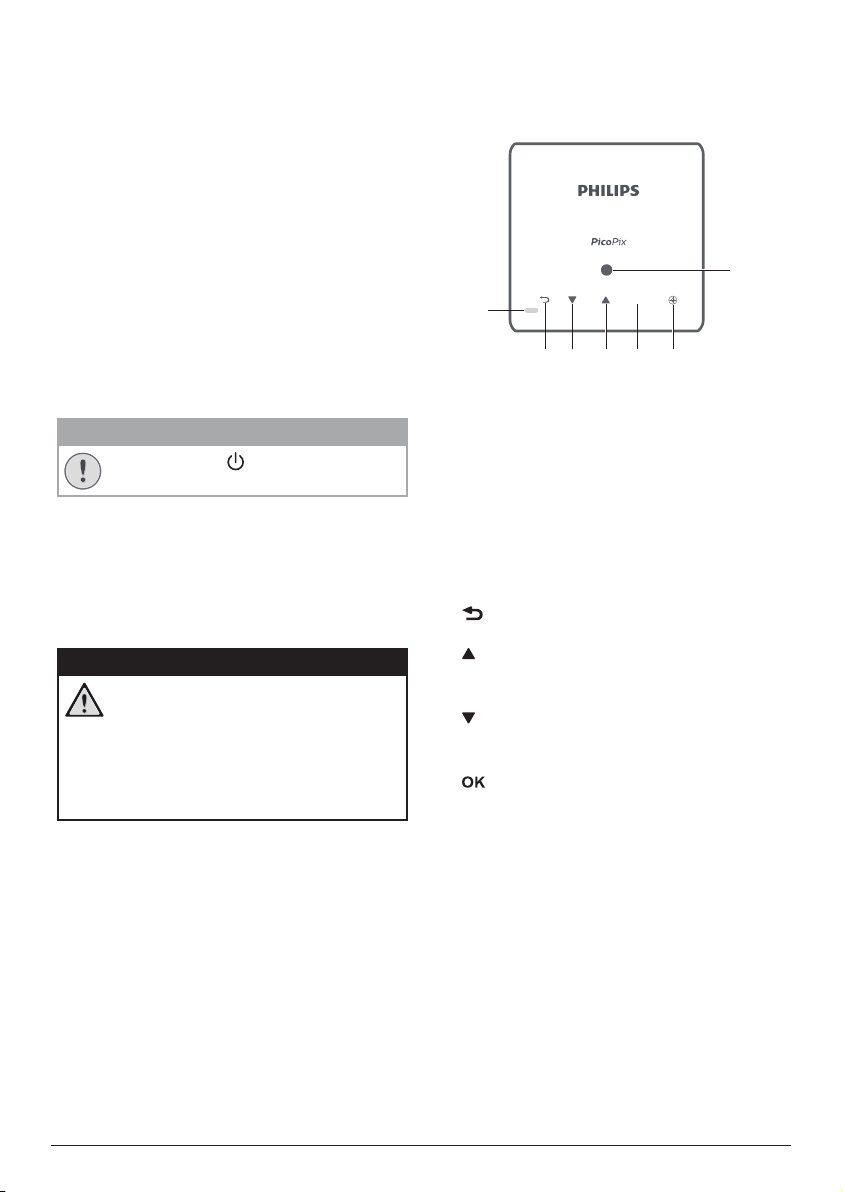
Max
TV
OK
cbd
g
a
e
f
a
LED indicator
• When the projector is switched on, the
LED turns white. When the projector is
in standby, the LED turns red.
• When charging the projector, the LED
turns red regardless of the projector
switching on or off.
• Turn blue when the projector is in
Bluetooth mode, used for streaming
music from a Bluetooth device.
b
Return to a previous menu screen.
c
• Navigate menu options.
• Increase volume.
d
• Navigate menu options.
• Decrease volume.
e
• Access the settings menu.
• Confirm a selection or entry.
f
Auto-focus
Press to activate auto-focus.
g
Light sensor
6 Philips · PicoPix Max
TV
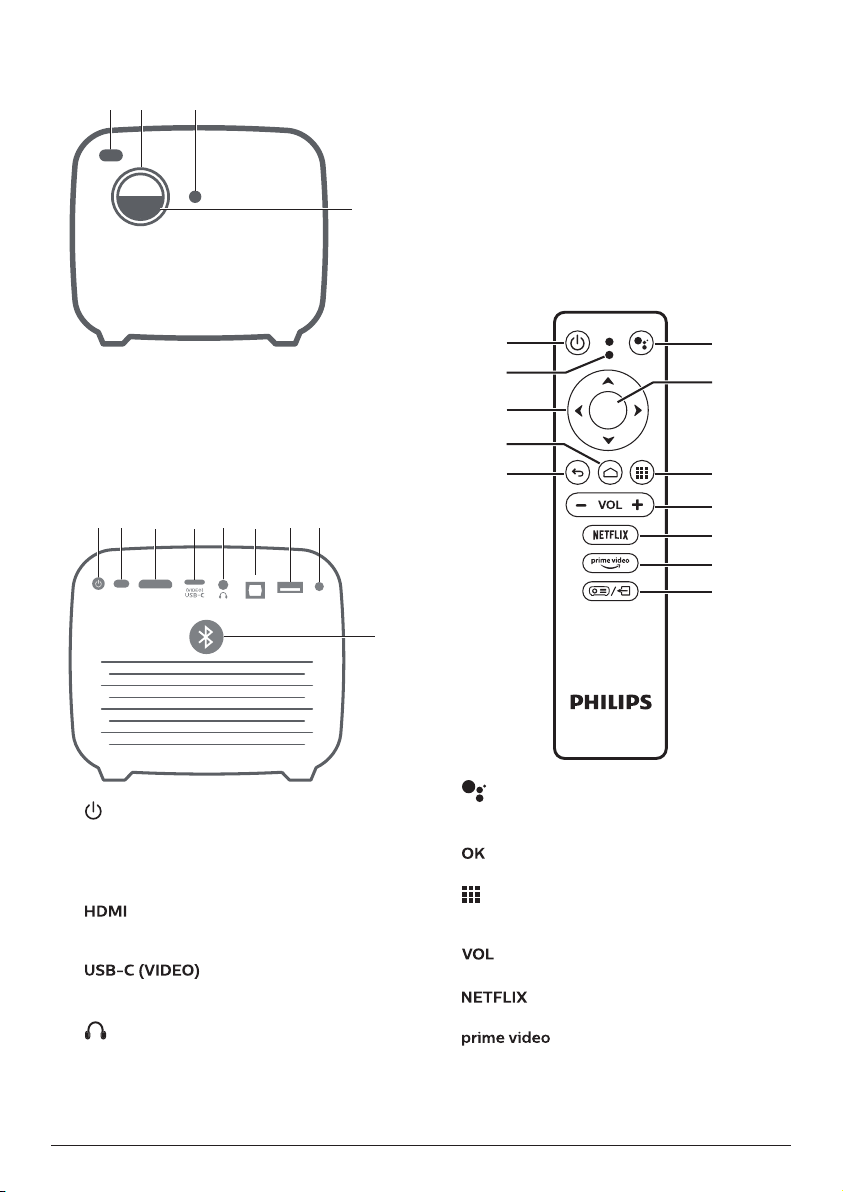
Front view
a c
d
b
a
Front IR sensor
b
Projection lens
c
Auto-focus camera
d
Lens cap
Rear view
HDMI
DC
USB
SPDIF
cd f g h
i
ba
e
a
Press and hold for 3 seconds to switch the
projector on.
Press twice to switch the projector off.
b
Rear IR sensor
c
Connect to the HDMI output on a playback
device.
d
port
Connect to the USB-C video output on a
playback device.
e
3.5 mm audio output; connect to external
speakers or headphones.
f
SPDIF
Connect to the digital SPDIF audio input on
an HiFi audio system.
g
USB port
Connect to power USB devices like Amazon
Fire TV stick®, Roku® streaming stick (and
for firmware upgrade).
h
DC socket
Connect to the power supply.
i
Bluetooth button
Press to turn Bluetooth on or off.
Remote control
OK
a
b
c
d
e
f
g
h
l
j
i
k
a
Access voice search function (Google
Assistant).
b
Confirm a selection or entry.
c
Display installed Apps and access the
Google Play Store.
d
+/-
Increase or decrease volume.
e
Quick access to Netflix service.
f
Quick access to Prime Video service.
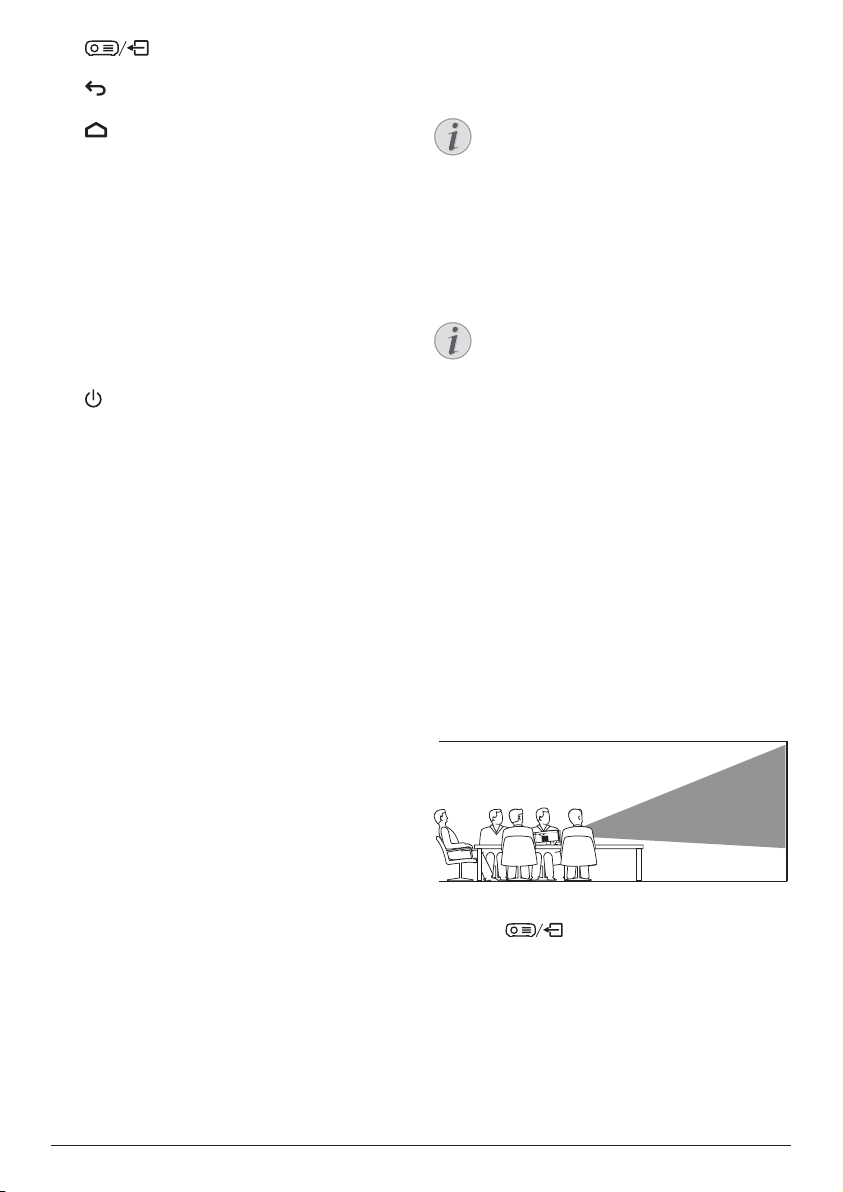
Initial setup 7
g
Access or exit system settings.
h
Return to a previous menu screen.
i
• Press to access the Android TV home
screen.
• Press and hold for 2 seconds to activate
auto-focus.
j
Navigation buttons
Navigate menu options.
k
LED indicator
• Each time you press a button on the
remote control, the LED lights up briefly
and then off.
• The LED glows blue when the voice
search function is activated.
l
Press once to switch the projector on; press
twice to switch the projector off.
3 Initial setup
Notice
Make sure all devices are disconnected
from the power outlet before establishing
or changing any connections.
Place the projector
You can install the projector in four different
configurations. Follow the guidelines below for
different projector placement.
Notice
For overhead mounting on ceiling,
purchase a projector mount
recommended by an installation
professional and follow the instructions
that come with the mount.
Before mounting on the ceiling, make
sure the ceiling can support the weight
of the projector and mounting kit.
For ceiling installation, this product
must be securely attached to the ceiling
in accordance with the installation
instructions. An improper ceiling
installation may result in accident, injury
or damage.
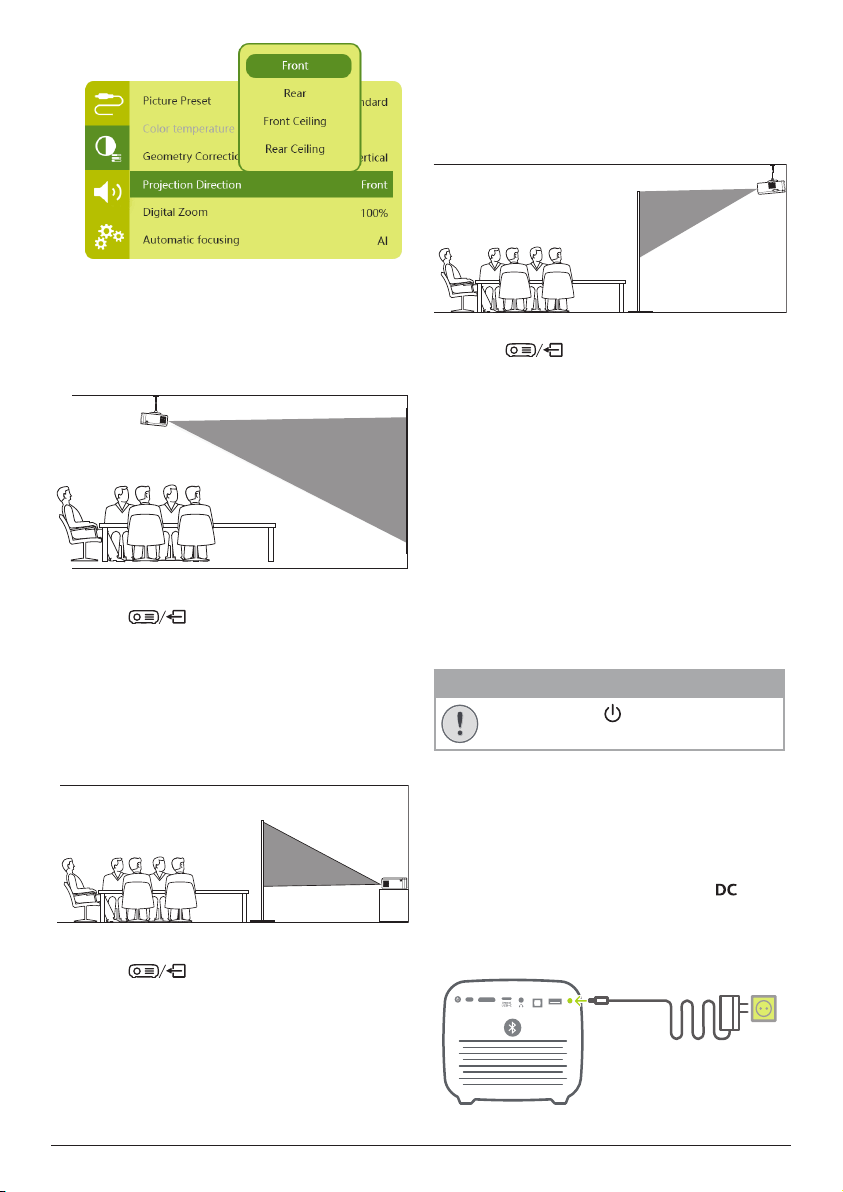
Front table
1 Place the projector on a table in front of the
projection screen. This is the most common
way to position the projector for quick
setup and portability.
2 To adjust projection to the correct position,
press
on the remote control to
access the settings menu and navigate to
Projection Direction - Front.
8 Philips · PicoPix Max
TV
Front ceiling
1 Mount the projector on the ceiling with
upside up in front of the projection screen.
A projector mount is required to mount the
projector on ceiling.
2 To adjust projection to the correct position,
press
on the remote control to
access the settings menu and navigate to
Projection Direction - Front Ceiling.
Rear table
1 Place the projector on a table behind the
projection screen. A special rear projection
screen is required.
2 To adjust projection to the correct position,
press
on the remote control to
access the settings menu and navigate to
Projection Direction - Rear.
Rear ceiling
1 Mount the projector on ceiling with upside
up behind the projection screen. To mount
the projector on ceiling behind the screen,
a projector mount and a special rear
projection screen is required.
2 To adjust projection to the correct position,
press
on the remote control to
access the settings menu and navigate to
Projection Direction - Rear Ceiling.
Use a tripod (optional)
You can use the projector with a tripod
(optional) which allows more choices for
placing the projector.
Locate the tripod socket on the bottom of the
projector, then mount and secure the projector
on the tripod.
Connect power supply
The projector can be operated by either
external power or built-in battery.
CAUTION!
Always use the button to turn the
projector on and off.
Operation by external power
1 Select a supplied power cable with an
appropriate power plug. Insert the slotted
end of the power cable into the slot of the
supplied power adapter.
2 Connect the power adapter to the
socket on the projector, and then to the
wall outlet.
• The LED on the projector turns red.
a
b
HDMI
DC
USB
SPDIF
Initial setup 9
Operation by built-in battery
The projector can be also operated on built-in
battery for portability.
Charge the projector
Charge the projector for 1.5 hours before first
use.
Charge the projector when the low battery icon
appears in the projection screen.
• To charge the projector, connect the
projector to an external power supply as
described in the section of “Operation by
external power”.
• When charging, the LED on the projector
turns red regardless of the projector
switching on or off.
• When powered on, the external power
will be used first to run the projector and
unused power will charge the battery.
• For faster charging, charge while the
projector is powered off.
Notice
The capacity of the built-in battery
diminishes with time. If the projector
functions only with external power
supply, the built-in battery is defective.
Contact an authorised service centre to
replace the built-in battery.
Prepare the remote control
CAUTION!
The improper use of batteries can
lead to overheating, explosion, risk of
fire and injury. Leaking batteries can
possibly damage the remote control.
Never expose the remote control to
direct sunlight.
Avoid deforming, dismantling or
charging the batteries.
Avoid exposure to open fire and water.
Replace empty batteries immediately.
Remove the batteries from the remote
control if not in use for long periods of
time.
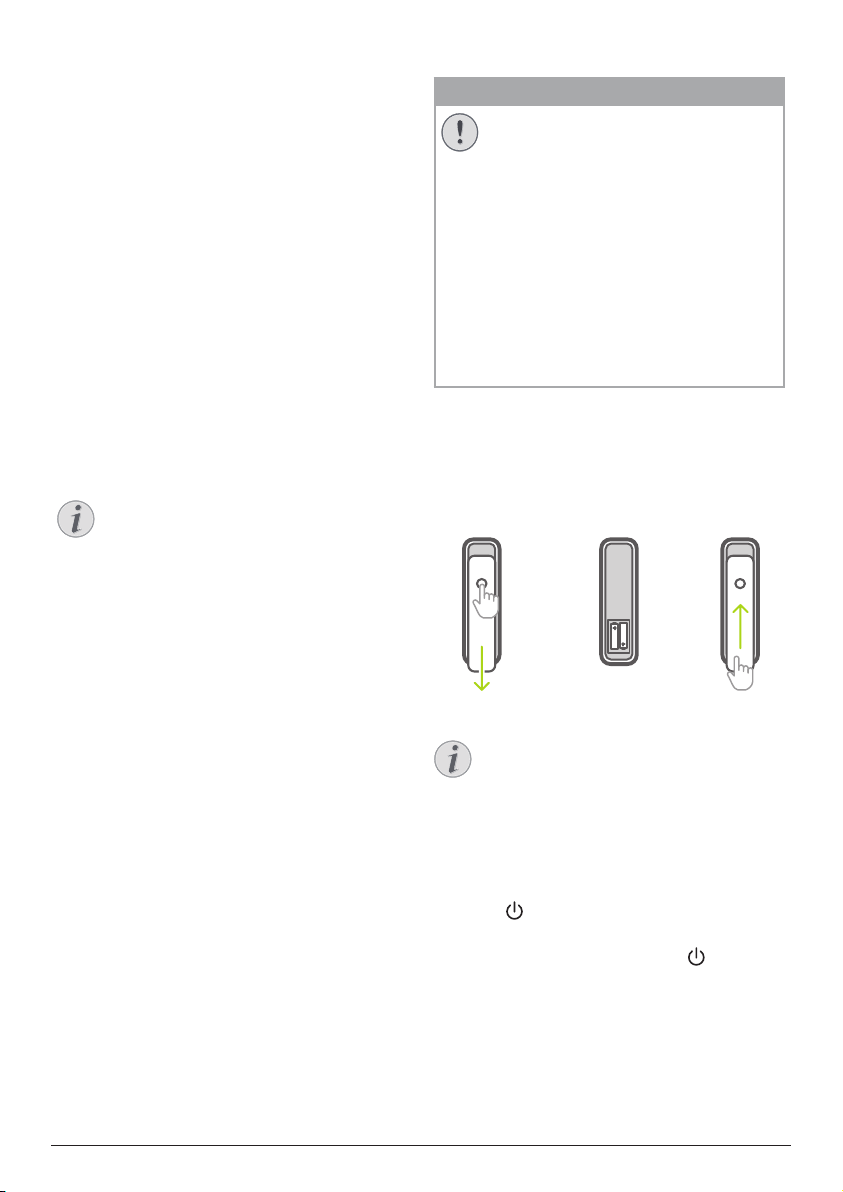
1 Press and hold the battery compartment
cover, and simultaneously slide it open to
access the battery compartment.
2 Insert the supplied batteries (type AAA)
with correct polarity (+/- ) indicated.
3 Close the battery compartment.
Notice
When using the remote control with
infrared signals, point the remote control
at the IR sensor on the projector, and
make sure there is no obstacle between
the remote control and the IR sensor.
Power on
1 Press
to turn on the projector. The LED
on the projector turns from red to white.
• To turn off the projector, press
and
then press it again when the power-off
confirmation message pops up.
The LED on the projector turns from white
to red.
10 Philips · PicoPix Max
TV
Image setup
Screen size adjustment
The projection screen size (or size of images) is
determined by the distance between the lens
of the projector and the projection surface.
• The projection distance needs to be
1.2 times the width of your desired screen
size.
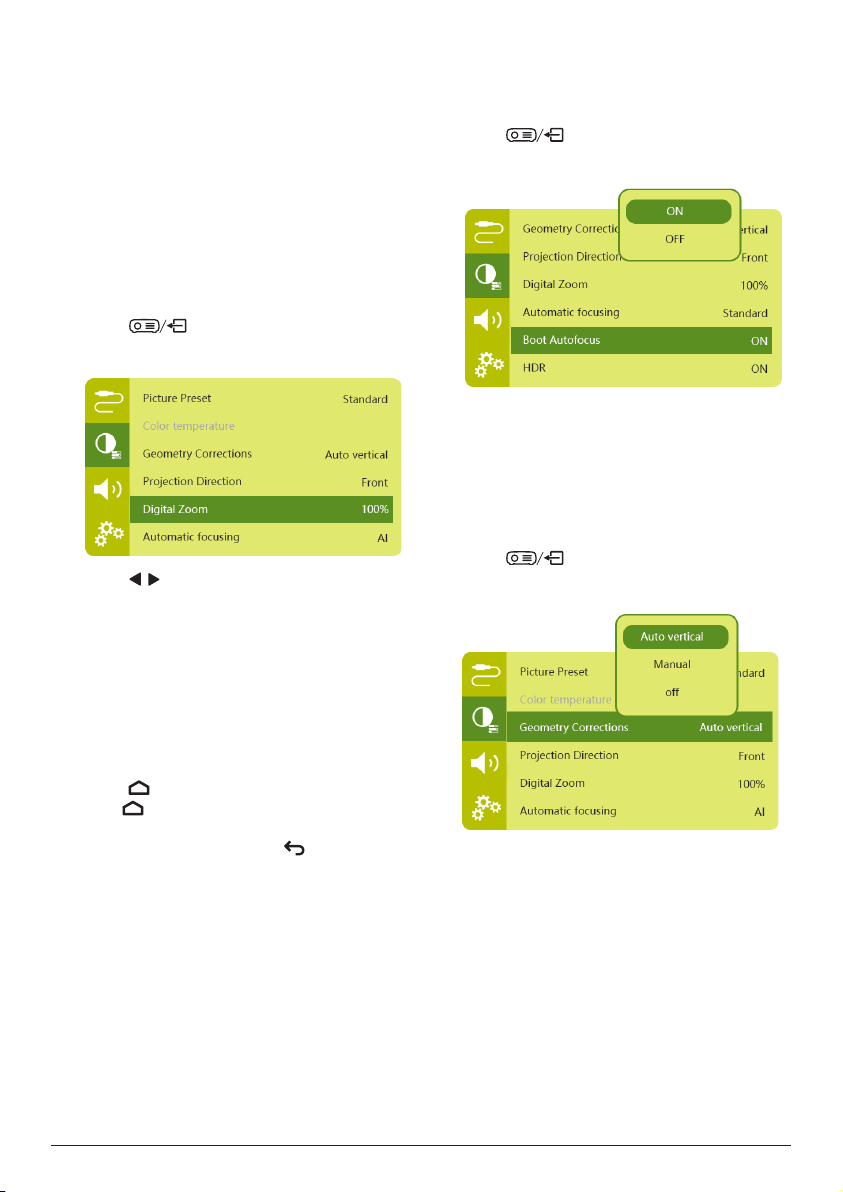
Digital zoom
You can use the digital zoom function to reduce
the screen size.
1 Press
on the remote control to
access the settings menu and navigate to
Digital Zoom.
2 Press / on the remote control to adjust
the screen size from 80% to 100%.
Image focus adjustment
Auto focus adjustment
The projector can automatically adjust image
focus or clearness when you reposition the
projector or the projected image is detected not
clear.
1 When remote is in infrared mode (red LED),
press
to activate autofocus. Press and
hold
to activate manual focus. In manual
focus mode, use the left and right keys to
fine-tune the image. Press
when you are
satisfied.
Boot Autofocus
The projector can perform auto focus
adjustment each time the projector is switched
on:
1 Press
on the remote control to
access the settings menu and select Boot
Autofocus - On.
Image shape correction
Auto correction (vertical keystone)
The projector can automatically correct the
image to be rectangular when you tilt the
projector upwards or downwards.
To enable auto vertical keystone correction:
1 Press
on the remote control
to access the settings menu and select
Geometry Corrections - Auto Vertical.

Initial setup 11
Manual correction (4-corner correction)
You can manually adjust the image shape by
re-positioning the four corners of the projection
screen.
1 Press
on the remote control
to access the settings menu and select
Geometry Corrections - Manual.
2 In the 4-corner correction interface, press
OK to select an image corner, then press
and hold
/ to adjust the horizontal
positioning values, and
/ to adjust the
vertical positioning values. Repeat the
same step to adjust positioning values of
the other image corners if desired.
3 Press
to save and return to previous
screen.
First time setup
When you turn on the projector for the first time
or the projector is reset to the factory default
settings, you are prompted to make the Android
TV setup.
After setup, the projector will sign in to your
Google account and connect to the same Wi-Fi
network as your phone.
What you need
• A Wi-Fi internet connection
• A Google account
Step 1: Pair the remote control
with the projector
In the remote control pairing interface, you are
prompted to pair the remote control with the
projector through Bluetooth. Pairing can enable
the remote control to work in Android TV mode.
1 When prompted for pairing, hold down
OK and
on the remote control for
about 10 seconds until the interface shows
successful connection.
Make sure the projector is turned on and as
close as possible to the remote control.
Step 2: Select a language
1 When prompted for language selection,
use the Navigation buttons on the remote
control to select an on-screen language.
To change your on-screen language:
1 Select the
icon in the upper right corner
of the screen, and press OK. Then go to
Device Preferences - Language.
2 Select a language and press OK.
Step 3: Set up the Wi-Fi network
Set up the Wi-Fi network to access online
applications.
What you need
• A wireless network router.
• For best wireless performance and
coverage, use an 802.11n router and the
5GHz band.
1 Select the
icon in the upper right corner
of the screen, and press OK. Then go to
Network & Internet - Wi-Fi.
2 Select your Wi-Fi network from the list and
press OK.
3 Input your Wi-Fi network password using
the on-screen virtual keyboard. Then select
the right arrow on the right side of the
virtual keyboard and press OK.
Step 4: Sign into your Google
account
To access the abundant range of Android apps,
you need to sign into your Google account.
1 Select the
icon in the upper right corner
of the screen, and press OK. Then go to
Accounts & Sign In - Sign In. Follow the on-
screen prompts to sign into your account.
12 Philips · PicoPix Max
TV
4 Use home screen
The home screen provides easy access to a
wide range of online applications, setup and
other useful features on the projector.
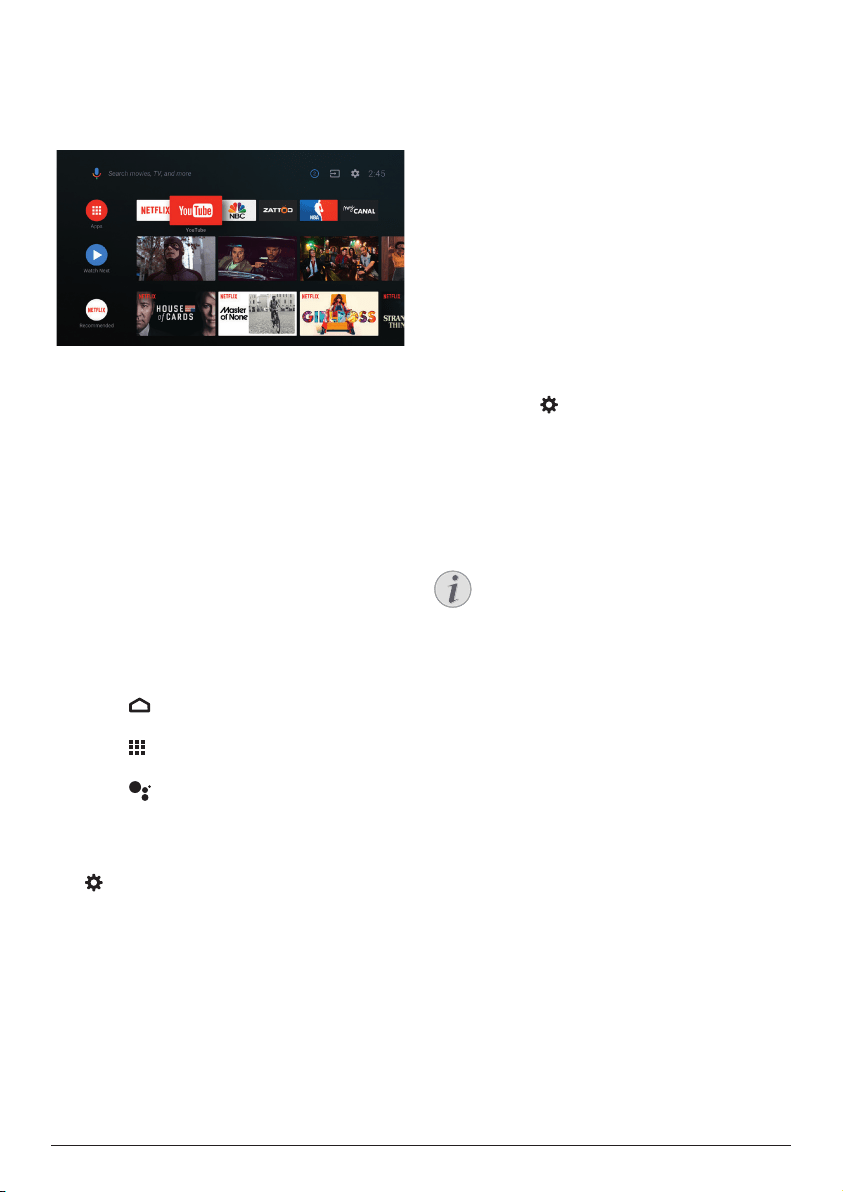
Use Android TV
The projector is integrated with Android TV.
Android TV offers you various features, such as:
• Watch a wide range of movies and shows
from across your favourite apps.
• Stream music from music apps.
• Get apps from Google Play.
• Play online games from Google Play
Games.
• Support voice input and search.
Navigation of Android TV
You can use the supplied remote control to
navigate Android TV.
• Press
to access the Android TV home
screen.
• Press
to display installed apps and
access the Google Play Store.
• Press
to access voice search function.
Settings of Android TV
On the home screen, you can navigate to select
the
icon in the upper right corner of the
screen to access various Android TV related
setting options, e.g., apps/privacy/security
management, picture and sound settings (see
Android TV settings, page 18).
Access online services
Some pre-loaded online applications are
available from the home screen.
• Before accessing the applications, make
sure the projector is connected to Internet
(see Step 3: Set up the Wi-Fi network,
page 11).
• Use the navigation buttons and OK on
the remote control to select and open an
application.
• You may add or remove an application on
the home screen by installing or uninstalling
an application.
• To browse, search and install applications,
access Google Play Store on the home
screen.
• To uninstall applications:
• Select
in the upper right corner of
the screen, and press OK. Then go to
Apps - See all apps.
• Select an app from the list and press
OK.
• In the app information interface, select
Uninstall - OK to uninstall it.
Notice
The Google Play Store apps come from
3rd party developers. Some apps may
or may not work correctly. Only the
preloaded apps have been tested by
Philips.
Customize Channels
You can customize your home screen channels
by hiding or displaying channels, including
Netflix, Google Play Movies&TV, Featured and
Top Selling Movies.
1 On the home screen, select the Customize
channels button located at the bottom of
the screen and press OK.
2 In the Customize channels interface, select
a channel to add and press OK to turn on
the button. To remove a channel from the
home screen, just press OK to turn it off.
Bluetooth streaming 13
Use wired keyboard/mouse
• Simply connect the USB-A plug of your
wired mouse or keyboard to the USB port
on the projector.
• Use the keys on the keyboard for screen
navigation, selection and text input, just like
the keyboard operation with a computer.
• Use the buttons on the mouse for
navigation and selection.
Use Bluetooth keyboard/
mouse
1 Pair your Bluetooth keyboard or mouse
with the projector as follows:
• Select the
icon in the upper right
corner of the home screen, and press
OK. Then select Remotes & Accessories
- Add accessory to search for new
accessories.
• Select your Bluetooth keyboard or
mouse name from the Bluetooth device
list.
2 After pairing, you can use the Bluetooth
keyboard or mouse with the projector, just
like the keyboard or mouse operation with
a computer.
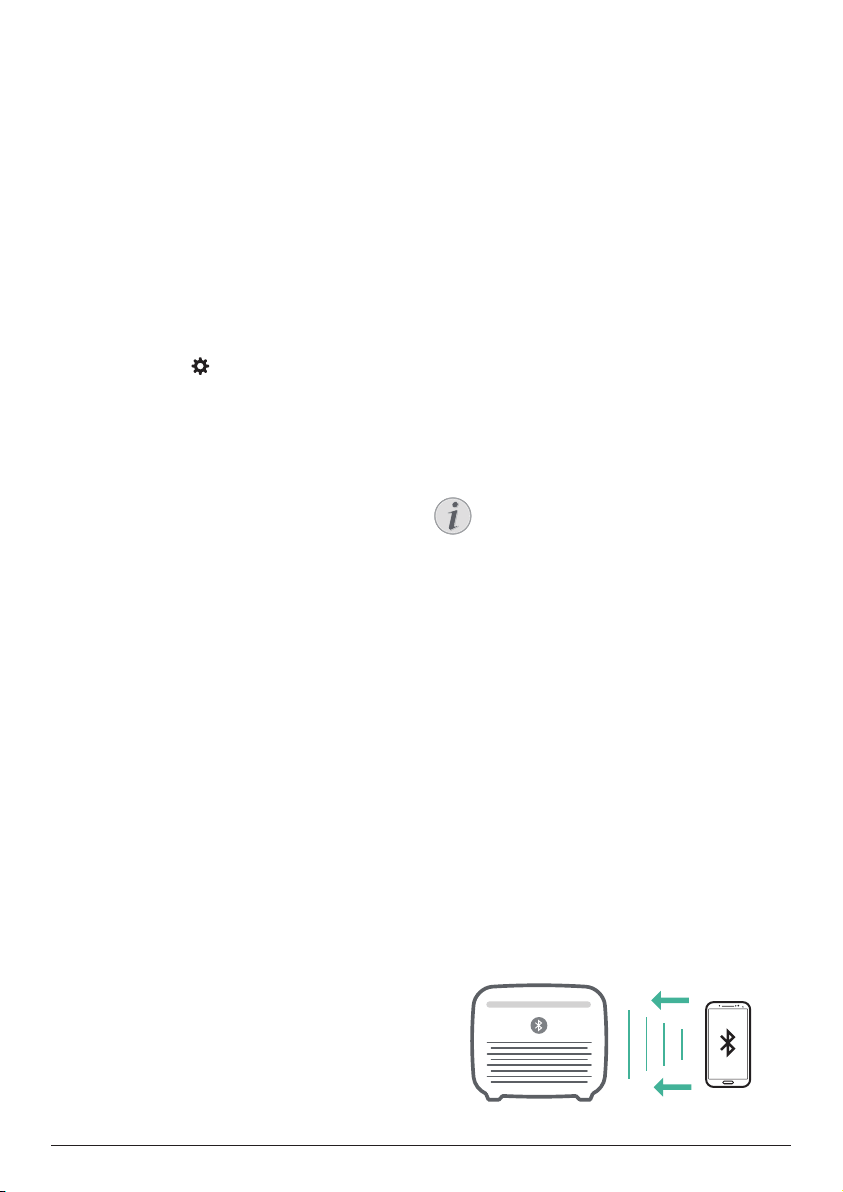
5 Bluetooth
streaming
Through Bluetooth of the projector, you can
listen to music in the following ways:
• Stream music from a Bluetooth device to
the projector.
• Stream music from the projector to an
external Bluetooth speaker.
Stream from Bluetooth
device
Through Bluetooth, you can wirelessly
stream music from a Bluetooth device (e.g. a
smartphone or tablet) to the projector.
Before you use the projector with a Bluetooth
device for the first time, pair it with the
Bluetooth device.
Notice
The effective operation range between
the projector and the Bluetooth device is
approximately 10 meters (30 feet).
The music streaming may be interrupted
by any obstacles between the Bluetooth
device and the projector.
Bluetooth streaming is not available
when the projector is switched on.
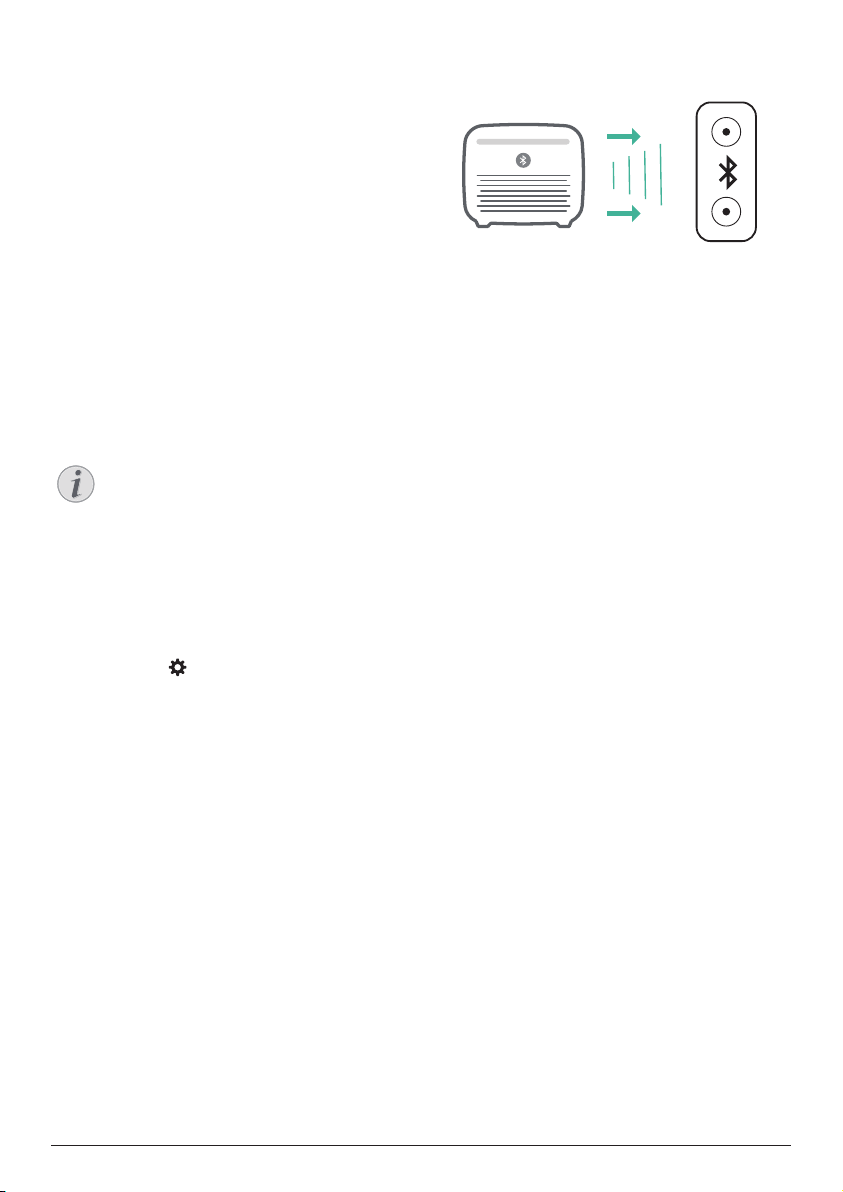
1 Turn on Bluetooth on your electronic device
(e.g., PC, smartphones and tablets).
2 Make sure the projector is switched off,
and the LED on the projector turns red.
Press and hold the Bluetooth button on
the projector until the LED indicator begins
flashing blue.
3 On your electronic device, go to the
Bluetooth settings interface and select
"PicoPix Max TV" to pair with it.
• When the Bluetooth pairing succeeds,
the LED on the projector glows blue
steadily.
4 Play audio on your Bluetooth device. The
audio streams to the projector.
14 Philips · PicoPix Max
TV
Bluetooth re-connection
The projector is automatically re-connected to
the last connected device when Bluetooth is
turned on.
Connection to a second device
You need to disable Bluetooth on the currently
connected device, and then pair a second
Bluetooth device with the projector.
Stream to Bluetooth
speaker
Through Bluetooth, you can wirelessly stream
music from the projector to a Bluetooth
speaker.
Before you use the projector with a Bluetooth
speaker for the first time, pair it with the
Bluetooth speaker.
Notice
The effective operation range between
the projector and the Bluetooth device is
approximately 10 meters (30 feet).
The music streaming may be interrupted
by any obstacles between the Bluetooth
device and the projector.
1 Turn on your Bluetooth speaker.
2 Pair the projector with your Bluetooth
speaker.
• Select the
icon in the upper right corner
of the home screen, and press OK. Then
select Remotes & Accessories - Add
accessory to search for new accessories.
Select your Bluetooth speaker name from
the Bluetooth device list, and press OK.
3 The projector is connected to your
Bluetooth speaker. Audio from the projector
streams to your Bluetooth speaker.
Bluetooth re-connection
The projector is re-connected to the last
connected speaker automatically when the
connected speaker is turned on.
Connection to a second Bluetooth speaker
To connect a second Bluetooth speaker, follow
the same steps above.
Chromecast streaming 15
6 Chromecast
streaming
This projector has Chromecast built-in. This
allows you to stream content (e.g. videos,
photos and music) from a Chromecast-enabled
app on your mobile device (smartphone, tablet
or laptop; Android or iOS) to the projection
screen.
What you need
• Make sure the projector and your mobile
device are connected to the same WiFi
network.
• The app to be cast must be Chromecast
enabled and must be the latest version.
Visit Google Play Store or Apple App Store
for any app updates.
1 Launch the Chromecast-enabled app on
your mobile device.
2 On the app screen, tap the cast icon
.
3 Tap the name of this projector from the
pop-up on your mobile device.
After successful connection, the app
content is streamed to the projection
screen.
Notice
For better streaming performance, use a
5 GHz WiFi network.
Google, Google Play, YouTube, Android TV and
other marks are trademarks of Google LLC.
Google Assistant is not available in certain
languages and countries.
7 Connect to
playback devices
Connect to devices through
HDMI
Connect a playback device (e.g. a Blu-ray
player, gaming console, camcorder, digital
camera or PC) to the projector through HDMI
connection. With this connection, images are
shown on the projection screen, and audio is
played on the projector.
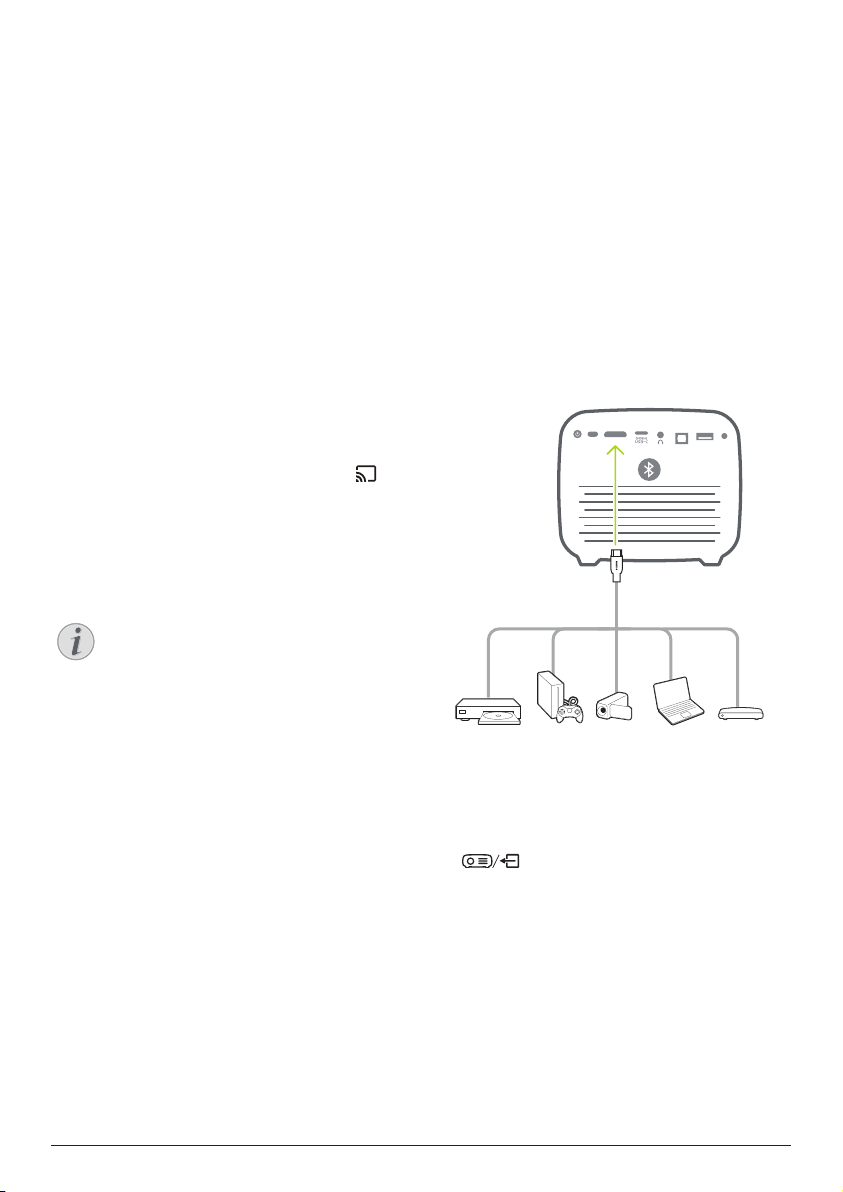
1 Using an HDMI cable, connect the HDMI
connector on the projector to the HDMI
output on the playback device.
HDMI
DC
USB
SPDIF
2 The projector automatically switches to
HDMI input when HDMI connection is
made. The projection screen shows images.
If the projection screen does not show
images, select HDMI input manually. Press
to access the settings menu and
select Input Source - HDMI.
16 Philips · PicoPix Max
TV
Connect to devices through
USB-C
Connect a USB-C device (e.g. a mobile phone,
tablet or laptop) to the projector through USB-C
connection. With this connection, images are
shown on the projection screen, and audio is
played on the projector.
1 Using a USB-C cable, connect the
connector on the projector to the
USB-C port on the playback device.
HDMI
DC
USB
SPDIF
2 The projector automatically switches to
USB-C input when USB-C connection is
made.
• To select USB-C input manually, press
to access the settings menu and
select Input Source - USB-C.
Notice
The projector supports stereo audio
format only. If no audio from the
playback device is heard on the
projector, check that the audio output
format is set to stereo on the playback
device.
The
port only accepts
video signal. To connect other USB
device (e.g. a thumb drive and keyboard),
use the USB-A port.
Connect to devices through
SPDIF
Connect a digital device (e.g. a home cinema
system or sound bar) to the projector through
SPDIF connection. With this connection, audio
is streamed to the connected digital device.
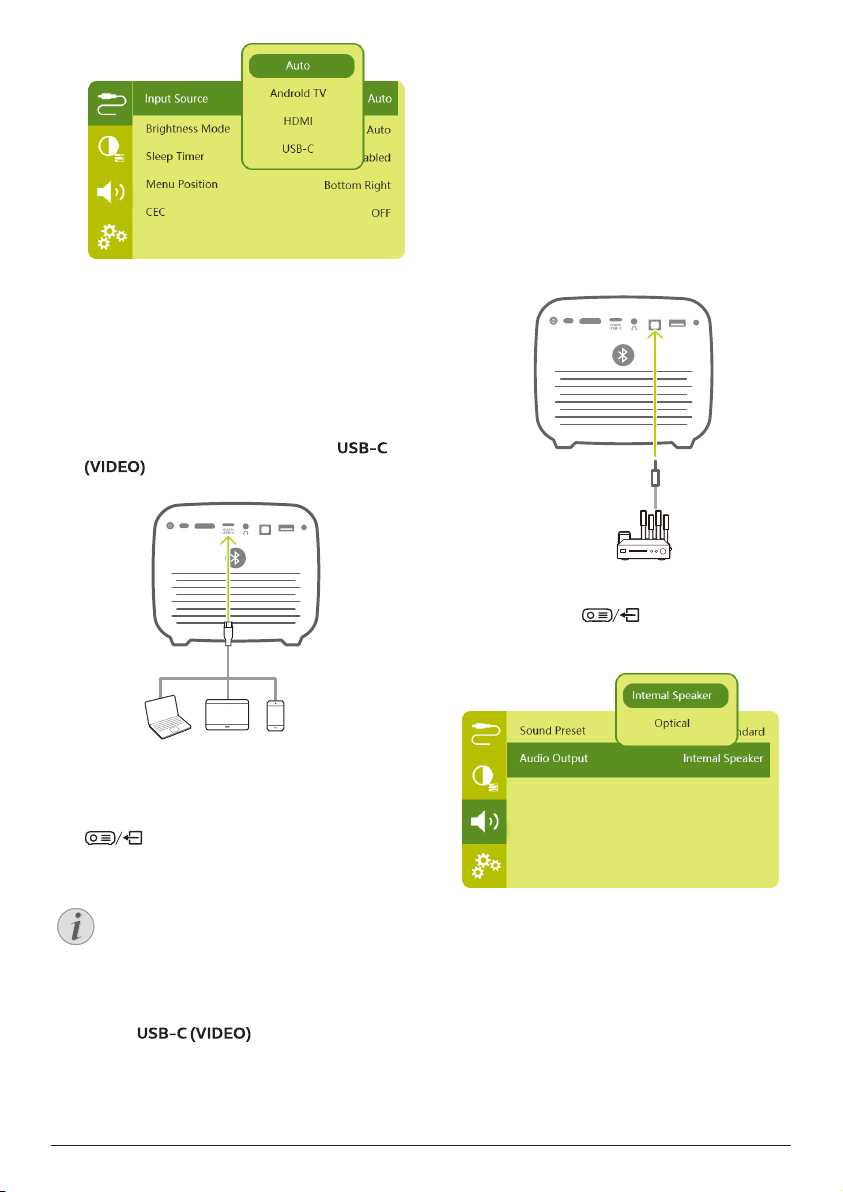
1 Using an SPDIF optical cable, connect the
SPDIF connector on the projector to the
SPDIF input on the digital device.
• SPDIF input on the digital device might
be labeled OPTICAL or OPTICAL IN.
HDMI
DC
USB
SPDIF
2 To output audio to the external device,
make sure external speaker output is
activated. Press
to access the
settings menu and select Audio Output -
Optical.
Other features 17
8 Other features
Connect to external
speakers or headphones
Connect external speakers or headphones to
the projector. With this connection, audio from
the projector is played through the external
speakers or headphones.
DANGER!
Danger of hearing damage!
Before connecting the headphones,
turn down the volume on the projector.
Do not use the projector over a longer
time at high volume – especially when
using headphones. This could lead to
hearing damage.
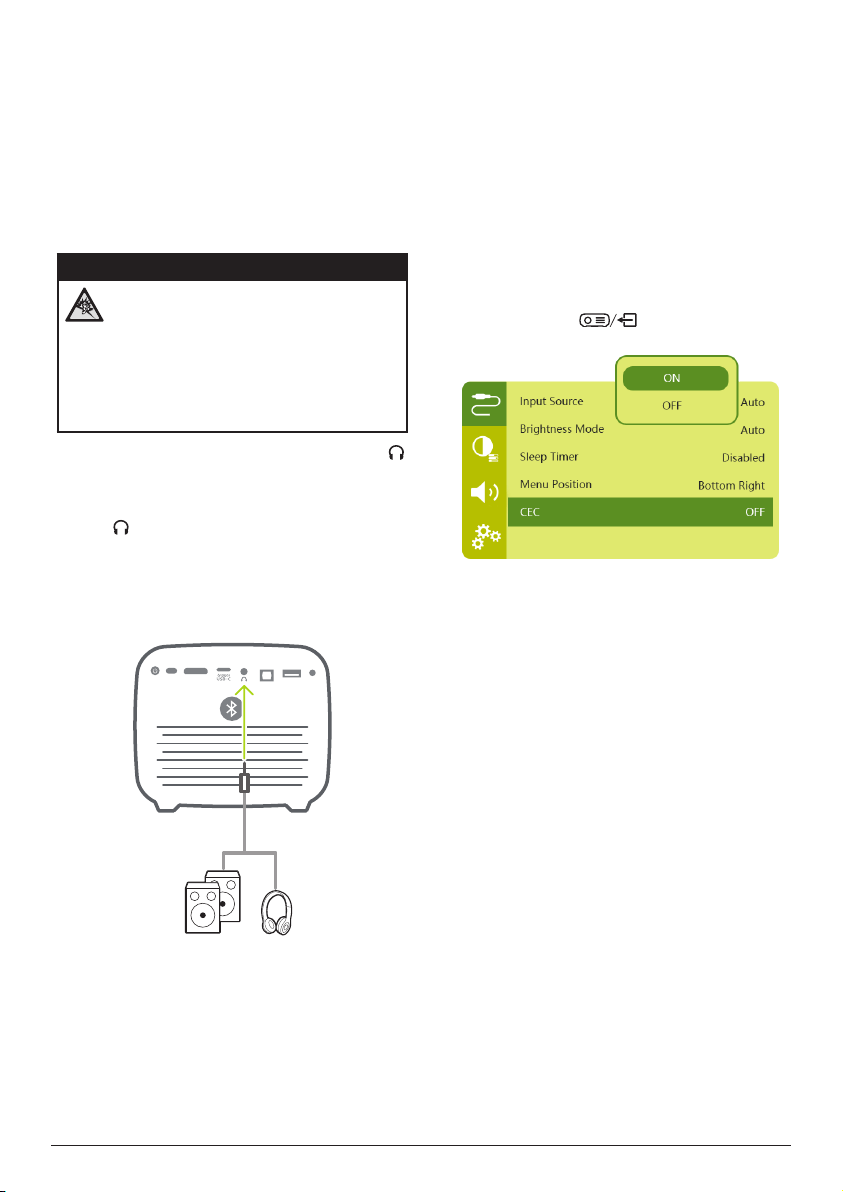
1 Using a 3.5 mm audio cable, connect the
connector on the projector to the analogue
audio input (3.5 mm jack, or red and white
jacks) on the external speakers. Or connect
the
connector on the projector to
headphones.
• The speakers of the projector are
deactivated automatically when the
external speakers or headphones are
connected to the projector.
HDMI
DC
USB
SPDIF
2 When connecting to the headphones, use
the volume control on the remote control to
adjust the volume to a comfortable level.
Use easy link
This projector supports easy link which uses
the HDMI CEC (Consumer Electronics Control)
protocol. You can use a single remote control
to turn on or off the easy link compliant
devices that are connected through HDMI.
The manufacturer does not guarantee 100%
interoperability with all HDMI CEC devices.
1 Make sure the projector is connected to an
HDMI device which supports HDMI CEC
function (see Connect to devices through
HDMI, page 15).
2 To activate easy link function on this
projector, press
to access the
settings menu and select CEC - On.

18 Philips · PicoPix Max
TV
9 Change settings
This section helps you change the following
two system settings:
• Android TV settings
• Projector system settings
Android TV settings
1 On the home screen (press
), use the
Navigation buttons on the remote control
to select the
icon in the upper right
corner of the screen, then press OK to
access various settings options.
2 Use
the Navigation buttons and OK to select
and change settings.
WiFi settings
Go to Network & Internet to connect the
projector to the WiFi network. Use the pop-up
virtual keyboard or voice input to input letters
and digits.
Google account settings
Go to Accounts & Sign In to sign into your
Google account.
Language settings
Go to Device Preferences - Language to select
a language for the on-screen menus.
Date and time settings
Go to Device Preferences - Date & time to
access the following settings.
• Automatically update date and time, or
manually set date, time and time zone.
• Choose to use 24-hour format.
Keyboard settings
Go to Device Preferences - Keyboard to access
various settings for keyboard.
Bluetooth settings
Go to Remotes & Accessories to pair the
projector with the projector's remote control, or
a Bluetooth keyboard/mouse/gamepad.
Apps settings
Go to Apps to access the following settings.
• List downloaded/system apps, and each
app's memory usage.
• Set permissions for the installed apps, e.g.,
location, contacts, camera, microphone,
phone, SMS and etc.
• Check an app version, app size and cache
size.
• Clear cache or uninstall an app.
Picture settings
Display
Go to TV settings - Display to access the
following settings.
• Screen resolution: Select a screen resolution
to best support your video.
• Screen position: Scale the projection image
within the range from 80% to 100%. Select
Zoom in screen / Zoom out screen and then
press OK to scale up/down.
Picture
Go to TV settings - Picture to access the
following settings.
• Picture Mode: Select a predefined color
brightness setting for picture and video
display.
• Custom Settings: Customize color values in
brightness, contrast, and saturation.
• DNR: Select high/medium/low level of DNR
(Digital Noise Reduction) to remove image
noise from a video signal to achieve image
clearness.
• Backlight: Adjust the brightness of the
backlight of the projector screen.
Sound options
Go to Device Preferences - Sound to access the
following settings.
• System Sound: Turn the system sound on or
off.
• Surround Sound: Enable or disable
surround sound effect; automatically select
a sound format the projector best supports
or manually select a sound format.
Audio output
Go to TV settings - Audio Output to access the
following settings.
• Dolby sounds: Select a DRC (Dynamic
Range Compression) mode for reducing
dynamic range of sound output.
• Audio Mixing: Enable audio mixing function
when the projector is connected to an
external audio mixer.
Change settings 19
• Digital Audio Format: Automatically detect
and select the best supported audio
format, or manually select an audio format
for sound output.
• dts sounds: Choose a dts DRC scale from
0-100%.
Netflix activation code
Go to TV settings - Netflix ESN to display the
Netflix activation code.
HDMI CEC
Go to TV settings - HDMI CEC to turn the CEC
switch and more functions on or off.
Restore default settings
1 Go to Device Preferences - Reset.
2 Follow the on-screen instructions to start or
cancel resetting.
Notice
After resetting to the default settings, all
the apps you installed and system and
app data are completely erased.
Other system settings
Go to Device Preferences to access the
following settings.
• About: View information about, update, or
restart the device.
• Storage: Check the total and used space for
internal storage.
• Home screen: Customize and organize the
home screen.
• Google assistant: Select the active Google
account and customize Google Assistant
behaviour.
• Chromecast built-in: View information
about Chromecast.
• Screen saver: Select a timer to automatically
turn the screen off when the projector is
idle.
• Location: Check your location status and
view all recent location requests.
• Usage and diagnostics: Choose if you
wish for the device to automatically send
diagnostic information to Google.
• Security and restrictions: Modify your
security settings or create a restricted
profile.
• Accessibility: Configure a variety of
accessibility options, including captions
and text-to-speech.
Projector system settings
1 Press
on the remote control to
access the projector system settings.
2 Use the Navigation buttons and OK to select
and change settings.
3 Press
to return to the previous screen.
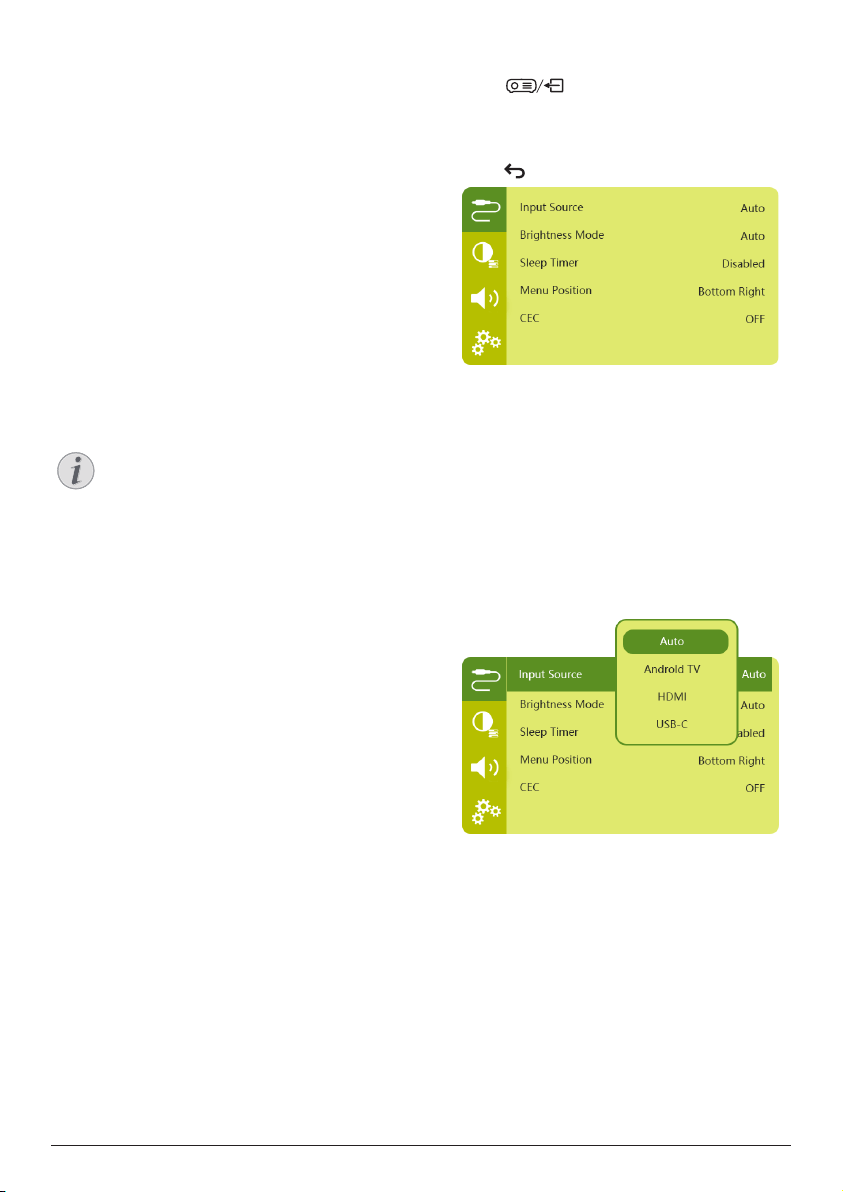
Input source selection
Go to Input Source to access the following
settings.
• Auto: Automatically switch to the correct
input source.
• HDMI: Select it when an HDMI device is
connected.
• Android TV: Select it when using Android
TV.
• USB-C: Select it when a USB-C device is
connected.
20 Philips · PicoPix Max
TV
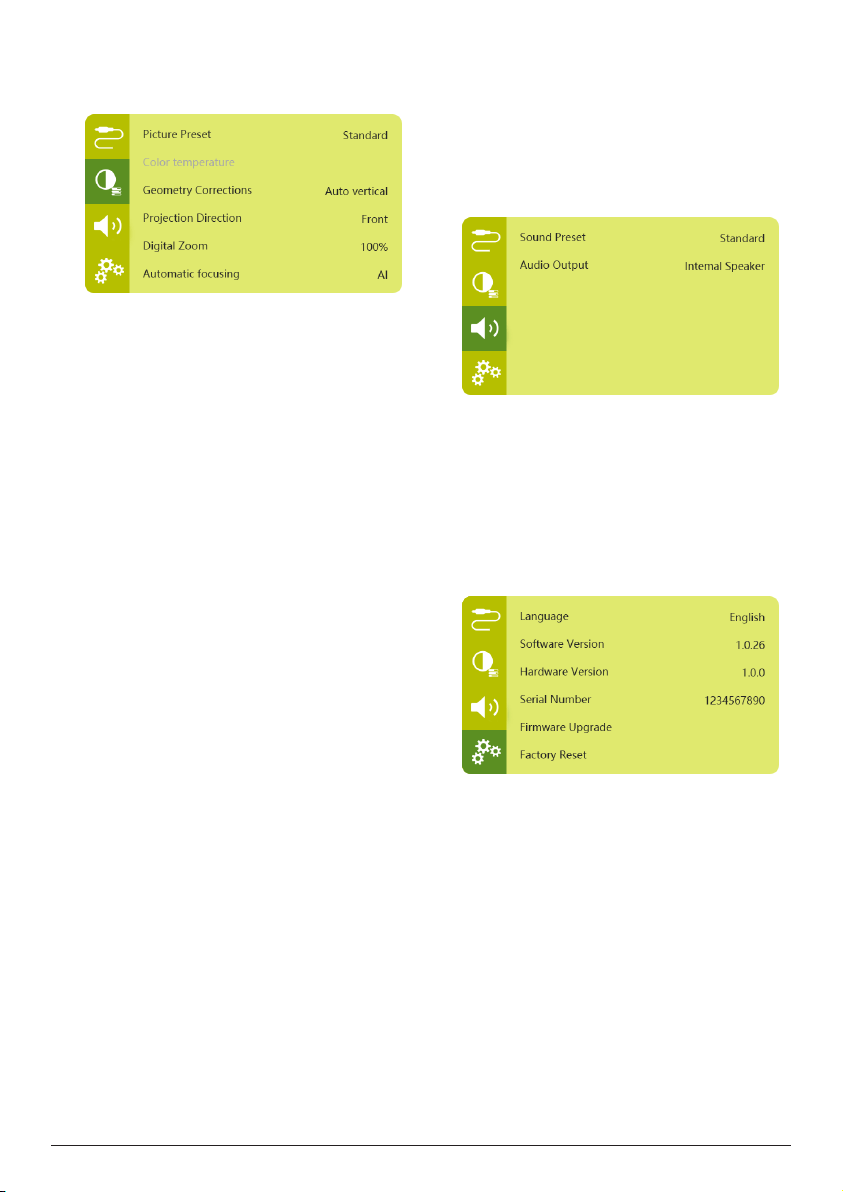
Image options
You can access the following image setting
options.
• Picture Preset: Select a predefined color
brightness setting for picture and video
display, or select User to customize color
values on brightness, contrast, saturation,
tone and sharpness.
• Color Temperature: Set to Warm to
enhance hotter colors such as red; set to
Cold to make picture bluish; set to User to
customize color values in RGB mode.
• Geometry Corrections: Select an option to
correct keystone or distorted images to be
rectangular.
• Auto vertical: Enable or disable auto
correction of the image shape.
• Manual: Manually correct keystone or
distorted images by re-positioning the
four corners of the projection screen.
• Off: Disable correction of the image
shape.
• Projection Direction: Adjust the projection
to the correct position based on different
installation of the projector.
• Digital Zoom: Scale down the projection
image among 80%-100%.
• Automatic focusing: Choose standard or
AI-powered auto focus.
• Autofocus mode:
• Standard mode is slower but works in
all environments.
• AI powered is faster, but takes a few
attempts to learn a new environment
(e.g. when you change rooms).
• Brightness:
• Auto mode will dynamically change
the projector's brightness based on the
ambient light in your room.
• For the longest battery life, select
"Super Eco".
Scheduled shutdown
Go to Sleep Timer to select a time option which
enables the projector to automatically turn off
after a specified period of time.
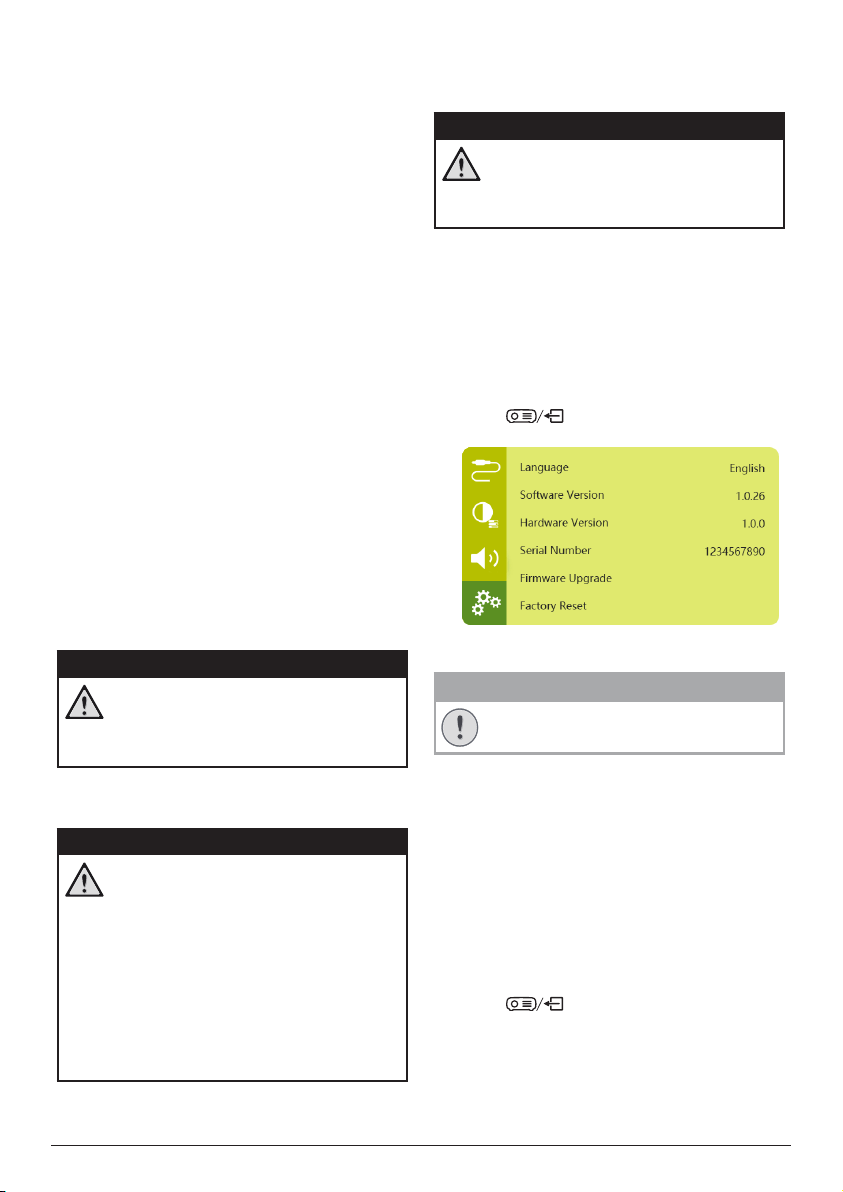
Sound options
You can access the following sound setting
options.
• Sound Preset: Select a preset sound effect.
• Audio Output: Switch the audio output
between Internal Speaker and Optical.
Select Optical if you want to output audio
through HDMI or SPDIF connection to a
digital device (e.g. home cinema system or
AV receiver).
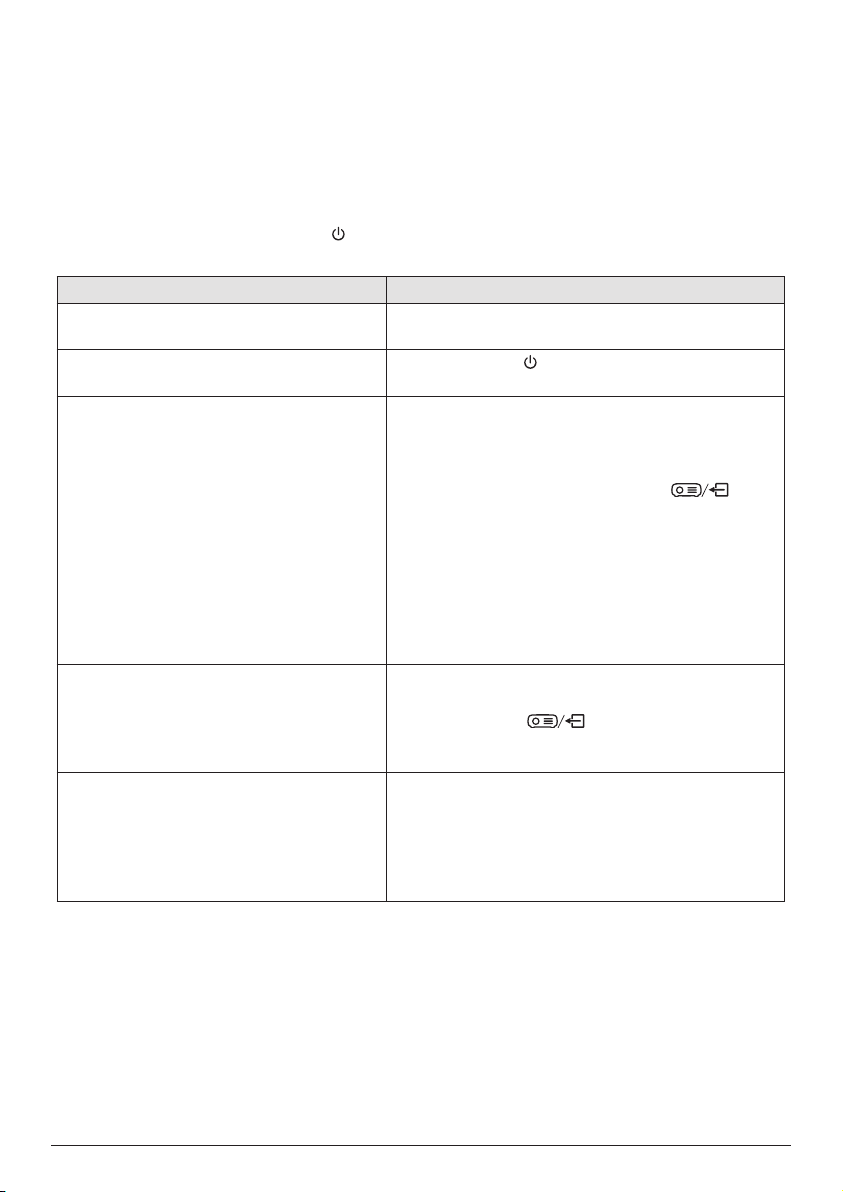
Other settings
You can also access the following options.
• Language: Select a language for system
settings menu.
• Software Version: Check software version of
this product.
• Hardware Version: Check hardware version
of this product.
• Serial number: Check serial number of this
product.
• Firmware Upgrade: Software update via a
USB device (see Update SW through USB,
page 21).
• Factory Reset: Restore factory default
settings.
Service 21
10 Service
Built-in battery care
The capacity of the built-in battery diminishes
with time. You can prolong the life of the
battery if you observe the following points:
• Without a power supply, the projector
operates on the built-in battery. When the
battery does not have sufficient power, the
projector turns off. In this case connect the
projector to the power supply.
• Charge the battery regularly. Don’t store
the projector with a completely discharged
battery.
• If the projector is not used for several
weeks, discharge the battery a little by
using the projector before storing it.
• Keep the projector and the battery away
from sources of heat.
• If the projector cannot be charged after
connecting to the power supply, use a small
pin to press the reset key (a small hole)
located near the USB port of the projector.
Note about deep discharge of battery
When the built-in battery is in deep discharge,
it may take longer for the actual charging
process to start. In this case, charge the
projector for at least five hours before using it.
DANGER!
Risk of explosion with incorrect type
of batteries!
Do not try to replace the built-in
battery yourself.
Cleaning
DANGER!
Instructions for cleaning!
Use a soft, lint-free cloth. Never use
liquid or easily flammable cleansers
(sprays, abrasives, polishes, alcohol,
etc.). Do not allow any moisture to
reach the interior of the projector.
Do not spray the projector with any
cleaning fluids.
Wipe over the surfaces gently. Be
careful that you do not scratch the
surfaces.
Cleaning the lens
Use a soft brush or lens cleaning paper for
cleaning the lens of the projector.
DANGER!
Do not use any liquid cleaning agents!
Do not use any liquid cleaning
agents for cleaning the lens, to avoid
damaging the coating film on the lens.
Update software
The latest software of the projector can be
found on www.philips.com/support for you
to get the best features and support from the
projector.
Before you update the software of the
projector, check the current software version:
• Press
to access the settings menu
and go to Software Version.
Update SW through USB
CAUTION!
Do not turn off the projector or remove
the USB flash drive during the update.
1 Check the latest software version on www.
philips.com/support. Find your product
(model number: PPX720/INT), and locate
‘Software and drivers’.
2 Download the update package and unzip
it if necessary. The update file is named
PPX720INT_firmware.zip. Copy this file to
the root directory of the USB drive without
unzipping it further.
3 Connect the USB flash drive (FAT32
formatted) to the projector.
4 Press
to access the settings options
and go to Firmware Upgrade.
5 Follow the on-screen instructions to
complete the update.
22 Philips · PicoPix Max
TV
Troubleshooting
Power cycling
If a problem occurs that cannot be corrected with the instructions in this user manual, follow the
steps given here.
1 Turn the projector off by pressing and holding the power button on the projector for 10
seconds.
2 Wait at least ten seconds.
3 Turn the projector on by pressing
once.
4 If the problem persists, please contact our technical service centre or your dealer.
Problems Solutions
The projector cannot be turned on. • Disconnect and reconnect the power cable, and
try to turn the projector on again.
The projector cannot be turned off.
• Press and hold
longer than ten seconds. If this
does not work, disconnect the power cable.
The remote control does not work. • The remote control is not paired with the
projector. Pair the remote control with the
projector (see First time setup, page 11).
• The remote control is not in Android TV mode for
Android TV menu navigation. Press
on
the remote control to switch the remote control to
Android TV mode (if the remote control is paired
with the projector).
When the remote control is in Android TV mode,
the LED on the remote control flashes blue once
each time you press a button on the remote
control.
• Check the batteries of the remote control.
No sound output to the connected digital
device.
• Check the cables to the external device.
• Check that the sound output is activated on the
projector. Press
on the remote control
to access the settings options and go to Audio
Output - Optical.
No image from the external HDMI device. • Check if the correct HDMI input is selected.
• Disconnect the HDMI cable or switch off the
HDMI device.
• Wait three seconds.
• Reconnect the HDMI cable or switch on the HDMI
device again.

Service 23
Problems Solutions
No sound from external HDMI output
device.
• On the HDMI output device, set the audio setting
to Multichannel (Raw data) & Stereo (PCM).
No sound when you connect your
computer via HDMI cable.
• Check that the sound is activated on the
computer.
Cannot stream video from an app on my
mobile phone.
• Make sure the correct setup is made and the
app is Chromecast-enabled (see Chromecast
streaming, page 15).
When I view videos, the sound or the
picture is sometimes distorted or the sound
is not synchronized to the picture.
• The available WiFi bandwidth is insufficient for
sending the video flawlessly from the smartphone
to the projector. This can happen if one or more
WiFi networks operate in the same frequency
range nearby. Certain IoT devices (e.g. ZigBee
enabled devices) also operate in this frequency
range.
• Your smartphone is not fast enough to compress
the data and send it simultaneously over WiFi.
The temperature of the projector’s surface
is warm.
• For this projector it is normal to generate
moderate heat during operation.
The projector turns itself off. • When the projector is running for a long period of
time, the surface becomes hot.
• Check that the power cable is connected correctly.
What to do if the projector does not work
when connecting to a notebook PC?
• Check that the HDMI cable is plugged in correctly.
• Make sure that the notebook PC has been
switched to projector display.

24 Philips · PicoPix Max
TV
Power source
Power consumption ..................... operating: 90 W
standby: 0.3 W
Power supply ..................... 100-240 V
~
, 50/60 Hz
Battery .......................... 21,000 mAh, lasts up to 4h
Apps
Pre-loaded Apps .............................. Android TV
TM
/
full catalog of Apps
Product details
Dimensions (W × D × H) ..... ....158 x 150 x 119 mm
Weight .................................................................1.96 kg
Operating temperature.......................... 5 °C - 35 °C
Storage temperature ...................................... < 60 °C
Package content
PicoPix Max
TV
projector, remote control with 2
AAA batteries, AC power adapter, power cables
(EU, UK, US), HDMI to HDMI cable, USB-C to
USB-C cable, Quick Start Guide
11 Appendix
Technical data
Technology/optical
Display technology ......................................... TI DLP
Light source ....................... LED RGGB 4 channels
Color space ........................................100% REC 709
Resolution .................................... 1920 × 1080 pixel
LED lifetime ...............................over 30,000 hours
Contrast ratio .................................................... 1,000:1
Aspect ratio ............................................16:9 and 4:3
Throw ratio .............................................................. 1.2:1
Screen size (diagonal) ..............75 cm - 305 cm /
30" - 120"
Screen distance ......78 cm - 320 cm / 31" - 126"
Projection modes .. front, rear, front/rear ceiling
Focus adjustment ................................................auto
Keystone correction ......................... auto (vertical)
4 corner correction ................................................ yes
Digital zoom ............................................................ yes
Light sensor ..automatic brightness adjustment
Auto rotate ............................................................... yes
Sound
Built-in speakers .............2 x 12 W with active and
passive
Connection
Wi-Fi ..... ...802.11a/b/g/n/ac Dual 2.4 and 5GHz
Chromecast built-in
Bluetooth ...............................................Bluetooth 5.0
to pair remote control, gamepad, and more;
Bluetooth speaker when projector is off
HDMI ............................................................................. x1
USB 2.0 ......................................................................... x1
USB type C (video) ................................................... x1
Digital audio output (SPDIF) ................................ x1
Analog audio output ............................................... x1
Appendix 25
CE statement
• The product shall only be connected to a
USB interface of version USB 2.0 or higher.
• Adapter shall be installed near the
equipment and shall be easily accessible.
• The operating temperature of the EUT can’t
exceed 35°C and shouldn’t be lower than
5°C.
• The plug is considered as disconnect device
of adapter.
• The UNII Band 5150-5250 MHz is for indoor
use only.
• The device complies with RF specifications
when the device is used at 20 cm from your
body.
Hereby, Screeneo Innovation SA declares that
this product is in compliance with essential
requirements and other relevant provisions of
Directive 2014/53/EU.
The Declaration of Compliance can be
consulted on the site www.philips.com.
Frequency bands Maximum output
power
BT EDR (EIRP) 9.09 dBm
BT BLE (EIRP) 4.85 dBm
WiFi 2.4GHz (EIRP) 17.88 dBm
WiFi 5GHZ (EIRP) 17.89 dBm
FCC statement
15.19 Labeling requirements.
This device complies with part 15 of the FCC
Rules. Operation is subject to the following
two conditions: (1) This device may not cause
harmful interference, and (2) this device must
accept any interference received, including
interference that may cause undesired
operation.
15.21 Information to the user.
Any changes or modifications not expressly
approved by the party responsible for
compliance could void the user’s authority to
operate the equipment.
15.105 Information to user.
This equipment has been tested and found
to comply with the limits for a Class B digital
device, pursuant to Part 15 of the FCC Rules.
These limits are designed to provide reasonable
protection against harmful interference in
a residential installation. This equipment
generates, uses and can radiate radio
frequency energy and, if not installed and used
in accordance with the instructions, may cause
harmful interference to radio communications.
However, there is no guarantee that interference
will not occur in a particular installation. If this
equipment does cause harmful interference
to radio or television reception, which can be
determined by turning the equipment off and
on, the user is encouraged to try to correct the
interference by one or more of the following
measures:
• Reorient or relocate the receiving antenna.
• Increase the separation between the
equipment and receiver.
• Connect the equipment into an outlet on
a circuit different from that to which the
receiver is connected.
• Consult the dealer or an experienced radio/
TV technician for help.
FCC RF Radiation Exposure Statement
During operation, the separation distance
between the user and the antenna shall be
at least 20 cm. This separation distance will
ensure that there is sufficient distance from a
properly installed externally-mounted antenna
to satisfy the RF exposure requirements.
FCC ID: 2ASRT-PPX720
Canada Regulatory
Compliance
This device complies with Industry Canada CAN
ICES-3 (B)/NMB-3(B)
RSS-Gen & RSS-247 statement: This device
complies with Industry Canada RSS standard(s).
Operation is subject to the following two
conditions:
1 This device may not cause interference, and
2 This device must accept any interference,
including interference that may cause
undesired operation of the device.

26 Philips · PicoPix Max
TV
RF Radiation Exposure statement
The device meets the exemption from the
routine evaluation limits in section 2.5 of
RSS102 and users can obtain Canadian
information on RF exposure and compliance.
This device should be installed and operated
with a minimum distance of 7.8 inches
(20 centimetres) between the device and your
body.
Other notice
Preservation of the environment as part
of a sustainable development plan is an
essential concern of Screeneo Innovation SA.
The desire of Screeneo Innovation SA is to
operate systems respecting the environment
and consequently it has decided to integrate
environmental performances in the life cycle
of these products, from manufacturing to
commissioning use and elimination.
Packaging: The presence of the logo (green
dot) means that a contribution is paid to an
approved national organisation to improve
package recovery and recycling infrastructures.
Please respect the sorting rules set up locally
for this kind of waste.
Batteries: If your product contains batteries,
they must be disposed of at an appropriate
collection point.
Product: The crossed-out waste bin symbol on
the product means that the product belongs
to the family of electrical and electronic
equipment. In this respect, the European
regulations ask you to dispose of it selectively:
• At sales points in the event of the
purchase of similar equipment.
• At the collection points made available
to you locally (drop-off centre, selective
collection, etc.).
In this way you can participate in the reuse
and upgrading of Electrical and Electronic
Equipment Waste, which can have an effect on
the environment and human health.
The paper and cardboard packaging used can
be disposed of as recyclable paper. Have the
plastic wrapping recycled or dispose of it in
the non-recyclable waste, depending on the
requirements in your country.
Trademarks: The mentioned references in
this manual are trademarks of the respective
companies. The lack of the trademarks ®
and ™ does not justify the assumption that
these dedicated terminologies are free
trademarks. Other product names used herein
are for identification purposes only and may
be trademarks of their respective owners.
Screeneo Innovation SA disclaims any and all
rights in those marks.
Neither Screeneo Innovation SA nor its affiliates
shall be liable to the purchaser of this product
or third parties for damages, losses, costs, or
expense s incurred by the purchaser or third
parties as a result of accident, misuse, or abuse
of this product or unauthorised modifications,
repairs, or alterations to this product, or failure
to strictly comply with Screeneo Innovation SA
operating and maintenance instructions.
Screeneo Innovation SA shall not be liable for
any damages or problems arising from the use
of any options or any consumable materials
other than those designated as original
Screeneo Innovation SA/PHILIPS products or
Screeneo Innovation SA/PHILIPS approved
products.
Screeneo Innovation SA shall not be held liable
for any damage resulting from electromagnetic
interference that occurs from the use of any
interface cables other than those designated as
Screeneo Innovation SA/PHILIPS products.
All rights reserved. No part of this publication
may be reproduced, stored in a retrieval
system or transmitted in any form or by any
means, electronic, mechanical, photocopying,
recording, or otherwise, without the prior
written permission of Screeneo Innovation SA.
The information contained herein is designed
only for use with this product. Screeneo
Innovation SA. is not responsible for any use of
this information as applied to other devices.
This user manual is a document that does not
represent a contract.
Errors, printing errors and changes are reserved.
Copyright © 2021 Screeneo Innovation SA.

PicoPix Max
TV
EN
Screeneo Innovation SA
Route de Lully 5C, 1131 Tolochenaz
Philips and the Philips Shield Emblem are registered trademarks of Koninklijke Philips N.V. used
under license. Screeneo Innovation SA is the warrantor in relation to the product with which this
booklet was packaged.
2021 © Screeneo Innovation SA. All rights reserved.