1

2
Contents
Product Overview ..................................................................................................... 3
Front view ........................................................................................................................................... 4
Back view ............................................................................................................................................ 5
Avoid Overheating ............................................................................................................................... 7
Wall-Mounting Placement ................................................................................................................... 7
Setting Up: Basics ..................................................................................................... 9
Where to find more help ...................................................................................................................... 9
How to install your router .................................................................................................................. 10
How to Use Linksys Smart Wi-Fi .............................................................................. 12
How to connect to Linksys Smart Wi-Fi ............................................................................................... 12
Network Map .................................................................................................................................... 13
Guest Access ...................................................................................................................................... 14
Parental Controls ............................................................................................................................... 14
Media Prioritization ........................................................................................................................... 14
Speed Test ......................................................................................................................................... 15
External Storage ................................................................................................................................ 15
Connectivity ...................................................................................................................................... 16
Troubleshooting ................................................................................................................................ 16
Wireless ............................................................................................................................................ 17
Security ............................................................................................................................................. 17
Troubleshooting ..................................................................................................... 18
Your router was not successfully set up .............................................................................................. 18
Your Internet cable is not plugged in message .................................................................................... 19
Cannot access your router message .................................................................................................... 20
After setup ........................................................................................................................................ 21
Specifications ......................................................................................................... 22
Linksys WRT3200ACM ................................................................................ Error! Bookmark not defined.
Environmental
........................................................................................................................................ 24
3
Product Overview
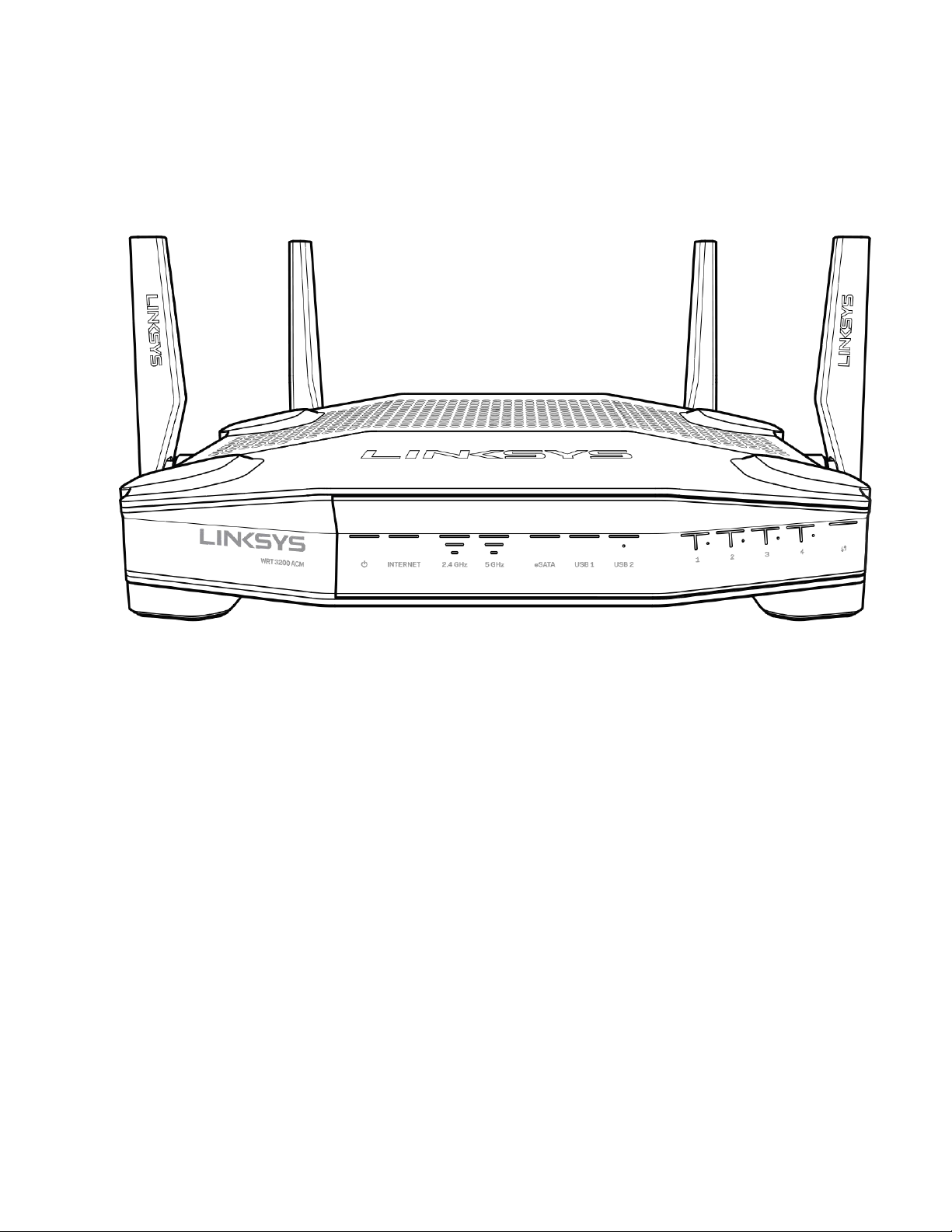
Front view
4
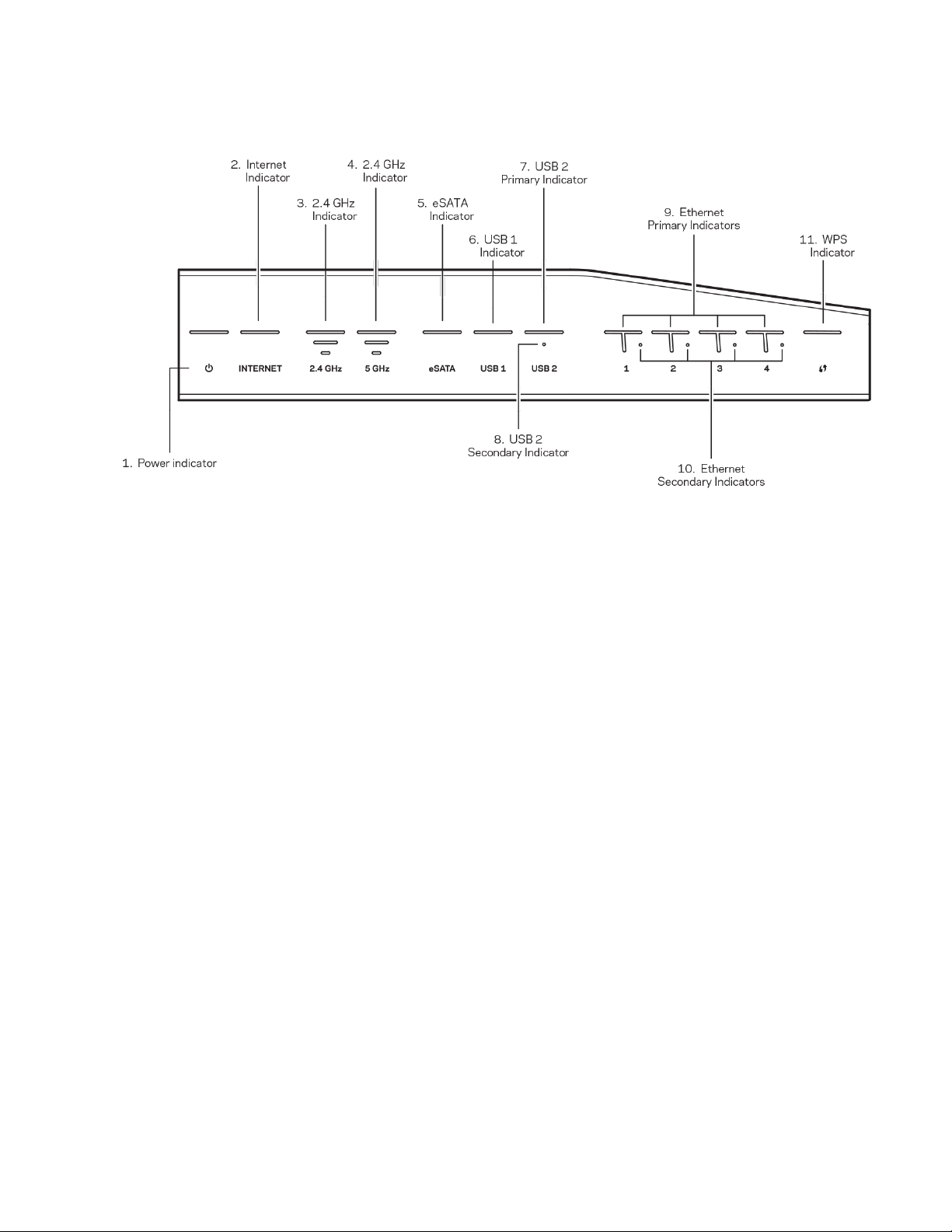
Front panel
(1) Power indicator—(White) The icon LED is solid white while the router is powered on. It will blink when the
router goes through its self-diagnostic mode during every boot-up.
(2) Internet Indicator—(White/Amber) The Internet LED is solid white when connected to the Internet. It
blinks white while the router works to establish a connection. A solid amber LED indicates the connection is
down due to configuration issues. Amber blinking indicates that the connection is down due to hardware
issues.
(3) 2.4 GHz Indicator—(White) The Wireless LED is solid white when one or more clients are connected to the
2.4 GHz network. If the LED is blinking white, the router is sending or receiving data over the 2.4 GHz
network.
(4) 5 GHz Indicator—(White) The Wireless LED is solid white when one or more clients are connected to the
5GHz network. If the LED is blinking white, the router is sending or receiving data over the 5 GHz network.
(5) eSATA Indicator—(White) When off, the USB/eSATA port is off or a USB device is connected. The LED is
solid white when an eSATA device is connected. A blinking white LED indicates activity through the eSATA
port.
(6) USB1 Indicator—(White) When off, the USB /eSATA port is off or an eSATA device is connected. The LED is
solid white when a USB device is connected. A blinking white LED indicates activity on the port.
(7) USB2 Primary Indicator—(White) When off, the USB 3.0 port is off. The LED is solid white when a USB
device is connected. A blinking white indicates activity on the port.
(8) USB2 Secondary Indicator—(White) When off, a USB 1.0 or USB 2.0 device is connected. A solid white LED
indicates a USB 3.0 device is connected.
(9) ETHERNET 1 through 4 (Primary)—(White) These numbered LEDs correspond with the numbered ports on
the router’s back panel. If the white LED is solid, the router is connected to a device through that port. A
flashing white LED indicates network activity over that port.
5
(10) ETHERNET 1 through 4 (Secondary)—(White) If the white LED is off, the router is successfully connected to
a device through that port at 10/100 Mbps. A solid white LED indicates that the router is successfully
connected to a device at 1000 Mbps.
(11) WPS Indicator—(White/Amber) The LED blinks slowly for up to two minutes during Wi-Fi
Protected Setup. It will be solid white for five seconds to indicate a successful connection. The
LED blinks amber if the Wi-Fi Protected Setup process fails. Make sure the client device supports Wi-Fi Protected
Setup. Wait until the LED is off, and then try again. The router supports one session at a time.
Back view
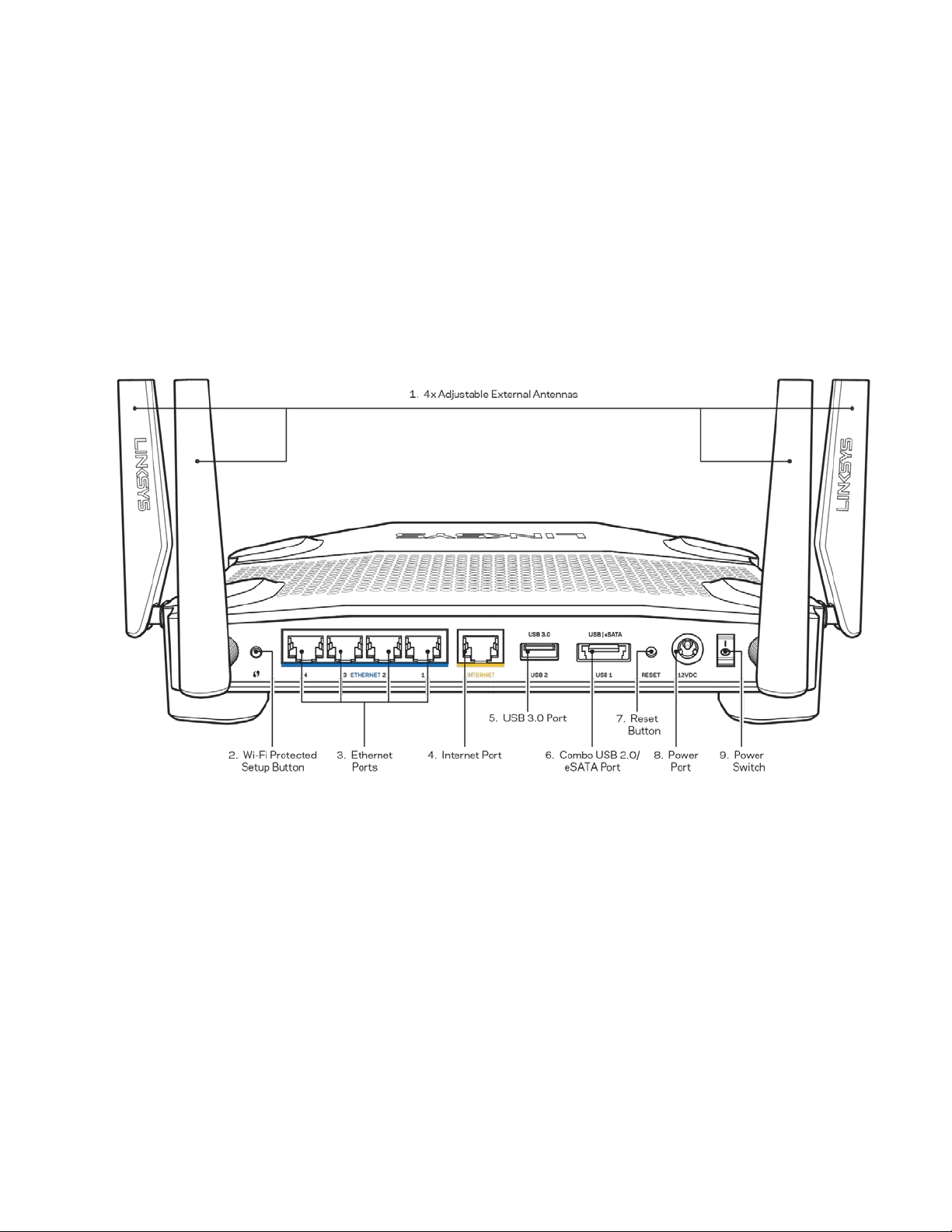
(1) Adjustable antennas—This router ships with four adjustable external antennas that should be connected to
the router before powering it on. To connect the antennas, twist the antenna connector clockwise onto the
antenna port on the router.
Note—For best performance, position the side antennas vertically as shown in the picture on the left.
(2) Wi-Fi Protected Setup™ button—Press to configure wireless security on Wi-Fi Protected Setup-enabled
network devices.
(3) Ethernet ports—Connect Ethernet cables to these blue gigabit (10/100/1000) ports, and to wired devices on
your network.
Note—For best performance, use CAT5e or higher rated cables on the Ethernet ports.

6
(4) Internet port—Connect an Ethernet cable to this yellow gigabit (10/100/1000) port, and to a broadband
Internet cable/DSL or fiber modem.
Note—For best performance, use CAT5e or higher rated cables on the Internet port.
(5) USB 3.0 port—Connect and share a USB drive on your network or on the Internet.
(6) USB 2.0/eSATA combo port—Connect and share a USB or eSATA drive on your network or on the Internet.
You can also connect a USB printer and share it across your network.
(7) Reset button—Press and hold for 10 seconds (until the power LED starts flashing) to reset the router to
factory settings. You can also restore the factory settings using Linksys Smart Wi-Fi on the Internet or mobile
app.
(8) Power port—Connect the included AC power adapter.
(9) Power button (EU models only)—Press to turn on the router.
7
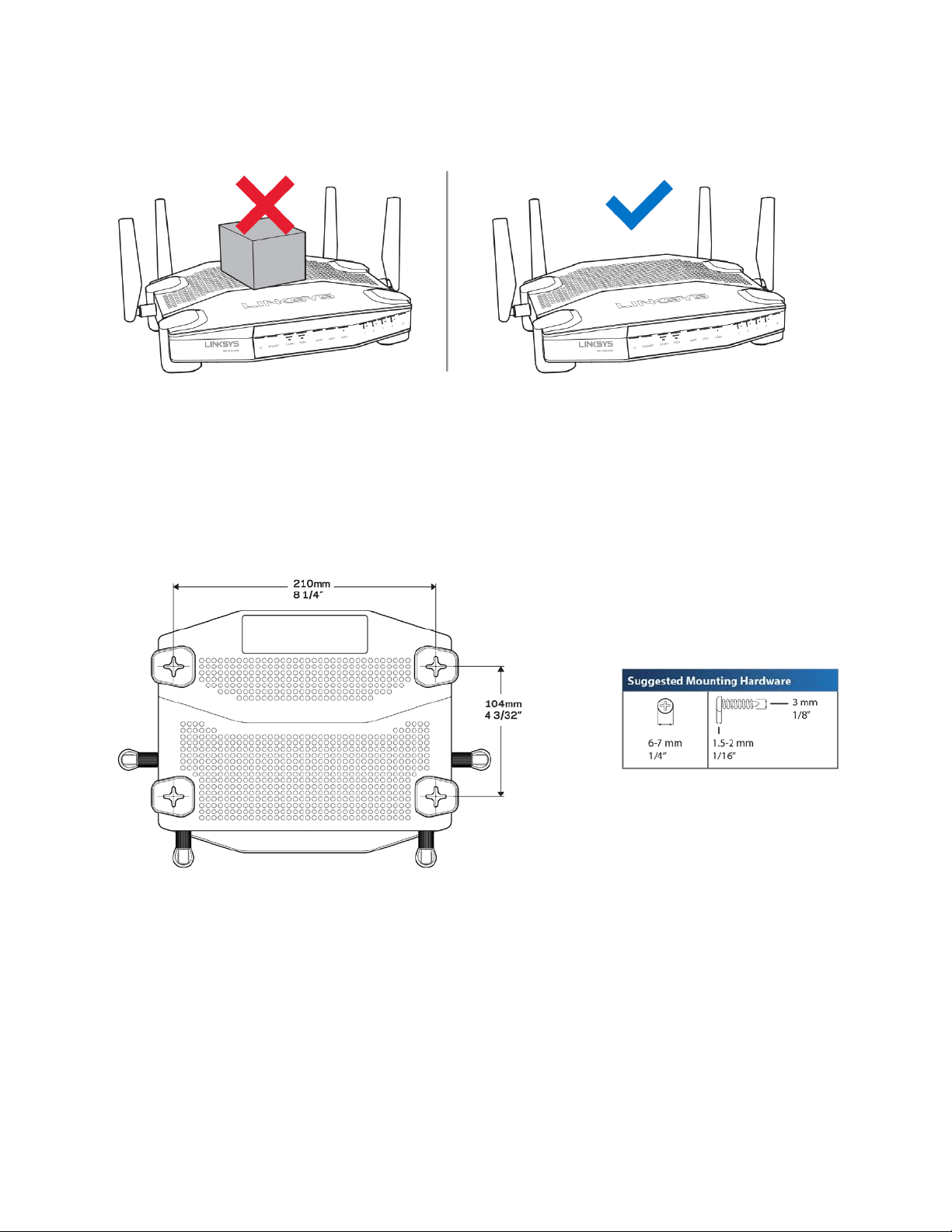
Avoid Overheating
Wall-Mounting Placement
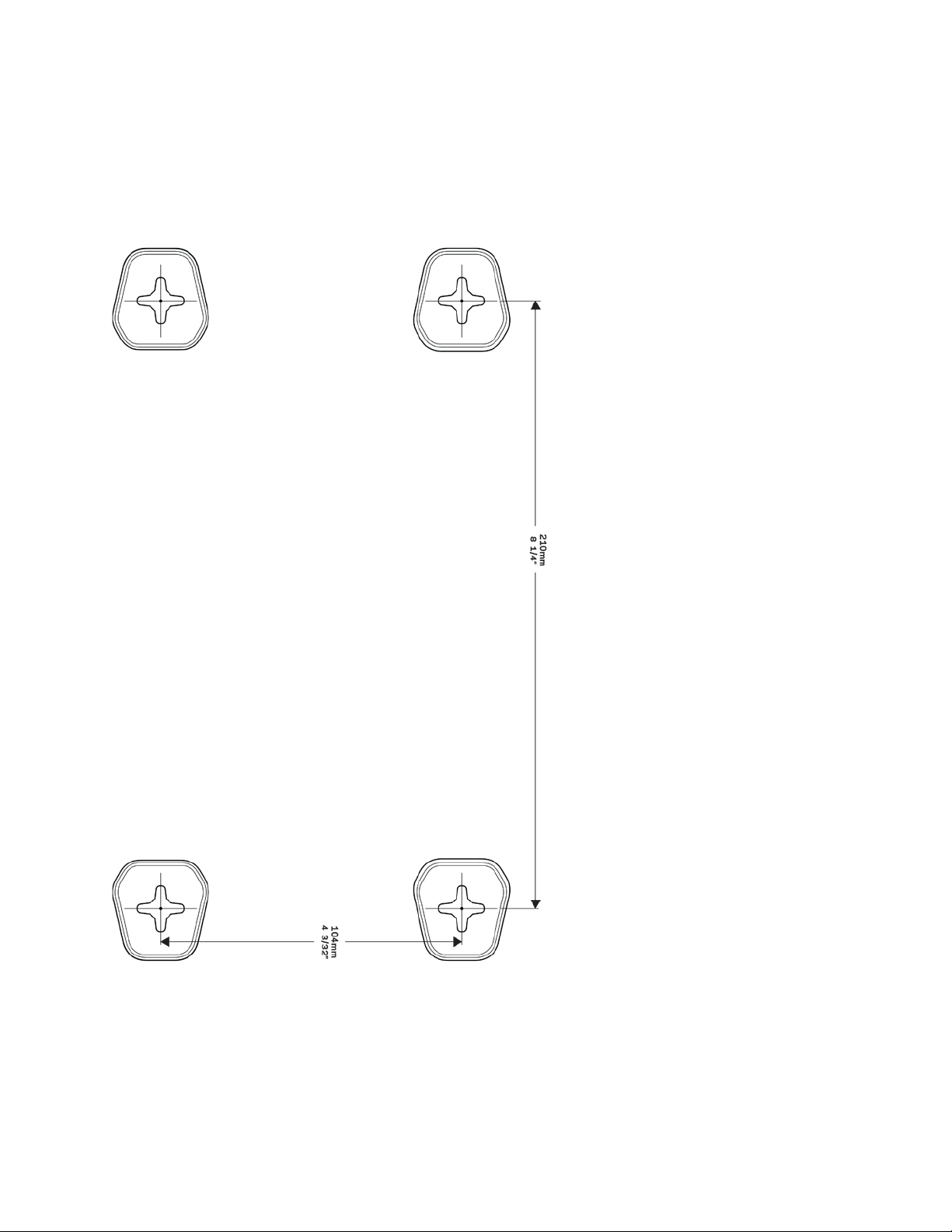
The router has wall-mount slots on the bottom of each foot for flexibility in mounting the router on the wall.
The distance between the slots on the short side is 104 mm. The distance between the slots on the longer side is
210 mm. Two screws are needed to mount the router.
Note—Linksys is not responsible for damages incurred by unsecured wall-mounting hardware. Mounting
Instructions
1. Determine where you want to mount the router and which side you should use to mount it. Make sure
that the wall you use is smooth, flat, dry, and sturdy. Make sure the location is within reach of an
electrical outlet.

8
2. Before drilling holes, choose the template (short side or long side) that fits your installation. Drill the
holes using the correct template.
3. Insert a screw into each hole and leave 4 mm of its head exposed.
4. Position the router so the wall-mount slots line up with the two screws.
5. Place the wall-mount slots over the screws and slide the router down until the screws fit snugly into the
wall-mount slots.
9
Wall-Mounting Template
Print this page at 100% size.
Place on the wall with desired router position and mark screw locations.
Setting Up: Basics
Where to find more help
In addition to this user guide, you can find help at these locations:
10
• Linksys.com/support/WRT3200ACM (documentation, downloads, FAQs, technical support, live chat,
forums)
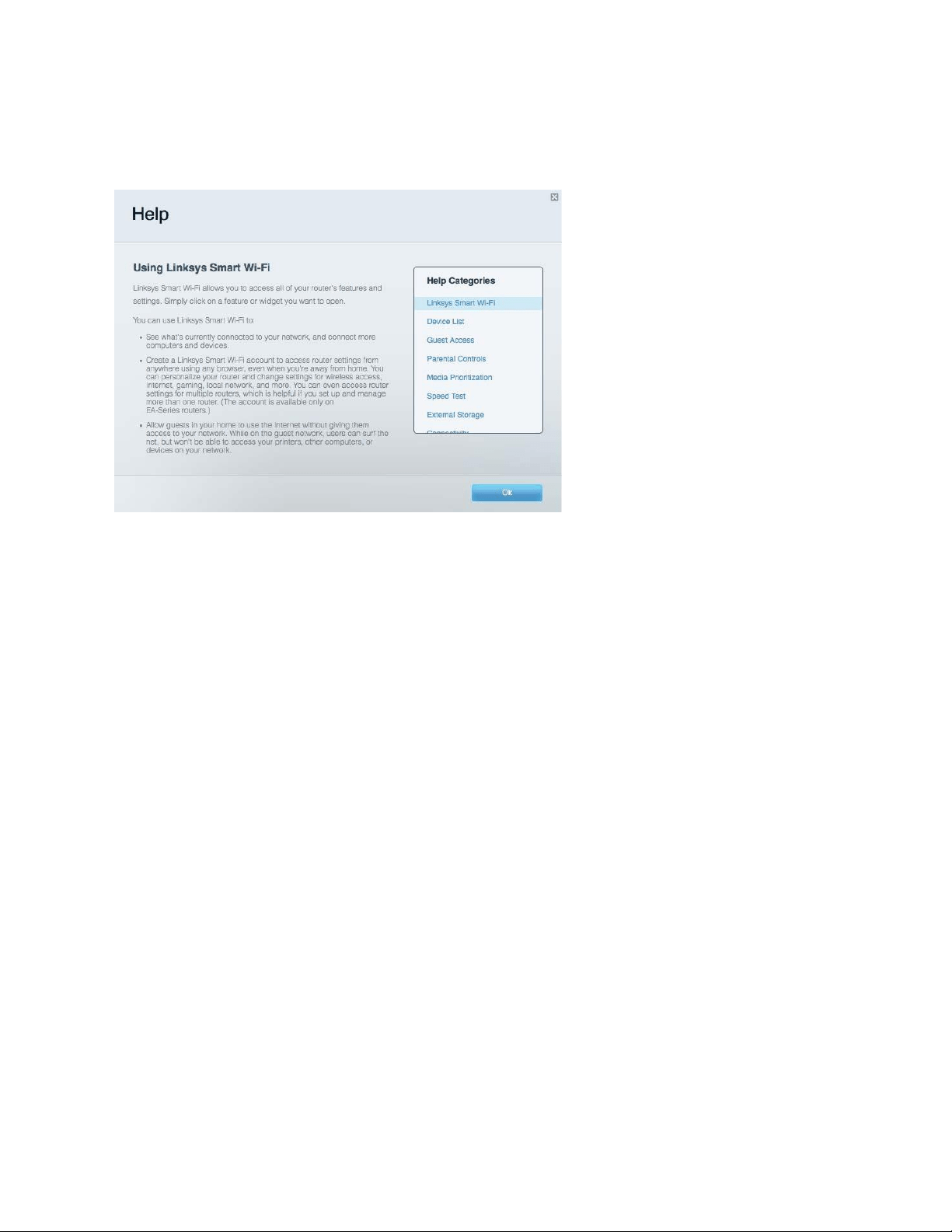
• Linksys Smart Wi-Fi help (connect to Linksys Smart Wi-Fi, then click Help at the top of the screen)
Note—Licenses and notices for third party software used in this product may be viewed on
http://support.linksys.com/en-us/license. Please contact http://support.linksys.com/enus/gplcodecenter
for questions or GPL source code requests.
How to install your router
1. If replacing an existing router, disconnect that router first.
2. Turn the antennas so they are positioned straight up and plug in your router to a power source.
European versions: press the power switch to | (on).
3. Connect the Internet cable from your modem to the yellow Internet port on your router. Wait until the
indicator light on your router is solid.
4. Connect to the secure wireless name shown in the Quick Start Guide that came with your router. (You
can change the network name and password later.) If you need help connecting to the network refer to
your device documentation on the provided CD.
Note—You will not have Internet access until router setup is complete.
5. Open a web browser to launch the Linksys Smart Wi-Fi Router setup instructions. If you don’t see the
instructions, type linksyssmartwifi.com in the address bar.
At the end of setup, follow the on-screen instructions to set up your Linksys Smart Wi-Fi account. Use Linksys
Smart Wi-Fi to configure your router from any computer with an Internet connection.
Manage your router’s settings:
• Change your router’s name and password

11
• Set up guest access
• Configure parental controls
• Connect devices to your network
• Test your Internet connection speed
Note—As part of Linksys Smart Wi-Fi account setup, you will be sent a verification e-mail. From your home
network, click the link in the email to associate your router with the Linksys Smart WiFi account.
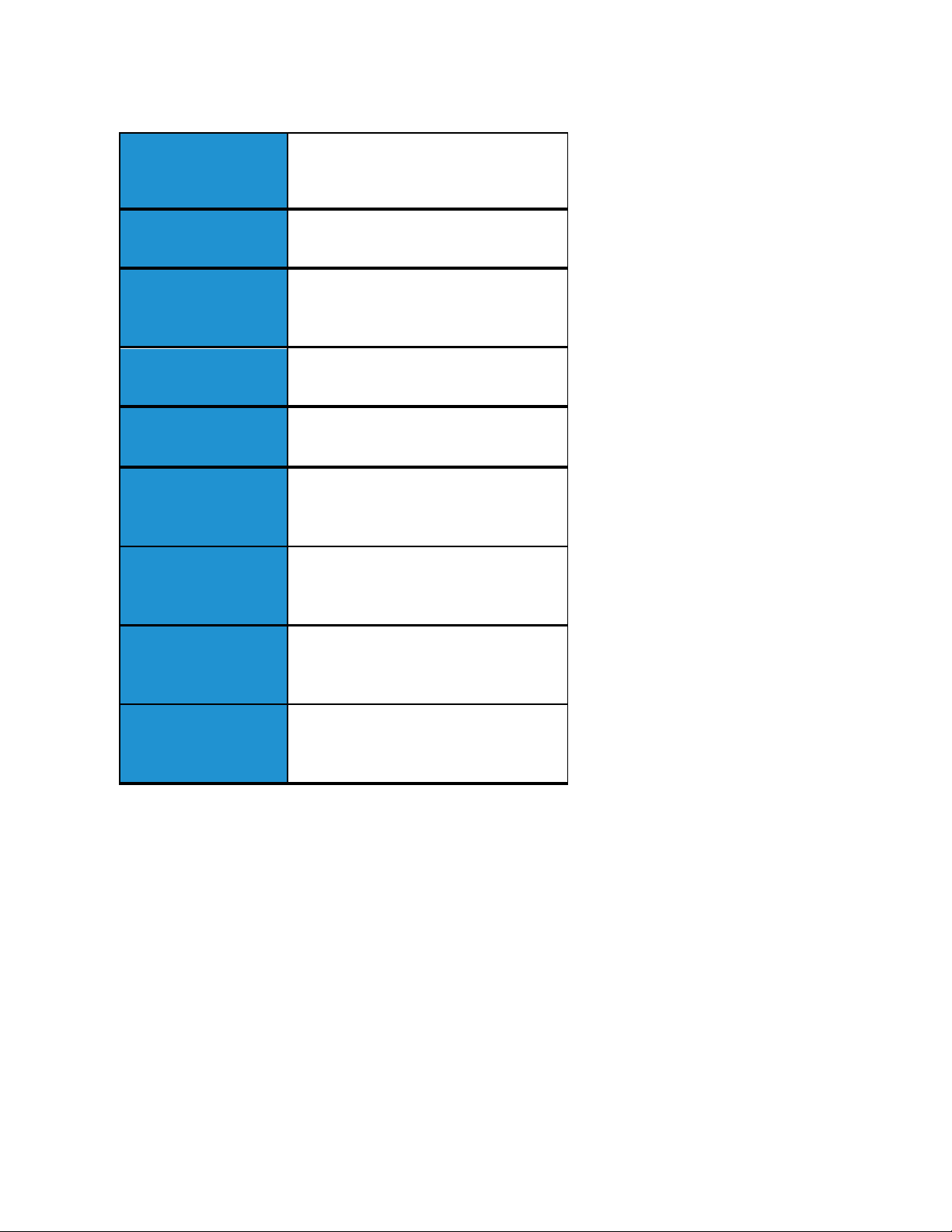
Tip—Print the next page, then record your router and account settings in the table as a reference. Store your
notes in a safe place.
12
2.4 GHz Network
Name
Network Password
5 GHz Network
Name
Network Password
Router Password
Guest Network Name
Guest Network
Password
Linksys Smart Wi-Fi
Username
Linksys Smart Wi-Fi
Password
How to Use Linksys Smart Wi-Fi
You can configure your router from anywhere in the world by using Linksys Smart Wi-Fi, but you can also
configure your router directly from your home network. Linksys Smart Wi-Fi may be available for your mobile
device, as well. See your device’s app store for information.
How to connect to Linksys Smart Wi-Fi
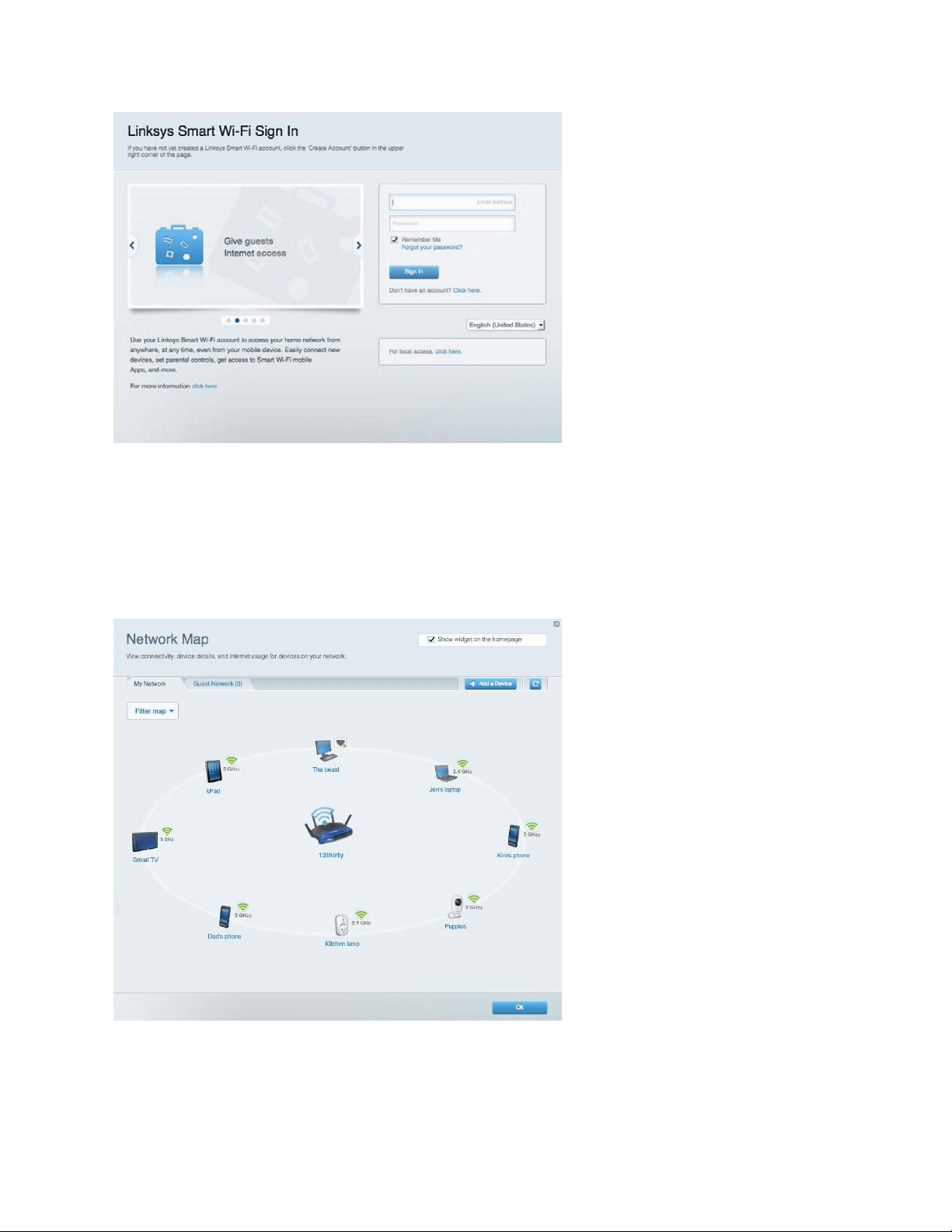
To connect to Linksys Smart Wi-Fi:
1. Open your computer’s web browser.
13
If you can’t remember your password, click Forgot your password? and follow the on-screen instructions to
recover it.
Network Map
Lets you display and manage all network devices connected to your router. You can view devices on
your main network and your guest network, or display information about each device.
14
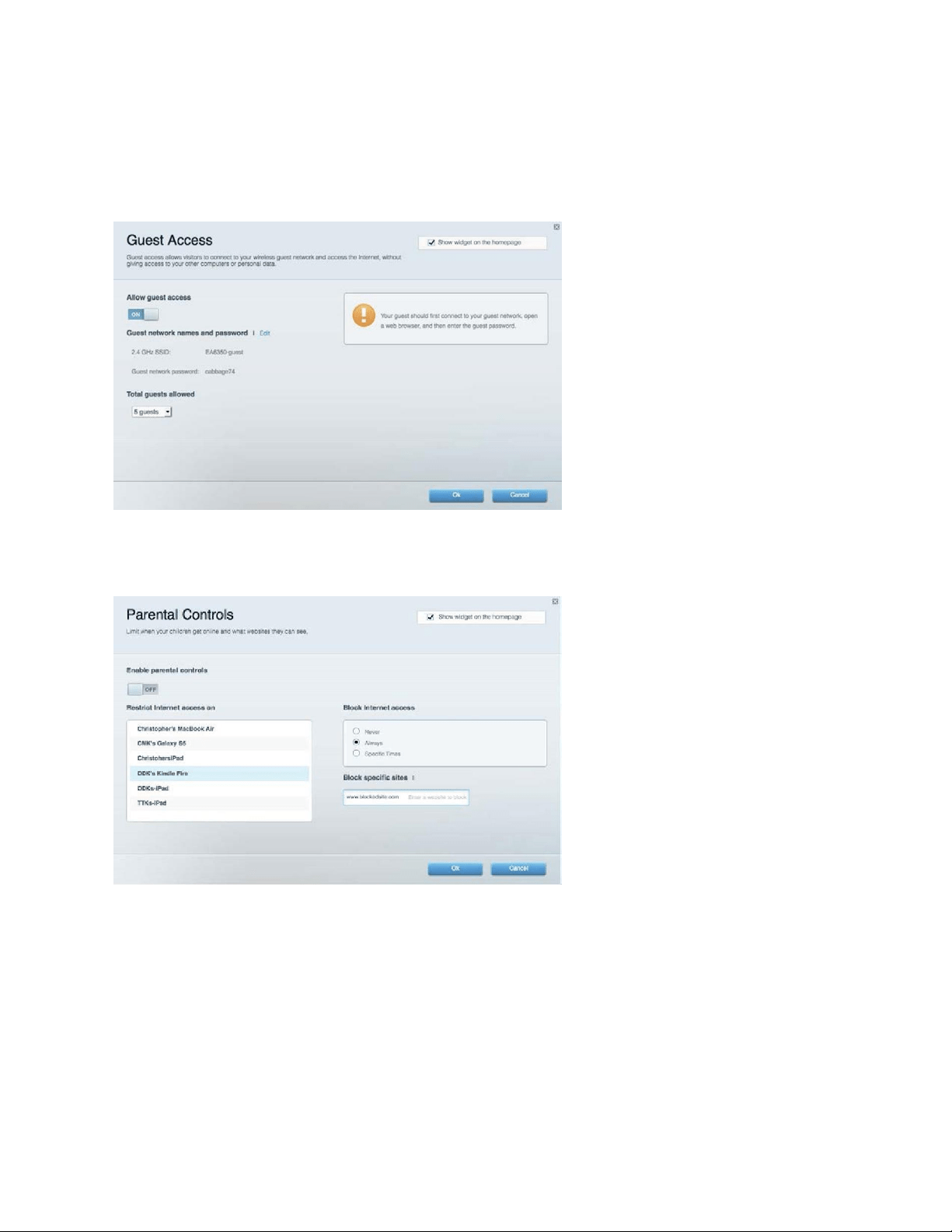
Guest Access
Lets you configure and monitor a network that guests can use without accessing all of your network
resources.
Parental Controls
Lets you block web sites and set Internet access times.
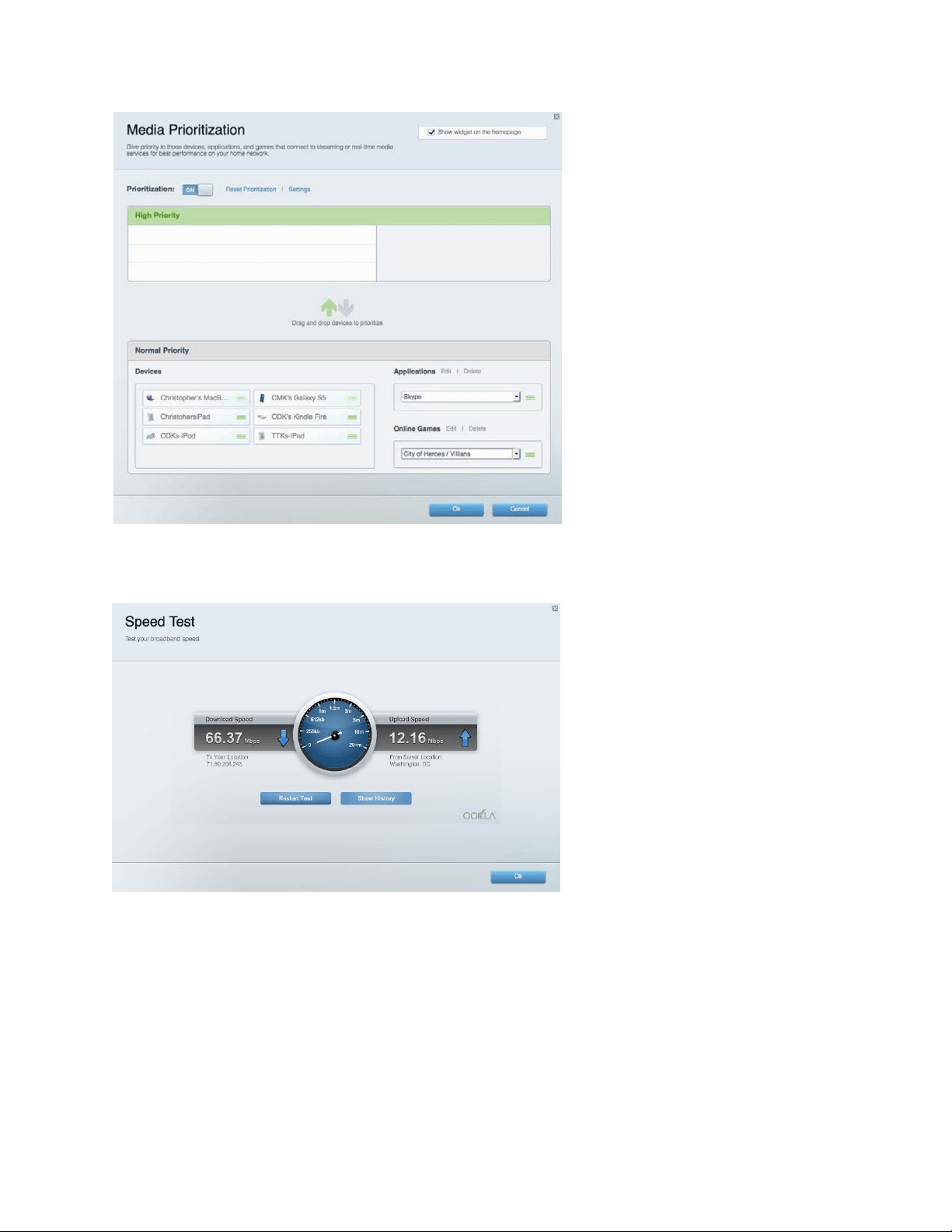
Media Prioritization
Lets you set which devices and applications have top priority for your network traffic.
15
Speed Test
Lets you test your network’s Internet connection speed.
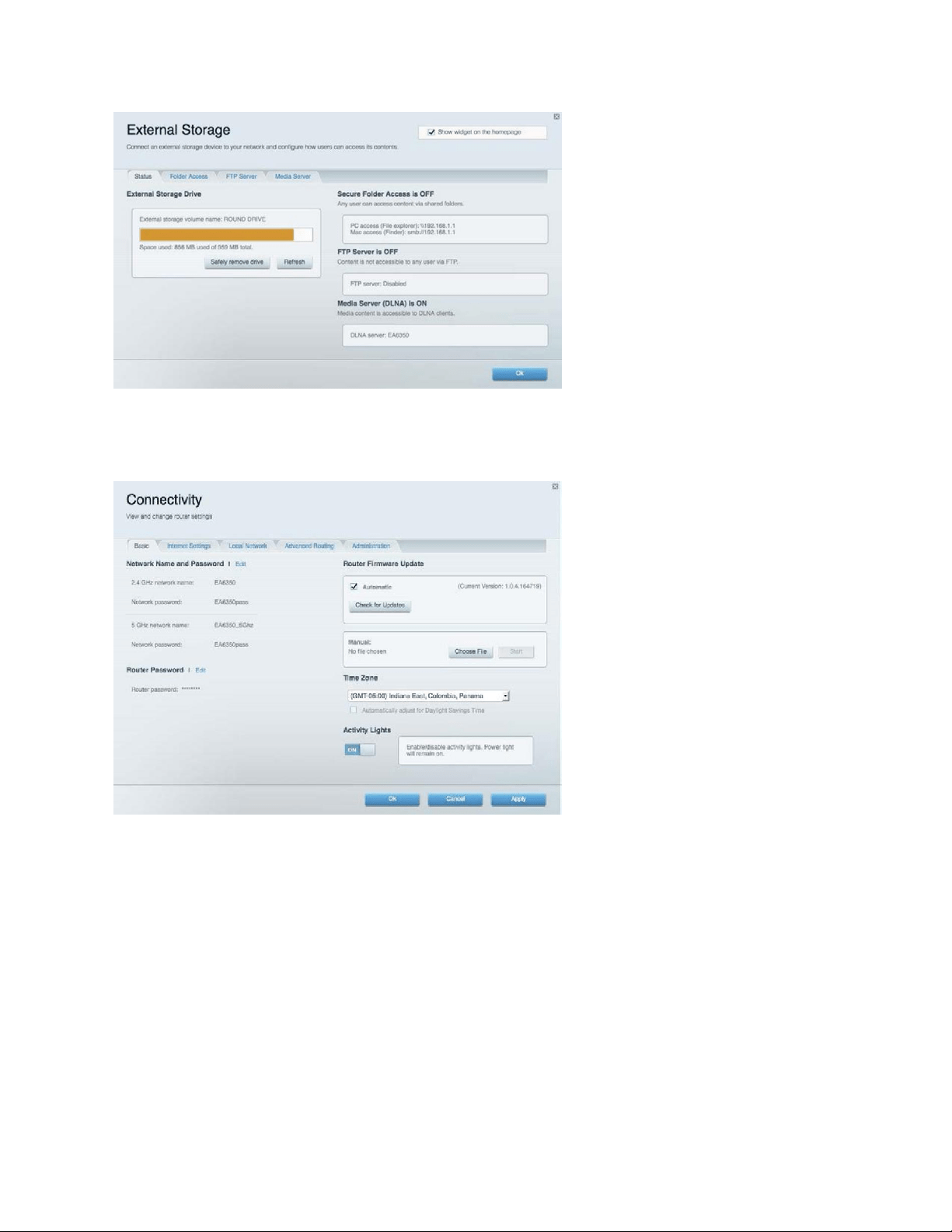
External Storage
Lets you access an attached USB drive (not included) and set up file sharing, a media server, and
FTP access.
16
Connectivity
Lets you configure basic and advanced network settings.
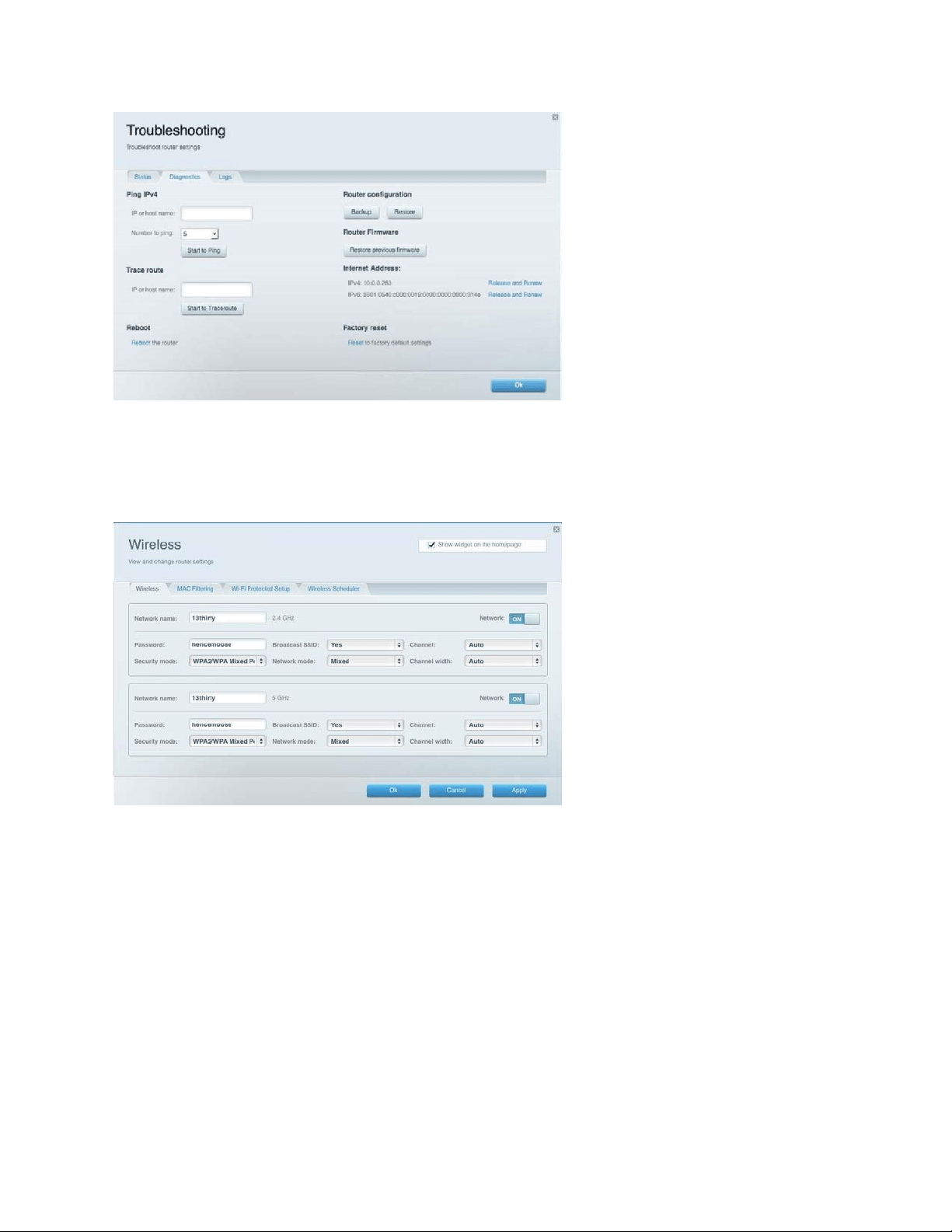
Troubleshooting
Lets you diagnose problems with your router and check the status of the network.
17
Wireless
Lets you configure your router’s wireless network. You can change the security mode, password, MAC
filtering, and connect devices using Wi-Fi Protected Setup™.
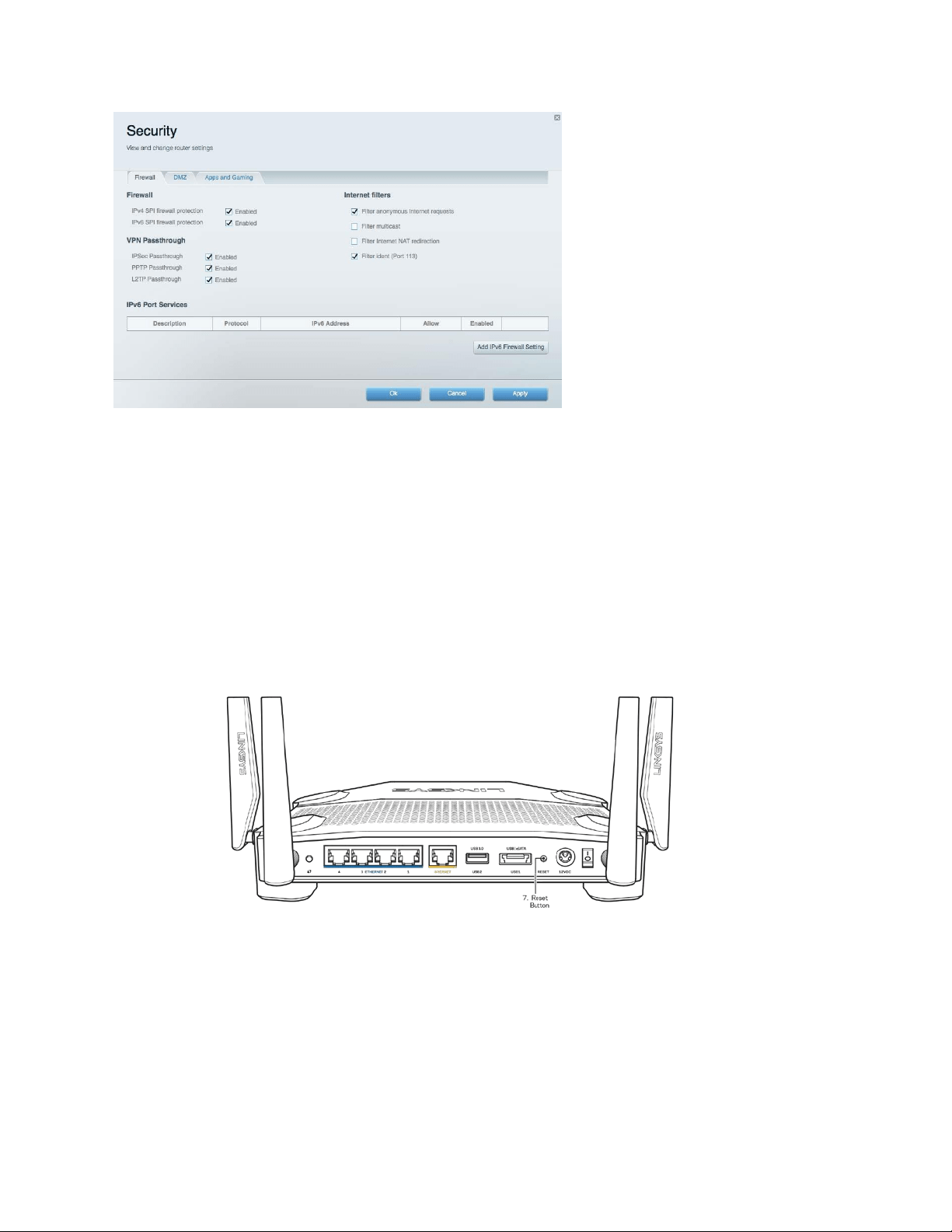
Security
Lets you configure your router’s wireless security. You can set up the firewall, VPN settings, and make
custom settings for applications and games.
18
Troubleshooting
You can find more help from our award-winning customer support at Linksys.com/support/WRT3200ACM.
Your router was not successfully set up
If Linksys Smart Wi-Fi did not complete the setup, you can try the following:
• Press and hold the Reset button on your router with a paperclip or pin until the LED starts
blinking (about 10 seconds). Install the router again.
• Temporarily disable your computer’s firewall (see the security software’s instructions for help).
Install the router again.
• If you have another computer, use that computer to install the router again.
19
Your Internet cable is not plugged in message
If you get a “Your Internet cable is not plugged in” message when trying to set up your router, follow these
troubleshooting steps.
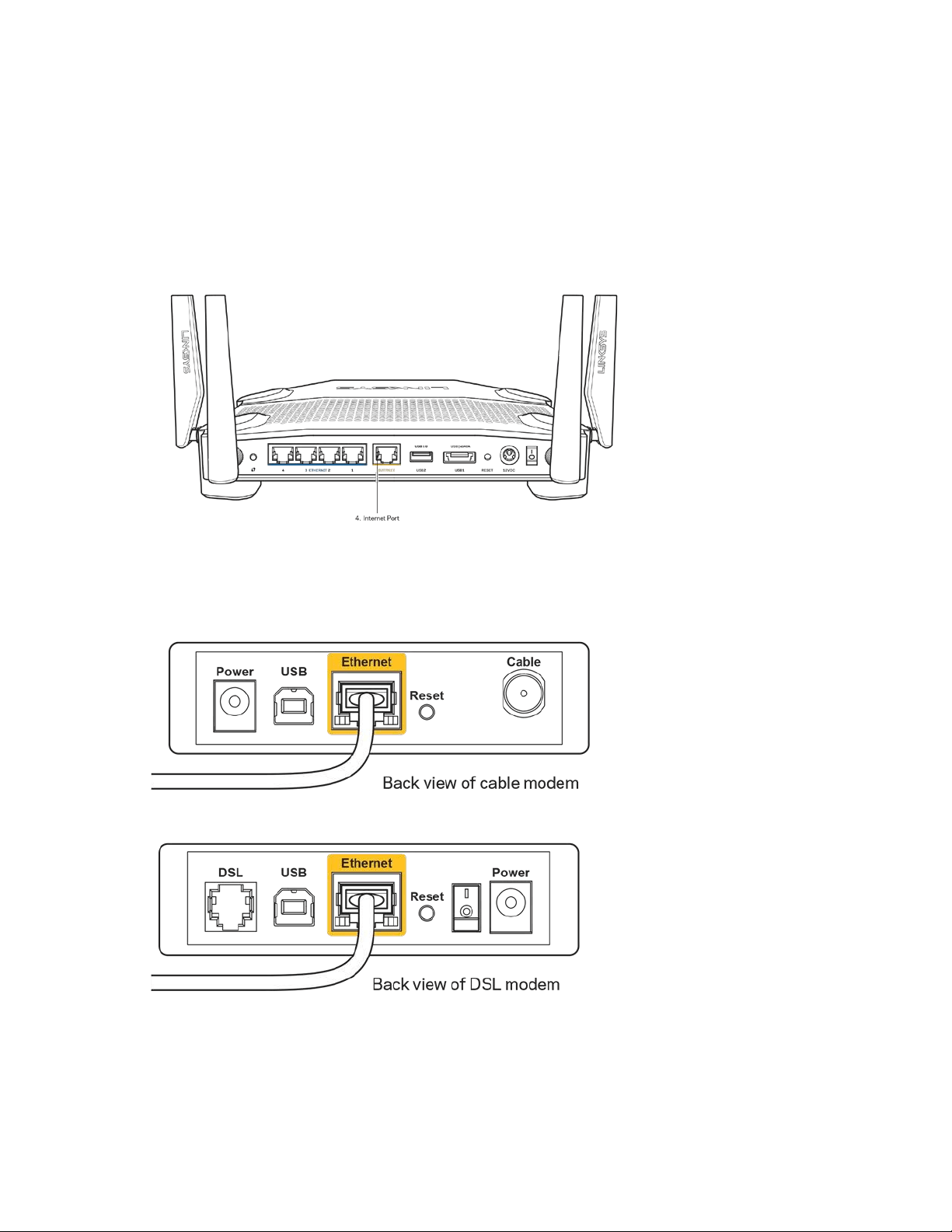
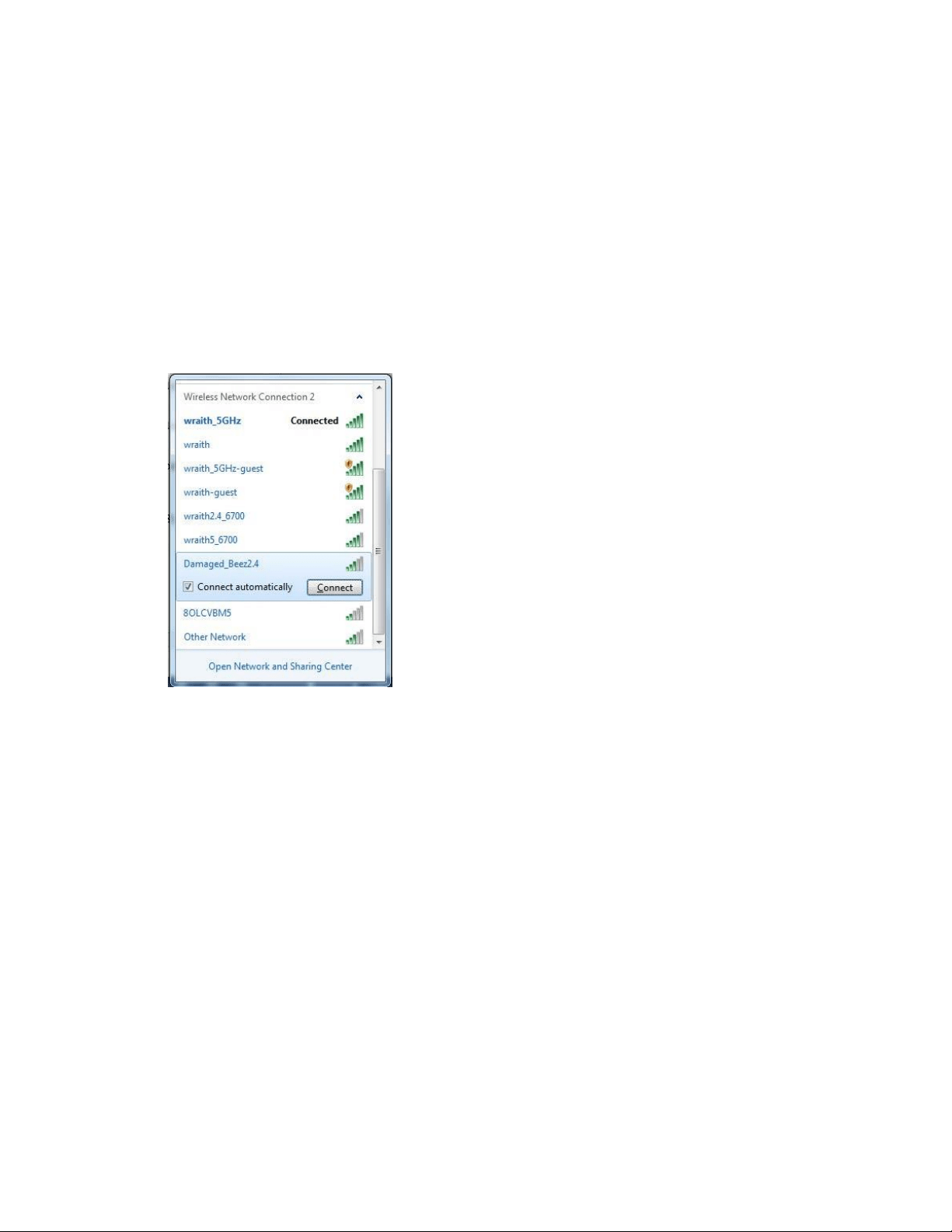
• Make sure that an Ethernet or Internet cable (or a cable like the one supplied with your router) is
securely connected to the yellow Internet port on the back of the router and to the appropriate port on
your modem. This port on the modem is usually labeled Ethernet, but may be named Internet or WAN.
• Make sure that your modem is connected to power and is turned on. If it has a power switch, make sure
that it is set to the ON or l (as opposed to O) position.
• If your Internet service is cable, verify that the cable modem’s CABLE port is connected to the coaxial
cable provided by your ISP.
• If your Internet service is DSL, make sure that the DSL phone line is connected to the modem’s DSL port.
• If your computer was previously connected to your modem with a USB cable, disconnect the USB cable.
• Install the router again.
20
Cannot access your router message
To access your router, you must be connected to your own network. If you currently have wireless Internet
access, the problem may be that you have accidentally connected to a different wireless network.
To fix the problem on Windows computers, do the following*:
1. On your Windows desktop, click on the wireless icon in the system tray. A list of available networks will
appear.
2. Click your own network name. Click Connect. In the example below, the computer was connected to
another wireless network named wraith_5GHz. The wireless network name of the Linksys
WRT3200ACM router, Damaged_Beez2.4 in this example, is shown selected.
3. If you are prompted to enter a network key, type your password (Security Key) into the Network key
and Confirm network key fields. Click Connect.
4. Your computer connects to the network, and you should now be able to access the router.
*Depending on your version of Windows, there could be some differences in wording or icons in these steps.
To fix the problem on Mac computers, do the following:
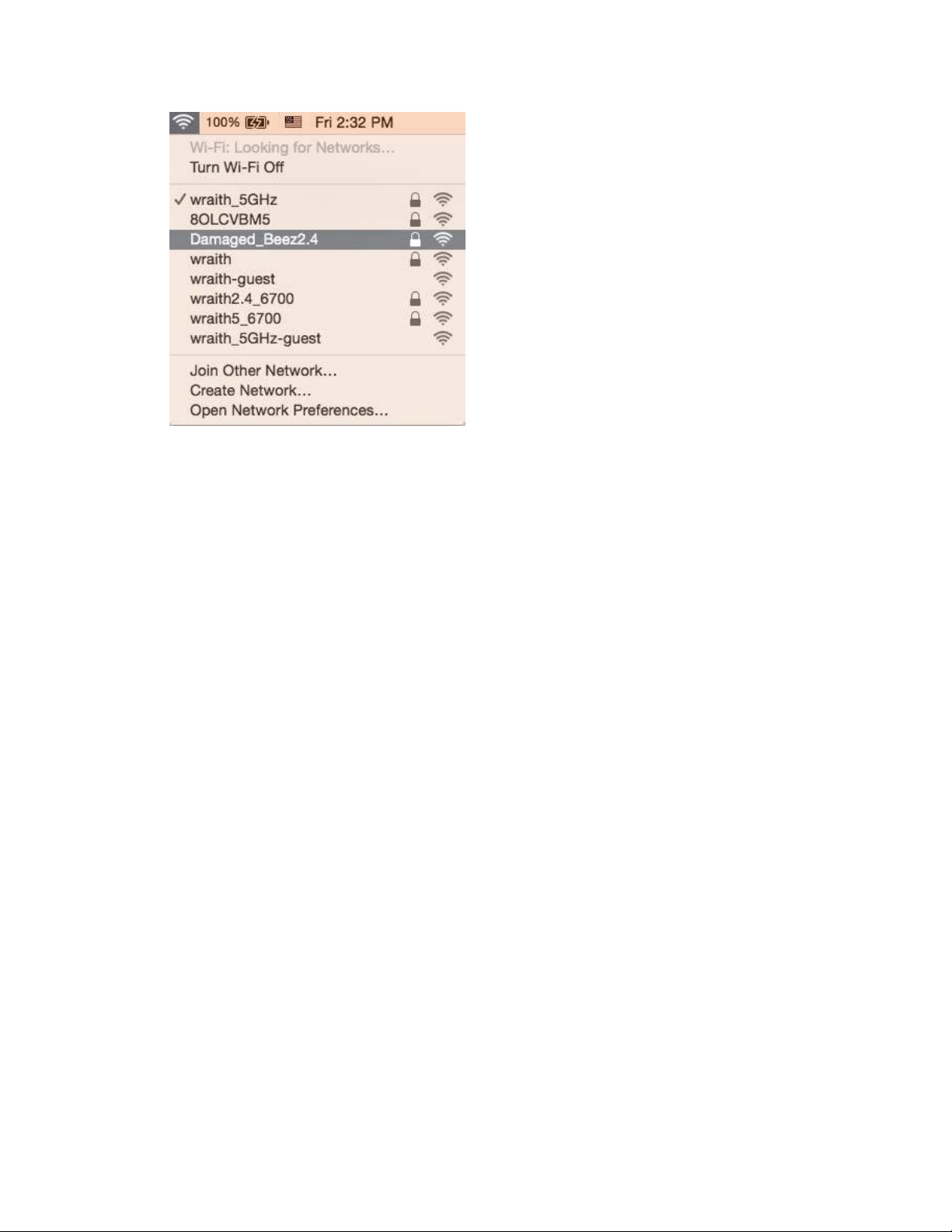
1. In the menu bar across the top of the screen, click the Wi-Fi icon. A list of wireless networks will appear.
Linksys Smart Wi-Fi has automatically assigned your network a name.
2. In the example below, the computer was connected to another wireless network named wraith_5GHz.
The wireless network name of the Linksys WRT3200ACM router, Damaged_Beez2.4 in this example, is
shown selected.
21
3. Click the wireless network name of your Linksys WRT3200ACM router (Damaged_Beez2.4 in the
example).
4. Type your wireless network password (Security Key) into the Password field. Click OK.
After setup
The Internet appears to be unavailable
If the Internet has difficulty communicating with your router, the problem may appear as a “Cannot find
[Internet address]” message in your Web browser. If you know that the Internet address is correct, and if you’ve
tried several valid Internet addresses with the same result, the message could mean that there’s a problem with
your ISP or modem communicating with your router.
Try the following:
• Make sure that the network and power cables are securely connected.
• Make sure that the power outlet that your router is connected to has power.
• Reboot your router.
• Contact your ISP and ask about outages in your area.
The most common method of troubleshooting your router is to turn it off, then back on again. Your router can
then reload its custom settings, and other devices (such as the modem) will be able to rediscover the router and
communicate with it. This process is called rebooting.
To reboot your router using the power cord, do the following:
1. Disconnect the power cord from the router and the modem.
2. Wait 10 seconds, and reconnect the power cord to the modem. Make sure it has power.
3. Wait until the modem’s online indicator has stopped blinking (about two minutes). Reconnect the
power cord to the router.
22
4. Wait until the power indicator stops blinking. Wait two minutes before trying to connect to the Internet
from a computer.
To reboot your router using Linksys Smart Wi-Fi, do the following:
1. Log in to Linksys Smart Wi-Fi. (See “How to connect to Linksys Smart Wi-Fi” on page 13.)
2. Under Router Settings, click Troubleshooting.
3. Click the Diagnostics tab.
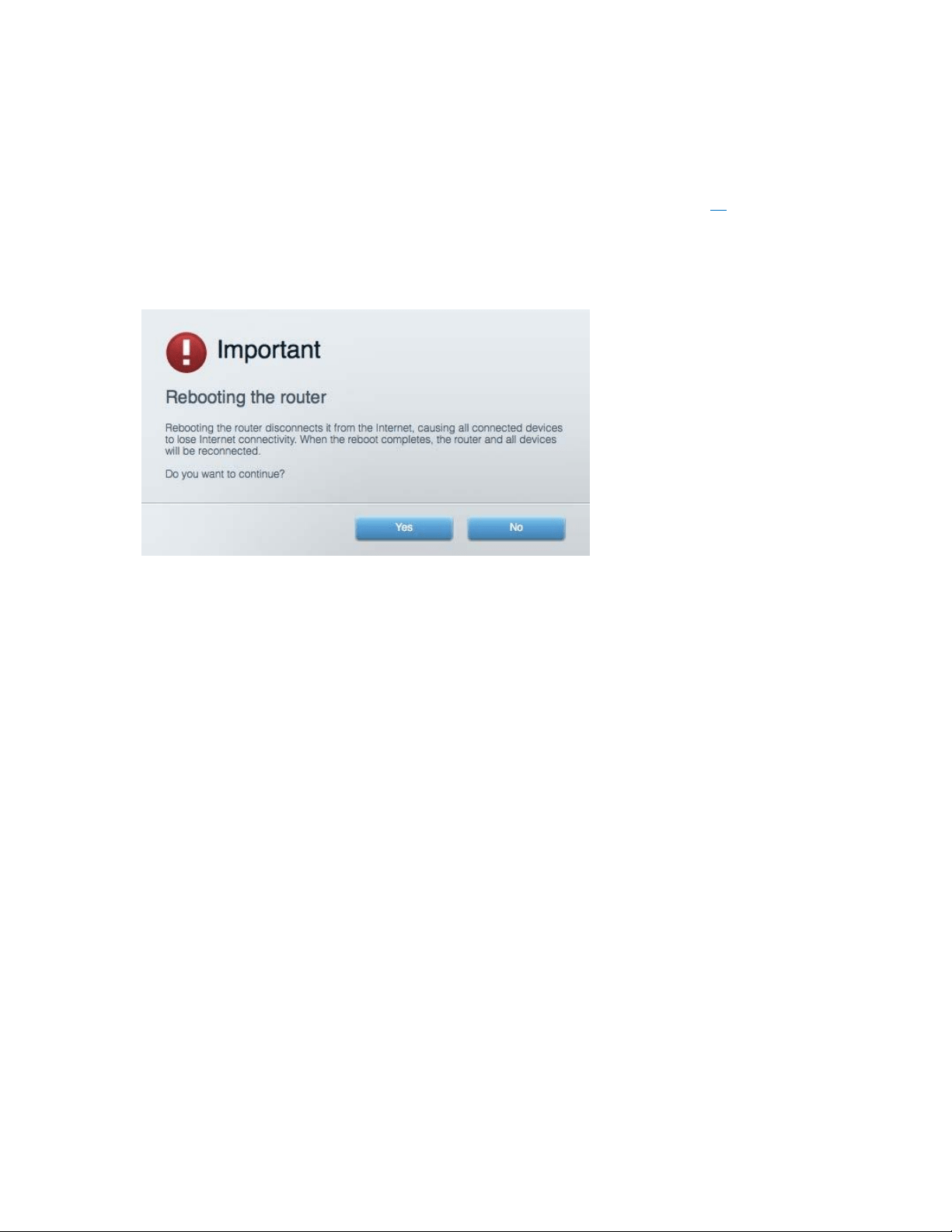
4. Under Reboot, click Reboot.
5. Click Yes. The router will reboot. While the router is rebooting, all connected devices will lose their
Internet connection, and will automatically reconnect when the router is ready again.
Linksys Smart Wi-Fi does not open in your web browser
The latest versions of Google Chrome
TM
, Firefox®, Safari® (for Mac® and iPad®), Microsoft
Edge, and Internet Explorer® version 8 and newer work with Linksys Smart Wi-Fi.
Specifications
Linksys WRT3200ACM
Model Name
Linksys MU-MIMO Gigabit Wi-Fi Router
Description
Dual-Band AC Router with Gigabit and 2×USB
Model Number
WRT3200ACM
Switch Port Speed
10/100/1000 Mbps (Gigabit Ethernet)
Radio Frequency
2.4 GHz and 5 GHz
# of Antennas
4 external adjustable antennas
Ports
Power, USB 3.0, Combo USB 2.0/eSATA, Internet,
Ethernet (1-4), RP-SMA (4)
Buttons
Reset, Wi-Fi Protected Setup, Power

23
Front Panel Indicators
Power, Internet, 2.4 GHz, 5 GHz, eSATA, USB1, USB2,
Ethernet (1-4), Wi-Fi Protected Setup,
UPnP
Supported
Security Features
WPA2, RADIUS
Security Key Bits
Up to 128-bit encryption
Storage File System Support
FAT, NTFS, and HFS+
Browser Support
Environmental
Latest versions of Google Chrome
TM
, Firefox®,
Safari® (for Mac® and iPad®), Microsoft Edge, Internet
Explorer® version 8 and newer
Dimensions
9.68” x 7.64” x 2.05” (without antennas)
(246 x 194 x 52 mm)
Unit Weight
31 oz. (883 g)
Power
12V, 3.0A
Certifications
FCC, IC, CE, Wi-Fi a/g/n/ac, Windows 7, Windows 8, DLNA
Operating Temperature
32 to 104°F (0 to 40°C)
Storage Temperature
-4 to 140°F (-20 to 60°C)
Operating Humidity
10% to 80% relative humidity, non-condensing
Storage Humidity
5% to 90% non-condensing
Notes:
For regulatory, warranty, and safety information, see the CD that came with your router or go to
Linksys.com/support/WRT3200ACM.
Specifications are subject to change without notice.
Maximum performance derived from IEEE Standard 802.11 specifications. Actual performance can vary,
including lower wireless network capacity, data throughput rate, range and coverage. Performance depends on
many factors, conditions and variables, including distance from the access point, volume of network traffic,
building materials and construction, operating system used, mix of wireless products used, interference and
other adverse conditions.
BELKIN, LINKSYS and many product names and logos are trademarks of the Belkin group of companies. Third-
party trademarks mentioned are the property of their respective owners. Licenses and notices for third party
software used in this product may be viewed here: http://support.linksys.com/en-us/license. Please contact
http://support.linksys.com/enus/gplcodecenter for questions or GPL source code requests.
© 2016 Belkin International, Inc. and/or its affiliates. All rights reserved.

24
LNKPG-00391 Rev. A00

25