2422-1
Module No. 2422
ABOUT THIS MANUAL
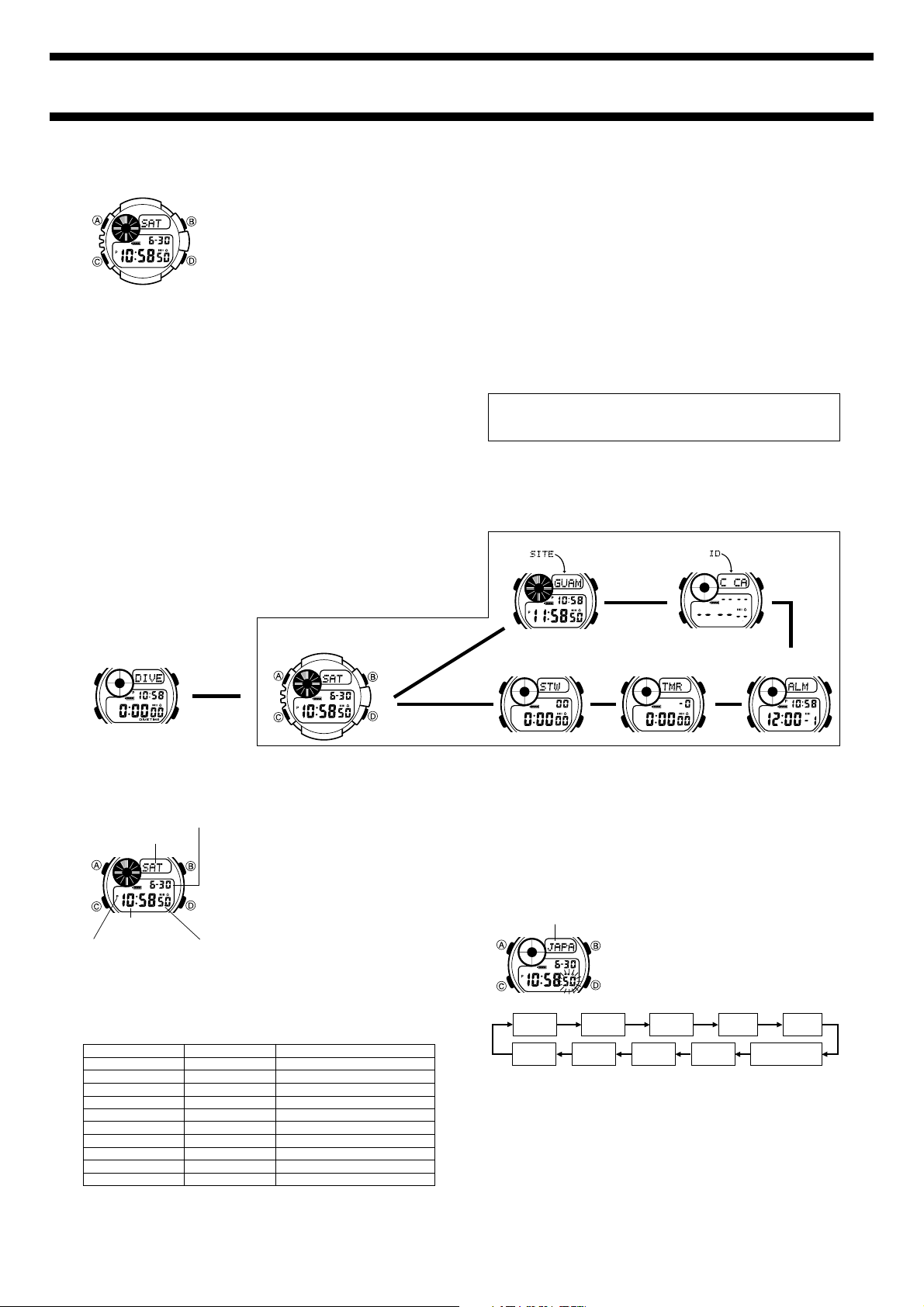
• Button operations are indicated using the letters shown in the illustration.
• Each section of this manual provides you with the information you need to perform operations in each mode. Further details and
technical information can be found in the “REFERENCE” section.
Warning!
Note the following important points concerning Identification Mode data
stored in the memory of this watch.
• The SCUBA diver certificate number and passport number stored
in the memory of this watch can be misused whenever the watch
is in the hands of another party. To protect against the misuse of
the SCUBA diver certificate number and passport number, input
them in coded form that cannot be understood by others.
• Make sure you correctly input your blood type data. Once you
input your blood type, take care that another person does not
wear the watch. Otherwise, emergency medical personnel may
assume that your blood type applies to the person who is
wearing the watch.
• The default blood type screen setting when you first purchase the
watch or after you re-charge the battery after power drops to
Level 5 is “
A” for the blood type and “Rh *” for the Rh factor.
To avoid problems caused by display of the wrong blood type, we
recommend that you input your correct blood type data as soon
as possible after purchasing the watch and whenever you re-
charge the battery after power drops to Level 5.
CASIO COMPUTER CO., LTD. shall not be held liable to you or
any third party for any losses or damages suffered through the
misuse of data stored in the memory of this watch.
Site Mode
Press C.
Identification Mode
Alarm Mode
Countdown
Timer Mode
Stopwatch Mode
▲
▲
▲
▲
▲
• Press C to change from mode to mode.
• While in any mode, hold down C for about one second, to enter the
Dive Time Measurement Mode.
• In any mode, press B to illuminate the display.
Dive Time
Measurement
Mode
Hold down C.
Timekeeping Mode
▲
▲
▲
GENERAL GUIDE
Day of week
Month – Day
PM indicator
Hour : Minutes
Seconds
TIMEKEEPING
Use the Timekeeping Mode to set the current
time and date. You can also view the Dive
Time Measurement Mode log data.
• See the section of this manual that
describes the Dive Time Measurement
Mode for information about log data.
Read This Before You Set the Time and Date!
The times displayed in the Timekeeping Mode and Site Mode are linked.
Because of this, make sure you select a “Home Site” (the site whose time
and date you are setting), before you set the date and time. You can use
any one of the 10 snorkeling and scuba diving sites pre-programmed in
watch memory as the Home Site, or you can create your own.
Important!
If the site you want to use as your Home Site is not in the above list, use
the procedure under “Changing Site Data” to edit the pre-programmed
site data.
Site Name
CAYMAN
GALAPAGOS
GBR
GUAM
HAWAII
JAPAN
MAURITIUS
MALDIVES
RED SEA
TAHITI
GMT Differential
–5.0
–6.0
+10.0
+10.0
–10.0
+9.0
+4.0
+5.0
+2.0
–10.0
Location
Caribbean Ocean
East Pacific Ocean
Coral reef north east of Australia
West Pacific Ocean
Central Pacific Ocean
West Pacific Ocean
East India Ocean
North India Ocean
Red Sea
South Pacific Ocean
To reset the second’s count to zero
1. In the Timekeeping Mode, hold down A until the second’s digits start
to flash, which indicates the setting screen.
2. Press D to reset the second’s count to 00.
• Pressing D while the second’s count is in the range of 30 to 59
resets the seconds to 00 and adds 1 to the minutes. In the range of
00 to 29, the minute’s count is unchanged.
3. Press A to exit the setting screen.
Site name
To set the time and date
1. In the Timekeeping Mode, hold down A
until the second’s digits start to flash, which
indicates the setting screen.
•
While the second’s digits are flashing,
press D to reset the second’s count to
00
.
2. Press C to move the flashing in the
sequence shown below to select other
settings.
Seconds
Hour
Minutes
Site
Name
Year
DST
On/Off
12/24-Hour
Format
MonthDay
Sleep
Mode
• See “Daylight Saving Time (DST)” for details on DST On/Off setting.
• See “Sleep Mode” for more information about the Sleep Mode.
3. Press C until the site name is flashing on the display.
4. Use D to scroll through the site names until the one you want to set
as your Home Site.
• Pressing D scrolls forward, while B scrolls back through site
names.
• See the table for a list of site name.
5. Use C to move the flashing around the display and select the setting
you want to change.
6. While a setting is flashing, use D (+) and B (–) to change it.
• When the 12/24-hour setting is flashing, press D to toggle between
12-hour (12H) and 24-hour (24H) timekeeping.
7. Press A to exit the setting screen.
2422-2
Daylight Saving Time (DST)
Daylight Saving Time (summer time) automatically advances the time
setting by one hour from Standard Time. Remember that not all
countries or even local areas use Daylight Saving Time.
To toggle your Home Site time between DST and Standard Time
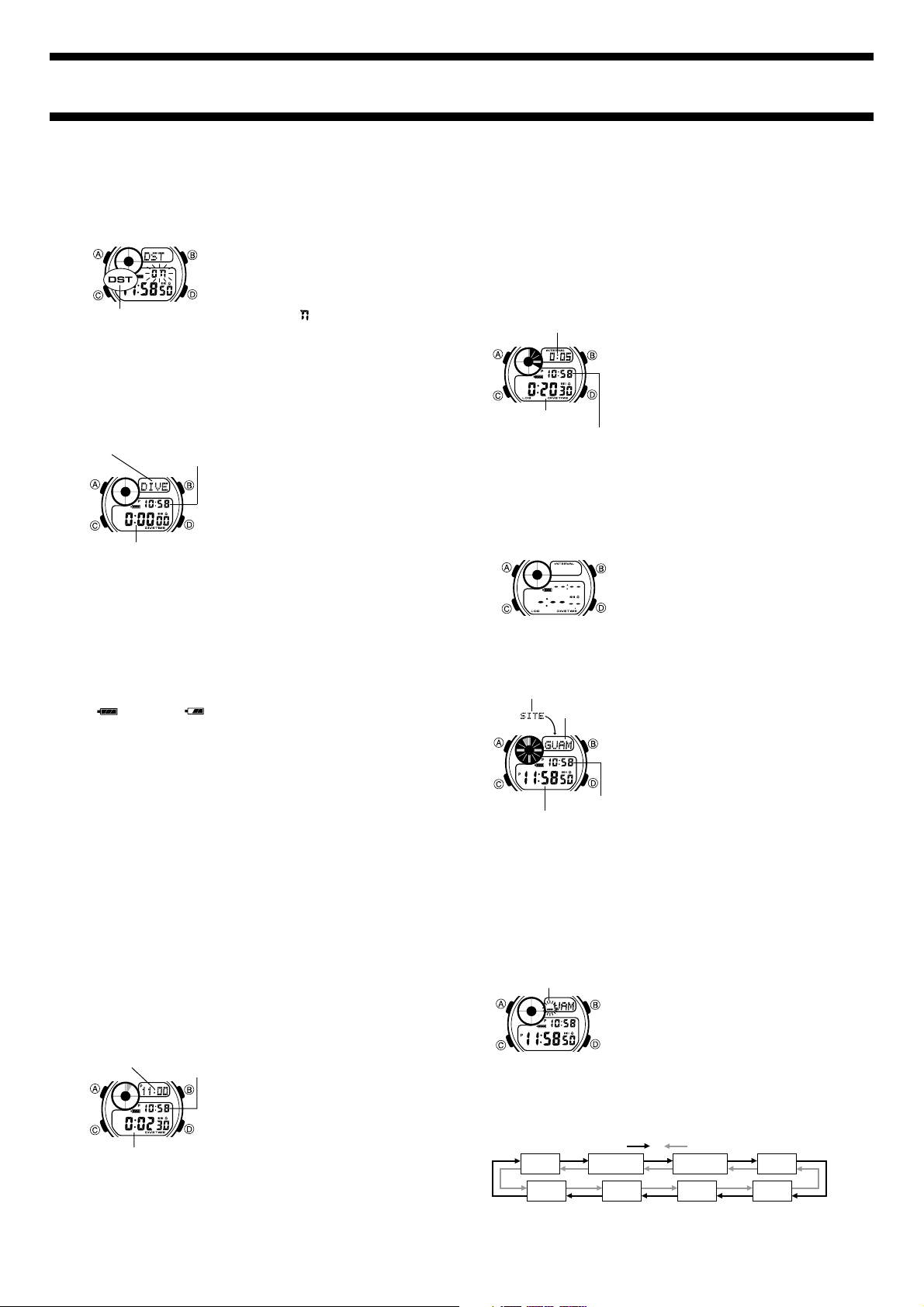
1. In the Timekeeping Mode, hold down A
until the second’s digits start to flash, which
indicates the setting screen.
2. Press C twice to move the flashing to the
DST On/Off setting.
3. Press D to toggle between Daylight
Saving Time (O ) and standard time
(OFF).
4. Press A to exit the setting screen.
• The DST indicator appears on the display
to indicate that daylight saving time is
turned on.
DST indicator
DIVE TIME MEASUREMENT
The Dive Time Measurement Mode lets you
measure the total time you spend underwater
while diving or snorkeling, and the amount of
time spent on the surface (surface interval).
The watch also stores one diving time record
(total dive time and dive start time) into log
memory for later recall.
Warning!
• Make sure that you have received proper diving training before
using this watch underwater.
• Always use the “buddy system” when diving - never dive alone.
• Note that this watch is NOT a diving computer, and is not capable
of making decompression calculations.
• Note that this watch cannot be used in helium atmospheres.
Before Diving/Snorkeling
• Be sure to check that the battery power indicator shows Level 1
(
) or Level 2 ( ). If another level is indicated, do not use
the watch for diving/snorkeling.
• Make sure that the watch is set to the correct time of day.
• Check the glass, case and band for cracks or chips.
• Make sure that the band is fastened securely around your wrist.
• Though the functions of this watch are not affected by
magnetism, its case can become magnetized after long exposure
to a magnetic field. The magnetized case, in turn, can interfere
with the proper operation of a separate diving compass. Because
of this, you should keep this watch away from your diving
compass if you suspect its case has become magnetized.
While Diving/Snorkeling
• Check to make sure that timer operation is being performed
properly.
• Avoid frequent use of the backlight in the Dive Time Measurement
Mode. Frequent backlight use can run down the battery, causing
the light and long beep that sounds when dive time measurement
is stopped to become disabled.
• To avoid scratching the watch, take care when diving/snorkeling
near rocks or coral.
After Diving/Snorkeling
To avoid corrosion, rinse your watch thoroughly with fresh water to
remove salt water, dirt, etc. When possible, soak the watch in fresh
water overnight to make sure that all salt is removed.
Mode indicator
Current time
Dive time
Dive time
(hours : minutes seconds)
Dive start time
Current time
To use the Dive Time Measurement Mode
1. Before diving/snorkeling, switch to the Dive
Time Measurement Mode by holding down
C for at least one second.
2. To start the dive time measurement
operation, press D.
3. To stop the measurement, hold down D
for at least one second (until the watch
emits a long beep).
4. To restart timing from the dive time shown
on the display, press D .
• You can repeat steps 3 and 4 as many
times as you like.
5. To clear the Dive Time Measurement
Mode, stop the measurement operation
(step 3, above) and then press A.
Note
• Timing of the surface interval starts whenever you hold down D to
stop the dive time measurement operation in step 3, above. This
timing is performed internally, and it is not indicated on the Dive Time
Measurement Mode screen. For details on how to view surface interval
data, see “To view log data”.
• Do not recall log data while dive time measurement is stopped and you
plan to restart it. If you do, the dive time to that point will be stored into
memory and the data will be cleared when you exit the Dive Time
Measurement Mode.
Surface interval
(hours : minutes)
Dive start time
Dive time
To view log data
1. Hold down C for at least one second to
enter the Timekeeping Mode from the Dive
Time Measurement Mode.
2. Hold down D to display the Log Data
screen. The Log Data screen remains
visible as long as you hold down D.
Releasing D returns to the normal
Timekeeping Mode screen.
• Timing of the surface interval continues
until you restart dive time measurement
or until the surface interval reaches 24
hours.
Clearing Log Data Memory
Log data in memory is replaced automatically by the newest
measurement. Use the following operation when you want to clear log
data memory manually.
To clear log data memory
1. While in the Timekeeping Mode, hold down
D to display the Log Data screen.
2. While holding down D, press A to clear
log data memory.
• No data is shown on the Log Data screen
when log data memory is cleared.
SITE MODE
The Site Mode lets you view the current time
in any one of 10 different sites. Your watch
comes pre-programmed with site data (site
name and GMT differential) for famous
snorkeling and diving sites around the world.
You can use this site data as it is or change it
to suit your needs.
• All of the operations in this section are
performed in the Site Mode, which you enter
by pressing C.
To view the time in another site
In the Site Mode, press D to scroll forward
through the site data.
Current time
in the selected site
Mode indicator
Current time
Site name
Changing Site Data
Site data consists of the site name, DST setting, and the GMT differential
of the site. Changing site data causes its time to be set automatically in
accordance with the GMT differential.
• You cannot change the site data of the site that is set as your Home
Site in the Timekeeping Mode.
To change site data
1. In the Site Mode, use D to display the name
of the site whose data you want to change.
2. Hold down A until the cursor appears on
the display, which indicates the setting
screen.
• If your Home Site is on the display,
pressing A causes the indicator HOME
to appear, without the cursor.
3. Use C to move the cursor to the location of the site name character
you want to change.
4. Use B and D to scroll through characters at the cursor position.
• Each press of these buttons scrolls through characters in the
sequence shown below.
-
)
Press D.
Press B.
(space)
1
to
0
A
to
Z
( / .
5. Repeat steps 3 and 4 to input all the characters of the site name.
• To delete a character, input a space over it.
• A site name can be up to 14 characters long.
Cursor
2422-3
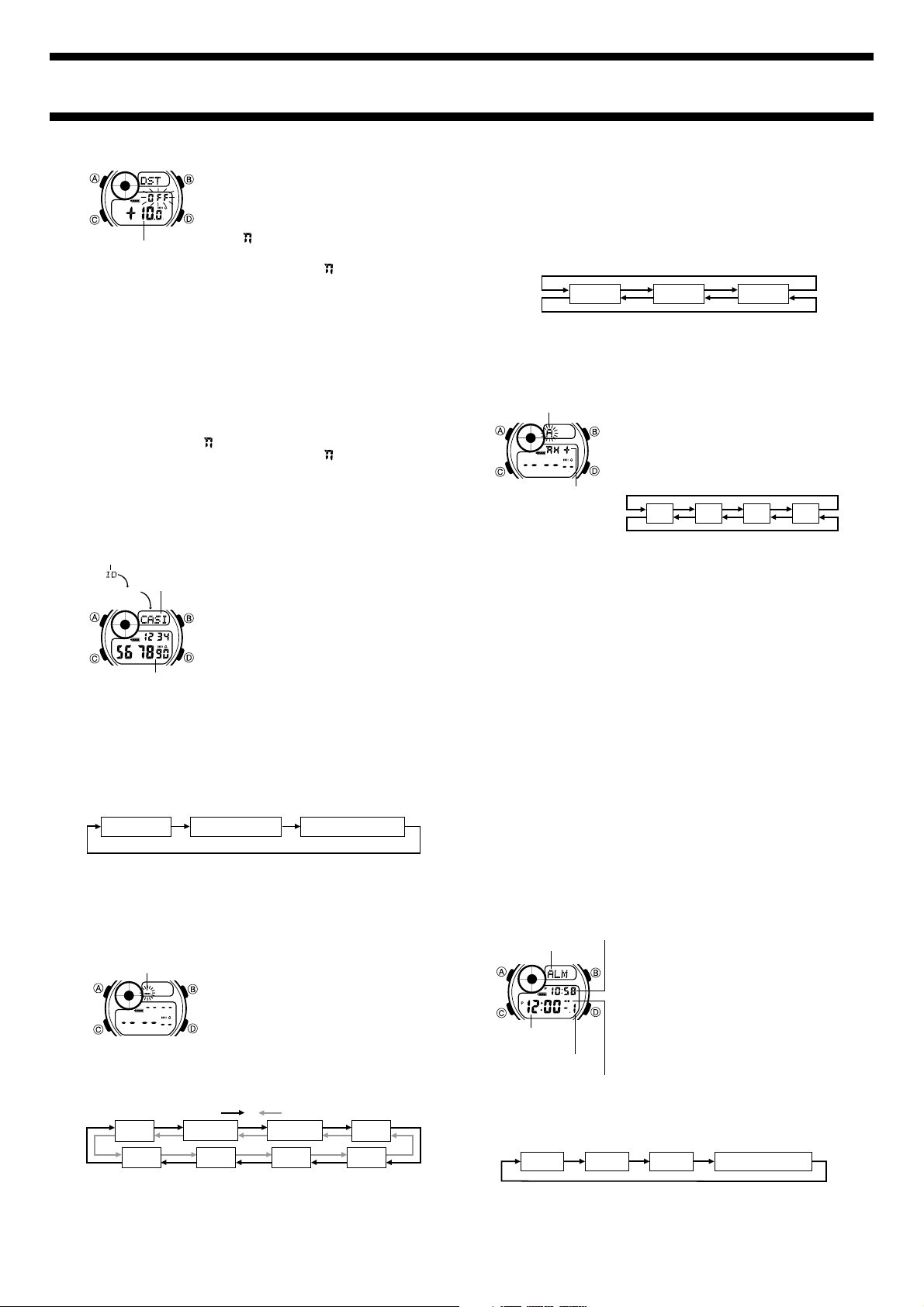
6. After you input the site name, press C
until the current DST/Standard Time setting
starts to flash on the display.
• The site name area has spaces for 14
characters, so you must continue to press
C until you get past the 14th character.
• O indicates DST and OFF indicates
Standard Time.
7. Press D to toggle the setting between DST (O ) and Standard Time
(OFF).
8. Press C and the current GMT differential starts to flash.
9. Use D (+) and B (–) to change it.
• See “TIME ZONE TABLE” at the back of this manual for GMT
differential information for a number of time zones and cities.
10. Press A to exit the setting screen.
To toggle a site time between DST and Standard Time
1. In the Site Mode, use D to display the name of the site whose DST/
Standard Time setting you want to change.
2. Hold down A until the cursor appears on the display, which indicates
the setting screen.
3. Press C 14 times until the DST/Standard Time setting screen
appears, with either O or OFF flashing.
4. Press D to toggle the setting between DST (O ) and Standard Time
(OFF).
5. Press A to exit the setting screen.
GMT differential
IDENTIFICATION MODE
With the Identification (ID) Mode, you can
store your SCUBA diver certificate number,
passport number, and blood type.
• All of the operations in this section are
performed in the Identification Mode, which
you enter by pressing C.
About Identification Mode Data
• The Identification Mode has three pre-
programmed data titles: C CARD
(SCUBA diver certificate number),
PASSPORT (passport number), and
BLOOD TYPE (blood type).
• Except for BLOOD TYPE, you can input 16 characters (letters,
numbers, symbols) in the text area and 10 digits in the number area.
• In the case of BLOOD TYPE, you can input a blood type (ABO)
and Rh factor.
To view Identification Mode data
In the Identification Mode, each press of D scrolls through the data in
the sequence shown below.
PASSPORT
C CARD
BLOOD TYPE
• In the Text Area, the title alternates with the input text.
Number area
Mode indicator
Text area
C CARD
Inputting Text and Numbers
The following procedure is the same for C CARD and
PASSPORT data.
To input text and numbers
1. In the Identification Mode, use D to
display either C CARD or
PASSPORT.
2. Hold down A until the cursor appears in
the text area, which indicates the setting
screen.
• If you do not want to input text into the text
area, press C 16 times to move the cursor
to the number area and jump to step 7.
3. Use B and D to change the character at the cursor position in the
text area. The character changes in the following sequence.
-
)
Press D.
Press B.
(space)
1
to
0
A
to
Z
( / .
4. When the character you want is at the cursor position, press C to
move the cursor to the right.
5. Repeat steps 3 and 4 to input the rest of your text.
6. After you input the text, use C to move the cursor to the number
area.
Cursor
• The text area in the Identification Mode can hold up to 16
characters. When the cursor is located at the 16th space of the text
area, moving the cursor to the right causes it to jump down to the
first digit in the number area. When the cursor is at the 10th digit of
the number area, moving it to the right causes it jump back up to the
first character of the text area.
7. Use B and D to change the character (hyphen, number, or space)
at the cursor position in the number area. The character changes in
the following sequence.
x
(space)
0
to
9
Press D.
Press B.
8. When the character you want is at the cursor position, press C to
move the cursor to the right.
9. Repeat steps 7 and 8 to input the rest of the number.
10. Press A to store your data and exit the setting screen.
To input your blood type
1. In the Identification Mode, use D to
display the BLOOD TYPE.
2. Hold down A until the blood type starts to
flash, which indicates the setting screen.
3. Use B and D to scroll through the
available blood types in the following
sequence.
A B O AB
Press D.
Press B.
4. Press C so the Rh factor indicator (x or *) is flashing.
5. Press D to select either x (negative) or * (positive).
6. Press A to store your settings and exit the setting screen.
To edit C CARD and PASSPORT data
1. In the Identification Mode, use D to display either C CARD or
PASSPORT.
2. Hold down A until the cursor appears in the text area, which
indicates the setting screen.
3. Use C to move the cursor to the character you want to change.
4. Use B and D to change the character.
• For details on inputting characters, see “To input text and numbers.”
5. After making the changes that you want, press A to store them and
exit the setting screen.
To delete C CARD and PASSPORT data
1. In the Identification Mode, use D to display either C CARD or
PASSPORT.
2. Hold down A until the cursor appears in the text area, which
indicates the setting screen.
3. Press B and D at the same time to delete the currently displayed
data.
• After the data is deleted, the cursor appears in the text area, ready
for input.
4. Input data or press A to exit the setting screen.
Blood type
Rh factor indicator
ALARM
You can set up to three independent Daily
Alarms. When an alarm is turned on, the
alarm tone sounds for 20 seconds at the
preset time each day. Press any button to stop
the alarm after it starts to sound.
When the Hourly Time Signal is turned on, the
watch beeps every hour on the hour.
• The alarm number (1 through 3) indicates
the currently displayed alarm screen. On the
Hourly Time Signal screen, SIG appears
in place of ALM.
• Alarm settings (and Hourly Time Signal
settings) are available in the Alarm Mode,
which you enter by using C.
To set an alarm time
1. In the Alarm Mode, use D to select the alarm (1, 2, or 3) whose
time you want to set.
Alarm 1
Hourly Time Signal
Alarm 2 Alarm 3
2. Hold down A until the hour digits of the alarm time start to flash,
which indicates the setting screen.
• This automatically turns on the alarm.
Alarm on indicator
Mode indicator
Alarm time
(Hour : Minutes)
Current time
Alarm number
2422-4
3. Press C to move the flashing in the sequence shown below to select
other settings.
On/OffHour Minutes
4. While hour or minute’s digits are flashing, use D (+) and B (–) to
change them.
• While the On/Off setting is flashing, press D to toggle the alarm on
(ON) and off (OFF).
• When setting the alarm time using the 12-hour format, take care to
set the time correctly as a.m. (no indicator) or p.m. (P indicator).
5. Press A to exit the setting screen.
To test the alarm
In the Alarm Mode, hold down D to sound the alarm.
To turn an alarm on and off
1. In the Alarm Mode, use D to select the alarm you want to turn on or
off.
2. Hold down A until the hour digits of the alarm time start to flash,
which indicates the setting screen.
3. Press C twice so the ON or OFF setting is flashing.
4. Press D to toggle the alarm on (ON) and off (OFF).
5. Press A to exit the setting screen.
• The alarm on indicator ( ) is on the alarm screen when the alarm
is turned on.
• In other modes (besides the Alarm Mode), the indicator is on the
display when any of the alarms is on.
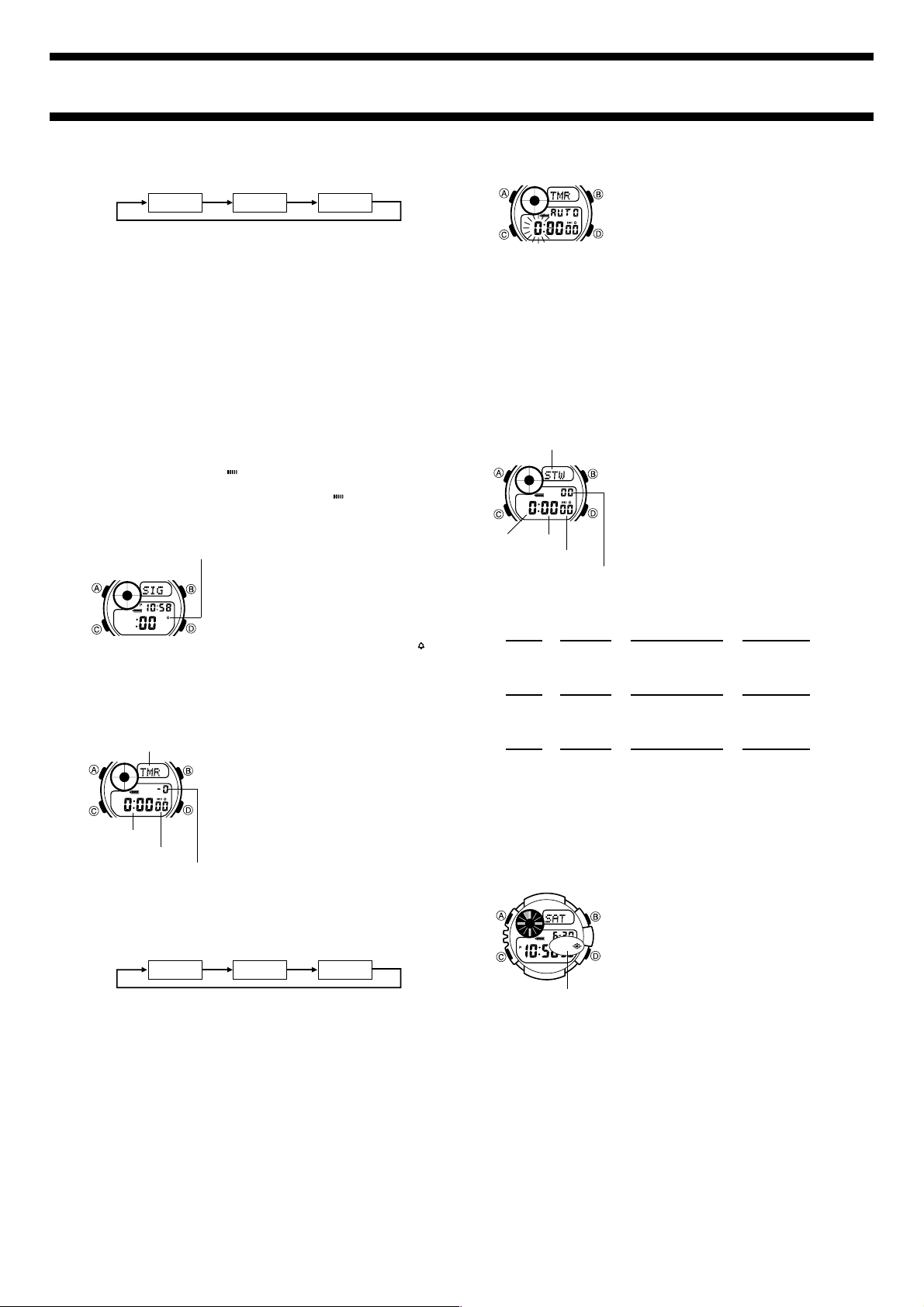
To turn the Hourly Time Signal on and off
1. In the Alarm Mode, use D to select the
Hourly Time Signal.
2. Hold down A until the ON indicator starts
to flash on the display in place of SIG,
which indicates the setting screen.
3. Press D to toggle the Hourly Time Signal
on (ON) and off (OFF).
4. Press A to exit the setting screen.
• The Hourly Time Signal on indicator ( )
is on the display while the Hourly Time
Signal is turned on.
Hourly Time Signal
on indicator
COUNTDOWN TIMER
You can set the countdown timer within a
range of 1 second to 24 hours. An alarm
sounds when the countdown reaches zero.
• You can also select auto-repeat, which
automatically restarts the countdown
whenever zero is reached.
• All of the operations in this section can be
performed in the Countdown Timer Mode,
which you enter by pressing C.
Seconds
Hours : Minutes
Mode indicator
1/10 Second
To set the countdown start time
1. In the Countdown Timer Mode, hold down A until the hour digit of the
countdown time starts to flash, which indicates the setting screen.
2. Press C to move the flashing in the sequence shown below to select
other settings.
SecondsHours Minutes
3. While hour, minute’s, or second’s digits are flashing, press D to
increase the setting.
• To specify a countdown start time of 24 hours, set 0:00 00.
4. Press A to exit the setting screen.
To use the countdown timer
Press D while in the Countdown Timer Mode to start the countdown
timer.
• When the end of the countdown is reached while auto-repeat is turned
off, the alarm sounds for 10 seconds or until you stop it by pressing
any button. The countdown time is automatically reset to its start time
after the alarm stops.
• Pressing D while a countdown operation is in progress pauses the
countdown. Press D again to resume the countdown.
• To cancel a countdown operation, first pause it (by pressing D), and
then press A. This returns the countdown to its start time.
To turn auto-repeat on and off
1. In the Countdown Timer Mode, hold down
A until the hour digit of the countdown
time starts to flash, which indicates the
setting screen.
2. Press B to toggle auto-repeat on (AUTO
displayed) and off (OFF displayed).
3. Press A to exit the setting screen.
• When the end of the countdown is reached while auto-repeat is
turned on, the alarm sounds and the countdown restarts
automatically from the start time. You can stop timing by pressing
D and then pressing A to reset to the start time.
• Normally an alarm tone sounds for 10 seconds when the end of the
countdown is reached. If you use auto-repeat with a start time of 10
seconds or less, the watch beeps only once.
• Frequent use of auto-repeat and the alarm can run down battery
power.
STOPWATCH
The stopwatch lets you measure elapsed
time, split times, and two finishes.
• The display range of the stopwatch is 23
hours, 59 minutes, 59.99 seconds.
• The stopwatch continues to run, restarting
from zero after it reaches its limit, until you
stop it.
• The stopwatch measurement operation
continues even if you exit the Stopwatch
Mode.
• All of the operations in this section are
performed in the Stopwatch Mode, which
you enter by pressing C.
Minutes
Seconds
1/100 Second
Mode indicator
Hours
To measure times with the stopwatch
Elapsed Time
DD D D A
Start Stop Re-start Stop Clear
Split Time
DA A D A
Start Split Split release Stop Clear
Two Finishes
DA D A A
Start Split Stop Split release Clear
J J J J
J J J J
J J J J
First runner
finishes.
Display time
of first runner.
Second runner
finishes.
Display time of
second runner.
BACKLIGHT
The backlight uses an EL (electro-luminescent)
panel that causes the entire display to glow for
easy reading in the dark.
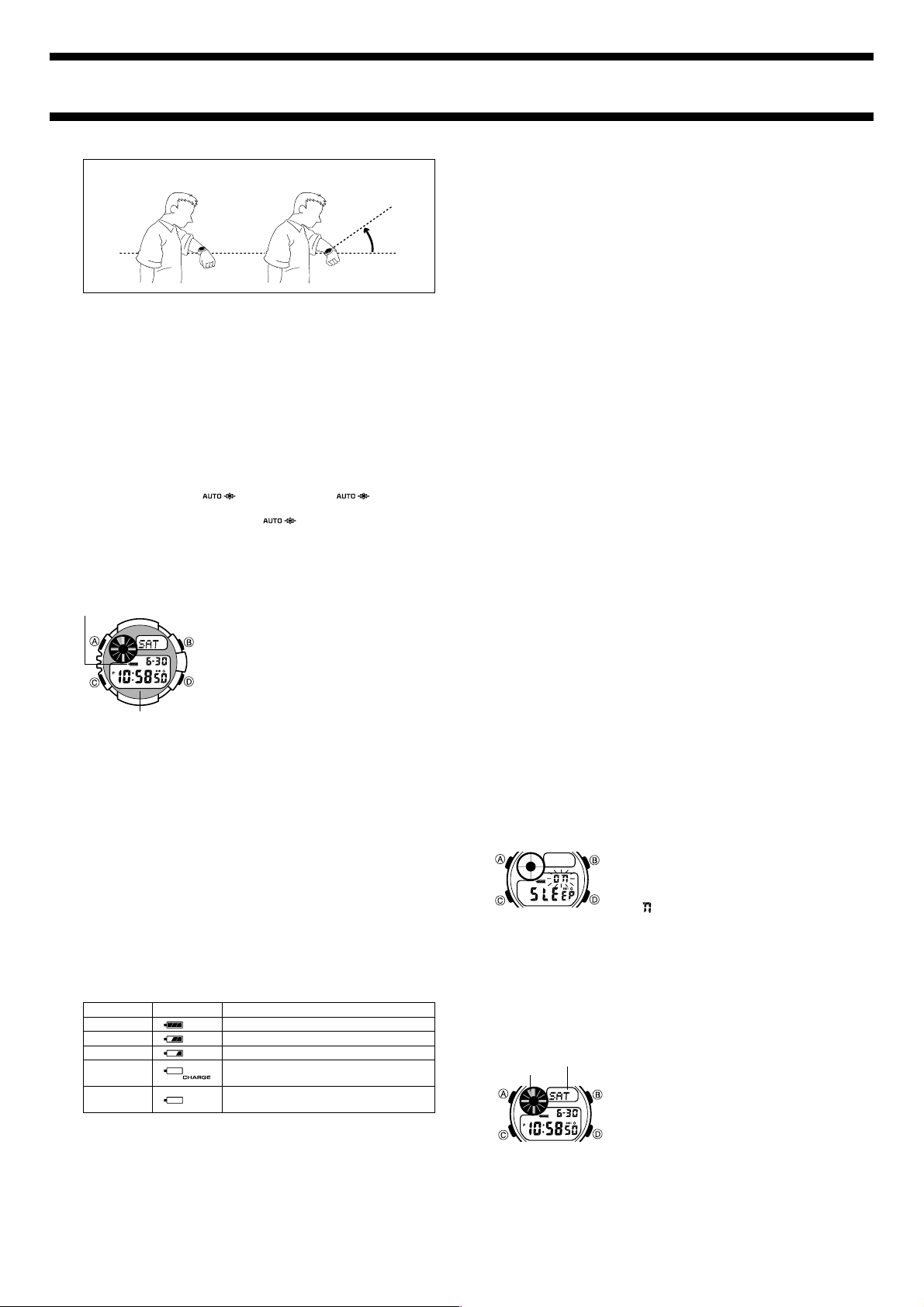
The watch’s auto light switch automatically
turns on the backlight when you angle the
watch towards your face.
• The auto light switch must be turned on
(indicated by the auto light switch on
indicator) for it to operate.
• See “Backlight Precautions” for other
important information about using the
backlight.
To turn on the backlight manually
In any mode, press B to illuminate the display for about two seconds.
• The above operation turns on the backlight regardless of the current
auto light switch on/off setting.
About the Auto Light Switch
Turning on the auto light switch causes the backlight to turn on for about
two seconds whenever you position your wrist as described below. Note
that this watch features a “Full Auto EL Light,” so the auto light switch
operates only when available light is below a certain level. It does not
turn on the backlight under bright light.
• Be sure to wear the watch on the outside of your left wrist while using
the auto light switch.
Auto light switch
on indicator
AUTO
2422-5
Parallel to
ground
More
than
40
°
Moving the watch to a position that is parallel to the ground and then
tilting it towards you more than 40 degrees causes the backlight to
turn on.
Warning!
• Always make sure you are in a safe place whenever you are
reading the display of the watch. Be especially careful when
running, riding a bicycle or motorcycle, driving a car, or engaged
in any other activity that can result in accident or injury. Also take
care that sudden illumination by the auto light switch does not
startle or distract others around you.
• When you are wearing the watch, make sure that its auto light
switch is turned off before riding a bicycle or operating a
motorcycle or any other motor vehicle. Sudden and unintended
operation of the auto light switch can create a distraction, which
can result in a traffic accident and serious personal injury.
To turn the auto light switch on and off
In the Timekeeping Mode, hold down B for about two seconds to toggle
the auto light switch on ( displayed) and off ( not
displayed).
• The auto light switch on indicator ( ) is on the display in all
modes while the auto light switch is turned on.
BATTERY
This watch is equipped with a solar cell and a
storage battery that is charged by the
electrical power produced by the solar cell.
• The area outside of the LCD digital area is a
solar cell panel that picks up available light
to charge the storage battery.
Important!
• Storing the watch for long periods in an area
where there is no light or wearing it in such
a way so that the solar cell panel is blocked
from exposure to light can cause the
storage battery power to run down. Make
sure that the watch is exposed to light
whenever possible.
• This watch employs a solar cell, which converts light into electricity
that charges a built-in storage battery. Normally, the storage battery
should not need replacement, but after very long use over a number of
years, the storage battery may lose its ability to achieve a full charge.
Should you notice problems with getting the storage battery to a full
charge, contact the dealer or store where you purchased the watch
about having the storage battery replaced.
• The storage battery should be replaced with a CASIO-specified
ML-2016 battery only. Use of other storage batteries can damage the
watch.
• Be sure to put the watch into its Sleep Mode and keep it in an area
normally exposed to light when storing it for long periods. This helps to
keep the storage battery charged.
Solar cell panel
Battery power indicator
Battery Power Indicator
The battery power indicator on the display shows you the current status
of storage battery power.
Level
1
2
3
4
5
Indicator Function Status
All functions enabled.
All functions enabled.
All functions enabled.
Alarms, Hourly Time Signal, backlight,
display disabled; timekeeping enabled
Alarms, Hourly Time Signal, backlight,
display, timekeeping disabled
• At Level 4, the display is disabled but timekeeping and other functions
continue to operate internally. The CHARGE indicator flashes to
indicate that battery power is about to go too low to support
timekeeping and data storage. Whenever the battery power indicator
shows Level 4, leave the watch in a location where it is exposed to
light so the storage battery can be charged.
• At Level 5, all functions are disabled. Functions are re-enabled after
the storage battery is charged, but anything previously stored in
memory is lost. Because of this, you must set the current time and
alarms, and re-input Identification Mode data after the storage battery
is re-charged.
• Leaving the watch in direct sunlight or under some other very strong
light source can cause the battery power indicator to temporarily show
a reading that is actually higher than the battery level. The correct
battery power indicator should appear after a short while.
• Frequent backlight and alarm operations over a short period put a
heavy load on the battery, which can cause the indicator (RECOVER)
to appear, indicating that the backlight and alarm are disabled. Normal
operations should return after the battery recovers from the overload
condition. The above condition can occur after about 200 consecutive
backlight operations or about 360 consecutive alarm operations.
Charging Precautions
Certain charging conditions can cause the watch to become very hot.
Avoid leaving the watch in the areas described below whenever charging
its storage battery.
Warning!
Leaving the watch in sunlight to charge its storage battery can
cause it to become quite hot. Take care when handling the watch to
avoid burn injury.
• On the dashboard of a car parked in direct sunlight
• Too close to an incandescent lamp
• Under direct sunlight or in any other area exposed to intense heat for
long periods
Charging Guide
The following are required charge times when the backlight is used for
two seconds and the alarm sounds for 20 seconds per day:
• Approximately 8 hours of 500 lux (indoor fluorescent lighting) per day
• Approximately 1 hour 15 minutes of 3,000 lux (direct fluorescent
lighting) per day
• Approximately 50 minutes of 36,000 lux (afternoon outdoor sunlight)
per week
Sleep Mode
When the Sleep Mode is turned on, the display of the watch turns off
automatically to conserve battery power when you leave it in an area
where lighting is dim for about seven or eight days without performing
any button operation.
• Timekeeping and other functions continue to be performed internally
while the watch is in the Sleep Mode.
• Alarms, the Hourly Time Signal, and the backlight are disabled while
the watch is in the Sleep Mode.
• Moving the watch to a brightly lit area or pressing any of the watch
buttons recovers from the Sleep Mode and enters the Timekeeping
Mode.
• The watch does not enter the Sleep Mode while battery power is at
Level 4.
To turn the Sleep Mode on and off
1. In the Timekeeping Mode, hold down A
until the second’s digits start to flash.
2. Press C nine times to move the flashing to
the Sleep Mode On/Off setting.
3. Press D to toggle the Sleep Mode on
(O ) and off (OFF).
4. Press A to exit the setting screen.
REFERENCE
This section contains more detailed and technical information about
watch operation. It also contains important precautions and notes about
the various features and functions of this watch.
Graphic Area and Text Area
• The graphic area shows the passage of
minutes in the Timekeeping, Dive Time
Measurement, Site, Countdown Timer, and
Stopwatch Modes, and the Log Data
screen. A segment appears in the graphic
area each time five minutes pass.
• The text area can show up to four
characters, so longer text scrolls continually
from right to left.
Text area
Graphic area
2422-6
Auto Return Feature
• After you perform an operation in any mode (except for the backlight
operation), pressing C returns to the Timekeeping Mode.
• If you leave a setting screen on the display for two or three minutes
without performing any operation, the watch automatically saves
anything you have input up to that point and exits the setting screen.
• If you leave the watch in the Site or Identification Mode for one to two
hours without performing any operation, it automatically changes to the
Timekeeping Mode.
Scrolling
The B and D buttons are used in various setting screens to scroll
through data on the display. In most cases, holding down these buttons
during a scroll operation scrolls through the data at high speed.
Timekeeping
• The day of the week is automatically displayed in accordance with the
date (year, month, and day) settings.
• The year can be set in the range of 2000 to 2039. Going past
December 31, 2039 reverts to January 1, 2000.
• The watch’s built-in full automatic calendar automatically makes
allowances for different month lengths and leap years. Once you set
the date, there should be no reason to change it except after re-
charging of the watch’s battery after the charge reaches Level 5.
12-hour/24-hour Timekeeping Formats
The 12-hour/24-hour timekeeping format you select in the Timekeeping
Mode is also applied in the Dive Time Measurement, Site, and Alarm
Modes.
• With the 12-hour format, the P (PM) indicator appears to the left of the
hour digits for times in the range of noon to 11:59 p.m. and no indicator
appears to the left of the hour digits in the range of midnight to 11:59 a.m.
• With the 24-hour format, times are indicated in the range of 0:00 to
23:59, with the 24 indicator.
Site Mode
• The current time in all Site Mode sites is calculated in accordance with
the Greenwich Mean Time (GMT) differential for each site, based on
the current Home Site time setting in the Timekeeping Mode.
• The GMT differential is the time difference of the time zone where the
site is located from Greenwich Mean Time.
• The second’s count of the Site Time is synchronized with the second’s
count of the Timekeeping Mode.
• GMT differential is calculated by this watch based on Universal Time
Coordinated (UTC) data.
Backlight Precautions
• The electro-luminescent panel that provides illumination loses power
after very long use.
• The illumination provided by the backlight may be hard to see when
viewed under direct sunlight.
• The watch may emit an audible sound whenever the display is
illuminated. This is due to vibration of the EL panel, and does not
indicate malfunction.
• The backlight automatically turns off whenever an alarm sounds.
• Frequent use of the backlight depletes the battery.
Auto Light Switch Precautions
• Avoid wearing the watch on the inside of your wrist. Doing so causes
the auto light switch to operate when it is not needed, which depletes
the battery. If you want to wear the watch on the inside of your wrist,
turn off the auto light switch.
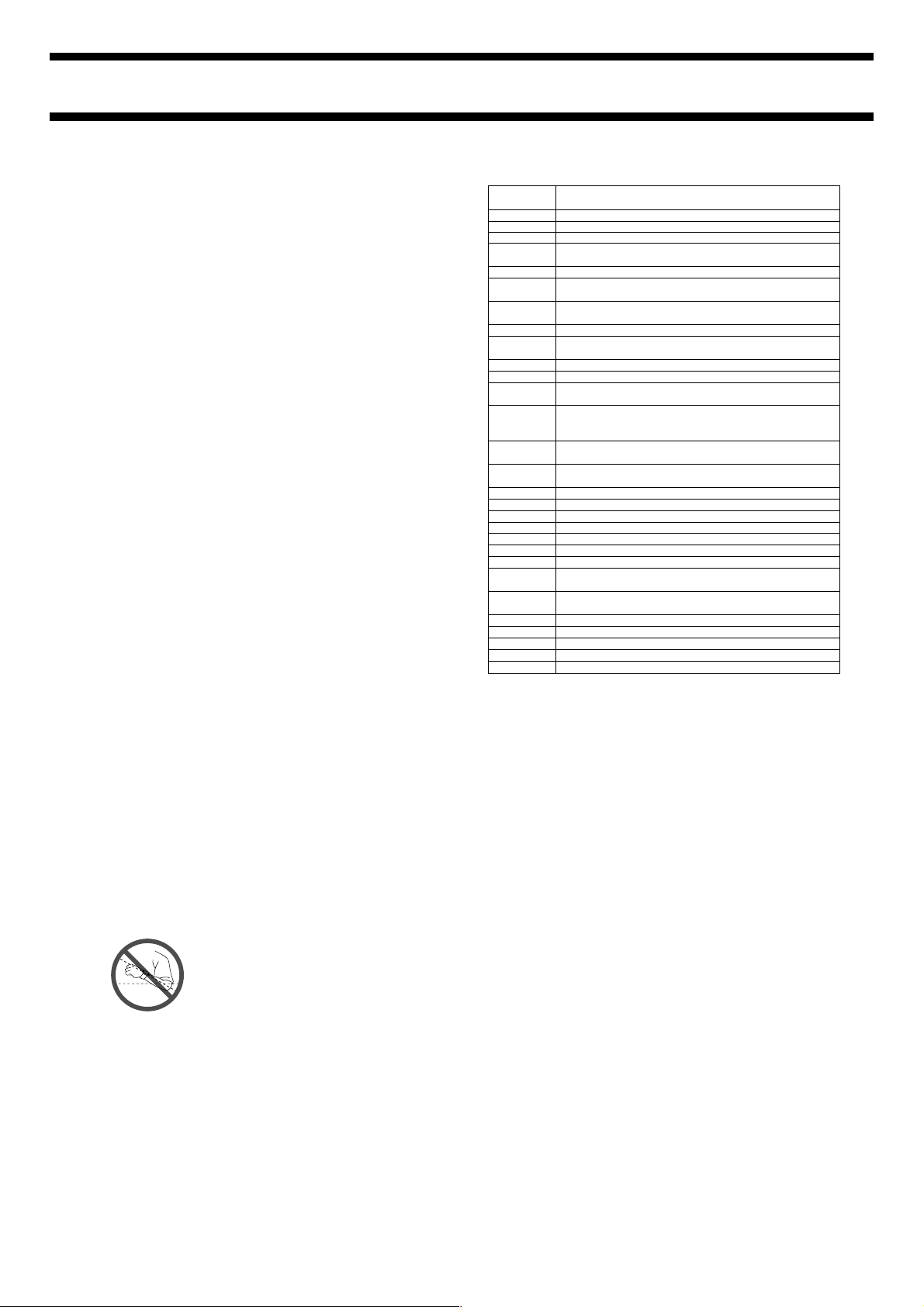
• The backlight may not light if the face of the
watch is more than 15 degrees above or
below parallel. Make sure that the back of
your hand is parallel to the ground.
• The backlight turns off in about two
seconds, even if you keep the watch
pointed towards your face.
• Static electricity or magnetic force can interfere with proper operation
of the auto light switch. If the backlight does not light, try moving the
watch back to the starting position (parallel with the ground) and then
tilt it back towards you again. If this does not work, drop your arm all
the way down so it hangs at your side, and then bring it back up again.
• Under certain conditions the backlight may not light until about one
second after you turn the face of the watch towards you. This does not
necessarily indicate malfunction of the backlight.
More than 15 degrees
too high
–11
–10
–09
–08
–07
–06
–05
–04
–03
–02
–01
+00
+01
+02
+03
+3.5
+04
+4.5
+05
+5.5
+06
+6.5
+07
+08
+09
+9.5
+10
+11
+12
PAGO PAGO
HONOLULU, PAPEETE
ANCHORAGE,NOME
LOS ANGELES, SAN FRANCISCO, LAS VEGAS,
VANCOUVER, SEATTLE, DAWSON CITY
DENVER, EL PASO, EDMONTON
CHICAGO, HOUSTON, DALLAS/FORT WORTH, NEW
ORLEANS, MEXICO CITY, WINNIPEG
NEW YORK, MONTREAL, DETROIT, MIAMI, BOSTON,
PANAMA CITY, HAVANA, LIMA, BOGOTA
CARACAS, LA PAZ, SANTIAGO, PORT OF SPAIN
RIO DE JANEIRO, SAO PAULO, BUENOS AIRES,
BRASILIA, MONTEVIDEO
PRAIA
LONDON, DUBLIN, LISBON, CASABLANCA, DAKAR,
ABIDJAN
PARIS, MILAN, ROME, MADRID, AMSTERDAM,
ALGIERS, HAMBURG, FRANKFURT, VIENNA,
STOCKHOLM, BERLIN
CAIRO, JERUSALEM, ATHENS, HELSINKI, ISTANBUL,
BEIRUT, DAMASCUS, CAPE TOWN
JEDDAH, KUWAIT, RIYADH, ADEN, ADDIS ABABA,
NAIROBI, MOSCOW
TEHRAN, SHIRAZ
DUBAI, ABU DHABI, MUSCAT
KABUL
KARACHI, MALE
DELHI, MUMBAI, CALCUTTA
DHAKA, COLOMBO
YANGON
BANGKOK, JAKARTA, PHNOM PENH, HANOI,
VIENTIANE
HONG KONG, SINGAPORE, KUALA LUMPUR, BEIJING,
TAIPEI, MANILA, PERTH, ULAANBAATAR
TOKYO, SEOUL, PYONGYANG
ADELAIDE, DARWIN
SYDNEY, MELBOURNE, GUAM, RABAUL
NOUMEA, PORT VILA
WELLINGTON, CHRISTCHURCH, NADI, NAURU ISLAND
Some Cities in Same Time Zone
TIME ZONE TABLE
GMT
Differential
Based on data as of December 2000.

