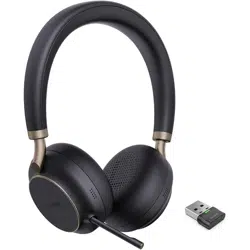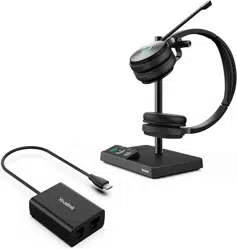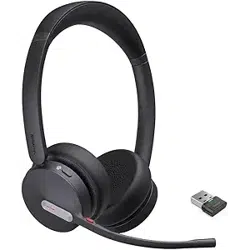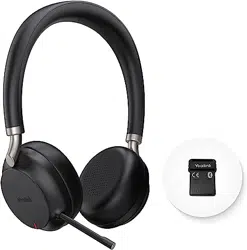
* The pictures in this guide take the Teams version as an example.
WH62 Mono Portable & WH62
Dual Portable
DECT Wireless Headset
User Guide
V1.0

Content
Package Contents ................................................ 1
Charge the Headset ............................................. 1
Power on/off ......................................................... 2
Pair WDD60 with the Headset (optional) ............. 2
Connect to PC .................................................... 3
Usage .................................................................. 3
Wear the Headset ................................................ 4
Replace Ear Cushions ......................................... 4
Software ............................................................... 5
Status and LED .................................................... 6
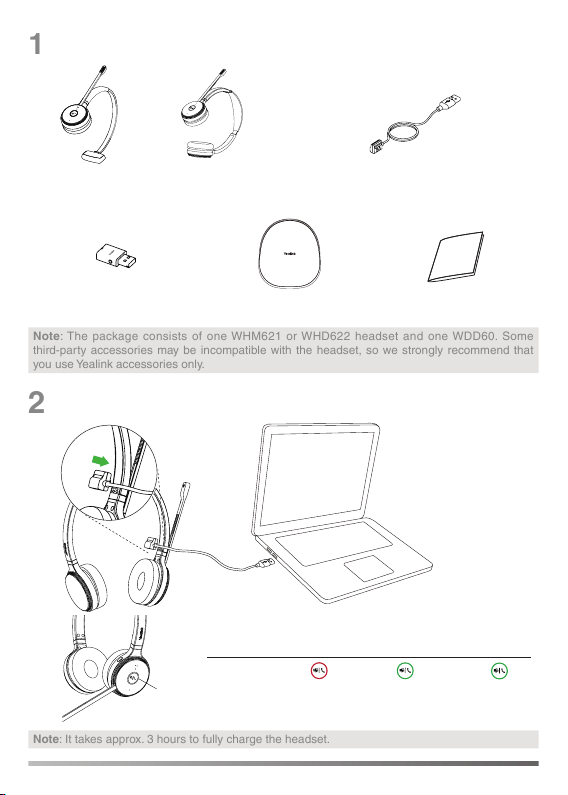
WH62 Mono Headset or
WH62 Dual Headset
Quick Start Guide
Note: The package consists of one WHM621 or WHD622 headset and one WDD60. Some
third-party accessories may be incompatible with the headset, so we strongly recommend that
you use Yealink accessories only.
Charging Cable 1.2M
WDD60 Dongle
Package Contents
1
Note: It takes approx. 3 hours to fully charge the headset.
Charge the Headset
2
Carrying Case
USB-A
LED Indicator
Battery
Charge Level
< 20% <100% and
≥
20% Full
LED
Flash Red Flash Green Green
or
1
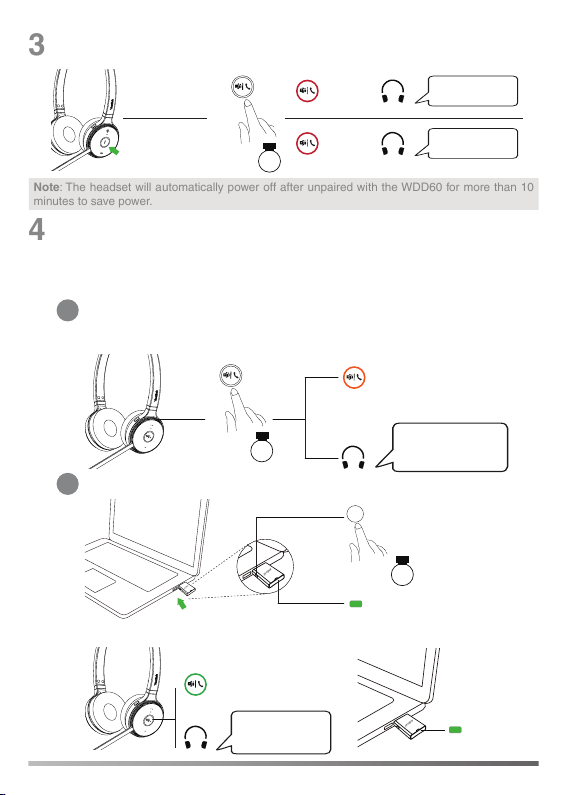
Pair WDD60 with the Headset (optional)
1
Put the headset into pairing mode
2
Put the WDD60 into pairing mode
4
3
Hold
3s
Power on
"power off"
"power on"
Red
Red
Power off
Power on/off
Flash orange
Hold 5s
"power on,
pairing mode"
Power off state
In the event that the WDD60 is unpaired or bought separately, you
will need to pair the WDD60 with the headset.
Hold 3s
Flash green
Pair successfully
"headset
connected"
Green
Solid green for 3s
Note: The headset will automatically power off after unpaired with the WDD60 for more than 10
minutes to save power.
2
Usage
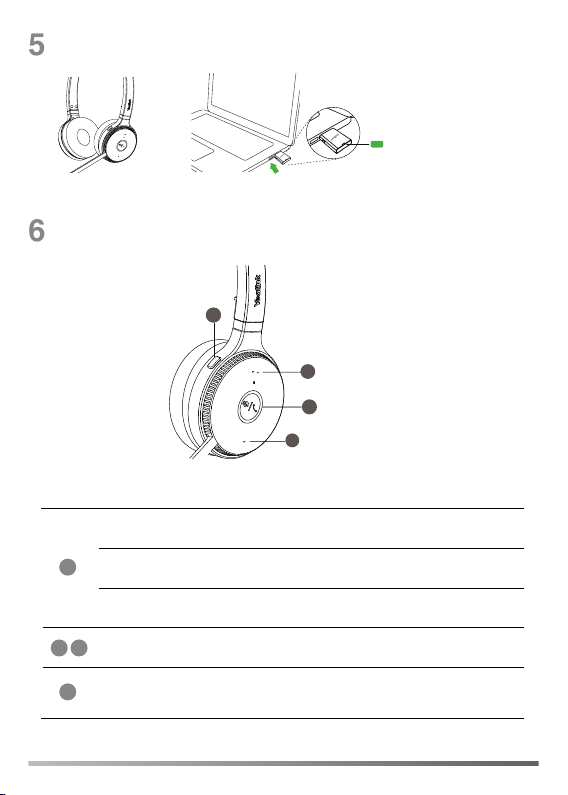
6
Volume Up Button
Volume Down Button
Call Control Button
4
2
1
3
Answer or end a call
Press the Call Control Button
Reject a call Double-press
the Call Control Button
Hold or resume a call Hold the Call Control Button for 2s
Volume up or down
Press the
Volume Up/Down Button
Mute or unmute
your microphone
Press the Mute Button or move the
microphone boom-arm up/down
1
32
4
Mute Button
5
Connect to PC
Green
Power on state
The headset and the WDD60 are pre-paired and ready for use.
Basic Call Usage
3
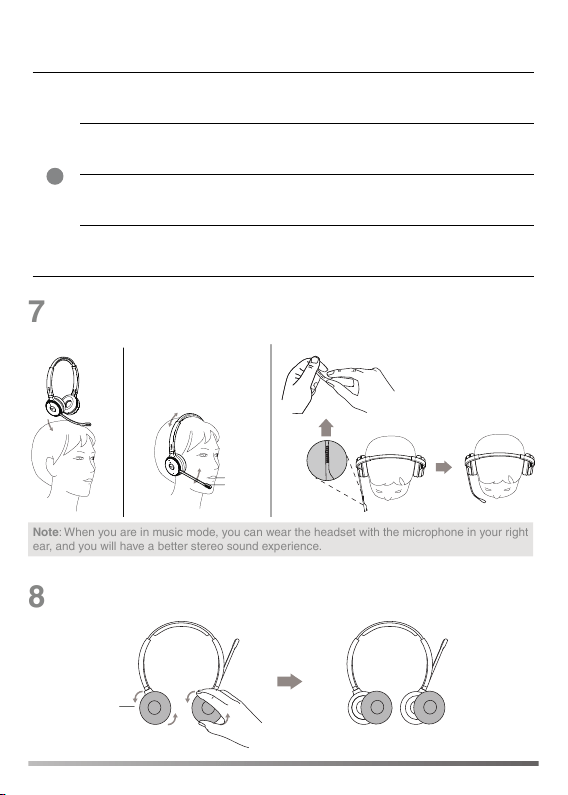
Wear the Headset
Replace Ear Cushions
1/2’’
12mm
45°
7
8
Note: When you are in music mode, you can wear the headset with the microphone in your right
ear, and you will have a better stereo sound experience.
End the current call and
answer the incoming call
Press the Call Control Button
Hold the current call and
answer the incoming call
Hold the Call Control Button for 2s
Reject incoming call, while
on a current call
Double-press
the Call Control Button
Switch between held call
and active call
Hold the Call Control Button for 2s
1
Multiple Calls Handling
4
Note: Download it from the Yealink website https://www.yealink.com/product/yuc.
5
9
Software
Yealink USB Connect
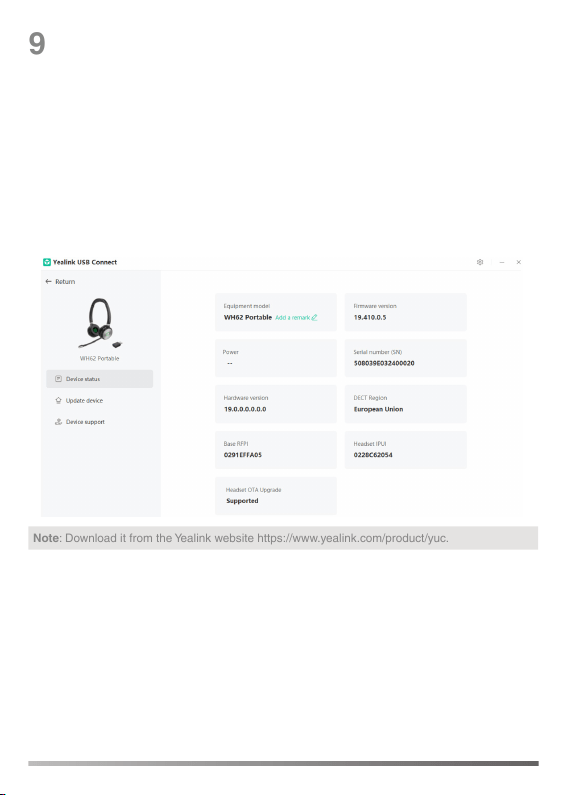
Yealink USB Connect is a computer software designed to manage Yealink USB
devices. With Yealink USB Connect, you can:
• Get an overview of connected Yealink USB devices
.
• Update your WDD60 and headset. When supporting the OTA upgrade (as shown
in the picture below), the headset will upgrade the headset software through over-
the-air transmission.
• Provide device support, such as log le collection, feedback, and device recov-
er y.
Status and LED
10
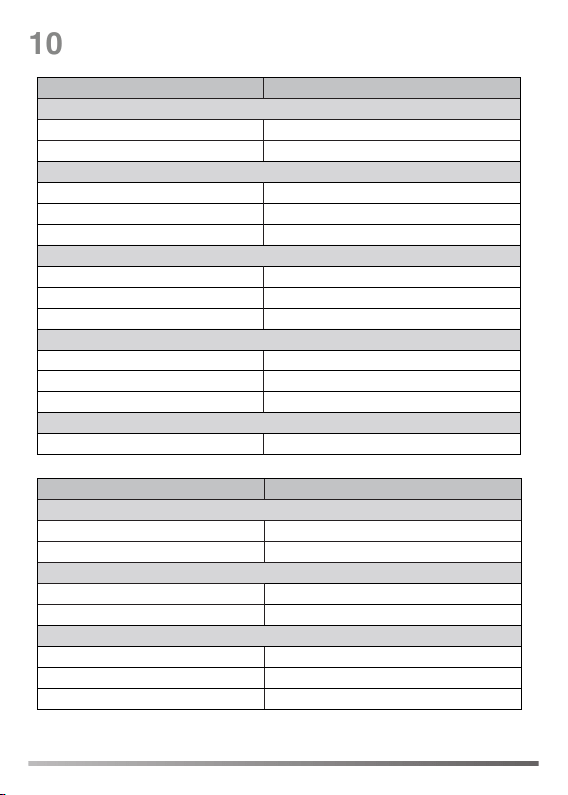
LED Headset Status
Battery level
Off Power off / idle
Slowly ash red Battery < 5% (low battery)
Charging
Flash red Battery between 0% and 20%
Flash green Battery between 20% and 100%
Glow green Battery 100% (full)
Call
Fast ash red Ringing
Glow red In the call / mute
Flash red in double Hold
Pairing
Flash orange Pairing mode
Solid green for 3s Pair successfully
Slowly ashes orange Out of range
Update
Flash red and green alternatively Firmware update
LED WDD60 Status
Conneting to PC
Solid green for 1s and off Unpaired headset
Solid green for 1s and glow green Paired headset
Pairing
Slowly ash green Pairing mode
Glow green Pair successfully
Call
Glow green Ringing / in the call
Off Mute
Solid orange for 5s and off Paired headset power off / out of range in a call
6