
CONNECT
PRO
BASESTATION
1
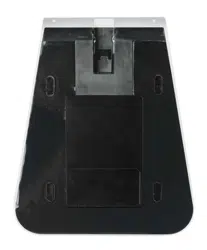
72352 - BaseStation - Black
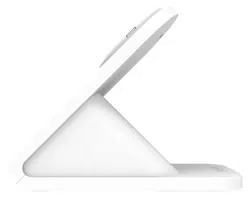
72353 - BaseStation - White

CONNECT
PRO
BASESTATION
2
IPORT CONNECT PRO BaseStation Install
Manual
Whats in box:
1 - IPORT CONNECT BaseStation
1 - IPORT Power Supply - 25V 1.5A DC. 2.1 mm x 5.5 mm
connector.
4 - Mounting Screws
1 - IPORT Security Tool
1 - Info Card
Glossary of Terms:
• BaseStation - The main mounting station on a solid
surface where the IPORT CONNECT
Case mounts and charges.
• Security Weight - The bottom removable portion of
the BaseStation which can be secured
to a table or desk.
• BaseStaion Cable Housing - The removable plastic DC
cover.
• Cable Retention Clip - The small metal clip on the
bottom of the BaseStation used to hold
the DC or Cat 5 Cable in place.
• BaseStation Security Lock - The small round lock on
the back of the BaseStation used to
actuate the lock to secure the Case to
the BaseStation.
Product Info Page - www.iportproducts.com/cpbase
Thank you for purchasing the all new IPORT
CONNECT Platform. We hope you enjoy this revo-
lutionary new system and if at any time you need
more assistance please contact IPORT Tech Sup-
port via Online chat or through our help desk on-
line.
- IPORT Team
CONNECT
PRO
BASESTATION
3
Using the Provided DC Power Adapter
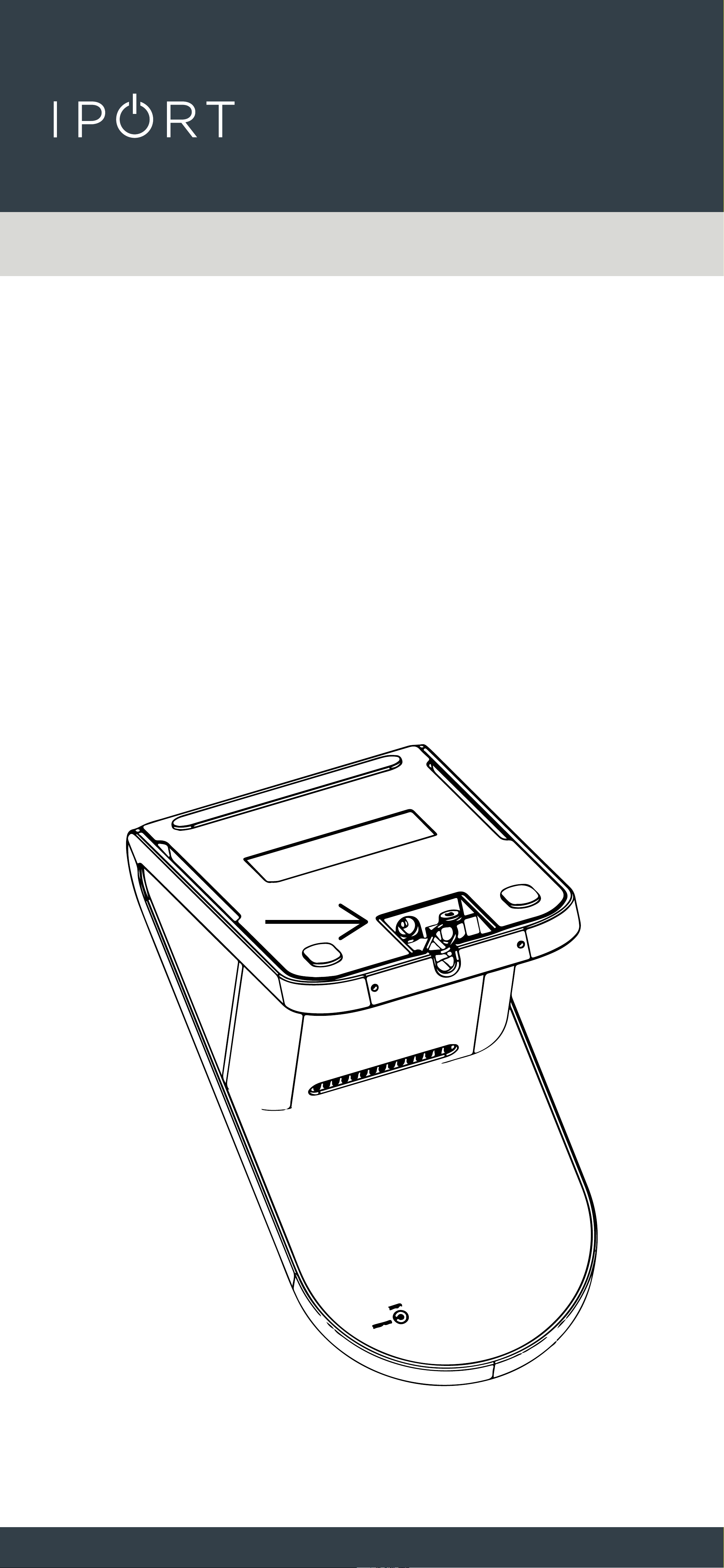
2. Insert the DC barrel plug into the
bottom of the BaseStation.
1. Remove BaseStation and Power
Supply from the box and place on a
table.
CONNECT
PRO
BASESTATION
4
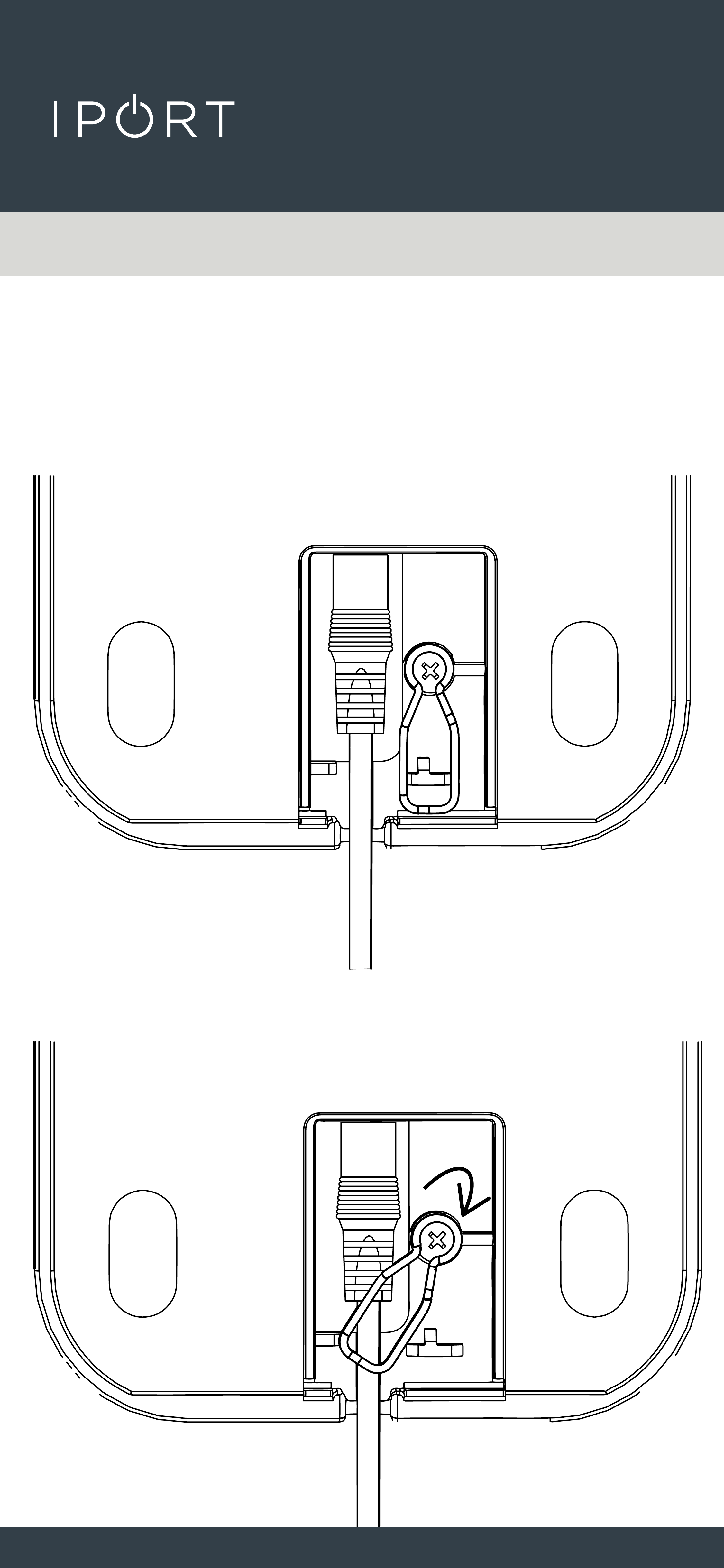
3. Rotate the Cable retention clip over
the DC cable.
CONNECT
PRO
BASESTATION
5
4. Plug in the IPORT DC Power Adapter
into the wall.
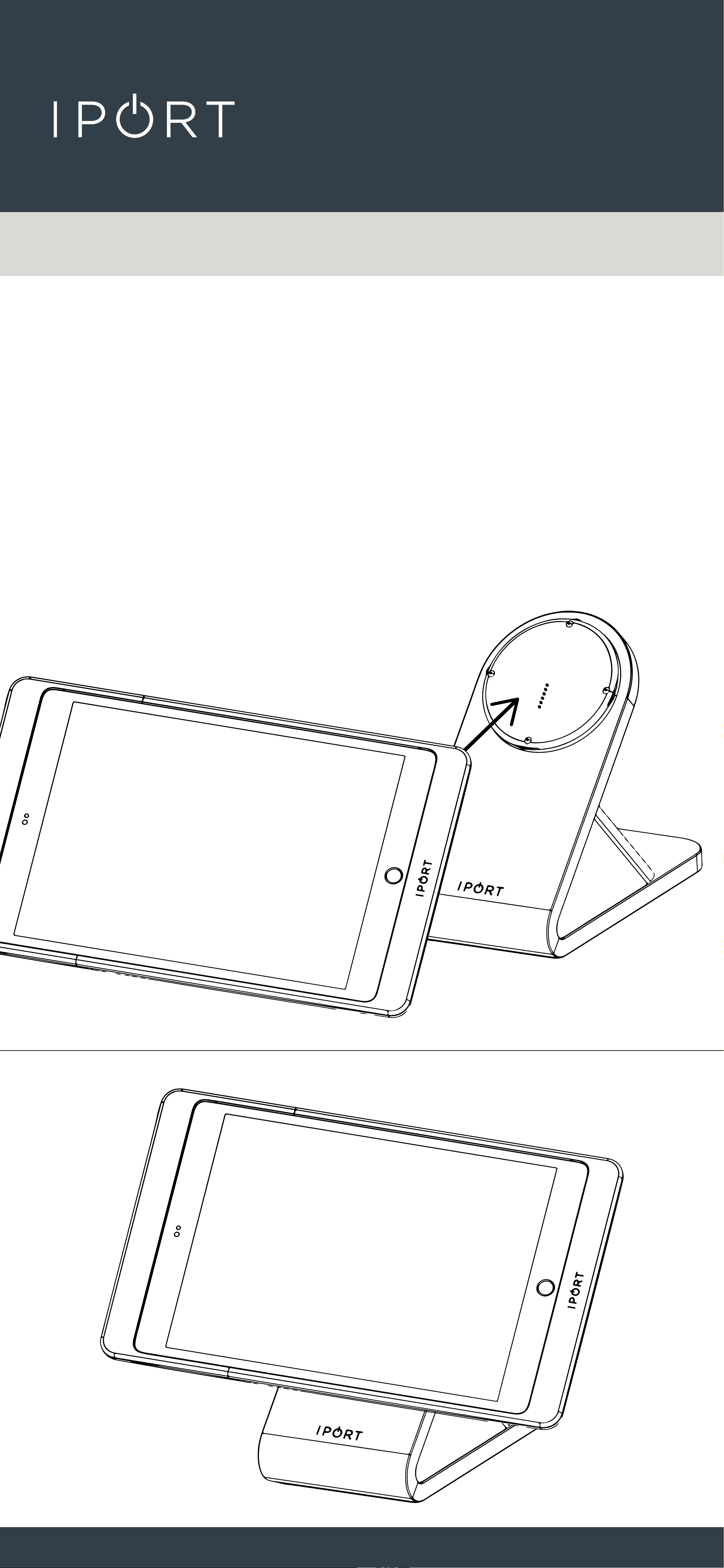
5. Place the BaseStation in the desired
location and attach the IPORT
CONNECT PRO Case onto the
BaseStation to charge in portrait or
landscape.
CONNECT
PRO
BASESTATION
6
Upgrading the BaseStation to PoE
1. Remove PoE+ Upgrade from the box
and place on a table.
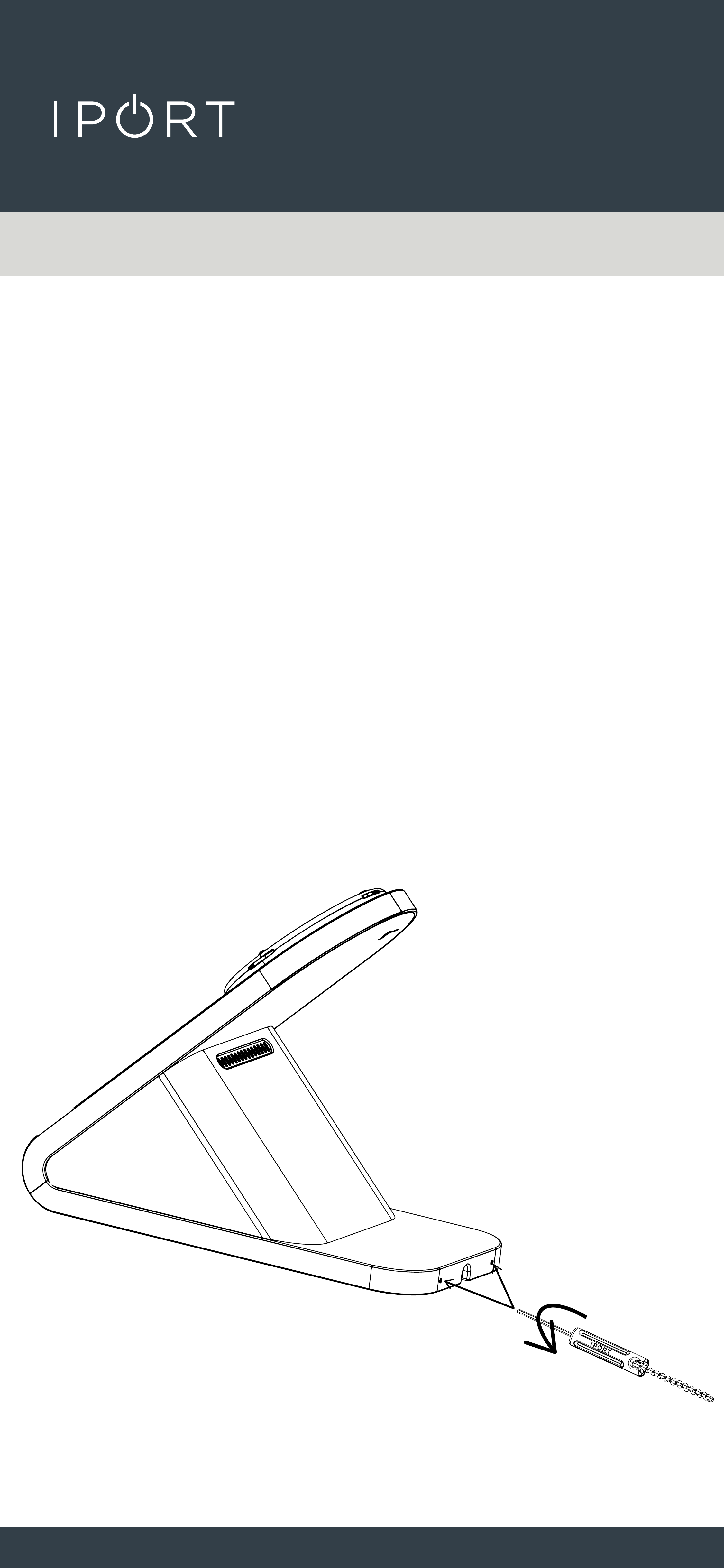
2. Insert the IPORT Security Tool into
the small holes in the back of the
BaseStation foot. Rotate the tool
counterclockwise until it stops.
Repeat for the second hole.
CONNECT
PRO
BASESTATION
7
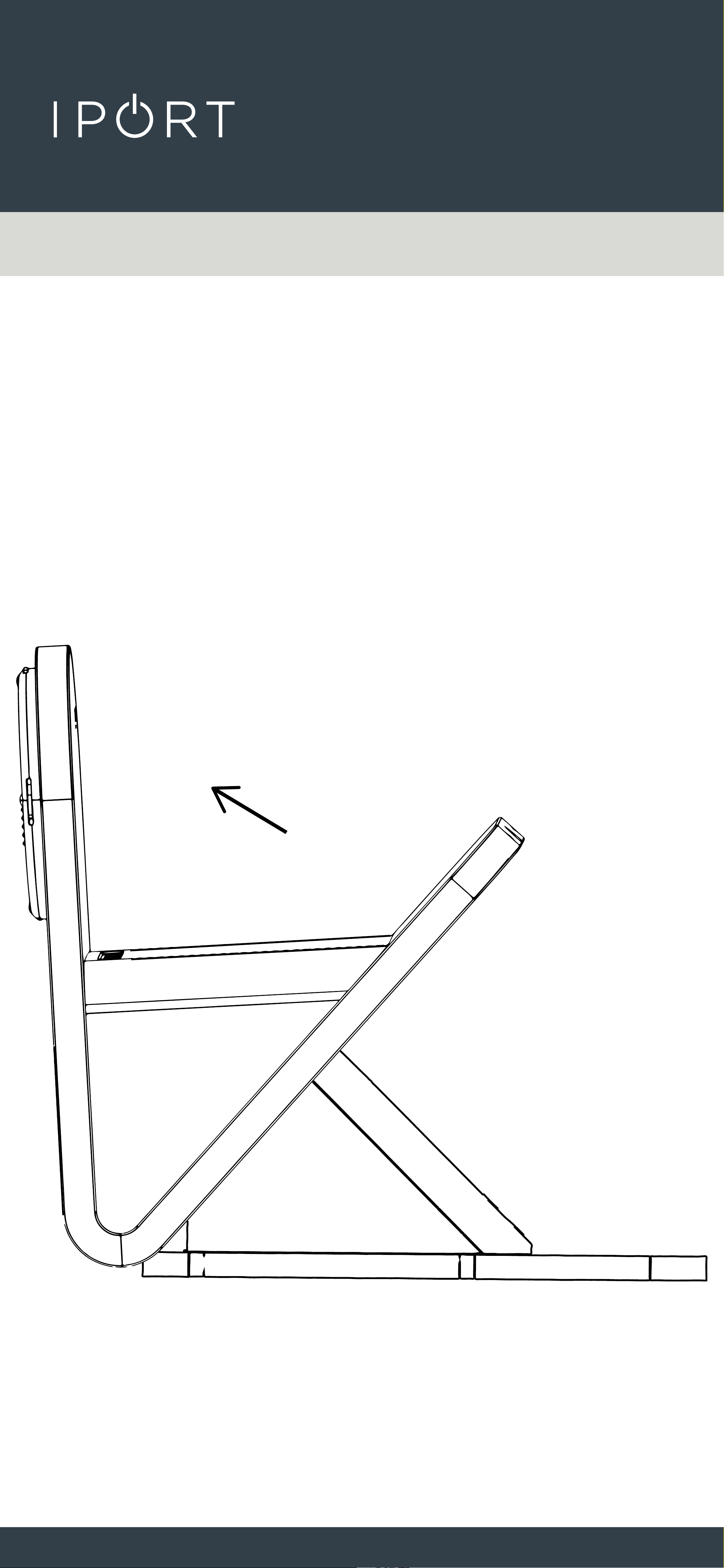
3. Tilt the BaseStation forward to allow
the BaseStation weight to come out
of the bottom of the BaseStation.
Use caution as the BaseStation weight is
very heavy.
CONNECT
PRO
BASESTATION
8
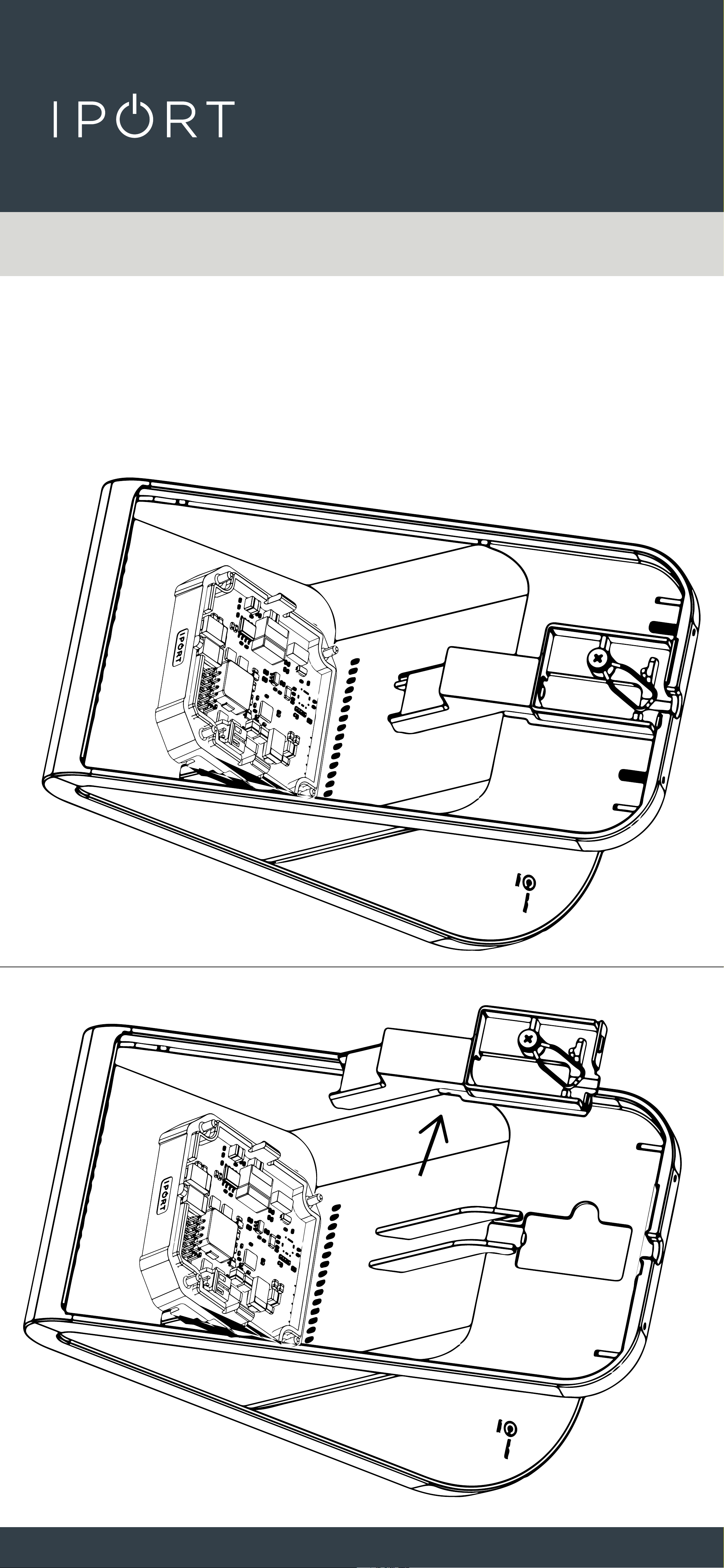
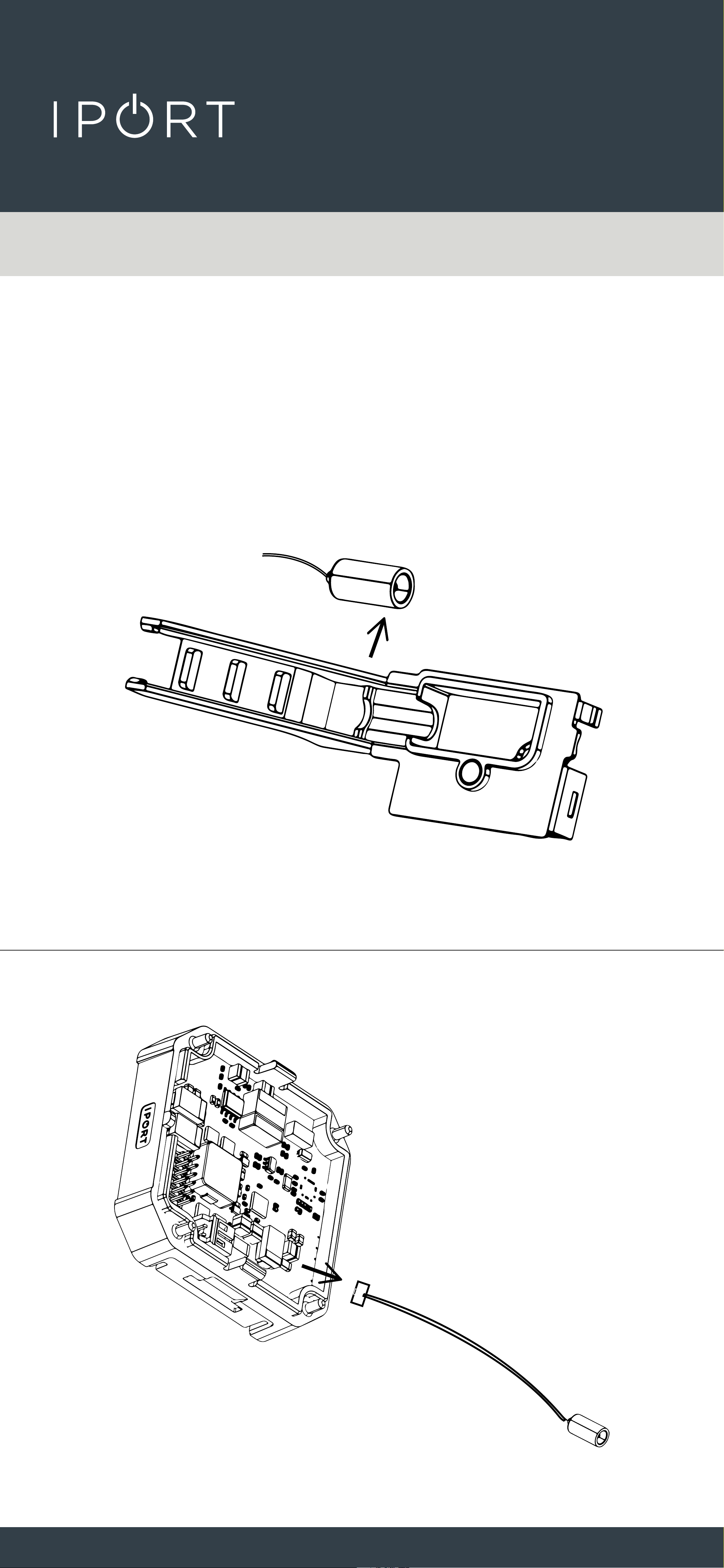
4. Disconnect the DC Barrel cable if
installed and pop out the
BaseStation Cable Housing cover.
CONNECT
PRO
BASESTATION
9
5. Remove the DC Barrel cable from
the BaseStation Cable Housing and
disconnect the cable from the
IPORT DC Adapter.
CONNECT
PRO
BASESTATION
10
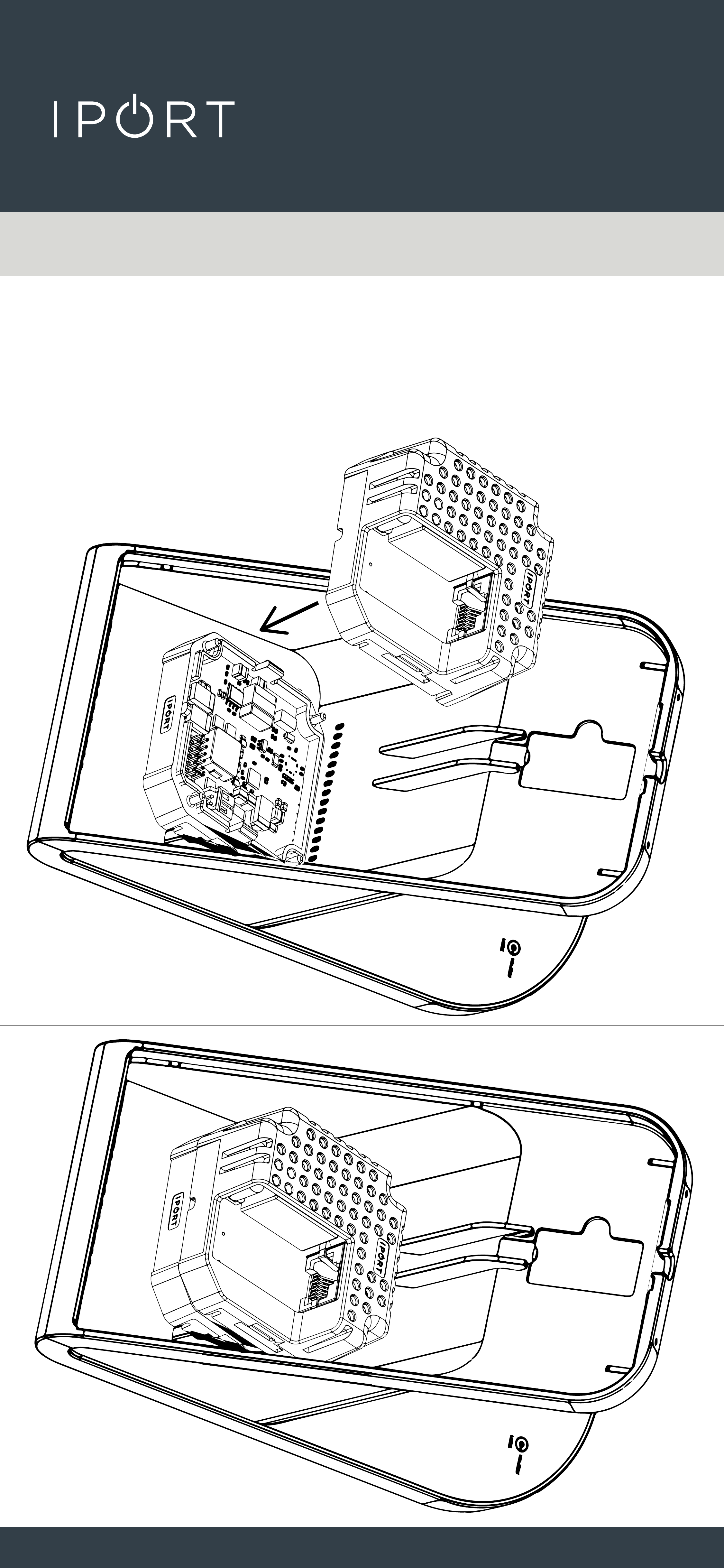
6. Attach the IPORT CONNECT
PoE+ Upgrade Adapter to the
IPORT DC Adapter as shown:
CONNECT
PRO
BASESTATION
11
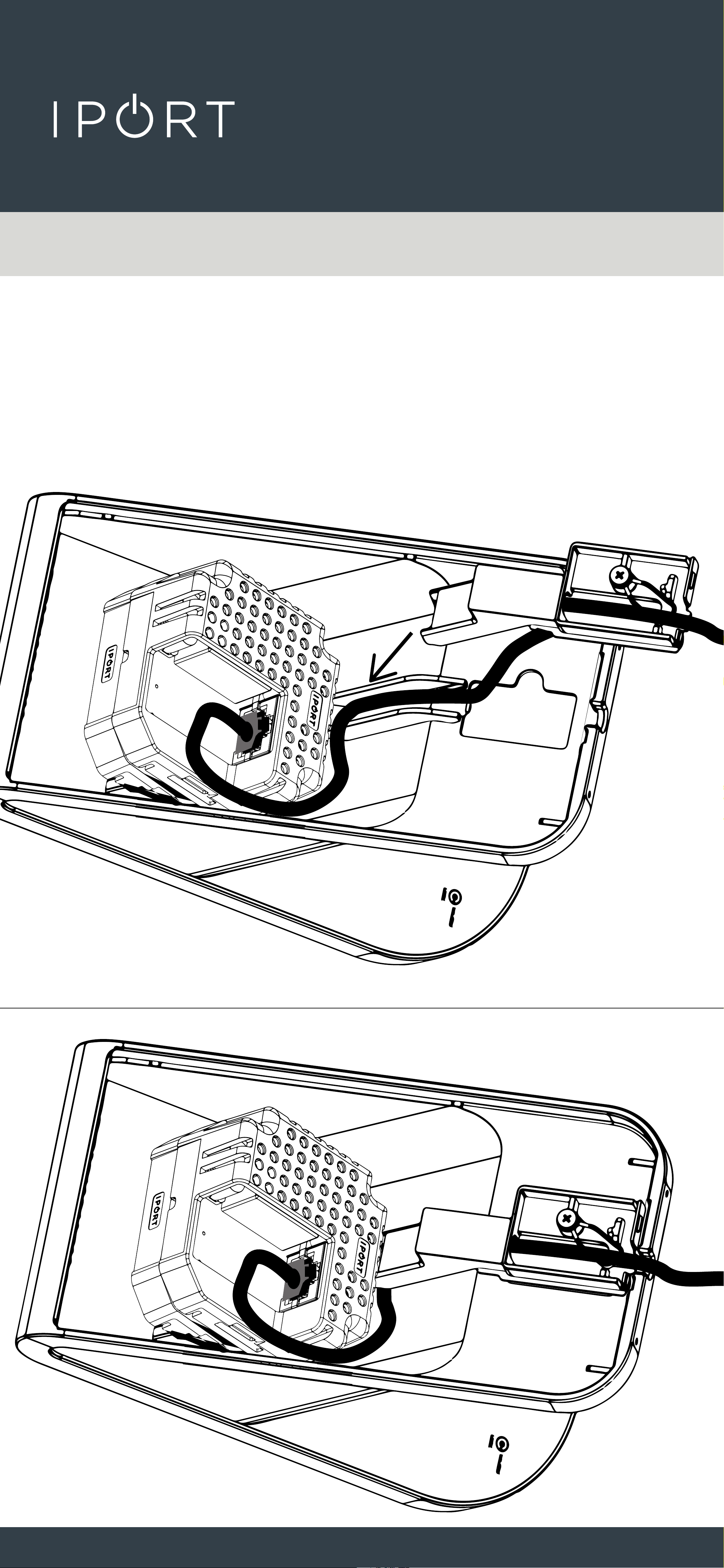
7. Run a Cat 5 Cable through the cable
housing and attach to the PoE + Splitter.
CONNECT
PRO
BASESTATION
12
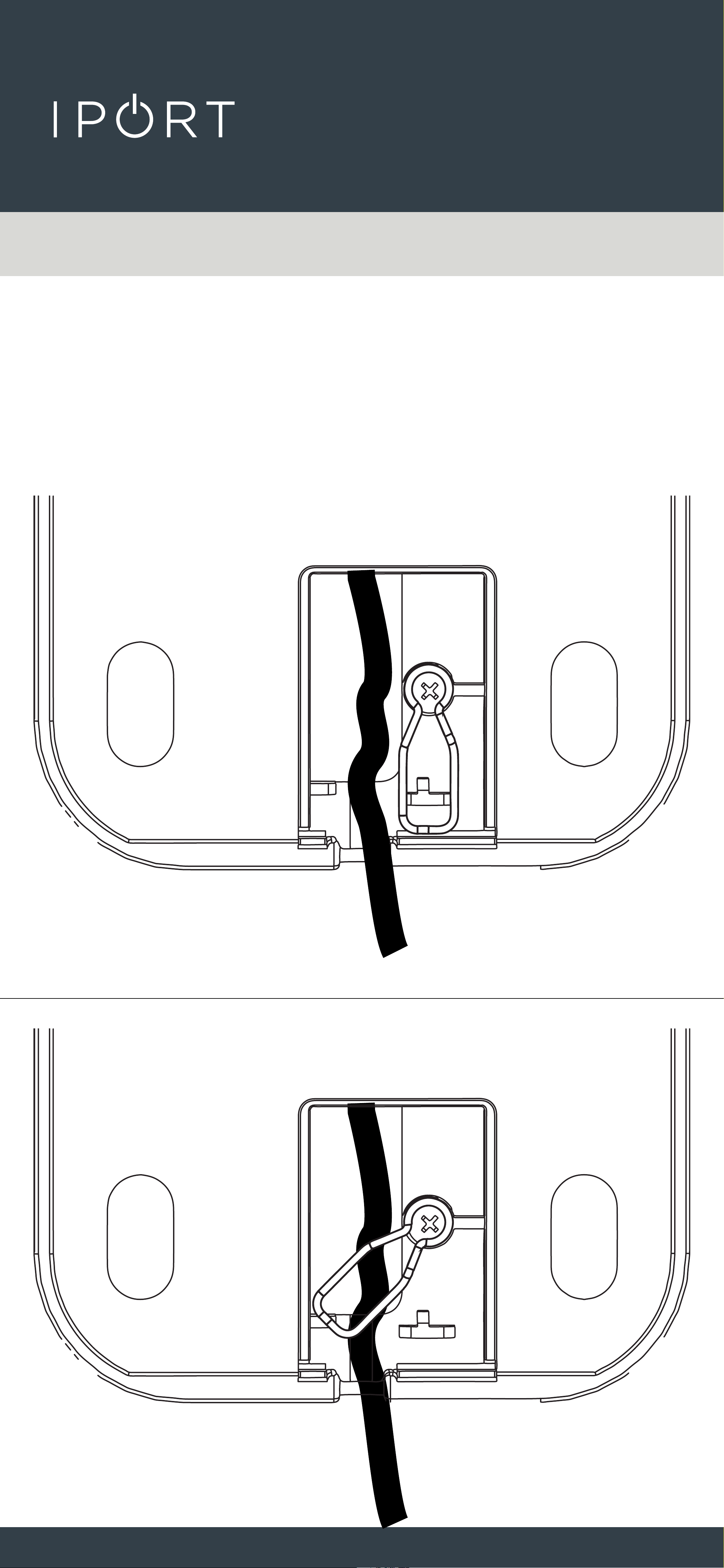
7. Run the Cat 5 cable in the Cable
Retention Channel and rotate the
Cable Retention clip over the
Cat 5 Cable.
CONNECT
PRO
BASESTATION
13
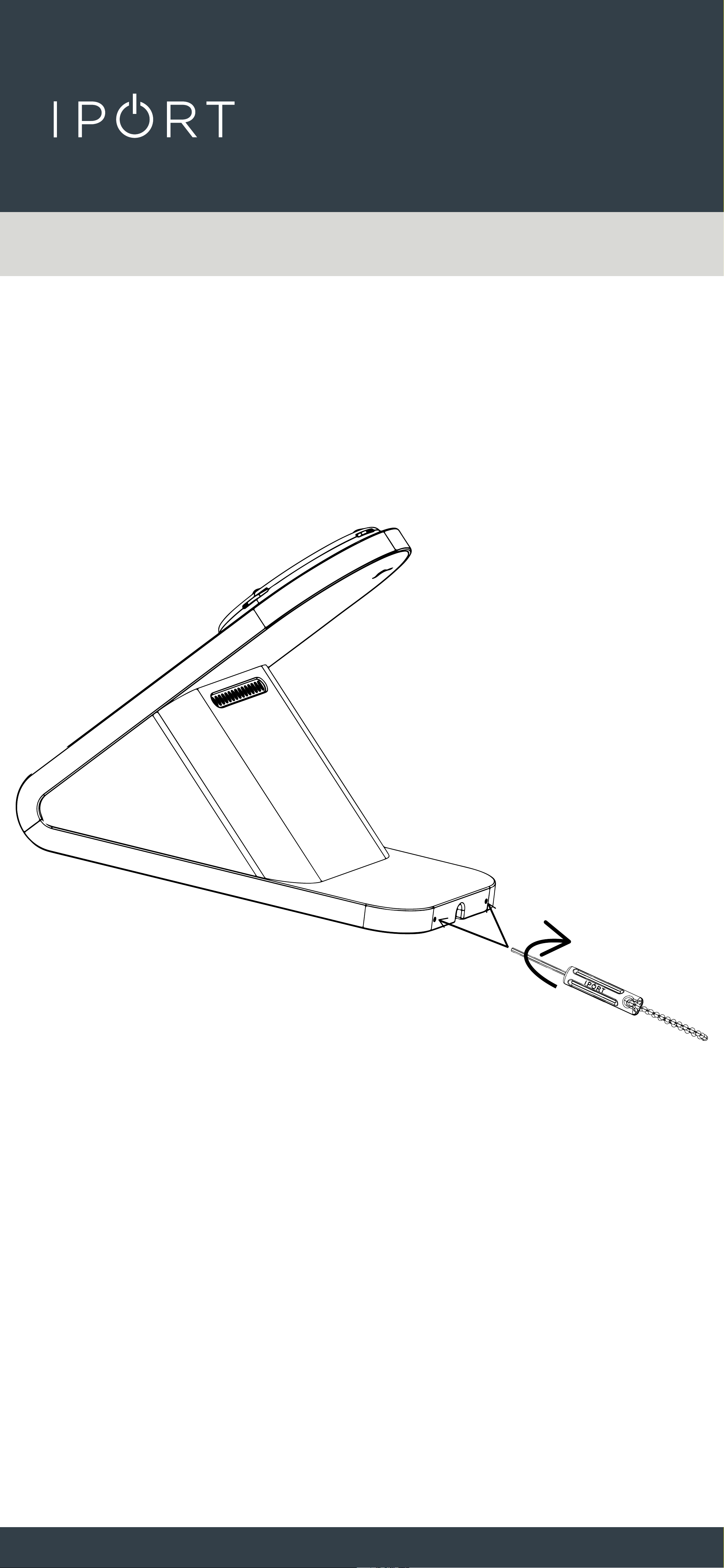
9. Connect the other end of the Cat 5
Cable to a PoE+ Switch or an IPORT
PoE Injector 72106 (sold separate).
8. Reassemble the BaseStation back
onto the BaseStation Weight and tighten
the Security Screws rotating clockwise.
CONNECT
PRO
BASESTATION
14
BaseStation Security Features -
Securing the Base to a Table.
1. Remove BaseStation from the box
and place on a table.
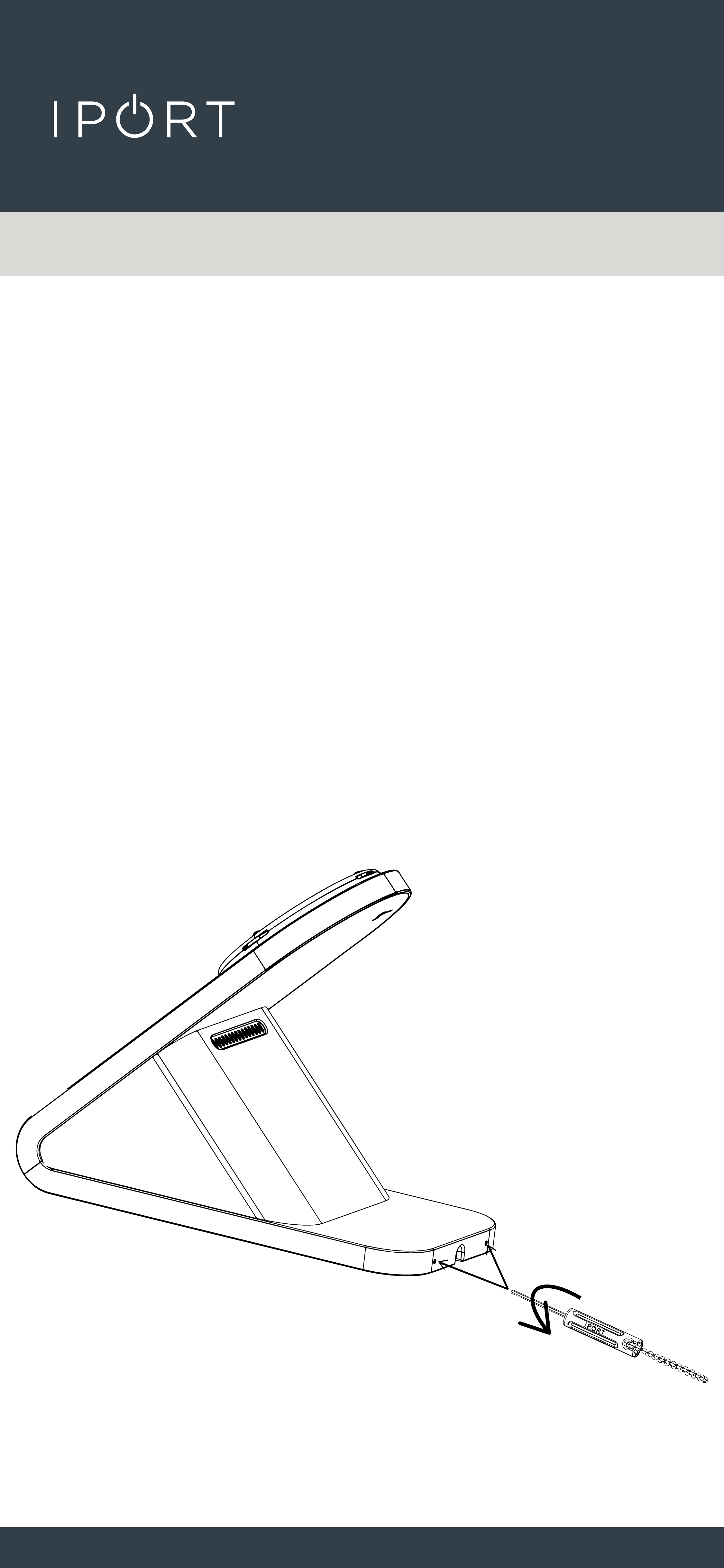
2. Insert the IPORT Security Tool into
the small holes in the back of the
BaseStation foot. Rotate the tool
counterclockwise until it stops.
Repeat for the second hole.
CONNECT
PRO
BASESTATION
15
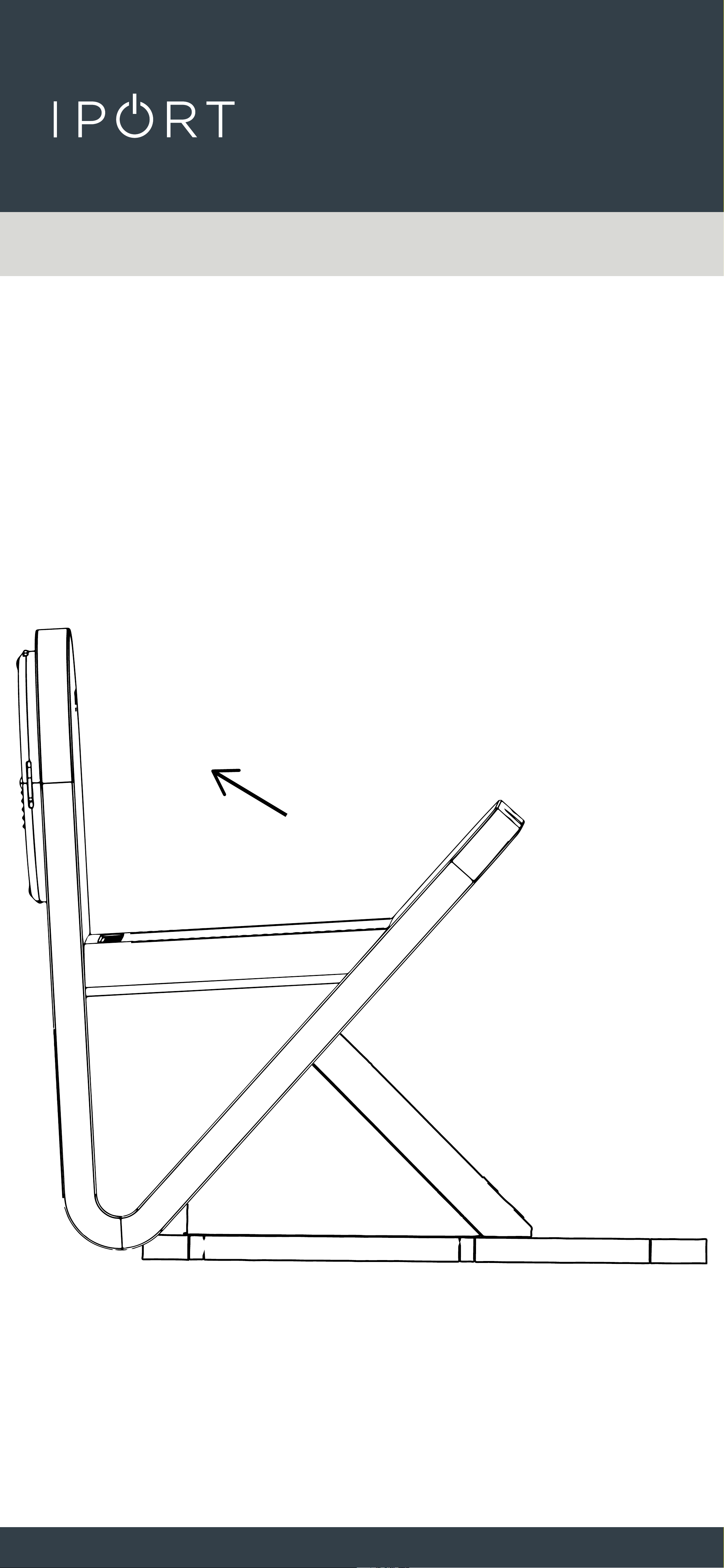
3. Tilt the BaseStation forward to allow
the BaseStation Weight to come out
of the bottom of the BaseStation.
Use Caution as the BaseStation Weight is
very heavy.
CONNECT
PRO
BASESTATION
16
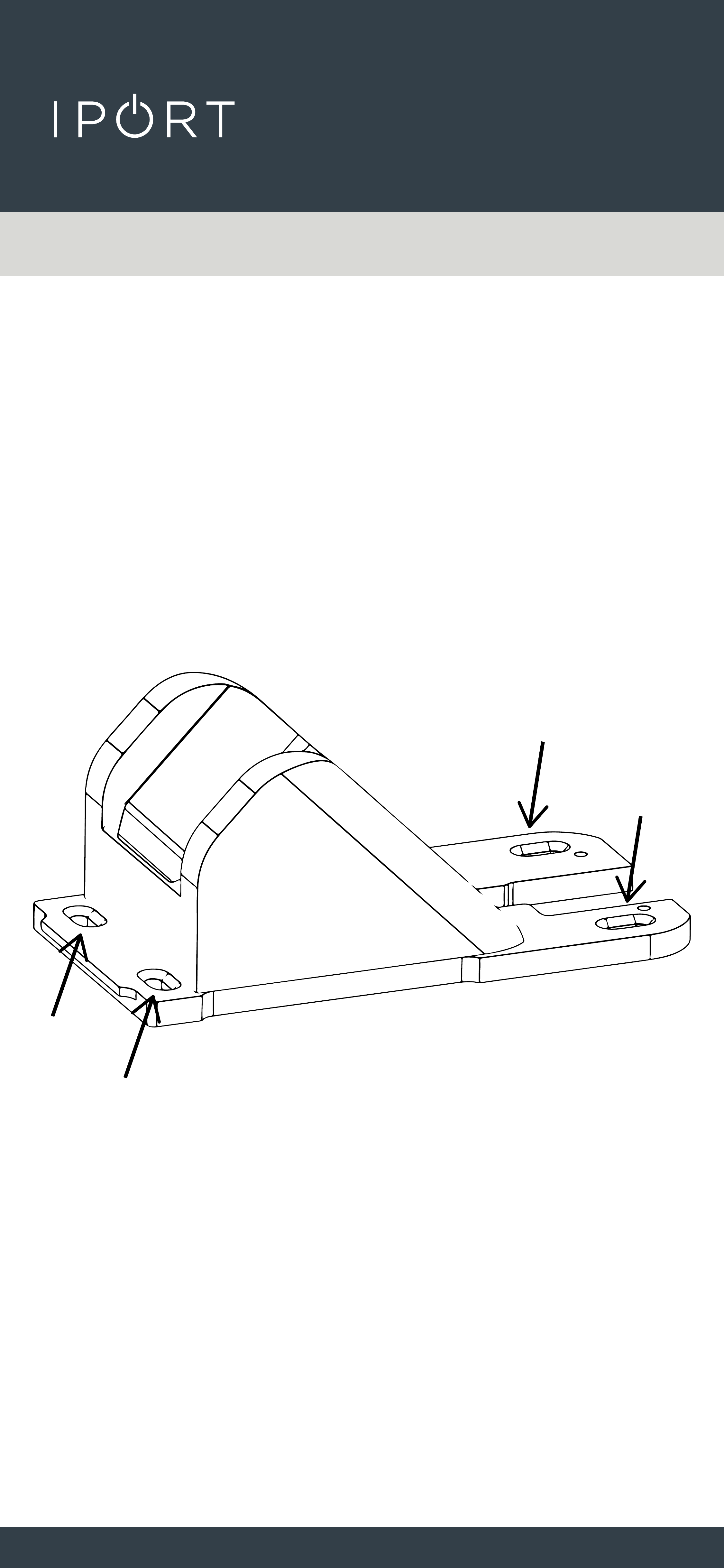
4. Place the BaseStation Weight in the
desired location for securing the
BaseStation. Use a pencil to mark
the four mounting locations. Make
sure the rectangle notch is facing
where the back of the BaseStation
will be positioned.
5. Remove the BaseStation Weight
and drill a pilot hole in the center of
the marked locations.
CONNECT
PRO
BASESTATION
17
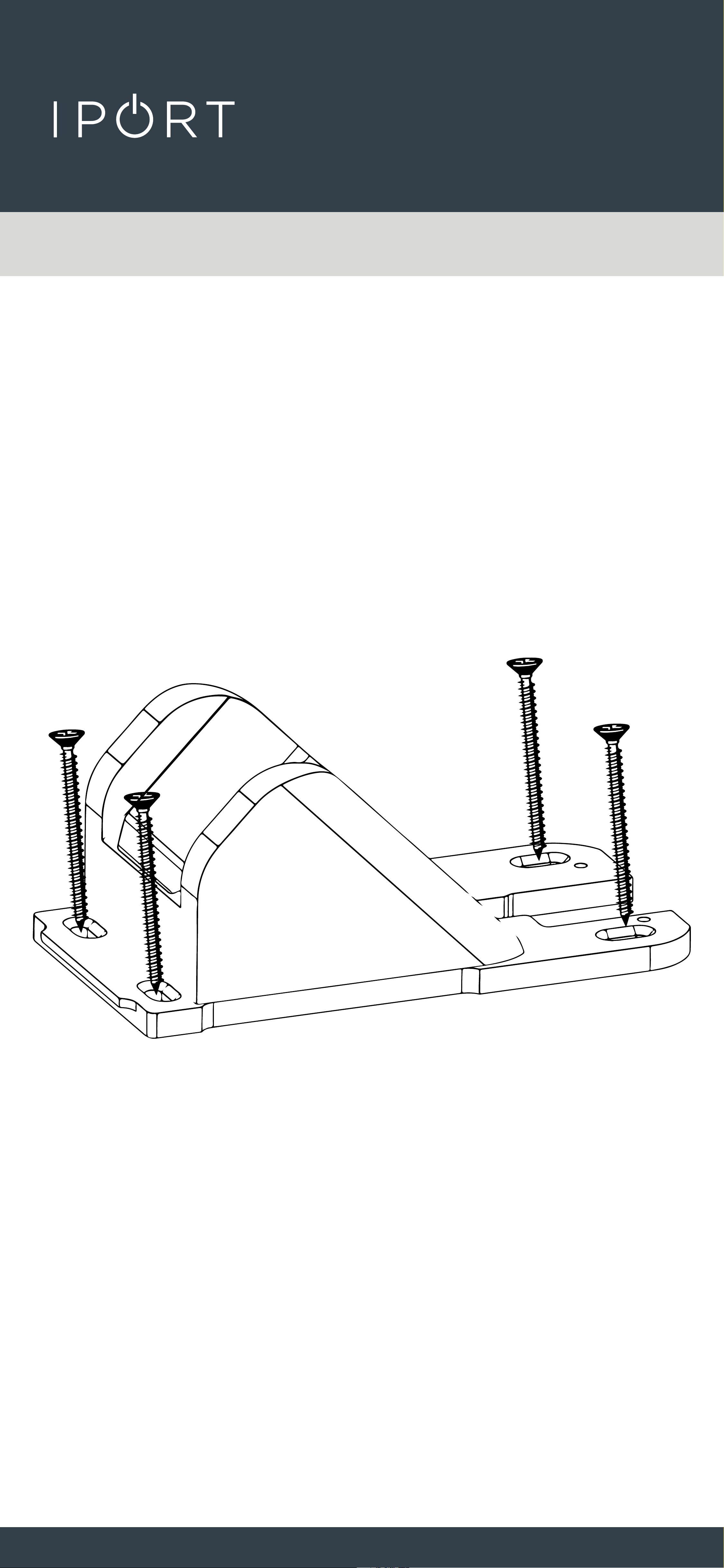
6. Use the four provided screws to
secure the BaseStation Weight to the
desired surface.
CONNECT
PRO
BASESTATION
18
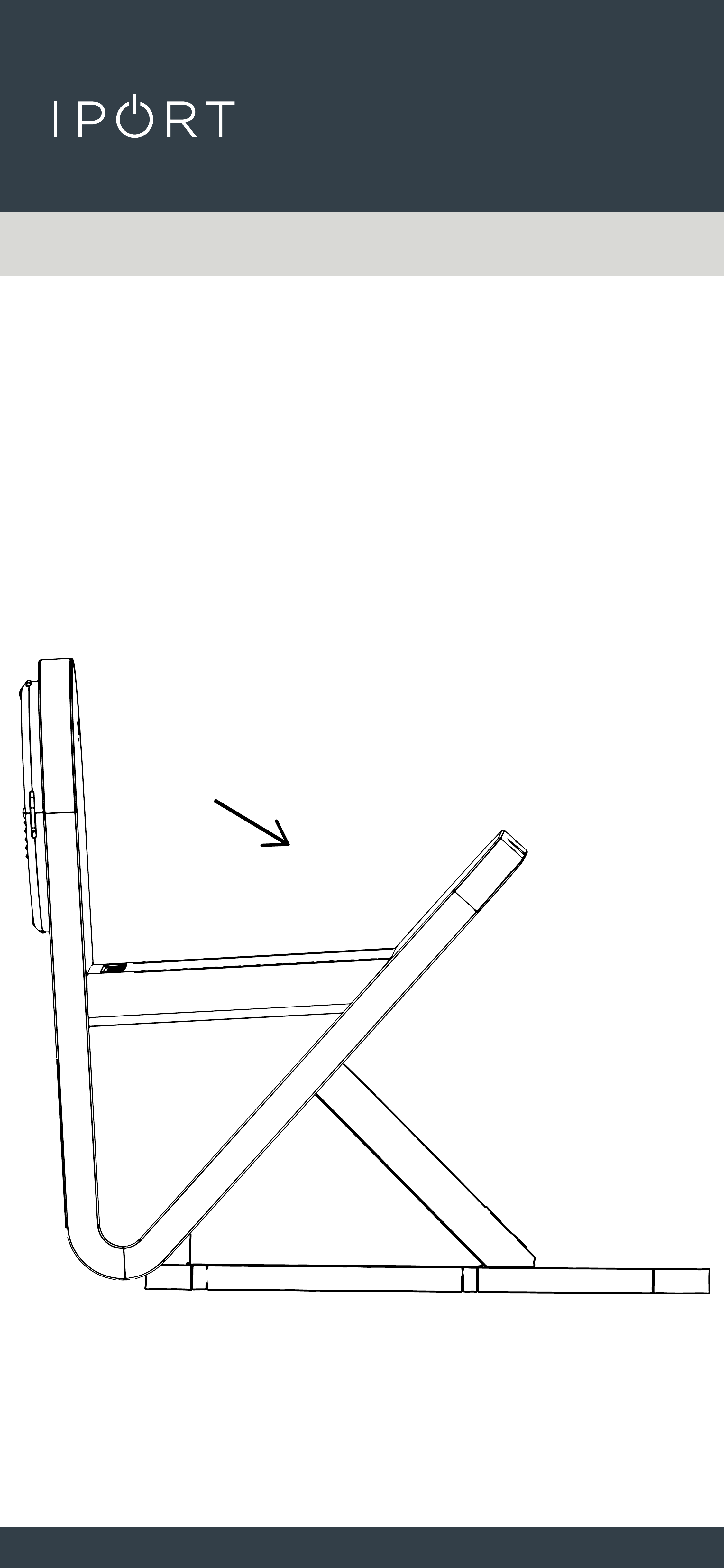
7. Reinstall the BaseStation by
hooking the front of the
BaseStation foot the to front of the
BaseStation weight and then placing
the back of the BaseStation down on
the weight.
CONNECT
PRO
BASESTATION
19
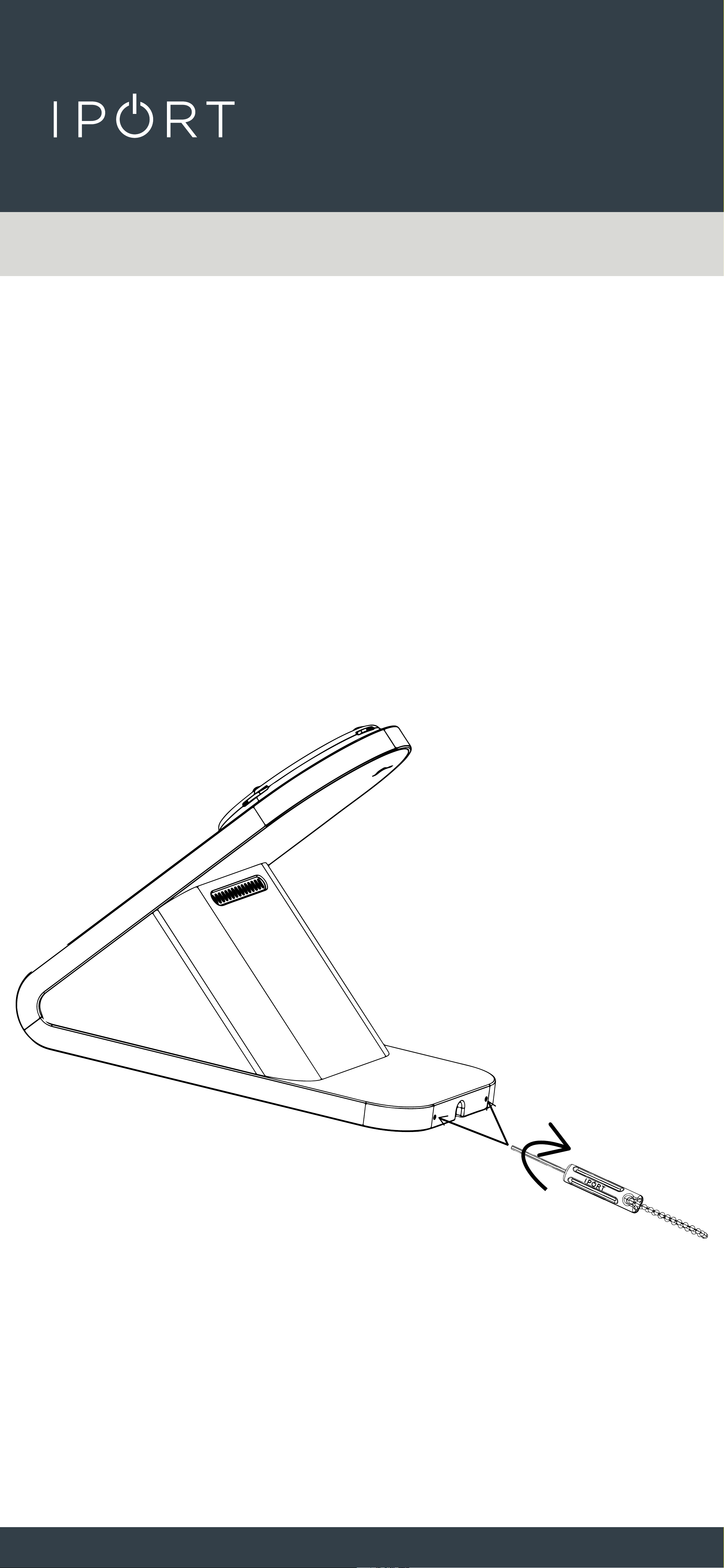
8. Insert the IPORT Security Tool into
the small holes in the back of the
BaseStation foot. Rotate the tool
Clockwise until it stops.
Repeat for the second hole.
CONNECT
PRO
BASESTATION
20
BaseStation Security Features -
Securing the Case to the BaseStation.
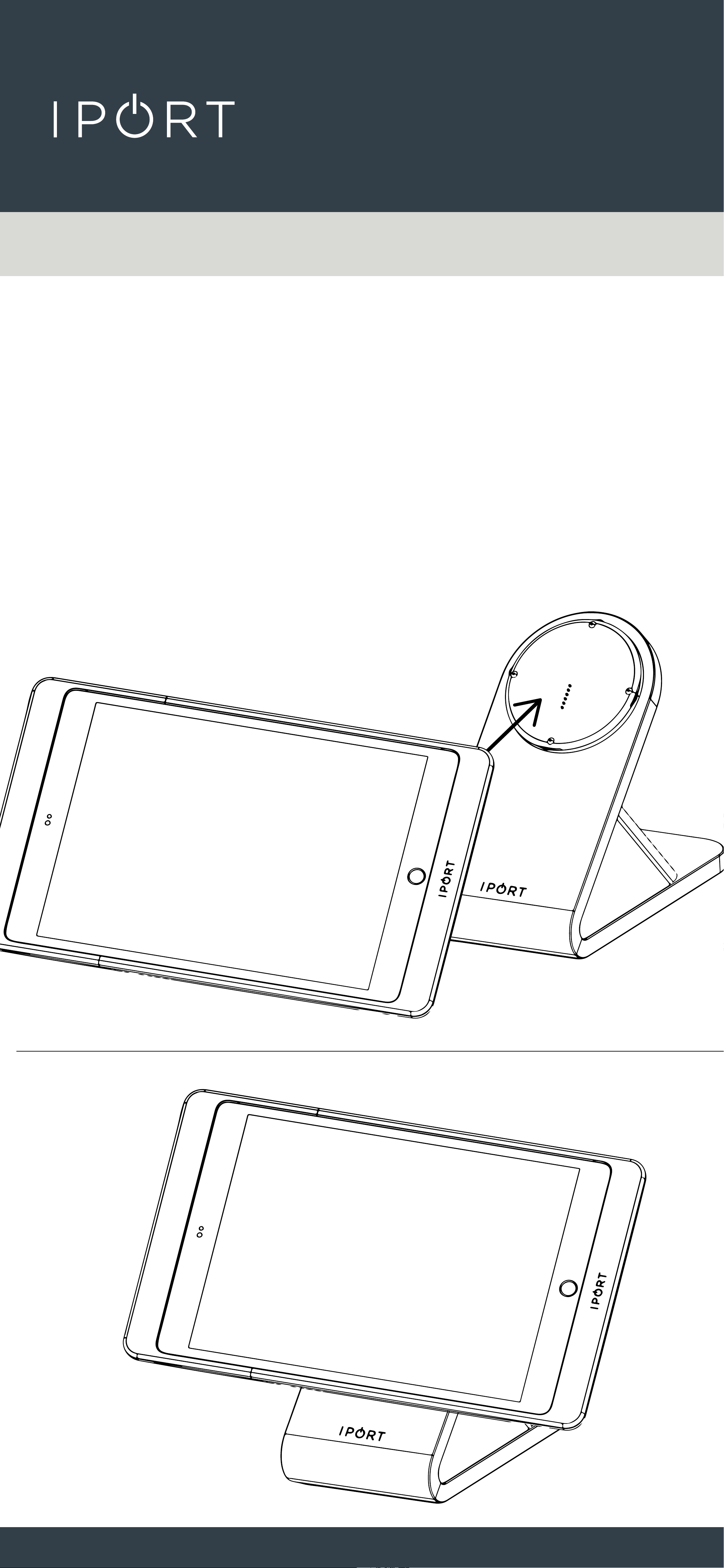
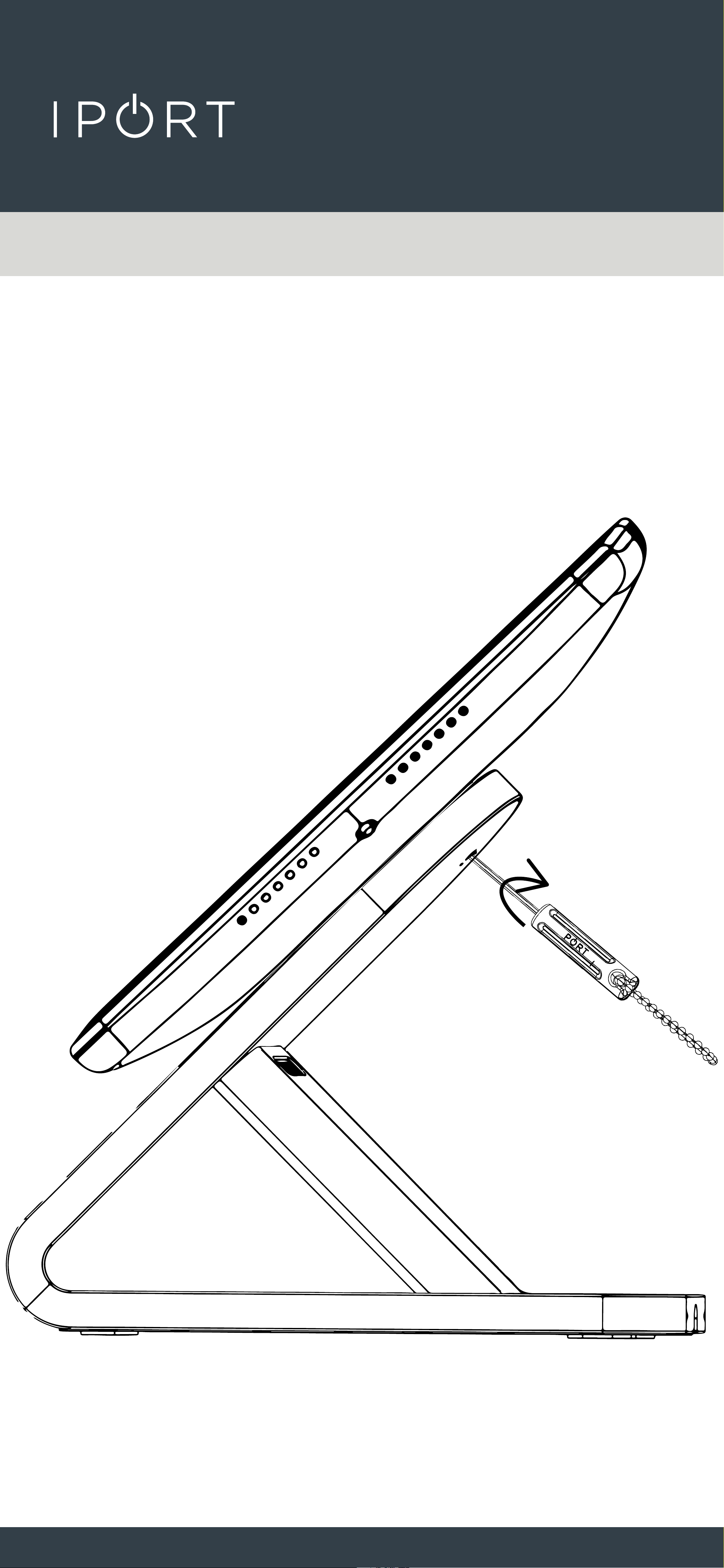
1. Place the Case onto the BaseStation
in the final orientation desired
(Portrait or Landscape) NOTE the
case can not be rotated once it is
locked in place.
CONNECT
PRO
BASESTATION
21
2. To lock the Case to the BaseStation,
insert the IPORT Security tool into
the back of the BaseStation and
rotate the tool clockwise with the
red indicator facing the Lock icon.
CONNECT
PRO
BASESTATION
22
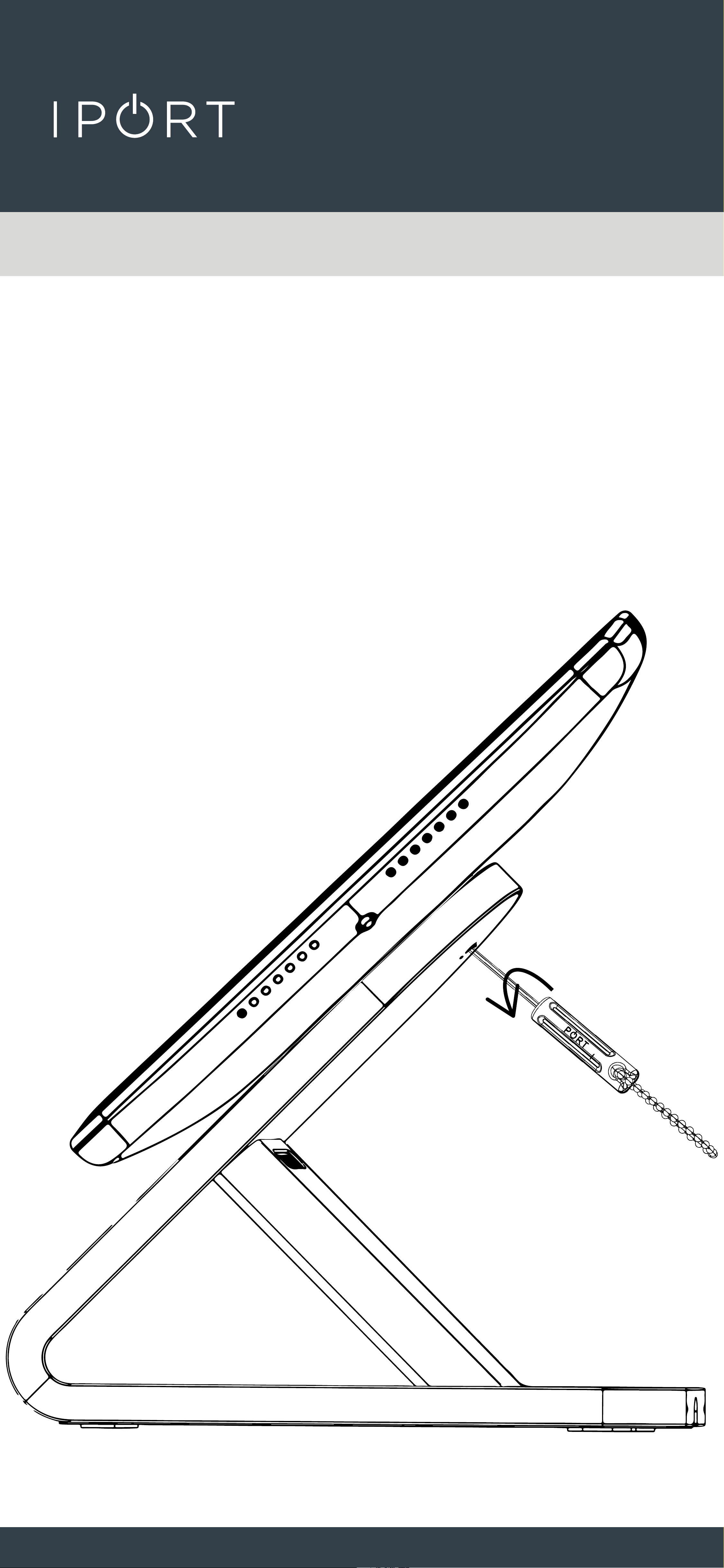
2. To unlock the Case from the
BaseStation, insert the IPORT
Security tool into the back of the
BaseStation and rotate the tool
counterclockwise with the red
indicator facing the Unlock icon.