
OPPO Sm art phone ColorOS 5.1 User Guide
Cont ent
1. Welcome Page ................................................................................................................................ 7
2. Safet y Information ......................................................................................................................... 7
3. Get started.....................................................................................................................................10
3.1. Quick look...............................................................................................................................10
3.1.1. ColorOS 5.1 Features .................................................................................................10
3.1.2. Sleep/Wake button ..................................................................................................22
3.1.3. Menu, Home and Return buttons ...........................................................................23
3.1.4. Volume buttons ........................................................................................................27
3.1.5. Micro-USB port.........................................................................................................28
3.1.6. Headset jack .............................................................................................................28
3.1.7. SIM and SD cards......................................................................................................28
3.1.8. Accessories came with OPPO phone ......................................................................30
3.1.9. Charging the battery ................................................................................................32
3.1.10. Gesture & Motion ....................................................................................................32
3.1.11. Key combinations .....................................................................................................36
3.1.12. Status Icons...............................................................................................................38
3.2. Configuration Settings .................................................................................................40
3.2.1. Fingerprint, Face and Passcode ...............................................................................40
3.2.2. Set up other mail and calendar accounts ...............................................................54
3.2.3. Transfer data from the old phone to OPPO smartphone ......................................54
3.2.4. Date and Time ..........................................................................................................59
3.2.5. Language and Region ...............................................................................................60
3.2.6. Connect to the Internet ...........................................................................................62
4. What's new in ColorOS 5.1 ...........................................................................................................62
4.1. New Features of Calculator .........................................................................................62
4.2. New Features of Smart Assistant ............................................................................67
4.3. Use Wi-Fi Tethering ..................................................................................................70
4.4. NFC ................................................................................................................................71
4.5. Default volume button adjustment ............................................................................73
4.6. New Feature Take and Edit Screenshot ......................................................................75
4.7. Private Safe ...................................................................................................................78
4.8. Screen Clock .................................................................................................................79
4.9. Find My Device .............................................................................................................80
4.10. Google Assistant ...........................................................................................................83
4.11. New features of Camera ..............................................................................................87
4.12. Transfer data from old phone to new OPPO smartphone.........................................88
4.13. OPPO ID ........................................................................................................................93
5. Basics ...........................................................................................................................................103
5.1 Use apps......................................................................................................................103

5.2 Share from apps .........................................................................................................105
5.3 One-click cleanup .......................................................................................................106
5.4 Lock the running background apps ...........................................................................107
5.5 View, zoom in and out ...............................................................................................108
5.6 Smart & Convenient Operation .................................................................................109
5.6.1. Navigation Keys ........................................................................................................109
5.6.2. Assistive Ball ...........................................................................................................115
5.6.3. Full Screen Multitasking ........................................................................................116
5.7. Change the screen orientation ..................................................................................118
5.8. Split-screen .................................................................................................................120
5.9. Take and edit a screenshot ........................................................................................123
5.10. Control Center, Notification, and Status Bar ............................................................126
5.11. Search..........................................................................................................................130
5.12. Test ..............................................................................................................................130
5.12.1. Add or change keyboard languages ......................................................................130
5.12.2. Type, edit, and delete text.....................................................................................132
5.12.3. Prediction ...............................................................................................................135
5.12.4. Voice typing ............................................................................................................137
5.12.5. TouchPal for OPPO .................................................................................................138
5.13. Sound, Vibration, and System Feedback ..................................................................140
5.14. Charge and monitor the battery ...............................................................................142
5.15. Location Service .........................................................................................................144
5.16. Use the phone internationally...................................................................................146
5.17. Power Saver ................................................................................................................146
6. Personalize your OPPO phone ...................................................................................................148
6.1. ColorOS 5.1 device name...........................................................................................148
6.2. Personalize the Home screen ....................................................................................148
6.2.1. Organize the Home screen ....................................................................................148
6.2.2. Home screen widgets & Transition Effects ...........................................................151
6.3. Change the wallpaper ................................................................................................153
6.4. Lock screen magazine ................................................................................................155
6.5. Adjust the screen brightness and color temperature ..............................................157
6.6. Change auto-lock time ...............................................................................................158
6.7. Change the font size ...................................................................................................158
6.8. Keyboard and input method .....................................................................................159
6.8.1. Customize the look of the keyboard .....................................................................159
6.8.2. Keyboard Layout ....................................................................................................160
6.8.3. Trends .....................................................................................................................163
6.8.4. Keyboard general settings .....................................................................................163
6.9. Set up Startup Manager.............................................................................................165
6.10. Clone Apps ..................................................................................................................166
6.11. Manage Default App ..................................................................................................167
6.12. Gesture & Motion ......................................................................................................167
6.13. Preset device on/off time ..........................................................................................171

6.14. Game Acceleration .....................................................................................................172
6.15. App display in Full-screen ..........................................................................................175
7. Apps .............................................................................................................................................176
7.1. Phone....................................................................................................................................176
7.1.1 Make and Answer Phone Calls .................................................................................176
7.1.2. Conference calls .......................................................................................................182
7.1.3. Block calls .................................................................................................................183
7.1.4. Emergency calls ........................................................................................................184
7.1.5. Carrier’s Call Settings ...............................................................................................185
7.5. Message ......................................................................................................................186
7.5.1. Send and receive messages ...................................................................................186
7.5.2. Customize message settings..................................................................................189
7.6. Contacts ......................................................................................................................191
7.6.1. Add a contact .........................................................................................................191
7.6.2. Edit and delete a contact .......................................................................................193
7.6.3. Import and export contacts ...................................................................................195
7.6.4. SIM contacts ...........................................................................................................197
7.6.5. Manage contacts ....................................................................................................199
7.6.6. Back up your contacts ............................................................................................201
7.6.7. VIP Contacts............................................................................................................201
7.7. Phone Manager ..........................................................................................................202
7.7.1. Scan and optimize the phone................................................................................202
7.7.2. Clean Storage..........................................................................................................203
7.7.3. Privacy Permissions................................................................................................205
7.7.4. Virus Scan ...............................................................................................................207
7.7.5. Payment protection ...............................................................................................207
7.7.6. Frequently Used Functions....................................................................................208
7.7.7. Common Problems Detection ...............................................................................211
7.7.8. WeChat Cleaner .....................................................................................................213
7.7.9. Startup Manager ....................................................................................................215
7.8. Weather ......................................................................................................................216
7.9. Camera ........................................................................................................................219
7.9.1. Take photos ............................................................................................................219
7.9.2. Take a selfie ............................................................................................................223
7.9.3. Shoot video.............................................................................................................228
7.9.4. Camera settings ......................................................................................................229
7.10. Photos .........................................................................................................................230
7.10.1. Photos overview.....................................................................................................230
7.10.2. Albums ....................................................................................................................231
7.10.3. Stories / Memories ................................................................................................235
7.10.4. People .....................................................................................................................237
7.10.5. View and use photos and videos ..........................................................................240
7.10.6. Edit photos and videos ..........................................................................................243
7.11. Music ...........................................................................................................................246

7.11.1. Music.......................................................................................................................246
7.11.2. Change sort mode ..................................................................................................248
7.11.3. Scan local songs......................................................................................................248
7.12. Videos .........................................................................................................................250
7.13. Theme Store ...............................................................................................................252
7.13.1. Online phone theme ..............................................................................................252
7.13.2. Online wallpaper ....................................................................................................252
7.13.3. Manage your downloads .......................................................................................253
7.14. Clock ............................................................................................................................255
7.14.1. Set Alarm Clocks .....................................................................................................255
7.14.2. Add and view clocks for locations around the world ..........................................257
7.14.3. Use the stopwatch .................................................................................................258
7.14.4. Set the timer...........................................................................................................258
7.15. Files .............................................................................................................................259
7.15.1. Optimized File management .................................................................................259
7.15.2. Fast file browsing ...................................................................................................262
7.15.3. View and manage files ...........................................................................................263
7.15.4. Clean Storage..........................................................................................................265
7.15.5. Remotely Manage Phone Files ..............................................................................266
7.15.6. Private Safe .............................................................................................................267
Start Using Private Safe. .............................................................................................................267
7.16. Calculator ....................................................................................................................269
7.17. Sound Recording ........................................................................................................273
7.17.1. Recorder .................................................................................................................273
7.17.2. Manage recordings ................................................................................................274
7.18. Compass ......................................................................................................................276
7.19. Chrome .......................................................................................................................277
7.19.1. Search the web .......................................................................................................277
7.19.2. Browse the web .....................................................................................................280
7.19.3. Quick accesses........................................................................................................283
8. Safety & Privacy ..........................................................................................................................285
8.1. Device security .....................................................................................................................285
8.1.1. Lock screen password ............................................................................................285
8.1.2. Smart Lock ..............................................................................................................287
8.1.3. Payment protection ...............................................................................................288
8.1.4. Set up a SIM card lock............................................................................................289
8.1.5. Virus Scan ...............................................................................................................290
8.1.6. Pseudo Base Station Blocking ...............................................................................291
8.1.7. Protect Personal Information ................................................................................292
8.2. Device administration ................................................................................................293
8.2.1. Allow and install apps from unknown sources ....................................................293
8.2.2. App permissions .....................................................................................................295
8.2.3. Hide Home screen icon ..........................................................................................295
8.2.4. Kids Space ...............................................................................................................297

8.2.5. Block unwanted calls and messages .....................................................................298
8.2.6. Find my device........................................................................................................300
Act ivate and use Find my Device. .............................................................................................300
8.3. Privacy .........................................................................................................................303
8.3.1. Location Service .....................................................................................................303
8.3.2. Join User Experience Project .................................................................................305
8.3.3. Privacy Protecting and Security Warning .............................................................306
8.4. Advanced ....................................................................................................................307
8.4.1. Screen pinning ........................................................................................................307
8.5. App Lock......................................................................................................................308
How to encrypt apps .................................................................................................................308
9. Share Internet connection and files ..........................................................................................312
9.1.1. Tether your phone’s Internet connection.............................................................312
Use Wi-Fi Tet hering ....................................................................................................................313
9.2. Share Files ...................................................................................................................316
9.2.1. Wireless file sharing ...............................................................................................316
9.2.2. Wired file sharing ...................................................................................................319
9.2.3. Share from apps .....................................................................................................321
10. Restart, update, back up, and restore .......................................................................................321
10.1. Restart the phone ......................................................................................................321
10.2. Update ColorOS software ..........................................................................................322
Notice before doing t he update. ..............................................................................................322
10.3. Back up and restore the phone .................................................................................324
10.3.1. Back up your phone ...............................................................................................324
10.3.2. Restore data on your phone ..................................................................................326
Restore your OPPO smartphone from Local backup ..............................................................326
Restore your OPPO smartphone via comput er .......................................................................328
Restore Contacts and SMS on OPPO smartphone from OPPO Cloud ..................................328
Transfer your data with Clone Phone .......................................................................................328
Restore your OPPO smartphone data from third-party Apps ...............................................328
10.3.3. Reset the phone .....................................................................................................329
Reset your phone to factory set tings .......................................................................................329
Reset System Settings .......................................................................................................329
Erase All App Data and Deletable Apps ..........................................................................329
Erase All Content and Set tings .........................................................................................329
Erase Contacts and Call Logs ............................................................................................329
Erase All SMS and MMS .....................................................................................................329
11. Barrier-free ..................................................................................................................................330
11.1. TalkBack ......................................................................................................................330
11.2. Magnification Gestures..............................................................................................332
11.3. Press Power Button to End Call .................................................................................334
12. Safety, handling and support .....................................................................................................334
12.1. Health & Safety...........................................................................................................334
12.1.1. Using Environment .................................................................................................334

12.1.2. Battery Safety .........................................................................................................335
12.1.3. Charger Usage Notes .............................................................................................336
12.1.4. Traffic Safety ...............................................................................................................337
12.2. Maintenance and Repair ...........................................................................................338
12.2.1. Phone Cases ....................................................................................................................338
12.2.2. Screen Protector .............................................................................................................338
12.2.3. Maximize battery life and lifespan ................................................................................338
12.2.4. Keep Clean ......................................................................................................................339
12.2.5. Keep dry and solve water damage ................................................................................340
12.2.6. Use connectors, ports, and buttons. .............................................................................340
12.2.7. Other information ..........................................................................................................340
Note: 341
12.3. FCC Compliance Statement .......................................................................................341
1. Welcom e Page
2. Safet y Inform ation
Read through t he following information carefully. Failure to follow these safety
precautions could result in danger or illegal activities.
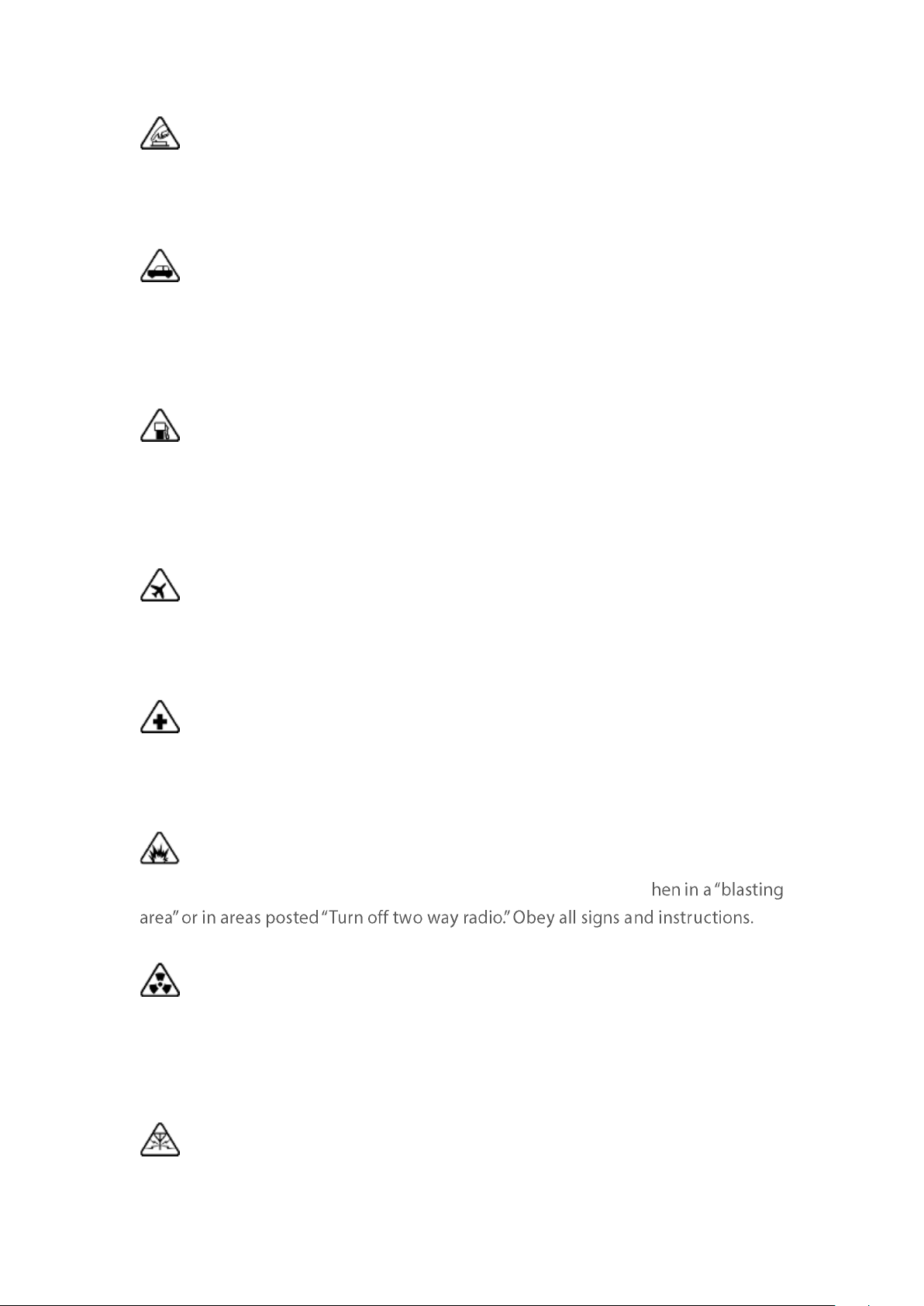
Safe St artup
Do not switch on the device when phone use is prohibited or w hen it may cause
interference or danger.
Traffic Safety First
Traffic safety is always of first importance. Use of phones and headphones while
driving a vehicle or riding a bicycle is not recom mended and is illegal in some areas.
Obey and follow all related local laws.
Sw it ching off Device at Gas St at ions
Turn off your phone when in any area with a potentially explosive atm osphere, such
as gas stations or any other fueling area. Sparks in such areas could cause an
explosion or fire, resulting in serious injury or even death.
Sw it ching off Device When On Board an Airplane
Wireless devices m ight be prohibited while in the air in some countries or regions.
Obey all related local laws and turn off your phone or switch t o airplane mode.
Sw it ching off Device near Medical Equipm ent
Hospitals or healthcare facilities m ight use radio-frequency-sensitive equipment.
Obey the relevant rules and regulations.
Sw itching off Device at Blasting Areas
To avoid interfering with blasting operations, turn off your phone w
-
Radiat ion
Nearly every electronic device gives off radiation. Mobile phone use does not
increase the risk of getting brain cancer or other head tum ors. Its effect in humans is
negligible.
Int erference
Nearly every electronic device is susceptible to interference for external sources if
inadequately shielded or designed. As a result, your phone m ay cause int erference
with ot her devices.
Tem perature
Operate your phone in a place where the temperature is always between 10℃ t o
45℃. Using or storing your phone in a too hot or t oo cold environm ent m ight
damage the battery, or even cause your phone to short -circuit or burn.
Proper Usage
Use your phone appropriately. Do not touch t he antenna area unnecessarily when
the phone is turned on. Do not drop, disassemble, crush, bend, deform, punct ure,
incinerate, or insert foreign objects into your phone.
Qualified Maintenance and Service
Never attempt to repair or modify the phone yourself. If your p hone has any
hardware or software failure, do not use it until you take it to an aut horized service
provider. Do not disassemble or root your phone yourself, otherwise the warranty
service will be terminated imm ediately.
Bat teries, Chargers and ot her Accessories
Do not dism antle t he built-in lithium-ion battery of your device. Use only the
batteries, chargers and other accessories authorized by OPPO, for third -party
accessories might cause damage or danger.
Waterproofness
Your device is not waterproof. Do not use your device in rain, or other wet locations.
Avoiding Hearing Dam age
Permanent hearing loss may occur if the receiver, speakerphone, headphones, or
earpieces are used at high volum e. You can adapt over time to a higher volum e of
sound t hat may sound norm al but can be damaging to your hearing. Set the volume
to a safe level to protect your hearing.
Avoiding Eyestrain
stimulation to your eyesight. Long-term viewing of your phone in normal or darker
environments will damage your eyesight. When watching video or reading text on
your phone, avoid prolonged use, take breaks and turn on eye protection mode t o
prevent eyestrain.
Glass Part s
glass. This glass could break if your phone is dropped on a hard surface or receives a
substantial impact. Do not attem pt to touch or clean the broken glass. Stop using
your phone until the glass is replaced by an authorized service provider.
Connecting to Other Devices
Before connecting to other devices, carefully read the user manual for more detailed,
accurate and safety instructions. Do not connect to incompatible products.
Being Aw are of Laser Safet y
If your phone supports laser focusing, carefully read the user manual before using
it. Failure to follow instructions might lead to harm ful radiation exp osure. To prevent
direct exposure to laser beam, do not attempt to
avoid keeping close contact with laser light.
3. Get st art ed
3.1. Quick look
3.1.1. ColorOS 5.1 Feat ures
ColorOS 5.1 New Feat ures
With ColorOS 5.1, noticeably the graphics and colors are more vivid and crisp. Even
with its design, it hasn't lost touch of its fundam ental purpose: use with ease and
tim e, calls, and messages even when t he screen is off. Calculator has been more
efficient with its added functions for more conversions.You can fix your volum e

more layers to prevent digital theft from getting your personal data.
Brand-new visual design
relaxing. The App icon has a brand new makeover having circle shapes and
Control Center has green color with white background w hich is soothing to the
eyes. To have a cleaner and minimalist setting, System Apps sort and group
settings like Call, Contacts, Messages, Phone Managers and others into one
location.
Photo album on Sm art Assist ant
Sm art Assistant . We all know t hat Smart Assistant is your happy helper and
intuitively knows what you want and one of those is mem ories. It will show photo
albums of pictures that matter to you.
Enjoy t he new feat ures of Calculator
The new Calculator app not only combines t he standard and scientific calculators
but added useful functions which will come handy in time.
Share your int ernet connect ion through Wi-Fi Tethering
Wi-Fi Tet hering. This makes your phone as a Wi-Fi router which basically has the
same functionality to that of a traditional router which enables the sharing of
internet to other Wi-Fi devices.
Make use of the Screen Clock
Screen Clock. If you want to know who called you or m essaged you without
opening t he screen, then you would love the Screen Clock function. You can set
display time and reminders like missed calls, unread SMS, unread Wechat, and QQ
messages even when the screen is off.

Fixed your volum e button to a specific ringer
Default Volu me But t on Ad just ment . Sometim es you wanted to manage the
volume of the ringt one using the physical butt ons but the one that gets adjusted is
the music volume. You can now choose t he physical buttons to either adjust for
the Ringtone Volume or Media volume only.
Prevent theft by using Privacy Passcode
Privacy Passcod e. We all know how som e apps are snooping to get your personal
data stored on the p hone. Privacy Passcode toughens your privacy through series
of encryption m ethods and a secret question that you can customize. When this is
turned on, t he validation will be used for all privacy features such as App
Encryption and Private Safe.
Add Marker Pen to highlight w hen you take and edit a screenshot
Ad d Marker Pen
long screenshots of your conversations on any messenger, or the screenshot of a
full web page, or screenshot of some long pages in apps. You can edit the
screenshots directly on the Photos app using a set of professional editing tools.
Also, a marker pen has been added to highlight words, draw, and personalized the
OPPO ID on sett ings
An added feature on your setting page is your OPPO ID which can be used to
access apps such as OPPO Cloud, App Store, and Them e store.
New camera feat ures for t aking phot os an selfies
More new st ickers. There are new stickers that you can choose from . Your pictures
will definitely be cooler, cuter, and funnier. To use stickers to decorate your photo,
choose STICKER, click , then choose from array of stickers.
ColorOS 5.1 is com pat ible w ith these devices
Models
A3s, A3
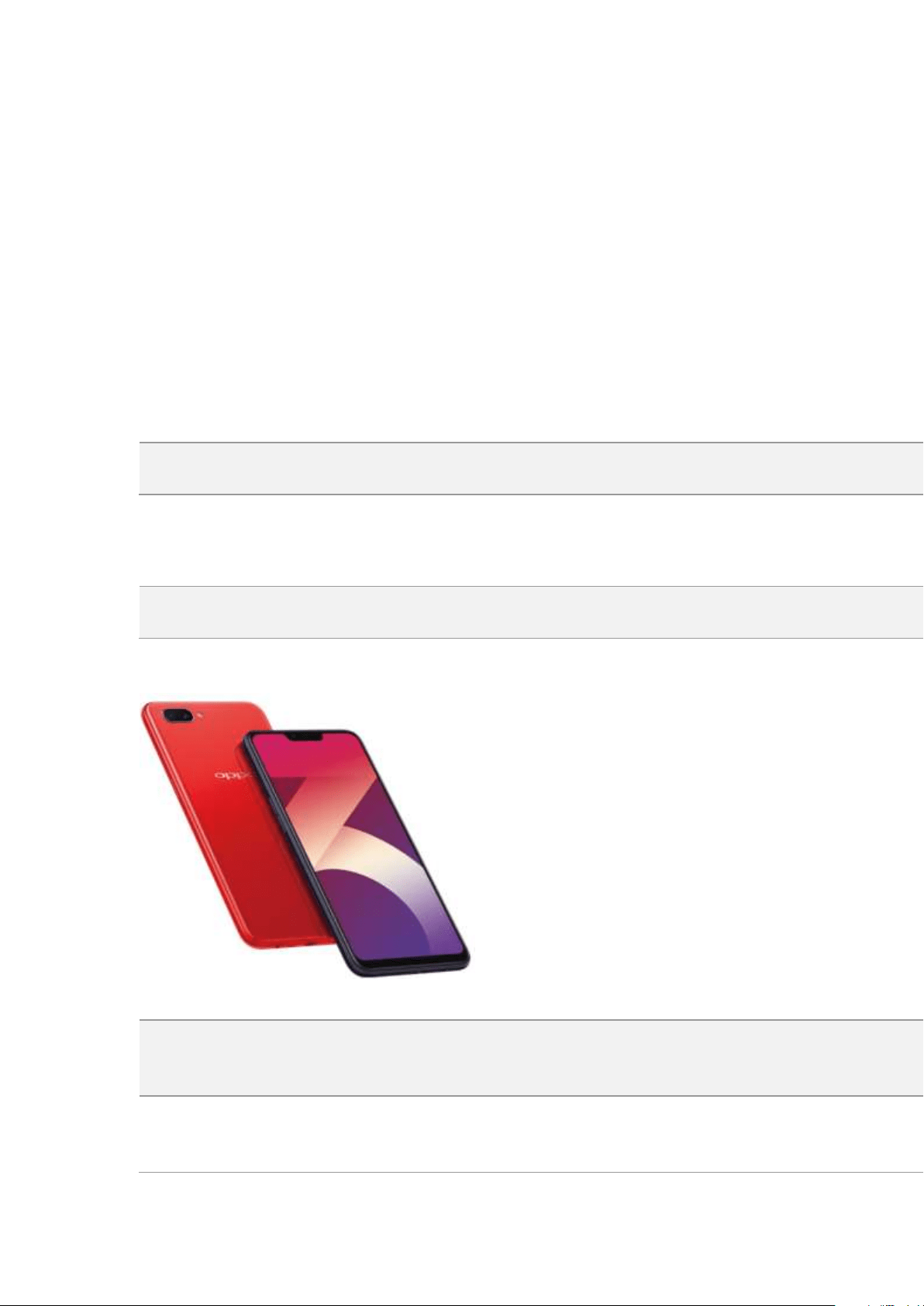
Ap pearance
A3s - Red and dark purple colors (RAM 2GB/3GB Version)
Size and Weight
Heig ht
156.2m m
Wid t h
75.6mm

Thickn ess
8.2m m
Weight
168g with battery
Basic Param et ers
Operating System
ColorOS 5.1, based on Android 8.1
GPU
adreno506
RAM
2GB/3GB
St orage
16GB/32GB
Bat t ery
4230mAh
Processor
Qualcomm Snapdragon 450
Disp lay
Size
6.2 inches (15.7cm)
Typ e
In-Cell IPS
Resolut ion
HD + (1520 by 720 pixels)

Colors
16 million colors
Touch
Multi-touch, Capacitive Screen
Camera
Rear Sensor
13-megapixel & 2-megapixel
Front Sensor
8-m egapixel
Flash
LED Flash
Ap ert ure
Rear: f/2.2+f/2.4
Front: f/2.2
Connect ivit y
Frequ encies:
GSM:850/900/1800/1900MHz
WCDMA:850/900/2100MHz
FDD-LTE: Bands 1/3/5/8
TD-LTE: bands 38/40/ 41 (2535-2655MHz)
SIM Card Typ e
Dual Nano SIM Cards & Micro SD Card (Total 3 slots)
GPS
GPS/aGPS
Bluet oot h
4.2

Wi-Fi
2.4GHz 802.11 a/b/ g/ n/
OTG
Supported
NFC
No
Sensors
E-compass
Light Sensor
Proxim ity Sensor
G-sensor
Acceleration Sensor
In t he Box
OPPO A3s
Adapter
Micro USB Cable
Important Information Guide wit h Warranty Card
Quick Start Guide
SIM Card Tool
Screen Protect Film
Case
Product ID
CPH1803/CPH1805
Ap pearance
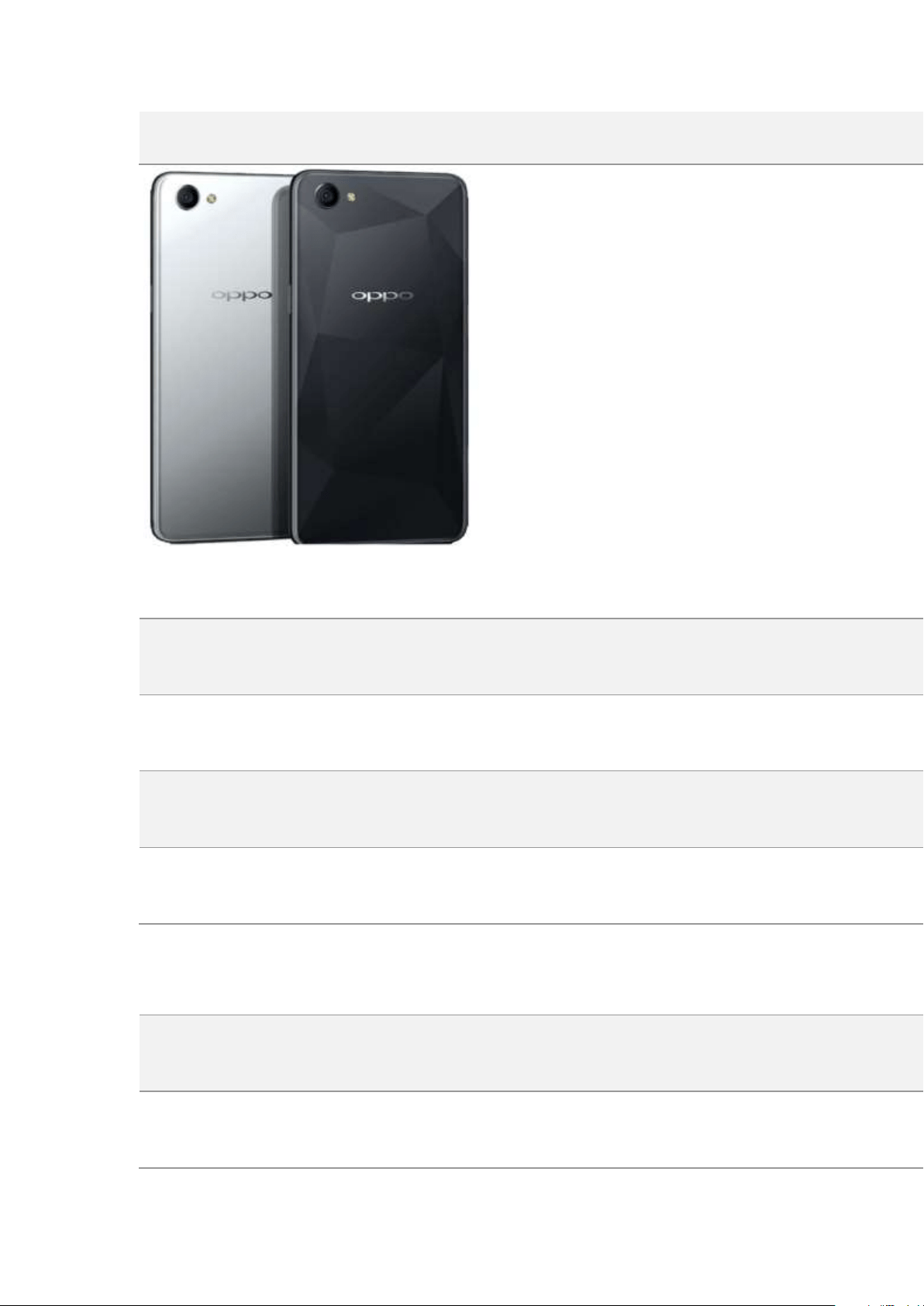
A3 - Diamond Black, Moonlight Silver (RAM 4GB Version)
sSize and Wei ght
Heig ht
156m m
Wid t h
75.3mm
Thickn ess
7.8m m
Weight
159g with battery
Basic Param et ers
Operating Syst em
ColorOS 5.1, based on Android 8.1
GPU
Mali G72 MP3

RAM
4GB
St orage
16GB/32GB
Bat t ery
3400 mAh TYP
Processor
Processor Helio P60
Disp lay
Size
6.2 inches (15.7cm) Verify tech
Typ e
In-Cell IPS
Resolut ion
2280x1080 pixels
Colors
16 million colors
Touch
Multi-touch, Capacitive Screen
Camera
Rear Sensor
16-megapixel
Front Sensor
8-m egapixel
Flash
LED Flash

Connect ivit y
Frequ encies:
GSM: 850/900/1800MHz
WCDMA: 850(5/6/19)/900/1700/1900/2100MHz
FDD-LTE: Bands 1/2/3/4/5/8/18/19/20/26/28
TD-LTE: Bands 38/39/40/41 (2535-2565MHz)
SIM Card Typ e
Dual Nano-SIM Cards
GPS
GPS/aGPS
Bluet oot h
4.2
Wi-Fi
2.4/5.1/5.8GHz
Sensors
Digital Compass
Light Sensor
Proxim ity Sensor
Accelerom eter
In t he Box
OPPO A3
Adapter
Headphones
Micro USB Cable
Information Guide and warranty conditions
Quick access guide
SIM Key
Custody
Product ID
CPH1837
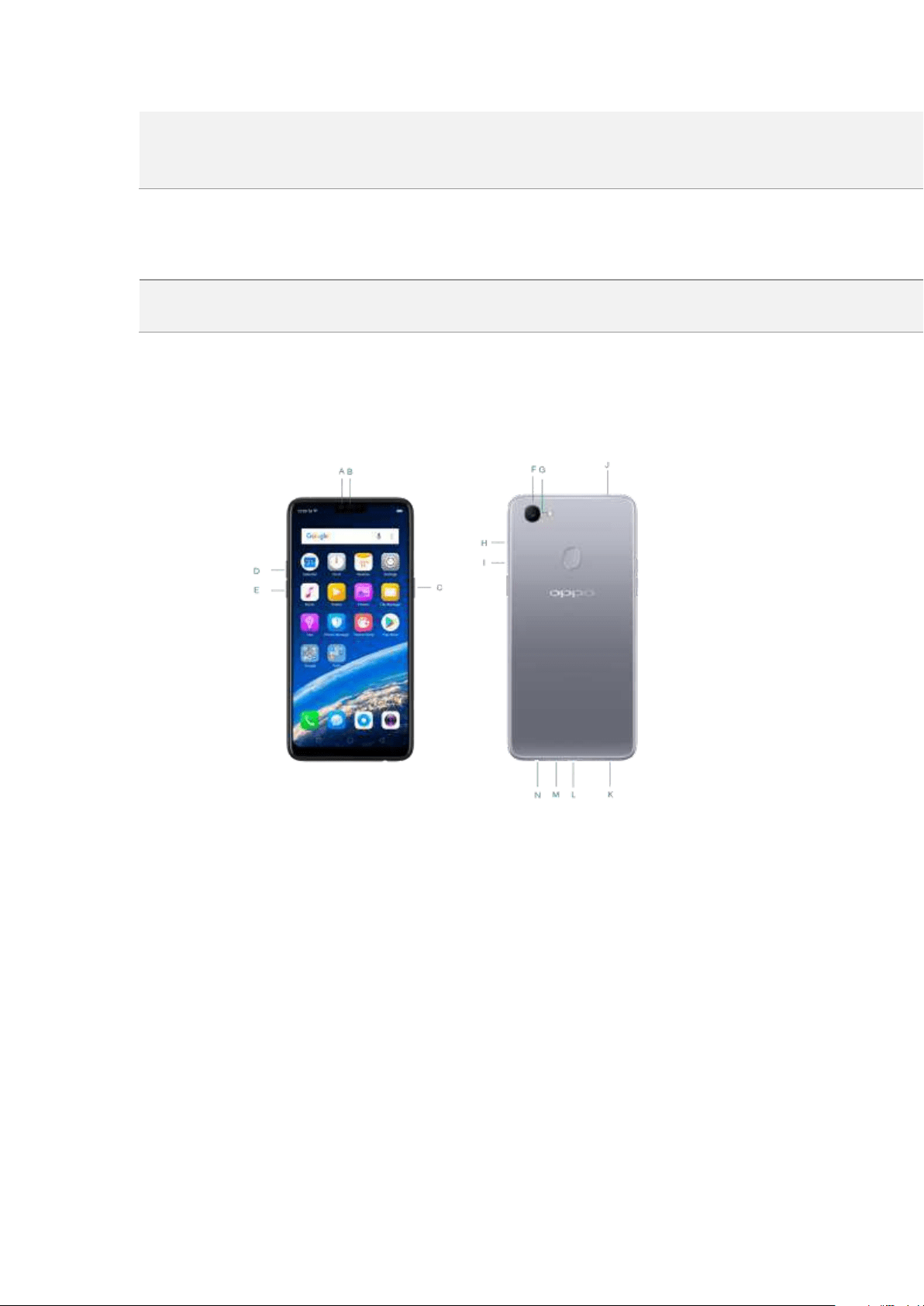
But t ons and com ponents

F7 feat ures
A.
Front camera
B.
Receiver
C.
Sleep/Wake button
D.
Volume up button
E.
Volume down button
F.
Rear camera
G.
Flash
H.
SIM card tray
I.
SIM tray hole
J.
Noise cancelling microphone
K.
Speaker
L.
Micro-USB port
M.
Microphone
N.
Headset jack
Funct ions for butt ons and com binat ion keys
To learn more features, see
Quick Look at OPPO phone.
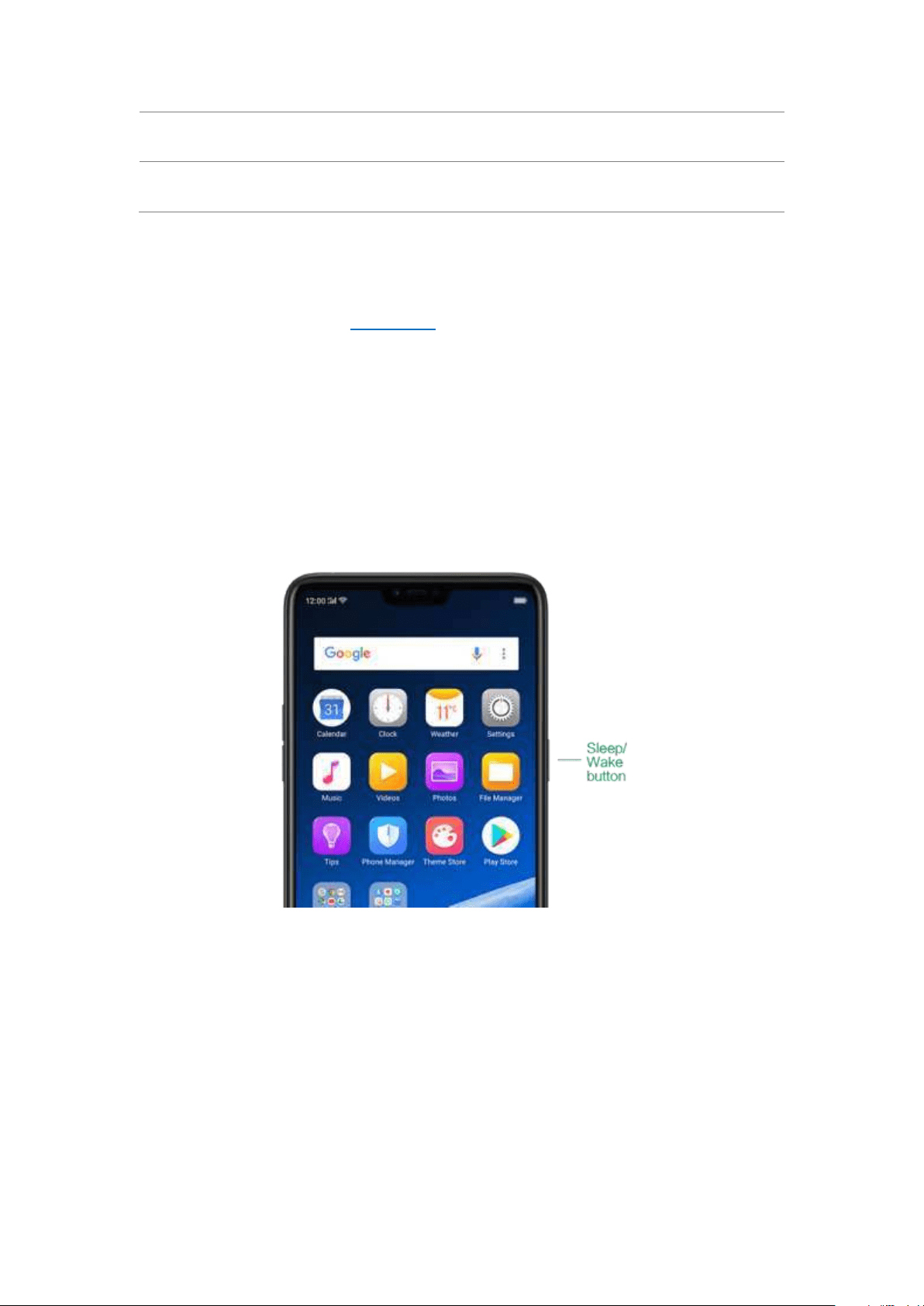
3.1.2. Sleep/ Wake but t on
The Wake/ Sl eep button on the right side of your phone has a num ber of different
uses.
When t he phone is on
Wake or lock t he screen : With the phone is powered on, press the Wake/ Sleep
button once and it will wake the phone up to the point that you can see the lock
screen, like the clock and any notifications t hat are setup to display there. When the
phone screen is awakened, pressing this button will blacken the screen and lock the
phone.
Take a screenshot : Press and hold t he Sleep /Wake and Volu me Dow n buttons at

the same time and your phone will take a picture of whatever is displayed on the
screen. Click the screenshot, and then choose to a take a long screenshot, send, edit
or delete the screenshot. If you save the screenshot, you can view it on Photos.
End a call: Go to [Set t in gs] > [Ad d it ional Set t ings] > [Accessib ilit y] and turn on
[Power But t on Ends Call], then you can press the Sleep / Wake button to end phone
calls.
Turn off t he p hone: Press and hold the Sl eep / Wake butt on for a few seconds,
whether the phone is on the lock screen or home screen, it will ask you to slide down
to power off the device.
Force rest art t he ph one: Press and hold the Sleep/ Wake and Volum e Up buttons
for about 10 t o 12 seconds until your device is turned on. View force restart your
phone.
When t he phone is off
Turn on t he phon e: Press and hold t he Sleep /Wake butt on for a few seconds until
you see the OPPO logo.
Force Restart th e p hone: Press and hold the Sleep/ Wake and Volu me Up buttons
until your device is turned on. View
force restart your phone.
Ent er Recovery Mod e: Press and hold the Sleep/Wake and Volum e Dow n buttons
at the same tim e to enter Recovery Mode.
3.1.3. Menu, Hom e and Ret urn but t ons
The traditional hardware buttons have been replaced with on-screen virt ual
navigation keys which also offers fast and fluid gestures to operate your phone.
You can change the order of the virtual keys, and set them to appear only when
needed to free space on the screen.
Enab le virt ual navigat ion keys. Virtual navigation keys are default on. If you want
to enable them manually, go to
[Settin gs] > [Smart & Conv enient ] > [Navigat ion
Keys] and click Virtual Key Navigation.
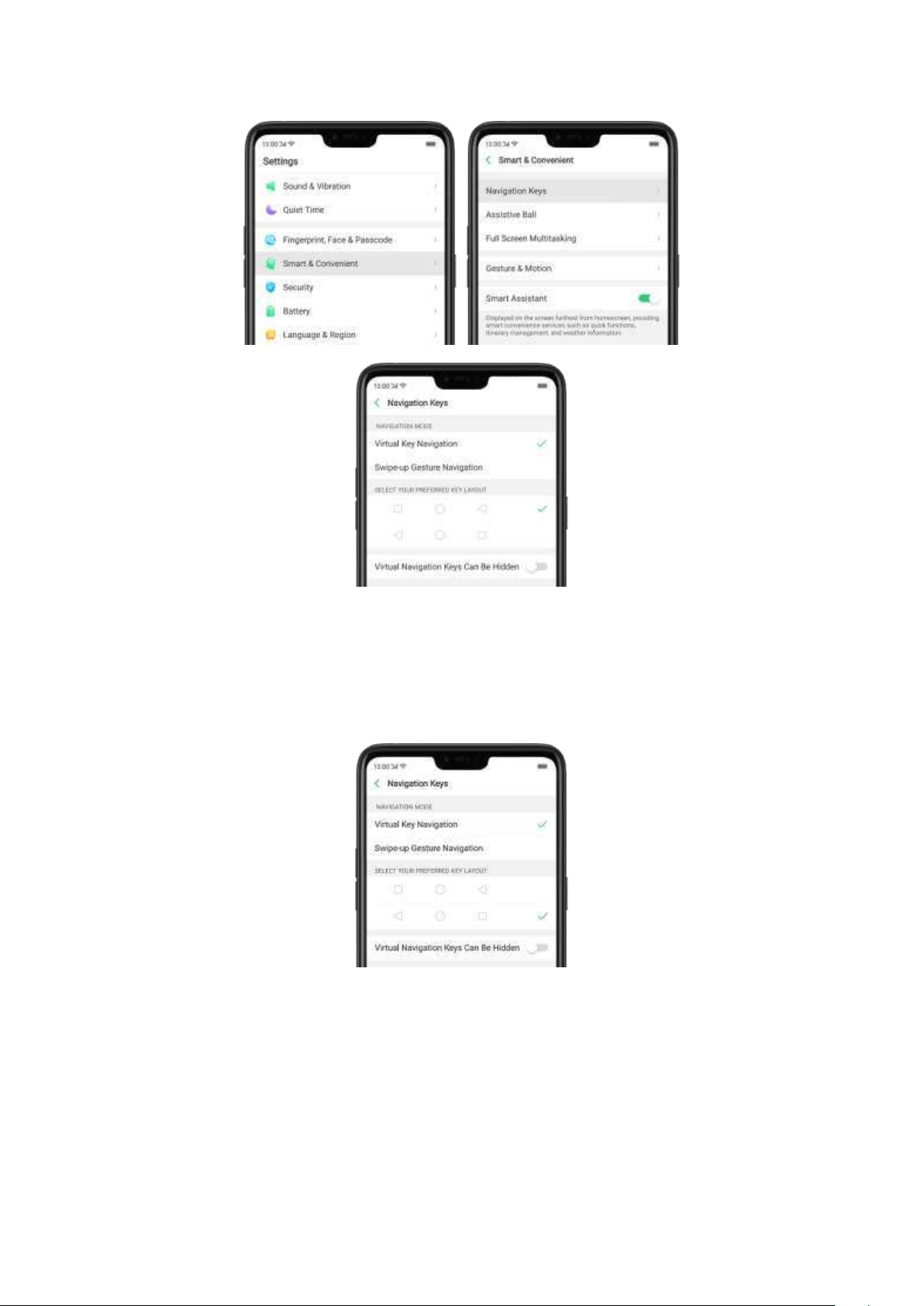
Change t he ord er of virt ual navigation keys. The keys follow t he typical order for
OPPO: Menu, Home, and Return from left to right. If you are left -handed, you can
change them to the return-hom e-recent order.
Hide the virt ual navigat ion keys. When you launch a full-screen app, t he keys will
autom atically hide, and can be brought back wit h a simple swipe:
When in p ortrait mode, swipe up from the bottom.
When in landscape mode, swipe from the bottom to the left.
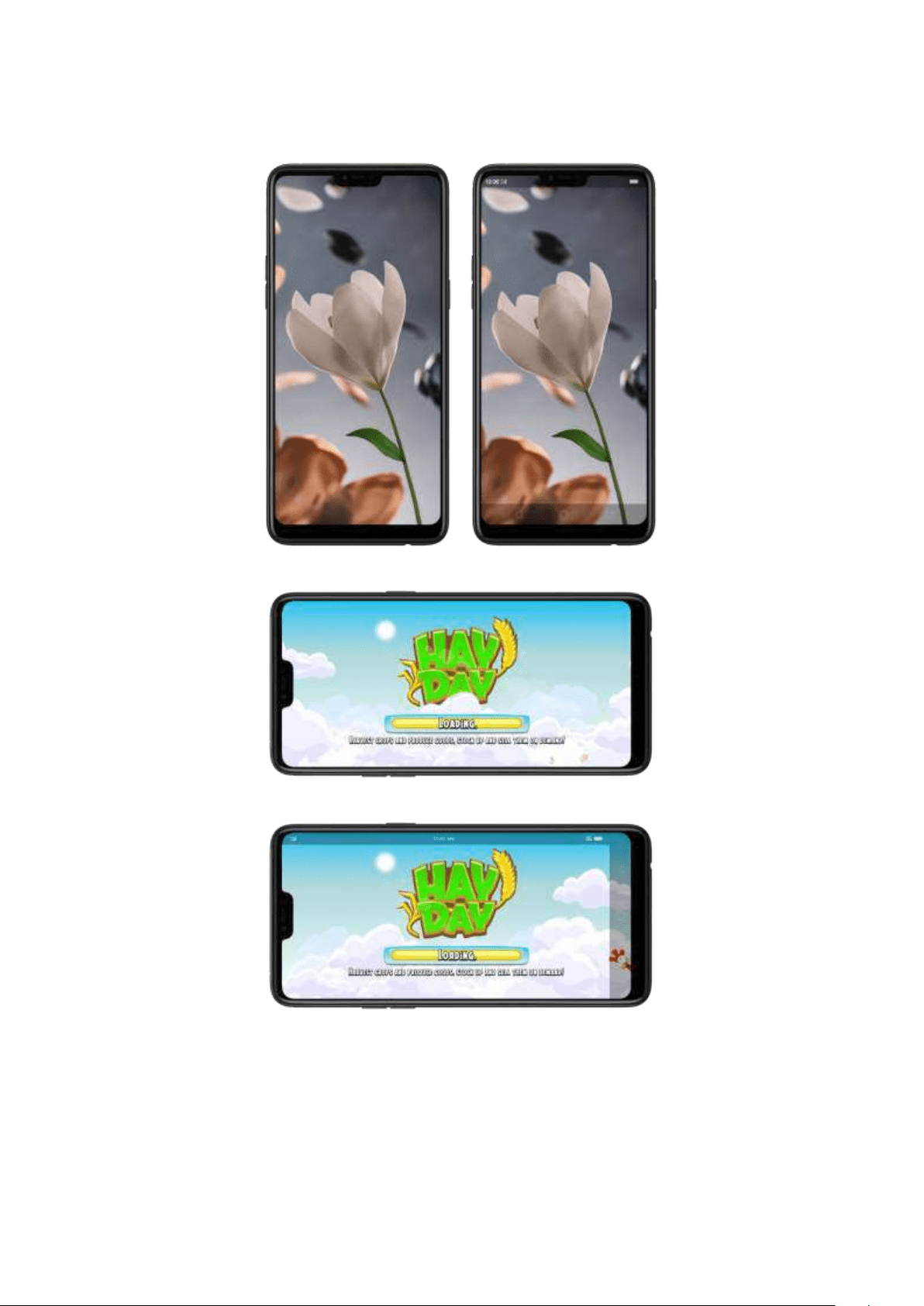
Manually hid e th e virt ual navigat ion keys. To set the keys to appear only when
needed, go to
[Set t ings] > [Smart & Convenient ] > [Navigat ion Keys] and enable
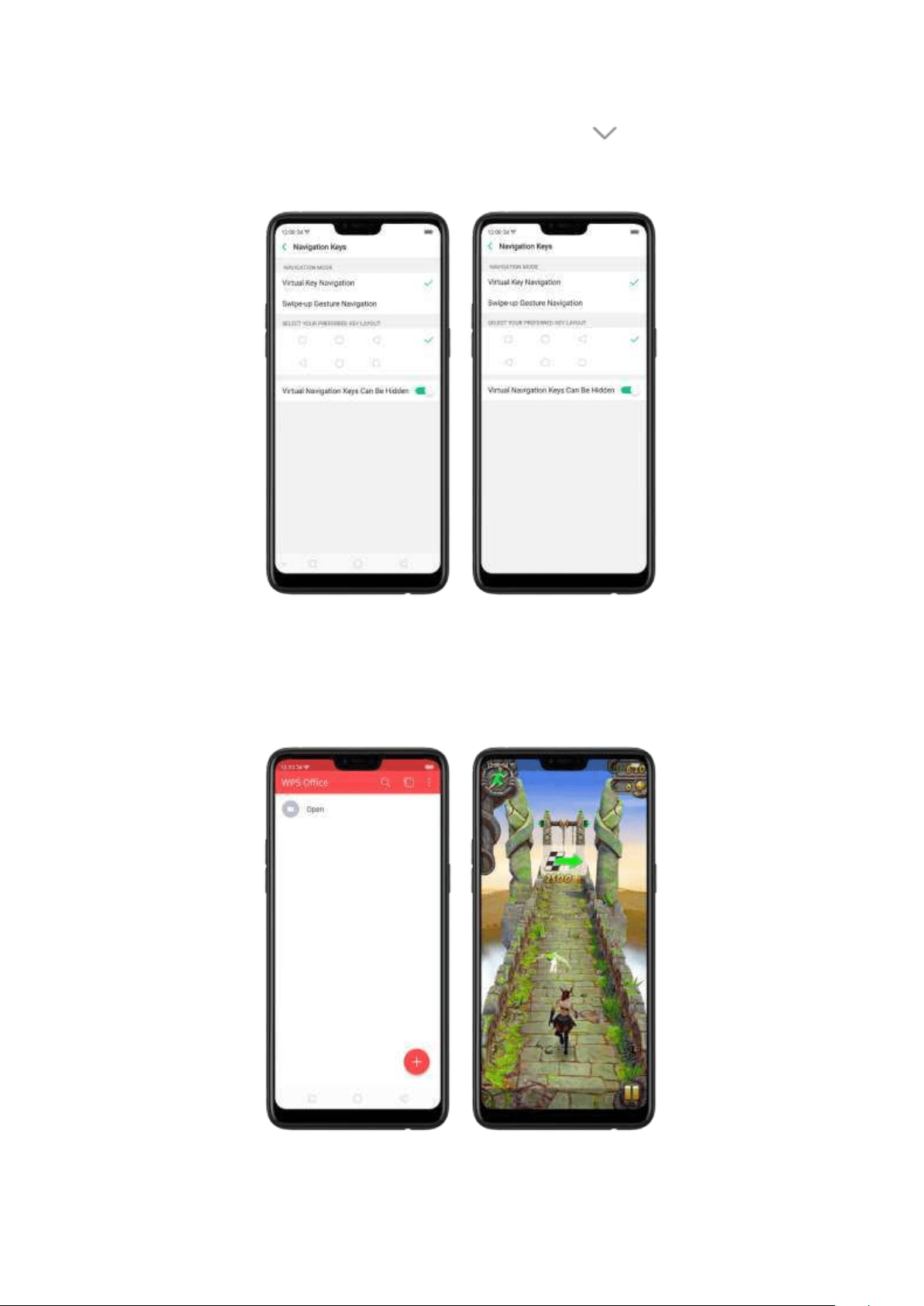
Virtual Navigation Keys Can Be Hidden. Then you can click on t he left-lower
corner of the screen to hide the keys, and swipe from the bottom to reveal them.
Imm ersive navigat io n b ackgro und .The system set multiple colors for the
navigation background to match the color scheme of the popular apps. The
background color is default white, and it will become translucent or immersi ve
when you open some of the third -party apps.
3.1.4. Volum e but t ons
Volume buttons give you easy access to adapt over tim e to a proper volum e of
sound. It refers not simply ringer or media, the phone also keeps track of the
volume level separately in headphone, m icrophone and speaker.
Media volum e: When listening to m usic, videos and phone calls, use t he buttons
on the side of the phone to adjust t he volum e. For inform ation about avoiding
hearing loss, see
Security Information.
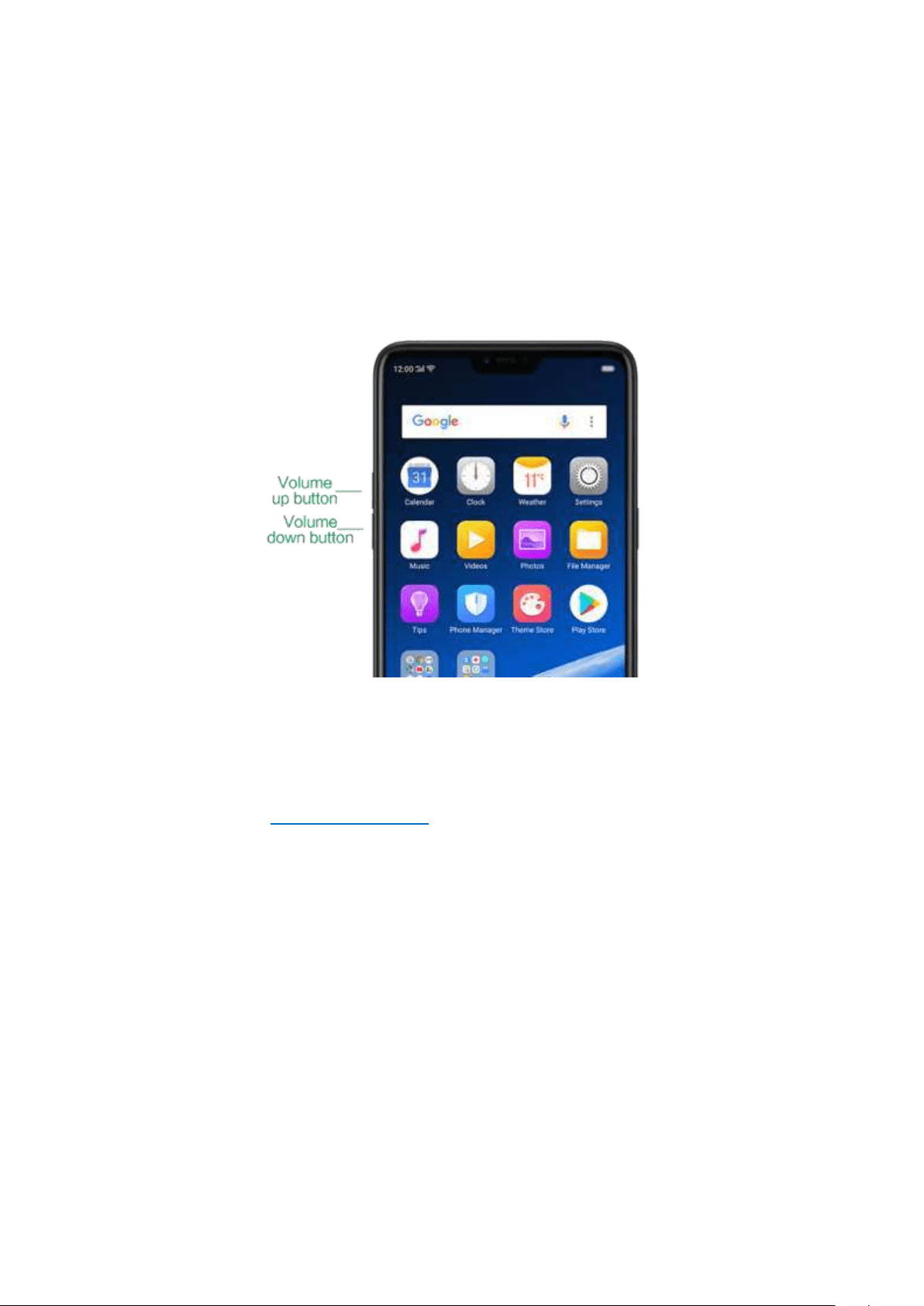
Ringer volume: Use the Volume buttons to control the volume for the ringer and
alerts. When you press and hold t he
volum e down button, your phone will switch
to silent mode.
Alarm volum e: Use the Volume buttons to set t he volume for alarm . The alarm still
plays a sound when the phone is in silent m ode.
Call volume: When making or receiving phone calls, use t he volum e butt ons to
adjust the volum e of t he call.
* You can also adjust the volume (except call volume) in
[Set t ings] > [Sound & Vibration].

Cont rolling t he cam era: Volum e buttons can also be used to control your camera.
Go to
[Set t ings] > [Camera] > [Volum e But t o n] and set up the volume buttons for
Shutter or Zoom.
3.1.5. M icro-USB port
Micro-USB port is the connector on the bott om of your device where your battery
charger connects. It also doubles as the data port, which lets you
transfer data to
and from a personal computer or other USB devices. Plug the cable in the port to
charge or t ransfer data.
Not ice:
1. Repeated connecting and disconnecting of your cable can cause the port to
wear out, resulting in a p oor connection to your cable.
2. Never force a connector into the port, for that might cause damage.
3.1.6. Head set jack
The headset jack is an audio socket that accepts a 3.5mm audio plug. Plug your
headset in the jack to listen to m usic, videos and phone calls. Do not force a
mismatched headset into the jack for that might cause damage.
3.1.7. SIM and SD cards
SIM card
* Insert the SIM card before turning on your phone. If you hold a new SIM card, you m ight
need to wait until it is activated by the carrier before you can use it.
A
SIM card is provided by your carrier and is used to activate your phone's m obile
network. Because it has a sm all amount of memory, the SIM card not only enables
com munications between two persons, but stores information such as phone
numbers, security data and more. When using the m obile netw ork, you need to pay
charges. To avoid high charges, you can shop data plans with your carrier, or shop
international data roaming plans when traveling abroad.
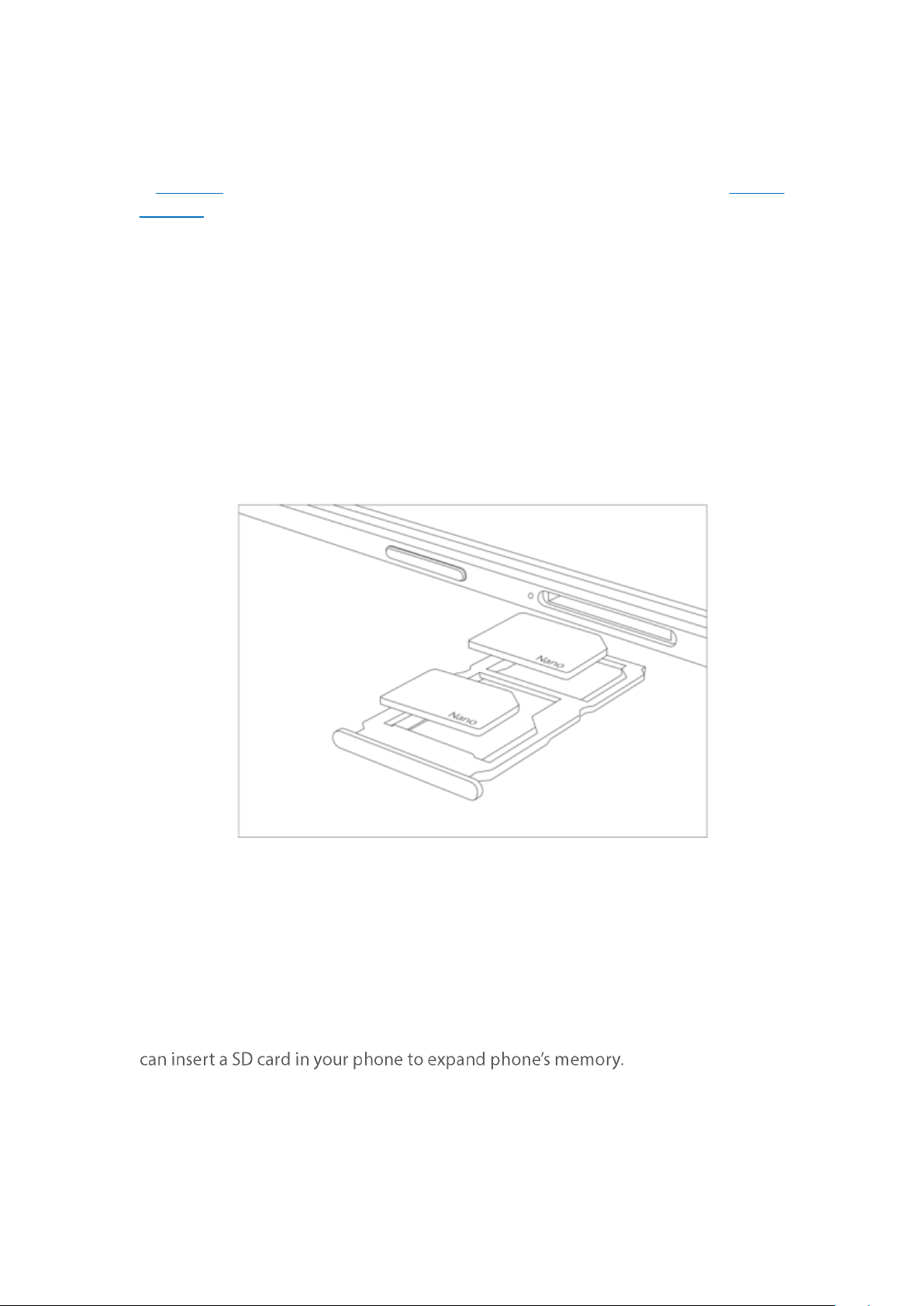
Insert th e SIM card : Most OPPO Sm artphones support Dual SIM. You can choose t o
insert one or tw o.
1. Insert the card needle into the hole out side the card tray to pop it open.
2. Pull out the card tray and place SIM card(s) on it.
3. Put the card tray back in as the same orientation t hat you removed it.
Remove t he SIM card : Remove the card(s) in the same way that you insert it(them ).
SD card
The SD card is a way to store and transfer images, music, video and other data. You
SIM1, SIM2 and SD cards share the same card tray. Insert your SD card in the same
way that you insert the SIM card(s).
3.1.8. Accessories came w it h OPPO phone
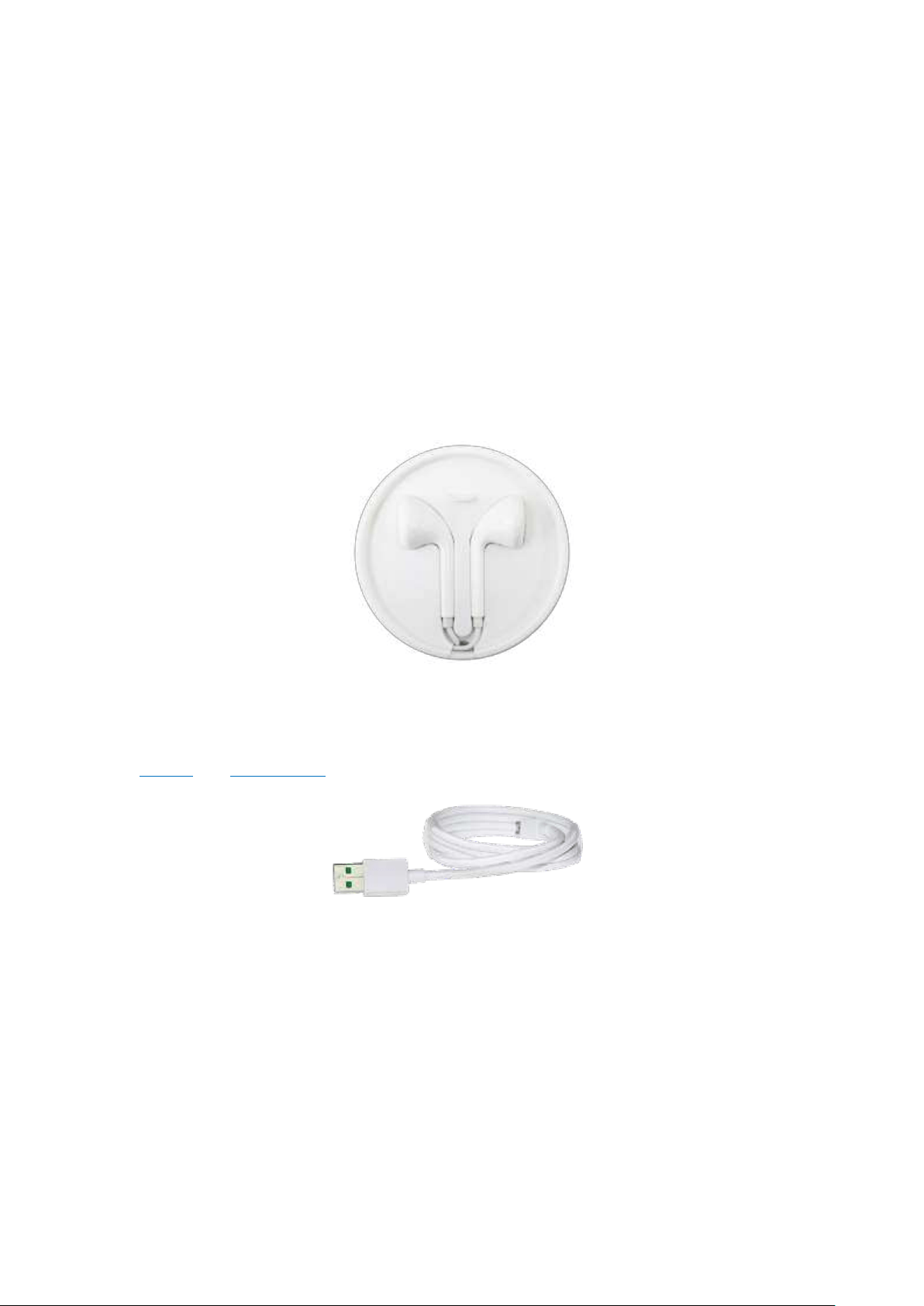
Along wit h the handset, the accessories came with are headset, USB Connecting
cable, Power adapter, SIM card tool and Phone case.
Not ice:All phot os shown are for illustration purpose ONLY. Actual products may
vary due to product enhancement.
Head set : A standard headset with 3.5 m m headset plug. Use to listen to music,
videos, and phone calls. Use the built -in microphone to talk. When playing the
music or videos, click the button once to pause or play a song or video.
USB Co nn ecting cab le: Use the cable to connect your phone to t he com puter to
charge and transfer files, or use it with the power adapter to charge.
Pow er ad ap t er: Connect the power adapter to your phone using t he included
cable, then plug it int o a standard power outlet to charge the phone.
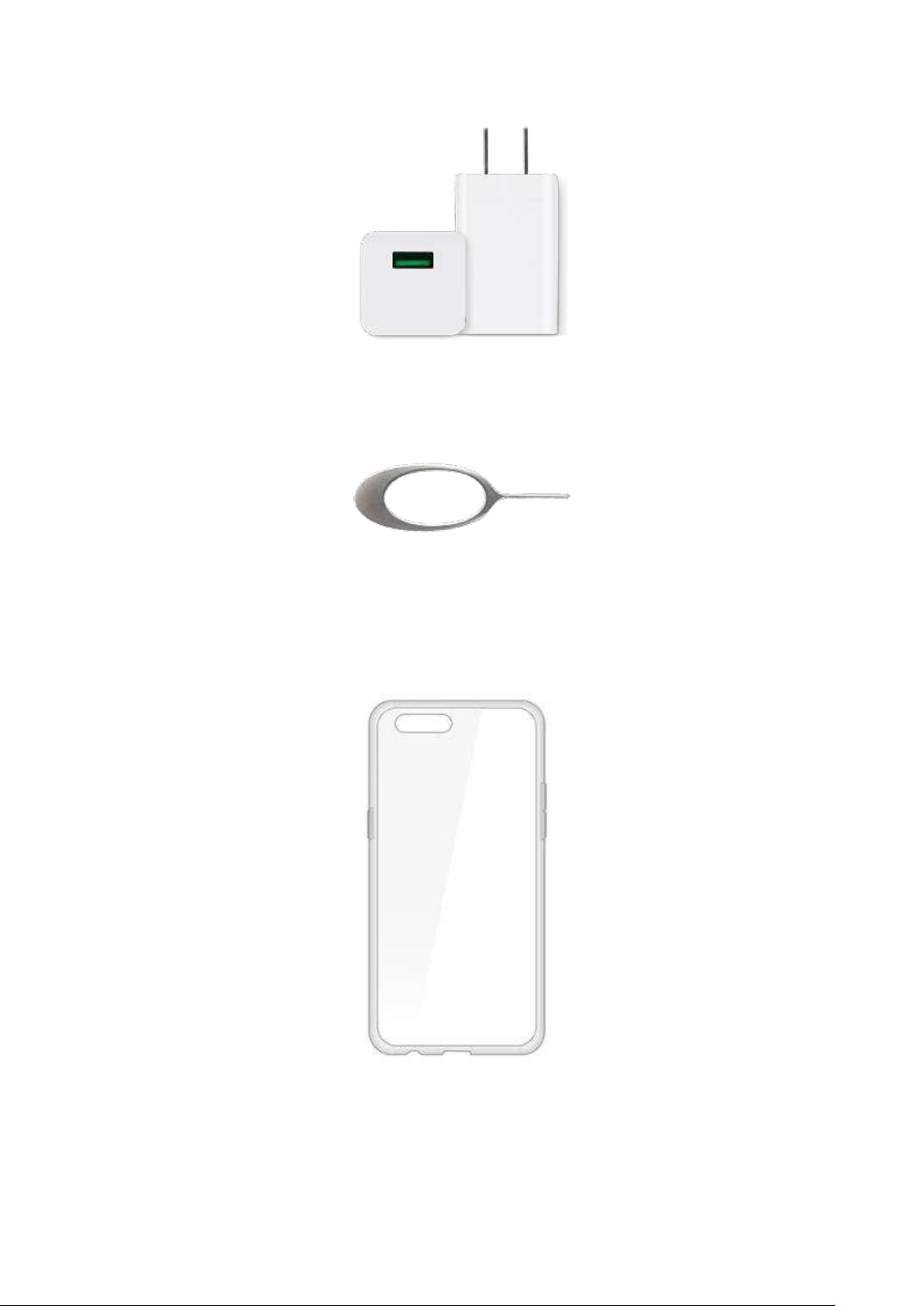
SIM card tool: Use to pop out t he SIM card tray.
Phone Case: Use to protect against drops and shock damage on t he corners and
rear of your phone.
3.1.9. Charging the bat t ery
How to charge the bat tery:
Not ice:All phot os shown are for illustration purpose ONLY. Actual products may
vary due to product enhancement.
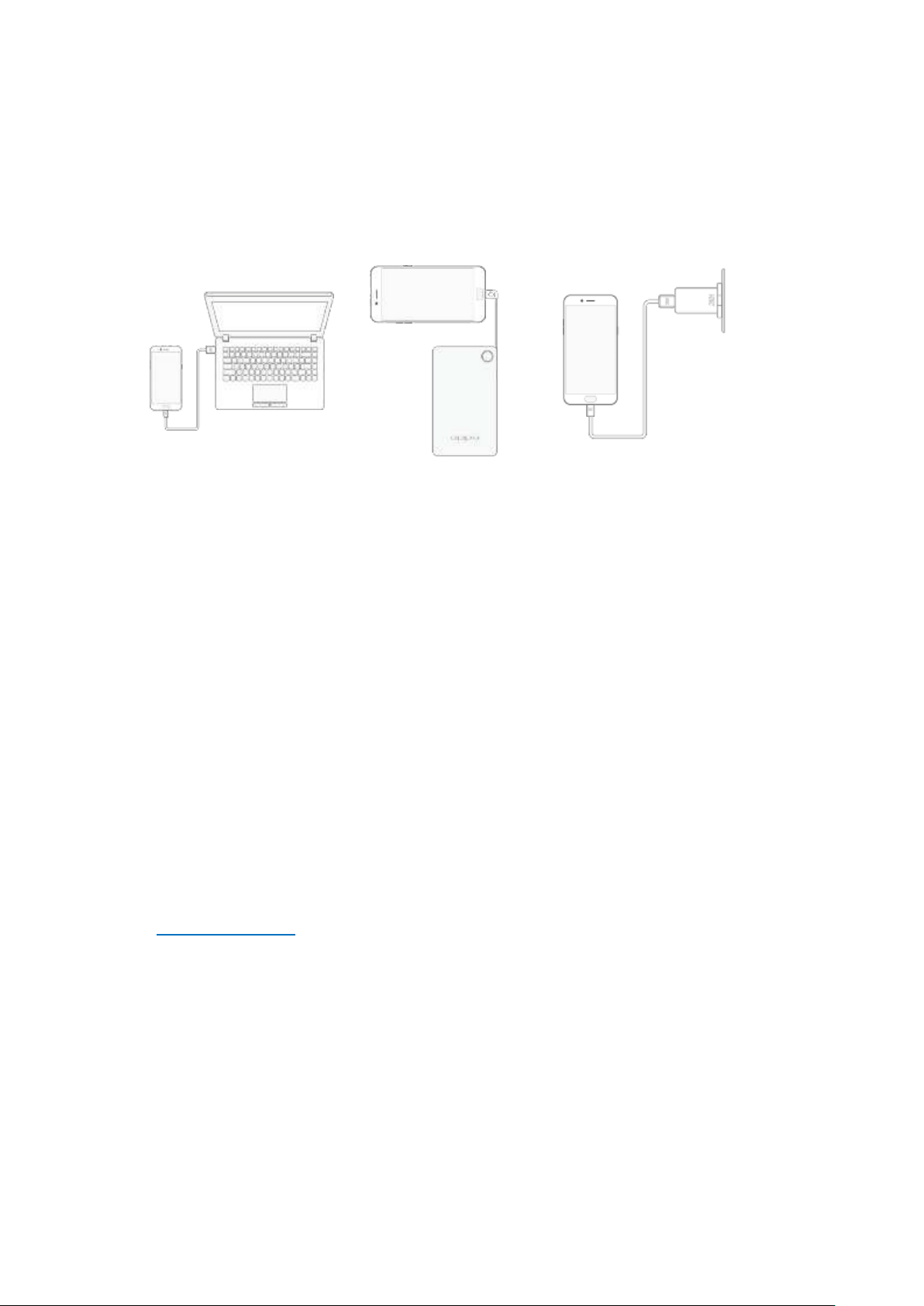
Charge w it h t he jack: Connect adapter to your phone using the USB cable, then
plug it into a standard power outlet to charge t he phone.
Connect t o a com put er t o charg e: Use the cable to connect your phone to the
com puter to charge. Your phone will charge slowly if you connect it t o the computer.
Charge wit h Po w er Ban k: Connect Power Bank to your phone, and your phone will
be charged wherever you go. It is an absolute necessity if you are a frequent traveler.
Charging Notice:
1.
Charge the phone wit h the original charging accessories (including adapter, cable
and power bank).
2. It is recommended to charge your p hone in a place w here the temp erature is
between 15° C to 40° C. Extreme ambient temperatures will affect flash charging
system.
3.1.10. Gest ure & Mot ion
Gest ures
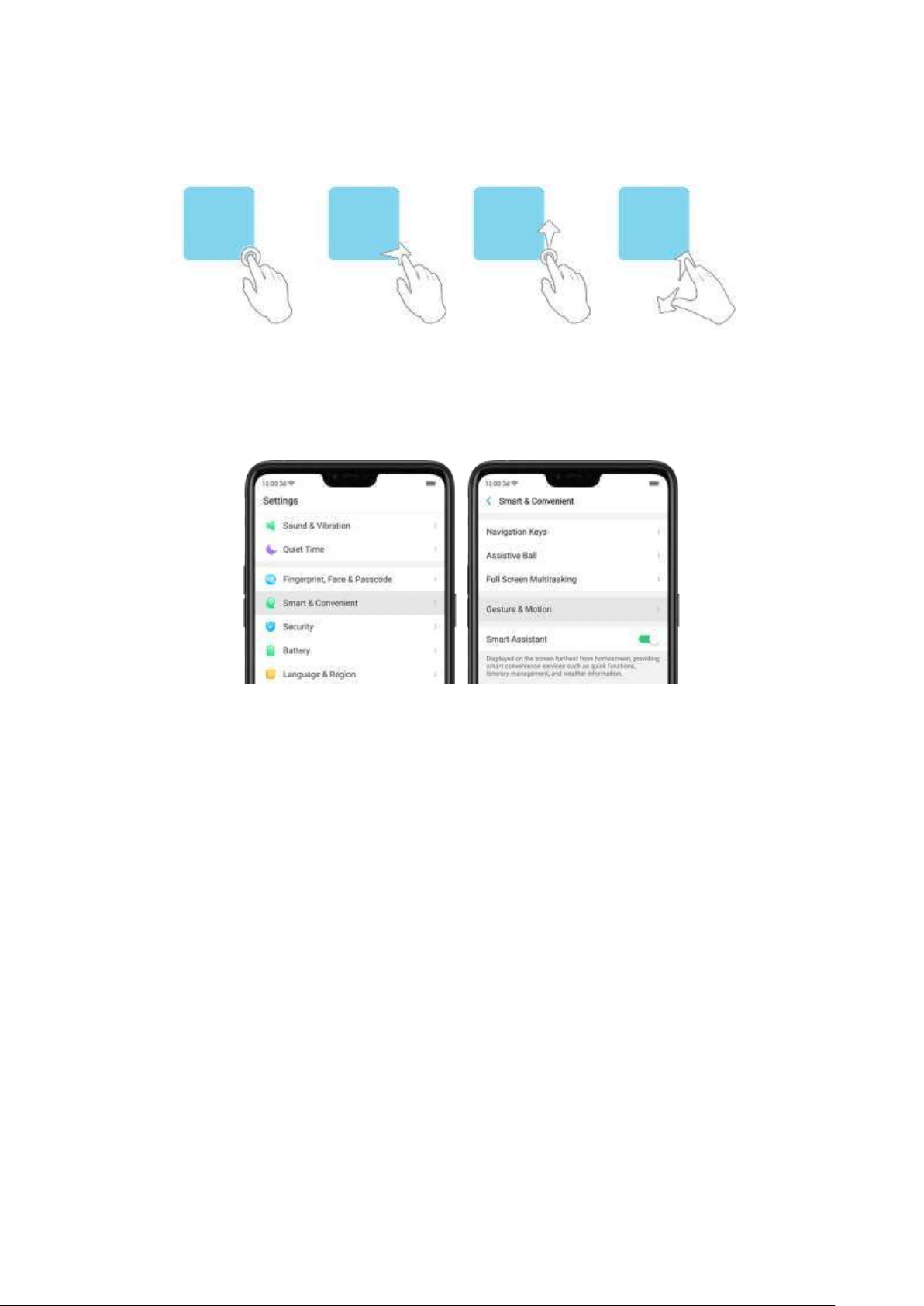
OPPO smartphone is designed to understand gestures. You can use gestures such
as tap, swipe, drag and spread to operate your phone.
To set up com plex gestures for specific functions, go to
[Settin gs] > [Smart &
Convenient ] > [Gest ure & Mot ion].
Screen -off Gest ures
To set up screen-off gestures, you need to turn it on first.
Double t ap to turn screen on : Turn it on to wake up your locked screen with a
double-click on the screen.
Draw O t o start camera: When turn it on, you can draw O on the locked screen to
open Camera app.
Draw V to op en t orchlight : When t urn it on, you can draw V on the locked screen
to open the t orchlight.
Music cont rol: When turn it on, you can draw ‖ to pause/play a track, or draw <
or > to switch the track when the screen is off.
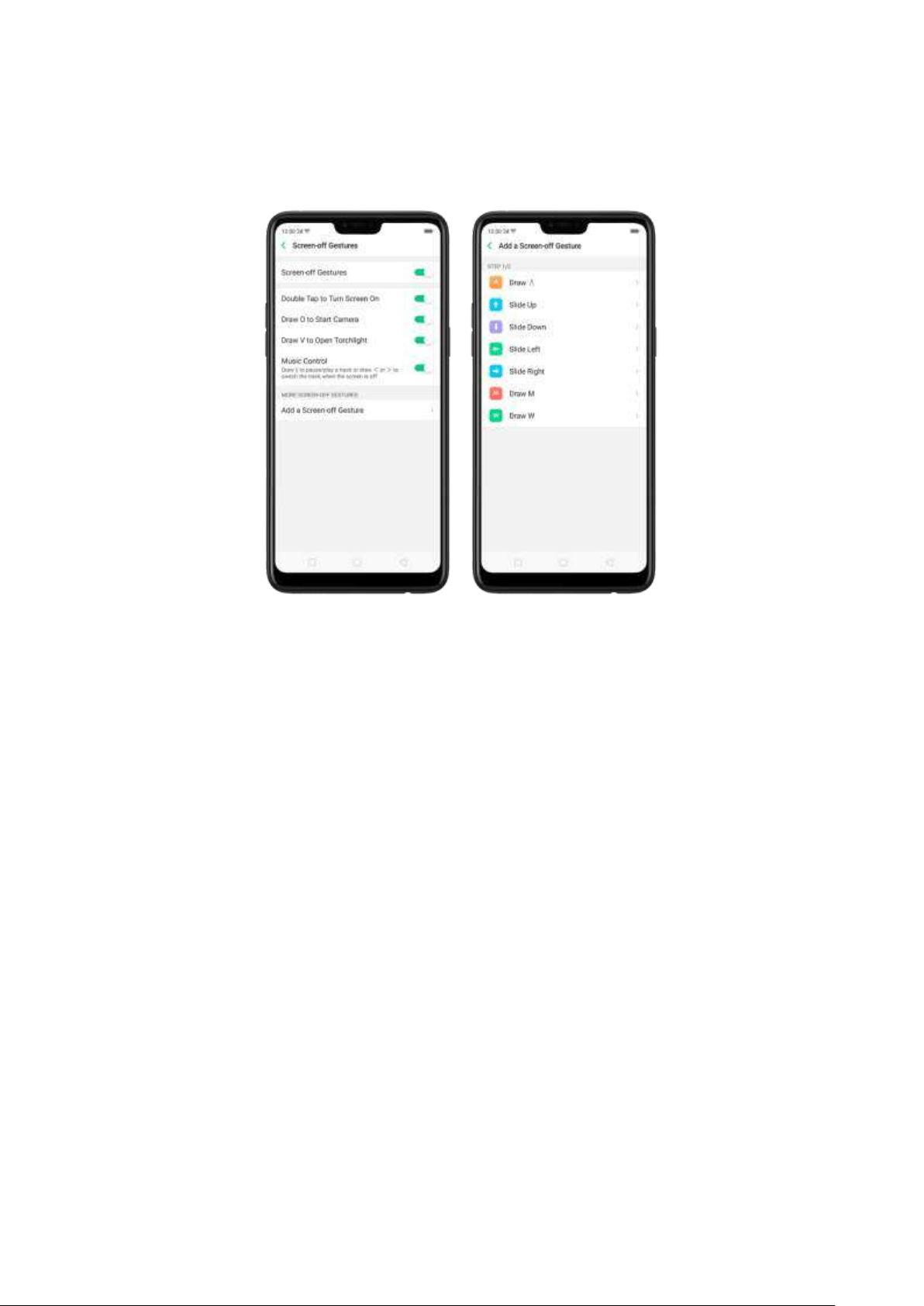
Ad d more screen-off gestures: OPPO smartphone of ColorOS 5.0 gives you 7
options, which are
Draw ^ , Slid e up , Slide dow n, Slid e left , Slide right , Draw M
and Draw W. Choose one to unlock t he phone, call someone or start an app.
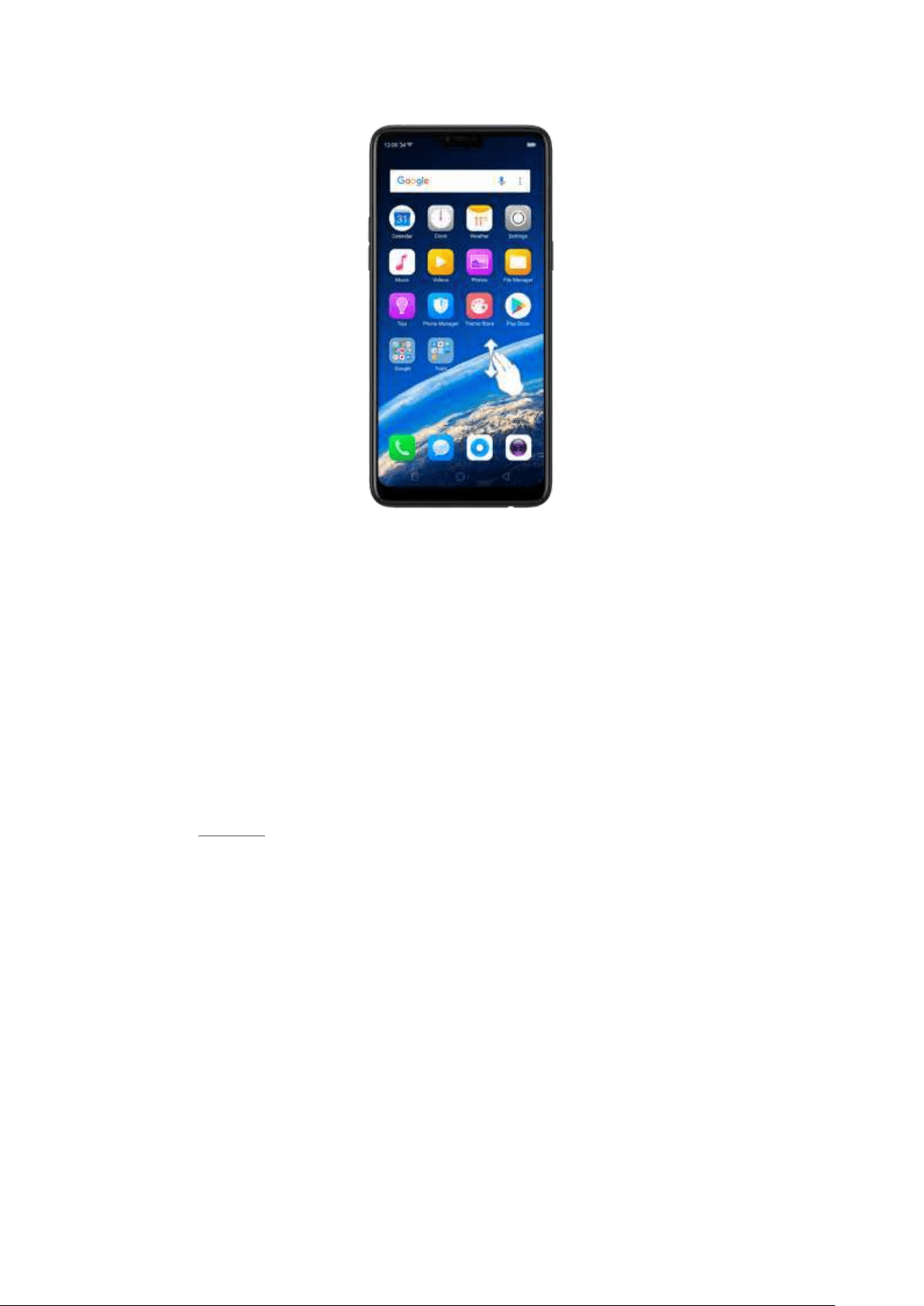
3-Finger Gesture
Take a screenshot . Swipe dow n the screen with t hree fingers.
Use Sp lit -screen. Under the interface of an app, swipe ups the screen with three
fingers to enter split -screen mode.
Mot ion
The motion-sensing technology is used in OPPO smartphone. Use it to let your
phone response to motion.
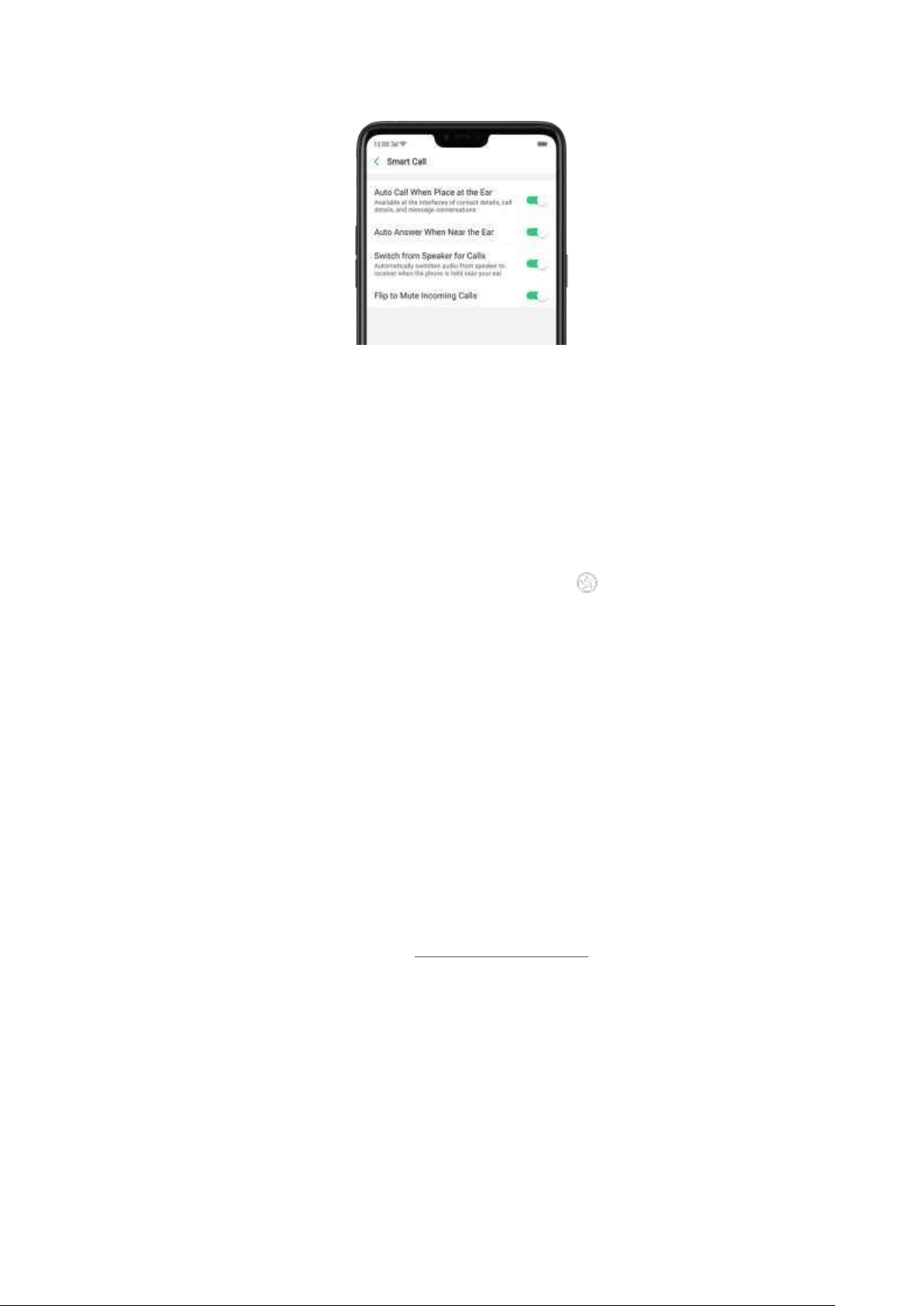
Sm art call
Aut o call when place at the ear : Before you can use auto call, you need to set the
default SIM card for calling. Go to a contact detail, call detail, message conversation
or info interface, put the phone near your ear and your phone will aut om atically
call that specific person.
Aut o answ er w hen n ear the ear : This function lets your phone to answer any
incoming calls autom atically when putting the phone near your ear.
Sw it ch from speaker for calls: Use it to automatically switch from speaker to
receiver when you put the phone near your ear during p hone calls.
Flip t o m ut e inco ming calls: Use it to silence the ringer by turning the phone over
on a table or ot her flat surfaces.
Mist ouch Prevention Mode
Turn it on to prevent incorrect operations if the lock screen is covered.
Take selfies
Open Camera app and switch to t he front camera. Click > Gesture on t he top
of the screen. Pose the same hand gesture towards the camera, once the camera
captures that, it will take a phot o automatically after two seconds. You can change
your pose and expression wit hin this two seconds.
3.1.11. Key com b inat ions
Generally, you can use t wo butt ons of your phone to generate a specific result. The
com mon key com binations include:
When phone is on
Press and hold the Pow er and Volum e Dow n b ut t ons: Your p hone will take a
screenshot for t he current page. To take a long screenshot, click the screenshot,
then click Longshot.
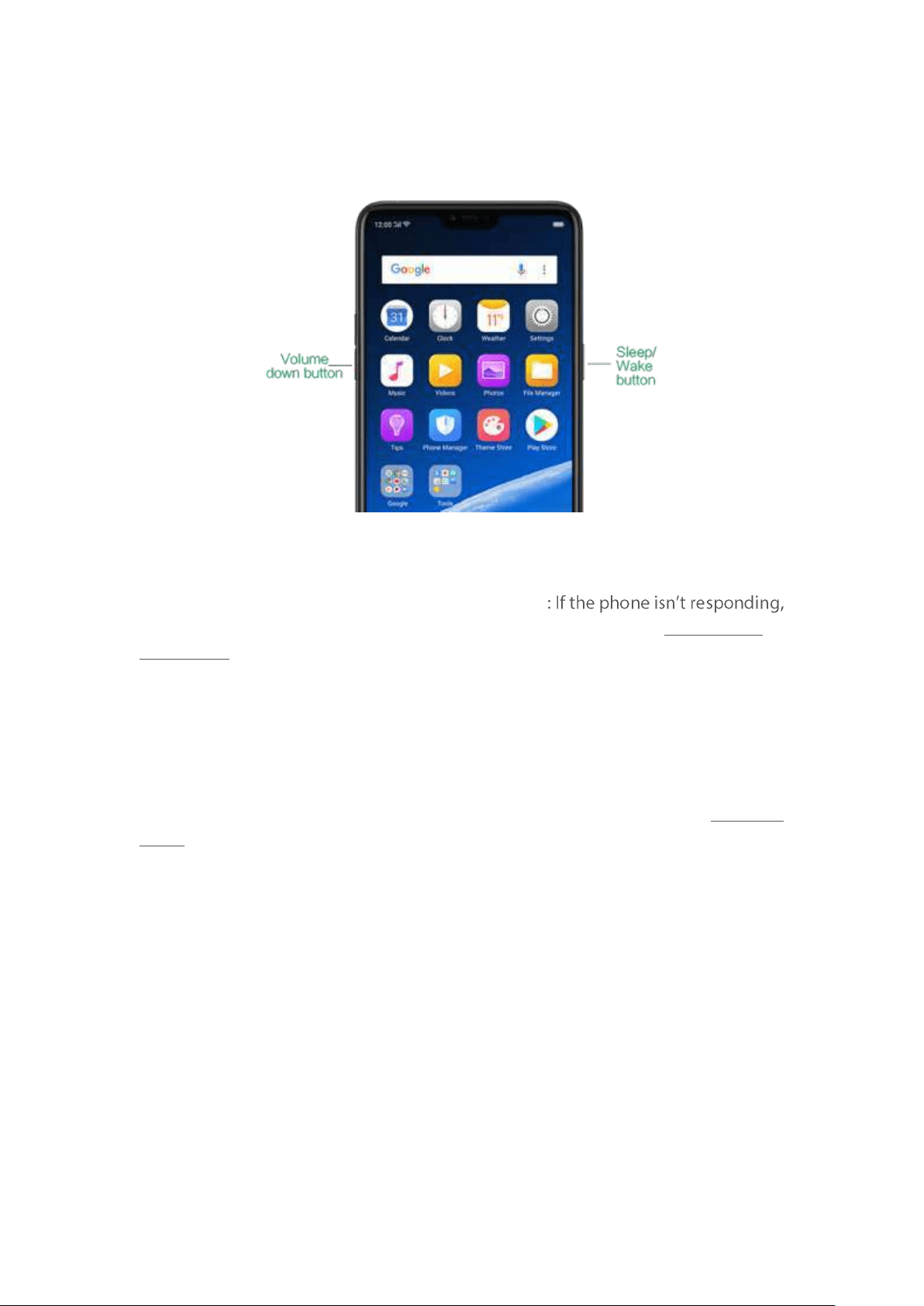
Press and hold the Pow er and Volum e Up but t ons
press and hold the b utton com bination for at least eight seconds to force restart
your phone.
When phone is off
Press and hold the Pow er and Volu m e Dow n buttons: Phone will enter Recovery
Mode, which does help to update the system , wipe data, check disk and more.
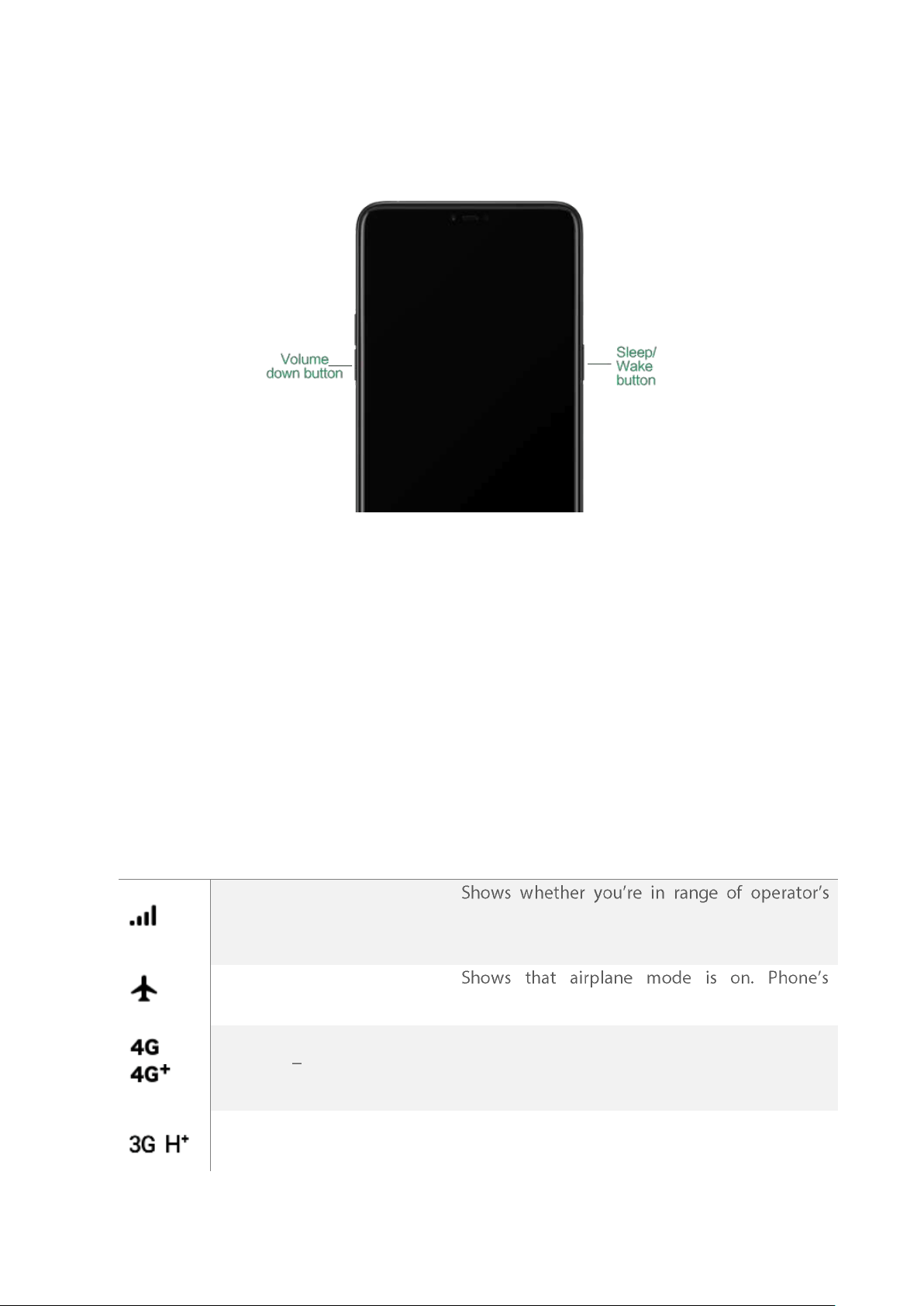
Press and hold the Pow er and Volum e Up but t ons: Phone will be force restarted.
Press and hold the t wo butt ons until your phone is turned on.
3.1.12. St at us Icons
The icons in the st atus bar at t he top of the screen give information about your
OPPO smartphone:
St atus icon
What it means
Mobile net work signal
network and can m ake and receive calls. The
more bars, the stronger the signal.
Airplane Mod e
wireless com munication abilities are disabled.
/
LTE/ LTE A
4G network is available, including LTE and LTE-
A. Your phone can connect to the Internet over
that netw ork.
/
UM TS/ WCDMA
3G UMTS net work is available. Your p hone can
connect to the Internet over that netw ork.
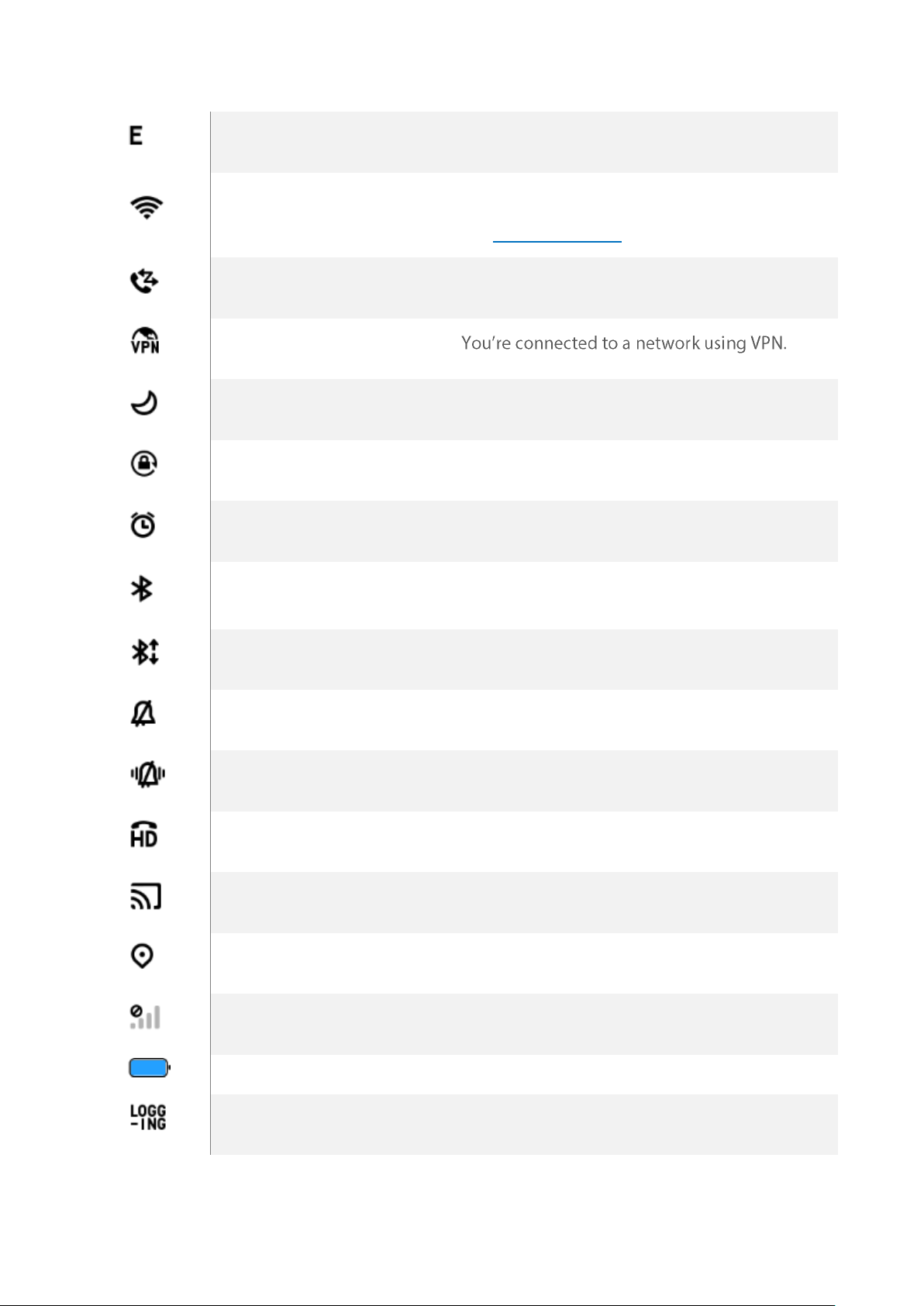
EDGE / GSM
EDGE (GSM) network is available. Your phone
can connect to the Internet over that network.
Wi-Fi
Shows t hat your phone is connected to a Wi-Fi
network. The more bars, t he stronger the signal.
See
Connect to Wi-Fi.
Call Forw arding
Call forwarding is t urned on.
VPN
Quiet Tim e
Quiet Tim e is turned on.
Port rait orient at ion lock
Phone screen is locked in portrait orientation.
Alarm
An alarm is set up on your p hone.
Bluet oot h
Bluetooth is on, or your phone is connected to a
Bluetooth device.
Bluet oot h
Bluetooth Tethering is on.
Silent
Silent Mode is on.
Vib rat e wh en silent
Phone vibrates when Silent mode is on.
HD Voice
Your phone is on a voice call over VoLTE.
Wireless Display
Wireless projector is connected.
Locat ion Service
Location Service is on.
No service
Your phone has no signal.
Pow er Saving
Power Saving Mode is on.
LOGG-ING
Get a log for testing
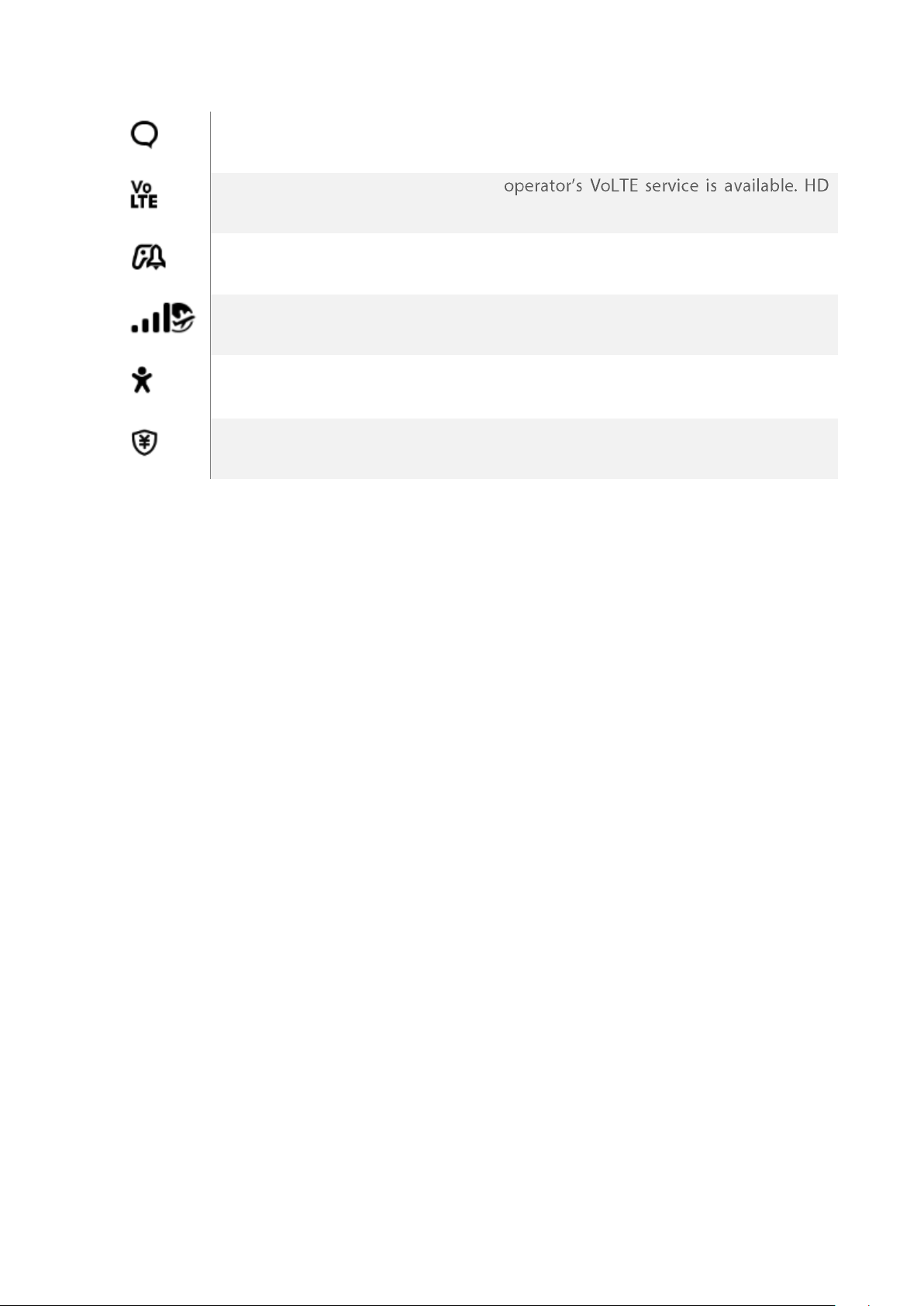
Messag e
Messag e not ificat ion
Voice over LTE
Your
Voice works to m ake your calls.
Gam e accelerat ion
Optimize the game display configuration to
fully utilize hardware resource
Int ernat ional Roaming
Your phone is using International Data
Roaming.
Kid s sp ace
Addiction prevention
Payment prot ect ion
Payment environment detection
3.2. Configurat ion Set t ings
3.2.1. Fingerprint , Face and Passcode
Setting a lockscreen passcode, privacy passcode, and face ID on your device are
security measures that all users should take. Follow t hese steps to set a passcode
that will be needed to unlock your phone and access the information stored on it.
Use a Lockscreen passcod e on your OPPO phone
Set th e Lockscreen Passcode
1. Go to [Set t ings] > [Fin gerp rint , Face & Passcode], enter [Lockscreen
Passcod e], click [Turn on Passcod e].
2. You'll be prom pted to enter a 6-digit numeric code. If you want to use other
passcode types, Click
Ot her Encryption Met hod s.
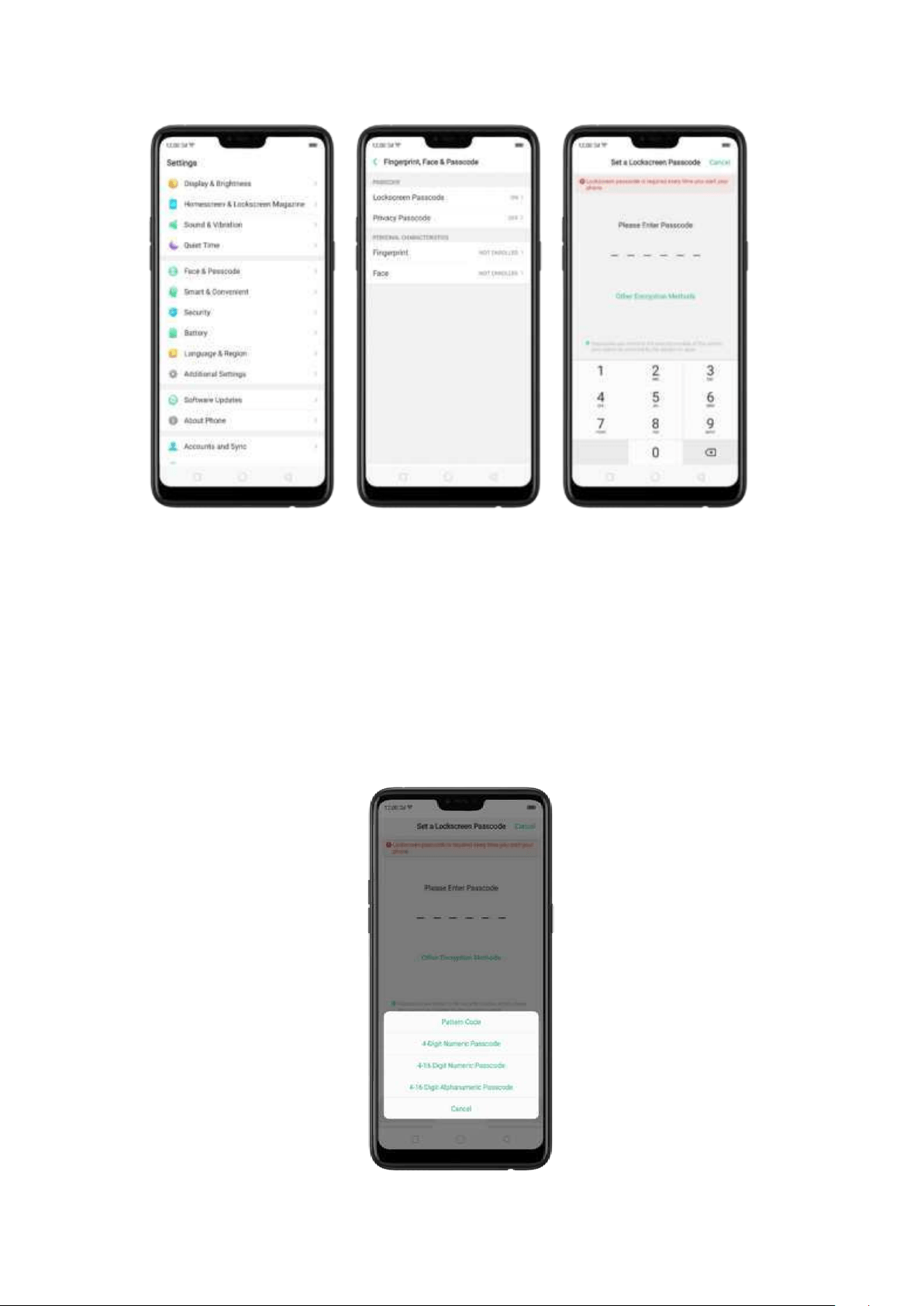
3. Choose from four types of passcodes:
Pattern Code: Allows you to draw a patt ern wit h at least four dots connected.
4-Digit Num eric Passcode: Allows you to set a numbers-only passcode that contains four
characters.
4-16 Digit Num eric Passcode: Allows you to set a numbers-only passcode that contains four
to sixteen characters.
4-16 Digit Alphanum eric Passcode: Allows you to set a passcode that contains four to sixteen
numbers and/ or letters as your preference.

4. Draw your pattern or enter your passcode.
5. Re-draw or re-enter your pattern or passcode to confirm it and activate it.
Change the passcode
1. Go to [Set t ings] > [Face & Passcod e], click [Modify Passcod e].
2. Draw or enter your current pattern or passcode.
Draw or enter your new pattern or passcode. If you want to use ot her passcode
types, click
Ot her Encryp t ion Met hod s. at the bottom of the screen.
Re-draw or re-enter your pattern or passcode to confirm it and activate it.
Turn off the passcode
1. Go to [
Set t ings] > [Face & Passcode], click [Turn off Passcod e].
2. Draw or enter your current pattern or passcode to confirm .
View more details in
Set and use a passcode wit h your OPPO smart phone.
Privacy Passcode
When this is turned on, the validation will be used for all privacy features such as
App Encryption and Private Safe.
1. Manage Privacy Passcod e: Go to [Set t ings] > [Fin gerp rint , Face & Passcode] >
[
Privacy Passcod e] create an encryption code, then set or customize a security
question, then click
Don e.
Not e: The security question can be used to reset the passcode.
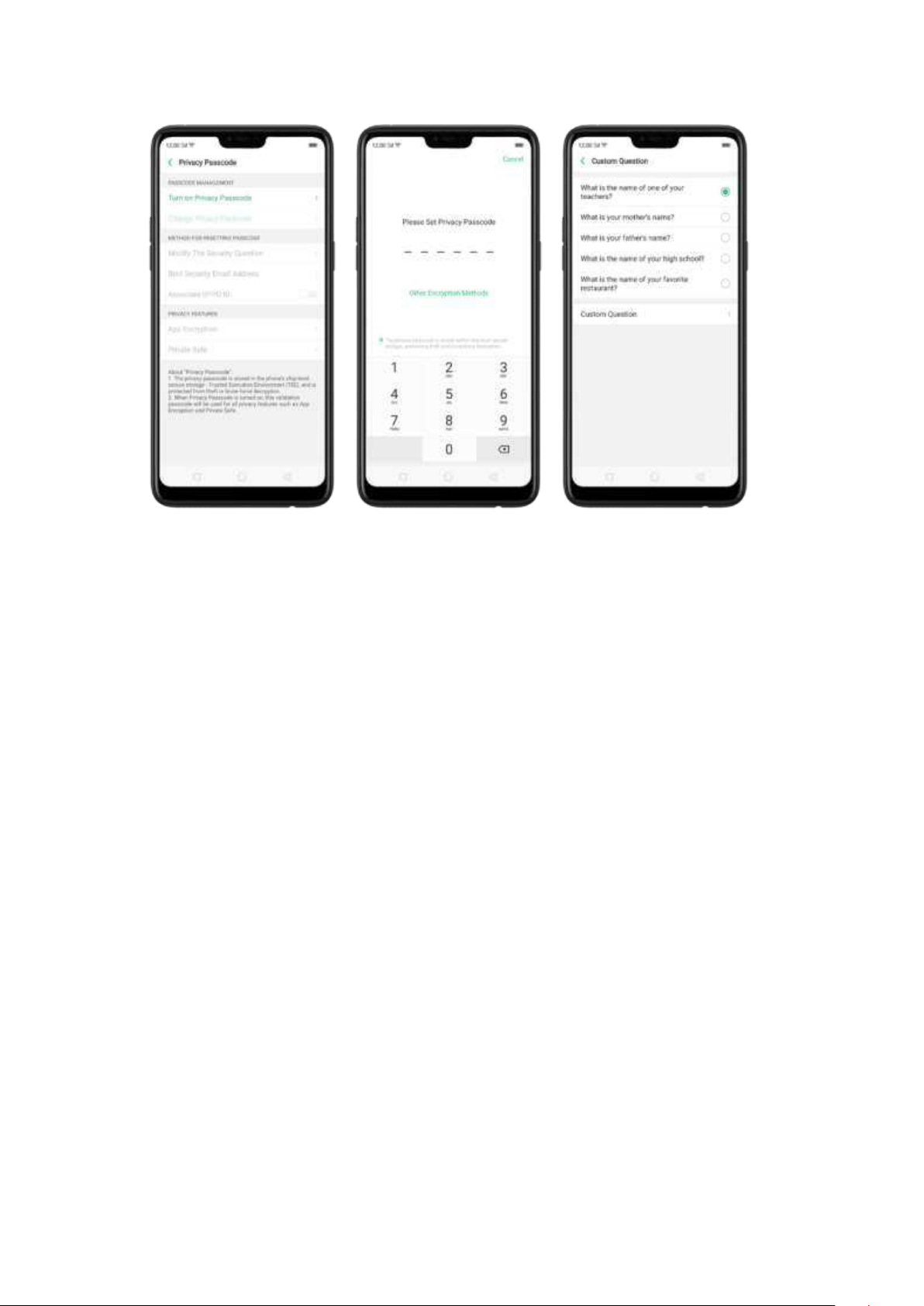
2. Chang e or turn off privacy passcod es: Go t o [Set tin gs] > [Fing erp rint , Face &
Passcod e] > [Privacy Passcod e] enter the encryption code then click [Turn off
Privacy Passcod e] or [Chang e Privacy Passcode].
3. Modify t he securit y quest ions: Go to [Set t in gs] > [Fingerprint , Face &
Passcod e] > [Privacy Passcod e] enter the encryption code click [Mod ify t he
Securit y Qu est ions] enter the encryption code again t hen set or customize a new
security question, click
Don e.
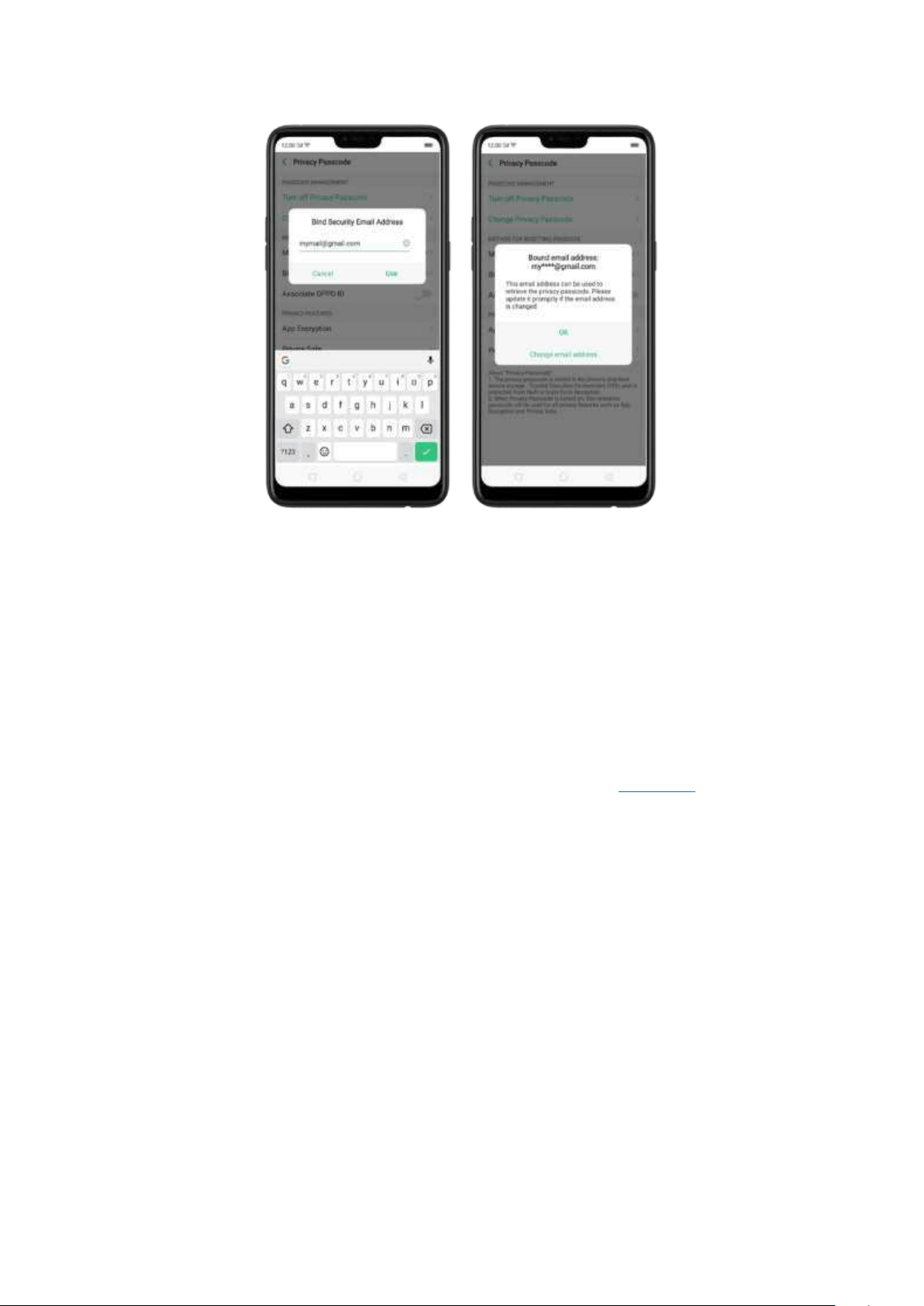
4. Bind securit y em ail ad dress: The email used will be able t o ret rieve t he
privacy p asscod e: Go to [Set tin gs] > [Fingerprint , Face & Passcode] > [Privacy
Passcod e] enter the encryption code click [Bind Securit y Email Ad dress] enter the
encryption code again t hen enter email address, click
Use.
5. Up dat e b ind securit y em ail ad dress: Go to [Set tings] > [Fin gerp rint , Face &
Passcod e] > [Fin gerp rint , Face & Passcode] enter the encryption code click [Bind
Securit y Em ail Ad dress] click Chan g e Email Address t hen enter the encryption
code again, enter the new email address, click Use.
Associat e OPPO ID
1. Go to [Set t ings] > [Fin gerp rint , Face & Passcode] > [Privacy Passcode] enter
the encryption code toggle [Associate OPPO ID] Register or Sign in wit h your OPPO
ID credentials.
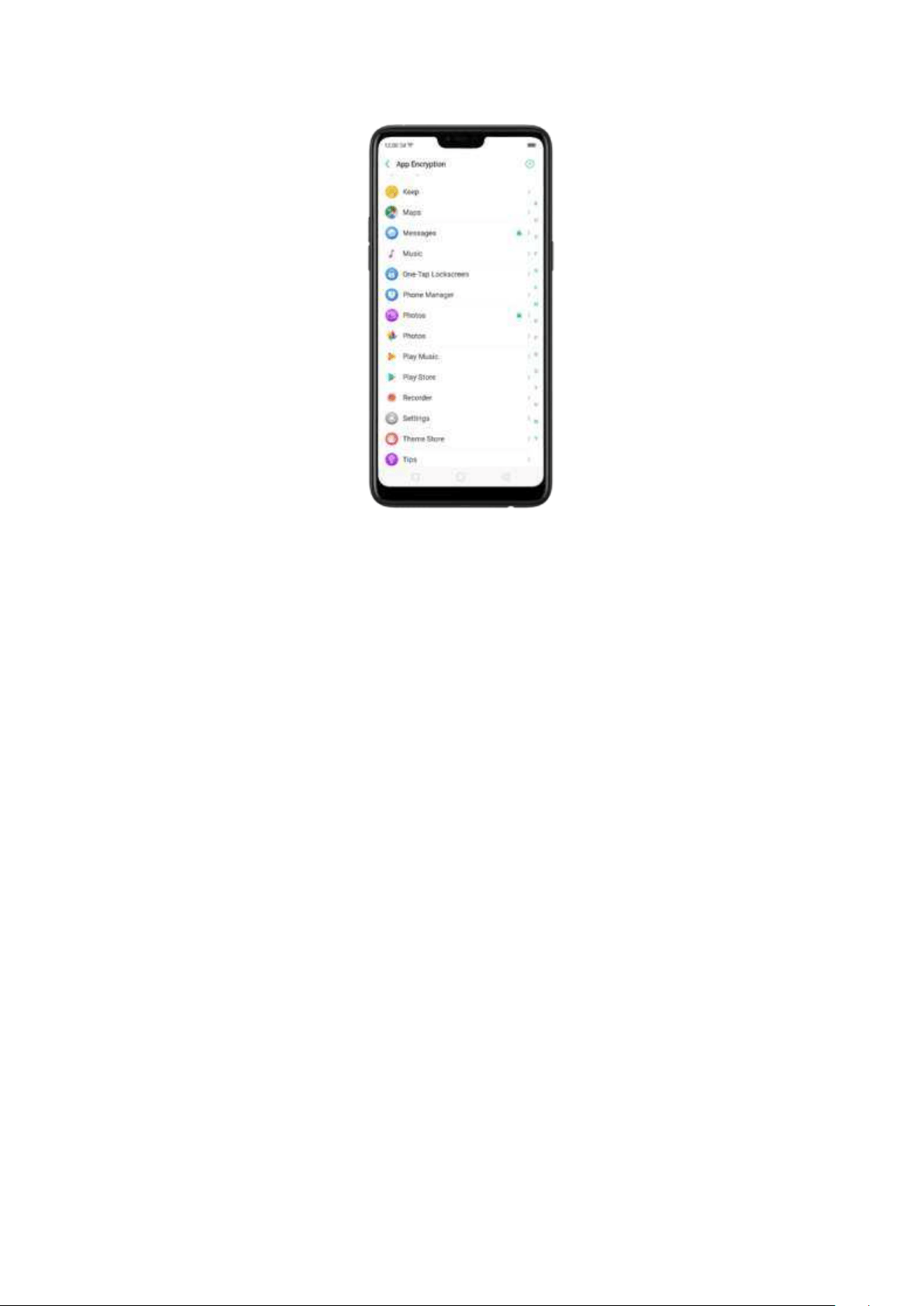
2. App Encryption: Go t o [Settings] > [
Fingerp rint , Face & Passcod e > [Privacy
Passcod e] enter the encryption code click [App Encryption] select the apps to be
encrypted then press
Enab le Encryp tion. Once it is encrypted, you will see a
padlock sym bol on t he app that has been encrypted. Also see
App Lock.
Not e: You have to enter an encrypted passcode and a security question before you
can use the other functions on Privacy Passcode.
Use a fingerp rint on your OPPO pho ne
Before you can add a fingerprint, you need to create a passcode for your OPPO
phone. You can use fingerprints for:
Unlockin g t he pho ne from t he lock screen.
1. Go to [
Set t ings] > [Fing erprint , Face & Passcod e], click [Ad d a Fing erprint ].
2. Follow t he on-screen instructions, placing your finger gently on the Home
button until your fingerprint is recorded.
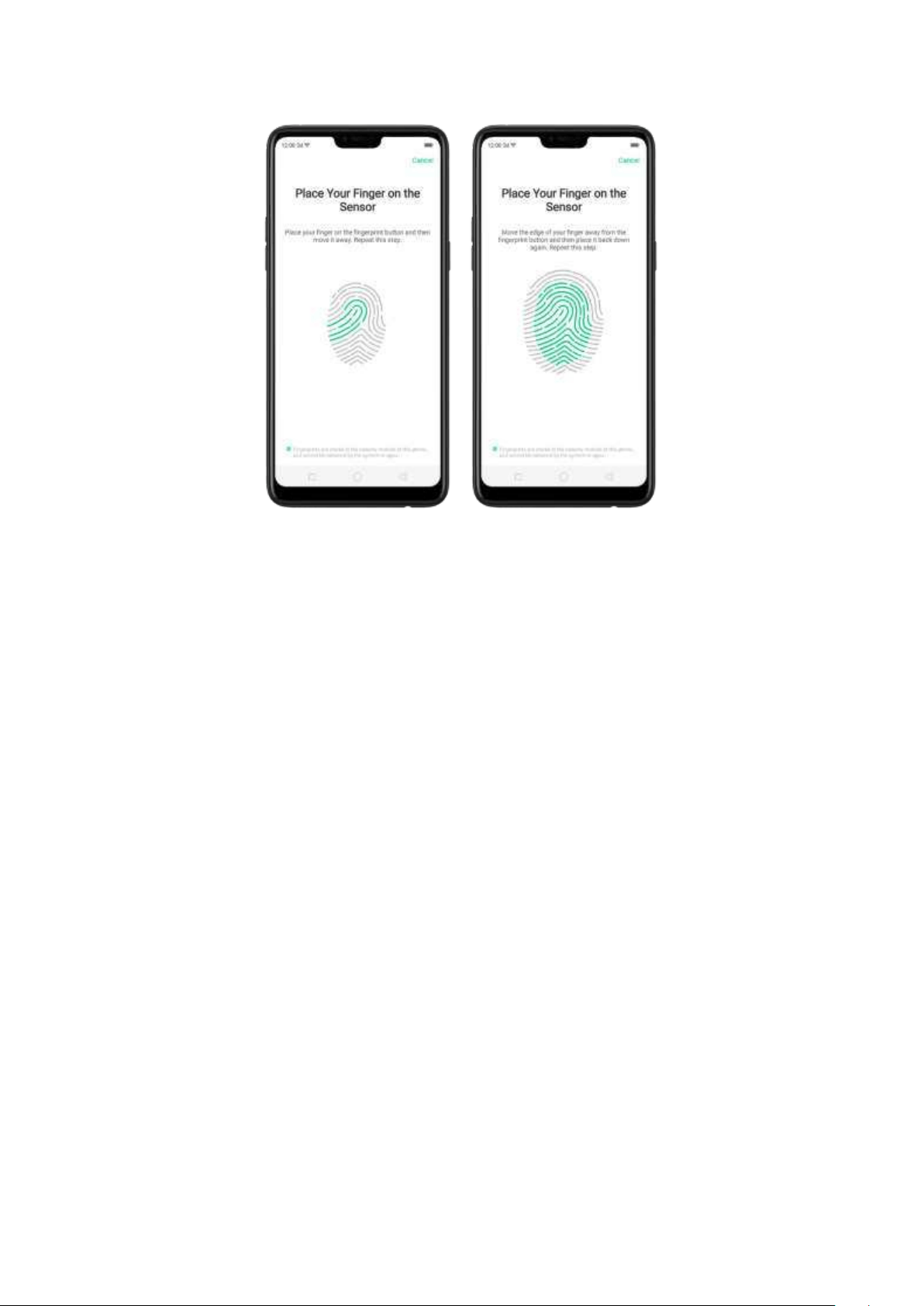
Repeat step 1 and 2 for as many fingers as you like.
Delete or Rename a fingerprint
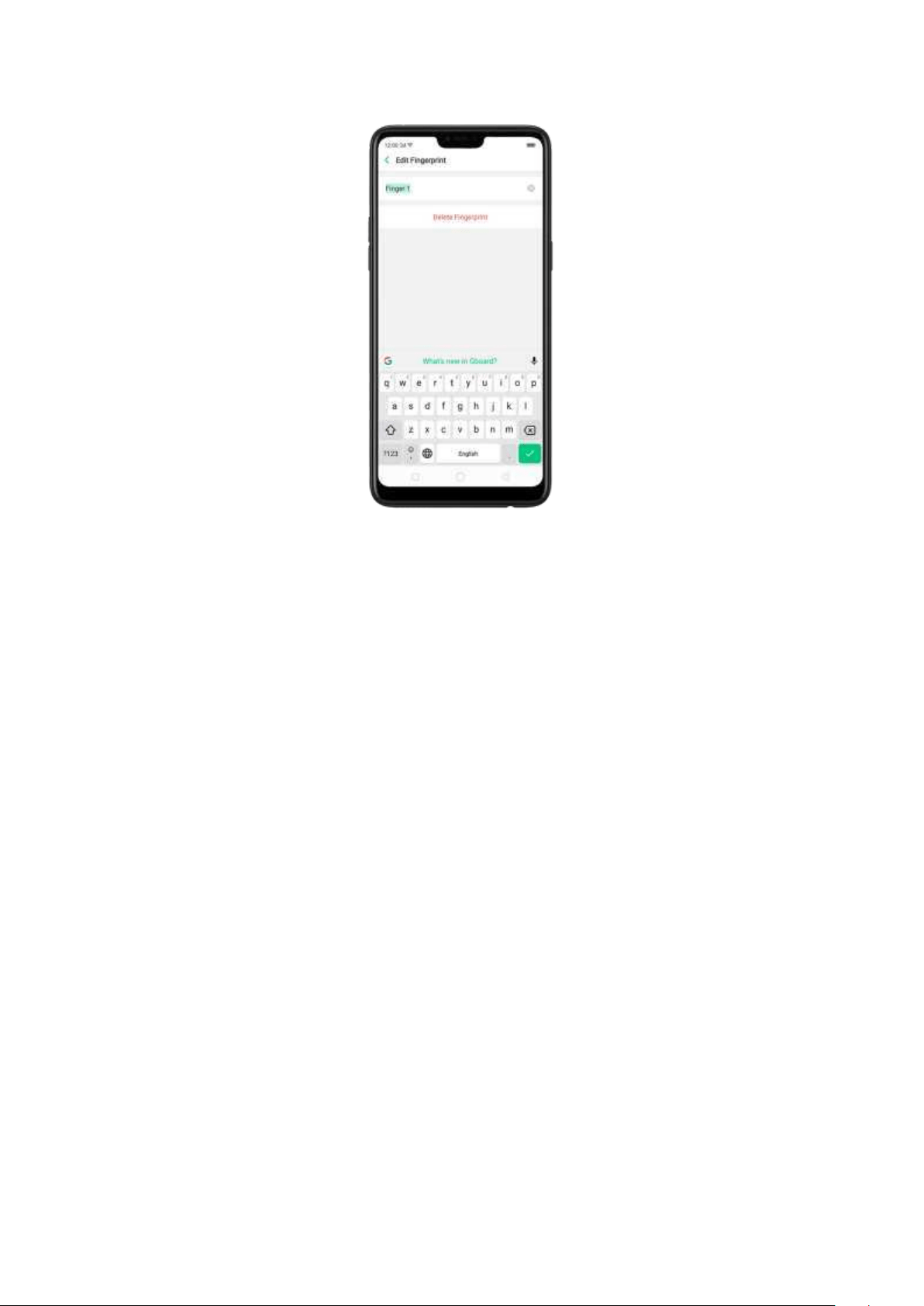
1. Go to [
Set t ings] > [Fin gerp rint , Face & Passcode], click the fingerprint you've
added.
2, Enter a name for your fingerprint, or click [
Delet e Fin gerp rint ].
Reset Passcode methods
Use fingerp rint to reset passcode
Before you can use the reset feature, you must add at least one fingerprint to your
phone and enabled Fingerprint Unlock.
1. For you to see the "Use the Fingerprint to Reset Passcode" option on your
phone, restart the phone at any time during t he 30 seconds countdown. See
Restart the phone.
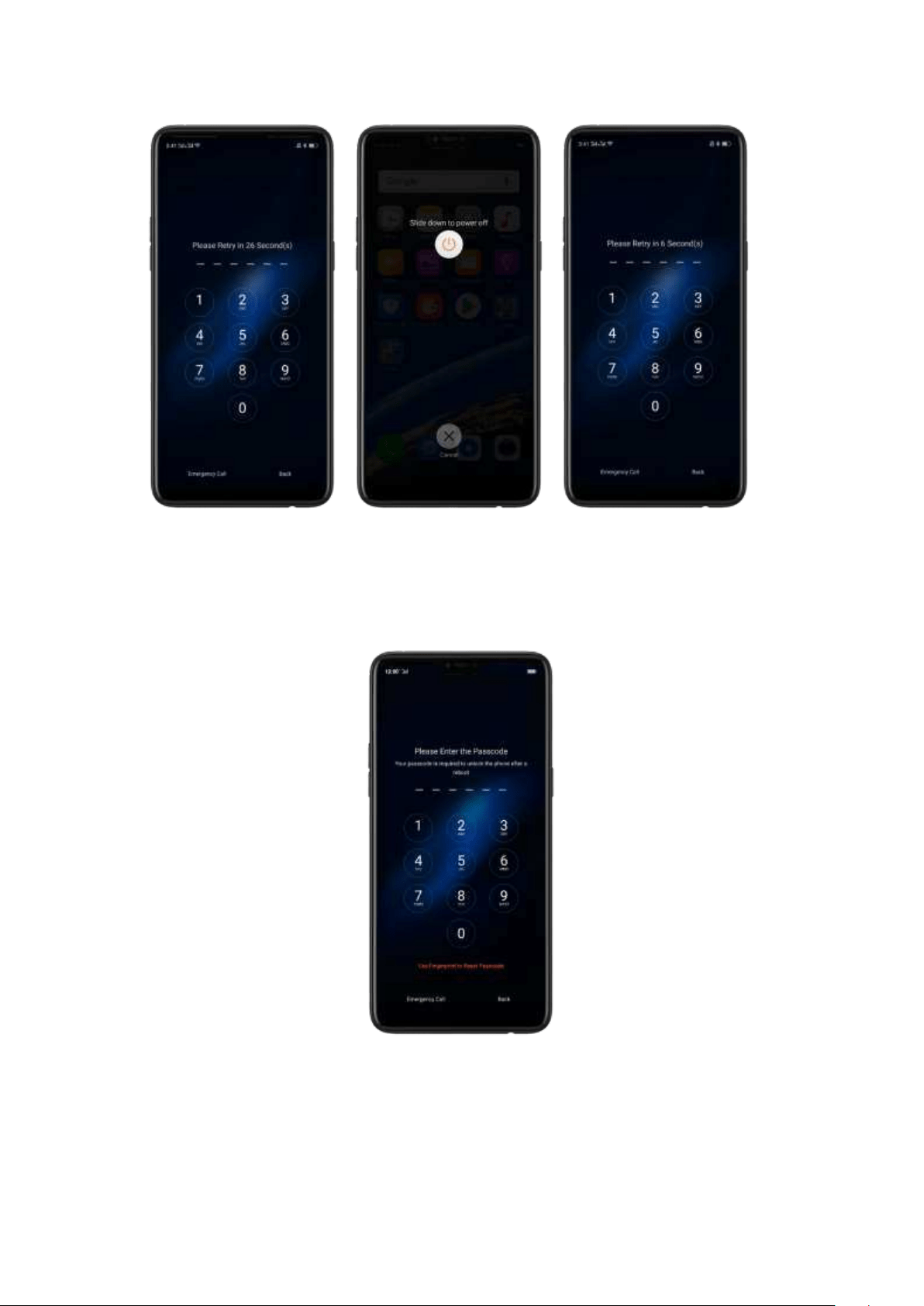
Note: You'll notice tha the tim er will continue from w here you left off.
2. After restarting the phone,
Use Fin gerprint to Reset p asscod e will be
accesible and you can now verify using your fingerprint and reset the passcode.
Reset passcode w it h fingerprint when the phone is unlocked.
When your p hone is unlocked, you can change the lock screen password directly
from the Settings page.
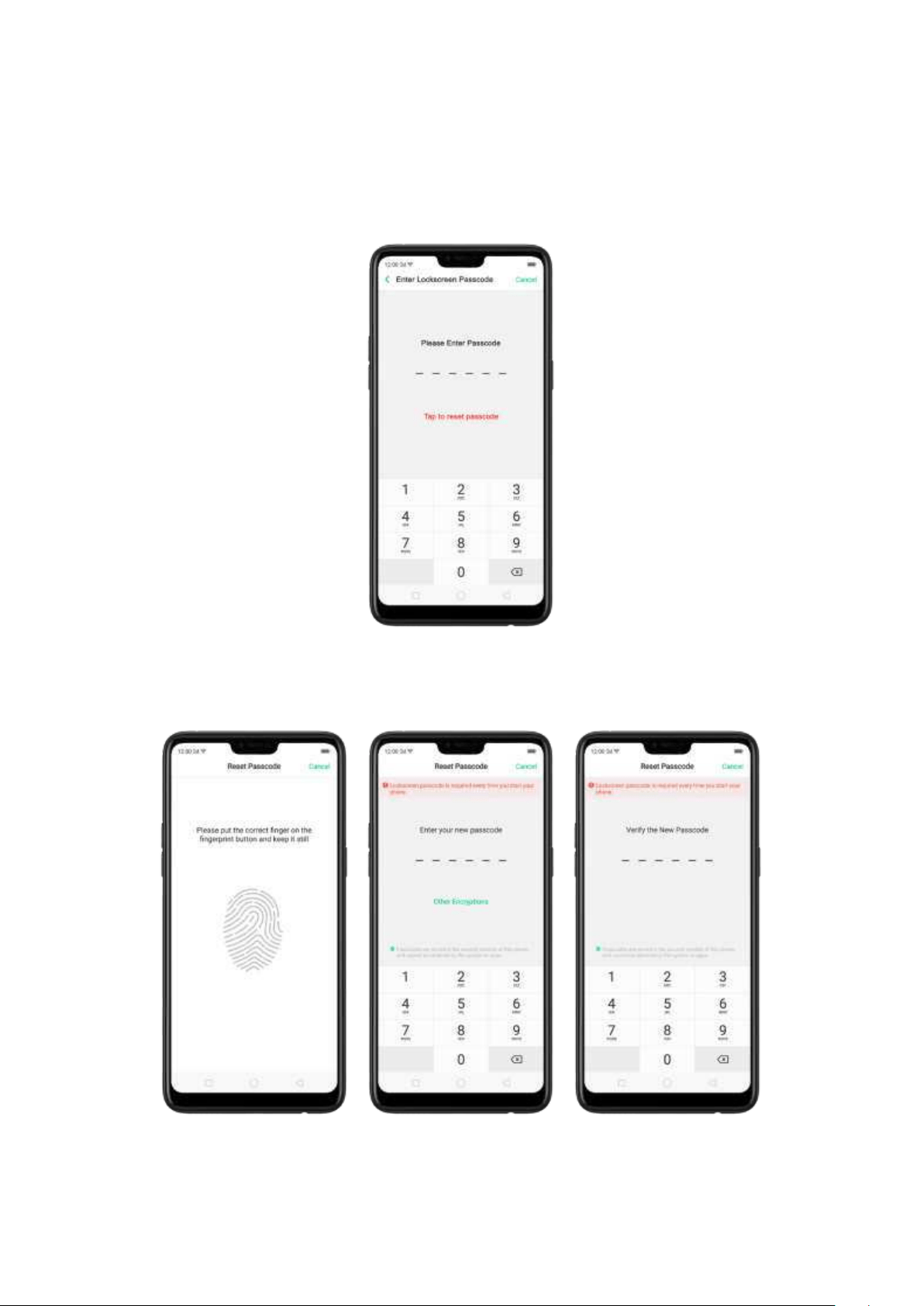
1. Go to [Set t ings] > [Fin gerp rint , Face & Passcod e], enter the wrong password five
tim es, then your phone will temporarily restrict you from entering the passcode
again and ask you to wait 30 seconds.
2. When the w aiting period is up, click
Tap to reset passcode.
1. Place your finger on the fingerprint sensor, then enter your new passcode and confirm
it.
Reset passw ord via Fingerprint or via Em ail
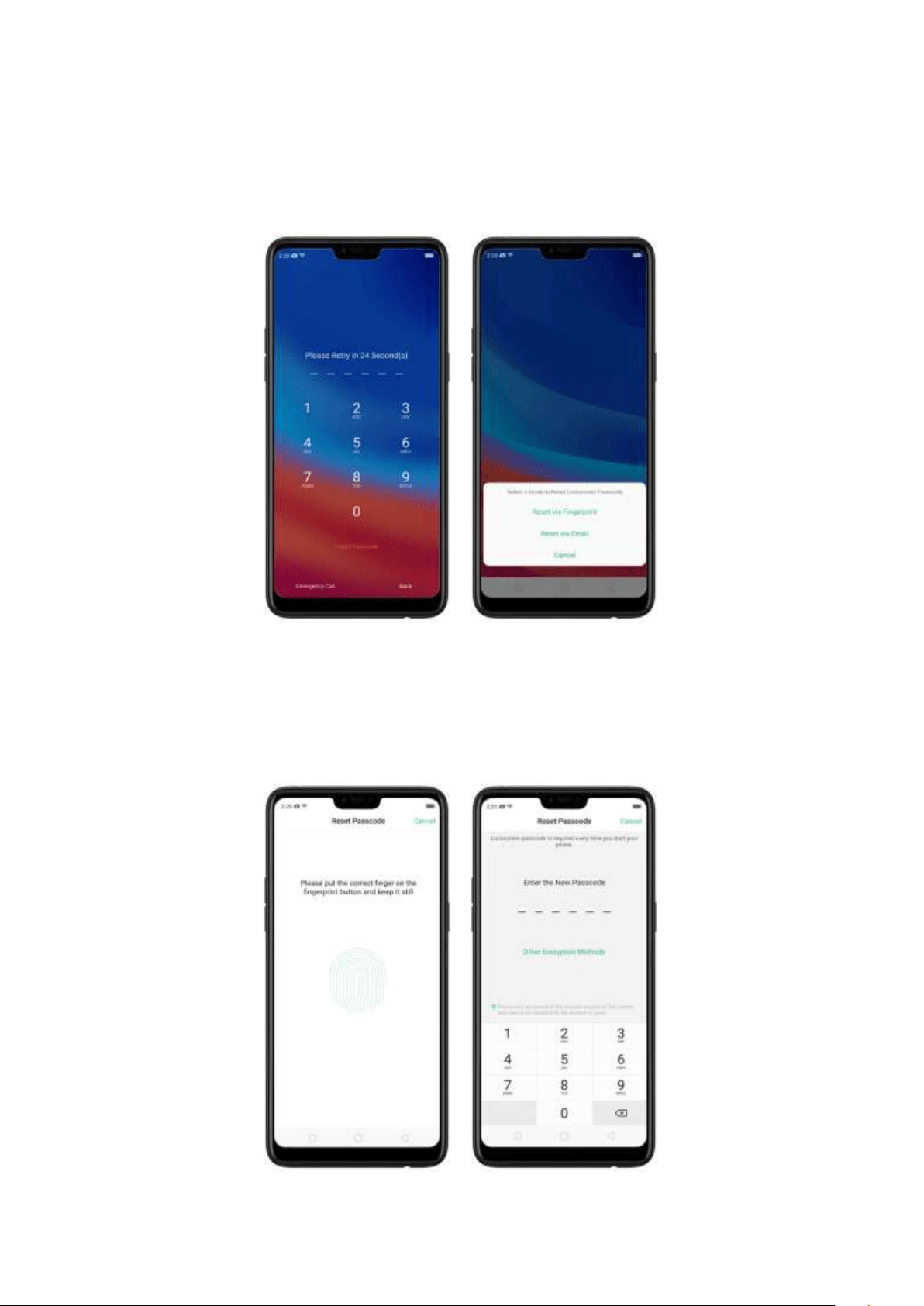
1. Enter the wrong password five tim es, then your phone will temporarily
restrict you from entering the passcode again and ask you to wait 30 seconds the
click Forgot Password . You will given options to either reset using fingerprint or
thru the email that you have bounded on t he phone.
Reset passw ord via fingerprint
Place your finger on the fingerprint sensor, then enter your new passcode and
confirm it.

Reset passw ord wit h bind security em ail address
When you have forgotten your lockscreen passcode and you also haven't enrolled
face recognition or for some reason it did not work, you can still reset the password
as long as you have bounded your security email address at the initial phase of
password creation. See bind security em ail address.
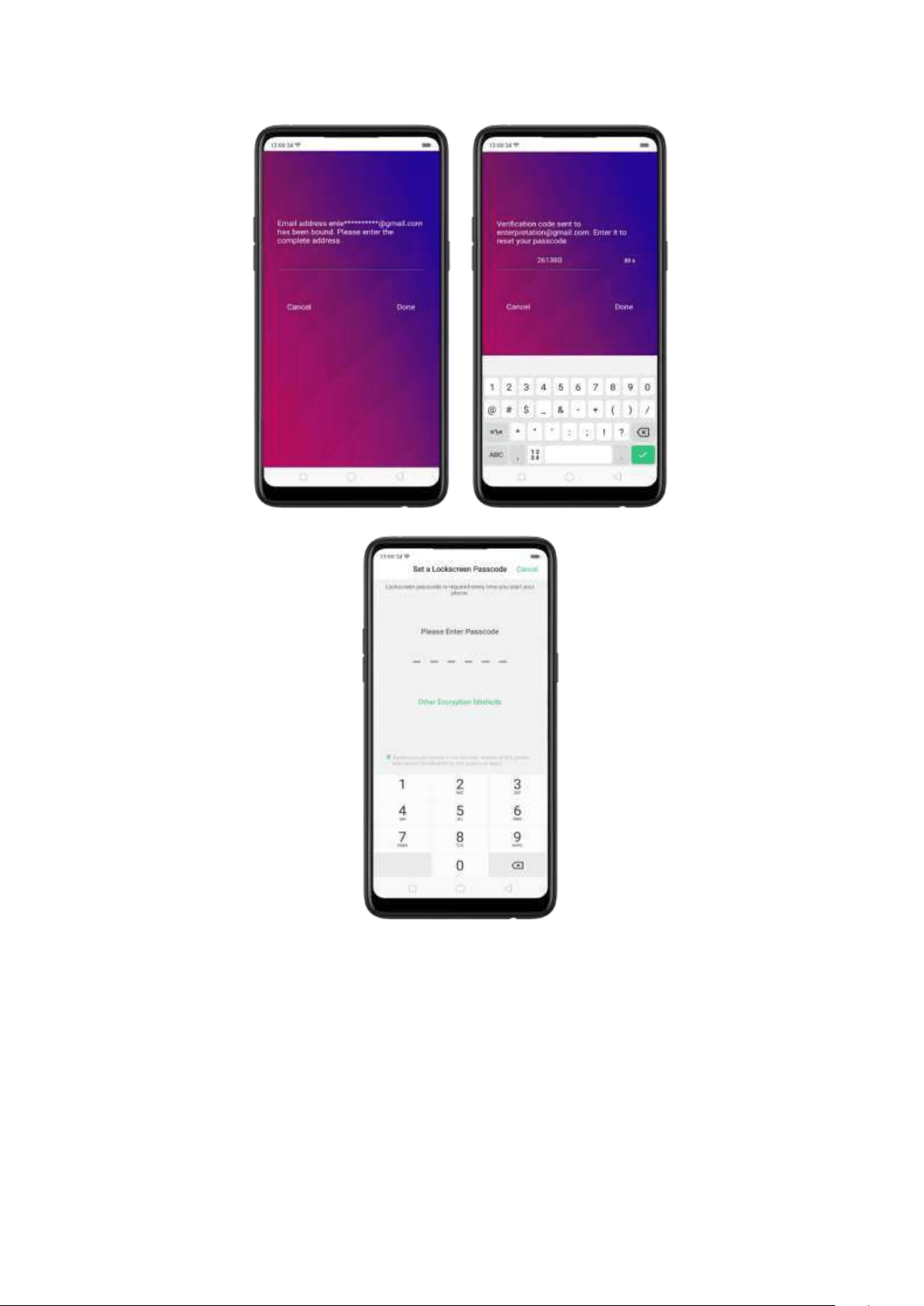
How to reset password using bind email:
1.Enter the email address that you have bounded on the phone, then ent er the
verification code that was sent t hru your email, click
Done. Now you can set a new
lockscreen passcode for your phone.
Enroll a Face on your OPPO phone
Before you can add a face you need to create a passcode for your OPPO phone.
You can use face for:
Unlocking t he phone from the lock screen.
Encrypting apps
Protecting files
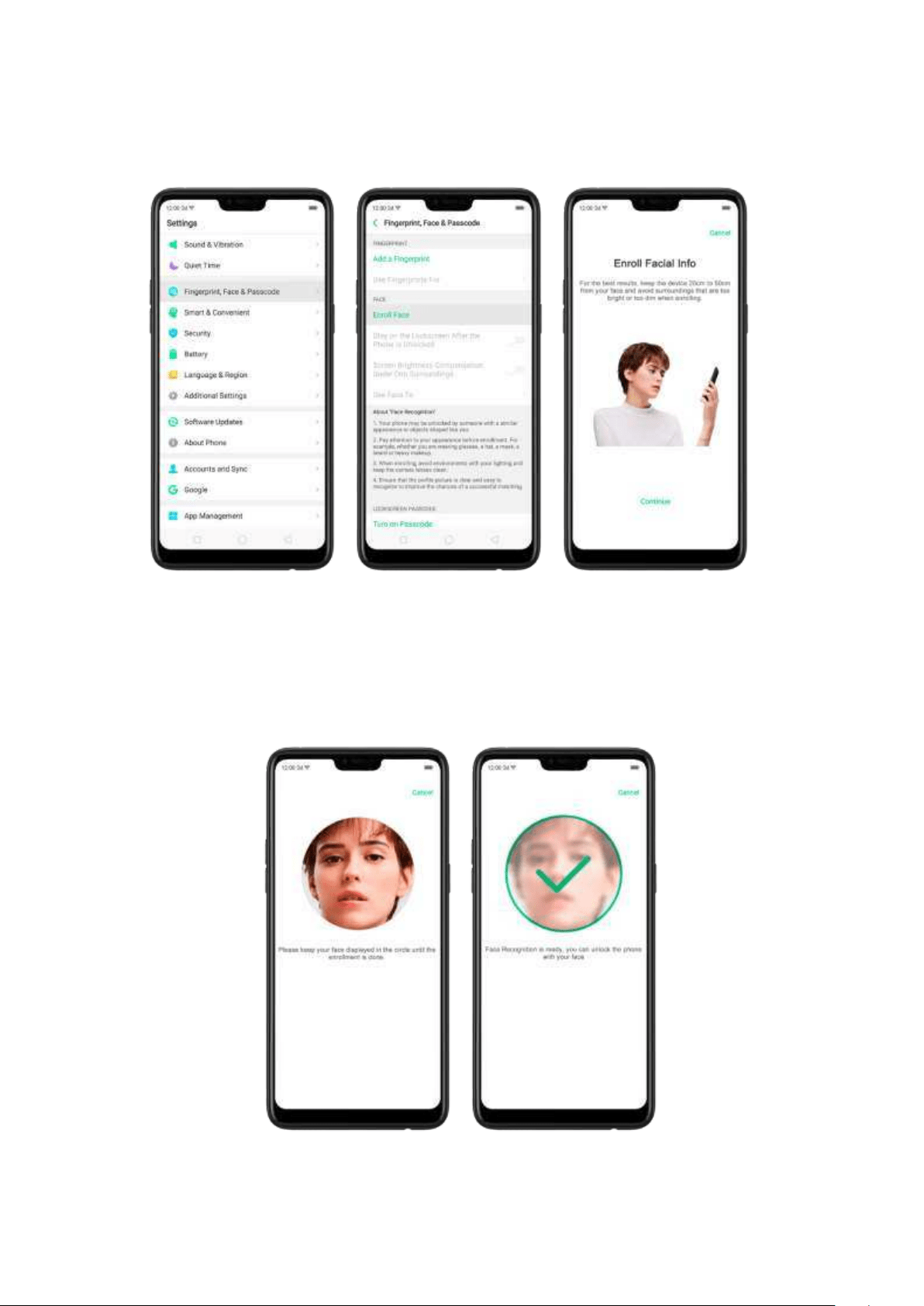
Enroll a face
1. Go to [
Set t ings] > [Fing erprint , Face & Passcod e], click [Enroll Face].
2. Follow t he on-screen instructions. To get the ideal effect, keep the phone 20-
50cm away from your face and position your w hole face in the circle until the
enrollm ent is done. Avoid very bright or dim environment w hen enrolling your
face.
Delete Enrolled Faces
Go to [Set t ings] > [Fin gerp rint , Face & Passcode], click [Delet e Enrolled Faces].
Use Face for screen unlocking, App Lock and File Safe. Go to [
Set t ings] >
[
Fingerp rint , Face & Passcod e] > [Use Face t o ], then turn on the features you
want t o use.
View more details in Add and use a fingerprint on your OPPO Sm artphone.
Not e: Not all phone's running on ColorOS 5.1 supports fingerprint. It still depends
on the design of the phone.
3.2.2. Set up ot her mail and calendar account s
In addition to t he apps that com e with your p hone, if you want t o use ot her mail
and calendar apps, add the accounts to your phone to let the apps associated with
those accounts sync with your phone.
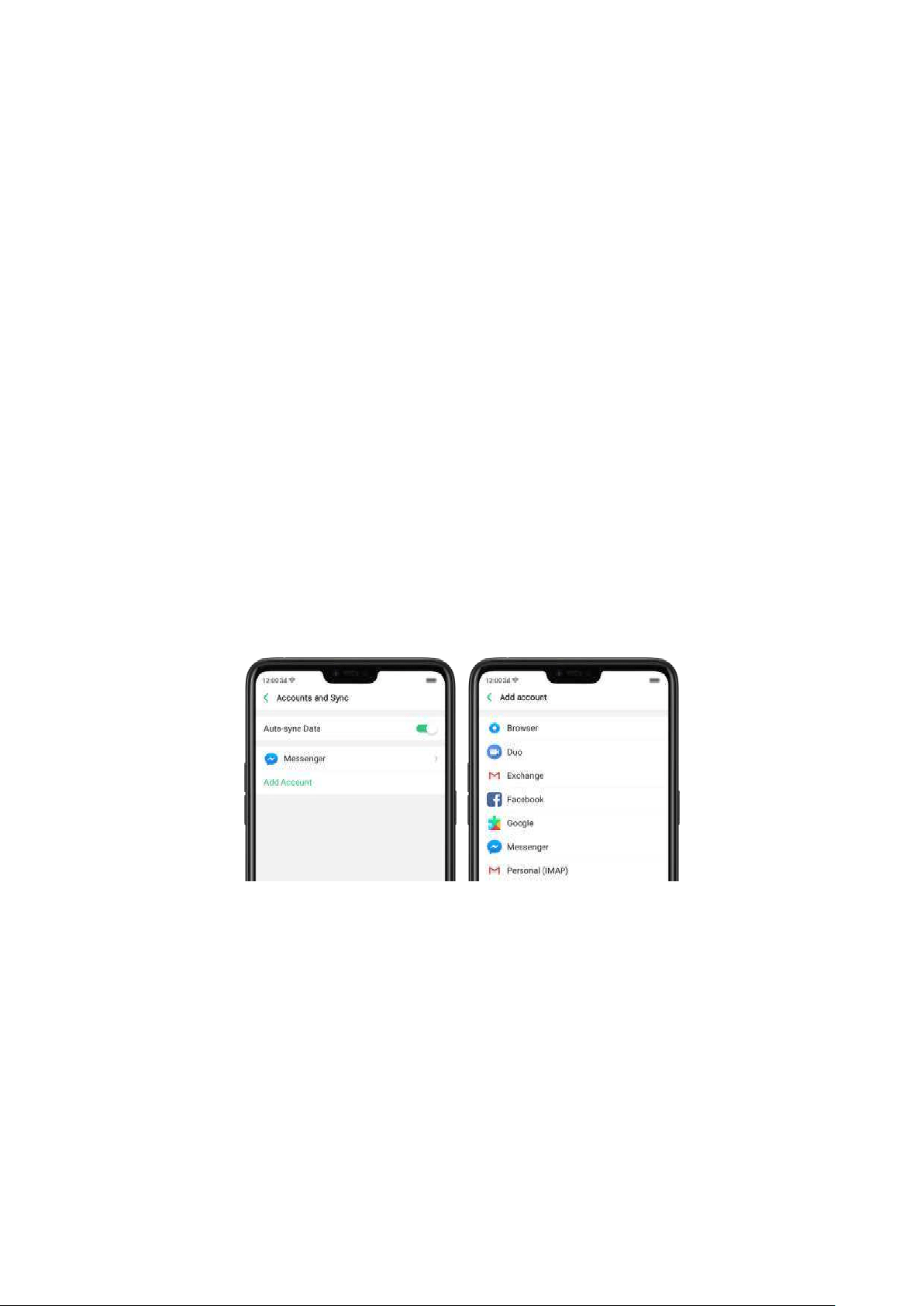
Set up an accou nt. Go to [Set t in gs] > [Account s and Sync], then click [Ad d
Account ].
Repeat the steps for as many account s as you like.
3.2.3. Transfer data from the old phone to OPPO
sm art p hone
You can transfer over all of your data - with no risk or loss of quality, using Clone
Phone. Wit h Clone Phone, you don't need to leave any of your data behind with
your previous device. Take it all with you in t hree easy steps:
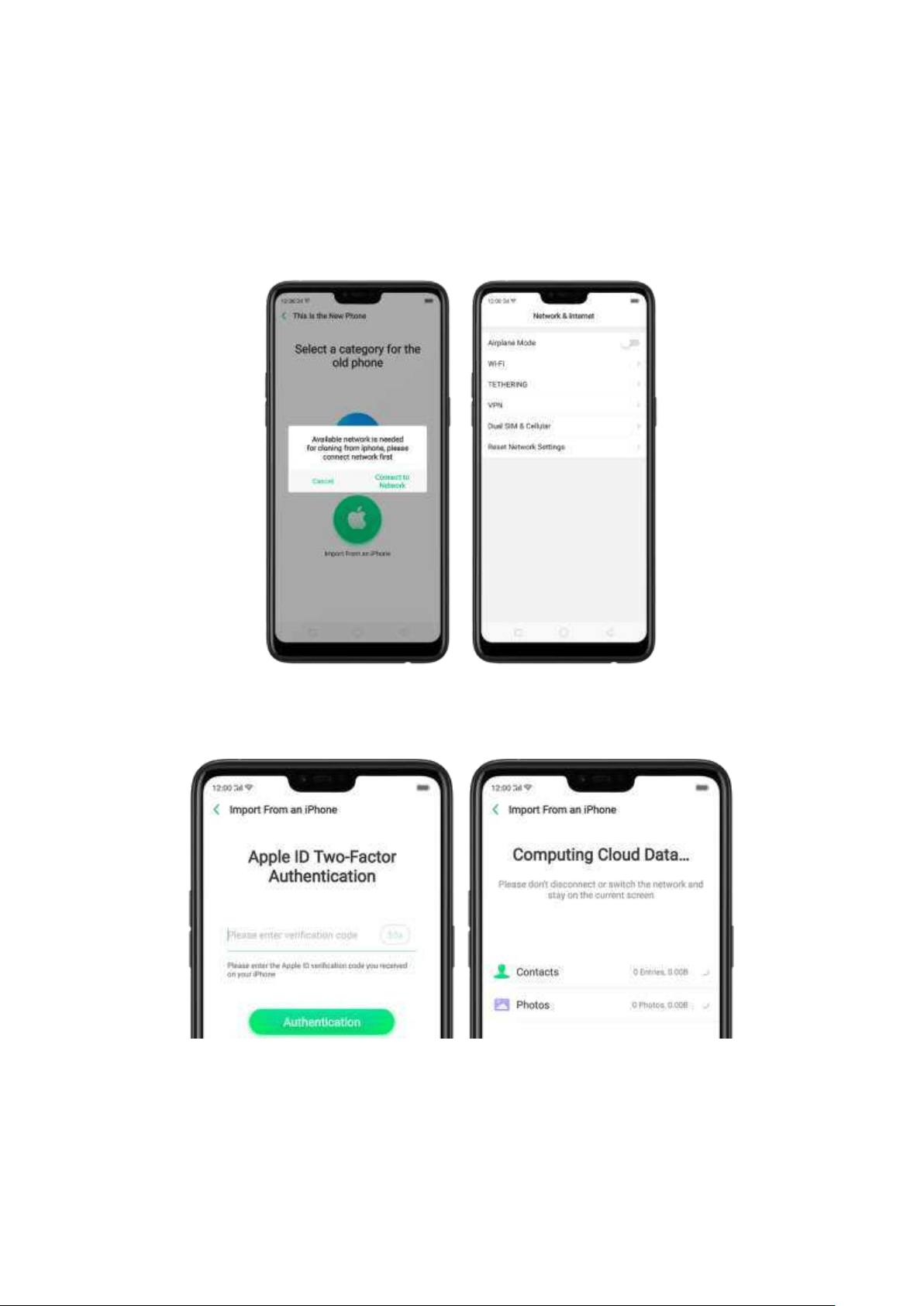
From an iPhone to an OPPO Phone
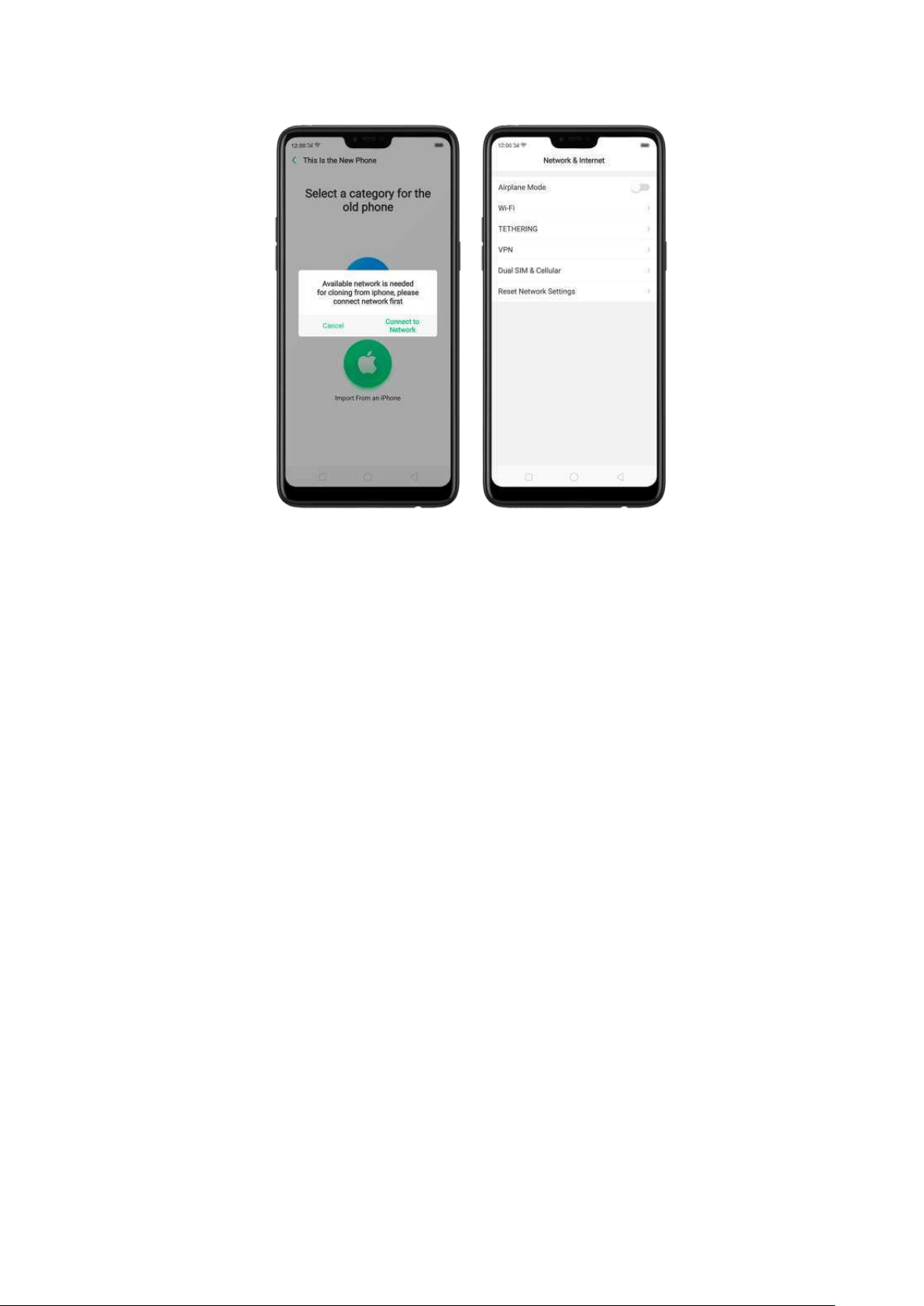
1. On your OPPO Phone, go to [Tools] > [Clone Phone], then select "This is the new
phone" and "Import From an iPhone". Connect your p hone to the Internet when
promoted.
2. Sign in the iCloud account of your old iPhone. Enter the Apple ID verification code
you received on your iPhone or in t he SMS and start computing cloud dat a.
From an Android Phone t o an OPPO Phone
1. On your OPPO phone, go t o
[Tools] > [Clo ne Pho ne], then select "This is the new
phone" and "Import from an Android Phone".
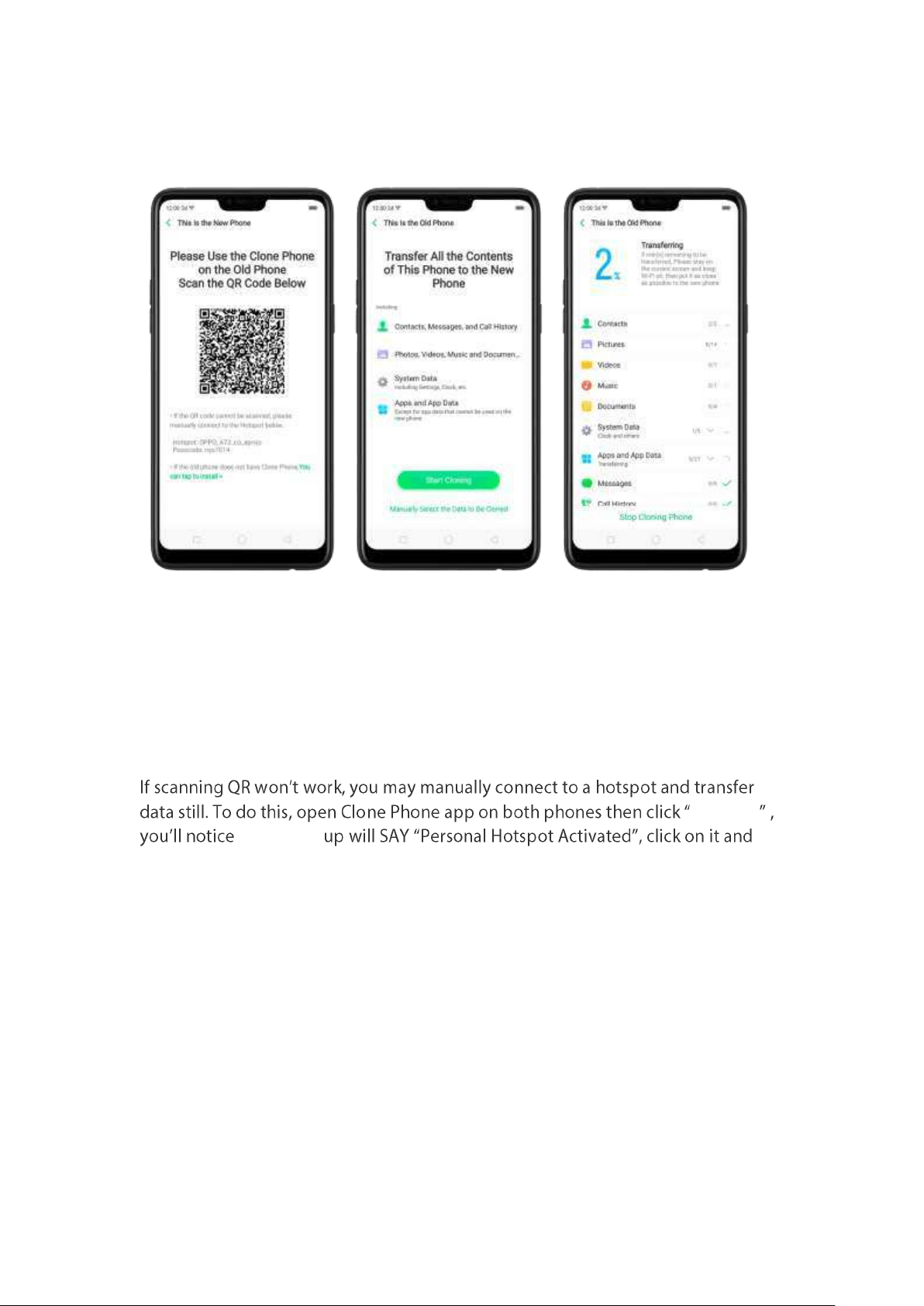
2. On your old phone, click [Clon e Phon e] from t he Ho me screen, select "This is the
old phone" and scan t he QR Code generated by the new p hone to start cloning.
You can also select the data (Personal Data, System Data, Applications, St orage
Data) to be cloned by clicking
"Manuall y Select the Dat a to be Clon ed ."
3. Enter the lock screen password to continue.
If the QR code cannot be scanned
Conn ect
that a pop-
find the Hotspot name on the Wi-Fi setting and enter the password then you can
start transferring files.
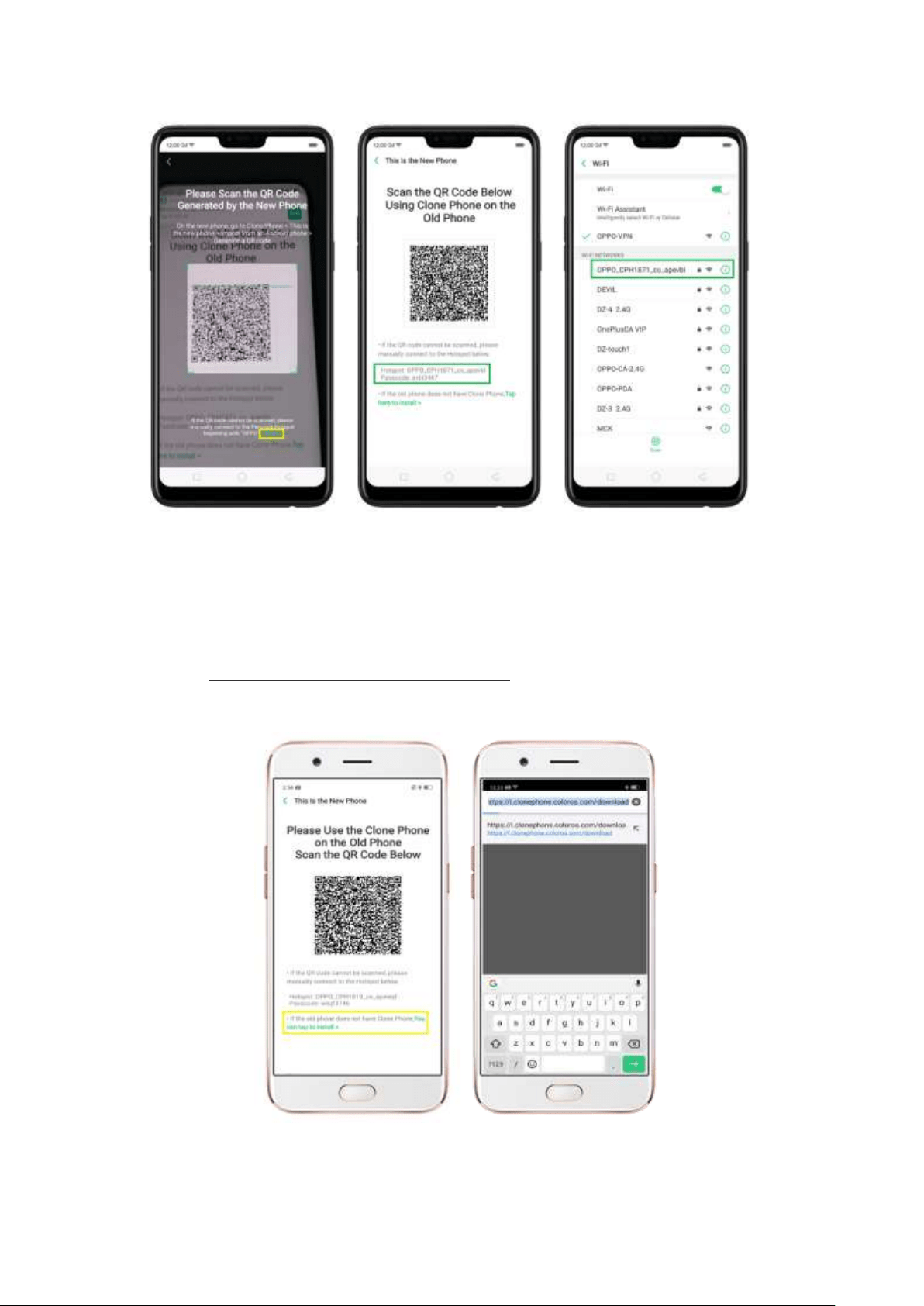
If old ph one doesn't have a Clone phone
1. Click You can t ap to inst all> and it will direct you to a web browser or open a
browser from your phone and go to the
website:
i.clonep hon e.coloros.com / do wnload . (Not e: t his only works when you
open it using your m obile phone. This will not open on your computer).
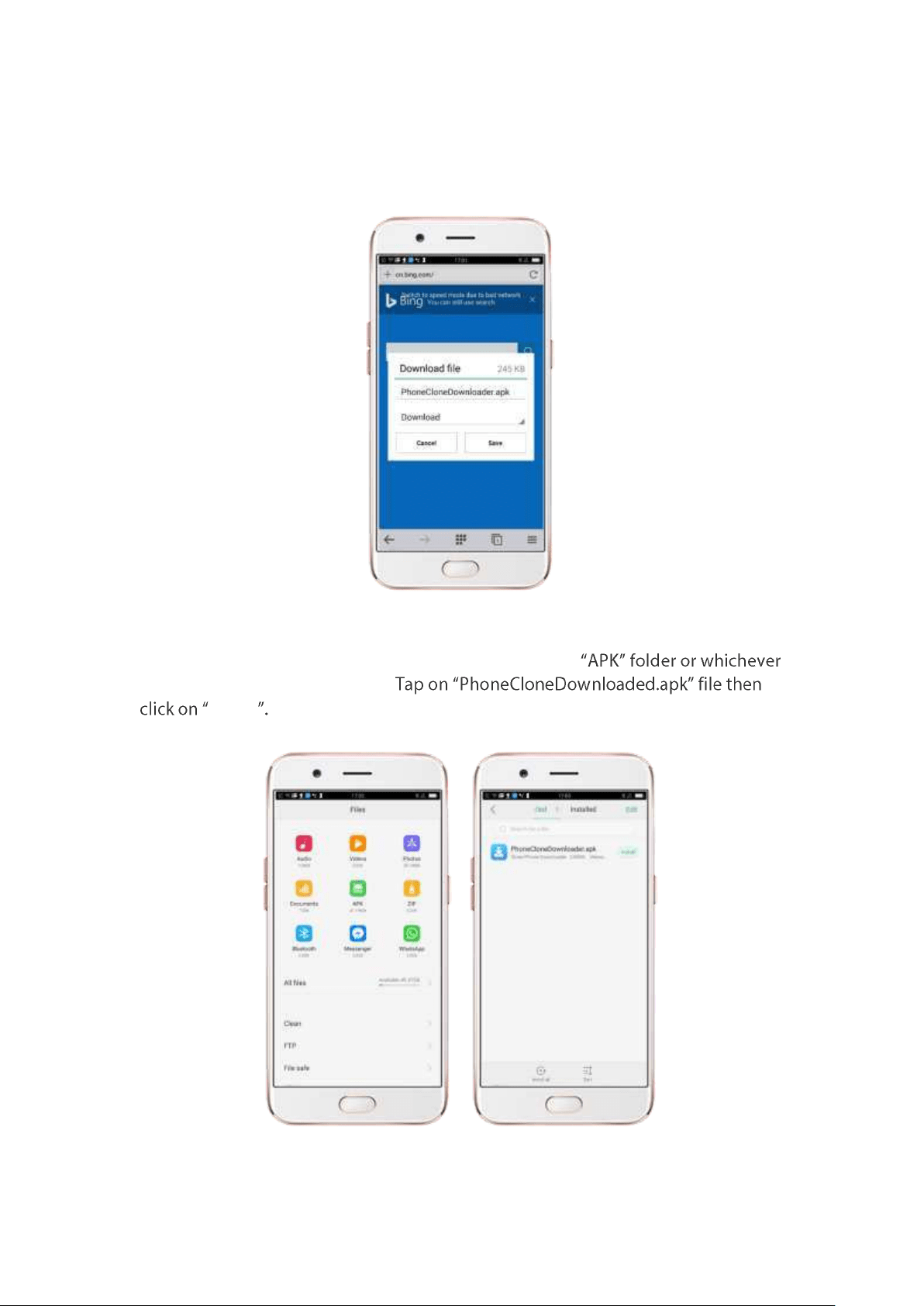
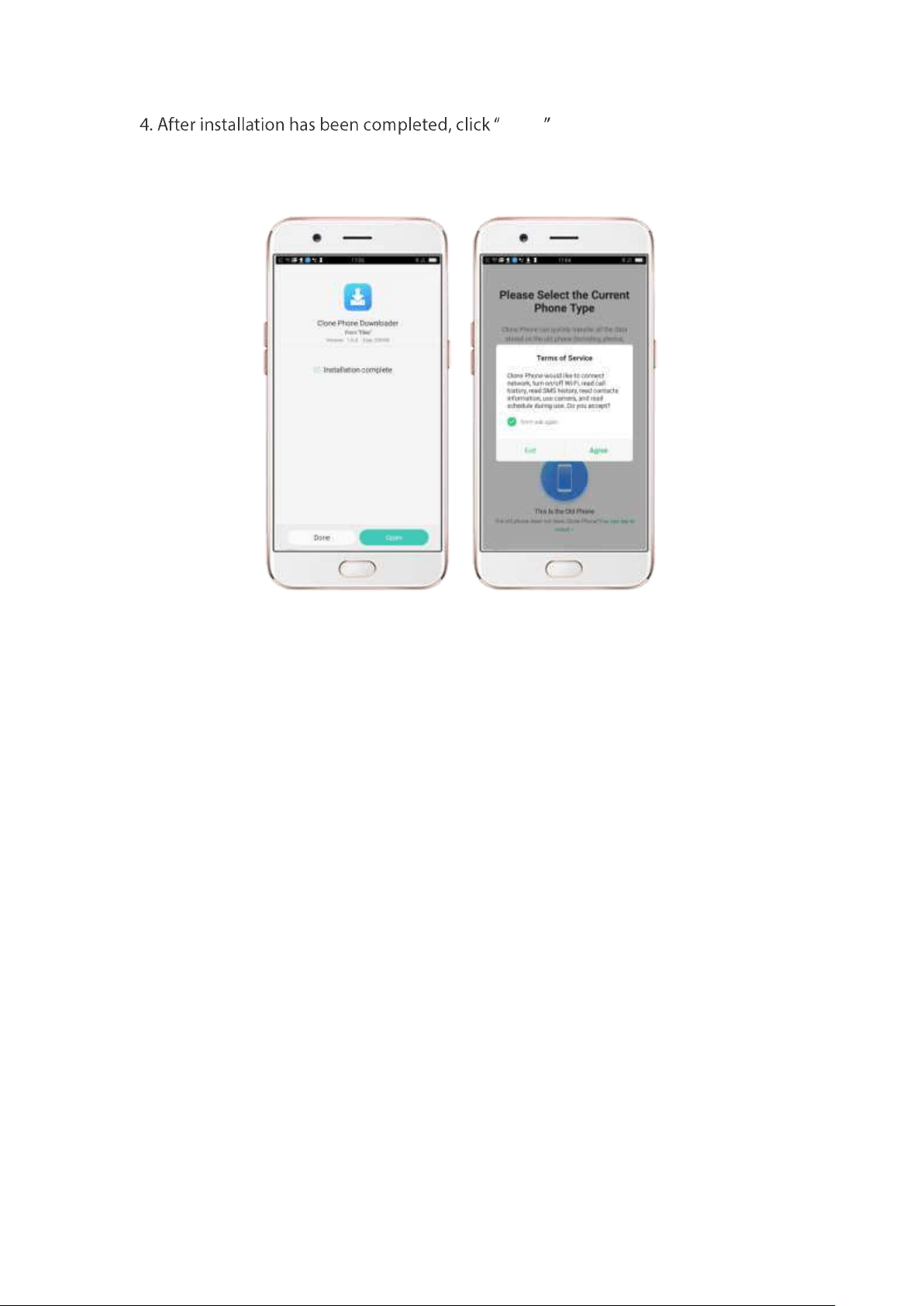
2. Once you have entered the link above, it will prompt you to dow nload t he Clone
Phone dow nloader APK file under the Download folder. You may change the folder
path if you wish just click "Chang e t he direct ory" then Click "Save".
3. Once download is done. On your home screen, go to t he notification panel for
the downloaded file or go to Files/File Manager and click
folder you chose to save the file.
Install
Done and you can now start to
transfer files.
Not e: The duration of t he Clone Phone process depends on how big the data you
are going to transfer. Please patiently wait before it is completely transferred.
3.2.4. Dat e and Tim e
Knowing the time and date is crucial to keeping on schedule. If you want to set the
date and time display on your OPPO phone, or if you're out of synch or need a time
update, just start wit h step 1 as below.
1. Go to [Settings] > [Additional Settings] > [Date & Time], click it.
2. 24- Hour Format. Switch from 12-hour or a 24-hour format optionally.
3. Automatically Set Date and Tim e. Enable [Automatically Set Date and Tim e] if you
want to use the data given by your network provider or your GPS, or you can set
the time yourself if you prefer. See step 4.
4. Set Manually. You can m anually set the tim e and d ate. To do so,
disable [Automatically Set Date and Time], and then:
Select your tim e zone. Click [Time Zone] and select the location you would like
to adjust your tim e to.
Change t he date and time. You will see the date and time appear under the
current tim e zone. Drag your finger across each colum n t o change the date and
tim e. Scroll wheels will appear to allow you to change the date and time
sim ultaneously.
View more details in Set up date and tim e on your OPPO smartphone.
3.2.5. Language and Region
OPPO smartphone offers you an easy access t o configure it to display inform ation in
another language. If you want t o change its language to yours, or if you've relocated
to a new country, you can change language and region by following a few easy steps.
1. Go to [Settings] > [Language & Region], click it.
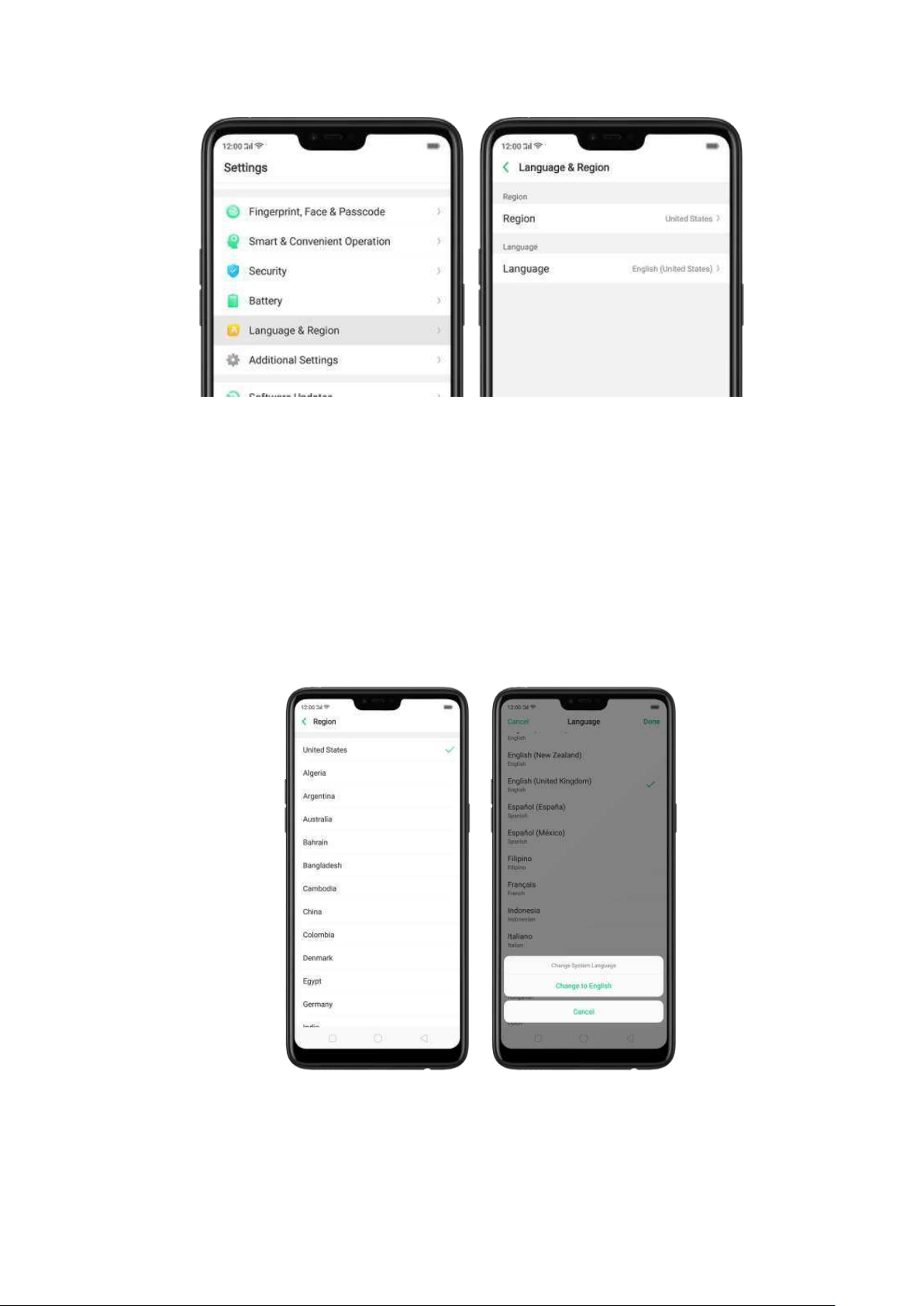
2. Find your desired region. Click Region and change the region you want to use.
3. Find your desired language.
Click [Language], you will see a list of languages. Scroll down to find the
language you wish t o use.
Select your desired language and click "Done." A confirm ation m essage w ill
appear at the bottom of your screen. Confirm the change by clicking "Change
to ____." Then your OPPO p hone will be in the new desired language.

3.2.6. Connect to t he Int ernet
OPPO smartphone connects t o t he Internet whenever necessary, using a Wi-Fi
connection or mobile network.
Wi-Fi connect ion
1. Go to [Settings] > [Wi-Fi], or swipe down from the top of your screen to open
Control Center, then tap . The detected Wi-Fi networks will be displayed.
2. Tap the Wi-Fi network you want to connect to.
3. Fill in the password if required.
Mobile dat a conn ection
Go to [Settings] > [Dual SIM & Cellular] and enable [Mobile Data], or swipe down
from the top of your screen to open Control Center, then tap .
Notice: Enabling t he m obile networks connection may result in extra cost. Check
with your m obile netw ork service carrier.
4. What 's new in ColorOS 5.1
4.1. New Feat ures of Calculat or
The new Calculator app not only combines the standard and scientific calculators
but added useful functions which will come handy in time.
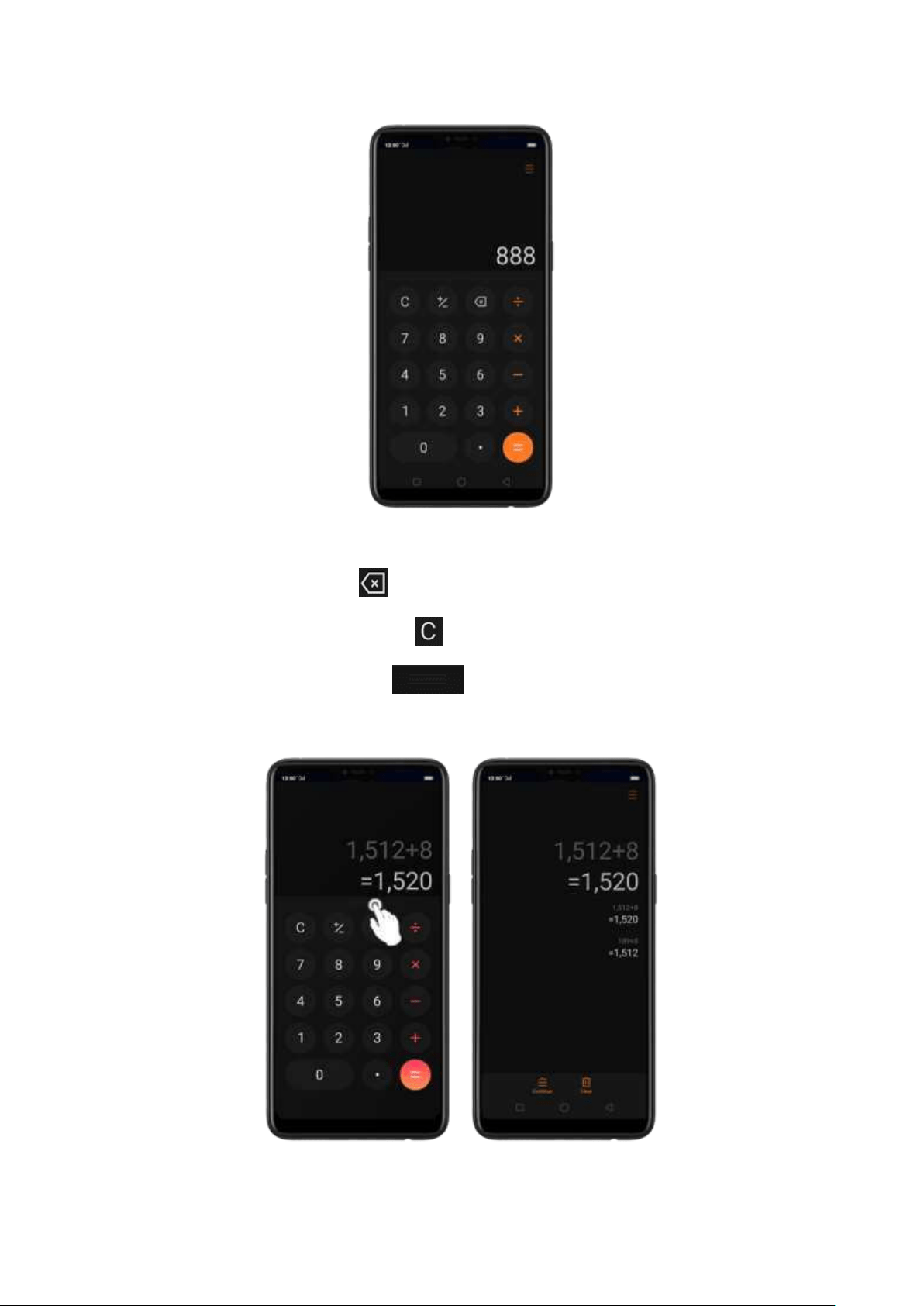
Delet e t he last digit . Click .
Clear t he calculat ion result s. Click .
Hide or show t he keyp ad . Click in the middle of the screen to hide the
keypad. Click Calculate or the calculation formula to resume.
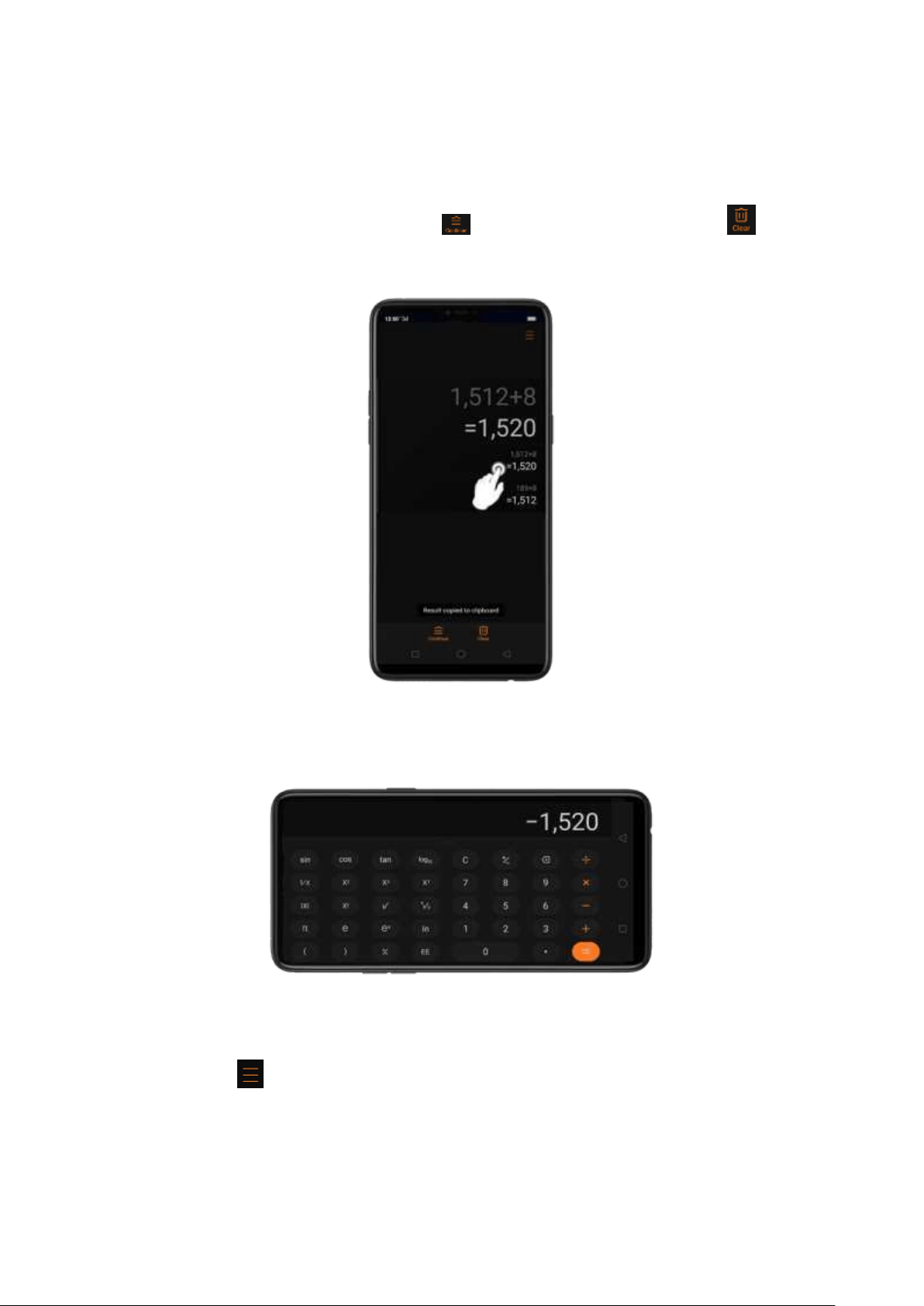
Cop y a calculat ion result to clip board . Long press the results and it will be
copied to the clipboard. You can click to continue calculating or click if
you want to clear everything and start a new one.
Use th e scient ific calculat or. Rotate your phone to landscape orientation.
New funct ions in Calculat or. There are a lot of im portant functions t hat has been
added. Click at the top right portion of your calculator then select a function
that you would like to use.
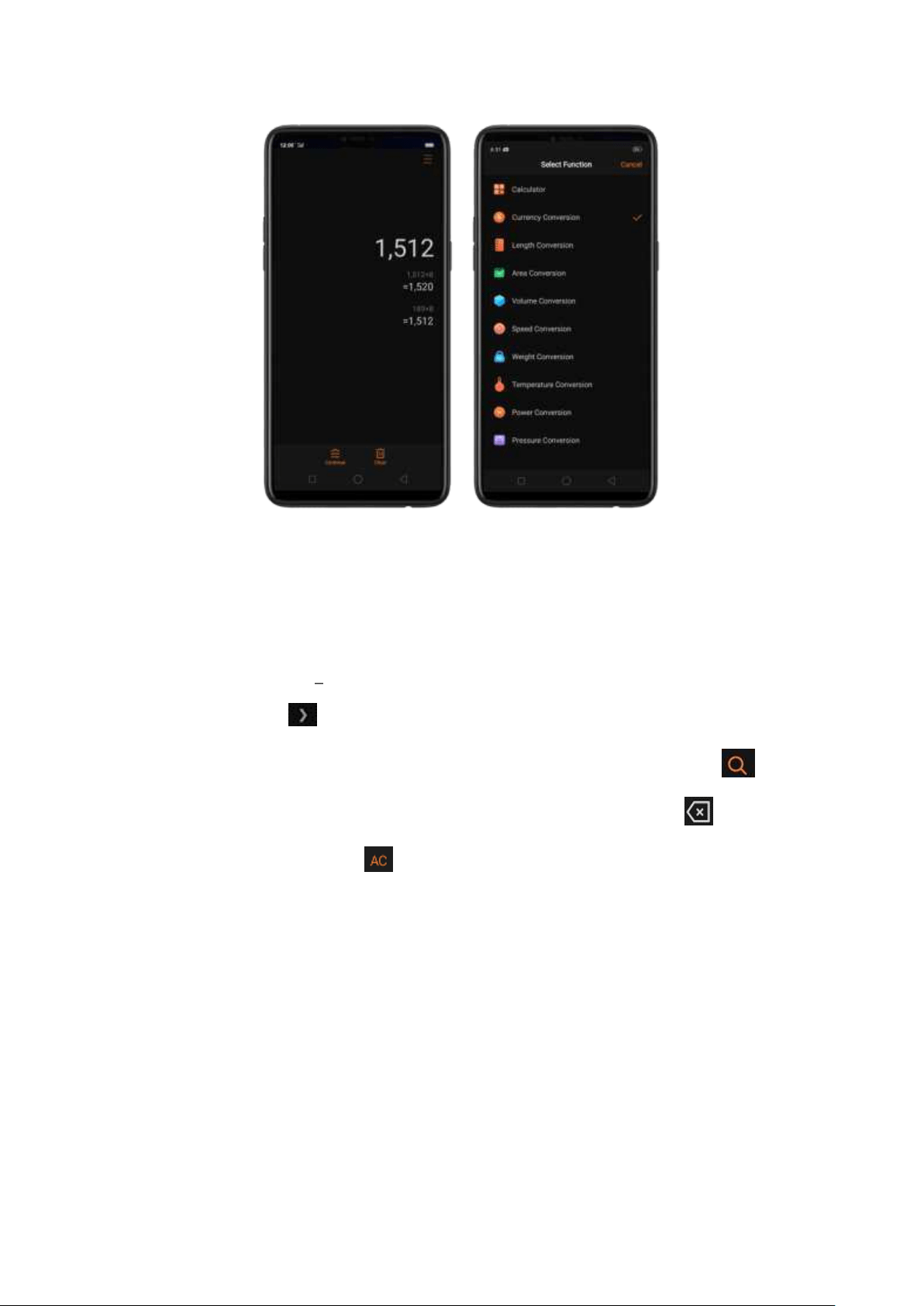
The New Funct ions
Currency Conversion if you want to know what are the current real time
conversions. Click to select the currencies you would like to convert. It is on
alphabetical order with their national flags beside them. You can also click to
search for the country or currency that you would like to convert. Click to
delete the last digit and click to clear results. Long press the result and it will
be copied to the clipboard
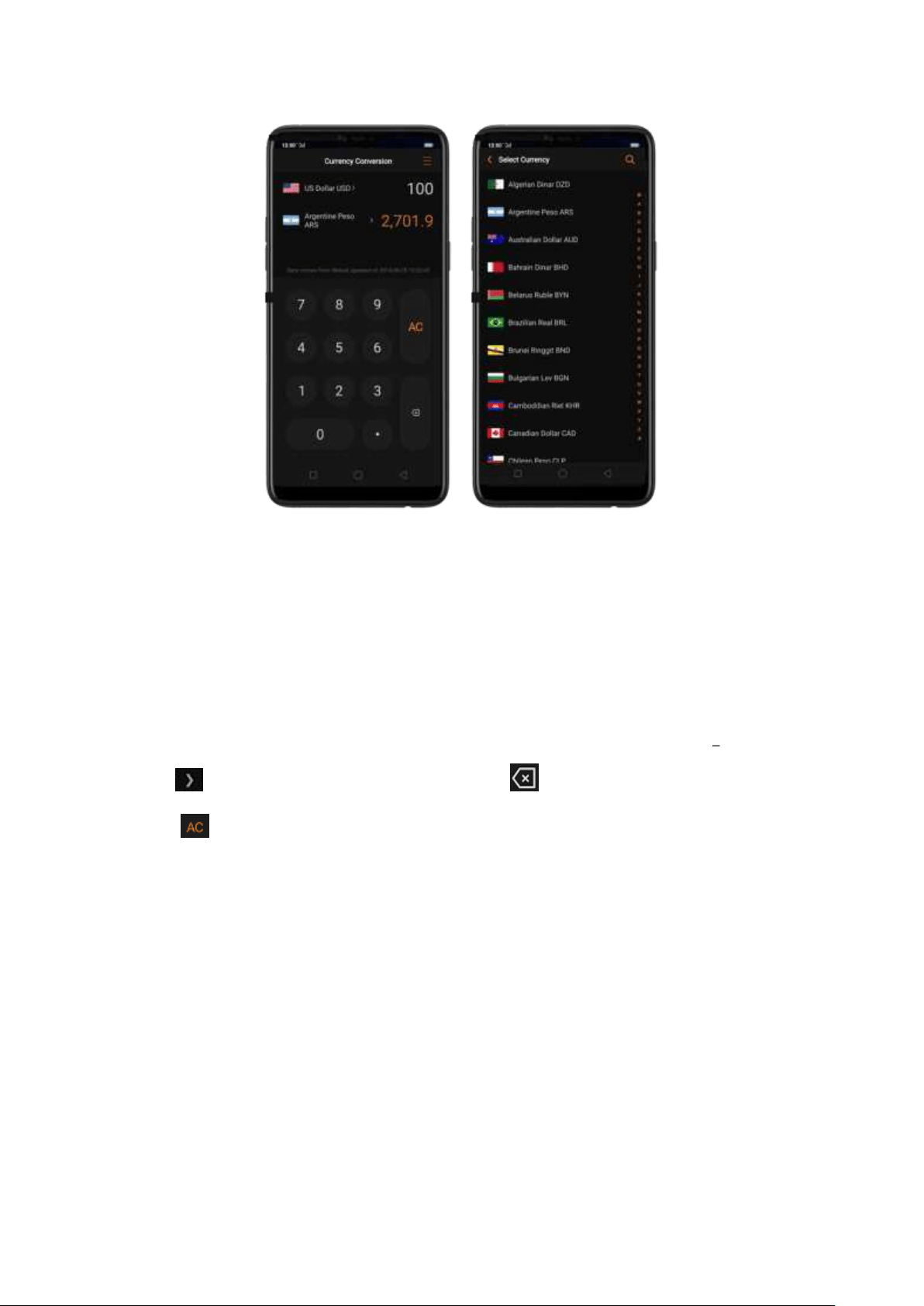
Not e: Given that the exchange rates are volatile and change every second, you
need to have an internet connection for this t o function and to get the real tim e
conversions.
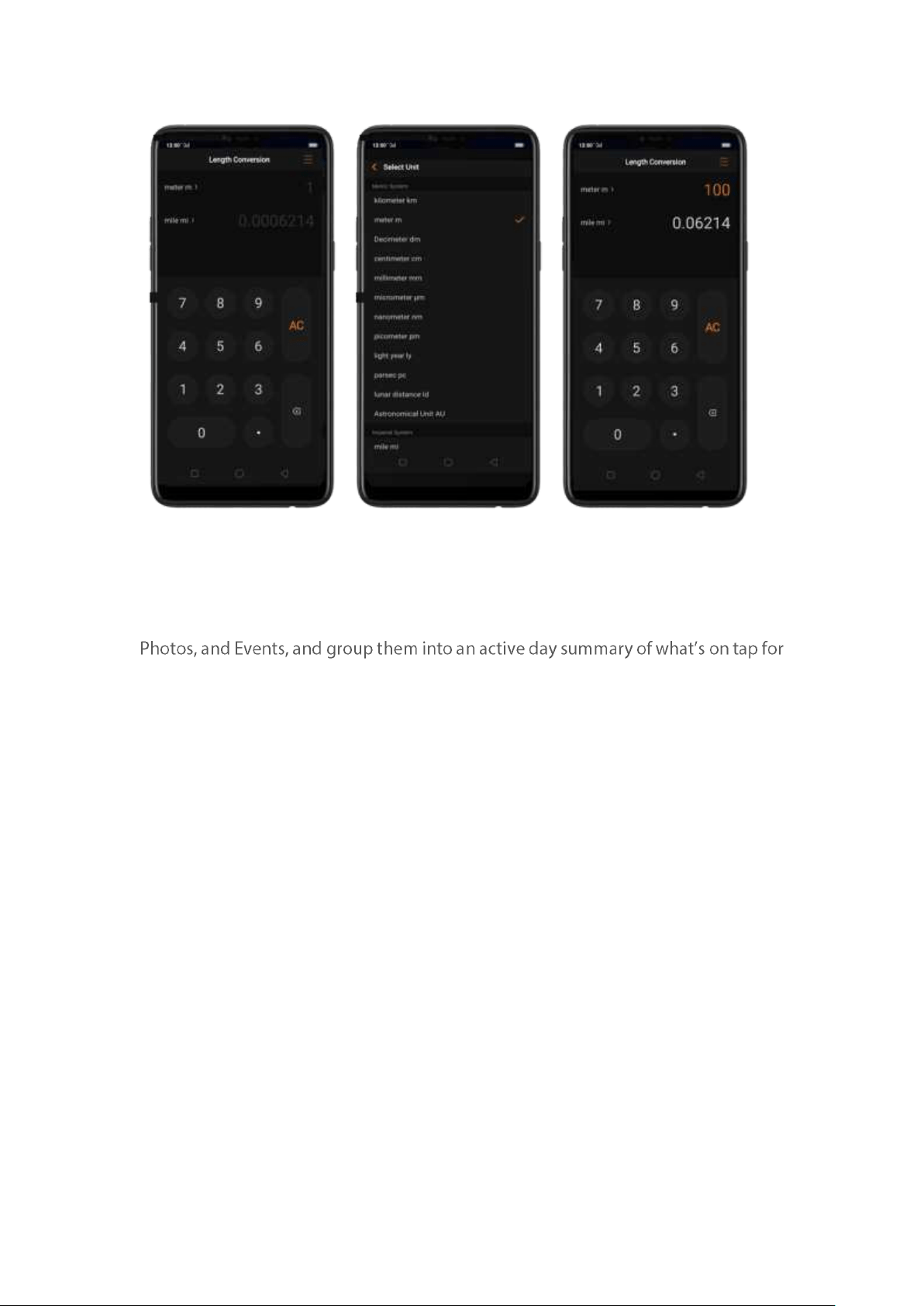
Length, Area, Volume, Speed, Weight, Temperature, Power, and Pressure Conversions
Click to select the unit you want to convert. Click t o delete the last digit and
click to clear result s. Long press the result and it will be copied t o the clipboard.
4.2. New Features of Smart Assist ant
The new Smart Assistant combines information such as Weather, Steps Tracker,
today. Quick apps and favorite contacts allow you to open an app or call someone
with only one tap. You can also custom ize Smart Assistant t o better suit your needs
and to emphasize w hat you actually care about.
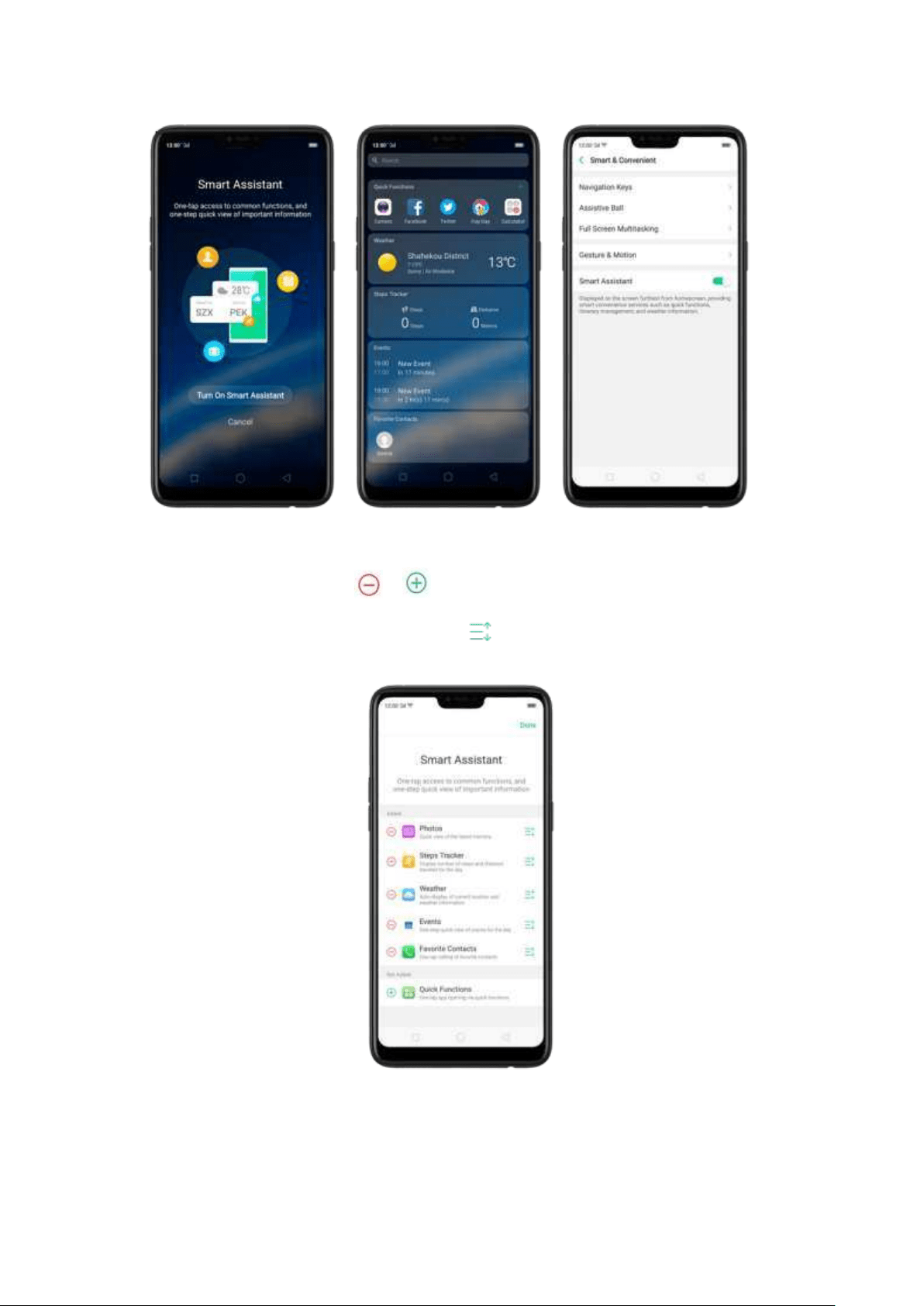
Open Sm art Assistant. Go t o [
Set t ing s] > [Smart & Conveni ent ] and turn on [Sm art
Assist ant ]. Or swip e rig ht from the left edge of the Home screen, then click Turn on
Sm art Assistant.
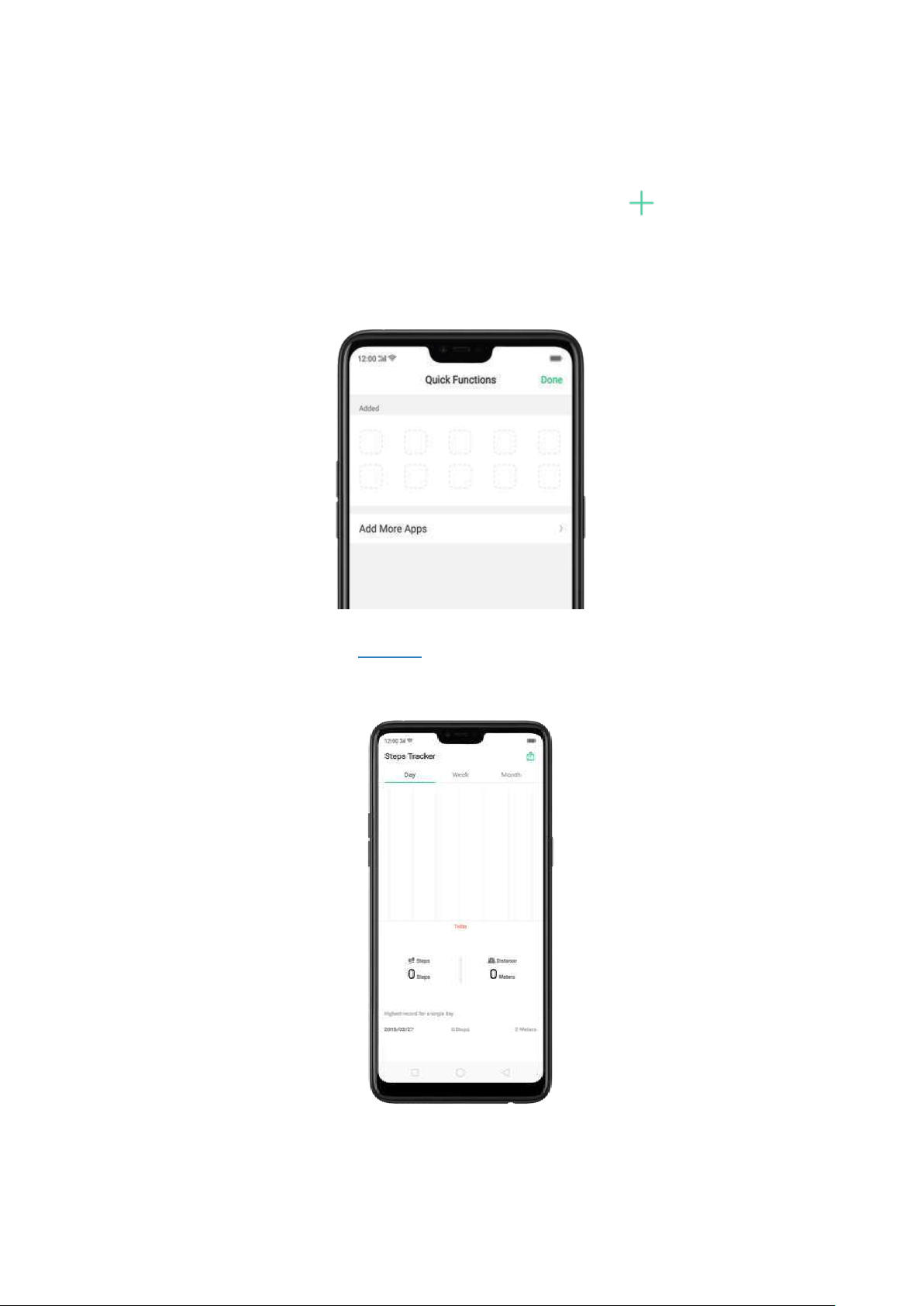
Customize Sm art Assist ant widget s. Scroll to the bott om of Smart Assist ant
screen, then click Edit. Click or to add or remove widgets. To arrange t he
order of your inform ation, touch and hold , then drag to a new p osition.
Inform at ion you can get from Smart Assist ant :
Quick Funct ions: Provides you wit h quick access to apps. Click , click Add More
Apps, then choose an ap p. You can open t he app directly by clicking its icon in
Sm art Assistant. You can also add the convert CUR on t he quick Functions, which
is quite convenient.
Weat her: Provides you with weather conditions of your current location.
St ep s Tracker: Keeps track of your daily steps and distance covered.
Events: Keeps track of all your events in the Calendar app.
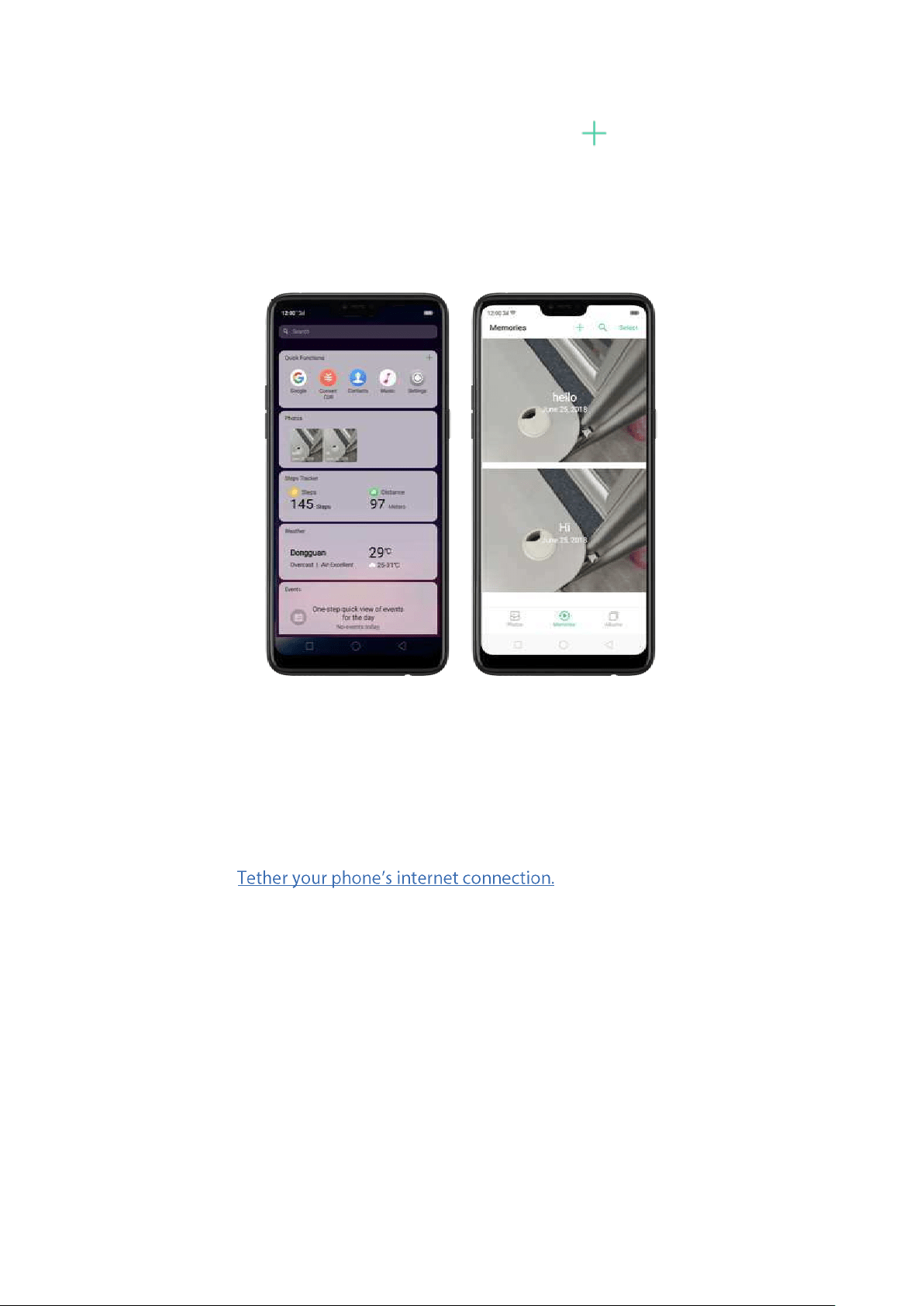
Favorit e Contact s: Lets you make call with one tap. Click , then choose a
contact. Click the head portrait to call the person.
Phot os: You can have a quick view of your latest photo album on your memories.
Please make sure that you have photo on your memories so that it will show on
Sm art Assistant page.
.
4.3. Use Wi-Fi Tet hering
This makes your phone as a Wi-Fi router which basically has the same functionality
to that of a traditional router w hich enables t he sharing of internet to other Wi-Fi
devices. See
Use Wi-Fi Tet hering
1. Go to [Set t ings] > [Ot her Wireless Con nect ions] > and enable [Wi-Fi
Tet hering ].
2. In [
Wi-Fi Tethering Set t in gs] you can change the name, manage security, and
input passcode.
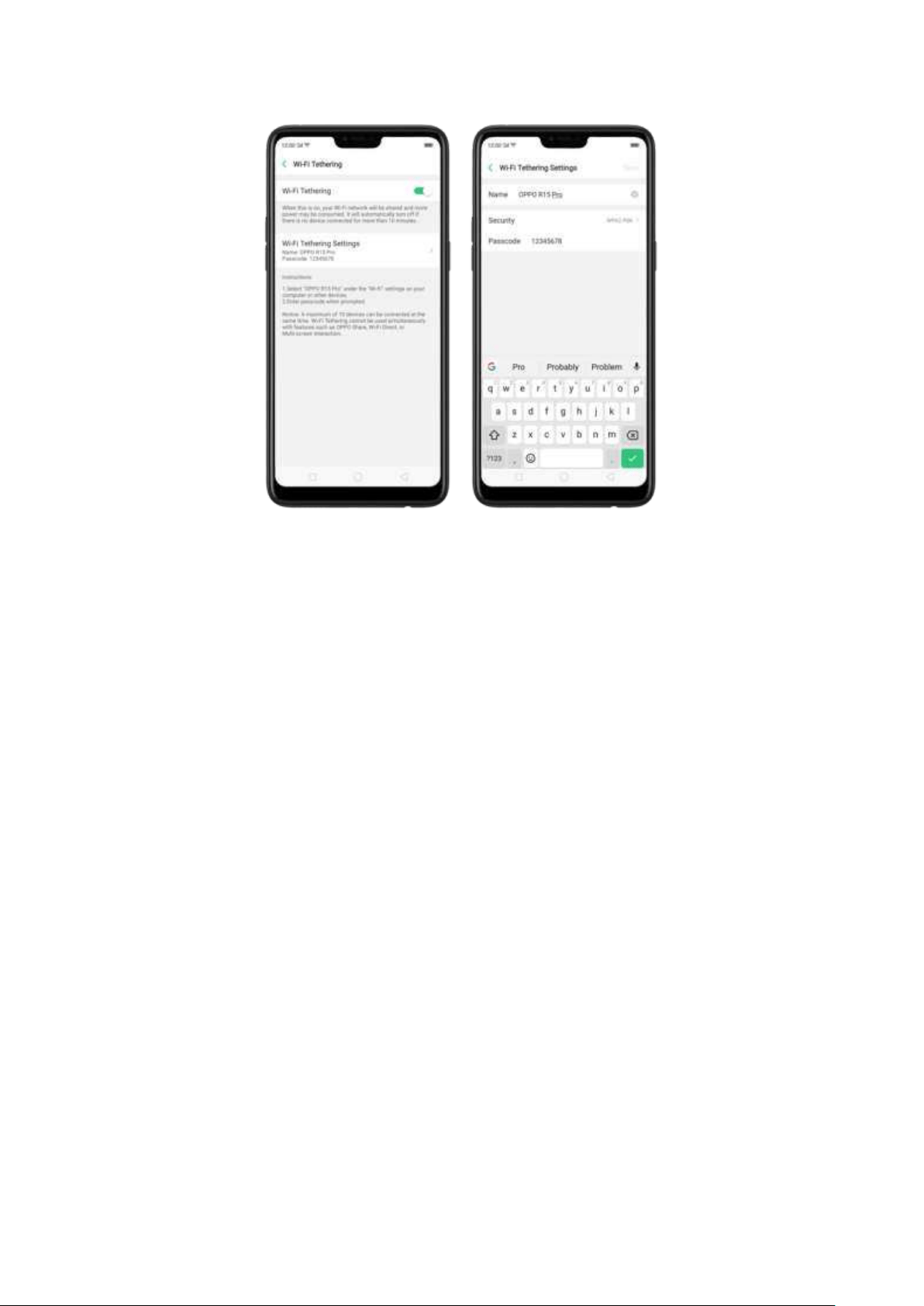
Not e: Wi-Fi Tet hering will automatically turn off if no device is connected for more
than 10 minutes. This is to save energy. A m aximum of 10 devices can be
connected but cannot be used simultaneously with features such as OPPO Share,
Wi-Fi Direct, or Multi-screen Interaction.
4.4. NFC
NFC stands for Near Field Comm unication. It means your p hone can easily interact
with something as long as it is near to each other or in close proximity. It is usually
around 4 centim eters. The devices then can send and receive information without
any cost. No Wi-Fi or Data connection needed. This is great for making payments,
reading tags in NFC p oster, or transferring files.
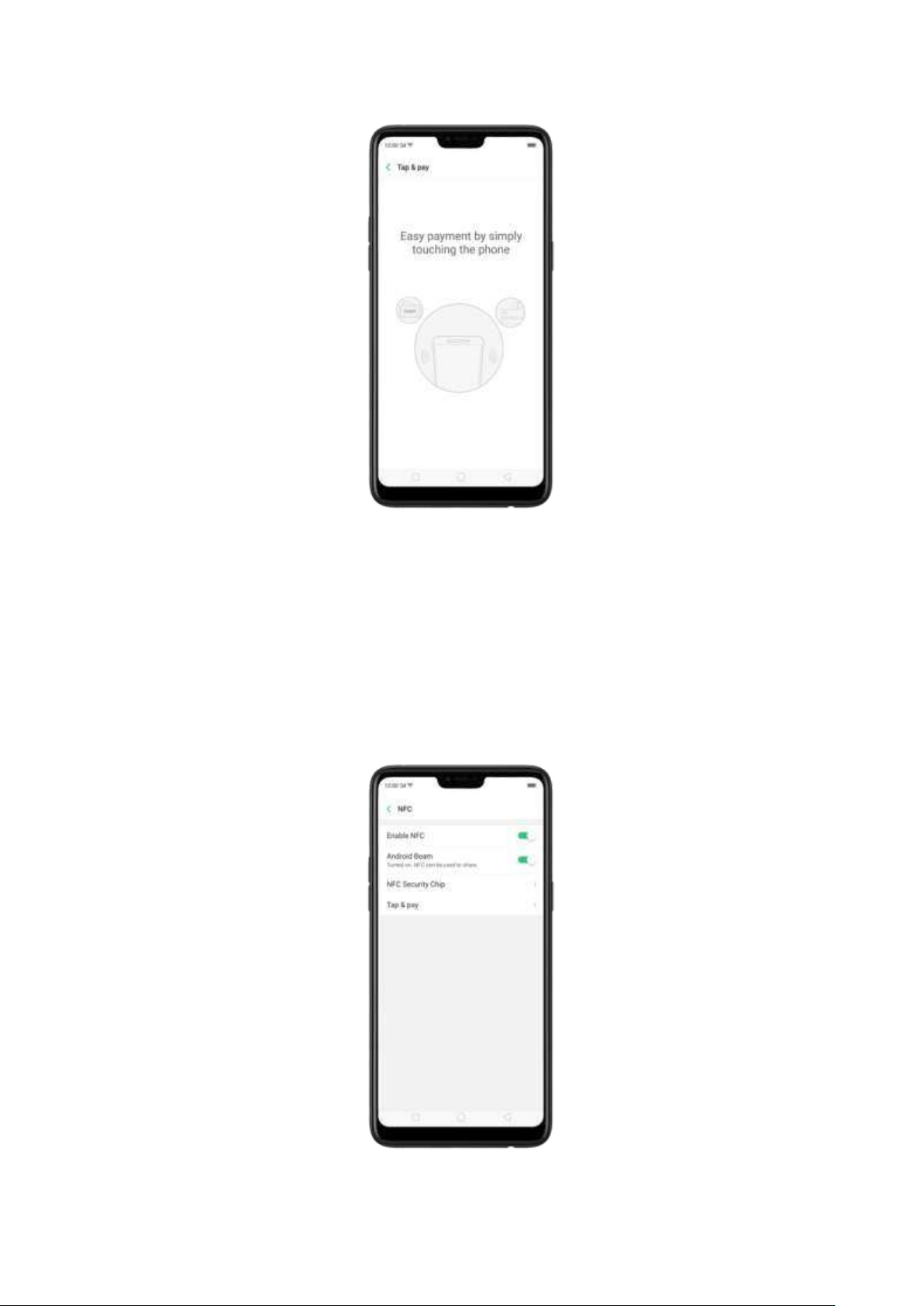
Here are ways you can enable NFC:
Through the Settings:
1. Go to [
Set t ings] > [Ot h er Wireless Conn ect ions] > [NFC] then toggle to enable
NFC.
2. To be able to share files, Android Beam should be enabled.
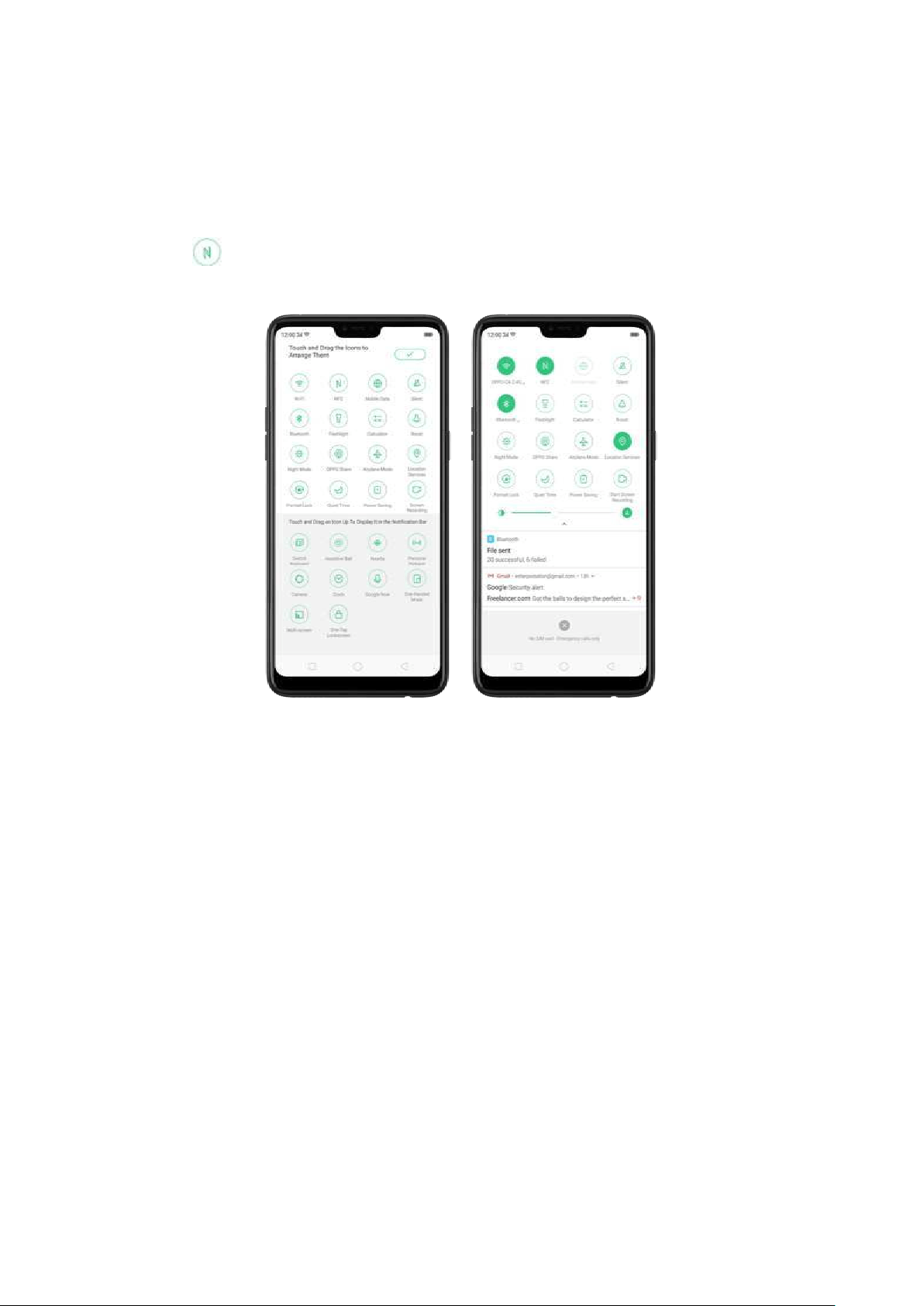
Through t he Control Cent er:
1. Swipe down from the very top of any screen (except the notch at the top center of
the display)
2. Press to enable NFC. The icon will have a green highlight w hen it is enabled.
Not e: Some devices may not have NFC.
4.5. Default volum e but t on adjust m ent
Sometimes you just wanted to manage the volume of the ringtone using t he
physical buttons b ut the one t hat gets adjusted is the music volum e. So you
manually open the volume setting and fine-t une it. But now, you can choose t he
physical buttons to either only adjust the Ringtone Volume or the Media volume.
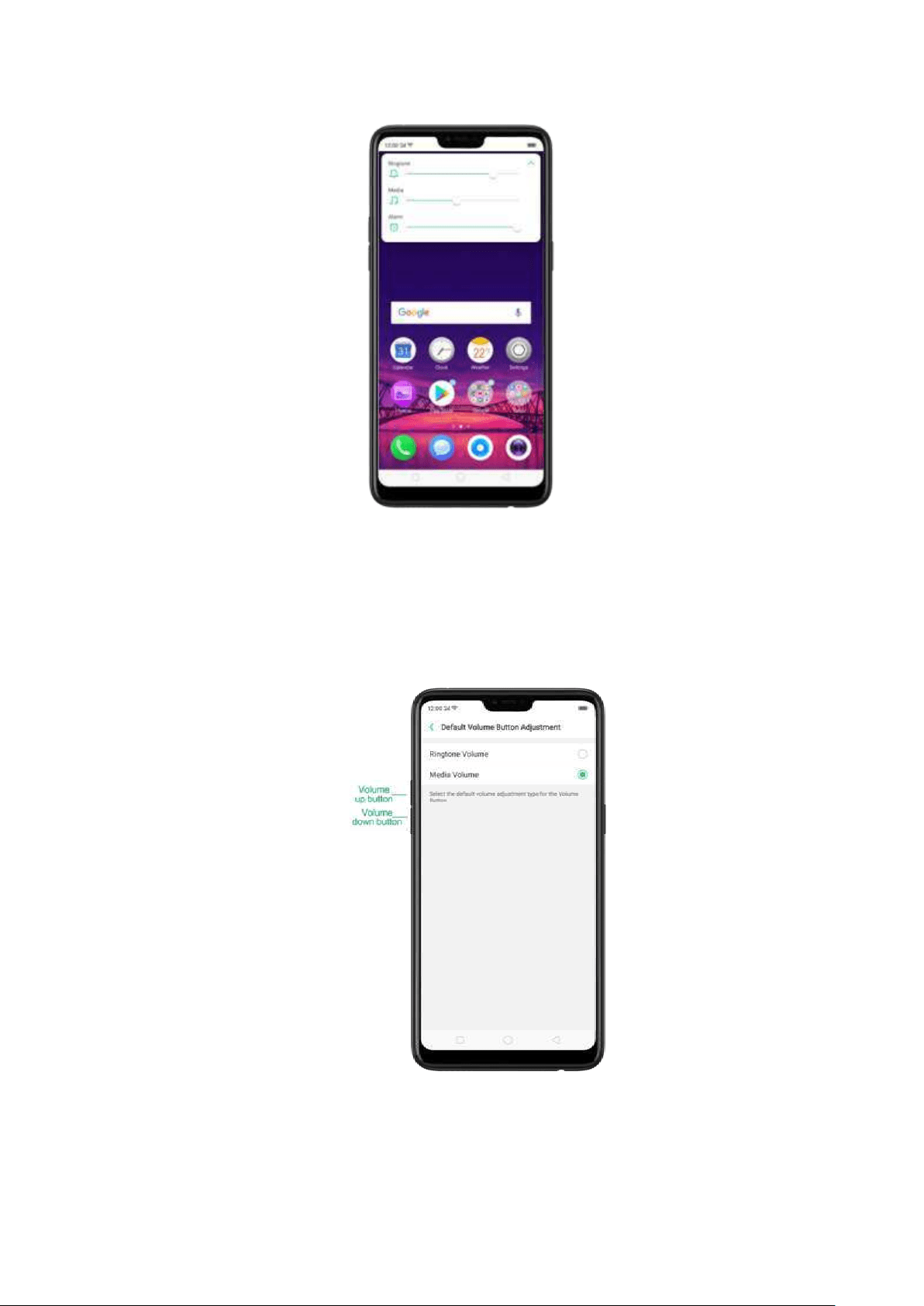
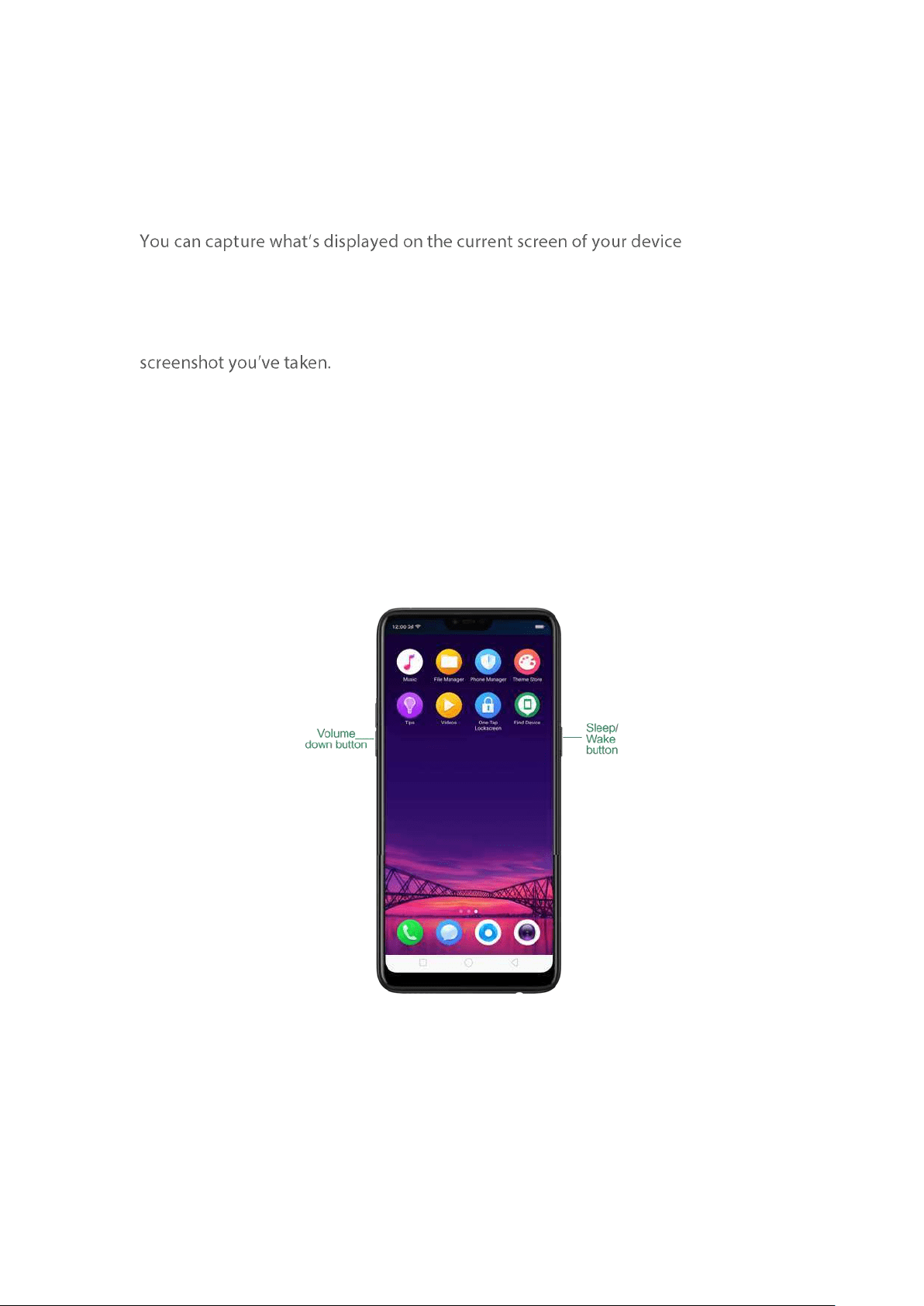
To have a default volume, go to [
Set t in gs] > [Sound & Vib rat ion ] > [Default Volum e
But ton Adjustm ent ] then choose the default volume adjustment type: Ringt one
Volum e or Med ia Volu me. Once done, your physical volume up and dow n buttons
will only change the default volum e that you have chosen.
4
4.6. New Feat ure Take and Edit
Screenshot
and take
long screenshots of your conversations on any messenger, or the screenshot of a
full web page, or screenshot of some long pages in apps. You can edit the
screenshots directly on the Photos app using a set of professional editing tools.
Also, a marker pen has been added to highlight words, draw, and personalized the
Capture the current page
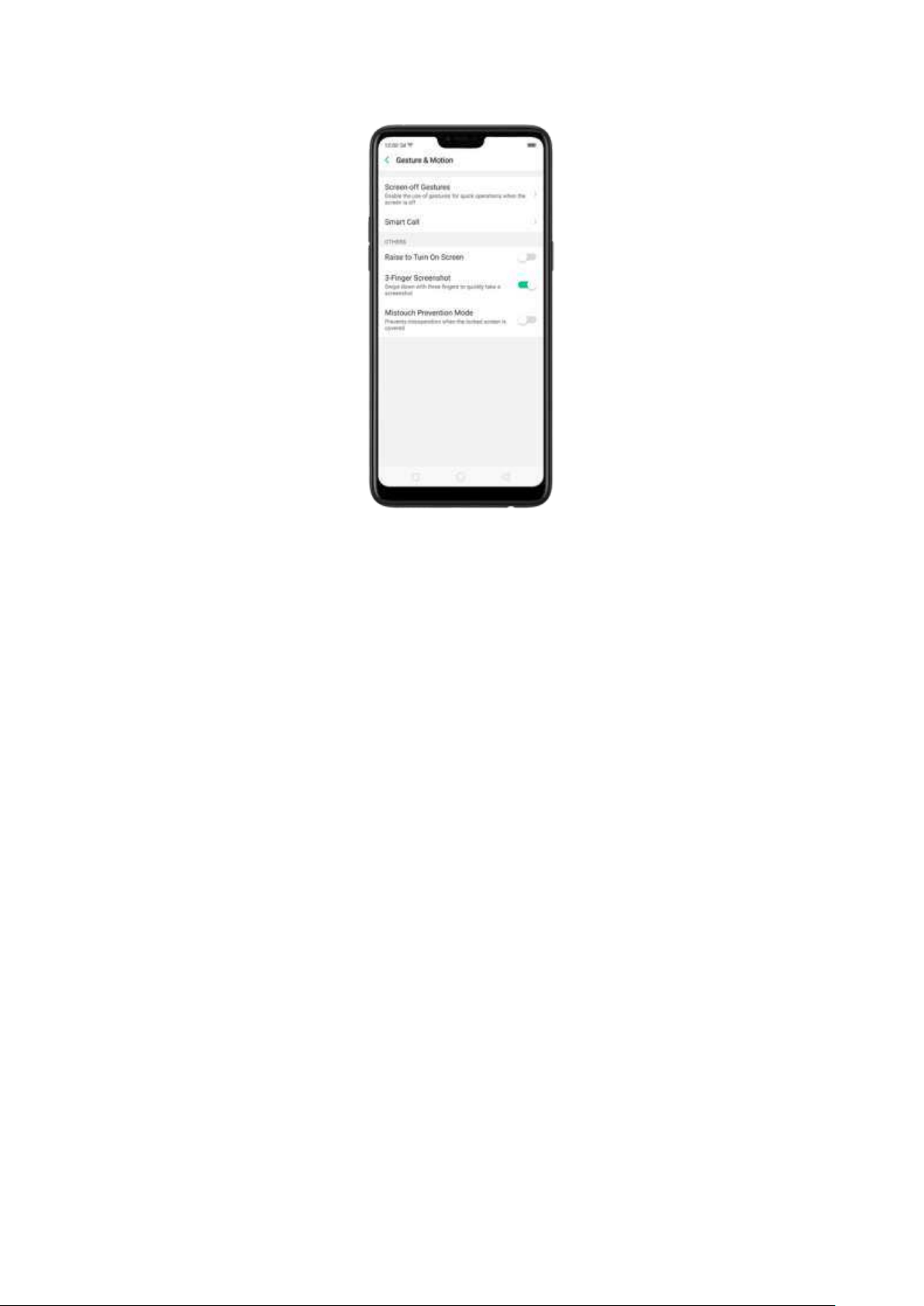
Press and hold the Pow er and Volum e Dow n buttons for about 2 second s, the
screen will briefly flash white, and you'll hear a shutter sound if your phone's sound
is on.
Gesture Screenshot : Go to [Set tin gs] > [Smar t & Convenient ] > [Gesture &
Mot ion ] and turn on [3-Finger Screenshot ]. Then swipe down t he screen with
three fingers to take a screenshot.
Capture a long screenshot
With OPPO smartphone, you can easily take longer and scrolling screenshot with
sim ple clicks.
To capture long screenshots:
1.
Press and hold the Pow er and Volu me Do wn b uttons for about 2 seconds, or
swipe down t he screen with three fingers to take a screenshot of the current page.
2. Click the screenshot, click
Long screenshot , then scroll the page up or down and
stop until you have finished capturing all t he contents you want.
3. Click
Don e to generate a long screenshot. The image is saved on the Phot os app.
Edit a screenshot
After you've taken a screenshot, click it, then click
Ed it . . You can use the fancy new
markup features to optimize it instantly, such as cropping, adding text, light, filters,
and more. Click
Don e to save your changes
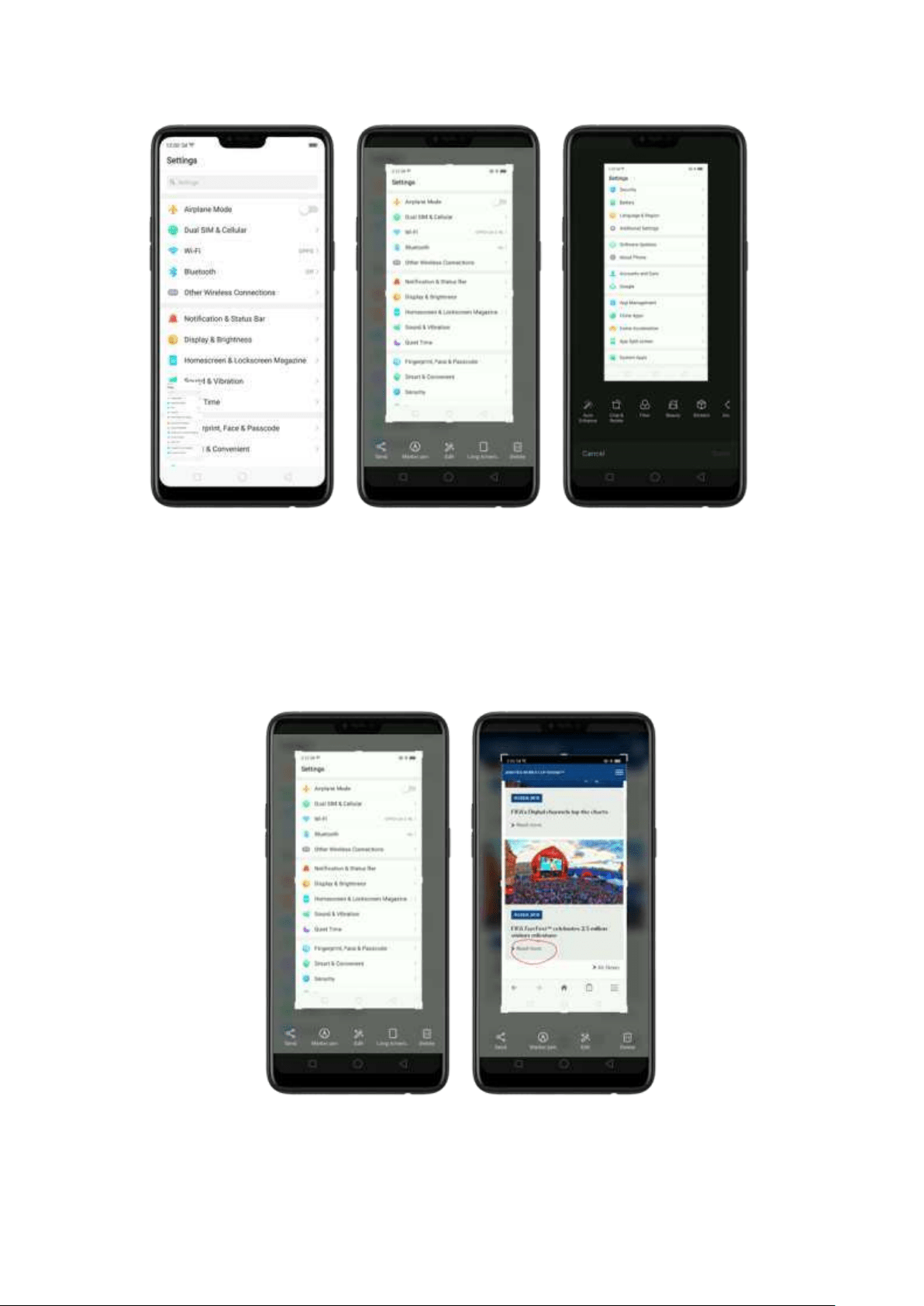
Use the Marker Pen
After you've taken a screenshot, click it, then click Marker Pen. . You can highlight a
word or write a note on t he im age. Click
Do ne t o save your changes. (Note:
Marker pen is only available in red color).
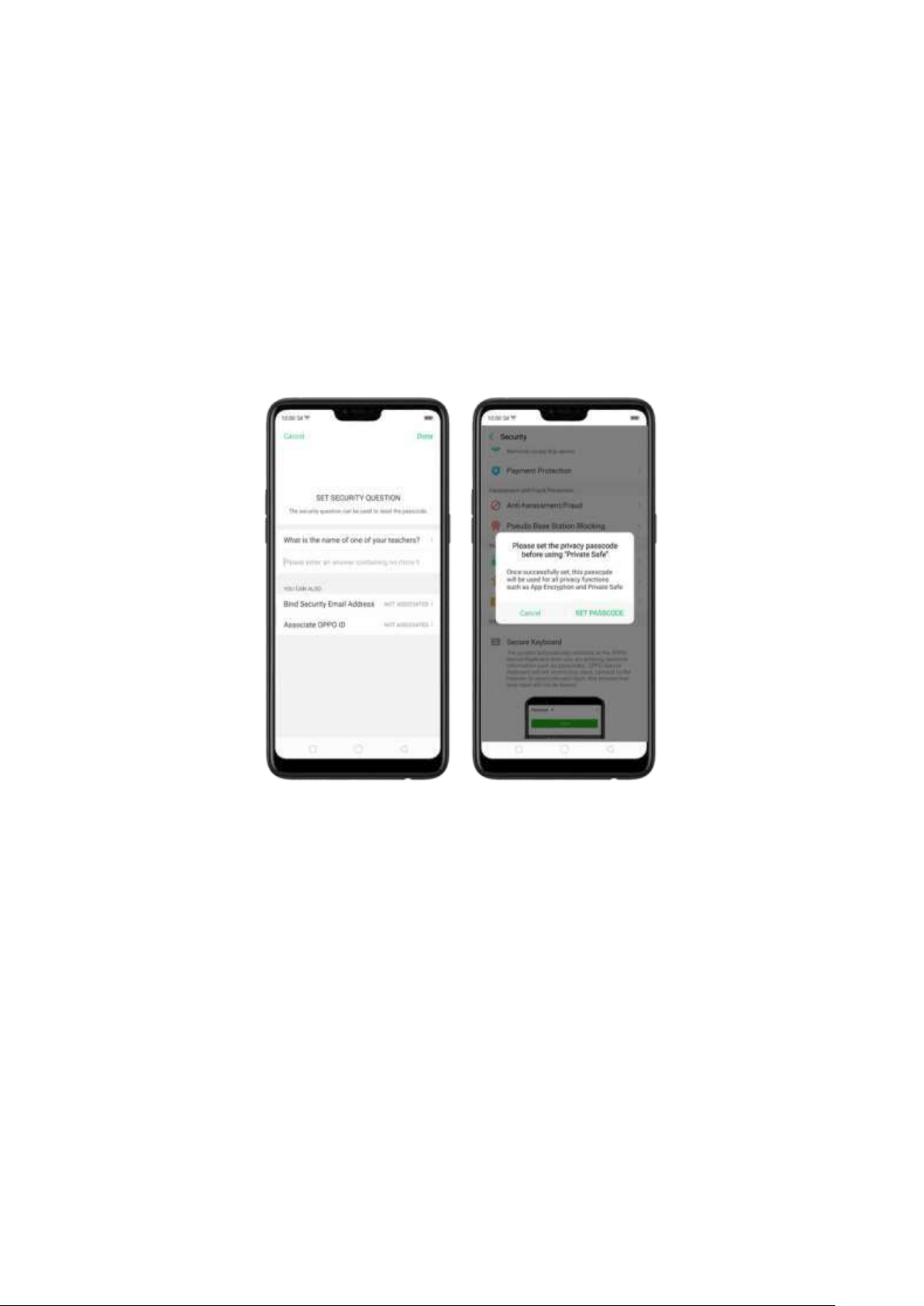
4.7. Private Safe
Start Using Private Safe
1. Please set the Privacy passcode first before using this application. Go t o
[Set t ings] > [Fin gerprint , Face, & Passcod e] > [Lockscreen p asscod e] and enter
your desired encryption m ethod. You can also click
SET PASSCODE and enter your
desired encryption method. You will also be asked for a security question as an
added layer of security for your privacy.
2. Manage files on Privat e Saf e: Go t o [Set t in gs] > [Securit y] enter t he passcode
that you have set, and then manage files that you want to be kept private.
FIles that can be added in Private safe are
Phot os, Aud io, Docu m ent s, and
other
Files that are supported by the app.
You can also create a shortcut on your hom e screen for easy access.
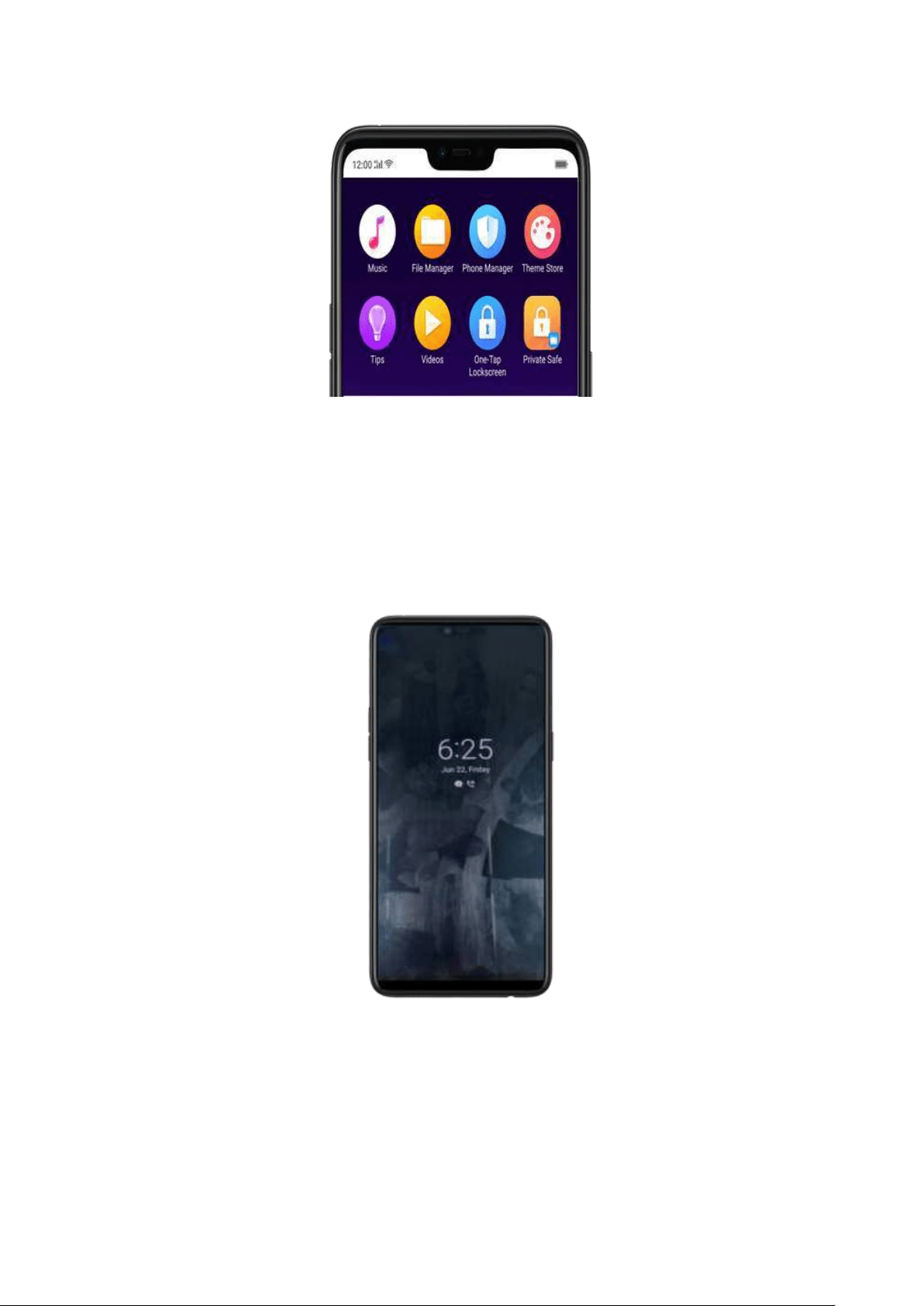
4.8. Screen Clock
If you want to know what tim e it is or if someone has called you or messaged you
without opening or waking up the screen, Screen Clock is an amazing function that
can assist you. This will display the time and reminders like missed calls, unread
SMS, unread Wechat, and QQ messages even when the screen is off.
To Enable Screen Clock:
1. Go to [Set t ings] > [Display & Bright ness] > [Screen Clock] and switch Screen
Clock to green to enable.
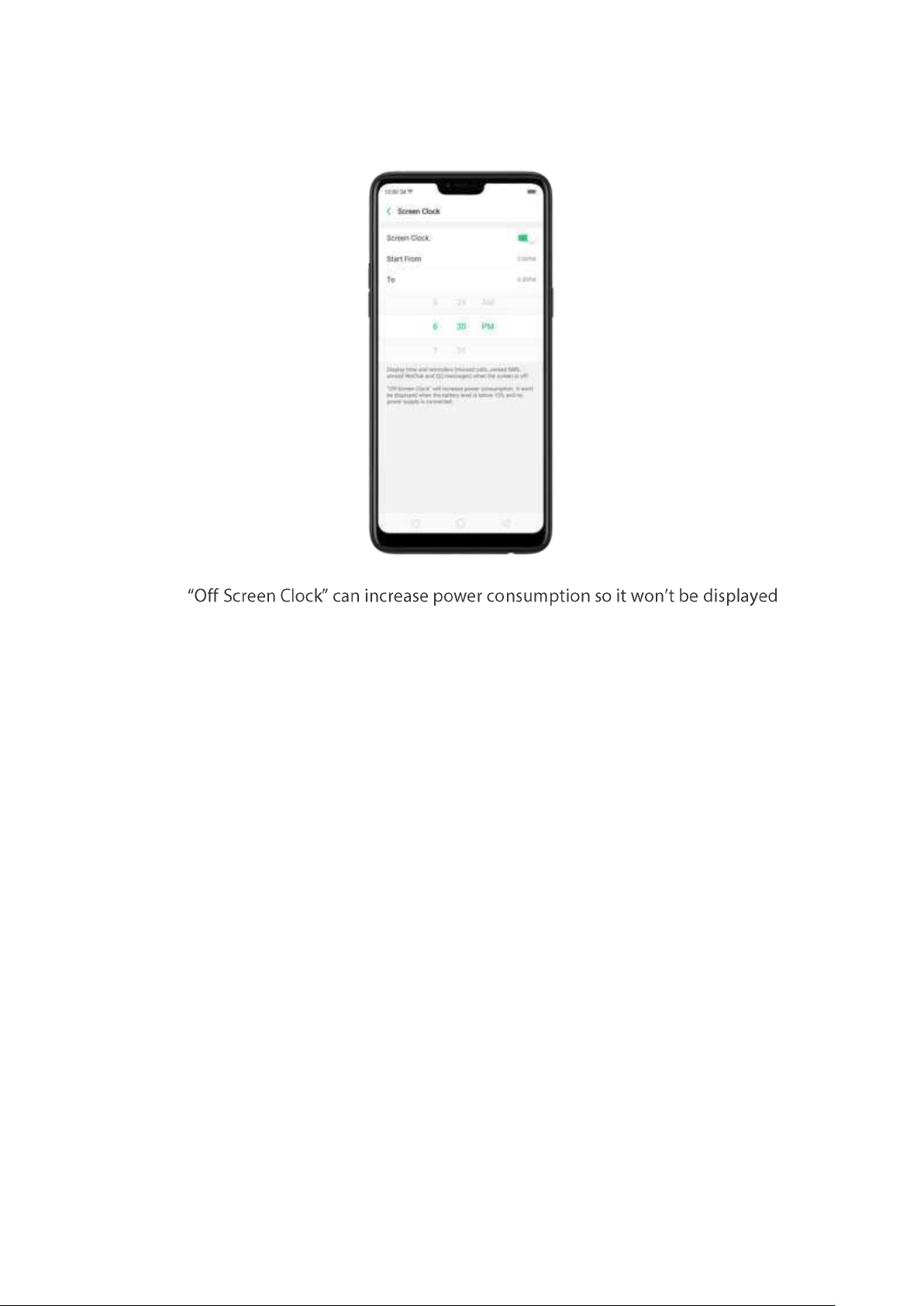
2. Then scroll the wheel to set how long you will be using the Screen Clock.
Not e: -
if battery level is below 10% with no power supply connected.
4.9. Find My Device
If for some reason you left, lost and forgotten your phone or was stolen, Google
Find My Device will help you locate your device remotely. In order for it to work,
you need to sign in your Google account and turn on Location Service on your
phone.
Act ivate and use Find my Device.
There are three ways you can do this on your phone.
1. Go to [
Set t ings] > [Securit y] > and click Find My Device. Switch the slider to
blue.
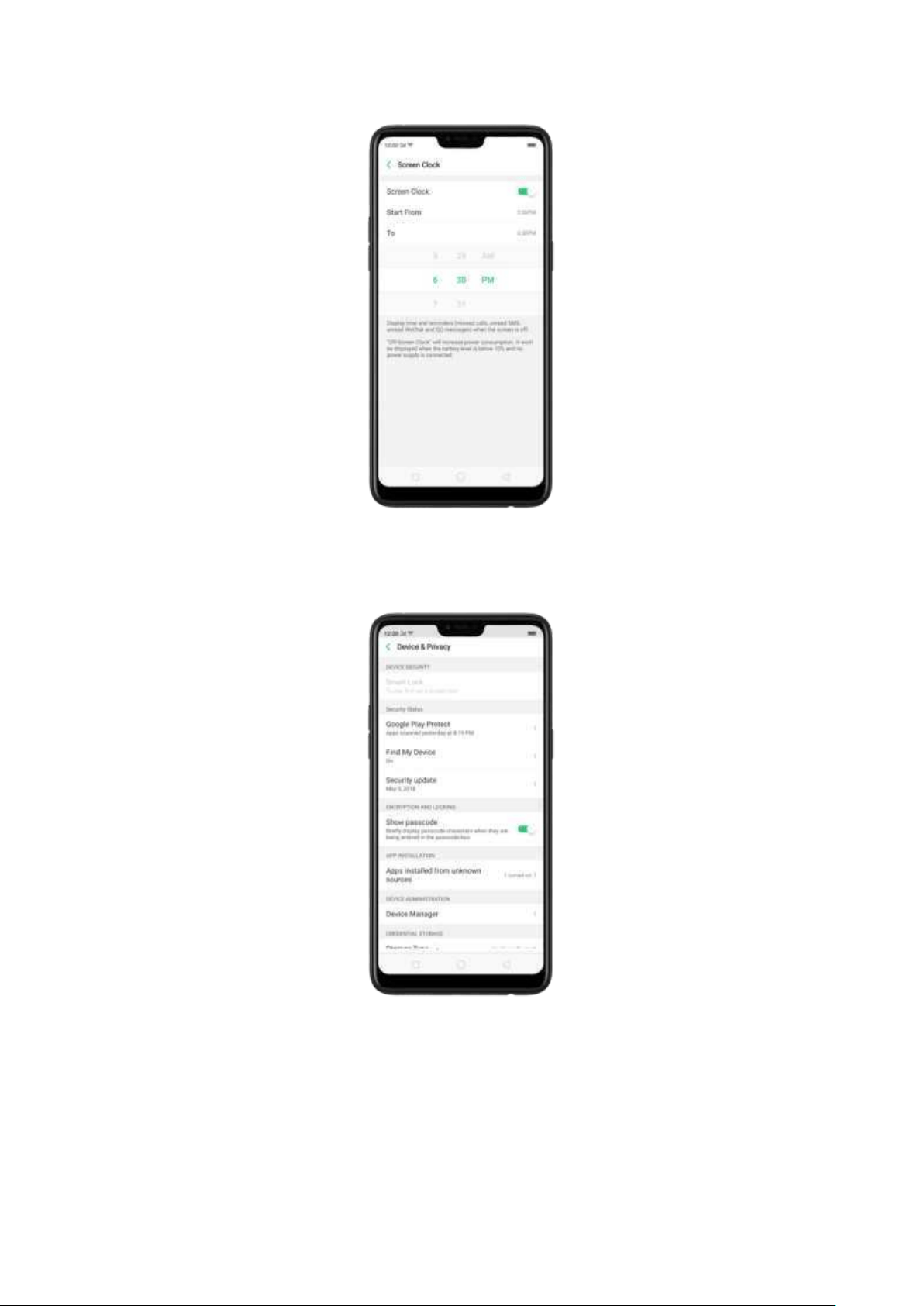
2. Go to [Set t ings] > [Ad dit ional Set t ings] > [Device and Privacy] and click Find
My Device. Switch t he slider to blue.
3. Go to [
Set t ings] > [Goo gle] > [Securit y] and click Find My Device. Swit ch the
slider to blue.
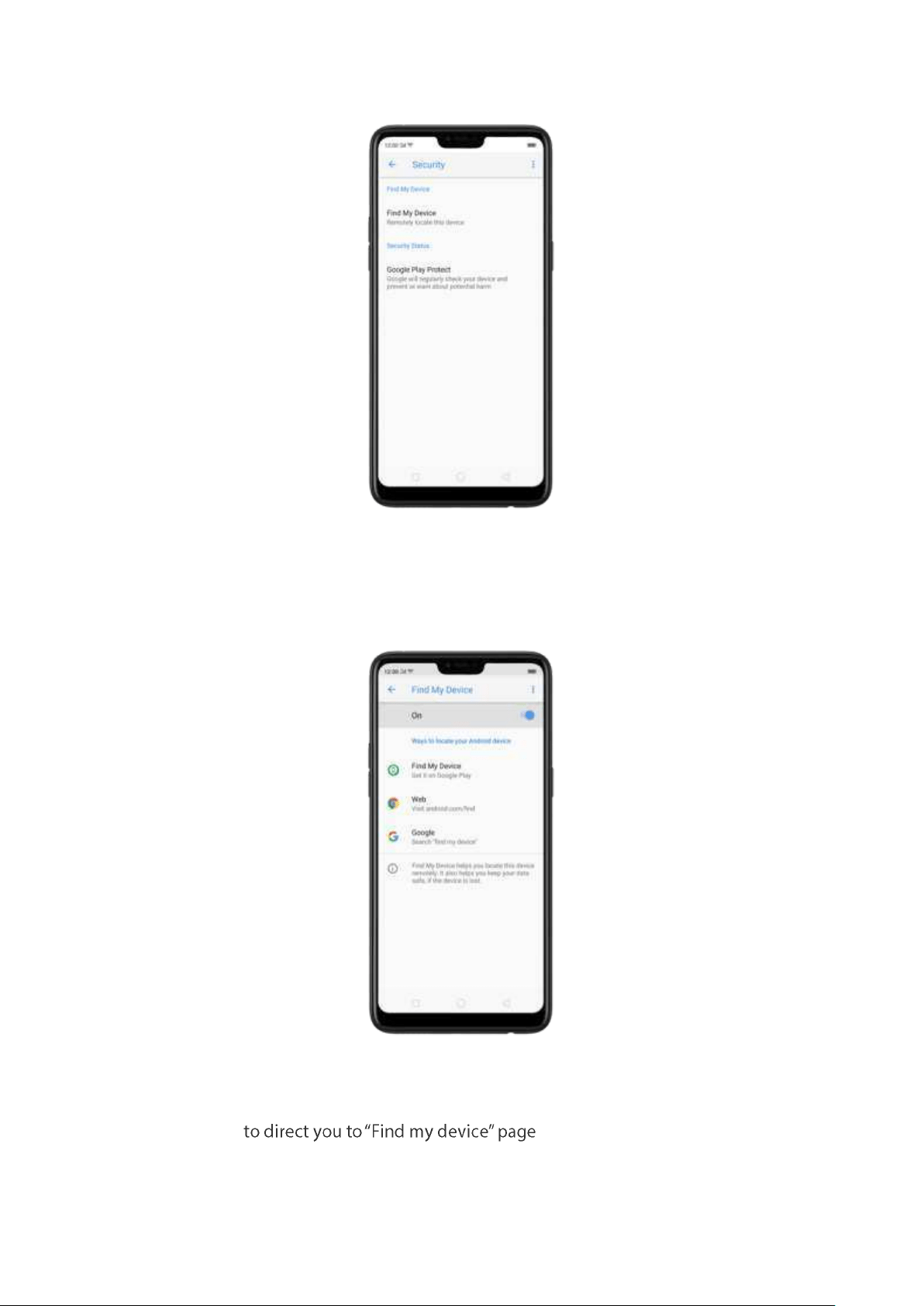
Not e: You can choose from any the options above to activate Find My Device.
On the
Find My Device page, it will show you ways on how to locate the phone
using any android devices.
Click
Find My Device to download or open the app
Click
Web to direct you to android.com /find
Click
Google
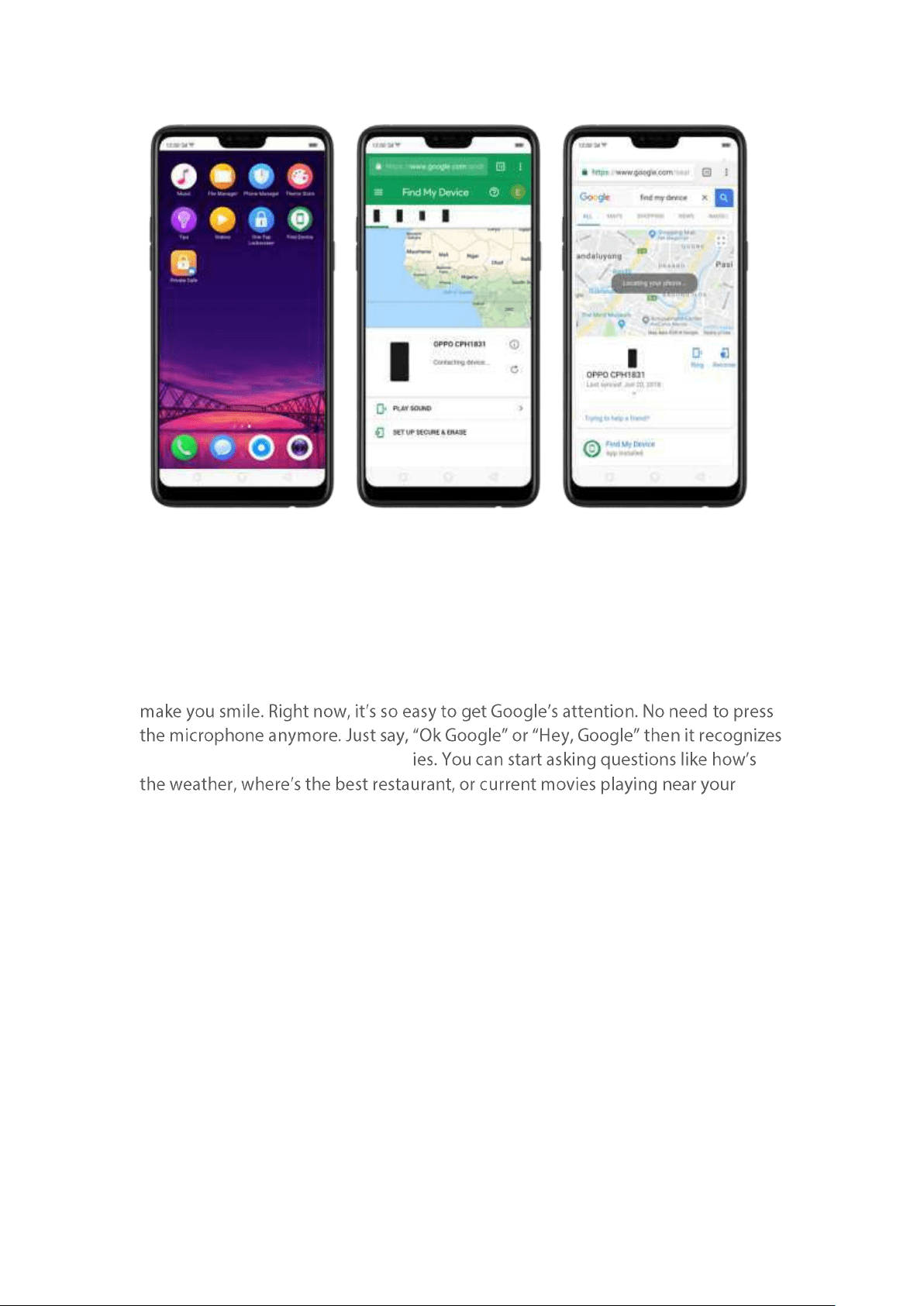
4.10. Google Assist ant
Google know s everything and it will give answer that will amaze and at t he same
your voice and waits for your inquir
location. You can also ask certain tasks like set an alarm, make a phone call, check
em ails, open the settings on t he phone, play a YouTube video, sing a song or read
a poem, and a whole lot more. Google Assistant has one nice voice too. You need
to activate Google Assistant first to take advantage of this function.
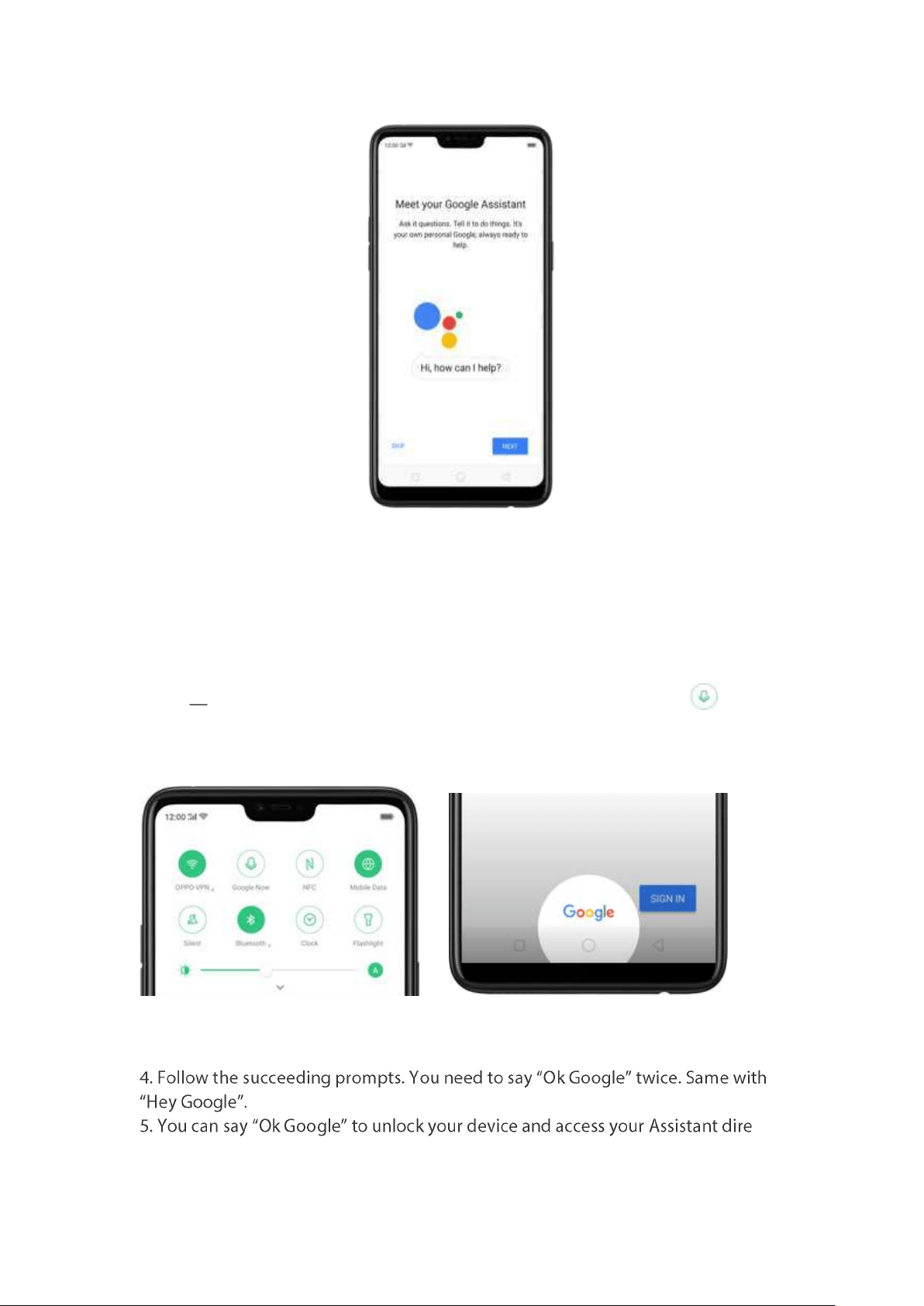
Enable Google Assist ant :
1. Open the Control Center. You can open Control Center from anywhere on your
phone from any app or screen, even from the lock screen. Then Press to open
Google Now. You can also quick launch your Google Assistant by long pressing
the
Ho me button.
2.
Click Sign in t hen inp ut your Gmail account.
3.
Click Get St art ed to teach the Assistant to recognize your voice.
ctly.
Just toggle to blue to enable, then click Next t o start using the app.
(
Not e: a similar voice or recording of your voice can unlock your device)
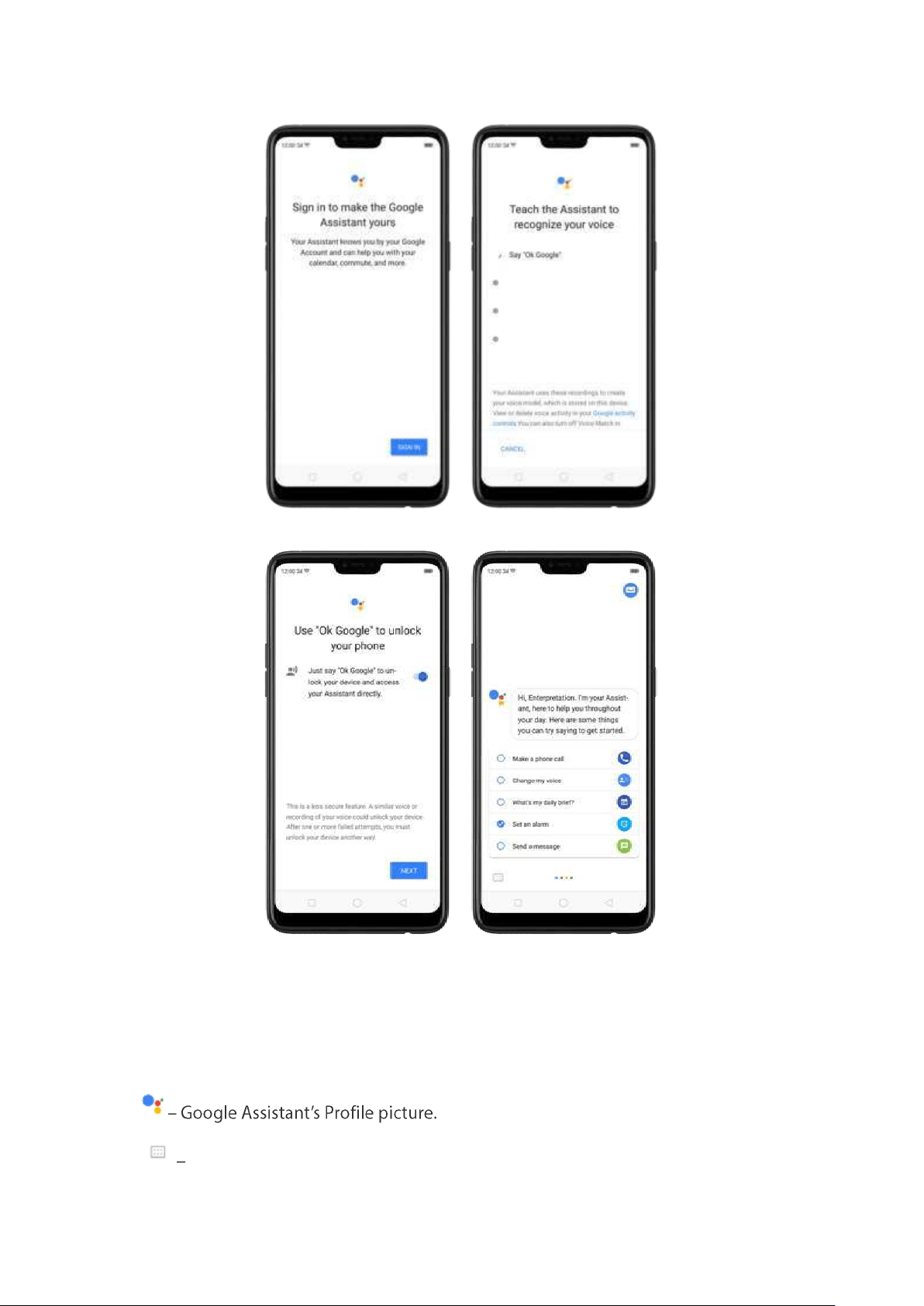
Icons
Click this w hen you would rather type questions t o your Assistant.
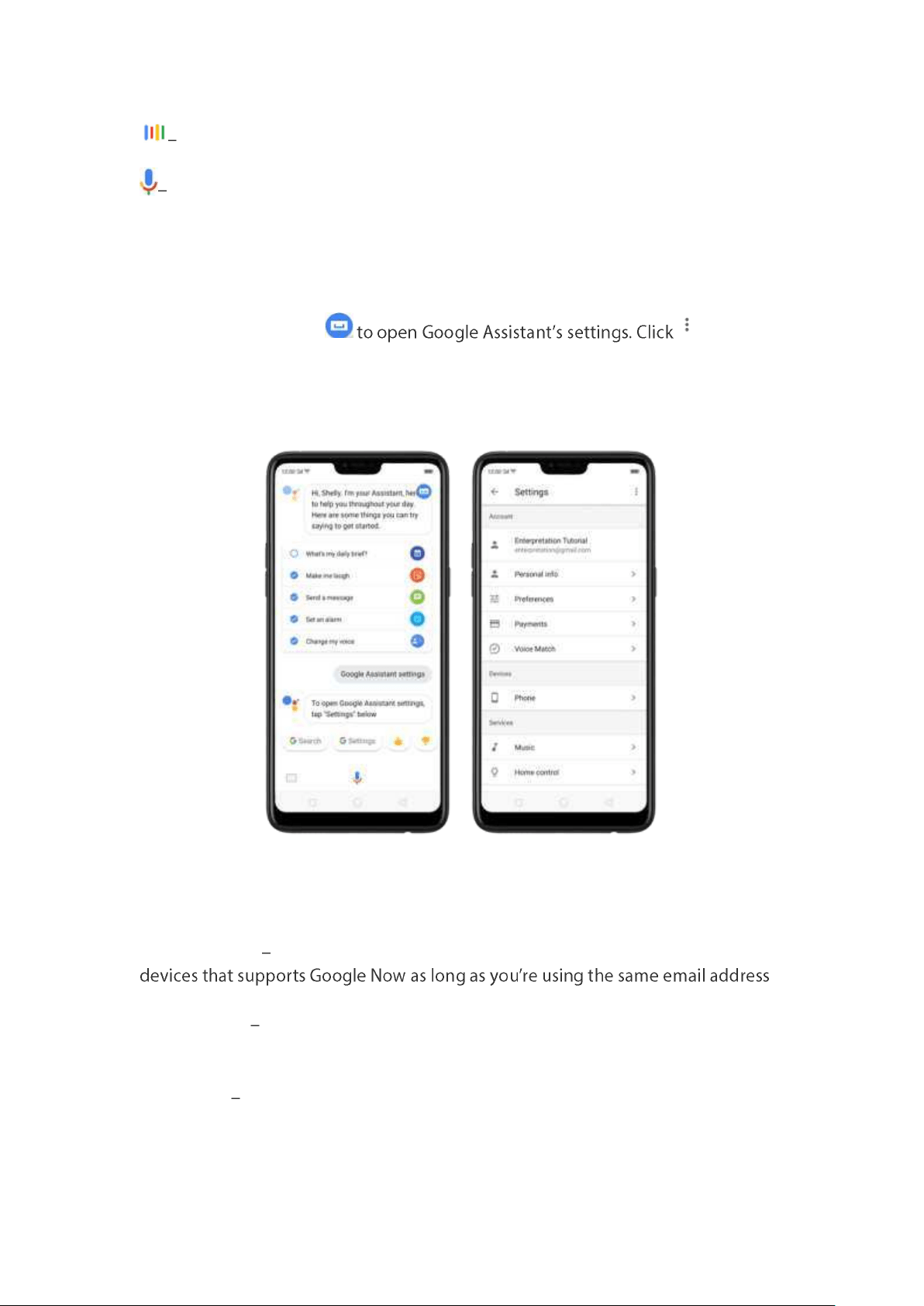
Active mode. Meaning, currently you or the Assistant is saying som ething.
Inactive mode or idle. Meaning, no one is saying something.
Goo gle Assistant Set tings:
Launch Google Assistant from the
Co nt rol Cent er or from long pressing
the
Ho me button. Click on the top
right corner of the screen and click Settings. You can also ask t he Assistant to give it
to you. Now you can personalize and customize your Assistant. These are the
settings:
Account
Gmail Add ress it will show your activities with Google Assistant to any Android
to sign in.
Perso nal info contains home & work locations for a better route when
com muting, nickname that you prefer your assistant to call you, and an option to
enable email updates to receive latest news and features to your Assistant .
Preference contains weather temperature units, change the default voice of the
Assistant with ot her 8 selections, getting around which asks how you usually
com mute, and Summ er time mode.
Payment s This is where you can set up payment m ethods and address. (Note: Not
available to all countries).
Voice Mat ch Link multiple users to a single Google Home device and share it
with family and friends. Up to 6 people can use t his on a single Google Home.
Devices
Phon e -free settings, Assistant
language, preferred input, screen context, notifications, etc.
Services
Music you can choose either YouTube or a default music player.
Ho me Cont rol you can add devices like Google hom e, phones, watches, and
even connect your smart home devices (the present list of compatible brands are
basement lights.
New s Your Assistant will play news from the sources that are listed. Just say,
Routines just say one command and your Assistant will do m ultiple things.
rem inder, & and then play music. And you can always custom ize according to your
preference.
Shop p ing list
you go to a grocery.
Shor tcut s let you create faster and easier ways to do your favorite things. Like
means Assistant should play workout music. Or when
year. This can all be customized.
Videos and Phot os Play shows and movies or see your photos on TV by asking
your As
-in TV for your
photos).
4.11. New feat ures of Cam era
New feat ures for taking phot os and selfies.
Take a port rait phot o. Choose Port rait . Pan for the lightning choices that
are available. You can choose from natural, rim, face, bi-color,canvas, and local
light.
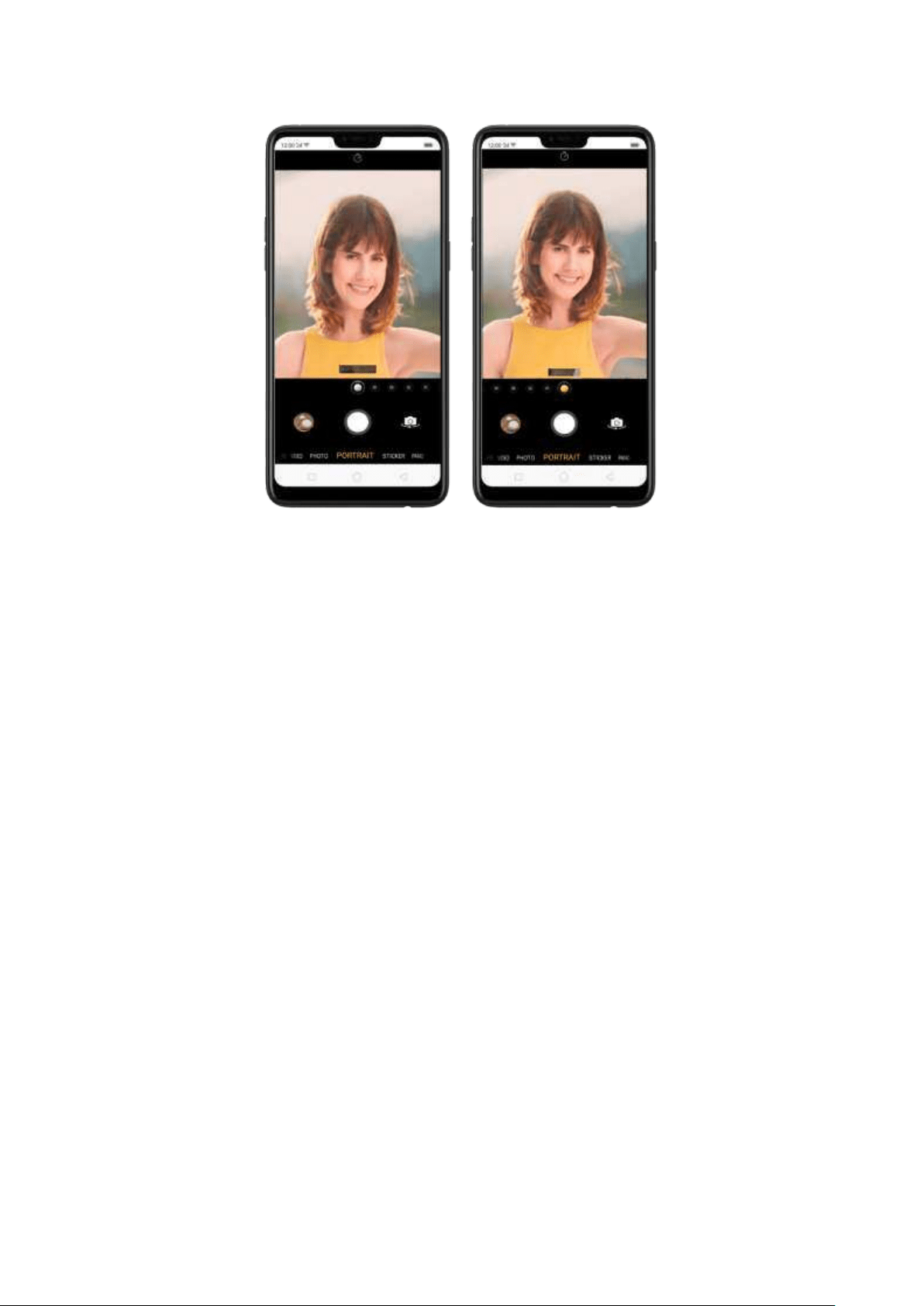
4.12. Transfer dat a from old phone
t o new OPPO sm art phone
You can transfer over all of your data - with no risk or loss of quality, using Clone
Phone. Wit h Clone Phone, you don't need to leave any of your data behind with
your previous device. Take it all with you in t hree easy steps:
From an iPhone to an OPPO Phone
1.
On your OPPO Phone, go to [To ols] > [Clone Pho ne], then select "This is t he
new phone" and "Import From an iPhone". Connect your phone to t he Int ernet
when prom oted.
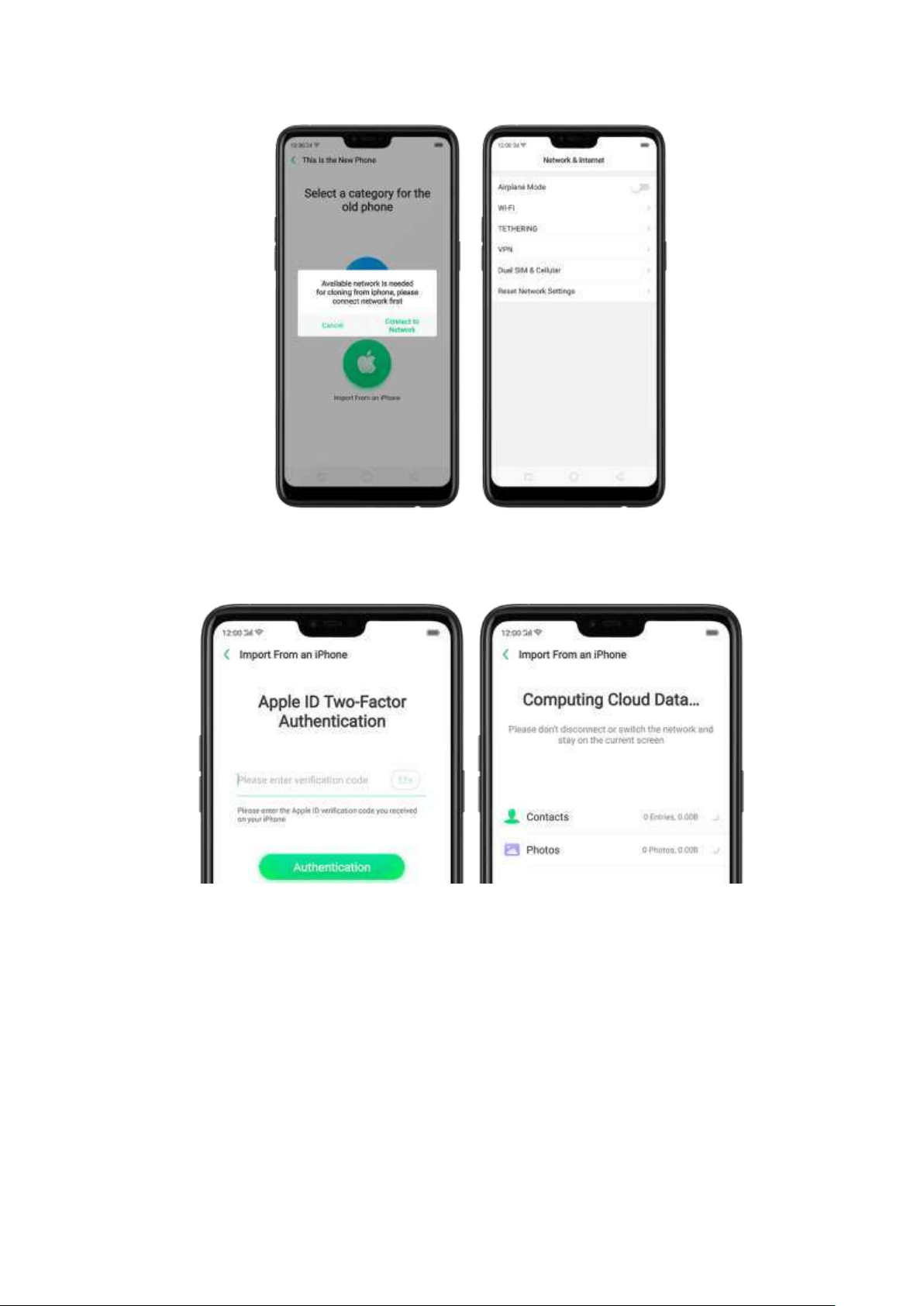
2.
Sign in the iCloud account of your old iPhone. Enter the Apple ID verification
code you received on your iPhone or in the SMS and start computing cloud data.
From an And roid Phone to an OPPO Pho ne
1.
On your OPPO phone, go to [Tools] > [Clo ne Pho ne], then select "This is the
new phone" and "Import from an Android Phone".
2.
On your old phone, click [Clon e Phon e] from t he Ho me screen, select "This is
the old phone" and scan the QR Code generated by the new p hone to start
cloning.
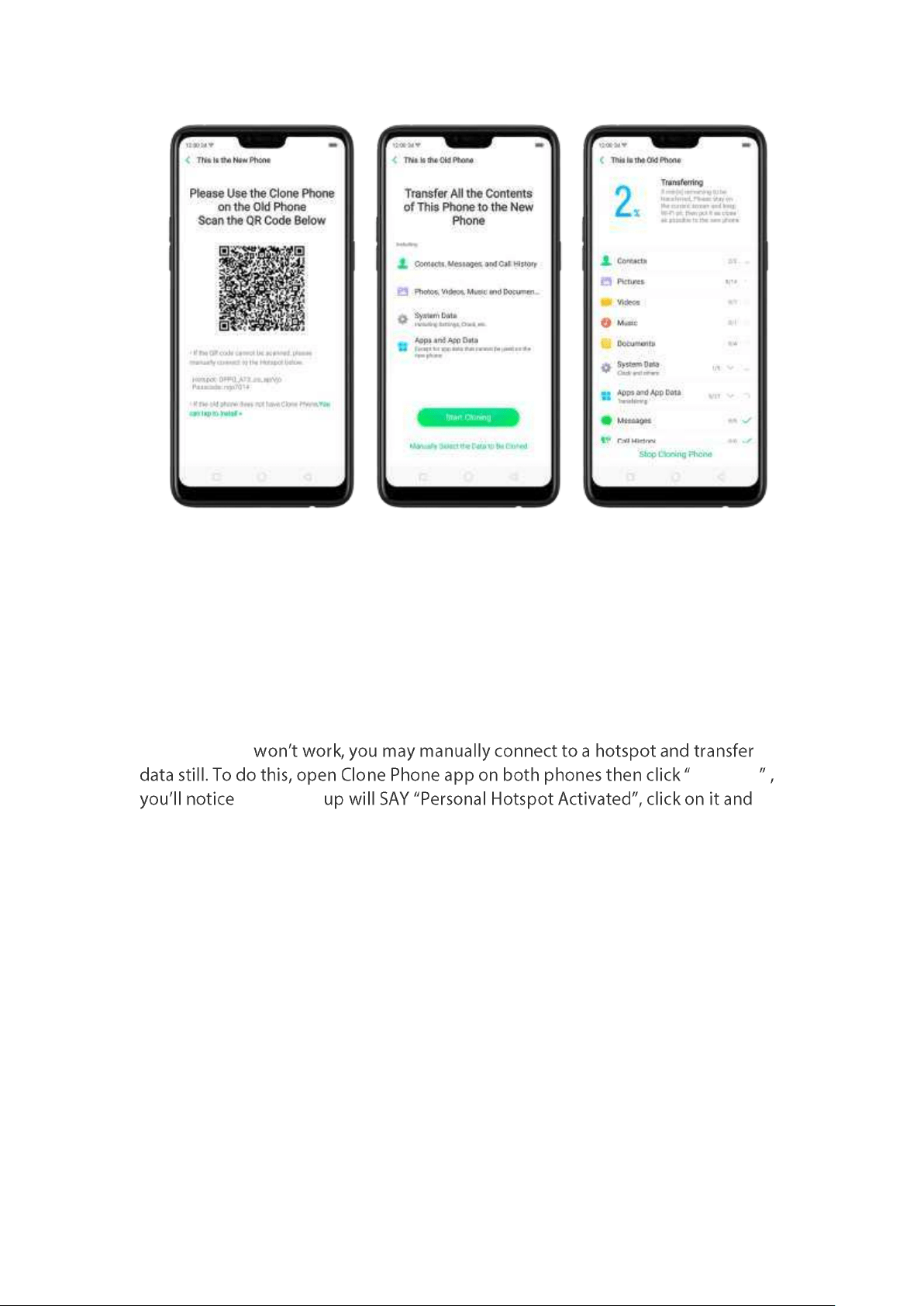
You can also select the data (Personal Data, System Data, Applications, St orage
Data) to be cloned by clicking
"Manuall y Sel ect t he Dat a t o b e Cloned ."
3.
Enter the lock screen password to continue.
If the QR code cannot be scanned.
If scanning QR
Conn ect
that a pop-
find the Hotspot name on the Wi-Fi setting and enter the password then you can
start transferring files.
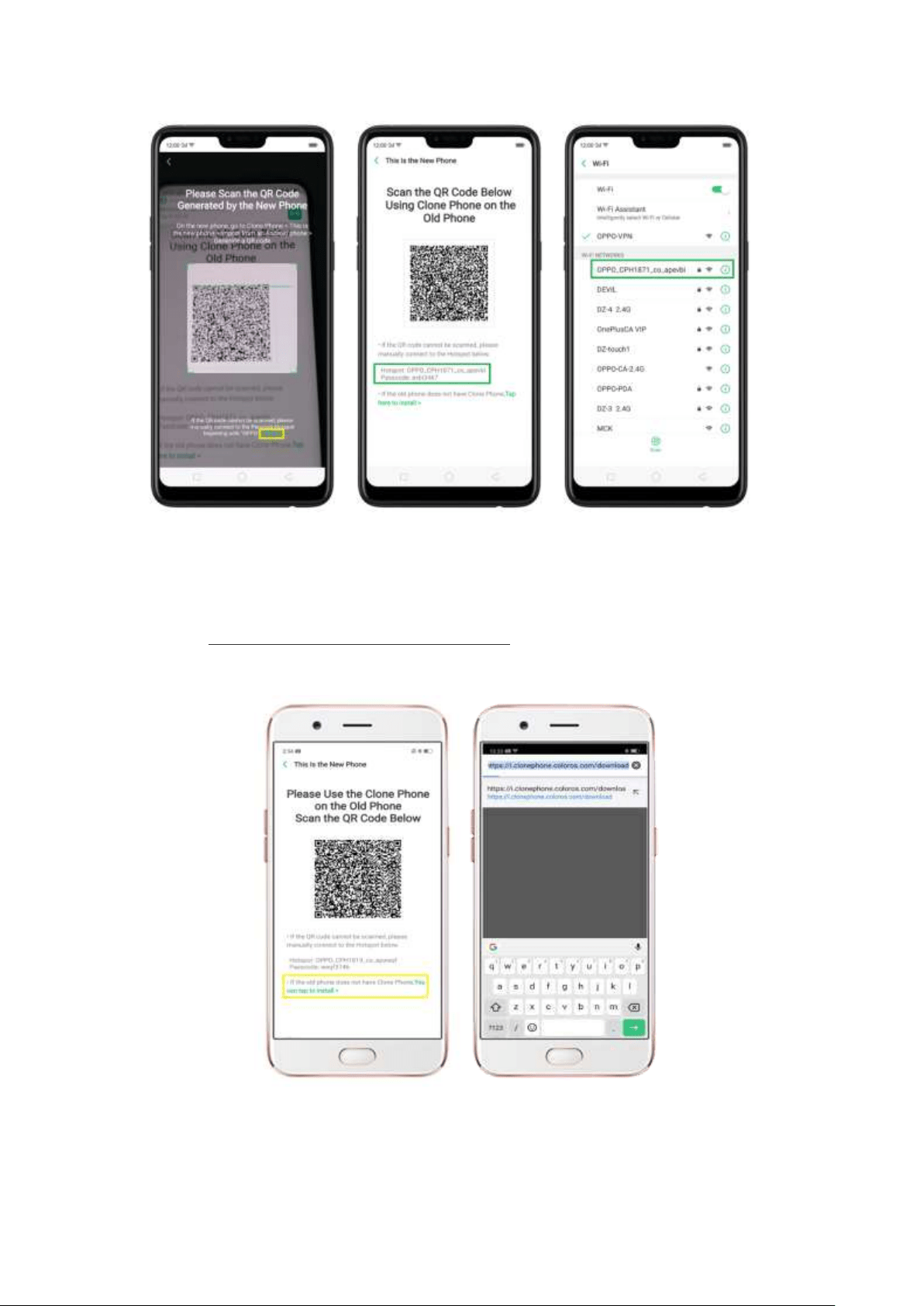
If old phone doesn't have a Clon e phone.
1. Click
You can t ap to inst all> and it will direct you to a web browser or open a
browser from your phone and go to the
website:
i.clonephone.coloros.com/ d ow nload . (Not e: t his only works when you
open it using your m obile phone. This will not open on your computer).
2. Once you have entered the link above, it will prompt you to dow nload t he Clone
Phone dow nloader APK file under the Download folder. You may change the folder
path if you wish just click "
Chang e t he direct ory" then Click "Save".
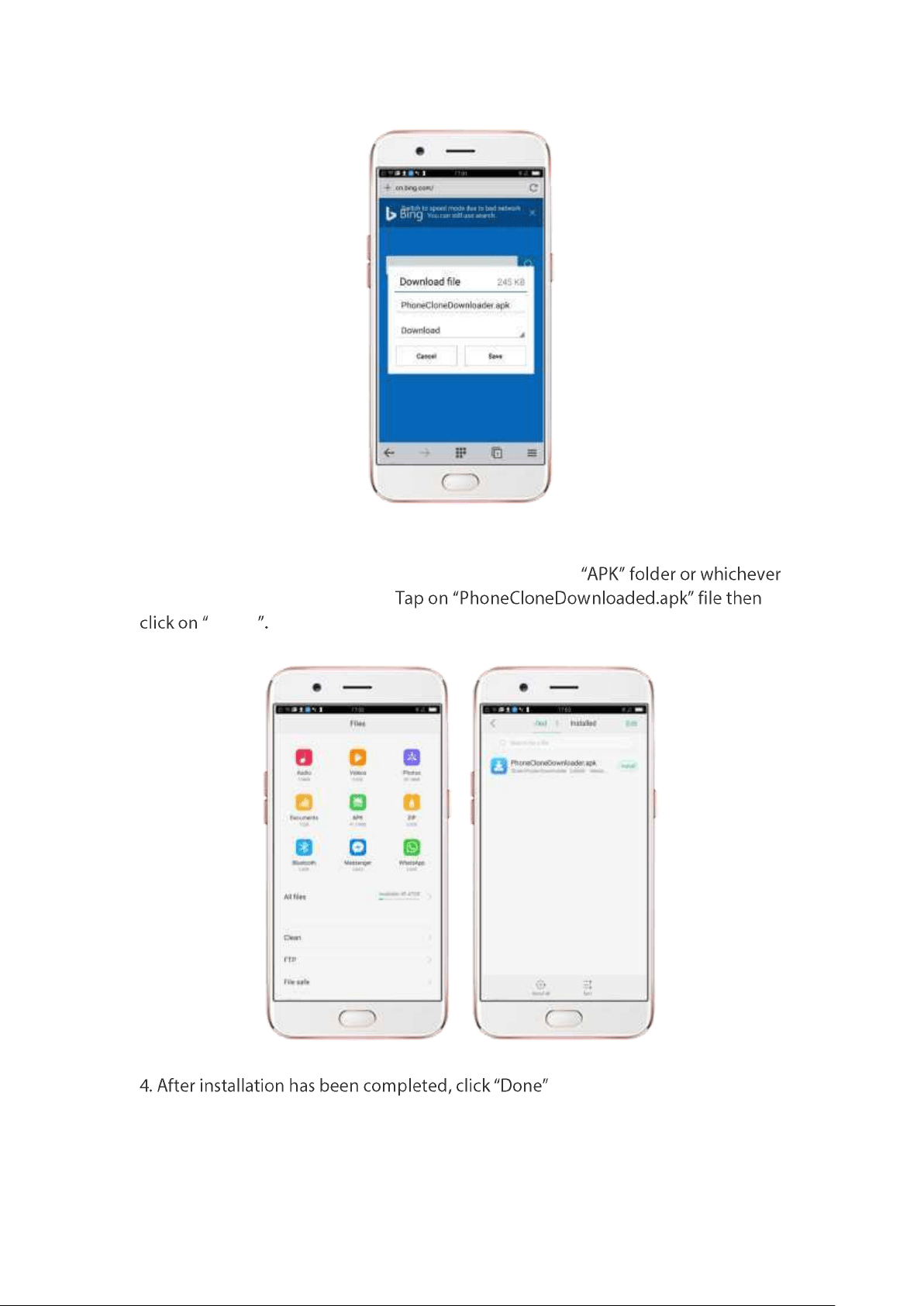
3. Once download is done. On your home screen, go to t he notification panel for
the downloaded file or go to Files/File Manager and click
folder you chose to save the file.
Install
and you can now start to
transfer files.
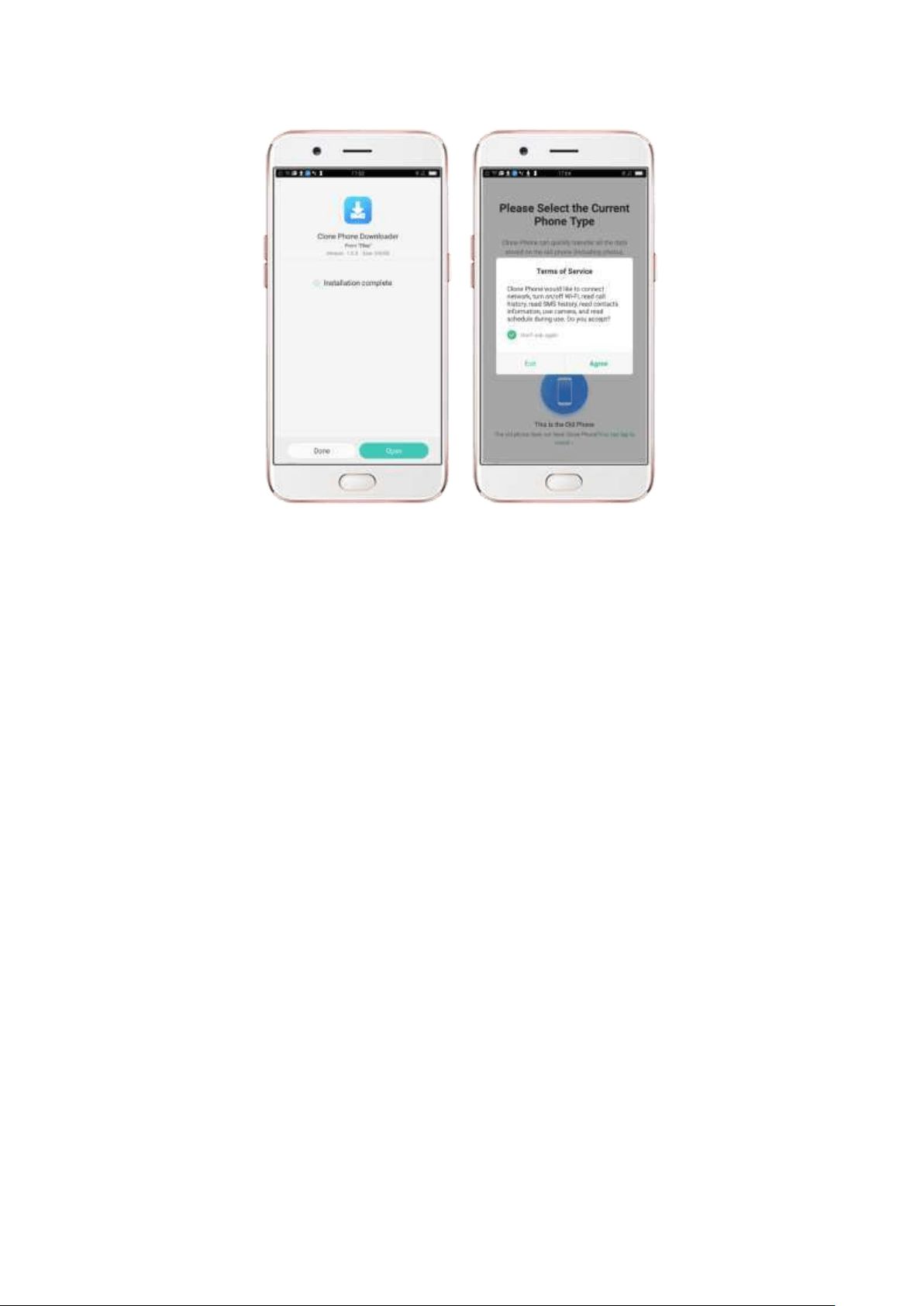
Not e: The duration of t he Clone Phone process depends on how big the data you
are going to transfer. Please patiently wait before
it is completely transferred.
4.13. OPPO ID
An added feature on your setting page is your OPPO ID which can be used to
access apps such as OPPO Cloud, App Store, and Theme store.
How to regist er as a new user
To register your email address, go to
[Set t ings] > [Sign in to your OPPO ID],
click
Regist er. You will be asked to register using your em ail address or using your
mobile number, then click Next .
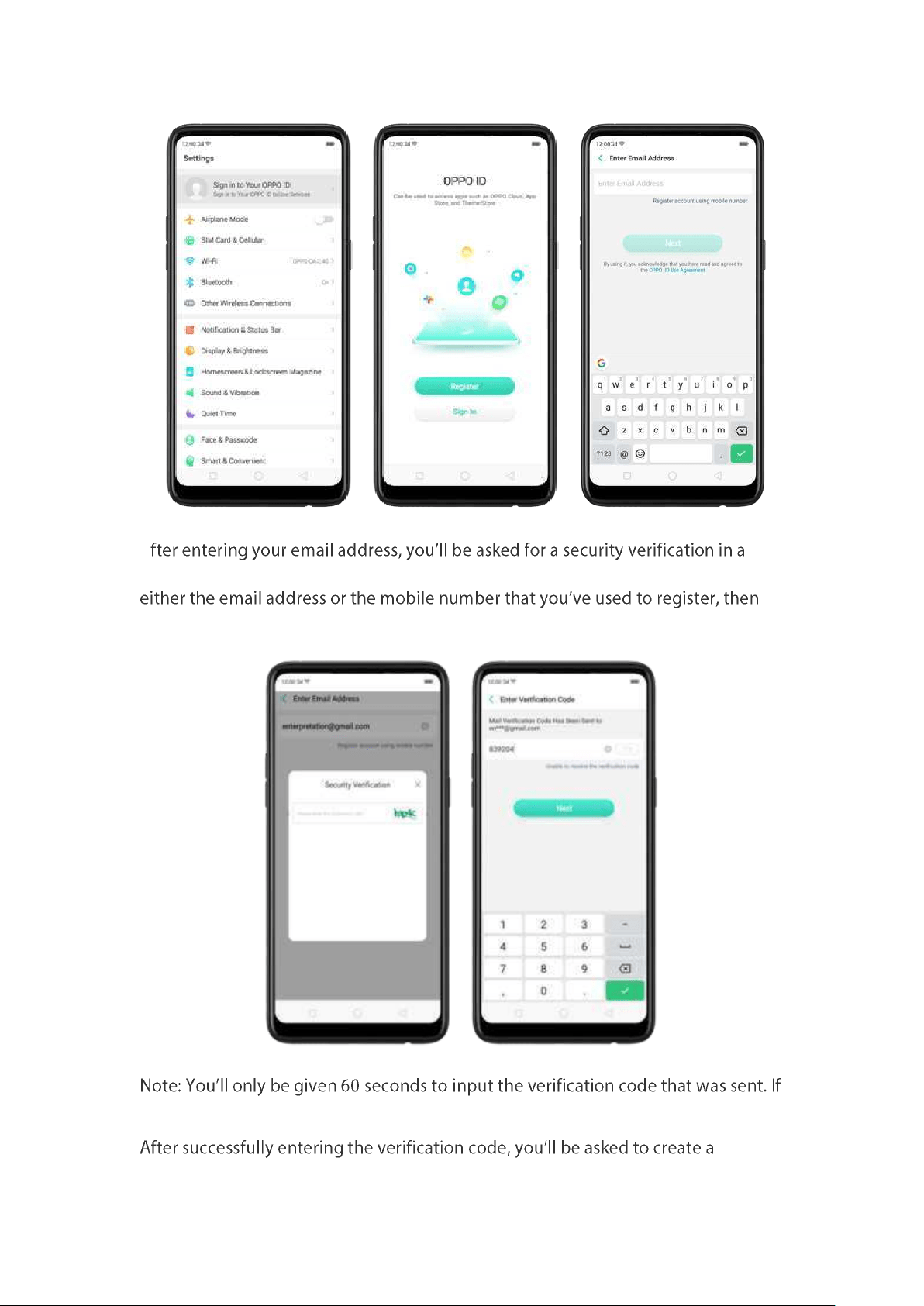
A
form of a captcha, Just type the characters, then a verification code will be sent to
click Next .
60 seconds is done, click resend to get a new one.
passcode and then click Get Start ed .
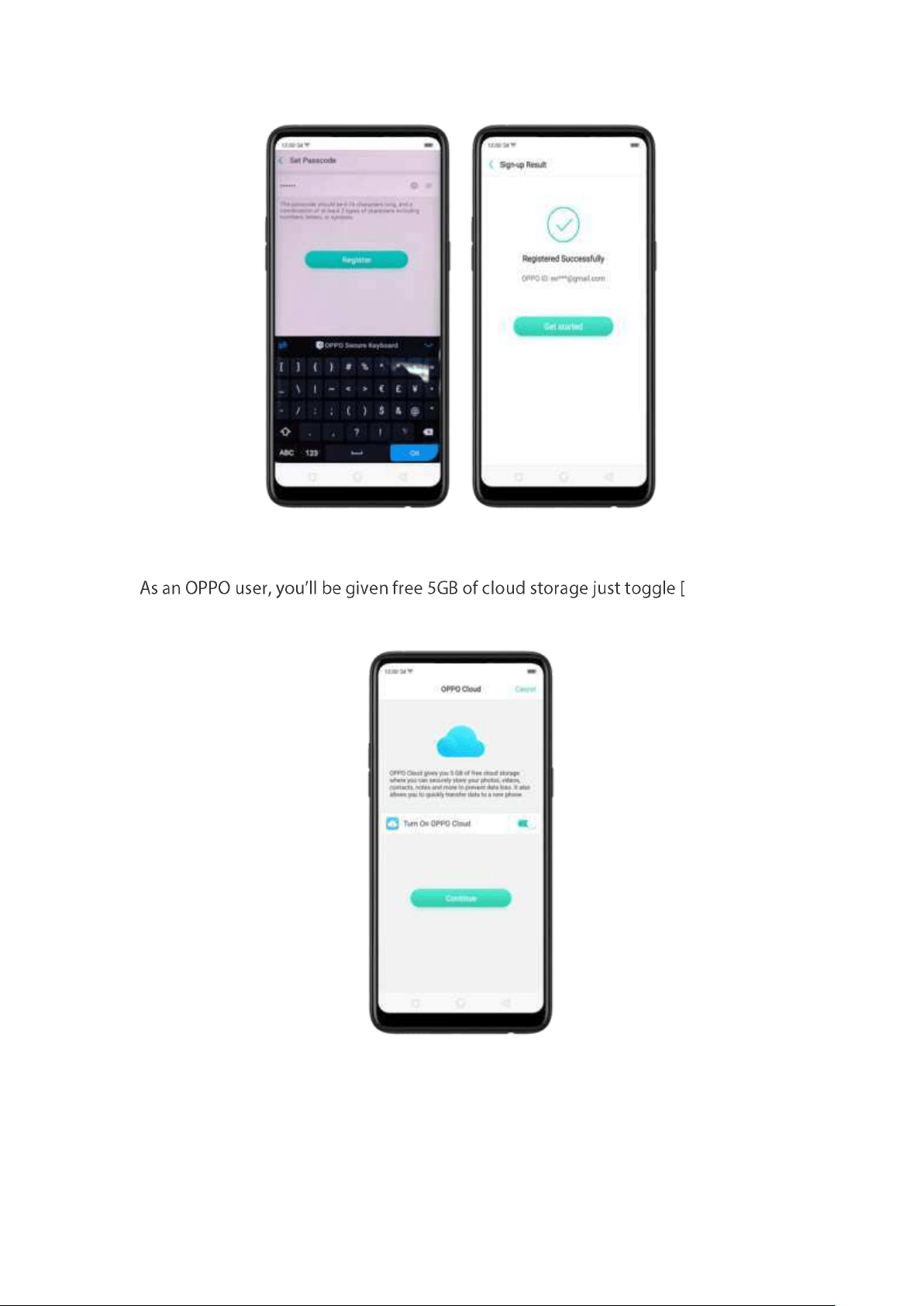
OPPO Cloud
Turn On
OPPO Cloud ] to green and click Cont inu e.
OPPO ID Cr ed ent ials
You can input your personal information as well as photo for your OPPO ID.
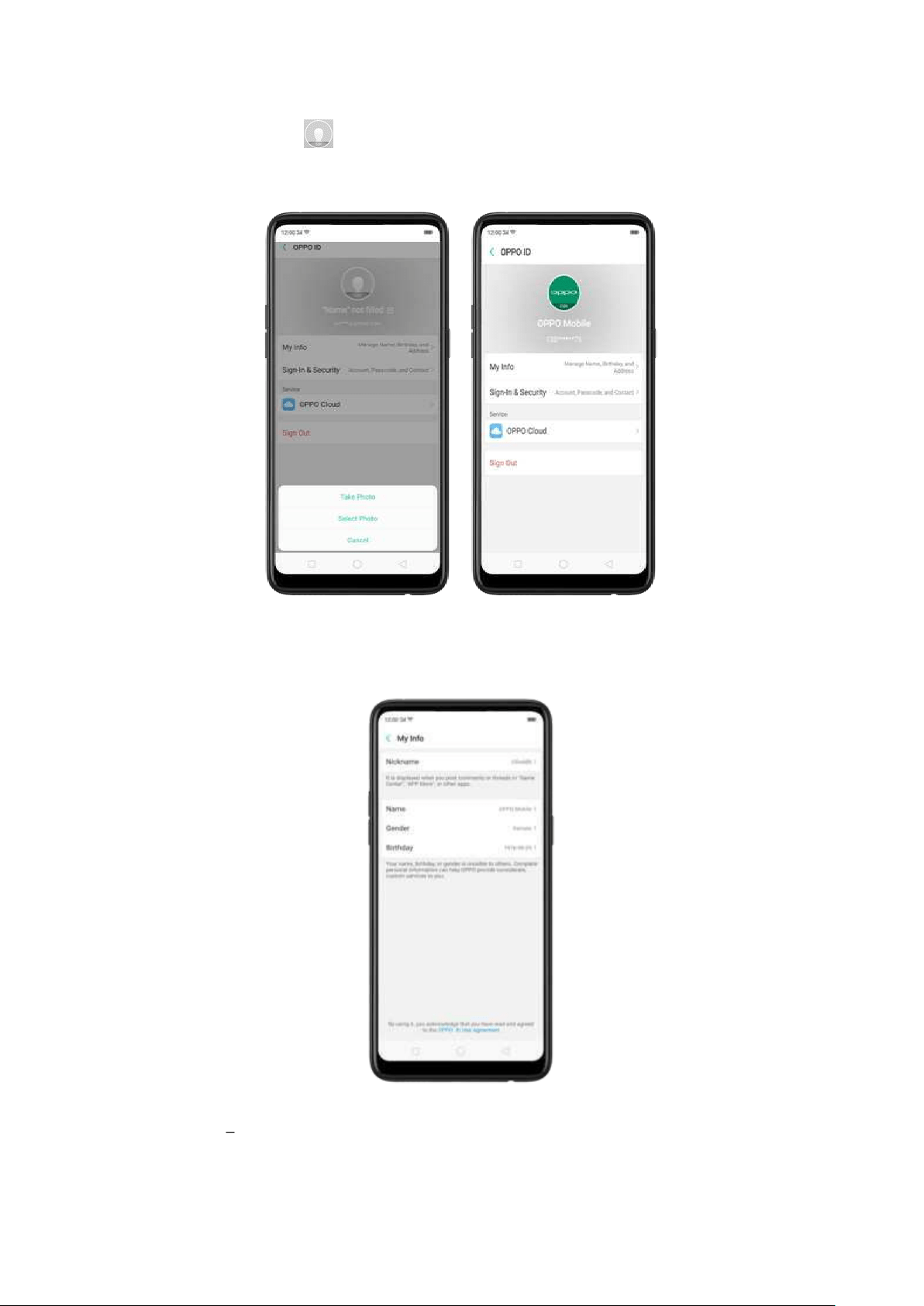
To put a p hot o, click then click either Select Phot o or Take Phot o to add an
im age.
To manage Name, Birthday, and Address click [
My Info] then click each
inform ation you would want t o input.
Nicknam e input the nicknam e that you would like to show on your OPPO ID.
Your nickname will be displayed when you post comments or t hreads in Game
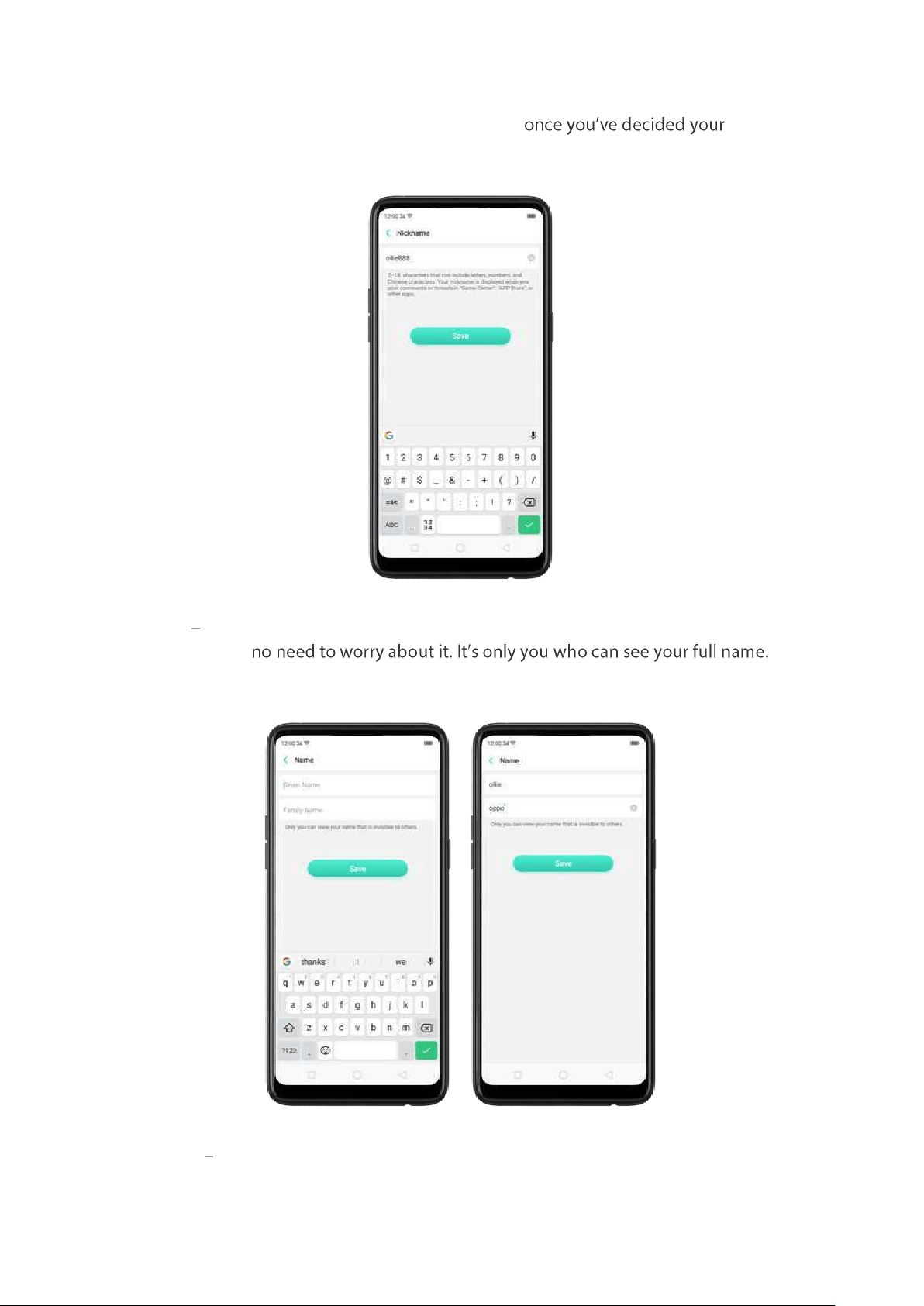
Center, OPPO AppStore, or other apps. Click Save
nickname.
Name You can input your given name and family name. This won't be visible to
other users so
Click Save once done.
Gend er You can set your gender or just cancel it. Gender will be invisible to
others. It's only you can see it.
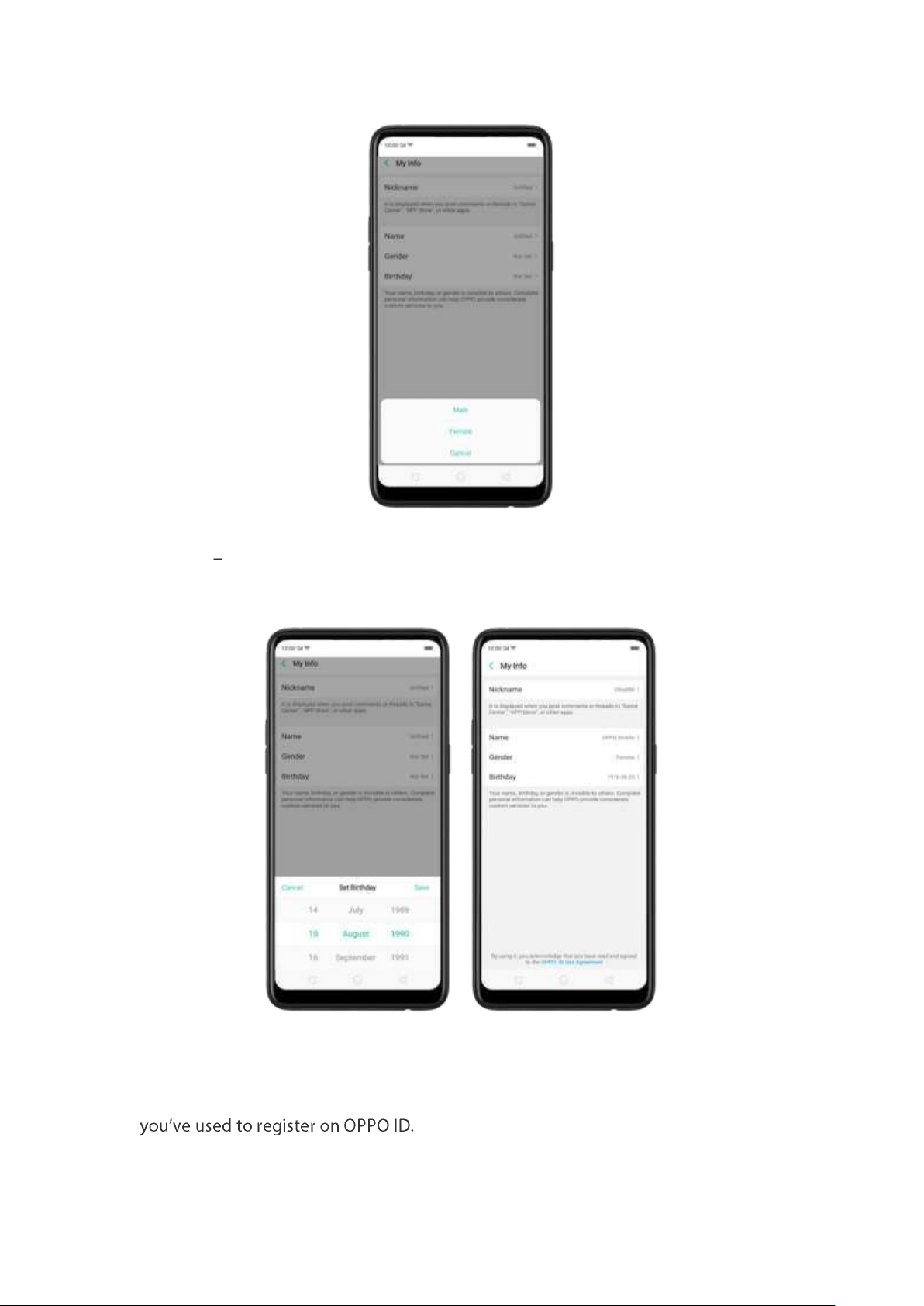
Birt hd ay You can set your birt hday or just cancel it. Birthday will be invisible to
others. It's only you can see it.
To manage Account, Passcode, and Contact click [
Sign-In & Securit y] t hen click
each information you would want to add. For security purposes, each action at t his
stage will require verification from either the email address or mobile number that
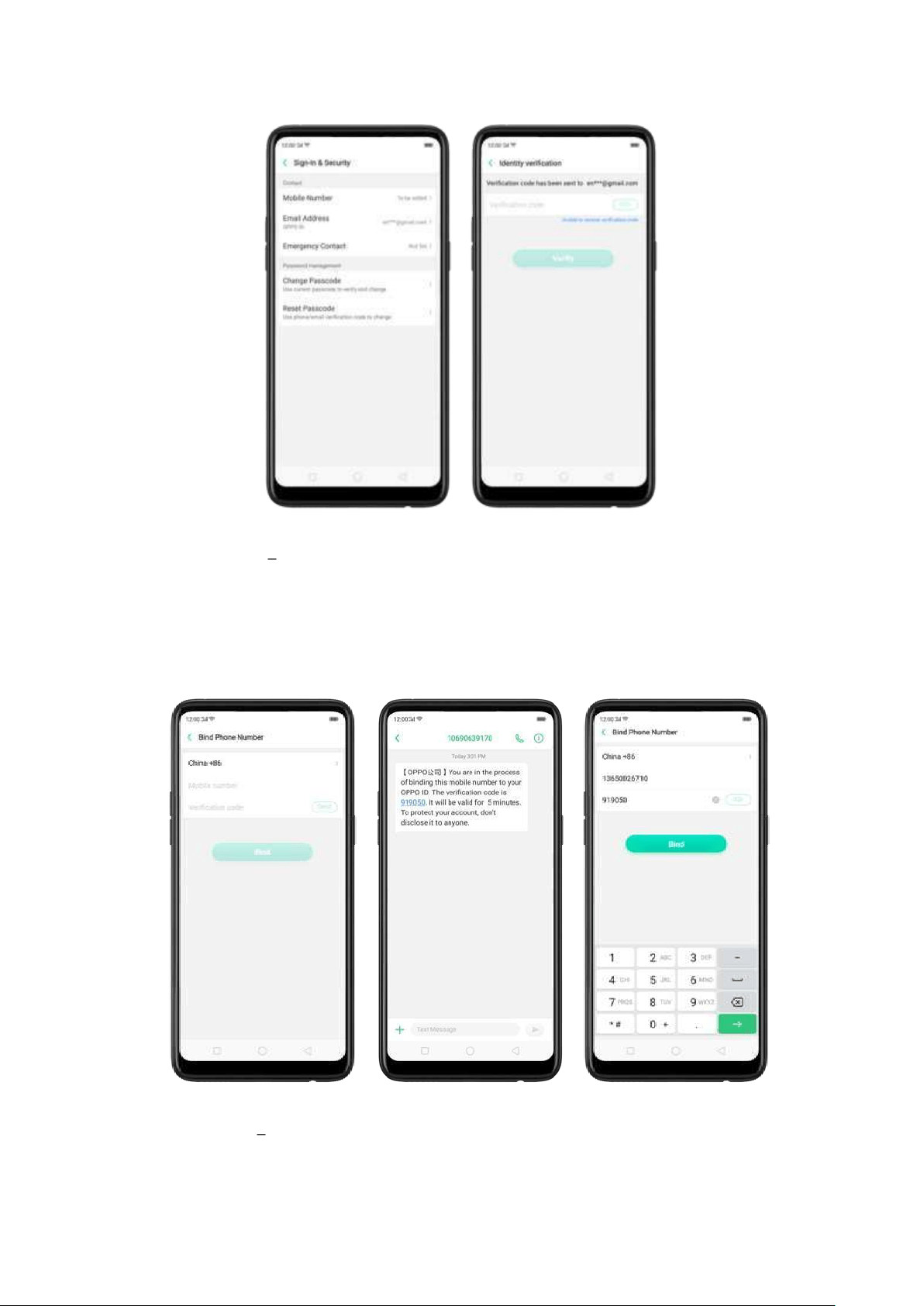
Mobile Nu mb er The phone num ber that you will inp ut can also be used to log in
OPPO ID, reset passcode, and verify your identity.
Choose th e cou nt ry of the SIM
that you are using,
inp ut t he p hon e nu mb er, click Send , and then wait for the
verification code to arrive on your phone. Input t he verification code then
click
Bind .
Em ail ad dress You may change email address from here or add one when you
have used Mobile Number to register on OPPO ID. Wait for the verification code to
arrive on your email address. Input the verification code then click
Bind .
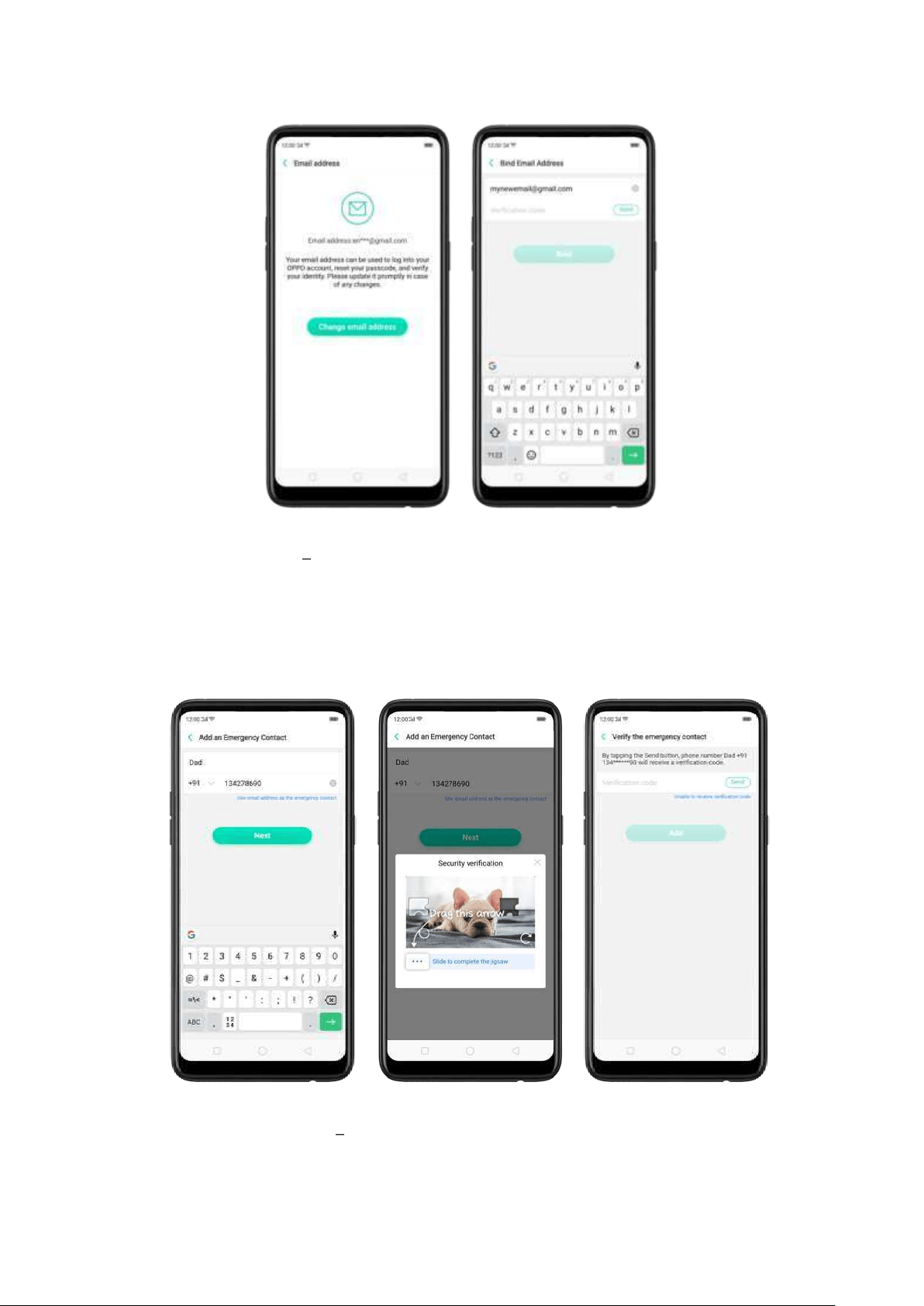
Em erg ency co nt act Once em ergency contact will be added, it will be used as
one of the verifications whenever you reset your phone or sign in to Find My Phone
as a security m easure. Just input the nam es and m obile num bers or email
addresses, follow the security question, verify the contact number by sending the
verification code, then click
Next .
Password Management You can either Chan ge Passcod e using the current
password to verify and change or you can
Reset Passcod e using t he phone/email
verification codes.
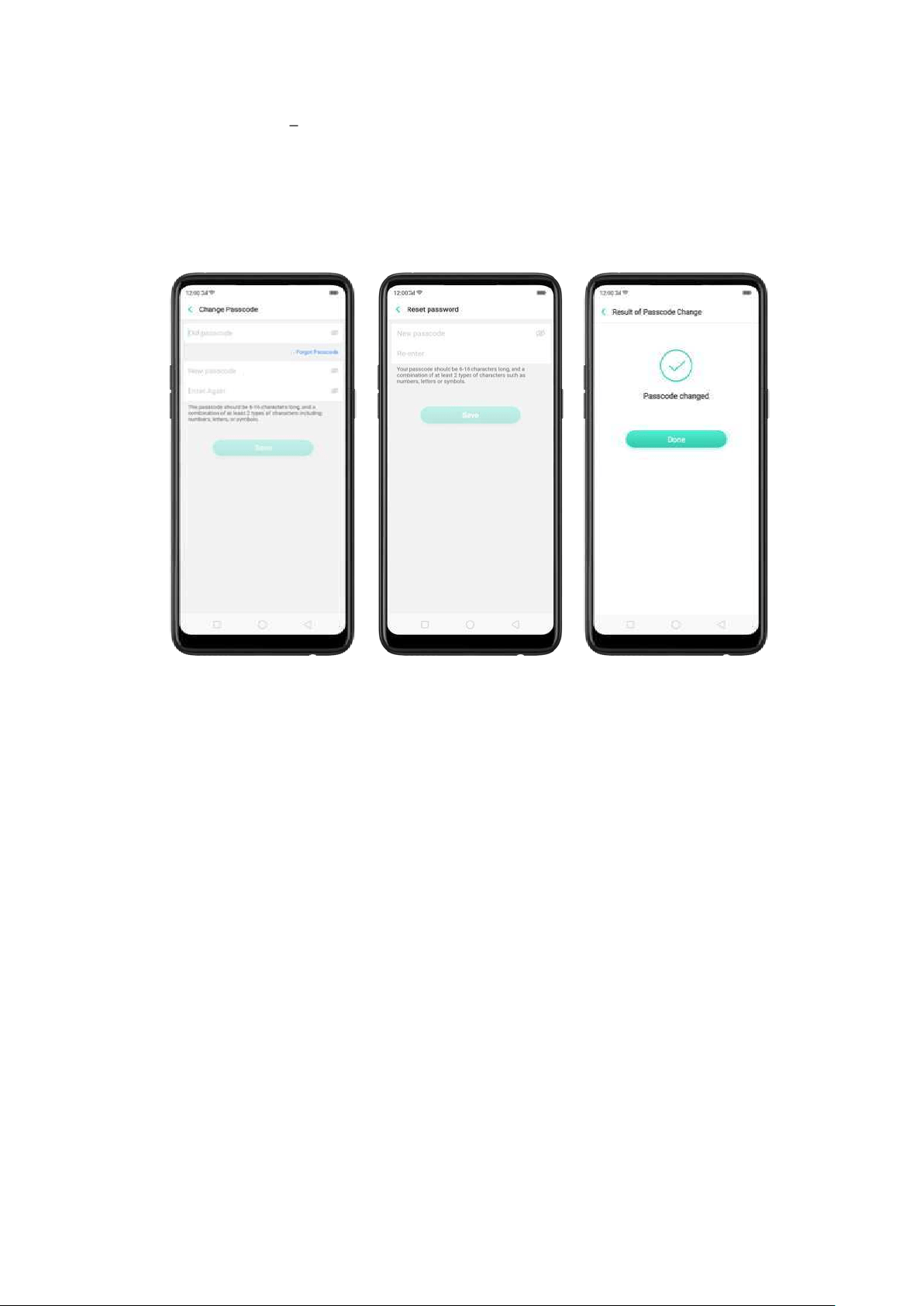
Change Password enter the old one then input the new password t hat you
would want, verify then click
Save. You can also click Forget Password which direct
you to reset password.
Reset Passw ord - Just inp ut the new passcode that you would want, re-enter and
click Save.
To exit OPPO ID, Just click
Sign out . For security of your data, you will be asked if
you want to delete data that have been backed up t o your OPPO cloud since you
can always restore it from OPPO cloud anytim e. You may click Keep d at a on yo ur
phone, Delet e dat a from your phon e, or Cancel. Each action requires verification
by entering your passcode. After entering the passcode, click
Exit .
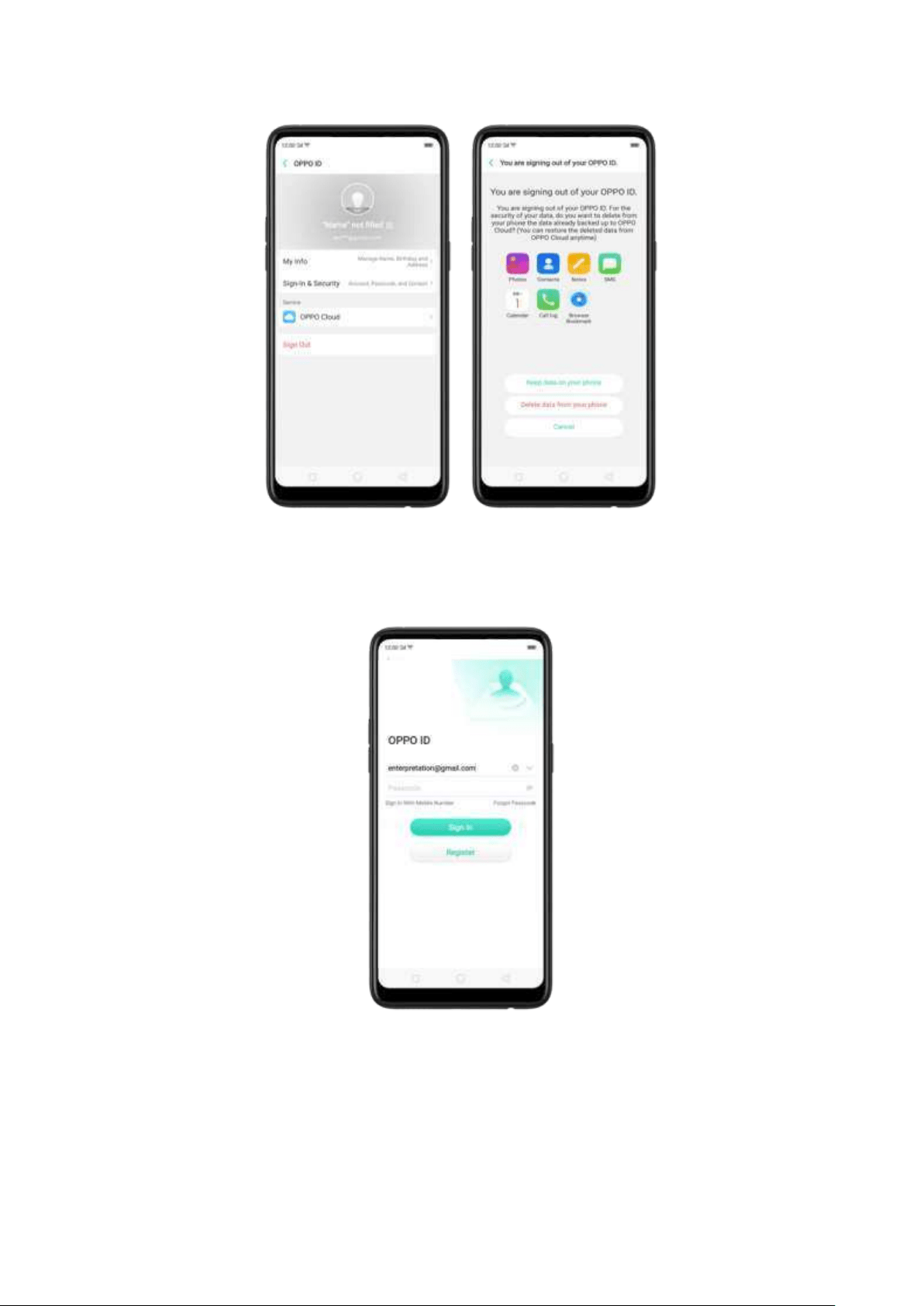
If you alread y have an OPPO ID account
Just type the email address and enter the passcode, then click
Sign in.
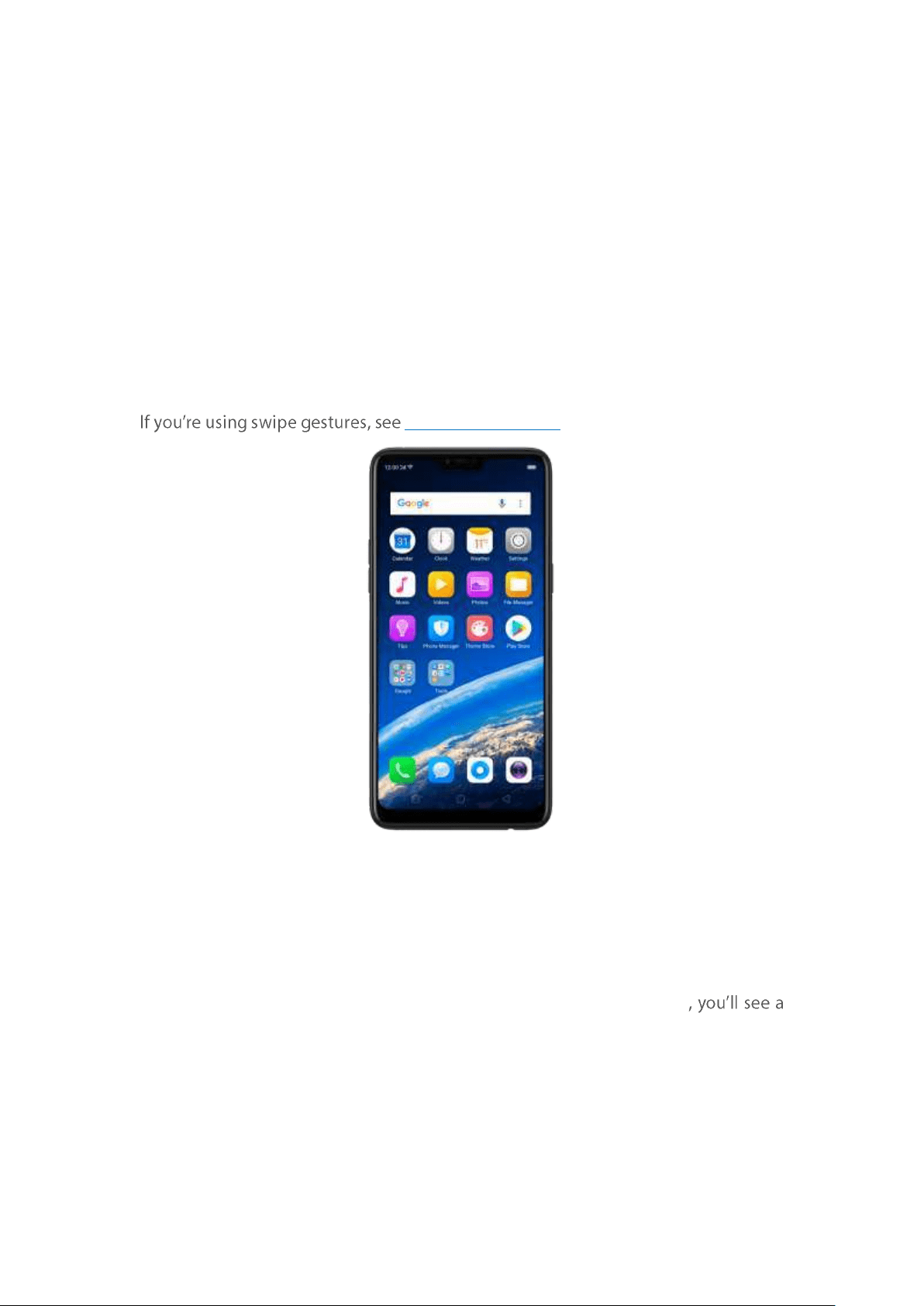
5. Basics
5.1 Use apps
Open apps
The Home screen shows all t he apps on your p hone. Click any application icon to get
started.
Apps will show the number of m essages pending to be read in red on their Hom e
screen icon.
Navigation Gest ures.
Quick Act ions
Press and hold an app icon to bring up "Quick Actions," which offers shortcuts to
specific features within that app. When t he menu appears, click the shortcut you
would like to use, then the app will open directly to that feature. For example, go to
your Hom e screen and press and hold on the icon for the Camera app
mini m enu that lets you jump straight to a beauty selfie, a sticker selfie, a video, or
the app info page.
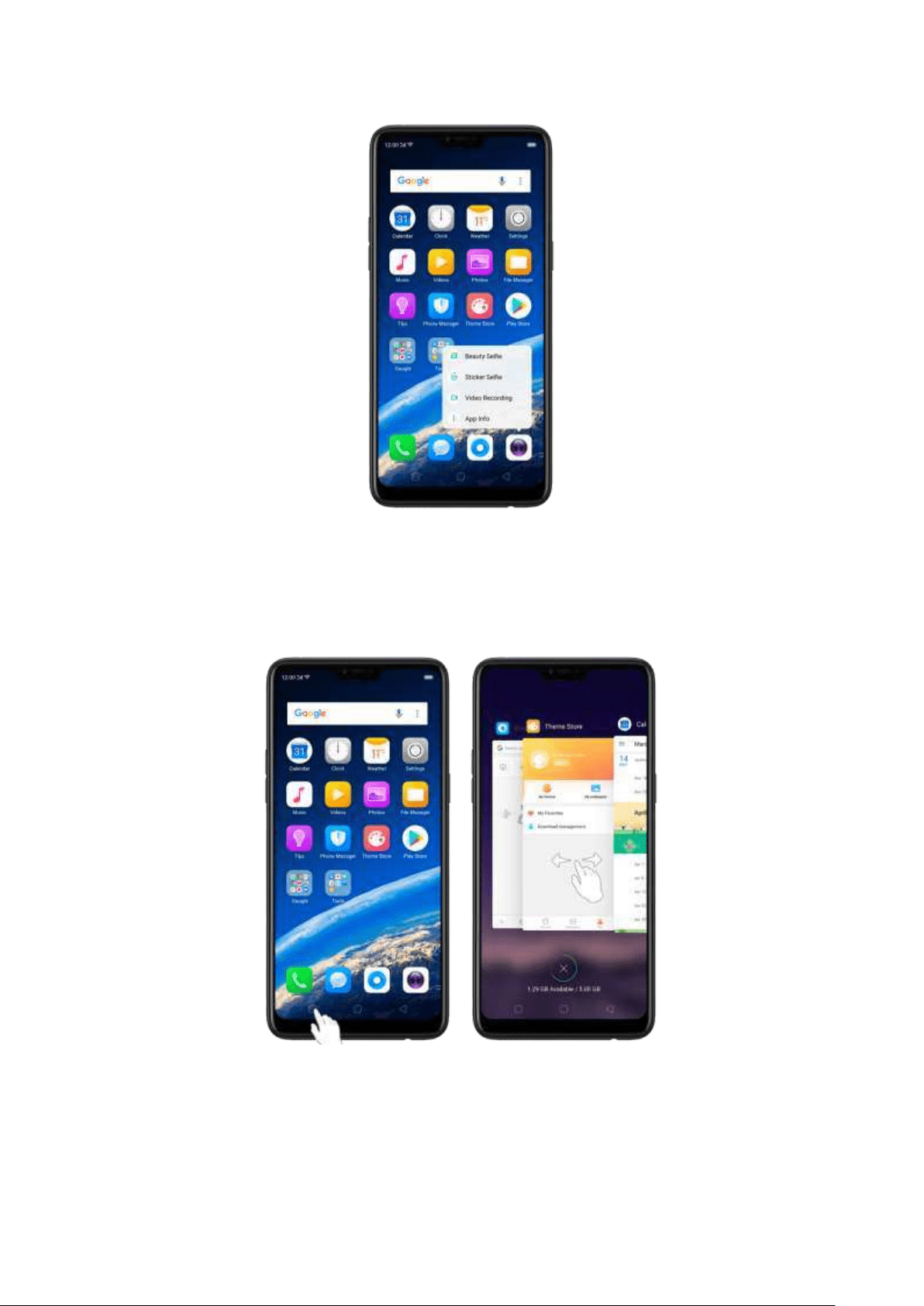
Sw itch betw een apps
Clicking Menu button on the bottom left would bring up a menu for app s that you
were in. Swipe left or right to see more. To switch to another app, click it.
Close apps
Click Menu button on t he bottom left, and then:
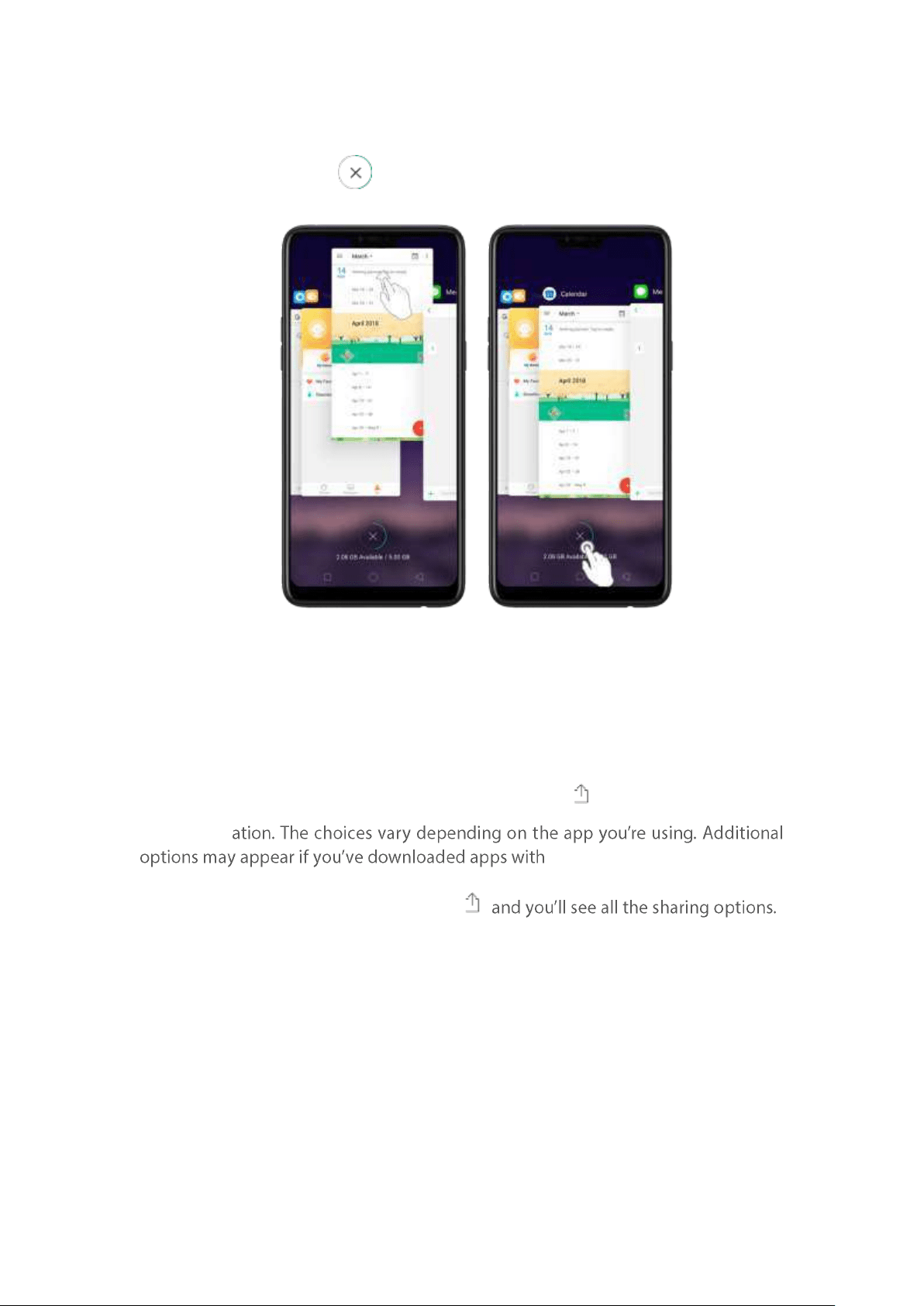
Close an app : Swipe the app up to t he top edge of the screen.
Close all ap ps: Click to clean up the list.
5.2 Share from apps
In addition to sharing your inform ation from t he Files app, you can also share from
many other apps on your OPPO sm artphone.
Share from ap ps. In many apps, you can click Send or to choose how t o share
your inform
multiple sharing options.
Take the Photos app as an example, click
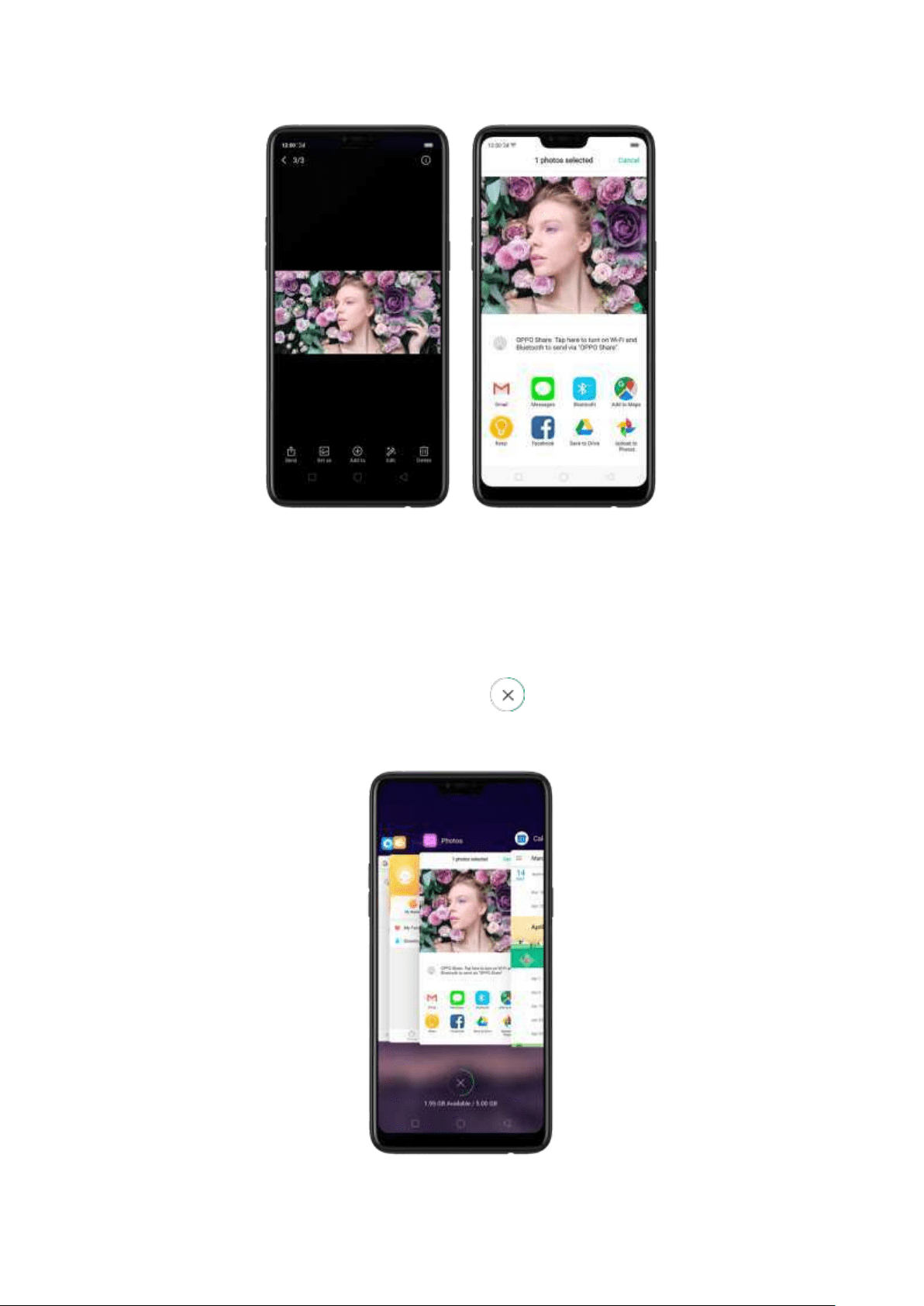
5.3 One-click cleanup
One-click cleanup option helps you to m ake your phone perform steadily and
faster.
St op b ackground ap ps. Click Menu button > to close all active apps. If you
want t o close a specific app, swipe it up.
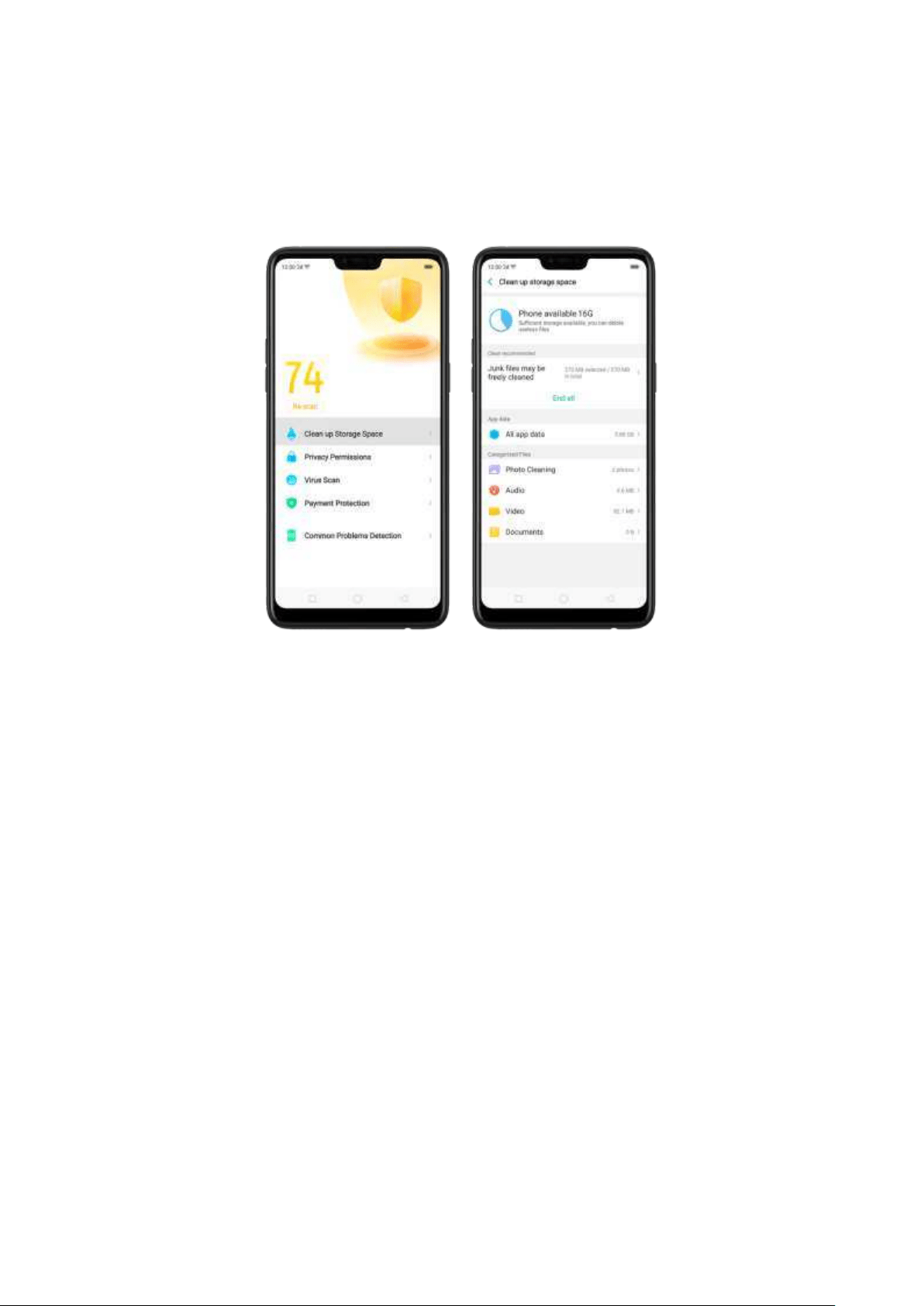
Clean-up & Accelerat e. Click Phone Manager on the Hom e screen, then click [Clean
St orage]. Scan and delete all kinds of junk files. You can also delete the app data and
other unnecessary files, such as photos, audio, videos, and documents.
5.4 Lock t he running background apps
You m ay close the running background apps frequently to make your phone
perform steadily and faster. If you want some apps to be always connected and
reachable, do the following:
Lock an ap p . Click Menu b utton to reveal your open apps, then swipe an app down
to the bottom edge of the screen. Notice that a lock appears on the upper-left corner
of the app.
Repeat the action for other apps.
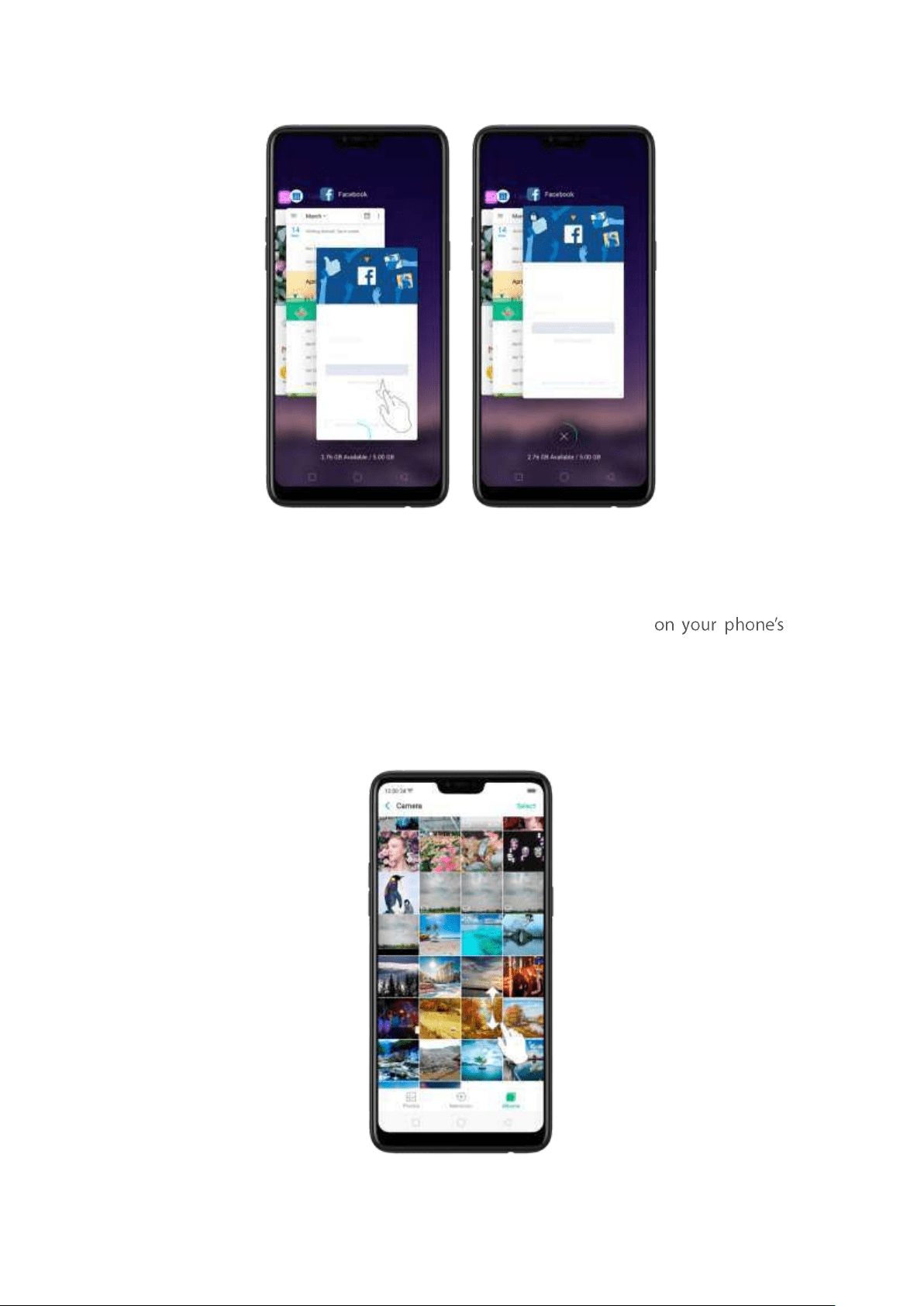
5.5 View, zoom in and out
Use the touchscreen to interact directly with what is displayed
screen.
View it ems. Drag up or down to scroll. You can also drag some screens in any
direction, such as webpages. Flick
to scroll quickly. You can wait for the scrolling to
com e to a stop, or touch anyw here on the screen to stop it immediately.
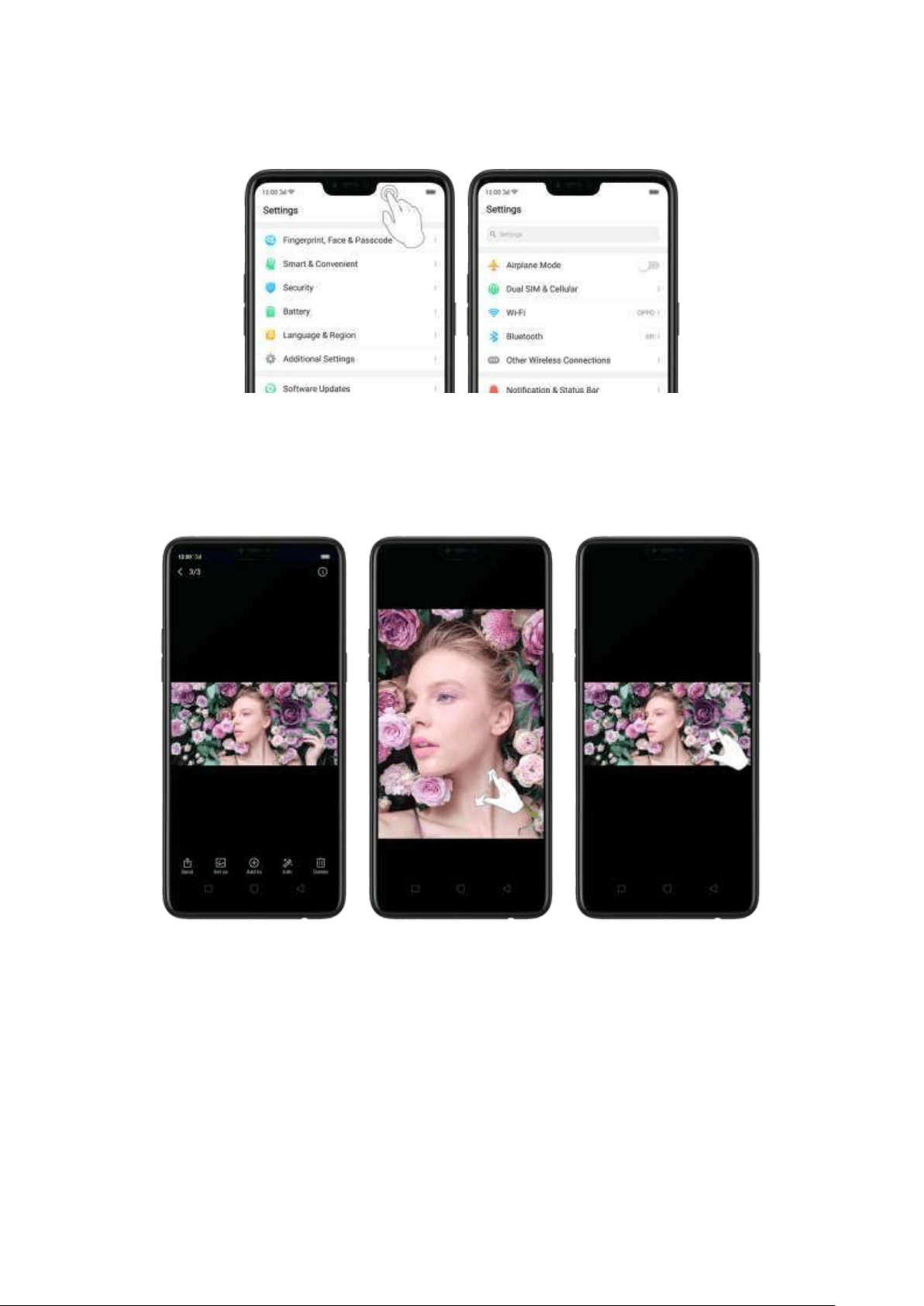
On some screens such as Settings and Contacts page, double -click t he status bar to
quickly scroll to the top.
Zoom in and out . When viewing photos, maps, or web pages, you can zoom in and
out. Pinch your fingers together or apart. For p hotos and web pages, you can double-
click to zoom in, then d ouble-click again to zoom out. For m aps, double-click to
zoom in and click once with two fingers to zoom out.
Not e: Memories and Stories are terms that can be interchangeably used and
doesn't affect the full functionality of the phone.
5.6 Sm art & Convenient Operation
5.6.1. Navigat ion Keys
With ColorOS 5.0, all navigation is handled with the on-screen virtual keys and
gestures. The three virtual navigation keys appear at the bottom of every screen, and
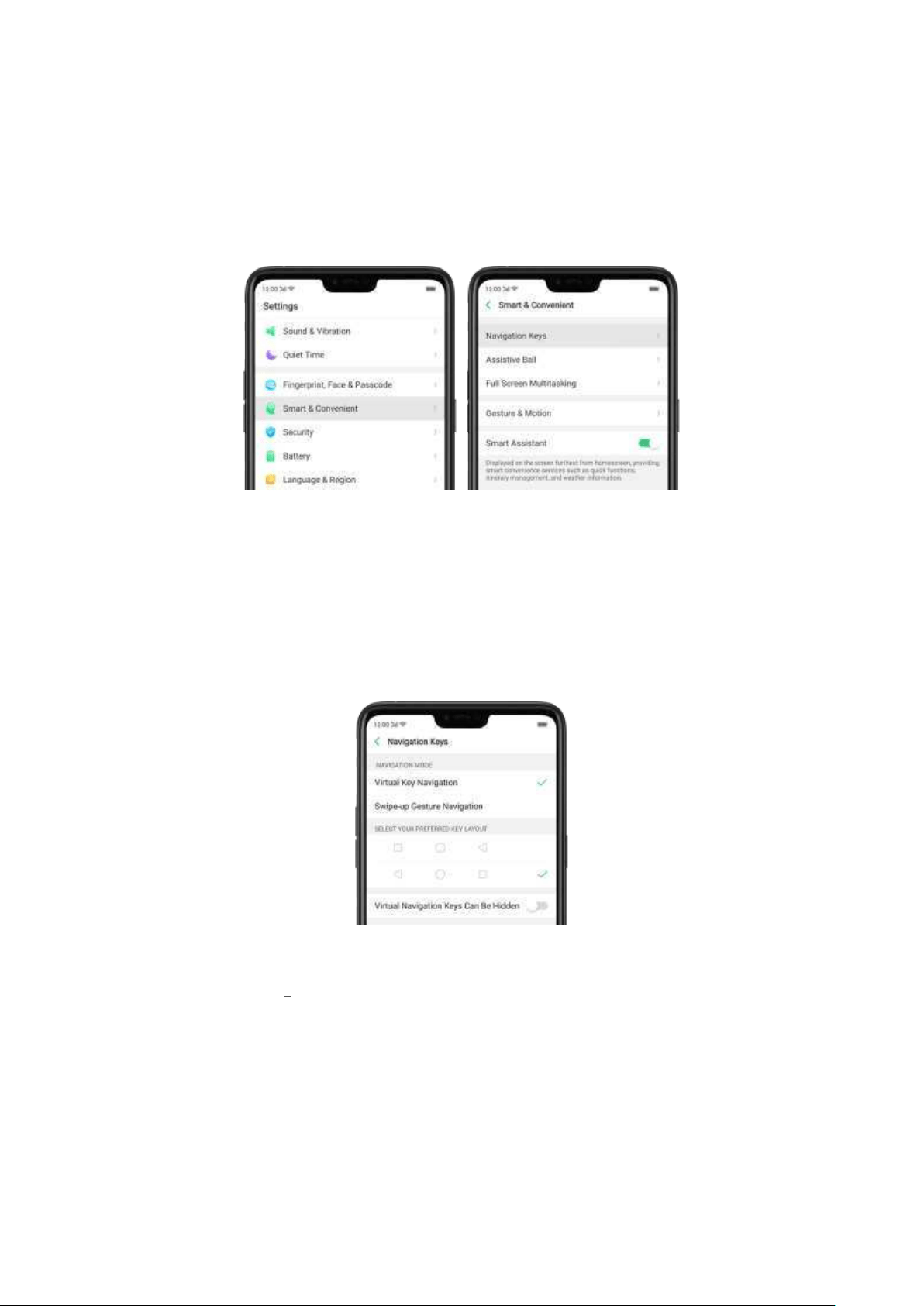
can be hidden when not in use. You can also arrange the order of "Back" and "Recent"
depending on your preference.
Besides, if you are in love with gesture navigation
control, you can use a gesture-based system to navigate around the phone instead
of the traditional navigation key.
To switch between navigation keys and gest ures, go to
[Settin gs] > [Smar t &
Convenient ] > [Navigat ion Keys].
Virt ual Key Navigat ion
Enab le vir tual key navigat ion. Virtual key navigation the default setting. If you w ant
to enable it manually, click
Virt ual Key Navigat ion .
Change t h e order of virt ual navigat ion keys. The keys follow the typical order for
OPPO: Menu, Home, and Return from left to right. If you are left-handed, you can
change them to the
Ret urn-Ho me M enu order.
Hid e t he vir t ual navigat ion keys. When you launch a full-screen app, the keys will
autom atically hide, and can be brought back with a simple swipe:
When in portrait mode, swipe up from the bottom .
When in landscape mode, swipe from the bottom to t he left.
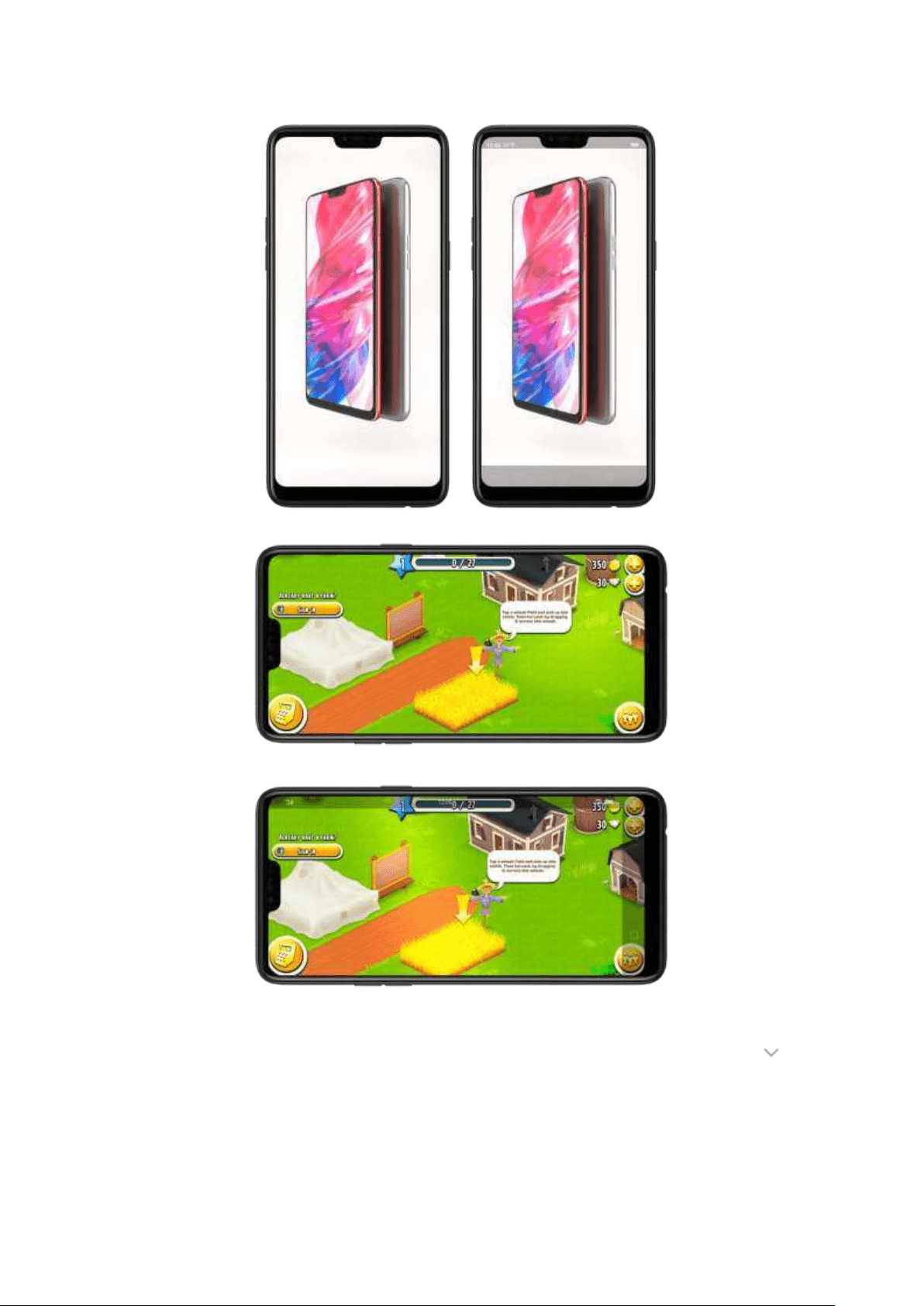
Manually hide t he virt ual navigat ion keys. To set the keys to appear only when
needed, turn on
Virt ual Navigat ion Keys Can Be Hid den . Then you can click
on the left-lower corner of t he screen to hide the keys, and swipe from the bottom
to reveal them .
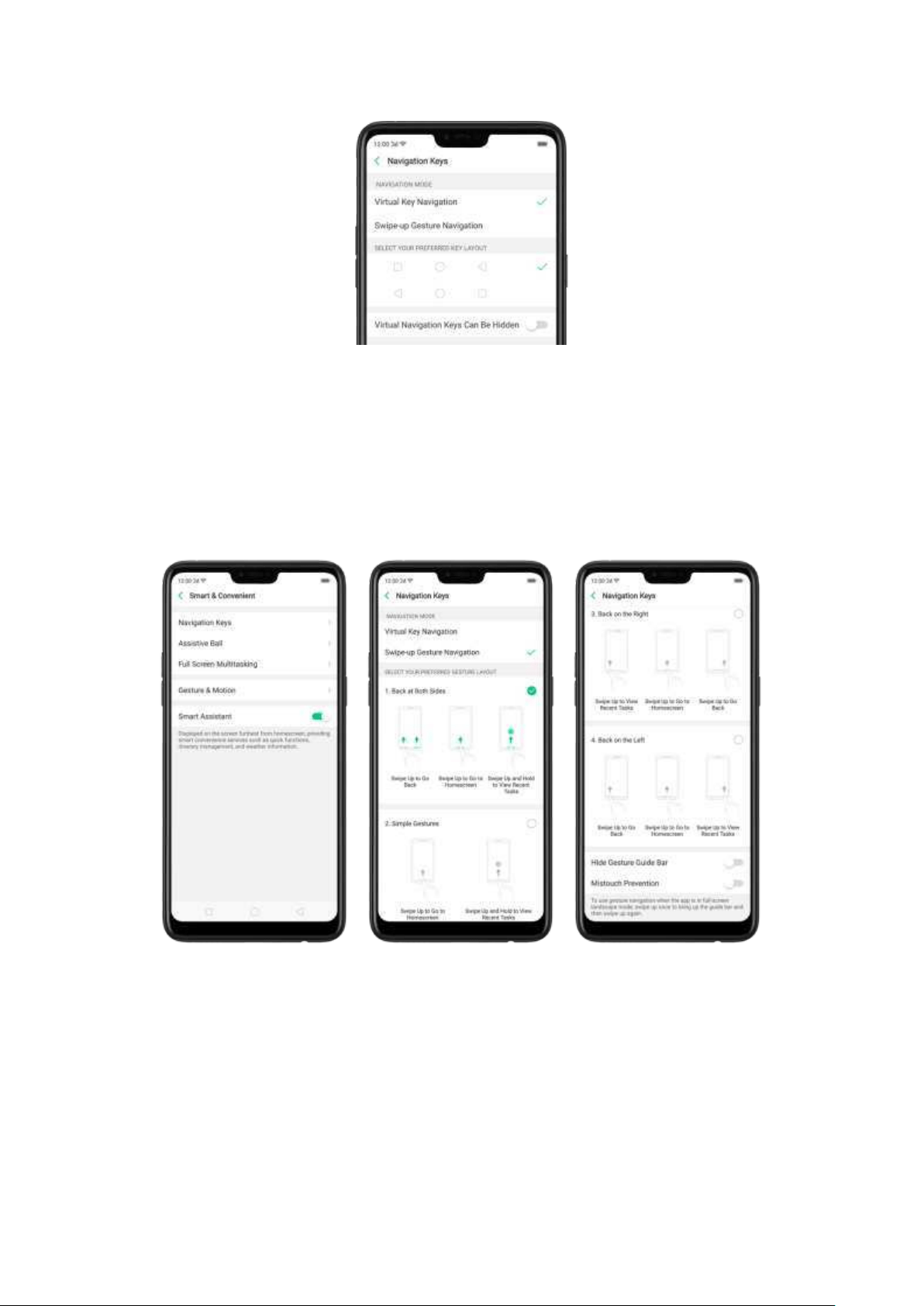
Sw ipe-up Gesture Navigat ion
Four kinds of new swipe-up navigation gestures are added to your phone, and you
can choose one that suits you most.
Use swip e-up navigat ion g estures. Go to [Set t ings] > [Smar t & Convenient ] >
[Navigation Keys] and click [Sw ip e-up Gest ure Navigat ion].
Back at bot h sides. Swipe up from the left or right bottom to return to upper page,
swipe up from t he m iddle bottom to get to the Hom e screen, and swipe up from the
middle bottom and pause 1 second to view recent tasks.
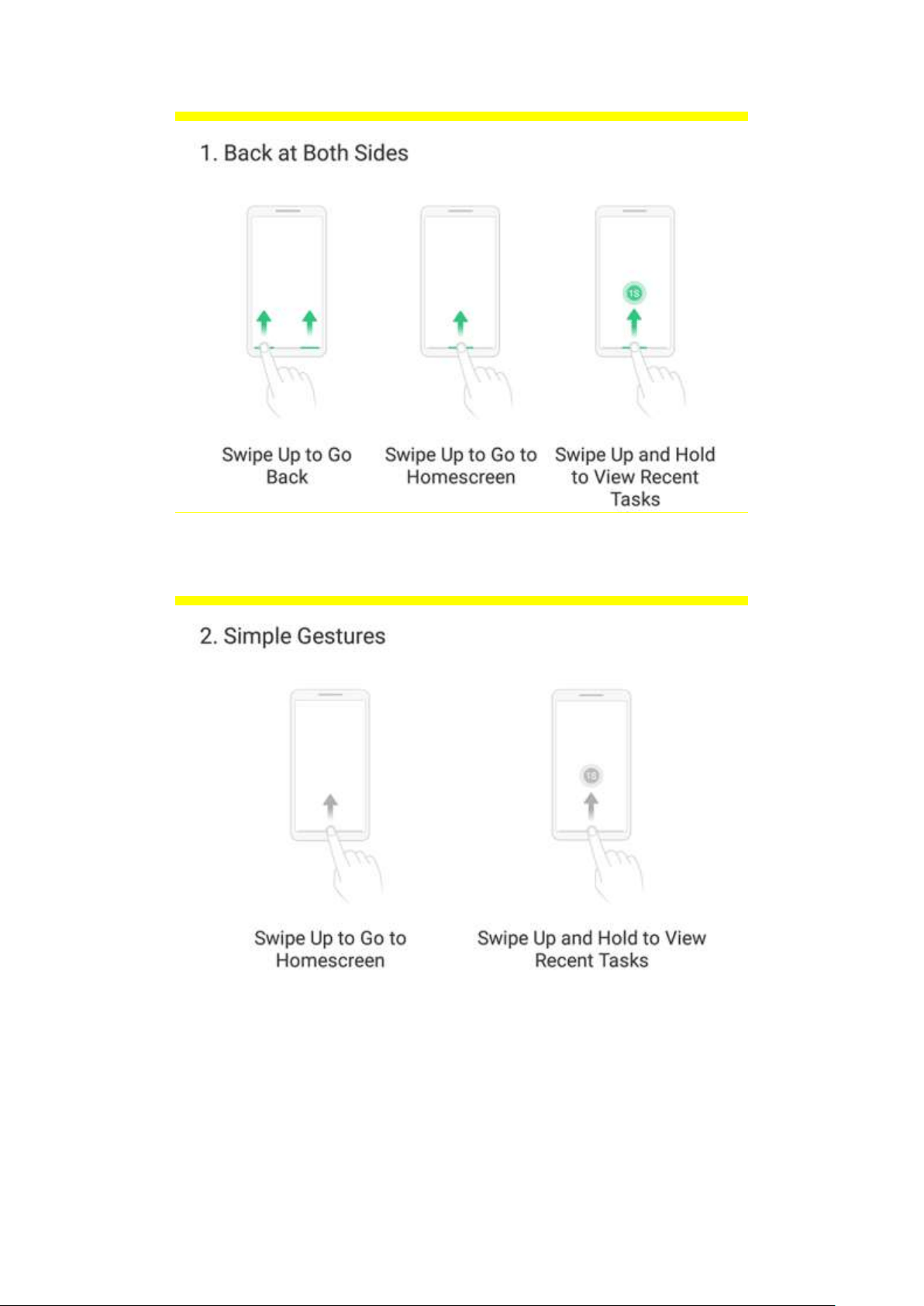
Simp le gest ures. Swipe up from the middle bottom to get to the Home screen, and
swipe up from the middle bottom and pause 1 second to view recent tasks.
Back on t he right . Swipe up from the left bottom to view recent tasks, swipe up from
the middle bottom to get to the Home screen, and swipe up from the right bottom
to return to upper page.
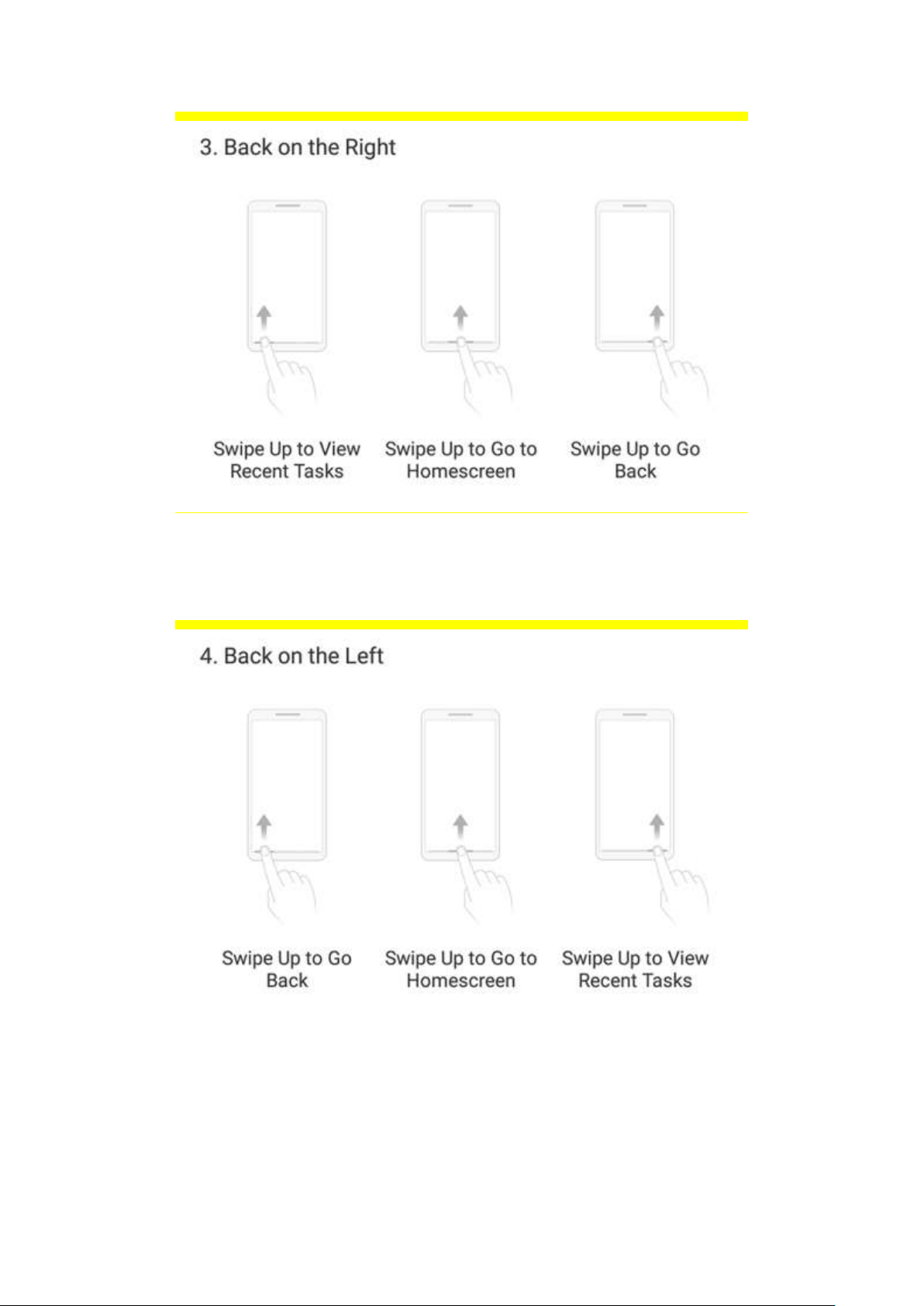
Back on t he l eft . Swipe up from the left bottom to return to upper page, swipe up
from the middle bottom to get to the Hom e screen, and swipe up from the right
bottom to view recent tasks.
Hide Gesture Guid e Bar. Gesture Guide Bar is the translucent line at the bottom of
the screen, which allows you to quickly distinguish the left, middle
, and right swipe-
up regions. To hide the guide bar, turn on
[Hide Gest ure Guid e Bar].
Prevent mist akenly t ouching. Turn on [Mistouch Prevent ion ]. To use gesture
navigation when t he app is in Landscape Mode, you need to swipe up to bring up
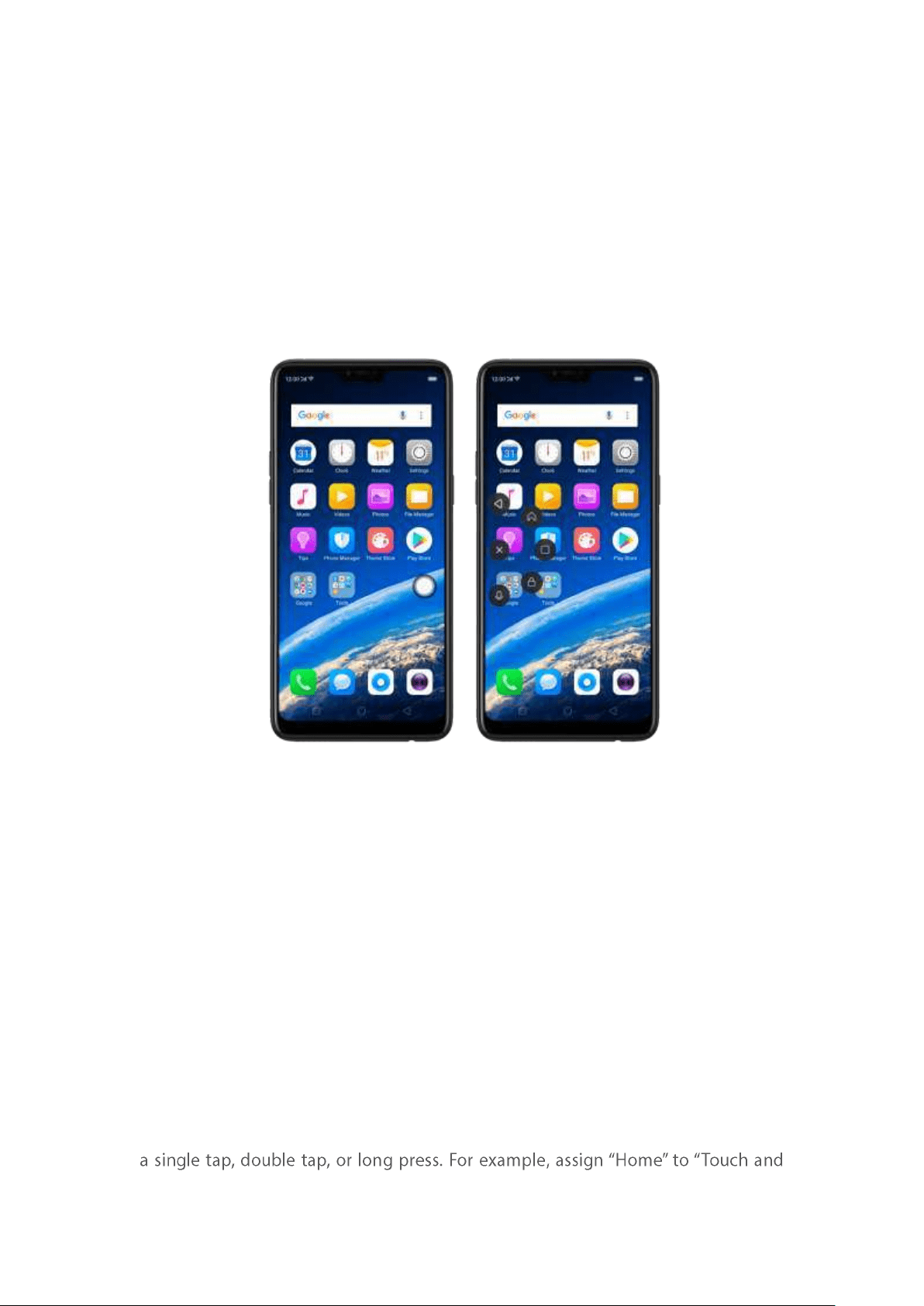
the guide bar first, then swipe up again in the same area.
5.6.2. Assistive Ball
Applying the Assistive Ball feature provides options to access several regular phone
features through t he touchscreen, rather than the tactile buttons. It enables you to
use the virtual navigation keys with just one finger, and also open t he notification
center, take a screenshot, and more. When you perform gestures that are difficult for
you, Assistive Ball can help.
Assistive Ball lets you perform a wide range of features:
Return to upper page
Go to t he Hom e screen
View recent tasks
Open Notification Center
Lock the screen
Enter One-hand Mode
Take a screenshot
To configure the Assistive Ball menu, go to
[Settin gs] > [Smar t & Convenient ] >
[Assist ive Ball], then choose one operation mode:
Gesture Op erat ions. Below Gesture Operations, you can assign different actions to
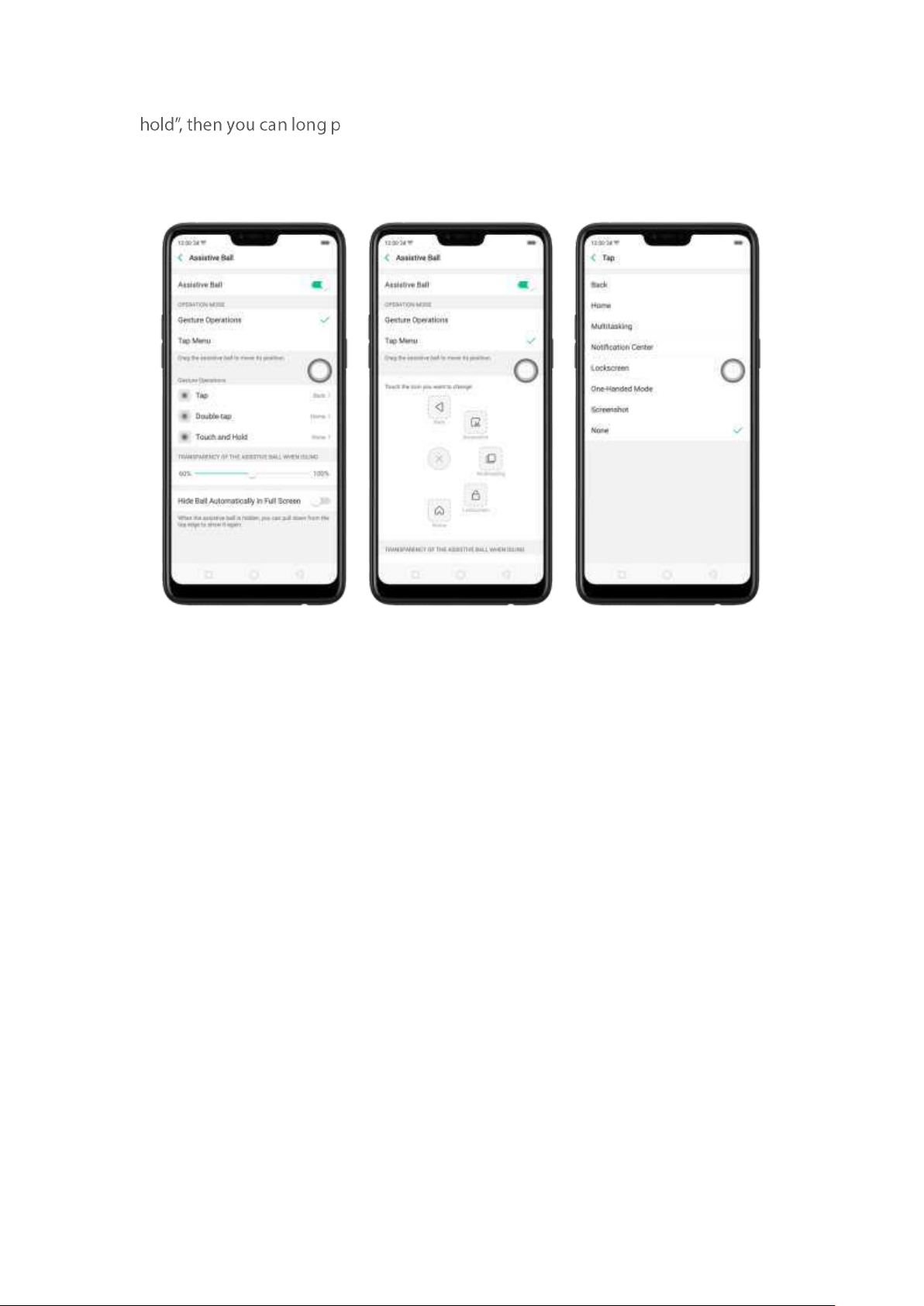
ress the Assistive Ball to go to t he Hom e screen.
Tap Menu. There are five shortcuts for enabling different features in Tap Menu. Click
a shortcut and change t he option t o t he one you preferred. On any screen, click t he
Assistive Ball to pop up the shortcut menu.
When Assistive Ball is on, you can hold the floating button and pull it around the
screen to any location to get it out of the way or make it more accessible.
Ad just the t ransparency of the Assistive Ball when not in use. Go to [Set t ings] >
[Smart & Convenient ] > [Assistive Ball], then drag t he slider.
Hide t he Assistive Ball aut om at ically in full screen . Go to [Set t in gs] > [Smart &
Convenient ] > [Assist ive Ball] and turn on [Hid e Ball Aut o mat ically in Full screen] .
To reveal the Assistive Ball, swipe down from the top of the screen.
5.6.3. Full Screen Mult itasking
When using an app in Landscape m ode, you can open a second app while the other
one is on t he foreground. Just swipe inwards from the edge of the notched area
(where the front camera is located) to bring up apps or functions, click an app icon,
then you can operate the app above the other one, in a floating window.
Mult it ask w it h t h e float ing mini ap p . Go to [Settings] > [Sm art & Convenient ] >
[Full Screen Mult it asking] and toggle the slider to green.
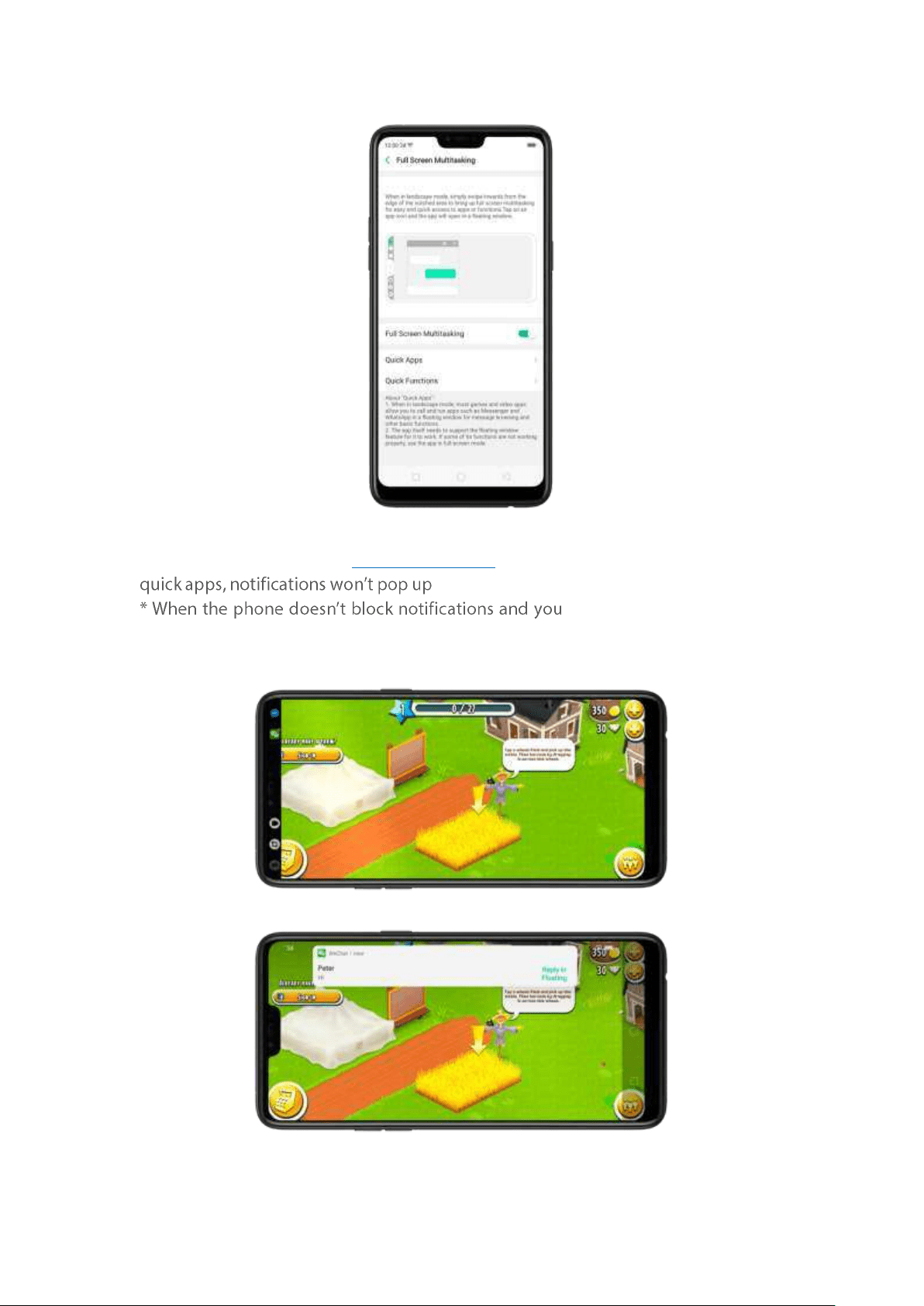
* When the phone is set to
block notifications and you receive new messages from
, while a red spot will display on the app icons.
receive new m essages from
quick apps, notifications will be displayed with a banner on t he top screen. Click
Reply in Floating to start full screen multitasking.
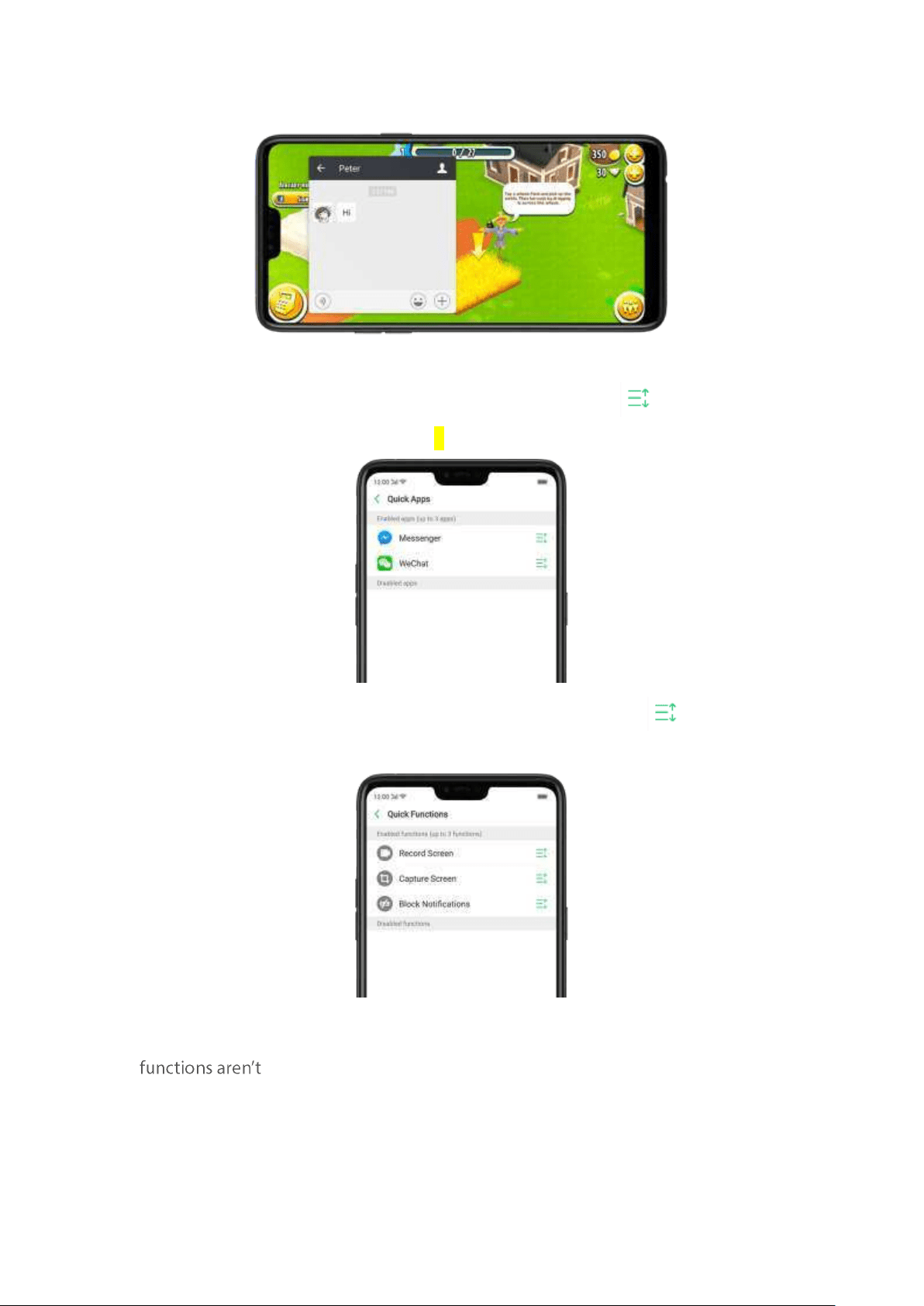
Ad d and rearrange quick ap ps. Click Quick Apps, then drag next to the app
up or down. You can add up to 3 apps.
Rearrange quick fun ct ions. Click Quick Functions, t hen drag next t o the
function up or down.
Not e: The q uick app needs to support t he floating window feature. If som e of its
working properly, use the app in full-screen mode.
5.7. Change the screen orient at ion
OPPO smartphone supports portrait and landscape screen orientations. Every time
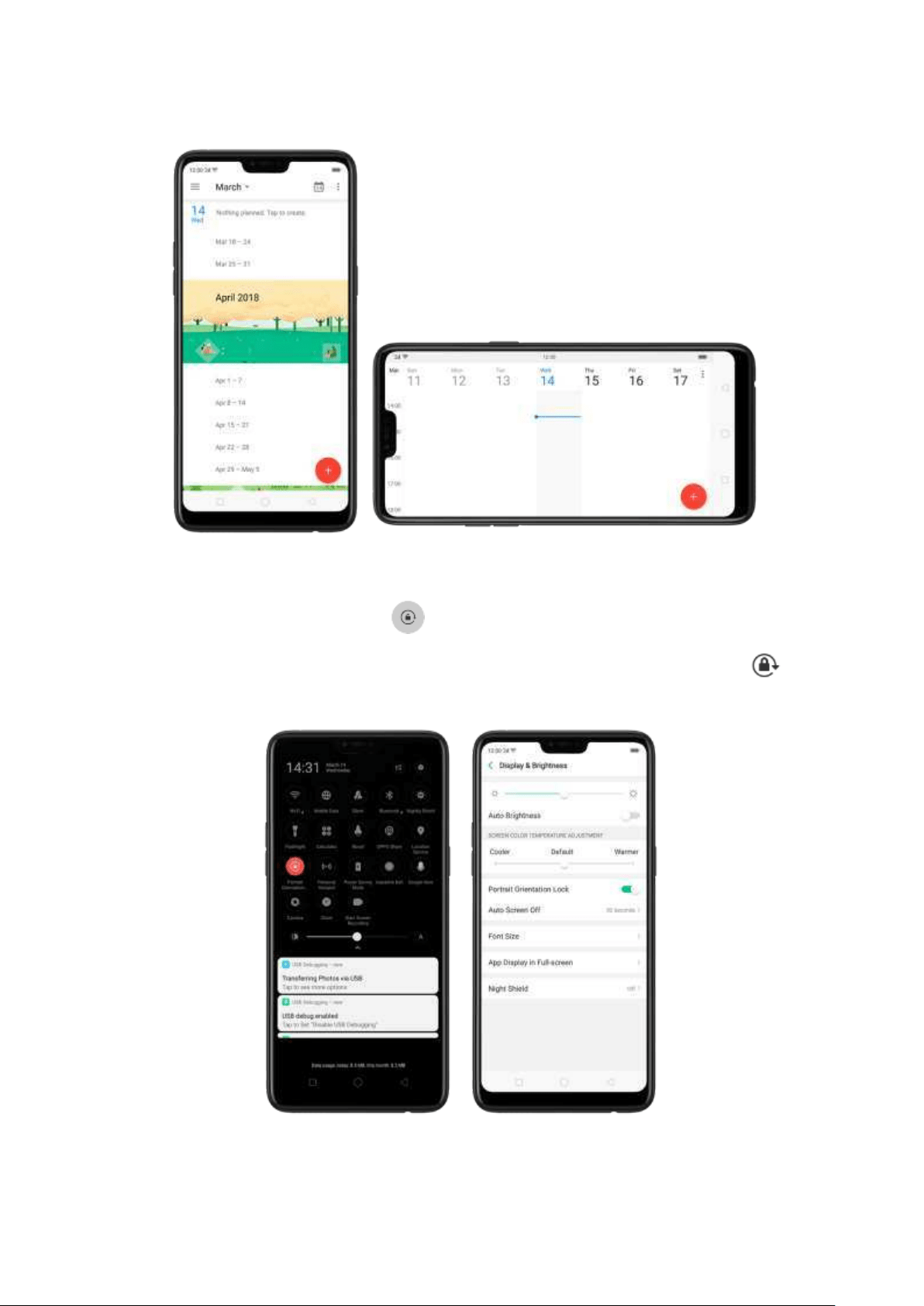
you shift your hands, the screen rotates.
To lock the screen in portrait orientation, swipe dow n from the top of the screen to
open Control Center, then click . Or go to
[Set t ings] > [Display & Bright ness]
and toggle the
[Por trait Orient at ion Lock] slider to green. Notice that
appears in the status bar.
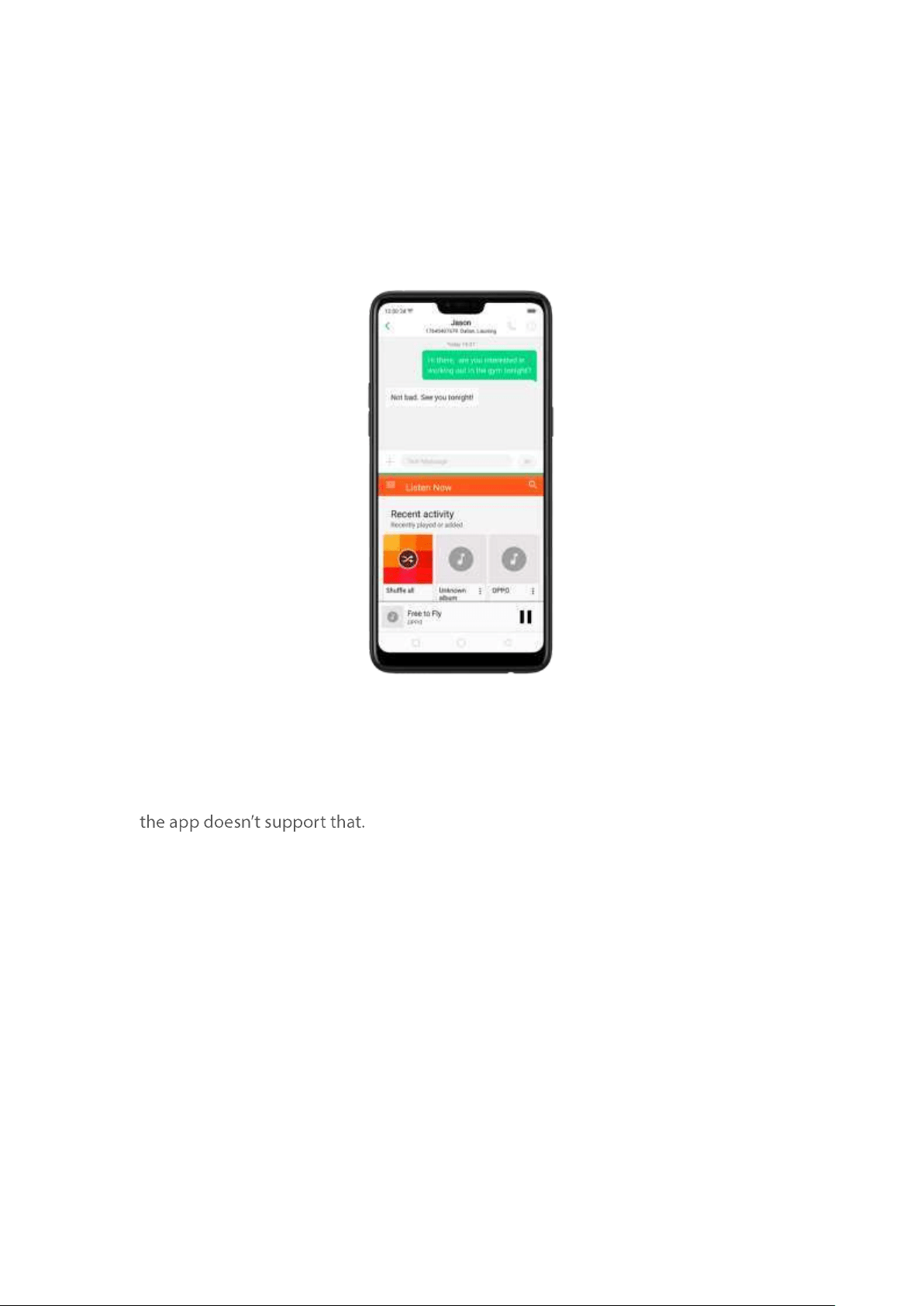
5.8. Split -screen
ColorOS 5.0 lets you set m ultiple m odes to fulfil your personal needs. The split -screen
mode allows you to divide the screen into two areas, with each area showing a
different scene at the same tim e. Now you can watch a movie and chat with friends
at the same screen.
Use Sp lit -screen. Go t o [Set t in gs] > [Split -screen], then turn on [Ap p Split -screen ]
and
[Sw ip e up w it h 3 Fing ers for Split -screen]. There are four methods to enter
Split-screen mode:
Not e: Bot h apps need to supp ort Split -screen function. Your phone will alert you if
Under the interface of an app, swipe up the screen with three fingers t o
enter split-screen mode.
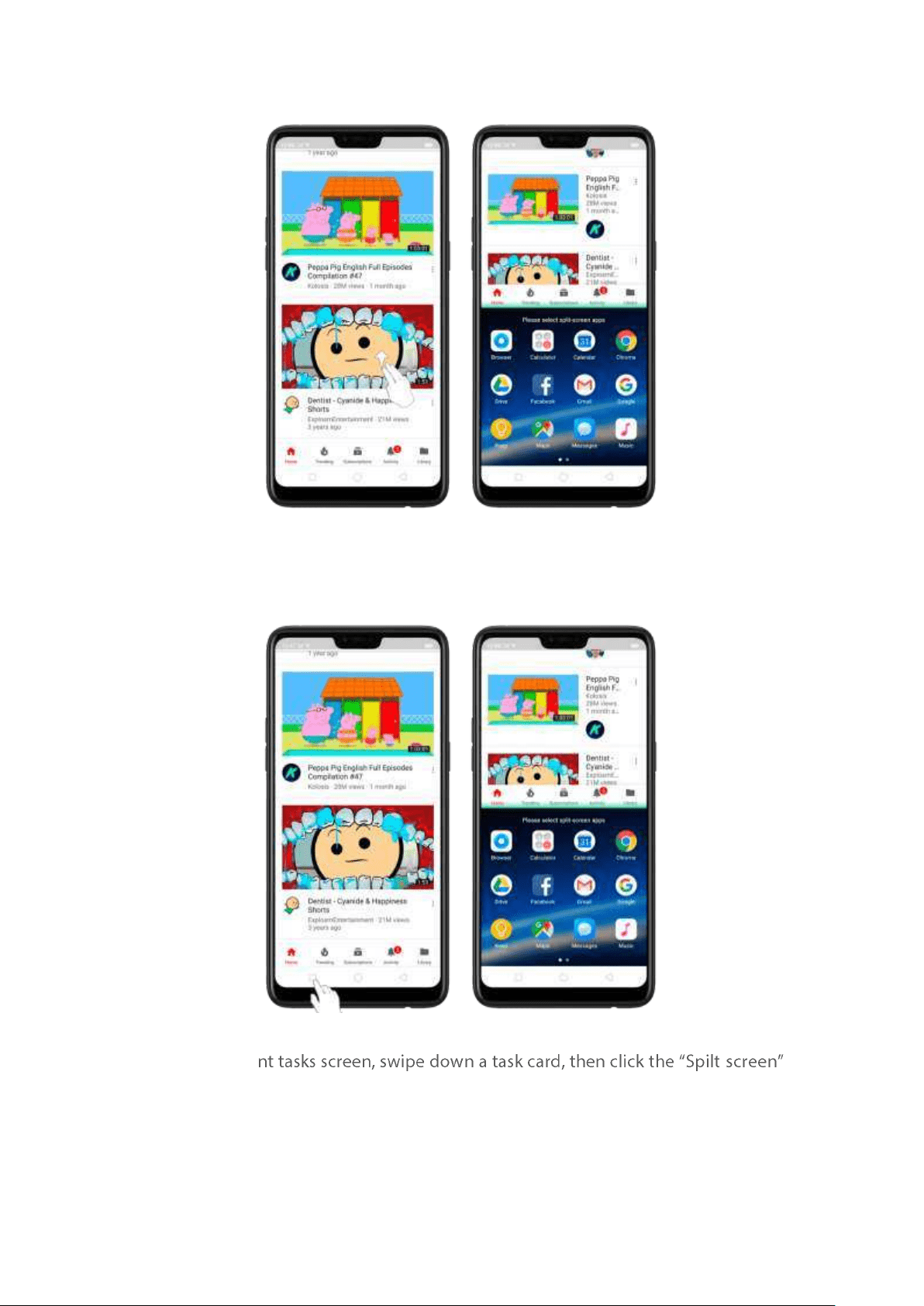
Under the interface of an app, press and hold the Multitask button to ent er
split-screen mode.
In rece
-
button t o enter split-screen mode.
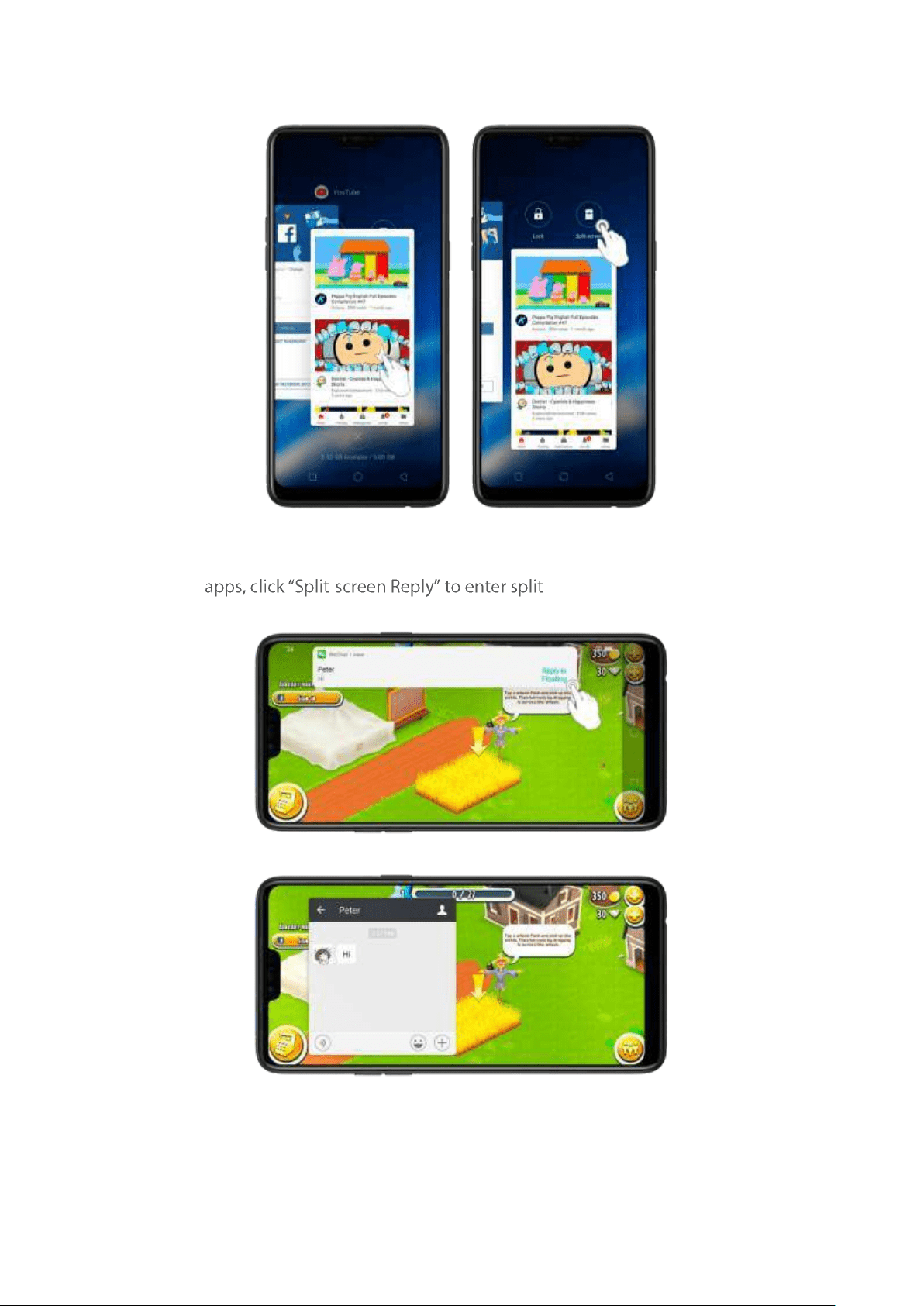
When you use an app in landscape mode and receive a message from other
- -screen mode.
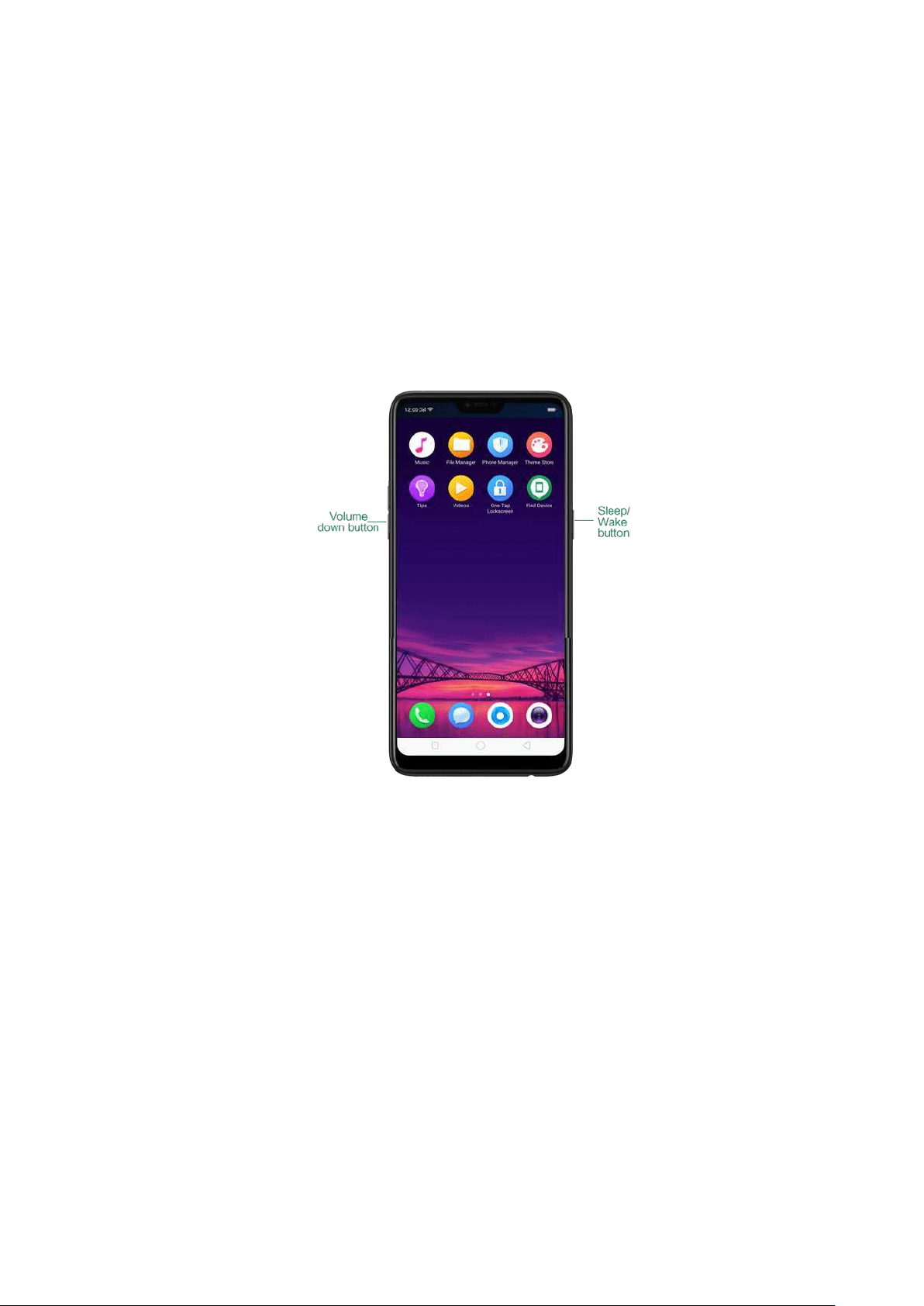
5.9. Take and edit a screenshot
You can capt ure the screen on your OPPO smartphone using the following ways:
Capture the current page
Press and hold the Pow er and Volum e Dow n but t ons for about 2 seconds, the
screen will briefly flash white, and you'll hear a shutter sound if your phone's
sound is on.
Gesture Screenshot : Go to [Set tin gs]> [Smart & Convenient ] >[Gest ur e &
Mot ion] and turn on [3-Fing er Screensh ot ]. Then swipe down the screen with
three fingers to take a screenshot.
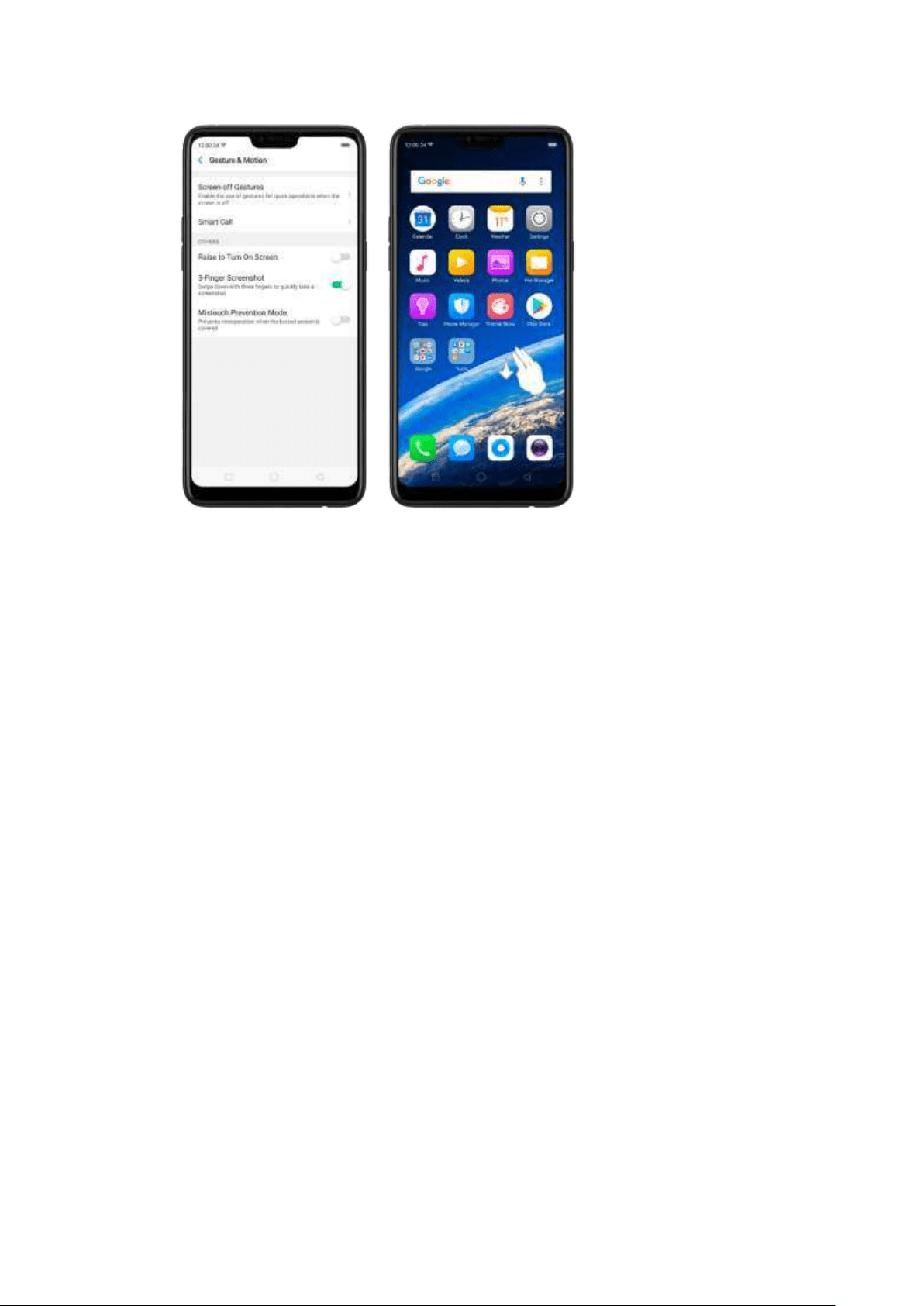
Capture a long screenshot
With OPPO smartphone, you can easily take longer and scrolling screenshot with
sim ple clicks. Long screenshot allows you t o take scrolling screenshot of your
conversations on messaging apps or a full webpage.
To capt ure lon g screenshots:
1.
Press and hold the Pow er and Volum e Up b ut tons for about 2 seconds, or
swipe down t he screen wit h three fingers to t ake a screenshot of the current
page.
2. Click the screenshot, click Long Screenshot , t hen scroll the page up or d own
and stop whenever you want t o.
3.
Click Done to generate a long screenshot. The image is saved in t he Ph ot os app.
Edit a screenshot
After you've taken a screenshot, click it, then click Edit . You can use the fancy new
markup features to optimize it instantly, such as adding text, light, filters, and more.
Click
Done to save your changes.
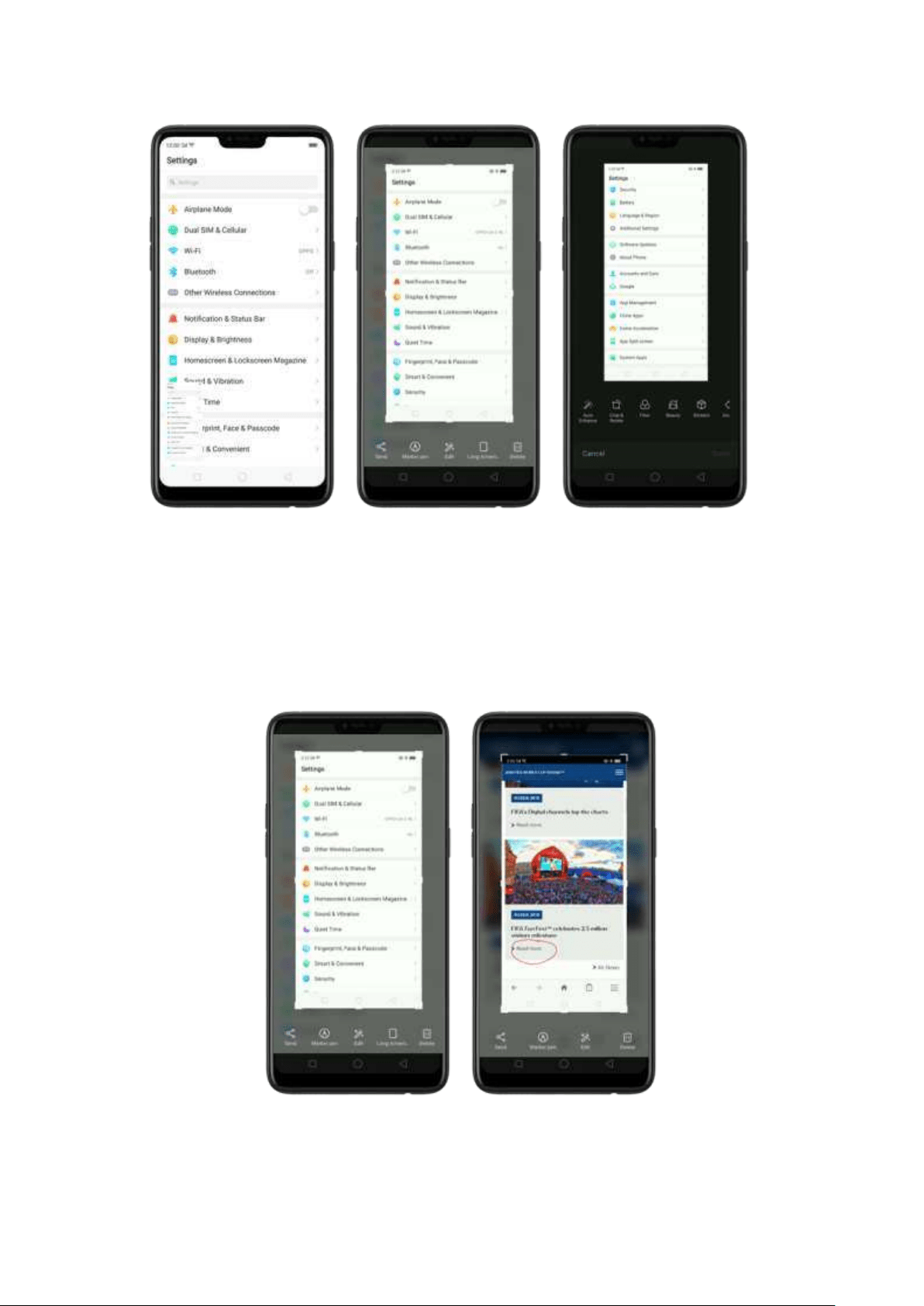
Use a Marker Pen
After you've taken a screenshot, click it, then click Marker Pen. You can highlight a
word or write a note on t he im age. Click
Do ne t o save your changes. (Note:
Marker pen is only available in red color).you can easily take longer and
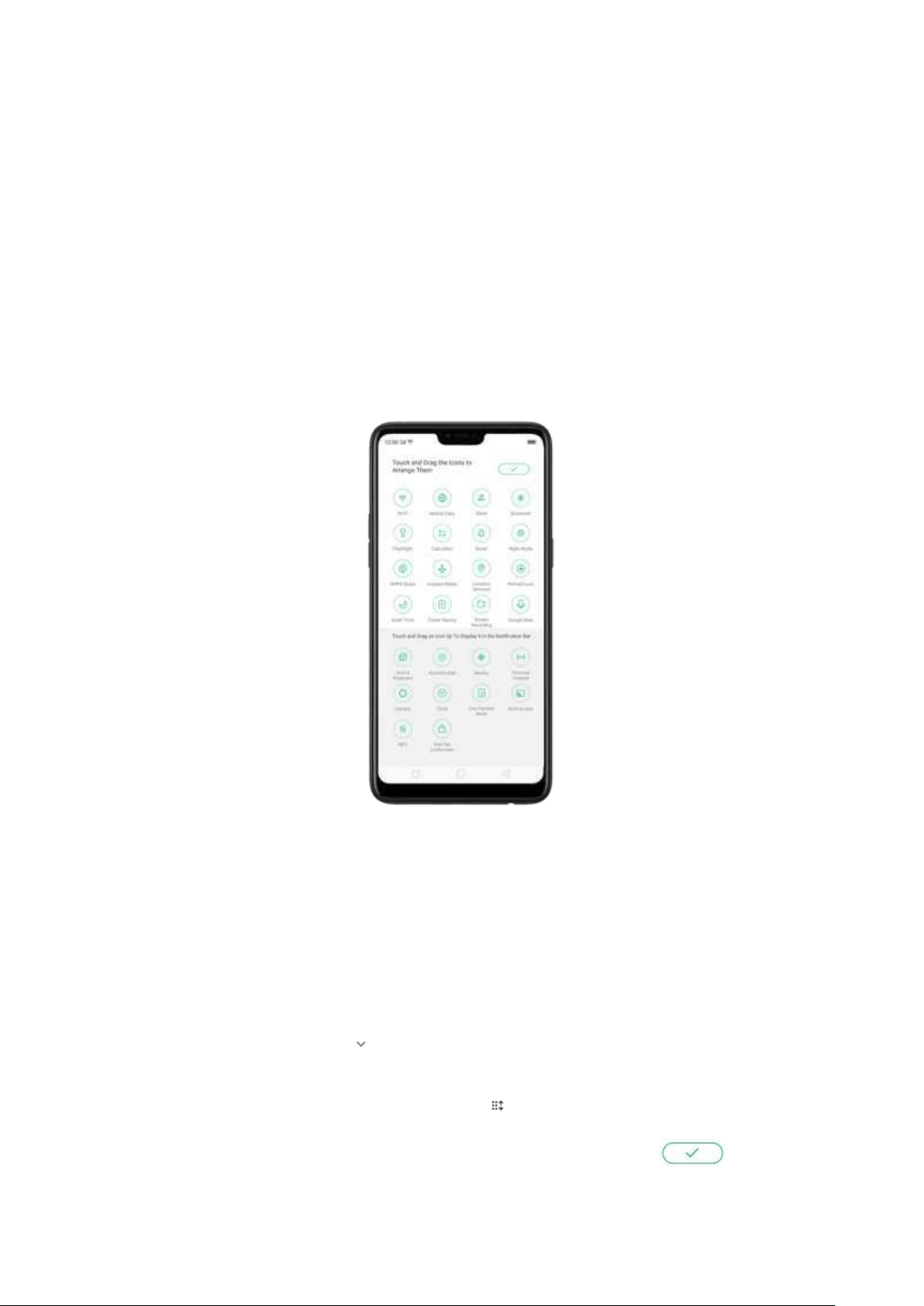
5.10. Cont rol Cent er, Notificat ion , and
Stat us Bar
Control Center
Control Center gives you instant access to the most frequently used features, and
allows you to view recent and earlier notifications with just a swipe. You can open
Control Center from anyw here on your phone-from any app or screen, even from
the lock screen.
Open Cont rol Cent er. Swipe down from t he very top of any screen (except the
notch at the top center of t he display). You'll see the shortcuts listed on top, and
notifications below.
Customize t h e short cut s. By default, the phone will list ten shortcut s when you
open Control Center. Click or swipe down t he screen to show other short cuts.
To change or rearrange t he shortcuts, click on the top, then hold down and
drag an icon to your preferred position. To save your changes, click .
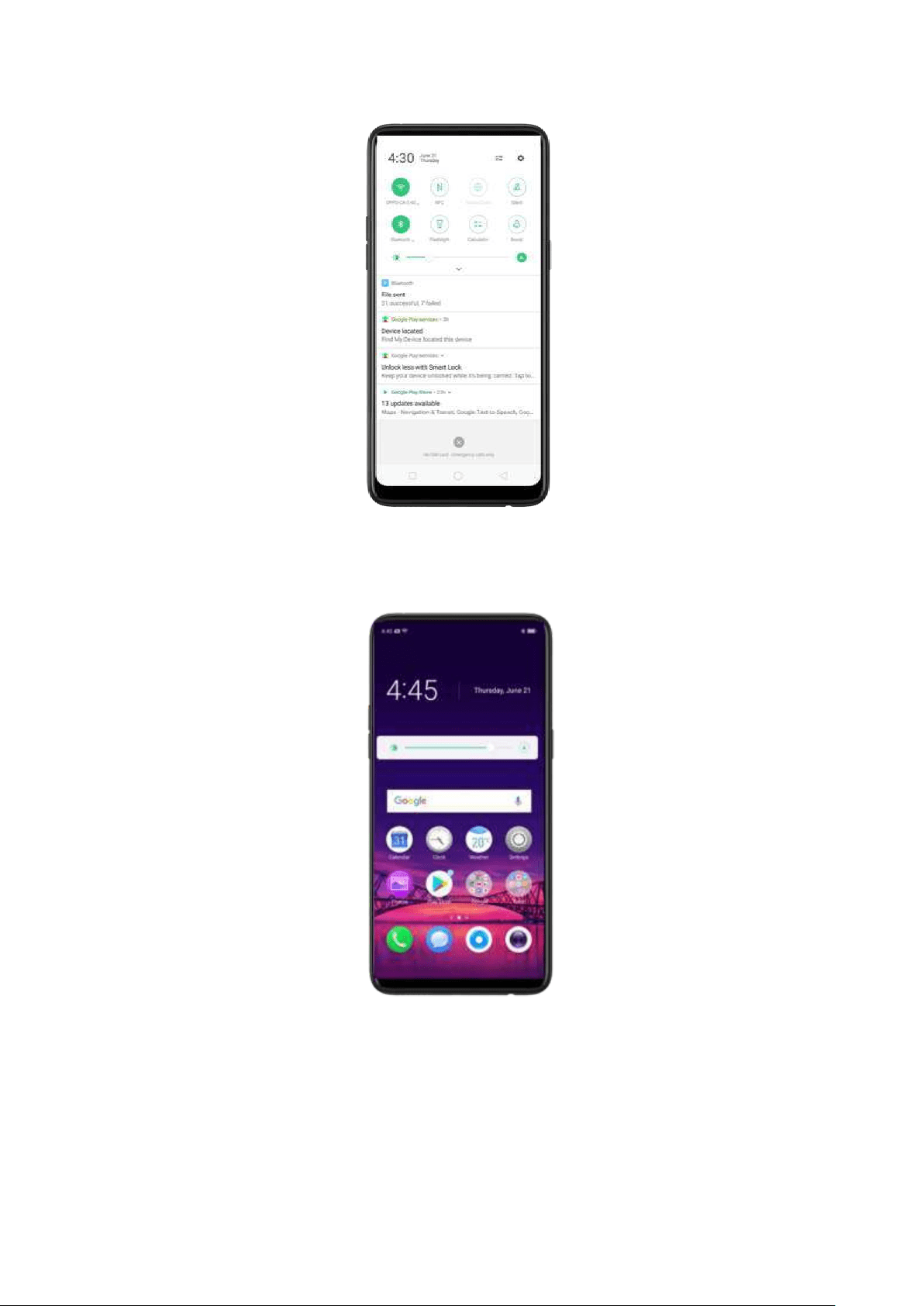
Cont rol the b rig ht ness. Drag the slider to adjust t he bright ness of the screen.
When you drag the slider, other parts of Control Center will be tem porarily hidden.
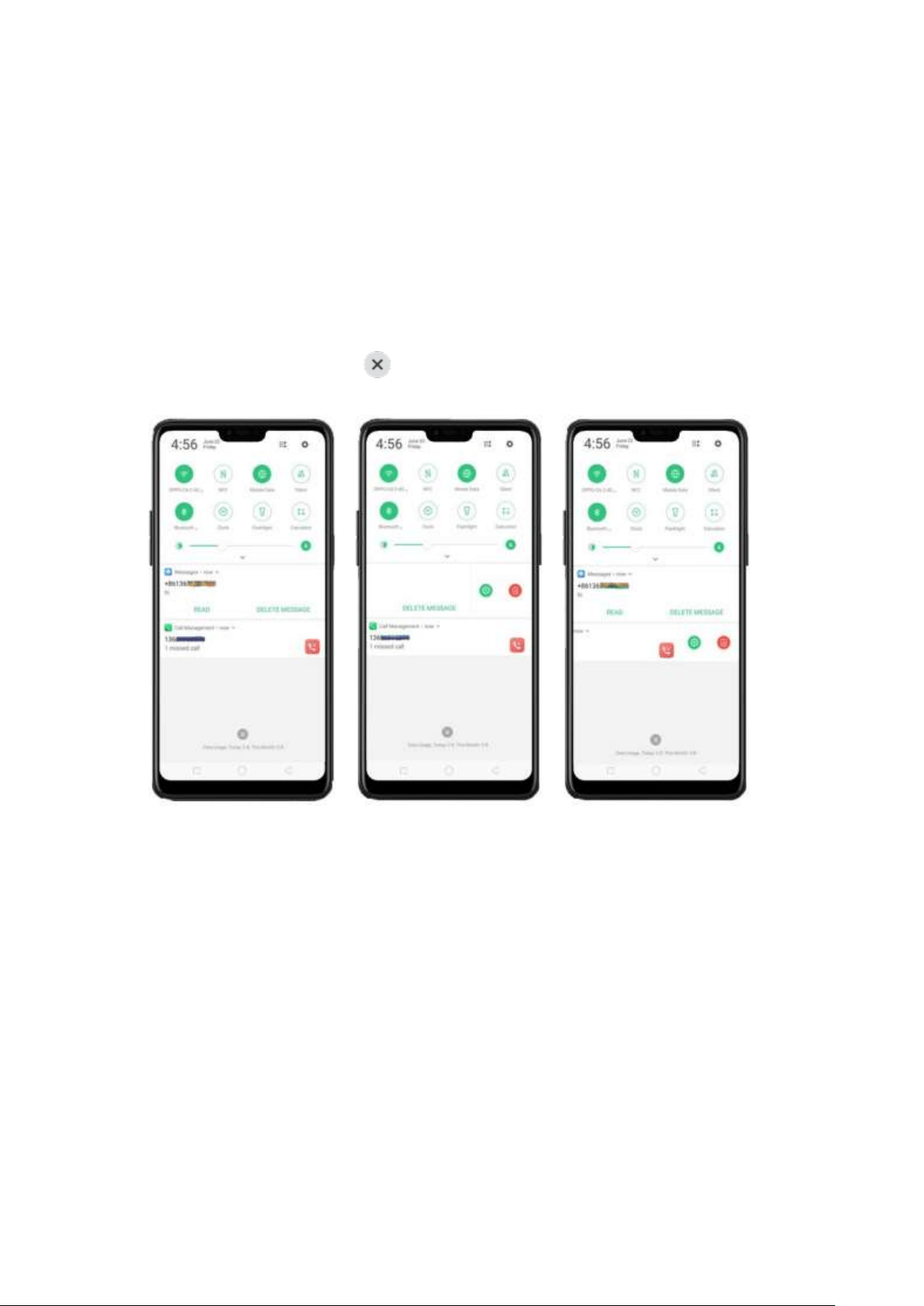
Not ificat ions
View all not ificat ions. Swipe dow n from the very top to view recent notifications.
Open t h e ap p t o resp ond . Click a notification to go to t he related app.
When phone screen is locked, swipe the notification to the right. You may need to
enter your passcode.
Dismiss not ificat ions. Swipe the notification to t he left, then click Del et e. To
dismiss all notifications, Click .
Manage your not ification set t ings. Swipe the notification t o the left,
click
Set t ings, or go to [Set t ings] > [Not ificat ion & St atus Bar] > [Manage
not ifications].
Select an app from the list to cust omize whet her new notifications from that app
appear on the lock screen or notification bar, display a banner, play a sound or
vibrate, or whether show icon badges on t he Home screen. You can also allow
ringing for notifications w hen Do Not Dist urb is on.
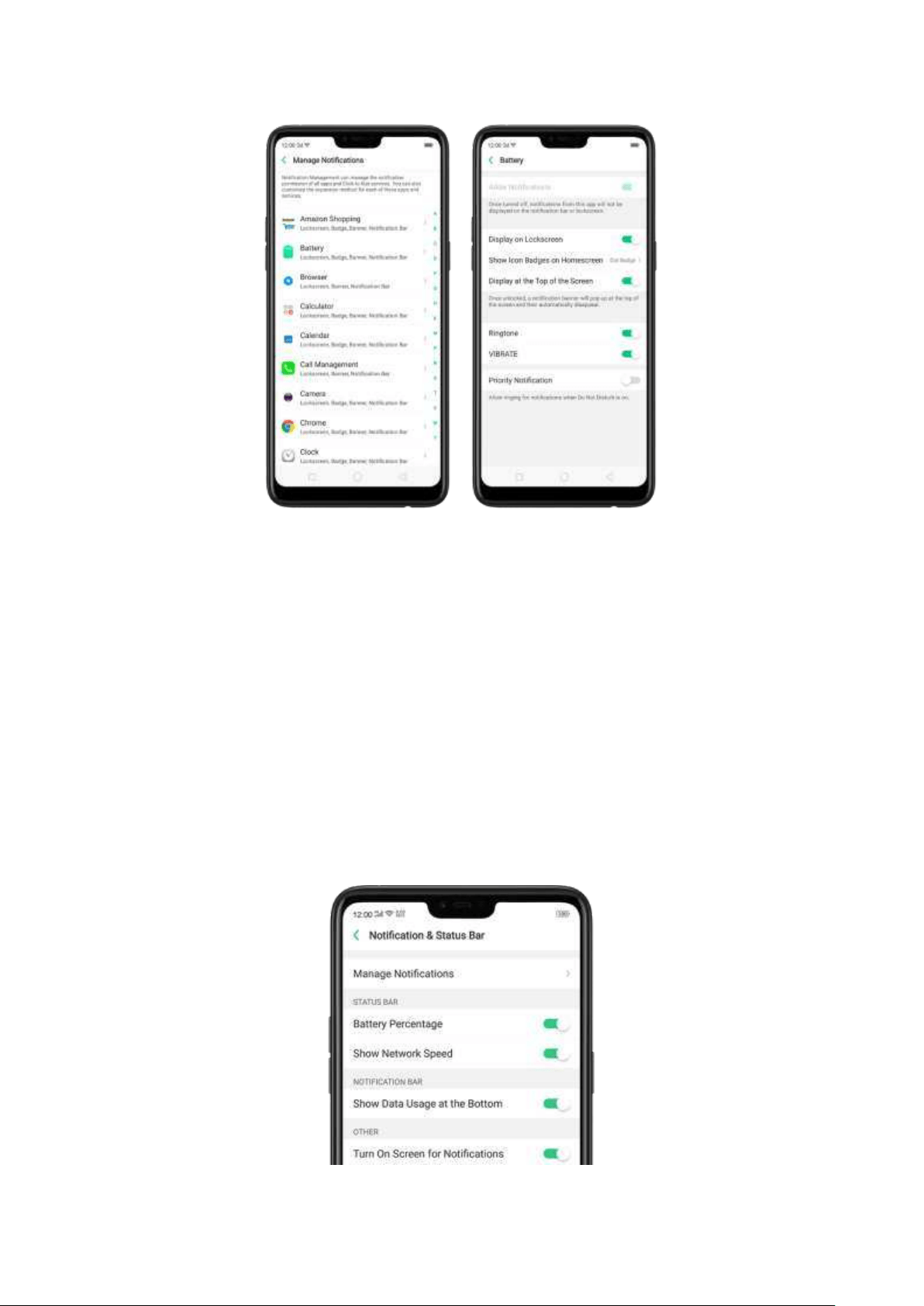
Show dat a usag e at t he bot t om . Go to [Set tings] > [Not ificat ion & St at us
Bar] and turn its slider to green. Your daily and monthly data usage will display at
the bottom of the notification bar.
Turn on screen for not ificat ions. Go to [Set tin gs] > [Not ificat ion & St atus
Bar] and turn its slider to green.
Stat us Bar
Status icons are displayed on the status bar, indicating for instance wireless
connectivity, the battery status and tim e.
Disp lay or hid e bat t ery p ercent age and net w ork speed . Go
to [Set t ings] > [Not ificat ion & St at us Bar], and switch t he sliders to green/white.
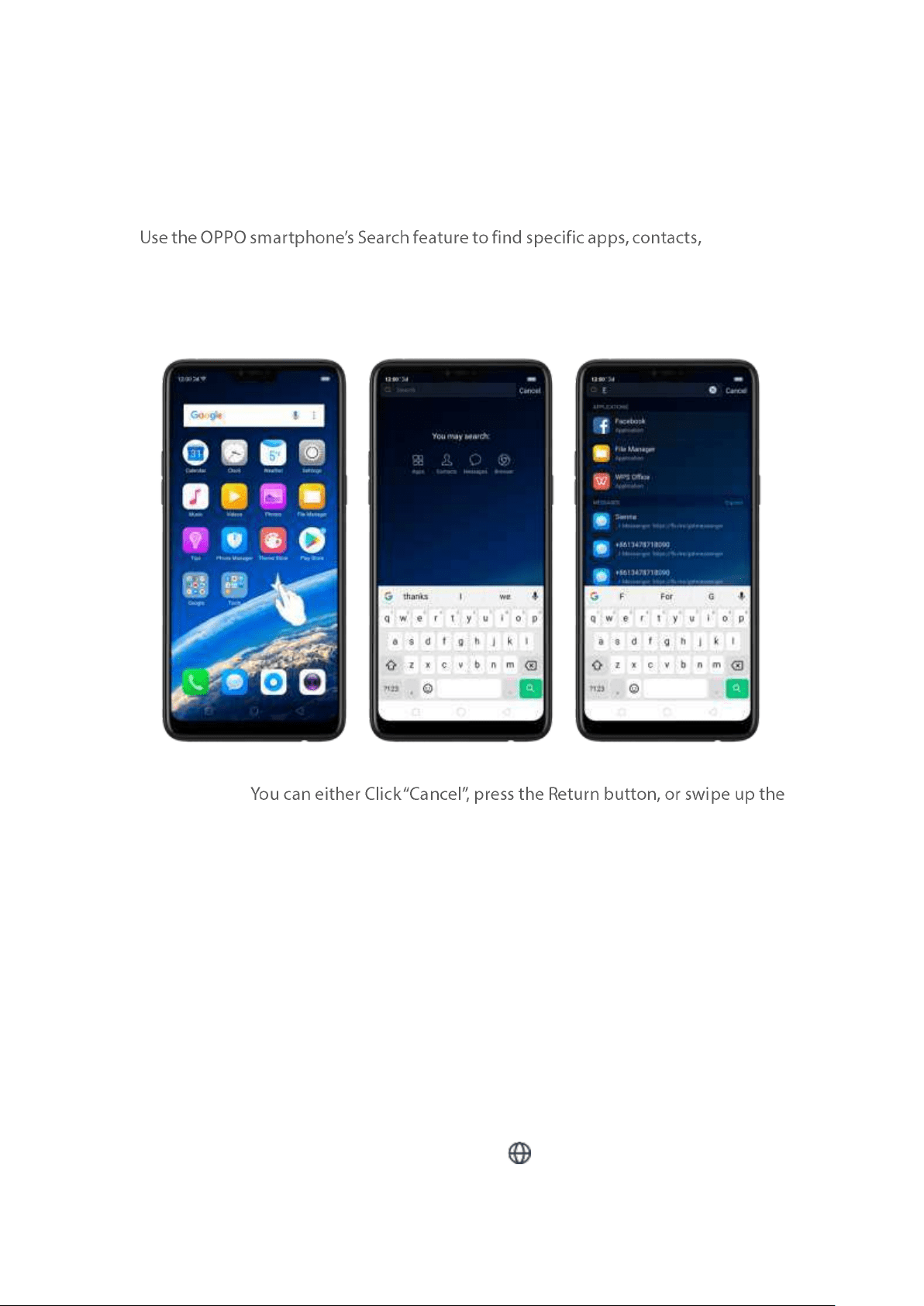
5.11. Search
messages,
or quickly search the Internet.
Search w it h OPPO phone. Swipe down on any page of the Home screen. Do not
start swiping at the very top of the screen - that will open the Notification Center
instead. Type in your search query, then click a search result on
the list to open it.
Close Search.
"Back" gesture that you have set.
5.12. Test
5.12.1. Add or change keyboard languages
If you need to type in a foreign language on your OPPO phone, you can do so by
adding and changing the input language:
Ad d installed languages. Go to [Set tin gs] > [Ad dit ional Set t in gs] > [Keyb oard &
Inp ut Met hod ] > [Touch Pal for OPPO] > [Lang uages], then tick the languages to
use.
You can also add languages as you type. Click >
[Add language] and t ick the
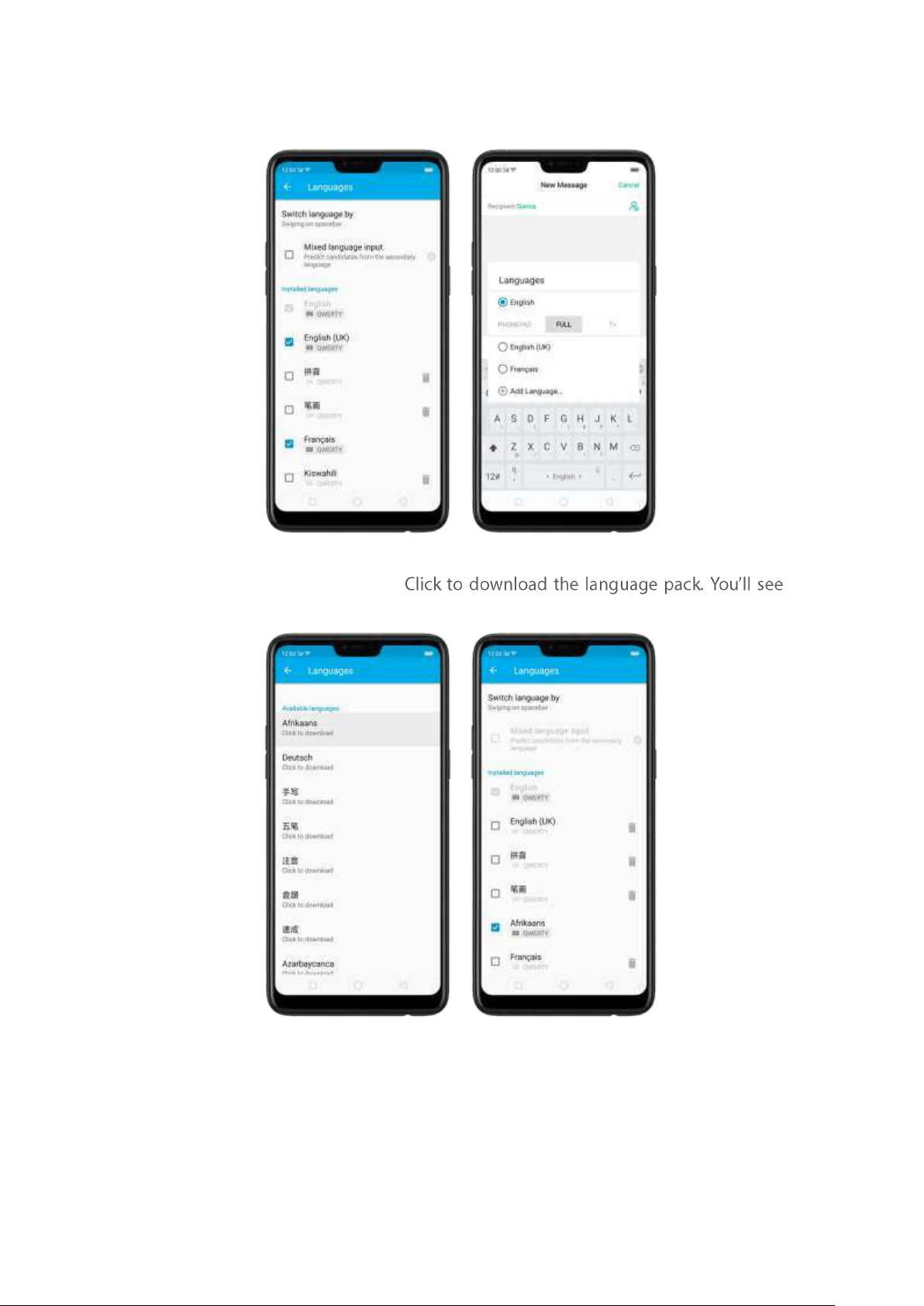
languages to use.
Dow nload availab le languages.
the language in Installed languages list w hen t he download is completed.
Change Keyb oard languages. As you type, switch language by clicking EN or
swiping on spacebar.
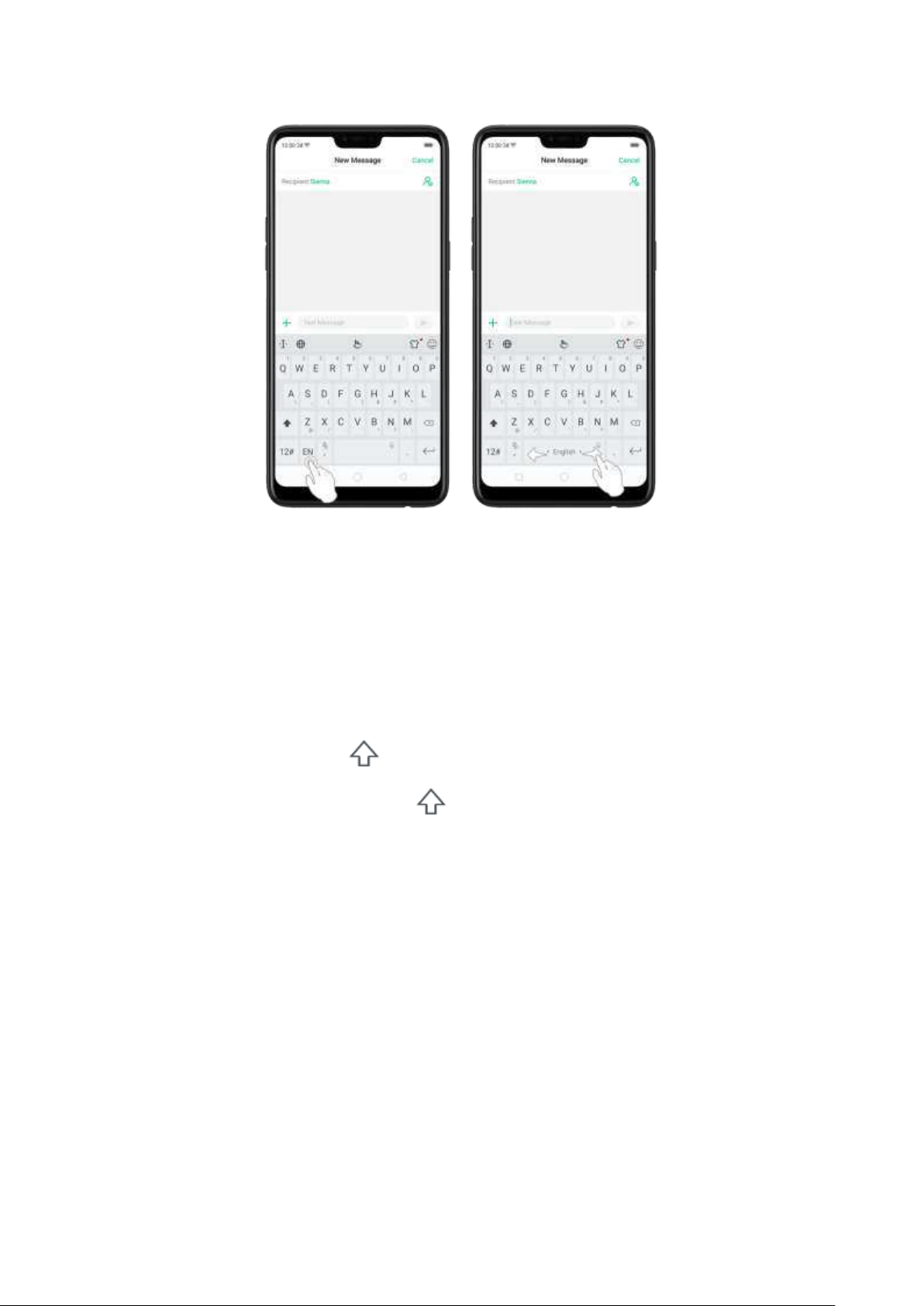
5.12.2. Type, edit , and delet e text
Type text
Click a text field to pop up the keyboard, then click the letter to type.
Typ e cap it al let t ers. OPPO smartphone is aut o-capitalizing the first letter of a
sentence, or you can click to type capital letters.
Turn on Cap s Lock. Double-click . A line will appear under the arrow if you
have done this correctly.
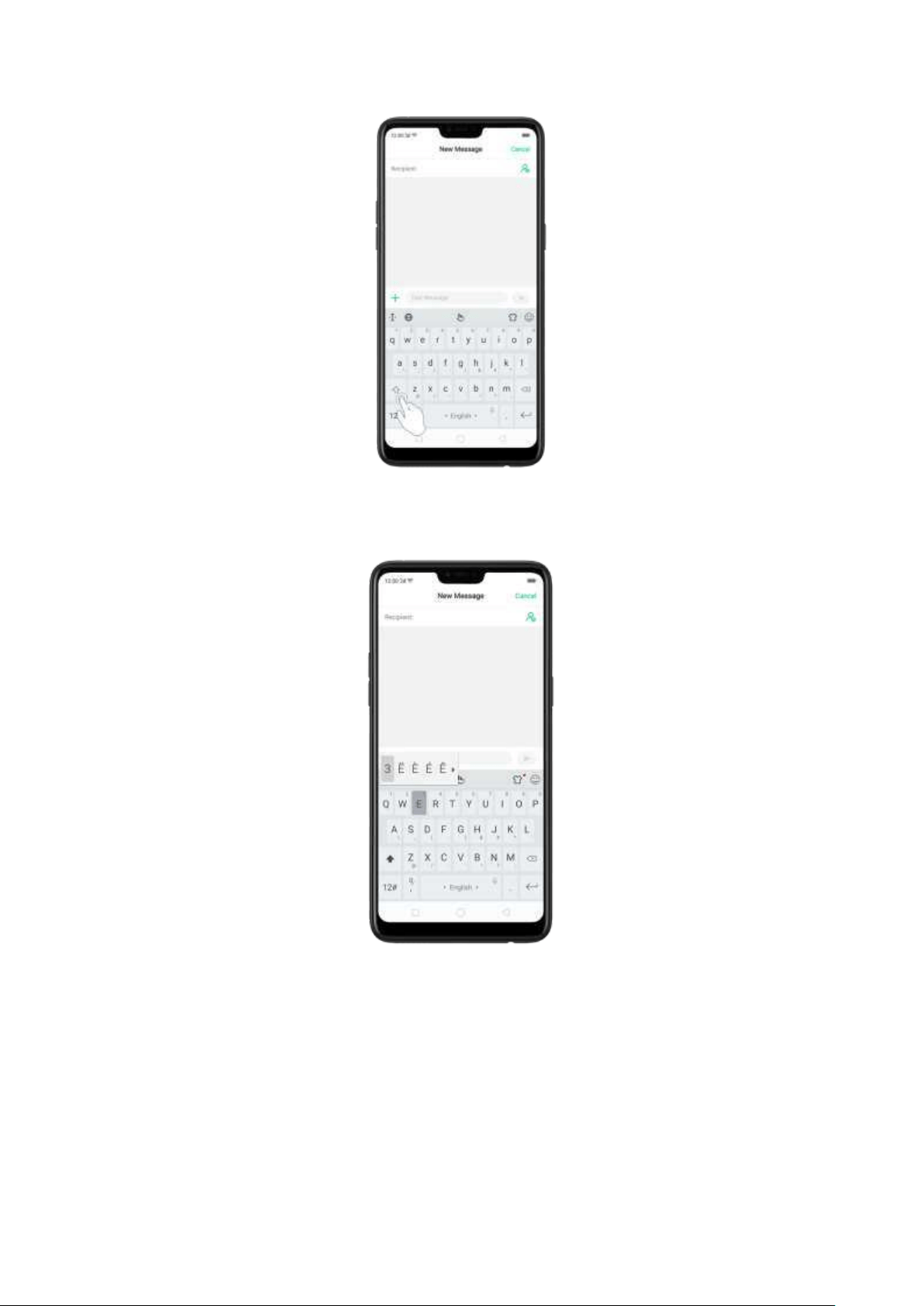
Ent er n um b ers, punct uat ion, or symb ols. Click 12#. To type alternate characters,
touch and hold a key, then slide to choose one of the options.
Sw it ch language. Go to [Settin gs] > [Ad d it ional Set t ings] > [Keyb oard & Inp ut
Met hod] > [ To uchPal for OPPO] > [Lang uages].
Tick the languages to use, then switch language by clicking
EN or swiping on
spacebar.
Revise t ext . Click on your text to move the cursor to t he insertion point.
Edit text
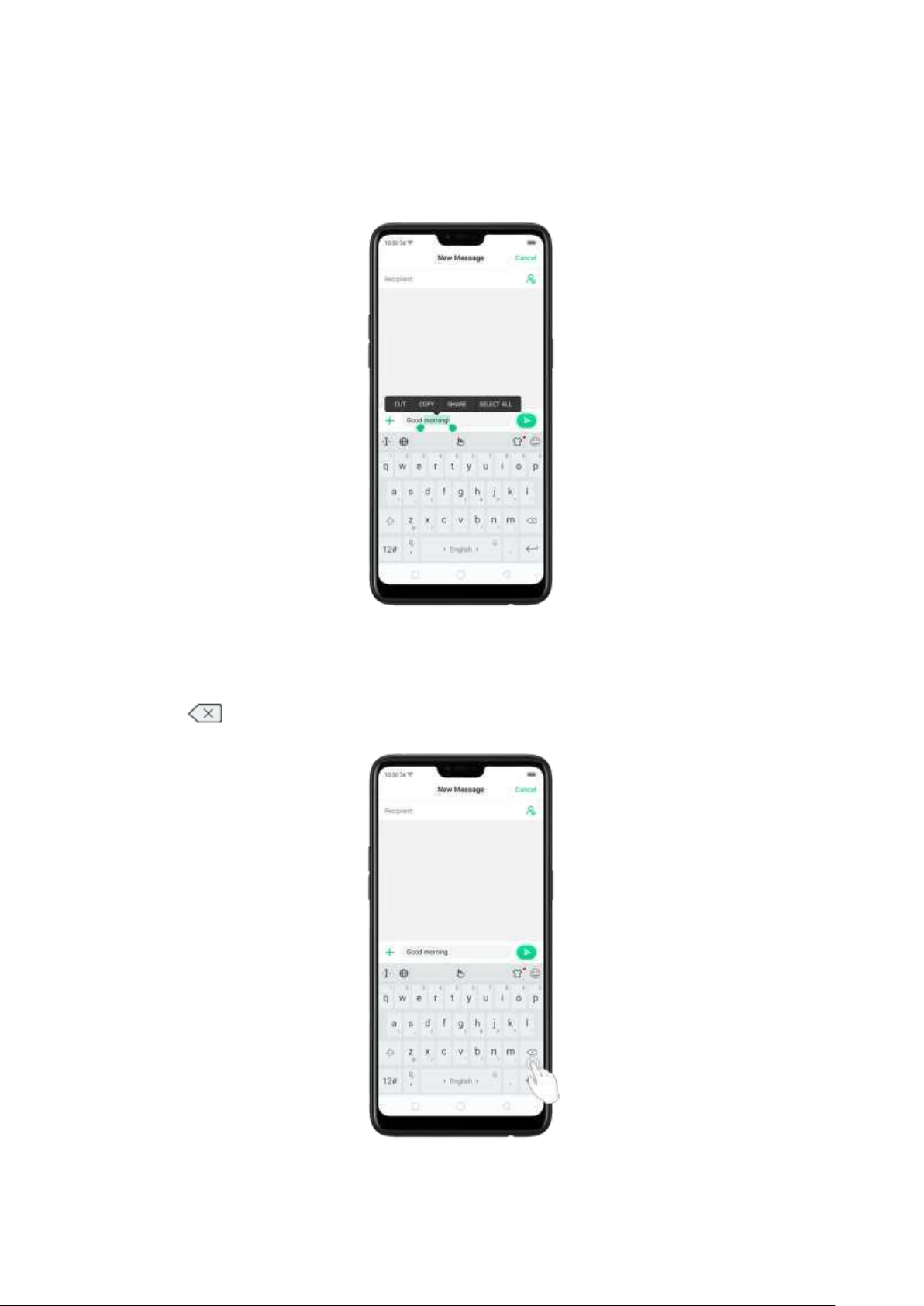
Select text . Touch and hold the target text, or double-click the target text to select.
Drag the control points on either side of the highlighted word to select m ore or less
text, or click [Select all] to highlight all of the text.
You can cut, copy, paste or share your text then.
Delet e text
Click to delete the selected text or characters before the cursor.
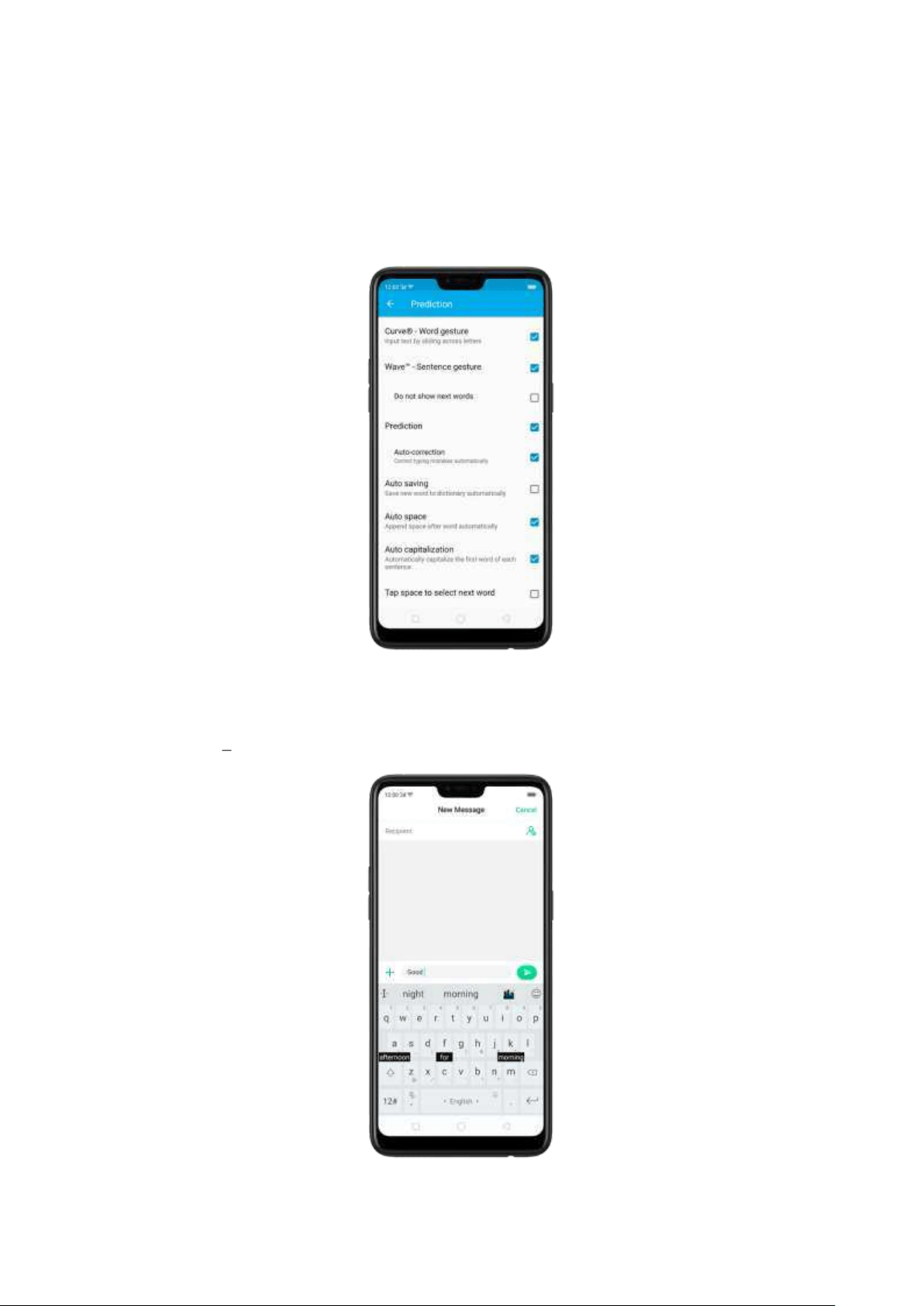
5.12.3. Predict ion
Prediction feature lets you to enter text with ease and without errors.
Go to [Set t in gs] > [Add itional Set t ings] > [Keyb oard & Input Met h od ] > [ Touch Pal
for OPPO] > [Pred ict ion].
Use Touch Pal Curve to input text simply by swiping across the keyboard, from one
letter to another.
Use Wave Sent ence gest ure to input com monly used phrases/sentences.
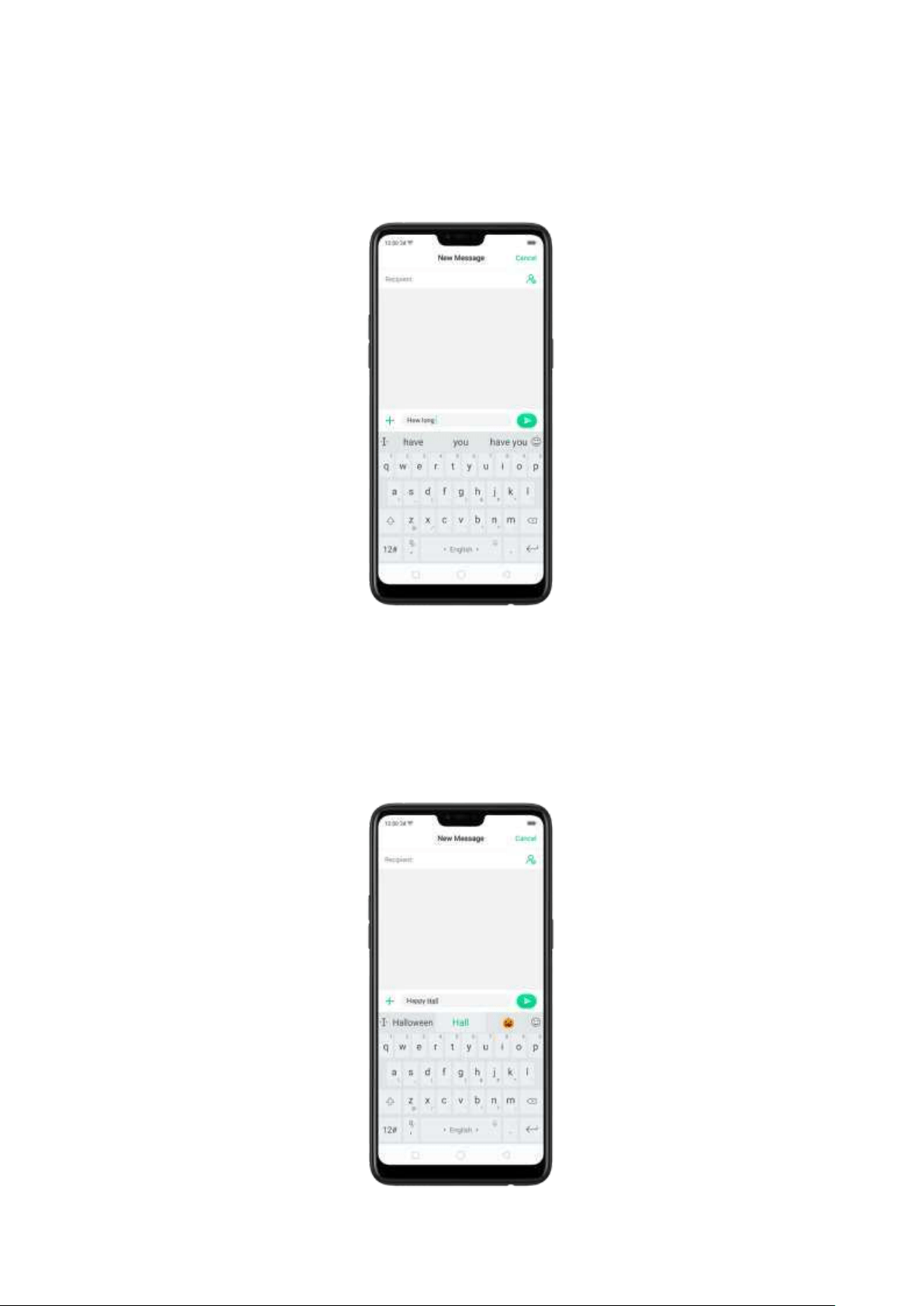
Pred ict text . While you type, the keyboard predicts your next word, and offer
suggestions for likely words before you finish typing. Click t he word or the spacebar
to select
Correct sp elling aut om at ically. The keyboard will automatically check and correct
the spelling of the text.
Aut o saving new word s, add ing space, and capit alizing . As you type, the
keyboard will also autom atically save new words to the dictionary, add space after
a
word and capitalize the first word of each sentence.
Pred ict Emojis. As you type, the keyboard predicts what emoji com es next.
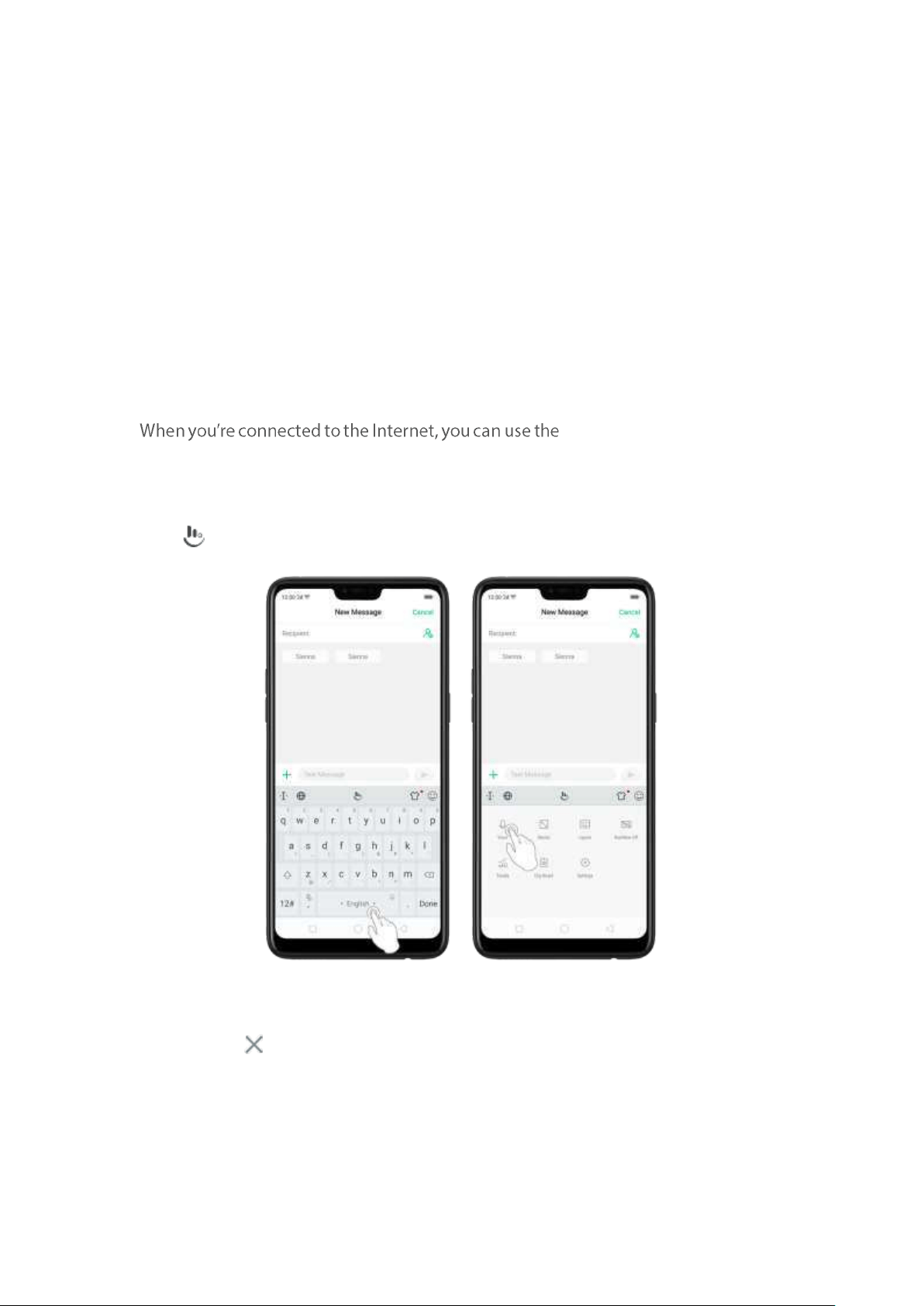
Cont ext ual pred ict ion . The keyboard will suggest w hat it t hinks are the most likely
words based on what you're typing.
Imp ort cont act names. The names of your contacts will be added to user dictionary.
Learn from m essages. Let the keyboard learn from your conversations and predict
words you use most.
User dict ionar y. Click Ed it user w ord s, then add your own words into the dictionary
so that they appear in t he word prediction fields w hen typing. You can also back up
or restore your dictionary to or from the SD card, or rebuild, or clear your dictionary.
5.12.4. Voice typ ing
built -in microphone to speak
the text instead of typing it.
St art voice t yp ing. Touch and hold the space bar on t he bottom of t he screen, or
click >
[ Voice], then speak.
Pause voice t yping. Click the m icrophone icon to pause/continue dict ating the
words. Click to quit voice typing.
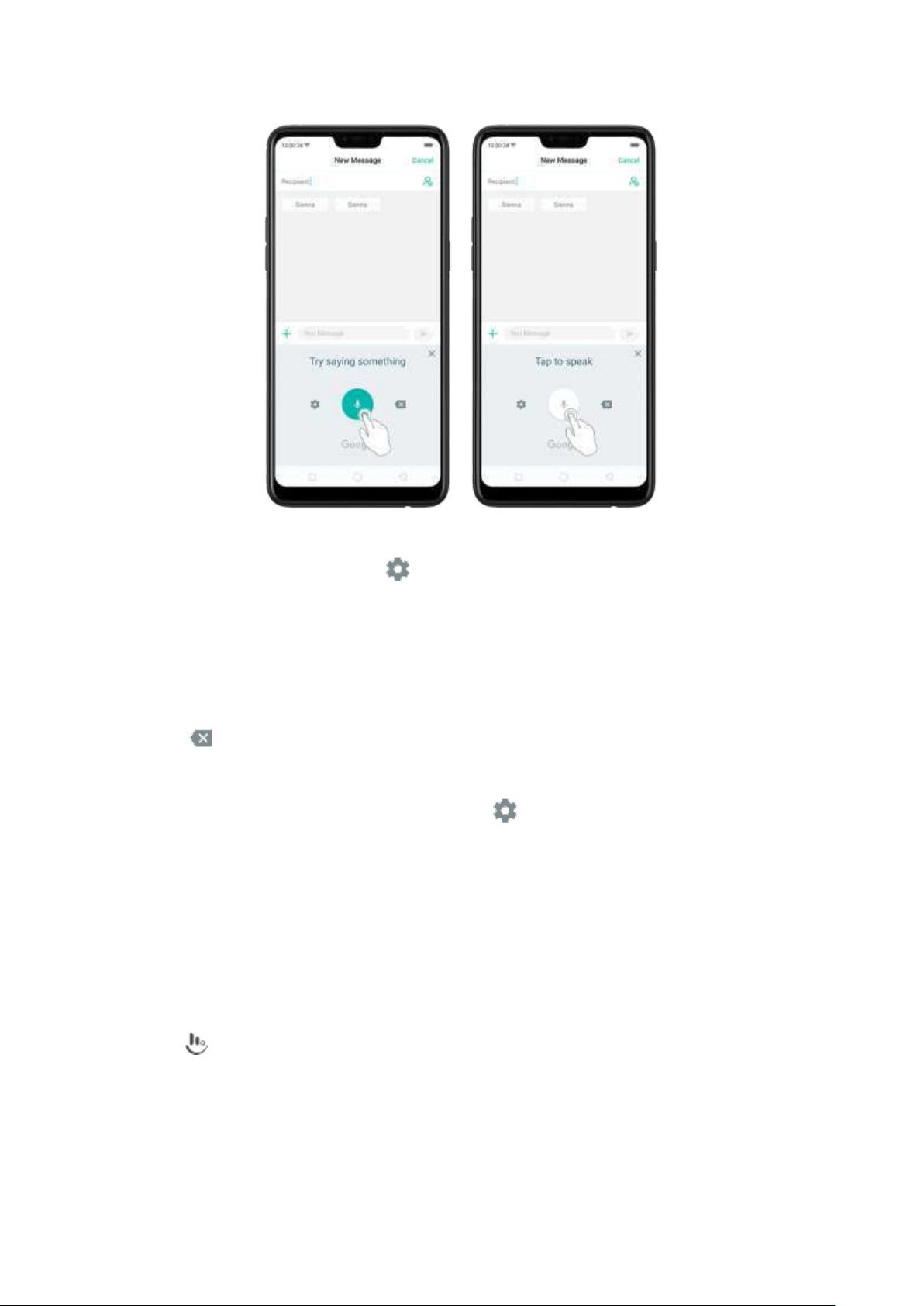
Select input languages. Click on the panel, or go to [Set t in gs] > [Ad d it ional
Set tings] > [Keyboard & Inp ut Met hod ] > [Google voice t yping] > [Languag es].
Select your preferred languages. To select a primary language, touch and hold the
language.
Insert and d elet e t ext . To insert or delete text, click to place the insertion point first.
Click to the right of the microphone icon to delete text.
To enable voice inp ut w hile offline:Click on the panel to manage [Offline
sp eech recognit ion].
5.12.5. TouchPal for OPPO
TouchPal Keyboard is the default keyboard on OPPO smartphones. You can use it t o
enter text by tapping on t he keys or swiping across the keyboard, from one letter to
another. Besides its basic typing features, TouchPal has introduced some innovations.
Click on the on-screen keyboard to get m ore information.
Mult iple t h em es availab le. You can dress up t he keyboard with various them es or
customize the keyboard by yourself.
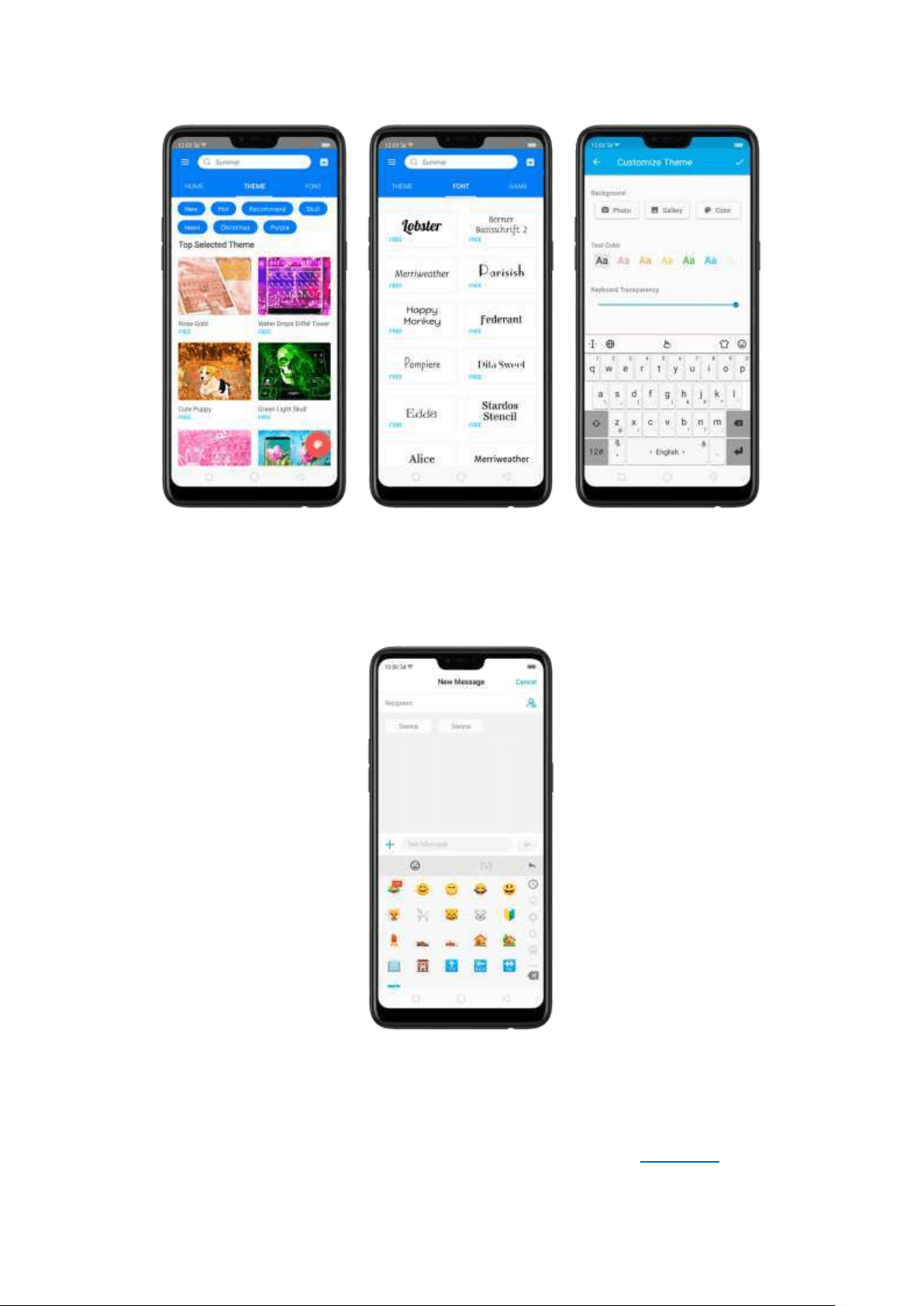
Em ojis and stickers. TouchPal has multiple em ojis and stickers, and can p redict
what emoji comes next.
Int elligent inp ut . With TouchPal Curve®, you can type by sliding from letter to
letter instead of tapping. Advanced technologies such as Contextual Prediction,
Autocorrection
, and User Dictionary also make typing faster. See Prediction.
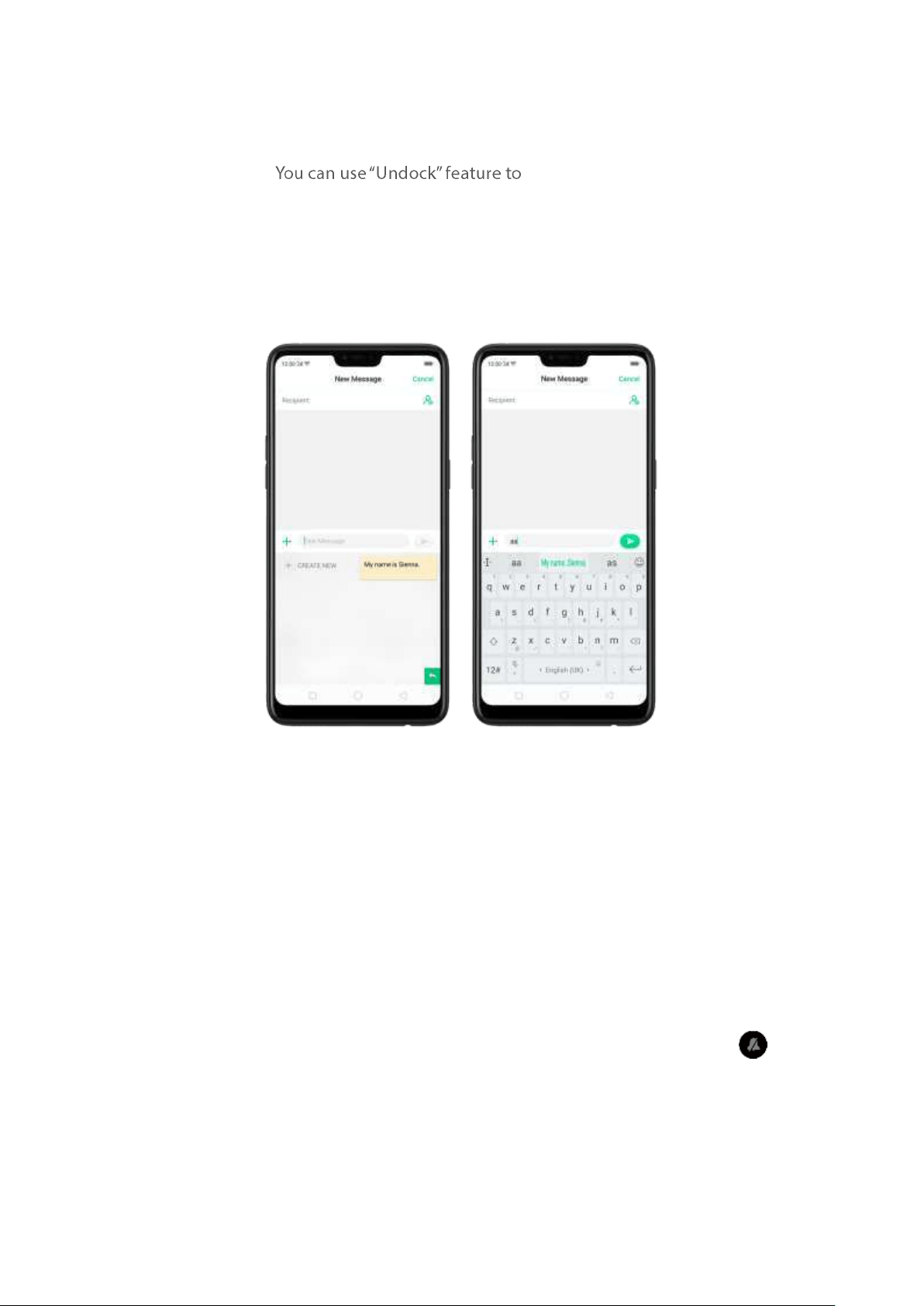
Different on-screen keyboard st yles. In addition to the default keyboard style, t he
undocked, one-handed, and split keyboard on t he screen makes typing with both
thumbs a breeze. position t he keyboard anywhere
on screen, or narrow the keyboard with one-handed mode, or split the keyboard in
half.
Clip board . It allows you to type a long string of text by entering a shorter string.
Create a keyboard shortcut for a word, phrase, or sentence. Whenever you type a
specific shortcut, it will replace those letters with a predefined piece of text.
5.13. Sound, Vibrat ion , and Syst em
Feed back
You can set an OPPO smartphone to sound or vibrate for incoming calls, messages
and other notifications, and let your phone send sound or haptic feedbacks on key
clicks.
Set yo ur p hon e t o vib rat e. Go to [Set t ings] > [So und & Vib ration]. Separate
controls let you set your phone to vibrate in ring mode, silent mode, or both.
Turn ringing on or off . Toggle the [Silent ] slider to green or white. You can also
swipe down from the top of t he screen to open the Control Center, then click to
turn on Silent mode.
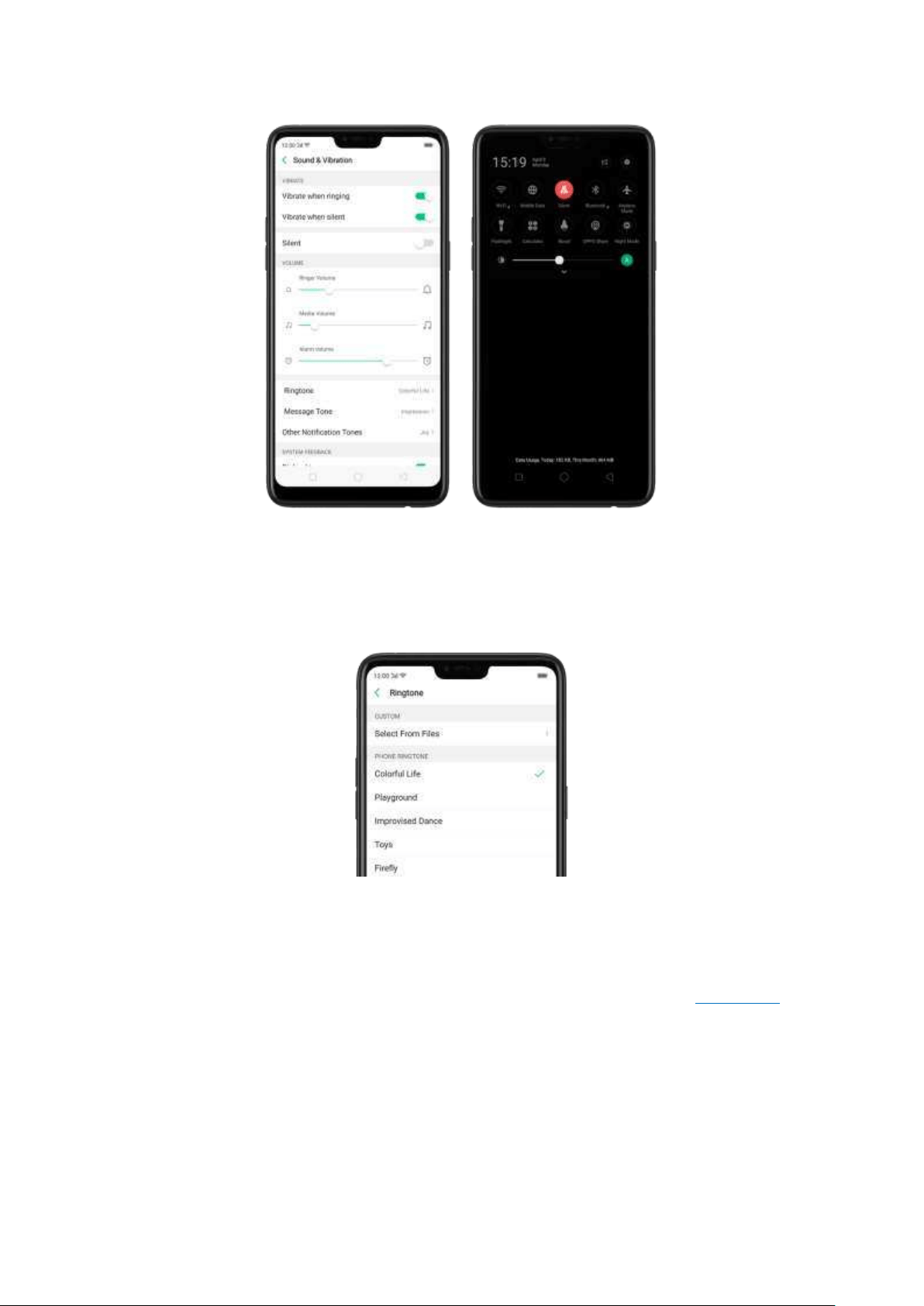
Ad just the ringer, m edia and alarm volum e. Drag t he control point left or right.
Change rin gt on es for incoming calls, messag es, and ot h er not ifications. In
addition to the default ringtones, you can create ringtones using your own audio
files.
Turn system feed back on or off . Toggle the sliders to green or white. When turn
Vibrat e on To uch on, your phone vibrates when you touch the Menu, Home, and
Ret urn buttons.
To temporarily silence incoming calls and alerts (wit hout vibrations), see
Quite Time.
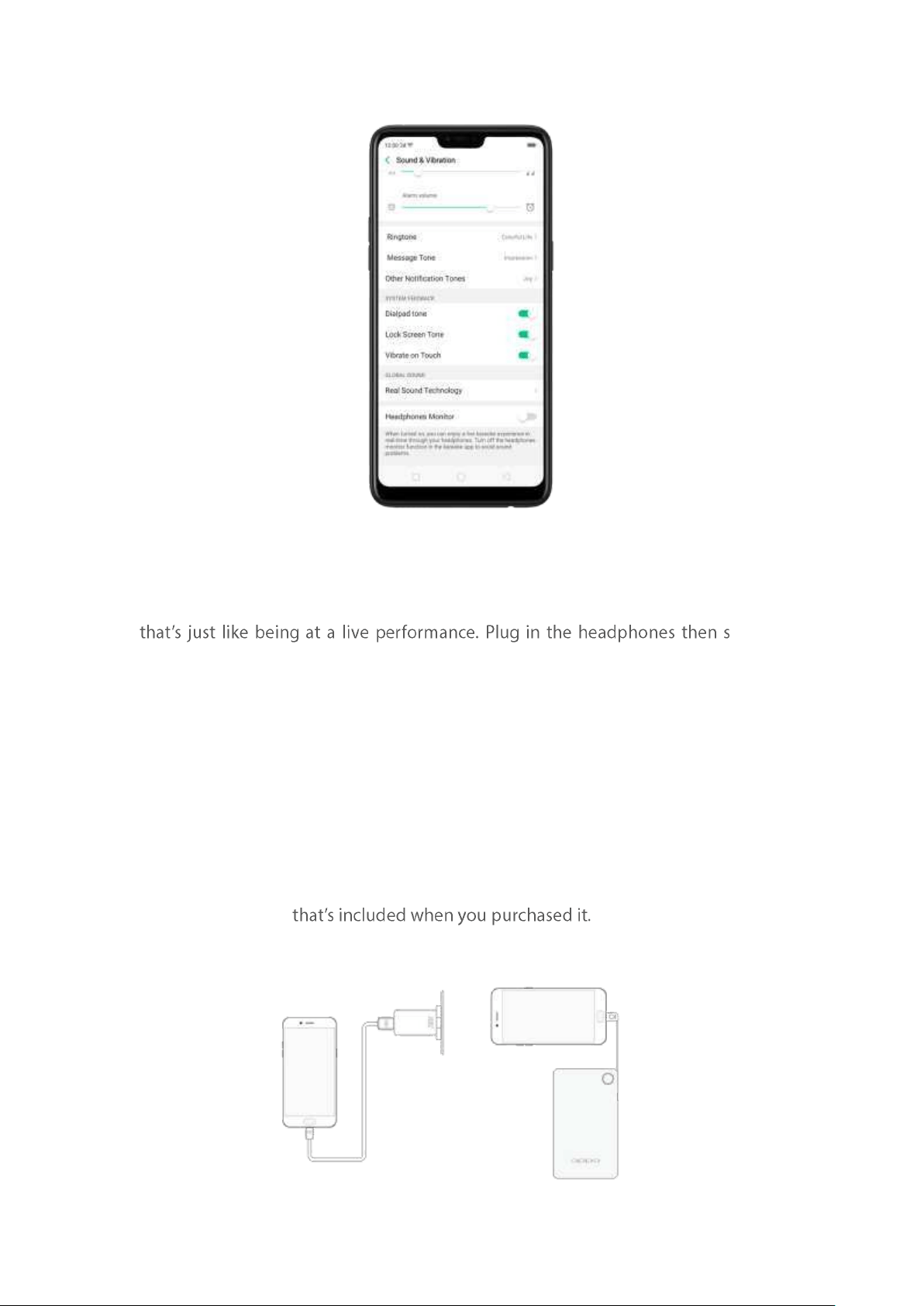
Real Sound Technolo gy. Real Original Sound Technology is jointly developed by
Dirac Research AB and OPPO. It delivers original sound in full fidelity and creates a
spatial three-dimensional sound arena to provide you with a listening experience
elect a
scene you want the sound to change to.
Head pho nes Monit or. When turned on, you can enjoy a live karaoke exp erience in
real-time through your headphones.
Turn off the default headphones monitor function in t he karaoke app to avoid sound
problems.
5.14. Charge and m onitor t he batt ery
OPPO smartphones are equipped with a non-rem ovable, lithium -ion rechargeable
battery. Do not attempt to open your phone. Charge the phone using the cable and
USB power adapter
Charge t he bat tery. Connect your phone to a standard power outlet or a Power
Bank.
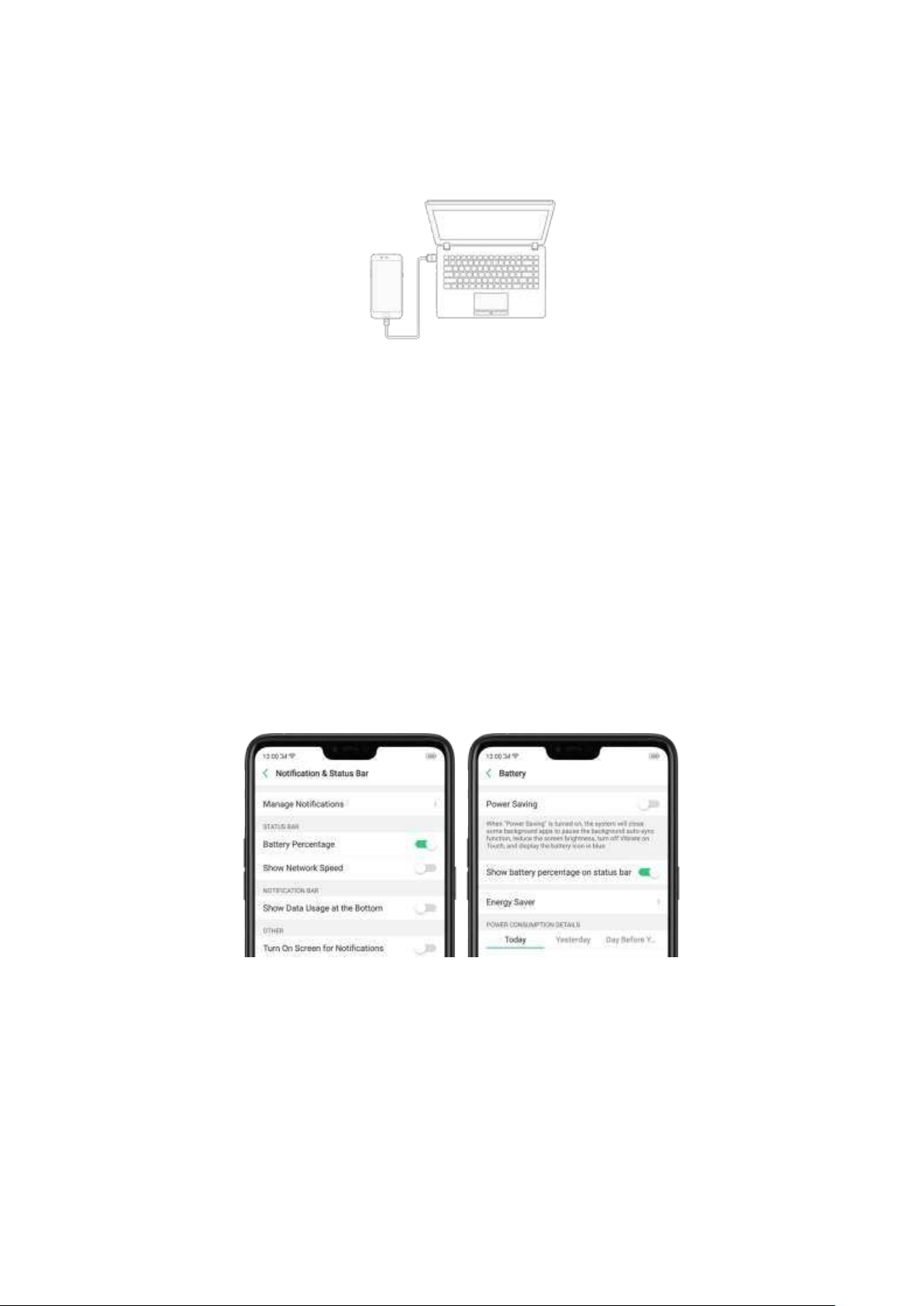
Charge t he bat t ery and transfer files. Connect your phone to a com puter.
Note:
* All photos shown are for illustration purpose ONLY. Act ual products m ay vary.
* Rechargeable batteries have a limited num ber of charge cycles and may
eventually need to be replaced. The OPPO smartphone battery is not user
replaceable; it can only be replaced by an authorized service provider.
Removing
t he battery yo urself will void yo ur warrant y and m ig ht cause damage t o your
phone.
Show p ercent age of bat t ery in t he st at us bar . Go to [Set t in gs] > [Not ificat ion &
St atus Bar] and turn on [Batt ery Percent ag e]. Or go to [Set t ings] > [Bat t ery] and
turn on
[Show batt ery p ercent age on st at us bar].
View det ailed bat tery info list ed for each app . Go t o [Set tings] > [Bat t ery].
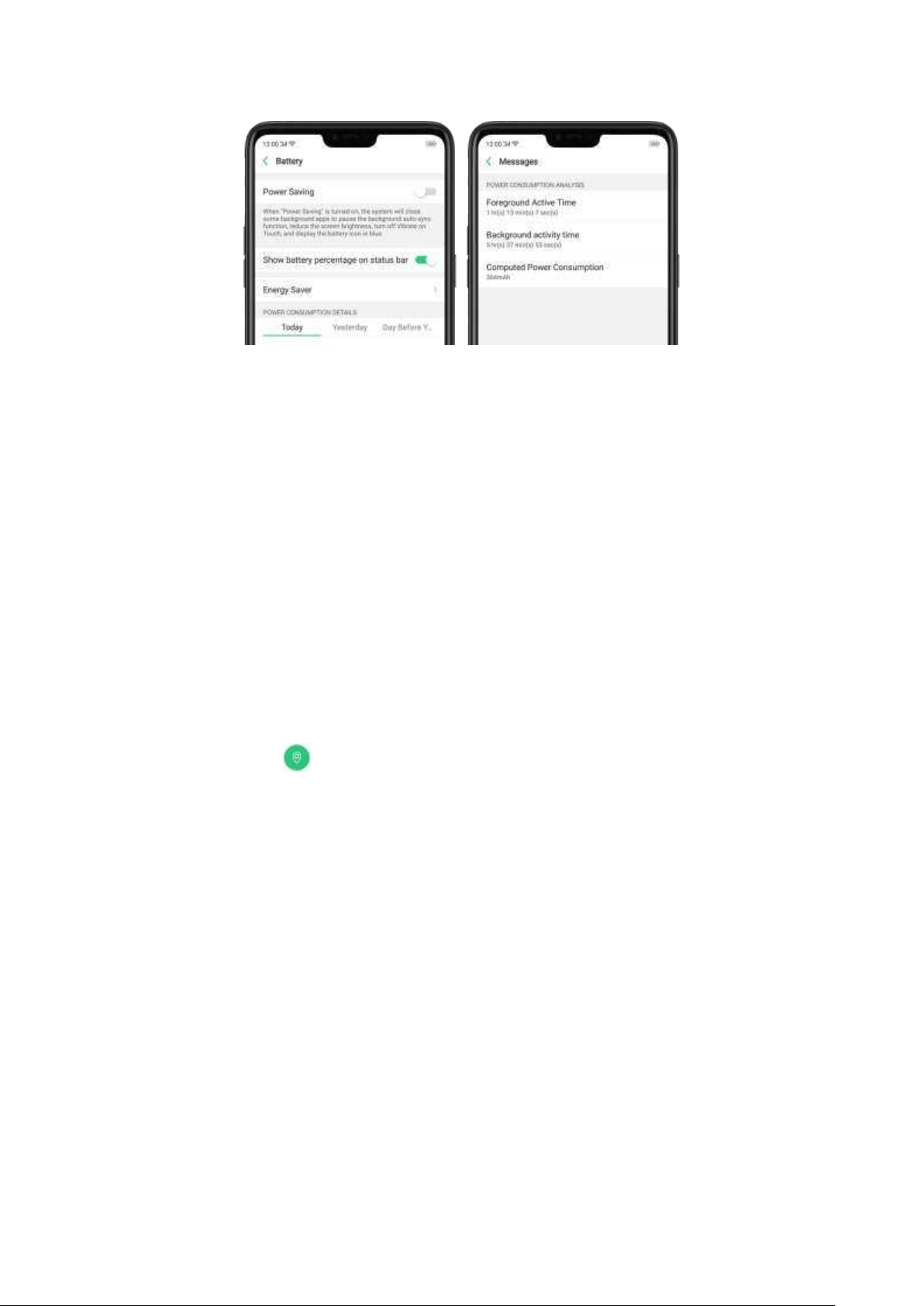
Use USB OTG. Go to [Set t in gs] > [Add it ional Set tin gs] and enable [OTG
Connect ion]. Connect the OTG cable to your phone, then attach the USB Flash Drive.
Once connected, you can directly view and transfer files between the USB Flash Drive
and your phone without requiring a PC. You can also connect a gaming controller,
an external hard drive, printer, and much more to your p hone wit h t he help of this
feature.
5.15. Locat ion Service
Apps like Maps, Weather, and Compass m ust know your exact position before it
can provide accurate services and results.
Turn on Location Service. Swipe down from the top of the screen to open Control
Center, then click . You can also go t o
[Set t in gs] > [Google] > [Locat ion] and
toggle the slider to green.
like Maps, Weather and Compass m ust know your exact position before it can
provide accurate services and results.
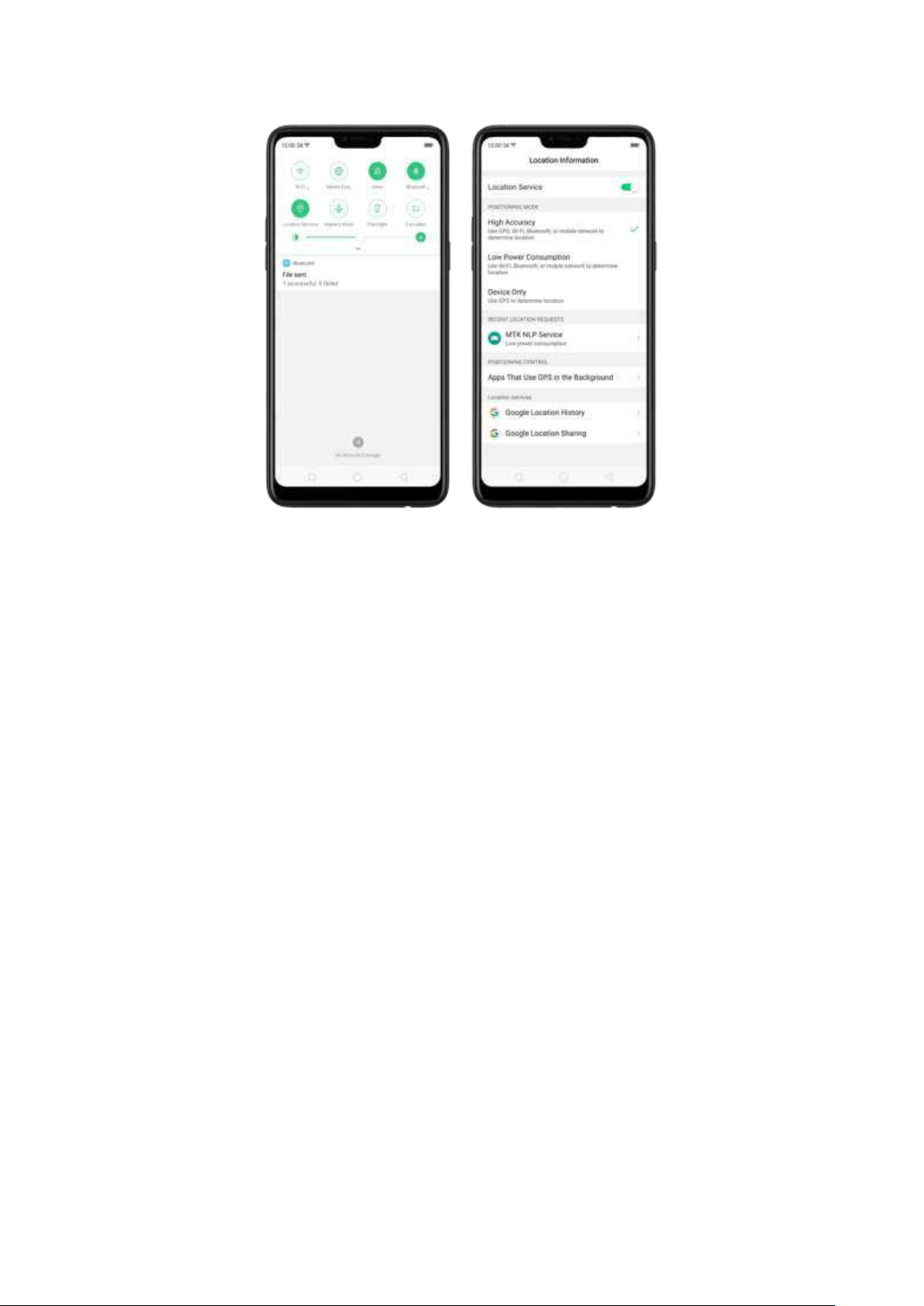
You can choose from three types of positioning mod es, which differ in accuracy
and battery drain:
1.
High accuracy (GPS, Wi-Fi, Bluetoot h and mobile net work).
2. Bat t ery saving (Wi-Fi, Bluetooth and mobile network).
3.
Device onl y (GPS).
A hist ory of recent locat ion requests. You'll see a list of apps that have requested
location. Click an app to enter the App info page that allows you to m anage the
app directly.
Ap ps t hat use GPS in t h e background . Turn the slider to green if you allow the
app to use GPS in the background. Keeping background GPS of the apps active
may drain the battery significantly.
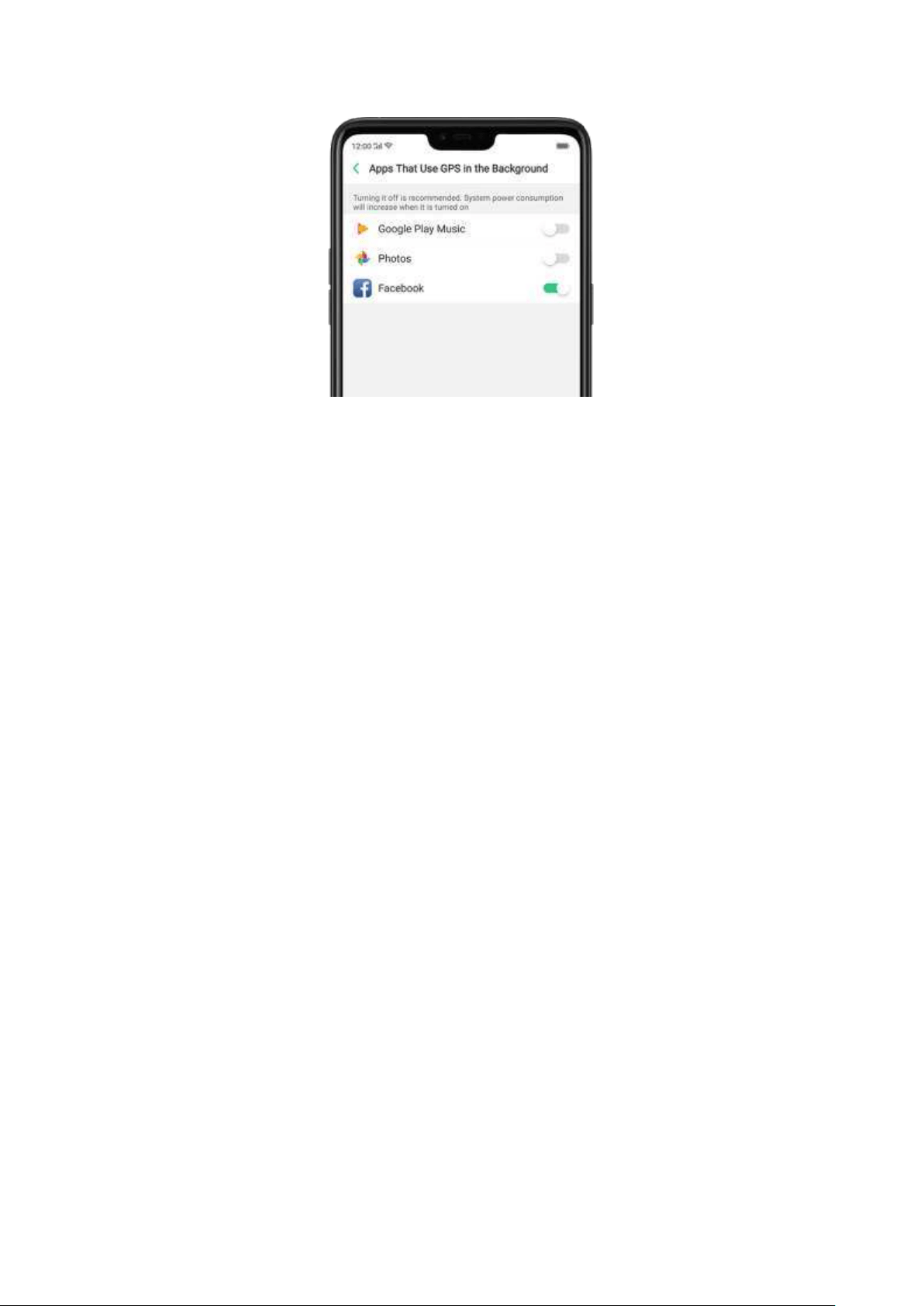
Google Locat ion service
Use Goo gle Locat ion Hist ory to retrace your steps. Google Location Hist ory will
customize search results for location and search history.
Use Goo gle Locat ion Sharing t o share your locations with friends and contacts in
real tim e.
5.16. Use t he phone int ernationally
When you travel overseas, do the following steps to make sure you stay connected
to friends and family while traveling - without paying more than you have to.
Unlock your p hone. Call your wireless operator and ask if your phone needs to be
unlocked. In order to prevent selling beyond agreed areas, you need to call the
Customer Service Center to get the unlock code.
Shop int ernat ional d at a roaming plans w it h your operat or . Consult your operator
or visit online websites to check for roaming plans and fees that are mostly used in
the country or region that you will visit.
Buy or rent local Nano SIM card s. You can buy or rent SIM cards for most of the
countries and regions. Learn m ore from travel guides and websites related to the
country or region.
Use Wi-Fi. Turn off global roaming on your phone and head to a Wi-Fi hotspot, such
as a hotel lobby, or local cafes.
5.17. Power Saver
Power Saver helps increase battery life by turning off or limiting certain features, for
example, turning off som e background apps to pause background syncing, turning
off Vibrate on Touch, and dimm ing the screen. Using Power Saver can give you at
least extra 30 minutes to use the phone.
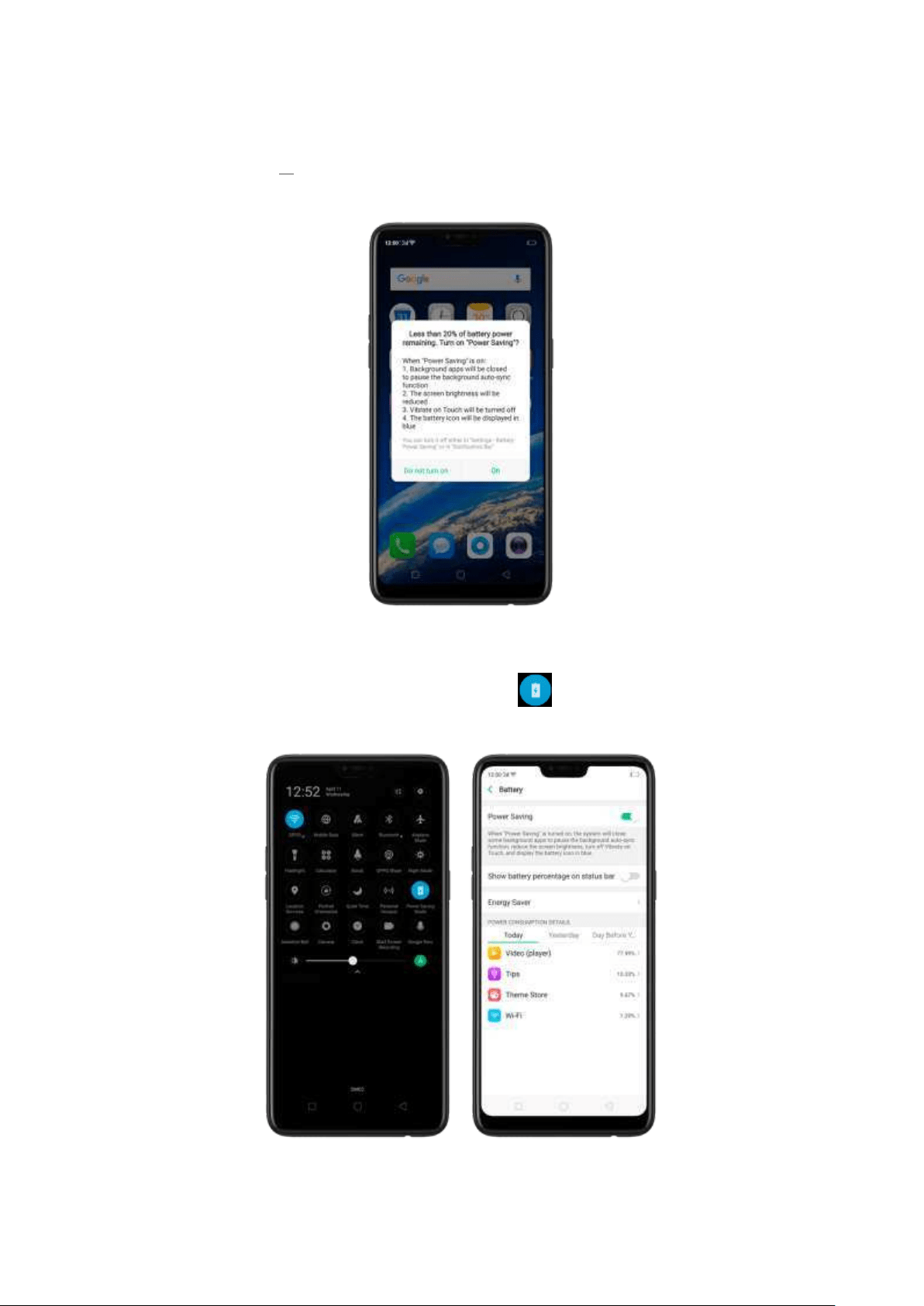
Turn on Pow er Saving . The phone will let you know when your battery level goes
down to 20%, and again at 10%, and will ask you to turn on Power Saving. The
battery indicator in on the top right corner will turn blue while Power Saving is
enabled.
To m anually turn on or off Power Saving Mode at any tim e, swipe down from the top
of your screen to open Control Center, then click . You can also go to
[Set t ings] >
[Bat t er y] and enable Power Saving.
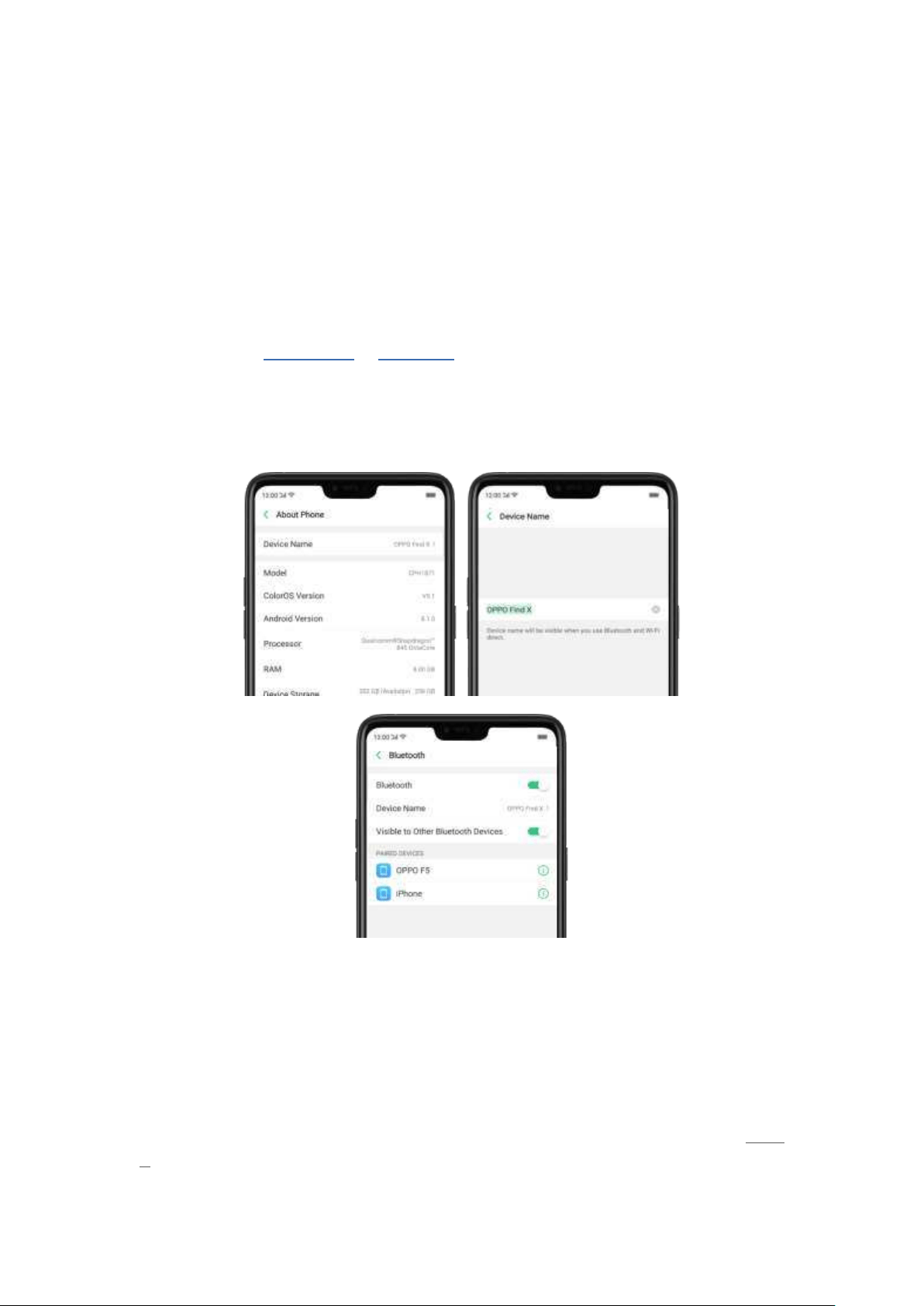
Not e: Your phone will autom atically disable Power Saving when you charge it up to
80%. Power Saving is always temporary and only lasts until the next proper charge.
6. Personalize your OPPO phone
6.1. ColorOS 5.1 device nam e
If you scan for a Wi-Fi Direct or Bluetooth connection with your OPPO phone, your
device name will display on the target devices.
Change d evice nam e for Wi -Fi and Bluet oot h . Go t o [Set t in gs] > [Abou t Pho ne].
You can also change t he device name when you enable Bluetooth or Wi-Fi Direct.
6.2. Personalize the Hom e screen
6.2.1. Organize the Hom e screen
From the Home screen, you can access all your apps and widgets. To keep everything
in order, you can organize your hom e screen to m ake it more m anageable and keep
it looking neat.
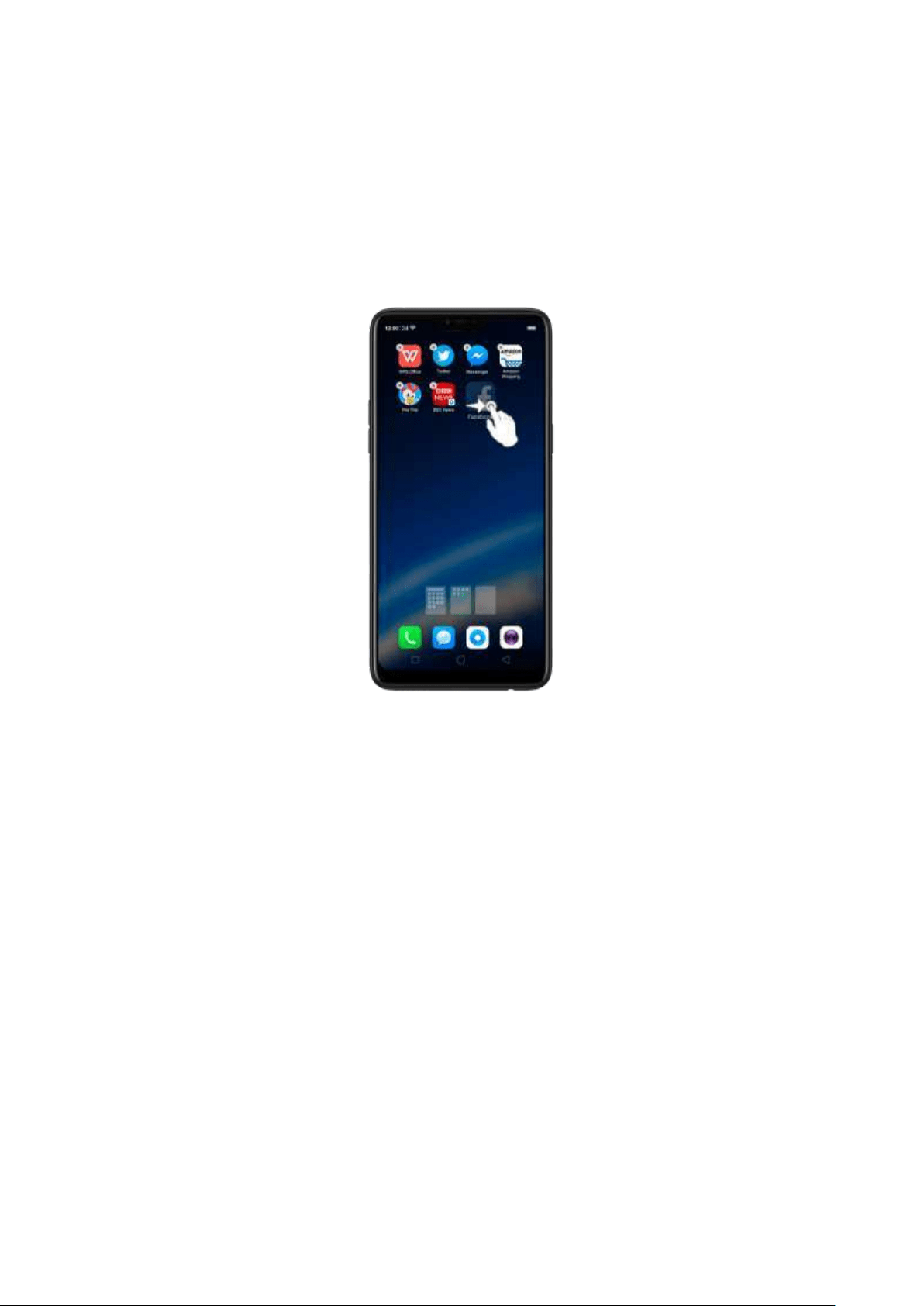
Add or Rem ove a Hom e screen page
Ad d a Hom e screen page. Swipe to the rightm ost screen and drag an app or widget
off the screen to the right.
Remove a Ho m e screen page. Drag all the apps and wid gets on a Hom e screen
page to another page. The empty Home screen page will be automatically deleted.
Group Apps
You can put apps in folders, which can keep your home screen neat or help to
organize similar apps.
Creat e a fold er. Tap and hold an app until the icons start wiggling. Drag one of the
apps into the ot her, and lift your finger w hen t he first app seem s to merge into the
second one. Add more apps by dragging them in.
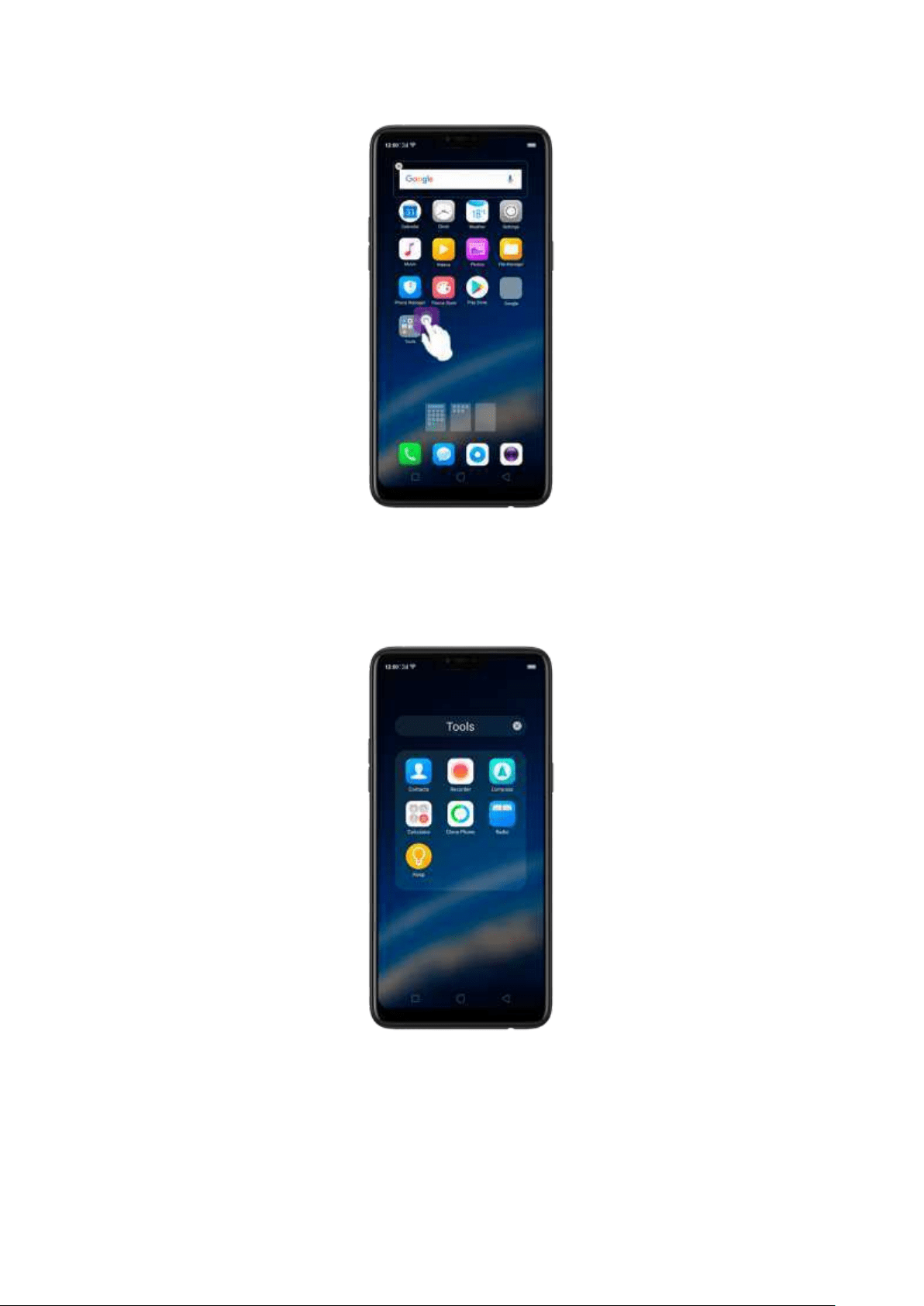
Ed it t he fold er's name. When you first create a folder, your phone assigns a
suggested name to it. To edit the name, tap on the text .
Rearrange apps and folders
OPPO smartphone has set a default arrangement for users, but you can still
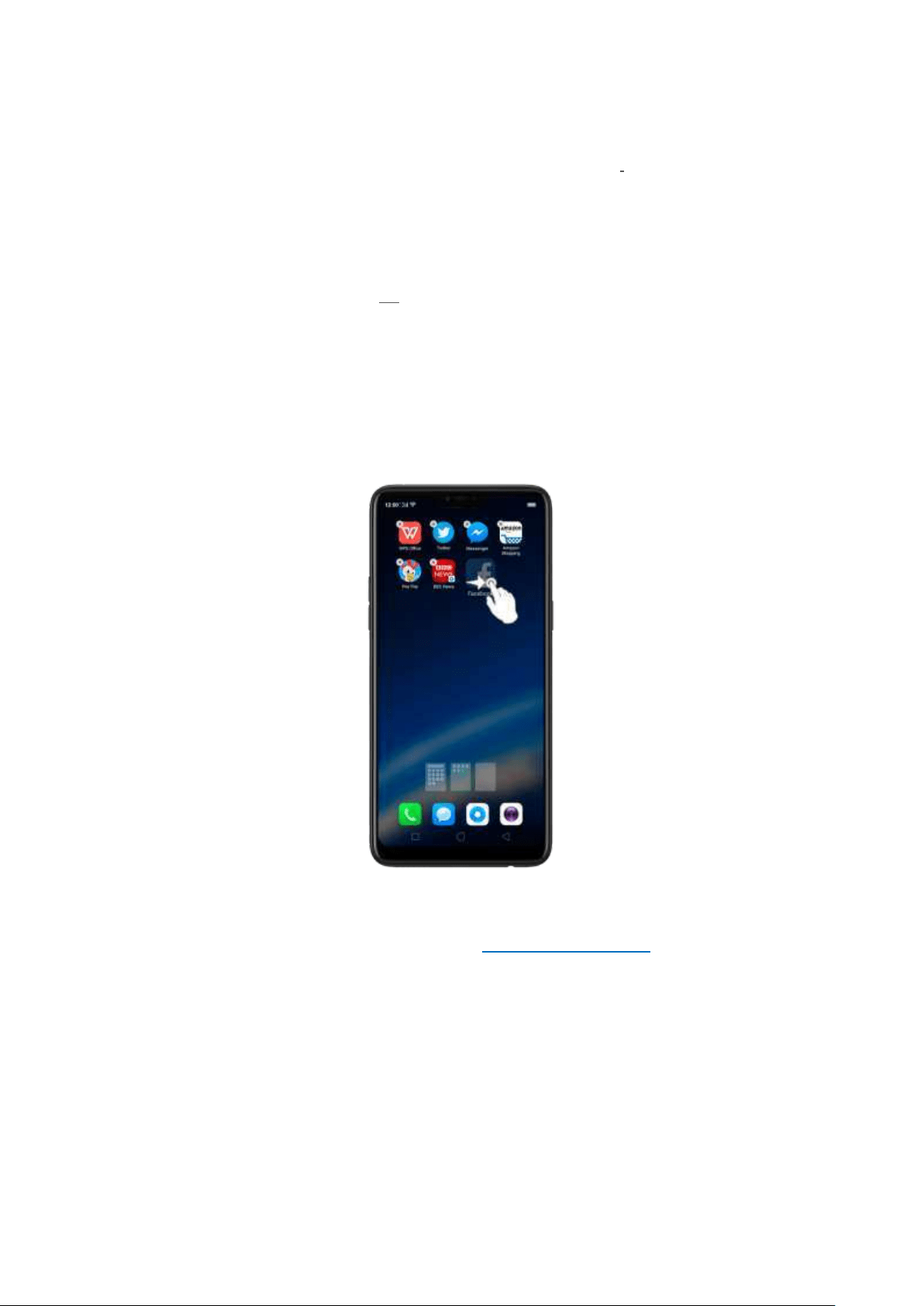
rearrange the apps and folders to fit how you use your phone.
Remove ap ps from a folder. Tap the folder, then tap and hold an app unt il the
icons start wiggling. Drag t he app out of the folder and into the home screen.
Delete a folder. Drag all the apps out of the folder and into the home screen, and
the folder will disappear.
Rearrange ap ps. Tap and hold on an app until the icons start wiggling. Drag and
drop the app icon to a new location. To save your changes, press the Hom e or
Ret urn button.
Note
: Icons will be aligned to the left automatically.
Move t h e icon to a new screen. Drag the icon off the screen to the right and let it
go when the new page appears.
Ad d or remove Ho me screen w id get s. See Home screen widgets.
6.2.2. Hom e screen wid get s & Transit ion Effects
You can give yourself a fancy hom e screen with a highly-detailed set of widgets, for
example, clock, weather, battery or mail widgets. You can also use them to tweak
notifications, alarms and ot her options. In other w ords, there's considerably more
here than just widgets. You can also change t he transition effect on your phone,
which is t he style in w hich you slide the home screen right or left.
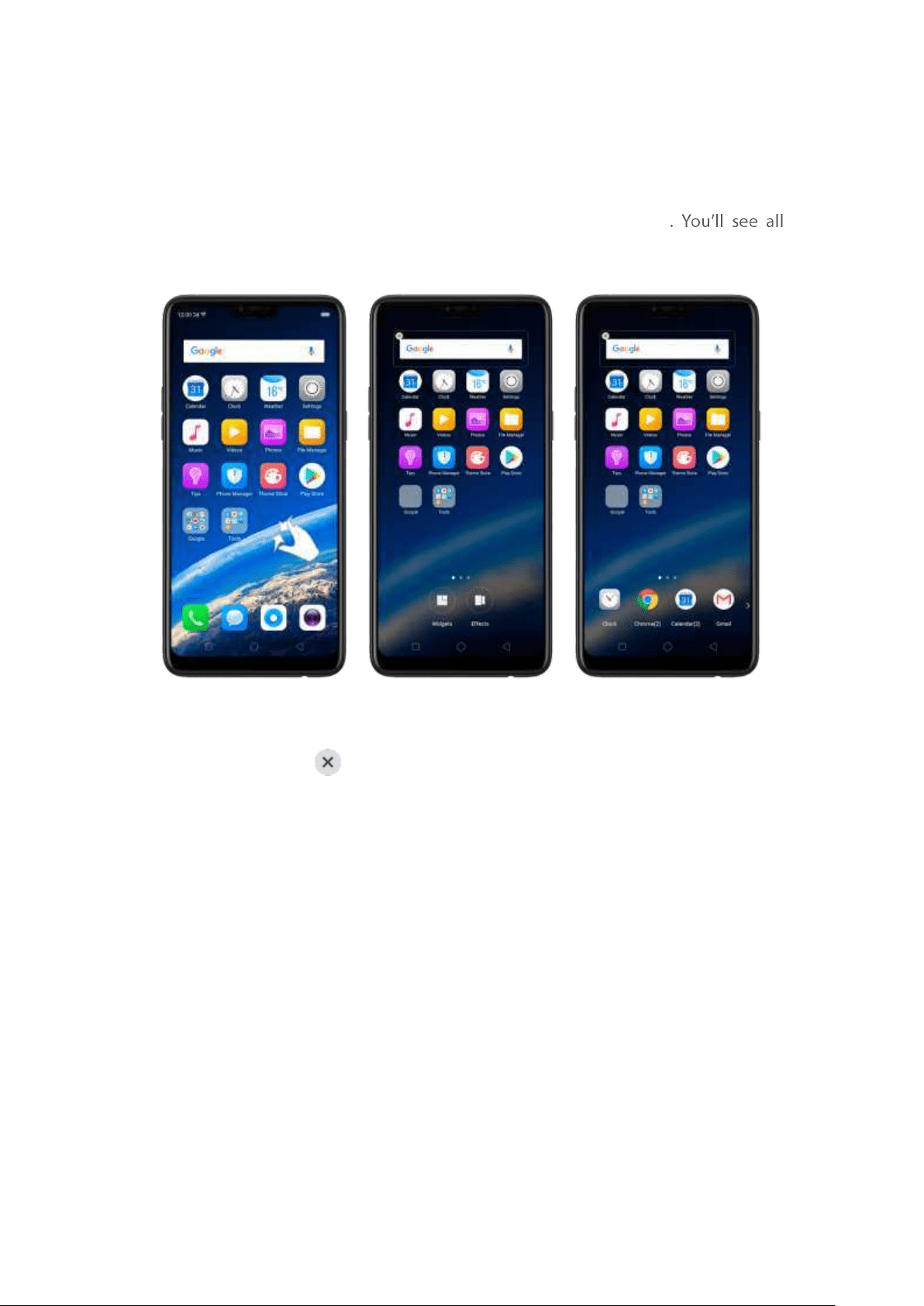
Manage w idget s
Ad d a wid get . Pinch your fingers together, t hen click [ Widget s]
available widgets. Touch, hold and drag one wid get to t he screen. Make sure there is
enough space for that widget.
Move a widg et . Touch and hold a widget for about 2 seconds, then drag it around.
Delet e a w id get . Click in the upper left corner of the wid get.
Custom ize transition effect
Set up t ransit ion effect . Pinch your fingers toget her, then click [Effect s].
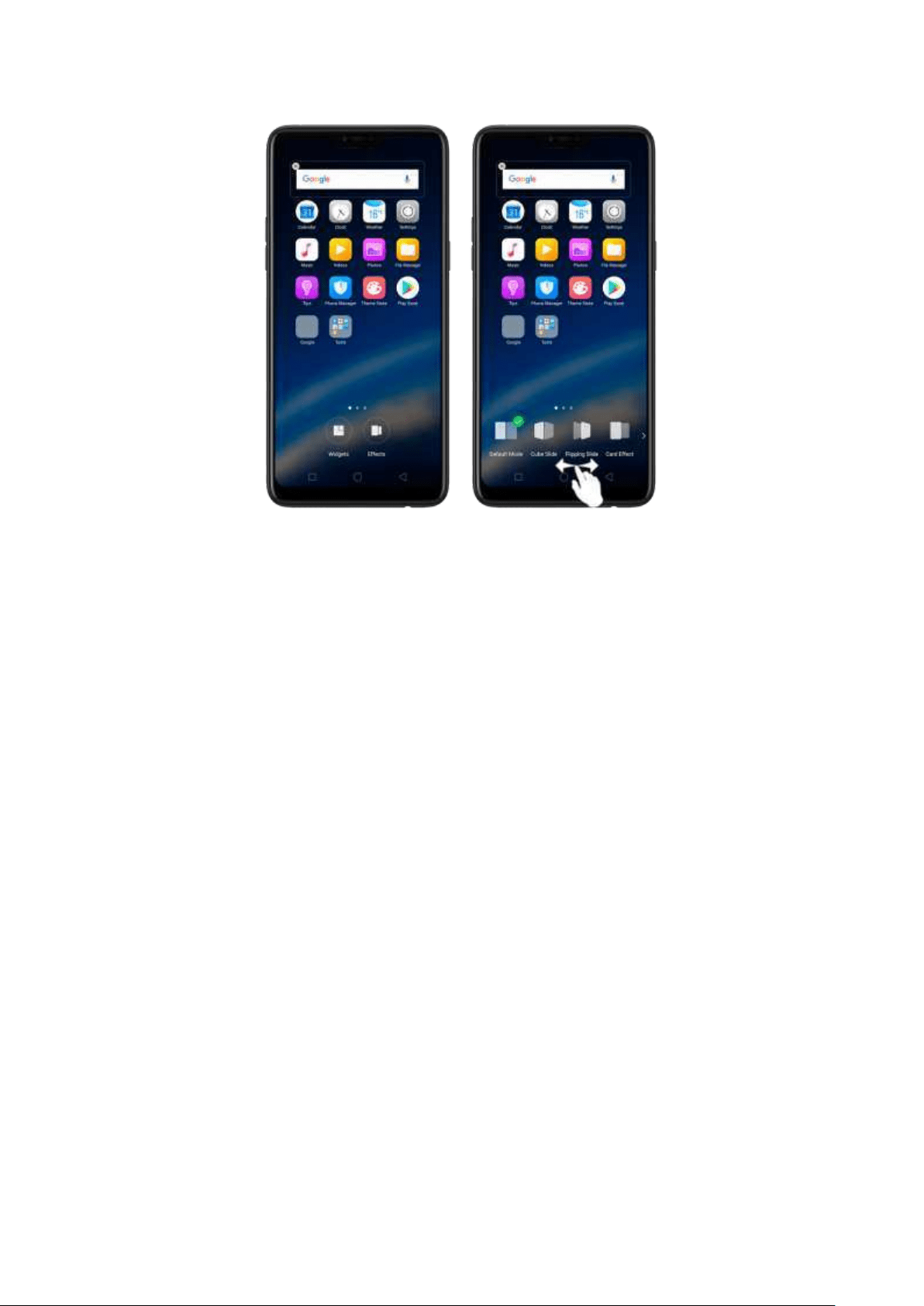
Preview and cho ose an effect . Click a transition effect and it will show the preview
effect. You can choose one from the five options:
Default Mode
Cube Slide
Flipping Slider
Card Effect
Tilting Mode
6.3. Change the w allpaper
You see a wallpaper background picture when you unlock your OPPO p hone. You
can select one of t he im ages that came with the p hone, or use a p hoto from your
photo gallery, or
get some more wallpapers online.
Change t he w allp ap er. Go to [Set t ings] > [Ho mescreen & Lockscreen Magazine].
Scroll to the end of the page, then click
[Set w allp ap er].
Tip : When setting t he wallpaper as your Home screen or Lock screen, you can drag
to move the image, or pinch to zoom in and out, so the im age fits the screen.
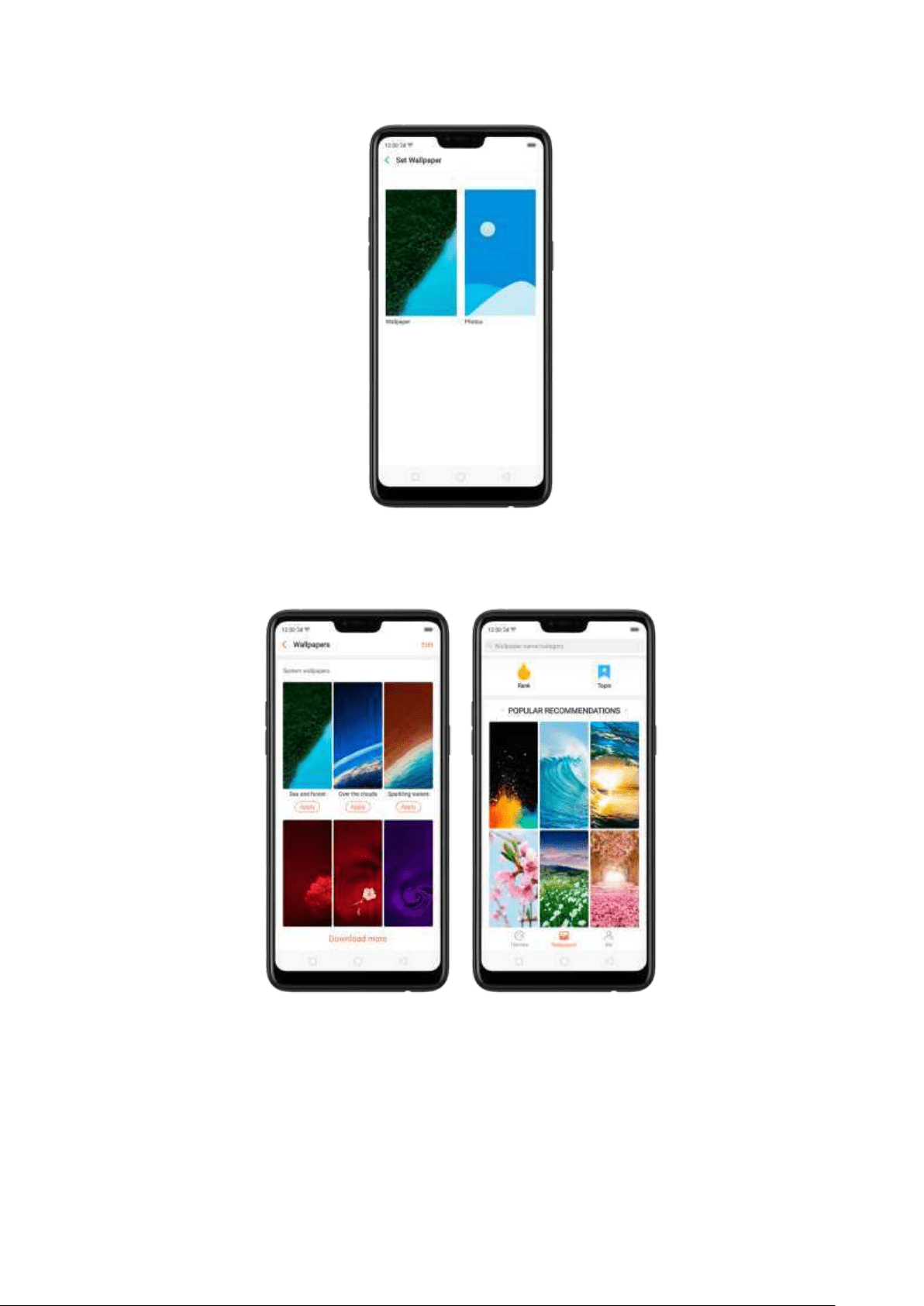
Dow nload online wallp ap ers. Click Wallpaper, then click Download more. You can
also click Them e Store on t he Home screen directly to find m ore.
Use your ow n phot os. Click Photos, t hen select your favorite image from the phot o
galler y.
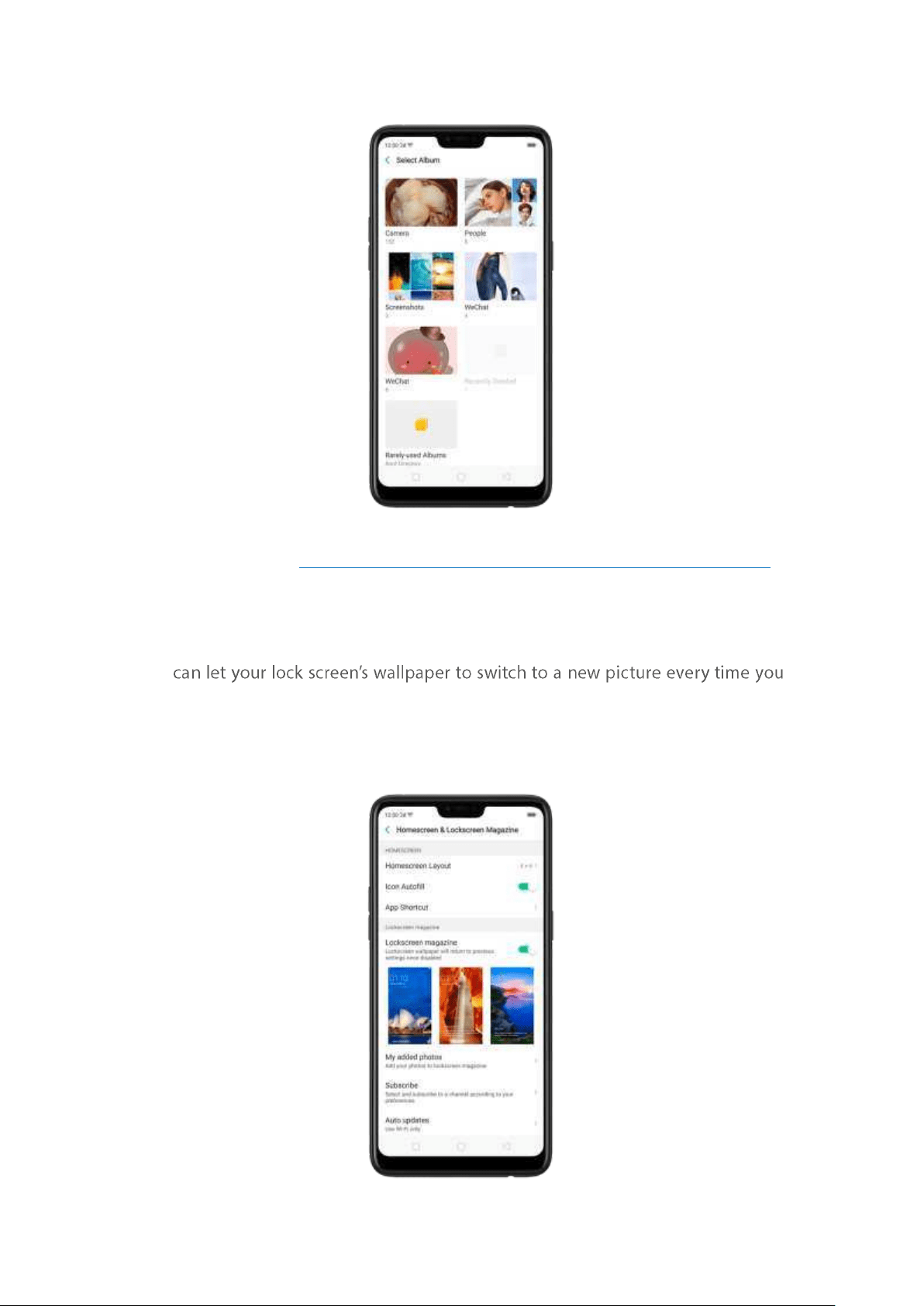
View more details in
Change t he wallpaper and theme on your OPPO smartphone.
6.4. Lock screen m agazine
You
wake up your phone, lessening the likelihood of you getting b ored with the same
look.
Turn on Lock screen magazin e. Go to [Set t in gs] > [Ho m escreen & Lockscreen
Magazine] and turn on [Lockscreen m agazin e].
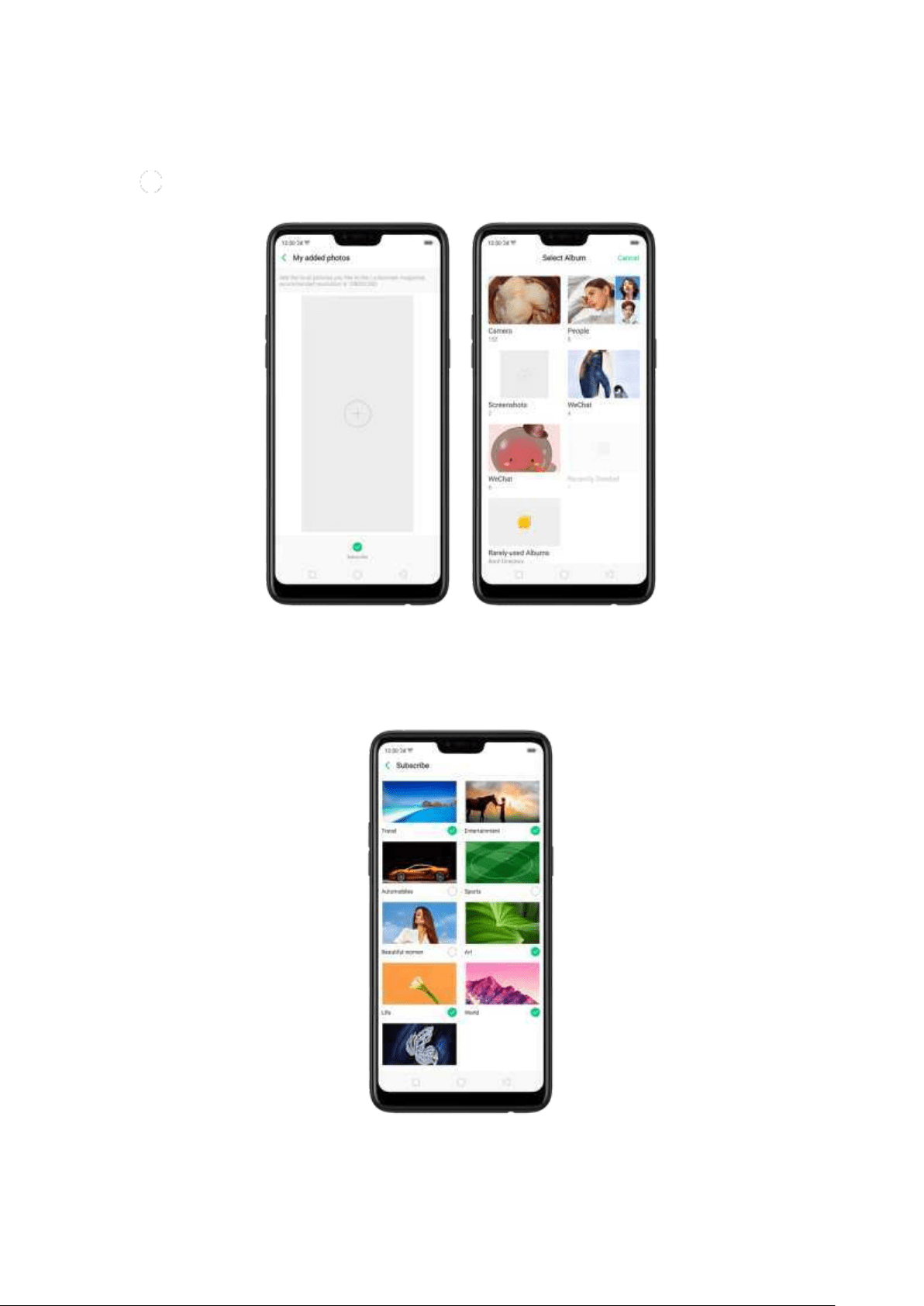
Add your local p ict ures t o Lock screen magazine. Click My added photos, click
, then select your preferred pictures.
Ad d online pict ures t o Lock screen m agazine. Click Sub scribe and select your
preferred channels, then go back and click Check for updates. You can also set the
lock screen magazine to update automatically.
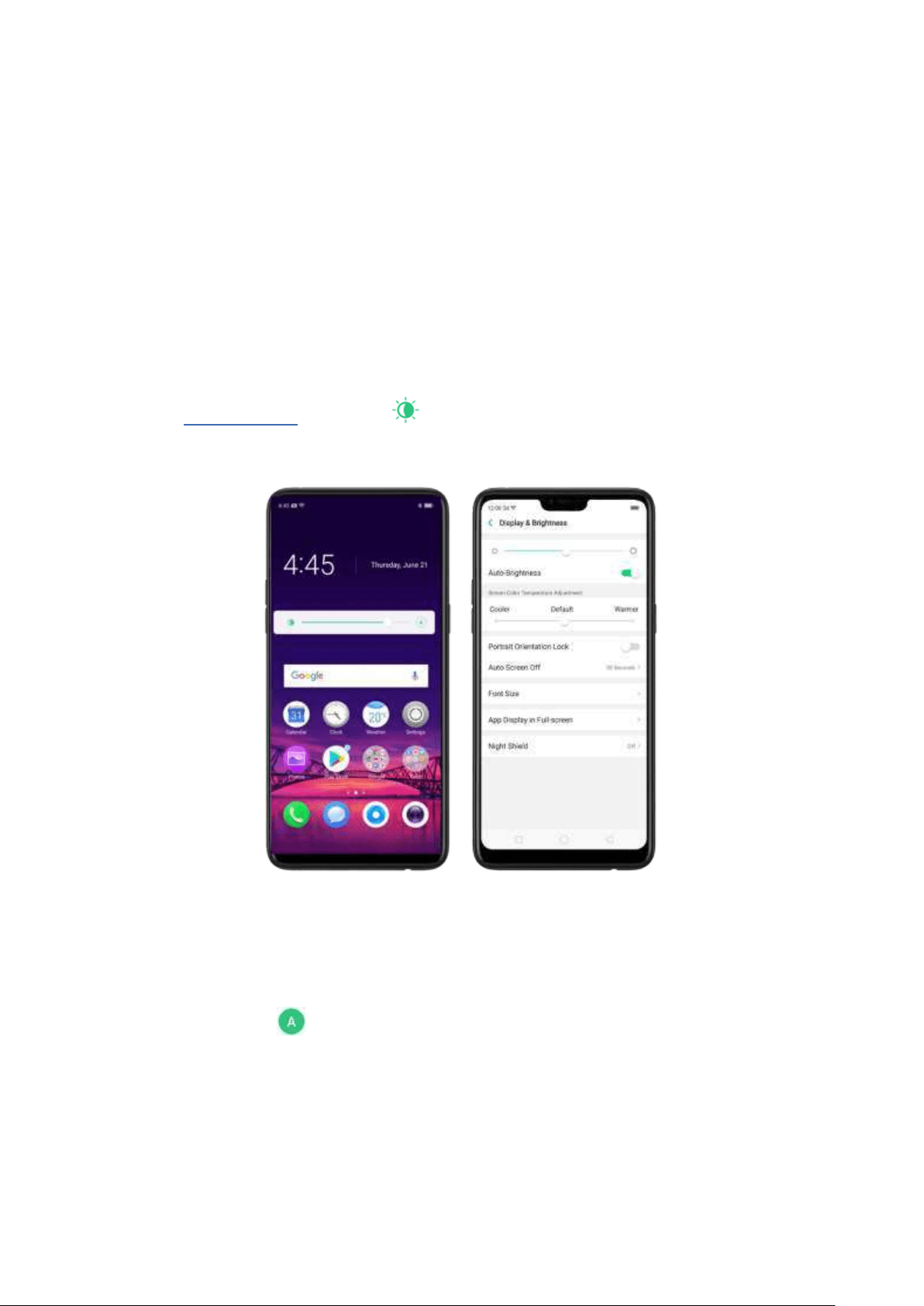
6.5. Adjust t he screen brightness and color
t em perat ure
Adjusting the bright ness on your OPPO phone tailors visibility to suit your
environment. You can manually dim the screen when reading in bed, for example,
or make it brighter w hen you're in a direct sunlight situation. Or use Aut o-Brightness,
which can automatically change screen bright ness depending on t he level of
ambient light. Reducing screen bright ness can also help to conserve battery life.
Ad just the screen b rig ht n ess. Swipe up from the bottom of the screen to
open
Control Center, then drag . Or go to [Set t in gs] > [Display & Bright ness],
then drag the slider.
Set OPPO p ho ne to ad just screen bright n ess aut o matically. Open Control
Center, then click . Or go to
[Set t ings] > [Display & Bright ness], then toggle the
Auto-Bright ness slider to green. If Auto-Brightness is on, your phone adjusts the
screen brightness for current light conditions using the built -in ambient light
sensor.
7. Use Night Shield . Go to [Set t in gs] > [Disp lay & Bright ness] > [Night
Shield ]. Drag the control point t o adjust color temperature. The warmer you
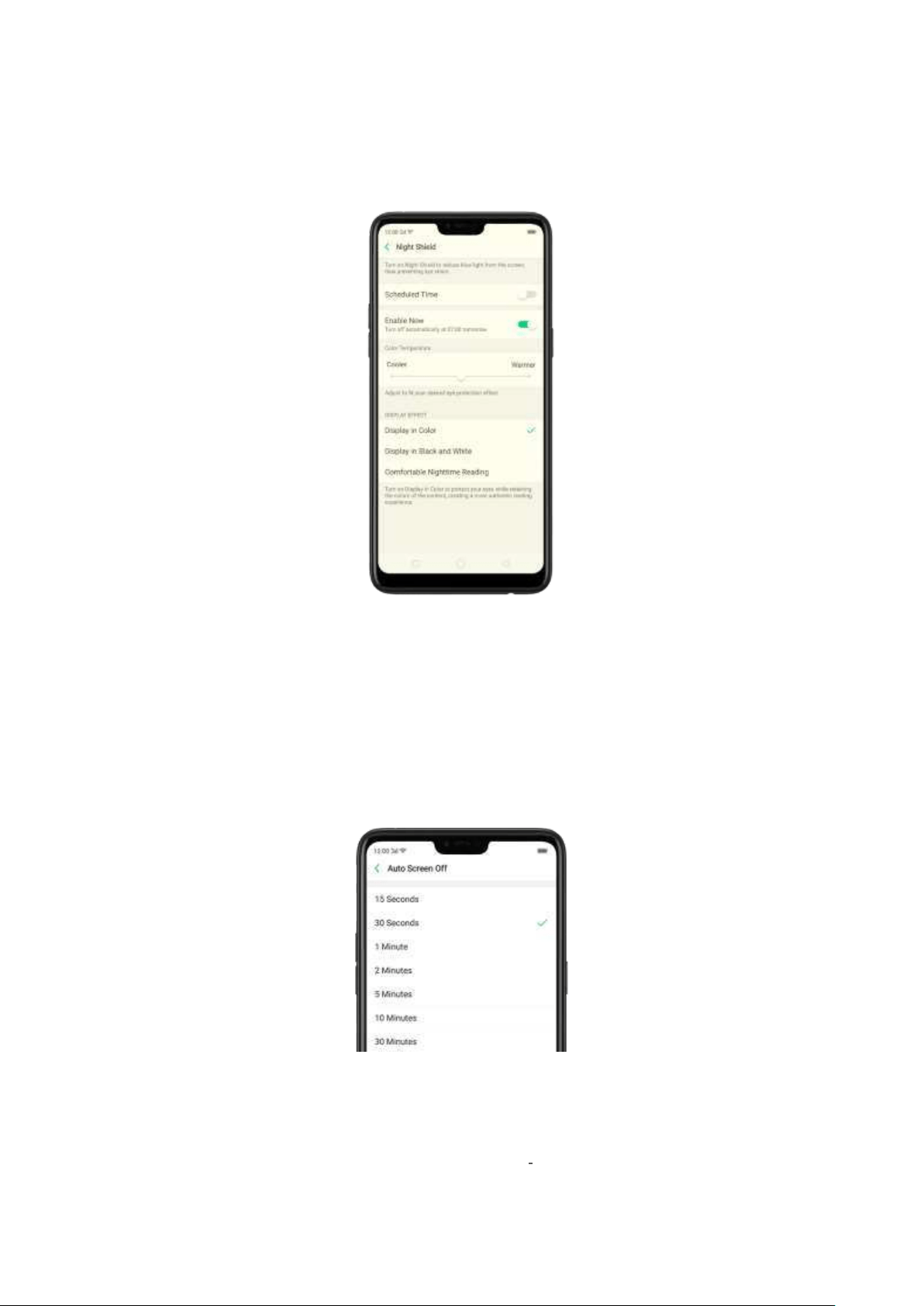
set your screen, the less blue light will be emitted from the display. When
you use the OPPO phone at night, you can turn on Night Shield to cut down
on eye strain and sleeplessness you might get.
6.6. Change aut o -lock t im e
By default, your OPPO smartphone locks automatically after 30 seconds. To modify
this, alter the amount of tim e yourself.
Change aut o-lock t ime. Go to [Set t ings] > [Display & Bright n ess] > [Aut o Screen
off ]. Options range from 15 seconds to 30 minutes.
Tip : The longer your display, the more the battery drains.
6.7. Change the font size
OPPO smartphone lets you change the font size to that of your eyesight needs.
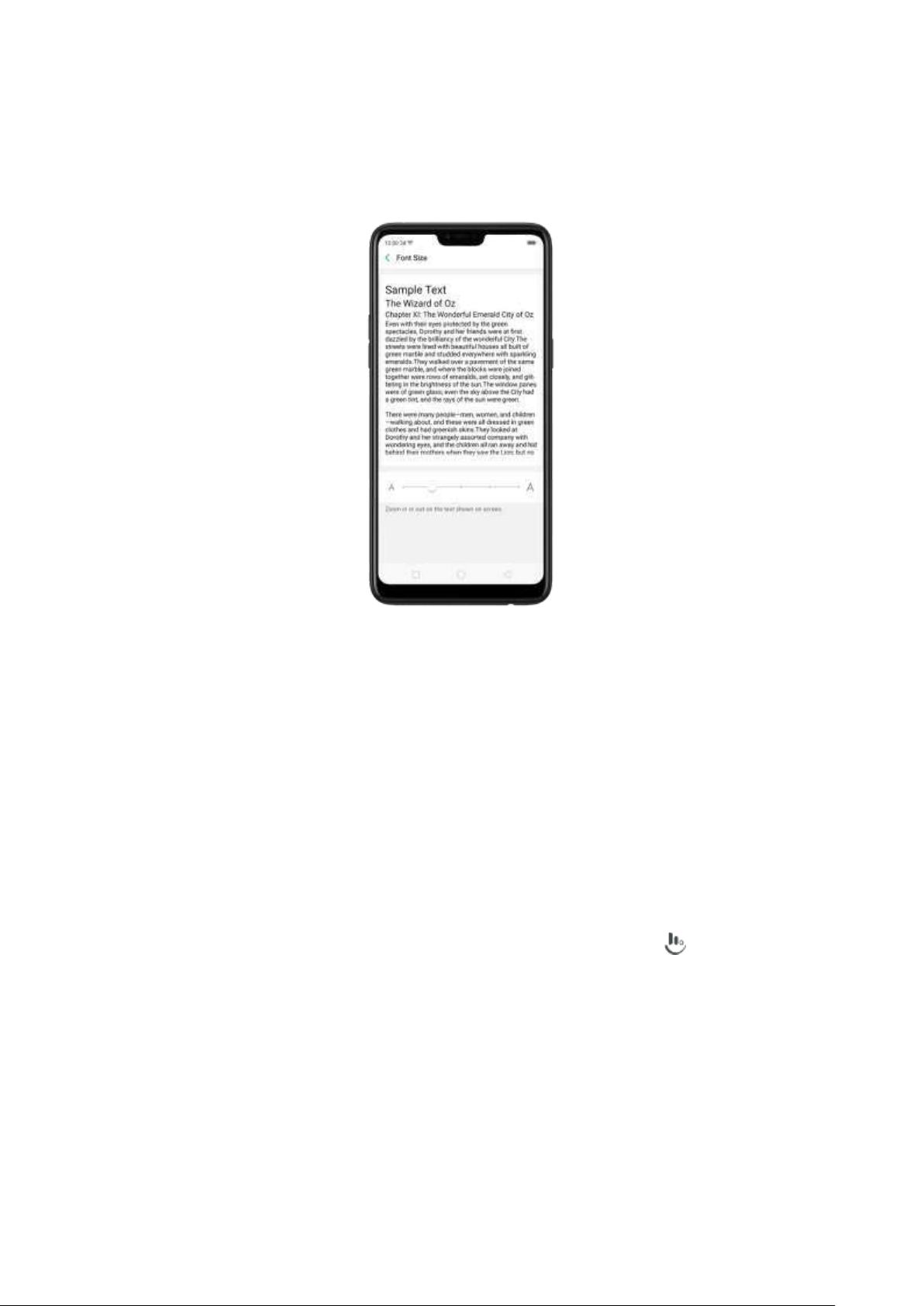
Change t he font size. Go to [Set t ings] > [Display & Bri ght n ess] > [Font Size]. Drag
the slider to the left or right to shrink or enlarge sample text, then you'll see your new
text size immediately applied to the menu text in the upper-left corner of the screen.
Tip : This will not affect the size of your icon text.
6.8. Keyboard and input m et hod
6.8.1. Cust om ize the look of t he keyb oard
Make your own keyboard by customizing the font and appearance.
Go to
[Settin gs] > [Ad d it ional Set t ings] > [Keyb oard & Inp ut Met h od ] > [ Touch Pal
for OPPO] > [Look & Feel].
Ad just t he size of candid at e w ord s. Click [Candidat e Size], then drag t he control
point to change font size to small, normal or large.
Customize keyb oard app earance. Click [Cand id at e Size], or click on the on-
screen keyboard > [Resize], then drag t he control arrow to adjust keyboard height,
width
, and position.
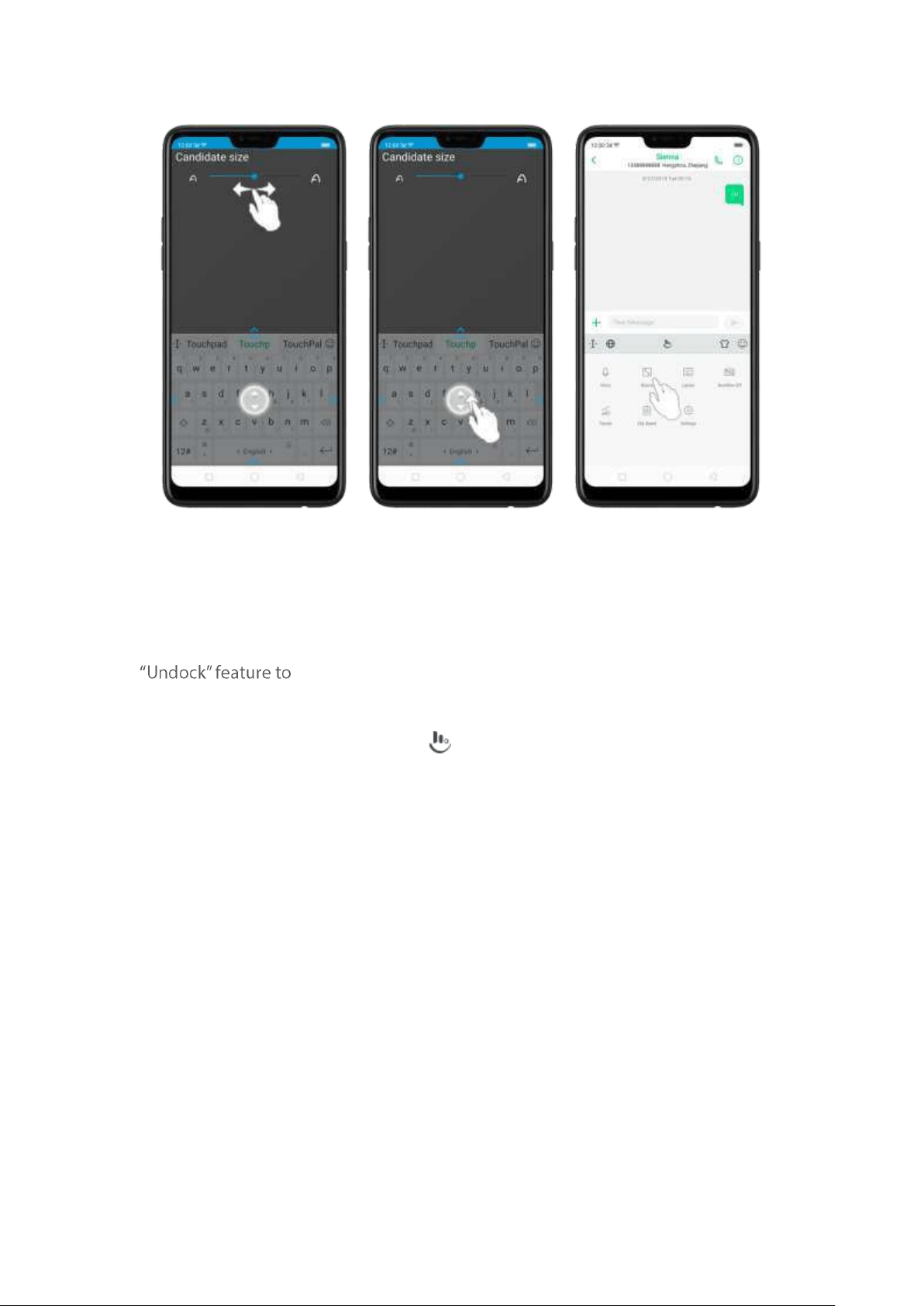
6.8.2. Keyboard Layout
In addition to t he default keyboard style, the undocked, one-handed, and split
keyboard on the screen makes typing with bot h thum bs a breeze. You can use
position t he keyboard anywhere on screen, or narrow the
keyboard with one-handed mode, or split the keyboard in half.
To change the keyboard layout, click on the on-screen keyboard, then click
Layout.
Norm al keyb oard . The default keyboard layout on your phone.
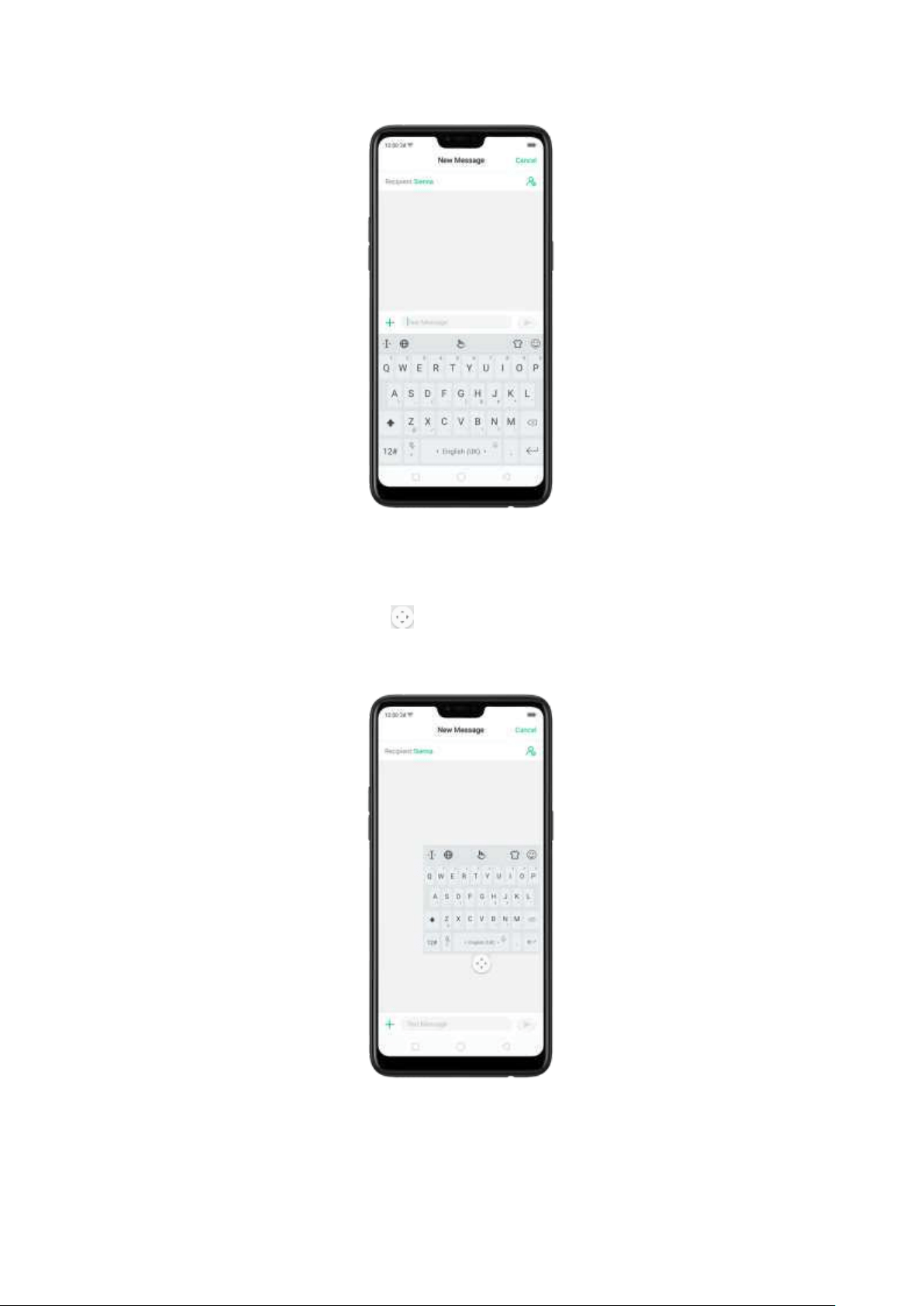
Und ocked keyb oard . The keyboard becom es suspended and can be m oved
around on the screen. Click to drag the keyboard to w herever on the
screen that is most com fortable or convenient to you.
One-hand ed keyb oard . Shrink the keyboard so you can type with one hand
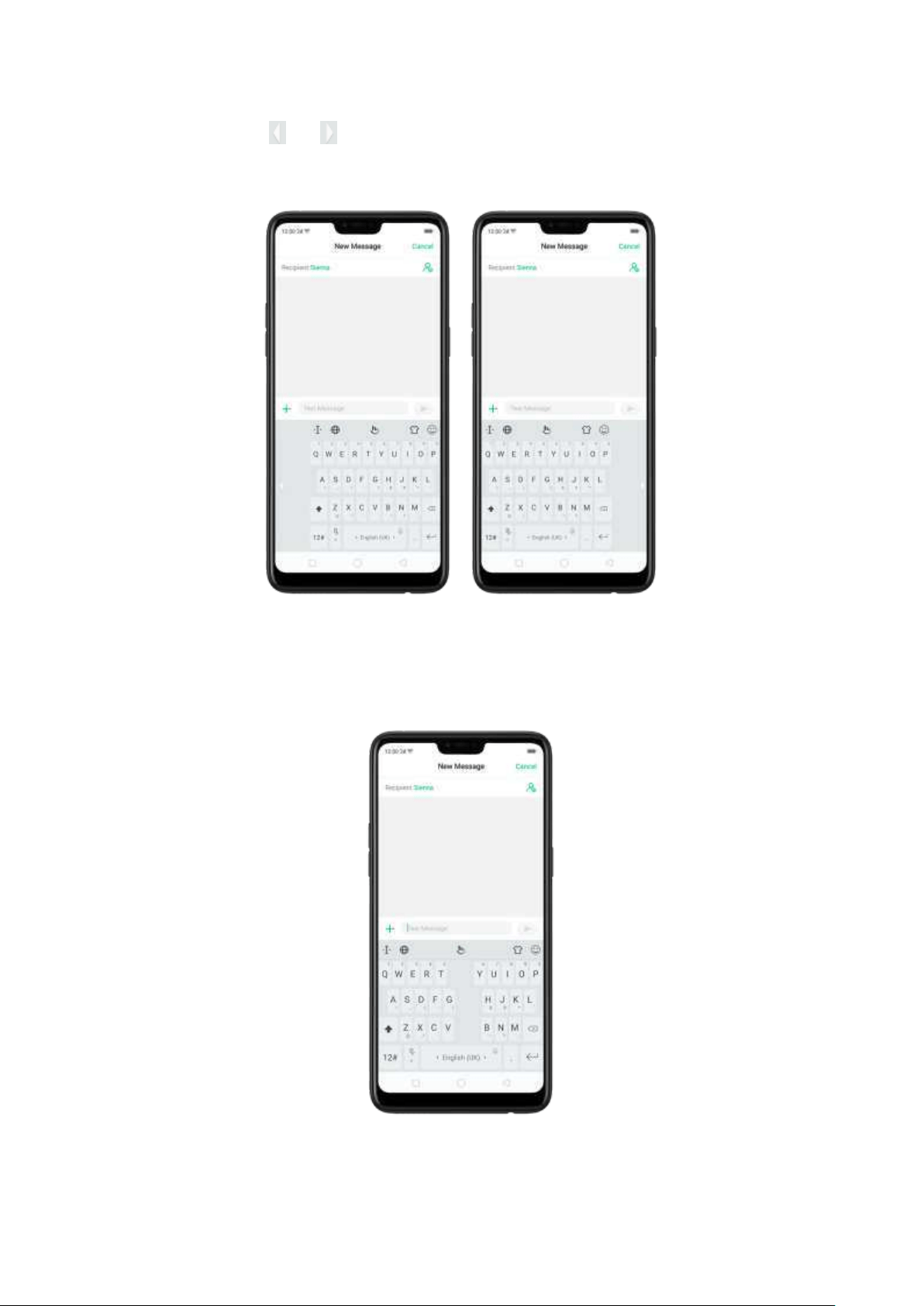
easily. Click or to adjust the keyboard left or right, depending on your
preferred hand usage.
Sp lit keyb oard . The keyboard will divide into two sections for easy thum b
typing.
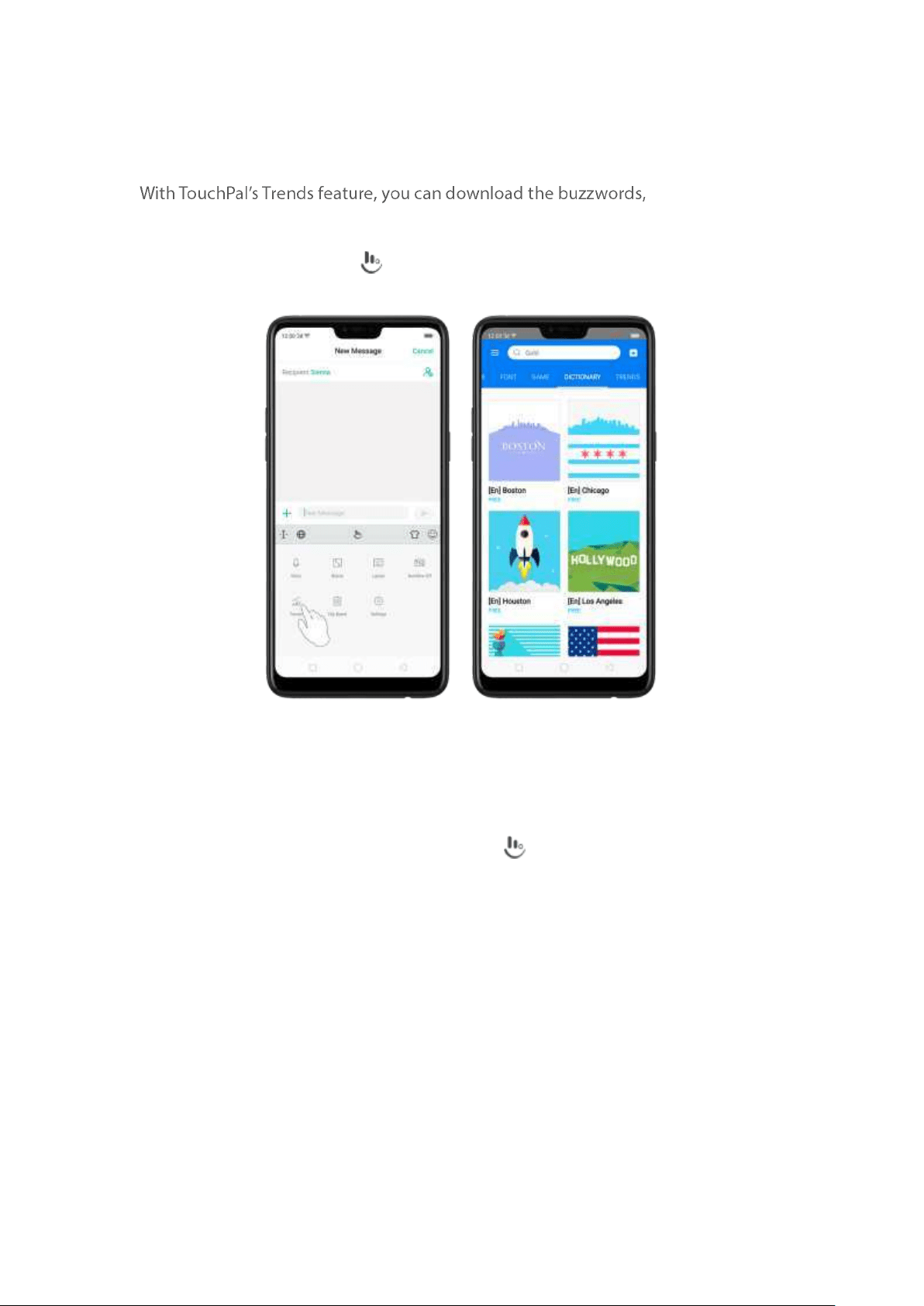
6.8.3. Trends
change the
keyboard theme and font, and get the latest headlines and games.
Get t he lat est t rends. Click on the on-screen keyboard, then click Trends.
6.8.4. Keyboard general set t ings
OPPO smartphones come preloaded with TouchPal Keyboard. You can change the
keyboard settings directly on your phone. click on the on-screen keyboard, then
click [Settings] > [Look & Feel ].
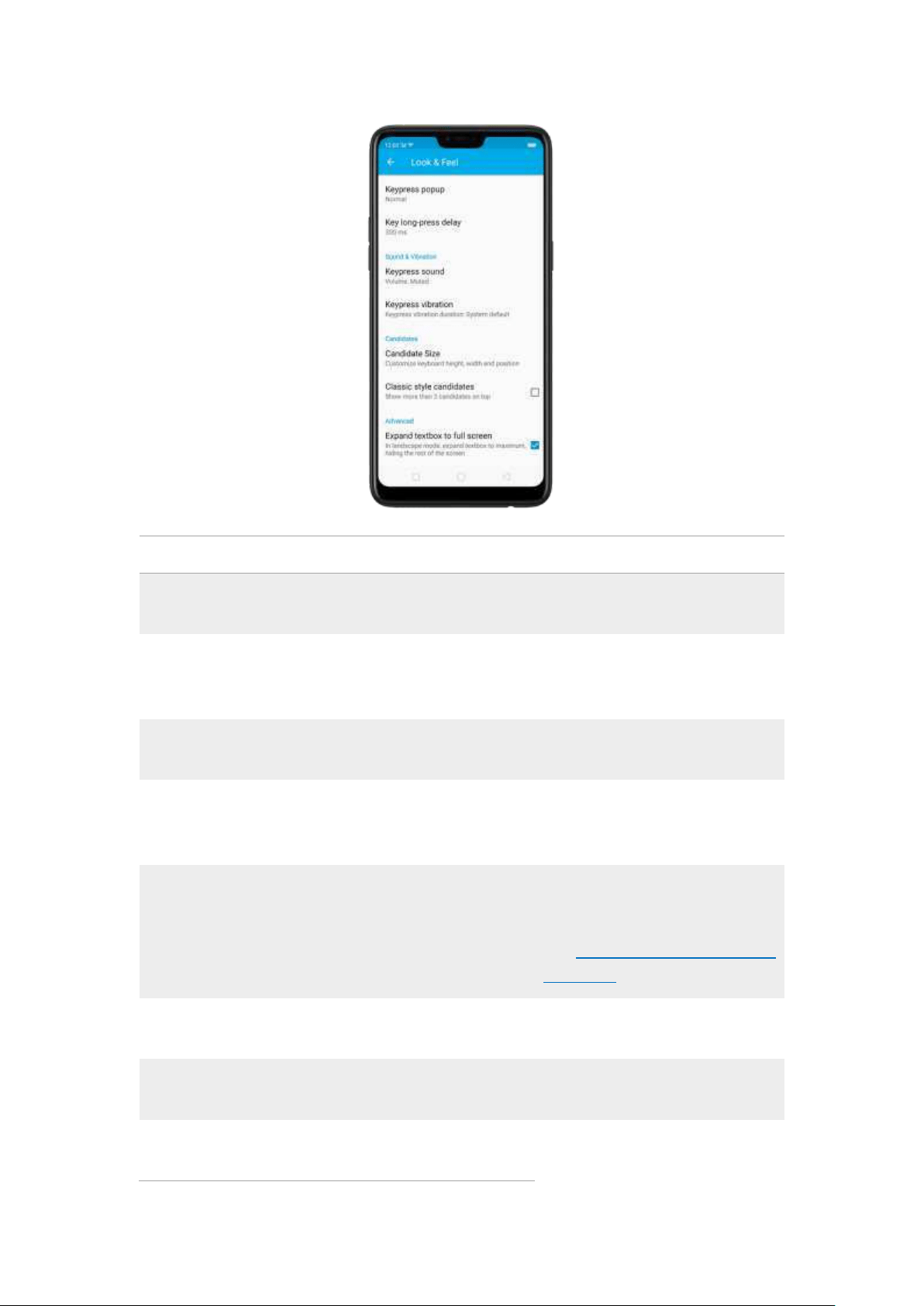
Set t in g
Effect
Keypress p op up
A popup b ubble displays
when you click a key.
Key lon g-p ress d elay
Adjust the long-press delay
tim e ranging from 200m s to
1000ms.
Keypress sound
Adjust the key press sound, or
use the system volum e.
Keypress vibrat ion
Adjust the key press vibration
duration, or use t he system
default setting.
Cand idat e Size
Change the size of candidate
words, and adjust keyboard
height, width, and position.
See Customize the look of the
keyboard.
Classic style cand id at e
Show more than t hree
candidate words on top.
Exp and text box t o full screen
Keyboard opens as full screen
in landscape m ode.
Exp and text box
t o full screen
Keyboard opens as full screen
in landscape m ode.
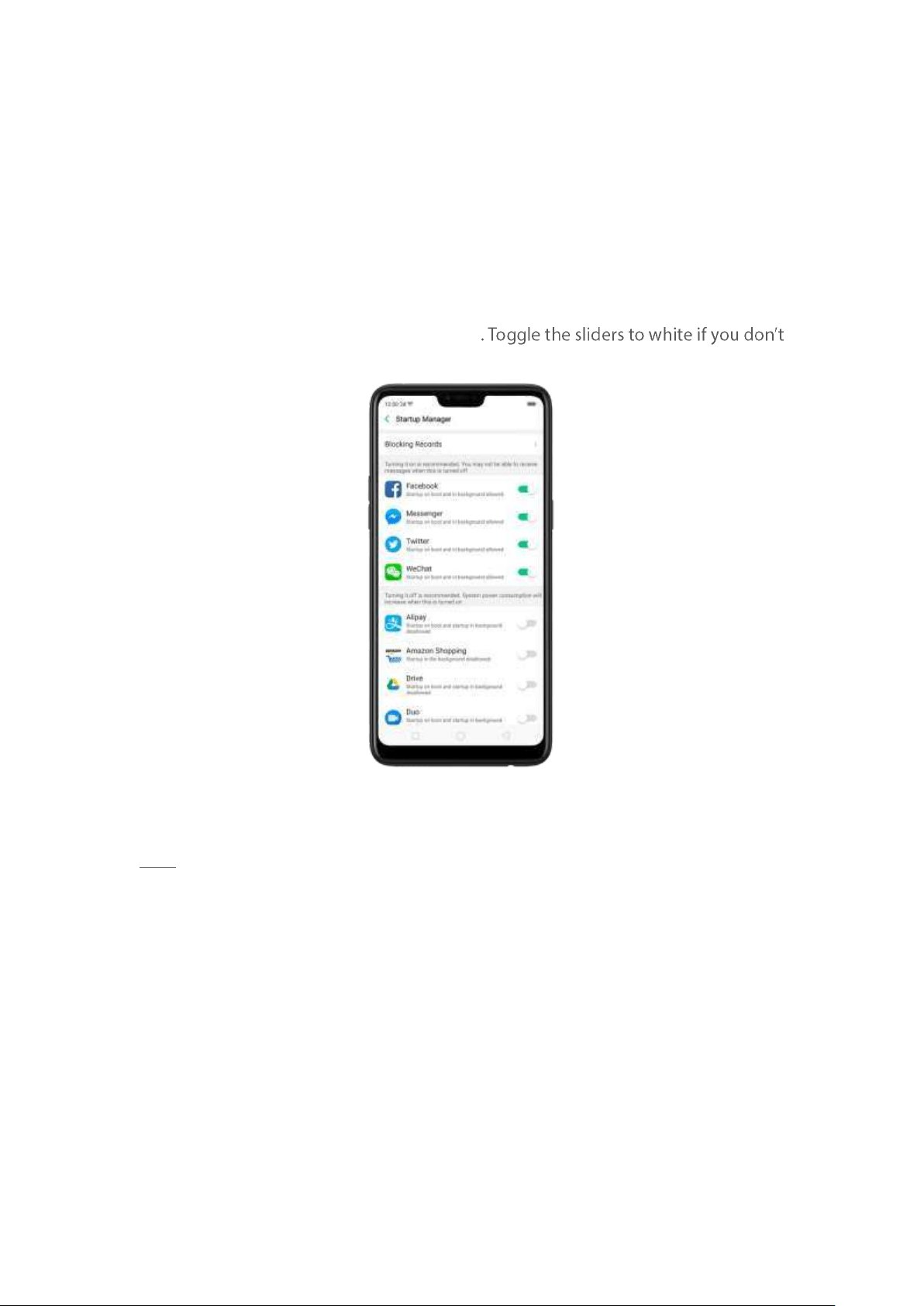
6.9. Set up Start up Manager
Startup Manager helps you to manage system startup entries. You can choose w hat
apps to start first when your phone boots t o meet your using habits.
* Too many self-starting apps may cause a low start up or operating speed.
Set up Start up Manager. Click Phone Manager on the Hom e screen, then click
[Privacy Permissions] > [St art up Manag er]
want to start apps when phone boot s or in background.
Tip
: For apps that receive real-tim e messages, such as Facebook, Messenger,
WhatsApp
, and Twitter, it is best t o allow t hem running in the background without
their being suspended.
View t he ap ps t hat had been blocked from st art ing in t he backgro und . Click
Blocking Records.
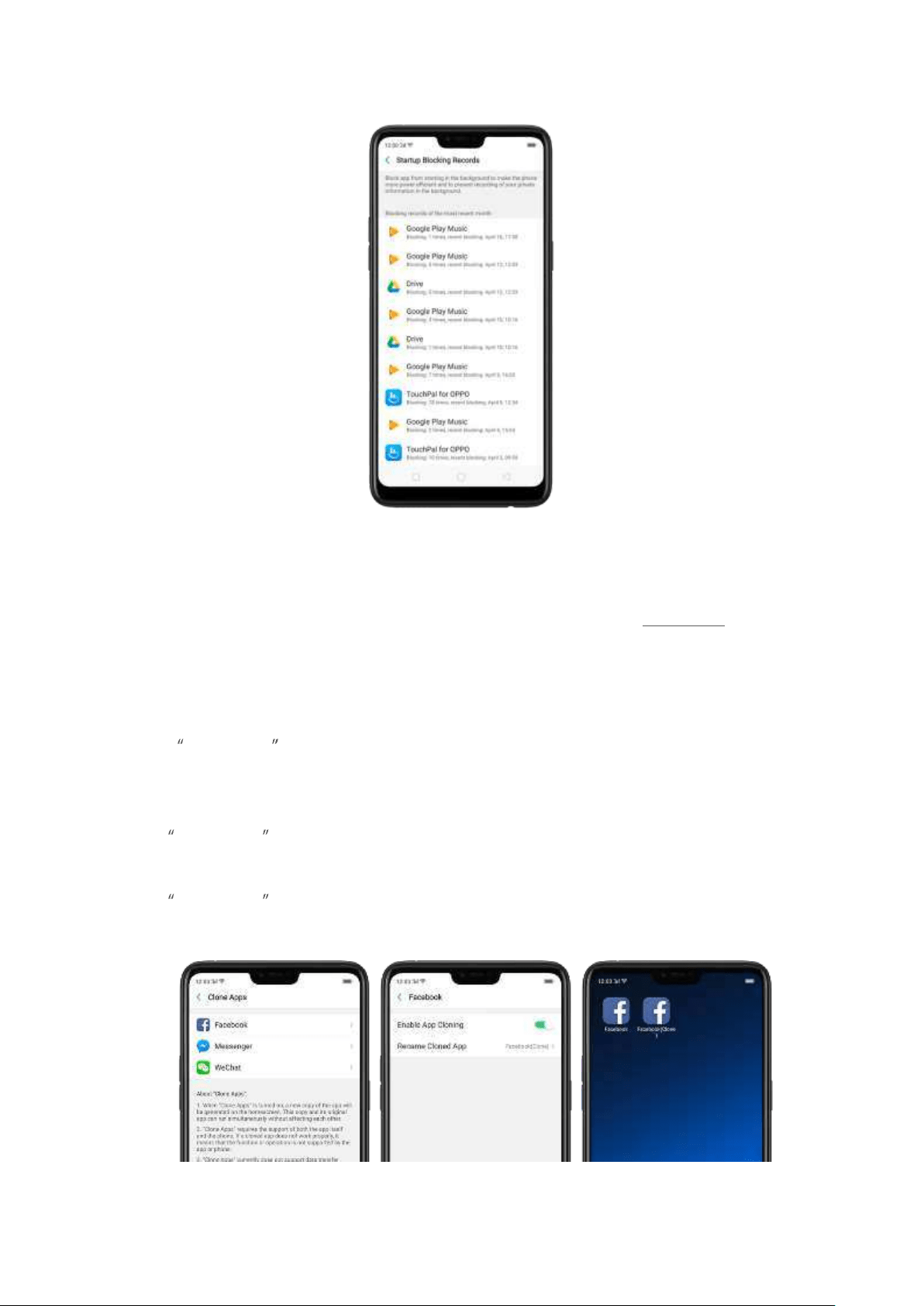
6.10. Clone Apps
Clone Apps allows an app to run two accounts on a single phone on parallel.
To turn on [Clo ne App s], go to [Set t in gs] > [Clone Apps], choose an app and turn
on [Enable Ap p Cloning]. A new copy of this app will be generated on the
homescreen after Clone Apps is enabled. This copy and its original app can run
sim ultaneously wit hout affecting each ot her.
1.
Clone Apps works only if both the app itself and the phone supports it. If a
cloned app does not work properly, it means that the function or operation is
not supp orted by the app or phone.
2. Clone Apps currently does not supp ort data transfer between a cloned app
and a computer.
3. Clone Apps currently does not supp ort to run more than two app clones
sim ultaneously.
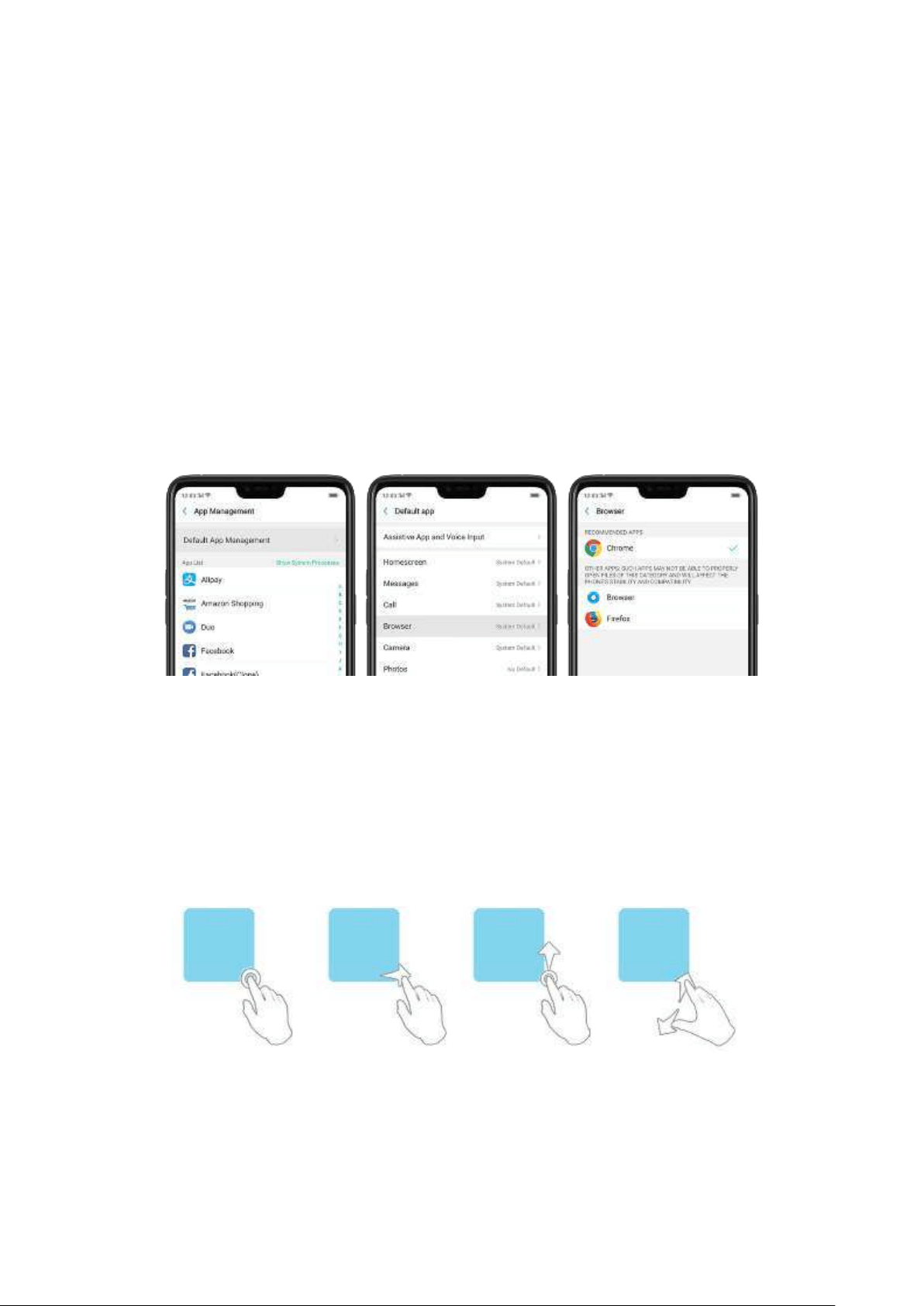
6.11. Manage Default Ap p
What is Default Ap p : If you've installed two different applications that essentially
do the same thing, for example, Google Chrom e and Firefox Web Brow ser, you'll
likely be presented with a pop-up menu when trying to open a web page, asking
you which application you'd like to complete the action with. You can manage your
default app and never be bothered when performing that action again.
Manage Default App. Go to [Set tin gs] > [Ap p Manag em ent ] and click [Default App
Managem ent ].
Take
[Brow ser] as an example, there are three apps and you can choose one of them
to be the default one. You are suggested to use the original app s to get the best
performance.
6.12. Gesture & Mot ion
Gest ures
OPPO smartphone is designed to understand gestures. You can use gestures such
as tap, swipe, drag, and spread to operate your p hone.
To set up com plex gestures for specific functions, go to [Settin gs] > [Smart &
Convenient ] > [Gest ure & Mot ion].
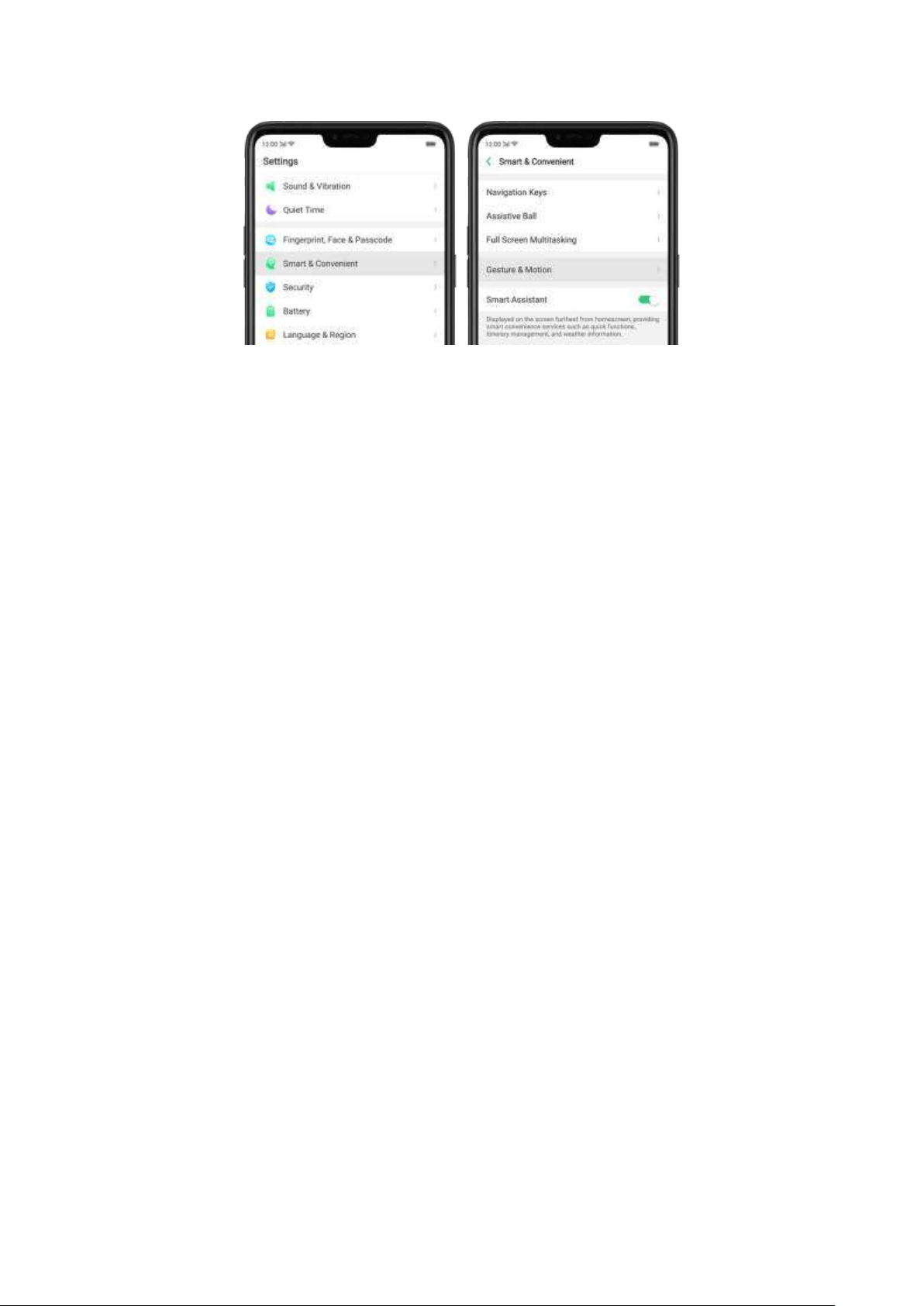
Screen -off Gest ures
To set up screen-off gestures, you need to turn it on first.
Double t ap to turn screen on : Turn it on to wake up your locked screen with a
double-click on the screen.
Draw O t o start camera: When on lock or sleep mode, you can draw O on the
locked screen to open Camera app.
Draw V to op en t orchlight : When on lock or sleep mode, you can draw V on the
locked screen to open t he torchlight.
Music cont rol: When on lock or sleep mode, you can draw ‖ to pause/play a
track, or draw < or > to switch the track when t
he screen is off.
Ad d more screen-off gest ur es: OPPO smartphone of ColorOS 5.0 gives you 7
options, which are Draw ^ , Slid e up , Slide dow n, Slid e left , Slid e right , Draw M
and Draw W. Choose one to unlock t he phone, call someone or start an app.
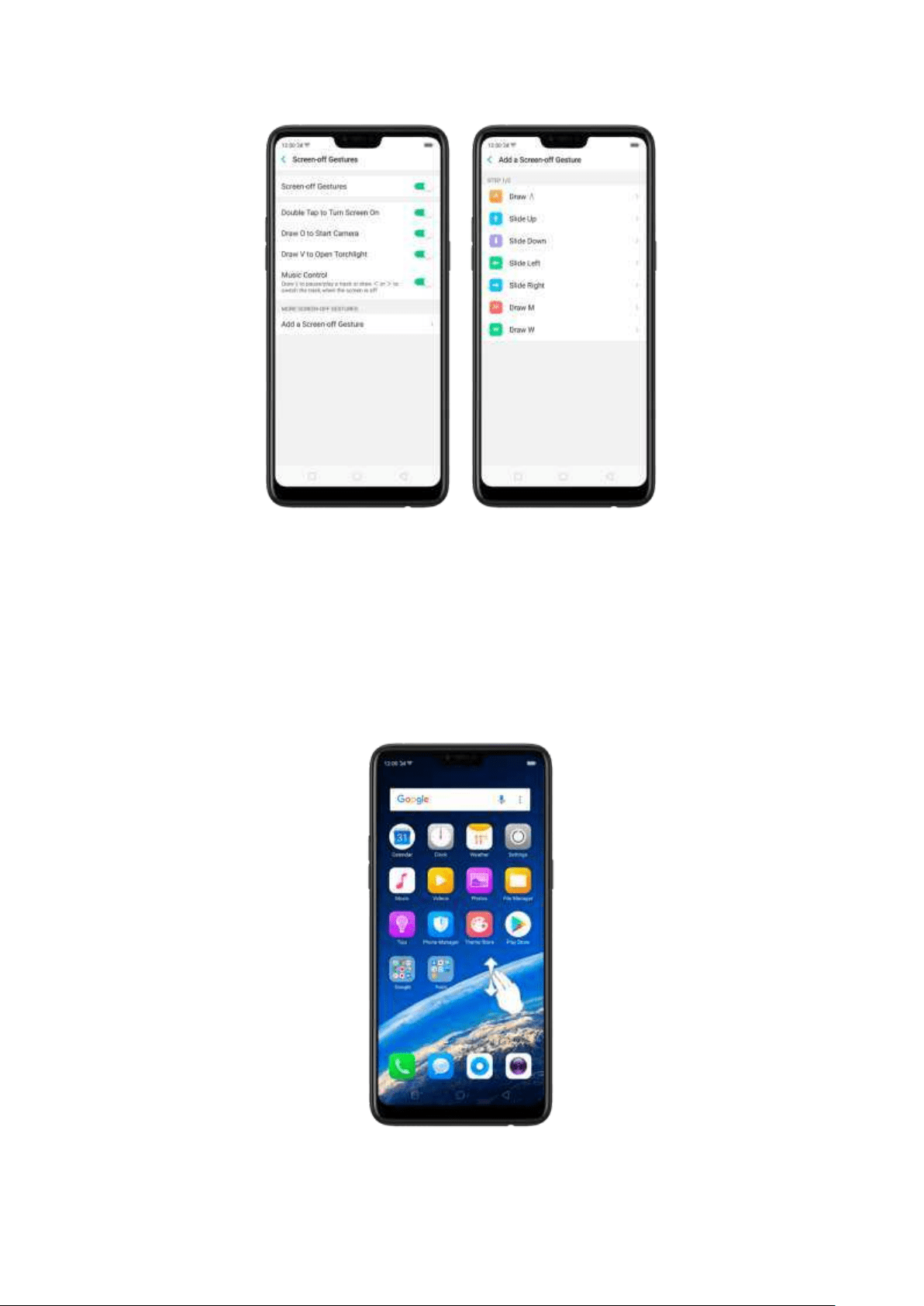
3-Finger Gest ure
Take a screenshot . Swipe dow n t he screen with three fingers.
Use Sp lit -screen. Under the interface of an app, swipe up the screen with three
fingers to enter split -screen mode.
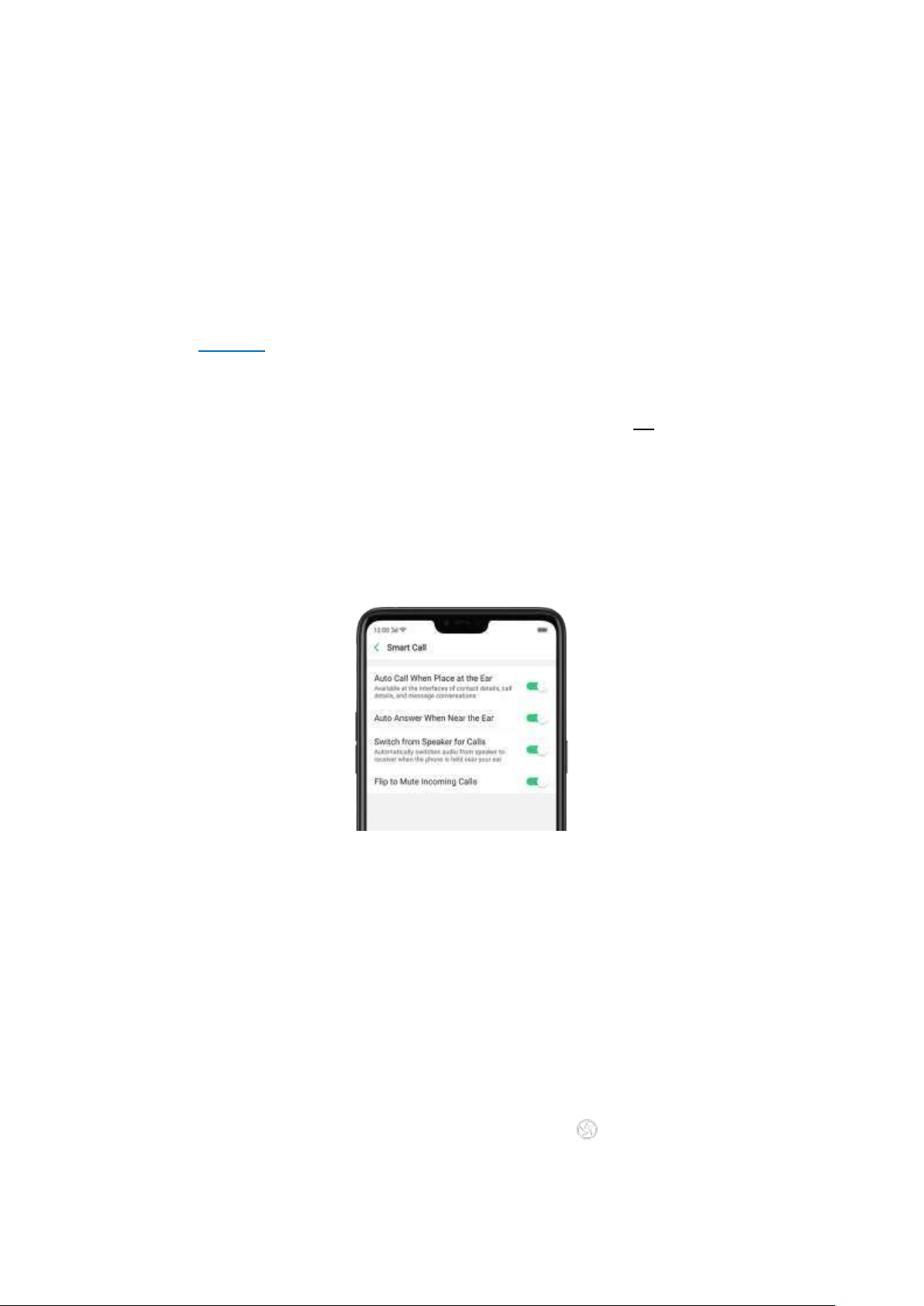
Mot ion
The motion-sensing technology is used in OPPO smartphone. Use it to let your
phone response to motion.
Sm art call
Aut o call when p lace at the ear: Before you can use auto call, you need to set the
default
SIM card for calling. Go to a contact detail, call detail, message conversation
or info interface, put the phone near your ear and your phone will aut om atically
call that specific person.
Aut o answ er w hen n ear the ear : This function lets your phone to answer any
incoming calls autom atically when putting the phone near your ear.
Sw it ch from sp eaker for calls: Use it to automatically switch from speaker to
receiver when you put the phone near your ear during p hone calls.
Flip t o m ut e inco ming calls: Use it to silence the ringer by turning the phone over
o
n the table or ot her flat surfaces.
Mist ouch Prevention Mode
Turn it on to prevent incorrect operations if the lock screen is covered.
Take selfies
Open Camera app and switch to t he front camera. Click > Gesture on t he top
of the screen. Pose the same hand gesture towards the camera, once the camera
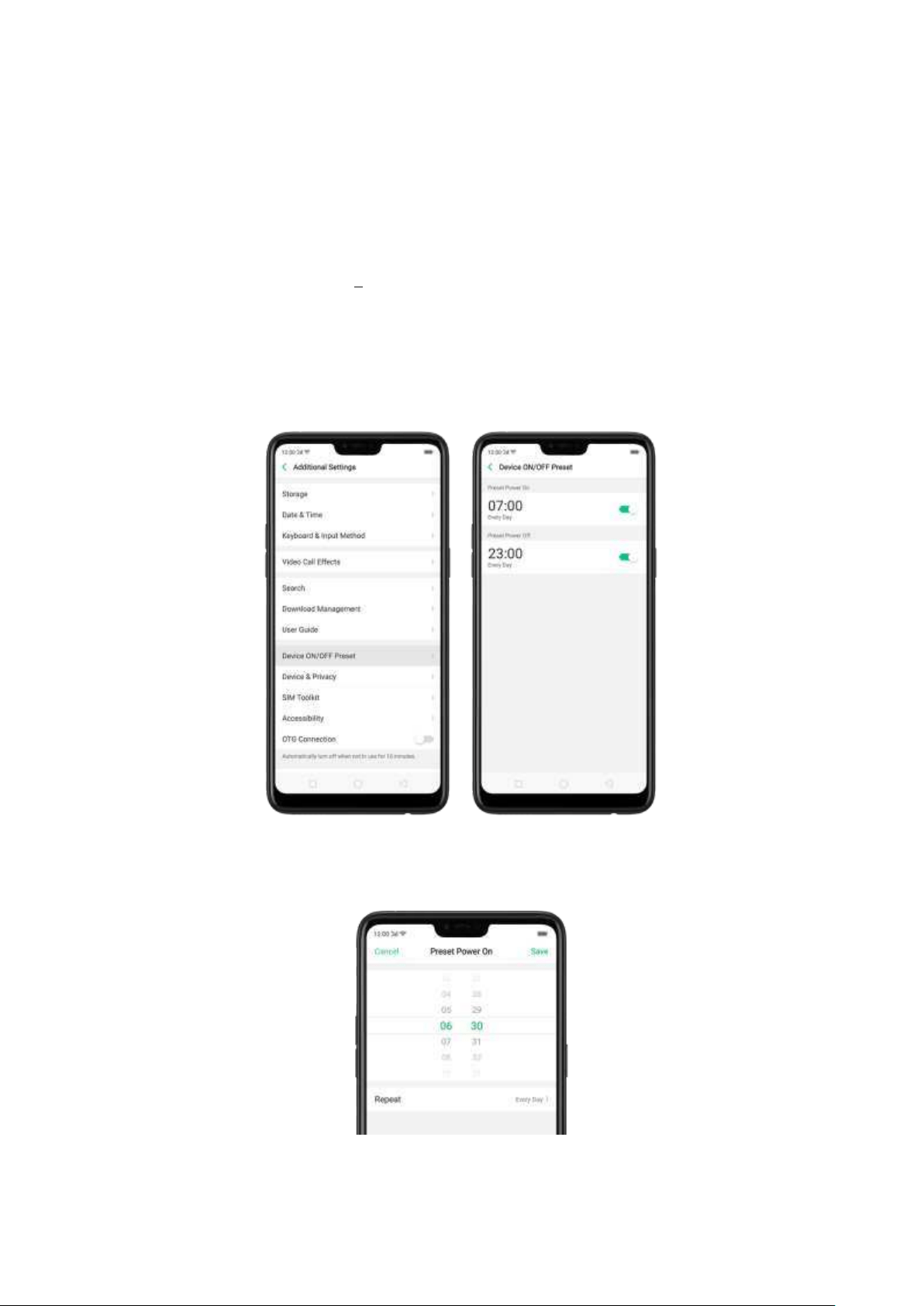
captures that, it will take a phot o automatically after two seconds. You can change
your pose and expression wit hin this two seconds.
6.13. Preset device on/ off t im e
The feature helps you to autom atically turn on or off your OPPO smartphone at the
scheduled time you specify
for example, you can fall asleep while listening to your
favorite music without having t o worry about turning off your phone. It also gives
you different ways to schedule the event s for your needs, such as daily, weekly and
only once.
Turn on Device ON/ OFF Preset . Go to [Set t ings] > [Add it ional Set tin gs] > [Device
ON/ OFF Preset ], t hen toggle the sliders to green as needed.
Set w hen t o turn on or off t he p hone aut omat ically. Click the tim e, drag your
finger across each column to change the time, then click Save.
Repeat t he event on cert ain days. Click the time, click Repeat, then choose the days.
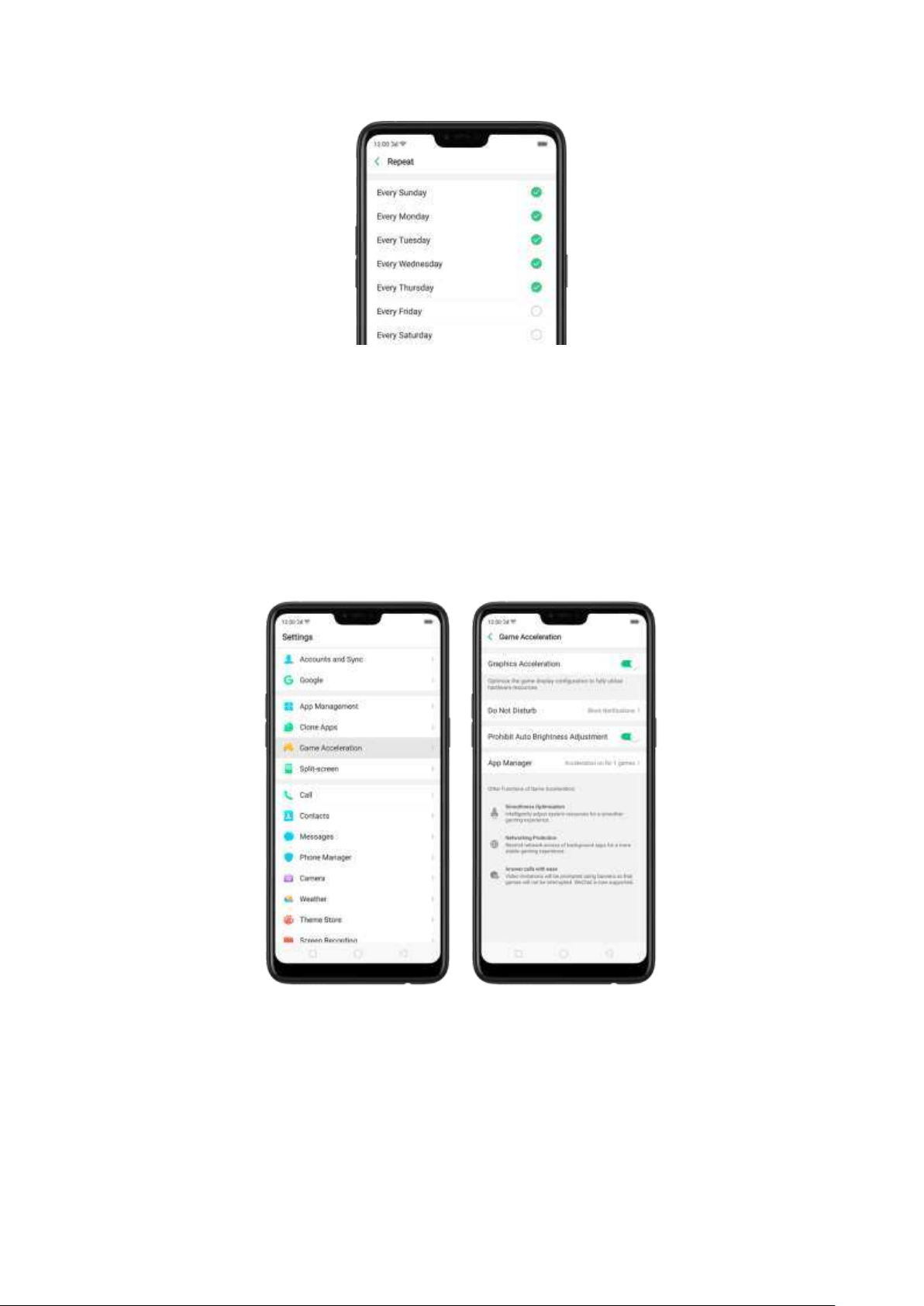
6.14. Gam e Accelerat ion
Game Acceleration feature is an all-in-one game optimization tool that allows you t o
run your gam es at its best performance. When you're running a game, your phone
will autom atically adjust the distribution of system resources, optimize the game
display configuration, and disable auto brightness to provide the best gaming
experience available. To prevent from being interrupted during games, you can also
turn on Do Not Disturb m ode.
Manage games t hat can b e accel erat ed . Go to [Set t in gs] > [Gam e
Acceleration], click [App Manager] and you will see a list of your games t hat can be
accelerated by your phone. To accelerate a game, switch its slider to green.
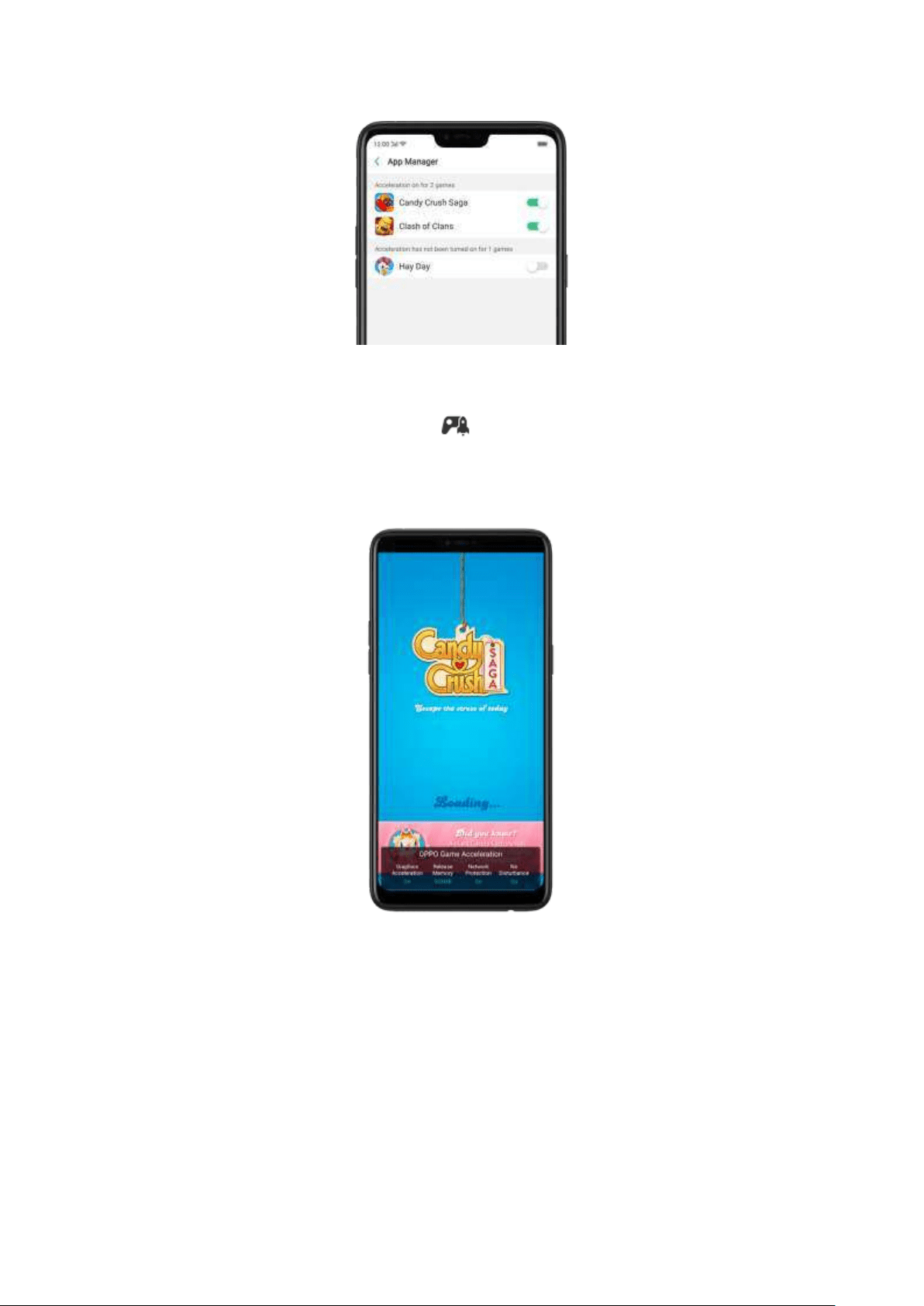
Your phone will automatically speed up your game. Notice that acceleration
details display on the screen, and appears on the status bar w hen you
launch t he game.
Set up Gam e Accelerat ion . Go to [Set t ings] > [Game Accelerat ion].
1.
Grap hics Accelerat ion: optimize the game display configuration to fully utilize
hardware resources.
2.
Do Not Disturb : block calls and notifications so t hat you can get fully im mersed
in the games.
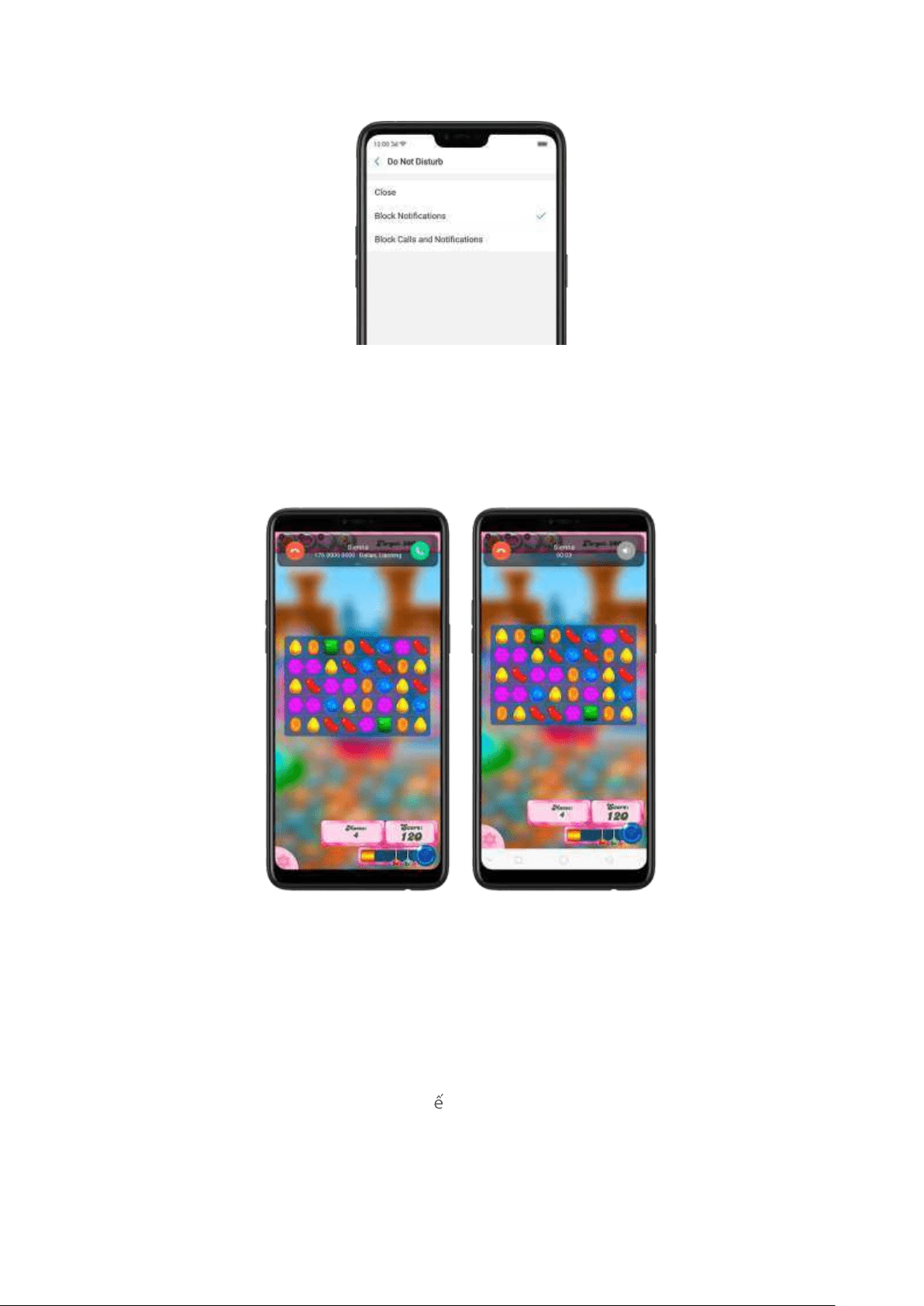
Close
: do not block any calls or notifications.
Block Not ificat ions
: block notifications except calls, alarm clocks and
scheduled rem inders. Notifications will be displayed with a banner on t he top
screen.
Block Calls and Not ifications
: block all calls and notifications.
4.
Prohib it Aut o Bright n ess Ad justm ent : your phone will not automatically adjust
the bright ness of the screen w hen ambient light changes.
Tip : Currently, games that can be accelerated are Candy Crush, Clash of Clans, My
Talking Tom , Candy Crush Soda, 8 Ball Pool, My Talking Angela, Farm Heroes, Toy
Blast, Hay Day, Temple Run 2, Garena Liên Quân M obile, Garena RoV, Garena AOV,
Garena, Zombie Tsunami, Teen Patti, Ti n lên, Mobile Legends: Bang Bang, Pokemon
Go, Asphalt 8: Airborne, Subway Surfers, NARUTO X BORUTO, Clash Royale
, and
PUBG Mobile. More games will be added soon.
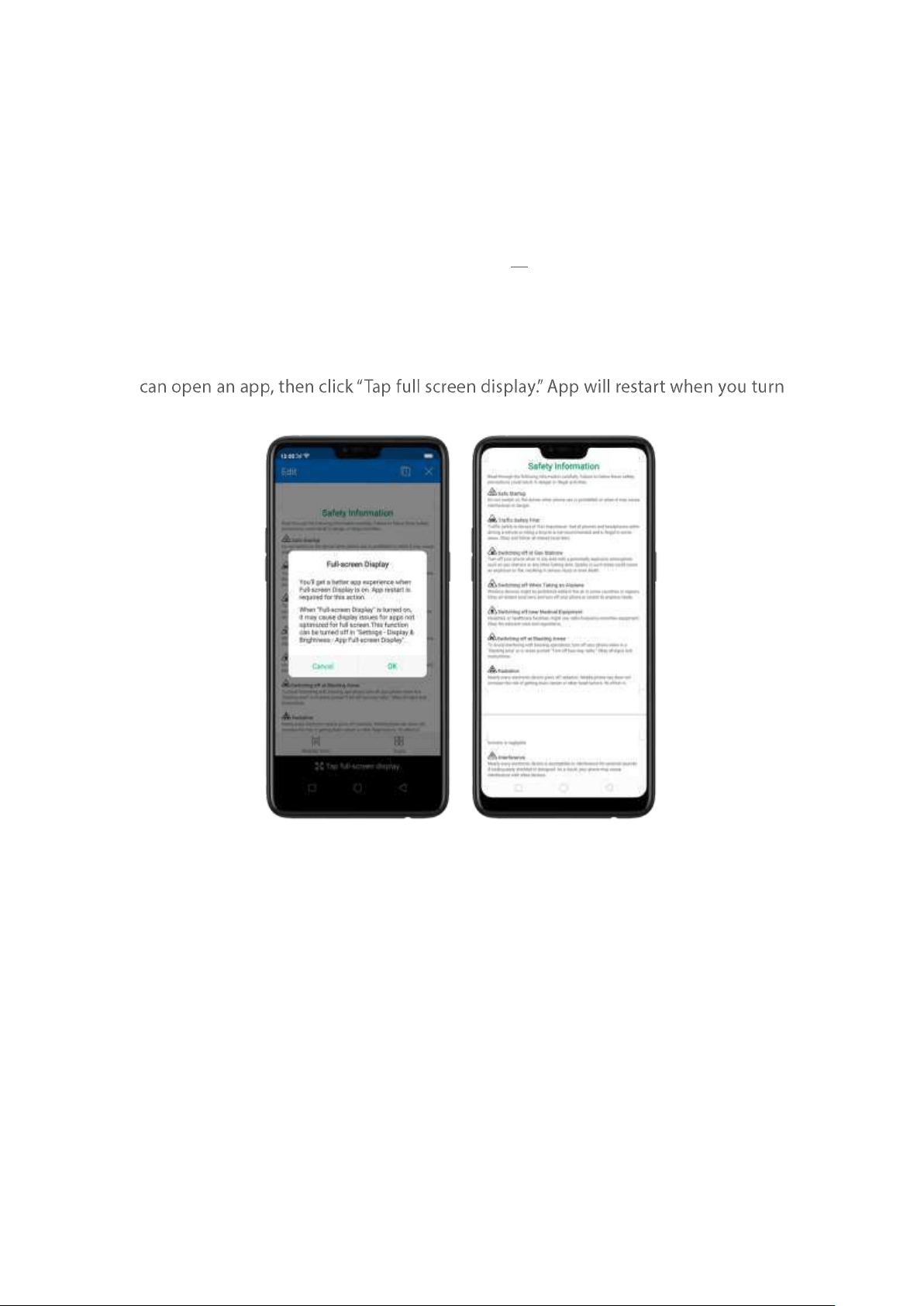
6.15. App display in Full-screen
ColorOS 5.0 device features a new display form at with an aspect ratio of 19:9, and
most of the apps are supposed to adapt their size autom atically to the new screen
size. If some apps are not suitable for full screen mode, they will display at the 16:9
ratio by default, but you can let the phone to m ake changes in your app to
accomm odate the new screen's size and rounded corners.
Ad just your ap p layout s. Go to [Set t ings] > [Disp lay & Bright ness] > [Ap p Display
in Full-screen ] and you will see a list of apps that doesn't supp ort the 19:9 aspect
ratio. Toggle t he sliders to green if you want the apps to display in full-screen. Or you
-
on this feature.
Cont rol t he disp lay of not ch area. When app content is obscured by the notch area,
click
[Not ch Area Display Cont rol] and toggle t he slider to white, then your app
content will be positioned below the status bar. App will restart when you turn on
this feature.
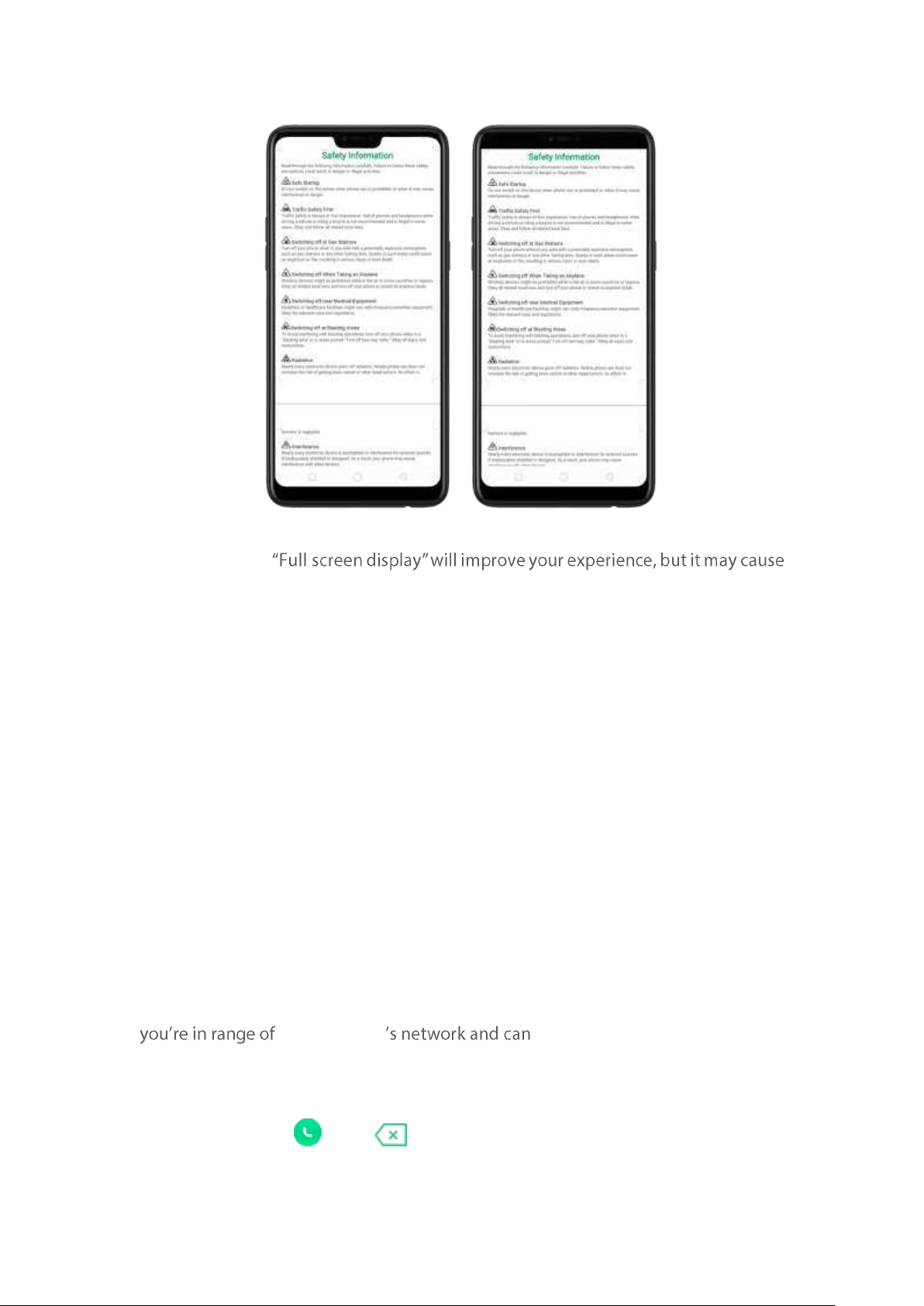
Not e: Turning on -
display issues due to incompatibility or other reasons.
7. Apps
7.1. Phone
7.1.1 Make and Answ er Phone Calls
Make a call
To make a call and talk t o your friends, you can manually enter a phone number on
the dialer, choose a num ber on your Contacts or Favorites, or click one of the
recent calls.
Not e: The signal indicator at the upper-left corner of the screen shows whether
your operator make and receive calls. The
more bars, the stronger the signal.
Dial t he number you w ant to call . Click Phone, click the keypad to enter the
number, then click . Click if you make a mistake. You can also copy a
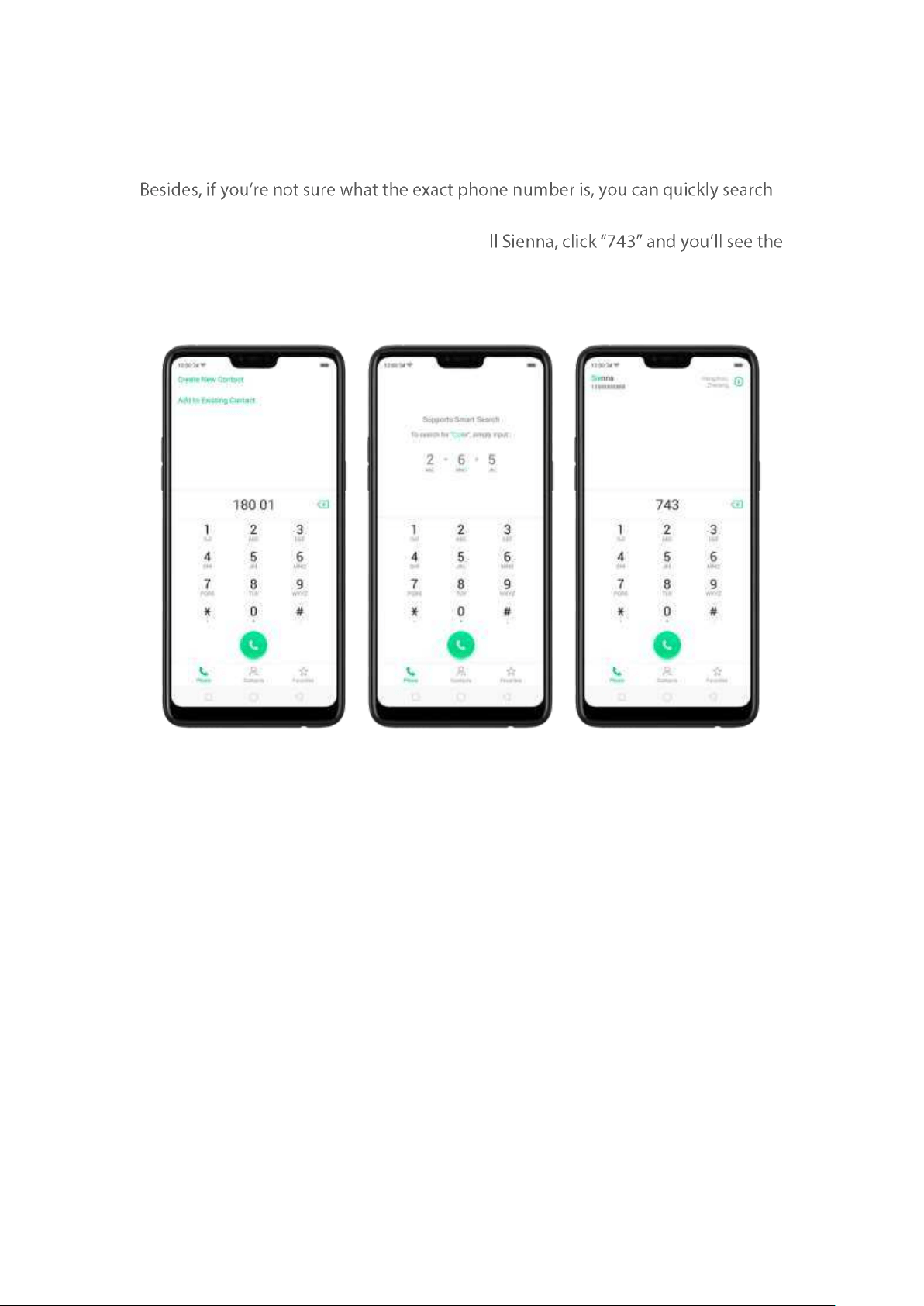
phone num ber and open t he keypad, then click t he num ber to paste it to the
keypad.
the contact by dialing t he numbers that contain the contact's name or init ial letters
on the keypad. For example, if you want to ca
contact.
Call som eone on your cont act s list . Click Contacts and choose a contact, then
click the phone num ber to make a call. You can also use Search feature to find a
contact, see Search.
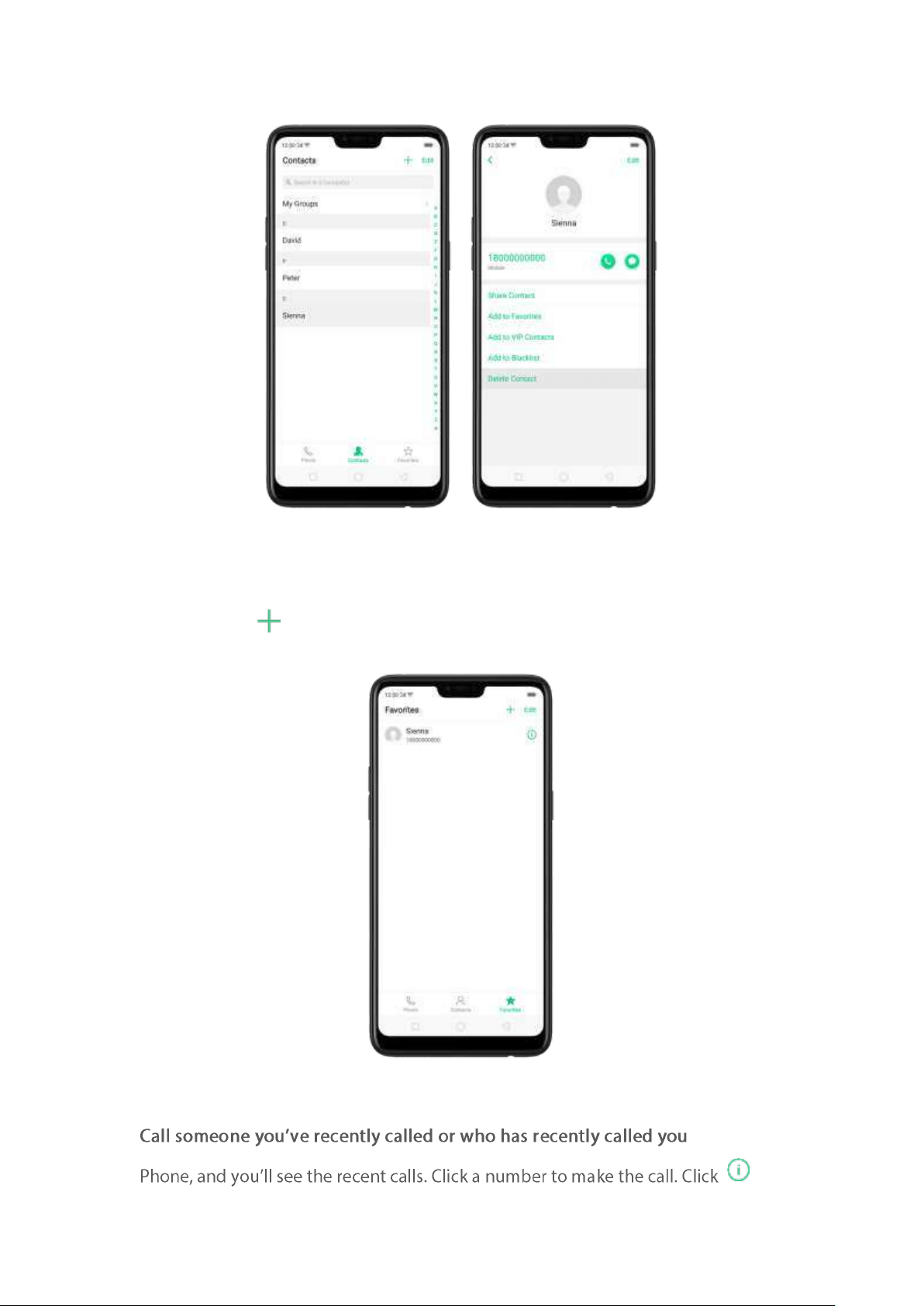
Call som eo ne on your favorit es list . Click Favorites and choose a contact . To add
favorites, click .
. Click
to
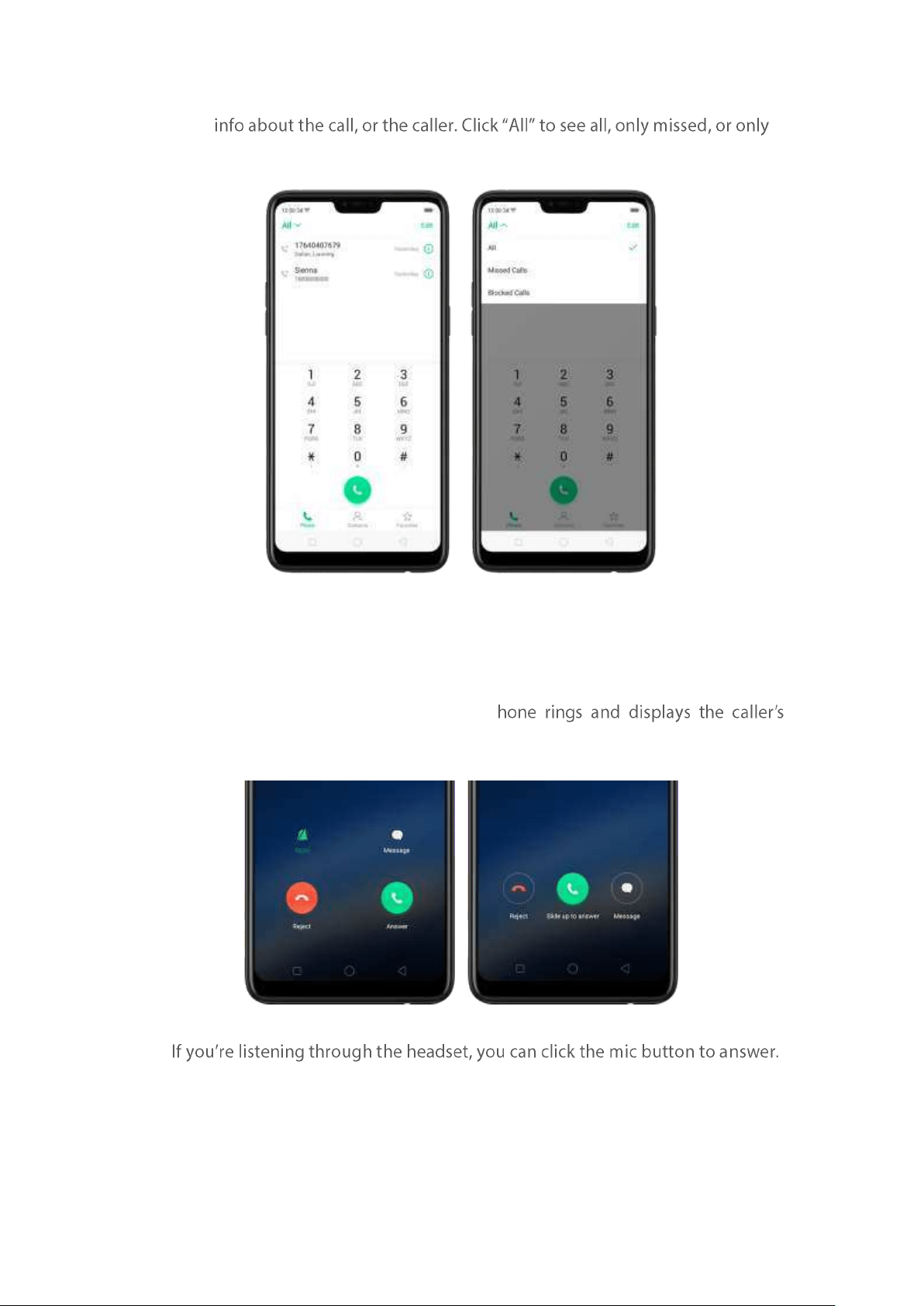
get more
blocked calls.
Answ er or reject a call
When someone calls you, the OPPO smartp
inform ation, if available.
Answer a call. Click Answer. If t he phone is locked, click Slide up to answer.
Silence a call. Click Mute, or press the Sleep /Wake button or either of the volume
buttons once to stop t he phone from ringing or vibrating.
Reject a call. Click Reject, or press the Sleep / Wake button t wice quickly.
Resp ond w it h a t ext m essag e instead of an sw ering . Click Message, then choose a
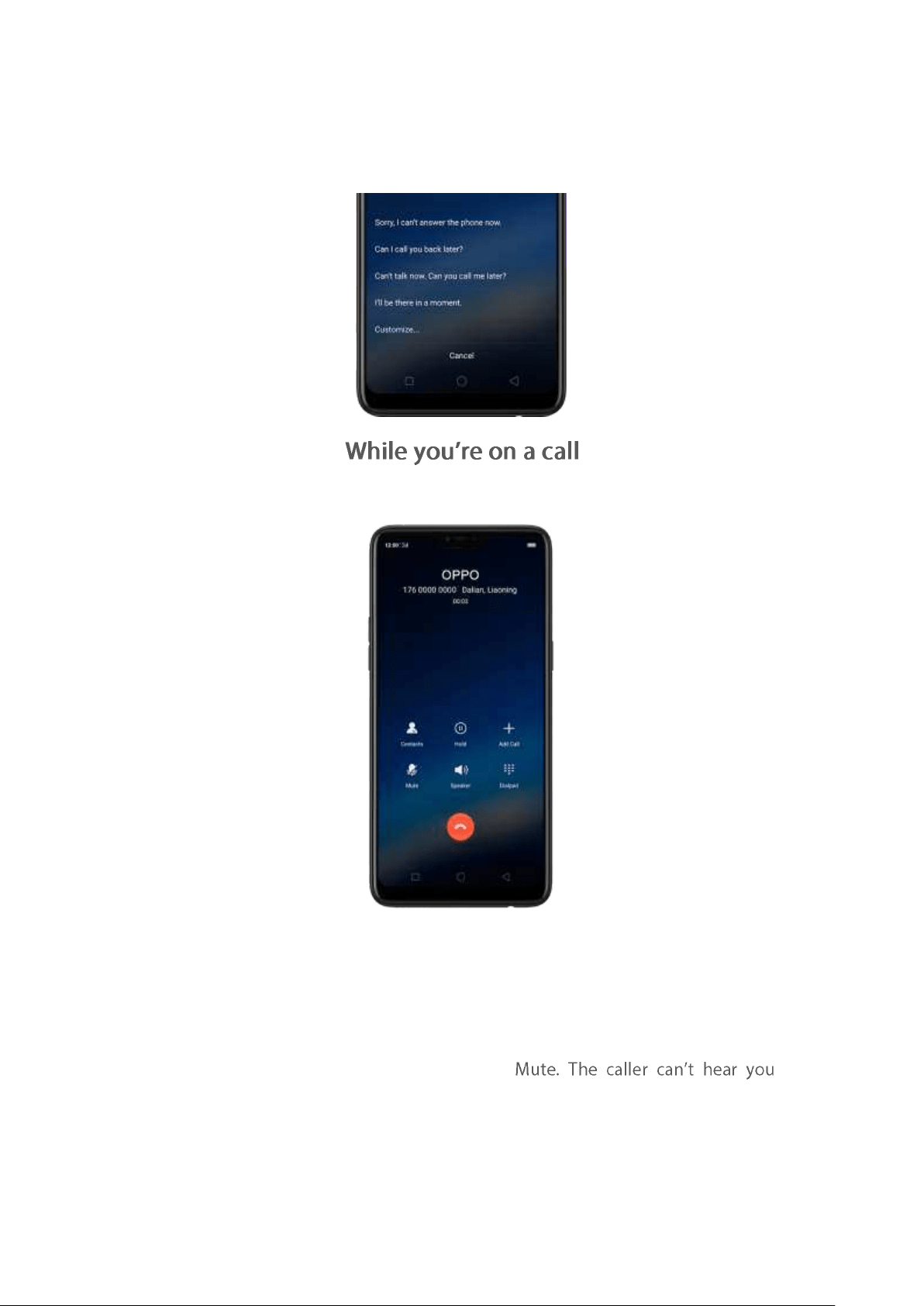
reply or click Customize to reply with your ow n words. To create your own default
replies, go to
[Set t in gs] > [Call] > [Respo nd wit h SMS]. Click a reply and edit the
message.
While on a call, call options will show up on your screen.
To
Do t his
Get cont act info.
Click Contacts.
Put a call on hold .
Click Hold.
Mut e t he microphone.
Click
when you are on mute, but you can still
hear the caller. Click Mute again to
cancel it.
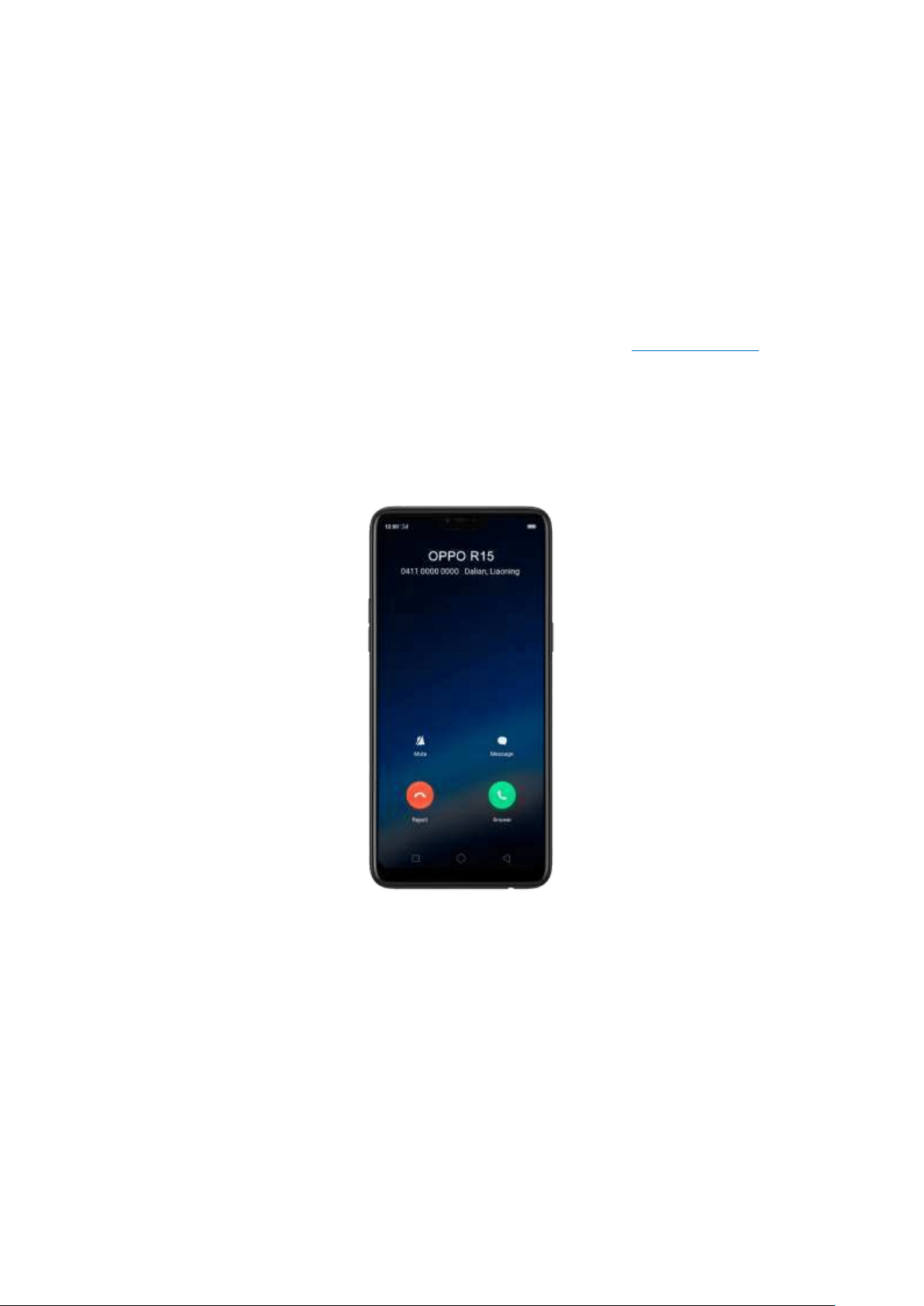
Act ivat e speakerp hone.
Click Speaker.
Use th e dialp ad t o ent er informat io n .
Click Dialpad.
Make a second call during a call .
Click Add call and m ake a second call.
The first call will be put on hold. Click
the phone num ber to switch back to
the first call and put the second call on
hold. Click Merge calls to merge the two
calls, so all t hree of you can talk and
hear each other. See
Conference calls.
Resp ond t o a second call , do one of the following:
To reject t he call, click Reject.
To hold t he first call and answ er t he new call , click Answer.
Use ot h er feat ures w hile on a call . Click the Hom e button or swipe up the middle
bottom to return hom e. Click t he green status bar on the top of t he screen to return
the call.
7.1.2. Conference calls
A conference call lets you talk to more than one person at a tim e. You can merge up
to six calls including the host for a phone conference.
Not ice: You might need to contact your network operator to activate conferencing
services first.
Make a conference call. Do the following:
1. Make a call.
2. Tap Add Call and make anot her call. The first call will be put on hold.
3. Tap Merge calls. The calls are merged onto one line and everyone can hear each
other.
4. Repeat the second and third steps to add more calls to the conference.
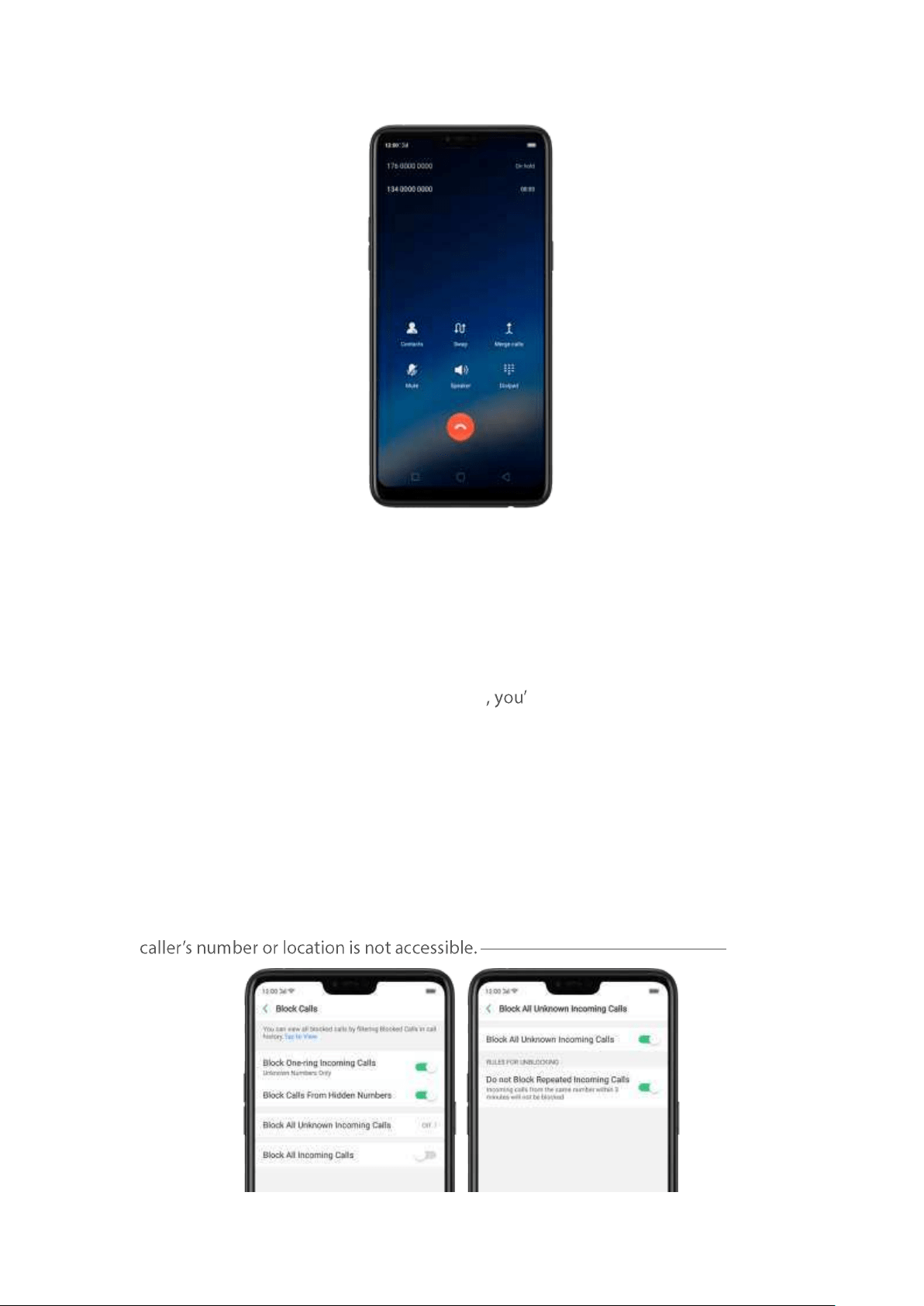
7.1.3. Block calls
Block feature does help to prevent unwanted phone calls. You can also add numbers
to blacklist to block specific phone numbers from calling.
Block calls. Go to [Set tings] > [Call] > [Block], or go to [Set t in gs] > [Security] >
[Ant i-harassm ent / Fraud ]. Click [Block Calls] ll see several options available for
blocking incoming calls:
Block one-ring incom ing calls
Block calls from hidden num bers
Block all unknown incom ing calls (Do not block repeated incoming calls)
Block all incoming calls
Not e: The unknown number refers to an unsaved real phone num ber, and your
phone is able to show its num ber and location; while the hidden number m eans the
which usually is a harassing call.
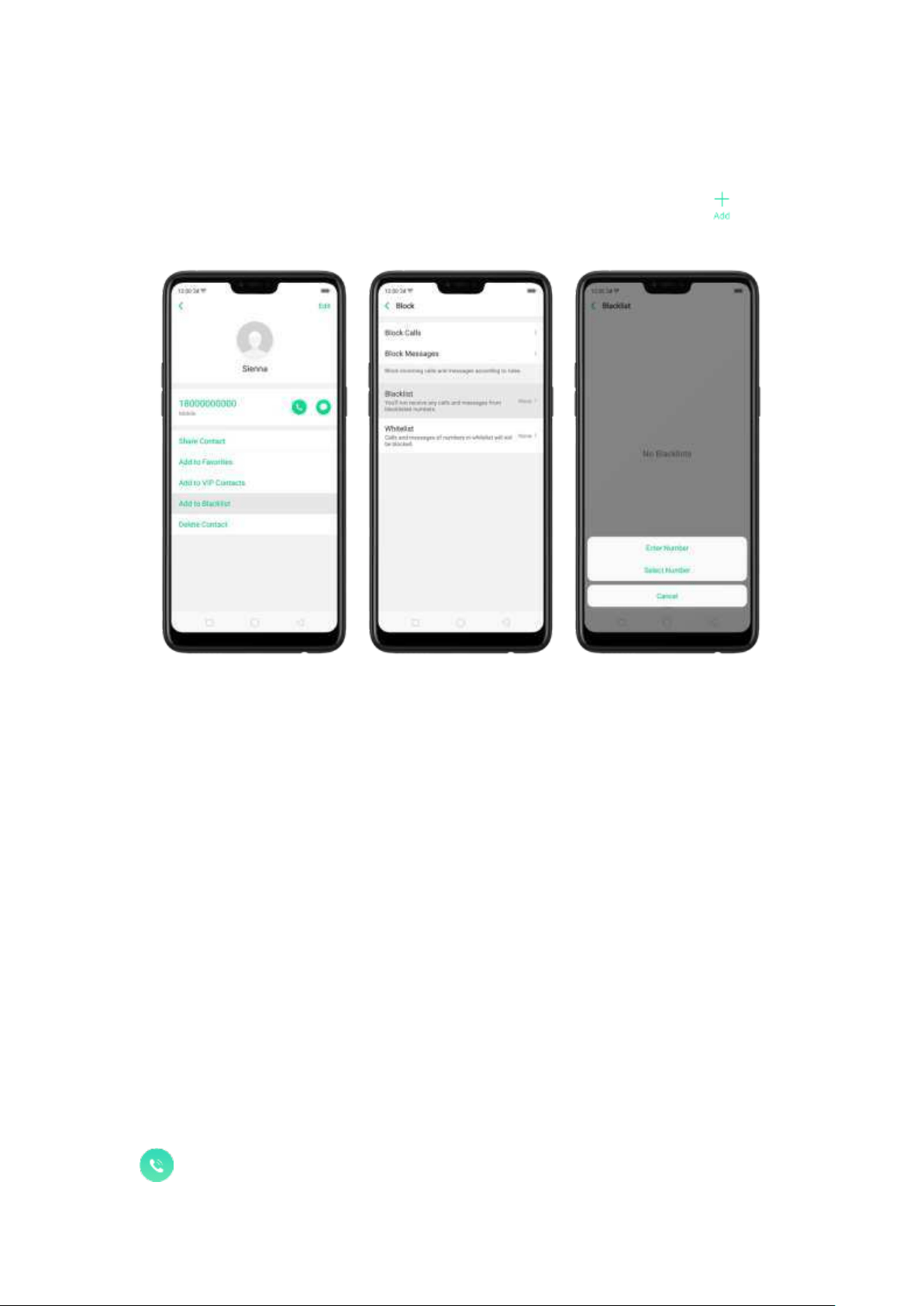
Ad d a cont act or a p ho ne nu mb er t o t he blacklist . Click Phone, then click Contacts.
Choose a contact, then click Add to Blacklist. You can also go to
[Set t in gs] > [Call] >
[Block], or go to [Set t ings] > [Securit y] > [Block], click [Blacklist], click , then
enter the number or choose your contacts.
You can also add contacts or p hone num bers to the whitelist, which calls and
messages from these numbers will not be blocked.
7.1.4. Em ergency calls
What is em ergency Number?
Em ergency numbers are num bers of em ergency services which provide im mediate
help during Medical emergency, Threat to life, Fire, Accidents.
In many countries t he public telephone network has a single em ergency telephone
number (som etim es know n as t he universal emergency telephone number or
occasionally the emergency services num ber) that allows a caller to contact local
em ergency services for assistance.
You can make an emergency call even if you do not have a SIM card installed on your
OPPO smartphone.
Make an em erg ency call . Click Phone, click keypad and dial the number, then click
. Or if your phone is locked with a passcode, click Emergency Call, then dial the
em ergency num ber.
7.1.5. Carrier
OPPO smartphone includes several calling features such as Cal l Forwarding, Call
Waiting, Voicemail, and more.
Set up calling feat ures. Go to [Set t ings] > [Call] > [Carrier Set ting s].
Voicemail: When you're away or can't get to the phone, your Voicem ail does
the answering for you. Callers can leave recorded audio messages to you, and
you can view, listen to, and manage the messages.
Fixed Dialing Numb ers: Add numbers to the FDN list, and when activated,
FDN restricts outgoing calls to only those numbers listed, or to numbers with
certain prefixes.
Call Forw arding: An incoming call will be redirected to another telephone
number where the desired called party is able to answer. Notice that
appears on the stat us bar.
Call Barring: Certain types of outgoing calls (such as international calls) and/or
incom ing calls will be restricted.
Call Wait ing: You'll hear short beeps the a
call.
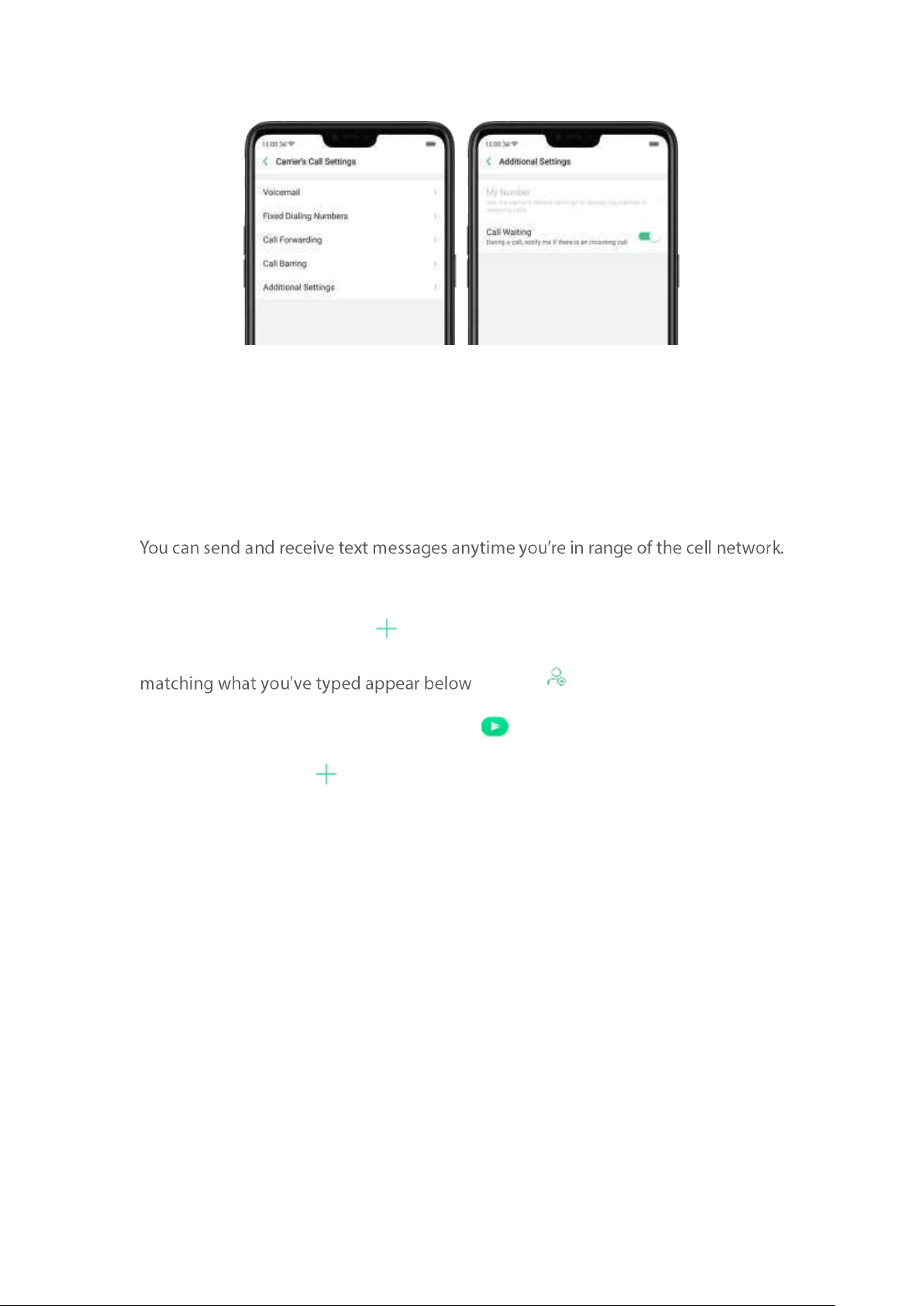
7.5. Message
7.5.1. Send and receive messages
Depending on your phone plan, you may be charged for messages you send or
receive.
Send a new m essage. Click , then enter a phone number or name. Contact s
. Or click and choose a contact from
your contacts list. Type a message and click .
Tip : As you type, click next to t he text field to add an attachm ent.
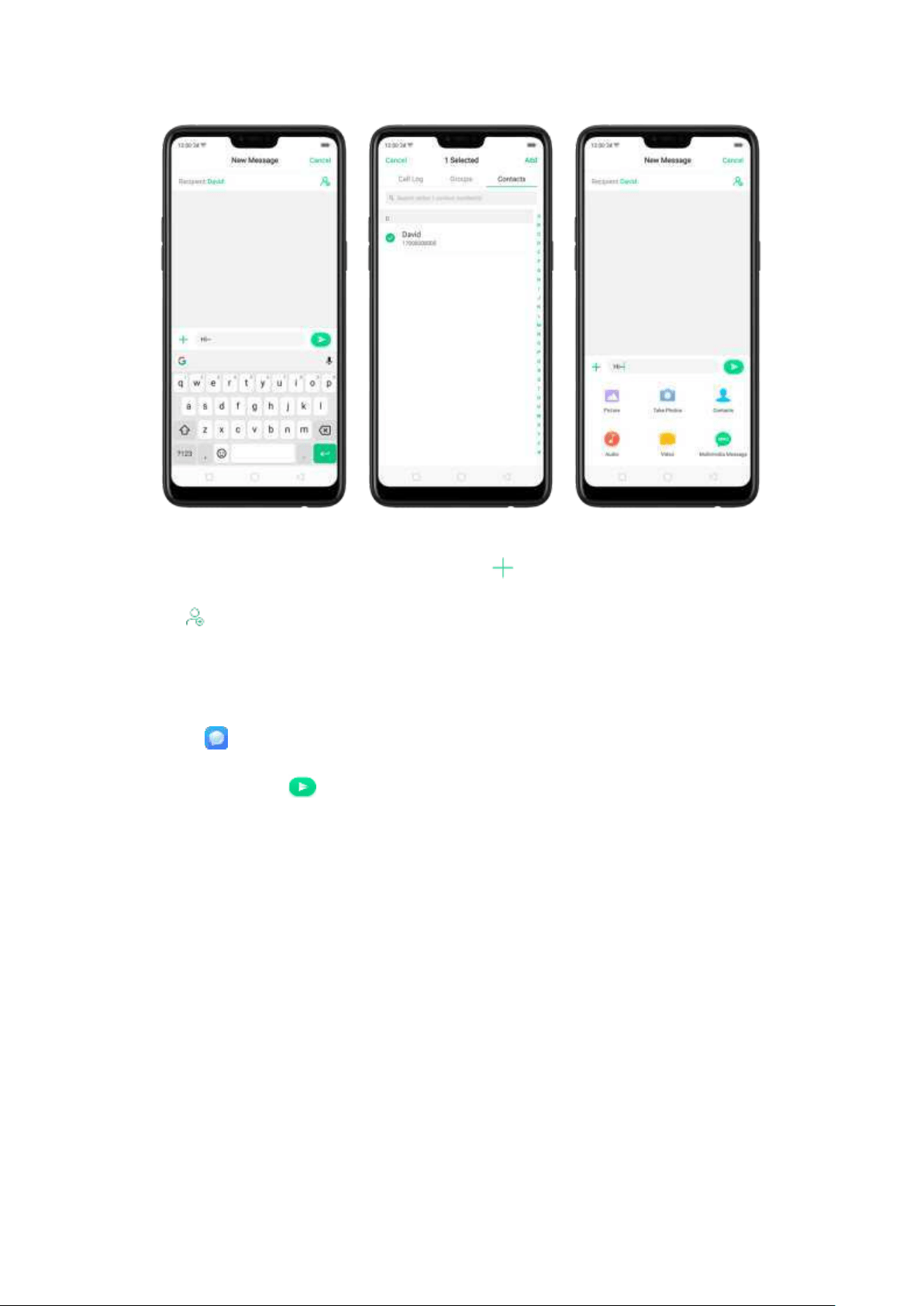
Send a m essage t o m ult ip le p eop le. Click , then enter multiple recipients, or
click and tick all contacts you wish t o include in t he group message, then click
Ad d.
Read and reply t o a new m essag e. Click the notification on t he top of your screen,
or click . When phone screen is locked, swipe t he notification right. Type your
message and click .
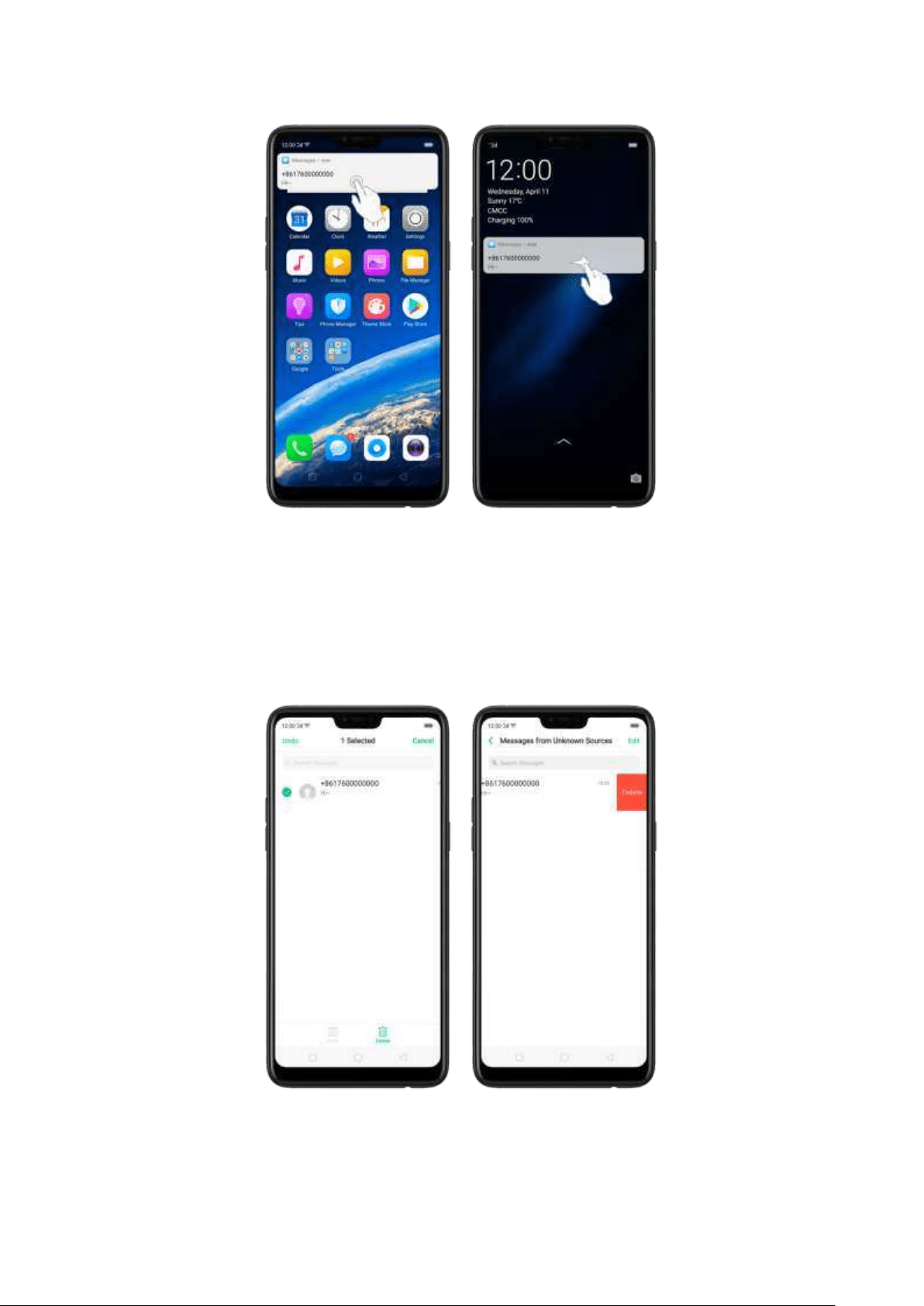
Tip : The Messages icon on the Home screen shows the total num ber of unread text
messages you have.
Delet e conversat ions from t he Messages list . Click Edit , tick the conversations and
click Delet e. You can also delete a conversation by swiping left over a conversation
and clicking
Delet e.
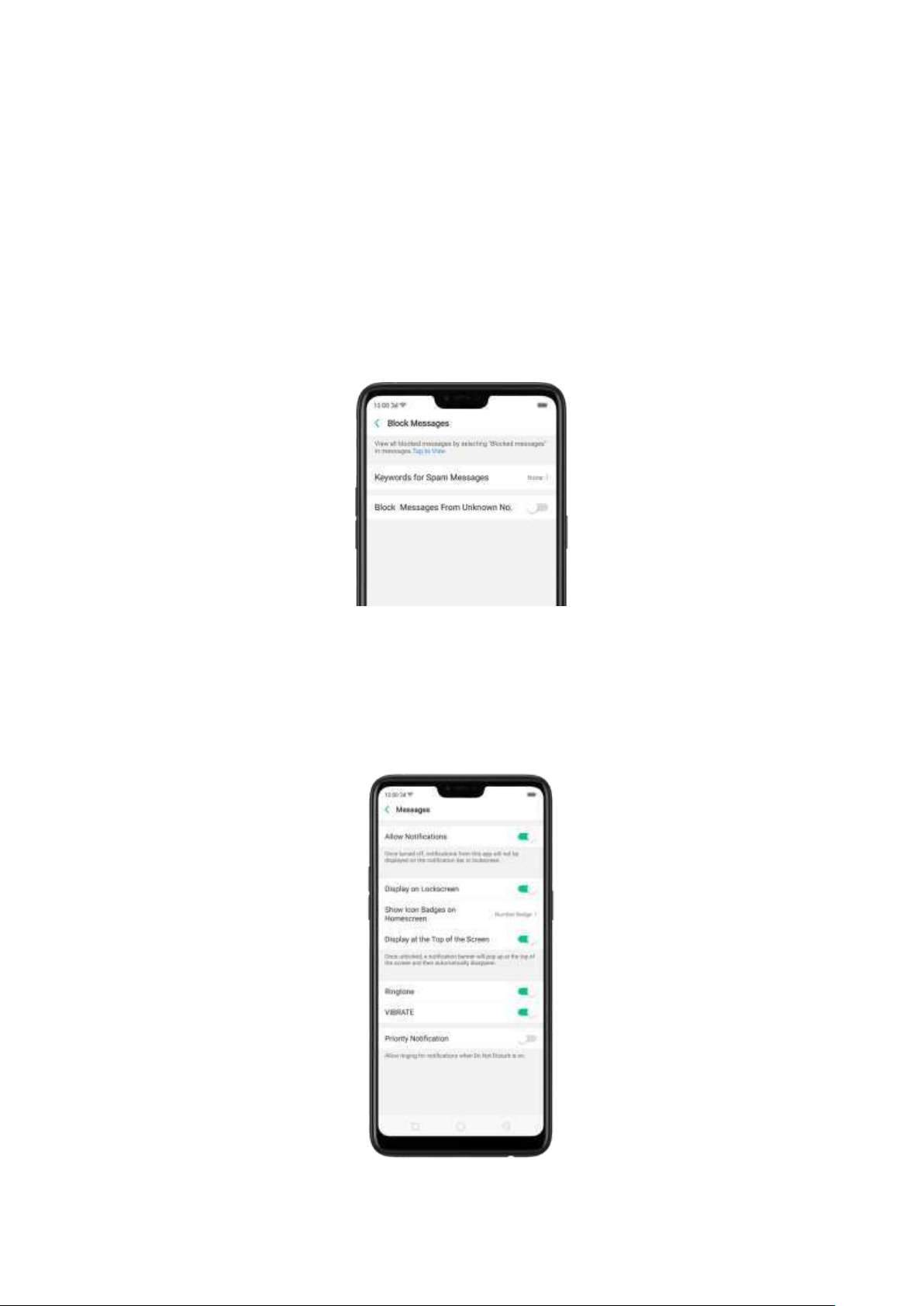
7.5.2. Cust om ize message set t in gs
The Messages settings menu lets you control options for your text and MMS
messages including message lim its, displays, notifications, and more. Go to
[Set t ings] > [Messages].
Block m essages. Click [Block] > [Block M essag es]. Enter the keywords for spam
messages. To block all unknow n messages, toggle the slider to green.
Not e: When Block all unkno w n m essages is turned on, you might miss im portant
verification text messages, as well as messages from people who you know, but are
not on your contact list.
Manage Messages set t in gs. To display notifications of new messages, turn on
[Allow Not ifications]. You can customize w hether new notifications from Messages
appear on the lock screen or notification bar, display a banner, play a sound or
vibrate, or whether show icon badges on t he Home screen.
You can also allow
ringing for notifications when Do Not Disturb is on.
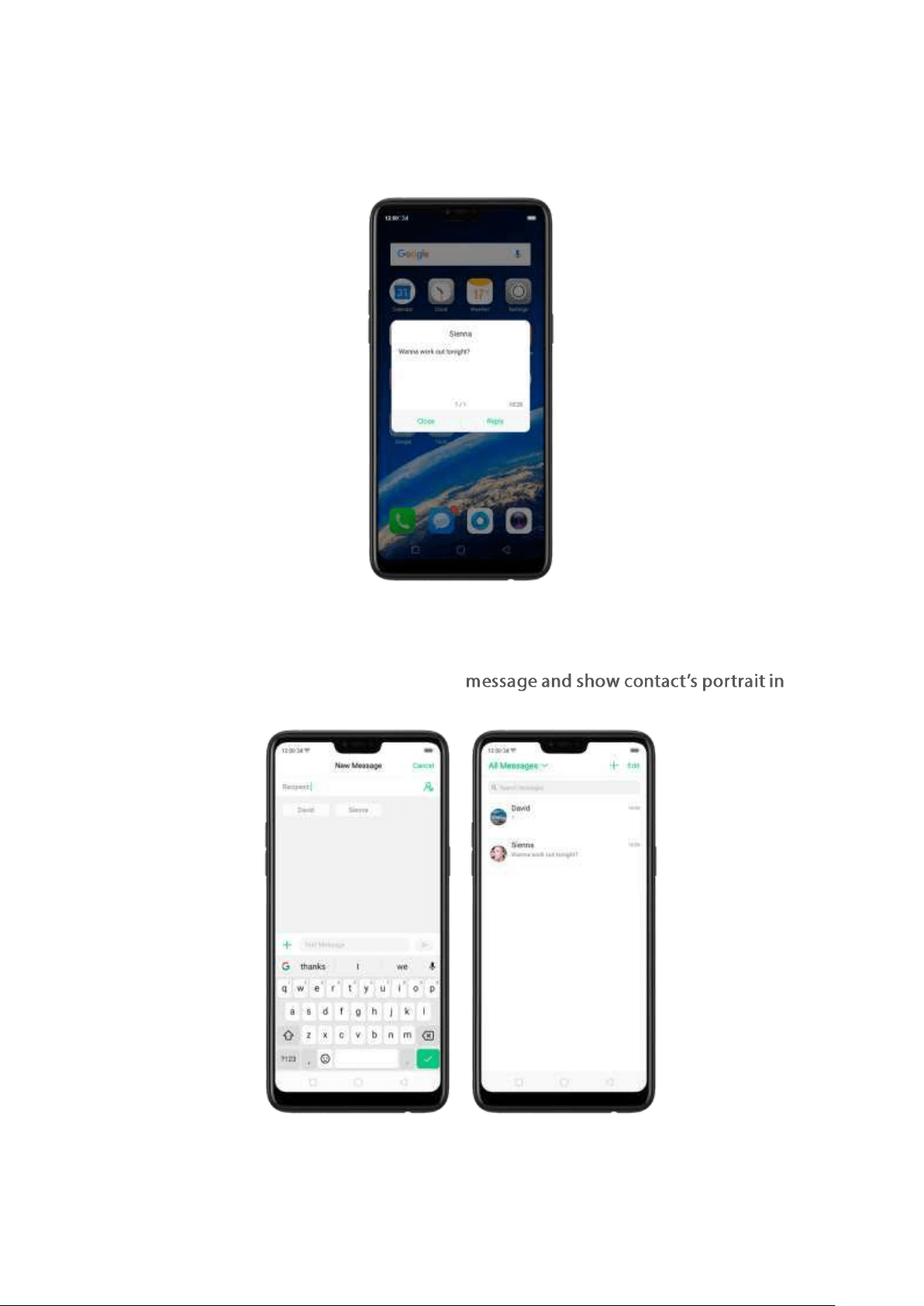
Disp lay received messages in pop -up wind ow. The phone will automatically pop
up a window wit h the content of the message. You can close the window or reply
to the message directly.
Receive inst ant SMS messages. Toggle the slider to green if you want to receive life
related messages pushed by your operator during a call.
Disp lay recent cont act s w hen send ing a
t he Messag e list . Toggle t he sliders to green.
Customize advanced set tings. Click [More M essage Set tings], then set up more
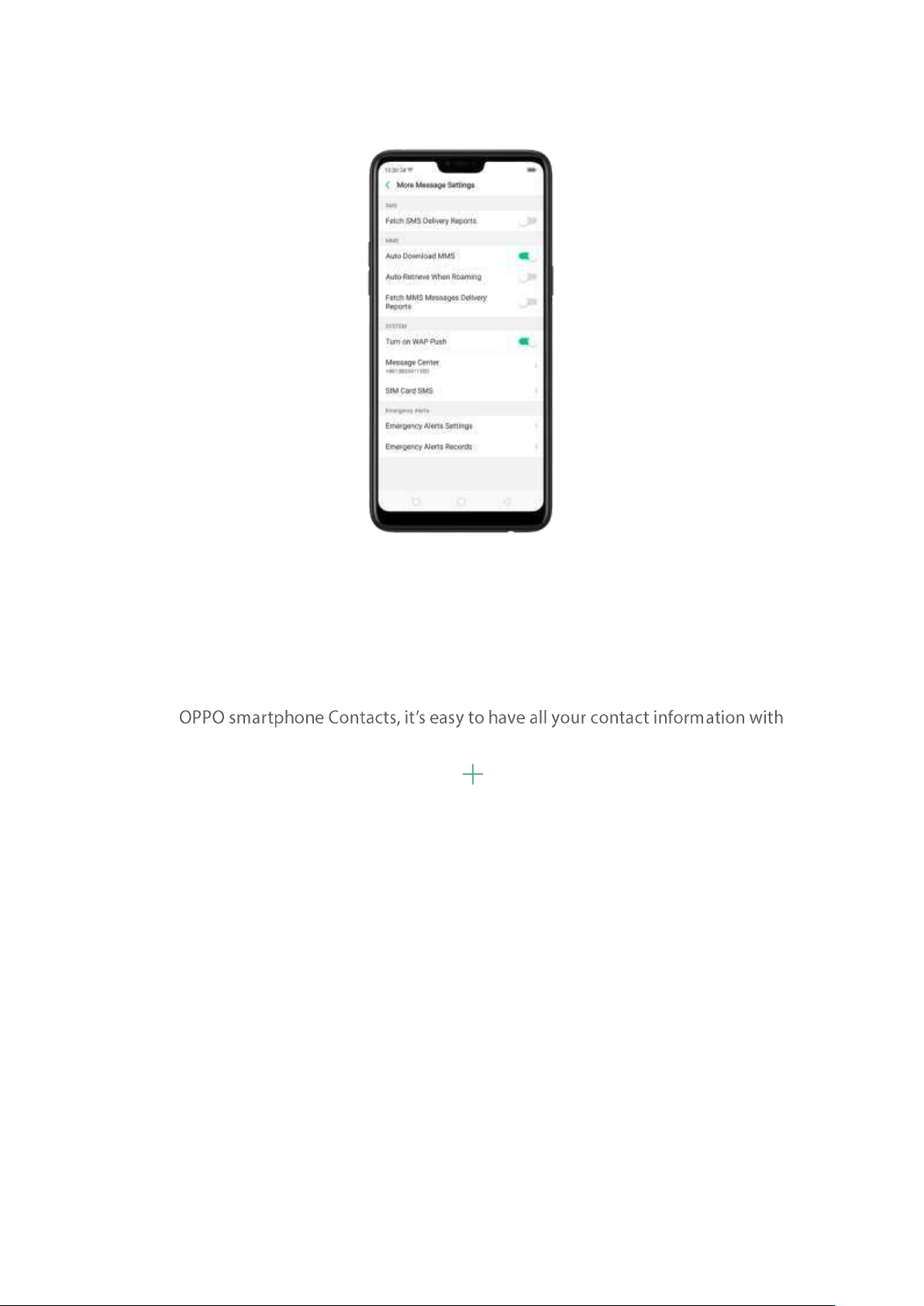
SMS, MMS, system , and em ergency alert related settings.
7.6. Cont act s
7.6.1. Add a contact
With
you.
Ad d a new cont act . Click Contacts, click , then enter the contact information.
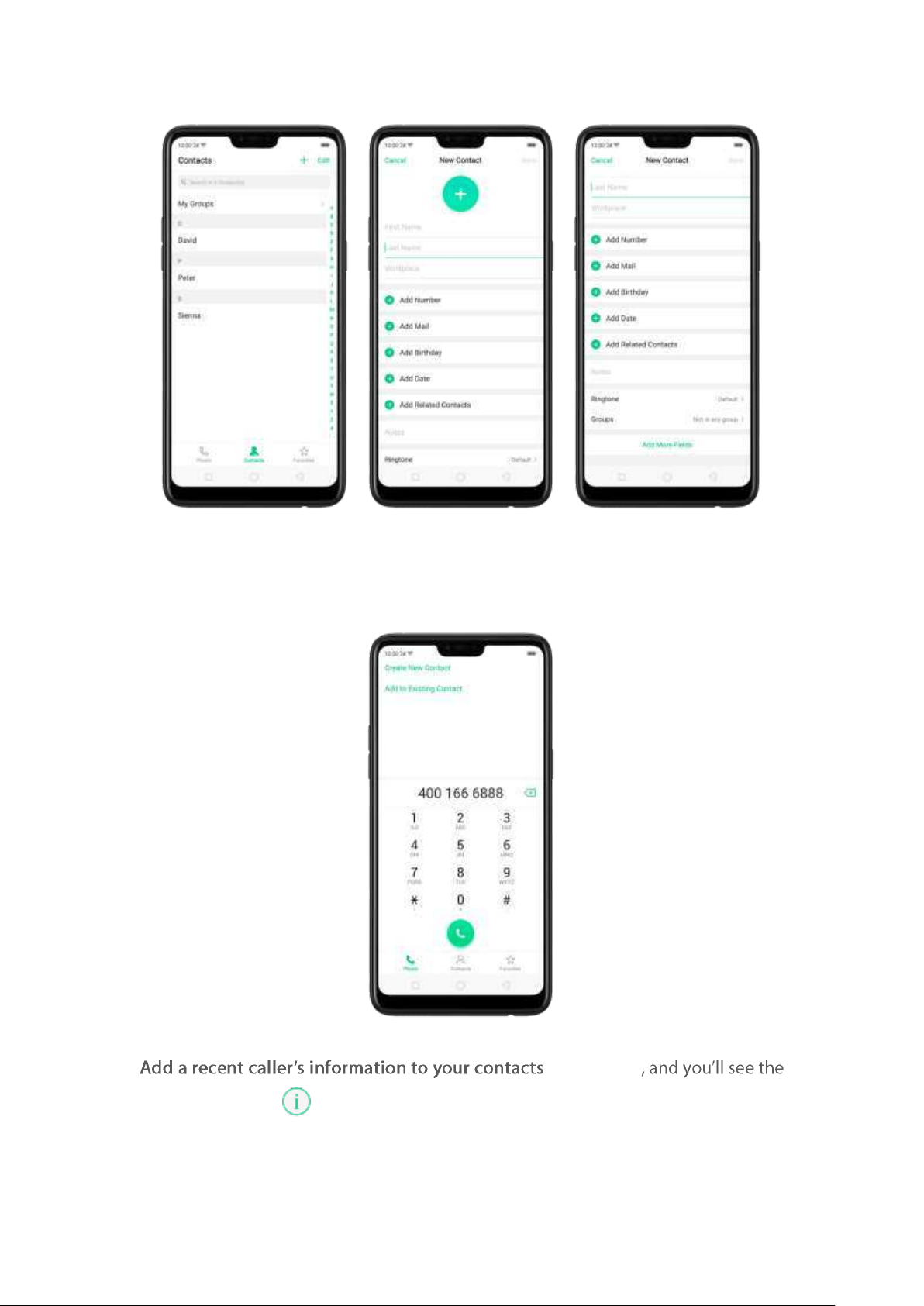
Ad d a cont act from a num ber ent ered using the keyp ad . Click Phone and enter a
number, then click
Creat e New Cont act and enter the contact information, or click
Ad d t o Existing Cont act and choose a contact.
. Click Phone
recent calls. Click , then click Creat e New Cont act or Ad d t o Existing Cont act .
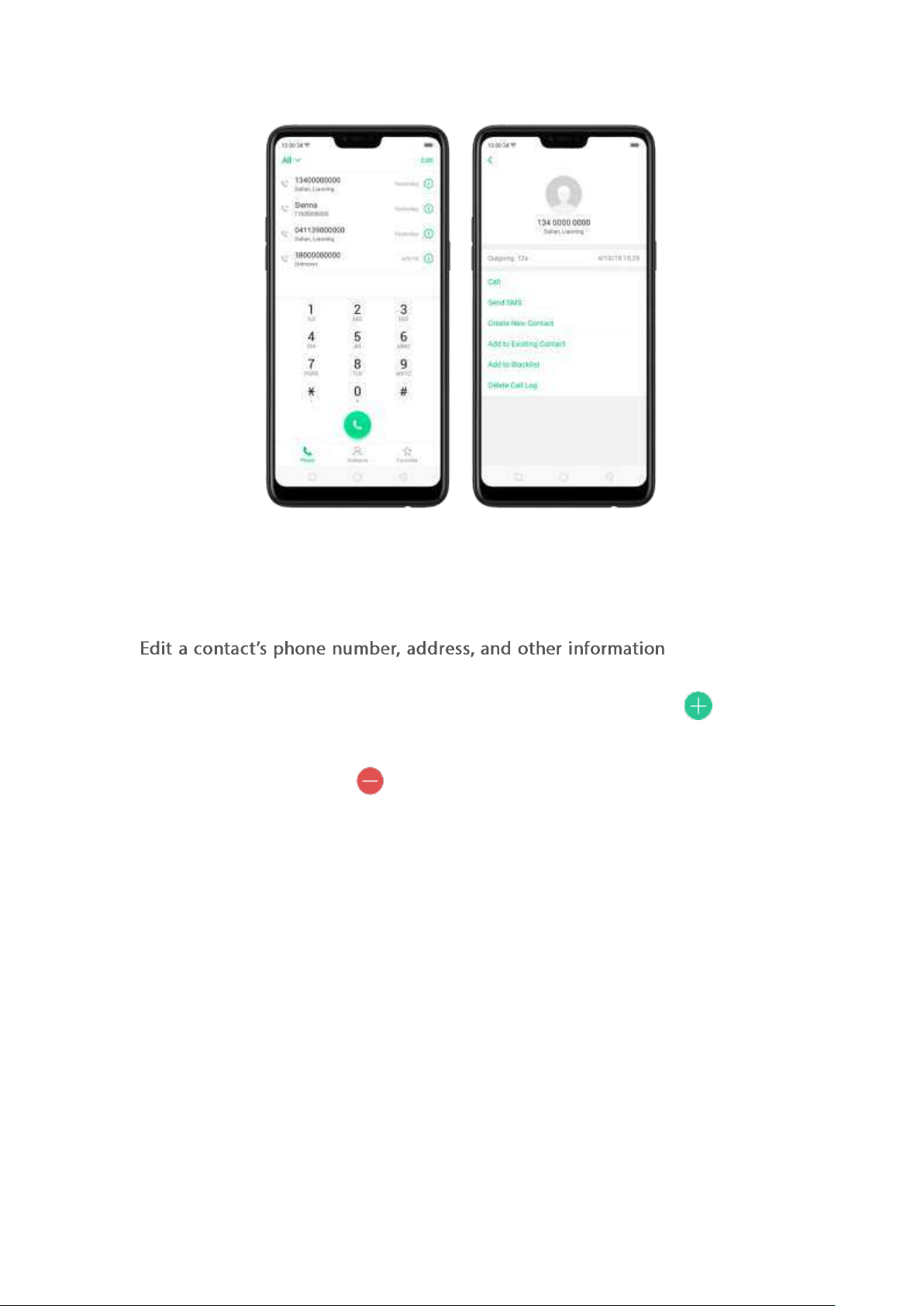
7.6.2. Edit and delet e a cont act
You can make changes to your contacts directly on your OPPO smartphone.
. Click Contacts
and choose a contact, t hen tap Ed it .
To add an item - such as an Em ail address or phone num ber, click next to
the item .
To delete an item, click next to it.
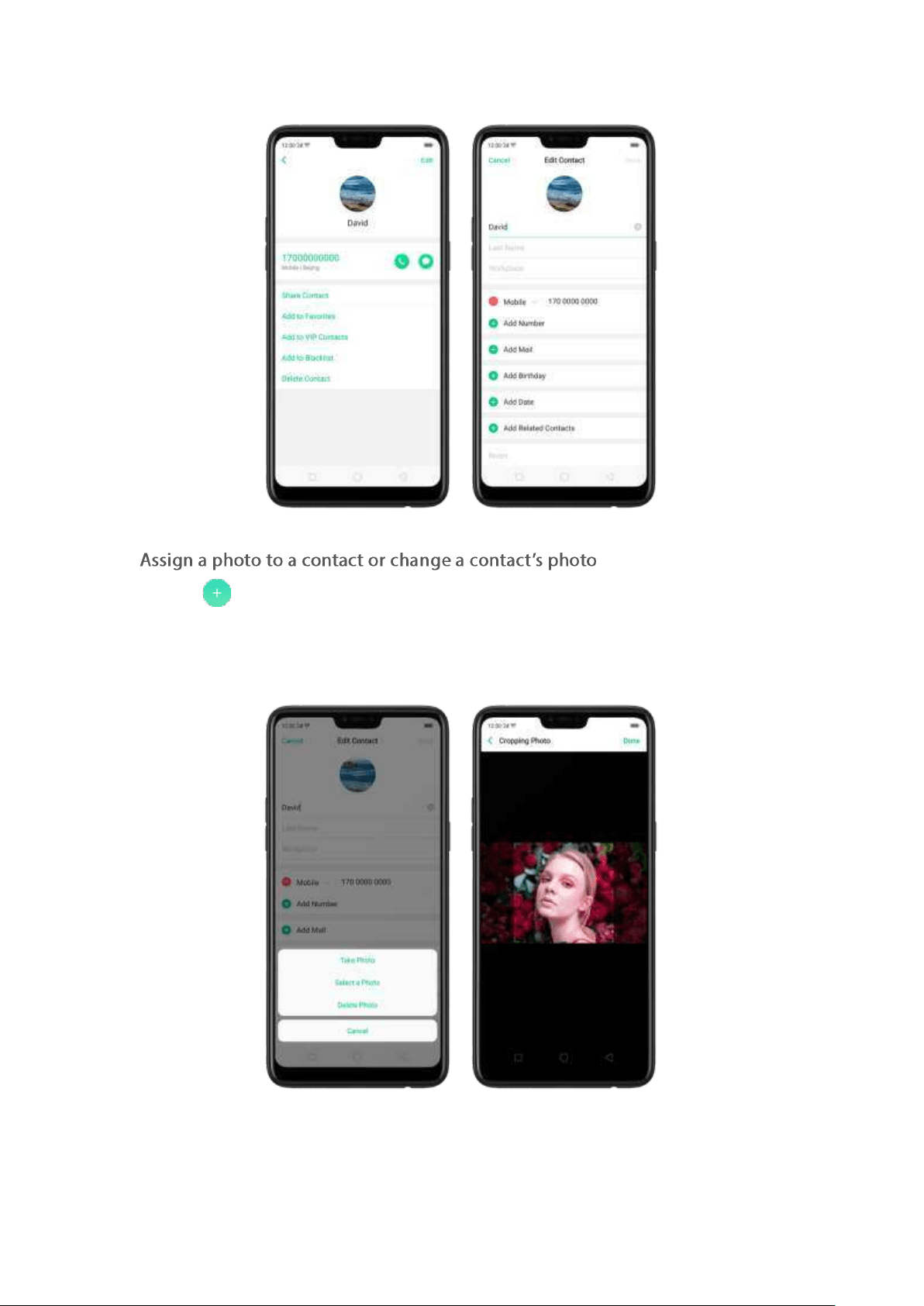
.
1. Click , or click the existing photo.
2. Click
Take Phot o to use the camera to take a picture, or click Select a Phot o and
select an existing phot o, or click Delet e Ph ot o to delete the photo.
3. Drag to region to crop the photo, then click Done.
Delet e a cont act . Click Delet e Cont act on the contact Details page or Scroll to the
bottom of the contact inform ation and click
Delet e Cont act .
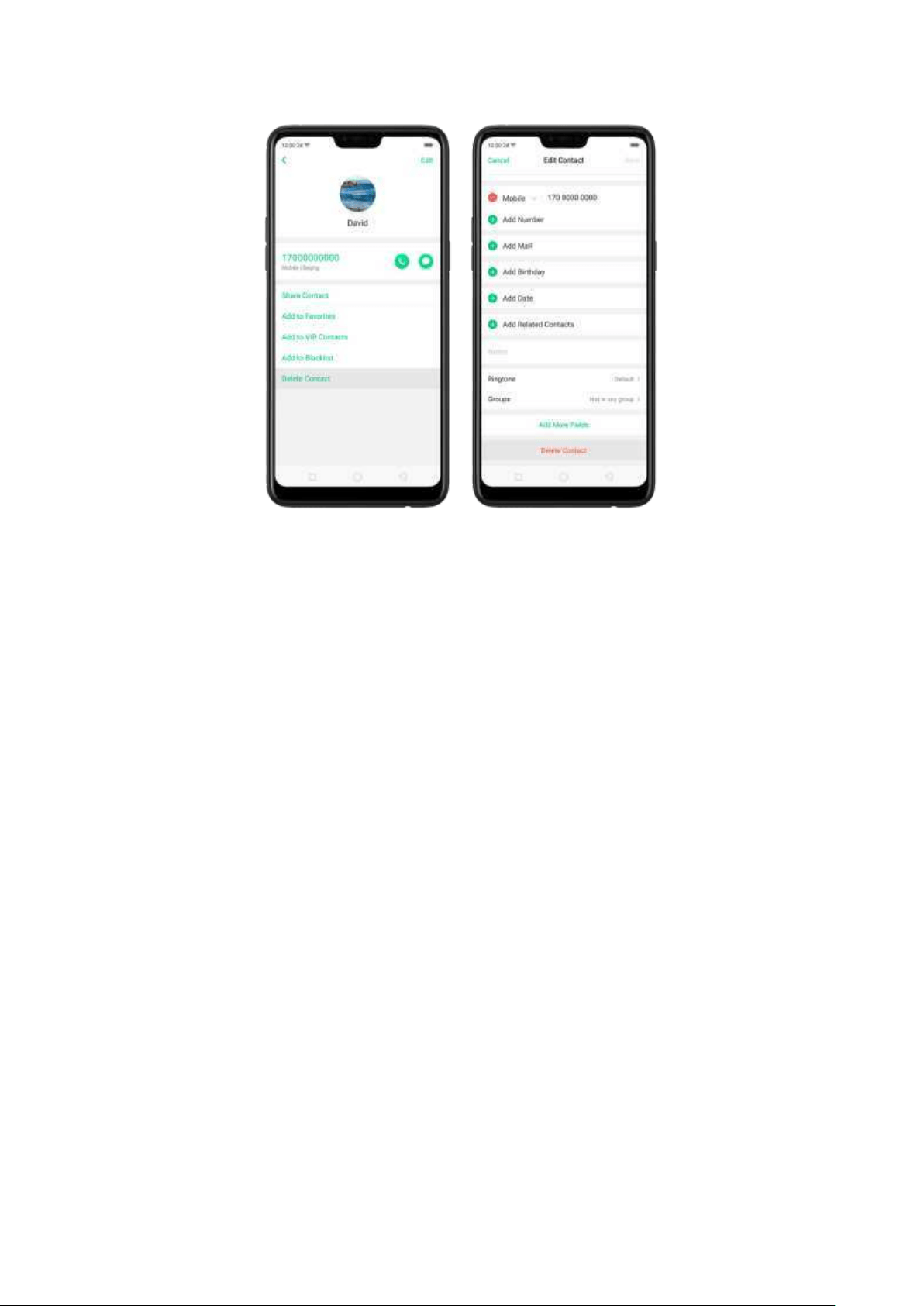
7.6.3. Im port and export contact s
You can im port/export contacts from/to t he phone storage or your SIM card. If you
have contacts stored on your old phone, you can transfer them through Bluetooth
from that phone. If there are repeat contacts, the phone will automatically m erge
them when you import contacts.
Imp ort cont act s. Go to [Set tin gs] > [Cont act s] > [Imp or t/ Export Cont act s].
Imp ort from st orag e device. Save the imported contacts to your phone.
Imp ort from ot h er p hones. Import the contacts stored on other phones t o
your OPPO phone through Bluetooth.
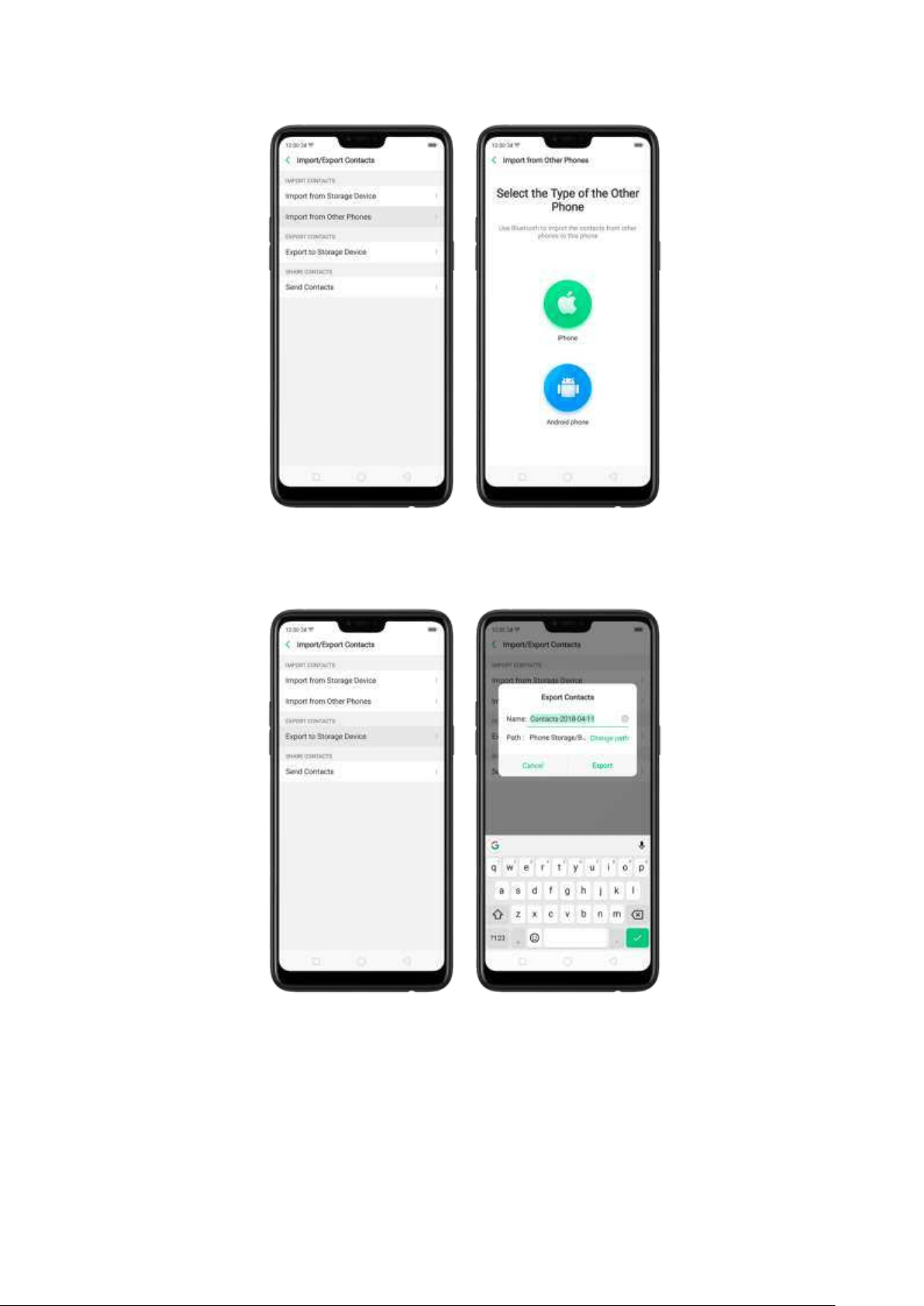
Exp ort Cont act s. Export your contacts to the phone storage. Contacts you export
are saved as .vcf file.
Imp ort / export SIM card cont act s. Go to [Set t in gs] > [Cont act s] > [SIM Card
Cont act s], click Imp or t or Export , then tick the contacts and move them to either
SIM or phone.
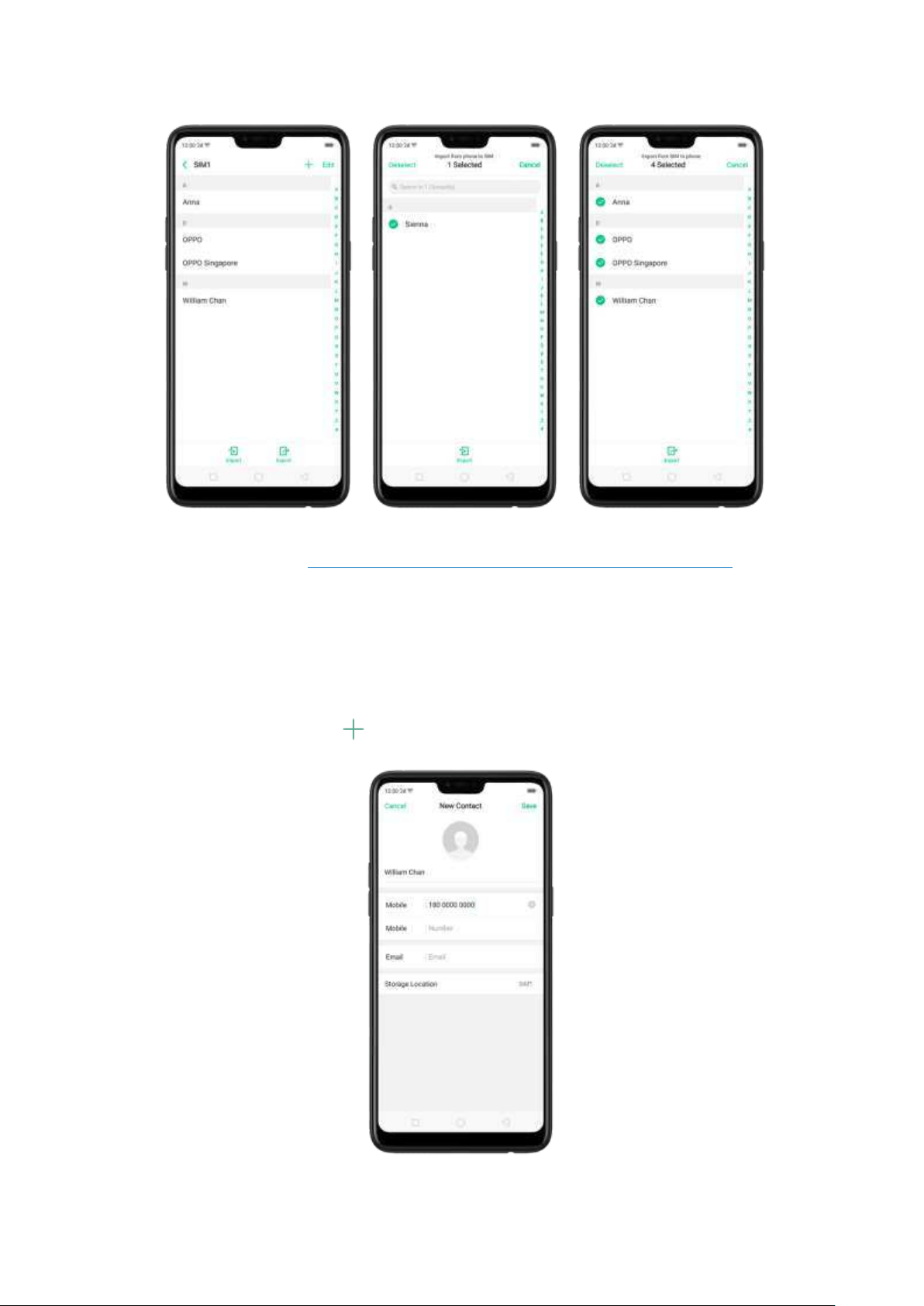
View more details in
Import and export contacts on your OPPO smartphone.
7.6.4. SIM cont acts
You can add, edit, delete, import , and export SIM contacts directly on your OPPO
smartphone. Go to
[Set t in gs] > [Cont act s] > [SIM card Cont act s].
Ad d a SIM cont act . Click , then enter the contact information and click Save.
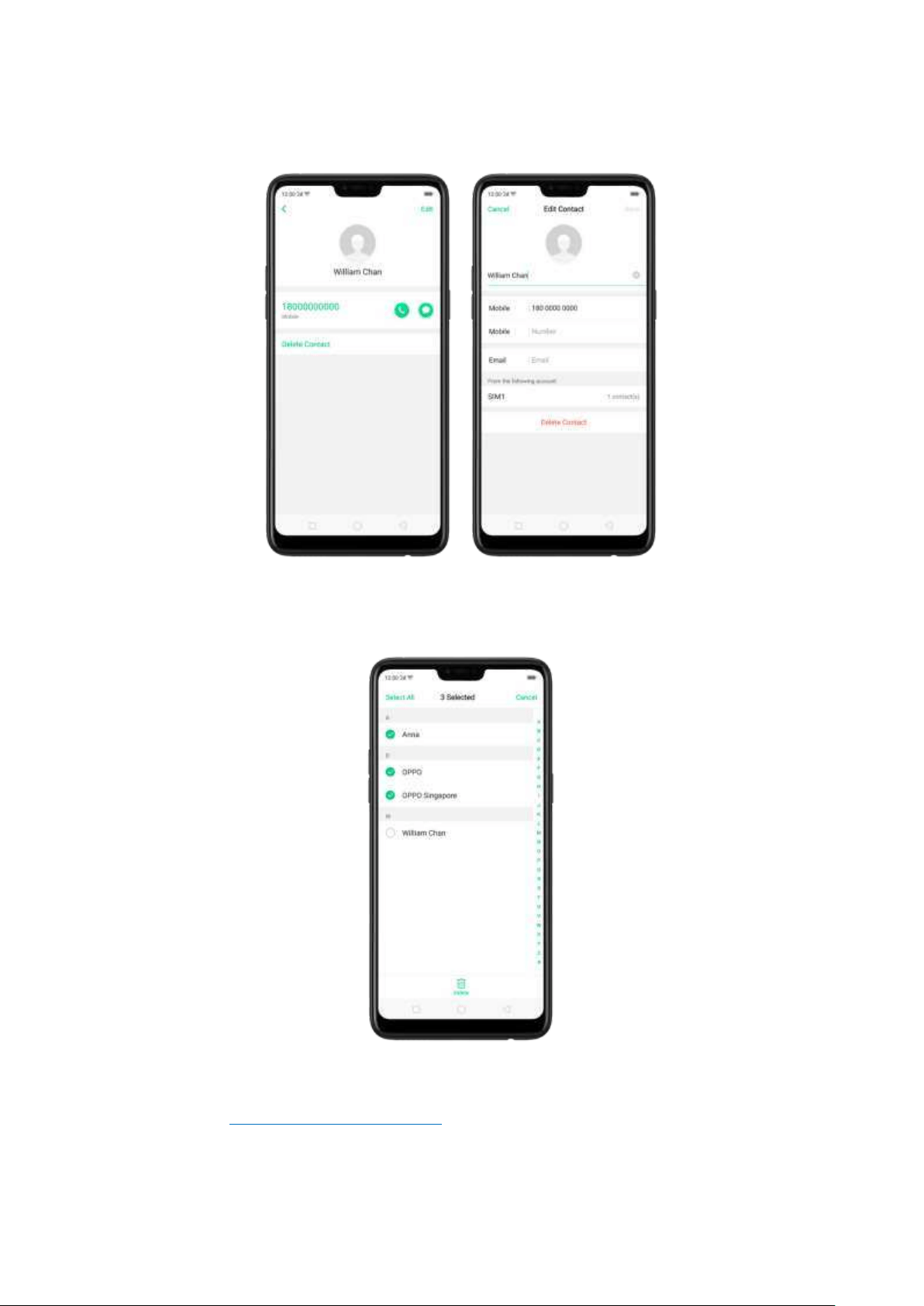
Ed it and d elet e a SIM cont act . Click a contact, t hen click Edit . Click Delet e Cont act
to delete the contact.
Delet e SIM cont act s at a t im e. Click Edit in the upper-right corner, tick the contact s
and click
Delet e.
Display SIM cont act s on t he Co nt act s list . You need to import SIM contacts to your
phone. See
Import and export contacts.
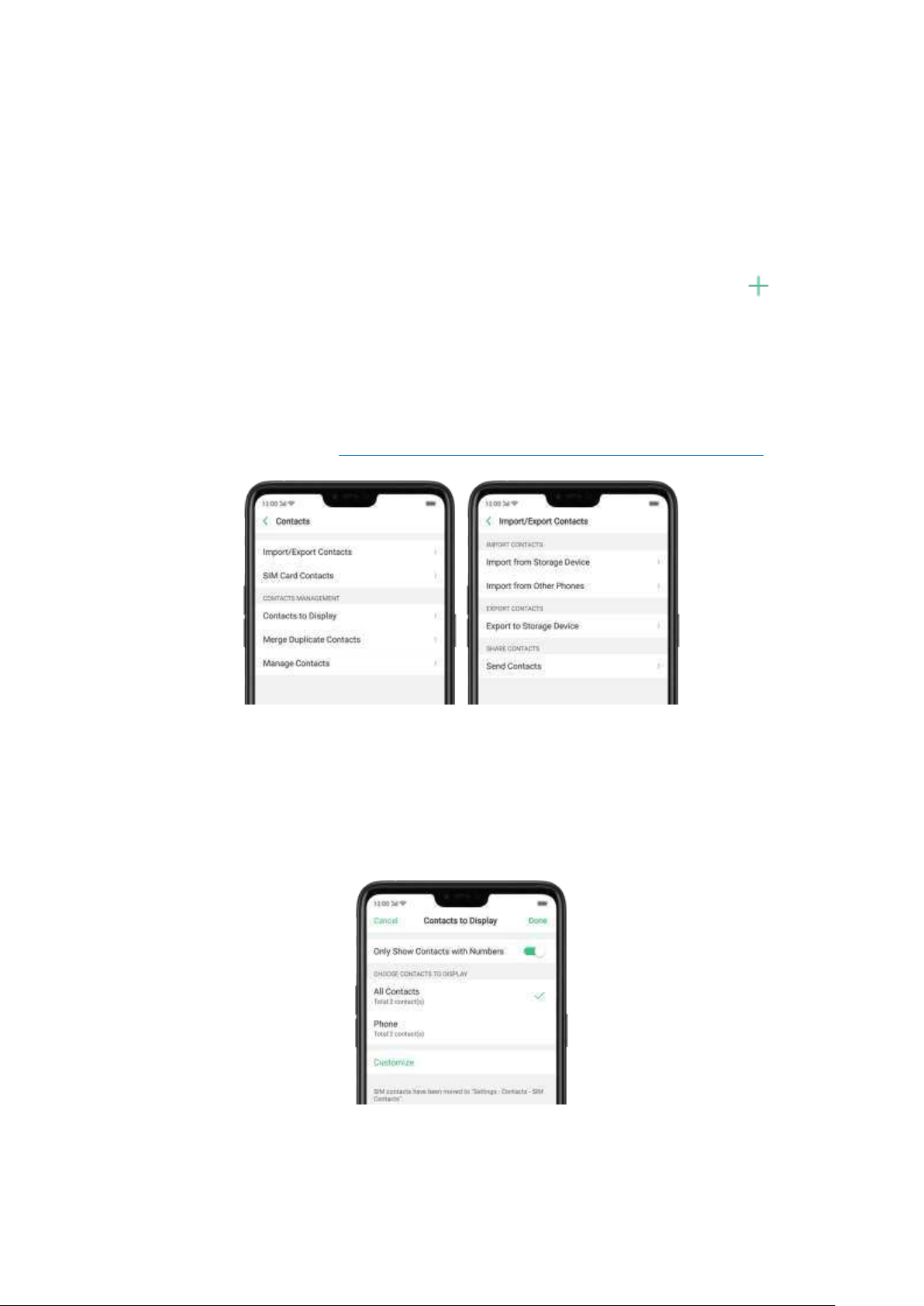
7.6.5. Manag e contact s
Contacts allows you to easily save and edit contact information, including names,
numbers, addresses, and more. To make your contacts more organized and
available, do the following:
Ad d a new cont act . Click Phone on the Home screen, click Contacts, then click .
The contact will be saved to your phone storage.
Modify existing cont acts. If you want to add details to an existing account, click
the account then edit.
Imp ort or exp or t cont act s. Go to [Set t ings] > [Cont acts], then select the
im port/export path. View
Import and export contacts on your OPPO smartphone.
Cont act s t o Display. Go to [Set tings] > [Cont act s] then click Cont act s t o Display.
To only show contacts with numbers, toggle the slider to green. You can also click a
category of contacts that you want to display.
Click Cust om ize to select contacts by
group.
Merge dup licat e cont act s. Click Merge duplicat e cont act s. The phone will
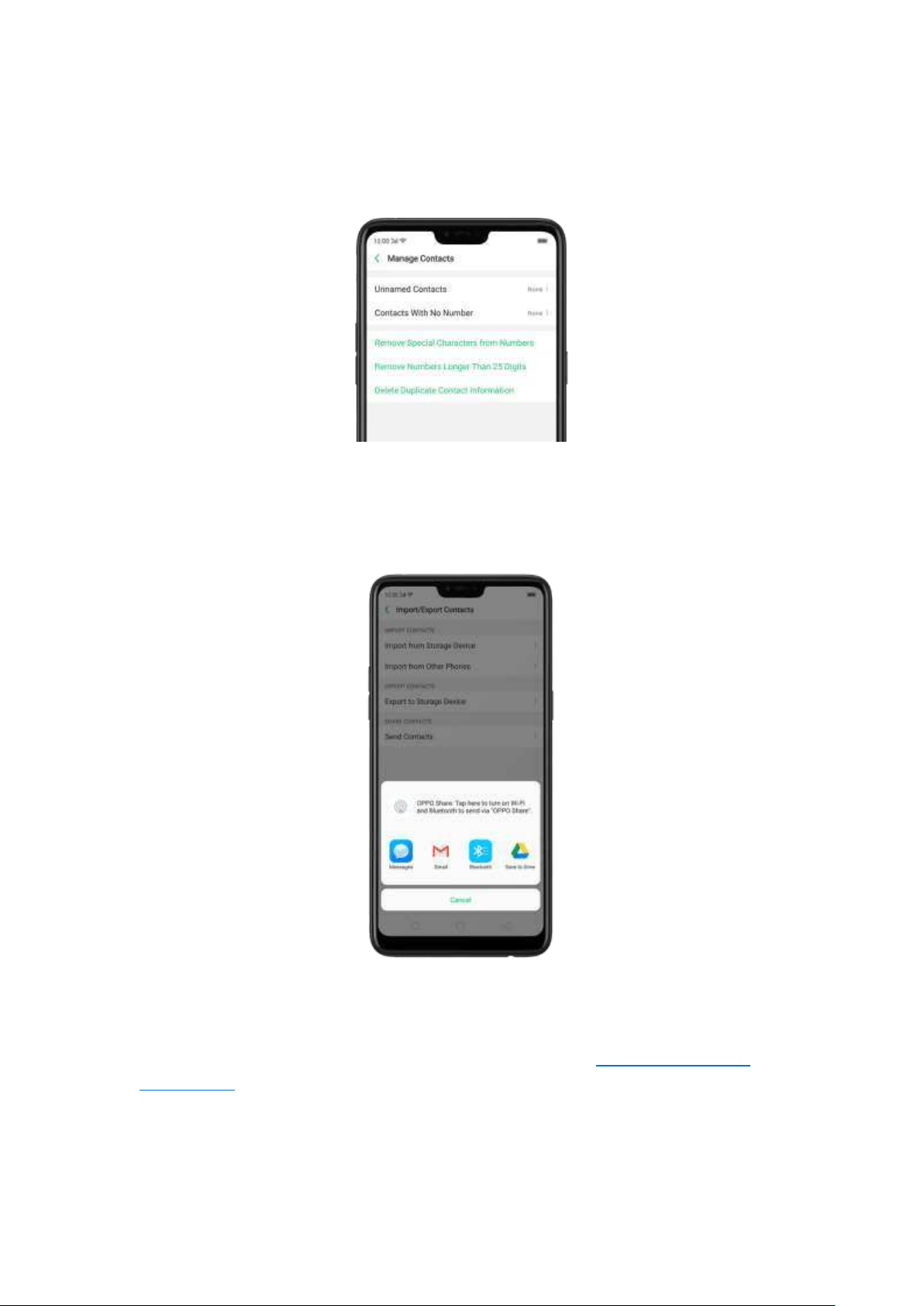
autom atically merge contacts with t he same name.
Manage cont act s. To manage contacts wit hout name or num ber, or quickly
rem ove invalid numbers, click
[Manage Cont act s].
Send Cont act s. Go to [Set t in gs] > [Cont act s] > [Imp ort / Exp or t Cont act s] >
[Send Cont act s]. All contacts stored on your phone will be shared.
Backup your cont act s. Go to [Set t ings] > [Ad d it ional Set t ing s] > [Back up &
reset ] > [Backup & Rest ore] > [Creat e New Backup ]. View Back up your OPPO
smartphone.
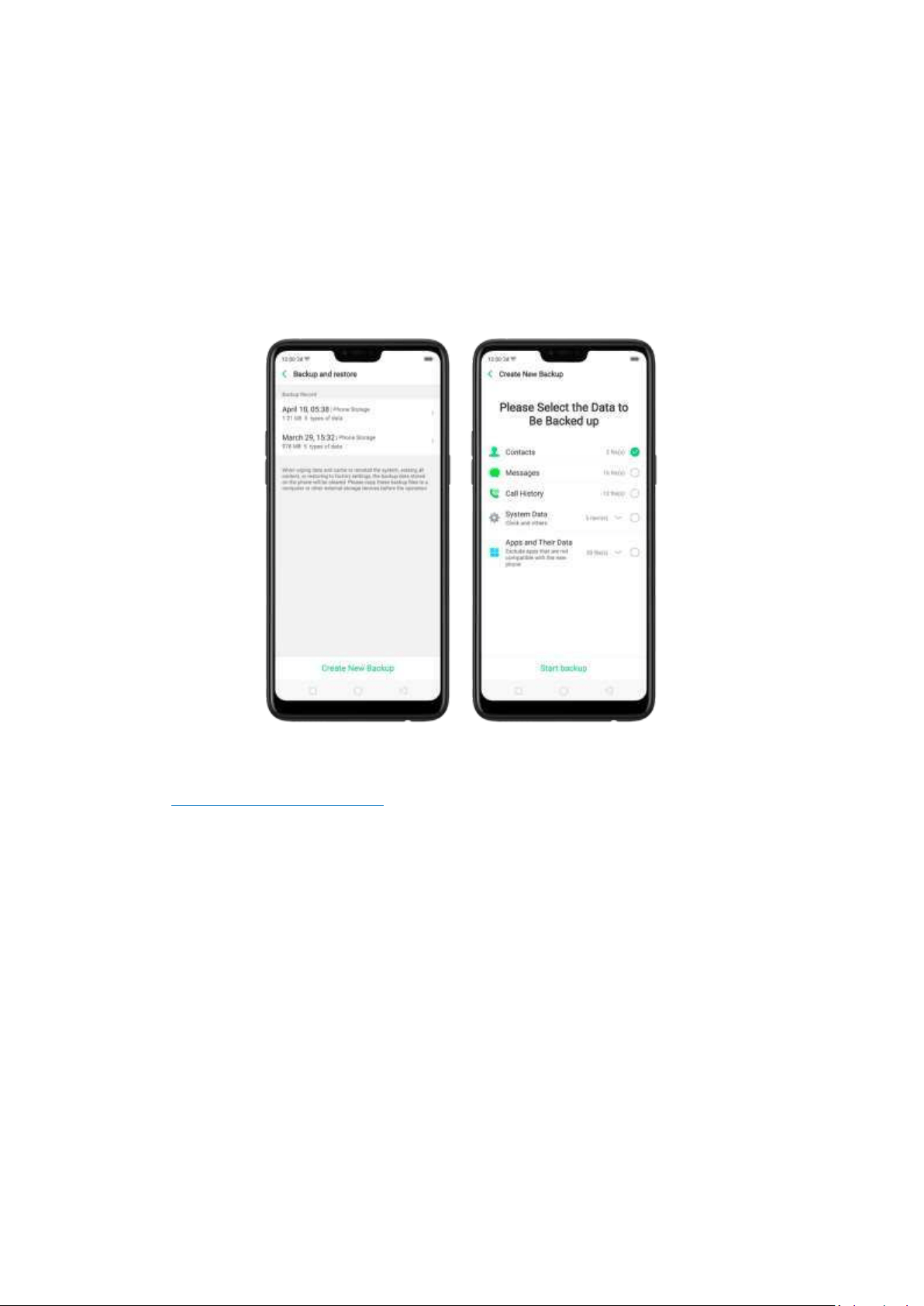
7.6.6. Back up your cont act s
If you use your OPPO smartphone on a regular basis, it is necessary to back up the
contacts so that you can easily restore them or use them on another device.
Use t he b uilt -in b ackup tool. Go to [Set ting s] > [Addit ional Set tings] > [Back up
and reset ], t hen click [Backup and Rest ore]. Back up your contacts. You need to
make a copy of the existing backup file and move it to another storage device.
Exp ort cont act s. Export your contacts to your SIM card or a folder on your phone.
See
Import and export contacts.
7.6.7. VIP Contact s
When you put the phone into Silent mode, or when you set the phone to block calls and
notifications using Quiet Time, Game Acceleration, or Anti-harassment, you can add certain
contacts to VIP Contacts, which will allow them to override the phone settings and have their calls
come through and ring.
Add contacts to VIP Contacts. Go to Contacts, select a contact, and then click Add to VIP Contacts.
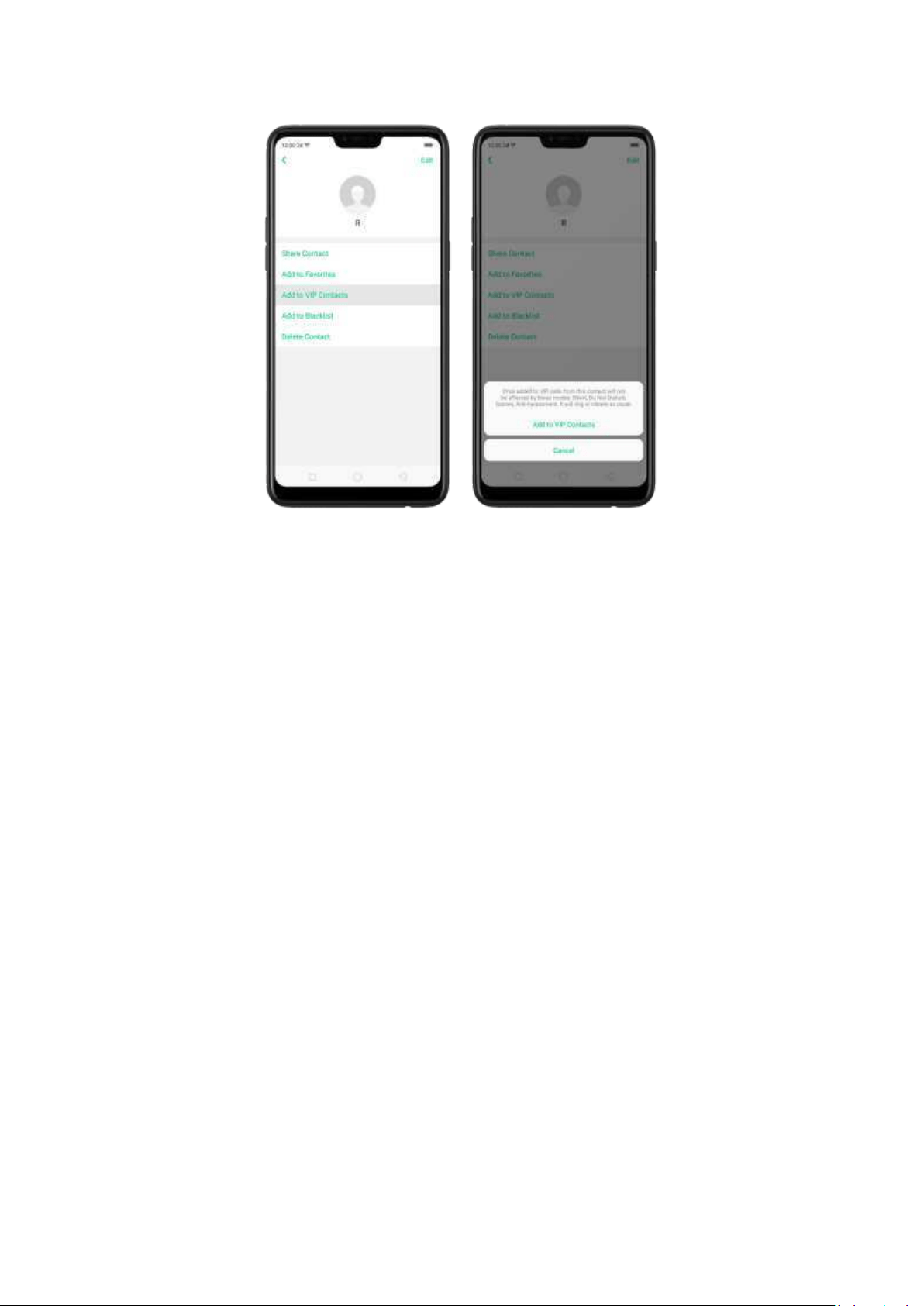
7.7. Phone Manager
7.7.1. Scan and opt imize the phone
Regularly optim izing your OPPO smartphone can make it perform steadily and faster.
Aut omat ic opt imizat ion it em s. Go to [Ph on e Manag er], t he system will start
scanning your phone automatically. After the scan is over, click
[Opt imize], then
click
[One Touch Optimizat ion]. You can also select t he items that you want to
optim ize optionally.
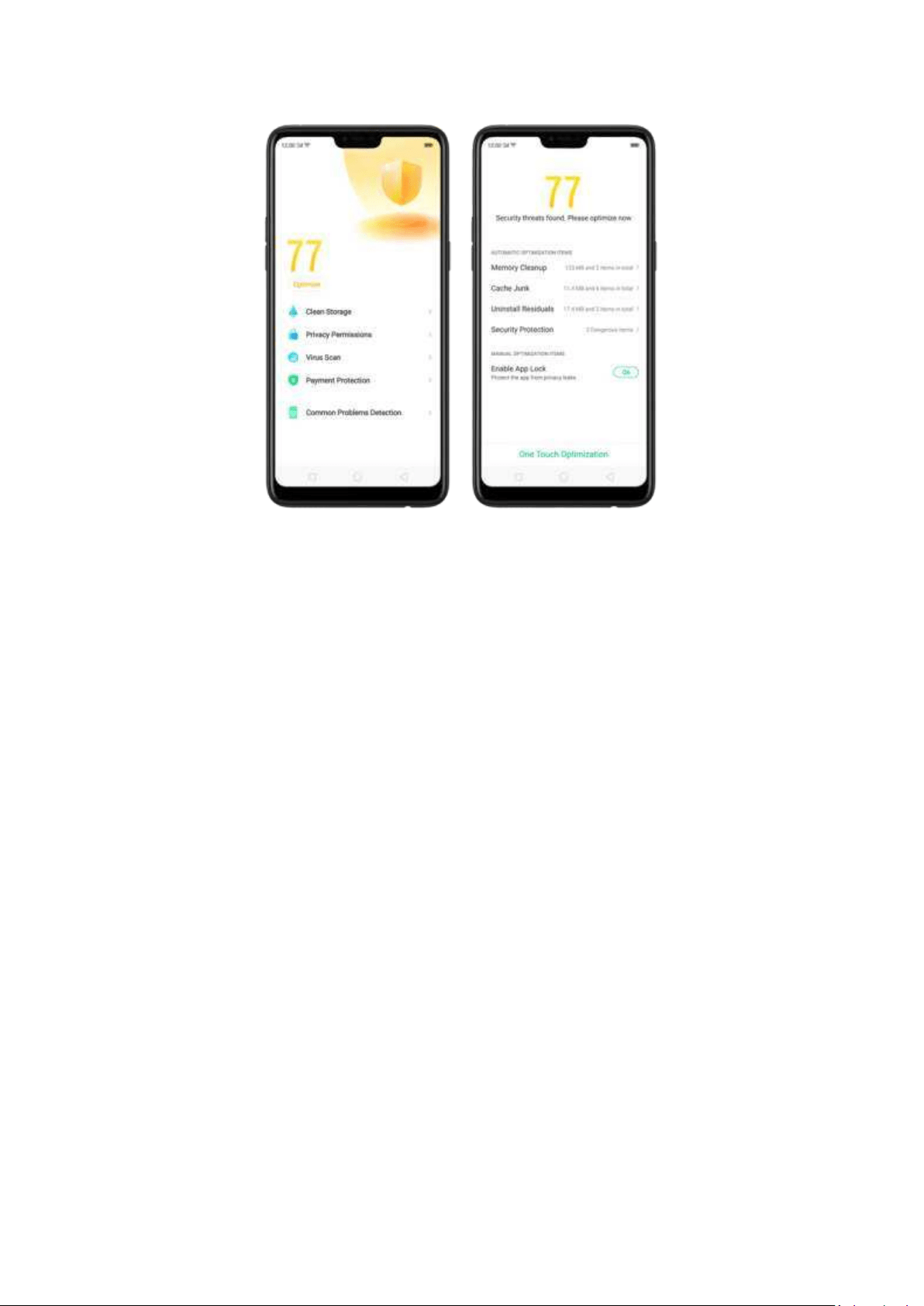
Manual op t im izat ion it ems. Click the green button on the right side of each item ,
respectively, then do as the phone prom pts.
7.7.2. Clean St orage
Use Clean Storage to quickly detect and rem ove hidden tem p (tem porary folders
or files), cookie and cache files generated by inner calculations and data exchanges
to free up more storage space. You can also quickly browse and delete unnecessary
user files.
Delet e jun k files. Click Phone Manager, then click Clean st orage. Click En d all to
delete all kinds of junk files. You can also choose files to be deleted.
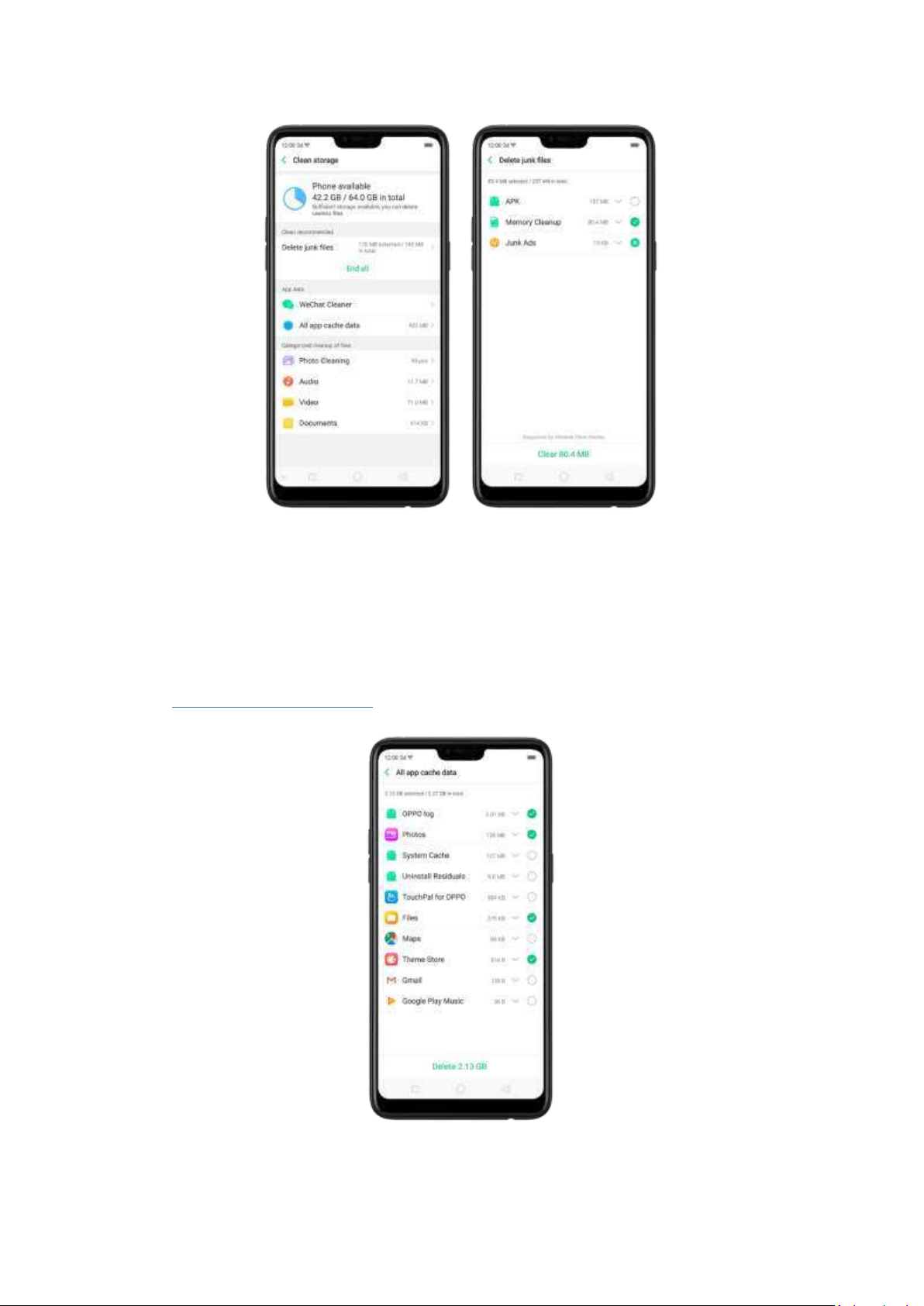
Delet e ap p dat a. Click All app cache data, select the apps that has caches, then
click
Delet e. The action cannot be undone.
For some com monly used instant -messaging apps like WeChat and WhatsApp, the
Phone Manager provides separate ent ries for you to clean up t heir files.
See
Frequently Used Functions.
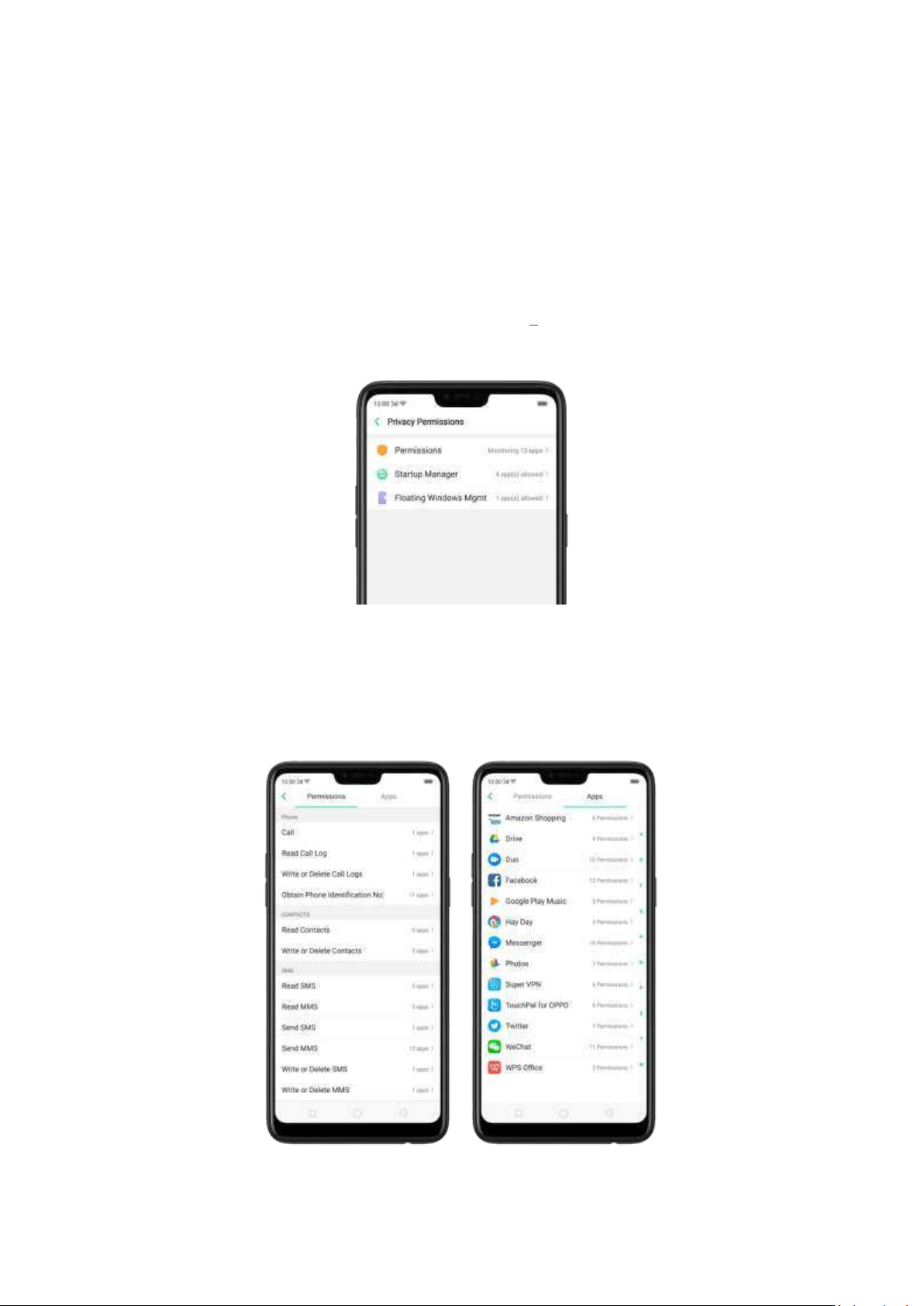
Free up m ore st orag e space. You can delete your unnecessary files on the phone,
including photos, audio, videos,
and documents.
7.7.3. Privacy Perm issions
Use Privacy permissions feature to manage app permissions, protect your privacy,
and manage apps that start when phone boots up . Click Phone Manager, then click
Privacy Permissions.
Manage the ap p p ermissions. Open Phone Manager, then click Privacy Permissions.
You can go through each permission or app on your phone and, with full control,
accept, decline or lim it each perm ission of apps according to your requirements.
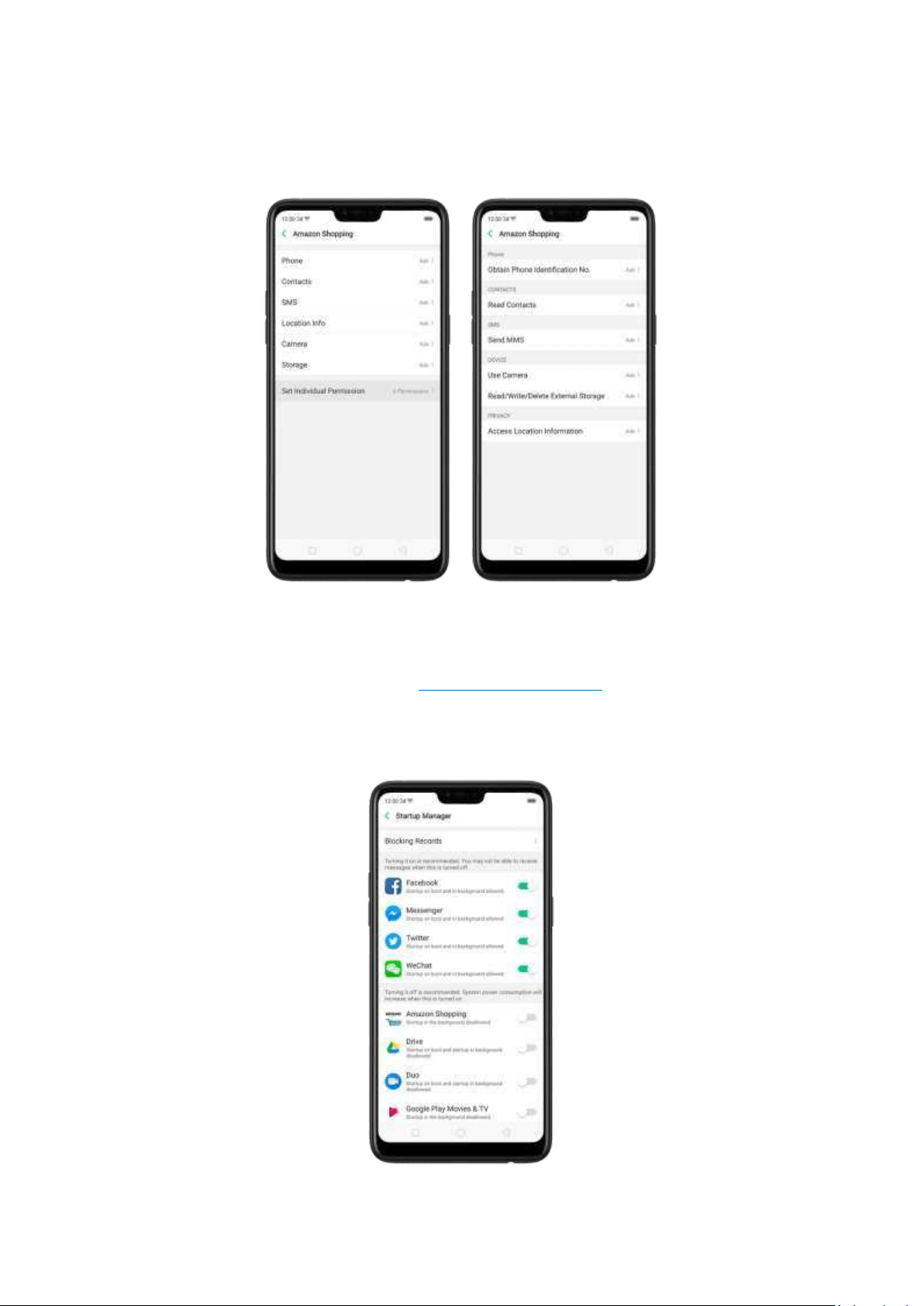
Click
[Set Individual Permission ] to view and set more detailed permissions.
Allow app s t o st ar t w hen p hon e boot s or in background . Click Startup Manager.
Toggle the app sliders to green. See
Set up Startup Manager.
To view the apps that had been blocked from starting in the background, click
Blocking Records.
Enab le float ing wind ow s. Toggle the app slider to green. Your app message will be
displayed in the floating window for easy viewing and use. (Only for apps which can
support Floating window feature.)
View more details in
Use Phone Manager on your OPPO smartphone.
7.7.4. Virus Scan
For better security, you can regularly scan and remove potential and actual threats to your phone.
Scan for virus. Click Phone Manager, then click Virus Scan. Wait for t he scan t o complete. If
threats were found, remove them; if not, you will see a message that says your phone is in a good
state.
7.7.5. Paym ent prot ect ion
While you shop online, your OPPO phone will provide protection for the m obile
transactions, such as detecting the security of system, captcha, and the app itself.
Set up paym ent prot ect ion for ap p s. Open Phone Manager, then click Payment
Protection. You can also go to
[Set t ings] > [Securit y] and click [Paym ent
Prot ectio n].
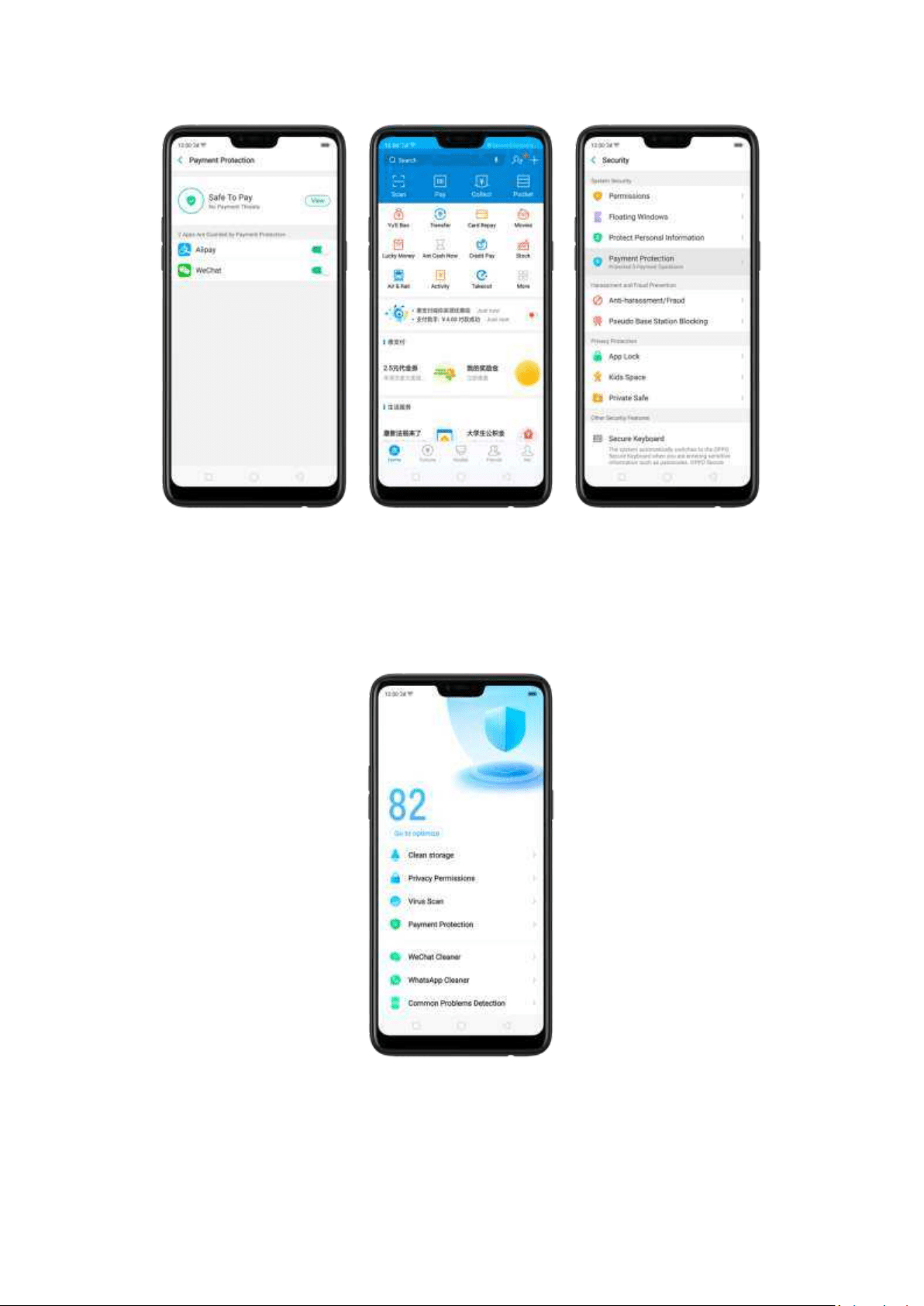
7.7.6. Freq uent ly Used Funct ions
In Phone Manager, you can quickly clear your downloads and junk files of the apps
which are used frequently, such as WeChat, WhatsApp, and more.
What sApp Cleaner
Clear cache and junk files. Click [Clear Now ] button to clear the cache files
generated when the app was in use.
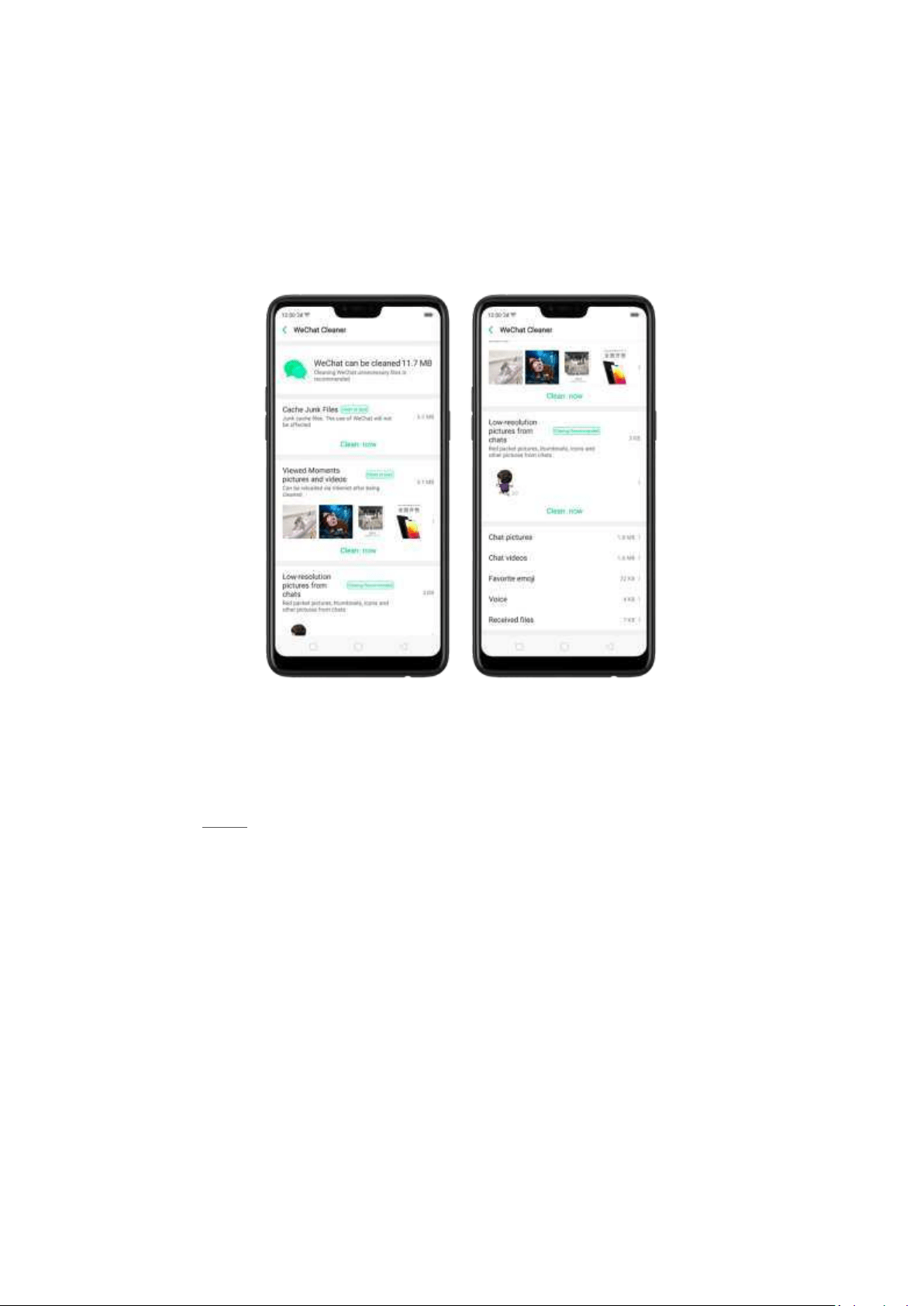
Clear ot her app files. You can delete the app files to free up t he phone storage,
including pict ures, videos, audio, voice messages, and files. Select an op tion, click
Select to select the files, then click Delete.
WeChat Cleaner
Clear jun k files. Click [Clear Now ] b utton t o clear the cache files generated when
the app was in use.
Clear view hist or y. Click [Cl ear Now ] button to clear all t he viewed pictures and
videos. When The next time you view the post, the photos and videos can be
downloaded from the internet again.
To delete part of the view history, click
[ View ed mom ent s, pict ures and videos],
choose t he pictures and videos you want to delete, then click
Delet e.
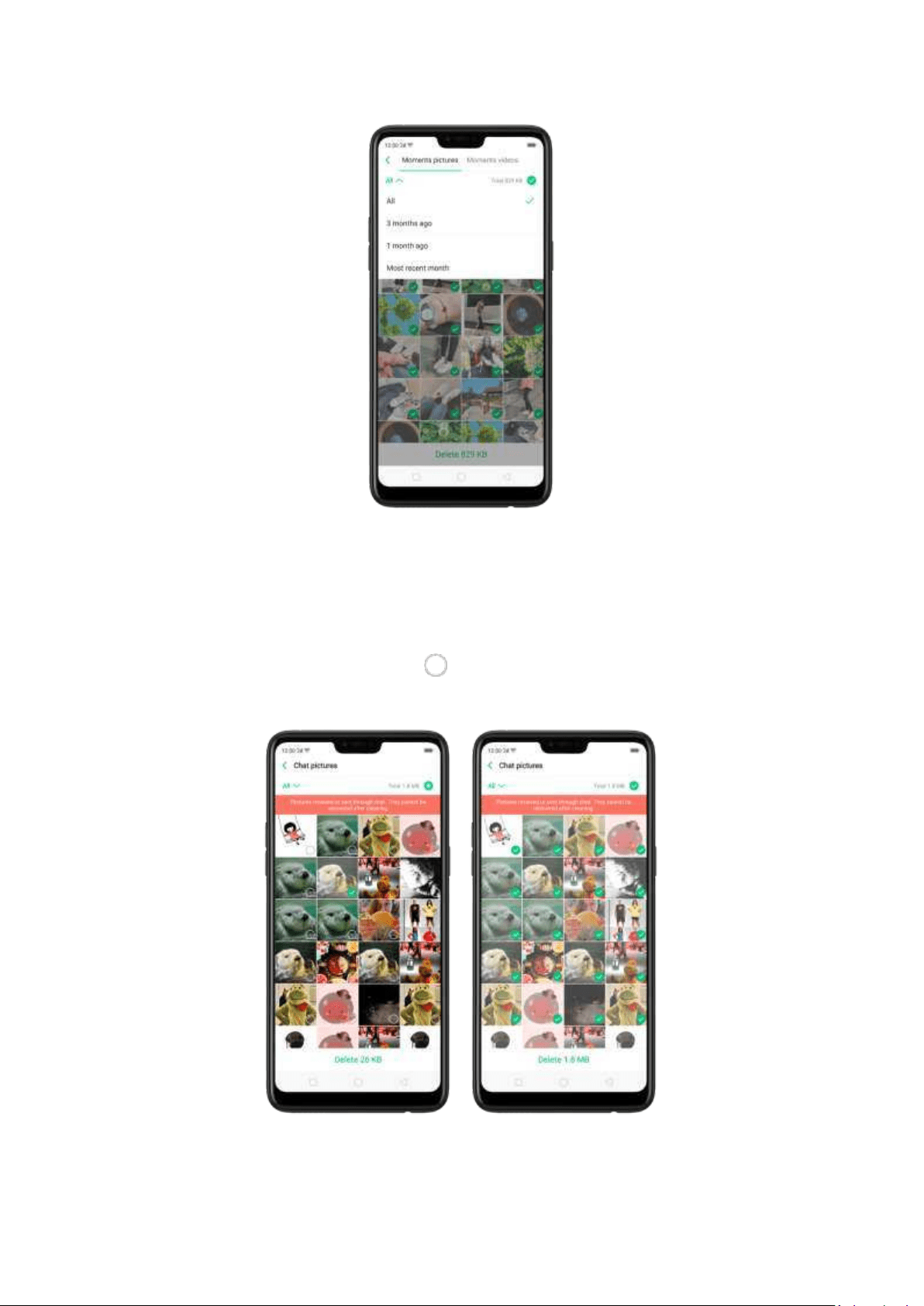
Clear low -resolut ion p ict ures from chat s. Click [Clear Now ] button to clear the red
packet pictures, thumbnails, icons
, and other pictures.
Clear files received or sent t hroug h chat . You can delete the app files to free up
the phone storage, including chat pictures and videos, emojis, voice files
, and
received files. Select an option, click to select the files, then click Delete.
Not e: These kinds of files cannot be recovered after cleaning.
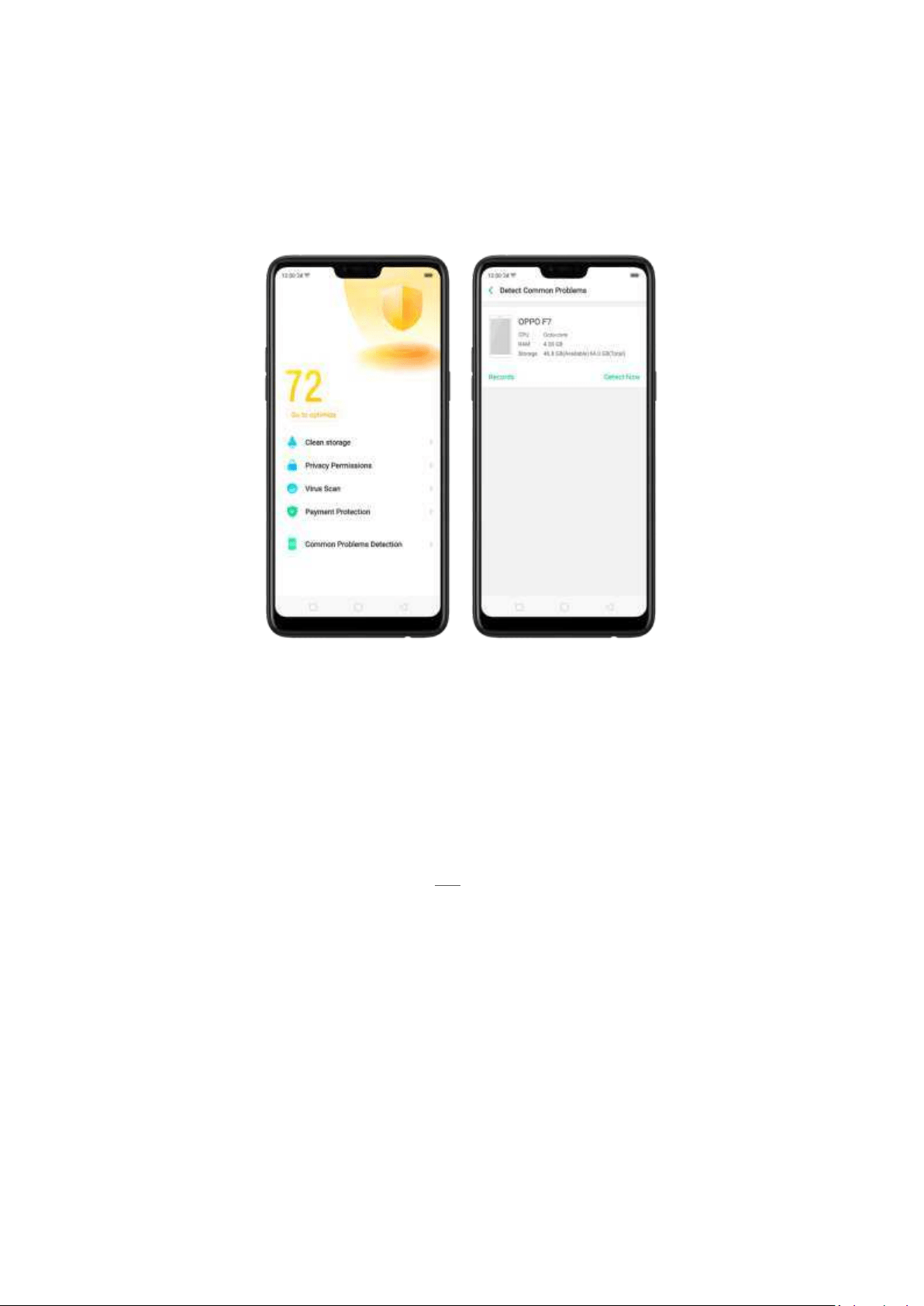
7.7.7. Comm on Problem s Det ect ion
Phone Manager allows you to diagnose comm on phone problems and find solutions
to quickly deal with them.
Det ect co mmon phone problem s. Click [Phon e Manag er] > [Co mm on Problems
Det ect ion ], select the items you want to detect, then click [St art Det ect ion].
Aut o det ect ion it ems: including phone memory, SIM card(s), and system
version. The p hone will autom atically complete the detection.
Manual det ect ion it ems: including sensors, connections, battery and charging,
physical keys, screen, camera, audio
, and vibration. During the detection, you
need to operate the phone as per t he onscreen instructions.
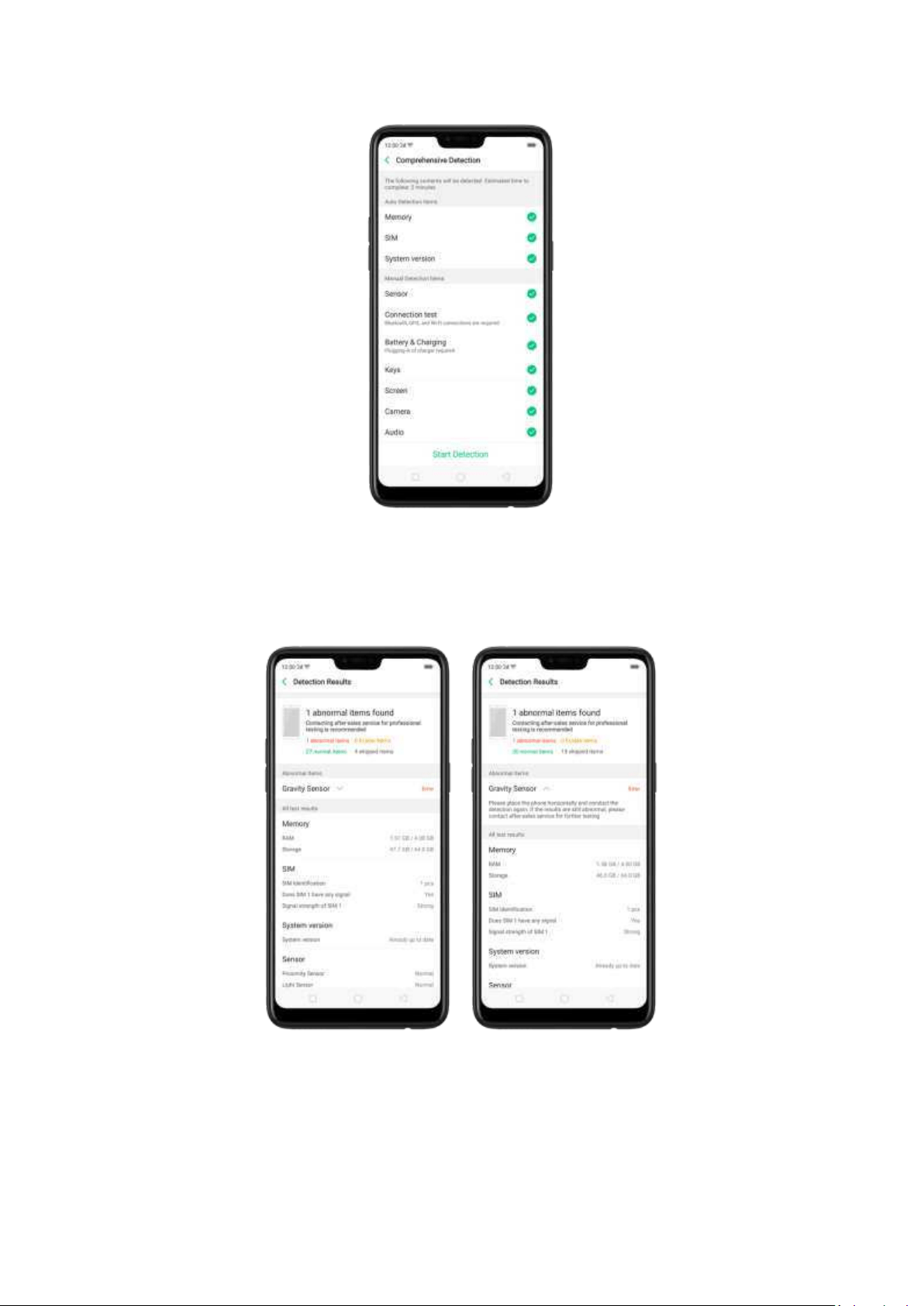
The phone will list all the test results of the system, and intuitively display the
abnormal items. Click the abnormal item to view the solution your phone offers.
Det ect ion records. Click [Record s] and you can view all the detection records.
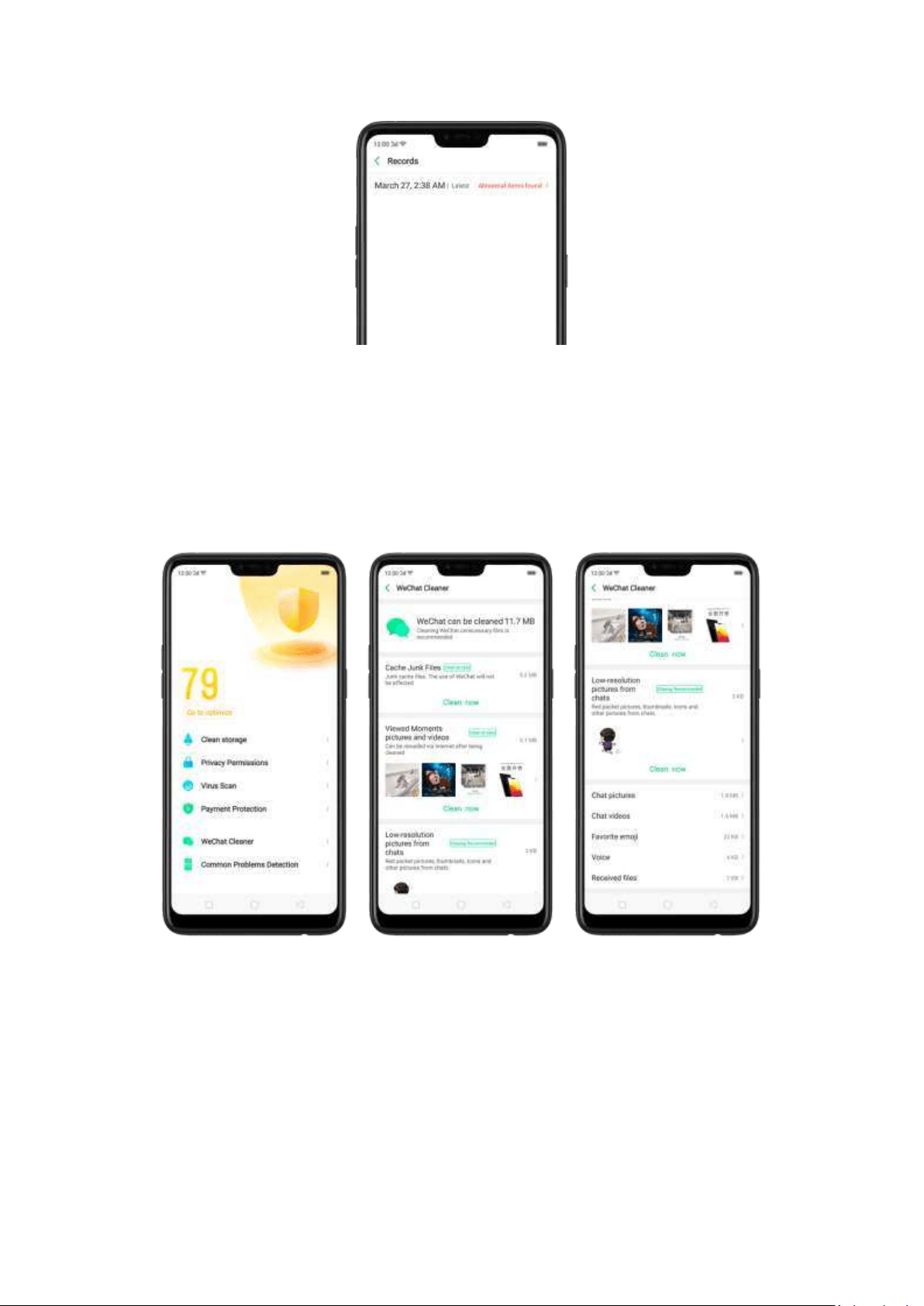
7.7.8. WeChat Clean er
In Phone Manager, you can use WeChat Cleaner to selectively delete any photo,
video, voice recording, or any other data sent or received through WeChat to reclaim
more space on your phone.
* You can also click File Manager, click Clean Storage, then click WeChat Cleaner.
Clear jun k files. Click [Clear Now ] b utton t o clear the cache files generated when
the app was in use.
Clear view hist or y. Click [Cl ear Now ] button to clear all t he viewed pictures and
videos. The next tim e you view the post, the photos and videos can be downloaded
from the internet again.
To delete part of the view history, click
[ View ed mom ent s, pict ures and videos],
choose the pictures and videos you want to delete, then click
Delet e. You can also
click All, then choose a period of time.
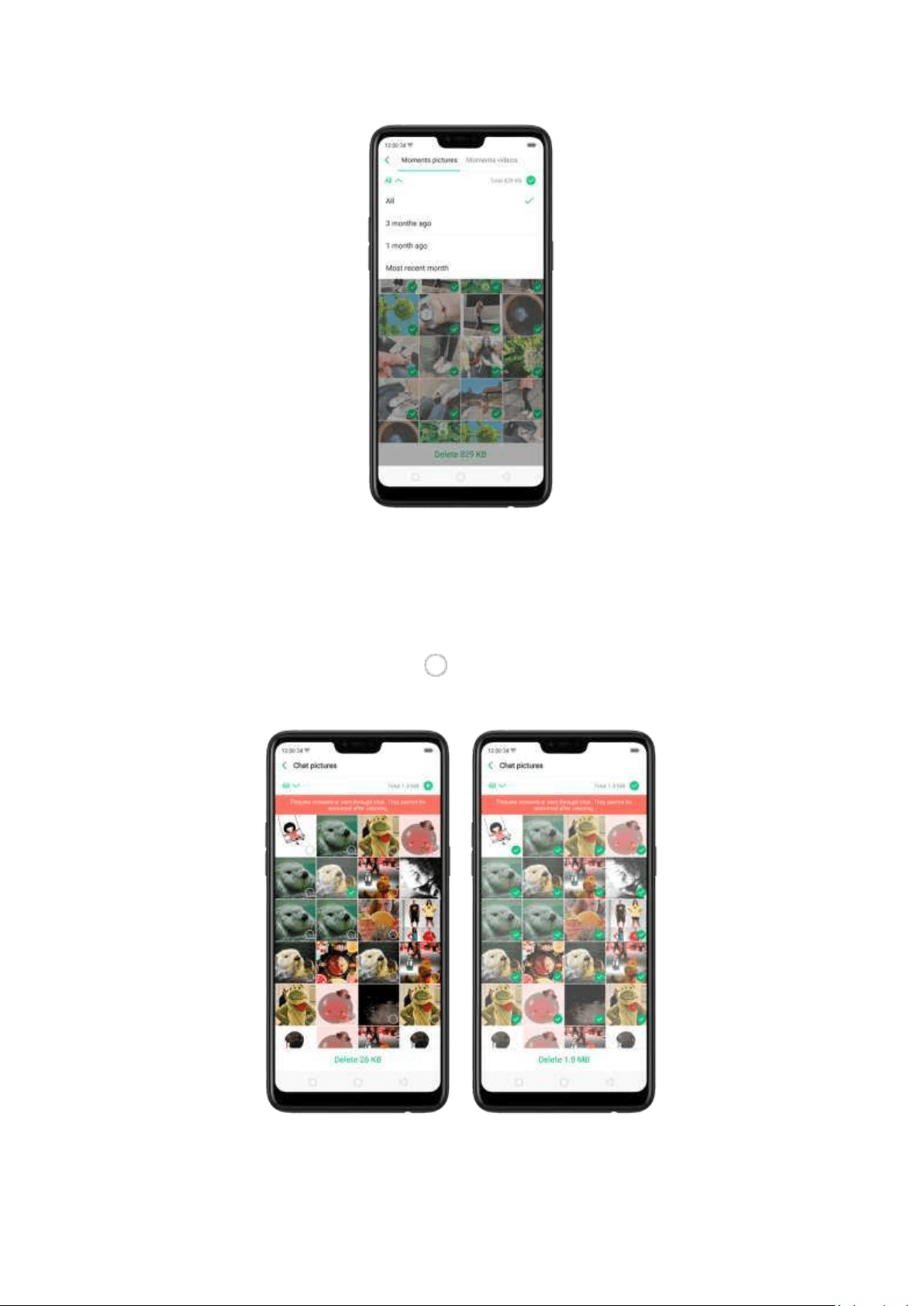
Clear low -resolut ion p ict ures from chat s. Click [Clear Now ] button to clear the red
packet pictures, thumbnails, icons and other pict ures.
Clear files received or sent t hroug h chat . You can delete the app files to free up
the phone storage, including chat pict ures and videos, em ojis, voice files and
received files. Select an option, click to select the files, then click Delete.
Not e: These kinds of files cannot be recovered after cleaning.
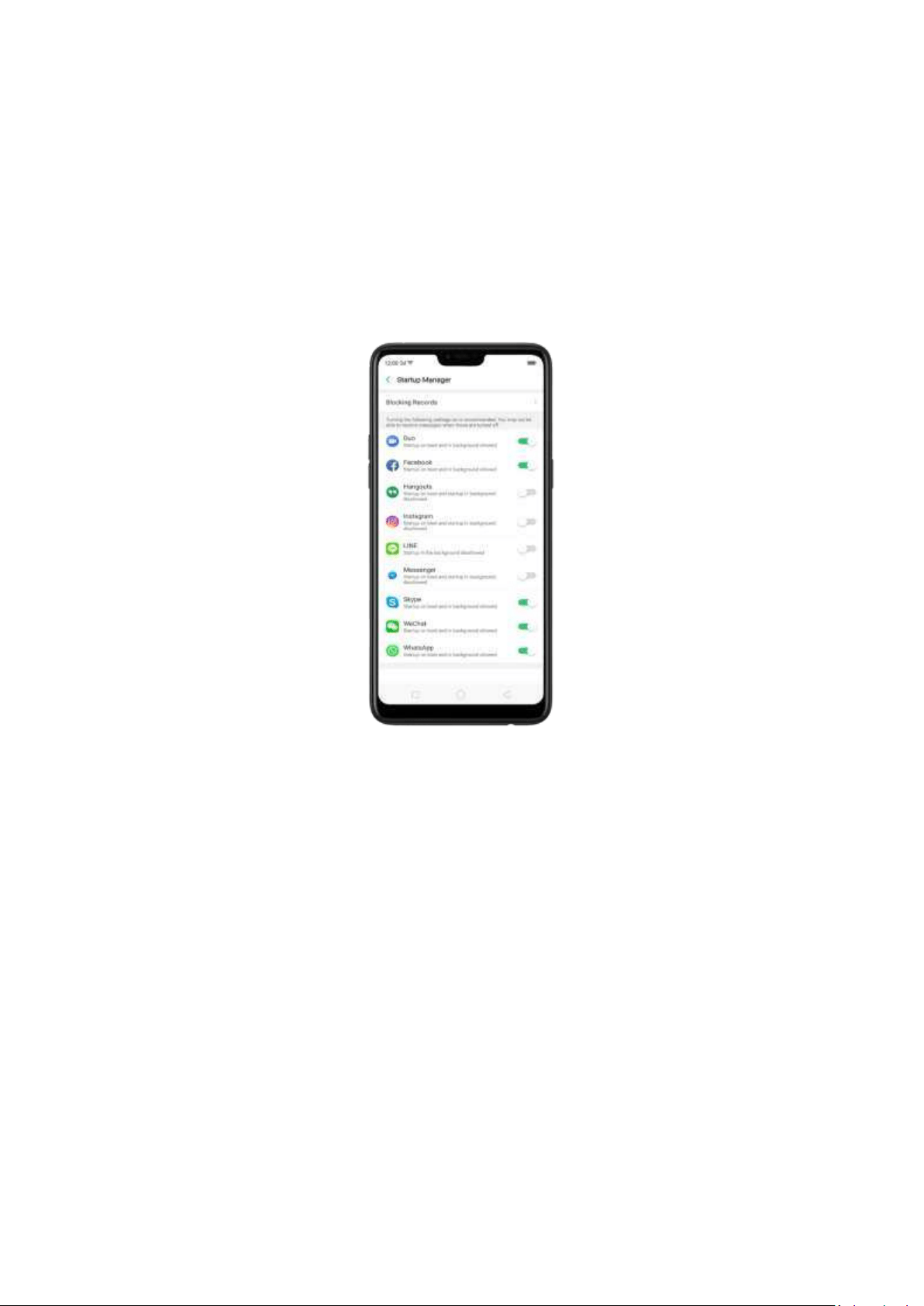
7.7.9. St art up Manager
Startup manager makes you choose what apps t hat will auto -start in the background.
To open St artup Manager, click Phone Manager, t hen click Privacy Per missions.
Manage St ar tup Manag er . Open Phon e Manag er then click Privacy Permissions.
You can go through each app and toggle to green if you want the chosen apps to
run on the background.
Blocking records. Open Phon e Manager, click Privacy Per missions, and
click
Blocking Record then you will see blocking records of the recent m onth.
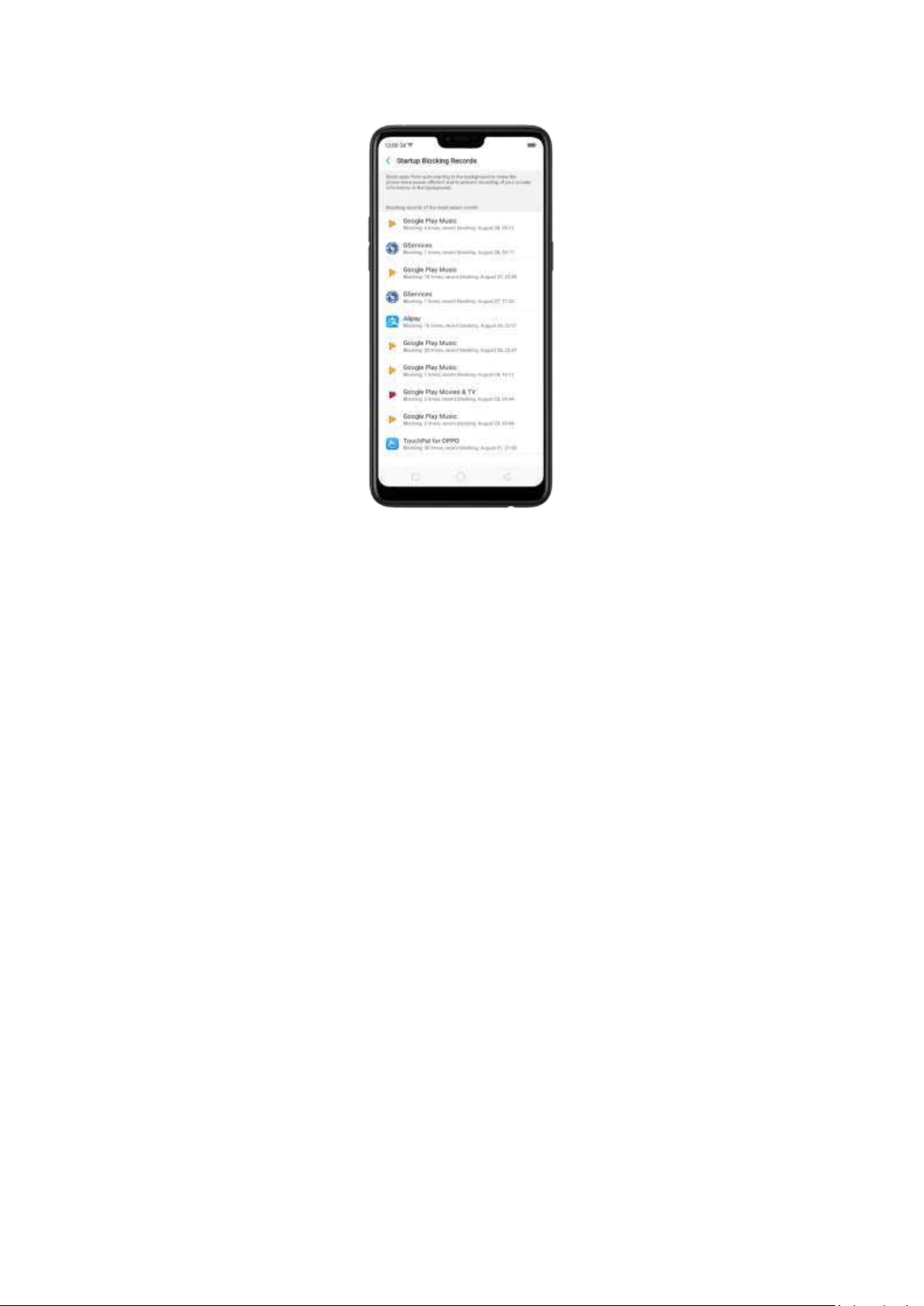
Note: Blocking apps from running in the background can save more power and can prevent
recording private information. Although you may not receive messages when these are turned
off.
7.8. Weat her
Click Weather from the Home screen to see the latest weather conditions and
forecasts f
or the city of your choice, including the current tem perature, hourly
forecasts for the next 24 hours, and up to 15-days of forecast inform ation. You can
store multiple cities for quick access.
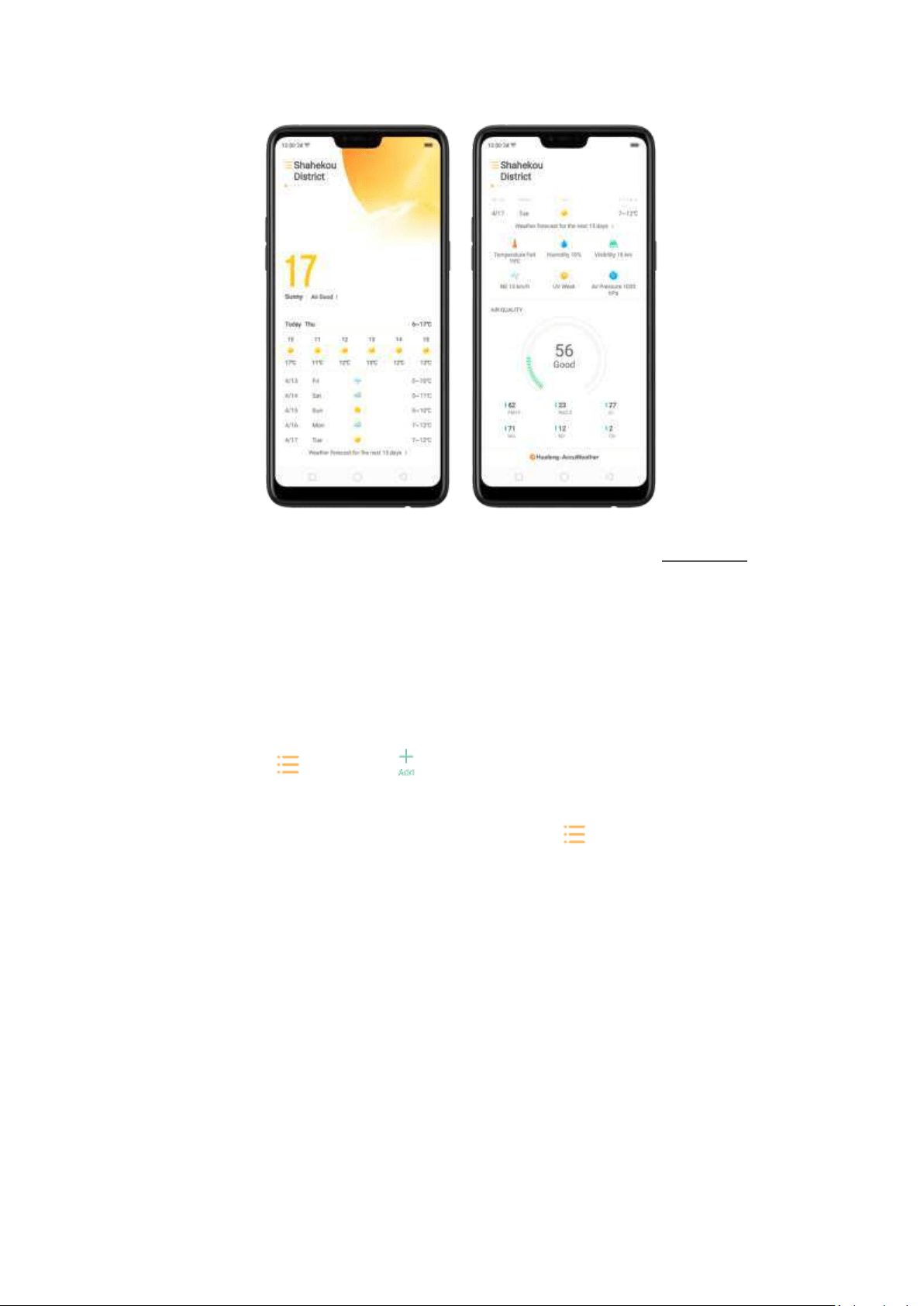
Look at your local w eat her. Open Weather, and your phone will attempt to find
your current location using t he Location Services. Scroll down to see more details,
including hum idity, visibility, and more.
View th e hourl y forecast. Swipe the hourly display left or right. It also provides you
the time of sunrise and sunset.
Get daily forecast for 15 d ays. The phone shows the forecast inform ation for t he
upcoming five days. Click
View w eat her forecast for t he next 15 d ays to get
extended forecasts on your browser.
Ad d a cit y. Click , then click . Enter a city name, then click Search.
Sw it ch t o another cit y. Swipe left or right. The num ber of dots below the city name
shows how many cities are stored. You can also click , then choose a cit y from
the list.
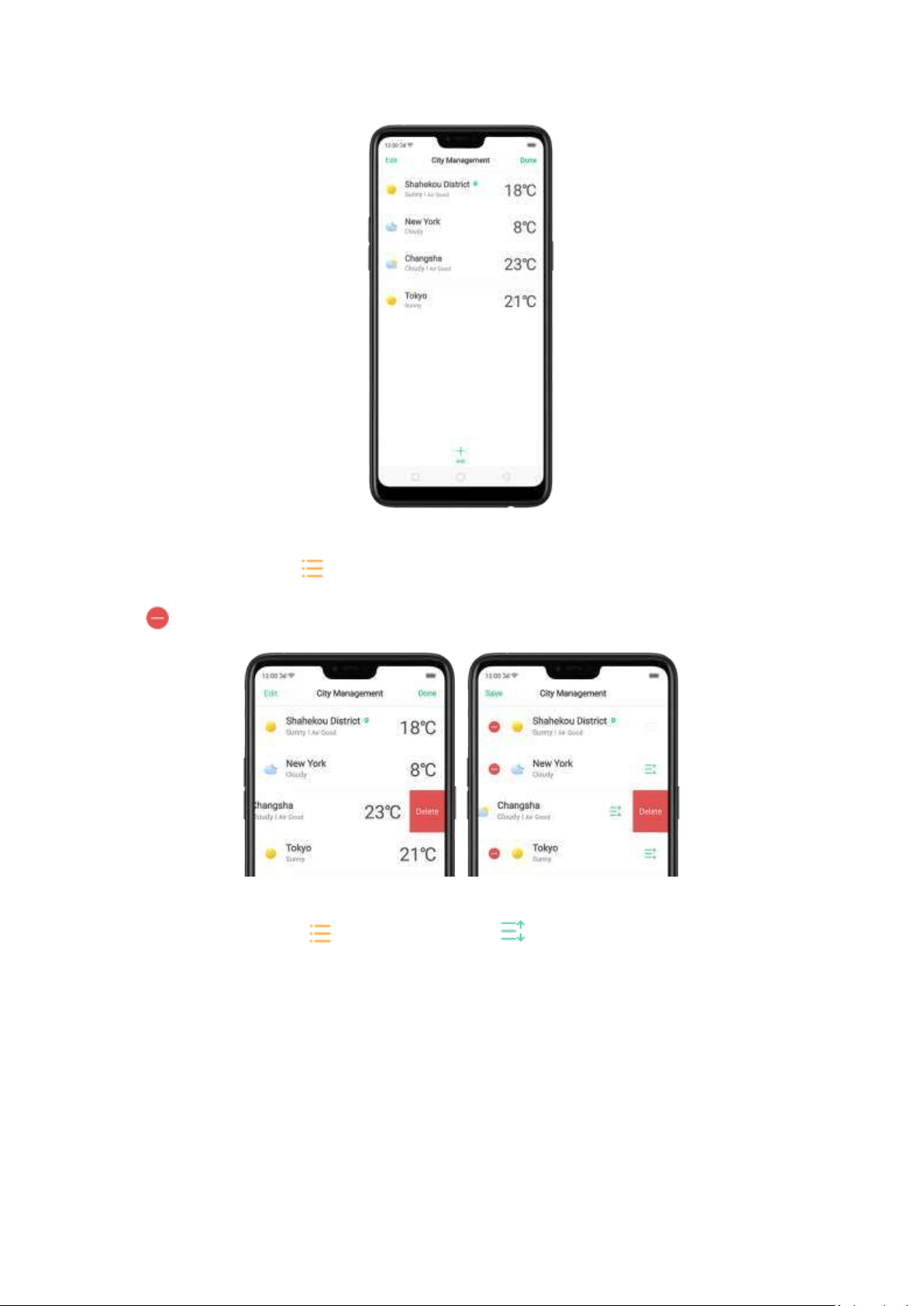
Delet e a cit y. Click , swipe left on the city, then click Delete, or click Edit, click
next to a city, then click Delete.
Reorder cit ies. Click , click Edit, then drag next to a city up or dow n in t he
list.
Turn on Disast er warnin g. Go to [Set t ings] > [ Weat her] and toggle the slider to
green.
Choose Fahren heit or Celsius. Go to [Set t ings] > [Weat her] > [Temp erat ure unit ].
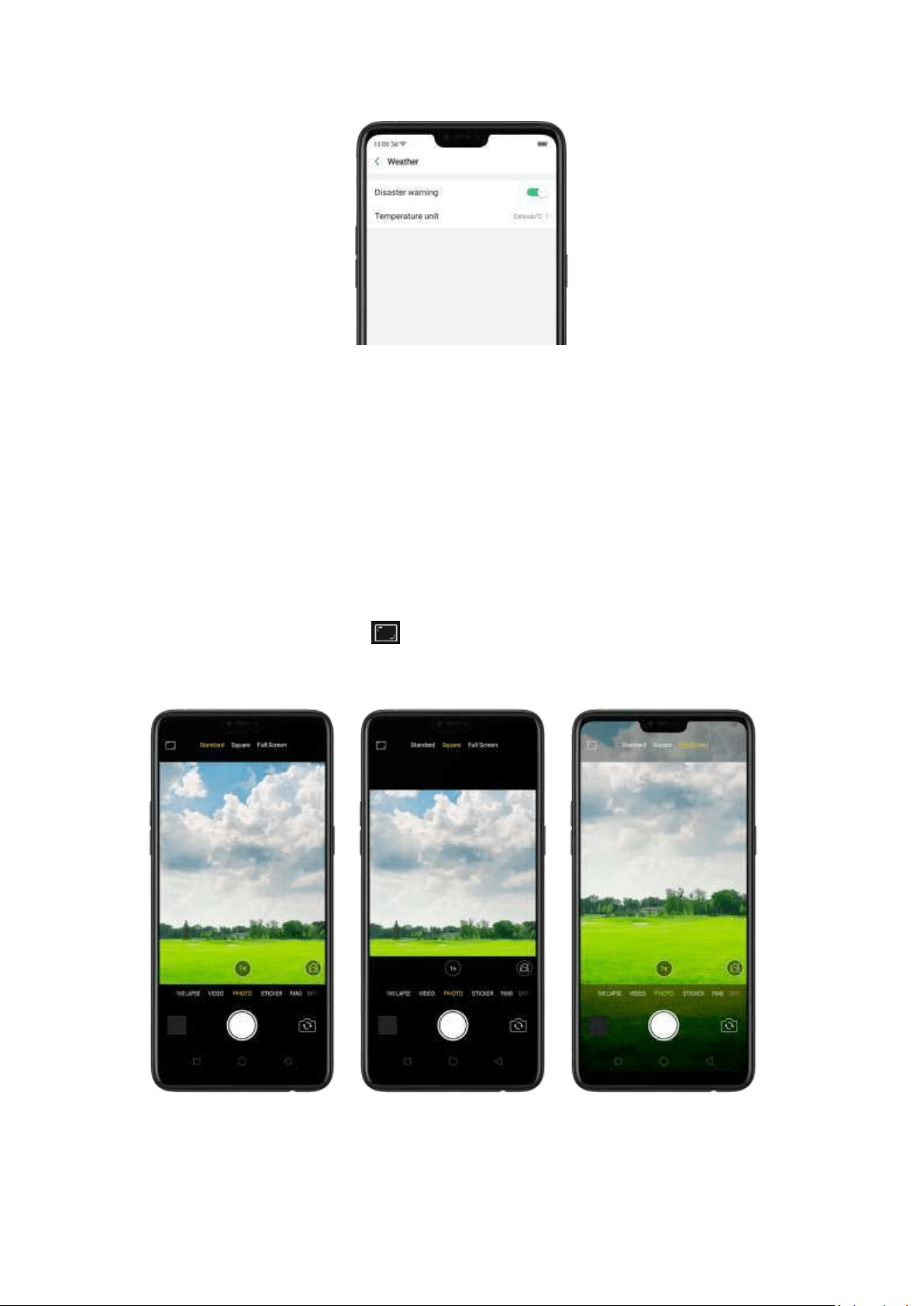
7.9. Cam era
7.9.1. Take photos
You can use the cameras to take pictures and videos.
Open cam era. Click Camera icon. To quickly get to the camera, touch Cam era icon
on the Lock screen and swipe up.
Choose a p hot o mod e. Click , then choose to shoot st andard, square-format,
or full screen photos.
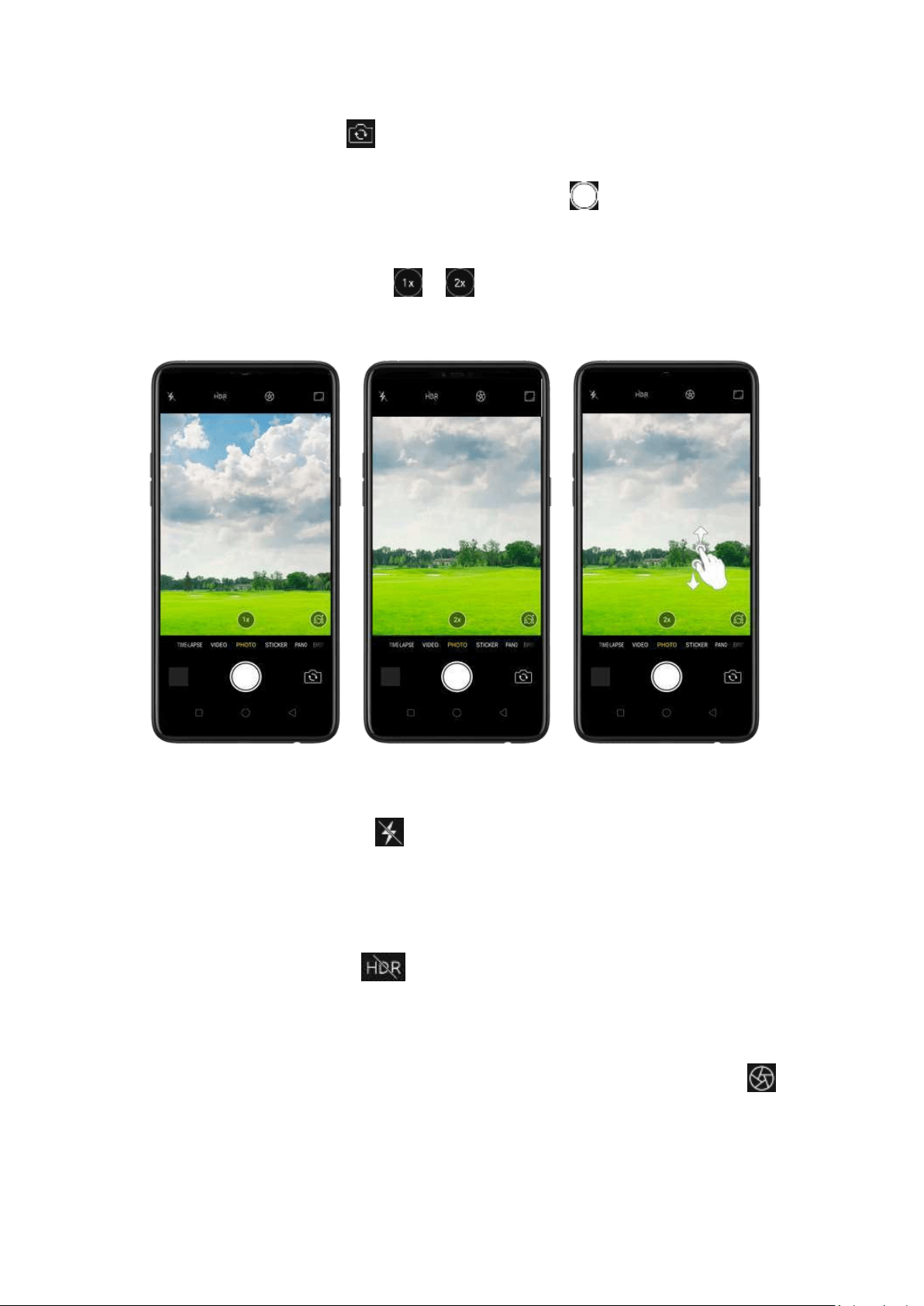
Sw it ch t he cam eras. Click .
Take a photo. Aim your camera at t he subject and click .
Zoom in or out . The camera captures full-resolution video and stills at 1x and 2x
zoom. To quickly switch, toggle or . You can also pinch the screen to zoom
in and out.
Turn t he flash on or off. Click , then click On or Off. When you click Auto,
your phone willautom atically detect lighting conditions and determine if flash is
necessary. When you click Fill Light, your phone will use the built -in flash as the fill
light.
Turn HDR o n or off. Click , t hen click On, Off or Auto. When HDR (high
dynamic range) is on, photos take multiple exposures of the same scene and then
com bine them to create a better looking, more detailed image.
Use the cap t ure tim er. Capture timer gives you time to get in the picture. Click ,
then click 3s or 10s. Click Tap if you want to take photos by tapping on t he screen.
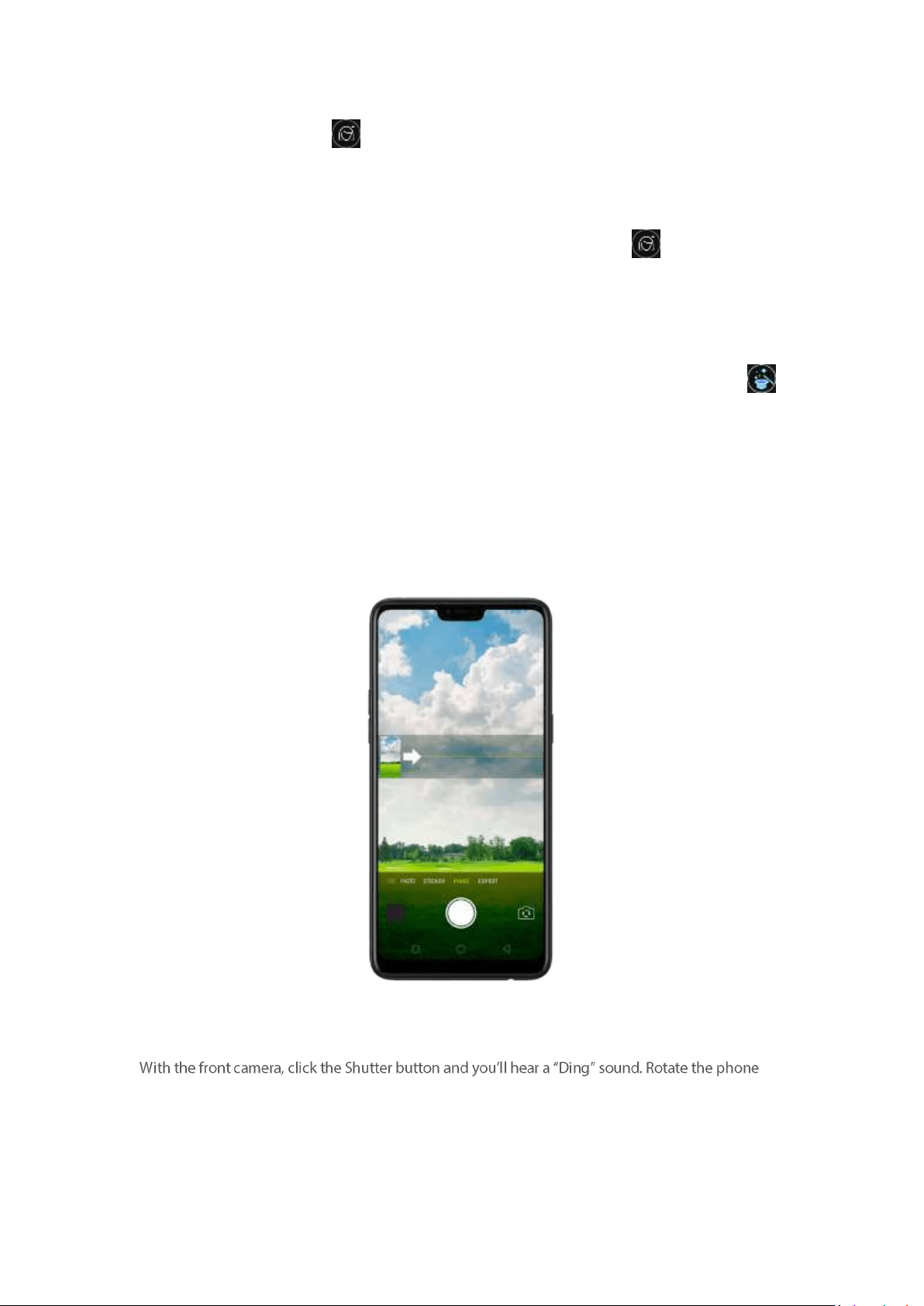
Use Beaut y Mod e. Click . The built-in beauty filter will automatically adjust the
skin tone, enhance facial features, and make other minor changes to your
appearance. The cam era offers six beauty levels.
Ad d a filt er. You can apply a filter before you take a photo. Click > click FILTER,
then you'll see a serious of filter options, wit h each one showing a preview of what
it will look like when applied to your p hoto. Click the filter you want to use. Switch
to ORIGINAL to remove the filter.
Ad d an AR st icker. Use stickers to decorate your photo. Choose STICKER, click ,
then choose an AR sticker.
Take a panorama p hot o . Choose PANO.
With the rear cameras, click the Shutter button, then move the phone slowly and
steadily across the subject you w ant to capture. Click the button again when you've
got your full photo.
left
or right until the phone sounds again. The photo w ill be taken automatically.
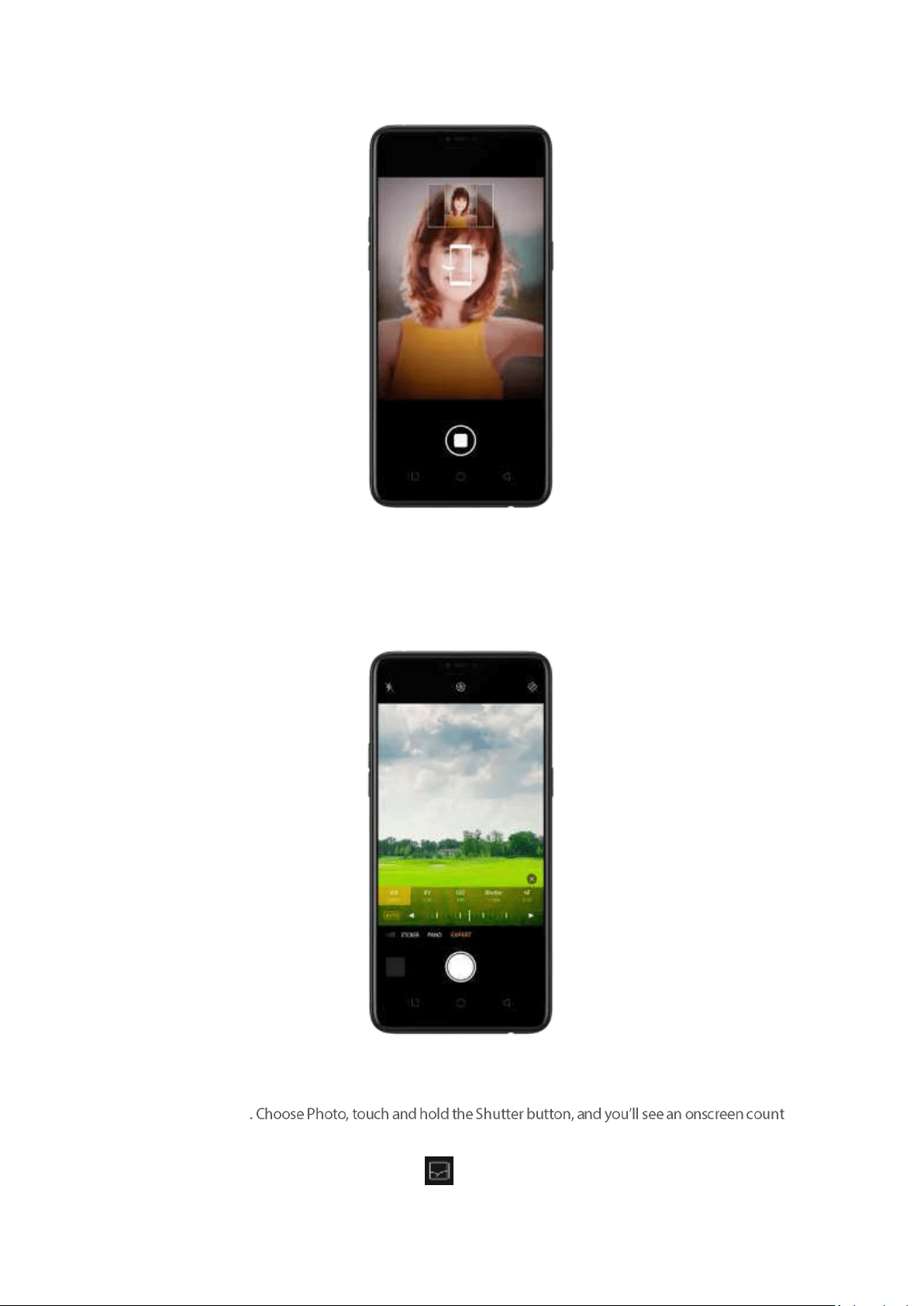
Use Expert m od e. Expert Mode allow s you to take more professional-looking photos. Choose EXPERT,
then you can adjust camera's white balance, exposure compensation, ISO, shutter speed, and more.
Take Burst shots
rapidly rise, w hich shows the number of photos you're taking. Lift your finger to stop. To select the
photos you w ant to keep, click Gallery, click , select the photos, then click
Done.
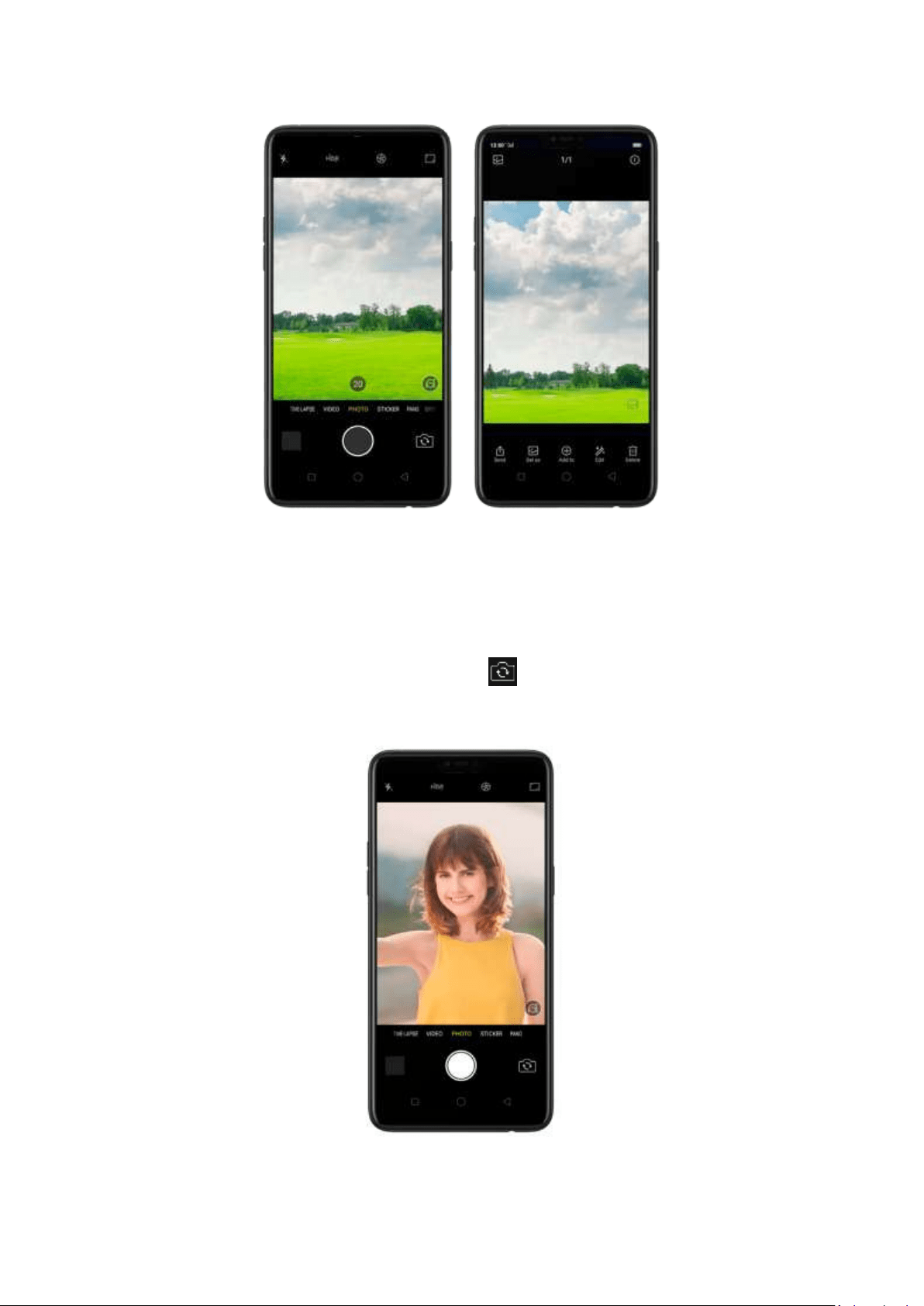
7.9.2. Take a selfie
To switch t o the front-facing camera, click in the lower-right corner of the
screen.
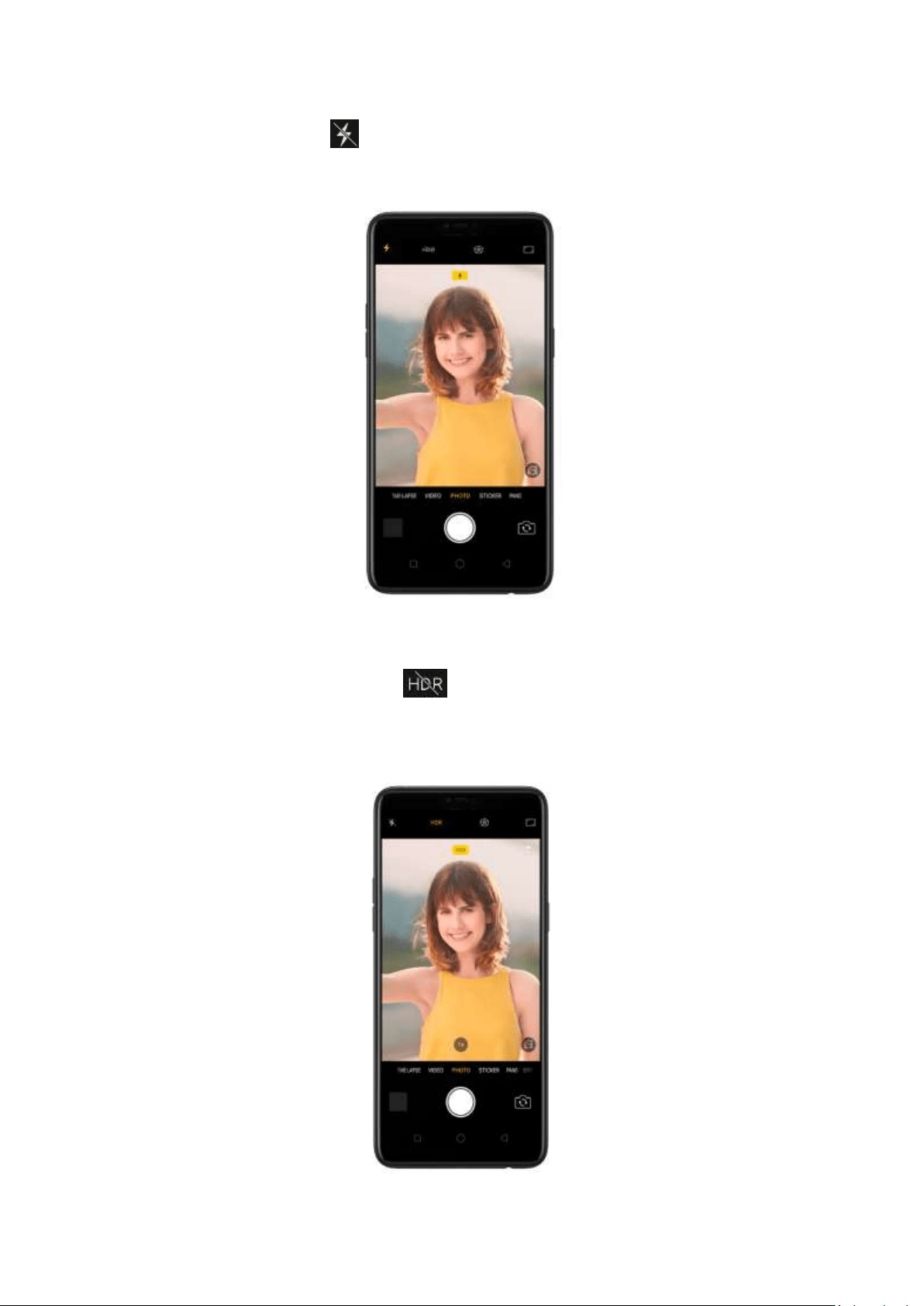
Turn t he flash on. Click , then click On. A w hite screen at full bright ness is used
as front-facing flash.
Turn Front 3-HDR on or off. Click , then click Off, On or Auto. When capt uring
im ages in bright sunlight or shade, front 3-HDR helps you to adjust t he ratio of light
to dark in t he phot o and make your subject look better.
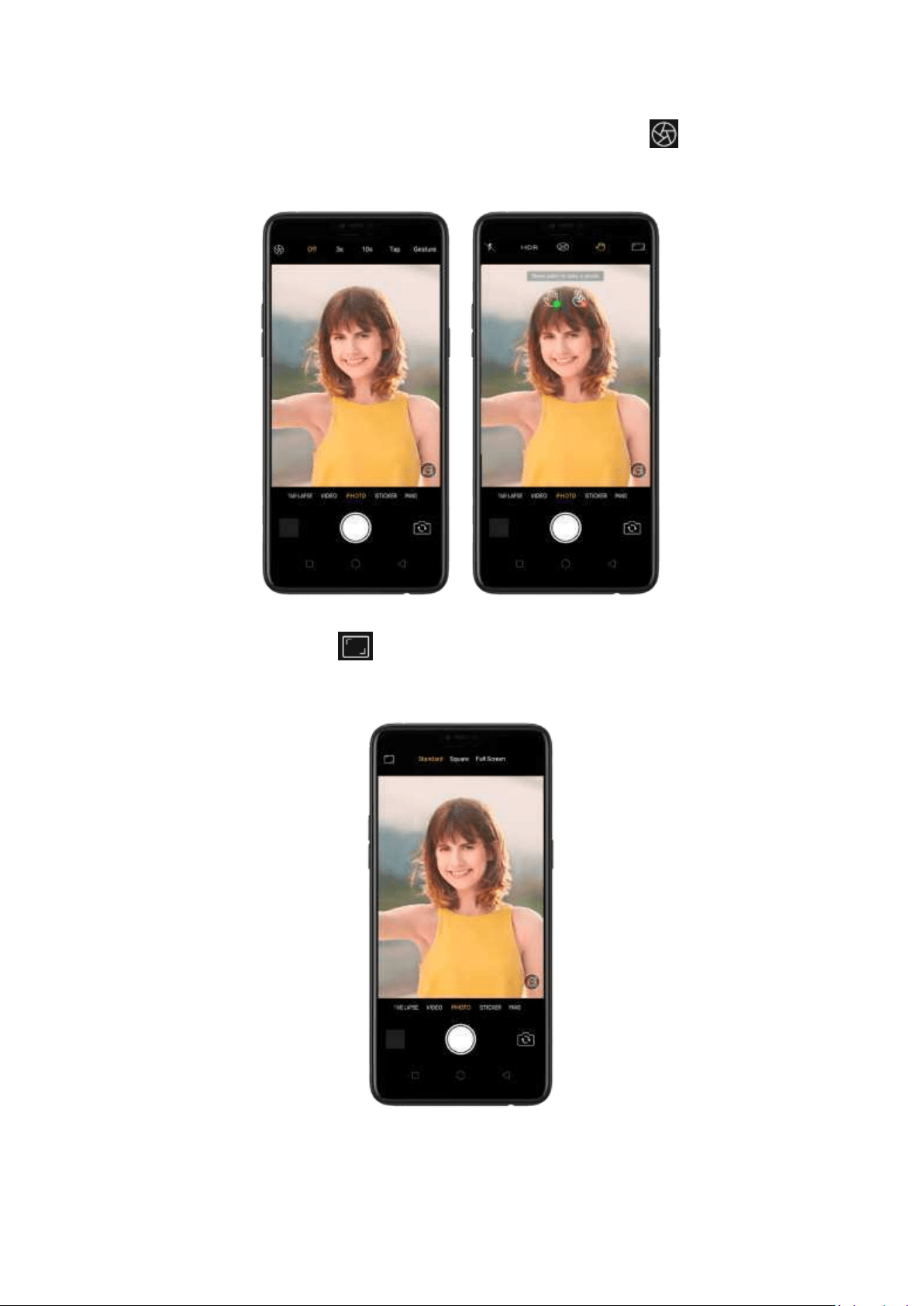
Use t he capture tim er. Capture timer gives you time to get in the picture. Click , then click 3s or
10s. Click Tap if you want to take photos by tapping on the screen.
Choose a p hoto m od e. Click , then choose to shoot standard, square-format, or full screen
photos.
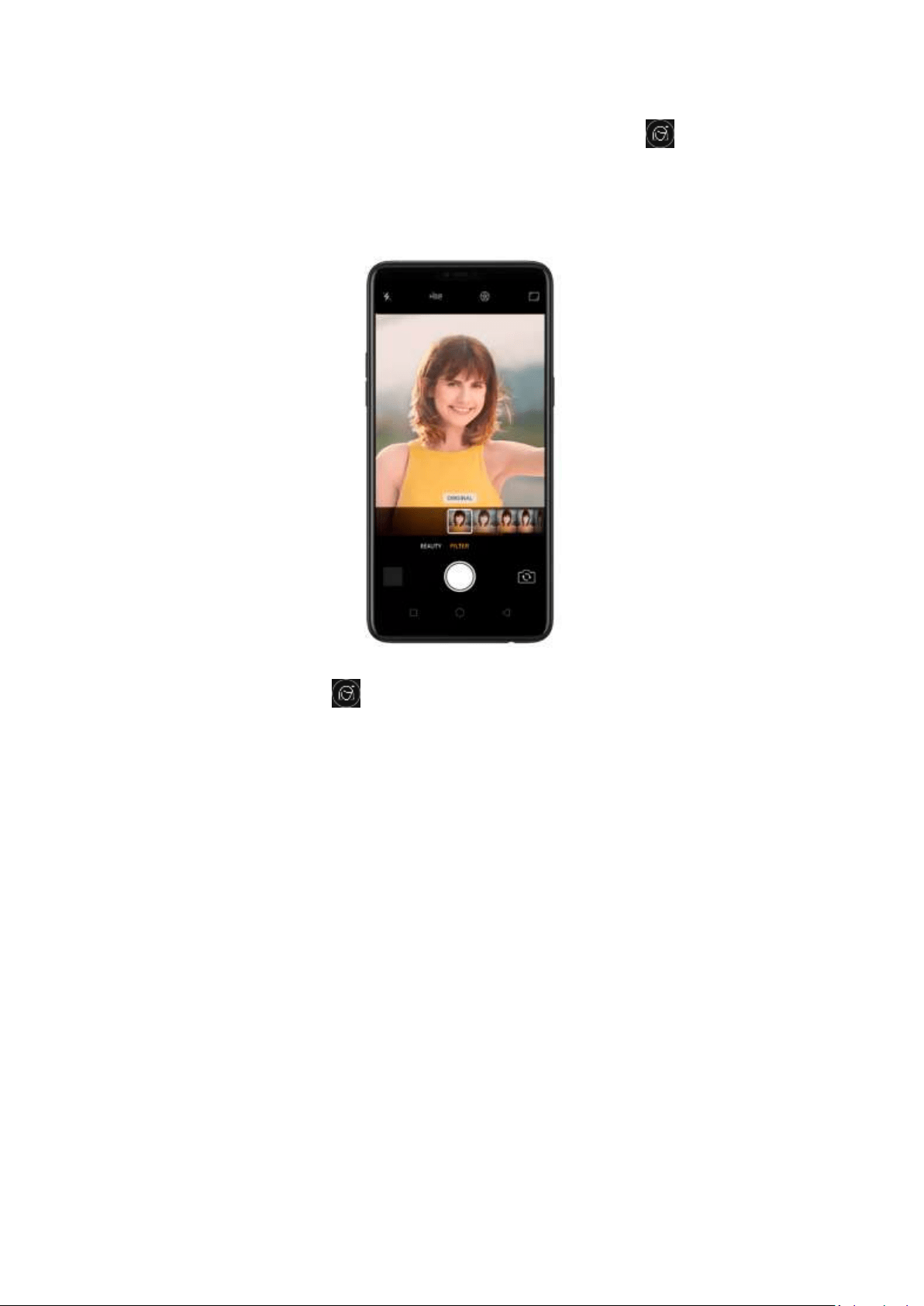
Ad d a filt er. You can apply a filter before you take a phot o. Click , click FILTER,
then you'll see a serious of filter options, wit h each one showing a preview of what
it will look like when applied to your photo. Click the filter you want to use. Switch
to ORIGINAL to remove the filter.
Use Beaut y Mod e. Click . The built-in beauty filter will automatically adjust the
skin tone, enhance facial features, and make other minor changes to your
appearance.
Use AI b eaut y: Click AI. Personalized AI Beauty provides functionality for precise
recognition and delicate beautification of each individual facial feature. Everyone is
unique in the camera.
Choose a beaut y level: Add the same beautifying effect for all the people in the
photo. The camera offers six beauty levels.
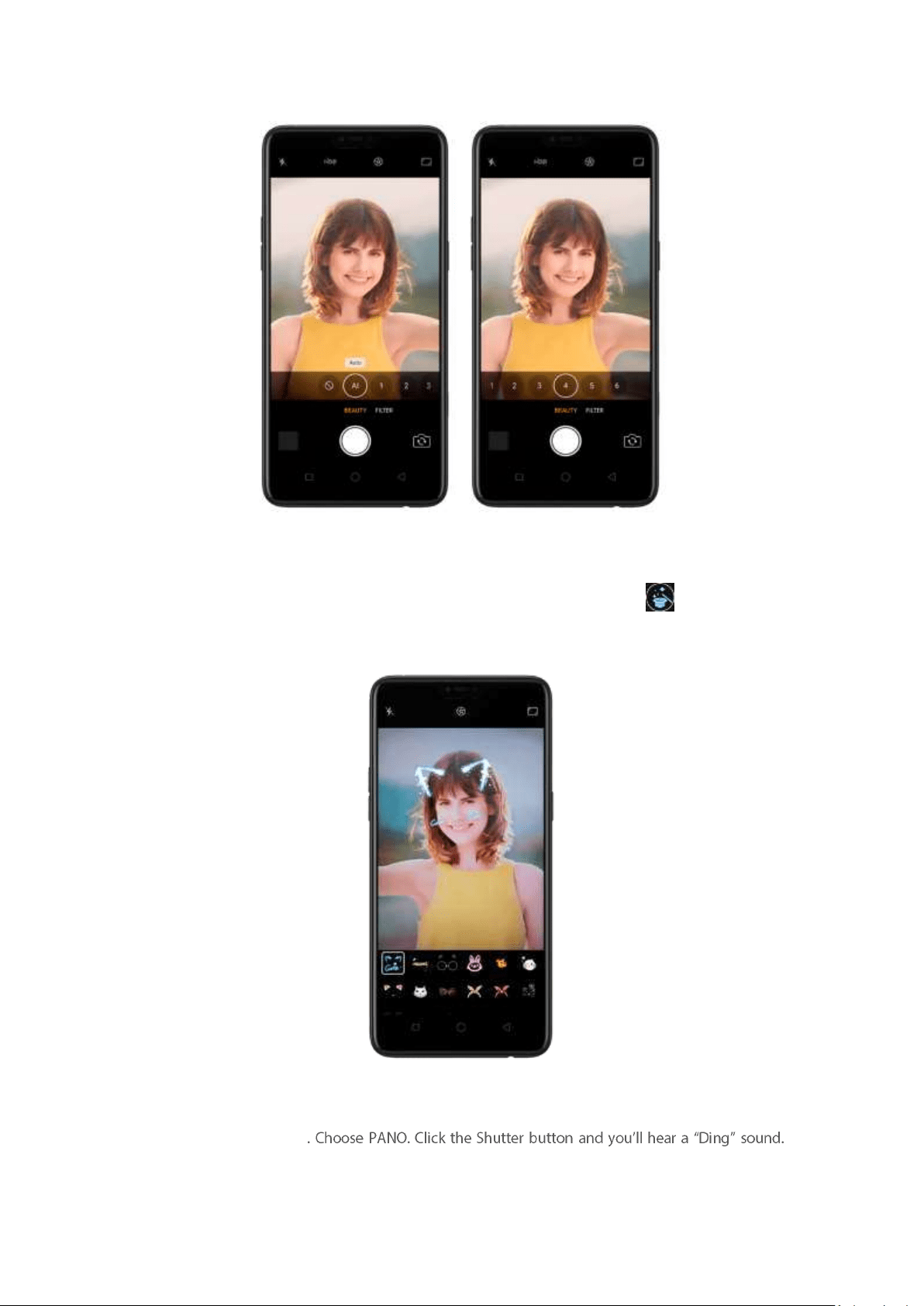
Ad d an AR sticker. Use stickers to decorate your photo. Choose STICKER, click , then choose an
AR sticker.
Take a p anoram a p hoto
Rotate the phone left or right until the phone sounds again. The photo will be taken automatically.
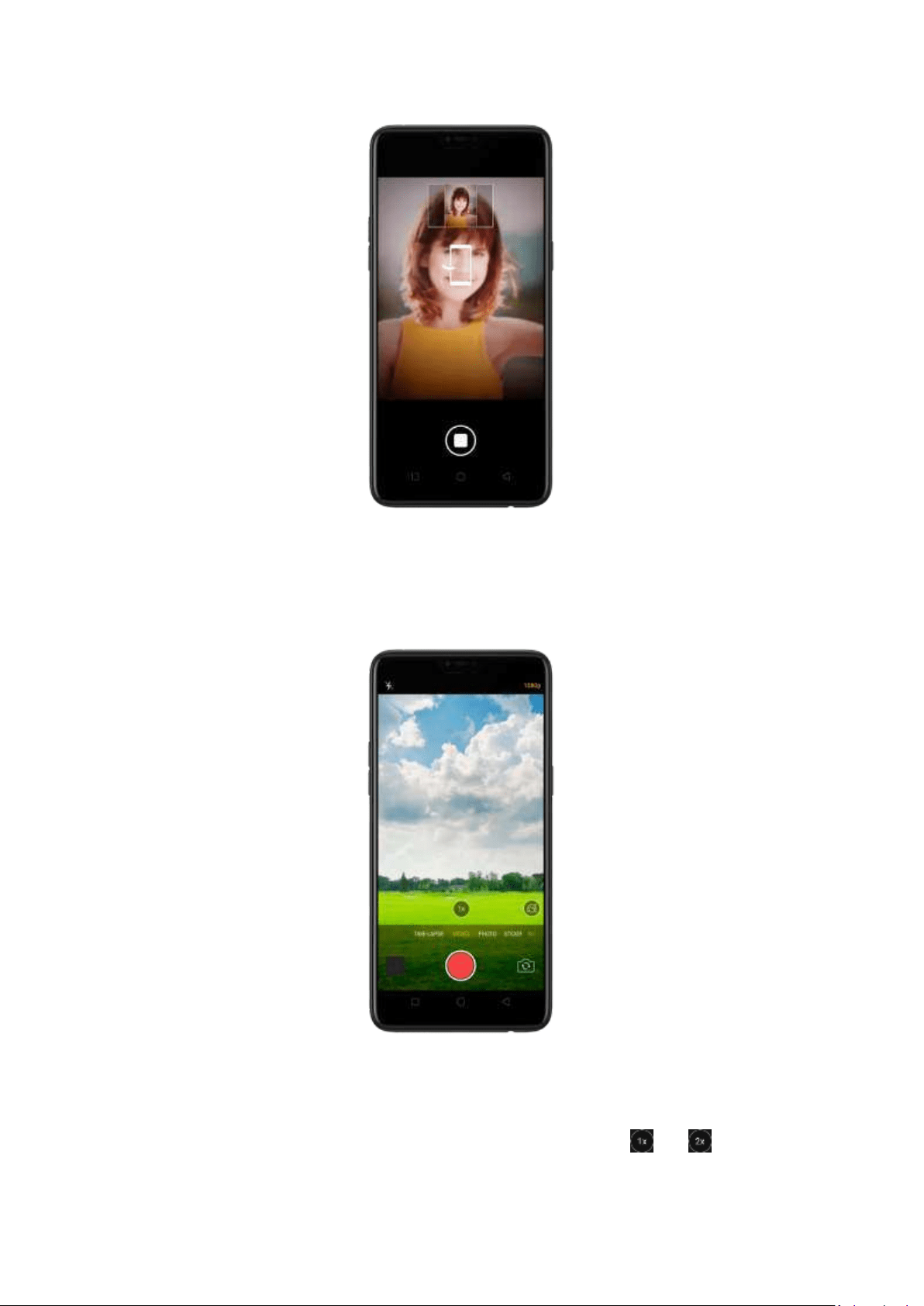
7.9.3. Shoot video
With Camera you can shoot video, including time-lapse and 10s short videos.
Record a vid eo. Choose Video, t hen click the Record button, or press either volume
button, to start and stop recording. You can choose between 720p and 1080P video.
Zoom in or out w hen shoot ing video . (rear cam era) Toggle or . You can
also pinch the screen to zoom in and out .
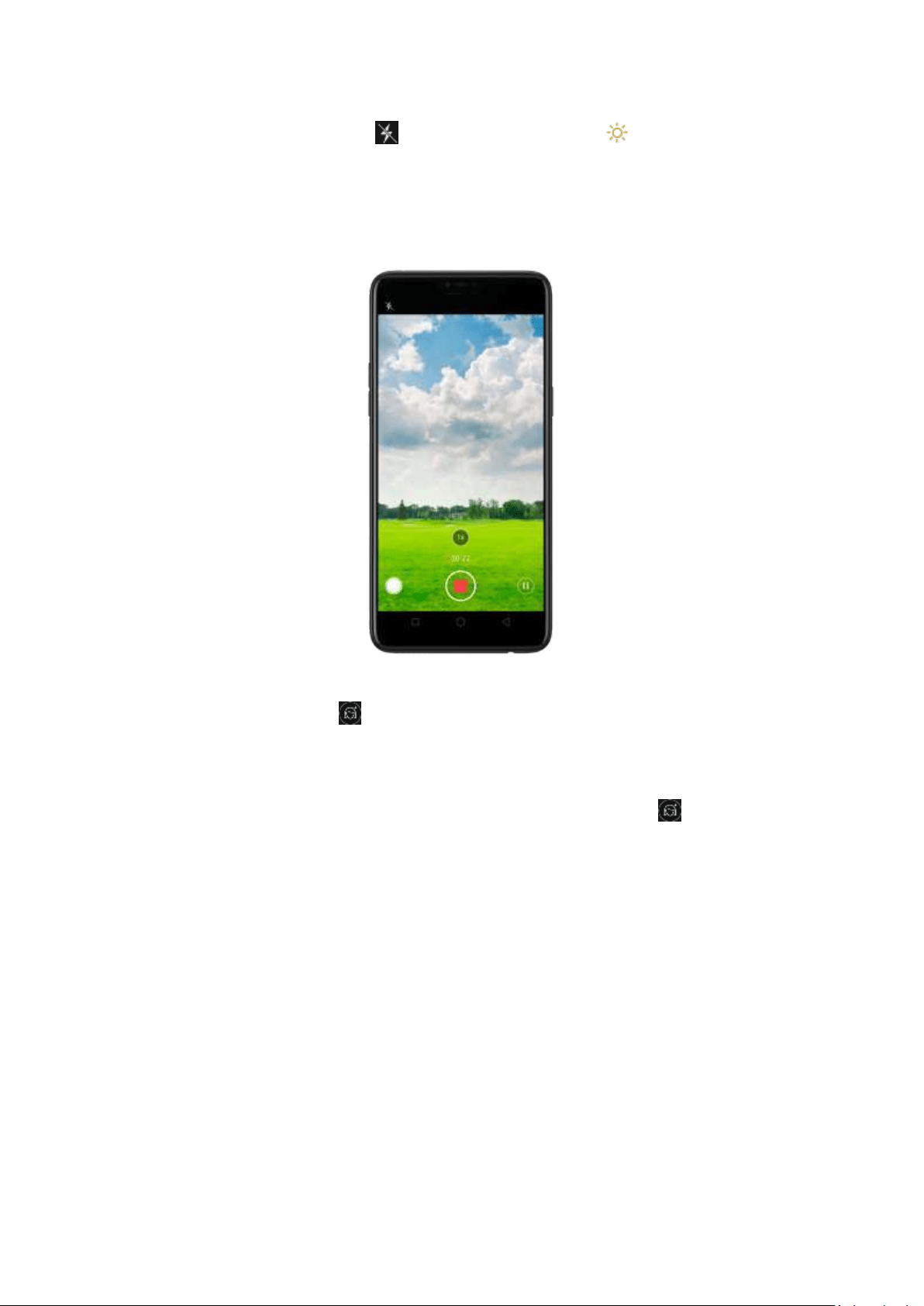
Turn t he flash on or off. Click to turn on the flash. Click to turn off the flash.
Capture time-lapse vid eo. Choose Time-Lapse. It records a scene or object that has
a slow state-of-change and turns it into a video that plays back in high speed.
Take p hot os w h en shoot ing a vid eo. Click the Shutter button in t he lower-left
corner of the screen.
Use Beaut y Mod e. Click . The built -in beauty filter will autom atically adjust t he
skin tone, enhance facial features, and make other minor changes to your
appearance. The camera offers six beauty levels.
Ad d a filt er. You can apply a filter before you take a p hoto. Click , click FILTER,
then you'll see a serious of filter options, with each one showing a preview of what it
will look like when applied to your photo. Click the filter you want to use. Switch to
ORIGINAL to rem ove the filter.
7.9.4. Camera set t ings
Camera settings are special options t hat help you t o take pict ures or record videos
easier. Go to
[Settin gs] > [Camera].
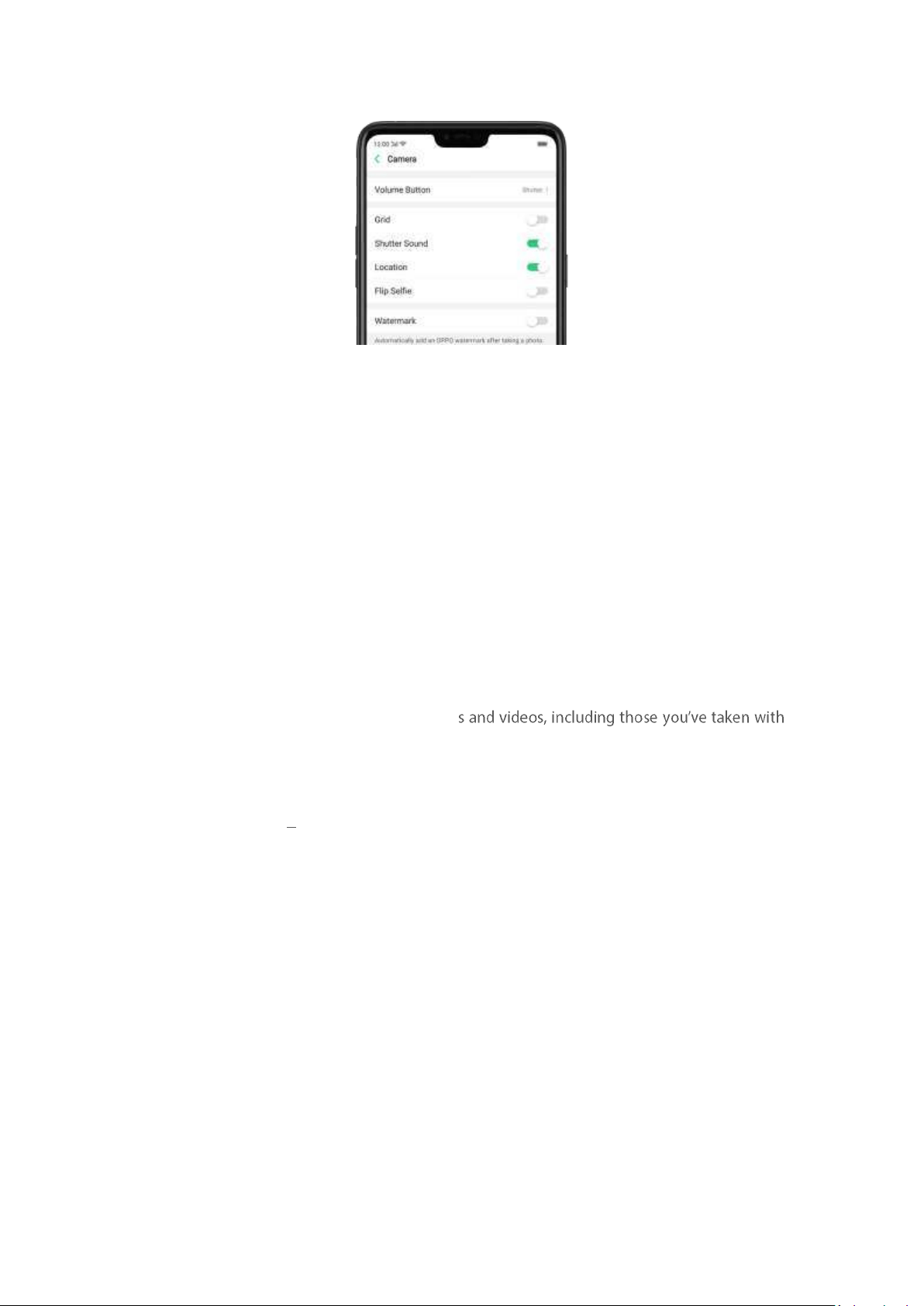
Volum e b ut t on: Set the Volume buttons to function as a volum e or zoom controls,
or the shutter release.
Grid : Display grid lines to ensure the cam era is leveled.
Shut t er sound : Make or mute camera shutter sound when capturing photos.
Locat ion: Tag your photos with geo-locations.
Flip selfie: Mirror flips your front facing camera photos.
Wat ermark: Autom atically add an OPPO watermark after taking a photo.
7.10. Phot os
7.10.1. Phot os overview
The Phot os app is where you store your photo
the built -in camera, saved from an app or a webpage, copied from optional storage devices, and
more. You can view, share, and edit your phot os and videos direct ly on your phone.
View Photos. You can view the roll of photos in eit her Camera or Photos. All phot os are sorted
by the dates and times they were t aken. In Photos, select Year or Month view in timeline to
quickly lock the look-up scope. Click an album to view the phot os or videos on that album.
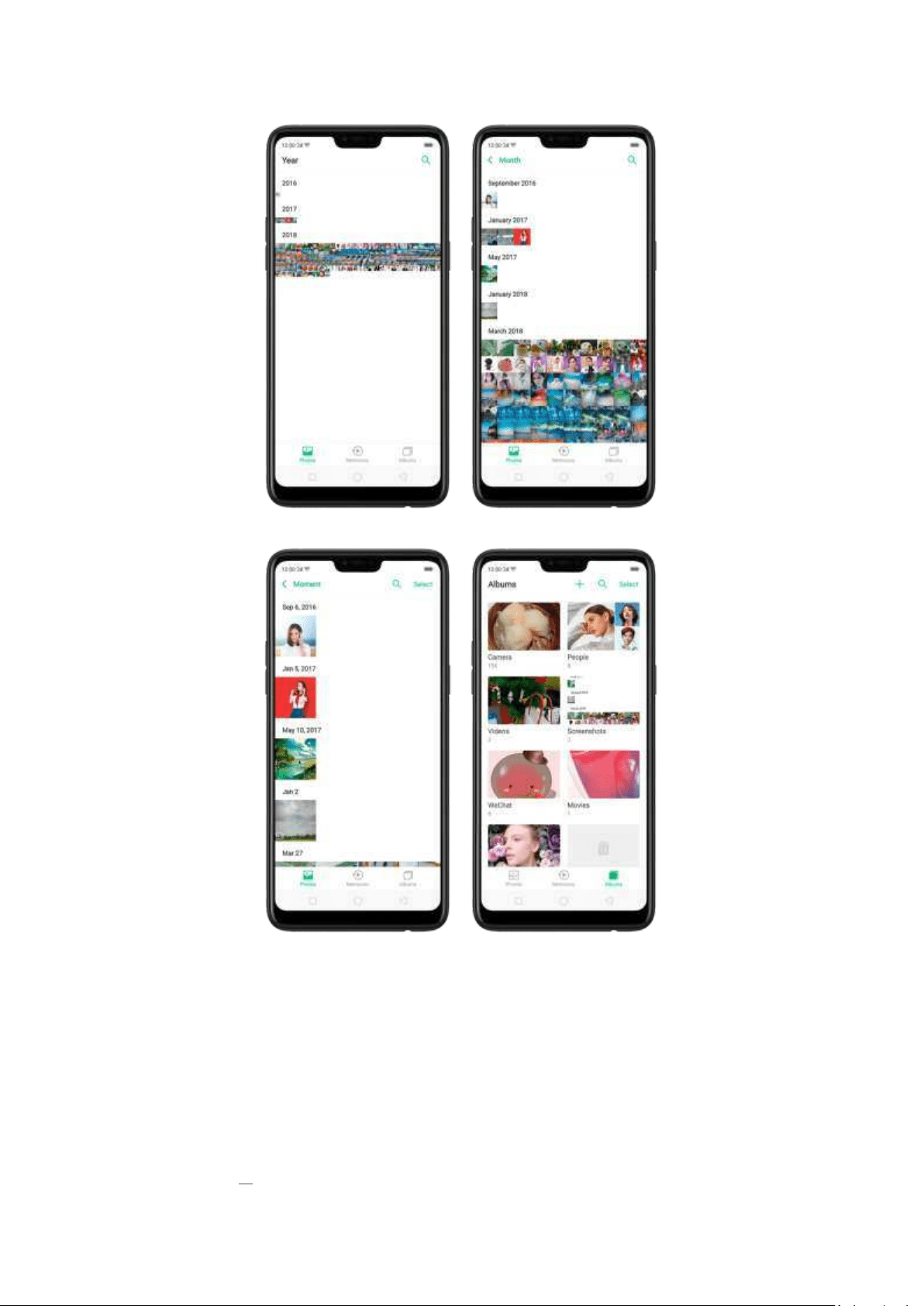
Note: Memories and St ories are terms that can be interchangeably used and doesn't affect the
full funct ionality of the phone.
7.10.2. Album s
Each time you take a new photo, by default, it gets st ored in the Photos album .
Within the Photos app, t here are a number of default albums into which your
photos get aut omatically organized. In addition t o these, you can also create your
own alb ums into which you can organize photos furt her.
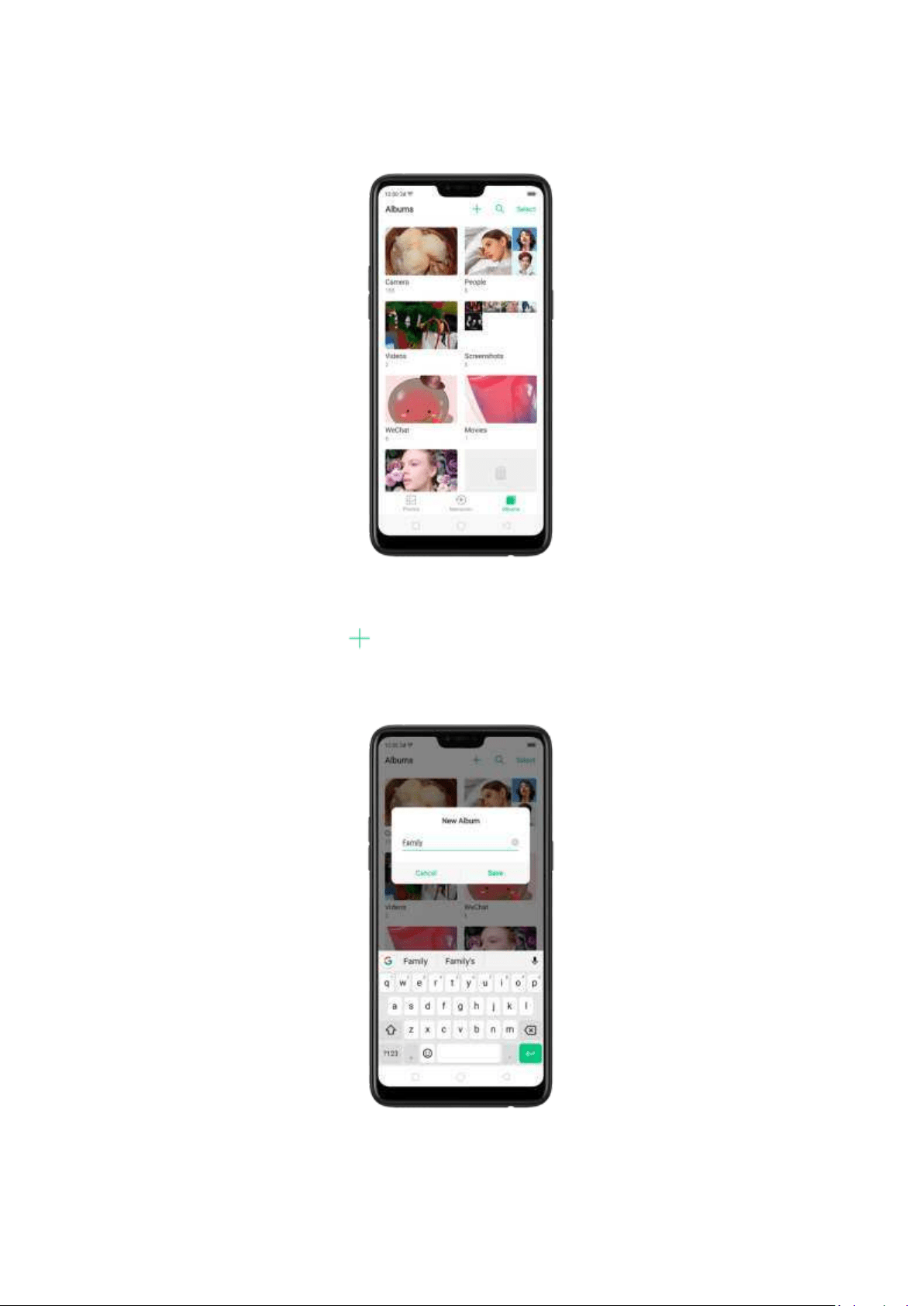
You can see your photo albums by clicking Alb um s at the bottom right of the Photos
app.
Creat e a new alb um . Click , enter a name, then click Save. Select photos and
videos, then click
Don e.
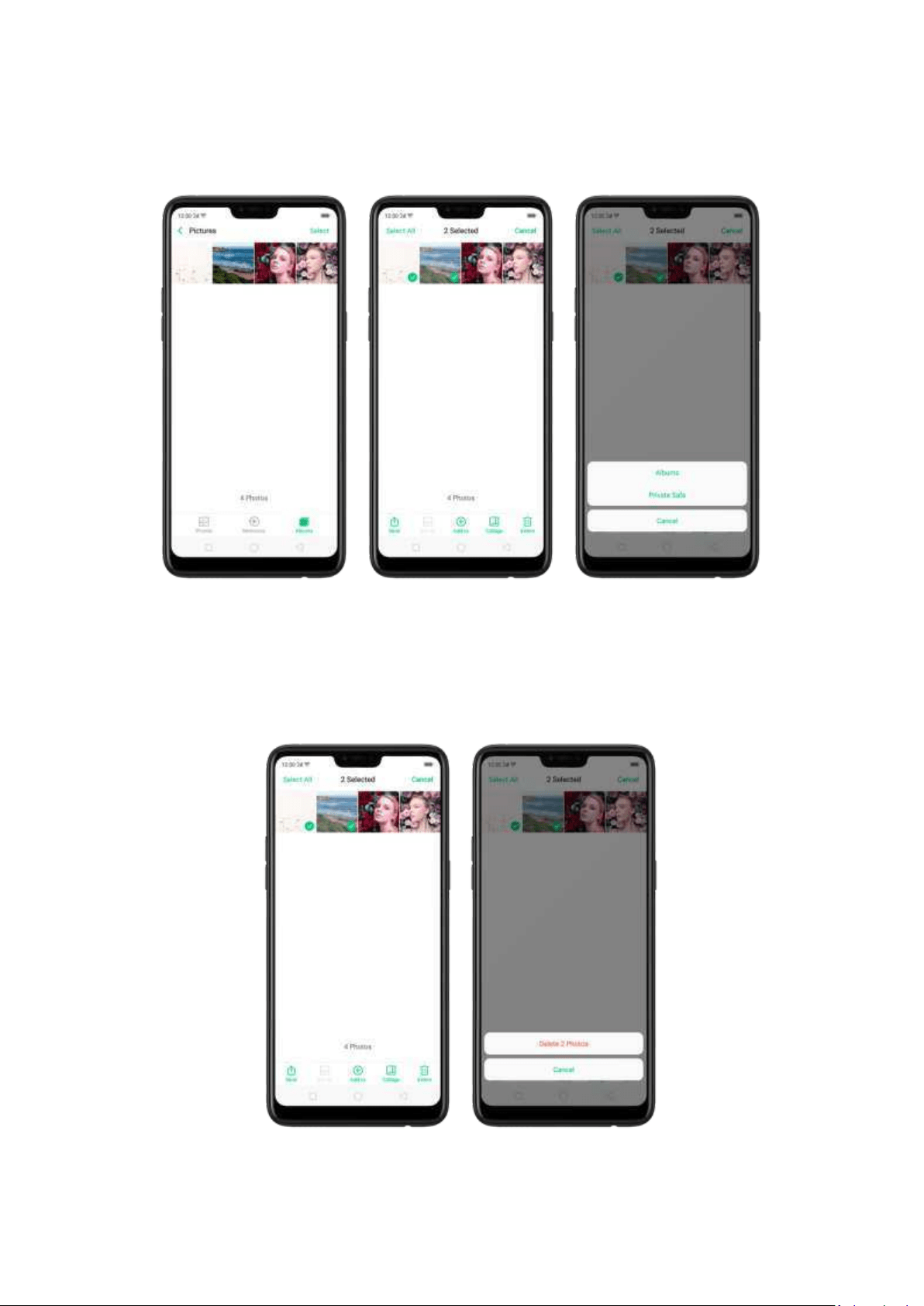
Ad d it ems t o an exist ing alb u m. While viewing photos, click Select , select items,
click
Ad d t o, click Albums, t hen select an album.
Remove it em s from an album . From the album screen, click Select , select item s,
click
Delet e, then click Delet e p hot o.
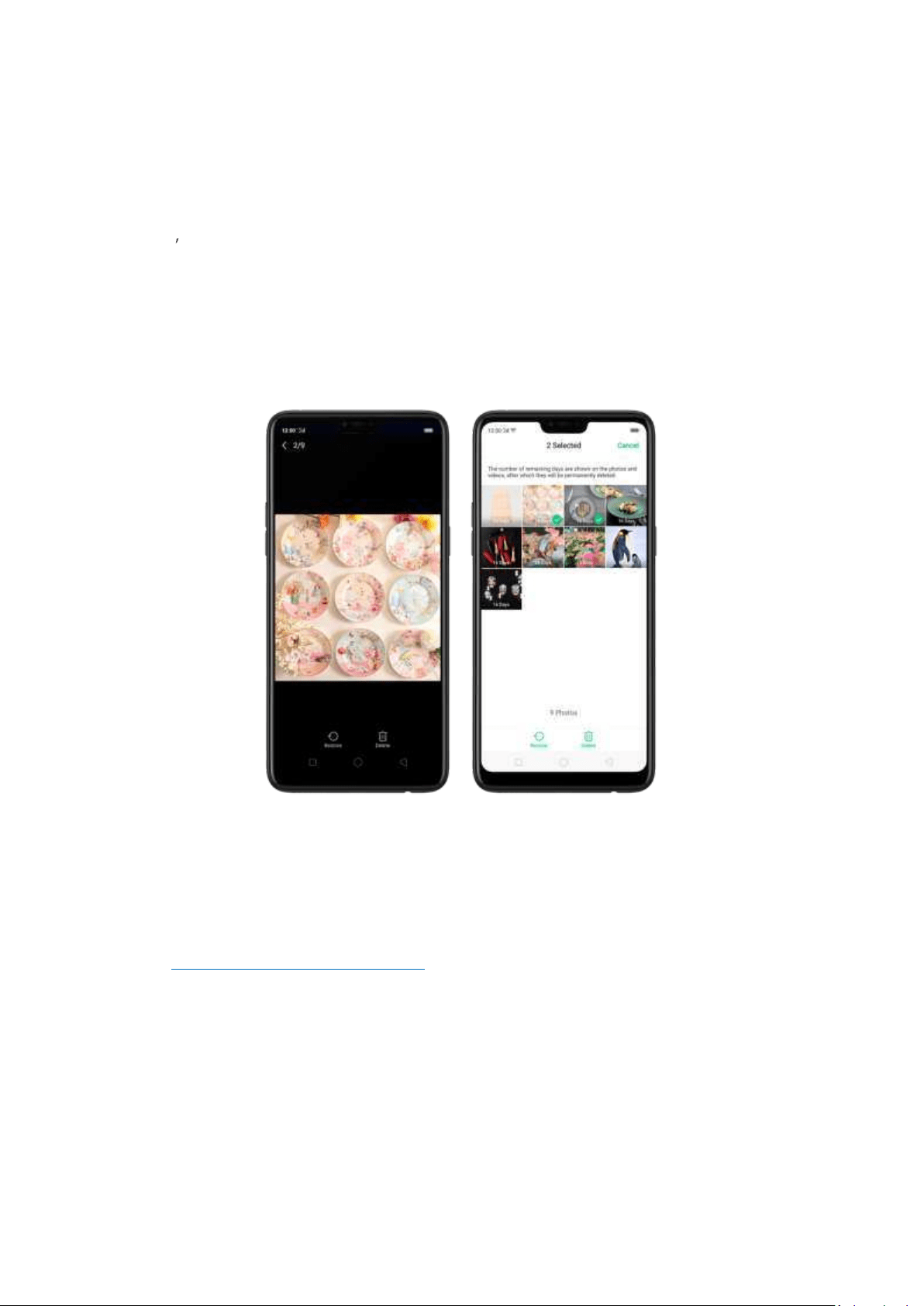
Delet e an album. From the Album s screen, click Select , click t he album, then click
Delet e Alb um . Default photo alb um s cannot be deleted.
Delet e a phot o or vid eo from Phot os. Click a photo or video, then click Delet e
Phot o, or click Select , select t he photos or videos to be deleted, then click Delet e.
Deleted photos and videos are kept in the Recently Deleted album for 30 days before
they
re perm anently removed.
Rest ore a d elet ed phot o or video . In the Recently Deleted album, click the phot o
or video, click
Rest ore, t hen click Restore Phot o or Restore Vid eo to move the
it
em back to the Phot os. Or from the Recently Deleted album, click Select , select
the photos and videos you want to restore, then click
Rest or e.
Sm art album search and cleanup . You can search your phot o library depending on
the date, location, people
, and content of the photos on your device. In Phone
Manager, you can also clean up photos in batches such as sim ilar and blurry photos.
See
Sm art album search and cleanup.
Opt imized album m anag em ent .
In addition to the frequently used social apps, images downloaded from third-party
apps will be saved in Rarely-used Album. You can put other albums into Rarely-used
Album by clicking
Select > Set as rarely-used.
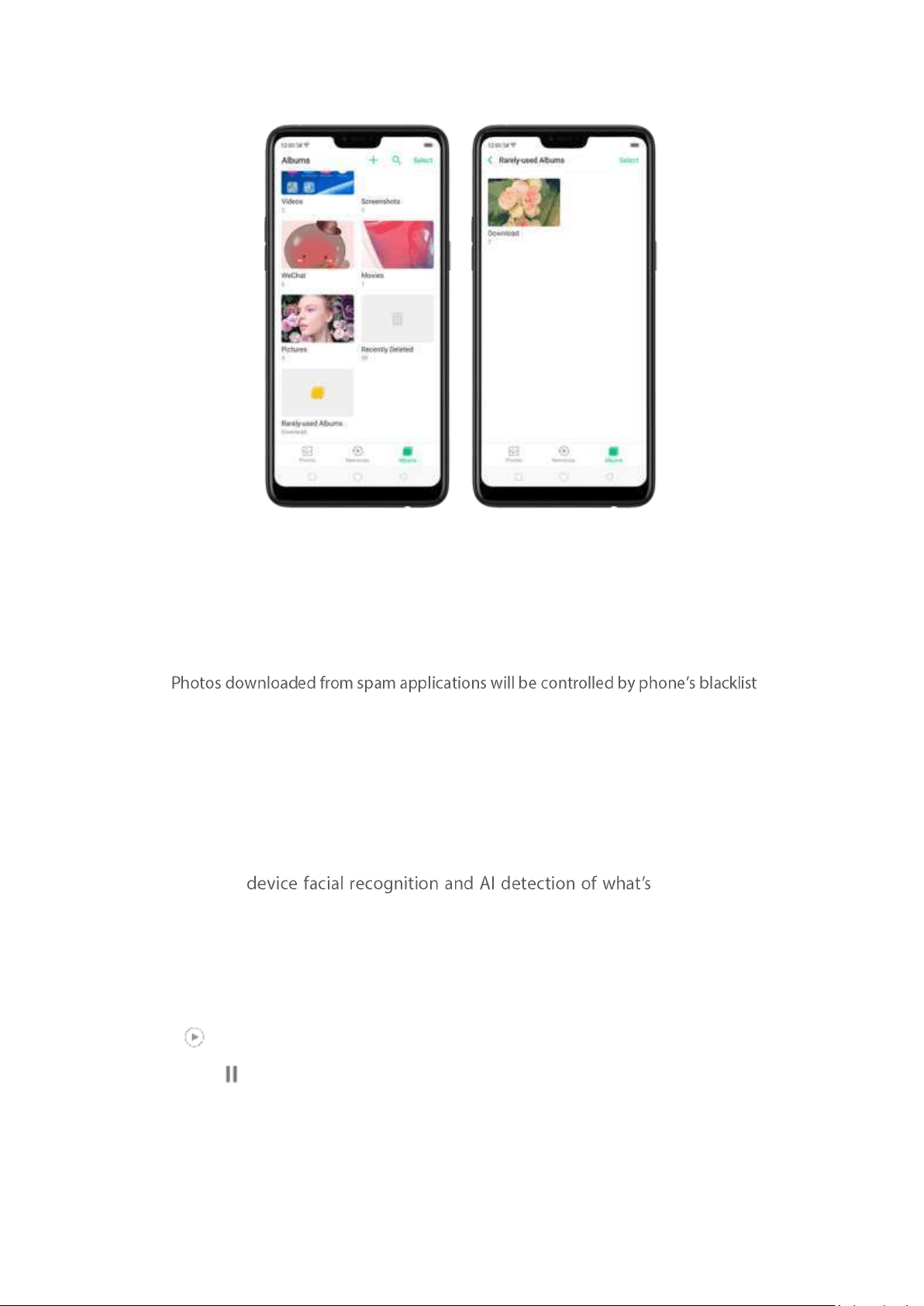
Your photos will be put into sequential order by modification time. In other words,
once an old photo or video has been modified, it will be saved as the latest photo or
video.
and will not be displayed in albums.
Note: Memories and Stories are terms that can be interchangeably used and doesn't affect the
full funct ionality of the phone.
7.10.3. St ories / Mem ories
Using t he on- on your images,
your phone can combine photos into t hem ed m ini-movies complete with
transitions and a soundtrack. For instance, ColorOS is going t o put together an
album about your last vacation in Europe, or an album of your kids growing up. You
can also edit them and share them with ot hers.
Play a Mem or y movie. Open Photos, click Mem ories, click a Memory m ovie, then
click . The movie will play in landscape mode by default. To pause, click the m ovie,
then click .
Not e: Your phone categorizes your photos weekly while your phone is plugged and
locked.
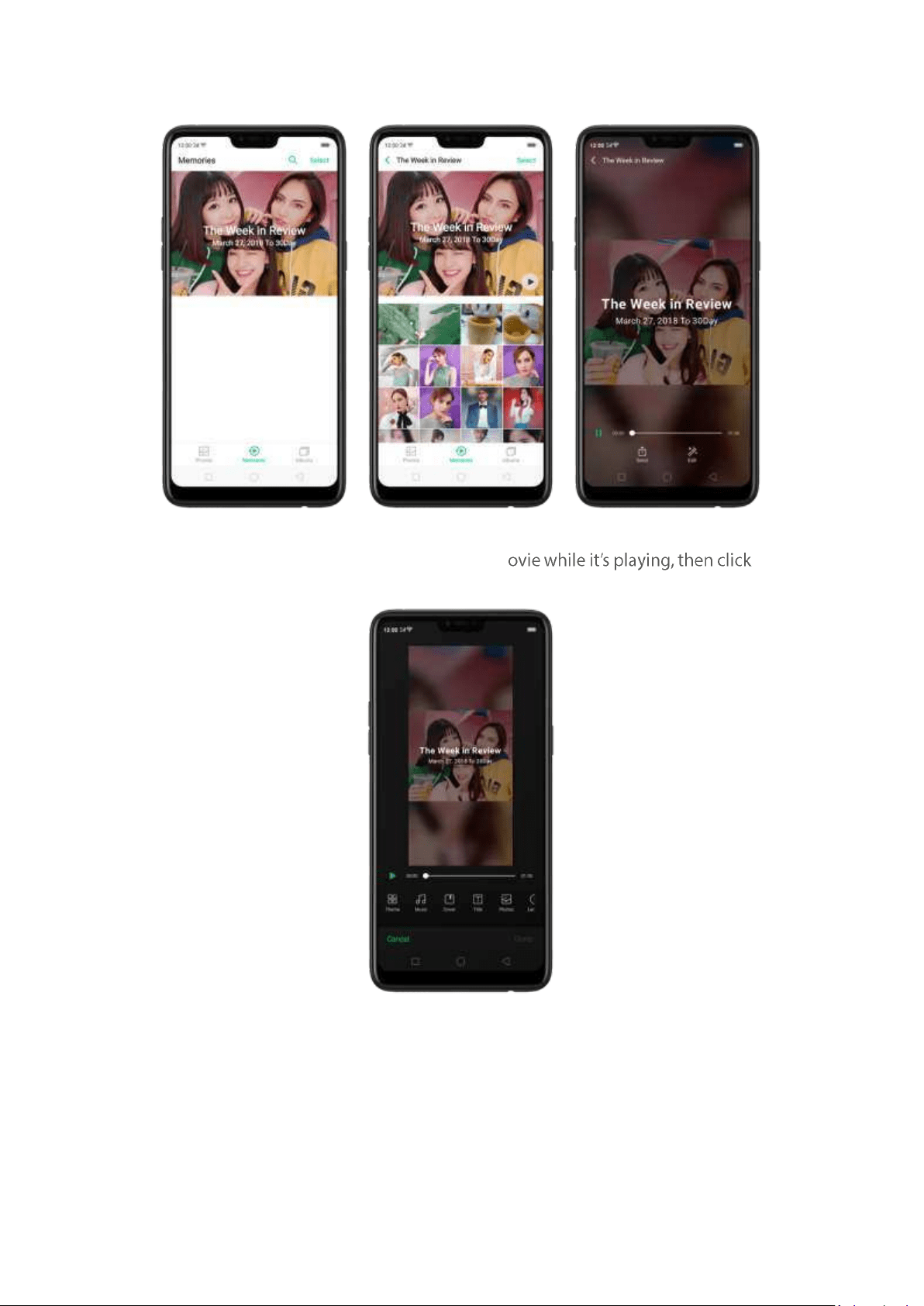
Customize a Mem or y movie. Click a Memory m Edit
to do the following:
Change t he theme: Click Them e, then click a t heme, or swipe the themes left
or right to pick a new one, such as Joyful, Cozy, and more. For each t heme
there is a music of the Mem ory m ovie.
Choose different m usic: Click Music, then swipe the music left or right to pick
a new one. You can also use your local and saved music.
Choose a cover: Click Cover, then click the photo you want to use.
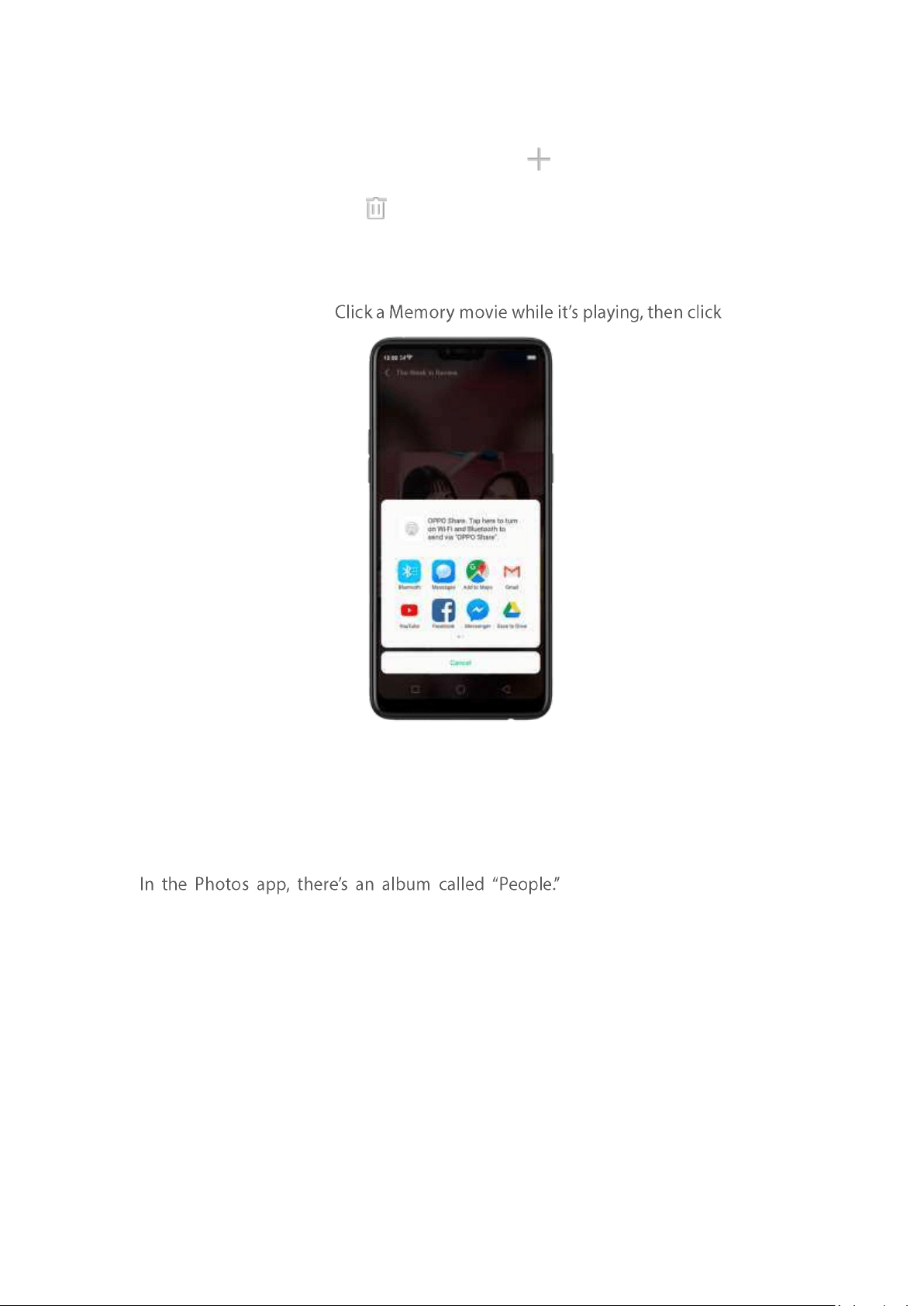
Ed it t he tit le: Click Title, edit the title, then click Save.
Choose or d elet e phot os: Click Photos, click , then select the phot os you
want in the movie. Click to rem ove the photos from the movie.
Change t he movie lengt h: Click Length, then scroll t he wheels to change the
length.
Share a Mem ory m ovie. Send.
Note: Memories and Stories are term s that can be interchangeably used and
doesn't affect the full functionality of the phone.
7.10.4. People
It uses facial technology to
identify the people in the pictures or
those with combine identifications, then group
pictures of the same people together. You can name or rename a Peop le album, hide
People albums, merge People album s into one, and m ore.
* Your phone generates People album while your phone is plugged and locked.
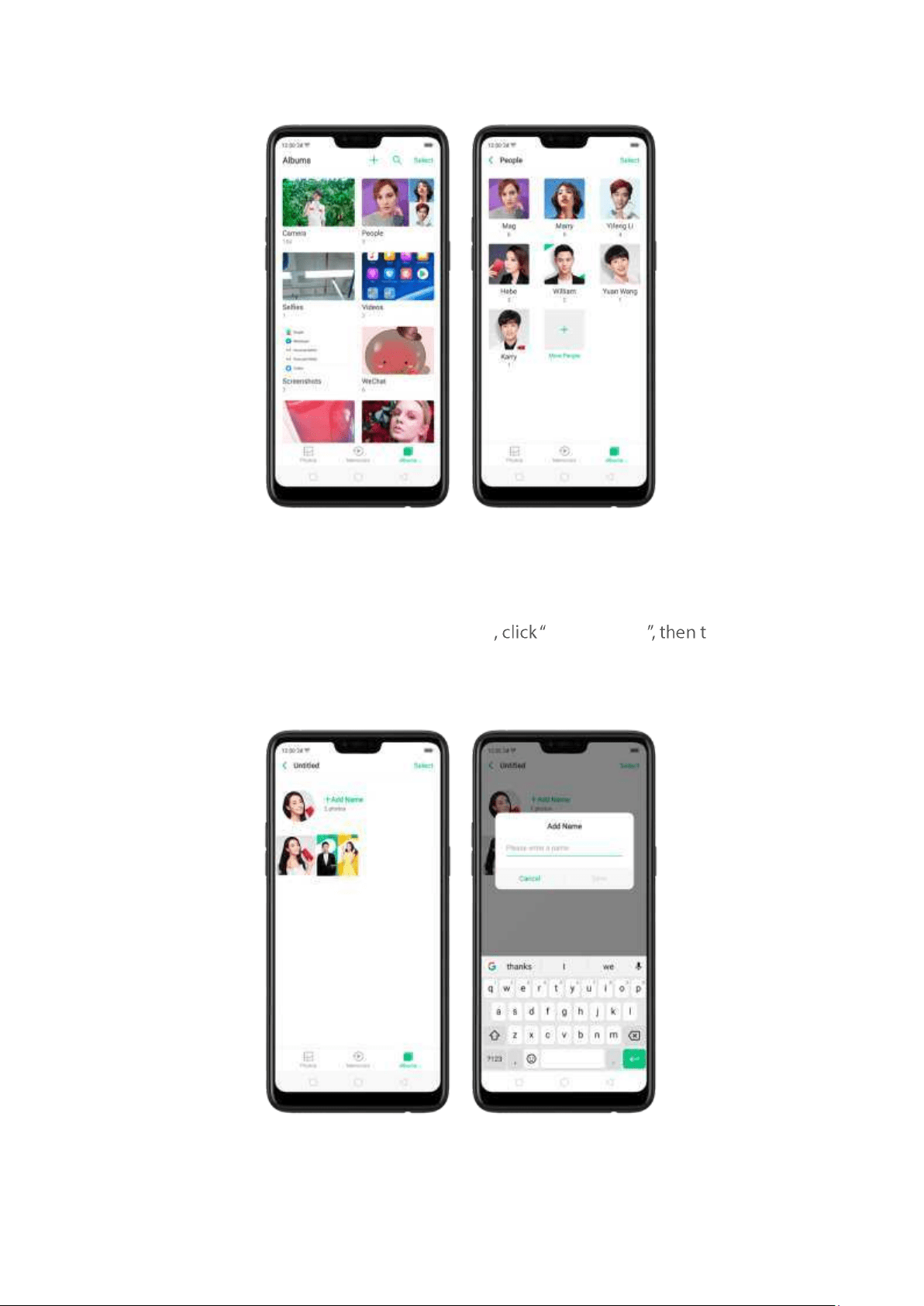
Name or renam e a People album
If a profile is unnamed, click the People album
+ Ad d Nam e ype in the
name you want to use and click Save.
If a profile has a wrong nam e, click the People album , click the name, then type in
the name you want t o use and click
Save.
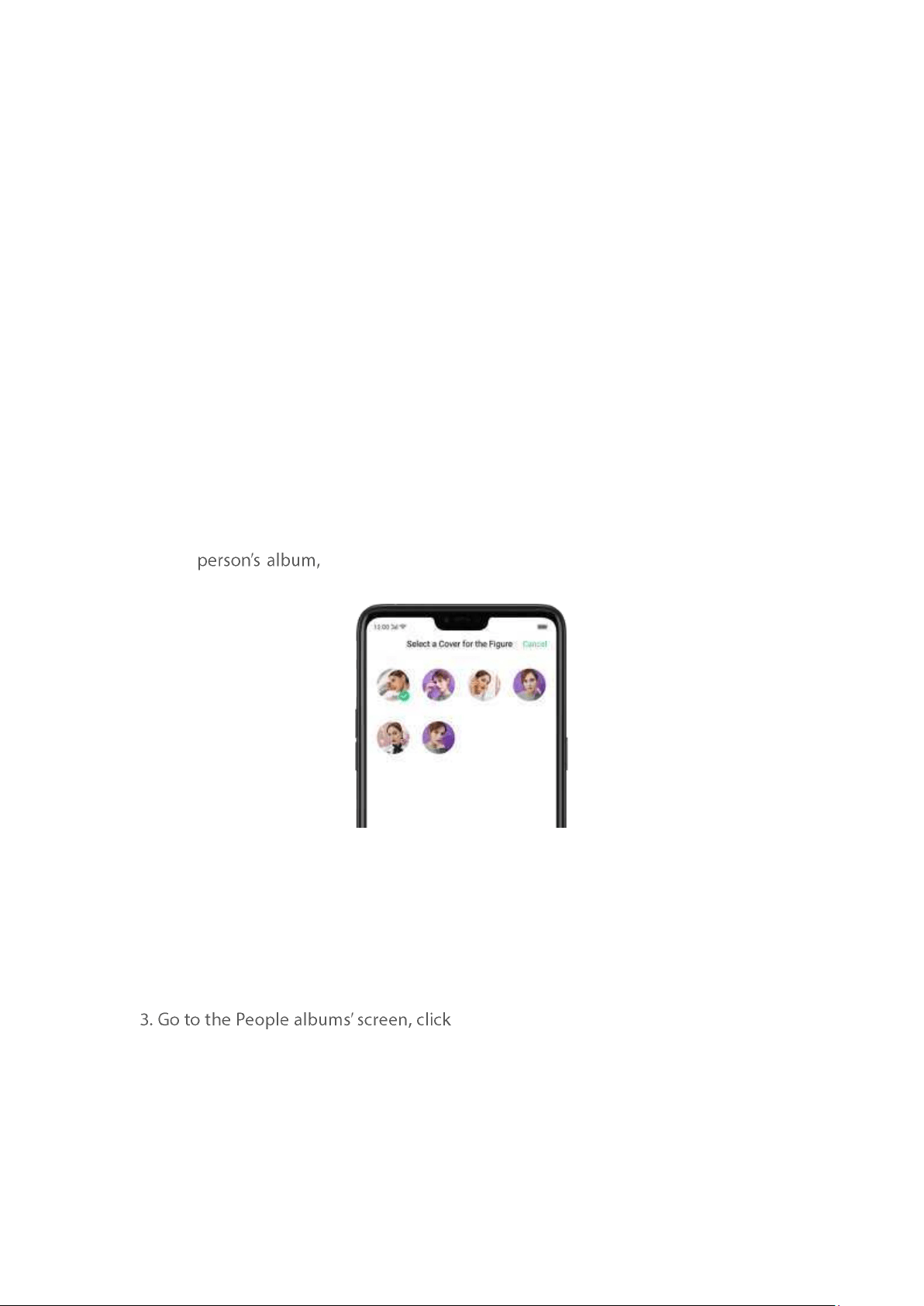
Hide, display, and m erge People album s
Hide Peop le albu ms. Click Select , select the People albums, then click Hide. The
hidden albums are collected in
More Peop le.
Disp lay Peop le alb u ms. To display the hidden albums, click More Peop le, select the
People albums, then click
Disp lay.
Merge People albums into one. Click
Select , select at least two People alb um s, then
click
Merge.
Rem ove m isident ified phot os from an album
Click a People album you want to remove photos from, click
Select , select the
misidentified photos, then click
Wrong Person. The phot os will be moved to More
Peop le.
Set a cover of the People album
Click a
click the portrait, then choose the photo you w ant as the
cover.
Add photos t o a People album
1. Click a People album, click
Select , select the photos you want to add to the ot her
album, and then click
Wrong Person. The photos will be collected in an album in
More People.
2. In
More People, click Select , select the album, and t hen click Display.
Select , select both the album and the one
you want to add the photos t o, and then click
Merge.
Note: Memories and St ories are terms that can be interchangeably used and doesn't
affect the full functionality of the phone.
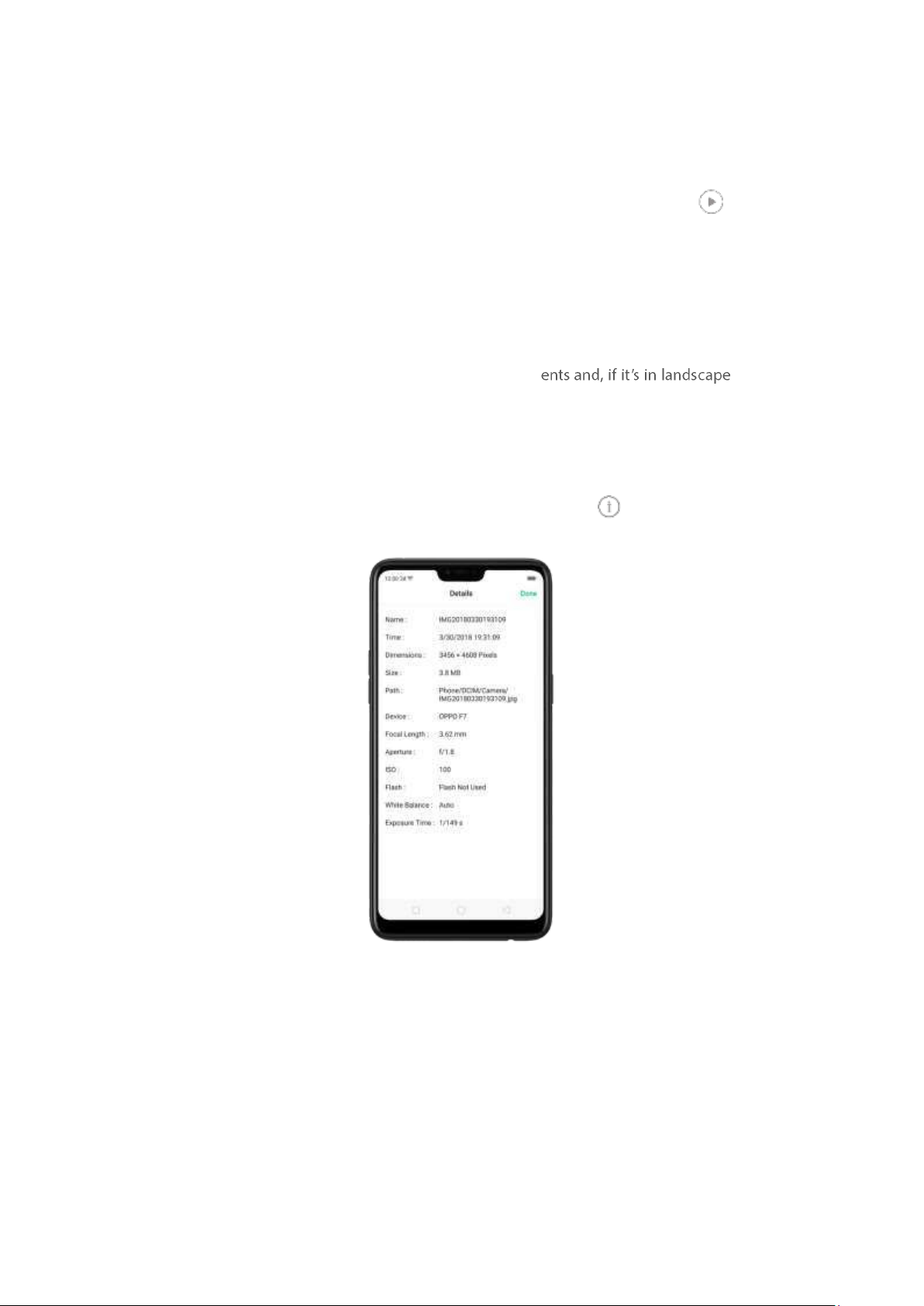
7.10.5. View and use photos and videos
View your photos and videos. Click Photos, and then click a photo or video. Click to play a
video. Or click Camera, and then click the thumbnail on the lower-left corner of the screen.
View a pho to at full screen . Click a phot o, and then click the screen to hide the controls.
View the next or previous photo . Flick left or right.
View a phot o in landscape orien tat ion . On Control center, t urn [Port rait Orientatio n ] off, then
rotate your phone sideways. The phot o automatically reori
format,
expands to fit the screen.
Zoom in or out . Double-click or pinch a photo to open or closed. Drag to see ot her parts of the
phot o.
See pho to and video det ails. Click a phot o or video, and t hen click .
Send a photo or video . Click Sen d, and then choose where to send your photo or video.
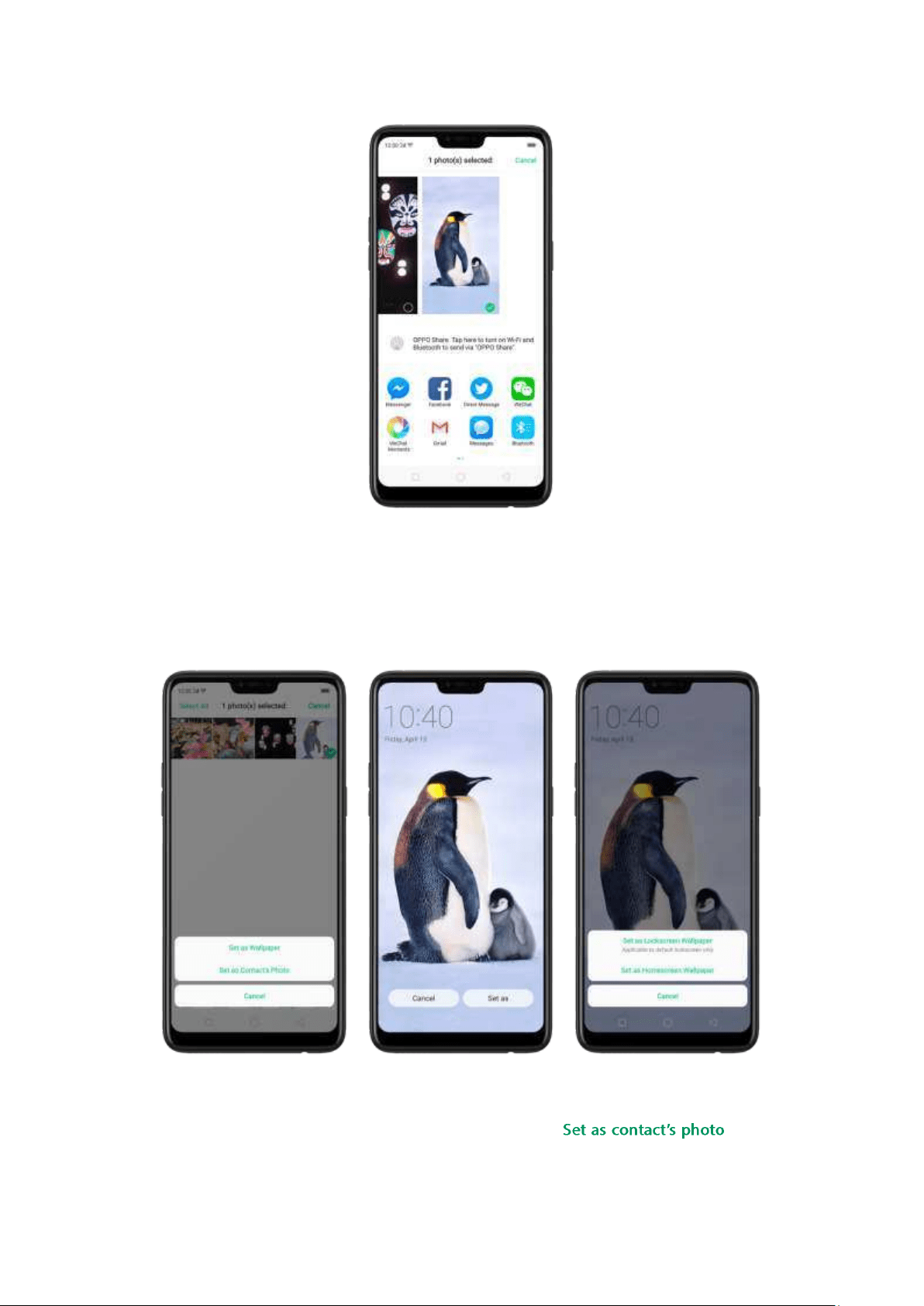
Use a photo as wallpaper. Click a photo, click Set as, and then click Set as w allpap er. Drag the
phot o to pan, or pinch the photo to zoom in or out, unt il it looks the way you want . Then click
Set as to set the wallpaper as your Home screen or Lock screen.
Assign a photo t o a contact . Click a phot o, click Set as, click , select a
contact, crop the phot o, and then click Done.
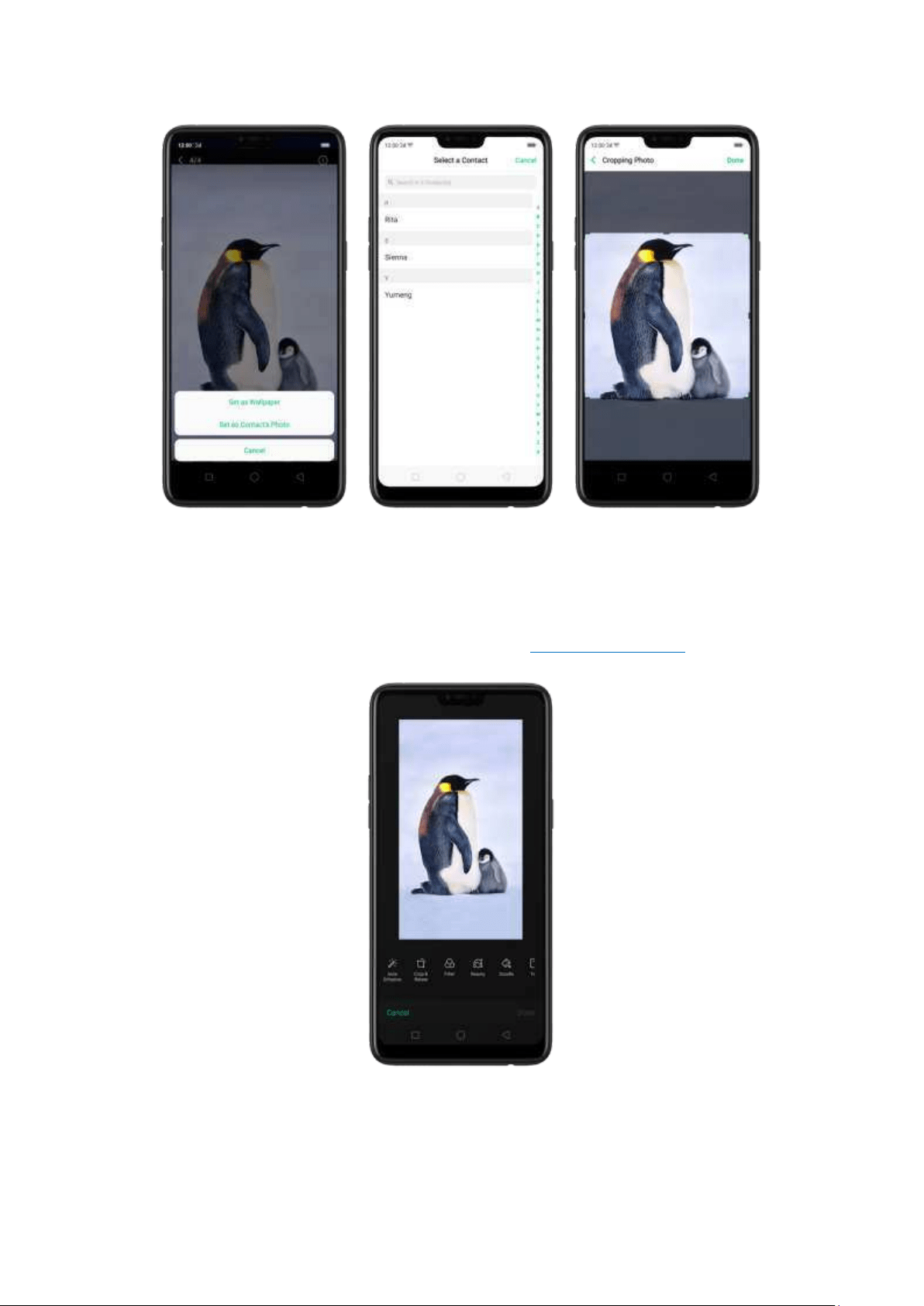
Add a photo or video to an existing album . Click Add to, and then select the album.
Edit the photo . Click Edit. You can edit your phot os using a set of professional edit ing tools,
including cropping, adding text and filters, and more. See
Edit photos and videos.
Delet e a phot o or video . Click Delet e.
Combine the photos. From the Photos screen, click Select , select the phot os, then click Collage.
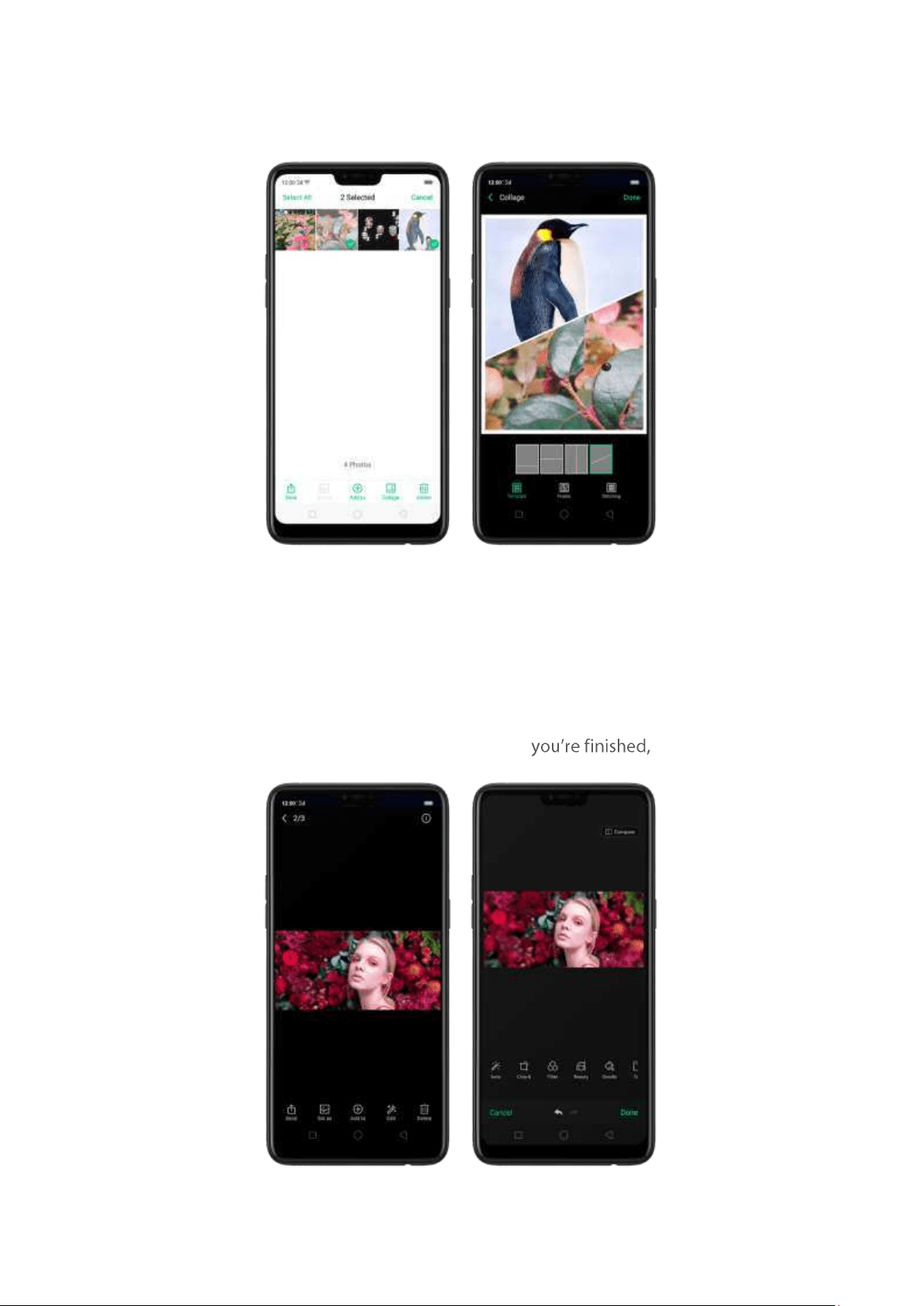
Choose a collage template, then click Done.
7.10.6. Edit phot os and videos
You can edit your photos and videos on the Photos app directly using a set of
professional editing tools, including cropping, adding text and filters, and more.
Ed it a p hot o. Open the Phot os app and view t he photo full screen, click Edit , then
click a tool. Click
Co mp are to view changes. When click Done.
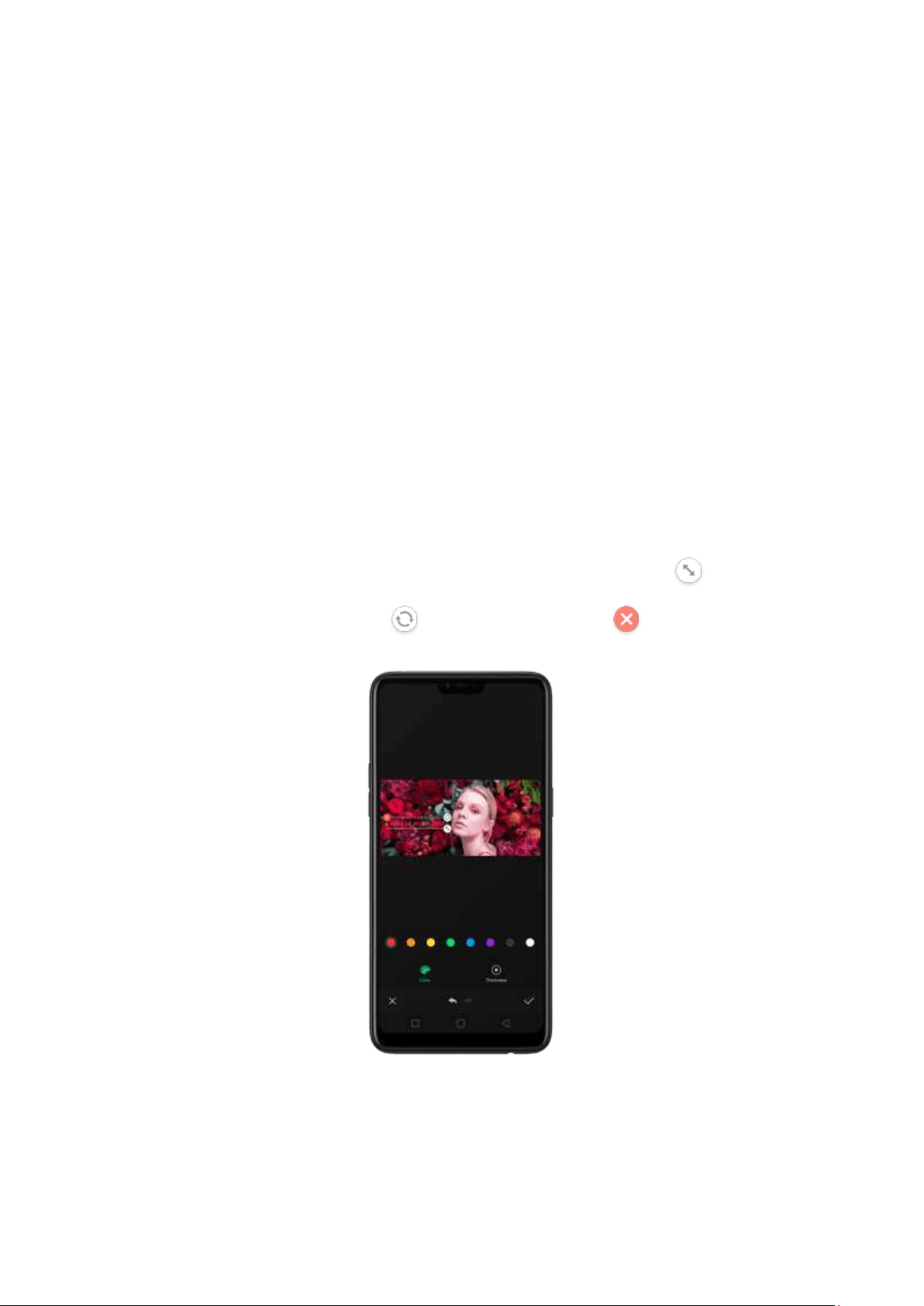
Aut o Enhance: Enhances the photo's light levels, contrast, saturation, color
tem perature, and other qualities to make the photo more visually balanced.
Crop and rot at e: To crop the p hot o, click and drag a corner or side of the p hoto,
or click
Rat io and apply a preset aspect ratio to the photo, such as 1:1 or 9:16. To
rotate the photo, move the wheel to your desired angle, or click Rotate to
rot at e
the photo 90 degrees. Click Undo to reset these changes.
Filt er: Add a color filter to the photo, such as Matcha, Autumn, and Lime.
Beaut y: Click One-t ap t o Beaut ify to autom atically im prove both the
appearance and the shape of your face. You can choose from 6 beauty levels. To
beautify part of the face, choose a tool and make adjustm ents to the face, such
as whiten skin, rem ove unwanted blemishes, enlarge eyes, and more.
Doodle: Write or draw on the phot o. You can adjust colors and t hickness of your
handwriting.
Text : Click t he photo to add the text. You can adjust colors and thickness of your
text. Click and drag t he text to move its position; click and drag to adjust
the font size; click and drag to rotate the text; click to delete the text.
Ad just : Manually adjust the photo's brightness, contrast, saturation, and color
tem perature.
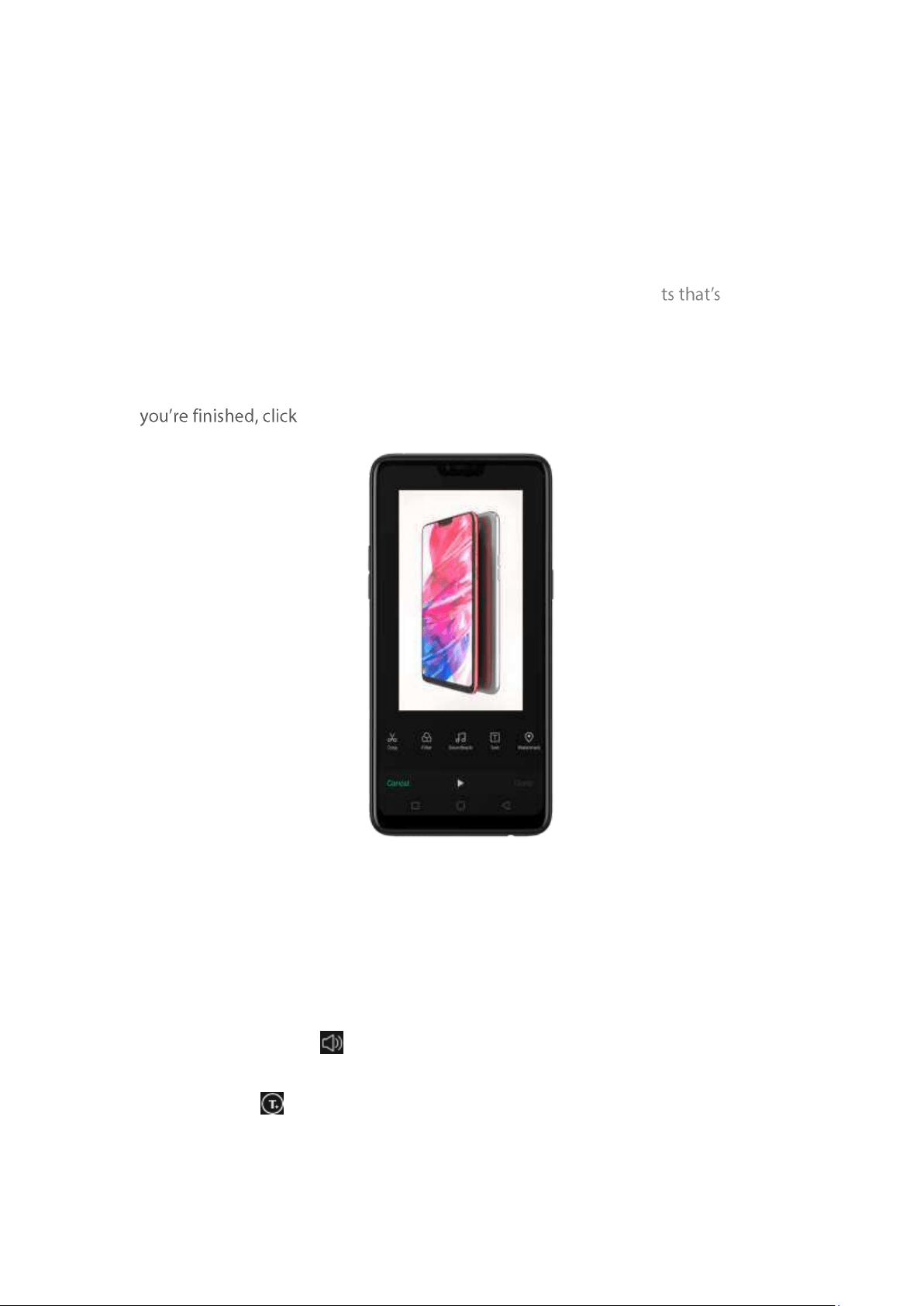
Mosaic: Pixelate part of the photo. You can change the pattern and t hickness of
the mosaic.
Blur: Set the blur effect over the photo with circle or straight lines. The area
within the circle or lines represents the non-blur part. Click the screen and drag
the circle or the lines to select where to blur. Drag t he slider to left or right t o
adjust the blur Intensity.
Eraser pen: Erase people, watermarks, and any unwanted objec on your
photo.
Ed it a vid eo. Open t he Phot os app, click t he video, click Edit , then click a t ool. When
Don e.
Crop : Drag either end of the bar to cut out t he parts of the video you don't want
to save. You can only save continuous segments of the video.
Filt er: Add a color filter to the photo, such as Sunlight, Midsummer, and Polaroid.
Sound t rack: Add a soundtrack to t he video. You can also use your local and
saved mu
sic. Click to turn off the original sound of the video.
Text : Click to add overlay text on the video. Click and drag t he text to m ove
its position. Drag the frame viewer to control when the text showed up.
Wat ermark: Add a watermark with t he location and date of the video. If the
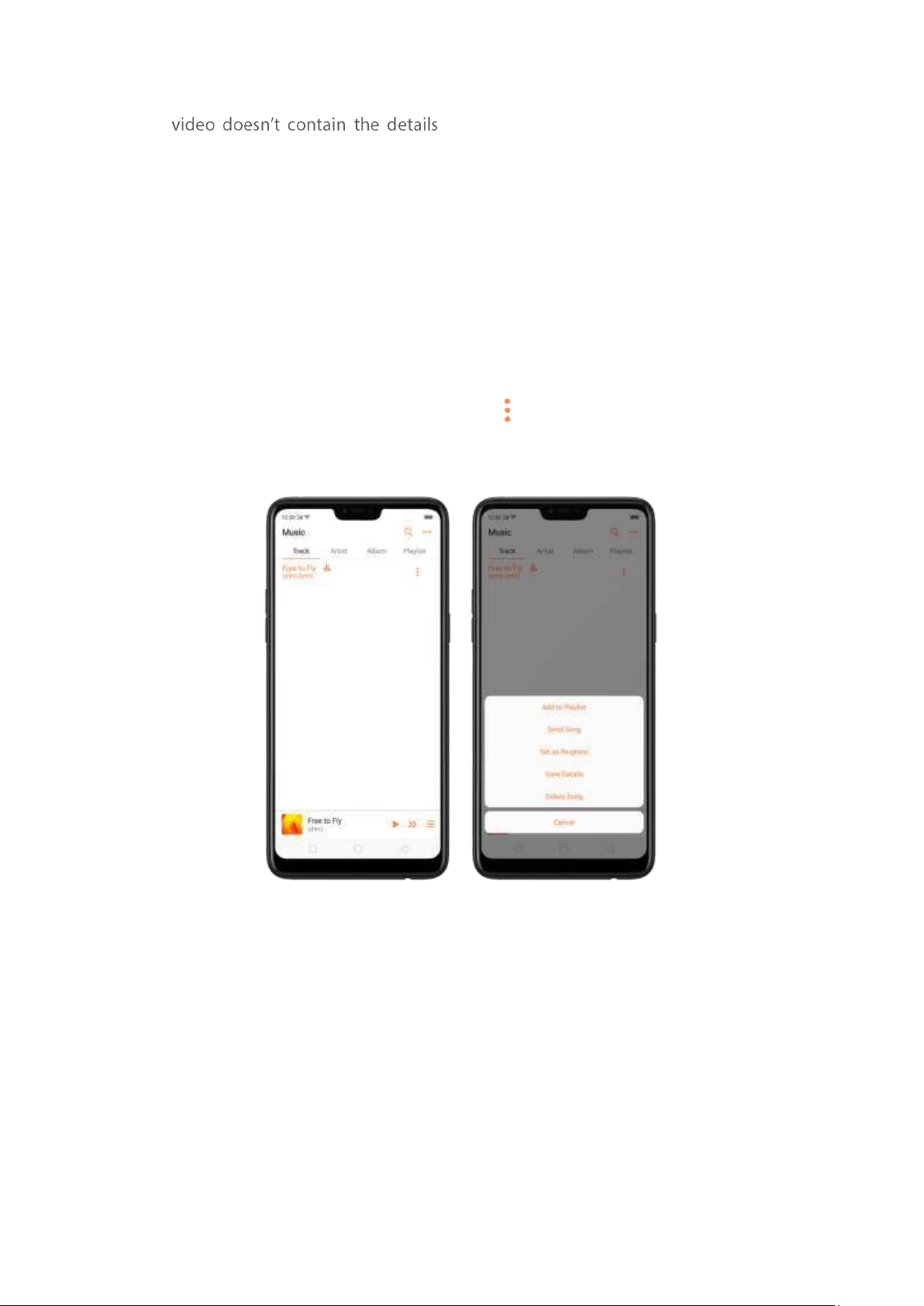
of location and date, you cannot add the
waterm ark.
7.11. Music
7.11.1. Music
Use the Music app to enjoy music stored on your phone. You can also create
playlists, set songs as ringtones for incom ing calls, and more.
To see what you can do with your music, click to the right side of the song
name.
Ad d t o p laylist . Add a song to an existing playlist. You can also create a new
playlist.
Send song. You can share a song with your friends using multiple ways.
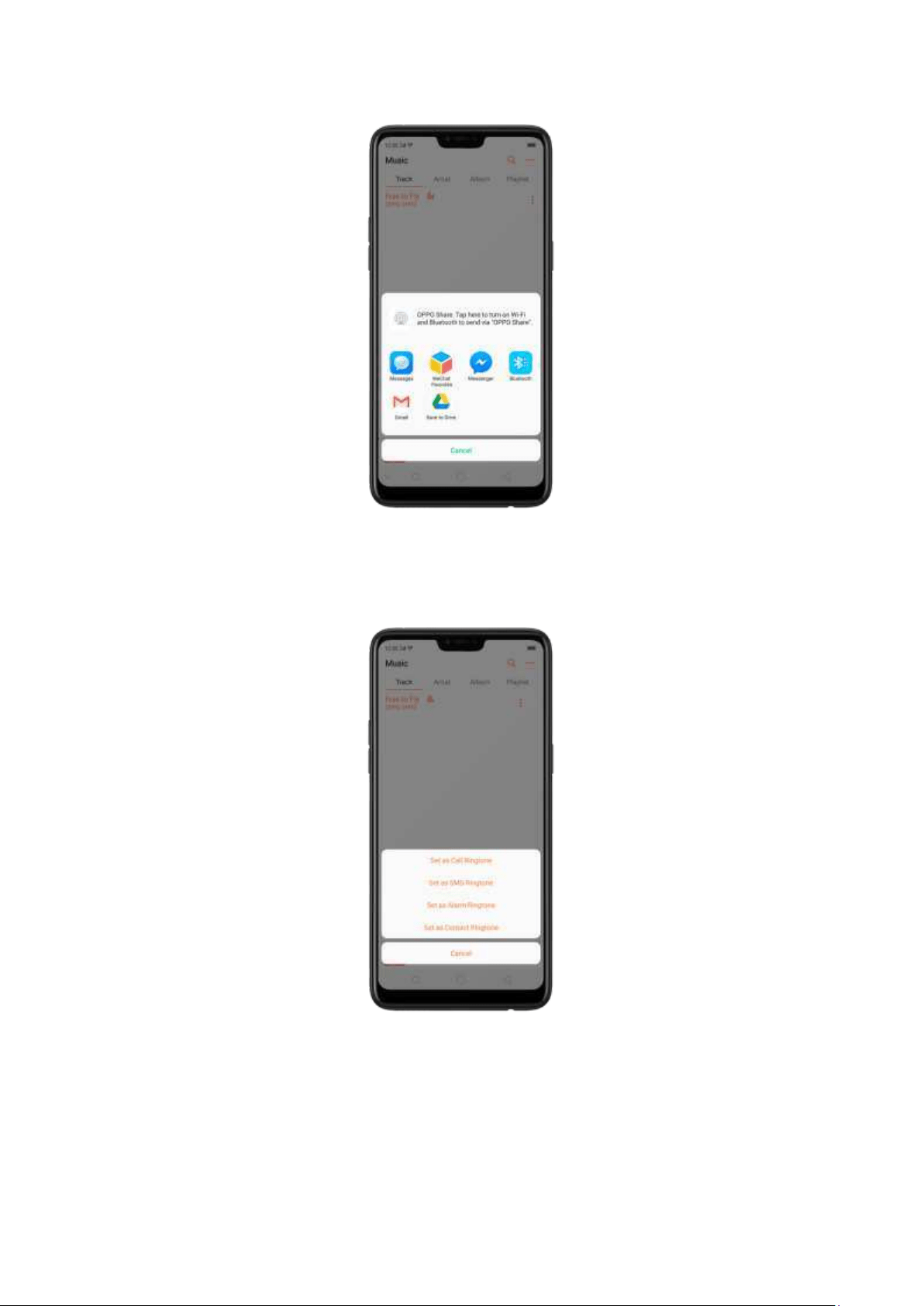
Set as rin gt one. You can set a song as a ringtone for all incoming calls and
messages, or for a contact. You can also set a song as an alarm tone.
View det ails. Click to view t he name, artist, album, form at, size, and storage
location of a song.
Delet e song. Rem ove the song from the playlists and your phone storage.
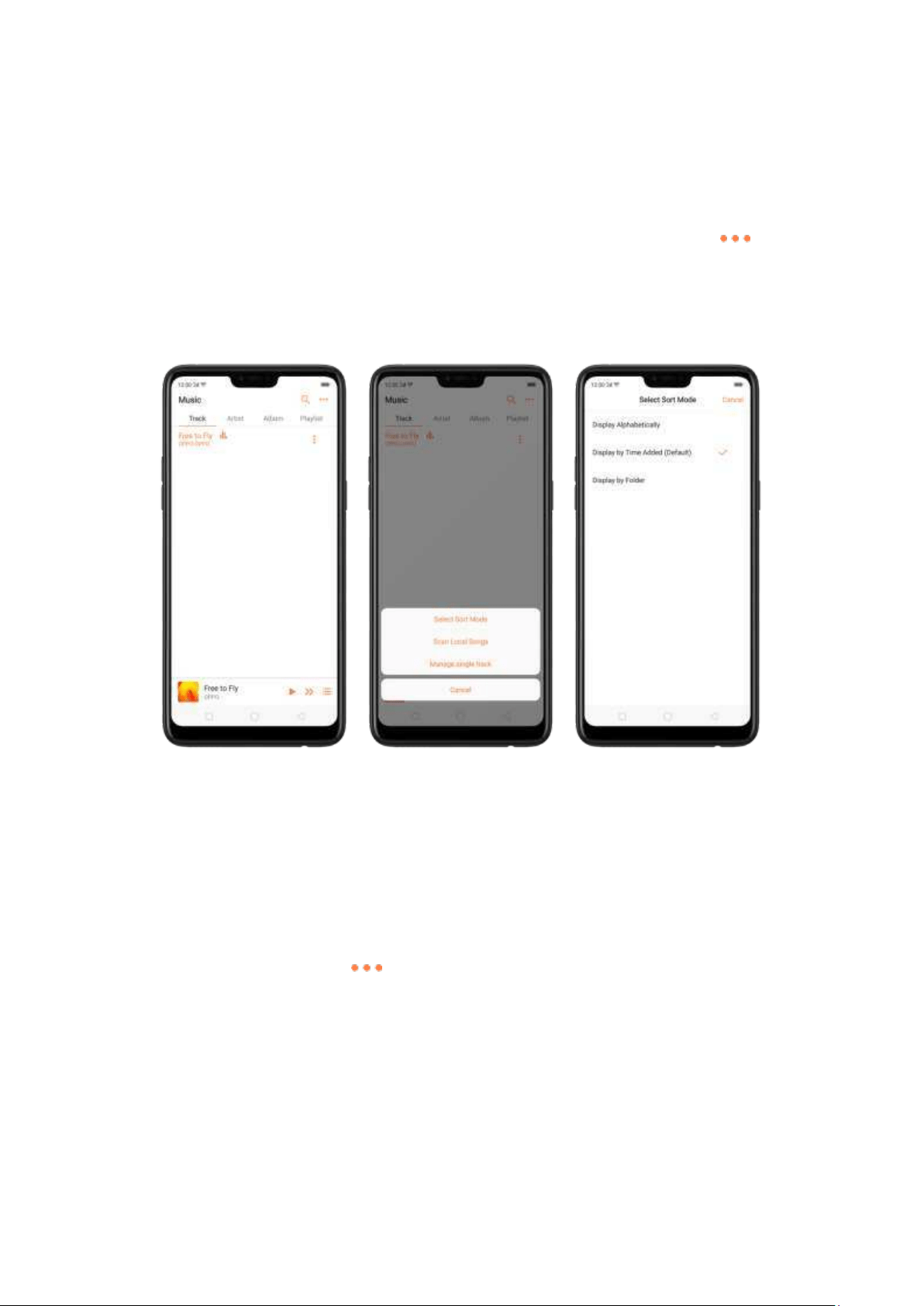
7.11.2. Chang e sort mode
By sorting your playlist, you can easily order the son gs on your phone.
Change t h e order of your songs. From the Music screen, click Track, click in
the upper-right corner of the screen, and then click
Select Sort Mod e. Your songs
can be sorted alphabetically, by time when the song is added, or by folders the
songs are in.
7.11.3. Scan local songs
The Music app contains all m usic-related materials on your phone storage. To
manually scan for local songs, or choose which songs can be displa
yed on your list,
do the following:
Scan all local songs. Click on the upper-right corner of t he Music screen,
then click
Scan Local So ngs. Your phone will automatically start scanning .
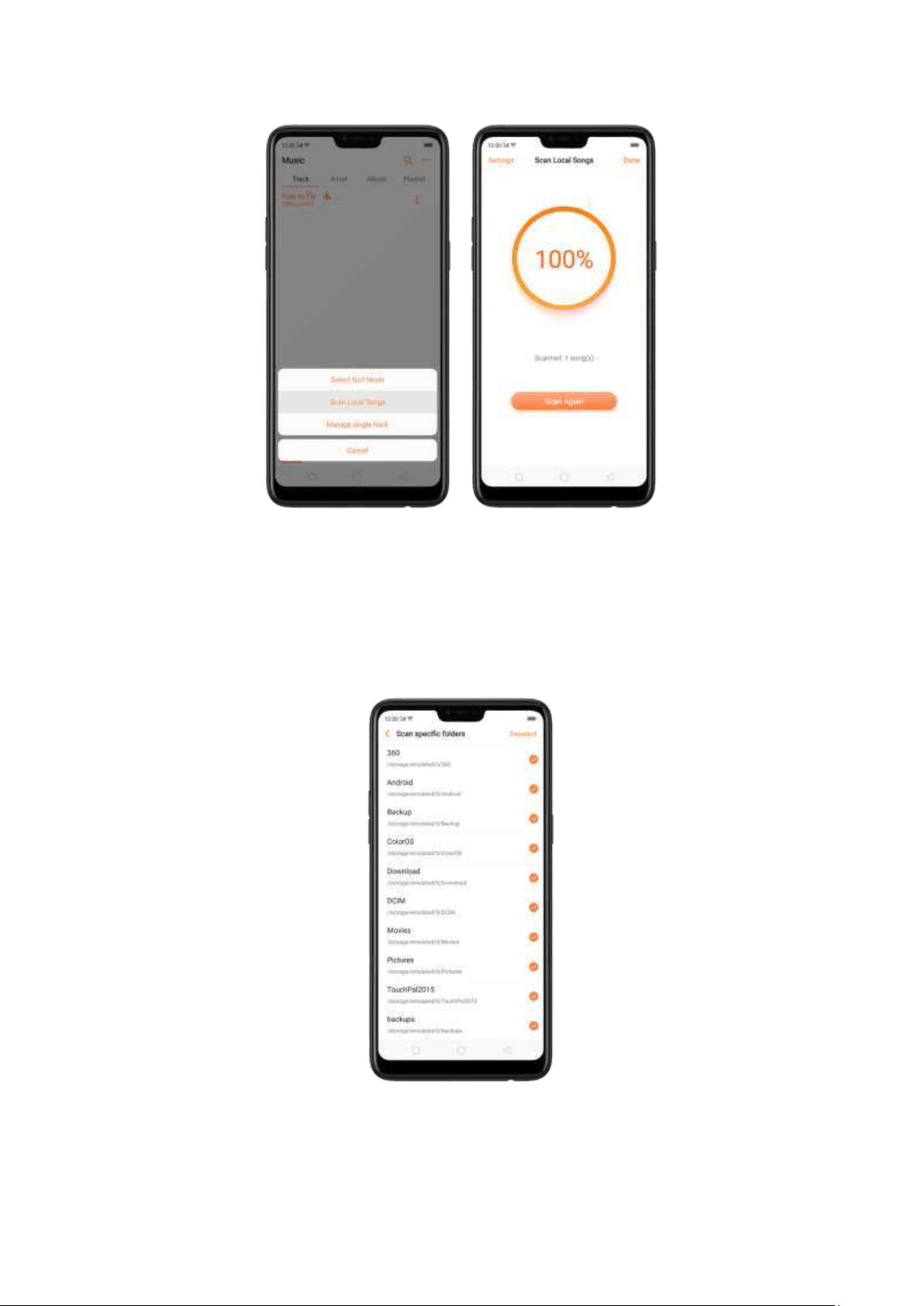
Scan specific fold ers. Click Set t ings, click Scan specific folders, and then choose
the folders you want the phone to scan for. Go back to the Scan Local Songs screen,
and then click
Scan again.
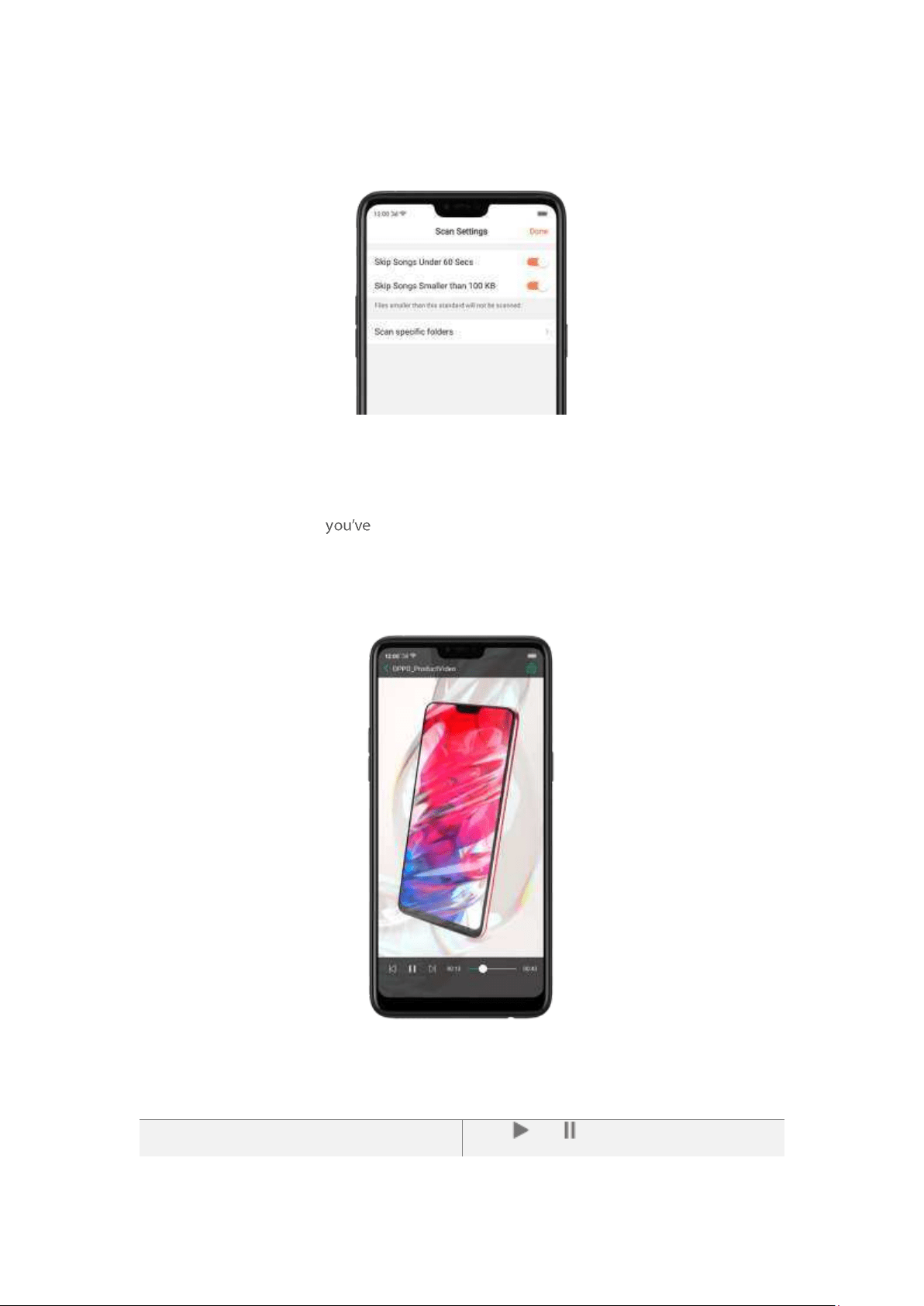
Filt er aud io files. To filter tracks that are too short (under 60 seconds) and too small
(under 100KB), toggle the sliders to orange.
7.12. Videos
Use Videos to watch videos downloaded or taken with the built -in camera.
Play a video. Click Videos on the Home screen, then click the video.
Control video playback. Click the screen to show or hide the controls.
TO
DO THIS
Play or pause a video
Click or .
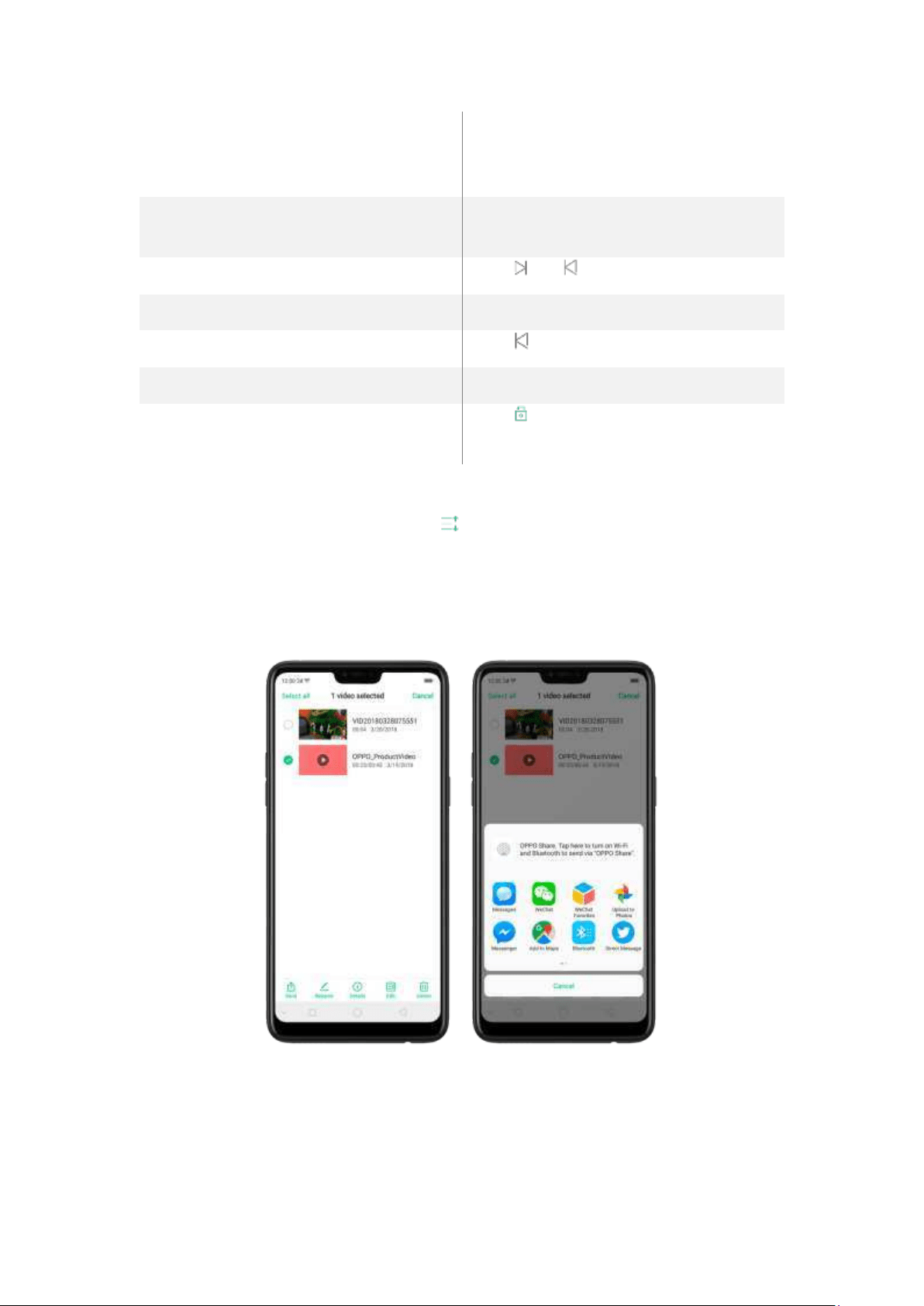
Raise or low er the volum e
Click the volume buttons on the side of the
phone, or swipe your finger up or dow n on
the right side of the screen.
Increase or dim the brightness
Sw ipe your finger up or down on the left
side of the screen.
Skip to the next or previous video
Click or .
Rew ind or fast -forw ard
Sw ipe your finger left or right on the screen.
Start a video over
Click twice quickly.
Skip to any point in t he video
Drag the play head left or right.
Lock t he screen rotation and disable
bot t om keys
Click .
Sort videos. From the video screen, click and choose to sort by name, added date, or
duration.
Send videos. From t he Videos screen, click Select, choose videos, click Send, then choose an
option for sending the video (for example, Messages, Gmail, third-party apps, and so on).
Renam e a video. Click Select , choose a video, and then click Renam e. Ent er the name, t hen click
Save.
See d etails about a video . Click Select, choose a video, and then click Details.
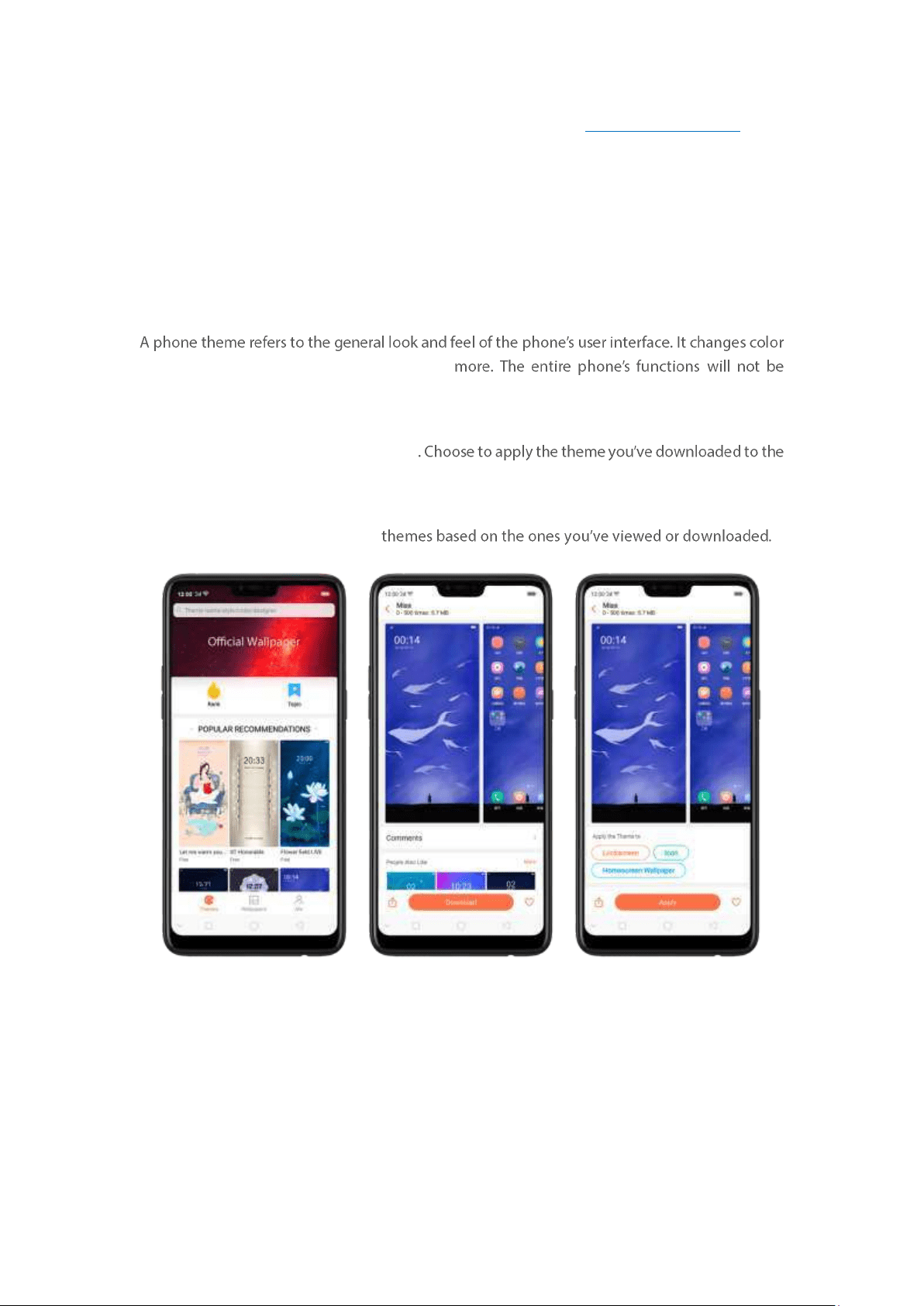
Edit a video . Click Select, choose a video, and then click Edit . See Edit phot os and videos.
Delet e video s. Click Select, choose videos, click Del ete, and then click Del ete video s.
7.13. Them e St ore
7.13.1. Online phone t hem e
schemes for background images, icons, and
affect ed.
Change the phone them e. Click Theme Store on the Home screen, then click Them es. Click
your desired theme, then click
Download
Home screen, Lock screen, or Home screen icons, then click Appl y and wait a few seconds for the
changes to apply.
Tip: Your phone will suggest similar
Search a them e. Click the search bar on the top of the screen, enter the theme name, then click
Search.
7.13.2. Online wallpap er
In addition to using your photos as wallpaper, you can get some more wallpaper online from
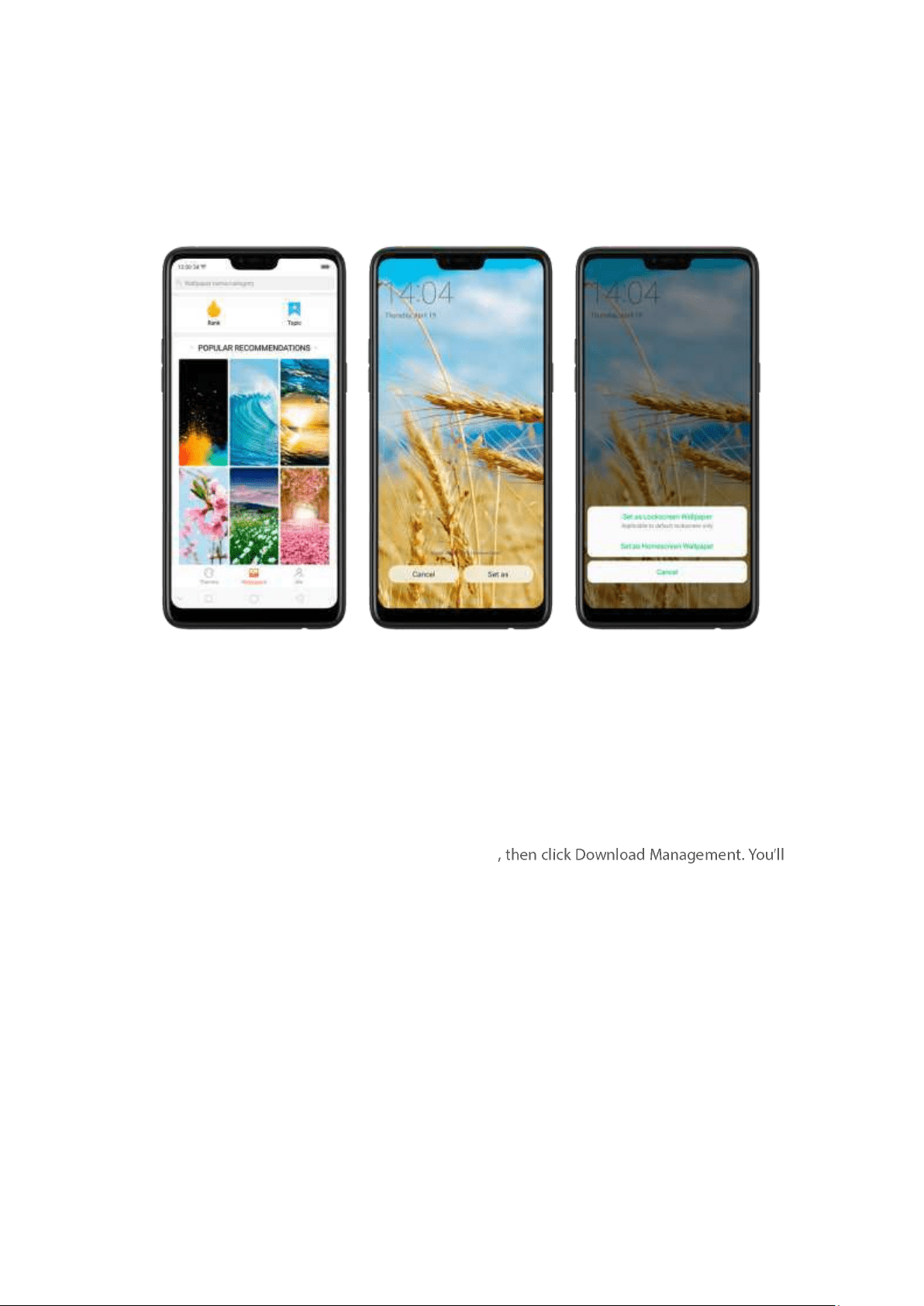
Theme St ore.
Change the w allpaper. Click Theme St ore on the Home screen, then click Wallpapers.
Click your desired wallpaper, click
Download, and then click Apply.
Drag to move the image. Or pinch to zoom in and out , so the image fits the screen. Click
Set as
to set the wallpaper as your Home screen or Lock screen.
Search a wallpaper. Click the search bar on the top of the screen, ent er the wallpaper name, and
then click Search.
7.13.3. Manage your dow nloads
You can view and delete your downloaded themes and wallpapers.
View download history. Click Theme St ore, click Me
see all your downloads on t he phone. Click Clear History t o clear all download histories. Click
View Download History, sign in your OPPO ID, then you can see your download histories within
two years
that are st ored on the cloud.
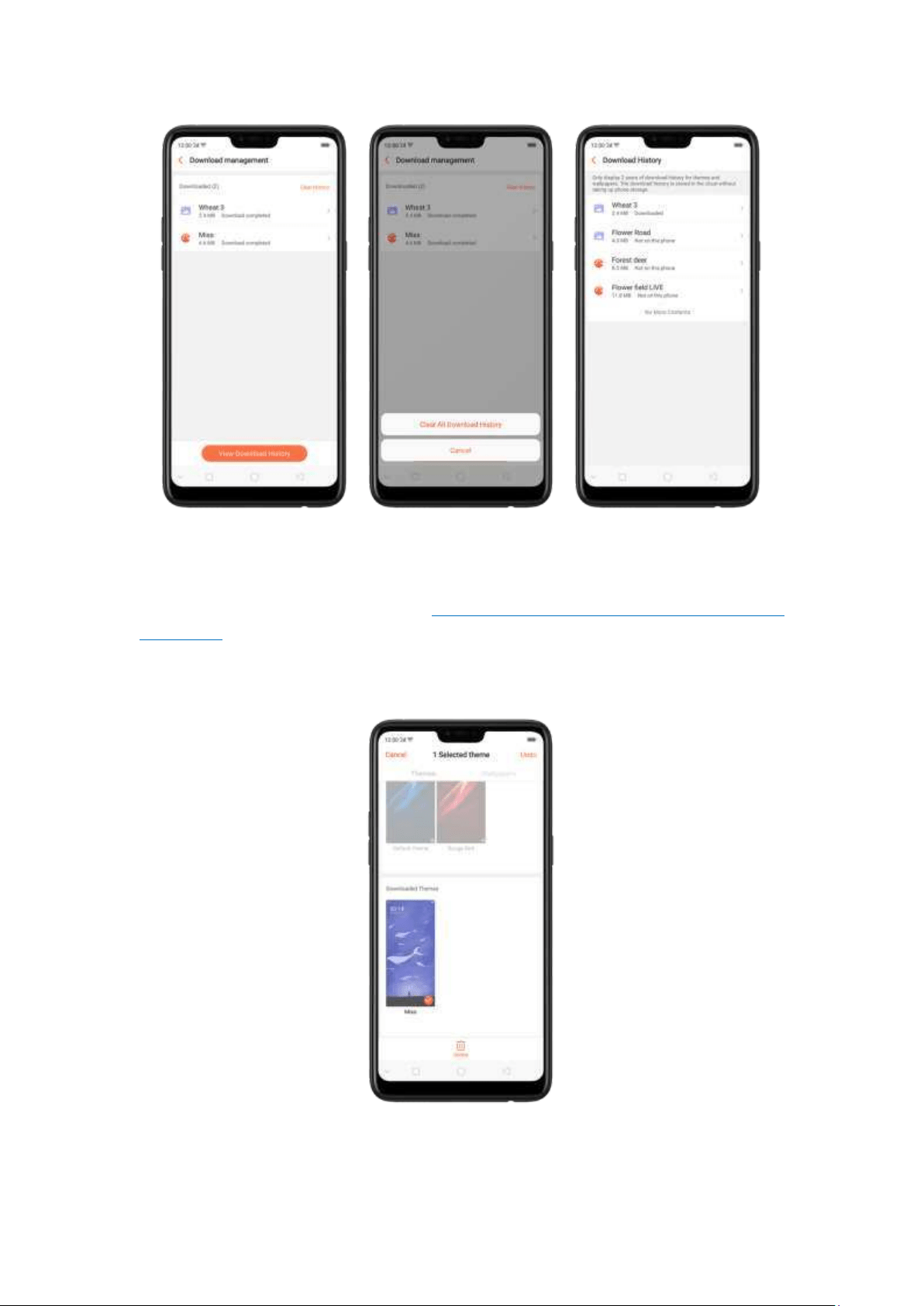
Change phone t hem es and w allpapers. Under Download Management screen, click a theme
or wallpaper, and t hen click
Apply. See Change the wallpaper and theme on your OPPO
smartphone.
Delet e dow nloaded th em es and w allpapers. Click Me, then click My Themes or My Wallpapers.
Click
Edit , select the themes and wallpapers you want to delete, then click Delete.
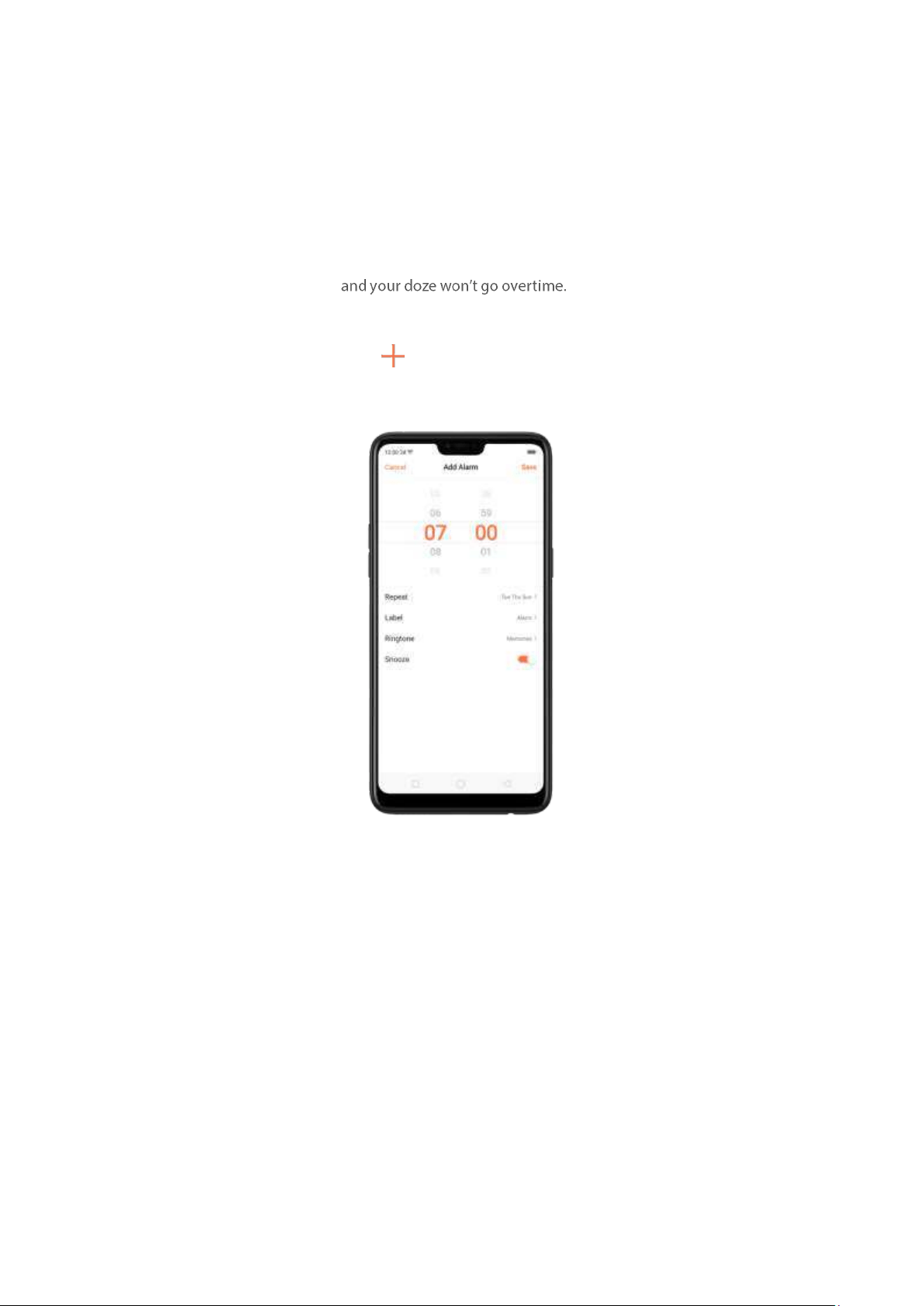
7.14. Clock
7.14.1. Set Alarm Clocks
Wit h the Clock app, you can set an alarm that plays a sound at a specific t ime, so you will be
reminded t o do things in time
You can also set multiple alarms,
set each alarm to repeat on days you specify, or to sound only once.
Set an alarm . Click Alarm and click , scroll wheels t o change the time, then adjust any of the
following set t ings:
To set the alarm to repeat on certain days, click Repeat and choose the days.
To give the alarm a description, click Label. Your p hone displays the label when the
alarm sounds.
To choose the ringtone that sounds when the alarm goes off, click Ringtone.
To set whether the alarm gives you the option to hit snooze, turn Snooze on or off.
If Snooze is on and you click Snooze when the alarm sounds, the alarm stops and then
sounds again in five minutes.
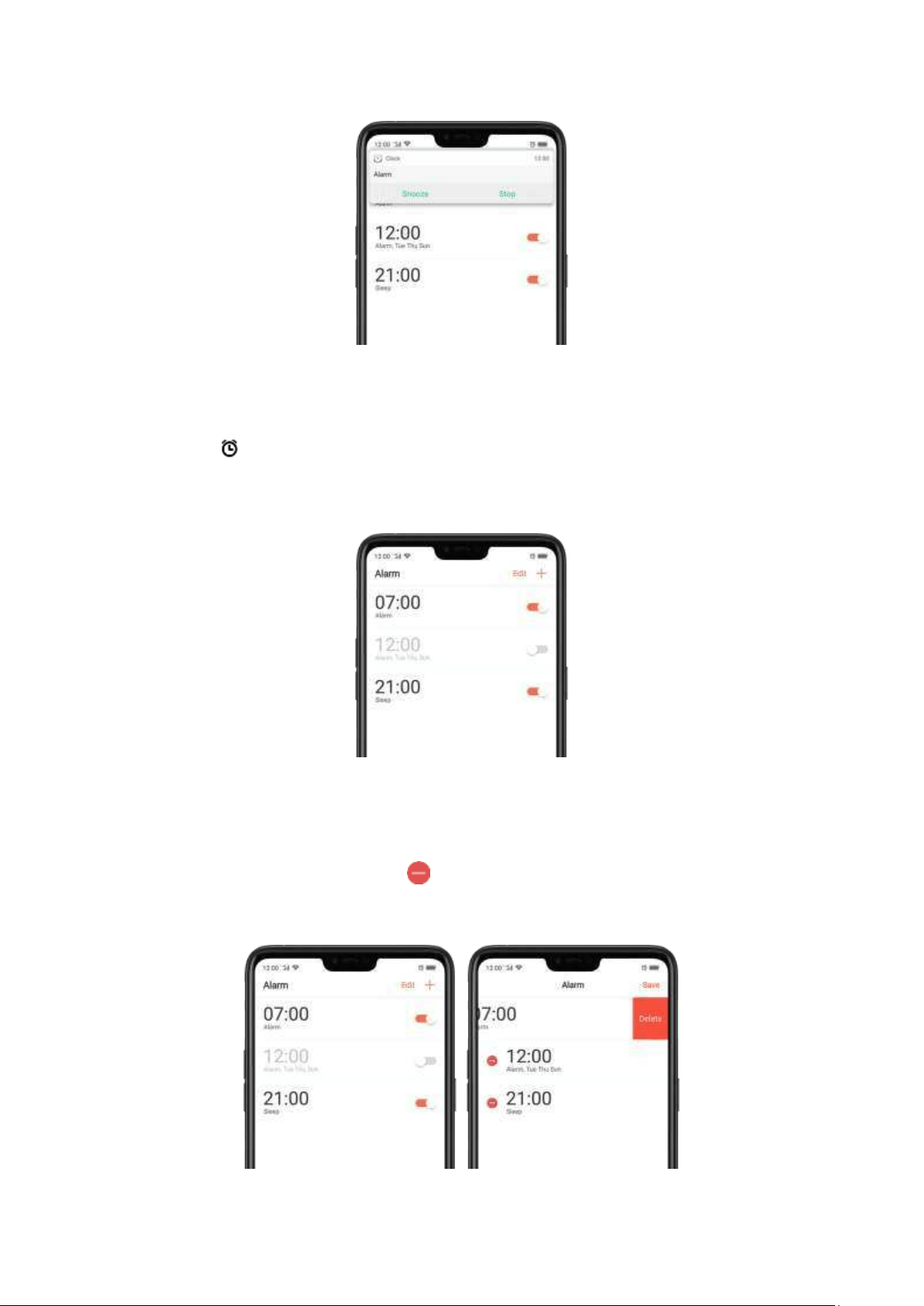
Turn an alarm on or off. Toggle t he slider to orange or white. If at least one alarm is set and
turned on, appears
on the status bar at the top of the screen.
Tip: The alarm still works even if your phone is turned off.
Change set tings for an alarm . Click the alarm.
Delet e an alarm . Click Edit, then click next to an alarm and click Delet e. Or swipe left on
the alarm, then click
Delet e.
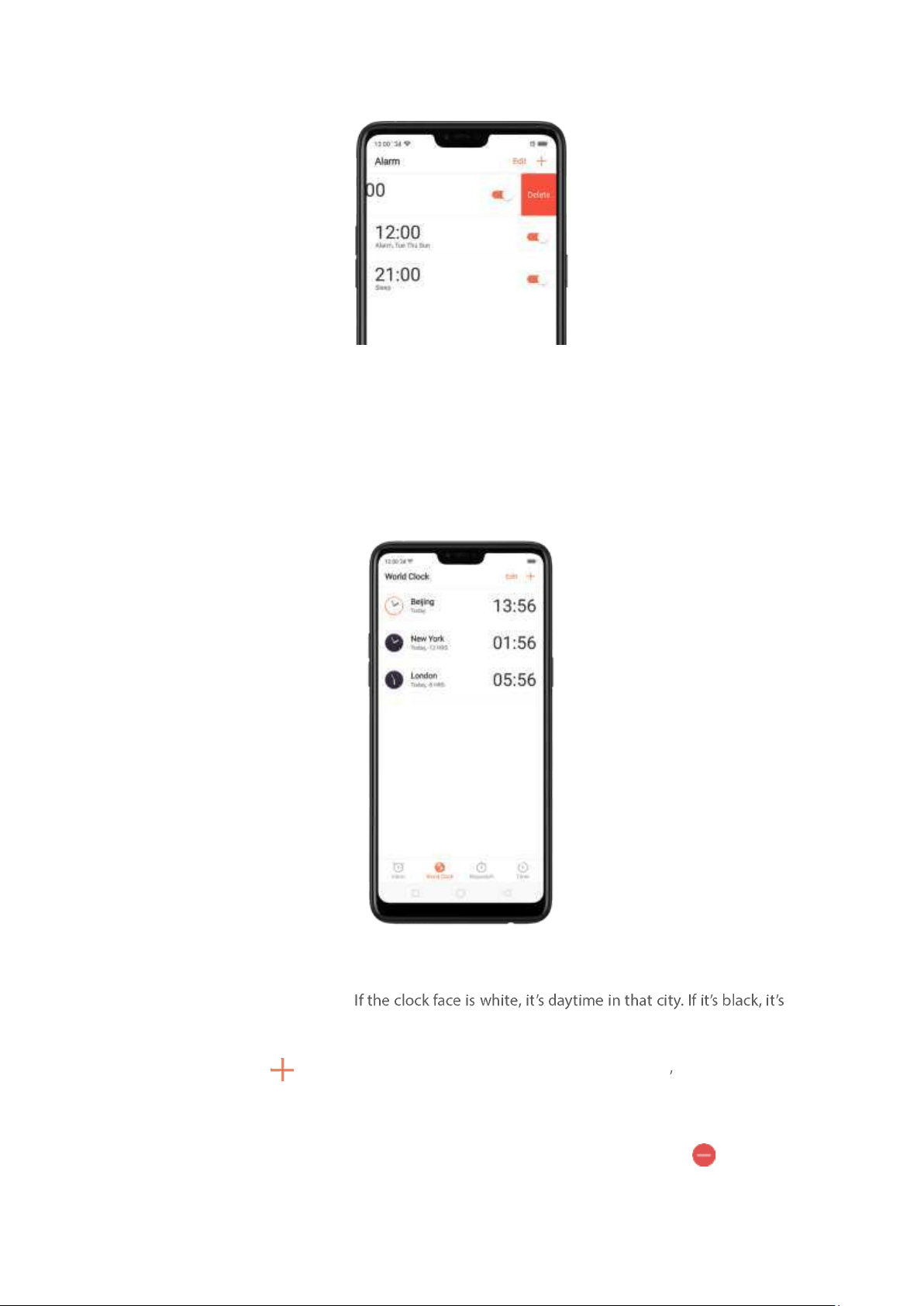
7.14.2. Add and view clocks for locat ions
around the w orld
You can add multiple clocks to show the time in major cit ies around the world.
View clocks. Click World Clock.
nighttime.
Add a clock. Click and type the name of a cit y. Cities matching what you ve typed appear
below. Click a city to add a clock for t hat cit y.
Delet e a clock. Swipe left on the clock, t hen click Delete. Or click Edit , then click next to a
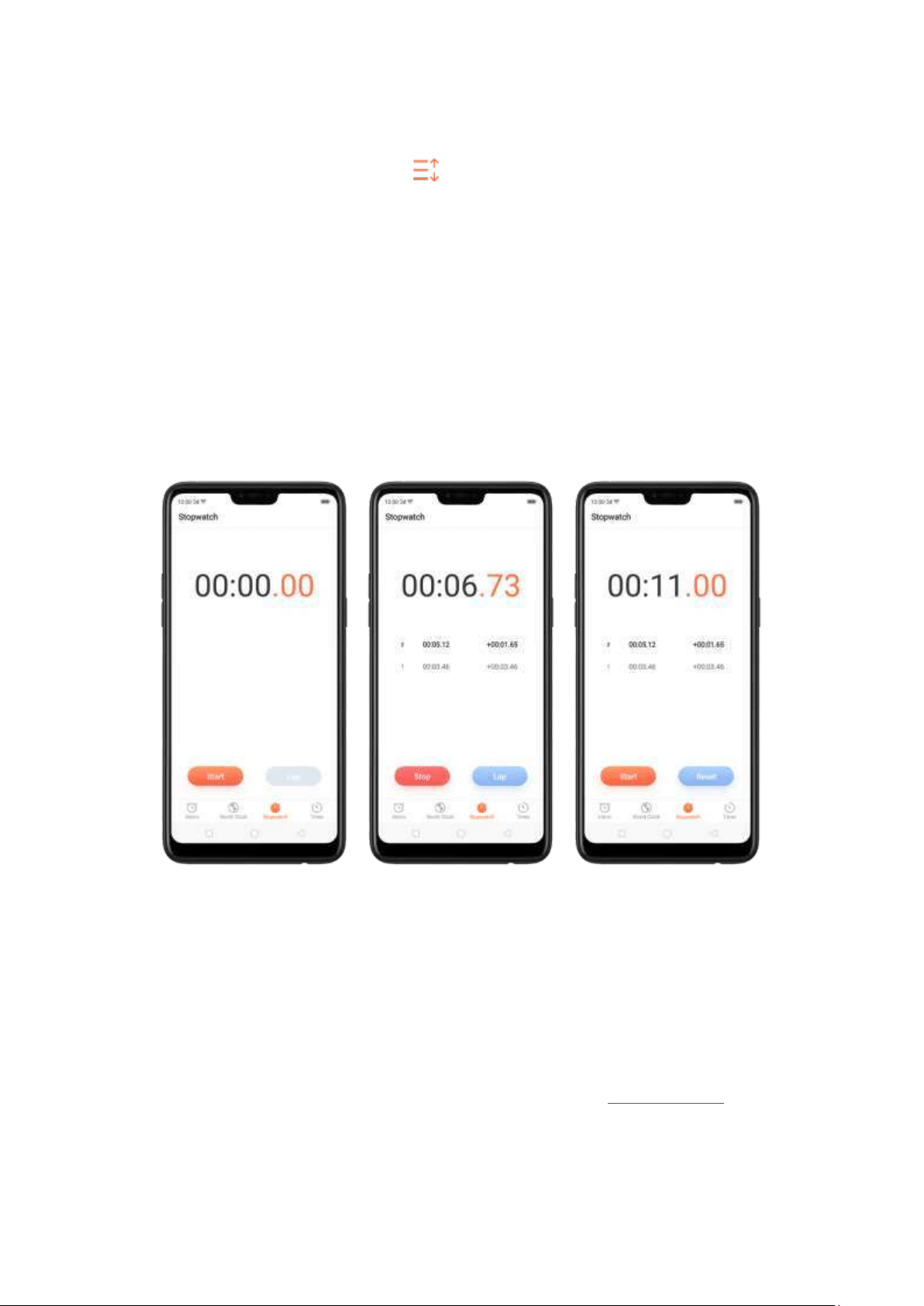
clock and click Delet e.
Rearrang e clocks. Click Edit, then drag next to a clock to a new place in the list .
7.14.3. Use the st op w at ch
You can measure the duration of an event with the stopwatch.
Use t he stopw atch t o m easure t ime. Click Stopwatch. Click Start to st art the stopwatch. To
record lap times, click
Lap aft er each lap. Click Stop to pause the stopwatch. Then click Start to
resume, or click
Reset to reset the stopwatch to zero.
If you start the st opwatch and go to another application, t he stopwatch cont inues running in the
background.
7.14.4. Set the tim er
In the Clock app, you can count down from a specified time wit h t he timer.
Set and star t the tim er. Click Timer, scroll the wheels to set the duration of time, t hen click Start .
If you st art t he timer and go to anot her application, the timer continues running in the
background. You can cancel or pause the timer at any time before it ends. When the timer ends,
your phone sounds and vibrates t o prompt you that it is already time to stop the timer.
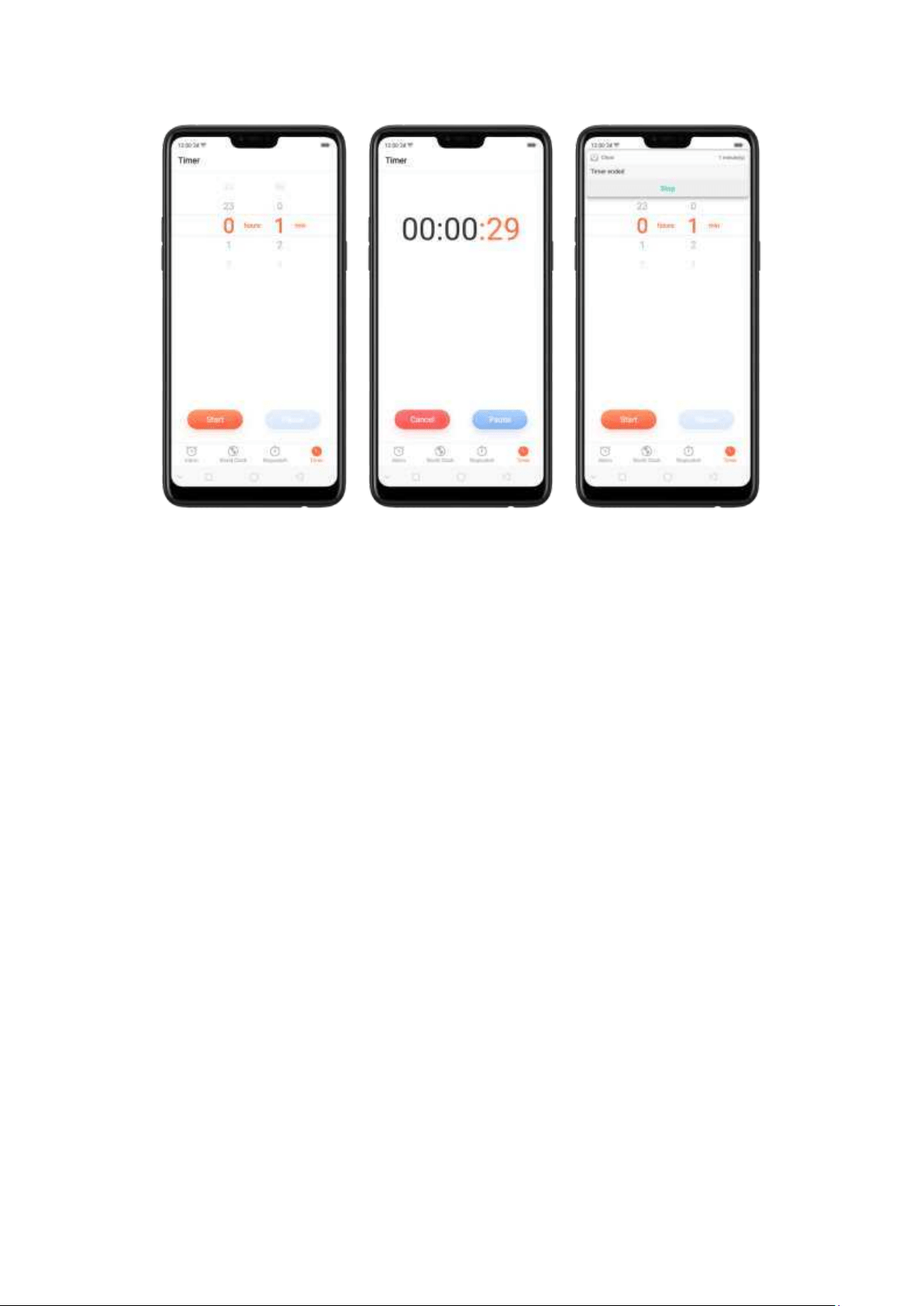
7.15. Files
7.15.1. Opt im ized File m anagem ent
The optim ized File Manager provides you a m ore convenient way to work with t he
file system and perform various operations on files and folders such as search, create,
edit, rename, copy, delete, compress, batch process etc.
Opt imized search cap ab ility. You can search for a file under the root directory, or
on a specific folder if you know its general location. This will make the search more
specific and faster.
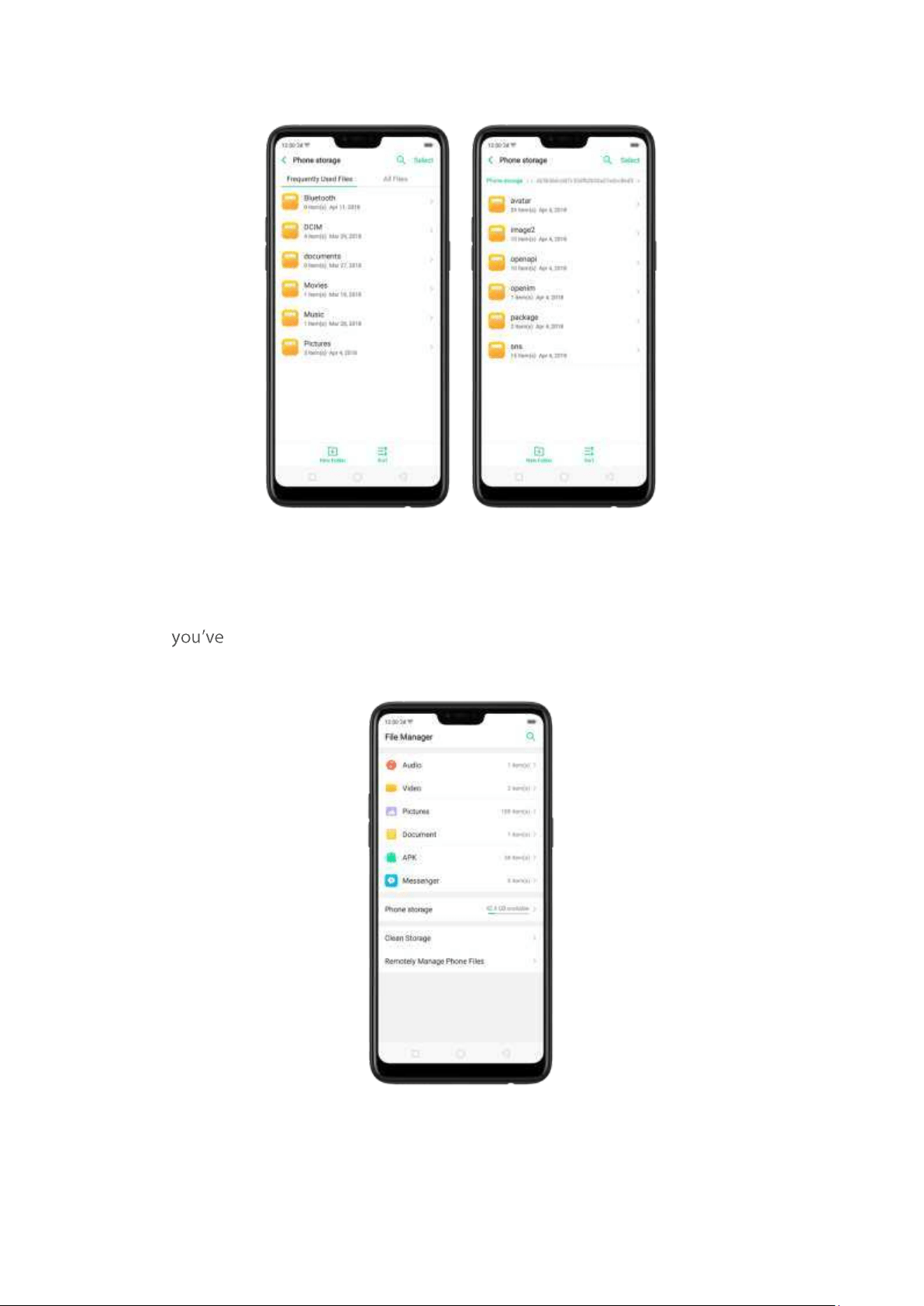
File classification
The Files app automatically categorizes your files based on their extensions so
you can browse them more clearly and conveniently. Options vary by app s
downloaded. For example, if you download Messenger, Messenger
becomes another option for classification.
Under Phone storage, your frequently used files will be listed separately so that
you can quickly look up
to t hem later.
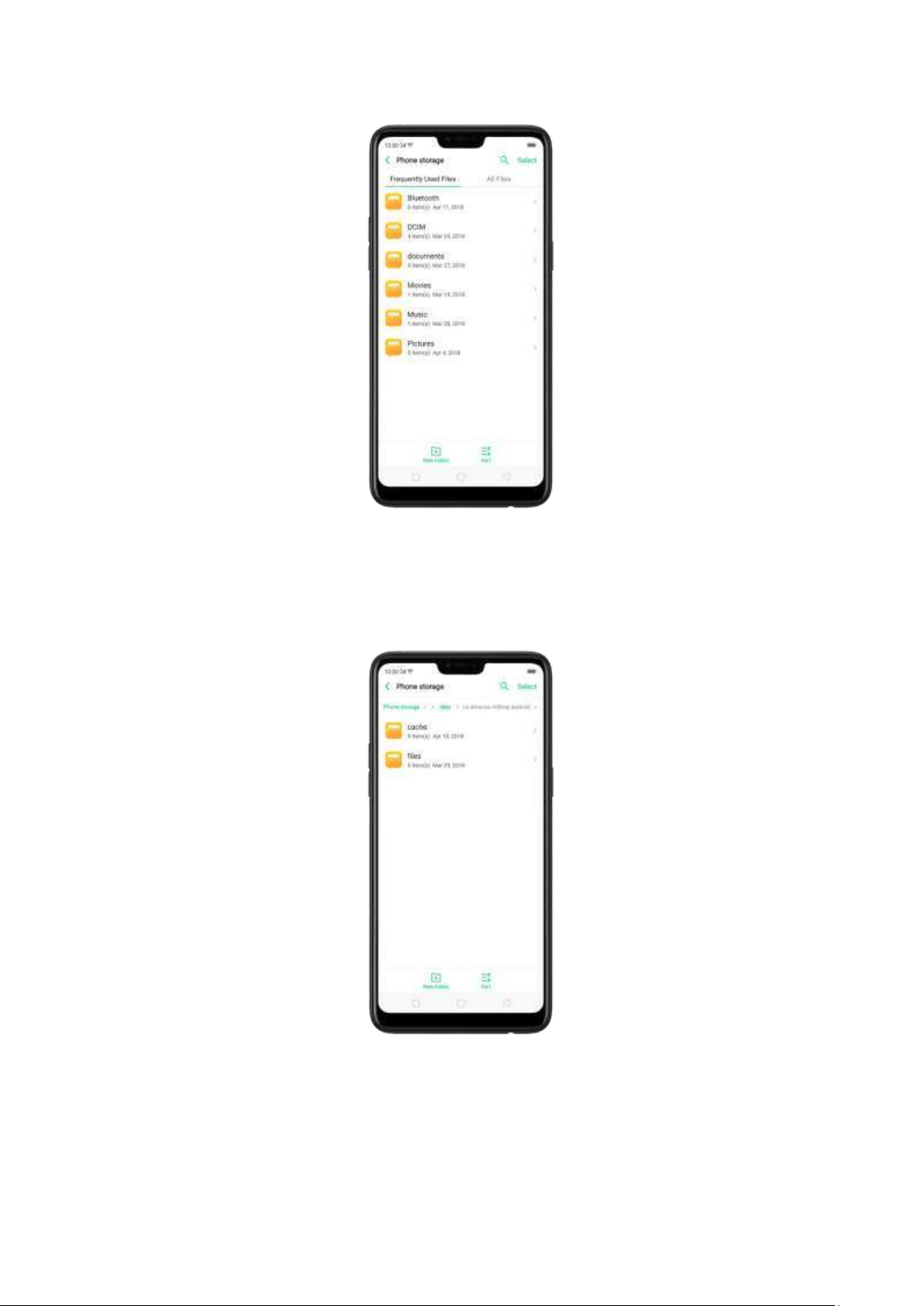
In
[Pho ne st orage] > [All Files] > [Android] > [d at a], select an app folder, you
can see that app files and the files you dow nloaded from the app are saved in
different folders, so you can quickly find the files you need.
Select All feat ure. Select All feature is added in Files, so you can process the files in
batches.
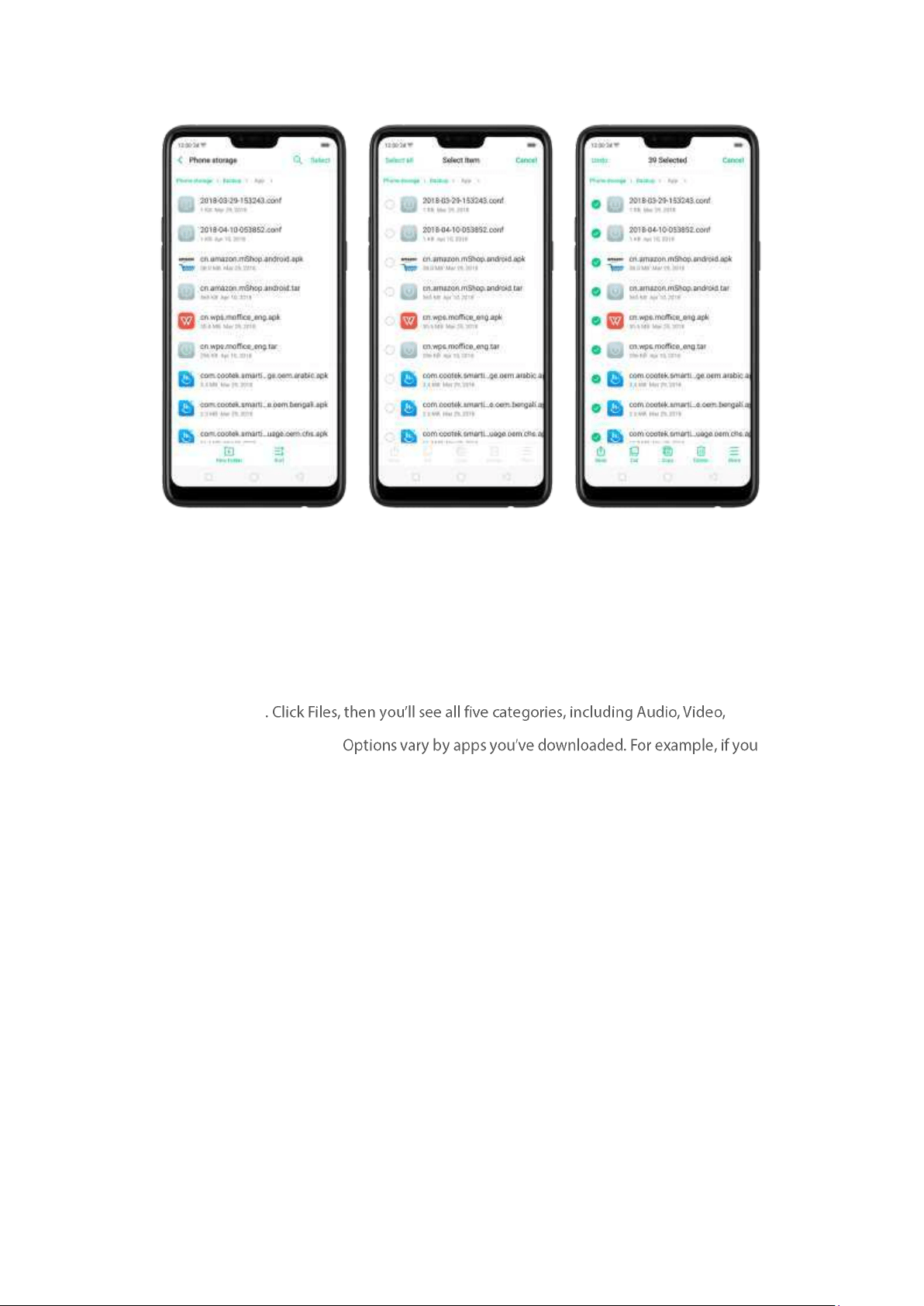
7.15.2. Fast file brow sing
File Manager automatically categorizes your files based on their extensions so you can browse
them more clearly and conveniently.
Fast file brow sing
Pictures, Document , and APK.
download Messenger, Messenger becomes another option for classification. Click a category t o
browse and manage files.
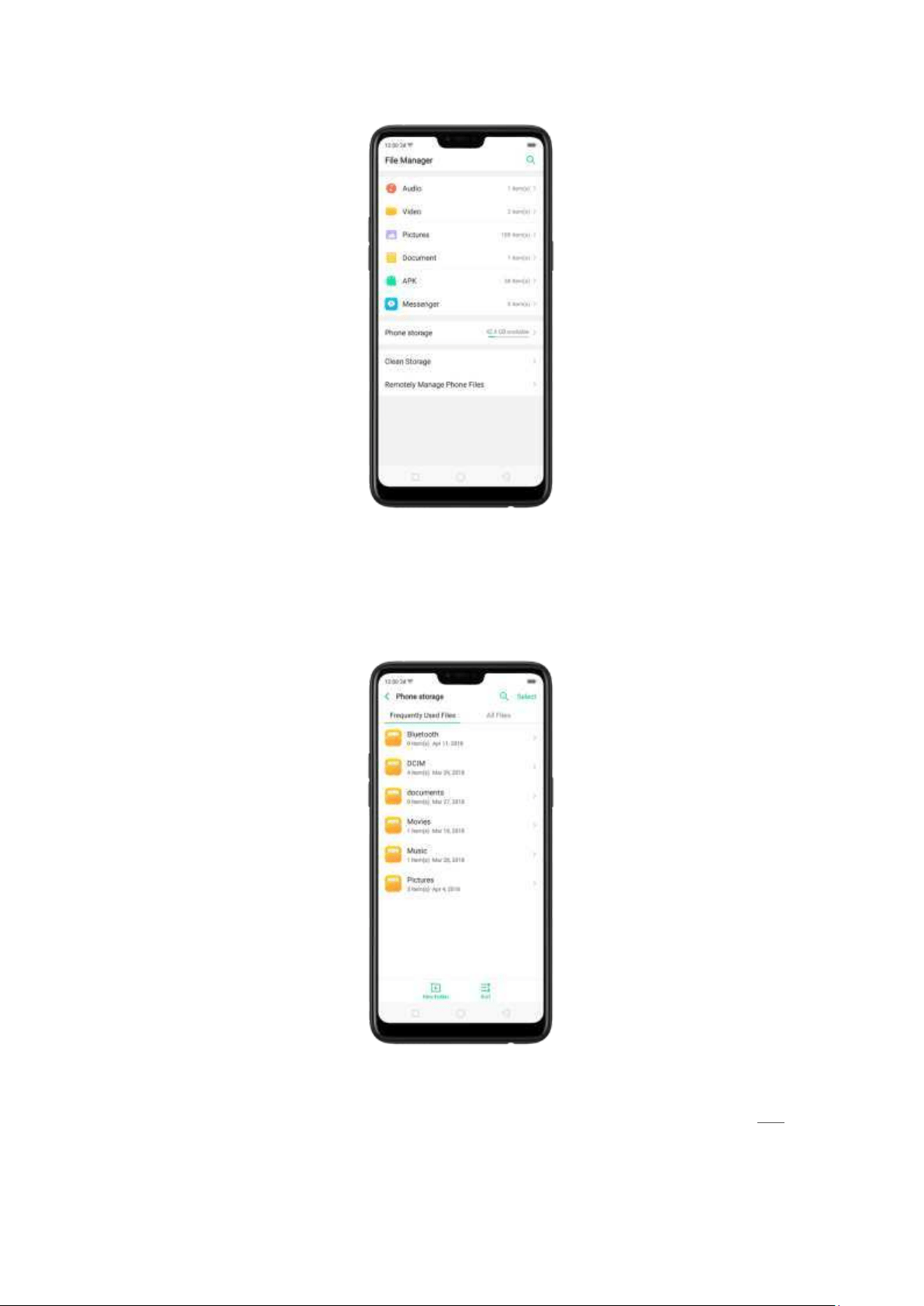
7.15.3. View and manage files
File Manager provides you various ways to manage your files and folders.
Frequentl y Used Files. You can view the folders which files are com monly used. Click any one
to enter and choose the file to manage.
Search a docum en t or folder. Click Phone Storage, click All Files, click the search icon, then enter
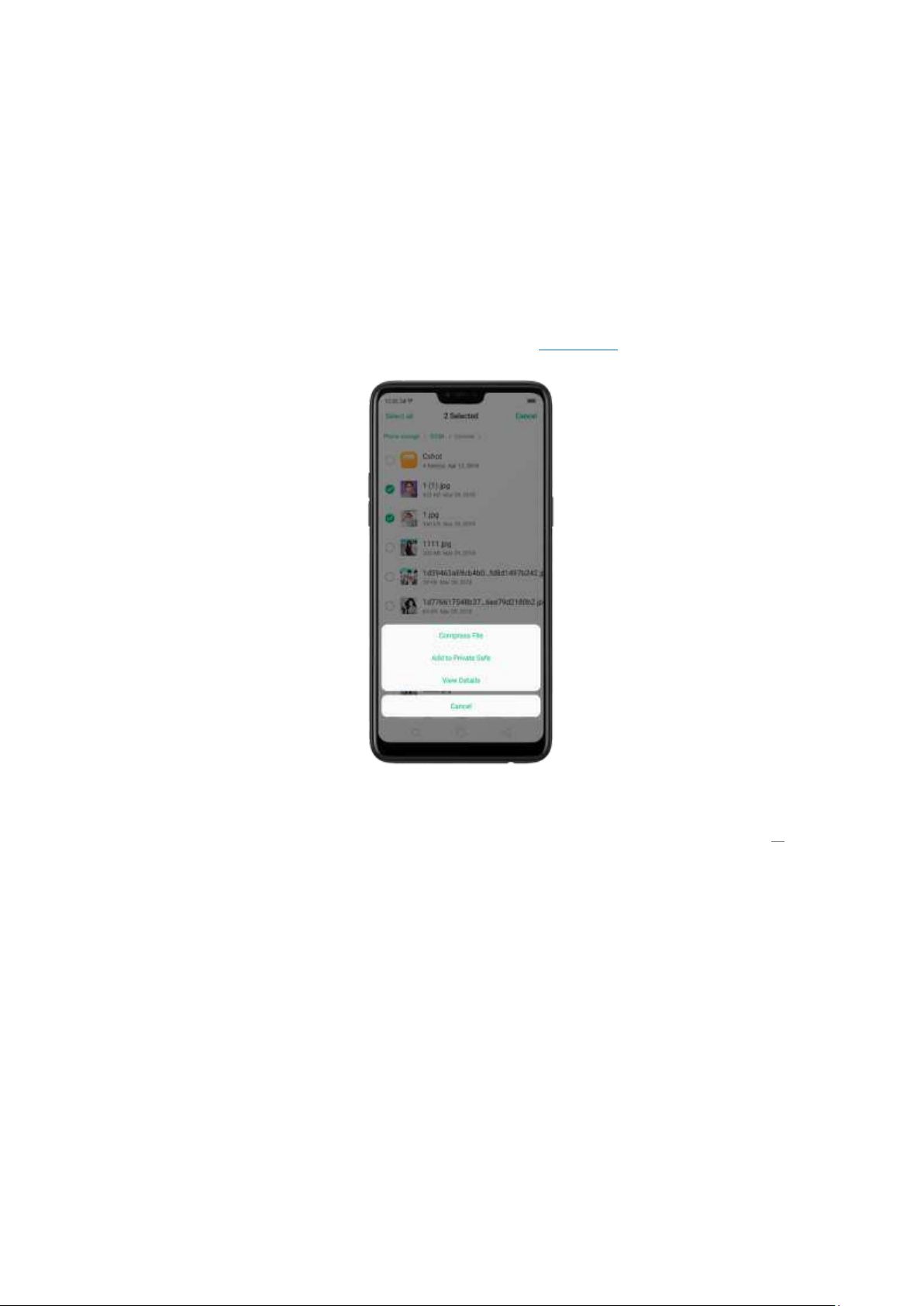
the name of a document or folder.
Creat e a new folder. Click New Folder. Enter the folder name, t hen click Save.
Sort files and folders. Click Sort, then choose to sort your files and folders by name, size, t ype or
the time t hey were generated.
Send , cut, copy, delet e, com press, show details, rename a d ocum ent or a folder. Click Select,
choose the document or folder, then choose an opt ion.
Move docum ent s to Private Safe. Click Select , choose the documents, click More, then click
Add to Privat e Safe. Folders cannot be moved t o Safe. See Private Safe.
Select all. In any page when you click Select , you can quickly choose all by clicking Select all in
on the top left corner.
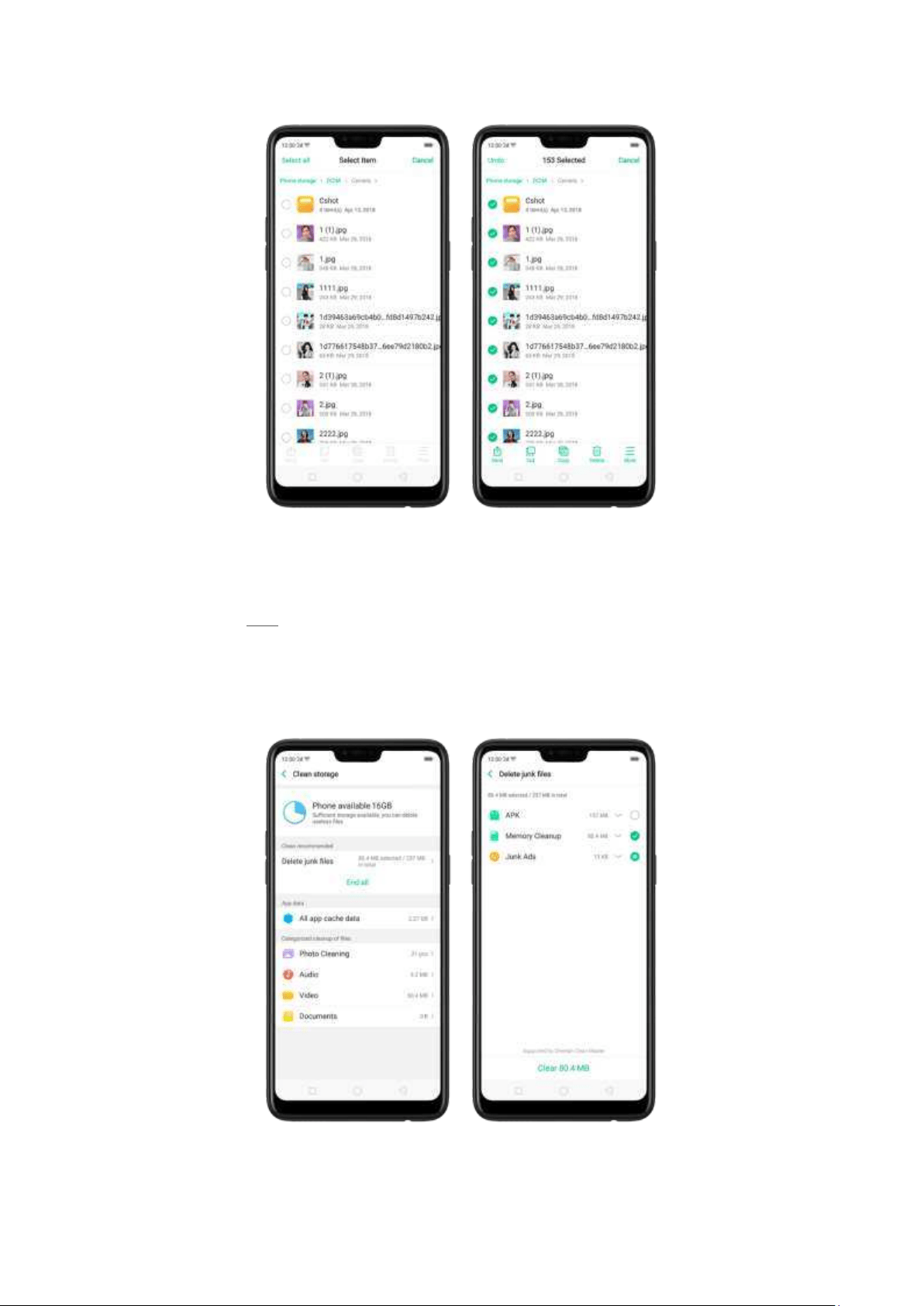
7.15.4. Clean St orage
In File Manager, click Clean Storage will let you use the cleanup feature in Phone Manager directly.
Delet e jun k files. Click Phone Manager, then click Clean storage. Click End all to delete all
kinds of junk files. You can also choose files to be delet ed.
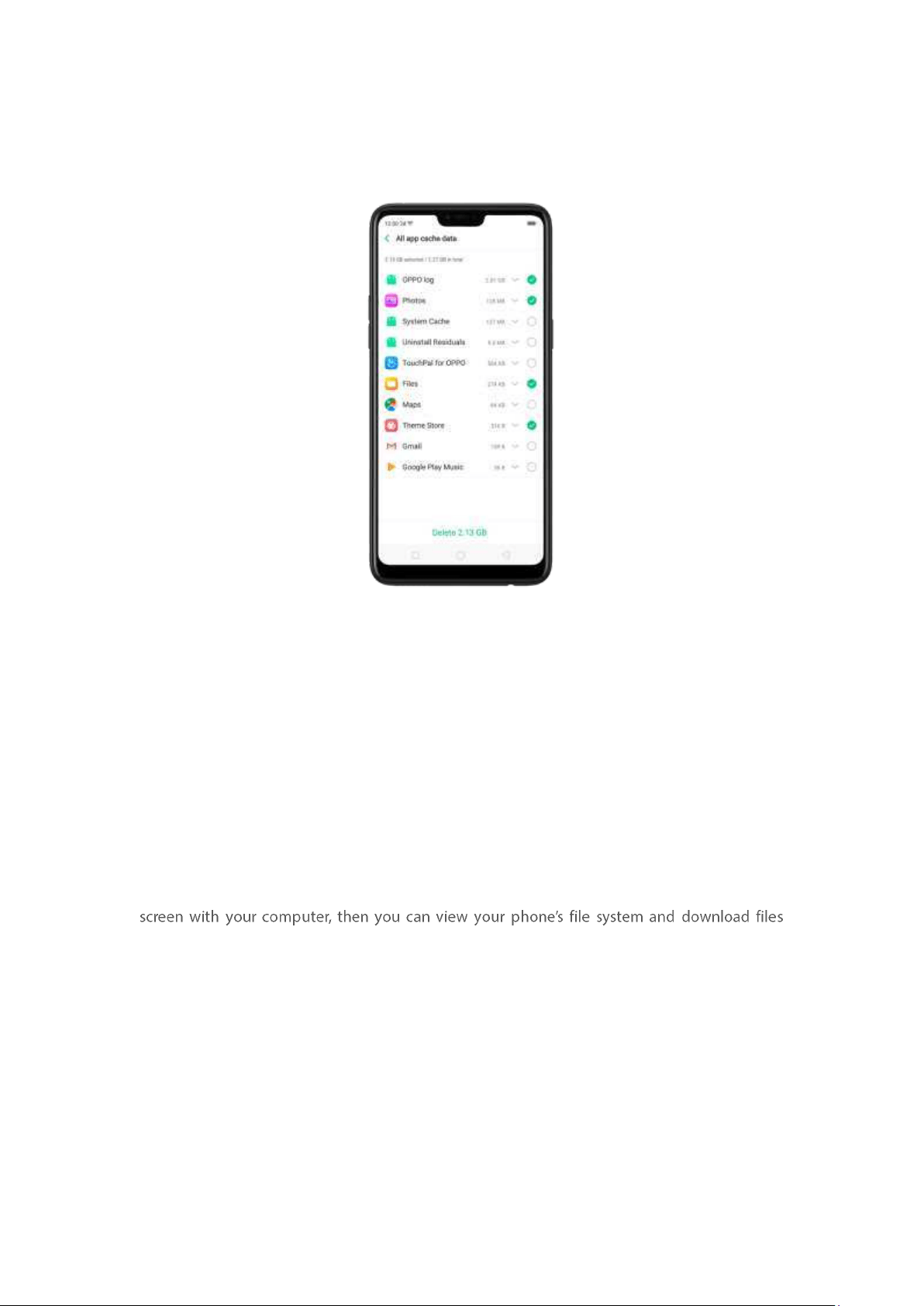
Delet e app data. Click All app cache data, select the apps that has caches, then click Delet e. The
action cannot be undone.
Free up m ore storage space. You can delete your unnecessary files on the phone, including
phot os, audio, vi
deos, and documents.
7.15.5. Rem ot ely Manage Phone Files
Remote Management can turn your phone int o an FTP server so you can view and download
files stored on you r phone remot ely from your comput er.
Remot ely view and dow n load files. Click File Manager, then click Remotely Manage Phone Files.
Connect to a Wi-Fi network, then click Start Service. Search the URL displayed on your phone
direct ly t o your computer.
Note: Make sure that your phone and computer are connected to the same Wi-Fi network.
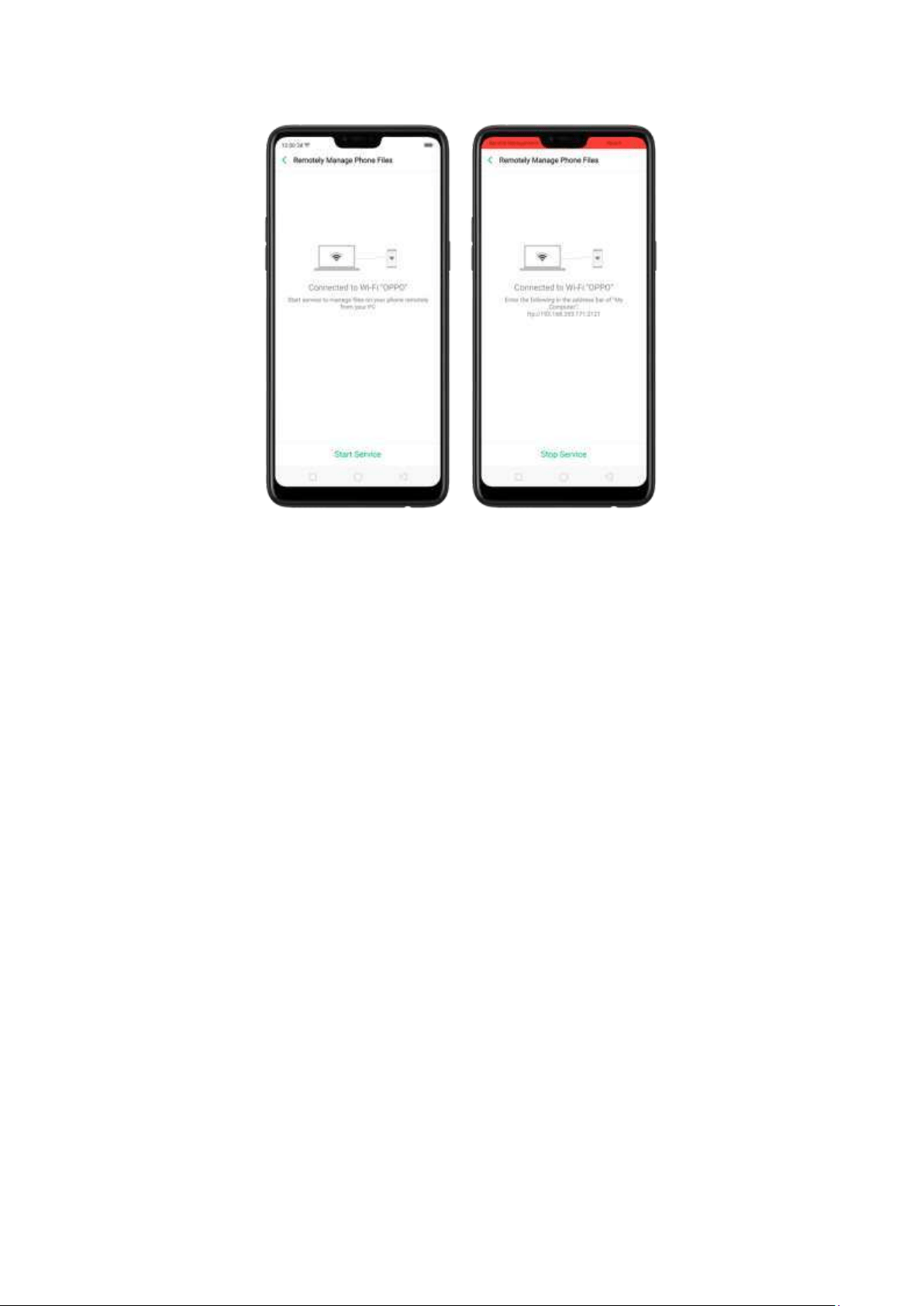
7.15.6. Privat e Safe
Start Using Private Safe.
1. Please set the Privacy passcode first before using this application. Go t o
[Set t ings] > [Fin gerprint , Face, & Passcod e] > [Lockscreen passcod e] and enter
your desired encryption m ethod. You can also click
SET PASSCODE and enter your
desired encryption method. You will also be asked for a security question as an
added layer of security for your privacy.
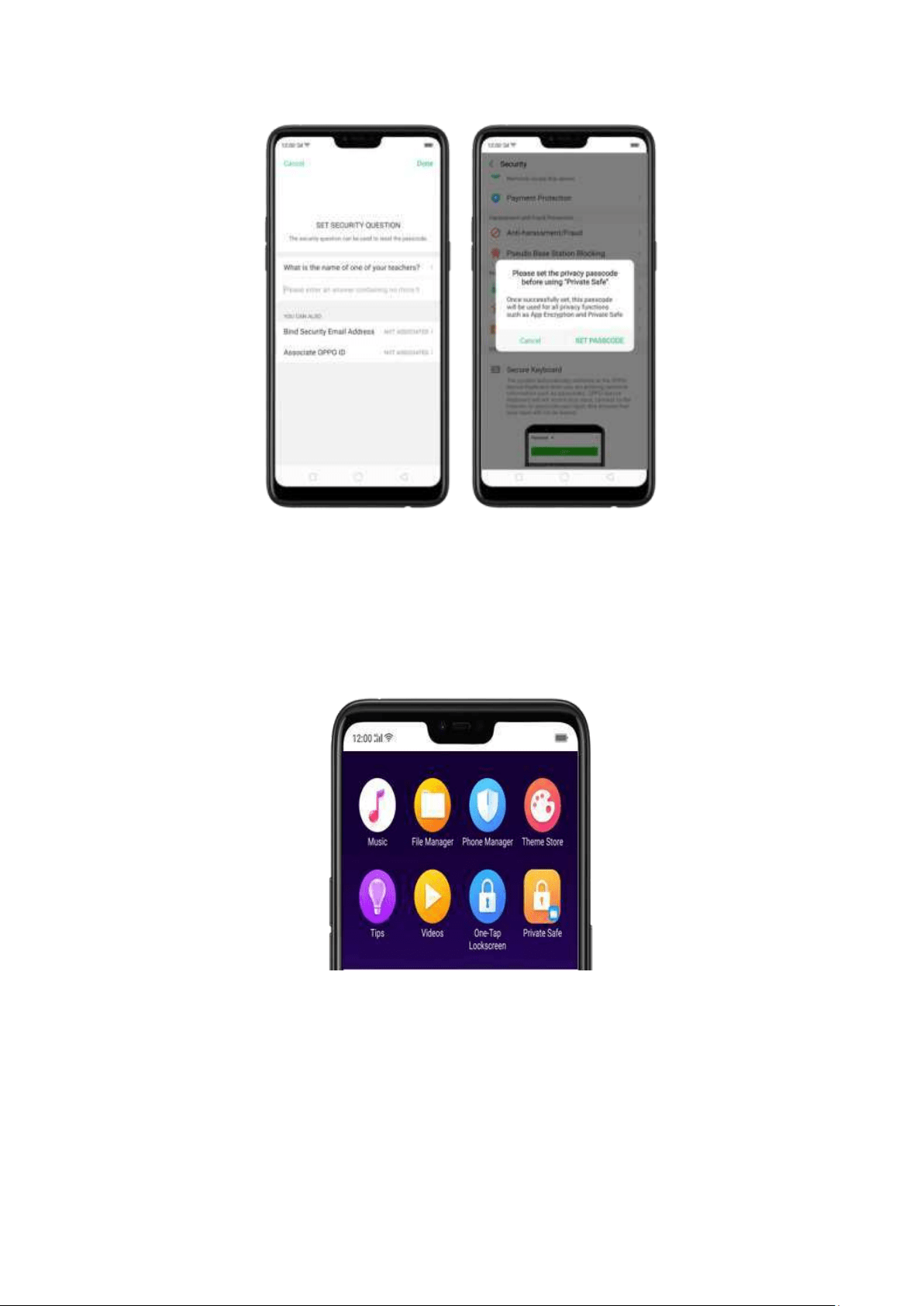
2.
Manage files on Privat e Saf e: Go t o [Set t in gs] > [Securit y] enter the passcode
that you have set, and then manage files that you want to be kept private.
FIles that can be added in Private safe are
Phot os, Aud io, Docu m ent s, and
other
Files that are supported by the app.
You can also create a shortcut on your home screen for easy access.
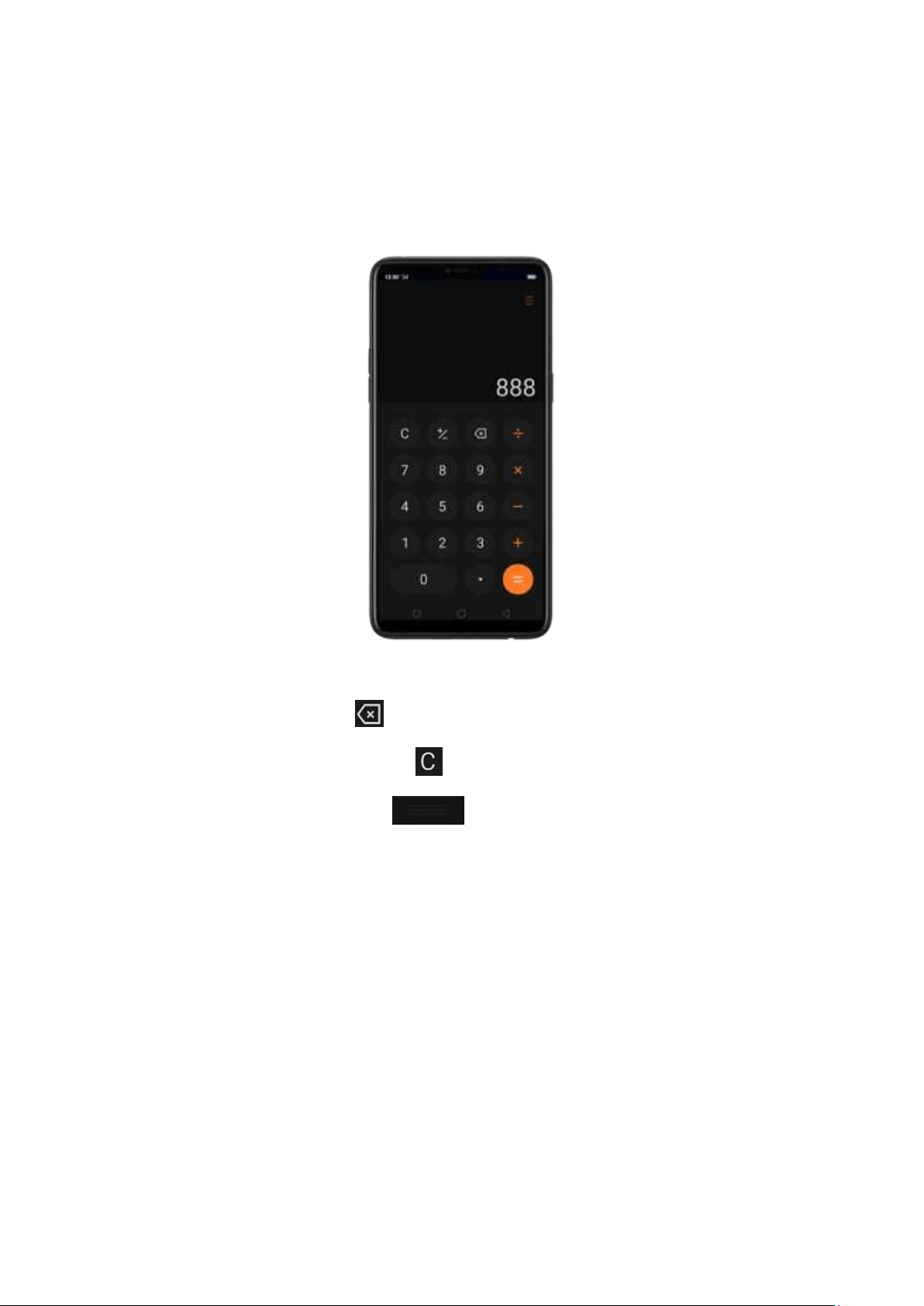
7.16. Calculat or
The new Calculator app not only combines t he standard and scientific calculators
but added useful functions which will come handy in time.
Delet e t he last digit . Click .
Clear t he calculat ion result s. Click .
Hide or show t he keyp ad . Click in the middle of the screen to hide the
keypad. Click Calculate or the calculation form ula to resum e.
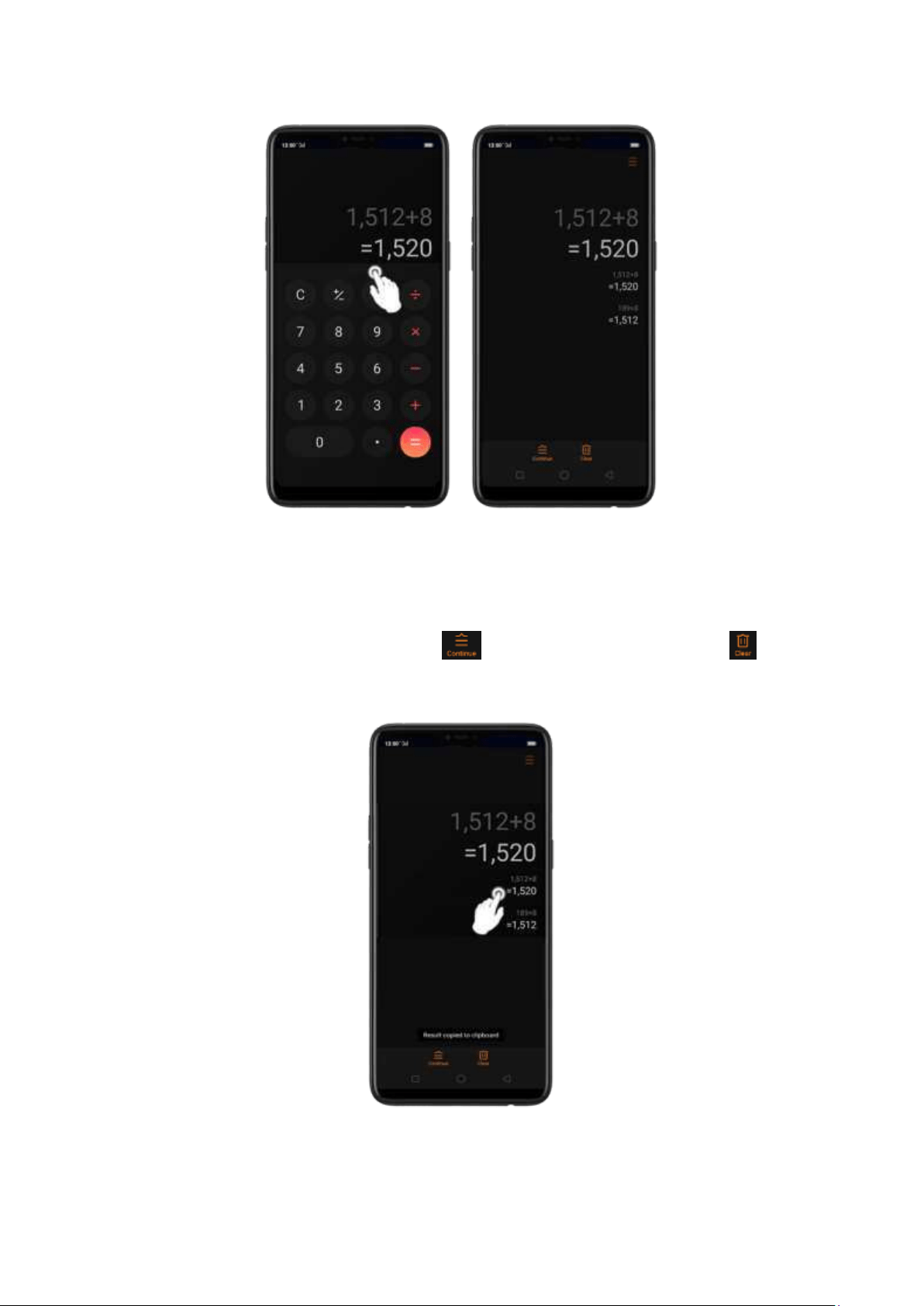
Cop y a calculat ion result to clip board . Long press the results and it will be
copied to the clipboard. You can click to continue calculating or click if
you want to clear everything and start a new one.
Use th e scient ific calculat or. Rotate your phone to landscape orientation.
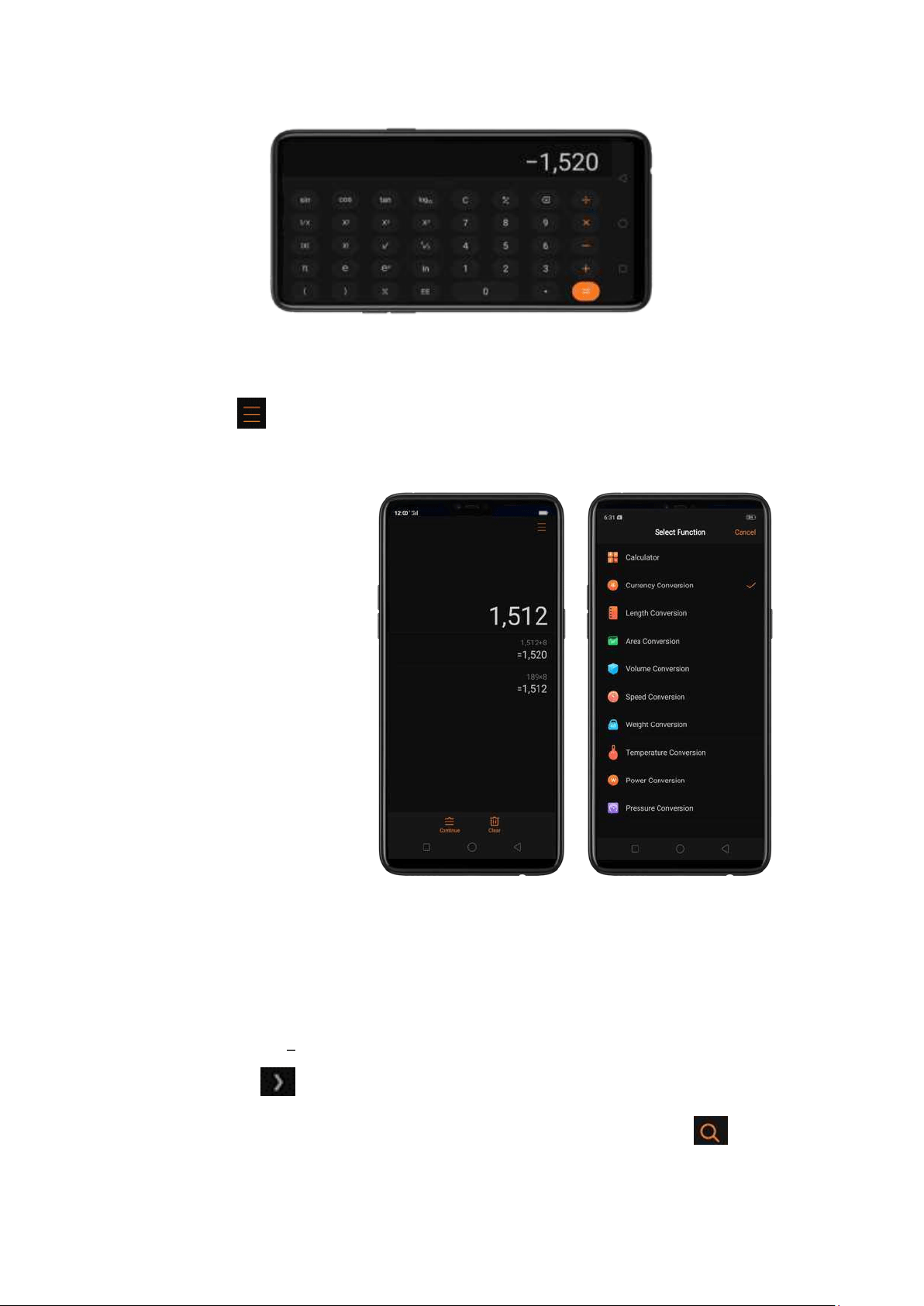
New funct ions in Calculat or. There are a lot of im portant functions t hat has been
added. Click at the top right portion of your calculator t hen select a function
that you would like to use.
The New Funct ions
Currency Conversion if you want to know what are the current real time
conversions. Click to select the currencies you would like to convert. It is on
alphabetical order with their national flags beside them. You can also click to
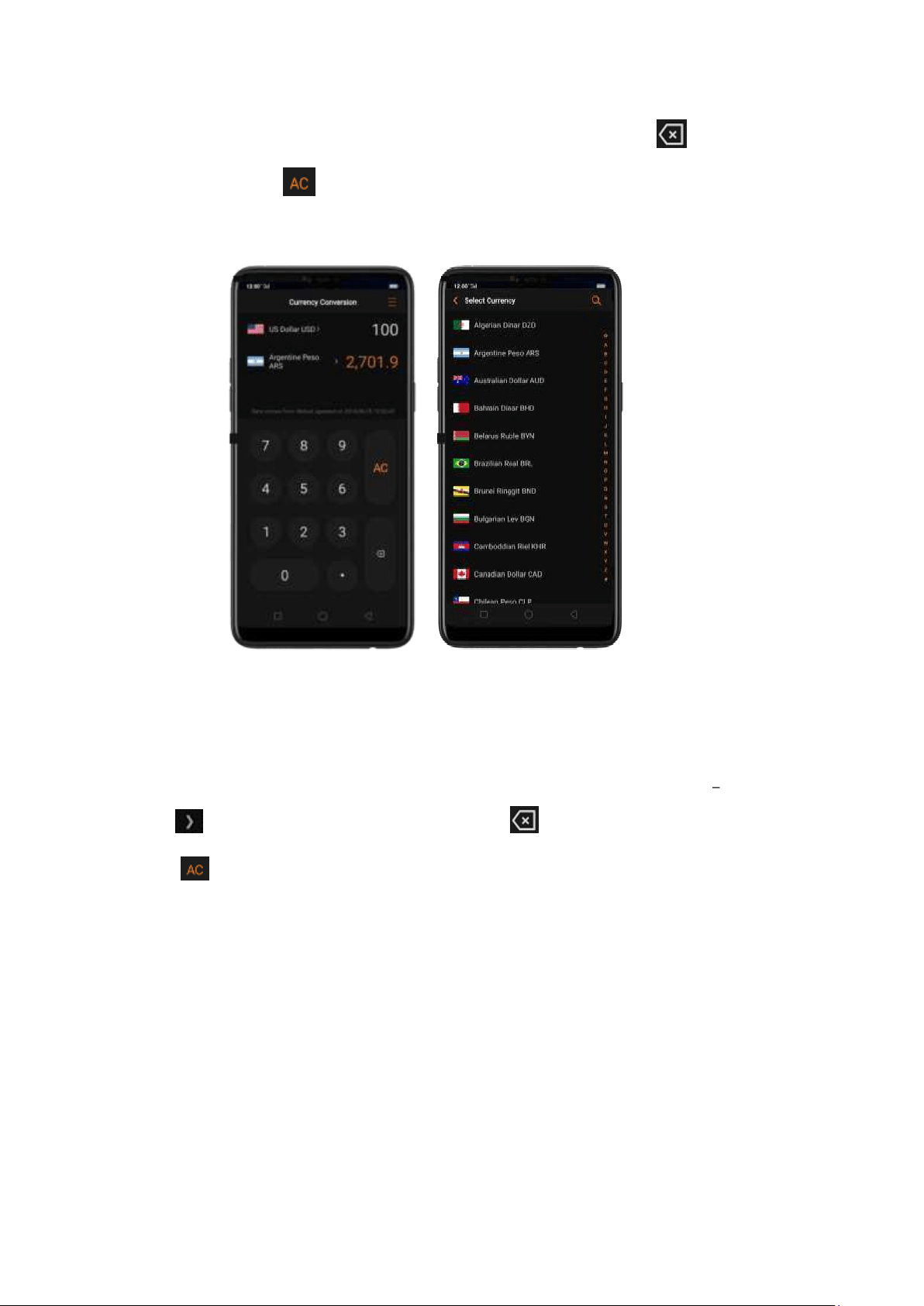
search for the country or currency that you would like to convert. Click to delete
the last digit and click to clear results. Long press the result and it will be copied
to the clipboard
Not e: Given that the exchange rates are volatile and change every second, you
need to have an internet connection for this t o function and to get the real tim e
conversions.
Length, Area, Volume, Speed, Weight, Temperature, Power, and Pressure Conversions
Click to select the unit you want to convert. Click to delete the last digit and
click t o clear result s. Long press the result and it will be copied to the clipboard.
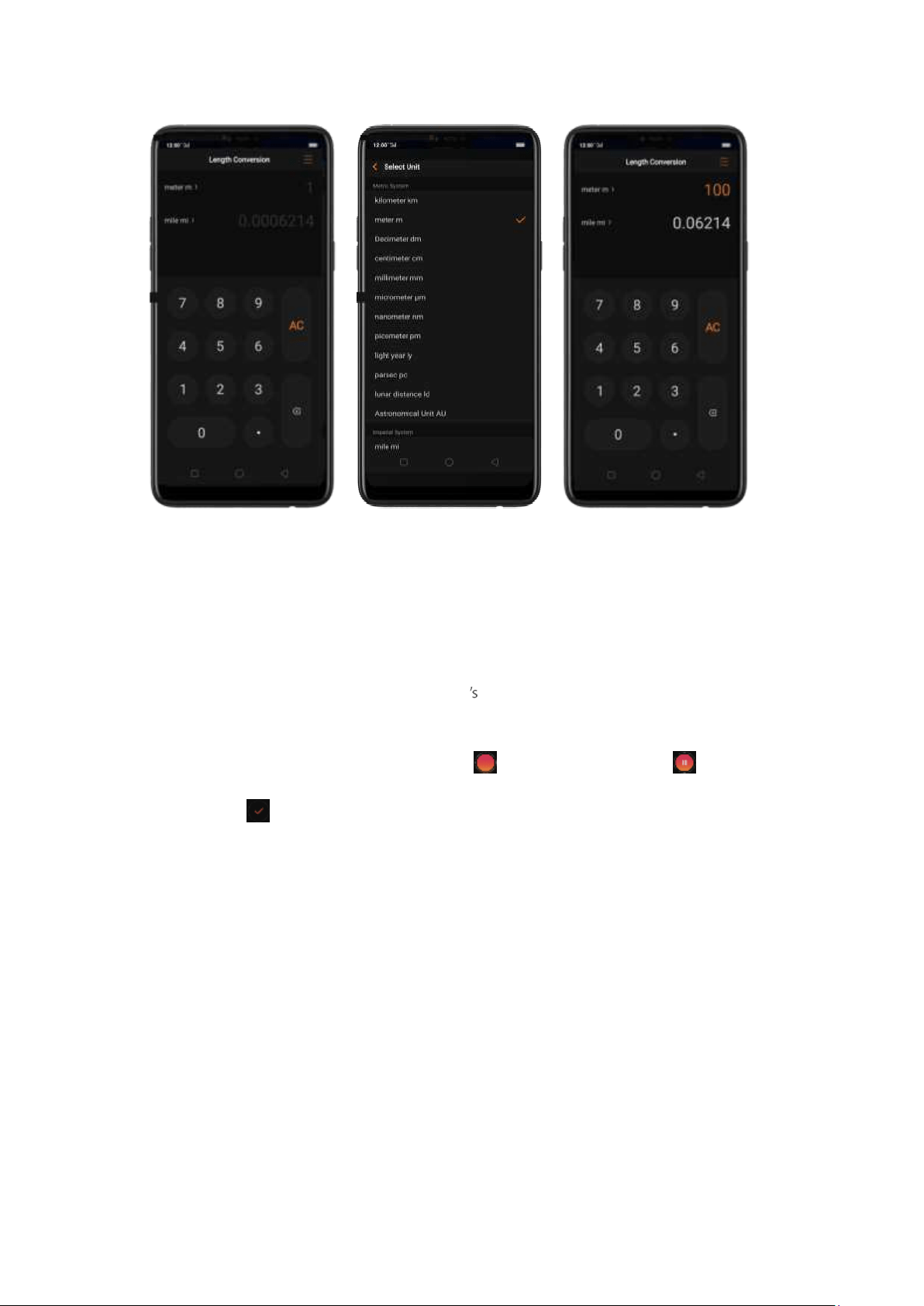
7.17. Sound Recording
7.17.1. Record er
Wit h the Recorder app, you can use your phone built-in microphone t o record sounds when
you need it.
Make a sound recording . Open Recorder, click to st art recording. Click to pause or
continue. Click to stop and save the recording.
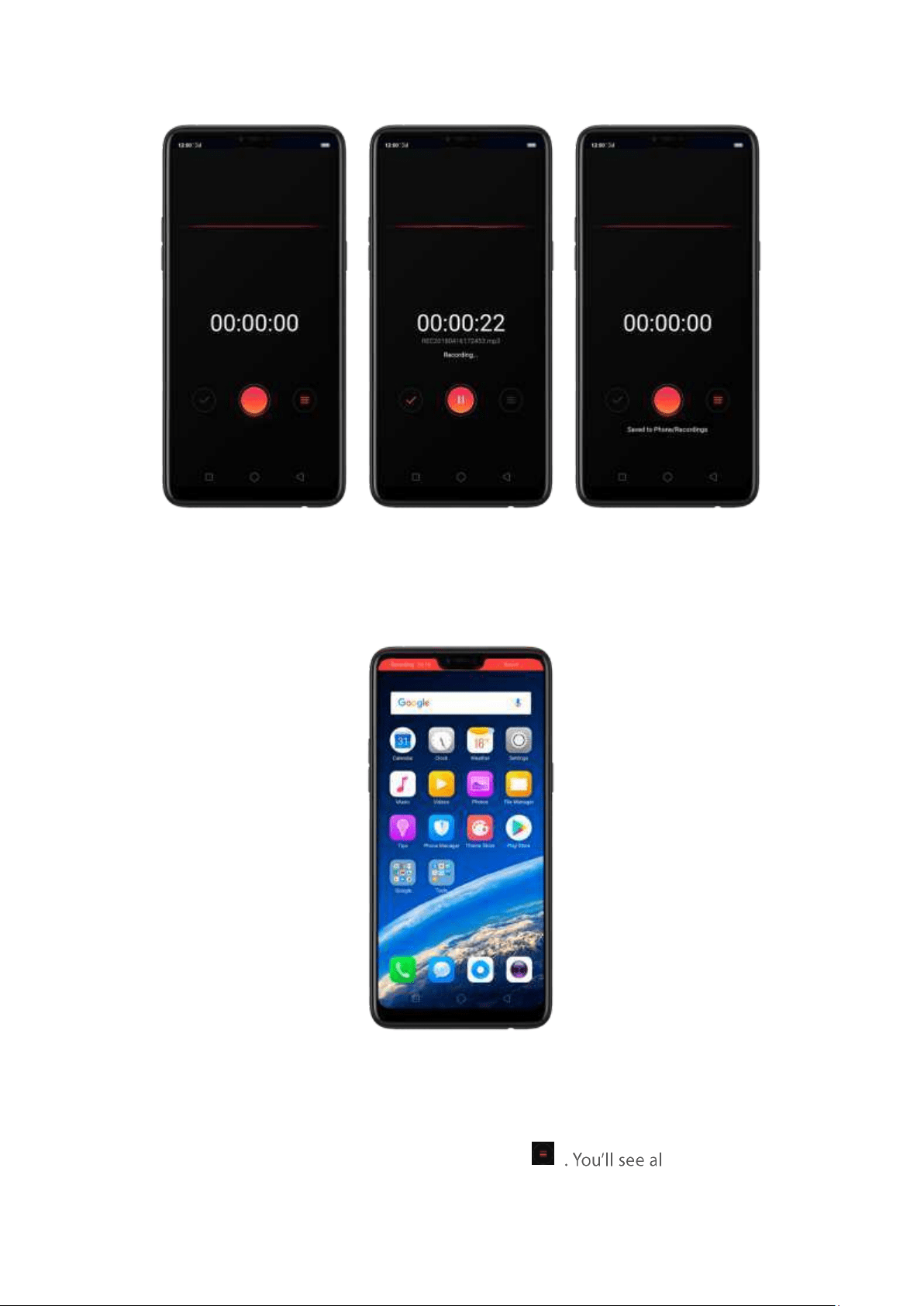
If you start the sound recorder and go to another application, the sound recorder continues
running in the background. To return to Sound Recorder, click the red bar at the t op of the screen.
7.17.2. Manag e recordings
Play t he sou nd b ack. Open Recorder, then click l the recordings
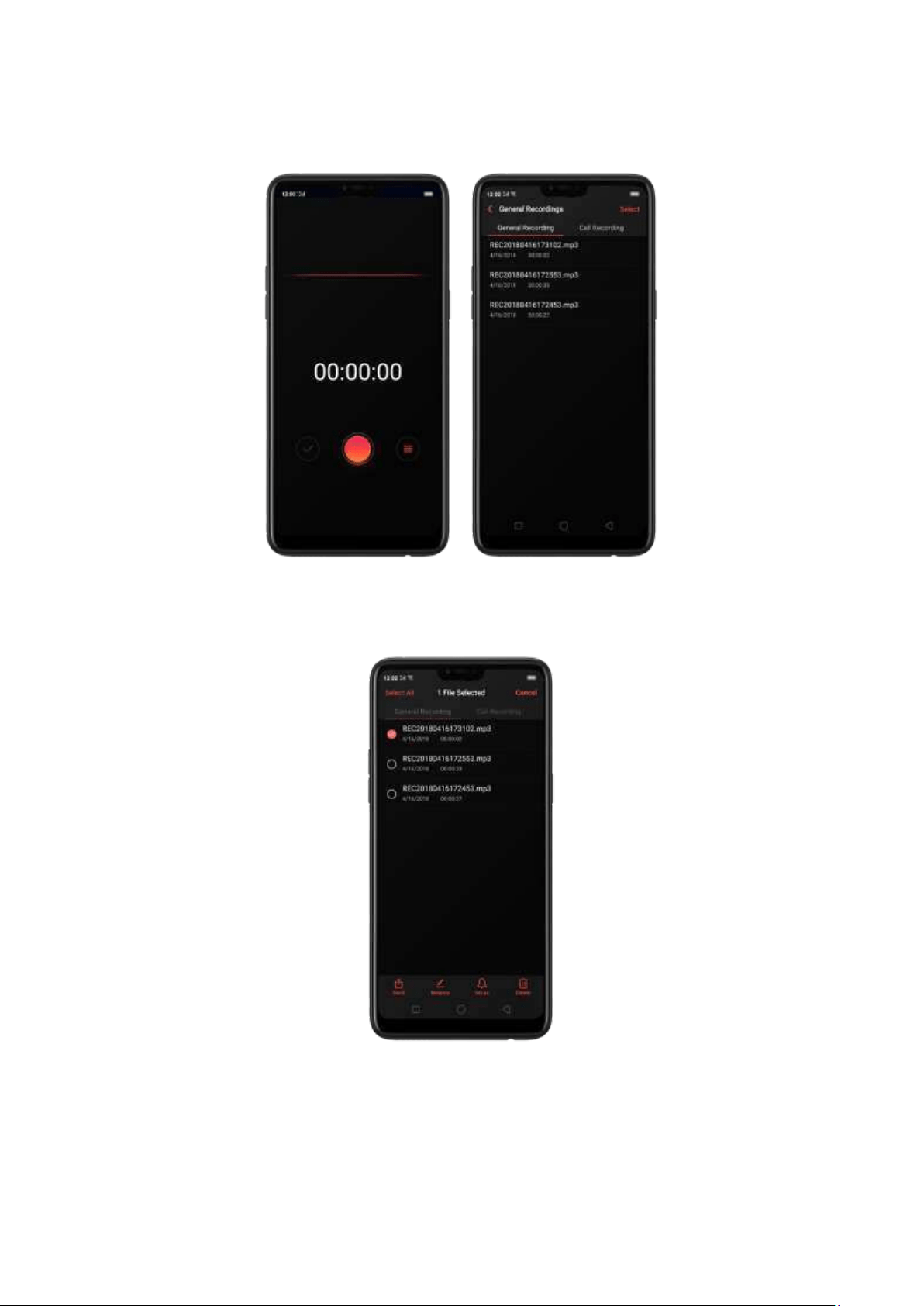
on your phone including general recordings and call recordings. Click a recording to
play it back.
Send , renam e or d elet e a recording. Click Select, choose the recording, then
choose an option.
Set t he recording as ringt ones. Click Select, choose the recording, click Set as
Ringtone, then set the recording as t he call, SMS, alarm or contact ringt one.
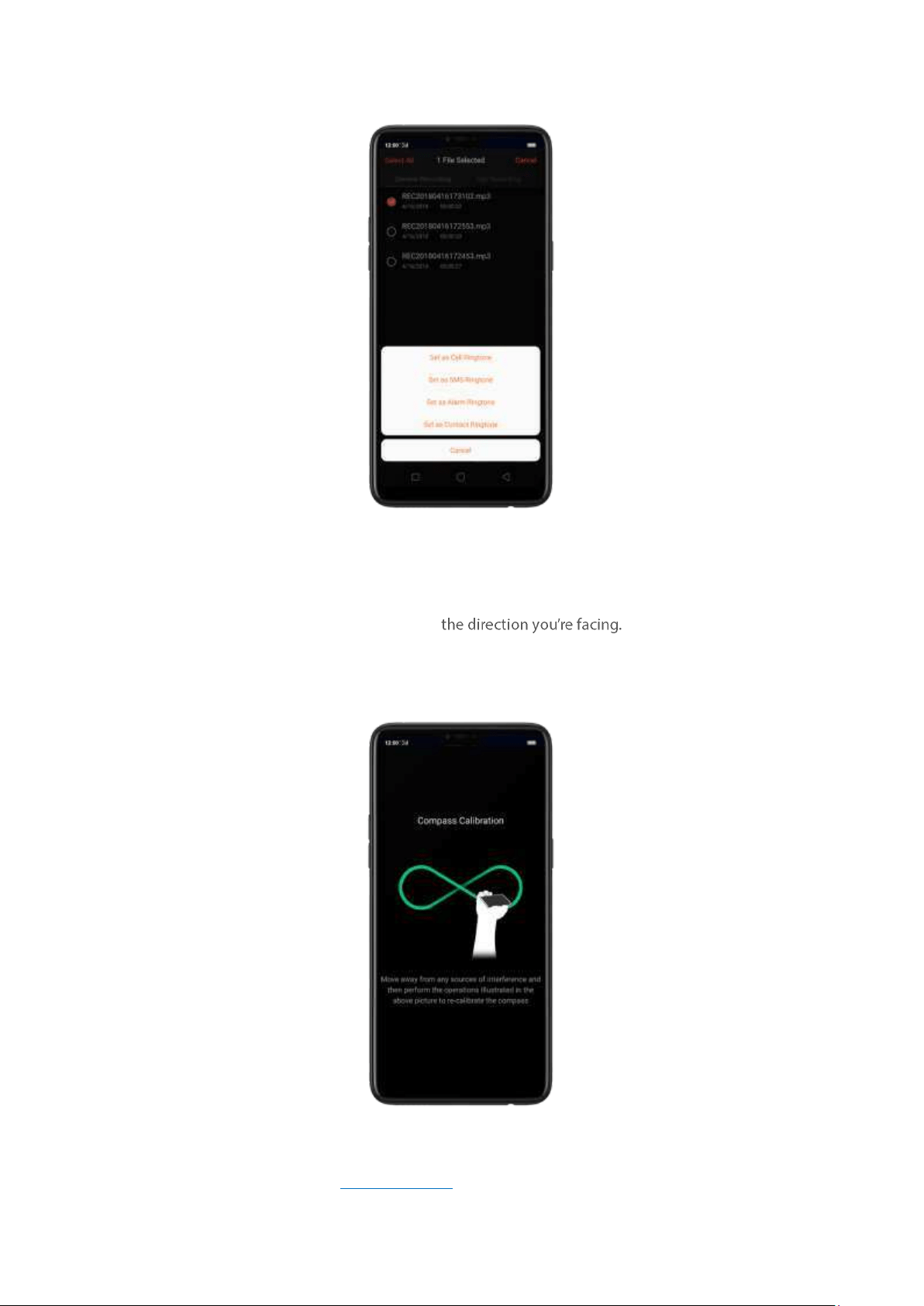
7.18. Com pass
You can use the compass app to quickly find
Calibrate the com pass w hen prom pt ed. Move away from the int erference and spin your phone
in t he patt ern of an infinit y symbol.
Find your direct ion . Turn on Location Service first, then click Tools folder on the Home screen,
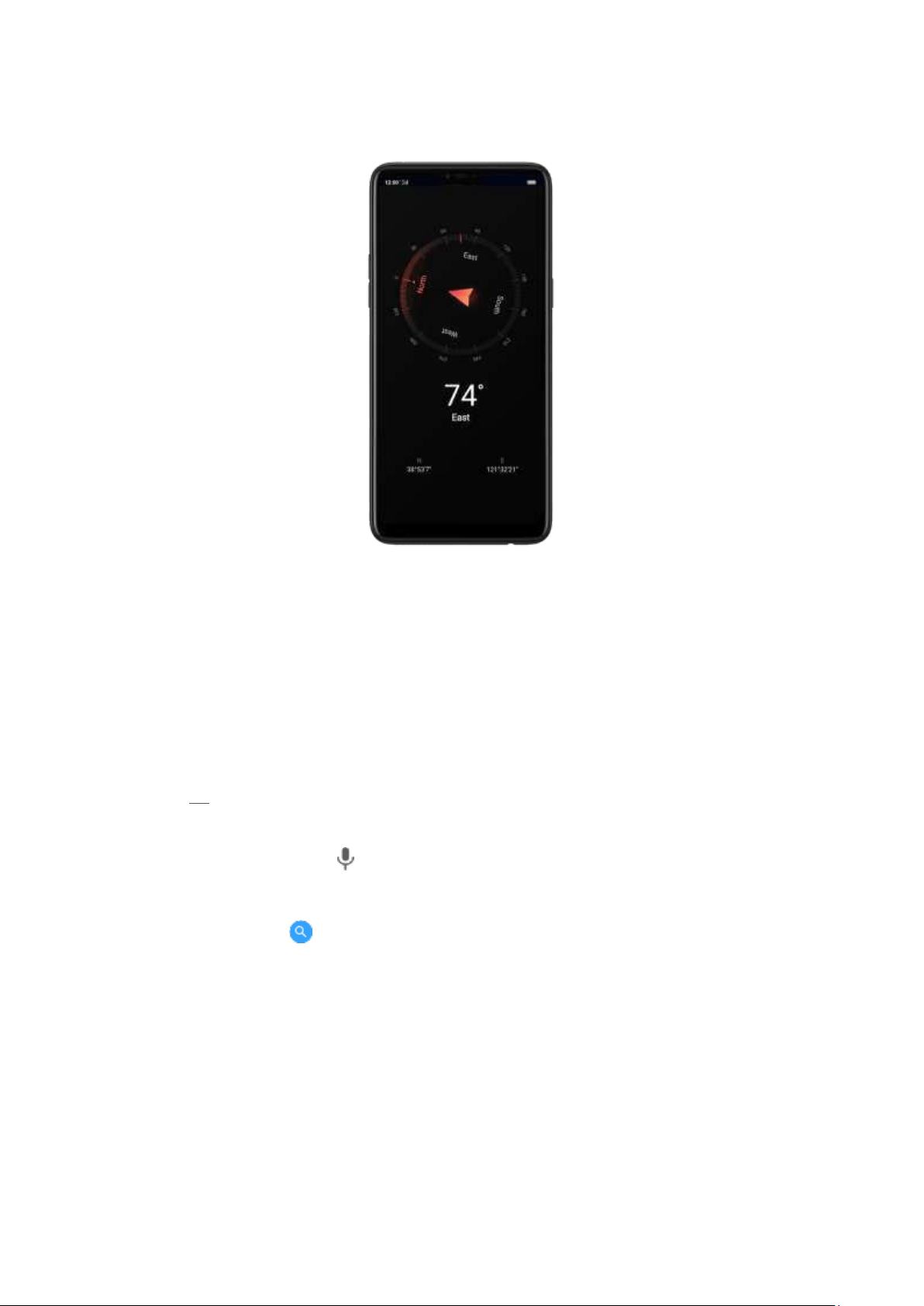
click Compass, and you can quickly find your direction, see your latitude and longitude.
7.19. Chrom e
7.19.1. Search t he web
The Browser lets you see webpages just as they were designed to be seen in
com puter-based browsers. Pinch t he screen to zoom in and out ; rotate t he phone
sideways for a wider view. You can also add page icons and bookmarks for quick
accesses.
Search t he w eb . Click the icon on the left side of the search bar to change the search
engine or web site. Click and say w hatever you want to search for, or click the
search bar, type the content or web address, then click a matching result under the
search bar, or click , or click Go
on the lower-right corner of the keyboard .
As you type, any web address on your bookmarks or history list that contains those
letters appears below. Click a web
address to visit its webpage.
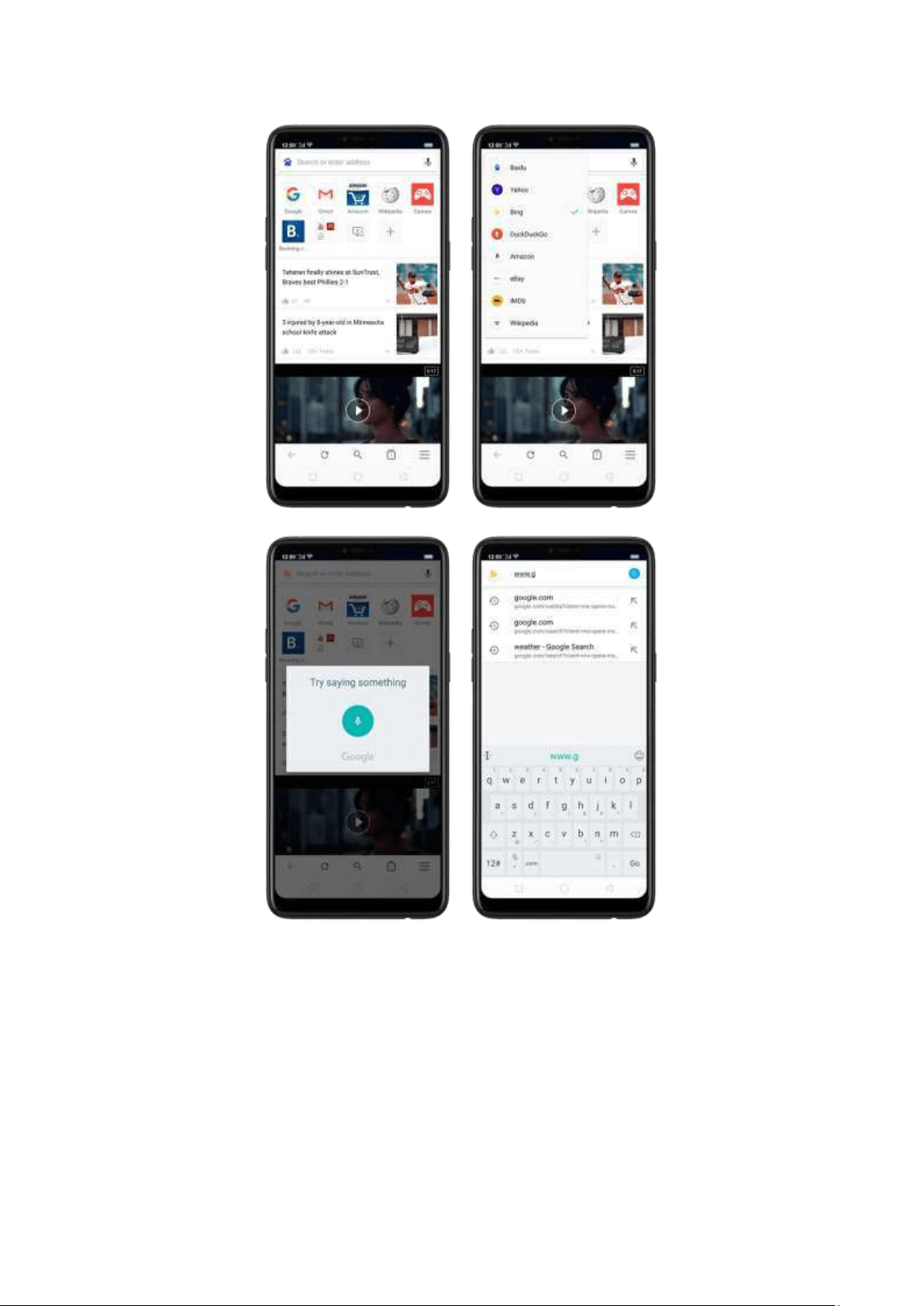
You can also click the Google search bar on the Home screen, t hen type or say
whatever you want to search for.
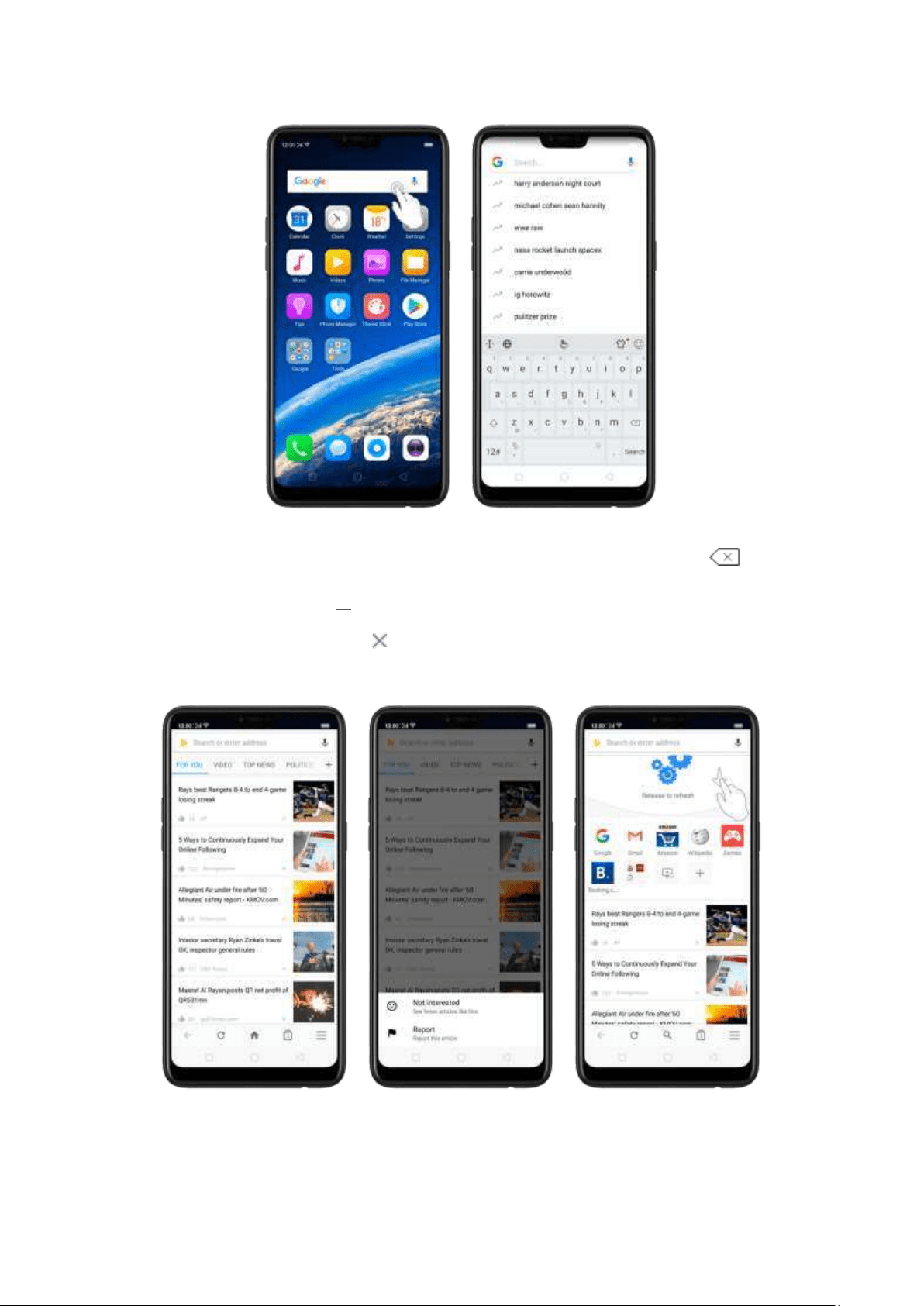
Erase all the text on t he add ress field . Click the address field, then click .
Open a su gg ested art icle. The browser will suggest several hot topic articles that
you migh
t be interested in on its home page. Click an article to view it. To delete
articles that you dislike, click . Scroll to the top of the hom e page and pull dow n
to refresh the articles.
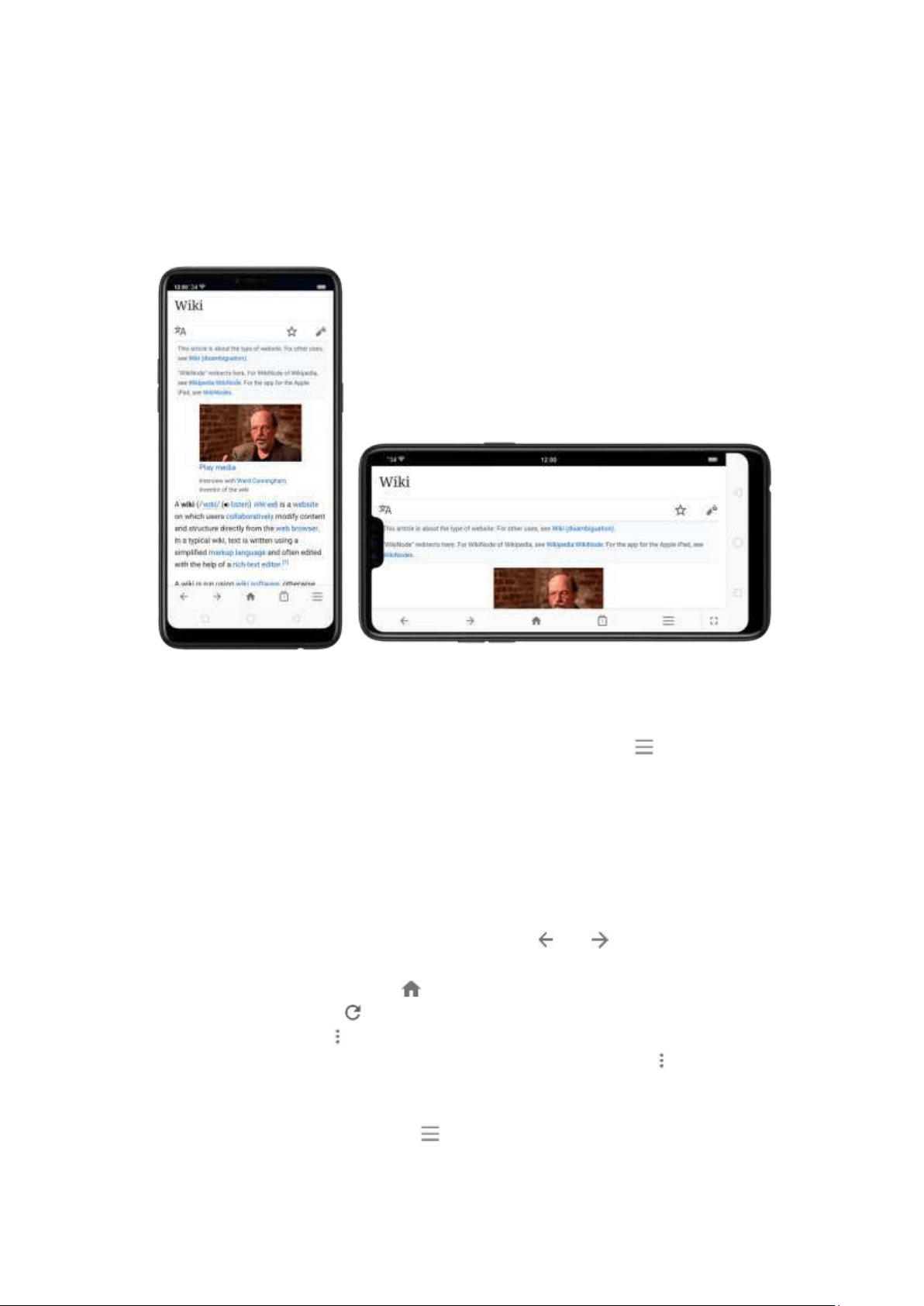
7.19.2. Brow se t he w eb
View a w eb p ag e in w id escreen orient at ion . Swipe up from the bottom of the
screen to open Control Center, then t urn off [Port rait Orient at ion Lock]. Rotate the
phone sideways. The Browser automatically reorients and expands the page.
Zoom in or out . Pinch to zoom in or out. When you browse a website which has a
mobile-specific view that prevents you from pinching in to zoom , you can use t he
Force enable zoom feature to override the site's dem ands. Click , click
[Settings],
then turn on
[Force enab le zoo m]. You can now pinch t o zoom wherever you want,
whether the website technically supports it or not.
Scroll around t he page. Drag up, down, or sideways. When scrolling, you can touch
and drag anyw here on the page without activating any links.
Follow a link on a w eb page. Click the link. Many images also have links. A link can
take you to another place on the web, open another app, call a phone number, and
more.
Ret urn t o t h e previous or next w eb p ag e. Click or at the bottom of the
screen.
Ret urn t o t h e Hom e page. Click .
Reload a webpage. Click .
Share a w eb page. Click , click Share, then choose how to send your web page.
Translat e a webpage. When at t he foreign language website, click , click Translate,
then the brow ser autom atically translates the language to your default language.
Translating t he webpage takes tim e, so be patient.
To set your default language, click , click [Set t in gs], then click [Co unt ry and
languag e].
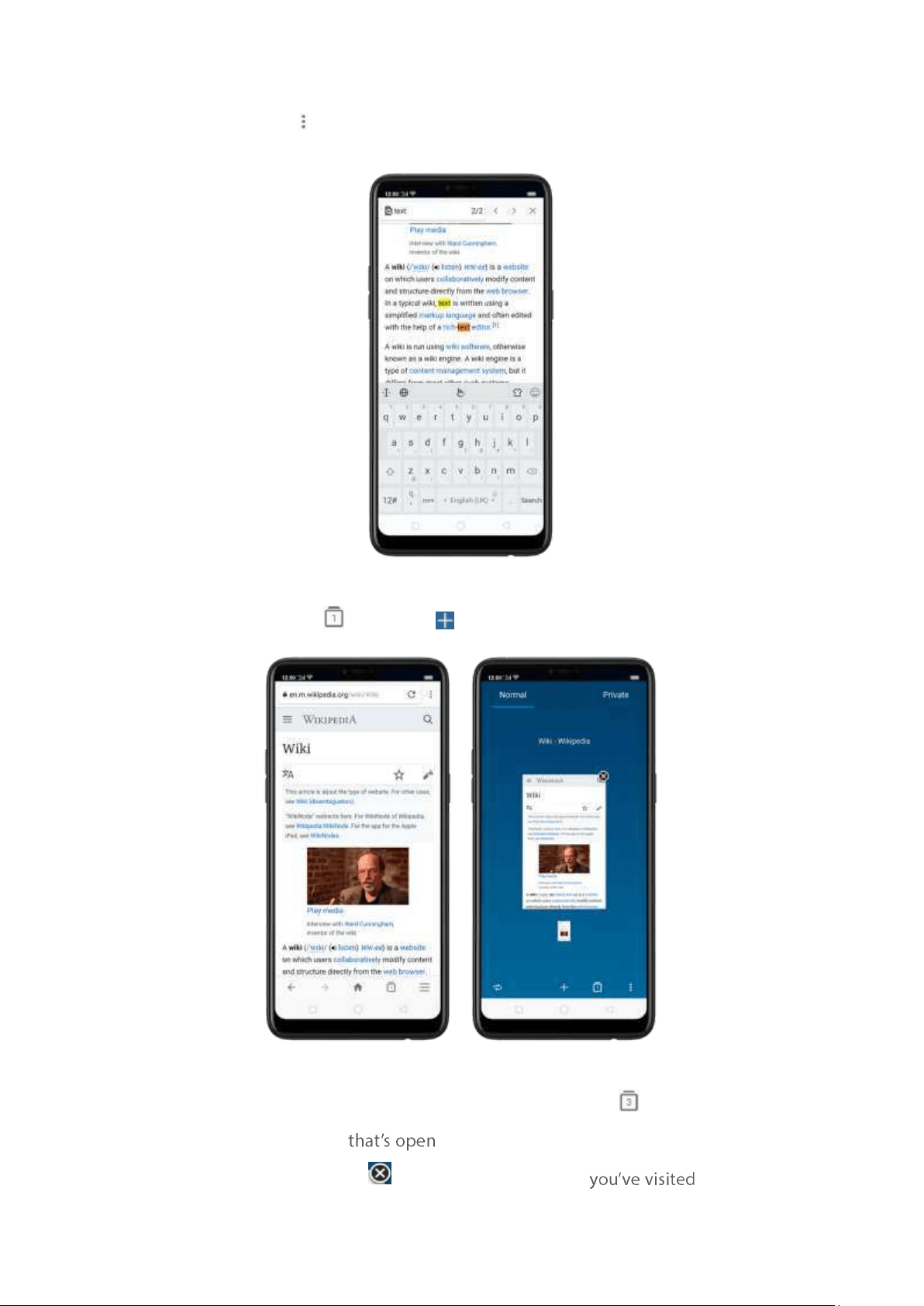
Find in p age. Click , click Find in Page, enter the text, then the browser will find
text matches
on the current webpage.
Open a new t ab . Click , then click to open a new tab.
View all op en tabs. If you open three tabs, for example, click , then swipe left or
right. To go to anot her tab
, swipe to the tab, then click it. To close a tab,
swipe up on the tap, or click . To reopen the last page
or close all
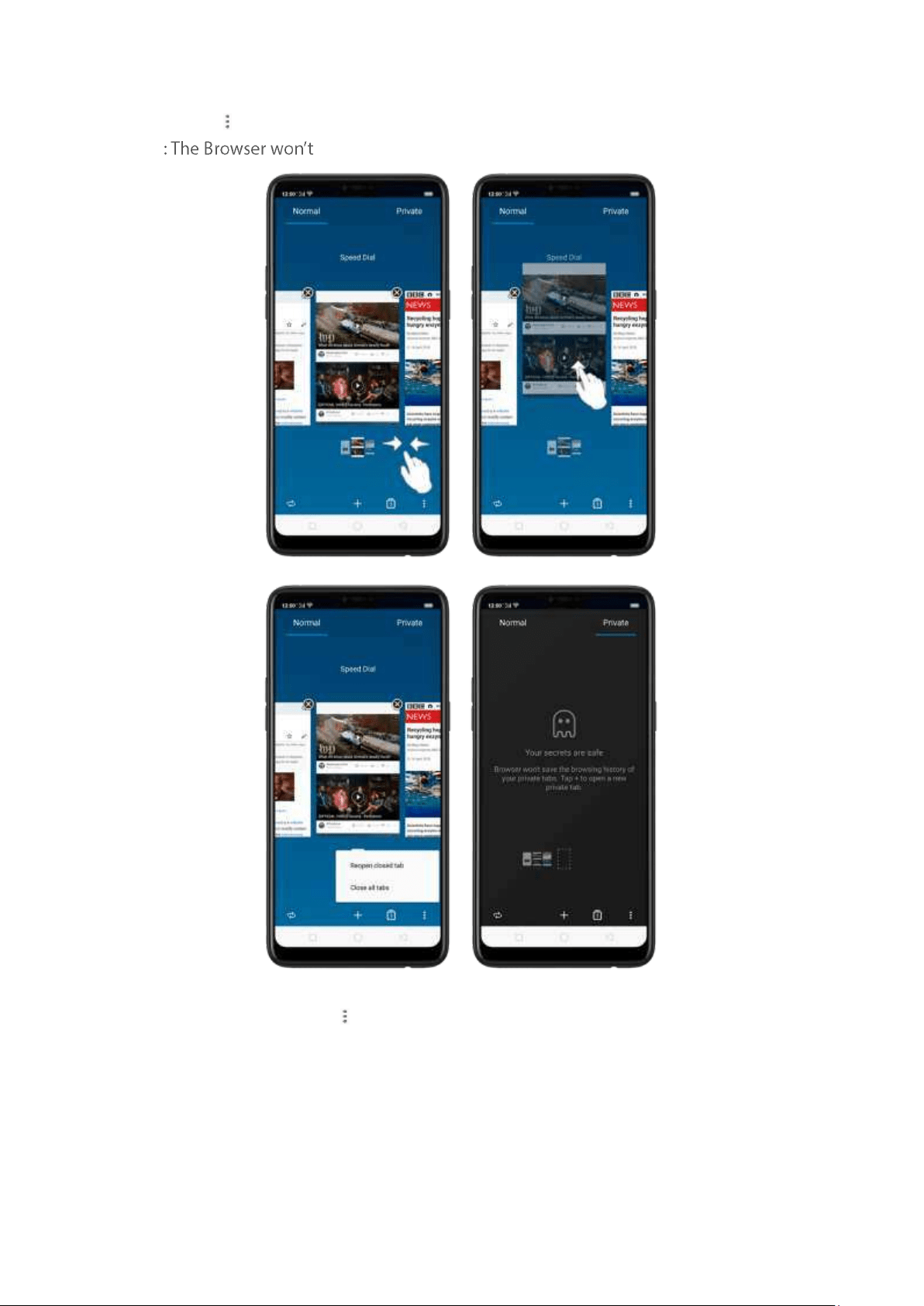
taps, click and choose an option.
Tip
save the browsing history of your private tabs.
Requ est d eskt op sit e. To see webpages just as they were designed to be seen in
com puter browsers, click , then enable Deskt op site.
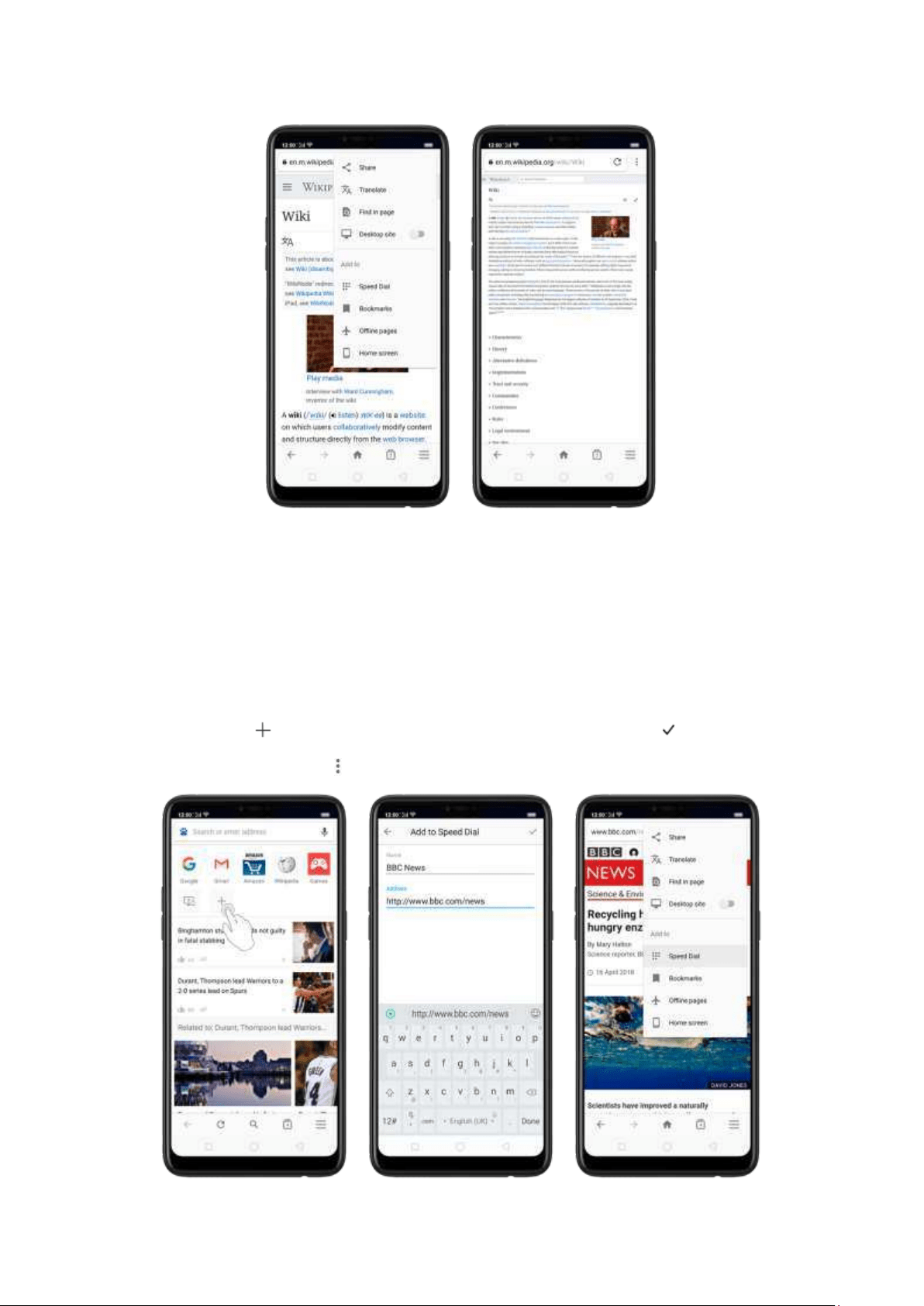
7.19.3. Quick accesses
You can add webpages to Bookm arks, so that you can quickly return to them at any
tim e without having to type the address. You can also add page icons t o the Hom e
screen for quick access, and download the webpages to view them offline.
Ad d a w eb p age t o Sp eed Dial . Open the Hom e page of t he Browser, click Speed
Dial, then click . Enter the webpage name and address, then click . You can also
open the page and click . Then click Speed Dial.
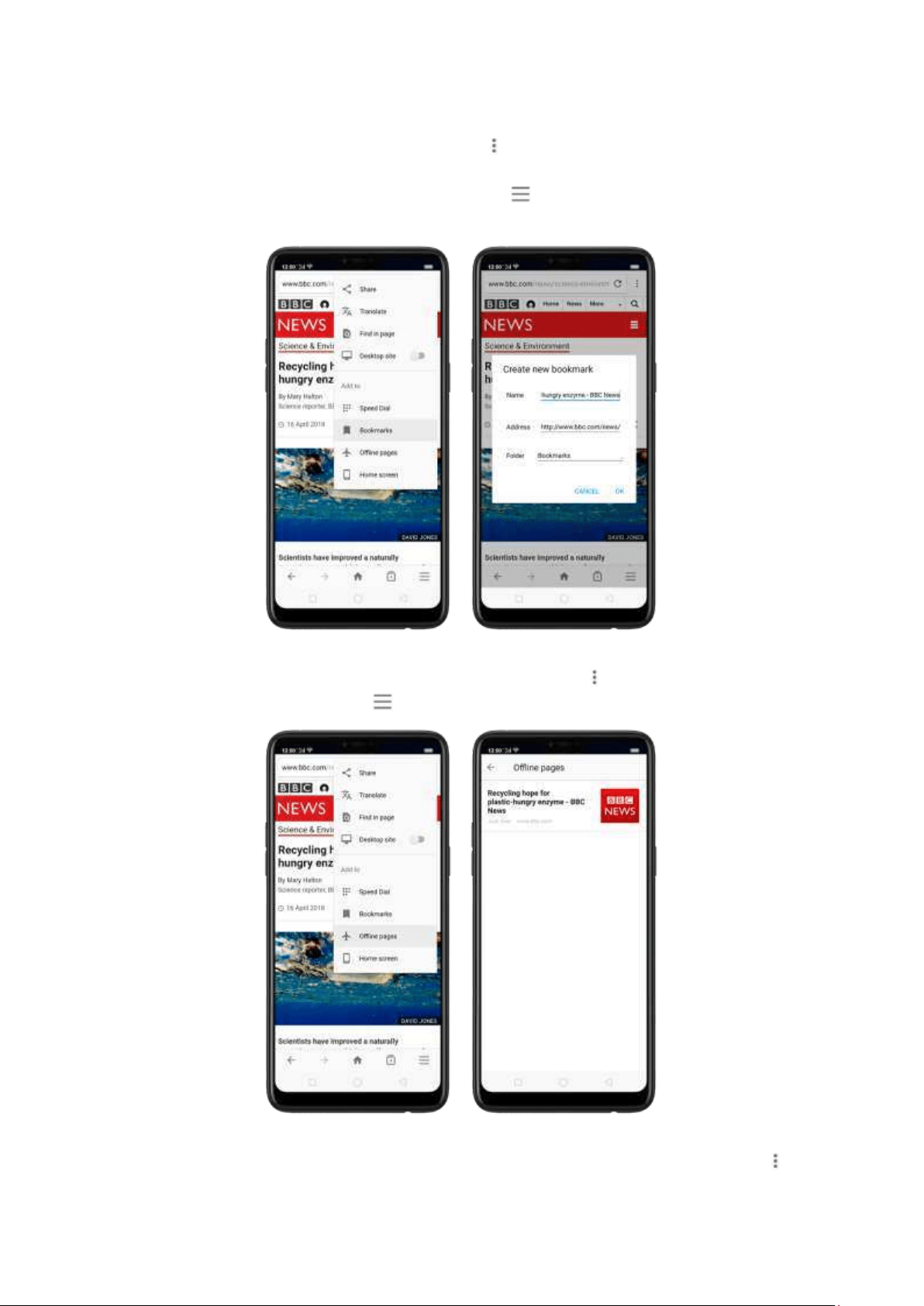
Bookm ark a webp age. Open the page, click , then click Bookmarks, edit its title or
choose where to save it, then click OK.
* To manage your bookmarks and folders, click from the webpage screen, then
click Bookm arks.
Save a webp age for offline reading . Open the page, click , then click Offline pages.
To open an offline page, click , click Offline pages, then click a page.
Ad d an icon for t he current p age t o your Ho m e screen . Open the page, click ,
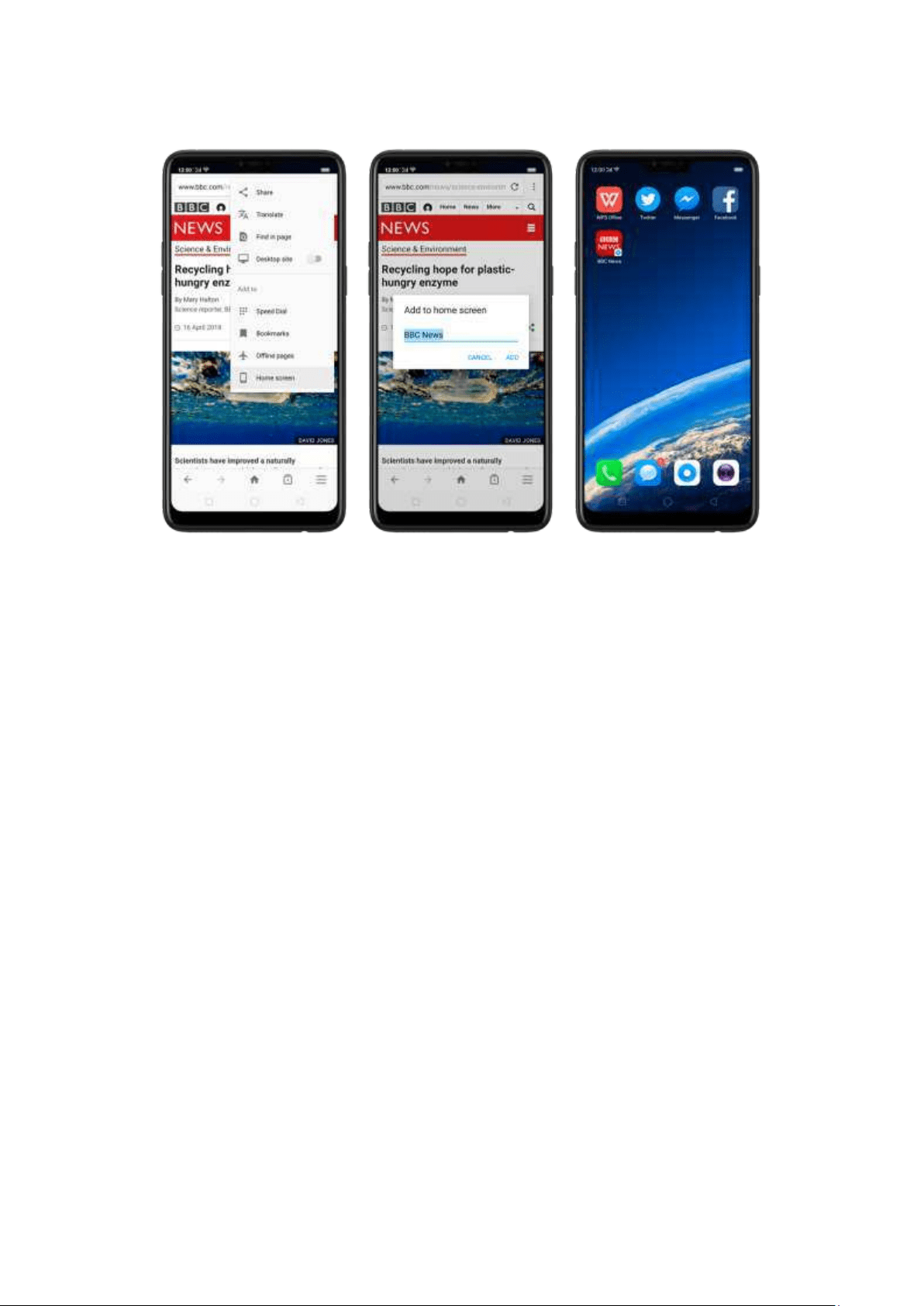
then click Home screen, edit its title, then click Add.
8. Safet y & Privacy
8.1. Device securit y
8.1.1. Lock screen passw ord
Security on your OPPO smartphone begins at the lock screen. You can set a passcode
that will be needed to unlock your phone.
Set , chang e, or t urn off t he passcod e. Go to [Set tin gs] > [Fingerprin t , Face &
Passcode]. You can draw a pattern, use a 4-Digit, 6-Digit, or 4-16 Digit Numeric Code
or 4-16 Character Alphanumeric Code.
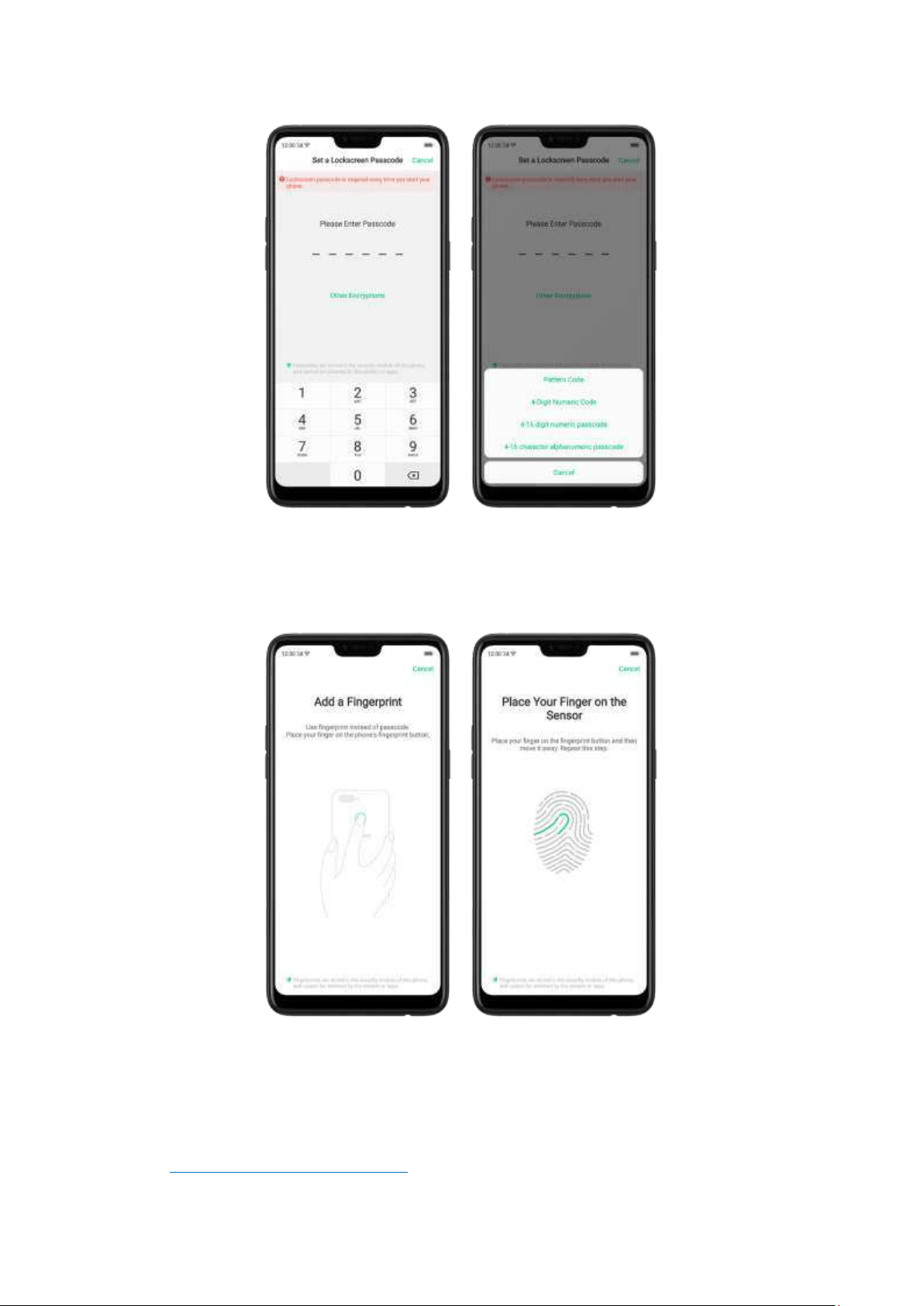
Ad d a fingerprint . Before you can add a fingerprint, you need to create a passcode.
You can use the fingerprint to unlock t he phone. You can add up to 5 different
fingerprints on your phone.
Enroll face. Before you can enroll a face, you need to create a passcode. You can use
the face to unlock t he phone instead of the fingerprints or passcode. You can enroll
only one face on your phone.
View more about setting a passcode, face ID and fingerprint on your OPPO phone,
see
Fingerprint, Face and Passcode.
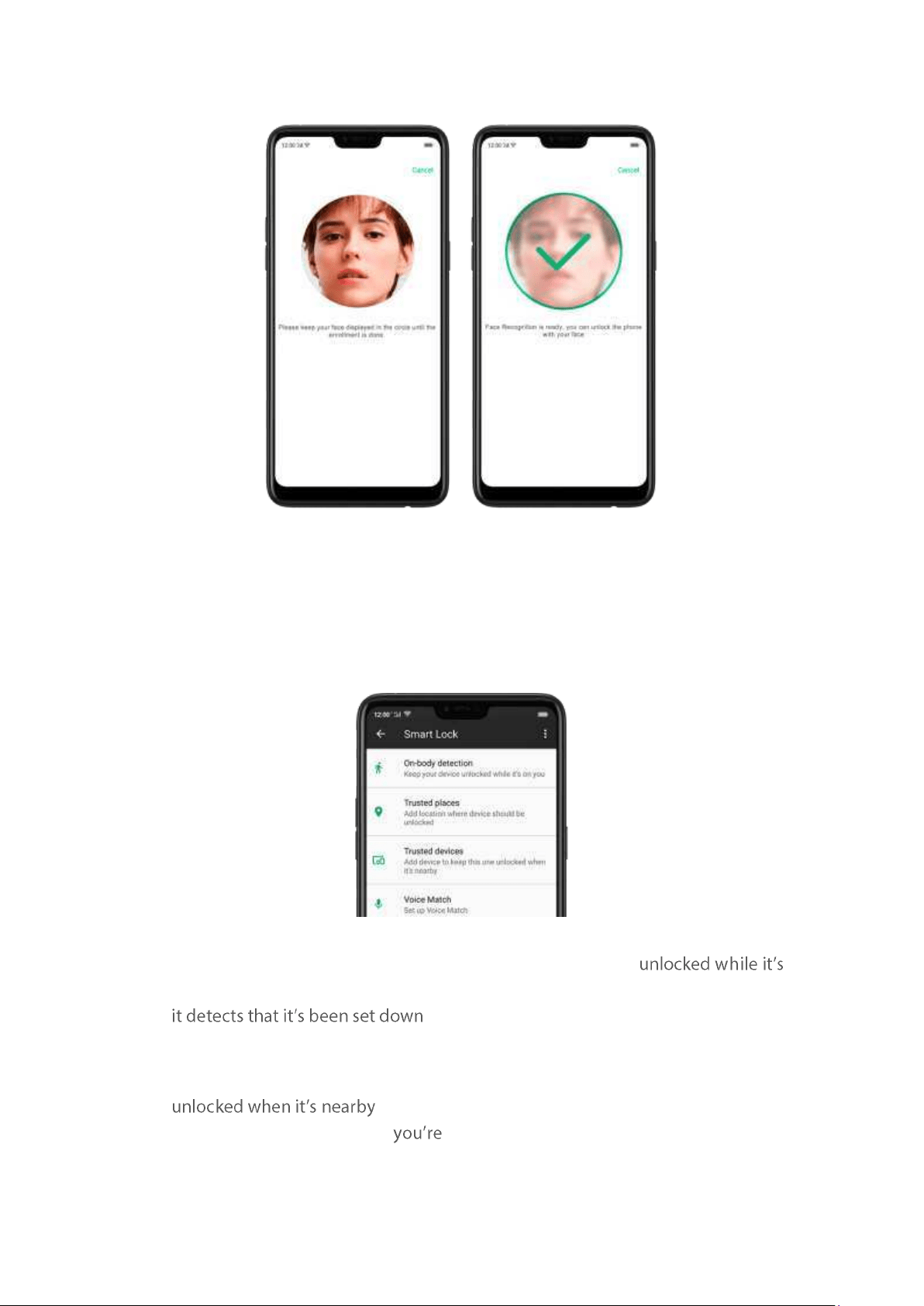
8.1.2. Sm art Lock
Sm art lock is an easy and handy way to gain access to your phone.
Turn on Smart Lock op t io ns. Go to [Set tin gs] > [Ad dit ional Set t in gs] > [Device &
Privacy] > [Sm art Lock], then enter your phone passcode.
On-bod y det ect ion. Once enabled, your device will be kept
with you, like when you are holding it or carrying it. Your device will lock when
, like putting it on t he table or is away from
your body.
Trusted places. If you have added trusted places, your device will be kept
those areas. For example, if you have added your
home as a trusted place and
80m aw ay from your house the device will
be kept in unlocked m ode.
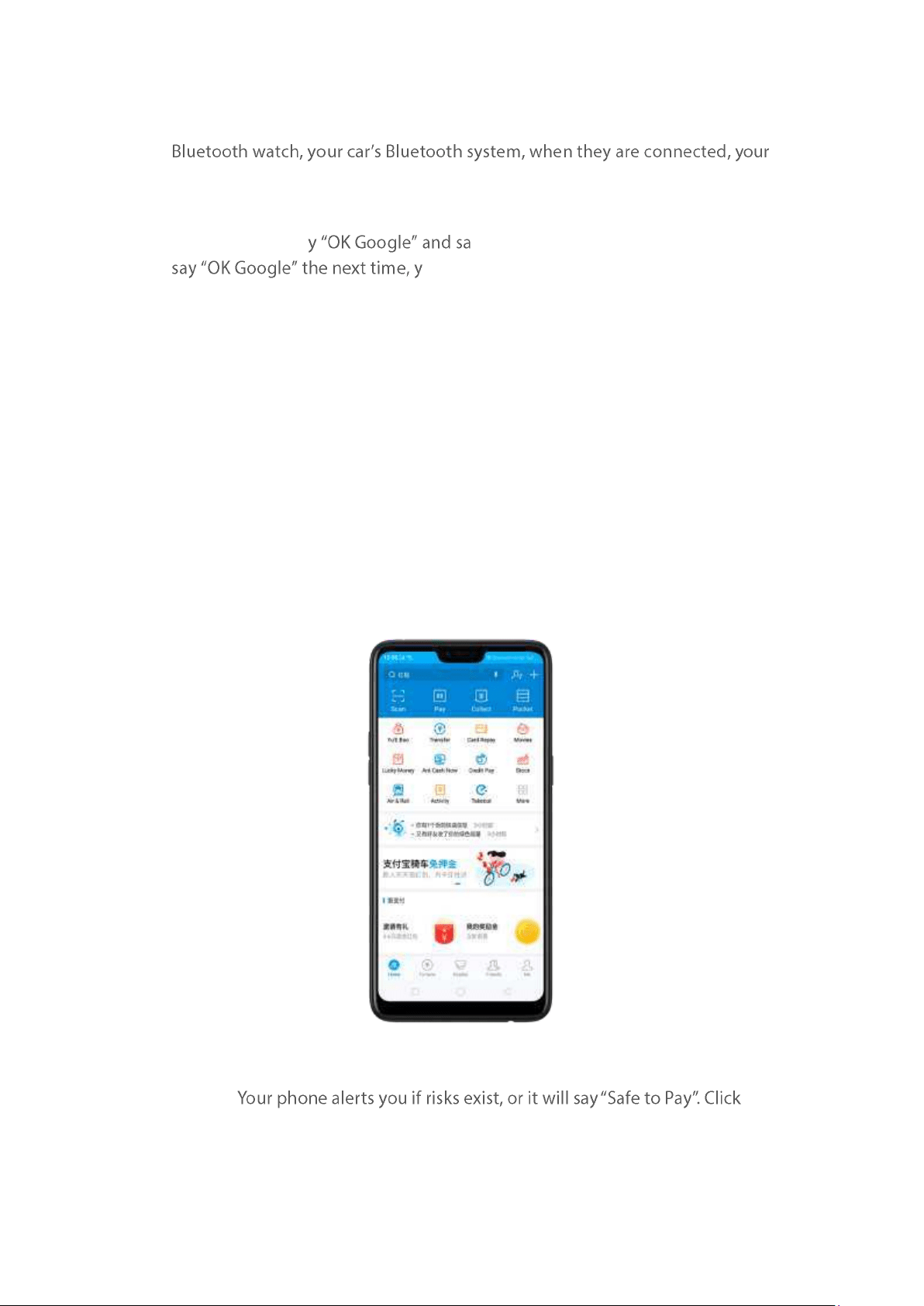
Trusted d evices. If you have added trusted devices, for example, your
device will be kept in unlock mode. (Note: Bluetooth connections have a range
of up to 100 meters.)
Trusted voice. Sa ve it on your Google account. When you
our device will be unlocked once it recognizes
your voice.
Not e: When Smart Lock is on, your phone will remain unlocked if you're carrying the
phone, w hich will quickly drain your p hone's battery. This will also lead to accidental
command s if you put the phone in your pocket. Therefore, if you want to use Smart
Lock, use it wisely and properly.
8.1.3. Paym ent prot ect ion
While you shop online, your OPPO phone will provide protection for the m obile
transactions, such as detecting the system, captcha and
, app security. You can see
the detected inform ation of the current payment environm
ent on the uapper-right
corner of the screen.
Set up p ayment p rot ect ion for app s. Go to [Set t ings] > [Securit y] > [Paym ent
Prot ectio n]. View
and do as what the phone prompts to remove the risks.
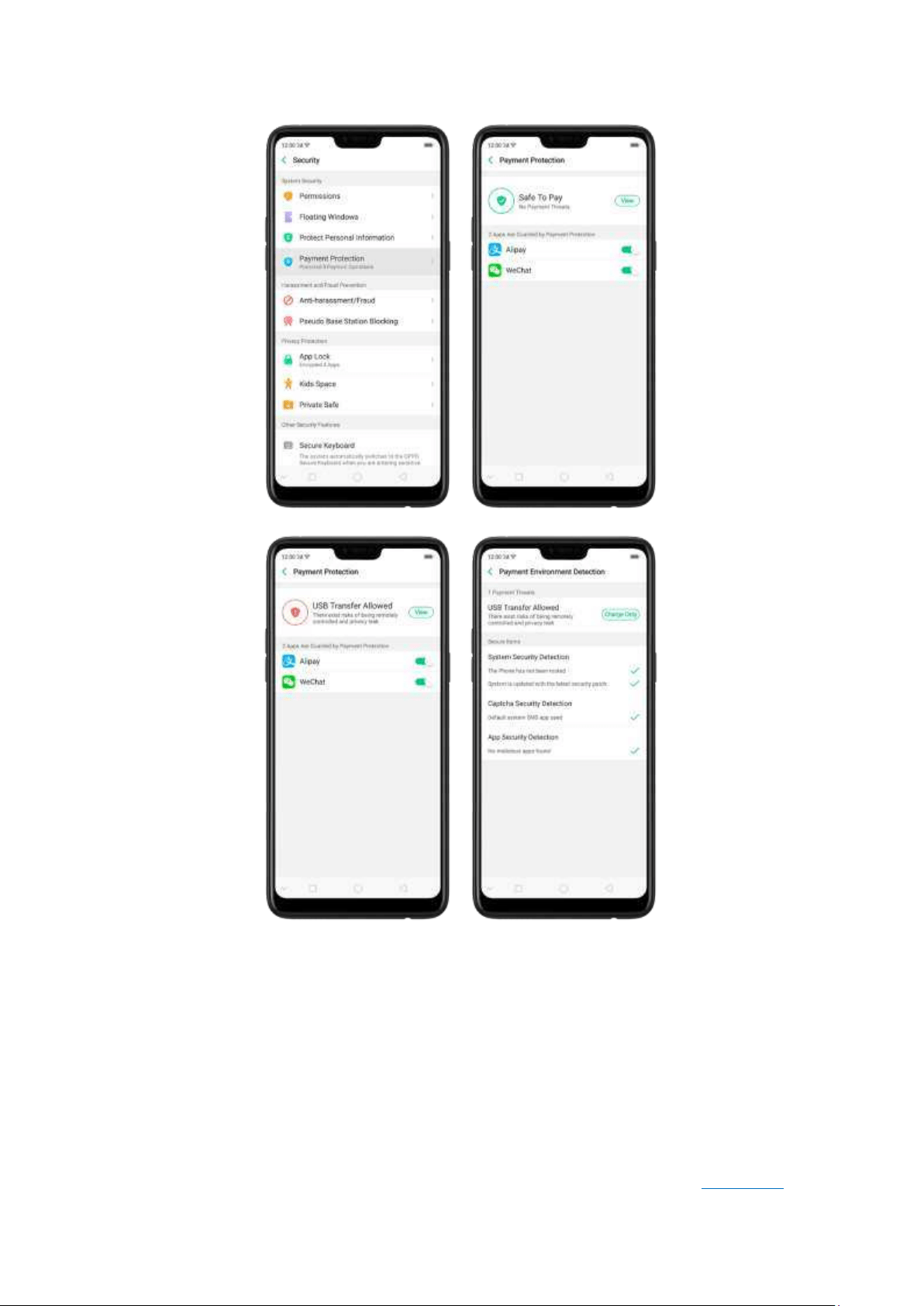
8.1.4. Set up a SIM card lock
For better security, you can set up a SIM card lock. The SIM lock will make sure that
only those who know the password can use the phone.
Set up a SIM card lock. Go to [Settin gs] > [Add it ional Set t ings] > [Device &
Privacy] > [Set up SIM card lock]. Click the slider next to Lock Sim Card, type in the
PIN code and then click OK.
Not e: If the wrong PIN is entered more than three tim es, both your SIM card and
phone will be locked. You can enter t he PUK code to unlock t hem . See
About SIM
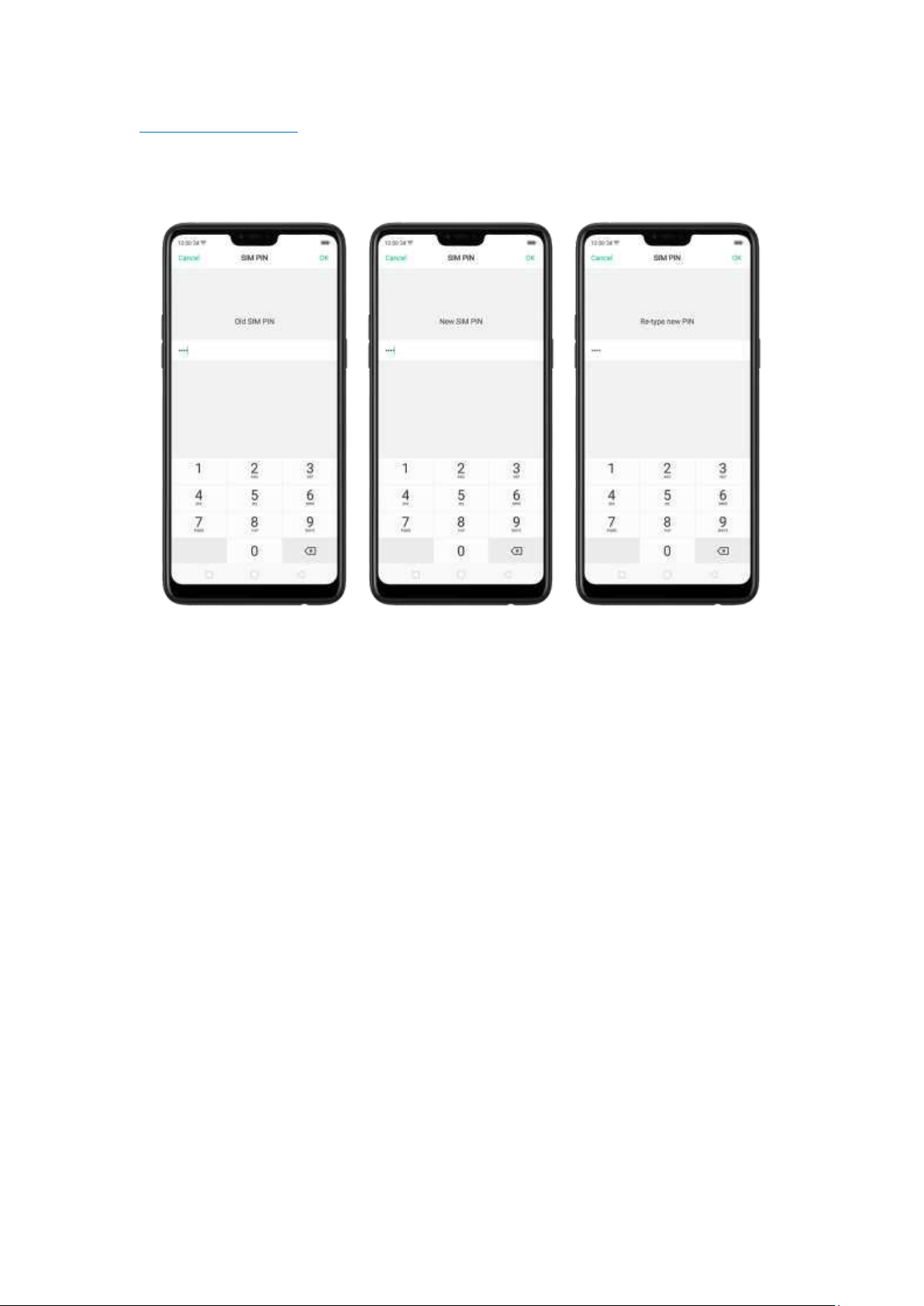
card PIN & PUK code.
Change t he SIM card PIN cod e. Click Change SIM PIN, type in the current PIN code,
click OK. Then you can type in the new PIN code, click OK, retype your new PIN code
when prompted, then click OK.
8.1.5. Virus Scan
For better security, you should regularly scan and remove potential and actual threats to your
phone.
Scan for virus. Click Phone Manager, then click Virus Scan. Wait for the scan to complete. If
threats were found, remove t hem; if not , you will see a message that says your phone is in a good
state.
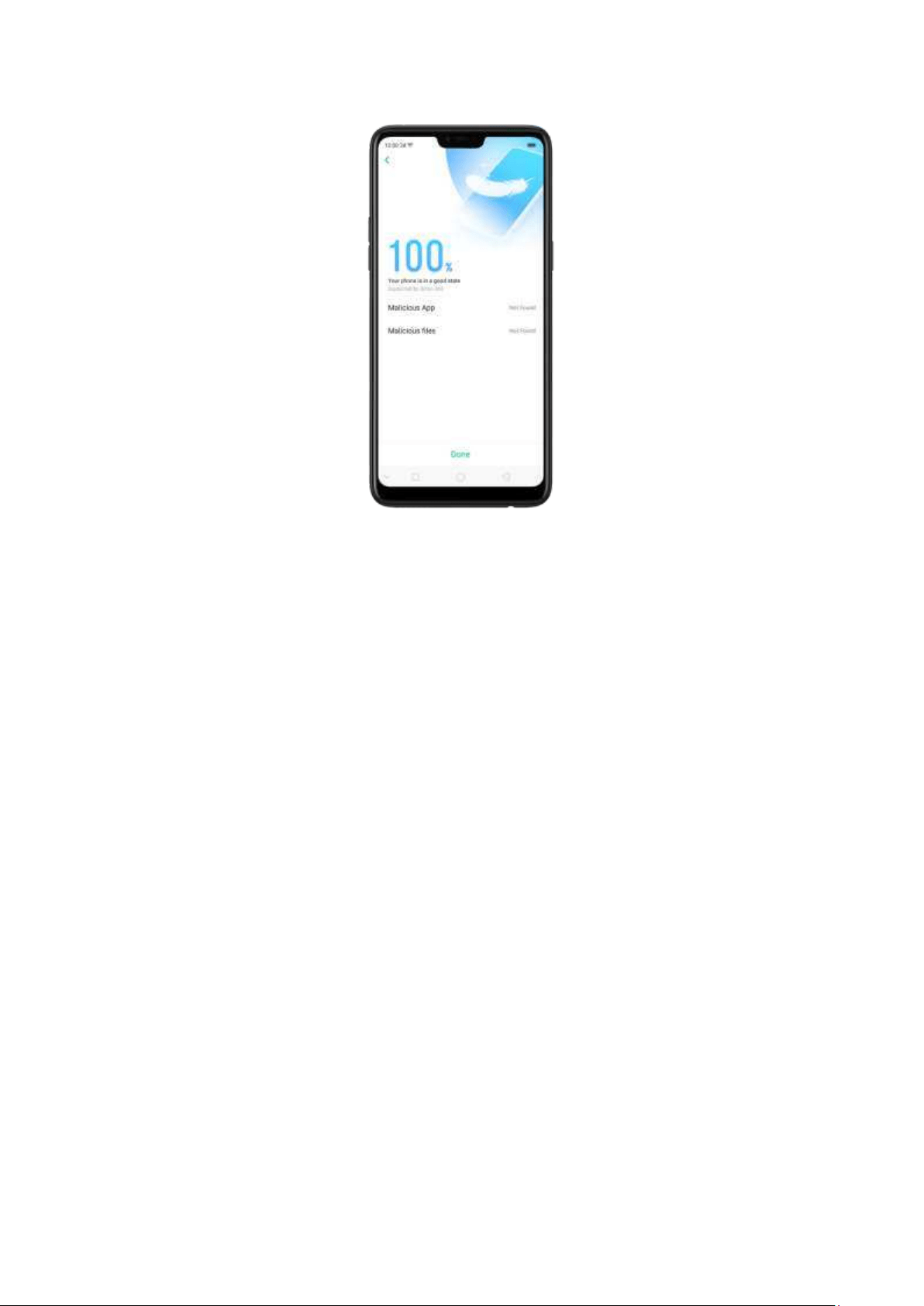
8.1.6. Pseud o Base Stat ion Blocking
Your phone might receive many spam messages (including investment advice,
promotional m essages, and more), or be infected by mobile viruses sent from the
pseudo base stations. When these stations are identified, your phone will
autom atically block t he inform ation sent by them, t hus safeguarding your property
and securing your inform ation.
Block pseudo b ase stat ions. Go to [Settin gs] > [Securit y] > [Pseudo Base
St ation Blocking] and you will see a list of pseudo base stations if they are identified
and blocked by the phone.
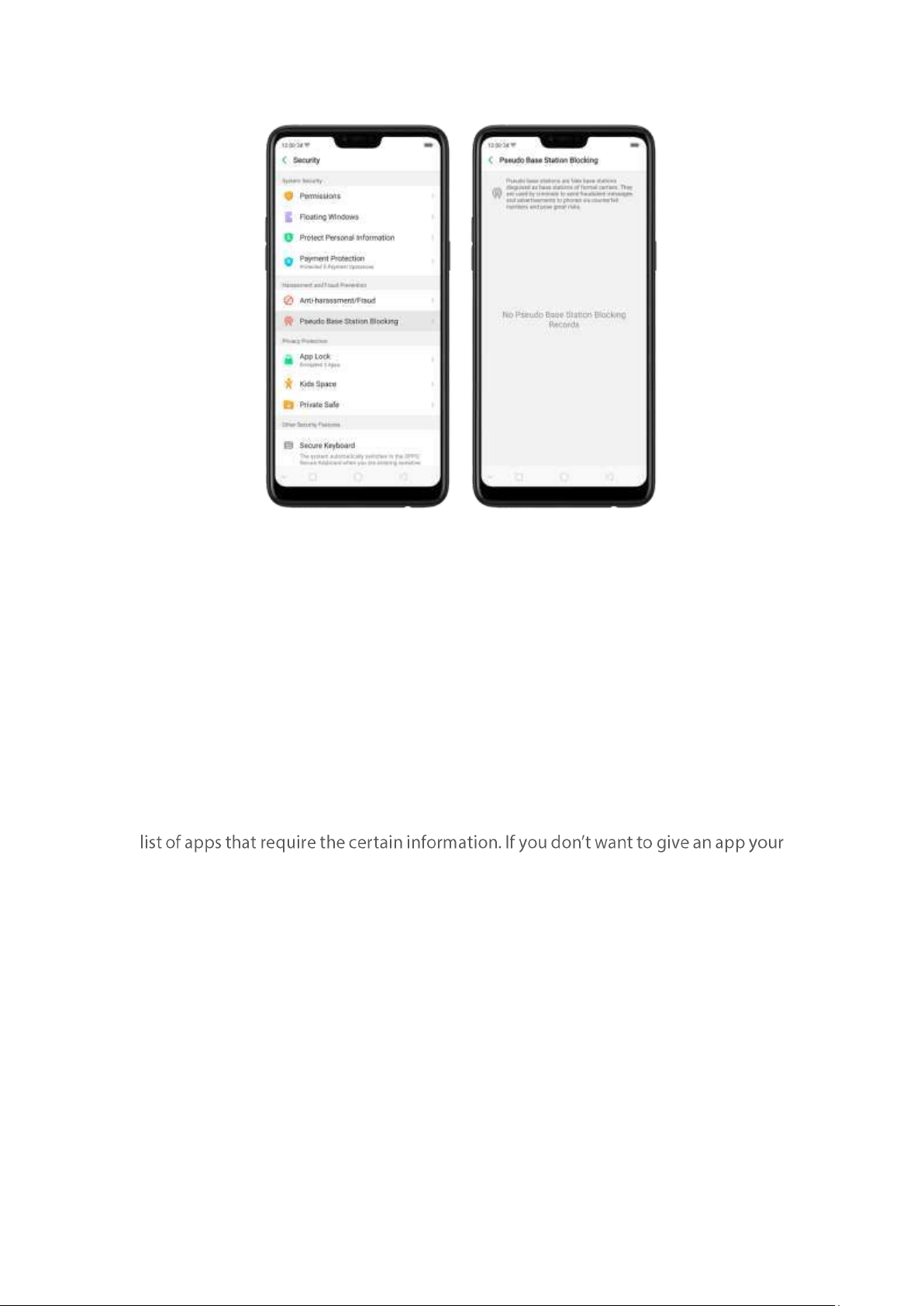
8.1.7. Prot ect Personal Informat ion
Apps automatically read your personal information to access restricted functions,
while m ost of t hese information are sensitive, such as call history, contacts, messages,
and calendar events; some apps will probably engage in malicious activities like
uploading or exposing your private data and monitoring your activities. By using this
feature, when an app tries to read information that it needs, your p hone w ill provide
em pty information instead
of what you really have, which helps you protect your
privacy.
Prot ect your call history, cont act s, m essages, and events. Go to [Set t ings] >
[Securit y] > [Prot ect Personal Information], then choose an option. You will see a
real information, switch the app slider to green, then click [ Turn on feat ure]. Your
phone will then provide empty information.
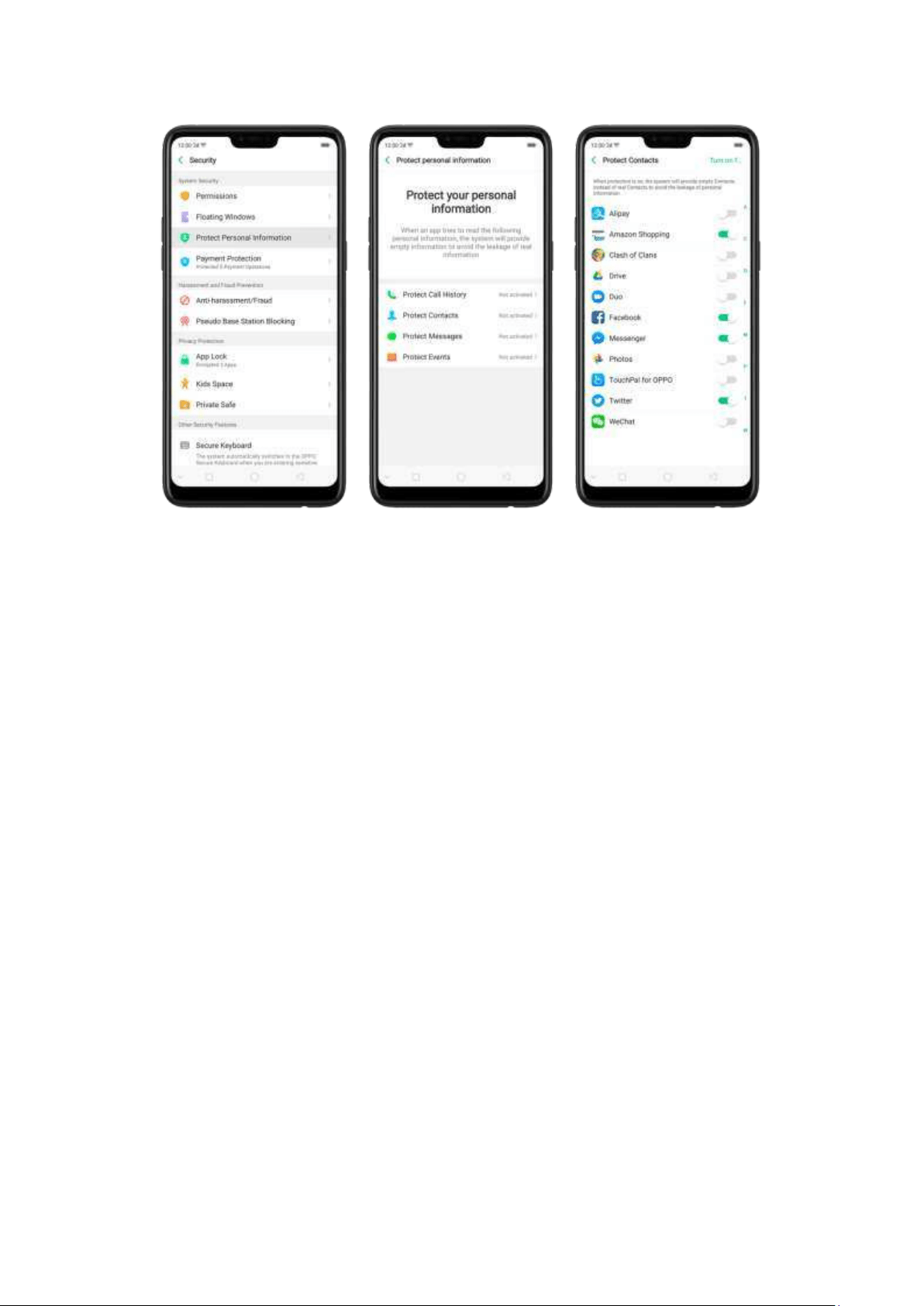
8.2. Device adm inist ration
8.2.1. Allow and inst all apps from unknow n sources
By default , you are not allowed to install apps outside t he official Play St ore on your OPPO phone
- unless you have allowed your phone to do that.
If you run an APK on your phone wit hout first enabling t he feature, you will see t he following on
your screen.
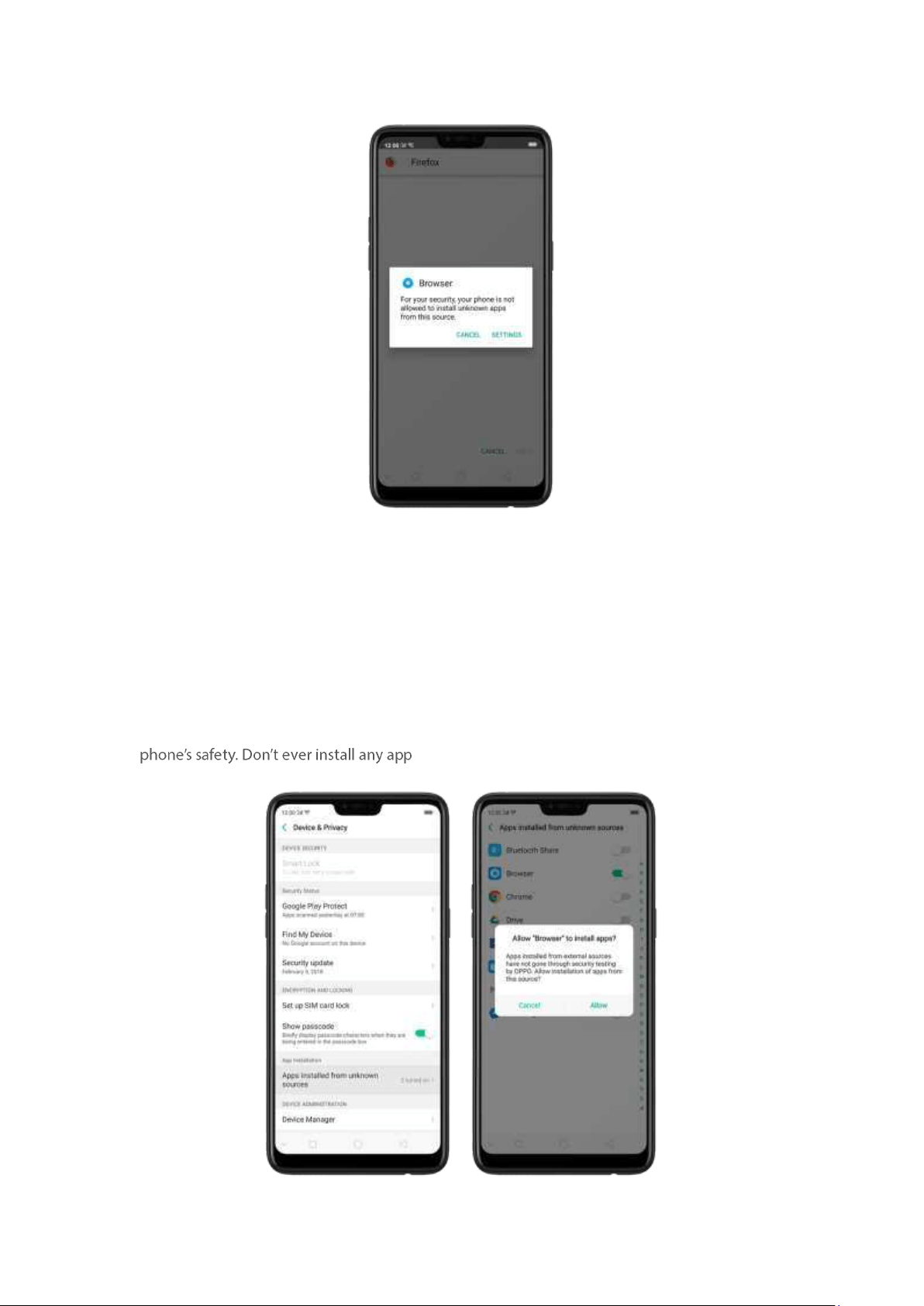
Install apps from un know n sources. Go to [Set t ings] > [Additional Settings] > [Device &
Privacy] and click [Apps Installed from Unknown Sources]. Here are sources you can download
or receive apps ot her t han Google Play Store to your phone.
Switch
the sliders to green if you want t o install apps from these sources. For example, if you
want to install apps downloaded from your brow ser, then enable Browser.
Note: Inst alling apps from unknown sources means t hat you are now responsible for your
s unless you are absolutely sure that it is not a malware.
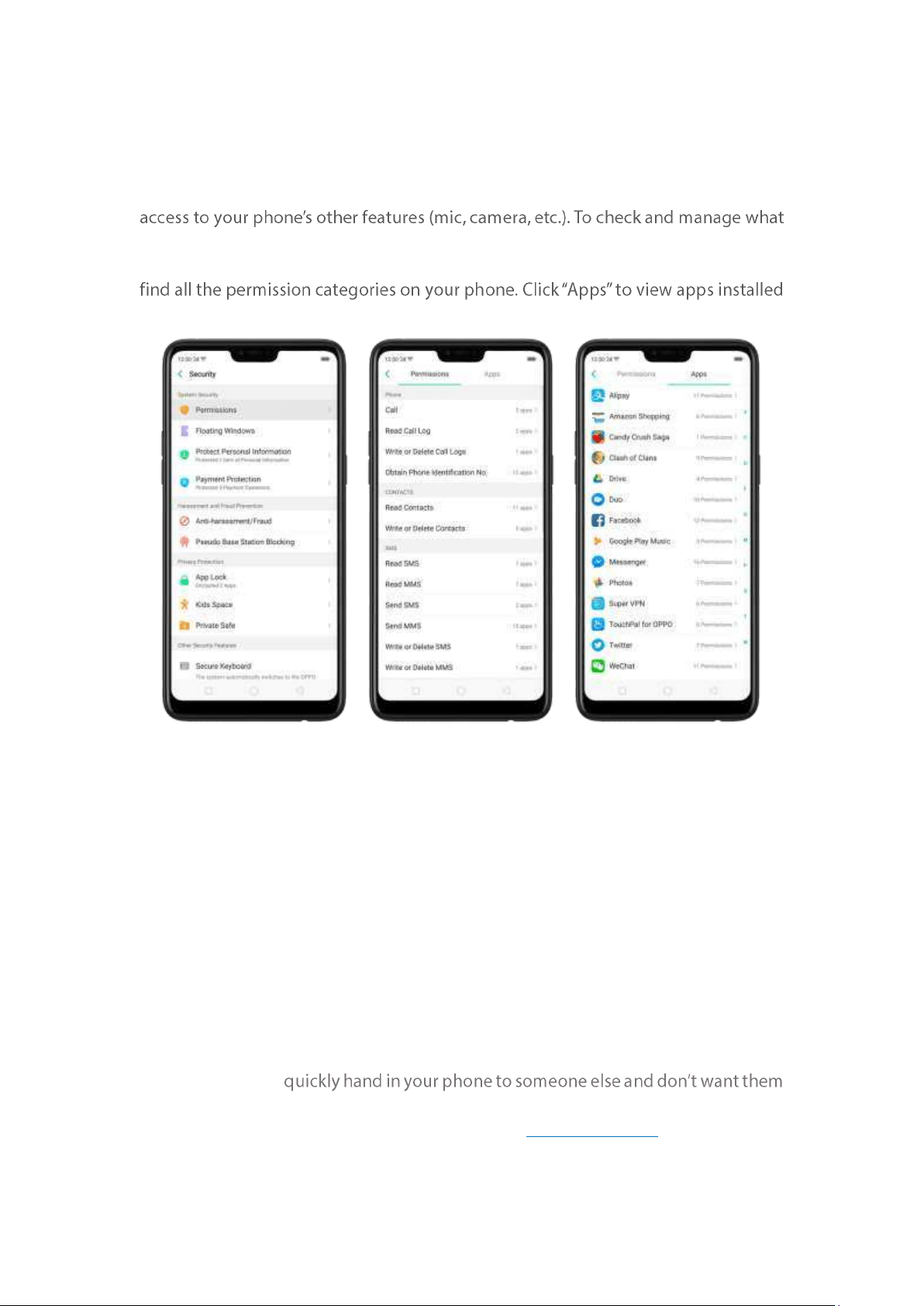
8.2.2. App perm issions
Every application installed on your OPPO smartphone m ay require certain data or
an app is trying to access, do the following:
Check all permission d et ails. Go to [Set t ings] > [Securit y] > [Perm issions]. You will
on your phone and t he permission groups an app has.
Change t h e permission . You can go through each permission or app on your phone
and, with full control, allow, forbid or limit each perm ission according to your
requirements.
Allow: Always allow the app to use t he required permissions.
Forb id : Disable the required permissions com pletely for the app.
Ask: Every tim e you start the app, it asks you to grant t he perm issions that are
required.
8.2.3. Hide Hom e screen icon
Without deleting the app from your phone, you can simply hide t he app icons from
view if you want to
having access to the personal data contained within some apps.
Before you can hide Home screen icons, you must
encrypt the apps first.
Hide Hom e screen icon. After encrypting the apps, do the following:
1. Go to [Set t in gs] > [Securit y] > [App Lock], then enter the verification passcode
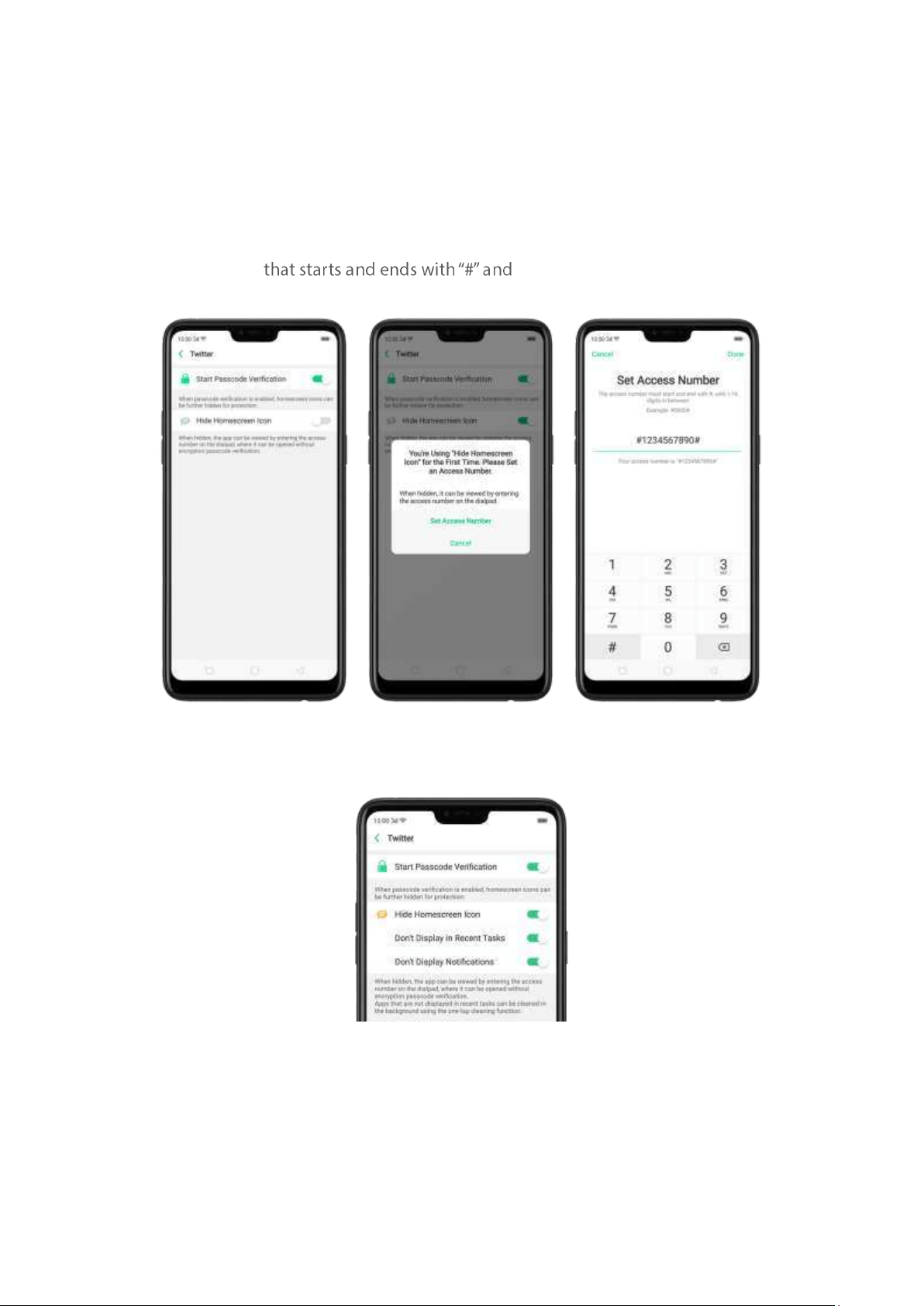
to enter the App Encryption screen.
2. Click an app, turn on
[St ar t Passcod e Verificat ion], then turn on [Hi de Ho m e
screen icon].
3. A pop-up message will display on the screen to ask you t o set an access number.
You can open the hidden applications by dialing the number. This message will only
pop up w hen you use the hidden feature for the first time. Click
Set Access Numb er.
4. Set a number
contains one to sixteen characters,
then click
Do ne.
5. You can also set the hidden app not to display in Recent Tasks, or disable its
notifications.
Open hid den apps. Click Phone, click the keypad to enter your access number, then
the Hidden Apps folder will pop-up.
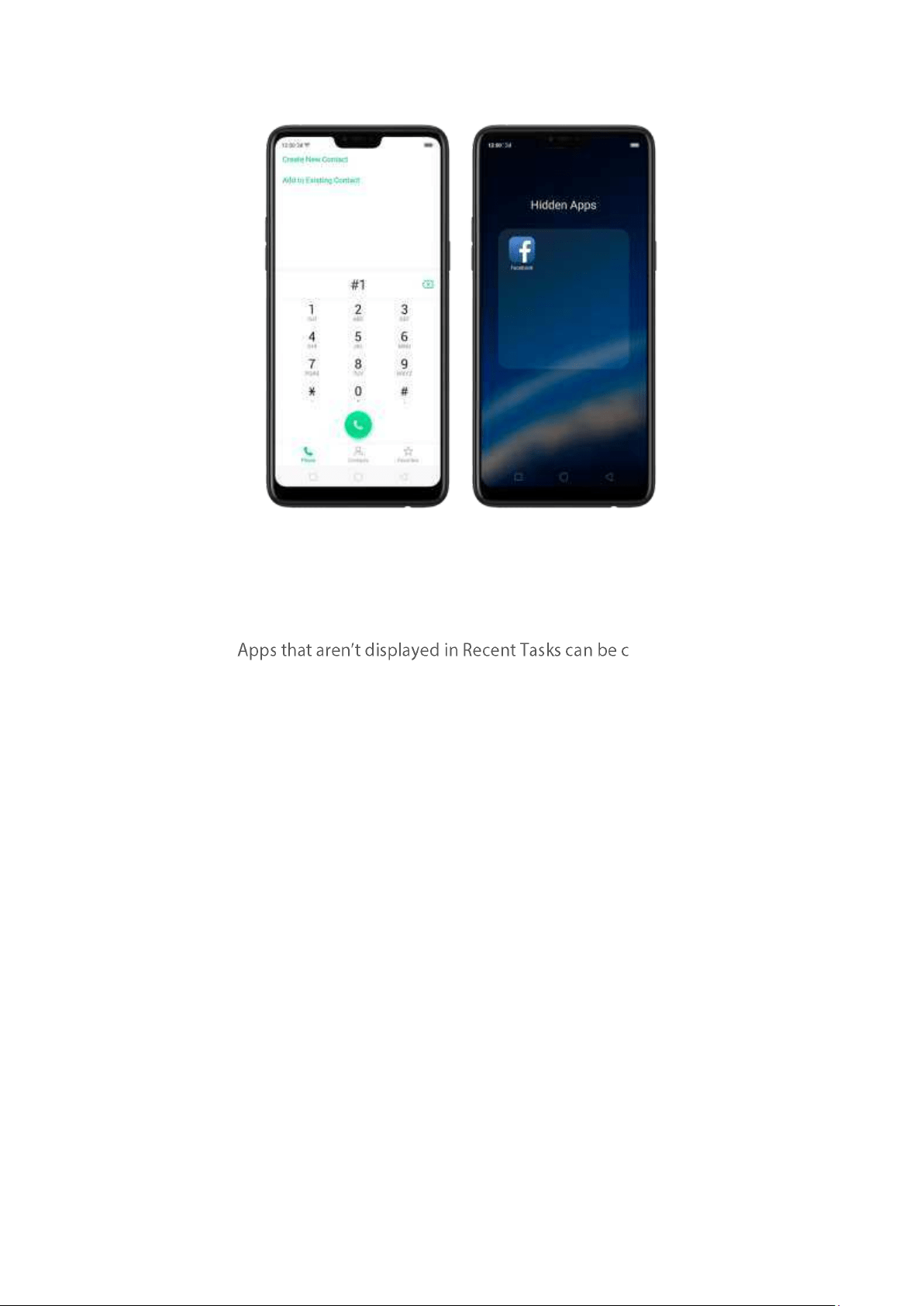
Not e:
You can override encryption passcode and open hidden apps directly
by dialing the access num ber.
losed using t he
one-tap cleanup function.
Access number can be set only once when you use the hidden feature
for the first tim e. If you forgot the number, reset the phone to its
factory settings to reset the num ber.
8.2.4. Kids Space
With Kids Space, parents can set limits especially for the children's use of the phone,
such as setting up phone usage time and apps that are allowed to be accessed. It
does a good job in charge prevention, system modification, and addiction
prevention when your kids use the phone.
Set up Kid s Sp ace. Go to [Set t ing s] > [Securit y] > [Kids Space]. Select the apps
your kids can access, set how long they can use the phone, and choose whether t o
use cellular data, then click
Ent er Kids Space.
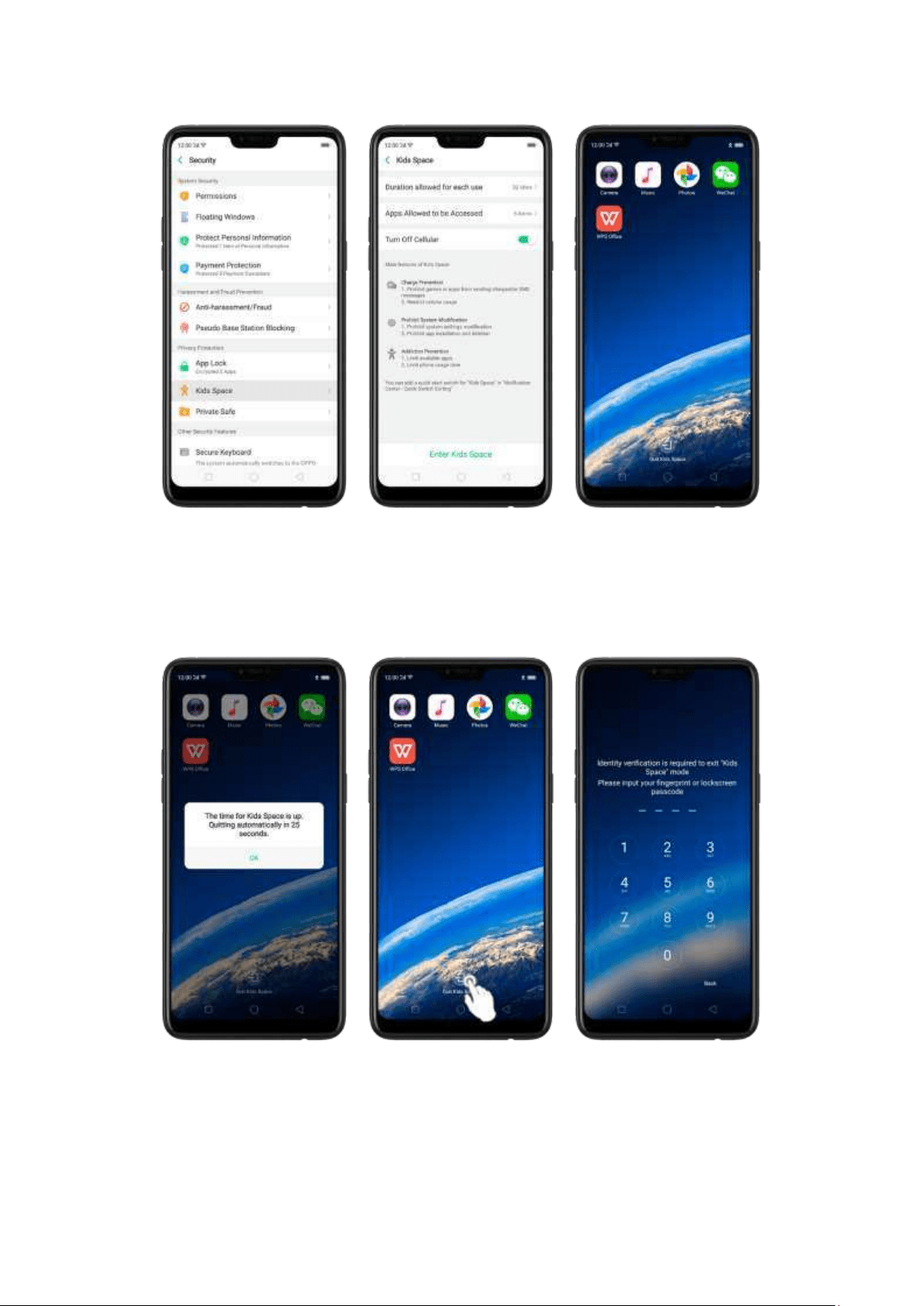
Quit Kid s Space. When the duration of time you set ends, your phone will alert you
and lock the screen after 30 seconds, or you can quit Kids Space at any time by
clicking Quit Kids Space at the bottom of the screen. Input your fingerprint or lock
screen passcode to return to the normal mode.
8.2.5. Block unw anted calls and messages
Block feature helps you to prevent unwanted phone calls and messages from
reaching you. You can also add numbers to blacklist or to block specific phone
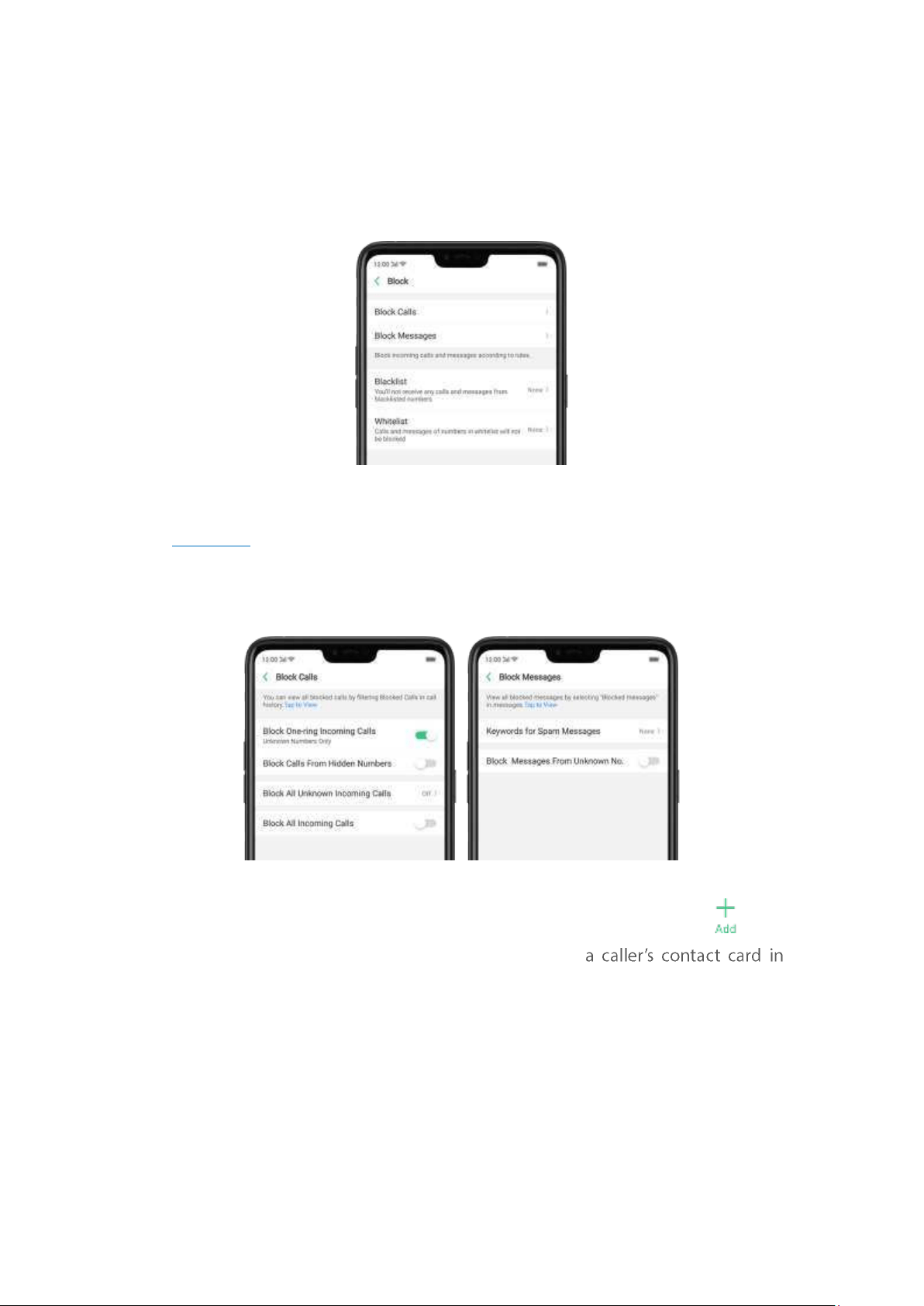
numbers, or add numbers to whitelist to allow their calls to com e thr ough all t he
tim e.
Block calls and messages. Go to [Set t in gs] > [Securit y] > [Ant i-
harassment / Fraud ], or go to [Set t ings] > [Call] > [Block], or go to [Set t ings] >
[Messages] > [Block].
Block Calls: Choose the options available for blocking incoming calls. See
Block calls.
Block Messages: You can block all unknown m essages, or block specific spam
messages by entering t he keywords.
Ad d a cont act or a phone numb er t o t he b lacklist . Click Blacklist, click , then
enter the num ber or choose your contacts. Or open
Contacts, then click Add to Blacklist.
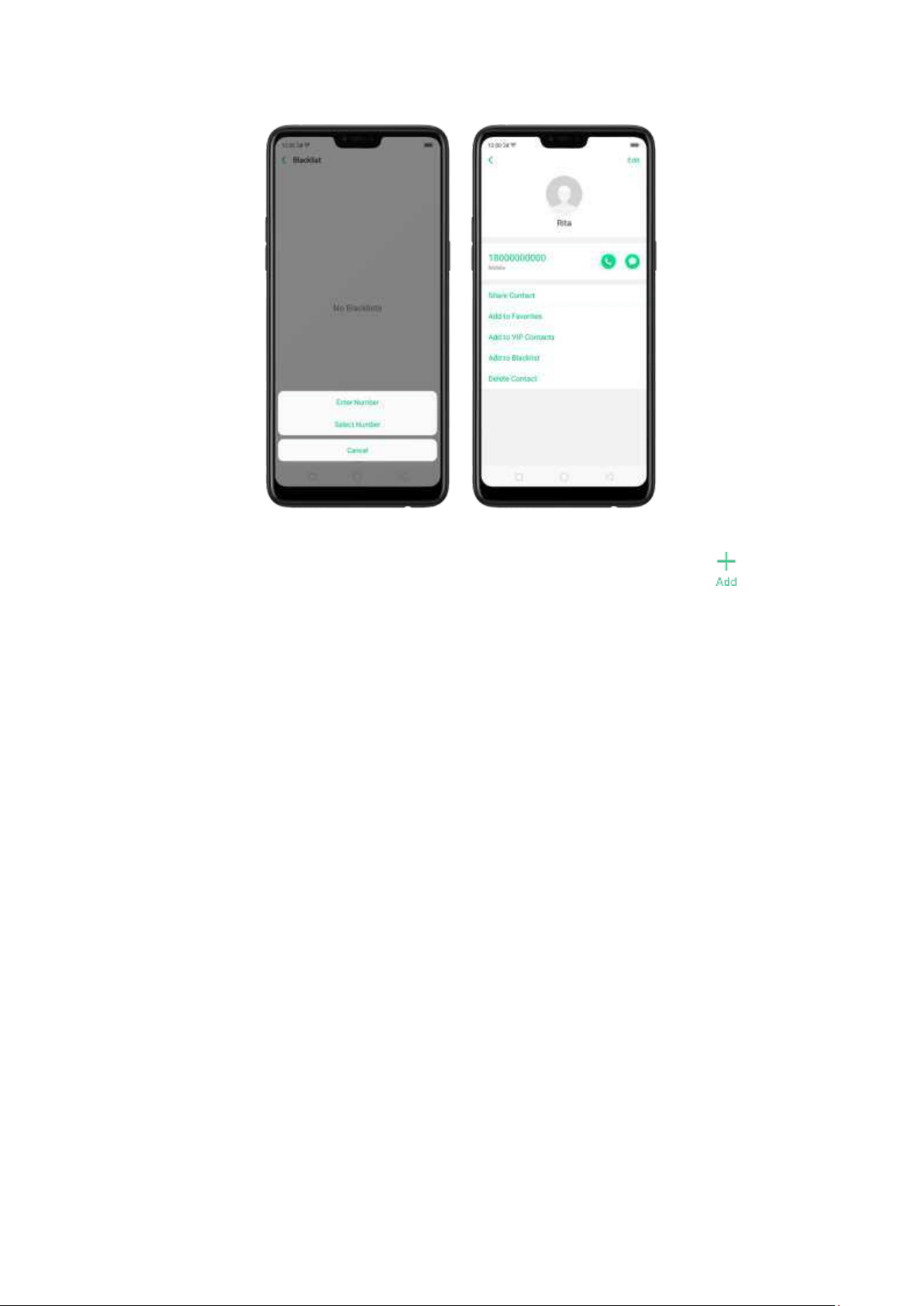
Ad d a contact or a phone nu mb er t o t h e w hit elist. Click Whitelist, click , then
enter the number or choose your contacts. Calls and messages from these numbers
will not be blocked.
8.2.6. Find my device
If for some reason you left, lost and forgotten your phone or was stolen, Google
Find My Device will help you locate your device remotely. In order for it to work,
you need to sign in your Google account and turn on Location Service on your
phone.
Act ivate and use Find my Device.
There are three ways you can do this on your phone.
1. Go to [Set t ings] > [Security] > and click Find My Device. Switch t he slider to
blue.
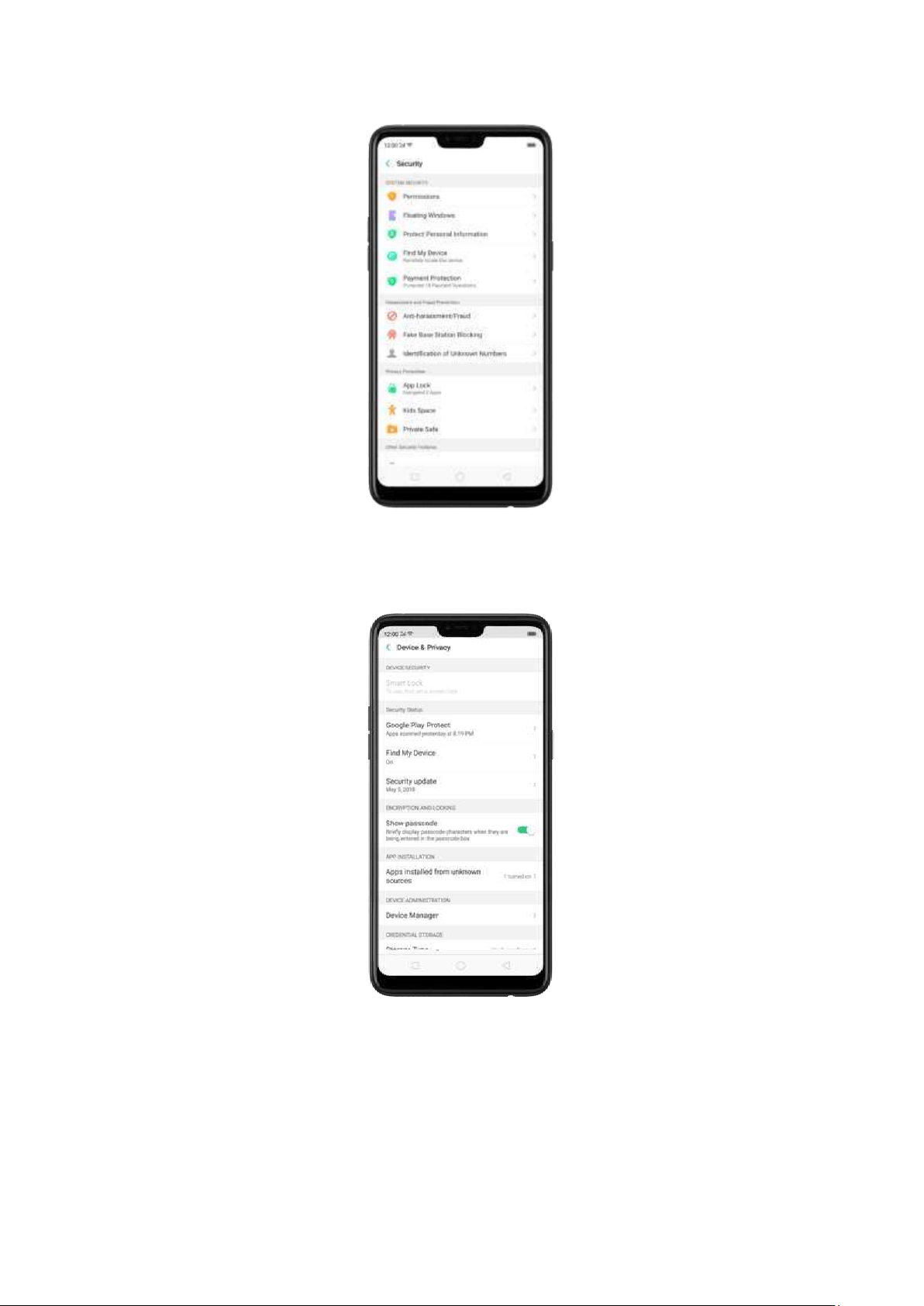
2. Go to [
Set t ings] > [Add it ional Set tings] > [Device and Privacy] and click Find
My Device. Switch t he slider to blue.
3. Go to [
Set t ings] > [Goo gle] > [Securit y] and click Find My Device. Swit ch the
slider to blue.
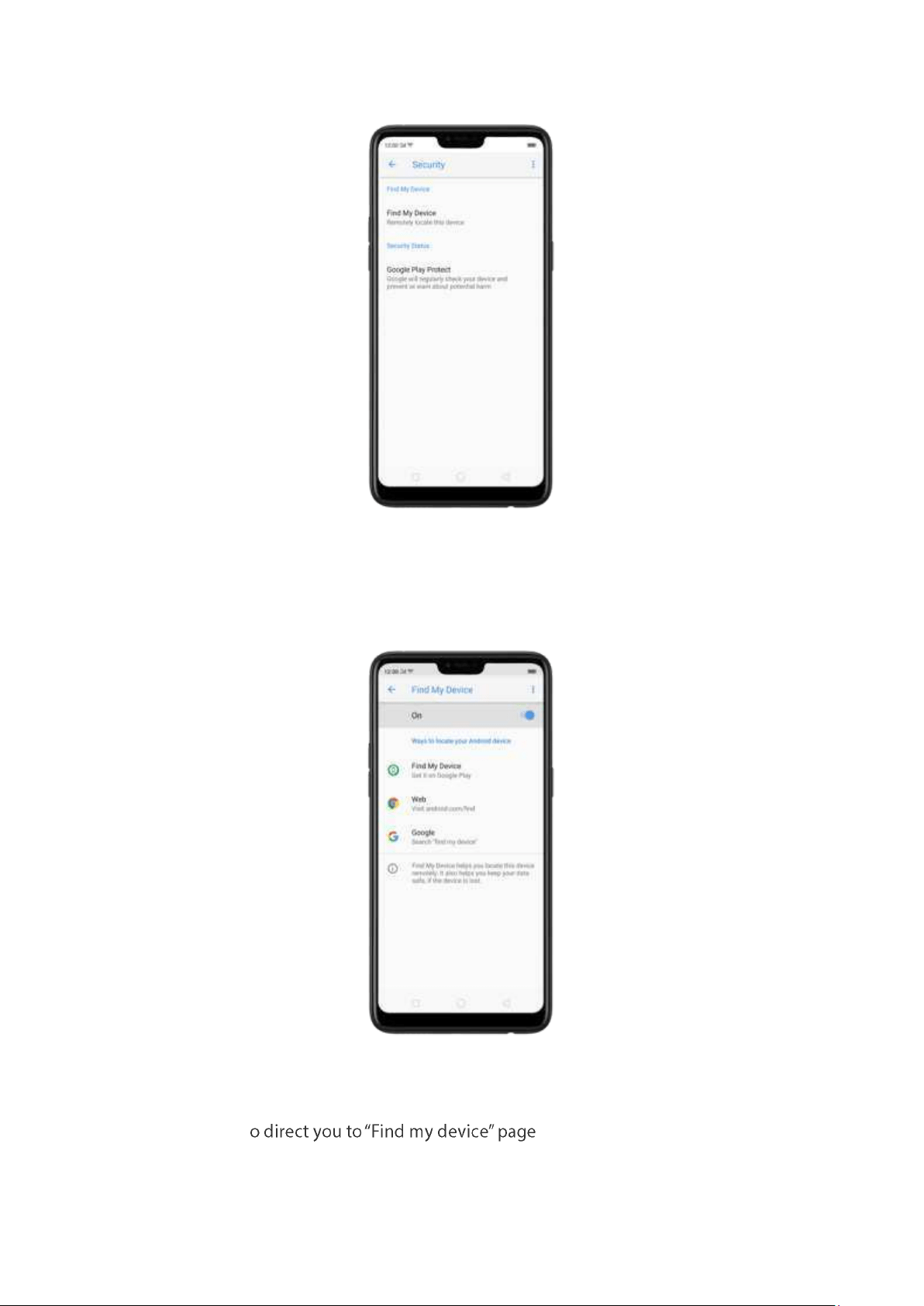
Not e: You can choose from any the options above to activate Find My Device.
On the
Find My Device page, it will show you ways on how to locate the phone
using any android devices.
Click
Find My Device to download or open the app
Click
Web to direct you to android.com /find
Click
Google t
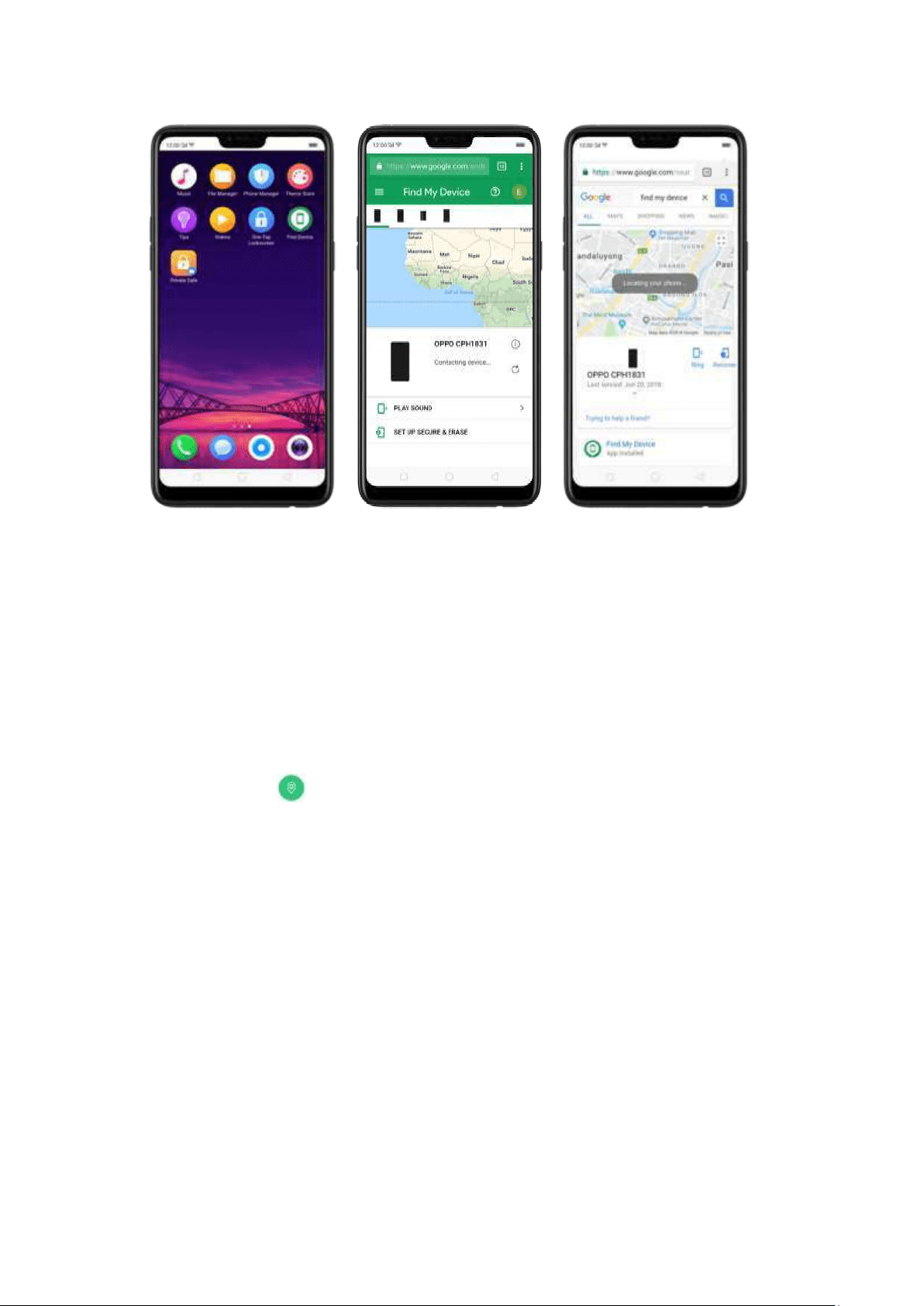
8.3. Privacy
8.3.1. Locat ion Service
Apps like Maps, Weather and Compass must know your exact position before it can
provide accurate services and results.
Turn on Locat ion Service. Swipe down from the top of the screen to open Control
Center, then click
. You can also go t o [Settings] > [Goo gle] > [Locat ion ] and
toggle the slider to green.
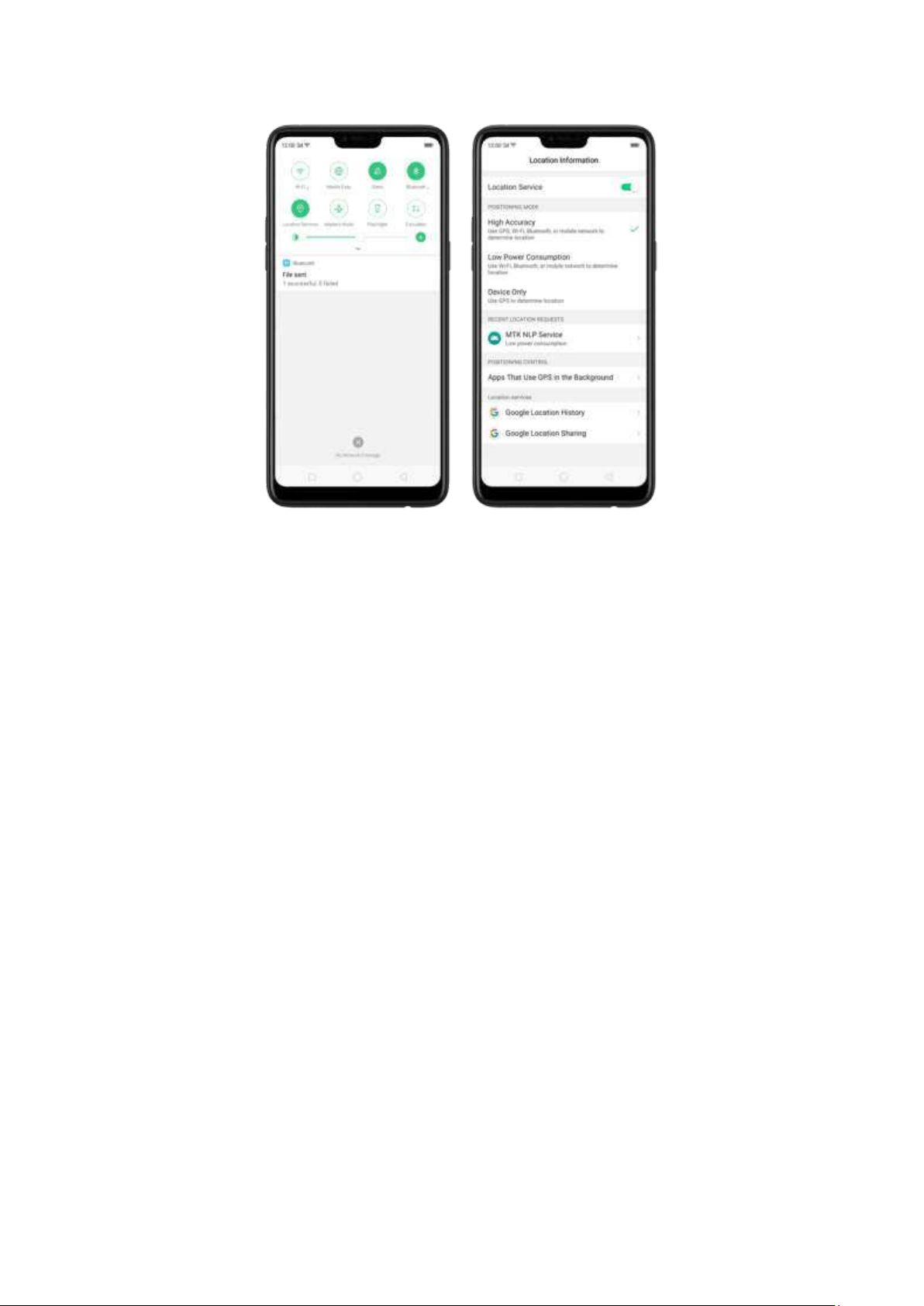
You can choose from three types of positioning mod es, which differ in accuracy
and battery drain:
1.
High accuracy (GPS, Wi-Fi, Bluetoot h and mobile net work).
2. Bat t ery saving (Wi-Fi, Bluetooth and mobile network).
3.
Device onl y (GPS).
A hist ory of recent locat ion requests. You'll see a list of apps that have requested
location. Click an app to enter the App info page that allows you to m anage the
app directly.
Ap ps t hat use GPS in t h e background . Turn the slider to green if you allow the
app to use GPS in the background. Keeping background GPS of the apps active
may drain the battery significantly.
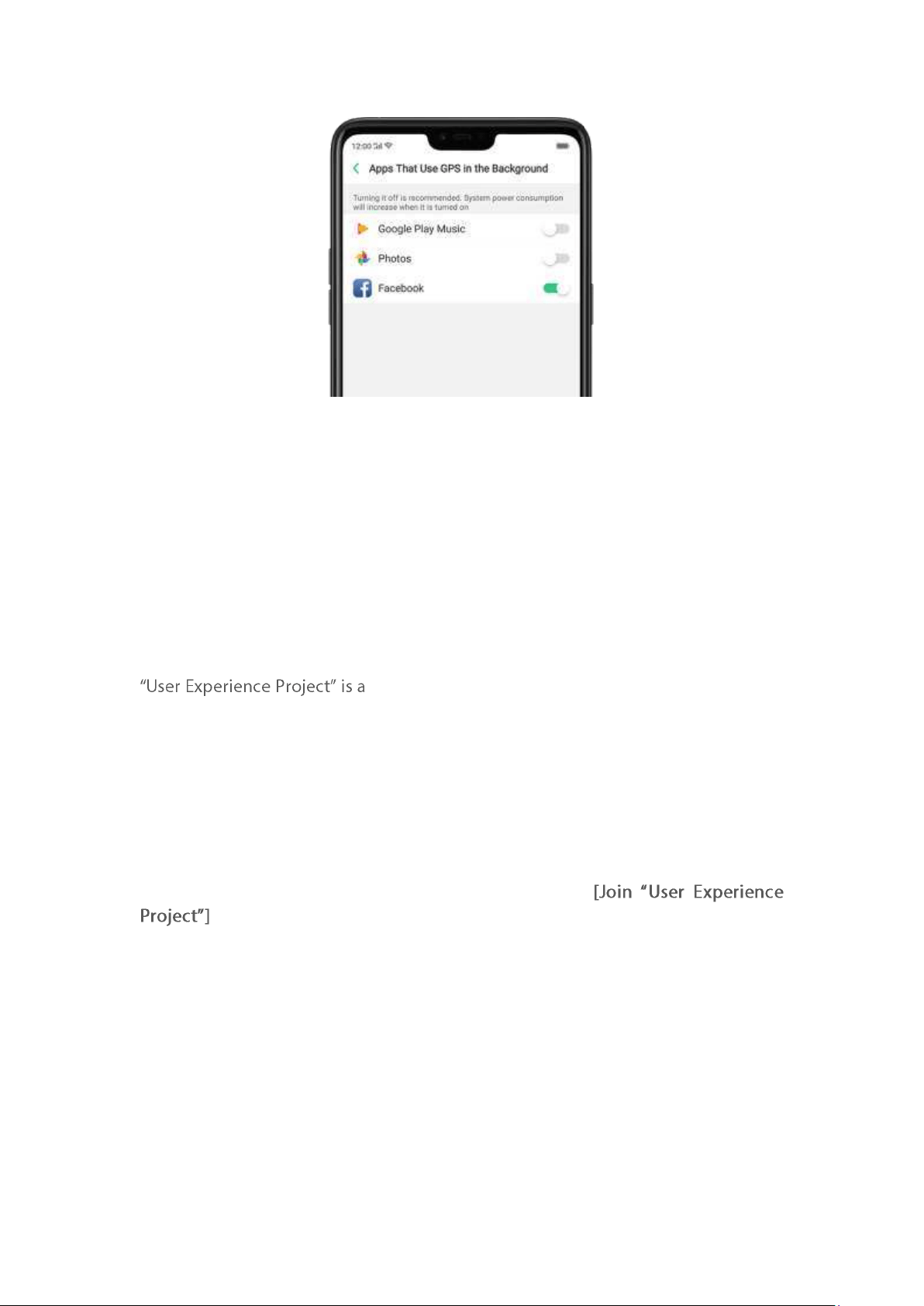
Google Locat ion service
Use Goo gle Locat ion History to retrace your steps. Google Location Hist ory will
customize search results for location and search history.
Use Goo gle Locat ion Sharing t o share your locations with friends and contacts in
real tim e.
8.3.2. Join User Exp erience Project
continuous plan to improve OPPO products, features,
and
services. You are free to decide whether to join t he project or not. If you agree
to join, we will collect the related data of your usage to OPPO products, features
, and
services, then conduct research and analysis of these information to provide you a
better user experience. We will not collect any of your private inform ation in t his
process.
Join User Exp erience Proj ect . The first tim e you switch your OPPO phone on, it will
prompt you to join User Experience Project , or you can go to
[Set t ings] >
[Add it ional Set t ing s] > [Device & Privacy] and switch
slider to green.
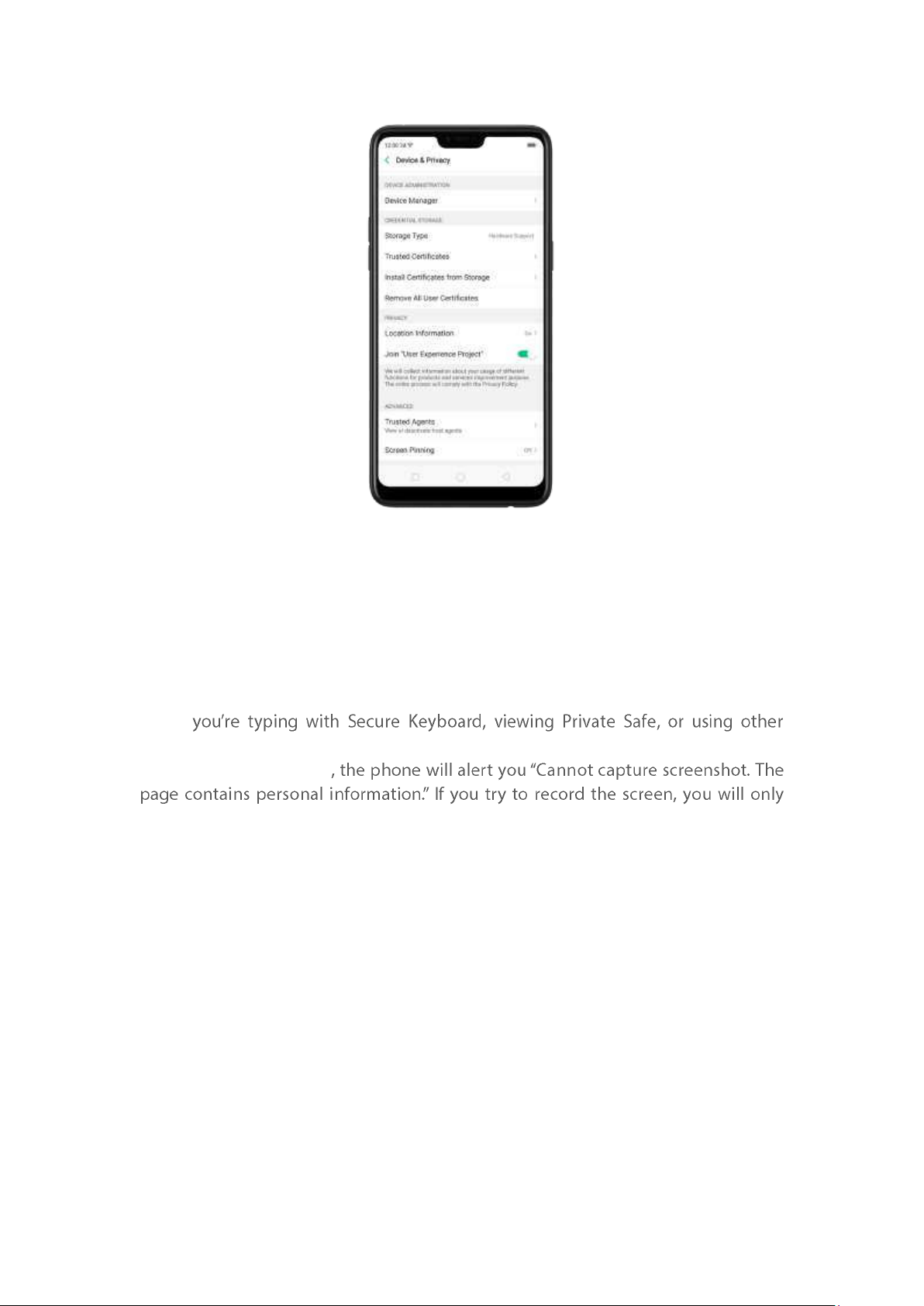
8.3.3. Privacy Protect ing and Securit y Warning
The phone provides several measures in place to protect your privacy and security.
Privacy prot ect ing
When
privacy-related features, you will not be able to capture or record the screen. If you
try to capture the screen
record a black screen.
Securit y w arning
Some Android m alware can spy on your activities in the background, and can take
pictures or make recordings wit hout notifying you, resulting in leaking of the
inform ation. With Security Warning function, your phone will rem ind you every time
the malware perform s these activities.
Prevent ap ps from t aking p ict ures in t he background . A warning window will pop
up on your p hone screen.
Prevent ap p s from m aki ng recordings in t he b ackground . If any app starts the
sound recorder, the status bar turns red.
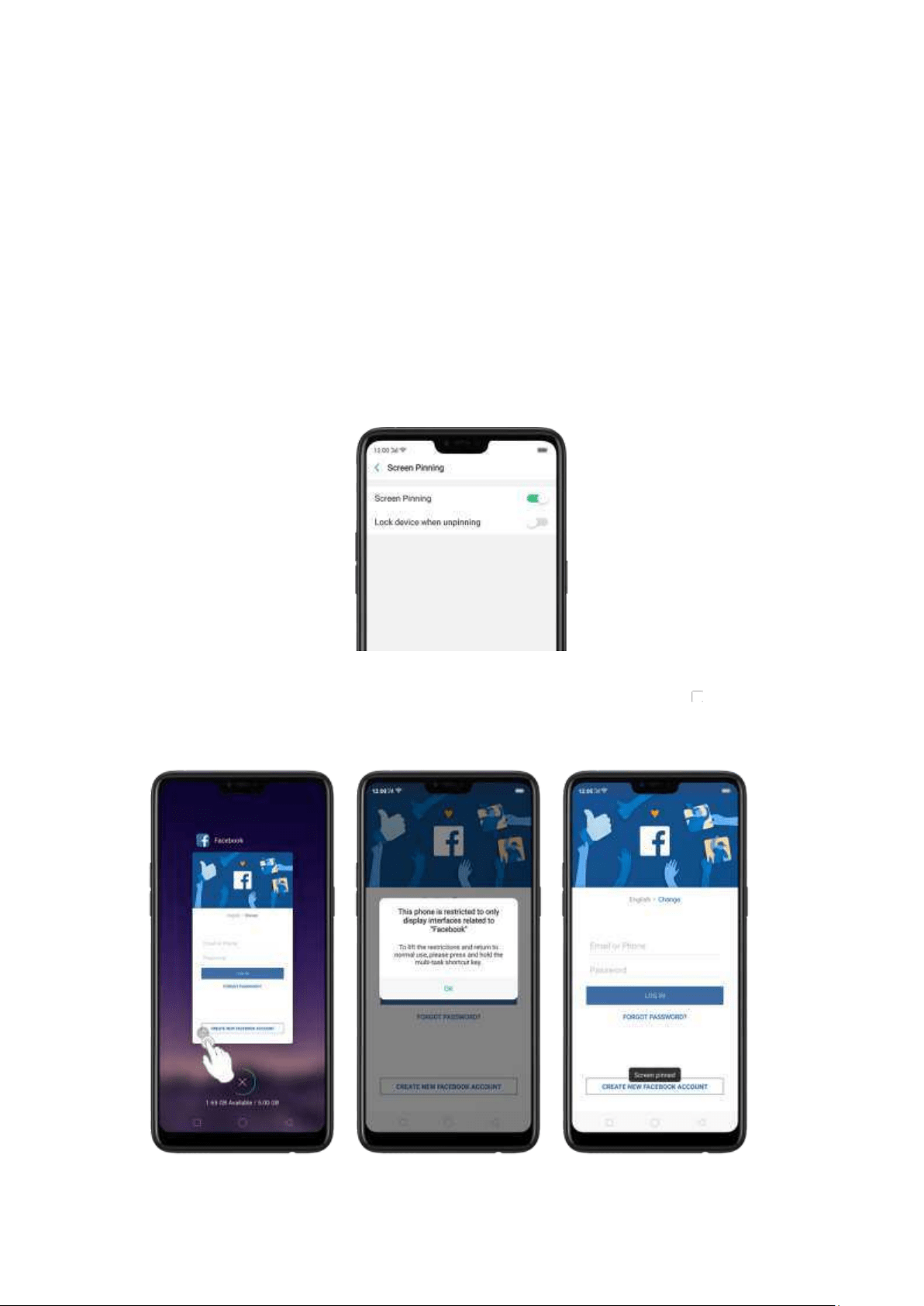
8.4. Advanced
8.4.1. Screen pinning
Screen Pinning temporally restricts the user from leaving the task or being
interrupted by notifications. Once your app activates Screen Spinning, your phone
is restricted to only display interface of this app, you cannot see notifications, access
other apps, or return to t he Home screen, until your app exits this m ode.
Act ivat e screen p innin g
Go to
[Set t ings] > [Addit ional Set t ings] > [Device & Privacy], scroll to t he bottom
of the screen and turn on [
Screen Pinning ].
Open the app you want to pin and click the
Over view/M enu button to access
the multitasking tray. You can find t he pushpin icon on the app preview interface.
Click the icon to pin this app t o your phone screen
.
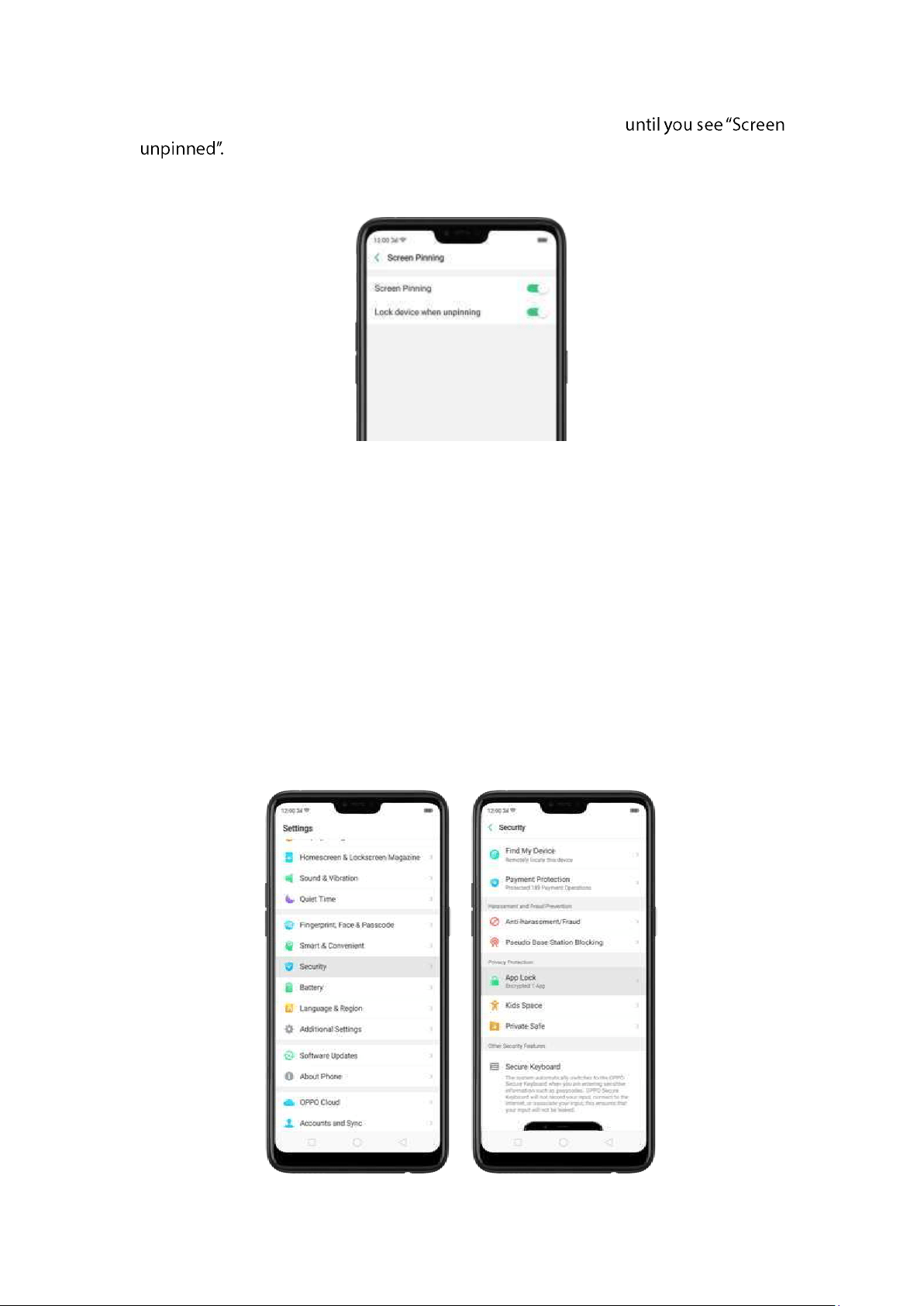
Unp in the screen. Touch and hold t he Overview / Menu button
If you want to lock the phone screen directly when unpinning the screen, switch the
[Lock device w hen unpinning] slider to green.
8.5. App Lock
If you want to fully secure your personal apps it is always best to encrypt them . This
is to prevent theft of private data.
How to encrypt apps
Go t o [Settings] > [Securit y] > [Ap p Lock] then select the apps that you would
like to be encrypted, then click
Enab le Encryp t ion.
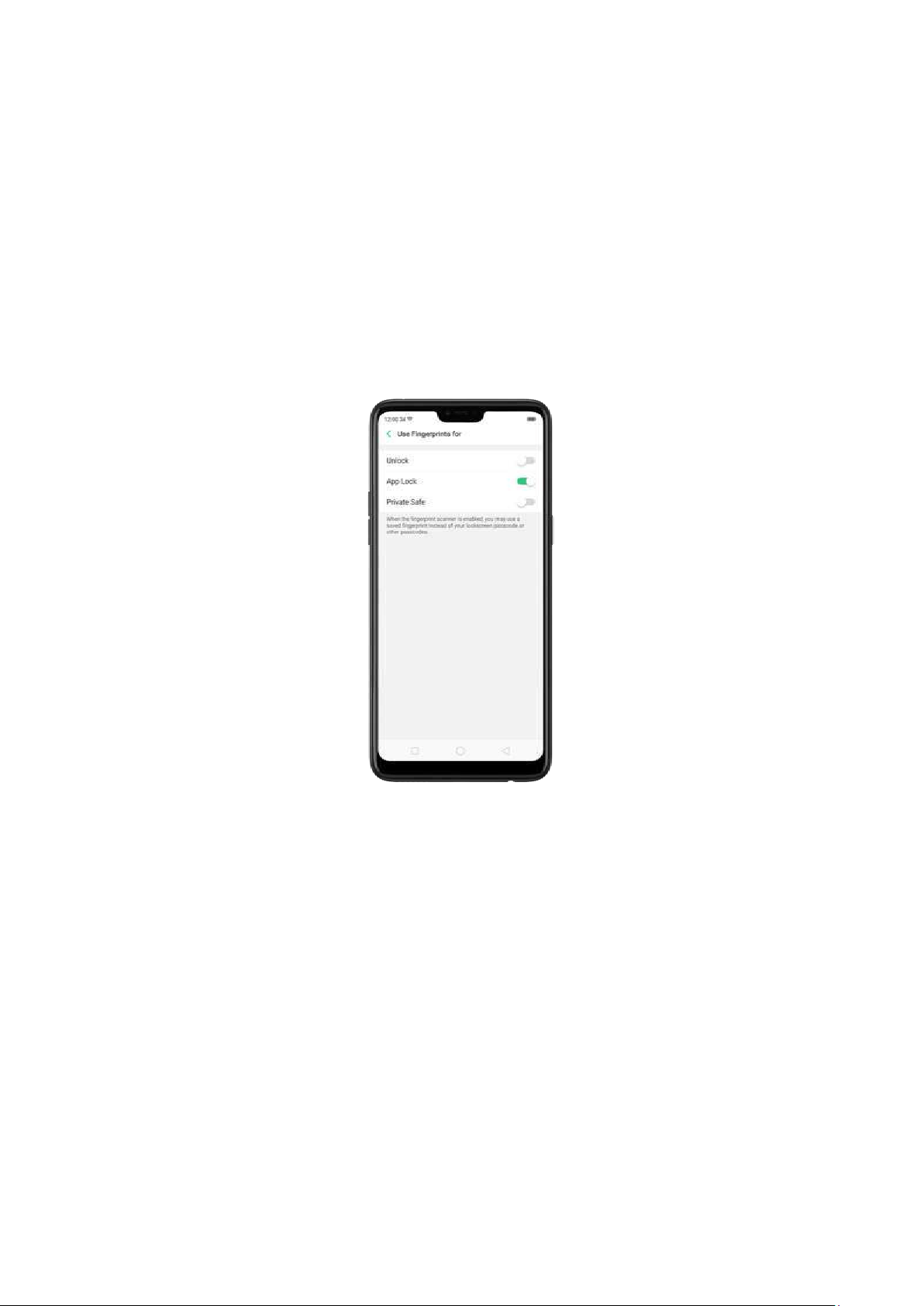
You will be asked to set a passcode. Apart from the 4 numerical m ethod, you can
also choose from
Pattern Passcod eand Cu st om Alp hanu m eric Passcod e. Just
click
Ot her Met h od s to be given this option.
After successfully setting a passcode, you will be asked to set a security question.
This can you help you reset the passcode w hen you forget it. You can also
customize a question, t hen click
Do ne.
If you want to use fingerprint to encrypt apps, go to
[Set t ings] > [Fingerp rint ,
Face &Passcod e] > [Use fing erp rint s for]then choose App Lock.
You will see a padlock on apps t hat you have encrypted.
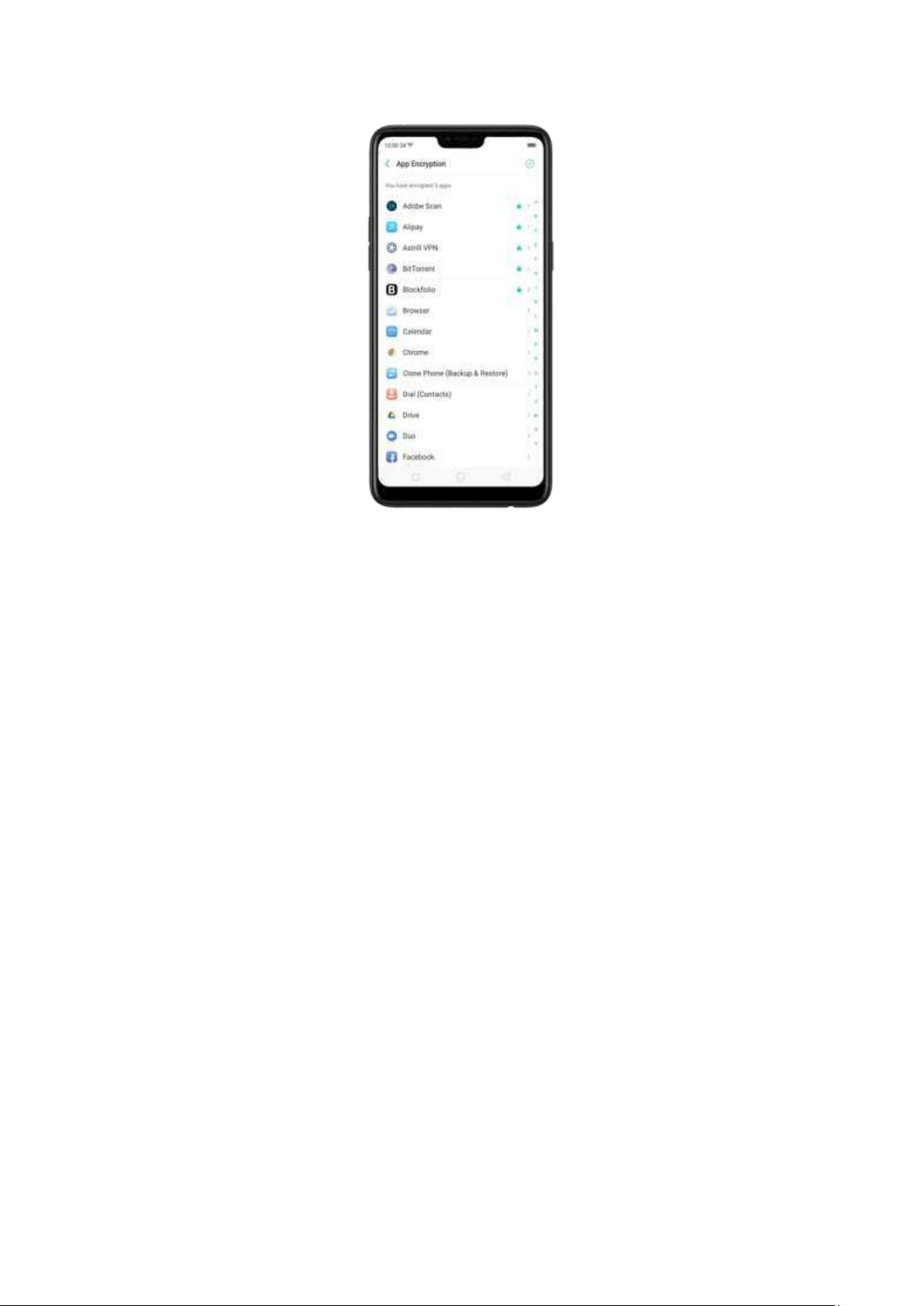
Hide Apps from the hom escreen
You can also hide the app on the homescreen and can only be viewed when
entering the access number on t he dialpad. It can be opened without encryption
passcode verification.
To enable hiding apps from the homescreen, go to
[Set t in gs] > [Securit y] > [App
Lock] click on the App you w ould want to hide from the homescreen, toggle [Hide
Homescreen] to green to enable.
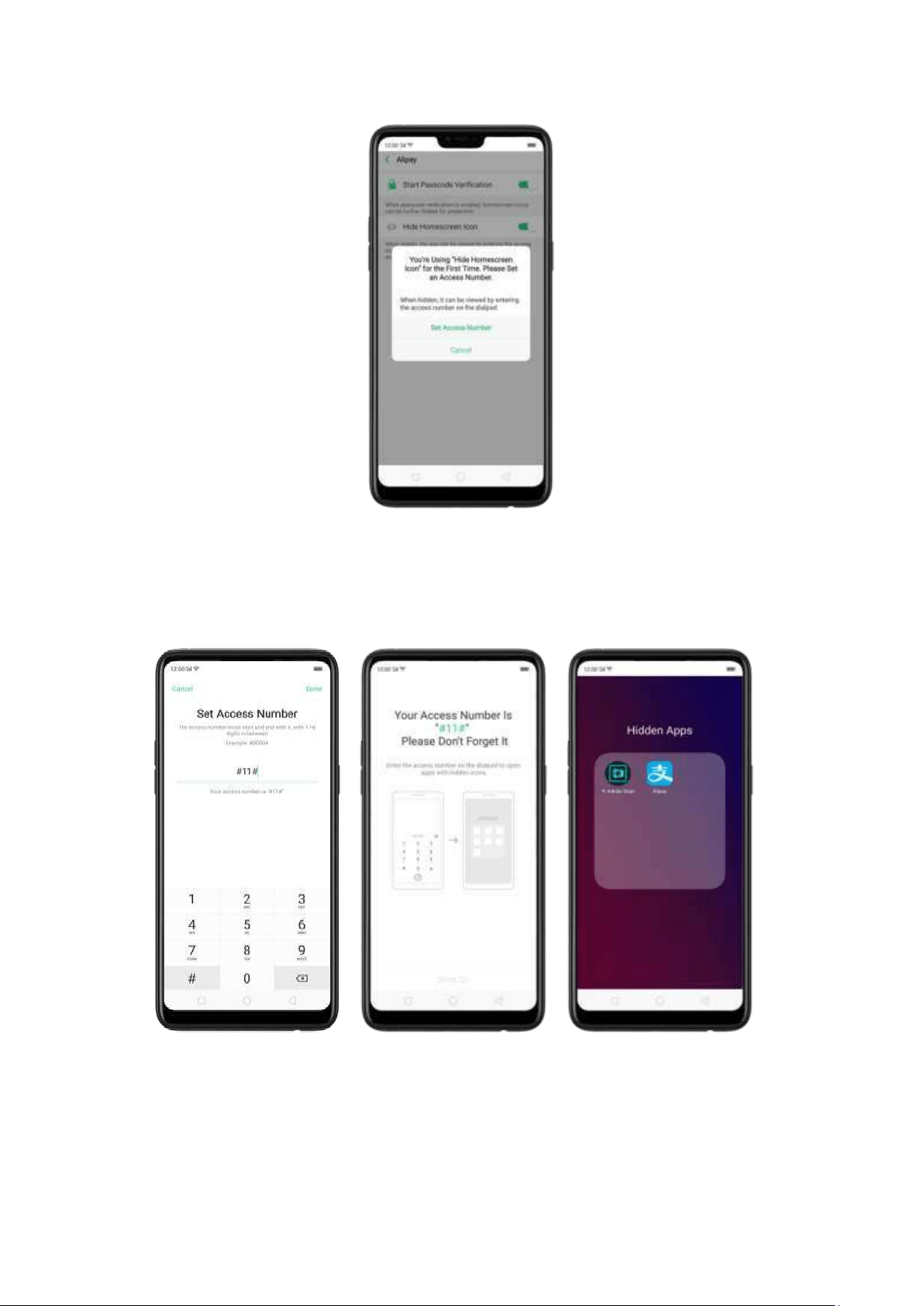
You will be asked to set an access num ber that start s and ends with #, wit h 1-16
digits in between then click
Do ne. Example: #0000#
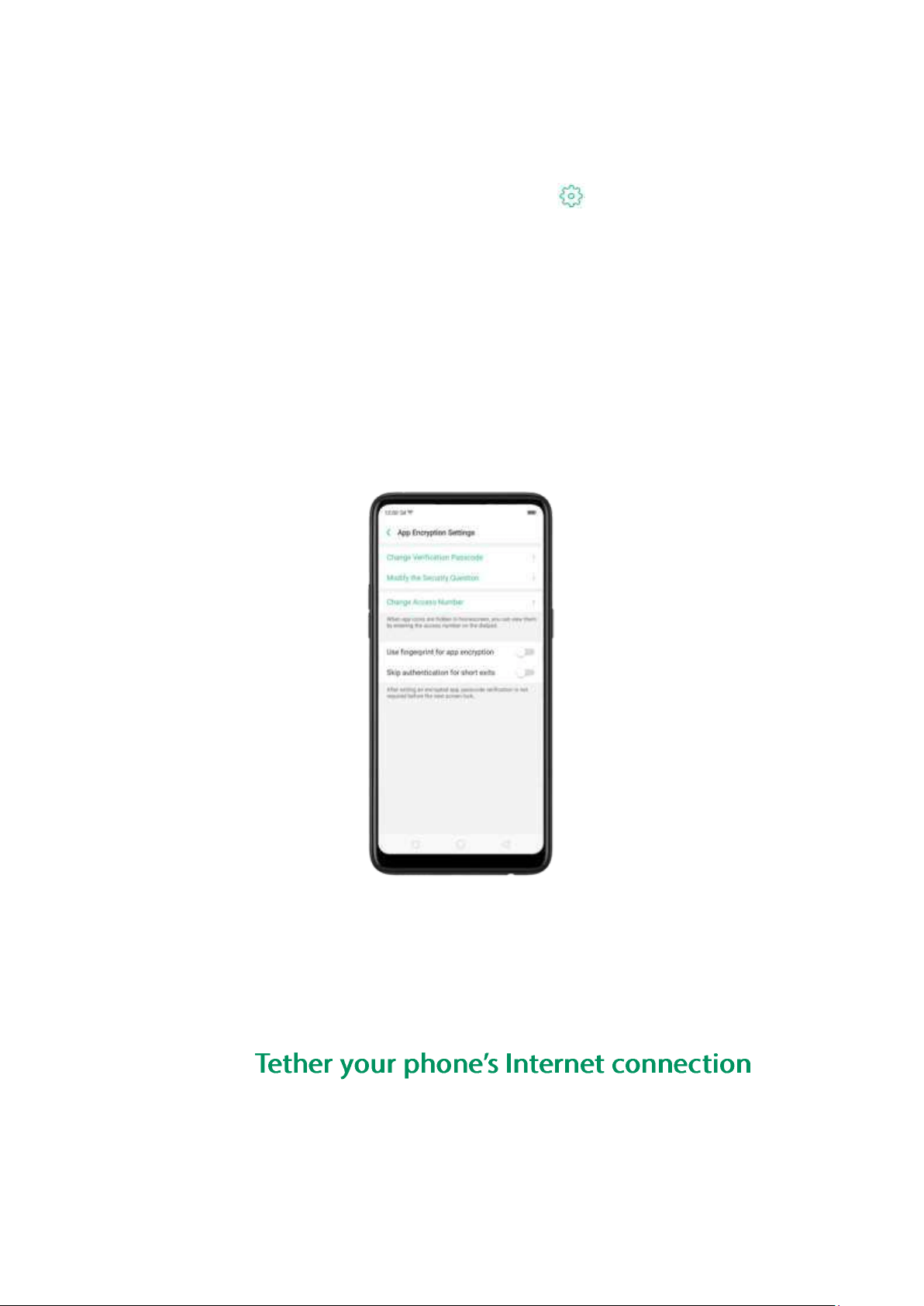
Managing encrypted apps
Go t o [Settings] > [Securit y] > [Ap p Lock] then click on the right top corner
of the screen. You will be given options to manage the following:
Change verification passcode
Modify the security question
Change access num ber
You can also enable the following:
Use fingerprint for app encryption
Stop authentication for short exits
9. Share Int ernet connection and files
9.1.1.
Using tethering can make you share your phone's Internet connection wit h several
devices, such as your com puter, tablet or ot her gadgets. Tethering works when
your phone is connected to the Internet via mobile data or Wi-Fi net work.
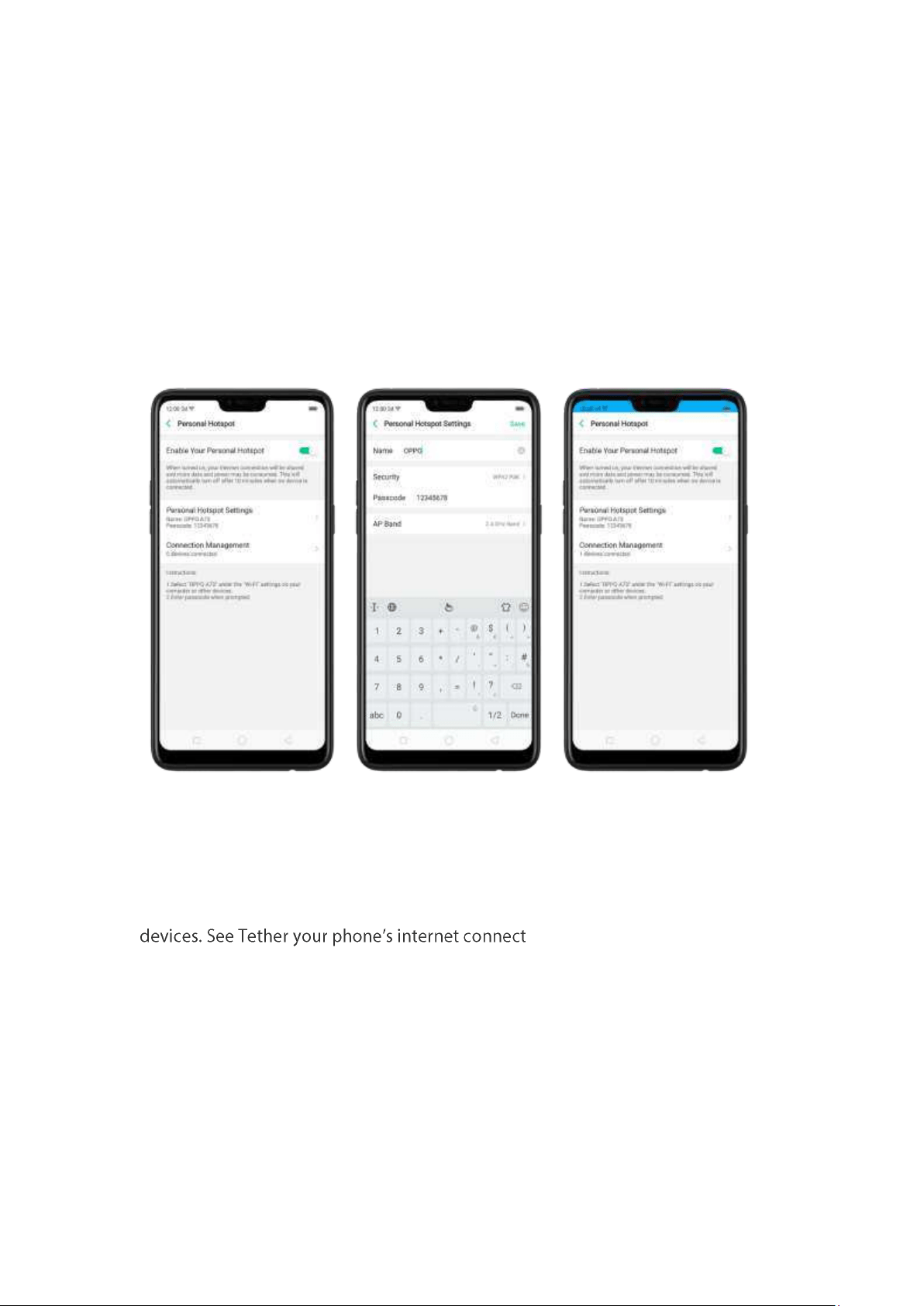
Turn your phone int o a personal hotspot .
1.
Go to [Set t ings] > [Ot her Wireless Conn ect ions] > [Personal Hot spot ],
then switch the slider to green.
2. Set the hot spot name and password.
3.
On another device, choose your hotspot from the list of available Wi-Fi networks.
Not e: When a device is connected, a blue band appears at the top of the phone
screen.
Use Wi-Fi Tet hering
This makes your phone as a Wi-Fi router which basically has the same functionality
to that of a traditional router w hich enables t he sharing of internet to ot her Wi-Fi
ion.
Use Wi-Fi Tet hering
1. Go to [
Set t ings] > [Ot h er Wireless Con nect ions] > and enable [Wi-Fi
Tet hering ].
2. In [
Wi-Fi Tethering Set t in gs] you can change the name, manage security, and
input passcode.
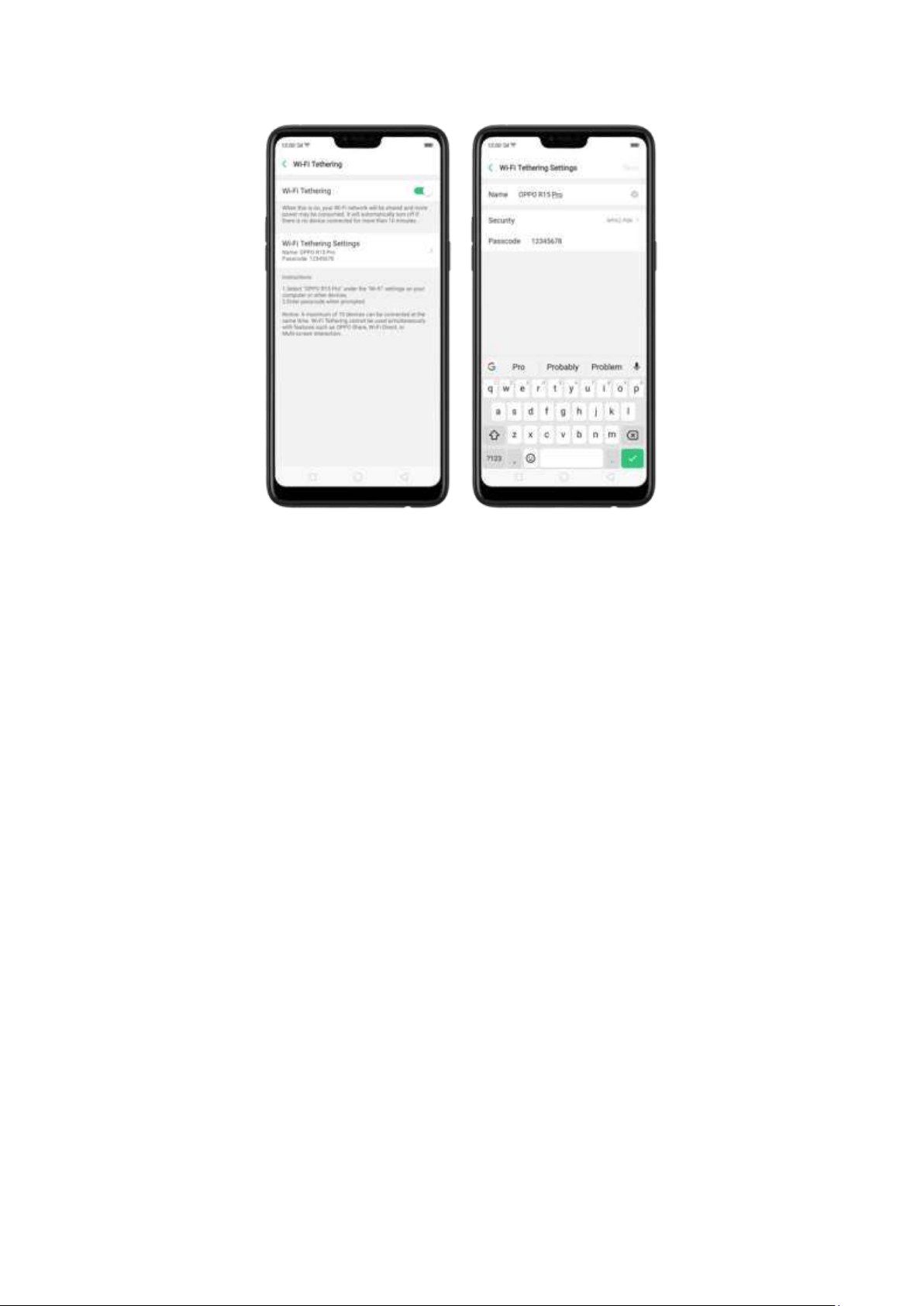
Not e: Wi-Fi Tet hering will automatically turn off if no device is connected for m ore
than 10 minutes. This is to save energy. A m aximum of 10 devices can be
connected but cannot be used simultaneously with features such as OPPO Share,
Wi-Fi Direct, or Multi-screen Interaction.
Use USB Tet hering.
1.
Connect your phone to your computer using t he cable that came with it.
2.
Go to [Set t ings] > [Ot her Wireless Connect ions] > [USB Tet hering],
then switch the slider to green.
3.
In your computer's Net work preferences, choose your OPPO phone, then
configure the network settings.
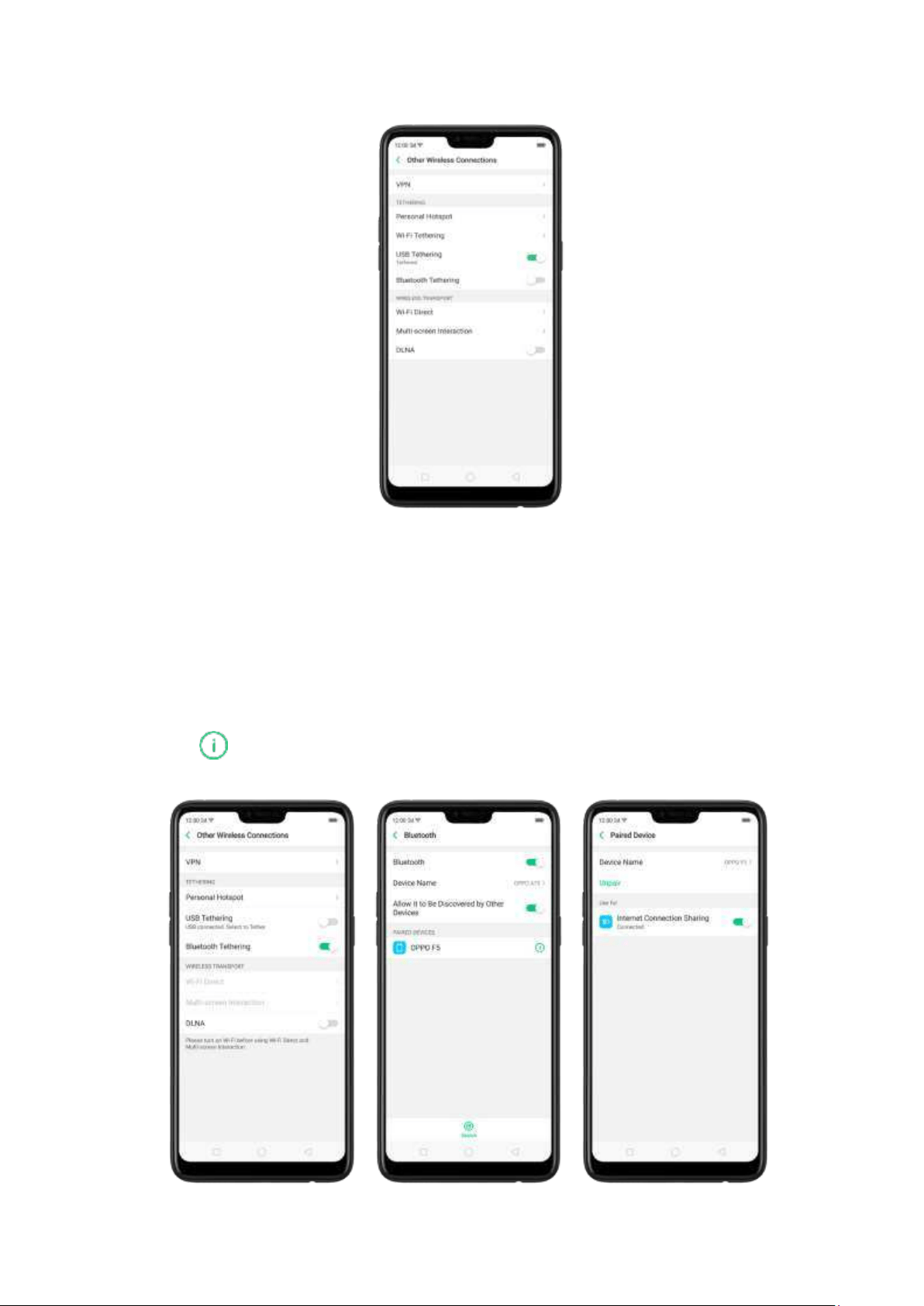
Tet her via Bluetoot h .
1.
Go to [Set t ings] > [Ot her Wireless Connect ions] and enable [Bluet oot h
Tet hering ].
2. In [Set t ings] > [Bluet ooth], pair and connect your phone wit h your Bluet ooth
device.
3.
Click next to the device's name, then click [Int ernet Con nect ion Sharing ].
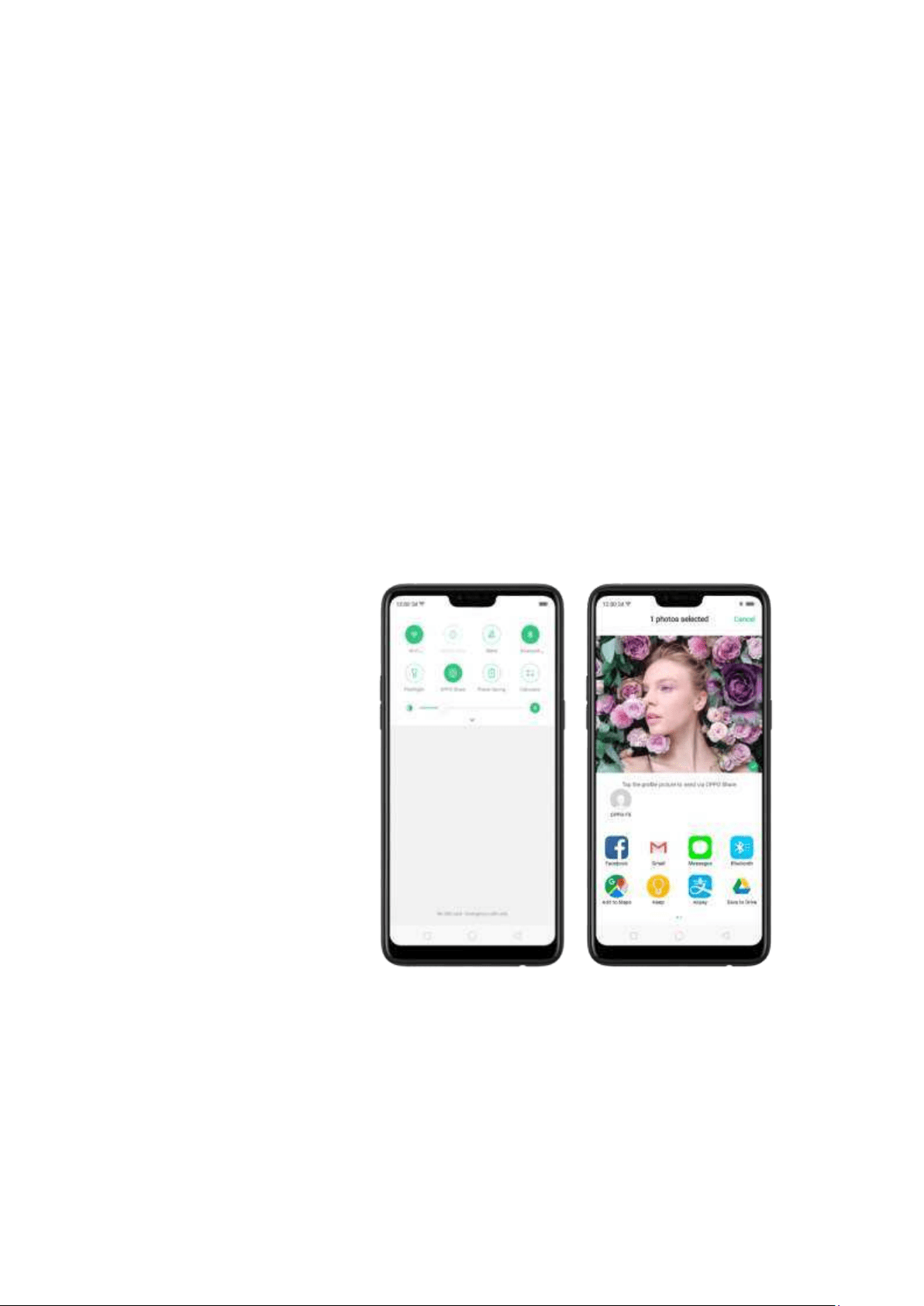
Monit or your m obile dat a net w ork usage. Go to [Set t ings] > [Dual SIM &
Cellular Dat a].
9.2. Share Files
9.2.1. Wireless file sharing
You can share files wirelessly between wireless devices.
Use OPPO share. Share files between OPPO smartphones.
1.
Open Control Center, then t urn on OPPO Share on bot h OPPO phones.
2.
Select the files to be shared and the device to share with, click Send, then click
the detected OPPO phone.
3.
Click Receive on the other device and start sharing.
Share via Bluet oot h.
1.
Go to [Set t ings] > [Bluet oot h] and enable Bluetoot h. Then pair and connect
your phone with your Bluetoot h device.
2.
Select the files to be shared, click Send, then click Bluetooth.
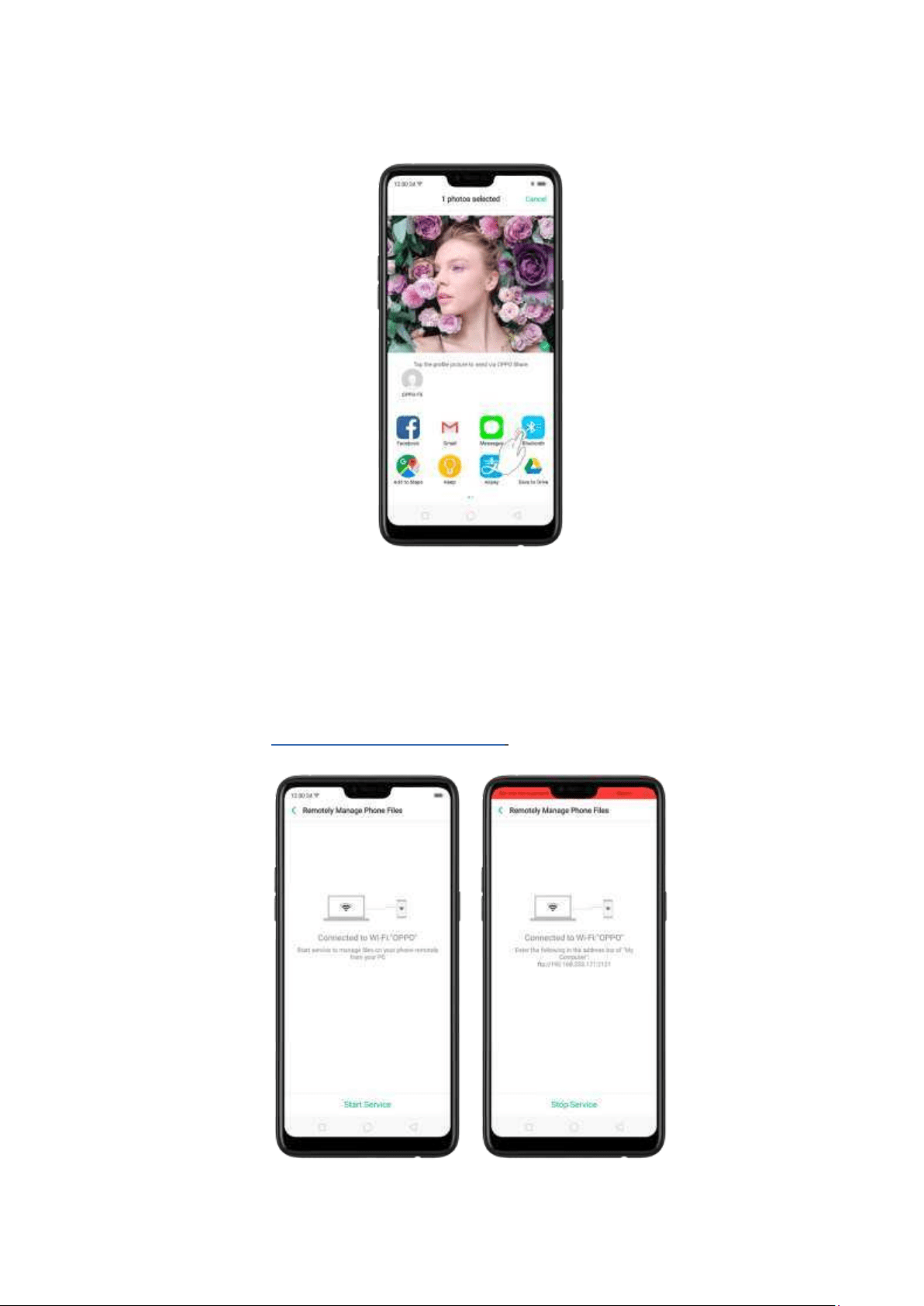
3. Click Accept on your Bluetoot h device and start sharing.
Use Remot e Manag em ent to view and download files.
1.
Connect your phone and laptop t o the same Wi-Fi network.
2.
Click Files,click Remotely Manage Phone Files, then click Start Service. Search the
URL displayed on your phone screen with your computer, then you can view
your phone's file system and download files directly to your
com puter.See Remotely Manage Phone Files.

Wi-Fi Direct . Wi-Fi Direct allows devices to connect to each other directly through
Wi-Fi, without the need of a Wi-Fi network or hotsp ot, and without having to set up
the connection. You can also use Wi-Fi Direct to share files with the help of third -
party apps, such as ZAPYA.
1. Go to [Set t ings] > [Wi-Fi] and enable Wi-Fi.
2.
Go to [Set t ings] > [Ot her Wireless Connect ions] > [Wi-Fi Direct ].
3.
Click Search to start scanning for nearby Wi-Fi Direct devices. After the scan,
select a device, then follow the prompts to pair the devices.
Mult i-screen Int eraction. You can stream your phone screen to TV sets, TV Boxes,
or computers w hich is certified with Wi-Fi Miracast technology.
St ream to com put er
Notice:
1.
Connect your OPPO smartphone and computer to t he same Wi-Fi network.
2.
The function is only supported by Win 10. For Win 8 system, you can install
additional software and apps like AirServer to support.
Computer Setting
Go to [Set t ings] > [System ] > [Project ont o t he com put er].
Allow projection on all locations and every time when a request comes.
Enable the PIN code and remember your com puter nam e.
OPPO smartphone Setting
Go to [Set t ings] > [Ot her Wireless Conn ect ions] > [Mult i-screen
Int eract ion], switch [Mult i-screen Int eract ion] to green to start searching
devices.
Select your com puter nam e from the list and m atch it to your smartphone.
You will see the shared screen on com puter once it's connected successfully.
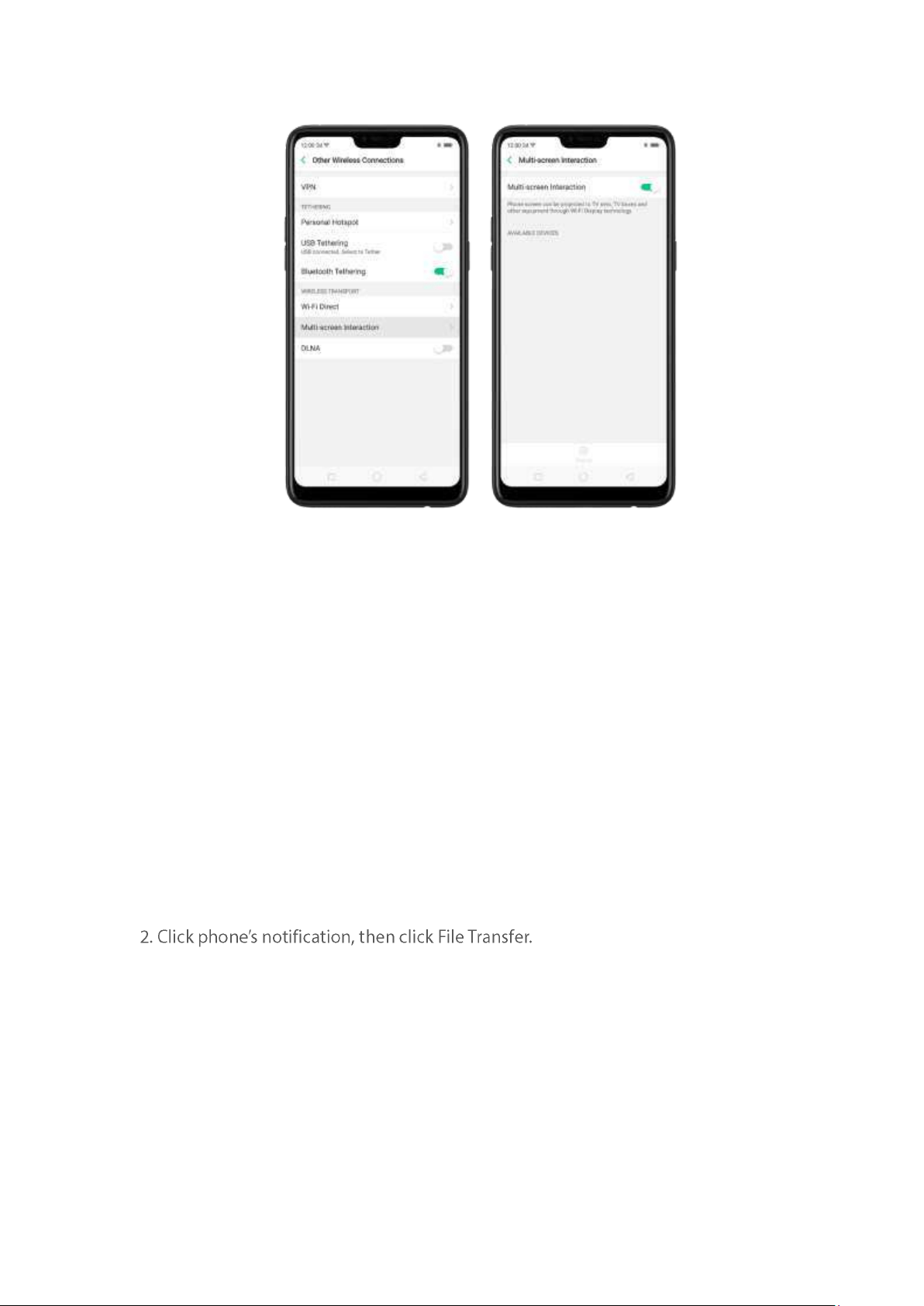
St ream to TV
Connect your OPPO smartphone and TV to t he same Wi-Fi netw ork.
Select your TV name from the list and match it to your smartphone. You will see
the shared screen on TV once it's connected successfully.
If you want to stream the video playing on your smartp hone t o your TV, you can
install additional apps like IQIYI to support.
9.2.2. Wired file sharing
Transfer files bet ween your p hon e and a comput er.
1. Connect your p hone to your computer using the cable that came with it.
3. On t he computer, click your phone name, click Internal shared storage, then you
can copy phone files to the computer.
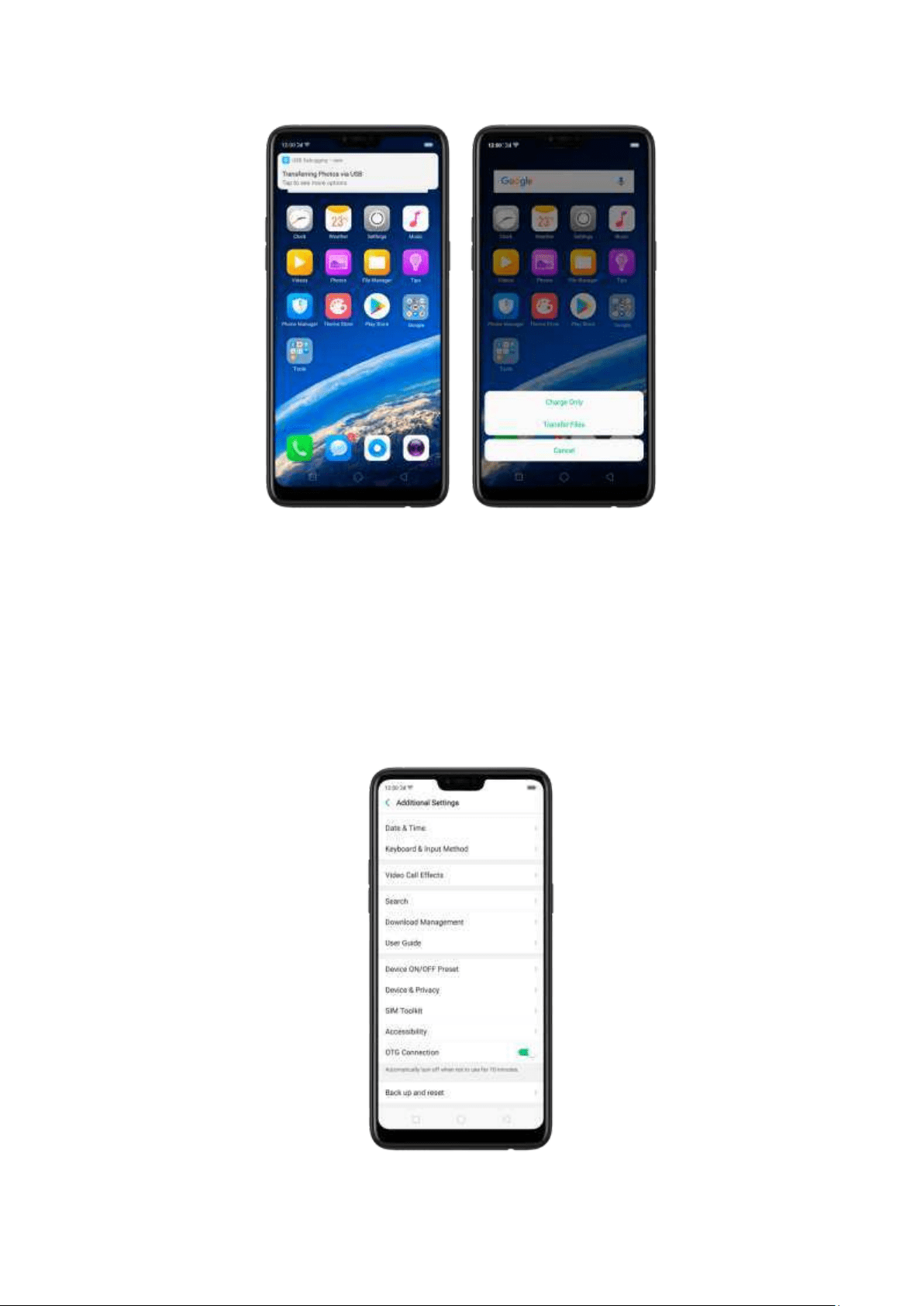
Transfer files wit h USB OTG. You can connect and add additional storage devices or
USB flash drives directly to your phone using USB OTG cable.
1. Go to
[Set t ings] > [Add it ional Settings] and enable [OTG Connect ion].
2. Connect a storage device to your phone using USB OTG cable. You can directly
access data on the external st orage device and play movies or music without havin g
to store them on your device.
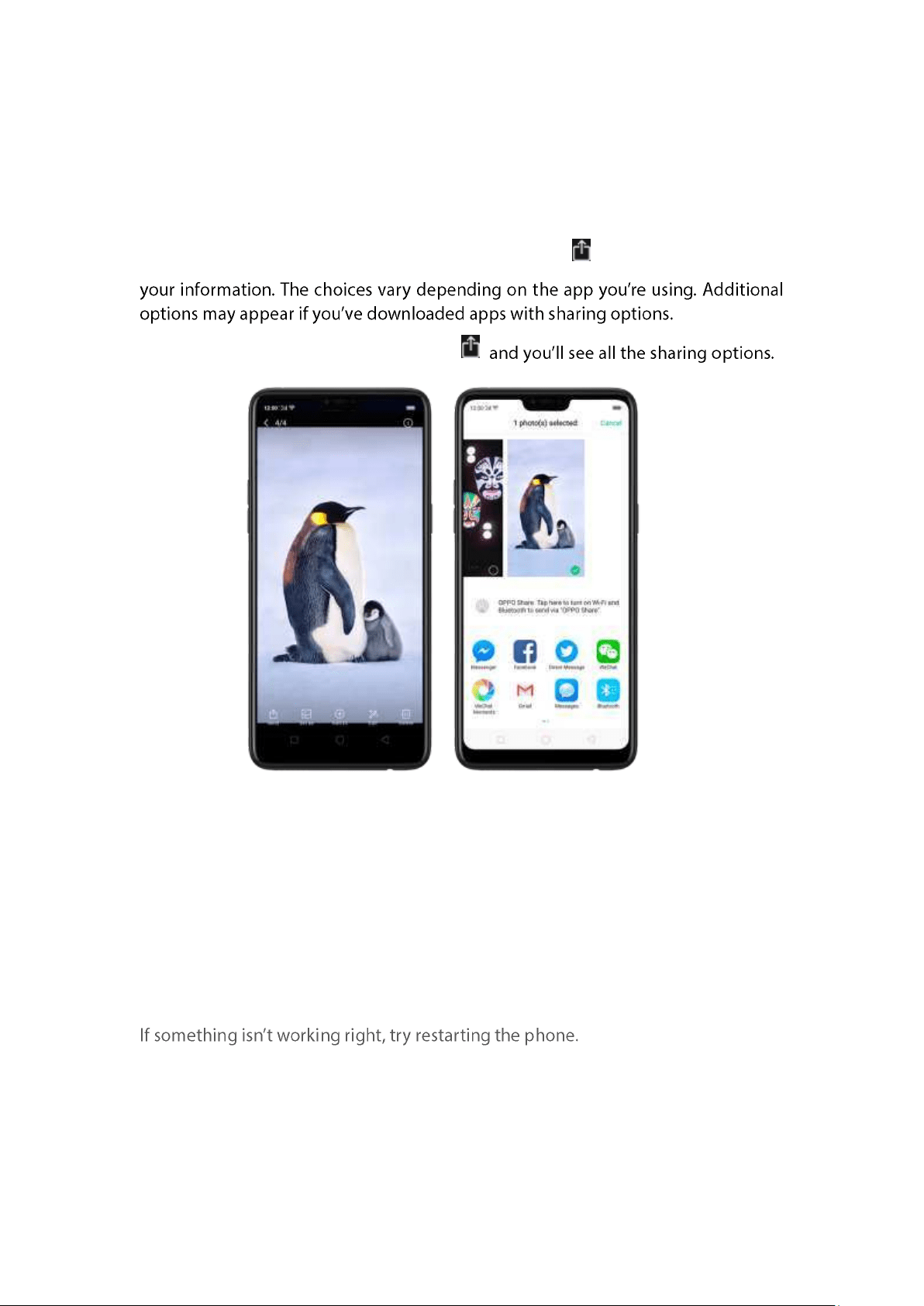
9.2.3. Share from apps
In addition to sharing your information from the Files app, you can also share from
many other apps on your OPPO smartphone.
Share from ap ps. In many apps, you can click Send or to choose how to share
Take the Photos app as an example, click
10. Rest art , update, back up, and
rest ore
10.1. Rest art t he phone
Rest art OPPO p ho ne. Press and hold the Sleep/Wake butt on until the Slid e d ow n
t o pow er off message appears. Drag the power icon down to turn off the phone. To
turn t he phone back on, press and hold t he Sleep/Wake button until you see the
OPPO logo.
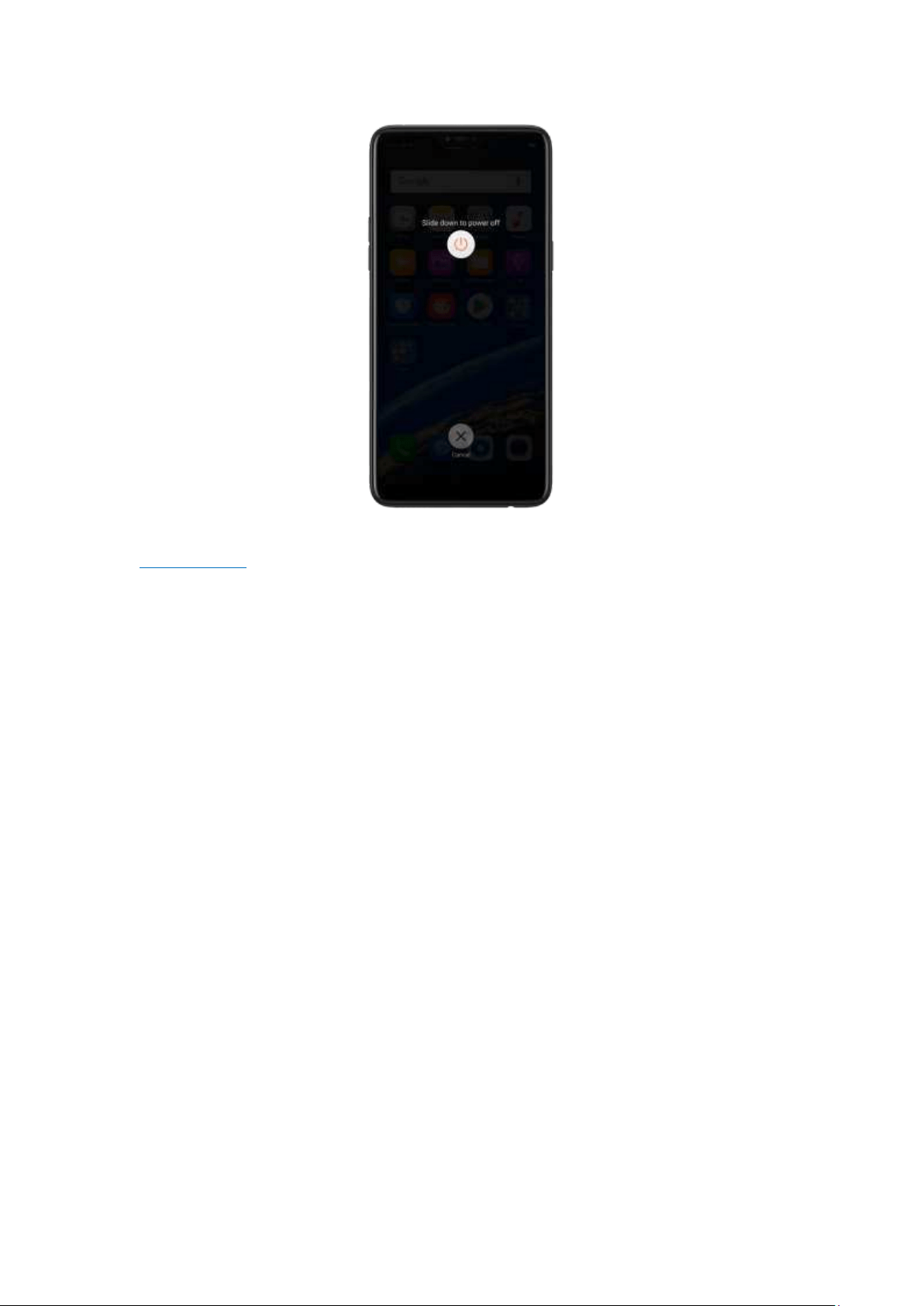
Force restart OPPO p hone. If the phone is not responding, press and hold t he
Sleep/Wake and Volum e Up buttons for at least 8 seconds until you see the OPPO
logo.
10.2. Update ColorOS soft w are
There are three ways to update your device.
Not ice b efore d oing the upd at e.
Plug your OPPO phone into power, or keep the battery level over 40%.
The update process takes some time. Do not operate or power off your device
during t he process.
DO NOT root t he phone yourself, for that might cause damage to your system , and
the warranty service will be terminated im mediately.
Updat e your OPPO phone wirelessly
1. Connect to a w orking Wi-Fi or Mobile network. The system will automatically show
new update, if any. You can see a notification on the "System updates" icon,
otherwise it will show "It is already the latest version".
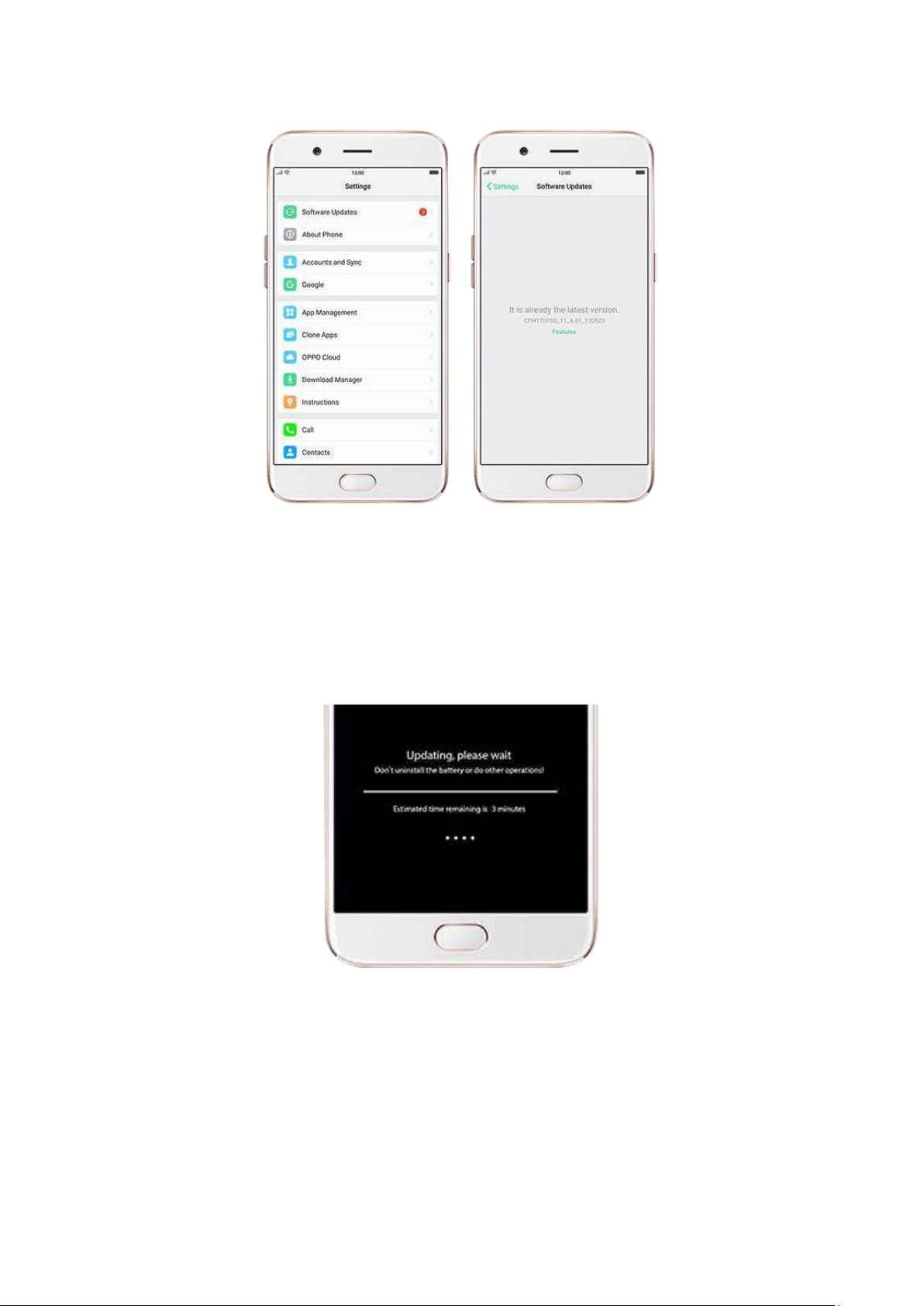
2.
Dow nload the firmware. Download under a Wi-Fi netw ork t o avoid mobile
consumption.
3.
Click [Syst em Up dat es]. Your device will reboot and start updating, which will take
a few minutes.
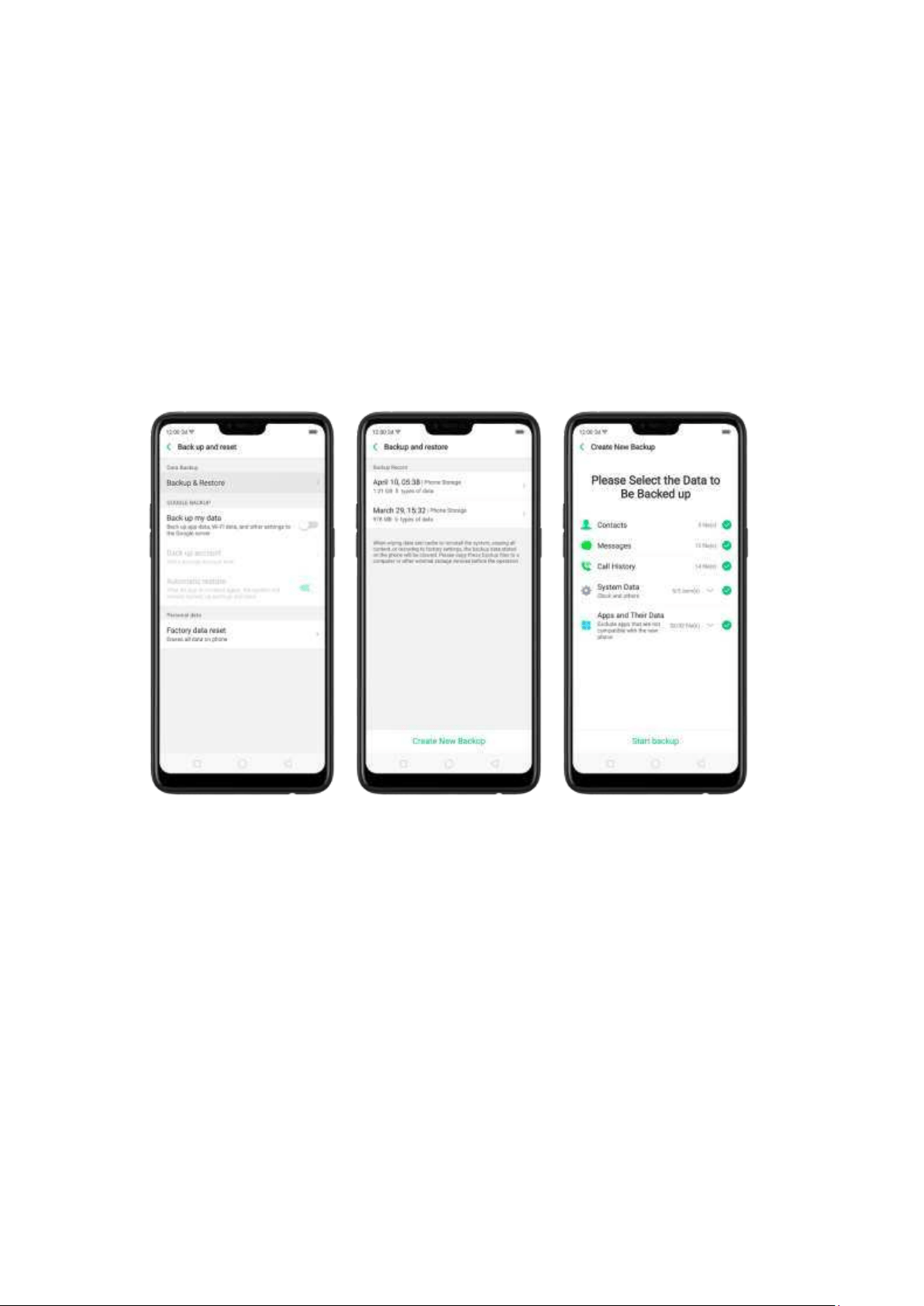
10.3. Back up and rest ore t he phone
10.3.1. Back up your phone
If you use your OPPO phone on a regular basis, having a reliable backup is essential
in case something goes wrong.
Use th e built -in b ackup tool. Go to [Set tings] > [Add it ional Set tings] > [Back up
and reset ] and click[Backup & Restore]. All your personal data, system data and
applications will be backed up to phone storage.
Back up to Goo gle. Go to [Set tings] > [Add it ional Set tin gs] > [Back up and
reset ] and turn on [Back up m y dat a]. You can back up your app data, Wi-Fi
data, and other settings to the Google server.
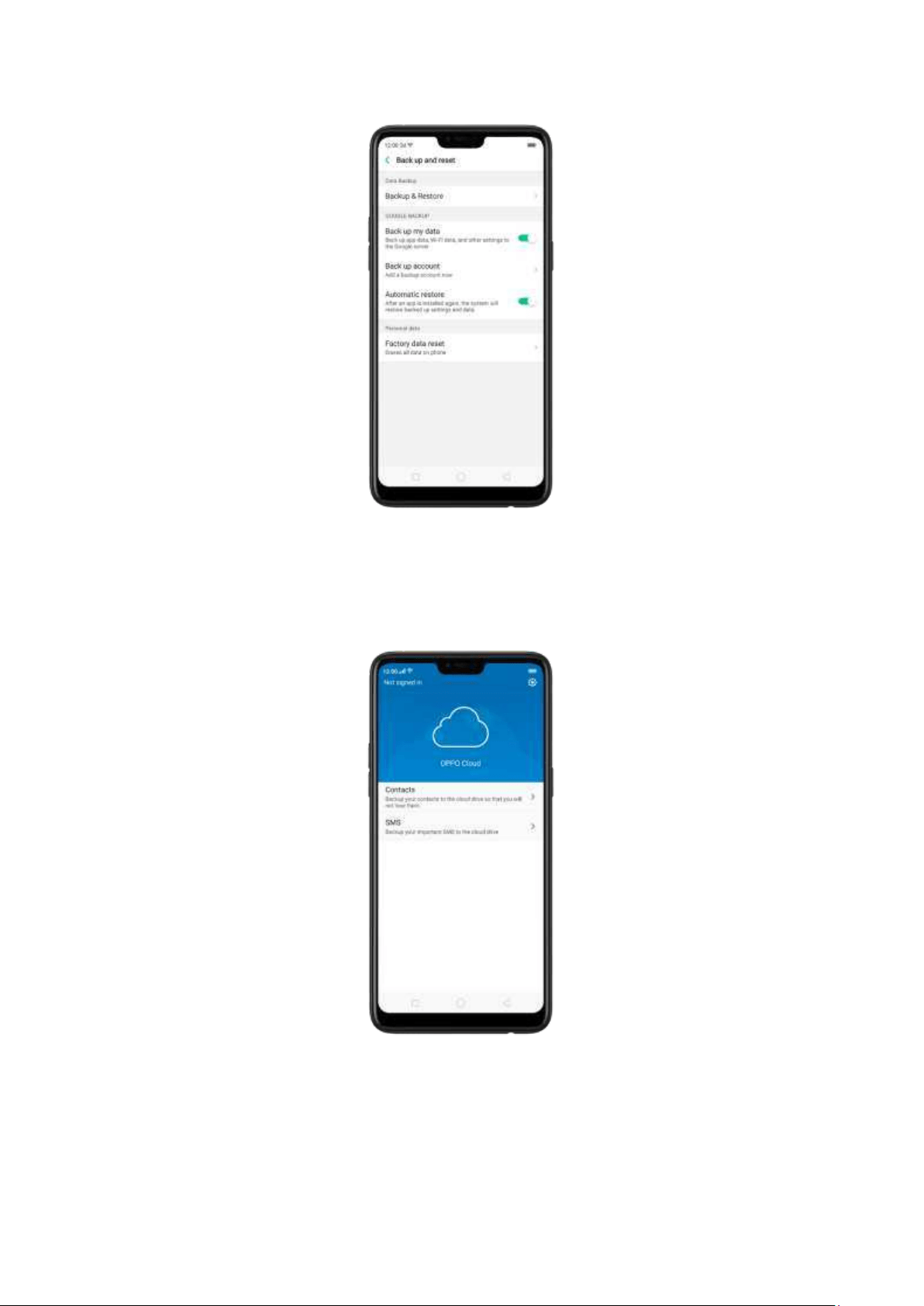
Use OPPO Cloud . OPPO Cloud allow s you to back up the Contacts and SMS to the
cloud drive. You need to register or sign in OPPO account first.
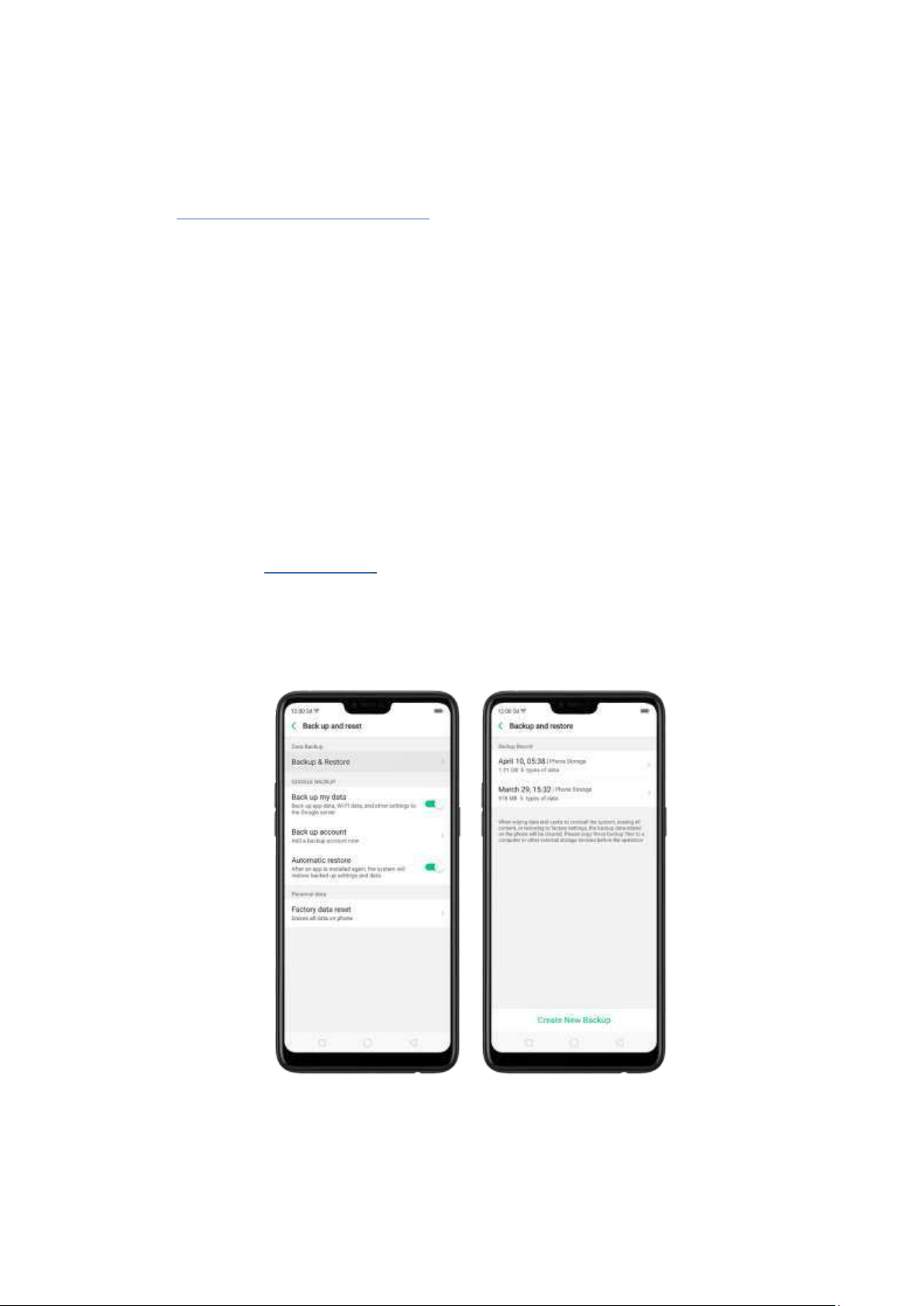
Connect your phone to a co mp ut er to creat e a backup on it . This is a com mon
way to back up all your data. Don't disconnect your phone during the copy backup
process.
View
Back up your OPPO smartphone for more details.
10.3.2. Rest ore dat a on your phone
There are various m ethods t o restore data on OPPO smartphone. Select the
corresponding rest oration method according t o the way you have made the
backup.
Rest ore your OPPO smart p hone from Local backup
Before you start, m ake sure that you have copied and saved the data on OPPO
smartphone via
Local backup .
1. Go to [Set t ings] > [Ad dit ional Set t in gs] > [Back up and reset ] and
click
[Backup & Rest ore]. You can find the data you want to restore according to
its backup time.
2.
Select data to be restored, including Contacts, Messages, Call history, syst em
data and Apps and their data. Then start the restoration.
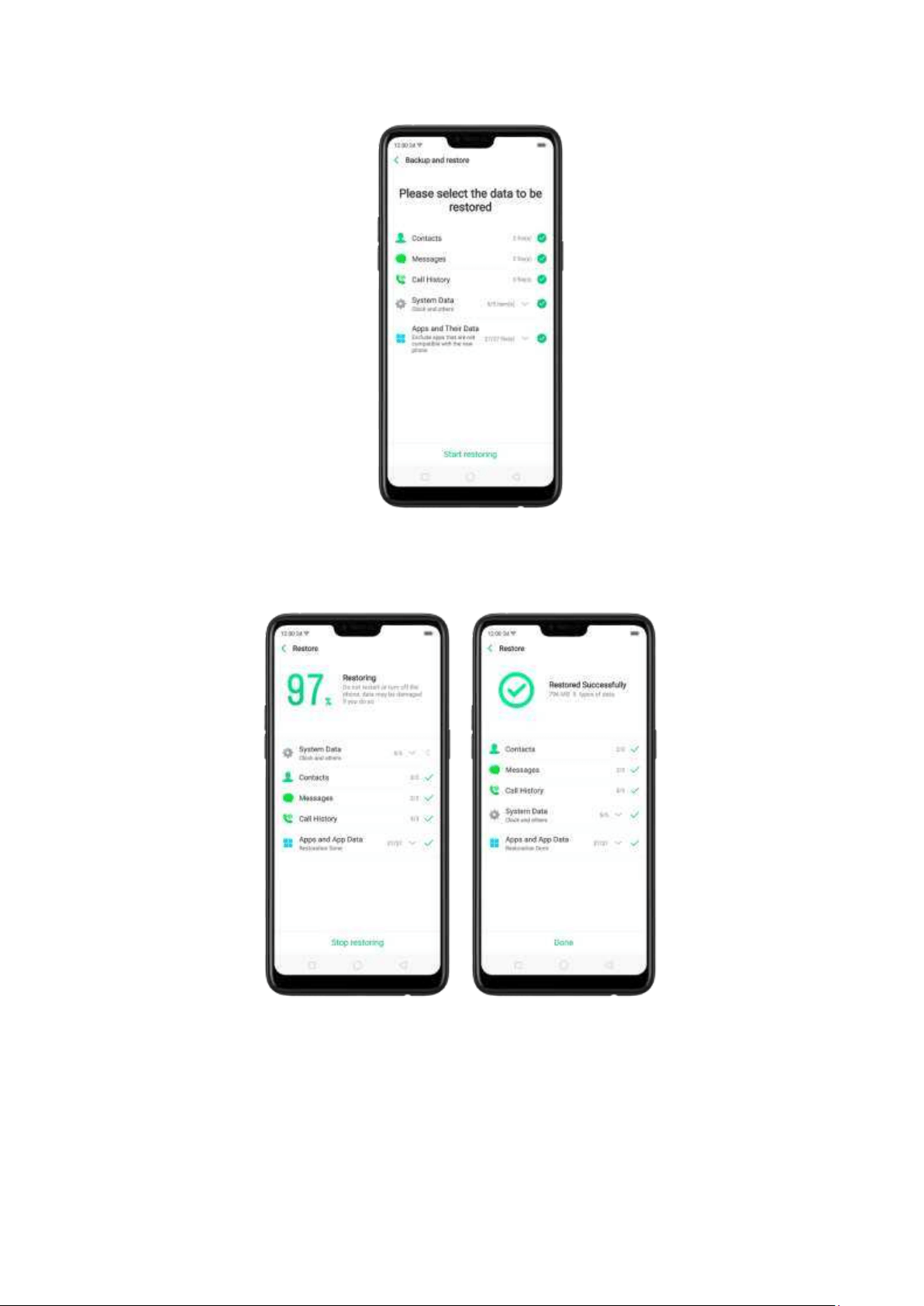
3.
OPPO smartphone will display the progress and details till the restoration is
done. You can click
St op Restoring at any time during t he process.
* DO NOT turn off or restart your phone during the restoration process,
otherwise data m ay be damaged or lost.
* After restoration has succeeded, you can delet e data that are no longer
needed
.
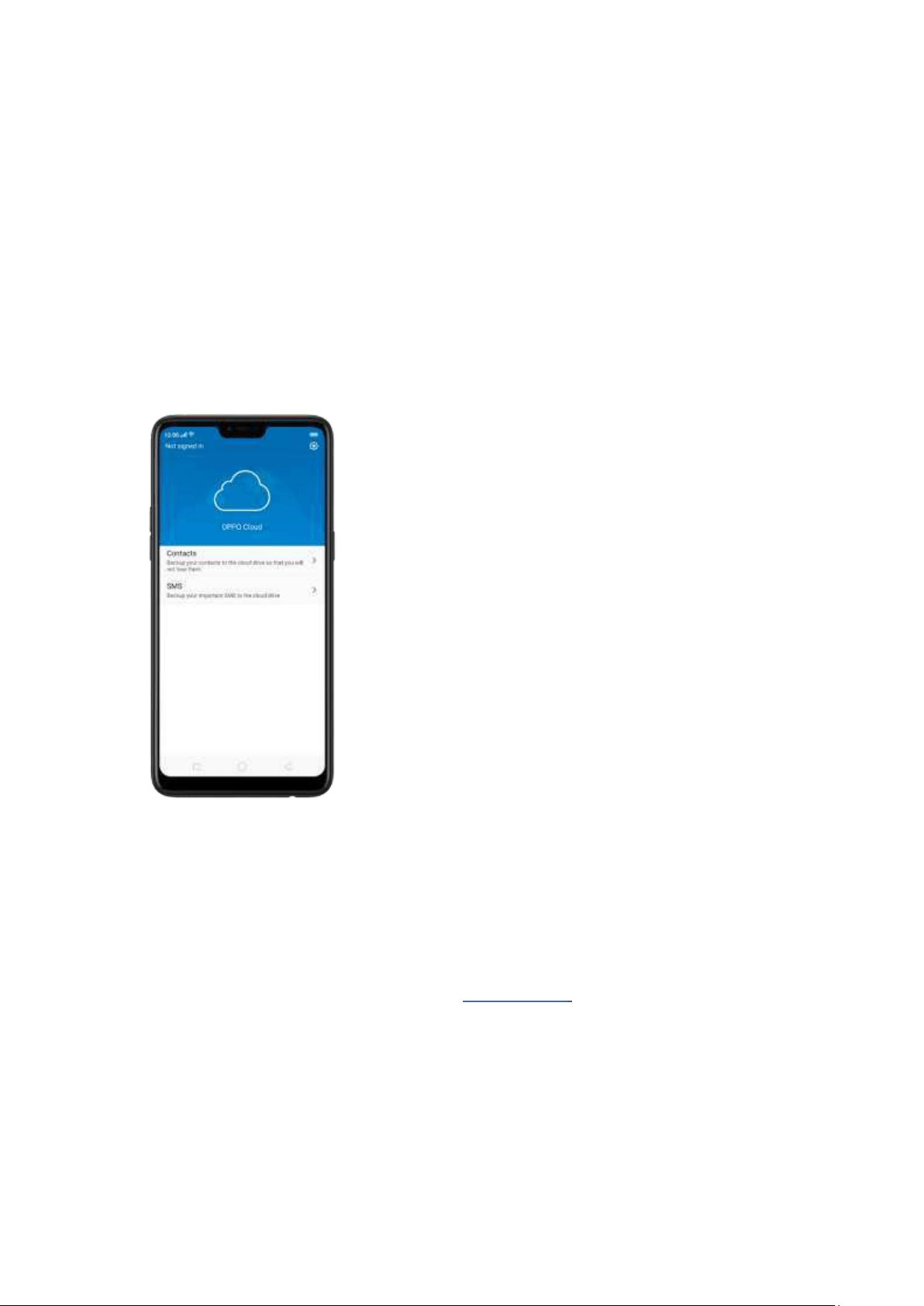
Rest ore your OPPO smart p hone via com put er
If your backup files are stored on external st orage such as SD card, rem ovable hard
drive, etc., copy these files to your OPPO sm artphone to complete data restoration.
Rest ore Cont act s and SMS on OPPO smart p hone from OPPO Cloud
If you have backed up your Contacts and SMS to OPPO Cloud, you can restore
them after signing in to your OPPO account.
* Network connection is required when you back up or restore data with OPPO
Cloud.
Transfer your dat a w it h Clone Pho ne
If you have switched to a new OPPO phone, you can transfer your data from old
phone to your new OPPO phone t hrough
Clo ne Phone.
Rest ore your OPPO smart p hone d at a from t hird -part y Ap ps
OPPO does not recom mend you back up, transfer or restore data via third -party
APPs, for they may be in conflict with OPPO system, leak personal information, or
cause other safety problems.

10.3.3. Reset the phone
Resetting your OPPO phone will reset the phone back to its original factory
settings, and will permanently erase all your personal data. You can do Factory data
reset if your phone starts to lag or there's a delay in navigating, has too m uch junk
files and caches, or has issues wit h system or applications.
Before you do factory reset, back up all the needed data.
Reset your phone to fact ory set t ings
Go to [Set t ings] > [Ad dit ional set t ings] > [Back up and reset ] > [Fact ory dat a
reset ], choose an option available for factory data reset.
* Any reset option cannot be revoked once it is operated.
Reset Syst em Sett ings
This option will reset all system settings without deleting any data or media files.
Erase All Ap p Dat a and Delet ab le Ap p s
This option will delete all third-party apps and app data. But the data saved by the
user will be kept such as photos, music, and videos.
Erase All Cont ent and Set tings
Through this option, all data of OPPO smartphone will be cleared including
contents, settings, p hotos, and music. OPPO smartphone will reset to its
inactivated initial state, which is the factory state.
Erase Cont act s and Call Logs
By choosing this option, all the contacts and call hist ory on t he phone will be
erased. Only the contacts on the SIM card will be preserved. Other data on OPPO
smartphone will not be affected.
Erase All SMS and MMS
By choosing this option, all the SMS and MMS messages on the phone will be
erased. Only the SMS messages on the SIM card will be preserved. Other data on
OPPO smartphone will not be affected.
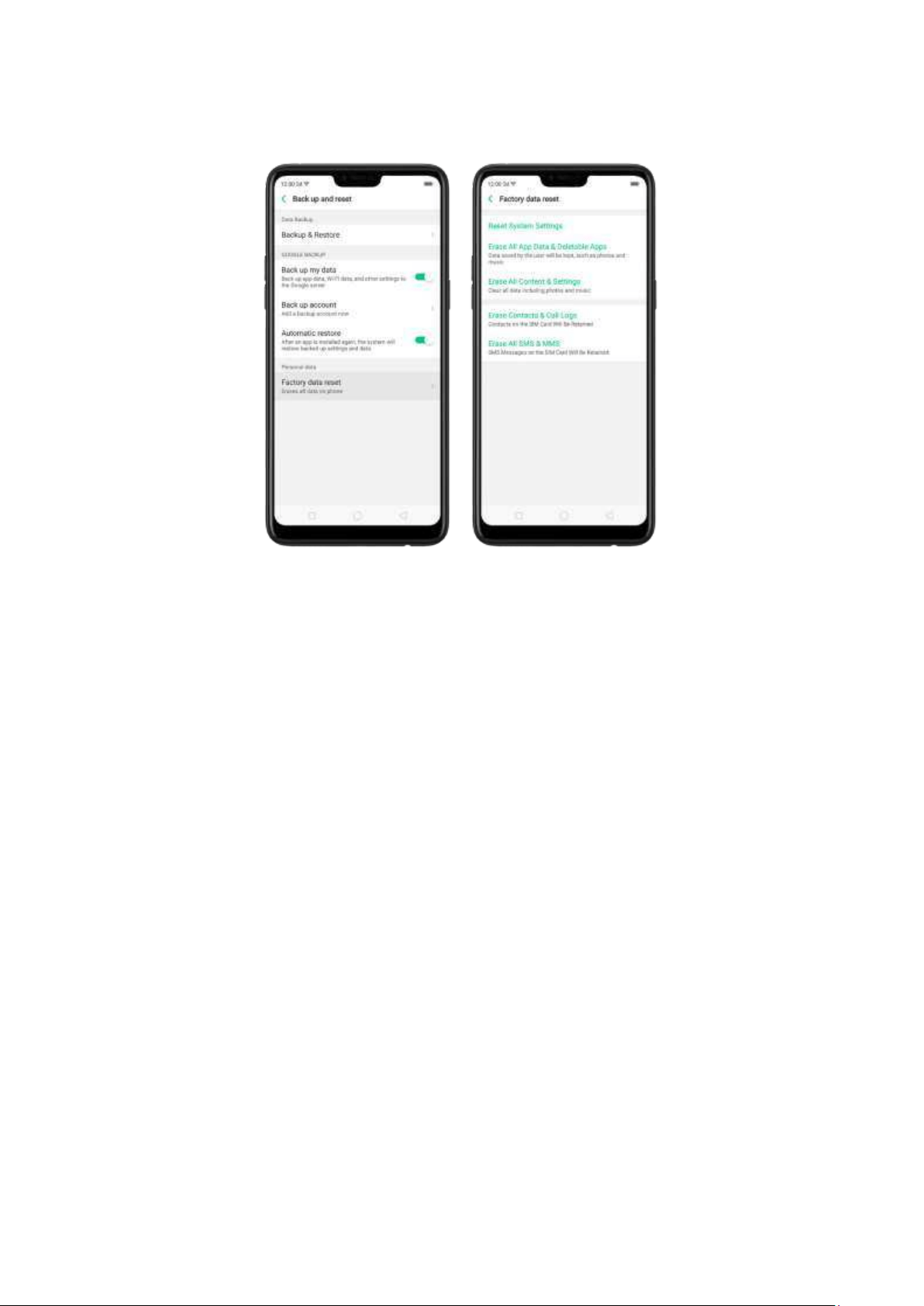
11. Barrier-free
11.1. TalkBack
TalkBack helps blind and vision-impaired users to interact with t he phones more
easily. It uses spoken word, vibration
, and other audible feedback to let you know
what's on your screen, what you're touching, and what you can do with it.
Turn TalkBack o n. Go to [Set t ings] > [Add it ional Set t in gs] > [Accessi bilit y] and
enable TalkBack.
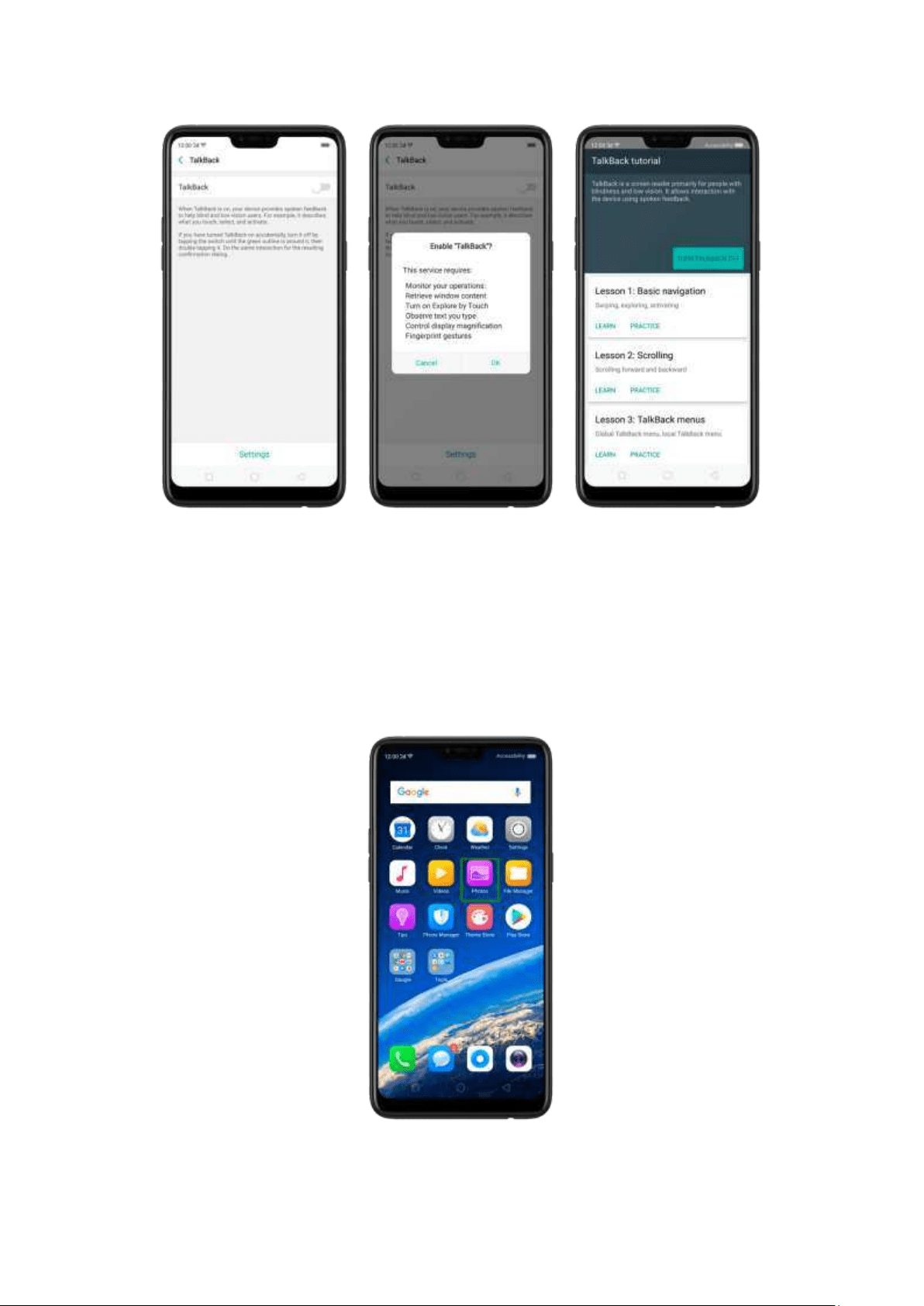
When
TalkBack is on:
Your device provides spoken feedback to help blind and low -vision users. For
example, it describes what you touch, select , and activate.
To sel ect an op t ion: Click the option to show the green border, then double
click to activate it.
To scroll t he screen: Swipe upward or downward with t wo fingers.
Turn Talkb ack off. Go to [Set t ings] > [Addit ional Set t ings] > [Accessib ilit y] >
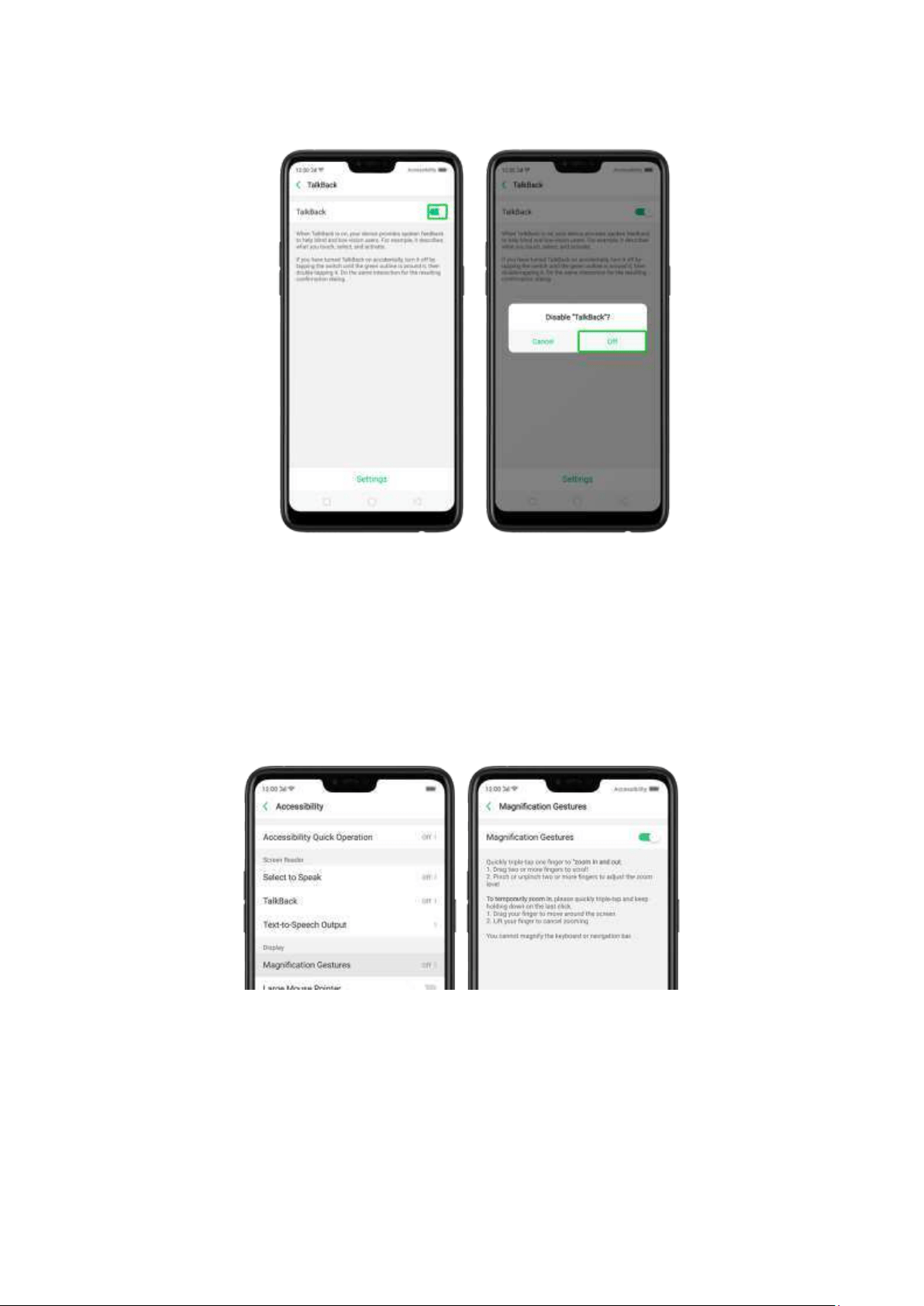
[ TalkBack], switch t he slider to white, then click Off.
11.2. Magnification Gest ures
Magnification gestures work similarly t o the full screen magnifiers, which allows users to zoom
in and pan t he whole screen to get a closer look at screen content.
Enable magnification gestures. Go to [Set tings] > [Addit ional Settings]> [Accessibility] and
enable
[Magnification Gestures].
Quickly triple-tap the screen to zoom in and out. The triple-tapping does not work well
on the keyboard or on the navigation bar - if you have the magnifier running while the
keyboard is shown, only the area above the keyboard will be magnified.
Drag tw o or more fingers across the screen to pan across the screen.
Pinch your fingers together or apart to adjust the zoom level.
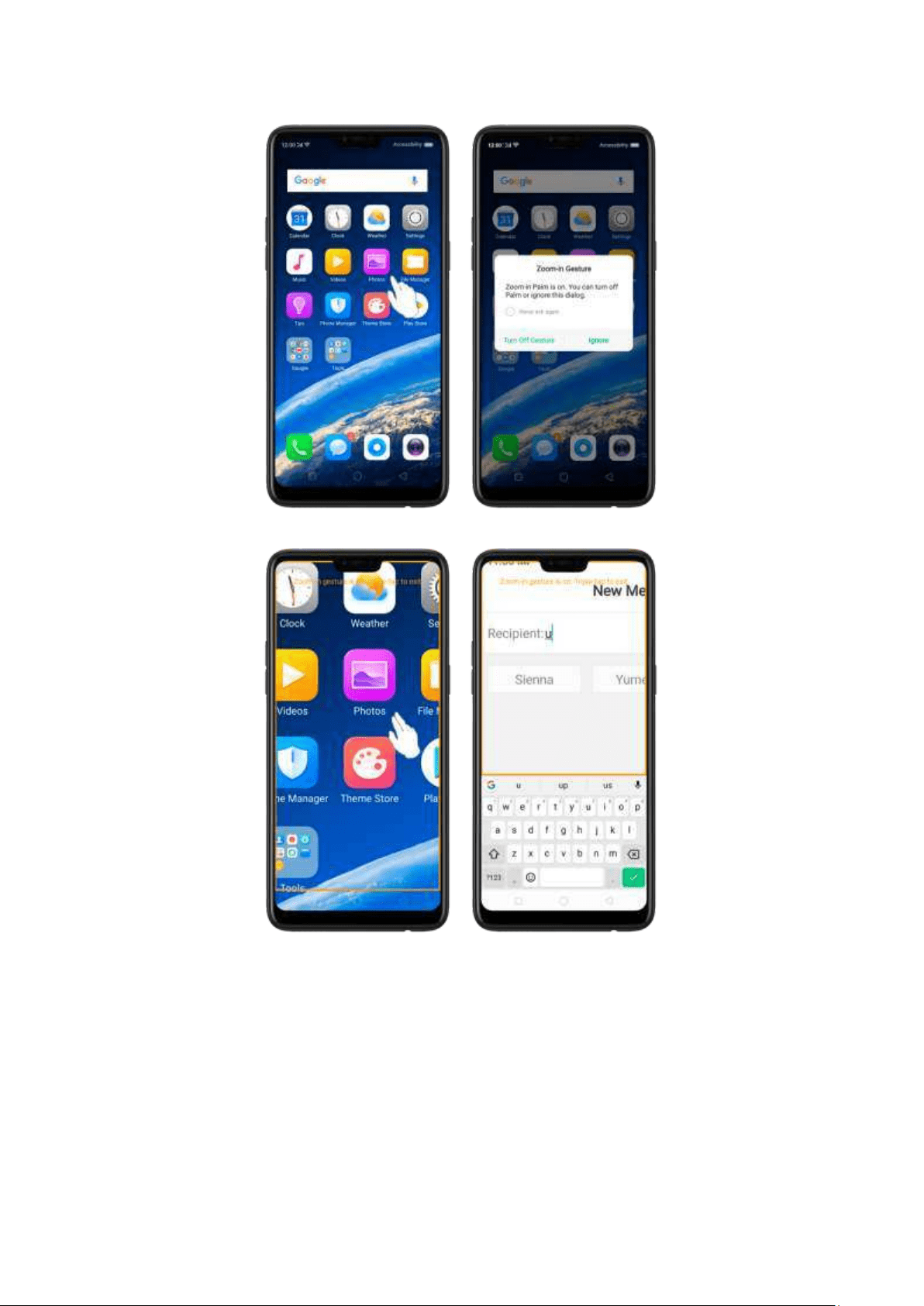
Turn the m agnifier on tem porarily. Trip le-t ap the screen and hold the third click.
Drag one finger around the screen to move the view.
Lift the finger to cancel zooming.
Quickly triple-tap to exit.
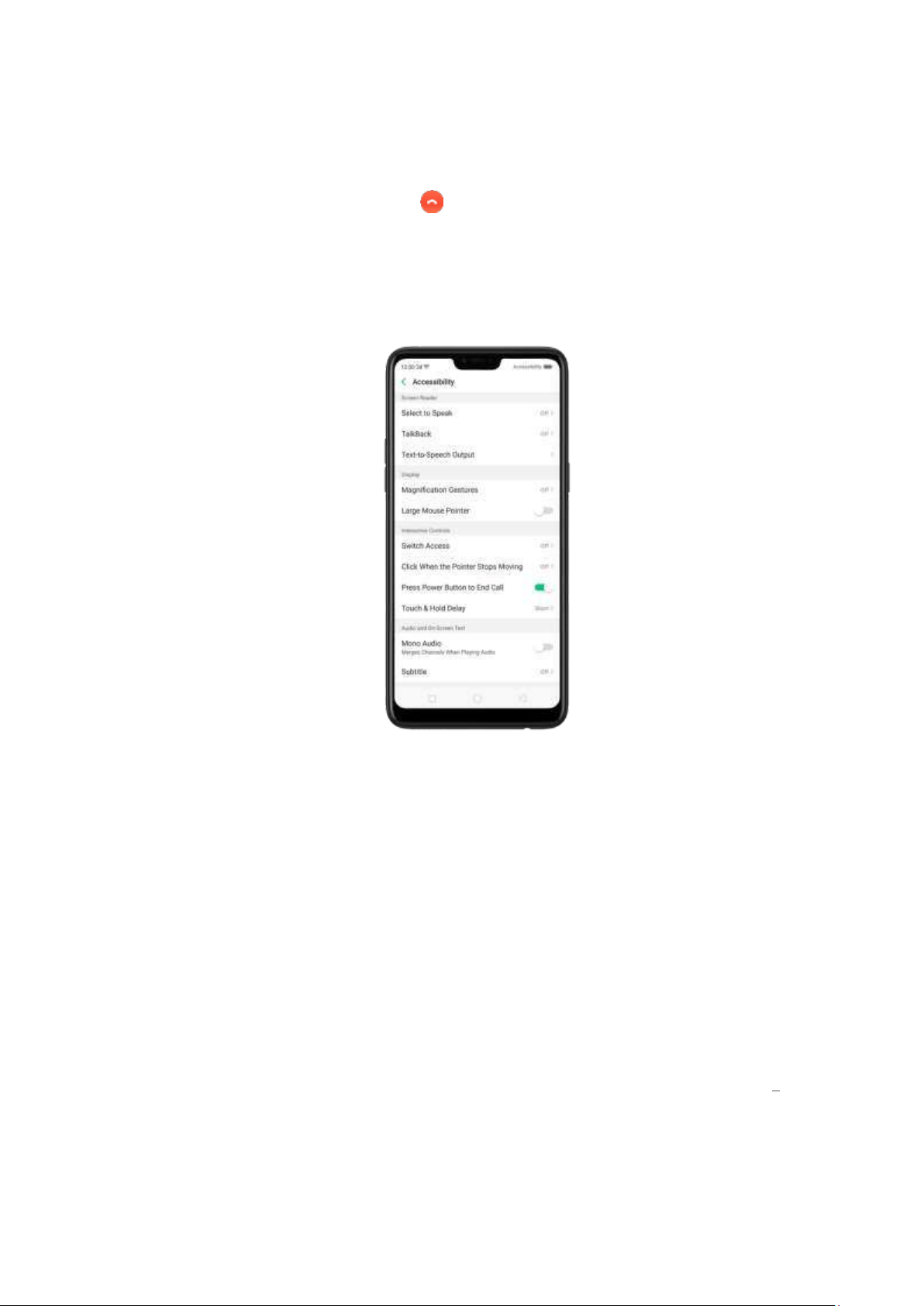
11.3. Press Power But t on t o End Call
In addition to end calls by clicking , you can make the Power button do this
function.
End Calls w ith the Pow er but ton. Go to [Sett ings] > [Additional Set t ings] >
[Accessibilit y] and turn on [Press Pow er But ton to End Call]. Then you can end calls
by clicking Decline or pressing the Power button.
12. Safet y, handling and support
12.1. Healt h & Safet y
12.1.1. Using Environm ent
Keep in m ind t he following rules. Switch off your phone when it is prohibited, or
might cause disturbance or danger.
1. The ideal phone working tem perature is 0° C to 35° C and 35% to 85% hum idity. A
too high or too low temperature might affect the performance or cause damages.
The ideal phone storage tem perature is -20° C to 45° C.
2. Your phone might interfere with electronic and medical equipment. Obey the
related rules and switch off your phone in these places.

3. Try not to use your phone in weak signal areas or near high -precision electronic
devices. Radio interference might lead to m alfunction or other issues in electronic
devices, especially pay attention when near the following devices: hearing aids,
pacem akers and ot her medical devices, fire detectors, autom atic doors and ot her
autom atic control devices.
4. In rare cases, the phone might interfere with the electronic systems in certain cars,
such as the ABS anti-lock brakes and the air bag. Consult your network operator or
car manufacturer before connecting the phone.
5. Before connecting to ot her devices, carefully read the user m anual for more
detailed, accurate, and safety instructions. Do not connect to incompatible products.
6. Do not use your phone in rain, or near washbasins or ot her wet locations.
12.1.2. Bat t ery Safet y
Bat t ery Precautions
1. Do not disassemble the built-in lithium polymer battery yourself, otherwise it
might cause battery leakage, overheat, explosion
, and fire. Go to an OPPO
designated after-sales service center if battery replacement is needed.
2. Do not p uncture or pierce the battery with hard objects (e.g., needles and
tacks) to avoid battery leakage.
3. Liquid in the battery is harmful to your skin. If liquid can be seen leaking from
the battery, do not attem pt to touch it. If the liquid
contacts with the skin and
eyes rinse immediately with water and go t o a doctor if needed.
4. Do not expose the battery to extreme am bient temperatures, fire, wet
locations, and direct sunlight.
5. If the battery sends out strange sm ell, turn off your phone immediately, and
send it to an authorized service provider for battery replacem ent. Do not
attem pt to disassemble or replace the battery yourself.
6. Do not continuously charge t he battery over 12 hours.
Bat t ery Life Tip s
1. Use OPPO original accessories. Use OPPO original charger (power adapter
and USB cable) that matches your phone model. Charging with third-part y or
counterfeit charger accessories might impact battery lifespan or even cause
security incidents.

2. Charg e at a suit ab le t emp erat ure. The ideal charging temperature is 5° C to
40° C. Battery life might temporarily shorten in low -temperature conditions, or
irreversibly damage when tem perature is too high. The battery should be
charged within the ideal temperature range to avoid decreased battery
performance and standby time.
3.
Turn off p hone feat ures wh en not in use. Using features such as Bluetooth,
Wi-Fi and GPS or keeping them active in the background may drain the b attery
significantly. Turn them off w hen not in use to save the battery. Dim ming your
screen and reducing t he screen timeout setting can also preserve the batt ery
life.
4.
Do not use wh en chargin g. Your phone might quickly get warm or even
cause damage if you use it a lot during charging.
5.
Do not fully d rain Charge your phone when your
drain, the battery
could fall into a deep empty/drain state, which will cause it to be slightly
damaged.
6. St ore th e phone lon g t erm. If you plan t o store t he phone for a long time,
charge it to 60% or above every month.
7.
Ext ernal environ ment . Avoid exposing your phone battery to high or low
tem perature, humid environment or sun exposure.
12.1.3. Charger Usage Not es
1. Only use the charger specified by OPPO.
2. Charging voltage should be consistent with t hat specified on the charger. Usin g
mismatched voltage might cause leakage, fire, and damages.
3. Do not use a power socket t hat is incompatible wit h the charger. Make sure the
charger is plugged in firm ly to avoid any fire hazard.
4. Do not charge your p hone with a partially damaged charger, for that could
result in electric shock, fire or other damages.
5. Do not charge your p hone near washbasins or other water cont ainers, or in wet
locations such as bathroom s. Take caution to not spill any food or liquid on your
phone or charger. Do not touch chargers, cables or power socket s wit h wet
hands. In case the charger gets wet, unplug all cables, allow it to dry thoroughly
before charging again.

6. Do not disassemble or modify the charger or cables yourself.
7. Do not place heavy objects on the charger, for that might cause electric shock
and fire.
8. Before cleaning the charger, unplug all cables (hold and pull the plug inst ead of
pulling the cable, otherwise the cable will be ripped off).
9. Do not charge your phone when t here is lightening or thunderstorm . Do not
make phone calls while charging.
10. Avoid exposing your charger to following conditions: exposing to direct
sunlight, temperatures lower than 5° C or higher than 40° C, damp and dusty
places or that wit h excessive vibrations (might cause breakdowns), places near
electrical appliances such as TV and radio sets (might cause interference to
im ages and sound).
12.1.4.Traffic Safet y
Use both hands when driving, and give full attention to driving and on t he road. If
you decide to use your phone while driving or riding a bicycle, keep in m ind the
following conditions:
▶ Safety should always come first while driving or riding a bicycle. Make sure to
follow the related regulations in t he area or country.
▶ Keep your eyes on the road. If you get an incoming call at an inconvenient time,
let your voicemail answer it for you, or answer with a Bluetooth headset.
▶ An air bag in your vehicle inflates wit h great force. Do not store your phone or any
of its accessories in the area over the air bag or in the air bag deploym ent area.
▶ Do not rely solely on t he m ap on your phone when searching for locations,
buildings, directions, and distances. Map routes and com pass change as information
provided by the service provider changes, so
the map might be incorrect,
incom plete or unsupported.
▶ Do not ship the phone, wit h its components or accessories in the same
com partment with flammable liquids, gases or explosives

12.2. Maint enance and Repair
12.2.1. Phone Cases
Keeping your phone protected from damage should be pretty im portant to you. The
phone case that com e along with your phone can effectively m itigate your concerns.
OPPO original phone case is m ade of TPU m aterial, which is lightweight and soft,
and helps keep the original 'feel' of the phone, since the case is a tight -fitting overlay.
It does a good job of protecting against drops and shock damage on the corners and
rear of your phone, also can reduce the damage caused by extreme temperature,
liquid and dust invasion, etc.
12.2.2. Screen Prot ect or
OPPO provides you with an original HD clear screen protector made of PET material,
which is a thin piece of electro-conductive film that self-adheres to your screen. It
protects your screen from cracking, also does offer resistance to scratches, finger
prints and abrasions. Besides, OPPO screen protector ensures high -definition and
sensitiveness of the screen, which will not affect the screen display quality.
12.2.3. Maxim ize batt ery life and
lifespan
Not e: Rechargeable batteries have a lim ited number of charge cycles and may
eventually need to be replaced. It is normal for the battery to lose its capacity over
tim e, but you can do the following to maximize its life and lifespan.
Use OPPO original accessories. Charge the phone with OPPO original p ower
adapter and USB cable. Charging with third-party charger accessories might im pact
battery lifespan or even cause security incidents.
Use at a suit ab le t emp erat ure. OPPO smartphone battery is designed to have a
good performance in a wide range of am bient temperatures, with 16° C t o 25° C as
the ideal comfort zone. When tem perature is higher than 45°C, battery capacity will
damage irreversibly, and phone might even short -circuit and burn.
Do not use wh en chargin g. Programs such as long-tim e calls, gam es or online
videos will make phone get warm quickly.

Do not fully d ischarge your ph one's b at t ery. Charge your phone when your
battery level goes down to 10%. If phone's battery is fully discharged, the battery
could fall into a deep discharge state, w hich will cause it to be slightly damaged.
St ore t he pho ne lon g t erm. If you plan to store the phone for a long term, charge
it to 60% or above every m onth.
Ext ernal environ m ent . Avoid exposing your phone battery to humid environment
or sun exposure.
Keep a good using habit . Using features such as Bluetooth, Wi-Fi and GPS or
keeping t hem active in the background may drain the battery significantly. Turn
them off when not in use to save t he battery. Dim ming your screen and reducing
the screen timeout setting can also preserve the battery life.
Do not charg e wit h a port ab le po wer ban k freq uent ly. If a power bank supplies
current which is above your phone battery's capacity, then it will cause damage to
your battery gradually. Make sure the power bank you buy is of good quality, and
has power ratings which are suitable for your phone, basically match the current to
the wall charger you use.
12.2.4. Keep Clean
Your mobile phone could be a hotspot for bacteria, so clean your phone is of great
im portance. Follow these steps:
1.
To clean your p hone, unplug all cables and turn it off first.
2.
Dip the included cleaning clot h or a soft, slightly damp, lint -free cloth in d istilled
water or low concentration alcohol, and shake or squeeze to rem ove any excess
liquid.
3. Slightly wipe across your phone. Avoid getting moisture in openings.
4.
Gently wipe the screen wit h the dry part of the microfiber cloth, but don't try to
pick up all the excess water if it m eans pressing hard.
Do not attem pt to dry your phone with an external heat source, such as a hair dryer.
If impurities cannot be cleaned up, contact OPPO Service Center for professional
assistances.

12.2.5. Keep dry and solve w at er
dam age
Do not use your p hone in rain, or near washbasins or other wet locations. Take care
not to spill any food or liquid on your phone. In case your p hone gets wet, follow
these emergency measures:
1.
Take your phone out of t he liquid im mediately, unplug all cables and turn off
your phone.
2.
If your phone has a removable battery, rem ove it.
3. Use a tissue or soft cloth t o thoroughly adsorb water stains or liquids on t he
surface of your phone, and gently shake the phone in the opposite direction of
liquid inflow.
4. Let your phone dry thoroughly before turning it on again. Avoid drying your
phone with an external heat source, such as a hot air hair dryer.
If your phone has a serious water damage, take your phone, warranty card and
proof of purchase to a nearby OPPO Customer Center for repairs at once.
12.2.6. Use connect ors, port s, and
but t ons.
Never force a connector into a port for that m ight cause damage, which is not
covered by warranty service. Check for obstructions on the port. If the connector and
port don't join with reasonable ease, they probably don't m atch. Make sure that the
connector matches t he port and that you have positioned the connector correctly
in relation to the port.
12.2.7. Ot her inform at ion
Mobile phones are perishable item s, use with care. The following instructions
might help to protect your phone:
1.
Do not drop your phone or let it receive a substantial impact.
2.
Do not place your phone in a m icrowave oven or ot her high voltage equipm ent,
otherwise it might cause damages, fire or explosion.
3.
Do not leave the phone in hot, humid, or dusty environm ents. This m ay cause
the phone to m alfunction.

4. Your phone contains small parts, which may present a choking hazard to small
children. Keep your phone and its accessories away from small children.
5.
Do not paint your p hone. Paint will block t he sensors and lead to phone
disoperation.
6. Dirty sockets m ight cause poor contact or electrical leakage. Regularly clean the
power socket.
7.
Do not take out the SIM or SD card w hen transmitting or saving information,
otherwise some important information might be lost.
8.
Use only the supplied or approved antenna for replacement. Modified
accessories might damage the phone or violate adm inister regulations of radio
devices.
Note:
Read all safety inform ation carefully before using the phone t o ensure personal
safety and proper use. Consumable parts (such as t he battery and earphone)
possess different warranty periods from your phone. Check with your warranty
receipt for details.
12.3. FCC Com pliance Stat em ent
FCC Statem ent
This device complies with part 15 of t he FCC rules. Operation is subject to the
following tw o conditions: (1) This device may not cause harmful interference, and (2)
this device must accept any interference received, including interference that m ay
cause undesired operation.
Not e
The m anufacturer is not responsible for any radio interference caused by
unaut horized modifications to this product. Such modifications could negate the
This product has been tested and found to com ply with the limits for a Class B digital
device, pursuant to part 15 of the FCC Rules. These limits are designed to provide
reasonable protection against harmful interference in a residential installation.
Using this product can radiate radio frequency energy and, if not installed and used
in accordance with the instructions, it may cause harm ful interference to radio
com munications. However, there is no guarantee that interference will not occur in

some conditions. If t his product does cause harmful interference to radio or
television reception itself, follow one or more of these measures to correct that:
- Reorient or relocate the receiving antenna.
- Keep a longer distance between the product and receiver.
- Plug the product and receiver into outlets of different circuit s.
- Consult the dealer or an experienced radio/TV technician for help.
FCC Caution
▶ Any changes or modifications not expressly approved by the party responsible for
▶ The antenna(s) used for this transmitter must not be co-located or operated in
conjunction with any other antenna or transmitter.
▶ The country code selection is for non-US model only and is not available to all US
models. Per FCC regulation, all Wi-Fi products m arketed in US m ust fixed to US
operation channels only.
▶ Operations in the 5.15-5.25 GHz band are restricted to indoor usage only.