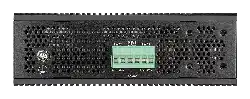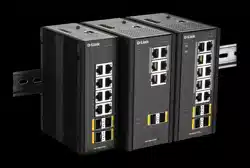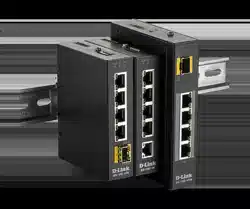
DIS-200G Series Industrial Gigabit Ethernet Smart Managed Switch

DIS-200G Series Gigabit Ethernet Switch CLI Reference Guide
I
Information in this document is subject to change without notice. Reproduction of this document in any manner, without
the written permission of the D-Link Corporation, is strictly forbidden.
Trademarks used in this text: D-Link and the D-Link logo are trademarks of the D-Link Corporation; Microsoft and
Windows are registered trademarks of the Microsoft Corporation.
Other trademarks and trade names may be used in this document to refer to either as the entities claiming the marks and
the names or their products. D-Link Corporation disclaims any proprietary interest in trademarks and trade names other
than its own.
© 2017 D-Link Corporation. All rights reserved.
August 2017

DIS-200G Series Gigabit Ethernet Switch CLI Reference Guide
II
Table of Contents
1.
Introduction ............................................................................................................................................................ 1
2. Basic CLI Commands ............................................................................................................................................... 9
3. Access Management Commands .......................................................................................................................... 15
4. Asymmetric VLAN Commands .............................................................................................................................. 22
5. Basic IPv4 Commands ........................................................................................................................................... 23
6. Basic IPv6 Commands ........................................................................................................................................... 26
7. Cable Diagnostics Commands ............................................................................................................................... 28
8. Digital Diagnostics Monitoring (DDM) Commands ............................................................................................... 31
9. D-Link Discovery Protocol (DDP) ClientCommands .............................................................................................. 40
10. DoS Prevention Commands .................................................................................................................................. 43
11. Ethernet Ring Protection Switching (ERPS) Commands ....................................................................................... 46
12. File System Commands ......................................................................................................................................... 59
13. Filter Database (FDB) Commands ......................................................................................................................... 61
14. GARP VLAN Registration Protocol (GVRP) Commands ......................................................................................... 69
15. IGMP Snooping Commands .................................................................................................................................. 76
16. Interface Commands ............................................................................................................................................. 82
17. IP Utility Commands ............................................................................................................................................. 90
18. Jumbo Frame Commands ..................................................................................................................................... 91
19. Link Aggregation Control Protocol (LACP)Commands .......................................................................................... 92
20. Link Layer Discovery Protocol (LLDP)Commands .................................................................................................. 96
21. Loopback Detection (LBD) Commands ............................................................................................................... 100
22. Mirror Commands ............................................................................................................................................... 105
23. MLD Snooping Commands .................................................................................................................................. 108
24. Multiple Spanning Tree Protocol (MSTP) Commands ........................................................................................ 114
25. Power over Ethernet (PoE) Commands .............................................................................................................. 119
26. Power Saving Commands.................................................................................................................................... 129
27. Port Security Commands .................................................................................................................................... 135
28. Quality of Service (QoS) Commands ................................................................................................................... 140
29. RADIUS Server Commands .................................................................................................................................. 148
30.
Remote Network MONitoring (RMON) Commands
............................................................................................... 152
31. Safeguard Engine Commands ............................................................................................................................. 160
32. Simple Network Management Protocol(SNMP) Commands .............................................................................. 162
33. Spanning Tree Protocol (STP) Commands .......................................................................................................... 180
34. Storm Control Commands .................................................................................................................................. 187
35. Surveillance VLAN Commands ............................................................................................................................ 190
36. Switch Port Commands ....................................................................................................................................... 202
37. System File Management Commands ................................................................................................................ 206
38. System Log Commands ....................................................................................................................................... 214
39. Secure Shell(SSH) Commands ............................................................................................................................. 218
40. Time and SNTP Commands ................................................................................................................................. 219
41. Time Range Commands ...................................................................................................................................... 225

DIS-200G Series Gigabit Ethernet Switch CLI Reference Guide
III
42. Traffic Segmentation Commands ....................................................................................................................... 229
43. Virtual LAN (VLAN) Commands ........................................................................................................................... 231
44. Voice VLAN Commands ....................................................................................................................................... 241
45. Web Authentication Commands......................................................................................................................... 249
Appendix A - System Log Entries ................................................................................................................................ 254
Appendix B - Trap Entries ........................................................................................................................................... 261
Appendix C - IETF RADIUS Attributes Support ............................................................................................................ 265

DIS-200G Series Gigabit Ethernet Switch CLI Reference Guide
1
1. Introduction
This manual’s command descriptions are based on the software release 1.10 The commands listed here
are the subset of commands that are supported by the DIS-200G Series Smart Switch.
Audience
This CLI Reference Guide is intended for network administrators and other IT networking professionals
responsible for managing the switch by using the Command Line Interface (CLI). The CLI is the primary
management interface to the DIS-200G Series Smart Switch, which will be generally be referred to simply
as “the Switch” within this manual. This manual is written in a way that assumes that you already have the
experience and knowledge of Ethernet and modern networking principles for Local Area Networks.
Other Documentation
The documents below are a further source of information in regards to configuring and troubleshooting the
Switch. All the documents are available from the CD bundled with this switch, or from the D-Link website.
Other documents related to the Switch are:
DIS-200G Series Industrial Gigabit Ethernet Smart Switch Hardware Installation Guide
DIS-200G Series Industrial Gigabit Ethernet Smart Switch Web UI Reference Guide
Conventions
Convention
Description
Boldface Font
Commands, command options and keywords are printed in
boldface.
Keywords,
in the command line, are to be entered exactly as they are
displayed.
UPPERCASE ITALICS Font
Parameters or values that must be specified are printed in
UPPERCASE ITALICS. Parameters in the command line are to be
replaced with the actual values that are desired to be used with the
command.
Square Brackets [ ]
Square brackets enclose an optional value or set of optional
arguments.
Braces { }
Braces enclose alternative keywords separated by vertical bars.
Generally, one of the keywords in the separated list can be chosen.
Vertical Bar |
Optional values or arguments are enclosed in square brackets and
separated by vertical bars. Generally, one or more of the vales or
arguments in the separated list can be chosen.
Blue Courier Font
This convention is used to represent an example of a screen console
display including example entries of CLI command input
with the corresponding output. All examples used in this manual are
based on the DIS-200G switch.
Notes, Notices, and Cautions
Below are examples of the three types of indicators used in this manual. When administering your switch
using the information in this document, you should pay special attention to these indicators. Each example
below provides an explanatory remark regarding each type of indicator.
NOTE:
A note indicates important information that helps you make better use of your device.

DIS-200G Series Gigabit Ethernet Switch CLI Reference Guide
2
NOTICE
: A notice indicates either potential damage to hardware or loss of data and tells you
how to avoid the problem.
CAUTION:
A caution indicates a potential for property damage, personal injury, or death.
Command Descriptions
The information pertaining to each command in this reference guide is presented using a number of
template fields. The fields are:
Description -
This is a short and concise statement describing the commands functionality.
Syntax -
The precise form to use when entering and issuing the command.
Parameters -
A table where each row describes the optional or required parameters, and their use,
that can be issued with the command.
Default -
If the command sets a configuration value or administrative state of the Switch then any
default settings (i.e. without issuing the command) of the configuration is shown here.
Command Mode -
The mode in which the command can be issued. These modes are described in
the section titled “Command Modes” below.
Command Default Level –
The user privilege level in which the command can be issued.
Usage Guideline -
If necessary, a detailed description of the command and its various utilization
scenarios is given here.
Example(s) -
Each command is accompanied by a practical example of the command being issued
in a suitable scenario.
Command Modes
There are severalcommand modes available in the command-line interface (CLI). The set of commands
available to the user depends on both the mode the user is currently in and their privilege level. For each
case, the user can see all the commands that are available in a particular command mode by entering a
question mark (?) at the system prompt.
The command-line interface has two pre-defined privilege levels:
Basic User -
Privilege Level 1. This user account level has the lowest priority of the user accounts.
The purpose of this type of user account level is for basic system checking.
Administrator -
Privilege Level 15. This administrator user account level can monitor all system
information and change any of the system configuration settings expressed in this configuration
guide.
The command-line interface has a number of command modes. There are three basic command modes:
User EXEC Mode
Privileged EXEC Mode
Global Configuration Mode
All other sub-configuration modes can be accessed via the
Global Configuration Mode
.
When a user logs in to the Switch, the privilege level of the user determines the command mode the
user will enter after initially logging in. The user will either log into
User EXEC Mode
or the
Privileged

DIS-200G Series Gigabit Ethernet Switch CLI Reference Guide
3
EXEC Mode
.
Users with a
basic
user level will log into the Switch in the
User EXEC Mode
.
Users with
administrator
level accounts will log into the Switch in the
Privileged
EXEC Mode
.
Therefore, the User EXEC Mode can operate at a basic user level and the Privileged EXEC Mode can
operate at the
administrator
levels. The user can only enter the Global Configuration Mode from the
Privileged EXEC Mode. The Global Configuration Mode can be accessed by users who have administrator
level user accounts.
As for sub-configuration modes, a subset of those can only be accessed by users who have the highest
secure administrator level privileges.
The following table briefly lists the available command modes. Only the basic command modes and some of
the sub-configuration modes are enumerated. The basic command modes and basic sub- configuration
modes are further described in the following chapters. Descriptions for the rest of the sub-configuration
modes are not provided in this section. For more information on the additional sub- configuration modes, the
user should refer to the chapters relating to these functions.
The available command modes and privilege levels are described below:
Command Mode /
Privilege Level
Description
User EXEC Mode /
Basic User level
This level has the lowest priority of the user accounts. It is provided
only to check basic system settings.
Privileged EXEC Mode /
Administrator level
For changing both local and global terminal settings, monitoring, and
performing certain system administration tasks. The system
administration tasks that can be performed at this level include
monitor and clear security related settings.
Global Configuration Mode /
Administrator level
For applying global settings on the entire switch. In addition to
applying global settings on the entire switch, the user can access
other sub-configuration modes from global configuration mode.
Interface Configuration Mode /
Administrator level
For applying interface related settings.
VLAN Interface Configuration
Mode / Administrator level
For applying VLAN interface related settings.
User EXEC Mode at Basic User Level
This command mode is mainly designed for checking basic system settings. This command mode can
be entered by logging in as a basic user.
Privileged EXEC Mode at Administrator Level
This command mode has a privilege level of 15. Users logged in with this command mode can monitor all
system information and change any system configuration settings mentioned in this Configuration Guide.
The method to enter privileged EXEC mode at administrator level is to login to the Switch with a user
account that has a privilege level of 15.

DIS-200G Series Gigabit Ethernet Switch CLI Reference Guide
4
Global Configuration Mode
The primary purpose of the global configuration mode is to apply global settings on the entire switch. Global
configuration mode can be accessed at administrator level user accounts. In addition to applying glabal
settings on the entire switch, the user can also access other sub-configuration modes.
In order to access the global configuration mode, the user must be logged in with the corresponding account
level and use the
configure terminal
command in the privileged EXEC mode.
In the following example, the user is logged in as an Administrator in the Privileged EXEC Mode and uses
the configure terminal command to access the Global Configuration Mode:
Switch# configure terminal
Switch(config)#
The
exit
command is used to exit the global configuration mode and return to the privileged EXEC
mode.
Switch(config)# exit
Switch#
The procedures to enter the different sub-configuration modes can be found in the related chapters in this
Configuration Guide. The command modes are used to configure the individual functions.
Interface Configuration Mode
Interface configuration mode is used to configure the parameters for an interface or a range of interfaces. An
interface can be a physical port, VLAN, or other virtual interface. Thus, interface configuration mode is
distinguished further according to the type of interface. The command prompt for each type of interface is
slightly different.
VLAN Interface Configuration Mode
VLAN interface configuration mode is one of the available interface modes and is used to configure the
parameters of a VLAN interface.
To access VLAN interface configuration mode, use the following command in global configuration
mode:
Switch(config)# interface vlan 1
Switch(config-if)#
Creating a User Account
You can create different user account for various levels. This section will assist a user with creating a user
account by means of the Command Line Interface.
NOTE:
By default, one user account is already configured on the Switch. Both the username
and password for this account is admin, and the privilege level is 15.
Observe the following example.
Switch#configure terminal
Switch(config)#username user password pass1234
Switch(config)#
In the above example we had to navigate and access the username command.
After starting in the Privileged EXEC Mode, we entered the command configure terminal to access
the Global Configuration Mode. The username command can be used in the Global Configuration
Mode.The command username
user password pass1234
creates a user account with the username

DIS-200G Series Gigabit Ethernet Switch CLI Reference Guide
5
of user and a password of pass1234.
Save the running configuration to the start-up configuration. This means to save the changes made so that
when the Switch is rebooted, the configuration will not be lost. The following example shows how to save the
running configuration to the start-up configuration.
Switch# copy running-config startup-config
Building configuration...
% Saving 733 bytes to flash:startup-config
Switch#
After the Switch was rebooted, or when the users logs out and back in, the newly created username and
password must be entered to access the CLI interface again, as seen below.
DIS-200G-12PS/12PSW Gigabit Ethernet Switch
Command Line Interface
Firmware: Build 1.10.020
Copyright(C) 2017 D-Link Corporation. All rights reserved.
User Access Verification
Username:user
Password:********
Switch>
Interface Notation
When configuration the physical ports available on this switch, a specific interface notation is used. The
following will explain the layout, terminology and use of this notation.
In the following example, we will enter the Global Configuration Mode and then enter the Interface
Configuration Mode, using the notation
1/0/1
. After entering the Interface Configuration Mode for port 1, we
will change the speed to 1 Gbps, using the
speed 1000
command.
Switch#configure terminal
Switch(config)# interface Ethernet 1/0/1
Switch(config-if)# speed 1000
Switch(config-if)#
In the above example the notation
1/0/1
was used. The terminology for each parameter is as follows:
Interface Unit’s ID / Open Slot’s ID / Port’s ID
The Interface Unit’s ID is the ID of the stacking unit without the physical stack. If stacking is disabled or this
unit is a stand-alone unit, then this parameter is irrelevant. The Open Slot’s ID is the ID of the module
plugged into the open module slot of the Switch. The DIS-200G Series doesn’t support any open modules
slots, thus this parameters will always by zero for this switch series. Lastly, the Port’s ID is the physical port
number of the port being configured.
In summary the above example will configure the stacked switch with the ID of 1, with the physical port
number 1.

DIS-200G Series Gigabit Ethernet Switch CLI Reference Guide
6
Error Messages
When the users issue a command that the Switch does not recognize, error messages will be generated to
assist users with basic information about the mistake that was made. A list of possible error messages are
found in the table below.
Error Message
Meaning
Ambiguous word detected
at '^' marker
Not enough keywords were entered for the Switch to recognize the
command.
Incomplete command
The command was not entered with all the required keyword.
Invalid word detected
at '^' marker
The command was entered incorrectly.
The following example shows how an ambiguous command error message is generated.
Switch# show v
^
Ambiguous word detected at '^' marker.
Switch#
The following example shows how an incomplete command error message is generated.
Switch# show
Incomplete command.
Switch#
The following example shows how an invalid input error message is generated.
Switch# show verb
^
Invalid word detected at '^' marker.
Switch#
Editing Features
The command line interface of this switch supports to following keyboard keystroke editing features.
Keystroke
Description
Delete
Deletes the character under the cursor and shifts the remainder of
the line to the left.
Backspace
Deletes the character to the left of the cursor and shifts the
remainder of the line to the left.

DIS-200G Series Gigabit Ethernet Switch CLI Reference Guide
7
Left Arrow
Moves the cursor to the left.
Right Arrow
Moves the cursor to the right.
Return
Scrolls down to display the next line or used to issue a command.
Space
Scrolls down to display the next page.
Display Result Output Modifiers
Results displayed by
show
commands can be filtered using the following parameters:
begin
FILTER-STRING - This parameter is used to start the display with the first line that
matches the filter string.
include
FILTER-STRING - This parameter is used to display all the lines that match the filter string.
exclude
FILTER-STRING - This parameter is used to exclude the lines that match the filter
string from the display.
The example below shows how to use the
begin
FILTER-STRING parameter in a
show
command.
Switch# show running-config | begin interface
interface Ethernet 1/0/1
switchport mode access
!
interface Ethernet 1/0/2
switchport mode access
!
interface Ethernet 1/0/3
switchport mode access
!
interface Ethernet 1/0/4
switchport mode access
!
interface Ethernet 1/0/5
switchport mode access
!
interface Ethernet 1/0/6
switchport mode access
!
interface Ethernet 1/0/7
switchport mode access
!
interface Ethernet 1/0/8
-- more --, next page: Space, continue: g, quit: ^C
The example below shows how to use the
include
FILTER-STRING parameter in a
show
command.

DIS-200G Series Gigabit Ethernet Switch CLI Reference Guide
8
Switch# show running-config | include vlan
vlan 1
interface vlan 1
Switch#
The example below shows how to use the exclude FILTER-STRING parameter in a show command.
Switch# show running-config | exclude vlan
username user password user123
ddp
!
!
!
!
!
clock timezone + 0 0
!
!
interface Ethernet 1/0/1
switchport mode access
!
interface Ethernet 1/0/2
switchport mode access
!
interface Ethernet 1/0/3
switchport mode access
!
interface Ethernet 1/0/4
switchport mode access
-- more --, next page: Space, continue: g, quit: ^C

DIS-200G Series Gigabit Ethernet Switch CLI Reference Guide
9
2. Basic CLI Commands
2-1
help
This command is used to display a brief description of the help system. Use the help command in any
command modes
help
Parameters
None.
Default
None.
Command Mode
EXEC Mode or Any Configuration Mode.
Command Default Level
Level: 1.
Usage Guideline
The help command provides a brief description for the help system, which includes the following functions:
To list all commands available for a particular command mode, enter a question mark (?) at
the system prompt.
To obtain a list of commands that begin with a particular character string, enter the
abbreviated command entry immediately followed by a question mark (?). This form of help is
called
word
help, because it lists only the keywords or arguments that begin with the
abbreviation entered.
To list the keywords and arguments associated with a command, enter a question mark (?) in
place of a keyword or argument on the command line. This form of help is called the
command syntax
help, because it lists the keywords or arguments that apply based on the
command, keywords, and arguments already entered.
Example
This example shows how the help command is used to display a brief description of the help system.
Switch# help
The switch CLI provides advanced help feature.
1. Help is available when youe are ready to enter a command
argument (e.g. 'show ?') and want to know each possible
available options.
2. Help is provided when an abbreviated argument is entered
and you want to know what arguments match the input (e.g. 'show ve?'.).
If nothing matched, the help list will be empty and tou must backup
until entering a '?' shows the available options.
3. For completing a partial command name could enter the abbreviated
command name immediately followed by a <Tab> key.
Note:
Since the character '?' is used for help purpose, to enter

DIS-200G Series Gigabit Ethernet Switch CLI Reference Guide
10
the character '?' in a string argument, press ctrl+v immediately
followed by the character '?'.
Switch#
The following example shows how to use the
word
help to display all the Privileged EXEC Mode
commands that begin with the letters “re”. The letters entered before the question mark (?) are
reprinted on the next command line to allow the user to continue entering the command.
Switch# re?
reboot Reboot system.
reset Reset the all configurations without rebooting.
Switch# re
The following example shows how to use the
command syntax
help to display the next argument of
a partially complete IGMP snooping command. The characters entered before the question
mark (?) is reprinted on the next command line to allow the user to continue entering the command.
Switch(config)# ip igmp ?
snooping Enable IGMP snooping
Switch(config)# ip igmp
2-2
configure terminal
This command is used to enter the Global Configuration Mode.
configure terminal
Parameters
None.
Default
None
Command Mode
Privilege EXEC Mode.
Command Default Level
Level: 15
Usage Guideline
This command is used to enter the Global Configuration Mode.
Example
This example shows how to enter into Global Configuration Mode.
Switch# configure terminal
Switch(config)#

DIS-200G Series Gigabit Ethernet Switch CLI Reference Guide
11
2-3
logout
This command is used to close an active terminal session by logging off the Switch.
logout
Parameters
None.
Default
None.
Command Mode
User EXEC Mode.
Privilege EXEC Mode.
Command Default Level
Level:1.
Usage Guideline
Use this command to close an active terminal session by logging out of the device.
Example
This example shows how to logout
Switch# logout
2-4
end
This command is used to end the current configuration mode and return to the highest mode in the CLI mode
hierarchy which is either the User EXEC Mode or the Privileged EXEC Mode.
end
Parameters
None.
Default
None.
Command Mode
EXEC Mode or Any Configuration Mode.
Command Default Level
Level: 1.
Usage Guideline
E xecuting this command will return access to the highest mode in the CLI hierarchy regardless of what
configuration mode or configuration sub-mode currently located at.
Example
This example shows how to end the Interface Configuration Mode and go back to the Privileged EXEC Mode.
Switch# configure terminal
Switch(config)# interface eth1/0/1

DIS-200G Series Gigabit Ethernet Switch CLI Reference Guide
12
Switch(config-if)#end
Switch#
2-5
exit
This command is used to end the configuration mode and go back to the last mode. If the current mode is the
User EXEC Mode or the Privilege EXEC Mode, executing the exit command logs you out of the current session.
exit
Parameters
None.
Default
None.
Command Mode
EXEC Mode or Any Configuration Mode.
Command Default Level
Level: 1.
Usage Guideline
Use this command to exit the current configuration mode and go back to the last mode. When the user is in the
User EXEC Mode or the Privilege EXEC Mode, this command will logout the session.
Example
This example shows how to exit from the Interface Configuration Mode and return to the Global Configuration
Mode.
Switch# configure terminal
Switch(config) interface eth1/0/1
Switch(config-if)#exit
Switch(config)#
2-6
show history
This command is used to list the commands entered in the current EXEC Mode session.
show history
Parameters
None.
Default
None.
Command Mode
EXEC Mode or Any Configuration Mode.
Command Default Level
Level: 1.
Usage Guideline

DIS-200G Series Gigabit Ethernet Switch CLI Reference Guide
13
Commands entered are recorded by the system. A recorded command can be recalled by pressing CTRL+P or
the Up Arrow key which will recall previous commands in sequence. The history buffer size is fixed at 32
commands.
The function key instructions, below, displays how to navigate the command in the history buffer.
CTRL+P or the Up Arrow key - Recalls commands in the history buffer, beginning with the most recent
command. Repeat the key sequence to recall successively older commands.
Down Arrow key - Returns to more recent commands in the history buffer after recalling commands with
Ctrl-P or the Up Arrow key. Repeat the key sequence to recall successively more recent commands.
Example
This example shows how to display the command buffer history.
Switch# show history
help
show history
Switch#
2-7
show cpu utilization
This command is used to display the CPU utilization information.
show cpu utilization
Parameters
None.
Default
None.
Command Mode
EXEC Mode or Any Configuration Mode.
Command Default Level
Level: 1.
Usage Guideline
This command displays the system’s CPU utilization information in 100 million seconds, 1 seconds and 10
seconds intervals.
Example
This example shows how to display the information about CPU utilization.
Switch# show cpu utilization
100 million seconds - 2% One seconds - 2% Ten seconds - 2%
Switch#

DIS-200G Series Gigabit Ethernet Switch CLI Reference Guide
14
2-8
show version
This command is used to display the Switch’s software version information.
show version
Parameters
None.
Default
None.
Command Mode
EXEC Mode or Any Configuration Mode.
Command Default Level
Level: 1.
Usage Guideline
This command displays version information about the Switch.
Example
This example shows how to displays version information about the Switch.
Switch# show version
System MAC Address : 00-01-13-12-AB-00
Unit ID Module Name Versions
------- ------------------ ---------------------
1 DIS-200G H/W:A1
Bootloader:1.10.001
Runtime:1.10.001
Switch#

DIS-200G Series Gigabit Ethernet Switch CLI Reference Guide
15
3. Access Management Commands
3-1
ip http secure-server
This command is used to enable the HTTPS server. Use the
no
form of this
command to disable the HTTPS server function.
ip http secure-server
no ip http secure-server
Parameters
None.
Default
By default, this option is disabled.
Command Mode
Global Configuration Mode.
Command Default Level
Level: 15
Usage Guideline
This command enables the HTTPS server function.
Example
This example shows how to enable the HTTPS server function.
Switch# configure terminal
Switch(config)# ip http secure-server
Switch(config)#
3-2
show terminal
This command is used to obtain information about the terminal configuration parameter settings for
the current terminal line. Use this command in any EXEC mode or any configuration mode.
show terminal
Parameters
None.
Default
None.
Command Mode
EXEC Mode or Any Configuration Mode.

DIS-200G Series Gigabit Ethernet Switch CLI Reference Guide
16
Command Default Level
Level: 1.
Usage Guideline
Use this command to display information about the terminal configuration parameters for the current
terminal line.
Example
This example shows how to display information about the terminal configuration parameter settings for the
current terminal line.
Switch# show terminal
Terminal Settings :
Length : 24 lines
Width : 80 columns
Default length : 24 lines
Default width : 80 columns
Switch#
3-3
show ip http secure-server
This command is used to obtain information about the SSL status. Use this command in EXEC mode or any
configuration mode.
show ip http secure-server
Parameters
None.
Default
By default, the state is disabled.
Command Mode
EXEC Mode or Any Configuration Mode.
Command Default Level
Level: 1.
Usage Guideline
Use this command to display information about the SSL status.
Example
This example shows how to display information about the SSL status.
Switch#show ip http secure-server
ip http secure-server state : disable
Switch#

DIS-200G Series Gigabit Ethernet Switch CLI Reference Guide
17
3-4
show users
This command is used to display information about the active lines on the Switch.
show users
Parameters
None.
Default
None.
Command Mode
EXEC Mode or Any Configuration Mode.
Command Default Level
Level: 1.
Usage Guideline
This command displays information about the active lines on the Switch.
Example
This example shows how to display all session information.
Switch# show users
ID Type User-Name Privilege Login-Time IP address
-------------------------------------------------------------------------------
0 * console admin 15 0D0H3M11S
Total Entries : 1
Switch#
3-5
terminal length
The command is used to configure the number of lines displayed on the screen. The
terminal length
command
will only affect the current session. The newly created, saved session terminal length will use the default value.
Use the no form of this command to revert to the default setting.
terminal length
NUMBER
no terminal length
Parameters
NUMBER
Specifies the number of lines to display on the screen. This value
must be between 0 and 512.When the terminal length is 0, the
display will not stop until it reaches the end of the display.

DIS-200G Series Gigabit Ethernet Switch CLI Reference Guide
18
Default
By default, this value is 24.
Command Mode
Use the EXEC Mode or Privilege EXEC Mode for the
terminal length
command.
Command Default Level
Level: 1 (for the
terminal length
command).
Usage Guideline
When the terminal length is 0, the display will not stop until it reaches the end of the display.
If the terminal length is specified to a value other than 0, for example 50, then the display will stop after every
50 lines. The terminal length is used to set the number of lines displayed on the current terminal screen. This
command also applies to Telnet and SSH sessions. Valid entries are from 0 to 512. The default is 24 lines. A
selection of 0's instructs the Switch to scroll continuously (no pausing).
Output from a single command that overflows a single display screen is followed by the
--More--
prompt. At the
--More--
prompt, press CTRL+C, q or Q to interrupt the output and return to the prompt. Press the Spacebar to
display an additional screen of output, or press Return to display on more line of output. Setting the screen
length to 0 turns off the scrolling feature and causes the entire output to display at once. Unless the default
keyword is used, a change to the terminal length value applies only to the current session. When using the no
form of this command, the number of lines in the terminal display screen is reset to 24.
Example
This example shows how to change the lines to be displayed on a screen to 60.
Switch# terminal length 60
Switch#
3-6
terminal width
The command is used to set the number of character columns on the terminal screen for the current session
line. The terminal width command will only affect the current session.
terminal width
NUMBER
no terminal width
Parameters
NUMBER
Specifies the number of characters to display on the screen. Valid
values are from 40 to 255.
Default
By default, this value is 80 characters.
Command Mode
Use the EXEC Mode or Privilege EXEC Mode for the
terminal width
command.
Command Default Level
Level: 1 (for the
terminal width
command).
Usage Guideline
By default, the Switch’s system terminal provides a screen display width of 80 characters. The
terminal width

DIS-200G Series Gigabit Ethernet Switch CLI Reference Guide
19
command changes the terminal width value which applies only to the current session. When changing the value
in a session, the value applies only to that session. When the no form of this command is used, the number of
lines in the terminal display screen is reset to the default, which is 80 characters.
However, for remote CLI session access such as Telnet, the auto-negotiation terminal width result will
take precedence over the default setting if the negotiation is successful. Otherwise, the default
settings take effect.
Example
This example shows how to adjust the current session terminal width to 120 characters.
Switch# show terminal
Terminal Settings :
Length : 24 lines
Width : 80 columns
Default length : 24 lines
Default width : 80 columns
Switch# terminal width 120
Switch# show terminal
Terminal Settings :
Length : 24 lines
Width : 120 columns
Default length : 24 lines
Default width : 80 columns
Switch#
3-7
username
This command is used to create a user account. Use the
no
form of this command to delete the user account.
username NAME [privilege LEVEL ] [nopassword | password [0 | 7 | 15] PASSWORD]
no username [NAME]
Parameters
NAME
Specifies the user name with a maximum of 32 characters.
privilege LEVEL
Specifies the privilege level for each user. The privilege level must
be 1 or 15. Default level is 1 when create new user.
nopassword
Specifies that there will be no password associated with this
account.
password
Specifies the password for the user.
0
Specifies the password in clear, plain text. The password length is
between 1 and 32 characters and can contain embedded spaces. It
is case-sensitive. If the password syntax cannot be specified, the

DIS-200G Series Gigabit Ethernet Switch CLI Reference Guide
20
syntax remains plain text
7
Specifies the encrypted password based on SHA-1. The password
length is fixed at 35 bytes. It is case-sensitive. The password is
encrypted. If the password syntax is not specified, the syntax is plain
text.
15
Specifies the encrypted password based on MD5. The password
length is fixed at 31 bytes. It is case-sensitive. The password is
encrypted. If the password syntax is not specified, the syntax is plain
text.
PASSWORD
Specifies the password string based on the type.
Default
By default, there is a predefined user whose name is admin, password is admin, and privilege level is 15.
Command Mode
Global Configuration Mode.
Command Default Level
Level: 15.
Usage Guideline
This command creates user accounts with different access levels. When the user login with Level 1, the user
will be in the User EXEC Mode.
The user can specify the password in the encrypted form or in the plain-text form. If it is in the plain-text form,
but the service password encryption option is enabled, the password will be converted to the encrypted form.
Example
This example shows how to create an administrative username, called
user
, and a password, called
“mypassword”.
Switch# configure terminal
Switch(config)# username user password mypassword
Switch(config)#
This example shows how to remove the user account with the username
user
.
Switch# configure terminal
Switch(config)# no username user
Switch(config)#

DIS-200G Series Gigabit Ethernet Switch CLI Reference Guide
21
3-8
service password encryption
This command is used to enable the encryption of the password before stored in the configuration file.
The no command will disable the encryption.
service password-encryption [7 | 15]
no service password-encryption
Parameters
7
Specifies the algorithm of password encryption as SHA-1.
15
Specifies the algorithm of password encryption as MD5.
Default
By default, this option is disabled.
Command Mode
Global Configuration Mode.
Command Default Level
Level: 15.
Usage Guideline
The user account configuration information is stored in the running configuration file and can be applied to the
system later. If the service password-encryption command is enabled, the password will be stored in the
encrypted form.
When the service password encryption option is disabled and the password is specified in the plain text form,
the password will be in plain text form. However, if the password is specified in the encrypted form or if the
password has been converted to the encrypted form by the last enable password encryption option, the
password will still be in the encrypted form. It cannot be reverted back to plain text.
If this command is enabled and no option is specifed, using SHA-1 as the algorithm.
Example
This example shows how to enable the encryption of the password before stored in the configuration file.
Switch# configure terminal
Switch(config)# service password encryption 7
Switch(config)#

DIS-200G Series Gigabit Ethernet Switch CLI Reference Guide
22
4. Asymmetric VLAN Commands
4-1
asymmetric-vlan
his command is used to enable the asymmetric VLAN function. Use the
no
form of this command todisable the
asymmetric VLAN function.
asymmetric-vlan
no asymmetric-vlan
Parameters
None.
Default
By default, this feature is disabled.
Command Mode
Global Configuration Mode.
Command Default Level
Level: 15
Usage Guideline
Use this command to enable or disable the asymmetric VLAN function.
Example
This example shows how to enable asymmetric VLAN.
Switch# configure terminal
Switch(config)# asymmetric-vlan
This example shows how to disable asymmetric VLAN.
Switch# configure terminal
Switch(config)# no asymmetric-vlan

DIS-200G Series Gigabit Ethernet Switch CLI Reference Guide
23
5. Basic IPv4 Commands
5-1
ip address
This command is used to IPv4 address for an interface, or acquire an IP address on an interface from the
DHCP. Use the
no
form of this command to remove the configuration of an IP address or disable DHCP on the
interface.
ip address {
IP-ADDRESS SUBNET-MASK
| dhcp}
no ip address
Parameters
IP-ADDRESS
Specifies the IP address.
SUBNET-MASK
Specifies the subnet mask for the associated IP address.
dhcp
Specifies to acquire an IP address configuration on an interface
from the DHCP protocol.
Default
None.
Command Mode
Time-range Configuration Mode.
Command Default Level
Level: 15
Usage Guideline
The IPv4 address of an interface can be either manually assigned by the user or dynamically assigned by the
DHCP server. Use the no ip address command to delete the configured IP address entry.
Example
This example shows how to set 10.90.90.91 is the ip address for VLAN 1.
Switch# config terminal
Switch(config)# interface vlan 1
Switch(config-if-vlan)# ip address 10.90.90.91 255.255.255.0
Switch(config-if-vlan)#
5-2
ip route
This command is used to configure static route that destination is default gateway.
ip route
NETWORK-PREFIX NETWORK-MASK IP-ADDRESS
no ip address
NETWORK-PREFIX NETWORK-MASK IP-ADDRESS
Parameters

DIS-200G Series Gigabit Ethernet Switch CLI Reference Guide
24
NETWORK-PREFIX
Specifies the network address.
NETWORK-MASK
Specifies the network mask
IP-ADDRESS
Specifies to an IP address.
Default
none.
Command Mode
Global Configuration Mode.
Command Default Level
Level: 15
Usage Guideline
Use this command to configure static route that destination is default gateway. The net-address and net-mask
only allow to configure with 0.0.0.0.
Example
This example shows how to configure the static route that destination is to 10.90.90.254.
Switch# config terminal
Switch(config)# ip route 0.0.0.0 0.0.0.0 10.90.90.254
Switch(config)#
5-3
show ip interface
This command is used to display the IP interface information.
show ip interface brief
Parameters
None.
Default
None.
Command Mode
EXEC Mode or Any Configuration Mode.
Command Default Level
Level: 1.
Usage Guideline
Use this command to display ip address information of the management interface.
Example
This example shows how to display the brief information of the IP interface.
Switch# show ip interface brief

DIS-200G Series Gigabit Ethernet Switch CLI Reference Guide
25
Interface Address Method Status
---------------- -------------------- -------- ------
VLAN 1 10.90.90.91/24 Manual UP
Switch#
5-4
show ip route
This command is used to display ip address of default gateway.
show ip route
Parameters
None.
Default
None.
Command Mode
EXEC Mode or Any Configuration Mode.
Command Default Level
Level: 1.
Usage Guideline
Use this command to display the ip address of default gateway.
Example
This example shows how to display ip address of default gateway.
Switch(config-if-vlan)# show ip route
Code: C - connected, S - static
* - candidate default
Gateway of last resort is 10.90.90.254 to network 0.0.0.0
C 10.90.90.0/24 is directly connected, vlan1
Total Entries: 1
Switch(config-if-vlan)#

DIS-200G Series Gigabit Ethernet Switch CLI Reference Guide
26
6. Basic IPv6 Commands
6-1
ipv6 address
This command is used to manually configure an IPv6 addresses on the management VLAN . Use the no form
of this command to disable IPv6 address for management VLAN.
ipv6 address
IPV6-ADDRESS
no ipv6 address
Parameters
IPV6-ADDRESS
Specifies the IPv6 address and the length of prefix for
the management VLAN.
Default
None.
Command Mode
Interface Configuration Mode.
Command Default Level
Level: 15.
Usage Guideline
Use this command to configure the IPv6 address of management VLAN. Use no form of this command to
disable IPv6 address for management VLAN.
Example
This example shows how to configure an IPv6 address.
Switch# config terminal
Switch(config)# interface vlan 1
Switch(config-if-vlan)# ipv6 address 3ffe:22:33:44::55/64
Switch(config-if-vlan)#
This example shows how to disable IPv6 address for management VLAN.
Switch# configure terminal
Switch(config)# interface vlan 1
Switch(config-if)# no ipv6 address
6-2
show ipv6 interface
This command is used to display IPv6 interface information.

DIS-200G Series Gigabit Ethernet Switch CLI Reference Guide
27
show ipv6 interface
[
INTERFACE-ID
]
brief
Parameters
INTERFACE-ID
Specifies the interface for display.
Default
None.
Command Mode
EXEC Mode or Any Configuration Mode.
Command Default Level
Level: 1.
Usage Guideline
Use this command to display IPv6 interface related configurations.
Example
This example shows how to display IPv6 interface information.
Switch# show ipv6 interface brief
vlan1 is up, Link status is up
Global unicast address: 3ffe:22:33:44::55
Link-local address: fe80::201:19ff:fe11:20
Static address is 3ffe:22:33:44::55/64
Switch#

DIS-200G Series Gigabit Ethernet Switch CLI Reference Guide
28
7. Cable Diagnostics Commands
7-1
test cable-diagnostics
This command is used to start the cable diagnostics to test the status and length of copper cables.
test cable-diagnostics interface
INTERFACE-ID
Parameters
interface INTERFACE-ID
Specifies the interface ID. The acceptable interface will
be a physical port.
Default
None.
Command Mode
EXEC Mode.
Command Default Level
Level: 15.
Usage Guideline
The command is available for physical port configuration. Cable Diagnostics can help users to detect
whether the copper Ethernet port has connectivity problems. Use the test cable-diagnostics
command to start the test.
Example
This example shows how to start the cable diagnostics to test the status and length of copper cables.
Switch# test cable-diagnostics interface Ethernet 1/0/1-2
Switch#
When running cable diagnostic on 10Mbps or 100Mbps speed, the port which is diagnosed will link
down and stop responding until the cable diagnostic is completed.
7-2
show cable-diagnostics
This command is used to display the test results for the cable diagnostics.
show cable-diagnostics [interface
INTERFACE-ID
]
Parameters
interface INTERFACE-ID
Specifies the interface’s ID. The acceptable interface
will be a physical port.
Default

DIS-200G Series Gigabit Ethernet Switch CLI Reference Guide
29
None.
Command Mode
EXEC Mode.
Command Default Level
Level: 1.
Usage Guideline
This command is used to display the test results for the cable diagnostics.
Example
This example shows how to display the test results for the cable diagnostics.
Switch# show cable-diagnostics interface Ethernet 1/0/1-2
Port Type Link Status Test Result Cable Length (M)
--------- ---------- ------------- ------------------------- -----------------
eth1/0/1 1000BaseT Link Down Pair 1 Open at <7M -
Pair 2 Open at <7M -
Pair 3 Short at <7M -
Pair 4 OK at <7M -
eth1/0/2 1000BaseT Link Down Pair 1 Open at <7M -
Pair 2 Open at <7M -
Pair 3 Short at <7M -
Pair 4 OK at <7M -
7-3
clear cable-diagnostics
This command is used to clear the test results for the cable diagnostics.
clear cable-diagnostics {all | interface
INTERFACE-ID
}
Parameters
all
Specifies to clear cable diagnostics results for all
interfaces.
interface INTERFACE-ID
Specifies the interface’s ID. The acceptable interface
will be a physical port.
Default
None.
Command Mode
EXEC Mode.
Command Default Level
Level: 15.

DIS-200G Series Gigabit Ethernet Switch CLI Reference Guide
30
Usage Guideline
This command is used to clear the test results for the cable diagnostics.
Example
This example shows how to clear the test results for the cable diagnostics.
Switch# clear cable-diagnostics interface Ethernet 1/0/2
Switch#

DIS-200G Series Gigabit Ethernet Switch CLI Reference Guide
31
8. Digital Diagnostics Monitoring (DDM)
Commands
8-1
show interfaces transceiver
This command is used to display the current SFP module operating parameters.
show interfaces [INTERFACE-ID [,|-] transceiver [detail]
Parameters
INTERFACE-ID [,|-]
(Optional) Specifies multiple interfaces for transceiver monitoring
status display. If no interface ID is specified, transceiver
monitoring statuses on all valid interfaces are displayed.
Default
None.
Command Mode
EXEC Mode or Any Configuration Mode.
Command Default Level
Level: 1.
Usage Guideline
Use this command to display the current SFP module operating transceiver monitoring parameters values for
specified ports.
Example
This example shows how to display current operating parameters for all ports valid for transceiver monitoring.
Switch# show interfaces transceiver
++ : high alarm, + : high warning, - : low warning, -- : low alarm
mA: milliamperes, mW: milliwatts
Transceiver Monitoring traps: None
Port Temperature Voltage Bias Current TX Power RX Power
(Celsius) (V) (mA) (mW) (mW)
------- ------------ ------------ ------------ ------------ ------------
eth1/0/11 29.316 3.302 5.326 0.529 0.506
eth1/0/12 31.617 3.297 5.170 0.527 0.504
Total Entries: 2
Switch#
This example shows how to display detailed transceiver monitoring information for all ports which are valid for
transceiver monitoring.
Switch# show interfaces transceiver detail

DIS-200G Series Gigabit Ethernet Switch CLI Reference Guide
32
++ : high alarm, + : high warning, - : low warning, -- : low alarm mA:
milliamperes, mW: milliwatts
A: The threshold is administratively configured.
eth1/0/11
Transceiver Monitoring is enabled
Transceiver Monitoring shutdown action:Alarm
Current High-Alarm High-Warning Low-Warning Low-Alarm
Temperature(C) 30.090 75.000(A) 70.000 0.000 -5.000
Voltage (v) 3.353 3.630 3.465 3.135 2.970
Bias Current(mA) 16.794(++) 10.500 9.000 2.500 2.000
TX Power (mW) 0.258 1.413 0.708 0.186 0.074
RX Power (mW) 0.000(--) 1.585 0.794 0.102 0.041
Switch#
8-2
snmp-server enable traps transceiver-monitoring
This command is used to send all or the specified level of optical transceiver monitoring SNMP notifications.
Use the
no
form of the command to stop sending the notifications.
snmp-server enable traps transceiver-monitoring [{alarm | warning}]
no snmp-server enable traps transceiver-monitoring [{alarm | warning}]
Parameters
alarm
(Optional) Specifies to send or stop sending alarm level
notification.
warning
(Optional) Specifies to send or stop sending warning level
notification.
Default
By default, this option is disabled.
Command Mode
Global Configuration Mode.
Command Default Level
Level: 15.
Usage Guideline
Use this command to send all or the specified level of transceiver-monitoring SNMP notifications.
Example
This example shows how to start sending the SNMP notifications at the warning level.
Switch# configure terminal

DIS-200G Series Gigabit Ethernet Switch CLI Reference Guide
33
Switch(config)# snmp-server enable traps transceiver-monitoring warning
Switch(config)#
8-3
transceiver-monitoring action shutdown
This command is used to shut down a port from an alarm or a warning of an abnormal status. Use the
no
form
of the command to disable the shutdown action.
transceiver-monitoring action shutdown {alarm | warning }
no transceiver-monitoring action shutdown
Parameters
alarm
Specifies to shut down a port when alarm events occur.
warning
Specifies to shut down a port when warning events occur.
Default
By default, this option is disabled.
Command Mode
Interface Configuration Mode.
Command Default Level
Level: 15.
Usage Guideline
This command is available for physical port interface configuration.
The configuration can select to shut down a port on an alarm event or warning event or not to shut down on
either of them. When the monitoring function is enabled, an alarm event occurs when the parameters, being
monitored, go higher than the high alarm threshold or go lower than the low alarm threshold. A warning event
occurs when the parameters being monitored go higher than the high warning threshold or go lower than the
low warning threshold.
The port shutdown feature is controlled by the Error Disable module without a recover timer. Users can
manually recover the port by using the shutdown command and then the no shutdown command.
Example
This example shows how to configure the shutdown interface eth1/0/11 when an alarm event is detected.
Switch# configure terminal
Switch(config)# interface Ethernet 1/0/11
Switch(config-if)# transceiver-monitoring action shutdown alarm
Switch(config-if)#

DIS-200G Series Gigabit Ethernet Switch CLI Reference Guide
34
8-4
transceiver-monitoring bias-current
This command is used to configure the thresholds of the bias current for a specified port. Use the
no
form of the
command to remove the configuration.
transceiver-monitoring bias-current
INTERFACE-ID
{high | low} {alarm | warning}
VALUE
no transceiver-monitoring bias-current
INTERFACE-ID
{high | low} {alarm | warning}
Parameters
INTERFACE-ID
Specifies the interface to modify.
high
Specifies the high threshold, when the operating parameter rises
above this value. It indicates an abnormal status.
low
Specifies the low threshold, when the operating parameter falls
below this value. It indicates an abnormal status.
alarm
Specifies the threshold for high alarm or low alarm conditions.
warning
Specifies the threshold for high warning or low warning conditions.
VALUE
Specifies the value of the threshold. This value must be between
0 and 131 mA.
Default
None.
Command Mode
Global Configuration Mode.
Command Default Level
Level: 15.
Usage Guideline
This configuration is only suitable for SFP/SFP+ port interfaces with optical modules with transceiver-
monitoring.
The no form of this command has the effect to clear the configured threshold stored in the system.
Example
This example shows how to configure the bias current high warning threshold as 10.237 on interface eth1/0/11.
Switch# configure terminal
Switch(config)# transceiver-monitoring bias-current Ethernet 1/0/11 high warning
10.237
WARNING: A closest value 10.236 is chosen according to the transceiver-monitoring
precision definition.
Switch(config)#

DIS-200G Series Gigabit Ethernet Switch CLI Reference Guide
35
8-5
transceiver-monitoring enable
This command is used to enable the optical transceiver monitoring function for an SFP port. Use the
no
form of
the command to disable optical transceiver monitoring.
transceiver-monitoring enable
no transceiver-monitoring enable
Parameters
None.
Default
By default, this option is disabled.
Command Mode
Interface Configuration Mode.
Command Default Level
Level: 15.
Usage Guideline
This command is available for the physical port interface configuration.
A user can use this command to enable or disable optical transceiver monitoring function for an SFP port. When
the monitoring function is enabled, an alarm event occurs when the parameters being monitored go higher than
the high alarm threshold or go lower than the low alarm threshold. A warning event occurs when the parameters
being monitored go higher than the high warning threshold or go lower than the low warning threshold.
When an SFP with transceiver monitoring capability is plugged into a port but the transceiver monitoring
function of the port is disabled, the system will not detect the SFP's abnormal status but the user can still check
the current status by showing the interface transceiver command.
Example
This example shows how to enable transceiver monitoring on interface eth1/0/11.
Switch# configure terminal
Switch(config)# interface Ethernet 1/0/11
Switch(config-if)# transceiver-monitoring enable
Switch(config-if)#
8-6
transceiver-monitoring rx-power
This command is used to configure the thresholds of the input power for the specified port. Use the
no
form of
the command to remove the configuration.
transceiver-monitoring rx-power
INTERFACE-ID
{high | low} {alarm | warning} {mwatt
VALUE
| dbm
VALUE
}
no transceiver-monitoring rx-power
INTERFACE-ID
{high | low} {alarm | warning}

DIS-200G Series Gigabit Ethernet Switch CLI Reference Guide
36
Parameters
INTERFACE ID
Specifies the interface to modify.
high
Specifies that when the operating parameter rises above the
highest threshold, it indicates an abnormal status.
low
Specifies that when the operating parameter falls below the low
threshold this value, it indicates an abnormal status.
alarm
Specifies to configure the high and low threshold value condition.
warning
Specifies to configure the high and low warning threshold
conditions.
mwatt VALUE
Specifies the power threshold value in milliwatts. This value must
be between 0 and 6.5535.
dbm VALUE
Specifies the power threshold value in dBm. This value must be
between -40 and 8.1647.
Default
None.
Command Mode
Global Configuration Mode.
Command Default Level
Level: 15.
Usage Guideline
Only SFP/SFP+ port interfaces with optical modules, with transceiver monitoring capability, are valid for this
configuration.
The no form of this command has the effect to clear the configured threshold stored in system.
Example
This example shows how to configure the RX power low warning threshold as 0.135 mW on interface eth1/0/11.
Switch# configure terminal
Switch(config)# transceiver-monitoring rx-power Ethernet 1/0/11 low warning mwatt
0.135
Switch(config)#
8-7
transceiver-monitoring temperature
This command is used to configure the temperature thresholds for the specified port. Use the
no
form of the
command to remove the configuration.
transceiver-monitoring temperature
INTERFACE-ID
{high | low} {alarm | warning}
VALUE
no transceiver-monitoring temperature
INTERFACE-ID
{high | low} {alarm | warning}
Parameters

DIS-200G Series Gigabit Ethernet Switch CLI Reference Guide
37
INTERFACE ID
Specifies the interface to modify.
high
Specifies that when the operating parameter rises above this high
threshold value, it indicates an abnormal status.
low
Specifies that when the operating parameter falls below this low
threshold value, it indicates an abnormal status.
alarm
Specifies to configure the high and low threshold value condition.
warning
Specifies to configure the high and low warning threshold
conditions.
VALUE
Specifies the threshold value. This value must be between -128
and 127.996 °C.
Default
None.
Command Mode
Global Configuration Mode.
Command Default Level
Level: 15.
Usage Guideline
Only SFP/SFP+ port interfaces with optical modules, with transceiver monitoring capability, are valid for this
configuration.
The no form of this command has the effect to clear the configured threshold stored in system.
Example
This example shows how to configure the temperature high alarm threshold as 127.994 on interface eth1/0/11.
Switch# configure terminal
Switch(config)# transceiver-monitoring temperature Ethernet 1/0/11 high alarm
127.994
WARNING: A closest value 127.992 is chosen according to the transceiver-monitoring
precision definition.
Switch(config)#
8-8
transceiver-monitoring tx-power
This command is used to configure the output power threshold for the specified port. Use the
no
form of the
command to remove the configuration.
transceiver-monitoring tx-power
INTERFACE-ID
{high | low} {alarm | warning} {mwatt
VALUE
| dbm
VALUE
}
no transceiver-monitoring tx-power
INTERFACE-ID
{high | low} {alarm | warning}
Parameters

DIS-200G Series Gigabit Ethernet Switch CLI Reference Guide
38
high
Specifies the interface to modify.
low
Specifies that when the operating parameter rises above this high
threshold value, it indicates an abnormal status.
alarm
Specifies that when the operating parameter falls below this low
threshold value, it indicates an abnormal status.
warning
Specifies to configure the high and low warning threshold
conditions.
mwatt VALUE
Specifies the power threshold value in milliwatts. This value must
be between 0 and 6.5535.
dbm VALUE
Specifies the power threshold value in dBm. This value must be
between -40 and 8.1647.
Default
None.
Command Mode
Global Configuration Mode.
Command Default Level
Level: 15.
Usage Guideline
Only SFP/SFP+ port interfaces with optical modules, with transceiver monitoring capability, are valid for this
configuration.
The no form of this command has the effect to clear the configured threshold stored in system.
Example
This example shows how to configure the TX power low warning threshold to 0.181 mW on interface eth1/0/11.
Switch# configure terminal
Switch(config)# transceiver-monitoring tx-power Ethernet 1/0/11 low warning mwatt
0.181
Switch(config)#
8-9
transceiver-monitoring voltage
This command is used to configure the threshold voltage of the specified port. Use the
no
form of the command
to remove the configuration.
transceiver-monitoring voltage
INTERFACE-ID
{high | low} {alarm | warning}
VALUE
no transceiver-monitoring voltage
INTERFACE-ID
{high | low} {alarm | warning}
Parameters
INTERFACE ID
Specifies the interface to modify.
high
Specifies that when the operating parameter rises above the
highest threshold, it indicates an abnormal status.

DIS-200G Series Gigabit Ethernet Switch CLI Reference Guide
39
low
Specifies that when the operating parameter falls below this low
threshold value, it indicates an abnormal status.
alarm
Specifies to configure the high and low threshold value condition.
warning
Specifies to configure the high and low warning threshold
conditions.
VALUE
Specifies the threshold value. This value must be between 0 and
6.55 Volt.
Default
None.
Command Mode
Global Configuration Mode.
Command Default Level
Level: 15.
Usage Guideline
Only SFP/SFP+ port interfaces with optical modules, with transceiver monitoring capability, are valid for this
onfiguration.
The no form of this command has the effect to clear the configured threshold stored in system.
Example
This example shows how to configure the low alarm voltage threshold as 0.005 on interface eth1/0/11.
Switch# configure terminal
Switch(config)# transceiver-monitoring voltage Ethernet 1/0/11 low alarm 0.005
Switch(config)#

DIS-200G Series Gigabit Ethernet Switch CLI Reference Guide
40
9. D-Link Discovery Protocol (DDP)
ClientCommands
9-1
ddp
This command is used to enable DDP client function globally. Use the
no
form of this command to disable DDP
client.
ddp
no ddp
Parameters
None.
Default
By default, this option is enabled.
Command Mode
Global Configuration Mode.
Command Default Level
Level: 15.
Usage Guideline
Use this command to enable or disable DDP client function globally.
Example
This example shows how to enable DDP globally.
Switch# configure terminal
Switch(config)# ddp
Switch(config)#
This example shows how to disable DDP.
Switch# configure terminal
Switch(config)# no ddp
Switch#
9-2
ddp report-timer
This command is used to configure interval between two consecutive DDP report messages. Use the
no
form of this command to revert to the default setting.
ddp report-timer {30| 60| 90|120 |Never}
no ddp report-timer

DIS-200G Series Gigabit Ethernet Switch CLI Reference Guide
41
Parameters
30
Specifies the report interval to 30 seconds.
60
Specifies the report interval to 60 seconds.
90
Specifies the report interval to 90 seconds.
120
Specifies the report interval to 120 seconds.
Never
Specifies to stop sending report message.
Default
By default, this option is 30 seconds.
Command Mode
Global Configuration Mode.
Command Default Level
Level: 15.
Usage Guideline
Use this command to configure interval between two consecutive DDP report messages.
Example
This example shows how to configure interval to 60 seconds.
Switch# configure terminal
Switch(config)# ddp report-timer 60
9-3
show ddp
This command is used to display the switch DDP configurations.
show ddp
Parameters
none
Default
None.
Command Mode
EXEC Mode or Any Configuration Mode.
Command Default Level
Level: 1.
Usage Guideline
Use this command to display the switch DDP configuration information.
Example

DIS-200G Series Gigabit Ethernet Switch CLI Reference Guide
42
This example shows how to display DDP global information.
Switch# show ddp
D-Link Discovery Protocol state: disabled
Report timer: 60 seconds

DIS-200G Series Gigabit Ethernet Switch CLI Reference Guide
43
10. DoS Prevention Commands
10-1
dos-prevention
This command is used to enable and configure the DoS prevention mechanism. Use the
no
form of this
command to reset DoS prevention to the default setting.
dos-prevention
DOS-ATTACK-TYPE
no dos-prevention
DOS-ATTACK-TYPE
Parameters
DOS-ATTACK-TYPE
Specifies the string that identifies the DoS type to be configured.
Default
By default all supported DoS types are disabled.
Command Mode
Global Configuration Mode.
Command Default Level
Level: 15.
Usage Guideline
This command is used to enabled and configure the DoS prevention mechanism for a specific DoS
attack type or for all supported types. The DoS prevention mechanisms (matching and taking action)
are hardware-based features.
When DoS prevention is enabled, the Switch will log the event if any attack packet was received.
The command no dos-prevention with the all keyword is used to disable the DoS prevention
mechanism for all supported types. All the related settings will be reverted back to the default for the
specified attack types.
The following well-known DoS types which can be detected by most switches:
Blat:
This type of attack will send packets with TCP/UDP source port equals to destination port to the
target device. It may cause the target device respond to itself.
Land:
A LAND attack involves with IP packets where the source and destination address are set to
address of the target device. It may cause the target device reply to itself continuously.
TCP-NULL-scan:
Port scanning by using specific packets, which contain a sequence number of 0 and
no flags.
TCP-SYN-fin:
Port scanning by using specific packets, which contain SYN and FIN flags.
TCP-SYN-SRCport-less-1024:
Port scanning by using specific packets, which contain source port 0-
1023 and SYN flag.
TCP-xmas-scan:
Port scanning by using specific packets, which contain a sequence number of 0 and
the Urgent (URG), Push (PSH), and FIN flags.
Ping-death:
A ping of death is a type of attack on a computer that involves sending a malformed or
otherwise malicious ping to a computer. A ping is normally 64 bytes in size; many computers cannot
handle a ping large than the maximum IP packet size, which is 65,535 bytes. Sending a ping of this size
can crash the target computer. Traditionally, this bug has been relatively easy to exploit. Generally,
sending a 65536 byte ping packet is illegal according to networking protocol, but a packet of such a size
can be sent if it is fragmented; when the target computer reassembles the packet, a buffer overflow can
occur, which often cause a system crash.

DIS-200G Series Gigabit Ethernet Switch CLI Reference Guide
44
All:
All of above types.
Example
This example shows how to enable the DoS prevention mechanism for land attack.
Switch# configure terminal
Switch(config)# dos-prevention land
Switch(config)#
This example shows how to enable the DoS prevention mechanism on all supported types.
Switch# configure terminal
Switch(config)# dos-prevention all
Switch(config)#
This example shows how to disable the DoS prevention mechanism for all supported types.
Switch# configure terminal
Switch(config)# no dos-prevention all
Switch(config)#
10-2
show dos-prevention
This command is used to display the DoS prevention status and related drop counters.
show dos-prevention [
DOS-ATTACK-TYPE
]
Parameters
DOS-ATTACK-TYPE
(Optional) Specifies the DoS type to be displayed.
Default
None.
Command
Mode
EXEC Mode or Any Configuration Mode.
Command
Default Level
Level: 1.
Usage
Guideline
Use this command to display information about DoS prevention.
Example
This example shows how to display the configuration information of the DoS prevention.
Switch# show dos-prevention
DoS Prevention Information

DIS-200G Series Gigabit Ethernet Switch CLI Reference Guide
45
DoS Type State
-------------------------- --------
Land Attack Enabled
Blat Attack Enabled
TCP Null Enabled
TCP Xmas Enabled
TCP SYN-FIN Enabled
TCP SYN SrcPort Less 1024 Enabled
Ping of Death Attack Enabled
Switch#
This example shows how to display the specified type configuration information of the DoS prevention.
Switch# show dos-prevention lan
DoS Type : Land Attack
State : Enabled
Switch#

DIS-200G Series Gigabit Ethernet Switch CLI Reference Guide
46
11. Ethernet Ring Protection Switching (ERPS)
Commands
11-1
description
This command is used to configure the description for Ethernet Ring Protection (ERP) instances.
description
DESCRIPTION
Parameters
None.
Default
None.
Command Mode
ERP Instance Configuration Mode.
Command Default Level
Level: 15.
Usage Guideline
This command is used to configure the description for the ERP instances.
Example
This example shows how to configure the description for the ERP instances.
Switch# configure terminal
Switch(config)# ethernet ring g8032 major-ring
Switch(config-erp)#instance 1
Switch(config-erp-instance)#description custom-description
Switch(config-erp-instance)#
11-2
ethernet ring g8032
This command is used to create or modify an ITU-T G.8032 ERP physical ring and enter the ERP configuration
mode. Use the
no
form of this command to delete the specified ring.
ethernet ring g8032
RING-NAME
no ethernet ring g8032
RING -NAME
Parameters
RING-NAME
Specifies the name of the ERP ring with the maximum of 32
characters.
Default

DIS-200G Series Gigabit Ethernet Switch CLI Reference Guide
47
None.
Command Mode
Global Configuration Mode.
Command Default Level
Level: 15.
Usage Guideline
This command is used to create, modify or delete an ITU-T G.8032 ERP physical ring and enter the ERP
configuration mode.
Example
This example shows how to create an ERP ring named “campus”.
Switch# configure terminal
Switch(config)# ethernet ring g8032 campus
Switch(config-erp)#
11-3
ethernet ring g8032 profile
This command is used to create or modify a G.8032 profile and enter the ERP profile configuration mode. Use
the
no
form of this command to delete the specified profile.
ethernet ring g8032 profile
PROFILE-NAME
no ethernet ring g8032 profile
PROFILE-NAME
Parameters
PROFILE-NAME
Specifies the name of the G.8032 profile with the maximum of 32
characters.
Default
None.
Command Mode
Global Configuration Mode.
Command Default Level
Level: 15.
Usage Guideline
This command is used to create, modify or delete a G.8032 profile and enter the ERP profile configuration
mode.
Example
This example shows how to create a G.8032 profile named “campus”.
Switch# configure terminal
Switch(config)# ethernet ring g8032 profile campus
Switch(config-g8032-ring-profile)#

DIS-200G Series Gigabit Ethernet Switch CLI Reference Guide
48
11-4
r-aps channel-vlan
This command is used to specify the APS channel VLAN for an ERP instance. Use the
no
form of this
command to delete the configuration.
r-aps channel-vlan
VLAN-ID
no r-aps channel-vlan
Parameters
VLAN-ID
Specifies the VLAN ID. The valid values are from 1 to 4094.
Default
None.
Command Mode
ERP Instance Configuration Mode.
Command Default Level
Level: 15.
Usage Guideline
This command is used to assign the APS channel VLAN for an ERP instance. The APS channel VLAN needs to
be assigned before an ERP instance can be set to the operation state.
The specified APS channel VLAN does not need to exist to configure the command. But it needs to exist before
the instance can be set to the operation state.
If the APS channel VLAN is removed when the ERP instance is in operation, the ERP instance will enter the
operational disabled state.
Each ERP instances should have distinct APS channel VLAN.
Example
This example shows how to configure the APS channel VLAN “2” for the ERP instance “1”.
Switch# configure terminal
Switch(config)# ethernet ring g8032 campus
Switch(config-erp)# instance 1
Switch(config-erp-instance)# r-aps channel-vlan 2
Switch(config-erp-instance)#
11-5
inclusion-list vlan-ids
This command is used to configure VLAN IDs protected by the ERP mechanism. Use the
no
form of this
command to delete the VLAN IDs.
inclusion-list vlan-ids
VLAN-ID
[, | -]
no inclusion-list vlan-ids
VLAN-ID
[, | -]
Parameters

DIS-200G Series Gigabit Ethernet Switch CLI Reference Guide
49
VLAN-ID
Specified the VLAN IDs protected by the ERP mechanism. The
range is 1 to 4094.
,
(Optional) Specifies a series of VLANs, or separate a range of
VLANs from a previous range. No spaces are required before and
after the comma.
-
(Optional) Specifies a range of VLANs. No spaces are required
before and after the hyphen.
Default
None.
Command Mode
ERP Instance Configuration Mode.
Command Default Level
Level: 15.
Usage Guideline
This command is used to add or delete VLAN IDs protected by the ERP mechanism.
Example
This example shows how to configure service protected VLAN as 100-200 for ERP instance 1.
Switch# configure terminal
Switch(config)# ethernet ring g8032 ring2
Switch(config-erp)# instance 1
Switch(config-erp-instance)# inclusion-list vlan-ids 100-200
Switch(config-erp-instance)#
11-6
instance
This command is used to create an ERP instance and enter ERP instance configuration mode. Use the
no
form
of this command to remove an ERP instance.
instance
INSTANCE-ID
no instance
INSTANCE-ID
Parameters
INSTANCE-ID
Specifies an ERP instance number. The valid values are from 1 to
32.
Default
None.
Command Mode
ERP Configuration Mode.
Command Default Level

DIS-200G Series Gigabit Ethernet Switch CLI Reference Guide
50
Level: 15.
Usage Guideline
This command is used to create or remove an ERP instance and enter ERP instance configuration mode.
Example
This example shows how to configure service protected VLAN as 100-200 for ERP instance 1.
Switch# configure terminal
Switch(config)# ethernet ring g8032 ring2
Switch(config-erp)# instance 1
Switch(config-erp-instance)#
11-7
level
This command is used to configure ring MEL value of an ERP instance. Use the
no
form of this command to
revert to the default setting.
level
MEL-VALUE
no level
Parameters
MEL-VALUE
Specifies an ERP instance number. The valid values are from 1 to
32.
Default
By default, the value is 1.
Command Mode
ERP Instance Configuration Mode.
Command Default Level
Level: 15.
Usage Guideline
This command is used to configure ring MEL value of an ERP instance. The configured MEL value of all ring
nodes participate in the same ERP instance should be identical.
Example
This example shows how to configure the ring MEL value of ERP instance 1 as 6.
Switch# configure terminal
Switch(config)# ethernet ring g8032 ring2
Switch(config-erp)# instance 1
Switch(config-erp-instance)# level 6
Switch(config-erp-instance)#

DIS-200G Series Gigabit Ethernet Switch CLI Reference Guide
51
11-8
profile
This command is used to associate an ERP instance with a G.8032 profile. Use the
no
form of this command to
remove the association.
profile
PROFILE-NAME
no profile
PROFILE-NAME
Parameters
PROFILE-NAME
Specifies the profile name to be associated with the ERP instance.
Default
None.
Command Mode
ERP Instance Configuration Mode.
Command Default Level
Level: 15.
Usage Guideline
This command is used to associate an ERP instance with a G.8032 profile. Multiple ERP instances can be
associated with the same G.8032 profile.
Example
This example shows how to associate the profile “campus” with instance 1.
Switch# configure terminal
Switch(config)# ethernet ring g8032 ring1
Switch(config-erp)# instance 1
Switch(config-erp-instance)# profile campus
Switch(config-erp-instance)#
11-9
port0
This command is used to specify the first ring port of a physical ring. Use the
no
form of this command to
remove the settings.
port0 interface
INTERFACE-ID
no port0
Parameters
PROFILE-NAME
Specifies the profile name to be associated with the ERP instance.
Default
None.

DIS-200G Series Gigabit Ethernet Switch CLI Reference Guide
52
Command Mode
ERP Configuration Mode.
Command Default Level
Level: 15.
Usage Guideline
This command is used to specify or remove the first ring port of a physical ring.
Example
This example shows how to configure the interface “eth1/0/1” as the first ring port of the G.8032 ring “ring1”.
Switch# configure terminal
Switch(config)# ethernet ring g8032 ring1
Switch(config-erp)# instance 1
Switch(config-erp-instance)# port0 interface eth1/0/1
Switch(config-erp-instance)#
11-10
port1
This command is used to specify the second ring port of a physical ring. Use the
no
form of this command to
remove the settings.
port1 {interface
INTERFACE_ID
| none}
no port1
Parameters
INTERFACE-ID
Specifies the interface ID of the first ring port. The interface(s) can
be a physical interface or a port-channel.
none
Specifies that the inter-connect node is a local node endpoint of an
open ring.
Default
None.
Command Mode
ERP Configuration Mode.
Command Default Level
Level: 15.
Usage Guideline
This command is used to specify or remove the first ring port of a physical ring. Use the port1 none command to
indicate that the inter-connect node is a local node endpoint of an open ring.
Example
This example shows how to configure the inter-connect node as a local end node of the G.8032 ring “ring2”.
Switch# configure terminal
Switch(config)# ethernet ring g8032 ring2

DIS-200G Series Gigabit Ethernet Switch CLI Reference Guide
53
Switch(config-erp)# instance 1
Switch(config-erp-instance)# port1 none
Switch(config-erp-instance)#
11-11
revertive
This command is used to revert back to the working transport entity, for example, when the RPL was blocked.
Use the
no
form of this command to continue using the RPL, if it has not failed and if the ‘switch link defect’
condition was cleared.
revertive
no revertive
Parameters
None.
Default
By default, this option is
revertive
.
Command Mode
G.8032 Profile Configuration Mode.
Command Default Level
Level: 15.
Usage Guideline
When a defect was cleared, the traffic channel will revert after the WTR timer has expired, which is used to
avoid toggling protection states caused by intermitted defects.
n the non-revertive operation, the traffic channel continues to use the RPL if it did not fail after a ‘switch link
defect’ condition was cleared. Since in Ethernet ring protection the working transport entity resources may be
more optimized and in some cases it is more desirable to revert to this working transport entity once all ring
links are available. This is performed at the expense of an additional traffic interruption. In some cases there
may be no advantage to revert back to the working transport entity immediately and in some cases a second
traffic interruption is even avoided by not reverting protect switching.
Example
This example shows how to configure rings in the profile “campus” to operate in non-revertive mode.
Switch# configure terminal
Switch(config)# ethernet ring g8032 profile campus
Switch(config-g8032-ring-profile)# no revertive
Switch(config-g8032-ring-profile)#
11-12
rpl
This command is used to configure the node as the RPL owner, or assign the port as the RPL port.
Use the
no
form of this command to remove the settings.
rpl {port0 | port1} [owner]

DIS-200G Series Gigabit Ethernet Switch CLI Reference Guide
54
no rpl
Parameters
port0
Specified port0 as the RPL port.
port1
Specified port1 as the RPL port.
owner
(Optional) Specifies the ring node as the RPL owner node.
Default
None.
Command Mode
ERP Instance Configuration Mode.
Command Default Level
Level: 15.
Usage Guideline
This command is used to configure the node as the RPL owner or RPL neighbor, or assign the port as the RPL
port.
Example
This example shows how to configure port0 as the RPL port of the ERP instance “1”.
Switch# configure terminal
Switch(config)# ethernet ring g8032 ring1
Switch(config-erp)# instance 1
Switch(config-erp-instance)# rpl port0
Switch(config-erp-instance)#
11-13
show ethernet ring g8032
This command is used to display information of the ERP instances.
show ethernet ring g8032 {status | brief}
Parameters
status
Specifies to display the status of the ERP instances.
brief
Specifies to display the brief information of the ERP instances.
Default
None.
Command Mode
EXEC Mode or Any Configuration Mode.

DIS-200G Series Gigabit Ethernet Switch CLI Reference Guide
55
Command Default Level
Level: 1.
Usage Guideline
This command is used to display information of the ERP instances.
Example
This example shows how to display the detailed information of the ERP instances.
Switch# show ethernet ring g8032 status
Ethernet ring ring1, instance 1
-----------------------------------------
Description:
MEL: 1
R-APS Channel: invalid r-aps vlan,Protected VLAN:
Profile:
Guard timer: 500 milliseconds
Hold-Off timer: 0 milliseconds
WTR timer: 5 minutes
Revertive
Instance State: Deactivated
Admin RPL: -
Operational RPL: -
Port0 State: Forwarding
Port1 State: Forwarding
Admin RPL Port: -
Operational RPL Port: -
Total Entries : 1
Switch#
This example shows how to display the brief information of the ERP instances.
Switch# show ethernet ring g8032 brief
Profile Inst Status Port-State
.ID
-------------------------------- --- ----------- -------------------
1 Deactivated p0:-,Forwarding
p1:-,Forwarding
Total Entries : 1
Switch#
Display Parameters

DIS-200G Series Gigabit Ethernet Switch CLI Reference Guide
56
MEL
Ring MEL value of ERP instance.
R-APS Channel
APS channel of ERP instance.
Protected VLANs
Service protected VLANs of ERP instance.
Profile
The profile associated with the ERP instance.
Guard timer
Time value for guard timer of the profile.
Hold-Off timer
Time value for hold-off timer of the profile.
WTR timer
Time value for WTR timer of the profile
Revertive / Non-Revertive
Ring instances is operated in revertively or non revertively in the
profile.
Instance State
Current ring node status of ERP instance. Deactivated / Init / Idle /
Protection.
Admin/Operational RPL
Current config/running config ring node role of ERPS instance.
(Owner /None)
Admin/Operational Port0/port1
Current config/running config ring port role. (Interface_id /none)
Admin/Operational RPL Port
Current config/running RPL. (port0/port1 /none)
Ring port0/port1 state
State for ring ports of ERP instance. ( - / Forwarding / Blocked l)
Profile
The profile associated with the ring instances.
Inst ID
Instance identifier of ERP instance.
RingType
Indicates either major ring or sub ring.
Node Type
RPL Owner.
Status
Current status of ERP instance. It can be one of the following
values:
Deactivated: The ERP instance is deactivated.
Init: The instance is initializing.
Idle: The instance is in normal state. The RPL port is blocked.
Protection: The instance detects failure at some ring port. The RPL
port is restored to protect the port.

DIS-200G Series Gigabit Ethernet Switch CLI Reference Guide
57
Port-State
Current ring ports state. (- / Forwarding / Blocked)
status
Specifies to display the status of the ERP instances.
brief
Specifies to display the brief information of the ERP instances.
11-14
activate
This command is used to activate the specified ERP instance. Use the
no
form of this command to deactivate
the specified ERP instance.
Activate
no activate
Parameters
None.
Default
By default, this option is no activate.
Command Mode
ERP Instance Configuration Mode.
Command Default Level
Level: 15.
Usage Guideline
This command is used to activate or deactivate the specified ERP instance. The ring ports, APS channel, and
ERP profile must be configured before activating the ERP instance.
The activated ERP instance will be in non-operational state, if the specified APS channel does not exist, or the
specified ports are not the tagged member port of the APS channel VLAN.
Example
This example shows how to activate the instance 1.
Switch# configure terminal
Switch(config)# ethernet ring g8032 ring1
Switch(config-erp)# instance 1
Switch(config-erp-instance)# activate
Switch(config-erp-instance)#
11-15
timer
This command is used to configure timers for an ERP domain. Use the
no
form of this command to revert to the
default settings.
timer {guard
MILLI-SECONDS
| hold-off
SECONDS
| wtr
MINUTES
}

DIS-200G Series Gigabit Ethernet Switch CLI Reference Guide
58
no timer {guard | hold-off | wtr}
Parameters
guard MILLI-SECONDS
(Optional) Specifies the guard timer in milliseconds. The value is
range from 10 to 2000.
hold-off SECONDS
(Optional) Specifies the hold-off timer in seconds. The value is
range from 0 to 10.
wtr MINUTES
(Optional) Specifies the WTR timer in minutes. The value is range
from 1 to 12.
status
Specifies to display the status of the ERP instances.
brief
Specifies to display the brief information of the ERP instances.
Default
The default guard timer is 500 milliseconds.
The default hold-off timer is 0 second.
The default WTR timer is 5 minutes.
Command Mode
G.8032 Profile Configuration Mode.
Command Default Level
Level: 15.
Usage Guideline
This command is used to configure timers for an ERP domain.
Example
This example shows how to configure guard timer to 700 for the profile campus.
Switch# configure terminal
Switch(config)# ethernet ring g8032 profile campus
Switch(config-g8032-ring-profile)# timer guard 700
Switch(config-g8032-ring-profile)#

DIS-200G Series Gigabit Ethernet Switch CLI Reference Guide
59
12. File System Commands
12-1
delete
This command is used to delete a file.
delete
FILE-URL
Parameters
FILE-URL
Specifies the name of the file in flash. Sytax: <flash:filename>.
Default
None.
Command Mode
Privileged EXEC Mode.
Command Default Level
Level: 15.
Usage Guideline
The firmware image or the default configuration file cannot be deleted.
Example
This example shows how to delete the file named “office.cfg” from file system on the local flash.
Switch# delete flash:office.cfg
12-2
dir
This command is used to display the information for files in the flash.
dir
Parameters
none
Default
None.
Command Mode
EXEC Mode.
Command Default Level
Level: 1.

DIS-200G Series Gigabit Ethernet Switch CLI Reference Guide
60
Usage Guideline
Use to display all files information in the Flash.
Example
This example shows how to display all files information in the Flash.
Switch# dir
Directory of flash:
1 -r- 308 Jan 01 1970 00:00:00 default-config
2 -rw 776 Mar 13 2017 13:28:51 startup-config
3 -rw 776 Mar 15 2017 11:31:09 office.cfg
4 -r- 3898396 Mar 14 2017 09:57:09 R1.10.B013.dat
5 -r- 3893579 Mar 15 2017 11:28:57 R1.10.B014.dat
7793835 bytes total

DIS-200G Series Gigabit Ethernet Switch CLI Reference Guide
61
13. Filter Database (FDB) Commands
13-1
clear mac-address-table
This command is used to delete a specific dynamic MAC address, all dynamic MAC addresses on a
particular interface, all dynamic MAC addresses on a particular VLAN, or all dynamic MAC addresses
from the MAC address table.
clear mac-address-table dynamic {all | interface
INTERFACE-ID
}
Parameters
all
Specifies to clear all dynamic MAC addresses.
interface INTERFACE-ID
Specifies the interface that the MAC address will be deleted from.
The specified interface can be a physical port or a port-channel.
Default
None.
Command Mode
Privileged EXEC Mode.
Command Default Level
Level: 15.
Usage Guideline
Using this command only clears dynamic MAC address entries. Only the dynamic unicast address
entry will be cleared.
Example
This example shows how to remove the address learnt from interface Ethernet 1/0/1.
Switch# clear mac-address-table dynamic interface Ethernet 1/0/1
13-2
mac-address-table aging-time
This command is used to configure the MAC address table aging time. Use the
no
form of this command to
revert to the default setting.
mac-address-table aging-time
SECONDS
no mac-address-table aging-time
Parameters
SECONDS
Specifies the aging time in seconds. The valid range is 0 or 10 to
1000000 seconds. Setting the aging time to 0 will disable the MAC
address table aging out function.

DIS-200G Series Gigabit Ethernet Switch CLI Reference Guide
62
Default
By default, this value is 300 seconds.
Command Mode
Global Configuration Mode.
Command Default Level
Level: 15.
Usage Guideline
Setting the aging time to 0 will disable the MAC address table aging out function.
Example
This example shows how to set the aging time value to 200 seconds.
Switch# configure terminal
Switch(config)# mac-address-table aging-time 200
Switch(config)#
13-3
mac-address-table learning
This command is used to enable MAC address learning on the physical port. Use the
no
form of this
command to disable learning.
mac-address-table learning interface
INTERFACE-ID
[, | -]
no mac-address-table learning interface
INTERFACE-ID
[, | -]
Parameters
INTERFACE-ID
(Optional) Specifies the physical port interface to be configured.
,
(Optional) Specifies a series of interfaces, or separate a range of
interfaces from a previous range. No spaces before and after the
comma.
-
(Optional) Specifies a range of interfaces. No spaces before and
after the hyphen.
Default
By default, this option is enabled.
Command Mode
Global Configuration Mode.
Command Default Level
Level: 15.
Usage Guideline
Use this commands to enable or disable MAC address learning on a physical port.
Example
This example shows how to enable the MAC address learning option on Ethernet 1/0/1.

DIS-200G Series Gigabit Ethernet Switch CLI Reference Guide
63
Switch# configure terminal
Switch(config)# mac-address-table learning interface Ethernet 1/0/1
Switch(config)#
13-4
mac-address-table static
This command is used to add a static address to the MAC address table. Use the
no
form of this command to
remove a static MAC address entry from the table.
mac-address-table static
MAC-ADDR
vlan
VLAN-ID
{interface
INTERFACE-ID
[, | -]}
no mac-address-table static {all |
MAC-ADDR
vlan
VLAN-ID
[interface
INTERFACE-ID
] [, | -]}
Parameters
MAC-ADDR
Specifies the MAC address of the entry. The address can be a
unicast or a multicast entry. Packets with a destination address that
match this MAC address received by the specified VLAN are
forwarded to the specified interface.
vlan VLAN-ID
Specifies the VLAN of the entry. The range is 1 to 4094.
interface INTERFACE-ID
Specifies the forwarding ports.
,
(Optional) Specifies a series of interfaces, or separate a range of
interfaces from a previous range. No spaces are allowed before and
after the comma.
-
(Optional) Specifies a range of interfaces. No spaces are allowed
before and after the hyphen.
all
Specifies to remove all static MAC address entries.
Default
None.
Command Mode
Global Configuration Mode.
Command Default Level
Level: 15.
Usage Guideline
For a unicast MAC address entry, only one interface can be specified. For a multicast MAC address entry,
multiple interfaces can be specified. To delete a unicast MAC address entry, there is no need to specify the
interface ID. To delete a multicast MAC address entry, if an interface ID is specified, only this interface will be
removed. Otherwise, the entire multicast MAC entry will be removed.
Example
This example shows how to add the static address C2:F3:22:0A:12:F4 to the MAC address table. It also
specifies that when any packet received on VLAN 4 that has a destination MAC address of C2:F3:22:0A:12:F4
will be forwarded to the Ethernet interface 1/0/1.
Switch# configure terminal
Switch(config)# mac-address-table static C2:F3:22:0A:12:F4 vlan 4 interface

DIS-200G Series Gigabit Ethernet Switch CLI Reference Guide
64
Ethernet 1/0/1
Switch(config)#
This example shows how to add the static address C2:F3:22:0A:22:33 to the MAC address table. It also
specifies that when any packet received on VLAN 4 that has a destination MAC address of C2:F3:22:0A:22:33
will be forwarded to port-channel 2.
Switch# configure terminal
Switch(config)# interface range Ethernet 1/0/5-6
Switch(config-if-range)# channel-group 2 mode on
Switch(config-if-range)# exit
Switch(config)# mac-address-table static C2:F3:22:0A:22:33 vlan 4 interface port-
channel 2
Switch(config)#
13-5
multicast filtering-mode
This command is used to configure the handling method for IP multicast packets. Use the
no
form of this
command to revert to the default setting.
multicast filtering-mode {forward-unregistered | filter-unregistered}
no multicast filtering-mode
Parameters
forward-unregistered
Specifies to forward registered IP multicast packets based on the
forwarding table and flood all unregistered multicast packets based
on the VLAN domain.
filter-unregistered
Specifies to forward registered IP multicast packets based on the
forwarding table and filter all unregistered multicast packets.
Default
By default, the
forward-unregistered
option is enabled.
Command Mode
Global Configuration Mode.
Command Default Level
Level: 15.
Usage Guideline
This filtering mode is only applied to IP multicast packets that are destined for addresses other than
those reserved for multicast addresses.
Example
This example shows how to set the multicast filtering mode on switch to filter-unregistered.
Switch# configure terminal
Switch(config)# multicast filtering-mode filter-unregistered

DIS-200G Series Gigabit Ethernet Switch CLI Reference Guide
65
Switch(config)#
13-6
show mac-address-table
This command is used to display a specific MAC address entry or the MAC address entries for a
specific interface or VLAN.
show mac-address-table [dynamic | static] [address
MAC-ADDR
| interface [
INTERFACE-ID
|
vlan
VLAN-ID
]
Parameters
dynamic
(Optional) Specifies to display dynamic MAC address table entries
only.
static
(Optional) Specifies to display static MAC address table entries
only.
address MAC-ADDR
(Optional) Specifies the 48-bit MAC address.
interface INTERFACE-ID
(Optional) Specifies to display information for a specific interface.
Valid interfaces include physical ports and port-channels.
vlan VLAN-ID
(Optional) Specifies the VLAN ID. The valid values are from 1 to
4094.
Default
None.
Command Mode
EXEC Mode or Any Configuration Mode.
Command Default Level
Level: 1.
Usage Guideline
If the option
interface
is specified, the unicast entry that has the forwarding interface matches the
specified interface will be displayed
Example
This example shows how to display all the MAC address table entries for the MAC address 00-02-4b- 28-c4-82.
Switch# show mac-address-table address 00:02:4B:28:C4:82
VLAN MAC Address Type Ports
------ ------------------ -------- --------
1 00-02-4B-28-C4-82 Static CPU
Total Entries: 1
Switch#

DIS-200G Series Gigabit Ethernet Switch CLI Reference Guide
66
This example shows how to display all the static MAC address table entries.
Switch# show mac-address-table static
VLAN MAC Address Type Ports
---- ----------------- ---------- -------------------------
1 00-19-11-00-A0-00 Static CPU
4 00-01-00-02-00-04 Static eth1/0/2
4 C2-F3-22-0A-12-F4 Static port-channel2
6 00-01-00-02-00-00 Static eth1/0/1
Total Entries : 4
Switch#
This example shows how to display all the MAC address table entries for VLAN 1.
Switch# show mac-address-table vlan 1
VLAN MAC Address Type Ports
---- ----------------- ---------- -------------------------
1 00-01-00-02-00-04 Dynamic eth1/0/2
1 C2-F3-22-0A-12-F4 Dynamic port-channel2
1 00-01-00-02-00-00 Dynamic eth1/0/8
Total Entries : 3
Switch#
13-7
show mac-address-table aging-time
This command is used to display the MAC address table’s aging time.
show mac-address-table aging-time
Parameters
None.
Default
None.
Command Mode
EXEC Mode or Any Configuration Mode.
Command Default Level
Level: 1.
Usage Guideline

DIS-200G Series Gigabit Ethernet Switch CLI Reference Guide
67
This command is used to display the MAC address table’s aging time.
Example
This example shows how to display the MAC address table’s aging time.
Switch# show mac-address-table aging-time
Aging Time is 300 seconds
Switch#
13-8
show mac-address-table learning
This command is used to display the MAC-address learning state.
show mac-address-table learning [interface
INTERFACE-ID
[, | -]]
Parameters
INTERFACE-ID
(Optional) Specifies the interface to be display.
,
(Optional) Specifies a series of interfaces, or separate a range of
interfaces from a previous range. No spaces before and after the
comma.
-
(Optional) Specifies a range of interfaces. No spaces before and
after the hyphen.
Default
None.
Command Mode
EXEC Mode or Any Configuration Mode.
Command Default Level
Level: 1.
Usage Guideline
If the interface is not specified, all existing interfaces will be displayed.
Example
This example shows how to display the MAC address learning status on all physical ports 1 to 3.
Switch# show mac-address-table learning interface Ethernet 1/0/1-3
Port State
------------------------ --------
eth1/0/1 Enabled
eth1/0/2 Enabled
eth1/0/3 Enabled

DIS-200G Series Gigabit Ethernet Switch CLI Reference Guide
68
Switch#
13-9
show multicast filtering-mode
This command is used to enable and configure the DoS prevention mechanism. Use the no form of this
command to reset DoS prevention to the default setting.
show multicast filtering-mode
Parameters
None.
Default
None.
Command Mode
EXEC Mode or Any Configuration Mode.
Command Default Level
Level: 1.
Usage Guideline
None.
Example
This example shows how to display the multicast filtering mode
Switch#show multicast filtering-mode
IP Multicast Filtering Mode : forward-unregistered
Switch#

DIS-200G Series Gigabit Ethernet Switch CLI Reference Guide
69
14. GARP VLAN Registration Protocol (GVRP)
Commands
14-1
gvrp global
This command is used to enable the GVRP function globally. Use the
no
form of this command to disable the
GVRP function globally.
gvrp global
no gvrp global
Parameters
None.
Default
By default, this option is disabled.
Command Mode
Global Configuration Mode.
Command Default Level
Level: 15.
Usage Guideline
This command is available for both physical ports and port-channel interface configuration. This command only
takes effect for hybrid mode and trunk mode.
Example
This example shows how to enable the GVRP function on interface eth1/0/1.
Switch# configure terminal
Switch(config)# gvrp global
Switch(config)#
14-2
gvrp enable
This command is used to enable the GVRP function on a port. Use the
no
form of this command to disable the
GVRP function on a port.
gvrp enable
no gvrp enable
Parameters
None.
Default
By default, this option is disabled.

DIS-200G Series Gigabit Ethernet Switch CLI Reference Guide
70
Command Mode
Interface Configuration Mode.
Command Default Level
Level: 15.
Usage Guideline
Administrators can enable the global GVRP state and individual port’s GVRP state to start GVRP on the port.
Example
This example shows how to enable the GVRP protocol global state.
Switch# configure terminal
Switch(config)# interface Ethernet 1/0/1
Switch(config-if)# gvrp enable
Switch(config-if)#
14-3
gvrp advertise
This command is used to specify the VLAN that are allowed to be advertised by the GVRP protocol.
Use the
no
form of this command to disable the VLAN advertisement function.
gvrp advertise {all | [add | remove]
VLAN-ID
[, | -]}
no gvrp advertise
Parameters
all
Specifies that all VLANs are advertised on the interface.
add
(Optional) Specifies a VLAN or a list VLANs to be added to
advertise the VLAN list.
remove
(Optional) Specifies a VLAN or a list VLANs to be removed from the
advertised VLAN list.
VLAN-ID [,|-]
(Optional) Specified the advertise VLAN list or the VLAN list to be
added to or removed from the advertise VLAN list. If the add or
remove
parameter is not specified, the specified VLAN list
overwrites the advertise VLAN list. The range is 1 to 4094.
,
(Optional) Specifies a series of VLANs, or separate a range of
VLANs from a previous range. No spaces are required before and
after the comma.
-
(Optional) Specifies a range of VLANs. No spaces are required
before and after the hyphen.
Default
By default, no VLANs are advertised.
Command Mode
Interface Configuration Mode.
Command Default Level

DIS-200G Series Gigabit Ethernet Switch CLI Reference Guide
71
Level: 15.
Usage Guideline
The command is available for both physical ports and port-channel interface configuration. Administrators can
use the
gvrp advertise
command to enable the specified VLANs’ GVRP advertise function on the specified
interface. The command only takes effect when GVRP is enabled. The command only takes effect for hybrid
mode and trunk mode.
Example
This example shows how to enable the advertise function of VLAN 1000 on interface eth1/0/1.
Switch# configure terminal
Switch(config)# interface Ethernet 1/0/1
Switch(config-if)# gvrp advertise 1000
Switch(config-if)#
14-4
gvrp vlan create
This command is used to enable dynamic VLAN creation. Use the
no
form of this command to disable the
dynamic VLAN creation function.
gvrp vlan create
no gvrp vlan create
Parameters
None.
Default
By default, this option is enabled.
Command Mode
Global Configuration Mode.
Command Default Level
Level: 15.
Usage Guideline
When dynamic VLAN creation is enabled, if a port has learned a new VLAN membership and the VLAN does
not exist, the VLAN will be created automatically. Otherwise, the newly learned VLAN will not be created.
Example
This example shows how to enable the creation of dynamic VLANs registered with the GVRP protocol.
Switch# configure terminal
Switch(config)# gvrp vlan create
Switch(config)#

DIS-200G Series Gigabit Ethernet Switch CLI Reference Guide
72
14-5
gvrp forbidden
This command is used to specify a port as being a forbidden member of the specified VLAN. Use the
no
form of
this command to remove the port as a forbidden member of all VLANs.
gvrp forbidden {all | [add | remove]
VLAN-ID
[, | -]}
no gvrp forbidden
Parameters
all
Specifies that all VLANs, except VLAN 1, are forbidden on the
interface.
add
(Optional) Specifies a VLAN or a list VLANs to be added to
forbidden the VLAN list.
remove
(Optional) Specifies a VLAN or a list VLANs to be removed from the
forbidden VLAN list.
VLAN-ID [,|-]
(Optional) Specified the forbidden VLAN list. If the add or remove
option is not specified, the specified VLAN list will overwrite the
forbidden VLAN list. The range is 2 to 4094.
,
(Optional) Specifies a series of VLANs, or separate a range of
VLANs from a previous range. No spaces are required before and
after the comma.
-
(Optional) Specifies a range of VLANs. No spaces are required
before and after the hyphen.
Default
No VLANs are forbidden.
Command Mode
Interface Configuration Mode.
Command Default Level
Level: 15.
Usage Guideline
The command is available for both physical ports and port-channel interface configuration. As a forbidden port
of a VLAN, a port is forbidden from becoming a member port of the VLAN via the GVRP operation. The VLAN
specified by the command does not need to exist.
This command only affects the GVRP operation. The setting only takes effect when GVRP is enabled.
The command only takes effect for hybrid mode and trunk mode.
Example
This example shows how to configure the interface eth1/0/1 as a forbidden port of VLAN 1000 via the GVRP
operation.
Switch# configure terminal
Switch(config)# interface Ethernet 1/0/1
Switch(config-if)# gvrp forbidden 1000
Switch(config-if)#

DIS-200G Series Gigabit Ethernet Switch CLI Reference Guide
73
14-6
gvrp timer
This command is used to configure the GVRP timer value on a port. Use the
no
form of this command to revert
the timer to the default setting.
gvrp timer [join
JOIN-TIMER-VALUE
] [leave
LEAVE-TIMER-VALUE
] [leave-all
LEAVE-ALL-TIMER-
VALUE
]
no gvrp timer [join] [leave] [leave-all]
Parameters
join
(Optional) Specifies to set the timer for joining a group. The unit is
in a hundredth of a second.
leave
((Optional) Specifies to set the timer for leaving a group. The unit is
in a hundredth of a second.
leave-all
((Optional) Specifies to set the timer for leaving all groups. The unit
is in a hundredth of a second.
JOIN-TIMER-VALUE
(Optional) Specifies the timer value in a hundredth of a second. The
valid range is 1 to 20.
LEAVE-TIMER-VALUE
(Optional) Specifies the timer value in a hundredth of a second. The
valid range is 60 to 300.
LEAVE-ALL-TIMER-VALUE
(Optional) Specifies the timer value in a hundredth of a second. The
valid range is 1000 to 5000.
Default
Join: 20.
Leave: 60.
Leave-all: 1000.
Command Mode
Global Configuration Mode.
Command Default Level
Level: 15.
Usage Guideline
This command is used to configure the GVRP timer value.
Example
This example shows how to configure the leave-all timer to 5000 hundredths of a second.
Switch# configure terminal
Switch(config)# gvrp timer leave-all 5000
Switch(config)#

DIS-200G Series Gigabit Ethernet Switch CLI Reference Guide
74
14-7
show gvrp configuration
This command is used to display the GVRP settings.
show gvrp configuration [interface [
INTERFACE-ID
[,|-]]]
Parameters
configuration
Specifies to display the GVRP configuration. If the interface is not
specified, the GVRP global configuration is displayed.
interface
Specifies to display the GVRP interface configuration. If the
interface ID is not specified, all interfaces are displayed.
INTERFACE-ID [,|-]
(Optional) Specifies the interfaces used to display the configuration.
Specify a single interface or a range of interfaces, separated by a
hyphen, or a series of interfaces separated by comma.
Default
None.
Command Mode
EXEC Mode or Any Configuration Mode.
Command Default Level
Level: 1.
Usage Guideline
This command only displays GVRP related configurations.
Example
This example shows how to display the GVRP configuration for the global configuration.
Switch# show gvrp configuration
Global GVRP State : Disabled
Dynamic VLAN Creation : Enabled
Join Time : 20 centiseconds
Leave Time : 60 centiseconds
Leave-All Time : 1000 centiseconds
Switch#
This example shows how to display the GVRP configuration on interfaces eh1/0/5 to eth1/06.
Switch# show gvrp configuration interface Ethernet 1/0/5-6
eth1/0/5
GVRP Status : Enabled
Advertise VLAN : 1-4094
Forbidden VLAN : 3-5
eth1/0/6
GVRP Status : Enabled

DIS-200G Series Gigabit Ethernet Switch CLI Reference Guide
75
Advertise VLAN : 1-3
Forbidden VLAN : 5-8
Switch#

DIS-200G Series Gigabit Ethernet Switch CLI Reference Guide
76
15. IGMP Snooping Commands
15-1
ip igmp snooping
This command is used to enable the IGMP snooping function on the Switch. Use the
no
form of this command
to disable the IGMP snooping function.
ip igmp snooping
no ip igmp snooping
Parameters
None.
Default
IGMP snooping is disabled on all VLAN. The IGMP snooping global state is disabled by default.
Command Mode
VLAN Configuration Mode.
Global Configuration Mode.
Command Default Level
Level: 15.
Usage Guideline
For a VLAN to operate with IGMP snooping, both the global state and per VLAN state must be enabled. On a
VLAN, the setting of IGMP snooping and MLD snooping are independent. IGMP snooping and MLD snooping
can be simultaneously enabled on the same VLAN.
Example
This example shows how to disable the IGMP snooping globally.
Switch# configure terminal
Switch(config)# no ip igmp snooping
Switch(config)#
This example shows how to enable the IGMP snooping globally.
Switch# configure terminal
Switch(config)# ip igmp snooping
Switch(config)#
This example shows how to disable IGMP snooping on VLAN1.
Switch# configure terminal
Switch(config)# vlan 1
Switch(config-vlan)# no ip igmp snooping
Switch(config-vlan)#

DIS-200G Series Gigabit Ethernet Switch CLI Reference Guide
77
15-2
ip igmp snooping querier
This command is used to enable the capability of the entity as an IGMP querier. Use the
no
form of
this command to disable the querier function.
ip igmp snooping querier
no ip igmp snooping querier
Parameters
None.
Default
By default, this option is disabled.
Command Mode
VLAN Configuration Mode.
Command Default Level
Level: 15.
Usage Guideline
If the system can play the querier role, the entity will listen for IGMP query packets sent by other devices. If
IGMP query message is received, the device with lower value of IP address becomes the querie r.
Example
This example shows how to enable the IGMP snooping querier on VLAN 1.
Switch# configure terminal
Switch(config)# vlan 1
Switch(config-vlan)# ip igmp snooping querier
Switch(config-vlan)#
15-3
ip igmp snooping fast-leave
This command is used to configure IGMP Snooping fast-leave on the VLAN. Use the
no
form to disable the
fast-leave option on the specified VLAN.
ip igmp snooping fast-leave
no ip igmp snooping fast-leave
Parameters
None.
Default
By default, this option is disabled.
Command Mode
VLAN Configuration Mode.

DIS-200G Series Gigabit Ethernet Switch CLI Reference Guide
78
Command Default Level
Level: 15.
Usage Guideline
The ip igmp snooping fast-leave command allows IGMP membership to be immediately removed from a port
when receiving the leave message without using the group specific or group-source specific query mechanism.
Example
This example shows how to enable IGMP snooping fast-leave on VLAN 1
Switch# configure terminal
Switch(config)# vlan 1
Switch(config-vlan)# ip igmp snooping fast-leave
Switch(config-vlan)#
15-4
ip igmp snooping static-group
This command is used to configure an IGMP snooping static group. Use the
no
form of this command
to delete a static group.
ip igmp snooping static-group
GROUP-ADDRESS
interface
INTERFACE-ID
[,|-]
no ip igmp snooping static-group
GROUP-ADDRESS
[interface
INTERFACE-ID
[,|-]]
Parameters
GROUP-ADDRESS
Specifies an IP multicast group address.
INTERFACE-ID
(Optional) Specifies an interface or an interface list. The interface
should be the physical interface.
,
(Optional) Specifies a series of interfaces, or a separate a range of
interfaces from a previous range. No space is allowed before and
after the comma.
-
(Optional) Specifies a range of interfaces. No space is allowed
before and after the hyphen.
Default
By default, no static-group is configured.
Command Mode
VLAN Configuration Mode.
Command Default Level
Level: 15.
Usage Guideline
This command applies to IGMP snooping on a VLAN to statically add group membership entries.
This command also allows the user to create an IGMP snooping staticgroup in case that the attached host does
not support the IGMP protocol.

DIS-200G Series Gigabit Ethernet Switch CLI Reference Guide
79
Example
This example shows how to statically add a group for IGMP snooping.
Switch# configure terminal
Switch(config)# vlan 1
Switch(config-vlan)# ip igmp snooping static-group 225.1.2.3 interface Ethernet
1/0/1
Switch(config-vlan)#
15-5
show ip igmp snooping
This command is used to display IGMP snooping information on the Switch.
show ip igmp snooping [vlan
VLAN-ID
]
Parameters
vlan VLAN-ID
(Optional) Specifies the VLAN to be displayed.
Default
None.
Command Mode
EXEC Mode or Any Configuration Mode.
Command Default Level
Level: 1.
Usage Guideline
Use this command to display IGMP snooping information for all VLANs where IGMP snooping is enabled.
Example
This example shows how to display IGMP snooping global state.
Switch#show ip igmp snooping
IGMP snooping global state: Enabled
Switch#
This example shows how to display IGMP snooping information on VLAN 2.
Switch#show ip igmp snooping vlan 2
IGMP snooping state : Enabled
Querier state : Enabled (Active)
Fast Leave state : Enabled

DIS-200G Series Gigabit Ethernet Switch CLI Reference Guide
80
Switch#
15-6
show ip igmp snooping groups
This command is used to display IGMP snooping group information learned on the Switch.
show ip igmp snooping groups [vlan
VLAN-ID
|
IP-ADDRESS
]
Parameters
vlan VLAN-ID
(Optional) Specifies the VLAN interface to be displayed. If no VLAN
is specified, IGMP snooping group information of all VLANs will be
displayed, at which IGMP Snooping is enabled.
IP-ADDRESS
(Optional) Specifies the group IP address to be displayed. If no IP
address is specified, all IGMP group information will be displayed.
Default
None.
Command Mode
EXEC Mode or Any Configuration Mode.
Command Default Level
Level: 1.
Usage Guideline
Use this command to display IGMP snooping group information.
Example
This example shows how to display IGMP snooping group information.
Switch# show ip igmp snooping groups
IGMP Snooping Connected Group Membership:
VLAN ID Group address Source address FM Exp(sec) Interface
------- ---------------- ---------------- -- -------- ---------
1 239.255.255.250 * EX 260 eth1/0/1
1 239.255.255.251 192.168.1.1 IN 200 eth1/0/2
1 239.255.255.252 192.168.1.2 EX 200 eth1/0/3
Total Groups : 3, Total SSM entries : 3
Switch#
15-7
show ip igmp snooping static-group

DIS-200G Series Gigabit Ethernet Switch CLI Reference Guide
81
This command is used to display IGMP snooping statistics group information on the Switch.
show ip igmp snooping static-group [
GROUP-ADDRESS
| vlan
VLAN-ID
]
Parameters
GROUP-ADDRESS
(Optional) Specifies the group IP address to be displayed.
vlan VLAN-ID
(Optional) Specifies the VLAN ID to be displayed.
Default
None.
Command Mode
EXEC Mode or Any Configuration Mode.
Command Default Level
Level: 1.
Usage Guideline
This command displays the IGMP snooping static group information.
Example
This example shows how to display IGMP snooping static group information.
Switch#show ip igmp snooping static-group
VLAN ID Group address Interface
------- --------------- ------------------------
2 225.1.2.32 eth1/0/1
Total Entries: 1
Switch#

DIS-200G Series Gigabit Ethernet Switch CLI Reference Guide
82
16. Interface Commands
16-1
clear counters
This command is used to clear counters for a physical port interface.
clear counters {all | interface
INTERFACE-ID
[,|-]}
Parameters
all
Specifies to clear counters for all interfaces.
INTERFACE-ID
Specifies the interface ID to clear the counter.
Default
None.
Command Mode
Privileged EXEC Mode.
Command Default Level
Level: 1.
Usage Guideline
Use this command to clear counters for a physical port interface.
Example
This example shows how to clear the counters of interface eth1/0/1.
Switch# clear counters interface Ethernet 1/0/1
Switch#
16-2
description
This command is used to add a description to an interface.
description
STRING
no description
Parameters
STRING
Specifies a description for an interface with a maximum of 64
characters.
Default
None.
Command Mode

DIS-200G Series Gigabit Ethernet Switch CLI Reference Guide
83
Interface Configuration Mode.
Command Default Level
Level: 15.
Usage Guideline
The specified description corresponds to the MIB object “ifAlias” defined in the RFC 2233. Notice that space is
not alllowed in the description.
Example
This example shows how to add the description “Port10” to interface Ethernet 1/0/10.
Switch# configure terminal
Switch(config)# interface Ethernet 1/0/10
Switch(config-if)# description Port10
16-3
interface
This command is used to enter the interface configuration mode for a single interface. Use the
no
form of this
command to remove an interface.
interface
INTERFACE-ID
no interface
INTERFACE-ID
Parameters
INTERFACE-ID
Specifies the ID of the interface. The interface ID is formed by
interface type and interface number. The interface types are as
follows:
ethernet - Ethernet switch port with all different media.
vlan - VLAN interface.
port-channel - Aggregated port channel interface.
range - Enter the interface range configuration mode for multiple
interfaces.
Default
None.
Command Mode
Global Configuration Mode.
Command Default Level
Level: 15.
Usage Guideline
This command enters the interface configuration mode for a specific interface. The format of the interface
number is dependent on the interface type. For physical port interfaces, the user cannot enter the interface if
the Switch’s port does not exist. The physical port interface cannot be removed by the no command.
Use the
interface vlan
command to create Layer 3 interfaces. Use the
vlan
command in the global
configuration mode to create a VLAN before creating Layer 3 interfaces. Use the
no interface vlan
command to remove a Layer 3 interface.
The port channel interface is automatically created when the
channel-group
command is configured
for the physical port interface. A port channel interface will be automatically removed when no

DIS-200G Series Gigabit Ethernet Switch CLI Reference Guide
84
physical port interface has the
channel-group
command configured for it. Use the
no interface port-
channel
command to remove a port-channel.
Example
This example shows how to enter the interface configuration mode for the interface Ethernet1/0/1.
Switch# configure terminal
Switch(config)# interface Ethernet 1/0/1
Switch(config-if)#
This example shows how to enter the interface configuration mode for VLAN 1.
Switch# configure terminal
Switch(config)# interface vlan 1
Switch(config-if)#
This example shows how to enter interface configuration mode for port channel 3.
Switch# configure terminal
Switch(config)# interface port-channel 3
Switch(config-if)#
16-4
interface range
This command is used to enter the interface range configuration mode for multiple interfaces.
interface range
INTERFACE-ID
[, | -]
Parameters
INTERFACE-ID
Specifies the physical port interface.
,
(Optional) Specifies the interface range by delimiting a list of
interface IDs with commas. No spaces are allowed before and after
the comma.
-
(Optional) Specifies an interface range by delimiting the start and
the ending interface numbers with a hyphen. No spaces are allowed
before and after the hyphen.
Default
None.
Command Mode
Global Configuration Mode.
Command Default Level
Level: 15.
Usage Guideline

DIS-200G Series Gigabit Ethernet Switch CLI Reference Guide
85
This command enters the interface configuration mode for the specified range of interfaces.
Commands configured in the interface range mode, applies to interfaces in the range.
Example
This example shows how to enter the interface configuration mode for the range of ports 1/0/1 to 1/0/10:
Switch# configure terminal
Switch(config)# interface range Ethernet 1/0/1-10
Switch(config-if-range)#
16-5
show counters
This command is used to display interface information.
show counters [interface
INTERFACE-ID
]
Parameters
INTERFACE-ID
Specifies that the interface can be a physical port. If no interface is
specified, counters of all interfaces will be displayed.
Default
None.
Command Mode
EXEC Mode or Any Configuration Mode.
Command Default Level
Level: 1.
Usage Guideline
Use this command to display the statistic counters for an interface.
Example
This example shows how to display the counters for interface Ethernet 1/0/1.
Switch# show counters interface Ethernet 1/0/1
eth1/0/1 counters
rxHCTotalPkts : 0
txHCTotalPkts : 138
rxHCUnicastPkts : 0
txHCUnicastPkts : 0
rxHCMulticastPkts : 0
txHCMulticastPkts : 0
rxHCBroadcastPkts : 0
txHCBroadcastPkts : 138
rxHCOctets : 0
txHCOctets : 50094

DIS-200G Series Gigabit Ethernet Switch CLI Reference Guide
86
rxHCPkt64Octets : 0
rxHCPkt65to127Octets : 0
rxHCPkt128to255Octets : 0
rxHCPkt256to511Octets : 0
rxHCPkt512to1023Octets : 0
rxHCPkt1024to1518Octets : 0
rxHCPkt1519to9216Octets : 0
txHCPkt64Octets : 0
txHCPkt65to127Octets : 0
txHCPkt128to255Octets : 0
txHCPkt256to511Octets : 138
txHCPkt512to1023Octets : 0
txHCPkt1024to1518Octets : 0
txHCPkt1519to9126Octets : 0
rxCRCAlignErrors : 0
rxUndersizedPkts : 0
rxOversizedPkts : 0
rxFragmentPkts : 0
rxJabbers : 0
rxDropPkts : 0
txCollisions : 0
txDropPkts : 0
16-6
show interfaces
This command is used to display the interface information.
show interfaces [
INTERFACE-ID
[- | ,]] [status]
Parameters
INTERFACE-ID
(Optional) Specifies that the interface can be a physical port, VLAN
or other.
status
(Optional) Specifies that display the connection status.
Default
None.
Command Mode
EXEC Mode or Any Configuration Mode.
Command Default Level
Level: 1.

DIS-200G Series Gigabit Ethernet Switch CLI Reference Guide
87
Usage Guideline
If no interface is specified, all existing physical ports will be displayed.
Example
This example shows how to display the interface information for interface VLAN 1.
Switch# show interfaces vlan 1
VLAN1
LINK: 00-01-c1-13-14-08 Mtu:1500 <UP BROADCAST RUNNING MULTICAST>
IPv4: 192.168.1.2/24 192.168.1.255
IPv6: fe80::201:c1ff:fe13:1408/64 <UP RUNNING>
Switch#
This example shows how to display the interface information for Ethernet 1/0/1.
Switch# show interfaces Ethernet 1/0/1
eth1/0/1 is enabled, link status is down
Interface type: 1000BaseT
Interface description:
MAC Address: 00-01-C1-13-14-09
Auto-duplex, auto-speed, auto-mdix
Send flow-control: off, receive flow-control: off
Down
Maximum transmit unit: 1518 bytes
RX bytes: 0, TX bytes: 54087
RX packets: 0, TX packets: 149
RX multicast: 0, RX broadcast: 0
RX CRC error: 0, RX undersize: 0
RX oversize: 0, RX fragment: 0
RX jabber: 0, RX dropped Pkts: 0
TX collision: 0
Switch#
16-7
show interfaces status
This command is used to display the Switch’s port connection status.
show interfaces status
Parameters
None.
Default

DIS-200G Series Gigabit Ethernet Switch CLI Reference Guide
88
None.
Command Mode
EXEC Mode or Any Configuration Mode.
Command Default Level
Level: 1.
Usage Guideline
This command displays the Switch’s port connection status.
Example
This example shows how to display the port status
Switch# show interfaces status
Port Status VLAN Duplex Speed Type
------------- ------------- ------------ ------- -------------- -------------
eth1/0/1 not-connected 1 auto auto 1000BASE-T
eth1/0/2 not-connected 1 auto auto 1000BASE-T
eth1/0/3 not-connected 1 auto auto 1000BASE-T
eth1/0/4 not-connected 1 auto auto 1000BASE-T
eth1/0/5 connected 1 a-full a-1000 1000BASE-T
eth1/0/6 not-connected 1 auto auto 1000BASE-T
eth1/0/7 not-connected 1 auto auto 1000BASE-T
eth1/0/8 connected 1 a-full a-1000 1000BASE-T
eth1/0/9 not-connected 1 auto auto 1000BASE-T
eth1/0/10 not-connected 1 auto auto 1000BASE-T
eth1/0/11 not-connected 1 full 100 None
eth1/0/12 not-connected 1 auto auto 100BASE-FX
Total Entries: 12
Switch#
16-8
shutdown
This command is used to disable an interface. Use the
no
form of this command to enable an interface.
Shutdown
no shutdown
Parameters
None.
Default
By default, this option is no shutdown.
Command Mode
Interface Configuration Mode.

DIS-200G Series Gigabit Ethernet Switch CLI Reference Guide
89
Command Default Level
Level: 15.
Usage Guideline
The physical port is valid for this configuration. This command is also configurable for port channel
member ports.
The command will cause the port to enter the disabled state. Under the disabled state, the port will
not be able to receive or transmit any packets. Using the
no shutdown
command will put the port
back into the enabled state. When a port is shut down, the link status will also be turned off.
Example
This example shows how to disable the port state of interface Ethernet 1/0/1.
Switch# configure terminal
Switch(config)# interface Ethernet 1/0/1
Switch(config-if)# shutdown

DIS-200G Series Gigabit Ethernet Switch CLI Reference Guide
90
17. IP Utility Commands
17-1
ping
This command is used to diagnose basic network connectivity.
ping {[ip]
IP-ADDRESS
} [count
TIMES
] [timeout
SECONDS
]
Parameters
ip
(Optional) Specifies the destination IPv4 address.
IP-ADDRESS
Specifies the IPv4 address of the destination host.
count
TIMES
(Optional) Specifies to stop after sending the specified number of
echo request packets.
timeout
SECONDS
(Optional) Specifies response timeout value, in seconds.
Default
If the
timeout
parameter is not specified, the timeout value will be 1 second.
Command Mode
EXEC Mode.
Command Default Level
Level: 1.
Usage Guideline
Use this command to verify the reachability, reliability, and delay of the path to the destination host. If
neither the count or timeout value is specified, the only way to stop the ping is by pressing Ctrl+C.
Example
This example shows how to ping the host with IP address 211.21.180.1 with count 4 times.
Switch#ping 211.21.180.1 count 4
Reply from 211.21.180.1, time=10ms
Reply from 211.21.180.1, time<10ms
Reply from 211.21.180.1, time<10ms
Reply from 211.21.180.1, time<10ms
Ping Statistics for 211.21.180.1
Packets: Sent =4, Received =4, Lost =0
Switch#

DIS-200G Series Gigabit Ethernet Switch CLI Reference Guide
91
18. Jumbo Frame Commands
18-1
max-rcv-frame-size
This command is used to configure the maximum Ethernet frame size allowed. Use the
no
form of this
command to revert to the default setting.
max-rcv-frame-size
BYTES
no max-rcv-frame-size
Parameters
BYTES
Specifies the maximum Ethernet frame size allowed.
Default
By default, this value is 1518 bytes.
Command Mode
Interface Configuration Mode.
Command Default Level
Level: 15.
Usage Guideline
This command is available for physical ports configuration. Oversize frames will be dropped and checks are
carried out on ingress ports. Use this command to transfer large frames or jumbo frames through the switch
system to optimize server-to-server performance.
Example
This example shows how to configure the maximum received Ethernet frame size to be 6000 bytes on port
1/0/1.
Switch# configure terminal
Switch(config)# interface Ethernet 1/0/1
Switch(config-if)# max-rcv-frame-size 6000
Switch(config-if)#

DIS-200G Series Gigabit Ethernet Switch CLI Reference Guide
92
19. Link Aggregation Control Protocol
(LACP)Commands
19-1
channel-group
This command is used to assign an interface to a channel group. Use the
no
form of this command to remove
an interface from a channel-group.
channel-group
CHANNEL-NO
mode {on | active | passive}
no channel-group
Parameters
CHANNEL-NO
Specifies the channel group ID. The valid range is 1 to 6.
on
Specifies that the interface is a static member of the channel-group.
active
Specifies the interface to operate in LACP active mode.
passive
Specifies the interface to operate in LACP passive mode.
Default
None.
Command Mode
Interface Configuration Mode.
Command Default Level
Level: 15.
Usage Guideline
The command is available for physical port interface configuration. The system will automatically create the
port-channel when a physical port first joins a channel group. An interface can only join one channel-group.
If the mode on is specified in the command, the channel group type is static. If the mode active or passive is
specified in the command, the channel group type is LACP. A channel group can only consist of either static
members or LACP members. Once the type of channel group has been determined, other types of interfaces
cannot join the channel group.
Use the no form of this command to remove the interface from the channel group. If the channel group has no
member ports left after a port is removed, the channel group will be deleted automatically. A port channel can
also be removed by the
no interface port-channel
command.
Example
This example shows how to assign Ethernet interfaces 1/0/4 to 1/0/5 to a new LACP channel-group, with an ID
of 3, and sets the LACP mode to active.
Switch# configure terminal
Switch(config)# interface range Ethernet 1/0/4-5
Switch(config-if-range)# channel-group 3 mode active
Switch(config-if-range)#

DIS-200G Series Gigabit Ethernet Switch CLI Reference Guide
93
19-2
show channel-group
This command is used to display the channel group information.
show channel-group [channel [
CHANNEL-NO
] {detail | neighbor} | load-balance | sys-id]
Parameters
CHANNEL-NO
(Optional) Specifies the channel group ID.
channel
(Optional) Specifies to display information for the specified port-
channels.
detail
(Optional) Specifies to display detailed channel group information.
neighbor
(Optional) Specifies to display neighbor information.
load-balance
(Optional) Specifies to display the load balance information.
sys-id
(Optional) Specifies to display the system identifier that is being
used by LACP.
Default
None.
Command Mode
EXEC Mode or Any Configuration Mode.
Command Default Level
Level: 1.
Usage Guideline
If a port-channel number is not specified, all port-channels will be displayed. If the channel, load- balance and
sys-id keywords are not specified with the show channel-group command, only summary channel-group
information will be displayed.
Example
This example shows how to display the detailed information of all port-channels.
Switch# show channel-group channel detail
Flag:
S - Port is requesting Slow LACPDUs F - Port is requesting fast LACPDU
A - Port is in active mode P - Port is in passive mode
LACP state:
bndl: Port is attached to an aggregator and bundled with other ports.
hot-sby: Port is in a hot-standby state.
indep: Port is in an independent state(not bundled but able to switch data
traffic)
down: Port is down
Channel Group 1

DIS-200G Series Gigabit Ethernet Switch CLI Reference Guide
94
Member Ports: 2, Maxports = 8, Protocol: LACP
LACP Port Port
Port Flags State Priority Number
-------------------------------------------------
eth1/0/10 SA bndl 32768 10
eth1/0/11 SA bndl 32768 11
Channel Group 2
Member Ports: 2, Maxports = 8, Protocol: Static
LACP Port Port
Port Flags State Priority Number
--------------------------------------------------
eth1/0/8 N/A bndl N/A N/A
eth1/0/9 N/A down N/A N/A
Switch#
This example shows how to display the neighbor information for port-channel 3.
Switch# show channel-group channel 3 neighbor
Flag:
S - Port is requesting Slow LACPDUs, F - Port is requesting Fast LACPDUs,
A - Port is in Active mode, P - Port is in Passive mode,
Channel Group 3
Partner Partner Partner Partner
Port System ID PortNo Flags Port_Pri.
-------------------------------------------------------------------
eth1/0/1 32768,00-07-eb-49-5e-80 12 SP 32768
eth1/0/2 32768,00-07-eb-49-5e-80 13 SP 32768
Switch#
This example shows how to display the load balance information for all channel groups.
Switch# show channel-group load-balance
load-balance algorithm: src-mac
Switch#
This example shows how to display the system identifier information.
Switch# show channel-group sys-id
System-ID: 32765,00-02-4b-29-3a-00

DIS-200G Series Gigabit Ethernet Switch CLI Reference Guide
95
Switch#
This example shows how to display the summary information for all port-channels.
Switch# show channel-group
load-balance algorithm: src-mac
system-ID: 32765,00-02-4b-29-3a-00
Group Protocol
------------------------
1 LACP
2 Static
Switch#

DIS-200G Series Gigabit Ethernet Switch CLI Reference Guide
96
20. Link Layer Discovery Protocol
(LLDP)Commands
20-1
lldp run
This command is used to enable the Link Layer Discovery Protocol (LLDP) globally. Use the
no
form of this
command to revert to the default setting.
lldp run
no lldp run
Parameters
None.
Default
By default, this option is disabled.
Command Mode
Global Configuration Mode.
Command Default Level
Level: 15.
Usage Guideline
Use this command to globally enable LLDP and then the Switch can start to transmit LLDP packets and receive
and process the LLDP packets on all physical interfaces.
By advertising LLDP packets, the Switch announces the information to its neighbor through physical interfaces.
On the other hand, the Switch will learn the connectivity and management information from the LLDP packets
advertised from the neighbor(s).
Example
This example shows how to enable LLDP.
Switch# configure terminal
Switch(config)# lldp run
Switch(config)#
20-2
snmp-server enable traps lldp
This command is used to enable the LLDP trap state.
snmp-server enable traps lldp
no snmp-server enable traps lldp
Parameters
None.

DIS-200G Series Gigabit Ethernet Switch CLI Reference Guide
97
Default
The LLDP states is disabled.
Command Mode
Global Configuration Mode.
Command Default Level
Level: 15.
Usage Guideline
Use the snmp-server enable traps lldp command to enable the sending of LLDP notifications.
Example
This example shows how to enable the LLDP trap.
Switch# configure terminal
Switch(config)# snmp-server enable traps lldp
Switch(config)#
20-3
show lldp
This command is used to display the Switch’s general LLDP configuration.
show lldp
Parameters
None.
Default
None.
Command Mode
EXEC Mode or Any Configuration Mode.
Command Default Level
Level: 1.
Usage Guideline
This command is used to display the LLDP system’s global configurations.
Example
This example shows how to display the LLDP system’s global configuration status.
Switch#show lldp
LLDP Configurations
LLDP State : Disabled

DIS-200G Series Gigabit Ethernet Switch CLI Reference Guide
98
20-4
show lldp neighbor interface
This command is used to display each physical interface’s information currently learned from the
neighbor.
show lldp neighbors interface
INTERFACE-ID
[, | -] brief
Parameters
INTERFACE-ID
Specifies the interface ID.
,
(Optional) Specifies a series of interfaces, or separate a range of
interfaces from a previous range. No spaces before and after the
comma.
-
(Optional) Specifies a range of interfaces. No spaces before and
after the hyphen.
brief
(Optional) Specifies to display the information in brief mode.
Default
None.
Command Mode
EXEC Mode or Any Configuration Mode.
Command Default Level
Level: 1.
Usage Guideline
This command display the information learned from the neighbor devices.
Example
This example shows how to display the neighbor information on Ethernet 1/0/1 to Ethernet 1/0/2 in brief mode.
Switch# show lldp neighbors interface Ethernet 1/0/1-2 brief
Port ID: eth1/0/1
------------------------------------------------------------
Remote Entities Count : 2
Entity 1
Chassis ID Subtype : MAC Address
Chassis ID : 00-01-02-03-04-01
Port ID Subtype : Local
Port ID : eth1/0/1
Port Description : RMON Port 1 on Unit 3
Entity 2
Chassis ID Subtype : MAC Address
Chassis ID : 00-01-02-03-04-02
Port ID Subtype : Local
Port ID : eth1/0/1

DIS-200G Series Gigabit Ethernet Switch CLI Reference Guide
99
Port Description : RMON Port 1 on Unit 4
Port ID : eth1/0/2
---------------------------------------------------------------------
Remote Entities Count : 3
Entity 1
Chassis ID Subtype : MAC Address
Chassis ID : 00-01-02-03-04-03
Port ID Subtype : Local
Port ID : eth1/0/1
Port Description : RMON Port 2 on Unit 1
Entity 2
Chassis ID Subtype : MAC Address
Chassis ID : 00-01-02-03-04-04
Port ID Subtype : Local
Port ID : eth1/0/2
Port Description : RMON Port 2 on Unit 2
Entity 3
Chassis ID Subtype : MAC Address
Chassis ID : 00-01-02-03-04-05
Port ID Subtype : Local
Port ID : eth1/0/2
Port Description : RMON Port 2 on Unit 3
Total Entries: 2
Switch#

DIS-200G Series Gigabit Ethernet Switch CLI Reference Guide
100
21. Loopback Detection (LBD) Commands
21-1
loopback-detection (Global)
This command is used to enable the loopback detection function globally. Use the
no
form of this
command to disable the function globally.
loopback-detection
no loopback-detection
Parameters
None.
Default
By default, this option is disabled.
Command Mode
Global Configuration Mode.
Command Default Level
Level: 15.
Usage Guideline
The LBD enabled port will send untagged port-based LBD packets out from the port to discover the loop. If
there is a loop occurrence on the path, then the packet being transmitted will loop back to the same port or to
another port located on the same device. When an LBD enabled port detects a loop condition, packet
transmitting and receiving is disabled at the port.
If an LBD disabled port receives an LBD packet and detects that the packet is sent out by the system itself, the
sending port will be blocked.
There are one way to recover an error disabled port. The user can manually recover the port by entering the
shutdown command followed by the no shutdown command for the port.
Example
This example shows how to enable the loopback detection function globally and set the detection mode to port-
based.
Switch# configure terminal
Switch(config)# loopback-detection
Switch(config)#
21-2
loopback-detection (Interface)
This command is used to enable the loopback detection function for an interface. Use the
no
form of
this command to disable the function for an interface.
loopback-detection
no loopback-detection

DIS-200G Series Gigabit Ethernet Switch CLI Reference Guide
101
Parameters
None.
Default
By default, this option is disabled.
Command Mode
Interface Configuration Mode.
Command Default Level
Level: 15.
Usage Guideline
Use this command to enable the loopback detection function on an interface. This command is available for
port and port-channel interface configuration.
Example
This example shows how to enable the loopback detection function on interface Ethernet 1/0/1.
Switch# configure terminal
Switch(config)# interface Ethernet 1/0/1
Switch(config-if)# loopback-detection
Switch(config-if)#
21-3
loopback-detection interval
This command is used to configure the timer interval. Use the no form of this command to revert to
the default setting.
loopback-detection interval
SECONDS
no loopback-detection interval
Parameters
interval SECONDS
Specifies the interval in seconds at which CPT packets are
transmitted. The valid range is from 1 to 32767.
Default
By default, this value is 10 seconds.
Command Mode
Global Configuration Mode.
Command Default Level
Level: 15.
Usage Guideline
Use this command to configure the interval at which LBD packets are sent to discover the loop occurrence.
Example

DIS-200G Series Gigabit Ethernet Switch CLI Reference Guide
102
This example shows how to configure the time interval to 20 seconds.
Switch# configure terminal
Switch(config)# loopback-detection interval 20
Switch(config)#
21-4
loopback-detection recover-time
This command is used to configure the recover timer interval. Use the
no
form of this command to revert to the
default setting.
loopback-detection recover-time
SECONDS
no loopback-detection recover-time
Parameters
recover-time SECONDS
0 or 60-1000000. 0 will keep a port disabled until next device
restart.
Default
By default, this value is 60 seconds.
Command Mode
Global Configuration Mode.
Command Default Level
Level: 15.
Usage Guideline
Use this command to configure the recover time when the loop port will enable.
Example
This example shows how to configure the time interval to 100 seconds.
Switch# configure terminal
Switch(config)# loopback-detection recover-time 100
Switch(config)#
21-5
show loopback-detection
This command is used to display the current loopback detection control settings.
show loopback-detection [interface
INTERFACE-ID
[, | -]]
Parameters
interface INTERFACE-ID
(Optional) Specifies the interface’s ID to be displayed.

DIS-200G Series Gigabit Ethernet Switch CLI Reference Guide
103
,
(Optional) Specifies a series of interfaces, or separate a range of
interfaces from a previous range. No spaces are allowed before and
after the comma.
-
(Optional) Specifies a range of interfaces. No spaces are allowed
before and after the hyphen.
Default
None.
Command Mode
EXEC Mode or Any Configuration Mode.
Command Default Level
Level: 1.
Usage Guideline
Use this command to display the loopback detection setting and status.
Example
This example shows how to displays the current loopback detection settings and status.
Switch# show loopback-detection
Loop Detection : Enabled
Interval : 20 seconds
Recover Time : 60 seconds
Interface State Result Time Left (sec)
-------------- -------- ----------------- ---------------
Ethernet1/0/1 Disabled Normal -
Ethernet1/0/2 Disabled Normal -
Ethernet1/0/3 Enabled Loop 120
Ethernet1/0/4 Enabled Loop 115
…
Port-channel1 Enabled Loop 50
Port-channel2 Disabled Normal -
Switch#
This example shows how to displays the loopback detection status for port 1/0/1.
Switch# show loopback-detection interface Ethernet 1/0/1
Interface State Result Time Left (sec)
-------------- -------- ----------------- ---------------
Ethernet1/0/1 Disabled Normal -
Switch#

DIS-200G Series Gigabit Ethernet Switch CLI Reference Guide
104
This example shows how to displays the loopback detection status for port-channel 2.
Switch# show loopback-detection interface port-channel2
Interface State Result Time Left (sec)
-------------- -------- ----------------- ---------------
Port-channel2 Disabled Normal -
Switch#
Display Parameters
Interface
Indicates the port that has loopback detection enabled.
State
Indicates the loopback detection state in each port.
Result
Indicates whether a loop is detected.
Time Left
The remaining time before being auto-recovered.
21-6
snmp-server enable traps loopback-detection
This command is used to enable the sending SNMP notifications of loopback detection. Use the no
form of this command to revert to the default setting.
snmp-server enable traps loopback-detection
no snmp-server enable traps loopback-detection
Parameters
None.
Default
By default, this option is disabled.
Command Mode
Global Configuration Mode.
Command Default Level
Level: 15.
Usage Guideline
Use this command to enable or disable the sending SNMP notifications of loopback detection.
Example
This example shows how to enable the sending SNMP notifications of loopback detection.
Switch# configure terminal

DIS-200G Series Gigabit Ethernet Switch CLI Reference Guide
105
Switch(config)# snmp-server enable traps loopback-detection.
Switch(config)#
22. Mirror Commands
22-1
monitor session destination interface
This command is used to configure the destination interface for a port monitor session, allowing packets on
source ports to be monitored via a destination port. Use the
no
form of this command to delete a port monitor
session or remove the destination interface of the session.
monitor session
SESSION-NUMBER
destination interface
INTERFACE-ID
no monitor session
SESSION-NUMBER
destination interface
INTERFACE-ID
no monitor session
SESSION-NUMBER
Parameters
session SESSION-NUMBER
Specifies the session number for the port monitor session. The valid
range is 1.
interface INTERFACE-ID
Specifies the destination interface for the port monitor session.
Default
None.
Command Mode
Global Configuration Mode.
Command Default Level
Level: 15.
Usage Guideline
Use this command to configure the destination interface for a local monitor session. For a monitor session,
multiple source interfaces can be specified, but only one destination interface can be specified.
Example
This example shows how to create a port monitor session with the session number 1. It assigns a physical port
ethernet 1/0/1 as the destination port and three physical ports (ethernet 1/0/2 to ethernet1/0/4) as monitor
source ports.
Switch# configure terminal
Switch(config)# monitor session 1 destination interface Ethernet 1/0/1
Switch(config)# monitor session 1 source interface Ethernet 1/0/2-4
Switch(config)#
22-2
monitor session source interface
This command is used to configure the source port of a port monitor session. Use the
no
form of this command
to remove a port monitor session or remove a source port from the port monitor session.

DIS-200G Series Gigabit Ethernet Switch CLI Reference Guide
106
monitor session
SESSION-NUMBER
source interface
INTERFACE-ID
[, | -] [both | rx | tx]
no monitor session
SESSION-NUMBER
source interface I
NTERFACE-ID
[, | -]
no monitor session
SESSION-NUMBER
Parameters
session SESSION-NUMBER
Specifies the session number for the port monitor session. The valid
range is 1.
interface INTERFACE-ID
Specifies the source interface for a port monitor session.
,
(Optional) Specifies the number of interfaces, or separate a range
of interfaces from a previous range. No spaces before and after the
comma.
-
(Optional) Specifies a range of interfaces. No spaces before and
after the hyphen.
Both
(Optional) Specifies to monitor the packets transmitted and
received on the port.
rx
(Optional) Specifies to monitor the packets received on the port.
tx
(Optional) Specifies to monitor the packets transmitted on the port
Default
None.
Command Mode
Global Configuration Mode.
Command Default Level
Level: 15.
Usage Guideline
Both physical ports and port channels are valid as source interfaces of monitor sessions.For a monitor session,
multiple source interfaces can be specified, but only one destination interface can be specified. If the direction
is not specified, both TX (transmitted)
and RX (received) traffic are monitored.
Example
This example shows how to create a port monitor session with the session number 1. It assigns a physical port
ethernet 1/0/1 as the destination port and three physical ports (ethernet 1/0/2 to ethernet1/0/4) as monitor
source ports.
Switch# configure terminal
Switch(config)# monitor session 1 destination interface Ethernet 1/0/1
Switch(config)# monitor session 1 source interface Ethernet 1/0/2-4
Switch(config)#
22-3
show monitor session
This command is used to display all or a specific port mirroring session.

DIS-200G Series Gigabit Ethernet Switch CLI Reference Guide
107
show monitor session [
SESSION-NUMBER
]
Parameters
session SESSION-NUMBER
(Optional) Specifies the session number which you want to display.
The valid range is 1.
Default
None.
Command Mode
EXEC Mode or Any Configuration Mode.
Command Default Level
Level: 1.
Usage Guideline
If this command is used without specifying a session number, all monitor sessions are displayed.
Example
This example shows how to display a created port monitor session with the session number 1.
Switch# show monitor session 1
Session 1
Session Type : local session
Destination Port : Ethernet1/0/1
Source Ports :
Both :
Ethernet1/0/2
Ethernet1/0/3
Ethernet1/0/4
Total Entries : 1

DIS-200G Series Gigabit Ethernet Switch CLI Reference Guide
108
23. MLD Snooping Commands
23-1
ipv6 mld snooping
This command is used to enable or disable MLD snooping.
ipv6 mld snooping
no ipv6 mld snooping
Parameters
None.
Default
MLD snooping is disabled on all VLAN interfaces. The MLD snooping global state is disabled by default.
Command Mode
VLAN Configuration Mode.
Global Configuration Mode.
Command Default Level
Level: 15.
Usage Guideline
For a VLAN to operate with MLD snooping, both the global state and per interface state must be enabled. On a
VLAN, the setting of IGMP snooping and MLD snooping are independent. That is, IGMP snooping and MLD
snooping can be simultaneously enabled on the same VLAN.
Example
This example shows how to disable MLD snooping globally.
Switch# configure terminal
Switch(config)# no ipv6 mld snooping
Switch(config)#
This example shows how to enable MLD snooping globally.
Switch# config terminal
Switch(config)# ipv6 mld snooping
Switch(config)#
This example shows how to enable MLD snooping on VLAN 1.
Switch# config terminal
Switch(config)# vlan 1
Switch(config-vlan)# ipv6 mld snooping
Switch(config-vlan)#

DIS-200G Series Gigabit Ethernet Switch CLI Reference Guide
109
23-2
ipv6 mld snooping querier
This command is used to enable the MLD snooping querier on the Switch. Use the
no
form of this command to
disable the MLD snooping querier function.
ipv6 mld snooping querier
no ipv6 mld snooping querier
Parameters
None.
Default
By default, this option is disabled.
Command Mode
VLAN Configuration Mode.
Command Default Level
Level: 15.
Usage Guideline
The command is only available for VLAN interface configuration.
Example
This example shows how to enable the MLD snooping querier state on VLAN 1.
Switch# configure terminal
Switch(config)# vlan 1
Switch(config-vlan)# ipv6 mld snooping querier
Switch(config-vlan)#
23-3
ipv6 mld snooping fast-leave
This command is used to configure MLD snooping fast-leave on the interface. Use the no form of this
command to disable the fast-leave option on the specified interface.
ipv6 mld snooping fast-leave
no ipv6 mld snooping fast-leave
Parameters
None.
Default
No static-group is configured.
Command Mode
VLAN Configuration Mode.
Command Default Level
Level: 15.

DIS-200G Series Gigabit Ethernet Switch CLI Reference Guide
110
Usage Guideline
The ipv6 mld snooping fast-leave command allows MLD membership to be immediately removed from a port
when receiving the leave message without using the group specific or group-source specific query mechanism.
Example
This example shows how to enable MLD snooping fast-leave on VLAN 1.
Switch# config terminal
Switch(config)# vlan 1
Switch(config-vlan)# ipv6 mld snooping fast-leave
Switch(config-vlan)#
23-4
ipv6 mld snooping static-group
This command is used to configure an MLD snooping static group. Use the
no
form of this command to delete
a static group.
ipv6 mld snooping static-group
IPV6-ADDRESS
interface
INTERFACE-ID
[,|-]
no ipv6 mld snooping static-group
IPV6-ADDRESS
[interface
INTERFACE-ID
[,|-]]
Parameters
IPV6-ADDRESS
Specifies an IPv6 multicast group address.
INTERFACE-ID [,|-]
Specifies an interface or an interface list. No space is allowed
before and after the comma. The interface can be a physical
interface or a port-channel.
Default
No static-group is configured.
Command Mode
VLAN Configuration Mode.
Command Default Level
Level: 15.
Usage Guideline
The command is only available for VLAN interface configuration. This command applies to MLD snooping on a
VLAN interface to statically add group membership entries. The ipv6 mld snooping static-group command
allows the user to create an MLD snooping static group in case that the attached host does not support MLD
protocol.
Example
This example shows how to statically add group records for MLD snooping on VLAN 1.
Switch# config terminal
Switch(config)# vlan 1
Switch(config-vlan)# ipv6 mld snooping static-group FF09::12:03 interface Ethernet
1/0/2,1/0/5
Switch(config-vlan)#

DIS-200G Series Gigabit Ethernet Switch CLI Reference Guide
111
23-5
show ipv6 mld snooping
This command is used to display MLD snooping information on the Switch.
show ipv6 mld snooping [vlan
VLAN-ID
]
Parameters
vlan VLAN-ID
(Optional) Specifies the VLAN to be displayed.
Default
None.
Command Mode
EXEC Mode or Any Configuration Mode.
Command Default Level
Level: 1.
Usage Guideline
Use this command to display MLD snooping configurations.
.
Example
This example shows how to display MLD snooping configurations.
Switch# show ipv6 mld snooping
MLD snooping global state : Enabled
VLAN #1 Configuration
MLD snooping state : Enabled
Querier state : Disabled
Fast Leave state : Enabled
Switch#
23-6
show ipv6 mld snooping groups
This command is used to display MLD snooping group-related information learned on the Switch.
show ipv6 mld snooping groups [
IPV6-ADDRESS
| vlan
VLAN-ID
]
Parameters
IPV6-ADDRESS
(Optional) Specifies the group IPv6 address. If no IPv6 address is
specified, all MLD group information will be displayed.

DIS-200G Series Gigabit Ethernet Switch CLI Reference Guide
112
vlan VLAN-ID
(Optional) Specifies the VLAN interface. If no interface is specified,
MLD group information about all interfaces will be displayed.
Default
None.
Command Mode
EXEC Mode or Any Configuration Mode.
Command Default Level
Level: 1.
Usage Guideline
Use this command to display MLD group information by command.
Example
This example shows how to display MLD snooping group information.
Switch# show ipv6 mld snooping groups
MLD Snooping Connected Group Membership:
VLAN ID Group address Source address FM Exp(sec) Interface
------- ----------------- --------------------- -- -------- ---------
1 ff09::2 2015:2016::2017:2018 IN 260 eth1/0/1
1 ff09::c * EX 200 eth1/0/2
1 ff09::fb * IN 245 eth1/0/3
Total Groups : 3, Total SSM entries : 3
Switch#
23-7
show ipv6 mld snooping static-group
This command is used to display MLD snooping static group information on the Switch.
show ipv6 mld snooping static-group [
GROUP-ADDRESS
| vlan
VLAN-ID
]
Parameters
GROUP-ADDRESS
Specifies the group IPv6 address to be displayed.
vlan VLAN-ID
Specifies the VLAN ID to be displayed.
Default
None.
Command Mode

DIS-200G Series Gigabit Ethernet Switch CLI Reference Guide
113
EXEC Mode or Any Configuration Mode.
Command Default Level
Level: 1.
Usage Guideline
This command displays the MLD snooping static group information.
Example
This example shows how to display MLD snooping static group information .
Switch# show ipv6 mld snooping static-group
VLAN ID Group address Interface
------- --------------------- ---------
1 ff09::12:3 eth1/0/2,5,7
Total Entries : 1
Switch#

DIS-200G Series Gigabit Ethernet Switch CLI Reference Guide
114
24. Multiple Spanning Tree Protocol (MSTP)
Commands
24-1
instance
This command is used to map a VLAN or a set of VLANs to an MST instance. Use the
no
instance without
VLANs specified to remove instances. Use the
no
instance with VLAN specified to return the VLANs to the
default instance (CIST).
instance
INSTANCE-ID
vlans
VLANDID
[, | -]
no instance
INSTANCE-ID
[vlans
VLANDID
[, | -]]
Parameters
INSTANCE-ID
Specifies the MSTP instance identifier to which the specified
VLANs are mapped. This value must be between 1 and 4094.
vlans VLANDID
Specifies the VLANs to be mapped to or removed from the specified
instance. This value must be between 1 and 4094.
,
(Optional) Specifies a series of VLAN, or separate a range of
interfaces from a previous range. No space is allowed before and
after the comma.
-
(Optional) Specifies a range of VLAN. No space is allowed before
and after the hyphen
Default
None.
Command Mode
MST Configuration Mode.
Command Default Level
Level: 15.
Usage Guideline
Any unmapped VLAN is mapped to the CIST instance. When mapping the VLANs to an instance, if the
instance doesn’t exist, this instance will be created automatically. If all VLANs of an instance are removed, this
instance will be destroyed automatically. In another way, users can remove the instance manually by using the
no instance
command without VLANs specified.
Example
This example shows how to map a range of VLANs to instance 2.
Switch# configure terminal
Switch(config)# spanning-tree mst configuration
Switch(config-mst)# instance 2 vlans 1-100
Switch(config-mst)#

DIS-200G Series Gigabit Ethernet Switch CLI Reference Guide
115
24-2
name
This command is used to configure the name of an MST region. Use the
no
form of this command to revert to
the default setting.
name
NAME
no name
NAME
Parameters
NAME
Specifies the name given for a specified MST region. The name
string has a maximum length of 32 characters and the type is a
general string which allows spaces.
Default
The default name is the Switch’s MAC address.
Command Mode
MST Configuration Mode.
Command Default Level
Level: 15.
Usage Guideline
Two or more switches with the same VLAN mapping and configuration version number are considered to be in
different MST regions if the region names are different.
Example
This example shows how to configure the MSTP configuration name to “MName”.
Switch# configure terminal
Switch(config)# spanning-tree mst configuration
Switch(config-mst)# name MName
Switch(config-mst)#
24-3
revision
This command is used to configure the revision number for the MST configuration. Use the
no
form of this
command to revert to the default setting.
revision
VERSION
no revision
Parameters
VERSION
Specifies the revision number for the MST configuration. The range
is from 0 to 65535.
Default

DIS-200G Series Gigabit Ethernet Switch CLI Reference Guide
116
By default, this value is 0.
Command Mode
MST Configuration Mode.
Command Default Level
Level: 15.
Usage Guideline
Two Ethernet switches that have the same configuration but different revision numbers are considered to be
part of two different regions.
Example
This example shows how to configure the revision level of the MSTP configuration to 2.
Switch# configure terminal
Switch(config)# spanning-tree mst configuration
Switch(config-mst)# revision 2
Switch(config-mst)#
24-4
show spanning-tree mst
This command is used to display the information that used in the MSTP version.
show spanning-tree mst [configuration [digest]]
show spanning-tree mst [instance
INSTANCE-ID
]
Parameters
configuration
Specifies to display the table for the mapping relationship between
VLANs and MSTP Instances.
digest
Specifies to display the MD5 digest included in the current MST
configuration identifier (MSTCI).
instance INSTANCE-ID
Specifies to display the MSTP information for the designated
instance only.
Default
None.
Command Mode
EXEC Mode or Any Configuration Mode.
Command Default Level
Level: 1.
Usage Guideline
Use this command to display the MSTP configuration and operation status. If a private VLAN is configured and
the secondary VLAN does not map to the same primary VLAN, the
show spanning-tree mst configuration
command will display a message to indicate this condition.
Example

DIS-200G Series Gigabit Ethernet Switch CLI Reference Guide
117
This example shows how to display MSTP summary information.
Switch# show spanning-tree mst
Spanning tree: Disabled, protocol: RSTP
BPDU Forward : Disabled
Number of MST instances: 1
>>>>MST00 vlans mapped : 1-4094
Bridge Address: 00-01-02-03-04-00, Priority: 32768 (32768 sysid 0)
Designated Root Address: 00-00-00-00-00-00, Priority: 0 (0 sysid 0)
Regional Root Bridge Address: 00-00-00-00-00-00, Priority: 0 (0 sysid 0)
Designated Bridge Address: 00-00-00-00-00-00, Priority: 0 (0 sysid 0)
Topology Changes Count: 0
Interface Role State Cost Priority Edge
-------------- ---- ----- ---- -------- ----
eth1/0/1 nonStp forwarding 200000 128 non-edge
Switch#
This example shows how to display MSTP instance mapping configuration.
Switch# show spanning-tree mst configuration
Name : MName
Revision : 2, Instances configured : 3
Instance Vlans
-------- -------------------------------------------------------------
0 21-4094
1 1-10
2 11-20
Switch#
24-5
spanning-tree mst configuration
This command is used to enter the MST Configuration Mode. Use the
no
form of this command to revert to the
default setting.
spanning-tree mst configuration
no spanning-tree mst configuration
Parameters
None.
Default

DIS-200G Series Gigabit Ethernet Switch CLI Reference Guide
118
None.
Command Mode
Global Configuration Mode.
Command Default Level
Level: 15.
Usage Guideline
This command is used to enter the MST Configuration Mode.
Example
This example shows how to enter the MST Configuration Mode.
Switch# configure terminal
Switch(config)# spanning-tree mst configuration
Switch(config-mst)#
24-6
spanning-tree mst priority
This command is used to configure the bridge priority value for the selected MSTP instance. Use the
no
form
of this command to revert to the default setting.
spanning-tree mst
INSTANCE-ID
priority
PRIORITY
no spanning-tree mst
INSTANCE-ID
priority
Parameters
INSTANCE-ID
Specifies the MSTP instance identifier. Instance 0 represents the
default instance, CIST.
PRIORITY
Specifies the bridge priority value that must be divisible by 4096.
The range is from 0 to 61440.
Default
By default, this value is 32768.
Command Mode
Global Configuration Mode.
Command Default Level
Level: 15.
Usage Guideline
The priority has same meaning with as the bridge priority in the STP command reference, but can specify a
different priority for distinct MSTP instances.
Example
This example shows how to configure the bridge priority for the MSTP instance 2.
Switch# configure terminal
Switch(config)# spanning-tree mst 2 priority 0
Switch(config)#

DIS-200G Series Gigabit Ethernet Switch CLI Reference Guide
119
25. Power over Ethernet (PoE) Commands
25-1
poe pd priority
This command is used to configure the priority for provisioning power to the port. Use the
no
form of this
command to revert to the default setting.
poe pd priority {critical | high | low}
no poe pd priority
Parameters
critical
Specifies the PD connected to the port gains the highest priority.
high
Specifies the PD connected to the port gains the second high
priority.
low
Specifies the PD connected to the port gains the lowest priority.
Default
By default, this option is set as low.
Command Mode
Interface Configuration Mode.
Command Default Level
Level: 15.
Usage Guideline
Since the power budget is limited, as more PDs are added to the system, the power source may not be
sufficient to supply the power. The PoE system enters the power critical section when the remaining power
source is not enough to serve the new added PD.
Example
This example shows how to configure the priority of ethernet 1/0/3 to the first priority.
Switch# configure terminal
Switch(config)# interface Ethernet 1/0/3
Switch(config-if)# poe pd priority critical
Switch(config-if)#
25-2
poe power-inline
This command is used to configure the power management mode for the Power over Ethernet (PoE) ports.
Use the
no
form of this command to remove the time range profile association or restore the mode to the
default settings.
poe power-inline {auto [time-range
PROFILE-NAME
] | never}

DIS-200G Series Gigabit Ethernet Switch CLI Reference Guide
120
no poe power-inline [auto time-range]
Parameters
auto
Specifies to enable the auto-detection of PDs and provision power
to the PD.
time-range PROFILE-NAME
(Optional) Specifies the name of the time-range profile to delineate
the activation period.
never
Specifies to disable supplying power to PD connected to the port.
Default
By default, this option is set as auto.
Command Mode
Interface Configuration Mode.
Command Default Level
Level: 15.
Usage Guideline
When the port is set to auto mode, the port will automatically detect the PD and provision power to the PD.
Use this command to also specify a time range with a port. Once a PoE port is associated with a time-range
profile, it will only be activated during the time frame specified in the profile. That is, the PD will not get powered
during timeframe out of the specified time range.
When the command no poe power-inline is issued, the power management mode will be reset to default
setting.
The specified time-range profile does not need to exist to configure the command. If the time-range profile
does not exist, the command acts as if the time-range is not specified.
Example
This example shows how to enable PD detection and to automatically power PoE port, ethernet 1/0/3.
Switch# configure terminal
Switch(config)# interface Ethernet 1/0/3
Switch(config-if)# poe power-inline auto
Switch(config-if)#
This example shows how to disable powered device detection and not to power a PoE port, ethernet 1/0/3.
Switch# configure terminal
Switch(config)# interface Ethernet 1/0/3
Switch(config-if)# poe power-inline never
This example shows how to combine a time-range profile called “day-time” with the PoE port, ethernet 1/0/3.
Switch# configure terminal
Switch(config)# interface Ethernet 1/0/3
Switch(config-if)# poe power-inline auto time-range day-time
Switch(config-if)#

DIS-200G Series Gigabit Ethernet Switch CLI Reference Guide
121
poe usage-threshold
This command is used to configure the utilization threshold to record a log. Use the
no
form of this command
to restore to the default setting.
poe usage-threshold
PERCENTAGE
no poe usage-threshold
Parameters
PERCENTAGE
Specifies the usage threshold to generate a log. The valid range is
from 1 to 99. The unit is percentage.
Default
By default, this value is 99.
Command Mode
Global Configuration Mode.
Command Default Level
Level: 15.
Usage Guideline
When the usage threshold is configured, if the utilization of the PSE exceeds the configured threshold, then the
EXCEED log will be recorded. Once the percentage decreases and become lower than the threshold, then the
RECOVER log is recorded.
Example
This example shows how to configure the usage threshold to 50%.
Switch# configure terminal
Switch(config)# poe usage-threshold 50
Switch(config)#
25-3
snmp-server enable traps poe
This command is used to enable the sending of PoE notifications. Use the
no
form of this command to disable
sending power over Ethernet notifications.
snmp-server enable traps poe
no snmp-server enable traps poe
Parameters
none
Default
By default, this option is disabled.
Command Mode
Global Configuration Mode.

DIS-200G Series Gigabit Ethernet Switch CLI Reference Guide
122
Command Default Level
Level: 15.
Usage Guideline
Use this command to enable sending PoE usage threshold exceeding traps.
Example
This example shows how to enable trap for PoE event.
Switch#configure terminal
Switch(config)#snmp-server enable traps poe
Switch(config)#
25-4
show poe power-inline
This command is used to display the Power over Ethernet (PoE) status for the specified PoE port, or for all PoE
ports in the switch system.
show poe power-inline [
INTERFACE-ID
[, | -]] {status | configuration}
Parameters
INTERFACE-ID
(Optional) Specifies the interface to be displayed.
,
(Optional) Specifies a series of interfaces, or separate a range of
interfaces from a previous range. No spaces before and after the
comma.
-
(Optional) Specifies a range of interfaces. No spaces before and
after the hyphen.
status
Specifies to display the port PoE status.
configuration
Specifies to display the port configuration information.
Default
None
Command Mode
EXEC Mode or Any Configuration Mode.
Command Default Level
Level: 1.
Usage Guideline
This command is used to display the PoE status of ports, power inline configuration status. If the interface ID is
not specified with this command, then all PoE interfaces will be displayed. Only the PoE capable interfaces are
displayed.
Example
This example shows how to display the PoE power inline status.

DIS-200G Series Gigabit Ethernet Switch CLI Reference Guide
123
Switch# show poe power-inline status
Interface State Class Max(W) Used(W)
------------------------------------------------
eth1/0/1 Searching Class-0 0.0 0.0
eth1/0/2 Searching Class-0 0.0 0.0
eth1/0/3 Disabled Class-0 0.0 0.0
eth1/0/4 Searching Class-0 0.0 0.0
eth1/0/5 Searching Class-0 0.0 0.0
eth1/0/6 Searching Class-0 0.0 0.0
eth1/0/7 Searching Class-0 0.0 0.0
eth1/0/8 Searching Class-0 0.0 0.0
Faulty code
[1] MPS (Maintain Power Signature) Absent
[2] PD short
[3] Overload
[4] Power Denied
[5] Thermal Shutdown
[6] Startup Failure
[7] Classification Failure
Switch#
Display Parameters
Interface
The PoE interface ID.
State
The port status can be of the following:
Disabled - The PSE function is disabled.
Searching - The remote PD is not connected.
Requesting - The remote PD is inserted, but the PSE doesn’t
provide power yet.
Delivering - The remote PD is now powering by PoE system.
Faulty[X] - The device detection or a powered device is in a faulty
state. X is the error code number.
[1] - MPS (Maintain Power Signature) Absent.
[2] - PD Short.
[3] - Overload.
[4] - Power Denied.
[5] - Thermal Shutdown.
[6] - Startup Failure.
[7] - Classification Failure(IEEE 802.3at).
Class
The IEEE classification: N/A or a value from IEEE class 0 to 4.
Max(W)
The maximum amount of power could be allocated to the powered
device in watts.
Used(W)
The amount of power is currently allocated to PoE ports in watts.
Example
This example shows how to display the PoE power inline configuration.

DIS-200G Series Gigabit Ethernet Switch CLI Reference Guide
124
Switch# show poe power-inline configuration
Interface Admin Priority Time-Range
-----------------------------------------------------
eth1/0/1 auto low
eth1/0/2 auto low
eth1/0/3 auto low day-time
eth1/0/4 auto low
eth1/0/5 auto low
eth1/0/6 auto low
eth1/0/7 auto low
eth1/0/8 auto low
Switch#
Display Parameters
Interface
The PoE interface ID.
Admin
The user configured mode can be of the following:
Auto - The powered device will be automatically detected and
maximum power is based on the detection result.
Never - The powered device will not be detected, and no power to
the port.
Priority
The priority used to prioritize the service order when power
constrain happens within at the power unit.
Time-Range
The time-range profile name which sets the activation time frame
for a port.
25-5
show poe power module
This command is used to display the setting and actual values of the power modules.
show poe power module
Parameters
none
Default
None
Command Mode
EXEC Mode or Any Configuration Mode.
Command Default Level
Level: 1.
Usage Guideline
This command displays the detailed power information and PoE chip parameters for PoE modules.

DIS-200G Series Gigabit Ethernet Switch CLI Reference Guide
125
Example
This example shows how to display the PoE power system’s power information.
Switch# show poe power module
Unit Delivered(W) Power Budget(W) Usage-Threshold(%) Trap State
-------------------------------------------------------------------
1 0.0 40.0 50 Disabled
Switch#
Display Parameters
Unit
The unit ID of stacking device.
Delivered
The actual amount of power delivered to the PD in watts.
Power budget
The total power can be provided by the device in watts.
Usage-Threshold
The utilization threshold to record a log.
Trap state
enabled - send trap if reach utilication threshold.
25-6
poe pd alive
This command is used to enable the PD alive check function for the PD connected to the PoE port. Use the
no
form of this command to disable the function.
poe pd alive [{ip
IP-ADDRESS
| interval
INTERVAL-TIME
| retry
RETRY-COUNT
| waiting-time
WAITING-TIME
| action {reset | notify | both}}]
no poe pd alive [{ip | interval | retry | waiting-time | action}]
Parameters
Ip IP-ADDRESS
(Optional) Specifies the IPv4 address of the target PD for the
system executing the ping action.
IP-ADDRESS - Specifies the IPv4 address of the target PD.
Interval INTERVAL-TIME
(Optional) Specifies the interval for the system to issue ping
requests to detect the target PD. The valid range is from 10 to 300
seconds.
retry RETRY-COUNT
(Optional) Specifies the retry counts of ping requests when PD has
no response. The valid range is from 0 to 5.
waiting-time WAITING-TIME
(Optional) Specifies the waiting time for PD to recover from
rebooting. The valid range is from 30 to 300 seconds.
action
(Optional) Specifies the action of the system when PD does not

DIS-200G Series Gigabit Ethernet Switch CLI Reference Guide
126
reply the ping request.
reset - Specifies to disable and then enable the PoE port state.
notify - Specifies to send logs and traps to notify the administrator.
both - Specifies to send log and trap first, and then reset the PoE
port state.
Default
By default, this function is disabled.
The default IP address of the target PD is none.
The default interval for system to issue ping requests is 30 seconds.
The default retry counts for ping requests is 2 times.
The default waiting time for PD to recover from rebooting is 90 seconds.
The default action when PD does not reply the ping request is
both
.
Command Mode
Interface Configuration Mode.
Command Default Level
Level: 15.
Usage Guideline
This function only takes effect on PoE enabled ports with power feeding.
The PD alive check function provides the solution for the PD device that stops working or has no response via
the ping mechanism.
Use this command without any optional parameter to enable or disable the PD alive check function.
By default, there is no IP address of the target PD for the system to execute the ping action. The IP address of
the target PD must be configured by using the
poe pd alive ip
command before executing the PD alive check.
The system needs to periodically monitor the specific PD by using the ping function. When there is no
response, the system takes one of the actions configured by the
poe pd alive action
command. The interval
between retry attempts can be configured by the
poe pd alive interval
command.
The system implements the retry mechanism to check the PD status. The system will reset the PoE port power
feeding after the retry by using Ping without any response from a PD. The retry count can be configured by the
poe pd alive retry
command.
If the action is
reset
or
both
, the system needs to wait for PD to recover from rebooting and then executes the
Ping function again. The waiting time for PD to recover from rebooting can be configured by the poe pd alive
waiting-time command.
If the PoE time range function is configured on the port that also enables the PD alive check function, the time
range function has higher priority, and the PD alive check function will not work When the PoE time range
function is still active.
NOTE
: If the PD does not support ICMP, this function cannot work normally.
NOTE
: It is required to setup IP settings properly that the PD can be reached via Ping, otherwise
this function cannot work as expected.
NOTE
: The
reset
action can only work on the direct-connected PD. If the PD is not connected
directly, the reset action may not work as expected.
NOTE
: If the direct-connected PD is also a PSE, all the next level PDs connect to this PSE will be
power cycling whenever the PD alive check function takes effect on the
reset
or
both
action.

DIS-200G Series Gigabit Ethernet Switch CLI Reference Guide
127
Example
This example shows how to enable the PoE PD alive check function on interface eth1/0/1-2.
Switch# configure terminal
Switch(config)# interface range Ethernet 1/0/1-2
Switch(config-if-range)#poe pd alive
Switch(config-if-range)#
This example shows how to configure the IP address of the target PD.
Switch# configure terminal
Switch(config)# interface Ethernet 1/0/2
Switch(config-if)# poe pd alive ip 192.168.1.150
Switch(config-if)#
This example shows how to configure the interval between ping requests.
Switch# configure terminal
Switch(config)# interface Ethernet 1/0/2
Switch(config-if)# poe pd alive interval 60
Switch(config-if)#
This example shows how to configure the retry counts of ping requests.
Switch# configure terminal
Switch(config)# interface Ethernet 1/0/2
Switch(config-if)# poe pd alive retry 4
Switch(config-if)#
This example shows how to configure the waiting time for PD to reboot.
Switch# configure terminal
Switch(config)# interface Ethernet 1/0/2
Switch(config-if)# poe pd alive waiting-time 120
Switch(config-if)#
This example shows how to configure the action to reset when PD does not reply.
Switch# configure terminal
Switch(config)# interface Ethernet 1/0/2
Switch(config-if)# poe pd alive action reset
Switch(config-if)#
25-7
show poe pd alive
This command is used to display the PD alive check settings.

DIS-200G Series Gigabit Ethernet Switch CLI Reference Guide
128
show poe pd alive [interface
INTERFACE-ID
[, | -]]
Parameters
interface INTERFACE-ID
Specifies the interface ID to display.
,
(Optional) Specifies a series of interfaces, or separate a range of
interfaces from a previous range. No spaces before and after the
comma.
-
(Optional) Specifies a range of interfaces. No spaces before and
after the hyphen.
Default
None
Command Mode
EXEC Mode or Any Configuration Mode.
Command Default Level
Level: 1.
Usage Guideline
Use this command to display the PD alive check settings on the specified ports. When no optional parameter is
specified, information of all PoE ports will be displayed.
Example
This example shows how to display the PD alive check settings on interface eth1/0/1-2.
Switch# show poe pd alive interface Ethernet 1/0/1-2
Port ID: eth1/0/1
---------------------------------------------
PD Alive State : Enabled
PD IP Address : 0.0.0.0
Poll Interval : 30
Retry Count : 2
Waiting Time : 90
Action : both
Port ID: eth1/0/2
---------------------------------------------
PD Alive State : Enabled
PD IP Address : 192.168.1.150
Poll Interval : 60
Retry Count : 4
Waiting Time : 120
Action : reset
Switch#

DIS-200G Series Gigabit Ethernet Switch CLI Reference Guide
129
26. Power Saving Commands
26-1
dim led
This command is used to disable the port LED function. Use the
no
form of this command to restore the LED
function.
dim led
no dim led
Parameters
None.
Default
By default, this option is disabled.
Command Mode
Global Configuration Mode.
Command Default Level
Level: 15.
Usage Guideline
Use this command to turn off the port LED function. Use the no form of this command to restore the LED
function. When the port LED function is disabled, LEDs used to illustrate port status are all turned off to save
power.
Example
This example shows how to disable the port LED function:
Switch# configure terminal
Switch(config)# dim led
Switch(config)#
26-2
power-saving
This command is used to enable individual power saving functions. Use the
no
form of this command to
disable these functions.
power-saving {link-detection | port-shutdown | dim-led | hibernation}
no power-saving {link-detection | port-shutdown | dim-led | hibernation}
Parameters
link-detection
Specifies that power saving will be applied by link status.
dim-led
Specifies that power saving will be applied by scheduled dimming
LEDs.

DIS-200G Series Gigabit Ethernet Switch CLI Reference Guide
130
port-shutdown
Specifies that power saving will be applied by scheduled port
shutdown.
hibernation
Specifies that power saving will be applied by scheduled system
hibernation. This parameter can only be used when the stacking is
disabled.
Default
By default, all the options are disabled.
Command Mode
Global Configuration Mode.
Command Default Level
Level: 15.
Usage Guideline
The user can enable or disable link detection, dimming LEDs, port shutdown, and hibernation using this
command.
When link detection is enabled, the device can save power on the inactive ports. When dim LED is enabled,
the device will turn off all the port’s LEDs in the specified time range to save power.
When port shutdown is enabled, the device will shut off all ports in the specified time range to save power.
When hibernation is enabled, the device will enter the hibernation mode in the specified time range to save
power.
Example
This example shows how to enable power saving by shutting off the Switch’s ports and toggle the Switch into
the hibernation mode.
Switch# configure terminal
Switch(config)# power-saving port-shutdown
Switch(config)# power-saving hibernation
Switch(config)#
26-3
power-saving eee
This command is used to enable the Energy-Efficient Ethernet (EEE) function on the specified port(s). Use the
no
form of this command to disable the EEE function.
power-saving eee
no power-saving eee
Parameters
None.
Default
By default, this option is disabled.
Command Mode
Interface Configuration Mode.

DIS-200G Series Gigabit Ethernet Switch CLI Reference Guide
131
Command Default Level
Level: 15.
Usage Guideline
Use this command to enable or disable the specified port’s EEE power saving function. The Energy-Efficient
Ethernet (EEE) power-saving mode saves power consumption while a link is up when there s low utilization of
packet traffic. The physical interface will enter into a Low Power Idle (LPI) mode when there is no data to be
transmitted. In the EEE power-saving mode, power consumption is scalable to the actual bandwidth utilization.
Example
This example shows how to enable the EEE power saving function.
Switch(config-if)# end
Switch# configure terminal
Switch(config)# interface Ethernet 1/0/1
Switch(config-if)# power-saving eee
Switch(config-if)#
26-4
power-saving dim-led time-range
This command is used to configure the time range profile for the dim LED schedule. Use the
no
form of this
command to delete the specified time range profile.
power-saving dim-led time-range
PROFILE-NAME
no power-saving dim-led time-range
PROFILE-NAME
Parameters
PROFILE-NAME
Specifies the name of the time range profile to be configured. The
maximum length is 32 characters.
Default
None.
Command Mode
Global Configuration Mode.
Command Default Level
Level: 15.
Usage Guideline
Use this command to add or delete a time range profile for the dim LED schedule. When the schedule is up, all
port’s LED will be turned off.
Example
This example shows how to add a time-range profile for the dim LED schedule.
Switch(config)# end
Switch# configure terminal
Switch(config)# interface Ethernet 1/0/1
Switch(config-if)# power-saving dim-led time-range day-time

DIS-200G Series Gigabit Ethernet Switch CLI Reference Guide
132
Switch(config)#
26-5
power-saving hibernation time-range
This command is used to configure the time range profile for the system hibernation schedule. Use the
no
form
of this command to delete the specified time range profile.
power-saving hibernation time-range
PROFILE-NAME
no power-saving hibernation time-range
PROFILE-NAME
Parameters
PROFILE-NAME
Specifies the name of the time range profile to be configured. The
maximum length is 32 characters.
Default
None.
Command Mode
Global Configuration Mode.
Command Default Level
Level: 15.
Usage Guideline
Use this command to add or delete a time range profile for the system hibernation schedule. When the system
enters the hibernation mode, the Switch will go into a low power state and idle. It will shut down all the ports
and LEDs, all network function will be disabled, and only the console connection will work via the RS232 port. If
the Switch is an endpoint type Power Sourcing Equipment (PSE), the Switch will not provide power to the port.
Example
This example shows how to add a time range profile for the hibernation schedule.
Switch# configure terminal
Switch(config)# interface Ethernet 1/0/1
Switch(config)# power-saving hibernation time-range day-time
26-6
power-saving shutdown time-range
This command is used to configure the time range profile for the port shutdown schedule. Use the
no
form of
this command to delete the specified time range profile.
power-saving shutdown time-range
PROFILE-NAME
no power-saving shutdown time-range
PROFILE-NAME
Parameters

DIS-200G Series Gigabit Ethernet Switch CLI Reference Guide
133
PROFILE-NAME
Specifies the name of the time range profile to be configured. The
maximum length is 32 characters.
Default
None.
Command Mode
Interface Configuration Mode.
Command Default Level
Level: 15.
Usage Guideline
Use this command to add or delete a time range profile for the port shutdown schedule. When the schedule is
up, the specific port will be disabled.
Example
This example shows how to add a time range profile for the port shutdown schedule.
Switch# configure terminal
Switch(config)# interface Ethernet 1/0/1
Switch(config-if)# power-saving shutdown time-range day-time
Switch(config-if)#
26-7
show power-saving
This command is used to display the power saving configuration information.
show power-saving [link-detection] [dim-led] [port-shutdown] [hibernation] [eee]
Parameters
link-detection
(Optional) Specifies to display the link detection state.
dim-led
(Optional) Specifies to display the dim LED state.
port-shutdown
(Optional) Specifies to display the port shutdown state.
hibernation
(Optional) Specifies to display the hibernation state.
eee
(Optional) Specifies to display the EEE state.
Default
None.
Command Mode
EXEC Mode or Any Configuration Mode.

DIS-200G Series Gigabit Ethernet Switch CLI Reference Guide
134
Command Default Level
Level: 1.
Usage Guideline
If no optional keywords were specified, all power saving configuration information will be displayed.
Example
This example shows how to display all power saving configuration information.
Switch# show power-saving
Function Version: 3.00
Link Detection Power Saving
State : Disabled
Scheduled Hibernation Power Saving
State : Enabled
Administrative Dim-LED
State : Disabled
Scheduled Dim-LED Power Saving
State : Disabled
Time Range : day-time
Scheduled Port-shutdown Power Saving
State : Enabled
Port Time Range
---------- -------------------
Ethernet1/0/1 day-time
EEE_Enabled Ports
Ethernet1/0/1
Switch#

DIS-200G Series Gigabit Ethernet Switch CLI Reference Guide
135
27. Port Security Commands
27-1
clear port-security
This command is used to delete the auto-learned secured MAC addresses.
clear port-security {all | {address
MAC-ADDR
| interface
INTERFACE-ID
[, | -]} [vlan
VLAN-ID
]}
Parameters
all
Specifies to delete all auto-learned secured entries.
address MAC-ADDR
Specifies to delete the specified auto -learned secured entry based
on the MAC address entered.
interface INTERFACE-ID
Specifies to delete all auto-learned secured entries on the specified
physical interface.
,
(Optional) Specifies a series of interfaces, or separate a range of
interfaces from a previous range. No space is allowed before and
after the comma.
-
(Optional) Specifies a range of interfaces. No space is allowed
before and after the hyphen.
vlan VLAN-ID
Specifies to delete the auto-learned secured entry learned with the
specified VLAN.
Default
None.
Command Mode
Privileged EXEC Mode.
Command Default Level
Level: 15.
Usage Guideline
This command clears auto-learned secured entries, either dynamic or permanent.
Example
This example shows how to remove a specific secure address from the MAC address table.
Switch# clear port-security address 00:80:00:70:00:07
Switch#

DIS-200G Series Gigabit Ethernet Switch CLI Reference Guide
136
27-2
show port-security
This command is used to display the current port security settings.
show port-security [[interface
INTERFACE-ID
[, | -]] [address]
Parameters
INTEFACE-ID
Specifies the ID of the interface to be displayed.
,
(Optional) Specifies a series of interfaces, or separate a range of
interfaces from a previous range. No space is allowed before and
after the comma.
-
(Optional) Specifies a range of interfaces. No space is allowed
before and after the hyphen.
address
Specifies to display all the secure MAC addresses, including both
configured and learned entries.
Default
None.
Command Mode
EXEC Mode or Any Configuration Mode.
Command Default Level
Level: 1.
Usage Guideline
This command is used to display the current port security settings.
Example
This example shows how to display the port security settings of interfaces eth1/0/1 to eth1/0/3.
Switch# show port-security interface eth 1/0/1-3
Interface Max Curr Violation Violation Admin Current
No. No. No. Act. Count State State
------------ ----- ----- -------- -------------------- -------- ------------
eth1/0/1 32 0 Protect - Disabled -
eth1/0/2 32 0 Protect - Disabled -
eth1/0/3 32 0 Protect - Disabled –

DIS-200G Series Gigabit Ethernet Switch CLI Reference Guide
137
27-3
snmp-server enable traps port-security
This command is used to enable sending SNMP notifications for port security address violation. Use the no
form of the command to disable sending SNMP notifications.
snmp-server enable traps port-security [trap-rate
TRAP-RATE
]
no snmp-server enable traps port-security [trap-rate]
Parameters
trap-rate TRAP-RATE
(Optional) Specifies the number of traps per second. The range is
from 0 to 1000. The default value ("0") indicates an SNMP trap to
be generated for every security violation.
Default
By default, this option is disabled.
Command Mode
Global Configuration Mode.
Command Default Level
Level: 15.
Usage Guideline
Use this command to enable or disable SNMP notifications for port security address violation, and configure
the number of traps per second.
Example
This example shows how to enable sending trap for port security address violation and set the number of traps
per second to 3.
Switch# configure terminal
Switch(config)# snmp-server enable traps port-security
Switch(config)#
27-4
switchport port-security
This command is used to configure the port security settings to restrict the number of users that are allowed to
gain access rights to a port. Use the no form of this command to disable port security or to delete a secure
MAC address.
switchport port-security [aging time
MINUTES
| maximum
VALUE
| violation {protect | restrict |
shutdown}]
no switchport port-security [aging time | maximum | violation]
Parameters
aging time MINUTES
(Optional) Specifies the aging time for the auto-learned dynamic
secured address on this port. If not specified, the default value is 0.

DIS-200G Series Gigabit Ethernet Switch CLI Reference Guide
138
The valid range is from 0 to 1440 in minutes.
maximum VALUE
(Optional) Specifies to set the maximum number of secure MAC
addresses allowed. If not specified, the default value is 32. The
valid range is from 1 to 64.
protect
(Optional) Specifies to drop all packets from the insecure hosts at
the port-security process level, but does not increment the security-
violation count.
restrict
(Optional) Specifies to drop all packets from the insecure hosts at
the port-security process level and increments the security-violation
count and record the system log.
shutdown
(Optional) Specifies to shut down the port if there is a security
violation and record the system log.
Default
By default, this option is disabled.
Command Mode
Interface Configuration Mode.
Command Default Level
Level: 15.
Usage Guideline
When port security is enabled, the port will automatically learn the dynamic secured entry which will be timed
out. These entries will be aged out based on the setting specified by the
switchport port-security aging
command.
As the port mode-security state is changed, the violation counts will be cleared. As the port-security state is
changed to disabled, the auto-learned secured entries and violation counts are cleared. When the maximum
setting is changed, the auto-learned secured entries and violation counts are cleared.
A port-security enabled port has the following restrictions.
If the port is a link aggregation member port, the port security function cannot be enabled.
When the maximum number of secured users is exceeded, one of the following actions can occur:
Protect
- When the number of port secure MAC addresses reaches the maximum number of users that
is allowed on the port, the packets with the unknown source address is dropped until some secured
entry is removed to release the space.
Restrict
- A port security violation restricts data and causes the security violation counter to increment.
Shutdown
- The interface is disabled, based on errors, when a security violation occurs.
Example
This example shows how to configure the port security maximum of 5 secure MAC addresses are allowed on
the port.
Switch# configure terminal
Switch(config)# interface Ethernet 1/0/1
Switch(config-if)# switchport port-security maximum 5
Switch(config-if)#
This example shows how to configure the Switch to drop all packets from the insecure hosts at the port-
security process level and increment the security violation counter if a security violation is detected.
Switch# configure terminal

DIS-200G Series Gigabit Ethernet Switch CLI Reference Guide
139
Switch(config)# interface Ethernet 1/0/1
Switch(config-if)# switchport port-security violation restrict
Switch(config-if)#
This example shows how to apply the aging time for automatically learned secure MAC addresses for interface
eth1/0/1.
Switch# configure terminal
Switch(config)# interface Ethernet 1/0/1
Switch(config-if)# switchport port-security aging time 1
Switch(config-if)#

DIS-200G Series Gigabit Ethernet Switch CLI Reference Guide
140
28. Quality of Service (QoS) Commands
28-1
mls qos cos
This command is used to configure the default Class of Service (CoS) value of a port. Use the
no
form of this
command to revert to the default settings.
mls qos cos {
COS-VALUE
}
no mls qos cos
Parameters
COS-VALUE
Specifies to assign a default CoS value to a port. This CoS will be
applied to the incoming untagged packets received by the port.
Default
By default, this CoS value is 0.
Command Mode
Interface Configuration Mode.
Command Default Level
Level: 15.
Usage Guideline
none
Example
This example shows how the default CoS of Ethernet port 1/0/1 set to 2
Switch# configure terminal
Switch(config)# interface Ethernet 1/0/1
Switch(config-if)# mls qos cos 2
Switch#
28-2
mls qos map dscp-cos
This command is used to define a Differentiated Services Code Point (DSCP)-to-class of service (CoS) map.
Use the
no
form of this command to revert to the default setting.
mls qos map dscp-cos
DSCP-LIST
to
COS-VALUE
no mls qos map dscp-cos
DSCP-LIST
Parameters
dscp-cos DSCP-LIST to
COS-VALUE
Specifies the list of DSCP code points to be mapped to a CoS
value. The range is from 0 to 63. The series of DSCPs can be

DIS-200G Series Gigabit Ethernet Switch CLI Reference Guide
141
separated by commas (,) or hyphens (-) with no spaces or
hyphens before and after.
DSCP-LIST
Specifies the range of DSCP values.
Default
CoS Value: 0 1 2 3 4 5 6 7
DSCP Value: 0-7 8-15 16-23 24-31 32-39 40-47 48-55 56-63
Command Mode
Global Configuration Mode.
Command Default Level
Level: 15.
Usage Guideline
The DSCP to CoS map is used by a DSCP trust port to map a DSCP value to an internal CoS value.
Example
This example shows how to configure the DSCP to CoS map for mapping DSCP 12, 16, and 18 to CoS 1.
Switch# configure terminal
Switch(config)# mls qos map dscp-cos 12,16,18 to 1
Switch(config)#
28-3
mls qos scheduler
This command is used to configure the scheduling mechanism. Use the
no
form of this command to reset the
packet scheduling mechanism to the default.
mls qos scheduler {sp |wrr}
no mls qos scheduler
Parameters
sp
Specifies that all queues are in strict priority scheduling.
wrr
Specifies the queues in the frame count weighted round-robin
scheduling.
Default
The default queue scheduling algorithm is WRR.
Command Mode
Interface Configuration Mode.
Command Default Level
Level: 15.
Usage Guideline

DIS-200G Series Gigabit Ethernet Switch CLI Reference Guide
142
Specify schedule algorithms to WRR, SP for the output queue. By default, the output queue scheduling
algorithm is WRR.
Example
This example shows how to configure the queue scheduling algorithm to the strict priority mode.
Switch# configure terminal
Switch(config)# interface Ethernet 1/0/3
Switch(config-if)# mls qos scheduler sp
Switch(config-if)#
28-4
mls qos trust
This command is used to configure the trust state of a port to trust either the CoS field or the DSCP field of the
arriving packet for subsequent QoS operation. Use the
no
form of this command to revert to the default setting.
mls qos trust {cos | dscp}
no mls qos trust
Parameters
cos
Specifies that the CoS bits of the arriving packets are trusted for
subsequent QoS operations.
dscp
Specifies that the ToS/DSCP bits, if available in the arriving packets
are trusted for subsequent operations. For non-IP packet, Layer 2
CoS information will be trusted for traffic classification.
Default
By default, CoS is trusted.
Command Mode
Interface Configuration Mode.
Command Default Level
Level: 15.
Usage Guideline
When the interface is set to trust DSCP, the DSCP of the arriving packet will be trusted for the subsequent QoS
operations. First, the DSCP will be mapped to an internal CoS value, which will be subsequently used to
determine the CoS queue. The DSCP to CoS map is configured by the
mls qos
map dscp-cos
command. If
the arriving packet is a non-IP packet, the CoS is trusted. The resulting CoS mapped from DSCP will also be
the CoS in the transmitted packet.
When an interface is in the trust CoS state, the CoS of the arriving packet will be applied to the packet as the
internal CoS and used to determine the CoS queue. The CoS queue is determined based on the CoS to Queue
mapping table.
When a packet arrives at an 802.1Q VLAN tunnel port, the packet will be added with an outer VLAN tag in
order to transmit through the VLAN tunnel. If the port is to trust CoS, then the inner tag CoS will be the internal
CoS of the packet and the CoS value in the packet’s outer VLAN tag. If the MLS QoS CoS override is
configured, then the CoS specified by command
mls qos cos
will be the internal CoS of the packet and the
CoS value in the packet’s outer VLAN tag. If the port is to trust DSCP, then the CoS mapped from the DSCP
code point will be the internal CoS of the packet and the CoS value in the packet’s outer VLAN tag.

DIS-200G Series Gigabit Ethernet Switch CLI Reference Guide
143
Example
This example shows how to configure port eth1/0/1 to trust the DSCP mode.
Switch# configure terminal
Switch(config)# interface Ethernet 1/0/1
Switch(config-if)# mls qos trust dscp
Switch(config-if)#
28-5
rate-limit
This command is used to set the received bandwidth limit values for an interface. Use the
no
form of this
command to disable the bandwidth limit.
rate-limit input NUMBER-KBPS
no rate-limit input
Parameters
NUMBER-KBPS
Specifies the number of kilobits per second as the maximum
bandwidth limit. The valid range is 100-1048576.
Default
By default, there is no limitation.
Command Mode
Interface Configuration Mode.
Command Default Level
Level: 15.
Usage Guideline
The specified limitation cannot exceed the maximum speed of the specified interface. The input value will auto
round up to next possible value such as 100, 200, …etc. .
Example
This example shows how the maximum bandwidth limits are configured on ethernet 1/0/3. The ingress
bandwidth is limited to 1300Kbps..
Switch# configure terminal
Switch(config)# interface Ethernet 1/0/3
Switch(config-if)# rate-limit input 1300
Switch(config-if)#

DIS-200G Series Gigabit Ethernet Switch CLI Reference Guide
144
28-6
show mls qos interface
This command is used to display port level QoS configurations.
show mls qos interface
INTERFACE-ID
[, | -] {cos | scheduler| trust | rate-limit }
Parameters
interface INTERFACE-ID
Specifies the interface ID to display.
,
(Optional) Specifies a series of interfaces, or separate a range of
interfaces from a previous range. No space is allowed before and
after the comma.
-
(Optional) Specifies a range of interfaces. No space is allowed
before and after the hyphen.
cos
Specifies to displays the port default CoS.
scheduler
Specifies to displays the transmit queue scheduling settings.
trust
Specifies to displays the port trust State.
rate-limit
Specifies to displays the bandwidth limitation configured for the
port.
Default
None.
Command Mode
EXEC Mode or Any Configuration Mode.
Command Default Level
Level: 1.
Usage Guideline
This command is used to display port level QoS configurations.
Example
This example shows how to display the default CoS for eth 1/0/1 to eth 1/0/5.
Switch# show mls qos interface Ethernet 1/0/1-5 cos
Interface CoS
------------ ----
eth1/0/1 0
eth1/0/2 3
eth1/0/3 0
eth1/0/4 3
eth1/0/5 0
Switch#

DIS-200G Series Gigabit Ethernet Switch CLI Reference Guide
145
This example shows how to display the port trust state for eth 1/0/2 to eth 1/0/5.
Switch# show mls qos interface eth1/0/2-1/0/5 trust
Interface Trust State
-------------- -----------------
eth1/0/2 trust DSCP
eth1/0/3 trust CoS
eth1/0/4 trust DSCP
eth1/0/5 trust CoS
Switch#
This example shows how to display the scheduling configuration for eth1/0/2 to eth1/0/4.
Switch# show mls qos interface Ethernet 1/0/2-4 scheduler
Interface Scheduler Method
------------ -----------------
eth1/0/2 wrr
eth1/0/3 sp
eth1/0/4 wrr
Switch#
This example shows how to display the rate limit for eth 1/0/1 to eth 1/0/5.
Switch# show mls qos interface Ethernet 1/0/1-5 rate-limit
Interface Rx Rate
------------ -----------------
eth1/0/1 No Limit
eth1/0/2 No Limit
eth1/0/3 1300 kbps
eth1/0/4 No Limit
eth1/0/5 No Limit
Switch#
28-7
show mls qos map dscp-cos
This command is used to display the DSCP to CoS map information.
show mls qos map dscp-cos
Parameters

DIS-200G Series Gigabit Ethernet Switch CLI Reference Guide
146
none
Default
None.
Command Mode
EXEC Mode or Any Configuration Mode.
Command Default Level
Level: 1.
Usage Guideline
Use this command to display the DSCP to CoS map infomration on the switch
Example
This example shows how to display the DSCP to CoS map information.
Switch# show mls qos map dscp-cos
0 1 2 3 4 5 6 7 8 9
---------------------------------
00 00 00 00 00 00 00 00 00 01 01
10 01 01 01 01 01 01 01 02 01 02
20 02 02 02 02 03 03 03 03 03 03
30 03 03 04 04 04 04 04 04 04 04
40 05 05 05 05 05 05 05 05 06 06
50 06 06 06 06 06 06 07 07 07 07
60 07 07 07 07
Switch#
28-8
show mls qos queueing
This command is used to display the QoS queuing information.
show mls qos queuing
Parameters
none
Default
None.
Command Mode
EXEC Mode or Any Configuration Mode.
Command Default Level
Level: 1.
Usage Guideline

DIS-200G Series Gigabit Ethernet Switch CLI Reference Guide
147
Use this command to display the QoS queueing infomration on the switch
Example
This example shows how to display the QoS queuing information.
Switch# show mls qos queuing
CoS-queue map:
CoS QID
--- ---
0 1
1 0
2 0
3 1
4 2
5 2
6 3
7 3
Switch#

DIS-200G Series Gigabit Ethernet Switch CLI Reference Guide
148
29. RADIUS Server Commands
29-1
radius-server deadtime
This command is used to specify the default duration of the time to skip the unresponsive server. Use the
no
form of this command to revert to the default setting.
radius-server deadtime
MINUTES
no radius-server deadtime
Parameters
MINUTES
Specifies the dead time. The valid range is 0 to 1440 (24 hours).
When the setting is 0, the unresponsive server will not be marked
as dead.
Default
By default, this value is 0.
Command Mode
Global Configuration Mode.
Command Default Level
Level: 15.
Usage Guideline
This command can be used to improve the authentication processing time by setting the dead time to skip the
unresponsive server host entries.
When the system performs authentication with the authentication server, it attempts one server at a time. If the
attempted server does not respond, the system will attempt the next server. When the system finds a server
does not respond, it will mark the server as down, start a dead time timer, and skip them in authentication of
the following requests until expiration of the dead time.
Example
This example shows how to set the dead time to ten minutes.
Switch# configure terminal
Switch(config)# radius-server deadtime 10
Switch(config)#

DIS-200G Series Gigabit Ethernet Switch CLI Reference Guide
149
29-2
radius-server host
This command is used to create a RADIUS server host. Use the
no
form of this command to delete a server
host.
radius-server host {
IP-ADDRESS
|
IPV6-ADDRESS
} [auth-port
PORT
] [acct-port
PORT
] [timeout
SECONDS
] [retransmit
COUNT
] key
KEY-STRING
no radius-server host {
IP-ADDRESS
|
IPV6-ADDRESS
}
Parameters
IP-ADDRESS
Specifies the IP address of the RADIUS server.
IPV6-ADDRESS
Specifies the IPv6 address of the RADIUS server.
auth-port PORT-NUMBER
(Optional) Specifies the UDP destination port number for sending
authentication packets. The range is 0 to 65535. Set the port
number to zero if the server host is not for authentication purposes.
The default value is 1812.
acct-port PORT-NUMBER
(Optional) Specifies the UDP destination port number for sending
accounting packets. The range is 0 to 65535. Set the port number
to zero if the server host is not for accounting purposes. The default
value is 1813.
timeout SECONDS
Specifies the server time-out value. The range of timeout is
between 1 and 255 seconds. If not specified, the default value is 5
seconds.
retransmit COUNT
(Optional) Specifies the retransmit times of requests to the server
when no response is received. The value is from 0 to 20. Use 0 to
disable the retransmission. If not specified, the default value is 2
key KEY-STRING
Specifies the key used to communicate with the server. The key
can between 1 and 32 clear text characters.
Default
By default, no server is configured.
Command Mode
Global Configuration Mode.
Command Default Level
Level: 15.
Usage Guideline
Use this command to create RADIUS server hosts before it can be associated with the RADIUS server group
using the server command.
Example
This example shows how to create two RADIUS server hosts with the different IP address.
Switch# configure terminal
Switch(config)# radius-server host 172.19.10.100 auth-port 1500 acct-port 1501
timeout 8 retransmit 3 key ABCDE
Switch(config)# radius-server host 172.19.10.101 auth-port 1600 acct-port 1601
timeout 3 retransmit 1 key ABCDE

DIS-200G Series Gigabit Ethernet Switch CLI Reference Guide
150
Switch(config)#
29-3
show radius statistics
This command is used to display RADIUS statistics for accounting and authentication packets.
show radius statistics
Parameters
None.
Default
None.
Command Mode
EXEC Mode or Any Configuration Mode.
Command Default Level
Level: 1.
Usage Guideline
Use this command to display statistics counters related to servers.
Example
This example shows how to display the server related statistics counters.
Switch#show radius statistics
RADIUS Server: 172.19.192.80: Auth-Port 1645, Acct-Port 1646
State is UP Auth. Acct.
Round Trip Time: 10 10
Access Requests: 4 NA
Access Accepts: 0 NA
Access Rejects: 4 NA
Access Challenges: 0 NA
Acct Request: NA 3
Acct Response: NA 3
Retransmissions: 0 0
Malformed Responses: 0 0
Bad Authenticators: 0 0
Pending Requests: 0 0
Timeouts: 0 0
Unknown Types: 0 0
Packets Dropped: 0 0

DIS-200G Series Gigabit Ethernet Switch CLI Reference Guide
151
Display Parameters
Auth
Statistics for authentication packets.
Acct
Statistics for accounting packets.
Round Trip Time
The time interval (in hundredths of a second) between the most
recent Response and the Request that matched it from this
RADIUS server.
Access Requests
The number of RADIUS Access-Request packets sent to this
server. This does not include retransmissions.
Access Accepts
The number of RADIUS Access-Accept packets (valid or invalid)
received from this server.
Access Rejects
The number of RADIUS Access-Reject packets (valid or invalid)
received from this server.
Access Challenges
The number of RADIUS Access-Challenge packets (valid or invalid)
received from this server.
Acct Request
The number of RADIUS Accounting-Request packets sent. This
does not include retransmissions.
Acct Response
The number of RADIUS packets received on the accounting port
from this server.
Retransmissions
The number of RADIUS Request packets retransmitted to this
RADIUS server. Retransmissions include retries where the
Identifier and Acct-Delay have been updated, as well as those in
which they remain the same.
Malformed Responses
The number of malformed RADIUS Response packets received
from this server. Malformed packets include packets with an invalid
length. Bad authenticators or Signature attributes or unknown types
are not included as malformed responses.
Bad Authenticators
The number of RADIUS Response packets containing invalid
authenticators or Signature attributes received from this server.
Pending Requests
The number of RADIUS Request packets destined for this server
that have not yet timed out or received a response. This variable is
incremented when a Request is sent and decremented due to
receipt of a Response, a timeout or retransmission.
Timeouts
The number of timeouts to this server. After a timeout the client may
retry to the same server, send to a different server, or give up. A
retry to the same server is counted as a retransmit as well as a
timeout. A send to a different server is counted as a Request as
well as a timeout.
Unknown Types
The number of RADIUS packets of unknown type which were
received from this server.
Packets Dropped
The number of RADIUS packets of which were received from this
server and dropped for some other reason.

DIS-200G Series Gigabit Ethernet Switch CLI Reference Guide
152
30.
Remote Network MONitoring (RMON)
Commands
30-1
rmon collection stats
This command is used to enable RMON statistics on the configured interface. Use the
no
form of this
command to disable the RMON statistics.
rmon collection stats INDEX [owner NAME] no rmon collection stats INDEX
Parameters
INDEX
Specifies the Remote Network Monitoring (RMON) table index. The
range is from 1 to 65535.
owner NAME
Specifies the owner string. The maximum length is 127.
Default
By default, this option is disabled.
Command Mode
Interface Configuration Mode.
Command Default Level
Level: 15.
Usage Guideline
The RMON statistics group entry number is dynamic. Only the interface that is enabled for RMON statistics will
have a corresponding entry in the table.
Example
This example shows how to configure an RMON statistics entry with an index of 65 and the owner name
“guest” on Ethernet interface Ethernet 1/0/1.
Switch# configure terminal
Switch(config)# interface Ethernet 1/0/1
Switch(config-if)# rmon collection stats 65 owner guest
Switch(config-if)#
30-2
rmon collection history
This command is used to enable RMON MIB history statistics gathering on the configured interface. Use the
no
form of this command to disable history statistics gathering on the interface.
rmon collection history
INDEX
[owner
NAME
] [buckets
NUM
] [interval
SECONDS
]
no rmon collection history
INDEX
Parameters

DIS-200G Series Gigabit Ethernet Switch CLI Reference Guide
153
INDEX
Specifies the history group table index. The range is from 1 to
65535.
owner NAME
Specifies the owner string. The maximum length is 127.
buckets NUM
Specifies the number of buckets specified for the RMON collection
history group of statistics. If not specified, the default is 50. The
range is from 1 to 65535.
interval SECONDS
Specifies the number of seconds in each polling cycle. The range
is from 1 to 3600.
Default
By default, this option is disabled.
Command Mode
Interface Configuration Mode.
Command Default Level
Level: 15.
Usage Guideline
The RMON history group entry number is dynamic. Only the interface that is enabled for RMON history
statistics gathering will have a corresponding entry in the table. The configured interface becomes the data
source for the created entry.
Example
This example shows how to enable the RMON MIB history statistics group on Ethernet interface 1/0/1.
Switch# configure terminal Switch(config)# interface Ethernet 1/0/1
Switch(config-if)# rmon collection history 101 owner it@domain.com interval 2000
Switch(config-if)#
30-3
rmon alarm
This command is used to configure an alarm entry to monitor an interface. To remove an alarm entry, use the
no
form of this command.
rmon alarm
INDEX VARIABLE INTERVAL
{delta | absolute} rising-threshold
VALUE
[
RISING-EVENT-
NUMBER
] falling-threshold
VALUE
[
FALLING-EVENT-NUMBER
] [owner
STRING
]
no rmon alarm
INDEX
Parameters
INDEX
Specifies the alarm index. The range is from 1 to 65535.
VARIABLE
Specifies the object identifier of the variable to be sampled.
INTERVAL
Specifies the interval in seconds for the sampling of the variable
and checking against the threshold. The valid range is from 1 to
2147483647.

DIS-200G Series Gigabit Ethernet Switch CLI Reference Guide
154
delta
Specifies that the delta of two consecutive sampled values is
monitored.
absolute
Specifies that the absolute sampled value is monitored.
rising-threshold VALUE
Specifies the rising threshold. The valid range is from 0 to
2147483647.
RISING-EVENT-NUMBER
(Optional) Specifies the index of the event entry that is used to
notify the rising threshold crossing event. The valid range is from 1
to 65535. If not specified, no action is taken while crossing the
ringing threshold.
falling-threshold VALUE
Specifies the falling threshold. The valid range is from 0 to
2147483647.
FALLING-EVENT-NUMBER
(Optional) Specifies the index of the event entry that is used to
notify the falling threshold crossing event. The valid range is from 1
to 65535. If not specified, no action is taken while crossing the
falling threshold.
owner STRING
Specifies the owner string. The maximum length is 127.
Default
None.
Command Mode
Global Configuration Mode.
Command Default Level
Level: 15.
Usage Guideline
The RMON alarm facility periodically takes samples of the value of variables and compares them against the
configured threshold.
Example
This example shows how to configure an alarm entry to monitor an interface.
Switch# configure terminal
Switch(config)# rmon alarm 783 1.3.6.1.2.1.2.2.1.12.6 30 delta rising-threshold 20 1
falling-threshold 10 1 owner Name
Switch(config)#
30-4
rmon event
This command is used to configure an event entry. To remove an event entry, use the
no
form of this
command.
rmon event
INDEX
[log] [[trap
COMMUNITY
] [owner
NAME
] [description
STRING
]
no rmon event INDEX
Parameters

DIS-200G Series Gigabit Ethernet Switch CLI Reference Guide
155
INDEX
Specifies the index of the alarm entry. The valid range is from 1 to
65535.
log
(Optional) Specifies to generate log message for the notification.
trap COMMUNITY
(Optional) Specifies to generate SNMP trap messages for the
notification. The maximum length is 127.
owner NAME
(Optional) Specifies the owner string. The maximum length is 127.
description STRING
(Optional) Specifies a description for the RMON event entry. Enter
a text string with a maximum length of 127 characters.
Default
None.
Command Mode
Global Configuration Mode.
Command Default Level
Level: 15.
Usage Guideline
If the log and not the trap is specified, the created entry will cause a log entry to be generated on an event
occurrence. If the trap and not the log is specified, the created entry will cause an SNMP notification to be
generated on an event occurrence.
If both the log and trap options are specified, the created entry will cause both the log entry and the SNMP
notification to be generated on event occurrence.
Example
This example shows how to configure an event with an index of 13 to generate a log on the occurrence of the
event.
Switch# configure terminal
Switch(config)# rmon event 13 log owner it@domain.com description ifInNUcastPkts is
too much
Switch(config)#
30-5
show rmon alarm
This command is used to displays the alarm configuration.
show rmon alarm
Parameters
None.
Default
None.
Command Mode
EXEC Mode or Any Configuration Mode.

DIS-200G Series Gigabit Ethernet Switch CLI Reference Guide
156
Command Default Level
Level: 1.
Usage Guideline
This command displays the RMON alarm table.
Example
This example shows how to displays the RMON alarm table.
Switch# show rmon alarm
Alarm index 23, owned by IT
Monitors OID: 1.3.6.1.2.1.2.2.1.10.1 every 120 second(s)
Taking delta samples, last value was 2500
Rising threshold is 2000, assigned to event 12
Falling threshold is 1100, assigned to event 12
On startup enable rising or falling alarm
Switch#
30-6
show rmon events
This command is used to display the RMON event table.
show rmon events
Parameters
None.
Default
None.
Command Mode
EXEC Mode or Any Configuration Mode.
Command Default Level
Level: 1.
Usage Guideline
This command displays the RMON event table.
Example
This example shows how to displays the RMON event table.
Switch# show rmon events
Event 1, owned by manager1
Description is Errors
Event trigger action: log & trap sent to community
manager Last triggered time: 13:12:15, 2014-03-12

DIS-200G Series Gigabit Ethernet Switch CLI Reference Guide
157
Event 2, owned by manager2
Description is Errors
Event trigger action: log & trap
Last triggered time:
Switch#
30-7
show rmon history
This command is used to display RMON history statistics information.
show rmon history
Parameters
None.
Default
None.
Command Mode
EXEC Mode or Any Configuration Mode.
Command Default Level
Level: 1.
Usage Guideline
This command displays the history of the statistics for all of the configured entries.
Example
This example shows how to display RMON Ethernet history statistics.
Switch# show rmon history
Index 23, owned by Manager, Data source is eth4/0/2
Interval: 30 seconds
Requested buckets: 50, Granted buckets: 50
Sample #1
Received octets: 303595962, Received packets: 357568
Broadcast packets: 3289, Multicast packets: 7287
Estimated utilization: 19
Undersized packets: 213, Oversized packets: 24
Fragments: 2, Jabbers: 1
CRC alignment errors: 0, Collisions: 0
Drop events : 0
Sample #2
Received octets: 303596354, Received packets: 357898
Broadcast packets: 3329, Multicast packets: 7337
Estimated utilization: 19
Undersized packets: 213, Oversized packets: 24

DIS-200G Series Gigabit Ethernet Switch CLI Reference Guide
158
Fragments: 2, Jabbers: 1
CRC alignment errors: 0, Collisions: 0
Drop events : 0
Switch#
30-8
show rmon statistics
This command is used to display RMON Ethernet statistics.
show rmon statistics
Parameters
None.
Default
None.
Command Mode
EXEC Mode or Any Configuration Mode.
Command Default Level
Level: 1.
Usage Guideline
Statistics for all of the configured entries are displayed.
Example
This example shows how to display the RMON statistics.
Switch# show rmon statistics
Index 32, owned by it@domain.com, Data Source is eth4/0/3
Received Octets : 234000, Received packets : 9706
Broadcast packets: 2266, Multicast packets: 192
Undersized packets: 213, Oversized packets: 24
Fragments: 2, Jabbers: 1
CRC alignment errors: 0, Collisions: 0
Drop events : 0
Packets in 64 octets: 256, Packets in 65-127 octets : 236
Packets in 128-255 octets : 129, Packets in 256-511 octets : 10
Packets in 512-1023 octets : 38, Packets in 1024-1518 octets : 2200
Switch#

DIS-200G Series Gigabit Ethernet Switch CLI Reference Guide
159
30-9
snmp-server enable traps rmon
This command is used to enable the RMON trap state.
snmp-server enable traps rmon [rising-alarm | falling-alarm]
no snmp-server enable traps rmon [rising-alarm | falling-alarm]
Parameters
rising-alarm
(Optional) Specifies to configure the rising alarm trap state.
falling-alarm
(Optional) Specifies to configure the falling alarm trap state.
Default
By default, this option is disabled.
Command Mode
Global Configuration Mode.
Command Default Level
Level: 12.
Usage Guideline
This command enables RMON trap state.
Example
This example shows how to enable the sending of RMON traps for both the falling alarm and rising alarm.
Switch# configure terminal
Switch(config)# snmp-server enable traps rmon
Switch(config)#

DIS-200G Series Gigabit Ethernet Switch CLI Reference Guide
160
31. Safeguard Engine Commands
31-1
cpu-protect safeguard
This command is used to enable the Safeguard Engine. Use the
no
form of this command to disable the
Safeguard Engine.
cpu-protect safeguard
no cpu-protect safeguard
Parameters
None.
Default
By default, Safeguard Engine is disabled.
Command Mode
Global Configuration Mode.
Command Default Level
Level: 15.
Usage Guideline
The Safeguard Engine can help the overall operability of the device by minimizing the workload of the Switch
while the attack is ongoing, thus making it capable to forward essential packets over its network in a limited
bandwidth.
Example
This example shows how to enable the Safeguard Engine.
Switch# configure terminal
Switch(config)# cpu-protect safeguard
Switch(config)#
31-2
show cpu-protect safeguard
This command is used to display the status of the Safeguard Engine.
show cpu-protect safeguard
Parameters
None.
Default
None.
Command Mode
EXEC Mode or Any Configuration Mode.

DIS-200G Series Gigabit Ethernet Switch CLI Reference Guide
161
Command Default Level
Level: 1.
Usage Guideline
This command is used to display the status of the Safeguard Engine.
Example
This example shows how to display the current status of the Safeguard Engine.
Switch# show cpu-protect safeguard
Safeguard Enfine State : Disabled
Safeguard Enfine Status : Normal
Switch#

DIS-200G Series Gigabit Ethernet Switch CLI Reference Guide
162
32. Simple Network Management
Protocol(SNMP) Commands
32-1
show snmp-server
This command is used to display the SNMP server’s global state settings and trap related settings.
show snmp-server [traps]
Parameters
traps
(Optional) Specifies to display trap related settings.
Default
None.
Command Mode
EXEC Mode or Any Configuration Mode.
Command Default Level
Level: 1.
Usage Guideline
Use the show snmp-server command to display the SNMP server global state settings. Use the show snmp-
server traps command to display trap related settings.
Example
This example shows how to display the SNMP server configuration.
Switch# show snmp-server
SNMP Server : Enabled
Name : SiteA-Switch
Location : HQ 15F
Contact : MIS Department II
Switch#
This example shows how to display trap related settings.
Switch# show snmp-server traps
Global Trap State : Enabled
Individual Trap State:
Authentication : Enabled
linkup : Enabled
linkdown : Enabled
coldstart : Enabled

DIS-200G Series Gigabit Ethernet Switch CLI Reference Guide
163
warmstart : Disabled
Switch#
32-2
snmp-server
This command is used to enable the SNMP agent. Use the
no
form of this command to disable the SNMP
agent.
snmp-server
no snmp-server
Parameters
None.
Default
By default, this option is disabled.
Command Mode
Global Configuration Mode.
Command Default Level
Level: 15.
Usage Guideline
The SNMP manager manages a SNMP agent by sending SNMP requests to agents and receiving SNMP
responses and notifications from agents. The SNMP server on the agent must be enabled before the agent can
be managed.
Example
This example shows how to enable the SNMP server.
Switch# configure terminal
Switch(config)# snmp-server
Switch(config)#
32-3
snmp-server contact
This command is used to configure the system contact information for the device. Use the
no
form of this
command to remove the setting.
snmp-server contact
TEXT
no snmp-server contact
Parameters
contact TEXT
Specifies a string for describing the system contact information. The

DIS-200G Series Gigabit Ethernet Switch CLI Reference Guide
164
maximum length is 255 characters The syntax is a general string
that allows spaces.
Default
None.
Command Mode
Global Configuration Mode.
Command Default Level
Level: 15.
Usage Guideline
This command configures the system contact information for management of the device.
Example
This example shows how to configure the system contact information with the string MIS Department.
Switch# configure terminal
Switch(config)# snmp-server contact MIS Department
Switch(config)#
32-4
snmp-server enable traps
This command is used to enable the sending of trap packets globally. Use the
no
form of this command to
disable the sending of trap packets.
snmp-server enable traps
no snmp-server enable traps
Parameters
None.
Default
By default, this option is disabled.
Command Mode
Global Configuration Mode.
Command Default Level
Level: 15.
Usage Guideline
This command enables the device to send the SNMP notification traps globally. To configure the router to send
these SNMP notifications, enter the snmp-server enable traps command to enable the global setting.
Example
This example shows how to enable the SNMP traps global sending state.
Switch# configure terminal
Switch(config)# snmp-server enable traps

DIS-200G Series Gigabit Ethernet Switch CLI Reference Guide
165
Switch(config)#
32-5
snmp-server enable traps snmp
This command is used to enable the sending of all or specific SNMP notifications. Use the
no
form of this
command to disable sending of all or specific SNMP notifications.
snmp-server enable traps snmp [authentication] [linkup] [linkdown] [coldstart] [warmstart]
no snmp-server enable traps snmp [authentication] [linkup] [linkdown] [coldstart] [warmstart]
Parameters
authentication
(Optional) Specifies to control the sending of SNMP authentication
failure notifications. An authentication Failure
trap is generated
when the device receives an SNMP message that is not properly
authenticated. The authentication method depends on the version
of SNMP being used. For SNMPv1 or SNMPv2c, authentication
failure occurs if packets are formed with an incorrect community
string. For SNMPv3, authentication failure occurs if packets are
formed with an incorrect SHA/MD5 authentication key.
linkup
(Optional) Specifies to control the sending of SNMP linkup
notifications. A linkup (3) trap is generated when the device
recognizes that one of the communication links has come up.
linkdown
(Optional) Specifies to control the sending of SNMP linkDown
notifications. A linkDown (2) trap is generated when the device
recognizes a failure in one of the communication links.
coldstart
(Optional) Specifies to control the sending of SNMP coldStart
notifications.
warmstart
(Optional) Specifies to control the sending of SNMP warmStart
notifications.
Default
By default, this option is disabled.
Command Mode
Global Configuration Mode.
Command Default Level
Level: 15.
Usage Guideline
This command controls the sending of SNMP standard notification traps. To enable the sending of notification
traps, the global setting must be enabled too.
Example
This example shows how to enable the switch to send all SNMP traps to the host 10.9.18.100 using the
community string defined as public.
Switch# configure terminal
Switch(config)# snmp-server enable traps
Switch(config)# snmp-server enable traps snmp

DIS-200G Series Gigabit Ethernet Switch CLI Reference Guide
166
Switch(config)# snmp-server host 10.9.18.100 version 2c public
Switch(config)#
This example shows how to enable the SNMP authentication traps.
Switch# configure terminal
Switch(config)# snmp-server enable traps snmp authentication
Switch(config)#
32-6
snmp-server location
This command is used to configure the system’s location information. Use the
no
form of this command to
remove the setting.
snmp-server location
TEXT
no snmp-server location
Parameters
location TEXT
Specifies the string that describes the system location information.
The maximum length is 255 characters. The syntax is a general
string that allows spaces.
Default
None.
Command Mode
Global Configuration Mode.
Command Default Level
Level: 15.
Usage Guideline
Use this command to configure the system’s location information on the Switch.
Example
This example shows how to configure the system’s location information with the string “HQ 15F”.
Switch# configure terminal
Switch(config)# snmp-server location HQ 15F
Switch(config)#

DIS-200G Series Gigabit Ethernet Switch CLI Reference Guide
167
32-7
snmp-server name
This command is used to configure the system’s name information. Use the
no
form of this command to
remove the setting.
snmp-server name
NAME
no snmp-server name
Parameters
NAME
Specifies the string that describes the SNMP server name
information. Spaces are not allowed here.
Default
By default, this name is “Switch”.
Command Mode
Global Configuration Mode.
Command Default Level
Level: 15.
Usage Guideline
Use this command to configure the system’s name information on the Switch.
Example
This example shows how to configure the system’s name to “SiteA-switch”.
Switch#configure terminal
Switch(config)#snmp-server name SiteA-switch
SiteA-switch(config)#

DIS-200G Series Gigabit Ethernet Switch CLI Reference Guide
168
32-8
show snmp
This command is used to display the SNMP settings.
show snmp {community | host | view | group | engineID }
Parameters
community
Specifies to display SNMP community information.
host
Specifies to display SNMP trap recipient information.
view
Specifies to display SNMP view information.
group
Specifies to display SNMP group information.
engineID
Specifies to display SNMP local engine ID information.
Default
None.
Command Mode
EXEC Mode or Any Configuration Mode.
Command Default Level
Level: 15.
Usage Guideline
This command displays the SNMP information.
Example
This example shows how to display SNMP community information.
Switch# show snmp community
Codes: ro - read only, rw - Read Write
Community access view
------------------------------- ------ ------
public ro CommunityView
private rw CommunityView
Total Entries : 2
Switch#

DIS-200G Series Gigabit Ethernet Switch CLI Reference Guide
169
This example shows how to display the SNMP server host setting.
Switch# show snmp host
Host IP Address : 10.20.30.40
SNMP Version : V1
Community Name : public
UDP Port : 162
Host IP Address : 10.10.10.1
SNMP Version : V3 noauthnopriv
SNMPv3 User Name : user1
UDP Port : 162
Total Entries: 2
Switch#
This example shows how to display the MIB view setting.
Switch# show snmp view
View Name Subtree View Type
-----------------------------------------------------------
restricted 1.3.6.1.2.1.1 Included
restricted 1.3.6.1.2.1.11 Included
restricted 1.3.6.1.2.1.10.2.1 Included
restricted 1.3.6.1.2.1.11.2.1 Included
restricted 1.3.6.1.2.1.15.1.1 Included
CommunityView 1 Included
CommunityView 1.3.6.1.6.3 Excluded
CommunityView 1.3.6.1.6.3.1 Included
Total Entries: 8
Switch#

DIS-200G Series Gigabit Ethernet Switch CLI Reference Guide
170
This example shows how to display the SNMP group setting.
Switch# show snmp group
GroupName: initial SecurityModel: v3/noauth
ReadView : restricted WriteView :
NotifyView : restricted
GroupName: ReadGroup SecurityModel: v1
ReadView : CommunityView WriteView :
NotifyView : CommunityView
GroupName: ReadGroup SecurityModel: v2c
ReadView : CommunityView WriteView :
NotifyView : CommunityView
GroupName: WriteGroup SecurityModel: v1
ReadView : CommunityView WriteView : CommunityView
NotifyView : CommunityView
GroupName: WriteGroup SecurityModel: v2c
ReadView : CommunityView WriteView : CommunityView
NotifyView : CommunityView
GroupName: private SecurityModel: v1
ReadView : CommunityView WriteView : CommunityView
NotifyView : CommunityView
GroupName: private SecurityModel: v2c
ReadView : CommunityView WriteView : CommunityView
NotifyView : CommunityView
GroupName: public SecurityModel: v1
ReadView : CommunityView WriteView :
NotifyView : CommunityView
GroupName: public SecurityModel: v2c
ReadView : CommunityView WriteView :
NotifyView : CommunityView
Total Entries : 9
Switch#

DIS-200G Series Gigabit Ethernet Switch CLI Reference Guide
171
This example shows how to display the SNMP engine ID.
Switch# show snmp engineID
Local SNMP engineID : 800000ab03000102183401
Switch#
32-9
show snmp user
This command is used to display information about the configured SNMP user.
show snmp user [
USER-NAME
]
Parameters
USER-NAME
(Optional) Specifies the name of a specific user to display SNMP
information.
Default
None.
Command Mode
EXEC Mode or Any Configuration Mode.
Command Default Level
Level: 1.
Usage Guideline
When the username argument is not specified, all configured users will be displayed. The community string
created will not displayed by this command.
Example
This example shows how SNMP users are displayed.
Switch# show snmp user authuser
User name: authuser
Security Model: v2c
Group Name: VacmGroupName
IP access control list: HB5
User name: authuser
Security Model: v3 priv
Group Name: VacmGroupName
Authentication Protocol: MD5
Privacy Protocol: DES
Engine ID: 00000009020000000C025808
IP access control list:
Total Entries: 2
Switch#

DIS-200G Series Gigabit Ethernet Switch CLI Reference Guide
172
32-10
snmp-server community
This command is used to configure the community string to access the SNMP. Use the
no
form of this
command to remove the community string,
snmp-server community
COMMUNITY-STRING
[ro | rw] [view
VIEW-NAME
]
no snmp-server community
COMMUNITY-STRING
Parameters
COMMUNITY-STRING
Specifies the community string with a maximum of 32 characters.
Spaces are not allowed here.
ro
(Optional) Specifies read-only access.
rw
(Optional) Specifies read-write access.
view VIEW-NAME
(Optional) Specifies a view name of a previously defined view. It
defines the view accessible by the SNMP community.
Default
Community
View Name
Access right
private
CommunityView
Read/Write
public
CommunityView
Read Only
Command Mode
Global Configuration Mode.
Command Default Level
Level: 15.
Usage Guideline
This command provides an easy way to create a community string for SNMPv1 and SNMPv2c management.
When creating a community with the snmp-server community command, two SNMP group entries, one for
SNMPv1 and one for SNMPv2c, which has the community name as their group names are created. If the view
is not specified, it is permitted to access all objects.
Example
This example shows how to create a new community named “comaccess” with read-only access right.
Switch# configure terminal
Switch(config)# snmp-server view interfacesMibView 1.3.6.1.2.1.2 included
Switch(config)# snmp-server community comaccess view interfacesMibView ro
Switch(config)#

DIS-200G Series Gigabit Ethernet Switch CLI Reference Guide
173
32-11
snmp-server engineID local
This command is used to specify the SNMP engine ID on the local device. Use the
no
command to revert the
SNMP engine ID to the default.
snmp-server engineID local
ENGINEID-STRING
no snmp-server engineID local
Parameters
ENGINEID-STRING
Specifies the engine ID string of a maximum of 24 characters.
Default
None.
Command Mode
Global Configuration Mode.
Command Default Level
Level: 15.
Usage Guideline
An SNMP engine ID is not displayed or stored in the running configuration. The SNMP engine ID is a unique
string to identify the device. A string is generated by default. If you configure a string less than 24 characters, it
will be filled with trailing zeros up to 24 characters.
Example
This example shows how to configure the SNMP engine ID to 332200000000000000000000.
Switch# configure terminal
Switch(config)# snmp-server engineID local 332200000000000000000000
Switch(config)#
32-12
snmp-server group
This command is used to configure an SNMP group. Use the no command to remove a SNMP group or
remove a group from using a specific security model.
snmp-server group
GROUP-NAME
{v1 | v2c | v3 {auth | noauth | priv}} [read
READ-VIEW
] [write
WRITE-VIEW
] [notify
NOTIFY-VIEW
]
no snmp-server group
GROUP-NAME
{v1 | v2c | v3 {auth | noauth | priv}}
Parameters
GROUP-NAME
Specifies the group name of a maximum of 32 characters. The
syntax is general string that does not allow space.
v1
Specifies that the group user can use the SNMPv1 security model.

DIS-200G Series Gigabit Ethernet Switch CLI Reference Guide
174
v2c
Specifies that the group user can use the SNMPv2c security model.
v3
Specifies that the group user can use the SNMPv3 security model.
auth
Specifies to authenticate the packet but not encrypt it.
noauth
Specifies not to authenticate and not to encrypt the packet.
priv
Specifies to authenticate and encrypt the packet.
read READ-VIEW
(Optional) Specifies a read-view that the group user can access.
write WRITE-VIEW
(Optional) Specifies a write-view that the group user can access.
notify NOTIFY-VIEW
(Optional) Specifies a write-view that the group user can access.
The notify view describes the object that can be reported its status
via trap packets to the group user.
Default
Group Name
Version
Security Level
Read View Name
Write View Name
Notify View Name
Initial
SNMPv3
noauth
Restricted
None
Restricted
ReadGroup
SNMPv1
noauth
CommunityView
None
CommunityView
ReadGroup
SNMPv2c
noauth
CommunityView
None
CommunityView
WriteGroup
SNMPv1
noauth
CommunityView
CommunityView
CommunityView
WriteGroup
SNMPv2c
noauth
CommunityView
CommunityView
CommunityView
Command Mode
Global Configuration Mode.
Command Default Level
Level: 15.
Usage Guideline
An SNMP group defines a user group by specifying the allowed security model, the read-view, the write-view,
and the notification view. The security model defines that the group user is allowed to use the specified version
of SNMP to access the SNMP agent,
The same group name can be created with security models SNMPv1, SNMPv2c, and SNMPv3 at the same
time. For SNMPv3, it can be created for SNMPv3 auth and SNMPv3 priv at the same time.
To update the view profile for a group for a specific security model, delete and create the group with the new
view profile.
The read-view defines the MIB objects that the group user is allowed to read. If read-view is not specified, then
Internet OID space 1.3.6.1 can be read.
The write-view defines the MIB objects that the group user is allowed to write. If write-view is not specified,
then no MIB objects can be written.
The notification view defines the MIB objects that the system can report its status in the notification packets to
the trap managers that are identified by the specified group user (act as community string). If notify-view is not
specified, then no MIB objects can be reported.
Example
This example shows how to create the SNMP server group “guestgroup” for SNMPv3 access and SNMPv2c.

DIS-200G Series Gigabit Ethernet Switch CLI Reference Guide
175
Switch# configure terminal
Switch(config)# snmp-server view interfacesMibView 1.3.6.1.2.1.2 included
Switch(config)# snmp-server group guestgroup v3 auth read interfacesMibView
Switch(config)# snmp-server group guestgroup v2c read CommunityView write
CommunityView
Switch(config)#
32-13
snmp-server host
This command is used to specify the recipient of the SNMP notification. Use the
no
form of this command to
remove the recipient.
snmp-server host {
IP-ADDRESS
} [version {1 | 2c | 3 {auth | noauth | priv}}]
COMMUNITY-STRING
[
port
PORT-NUMBER]
no snmp-server host {
IP-ADDRESS
}
Parameters
IP-ADDRESS
Specifies the IPv4 address of the SNMP notification host.
version
(Optional) Specifies the version of the SNMP used to send the
traps. If not specified, the default is SNMPv1
1 - SNMPv1.
2c - SNMPv2c.
3 - SNMPv3.
auth
Specifies to authenticate the packet but not to encrypt it.
noauth
Specifies not to authenticate and to encrypt the packet.
priv
Specifies to both authenticate and to encrypt the packet.
COMMUNITY-STRING
Specifies the community string to be sent with the notification
packet. If the version is 3, the community string is used as the
username as defined in the snmp-sever user command.
PORT-NUMBER
Specifies the UDP port number. The default trap UDP port number
is 162. The range of UDP port numbers is from 0 to 65535. Some
port numbers may conflict with other protocols.
Default
By default, the version used is 1.
Command Mode
Global Configuration Mode.
Command Default Level
Level: 15.
Usage Guideline
SNMP notifications are sent as trap packets. The user should create at least one recipient of a SNMP
notification by using the snmp-server host command in order for the Switch to send the SNMP notifications.
Specify the version of the n otification packet for the created user. For SNMPv1 and SNMPv2c, the notification

DIS-200G Series Gigabit Ethernet Switch CLI Reference Guide
176
will be sent in the trap protocol data unit (PDU). For SNMPv3, the notification will be sent in the SNMPv2-
TRAP-PDU with the SNMPv3 header.
When specifying to send the trap packets in SNMPv1 or SNMPv2c to a specific host, the specified community
string acts as the community string in the trap packets.
When specifying to send the trap packets in SNMPv3 to a specific host, whether to do authentication and
encryption in the sending of the packet should be specified. The specified community string acts as the
username in the SNMPv3 packet. The user must be created first using the snmp-server user command or
snmp-server user v3 command.
In the sending of the trap packet, the system will check the notification view associated with the specified user
(or community name). If the binding variables to be sent with the trap packet are not in the notification view, the
notification will not be sent to this host.
Example
This example shows how to configure the trap recipient 163.10.50.126 with version 1 with community string
“comaccess”.
Switch# configure terminal
Switch(config)# snmp-server community comaccess rw
Switch(config)# snmp-server host 163.10.50.126 version 1 comaccess
Switch(config)#
This example shows how to configure the trap recipient 163.10.50.126 with version 3
authentication security level and with the username “useraccess”.
Switch# configure terminal
Switch(config)# snmp-server group groupaccess v3 auth read CommunityView write
CommunityView
Switch(config)# snmp-server user useraccess groupaccess v3 auth md5 12345678
Switch(config)# snmp-server host 163.10.50.126 version 3 auth useraccess
Switch(config)#
This example shows how to configure the trap recipient 163.10.50.126 with version 1 with the
community string “comaccess”. The UDP port number is configured to 50001.
Switch# configure terminal
Switch(config)# snmp-server community comaccess rw
Switch(config)# snmp-server host 163.10.50.126 version 1 comaccess port 50001
Switch(config)#
32-14
snmp-server user
This command is used to create an SNMP user. Use the no form of this command to remove an SNMP user.
snmp-server user
USER-NAME GROUP-NAME
{v1 | v2c | v3 [encrypted] [auth {md5 | sha}
AUTH-
PASSWORD
[priv
PRIV-PASSWORD
]]}
no snmp-server user
USER-NAME GROUP-NAME
{v1 | v2c | v3}

DIS-200G Series Gigabit Ethernet Switch CLI Reference Guide
177
Parameters
USER-NAME
Specifies a username of a maximum of 32 characters. The syntax
is general string that does not allow spaces.
GROUP-NAME
Specifies the name of the group to which the user belongs. The
syntax is general string that does not allow spaces.
v1
Specifies that the user uses the SNMPv1 security model.
v2c
Specifies that the user uses the SNMPv2c security model.
v3
Specifies that the user uses the SNMPv3 security model.
encrypted
(Optional) Specifies that the following password is encrypted
format.
auth
(Optional) Specifies the authentication level.
md5
Specifies to use HMAC-MD5-96 authentication.
sha
Specifies to use HMAC-SHA-96 authentication.
AUTH-PASSWORD
Specifies the authentication password in the plain-text form. This
password is 8 to 16 octets for MD5 and 8 to 20 octets for SHA. If
the keyword encrypted is specified, the length is 32 for MD5 and 40
for SHA. The format is a hexadecimal value.
PRIV-PASSWORD
Specifies a privacy key used by DES. In the plain-text form, this
password is 8 to 16 octets. If the keyword encrypted is specified,
the length is fixed to 32 octets.
Default
By default, there is one user.
User Name
: initial.
Group Name
: initial.
Command Mode
Global Configuration Mode.
Command Default Level
Level: 15.
Usage Guideline
To create a SMNP user, specify the security model that the user uses and the group that the user is created for.
To create an SNMPv3 user, the password used for authentication and encryption needs to be specified. An
SNMP user is unable to be deleted if it has been associated with a SNMP server host.
Example
This example shows how the plain-text password is configured for the user “user1” in the SNMPv3 group
public.
Switch# configure terminal
Switch(config)# snmp-server user user1 public v3 auth md5 authpassword priv
privpassword
Switch(config)#
This example shows how the MD5 digest string is used instead of the plain text password.

DIS-200G Series Gigabit Ethernet Switch CLI Reference Guide
178
Switch# configure terminal
Switch(config)# snmp-server user user1 public v3 entrypted auth md5
112233445566778899AABBCCDDEE
Switch(config)#
32-15
snmp-server view
This command is used to create or modify a view entry. Use the
no
form of this command to remove a
specified SNMP view entry.
snmp-server view
VIEW-NAME
OID-TREE
{included | excluded}
no snmp-server view
VIEW-NAME
Parameters
VIEW-NAME
Specifies the name of the view entry. The valid length is 1 to 32
characters. The syntax is general string that does not allow spaces.
OID-TREE
Specifies the object identifier of the ASN.1 sub-tree to be included
or excluded from the view. To identify the sub-tree, specify a text
string consisting of numbers, such as 1.3.6.2.4, or a word, such as
system. Use the asterisk (*) wildcard in a single sub-identifier to
specify a sub-tree family.
included
Specifies the sub-tree to be included in the SNMP view.
excluded
Specifies the sub-tree to be excluded from the SNMP view.
Default
VIEW-NAME
OID-TREE
View Type
Restricted
1.3.6.1.2.1.1
Included
Restricted
1.3.6.1.2.1.11
Included
Restricted
1.3.6.1.6.3.10.2.1
Included
Restricted
1.3.6.1.6.3.11.2.1
Included
Restricted
1.3.6.1.6.3.15.1.1
Included
CommunityView
1
Included
CommunityView
1.3.6.1.6.3
Excluded
CommunityView
1.3.6.1.6.3.1
Included
Command Mode
Global Configuration Mode.
Command Default Level
Level: 15.
Usage Guideline

DIS-200G Series Gigabit Ethernet Switch CLI Reference Guide
179
Use this command to create a view of MIB objects.
Example
This example shows how to create a MIB view called “interfacesMibView” and define an SNMP group
“guestgroup” with “InterfaceMIBView” as the read view.
Switch# configure terminal
Switch(config)# snmp-server view interfacesMibView 1.3.6.1.2.1.2 included
Switch(config)# snmp-server group guestgroup v3 auth read interfacesMibView
Switch(config)#

DIS-200G Series Gigabit Ethernet Switch CLI Reference Guide
180
33. Spanning Tree Protocol (STP) Commands
33-1
show spanning-tree
This command is used to display the information of spanning tree protocol operation. This command is only for
STP and RSTP.
show spanning-tree [interface [
INTERFACE-ID
[, | -]]
Parameters
interface INTERFACE-ID
Specifies the interface ID to display.
,
(Optional) Specifies a series of interfaces, or separate a range of
interfaces from a previous range. No space before and after the
comma.
-
(Optional) Specifies a range of interfaces. No space before and
after the hyphen.
Default
None.
Command Mode
EXEC Mode or Any Configuration Mode.
Command Default Level
Level: 1.
Usage Guideline
Use this command to display the Spanning Tree configuration for the single spanning tree when in the RSTP or
STP-compatible mode.
Example
This example shows how to display the spanning tree information when STP is enabled.
Switch# show spanning-tree
Spanning Tree : Enabled
BPDU Forward : Disabled
Protocol Mode : RSTP
Root ID Priority : 32768
Address : 00-01-C1-13-14-08
Max Age : 20 sec, Forward Delay : 15 sec
Interface Role State Cost Priority Edge
-------------- ---- ----- ---- -------- ----
eth1/0/1 designated discarding 200000 128 non-edge
eth1/0/2 designated discarding 200000 128 non-edge
Switch#

DIS-200G Series Gigabit Ethernet Switch CLI Reference Guide
181
33-2
show spanning-tree configuration interface
This command is used to display the information about STP interface related configuration.
show spanning-tree configuration interface [
INTERFACE-ID
[, | -]]
Parameters
interface INTERFACE-ID
Specifies the interface ID to display.
,
(Optional) Specifies a series of interfaces, or separate a range of
interfaces from a previous range. No space before and after the
comma.
-
(Optional) Specifies a range of interfaces. No space before and
after the hyphen.
Default
None.
Command Mode
EXEC Mode or Any Configuration Mode.
Command Default Level
Level: 1.
Usage Guideline
Use this command to display Spanning Tree interface level configuration. The command can be used for all
STP versions.
Example
This example shows how to display spanning tree configuration information for interface Ethernet 1/0/1.
Switch#show spanning-tree configuration interface Ethernet 1/0/1
eth1/0/1
Port fast: edge
Switch#
33-3
snmp-server enable traps stp
This command is used to enable the spanning tree to send SNMP notifications for STP. Use the
no
form of this
command to disable the sending of notifications for STP.
snmp-server enable traps stp [new-root] [topology-chg]
no snmp-server enable traps stp [new-root] [topology-chg]
Parameters

DIS-200G Series Gigabit Ethernet Switch CLI Reference Guide
182
new-root
(Optional) Specifies the sending of STP new root notification.
topology-chg
(Optional) Specifies the sending of STP topology change
notification.
Default
By default, these options are disabled.
Command Mode
Global Configuration Mode.
Command Default Level
Level: 15.
Usage Guideline
Use this command to enable the sending of notification traps. When using this command with no parameters
specified, both STP notification types are enabled or disabled.
Example
This example shows how to enable the switch to send all STP traps to the host 10.9.18.100 using the
community string defined as public.
Switch# configure terminal
Switch(config)# snmp-server enable traps
Switch(config)# snmp-server enable traps stp
Switch(config)# snmp-server host 10.9.18.100 version 2c public
Switch(config)#
33-4
spanning-tree global state
This command is used to enable or disable the STP’s global state. Use the
no
form to disable the STP’s global
state.
spanning-tree global state {enable | disable}
no spanning-tree global state
Parameters
enable
Specifies to enable the STP’s global state.
disable
Specifies to disable the STP’s global state.
Default
By default, this option is disabled.
Command Mode
Global Configuration Mode.
Command Default Level
Level: 15.

DIS-200G Series Gigabit Ethernet Switch CLI Reference Guide
183
Usage Guideline
Use this command in the global configuration mode to enable the global spanning-tree function.
Example
This example shows how to enable the spanning-tree function.
Switch# configure terminal
Switch(config)# spanning-tree global state enable
Switch(config)#
33-5
spanning-tree mode
This command is used to configure the STP mode. Use the
no
form of this command to revert to the default
setting.
spanning-tree mode {mstp | rstp |stp}
no spanning-tree mode
Parameters
mstp
Specifies the Multiple Spanning Tree Protocol (MSTP).
rstp
Specifies the Rapid Spanning Tree Protocol (RSTP).
stp
Specifies the Spanning Tree Protocol (IEEE 802.1D Compatible)
Default
By default, this mode is rstp.
Command Mode
Global Configuration Mode.
Command Default Level
Level: 15.
Usage Guideline
If the mode is configured as STP or RSTP, all currently running MSTP instances will be cancelled automatically.
If the newly configured mode is changed from the previous one, the spanning- tree state machine will restart
again, therefore all of the stable spanning-tree port states will transit into discarding states.
Example
This example shows how to configure the running version of the RSTP module to STP.
Switch# configure terminal
Switch(config)# spanning-tree mode stp
Switch(config)#

DIS-200G Series Gigabit Ethernet Switch CLI Reference Guide
184
33-6
spanning-tree portfast
This command is used to specify the port’s fast mode. Use the
no
form of this command to revert to the default
setting.
spanning-tree portfast {disable | edge| network}
no spanning-tree portfast
Parameters
disable
Specifies to set the port to the port fast disabled mode.
edge
Specifies to set the port to the port fast edge mode.
network
Specifies to set the port to the port fast network mode.
Default
By default, this option is edge.
Command Mode
Interface Configuration Mode.
Command Default Level
Level: 15.
Usage Guideline
A port can be in one of the following three port fast modes:
Edge mode -
The port will directly change to the spanning-tree forwarding state when a link-up occurs
without waiting for the forward-time delay. If the interface receives a BPDU later, its operation state
changes to the non-port-fast state.
Disable mode -
The port will always be in the non-port-fast state. It will always wait for the forward-time
delay to change to forwarding state.
Network mode -
The port will remain in the non-port-fast state for three seconds. The port will change
to the port-fast state if no BPDU is received and changes to the forwarding state. If the port received the
BPDU later, it will change to the non-port-fast state
This command should be used with caution. Otherwise, an accidental topology loop and data-packet loop may
be generated and disrupt the network operation.
Example
This example shows how to configure port Ethernet 1/0/1 to the port-fast network mode.
Switch# configure terminal
Switch(config)# interface Ethernet 1/0/1
Switch(config-if)# spanning-tree portfast network
Switch(config-if)#
33-7
spanning-tree priority
This command is used to configure the bridge priority. It is only used for RSTP and STP versions. Use the
no
form of this command to restore to the default setting.

DIS-200G Series Gigabit Ethernet Switch CLI Reference Guide
185
spanning-tree priority
PRIORITY
no spanning-tree priority
Parameters
PRIORITY
Specifies that the bridge priority and bridge MAC address together
forms the Spanning-Tree Bridge-ID, which is an important factor in
the Spanning-Tree topology. The range is from 0 to 61440.
Default
By default, this value is 32768.
Command Mode
Global Configuration Mode.
Command Default Level
Level: 15.
Usage Guideline
The bridge priority value is one of the two parameters used to select the Root Bridge. The other parameter is
system’s MAC address. The bridge’s priority value must be divisible by 4096 and a smaller number represents
a better priority.
This configuration will take effect on STP version and RSTP mode. In the MSTP mode, use the command
spanning-tree mst priority
to configure the priority for an MSTP instance.
Example
This example shows how to configure the STP bridge priority value to 4096.
Switch# configure terminal
Switch(config)# spanning-tree priority 4096
Switch(config)#
33-8
spanning-tree forward-bpdu
This command is used to enable the forwarding of the spanning tree BPDU. Use the
no
form of this command
to disable the forwarding of the spanning tree BPDU.
spanning-tree forward-bpdu
no spanning-tree forward-bpdu
Parameters
None.
Default
By default, this option is disabled.
Command Mode
Global Configuration Mode.
Command Default Level

DIS-200G Series Gigabit Ethernet Switch CLI Reference Guide
186
Level: 15.
Usage Guideline
If enabled, the received STP BPDU will be forwarded to all VLAN member ports in the untagged form. The
command does not take effect if the Layer 2 protocol tunnel is enabled for STP.
Example
This example shows how to enable the forwarding of STP BPDUs.
Switch# configure terminal
Switch(config)# spanning-tree forward-bpdu
Switch(config)#

DIS-200G Series Gigabit Ethernet Switch CLI Reference Guide
187
34. Storm Control Commands
34-1
storm-control
This command is used to configure the device to protect the device from broadcast, multicast, and DA
unknown packet storm attacks. Use the
no
form of this command to restore the function to its default settings.
storm-control {broadcast | multicast | unicast} level pps <
threshold
>
no storm-control {broadcast | multicast | unicast | action}
Parameters
broadcast
Specifies to set the broadcast rate limit.
multicast
Specifies to set the multicast rate limit.
unicast
Specifies to set the unicast rate limit.
threshold
Threshold of packets per second.
Default
By default, the broadcast, multicast, and unicast (DLF) storm controls are disabled.
Command Mode
Global Configuration Mode.
Command Default Level
Level: 15.
Usage Guideline
Use the storm control function to protect the network from the storm of broadcast packets, multicast packets, or
unknown DA flooding packets. Enter the storm-control command to enable storm control for a specific traffic
type on the switch.
Example
This example shows how to enable broadcast storm control on switch. It sets the threshold to 512 pps.
Switch# configure terminal
Switch(config)# storm-control broadcast level pps 512
Switch(config)#
34-2
show storm-control
This command is used to display the current storm control settings.
show storm-control

DIS-200G Series Gigabit Ethernet Switch CLI Reference Guide
188
Parameters
None.
Default
None.
Command Mode
EXEC Mode or Any Configuration Mode.
Command Default Level
Level: 1.
Usage Guideline
None.
Example
This example shows how to display the current storm control settings.
Switch# show storm-control
Storm Status Threshold
---------- --------- ------------
Unicast Disabled 1 pps
Multicast Enabled 512 pps
Broadcast Disabled 1 pps
Switch#

DIS-200G Series Gigabit Ethernet Switch CLI Reference Guide
189
34-3
spanning-tree priority
This command is used to configure the bridge priority. It is only used for RSTP and STP versions. Use the
no
form of this command to restore to the default setting.
spanning-tree priority
PRIORITY
no spanning-tree priority
Parameters
PRIORITY
Specifies that the bridge priority and bridge MAC address together
forms the Spanning-Tree Bridge-ID, which is an important factor in
the Spanning-Tree topology. The range is from 0 to 61440.
Default
By default, this value is 32768.
Command Mode
Global Configuration Mode.
Command Default Level
Level: 15.
Usage Guideline
The bridge priority value is one of the two parameters used to select the Root Bridge. The other parameter is
system’s MAC address. The bridge’s priority value must be divisible by 4096 and a smaller number represents
a better priority.
This configuration will take effect on STP version and RSTP mode. In the MSTP mode, use the command
spanning-tree mst priority
to configure the priority for an MSTP instance.
Example
This example shows how to configure the STP bridge priority value to 4096.
Switch# configure terminal
Switch(config)# spanning-tree priority 4096
Switch(config)#

DIS-200G Series Gigabit Ethernet Switch CLI Reference Guide
190
35. Surveillance VLAN Commands
35-1
surveillance vlan
This command is used to enable the global surveillance VLAN state and configure the surveillance VLAN. Use
the
no
form of this command to disable the surveillance VLAN state.
surveillance vlan
VLAN-ID
no surveillance vlan
Parameters
VLAN-ID
Specifies the ID of the surveillance VLAN. The range is from 2 to
4094.
Default
By default, this option is disabled.
Command Mode
Global Configuration Mode.
Command Default Level
Level: 15.
Usage Guideline
This command is used to enable the global surveillance VLAN function and to specify the surveillance VLAN
on the Switch. The Switch has only one Surveillance VLAN. This surveillance VLAN also supports to recognize
the surveillance devices, like IP Cameras (IPC) and Network Video Recorders (NVR), using the ONVIF
protocol.
Both the
surveillance vlan
command in the Global Configuration Mode and the
surveillance vlan
enable
command in the Interface Configuration Mode need to be enabled for a port to start the
surveillance VLAN
function.
When surveillance VLAN is enabled for a port, the port will automatically be learned as a surveillance VLAN
untagged member. Received untagged surveillance packets will be forwarded in surveillance VLAN. Received
packets are determined as surveillance packets if the source MAC addresses of packets comply with the OUI
addresses configured by the
surveillance vlan mac-address
command.
An auto-surveillance VLAN can also be used to carry video traffic from an IP camera and its related
components like Video Management Servers (VMS), VMS clients, and video encoders. These devices can be
recognized by an OUI address and the ONVIF protocol. If the IPC is recognized by the ONVIF protocol, the
Switch will learn the IPC on a port by snooping Hello/ProbeMatch packets and then insert the port into the
surveillance VLAN. The Switch regards a host as an NVR once it connects to the IPC via HTTP, HTTPS or
RTSP. The Switch will learn the NVR on this port and insert it into the surveillance VLAN.
If the IPC is recognized by OUI address, the Switch will determine whether a received packet is a video packet
or not by checking its IPC MAC address. If the source MAC addresses of the untagged packets has the same
MAC address as the IPC. These packets are determined as video packets and transmitted in surveillance
VLANs. If the incoming video packet is tagged, and its VLAN ID is equal to the surveillance VLAN, the priority
of the packet will be remarked with video traffic priority.
When the IPC is recognized by its OUI address and ONVIF protocol at the same time, this IPC will be
recognized by the ONVIF protocol and take action. If the resource supported ONVIF device is depleted, the
IPC will be recognized by OUI address.
The VLAN to be specified as a surveillance VLAN needs to pre-exist to use this command.
If the surveillance VLAN is configured, then the surveillance VLAN by the
vlan
command cannot be removed.

DIS-200G Series Gigabit Ethernet Switch CLI Reference Guide
191
Example
This example shows how to enable the surveillance VLAN function and configure VLAN 1001 as a Surveillance
VLAN.
Switch# config terminal
Switch(config)# surveillance vlan 1001
Switch(config)#
35-2
surveillance vlan aging
This command is used to configure the aging time for aging out the surveillance VLAN dynamic member ports.
Use the
no
form of this command to revert to the default setting.
surveillance vlan aging
MINUTES
no surveillance vlan aging
Parameters
MINUTES
Specifies the aging time of surveillance VLAN. The range is from 1
to 65535 minutes.
Default
By default, this aging time is 720 minutes.
Command Mode
Global Configuration Mode.
Command Default Level
Level: 15.
Usage Guideline
Use this command to configure the aging time for aging out the surveillance device and the surveillance VLAN
automatically learned member ports.
When the last surveillance device connected to the port stops sending traffic, and the MAC address of this
surveillance device is aged out, the surveillance VLAN aging timer will be started. The port will be removed
from the surveillance VLAN after expiration of surveillance VLAN aging timer.
If the surveillance traffic resumes during the aging time, the aging timer will be cancelled.
Example
This example shows how to configure the aging time of surveillance VLAN to 30 minutes.
Switch# config terminal
Switch(config)# surveillance vlan aging 30
Switch(config)#
35-3
surveillance vlan enable

DIS-200G Series Gigabit Ethernet Switch CLI Reference Guide
192
This command is used to enable the surveillance VLAN state of ports. Use the
no
form of this command to
disable the surveillance VLAN state of ports.
surveillance vlan enable
no surveillance vlan enable
Parameters
None.
Default
By default, this option is disabled.
Command Mode
Interface Configuration Mode.
Command Default Level
Level: 15.
Usage Guideline
The command is available for physical port and port-channel interface configuration.
The command takes effect for access ports or hybrid ports.
Use this command to enable the surveillance VLAN function for ports.
Both the
surveillance vlan
command in Global Configuration Mode and the
surveillance vlan
enable
command in Interface Configuration Mode need to be enabled for a port to start the
surveillance VLAN
function.
When surveillance VLAN is enabled for a port, the port will be automatically learned as surveillance VLAN
untagged member, the received untagged surveillance packets will be forwarded to surveillance VLAN. The
received packets are determined as surveillance packets if the source MAC addresses of packets comply with
the OUI addresses configured by the
surveillance vlan mac-address
command.
Example
This example shows how to enable surveillance VLAN function on physical port eth1/0/1.
Switch# config terminal
Switch(config)# interface Ethernet 1/0/1
Switch(config-if)#surveillance vlan enable
Switch(config-if)#
35-4
surveillance vlan mac-address
This command is used to add the user-defined surveillance device OUI. Use the
no
form of this command to
delete the user-defined surveillance device OUI.
surveillance vlan mac-address
MAC-ADDRESS MASK
[component-type {vms | vms-client | video-
encoder | network-storage | other} description
TEXT
]
no surveillance vlan mac-address
MAC-ADDRESS MASK
Parameters

DIS-200G Series Gigabit Ethernet Switch CLI Reference Guide
193
MAC-ADDRESS
Specifies the OUI MAC address.
MASK
Specifies the OUI MAC address matching bitmask.
component-type
(Optional) Specifies surveillance components that could be auto-
detected by surveillance VLAN.
vms
(Optional) Specifies the surveillance components type as Video
Management Server (VMS).
vms-client
(Optional) Specifies the surveillance components type as VMS
client.
video-encoder
(Optional) Specifies the surveillance components type as Video
Encoder.
network-storage
(Optional) Specifies the surveillance components type as Network
Storage.
other
(Optional) Specifies the surveillance components type as other IP
Surveillance Devices.
description TEXT
(Optional) Specifies the description for the user-defined OUI with a
maximum of 32 characters.
Default
OUI Address
Mask
Component Type
Description
28-10-7B-00-00-00
FF-FF-FF-E0-00-00
D-Link Device
IP Surveillance Device
28-10-7B-20-00-00
FF-FF-FF-F0-00-00
D-Link Device
IP Surveillance Device
B0-C5-54-00-00-00
FF-FF-FF-80-00-00
D-Link Device
IP Surveillance Device
F0-7D-68-00-00-00
FF-FF-FF-F0-00-00
D-Link Device
IP Surveillance Device
Command Mode
Global Configuration Mode.
Command Default Level
Level: 15.
Usage Guideline
Use this command to add user-defined OUI(s) for the surveillance VLAN. The OUI for surveillance VLAN are
used to identify the surveillance traffic by the surveillance VLAN function.
If the source MAC addresses of the received packet matches any of the OUI pattern, the received packet is
determined as a surveillance packet.
The user-defined OUI cannot be the same as the default OUI.
The default OUI cannot be deleted.
Example
This example shows how to add a user-defined OUI for surveillance devices.
Switch# config terminal
Switch(config)# surveillance vlan mac-address 00-01-02-03-00-00 FF-FF-FF-FF-00-00
component-type vms description user1
Switch(config)#

DIS-200G Series Gigabit Ethernet Switch CLI Reference Guide
194
35-5
surveillance vlan onvif-discover-port
This command is used to configure the TCP/UDP port number for RTSP stream snooping. Use the
no
form of
this command to revert to the default setting.
surveillance vlan onvif-discover-port
VALUE
no surveillance vlan onvif-discover-port
Parameters
VALUE
Enter the TCP/UDP port number here. The range is either 554, or
from 1025 to 65535.
Default
By default, this value is 554.
Command Mode
Global Configuration Mode.
Command Default Level
Level: 15.
Usage Guideline
This command is used to configure the TCP/UDP port number for RTSP stream snooping. ONVIF-capable IPC
and ONVIF-capable NVR utilize WS- Discovery to find other devices. Once IPCs are discovered, the Switch
can further discover NVRs by snooping RTSP, HTTP, and HTTPS packets between NVRs and IPCs. These
packets cannot be snooped if the TCP/UDP port is not equal to the RTSP port number.
Example
This example shows how to configure the TCP/UDP port number to 2000 for RTSP stream snooping.
Switch# config terminal
Switch(config)# surveillance vlan onvif-discover-port 2000
Switch(config)#
35-6
surveillance vlan onvif-ipc state
This command is used to configure the ONVIF recognition IPC state. Use the
no
form of this command to
revert to the default setting.
surveillance vlan onvif-ipc
IP-ADDRESS
[mac-address
MAC-ADDRESS
] state {enable | disable}
no surveillance vlan onvif-ipc
IP-ADDRESS
[mac-address
MAC-ADDRESS
] state
Parameters
IP-ADDRESS
Enter the IP address of the IPC here.

DIS-200G Series Gigabit Ethernet Switch CLI Reference Guide
195
MAC-ADDRESS
(Optional) Enter the MAC address of the IPC that is recognized with
ONVIF.
enable
Specifies that the ONVIF recognition IPC state will be enabled.
disable
Specifies that the ONVIF recognition IPC state will be disabled.
Default
By default, this feature is enabled.
Command Mode
Global Configuration Mode.
Command Default Level
Level: 15.
Usage Guideline
This command is used to configure the ONVIF recognition IPC state with only the IP address of the IPC, or
both the IP and MAC address of the IPC. When the ONVIF IPC is recognized, the state can be configured for
the specified device. If there is more than one IPC with the same IP address and the MAC addresses of those
IPCs are not specified, the state of those IPCs will be affected.
This feature is used to block IPC traffic or not. If the IPC state on the port is disabled, the traffic from the IPC
will be blocked.
Example
This example shows how to enable the state of IPC with the IP address 172.18.60.1.
Switch# config terminal
Switch(config)# surveillance vlan onvif-ipc 172.18.60.1 state enable
Switch(config)#
35-7
surveillance vlan onvif-ipc description
This command is used to configure the description of the ONVIF recognized IPC. Use the
no
command to
remove the description.
surveillance vlan onvif-ipc
IP-ADDRESS
[mac-address
MAC-ADDRESS
] description
TEXT
no surveillance vlan onvif-ipc
IP-ADDRESS
[mac-address
MAC-ADDRESS
] description
Parameters
IP-ADDRESS
Enter the IP address of the ONVIF recognized IPC here.
MAC-ADDRESS
(Optional) Enter the MAC address of the IPC that is recognized with
ONVIF.
TEXT
Enter the description of the ONVIF recognized IPC here. This can
be up to 32 characters long.
Default
By default, there is no description defined for an ONVIF recognized IPC.

DIS-200G Series Gigabit Ethernet Switch CLI Reference Guide
196
Command Mode
Global Configuration Mode.
Command Default Level
Level: 15.
Usage Guideline
This command is used to configure the description of the ONVIF recognized IPC with only the IP address of the
IPC, or both the IP and MAC address of the IPC. If there is more than one IPC with the same IP address and
the MAC addresses of those IPCs are not specified, the description of those IPCs will be configured.
Example
This example shows how to define the description of the IPC with an IP address of 172.18.60.1 to 'ipc1'.
Switch# config terminal
Switch(config)# surveillance vlan onvif-ipc 172.18.60.1 description ipc1
Switch(config)#
35-8
surveillance vlan onvif-nvr description
This command is used to configure the description of an ONVIF recognized NVR. Use the
no
command to
remove this description.
surveillance vlan onvif-nvr
IP-ADDRESS
[mac-address
MAC-ADDRESS
] description
TEXT
no surveillance vlan onvif-nvr
IP-ADDRESS
[mac-address
MAC-ADDRESS
] description
Parameters
IP-ADDRESS
Enter the IP address of the ONVIF recognized NVR here.
MAC-ADDRESS
(Optional) Enter the MAC address of the NVR that is recognized
with ONVIF.
TEXT
Enter the description of the ONVIF recognized NVR here. This can
be up to 32 characters long.
Default
By default, there is no description defined for an ONVIF recognized NVR.
Command Mode
Global Configuration Mode.
Command Default Level
Level: 15.
Usage Guideline
When an ONVIF NVR is recognized, the description for specified device can be configured.
This command is used to configure the description of the ONVIF recognized NVR with only the IP address of
the NVR, or both the IP and MAC address of the NVR. If there is more than one NVR with the same IP address
and the MAC addresses of those NVRs are not specified, the description of those NVRs will be configured.
Example

DIS-200G Series Gigabit Ethernet Switch CLI Reference Guide
197
This example shows how to define the description of the NVR with an IP address of 172.18.60.2 to 'nvr1'.
Switch# config terminal
Switch(config)# surveillance vlan onvif-nvr 172.18.60.2 description nvr1
Switch(config)#
35-9
surveillance vlan qos
This command is used to configure the CoS priority for the incoming surveillance VLAN traffic. Use the
no
form
of this command to revert to the default settings.
surveillance vlan qos
COS-VALUE
no surveillance vlan qos
Parameters
COS-VALUE
Specifies the priority of surveillance VLAN. The available value is
from 0 to 7.
Default
The default value 5.
Command Mode
Global Configuration Mode.
Command Default Level
Level: 15.
Usage Guideline
The surveillance packets arriving at the surveillance VLAN enabled port are marked to the COS specified by
the command.
The remarking of COS allows the surveillance VLAN traffic to be distinguished from data traffic in quality of
service.
Example
This example shows how to configure the priority of the surveillance VLAN to be 7.
Switch# config terminal
Switch(config)# surveillance vlan qos 7
Switch(config)#
35-10
show surveillance vlan
This command is used to display the surveillance VLAN configurations.
show surveillance vlan [interface [
INTERFACE-ID
[, | -]]]
show surveillance vlan device [interface [
INTERFACE-ID
[, | -]]]

DIS-200G Series Gigabit Ethernet Switch CLI Reference Guide
198
Parameters
device
Specifies to display the learned surveillance devices information.
interface
(Optional) Specifies to display surveillance VLAN information of
ports.
INTERFACE-ID
(Optional) Specifies the port to be displayed.
,
(Optional) Specifies a series of interfaces, or separate a range of
interfaces from a previous range. No space is allowed before and
after the comma.
-
(Optional) Specifies a range of interfaces. No space is allowed
before and after the hyphen.
Default
None.
Command Mode
EXEC Mode or Any Configuration Mode.
Command Default Level
Level: 1.
Usage Guideline
Use this command to display the surveillance VLAN configurations.
The
show surveillance vlan
command is used to display the surveillance VLAN global configurations.
The
show surveillance vlan interface
command is used to display the surveillance vlan configurations on the
interfaces.
The
show surveillance vlan device
command is used to display the surveillance device discovered by its
OUI.
Example
This example shows how to display the surveillance VLAN global settings.
Switch# show surveillance vlan
Surveillance VLAN ID : 100
Surveillance VLAN CoS : 5
Aging Time : 30 minutes
ONVIF Discover Port : 554
Log State : Enabled
Member Ports :
Dynamic Member Ports :
Surveillance VLAN OUI :
OUI Address Mask Component Type Description
----------------- ----------------- --------------- --------------
28-10-7B-00-00-00 FF-FF-FF-E0-00-00 D-Link Device IP Surveillance Device
28-10-7B-20-00-00 FF-FF-FF-F0-00-00 D-Link Device IP Surveillance Device

DIS-200G Series Gigabit Ethernet Switch CLI Reference Guide
199
B0-C5-54-00-00-00 FF-FF-FF-80-00-00 D-Link Device IP Surveillance Device
F0-7D-68-00-00-00 FF-FF-FF-F0-00-00 D-Link Device IP Surveillance Device
Total OUI : 4
Switch#
35-11
show surveillance vlan onvif-ipc interface
This command is used to display ONVIF-based IPC information.
show surveillance vlan onvif-ipc interface [
INTERFACE-ID
[,|-]] {brief | detail}
Parameters
INTERFACE-ID
(Optional) Specifies the port to be displayed.
,
(Optional) Specifies a series of interfaces, or separate a range of
interfaces from a previous range. No space is allowed before and
after the comma.
-
(Optional) Specifies a range of interfaces. No space is allowed
before and after the hyphen.
brief
Specifies to display brief ONVIF-based IP camera information.
detail
Specifies to display detailed ONVIF-based IP camera information.
Default
None.
Command Mode
EXEC Mode or Any Configuration Mode.
Command Default Level
Level: 1.
Usage Guideline
This command is used to display brief or detailed ONVIF-based IPC information.
Example
This example shows how to display brief ONVIF-based IP camera information.
Switch# show surveillance vlan onvif-ipc interface Ethernet 1/0/1 brief
Interface : eth1/0/1
IP Address : 10.90.90.1
MAC Address : 00-01-02-03-04-05
Model : P3384-VE
Manufacturer : D-Link
Traffic : Enabled

DIS-200G Series Gigabit Ethernet Switch CLI Reference Guide
200
Description : P3384-VE
Total Entries: 1
Switch#
This example shows how to display detailed ONVIF-based IP camera information.
Switch# show surveillance vlan onvif-ipc interface Ethernet 1/0/1 detail
Interface : eth1/0/1
IP Address : 10.90.90.1
MAC Address : 00-01-02-03-04-05
Model : P3384-VE
Manufacturer : D-Link
State : Enabled
Description : P3384-VE
Protocol : ONVIF
Power Consumption: 1.9W/15W
PoE : 802.3af
PoE Status : Enable
Total Entries: 1
Switch#
35-12
show surveillance vlan onvif-nvr interface
This command is used to display ONVIF-based NVR and group information.
show surveillance vlan onvif-nvr interface [
INTERFACE-ID
[,|-]] [ipc-list]
Parameters
INTERFACE-ID
(Optional) Specifies the port to be displayed.
,
(Optional) Specifies a series of interfaces, or separate a range of
interfaces from a previous range. No space is allowed before and
after the comma.
-
(Optional) Specifies a range of interfaces. No space is allowed
before and after the hyphen.
ipc-list
(Optional) Specifies to display NVR group information.
Default
None.
Command Mode

DIS-200G Series Gigabit Ethernet Switch CLI Reference Guide
201
EXEC Mode or Any Configuration Mode.
Command Default Level
Level: 1.
Usage Guideline
This command is used to display ONVIF-based NVR and group information. The group ID is the group ID of
the IPCs that belong to the NVR group. NVRs and IPCs, managed by it, must have the same group ID.
Example
This example shows how to display ONVIF-based NVR information.
Switch# show surveillance vlan onvif-nvr interface Ethernet 1/0/1
Interface : eth1/0/1
IP Address : 111.111.111.111
MAC Address : 00-01-02-03-04-08
IPC Number : 2
Manufacturer : D-Link
Group : Group 1
Description : D-Link-NVR
Total Entries: 1
Switch#
This example shows how to display ONVIF-based NVR information associated with the group ID 'ipc-list'.
Switch# show surveillance vlan onvif- nvr interface Ethernet 1/0/1 ipc-list
Interface IP address MAC address Group Description
-------------- ----------------- -------------------- -------- -----------------
1 10.90.90.90 00-01-02-03-04-05 1 D-Link-IPC-1
1 10.90.90.100 00-01-02-03-04-06 1 D-Link-IPC-2
Total Entries : 2
Switch#

DIS-200G Series Gigabit Ethernet Switch CLI Reference Guide
202
36. Switch Port Commands
36-1
duplex
This command is used to configure the physical port interface’s duplex setting. Use the
no
form of command to
revert to the default setting.
duplex {full | half | auto}
no duplex
Parameters
full
Specifies that the port operates in the full-duplex mode.
half
Specifies that the port operates in the half-duplex mode.
auto
Specifies that the port’s duplex mode will be determined by auto-
negotiation.
Default
The duplex mode will be set as auto.
Command Mode
Interface Configuration Mode.
Command Default Level
Level: 15.
Usage Guideline
If the speed is set to 1000, then the duplex mode cannot be set to half-duplex. The half-duplex only allow to be
configured if speed is configured as 10 or 100.
Example
This example shows how to configure the interface eth1/0/3 to operate at a forced speed of 1000Mbits and
specifies that the duplex mode should be set to full-duplex mode.
Switch# config terminal
Switch(config)# interface Ethernet 1/0/3
Switch(config-if)# speed 1000
Switch(config-if)# duplex full
Switch(config-if)#
36-2
flowcontrol
This command is used to configure the flow control capability of the port interface. Use the
no
form of
command to revert to the default setting.
flowcontrol {on | off}

DIS-200G Series Gigabit Ethernet Switch CLI Reference Guide
203
no flowcontrol
Parameters
on
Specifies to enable a port to send PAUSE frames or process
PAUSE frames from remote ports.
off
Specifies to disable the ability for a port to send or receive PAUSE
frames.
Default
By default, this option is disabled.
Command Mode
Interface Configuration Mode.
Command Default Level
Level: 15.
Usage Guideline
This command can only assure that the flow control capability has been configured in the Switch software and
not guarantee the actual hardware operation. The actual hardware operation may be different to the settings
that have been configured on the Switch because the flow control capability is determined by both the local
port/device and the device connected at the other end of the link, not just by the local device.
If the speed is set to the forced mode, the final flow control setting will be determined by the configured flow
control setting. If the speed is set to the auto mode, the final flow control setting will be based on the negotiated
result between the local side setting and the partner side setting. The configured flow control setting here is the
local side setting.
Example
This example shows how to enable the flow control on interface eth1/0/3.
Switch# config terminal
Switch(config)# interface Ethernet 1/0/3
Switch(config-if)# flowcontrol on
Switch(config-if)#
36-3
mdix
This command is used to configure the port Media-Dependent Interface Crossover (MDIX) state. Use the
no
form of command to revert to the default setting.
mdix {auto | normal | cross}
no mdix
Parameters
auto
Specifies to set the port interface’s MDIX state to the auto-MDIX
mode.
normal
Specifies to force the port interface’s MDIX state to the normal

DIS-200G Series Gigabit Ethernet Switch CLI Reference Guide
204
mode.
cross
Specifies to force the port interface’s MDIX state to the cross mode.
Default
By default, this option is set as auto.
Command Mode
Interface Configuration Mode.
Command Default Level
Level: 15.
Usage Guideline
This command cannot be applied to a port when the medium of the port interface is fiber.
Example
This example shows how to configure the MDIX state of interface eth1/0/3 to auto:
Switch# config terminal
Switch(config)# interface Ethernet 1/0/3
Switch(config-if)# mdix auto
Switch(config-if)#
36-4
speed
This command is used to configure the physical port interface’s speed settings. Use the
no
form of command
to revert to the default setting.
speed {10 | 100 | 1000 | auto }
no speed
Parameters
10
Specifies to force the speed to 10 Mbps.
100
Specifies to force the speed to 100 Mbps.
1000
Specifies that for copper ports, it forces the speed to 1000 Mbps
and the user must manually set that the port operates as master or
slave.
Specifies that for fiber ports (1000BASE-SX/LX), the port will
disable the auto-negotiation.
auto
Specifies that for copper ports, it specifies to determine the speed
and flow control via auto-negotiation with its link partner.
Specifies that for fiber ports (1000BASE-SX/LX), it enables the
auto-negotiation option. Auto-negotiation will start to negotiate the
clock and flow control with its link partner.
Default
The speed will be set as auto.

DIS-200G Series Gigabit Ethernet Switch CLI Reference Guide
205
Command Mode
Interface Configuration Mode.
Command Default Level
Level: 15.
Usage Guideline
Use this command is to configure the physical port interface’s speed settings.
Example
This example shows how to configure eth1/0/3 to 1000 Mbps.
Switch# configure terminal
Switch(config)# interface Ethernet 1/0/3
Switch(config-if)# speed 1000
Switch(config-if)#

DIS-200G Series Gigabit Ethernet Switch CLI Reference Guide
206
37. System File Management Commands
37-1
boot image
This command is used to specify image that will be used as the image file for the next boot.
boot image {image1 | image2}
Parameters
Image1
Specifies the image1 for the next boot.
Image2
Specifies the image2 for the next boot.
Default
By default, there is an image file as the boot image.
Command Mode
Global Configuration Mode.
Command Default Level
Level: 15.
Usage Guideline
When using the boot image command, the associated specified boot image file will be the startup boot image
file for the next reboot. Use show boot command to display information of boot images.
Example
This example shows how to specify that the Switch should use the image2 as the boot image file for the next
startup.
Switch# configure terminal
Switch(config)# boot image image2
37-2
copy
This command is used to copy a file to another file.
copy
SOURCE-URL DESTINATION-URL
Parameters
SOURCE-URL
Specifies the source URL for the source file to be copied. One
special form of the URL is represented by the following keywords.
If startup-config is specified as the SOURCE-URL, the purpose is
to upload the startup configuration, save the startup configuration
as the file in the file system, or to execute the startup configuration
as the running configuration.
If running-config is specified as the SOURCE-URL, the purpose

DIS-200G Series Gigabit Ethernet Switch CLI Reference Guide
207
is to upload the running configuration or save the running
configuration as the startup configuration or to save it as the file in
the file system.
If flash: [PATH-FILE-NAME] is specified as the SOURCE-URL, the
purpose is to specify the source file to be copied in the file system.
If log is specified as the SOURCE-URL, the system log can be
retrieved to the TFTP server.
If image1/image2 is specified as the SOURCE-URL, the purpose
is to upload boot up image to tftp server.
DESTINATION-URL
Specifies the destination URL for the copied file. One special form
of the URL is represented by the following keywords.
If running-config is specified as the DESTINATION-URL, the
purpose is to apply a configuration to the running configuration.
If startup-config is specified as the DESTINATION-URL, the
purpose is to save a configuration to the next-boot configuration.
If flash: [PATH-FILE-NAME] is specified as the DESTINATION-
URL, the purpose is to specify the copied file in the file system.
If image1/image2 is specified as the DESTINATION- URL, the
purpose is to store the file as boot up image1/image2.
Default
None.
Command Mode
Privileged EXEC Mode.
Command Default Level
Level: 15.
Usage Guideline
Use this command to copy a file to another file in the file system. Use this command to download or upload the
configuration file or the image file. Use this command to upload the system log to the TFTP server. To upload
the running configuration or save the running configuration to the startup configuration, specify
running-config
as the SOURCE-URL. To save the running configuration to the startup configuration, specify
startup-config
as
the DESTINATION-URL.
To apply a configuration file to the running configuration, specify
running-config
as the DESTINATION-URL
for the
copy
command and the configuration file will be executed immediately. That means the running
configuration will be cleared before applying of the specified configuration.
As the specified source is the system log and the specified destination is a URL, the current system log will be
copied to the specified URL.
To represent a file in the remote TFTP server, the URL must be prefixed with “tftp: //”.
To download the firmware image, the user should use the
copy tftp:
// command to download the file from the
TFTP server to a file(image1 or image2) in the file system. Then, use the boot image command to specify it as
the
boot image
file.
Example
This example shows how to configure the Switch’s running configuration by using the configuration called
“office.cfg” that is download from the TFTP server 10.10.1.141.
Switch# copy tftp://10.10.1.141/office.cfg running-config
% Loading /office.cfg from TFTP server 10.10.1.141
Switch#
This example shows how to upload the running configuration to the TFTP server for storage.
Switch# copy running-config tftp://10.10.1.141/office.cfg

DIS-200G Series Gigabit Ethernet Switch CLI Reference Guide
208
Building configuration...
% Saving 1072 bytes to TFTP server 10.10.1.141: /office.cfg
Switch#
This example shows how to save the system’s running configuration into the FLASH memory and uses it as the
next boot configuration.
Switch# copy running-config startup-config
Building configuration...
% Saving 1072 bytes to flash:startup-config
Switch#
37-3
clear running-config
This command is used to clear the system’s running configuration.
clear running-config
Parameters
None.
Default
None.
Command Mode
Privilege EXEC Mode.
Command Default Level
Level: 15.
Usage Guideline
Use this command to clear the system’s configuration retained in DRAM. The configuration data will revert to
the default settings. Before using this command, save a backup of the configuration using the
copy
command
or upload the configuration profile to the TFTP server.
This command will clear the system’s configuration settings, including IP parameters. Thus, all the existing
remote connections will be disconnected. After this command was applied, the user needs to setup the IP
address via the local console.
Example
This example shows how to clear the system’s running configuration.
Switch# clear running-config
This command will clear all of system configuration
as factory default setting including IP parameters.
Clear running configuration? (y/n) [n] y
Switch#

DIS-200G Series Gigabit Ethernet Switch CLI Reference Guide
209
37-4
reset system
This command is used to reset the system, clear the system’s configuration.
reset system
Parameters
None.
Default
None.
Command Mode
Privilege EXEC Mode.
Command Default Level
Level: 15.
Usage Guideline
Use this command to clear the system’s configuration. The configuration data will revert to the default
settings.Before using this command, save a backup of the configuration using the
copy
command or upload
the configuration profile to the TFTP server.
Example
This example shows how to reset the system to the factory default settings.
Switch# reset system
This command will clear all of system configuration as factory
default setting including IP parameters.
Clear system configuration, save, reboot? (y/n) [n] y
Switch#
37-5
show boot
This command is used to display the boot image setting.
show boot
Parameters
none
Default
None.
Command Mode
EXEC Mode or Any Configuration Mode.
Command Default Level

DIS-200G Series Gigabit Ethernet Switch CLI Reference Guide
210
Level: 1.
Usage Guideline
This command is used to display the boot image setting.
Example
This example shows how to display system boot information.
Switch# show boot
Unit 1
Boot image: flash:/R1.10.B014.dat
Image info (* : Next bootup image) :
* R1.10.B014.dat (Image1)
R1.10.B014.dat (Image2)
Switch#
37-6
show running-config
This command is used to display the commands in the running configuration file.
show running-config
Parameters
None.
Default
None.
Command Mode
Privileged EXEC Mode.
Command Default Level
Level: 15.
Usage Guideline
This command displays the current running system configuration.
Example
This example shows how to display the content of the running configuration file.
Switch# show running-config
ddp
!
vlan 1
!
!
!
!

DIS-200G Series Gigabit Ethernet Switch CLI Reference Guide
211
multicast filtering-mode filter-unregistered
clock timezone + 0 0
ip http secure-server
ip http timeout-policy idle 60
snmp-server enable traps
storm-control multicast level pps 8
cpu-protect safeguard threshold 60 40
!
!
interface Ethernet 1/0/1
switchport mode access
!
interface Ethernet 1/0/2
switchport mode access
mls qos cos 3
!
interface Ethernet 1/0/3
switchport mode access
rate-limit input 1300
mls qos scheduler sp
speed 1000
flowcontrol on
duplex full
!
interface Ethernet 1/0/4
switchport mode access
mls qos cos 3
!
interface Ethernet 1/0/5
switchport mode access
!
interface Ethernet 1/0/6
switchport mode access
!
interface Ethernet 1/0/7
switchport mode access
!
interface Ethernet 1/0/8
switchport mode access
!
interface Ethernet 1/0/9
switchport mode access
!
interface Ethernet 1/0/10
switchport mode access
!
interface Ethernet 1/0/11
switchport mode access

DIS-200G Series Gigabit Ethernet Switch CLI Reference Guide
212
!
interface Ethernet 1/0/12
switchport mode access
!
interface vlan 1
ip address 10.10.1.19 255.255.248.0
!
!
end
Switch#

DIS-200G Series Gigabit Ethernet Switch CLI Reference Guide
213
37-7
show startup-config
This command is used to display the content of the startup configuration file.
show startup-config
Parameters
None.
Default
None.
Command Mode
Privileged EXEC Mode.
Command Default Level
Level: 15.
Usage Guideline
This command displays the configuration settings that the system will be initialized with.
Example
This example shows how to display the content of the startup configuration file.
Switch# show startup-config
ddp
!
vlan 1
!
!
!
!
multicast filtering-mode filter-unregistered
clock timezone + 0 0
ip http secure-server
ip http timeout-policy idle 60
snmp-server enable traps
storm-control multicast level pps 8
cpu-protect safeguard threshold 60 40
!
!
interface Ethernet 1/0/1
switchport mode access
!
interface Ethernet 1/0/2
switchport mode access

DIS-200G Series Gigabit Ethernet Switch CLI Reference Guide
214
38. System Log Commands
38-1
clear logging
This command is used to delete log messages.
clear logging
Parameters
None.
Default
None.
Command Mode
Privilege EXEC Mode.
Command Default Level
Level: 15.
Usage Guideline
This command deletes all the log messages in the system.
Example
This example shows how to delete all the log messages in the system.
Switch# clear logging
Switch#
38-2
logging buffered
This command is used to enable logging of system messages. Use the
no
form of this command to disable the
logging of messages.
logging buffered
Parameters
none
Default
By default, the logging buffered is enabled.
Command Mode
Global Configuration Mode.
Command Default Level
Level: 15.
Usage Guideline

DIS-200G Series Gigabit Ethernet Switch CLI Reference Guide
215
The content of the logging messages will be saved to the FLASH immediately such that the message can be
restored on reboot.
The content of the logged messages in the FLASH will be reloaded into the logging buffer on reboot.
Example
This example shows how to enable the logging of messages .
Switch# config terminal
Switch(config)# logging buffered
Switch(config)#
38-3
logging server
This command is used to create a SYSLOG server host to log the system messages or debug output. Use the
no
form of this command to remove a SYSLOG server host.
logging server {
IP-ADDRESS
} [severity {
SEVERITY-LEVEL
|
SEVERITY-NAME
}] [facility
FACILITY-
TYPE
] [port
UDP-PORT
]
no logging server {
IP-ADDRESS
}
Parameters
IP-ADDRESS
Specifies the IP address of the SYSLOG server host.
SEVERITY-LEVEL
(Optional) Specifies the severity level of system messages. The
messages at that severity level or a more severe level will be logged
to the log server. This value must be between 3 and 6. 0 is the most
severe level. If not specified, the default severity level is
informational (6).
SEVERITY-NAME
(Optional) Specifies the severity level of system messages by one
of the following names: errors,
warnings, notifications,
informational.
facility FACILITY-TYPE
(Optional) Specifies the facility type as a decimal value from 16 to
23. If not specified, the default facility is local7 (23).
port UDP-PORT
(Optional) Specifies the UDP port number to be used for the
SYSLOG server. Valid values are 514 (the IANA well-known port)
or any value from 1024 to 65535. If not specified, the default UDP
port is 514.
Default
None.
Command Mode
Global Configuration Mode.
Command Default Level
Level: 15.
Usage Guideline
System messages can be logged to the local message buffer or remote hosts. Messages must enter the local
message buffer first before it can be further dispatched to logging server.

DIS-200G Series Gigabit Ethernet Switch CLI Reference Guide
216
The following is a table for the facility.
Numerical code
Facility
16
Local use 0 (local0).
17
Local use 1 (local1).
18
Local use 2 (local2).
19
Local use 3 (local3).
20
Local use 4 (local4).
21
Local use 5 (local5).
22
Local use 6 (local6).
23
Local use 7 (local7).
Example
This example shows how to enable the logging of system messages with a severity higher than warnings to the
remote host 10.10.1.141.
Switch# configure terminal
Switch(config)# logging server 10.10.1.141 severity warnings
Switch(config)#
38-4
logging source-interface
This command is used to specify the interface whose IP address will be used as the source address for
sending the SYSLOG packet. Use the
no
form of this command to disabled sending the packet.
logging source-interface
INTERFACE-ID
no logging source-interface
Parameters
source-interface INTERFACE-ID
Specifies the interface whose IP address will be used as the source
address of the SYSLOG packet.
Default
By default, sending the SYSLOG packet is disabled.
Command Mode
Global Configuration Mode.
Command Default Level
Level: 15.
Usage Guideline
Use this command to specify the interface whose IP address will be used as the source address of the
SYSLOG packet. The interface MUST be management vlan interface.

DIS-200G Series Gigabit Ethernet Switch CLI Reference Guide
217
Example
This example shows how to configure VLAN 100 as the source interface for SYSLOG packets.
Switch# config t
Switch(config)# logging source-interface vlan 100
ERROR : Syslog source interface only support on management vlan interface
Switch(config)#
38-5
show logging
This command is used to display the system messages logged in the local message buffer.
show logging
Parameters
none
Default
None.
Command Mode
EXEC Mode or Any Configuration Mode.
Command Default Level
Level: 1.
Usage Guideline
Use this command to display the system messages logged in the system.
Example
This example shows how to display the messages in the system.
Switch# show logging
Total number of buffered messages : 100
#286 10:45:28, 2017-06-23 INFO(6) Successful login through telnet (Username: admin,
IP: 10.10.1.141)
#285 18:16:25, 2017-06-22 INFO(6) Port Ethernet1/0/2 link down
#284 17:30:41, 2017-06-22 INFO(6) Port Ethernet1/0/2 link up, 1Gb/s
#283 17:30:38, 2017-06-22 INFO(6) Port Ethernet1/0/2 link down
#282 17:18:27, 2017-06-22 INFO(6) Port Ethernet1/0/2 link up, 1Gb/s
#281 17:18:23, 2017-06-22 INFO(6) Port Ethernet1/0/2 link down

DIS-200G Series Gigabit Ethernet Switch CLI Reference Guide
218
39. Secure Shell(SSH) Commands
39-1
ip ssh server
This command is used to enable the SSH server function. Use the no form of this command to disable the SSH
server function.
ip ssh server
no ip ssh server
Parameters
None.
Default
By default, this option is disabled.
Command Mode
Global Configuration Mode.
Command Default Level
Level: 15.
Usage Guideline
Use this command to enable the SSH server function.
Example
This example shows how to delete all the log messages in the system.
Switch# configure terminal
Switch(config)# ip ssh server
Switch(config)#
39-2
show ip ssh
This command is used to display the user SSH configuration settings.
show ip ssh
Parameters
none
Default
none.
Command Mode
EXEC Mode or Any Configuration Mode.
Command Default Level

DIS-200G Series Gigabit Ethernet Switch CLI Reference Guide
219
Level: 1.
Usage Guideline
Use this command to display the SSH configuration settings.
Example
This example shows how to display the SSH configuration settings.
Switch# show ip ssh
IP SSH server : Enabled
SSH server mode : V2
Switch#
40. Time and SNTP Commands
40-1
clock set
This command is used to manually set the system’s clock.
clock set
HH:MM:SS DAY MONTH YEAR
Parameters
HH:MM:SS
Specifies the current time in hours (24-hour format), minutes and
seconds.
DAY
Specifies the current day (by date) in the month.
MONTH
Specifies the current month (by name, January, Jan, February, Feb,
and so on).
YEAR
Specifies the current year (no abbreviation).
Default
None.
Command Mode
Privilege EXEC Mode.
Command Default Level
Level: 15.
Usage Guideline
Generally, if the system is synchronized by a valid outside timing mechanism, such as SNTP, there is mp need
to set the software clock. Use this command if no other time sources are available. The time specified in this
command is assumed to be in the time zone specified by the configuration of the
clock
timezone
command.
The clock configured by this command will be applied to RTC if it is available. The configured clock will not be
stored in the configuration file.
If the clock is manually set and the SNTP server is configured, the system will still try to sync the clock with the
server. If the clock is manually set, but a new clock time is obtained by the SNTP server, the clock will be

DIS-200G Series Gigabit Ethernet Switch CLI Reference Guide
220
replaced by the new synced clock.
Example
This example shows how to manually set the software clock to 3:45 p.m. on Mar 16, 2017.
Switch# clock set 15:45:00 16 mar 2017
Switch#
40-2
clock summer-time
This command is used to configure the system to automatically switch to summer time (daylight saving time).
Use the
no
form of this command to configure the Switch to not automatically switch over to summer time.
clock summer-time date
DATE MONTH YEAR HH:MM DATE MONTH YEAR HH:MM
[
OFFSET
]
no clock summer-time
Parameters
date
Specifies that summer time should start and end on the specified
date of the specified month.
DATE
Specifies the date of the month (1 to 31).
MONTH
Specifies the month (1 to 12).
YEAR
Specifies the start and end years for the summer time data.
HH:MM
Specifies the time (24 hours format ) in hours and minutes.
OFFSET
(Optional) Specifies the number of minutes to add during summer
time. The default value is 60. The range of this offset is 30, 60, 90
and 120.
Default
By default, this option is disabled.
Command Mode
Global Configuration Mode.
Command Default Level
Level: 15.
Usage Guideline
Use this command to automatically switch over to summer time. .
Example
This example shows how to specify that summer time starts on 2:00 a.m. on Jun 16, 2017 and ends on 2:00
a.m. on Dec 31, 2017.
Switch# configure terminal
Switch(config)# clock summer-time date 1 6 2017 2:00 31 12 2017 2:00
Switch(config)#

DIS-200G Series Gigabit Ethernet Switch CLI Reference Guide
221
40-3
clock timezone
This command is used to set the time zone for display purposes. Use the
no
form of this command to revert to
the default setting.
clock timezone {+ | -}
HOURS-OFFSET
[
MINUTES-OFFSET
]
no clock timezone
Parameters
+|-
+: Specifies that time to be added to the UTC.
- : Specifies that time to be subtracted from the UTC.
HOURS-OFFSET
Specifies the hours difference from UTC.
MINUTES-OFFSET
(Optional) Specifies the minutes difference from UTC.
Default
By default, this option is set to UTC.
Command Mode
Global Configuration Mode.
Command Default Level
Level: 15.
Usage Guideline
The time obtained by the SNTP server refers to the UTC time. The local time will be calculated based on UTC
time, time zone, and the daylight saving configuration.
Example
This example shows how to set the time zone to the Pacific Standard Time (PST), which is 8 hours ahead of
UTC.
Switch# config terminal
Switch(config)# clock timezone - 8
Switch(config)#
40-4
show clock
This command is used to display the time and date information.
show clock
Parameters
None.
Default
None.
Command Mode

DIS-200G Series Gigabit Ethernet Switch CLI Reference Guide
222
EXEC Mode or Any Configuration Mode.
Command Default Level
Level: 1.
Usage Guideline
This command also indicates the clock’s source. The clock source can be “No Time Source” or
“
SNTP”.
Example
This example shows how to display the current time.
Switch# show clock
Current Time Source : System Clock
Current Time : 08:05:01, 2017-03-16
Time Zone : UTC -08:00
Daylight Saving Time : Date
Offset In Minutes : 60
Date From : 1 Jun 2017 02:00
To : 31 Dec 2017 21:00
Switch#
40-5
show sntp
This command is used to display information about the SNTP server.
show sntp
Parameters
None.
Default
None.
Command Mode
EXEC Mode or Any Configuration Mode.
Command Default Level
Level: 1.
Usage Guideline
This command is used to display information about the SNTP server.
Example
This example shows how to display SNTP information.
Switch# show sntp
SNTP Status : Enabled

DIS-200G Series Gigabit Ethernet Switch CLI Reference Guide
223
SNTP Poll Interval : 720 sec
SNTP Server Status:
SNTP Server Stratum Version Last Receive
---------------------------------------------- ------- ------- ---------------
10.10.1.112 0 4 -
---------------------------------------------- ------- ------- ---------------
Total Entries : 1
Switch#
40-6
sntp server
This command is used to allow the system clock to be synchronized with an SNTP time server. Use the
no
form of this command to remove the configuration.
sntp server {
IP-ADDRESS
}
no sntp server
Parameters
IP-ADDRESS
Specifies the IP address of the time server which provides the clock
synchronization.
Default
None.
Command Mode
Global Configuration Mode.
Command Default Level
Level: 15.
Usage Guideline
SNTP is a compact, client-only version of the NTP. Unlike NTP, SNTP can only receive the time from NTP
servers; it cannot be used to provide time services to other systems. SNTP typically provides time within 100
milliseconds of the accurate time, but it does not provide the complex filtering and statistical mechanisms of
N T P.
Use the
no
form of this command to delete the SNTP server configuration. The time obtained from the SNTP
server refers to the UTC time.
Example
This example shows how to configure a switch to allow its software clock to be synchronized with the clock by
the SNTP server at IP address 10.10.1.143.
Switch# config terminal
Switch(config)# sntp server 10.10.1.143
Switch(config)#

DIS-200G Series Gigabit Ethernet Switch CLI Reference Guide
224
40-7
sntp enable
This command is used to enable the SNTP function. Use the
no
form of this command to disable the SNTP
function.
sntp enable
no sntp enable
Parameters
None.
Default
By default, this option is disabled.
Command Mode
Global Configuration Mode.
Command Default Level
Level: 15.
Usage Guideline
This command is used to enable or disable the SNTP function.
Example
This example shows how to enable the SNTP function.
Switch# configure terminal
Switch(config)# sntp enable
Switch(config)#
40-8
sntp interval
This command is used to set the interval for the SNTP client to synchronize its clock with the server.
sntp interval
SECONDS
no sntp interval
Parameters
SECONDS
Specifies the synchronization interval from 30 to 99999 seconds.
Default
By default, this value is 720 seconds.
Command Mode
Global Configuration Mode.
Command Default Level
Level: 15.

DIS-200G Series Gigabit Ethernet Switch CLI Reference Guide
225
Usage Guideline
This command is used to set the polling interval.
Example
This example shows how to configure the interval to 100 seconds.
Switch# configure terminal
Switch(config)# sntp interval 100
Switch(config)#
41. Time Range Commands
41-1
periodic
This command is used to specify the period of time for a time range profile. This command is used in the
time-range configuration mode.
periodic {daily
HH:MM
to
HH:MM
| weekly
WEEKLY-DAY
HH:MM
to [
WEEKLY-DAY
]
HH:MM
}
no periodic {daily
HH:MM
to
HH:MM
| weekly
WEEKLY-DAY
HH:MM
to [
WEEKLY-DAY
]
HH:MM
}
Parameters
daily HH:MM to HH:MM
Specifies the time of the day, using the format HH:MM (for example,
18:30).
weekly WEEK-DAY HH:MM to
[WEEK-DAY] HH:MM
Specifies the day of the week and the time of day in the format day
HH:MM
, where the day of the week is spelled out (monday,
tuesday, wednesday, thursday, friday, saturday, and sunday). If the
ending day of the week is the same as the starting day of the week,
it can be omitted.
Default
None.
Command Mode
Time-range Configuration Mode.
Command Default Level
Level: 15.
Usage Guideline
A new period can be partially overlapped with an older one. If a new period’s starting and ending time is
respectively the same as a previous period, an error message will be displayed and the new period will not be
allowed. When specifying a period to remove, it must be the same period originally added and cannot be a
partial range of a period or multiple periods configured. Otherwise, an error message will be displayed.
Example
This example shows how to create a time-range that include daily 09:00 to 12:00, 00:00 Saturday to 0:00
Monday and delete the period for daily 09:00 to 12:00.
Switch# configure terminal
Switch(config)# time-range rdtime
Switch(config-time-range)# periodic daily 9:00 to 12:00

DIS-200G Series Gigabit Ethernet Switch CLI Reference Guide
226
Switch(config-time-range)# no periodic daily 9:00 to 12:00
Switch(config-time-range)#

DIS-200G Series Gigabit Ethernet Switch CLI Reference Guide
227
41-2
show time-range
This command is used to display the time range profile configuration.
show time-range [
NAME
]
Parameters
NAME
(Optional) Specifies the name of the time-range profile to be
displayed.
Default
None.
Command Mode
EXEC Mode or Any Configuration Mode.
Command Default Level
Level: 1.
Usage Guideline
If the name is not specified, all configured time-range profiles will be displayed.
Example
This example shows how to display all the configured time ranges.
Switch#show time-range
Time Range Profile: rdtime
Daily 09:00 to 12:00
Weekly Saturday 00:00 to Monday 00:00
Time Range Profile: lunchtime
Daily 12:00 to 13:00
Total Entries: 2
Switch#

DIS-200G Series Gigabit Ethernet Switch CLI Reference Guide
228
41-3
time-range
This command is used to enter the time range configuration mode to define a time range. Use the
no
command to delete a time range.
time-range
NAME
no time-range
NAME
Parameters
NAME
Specifies the name of the time-range profile to be configured. The
maximum length is 32 characters.
Default
None.
Command Mode
Global Configuration Mode.
Command Default Level
Level: 15.
Usage Guideline
Use this command to enter the time range configuration mode before using the periodic command to specify a
time period. When a time-range is created without any time interval (periodic) setting, it implies that there is not
any active period for the time-range.
Example
This example shows how to enter the time range configuration mode for the time-range profile, named“rdtime”.
Switch# configure terminal
Switch(config)# time-range rdtime
Switch(config-time-range)#

DIS-200G Series Gigabit Ethernet Switch CLI Reference Guide
229
42. Traffic Segmentation Commands
42-1
show traffic-segmentation forward
This command is used to display the traffic segmentation for some ports or all ports.
show traffic-segmentation forward [interface
INTERFACE-ID
[, | -]]
Parameters
interface INTERFACE-ID
(Optional) Specifies ID of an interface. The acceptable interface will
be physical port or port channel.
,
(Optional) Specifies a series of interfaces, or separate a range of
interfaces from a previous range. No space before and after the
comma.
-
(Optional) Specifies a range of interfaces. No space before and
after the hyphen.
Default
None.
Command Mode
EXEC Mode or Any Configuration Mode.
Command Default Level
Level: 1.
Usage Guideline
While entering this command without any other keywords, the traffic segmentation configuration for all ports is
displayed. Otherwise, only the specified interface’s traffic segmentation is displayed.
Example
This example shows how to display the configuration of traffic segmentation for eth1/0/3
Switch# show traffic-segmentation forward interface Ethernet 1/0/3
Interface Forwarding Domain
------------ -------------------------------------------
eth1/0/3 eth1/0/4-6
Total Entries: 1
Switch#

DIS-200G Series Gigabit Ethernet Switch CLI Reference Guide
230
42-2
traffic-segmentation forward
This command is used to restrict the Layer 2 packet forwarding domain of packets received by the configured
port. Use the
no
form of this command to remove the specification of forwarding domain.
traffic-segmentation forward interface
INTERFACE-ID
[, | -]
no traffic-segmentation forward interface
INTERFACE-ID
[, | -]
Parameters
interface INTERFACE-ID
Specifies the ID of an interface allowed. The allowed interfaces
include physical port.
,
(Optional) Specifies a series of interfaces, or separate a range of
interfaces from a previous range. No space before and after the
comma.
-
(Optional) Specifies a range of interfaces. No space before and
after the hyphen.
Default
None.
Command Mode
Interface Configuration Mode.
Command Default Level
Level: 15.
Usage Guideline
When traffic segmentation forwarding domain is specified, packets received by the port will be restricted in
Layer 2 packet forwarding to interfaces within the domain. When the forwarding domain of a port is empty,
Layer 2 forwarding for packets received by the port is not restricted.
The traffic-segmentation forward command can be entered multiple times. The following interfaces will be
appended into the forwarding domain. Use the no form command will remove the specified interface from the
traffic segmentation forward member list.
The traffic segmentation member list can be comprised of different interface types, for example port and port-
channel in the same forwarding domain. If the interfaces specified by the command include a port-channel, all
the member ports of this port-channel will be included in the forwarding domain.
If the forwarding domain of an interface is empty, then there is no restriction on Layer 2 forwarding of packets
received by the port.
Example
This example shows how to configure traffic segmentation. It restricts the flooding domain of eth1/0/1 to a set
of ports, which are eth1/0/2 – eth1/0/6.
Switch# configure terminal
Switch(config)# interface Ethernet 1/0/1
Switch(config-if)# traffic-segmentation forward interface range eth1/0/2-6
Switch(config-if)#

DIS-200G Series Gigabit Ethernet Switch CLI Reference Guide
231
43. Virtual LAN (VLAN) Commands
43-1
acceptable-frame
This command is used to set the acceptable types of frames by a port. Use the
no
form of this command to
revert to the default settings.
acceptable-frame {tagged-only | untagged-only | admit-all}
no acceptable-frame
Parameters
tagged-only
Specifies that only tagged frames are admitted.
untagged-only
Specifies that only untagged frames are admitted.
admit-all
Specifies that all frames are admitted.
Default
For the access VLAN mode, the default option is untagged-only.
For the other VLAN mode, the default option is admit-all.
Command Mode
Interface Configuration Mode.
Command Default Level
Level: 15.
Usage Guideline
This command is used to set the acceptable types of frames by a port.
Example
This example shows how to set the acceptable frame type to tagged-only for port eth1/0/2.
Switch# configure terminal
Switch(config)# interface Ethernet 1/0/2
Switch(config-if)# acceptable-frame tagged-only
Switch(config-if)#

DIS-200G Series Gigabit Ethernet Switch CLI Reference Guide
232
43-2
ingress-checking
This command is used to enable ingress checking for frames received by a port. Use the
no
command to
disable the ingress check.
ingress-checking
no ingress-checking
Parameters
None.
Default
By default, this option is enabled.
Command Mode
Interface Configuration Mode.
Command Default Level
Level: 15.
Usage Guideline
Use this command to enable ingress checking for packets received by the interface. If ingress checking is
enabled, the packet will be dropped if the received port is not a member port of the VLAN classified for the
received packet.
Example
This example shows how to set ingress checking to enabled port eth1/0/2.
Switch# configure terminal
Switch(config)# interface Ethernet 1/0/2
Switch(config-if)# ingress-checking
Switch(config-if)#
43-3
show vlan
This command is used to display the parameters for all configured VLANs or one VLAN on the Switch.
show vlan [
VLAN-ID
[, | -] | interface [
INTERFACE-ID
[, | -]]]
Parameters
VLAN-ID
(Optional) Specifies a list of VLANs to display the member port
information. If the VLAN is not specified, all VLANs are displayed.
The valid range is from 1 to 4094.
,
(Optional) Specifies a series of interfaces, or separate a range of
interfaces from a previous range. No space before and after the
comma.
-
(Optional) Specifies a range of interfaces. No space before and
after the hyphen.

DIS-200G Series Gigabit Ethernet Switch CLI Reference Guide
233
Default
None.
Command Mode
EXEC Mode or Any Configuration Mode.
Command Default Level
Level: 1.
Usage Guideline
This command is used to display the parameters for all configured VLANs or one VLAN on the Switch.
Example
This example shows how to display all the current VLAN entries.
Switch#show vlan
VLAN 1
Name : default
Tagged Member Ports :
Untagged Member Ports : 1/0/1-1/0/14
Total Entries : 1
Switch#
This example shows how to display the PVID, ingress checking, and acceptable frame type information for
ports eth1/0/1-1/0/4.
Switch# show vlan interface Ethernet 1/0/1-4
Ethernet1/0/1
VLAN mode : Access
Access VLAN : 1
Ingress checking : Disabled
Acceptable frame type : Admit-All
Ethernet1/0/2
VLAN mode : Access
Access VLAN : 1
Ingress checking : Disabled
Acceptable frame type : Tagged-Only
Ethernet1/0/3
VLAN mode : Access
Access VLAN : 1
Ingress checking : Disabled
Acceptable frame type : Admit-All
Ethernet1/0/4

DIS-200G Series Gigabit Ethernet Switch CLI Reference Guide
234
VLAN mode : Access
Access VLAN : 1
Ingress checking : Disabled
Acceptable frame type : Admit-All
Switch#
43-4
switchport access vlan
This command is used to specify the access VLAN for an interface. Use the no form of this command to revert
to the default setting.
switchport access vlan
VLAN-ID
no switchport access vlan
Parameters
access vlan VLAN-ID
Specifies the access VLAN of the interface.
Default
By default, this access VLAN is VLAN 1.
Command Mode
Interface Configuration Mode.
Command Default Level
Level: 15.
Usage Guideline
The command takes effect when the interface is set to access mode. The VLAN specified as the access VLAN
does not need to exist to configure the command.
Only one access VLAN can be specified. The succeeding command overwrites the previous command.
Example
This example shows how to configure the interface 1/0/1 to access mode with access VLAN 1000.
Switch# configure terminal
Switch(config)# interface Ethernet 1/0/1
Switch(config-if)# switchport mode access
Switch(config-if)# switchport access vlan 1000
Switch(config-if)#
43-5
switchport hybrid allowed vlan
This command is used to specify the tagged or untagged VLANs for a hybrid port. Use the
no
form of this
command to revert to the default setting.

DIS-200G Series Gigabit Ethernet Switch CLI Reference Guide
235
switchport hybrid allowed vlan {[add] {tagged | untagged} | remove}
VLAN-ID
[, | -]
no switchport hybrid allowed vlan
Parameters
add
Specifies the port will be added into the specified VLAN(s).
remove
Specifies the port will be removed from the specified VLAN(s).
tagged
Specifies the port as a tagged member of the specified VLAN(s).
untagged
Specifies the port as an untagged member of the specified
VLAN(s).
VLAN-ID
Specified the allowed VLAN list or the VLAN list to be added to or
removed from the allow VLAN list. If no option is specified, the
specified VLAN list will overwrite the allowed VLAN list.
,
(Optional) Specifies a series of VLANs, or separate a range of
VLANs from a previous range. No space is required before and
after the comma.
-
(Optional) Specifies a range of VLANs. No space is required before
and after the hyphen.
Default
By default, a hybrid port is an untagged member port of VLAN 1.
Command Mode
Interface Configuration Mode.
Command Default Level
Level: 15.
Usage Guideline
By setting the hybrid VLAN command multiple times with different VLAN IDs, a port can be a tagged member
port or an untagged member port of multiple VLANs.
When the allowed VLAN is only specified as the VLAN ID, the succeeding command will overwrites the
previous command. If the new untagged allowed VLAN list is overlap with the current tagged allowed VLAN
list, the overlap part will change to the untagged allowed VLAN. On the other hand, if the new tagged allowed
VLAN list is overlap with current untagged allowed VLAN list, the overlap part will change to the tagged allowed
VLAN. The last command will take effect. The VLAN does not need to exist to configure the command.
Example
This example shows how to configure interface eth1/0/1 to be a tagged member of VLAN 1000 and an
untagged member of VLAN 2000 and 3000.
Switch# configure terminal
Switch(config)# interface Ethernet 1/0/1
Switch(config-if)# switchport mode hybrid
Switch(config-if)# switchport hybrid allowed vlan add tagged 1000
Switch(config-if)# switchport hybrid allowed vlan add untagged 2000,3000
Switch(config-if)#

DIS-200G Series Gigabit Ethernet Switch CLI Reference Guide
236
43-6
switchport hybrid native vlan
This command is used to specify the native VLAN ID of a hybrid port. Use the
no
form of this command to
reset the native VLAN to the default setting.
switchport hybrid native vlan
VLAN-ID
no switchport hybrid native vlan
Parameters
vlan VLAN-ID
Specifies the native VLAN of a hybrid port.
Default
By default, the native VLAN of a hybrid port is VLAN 1.
Command Mode
Interface Configuration Mode.
Command Default Level
Level: 15.
Usage Guideline
When configuring the hybrid port join to its native VLAN, use the switchport hybrid allowed vlan command to
add the native VLAN into its allowed VLAN. The specified VLAN does not need to exist to apply the command.
The command takes effect when the interface is set to hybrid mode.
Example
This example shows how to configure interface eth1/0/1 to become a hybrid interface and configure the PVID
to 20.
Switch# configure terminal
Switch(config)# interface Ethernet 1/0/1
Switch(config-if)# switchport mode hybrid
Switch(config-if)# switchport hybrid allowed vlan add untagged 1000,20
Switch(config-if)# switchport hybrid native vlan 20
Switch(config-if)#
43-7
switchport mode
This command is used to specify the VLAN mode for the port. Use the
no
form of this command to revert to the
default setting.
switchport mode {access | hybrid | trunk}
no switchport mode
Parameters
access
Specifies the port as an access port.

DIS-200G Series Gigabit Ethernet Switch CLI Reference Guide
237
hybrid
Specifies the port as a hybrid port.
trunk
Specifies the port as a trunk port.
Default
By default, this option is hybrid.
Command Mode
Interface Configuration Mode.
Command Default Level
Level: 15.
Usage Guideline
When a port is set to access mode, this port will be an untagged member of the access VLAN configured for
the port. When a port is set to hybrid mode, the port can be an untagged or tagged member of any VLAN
configured.
When a port is set to trunk mode, this port is either a tagged or untagged member port of its native VLAN and
can be a tagged member of other VLANs configured. The purpose of a trunk port is to support the switch-to-
switch connection.
When the switch-port mode is changed, the VLAN related setting associated with previous mode will be lost.
Example
This example shows how to set the interface eth1/0/1 as a trunk port.
Switch# configure terminal
Switch(config)# interface Ethernet 1/0/1
Switch(config-if)# switchport mode trunk
Switch(config-if)#
43-8
switchport trunk allowed vlan
This command is used to configure the VLANs that are allowed to receive and send traffic on the specified
interface in a tagged format. Use the
no
form of this command to revert to the default setting.
switchport trunk allowed vlan {all | [add | remove | except]
VLAN-ID
[, | -]}
no switchport trunk allowed vlan
Parameters
all
Specifies that all VLANs are allowed on the interface.
add
Specifies to add the specified VLAN list to the allowed VLAN list.
remove
Specifies to remove the specified VLAN list from the allowed VLAN
list.
except
Specifies that all VLANs except the VLANs in the exception list are
allowed.
VLAN-ID
Specifies the allow VLAN list or the VLAN list to be added to or
removed from the allow VLAN list.

DIS-200G Series Gigabit Ethernet Switch CLI Reference Guide
238
,
(Optional) Specifies a series of VLANs, or separate a range of
VLANs from a previous range. No space is required before and
after the comma.
-
(Optional) Specifies a range of VLANs. No space is required before
and after the hyphen.
Default
By default, all VLANs are allowed.
Command Mode
Interface Configuration Mode.
Command Default Level
Level: 15.
Usage Guideline
This command only takes effect when the interface is set to trunk mode. If a VLAN is allowed on a trunk port,
the port will become the tagged member of the VLAN. When the allowed VLAN option is set to all, the port will
be automatically added to all the VLAN created by the system.
Example
This example shows how to configure interface eth1/0/1 as a tagged member of VLAN 1000.
Switch# configure terminal
Switch(config)# interface Ethernet 1/0/1
Switch(config-if)# switchport mode trunk
Switch(config-if)# switchport trunk allowed vlan add 1000
Switch(config-if)#
43-9
switchport trunk native vlan
This command is used to specify the native VLAN ID of a trunk mode interface. Use the
no
interface command
to reset to the native VLAN ID to the default setting.
switchport trunk native vlan {
VLAN-ID
| tag}
no switchport trunk native vlan [tag]
Parameters
VLAN-ID
Specifies the native VLAN for a trunk port.
tag
Specifies to enable the tagging mode of the native VLAN.
Default
By default, the native VLAN is 1, untagged mode.
Command Mode
Interface Configuration Mode.
Command Default Level

DIS-200G Series Gigabit Ethernet Switch CLI Reference Guide
239
Level: 15.
Usage Guideline
The command only takes effect when the interface is set to trunk mode. When a trunk port native VLAN is set
to tagged mode, normally the acceptable frame type of the port should be set to “tagged- only” to only accept
tagged frames. When a trunk port works in the untagged mode for a native VLAN, transmitting untagged
packet for a native VLAN and tagged packets for all other VLANs and the acceptable frame types of the port
has to be set to “admit-all” in order to function correctly.
The specified VLAN does not need to exist to apply the command.
Example
This example shows how to configure interface port1 as a trunk interface and configures the native VLAN to
20.
Switch# configure terminal
Switch(config)# interface Ethernet 1/0/1
Switch(config-if)# switchport mode trunk
Switch(config-if)# switchport trunk native vlan 20
Switch(config-if)#
43-10
vlan
This command is used to add VLANs and enter the VLAN configuration mode. Use the
no
form of this
command to remove VLANs.
vlan
VLAN-ID
[, | -]
no vlan
VLAN-ID
[, | -]
Parameters
VLAN-ID
Specifies the ID of the VLAN to be added, removed or configured.
The valid VLAN ID range is from 1 to 4094. VLAN ID 1 cannot be
removed.
,
Specifies a series of VLANs, or separate a range of VLANs from a
previous range. No space is required before and after the comma.
-
(Optional) Specifies a range of VLANs. No space is required before
and after the hyphen.
Default
The VLAN ID 1 exists in the system as the default VLAN.
Command Mode
Global Configuration Mode.
Command Default Level
Level: 15.
Usage Guideline
Use the vlan global configuration command to create VLANs. Entering the vlan command with a VLAN ID
enters the VLAN configuration mode. Entering the VLAN ID of an existing VLAN does not create a new VLAN,
but allows the user to modify the VLAN parameters for the specified VLAN. When the user enters the VLAN ID

DIS-200G Series Gigabit Ethernet Switch CLI Reference Guide
240
of a new VLAN, the VLAN will be automatically created.
Use the no vlan command to remove a VLAN. The default VLAN cannot be removed. If the removed VLAN is a
port’s access VLAN, the port’s access VLAN will be reset to VLAN 1.
Example
This example shows how to add new VLANs, assigning the new VLANs with the VLAN IDs 1000 to 1005.
Switch# configure terminal
Switch(config)# vlan 1000-1005
Switch(config-vlan)#
43-11
name
This command is used to specify the name of a VLAN. Use the
no
form of this command to reset the VLAN
name to the default VLAN name.
name
VLAN-NAME
no name
Parameters
VLAN-NAME
Specifies the VLAN name, with a maximum of 32 characters. The
VLAN name must be unique within the administrative domain.
Default
The default VLAN name is VLANx, where x represents four numeric digits (including the leading zeros) that are
equal to the VLAN ID.
Command Mode
VLAN Configuration Mode.
Command Default Level
Level: 15.
Usage Guideline
Use this command to specify the name of a VLAN. The VLAN name must be unique within the administrative
domain.
Example
This example shows how to configure the VLAN name of VLAN 1000 to be “admin-vlan”.
Switch# configure terminal
Switch(config)# vlan 1000
Switch(config-vlan)# name admin-vlan
Switch(config-vlan)#

DIS-200G Series Gigabit Ethernet Switch CLI Reference Guide
241
44. Voice VLAN Commands
44-1
voice vlan
This command is used to enable the global voice VLAN state and configure the voice VLAN. Use the
no
form
of this command to disable the voice VLAN state.
voice vlan
VLAN-ID
no voice vlan
Parameters
VLAN-ID
Specifies the ID of the voice VLAN. The valid range is from 2 to
4094.
Default
By default, this option is disabled.
Command Mode
Global Configuration Mode.
Command Default Level
Level: 15.
Usage Guideline
This command is used to enable the global voice VLAN function and to specify the voice VLAN on a switch.
The switch has only one voice VLAN.
Both the voice vlan command in the global configuration and the voice vlan enable command in the interface
configuration mode need to be enabled for a port to start the voice VLAN function.
When the voice VLAN is enabled for a port, the received voice packets will be forwarded in the voice VLAN.
The received packets are determined as voice packets if the source MAC addresses of packets comply with
the organizationally unique identifier (OUI) addresses configured by the voice vlan mac-address command.
The VLAN to be specified as the voice VLAN needs to pre-exist before configuration. If the voice VLAN is
configured, then the voice VLAN cannot be removed with the no vlan command.
Example
This example shows how to enable the voice VLAN function and configure VLAN 1000 as the voice VLAN.
Switch# configure terminal
Switch(config)# voice vlan 1000
Switch(config)#
44-2
voice vlan aging
This command is used to configure the aging time for aging out the voice VLAN’s dynamic member ports. Use
the
no
form of this command to revert to the default setting.
voice vlan aging
MINUTES
no voice vlan aging

DIS-200G Series Gigabit Ethernet Switch CLI Reference Guide
242
Parameters
MINUTES
Specifies the aging time of the voice VLAN. The valid range is from
1 to 65535 minutes.
Default
By default, this value is 720 minutes.
Command Mode
Global Configuration Mode.
Command Default Level
Level: 15.
Usage Guideline
Use this command to configure the aging time for aging out the voice device and the voice VLAN automatically
learned member ports. When the last voice device connected to the port stops sending traffic and the MAC
address of this voice device is aged out from FDB, the voice VLAN aging timer will be started. The port will be
removed from the voice VLAN after the expiration of the voice VLAN aging timer. If voice traffic resumes during
the aging time, the aging timer will be cancelled.
Example
This example shows how to configure the aging time of the voice VLAN to 30 minutes.
Switch# configure terminal
Switch(config)# voice vlan aging 30
Switch(config)#
44-3
voice vlan enable
This command is used to enable the voice VLAN state of ports. Use the
no
form of this command to disable
the voice VLAN’s port state.
voice vlan enable
no voice vlan enable
Parameters
None.
Default
By default, this option is disabled.
Command Mode
Interface Configuration Mode.
Command Default Level
Level: 15.
Usage Guideline
The command takes effect for access ports or hybrid ports. Use the voice vlan enable command to enable the
voice VLAN function for ports. Both the voice vlan command in the global configuration and the voice vlan
enable command in the interface configuration mode need to be enabled for a port to start the voice VLAN

DIS-200G Series Gigabit Ethernet Switch CLI Reference Guide
243
function.
Example
This example shows how to enable the voice VLAN function on the physical port eth1/0/1.
Switch# configure terminal
Switch(config)# interface Ethernet 1/0/1
Switch(config-if)# voice vlan enable
Switch(config-if)#
44-4
voice vlan mac-address
This command is used to add the user-defined voice device OUI. Use the
no
form of this command to delete
the user-defined voice device OUI.
voice vlan mac-address
MAC-ADDRESS
MASK
[description
TEXT
]
no voice vlan mac-address
MAC-ADDRESS MASK
Parameters
MAC-ADDRES
Specifies the OUI MAC address.
MASK
Specifies the OUI MAC address matching bitmask.
description TEXT
(Optional) Specifies the description for the user defined OUI with a
maximum of 32 characters.
Default
The default OUI is listed in the following table:
OUI
Vendor
00:E0:BB
3COM
00:03:6B
Cisco
00:E0:75
Veritel
00:D0:1E
Pingtel
00:01:E3
Siemens
00:60:B9
NEC/Philips
00:0F:E2
Huawei-3COM
00:09:6E
Avaya
Command Mode
Global Configuration Mode.
Command Default Level
Level: 15.

DIS-200G Series Gigabit Ethernet Switch CLI Reference Guide
244
Usage Guideline
Use this command to add a user-defined OUI for the voice VLAN. The OUI for the voice VLAN is used to
identify the voice traffic by using the voice VLAN function. If the source MAC addresses of the received packet
matches any of the OUI patterns, the received packet is determined as a voice packet.
The user-defined OUI cannot be the same as the default OUI. The default OUI cannot be deleted.
Example
This example shows how to add a user-defined OUI for voice devices.
Switch# configure terminal
Switch(config)# voice vlan mac-address 00-02-03-00-00-00 FF-FF-FF-00-00-00
description User1
Switch(config)#
44-5
voice vlan mode
This command is used to enable the automatic learning of the port as voice VLAN member ports. Use the
no
form of this command to disable the automatic learning.
voice vlan mode {manual | auto {tag | untag}}
no voice vlan mode
Parameters
manual
Specifies that voice VLAN membership will be manually configured.
auto
Specifies that voice VLAN membership will be automatically
learned.
tag
Specifies to learn voice VLAN tagged members.
untag
Specifies to learn voice VLAN untagged members.
Default
By default, this option is set to untag and auto.
Command Mode
Interface Configuration Mode.
Command Default Level
Level: 15.
Usage Guideline
Use this command to configure automatic learning or manual configuration of voice VLAN member ports.
If auto-learning is enabled, the port will automatically be learned as a voice VLAN member. This membership
will be automatically be aged out. When the port is working in the auto tagged mode and the port captures a
voice device through the device's OUI, it will join the voice VLAN as a tagged member automatically. When the
voice device sends tagged packets, the switch will change its priority. When the voice device sends untagged
packets, it will forward them in port's PVID VLAN.
When the port is working in auto untagged mode, and the port captures a voice device through the device's
OUI, it will join the voice VLAN as an untagged member automatically. When the voice device sends tagged

DIS-200G Series Gigabit Ethernet Switch CLI Reference Guide
245
packets, the switch will change its priority. When the voice device sends untagged packets, it will forward them
in voice VLAN.
When the switch receives LLDP-MED packets, it checks the VLAN ID, tagged flag, and priority flag. The switch
should follow the tagged flag and priority setting.
If auto learning is disabled, the user should use the switchport hybrid vlan command to configure the port as a
voice VLAN tagged or untagged member port.
Example
This example shows how to configure physical port eth1/0/1 to be in the auto tag mode.
Switch# configure terminal
Switch(config)# interface Ethernet 1/0/1
Switch(config-if)# voice vlan mode auto tag
Switch(config-if)#
44-6
voice vlan qos
This command is used to configure the CoS priority for the incoming voice VLAN traffic. Use the
no
form of this
command to revert to the default setting.
voice vlan qos
COS-VALUE
no voice vlan qos
Parameters
COS-VALUE
Specifies the priority of the voice VLAN. This value must be
between 0 and 7.
Default
By default, this value is 5.
Command Mode
Global Configuration Mode.
Command Default Level
Level: 15.
Usage Guideline
The voice packets arriving at the voice VLAN enabled port are marked to the CoS specified by the command.
The remarking of CoS allows the voice VLAN traffic to be distinguished from data traffic in quality of service.
Example
This example shows how to configure the priority of the voice VLAN to be 7.
Switch# configure terminal
Switch(config)# voice vlan qos 7
Switch(config)#

DIS-200G Series Gigabit Ethernet Switch CLI Reference Guide
246
44-7
show voice vlan
This command is used to display the voice VLAN configurations.
show voice vlan [interface [
INTERFACE-ID
[, | -]]]
show voice vlan {device | lldp-med device} [interface
INTERFACE-ID
[, | -]]
Parameters
Default
None.
Command Mode
EXEC Mode or Any Configuration Mode.
Command Default Level
Level: 1.
Usage Guideline
This command is used to display the voice VLAN configurations.
Example
This example shows how to display the voice VLAN global settings.
Switch# show voice vlan
Voice VLAN ID : 1000
Voice VLAN CoS : 7
Aging Time : 30 minutes
Member Ports : eth1/0/1-1/0/5
Dynamic Member Ports : eth1/0/1-1/0/3
Voice VLAN OUI:
OUI Address Mask Description
---------------- ----------------- -------------
00-01-E3-00-00-00 FF-FF-FF-00-00-00 Siemens
00-03-6B-00-00-00 FF-FF-FF-00-00-00 Cisco
00-09-6E-00-00-00 FF-FF-FF-00-00-00 Avaya
interface
(Optional) Specifies to display voice VLAN information of ports.
INTERFACE-ID
(Optional) Specifies the interface to display.
,
(Optional) Specifies a series of interfaces, or separate a range of
interfaces from a previous range. No space is allowed before and
after the comma.
-
(Optional) Specifies a range of interfaces. No space is allowed
before and after the hyphen.
device
(Optional) Specifies to display the voice devices learned by OUI.
lldp-med device
(Optional) Specifies to display the voice devices learned by LLDP-
MED.

DIS-200G Series Gigabit Ethernet Switch CLI Reference Guide
247
00-0F-E2-00-00-00 FF-FF-FF-00-00-00 Huawei&3COM
00-60-B9-00-00-00 FF-FF-FF-00-00-00 NEC&Philips
00-D0-1E-00-00-00 FF-FF-FF-00-00-00 Pingtel
00-E0-75-00-00-00 FF-FF-FF-00-00-00 Veritel
00-E0-BB-00-00-00 FF-FF-FF-00-00-00 3COM
00-02-03-00-00-00 FF-FF-FF-00-00-00 User1
Total OUI: 9
Switch#
This example shows how to display the voice VLAN information of ports.
Switch# show voice vlan interface eth1/0/1-5
Interface State Mode
------------ ---------- ------------
eth1/0/1 Enabled Auto/Tag
eth1/0/2 Enabled Manual
eth1/0/3 Enabled Manual
eth1/0/4 Enabled Auto/Untag
eth1/0/5 Disabled Manual
Switch#
This example shows how to display the learned voice devices on ports eth1/0/1-1/0/2.
Switch# show voice vlan device interface eth1/0/1-2
Interface Device Address Start Time Status
--------- ------------------ ----------------- -------
eth1/0/1 00-03-6B-00-00-01 2012-03-19 09:00 Active
eth1/0/1 00-03-6B-00-00-02 2012-03-20 10:09 Aging
eth1/0/1 00-03-6B-00-00-05 2012-03-20 12:04 Active
eth1/0/2 00-03-6B-00-00-0a 2012-03-19 08:11 Aging
eth1/0/2 33-00-61-10-00-11 2012-03-20 06:45 Aging
Total Entries: 5
Switch#
This example shows how to display the learned LLDP-MED voice devices on ports eth1/0/1-1/0/2.
Switch# show voice vlan lldp-med device interface eth1/0/1-2
Index : 1
Interface : eth1/0/1
Chassis ID Subtype : MAC Address
Chassis ID : 00-E0-BB-00-00-11
Port ID Subtype : Network Address
Port ID : 172.18.1.1
Create Time : 2012-03-19 10:00
Remain Time : 108 Seconds

DIS-200G Series Gigabit Ethernet Switch CLI Reference Guide
248
Index : 2
Interface : eth1/0/2
Chassis ID Subtype : MAC Address
Chassis ID : 00-E0-BB-00-00-12
Port ID Subtype : Network Address
Port ID : 172.18.1.2
Create Time : 2012-03-20 11:00
Remain Time : 105 Seconds
Total Entries: 2
Switch#

DIS-200G Series Gigabit Ethernet Switch CLI Reference Guide
249
45. Web Authentication Commands
45-1
web-auth enable
This command is used to enable the Web authentication function on the port. Use the
no
form of this command
to disable the Web authentication function.
web-auth enable
no web-auth enable
Parameters
None.
Default
By default, this option is disabled.
Command Mode
Interface Configuration Mode.
Command Default Level
Level: 15.
Usage Guideline
This command allows hosts connected to the port to do authentication via the Web browser.
Example
This example shows how to enable the Web authentication function on interface eth1/0/1.
Switch# configure terminal
Switch(config)# interface Ethernet 1/0/1
Switch(config-if)# web-auth enable
Switch(config-if)#

DIS-200G Series Gigabit Ethernet Switch CLI Reference Guide
250
45-2
web-auth page-element
This command is used to customize the Web authentication page elements. Use the no form of this command
to revert to the default setting.
web-auth page-element {page-title
STRING
| login-window-title
STRING
| username-title
STRING
|
password-title
STRING
| logout-window-title
STRING
| copyright-line
LINE-NUMBER
title
STRING
}
no web-auth page-element {page-title | login-window-title | username-title | password-title | logout-
window-title | copyright-line}
Parameters
page-title STRING
Specifies the title of the Web authentication page. The maximum
number can be up to 128 characters.
login-window-title STRING
Specifies the title of the Web authentication login window. The
maximum number can be up to 64 characters.
username-title STRING
Specifies the user name title of Web authentication login window.
The maximum number can be up to 32 characters.
password-title STRING
Specifies the password title of Web authentication login window.
The maximum number can be up to 32 characters.
logout-window-title STRING
Specifies the title of the Web authentication logout window. The
maximum number can be up to 64 characters.
copyright-line LINE-NUMBER
title STRING
Specifies the copyright information by lines in Web authentication
pages. The total copyright information can be up to 5 lines and
128 characters for each line.
Default
By default, the page title is not set.
By default, the login window title is “Authentication Login”.
By default, the username title is “User Name”.
By default, the password title is “Password”.
By default, the logout window title is “Logout From The Network”.
By default, the copyright information is not set.
Command Mode
Global Configuration Mode.
Command Default Level
Level: 15.
Usage Guideline
Administrators can customize Web authentication page elements. There are two Web authentication pages, (1)
the authentication login page and (2) the authentication logout page.
The Web authentication login page will be displayed to the user to get the username and password when the
system doing Web authentication for the user.
Users can logout from the network by clicking the Logout button on the authentication login page after success
login to the network.
Example

DIS-200G Series Gigabit Ethernet Switch CLI Reference Guide
251
This example shows how to modify two lines of the copyright information at the bottom of the authentication
page with:
Line 1: Copyright @ 2018 All Rights Reserved
Line 2: Site: http://support.website.com
Switch# configure terminal
Switch(config)# web-auth page-element copyright-line 1 title Copyright @ 2018 All
Rights Reserved
Switch(config)# web-auth page-element copyright-line 2 title Site:
http://support.website.com
Switch(config)#
45-3
web-auth success redirect-path
This command is used to configure the default URL the client Web browser will be redirected to after
successful authentication. Use the no form of this command to remove the specification.
web-auth success redirect-path
STRING
no web-auth success redirect-path
Parameters
STRING
Specifies the default URL the client Web browser will be redirected
to after successful authentication. If no default redirect URL is
specified, the Web authentication logout page will be displayed.
The default redirect path can be up to 128 characters.
Default
By default, the Web authentication logout page is displayed.
Command Mode
Global Configuration Mode.
Command Default Level
Level: 15.
Usage Guideline
Use this command to specify the Web page to display to the hosts who passes the Web authentication.
Example
This example shows how to configure the default redirect path to be “http://www.website.com” after passing
Web authentication.
Switch# configure terminal
Switch(config)# web-auth success redirect-path http://www.website.com
Switch(config)#

DIS-200G Series Gigabit Ethernet Switch CLI Reference Guide
252
45-4
web-auth system-auth-control
This command is used to enable the Web authentication function globally on the Switch. Use the no form of
this command to disable the Web authentication function globally on the Switch.
web-auth system-auth-control
no web-auth system-auth-control
Parameters
None.
Default
By default, this option is disabled.
Command Mode
Global Configuration Mode.
Command Default Level
Level: 15.
Usage Guideline
Web authentication is a feature designed to authenticate a user by using the Web browser when the user is
trying to access the Internet via the Switch. The Switch itself can be the authentication server and do the
authentication via RADIUS protocol with remote RADIUS server. The authentication process uses either the
HTTP or HTTPS protocol.
Example
This example shows how to enable the Web authentication function globally on the Switch.
Switch# configure terminal
Switch(config)# web-auth system-auth-control
Switch(config)#
45-5
web-auth virtual-ip
This command is used to configure the Web authentication virtual IP address which is used to accept
authentication requests from host. Use the no form of this command to revert to the default setting.
web-auth virtual-ip {ipv4
IP-ADDRESS
|
ipv6 IPV6-ADDRESS
}
no web-auth virtual-ip {ipv4 | ipv6 }
Parameters
ipv4 IP-ADDRESS
Specifies the Web authentication virtual IPv4 address.
ipv6 IPV6-ADDRESS
Specifies the Web authentication virtual IPv6 address.
Default
None.

DIS-200G Series Gigabit Ethernet Switch CLI Reference Guide
253
Command Mode
Global Configuration Mode.
Command Default Level
Level: 12.
Usage Guideline
The virtual IP of Web authentication is just the characterization of the Web authentication function on the
Switch. All Web authentication processes communicate with this IP address, however, the virtual IP does not
respond to any ICMP packet or ARP request. So it’s not allowed to configure virtual IP in the same subnet as
the Switch’s IP interface or the same subnet as the host PCs’ subnet, otherwise the Web authentication cannot
operate correctly.
If the IPv4 virtual IP is not configured, the IPv4 access cannot start a Web authentication. If the IPv6 virtual IP
is not configured, the IPv6 access cannot start a Web authentication.
Example
This example shows how to configure the Web authentication virtual IPv4 to be “1.1.1.1” and virtual IPV6 to be
“2018::1”.
Switch# configure terminal
Switch(config)# web-auth virtual-ip ipv4 1.1.1.1
Switch(config)# web-auth virtual-ip ipv6 2018::1
Switch(config)#
45-6
snmp-server enable traps web-auth
This command is used to enable sending SNMP notifications for Web-Authentication. Use the no form of this
command to disable sending SNMP notifications.
snmp-server enable traps web-auth
no snmp-server enable traps web-auth
Parameters
None.
Default
By default, this option is disabled.
Command Mode
Global Configuration Mode.
Command Default Level
Level: 15.
Usage Guideline
Use this command to enable or disable sending SNMP notifications for Web-Authentication.
Example
This example shows how to enable sending SNMP notifications for Web-Authentication
Switch# configure terminal
Switch(config)# snmp-server enable traps web-auth
Switch(config)#

DIS-200G Series Gigabit Ethernet Switch CLI Reference Guide
254
Appendix A - System Log Entries
The following table lists all possible entries and their corresponding meanings that will appear in the System
Log of this switch.
Auto Surveillance VLAN
Log Description
Severity
Event description: When a new surveillance device is detected on an interface.
Log Message: New surveillance device detected (<interface-id>, MAC: <mac-
address>)
Parameters description:
interface-id: Interface name.
mac-address: Surveillance device MAC address.
Informational
Event description: When an interface which is enabled surveillance VLAN joins the
surveillance VLAN automatically.
Log Message: <interface-id> add into surveillance VLAN <vid>
Parameters description:
interface-id: Interface name.
vid:VLAN ID.
Informational
Event description: When an interface leaves the surveillance VLAN and at the same
time, no surveillance device is detected in the aging interval for that interface, the log
message will be sent.
Log Message: <interface-id> remove from surveillance VLAN <vid>
Parameters description:
interface-id: Interface name.
vid:VLAN ID.
Informational
Event description: When an IPC is added in the surveillance VLAN, the log message
will be sent.
Log Message: ASV: Add IPC (IP:<ipaddr> MAC:< mac-address >)
Parameters description:
ipaddr: Represent the IP address of the IPC
mac-address: Represent the MAC address of the IPC
Informational
Event description: When an IPC is removed from the surveillance VLAN, the log
message will be sent.
Log Message: ASV: Remove IPC (IP:<ipaddr> MAC:< mac-address >)
Parameters description:
ipaddr: Represent the IP address of the IPC
mac-address: Represent the MAC address of the IPC
Informational
Event description: When an NVR is added in the surveillance VLAN, the log message
will be sent.
Log Message: ASV: Add NVR (IP:<ipaddr> MAC:< mac-address >)
Parameters description:
ipaddr: Represent the IP address of the NVR
mac-address: Represent the MAC address of the NVR
Informational
Event description: When an NVR is removed from the surveillance VLAN, the log
message will be sent.
Log Message: ASV: Remove NVR (IP:<ipaddr> MAC:< mac-address >)
Parameters description:
ipaddr: Represent the IP address of the NVR
mac-address: Represent the MAC address of the NVR
Informational
Event description: When the mode of ASV 2.0 is changed by Web GUI, the log
message will be sent.
Log Message: ASV: Mode change from <mode> to <mode>
Parameters description:
Informational

DIS-200G Series Gigabit Ethernet Switch CLI Reference Guide
255
mode: Represent the mode of ASV 2.0. And the mode can be standard or
surveillance.
DDM
Log Description
Severity
Event description: when the any of SFP parameters exceeds from the warning
threshold.
Log Message: Optical transceiver <interface-id> <component> <high-low> warning
threshold exceeded
Parameters description:
interface-id: port interface ID.
component: DDM threshold type. It can be one of the following types:
temperature
supply voltage
bias current
TX power
RX power
high-low: High or low threshold.
Warning
Event description: when the any of SFP parameters exceeds from the alarm threshold.
Log Message: Optical transceiver <interface-id> <component> <high-
low> alarm
threshold exceeded
Parameters description:
interface-id: port interface ID.
component: DDM threshold type. It can be one of the following types:
temperature
supply voltage
bias current
TX power
RX power
high-low: High or low threshold.
Warning
Event description: when the any of SFP parameters recovers from the warning
threshold.
Log Message: Optical transceiver <interface-id> <component> back to normal
Parameters description:
interface-id: port interface ID.
component: DDM threshold type. It can be one of the following types:
temperature
supply voltage
bias current
TX power
RX power
Warning

DIS-200G Series Gigabit Ethernet Switch CLI Reference Guide
256
Interface
Log Description
Severity
Event description: When port is down
Log Message: Port < interface-id> link down
Parameters description:
interface-id: Interface name
Informational
Event description: When port is up
Log Message: Port < interface-id> link up, <link-speed>
Parameters description:
interface-id: Interface name
link-speed: port link speed.
Informational
LBD
Log Description
Severity
Event description: Record the event when an interface detect loop.
Log Message: <interface-id> LBD loop occurred.
Parameters description:
interface-id: Interface on which loop is detected.
Errors
Event description: Record the event when an interface loop recovered
Log Message: <interface-id> LBD loop recovered.
Parameters description:
interface-id: Interface on which loop is detected.
Errors
Login/Logout CLI
Log Description
Severity
Event description: Login through console successfully.
Log Message: Successful login through Console (Username: <username>)
Parameters description:
username: Represent current login user.
Informational
vent description: Login through console unsuccessfully.
Log Message: Login failed through Console (Username: <username>)
Parameters description:
username: Represent current login user.
Warning
Event description: Console session timed out.
Log Message: Console session timed out (Username: <username>)
Parameters description:
username: Represent current login user.
Informational
Event description: Logout through console.
Log Message: Logout through Console (Username: <username>)
Parameters description:
username: Represent current login user.
Informational
Event description: Login through telnet successfully.
Log Message: Successful login through Telnet (Username: <username>, IP: <ipaddr>)
Parameters description:
username: Represent current login user.
ipaddr: Represent client IP address.
Informational

DIS-200G Series Gigabit Ethernet Switch CLI Reference Guide
257
Event description: Login through telnet unsuccessfully.
Log Message: Login failed through Telnet (Username: <username>, IP: <ipaddr>)
Parameters description:
username: Represent current login user.
ipaddr: Represent client IP address.
Warning
Event description: Telnet session timed out.
Log Message: Telnet session timed out (Username: <username>, IP: <ipaddr>)
Parameters description:
username: Represent current login user.
ipaddr: Represent client IP address.
Informational
Event description: Logout through telnet.
Log Message: Logout through Telnet (Username: <username>, IP: <ipaddr>)
Parameters description:
username: Represent current login user.
ipaddr: Represent client IP address.
Informational
PoE
Log Description
Severity
Event description: Total power usage threshold is exceeded
Log Message: Unit <unit-id> usage threshold <percentage> is exceeded
Parameters description:
unit-id : box id
percentage : usage threshold
Warning
Event description: Total power usage threshold is recovered.
Log Message: Unit <unit-id> usage threshold <percentage> is recovered
Parameters description:
unit-id : box id
percentage : usage threshold
Warning
Event description: PD alive check fail.
Log Message: ASV: PD alive check failed. (Port: <interface-id>, PD: <ipaddr>)
Parameters description:
interface-id : Interface name
ipaddr: Represent PD IP address
Warning
Port Security
Log Description
Severity
Event description: Address full on a port.
Log Message: MAC address <macaddr> causes port security violation on <interface-
id>
Parameters description:
macaddr: The violation MAC address.
interface-id: The interface name.
Warning
Event description: Address full on system.
Log Message: Limit on system entry number has been exceeded
Warning

DIS-200G Series Gigabit Ethernet Switch CLI Reference Guide
258
Safeguard
Log Description
Severity
Event description: the host enters the mode of exhausted.
Log Message: Unit <unit-id>, Safeguard Engine enters EXHAUSTED mode.
Parameters description:
unit-id: The Unit ID
Warning
Event description: the host enters the mode of normal.
Log Message: Unit <unit-id>, Safeguard Engine enters NORMAL mode.
Parameters description:
unit-id: The Unit ID
Informational
SNMP
Log Description
Severity
Event Description: SNMP request received with invalid community string
Log Message: SNMP request received from <ipaddr> with invalid community string.
Parameters Description:
ipaddr: The IP address.
Informational
Telnet
Log Description
Severity
Event description: Successful login through Telnet.
Log Message: Successful login through Telnet (Username: <username>, IP: <ipaddr>)
Parameters description:
ipaddr: The IP address of telnet client.
username: the user name that used to login telnet server.
Informational
Event description: Login failed through Telnet.
Log Message: Login failed through Telnet (Username: <username>, IP: <ipaddr>)
Parameters description:
ipaddr: The IP address of telnet client.
username: the user name that used to login telnet server.
Warning
Event description: Logout through Telnet.
Log Message: Logout through Telnet (Username: <username>, IP: <ipaddr>)
Parameters description:
ipaddr: The IP address of telnet client.
username: the user name that used to login telnet server.
Informational
Event description: Telnet session timed out.
Log Message: Telnet session timed out (Username: <username>, IP: <ipaddr>).
Parameters description:
ipaddr: The IP address of telnet client.
username: the user name that used to login telnet server.
Informational
Voice-VLAN
Log Description
Severity
Event description: When a new voice device is detected on an interface.
Log Message: New voice device detected (<interface-id>, MAC: < mac-address >)
Parameters description:
Informational

DIS-200G Series Gigabit Ethernet Switch CLI Reference Guide
259
interface-id: Interface name.
mac-address: Voice device MAC address
Event description: When an interface which is in auto voice VLAN mode joins the voice
VLAN
Log Message: < interface-id > add into voice VLAN <vid >
Parameters description:
interface-id: Interface name.
vid:VLAN ID
Informational
Event description: When an interface leaves the voice VLAN and at the same time, no
voice device is detected in the aging interval for that interface, the log message will be
sent.
Log Message: < interface-id > remove from voice VLAN <vid >
Parameters description:
interface-id: Interface name.
vid:VLAN ID
Informational
Web
Log Description
Severity
Event description: Successful login through Web.
Log Message: Successful login through Web (Username: <username>, IP: <ipaddr>).
Parameters description:
username: The use name that used to login HTTP server.
ipaddr: The IP address of HTTP client.
Informational
Event description: Login failed through Web.
Log Message: Login failed through Web (Username: <username>, IP: <ipaddr>).
Parameters description:
username: The use name that used to login HTTP server.
ipaddr: The IP address of HTTP client.
Warning
Event description: Web session timed out.
Log Message: Web session timed out (Username: <usrname>, IP: <ipaddr>).
Parameters description:
username: The use name that used to login HTTP server.
ipaddr: The IP address of HTTP client.
Informational
Event description: Logout through Web.
Log Message: Logout through Web (Username: %S, IP: %S).
Parameters description:
username: The use name that used to login HTTP server.
ipaddr: The IP address of HTTP client.
Informational
Web-Authentication
Log Description
Severity
Event description: When a host has passed the authentication.
Log Message: Web-Authentication host login success (Username: <string>, IP:
<ipaddr | ipv6address>, MAC: <mac-address>, <interface-id>, VID: <vlan-id>)
Parameters description:
Username: The host username.
IP: The host IP address
mac-address: The host MAC addresses.
interface-id: The interface on which the host is authenticated.
vlan-id: The VLAN ID on which the host exists.
Informational

DIS-200G Series Gigabit Ethernet Switch CLI Reference Guide
260
Event description: When a host fail to pass the authentication.
Message: Web-Authentication host login fail (Username: <string>, IP:
<ipaddr | ipv6address>, MAC: <mac-address>, <interface-id>, VID: <vlan-id>)
Parameters description:
Username: The host username.
IP: The host IP address
mac-address: The host MAC addresses.
interface-id: The interface on which the host is authenticated.
vlan-id: The VLAN ID on which the host exists.
Error

DIS-200G Series Gigabit Ethernet Switch CLI Reference Guide
261
Appendix B - Trap Entries
The following table lists all possible trap log entries and their corresponding meanings that will appear in the
switch.
Authentication Fail
Trap Name
Description
OID
authenticationFailure
An authenticationFailure trap signifies that the SNMPv2
entity, acting in an agent role, has received a protocol
message that is not properly authenticated. While all
implementations of the SNMPv2 must be capable of
generating this trap, the snmpEnableAuthenTraps
object indicates whether this trap will be generated.
1.3.6.1.6.3.1.1.5
.5
DDM
Trap Name
Description
OID
dDdmAlarmTrap
A notification is generated when an abnormal alarm
situation occurs or recovers from an abnormal alarm
situation to normal status. Only when the current value>
low warning or current value <high warning will send
recover trap.
Binding objects:
(1) dDdmNotifyInfoIfIndex
(2) dDdmNotifyInfoComponent
(3) dDdmNotifyInfoAbnormalLevel
(4) dDdmNotifyInfoThresholdExceedOrRecover
1.3.6.1.4.1.171.
11.155.1000.72.
0.1
dDdmWarningTrap
A notification is generated when an abnormal warning
situation occurs, or recovers from an abnormal warning
situation to normal status.
Binding objects:
(1) dDdmNotifyInfoIfIndex
(2) dDdmNotifyInfoComponent
(3) dDdmNotifyInfoAbnormalLevel
(4) dDdmNotifyInfoThresholdExceedOrRecover
1.3.6.1.4.1.171.
11.155.1000.72.
0.2
LBD
Trap Name
Description
OID
isLbdLoopOccurred
his trap is sent when an interface loop occurs.
Binding objects:
(1) isLbdNotifyInfoIfIndex
1.3.6.1.4.1.171.
11.155.1000.46.
0.1
isLbdLoopRestart
This trap is sent when an interface loop restarts after the
interval time.
Binding objects:
(1) isLbdNotifyInfoIfIndex
1.3.6.1.4.1.171.
11.155.1000.46.
0.2

DIS-200G Series Gigabit Ethernet Switch CLI Reference Guide
262
LLDP
Trap Name
Description
OID
lldpRemTablesChange
A lldpRemTablesChange notification is sent when the
value of lldpStatsRemTableLastChangeTime changes. It
can be utilized by an NMS to trigger LLDP remote
systems table maintenance polls.
Binding objects:
(1) lldpStatsRemTablesInserts
(2) lldpStatsRemTablesDeletes
(3) lldpStatsRemTablesDrops
(4) lldpStatsRemTablesAgeouts
1.0.8802.1.1.2.
0.0.1
STP
Trap Name
Description
OID
newRoot
The newRoot trap indicates that the sending agent has
become the new root of the Spanning Tree; the trap is
sent by a bridge soon after its election as the new root,
e.g., upon expiration of the Topology Change Timer,
immediately subsequent to its election. Implementation
of this trap is optional.
1.3.6.1.2.1.17.0.
1
topologyChange
A topologyChange trap is sent by a bridge when any of
its configured ports transitions from the Learning state
to the Forwarding state, or from the Forwarding state to
the Blocking state. The trap is not sent if a newRoot trap
is sent for the same transition. Implementation of this
trap is optional
1.3.6.1.2.1.17.0.
2
PoE
Trap Name
Description
OID
pethMainPowerUsageOn
Notification
This trap indicates PSE Threshold usage indication is
on, the usage power is above the threshold. At least 500
msec must elapse between notifications being emitted
by the same object instance.
Binding objects:
(1) pethMainPseConsumptionPower
1.3.6.1.2.1.105.
0.2
pethMainPowerUsageOff
Notification
This trap indicates PSE Threshold usage indication is
off, the usage power is below the threshold. At least 500
msec must elapse between notifications being emitted
by the same object instance.
Binding objects:
(1) pethMainPseConsumptionPower
1.3.6.1.2.1.105.
0.3
isPoeIfPdAliveFailOccurN
otification
This Notification indicates if the PD device has the stop
working or no response problem.
1.3.6.1.4.1.171.
11.155.1000.24.
0.4
Port
Trap Name
Description
OID

DIS-200G Series Gigabit Ethernet Switch CLI Reference Guide
263
linkUp
A notification is generated when port linkup.
Binding objects:
(1) ifIndex
(2) ifAdminStatus
(3) ifOperStatu
1.3.6.1.6.3.1.1.5
.4
linkDown
A notification is generated when port linkdown.
Binding objects:
(1) ifIndex
(2) ifAdminStatus
(3) ifOperStatu
1.3.6.1.6.3.1.1.5
.3
Port Security
Trap Name
Description
OID
dPortSecMacAddrViolatio
n
When the port security trap is enabled, new MAC
addresses that violate the pre-defined port security
1.14.8.0.1 configuration will trigger trap messages to be
sent out.
Binding objects:
(1) ifIndex
(2) dPortSecIfCurrentStatus
(3) dPortSecIfViolationMacAddress
1.3.6.1.4.1.171.
11.155.1000.8.0
.1
Start
Trap Name
Description
OID
coldStart
A coldStart trap signifies that the SNMPv2 entity, acting
in an agent role, is reinitializing itself and that its
configuration may have been altered.
1.3.6.1.6.3.1.1.5
.1
warmStart
A warmStart trap signifies that the SNMPv2 entity,
acting in an agent role, is reinitializing itself such that its
configuration is unaltered.
1.3.6.1.6.3.1.1.5
.2
Web-Authentication
Trap Name
Description
OID
isWebAuthLoggedSucces
s
The trap is sent when a host has successfully logged in
(passed Web-Authentication).
Binding objects:
(1) ifIndex
(2) isSessionAuthVlan
(3) isnaSessionClientMacAddress
(4) isnaSessionClientAddrType
(5) isnaSessionClientAddress
(6) isnaSessionAuthUserName
1.3.6.1.4.1.17.1
1.155.1000.154.
0.1
isWebAuthLoggedFail
The trap is sent when a host has failed to pass Web-
Authentication (login failed).
Binding objects:
(1) ifIndex
1.3.6.1.4.1.17.1
1.155.1000.154.
0.2

DIS-200G Series Gigabit Ethernet Switch CLI Reference Guide
264
(2) isnaSessionAuthVlan
(3) isnaSessionClientMacAddress
(4) isnaSessionClientAddrType
(5) isnaSessionClientAddress
(6) isnaSessionAuthUserName

DIS-200G Series Gigabit Ethernet Switch CLI Reference Guide
265
Appendix C - IETF RADIUS Attributes Support
Remote Authentication Dial-In User Service (RADIUS) attributes carry specific authentication, authorization,
information and configuration details for the request and reply. This appendix lists the RADIUS attributes
currently supported by the switch.
RADIUS attributes are supported by the IETF standard and Vendor-Specific Attribute (VSA). VSA allows the
vendor to create an additionally owned RADIUS attribute.
IETF standard RADIUS attributes are defined in the RFC 2865 Remote Authentication Dial-In User Service
(RADIUS), RFC 2866 RADIUS Accounting, RFC 2868 RADIUS Attributes for Tunnel Protocol Support, and
RFC 2869 RADIUS Extensions.
The following table lists the IETF RADIUS attributes supported by the D-Link switch.
RADIUS Authentication Attributes:
Trap Name
Description
1
User-Name
2
User-Password