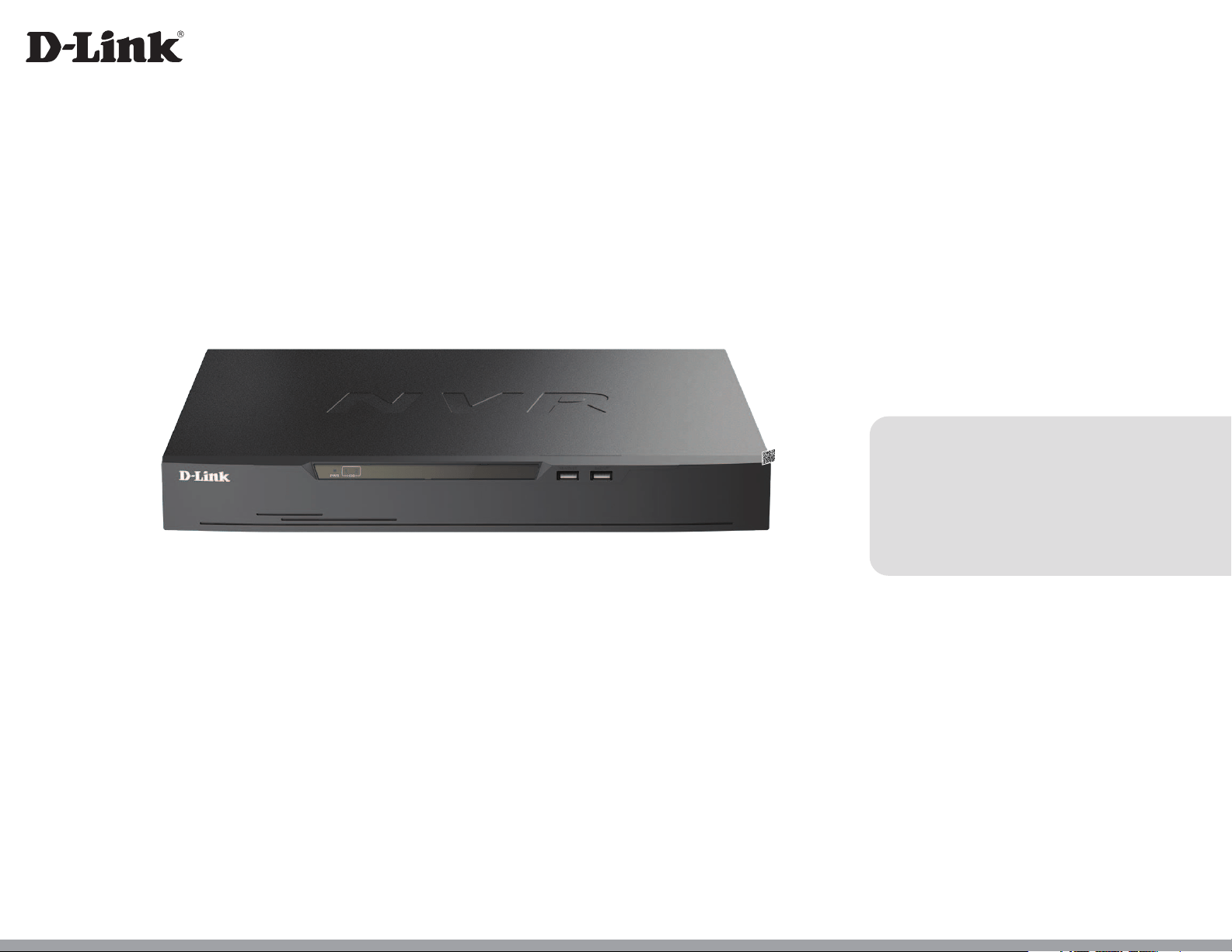
DNR-4020-16P
User Manual
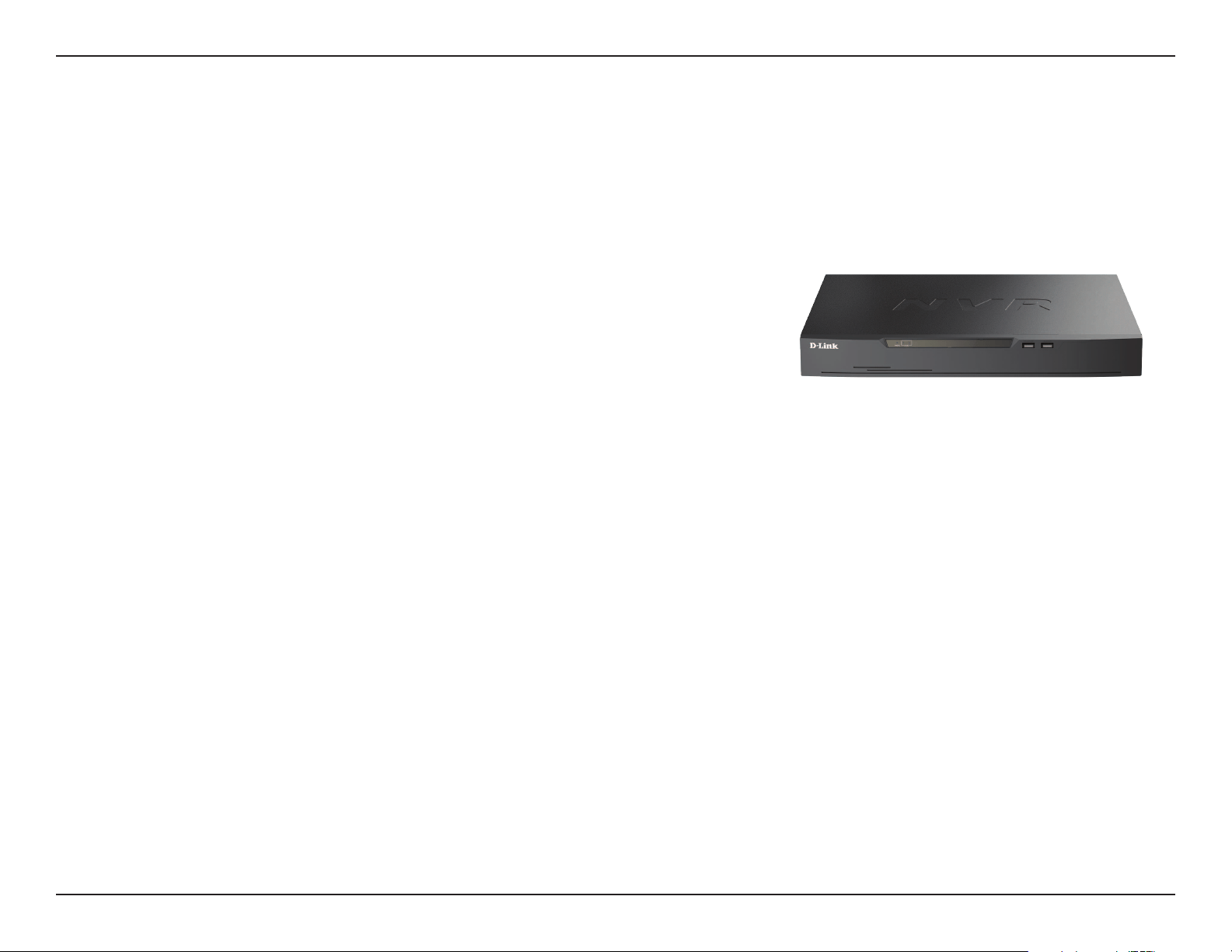
JustConnect 16-Channel PoE Network Video Recorder
Version 1.10 | 2022/02/18
iD-Link DNR-4020-16P User Manual
D-Link reserves the right to revise this publication and to make changes in the content hereof without obligation to notify any
person or organization of such revisions or changes. Information in this document may become obsolete as our services and
websites develop and change.
Manual Revision
Revision Date Description
1.10 2022/02/18 • A1 Initial version
Trademarks
D-Link and the D-Link logo are trademarks or registered trademarks of D-Link Corporation or its subsidiaries in the United States or other
countries. All other company or product names mentioned herein are trademarks or registered trademarks of their respective companies.
Copyright © 2022 by D-Link Corporation, Inc.
All rights reserved. This publication may not be reproduced, in whole or in part, without prior expressed written permission from D-Link Corporation, Inc.
Apple®, Apple logo®, iPhone®, iPad®, iPod touch® and Macintosh® are trademarks of Apple Inc., registered in the U.S. and other countries. App
Store
SM
is a service mark of Apple Inc. Google Play™ and Android™ are trademarks of Google Inc.
Internet Explorer®, Windows® and the Windows logo are trademarks of the Microsoft group of companies.
Preface
iiD-Link DNR-4020-16P User Manual
Table of Contents
Product Overview ...................................................................... 1
Package Contents .........................................................................1
System Requirements ................................................................. 2
Introduction ................................................................................... 3
Hardware Overview ..................................................................... 4
Front View ................................................................................4
Rear Panel (Connections) ...................................................5
Installation ..................................................................................6
Hard Drive Installation ................................................................6
Setting Up Your DNR-4020-16P (HDMI / VGA) ...................8
Initial Conguration .....................................................................9
Live View ........................................................................................11
Setup ...............................................................................................12
Channel ..................................................................................12
Camera ...............................................................................12
RTSP Connection............................................................14
Encode ...............................................................................15
Sensor Settings ...............................................................17
OSD .....................................................................................25
Privacy Zone ....................................................................26
Microphone .....................................................................27
Human Thermometer ................................................... 28
Record .............................................................................................33
Record Schedule .................................................................33
Disk ..........................................................................................34
Storage Mode ....................................................................... 35
S.M.A.R.T. ................................................................................36
Disk Calculation ...................................................................37
FTP ............................................................................................38
Alarm ............................................................................................... 39
General ...................................................................................39
Motion Detection ...............................................................40
Video Loss .............................................................................. 41
Alarm In ..................................................................................42
Abnormal Alarm .................................................................. 43
Alarm Out ..............................................................................44
Network .........................................................................................45
Network .................................................................................. 45
DDNS .......................................................................................48
Port Mapping .......................................................................49
Email ........................................................................................50
IP Filter ....................................................................................51
SNMP .......................................................................................52
Network Status ....................................................................53
PPPoE ......................................................................................54
Network Trac ..................................................................... 55
System ............................................................................................56
Information ...........................................................................56
General ...................................................................................61
User Account ........................................................................66
Security Center ....................................................................68
Table of Contents
iiiD-Link DNR-4020-16P User Manual
Table of Contents
Auto Sequence ....................................................................69
Auxiliary Sequence ............................................................70
Logs .........................................................................................71
Maintenance .........................................................................73
Auto Reboot .........................................................................75
Playback ........................................................................................76
Time Search ..........................................................................76
Picture Grid ...........................................................................77
Event Recording ..................................................................78
Backup List ............................................................................79
Setting Up Your DNR-4020-16P (Web GUI) .......................80
Initial Conguration ...................................................................82
Live View / Home Screen .........................................................83
Playback .........................................................................................85
Alarm Search ................................................................................86
System ............................................................................................87
Channel ..................................................................................87
Camera ...............................................................................87
RTSP Connection............................................................89
Encode ...............................................................................90
Sensor Settings ...............................................................92
OSD .................................................................................. 100
Privacy Zone ................................................................. 101
Microphone .................................................................. 102
Human Thermometer ................................................103
Record ..........................................................................................108
Record Schedule .............................................................. 108
Disk ....................................................................................... 109
Storage Mode ....................................................................110
S.M.A.R.T. .............................................................................111
Disk Calculation ................................................................112
FTP ......................................................................................... 113
Alarm ............................................................................................ 114
General ................................................................................ 114
Motion Detection ............................................................ 115
Video Loss ...........................................................................116
Alarm In ............................................................................... 117
Abnormal Alarm ............................................................... 118
Alarm Out ........................................................................... 119
Network ...................................................................................... 120
Network ............................................................................... 120
DDNS .................................................................................... 123
Port Mapping .................................................................... 124
Email ..................................................................................... 125
IP Filter .................................................................................126
SNMP .................................................................................... 127
Web Mode .......................................................................... 128
PPPoE ................................................................................... 129
Network Status ................................................................. 130
System ......................................................................................... 131
Information ........................................................................ 131
System ................................................................................. 132
User Account ..................................................................... 137
Security Center ................................................................. 139
ivD-Link DNR-4020-16P User Manual
Table of Contents
Logs ......................................................................................140
Maintenance ......................................................................142
Auto Reboot ...................................................................... 144
Password Reset ......................................................................... 145
Designate E-mail Address .............................................145
Obtain Verication Code ...............................................146
Resetting User Password ............................................... 147
Troubleshooting ...................................................................148
Technical Specifications ...................................................... 149
Regulatory Information ....................................................... 152
1D-Link DNR-4020-16P User Manual
Section 1 - Product Overview
• DNR-4020-16P JustConnect 16-Channel PoE Network Video Recorder
• Power cord
• 8 x hard disk screw
• 2 x rack mount bracket
• 6 x rack mount bracket screw
• 2 x terminal block
• Documentation
Product Overview
Package Contents
Note: Using a power supply with a different voltage than the one included with your product will cause damage and void the warranty
for this product.
If any of the above items are missing, please contact your reseller.
2D-Link DNR-4020-16P User Manual
Section 1 - Product Overview
Hardware Requirements
• Two 3.5” SATA hard disk drives (not included)
Network Requirements
• Broadband Internet connection (for remote access)
• Network camera(s) (refer to the D-Link website for a list of supported cameras)
• 10/100/1000 Mbps Ethernet switch or router
Web-based Configuration
Utility / Remote PC
Minimum Requirements
Computer with the following:
• Microsoft Windows
• Microsoft Edge, Internet Explorer, Firefox, Chrome or Safari
System Requirements
3D-Link DNR-4020-16P User Manual
Section 1 - Product Overview
Introduction
The DNR-4020-16P is a standalone wired Network Video Recorder (NVR) which supports multi-channel network cameras with
H.265 and H.264 recording and two SATA hard disks for backup. Thanks to a powerful embedded system, the NVR can record
video from network cameras located in local or remote sites into a dedicated HDD storage without having to turn on a PC. The
DNR-4020-16P NVR supports real-time monitoring and playback from everywhere via browser, HDMI or VGA port. The triplex
function enables the device to continue recording while allowing the user to watch the live view and search for playback videos.
Automated Surveillance
Users are provided with a variety of options for viewing live streams and camera footage on-screen as well as automatically
recording events as they happen, with or without an operator on-site. Event-based recording is available for cameras with
motion detection and Alarm In connections are supported for triggers such as door and window sensors for automated
recording during unusual events. User-defined scheduled recording and continuous recording with automatic overwriting
options help to ensure the surveillance system is running reliably, even when no one is around.
Extensive Monitoring and Recording Features
The DNR-4020-16P’s intuitive interface allows for easy configuration of many functions, including compression, resolution, and
frame rate. Support for multiple encoding formats provides administrators the flexibility to prioritize storage space and video
quality. Featuring live viewing of multiple channels, users can simply drag and drop selected cameras to the viewing area.
Smooth Streaming from Anywhere
The DNR-4020-16P also enables users to remotely view and manage the NVR from anywhere via a web browser. The Gigabit
Ethernet port provides superior bandwidth for viewing 16 camera streams simultaneously, so critical moments can be monitored
and captured at all times. Rounding out the features is the JustConnect+ mobile app that lets administrators easily and remotely
access and monitor the DNR-4020-16P on a mobile device — making the JustConnect H.265 PoE Network Video Recorder a
complete, easy-to-use enterprise surveillance solution.
4D-Link DNR-4020-16P User Manual
Section 1 - Product Overview
Hardware Overview
Front View
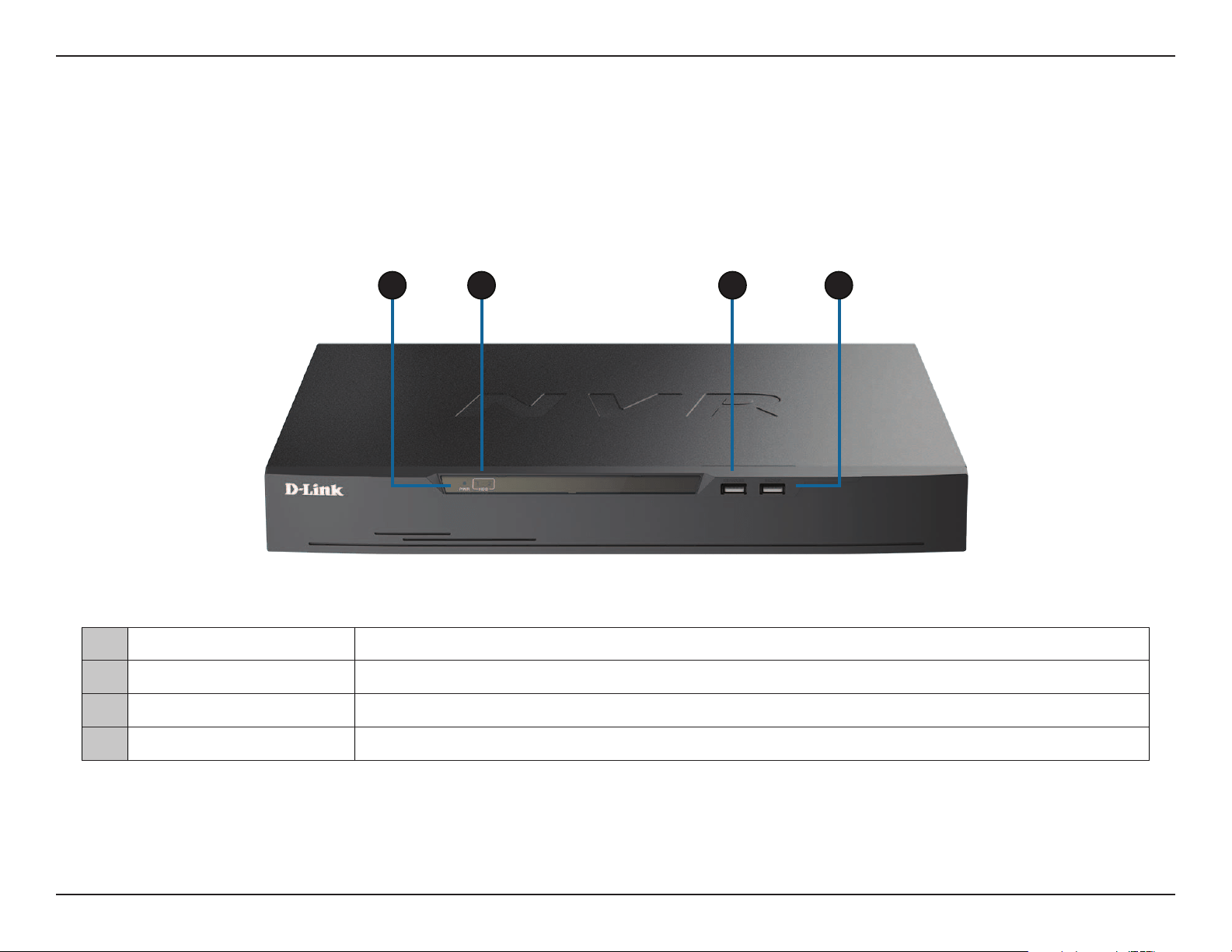
1 Power Indicator Lights up when the device is receiving power and the power switch is turned on.
2 HDD Indicator Hard disk status indicator. This indicator flashes when data is being transmitted.
3 KB/Mouse Port USB port for a mouse or keyboard.
4 Backup Port USB port for a flash drive.
1 2 3 4
5D-Link DNR-4020-16P User Manual
Section 1 - Product Overview
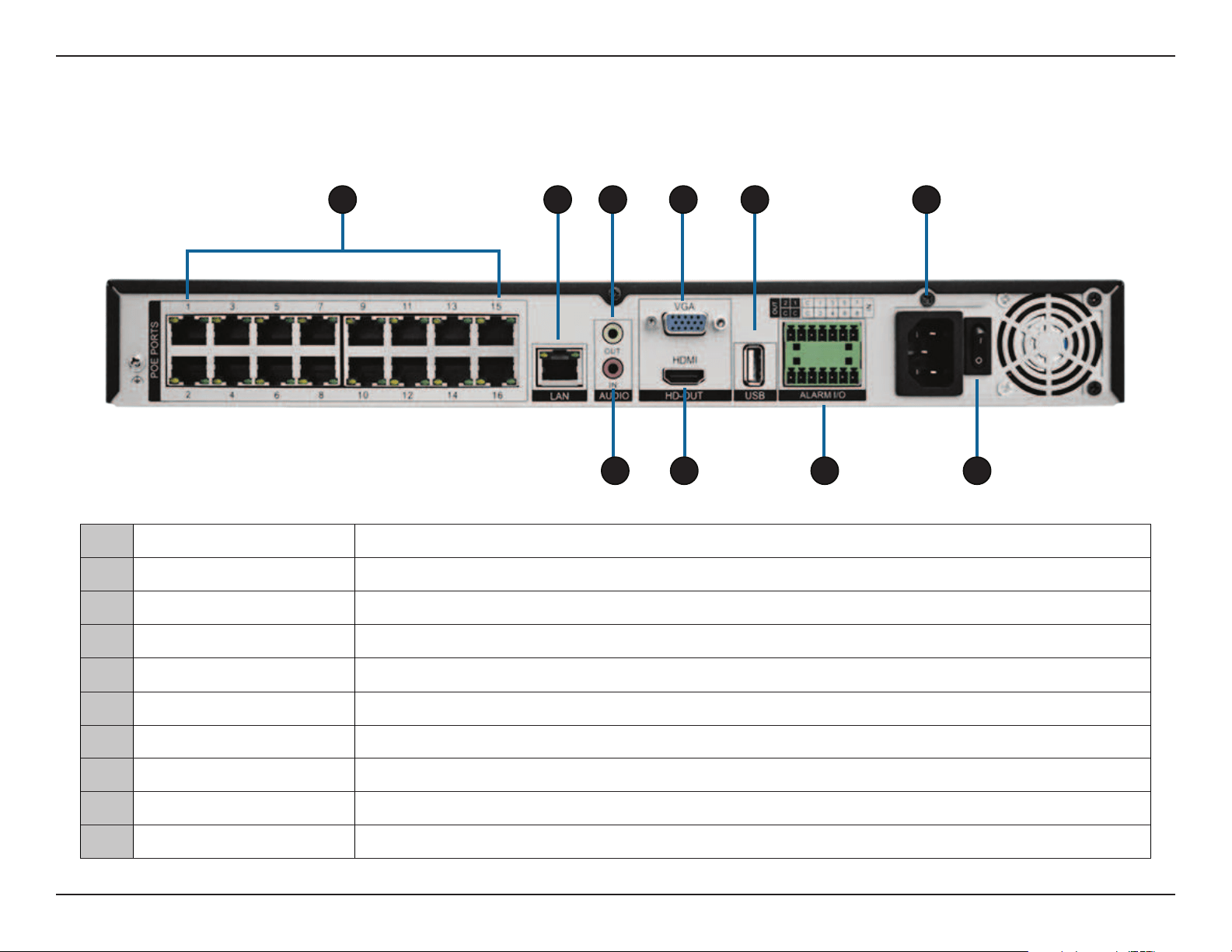
Rear Panel (Connections)
1 PoE Ports PoE ports that offer direct connection to up to 16 cameras.
2 LAN Uses a standard Ethernet cable to connect to a switch or router.
3 Audio OUT Connect external speakers for live audio or audio playback.
4 VGA Output Output connector for a VGA monitor.
5 USB 2.0 Port Connect a USB storage device such as a flash drive.
6 Power Connect the supplied power cord to the input port.
7 Audio IN Connect a microphone to use 2-way communication with your camera(s).
8 HDMI Output Output connector for an HDMI monitor.
9 Alarm I/O Alarm I/O ports for connecting to sensors or other devices.
10 Power Switch Press “1” to turn the device on, “0”to turn it off.
1 2 3 4 5 6
7 8 9 10
6D-Link DNR-4020-16P User Manual
Section 2 - Installation
Installation
Hard Drive Installation
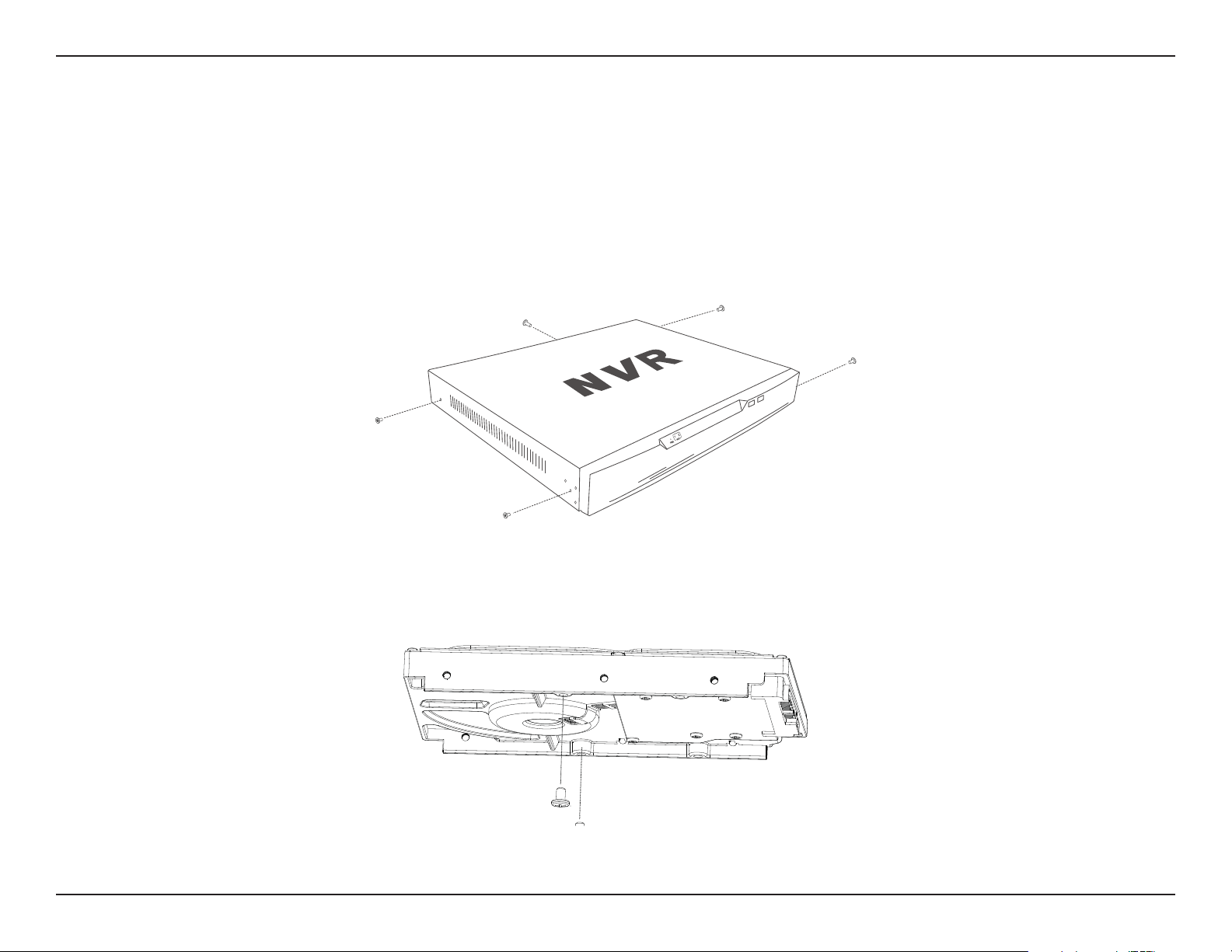
1. First, make sure the power cable is not plugged into a power outlet. Remove the fixing screws from the top cover of the
DNR-4020-16P, then remove the top cover from the device.
2. Insert two screws into the holes near the rear panel of the hard drive. Turn the screws twice, so that they protrude slightly.
7D-Link DNR-4020-16P User Manual
Section 2 - Installation
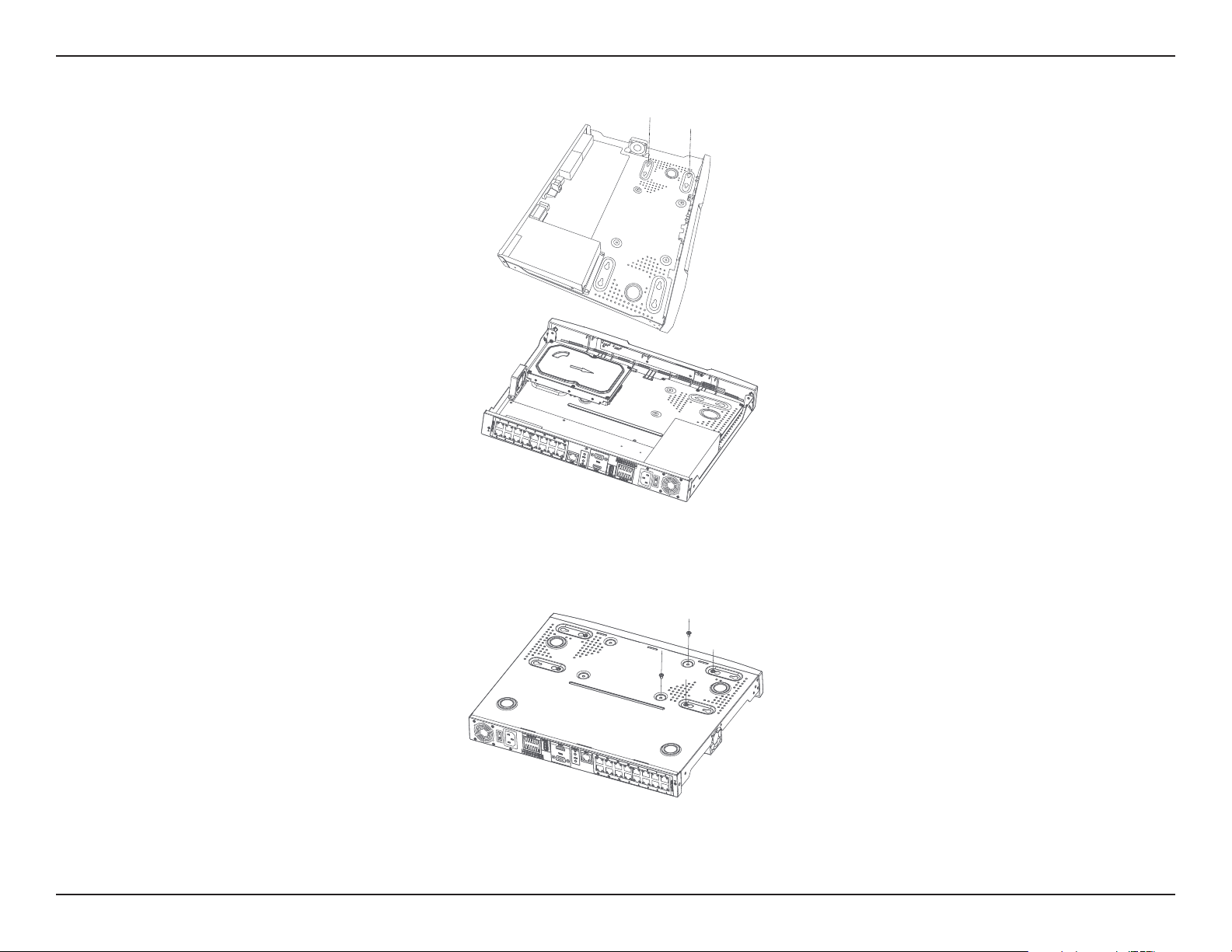
3. Insert the hard drive into the drive bay of the DNR-4020-16P, fitting the heads of the two screws into the slots on the
bottom of the device. Slide the hard drive toward the center of the DNR-4020-16P so that it locks into position.
4. Turn the device over and secure the hard drive inside the device by screwing the provided screws into the four remaining
holes on the bottom of the DNR-4020-16P. If desired, install a second hard drive by repeating steps 1-4. Attach the hard
disk data cable and power cable to the device, then reattach the top cover and fasten the fixing screws..
5. Re-attach the top cover by sliding it over the device. Re-insert the shorter screws in the rear and the longer screws in the
sides of the cover to secure it.
8D-Link DNR-4020-16P User Manual
Section 2 - Installation
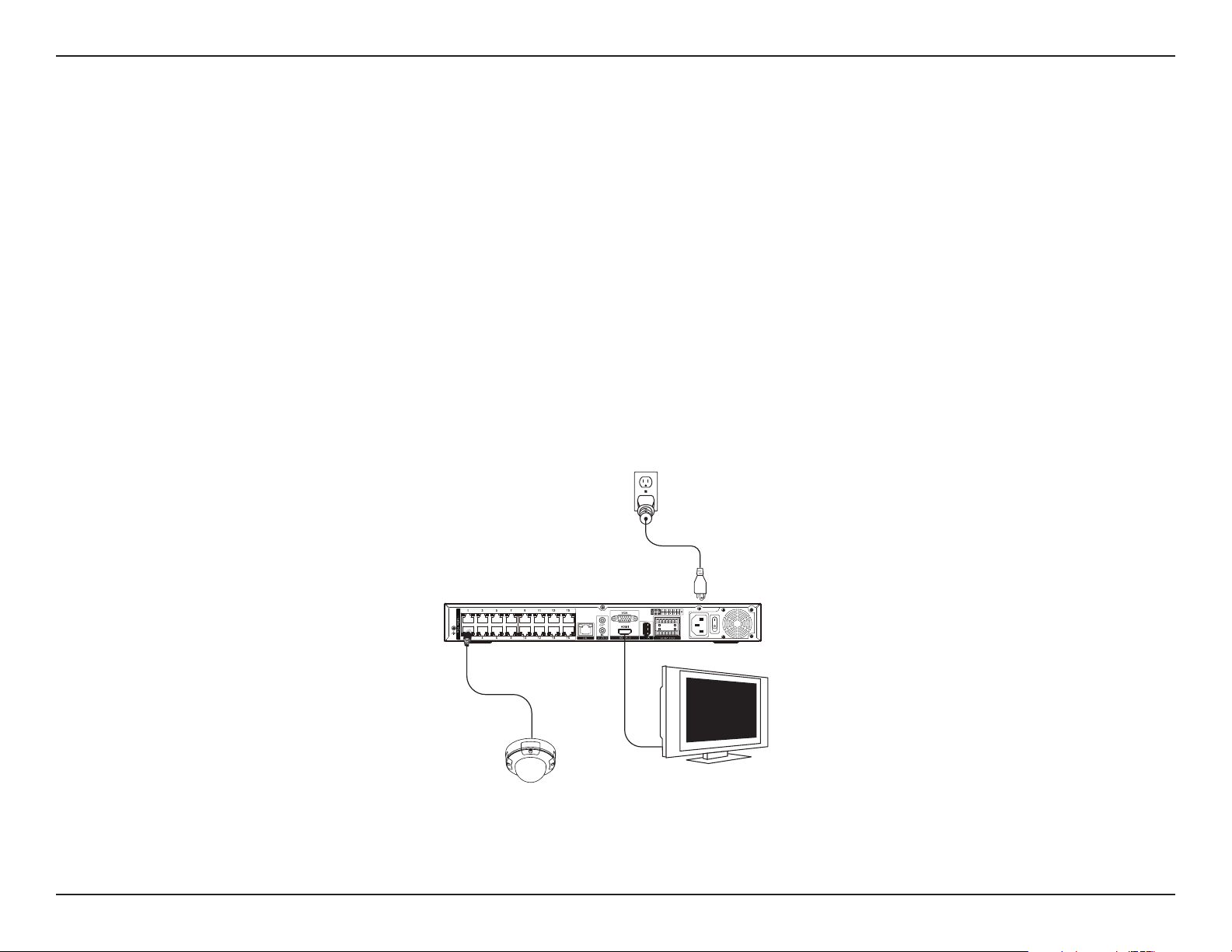
Setting Up Your DNR-4020-16P (HDMI / VGA)
You can connect PoE network cameras directly to your DNR-4020-16P using the 16 PoE ports on the rear panel.
For non-PoE network cameras, you will need to locate power outlets in the on-site environment then run a CAT5 UTP cable to
the LAN ports on the NVR.
You can set up your NVR without using a PC by connecting a VGA or HDMI display to the respective port on the back of the
device. To control the Graphical User Interface (GUI), connect a USB mouse to the USB port on the front panel.
9D-Link DNR-4020-16P User Manual
Section 2 - Installation
Initial Conguration
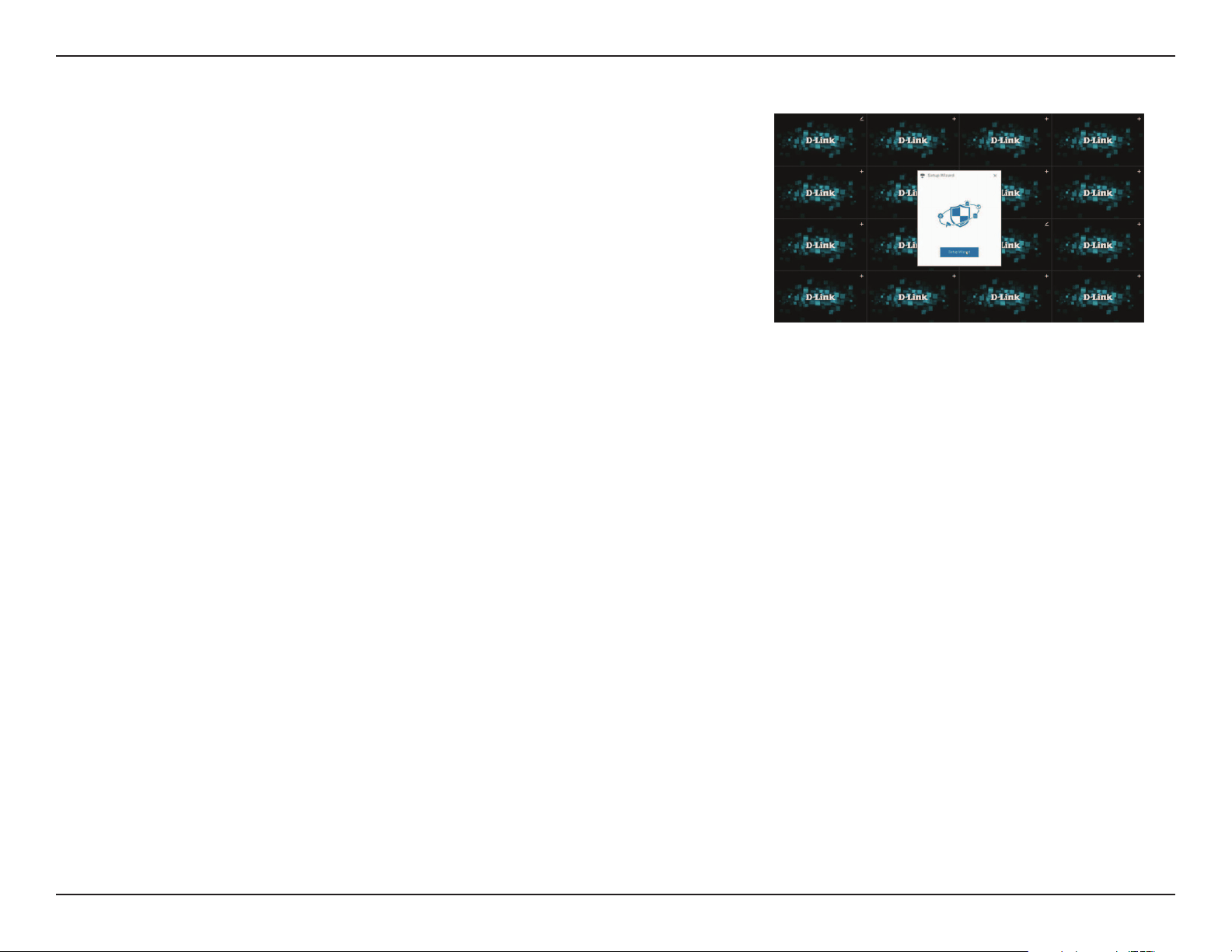
1. You can set up your NVR without using a PC by connecting a VGA or HDMI
display to the respective port on the back of the device. To control the
Graphical User Interface (GUI), connect a USB mouse to the USB port on
the front panel. After powering on the DNR-4020-16P for the first time,
the Login window will appear in the center of the screen.
2. Select your preferred language, and enter a user name and password that
will be used to access the management interface. Confirm the password
by retyping it.
3. In the Default channel password field, enter the password that will be
used to view and configure the device’s channels. Click OK to continue.
4. On the next screen, reenter the admin password and click Login to access
the management interface.
10D-Link DNR-4020-16P User Manual
Section 2 - Installation
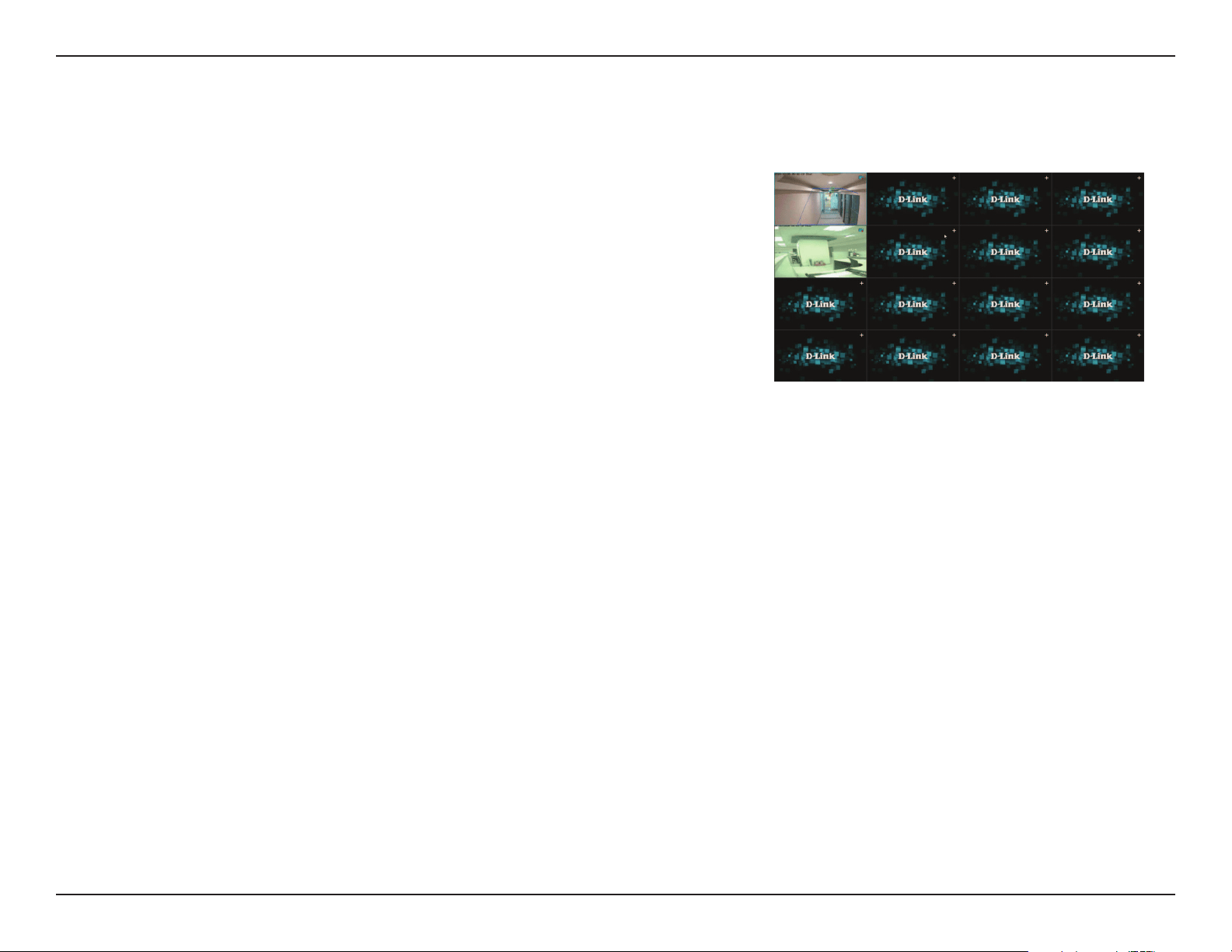
You can set up the NVR and add cameras by using the setup wizard that will
automatically load after logging in. Click Start Wizard to begin.
Configure the DNR-4020-16P’s settings on the subsequent pages. For more
detail, refer to the corresponding pages:
• Network: Refer to page 44
• Date and Time: Refer to page 61
• Camera: Refer to page 12
• Disk: Refer to page 33
• Resolution: Refer to page 15
11D-Link DNR-4020-16P User Manual
Section 2 - Installation
Live View
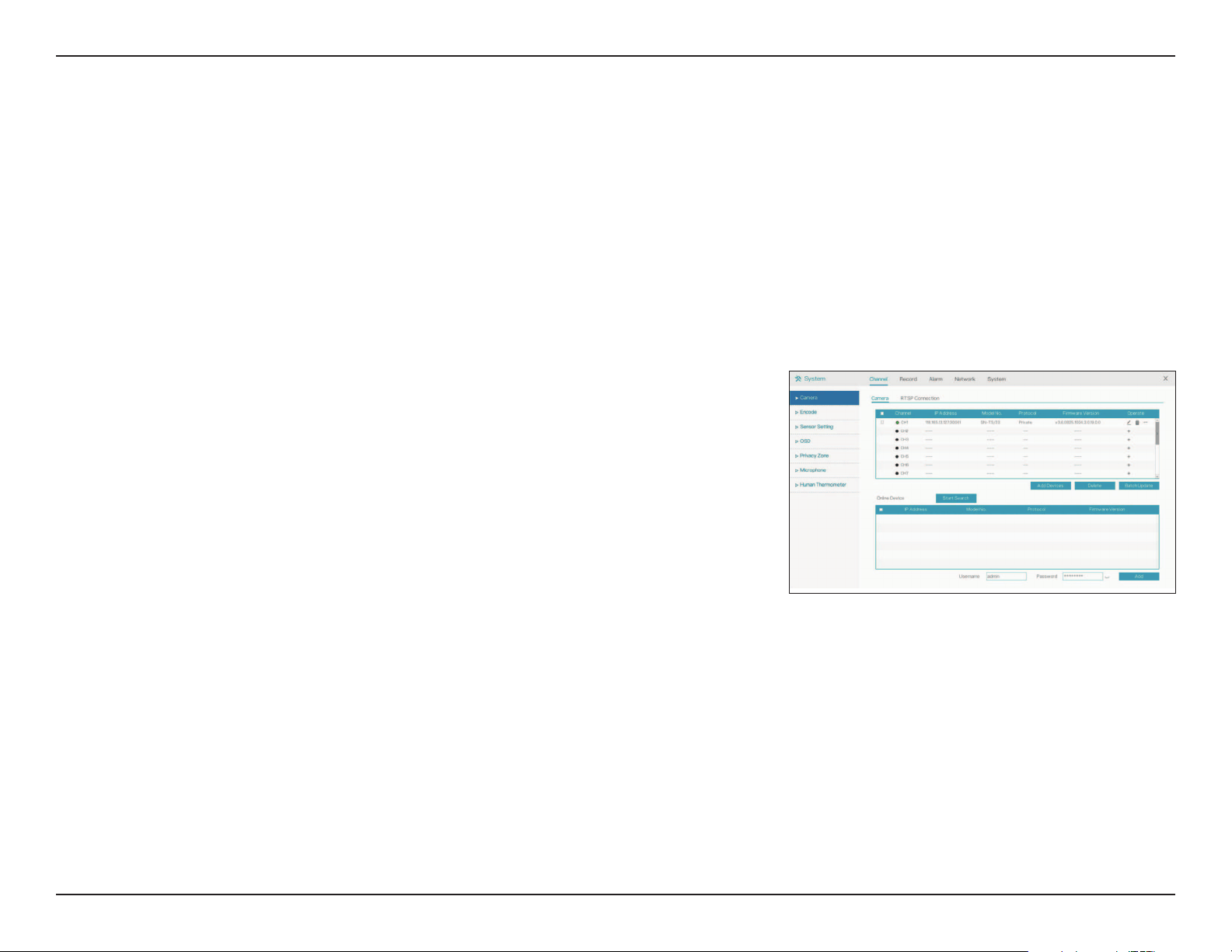
On this screen you can view the DNR-4020-16P’s channels and access its
various configuration options. Click the plus (+) icon in the top right corner
of an unconfigured channel window to add a new camera and configure it.
For more in-depth configuration options, hover the mouse over the bottom
left corner of the screen and click System or click the right mouse button.
To view recordings, click Playback.
Other options are also available on the bottom taskbar. From left to right:
• Split Screen: Set how many channels should be displayed on the home
screen
• Previous/Next Page: Step forward or backwards through the channels
• Auto Sequence: Automatically configure the channel display and begin
cycling through channels
• Volume: Increase or decrease the NVR’s volume
• Playback: Quickly access the Playback screen
• Channel Information: Determine what channel information to display
on this page
• Manual Alarm: Quickly configure the alarm interfaces on the NVR and
its connected cameras
• Event List: Display a list of recent events, such as motion detection and
triggered alarms
• Stop Alarm: Stop an alarm that is currently in progress
• Information: Display information about the DNR-4020-16P, such as its
operational status and IP address
12D-Link DNR-4020-16P User Manual
Section 3 - Conguration
Channel
IP
Model
Protocol
Firmware
Version
Operate
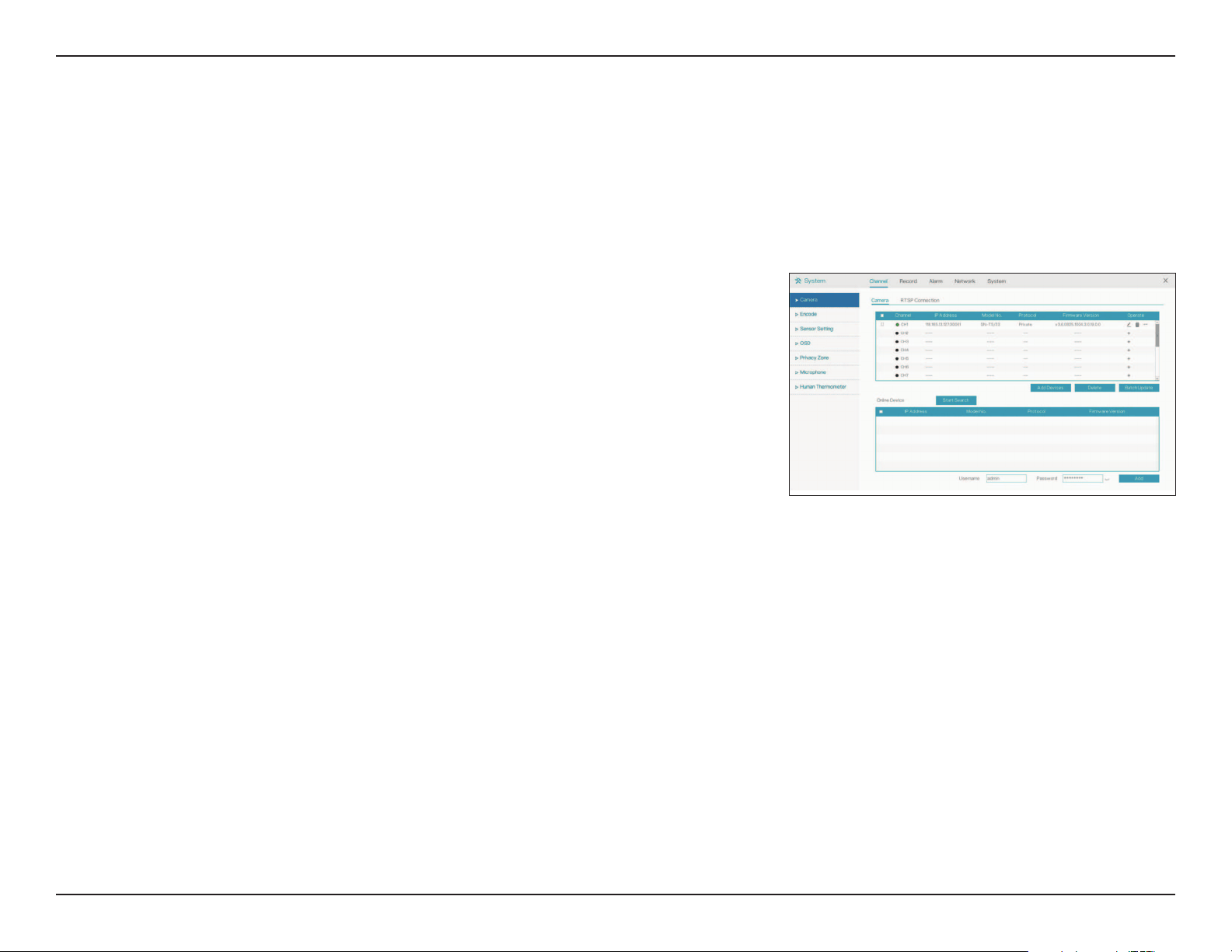
The channel the specified camera is on.
The camera’s IP address.
The camera’s model number.
The protocol used to communicate with the camera.
The firmware the specified camera is running.
Click this to set or update the camera’s settings.
Setup
Channel
Camera
On this page, you can configure the DNR-4020-16P’s 16 channels and add cameras to them. To search for available cameras,
click Start Search. To add cameras to a channel, enter the username and password in the fields at the bottom of the
screen and click Add.
13D-Link DNR-4020-16P User Manual
Section 3 - Conguration
Channel
Name
IP Address
Protocol
Port
Username:
Password:
Remote
Channel
Enter a name to identify the channel.
Enter the IP address of the camera. If the camera is connected
to one of the NVR’s PoE ports, it will attempt to detect the IP
address automatically.
Select the protocol to use (e.g. ONVIF).
Enter the port used to connect to the camera.
Enter the username used to access the camera.
Enter the password associated with the username above.
Designate a channel for the camera’s display.
Configuring a Channel
Click the pencil icon under Operate to add a camera on a channel or to configure an existing channel.
14D-Link DNR-4020-16P User Manual
Section 3 - Conguration
Custom
Protocol
Protocol
Name
Stream Type
Protocol Type
Port
Abs Path
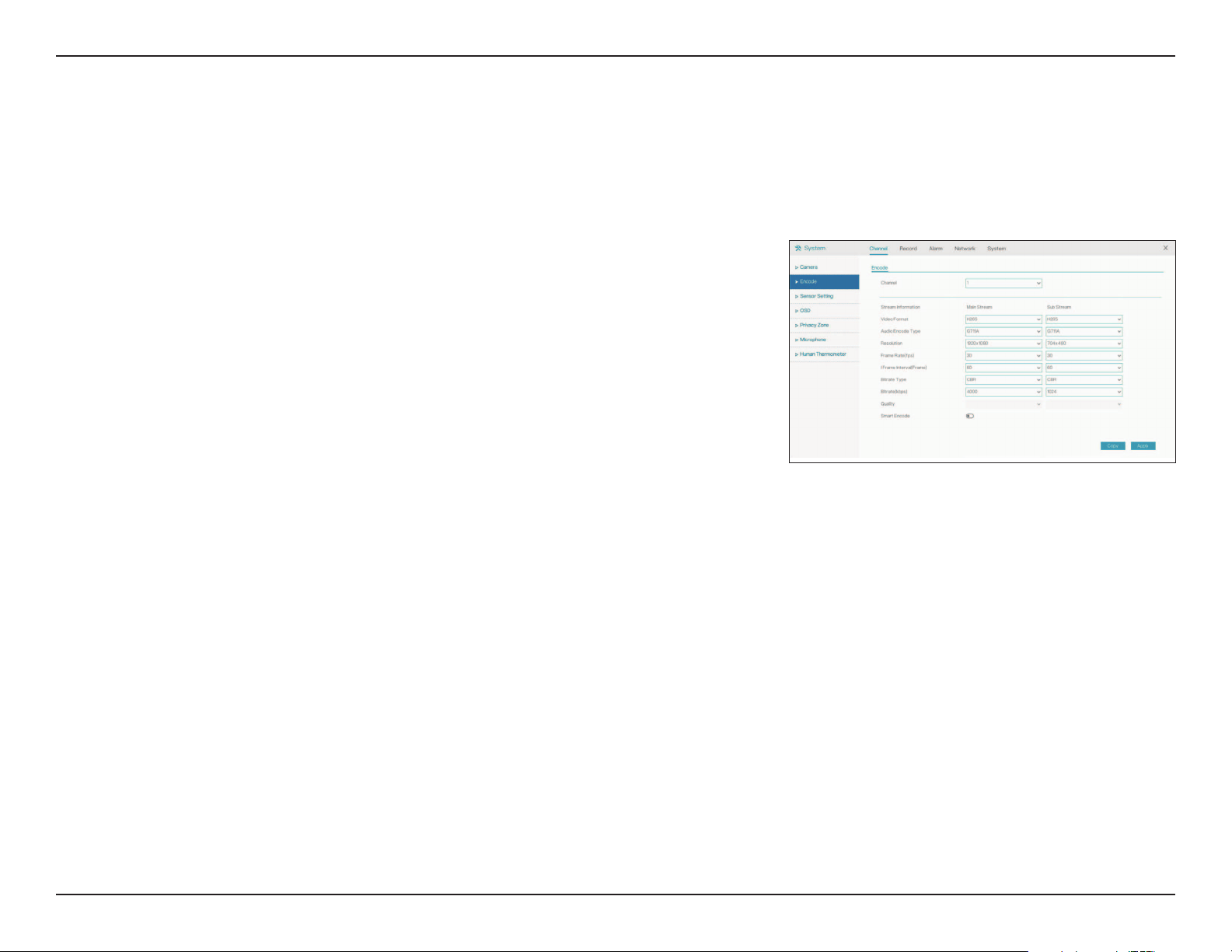
Designate the custom protocol to use (select 1-16 from the
drop-down menu).
Specify a protocol name to use.
Select Main Stream or Sub Stream. If you select Sub Stream, the
options on the right will be enabled.
Select the protocol type to use for the stream. This is set to
RTSP by default.
Select the RTSP port to use. This is set to 554 by default.
Enter the absolute path for the RTSP connection to use.
RTSP Connection
Use this page to configure your Real Time Streaming Protocol (RTSP) connection settings.
15D-Link DNR-4020-16P User Manual
Section 3 - Conguration
Channel
Stream
Information
Video Format
Audio Encode
Type
Resolution
Frame Rate
(fps)
Bitrate Type
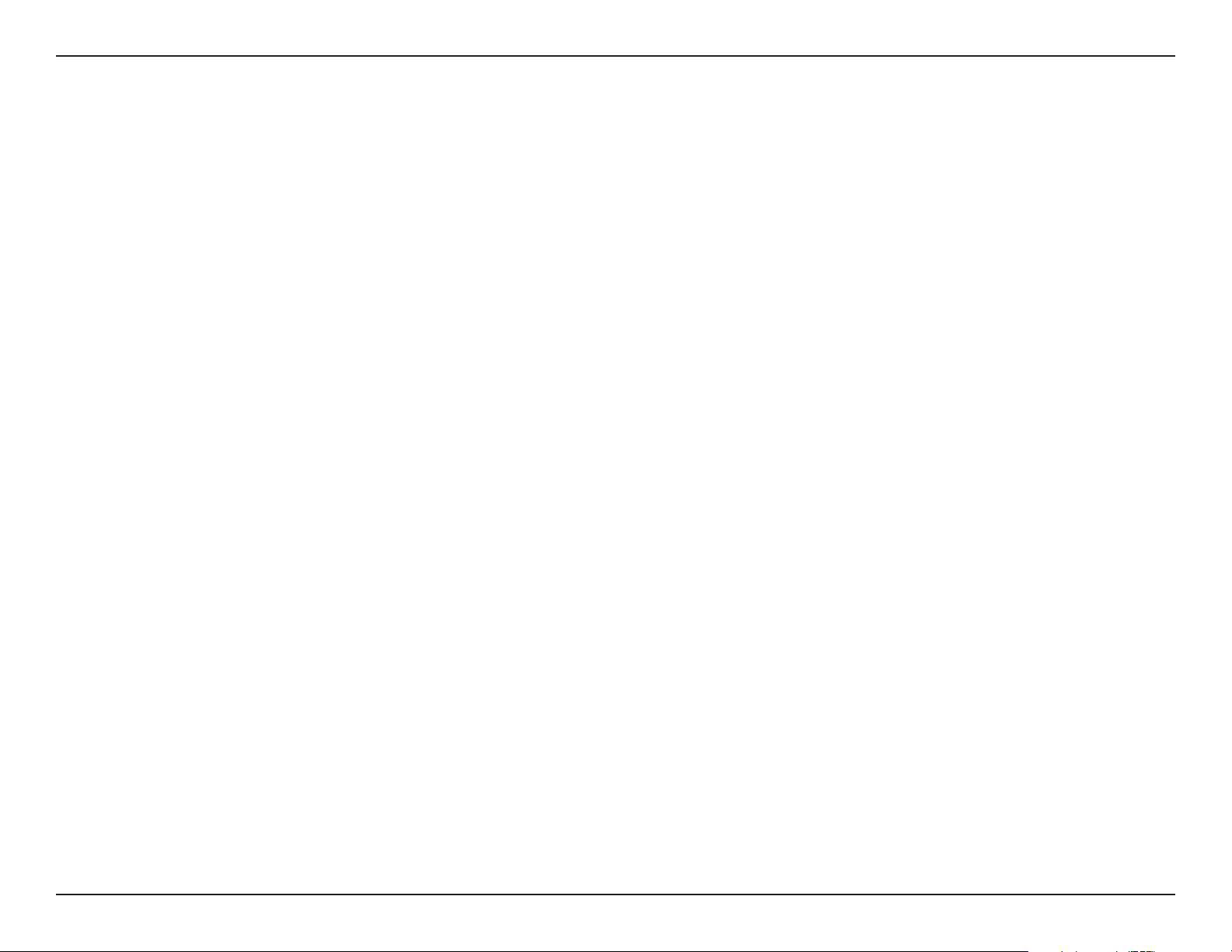
Specify the channel to modify.
Indicates which stream the following information pertains to
(i.e. Main Stream or Sub Stream).
Select the video encoding format to use for the channel (e.g.
H.265, H.264, etc).
Select the audio encoding format to use for the channel (e.g.
G711A, G711U, etc).
The resolution to use for the channel’s display.
The frame rate at which to display the video.
Select the bitrate type (e.g. CBR, VBR, etc)
Encode
On this page, you can change the encoding settings for the video and audio streams on a particular channel.
16D-Link DNR-4020-16P User Manual
Section 3 - Conguration
Bitrate (kbps)
Quality
Smart Encode
The bitrate will affect the bit rate of the video recorded
by the camera. Higher bit rates result in higher video
quality.
Determine the quality of the stream from lowest to highest.
Click to enable or disable smart encoding. If selected, this will
configure some of the settings above automatically. Support
for IP cameras is only available via private protocol.
17D-Link DNR-4020-16P User Manual
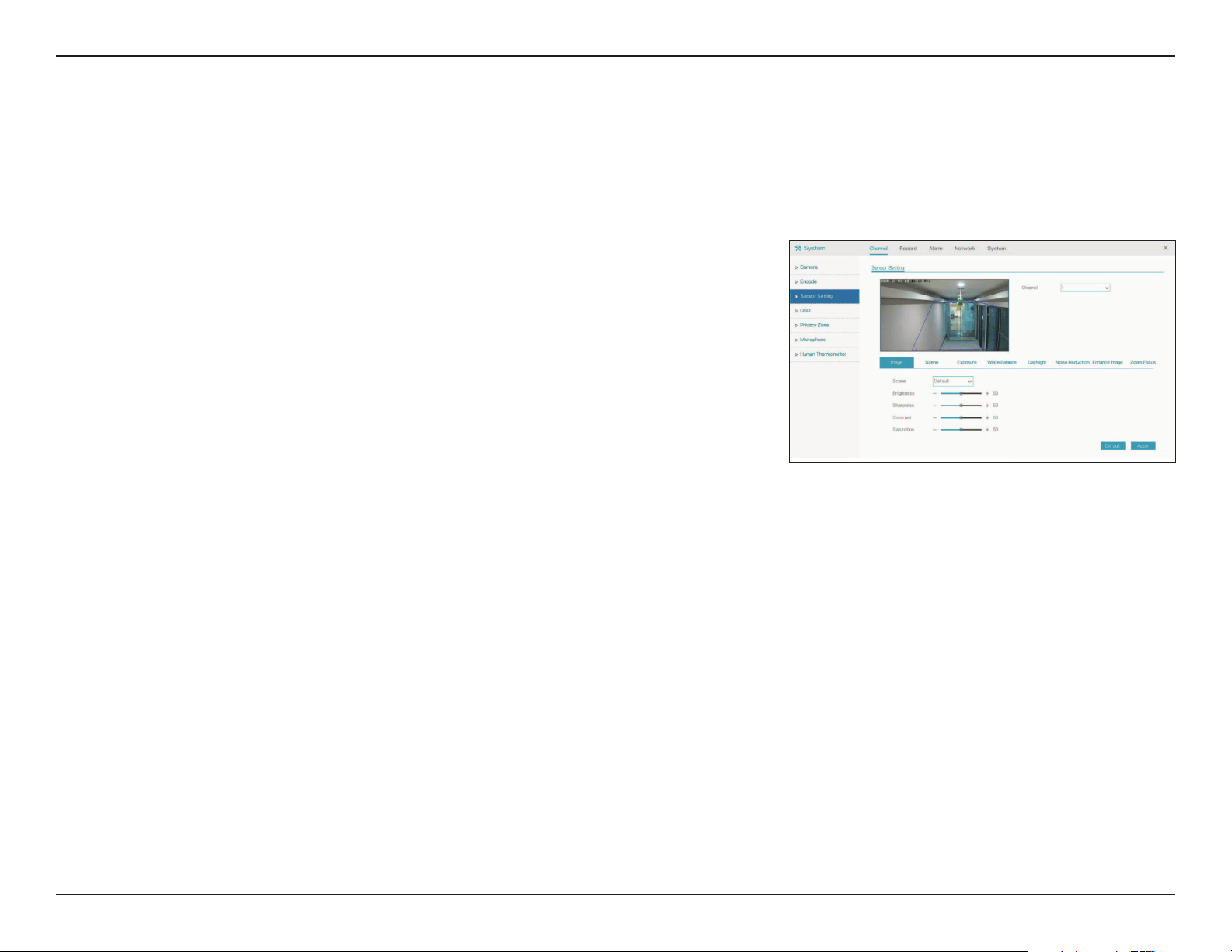
Section 3 - Conguration
Scene
Brightness
Sharpness
Contrast
Saturation
Select the type of scene (Indoor or Outdoor) or select Default.
The default settings are determined by the IP camera’s video
parameters.
Adjust the image brightness.
Adjust the image sharpness.
Adjust the contrast.
Adjust the saturation.
Sensor Settings
On the Sensor Settings page you can change aspects of the camera’s display and its sensor’s configuration settings.
Image
18D-Link DNR-4020-16P User Manual
Section 3 - Conguration
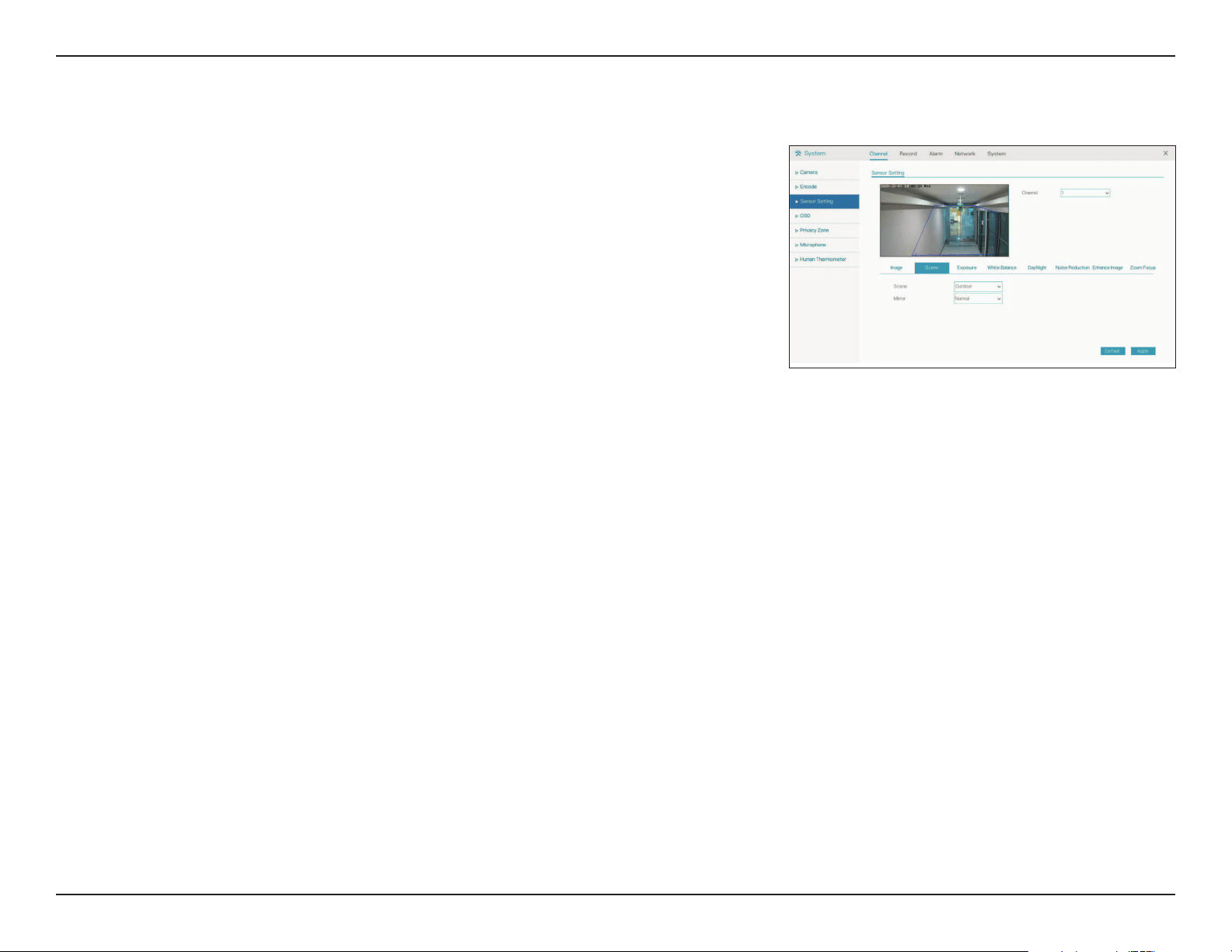
Aisle Mode
Scene
Mirror
Check this to enable or disable aisle (corridor) mode.
Select whether the scene is Indoors or Outdoors.
From the drop-down, choose whether to display the scene
normally or mirror it horizontally, vertically, or both.
The configuration options on this page are only available for
cameras being accessed via private protocol.
Scene
19D-Link DNR-4020-16P User Manual
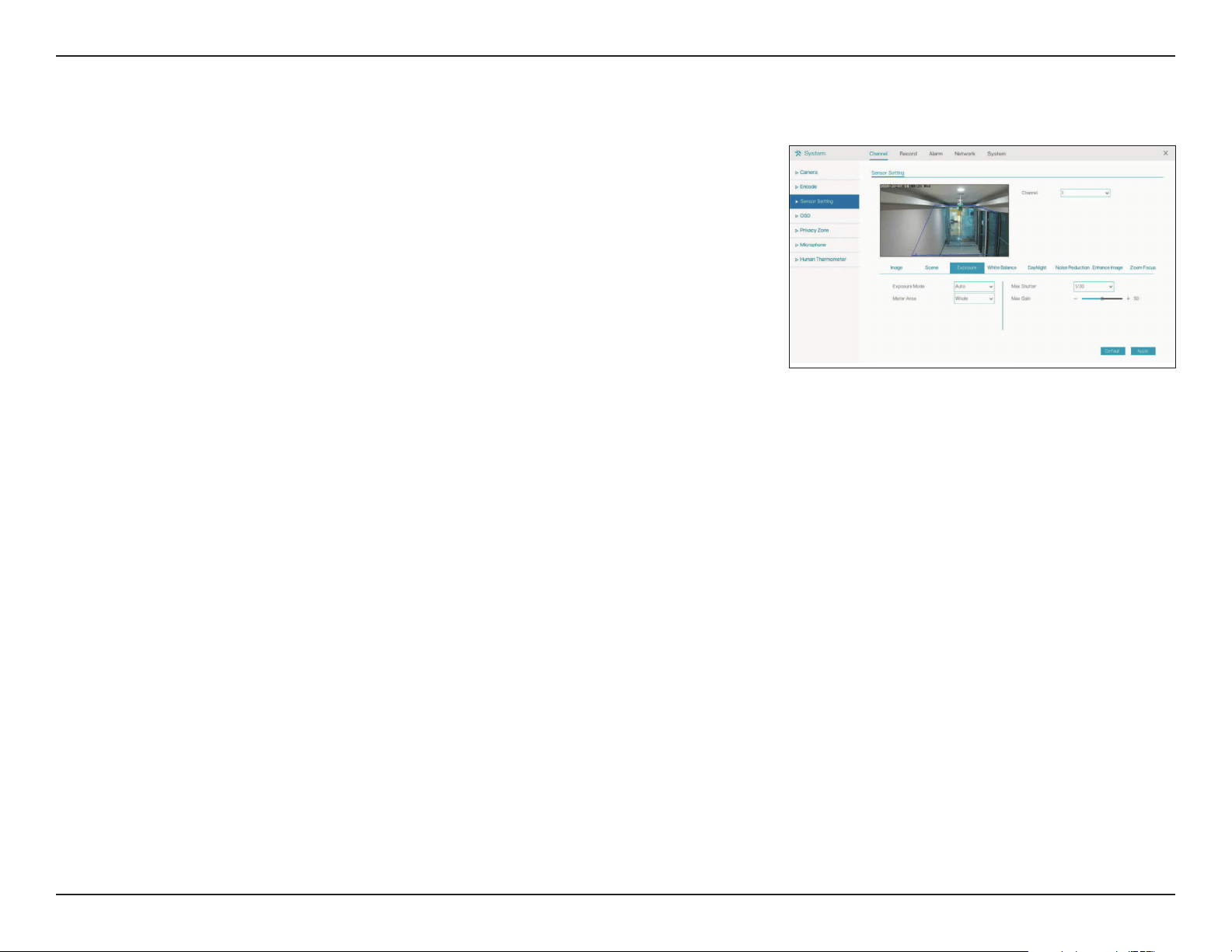
Section 3 - Conguration
Exposure
Mode
Meter Area
Max Shutter
Max Gain
Choose the exposure mode. Select between Auto, Manual,
Shutter Priority, and Iris Priority (aperture priority).
Select the meter area.
Select the maximum shutter speed.
Select the maximum gain.
The configuration options on this page are only available for
cameras being accessed via private protocol.
Exposure
20D-Link DNR-4020-16P User Manual
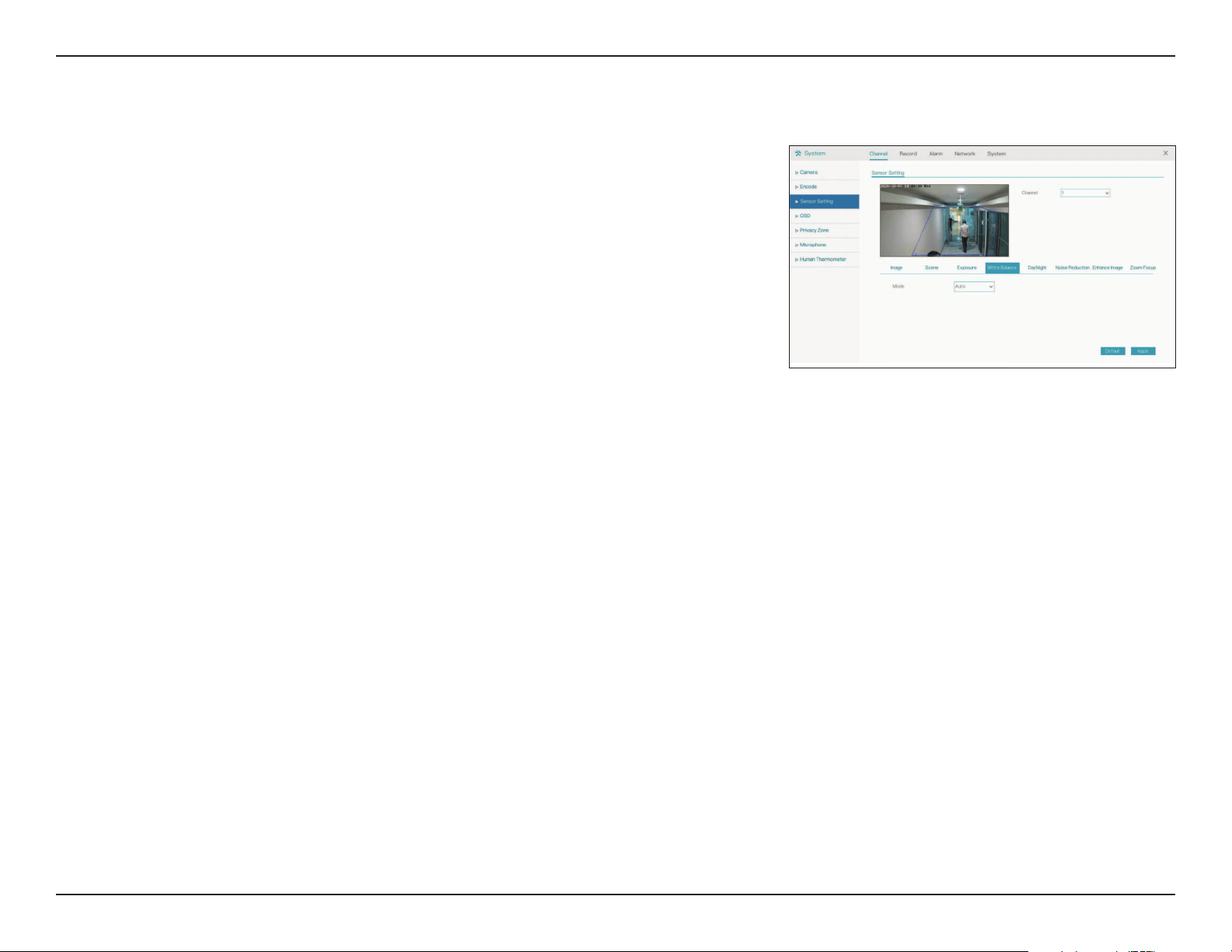
Section 3 - Conguration
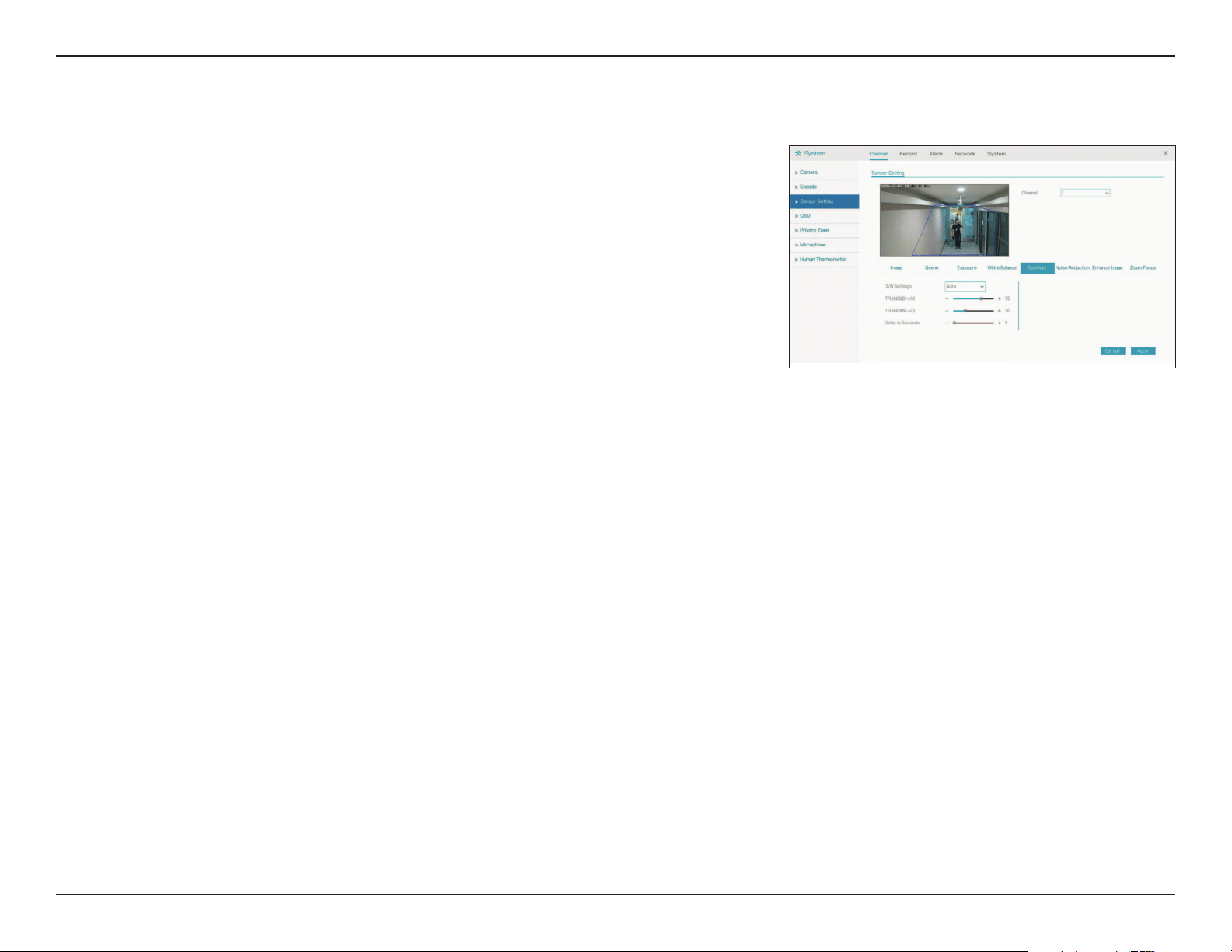
Mode Select the mode from a variety of options, including Tungsten,
Fluorescent, Daylight, Shadow, etc. If you select Manual, you
will need to set the red and blue levels yourself.
The configuration options on this page are only available for
cameras being accessed via private protocol.
White Balance
21D-Link DNR-4020-16P User Manual
Section 3 - Conguration
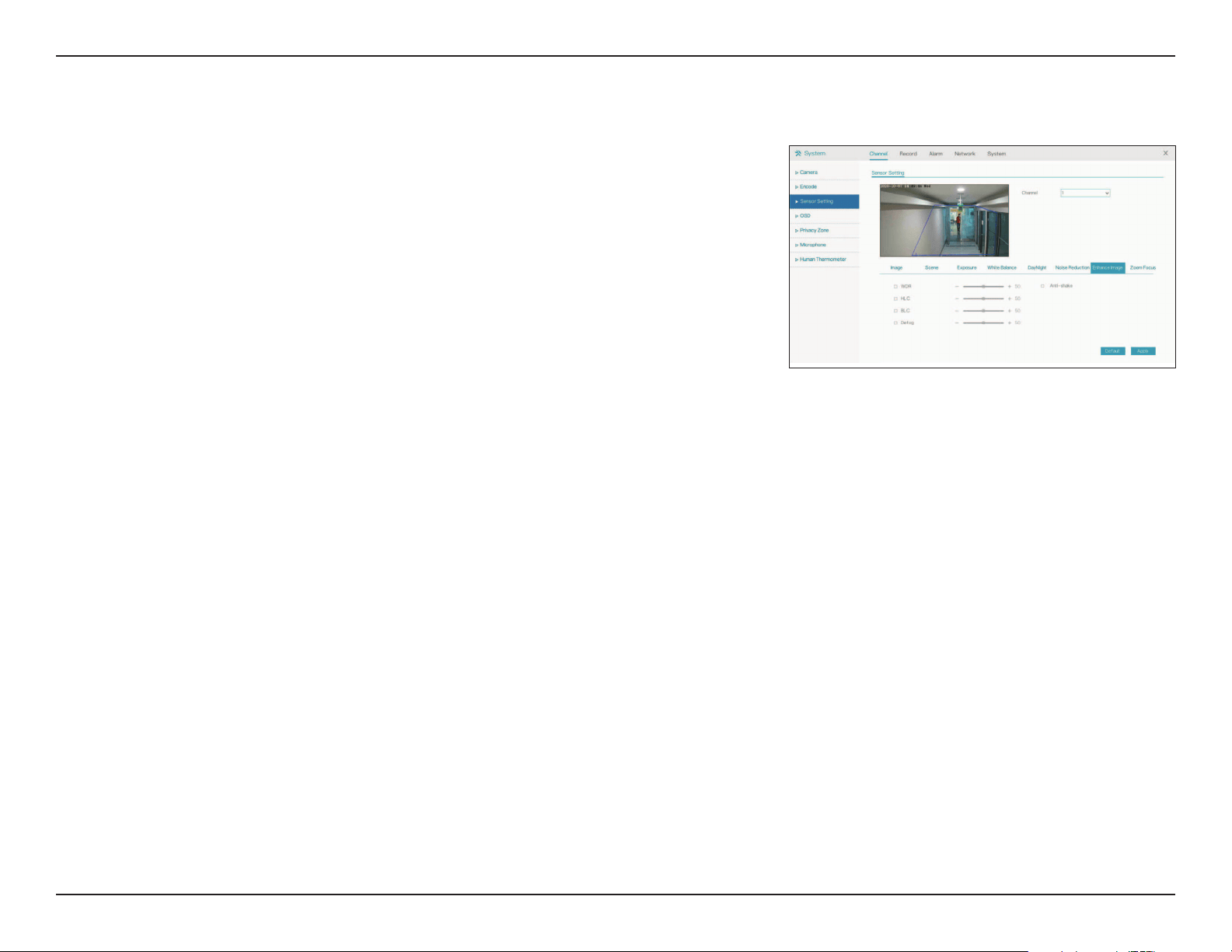
D/N Settings Choose whether to automatically or manually configure
the day/night settings. If you select Timing, you will need to
designate a day/night schedule in the fields that appear. If you
select Auto, you will need to set the transition time between
day and night modes, as well as the delay before the transition
occurs.
The configuration options on this page are only available for
cameras being accessed via private protocol.
Day/Night
22D-Link DNR-4020-16P User Manual
Section 3 - Conguration
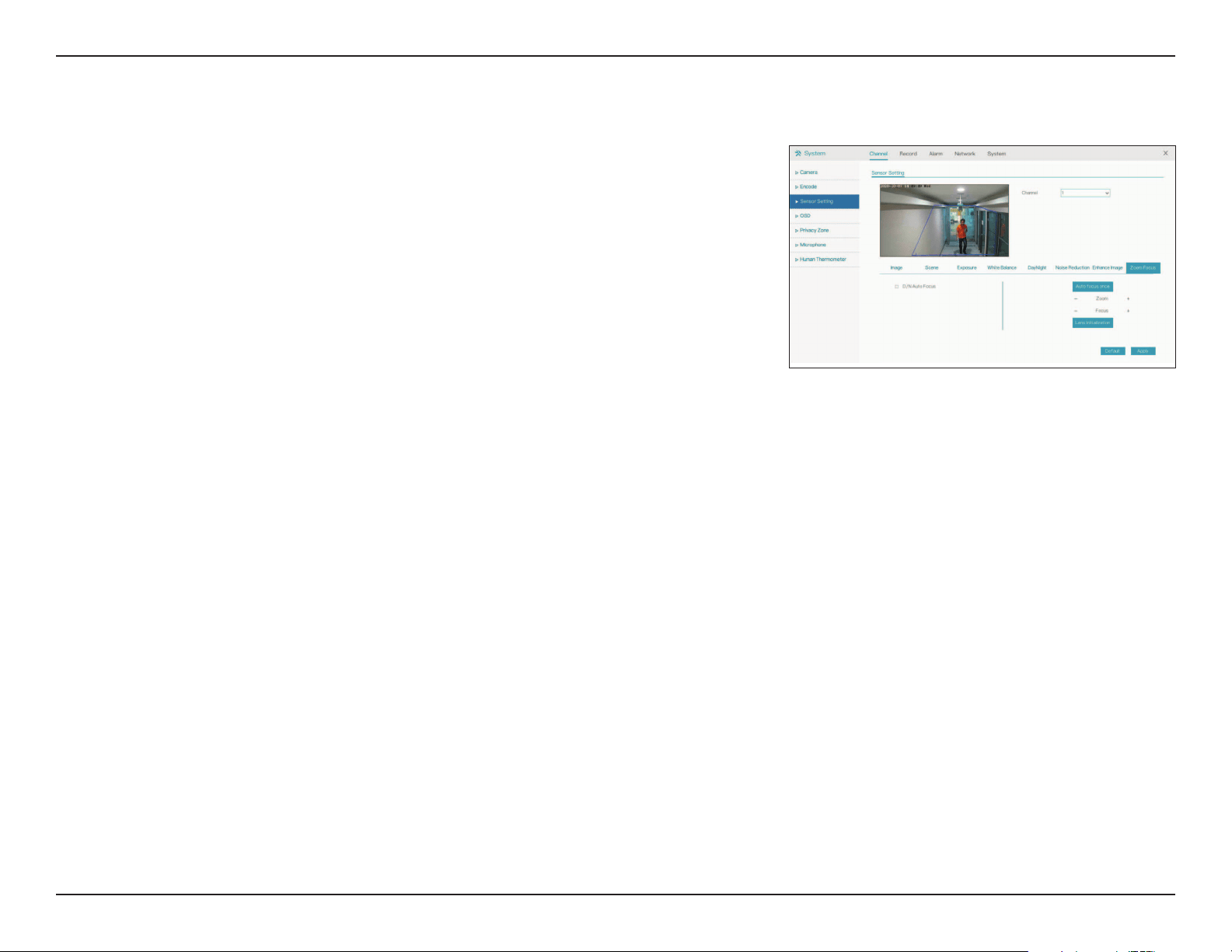
2D/3D NR
Max Strength
Enable or disable 2D and 3D noise reduction.
Select the maximum level of noise reduction to be applied to
the image.
The configuration options on this page are only available for
cameras being accessed via private protocol.
Noise Reduction
23D-Link DNR-4020-16P User Manual
Section 3 - Conguration
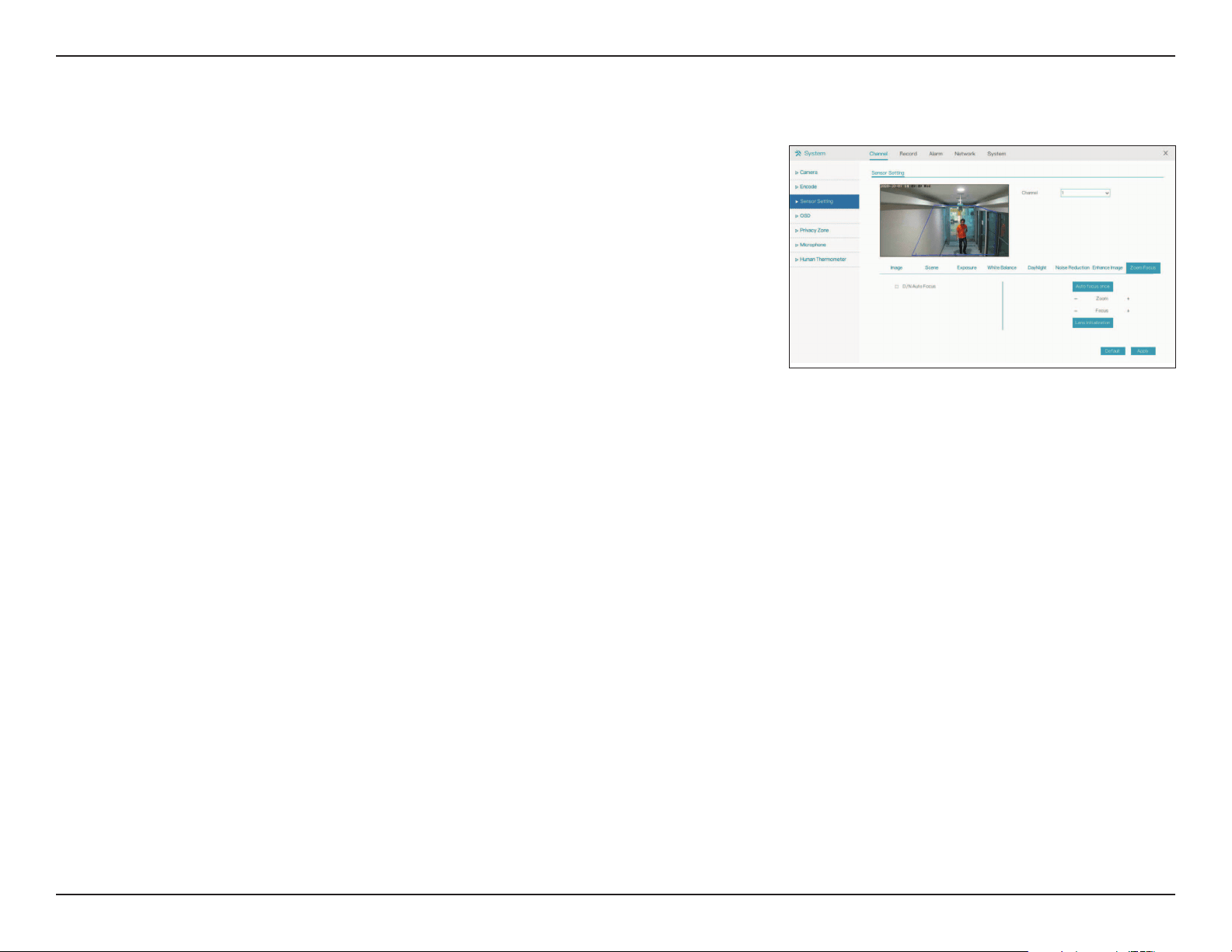
WDR
HLC
BLC
Defog
Anti-shake
Enable this to optimize the display quality with wide dynamic
range (WDR).
Adjust for overexposure with highlight compensation (HLC).
Adjust the overall lighting of the image with backlight
compensation (BLC).
Defog the image.
Enable this to compensate for minor shaking of the camera,
making the video smoother.
The configuration options on this page are only available for cameras
being accessed via private protocol.
Enhance Image
24D-Link DNR-4020-16P User Manual
Section 3 - Conguration
D/N Auto
Focus
Auto focus
once
Zoom
Focus
Lens
initialization
Click this to automatically focus according to whether the
camera is in day or night mode.
Click this to automatically focus the lens a single time.
Manually adjust the camera’s zoom.
Manually adjust the camera’s focus.
Click this to recalibrate the lens’s zoom and focus.
The configuration options on this page are only available for cameras
being accessed via private protocol.
Zoom Focus
25D-Link DNR-4020-16P User Manual
Section 3 - Conguration
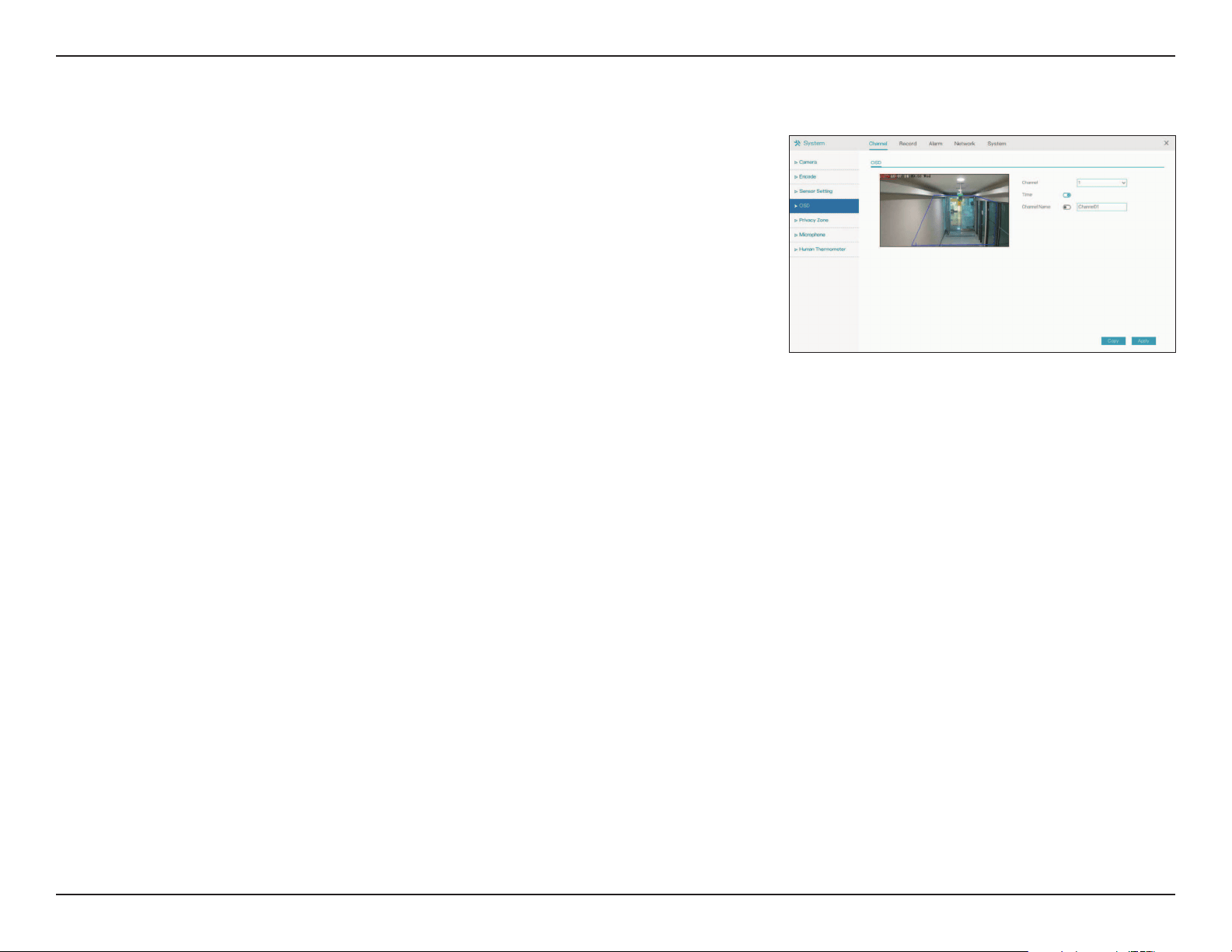
Channel
Time
Channel
Name
Specify a channel.
Toggle this to display the current time on the selected channel’s OSD.
Toggle this to display the selected channel name on the OSD.
The configuration options on this page are only available for cameras
being accessed via private protocol.
OSD
On this page you can configure the on-screen display (OSD) for the NVR’s
channels.
26D-Link DNR-4020-16P User Manual
Section 3 - Conguration
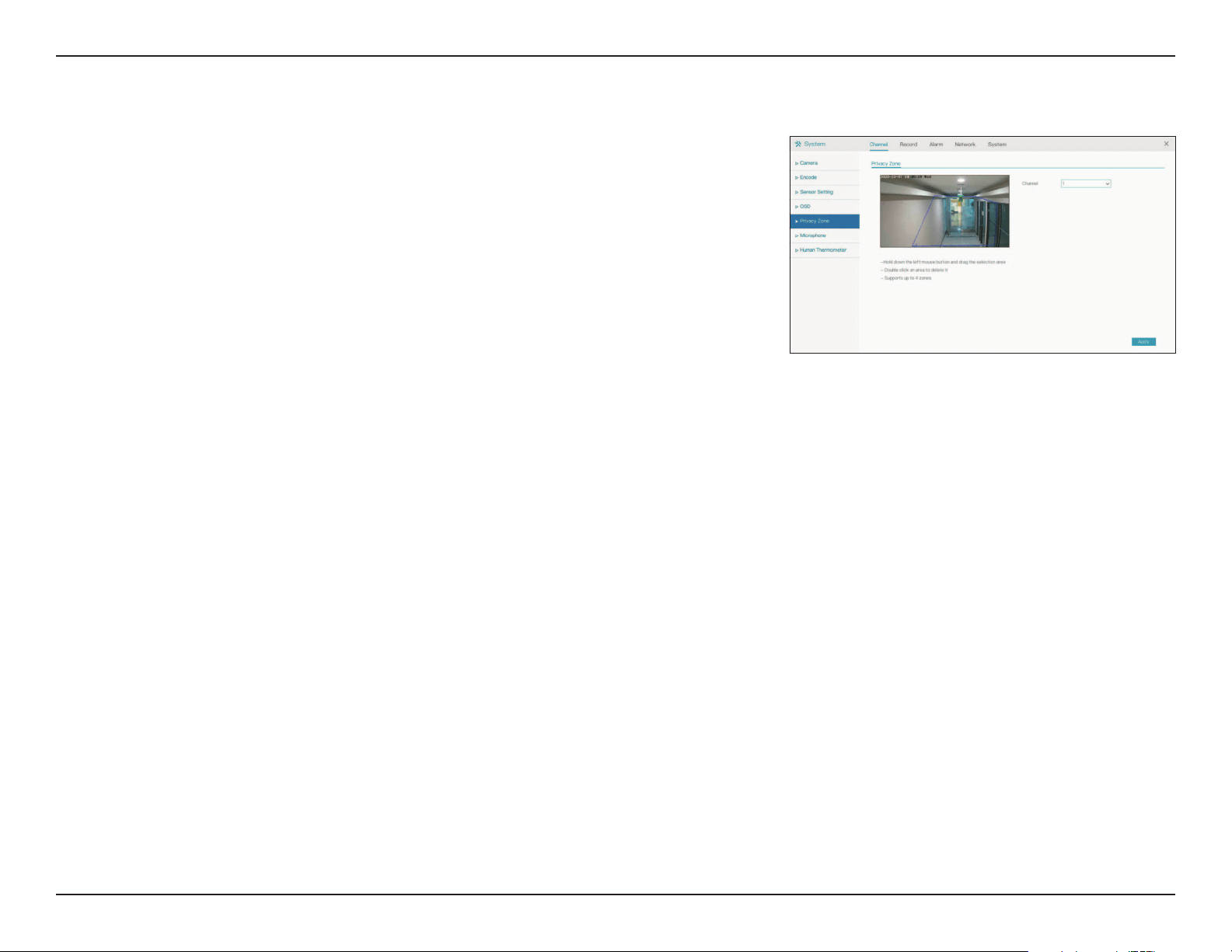
Privacy Zone
Click and drag a section of the screen to create a privacy zone. This area will
not be viewable and will not be recorded. Double-click an existing privacy
zone to delete it.
Select the channel to add a privacy zone to. The DNR-4020-16P supports
up to four zones.
Channel
27D-Link DNR-4020-16P User Manual
Section 3 - Conguration
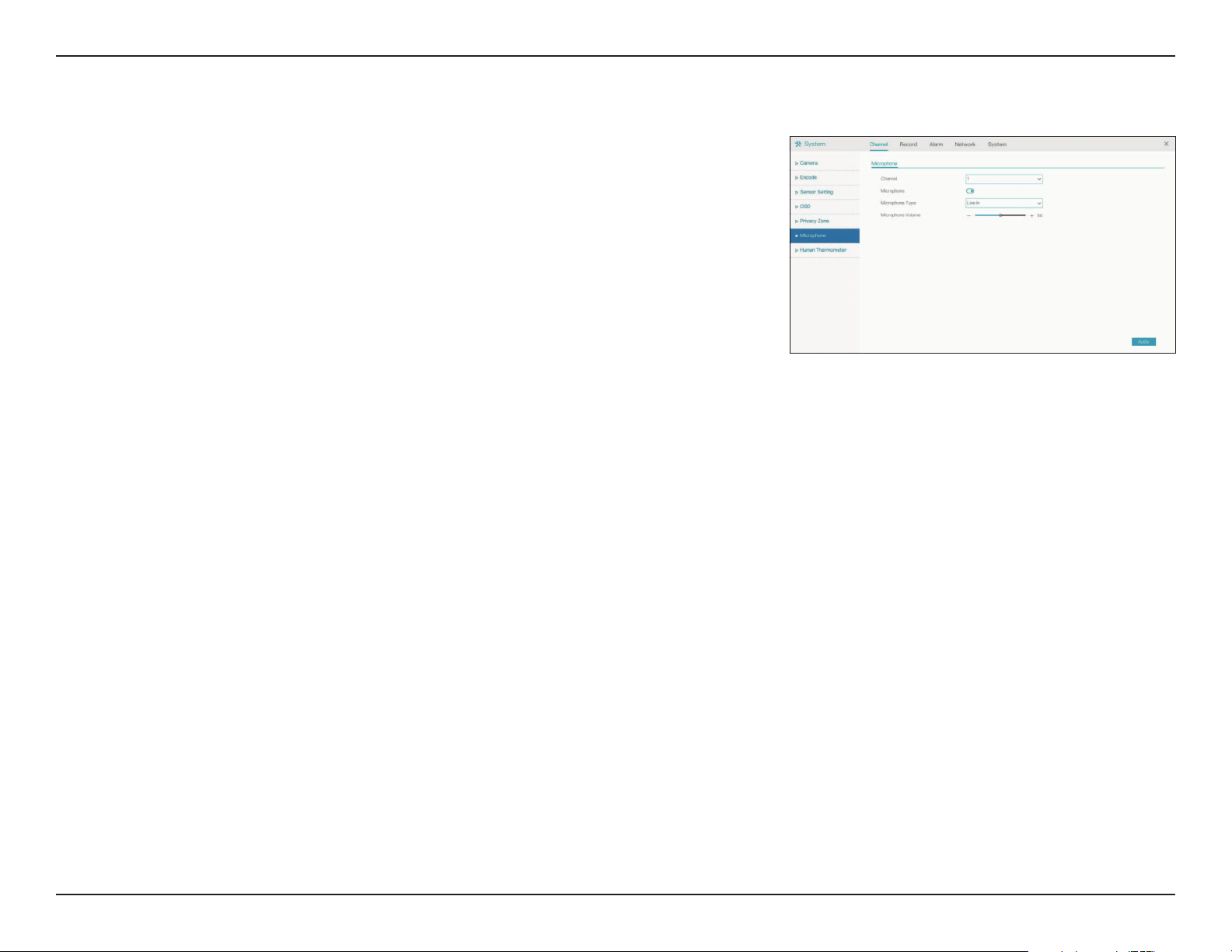
Microphone
Use this page to configure microphone settings for the specified channel. If
no device with a microphone is connected, the settings will be locked.
Select the channel to configure the microphone for.
Toggle this to enable or disable the microphone.
Specify the type of microphone connection (e.g. Line In).
Adjust the microphone volume/sensitivity.
Channel
Microphone
Microphone
Type
Microphone
Volume
28D-Link DNR-4020-16P User Manual
Section 3 - Conguration
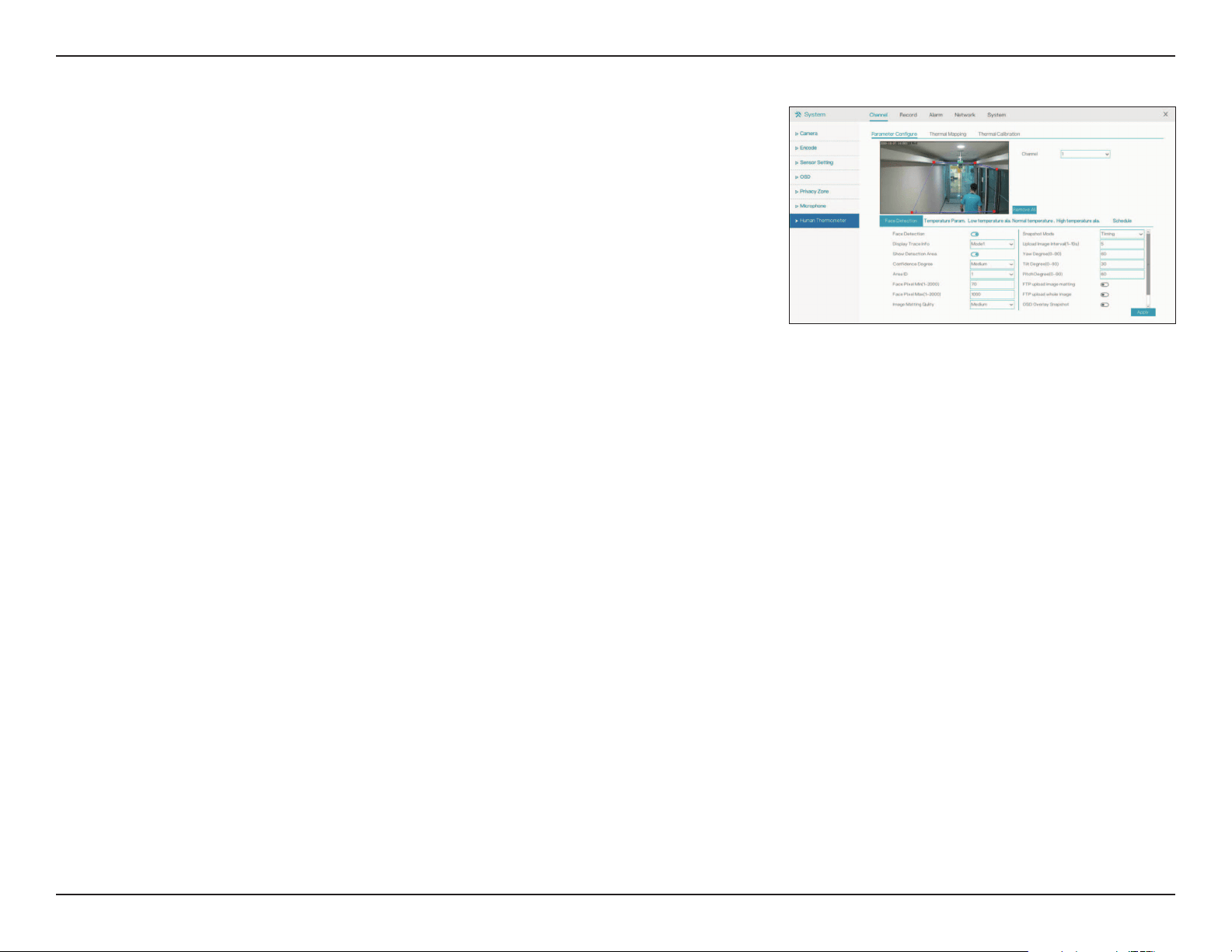
Human Thermometer
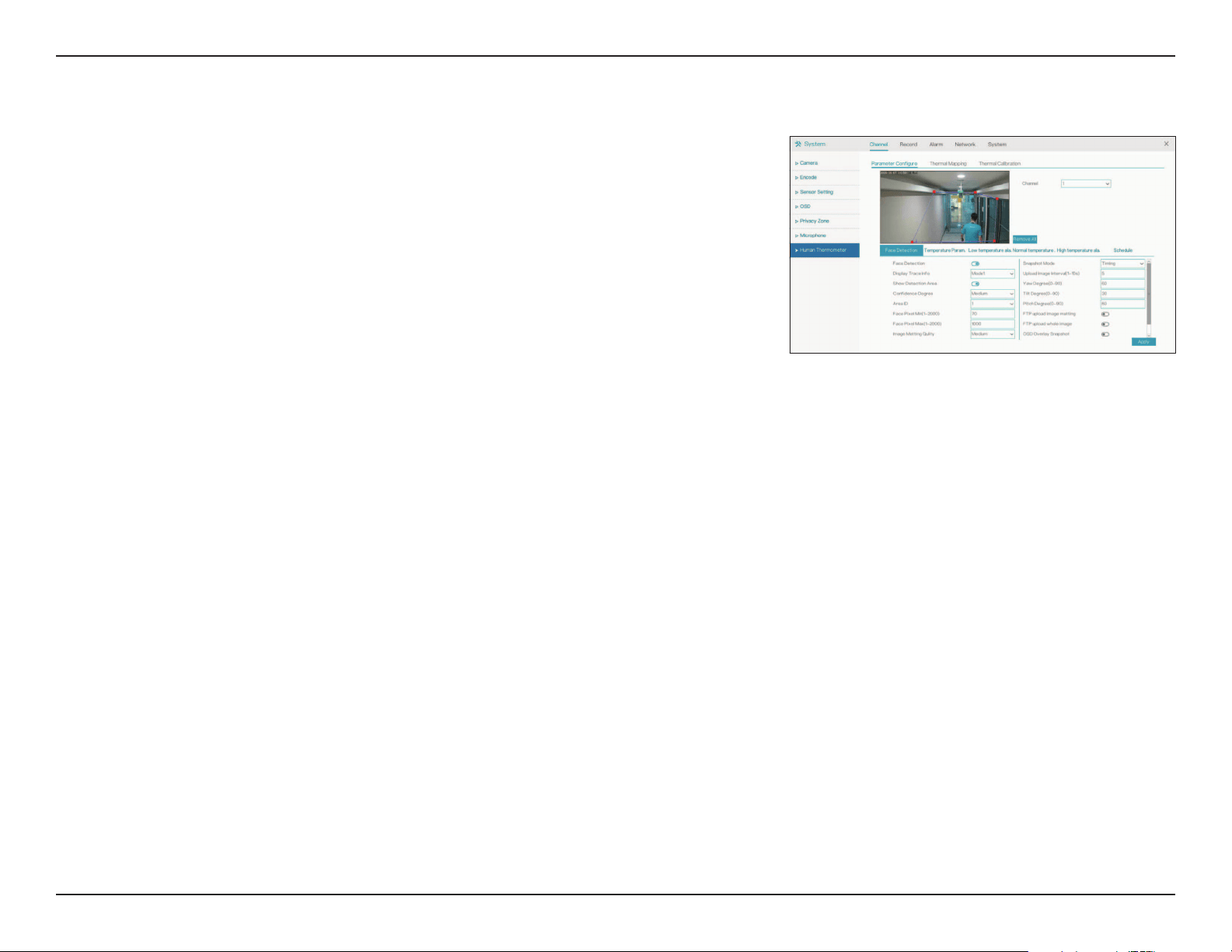
On this page you can configure the thermal mapping and calibration settings
for thermal cameras on the specified channel.
Use this tab to configure your thermal camera settings, if any thermal
cameras are currently connected to the DNR-4020-16P.
Use this tab to set thermal mapping points on the camera’s display.
Use this tab to calibrate the thermal camera with a separate calibration
tool.
Parameter
Configure
Thermal
Mapping
Thermal
Calibration
29D-Link DNR-4020-16P User Manual
Section 3 - Conguration
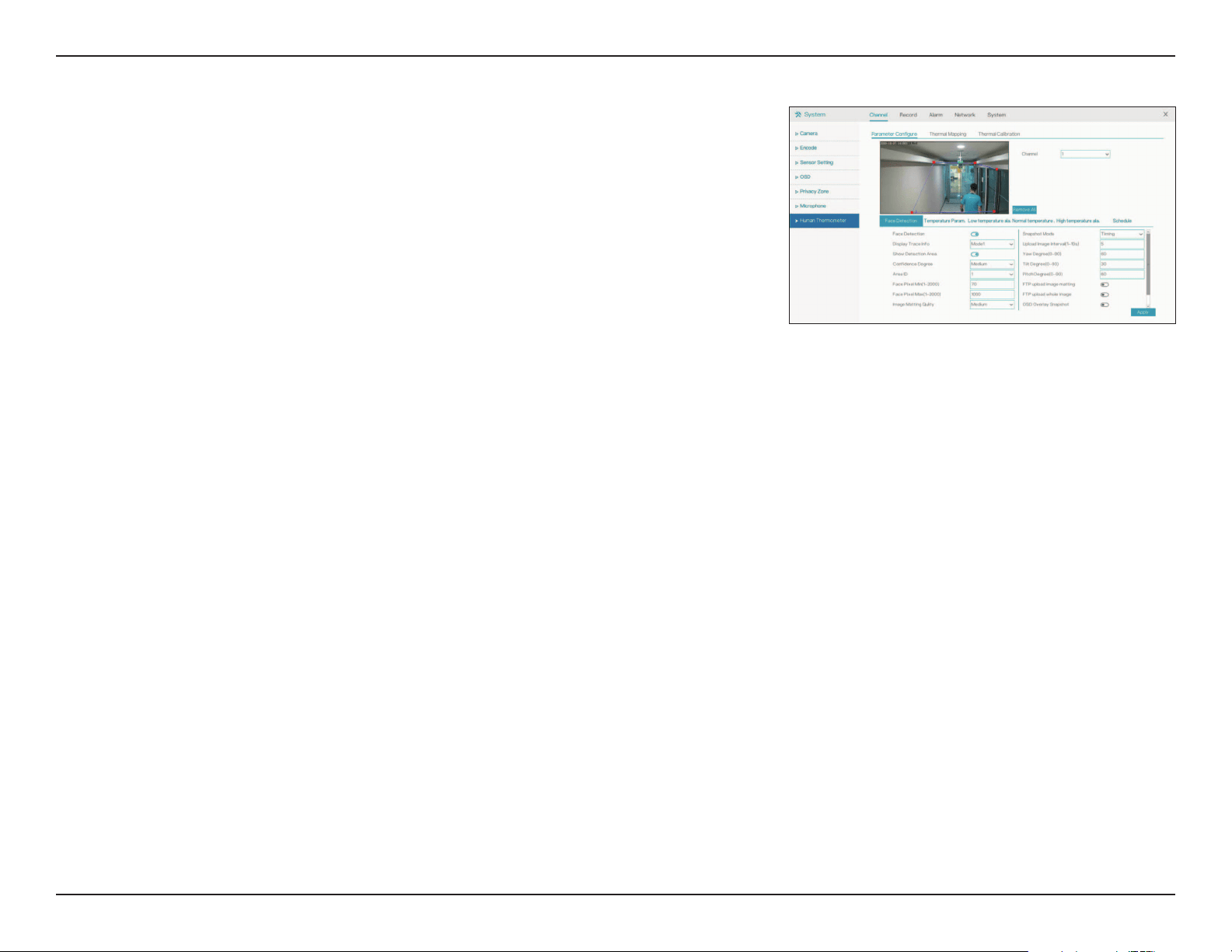
Enable
Display Trace
Info
Show Detect.
Area
Conf. Degree
Area ID
Face Pixel
Min/Max
Image
Matting
Quality
Snapshot
Mode
Upload Image
Interval
Enable or disable face detection.
Select the trace display mode from the drop-down menu.
Toggle this to show the temperature detection area with an
outline.
Select the confidence degree from the drop-down.
Designate an area ID to apply these settings to.
Enter the minimum and maximum number of pixels that may be
registered as a person’s face.
Select the image matting quality from the drop-down.
Select the snapshot mode from the drop-down.
Select the interval (from 1 to 10, in seconds) at which snapshots
should be uploaded.
Face Detection
30D-Link DNR-4020-16P User Manual
Section 3 - Conguration
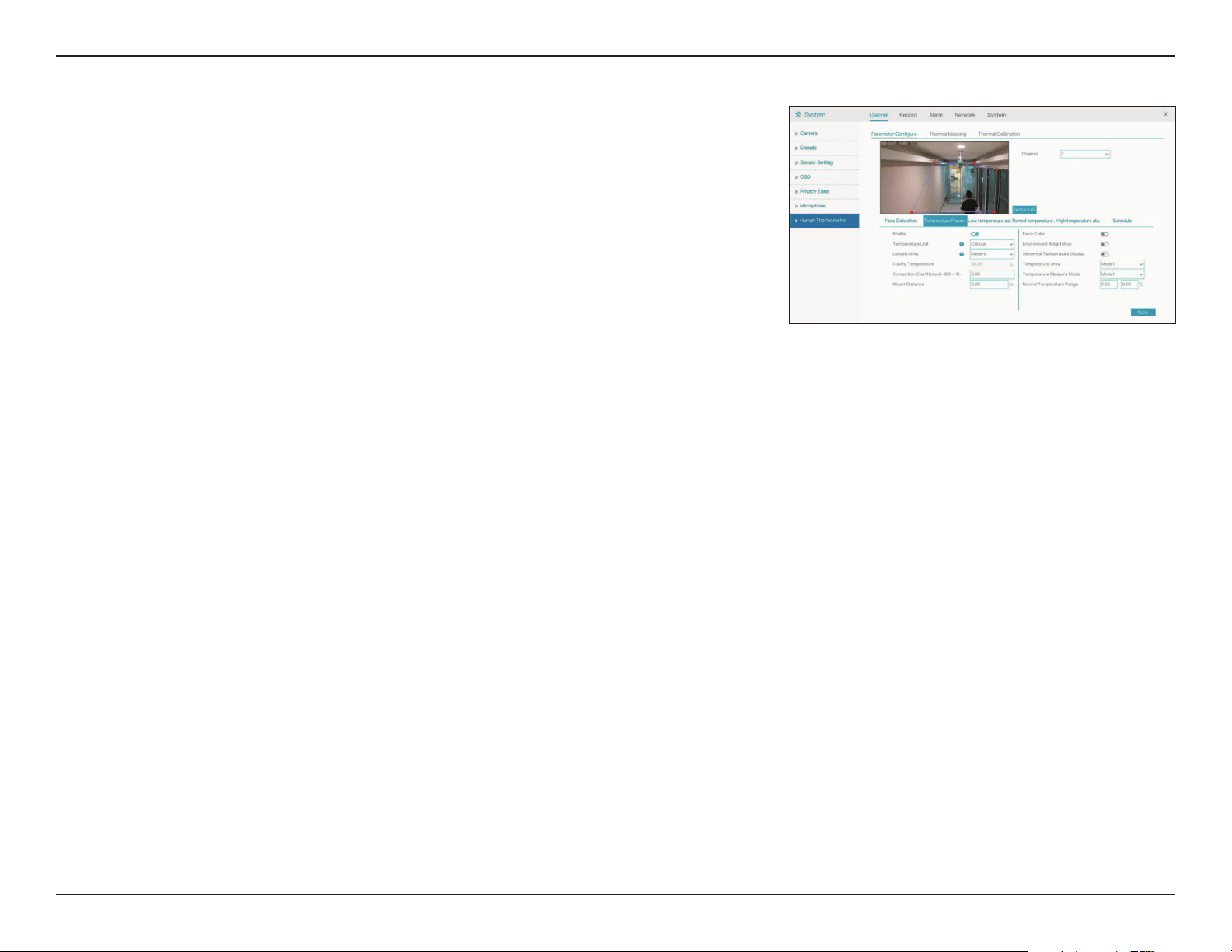
Yaw/Tilt/Pitch
Degree
FTP upload
image
matting/
whole image
OSD Overlay
Snapshot
Enter the yaw, tilt and pitch degrees, from 0 to 90 degrees.
Toggle this to configure which parts of the image should be
uploaded via FTP at the interval entered above.
Toggle this to overlay the time, date, channel, etc over the
snapshots
31D-Link DNR-4020-16P User Manual
Section 3 - Conguration
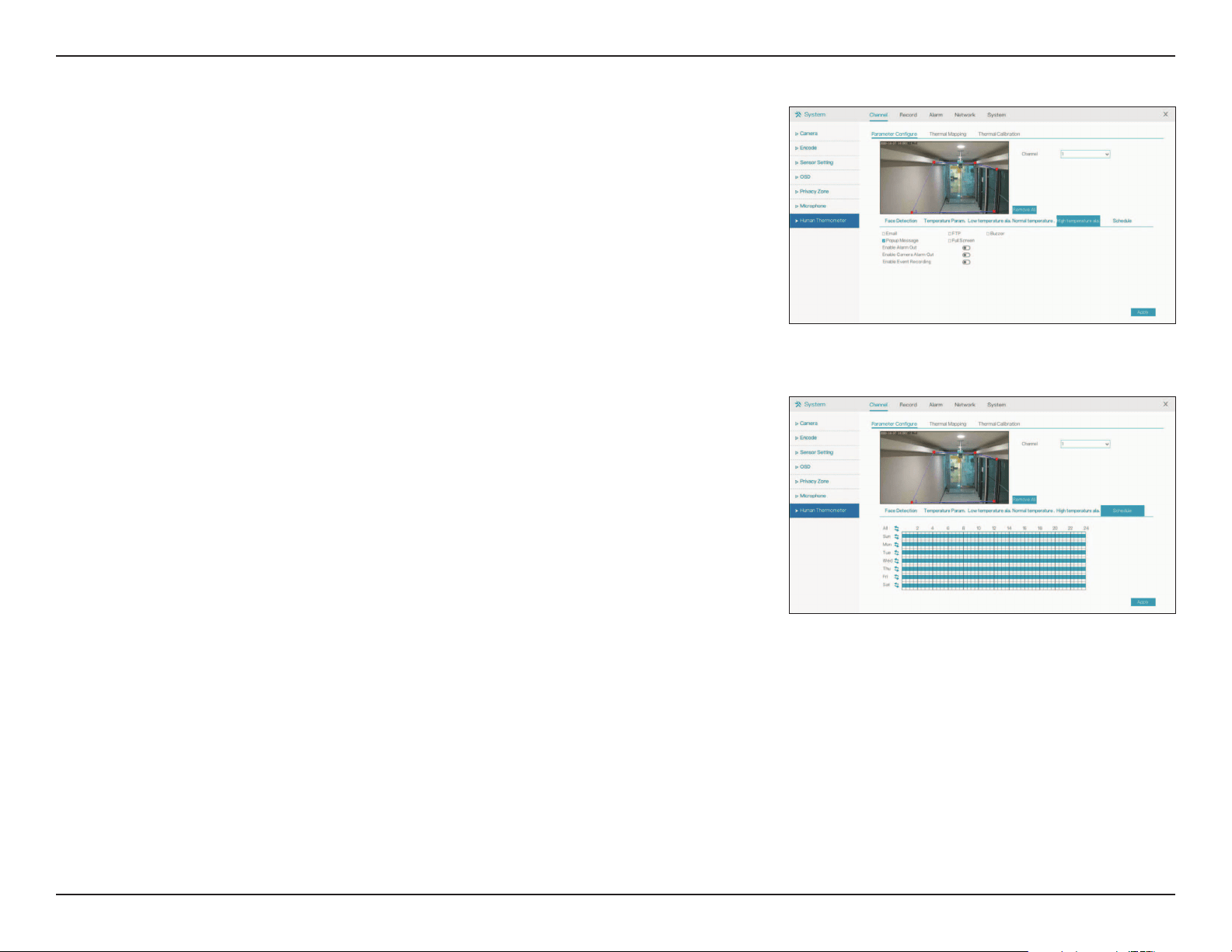
Enable
Temperature
Unit
Length Units
Cavity Temp.
Correction
Coefficient
Mount
Distance
Face Color
Environment
Adaptation
Abnormal
Temp. Display
Temperature
Area
Temp.
Measure
Mode
Normal Temp.
Range
Toggle this to enable temperature measurement.
Select the desired unit from Fahrenheit and Celsius.
Select the unit to measure objects in the camera’s display.
Enter the cavity temperature of the camera.
This refers to the difference between the measured temperature
of an object and the actual temperature. Enter a value manually.
Enter the height at which the camera is mounted.
Toggle this to overlay detected faces with a color corresponding to
their measured temperature.
Toggle this to automatically compensate for the temperature of the
environment.
Toggle this to flag detected abnormal temperatures.
Select the desired temperature area mode from the drop-down list.
Select the desired measurement mode from the drop-down list.
Enter the normal temperature range. Values outside this range can be
set to trigger an alarm.
Temperature Param.
32D-Link DNR-4020-16P User Manual
Section 3 - Conguration
On these tabs you can configure an alarm to trigger when an
object is detected with a low, normal, or high temperature.
Select the event(s) the alarm should trigger from the following
list:
• Email: Send an email notification
• FTP: Send a notification via FTP
• Popup Message: Display a notification in a popup window
• Full Screen: Display a full-screen notification on the
attached monitor
• Buzzer: Trigger a buzzer sound
Schedule
On this tab, you can click the calendar to set the thermometer to
enable or disable according to a set schedule.
Temperature Alarm
33D-Link DNR-4020-16P User Manual
Section 3 - Conguration
Channel
Enable Record
Record Audio
Specify the channel to set a recording schedule for.
Toggle this to enable or disable recording for the specified
channel.
Toggle this to record audio for the specified channel.
Click the bars on the right side of the screen to determine the
recording type for the channel in question. The types are:
• Continuous
• Camera Alarm In
• Motion Detection
• NVR Alarm In
Record
Record Schedule
On this page, you can set the recording schedule for the NVR.
34D-Link DNR-4020-16P User Manual
Section 3 - Conguration
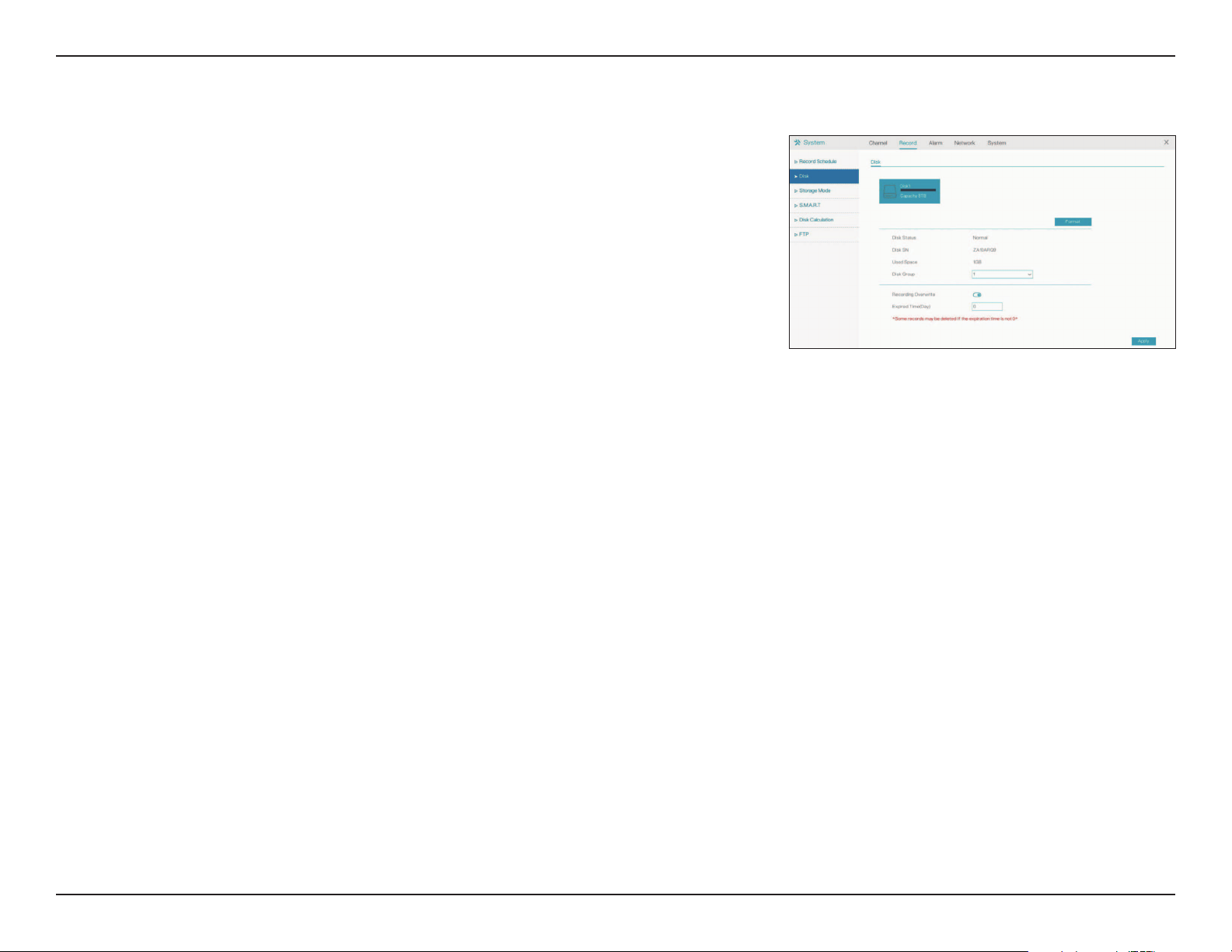
Disk
On this page you can view and configure the settings for the installed hard
drive(s).
Click this to format the specified disk. This will delete all of the data
on the disk. Make sure to back up your data before formatting.
Displays the status of the hard drive.
The hard drive serial number.
The amount of space currently used on the selected hard drive.
The disk group that the specified hard drive belongs to.
Toggle this to allow new data to overwrite old data on the specified
hard drive.
Set the length of time (in days) after which old records will be
automatically overwritten.
Format
Disk Status
Disk SN
Used Space
Disk Group
Recording
Overwrite
Expired Time
(Day)
35D-Link DNR-4020-16P User Manual
Section 3 - Conguration
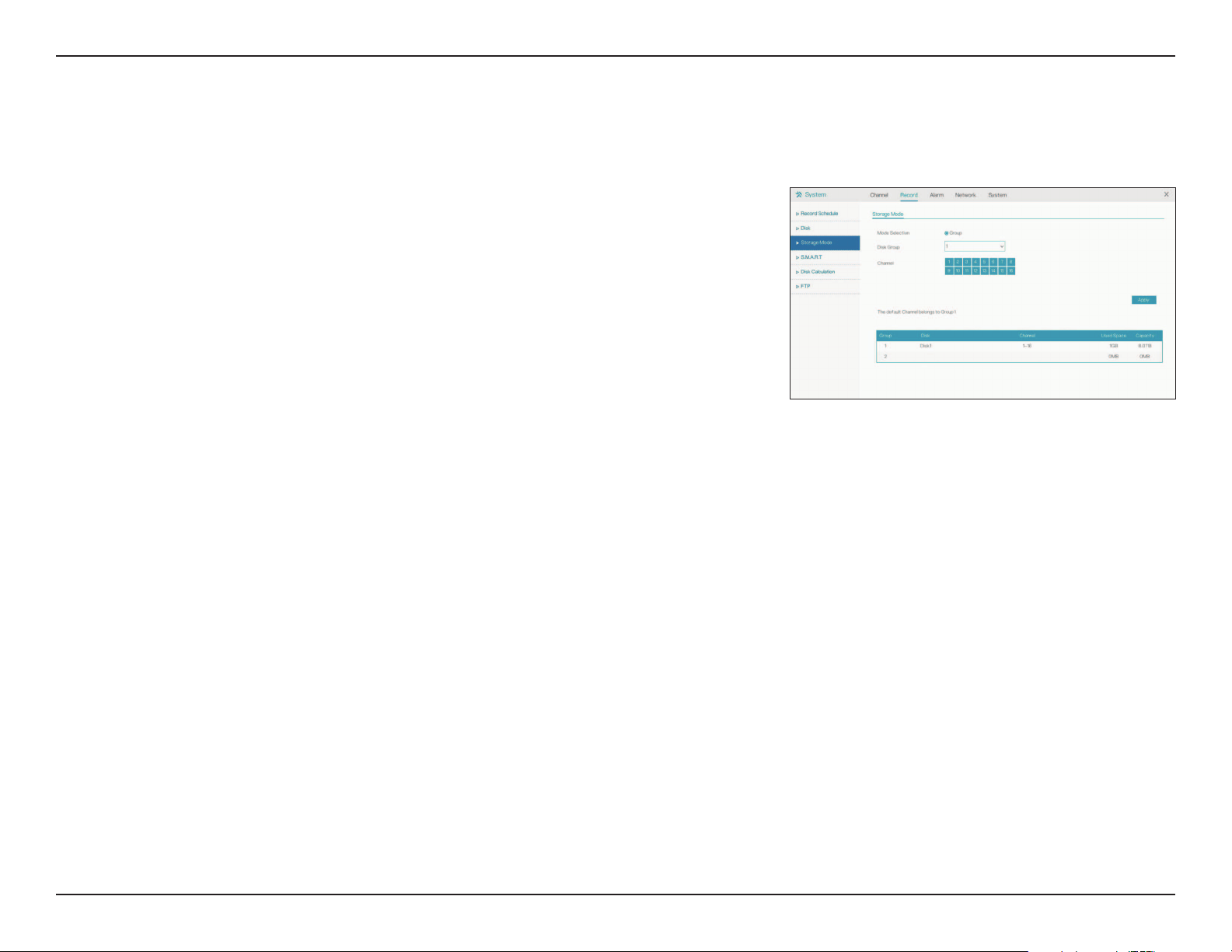
Storage Mode
Mode
Selection
Disk Group
Channel
Select a storage mode.
Select a disk group to configure.
Select a channel to assign to the selected disk group.
Use this page to configure the recording storage settings for hard drives
and disk groups.
36D-Link DNR-4020-16P User Manual
Section 3 - Conguration
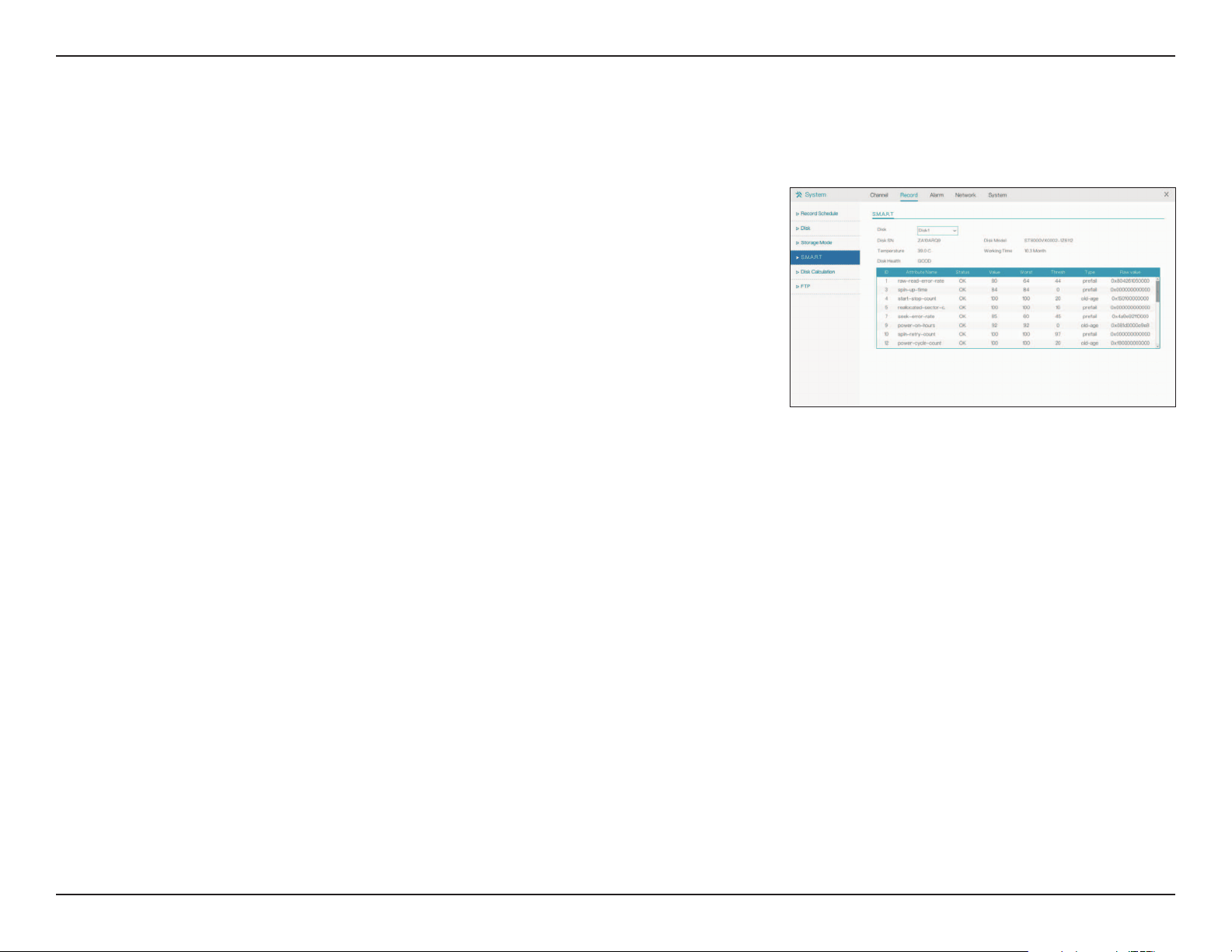
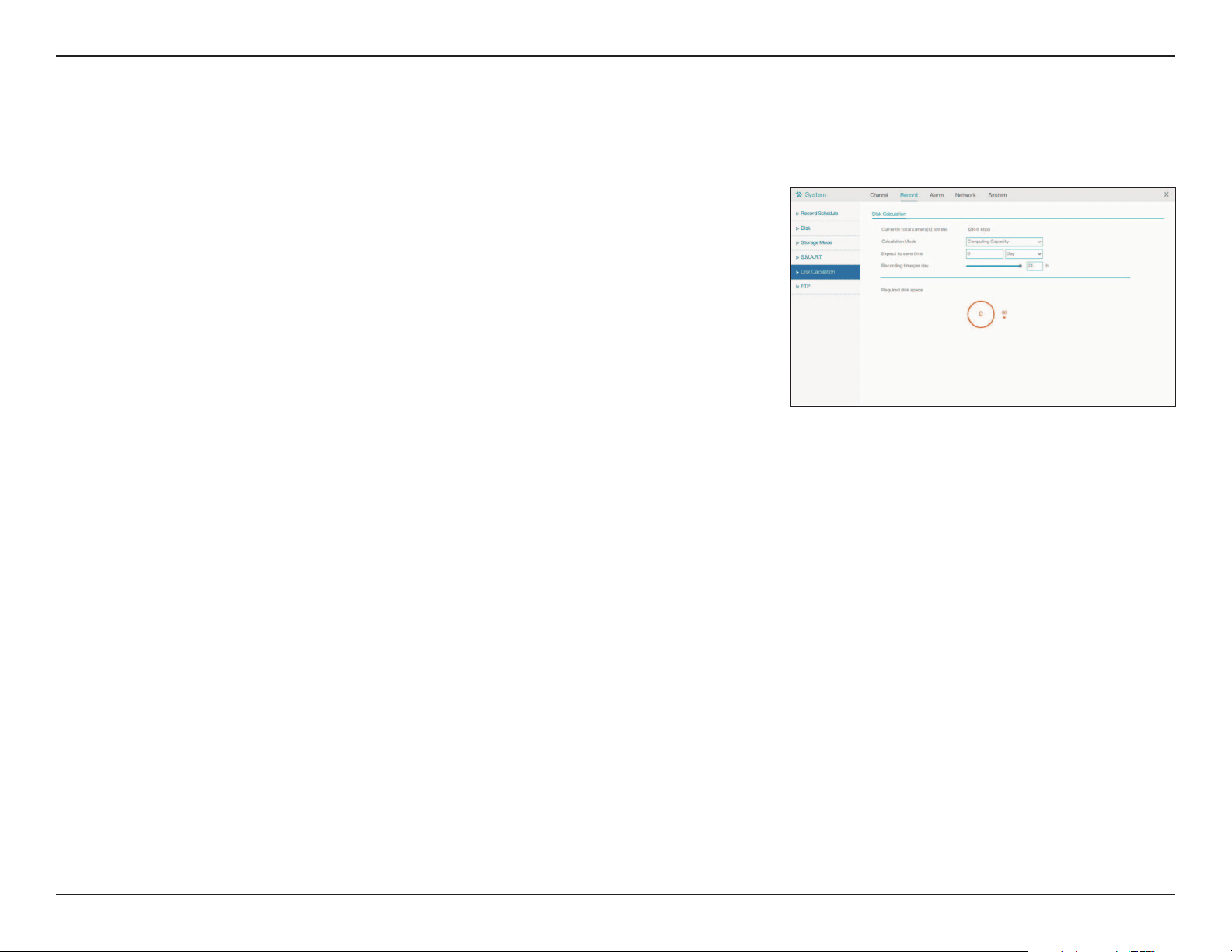
S.M.A.R.T.
Disk
Disk SN
Temperature
Disk Health
Disk Model
Working TIme
Specify a disk to check.
Displays the serial number of the specified disk.
Displays the specified disk’s current operating temperature.
Displays the health (i.e. the operational condition) of the disk.
The disk model number.
Indicates the specified disk’s lifespan.
In the box at the bottom of the page, you can view various attributes
for the specified disk, such as the power cycle count. If no serious
issues are detected, the attribute will display Good in the Status
column.
This page allows you to view the inserted hard disks’ attributes and ensure
that they are operating smoothly.
37D-Link DNR-4020-16P User Manual
Section 3 - Conguration
Disk Calculation
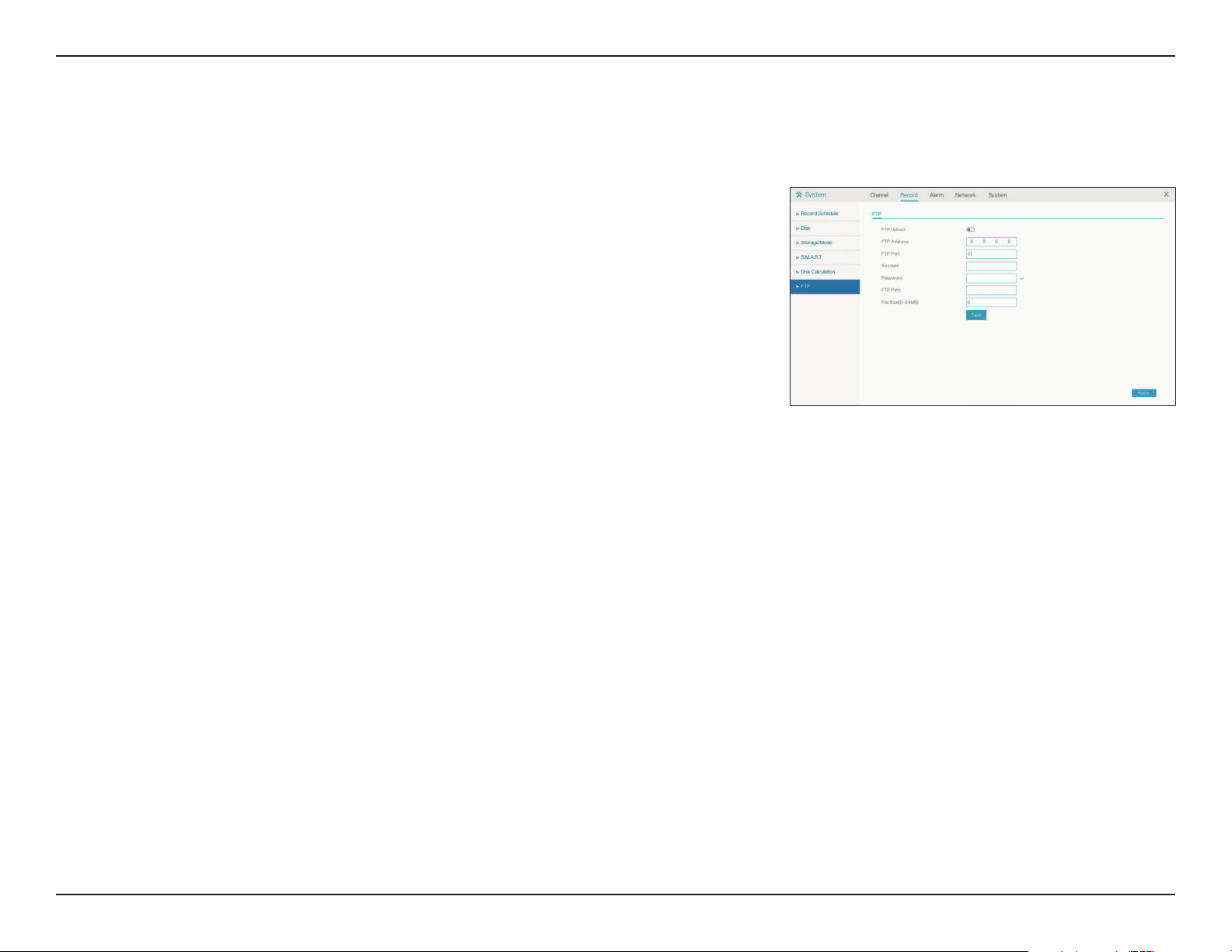
Total camera
bitrate
Calculation
mode
Expect to
save time /
Disk Capacity
Recording
time per day
The total bitrate of the cameras connected to the NVR in kb / second.
Choose whether to display the computing capacity or the
computation time.
Select an amount of time or an amount of storage, depending on
whether Computation time or Computing Capacity was selected
above.
Enter the number of hours that NVR will record data (per day).
On this page you can calculate the disk space required for the NVR’s current
configuration. Enter an amount of data to determine how long it will take
for the current setup to fill it, or a period of time to determine how much
data will be filled at the current rate of recording.
38D-Link DNR-4020-16P User Manual
Section 3 - Conguration
FTP
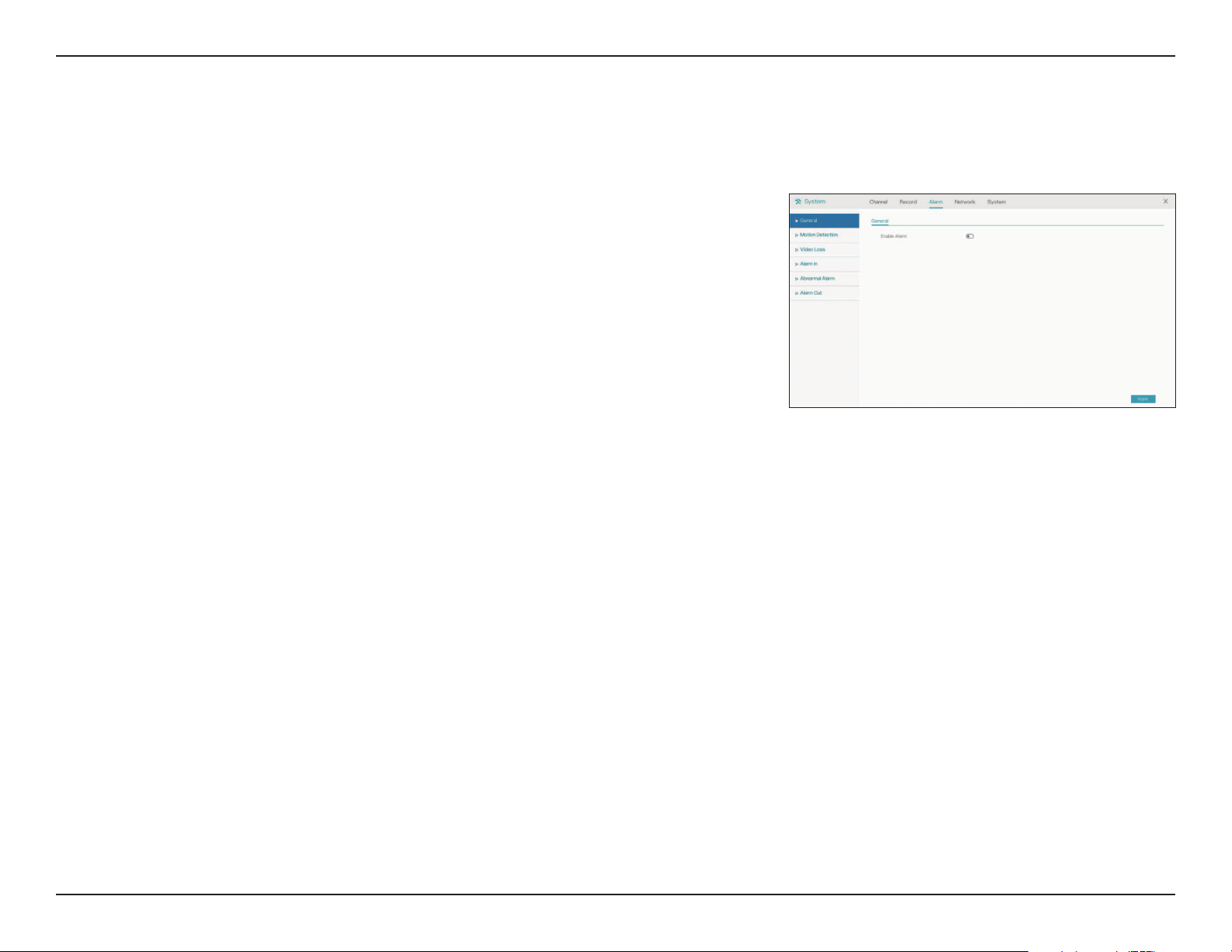
FTP Upload
FTP Address
FTP Port
Account
Password
FTP Path
File Size (0-64
MB)
Check this to begin uploading saved recordings via FTP.
Enter the IP address of the FTP server.
Enter the port to use to connect to the FTP server.
Enter the username of the account used to connect.
Enter the password associated with the username entered above.
Enter the path to the directory where you would like to save your
files.
Enter the desired file size of each recording. A smaller size means
more frequent uploads.
On this page you can set the NVR to automatically upload its recordings to
an external server via FTP.
39D-Link DNR-4020-16P User Manual
Section 3 - Conguration
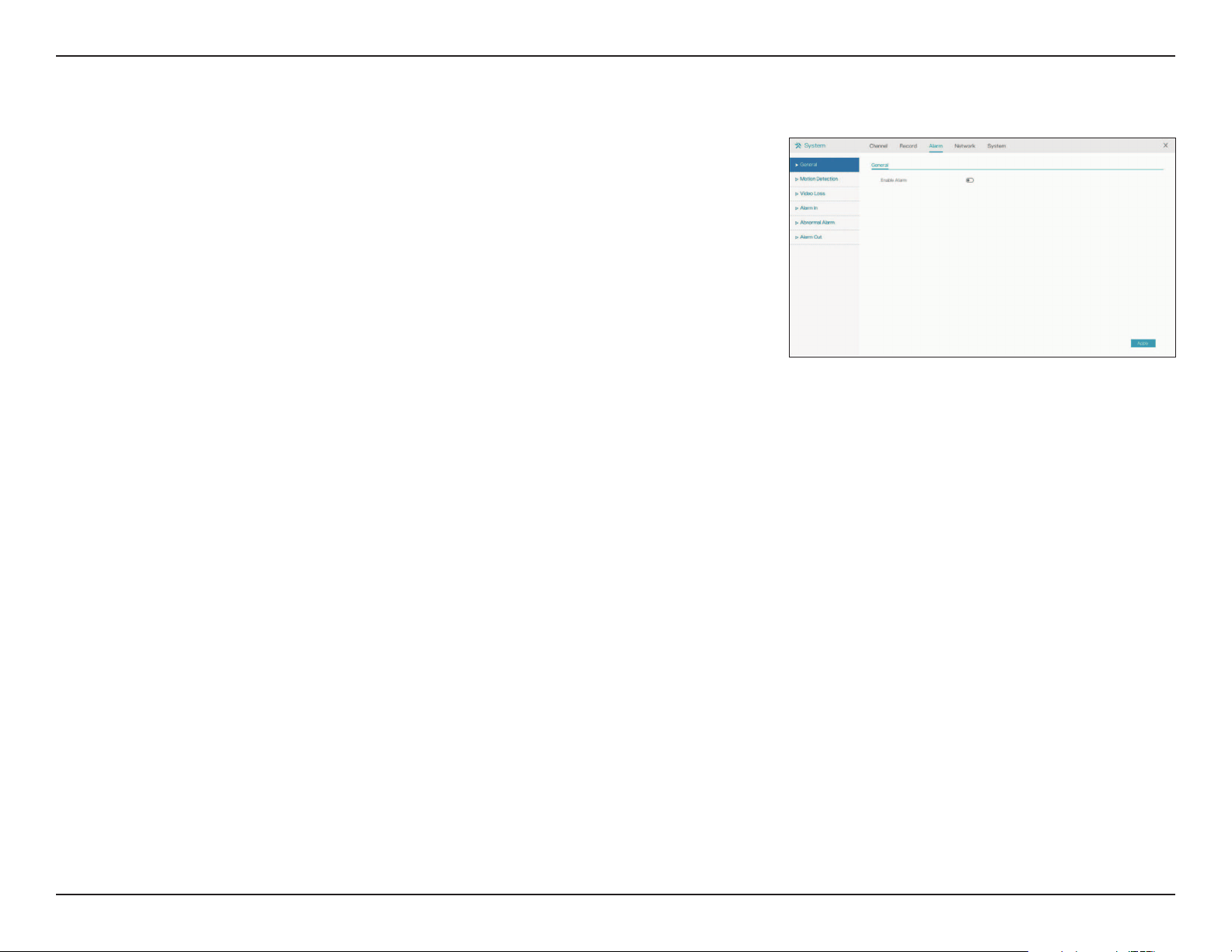
Enable Alarm
Duration Time
Buzzer duration
time
In this tab you can enable and configure the NVR’s general alarm.
Enter the duration that the alarm should activate for.
Enter the duration that the alarm buzzer should sound for.
Alarm
General
On this page you can configure general alarm settings for your NVR.
40D-Link DNR-4020-16P User Manual
Section 3 - Conguration
Channel
Enable
Motion
Analysis
Event Actions
Enable Alarm
Out / Camera
Alarm Out
Enable Event
Recording
Detection
Area
Detection
Schedule
Select the channel to configure.
Toggle this to cause motion detection to trigger an alarm.
Toggle this to enable or disable motion analysis.
Select the event(s) the alarm should trigger from the following
list:
• Email: Send an email notification
• Buzzer: Trigger a buzzer sound
• Popup Message: Display a notification in a popup window
• Full Screen: Display a full-screen notification on the attached
monitor
Trigger a notification on the Alarm Out interface(s).
Toggle to keep a record of alarm events.
Select the area of the display to scan for motion.
Enable or disable the alarm according to a particular schedule.
Motion Detection
Configure an alarm to trigger when the camera detects motion.
41D-Link DNR-4020-16P User Manual
Section 3 - Conguration
Channel
Enable Video
Loss
Event Actions
Enable Alarm
Out
Enable Event
Recording
Detection
Schedule
Select the channel to configure.
Toggle this to cause video loss to trigger an alarm.
Select the event(s) the alarm should trigger from the following
list:
• Email: Send an email notification
• Buzzer: Trigger a buzzer sound
• Popup Message: Display a notification in a popup window
Trigger a notification on the Alarm Out interface(s).
Toggle to keep a record of alarm events.
Enable or disable the alarm according to a particular schedule.
Video Loss
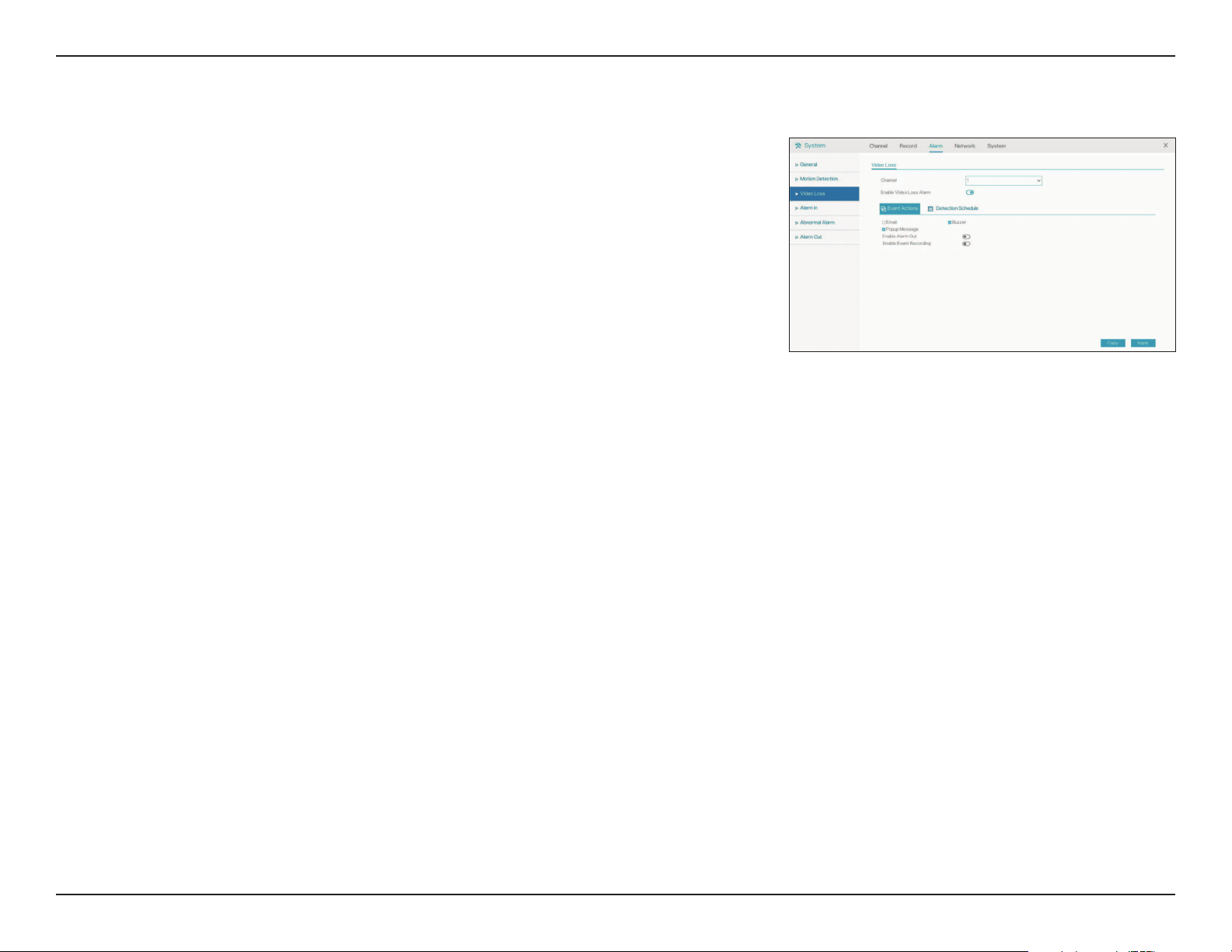
On this page you can enable an alarm to trigger when video loss occurs.
42D-Link DNR-4020-16P User Manual
Section 3 - Conguration
Alarm In
Enable Alarm
In
Event Actions
Enable Alarm
Out
Enable Event
Recording
Detection
Schedule
Normal State
Port Name
Camera Alarm
In
Select the channel to configure.
Toggle this to enable or disable Alarm In events and alarms.
Select the event(s) the alarm should trigger from the following
list:
• Email: Send an email notification
• Buzzer: Trigger a buzzer sound
• Popup Message: Display a notification in a popup window
Trigger a notification on the Alarm Out interface(s).
Toggle to keep a record of alarm events.
Enable or disable the alarm according to a particular schedule.
Specify the normal state of the sensor. A change from this state will
trigger the alarm.
Designate a name for the sensor.
Click this tab to configure similar settings for sensors connected to
a camera’s Alarm In interface.
Alarm In
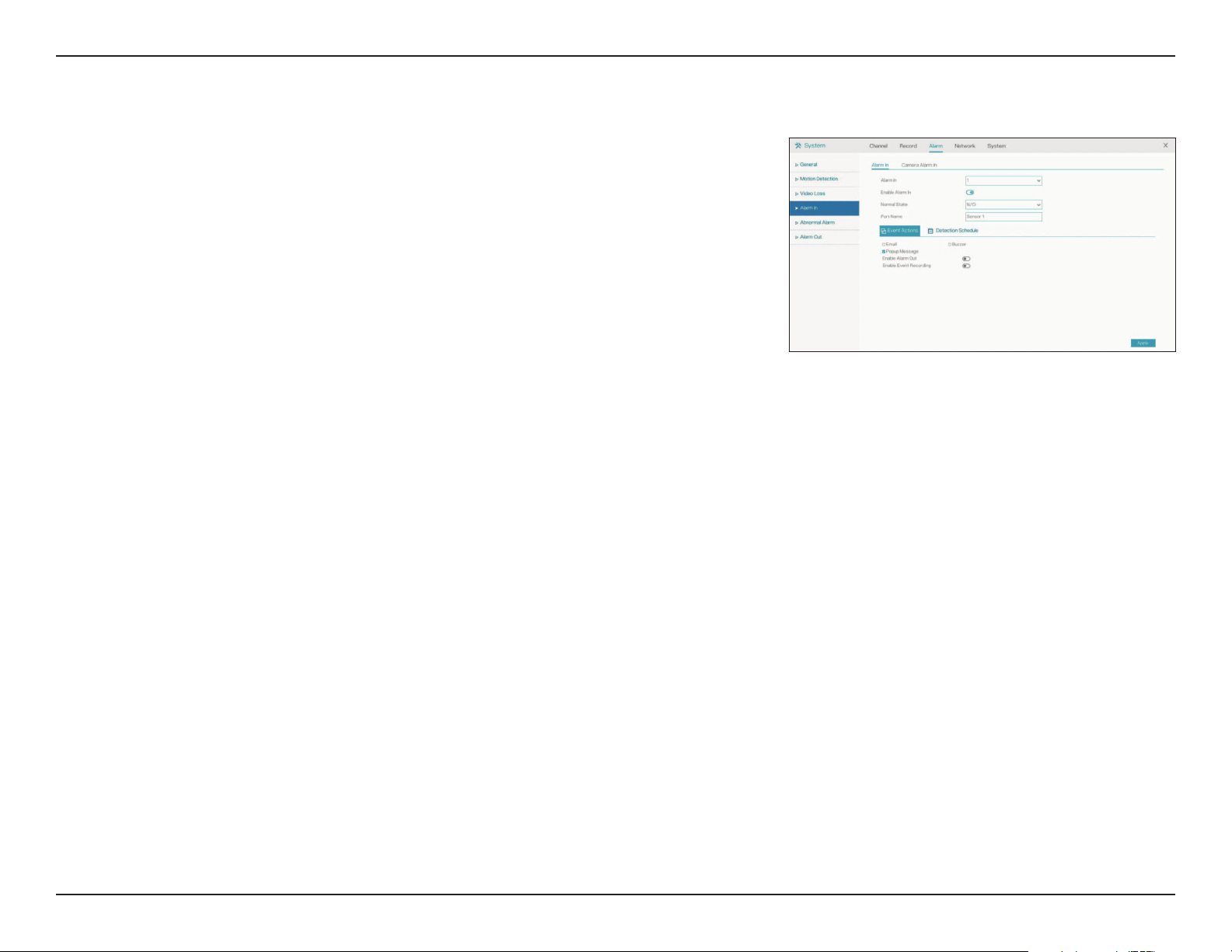
Use this page to enable an alarm when a signal from an external device connected
to the NVR’s Alarm In interface is detected.
43D-Link DNR-4020-16P User Manual
Section 3 - Conguration
Enable
Abnormal
Alarm
Alarm Type
Event Actions
Enable Alarm
Out
Enable or disable an abnormal alarm.
From left to right: trigger an alarm when the NVR fails to detect
a hard drive, when it detects an IP conflict, or when it loses its
network connection.
Select the event(s) the alarm should trigger from the following
list:
• Email: Send an email notification
• Buzzer: Trigger a buzzer sound
• Popup Message: Display a notification in a popup window
Trigger a notification on the Alarm Out interface(s).
Abnormal Alarm
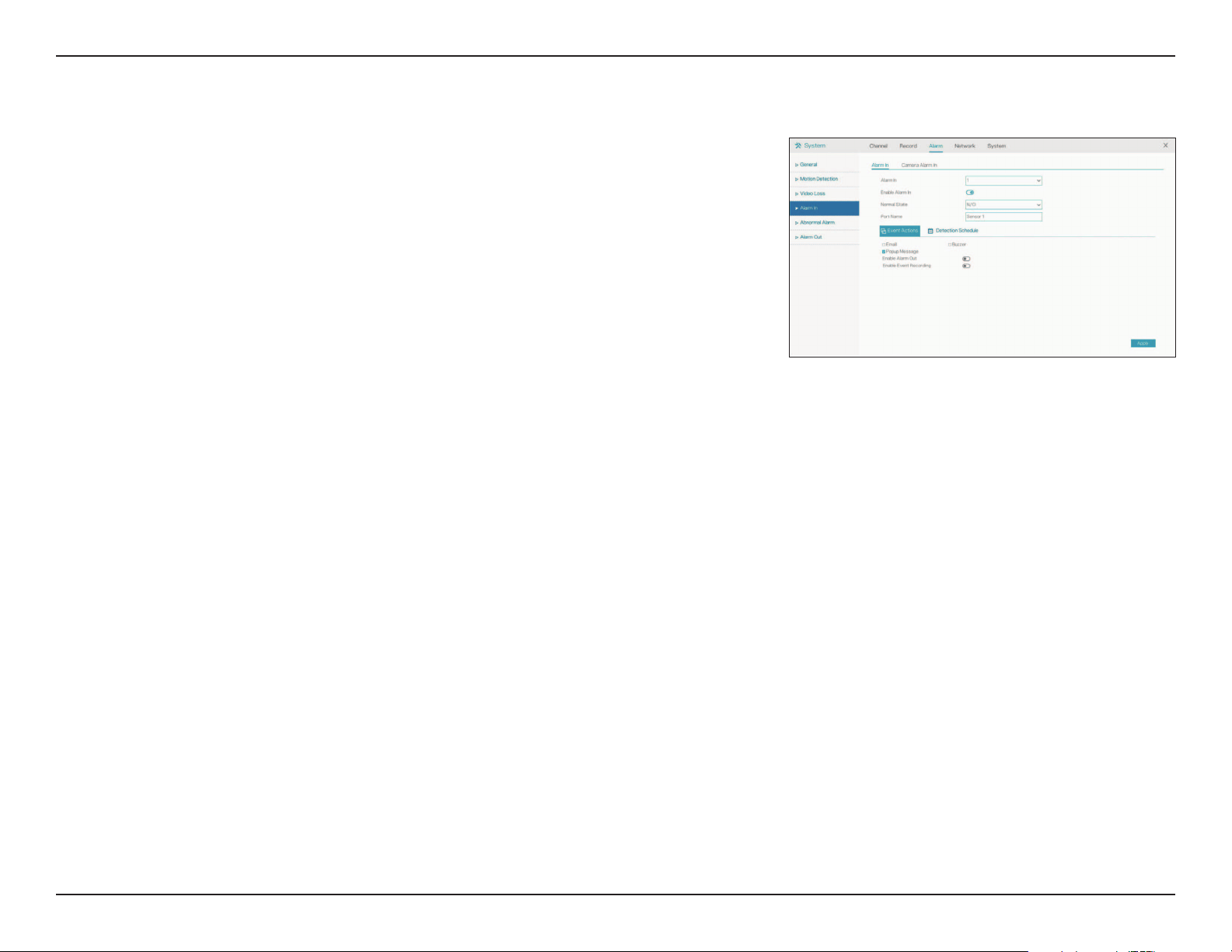
On this page you can enable or disable an alarm to trigger when an unusual event
occurs, such as a hard drive failure or loss of connectivity.
44D-Link DNR-4020-16P User Manual
Section 3 - Conguration
Port Number
Port Name
Action After
Receiving
Trigger
Alarm Output
Mode
Camera Alarm
Out
Select the alarm out interface (either 1 or 2).
Designate a name for the alarm out connection.
Select either Close or Open.
Select the alarm out put mode (Switch Mode by default).
Configure similar settings for devices connected to a camera’s
alarm out interface.
Alarm Out
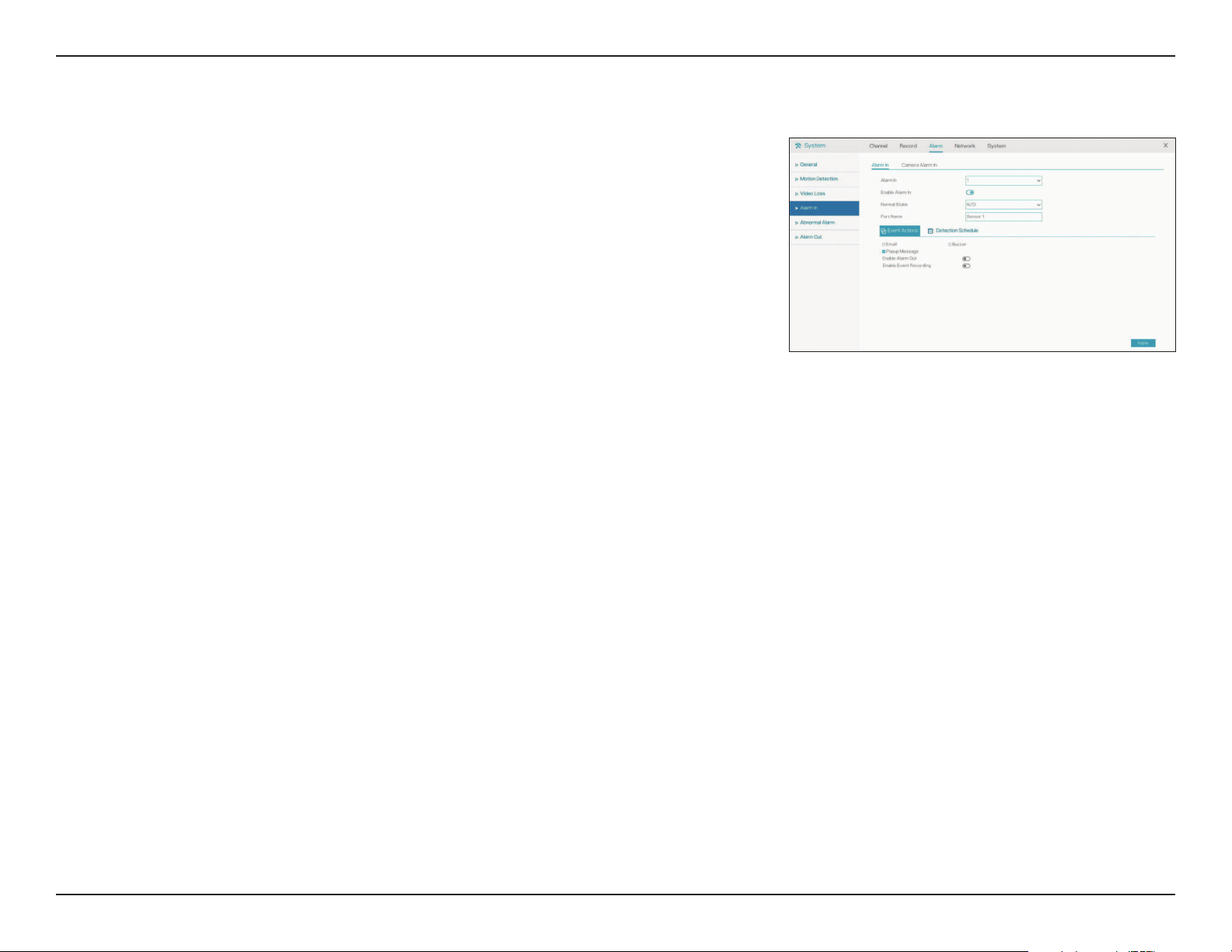
On this page you can configure the NVR’s interactions with external devices
connected to its Alarm Out interface.
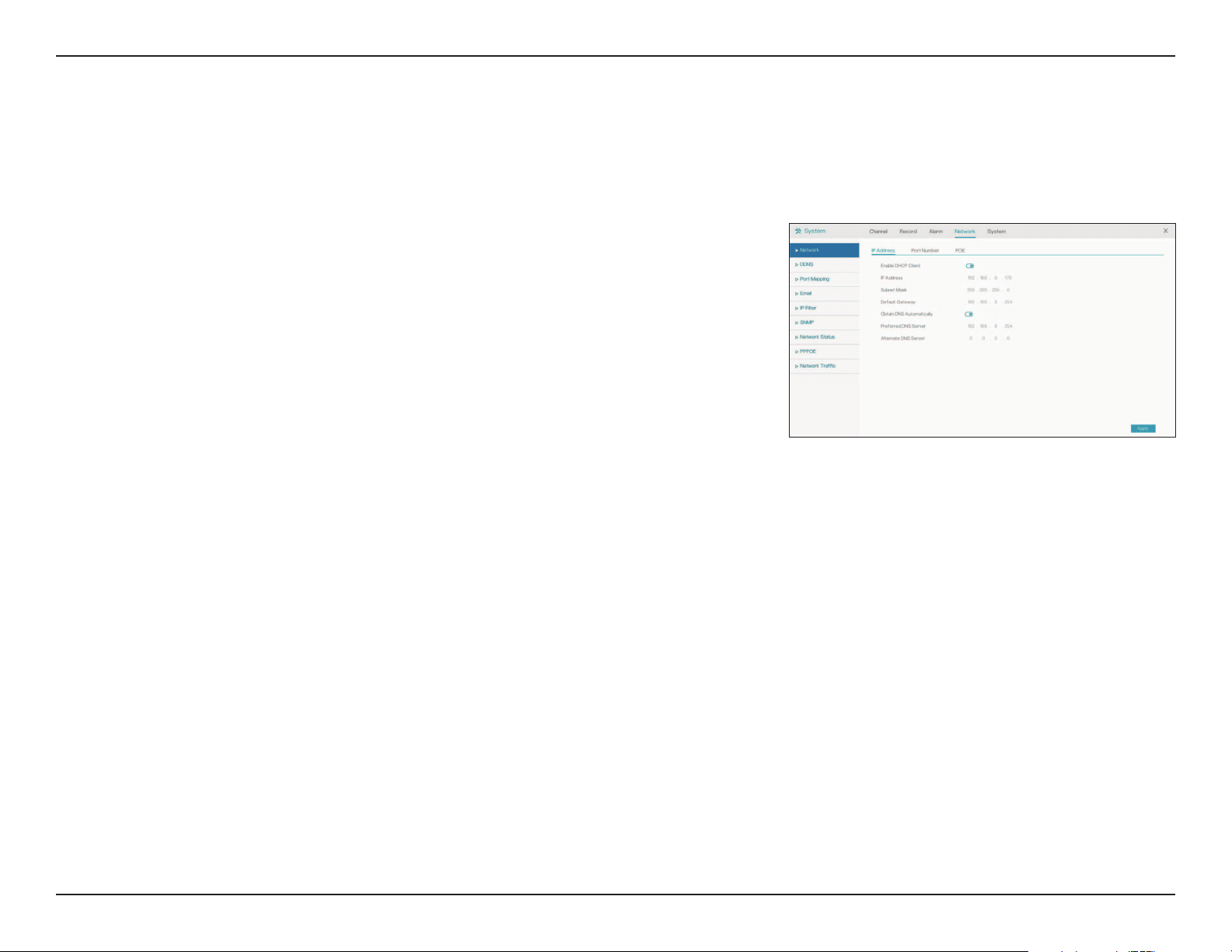
45D-Link DNR-4020-16P User Manual
Section 3 - Conguration
Enable DHCP
Client
IP Address
Subnet Mask
Default
Gateway
Obtain DNS
Automatically
Preferred DNS
Server
Alternate DNS
Server
Select this connection if you have a DHCP server running
on your network and would like a dynamic IP address to be
automatically updated to your NVR.
You may obtain a static or fixed IP address and other network
information from your network administrator. A static IP address
will simplify access to your NVR in the future.
Enter the fixed IP address of the NVR. This is used to access the
web interface. If the NVR does not receive its address from a
DHCP server, then its default IP address is will be 192.168.0.20.
Set this to match the subnet mask of the provided IP address.
The default value is 255.255.255.0.
Set this to the default gateway on your router or local subnet for
proper network routing.
Toggle this to enable DNS automatically.
Primary domain name server that translates names to IP addresses.
Secondary domain name server to back up the primary domain
name server
Network
Network
IP Address
This page lets you configure the NVR’s connection to the Internet or local network.
46D-Link DNR-4020-16P User Manual
Section 3 - Conguration
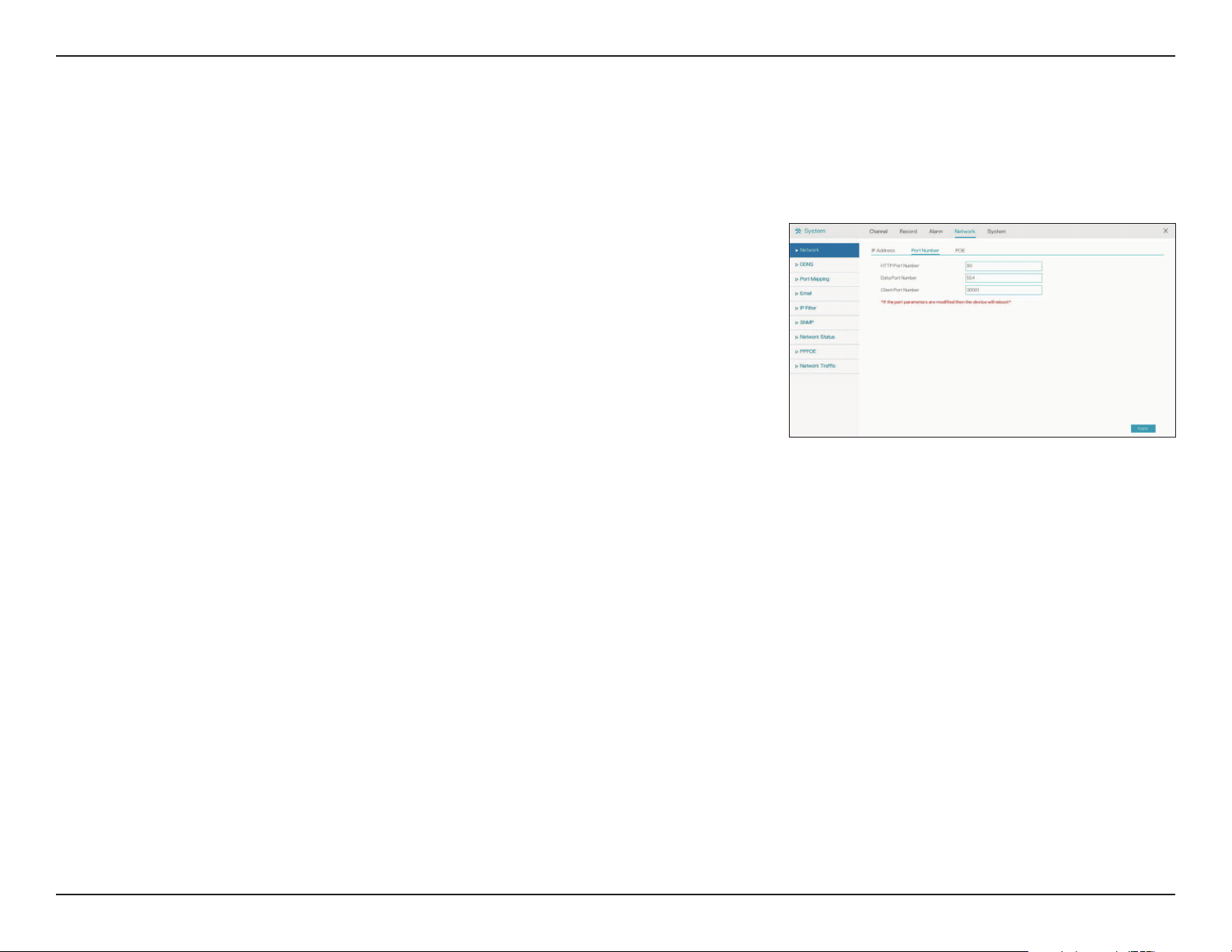
HTTP Port
Data Port
Client Port
The HTTP port for the web UI.
The port that data will be transferred over. The port that client devices
will connect to.
It is necessary to reboot the device after modifying any of the
port configuration settings.
Port Number
On this page you can set the ports that the NVR will use to transfer data and allow
clients to connect to.
47D-Link DNR-4020-16P User Manual
Section 3 - Conguration
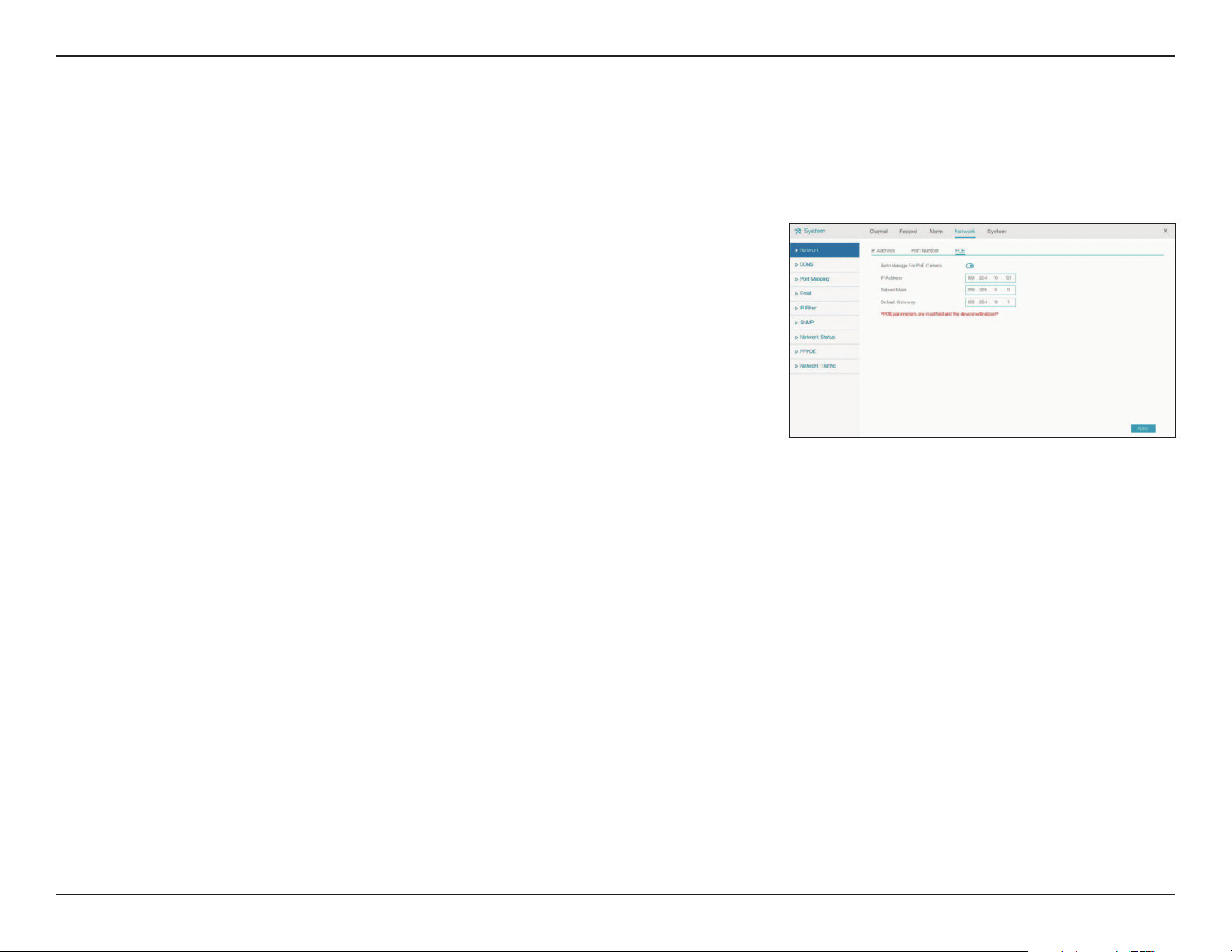
Auto Manage
For PoE Camera
IP Address
Subnet Mask
Default
Gateway
Toggle this to automatically manage PoE settings for PoE-capable
cameras.
Enter the fixed IP address of the NVR. The default IP address is
10.10.10.121.
Set this to match the subnet mask of the provided IP address.
The default value is 255.255.255.0.
Set this to the default gateway on your router or local subnet
for proper network routing. The default gateway is 10.10.10.1.
PoE
On this page you can configure the settings for the NVR’s PoE interfaces.
48D-Link DNR-4020-16P User Manual
Section 3 - Conguration
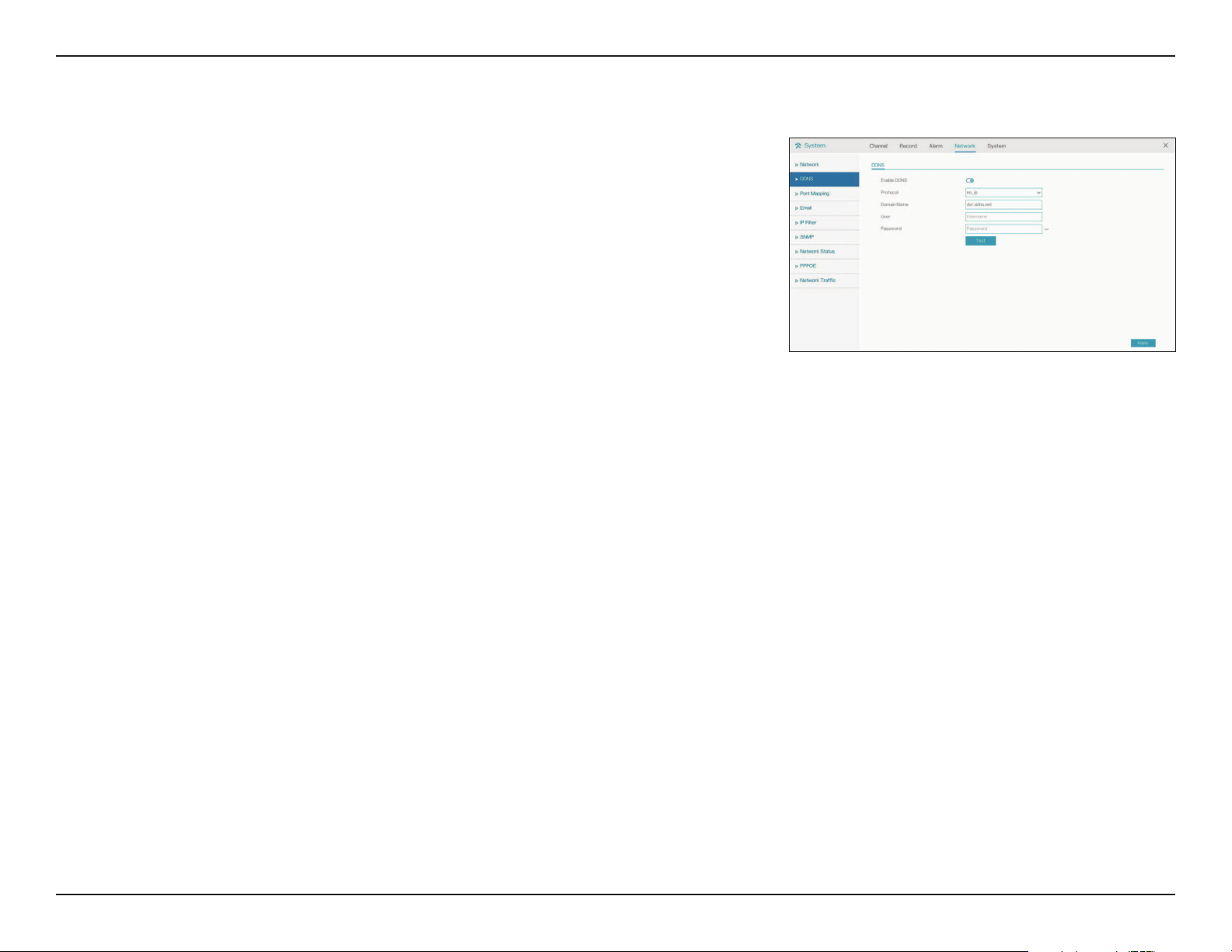
Enable
Protocol
Domain Name
Username
Password
Test
Select a dynamic DNS service provider from the pull-down list.
Select the DDNS protocol to use.
Enter your host name. For example: myhost.mydomain.net.
Enter the username for your dynamic DNS account.
Enter the password for your dynamic DNS account. Confirm it
in the next text box.
Click this to test the DDNS settings.
DDNS
Enable this option only if you have registered a domain name with a dynamic
DNS service provider. The following parameters are displayed when the option
is enabled.
49D-Link DNR-4020-16P User Manual
Section 3 - Conguration
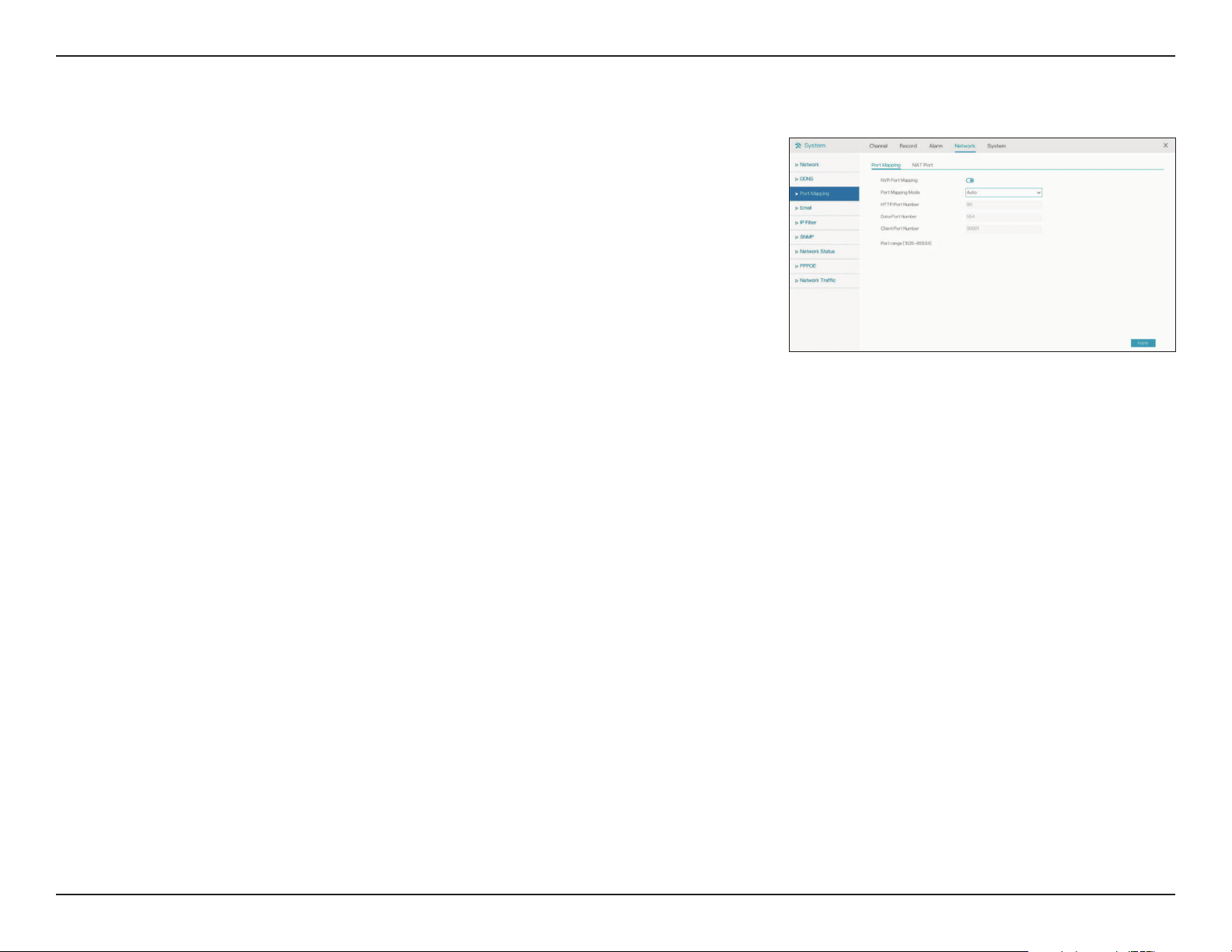
Port Mapping
NAT Port
Toggle this to enable or disable port mapping. If you enable this, you
will also have to select a mode (Manual or Auto) and HTTP, client and
data ports.
In this tab you can enter a start and end port for the NAT port
range.
Port Mapping
On this page you can enable or disable the port mapping feature.
50D-Link DNR-4020-16P User Manual
Section 3 - Conguration
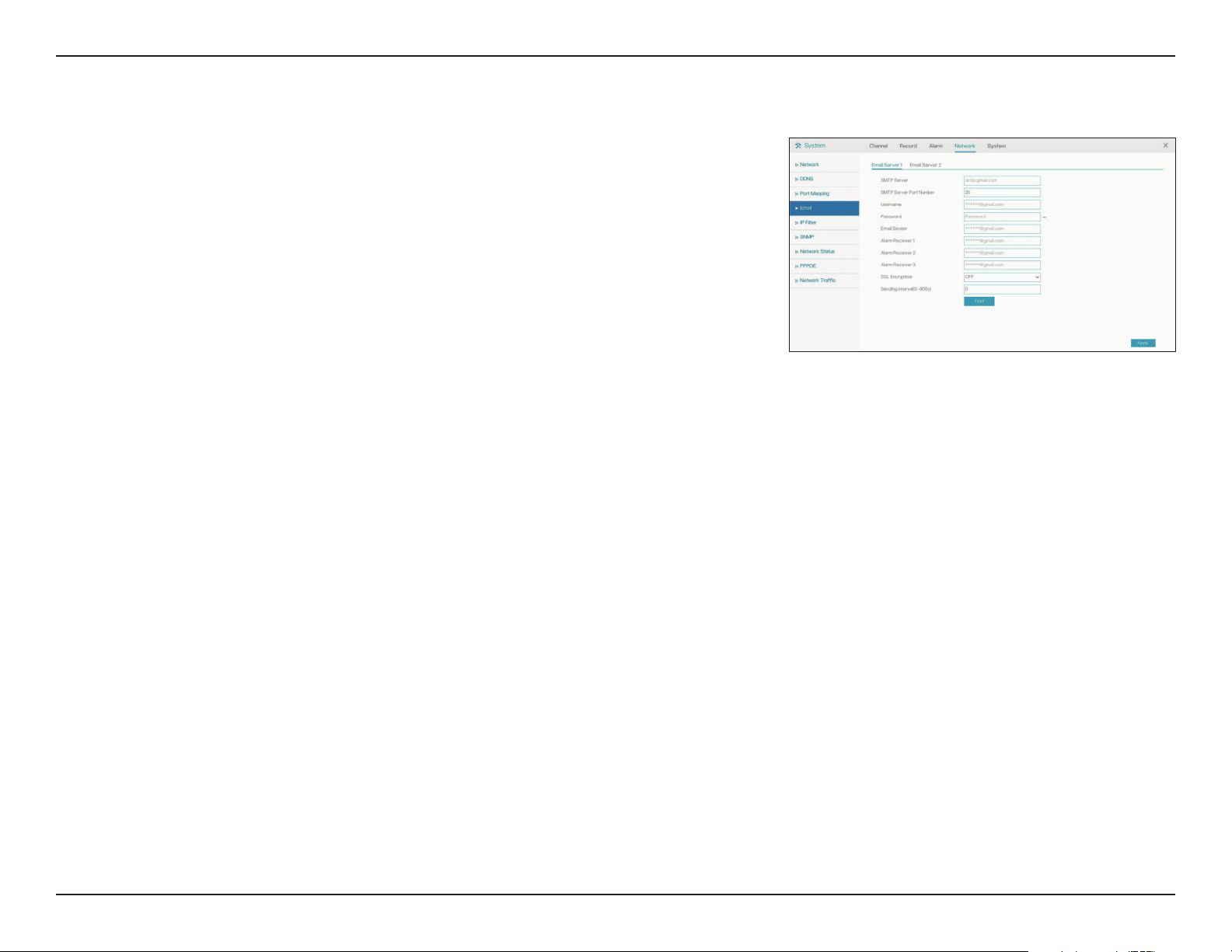
SMTP Server
SMTP Server
Port
Username
Password
Email Sender
Alarm Receiver
1-3
SSL
Encryption
Sending
interval
Test
Enter the SMTP server to use, such as smtp.gmail.com.
Enter the port to connect to the SMTP server on. The default
is 25.
Enter the username for the SMTP server.
Enter the corresponding password.
Enter the address to send alert emails from.
Enter the emails that should receive the NVR’s alerts.
Enter the form of encryption to use, or select OFF.
Enter an internal between 0 and 600 seconds.
Click this to send a test email.
Email
On this page you can configure the DNR-4020-16P’s email settings, such as the
email addresses that alerts and notifications should be sent to.
51D-Link DNR-4020-16P User Manual
Section 3 - Conguration
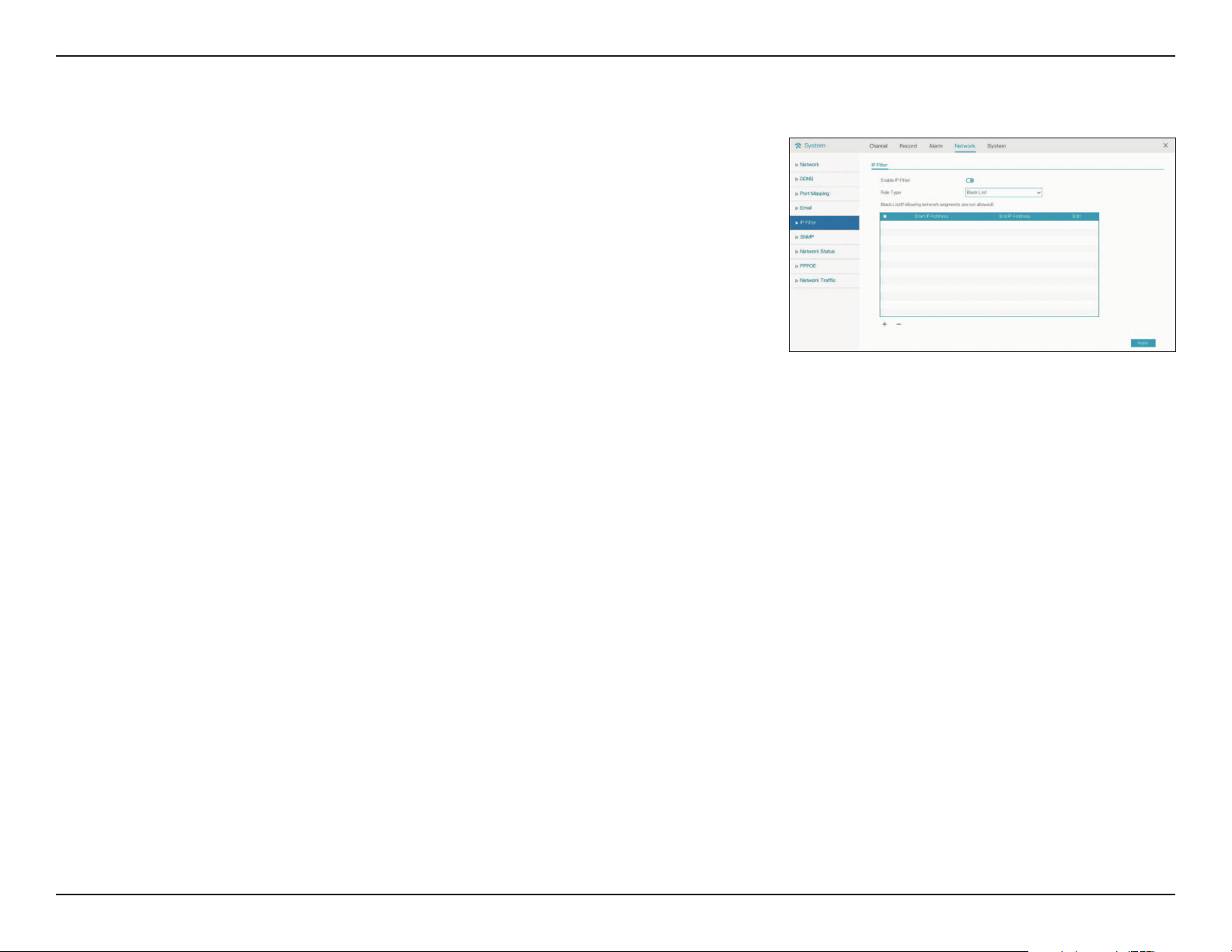
IP Filter
Rule Type
Toggle this to enable IP filtering.
Select Black List to block all IPs from the ranges you specify, or
White List to only allow IPs from the ranges you specify.
IP Filter
On this page you can block or allow visitors from specified IPs from accessing the
NVR. Click the plus (+) sign to add a range of IPs to the list, and then click Apply
to save.
52D-Link DNR-4020-16P User Manual
Section 3 - Conguration
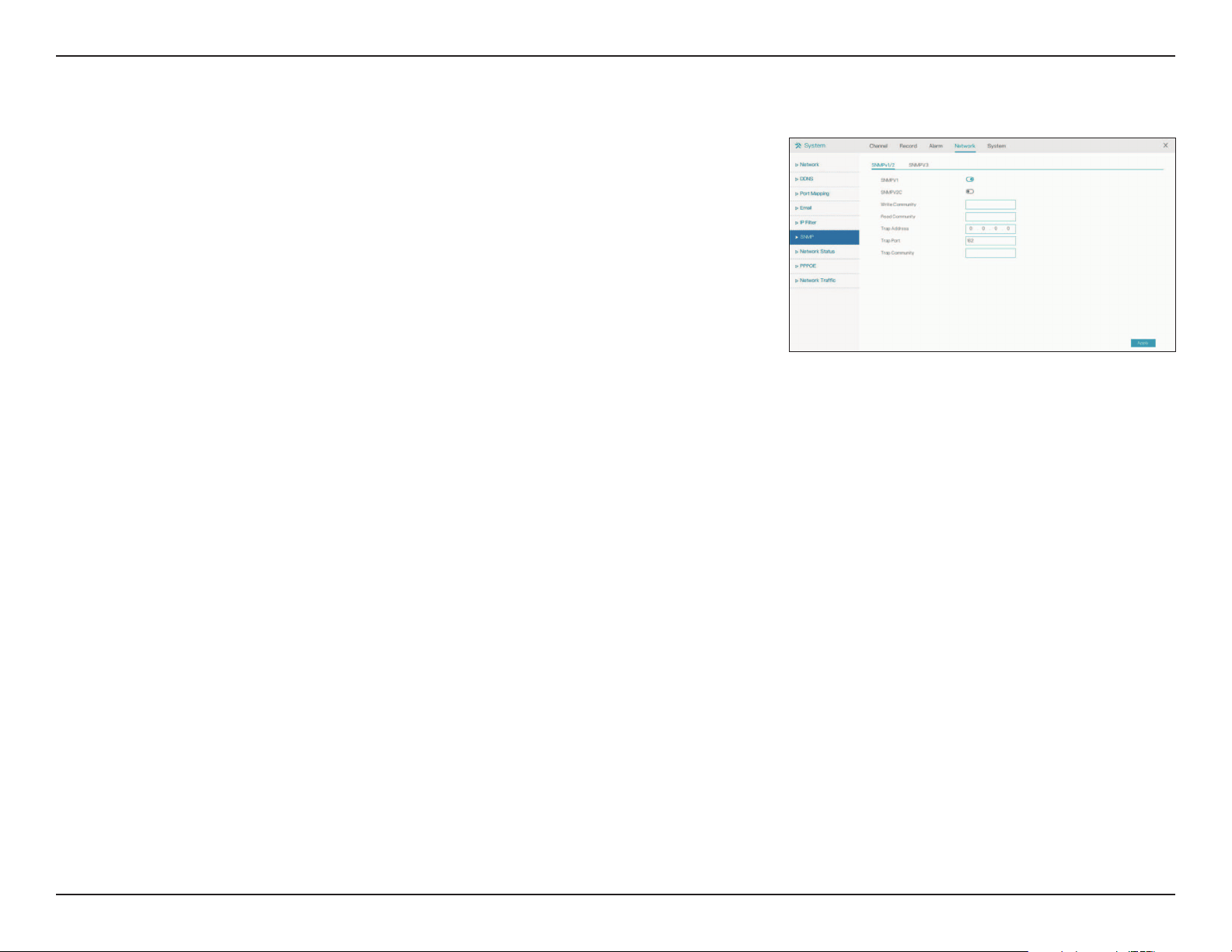
SNMPV1/
SNMPV2C
SNMPV3
Enable and enter a password for the Read/Write and Read-Only
community strings here. Change the community string to keep
intruders from getting information about the network setup.
This SNMP version adds encryption and authentication to the
service for better security. You can specify separate Read/Write
versus Read-only name and passwords as well as the type of
encryption to use.
SNMP
If you have SNMP agents that you would like to send traps (such as alarms and
syslog messages) to your NVR, you can enable and configure your SNMP settings
on this page.
53D-Link DNR-4020-16P User Manual
Section 3 - Conguration
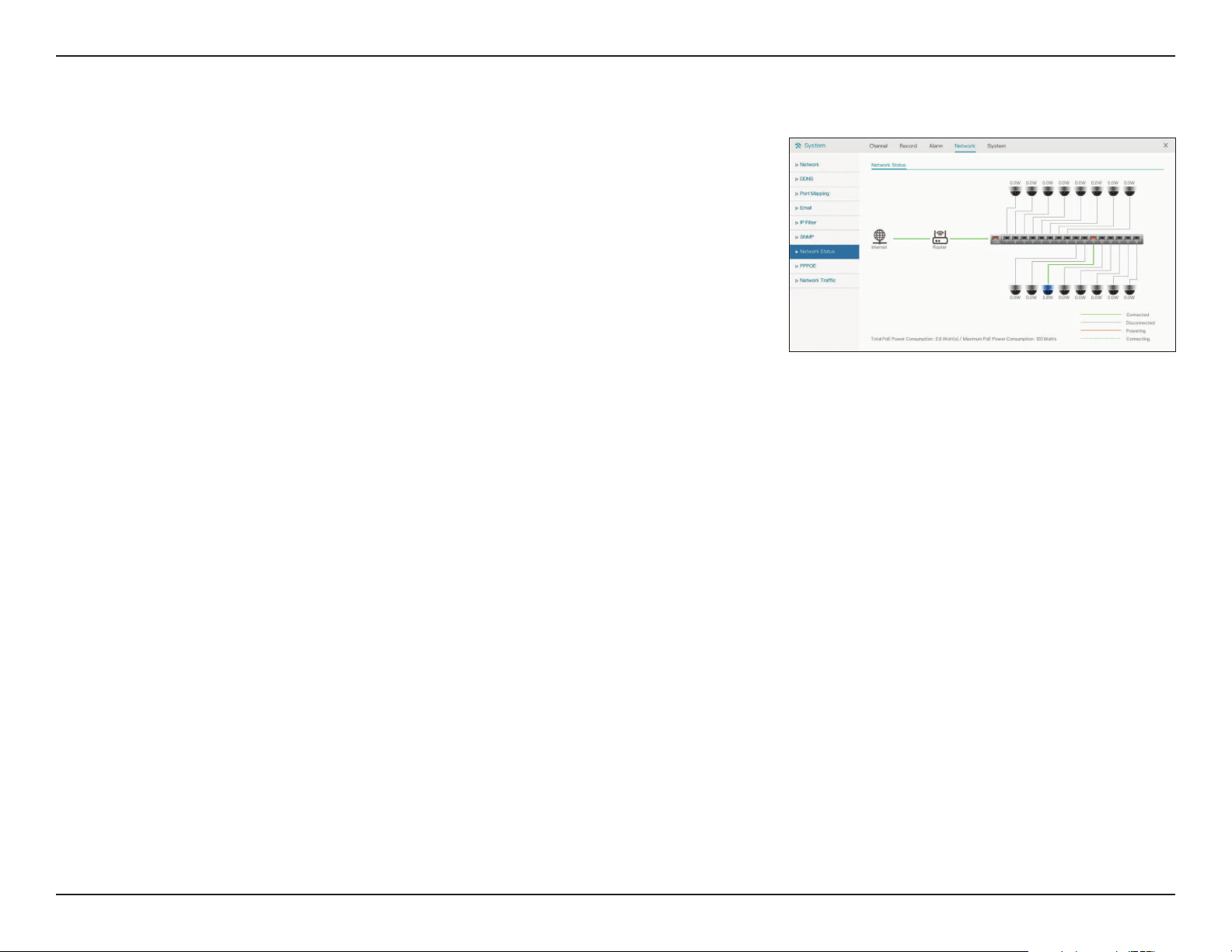
Network Status
On this page you can view the status of the NVR’s LAN and PoE ports and check
your Internet connection.
54D-Link DNR-4020-16P User Manual
Section 3 - Conguration
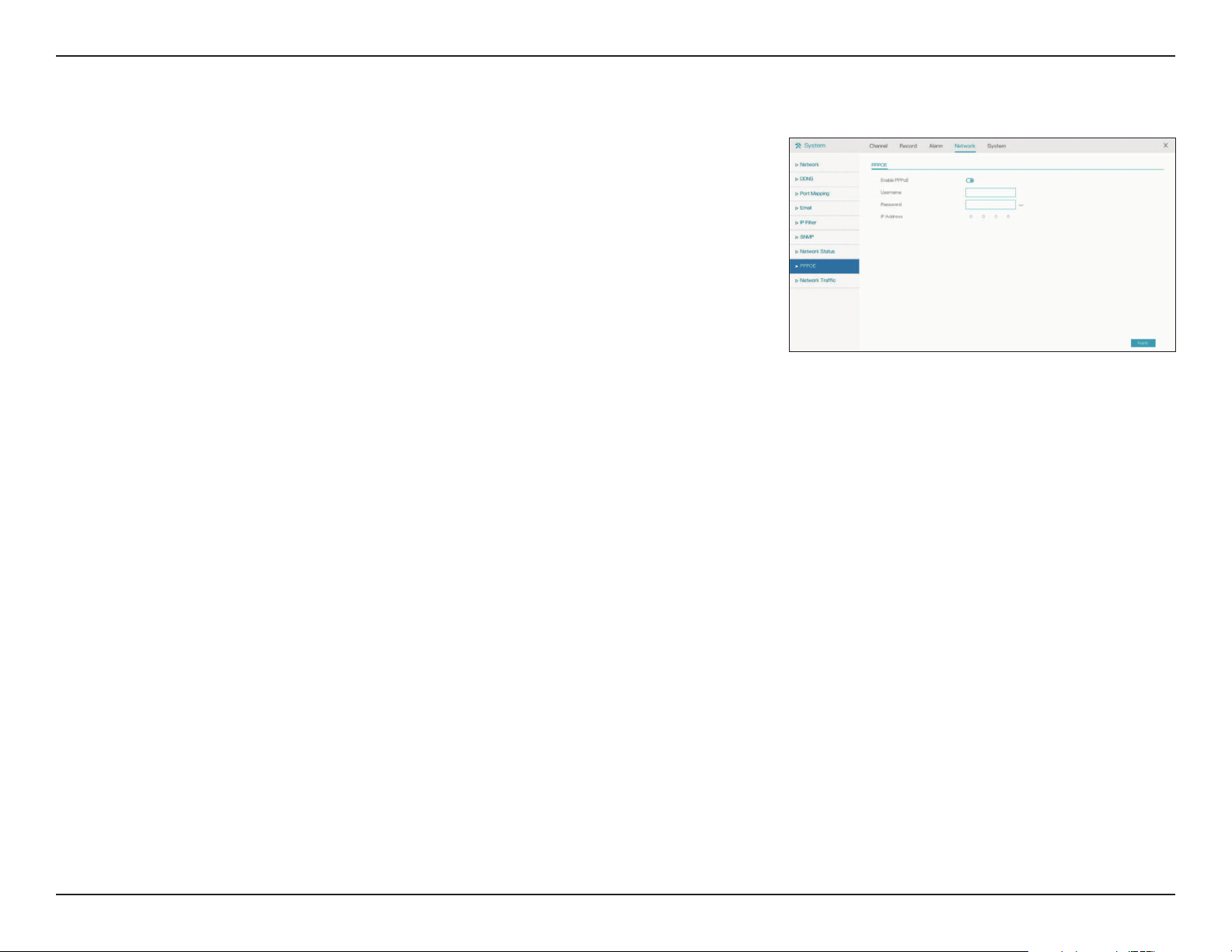
Enable
Username
Password IP
Address
Enable this setting if your ISP is using PPPoE.
Enter the username provided by your ISP.
Enter the password provided by your ISP.
Enter the fixed address of the NVR and the port that is used to
access the web interface.
PPPoE
On this page you can enable, disable or configure PPPoE settings on your NVR.
55D-Link DNR-4020-16P User Manual
Section 3 - Conguration
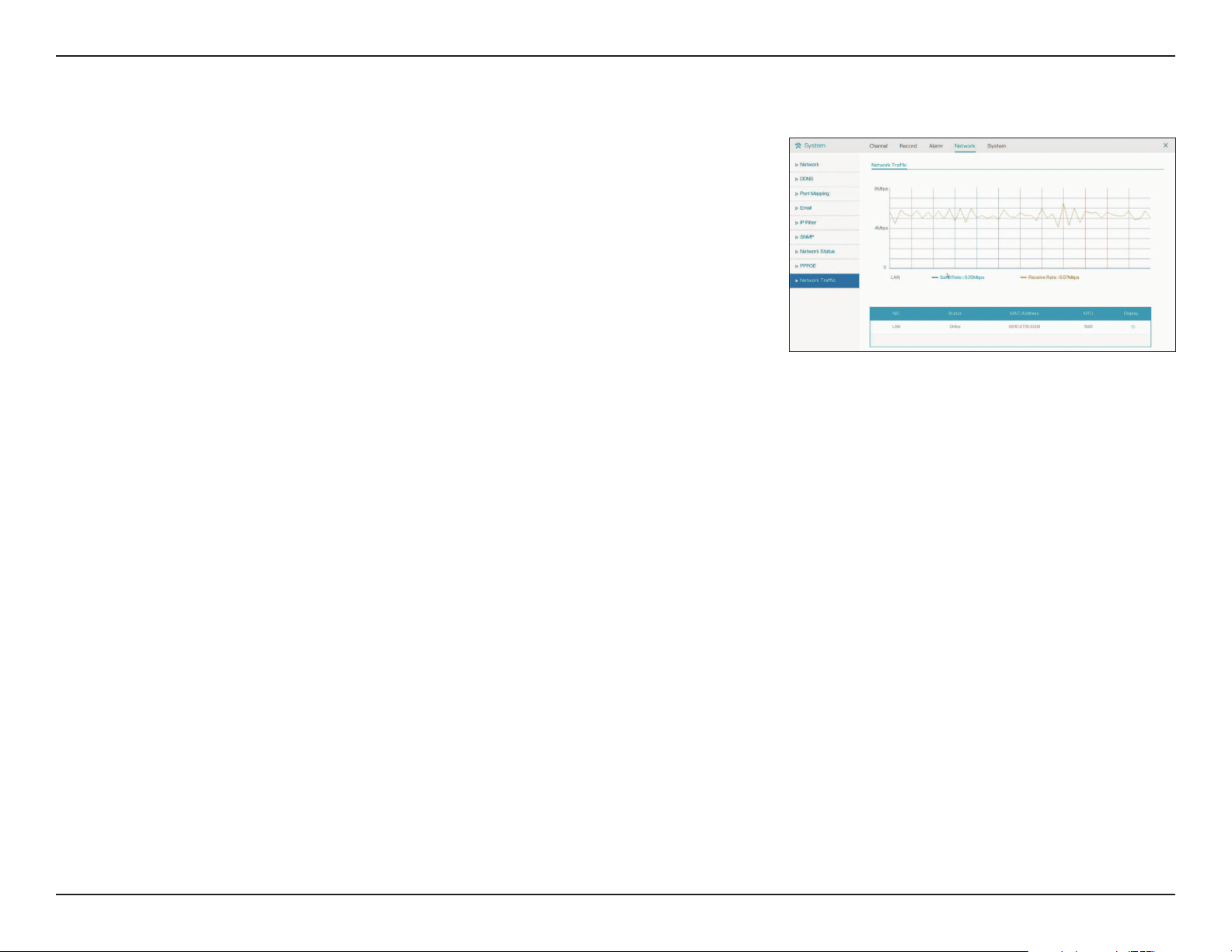
Network Traffic
This page displays the traffic being sent and received on the NVR’s various network
interfaces, and information (such as MAC addresses).
56D-Link DNR-4020-16P User Manual
Section 3 - Conguration
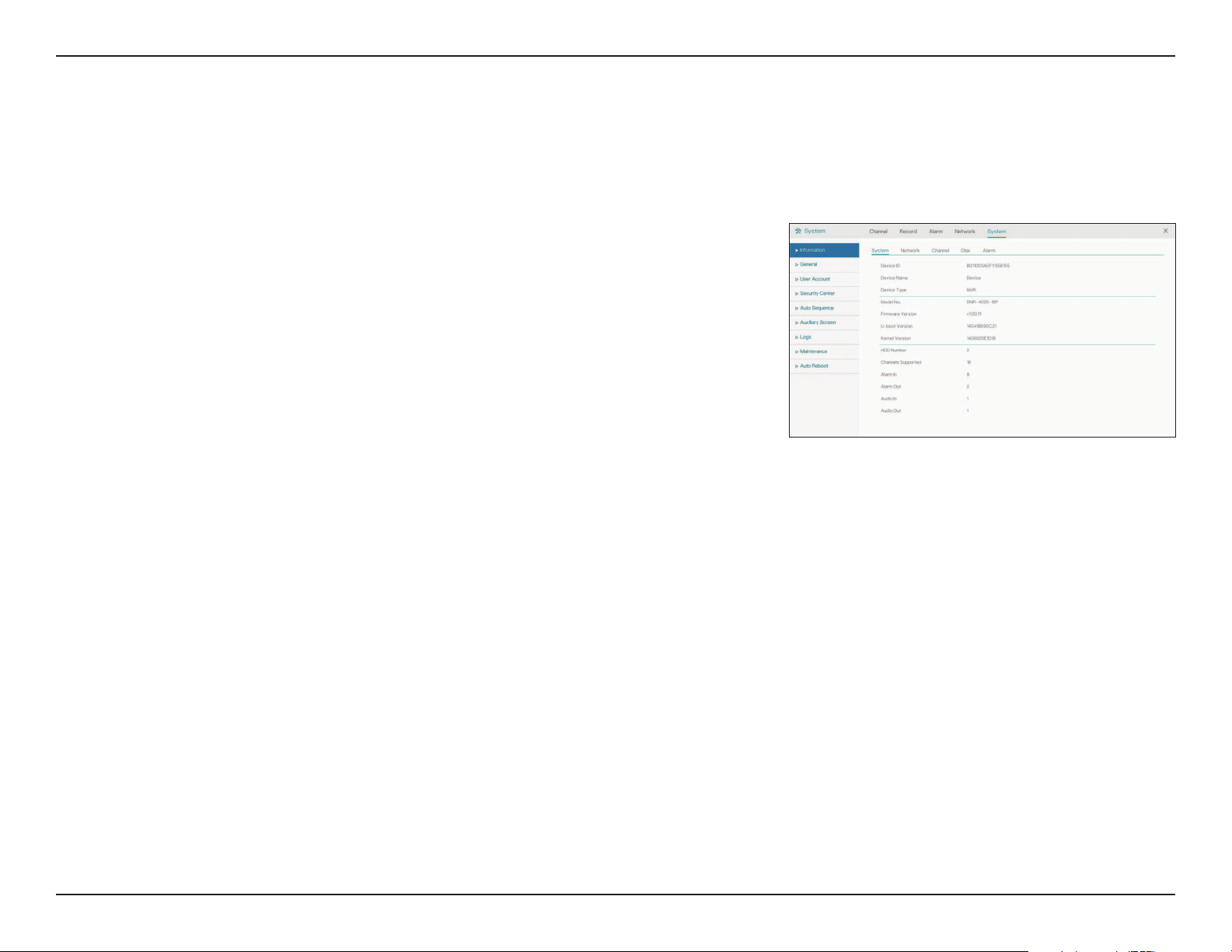
Device ID
Device Name
Device Type
Model
Firmware
Version
U-boot Version
Kernel Version
HDD Number
Channels
Supported
Alarm In
Alarm Out
Audio In
Audio Out
A unique ID used to identify the device.
The name used to identify the device.
Indicates the type of device (NVR).
The device’s model number.
The device’s current firmware version.
The device’s current U-boot version.
The device’s current kernel version.
The number of HDD supported by the device.
The number of channels supported by the device.
The number of Alarm In interfaces.
The number of Alarm Out interfaces.
The number of Audio In interfaces.
The number of Audio Out interfaces
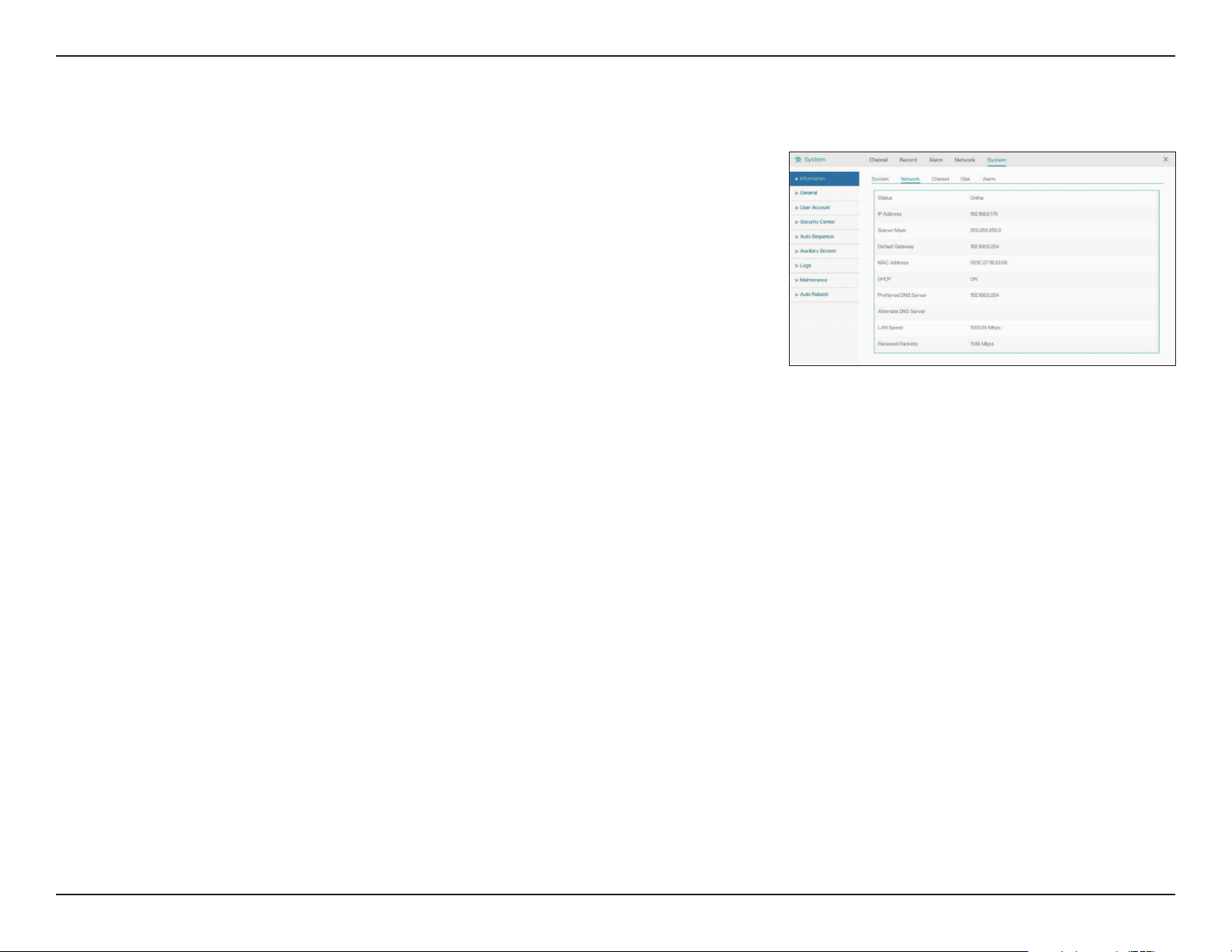
System
Information
System
This page displays information about the NVR.
57D-Link DNR-4020-16P User Manual
Section 3 - Conguration
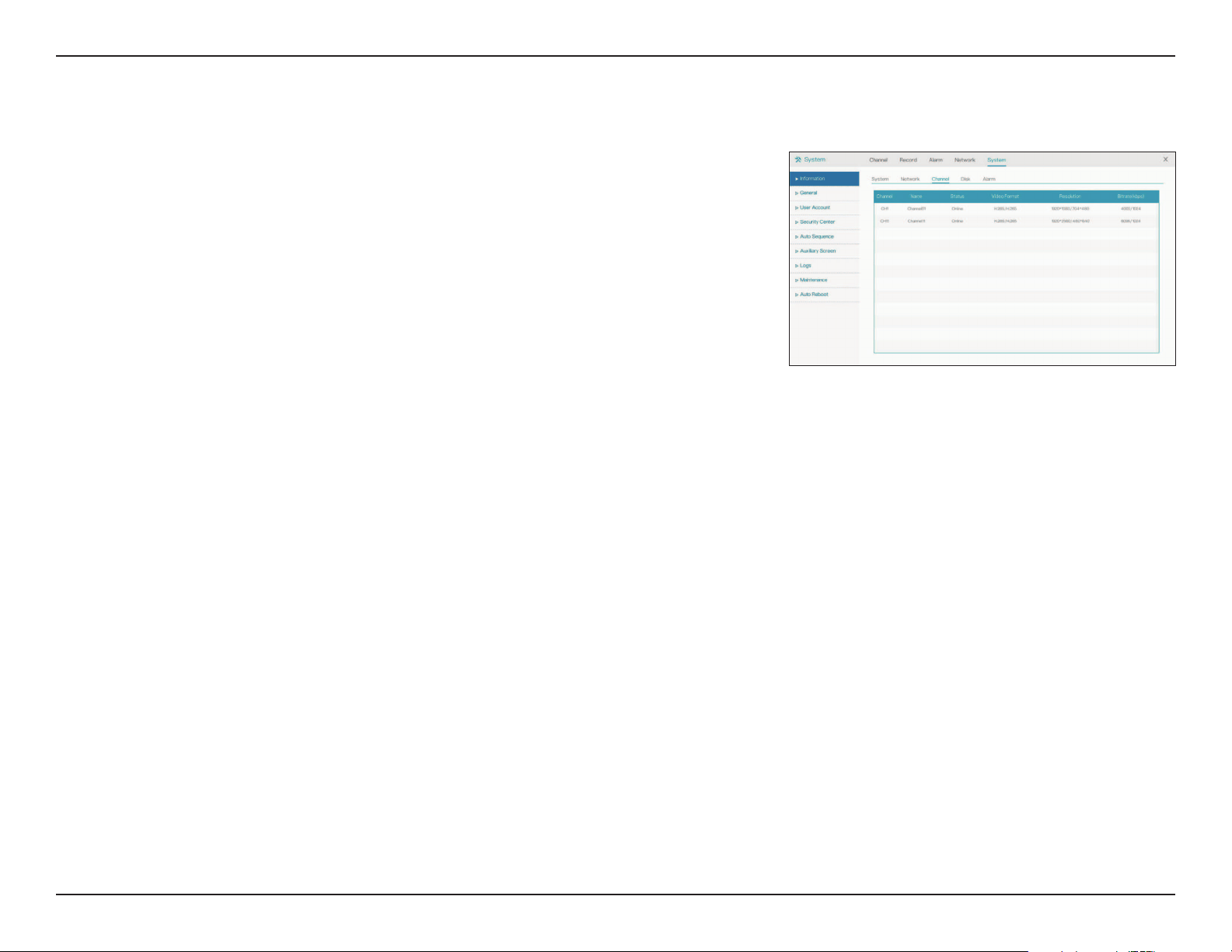
Status
IP Address
Subnet Mask
Default
Gateway
MAC Address
DHCP
Preferred DNS
Server
Alternate DNS
Server
LAN Speed
Received
Packet
Indicates whether the device is online or offline.
Displays the device’s IP address.
Displays the device’s subnet mask.
Displays the default gateway IP address.
Displays the device’s unique MAC address.
Displays the DHCP status of the device (on/off).
Displays the IP address of the preferred DNS server.
Displays the IP address of the backup DNS server, if applicable.
Displays the speed on the device’s LAN interface.
Displays the total size of the received packets per second in Mb
Network
Displays network status for the NVR.
58D-Link DNR-4020-16P User Manual
Section 3 - Conguration
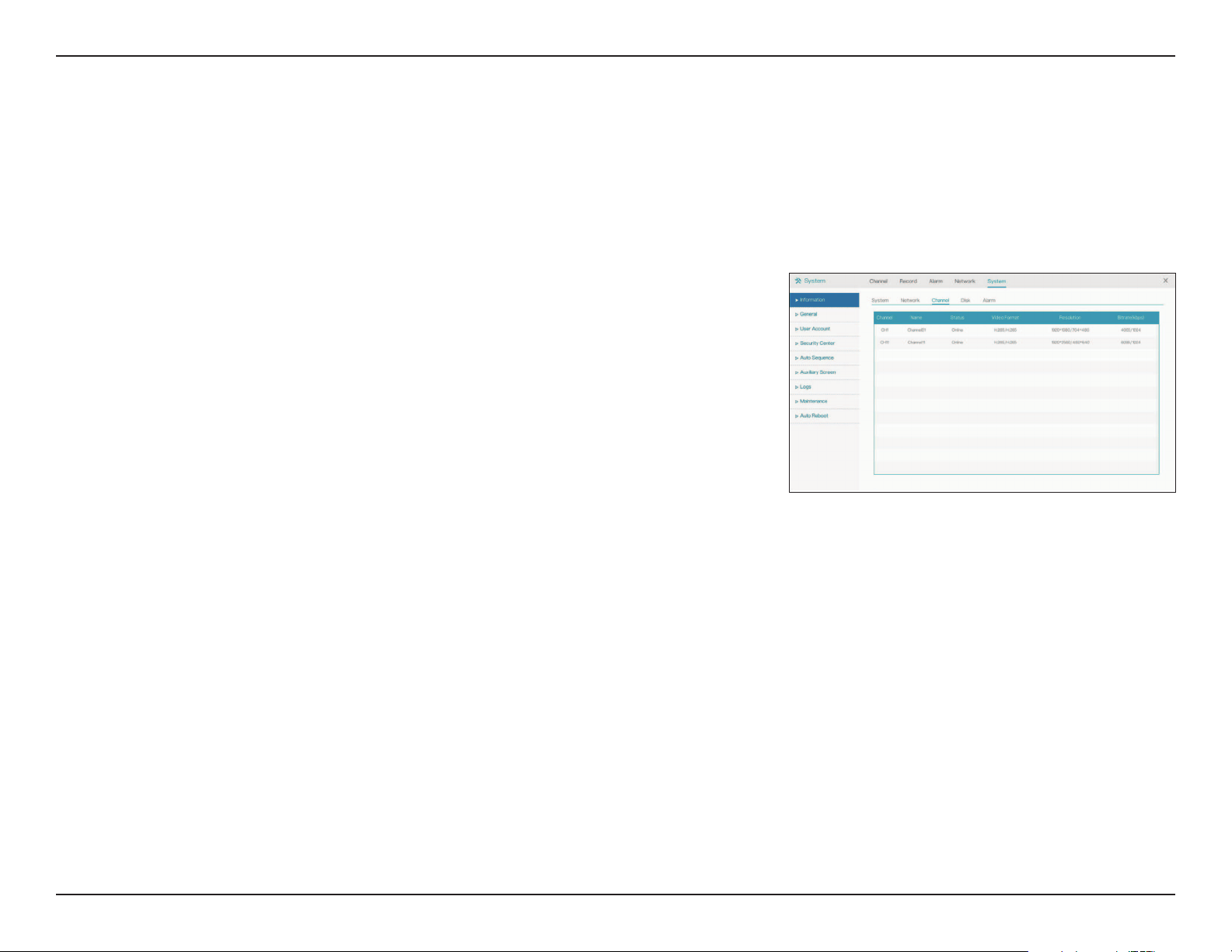
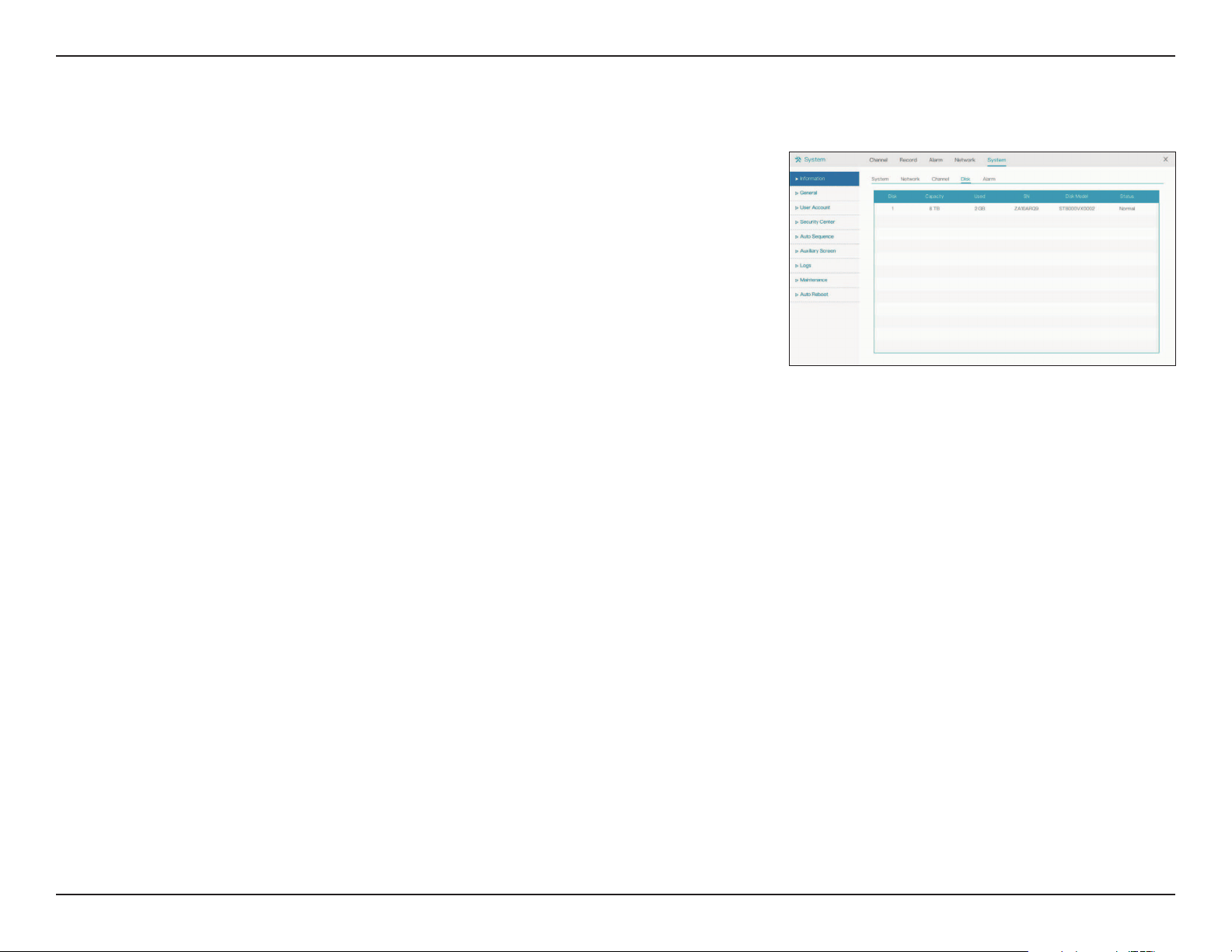
Channel
This page displays the name, online status, video format, resolution and bitrate
of all of the DNR-4020-16P’s channels
59D-Link DNR-4020-16P User Manual
Section 3 - Conguration
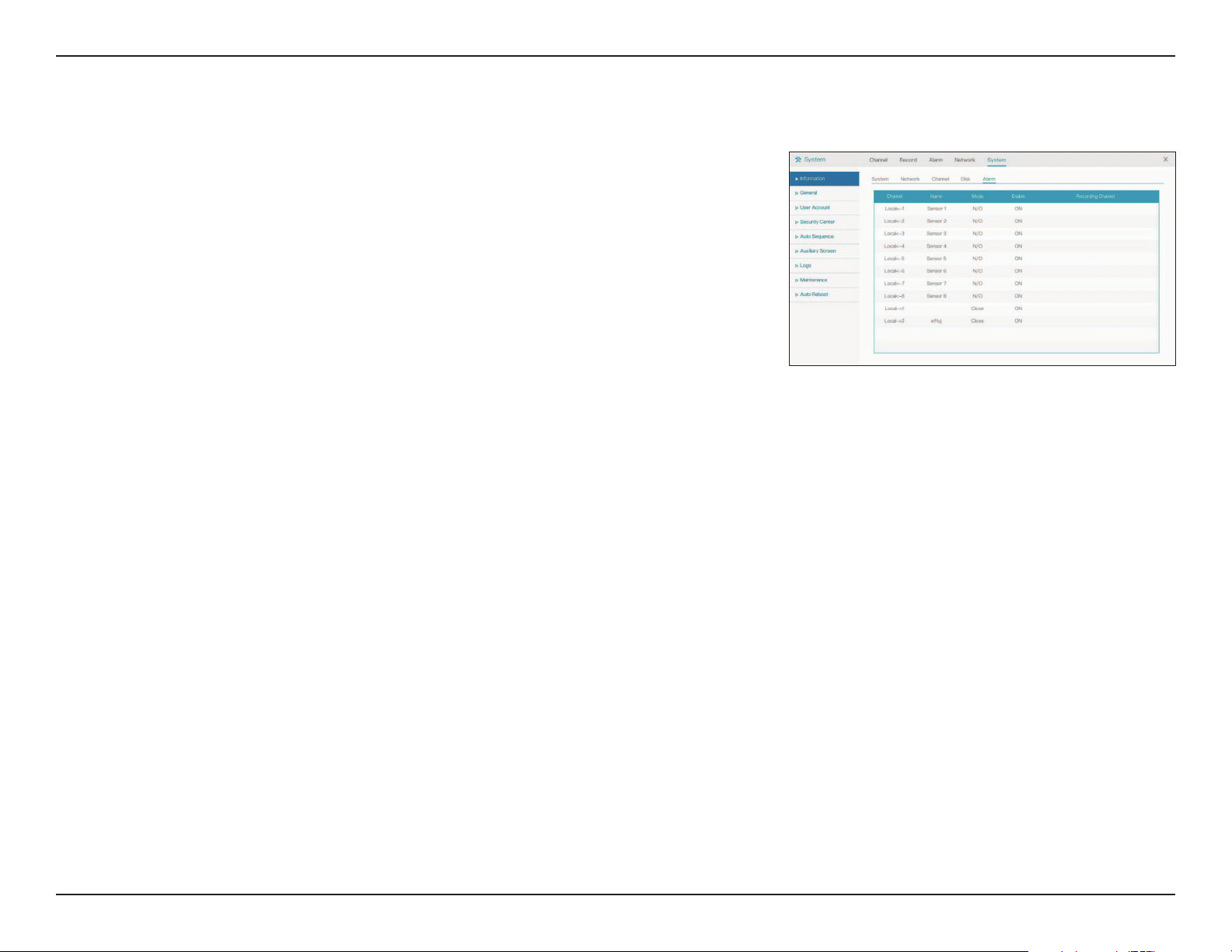
Disk
On this page you can view information on the inserted hard drives, including their
total capacity, the amount of space currently being used, and their operational
status.
60D-Link DNR-4020-16P User Manual
Section 3 - Conguration
Alarm
On this page you can view information on the sensors and other devices
connected to the DNR-4020-16P on its Alarm In and Alarm Out interfaces.
61D-Link DNR-4020-16P User Manual
Section 3 - Conguration
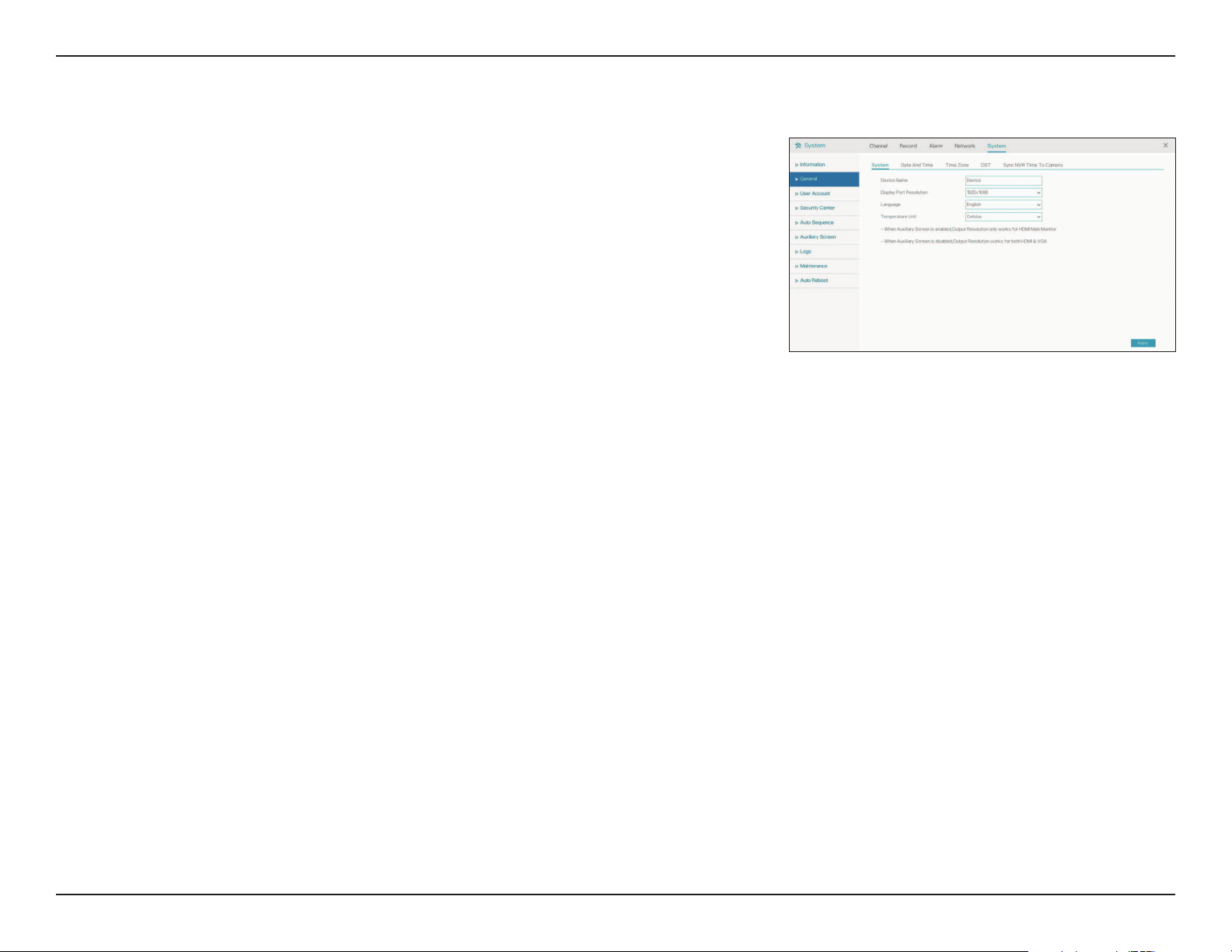
General
System
Allows you to change general configuration settings (e.g. by setting the device
name and language).
Device Name
Display Port
Resolution
Language
Temperature
Units
Enter the a new name to identify the NVR to other devices.
Enter the desired resolution for the NVR’s configuration
interface.
Select your preferred language.
Select either Celsius or Fahrenheit.
62D-Link DNR-4020-16P User Manual
Section 3 - Conguration
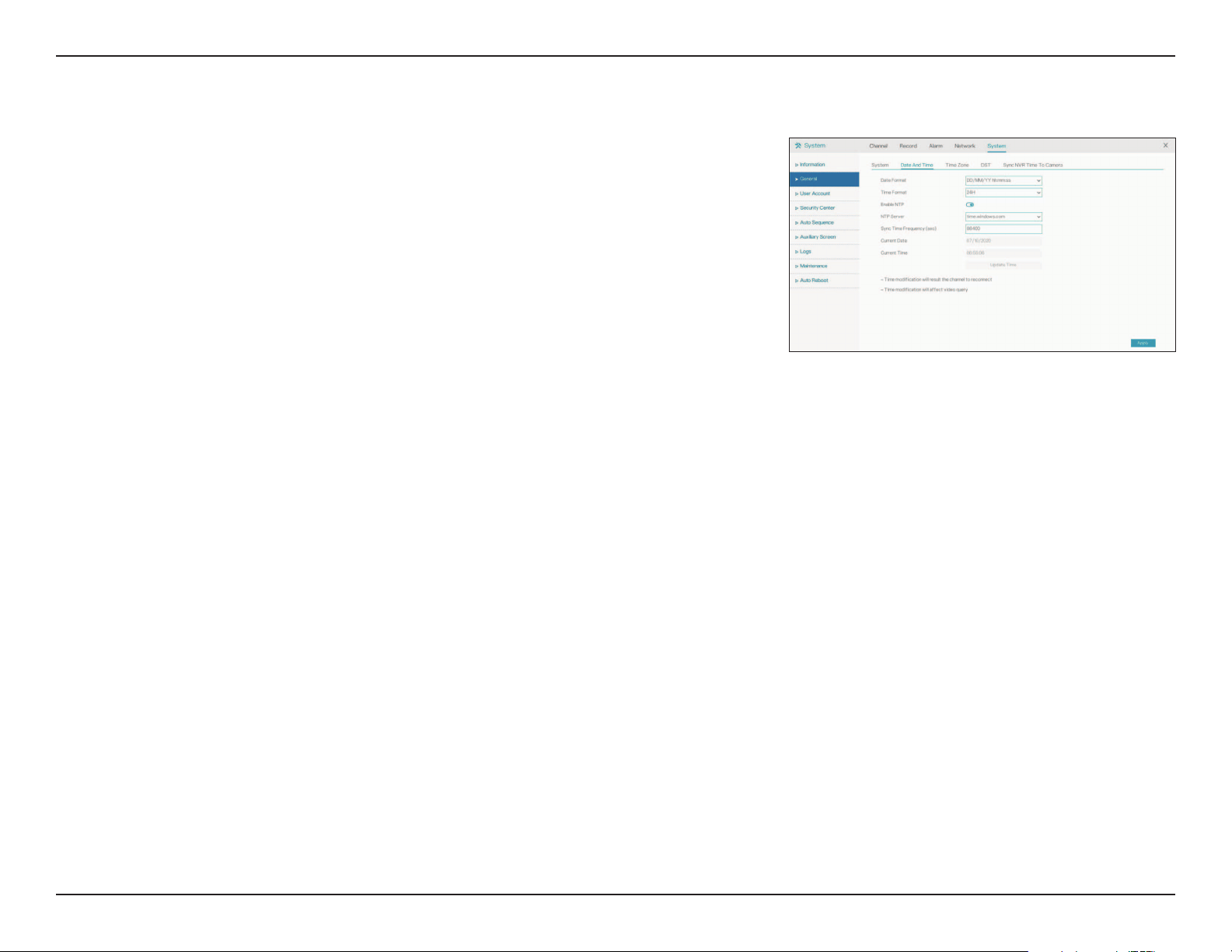
Date and Time
On this page you can change the device’s date and time manually, or specify NTP
settings to acquire the date and time automatically.
Date Format
Time Format
NTP Sync
NTP Server
Frequency of
Checks
Date
Time
Specify the desired format that the device should use to display the
date.
Specify the desired format that the device should use to display
the system time.
Toggle this to automatically obtain the date and time from an
NTP server.
Specify the NTP server to use.
Specify how frequently (in seconds) to verify the system time
with the NTP server.
If NTP Sync is disabled, automatically enter the date.
If NTP Sync is disabled, automatically enter the current time.
63D-Link DNR-4020-16P User Manual
Section 3 - Conguration
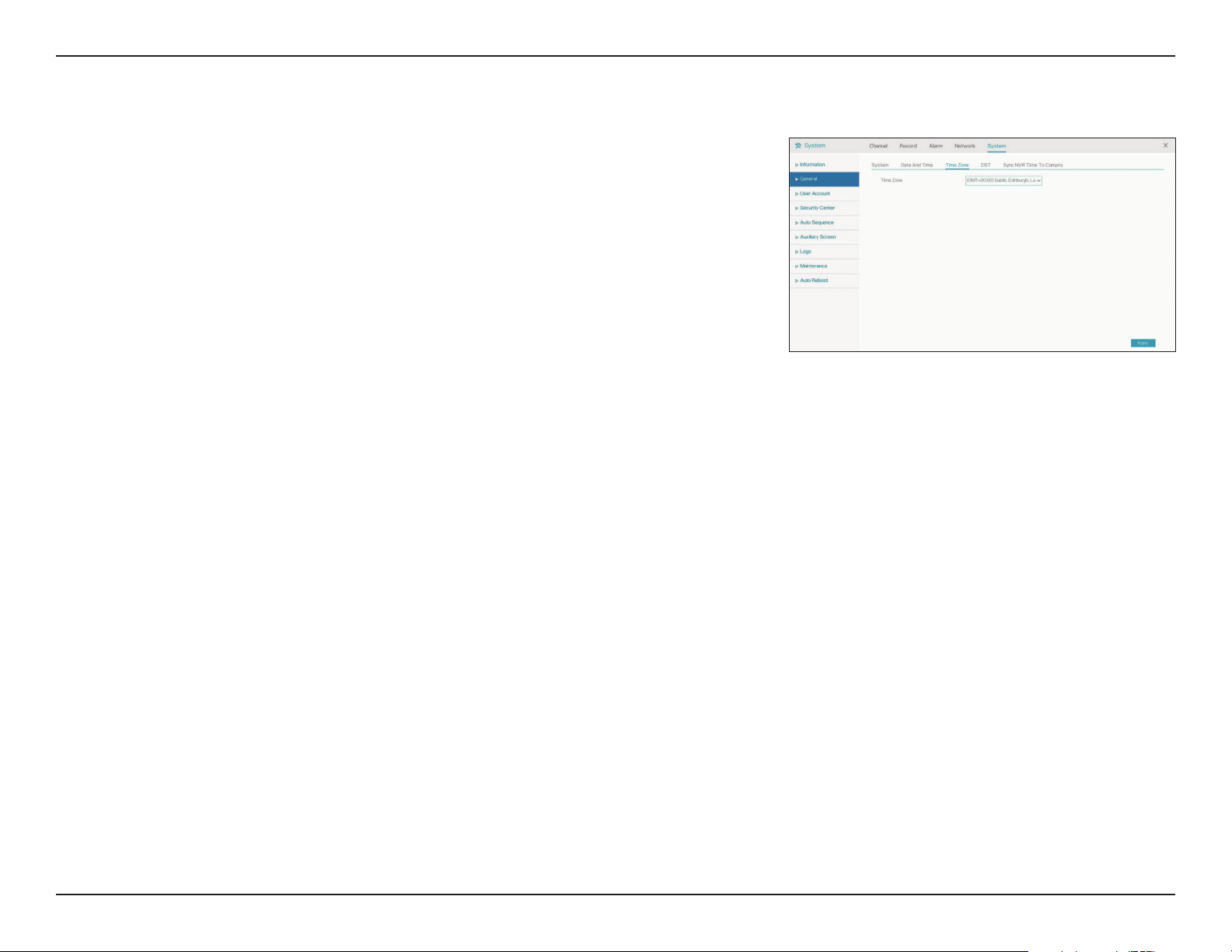
Time Zone
On this page, you can select your current time zone and apply it to the NVR’s
time settings.
Time Zone Select your current time zone from the drop-down menu.
64D-Link DNR-4020-16P User Manual
Section 3 - Conguration
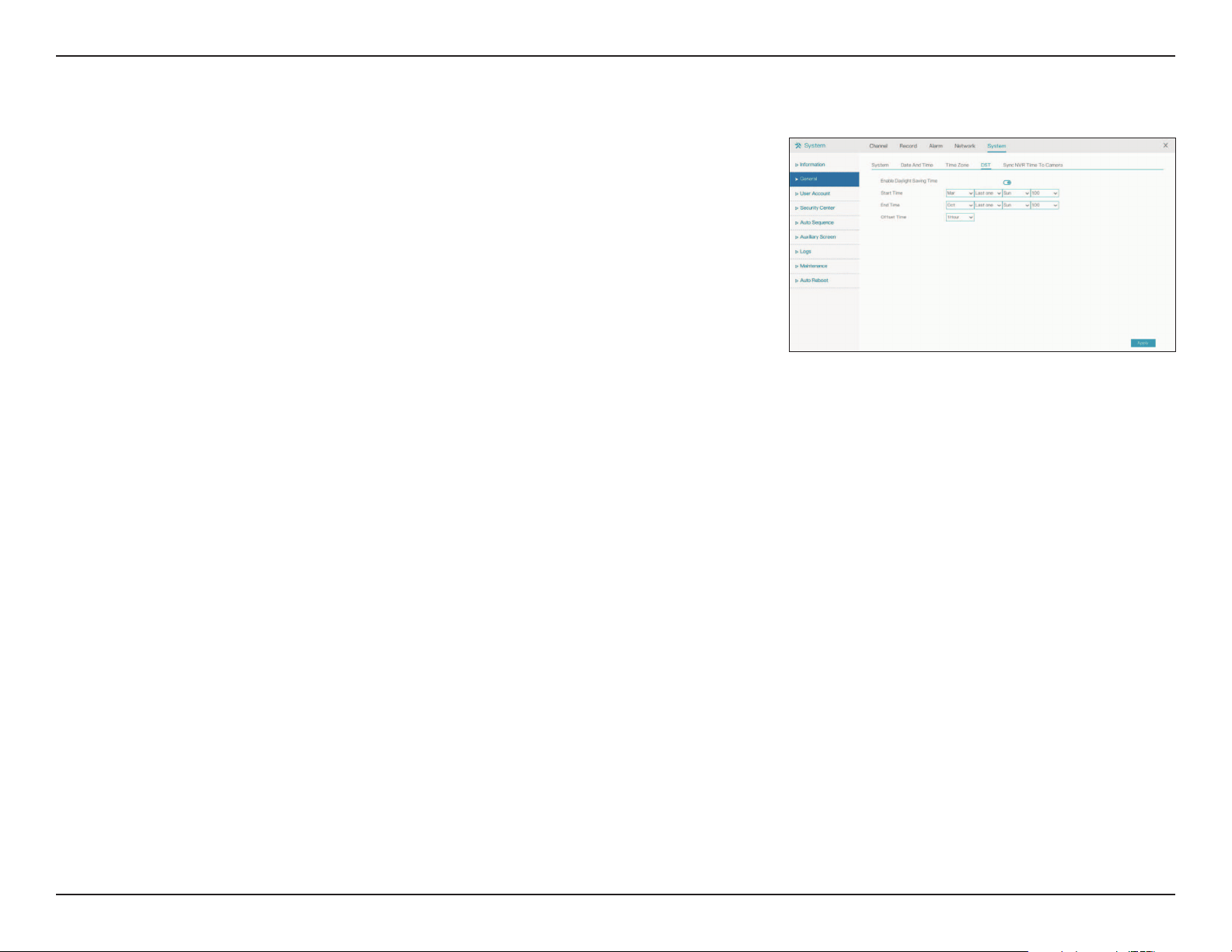
Daylight Saving Time
On this page you can enable or disable Daylight Saving Time.
Daylight
Savings Time
Start Time
End Time
Offset Time
Toggle this to enable or disable Daylight Saving Time.
The date and time that DST should start.
The date and time that DST should end.
The number of hours to adjust the clock during DST
65D-Link DNR-4020-16P User Manual
Section 3 - Conguration
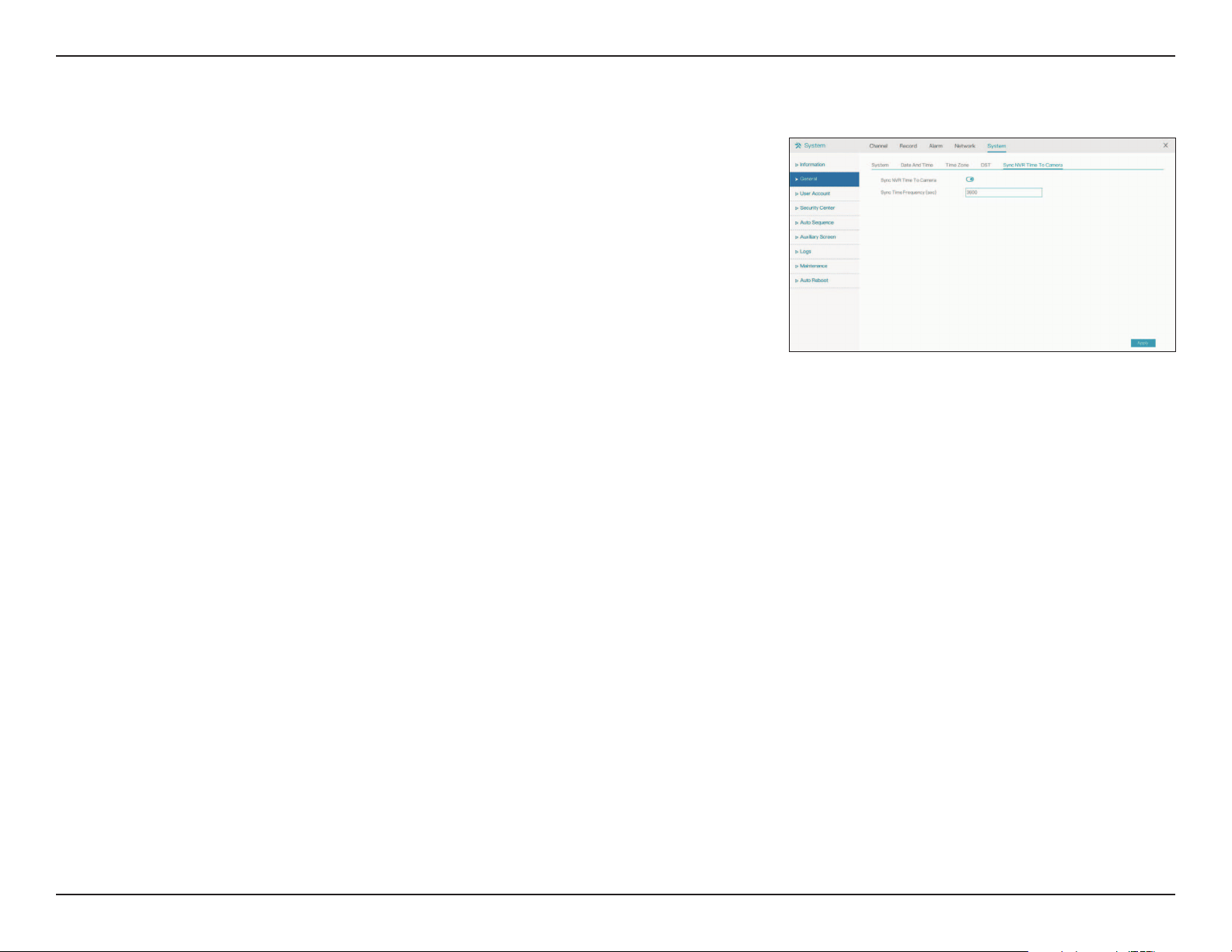
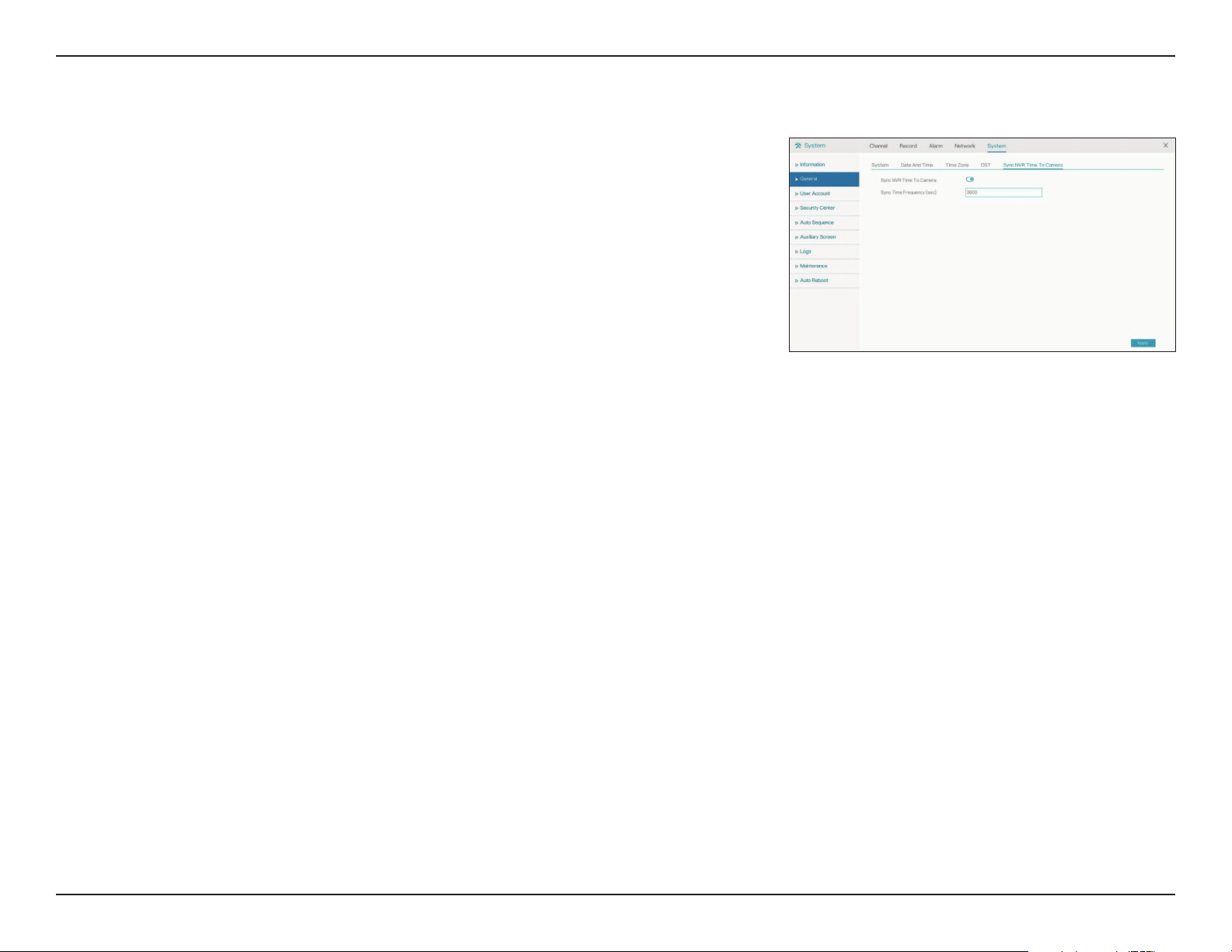
Sync NVR Time To Camera
On this page you can configure the cameras connected to the DNR-4020-16P to
automatically sync their time settings with the NVR’s.
Sync Camera
Time
Frequency of
Checks
Toggle this to enable time syncing with the connected cameras.
Enter how often (in seconds) the NVR should sync its time
settings with its cameras’ time settings.
66D-Link DNR-4020-16P User Manual
Section 3 - Conguration
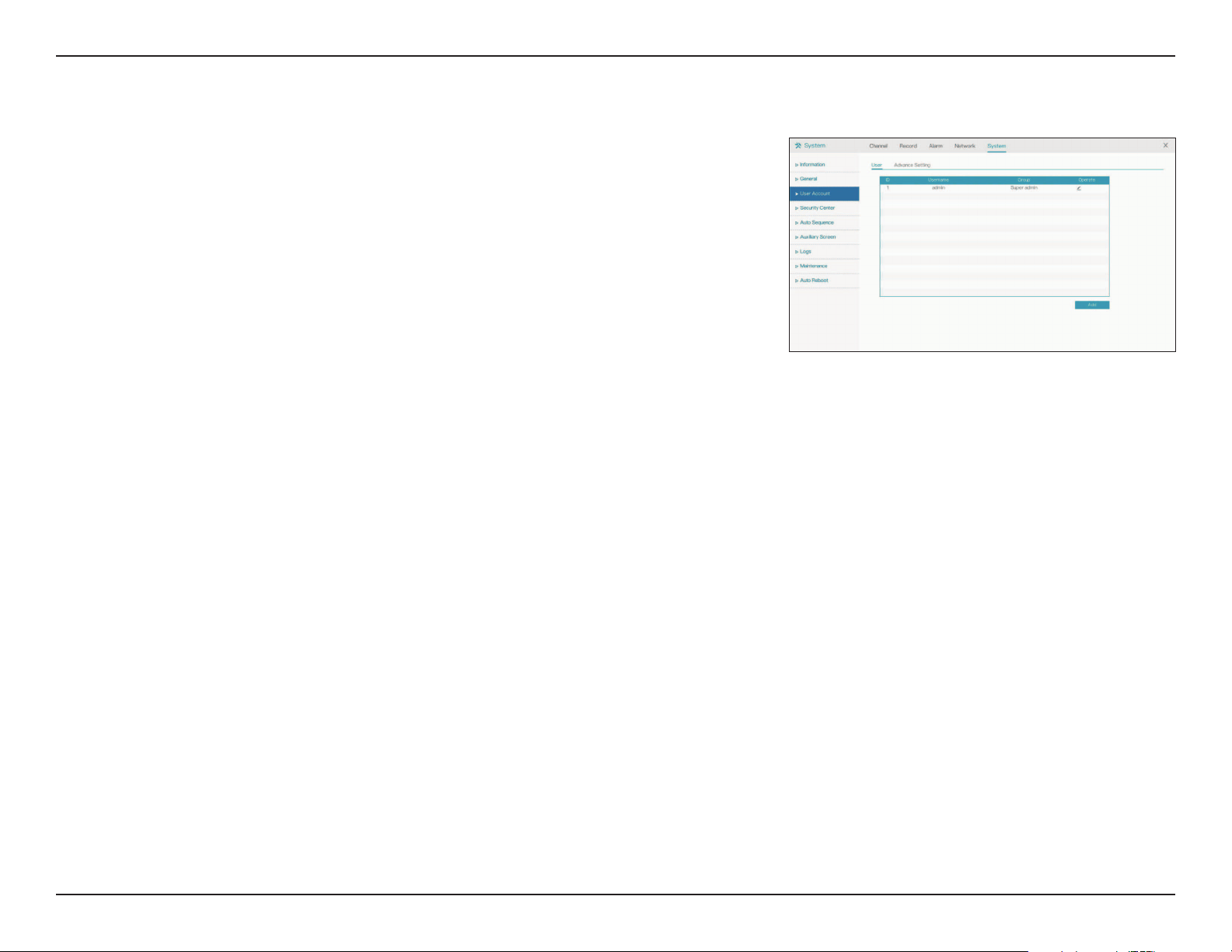
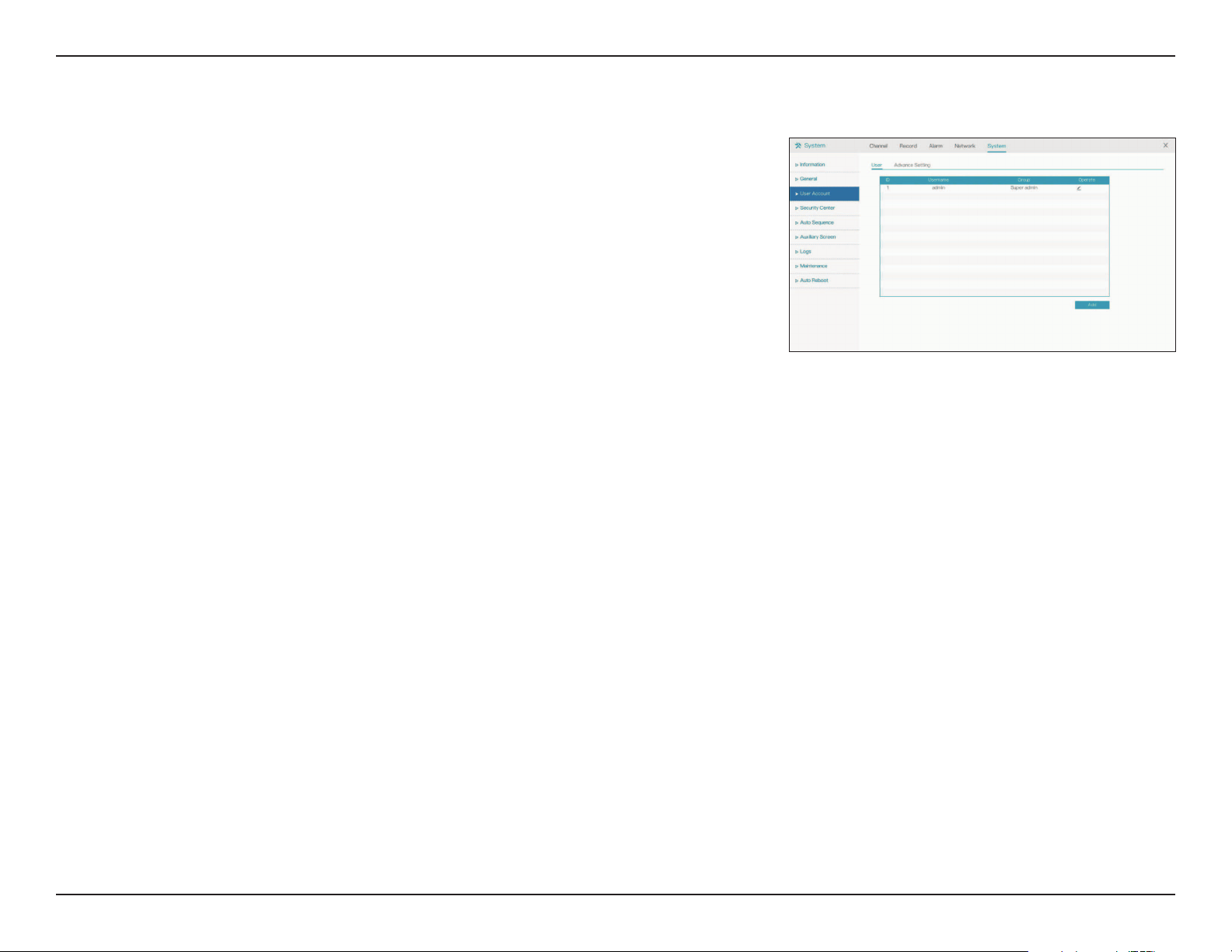
User Account
User
On this page you can create or change the account information for the NVR’s user
accounts (for example, by updating the password). Click the pencil icon under
the Operate tab to edit an existing user account, or click Add to create
a new one.
67D-Link DNR-4020-16P User Manual
Section 3 - Conguration
Advance Setting
On this tab you can configure advanced settings for the NVR’s user accounts.
Password
double auth.
Boot Wizard
Auto Login
Logout time
Monitor
channel(s)
when logout
Toggle this to enable double password authentication.
Toggle this to set the boot wizard to load automatically when
the device is booted up.
Toggle this to set the device to log in automatically.
Set the number of minutes of inactivity after which the device
should log out automatically.
Select the channels to continue to monitor after logging out
from the device.
68D-Link DNR-4020-16P User Manual
Section 3 - Conguration
Security Center
On this page you can update the password settings for the NVR.
Old Password
New Password
Confirm
Password
Unlock Pattern
Secure Email
Enter the current password.
Enter the desired new password.
Confirm the new password by reentering it.
Use this tab to set a pattern to unlock your NVR instead of a
typed password.
Use this tab to set a recovery email to use in case you forget
your password
69D-Link DNR-4020-16P User Manual
Section 3 - Conguration
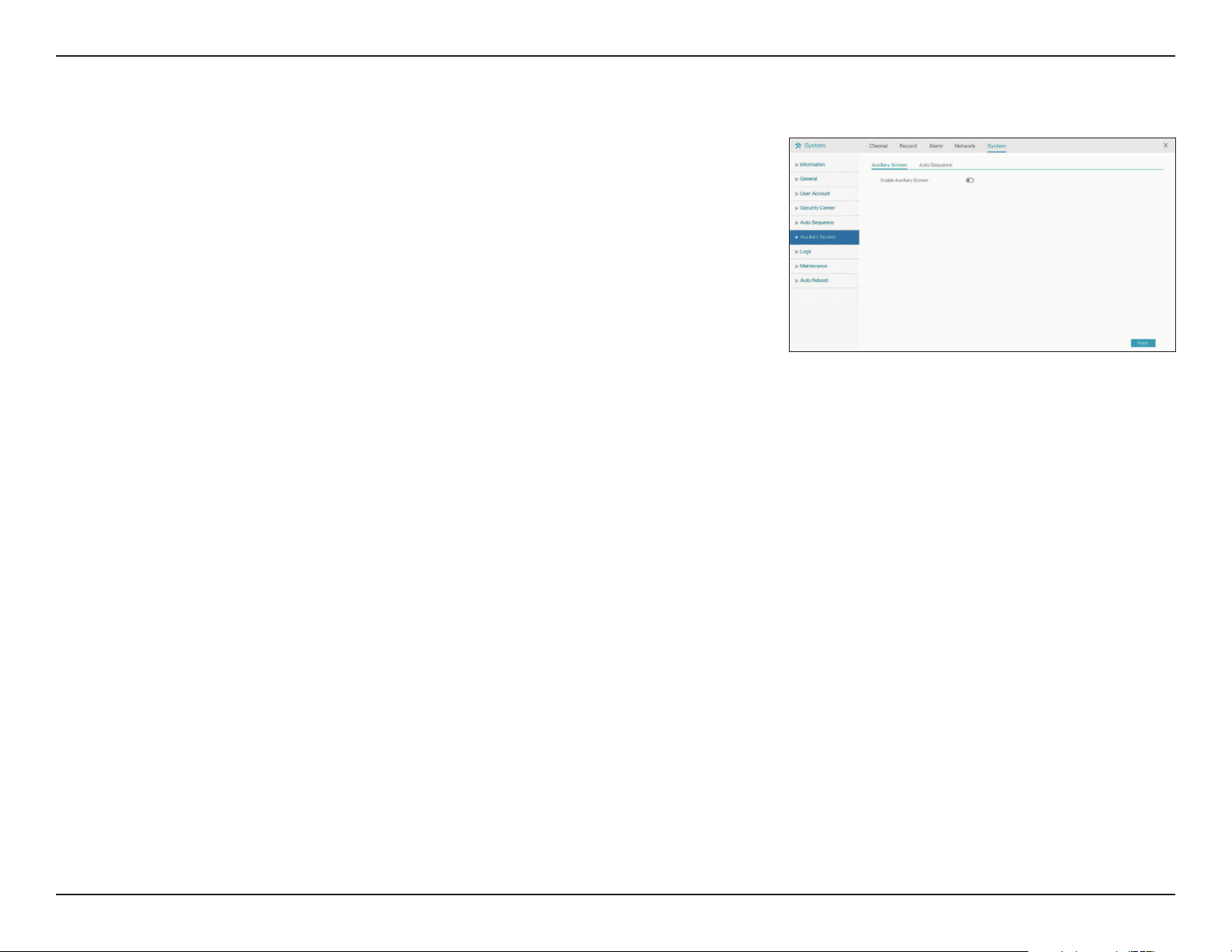
Auto Sequence
On this page you can configure auto sequencing of the NVR’s various channels.
Select the number of channels to display on the screen at any given time, and
the length of time that they will be displayed there. Use the arrows at the bottom
of the screen to cycle through the channels.
Dwell Time Select the period of time (in seconds) to wait before displaying
the next screen of channels.
70D-Link DNR-4020-16P User Manual
Section 3 - Conguration
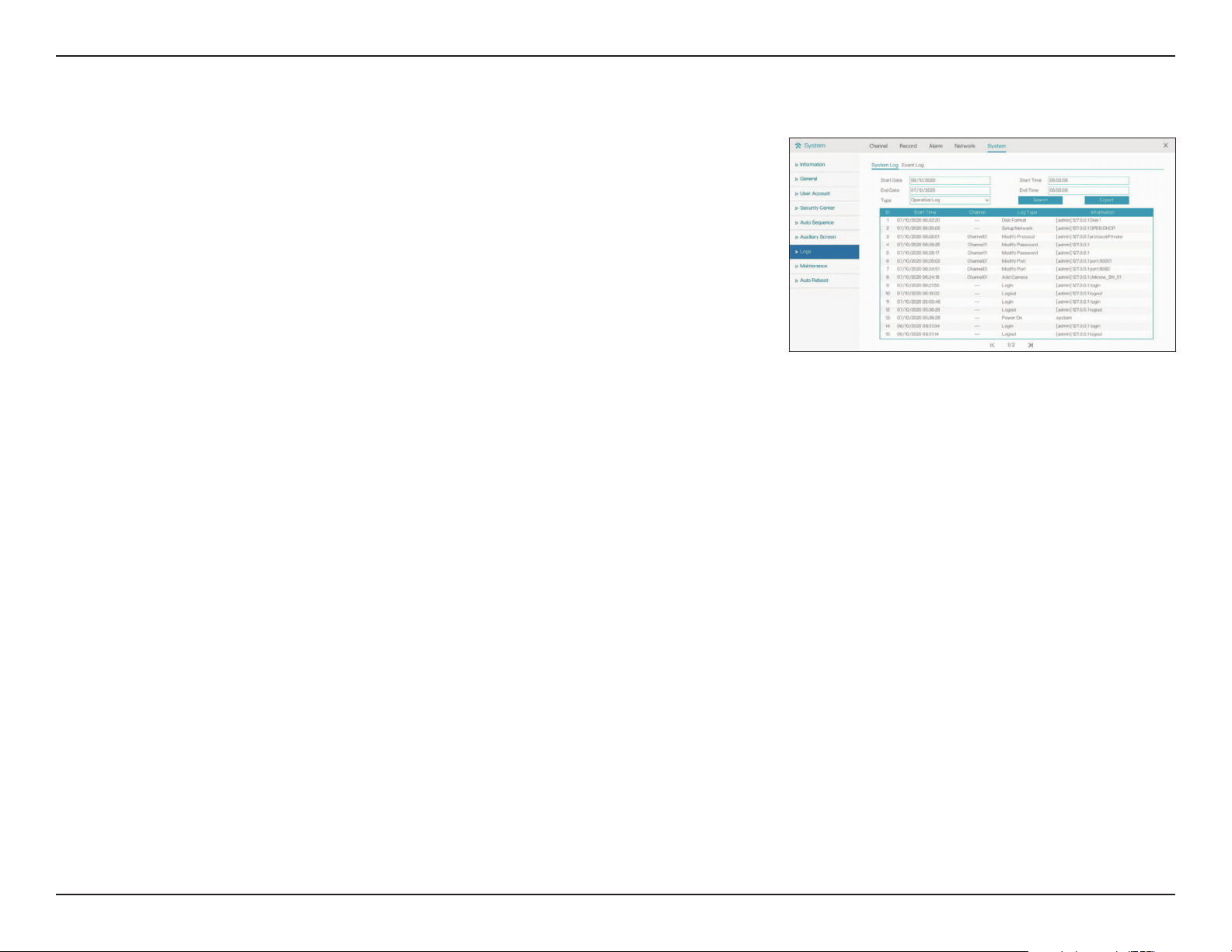
Auxiliary Sequence
On this screen you can enable, disable, or configure the auxiliary screen for your
device.
Enable
Auxiliary
Screen
VGA Output
Resolution
Maximum
Channel for
HDMI and
VGA
Layout Mode
Default Display
Channel
Enable Auto
Sequence
Toggle this to enable an auxiliary display. If this is enabled,
you will also need to configure the auxiliary display’s output
resolution, decoding ability, and layout.
Select the display resolution to use.
Configure how many channels will display on the HDMI and
VGA screens respectively.
Configure how many channels will display at one time on each screen.
Select the channel to display by default.
Toggle this to enable or disable auto sequencing on the auxiliary
screen. If enabled, you may configure the auto sequence settings in
the Auto Sequence tab.
71D-Link DNR-4020-16P User Manual
Section 3 - Conguration
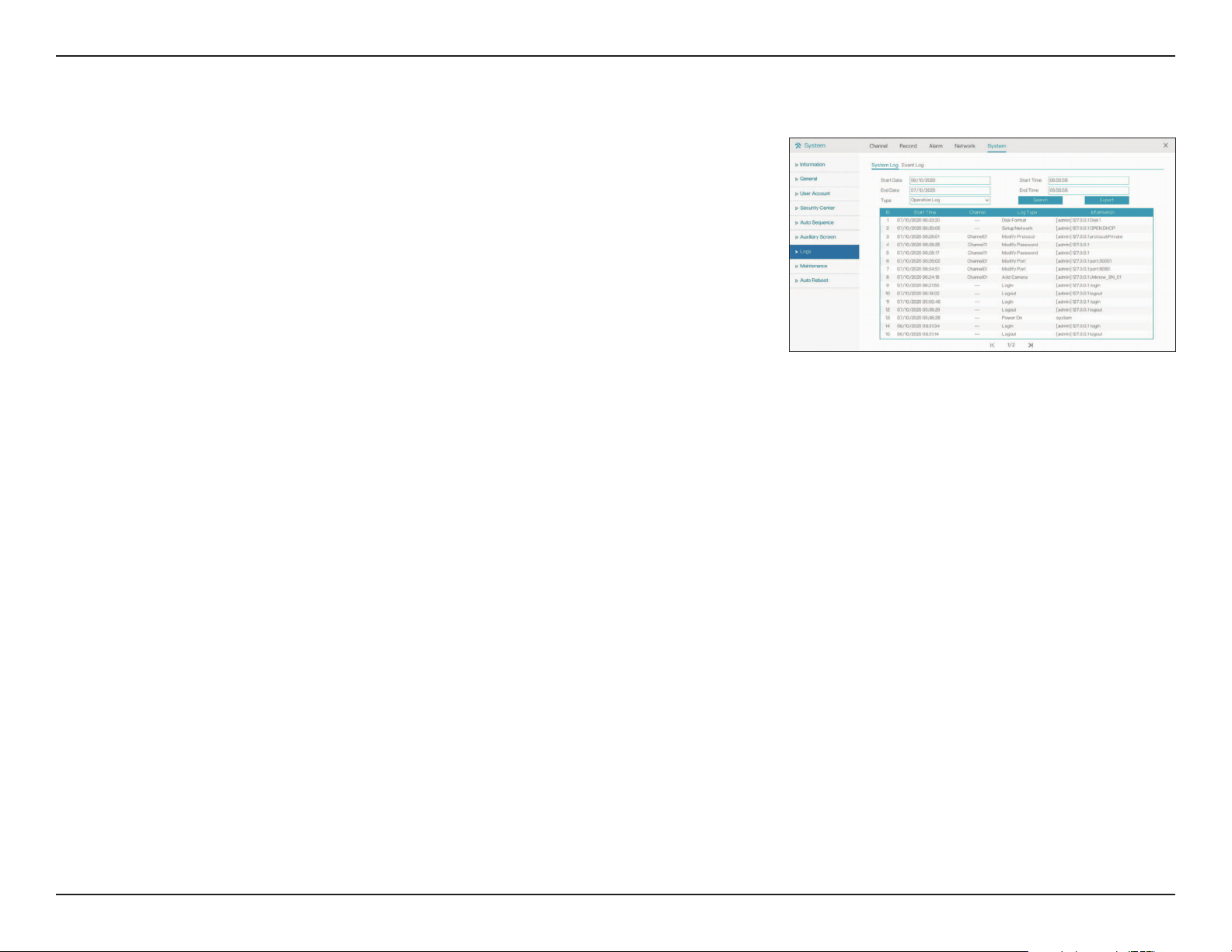
Logs
System Log
On this page you can view the NVR’s operational and system logs and search the
log for specific events.
Start Date
End Date
Type
Start Time
End Time
Search
Export
Enter the starting date to search the logs from.
Enter the end date to search the logs until.
Enter the type of logs to search or export.
Enter the starting time to search the logs from.
Enter the end time to search the logs until.
Click this to search for logs.
Click this to export the logs to a file.
72D-Link DNR-4020-16P User Manual
Section 3 - Conguration
Event Log
On this page you can view the logs of events (such as triggered alarms).
Start Date
End Date
Type
Start Time
End Time
Search
Export
Enter the starting date to search the logs from.
Enter the end date to search the logs until.
Enter the type of logs to search or export.
Enter the starting time to search the logs from.
Enter the end time to search the logs until.
Click this to search for logs.
Click this to export the logs to a file.
73D-Link DNR-4020-16P User Manual
Section 3 - Conguration
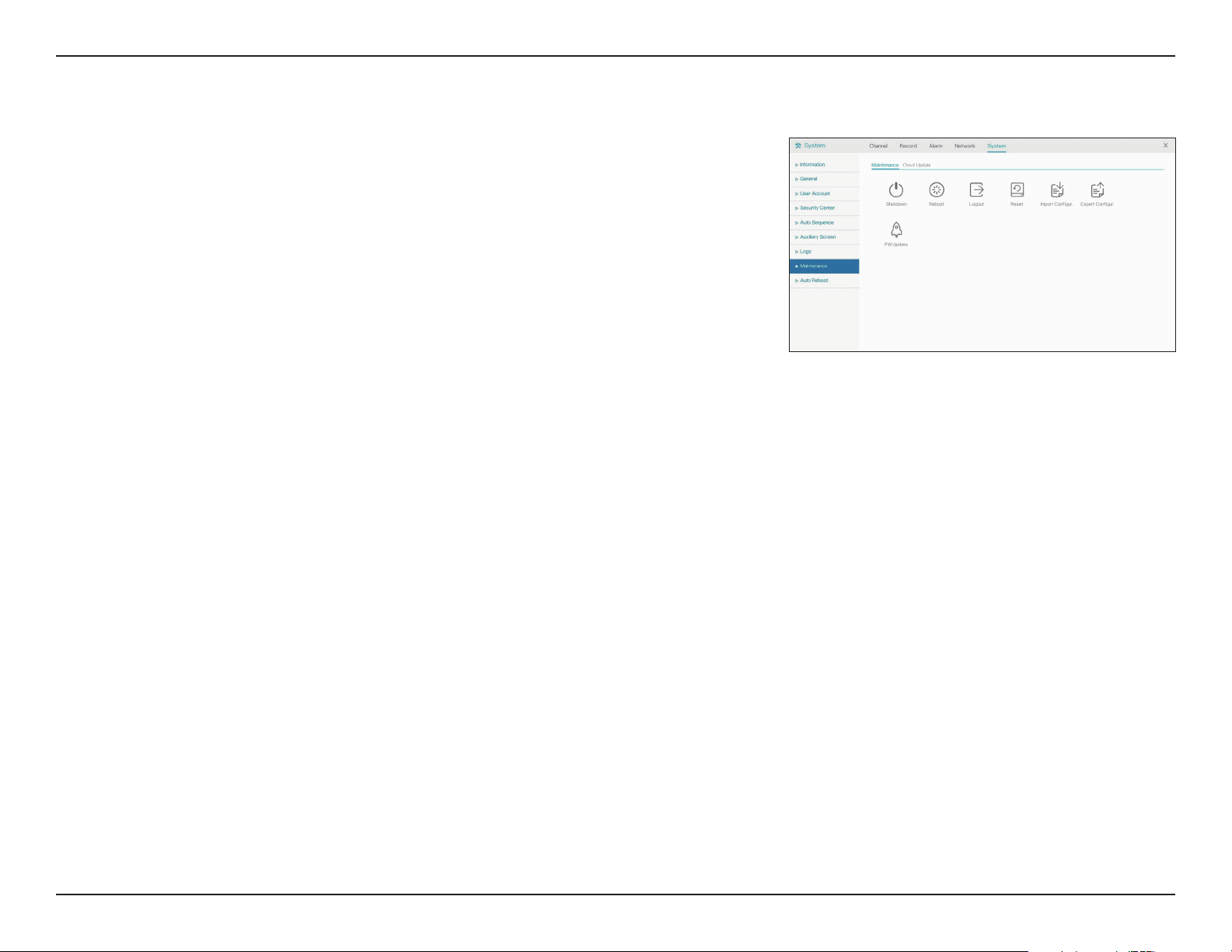
Maintenance
Maintenance
On this page you can perform miscellaneous maintenance tasks. Select the
relevant icon to perform the task.
Shutdown
Reboot
Logout
Reset
Import Config.
Export Config.
FW Update
Click this icon to shut down the NVR.
Click to reboot the NVR.
Log out from the user interface.
Reset the device to factory settings.
Import configuration settings from a file.
Export current configuration settings to a file.
Update the device’s firmware. This requires a firmware file on an
inserted USB storage device.
74D-Link DNR-4020-16P User Manual
Section 3 - Conguration
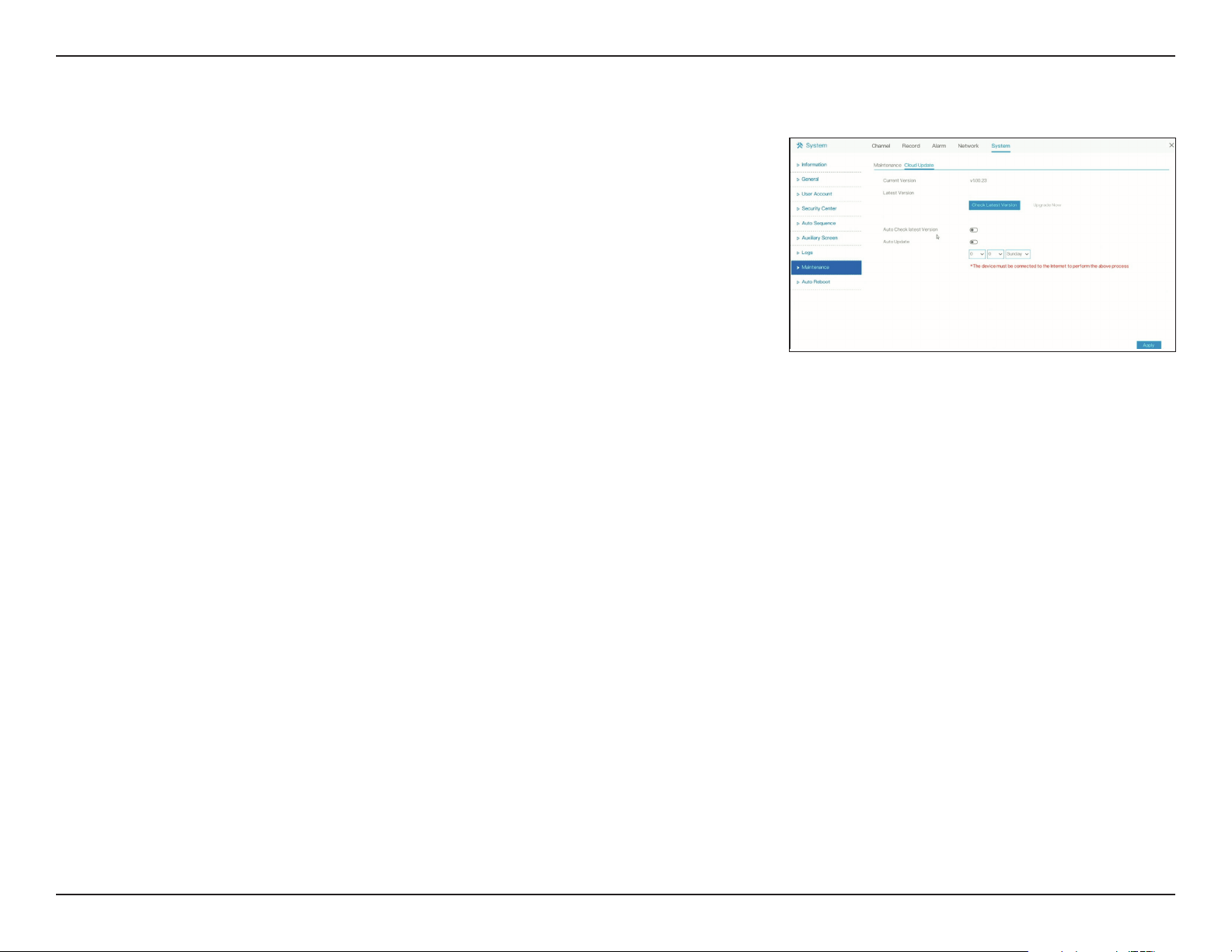
Current Version
Latest Version
Auto Check
latest Version
Auto Update
current firmware version number.
It shows the latest firmware version number after checking
FOTA server.
Enable or disable to auto check the latest firmware version with
FOTA server.
Enable or disable to auto update device firmware.
Setting hour, minute and the day for auto firmware update.
Cloud Update
75D-Link DNR-4020-16P User Manual
Section 3 - Conguration
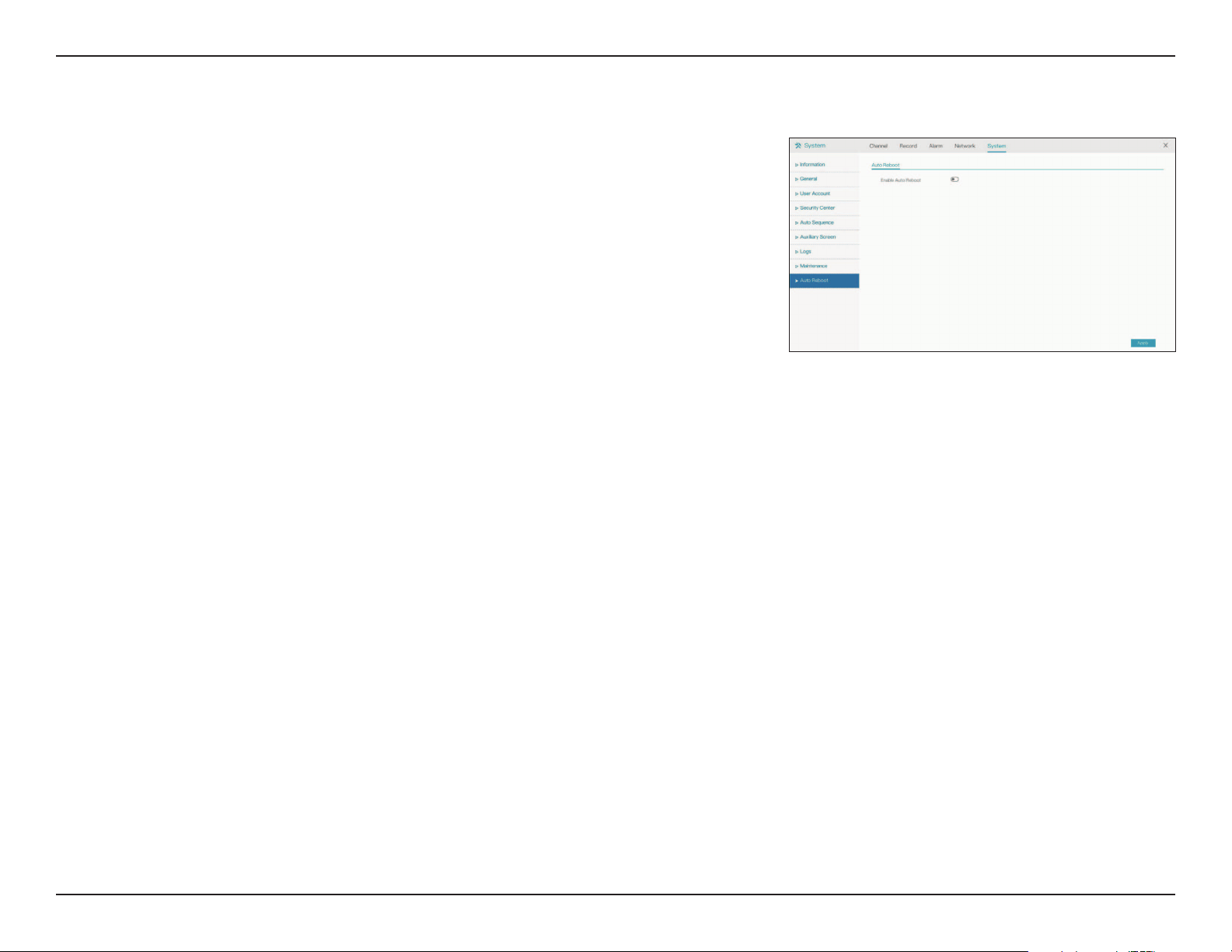
Auto Reboot
Toggle this to enable the device’s automatic restart feature.
Enable Auto
Reboot
Reboot Time
Toggle this to enable the automatic restart feature.
Set the frequency at which the device should restart (i.e. per
day, week, or month) and the time that it should do so.
76D-Link DNR-4020-16P User Manual
Section 3 - Conguration
Playback
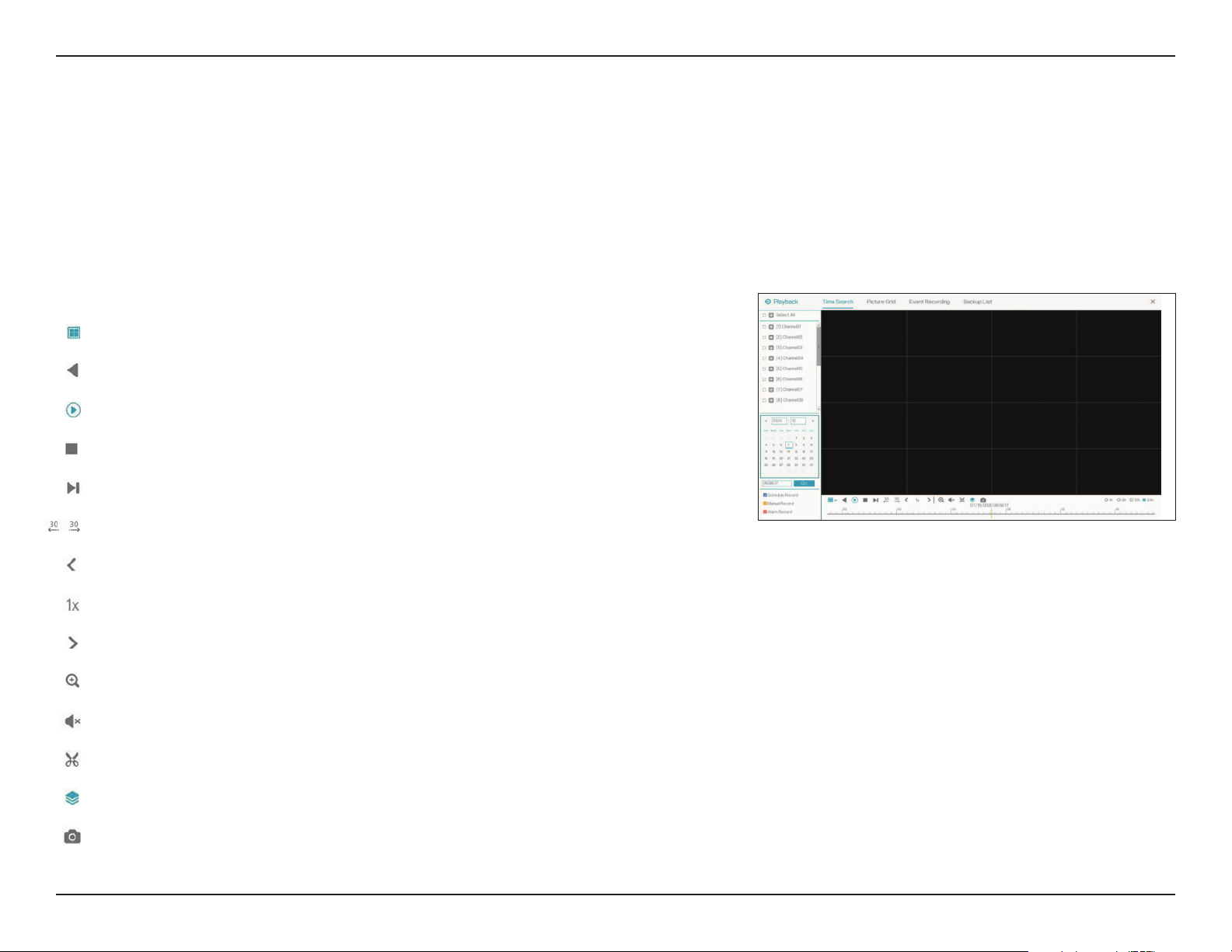
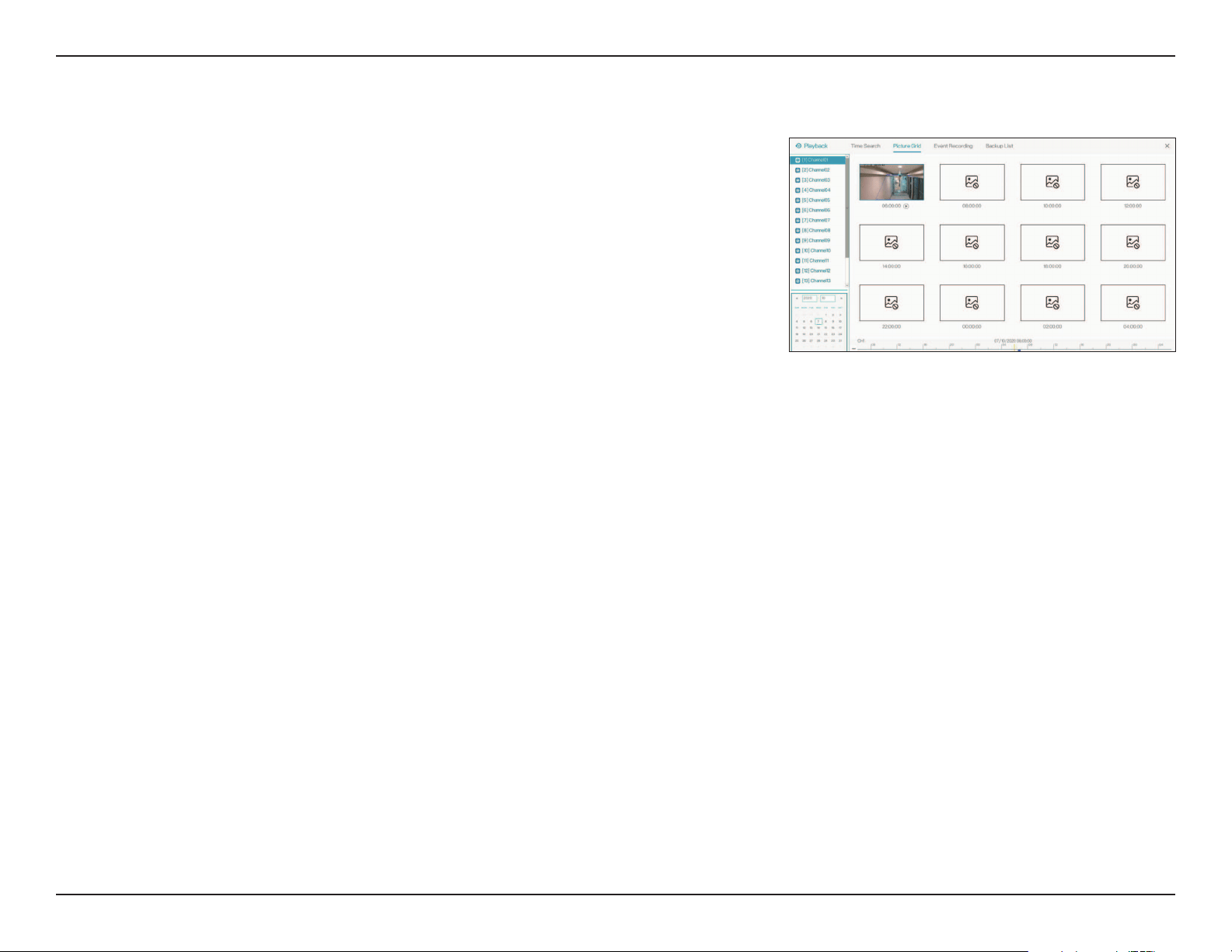
Time Search
On this page you can view the NVR’s recorded footage. In the sidebar, select the channel(s) that you want to view. Use the
calendar to navigate to the date and time that you want to view footage from. Use the buttons on the left to control the
playback. From left to right, the buttons are:
Split Screen: Determine how many channels to view
Reversed: Play the recording backwards
Play: Play the recording
Stop: Pause the recording
Next Frame: Advance by one frame (if paused)
30S Backwards/Forwards: Jump forward or back by 30 seconds
Triple Speed (Backwards): Play backwards in 3x speed
1x: Return to normal speed
Triple Speed (Forwards): Play forwards in 3x speed
Zoom: Zoom in on the display
Audio: Adjust the volume
Start Backup: Begin a backup of the current recording
Batch Backup: Create a backup of a batch of recordings (configured in a popup)
Snapshot: Take a still snapshot of the current playback
77D-Link DNR-4020-16P User Manual
Section 3 - Conguration
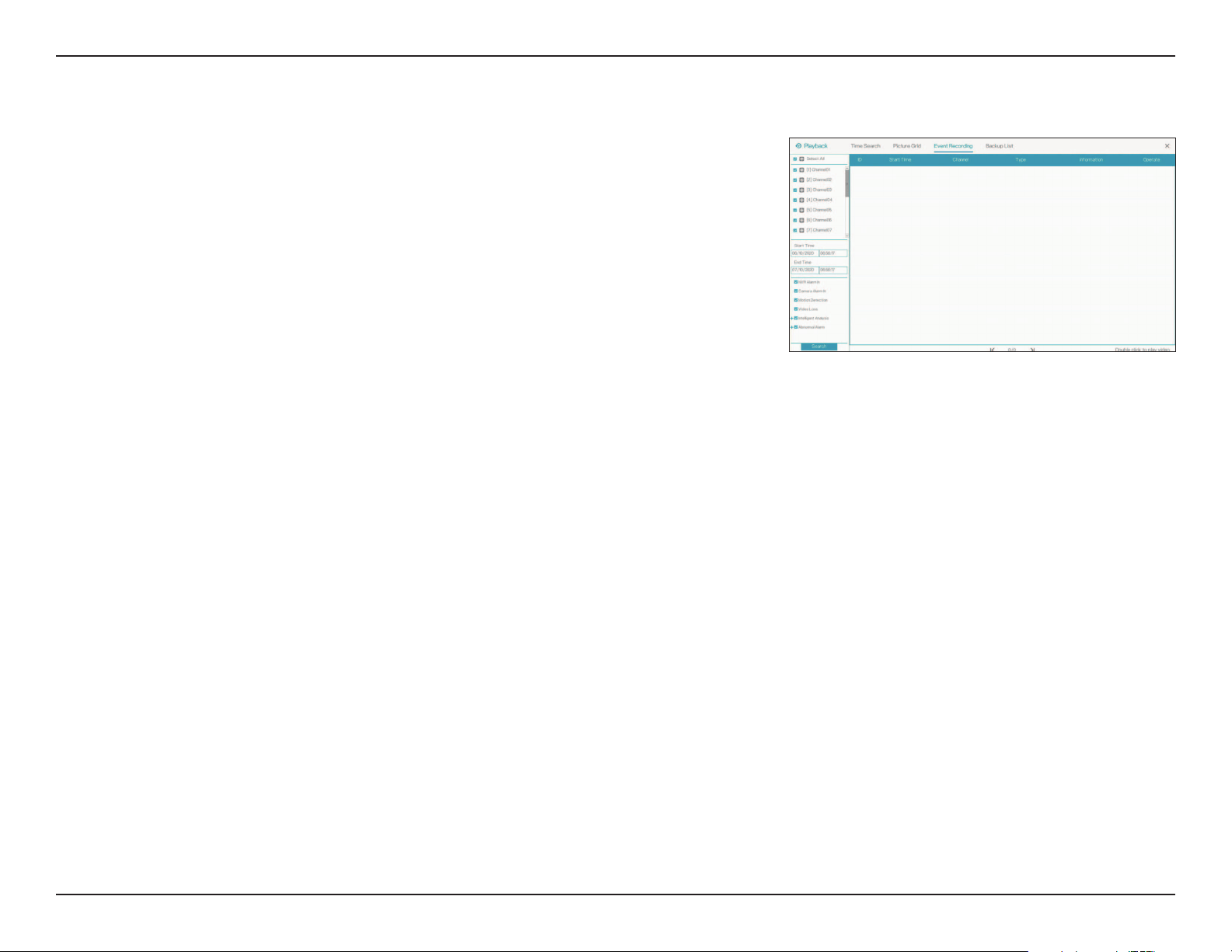
Picture Grid
This page allows you to easily view recordings for a specified channel (selected
in the sidebar) according to the time they were recorded. Frames are separated
on the grid at two-hour intervals. Click a frame to view the playback for that time.
Use the calendar in the left sidebar or the slider on the bottom of the screen to
navigate to a different date.
78D-Link DNR-4020-16P User Manual
Section 3 - Conguration
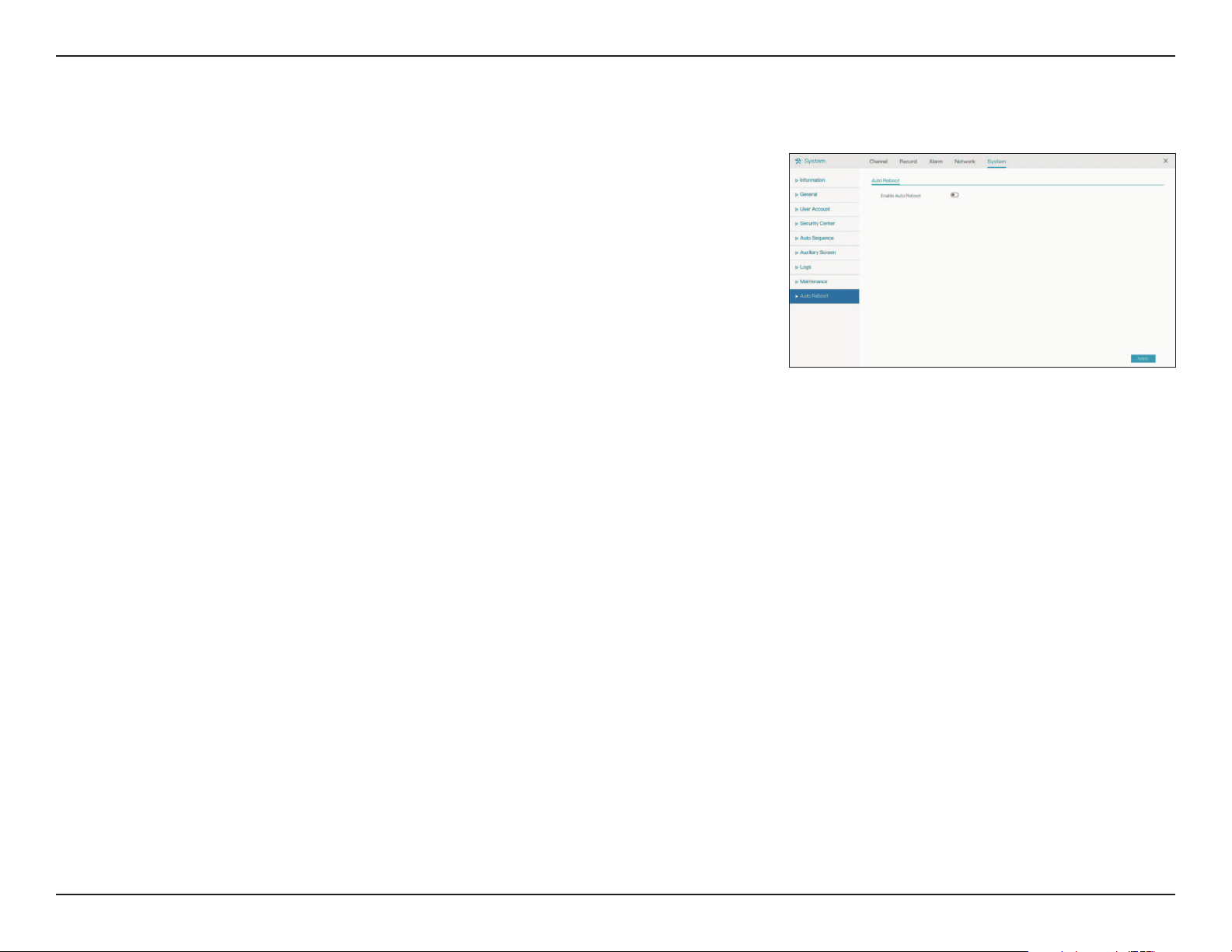
Event Recording
This page displays recordings that triggered an event of some type, such as
motion detection or an alarm. Select the channel and navigate to the date and
time that you want to view events for using the sidebar. Check the boxes in the
bottom left corner of the screen to search for a particular type of event.
79D-Link DNR-4020-16P User Manual
Section 3 - Conguration
Backup List
On this page you can view recordings that you have saved using the Backup
(scissors) icon in the playback screen. Backups must be saved on an inserted USB
storage device.
ID
Channel
Start Time
End Time
Size
Stream
Path
Progress
Operate
An ID number that identifies the backup.
The channel that the backup was saved from.
The start time of the recording.
The ending time of the recording.
The size (in MB) of the backup file.
Displays whether the backup came from the main or sub stream.
The path to the backup file on the USB drive.
Indicates whether the backup is in progress or has finished.
Click the trash can to delete the backup.
80D-Link DNR-4020-16P User Manual
Section 2 - Installation
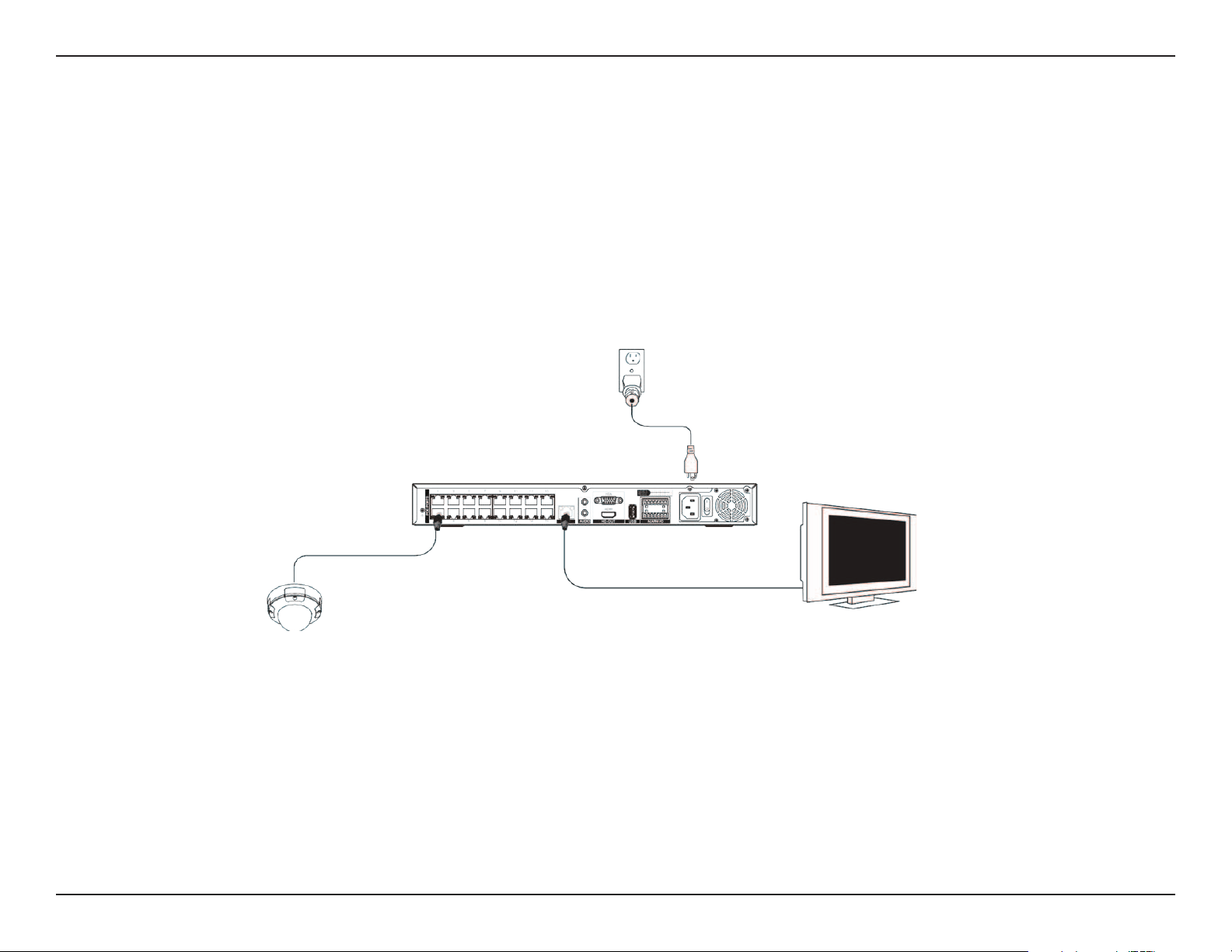
Setting Up Your DNR-4020-16P (Web GUI)
You can connect PoE network cameras directly to your DNR-4020-16P using the 16 PoE ports on the rear panel.
For non-PoE network cameras, you will need to locate power outlets in the on-site environment then run a CAT5E UTP cable
to the LAN ports on the NVR.
You can set up your NVR via the web UI. To do this, connect an Ethernet cable to the LAN port on the rear panel of the device.
Connect the other end of the cable to an Ethernet port on your switch, router, or computer.
81D-Link DNR-4020-16P User Manual
Section 2 - Installation
1. Using a web browser, navigate to dlink.com/support/ and select your
region.
2. On the next screen, enter the model number of your NVR in the search
bar and click Search. Click the picture of your NVR. On the product page,
click the Download button next to Setup Wizard.
3. Once the executable file has finished downloading, click it and follow the
instructions to install the Setup Wizard.
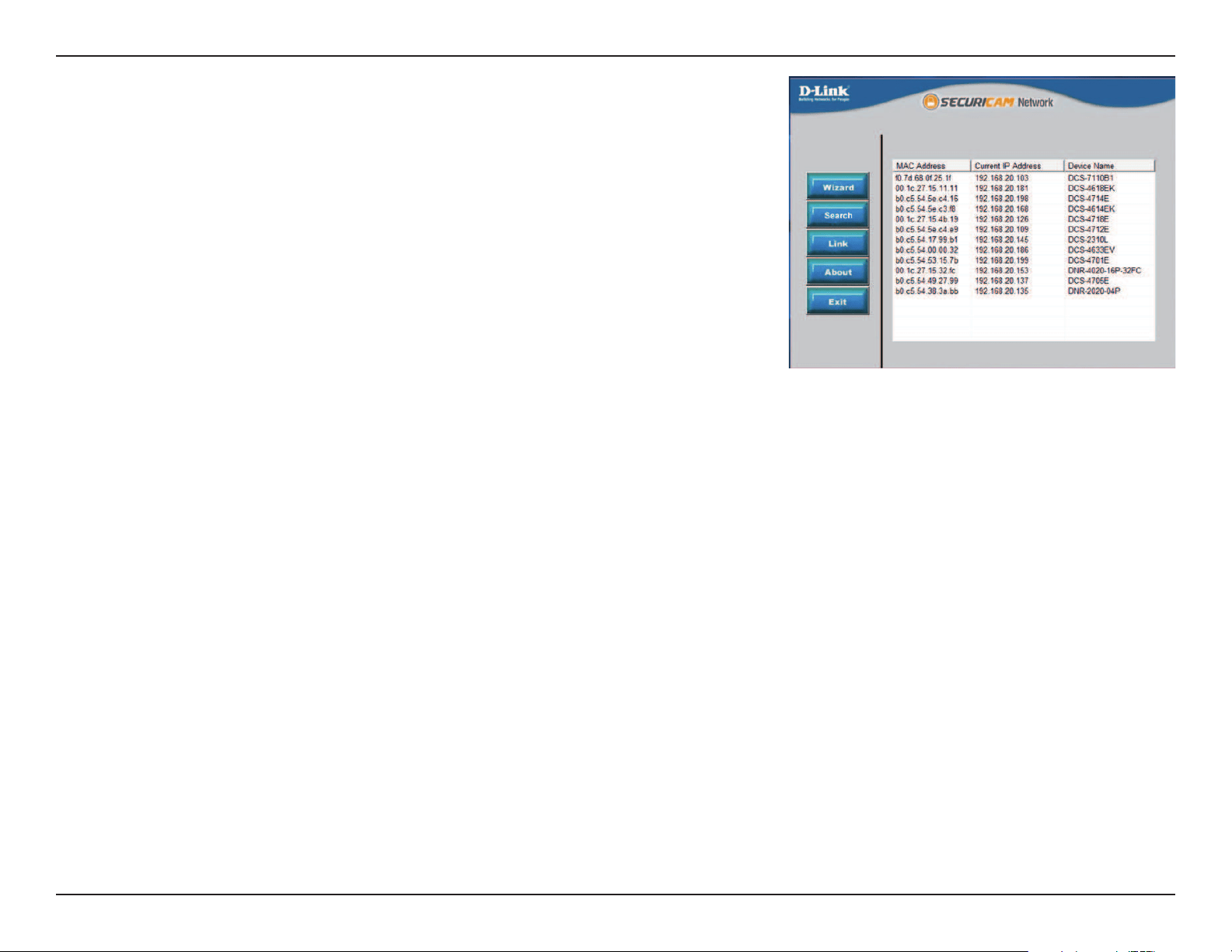
4. Open the Setup Wizard. It will display the MAC address and IP address
of your NVR. If you have a DHCP server on your network, this will be a
dynamic IP address. If your network does not use a DHCP server, the NVR’s
default static IP 192.168.0.20 will be displayed. Select your NVR, then click
the Link button to continue.
5. Log into the web user interface using the same username and password
used to access the HDMI / VGA interface. If this is your first time using the
device, you will be prompted to create a username and password. Click
Save.
6. To view the NVR display and configure the NVR, on the main screen of the
Setup Wizard, click the Search button, then select your NVR and click the
Link button to open the Web UI.
Alternatively, open a web browser and type the NVR’s IP address into the
URL bar and press Enter.
Or enter http://DNR-4020-16P-xxxx.local. in the address bar of your web
browser (xxxx is the last four alphanumeric characters of the MAC ID on the
device label).

82D-Link DNR-4020-16P User Manual
Section 2 - Installation
Initial Conguration
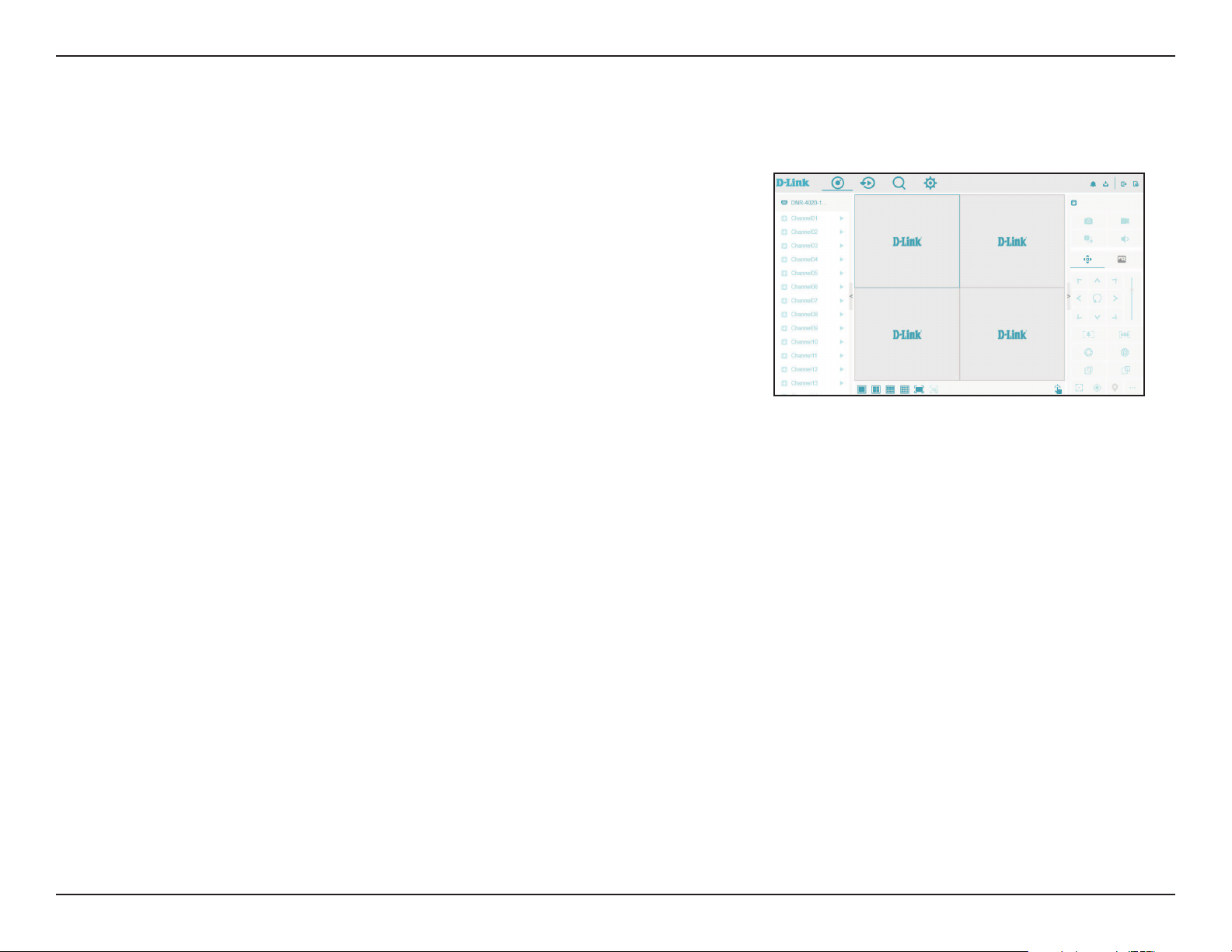
If you are logging into the DNR-4020-16P for the first time, you will be
prompted to create a password for the admin account. Enter the password
in both fields to confirm it. You will also be prompted to enter the default
password to use to access cameras connected to the NVR. This password can
also be set manually from the web UI for each camera.
83D-Link DNR-4020-16P User Manual
Section 2 - Installation
Live View / Home Screen
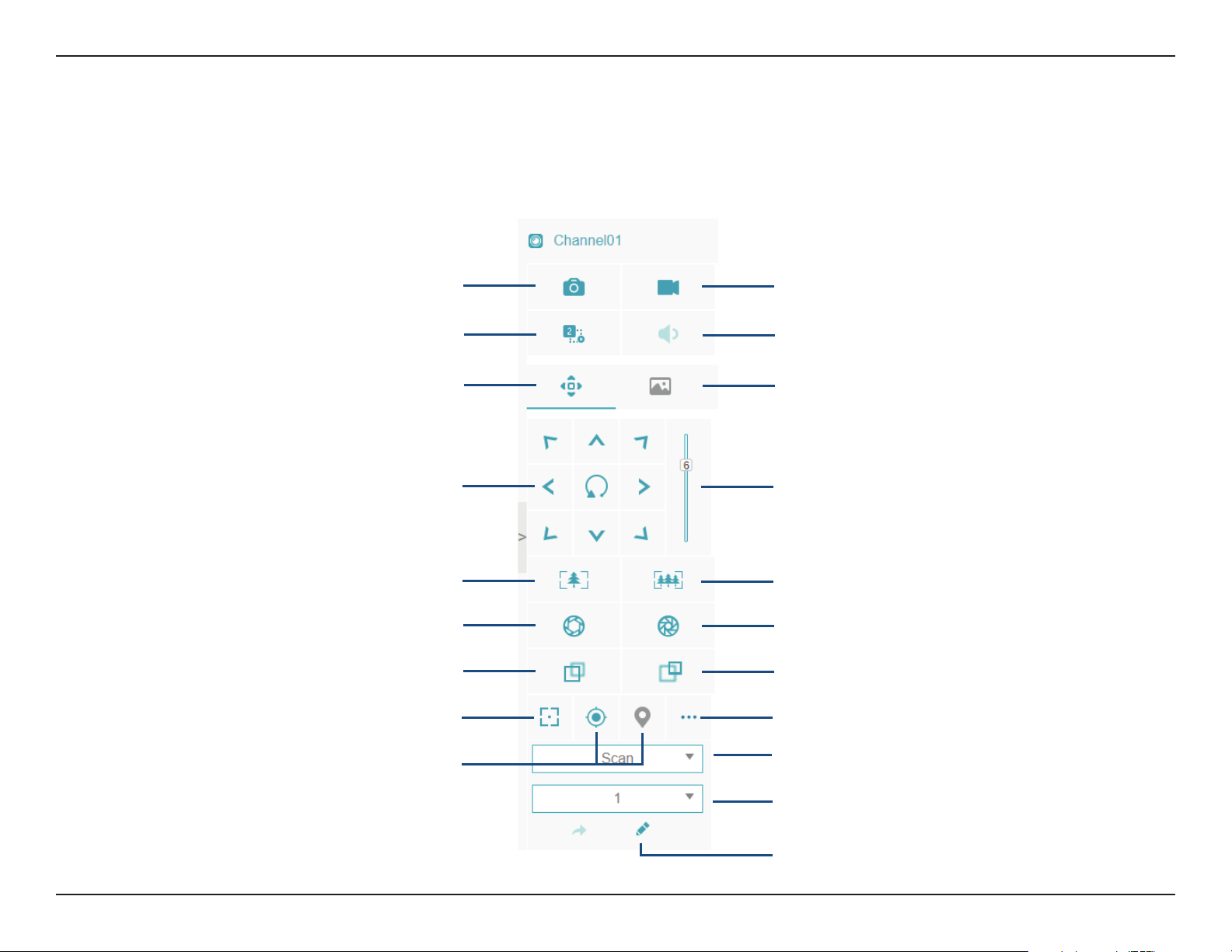
On this screen you can view the DNR-4020-16P’s channels and access its
various configuration options. Select the channels you would like to view
in the side bar on the left. Use the icons on the bar at the top to navigate to
different screens, and the right sidebar for channel configuration options.
Navigation
From left to right, on the top sidebar:
• Live View: View the home screen
• Playback: View the playback screen
• Alarm Search: Search records of alarm events
• Settings: Configure the NVR’s settings
• Event List: Display a list of recent events in the sidebar
• Download: Download a backup of saved recordings
• Logout: Sign off from the web UI
• Help: Display the help menu
On the bottom sidebar, click the buttons to determine how many channels
should be displayed at one time.
84D-Link DNR-4020-16P User Manual
Section 2 - Installation
Channel Configuration
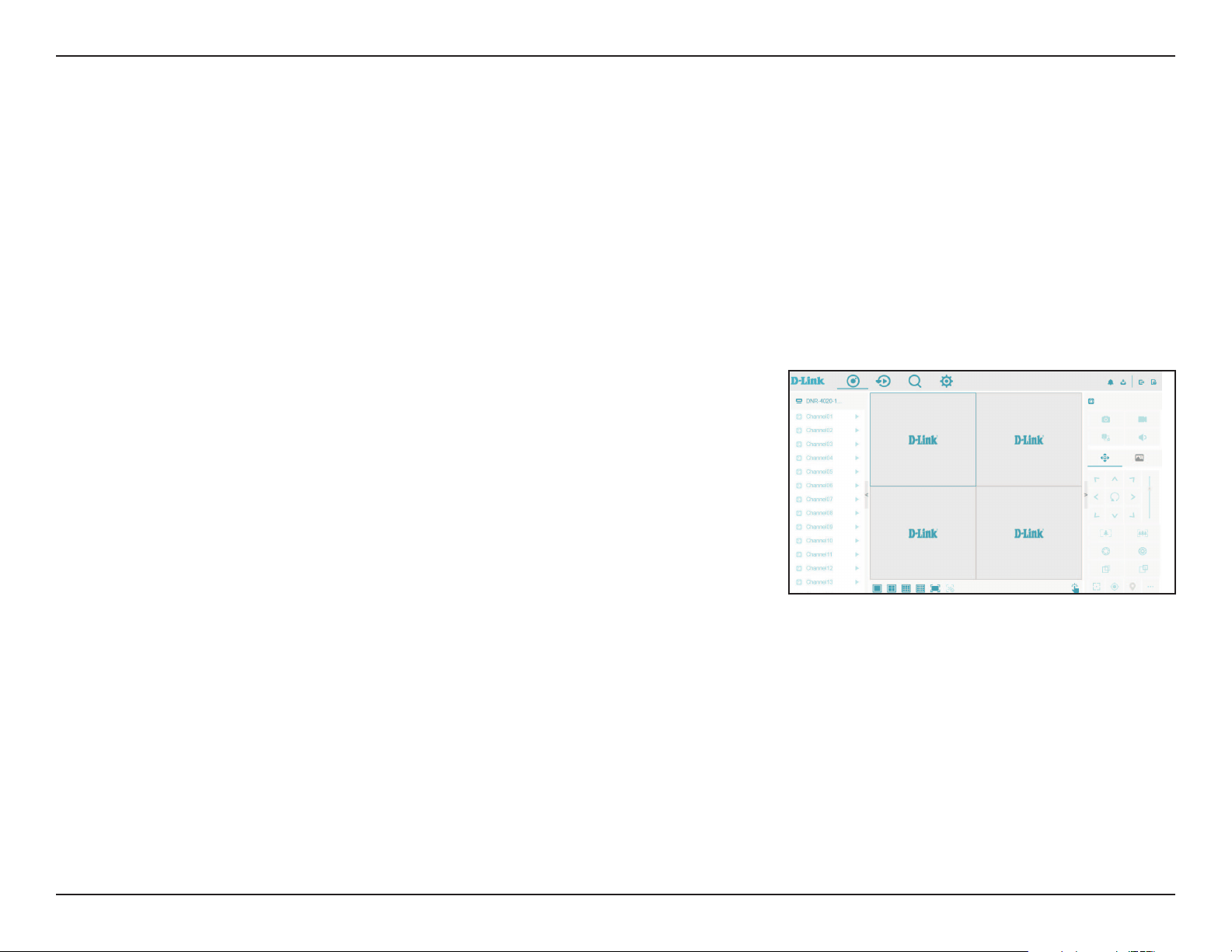
You can configure the channel’s display using the buttons on the right sidebar.
Take a still snapshot of the current channel
Switch to a different stream
Click to adjust the viewing angle (below)
Adjust angle
Take a recording of the current channel
Adjust the volume of the channel
Click to adjust the display settings (light
balance, contrast, etc)
Zoom in
Open the shutter
Focus on closer objects
Focus automatically
Adjust speed
Zoom out
Close the shutter
Focus on more distant objects
Display more configuration options
Switch between Scan and Tour modes
Select the number of points for the scan
Edit
Presets
85D-Link DNR-4020-16P User Manual
Section 3 - Conguration
Playback
On this page you can view the NVR’s recorded footage. In the sidebar, select the channel(s) that you want to view. Use the
calendar to navigate to the date and time that you want to view footage from. Use the buttons on the bottom to control the
playback. From left to right, the buttons are:
• Reversed: Play the recording backwards
• Stop/Play: Play the recording
• Triple Speed (Backwards): Play backwards in 3x speed
• Triple Speed (Forwards): Play forwards in 3x speed
• Async: Set the different channels to play sychronously or
asynchronously
• Split Screen 1/2: Determine how many channels to view)
• Backup: Begin a backup of the current recording
• Batch Backup: Create a backup of a batch of recordings (configured
in a popup)
Use the buttons on the right sidebar to take snapshots, recordings, or
control the stream. From left to right, the buttons are:
• Snapshot: Take a snapshot of the specified channel
• Recording: Take a recording of the specified channel
• Stream switch: Switch to a different stream
To choose what date and time to play the recording of, use the calendar in the bottom left sidebar to select your desired date.
Enter a time of day in the field and click Go. Recorded footage will be indicated by a blue bar on the bottom of the screen.
You can click the bar at the desired time to view the recording.
86D-Link DNR-4020-16P User Manual
Section 3 - Conguration
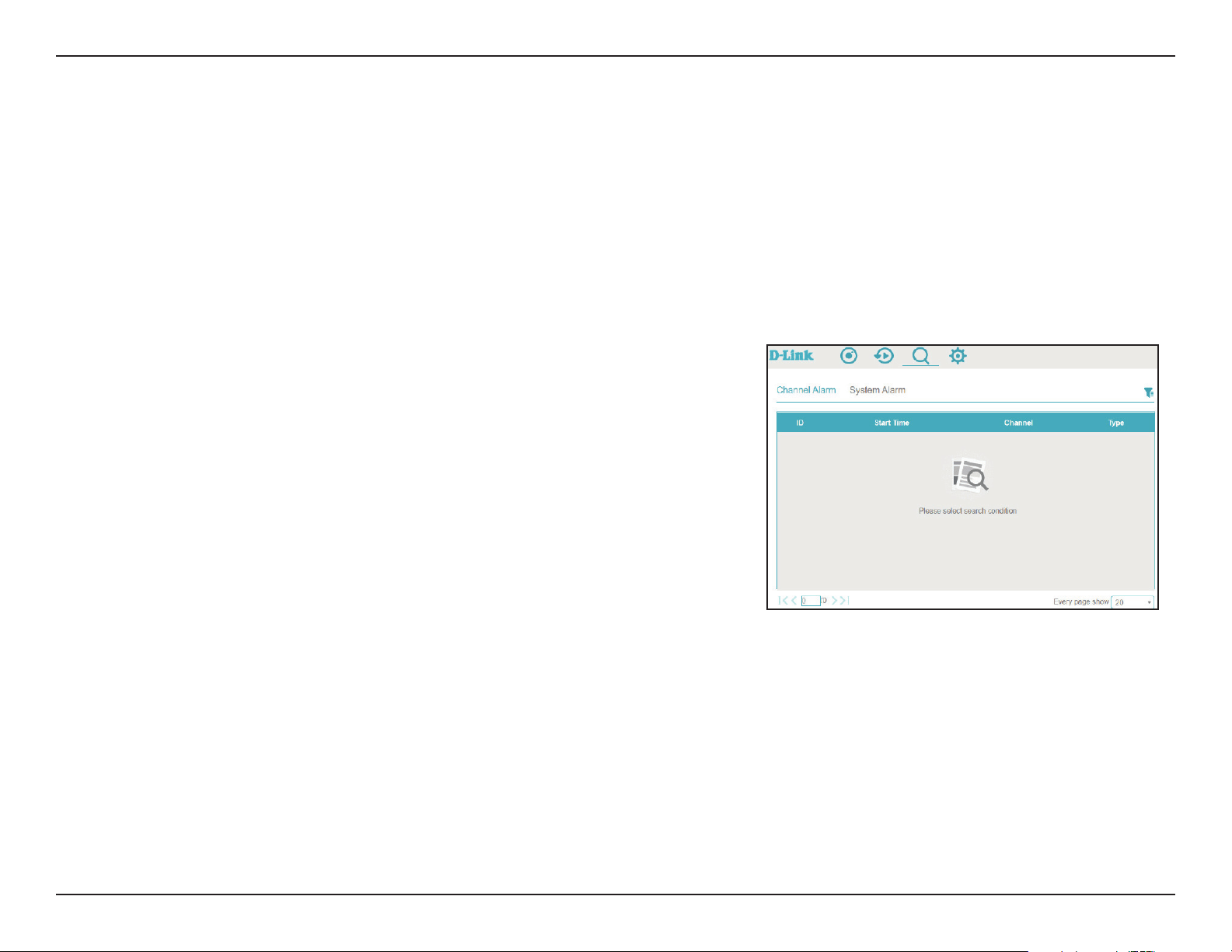
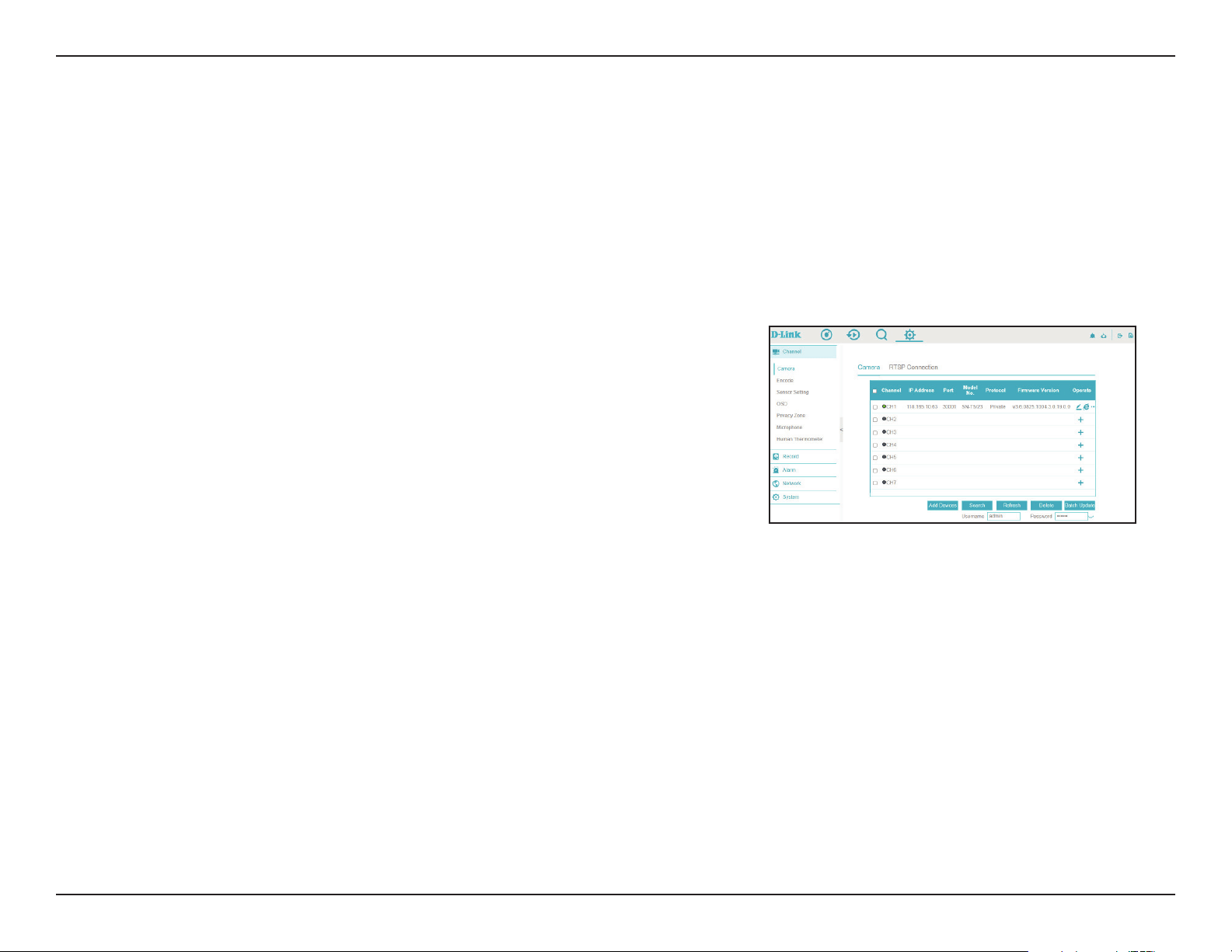
Alarm Search
On this page you can search the NVR’s alarm records for specific alarm types. Click the icon in the top right to select the
channel(s), the type of alarm (e.g. video loss or motion detection) and dates/times to search. Click the tabs to view Channel
Alarms or System Alarms.
87D-Link DNR-4020-16P User Manual
Section 3 - Conguration
Channel
IP
Model
Protocol
Firmware
Version
Operate
E (Explorer)
The channel the specified camera is on.
The camera’s IP address.
The camera’s model number.
The protocol used to communicate with the camera.
The firmware the specified camera is running.
Click this to set or update the camera’s settings.
Click the blue E icon to open a browser to view the camera in the
web GUI.
Click the ... icon to reboot or reset the IP camera (for cameras
operating via private protocol only).
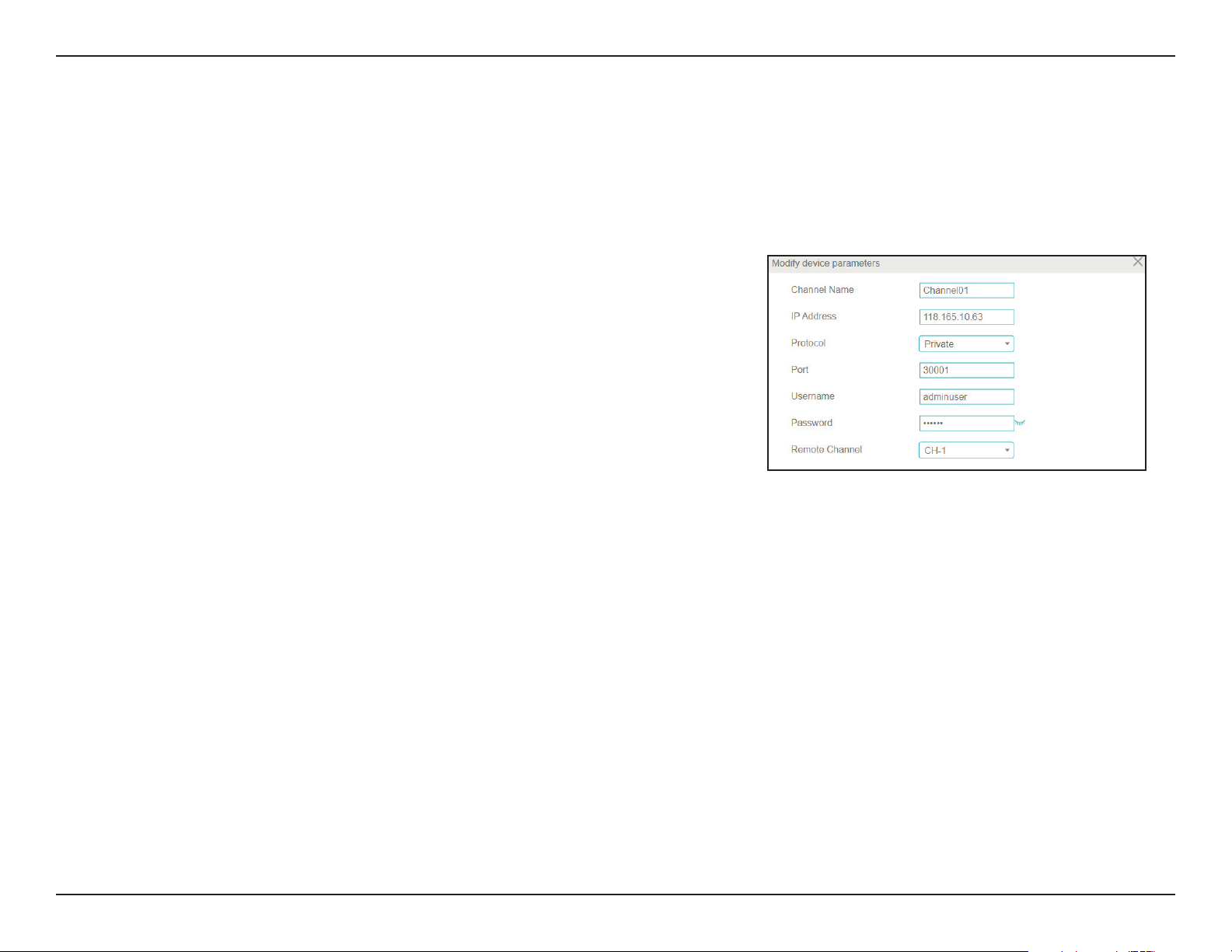
System
Channel
Camera
On this page, you can configure the DNR-4020-16P’s 16 channels and add cameras to them. To search for available cameras,
click Start Search. To add cameras to a channel, enter the username and password in the fields at the bottom of the
screen and click Add.
88D-Link DNR-4020-16P User Manual
Section 3 - Conguration
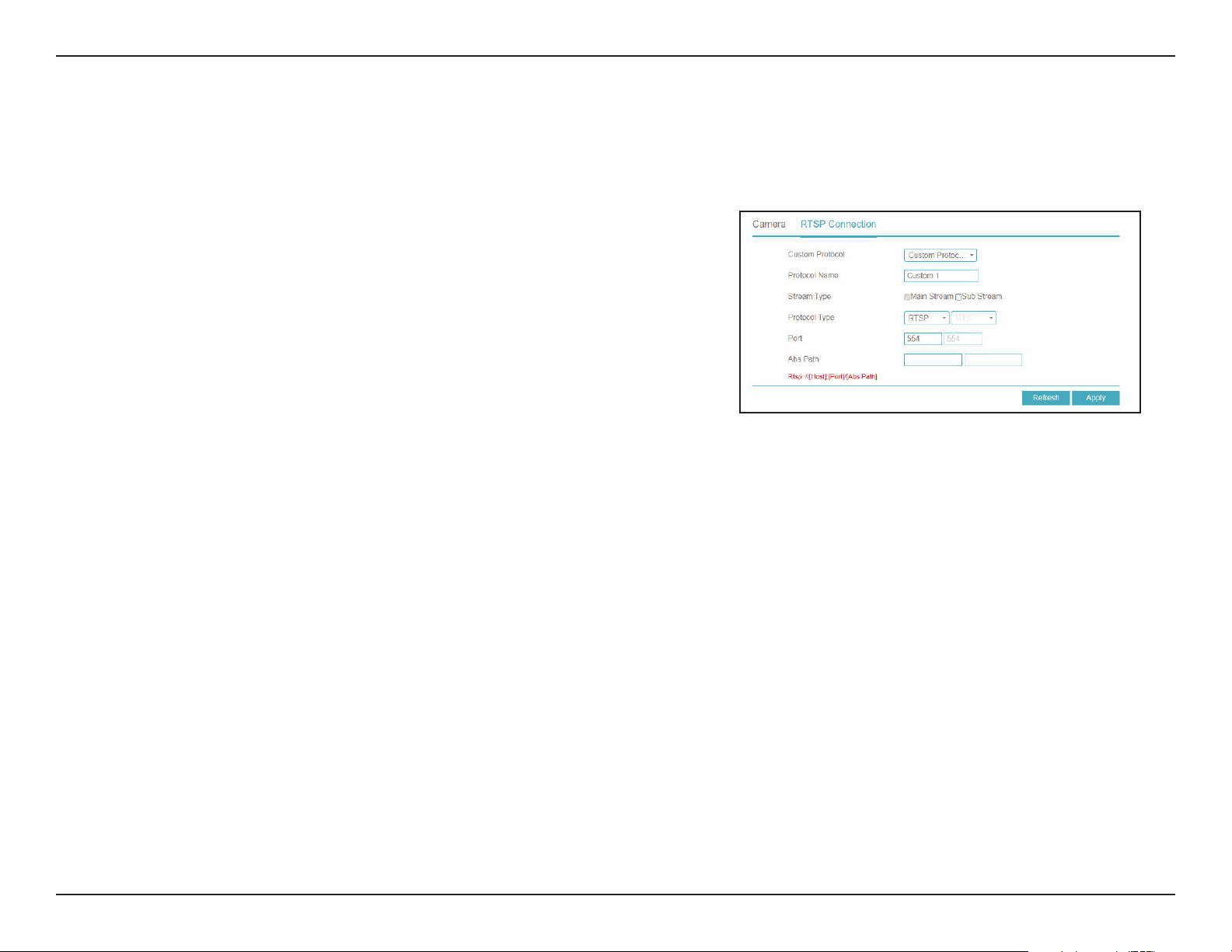
Channel
Name
IP Address
Protocol
Port
Username:
Password:
Remote
Channel
Enter a name to identify the channel.
Enter the IP address of the camera. If the camera is connected
to one of the NVR’s PoE ports, it will attempt to detect the IP
address automatically.
Select the protocol to use (e.g. ONVIF).
Enter the port used to connect to the camera.
Enter the username used to access the camera.
Enter the password associated with the username above.
Designate a channel for the camera’s display.
Configuring a Channel
Click the pencil icon under Operate to add a camera on a channel or to configure an existing channel.
89D-Link DNR-4020-16P User Manual
Section 3 - Conguration
Custom
Protocol
Protocol
Name
Stream Type
Protocol Type
Port
Abs Path
Designate the custom protocol to use (select 1-16 from the
drop-down menu).
Specify a protocol name to use.
Select Main Stream or Sub Stream. If you select Sub Stream, the
options on the right will be enabled.
Select the protocol type to use for the stream. This is set to
RTSP by default.
Select the RTSP port to use. This is set to 554 by default.
Enter the absolute path for the RTSP connection to use.
RTSP Connection
Use this page to configure your Real Time Streaming Protocol (RTSP) connection settings.
90D-Link DNR-4020-16P User Manual
Section 3 - Conguration
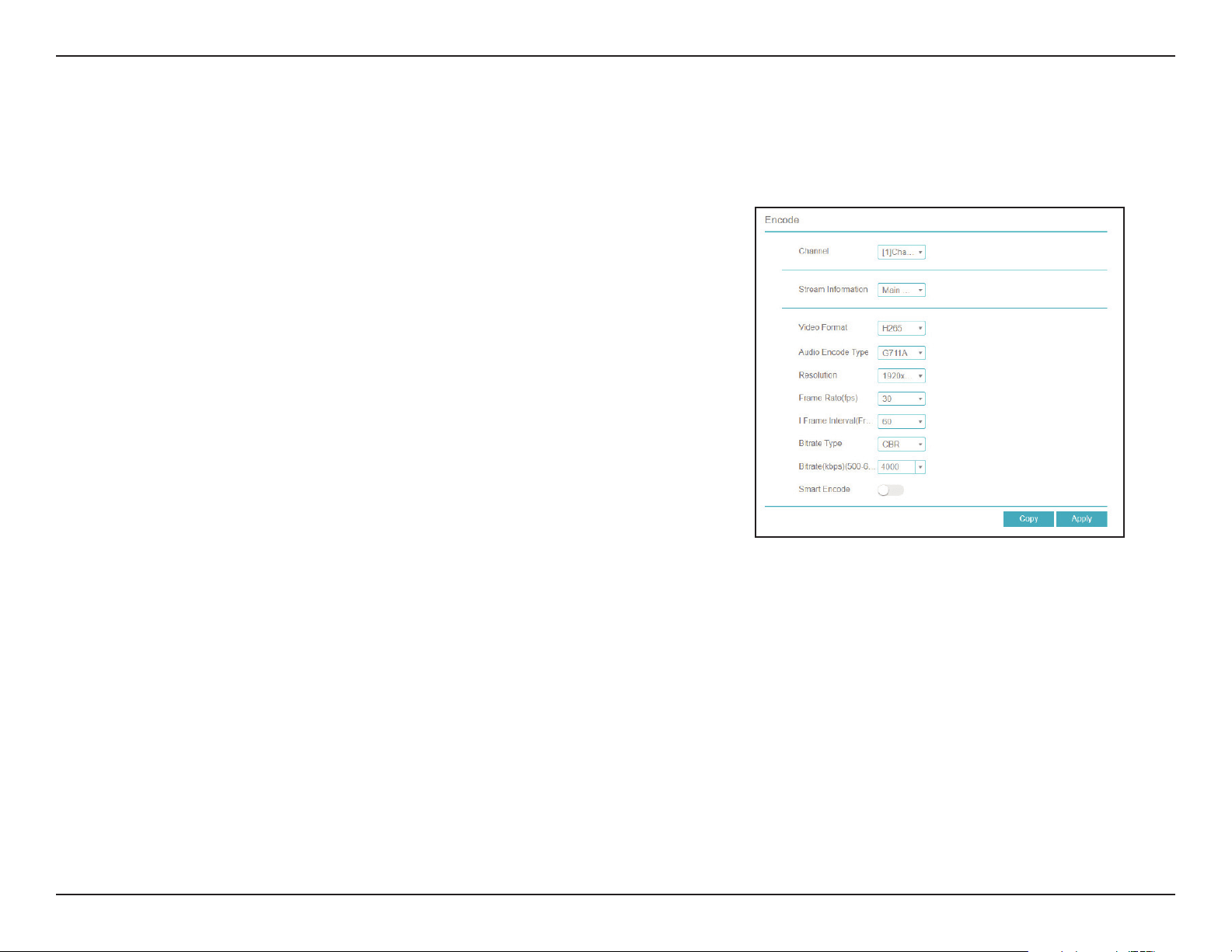
Channel
Stream
Information
Video Format
Audio Encode
Type
Resolution
Frame Rate
(fps)
Bitrate Type
Specify the channel to modify.
Indicates which stream the following information pertains to
(i.e. Main Stream or Sub Stream).
Select the video encoding format to use for the channel (e.g.
H.265, H.264, etc).
Select the audio encoding format to use for the channel (e.g.
G711A, G711U, etc).
The resolution to use for the channel’s display.
The frame rate at which to display the video.
Select the bitrate type (e.g. CBR, VBR, etc)
Encode
On this page, you can change the encoding settings for the video and audio streams on a particular channel.
91D-Link DNR-4020-16P User Manual
Section 3 - Conguration
Bitrate (kbps)
Smart Encode
The bitrate will affect the bit rate of the video recorded
by the camera. Higher bit rates result in higher video
quality.
Click to enable or disable smart encoding. If selected, this will
configure some of the settings above automatically. Support
for IP cameras is only available via private protocol.
92D-Link DNR-4020-16P User Manual
Section 3 - Conguration
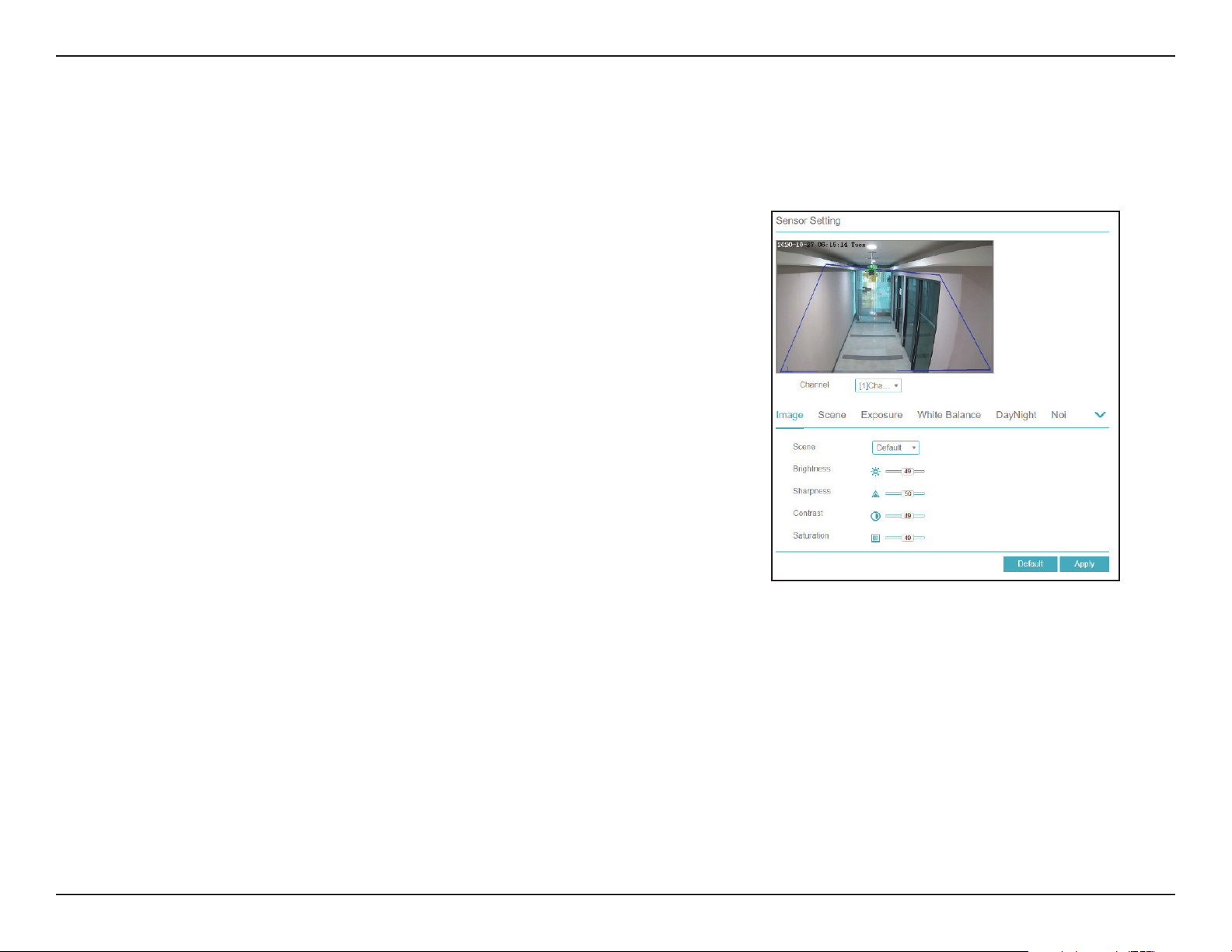
Scene
Brightness
Sharpness
Contrast
Saturation
Select the type of scene (Indoor or Outdoor) or select Default.
The default settings are determined by the IP camera’s video
parameters.
Adjust the image brightness.
Adjust the image sharpness.
Adjust the contrast.
Adjust the saturation.
Sensor Settings
On the Sensor Settings page you can change aspects of the camera’s display and its sensor’s configuration settings.
Image
93D-Link DNR-4020-16P User Manual
Section 3 - Conguration
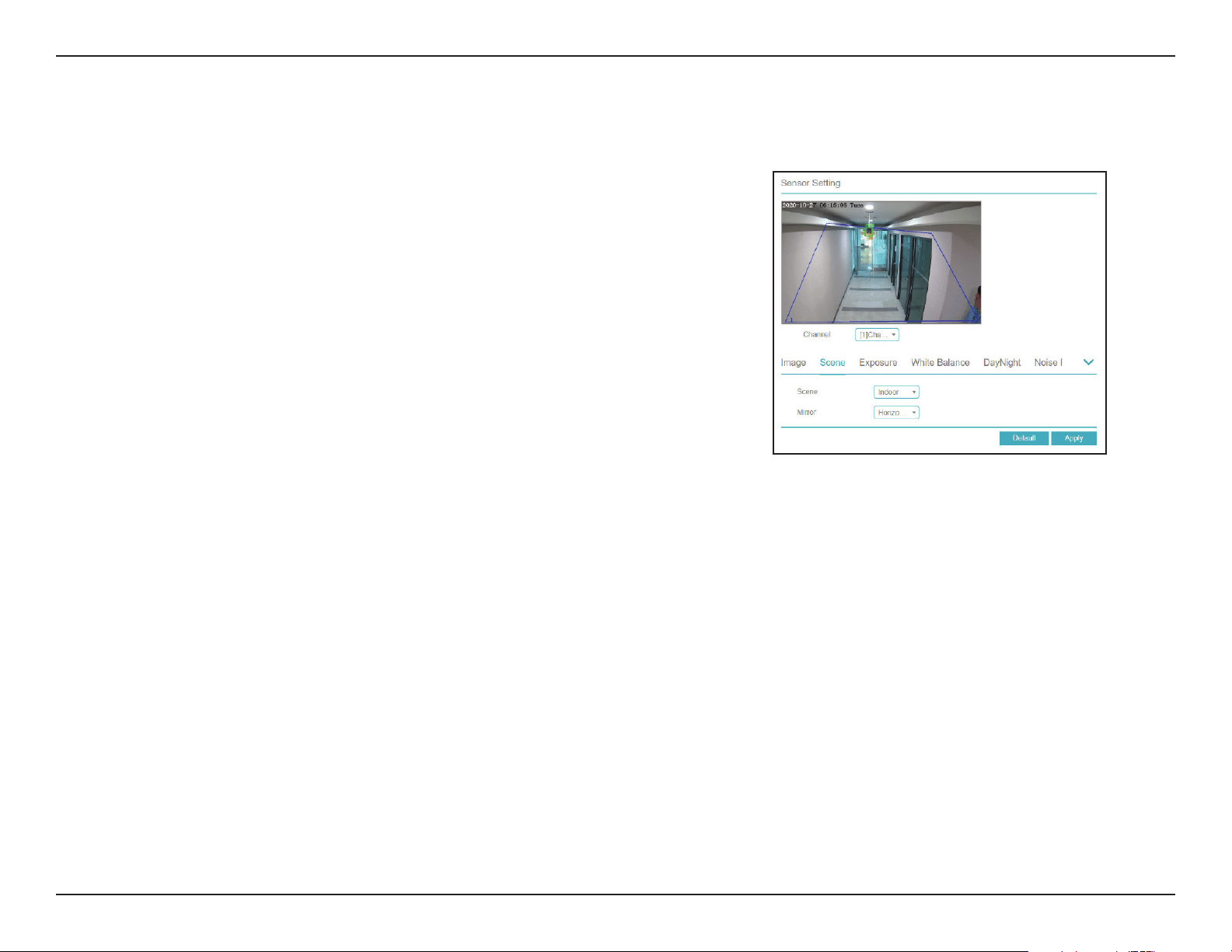
Scene
Mirror
Select whether the scene is Indoors or Outdoors.
From the drop-down, choose whether to display the scene
normally or mirror it horizontally, vertically, or both.
The configuration options on this page are only available for
cameras being accessed via private protocol.
Scene
94D-Link DNR-4020-16P User Manual
Section 3 - Conguration
Exposure
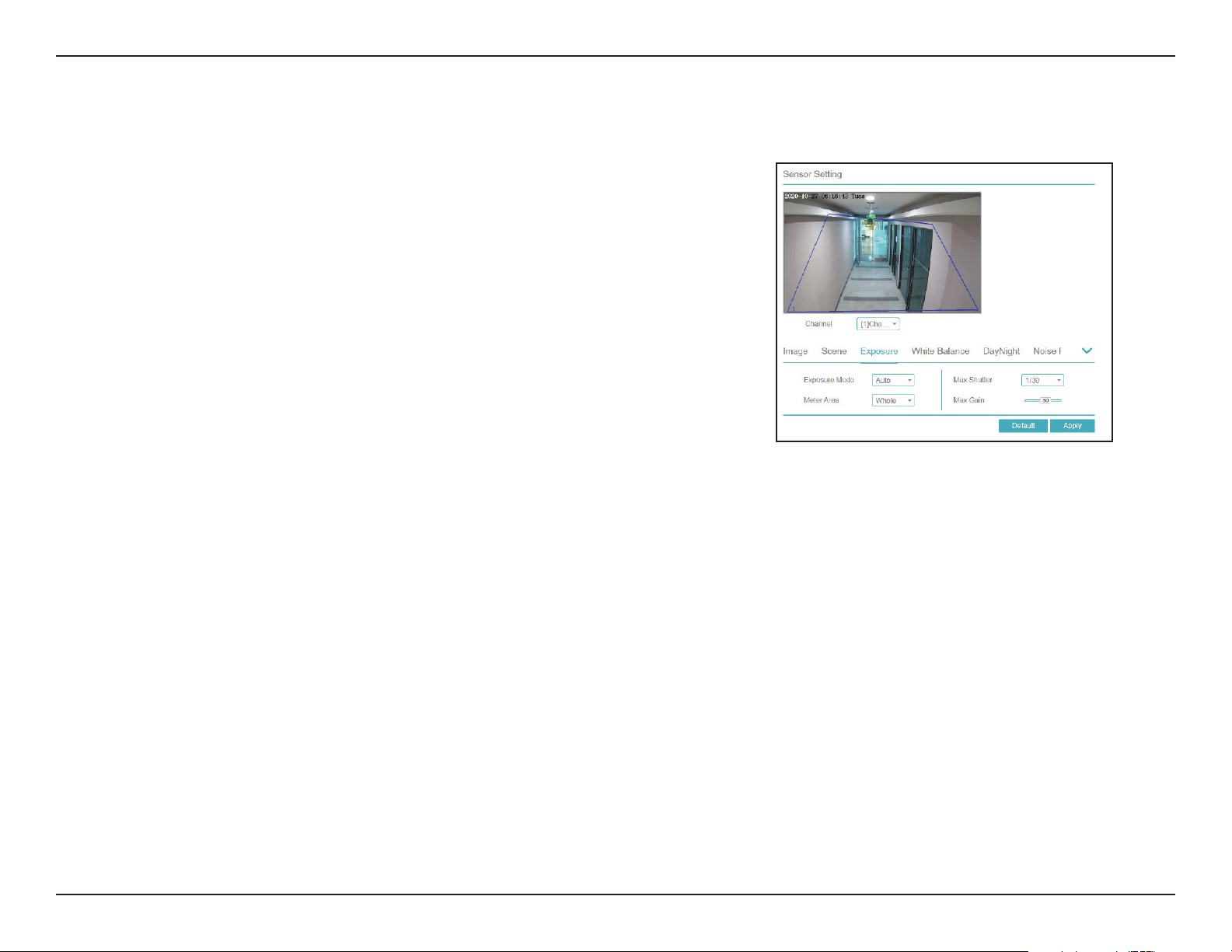
Mode
Meter Area
Max Shutter
Max Gain
Choose the exposure mode. Select between Auto, Manual,
Shutter Priority, and Iris Priority (aperture priority).
Select the meter area.
Select the maximum shutter speed.
Select the maximum gain.
The configuration options on this page are only available for
cameras being accessed via private protocol.
Exposure
95D-Link DNR-4020-16P User Manual
Section 3 - Conguration
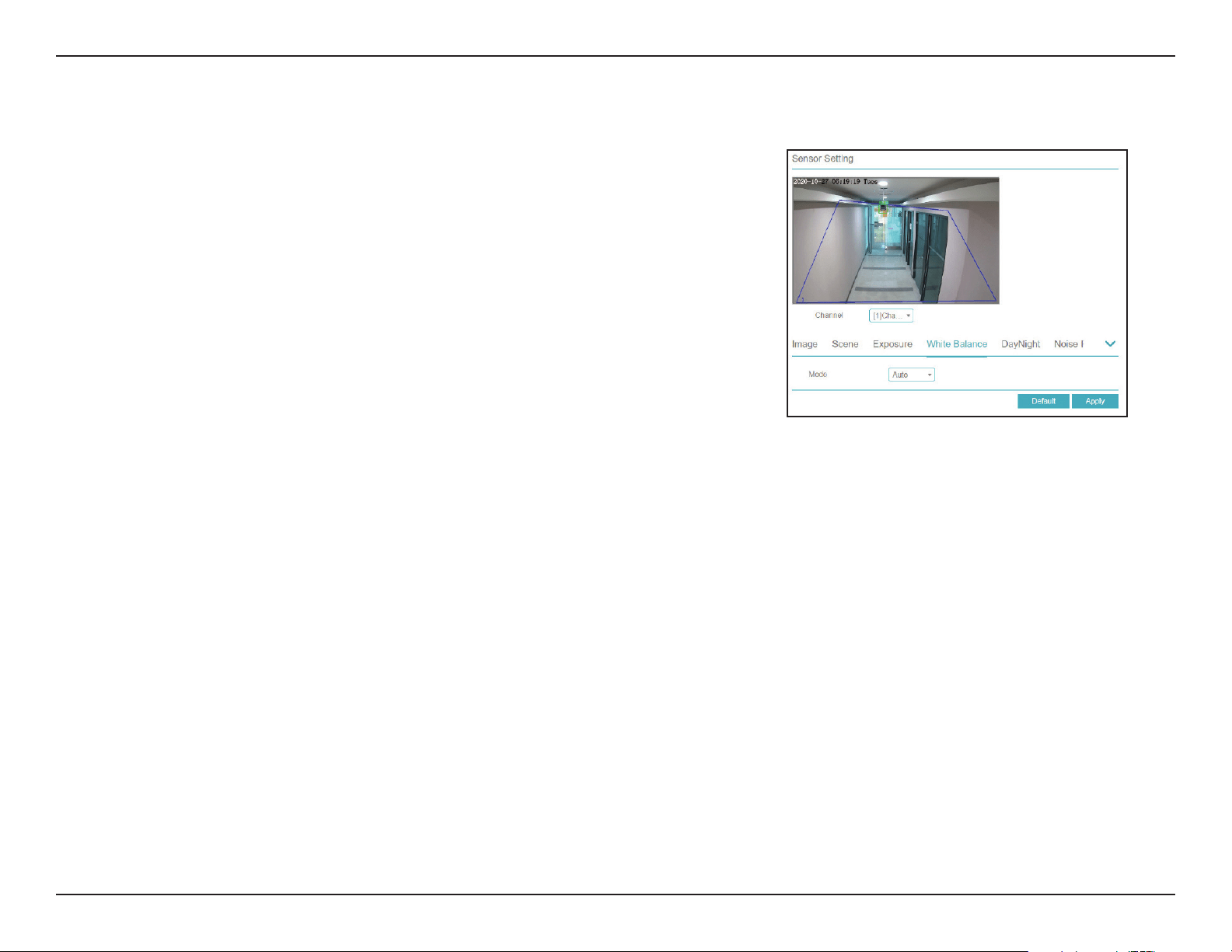
Mode Select the mode from a variety of options, including Tungsten,
Fluorescent, Daylight, Shadow, etc. If you select Manual, you
will need to set the red and blue levels yourself.
The configuration options on this page are only available for
cameras being accessed via private protocol.
White Balance
96D-Link DNR-4020-16P User Manual
Section 3 - Conguration
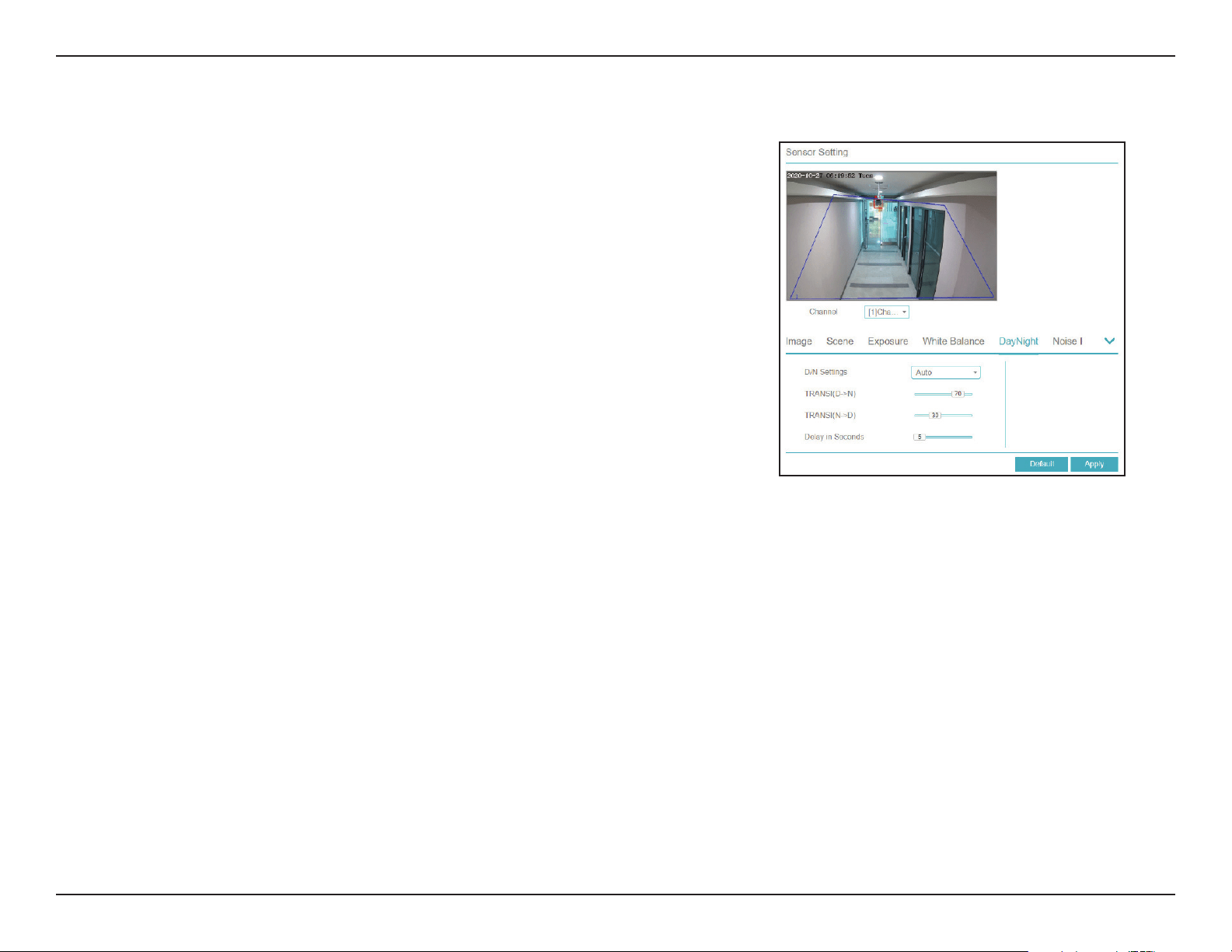
D/N Settings Choose whether to automatically or manually configure
the day/night settings. If you select Timing, you will need to
designate a day/night schedule in the fields that appear. If you
select Auto, you will need to set the transition time between
day and night modes, as well as the delay before the transition
occurs.
The configuration options on this page are only available for
cameras being accessed via private protocol.
Day/Night
97D-Link DNR-4020-16P User Manual
Section 3 - Conguration
2D/3D NR
Max Strength
Enable or disable 2D and 3D noise reduction.
Select the maximum level of noise reduction to be applied to
the image.
The configuration options on this page are only available for
cameras being accessed via private protocol.
Noise Reduction
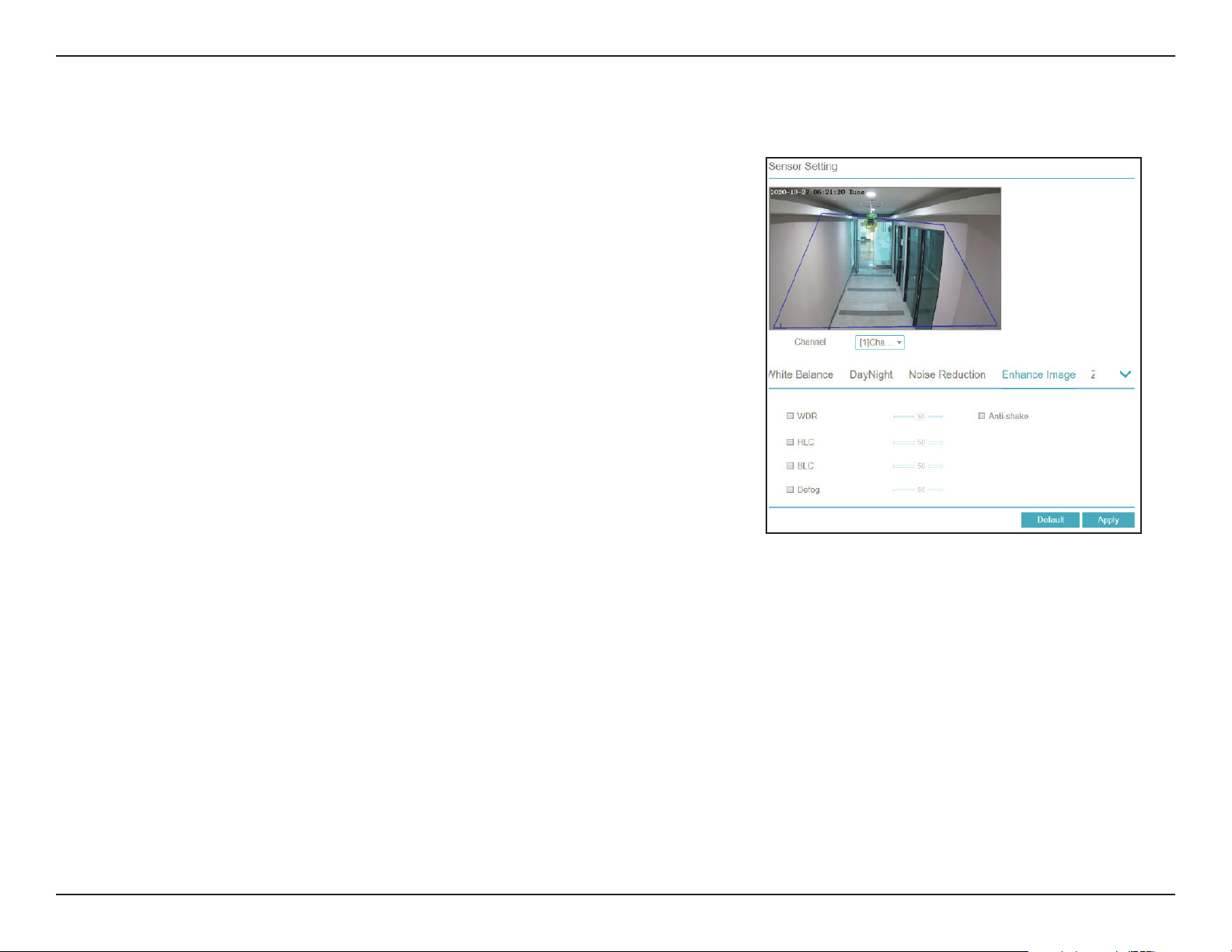
98D-Link DNR-4020-16P User Manual
Section 3 - Conguration
WDR
HLC
BLC
Defog
Anti-shake
Enable this to optimize the display quality with wide dynamic
range (WDR).
Adjust for overexposure with highlight compensation (HLC).
Adjust the overall lighting of the image with backlight
compensation (BLC).
Defog the image.
Enable this to compensate for minor shaking of the camera,
making the video smoother.
The configuration options on this page are only available for cameras
being accessed via private protocol.
Enhance Image
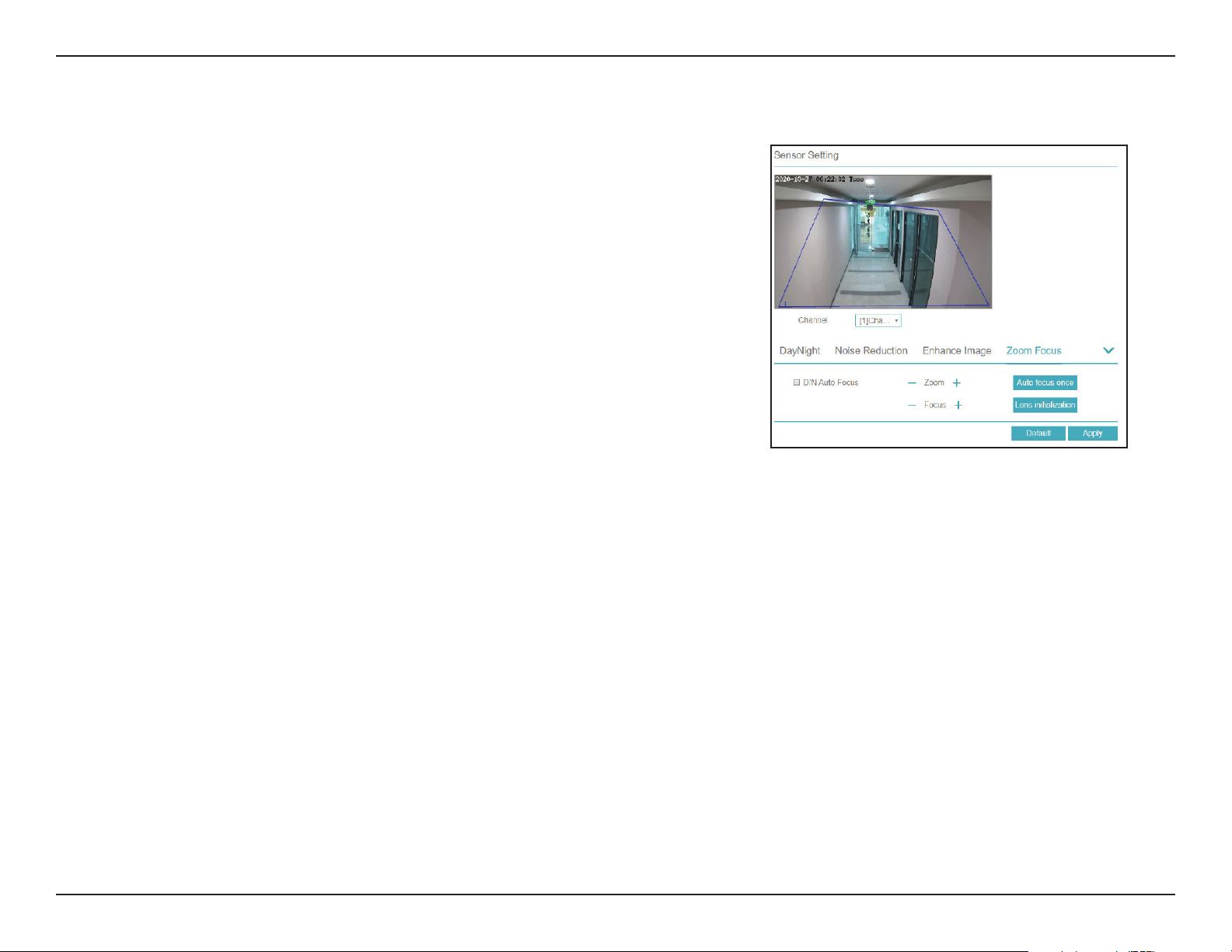
99D-Link DNR-4020-16P User Manual
Section 3 - Conguration
D/N Auto
Focus
Auto focus
once
Zoom
Focus
Lens
initialization
Click this to automatically focus according to whether the
camera is in day or night mode.
Click this to automatically focus the lens a single time.
Manually adjust the camera’s zoom.
Manually adjust the camera’s focus.
Click this to recalibrate the lens’s zoom and focus.
The configuration options on this page are only available for cameras
being accessed via private protocol.
Zoom Focus
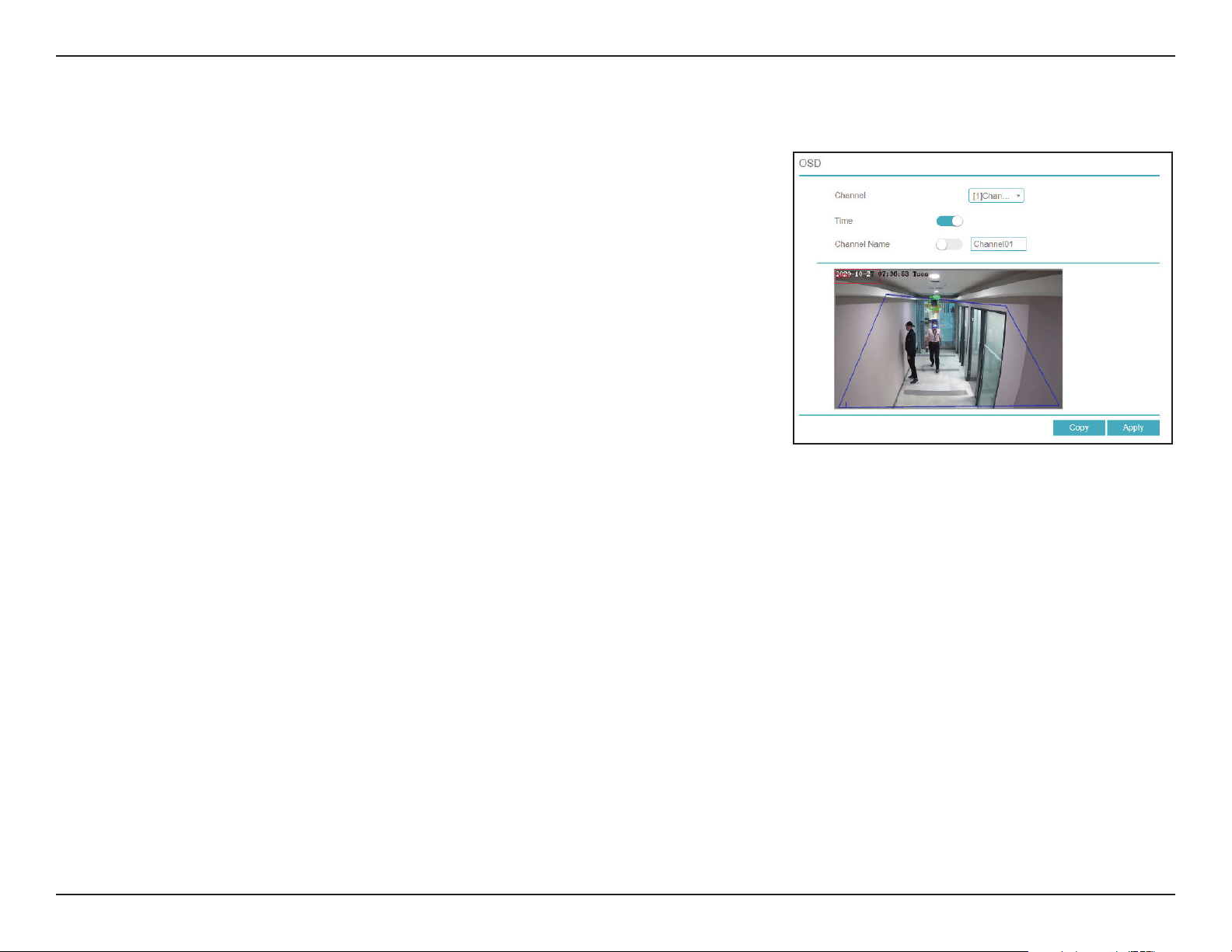
100D-Link DNR-4020-16P User Manual
Section 3 - Conguration
Channel
Time
Channel
Name
Specify a channel.
Toggle this to display the current time on the selected channel’s OSD.
Toggle this to display the selected channel name on the OSD.
The configuration options on this page are only available for cameras
being accessed via private protocol.
OSD
On this page you can configure the on-screen display (OSD) for the NVR’s
channels.
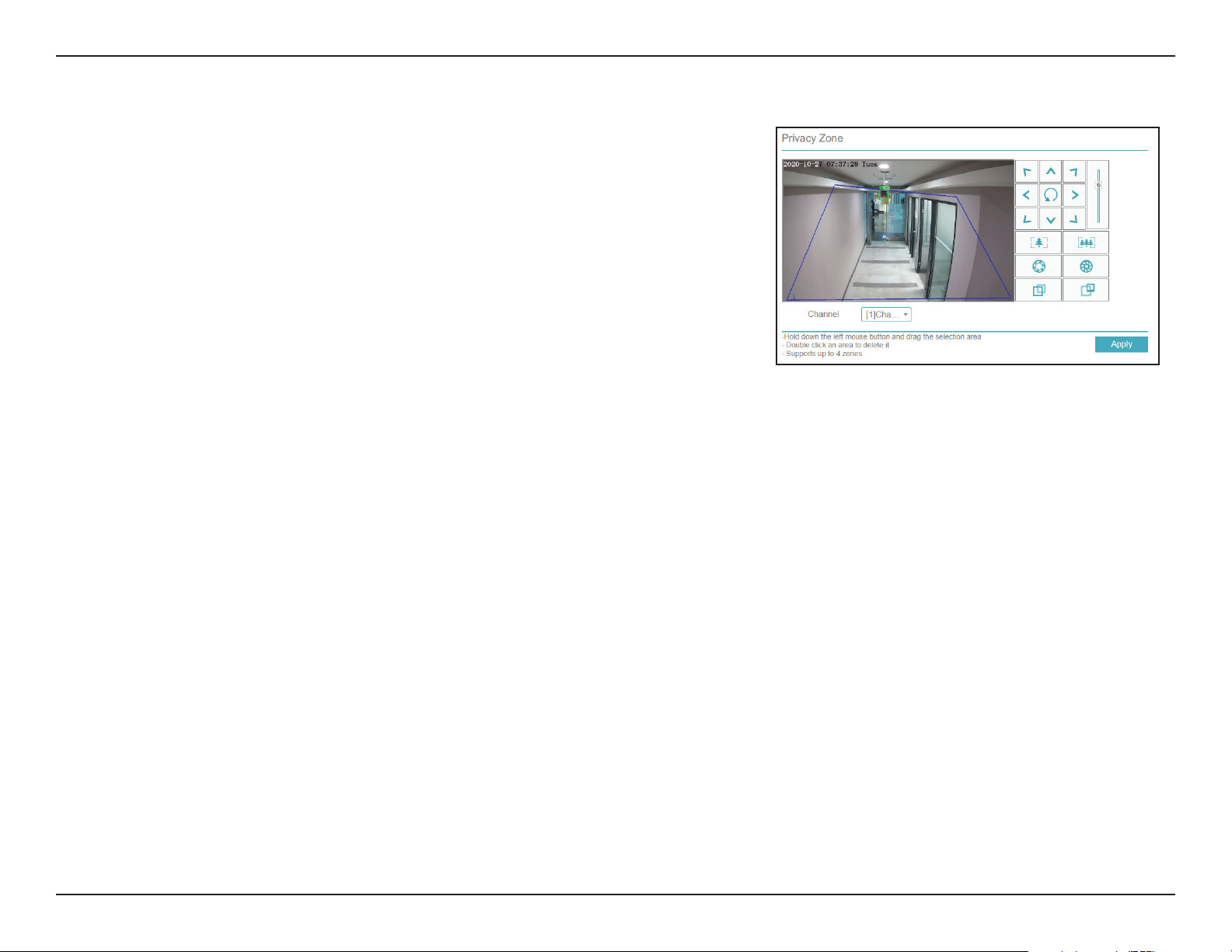
101D-Link DNR-4020-16P User Manual
Section 3 - Conguration
Privacy Zone
Click and drag a section of the screen to create a privacy zone. This area will
not be viewable and will not be recorded. Double-click an existing privacy
zone to delete it.
Select the channel to add a privacy zone to. The DNR-4020-16P supports
up to four zones.
Channel
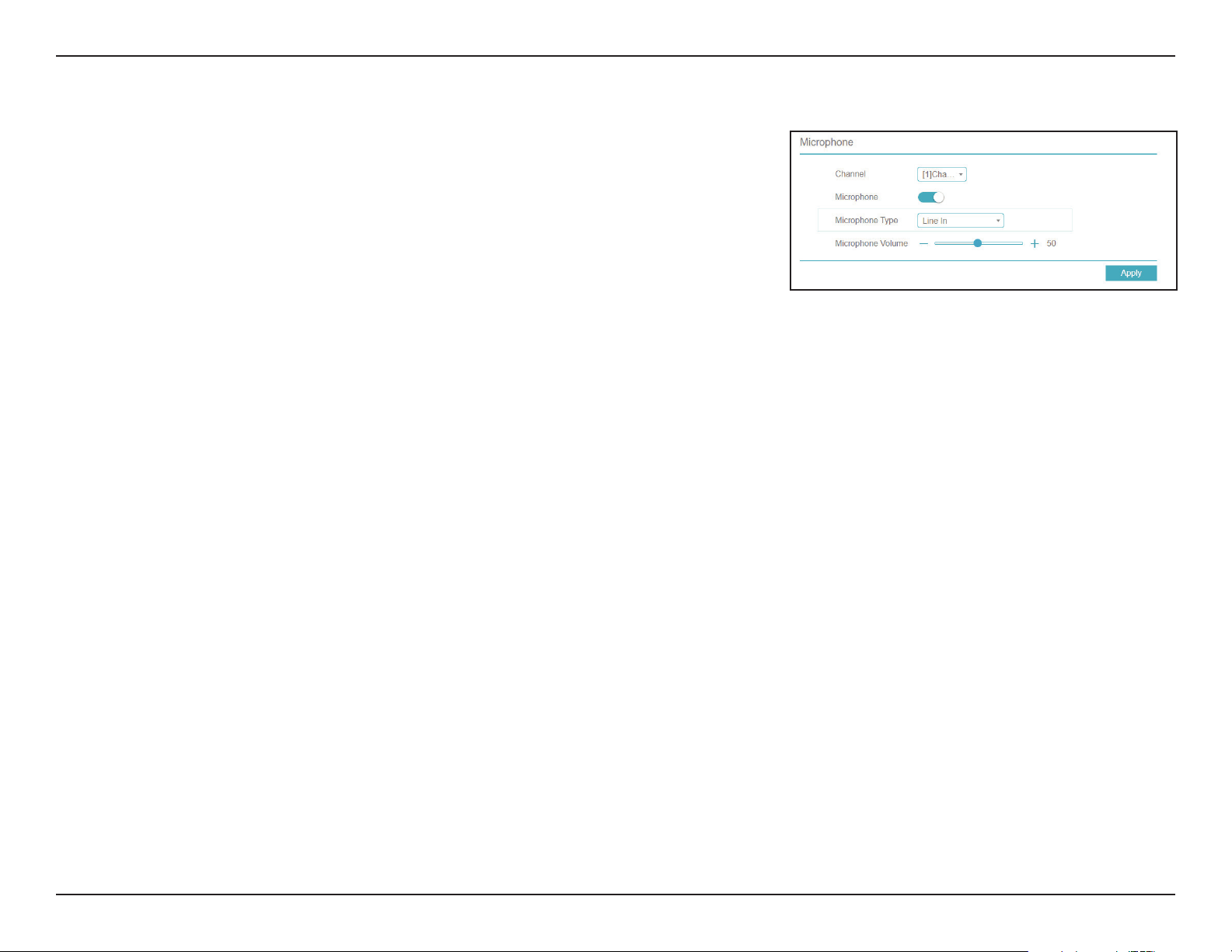
102D-Link DNR-4020-16P User Manual
Section 3 - Conguration
Microphone
Use this page to configure microphone settings for the specified channel. If
no device with a microphone is connected, the settings will be locked.
Select the channel to configure the microphone for.
Toggle this to enable or disable the microphone.
Specify the type of microphone connection (e.g. Line In).
Adjust the microphone volume/sensitivity.
Channel
Microphone
Microphone
Type
Microphone
Volume
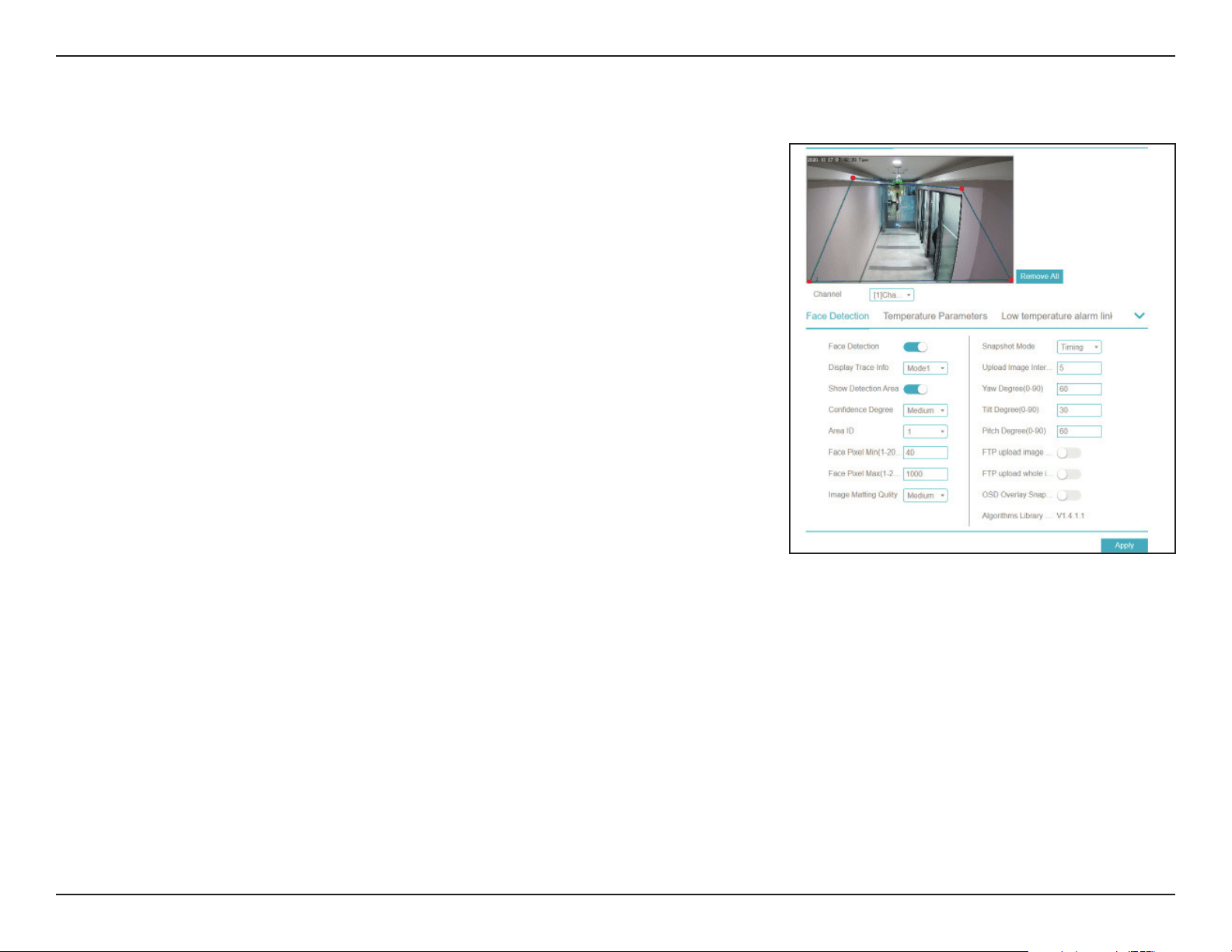
103D-Link DNR-4020-16P User Manual
Section 3 - Conguration
Human Thermometer
On this page you can configure the thermal mapping and calibration settings
for thermal cameras on the specified channel.
Use this tab to configure your thermal camera settings, if any thermal
cameras are currently connected to the DNR-4020-16P.
Use this tab to set thermal mapping points on the camera’s display.
Use this tab to calibrate the thermal camera with a separate calibration
tool.
Parameter
Configure
Thermal
Mapping
Thermal
Calibration
104D-Link DNR-4020-16P User Manual
Section 3 - Conguration
Enable
Display Trace
Info
Show Detect.
Area
Conf. Degree
Area ID
Face Pixel
Min/Max
Image
Matting
Quality
Snapshot
Mode
Upload Image
Interval
Enable or disable face detection.
Select the trace display mode from the drop-down menu.
Toggle this to show the temperature detection area with an
outline.
Select the confidence degree from the drop-down.
Designate an area ID to apply these settings to.
Enter the minimum and maximum number of pixels that may be
registered as a person’s face.
Select the image matting quality from the drop-down.
Select the snapshot mode from the drop-down.
Select the interval (from 1 to 10, in seconds) at which snapshots
should be uploaded.
Face Detection
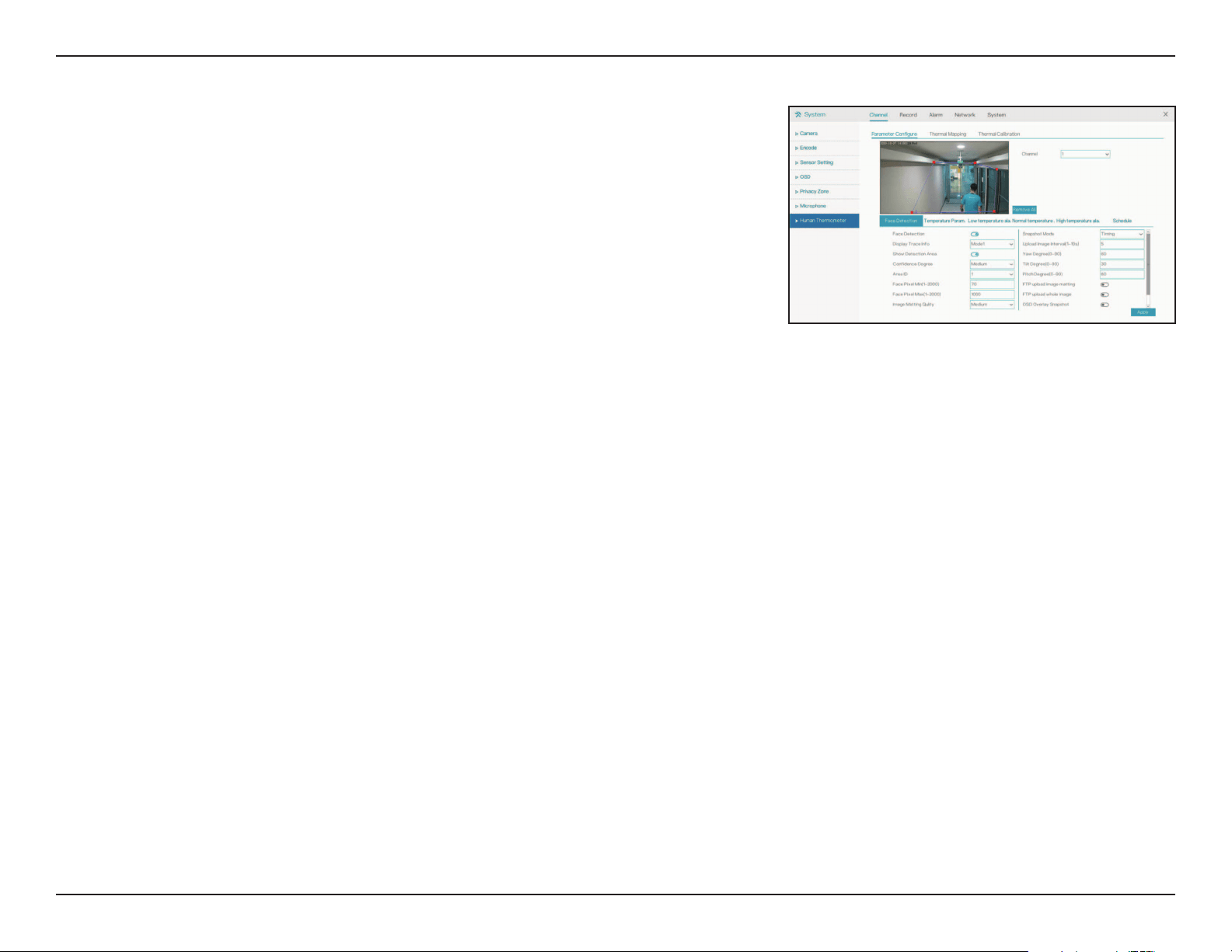
105D-Link DNR-4020-16P User Manual
Section 3 - Conguration
Yaw/Tilt/Pitch
Degree
FTP upload
image
matting/
whole image
OSD Overlay
Snapshot
Enter the yaw, tilt and pitch degrees, from 0 to 90 degrees.
Toggle this to configure which parts of the image should be
uploaded via FTP at the interval entered above.
Toggle this to overlay the time, date, channel, etc over the
snapshots
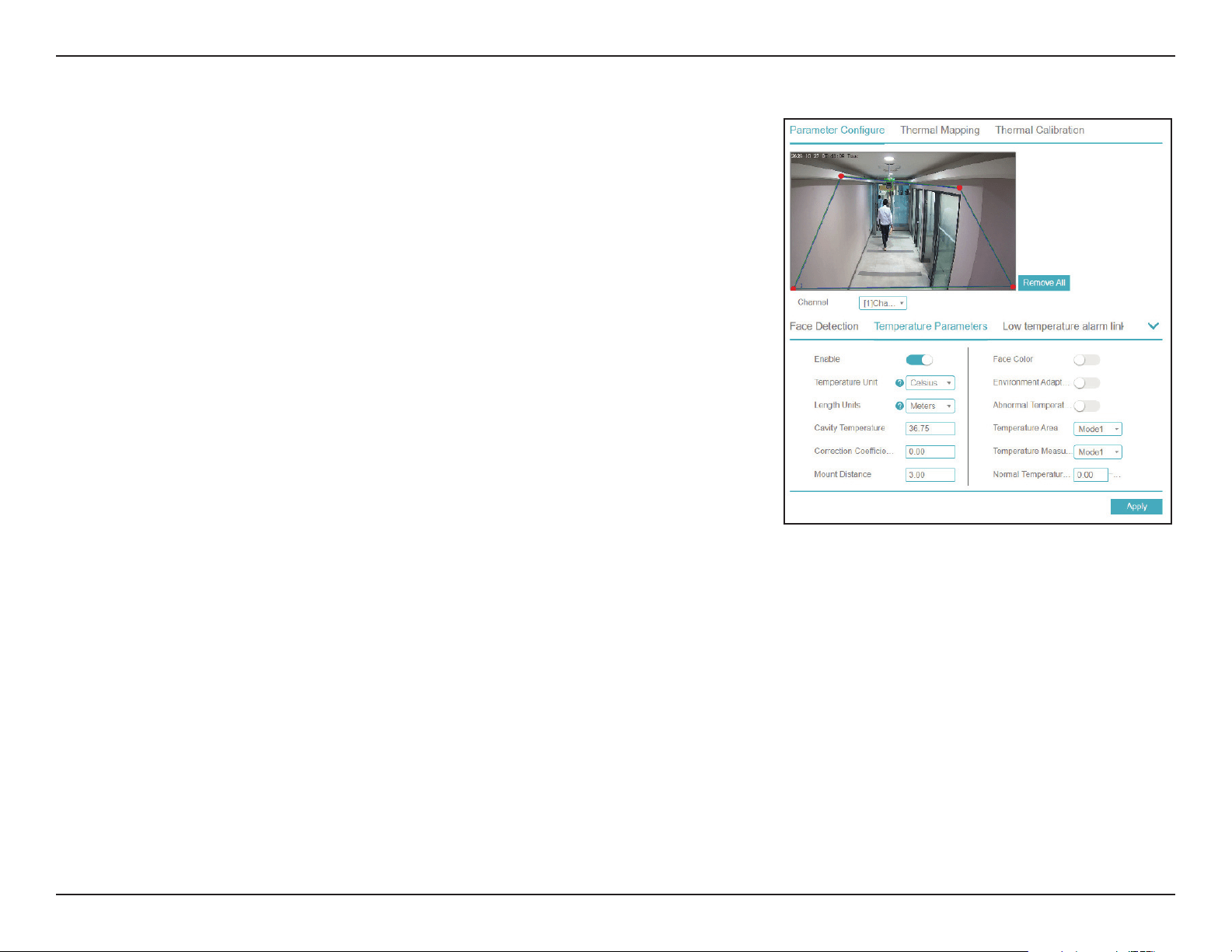
106D-Link DNR-4020-16P User Manual
Section 3 - Conguration
Enable
Temperature
Unit
Length Units
Cavity Temp.
Correction
Coefficient
Mount
Distance
Face Color
Environment
Adaptation
Abnormal
Temp. Display
Temperature
Area
Temp.
Measure
Mode
Normal Temp.
Range
Toggle this to enable temperature measurement.
Select the desired unit from Fahrenheit and Celsius.
Select the unit to measure objects in the camera’s display.
Enter the cavity temperature of the camera.
This refers to the difference between the measured temperature
of an object and the actual temperature. Enter a value manually.
Enter the height at which the camera is mounted.
Toggle this to overlay detected faces with a color corresponding to
their measured temperature.
Toggle this to automatically compensate for the temperature of the
environment.
Toggle this to flag detected abnormal temperatures.
Select the desired temperature area mode from the drop-down list.
Select the desired measurement mode from the drop-down list.
Enter the normal temperature range. Values outside this range can be
set to trigger an alarm.
Temperature Param.
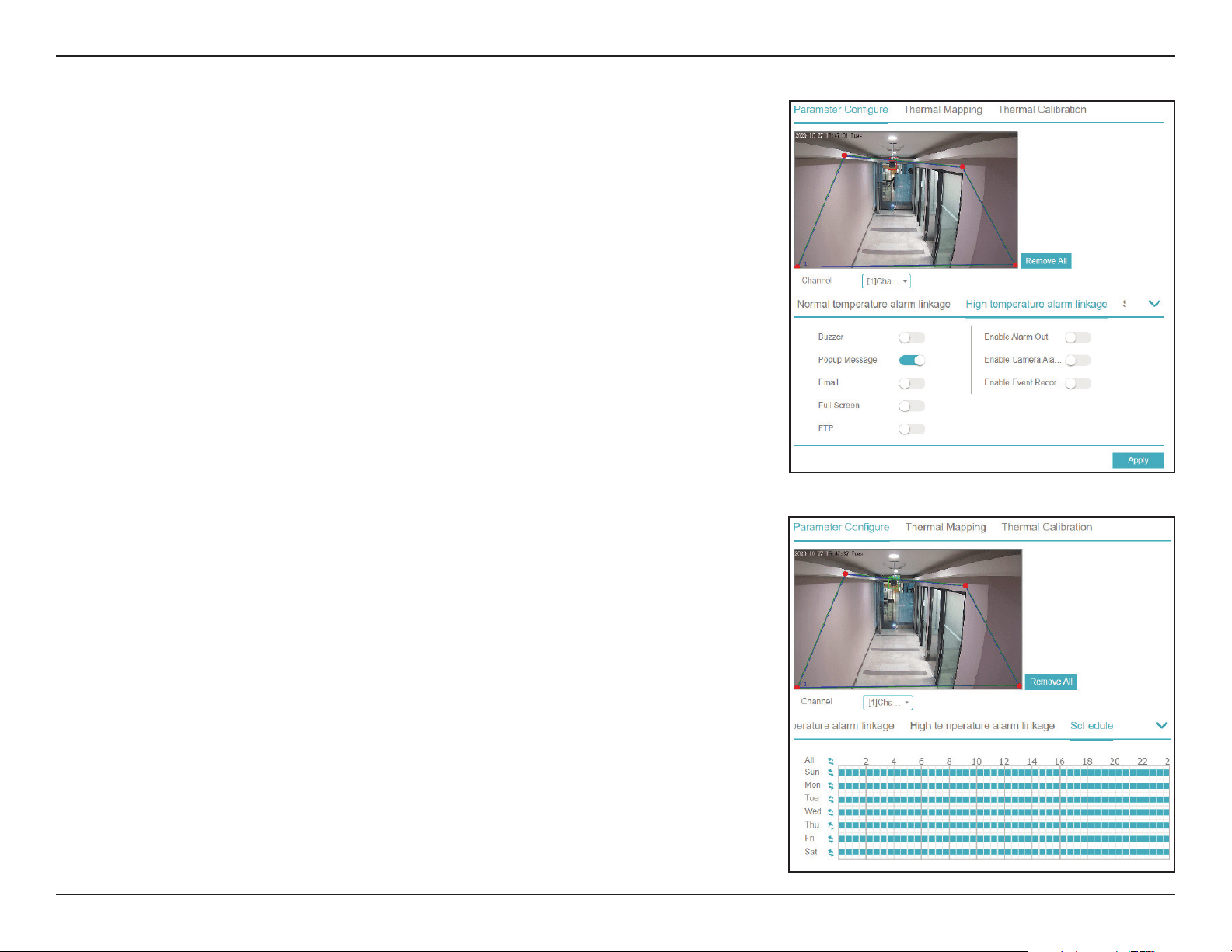
107D-Link DNR-4020-16P User Manual
Section 3 - Conguration
On these tabs you can configure an alarm to trigger when an
object is detected with a low, normal, or high temperature.
Select the event(s) the alarm should trigger from the following
list:
• Email: Send an email notification
• FTP: Send a notification via FTP
• Popup Message: Display a notification in a popup window
• Full Screen: Display a full-screen notification on the
attached monitor
• Buzzer: Trigger a buzzer sound
Schedule
On this tab, you can click the calendar to set the thermometer to
enable or disable according to a set schedule.
Temperature Alarm
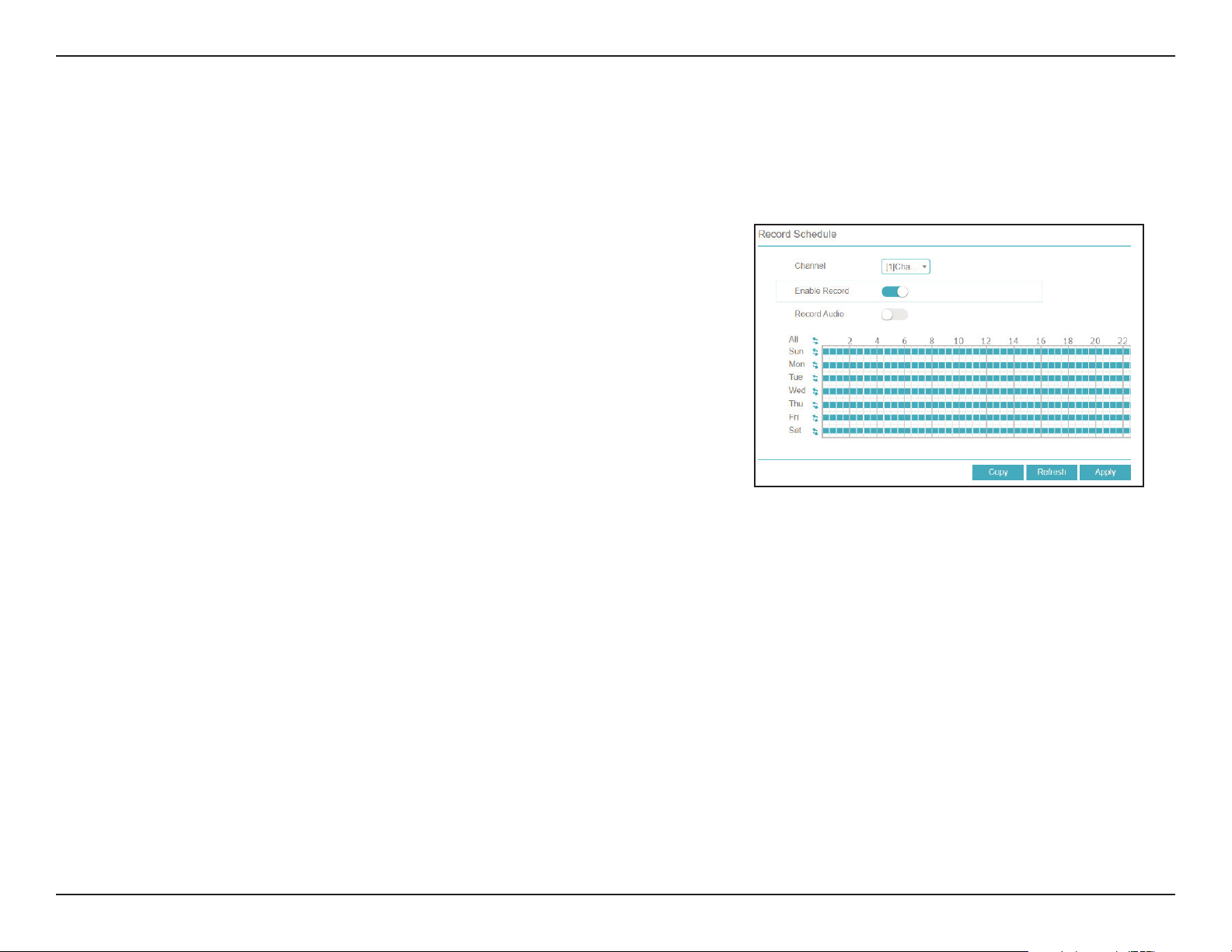
108D-Link DNR-4020-16P User Manual
Section 3 - Conguration
Channel
Enable Record
Record Audio
Specify the channel to set a recording schedule for.
Toggle this to enable or disable recording for the specified
channel.
Toggle this to record audio for the specified channel.
Click the bars on the right side of the screen to determine the
recording type for the channel in question. The types are:
• Continuous
• Camera Alarm In
• Motion Detection
• NVR Alarm In
Record
Record Schedule
On this page, you can set the recording schedule for the NVR.
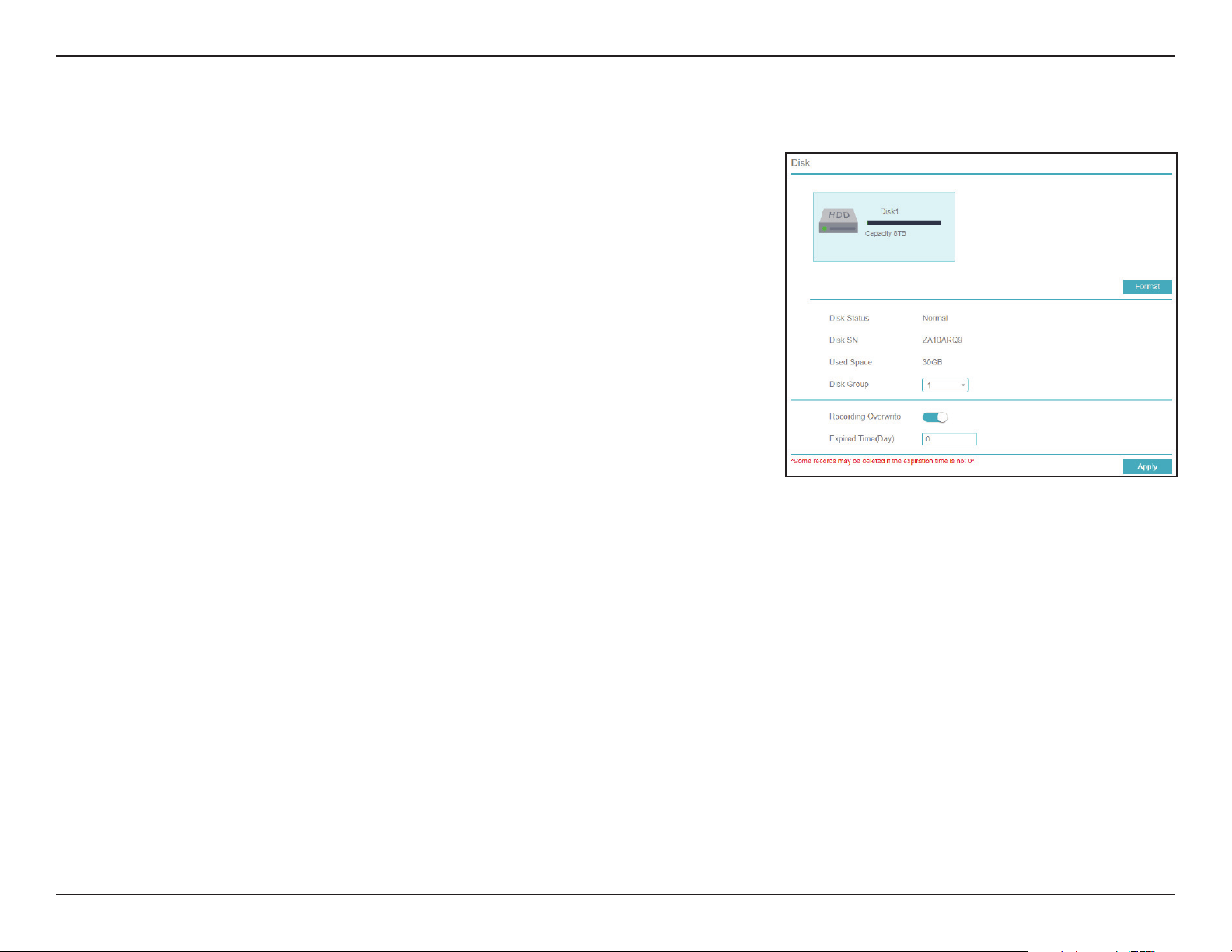
109D-Link DNR-4020-16P User Manual
Section 3 - Conguration
Disk
On this page you can view and configure the settings for the installed hard
drive(s).
Click this to format the specified disk. This will delete all of the data
on the disk. Make sure to back up your data before formatting.
Displays the status of the hard drive.
The hard drive serial number.
The amount of space currently used on the selected hard drive.
The disk group that the specified hard drive belongs to.
Toggle this to allow new data to overwrite old data on the specified
hard drive.
Set the length of time (in days) after which old records will be
automatically overwritten.
Format
Disk Status
Disk SN
Used Space
Disk Group
Recording
Overwrite
Expired Time
(Day)
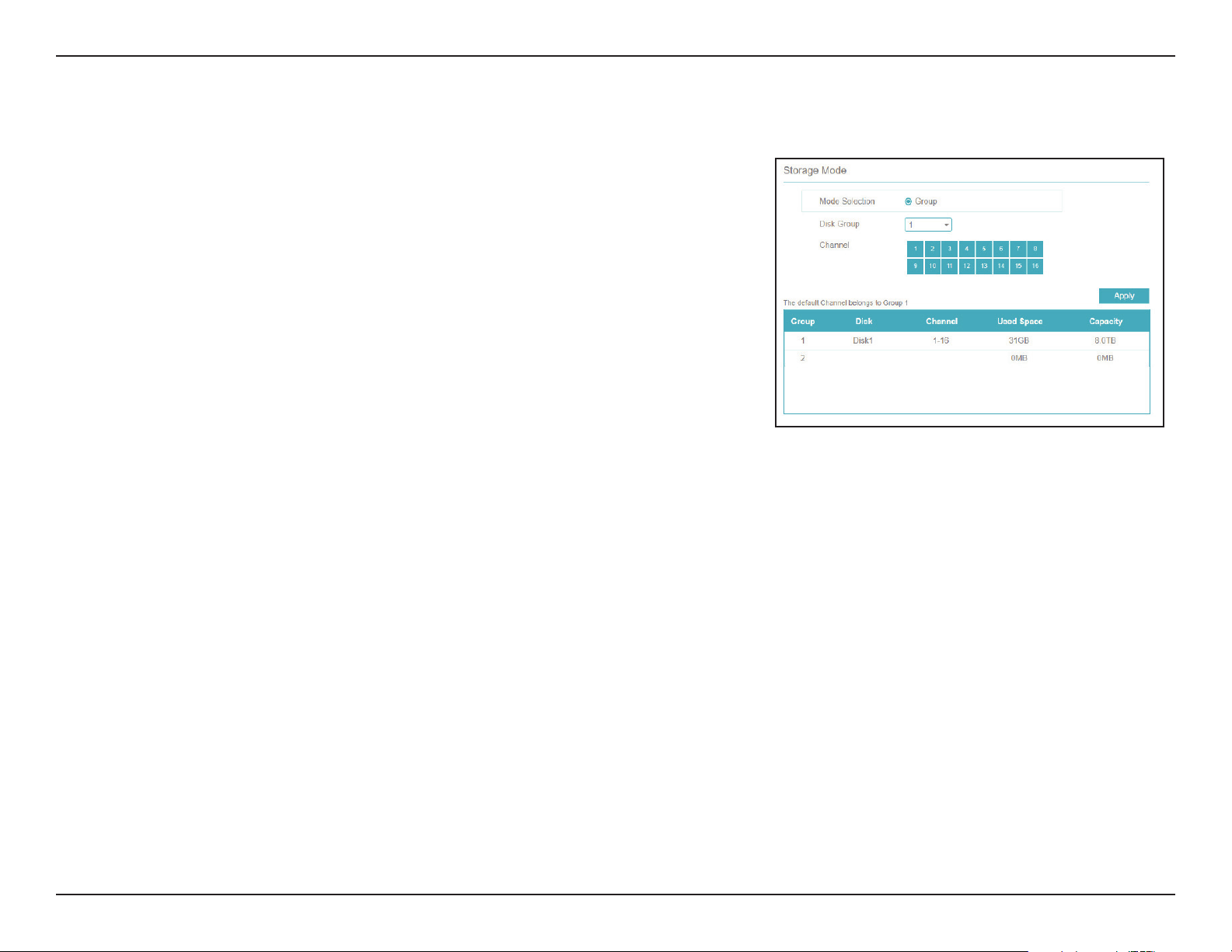
110D-Link DNR-4020-16P User Manual
Section 3 - Conguration
Storage Mode
Mode
Selection
Disk Group
Channel
Select a storage mode.
Select a disk group to configure.
Select a channel to assign to the selected disk group.
Use this page to configure the recording storage settings for hard drives
and disk groups.
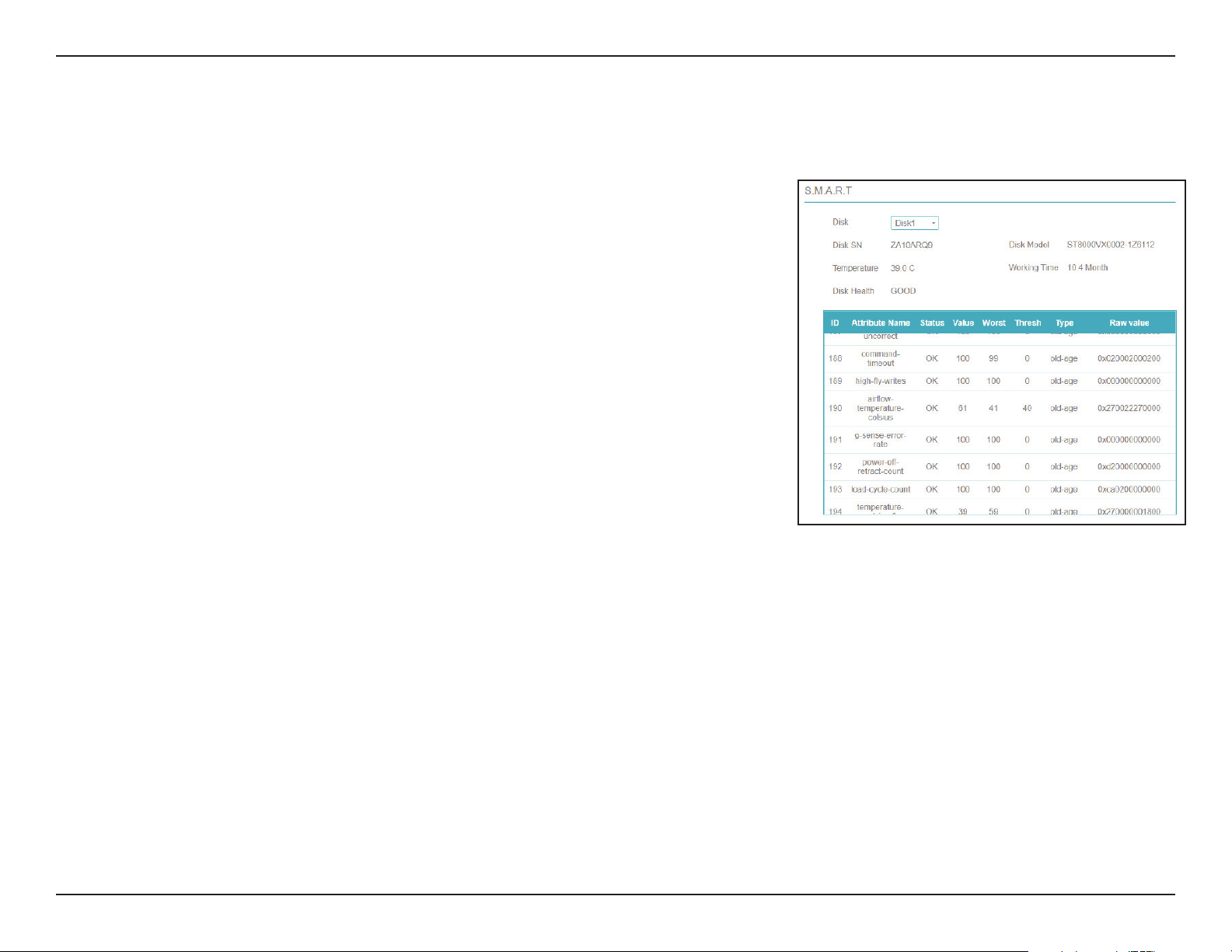
111D-Link DNR-4020-16P User Manual
Section 3 - Conguration
S.M.A.R.T.
Disk
Disk SN
Temperature
Disk Health
Disk Model
Working TIme
Specify a disk to check.
Displays the serial number of the specified disk.
Displays the specified disk’s current operating temperature.
Displays the health (i.e. the operational condition) of the disk.
The disk model number.
Indicates the specified disk’s lifespan.
In the box at the bottom of the page, you can view various attributes
for the specified disk, such as the power cycle count. If no serious
issues are detected, the attribute will display Good in the Status
column.
This page allows you to view the inserted hard disks’ attributes and ensure
that they are operating smoothly.
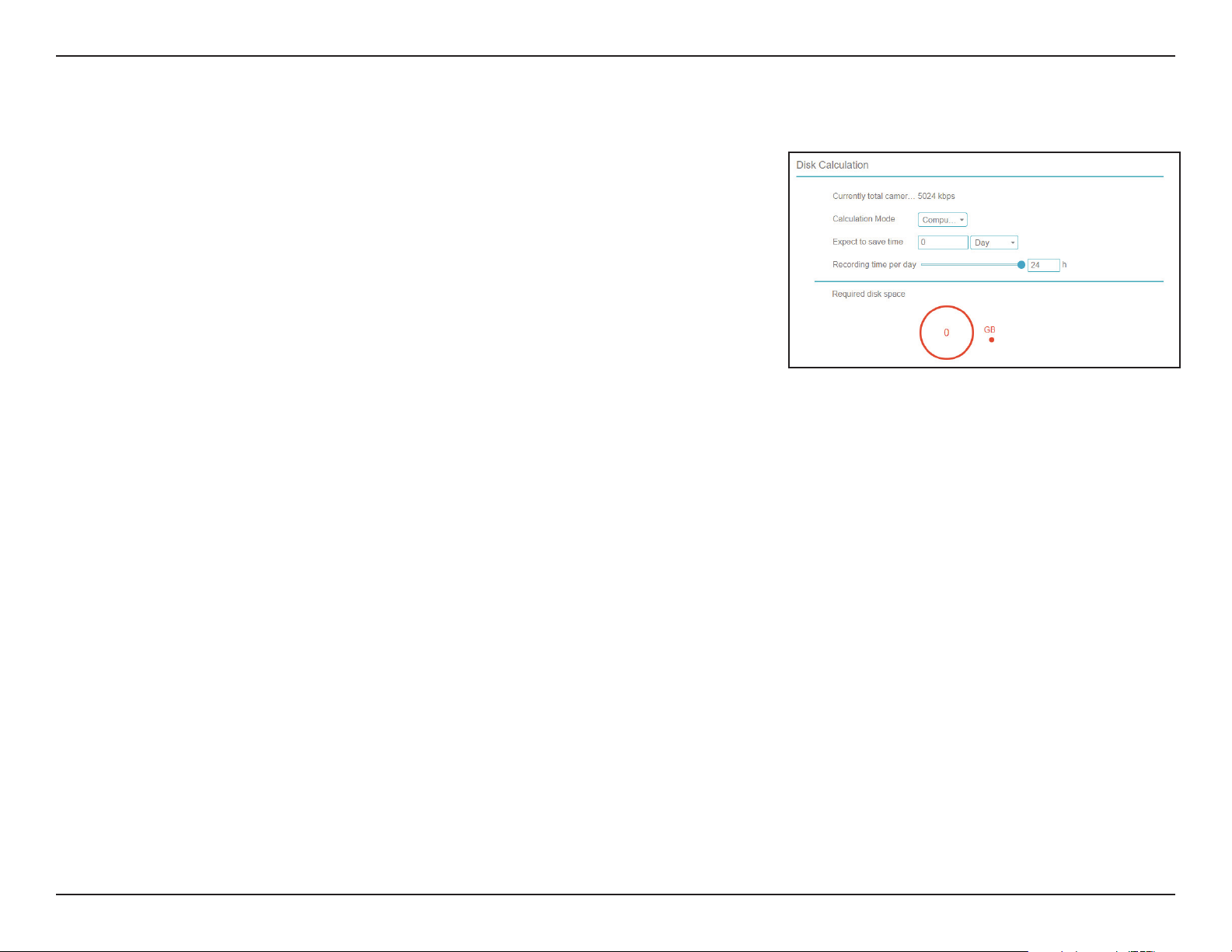
112D-Link DNR-4020-16P User Manual
Section 3 - Conguration
Disk Calculation
Total camera
bitrate
Calculation
mode
Expect to
save time /
Disk Capacity
Recording
time per day
The total bitrate of the cameras connected to the NVR in kb / second.
Choose whether to display the computing capacity or the
computation time.
Select an amount of time or an amount of storage, depending on
whether Computation time or Computing Capacity was selected
above.
Enter the number of hours that NVR will record data (per day).
On this page you can calculate the disk space required for the NVR’s current
configuration. Enter an amount of data to determine how long it will take
for the current setup to fill it, or a period of time to determine how much
data will be filled at the current rate of recording.
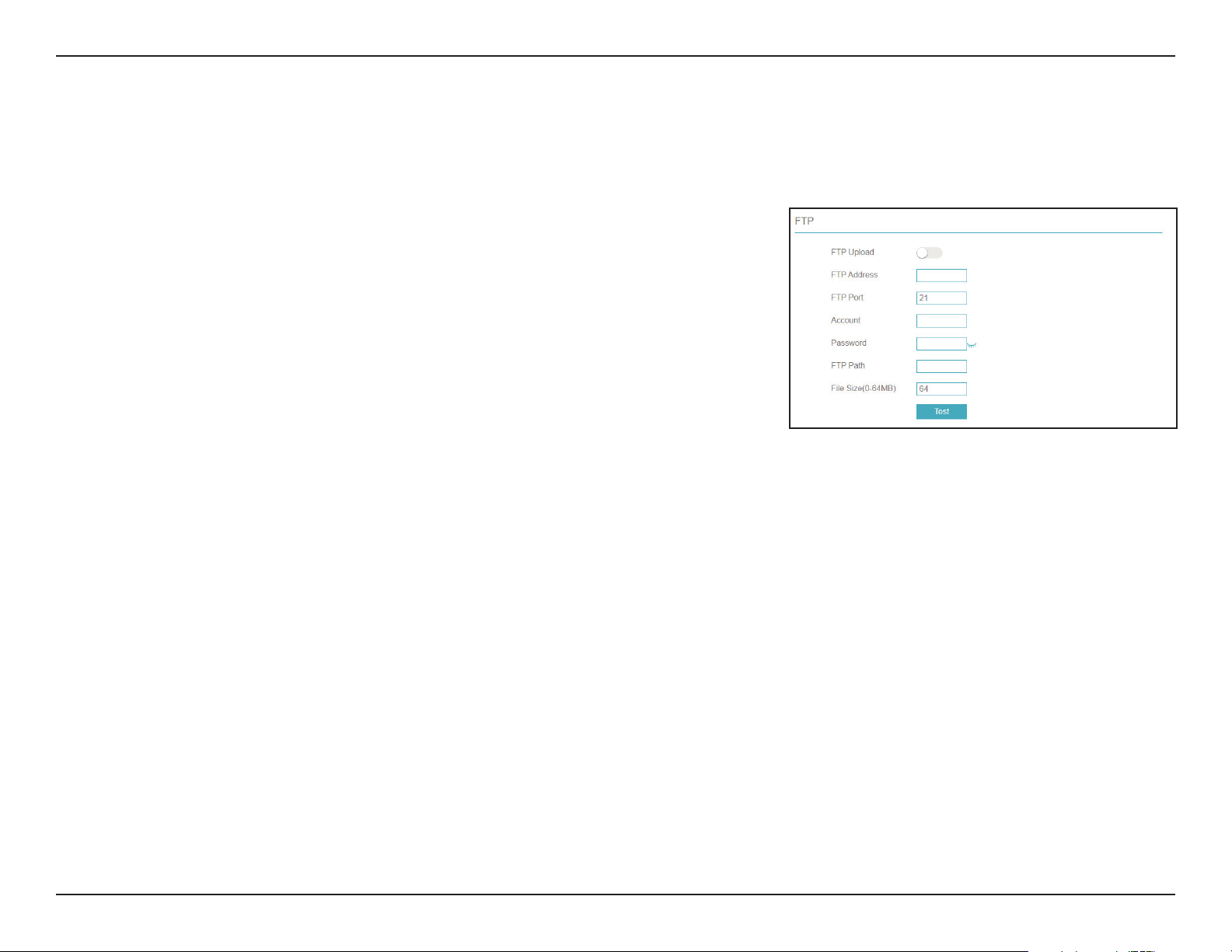
113D-Link DNR-4020-16P User Manual
Section 3 - Conguration
FTP
FTP Upload
FTP Address
FTP Port
Account
Password
FTP Path
File Size (0-64
MB)
Check this to begin uploading saved recordings via FTP.
Enter the IP address of the FTP server.
Enter the port to use to connect to the FTP server.
Enter the username of the account used to connect.
Enter the password associated with the username entered above.
Enter the path to the directory where you would like to save your
files.
Enter the desired file size of each recording. A smaller size means
more frequent uploads.
On this page you can set the NVR to automatically upload its recordings to
an external server via FTP.
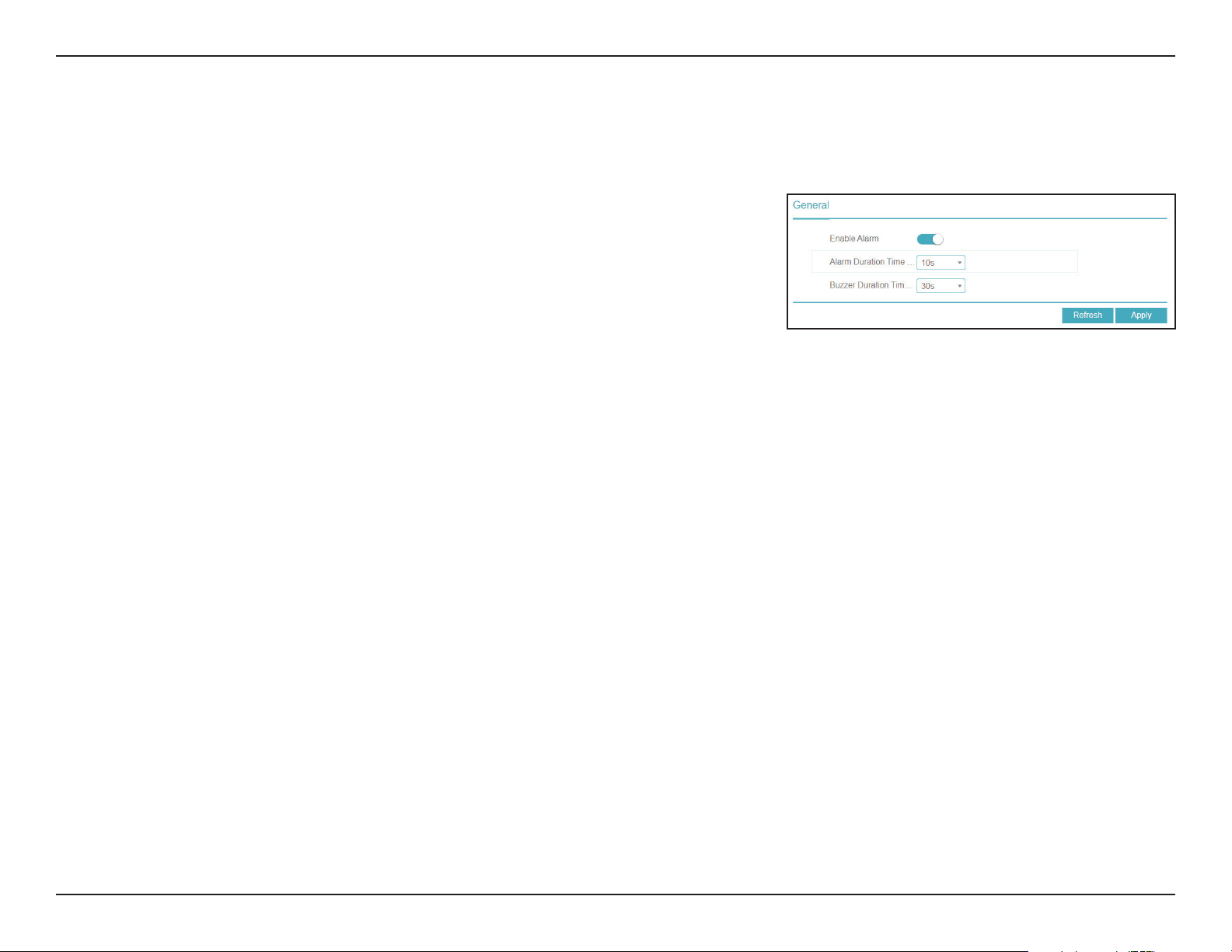
114D-Link DNR-4020-16P User Manual
Section 3 - Conguration
Enable Alarm
Duration Time
Buzzer duration
time
In this tab you can enable and configure the NVR’s general alarm.
Enter the duration that the alarm should activate for.
Enter the duration that the alarm buzzer should sound for.
Alarm
General
On this page you can configure general alarm settings for your NVR.
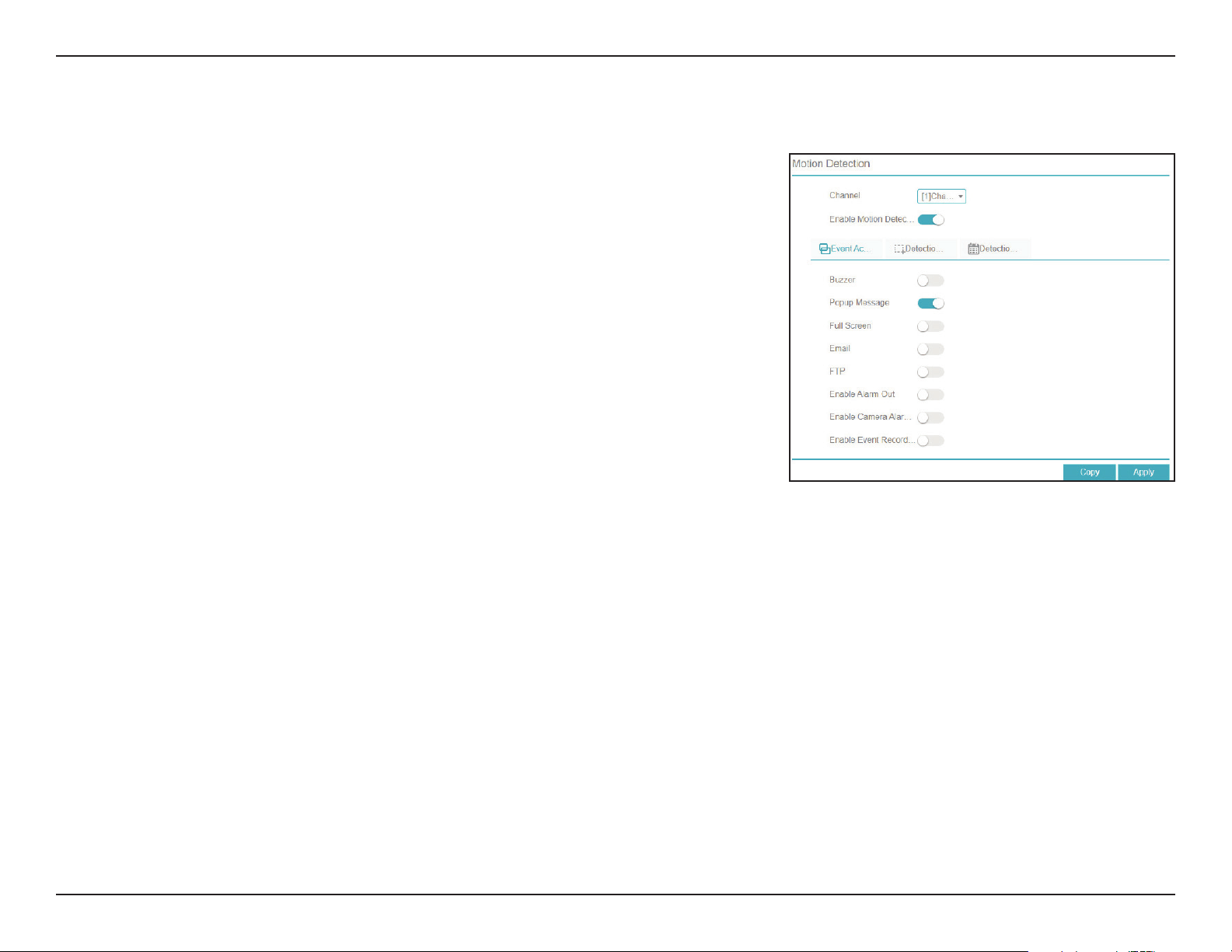
115D-Link DNR-4020-16P User Manual
Section 3 - Conguration
Channel
Enable
Motion
Analysis
Event Actions
Enable Alarm
Out / Camera
Alarm Out
Enable Event
Recording
Detection
Area
Detection
Schedule
Select the channel to configure.
Toggle this to cause motion detection to trigger an alarm.
Toggle this to enable or disable motion analysis.
Select the event(s) the alarm should trigger from the following
list:
• Email: Send an email notification
• Buzzer: Trigger a buzzer sound
• Popup Message: Display a notification in a popup window
• Full Screen: Display a full-screen notification on the attached
monitor
Trigger a notification on the Alarm Out interface(s).
Toggle to keep a record of alarm events.
Select the area of the display to scan for motion.
Enable or disable the alarm according to a particular schedule.
Motion Detection
Configure an alarm to trigger when the camera detects motion.
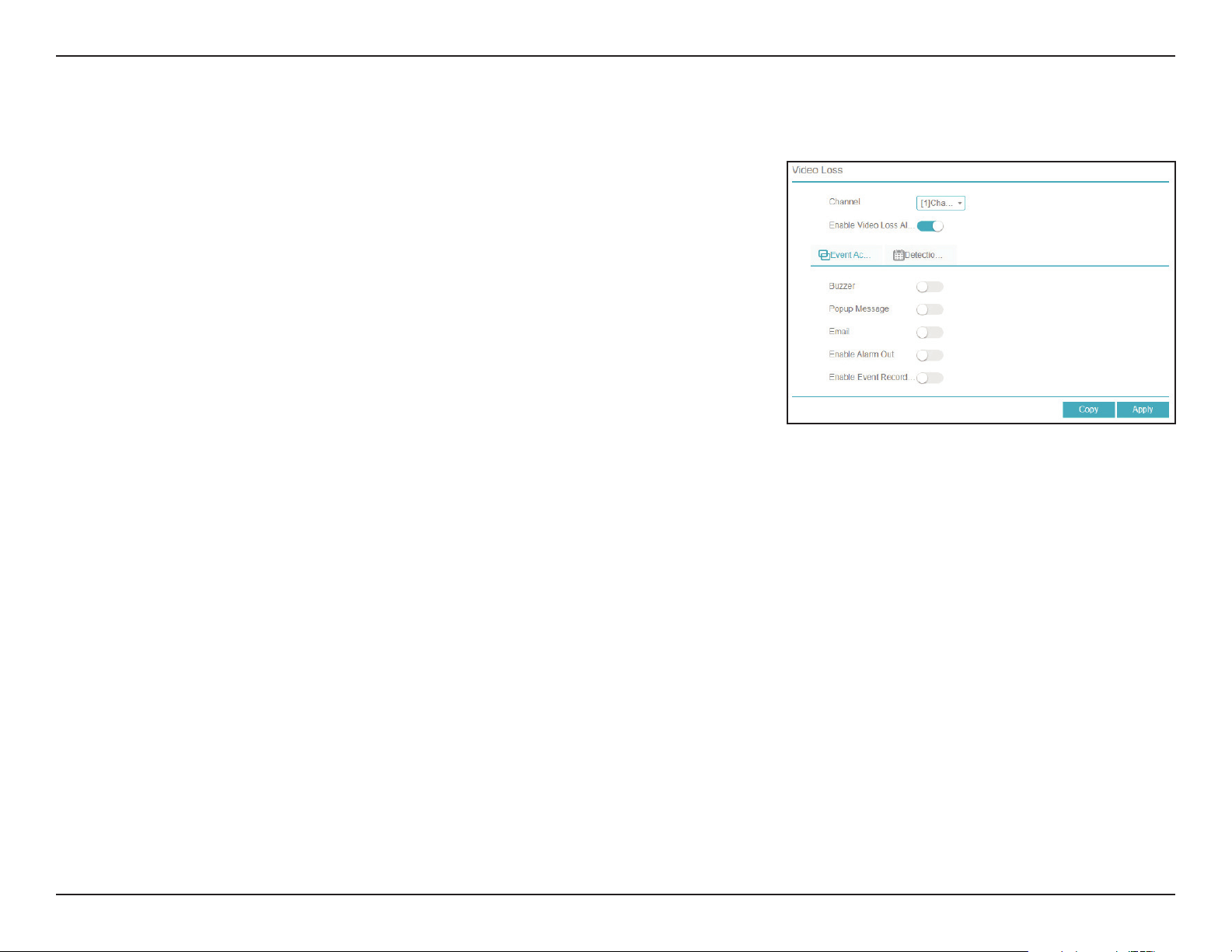
116D-Link DNR-4020-16P User Manual
Section 3 - Conguration
Channel
Enable Video
Loss
Event Actions
Enable Alarm
Out
Enable Event
Recording
Detection
Schedule
Select the channel to configure.
Toggle this to cause video loss to trigger an alarm.
Select the event(s) the alarm should trigger from the following
list:
• Email: Send an email notification
• Buzzer: Trigger a buzzer sound
• Popup Message: Display a notification in a popup window
Trigger a notification on the Alarm Out interface(s).
Toggle to keep a record of alarm events.
Enable or disable the alarm according to a particular schedule.
Video Loss
On this page you can enable an alarm to trigger when video loss occurs.
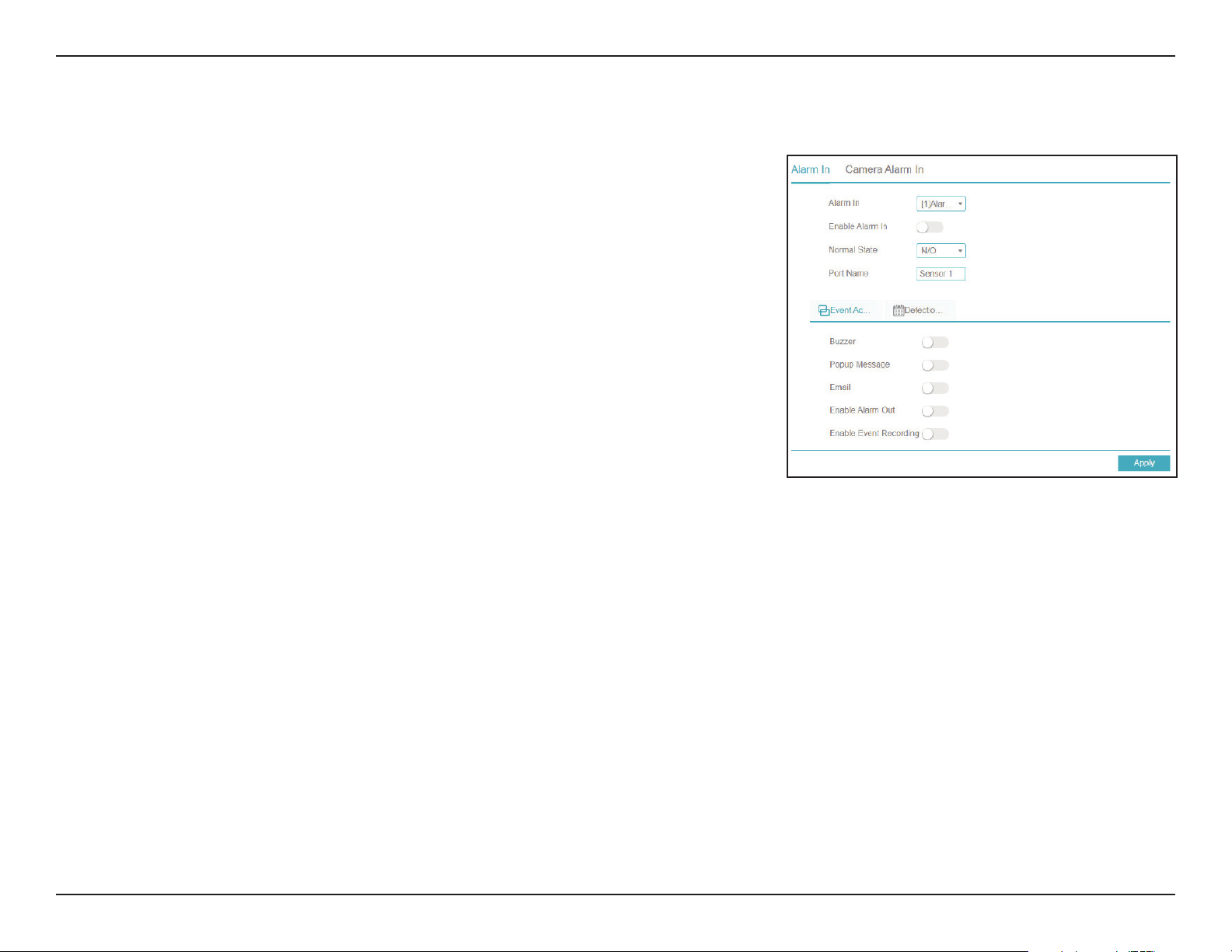
117D-Link DNR-4020-16P User Manual
Section 3 - Conguration
Alarm In
Enable Alarm
In
Event Actions
Enable Alarm
Out
Enable Event
Recording
Detection
Schedule
Normal State
Port Name
Camera Alarm
In
Select the channel to configure.
Toggle this to enable or disable Alarm In events and alarms.
Select the event(s) the alarm should trigger from the following
list:
• Email: Send an email notification
• Buzzer: Trigger a buzzer sound
• Popup Message: Display a notification in a popup window
Trigger a notification on the Alarm Out interface(s).
Toggle to keep a record of alarm events.
Enable or disable the alarm according to a particular schedule.
Specify the normal state of the sensor. A change from this state will
trigger the alarm.
Designate a name for the sensor.
Click this tab to configure similar settings for sensors connected to
a camera’s Alarm In interface.
Alarm In
Use this page to enable an alarm when a signal from an external device connected
to the NVR’s Alarm In interface is detected.
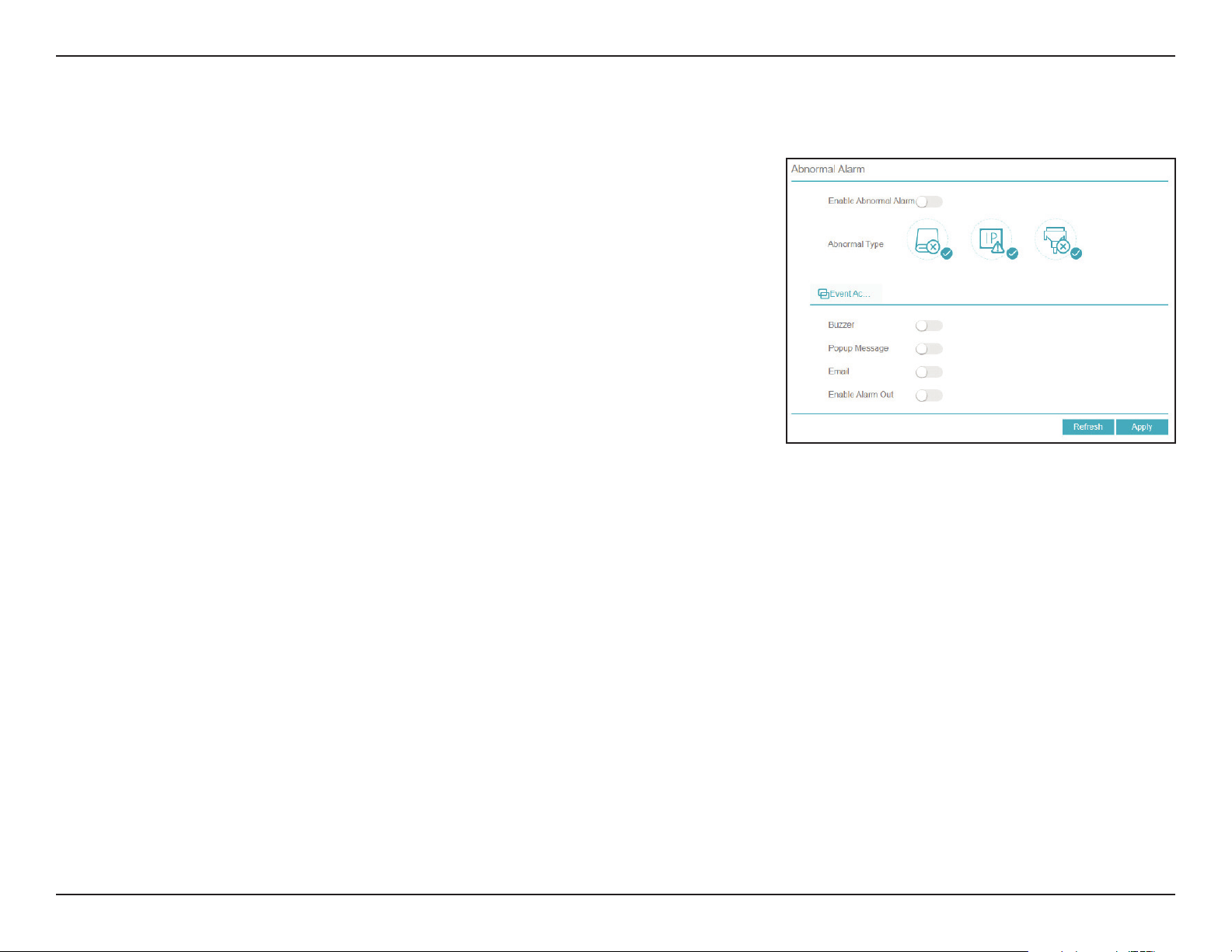
118D-Link DNR-4020-16P User Manual
Section 3 - Conguration
Enable
Abnormal
Alarm
Alarm Type
Event Actions
Enable Alarm
Out
Enable or disable an abnormal alarm.
From left to right: trigger an alarm when the NVR fails to detect
a hard drive, when it detects an IP conflict, or when it loses its
network connection.
Select the event(s) the alarm should trigger from the following
list:
• Email: Send an email notification
• Buzzer: Trigger a buzzer sound
• Popup Message: Display a notification in a popup window
Trigger a notification on the Alarm Out interface(s).
Abnormal Alarm
On this page you can enable or disable an alarm to trigger when an unusual event
occurs, such as a hard drive failure or loss of connectivity.
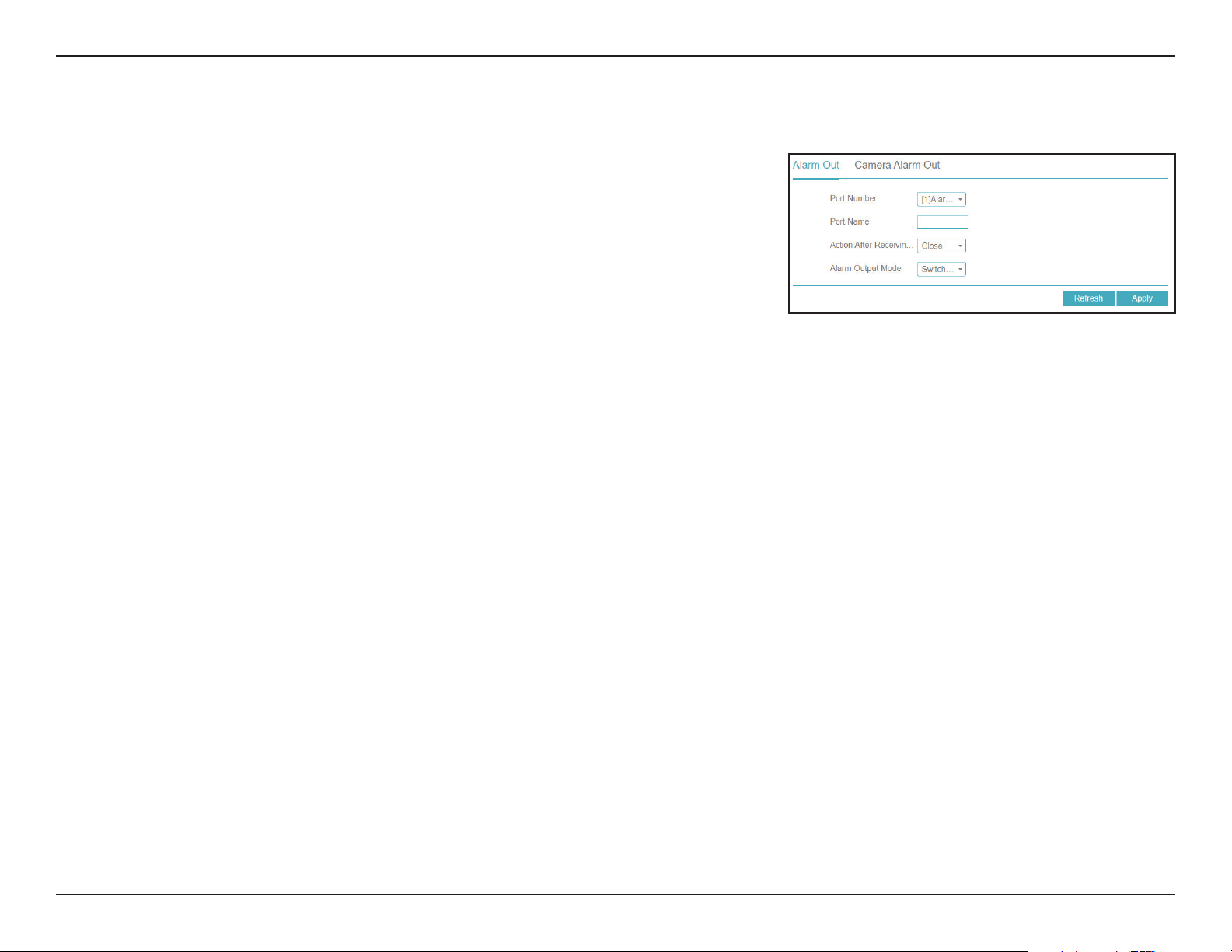
119D-Link DNR-4020-16P User Manual
Section 3 - Conguration
Port Number
Port Name
Action After
Receiving
Trigger
Alarm Output
Mode
Camera Alarm
Out
Select the alarm out interface (either 1 or 2).
Designate a name for the alarm out connection.
Select either Close or Open.
Select the alarm out put mode (Switch Mode by default).
Configure similar settings for devices connected to a camera’s
alarm out interface.
Alarm Out
On this page you can configure the NVR’s interactions with external devices
connected to its Alarm Out interface.
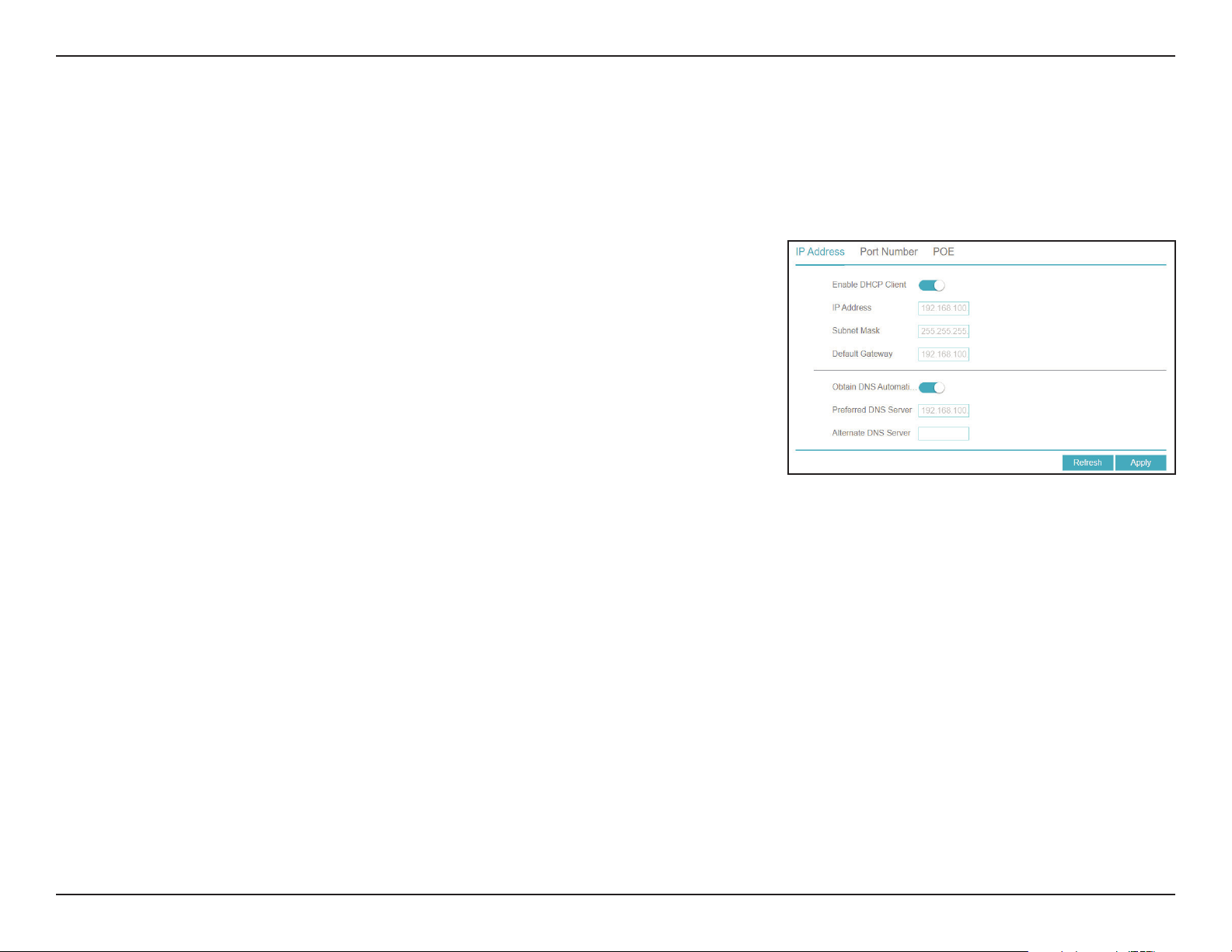
120D-Link DNR-4020-16P User Manual
Section 3 - Conguration
Enable DHCP
Client
IP Address
Subnet Mask
Default
Gateway
Obtain DNS
Automatically
Preferred DNS
Server
Alternate DNS
Server
Select this connection if you have a DHCP server running
on your network and would like a dynamic IP address to be
automatically updated to your NVR.
You may obtain a static or fixed IP address and other network
information from your network administrator. A static IP address
will simplify access to your NVR in the future.
Enter the fixed IP address of the NVR. This is used to access the
web interface. If the NVR does not receive its address from a
DHCP server, then its default IP address is will be 192.168.0.20.
Set this to match the subnet mask of the provided IP address.
The default value is 255.255.255.0.
Set this to the default gateway on your router or local subnet for
proper network routing.
Toggle this to enable DNS automatically.
Primary domain name server that translates names to IP addresses.
Secondary domain name server to back up the primary domain
name server
Network
Network
IP Address
This page lets you configure the NVR’s connection to the Internet or local network.
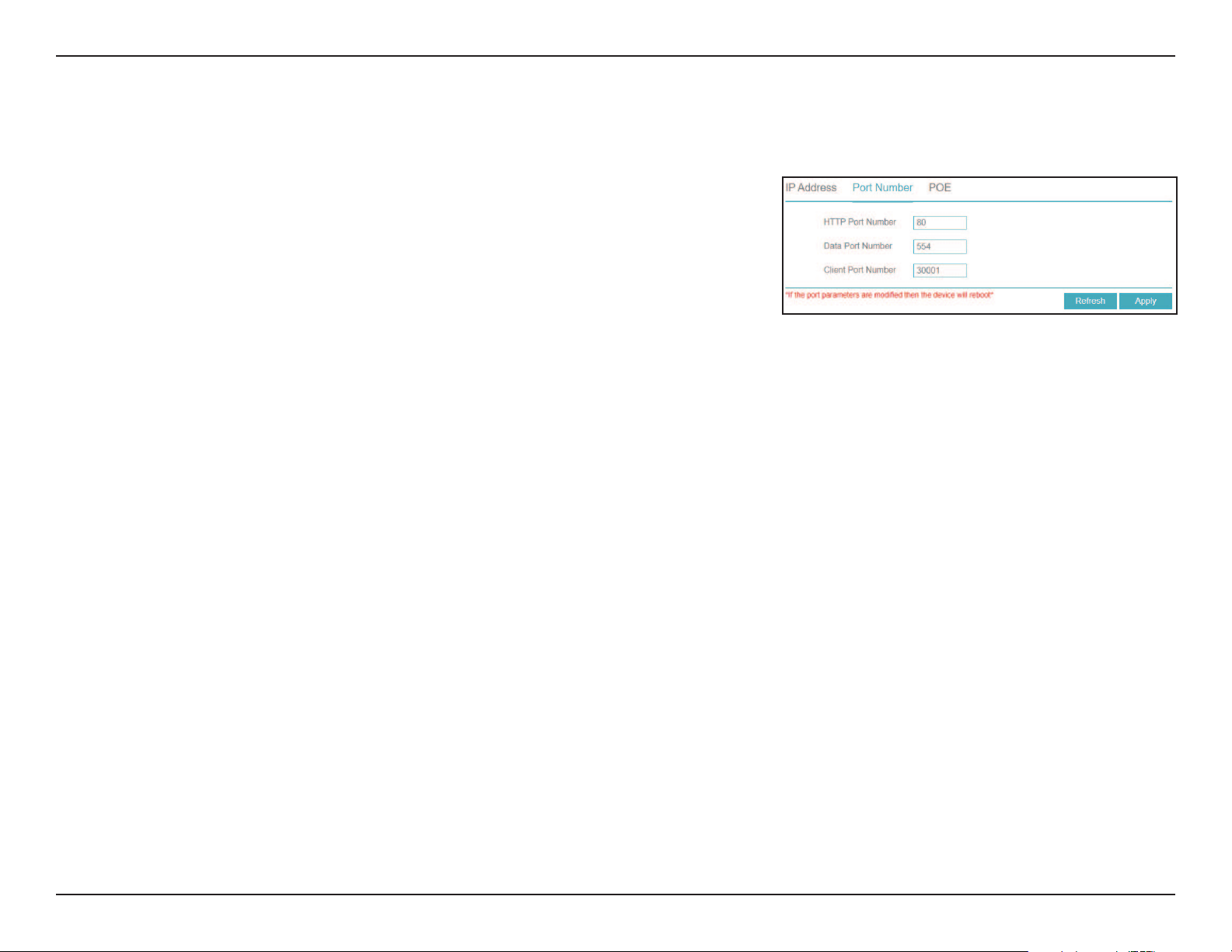
121D-Link DNR-4020-16P User Manual
Section 3 - Conguration
HTTP Port
Data Port
Client Port
The HTTP port for the web UI.
The port that data will be transferred over. The port that client devices
will connect to.
It is necessary to reboot the device after modifying any of the
port configuration settings.
Port Number
On this page you can set the ports that the NVR will use to transfer data and allow
clients to connect to.
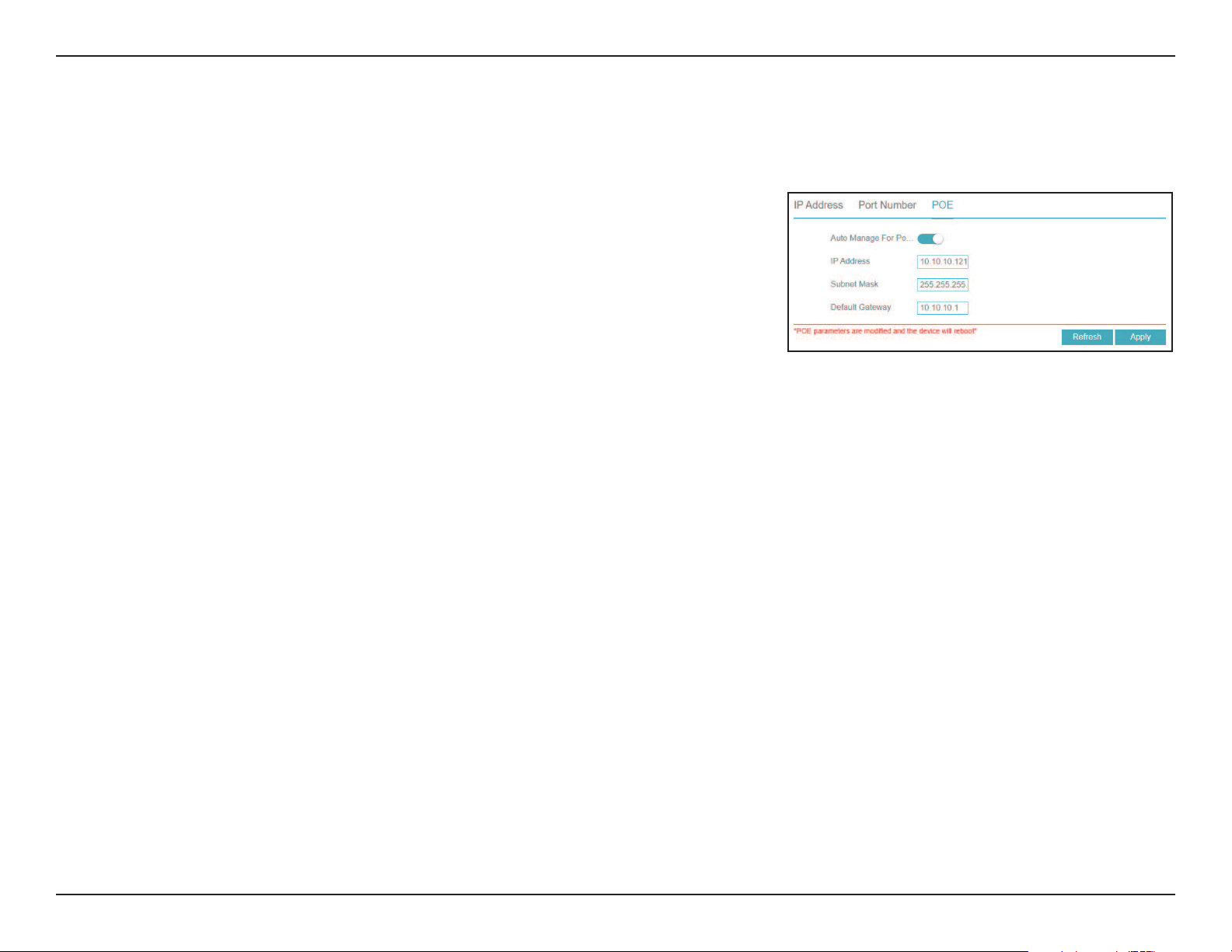
122D-Link DNR-4020-16P User Manual
Section 3 - Conguration
Auto Manage
For PoE Camera
IP Address
Subnet Mask
Default
Gateway
Toggle this to automatically manage PoE settings for PoE-capable
cameras.
Enter the fixed IP address of the NVR. The default IP address is
10.10.10.121.
Set this to match the subnet mask of the provided IP address.
The default value is 255.255.255.0.
Set this to the default gateway on your router or local subnet
for proper network routing. The default gateway is 10.10.10.1.
PoE
On this page you can configure the settings for the NVR’s PoE interfaces.
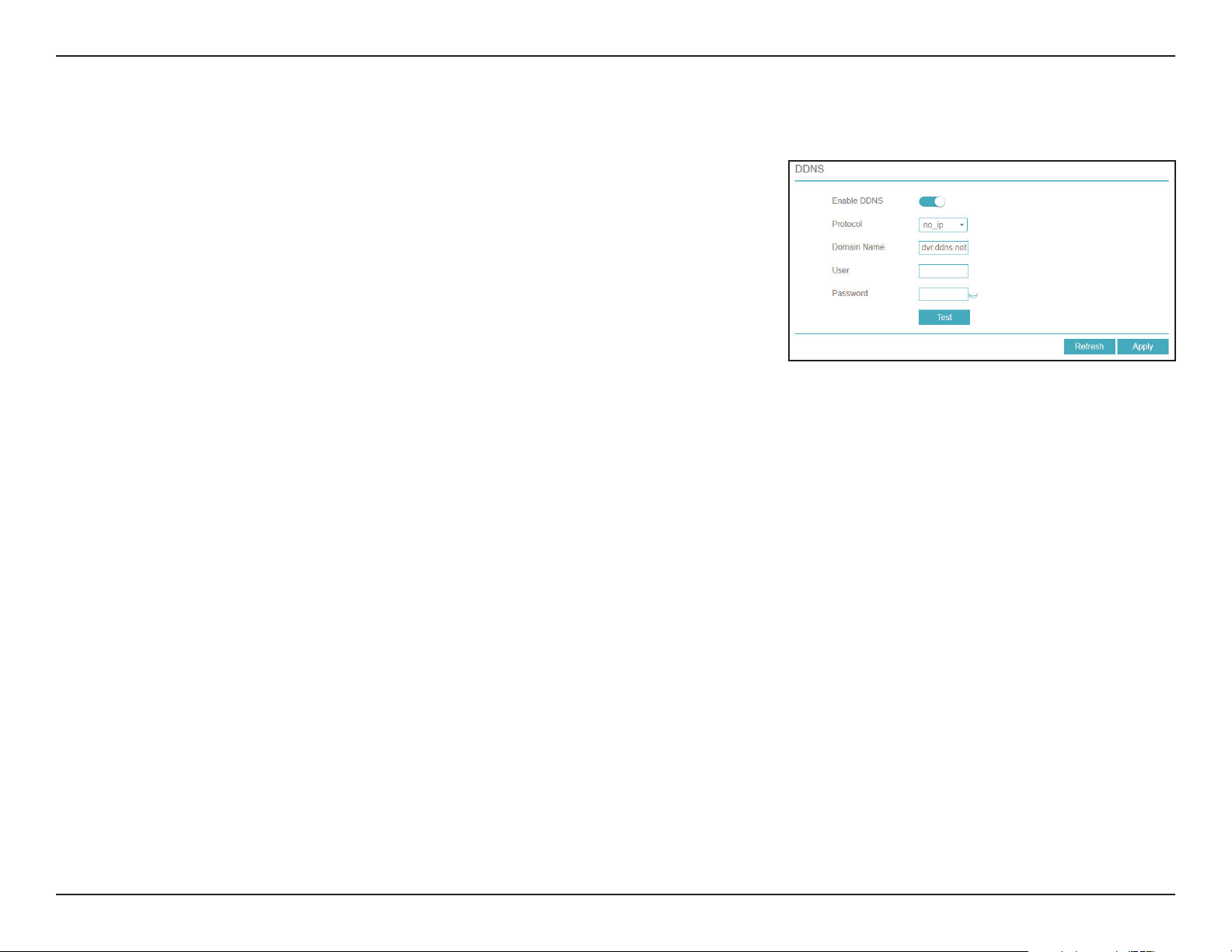
123D-Link DNR-4020-16P User Manual
Section 3 - Conguration
Enable
Protocol
Domain Name
Username
Password
Test
Select a dynamic DNS service provider from the pull-down list.
Select the DDNS protocol to use.
Enter your host name. For example: myhost.mydomain.net.
Enter the username for your dynamic DNS account.
Enter the password for your dynamic DNS account. Confirm it
in the next text box.
Click this to test the DDNS settings.
DDNS
Enable this option only if you have registered a domain name with a dynamic
DNS service provider. The following parameters are displayed when the option
is enabled.
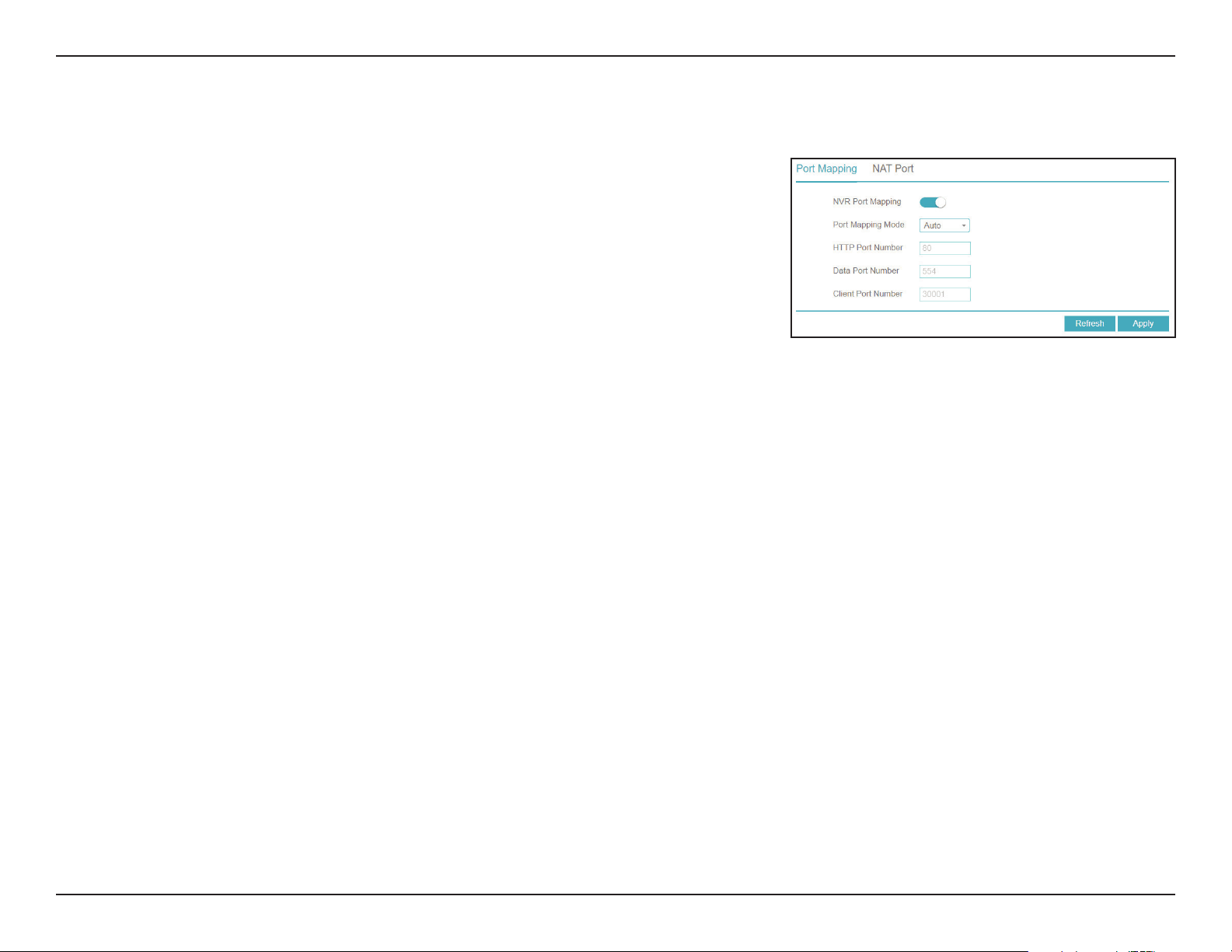
124D-Link DNR-4020-16P User Manual
Section 3 - Conguration
Port Mapping
NAT Port
Toggle this to enable or disable port mapping. If you enable this, you
will also have to select a mode (Manual or Auto) and HTTP, client and
data ports.
In this tab you can enter a start and end port for the NAT port
range.
Port Mapping
On this page you can enable or disable the port mapping feature.
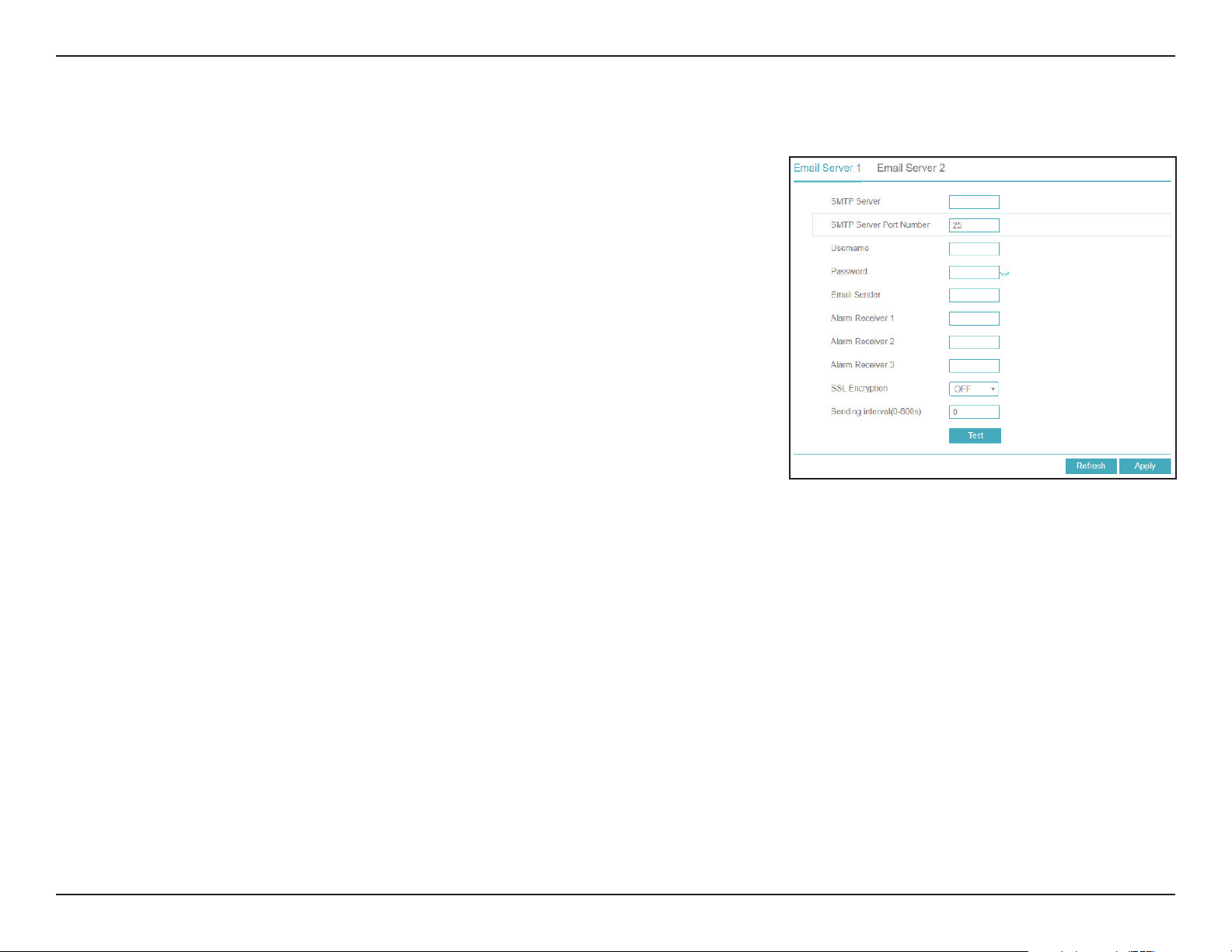
125D-Link DNR-4020-16P User Manual
Section 3 - Conguration
SMTP Server
SMTP Server
Port
Username
Password
Email Sender
Alarm Receiver
1-3
SSL
Encryption
Sending
interval
Test
Enter the SMTP server to use, such as smtp.gmail.com.
Enter the port to connect to the SMTP server on. The default
is 25.
Enter the username for the SMTP server.
Enter the corresponding password.
Enter the address to send alert emails from.
Enter the emails that should receive the NVR’s alerts.
Enter the form of encryption to use, or select OFF.
Enter an internal between 0 and 600 seconds.
Click this to send a test email.
Email
On this page you can configure the DNR-4020-16P’s email settings, such as the
email addresses that alerts and notifications should be sent to.
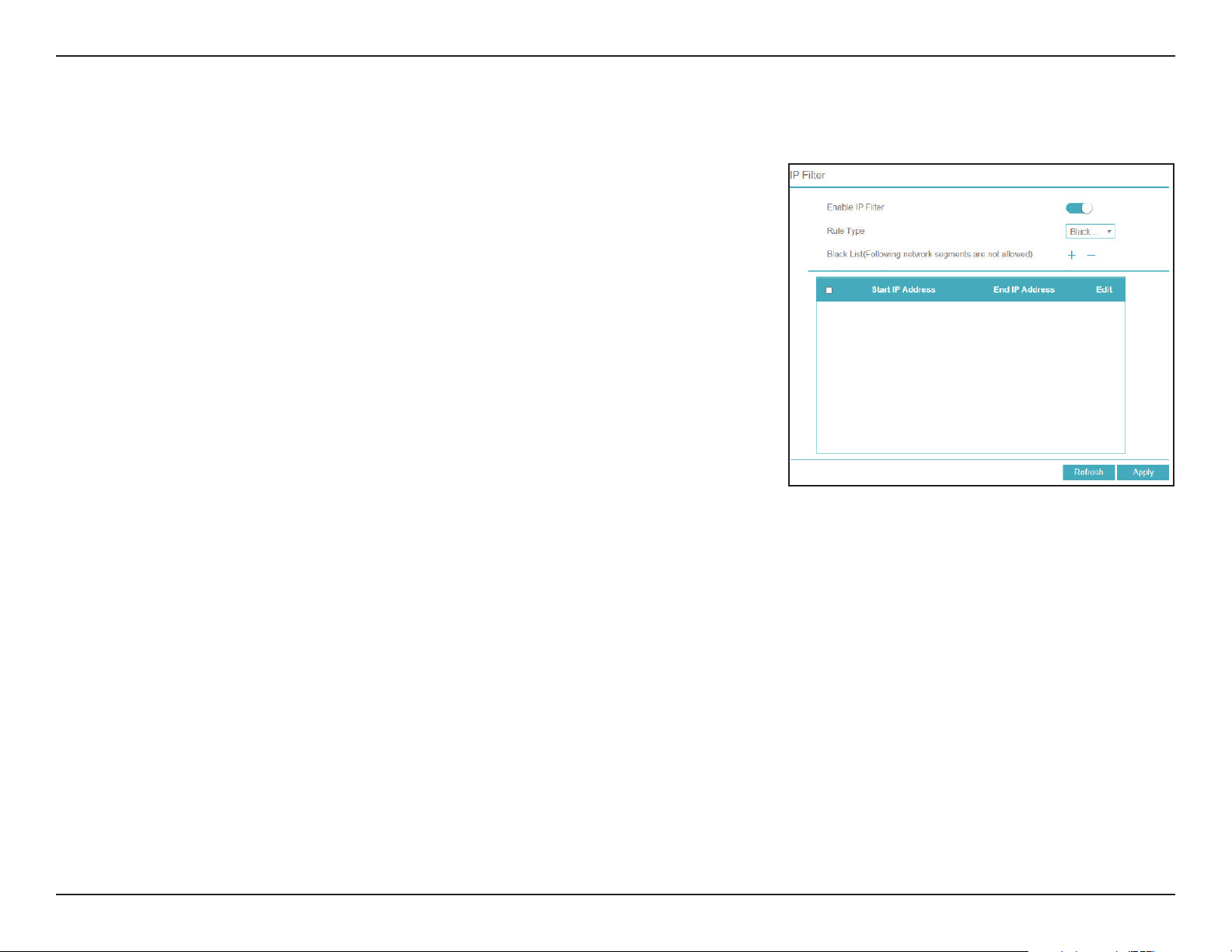
126D-Link DNR-4020-16P User Manual
Section 3 - Conguration
IP Filter
Rule Type
Toggle this to enable IP filtering.
Select Black List to block all IPs from the ranges you specify, or
White List to only allow IPs from the ranges you specify.
IP Filter
On this page you can block or allow visitors from specified IPs from accessing the
NVR. Click the plus (+) sign to add a range of IPs to the list, and then click Apply
to save.
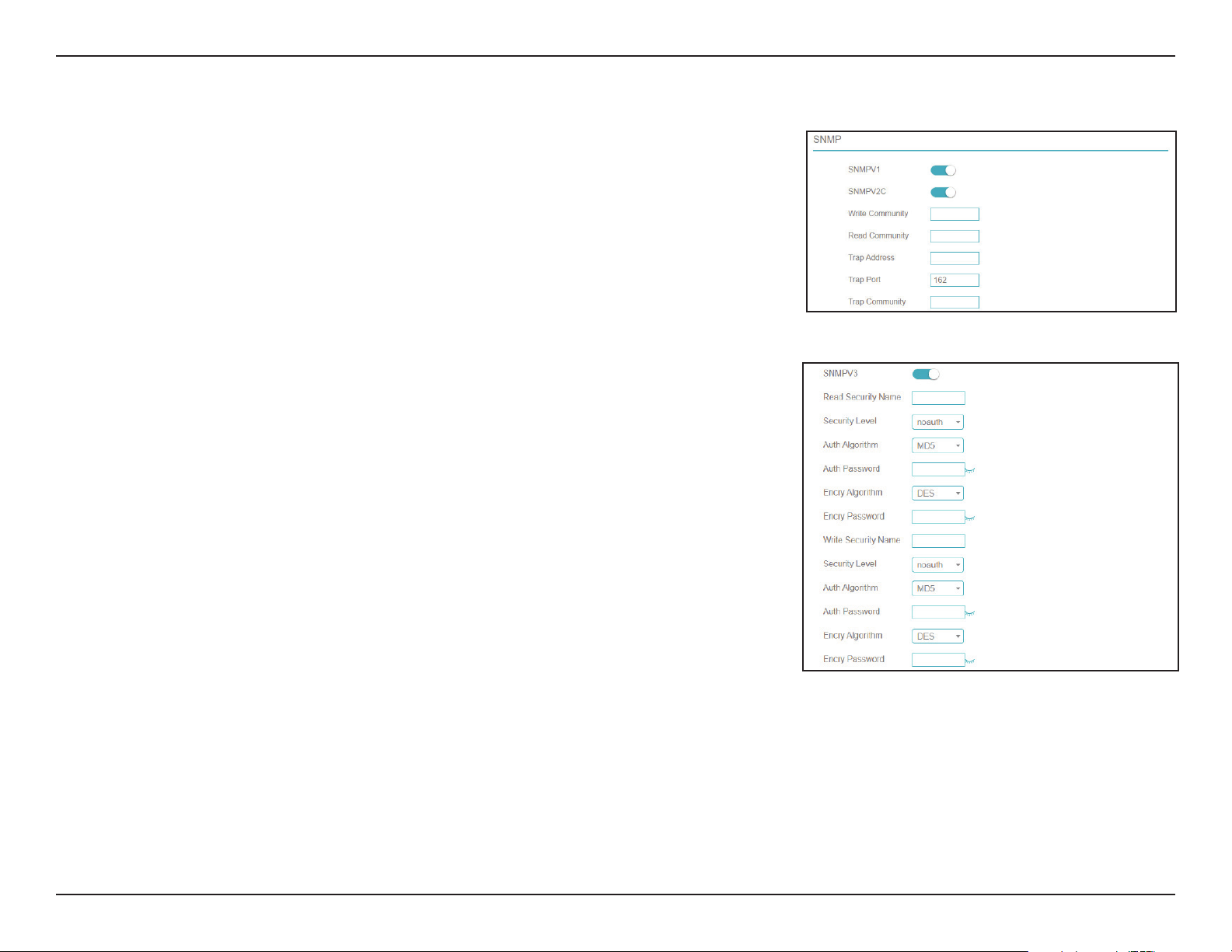
127D-Link DNR-4020-16P User Manual
Section 3 - Conguration
SNMPV1/
SNMPV2C
SNMPV3
Enable and enter a password for the Read/Write and Read-Only
community strings here. Change the community string to keep
intruders from getting information about the network setup.
This SNMP version adds encryption and authentication to the
service for better security. You can specify separate Read/Write
versus Read-only name and passwords as well as the type of
encryption to use.
SNMP
If you have SNMP agents that you would like to send traps (such as alarms and
syslog messages) to your NVR, you can enable and configure your SNMP settings
on this page.
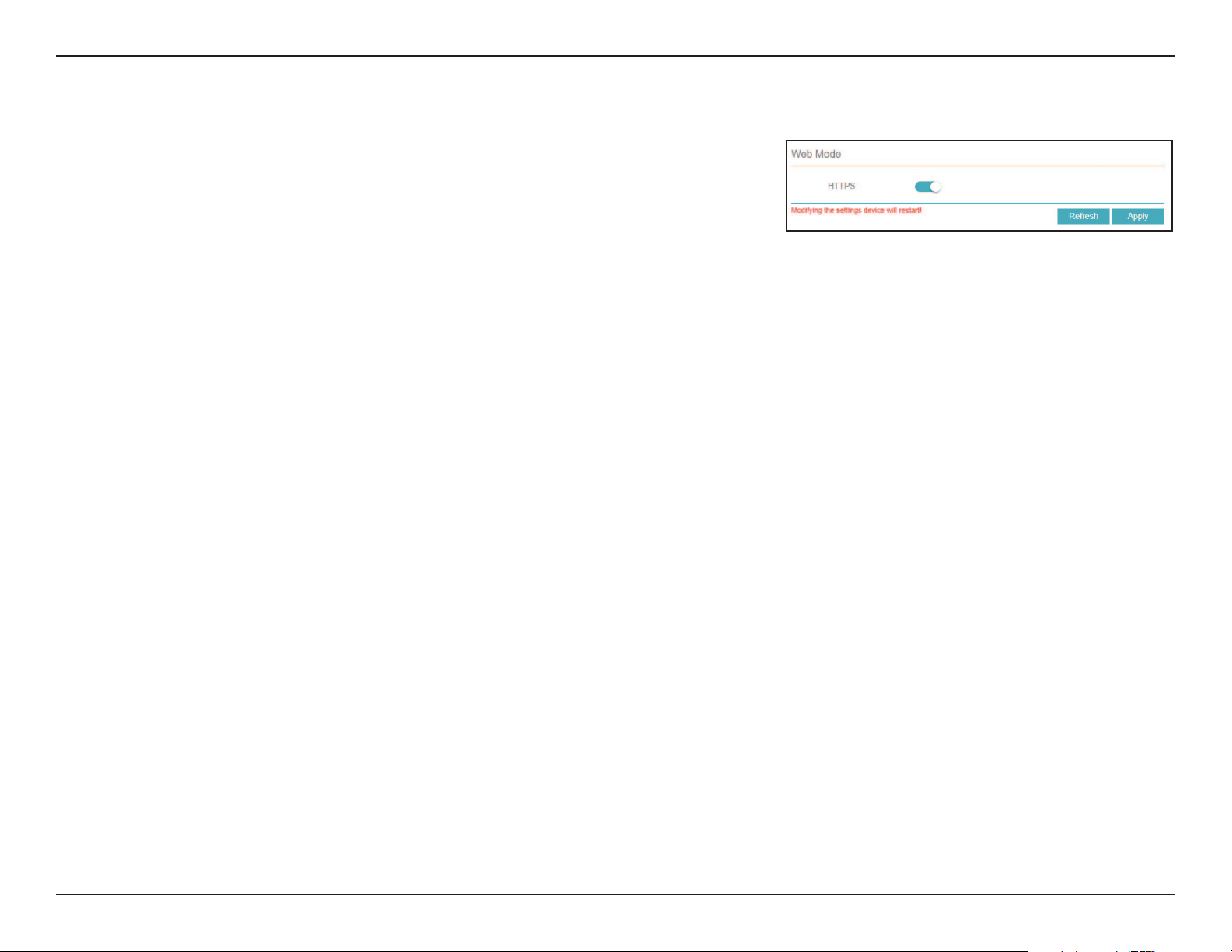
128D-Link DNR-4020-16P User Manual
Section 3 - Conguration
Web Mode
Click the switch on this page to enable or disable HTTPS for the web UI.
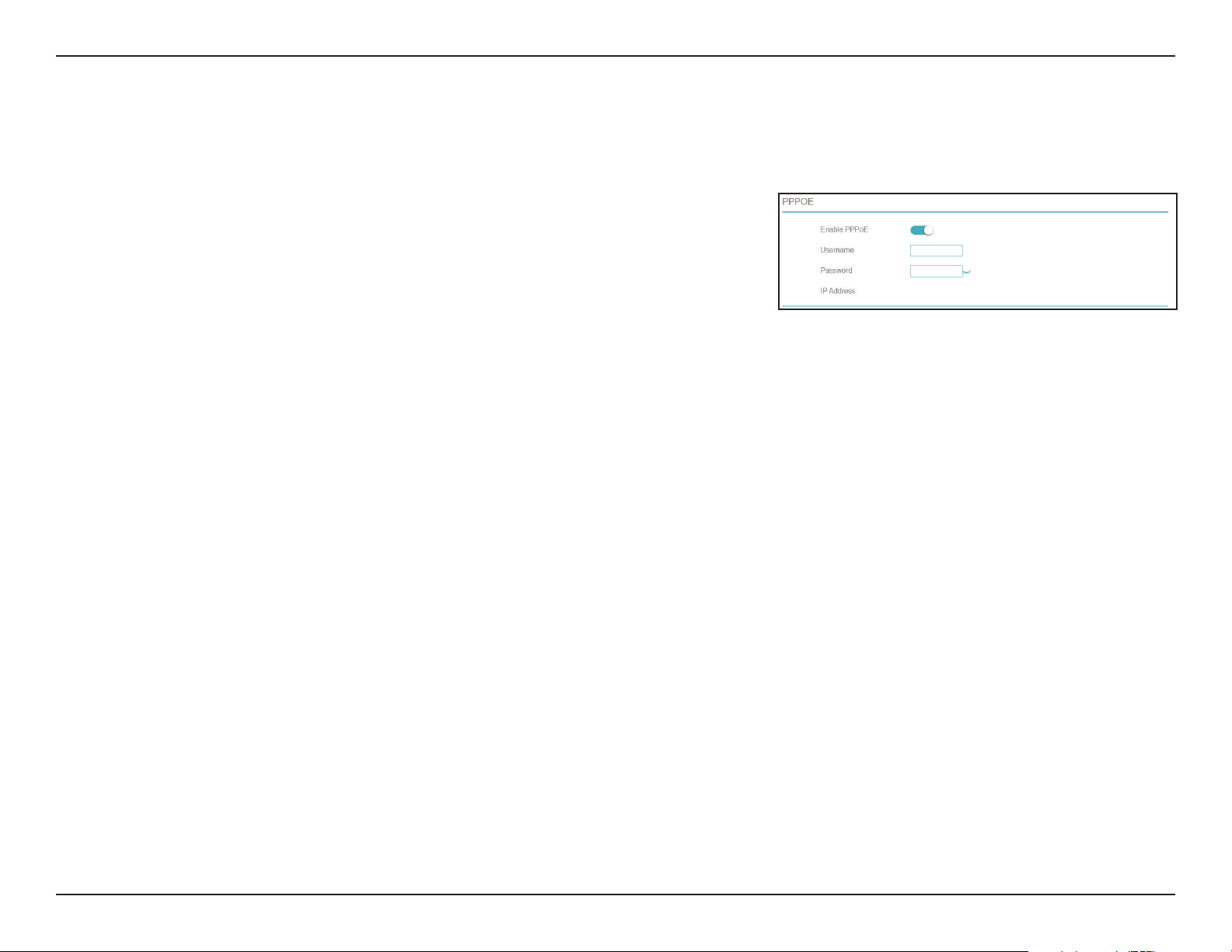
129D-Link DNR-4020-16P User Manual
Section 3 - Conguration
Enable
Username
Password IP
Address
Enable this setting if your ISP is using PPPoE.
Enter the username provided by your ISP.
Enter the password provided by your ISP.
Enter the fixed address of the NVR and the port that is used to
access the web interface.
PPPoE
On this page you can enable, disable or configure PPPoE settings on your NVR.
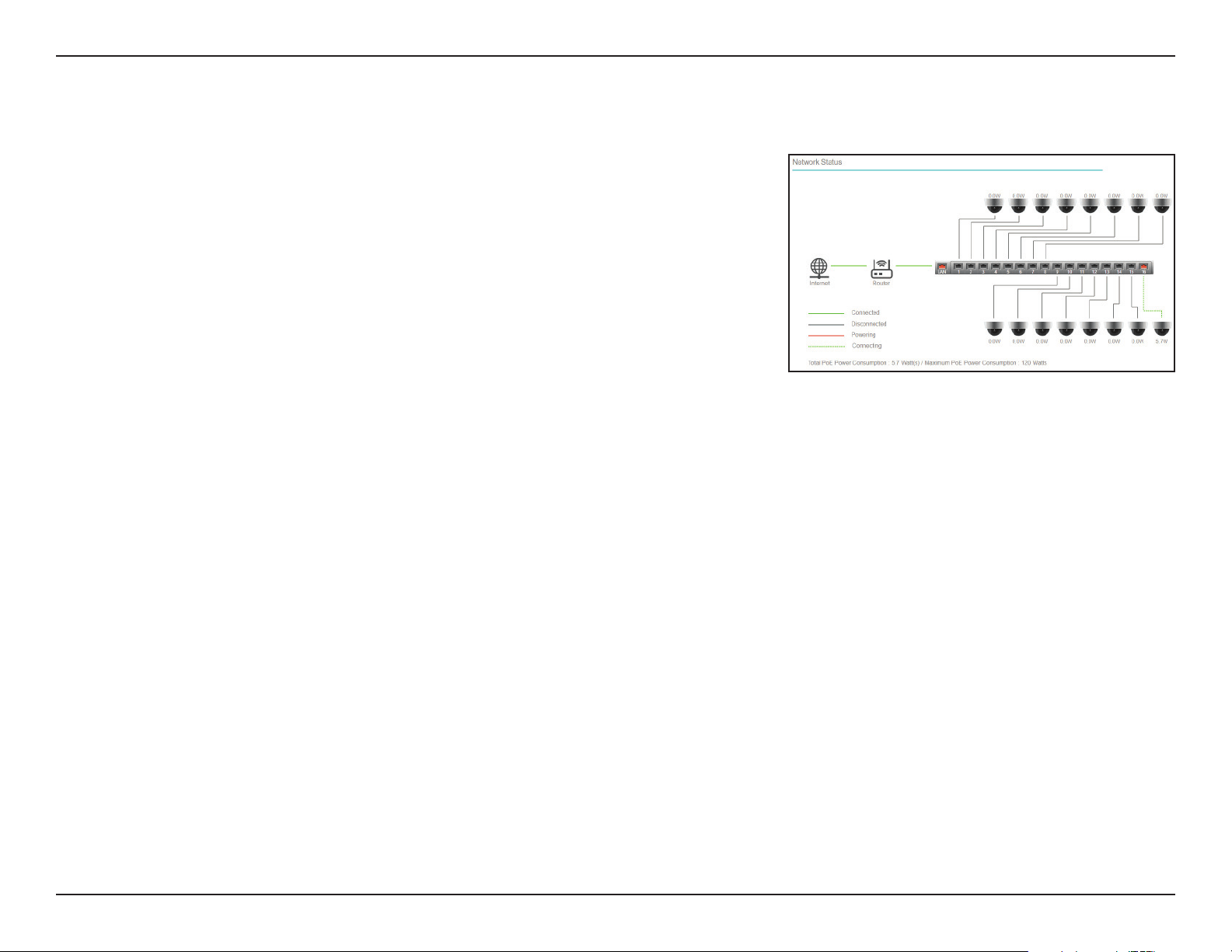
130D-Link DNR-4020-16P User Manual
Section 3 - Conguration
Network Status
On this page you can view the status of the NVR’s LAN and PoE ports and
check your Internet connection.
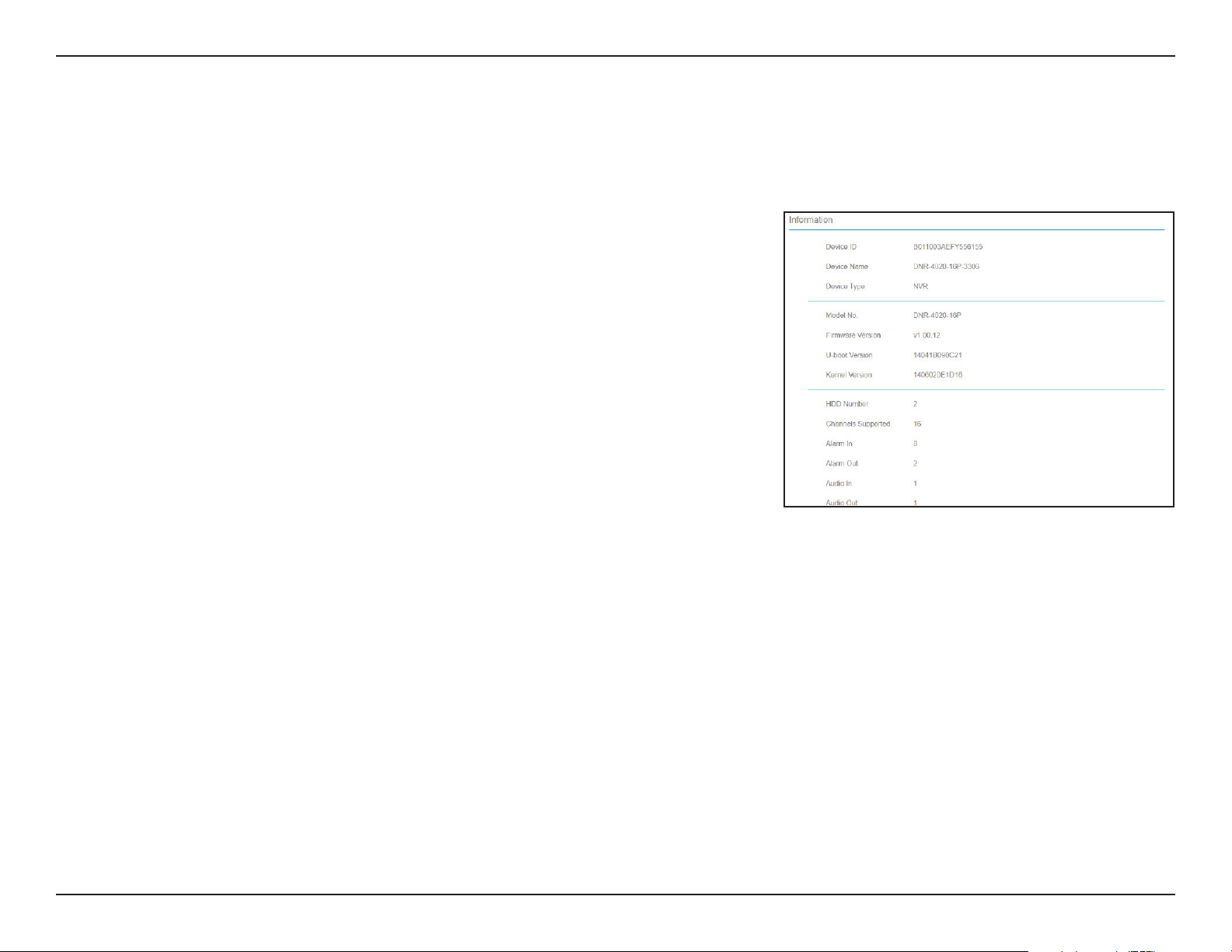
131D-Link DNR-4020-16P User Manual
Section 3 - Conguration
Device ID
Device Name
Device Type
Model
Firmware
Version
U-boot Version
Kernel Version
HDD Number
Channels
Supported
Alarm In
Alarm Out
Audio In
Audio Out
A unique ID used to identify the device.
The name used to identify the device.
Indicates the type of device (NVR).
The device’s model number.
The device’s current firmware version.
The device’s current U-boot version.
The device’s current kernel version.
The number of HDD supported by the device.
The number of channels supported by the device.
The number of Alarm In interfaces.
The number of Alarm Out interfaces.
The number of Audio In interfaces.
The number of Audio Out interfaces
System
Information
System
This page displays information about the NVR.
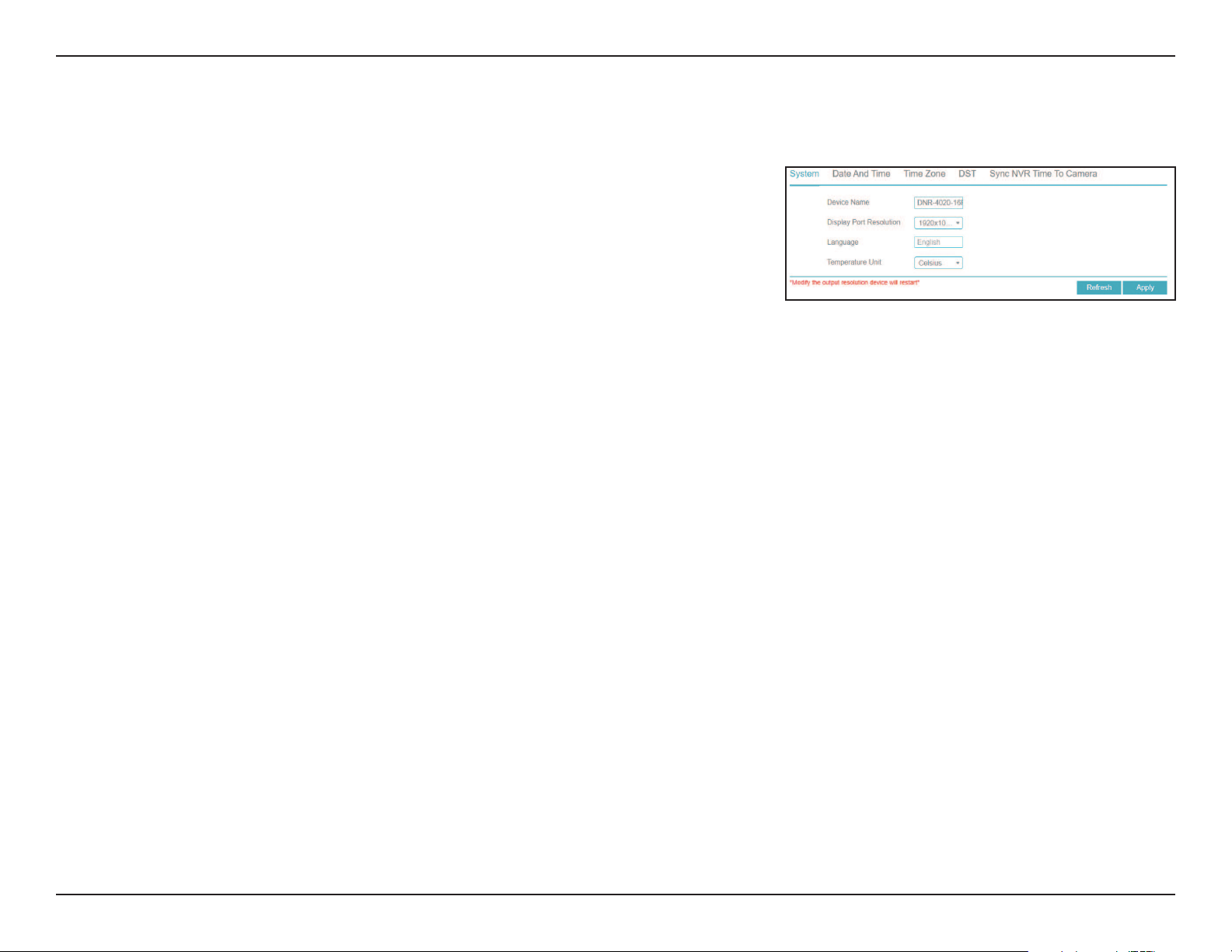
132D-Link DNR-4020-16P User Manual
Section 3 - Conguration
System
Allows you to change general configuration settings (e.g. by setting the device
name and language).
Device Name
Display Port
Resolution
Language
Temperature
Units
Enter the a new name to identify the NVR to other devices.
Enter the desired resolution for the NVR’s configuration
interface.
Select your preferred language.
Select either Celsius or Fahrenheit.
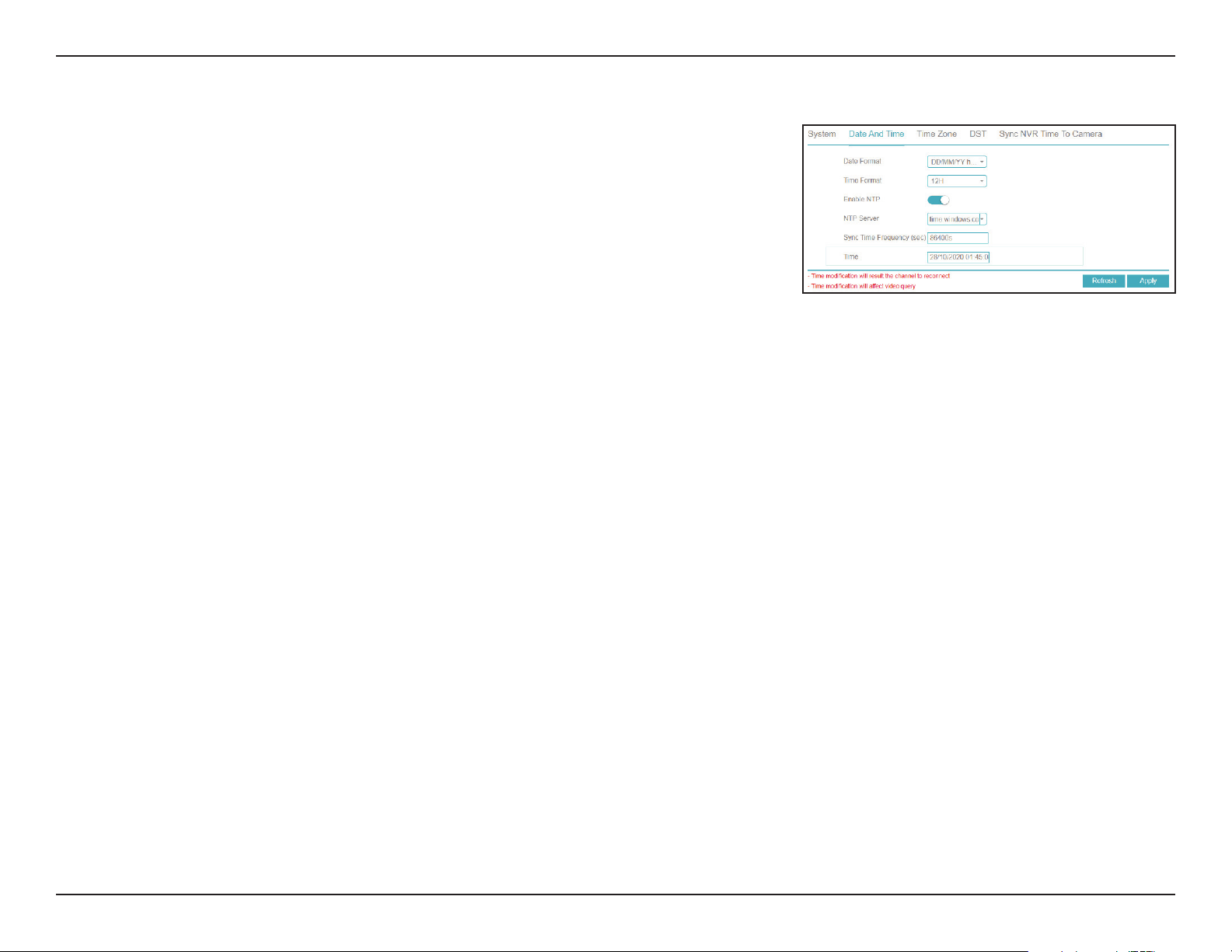
133D-Link DNR-4020-16P User Manual
Section 3 - Conguration
Date and Time
On this page you can change the device’s date and time manually, or specify NTP
settings to acquire the date and time automatically.
Date Format
Time Format
NTP Sync
NTP Server
Frequency of
Checks
Date
Time
Specify the desired format that the device should use to display the
date.
Specify the desired format that the device should use to display
the system time.
Toggle this to automatically obtain the date and time from an
NTP server.
Specify the NTP server to use.
Specify how frequently (in seconds) to verify the system time
with the NTP server.
If NTP Sync is disabled, automatically enter the date.
If NTP Sync is disabled, automatically enter the current time.
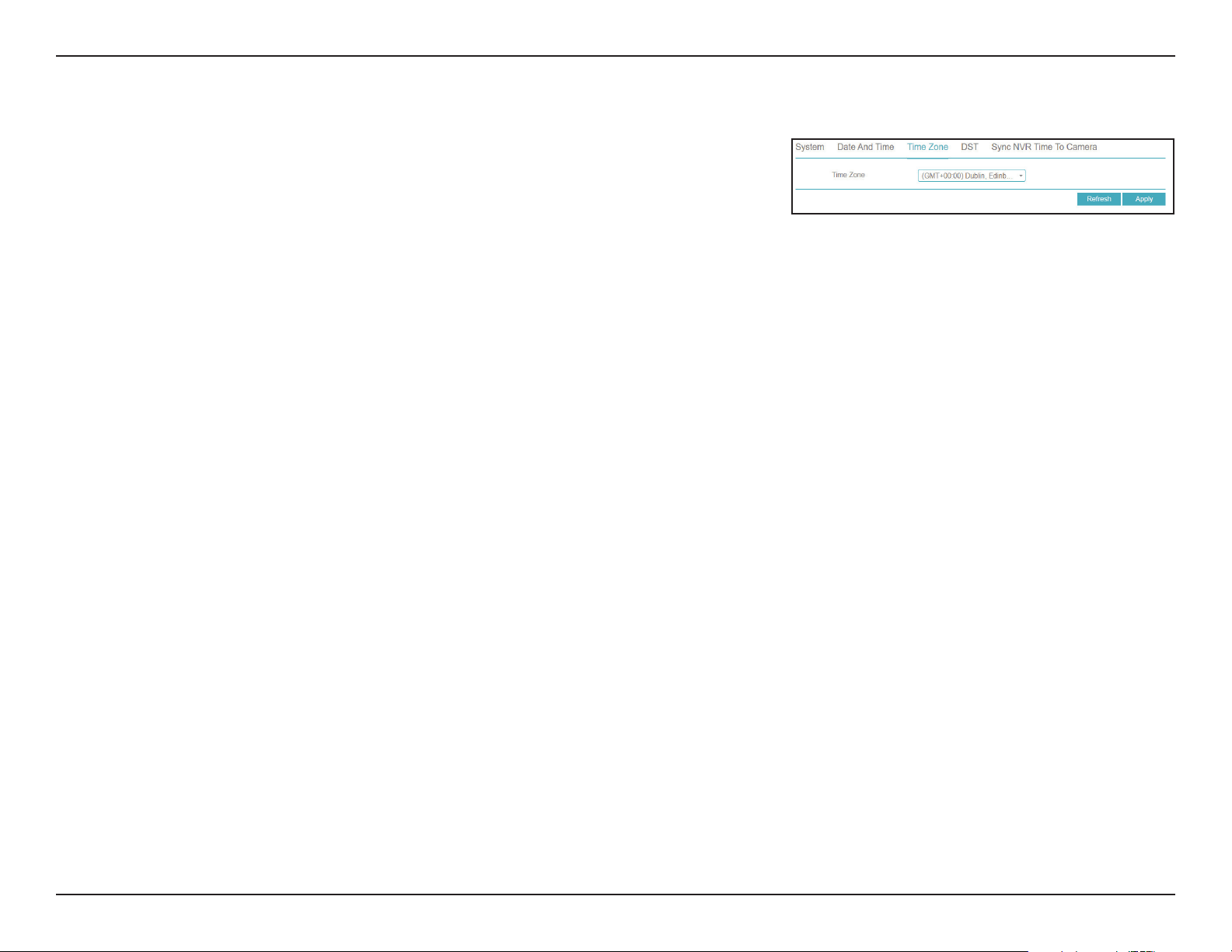
134D-Link DNR-4020-16P User Manual
Section 3 - Conguration
Time Zone
On this page, you can select your current time zone and apply it to the NVR’s
time settings.
Time Zone Select your current time zone from the drop-down menu.
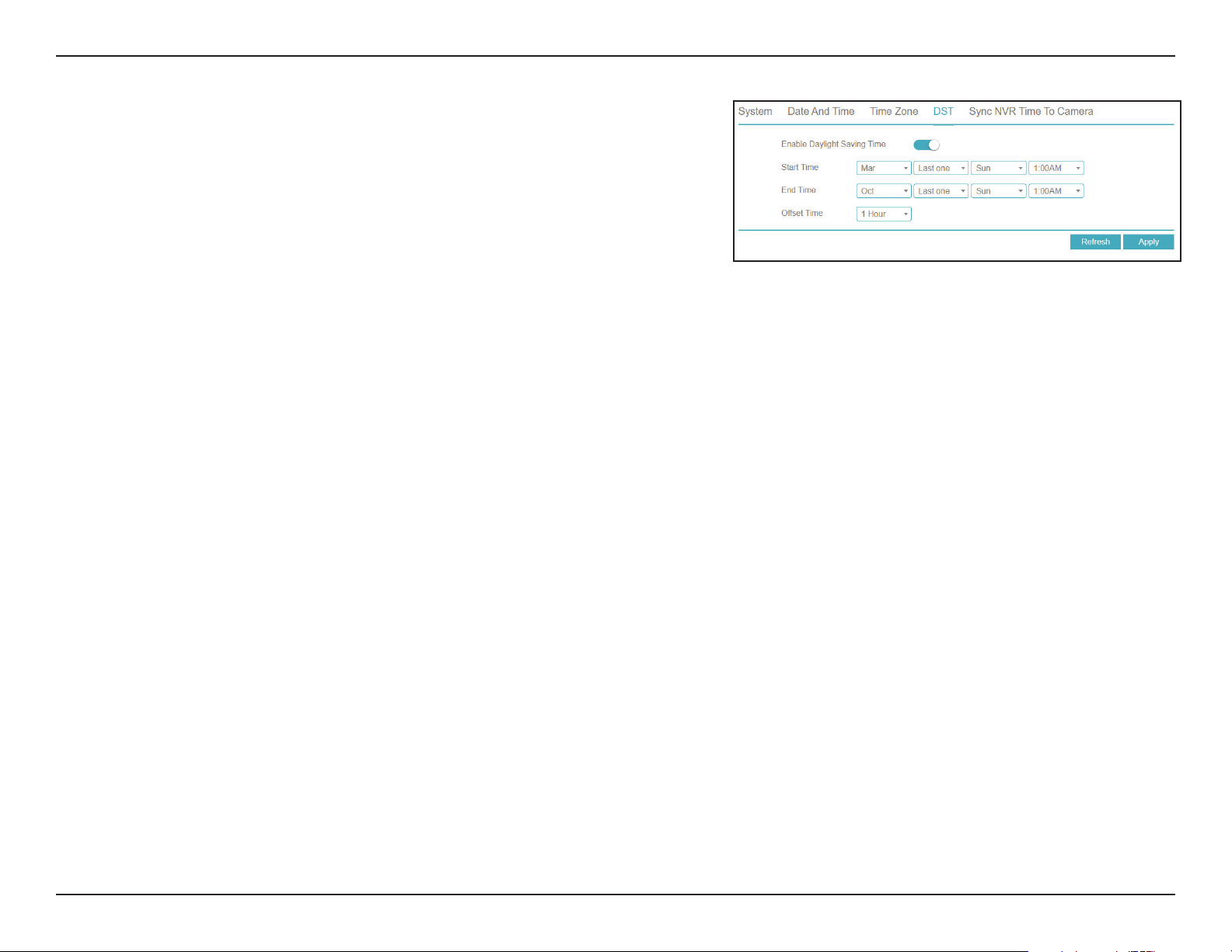
135D-Link DNR-4020-16P User Manual
Section 3 - Conguration
Daylight Saving Time
On this page you can enable or disable Daylight Saving Time.
Daylight
Savings Time
Start Time
End Time
Offset Time
Toggle this to enable or disable Daylight Saving Time.
The date and time that DST should start.
The date and time that DST should end.
The number of hours to adjust the clock during DST
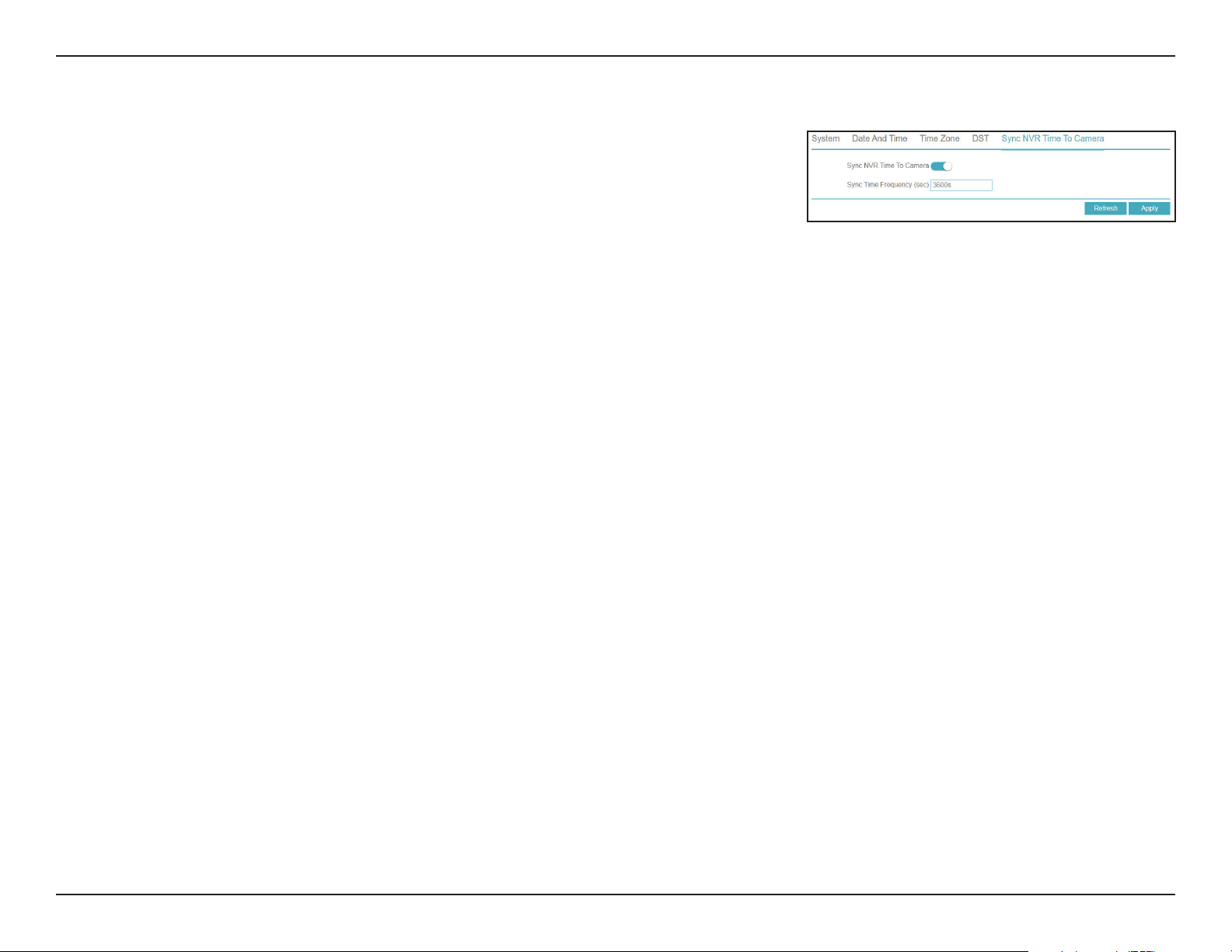
136D-Link DNR-4020-16P User Manual
Section 3 - Conguration
Sync NVR Time To Camera
On this page you can configure the cameras connected to the DNR-4020-16P to
automatically sync their time settings with the NVR’s.
Sync Camera
Time
Frequency of
Checks
Toggle this to enable time syncing with the connected cameras.
Enter how often (in seconds) the NVR should sync its time
settings with its cameras’ time settings.
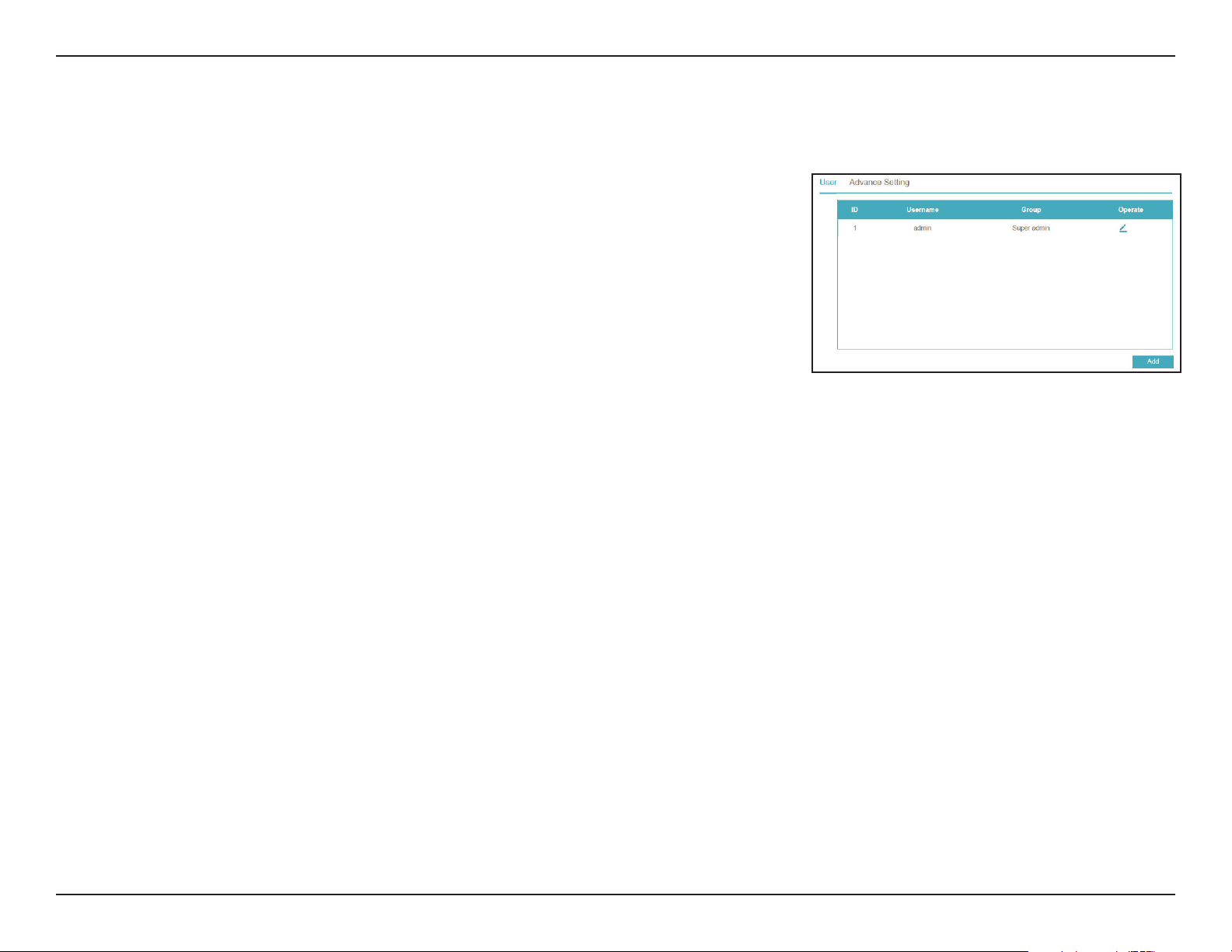
137D-Link DNR-4020-16P User Manual
Section 3 - Conguration
User Account
User
On this page you can create or change the account information for the NVR’s user
accounts (for example, by updating the password). Click the pencil icon under
the Operate tab to edit an existing user account, or click Add to create
a new one.
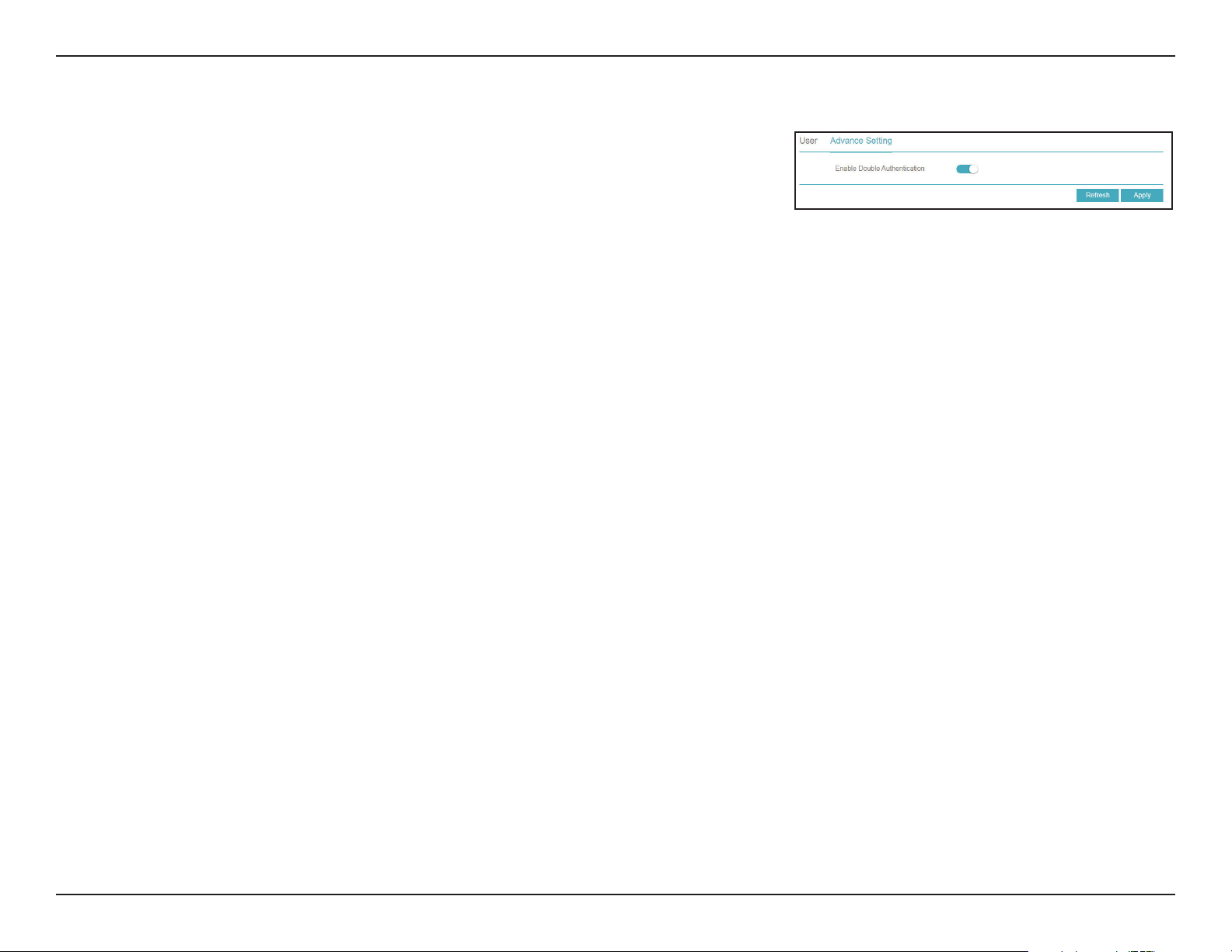
138D-Link DNR-4020-16P User Manual
Section 3 - Conguration
Advance Setting
On this tab you can configure advanced settings for the NVR’s user accounts.
Password
double auth.
Toggle this to enable double password authentication.
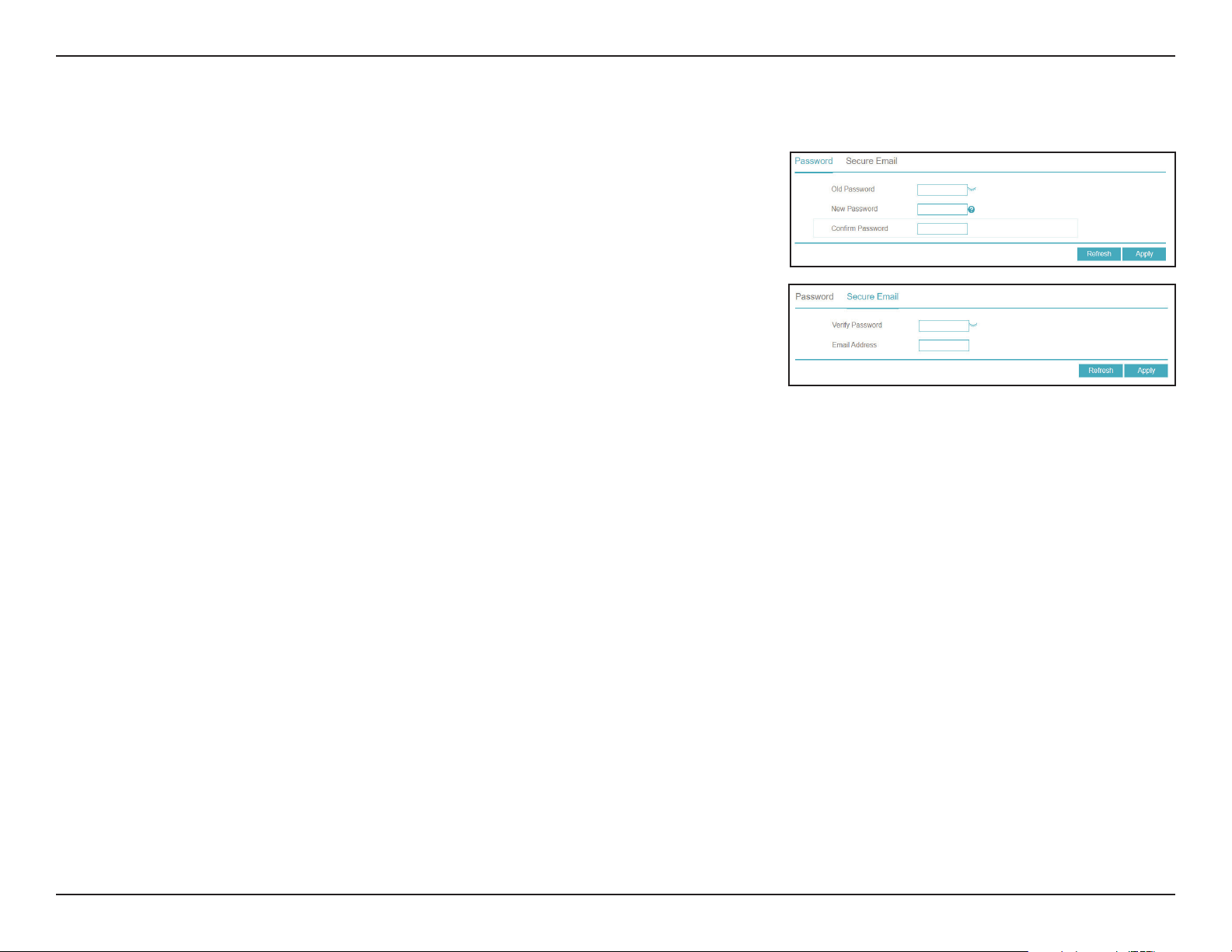
139D-Link DNR-4020-16P User Manual
Section 3 - Conguration
Security Center
On this page you can update the password settings for the NVR.
Old Password
New Password
Confirm
Password
Unlock Pattern
Secure Email
Enter the current password.
Enter the desired new password.
Confirm the new password by reentering it.
Use this tab to set a pattern to unlock your NVR instead of a
typed password.
Use this tab to set a recovery email to use in case you forget
your password
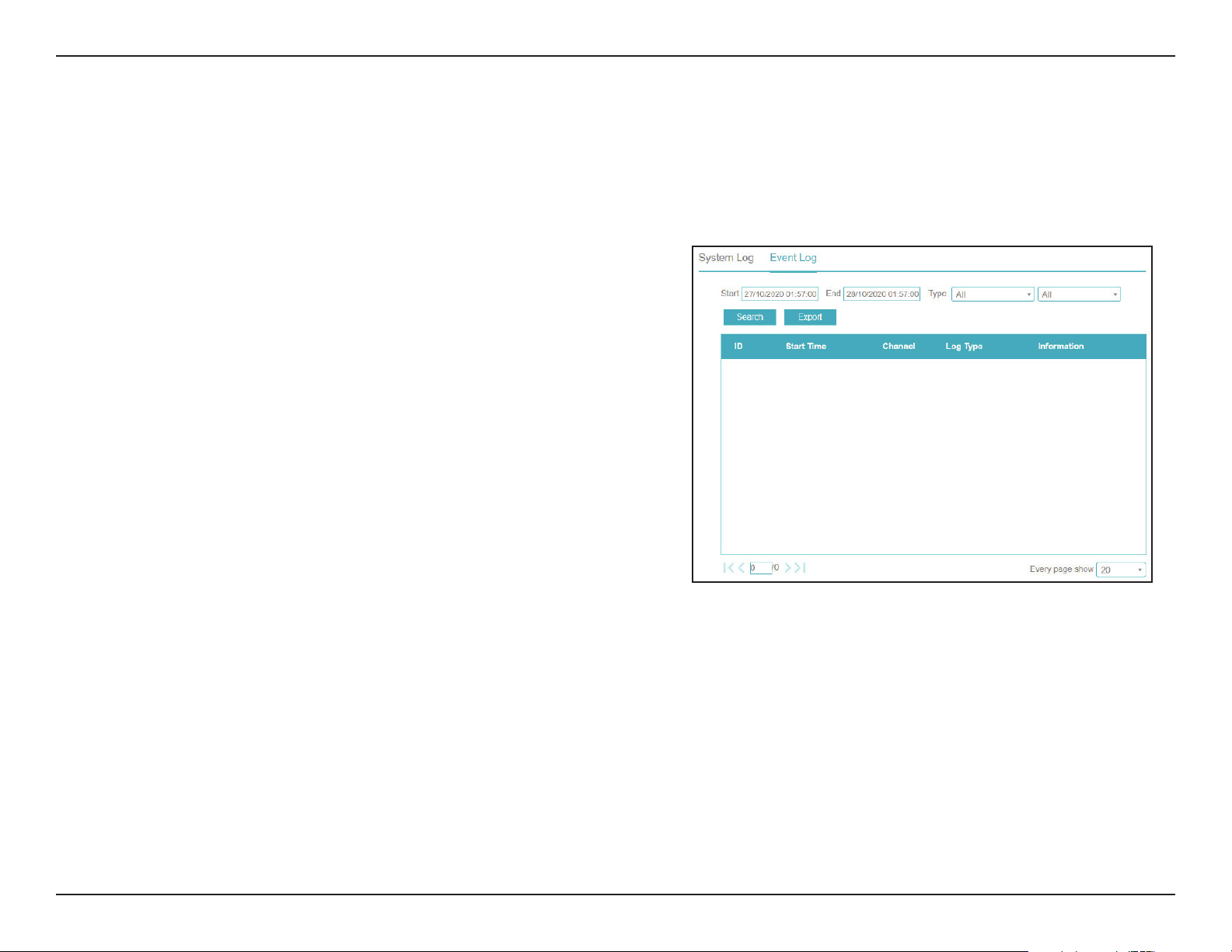
140D-Link DNR-4020-16P User Manual
Section 3 - Conguration
Logs
System Log
On this page you can view the NVR’s operational and system logs and search the
log for specific events.
Start Date
End Date
Type
Start Time
End Time
Search
Export
Enter the starting date to search the logs from.
Enter the end date to search the logs until.
Enter the type of logs to search or export.
Enter the starting time to search the logs from.
Enter the end time to search the logs until.
Click this to search for logs.
Click this to export the logs to a file.
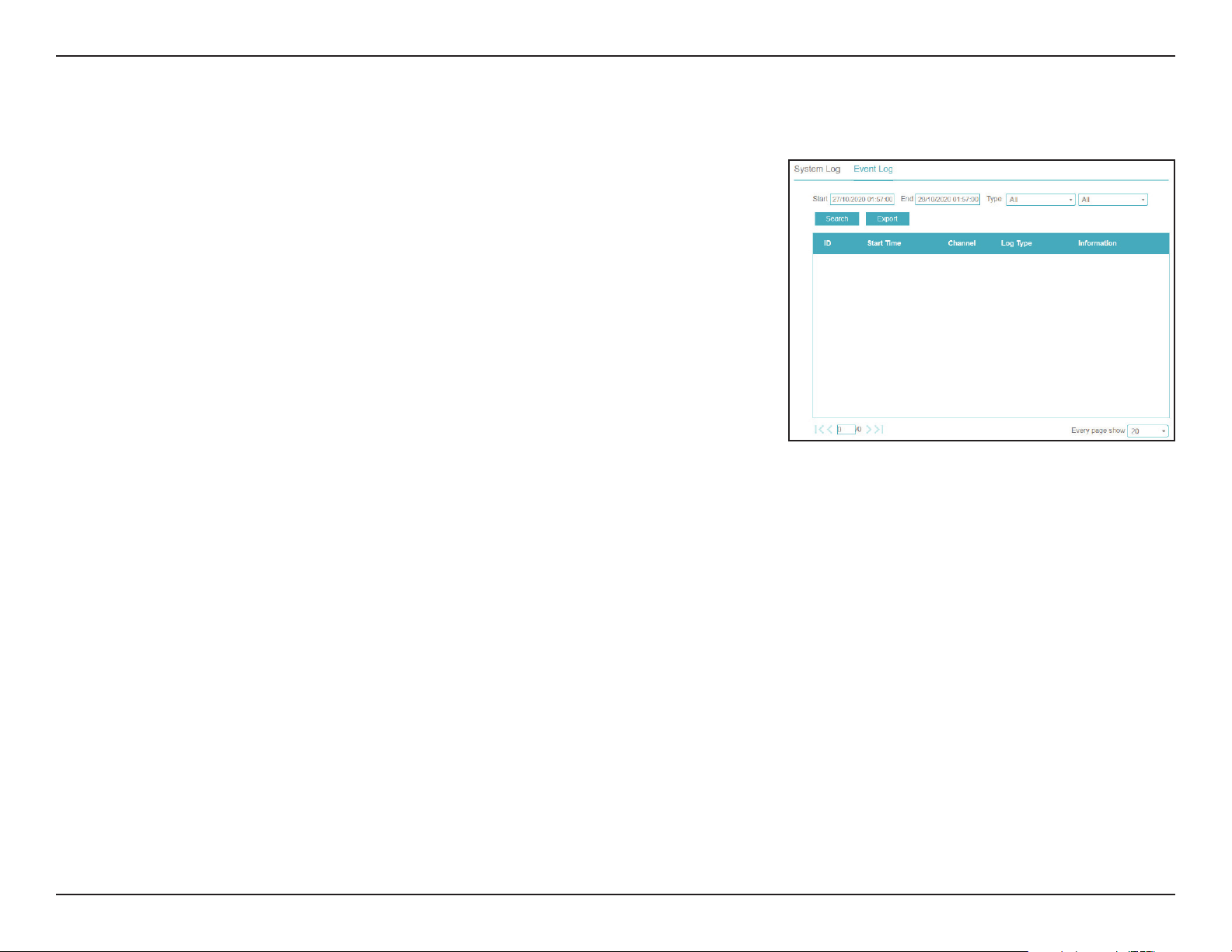
141D-Link DNR-4020-16P User Manual
Section 3 - Conguration
Event Log
On this page you can view the logs of events (such as triggered alarms).
Start Date
End Date
Type
Start Time
End Time
Search
Export
Enter the starting date to search the logs from.
Enter the end date to search the logs until.
Enter the type of logs to search or export.
Enter the starting time to search the logs from.
Enter the end time to search the logs until.
Click this to search for logs.
Click this to export the logs to a file.
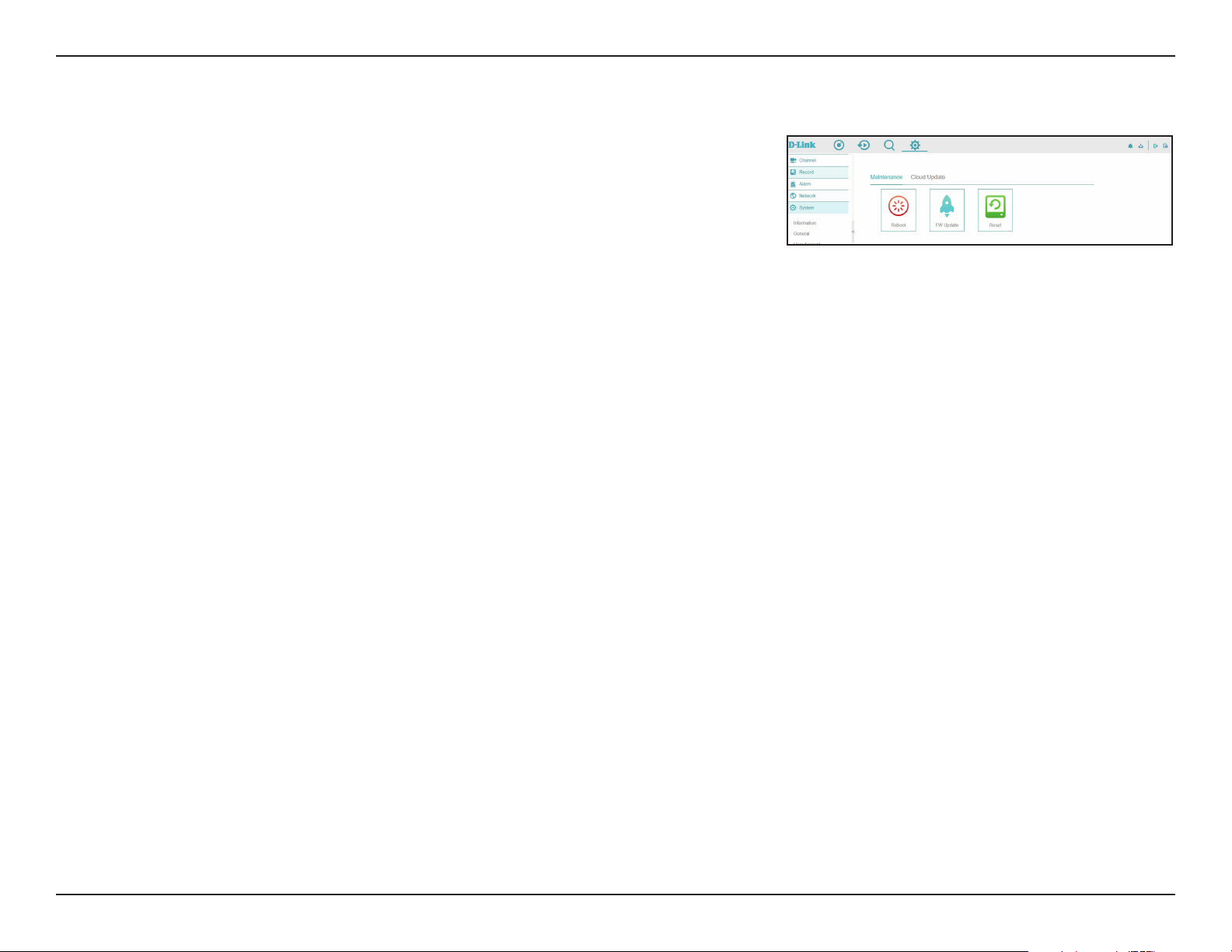
142D-Link DNR-4020-16P User Manual
Section 3 - Conguration
Maintenance
Maintenance
On this page you can perform miscellaneous maintenance tasks. Select the
relevant icon to perform the task.
Shutdown
Reboot
Logout
Reset
Import Config.
Export Config.
FW Update
Click this icon to shut down the NVR.
Click to reboot the NVR.
Log out from the user interface.
Reset the device to factory settings.
Import configuration settings from a file.
Export current configuration settings to a file.
Update the device’s firmware. This requires a firmware file on an
inserted USB storage device.
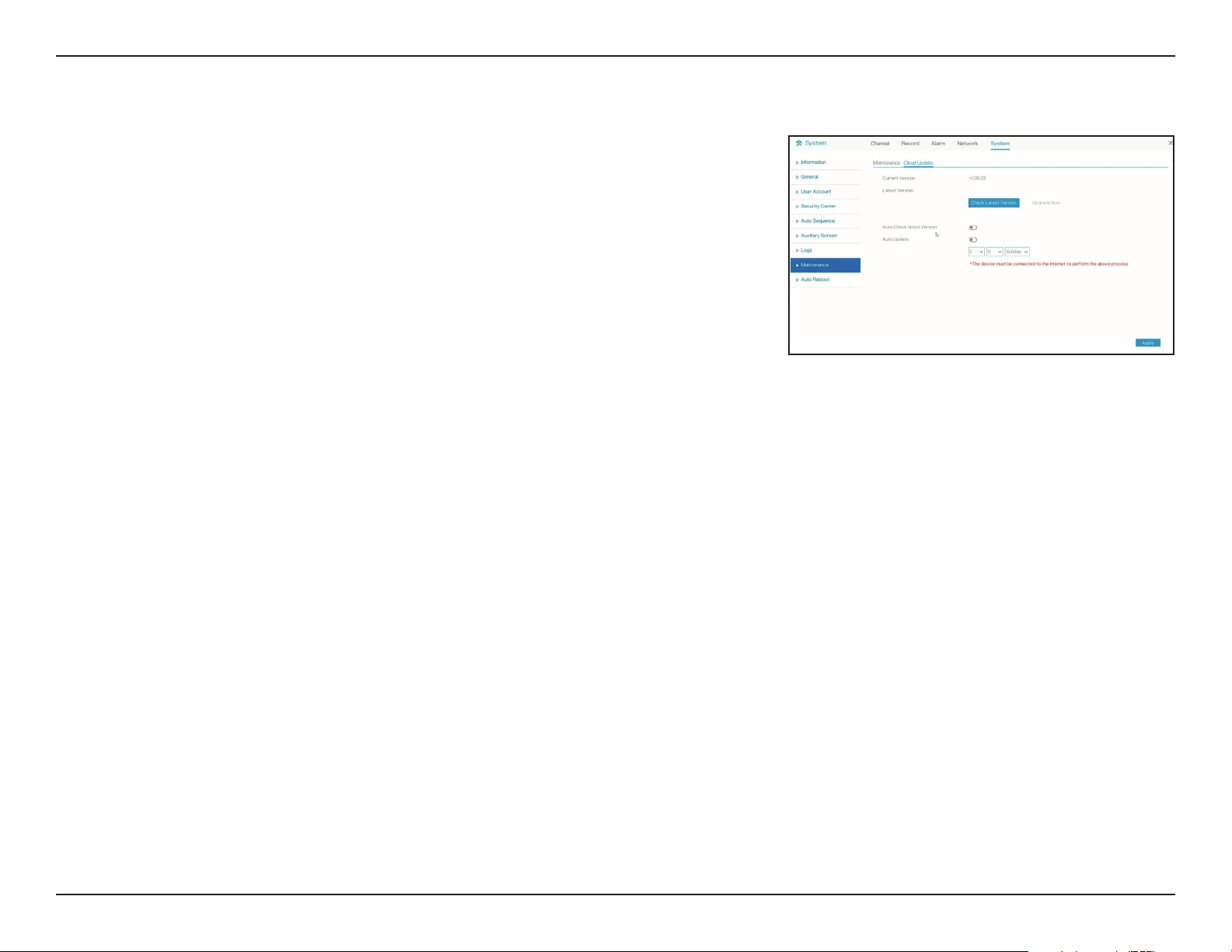
143D-Link DNR-4020-16P User Manual
Section 3 - Conguration
Current firmware version number.
It shows the latest firmware version number after checking
FOTA server.
Enable or disable to auto check the latest firmware version with
FOTA server.
Enable or disable to auto update device firmware.
Setting hour, minute and the day for auto firmware update.
Current Version
Latest Version
Auto Check
latest Version
Auto Update
Cloud Update
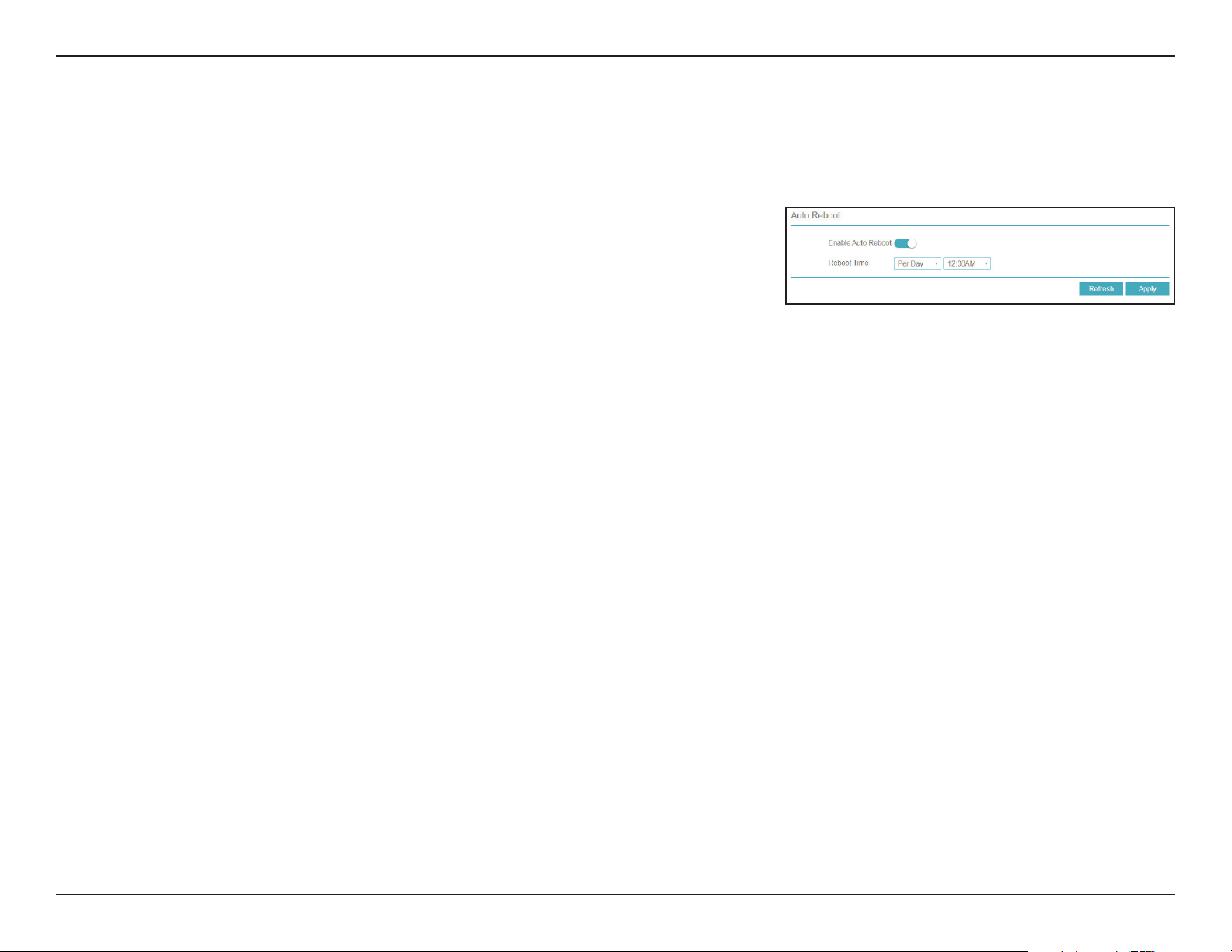
144D-Link DNR-4020-16P User Manual
Section 3 - Conguration
Auto Reboot
Toggle this to enable the device’s automatic restart feature.
Enable Auto
Reboot
Reboot Time
Toggle this to enable the automatic restart feature.
Set the frequency at which the device should restart (i.e. per
day, week, or month) and the time that it should do so.
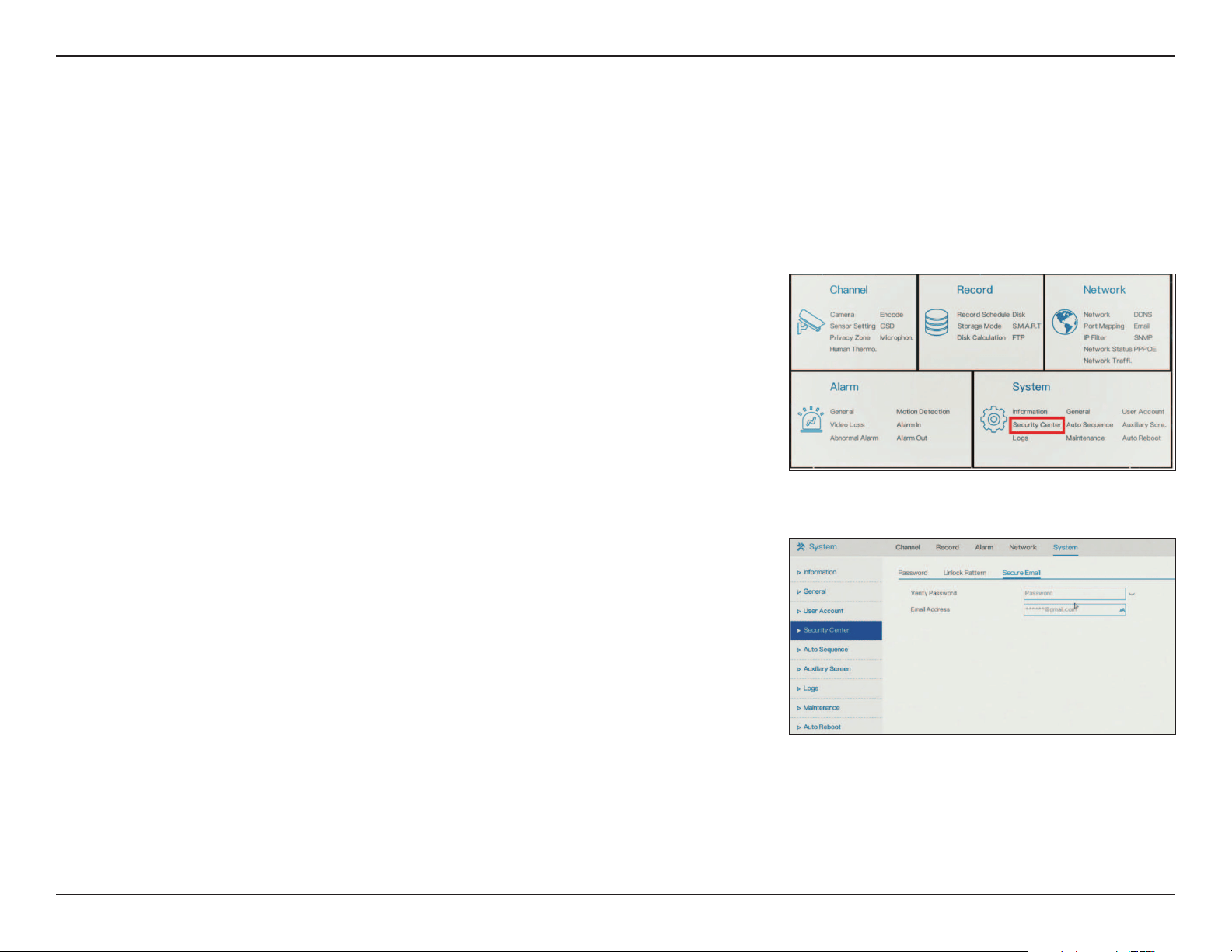
145D-Link DNR-4020-16P User Manual
Section 3 - Conguration
Password Reset
To designate the e-mail address for password reset:
1. Log in to the NVR and right click the mouse to access the main menu.
2. Under System menu, select Security Center.
3. Go to Secure Email and input the administrator password and designate the
Email Address.
Designate E-mail Address
To protect video clips in the DNR-4020-16P, its design does not include a Reset Button. To reset the password, a temporary
verification code can be obtained via the designated e-mail address in the NVR GUI.
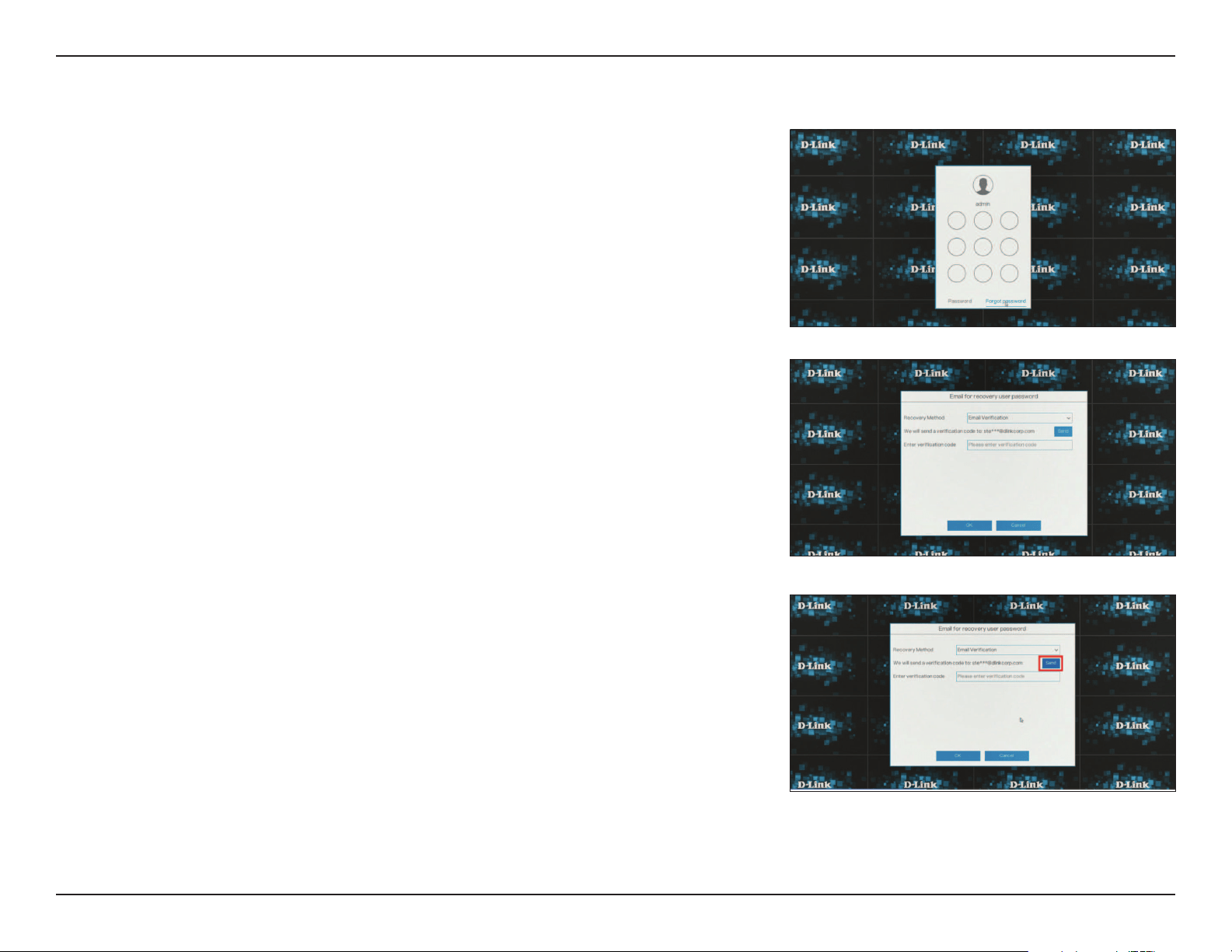
146D-Link DNR-4020-16P User Manual
Section 3 - Conguration
To obtain a temporary verification code to reset the password, click Forgot
Password at the login screen.
Select Email Verification option in Recovery Method.
Click Send button and the NVR will send a temporary verification code to the
designated e-mail address mentioned on page 142.
Note: The temporary verification code is only valid before 00:00am NVR time. If
the code expires you will need to request a new verification code. The NVR will
generate a new verification code every day and after reboot. The NVR will need
internect access to send out verification code e-mails.
Obtain Verification Code
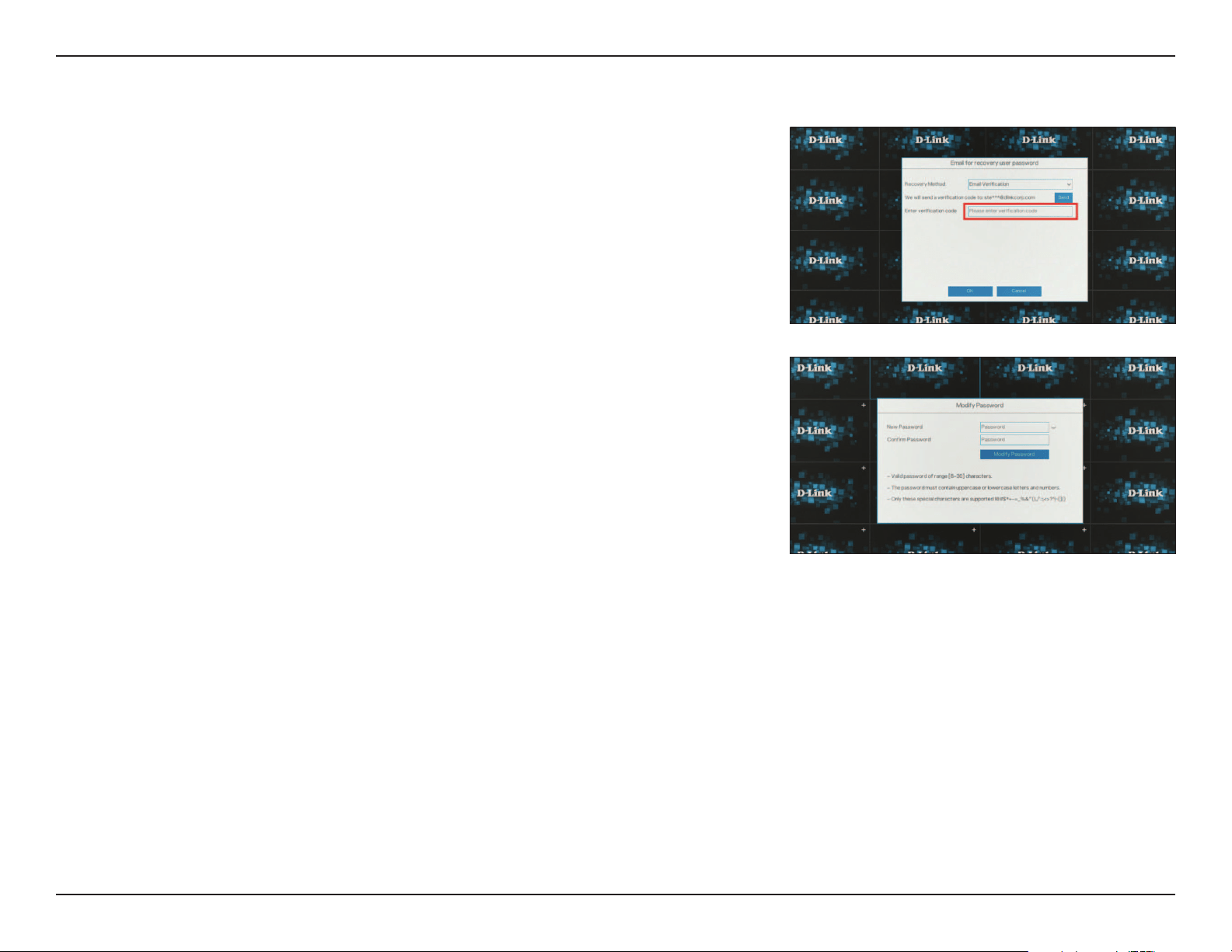
147D-Link DNR-4020-16P User Manual
Section 3 - Conguration
After receiving the verification code, enter it into the Enter verification code
field and click OK.
Input the new password in the New Password field and confirm the new password
again in the Confirm Password field. Then click Modify Password to apply the
new password.
The new password can now be used to log into the NVR.
Resetting User Password
148D-Link DNR-4020-16P User Manual
Section 5 - Troubleshooting
Troubleshooting
Replacing a failed disk drive
If a disk drive fails, the Disk Status LED will turn red. When replacing a failed disk drive, be sure to use a new drive of the same
or slightly greater capacity.
Step 1: Power off the NVR.
Step 2: Open the unit’s cover.
Step 3: Pull out the failed disk drive.
Step 4: Install a new disk drive into the slot. Please refer to Hard Drive Installation on page 6.
If you cannot log in to the NVR using your web browser
Check the settings of your anti-virus software to make sure it isn’t blocking access to the NVR web interface.
If you cannot see the complete web interface in your web browser
If you cannot see the complete page of the system, the ActiveX installation process may not be complete.
Step 1: Open your web browser and connect to your NVR.
Step 2: The browser will ask whether to install ActiveX.
Step 3: Click the upper bar to begin the installation process.
Step 4: Click Install to complete the process.
149D-Link DNR-4020-16P User Manual
Appendix A - Technical Specications
Technical Specifications
Technical Specications
General
Standards • IEEE 802.3x/u/ab
• SATA I/II/III
• Auto MDI/MDI-X
HDD
1
• Up to 8 TB capacity per HDD drive
2
Reset Button • Reset through web GUI
Network Interface • Gigabit Ethernet port (10/100/1000 Mbps)
I/O Ports • 1 x 10/100/1000 Base-T RJ-45 port
• HDMI (supports 4k resolution)
• VGA (supports 1080P resolution)
• 3 x USB 2.0 port
3
• 3.5 mm audio input x 1, output x 1
• 8 x alarm in, 2 x alarm out
PoE • IEEE 802.3af
• 16 x 10/100 Base-T RJ-45 ports
• Supplies up to 15 W per port
• 120 W total PoE budget
Cooling • 1 x Fan
Features
Network Client OS • Microsoft Windows 10
Supported Cameras
4
• Supports D-Link brand IP cameras • Supports auto-discovery
Live View/Playback • HDMI port max output resolution: 4k
5
• VGA port max output resolution: 1080p
6
System Requirements for Web Interface • Full support with Internet Explorer 10 and above • Partial support for Edge, Chrome, Safari and Firefox
Recording Performance • Max recording bitrate: 112 Mbps
Camera Search • WS-Discovery
Audio and Video Recording • Synchronized audio and video recording
Compression Format • H.264 • H.265
Audio Compression Format • G.711 • AAC
150D-Link DNR-4020-16P User Manual
Appendix A - Technical Specications
Video Setting • Resolution
• Bitrate
• Frame rate
• Video profile selection
Recording Mode • Schedule, manual and event-based recording • Motion-triggered recording
Alarm Recording • Post-alarm: 30/40/50/60 seconds per channel
Live View Control • Manual record
• Instant playback
• Audio enable/disable
• PTZ control
• 3D (on screen PTZ)
• Digital zoom in/zoom out
• Image setting
• Two way audio
Playback Control • Normal
• Rewind
• Play
• Stop
• Next frame
• 30 second forward/backward
• Playback speed adjust (maximum triple speeds)
• Audio enable/disable
• Start Backup
• Batch Backup
• 1/6/12/24 hour(s) options
• Zoom
Overwrite Recording • Auto recycling when disk storage is full
Video Export • Export video to MP4 file format
User Account • Additional accounts can be created to allow users system access and specify authorization for camera channels, PTZ, etc.
DDNS • No_IP
• AutoDNS
• DynDNS
System Time • Sync with NTP server
• Manual Input time
• Time Zone
• Daylight Saving Time
System Status • Channel status
• HDD status
• System status
• Network status
Network Service Protocols • IPv4, ARP, TCP, UDP, ICMP
• DHCP Server (PoE ports)
• DHCP Client (LAN ports)
• NTP Client
• DNS Client
• DDNS Client
• SMTP Client
• HTTP/HTTPS Server
• RTP
• RTSP
• RTCP
• IP filtering
• SNMP v1/v2c/v3
User Interface • HTTP Web browser
• Console via HDMI/VGA
• JustConnect+ mobile app
Physical
Weight • 2.8 kg (6.2 lbs) (No Disk)
Power Input • Input: 100 to 240 V AC/ 3.0 A, 50 to 60 Hz • Output: 52 V AC/ 2.5 A, DC 12V/ 5.0A
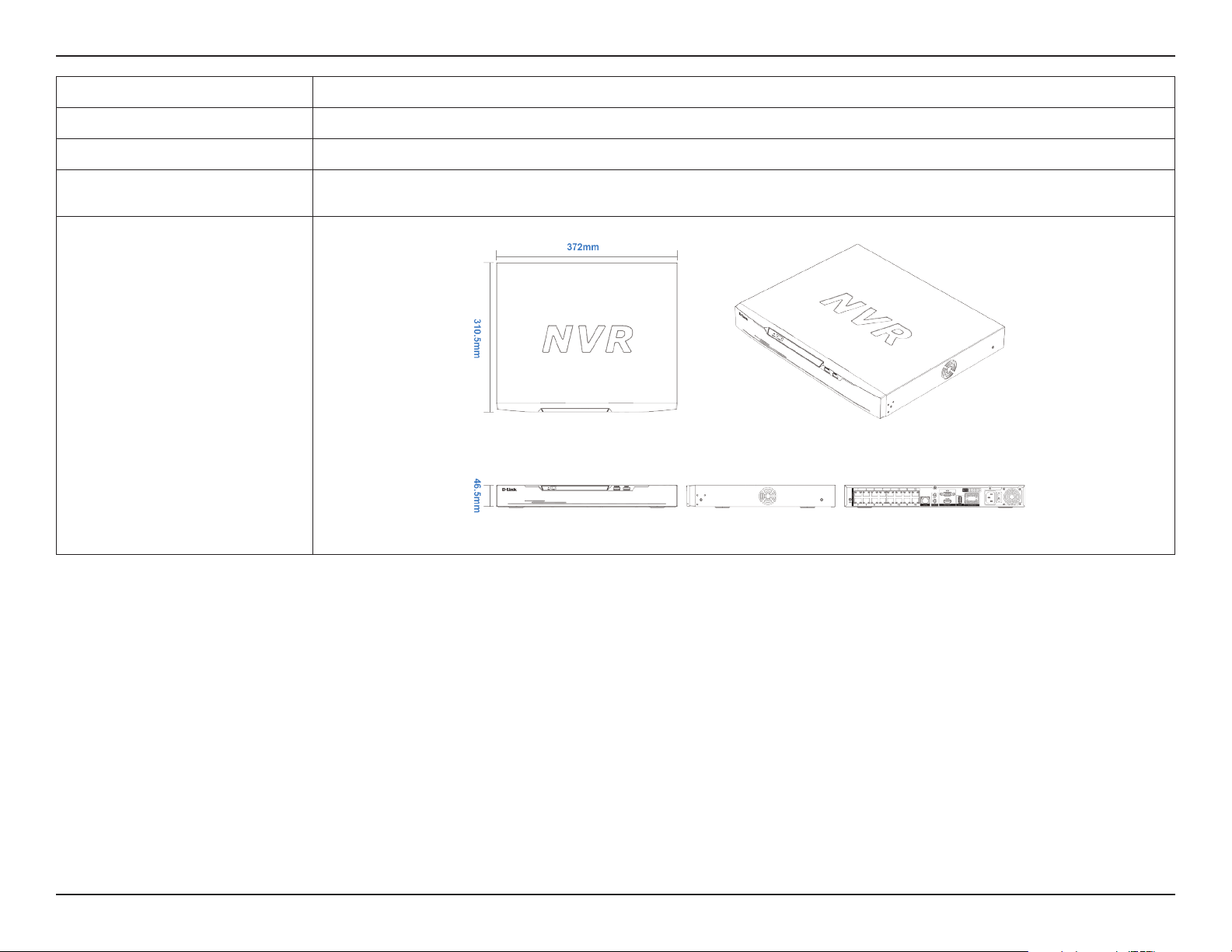
151D-Link DNR-4020-16P User Manual
Appendix A - Technical Specications
Power Consumption • Max. 143 W
Temperature • Operating: 0 to 40 ˚C (32 to 104 ˚F) • Storage: -20 to 70 ˚C (-4 to 158 ˚F)
Humidity • Max of 90% non-condensing
Certifications • CE
• FCC
• RoHS
Dimensions
152D-Link DNR-4020-16P User Manual
Appendix B - Regulatory Statements
Regulatory Information
Federal Communication Commission Interference Statement
This equipment has been tested and found to comply with the limits for a Class A digital device, pursuant to part 15 of the FCC Rules. These limits
are designed to provide reasonable protection against harmful interference when the equipment is operated in a commercial environment. This
equipment generates, uses, and can radiate radio frequency energy and, if not installed and used in accordance with the instruction manual,
may cause harmful interference to radio communications. Operation of this equipment in a residential area is likely to cause harmful interference
in which case the user will be required to correct the interference at his own expense.
Non-modication Statement
Any changes or modications not expressly approved by the party responsible for compliance could void the user's authority to operate the
equipment.
Caution
This device complies with Part 15 of the FCC Rules. Operation is subject to the following two conditions:
(1) This device may not cause harmful interference, and (2) this device must accept any interference received, including interference that may
cause undesired operation.
CE EMI Class A Warning
This equipment is compliant with Class A of CISPR 32. In a residential environment this equipment may cause radio interference.
Innovation, Science and Economic Development Canada (ISED) Statement:
This Class A digital apparatus complies with Canadian ICES-003.
Cet appareil numérique de la classe A est conforme à la norme NMB-003 du Canada.
153D-Link DNR-4020-16P User Manual
Appendix B - Regulatory Statements
SAFETY INSTRUCTIONS
The following general safety guidelines are provided to help ensure your own personal safety and protect your product from potential damage.
Remember to consult the product user instructions for more details.
• Static electricity can be harmful to electronic components. Discharge static electricity from your body (i.e. touching grounded bare metal)
before touching the product.
• Do not attempt to service the product and never disassemble the product. For some products with a user replaceable battery, please read
and follow the instructions in the user manual.
• Do not spill food or liquid on your product and never push any objects into the openings of your product.
• Do not use this product near water, areas with high humidity, or condensation unless the product is specically rated for outdoor application.
• Keep the product away from radiators and other heat sources.
• Always unplug the product from mains power before cleaning and use a dry lint free cloth only.
SICHERHEITSVORSCHRIFTEN
Die folgenden allgemeinen Sicherheitsvorschriften dienen als Hilfe zur Gewährleistung Ihrer eigenen Sicherheit und zum Schutz Ihres Produkts.
Weitere Details nden Sie in den Benutzeranleitungen zum Produkt.
• Statische Elektrizität kann elektronischen Komponenten schaden. Um Schäden durch statische Auadung zu vermeiden, leiten Sie
elektrostatische Ladungen von Ihrem Körper ab,
(z. B. durch Berühren eines geerdeten blanken Metallteils), bevor Sie das Produkt berühren.
• Unterlassen Sie jeden Versuch, das Produkt zu warten, und versuchen Sie nicht, es in seine Bestandteile zu zerlegen. Für einige Produkte mit
austauschbaren Akkus lesen Sie bitte das Benutzerhandbuch und befolgen Sie die dort beschriebenen Anleitungen.
• Vermeiden Sie, dass Speisen oder Flüssigkeiten auf Ihr Produkt gelangen, und stecken Sie keine Gegenstände in die Gehäuseschlitze oder
-önungen Ihres Produkts.
• Verwenden Sie dieses Produkt nicht in unmittelbarer Nähe von Wasser und nicht in Bereichen mit hoher Luftfeuchtigkeit oder Kondensation,
es sei denn, es ist speziell zur Nutzung in Außenbereichen vorgesehen und eingestuft.
• Halten Sie das Produkt von Heizkörpern und anderen Quellen fern, die Wärme erzeugen.
• Trennen Sie das Produkt immer von der Stromzufuhr, bevor Sie es reinigen und verwenden Sie dazu ausschließlich ein trockenes fusselfreies
Tuch.
CONSIGNES DE SÉCURITÉ
Les consignes générales de sécurité ci-après sont fournies an d’assurer votre sécurité personnelle et de protéger le produit d’éventuels
dommages. Veuillez consulter les consignes d’utilisation du produit pour plus de détails.
• L’électricité statique peut endommager les composants électroniques. Déchargez l’électricité statique de votre corps (en touchant un objet
en métal relié à la terre par exemple) avant de toucher le produit.
• N’essayez pas d’intervenir sur le produit et ne le démontez jamais. Pour certains produits contenant une batterie remplaçable par l’utilisateur,
154D-Link DNR-4020-16P User Manual
Appendix B - Regulatory Statements
• veuillez lire et suivre les consignes contenues dans le manuel d’utilisation.
• Ne renversez pas d’aliments ou de liquide sur le produit et n’insérez jamais d’objets dans les orices.
• N’utilisez pas ce produit à proximité d’un point d’eau, de zones très humides ou de condensation sauf si le produit a été spéciquement
conçu pour une application extérieure.
• Éloignez le produit des radiateurs et autres sources de chaleur.
• Débranchez toujours le produit de l’alimentation avant de le nettoyer et utilisez uniquement un chion sec non pelucheux.
INSTRUCCIONES DE SEGURIDAD
Las siguientes directrices de seguridad general se facilitan para ayudarle a garantizar su propia seguridad personal y para proteger el producto
frente a posibles daños. No olvide consultar las instrucciones del usuario del producto para obtener más información.
• La electricidad estática puede resultar nociva para los componentes electrónicos. Descargue la electricidad estática de su cuerpo (p. ej.,
tocando algún metal sin revestimiento conectado a tierra) antes de tocar el producto.
• No intente realizar el mantenimiento del producto ni lo desmonte nunca. Para algunos productos con batería reemplazable por el usuario,
lea y siga las instrucciones del manual de usuario.
• No derrame comida o líquidos sobre el producto y nunca deje que caigan objetos en las aberturas del mismo.
• No utilice este producto cerca del agua, en zonas con humedad o condensación elevadas a menos que el producto esté clasicado
especícamente para aplicación en exteriores.
• Mantenga el producto alejado de los radiadores y de otras fuentes de calor.
• Desenchufe siempre el producto de la alimentación de red antes de limpiarlo y utilice solo un paño seco sin pelusa"
ISTRUZIONI PER LA SICUREZZA
Las siguientes directrices de seguridad general se facilitan para ayudarle a garantizar su propia seguridad personal y para proteger el producto
frente a posibles daños. No olvide consultar las instrucciones del usuario del producto para obtener más información.
• La electricidad estática puede resultar nociva para los componentes electrónicos. Descargue la electricidad estática de su cuerpo (p. ej.,
tocando algún metal sin revestimiento conectado a tierra) antes de tocar el producto.
• No intente realizar el mantenimiento del producto ni lo desmonte nunca. Para algunos productos con batería reemplazable por el usuario,
lea y siga las instrucciones del manual de usuario.
• No derrame comida o líquidos sobre el producto y nunca deje que caigan objetos en las aberturas del mismo.
• No utilice este producto cerca del agua, en zonas con humedad o condensación elevadas a menos que el producto esté clasicado
especícamente para aplicación en exteriores.
• Mantenga el producto alejado de los radiadores y de otras fuentes de calor.
• Desenchufe siempre el producto de la alimentación de red antes de limpiarlo y utilice solo un paño seco sin pelusa"
155D-Link DNR-4020-16P User Manual
Appendix B - Regulatory Statements
VEILIGHEIDSINFORMATIE
De volgende algemene veiligheidsinformatie werd verstrekt om uw eigen persoonlijke veiligheid te waarborgen en uw product te beschermen
tegen mogelijke schade. Denk eraan om de gebruikersinstructies van het product te raadplegen voor meer informatie.
• Statische elektriciteit kan schadelijk zijn voor elektronische componenten. Ontlaad de statische elektriciteit van uw lichaam (d.w.z. het
aanraken van geaard bloot metaal) voordat uhet product aanraakt.
• U mag nooit proberen het product te onderhouden en u mag het product nooit demonteren. Voor sommige producten met door de
gebruiker te vervangen batterij, dient u de instructies in de gebruikershandleiding te lezen en te volgen.
• Mors geen voedsel of vloeistof op uw product en u mag nooit voorwerpen in de openingen van uw product duwen.
• Gebruik dit product niet in de buurt van water, gebieden met hoge vochtigheid of condensatie, tenzij het product speciek geclassiceerd is
voor gebruik buitenshuis.
• Houd het product uit de buurt van radiators en andere warmtebronnen.
• U dient het product steeds los te koppelen van de stroom voordat u het reinigt en gebruik uitsluitend een droge pluisvrije doek"
156D-Link DNR-4020-16P User Manual
Appendix B - Regulatory Statements
Disposing and Recycling Your Product
ENGLISH EN
This symbol on the product or packaging means that according to local laws and regulations this product should be not be disposed
of in household waste but sent for recycling. Please take it to a collection point designated by your local authorities once it has
reached the end of its life, some will accept products for free. By recycling the product and its packaging in this manner you help to
conserve the environment and protect human health.
D-Link and the Environment
At D-Link, we understand and are committed to reducing any impact our operations and products may have on the environment. To minimise
this impact D-Link designs and builds its products to be as environmentally friendly as possible, by using recyclable, low toxic materials in both
products and packaging.
D-Link recommends that you always switch o or unplug your D-Link products when they are not in use. By doing so you will help to save energy
and reduce CO2 emissions.
To learn more about our environmentally responsible products and packaging please visit www.dlinkgreen.com.
DEUTSCH DE
Dieses Symbol auf dem Produkt oder der Verpackung weist darauf hin, dass dieses Produkt gemäß bestehender örtlicher Gesetze
und Vorschriften nicht über den normalen Hausmüll entsorgt werden sollte, sondern einer Wiederverwertung zuzuführen ist. Bringen
Sie es bitte zu einer von Ihrer Kommunalbehörde entsprechend amtlich ausgewiesenen Sammelstelle, sobald das Produkt das Ende
seiner Nutzungsdauer erreicht hat. Für die Annahme solcher Produkte erheben einige dieser Stellen keine Gebühren. Durch ein auf
diese Weise durchgeführtes Recycling des Produkts und seiner Verpackung helfen Sie, die Umwelt zu schonen und die menschliche
Gesundheit zu schützen.
D-Link und die Umwelt
D-Link ist sich den möglichen Auswirkungen seiner Geschäftstätigkeiten und seiner Produkte auf die Umwelt bewusst und fühlt sich verpichtet,
diese entsprechend zu mindern. Zu diesem Zweck entwickelt und stellt D-Link seine Produkte mit dem Ziel größtmöglicher Umweltfreundlichkeit
her und verwendet wiederverwertbare, schadstoarme Materialien bei Produktherstellung und Verpackung.
D-Link empehlt, Ihre Produkte von D-Link, wenn nicht in Gebrauch, immer auszuschalten oder vom Netz zu nehmen. Auf diese Weise helfen
Sie, Energie zu sparen und CO2-Emissionen zu reduzieren.
Wenn Sie mehr über unsere umweltgerechten Produkte und Verpackungen wissen möchten, nden Sie entsprechende Informationen im Internet
unter www.dlinkgreen.com.
157D-Link DNR-4020-16P User Manual
Appendix B - Regulatory Statements
FRANÇAIS FR
Ce symbole apposé sur le produit ou son emballage signie que, conformément aux lois et règlementations locales, ce produit ne
doit pas être éliminé avec les déchets domestiques mais recyclé. Veuillez le rapporter à un point de collecte prévu à cet eet par les
autorités locales; certains accepteront vos produits gratuitement. En recyclant le produit et son emballage de cette manière, vous
aidez à préserver l’environnement et à protéger la santé de l’homme.
D-Link et l’environnement
Chez D-Link, nous sommes conscients de l'impact de nos opérations et produits sur l'environnement et nous engageons à le réduire. Pour limiter
cet impact, D-Link conçoit et fabrique ses produits de manière aussi écologique que possible, en utilisant des matériaux recyclables et faiblement
toxiques, tant dans ses produits que ses emballages.
D-Link recommande de toujours éteindre ou débrancher vos produits D-Link lorsque vous ne les utilisez pas. Vous réaliserez ainsi des économies
d’énergie et réduirez vos émissions de CO2.
Pour en savoir plus sur les produits et emballages respectueux de l’environnement, veuillez consulter le www.dlinkgreen.com.
ESPAÑOL ES
Este símbolo en el producto o el embalaje signica que, de acuerdo con la legislación y la normativa local, este producto no se debe
desechar en la basura doméstica sino que se debe reciclar. Llévelo a un punto de recogida designado por las autoridades locales una
vez que ha llegado al n de su vida útil; algunos de ellos aceptan recogerlos de forma gratuita. Al reciclar el producto y su embalaje
de esta forma, contribuye a preservar el medio ambiente y a proteger la salud de los seres humanos.
D-Link y el medio ambiente
En D-Link, comprendemos y estamos comprometidos con la reducción del impacto que puedan tener nuestras actividades y nuestros productos
en el medio ambiente. Para reducir este impacto, D-Link diseña y fabrica sus productos para que sean lo más ecológicos posible, utilizando
materiales reciclables y de baja toxicidad tanto en los productos como en el embalaje.
D-Link recomienda apagar o desenchufar los productos D-Link cuando no se estén utilizando. Al hacerlo, contribuirá a ahorrar energía y a reducir
las emisiones de CO2.
Para obtener más información acerca de nuestros productos y embalajes ecológicos, visite el sitio www.dlinkgreen.com.
158D-Link DNR-4020-16P User Manual
Appendix B - Regulatory Statements
ITALIANO IT
La presenza di questo simbolo sul prodotto o sulla confezione del prodotto indica che, in conformità alle leggi e alle normative locali,
questo prodotto non deve essere smaltito nei riuti domestici, ma avviato al riciclo. Una volta terminato il ciclo di vita utile, portare il
prodotto presso un punto di raccolta indicato dalle autorità locali. Alcuni questi punti di raccolta accettano gratuitamente i prodotti
da riciclare. Scegliendo di riciclare il prodotto e il relativo imballaggio, si contribuirà a preservare l'ambiente e a salvaguardare la
salute umana.
D-Link e l'ambiente
D-Link cerca da sempre di ridurre l'impatto ambientale dei propri stabilimenti e dei propri prodotti. Allo scopo di ridurre al minimo tale impatto,
D-Link progetta e realizza i propri prodotti in modo che rispettino il più possibile l'ambiente, utilizzando materiali riciclabili a basso tasso di
tossicità sia per i prodotti che per gli imballaggi.
D-Link raccomanda di spegnere sempre i prodotti D-Link o di scollegarne la spina quando non vengono utilizzati. In questo modo si contribuirà
a risparmiare energia e a ridurre le emissioni di anidride carbonica.
Per ulteriori informazioni sui prodotti e sugli imballaggi D-Link a ridotto impatto ambientale, visitate il sito all'indirizzo www.dlinkgreen.com.
NEDERLANDS NL
Dit symbool op het product of de verpakking betekent dat dit product volgens de plaatselijke wetgeving niet mag worden weggegooid
met het huishoudelijk afval, maar voor recyclage moeten worden ingeleverd. Zodra het product het einde van de levensduur heeft
bereikt, dient u het naar een inzamelpunt te brengen dat hiertoe werd aangeduid door uw plaatselijke autoriteiten, sommige
autoriteiten accepteren producten zonder dat u hiervoor dient te betalen. Door het product en de verpakking op deze manier te
recyclen helpt u het milieu en de gezondheid van de mens te beschermen.
D-Link en het milieu
Bij D-Link spannen we ons in om de impact van onze handelingen en producten op het milieu te beperken. Om deze impact te beperken, ontwerpt
en bouwt D-Link zijn producten zo milieuvriendelijk mogelijk, door het gebruik van recycleerbare producten met lage toxiciteit in product en
verpakking.
D-Link raadt aan om steeds uw D-Link producten uit te schakelen of uit de stekker te halen wanneer u ze niet gebruikt. Door dit te doen bespaart
u energie en beperkt u de CO2-emissies.
Breng een bezoek aan www.dlinkgreen.com voor meer informatie over onze milieuverantwoorde producten en verpakkingen.
159D-Link DNR-4020-16P User Manual
Appendix B - Regulatory Statements
POLSKI PL
Ten symbol umieszczony na produkcie lub opakowaniu oznacza, że zgodnie z miejscowym prawem i lokalnymi przepisami
niniejszego produktu nie wolno wyrzucać jak odpady czy śmieci z gospodarstwa domowego, lecz należy go poddać procesowi
recyklingu. Po zakończeniu użytkowania produktu, niektóre odpowiednie do tego celu podmioty przyjmą takie produkty
nieodpłatnie, dlatego prosimy dostarczyć go do punktu zbiórki wskazanego przez lokalne władze. Poprzez proces recyklingu i
dzięki takiemu postępowaniu z produktem oraz jego opakowaniem, pomogą Państwo chronić środowisko naturalne i dbać o
ludzkie zdrowie.
D-Link i środowisko
D-Link podchodzimy w sposób świadomy do ochrony otoczenia oraz jesteśmy zaangażowani w zmniejszanie wpływu naszych działań i produktów
na środowisko naturalne. W celu zminimalizowania takiego wpływu rma D-Link konstruuje i wytwarza swoje produkty w taki sposób, aby były
one jak najbardziej przyjazne środowisku, stosując do tych celów materiały nadające się do powtórnego wykorzystania, charakteryzujące się
małą toksycznością zarówno w przypadku samych produktów jak i opakowań.
Firma D-Link zaleca, aby Państwo zawsze prawidłowo wyłączali z użytku swoje produkty D-Link, gdy nie są one wykorzystywane. Postępując w
ten sposób pozwalają Państwo oszczędzać energię i zmniejszać emisje CO2.
Aby dowiedzieć się więcej na temat produktów i opakowań mających wpływ na środowisko prosimy zapoznać się ze stroną Internetową www.
dlinkgreen.com.
ČESKY CZ
Tento symbol na výrobku nebo jeho obalu znamená, že podle místně platných předpisů se výrobek nesmí vyhazovat do komunálního
odpadu, ale odeslat k recyklaci. Až výrobek doslouží, odneste jej prosím na sběrné místo určené místními úřady k tomuto účelu.
Některá sběrná místa přijímají výrobky zdarma. Recyklací výrobku i obalu pomáháte chránit životní prostředí i lidské zdraví.
D-Link a životní prostředí
Ve společnosti D-Link jsme si vědomi vlivu našich provozů a výrobků na životní prostředí a snažíme se o minimalizaci těchto vlivů. Proto své
výrobky navrhujeme a vyrábíme tak, aby byly co nejekologičtější, a ve výrobcích i obalech používáme recyklovatelné a nízkotoxické materiály.
Společnost D-Link doporučuje, abyste své výrobky značky D-Link vypnuli nebo vytáhli ze zásuvky vždy, když je nepoužíváte. Pomůžete tak šetřit
energii a snížit emise CO2.
Více informací o našich ekologických výrobcích a obalech najdete na adrese www.dlinkgreen.com.
160D-Link DNR-4020-16P User Manual
Appendix B - Regulatory Statements
MAGYAR HU
Ez a szimbólum a terméken vagy a csomagoláson azt jelenti, hogy a helyi törvényeknek és szabályoknak megfelelően ez a termék
nem semmisíthető meg a háztartási hulladékkal együtt, hanem újrahasznosításra kell küldeni. Kérjük, hogy a termék élettartamának
elteltét követően vigye azt a helyi hatóság által kijelölt gyűjtőhelyre. A termékek egyes helyeken ingyen elhelyezhetők. A termék és
a csomagolás újrahasznosításával segíti védeni a környezetet és az emberek egészségét.
A D-Link és a környezet
A D-Linknél megértjük és elkötelezettek vagyunk a műveleteink és termékeink környezetre gyakorolt hatásainak csökkentésére. Az ezen hatás
csökkentése érdekében a D-Link a lehető leginkább környezetbarát termékeket tervez és gyárt azáltal, hogy újrahasznosítható, alacsony károsanyag-
tartalmú termékeket gyárt és csomagolásokat alkalmaz.
A D-Link azt javasolja, hogy mindig kapcsolja ki vagy húzza ki a D-Link termékeket a tápforrásból, ha nem használja azokat. Ezzel segít az energia
megtakarításában és a széndioxid kibocsátásának csökkentésében.
Környezetbarát termékeinkről és csomagolásainkról további információkat a www.dlinkgreen.com weboldalon tudhat meg.
NORSK NO
Dette symbolet på produktet eller forpakningen betyr at dette produktet ifølge lokale lover og forskrifter ikke skal kastes sammen
med husholdningsavfall, men leveres inn til gjenvinning. Vennligst ta det til et innsamlingssted anvist av lokale myndigheter når
det er kommet til slutten av levetiden. Noen steder aksepteres produkter uten avgift. Ved på denne måten å gjenvinne produktet
og forpakningen hjelper du å verne miljøet og beskytte folks helse.
D-Link og miljøet
Hos D-Link forstår vi oss på og er forpliktet til å minske innvirkningen som vår drift og våre produkter kan ha på miljøet. For å minimalisere denne
innvirkningen designer og lager D-Link produkter som er så miljøvennlig som mulig, ved å bruke resirkulerbare, lav-toksiske materialer både i
produktene og forpakningen.
D-Link anbefaler at du alltid slår av eller frakobler D-Link-produkter når de ikke er i bruk. Ved å gjøre dette hjelper du å spare energi og å redusere
CO2-utslipp.
For mer informasjon angående våre miljøansvarlige produkter og forpakninger kan du gå til www.dlinkgreen.com.
161D-Link DNR-4020-16P User Manual
Appendix B - Regulatory Statements
DANSK DK
Dette symbol på produktet eller emballagen betyder, at dette produkt i henhold til lokale love og regler ikke må bortskaes som
husholdningsaald, mens skal sendes til genbrug. Indlever produktet til et indsamlingssted som angivet af de lokale myndigheder,
når det er nået til slutningen af dets levetid. I nogle tilfælde vil produktet blive modtaget gratis. Ved at indlevere produktet og dets
emballage til genbrug på denne måde bidrager du til at beskytte miljøet og den menneskelige sundhed.
D-Link og miljøet
Hos D-Link forstår vi og bestræber os på at reducere enhver indvirkning, som vores aktiviteter og produkter kan have på miljøet. For at minimere
denne indvirkning designer og producerer D-Link sine produkter, så de er så miljøvenlige som muligt, ved at bruge genanvendelige materialer
med lavt giftighedsniveau i både produkter og emballage.
D-Link anbefaler, at du altid slukker eller frakobler dine D-Link-produkter, når de ikke er i brug. Ved at gøre det bidrager du til at spare energi og
reducere CO2-udledningerne.
Du kan nde ere oplysninger om vores miljømæssigt ansvarlige produkter og emballage på www.dlinkgreen.com.
SUOMI FI
Tämä symboli tuotteen pakkauksessa tarkoittaa, että paikallisten lakien ja säännösten mukaisesti tätä tuotetta ei pidä hävittää
yleisen kotitalousjätteen seassa vaan se tulee toimittaa kierrätettäväksi. Kun tuote on elinkaarensa päässä, toimita se lähimpään
viranomaisten hyväksymään kierrätyspisteeseen. Kierrättämällä käytetyn tuotteen ja sen pakkauksen autat tukemaan sekä ympäristön
että ihmisten terveyttä ja hyvinvointia.
D-Link ja ympäristö
D-Link ymmärtää ympäristönsuojelun tärkeyden ja on sitoutunut vähentämään tuotteistaan ja niiden valmistuksesta ympäristölle mahdollisesti
aiheutuvia haittavaikutuksia. Nämä negatiiviset vaikutukset minimoidakseen D-Link suunnittelee ja valmistaa tuotteensa mahdollisimman
ympäristöystävällisiksi käyttämällä kierrätettäviä, alhaisia pitoisuuksia haitallisia aineita sisältäviä materiaaleja sekä tuotteissaan että niiden
pakkauksissa.
Suosittelemme, että irrotat D-Link-tuotteesi virtalähteestä tai sammutat ne aina, kun ne eivät ole käytössä. Toimimalla näin autat säästämään
energiaa ja vähentämään hiilidioksiidipäästöjä.
Lue lisää ympäristöystävällisistä D-Link-tuotteista ja pakkauksistamme osoitteesta www.dlinkgreen.com.
162D-Link DNR-4020-16P User Manual
Appendix B - Regulatory Statements
SVENSKA SE
Den här symbolen på produkten eller förpackningen betyder att produkten enligt lokala lagar och föreskrifter inte skall kastas i
hushållssoporna utan i stället återvinnas. Ta den vid slutet av dess livslängd till en av din lokala myndighet utsedd uppsamlingsplats,
vissa accepterar produkter utan kostnad. Genom att på detta sätt återvinna produkten och förpackningen hjälper du till att bevara
miljön och skydda människors hälsa.
D-Link och miljön
På D-Link förstår vi och är fast beslutna att minska den påverkan våra verksamheter och produkter kan ha på miljön. För att minska denna påverkan
utformar och bygger D-Link sina produkter för att de ska vara så miljövänliga som möjligt, genom att använda återvinningsbara material med
låg gifthalt i både produkter och förpackningar.
D-Link rekommenderar att du alltid stänger av eller kopplar ur dina D-Link produkter när du inte använder dem. Genom att göra detta hjälper
du till att spara energi och minska utsläpp av koldioxid.
För mer information om våra miljöansvariga produkter och förpackningar www.dlinkgreen.com.
PORTUGUÊS PT
Este símbolo no produto ou embalagem signica que, de acordo com as leis e regulamentações locais, este produto não deverá ser
eliminado juntamente com o lixo doméstico mas enviado para a reciclagem. Transporte-o para um ponto de recolha designado pelas
suas autoridades locais quando este tiver atingido o m da sua vida útil, alguns destes pontos aceitam produtos gratuitamente. Ao
reciclar o produto e respectiva embalagem desta forma, ajuda a preservar o ambiente e protege a saúde humana.
A D-Link e o ambiente
Na D-Link compreendemos e comprometemo-nos com a redução do impacto que as nossas operações e produtos possam ter no ambiente.
Para minimizar este impacto a D-Link concebe e constrói os seus produtos para que estes sejam o mais inofensivos para o ambiente possível,
utilizando meteriais recicláveis e não tóxicos tanto nos produtos como nas embalagens.
A D-Link recomenda que desligue os seus produtos D-Link quando estes não se encontrarem em utilização. Com esta acção ajudará a poupar
energia e reduzir as emissões de CO2.
Para saber mais sobre os nossos produtos e embalagens responsáveis a nível ambiental visite www.dlinkgreen.com.