
Preliminary Notes and Legal
Information
z Take and review some test shots initially to make sure the images
were recorded correctly. Please note that Canon Inc., its subsidiaries
and aliates, and its distributors are not liable for any consequential
damages arising from any malfunction of a camera or accessory,
including memory cards, that result in the failure of an image to be
recorded or to be recorded in a way that is machine readable.
z The user’s unauthorized photographing or recording (video and/or
sound) of people or copyrighted materials may invade the privacy of
such people and/or may violate others’ legal rights, including copyright
and other intellectual property rights. Note that restrictions may apply
even when such photographing or recording is intended solely for
personal use.
z For information on camera warranty or Customer Support, please refer
to the warranty information provided with your camera User Manual Kit.
z Although the screen is produced under extremely high-precision
manufacturing conditions and more than 99.99% of the pixels meet
design specications, in rare cases some pixels may be defective
or may appear as red or black dots. This does not indicate camera
damage or aect recorded images.
z When the camera is used over an extended period, it may become
warm. This does not indicate damage.
2
Introduction
z To jump to the beginning of a chapter, click the chapter title along the
right side of the top page.
z For basic page navigation, click the icons at the bottom of each page.
: Go to the top page
: Return to the previous page
: Go back a page
: Go forward a page
z Instructions in this guide apply to the camera under default settings.
z Tabs such as
identify which modes are used in the shooting
instructions. Some features are also available in other modes.
z
: Important information, or tips for expert use
z Text Conventions
z In this guide, icons are used to represent the corresponding camera
buttons and dials on which they appear or which they resemble.
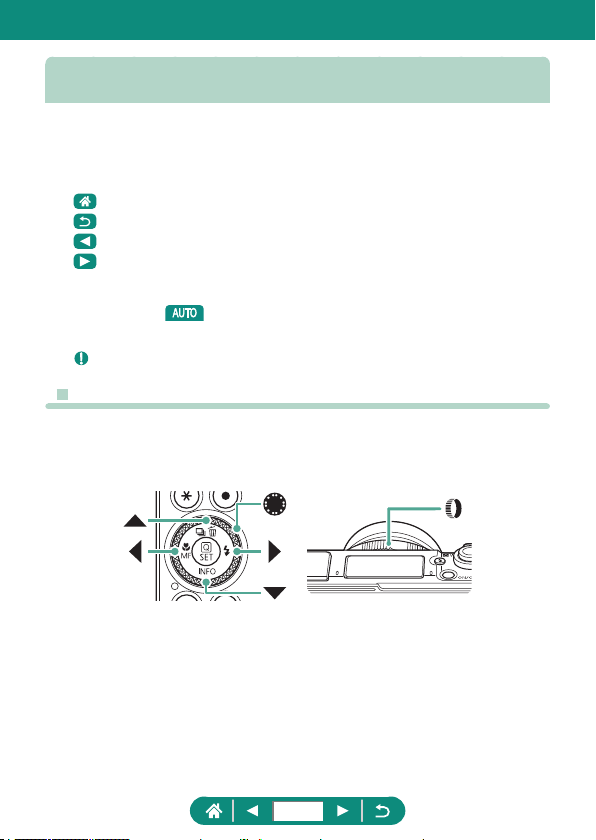
z The following camera controls are represented by icons.
z On-screen icons and text are indicated in brackets.
z Numbers in some gures and illustrations correspond to numbers in the
steps.
z
=
xx: Pages with related information (in this example, “xx” represents
a page number)
z For convenience, all supported memory cards are simply referred to as
the “memory card”.
3
Preliminary Notes and Legal Information ..................................... 2
Introduction .................................................................................. 3
Text Conventions .............................................................................3
Common Camera Operations .................................................... 13
Safety Instructions ...................................................................... 16
Camera Basics ................................................................. 19
Getting Ready ............................................................................ 20
Attaching the Strap ........................................................................20
Charging the Battery Pack .............................................................21
Preparing a Memory Card .............................................................22
Inserting/Removing the Battery Pack and Memory Card ..............23
Setting the Date, Time, Time Zone, and Language .......................25
Holding the Camera ................................................................... 27
Trying the Camera Out ............................................................... 28
Shooting ........................................................................................28
Viewing ..........................................................................................30
Part Names ................................................................................ 31
Front ..............................................................................................31
Back ...............................................................................................32
Viewfinder .................................................................................. 33
Adjusting the Screen Angle ........................................................ 34
Tilting the Screen Downward ......................................................... 34
Tilting the Screen Upward .............................................................34
Indicator Display ......................................................................... 35
Setting a Shooting Mode ............................................................ 36
Configuring Camera Features .................................................... 37
Quick Control Screen ....................................................................37
Menu Screen .................................................................................39
Contents
4

Features Available on the Quick Control Screen ....................... 41
Menu Settings ............................................................................ 42
Shooting Mode Screen ............................................................... 44
Frames on the Shooting Screen ................................................ 45
Shooting Display Options ........................................................... 46
Playback Display Options .......................................................... 47
Touch Operation ......................................................................... 48
Choosing Subjects .........................................................................48
Quick Control Screen ....................................................................49
Menu Screen .................................................................................50
Viewing ..........................................................................................52
On-Screen Keyboard ................................................................. 54
Shooting ............................................................................ 55
Shooting with Camera-Determined Settings
(Auto Mode/Hybrid Auto Mode) .................................................. 56
Image Stabilization Icons ...............................................................59
Shooting in Hybrid Auto Mode ....................................................... 60
Shooting Specific Scenes (Special Scene Mode) ...................... 61
Shooting Yourself under Optimal Settings (Self Portrait Mode) ..... 65
Shooting Panoramas (Panorama Mode) .......................................66
Capturing Subjects Against Flowing Backgrounds
(Panning Mode) .............................................................................68
Shooting People against Starry Skies (Star Portrait Mode) ...........69
Shooting Night Scenes under Starry Skies
(Star Nightscape Mode) .................................................................72
Shooting Star Trails (Star Trails Mode) ..........................................74
Recording Movies of Star Movement
(Star Time-Lapse Movie Mode) .....................................................76
Shooting with Image Effects (Creative Filters Mode) ................. 80
Shots Resembling Miniature Models (Miniature Effect) ................. 85
Recording a Variety of Movies (Movie Mode) ............................ 86
5

Recording Movies at Specific Shutter Speeds and
Aperture Values (Movie Manual Exposure) ...................................87
Recording HDR Movies .................................................................88
Shooting in Program AE (P Mode) ............................................. 89
Shooting at Specific Shutter Speeds (Tv Mode) ........................ 90
Shooting at Specific Aperture Values (Av Mode) ....................... 91
Shooting at Specific Shutter Speeds and Aperture Values
(M Mode) .................................................................................... 92
Shooting Long Exposures (Bulb) ................................................... 94
Zooming In Closer on Subjects (Digital Zoom) .......................... 95
Locking Image Brightness / Exposure (AE Lock) ....................... 96
Shooting Close-Ups (Macro) ...................................................... 97
Shooting in Manual Focus Mode ................................................ 98
Easily Identifying the Focus Area (MF Peaking) .......................... 100
Shooting with AF Lock .............................................................. 101
Shooting at Preset Focal Lengths (Step Zoom) ....................... 102
Changing Image Quality ........................................................... 103
Capturing in RAW Format ............................................................103
Changing the Aspect Ratio ....................................................... 105
Changing the Image Display Period after Shots ...................... 106
Changing the Flash Mode ........................................................ 107
Locking Brightness / Exposure in Flash Photography
(FE Lock) .................................................................................. 108
Configuring Flash Settings ........................................................110
Adjusting Flash Exposure Compensation .................................... 110
Adjusting Flash Output ................................................................ 111
Changing the Flash Timing .......................................................... 112
Reducing Red-Eye ...................................................................... 112
Configuring Safety FE ................................................................. 113
Continuous Shooting ................................................................. 114
6

Using the Self-Timer .................................................................115
Shooting in RAW Burst Mode ...................................................116
Adding a Date Stamp ................................................................118
Adjusting Image Brightness (Exposure Compensation)............119
Auto Exposure Bracketing (AEB Shooting) .................................120
Changing the ISO Speed for Stills ........................................... 122
Changing the ISO Speed Range .................................................122
Adjusting ISO Auto Range ........................................................... 123
Setting the Minimum Shutter Speed for ISO Auto .......................123
Changing the ISO Speed for Movies ........................................ 125
Changing the ISO Speed Range .................................................125
Adjusting the Maximum ISO Auto Setting ....................................126
Auto Correction of Brightness and Contrast
(Auto Lighting Optimizer) ......................................................... 127
Shooting Bright Subjects (Highlight Tone Priority) ................... 128
Adjusting ND Filter Settings ..................................................... 129
Changing the Metering Method ................................................ 130
Setting the Metering Timer ....................................................... 131
Configuring Exposure Simulation ............................................. 132
Capturing Natural Colors (White Balance) ............................... 133
Custom White Balance ................................................................135
Customizing Colors (Picture Style) .......................................... 137
Customizing Picture Styles ...................................................... 139
Saving Customized Picture Styles ........................................... 142
Reducing Noise in High-ISO Shooting ..................................... 143
Using Multi Shot Noise Reduction ...............................................143
Shooting by Touching the Screen (Touch Shutter) ................... 145
Configuring Touch & Drag AF ................................................... 146
Shooting with the Electronic Shutter ........................................ 147
Shooting with Servo AF ............................................................ 148
7

Choosing the AF Method .......................................................... 149
Moving the AF Point ....................................................................150
Changing the Focus Setting ..................................................... 151
Configuring the AF-Assist Beam .............................................. 152
Continuous Shooting as the Focal Distance is Changed
(Focus Bracketing) ................................................................... 153
Fine-Tuning the Focus ............................................................. 156
Changing the IS Mode Settings ............................................... 157
Correcting Severe Camera Shake ...............................................158
Using Auto Level ...................................................................... 159
Using Digital Tele-Converter .................................................... 160
Changing Movie Recording Size .............................................. 161
Recording Movies for Slow-Motion Playback
(High Frame Rate) ....................................................................... 162
Configuring Sound Recording Settings .................................... 163
Wind Filter ...................................................................................163
Attenuator ....................................................................................163
Configuring Movie Servo AF .................................................... 164
Using Auto Slow Shutter .......................................................... 165
Miniature Model Effect in Movies (Miniature Effect Movie) ...... 166
Recording Video Snapshots ..................................................... 168
Recording Time-Lapse Movies ................................................. 170
Configuring Information Display for HDMI Output .................... 172
Setting the Type of Digest Movie ............................................. 173
Playback .......................................................................... 174
Viewing ..................................................................................... 175
Magnifying Images ................................................................... 177
Viewing Digest Movies ............................................................. 178
Finding Images in an Index ...................................................... 179
8

Editing Movies .......................................................................... 180
Removing the Beginning/End of Movies ......................................180
Extracting Frames of 4K Movies as Stills ....................................182
Editing Digest Movies ..................................................................183
Extracting Stills from RAW Burst Images ................................. 185
Protecting Images .................................................................... 187
Protecting Multiple Images ..........................................................188
Rotating Images ....................................................................... 190
Erasing Images ........................................................................ 191
Erasing Multiple Images at Once .................................................192
Adding Images to Print Orders (DPOF) ................................... 194
Printing Images Added to the Print Order (DPOF) ......................195
Adding Images to a Photobook ................................................ 196
Applying Filter Effects to Images (Creative Filters) .................. 197
Processing RAW Images ......................................................... 198
Correcting Red-Eye .................................................................. 200
Combining Video Snapshots .................................................... 201
Cropping ................................................................................... 203
Resizing Images ....................................................................... 205
Rating Images .......................................................................... 206
Viewing Slideshows ................................................................. 207
Finding Images Matching Specified Conditions ....................... 208
Using the Control Ring to Find Images .................................... 209
Customizing Playback Information Display .............................. 210
Starting Playback from the Last Image Displayed ....................211
Wireless Features .......................................................... 212
Available Wireless Features ..................................................... 213
Saving Camera Images to a Smartphone ................................ 215
Connecting to Smartphones via Wi-Fi with the Wi-Fi Button ....... 220
9

Restricting Image Viewing ...........................................................222
Features Used with Smartphones ............................................ 223
Sending Images to a Smartphone Automatically as You Shoot ...223
Shooting Remotely as You View a Live Image
on the Smartphone ......................................................................223
Controlling the Camera from a Smartphone ................................ 224
Geotagging Images as You Shoot ...............................................224
Connecting to Printers via Wi-Fi ............................................... 226
Establishing a Connection via an Access Point ........................... 228
Sending Images to a Computer Automatically ......................... 230
Uploading Images to Web Services ......................................... 234
Registering Web Services ...........................................................234
Uploading Images to Web Services.............................................238
Reconnecting via Wi-Fi ............................................................ 239
Ending Wi-Fi Connections ........................................................ 240
Clearing Information of Devices Paired via Bluetooth .............. 241
Changing or Deleting Connection Settings .............................. 242
Function Settings ........................................................... 243
Selecting and Creating Folders ................................................ 244
Changing File Numbering ........................................................ 245
Configuring Auto Rotation of Vertical Images........................... 246
Formatting Memory Cards ....................................................... 247
Setting Start-up Screen Display ............................................... 249
Using Eco Mode ....................................................................... 250
Adjusting Power-Saving Features ............................................ 251
Adjusting Screen Brightness .................................................... 252
Switching the Color of Screen Information ............................... 253
Adjusting the Date, Time, and Time Zone ................................ 254
Changing the Language ........................................................... 255
10

Lens Retraction Timing ............................................................ 256
Setting the Video System ......................................................... 257
Adjusting the Touch-Screen Panel ........................................... 258
Adjusting Beeping .................................................................... 259
Adjusting the Volume ............................................................... 260
Setting the HDMI Output Resolution ........................................ 261
RAW Playback on an HDR TV ................................................. 262
Customizing Shooting Information Display .............................. 263
Setting a Priority for Shooting Display Performance ................ 264
Customizing the Viewfinder Shooting Screen .......................... 265
Setting the Display Mode ......................................................... 266
Setting Reverse Display ........................................................... 267
Metric / Non-Metric Display ...................................................... 268
Configuring the Feature Guide ................................................. 269
Configuring Custom Functions ................................................. 270
Customizing Buttons ....................................................................271
Custom Shooting Modes (C Mode) .......................................... 273
Restoring Default Camera Settings .......................................... 275
Setting Copyright Information to Record in Images ................. 276
Downloading Manuals/Software from a QR Code ................... 277
Displaying Certification Logos .................................................. 278
Saving Commonly Used Shooting Menu Items (My Menu) ..... 279
Renaming My Menu Tabs ............................................................280
Deleting a My Menu Tab ..............................................................280
Deleting All My Menu Tabs ..........................................................281
Deleting All Added Items ..............................................................281
Customizing My Menu Display ....................................................281
Accessories .................................................................... 282
Optional Accessories ................................................................ 283
11

Power Supplies ............................................................................283
Others .......................................................................................... 284
Printers ........................................................................................284
Using Optional Accessories ..................................................... 285
Playback on a TV.........................................................................285
Using a USB Power Adapter to Charge/Power the Camera ........287
Shooting Remotely ......................................................................289
Saving Images to a Computer .................................................. 291
Printing Images ........................................................................ 292
Appendix ......................................................................... 294
Handling Precautions ............................................................... 295
Troubleshooting ....................................................................... 296
On-Screen Information ............................................................. 300
When Shooting ............................................................................300
During Playback ..........................................................................302
Precautions for Wireless Features ........................................... 304
Security Precautions ....................................................................305
Third-Party Software ................................................................ 306
Personal Information and Security Precautions ....................... 309
Trademarks and Licensing ....................................................... 310
Disclaimer ................................................................................ 312
Index ........................................................................................ 313
12
Common Camera Operations
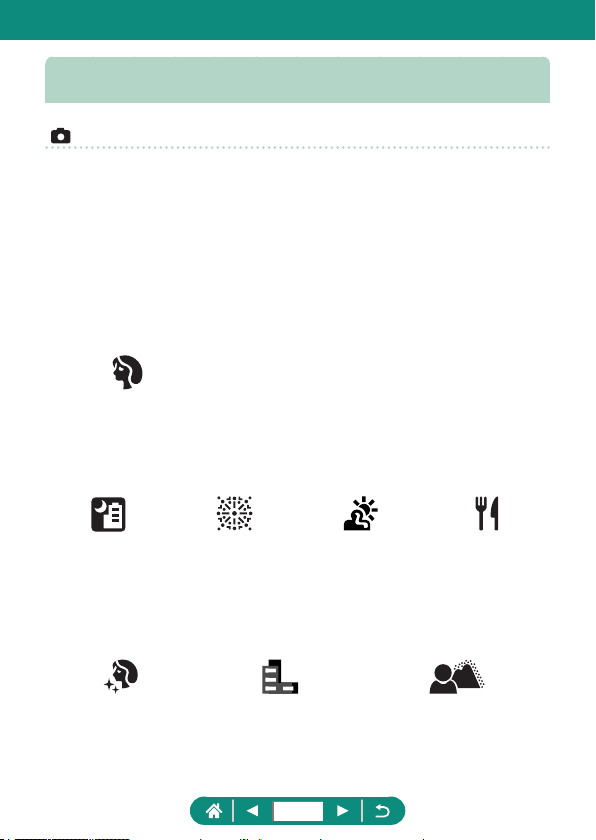
Shoot
z Use camera-determined settings (Auto Mode, Hybrid Auto Mode)
-
=
28,
=
60
z Shoot yourself under optimal settings (Self Portrait)
-
=
65
z Shoot panoramas (Panoramic Shot)
-
=
66
Shooting people well
Portraits
(
=
61)
Matching specic scenes
Handheld Night
Scene
(
=
61)
Fireworks
(
=
61)
HDR Backlight
Control
(
=
61)
Food
(
=
61)
Applying special eects
Smooth Skin
(
=
61)
Monochrome
(
=
80)
Background Defocus
(
=
80)
13
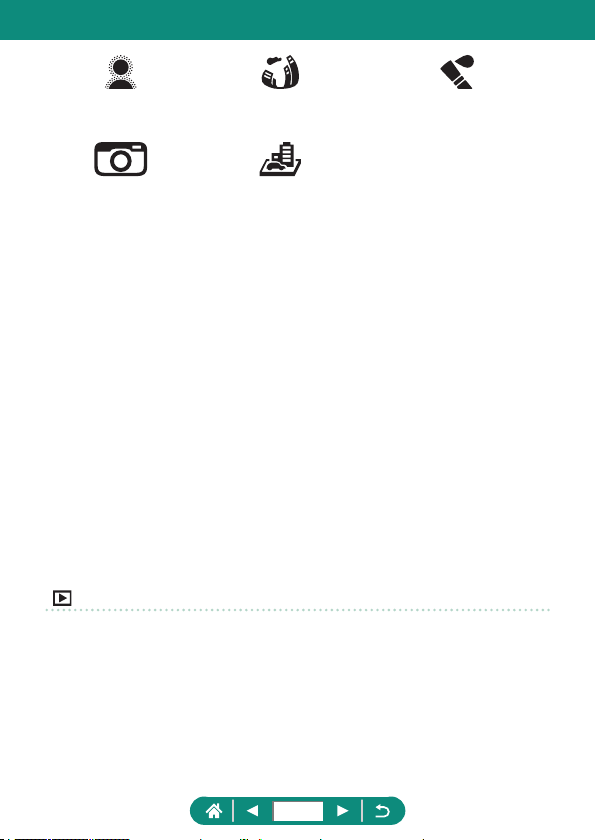
Soft Focus
(
=
80)
Fish-Eye Eect
(
=
80)
Like Watercolor Paintings
(
=
80)
Toy Camera Eect
(
=
80)
Miniature Eect
(
=
85,
=
166)
z Focus on faces
-
=
28,
=
61,
=
149
z Without using the ash (Flash O)
-
=
107
z Include yourself in the shot (Self-Timer)
-
=
115
z Add a date stamp
-
=
118
z Movie clips and photos together
-
=
60
z Convey a sense of speed with a blurred background
-
=
68
z Shoot starry skies
-
=
69,
=
72,
=
74,
=
76
View
z View images
-
=
30,
=
174
z Automatic playback (Slide Show)
-
=
207
z On a TV
-
=
285
14
z Browse through images quickly
-
=
179
z Erase images
-
=
191
Record/View Movies
z Record movies
-
=
28,
=
86
z View movies
-
=
30
Print
z Print pictures
-
=
292
Save
z Save images to a computer
-
=
291
Use Wi-Fi Features
z Send images to a smartphone
-
=
215,
=
223
z Print pictures
-
=
226
z Share images online
-
=
234
z Send images to a computer
-
=
230
15
Safety Instructions
z Be sure to read these instructions in order to operate the product safely.
z Follow these instructions to prevent injury or harm to the operator of the product or
others.
WARNING
Denotes the risk of serious injury or death.
z Keep the product out of the reach of young children.
A strap wrapped around a person’s neck may result in strangulation.
z Use only power sources specied in this instruction manual for use with the product.
z Do not disassemble or modify the product.
z Do not expose the product to strong shocks or vibration.
z Do not touch any exposed internal parts.
z Stop using the product in any case of unusual circumstances such as the presence
of smoke or a strange smell.
z Do not use organic solvents such as alcohol, benzine or paint thinner to clean the
product.
z Do not get the product wet. Do not insert foreign objects or liquids into the product.
z Do not use the product where ammable gases may be present.
This may cause electric shock, explosion or re.
z Observe the following instructions when using commercially available batteries or
provided battery packs.
- Use batteries/battery packs only with their specied product.
- Do not heat batteries/battery packs or expose them to re.
- Do not charge batteries/battery packs using non-authorized battery chargers.
- Do not expose the terminals to dirt or let them come into contact with metallic pins
or other metal objects.
- Do not use leaking batteries/battery packs.
- When disposing of batteries/battery packs, insulate the terminals with tape or
other means.
This may cause electric shock, explosion or re.
If a battery/battery pack leaks and the material contacts your skin or clothing, ush the
exposed area thoroughly with running water. In case of eye contact, ush thoroughly
with copious amounts of clean running water and seek immediate medical assistance.
16
z Observe the following instructions when using a battery charger or AC adapter.
- Periodically remove any dust buildup from the power plug and power outlet using
a dry cloth.
- Do not plug in or unplug the product with wet hands.
- Do not use the product if the power plug is not fully inserted into the power outlet.
- Do not expose the power plug and terminals to dirt or let them come into contact
with metallic pins or other metal objects.
- Do not touch the battery charger or AC adapter connected to a power outlet
during lightning storms.
- Do not place heavy objects on the power cord. Do not damage, break or modify
the power cord.
- Do not wrap the product in cloth or other materials when in use or shortly after
use when the product is still warm in temperature.
- Do not leave the product connected to a power source for long periods of time.
This may cause electric shock, explosion or re.
z Do not allow the product to maintain contact with the same area of skin for extended
periods of time during use.
This may result in low-temperature contact burns, including skin redness and blistering,
even if the product does not feel hot. The use of a tripod or similar equipment is
recommended when using the product in hot places and for people with circulation
problems or less sensitive skin.
z Follow any indications to turn o the product in places where its use is forbidden.
Not doing so may cause other equipment to malfunction due to the eect of
electromagnetic waves and even result in accidents.
CAUTION
Denotes the risk of injury.
z Do not re the ash near the eyes.
It may hurt the eyes.
z Strap is intended for use on the body only. Hanging the strap with any product
attached on a hook or other object may damage the product. Also, do not shake the
product or expose the product to strong impacts.
z Do not apply strong pressure on the lens or allow an object to hit it.
This may cause injury or damage to the product.
z Flash emits high temperatures when red. Keep ngers, any other part of your body,
and objects away from the ash unit while taking pictures.
This may cause burns or malfunction of the ash.
z Do not leave the product in places exposed to extremely high or low temperatures.
The product may become extremely hot/cold and cause burns or injury when touched.
z If any abnormal skin reaction or irritation occurs during or following the use of this
product, refrain from further use and get medical advice/attention.
17
CAUTION
Denotes the possibility of property damage.
z Do not aim the camera at intense light sources, such as the sun on a clear day or an
intense articial light source.
Doing so may damage the image sensor or other internal components.
z When using the camera on a sandy beach or at a windy location, be careful not to
allow dust or sand to enter the camera.
z Wipe o any dust, grime, or other foreign matter on the ash with a cotton swab or
cloth.
The heat emitted from the ash may cause foreign matter to smoke or the product to
malfunction.
z Remove and store the battery pack/batteries when you are not using the product.
Any battery leakage that occurs may cause product damage.
z Before you discard the battery pack/batteries, cover the terminals with tape or other
insulators.
Contacting other metal materials may lead to re or explosions.
z Unplug any battery charger used with the product when not in use. Do not cover with
a cloth or other objects when in use.
Leaving the unit plugged in for a long period of time may cause it to overheat and
distort, resulting in re.
z Do not leave any dedicated battery packs near pets.
Pets biting the battery pack could cause leakage, overheating, or explosion, resulting in
product damage or re.
z If your product uses multiple batteries, do not use batteries that have dierent levels
of charge together, and do not use old and new batteries together. Do not insert the
batteries with the + and – terminals reversed.
This may cause the product to malfunction.
z When card reading/writing is in progress, do not turn the camera o, open the
memory card/battery cover, or shake or hit the camera.
Doing so may corrupt images or damage the camera or memory card.
z Do not force the memory card into the camera facing the wrong way.
This could damage the camera.
18
Camera Basics
Basic information and instructions, from initial preparations to shooting and
playback.
19
Getting Ready
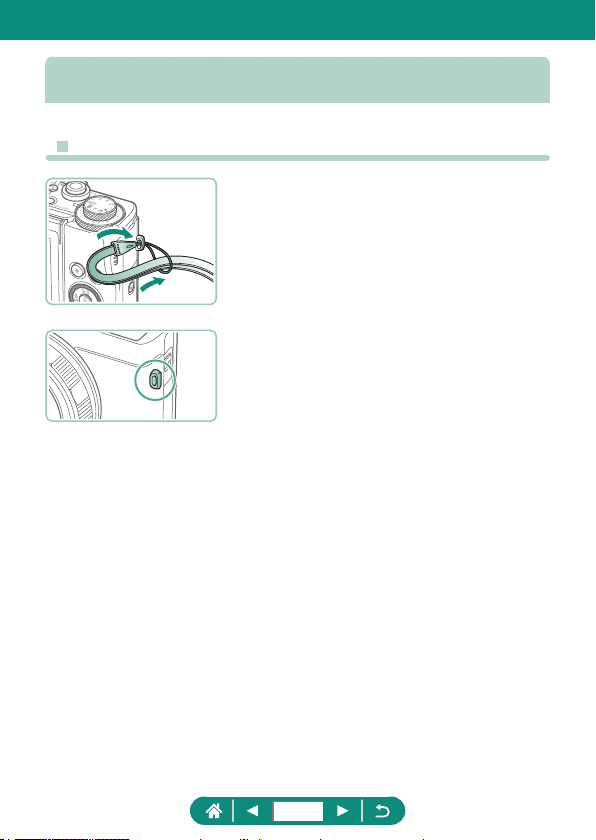
z Attaching the Strap
1
Attach the included strap to the
strap mount.
z The strap can also be attached to the left
side of the camera.
(
2
)
(
1
)
20
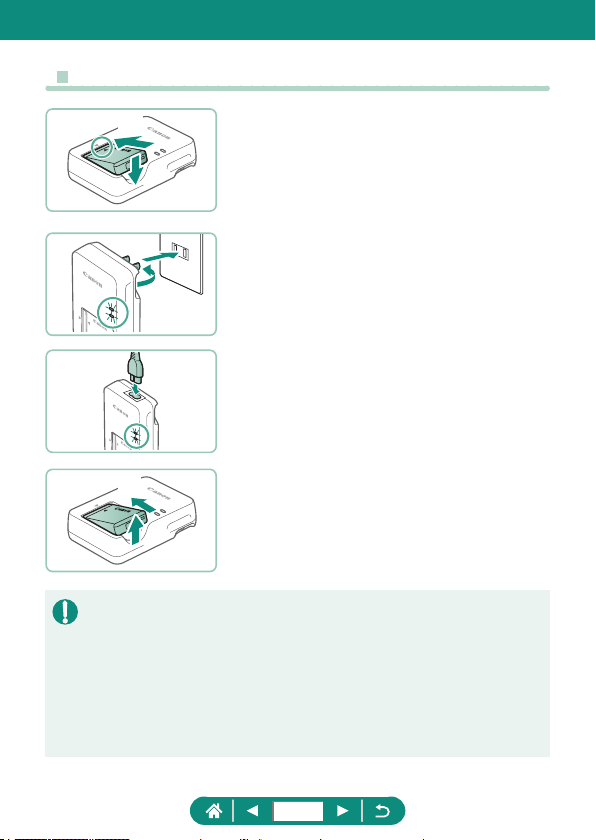
z Charging the Battery Pack
1
Insert the battery pack in the
charger.
2
Charge the battery pack.
z Lamp colors
- Charging: Orange
- Fully charged: Green
3
Remove the battery pack.
z To protect the battery pack and keep it in optimal condition, do not charge
it continuously for more than 24 hours.
z The charger can be used in areas with 100 – 240 V AC power (50/60 Hz).
For power outlets in a dierent format, use a commercially available
adapter for the plug. Never use an electrical transformer designed for
traveling, which may damage the battery pack.
z Charged battery packs gradually lose their charge, even when they are not
used. Charge the battery pack on (or immediately before) the day of use.
(
1
)
(
2
)
(
1
)
(
2
)
(
2
)
(
1
)
21
z Preparing a Memory Card
Use the following memory cards (sold separately), in any capacity.
z SD memory cards*
1
z SDHC memory cards*
1
*
2
z SDXC memory cards*
1
*
2
*1 Cards conforming to SD standards. However, not all memory cards
have been veried to work with the camera.
*2 UHS-I memory cards are also supported.
22
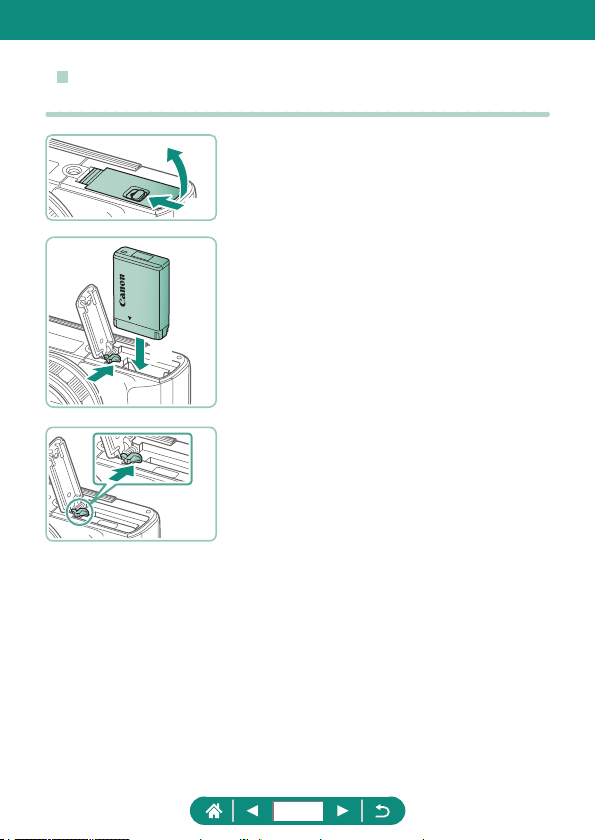
z Inserting/Removing the Battery Pack and
Memory Card
1
Open the cover.
2
Insert the battery pack.
To remove:
(
2
)
(
1
)
(
2
)
(
1
)
23
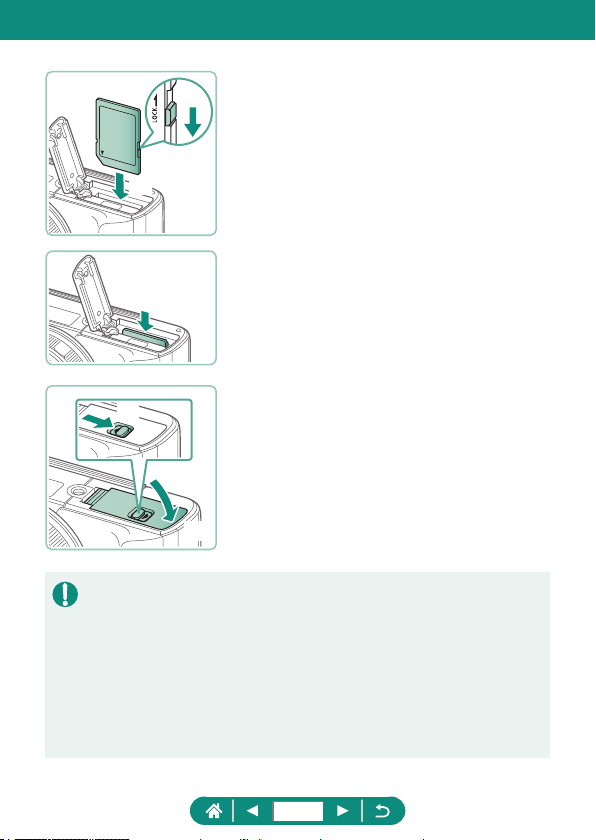
3
Insert the memory card.
To remove:
4
Close the cover.
z If you insert the battery pack facing the wrong way, it cannot be locked into
the correct position. Always conrm that the battery pack is facing the right
way and locks when inserted.
z Before using a new memory card or a card formatted in another device,
you should format the card with this camera.
z Recording is not possible on memory cards with a write-protect switch
when the switch is in the locked position. Slide the switch to unlock it.
z If [Change the battery pack] is displayed, change the battery pack after the
camera turns o automatically.
(
2
)
(
1
)
(
1
)
(
2
)
24
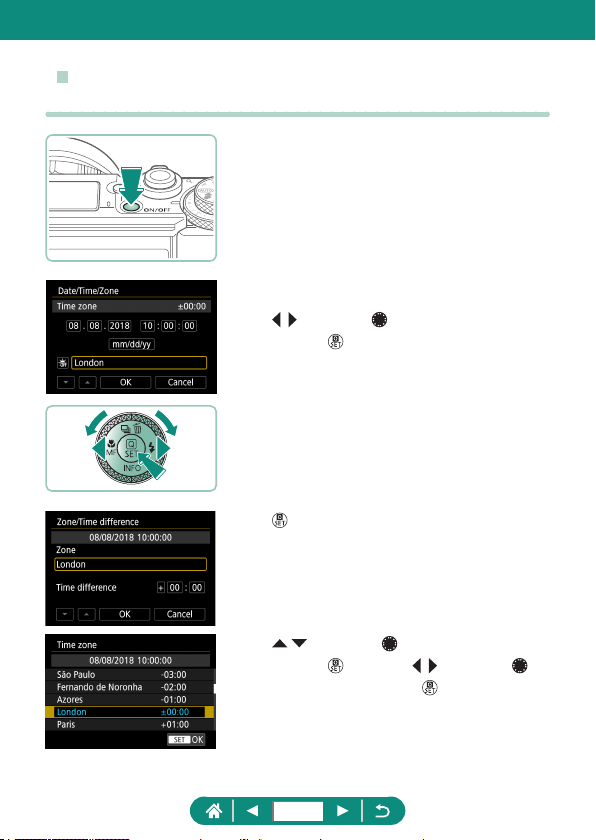
z Setting the Date, Time, Time Zone, and
Language
1
Turn the camera on.
2
Set the time zone.
z / buttons or dial to choose a time
zone →
button
z
button
z
/ buttons or dial to choose a time
zone →
button → / buttons or
dial to choose [OK] →
button
25
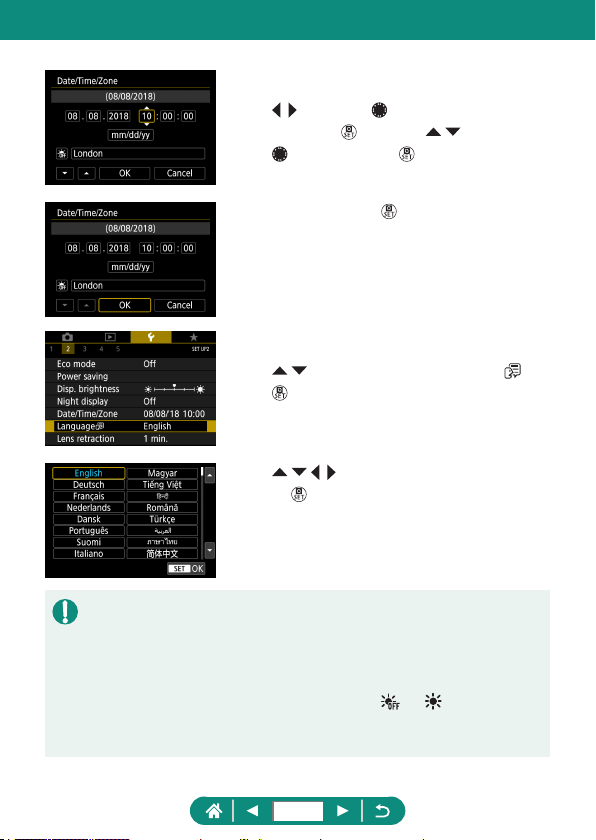
3
Set the date and time.
z / buttons or dial to choose the date
or time →
button → / buttons or
dial to adjust → button
z Choose [OK] →
button
4
Set the display language.
z / buttons to choose [Language ] →
button
z
/ / / buttons to choose a language
→
button
z Set the current date, time, and zone correctly if the [Date/Time/Zone]
screen is displayed when you turn the camera on. Information you specify
this way is recorded in image properties when you shoot, and it is used
when you manage images by shooting date or print images showing the
date.
z To set daylight saving time (1 hour ahead), set [
] to [ ] on the [Date/
Time/Zone] screen.
z If the date/time/zone settings have been cleared, set them again correctly.
26
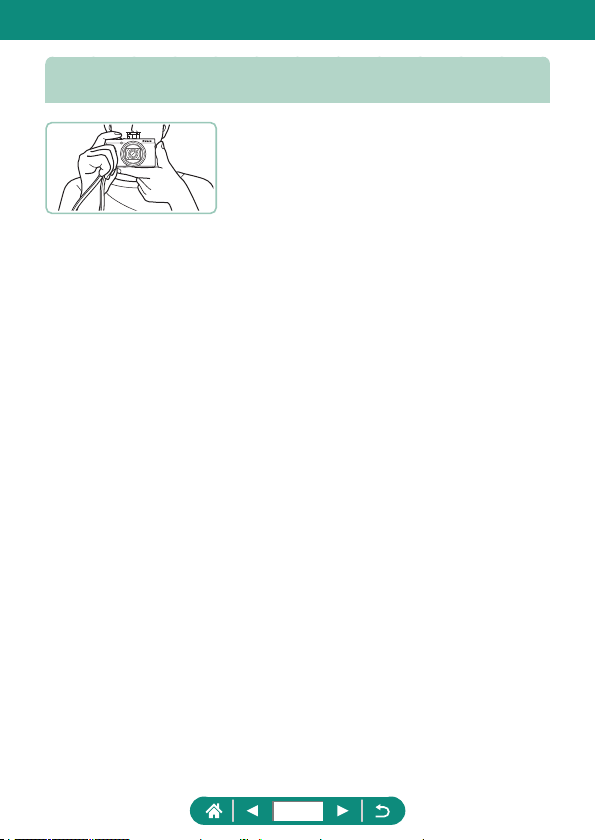
Holding the Camera
z Place the strap around your wrist.
z When shooting, keep your arms close to
your body and hold the camera securely
to prevent it from moving. If you have
raised the ash, do not rest your ngers
on it.
27
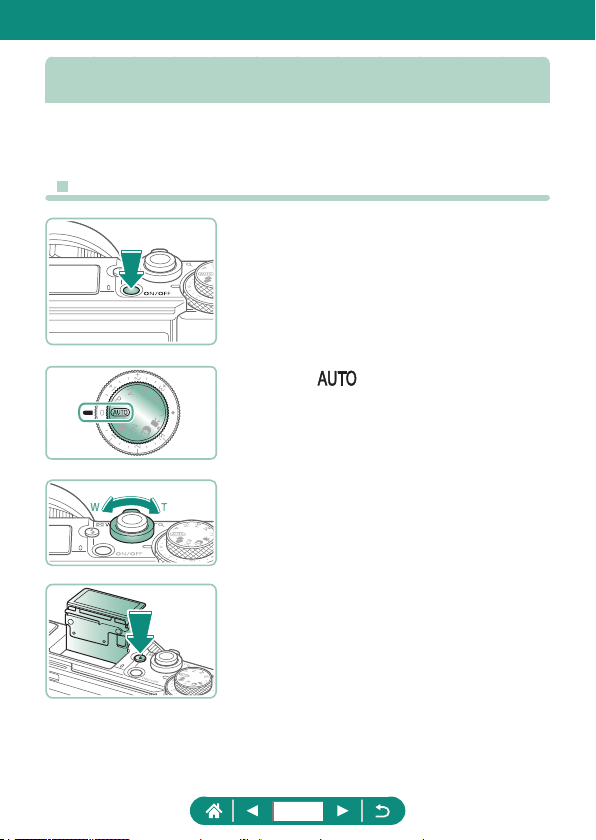
Trying the Camera Out
Try out the camera by turning it on, shooting some stills or movies, and then
viewing them.
z Shooting
1
Turn the camera on.
z To turn the camera o, press the ON/OFF
button again.
2
Enter mode.
3
Zoom in or out, as needed.
z Move the zoom lever as you watch the
screen.
When using the flash:
28
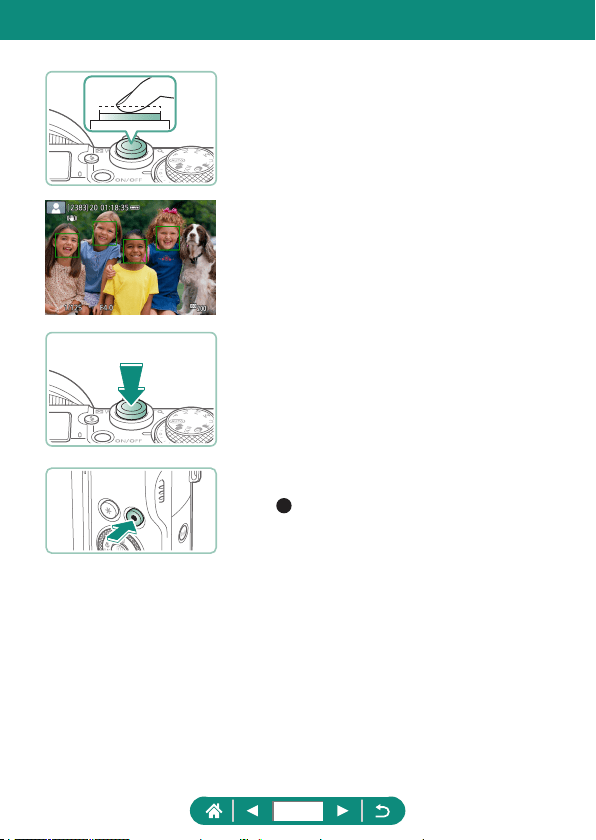
4
Focus (press halfway).
z The camera beeps after focusing.
z An AF point is displayed around positions
in focus.
5
Shoot (press fully).
When recording movies:
z [ REC] is displayed during recording.
z To stop movie recording, press the movie
recording button again.
29
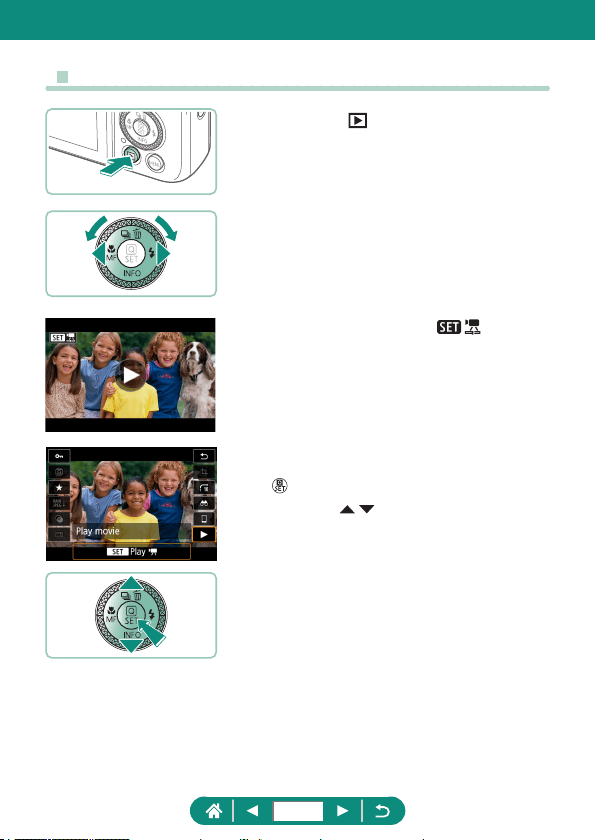
z Viewing
1
Press the button.
2
Choose images.
z Movies are labeled with [ ].
Playing movies:
z button (twice)
z Press the / buttons to adjust the
volume.
30
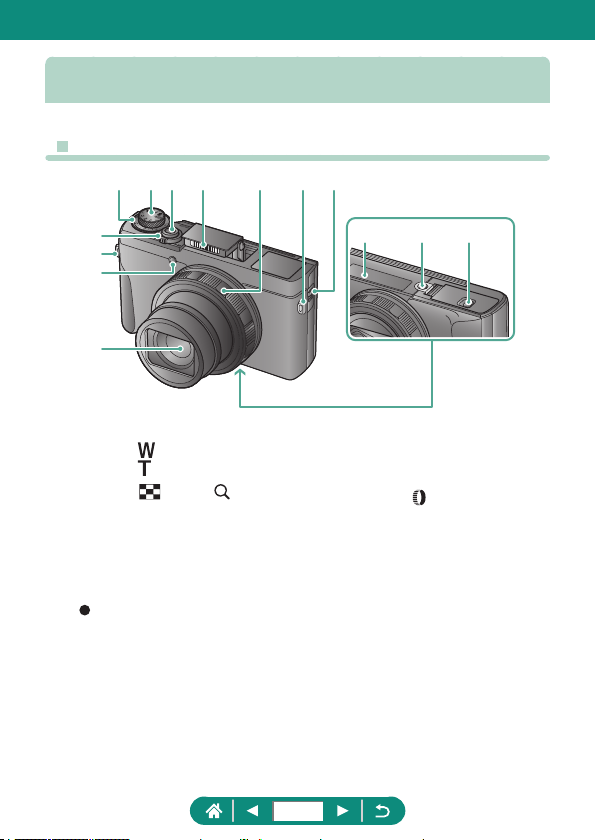
Part Names
z Front
(
1
)
(
3
)
(
4
)
(
2
)
(
10
)(
5
) (
7
)(
6
) (
9
)(
8
) (
2
)
(
13
)(
12
)(
11
)
(1) Zoom lever
Shooting:
(wide angle) /
(telephoto)
Playback:
(index) / (magnify)
(2) Strap mount
(3) Lamp
(4) Lens
(5) Exposure compensation dial
: Dial/ring assign position
(6) Mode dial
(7) Shutter button
(8) Flash
(9) Control ring (
ring)
(10) Viewfinder up lever
(11) Serial number
(12) Tripod socket
(13) Memory card/battery cover
31
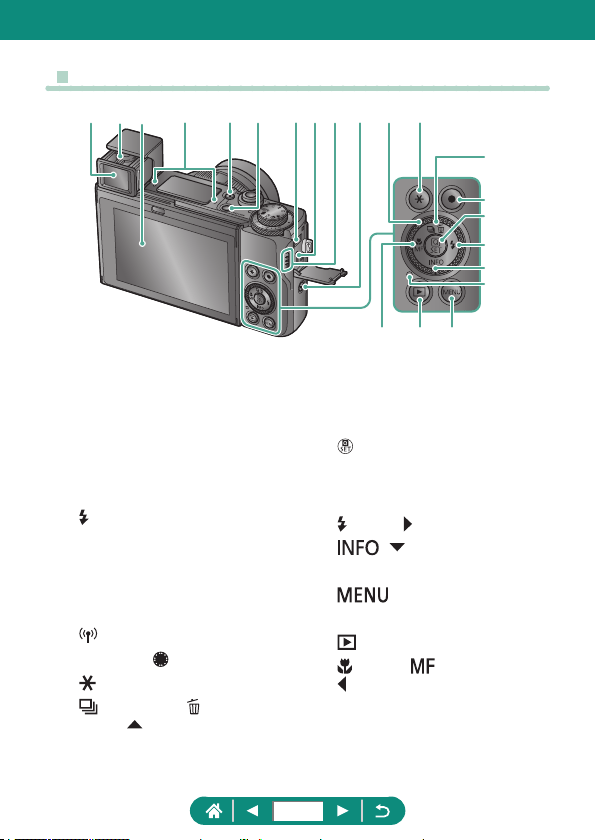
z Back
(
14
)
(
15
)
(
16
)
(
17
)
(
18
)
(
12
)
(
20
)
(
19
)
(
7
)
(
5
)(
4
) (
8
) (
10
) (
11
)(
6
)
(
13
)
(
21
)
(
9
)(
2
)
(
1
)
(
3
)
(1) Viewfinder
(2) Dioptric adjustment lever
(3) Screen
Opens upward about 180° and
downward about 45°.
(4) Microphone
(5)
(Flash up) button
(6) ON/OFF button
(7) DIGITAL terminal
(8) HDMI
TM
terminal
(9) Speaker
(10)
(Wi-Fi) button
(11) Control dial (
dial)
(12)
(AE lock) button
(13)
(Drive mode) / (Single-image
erase) /
Up button
(14) Movie recording button
Movies can also be recorded in
modes other than Movie mode.
(15)
(Quick Control) button
Displays the Quick Control screen.
Also used to confirm selected
settings.
(16)
(Flash) / Right button
(17)
/ Down button
(18) Indicator
(19)
button
Used to display menu screens.
(20)
(Playback) button
(21)
(Macro) / (Manual focus) /
Left button
32
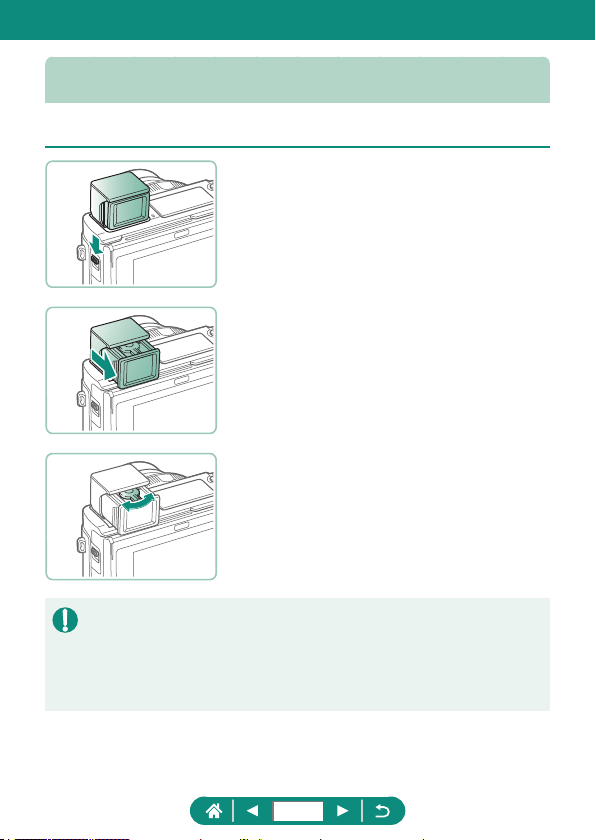
Viewfinder
Using the viewnder helps you concentrate on keeping subjects in focus.
1
Raise the viewfinder.
2
Pull out the eyepiece toward you.
3
Adjust the diopter.
z To use the viewnder, activate it by
holding it near your eye.
z The viewnder display and camera screen cannot be activated at the
same time.
z Some aspect ratio settings will cause black bars to be displayed on the
top and bottom or left and right edges of the screen. These areas are not
recorded.
33
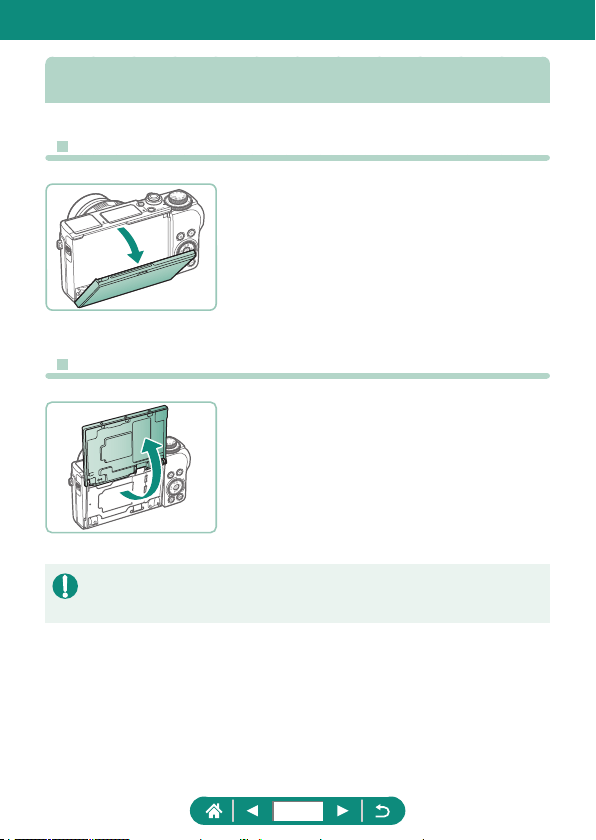
Adjusting the Screen Angle
z Tilting the Screen Downward
z Pull the top of the screen downward
toward you.
z The screen opens to about 45°.
z Tilting the Screen Upward
z The screen lifts upward and opens to
about 180°.
z View a mirror image of yourself when
shooting with the screen rotated around
toward the front.
z When nished, return the screen to the
original position.
z When the camera is not in use, keep the screen closed.
z Do not force the screen open any wider, which may damage the camera.
34
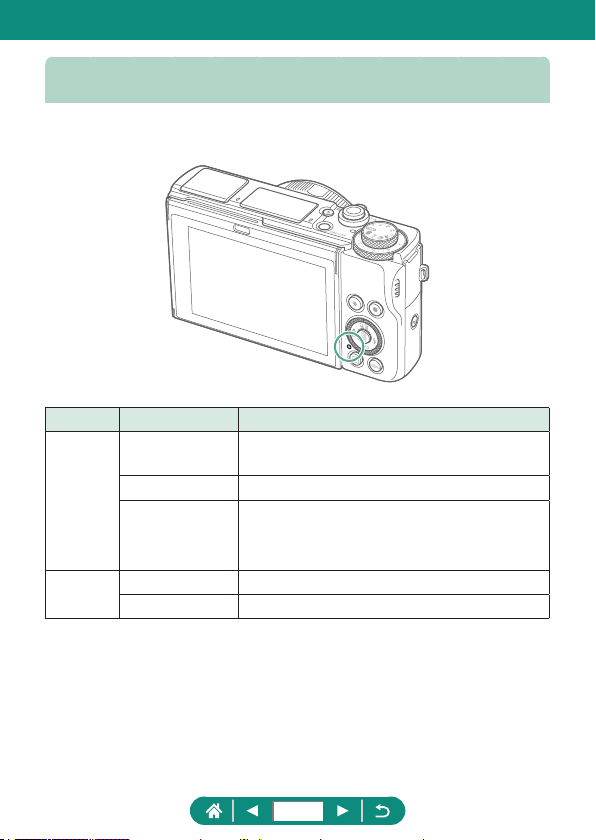
Indicator Display
Indicator display varies depending on the camera status.
Color Indicator Status Camera Status
Green
On
z Recording stills to the memory card, or
reading stills from the card
Slow blinking z Display o
Blinking
z Recording movies to the memory card,
or reading movies from the card
z Transmitting via Wi-Fi
Orange
On z Charging via USB
Blinking z USB charging error
35
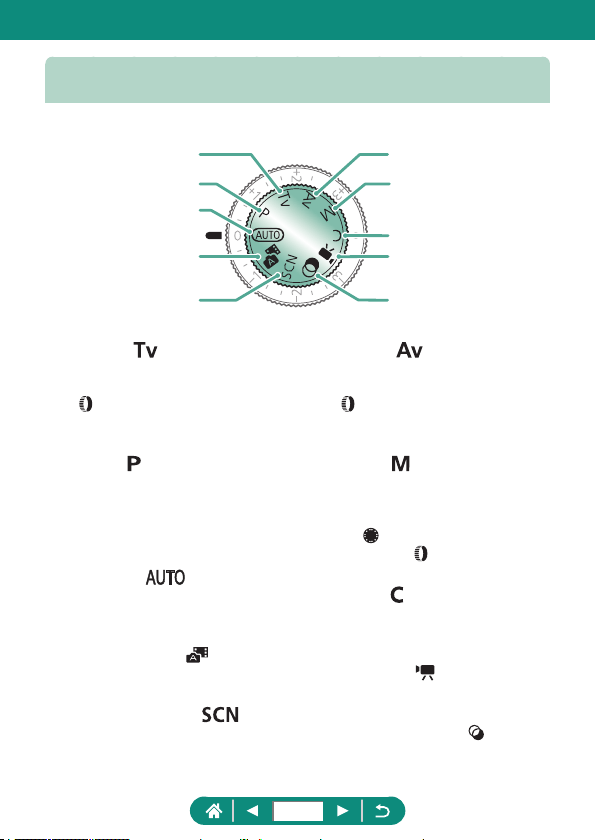
Setting a Shooting Mode
Use the mode dial to access each shooting mode.
(
5
) (
10
)
(
9
)
(
6
)
(
7
)
(
8
)
(
4
)
(
3
)
(
1
)
(
2
)
(1) Tv Mode
Set the shutter speed before
shooting (
=
90). Set with the
ring. The camera automatically
adjusts the aperture value to suit
your shutter speed.
(2) P Mode
Shutter speed and aperture value
are automatically adjusted to suit
subject brightness. Set a variety
of settings freely before shooting
(
=
89).
(3) Auto Mode
Fully automatic shooting, with
camera-determined settings
(
=
56).
(4) Hybrid Auto Mode
Automatically record a clip of the
scene before each shot (
=
60).
(5) Special Scene Mode
Shoot with settings for specific
scenes (
=
61).
(6) Av Mode
Set the aperture value before
shooting (
=
91). Set with the
ring. The camera automatically
adjusts the shutter speed to suit
your aperture value.
(7) M Mode
Set the shutter speed and aperture
value before shooting to obtain the
desired exposure (
=
92). Turn
the
dial to set the shutter speed,
and turn the
ring to set the
aperture value.
(8) C Mode
Save commonly used shooting
modes and your configured function
settings for reuse (
=
273).
(9) Movie Mode
Record a variety of movies
(
=
86).
(10) Creative Filters Mode
Add a variety of effects to images
when shooting (
=
80).
36
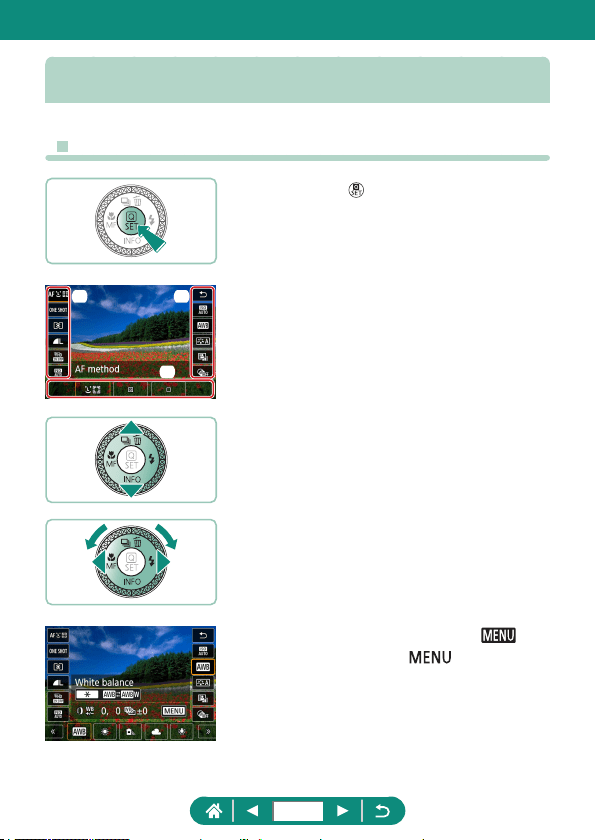
Configuring Camera Features
z Quick Control Screen
1
Press the button.
z (1) Setting items
z (2) Setting options
2
Choose a setting item.
3
Choose a setting option.
z Congure items labeled with a [ ]
icon by pressing the
button.
(1) (1)
(2)
37
4
Complete the setting.
z You can also choose options by turning the dial.
z You can also congure Quick Control features from the Menu screen.
38
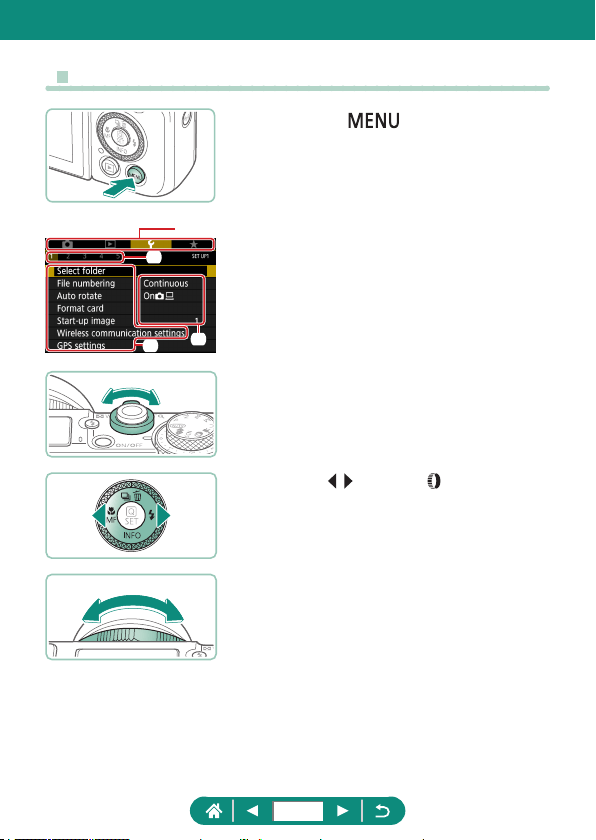
z Menu Screen
1
Press the button.
2
Choose a tab.
z (1) Main tab
z (2) Sub-tab
z (3) Setting items
z (4) Setting options
z Use the zoom lever to choose a main tab.
z Use the
/ buttons or ring to choose
a sub-tab.
(1)
(2)
(3)
(4)
39
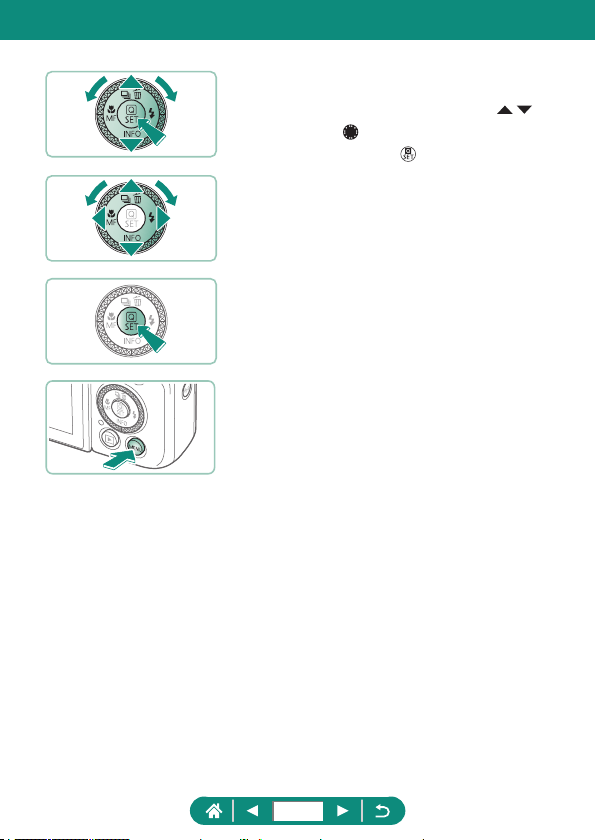
3
Choose a setting item.
z Some items are selected with the /
buttons or
dial on a dierent screen,
after you press the
button initially.
4
Choose a setting option.
5
Complete the setting.
6
Return to the shooting screen.
40
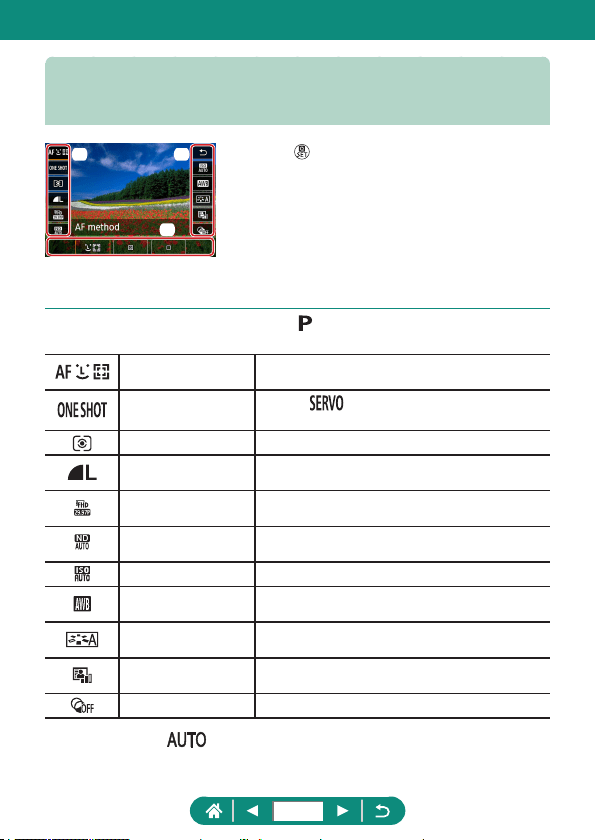
Features Available on the Quick
Control Screen
Press the button on shooting or playback
screens to access the Quick Control screen,
where you can adjust settings. Choose a setting
item on the right or left to display setting options
for it on the bottom.
(1) Setting items
(2) Setting options
The following settings are available in
mode. Available setting items and
options vary by shooting mode.
AF method
Choose an auto focus (AF) mode for the scene
you are shooting.
AF operation
Choose [
] to keep subjects in focus while
you press the shutter button halfway.
Metering mode Choose how brightness is measured.
Image quality*
Choose the size (number of pixels) and
compression (quality) of your shots.
Movie rec. size*
Choose the recording size and frame rate for
movies.
ND lter
Reduce light intensity to obtain suitable
brightness.
ISO speed Choose the ISO speed.
White balance
Shoot with natural-looking colors under specic
types of lighting.
Picture Style
Choose color settings that express scenes or
subjects well.
Auto Lighting
Optimizer
Choose the level of auto correction for brightness
and contrast.
Creative lters Add a variety of eects to images when shooting.
* Also available in mode.
(1) (1)
(2)
41
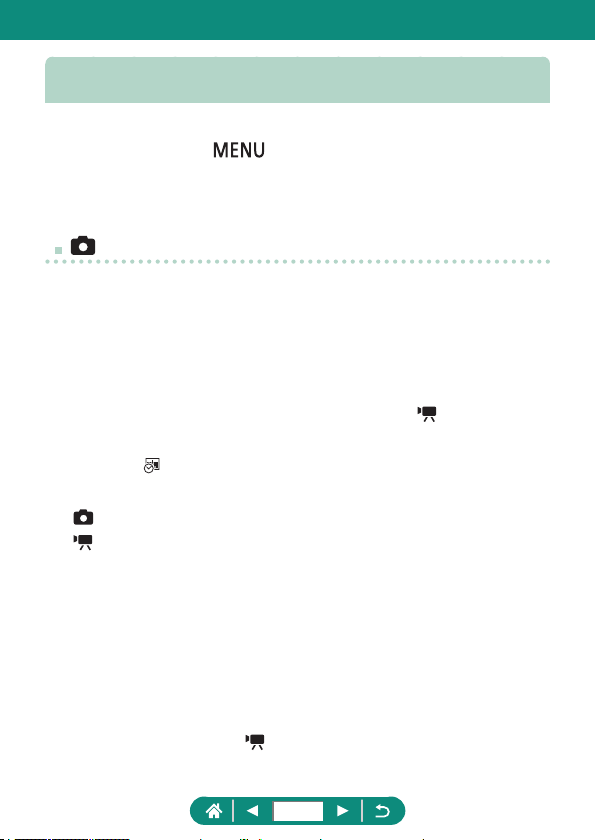
Menu Settings
Use menu screens to congure a variety of camera features. To access
menu screens, press the
button. Setting items are organized into
four main groups and multiple tabs for each group.
You can congure the following setting items on menu screens. Available
setting items vary by shooting mode.
Shooting settings
z Shooting mode
z Image quality
z Still img aspect ratio
z Image review
z Flash settings
z Drive mode
z RAW burst mode
z Date stamp
z Expo.comp./AEB
z
ISO speed settings
z
ISO speed settings
z Auto Lighting
Optimizer
z Highlight tone priority
z ND lter
z Metering mode
z Metering timer
z Expo. simulation
z White balance
z Custom White Balance
z WB Shift/Bkt.
z HDMI info disp
z Picture Style
z High ISO speed NR
z Touch Shutter
z Touch & drag AF
settings
z Shutter mode
z AF operation
z AF method
z Continuous AF
z AF-assist beam ring
z Focus bracketing
z AF+MF
z MF peaking settings
z Safety MF
z MF-point zoom
z IS settings
z
Auto level
z Digital zoom
z Digest type
z Movie rec quality
z Wind lter
z Attenuator
z Movie Servo AF
z
Auto slow shutter
z Star time-lapse movie
setting
z Star emphasis
z Star portrait settings
z Color adjustment
z Video snapshot
z Time-lapse movie
z Remote control
42
Playback settings
z Protect images
z Rotate image
z Erase images
z Print order
z Photobook Set-up
z Creative lters
z RAW image
processing
z Red-eye correction
z Create album
z Cropping
z Resize
z Rating
z Slide show
z Set image search
conditions
z Image jump w/
z Playback information
display
z View from last seen
Function settings
z Select folder
z File numbering
z Auto rotate
z Format card
z Start-up image
z Wireless
communication
settings
z GPS settings
z Eco mode
z Power saving
z Disp. brightness
z Night display
z Date/Time/Zone
z Language
z Lens retraction
z Video system
z Touch control
z Beep
z Volume
z HDMI resolution
z HDMI HDR output
z Shooting info. disp.
z Disp. performance
z VF display format
z Display switching
z Reverse display
z Units
z Feature guide
z Custom Functions
(C.Fn)
z Custom shooting
mode (C mode)
z Reset camera
z Copyright information
z Manual/software URL
z Certication Logo
Display
z Firmware
My Menu
z Add My Menu tab z Delete all My Menu
tabs
z Delete all items
z Menu display
43
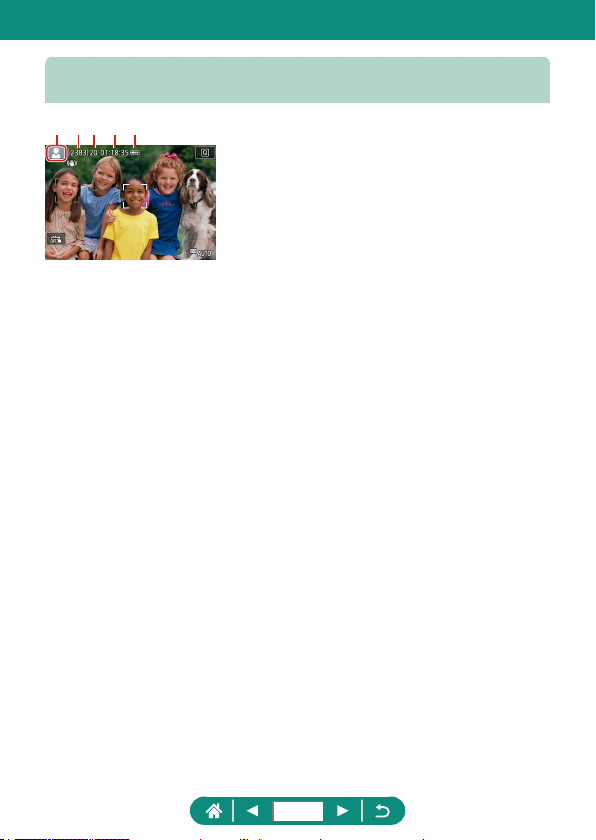
Shooting Mode Screen
(1) Shooting mode / Scene icon
(2) Recordable shots
(3) Maximum continuous shots
(4) Movie recording time available
(5) Battery level
(1) (2)(3) (4) (5)
44
Frames on the Shooting Screen
Frames for focusing (AF points) are displayed on the shooting screen.
White
frame
Displayed around the subject or person’s face detected as the
main subject.
Green
frame
Displayed after the camera focuses when you press the shutter
button halfway.
Blue
frame
Displayed as the camera continues to focus on moving
subjects. Displayed as long as you press the shutter button
halfway.
Yellow
frame
Displayed if the camera cannot focus when you press the
shutter button halfway.
z Try shooting in mode if no frames are displayed, if frames are not
displayed around desired subjects, or if frames are displayed in the
background or similar areas.
45
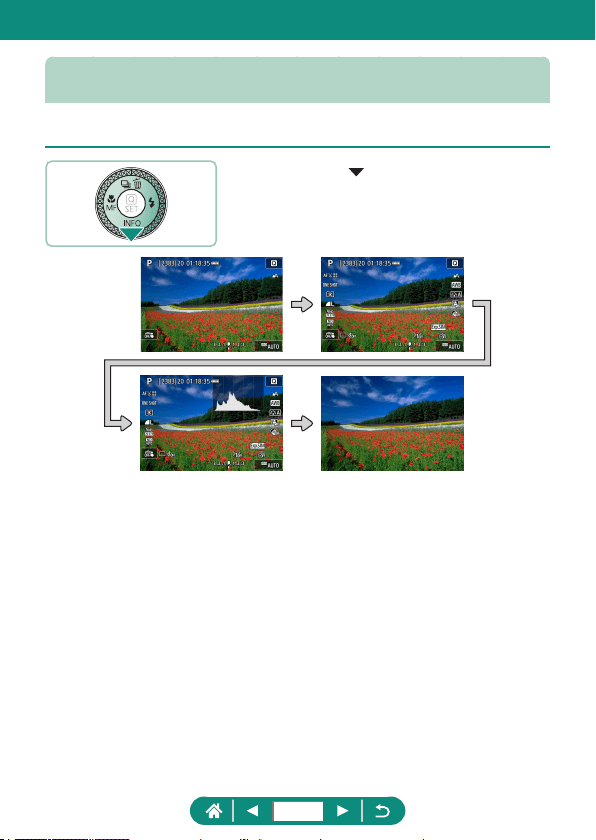
Shooting Display Options
You can switch shooting screen display to view other information.
1
Press the button.
46
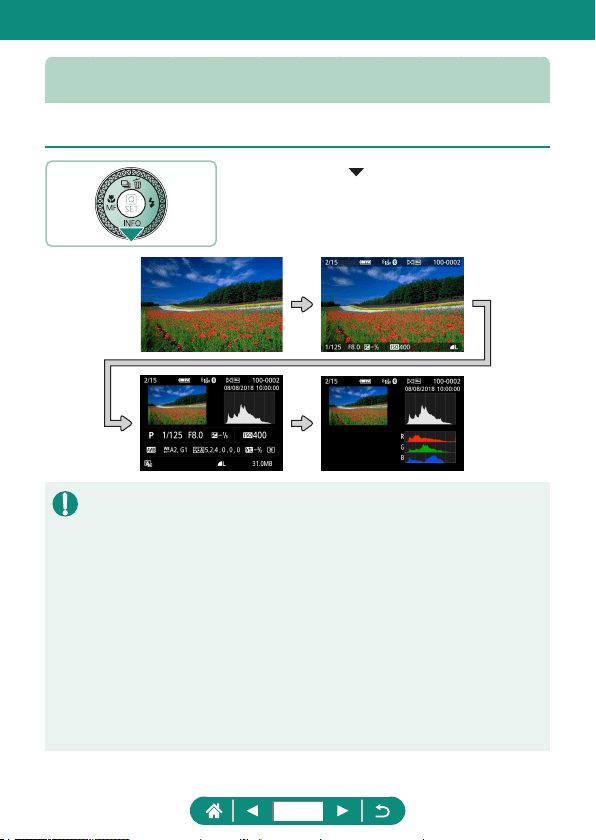
Playback Display Options
You can switch playback screen display to view other information.
1
Press the button.
z Overexposed highlights blink over the information display image when you
access screens showing detailed information.
z A graph called a brightness histogram on the top of screens with detailed
information shows the distribution of brightness in images. The horizontal
axis represents the degree of brightness, and the vertical axis, how much
of the image is at each level of brightness. Viewing this histogram enables
you to check exposure.
Switching Histograms
z When switched to RGB display, an RGB histogram is displayed that
shows the red, green, and blue distribution in images. The horizontal axis
represents R, G, or B brightness, and the vertical axis, how much of the
image is at that level of brightness. Viewing this histogram enables you to
check image color characteristics.
47
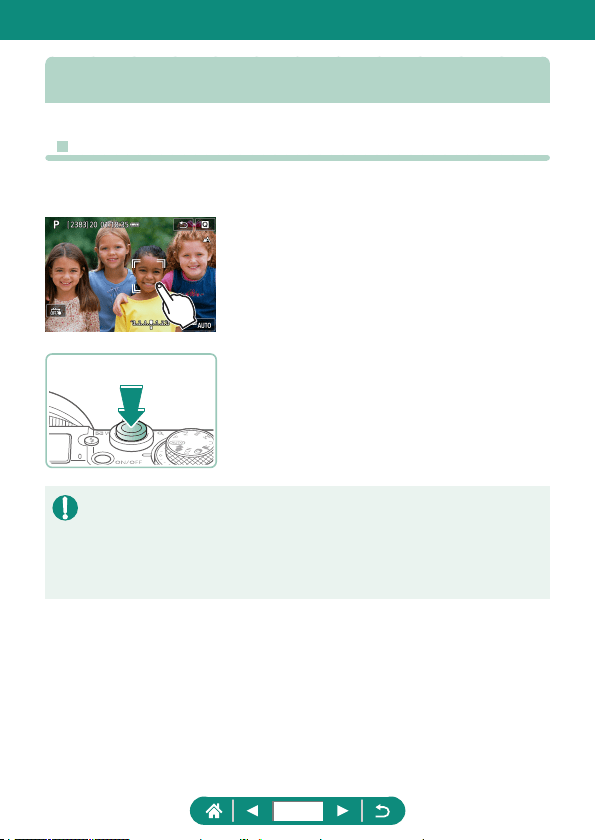
Touch Operation
z Choosing Subjects
You can choose subjects by touching a person’s face or other things
displayed on the screen.
1
Choose a subject.
2
Shoot.
z Tracking may not be possible when subjects are too small or move too
rapidly, or when there is inadequate contrast between subjects and the
background.
z To choose subjects by touching the screen as you look through the
viewnder, set [Touch & drag AF] to [Enable] (
=
146).
48
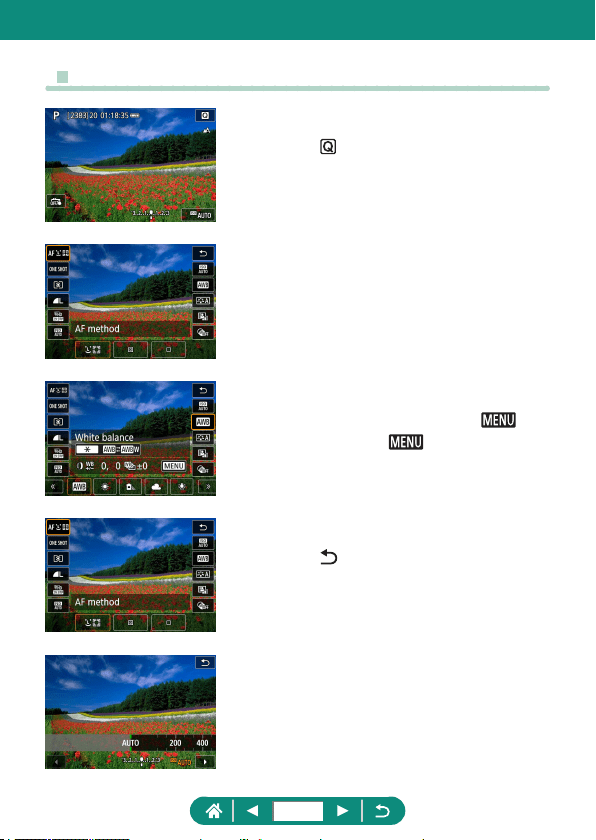
z Quick Control Screen
Accessing the setting screen
z Touch [ ].
Setting up the camera
z Touch a setting item → a setting option
Switching screens
z Congure items labeled with a [ ]
icon by touching [
].
Returning to the previous screen
z Touch [ ].
Adjusting amounts on bars
z Touch or drag the bar.
49

z Menu Screen
Setting up the camera
z Touch a main tab → sub-tab → setting
item → option
Returning to the previous screen
z Touch [ ].
Adding/removing check marks
z Touch a check box.
Instead of pressing the button
z Touch [ ].
50
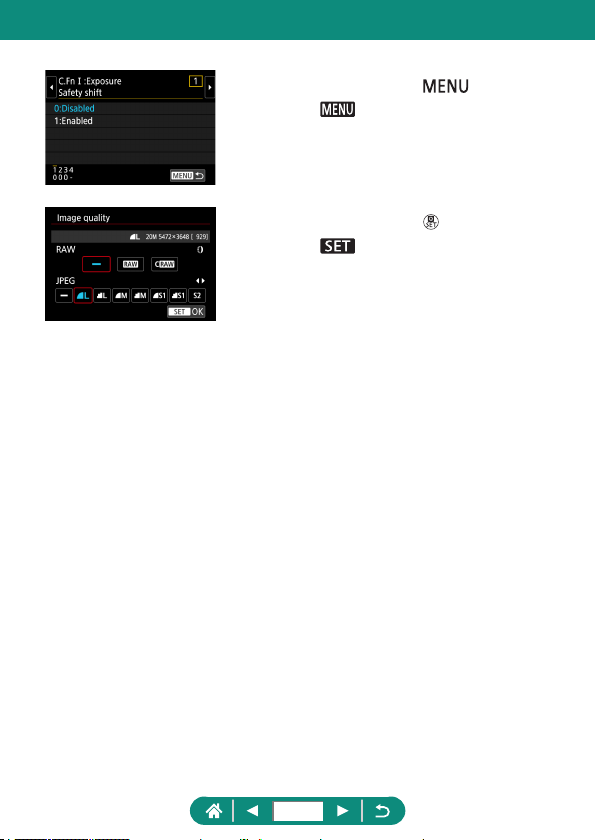
Instead of pressing the button
z Touch [ ].
Instead of pressing the button
z Touch [ ].
51
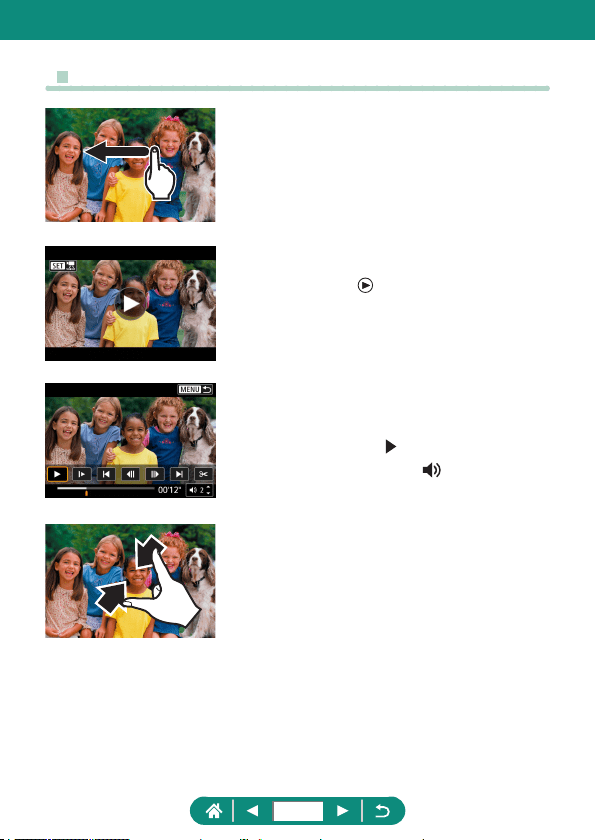
z Viewing
Viewing images individually
z Next image: Drag left
z Previous image: Drag right
Playing movies
z Play: Touch [ ]
Operations during movies
z Stop: Touch the screen
z Resume: Touch [ ]
z Adjust volume: Touch [ ]
Switching to index display
52
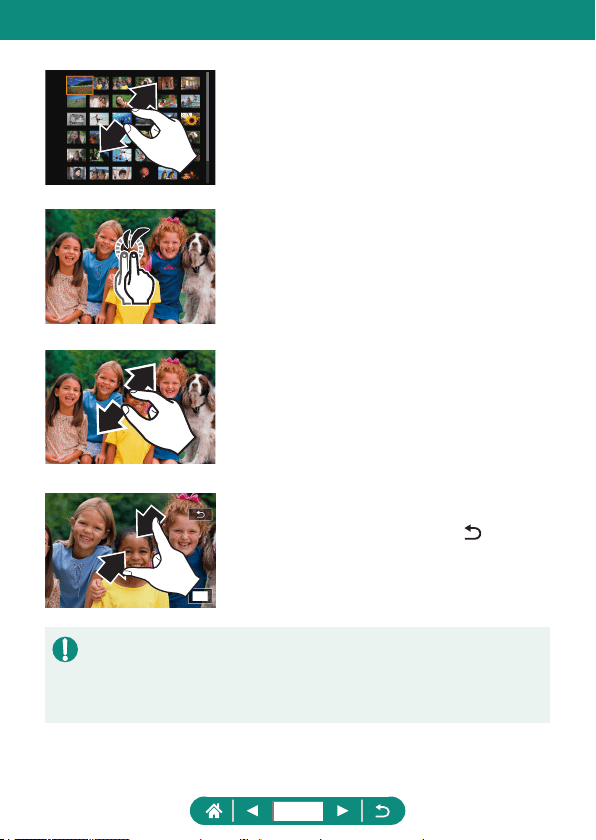
Displaying fewer images
Magnifying images
z Quickly touch twice.
Reducing magnified images
z Restore original size: Touch [ ], or
quickly touch the screen twice
z The movie playback panel can also be displayed by touching the screen
during movie playback.
z During index display, drag up or down to scroll through images.
z Drag to move the display position during magnied display.
53
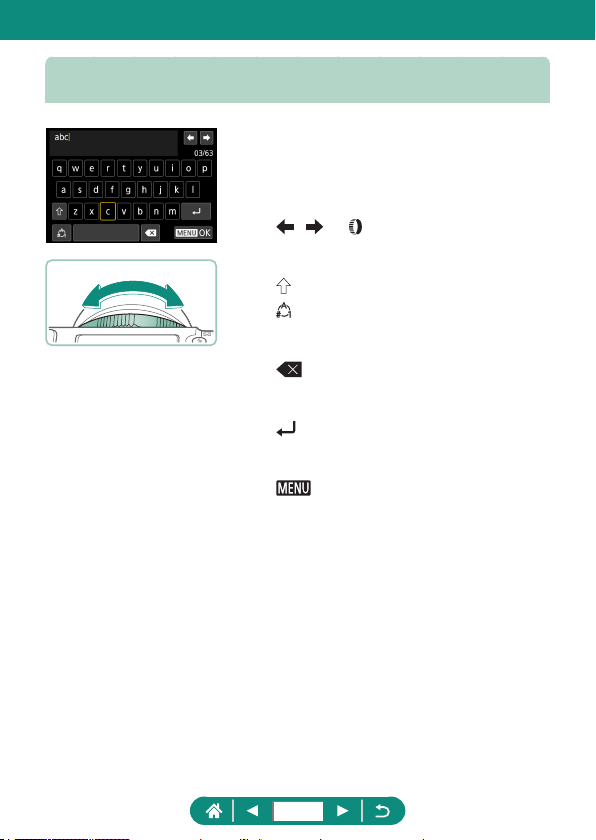
On-Screen Keyboard
Entering characters
z Touch the characters to enter them.
Moving the cursor
z [ ]/[ ] or ring
Switching input modes
z [ ]: Switch to uppercase
z [ ]: Switch to numbers or symbols
Deleting characters
z [ ]
Entering line breaks
z [ ]
Returning to the previous screen
z [ ]
54
Easily shoot in simple modes, or take more sophisticated shots using a
variety of features.
Shooting
55
Shooting with Camera-Determined
Settings (Auto Mode/Hybrid Auto Mode)
Use Auto mode for fully automatic selection of the optimal settings for the
scene, based on the subject and shooting conditions determined by the
camera.
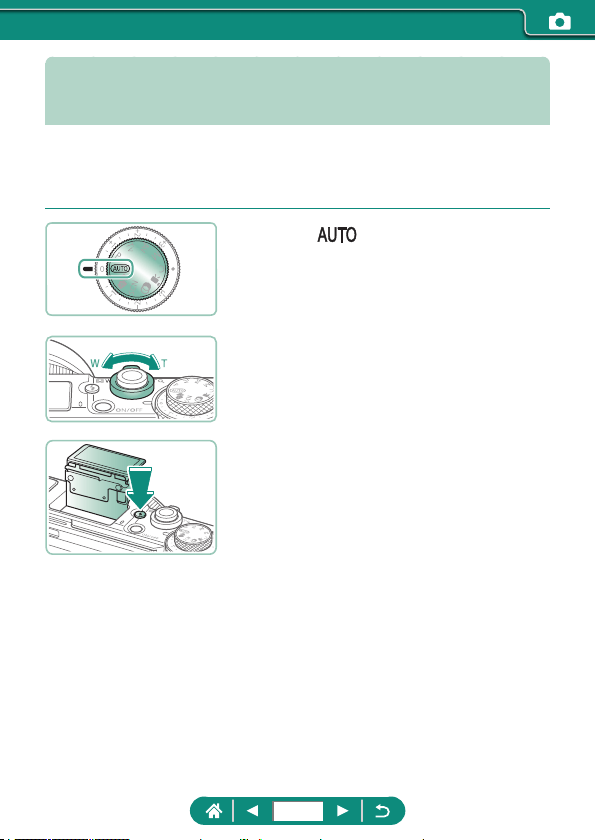
1
Enter mode.
2
Zoom in or out, as needed.
z Move the zoom lever as you watch the
screen.
When using the flash:
56
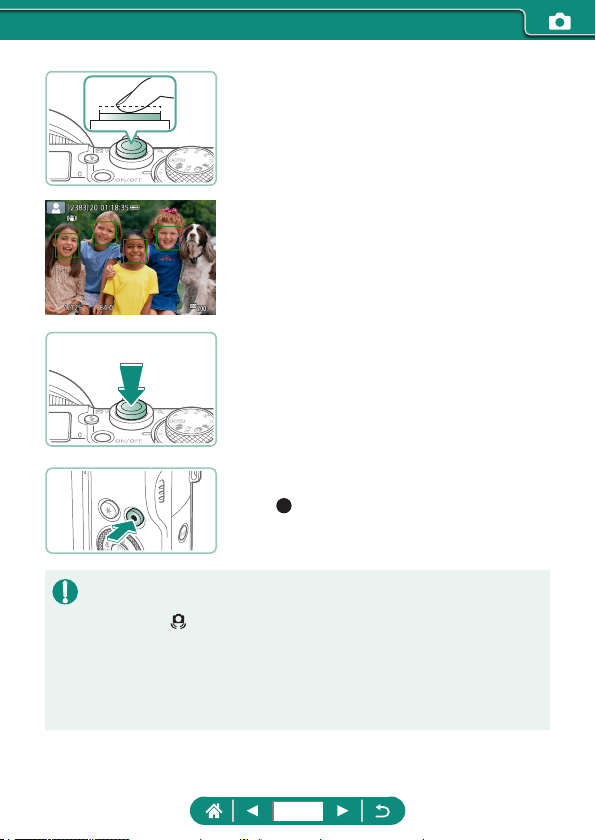
3
Focus (press halfway).
z The camera beeps after focusing.
z An AF point is displayed around positions
in focus.
4
Shoot (press fully).
When recording movies:
z [ REC] is displayed during recording.
z To stop movie recording, press the movie
recording button again.
Still images
z A blinking [ ] icon warns that images are more likely to be blurred by
camera shake. In this case, mount the camera on a tripod or take other
measures to keep it still.
z If your shots are dark despite the ash ring, move closer to the subject.
z To assist in focusing, the lamp may be activated when you press the
shutter button halfway in low-light conditions.
57
Movies
z The black bars on the top and bottom of the screen are not recorded.
z When you recompose shots, the focus, brightness, and colors will be
automatically adjusted.
z Recording stops automatically when the memory card becomes full or a
single recording reaches the maximum length.
z The maximum recording time per movie is 29 min. 59 sec.
z Although the camera may become warm when recording movies
repeatedly over an extended period, this does not indicate a problem.
z Keep your ngers away from the microphone while recording movies.
Blocking the microphone may prevent audio from being recorded or may
cause the recording to sound mued.
z Audio is recorded by the built-in microphone in stereo.
z Avoid touching camera controls other than the movie recording button
or screen when recording movies, because sounds made by the camera
will be recorded. To adjust settings or perform other operations during
recording, use the touch-screen panel if possible.
z Sounds from Wi-Fi operations may be captured with built-in or external
microphones. During sound recording, using the wireless communication
function is not recommended.
z Once movie recording begins, the image display area changes and
subjects are enlarged to allow for correction of signicant camera shake.
To record subjects at the same size shown before recording, adjust the
image stabilization setting.
z During movie recording, lens operating noises from auto focusing may also
be recorded.
z Individual movies that exceed 4 GB may be divided into multiple les.
Automatic playback of divided movie les one after another is not
supported. Play each movie separately.
Scene Icons
z In / modes, shooting scenes determined by the camera
are indicated by the icon displayed, and corresponding settings are
automatically selected for optimal focusing, subject brightness, and color.
z Try shooting in
mode if the scene icon does not match actual shooting
conditions, or if it is not possible to shoot with your expected eect, color,
or brightness.
58
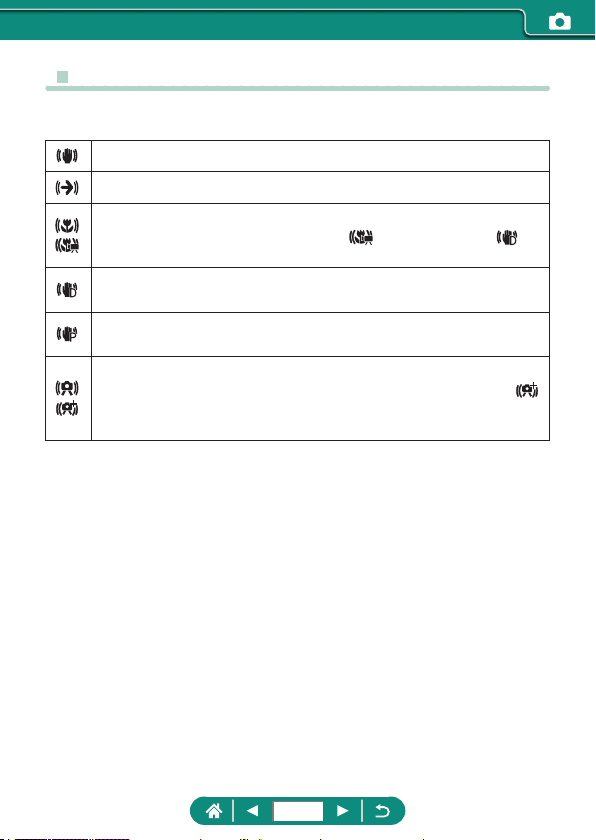
z Image Stabilization Icons
Optimal image stabilization for the shooting conditions (Intelligent IS) is
automatically applied, and the following icons are displayed.
Image stabilization for still images (Normal)
Image stabilization for still images when panning (Panning)*
Image stabilization for angular camera shake and shift-shake in
macro shots (Hybrid IS). For movies, [
] is displayed and [ ]
image stabilization is also applied.
Image stabilization for movies, reducing strong camera shake, as
when recording while walking (Dynamic)
Image stabilization for slow camera shake, as when recording
movies at telephoto (Powered)
No image stabilization, because the camera is mounted on a tripod
or held still by other means. However, during movie recording, [
]
is displayed, and image stabilization to counteract wind or other
sources of vibration is used (Tripod IS).
* Displayed when you pan, following moving subjects with the camera.
When you follow subjects moving horizontally, image stabilization only
counteracts vertical camera shake, and horizontal stabilization stops.
Similarly, when you follow subjects moving vertically, image stabilization
only counteracts horizontal camera shake.
59
z Shooting in Hybrid Auto Mode
Also record 2 – 4 second clips of scenes before each shot automatically,
just by shooting stills. Each clip, which ends with the still image and a
shutter sound, forms an individual chapter. The camera creates a short
digest movie of the day by combining the clips.
1
Enter mode.
2
Focus and shoot.
z For more impressive digest movies, aim the camera at subjects about four
seconds before shooting still images.
z Battery life is shorter in this mode than in
mode, because digest
movies are recorded for each shot.
z A digest movie may not be recorded if you shoot a still image immediately
after turning the camera on, choosing
mode, or operating the camera
in other ways.
z Any sounds and vibrations from your camera or lens operations will be
recorded in digest movies.
z Digest movie image quality is [
] for NTSC or [ ] for PAL.
This varies depending on the video system setting.
z Sounds are not played when you press the shutter button halfway or
trigger the self-timer.
z Digest movies are saved as separate movie les in the following cases
even if they were recorded on the same day in
mode.
- The digest movie recording time reaches approx. 29 minutes and 59
seconds. (May also be saved as separate les if the size exceeds
approx. 4 GB.)
- The digest movie is protected.
- Daylight saving time, video system, or time zone settings are changed.
z Recorded shutter sounds cannot be modied or erased.
60
Shooting Specific Scenes (Special
Scene Mode)
Choose a mode matching the shooting scene, and the camera will
automatically congure the settings for optimal shots. Try taking some test
shots rst to make sure you obtain the desired results.
1
Enter mode.
2
button → [ ] → choose an option
3
Shoot.
61
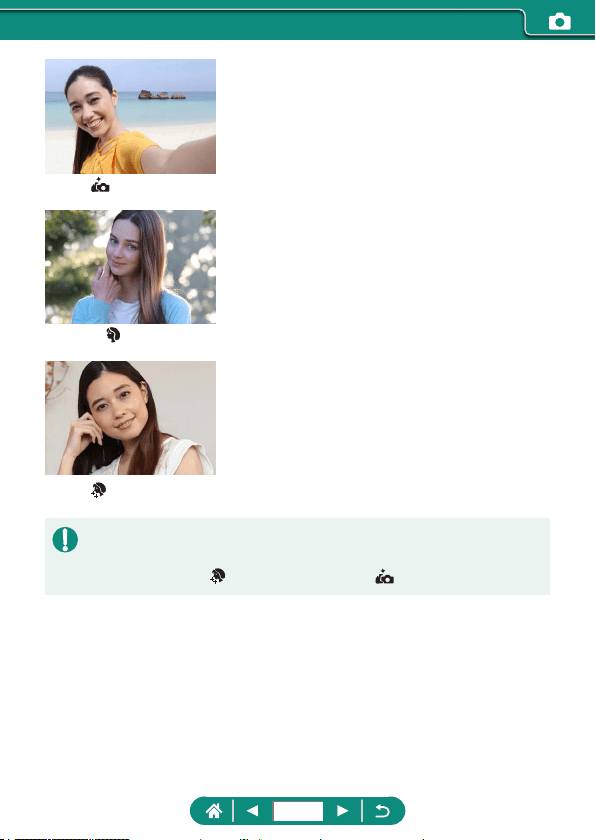
Self Portrait
For self-portraits, customizable image
processing includes skin smoothing as well as
brightness and background adjustment to make
yourself stand out.
Portrait
Capture subjects that stand out against a
blurred background, with smooth skin tone and
soft-looking hair.
Smooth skin
Process images to make skin look smoother.
z Areas other than people’s skin may be modied, depending on the
shooting conditions.
z Setting details in [
] mode are not applied in [ ] mode.
62
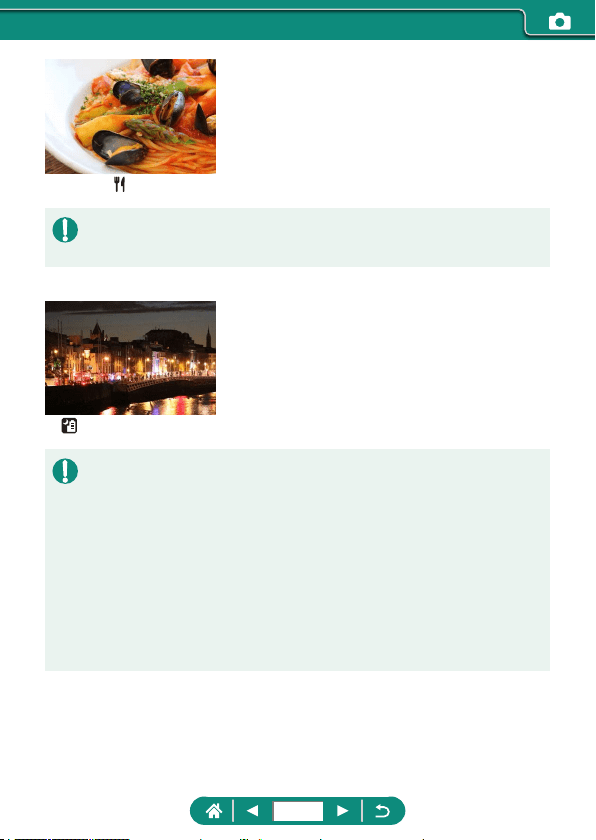
Food
Adjust color tones to make food look fresh and
vibrant.
z These color tones may not look suitable when applied to people.
z In ash photography, [Color tone] changes to the standard setting.
Handheld Night Scene
Take beautiful shots of evening scenes
or portraits with evening scenery in the
background.
z Image noise is reduced by combining consecutive shots into a single
image.
z Hold the camera steady as it shoots continuously.
z There will be a delay before you can shoot again, as the camera
processes and combines the images.
z Shots may look grainy because the ISO speed is increased to suit the
shooting conditions.
z Excessive motion blur or certain shooting conditions may prevent you from
obtaining the desired results.
z Try to keep the camera still when using the ash, because the shutter
speed may be slower.
63
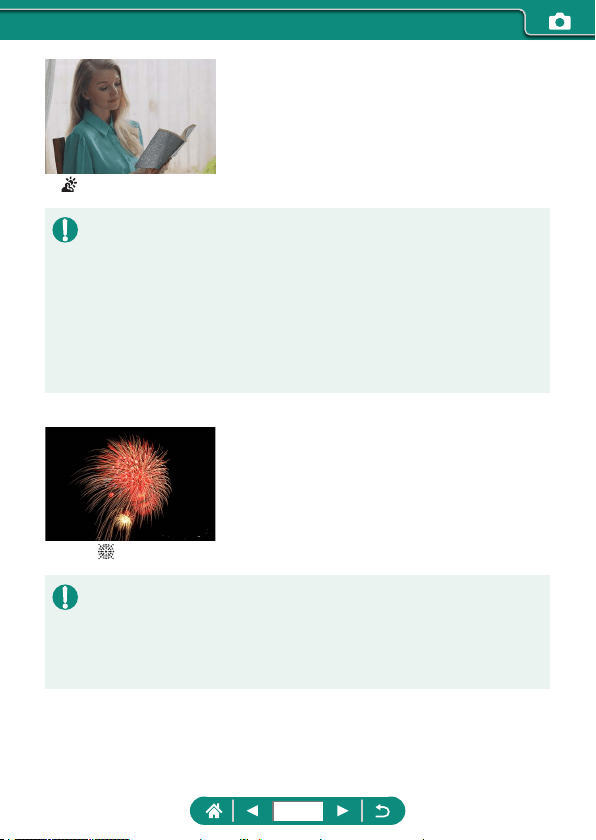
HDR Backlight Control
Three consecutive images are captured at
dierent brightness levels each time you shoot,
which are automatically combined to create a
single image. This mode can reduce the loss of
detail in highlights and shadows that tends to
occur in shots with mixed bright and dark image
areas.
z Hold the camera steady as it shoots continuously.
z Excessive motion blur or certain shooting conditions may prevent you from
obtaining the desired results.
z If excessive camera shake interferes with shooting, mount the camera on
a tripod or take other measures to keep it still. In this case, also disable
image stabilization.
z Any subject movement will cause images to look blurry.
z There will be a delay before you can shoot again, as the camera
processes and combines the images.
Fireworks
Vivid shots of reworks.
z Mount the camera on a tripod or take other measures to keep it still and
prevent camera shake. Additionally, you should set [IS mode] to [O] when
using a tripod or other means to secure the camera.
z Although no frames are displayed when you press the shutter button
halfway, optimal focus is still determined.
64
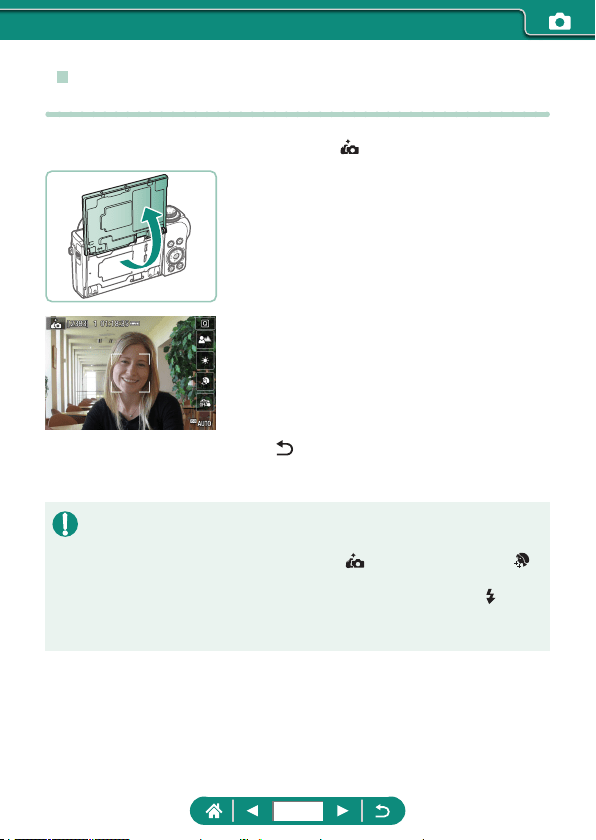
z Shooting Yourself under Optimal Settings (Self
Portrait Mode)
1
Choose [ ].
2
Open the screen.
3
Configure the settings.
z On the screen, touch the icon of the item
to congure.
z Choose an option.
z To return to the previous screen, touch
[
].
4
Shoot.
z Areas other than people’s skin may be modied, depending on the
shooting conditions.
z [Smooth skin eect] settings specied in [
] mode are not applied in [ ]
mode.
z [Background blur] is set to [Auto] when you set the ash mode to [
] for
ash photography (because the ash will not re in modes other than
[Auto]).
65
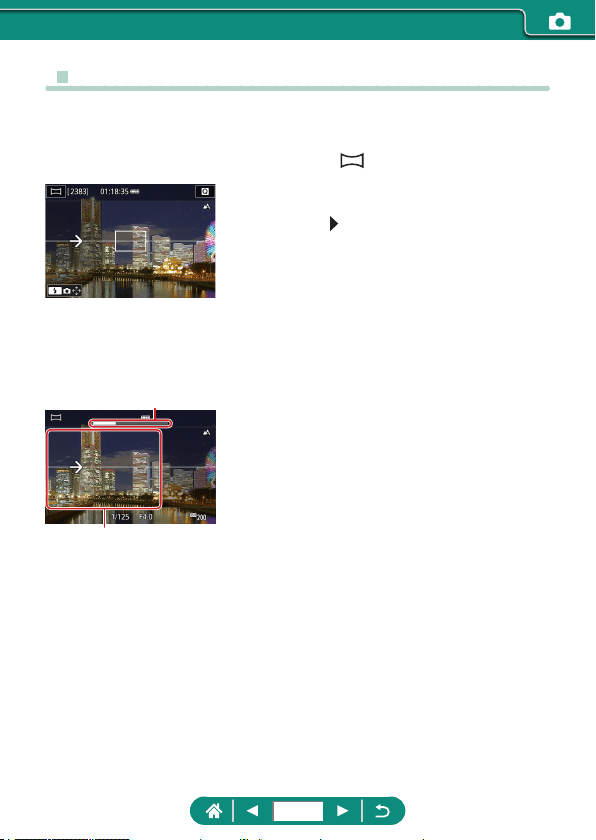
z Shooting Panoramas (Panorama Mode)
Create a panorama combining shots captured continuously as you move
the camera one direction while holding the shutter button all the way down.
1
Choose [ ].
2
Choose a shooting direction.
z Use the button to choose the direction
you will shoot.
z An arrow is displayed showing the
direction to move the camera.
3
Press the shutter button halfway.
z Keeping the shutter button halfway down,
focus on the subject.
4
Shoot.
z Holding the shutter button all the way
down, move the camera at a constant
speed in the direction of the arrow.
z The area displayed clearly (1) is
captured.
z A shooting progress indicator (2) is
displayed.
z Shooting stops when you release the
shutter button, or when the progress
indicator is completely white.
(1)
(2)
66
z In some scenes, expected images may not be saved, and images may not
look as expected.
z Shooting may stop midway if you move the camera too slowly or quickly.
However, the panorama created up to that point will still be saved.
z Images created from shots in
mode are large. Use a computer or
other device to reduce panorama images if you will print them by inserting
a memory card in a Canon printer. If panoramas are not compatible with
certain software or Web services, try resizing them on a computer.
z The following subjects and scenes may not be stitched correctly.
- Subjects that are moving
- Subjects that are nearby
- Scenes where the contrast varies greatly
- Scenes with long stretches of the same color or pattern, such as the sea
or sky
67
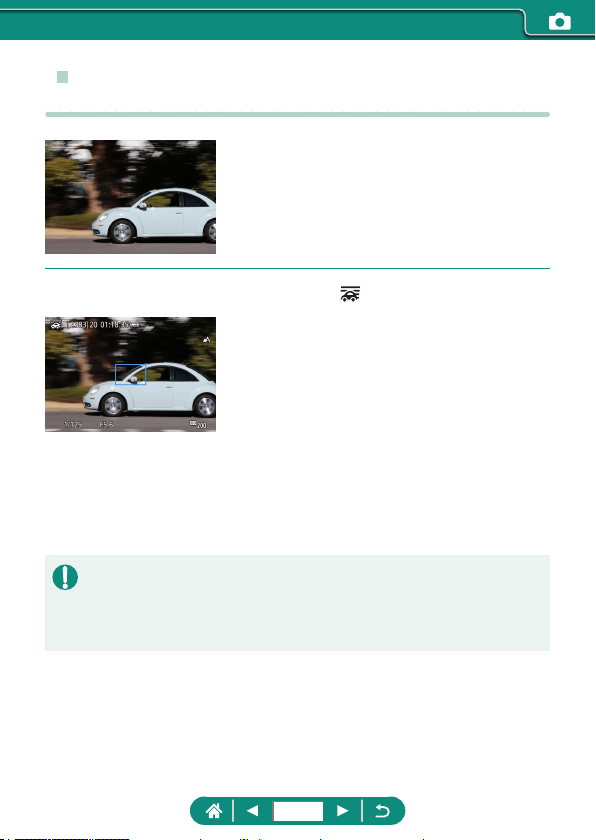
z Capturing Subjects Against Flowing
Backgrounds (Panning Mode)
By panning, you can blur the background to
convey a sense of speed.
1
Choose [ ].
2
Shoot.
z Before shooting, press the shutter button
halfway as you move the camera so that
it follows the subject.
z Keep the moving subject in the frame
displayed, and press the shutter button all
the way down.
z Even after you have pressed the shutter
button fully, continue moving the camera
to follow the subject.
z For best results, hold the camera securely in both hands, with your elbows
close to your body, and rotate your whole body to follow the subject.
z This feature is more eective for subjects moving horizontally, such as cars
or trains.
68
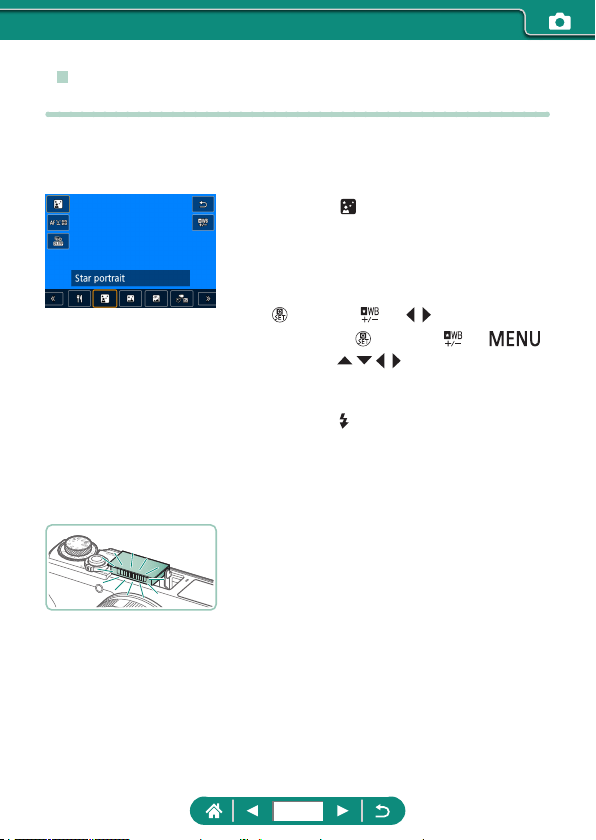
z Shooting People against Starry Skies (Star
Portrait Mode)
Capture beautiful shots of people against starry skies. After initially ring the
ash to capture the person, the camera shoots twice without ash. These
three images are automatically combined to create a single image.
1
Choose [ ].
z Zoom is set to maximum wide angle and
cannot be adjusted.
Adjusting colors
z button → [ ] → / buttons
z Fine-tuning: button → [ ] →
button →
/ / / buttons
2
Raise the flash.
z Press the button to raise the ash.
3
Secure the camera.
z Mount the camera on a tripod or take
other measures to keep it still.
4
Shoot.
z Press the shutter button. The ash res
as the camera takes the rst shot.
z The second and third shots are now
taken, without ring the ash.
69
5
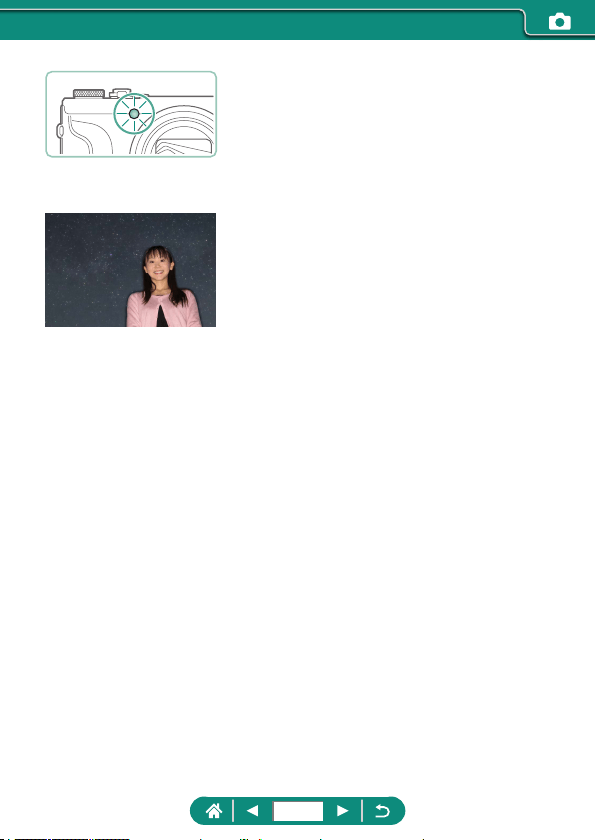
Have the person stay still until the
lamp blinks.
z The person you are shooting should stay
still until the lamp blinks after the third
shot, which may take up to about two
seconds.
z All the shots are combined to create a
single image.
70
z For better shots, have the person stand away from illumination such as
street lights, and make sure the ash is raised.
z There will be a delay before you can shoot again, as the camera
processes the images.
z To avoid blurry shots, make sure the person you shoot stays still.
z B: blue; A: amber; M: magenta; G: green
z Skin tones remain the same when you adjust colors.
z Try setting
[Night display] to [On] in this mode.
z To adjust subject brightness, try changing the ash exposure
compensation.
z To adjust background brightness, try changing the exposure
compensation. Note that images may not look as expected under some
shooting conditions, and the person should stay still in steps 4–5, because
shooting takes longer (up to about 15 seconds).
z To capture more stars and brighter starlight, choose
[Star portrait
settings] → [Star visibility] → [Prominent]. Note that images may not look
as expected under some shooting conditions, and the person should stay
still in steps 4–5, because shooting takes longer (up to about 30 seconds).
z To make stars brighter, choose
[Star emphasis] → [Sharp]. To
emphasize the bright stars in a starry sky, set to [Soft]. This setting can
produce eye-catching shots by enlarging bright stars while de-emphasizing
dimmer stars. To disable starlight processing, select [O]. Note that in
bright scenes, images are not processed to emphasize stars, even when
set to [Sharp] or [Soft].
71
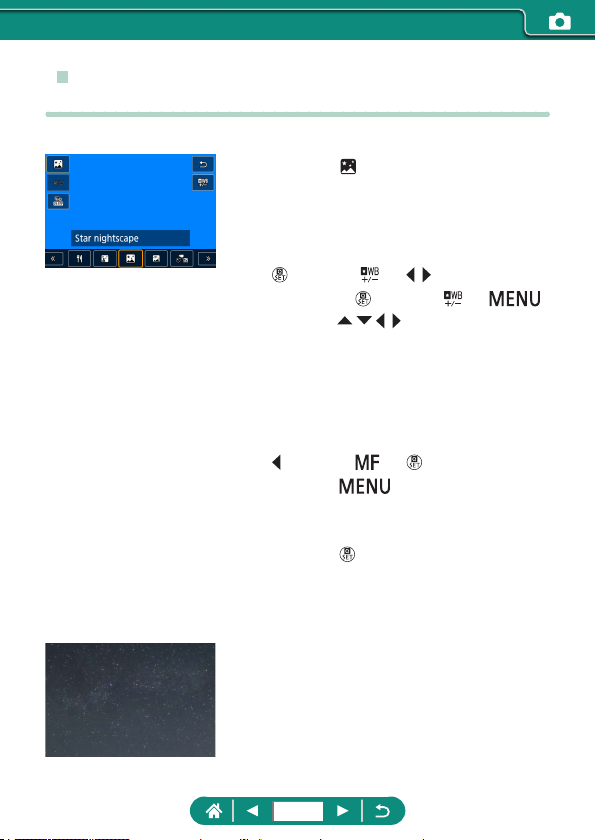
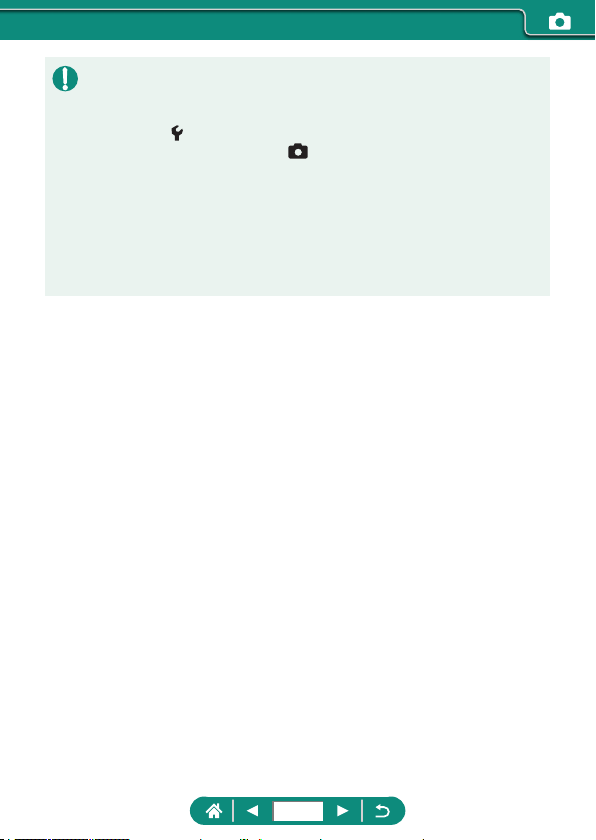
z Shooting Night Scenes under Starry Skies
(Star Nightscape Mode)
Capture impressive shots of starry skies above night scenes.
1
Choose [ ].
z Zoom is set to maximum wide angle and
cannot be adjusted.
Adjusting colors
z button → [ ] → / buttons
z Fine-tuning: button → [ ] →
button →
/ / / buttons
2
Secure the camera.
z Mount the camera on a tripod or take
other measures to keep it still.
Adjusting the focus
z button → [ ] → button
z Press the button, and then tilt the
camera so that the stars to capture are
inside the frame displayed.
z Press the
button to start adjustment.
z Adjustment may take some time, so do
not move the camera until a message
indicates that adjustment is complete.
3
Shoot.
72
z There will be a delay before you can shoot again, as the camera
processes the images.
z B: blue; A: amber; M: magenta; G: green
z Try setting
[Night display] to [On] in this mode.
z To make stars brighter, choose
[Star emphasis] → [Sharp]. To
emphasize the bright stars in a starry sky, set to [Soft]. This setting can
produce eye-catching shots by enlarging bright stars while de-emphasizing
dimmer stars. To disable starlight processing, select [O]. Note that in
bright scenes, images are not processed to emphasize stars, even when
set to [Sharp] or [Soft].
z Try switching to manual focus mode to more accurately specify the focal
position before shooting.
73
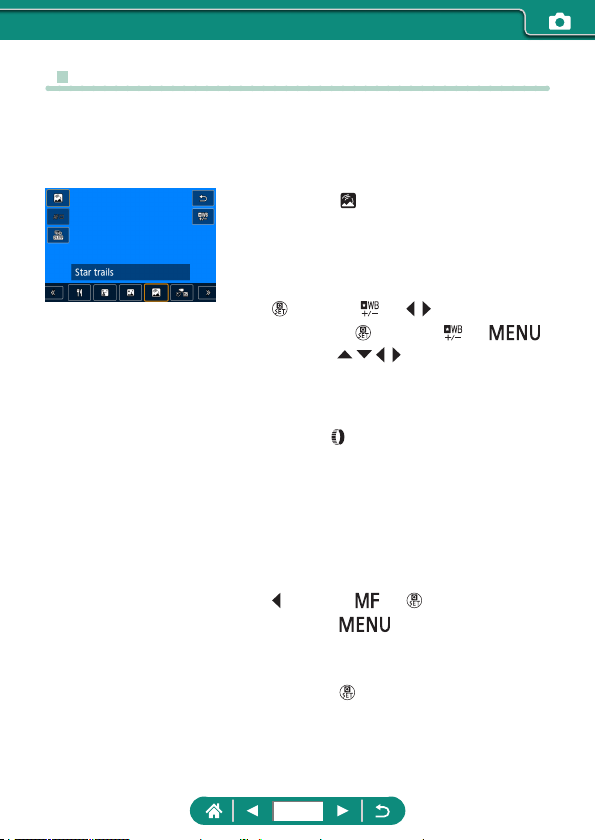
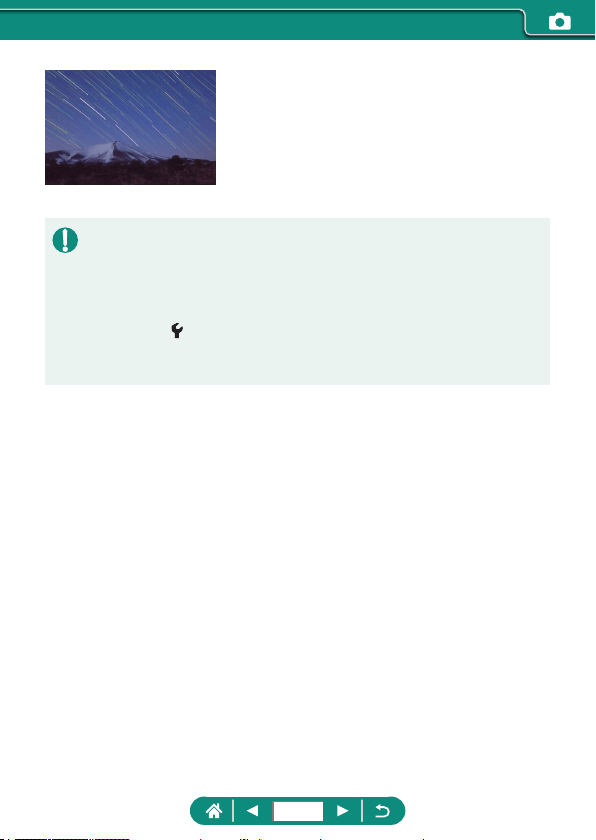
z Shooting Star Trails (Star Trails Mode)
Streaks created by the movement of stars through the sky are recorded in a
single image. After determining the shutter speed and number of shots, the
camera shoots continuously. A shooting session can last up to about two
hours. Check the battery level in advance.
1
Choose [ ].
z Zoom is set to maximum wide angle and
cannot be adjusted.
Adjusting colors
z button → [ ] → / buttons
z Fine-tuning: button → [ ] →
button →
/ / / buttons
2
Specify the duration of the shooting
session.
z Turn the ring to choose the shooting
duration.
3
Secure the camera.
z Mount the camera on a tripod or take
other measures to keep it still.
Adjusting the focus
z button → [ ] → button
z Press the button, and then tilt the
camera so that the stars to capture are
inside the frame displayed.
z Press the
button to start adjustment.
z Adjustment may take some time, so do
not move the camera until a message
indicates that adjustment is complete.
74
4
Shoot.
z Do not disturb the camera while shooting.
z To cancel shooting, press the shutter
button all the way down again. Note that
cancellation may take up to about 30
seconds.
z If the camera runs out of battery power, shooting stops and a composite
image created from the images up to that point is saved.
z There will be a delay before you can shoot again, as the camera
processes the images.
z B: blue; A: amber; M: magenta; G: green
z Try setting
[Night display] to [On] in this mode.
z Try switching to manual focus mode to more accurately specify the focal
position before shooting.
75
z Recording Movies of Star Movement (Star
Time-Lapse Movie Mode)
By recording a time-lapse movie that combines images shot at a specied
interval, you can create movies with fast-moving stars. You can adjust the
shooting interval and recording duration as needed.
Note that each session takes time, and requires many shots. Check the
battery level and memory card space in advance.
1
Choose [ ].
z Zoom is set to maximum wide angle and
cannot be adjusted.
Adjusting colors
z button → [ ] → / buttons
z Fine-tuning: button → [ ] →
button →
/ / / buttons
2
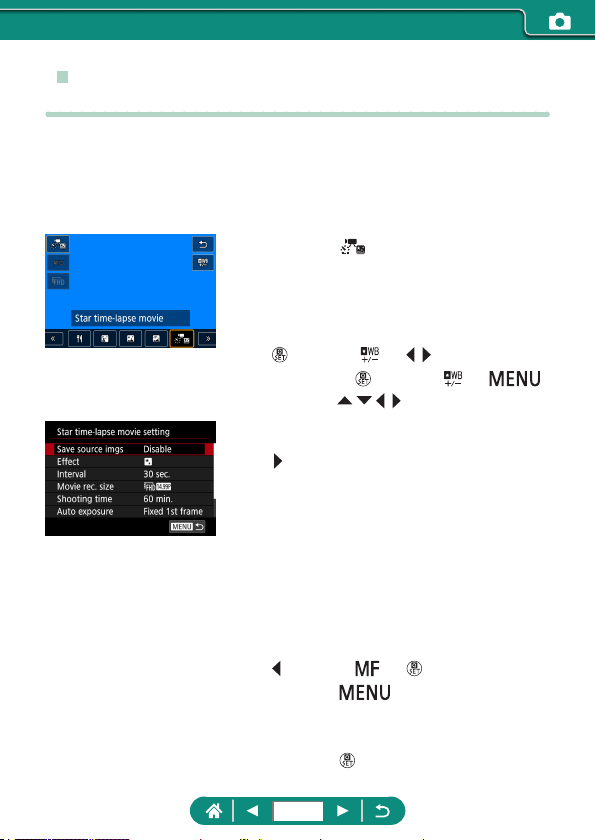
Configure movie settings.
z button → choose an item → choose
an option
3
Secure the camera.
z Mount the camera on a tripod or take
other measures to keep it still.
Adjusting the focus
z button → [ ] → button
z Press the button, and then tilt the
camera so that the stars to capture are
inside the frame displayed.
z Press the
button to start adjustment.
76
z Adjustment may take some time, so do
not move the camera until a message
indicates that adjustment is complete.
4
Check the brightness.
z Press the shutter button all the way down
to capture a single image.
z Switch to playback and check image
brightness.
z To adjust brightness, on the shooting
screen, turn the exposure compensation
dial to change the exposure level, and
then shoot again.
5
Start recording.
z Movie recording button → press the
shutter button all the way down
z Do not disturb the camera while
recording.
z No image is shown on the camera during
recording.
z To cancel recording, press the shutter
button or the movie recording button
again. Note that cancellation may take up
to about 30 seconds.
77
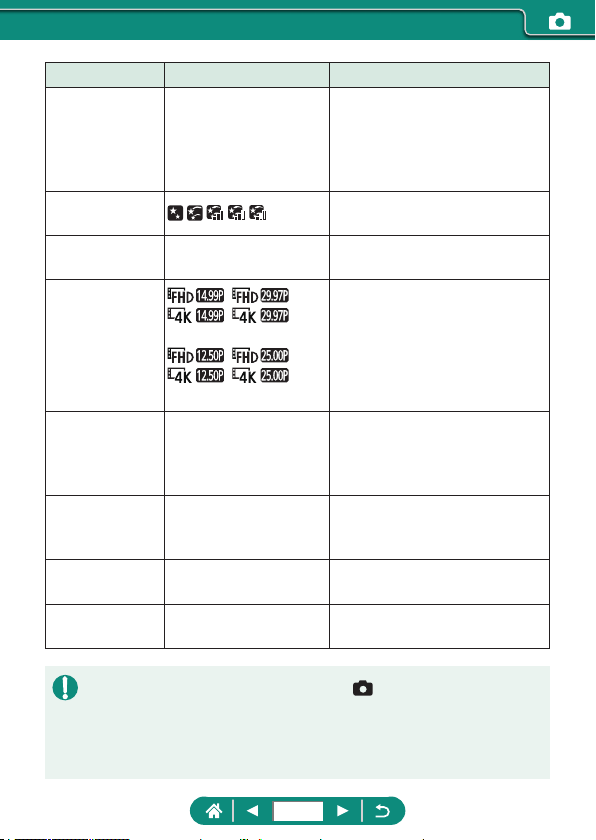
Items Options Details
Save source
imgs
Disable/Enable
You can choose to save each
shot collected before the movie
is created. Note that when
[Enable] is selected, [Eect] is
not available.
Eect
Choose movie eects, such as
star trails.
Interval 15 sec., 30 sec., 1 min.
Choose the interval between
each shot.
Movie rec. size
, ,
,
(NTSC)
, ,
,
(PAL)
Choose the movie recording
size.
Shooting time
60 min./90 min./120
min./Unlimited
Choose the length of the
recording session. To record
until the battery runs out,
choose [Unlimited].
Auto exposure
Fixed 1st frame/Each
frame
Choose whether exposure is
determined by the rst shot or
updated for each shot.
Remote control Disable/Enable
Choose whether to shoot with a
wireless remote control.
Beep as img
taken
Enable/Disable
Choose whether the camera
beeps for each shot.
z
You can also congure this setting by choosing [Star time-lapse movie setting].
z Using USB Power Adapter PD-E1 (sold separately) enables you to shoot
without worrying about the remaining battery level.
z Even if you specify [Unlimited] in [Shooting time], recording stops after
about 8 hours, at most.
78
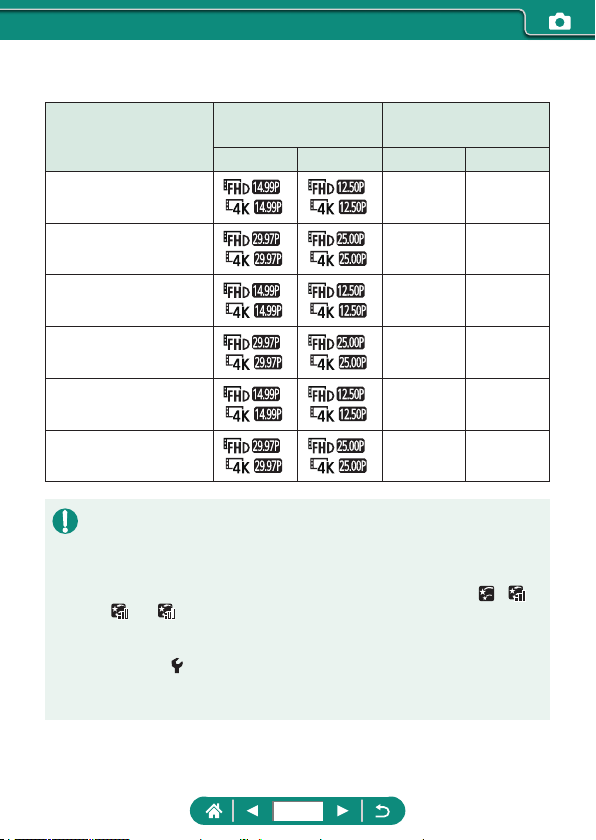
Estimated playback time based on shooting interval and frame rate (for a
one-hour session)
Shot Interval
Movie Recording Size
Playback Time
(Approx.)
NTSC PAL NTSC PAL
15 sec.
, ,
16 sec. 19.2 sec.
15 sec.
, ,
8 sec. 9.6 sec.
30 sec.
, ,
8 sec. 9.6 sec.
30 sec.
, ,
4 sec. 4.8 sec.
1 min.
, ,
4 sec. 4.8 sec.
1 min.
, ,
2 sec. 2.4 sec.
z If the camera runs out of battery power or memory card space, shooting
stops and a movie created from the images up to that point is saved.
z There will be a delay before you can shoot again, as the camera
processes the images.
z A shooting interval of [1 min.] is not available with these eects: [
], [ ],
[
], or [ ].
z B: blue; A: amber; M: magenta; G: green
z Sound is not recorded.
z Try setting
[Night display] to [On] in this mode.
z Try switching to manual focus mode to more accurately specify the focal
position before shooting.
79
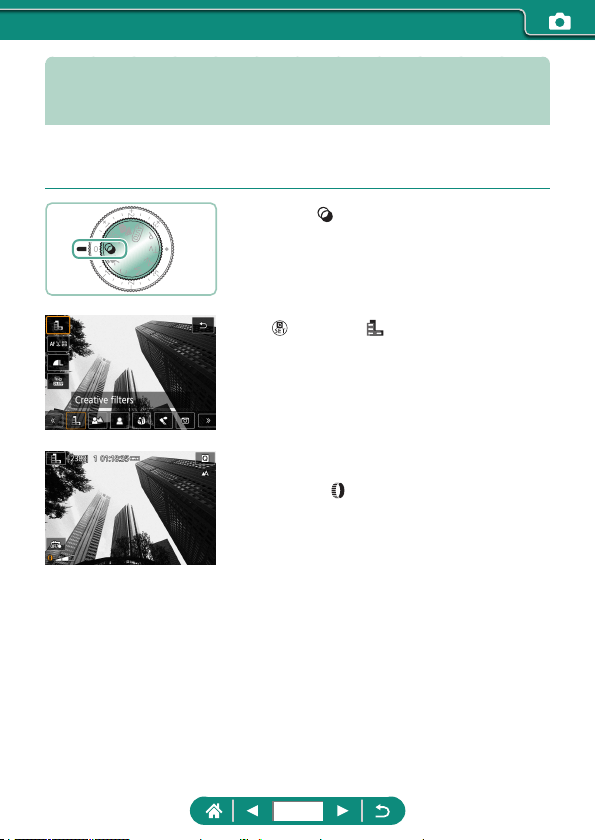
Shooting with Image Effects (Creative
Filters Mode)
Add a variety of eects to images when shooting. Try taking some test
shots rst to make sure you obtain the desired results.
1
Enter mode.
2
button → [ ] → choose an option
3
Choose an effect level.
z Turn the ring to set the level.
4
Shoot.
80
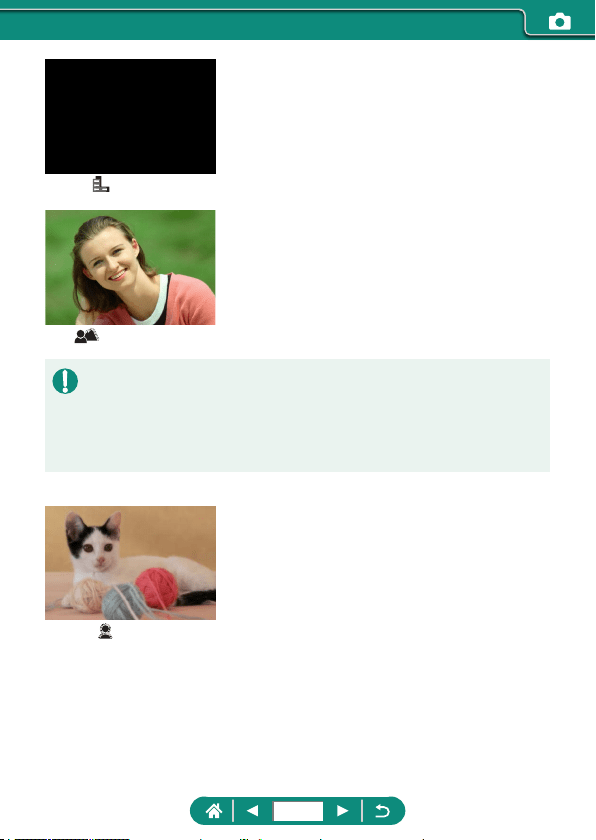
Grainy B/W
Take black and white shots with a rough, gritty
feeling.
Background blur
You can shoot subjects so that they stand out
from the background.
z Excessive motion blur or certain shooting conditions may prevent you from
obtaining the desired results.
z For the best results with background defocusing, try shooting close to the
subject, and ensure ample distance between the subject and background.
z There may be a delay after shooting before you can shoot again.
Soft focus
Shoot with a simulated soft focus lter eect, for
a gentle ambiance.
81
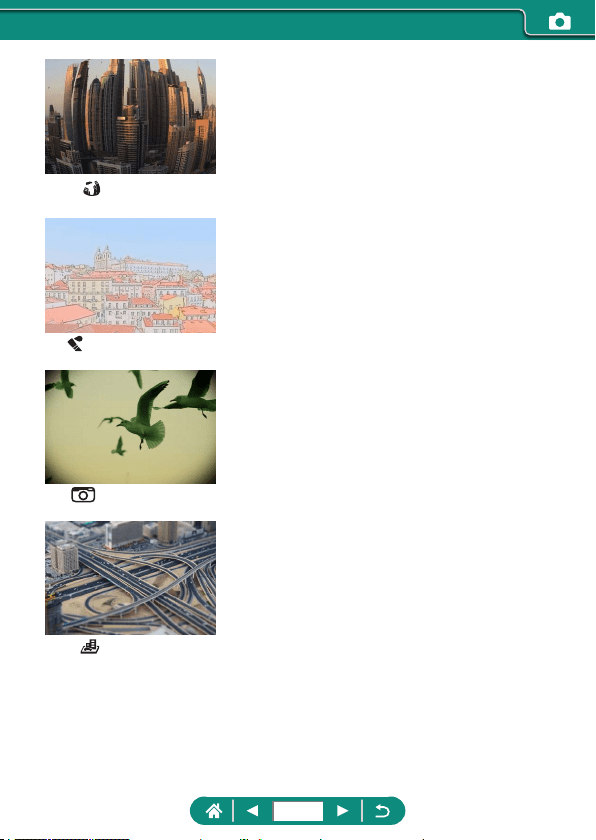
Fish-eye eect
Shoot with the distorting eect of a sh-eye lens.
Water painting eect
Soften colors, for photos resembling watercolor
paintings.
Toy camera eect
Shoot images that resemble shots from a toy
camera, with vignetting and dierent color
overall.
Miniature eect
Create the eect of a miniature model, by
blurring image areas outside a selected area.
82
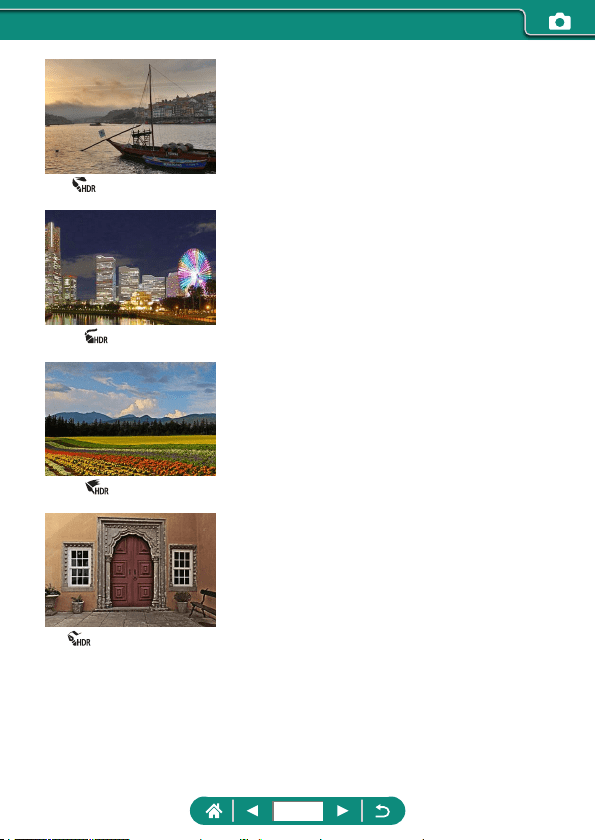
HDR art standard
Add an eect to make shots resemble low-
contrast paintings with at tones.
HDR art vivid
Add an eect to make shots resemble vivid
illustrations.
HDR art bold
Add an eect to make shots resemble oil
paintings, with bold edges.
HDR art embossed
Add an eect to make shots resemble faded old
photos, with bold edges and dark ambiance.
83
HDR Art Standard, HDR Art Vivid, HDR Art Bold, and HDR
Art Embossed
z This mode can reduce the washed-out highlights and loss of detail in
shadows that tend to occur in high-contrast shots.
z When you press the shutter button all the way down, the camera will take
three shots and combine them. Hold the camera steady as you shoot.
z Excessive motion blur or certain shooting conditions may prevent you from
obtaining the desired results.
z If excessive camera shake interferes with shooting, mount the camera on
a tripod or take other measures to keep it still. In this case, also disable
image stabilization.
z There will be a delay before you can shoot again, as the camera
processes and combines the images.
Art Bold Eect
z [ ] is not available in mode (but available in mode).
84
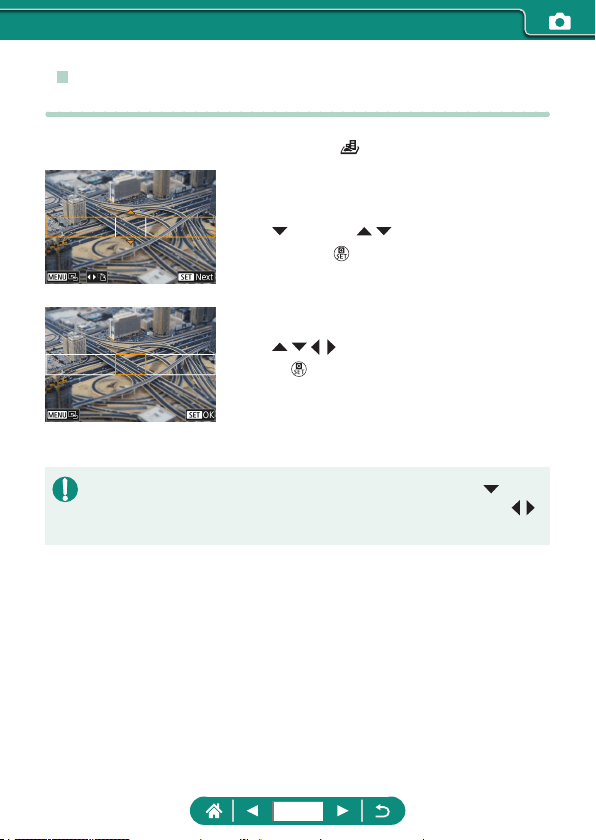
z Shots Resembling Miniature Models (Miniature
Effect)
1
Choose [ ].
2
Set the area to keep in focus (scene
frame).
z button → / buttons to move the
frame →
button
3
Set the position in focus (AF point).
z / / / buttons to move the AF point
→
button
4
Shoot.
z The frame in horizontal orientation displayed when you press the
button in step 2 can be changed to vertical orientation by pressing the
/
buttons.
85
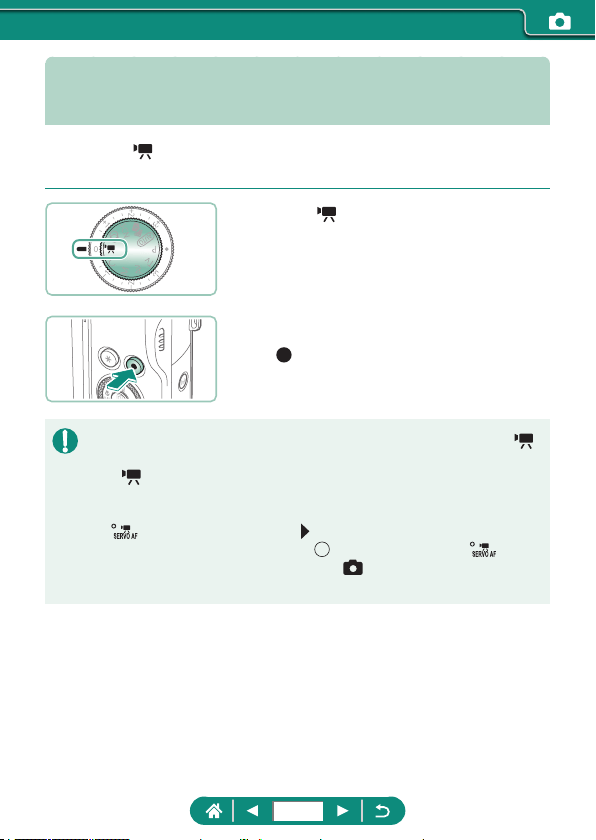
Recording a Variety of Movies (Movie
Mode)
Full-featured mode oers miniature eect movies (
=
166), video
snapshots (
=
168), time-lapse movies (
=
170), and more.
1
Enter mode.
2
Start recording.
z [ REC] is displayed during recording.
z To stop movie recording, press the movie
recording button again.
z Black bars are displayed on the top and bottom edges of the screen in
mode. The black bars indicate image areas not recorded.
z In
mode, the image display area narrows and subjects are enlarged.
z Exposure can be adjusted by turning the exposure compensation dial.
z To switch between recording with auto focus and a xed focus, touch
[
] on the screen or press the button before or during recording.
(Auto focus is indicated by a green [
] in the upper left of the [ ] icon.)
Note that this icon is not displayed when
[Movie Servo AF] is set to
[Disable].
86
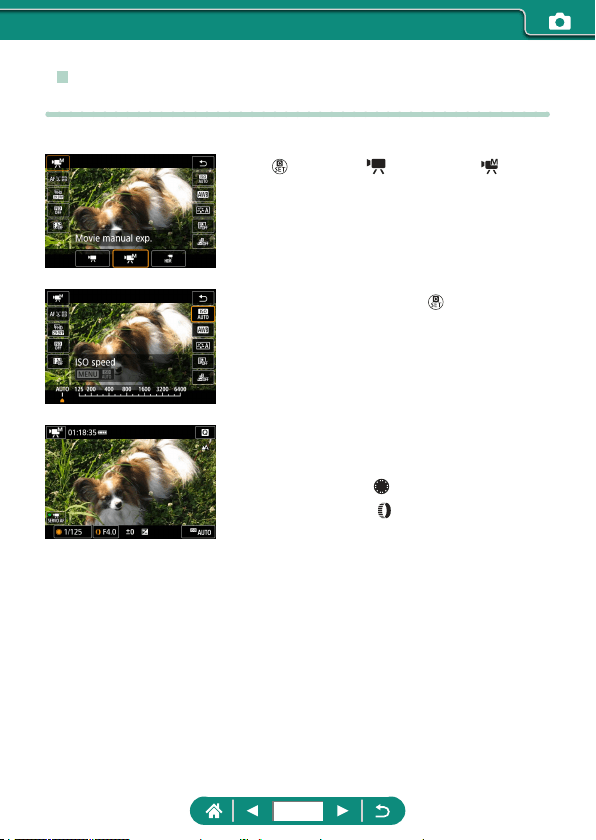
z Recording Movies at Specific Shutter Speeds
and Aperture Values (Movie Manual Exposure)
Set the shutter speed, aperture value, and ISO speed before recording.
1
button → [ ] → choose [ ]
2
Set the ISO speed → button
3
Set the shutter speed and aperture
value.
z Shutter speed: dial
z Aperture value: ring
4
Start recording.
87

z Some shutter speeds may cause ickering on the screen when recording
under uorescent or LED lighting, which may be recorded.
z When the ISO speed is xed, you can compare your specied value
(where the exposure level indicator moves) to the standard exposure
level by pressing the shutter button halfway. The exposure level indicator
appears as [
] or [ ] when the dierence from standard exposure
exceeds 3 stops.
z You can check the ISO speed in [AUTO] mode by pressing the shutter
button halfway. If standard exposure cannot be obtained with your
specied shutter speed and aperture value, the exposure level indicator
shows the dierence from standard exposure. The exposure level indicator
appears as [
] or [ ] when the dierence from standard exposure
exceeds 3 stops.
z Recording HDR Movies
You can record high dynamic range movies that retain detail in highlights of
high-contrast scenes.
1
button → [ ] → choose [ ]
2
Start recording.
88
Shooting in Program AE (P Mode)
Shutter speed and aperture value are automatically adjusted to suit subject
brightness.
mode oers exibility in setting AF operation, metering modes, and
several other features.
1
Enter mode.
2
Configure each feature as needed.
3
Shoot.
z : Program AE; AE: Auto Exposure
z If standard exposure cannot be obtained when you press the shutter
button halfway, the shutter speed and aperture value blink in white. In this
case, try adjusting the ISO speed or activating the ash (if subjects are
dark), which may enable standard exposure.
z Movies can be recorded in
mode as well, by pressing the movie
recording button. However, some items on Quick Control and Menu
screens may be automatically adjusted for movie recording.
z After you press the shutter button halfway, you can adjust the combination
of shutter speed and aperture value by turning the
ring (Program Shift).
89
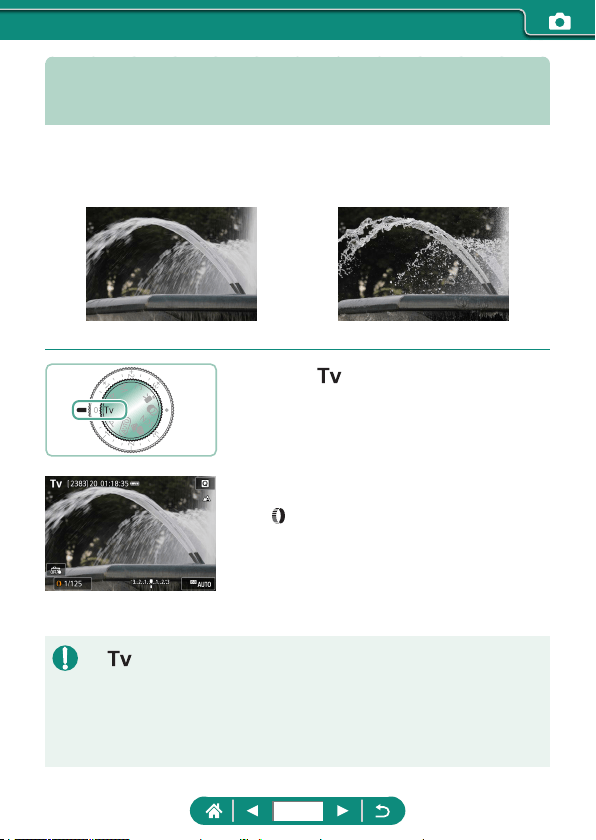
Shooting at Specific Shutter Speeds
(Tv Mode)
Set the shutter speed before shooting. The camera automatically adjusts
the aperture value to suit your shutter speed.
Slow Fast
1
Enter mode.
2
Set the shutter speed.
z ring
3
Shoot.
z : Time value
z We recommend deactivating image stabilization when shooting at slow
shutter speeds on a tripod.
z Blinking display of the aperture value when you press the shutter button
halfway indicates that the standard exposure has not been obtained.
Adjust the shutter speed until the aperture value stops blinking.
90
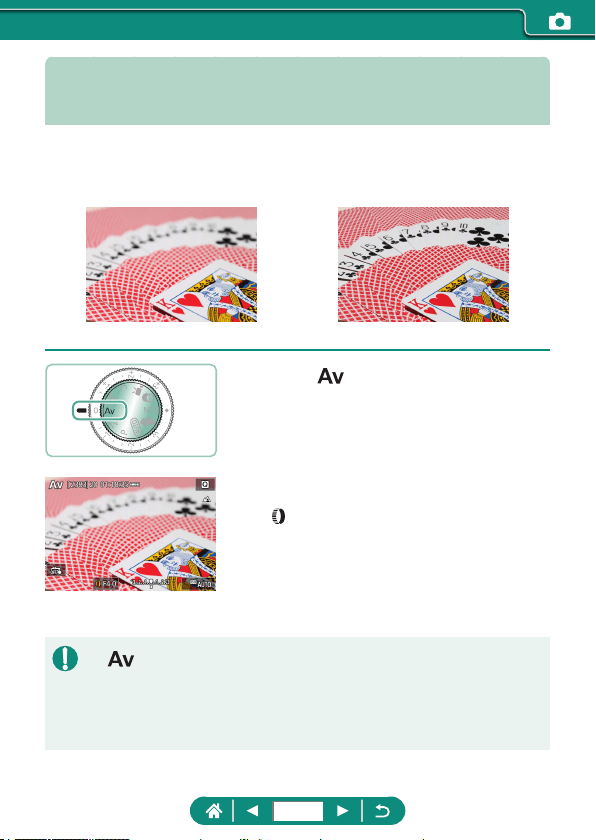
Shooting at Specific Aperture Values
(Av Mode)
Set the aperture value before shooting. The camera automatically adjusts
the shutter speed to suit your aperture value.
Small value Large value
1
Enter mode.
2
Set the aperture value.
z ring
3
Shoot.
z : Aperture value (size of the opening made by the diaphragm in the
lens)
z Blinking display of the shutter speed when you press the shutter button
halfway indicates that the standard exposure has not been obtained.
Adjust the aperture value until the shutter speed stops blinking.
91
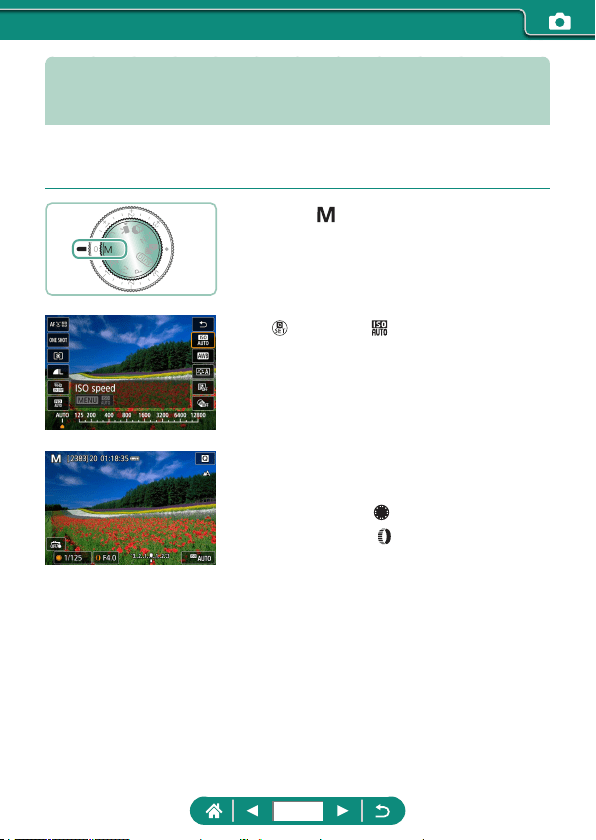
Shooting at Specific Shutter Speeds
and Aperture Values (M Mode)
Set the shutter speed and aperture value before shooting to obtain the
desired exposure.
1
Enter mode.
2
button → [ ] → set the ISO
speed
3
Set the shutter speed and aperture
value.
z Shutter speed: dial
z Aperture value: ring
4
Shoot.
92
z : Manual
z When the ISO speed is xed, you can compare your specied value
(where the exposure level indicator moves) to the standard exposure
level by pressing the shutter button halfway. The exposure level indicator
appears as [
] or [ ] when the dierence from standard exposure
exceeds 3 stops.
z After you set the shutter speed and aperture value, the exposure level
indicator may change if you adjust the zoom or recompose the shot.
z When the ISO speed is xed, screen brightness may change depending
on your specied shutter speed and aperture value. However, screen
brightness remains the same when the ash is up and the mode is set to
[
].
z Exposure may not be as expected when the ISO speed is set to [AUTO],
because the ISO speed is adjusted to ensure standard exposure relative to
your specied shutter speed and aperture value.
z Image brightness may be aected by Auto Lighting Optimizer. To keep the
Auto Lighting Optimizer disabled in
mode, add a [ ] mark to [Disable
during man expo] on the Auto Lighting Optimizer setting screen.
z Calculation of standard exposure is based on the specied metering
method.
z To adjust exposure when ISO speed is set to [AUTO], turn the exposure
compensation dial.
93
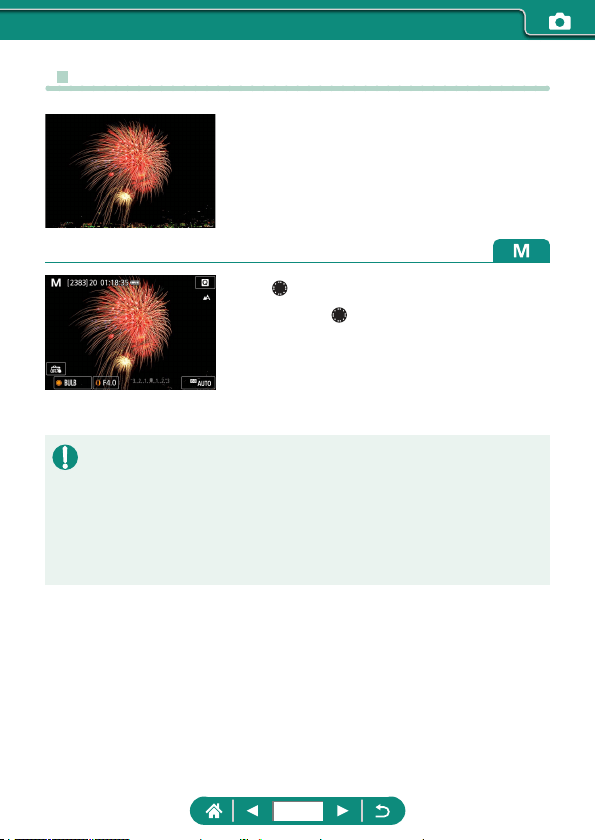
z Shooting Long Exposures (Bulb)
With bulb exposures, shots are exposed for as
long as you hold down the shutter button.
1
dial → [BULB]
z Turn the dial counterclockwise. [BULB]
is after 30 seconds of arc.
2
Shoot.
z Shots are exposed for as long as you hold the shutter button all the way
down. The elapsed exposure time is displayed during exposure.
z Mount the camera on a tripod or take other measures to keep it still and
prevent camera shake. In this case, also disable image stabilization.
z When [Touch Shutter] is set to [Enable], shooting is started by touching the
screen once and stopped by touching it again. Be careful not to move the
camera when touching the screen.
94
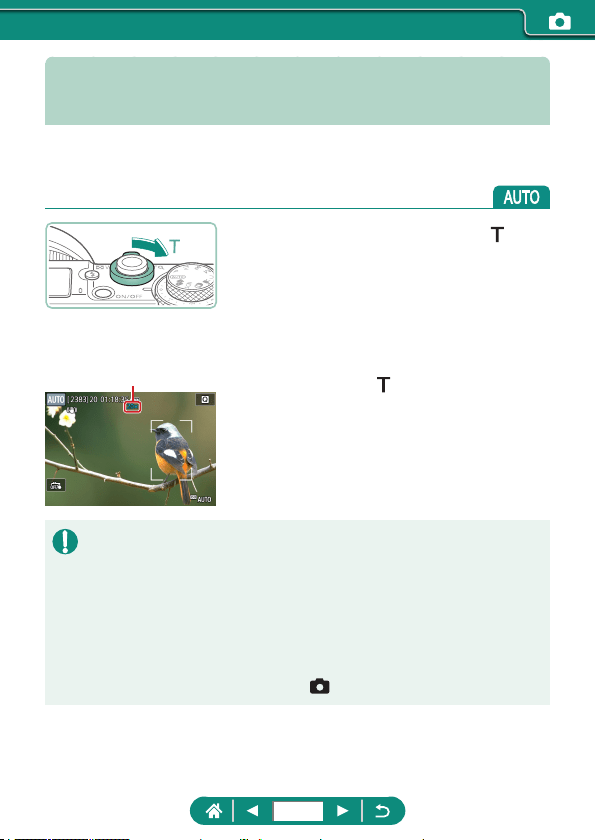
Zooming In Closer on Subjects
(Digital Zoom)
When distant subjects are too far away to enlarge using the optical zoom,
use digital zoom for up to about 20x enlargement.
1
Move the zoom lever toward .
z Press and hold the lever.
z Zooming stops at the largest zoom factor
before the image becomes noticeably
grainy, which is then indicated on the
screen.
2
Press toward again.
z The camera zooms in even closer on the
subject.
z (1) is the current zoom factor.
z Using the zoom lever will show the current position on the zoom bar. The
zoom bar is color-coded to indicate the zoom range.
- White range: optical zoom range where the image will not appear grainy.
- Yellow range: digital zoom range where the image is not noticeably
grainy (ZoomPlus).
- Blue range: digital zoom range where the image will appear grainy.
z No blue range is displayed under certain pixel count settings, and you can
zoom in to the maximum level in one zoom operation.
z To deactivate digital zoom, choose
[Digital zoom] → [O].
(1)
95
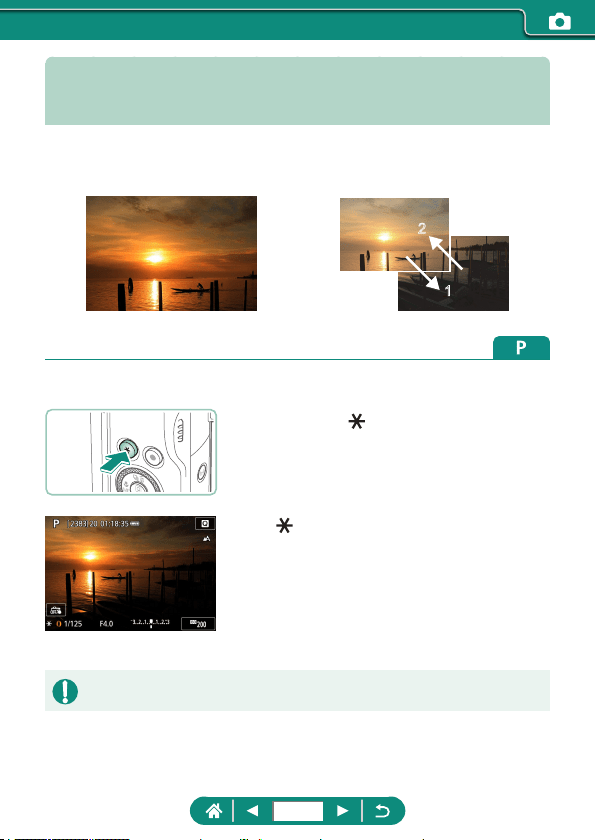
Locking Image Brightness / Exposure
(AE Lock)
Exposure can be locked when shooting stills and recording movies, or focus
and exposure can be set separately.
2
1
Without AE lock AE lock
1
Aim at a subject for fixed exposure.
2
Press the button.
z [ ] is displayed, and the exposure is
locked.
z To unlock it, press the button again.
3
Compose the shot and shoot.
z AE: Auto Exposure
96
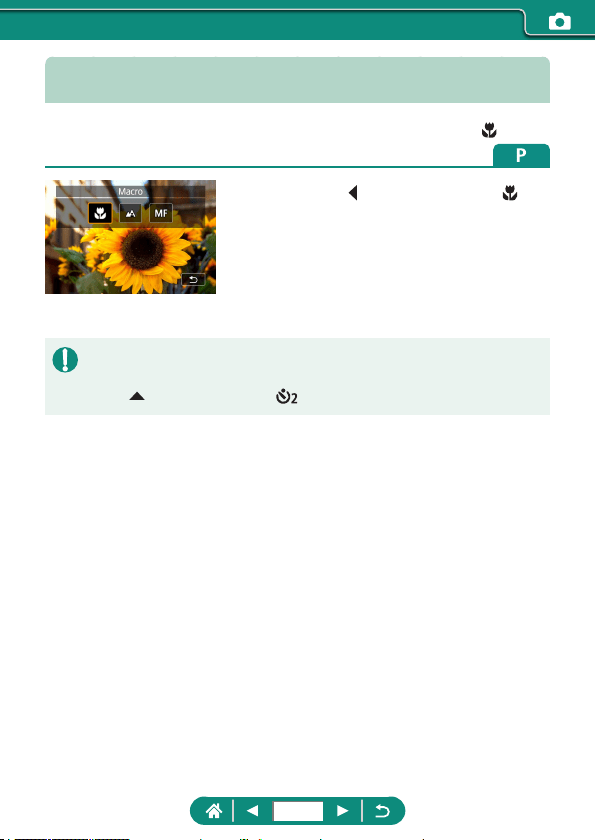
Shooting Close-Ups (Macro)
To restrict the focus to subjects at close range, set the camera to [ ].
1
Press the button to choose [ ].
2
Shoot.
z If the ash res, vignetting may occur.
z To prevent camera shake, try mounting the camera on a tripod, pressing
the
button, and choosing [ ] before shooting.
97
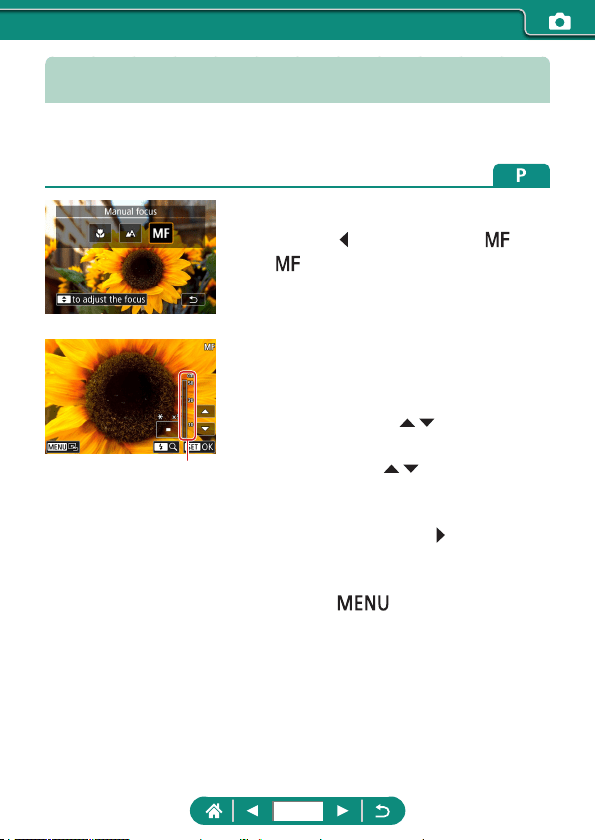
Shooting in Manual Focus Mode
When focusing is not possible in AF mode, use manual focus. To make
focusing easier, magnify the display.
1
Set the camera to manual focus.
z Press the button and choose [ ].
z [ ] and the MF indicator are displayed.
2
Focus.
z Using the MF indicator (1, which shows
distance and focal position) as a guide,
press and hold the
/ buttons to
specify the general focal position.
z Briey press the
/ buttons to ne-
tune the focal position as you watch
the magnied display. To adjust the
magnication, press the
button.
z You can move the magnied display area
by dragging it. To return it to the center,
press the
button.
3
Shoot.
(1)
98
z To focus more accurately, try attaching the camera to a tripod to stabilize it.
z You can start manual focus with magnied display (MF-point zoom).
z Press the shutter button halfway to have the camera ne-tune the focal
position (Safety MF).
z Magnied display in step 2 is not available during RAW burst shooting.
99
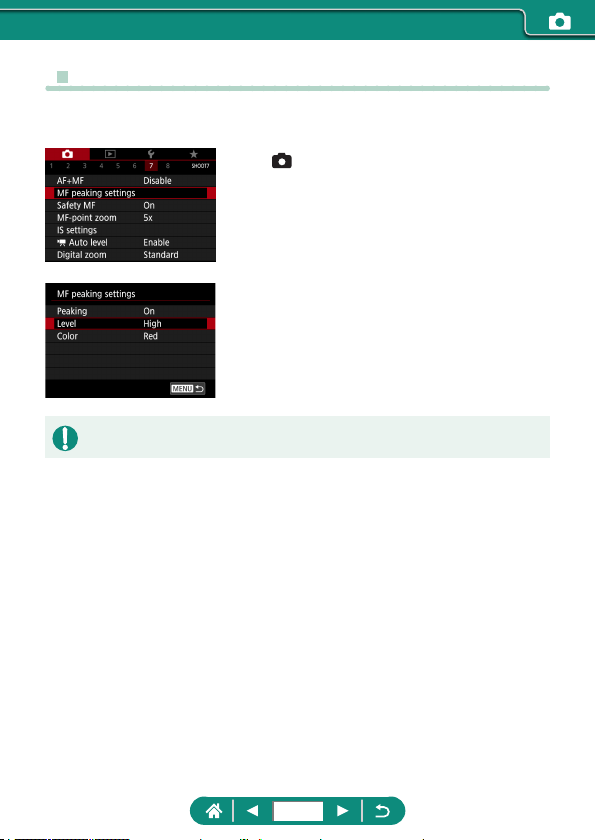
z Easily Identifying the Focus Area (MF Peaking)
Edges of subjects in focus are displayed in color to make manual focusing
easier. You can adjust the color and display level.
1
[MF peaking settings] →
[Peaking] → [On]
2
Configure the settings.
z Colors displayed for MF peaking are not recorded in your shots.
100
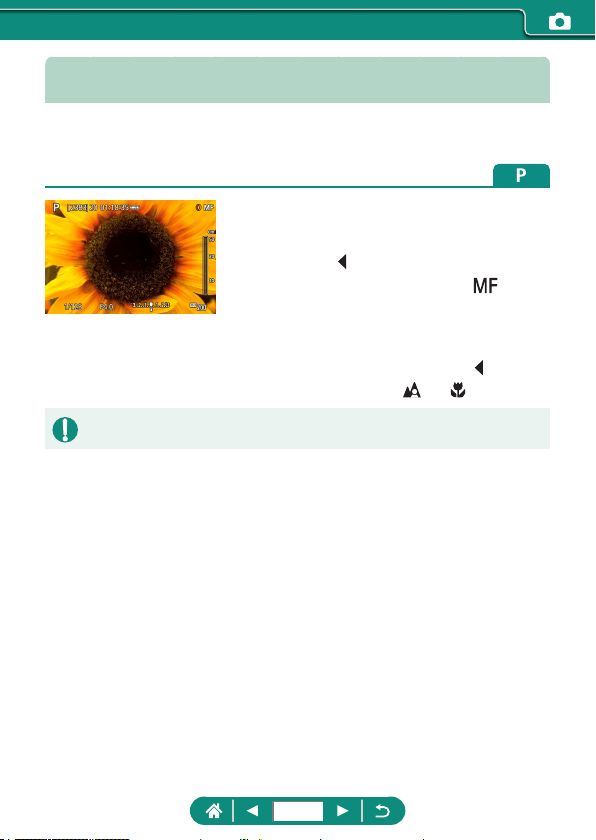
Shooting with AF Lock
The focus can be locked. After you lock the focus, the focal position will not
change even when you release your nger from the shutter button.
1
Lock the focus.
z With the shutter button pressed halfway,
press the
button.
z The focus is now locked, and [ ] and
the MF indicator are displayed.
2
Compose the shot and shoot.
z To unlock the focus, press the button
again, and choose [
] or [ ].
z AF Lock is not available when set to Servo AF (
=
148).
101
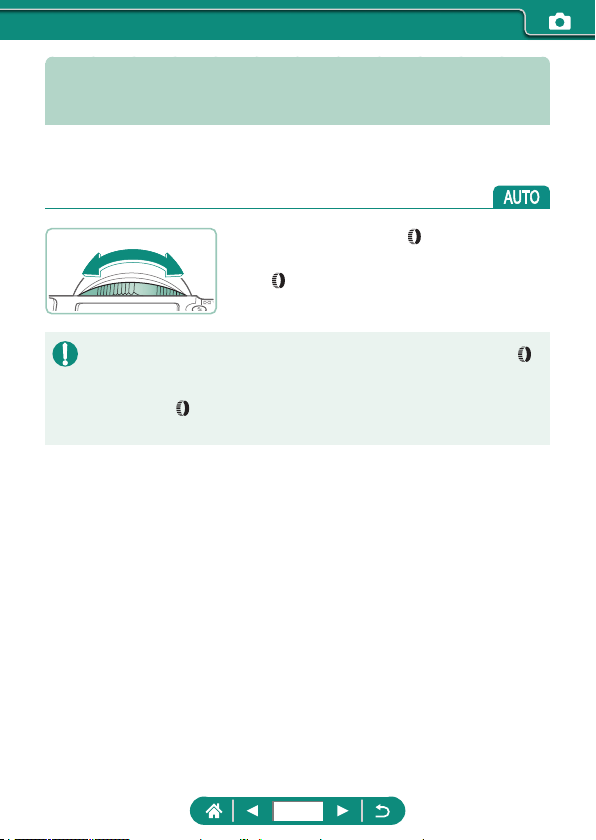
Shooting at Preset Focal Lengths
(Step Zoom)
Shoot at common focal lengths in a range of 24 – 120 mm (35mm lm
equivalent).
z To zoom in, turn the ring
counterclockwise. To zoom out, turn the
ring clockwise.
z Step zoom is not available when recording movies even if you turn the [ ]
ring.
z When you are using digital zoom, you cannot adjust the zoom factor by
turning the [
] ring counterclockwise. However, you can set the focal
length to 120 mm by turning it clockwise.
102
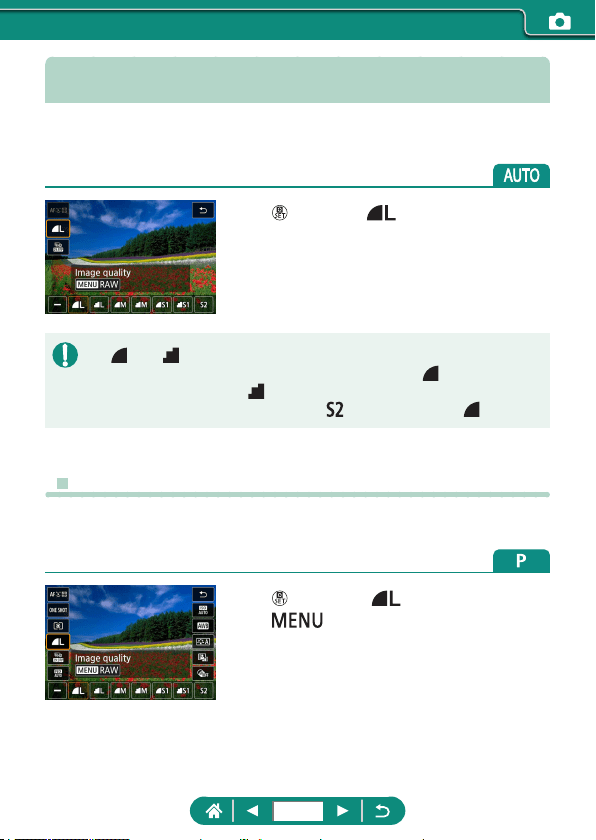
Changing Image Quality
Choose from 7 combinations of size (number of pixels) and compression
(image quality). Also specify whether to capture images in RAW format.
1
button → [ ] → choose an
option
z [ ] and [ ] indicate dierent levels of image quality depending on the
extent of compression. At the same size (pixel count), [
] oers higher
image quality. Although [
] images have slightly lower image quality,
more t on a memory card. Note that [
]-size images are of [ ] quality.
z Capturing in RAW Format
The camera can capture images in JPEG and RAW format.
RAW images are “raw” data, before processing to create JPEGs.
1
button → [ ] → press the
button
103
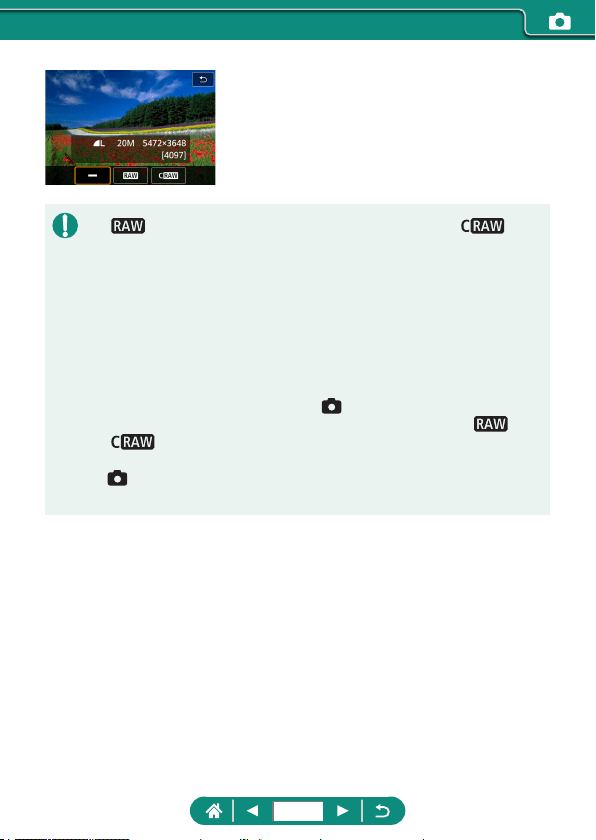
2
Choose the method of shooting in
RAW.
z [ ] produces RAW images with maximum image quality. [ ]
produces RAW images with more compact le sizes.
z RAW image data cannot be used as-is for viewing on a computer or
printing. You must rst process it on this camera or use the Canon
application Digital Photo Professional to convert images to ordinary JPEG
or TIFF les.
z Digital zoom is not available when capturing images in RAW format.
z The le extension for JPEG images is .JPG, and the extension for RAW
images is .CR3. File names of JPEG and RAW images captured together
have the same image number.
z You can also congure this setting in
[Image quality]. To capture
images in both JPEG and RAW format simultaneously, choose [
] or
[
] in [RAW].
z Only JPEG images are captured when [RAW] is set to [−] on the
[Image quality] screen, and only RAW images are captured when
[JPEG] is set to [−].
104
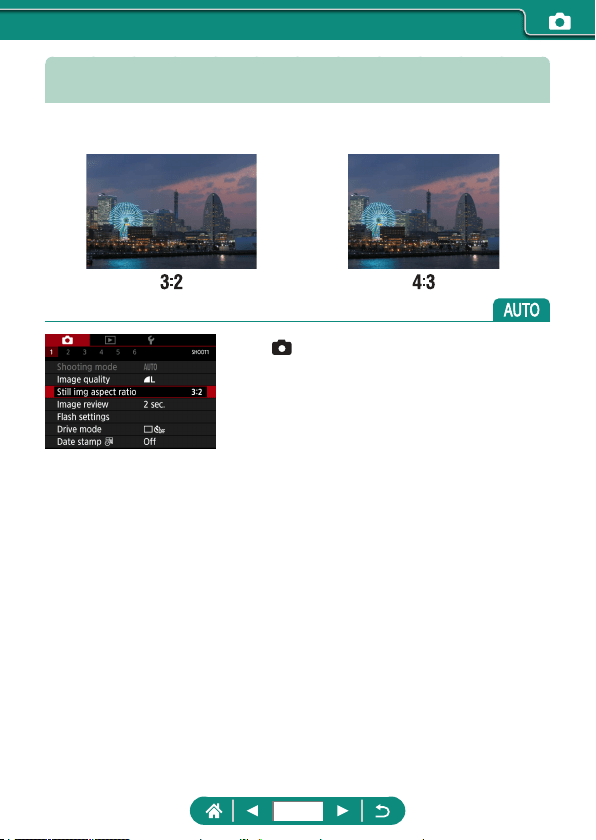
Changing the Aspect Ratio
The image aspect ratio (ratio of width to height) can be changed.
1
[Still img aspect ratio]
105
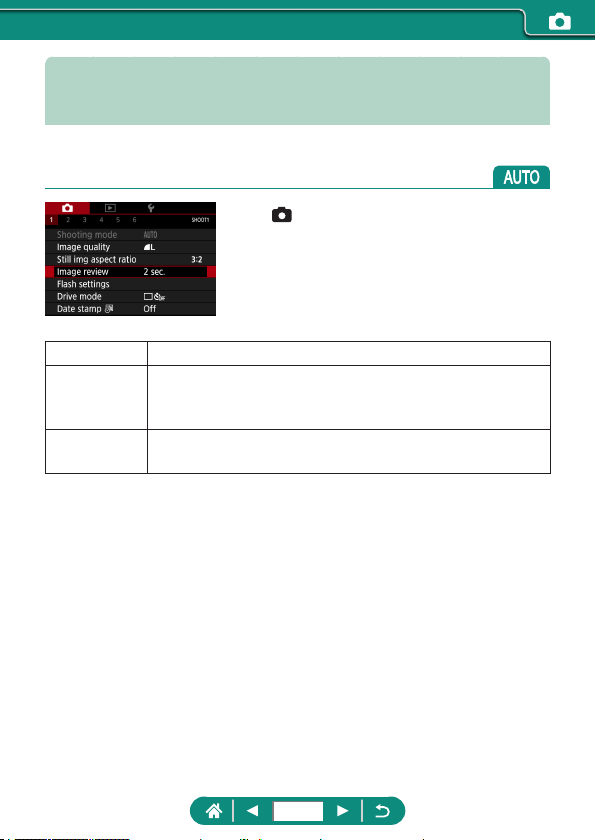
Changing the Image Display Period
after Shots
How long images are shown after shots is adjustable.
1
[Image review]
O No image display after shots.
2 sec., 4 sec.,
8 sec.
Images are displayed for the specied time. Even while
the shot is displayed, you can prepare for the next shot by
pressing the shutter button halfway again.
Hold
Images are displayed until you press the shutter button
halfway.
106
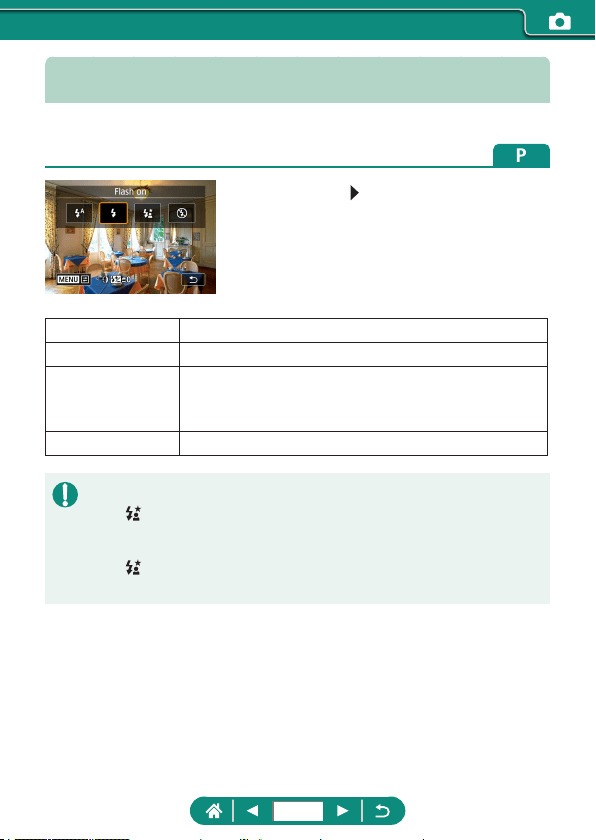
Changing the Flash Mode
You can change the ash mode to match the shooting scene.
1
Press the button to choose a flash
mode.
Auto ash Fires automatically in low-light conditions.
Flash on Fires for each shot.
Slow synchro
Fires to illuminate the main subject (such as people)
while shooting at a slower shutter speed to illuminate
backgrounds out of ash range.
Flash o For shooting without the ash.
z If the ash res, vignetting may occur.
z In [
] mode, mount the camera on a tripod or take other measures to
keep it still and prevent camera shake. Additionally, you should set [IS
mode] to [O] when using a tripod or other means to secure the camera.
z In [
] mode, even after the ash res, ensure that the main subject does
not move until the shutter sound is nished playing.
107
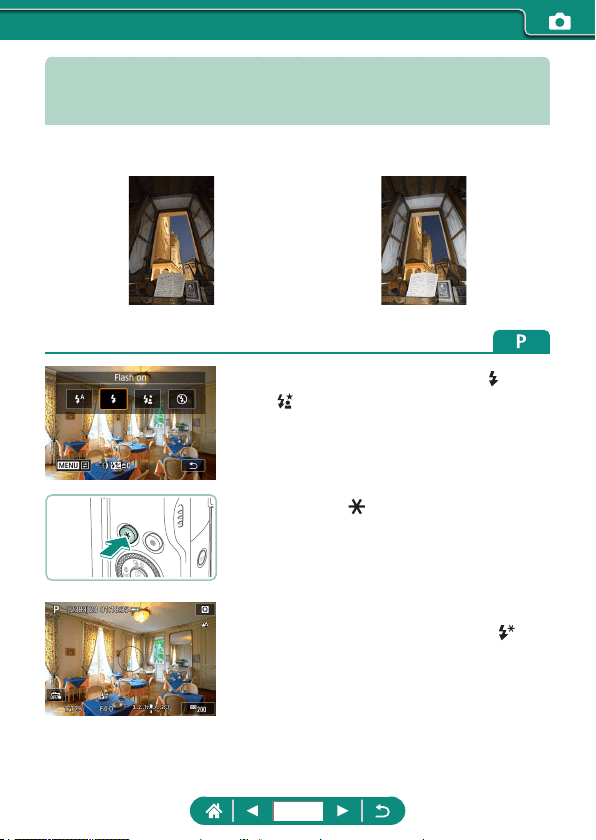
Locking Brightness / Exposure in
Flash Photography (FE Lock)
Retain the ash output level.
FE lock Without FE lock (overexposed)
1
Raise the flash and set it to [ ] or
[ ].
2
Aim at a subject for fixed exposure.
3
Press the button.
z The ash res, a circle is displayed
showing the metering range, and [
] is
displayed, indicating that the ash output
level has been retained.
4
Compose the shot and shoot.
108
z FE: Flash Exposure
z [
] blinks when standard exposure is not possible, even if you press the
button to re the ash. Enable FE lock by pressing the button when
subjects are within ash range.
109
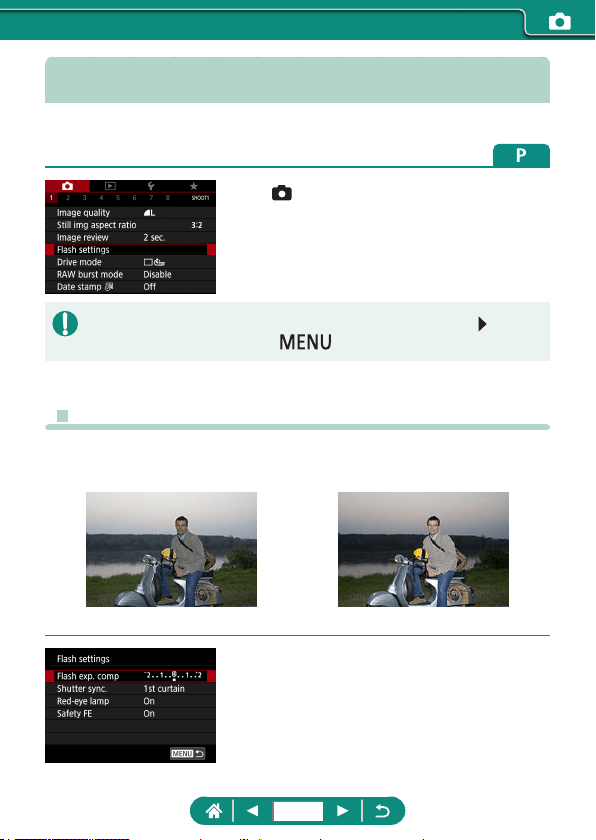
Configuring Flash Settings
Several ash settings are available.
1
[Flash settings]
z You can also access the [Flash settings] screen by pressing the button
and immediately pressing the
button.
z Adjusting Flash Exposure Compensation
You can adjust the ash exposure from –2 to +2 stops, in 1/3-stop
increments.
Set toward − Set toward +
1
[Flash exp. comp]
110
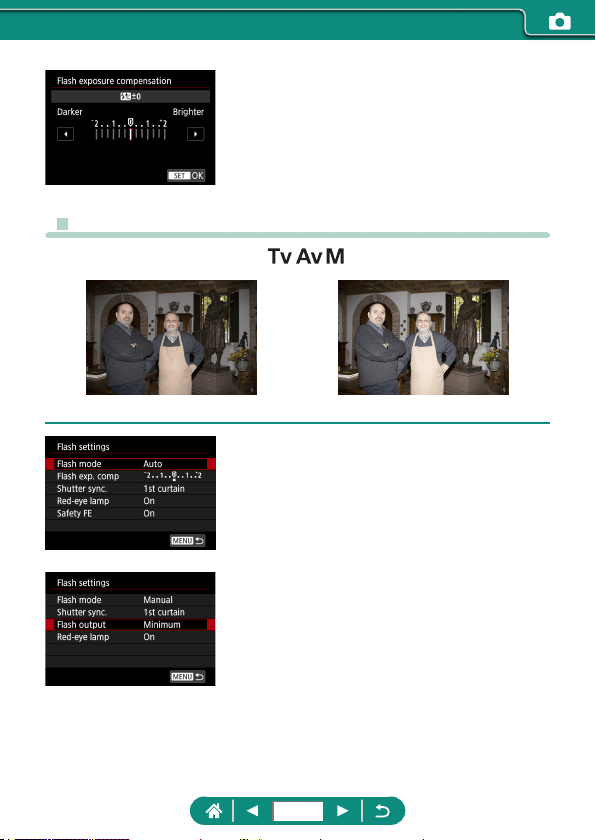
2
Set the amount of compensation.
z Adjusting Flash Output
Choose from three ash levels in / / modes.
Flash output: Minimum Flash output: Maximum
1
[Flash mode] → [Manual]
2
[Flash output]
111
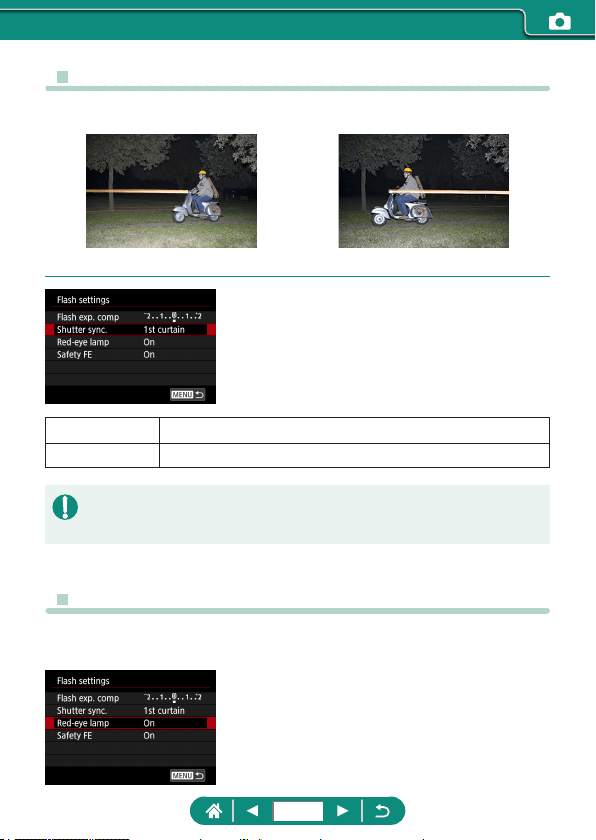
z Changing the Flash Timing
The timing of ash ring relative to shutter release is adjustable.
1st curtain 2nd curtain
1
[Shutter sync.]
1st curtain The ash res immediately after the shutter opens.
2nd curtain The ash res immediately before the shutter closes.
z [1st curtain] is used whenever the shutter speed is 1/100 or faster, even if
you select [2nd curtain].
z Reducing Red-Eye
To help prevent red-eye, the camera can illuminate the red-eye reduction
lamp before ring the ash in low-light shots.
1
[Red-eye lamp]
112
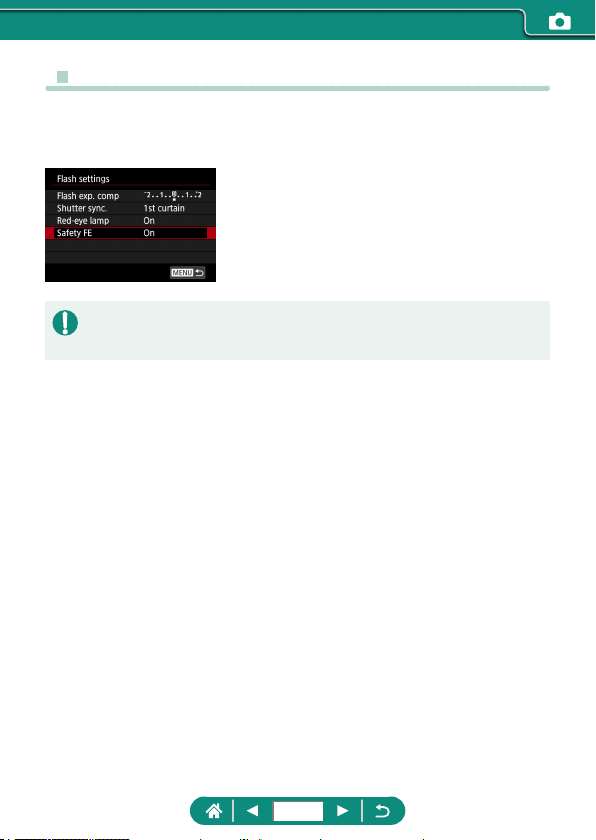
z Configuring Safety FE
To ensure suitable exposure in ash photography under unfavorable
exposure conditions, the camera can automatically adjust the shutter
speed, aperture value, and ISO speed.
1
[Safety FE]
z Shots may be captured using settings dierent from the values displayed
when you press the shutter button halfway.
113
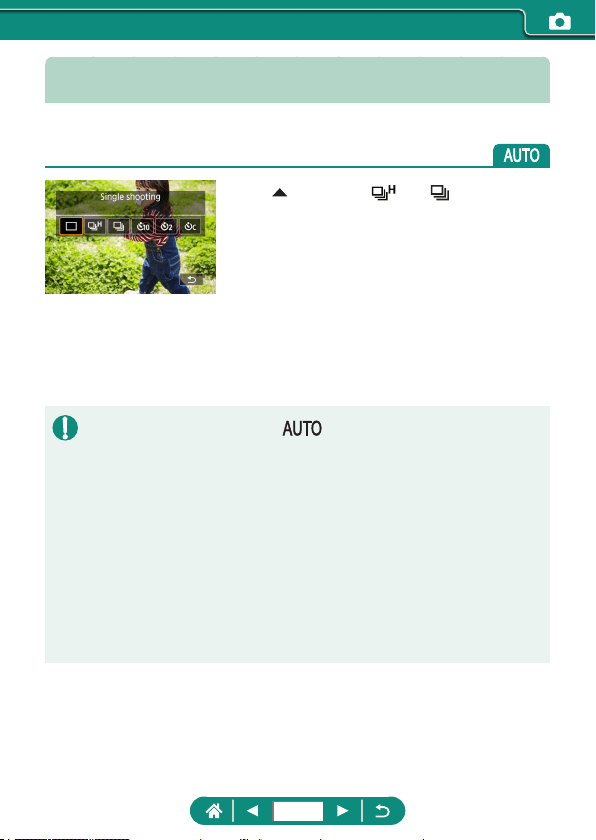
Continuous Shooting
Hold the shutter button all the way down to shoot continuously.
1
button → [ ] or [ ]
2
Shoot.
z The camera shoots continuously as long
as you hold the shutter button all the way
down.
z During continuous shooting in mode, focus is locked at the position
determined for the rst shot.
z Shooting may stop momentarily or continuous shooting may slow down
depending on shooting conditions and camera settings.
z As more shots are taken, shooting may slow down.
z There may be a delay before you can shoot again, depending on shooting
conditions, the type of memory card, and how many shots you took
continuously.
z Shooting may slow down if the ash res.
z Screen display in continuous shooting diers from the images actually
captured and may look out of focus.
z Fewer continuous shots may be available under some shooting conditions
or camera settings.
114
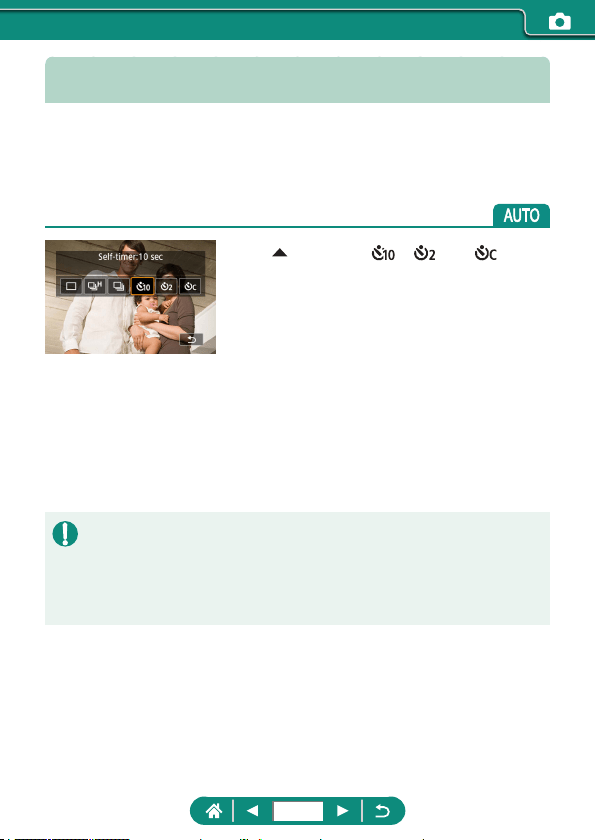
Using the Self-Timer
With the self-timer, you can include yourself in group photos or other timed
shots. The camera will shoot about 10 seconds after you press the shutter
button all the way down. By setting the timer to two seconds, you can also
avoid any camera shake from pressing the shutter button.
1
button → [ ], [ ], or [ ]
2
Shoot.
z Focus on the subject and press the
shutter button all the way down.
z Once you start the self-timer, the lamp
will blink and the camera will play a self-
timer sound.
z Even when set, the self-timer has no eect if you press the movie
recording button to start recording.
z More time is required between shots when the ash res or when you
have specied to take many shots. Shooting will stop automatically when
the memory card becomes full.
115
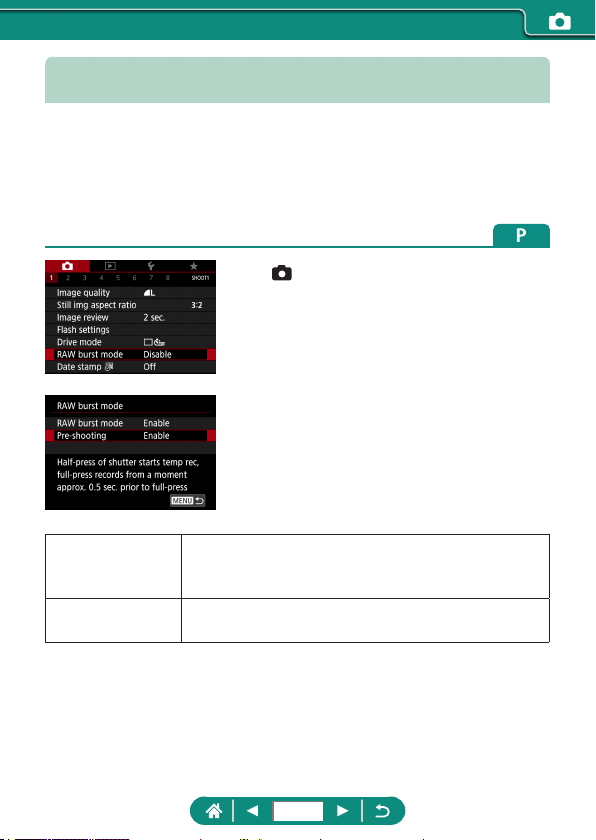
Shooting in RAW Burst Mode
This mode enables fast continuous shooting of RAW images. Useful when
you want to choose the best shot taken at exactly the right moment from
your captured images. Shots are captured as a single le (roll) with multiple
images. You can extract any image from the roll to save it separately
(
=
185).
1
[RAW burst mode] → [RAW burst
mode] → [Enable]
2
[Pre-shooting]
Enable
Shooting begins slightly before (up to approx. 0.5 sec.
before) you press the shutter button all the way down,
after you initially hold it down halfway momentarily.
Disable
Shooting begins when you press the shutter button all
the way down.
3
Shoot.
z An on-screen indicator shows buer
status.
116
z Pressing the shutter button all the way
down shoots continuously until the buer
becomes full, or until you release the
button.
z Use memory cards with enough free space (4 GB or more).
z SD Speed Class 10 or higher memory cards are recommended in RAW
burst shooting. Writing will nish faster on cards with a fast write speed.
z RAW burst shooting is not available when the battery level indicator is
blinking.
z Images may not be captured correctly if the battery runs out during image
processing while you are shooting in RAW burst mode with a slow-writing
card and low battery.
z ISO speed cannot be set manually in
, , or mode, because ISO
Auto is used.
z Shutter speeds slower than 1/30 sec. are not available in
or mode.
z The camera does not autofocus as you shoot, and focus is determined by
the rst shot.
z The exposure setting for the rst shot will apply to subsequent shots.
z Picture Style, white balance, and other settings congured for the rst shot
also apply to the next shots.
z The camera does not beep during continuous shooting, regardless of the
[Beep] setting.
z File names of RAW burst images begin with CSI_ and end with the .CR3
le extension.
z Images are captured using the electronic shutter. Before shooting in RAW
burst mode, read the notes and tips about the electronic shutter (
=
147).
z RAW burst image data cannot be used as-is for viewing on a computer.
You must rst process it on this camera or use the Canon application
Digital Photo Professional.
117
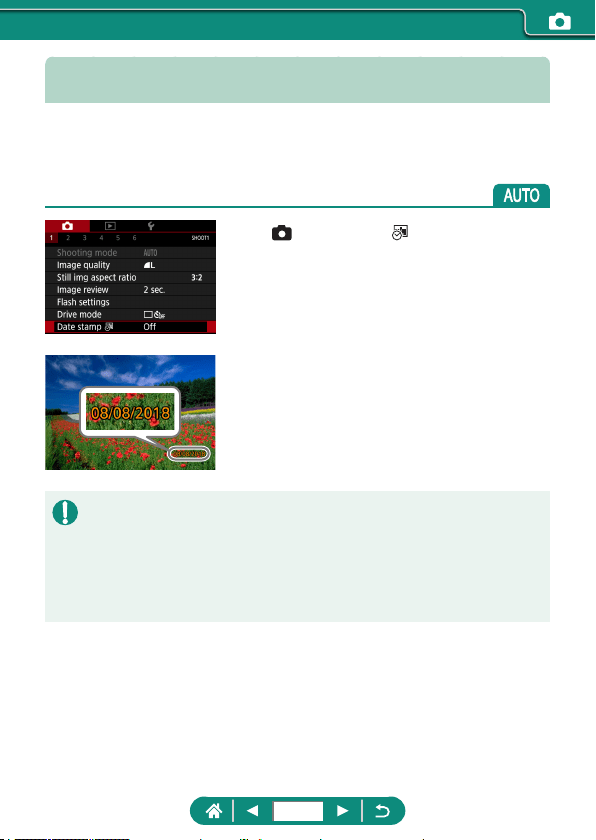
Adding a Date Stamp
The camera can add the shooting date to images, in the lower-right corner.
However, note that date stamps cannot be edited or removed, so conrm
beforehand that the date and time are correct (
=
25).
1
[Date stamp ] → [Date] or [Date
& time]
2
Shoot.
z As you take shots, the camera adds the
shooting date or time to the lower-right
corner of images.
z Shots taken without adding a date stamp can be printed with one as
follows.
However, adding a date stamp this way to images that already have one
may cause it to be printed twice.
- Print using printer functions
- Use camera DPOF print settings to print
118
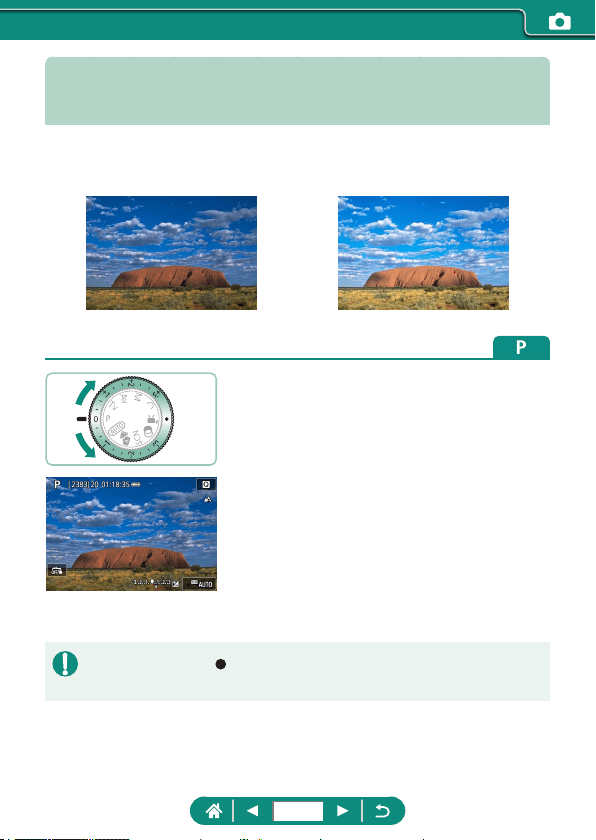
Adjusting Image Brightness
(Exposure Compensation)
Standard exposure set by the camera for stills or movies can be adjusted in
1/3-stop increments in a range of ±3 stops.
Set toward − Set toward +
1
Set the exposure compensation.
z Turn the exposure compensation dial to
set the level.
2
Compose the shot and shoot.
z For details on the [ ] (assign) position of the exposure compensation dial,
see
=
272.
119
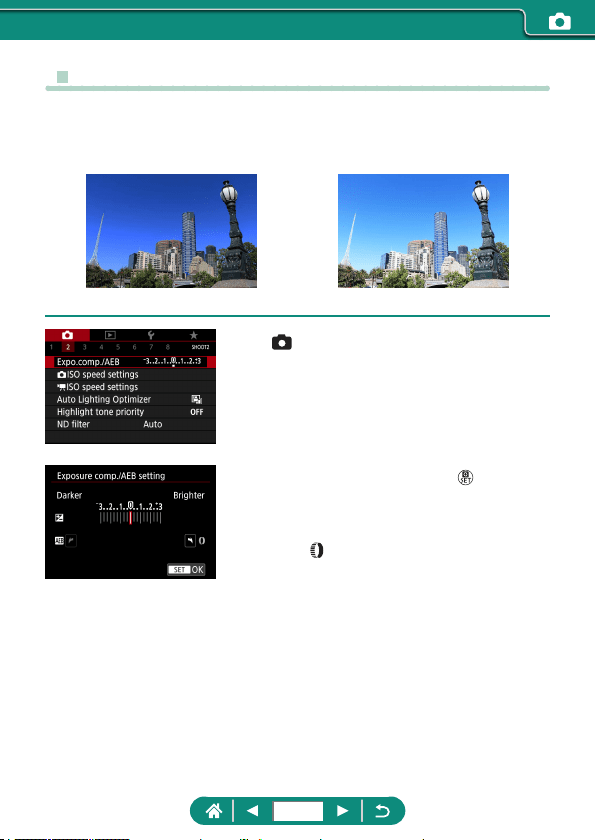
z Auto Exposure Bracketing (AEB Shooting)
Three images are captured at dierent exposure levels. Bracketing width
is adjustable in 1/3-stop increments in a range of ±2 stops, centered on the
exposure compensation level.
Underexposure Overexposure
1
[Expo.comp./AEB]
2
Configure the setting → button
z Exposure compensation: Exposure
compensation dial
z AEB:
ring
3
Shoot.
z Over a series of three images captured
as you press the shutter button, exposure
is adjusted relative to the level set
in step 2, from standard exposure to
underexposure to overexposure.
120
z When the drive mode is set to [High
speed continuous] or [Low speed
continuous], three images are captured
each time you hold the shutter button all
the way down, before the camera stops
shooting.
z To clear the AEB setting, set the AEB amount to 0, following the
conguration procedure.
z AEB shooting is available only in
/ / / / modes without using
the ash.
z If exposure compensation is already in use, the value specied for that
function is treated as the standard exposure level for AEB.
121
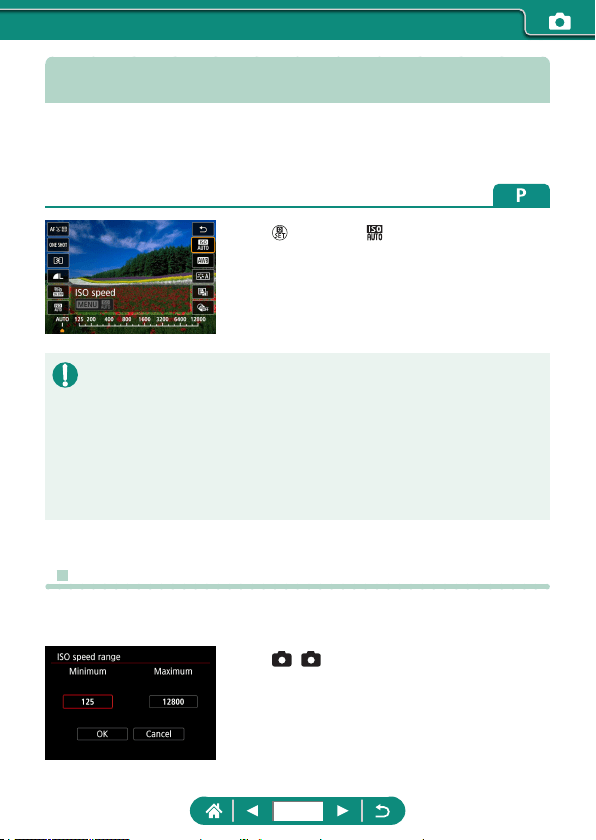
Changing the ISO Speed for Stills
Set the ISO speed to [AUTO] for automatic adjustment to suit the shooting
mode and conditions. Otherwise, set a higher ISO speed for higher
sensitivity, or a lower value for lower sensitivity.
1
button → [ ] → choose an option
z Although choosing a lower ISO speed may reduce image graininess,
there may be a greater risk of subject and camera shake in some shooting
conditions.
z Choosing a higher ISO speed will increase shutter speed, which may
reduce subject and camera shake and enable sucient ash illumination
for subjects farther away. However, shots may look grainy.
z ISO speed can be set to H (25600) when [Maximum] for [ISO speed range]
is set to [H (25600)].
z Changing the ISO Speed Range
You can set the manually-settable ISO speed range (minimum and
maximum limits).
1
[ ISO speed settings] → [ISO
speed range]
122
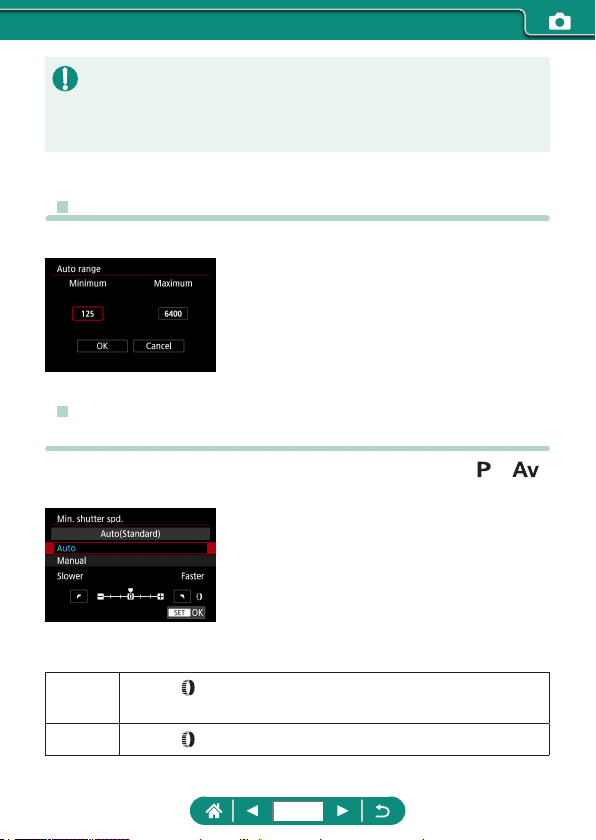
z Because H (equivalent to ISO 25600) is an expanded ISO speed, image
noise (including graininess, dots of light, and banding), irregular colors,
and color shift will be more noticeable, and apparent resolution will be
lower than usual.
z Adjusting ISO Auto Range
You can specify the range used for ISO Auto.
1
[Auto range]
z Setting the Minimum Shutter Speed for ISO
Auto
You can specify the minimum shutter speed used for ISO Auto in or
mode.
1
[Min. shutter spd.]
2
[Auto] or [Manual]
Auto
Turn the
ring to set the dierence (slower or faster) from
standard.
Manual
Turn the
ring to set the minimum shutter speed.
123
z If a correct exposure cannot be obtained with the maximum ISO speed
limit set with [Auto range], a shutter speed slower than the [Min. shutter
spd.] will be set to obtain the standard exposure.
124
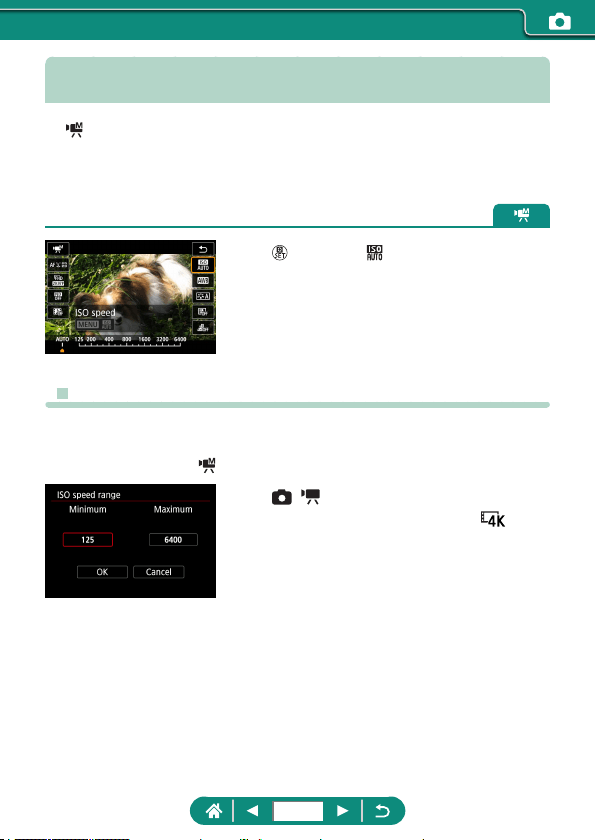
Changing the ISO Speed for Movies
In [ ] mode, you can set the ISO speed manually.
Set the ISO speed to [AUTO] for automatic adjustment to suit the shooting
conditions. Otherwise, set a higher ISO speed for higher sensitivity, or a
lower value for lower sensitivity.
1
button → [ ] → choose an option
z Changing the ISO Speed Range
You can specify the range (minimum and maximum) used when ISO speed
is set manually for HD, Full HD, or 4K movies.
This setting applies to [
] mode.
1
[ ISO speed settings] → [ISO
speed range] or [Range for ]
z [ISO speed range] applies to HD and Full
HD movies.
125
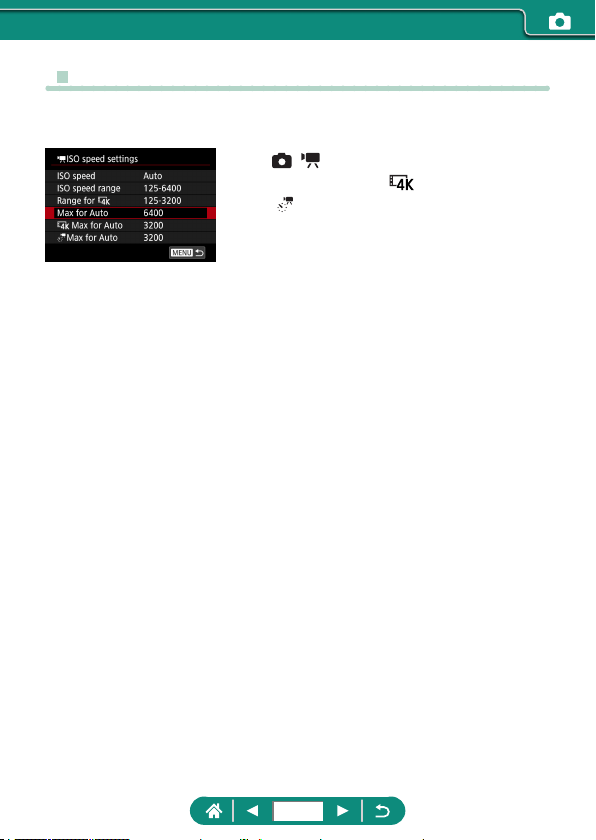
z Adjusting the Maximum ISO Auto Setting
You can choose the maximum ISO speed set automatically for HD, Full HD,
4K, or time-lapse movies.
1
[ ISO speed settings] →
[Max for Auto]/[ Max for Auto]/
[ Max for Auto]
z [Max for Auto] applies to HD and Full HD
movies.
126
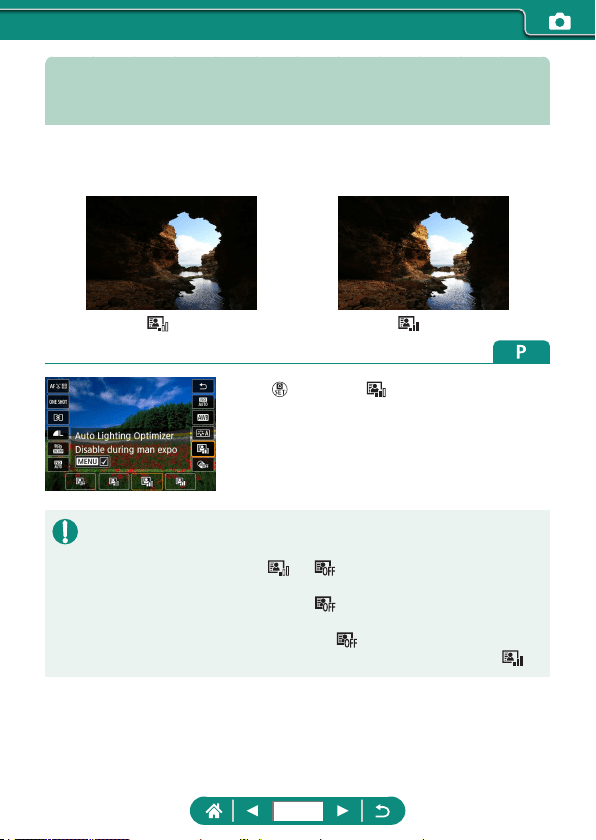
Auto Correction of Brightness and
Contrast (Auto Lighting Optimizer)
Correct brightness and contrast automatically to avoid images that are too
dark or have too little or too much contrast.
Low High
1
button → [ ] → choose an option
z This feature may increase image noise under some shooting conditions.
z When the eect of Auto Lighting Optimizer is too strong and images
become too bright, set it to [
] or [ ].
z Images may still be bright or the eect of exposure compensation may
be weak under a setting other than [
] if you use a darker setting for
exposure compensation or ash exposure compensation. For shots at your
specied brightness, set this feature to [
].
z Fewer continuous shots may be available when this setting is set to [
].
127
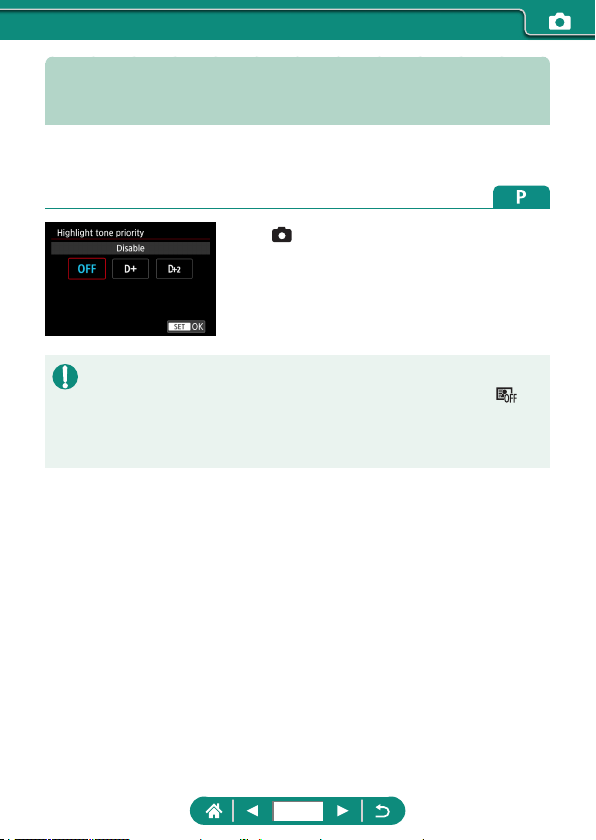
Shooting Bright Subjects (Highlight
Tone Priority)
Improve gradation in bright image areas to avoid loss of detail in subject
highlights.
1
[Highlight tone priority]
z Setting highlight tone priority to [D+] or [D+2] will prevent you from setting
ISO speeds lower than [200]. Auto Lighting Optimizer is also set to [
]
and cannot be changed, in this case.
z Under some shooting conditions, images may not look as expected even if
you choose [D+2].
128
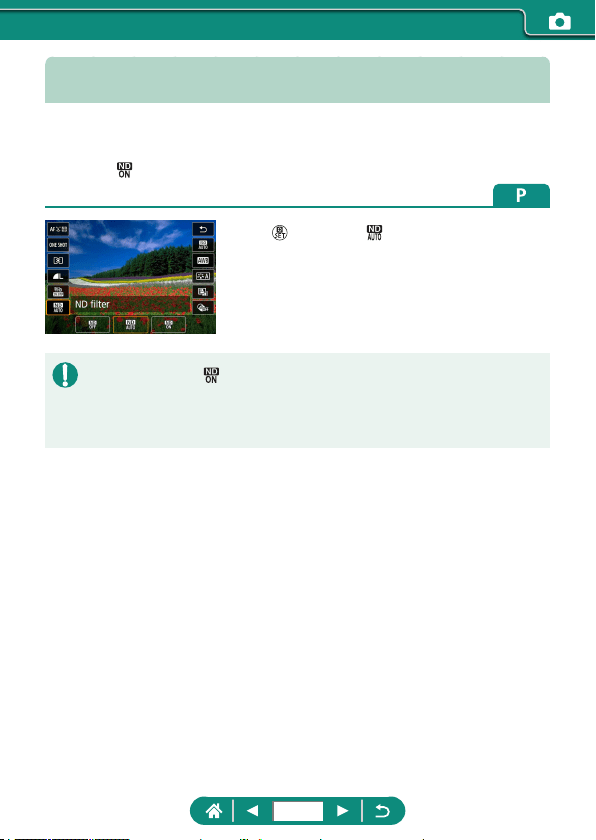
Adjusting ND Filter Settings
For optimal brightness in the scenes you shoot, Auto ND lter reduces light
intensity to 1/8 the actual level, by an amount equivalent to three stops.
Choosing [
] enables you to reduce the shutter speed and aperture value.
1
button → [ ] → choose an option
z When selecting [ ], mount the camera on a tripod or take other measures
to keep it still and prevent camera shake. Additionally, you should set [IS
mode] to [O] when using a tripod or other means to secure the camera.
z ND: Neutral Density
129
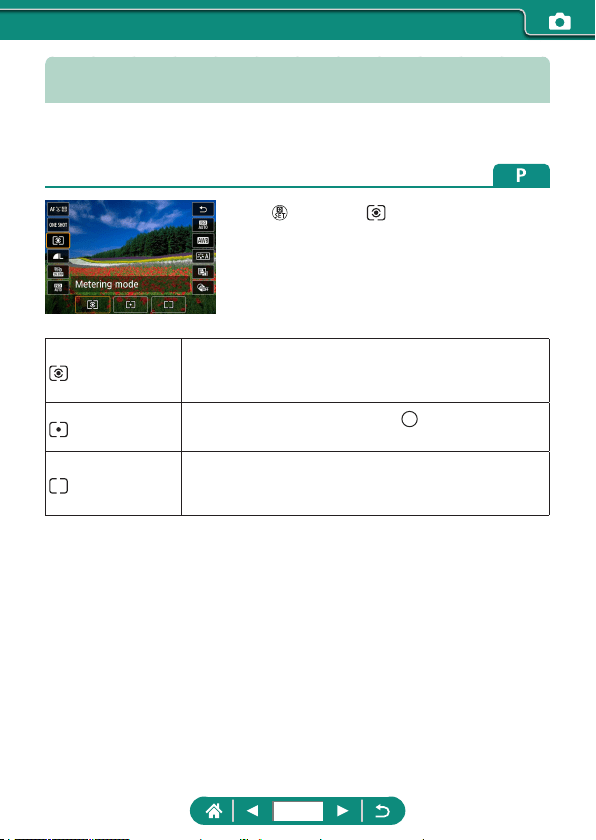
Changing the Metering Method
Adjust the metering method (how brightness is measured) to suit shooting
conditions.
1
button → [ ] → choose an option
Evaluative
metering
For typical shooting conditions, including backlit
shots. Automatically adjusts exposure to match the
shooting conditions.
Spot metering
Metering restricted to within the [
] (Spot AE Point
frame), displayed in the center of the screen.
Center-
weighted
average
Determines the average brightness of light across the
entire image area, calculated by treating brightness in
the central area as more important.
130
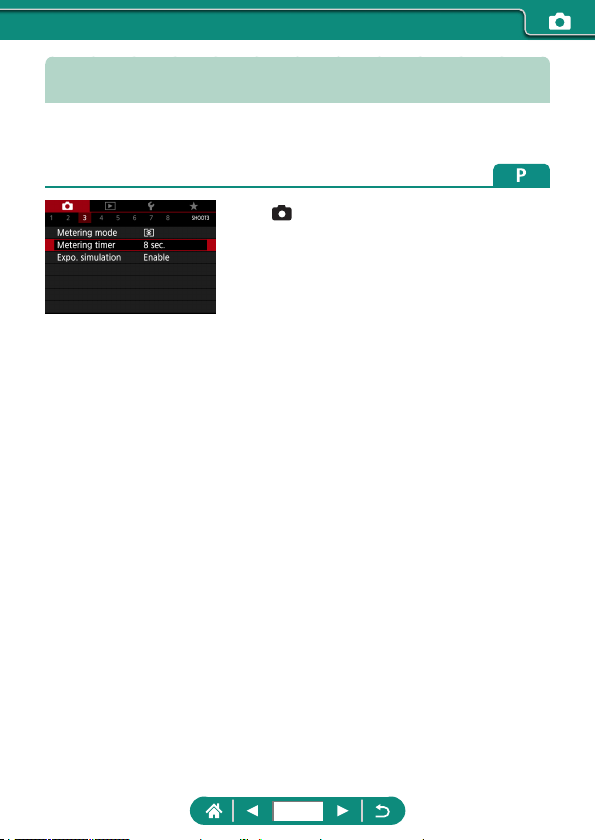
Setting the Metering Timer
Adjust how long the exposure value is displayed after you press the shutter
button halfway.
1
[Metering timer]
131
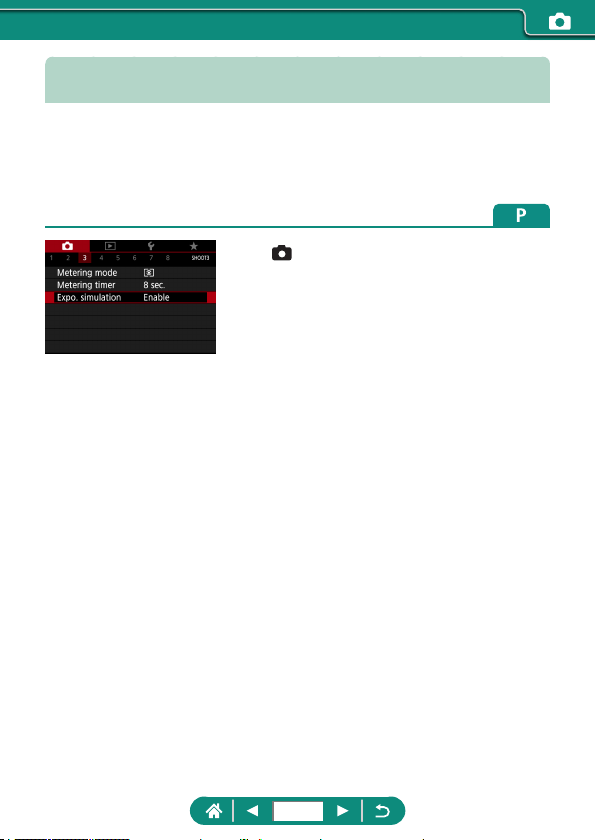
Configuring Exposure Simulation
With exposure simulation, image brightness more closely matches the
actual brightness (exposure) of your shots. Image brightness changes in
response to exposure compensation. Do not use this feature if you prefer
image display at standard brightness, which is usually easier to see.
1
[Expo. simulation]
132
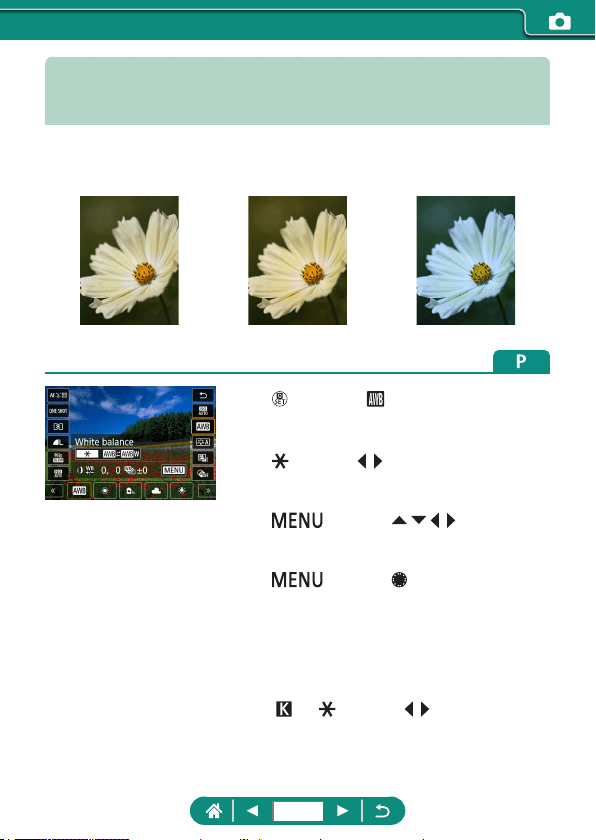
Capturing Natural Colors (White
Balance)
By adjusting white balance (WB), you can make image colors look more
natural for the scene you are shooting.
Daylight Cloudy Tungsten light
1
button → [ ] → choose an option
Setting white balance
z button → / buttons
Adjusting white balance
z button → / / / buttons
Setting white balance bracketing
z button → dial
z Three images are captured per shot,
each with dierent color tones.
Setting white balance color
temperature
z [ ] → button → / buttons
133
z Any correction level you set is retained even if you change the white
balance option.
z On the advanced settings screen for correction, B is for blue, A for amber,
M for magenta, and G for green.
z One level of blue/amber correction is equivalent to about 5 mireds on
a color temperature conversion lter. (Mired: Color temperature unit
representing color temperature conversion lter density)
z Color temperature can be set at 100 K increments in a range of 2,500 –
10,000 K.
134
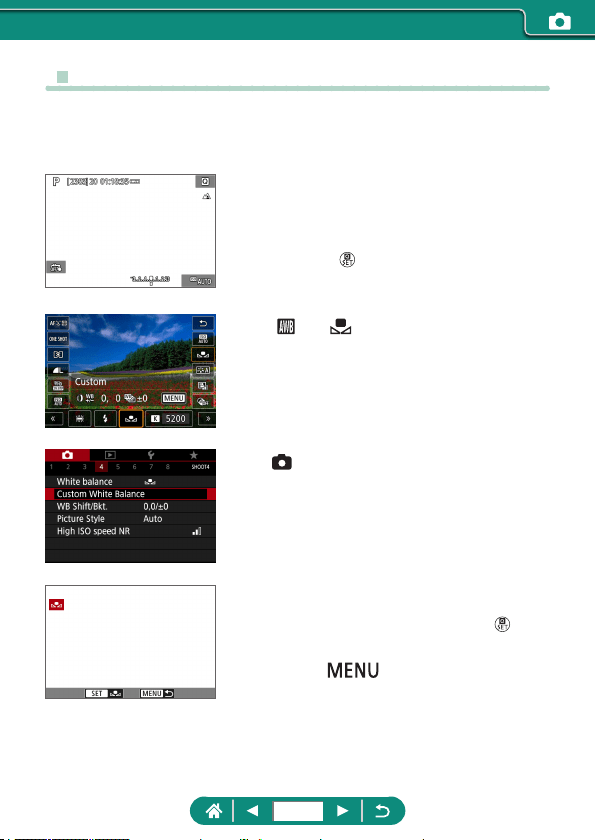
z Custom White Balance
For image colors that look natural under the light in your shot, adjust white
balance to suit the light source where you are shooting. Set the white
balance under the same light source that will illuminate your shot.
1
Shoot a white object.
z Focus and shoot with a plain white object
lling the screen.
z Press the
button.
2
[ ] → [ ]
3
[Custom White Balance]
4
Load the white data.
z Select your image from step 1 →
button → [OK]
z Use the
button to return to the
shooting screen.
135
z Capturing a white subject that is too bright or dark may prevent you from
setting the white balance correctly.
z Choose [Cancel] to choose a dierent image. Choose [OK] to use that
image for loading white data, but note that it may not produce a suitable
white balance.
z Instead of a white object, a gray chart or 18% gray reector (commercially
available) can produce a more accurate white balance.
z The current white balance and related settings are disregarded when you
capture a white subject.
136
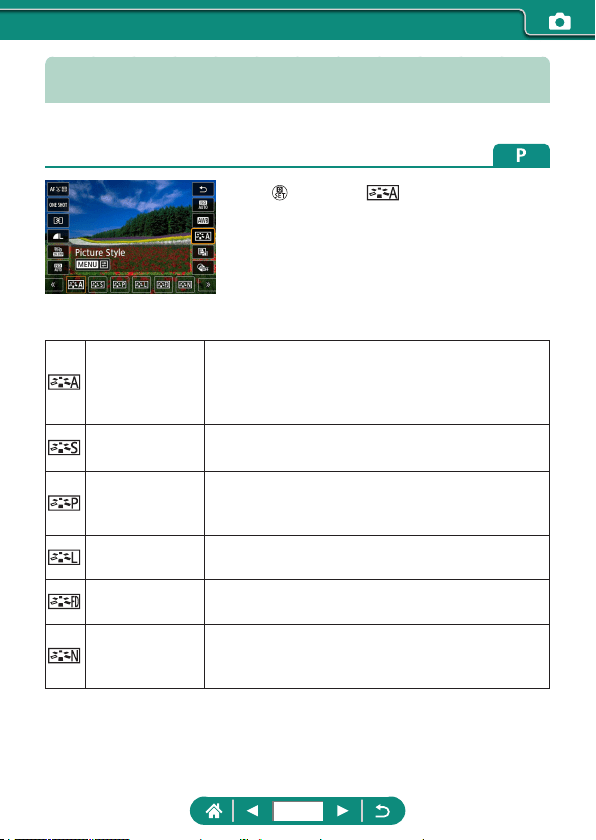
Customizing Colors (Picture Style)
Choose color settings that express scenes or subjects well.
1
button → [ ] → choose an
option
Auto
The color tone is adjusted automatically to suit the
scene. The colors look vivid, especially for blue
skies, greenery, and sunsets in nature, outdoor,
and sunset scenes.
Standard
The image looks vivid, sharp, and crisp. Suitable
for most scenes.
Portrait
For smooth skin tones, with slightly less
sharpness. Suited for close-up portraits. To modify
skin tones, adjust [Color tone].
Landscape
For vivid blues and greens, and very sharp and
crisp images. Eective for impressive landscapes.
Fine Detail
For detailed rendering of ne subject contours and
subtle textures. Makes images slightly more vivid.
Neutral
For retouching later on a computer. Makes images
subdued, with lower contrast and natural color
tones.
137
Faithful
For retouching later on a computer. Faithfully
reproduces the actual colors of subjects as
measured under ambient light with a color
temperature of 5200K. Vivid colors are
suppressed for a subdued look.
Monochrome Creates black and white images.
User Def.
Add a new style based on presets such as
[Portrait] or [Landscape] or a Picture Style le, and
then adjust it as needed.
z Default [Auto] settings are used for [ ], [ ], and [ ] until you
add a Picture Style.
138
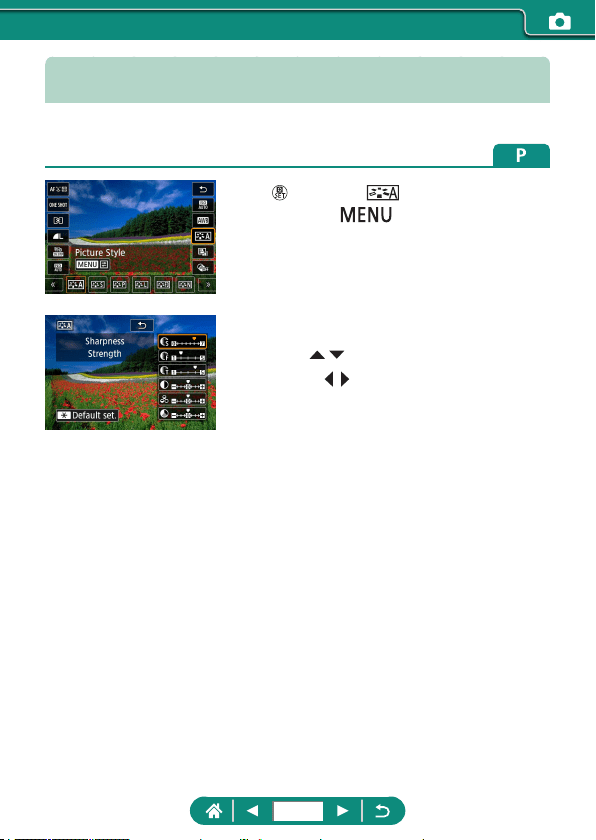
Customizing Picture Styles
Customize parameters of Picture Styles, such as contrast or saturation.
1
button → [ ] → choose an
option → button
2
Configure the settings.
z Item: / buttons
z Option: / buttons
139
Sharpness
Strength
Adjust the level of edge enhancement.
Choose lower values to soften (blur)
subjects, or higher values to sharpen them.
Fineness
Indicates the edge thinness that
enhancement applies to. Choose lower
values for more enhanced details.
Threshold
Contrast threshold between edges and
surrounding image areas, which determines
edge enhancement. Choose lower values to
enhance edges that do not stand out much
from surrounding areas. Note that with lower
values, noise may also be emphasized.
Contrast
Adjust the contrast. Choose lower values to
decrease the contrast, or higher values to
increase it.
Saturation*
1
Adjust the intensity of colors. Choose lower
values to make colors faded, or higher values
to make them deeper.
Color tone*
1
Adjust skin color tone. Choose lower values
to produce redder hues, or higher values to
produce yellower hues.
140
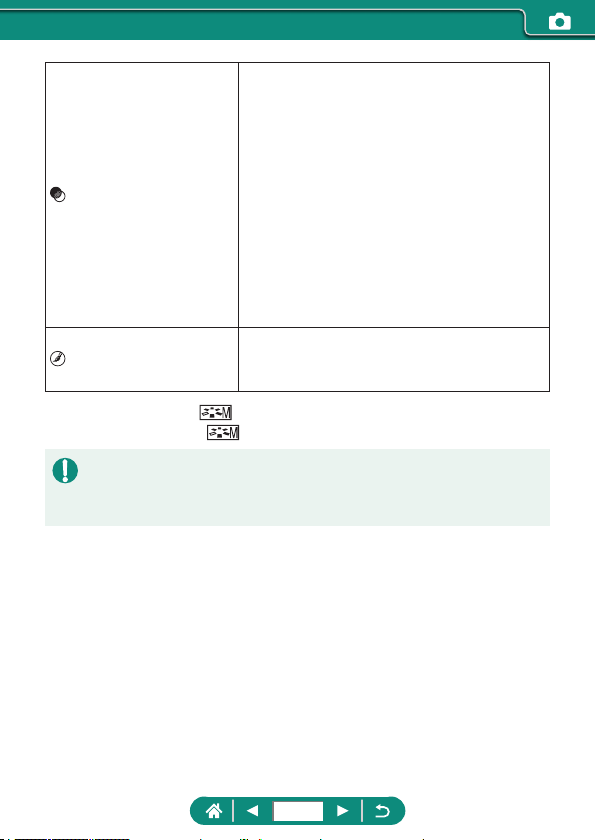
Filter eect*
2
Emphasize white clouds, the green of trees,
or other colors in monochrome images.
N: Normal black-and-white image with no
lter eects.
Ye: The blue sky will look more natural, and
the white clouds will look crisper.
Or: The blue sky will look slightly darker. The
sunset will look more brilliant.
R: The blue sky will look quite dark. Fall
leaves will look crisper and brighter.
G: Skin tones and lips will appear muted.
Green tree leaves will look crisper and
brighter.
Toning eect*
2
Choose from the following monochrome
hues: [N:None], [S:Sepia], [B:Blue],
[P:Purple], or [G:Green].
*1 Not available with [
].
*2 Only available with [
].
z In [Sharpness], [Fineness] and [Threshold] settings are not applied to
movies.
z [Filter eect] results are more noticeable with higher [Contrast] values.
141
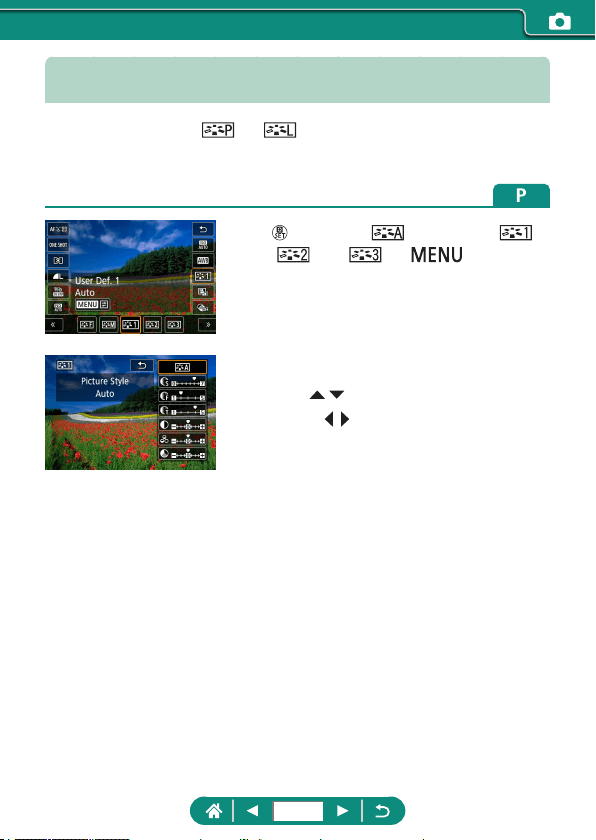
Saving Customized Picture Styles
Save presets (such as [ ] or [ ]) that you have customized as new
styles. You can create several Picture Styles with dierent settings for
parameters such as sharpness or contrast.
1
button → [ ] → choose [ ],
[ ], or [ ] → button
2
Configure the settings.
z Item: / buttons
z Option: / buttons
142
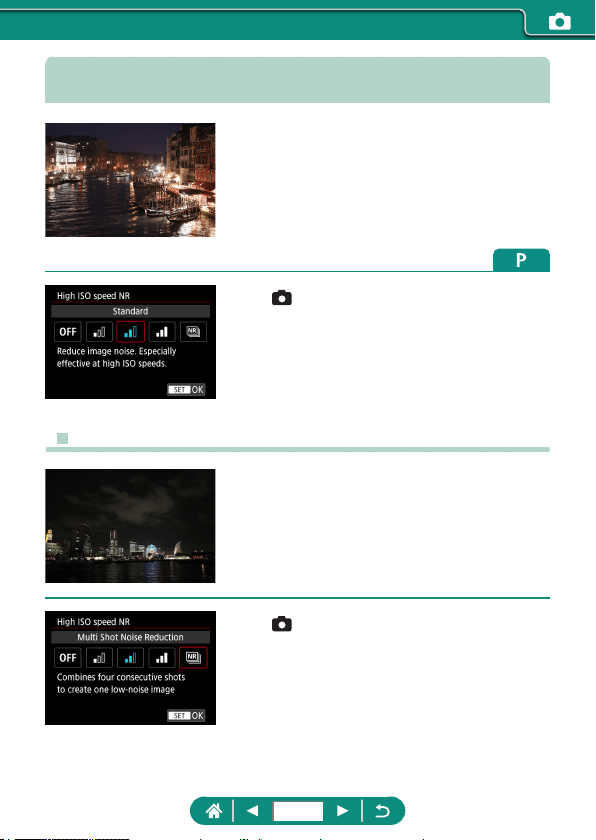
Reducing Noise in High-ISO Shooting
You can choose from 3 levels of noise reduction:
[Standard], [High], [Low]. This function is
especially eective when shooting at high ISO
speeds.
1
[High ISO speed NR]
z Using Multi Shot Noise Reduction
Automatically combine four images captured at
once to reduce noise. Compared to setting [High
ISO speed NR] to [High], this feature minimizes
loss of image quality while reducing noise.
1
[High ISO speed NR] → [Multi
Shot Noise Reduction]
143
z Unexpected results may occur if images are quite misaligned (from camera
shake, for example). Mount the camera on a tripod or take other measures
to keep it still, if possible.
z If you shoot a moving subject, the subject’s movement may leave
afterimages or the surrounding area of the subject may become dark.
z Depending on shooting conditions, noise may appear on the image
periphery.
z Flash shooting is not possible.
z Recording the image to the card will take longer than with normal shooting.
You cannot take another shot until processing is nished.
144
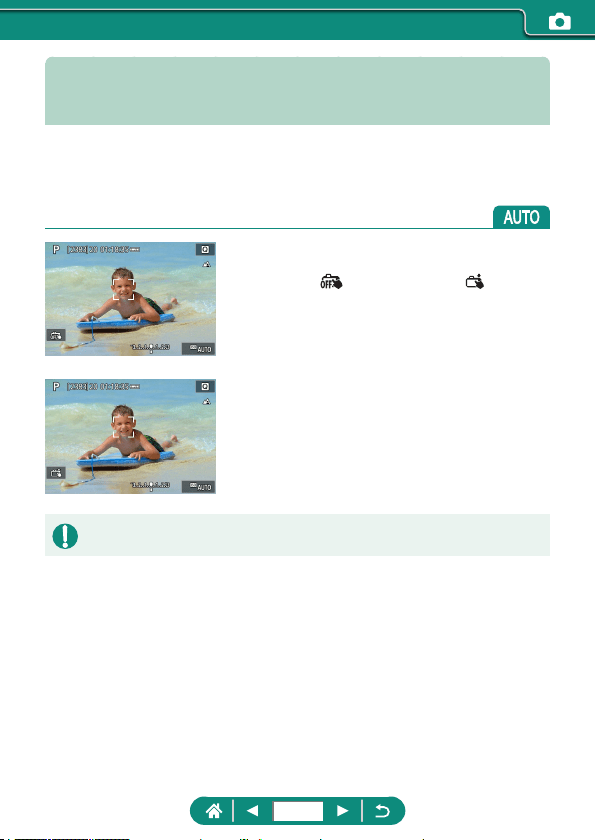
Shooting by Touching the Screen
(Touch Shutter)
With this option, instead of pressing the shutter button, you can touch the
screen and release your nger to shoot. The camera will focus on subjects
and adjust image brightness automatically.
1
Configure the setting.
z Touch [ ] and change it to [ ].
2
Shoot.
z Touch an area where you want to focus.
z A yellow AF point indicates that the camera could not focus on subjects.
145
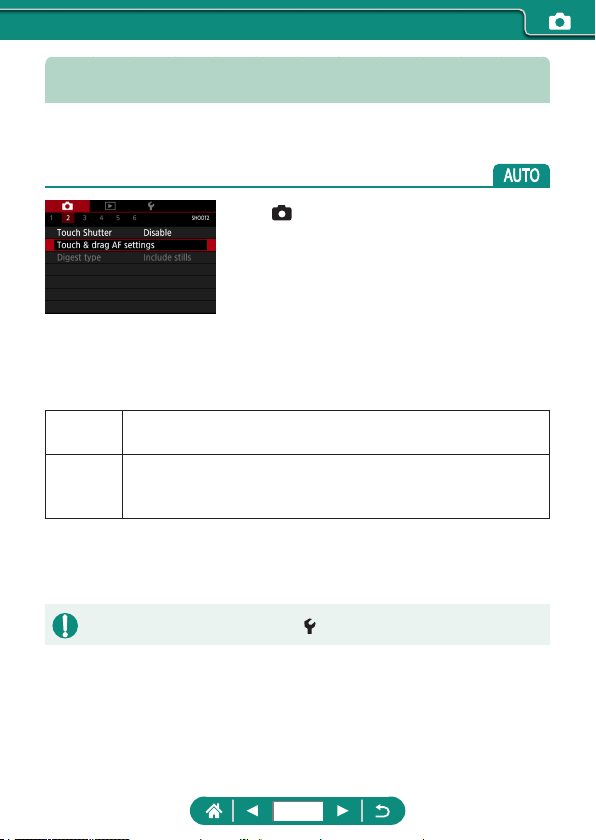
Configuring Touch & Drag AF
With Touch & Drag AF, you can move the AF point by touching or dragging
the screen while looking through the viewnder.
1
[Touch & drag AF
settings] → [Touch & drag
AF] → [Disable]
2
Configure the settings.
z In [Positioning method], congure
touching and dragging.
Absolute
The AF point moves to the touched or dragged position on the
screen.
Relative
The AF point moves in the direction you drag, by an amount
corresponding to the amount you drag, no matter where you
touch the screen.
z In [Active touch area], congure the area
of the screen available for touching and
dragging.
z This feature is not available when [Touch control] is set to [Disable].
146
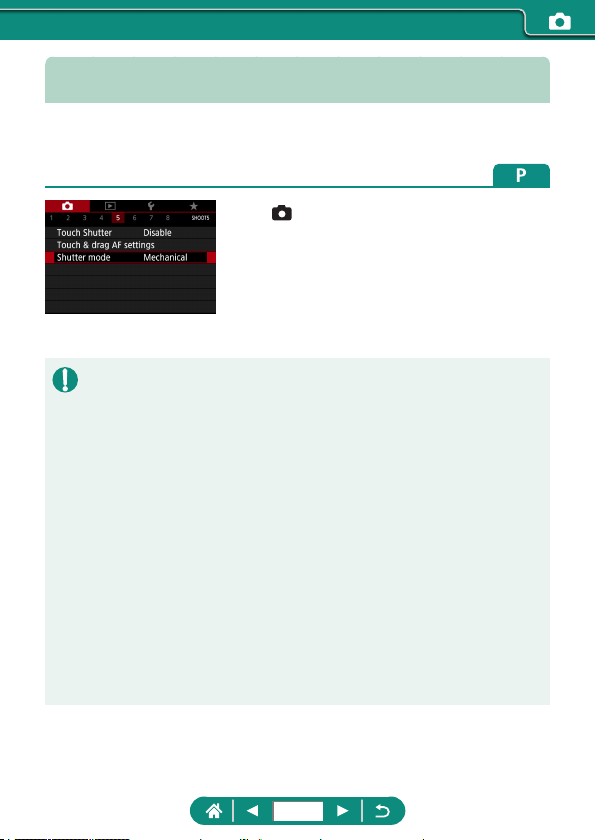
Shooting with the Electronic Shutter
A mechanical shutter is normally used for shooting, but switching to the
electronic shutter enables faster shutter speeds.
1
[Shutter mode] → [Electronic]
2
Shoot.
z Suitable for shooting under bright conditions with a fast shutter speed.
z The fastest shutter speed is 1/25600 sec.
z Camera shake or subject motion may cause image distortion.
z Under uorescent lighting or other ickering light sources, the screen may
icker and images may be aected by horizontal stripes (noise) or irregular
exposure. If so, it may be helpful to reduce the shutter speed.
z During exposure, a white frame is displayed around the screen as you
shoot. Note that it is not displayed at shutter speeds slower than 1 sec.
z Lens aperture adjustment is still audible, even when set to [Electronic].
Other mechanical sounds may also be audible, depending on shooting
conditions.
z The mechanical shutter may be activated for image processing after you
shoot, under some shooting conditions.
z Bands of light may be displayed and captured images may be aected
by light and dark banding if you shoot with electronic shutter during ash
ring by other cameras or under uorescent lighting or other ickering light
sources.
z Continuous shooting and ash photography are not available.
147
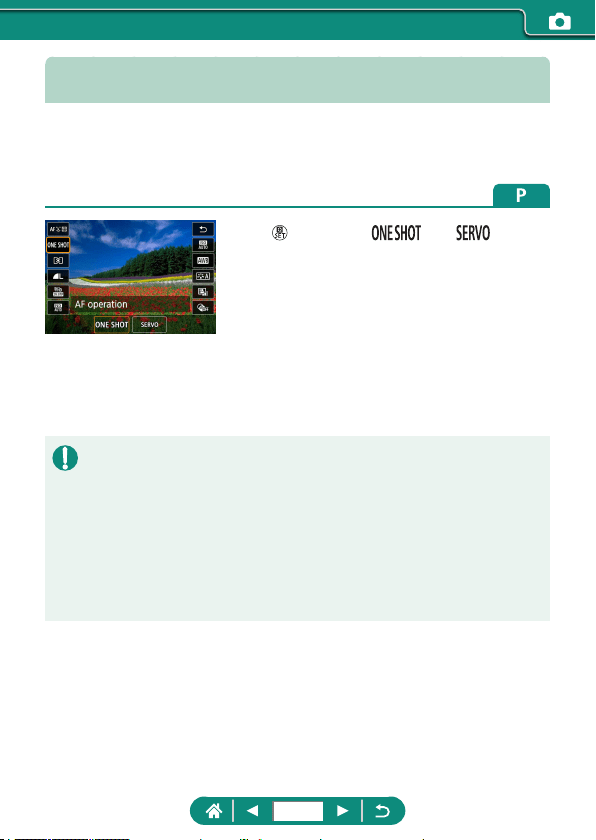
Shooting with Servo AF
Focus and exposure are maintained where the blue AF point is displayed
while you press the shutter button halfway. This helps you avoid missing
shots of subjects in motion.
1
button → [ ] → [ ]
2
Press the shutter button halfway to
focus.
3
Press all the way down to shoot.
z The camera may not be able to shoot while focusing, even if you press the
shutter button all the way down. Keep holding down the shutter button as
you follow the subject.
z Exposure is not locked in Servo AF mode when you press the shutter
button halfway but is determined the moment you shoot.
z Continuous shooting with auto focus is possible by specifying Servo AF.
Note that continuous shooting is slower at this time.
z Depending on the distance to the subject and the subject’s speed, the
camera may not be able to achieve correct focus.
148
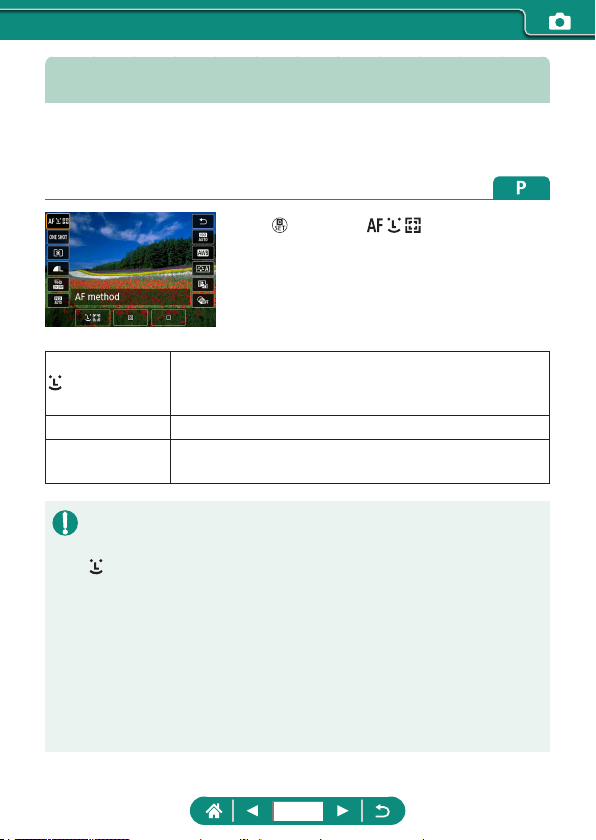
Choosing the AF Method
Choose a method of auto focusing (AF) for the subject and scene you are
shooting.
1
button → [ ] → choose an
option
+Tracking
Shoot with the focus on the face of the main subject, as
determined by the camera. Subjects are tracked within
a certain range.
Spot AF Autofocus with an AF point smaller than for 1-point AF.
1-point AF
The camera focuses using a single AF point. Eective
for reliable focusing.
z Focusing may take longer or be incorrect when subjects are dark or lack
contrast, or in very bright conditions.
+Tracking
z After you aim the camera at the subject, a white frame is displayed around
the face of the main subject as determined by the camera.
z If no faces are detected when you aim the camera at people, pressing the
shutter button halfway displays green frames around other areas in focus.
z With the following subjects, faces may not be detected.
- Subjects that are distant or extremely close
- Subjects that are dark or light
- Faces in prole, at an angle, or partly hidden
z The camera may misinterpret non-human subjects as faces.
149
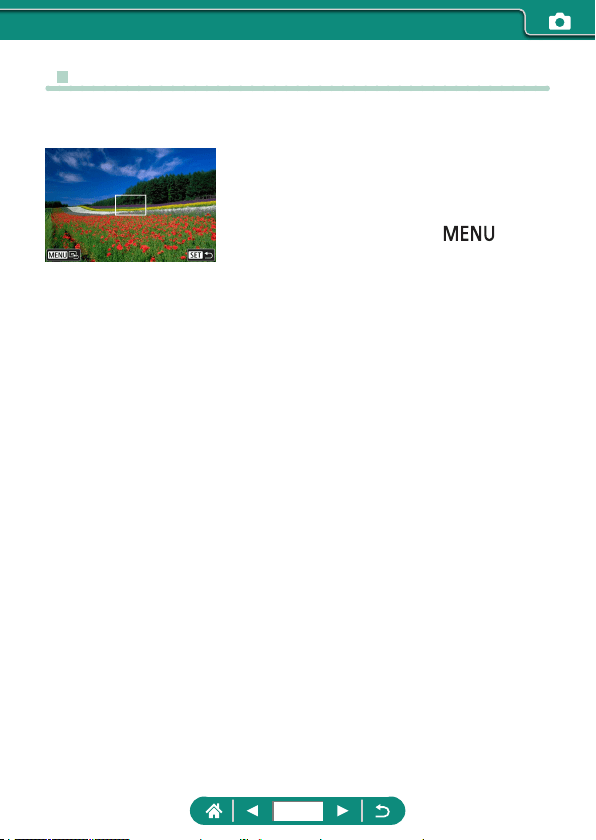
z Moving the AF Point
The AF point can be moved when the AF method is [1-point AF] or [Spot
AF].
1
Touch the screen.
z Touch a spot to perform focusing on the
spot (Touch AF).
z Center (original position):
button
150
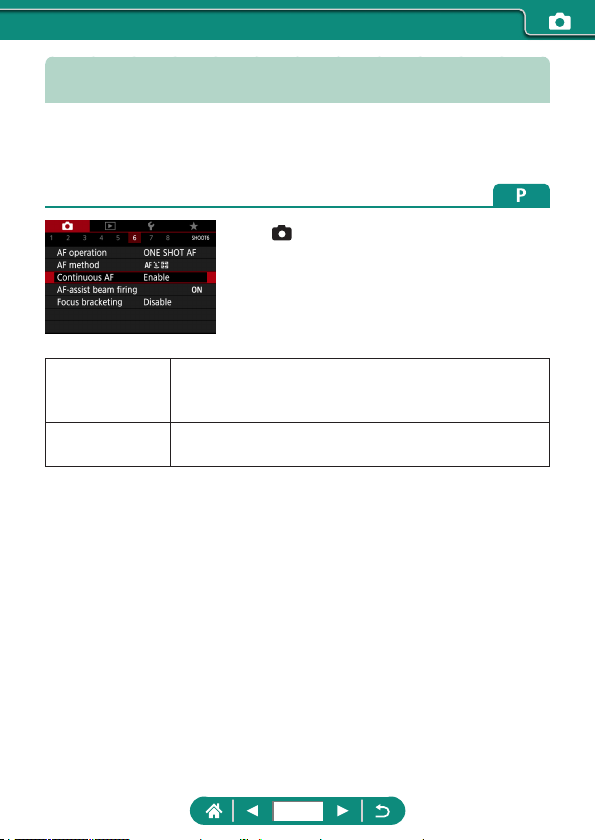
Changing the Focus Setting
Continuous AF constantly focuses on subjects the camera is aimed at, even
when the shutter button is not pressed. This setting can be changed to limit
autofocusing to the moment you press the shutter button halfway.
1
[Continuous AF]
Enable
Helps avoid missing sudden photo opportunities,
because the camera constantly focuses on subjects
until you press the shutter button halfway.
Disable
Conserves battery power, because the camera does
not focus constantly. However, this may delay focusing.
151
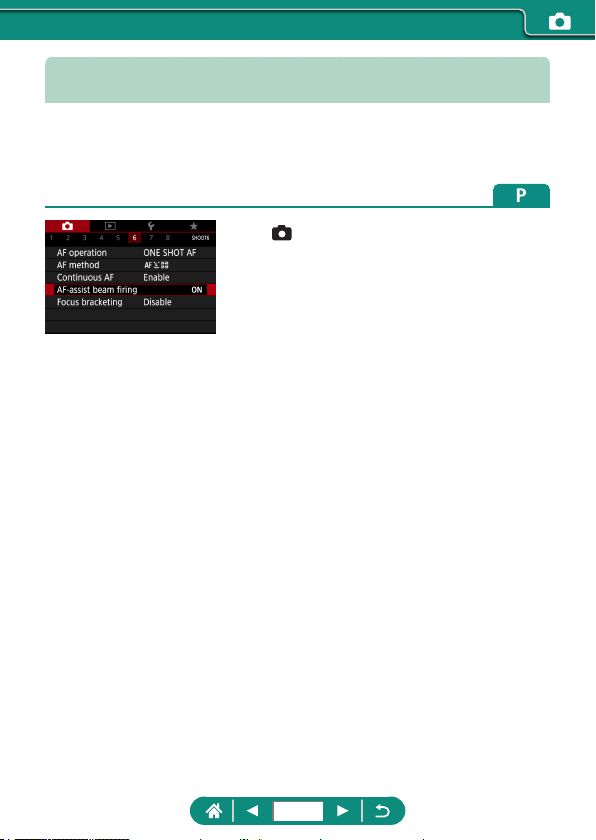
Configuring the AF-Assist Beam
The lamp lights up to help you focus when you press the shutter button
halfway in low-light conditions. You can congure whether the beam is
activated.
1
[AF-assist beam firing]
152
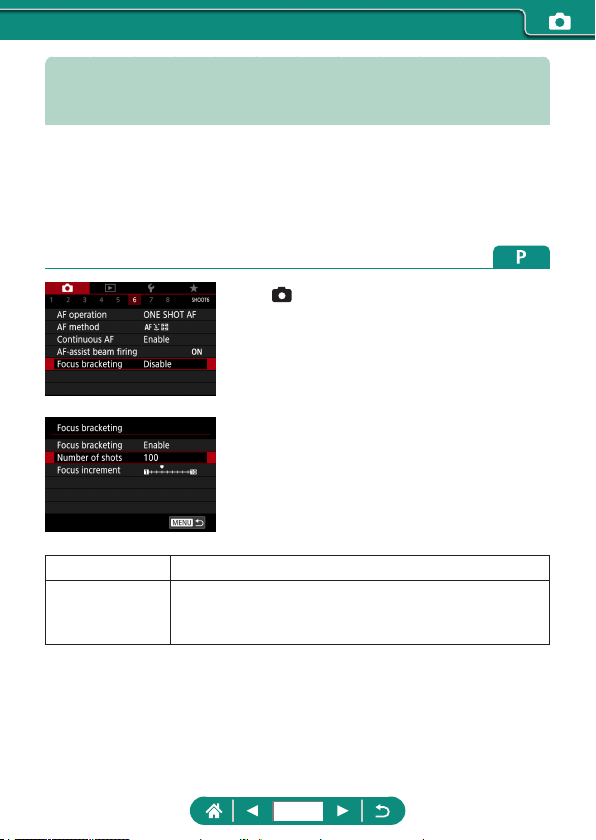
Continuous Shooting as the Focal
Distance is Changed (Focus Bracketing)
Focus bracketing enables continuous shooting with the focal distance
changed automatically after a single shot.
From these images, you can create a single image in focus over a wide
area by using an application that supports depth compositing, such as the
Canon application Digital Photo Professional.
1
[Focus bracketing] → [Focus
bracketing] → [Enable]
2
Configure the settings.
Number of shots Specify the number of images captured per shot.
Focus increment
Specify how much to shift the focus. This amount is
automatically adjusted to suit the aperture value at the
time of shooting.
153
3
Shoot.
z To create a new folder: touch [ ] → [OK]
z Focus at the nearer end of your preferred
focal range, then press the shutter button
completely.
z Once shooting begins, release the shutter
button.
z The camera shoots continuously, shifting
the focal position toward innity.
z Shooting ends after your specied
number of images, or at the far end of the
focal range.
154
z Mount the camera on a tripod or take other measures to keep it still.
z Shooting with a wider angle of view is recommended.
z Because larger aperture values increase the focus shift, focus bracketing
covers a wider range under the same [Focus increment] and [Number of
shots] settings in that case.
z Suitable [Focus increment] settings vary by subject. An unsuitable [Focus
increment] setting may cause unevenness in composite images, or
shooting may take more time because more shots are taken. Take some
test shots to decide a suitable [Focus increment] setting.
z Flash shooting is not possible.
z Details such as shutter speed, aperture value, and ISO speed are
determined by conditions for the rst shot.
z To cancel shooting in progress, press the shutter button all the way down
again.
z Canceling shooting in progress may cause exposure problems in the last
image. Avoid using the last image when combining the images in Digital
Photo Professional.
z Images are captured using the electronic shutter. Before shooting with
focus bracketing, read the notes and tips about the electronic shutter
(
=
147).
z If [Picture Style] is set to [Auto], [Standard] will be applied for shooting.
z [Focus bracketing] switches to [Disable] when the camera is turned o.
z After depth compositing, you can crop the image if necessary.
z Combining images may take some time when the [Number of shots]
setting is high.
155
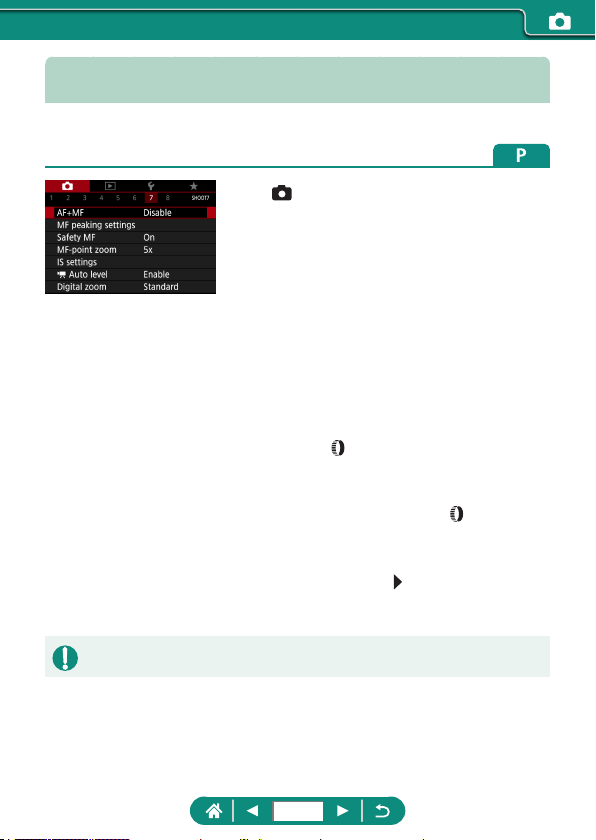
Fine-Tuning the Focus
You can ne-tune the focus after autofocusing by turning the control ring.
1
[AF+MF] → [Enable]
2
Focus.
z Press the shutter button halfway to focus
on the subject, and continue holding the
button halfway down.
3
Fine-tune the focus.
z Turn the ring. Referring to the on-
screen MF indicator (which shows the
distance and focal position) and the
magnied display, turn the
ring to
adjust the focus.
z To enlarge or reduce the magnied
display, press the
button.
4
Shoot.
z Cannot be used with Servo AF.
156
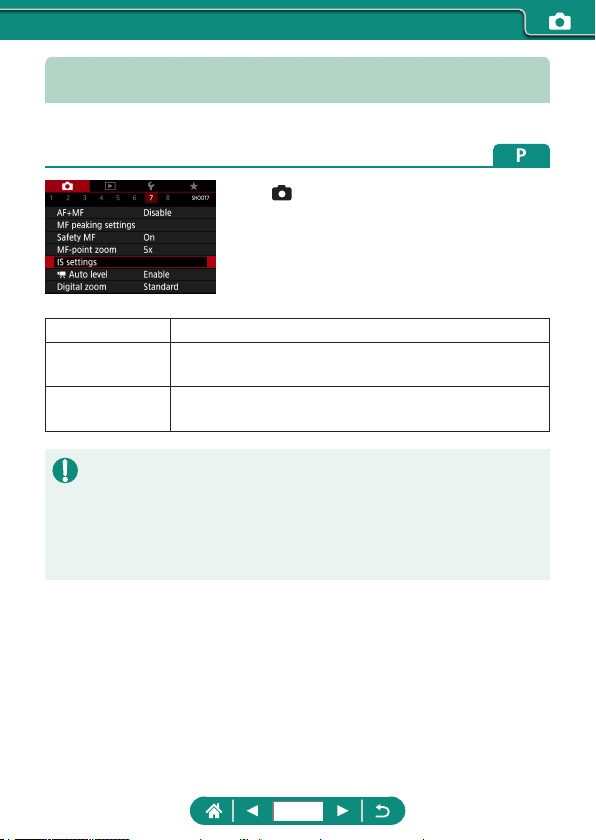
Changing the IS Mode Settings
Image stabilization is adjustable.
1
[IS settings] → [IS mode]
O Deactivates image stabilization.
On
Optimal image stabilization for the shooting conditions
is automatically applied.
Shoot only
Image stabilization is active only at the moment of
shooting.
z The [IS mode] setting changes to [On] for movie recording, even if [Shoot
only] is set.
z If image stabilization cannot prevent camera shake, mount the camera
on a tripod or take other measures to hold it still. Additionally, you should
set [IS mode] to [O] when using a tripod or other means to secure the
camera.
157
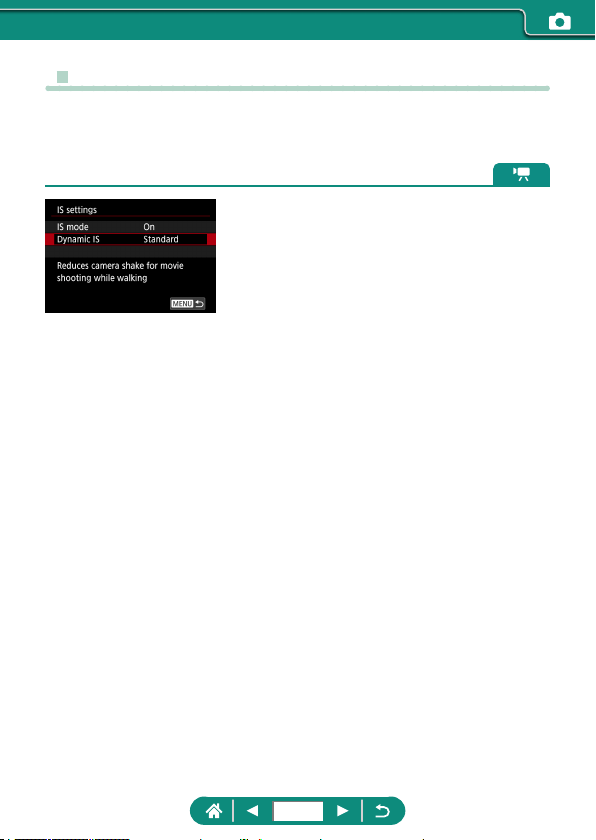
z Correcting Severe Camera Shake
Counteract severe camera shake, such as when recording movies while
moving. The portion of images displayed changes more than for [Standard],
and subjects are further enlarged.
1
[Dynamic IS] → [High]
158
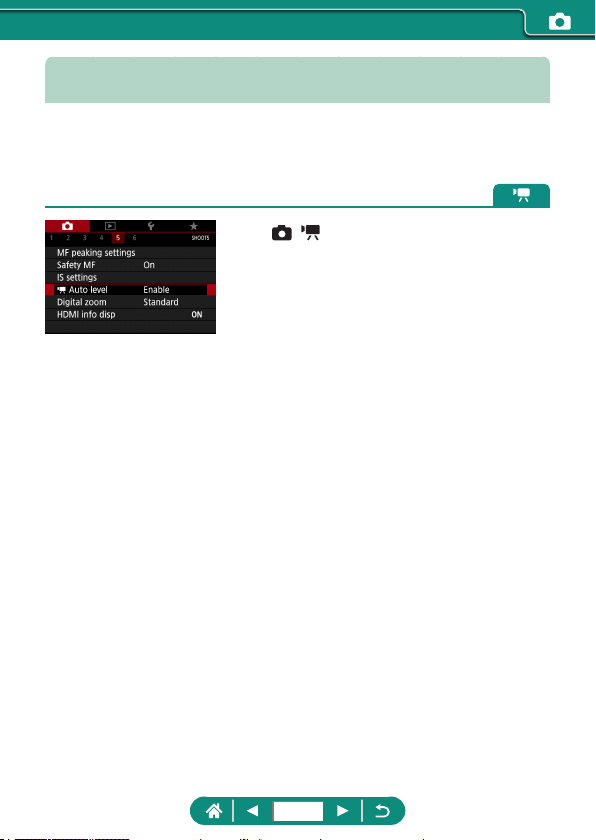
Using Auto Level
Auto leveling helps keep movies straight as you record them. Once
recording begins, the display area may narrow, and subjects may be
enlarged.
1
[ Auto level]
159
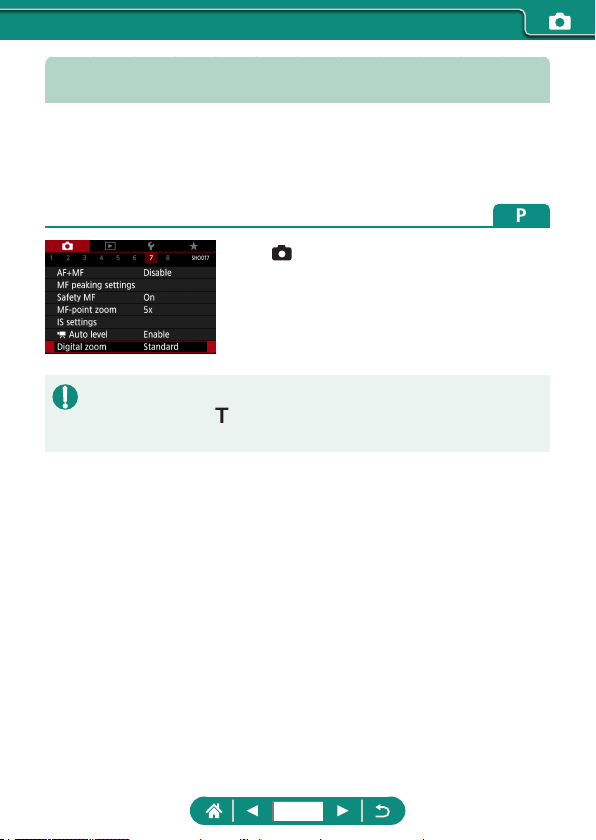
Using Digital Tele-Converter
The focal length of the lens can be increased by approximately 1.6x or 2.0x.
This can reduce camera shake because the shutter speed is faster than it
would be if you zoomed (including using digital zoom) in to the same zoom
factor.
1
[Digital zoom] → [1.6x] or [2.0x]
z The view is enlarged and the zoom factor
is displayed.
z The shutter speed at maximum telephoto (when you move the zoom lever
all the way toward
) may match the speed when zooming in to enlarge
subjects with digital zoom.
160
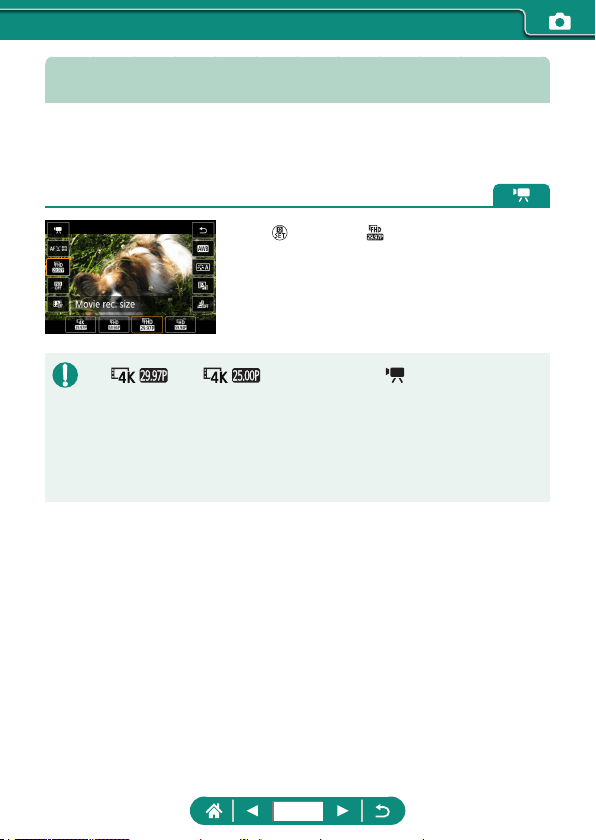
Changing Movie Recording Size
Adjust the movie recording size. The frame rate indicates how many frames
are recorded per second, and available options depend on the NTSC or
PAL setting.
1
button → [ ] → choose an option
z [ ] and [ ] are only available in mode.
z Maximum recording time per movie is 9 min. 59 sec. for 4K movies and 29
min. 59 sec. for Full HD and HD movies.
z Movie le names begin with MVI_ and end with the .MP4 le extension.
z The camera may overheat after repeated movie recording, which may
temporarily disable shooting.
z To avoid overheating, turn the camera o when you are not using it.
161
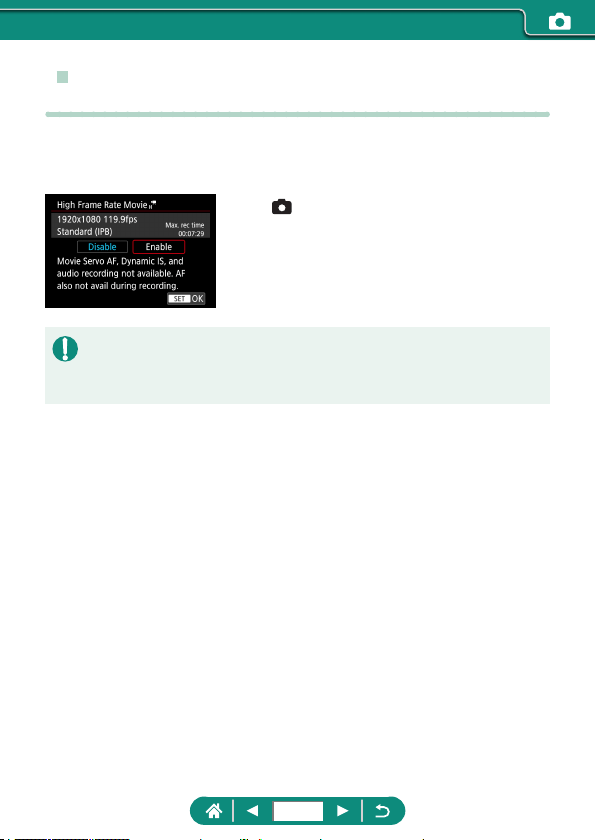
z Recording Movies for Slow-Motion Playback
(High Frame Rate)
Record Full HD movies at a high frame rate of 119.9 fps or 100.0 fps.
Because high frame rate movies are recorded as 29.97 fps/25.00 fps movie
les, they are played back in slow motion at 1/4 speed.
1
[Movie rec quality] → [High Frame
Rate]
z Before recording, press the shutter button halfway to focus.
z The maximum recording time per movie is 7 min. 29 sec.
z Sound is not recorded.
162
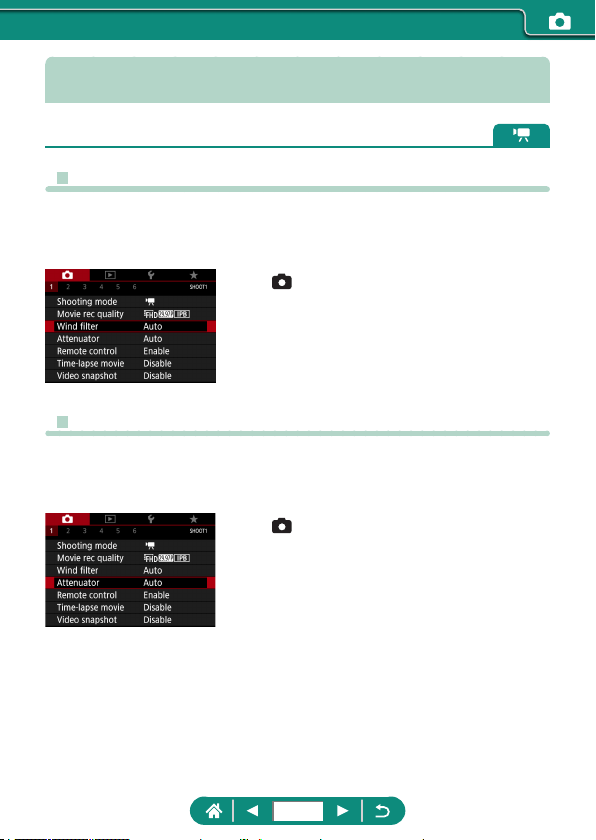
Configuring Sound Recording Settings
z Wind Filter
Noise from windy recording sites can be reduced with the wind lter. If there
is no wind, recordings may sound unnatural when this option is used. In this
case, set [Wind lter] to [Disable].
1
[Wind filter]
z Attenuator
The attenuator can prevent audio distortion at noisy recording sites.
Three options are available: [Auto], [O], or [On] for automatic activation/
deactivation as needed.
1
[Attenuator]
163
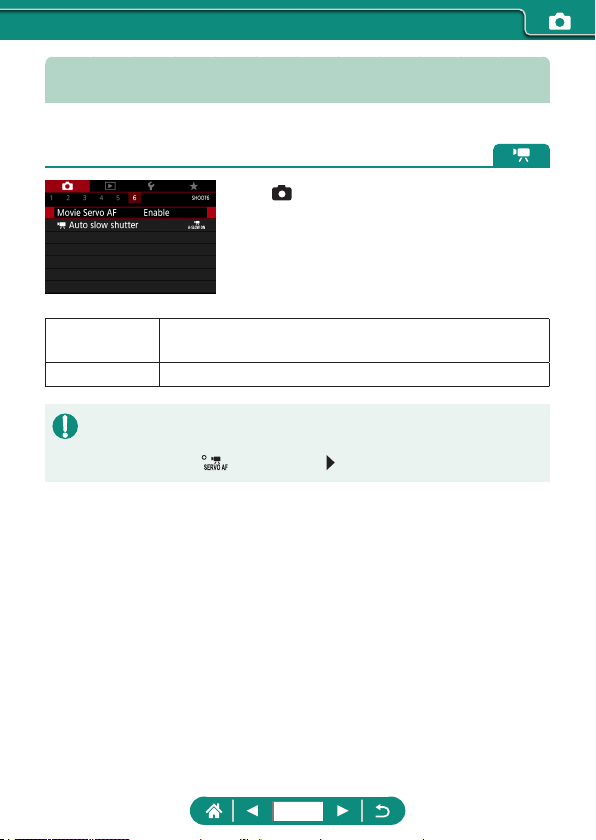
Configuring Movie Servo AF
Specify whether to keep subjects in focus when recording movies.
1
[Movie Servo AF]
Enable
Keeps subjects in focus, even when the shutter button is
not pressed halfway.
Disable Focus remains constant as movies are recorded.
z To keep the focus at a specic position, or if you prefer not to record
mechanical sounds from the lens, you can temporarily stop Movie Servo
AF by touching [
] or pressing the button.
164
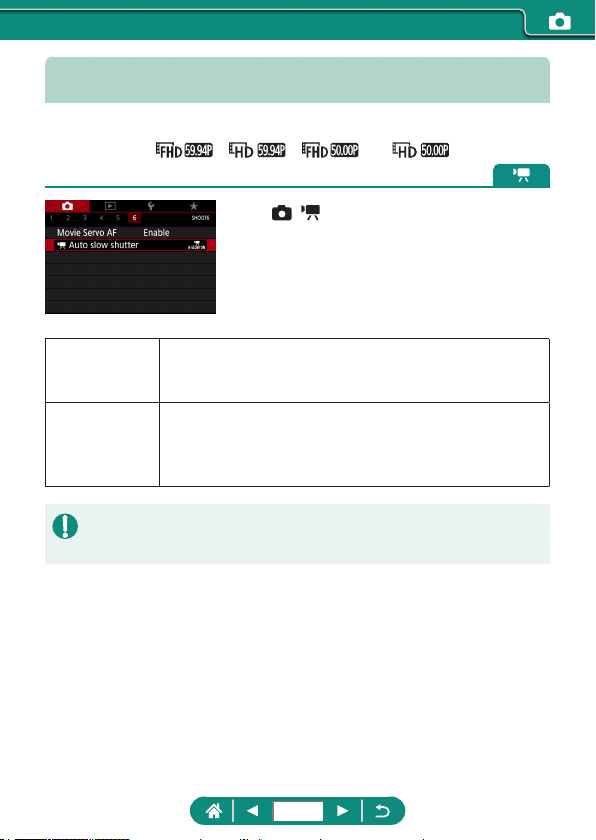
Using Auto Slow Shutter
Specify whether to reduce the shutter speed automatically under low light
when recording [
], [ ], [ ], or [ ] movies.
1
[ Auto slow shutter]
Enable
Enables you to record movies that are brighter and less
aected by image noise by automatically reducing the
shutter speed to 1/30 sec. (or 1/25 sec.) under low light.
Disable
Enables you to record movies with smoother, more
natural movement, less aected by subject shake than
when set to [Enable]. Note that under low light, movies
may be darker than when set to [Enable].
z Set to [Disable] when recording moving subjects under low light, or when
afterimages such as trails may occur.
165
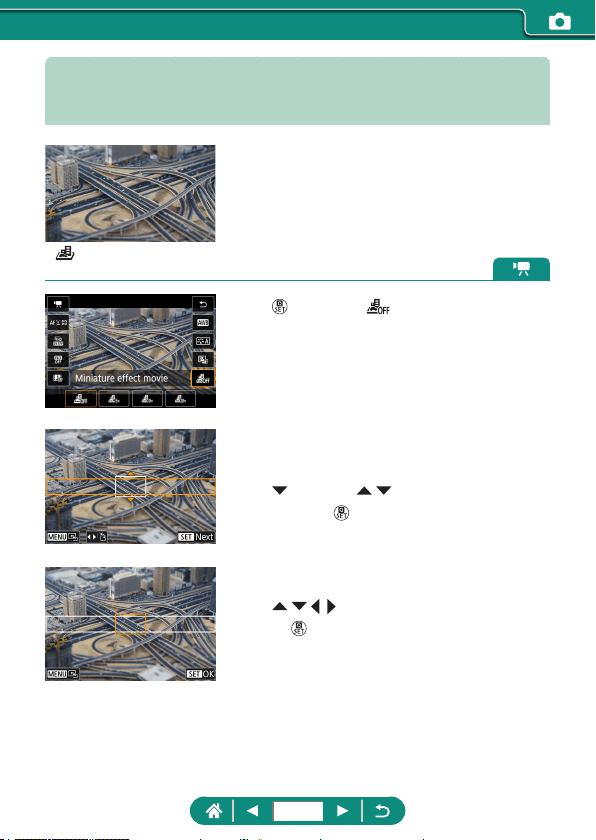
Miniature Model Effect in Movies
(Miniature Effect Movie)
Miniature eect movie
Creates the eect of a miniature model in
movies, by blurring image areas outside a
selected area.
1
button → [ ] → choose an
option
2
Set the area to keep in focus (scene
frame).
z button → / buttons to move the
frame →
button
3
Set the position in focus (AF point).
z / / / buttons to move the AF point
→
button
4
Start recording.
z Press the shutter button halfway to focus,
and then press the movie recording
button.
166
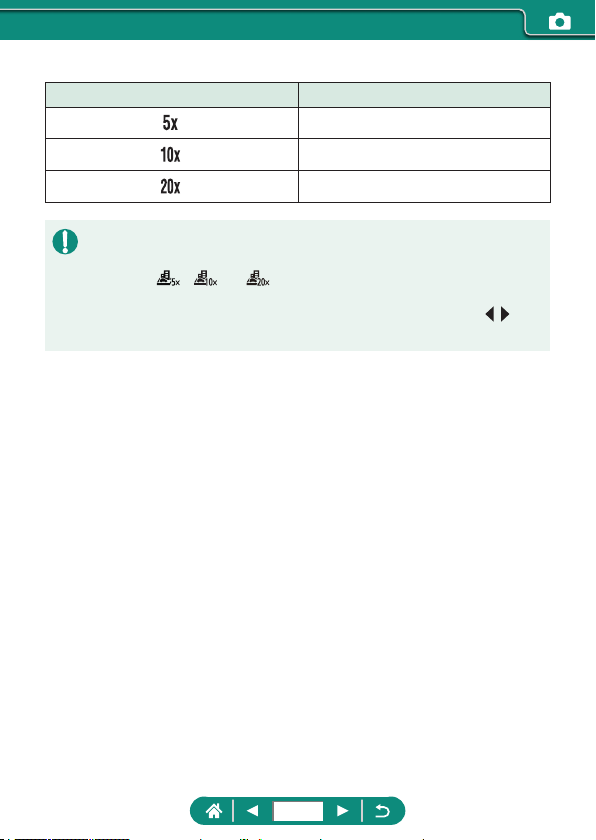
Estimated playback speed and time for a movie recorded for one minute:
Speed Playback Time
Approx. 12 sec.
Approx. 6 sec.
Approx. 3 sec.
z Sound is not recorded.
z To make people and objects in the scene move quickly during playback,
choose [
], [ ], or [ ] before recording the movie. The scene will
resemble a miniature model.
z To change the miniature eect scene frame orientation, press the
/
buttons in step 2.
167
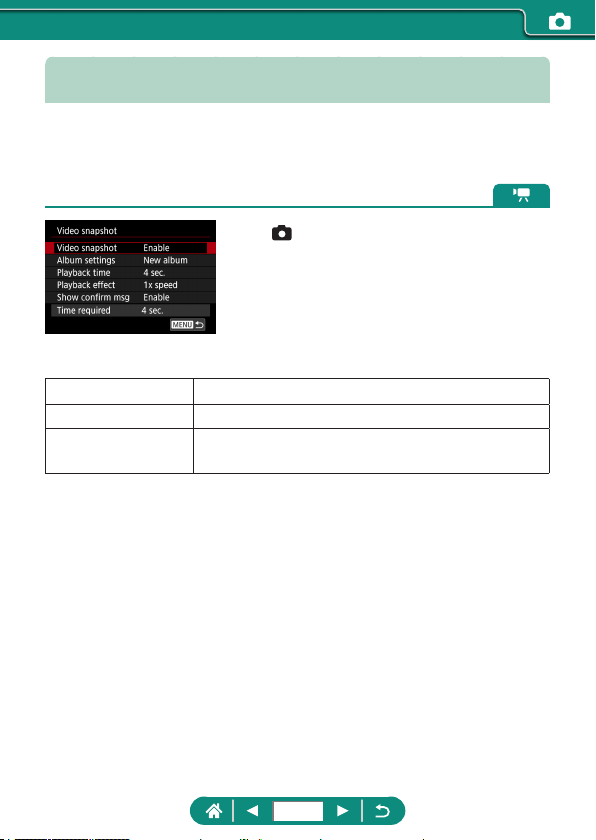
Recording Video Snapshots
Record a series of 4, 6, or 8 sec. video snapshots, and the camera will
combine them to create a video snapshot album that shows these highlights
of your trip or event.
1
[Video snapshot] → [Video
snapshot] → [Enable]
2
Configure the settings.
Playback time Choose the video snapshot playback time.
Playback eect Choose the video snapshot playback eect.
Show conrm msg
Choose whether to display a conrmation message
after each video snapshot is recorded.
z The time required to record a video
snapshot ([Time required]) is displayed,
based on [Playback time] and [Playback
eect].
z After your rst video snapshot is
recorded, in [Album settings], you can
choose which album to save your next
video snapshot to.
168
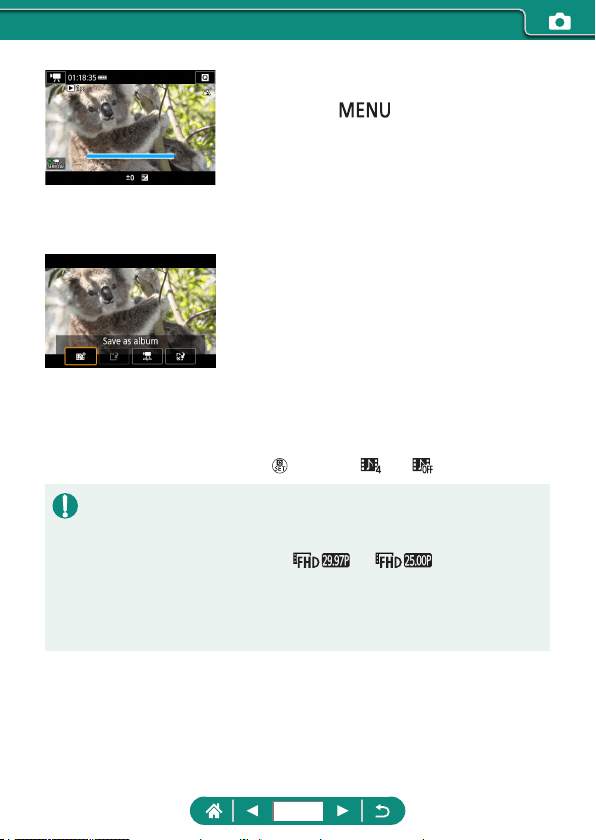
3
Start recording.
z Press the button to return to
the shooting screen, and then press the
movie recording button.
z A bar showing the elapsed time
is displayed, and recording stops
automatically when nished.
4
Save to an album.
z This message is not displayed if you set
[Show conrm msg] to [Disable] in step 2,
and the video snapshot is automatically
saved to the album you selected in
[Album settings] in step 2.
z Repeat steps 3 – 4 as needed.
5
Stop recording video snapshots.
z button → [ ] → [ ]
z Video snapshots are saved to a new album when the recording time of the
current album exceeds 5 min.
z The indicated playback time per video snapshot is only a guideline.
z Set the movie recording size to [
] or [ ].
z Any video snapshots that you manually stop recording are saved as
normal movies.
z No sound is recorded when you set [Playback eect] to [2x speed] or [1/2x
speed].
169
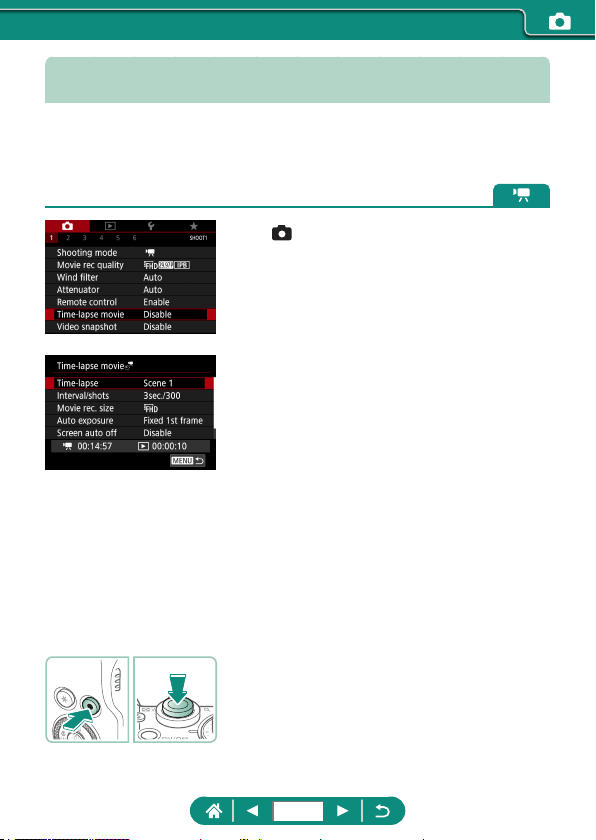
Recording Time-Lapse Movies
Time-lapse movies combine images that are shot automatically at a
specied interval. Any gradual changes of the subject (such as changes in a
landscape) are played back in fast motion.
1
[Time-lapse movie] → [Time-
lapse] → [Scene *] or [Custom]
2
Configure the settings.
z Set the shooting interval and other
settings.
3
Return to the shooting screen and
prepare for recording.
z Mount the camera on a tripod or take
other measures to keep it still.
z Set the exposure.
z To take a test shot: Press the shutter
button all the way down.
4
Start recording.
z Movie recording button → press the
shutter button all the way down
170
z As you congure the items, the time required [ ] and movie playback
time [
] are displayed.
z Set [Screen auto o] to [Disable] to keep the screen on for 30 minutes
after you start shooting. Set it to [Enable] to turn the screen o about 10
seconds after the rst frame is captured.
z Do not disturb the camera while recording.
z To cancel recording, press the shutter button or the movie recording button
again.
z Fast-moving subjects may look distorted in movies.
z Sound is not recorded.
171
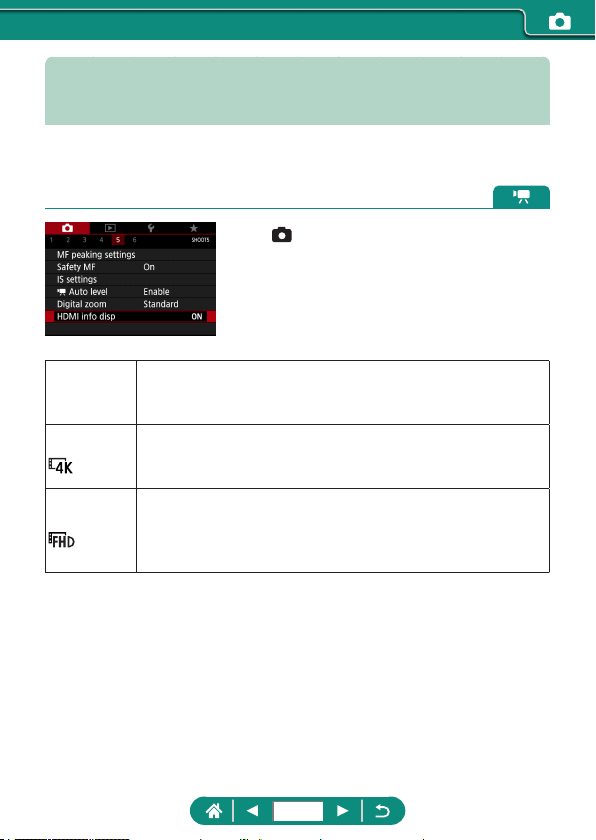
Configuring Information Display for
HDMI Output
Specify whether to show on-screen information over images in HDMI
output.
1
[HDMI info disp]
With info
Information display is included in HDMI output as movies are
recorded. No image is shown on the camera. Movies can be
recorded on the camera.
Clean /
output
HDMI output consists only of 4K content, without information
display. On the camera, information display is shown over
images. Movies cannot be recorded on the camera.
Clean /
output
HDMI output consists only of Full HD content, without
information display. On the camera, information display
is shown over images. Movies cannot be recorded on the
camera.
172
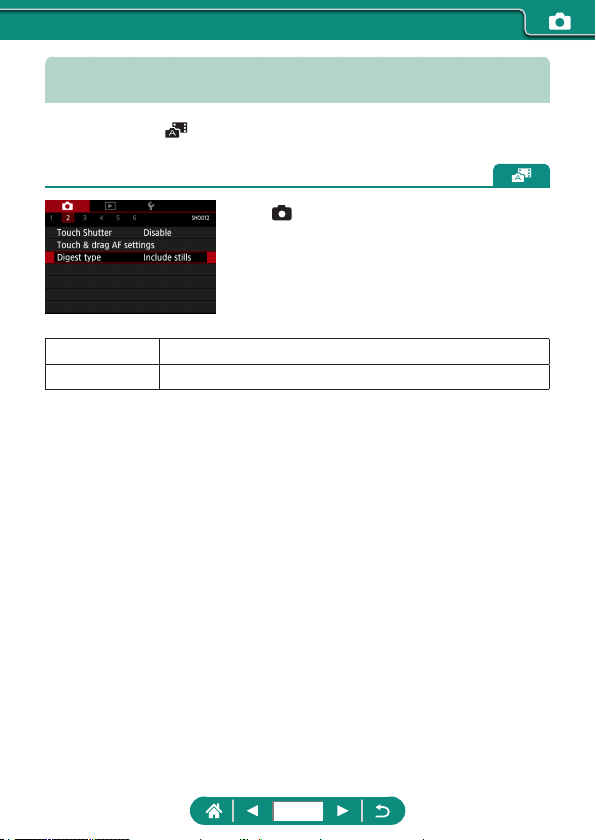
Setting the Type of Digest Movie
When shooting in mode, both stills and digest movies are recorded.
Specify whether to include a still moment in digest movies.
1
[Digest type]
Include stills Digest movies include a still moment.
No stills Digest movies do not include a still moment.
173
Enjoy browsing through your shots, and nd and edit images in several
ways.
z To prepare the camera for these operations, press the
button to
switch to playback.
Playback
174
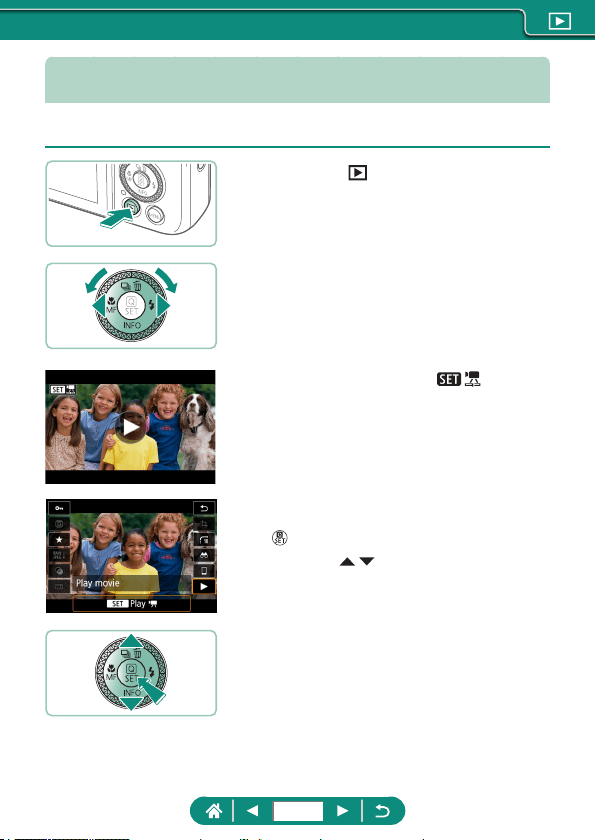
Viewing
After shooting stills or movies, you can view them on the screen as follows.
1
Press the button.
2
Choose images.
z Movies are labeled with [ ].
Playing movies
z button (twice)
z Press the / buttons to adjust the
volume.
175
z Pressing the button when the camera is o starts playback, and
pressing it again turns the camera o.
z The lens is retracted after about a minute during playback. You can turn
the camera o when the lens is retracted by pressing the
button.
z To switch to a shooting mode during playback, press the shutter button
halfway, press the movie recording button, or turn the mode dial.
z It may not be possible to play back or edit images that were renamed or
already edited on a computer.
z To pause or resume movies, press the
button.
z Lines indicating the aspect ratio are displayed when you view RAW
images. These lines are shown on the top and bottom of images shot at an
aspect ratio of [
] and on the left and right of images shot at an aspect
ratio of [
] or [ ].
176
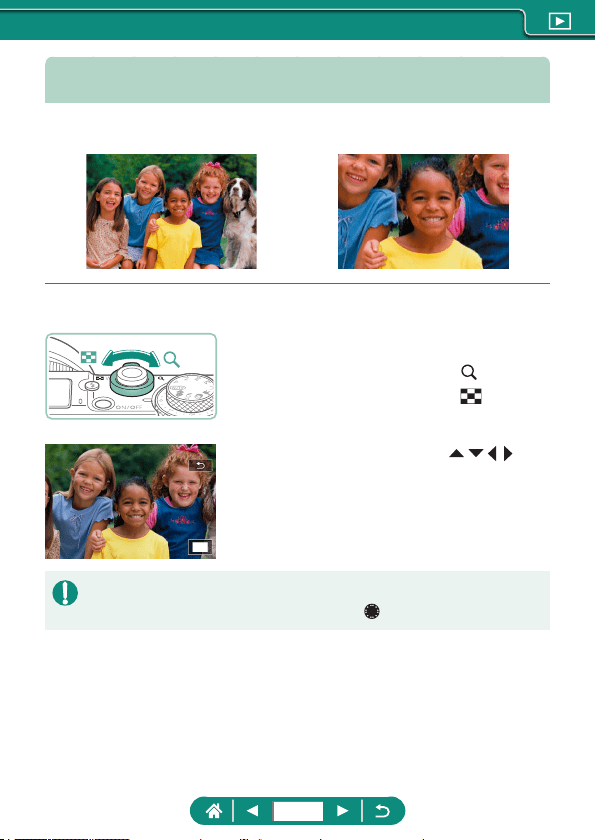
Magnifying Images
Images you play back can be magnied.
1
Choose images.
2
Magnify or reduce images.
z Magnify: Zoom lever toward
z Reduce: Zoom lever toward
z Move the display position: / / /
buttons
z When viewing a magnied image, you can switch to other images while
maintaining magnied display by turning the
dial.
177
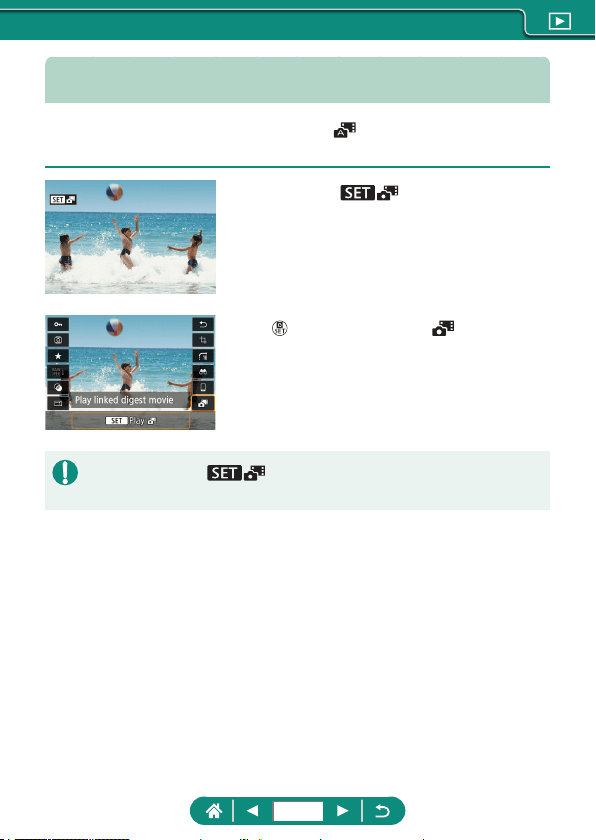
Viewing Digest Movies
A short movie of scenes when you shoot in mode is created
automatically. Playing a digest movie shows the scenes captured that day.
1
Choose [ ] images.
2
button → choose [ ]
z The digest movie recorded automatically
on the day of still shooting is played back
from the beginning.
z After a moment, [ ] will no longer be displayed when you are
using the camera with information display deactivated.
178
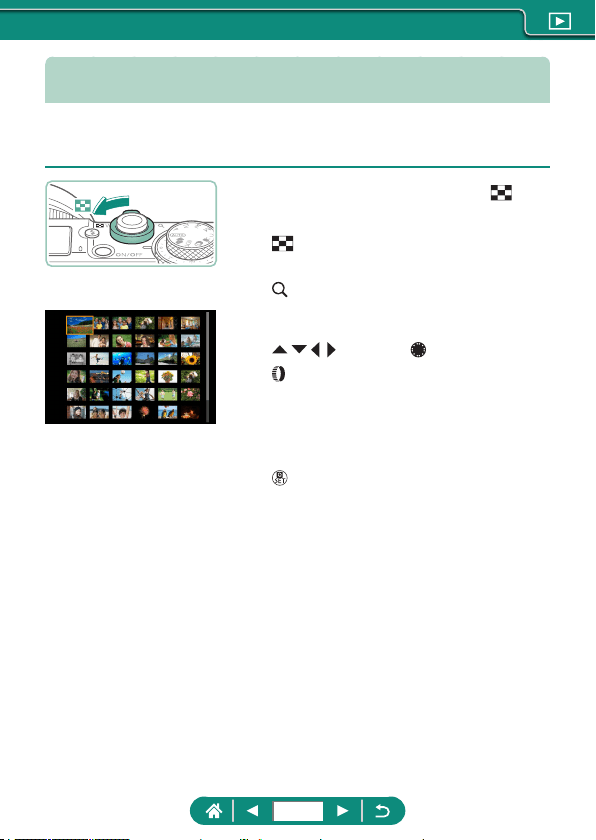
Finding Images in an Index
By displaying multiple images in an index, you can quickly nd the images
you are looking for.
1
Move the zoom lever toward .
z Display more images: Zoom lever toward
z Display fewer images: Zoom lever toward
2
Find the images.
z / / / buttons or dial
z ring: Previous/next screen
3
Choose an image.
z button
179
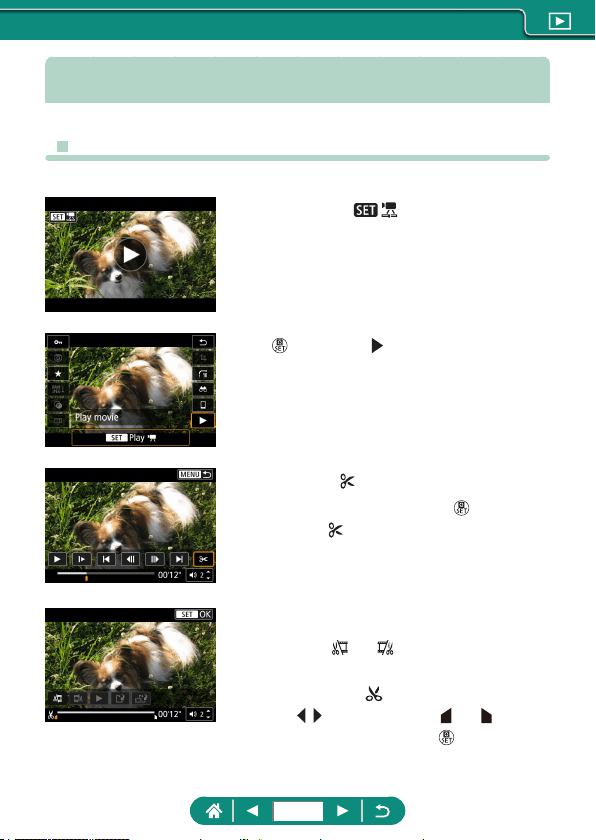
Editing Movies
z Removing the Beginning/End of Movies
You can remove unneeded portions from the beginning and end of movies.
1
Choose a [ ] movie.
2
button → [ ]
3
Choose [ ].
z During playback, press the button to
choose [
].
z The movie editing panel and editing bar
are displayed.
4
Specify portions to cut.
z Choose [ ] or [ ].
z To view the portions you can cut
(identied by [
] on the screen), press
the
/ buttons to move [ ] or [ ]. At the
position to cut, press the
button.
180
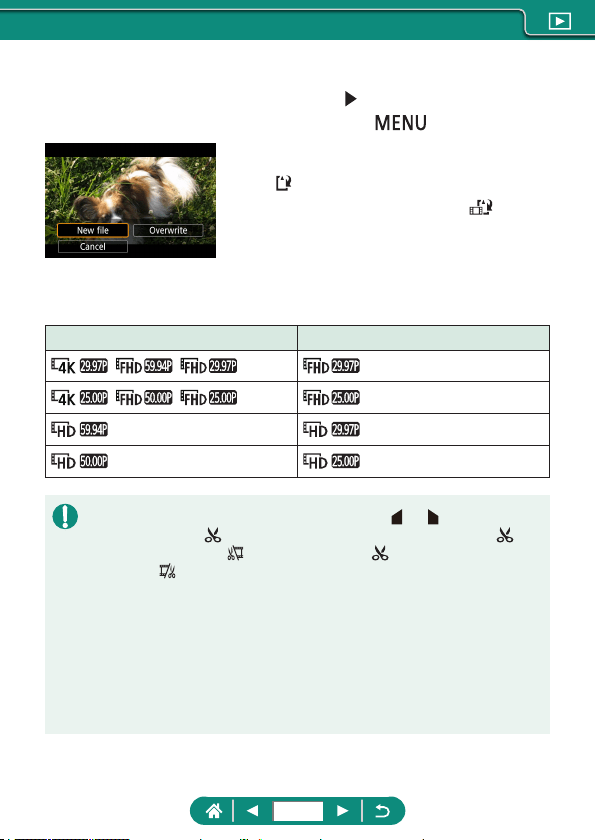
5
Review the edited movie.
z Playback: [ ]
z Cancel editing: button
6
Save the movie.
z [ ] → [New le]
z Save a compressed version: [ ] → [OK]
Image quality after compression when you choose [Save compressed
version]
Before Compression After Compression
, ,
, ,
z When you are specifying portions to cut, moving [ ] or [ ] to a position not
identied with a [
] icon will cut from the beginning to the nearest [ ]
mark on the left (for [
]) or from the nearest [ ] mark on the right to the
end (for [
]).
z For digest movies (
=
60) and video snapshots (
=
168), deletion is
performed on the basis of clips.
z To erase and overwrite the original movie with the edited one, choose
[Overwrite] on the screen for saving edited movies.
z If the memory card lacks sucient space, only [Overwrite] will be available.
z Movies may not be saved if the battery pack runs out while saving is in
progress.
z When editing movies, you should use a fully charged battery pack.
181
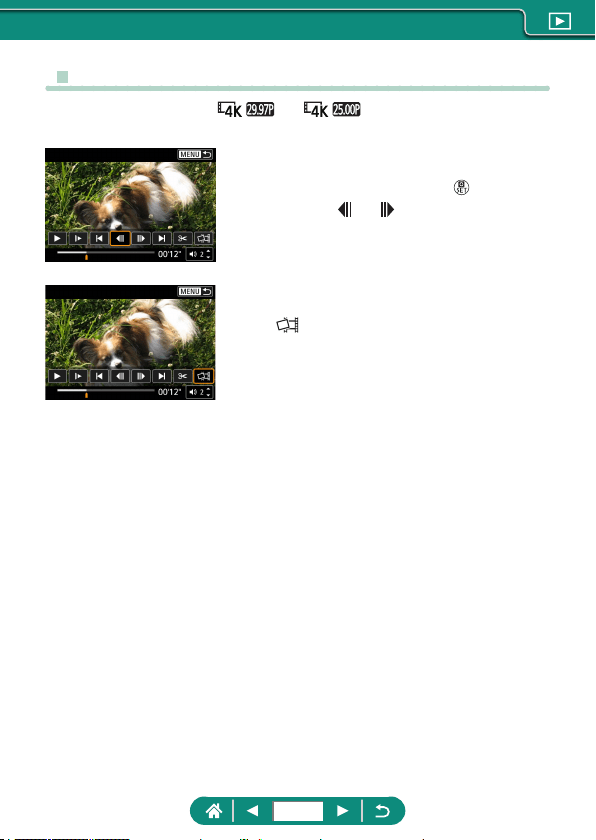
z Extracting Frames of 4K Movies as Stills
Frames of your choice in [ ] or [ ] movies can be saved as
stills.
1
Choose a frame to extract.
z During playback, press the button, and
then use [
] or [ ] to choose a frame.
2
Save the image.
z [ ] → [OK]
182
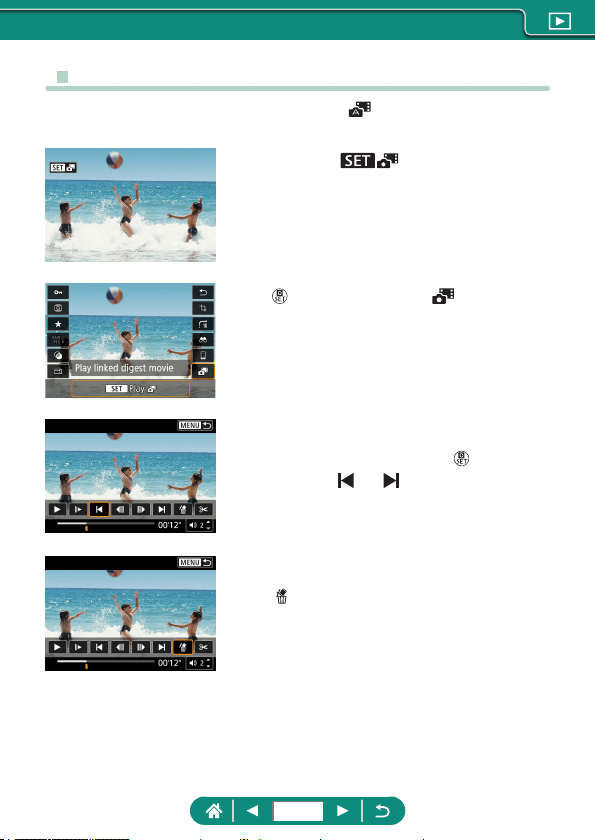
z Editing Digest Movies
Individual chapters (clips) (
=
60) recorded in mode can be erased.
Be careful when erasing clips, because they cannot be recovered.
1
Choose [ ] images.
2
button → choose [ ]
3
Choose a clip.
z During playback, press the button, and
then use [
] or [ ] to choose a clip.
4
Erase the selected clip.
z [ ] → [OK]
183
z After [Erase this clip?] is displayed, the chapter is erased and the digest
movie is overwritten when you choose [OK] and press the
button.
z Albums created when recording video snapshots can also be edited.
Albums created with
[Create album] cannot be edited.
184
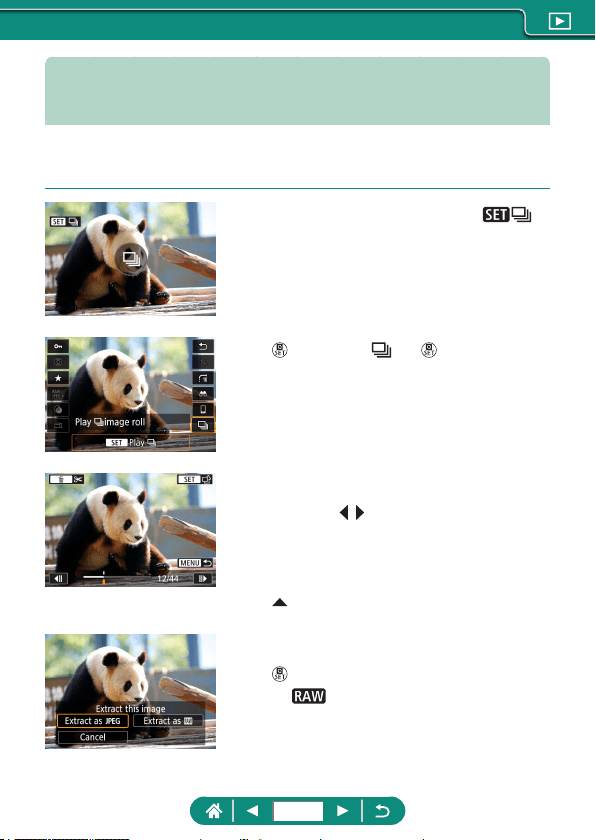
Extracting Stills from RAW Burst
Images
You can extract any image (as a JPEG or RAW image) from sets (rolls,
=
116) captured in RAW burst mode.
1
Choose the roll of images: [ ].
2
button → [ ] → button
3
Choose an image.
z Press the / buttons to choose an
image to extract.
z To delete unneeded portions at the
beginning and end of the roll, press the
button.
4
Save the image.
z button → [Extract as JPEG] or [Extract
as
]
z When extracting JPEGs, you can choose
[Edit and save] and apply RAW image
processing (
=
198) before saving.
185
z Images saved when [Extract as JPEG] is selected are in [ ] quality.
z Creative lters, cropping, and resizing are not available when processing
JPEGs extracted from RAW burst images or from RAW images extracted
from RAW burst images.
186
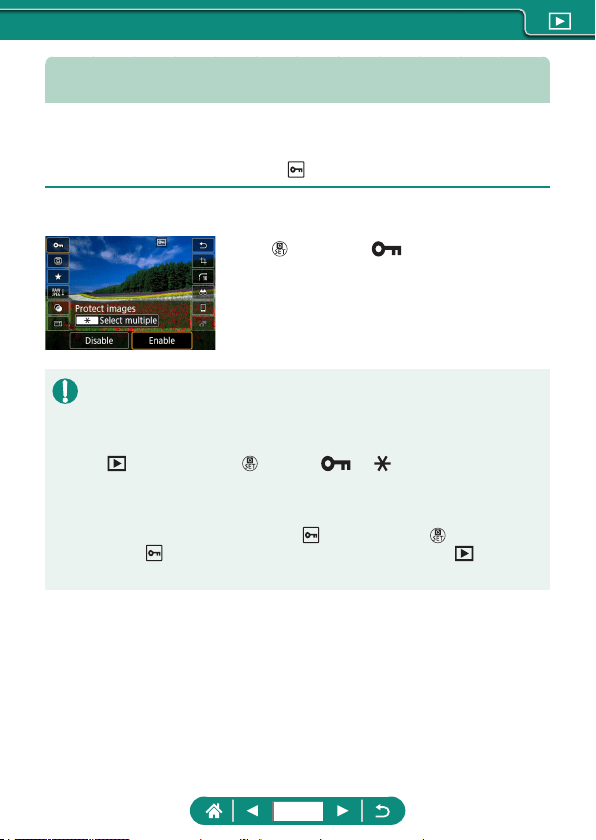
Protecting Images
Important images can be selected and protected to prevent accidental
erasure from the camera.
Protected images are labeled with a
icon.
1
Choose an image.
2
button → [ ] → [Enable]
z Protected images on a memory card will be erased if you format the card.
z Protected images cannot be erased using the camera’s erasure function.
To erase them this way, rst cancel protection.
z You can choose [All found images] or [Unprotect all found] by using
[Protect images] or button → [ ] → button when results are
displayed for your specied image search conditions.
- Choose [All found images] to protect all found images.
- Choose [Unprotect all found] to clear protection of all found images.
z To cancel protection and remove [
] display, press the button again
when [
] is displayed on the screen after you have chosen [Protect
images] → [Select images].
187
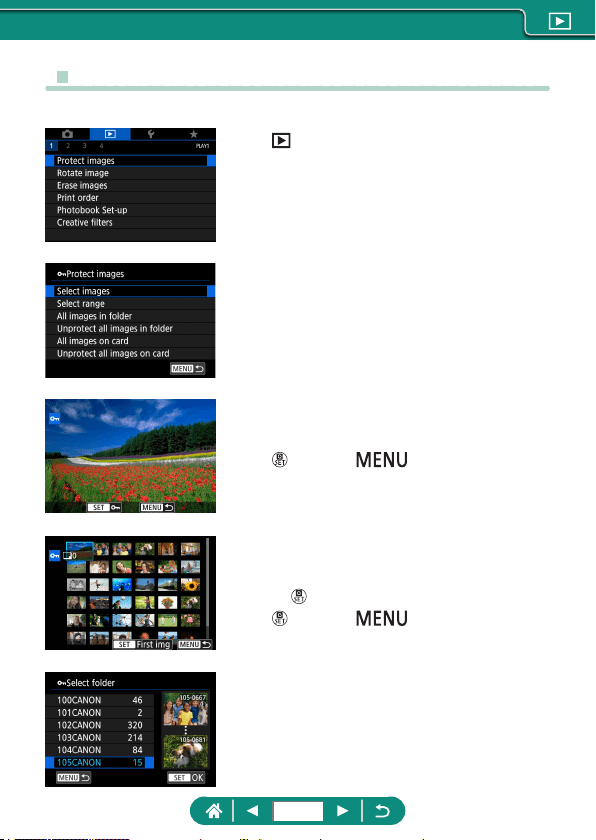
z Protecting Multiple Images
You can choose multiple images to protect at once.
1
[Protect images]
2
Choose images.
Selecting images individually
z [Select images] → choose an image →
button → button
Selecting a range
z [Select range] → choose the rst image
→
button → choose the last image →
button → button
Selecting all images in a folder
z [All images in folder] → choose a folder
→ [OK]
188
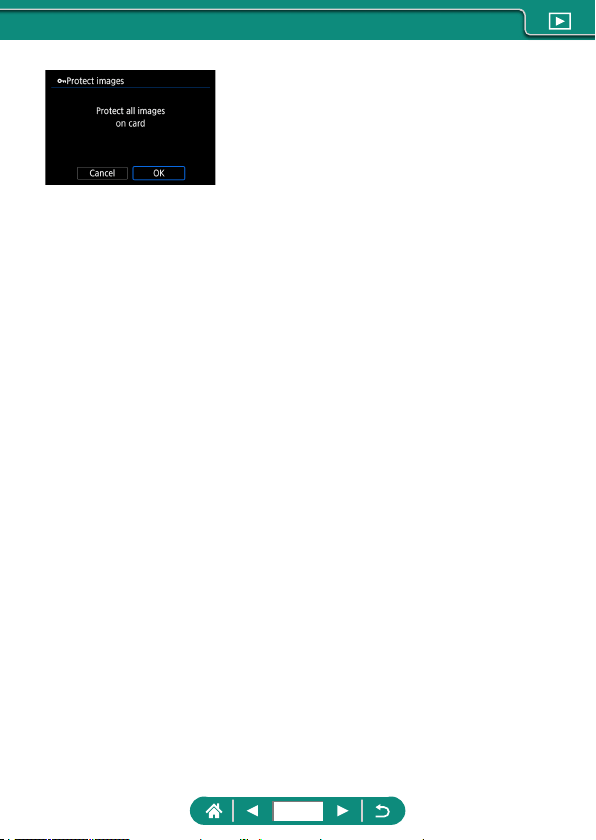
Selecting all images on a card
z [All images on card] → [OK]
189
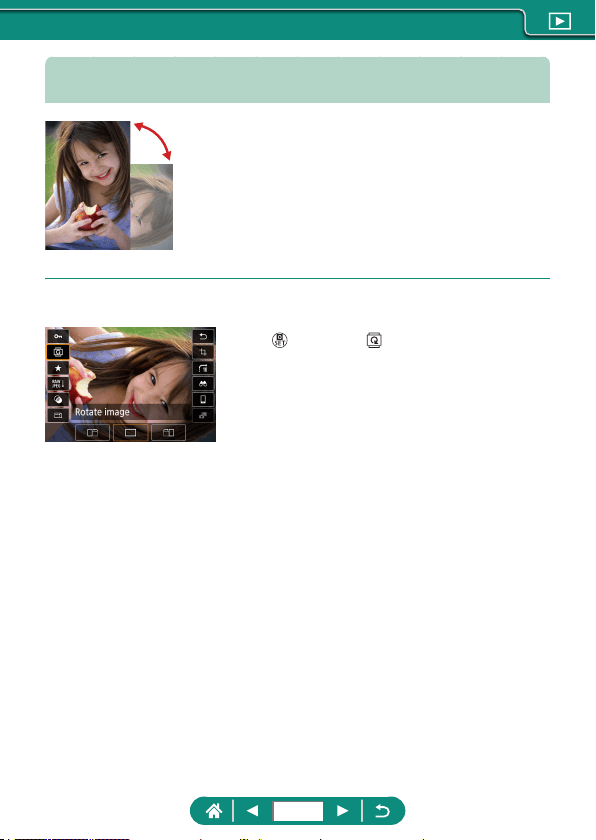
Rotating Images
Change the orientation of images and save
them.
1
Choose an image.
2
button → [ ] → choose an option
190
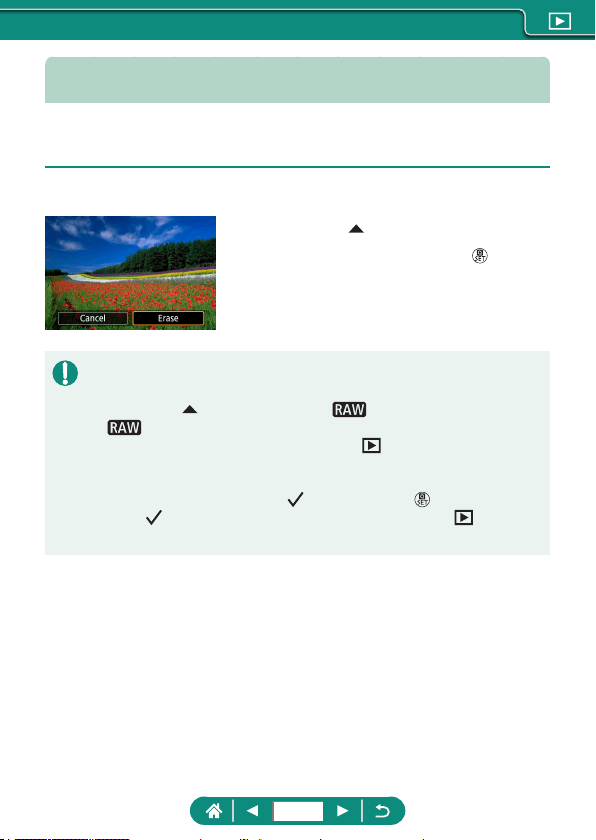
Erasing Images
Unneeded images can be erased. Be careful when erasing images,
because they cannot be recovered.
1
Choose an image.
2
Press the button.
z Choose the erasure option → button
z Protected images cannot be erased.
z During display of images captured in both RAW and JPEG format,
pressing the
button displays [Erase ], [Erase JPEG], and [Erase
+JPEG]. Choose an option to erase the image.
z You can choose [All found images] by using
[Erase images] when
results are displayed for your specied image search conditions.
- Choose [All found images] to erase all found images.
z To clear selection and remove [
] display, press the button again
when [
] is displayed on the screen after you have chosen [Erase
images] → [Select and erase images].
191
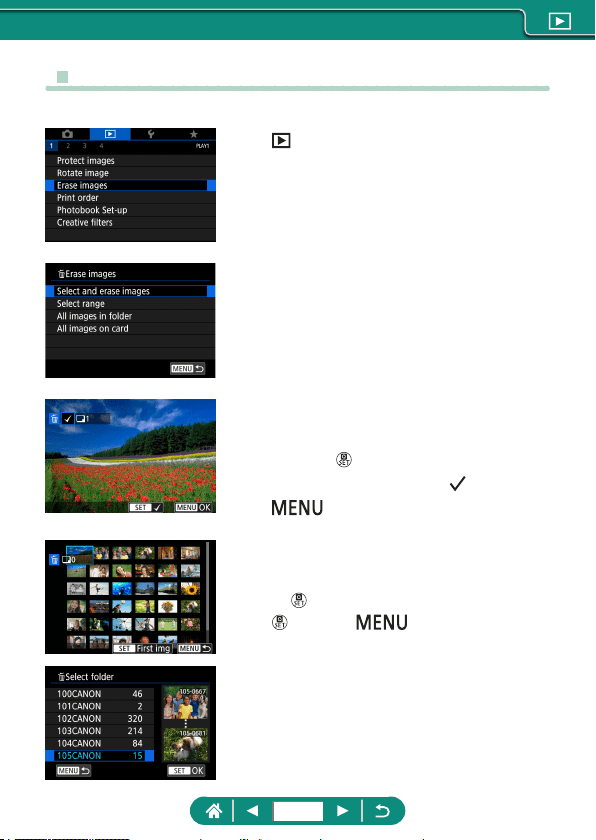
z Erasing Multiple Images at Once
You can choose multiple images to erase at once.
1
[Erase images]
2
Choose images.
Choosing images individually
z [Select and erase images] → choose an
image →
button
z The image is labeled with [ ].
z button → [OK]
Selecting a range
z [Select range] → choose the rst image
→
button → choose the last image →
button → button → [OK]
Selecting all images in a folder
z [All images in folder] → choose a folder
→ [OK]
192
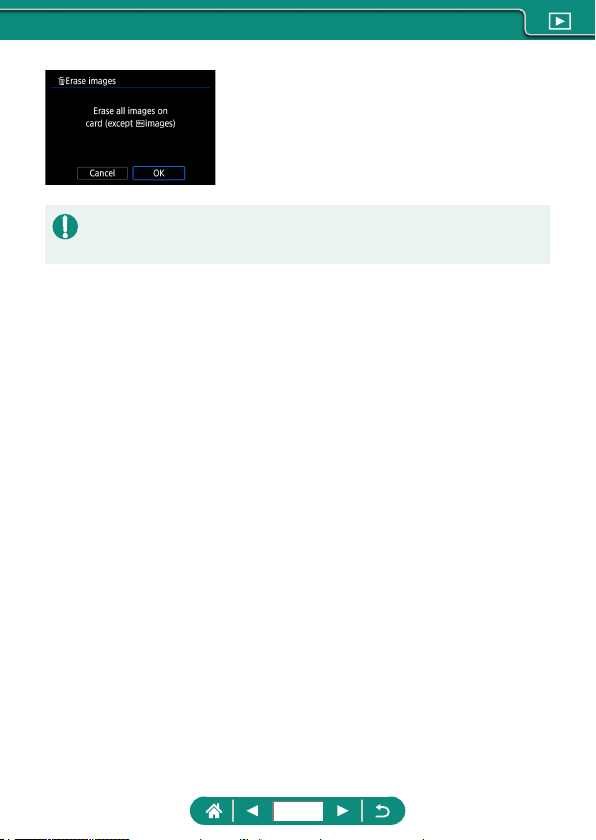
Selecting all images on a card
z [All images on card] → [OK]
z Choosing an image captured in both RAW and JPEG format will erase
both versions.
193
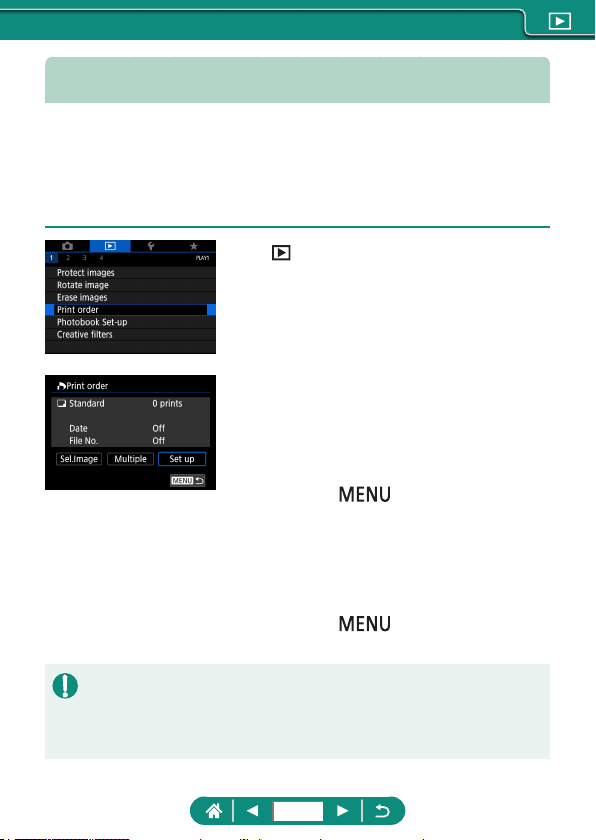
Adding Images to Print Orders (DPOF)
Set up batch printing (up to 400 images) or ordering prints from a photo
development service (up to 998 images) by choosing the images on a
memory card and the number of copies. The printing information you
prepare this way will conform to DPOF (Digital Print Order Format)
standards.
1
[Print order]
2
Add images to the print list.
Choosing images
z [Sel.Image] or [Multiple] → choose
images and the number of copies
z Press the
button to return to the
printing screen.
Other settings
z [Set up] → choose an item → choose an
option
z Press the
button to return to the
printing screen.
z RAW images and movies cannot be selected.
z Not all of your DPOF settings may be applied in printing by the printer or
photo development service, in some cases.
z Setting [Date] to [On] may cause some printers to print the date twice.
194
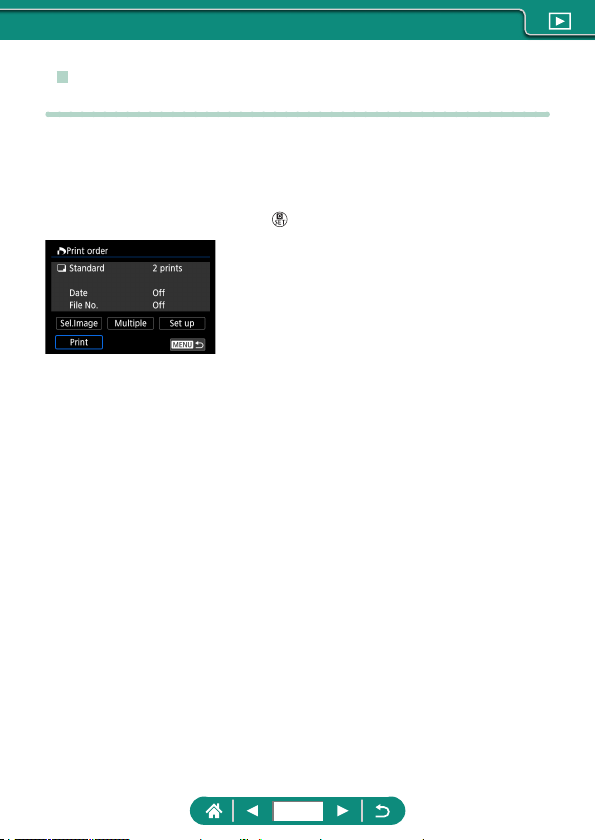
z Printing Images Added to the Print Order
(DPOF)
1
Connect the camera to a PictBridge-
compatible printer.
z The playback screen is displayed.
z button → [Print order]
2
Print the images.
z [Print] → [OK]
195
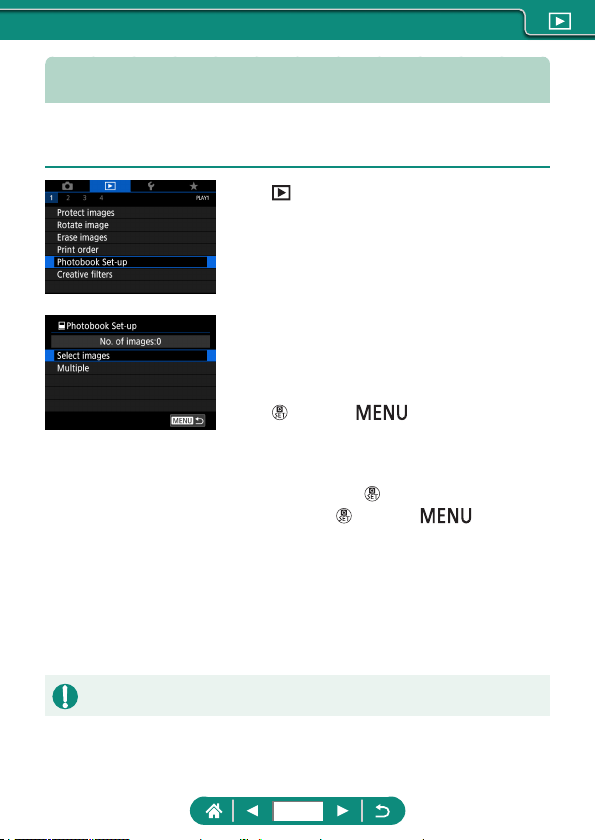
Adding Images to a Photobook
Photobooks can be set up by choosing up to 998 images on a memory
card.
1
[Photobook Set-up]
2
Choose images.
Choosing images individually
z [Select images] → choose an image →
button → button
Selecting a range
z [Multiple] → [Select range] → choose the
rst image →
button → choose the last
image →
button → button
Selecting all images in a folder
z [Multiple] → [All images in folder] →
choose a folder → [OK]
Selecting all images on a card
z [Multiple] → [All images on card] → [OK]
z RAW images and movies cannot be selected.
196
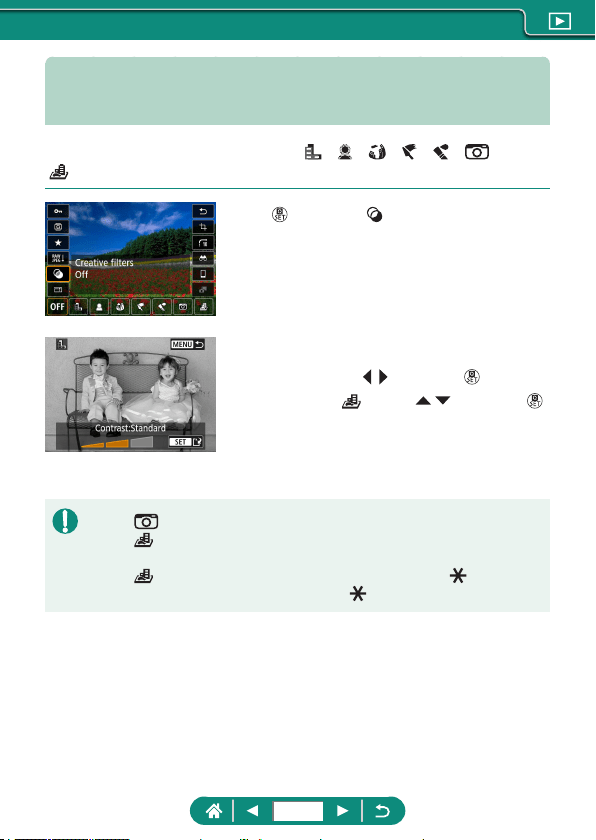
Applying Filter Effects to Images
(Creative Filters)
Apply eects equivalent to shooting in [ ], [ ], [ ], [ ], [ ], [ ], and
[
] modes to images and save them as separate images.
1
button → [ ] → choose an option
2
Adjust the effect as needed.
z Set the level: / buttons → button
z Move the [ ] frame: / buttons →
button
3
Save the image.
z For [ ], you can also choose the type of lter eect.
z For [
], you can also move the frame by touching or dragging across the
screen.
z For [
], you can switch to vertical orientation by pressing [ ] and
restore horizontal orientation by pressing [
] again.
197
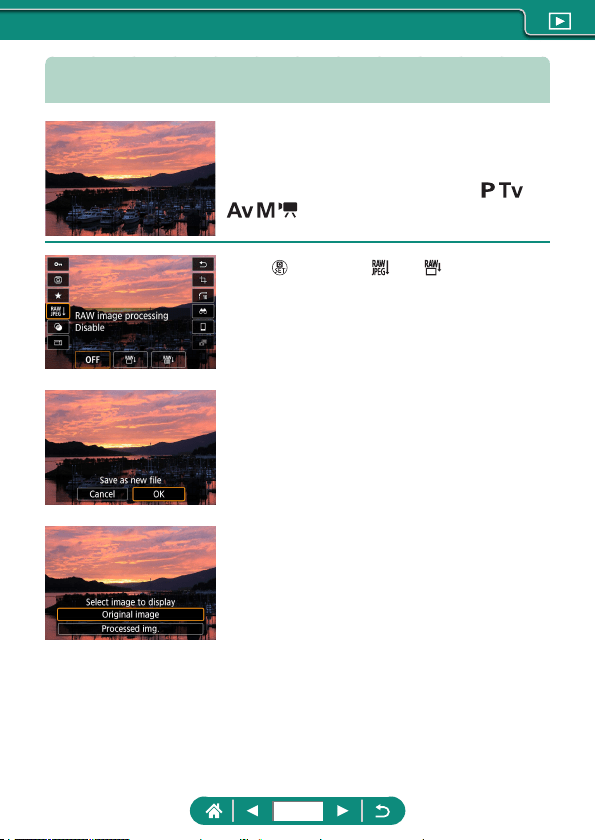
Processing RAW Images
Process images captured in RAW format on the
camera. The original RAW image is retained,
and a copy is saved as a JPEG.
Available when the mode dial is set to
/ /
/ / .
1
button → [ ] → [ ]
2
Save the image.
3
Select the image to display.
198
z Images produced by in-camera processing will not match those processed
with Digital Photo Professional exactly.
z This method of image processing is not available for images in sets (rolls)
captured in RAW burst mode. Process the images after extracting them
from rolls as RAW images (
=
185).
Customizing RAW Processing
z By choosing [Customize RAW processing], you can manually adjust image
brightness, Picture Styles, and other details before processing.
z On the processing conditions screen, you can also choose an eect for the
selected processing condition by turning the
dial.
z For magnied display on the processing conditions screen, move the zoom
lever toward
.
z You can compare the current image (“After change”) to the original image
(“Shot settings”) by pressing the
button and turning the dial.
Processing Multiple Images
z Choose [RAW image processing] → [Select images], press the
button, and then press the
/ buttons to choose an image. Press the
button to mark the item as selected ([
]). Repeat this process to specify
other images. When nished, process the images.
z To cancel selection, press the
button again. [ ] is no longer displayed.
Processing a Range of Images
z Choose [RAW image processing] → [Select range], press the
button, and then specify a range of images. When nished, process the
images.
199
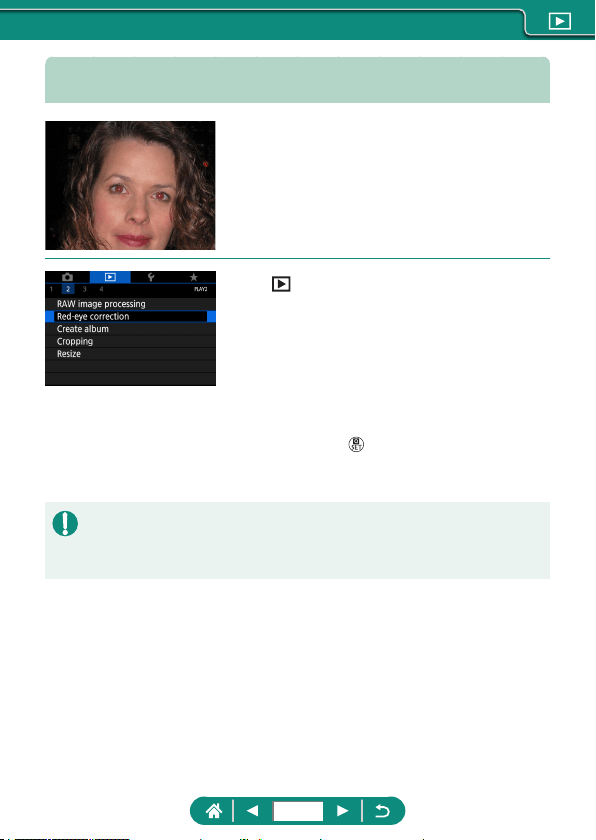
Correcting Red-Eye
Automatically corrects images aected by red-
eye. You can save the corrected image as a
separate le.
1
[Red-eye correction]
2
Choose an image.
3
Press the button.
4
Save the image.
z Once red-eye is corrected, frames are displayed around corrected image
areas.
z Some images may not be corrected accurately.
200
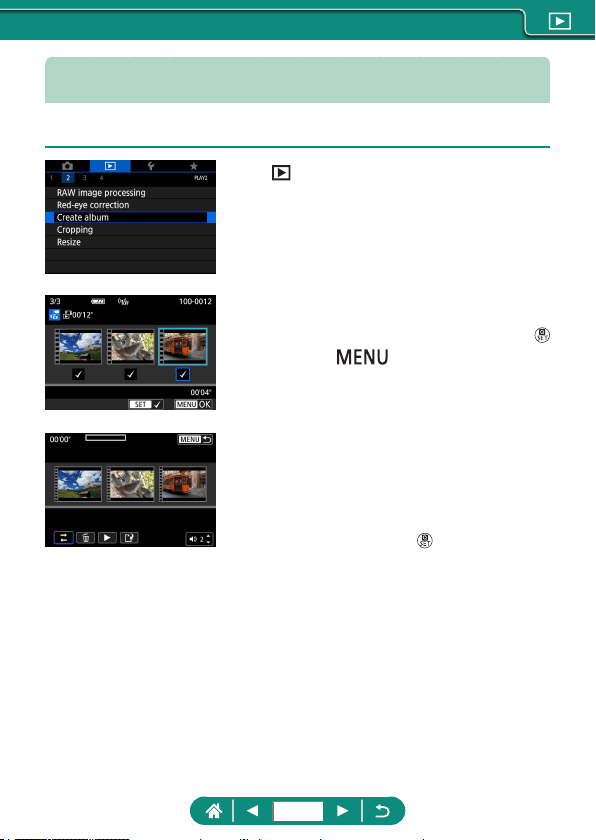
Combining Video Snapshots
Combine video snapshots to create a new movie (album).
1
[Create album]
2
Specify video snapshots.
z Choose a movie (an existing album) →
button →
button → [OK]
3
Edit the album.
z Video snapshots in the movie selected in
step 2 are displayed.
z Choose an item in the editing menu at the
bottom and press the
button.
z Along the top of the screen, choose
video snapshots to edit, and edit them as
needed.
201
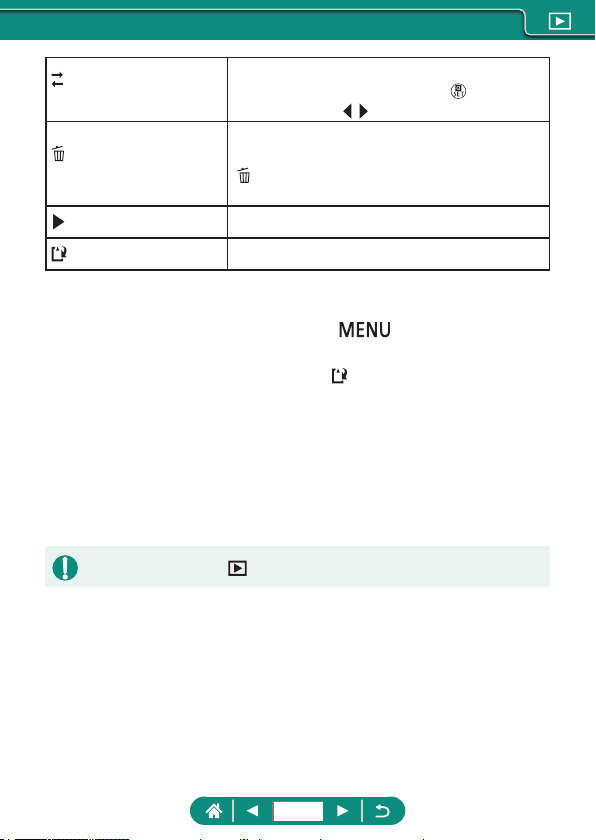
Rearrange video
snapshots
Rearrange video snapshots. Choose a video
snapshot to move and press the
button. To
move it, use the
/ buttons.
Remove video
snapshot
Choose video snapshots to exclude from the
new album. Video snapshots labeled with a
[
] icon are not included in the new album, but
they are not deleted from the original album.
Play video snapshot
Play the selected video snapshot.
Finish editing
Exit album editing.
4
Exit editing.
z Press the button to return to the
editing menu.
z Choose [
] to exit editing.
5
Save the album.
z Choose [Save].
z To add background music, choose
[Background music].
z Choose [Preview] to preview the album
you edited.
z Albums created with [Create album] cannot be edited.
202
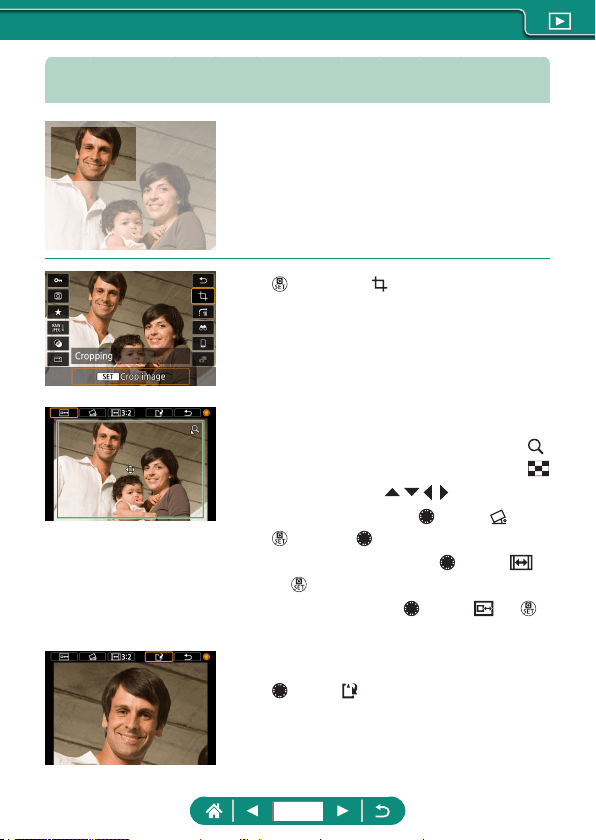
Cropping
You can specify a portion of an image to save as
a separate image le.
1
button → [ ]
2
Adjust the cropping area.
z Reduce the frame: Zoom lever toward
Enlarge the frame: Zoom lever toward
z Move the frame: / / / buttons
z Straighten the image:
dial → [ ] →
button → dial
z Change the aspect ratio: dial → [ ]
→
button
z Preview the image:
dial → [ ] →
button
3
Save the image.
z dial → [ ] → [OK]
203
z RAW images cannot be edited.
z Cropped images cannot be cropped again.
z Cropped images cannot be resized or have creative lters applied.
z Cropped images will have a lower pixel count than uncropped images.
z While previewing the cropped image, you can adjust the cropping frame
size, position, and aspect ratio.
z You can also specify the cropping frame size, position, orientation, and
aspect ratio by choosing
[Cropping], choosing an image, and pressing
the
button.
204
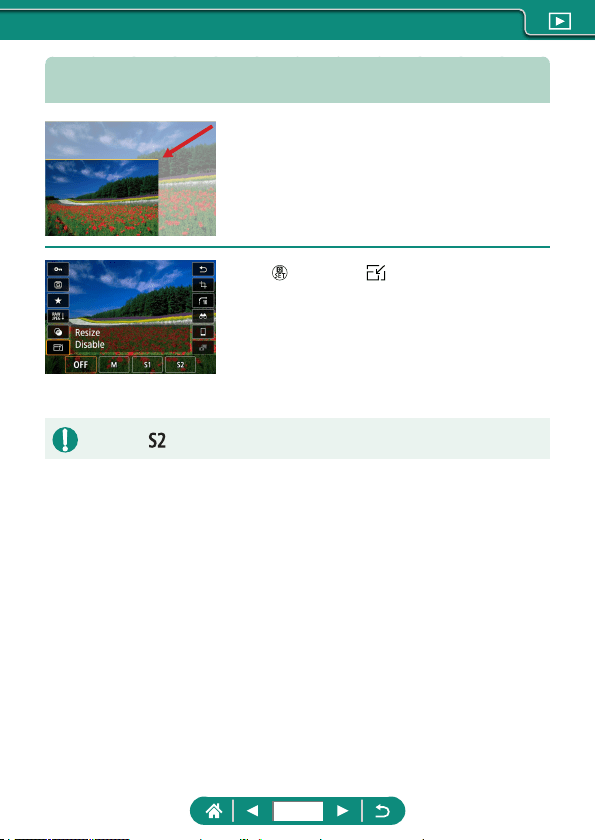
Resizing Images
Save a smaller version of an image, with fewer
pixels.
1
button → [ ] → choose an option
2
Save the image.
z JPEG [ ] images and RAW images cannot be edited.
205
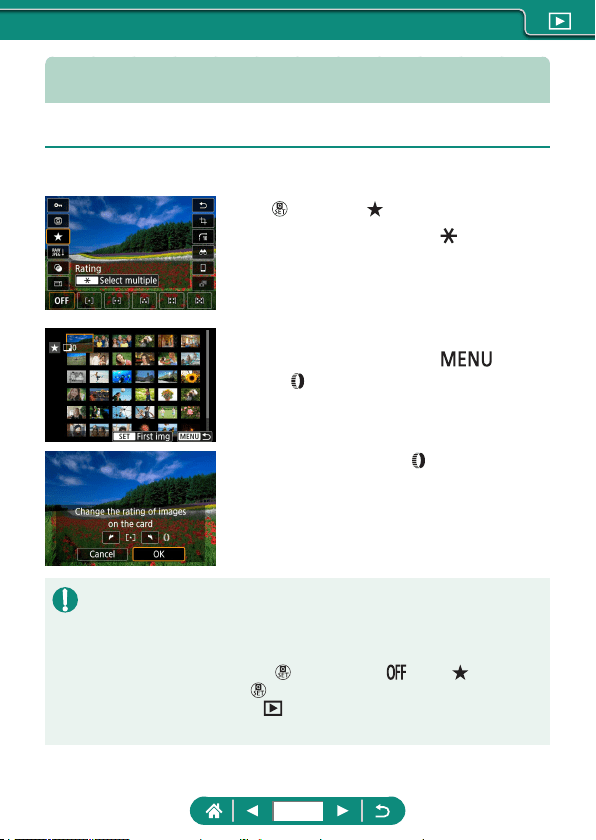
Rating Images
Organize images by rating them on a scale of 1 – 5.
1
Choose an image.
2
button → [ ] → choose an option
z Choose multiple images: button →
choose an item
z [Select range]: Choose the rst image →
choose the last image →
button
→
ring to set the rating → [OK]
z [All images on card]:
ring to set the
rating → [OK]
z By viewing only images with a specied rating, you can restrict the
following operations to all images with that rating.
- Viewing, protecting, erasing, or adding images to a print list or
photobook, viewing slideshows
z To remove ratings, press the
button, choose [ ] in the [ ] setting
item, and then press the
button.
z When rating images using
[Rating], you can apply a rating to all
images in a folder.
206
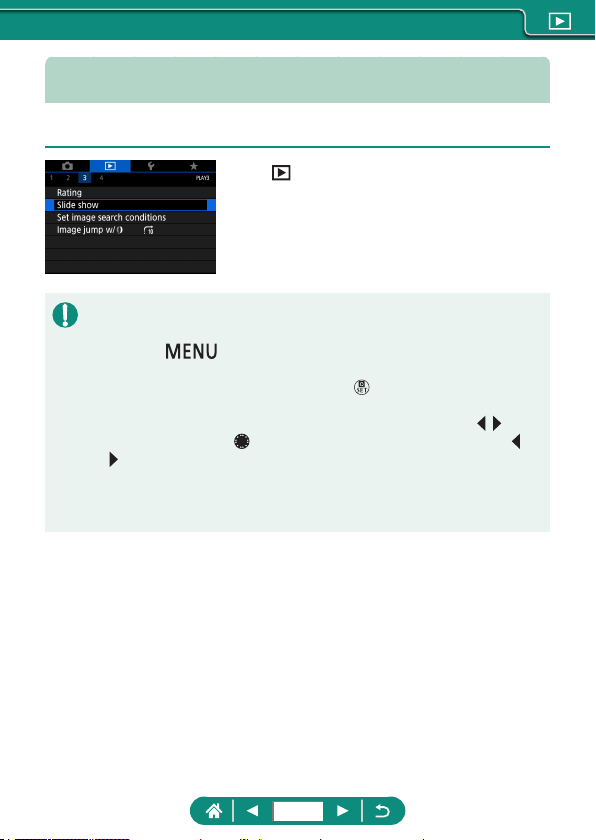
Viewing Slideshows
Automatically play back images from a memory card.
1
[Slide show] → [Start]
z After you start playback and [Loading image] is displayed, the slideshow
starts in a few seconds.
z Press the
button to stop the slideshow.
z The camera’s power-saving functions are deactivated during slideshows.
z To pause or resume slideshows, press the
button.
z During a slideshow, you can also pause playback by touching the screen.
z You can switch to other images during playback by pressing the
/
buttons or turning the
dial. For fast-forward or fast-rewind, hold the /
buttons down.
z On the slideshow start screen, you can choose [Set up] to congure
slideshow repetition, display time per image, and the transition between
images.
207
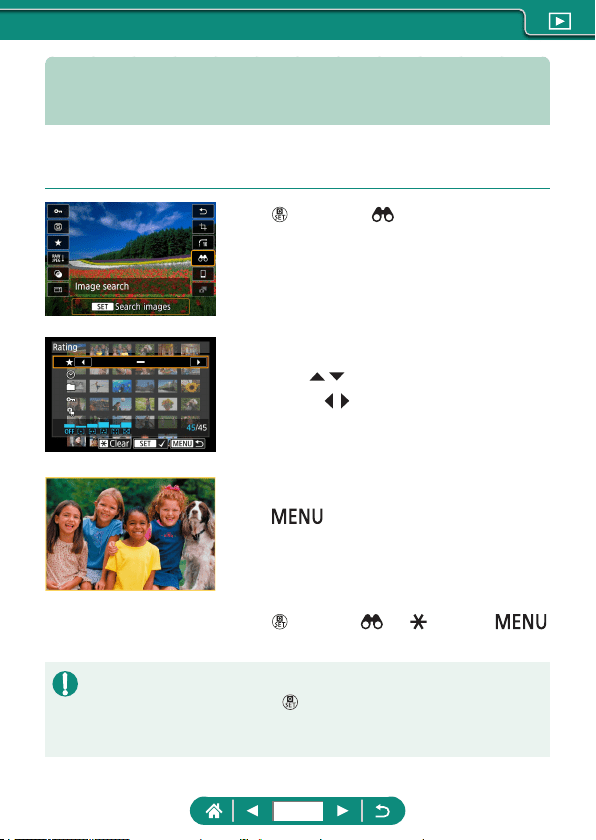
Finding Images Matching Specified
Conditions
Find images quickly on a memory card full of images by ltering image
display according to your specied conditions.
1
button → [ ]
2
Specify conditions.
z Item: / buttons
z Option: / buttons
3
Complete the setting.
z button → [OK]
z Matching images are displayed in yellow
frames.
Canceling filtered display
z button → [ ] → button →
button → [OK]
z You can apply protection or ratings exclusively to the found images in
yellow frames by pressing the
button.
z If you edit images and save them as new images, a message is displayed,
and the images that were found are no longer shown.
208
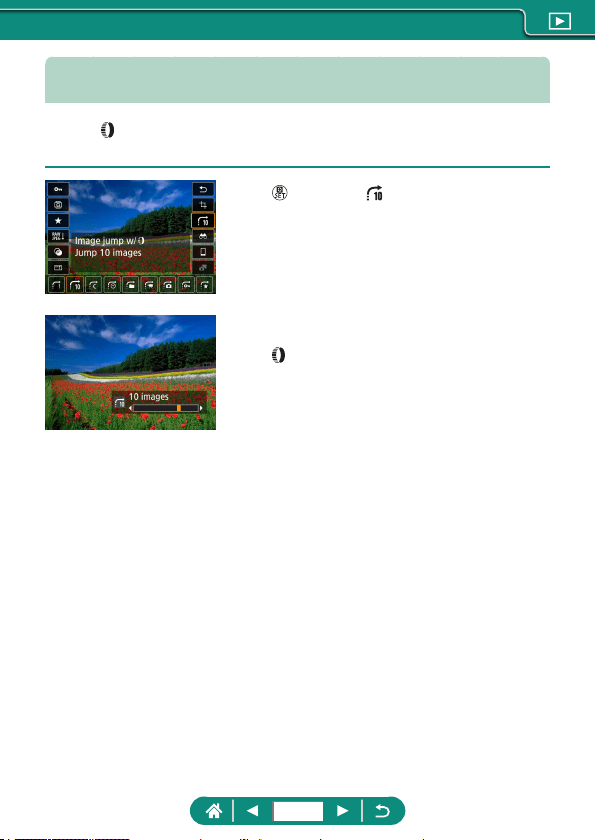
Using the Control Ring to Find Images
Use the ring to nd and jump between desired images quickly by ltering
image display according to your specied conditions.
1
button → [ ] → choose an option
2
Find the images.
z ring
209
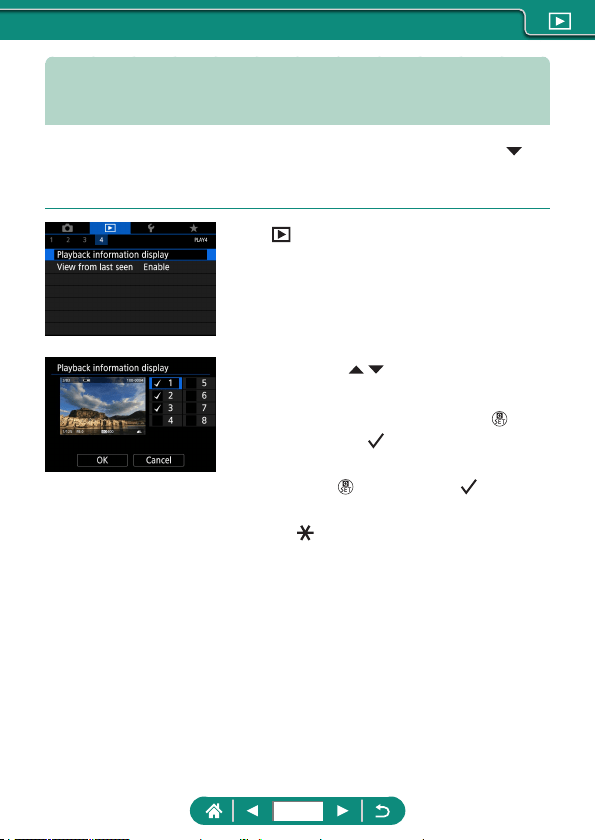
Customizing Playback Information
Display
The shooting information displayed changes each time you press the
button when display is set to playback. You can customize the information
displayed.
1
[Playback information display]
2
Press the / buttons and select
screens.
z For screens to display, press the
button to add [
].
z For screens you prefer not to display,
press the
button to clear [ ].
z To specify a histogram to display, press
the
button.
z Choose [OK] to apply your settings.
210
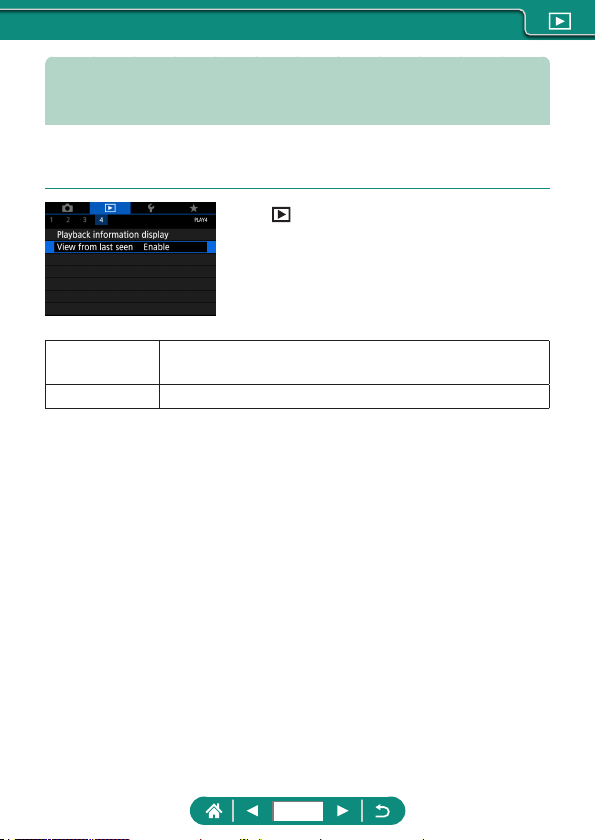
Starting Playback from the Last Image
Displayed
You can specify how image display begins when you switch to the playback
screen after turning the camera o and on.
1
[View from last seen]
Enable
The last image displayed on the playback screen is
displayed.
Disable The most recent image is displayed.
211
Send images wirelessly to a variety of compatible devices, or share them
via Web services.
Before using wireless features, be sure to read “Precautions for Wireless
Features” (
=
304).
z Note that Canon cannot be held liable for any loss or damage from
erroneous wireless communication settings when using the camera. In
addition, Canon cannot be held liable for any other loss or damage caused
by use of the camera.
z When using wireless communication functions, establish appropriate
security at your own risk and discretion. Canon cannot be held liable for
any loss or damage caused by unauthorized access or other security
breaches.
Wireless Features
212
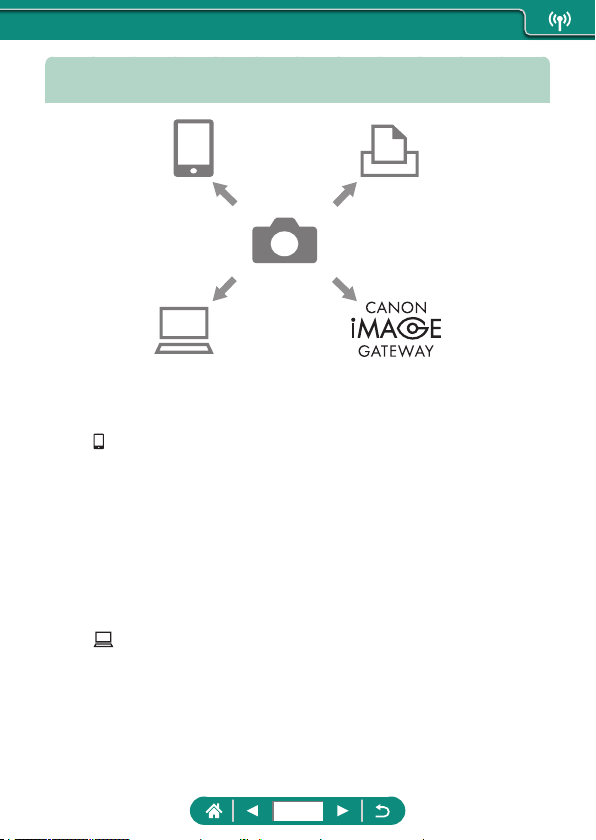
Available Wireless Features
(3) Print from Wi-Fi printers(1) Connect to smartphones
(2) Send images to a computer
automatically
(4) Upload to Web services
(1) Connect to smartphones (
=
215,
=
223)
Control the camera remotely and browse images on the camera
over a Wi-Fi connection by using the dedicated Camera Connect
app on smartphones or tablets.
You can also geotag images and use other features when connected
by Bluetooth
®
*.
For convenience in this guide, smartphones, tablets, and other
compatible devices are collectively referred to as “smartphones”.
* Bluetooth low energy technology (hereafter referred to as “Bluetooth”)
(2) Send images to a computer automatically (
=
230)
With Image Transfer Utility 2, camera images can be automatically
sent to a computer connected via Wi-Fi.
213
(3) Print from Wi-Fi printers (
=
226)
Print images over a Wi-Fi connection from printers compatible with
PictBridge (wireless LAN) technology.
(4)
Upload to Web services (
=
234)
Share images with friends or family on social media or the CANON
iMAGE GATEWAY online photo service for Canon customers after
you complete member registration (free of charge).
z Other devices, such as computers, cannot be used with the camera by
connecting them with an interface cable while the camera is connected
to devices via Wi-Fi. Terminate the connection before connecting the
interface cable.
z Wireless communication settings cannot be congured while the camera is
connected to a computer or other device via an interface cable. Disconnect
the interface cable before changing any settings.
z The camera cannot be connected via Wi-Fi if there is no memory card in
the camera (except for [
]). Also, for [ ] and Web services, the camera
cannot be connected via Wi-Fi if there are no images saved on the card.
z Wi-Fi connections are terminated if you set the camera’s power to
or
remove the memory card or battery pack.
214
Saving Camera Images to a
Smartphone
Images on the camera can be saved to a Bluetooth enabled smartphone
connected via Wi-Fi.
Prepare the smartphone as follows.
z The free dedicated Camera Connect app must be installed on the
smartphone.
z For details on this app (supported smartphones and included functions),
refer to the Canon website.
z Camera Connect can be installed from Google Play or the App Store.
You can also access Google Play or the App Store from a QR code that
you can display on the camera when registering the smartphone on the
camera.
z Use the latest version of the smartphone OS.
z Activate Bluetooth and Wi-Fi on the smartphone. Note that pairing with
the camera is not possible from the smartphone’s Bluetooth settings
screen.
z For the operating system versions supported by Camera Connect, refer to
the download site of Camera Connect.
z Interface or functions of the camera and Camera Connect are subject to
change for rmware update of the camera or application update of Camera
Connect, Android, iOS, etc. In this case, features of the camera or Camera
Connect may dier from sample screens or operation instructions in this
manual.
215
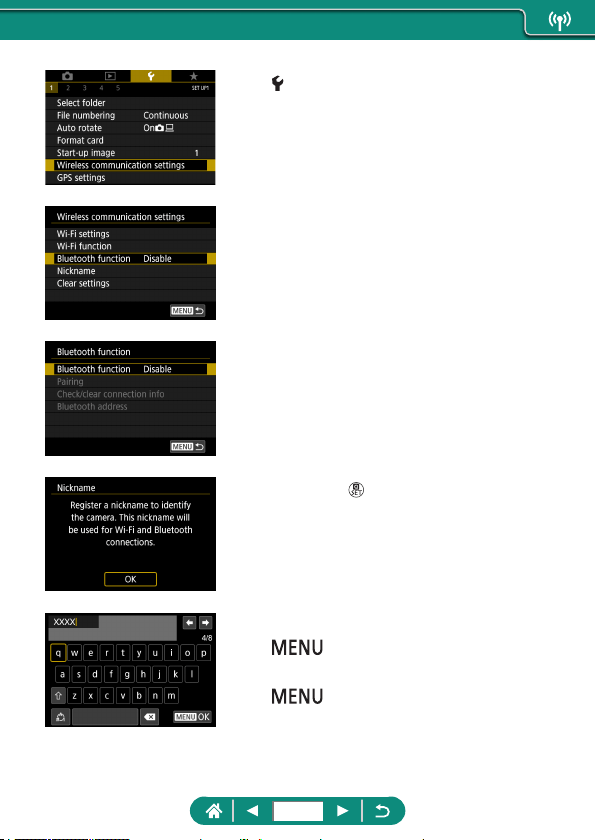
1
[Wireless communication
settings]
2
[Bluetooth function]
3
[Bluetooth function] →
[Smartphone]
4
Press the button.
5
Enter a nickname and press the
button.
z To use the nickname displayed, press the
button.
216
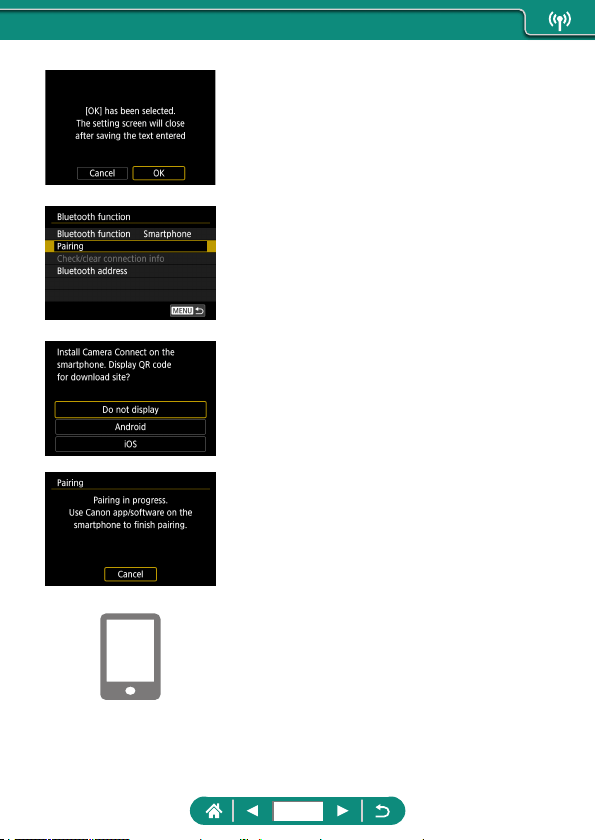
6
[OK]
7
[Pairing]
8
Choose an item.
z If Camera Connect is already installed,
select [Do not display].
z If Camera Connect is not installed, select
[Android] or [iOS], scan the displayed
QR code with the smartphone to access
Google Play or App Store and install
Camera Connect.
9
Start Camera Connect on the
smartphone.
10
Touch the nickname of the camera
for pairing.
11
Touch [Pair] (iOS only).
217
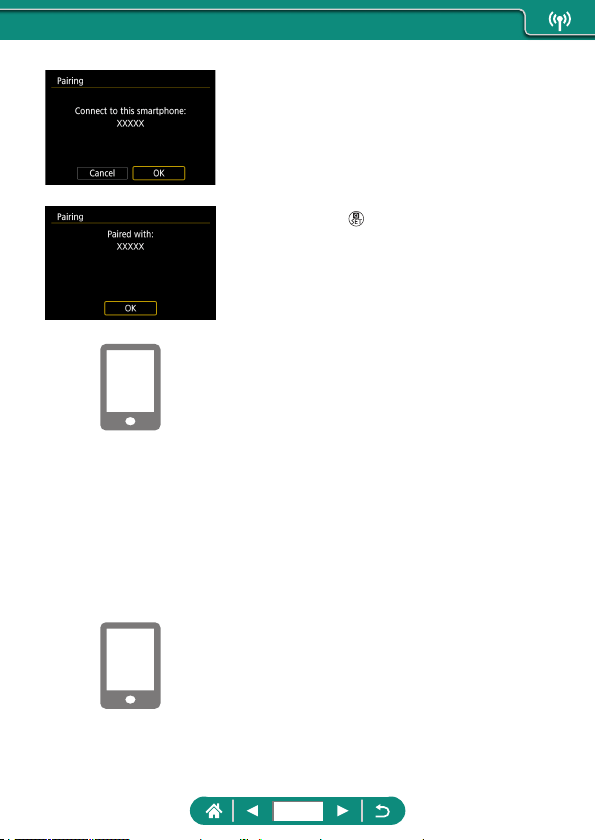
12
On the camera, choose [OK].
13
Press the button.
z Pairing is now complete, and the camera
is connected to the smartphone via
Bluetooth.
14
In Camera Connect, touch [Images
on camera].
z A Wi-Fi connection is established
automatically.
z In iOS, touch [Join] when a message is
displayed to conrm camera connection.
15
Confirm that the devices are
connected via Wi-Fi.
z Images on the camera are listed on the
smartphone.
z [Wi-Fi on] is displayed on the camera.
16
Save images on the camera to the
smartphone.
z Choose listed camera images and save
them to the smartphone.
218
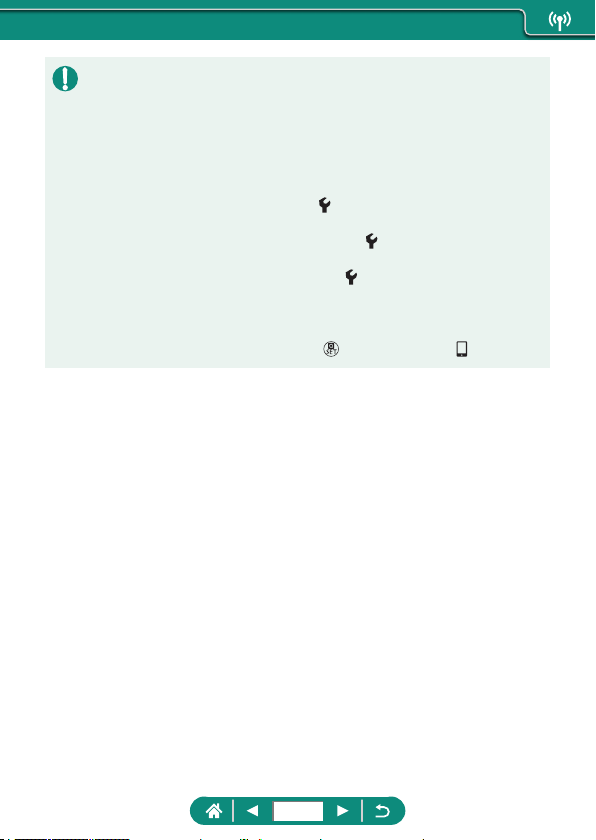
z Any active Bluetooth connections will be lost if you remove the camera
battery pack. The connection will be reestablished when you insert the
battery pack and turn on the camera.
z Battery life may be shorter when you use the camera after pairing with a
smartphone, because power is consumed even when the camera is o.
z Before bringing the camera to places where the use of electronic devices
is restricted, disable active Bluetooth communication (which is used even
when the camera is o) by choosing
[Wireless communication settings]
→ [Bluetooth function] (twice) → [Disable].
z To turn o Wi-Fi signal transmission, choose
[Wireless communication
settings] → [Wi-Fi settings] → [Wi-Fi] → [Disable].
z You can change the camera nickname in
[Wireless communication
settings] → [Nickname].
z You can send images to a smartphone connected via Wi-Fi or paired
via Bluetooth (Android devices only) by choosing the images from the
camera’s playback screen. Press the
button and choose [ ].
219
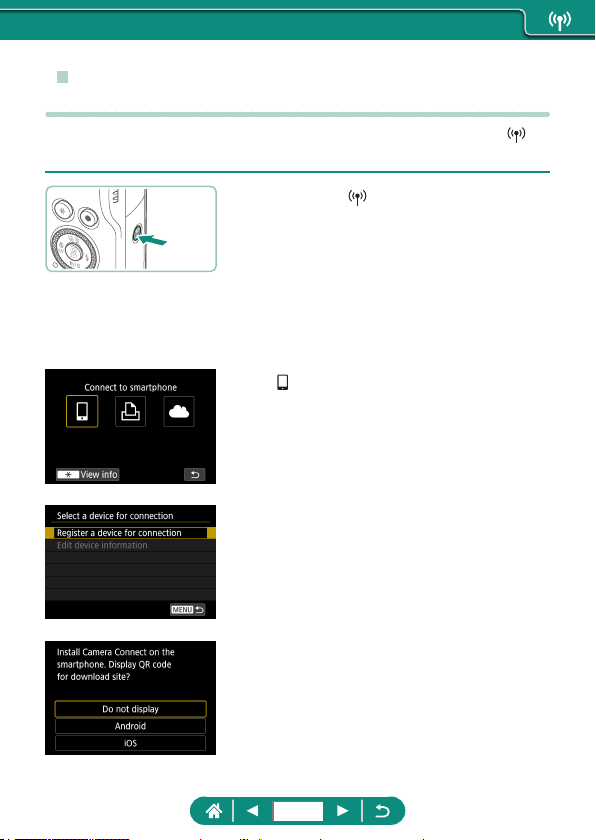
z Connecting to Smartphones via Wi-Fi with the
Wi-Fi Button
You can also establish a Wi-Fi connection with smartphones from the
button.
1
Press the button.
2
Register a nickname.
z If the [Nickname] screen is displayed,
register a nickname (
=
215).
3
[ Connect to smartphone]
4
[Register a device for connection]
5
[Do not display]
220
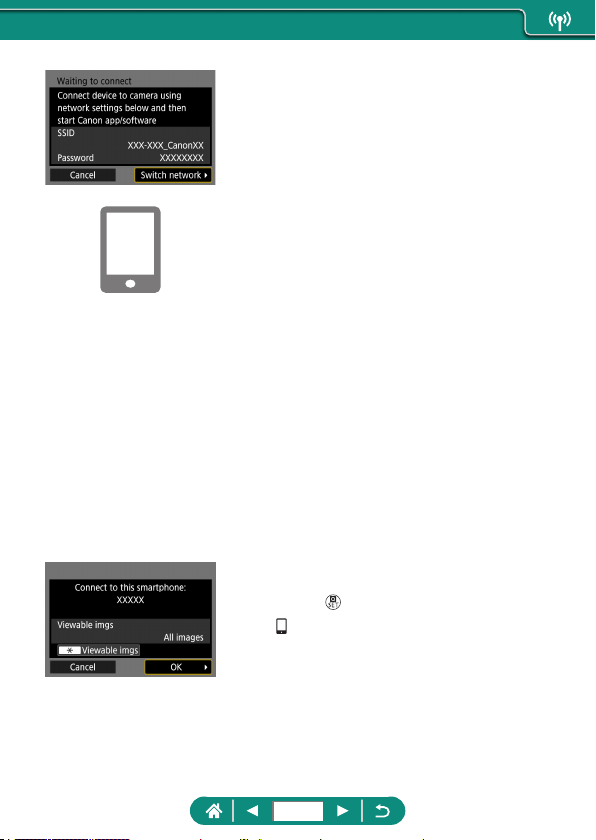
6
Check the SSID and password.
7
Connect the smartphone to the
camera.
z In the smartphone’s Wi-Fi setting menu,
choose the SSID (network name)
displayed on the camera to establish a
connection.
z In the password eld on the smartphone,
enter the password displayed on the
camera.
8
Start Camera Connect on the
smartphone.
9
Select the camera to connect to.
z In the [Cameras] list in Camera Connect,
touch the camera to connect to via Wi-Fi.
10
Establish a Wi-Fi connection.
z [OK] → button
z [ Wi-Fi on] is displayed on the camera.
z The main Camera Connect screen is
displayed on the smartphone.
z The devices are now connected via
Wi-Fi.
221
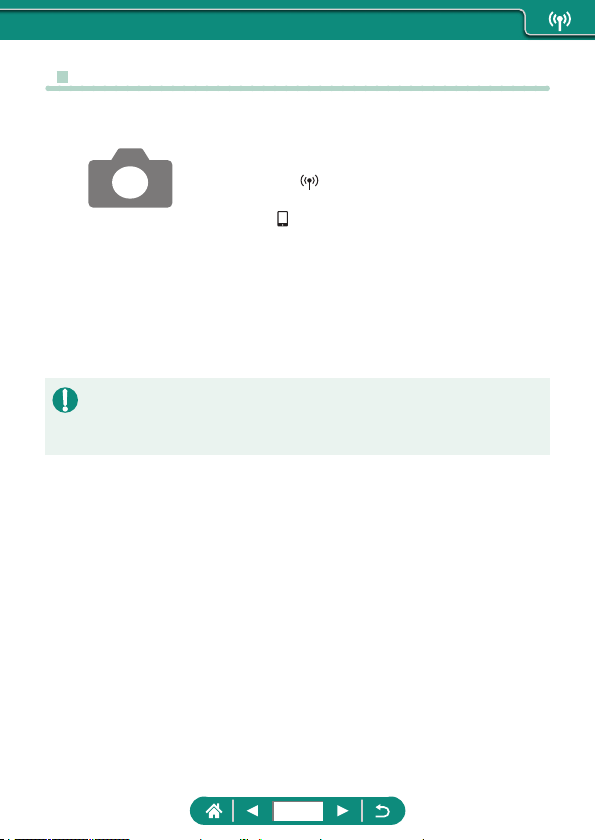
z Restricting Image Viewing
Restrict the images that can be sent to the smartphone or browsed from the
smartphone.
1
Before connecting via Wi-Fi, press
the button.
2
[ Connect to smartphone]
3
Choose [Edit device information],
and then choose the smartphone.
4
Choose [Viewable imgs], and
then specify which images can be
viewed.
z Before reconnecting, check the setting for viewable images.
z Remote live view shooting in Camera Connect is not possible unless
[Viewable imgs] is set to [All images].
222
Features Used with Smartphones
The features described below are available over a wireless connection with
smartphones.
Pair the camera with a smartphone via Bluetooth as described in steps 1 –
13 of “Saving Camera Images to a Smartphone” (
=
215), and connect via
Wi-Fi as described in steps 1 – 15.
z
Sending Images to a Smartphone Automatically
as You Shoot
Your shots can be automatically sent to a smartphone connected via Wi-Fi.
Do the following with the main Camera Connect screen displayed.
1
[Wireless communication
settings] → [Wi-Fi settings] → [Send
to smartphone after shot]
2
[Auto send] → [Enable]
z Choose a size in [Size to send].
3
Shoot.
z Your shots are sent to the smartphone.
z Shooting Remotely as You View a Live Image
on the Smartphone
As you view a live image on a smartphone connected via Wi-Fi, you can
shoot remotely.
1
Start Camera Connect.
2
Touch [Remote live view shooting].
223
z Focusing may take longer when shooting remotely.
z Depending on the communication status, image display or shutter release
timing may be delayed.
z Controlling the Camera from a Smartphone
You can control the camera by using a smartphone paired via Bluetooth as
a remote control. (Not available when connected via Wi-Fi.)
1
Start Camera Connect.
z If connected via Wi-Fi, end the
connection.
2
Touch [Bluetooth remote controller].
z Auto power o is disabled while you are using the Bluetooth remote
controller feature.
z Geotagging Images as You Shoot
Your shots can be geotagged using GPS information (such as latitude,
longitude, and elevation) from a smartphone paired via Bluetooth. On the
playback screen, you can check the location information added to your
shots.
On the smartphone, activate location services.
1
Start Camera Connect.
z If connected via Wi-Fi, end the
connection.
2
[GPS settings]
3
[GPS via mobile] → [Enable]
224
4
Shoot.
z Before shooting, conrm that [ ] and
[
] are shown on the camera.
z Your shots are now geotagged.
z From now on, shots you take with
Camera Connect running will be
geotagged.
z The location information added to movies is acquired initially, when you
start recording.
z Shots may not be geotagged immediately after the camera is turned on.
z Others may be able to locate or identify you by using location data in your
geotagged still images or movies. Be careful when sharing these images
with others, as when posting images online where many others can view
them.
z By accessing playback screens with detailed information, you can check
location information added to your shots. Latitude, longitude, elevation,
and UTC (shooting date and time) are listed from top to bottom.
z UTC: Coordinated Universal Time, essentially the same as Greenwich
Mean Time
z [---] is shown instead of numerical values for items not available on your
smartphone or items not recorded correctly.
225
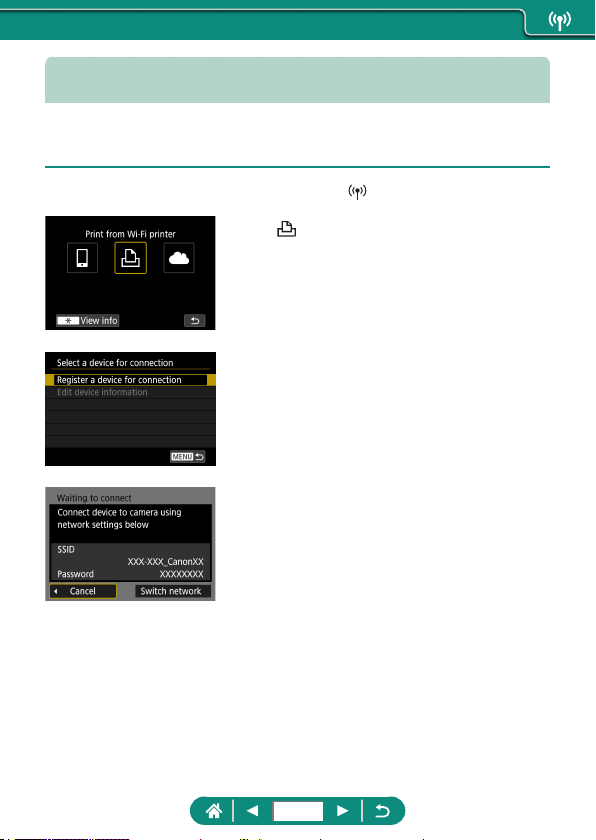
Connecting to Printers via Wi-Fi
Images on the camera can be printed on a printer connected to the camera
via Wi-Fi.
1
Press the button.
2
[ ]
3
[Register a device for connection]
4
Check the SSID and password.
226
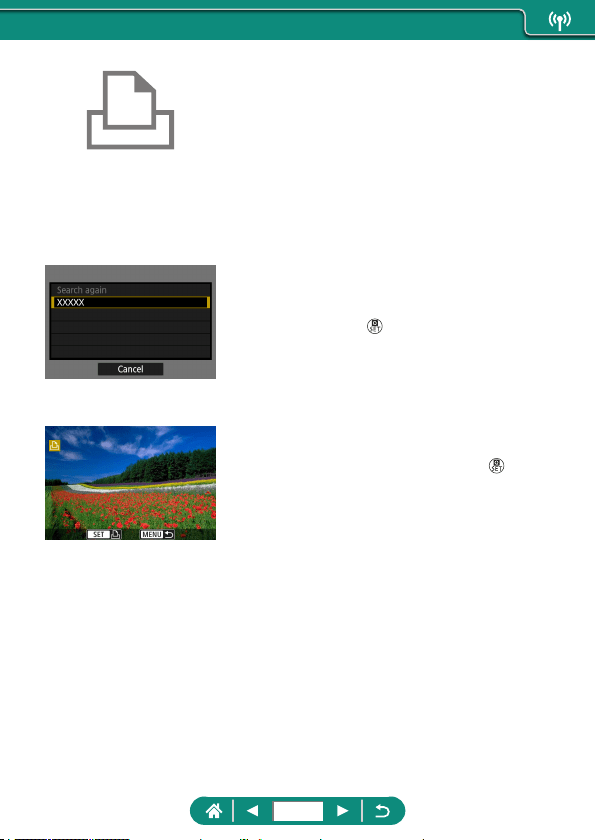
5
Connect to the camera from the
printer.
z In the printer’s Wi-Fi setting menu,
choose the SSID (network name)
displayed on the camera to establish a
connection.
z In the password eld on the printer, enter
the password displayed on the camera.
6
Choose the printer.
z Choose the printer to connect to via Wi-Fi
and press the
button.
z Images on the memory card are
displayed after the devices are connected
via Wi-Fi.
7
Choose an image to print.
z Choose an image and press the
button.
z Select or specify the items displayed, and
then print.
227
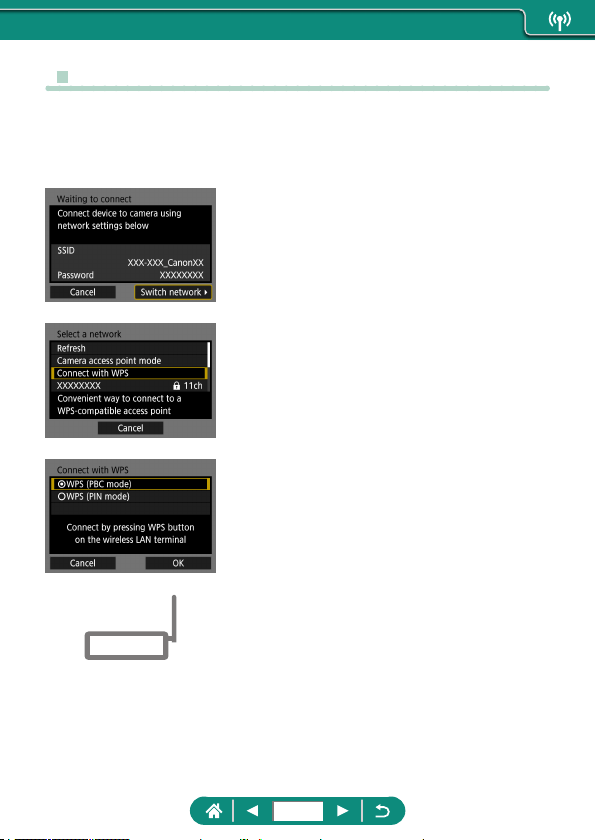
z
Establishing a Connection via an Access Point
The camera can connect to an access point that a printer is connected to, to
print via the access point.
Connect the devices near the access point, because you will need to press
the WPS button.
1
In step 4 of “Connecting to Printers
via Wi-Fi” (
=
226), choose [Switch
network].
2
[Connect with WPS]
3
[WPS (PBC mode)] → [OK]
4
Press the WPS button on the access
point.
228
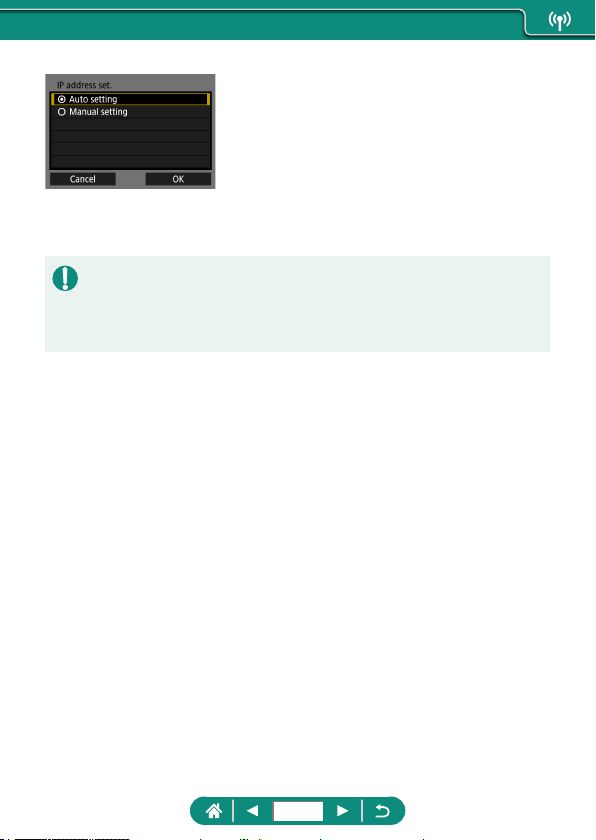
5
[Auto setting] → [OK]
z The camera will connect to the access
point.
6
Go to step 6 of “Connecting to
Printers via Wi-Fi” (
=
226).
z The PIN code displayed when you choose [WPS (PIN mode)] in [Connect
with WPS] is entered on the access point. Choose a device on the [Select
a device for connection] screen. For further details, refer to the user
manual included with your access point.
229
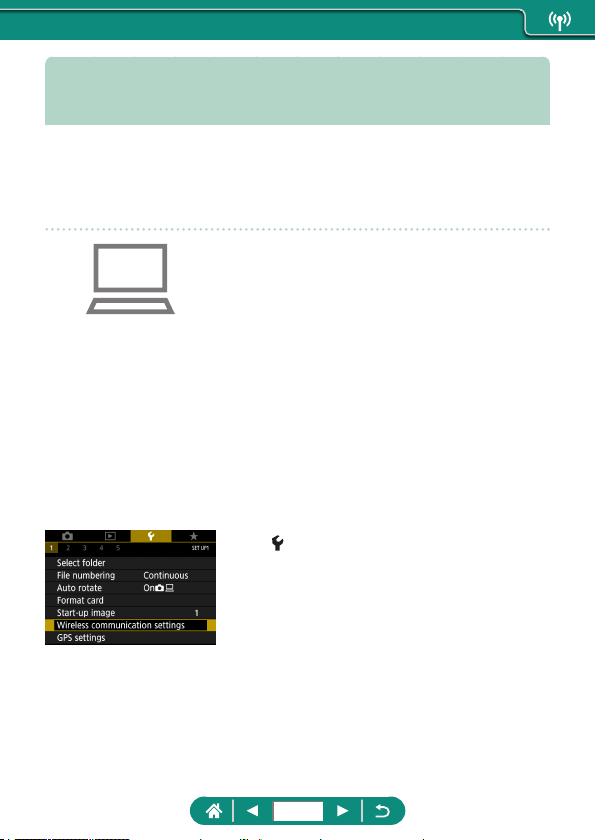
Sending Images to a Computer
Automatically
Images on the camera can be automatically sent to a computer connected
to an access point (also set up for camera Wi-Fi connections) when the
camera is within range, as when you bring the camera home after shooting.
Connecting via Wi-Fi
1
Connect the computer to the access
point.
z Install Image Transfer Utility 2 on the
computer.
2
Start Image Transfer Utility 2.
3
In Image Transfer Utility 2, access
the pairing settings screen.
z The screen to set up pairing is shown
when you follow the instructions
displayed the rst time Image Transfer
Utility 2 starts up.
4
[Wireless communication
settings] → [Wi-Fi settings]
230
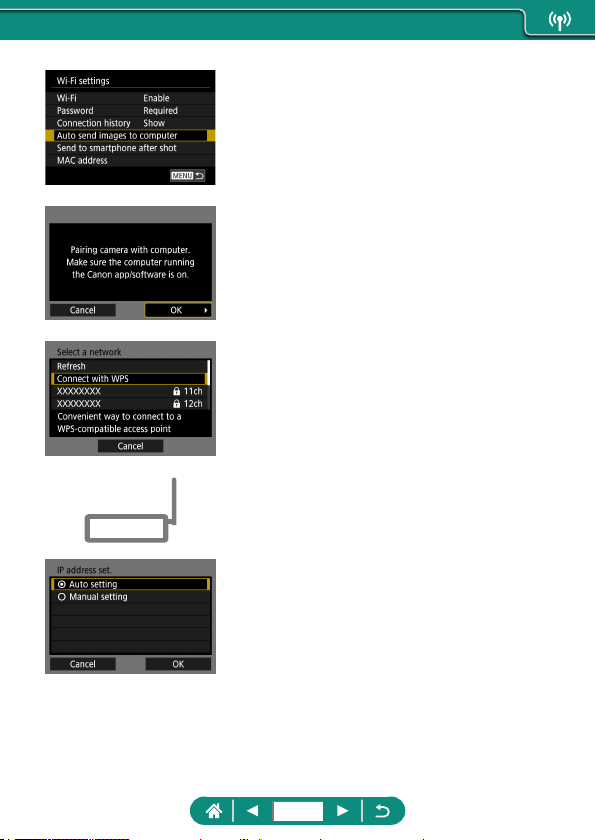
5
[Auto send images to computer] →
[Auto send] → [Enable]
6
[OK]
7
[Connect with WPS] → [WPS (PBC
mode)] → [OK]
8
Press the WPS button.
z Press the WPS button on the access
point to allow the camera to connect.
9
[Auto setting] → [OK]
231
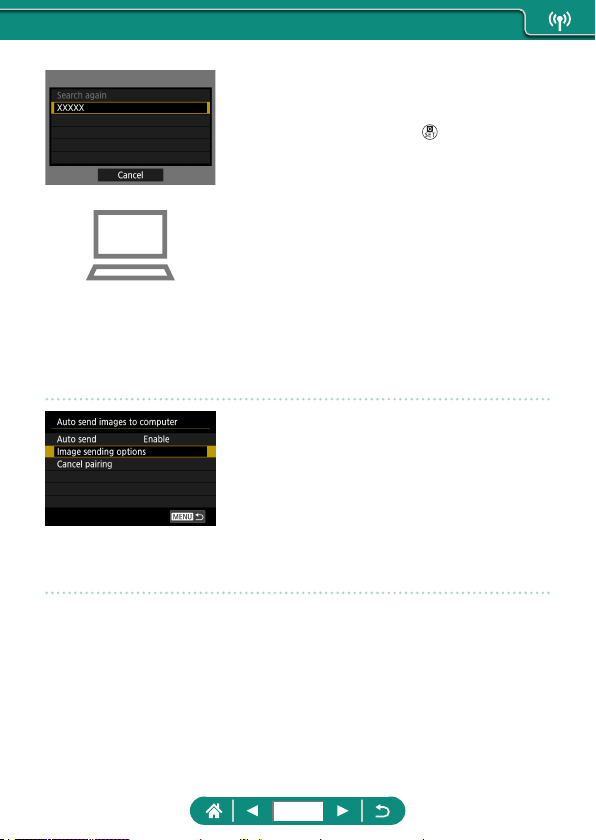
10
Choose a computer.
z Choose a computer for auto image
transfer and press the
button.
11
On the computer, choose the
camera for pairing.
z Camera nicknames are shown on the
pairing screen in Image Transfer Utility 2.
z Choose the camera to connect to and
click [Pairing] to connect the computer
and camera.
Setting Up Auto Image Transfer
12
Specify the sending options.
z For [Auto send images to computer] in
step 5, choose [Image sending options]
and specify the transfer conditions.
13
Turn the camera off.
Sending Images Automatically
z Following the sending options in step 12,
images on the camera are automatically
sent to the computer you are logged in to
when you bring the camera within range
of the access point and turn the camera
on.
232
z When using auto image transfer, ensure that the battery pack has sucient
charge. Power saving on the camera is deactivated during image transfer.
z Any images captured after auto image transfer are not sent to the
computer then. They are sent automatically when the camera is restarted.
z If auto image transfer to a computer does not begin automatically, try
restarting the camera.
z To stop sending images automatically, choose [Auto send images to
computer] → [Auto send] → [Disable].
z Images are not sent to a computer automatically while connected via USB
(including connection to PD-E1).
233
Uploading Images to Web Services
z Registering Web Services
Use a smartphone or computer to add your Web services to the camera.
z A smartphone or computer with a browser and Internet connection is
required to complete camera settings for CANON iMAGE GATEWAY
and other Web services.
z Visit the CANON iMAGE GATEWAY website for details on versions of
browsers (such as Internet Explorer) and settings required for CANON
iMAGE GATEWAY access.
z For information on countries and regions where CANON iMAGE
GATEWAY is available, visit the Canon website (http://www.canon.com/
cig/).
z For CANON iMAGE GATEWAY instructions and setting details, refer to
the help information for CANON iMAGE GATEWAY.
z To use Web services other than CANON iMAGE GATEWAY, you must
have an account with them. For further details, check the websites for
each Web service you want to register.
z Separate ISP connection and access point fees may be applicable.
z Any changes to the services of your registered Web services may prevent
operation or require operation dierent from the instructions in this guide.
z For details on Web services you can use via Wi-Fi from the camera, visit
the CANON iMAGE GATEWAY website.
234
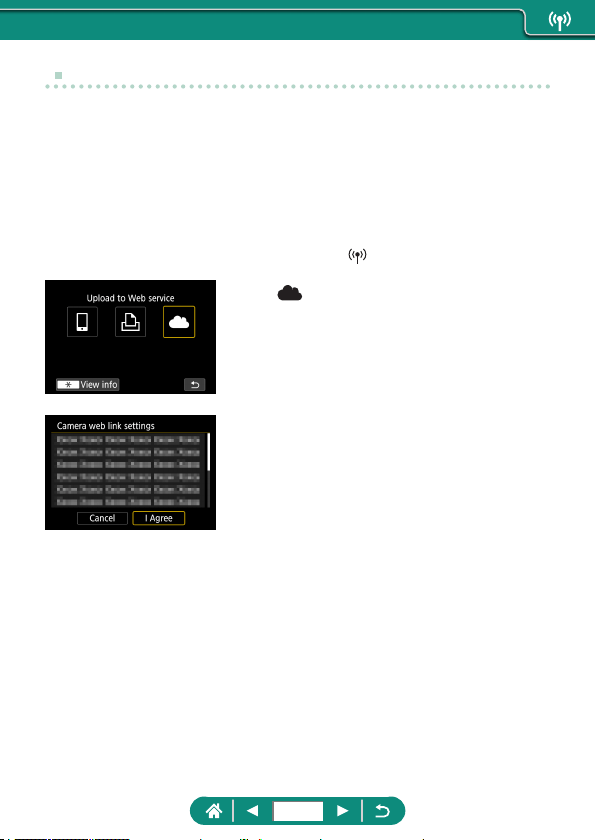
Registering CANON iMAGE GATEWAY
Link the camera and CANON iMAGE GATEWAY by adding CANON iMAGE
GATEWAY as a destination Web service on the camera.
Connect the devices near the access point, because you will need to press
the WPS button.
Note that you will need to enter an email address used on your computer
or smartphone to receive a notication message for completing linkage
settings.
1
Press the button.
2
[ ]
3
Accept the agreement to enter an
email address.
z Read the agreement displayed and
choose [I Agree].
4
Establish a connection with an
access point.
z [Connect with WPS] → [WPS (PBC
mode)] → [OK]
z Press the WPS button on the access
point.
z Choose [Auto setting] on the camera’s [IP
address set.] screen.
235
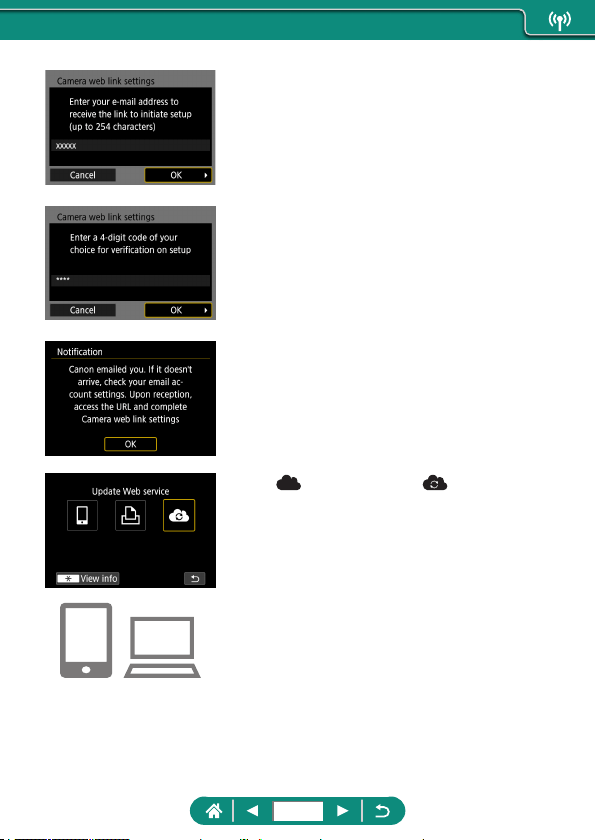
5
Enter your email address.
6
Enter a four-digit number of your
choice.
7
Check for the notification message.
z [OK]
z [
] now changes to [ ].
8
Access the page in the notification
message and complete camera link
settings.
z Follow the instructions to complete the
settings on the camera link settings page.
236
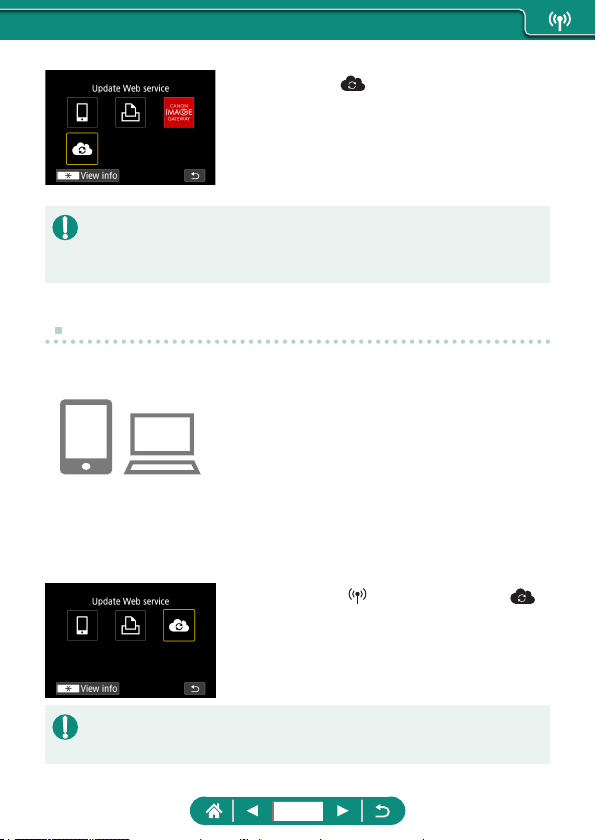
9
Choose [ ].
z CANON iMAGE GATEWAY is now added
as a destination Web service.
z Make sure initially that your computer or smartphone mail application is not
congured to block email from relevant domains, which may prevent you
from receiving the notication message.
Registering Other Web Services
You can also add Web services besides CANON iMAGE GATEWAY to the
camera.
1
Log in to CANON iMAGE GATEWAY
and access the camera link settings
page.
z http://www.canon.com/cig/
2
Follow the on-screen instructions to
complete settings for Web services
you want to use.
3
Press the button to choose [ ].
z If any congured settings change, update camera settings by registering
aected Web services on the camera.
237
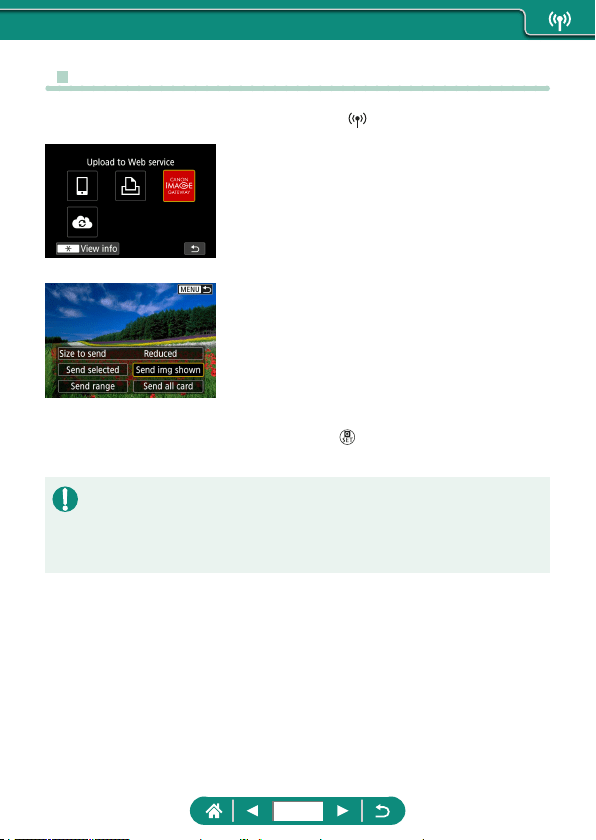
z Uploading Images to Web Services
1
Press the button.
2
Choose the destination.
z Choose a Web service icon.
z If a Web service oers multiple recipients
or sharing options, choose an item on the
screen displayed for selecting recipients.
3
Send an image.
z Choose sending options and upload the
image.
z When uploading to YouTube, read the
terms of service and choose [I Agree].
z After the image is sent, [OK] is displayed.
Press the
button to return to the
playback screen.
z To view images uploaded to CANON iMAGE GATEWAY on a smartphone,
try the dedicated Canon Online Photo Album app. Download and install the
Canon Online Photo Album app for iPhones or iPads from the App Store or
for Android devices from Google Play.
238
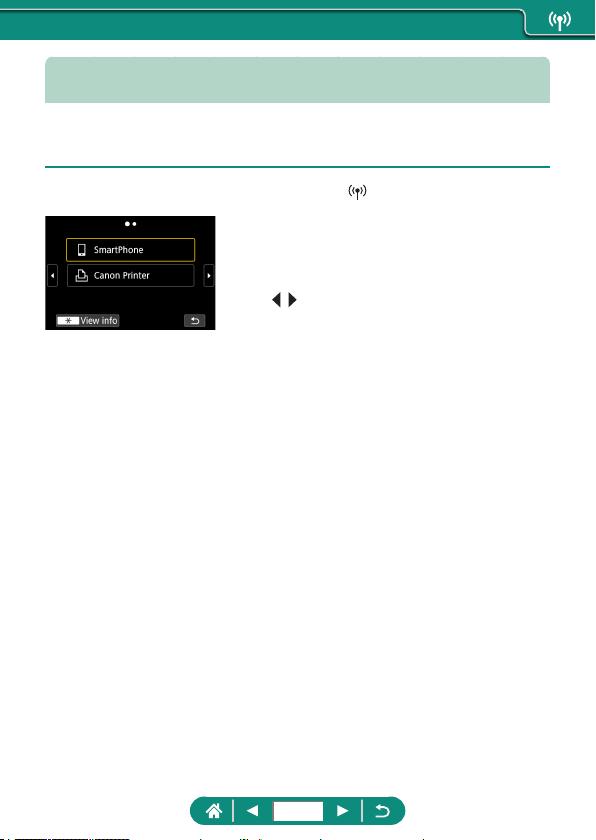
Reconnecting via Wi-Fi
Reconnecting to devices or Web services via Wi-Fi is possible once the
connection settings are registered.
1
Press the button.
2
From the past connections, choose
a destination.
z If your destination is not shown, press the
/ buttons to switch to other screens.
z For Web services, the connection is now
complete.
3
Prepare the other device.
z Prepare the other device by following the
instructions displayed.
239
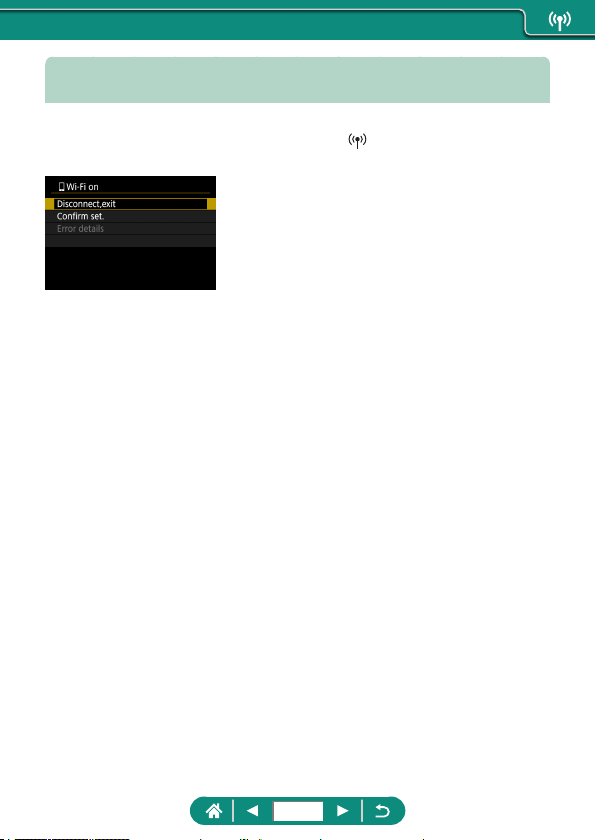
Ending Wi-Fi Connections
1
Press the button.
2
[Disconnect,exit] → [OK]
240
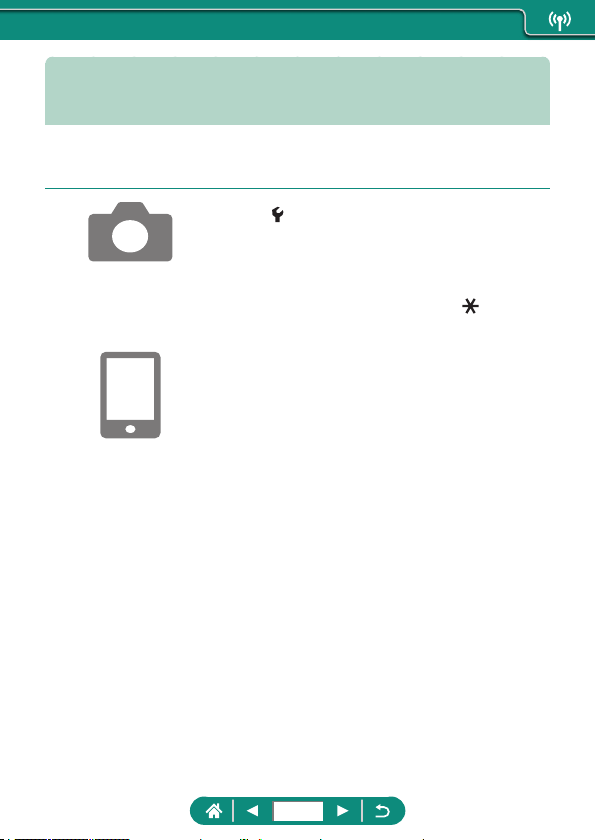
Clearing Information of Devices
Paired via Bluetooth
Before pairing with a dierent smartphone, clear the information about any
connected smartphones.
1
[Wireless communication
settings] → [Bluetooth function]
2
Choose [Check/clear connection
info], and then press the button
→ [OK].
3
Prepare the smartphone.
z In the Bluetooth system settings, clear
the registered camera information.
241
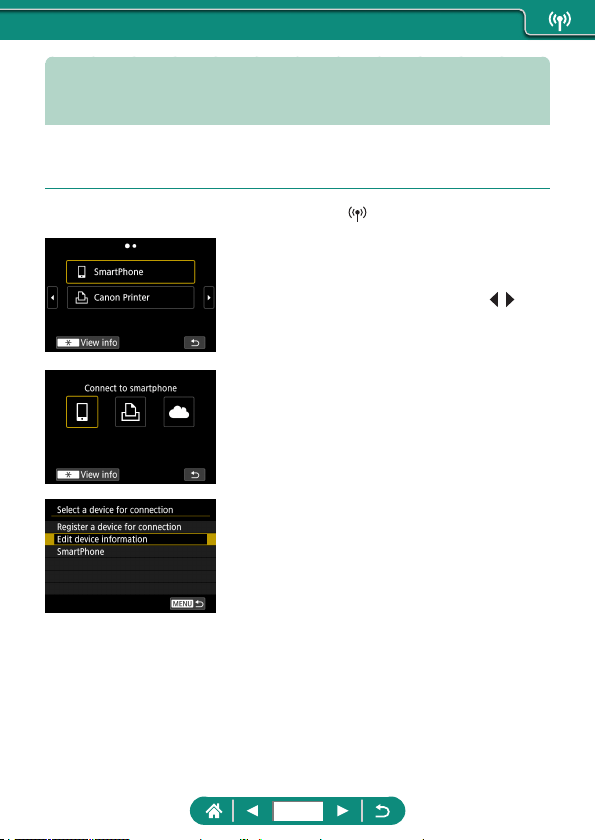
Changing or Deleting Connection
Settings
Connection settings saved on the camera can be changed or deleted.
Before changing or deleting connection settings, end the Wi-Fi connection.
1
Press the button.
2
Choose an item.
z On the screen at left, you can switch
to other screens by pressing the
/
buttons.
z On the screen at left, choose an item with
connection settings to delete or change.
3
Choose [Edit device information].
z On the screen displayed, choose a
device with connection settings to
change, and then change the nickname
or other information.
242
Make the camera easier to use by customizing or adjusting basic functions.
z These settings are congured on the
and menu tabs. Customize
commonly used functions, for greater convenience.
z These instructions apply to the camera in
mode.
Function Settings
243
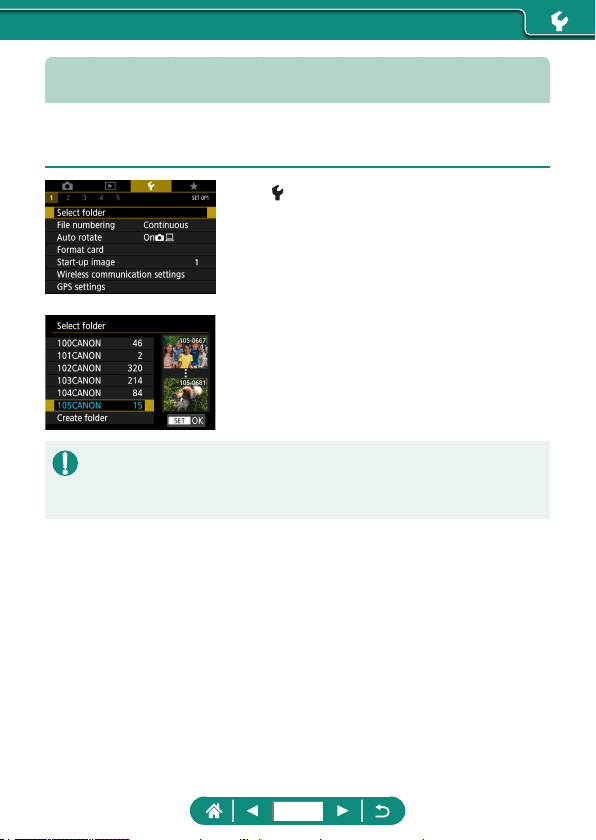
Selecting and Creating Folders
You can select or create folders where images are saved. New folders can
be created by selecting [Create folder] on the folder selection screen.
1
[Select folder]
2
Configure the settings.
z Select folders: simply select a folder
z Create folders: [Create folder] → [OK]
z Folders are named as in 100CANON, with a three-digit folder number
followed by ve letters or numbers.
z Folders with numbers in the range 100 – 999 can be created.
244
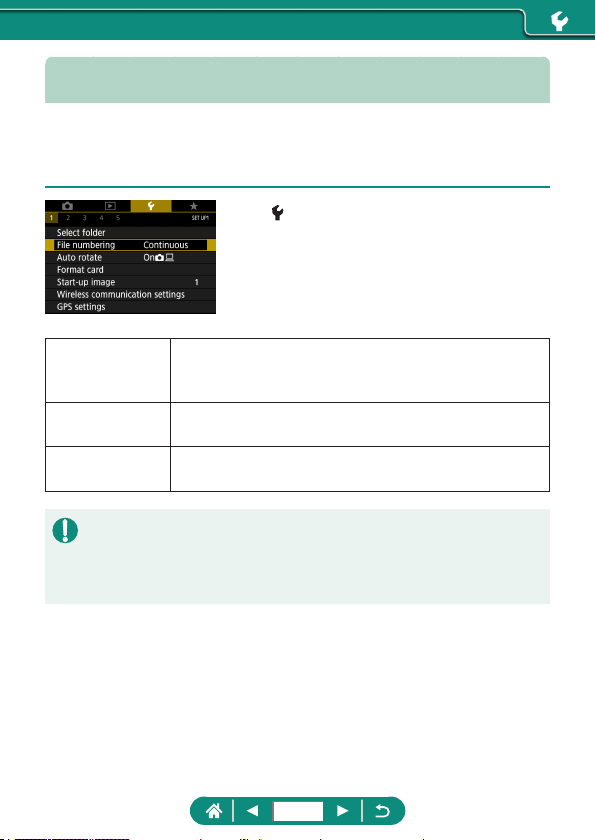
Changing File Numbering
Your shots are automatically numbered in sequential order (0001 – 9999)
and saved in folders that store up to 9,999 images each. You can change
how the camera assigns le numbers.
1
[File numbering] → [Numbering]
or [Manual reset]
Continuous
Images are numbered consecutively (until the 9999th
shot is taken/saved) even if you switch memory cards
or folders.
Auto reset
Image numbering is reset to 0001 if you switch memory
cards, or when a new folder is created.
Manual reset
Creates a new folder and starts numbering images from
0001.
z Regardless of the option selected in this setting, shots may be numbered
consecutively after the last number of existing images on newly inserted
memory cards. To start saving shots from 0001, use an empty (or
formatted) memory card.
245
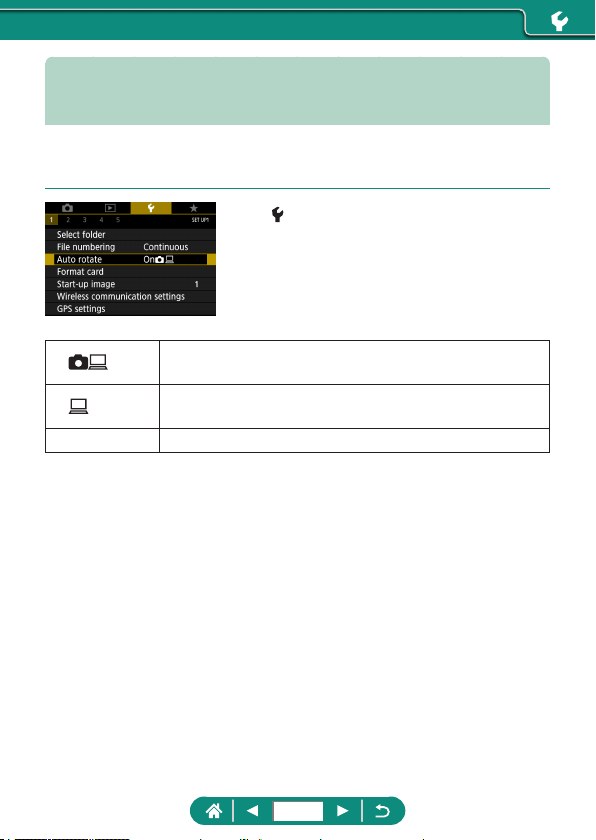
Configuring Auto Rotation of Vertical
Images
You can change the auto rotation setting that straightens images shot in
vertical orientation when they are displayed.
1
[Auto rotate]
On
Automatically rotate images during playback on both the
camera and computers.
On
Automatically rotate images during playback on
computers.
O Do not automatically rotate images.
246
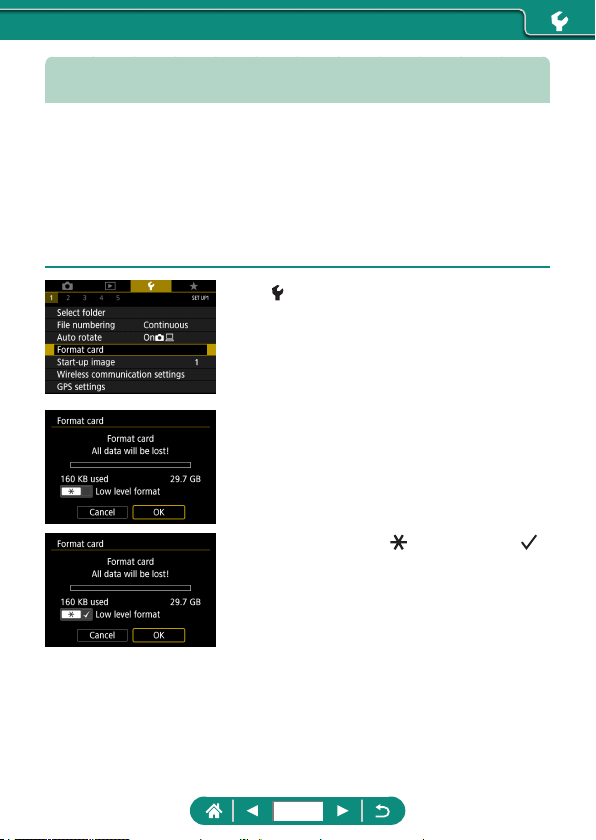
Formatting Memory Cards
Before using a new memory card or a card formatted in another device, you
should format the card with this camera.
Low-level formatting may be helpful if the camera is not working correctly,
reading/writing of images on the memory card is slower, continuous
shooting is slower, or movie recording suddenly stops.
Both regular and low-level formatting erase all data on a memory card,
which cannot be recovered.
1
[Format card]
z Format: [OK]
z Low-level format:
button to select [ ]
→ [OK]
247
z Formatting or erasing data on a memory card only changes le
management information on the card and does not erase the data
completely. When disposing of or transferring ownership of memory cards,
take steps to protect personal information if necessary, as by physically
destroying cards.
z The total card capacity indicated on the formatting screen may be less
than the advertised capacity.
z Low-level formatting takes longer than initial formatting, because data is
erased from all storage regions of the memory card.
z You can cancel low-level formatting in progress by choosing [Cancel].
In this case, all data will be erased, but the memory card can be used
normally.
248
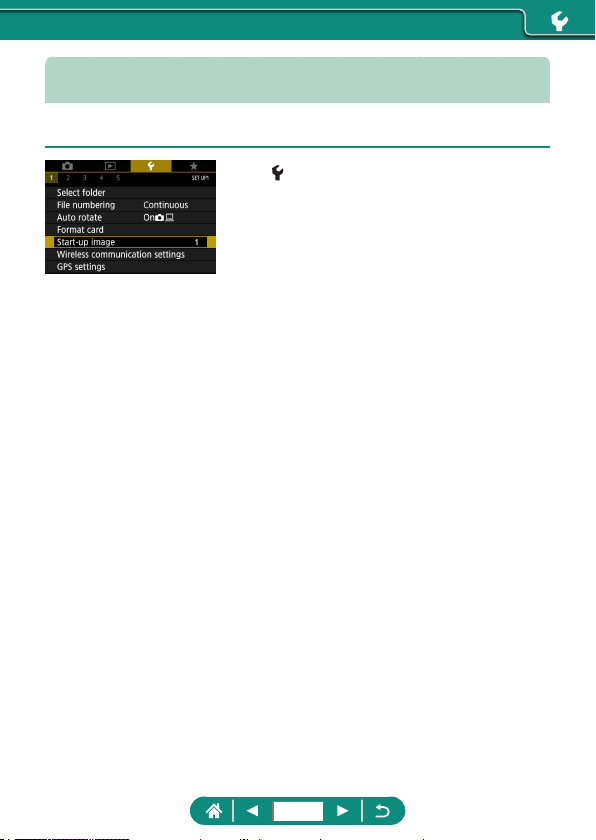
Setting Start-up Screen Display
Specify display of the start-up screen shown when you turn the camera on.
1
[Start-up image]
249
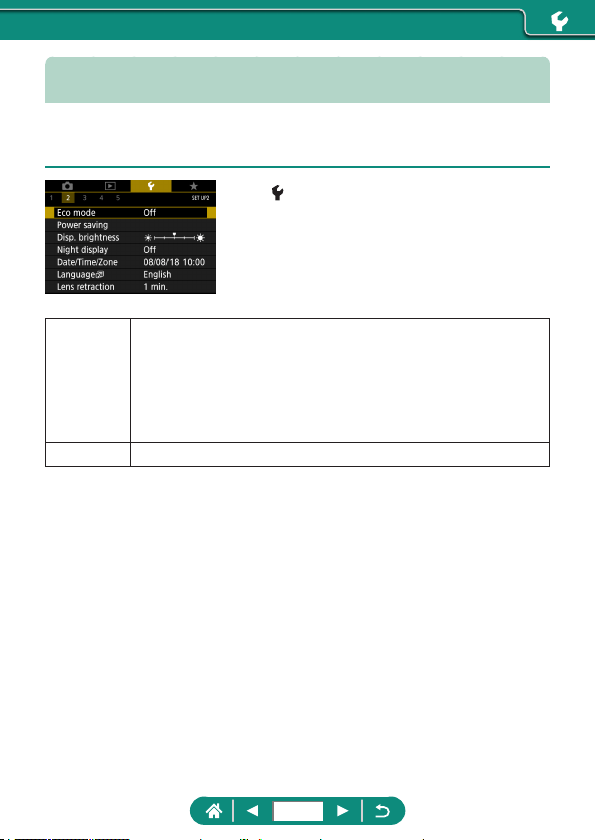
Using Eco Mode
This function allows you to conserve battery power in shooting modes.
When the camera is not in use, the screen darkens to save battery life.
1
[Eco mode]
On
The screen darkens when the camera is not used for
approximately two seconds; approximately ten seconds after
darkening, the screen turns o. The camera turns o after
approximately three minutes of inactivity. To activate the
screen and prepare for shooting when the screen is o but
the lens is still out, press the shutter button halfway.
O Do not use Eco mode.
250
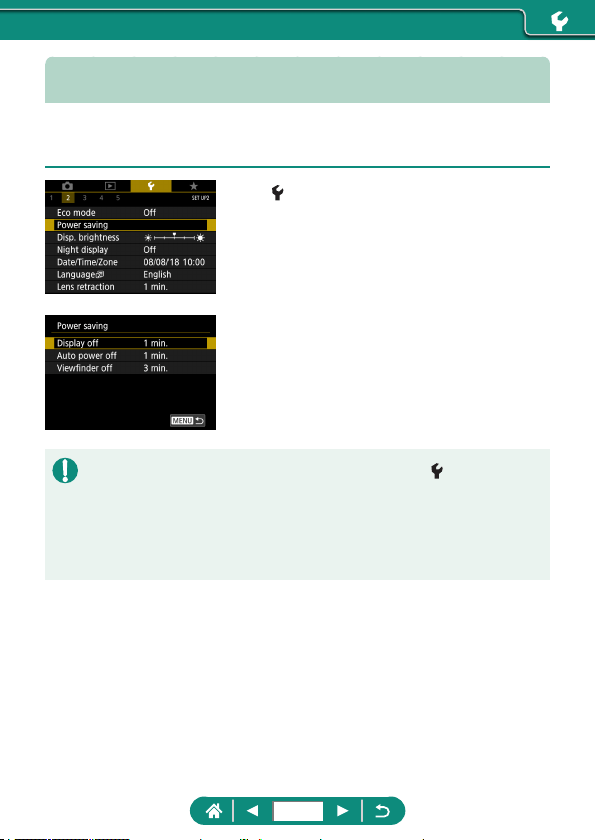
Adjusting Power-Saving Features
The timing of automatic deactivation of the camera, screen, and viewnder
can be adjusted in [Auto power o], [Display o], and [Viewnder o].
1
[Power saving]
2
Congure the settings.
z To conserve battery power, you should normally choose [Power saving]
→ [Display o] and [Auto power o] → [1 min.] or less.
z The [Display o] setting is applied even if you set [Auto power o] to
[Disable].
z [Display o] and [Auto power o] are not available when Eco mode is set
to [On].
251
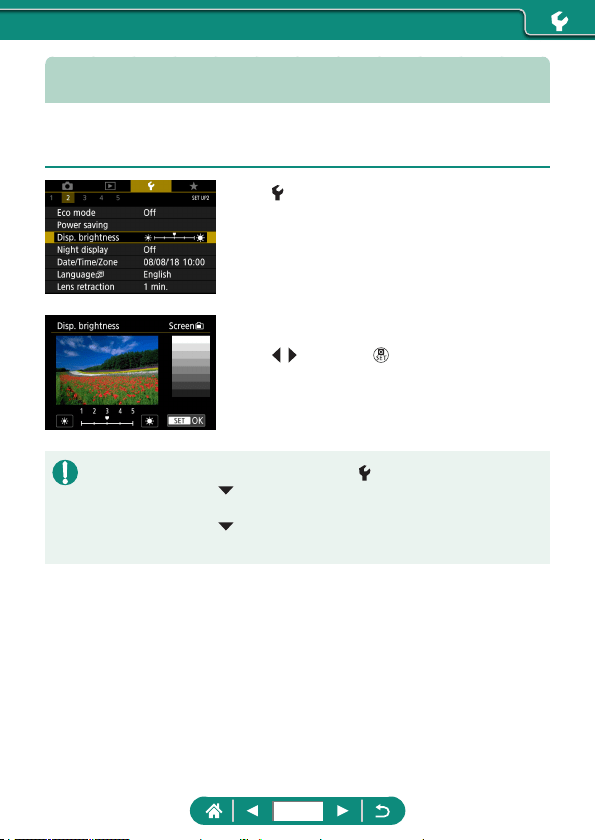
Adjusting Screen Brightness
Viewnder and screen brightness can be adjusted. You can adjust
viewnder brightness as you look through the viewnder.
1
[Disp. brightness]
2
Configure the settings.
z / buttons → button
z For maximum brightness (regardless of the [Disp. brightness] setting),
press and hold the
button for at least one second from the shooting
screen or during single-image display. To restore the original brightness,
press and hold the
button again for at least one second or restart the
camera.
252
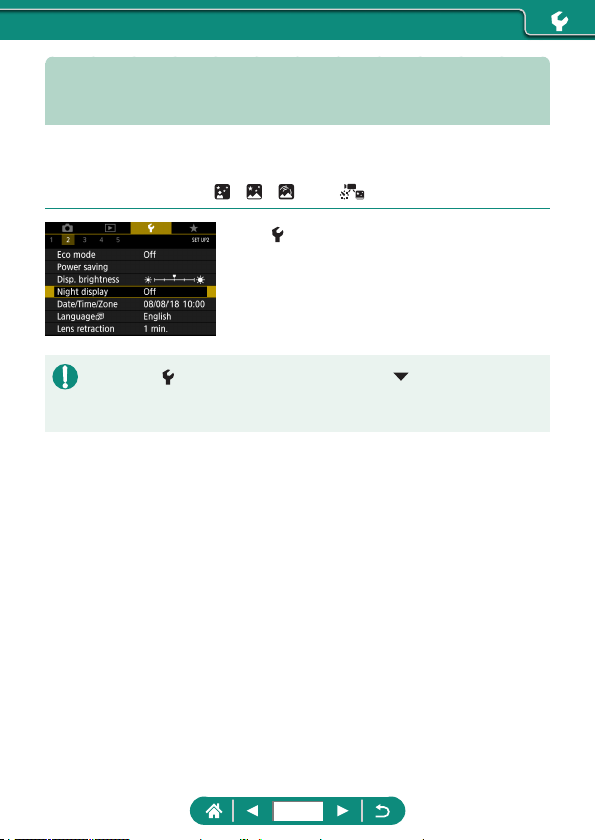
Switching the Color of Screen
Information
Information displayed on the screen and menus can be changed to a color
suitable for shooting under low-light conditions. Enabling this setting is
useful in modes such as [
], [ ], [ ], and [ ].
1
[Night display]
z To return [Night display] to [O], hold down the button for at least
one second on the shooting screen or during playback with single-image
display.
253
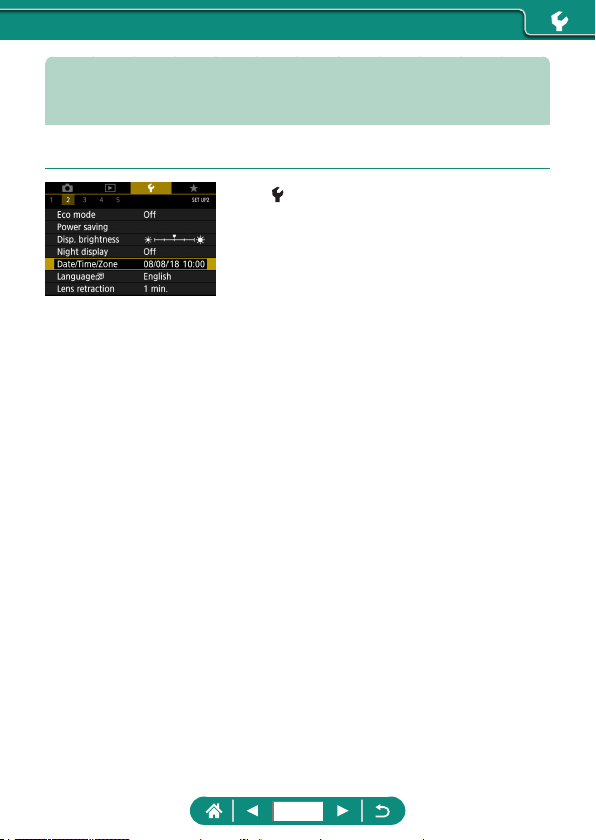
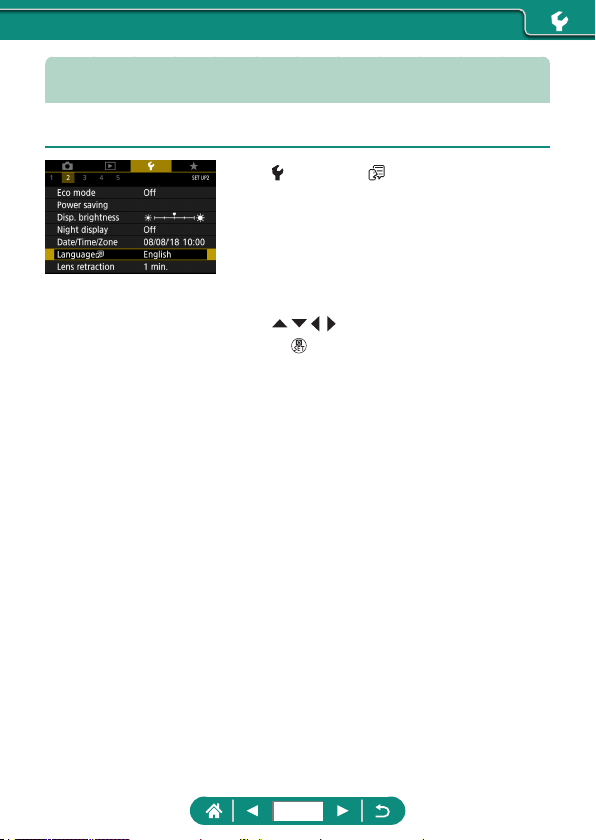
Changing the Language
The current display language can be changed.
1
[Language ]
2
Configure the settings.
z / / / buttons to choose a language
→
button
255
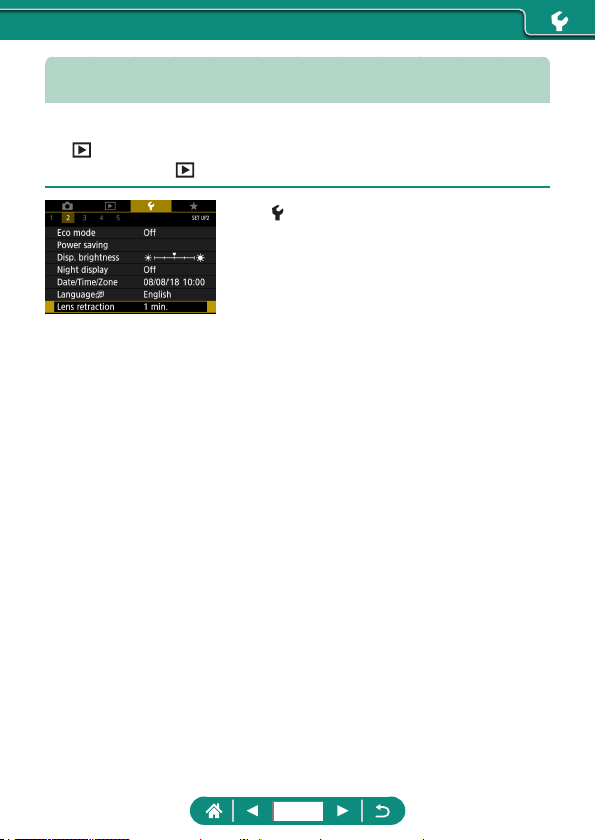
Lens Retraction Timing
The lens is normally retracted for safety about one minute after you press
the
button in shooting modes. To have the lens retracted immediately
after you press the
button, set the retraction timing to [0 sec.].
1
[Lens retraction]
256
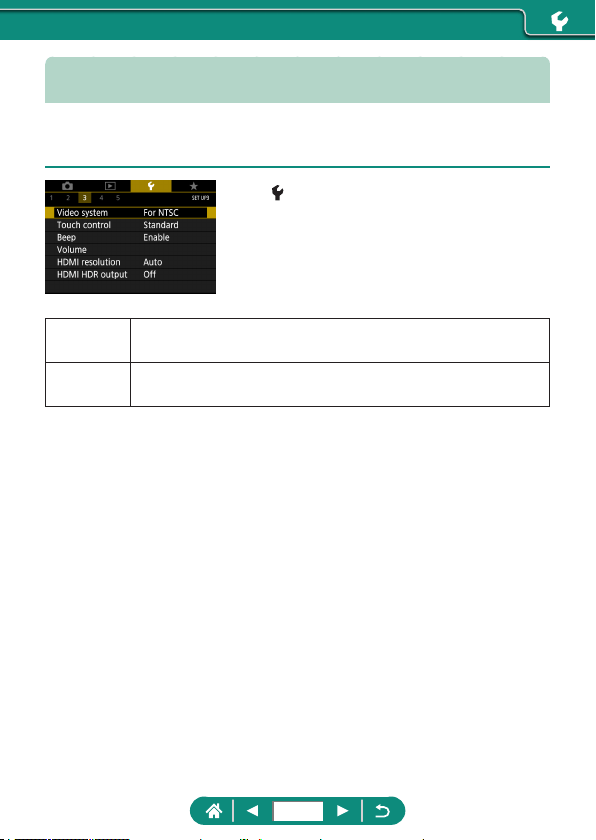
Setting the Video System
Set the video system of any television used for display. This setting
determines the image quality (frame rate) available for movies.
1
[Video system]
For NTSC
For areas using the NTSC TV system, such as North
America, Japan, South Korea, and Mexico.
For PAL
For areas using the PAL TV system, such as Europe, Russia,
China, and Australia.
257
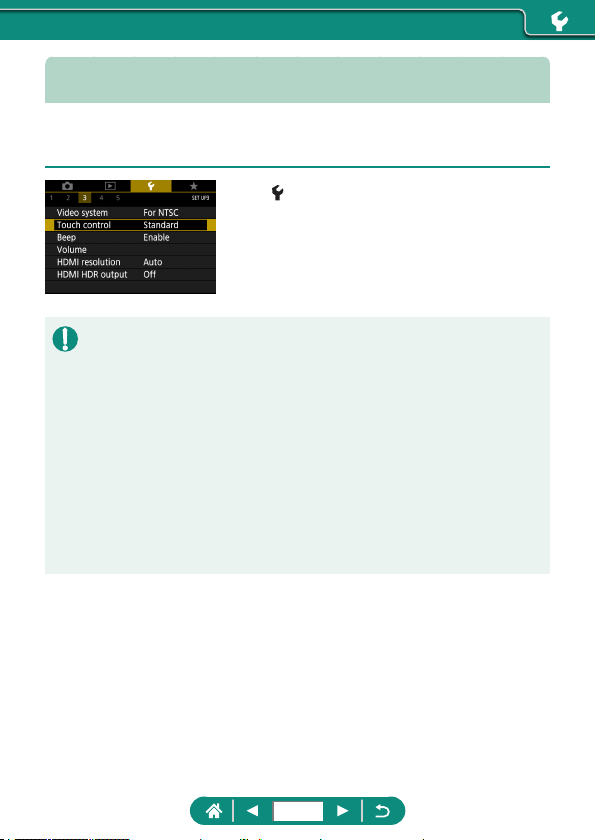
Adjusting the Touch-Screen Panel
Sensitivity of the touch-screen panel can be increased to respond to a
lighter touch, or you can disable touch control.
1
[Touch control]
z To increase panel sensitivity: [Sensitive]
z To deactivate the panel: [Disable]
z Increase the sensitivity of the touch-screen panel if gestures are not easily
detected.
z Take the following precautions when using the touch-screen panel.
- The screen is not pressure sensitive. Do not use sharp objects such as
ngernails or ballpoint pens for touch operations.
- Do not perform touch-screen operations when your ngers are wet.
- If you perform touch-screen operations when the screen or your ngers
are wet, the camera may not respond, or it may malfunction. In this case,
turn the camera o and dry the screen with a cloth.
- Do not apply screen protectors or adhesive lm purchased separately.
This may reduce the responsiveness of touch operations.
z The camera may be less responsive if you perform touch operations
quickly when the setting is set to [Sensitive].
258
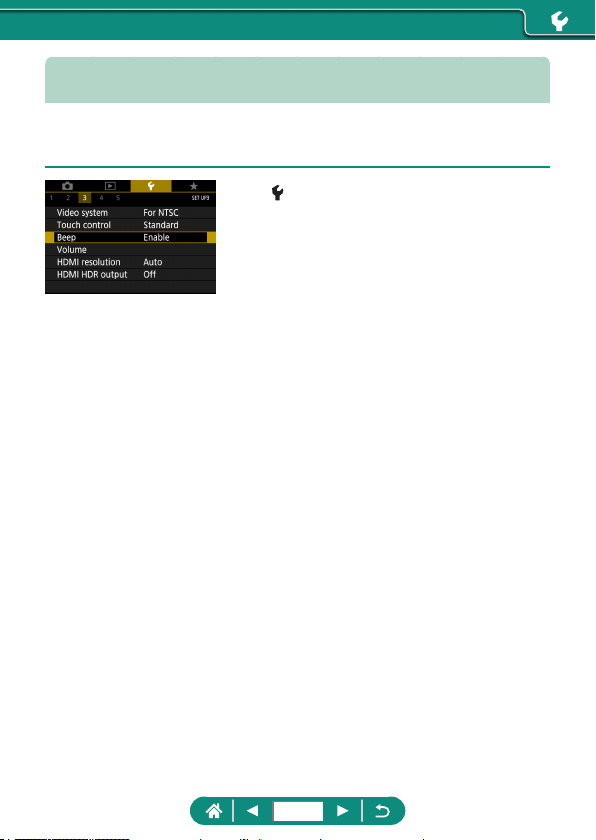
Adjusting Beeping
Specify whether the camera plays sounds when you press the shutter
button halfway or use the self-timer.
1
[Beep]
259
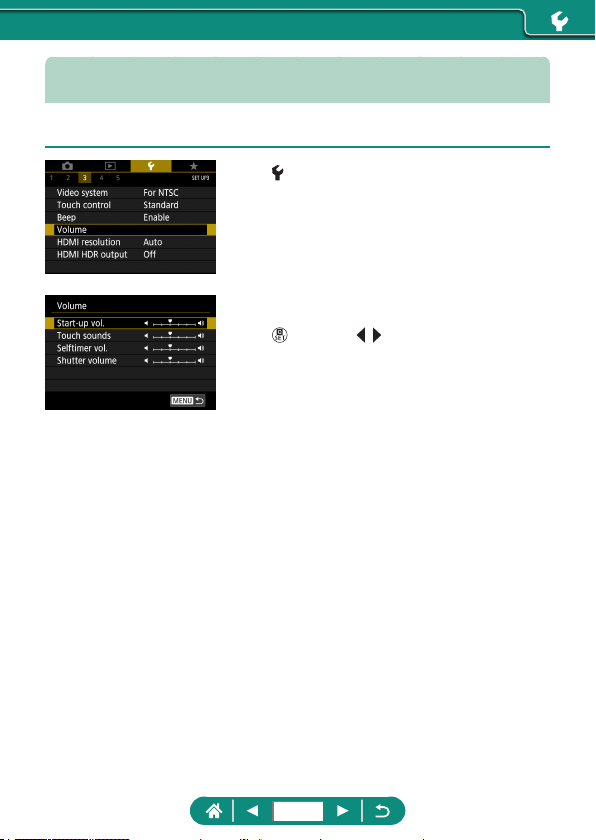
Adjusting the Volume
Adjust the volume of individual camera sounds.
1
[Volume]
2
Congure the settings.
z
button → / buttons
260
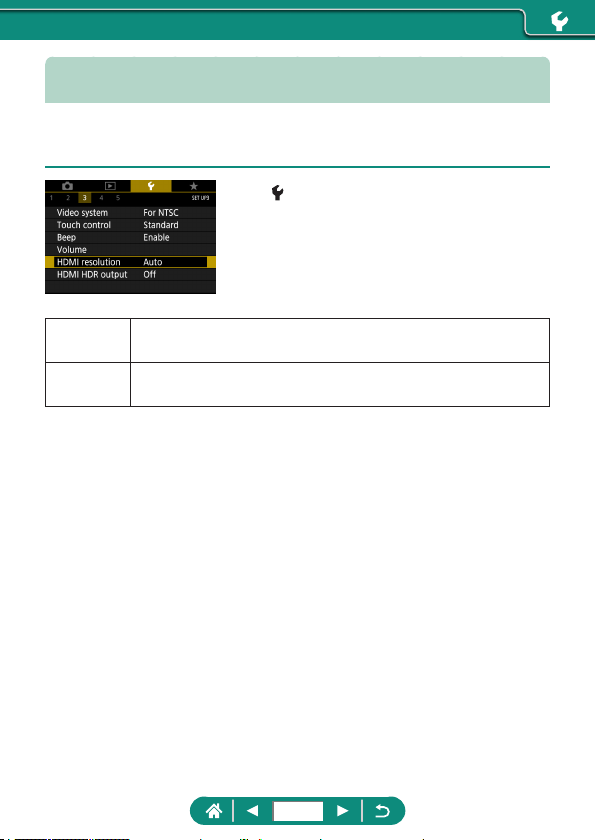
Setting the HDMI Output Resolution
Set the output resolution used for camera images when connected to a
television or external recording device with an HDMI cable.
1
[HDMI resolution]
Auto
Images are automatically displayed at optimal resolution for
connected televisions.
1080p
Output at 1080p resolution. Select if you prefer to avoid
display or delay issues when switching resolution.
261
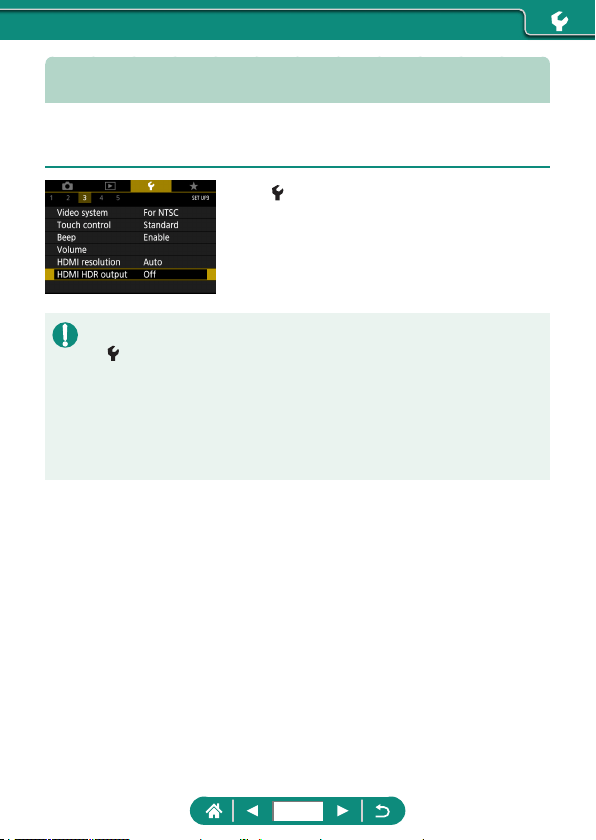
RAW Playback on an HDR TV
You can view RAW images in HDR by connecting the camera to an HDR
TV.
1
[HDMI HDR output]
z For image color display matching HDR TV characteristics, choose
[HDMI HDR output] → [On].
z Make sure the HDR TV is set up for HDR input. For details on how to
switch inputs on the TV, refer to the TV manual.
z HDR output is not available for images in sets (rolls) captured in RAW
burst mode.
z Depending on the TV used, images may not look as expected.
z Some image eects and information may not be displayed on an HDR TV.
262
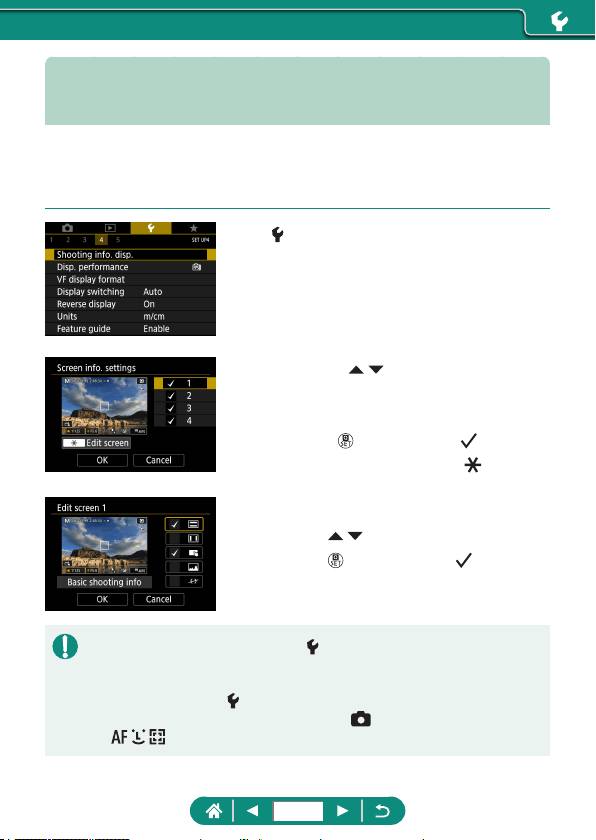
Customizing Shooting Information
Display
You can customize the details and screens of information shown on the
camera or in the viewnder when you shoot. Viewnder display in vertical
shooting can also be congured, along with the grid and histogram.
1
[Shooting info. disp.] → [Screen
info. settings] or [VF info/toggle
settings]
2
Press the / buttons and select
screens.
z For screens you prefer not to display,
press the
button to clear [ ].
z To edit the screen, press the button.
3
Edit the screen.
z Use the / buttons to navigate items.
z Use the button to add a [ ] next to
items to display.
z Choose [OK] to apply your settings.
z Grid display can be congured via [Shooting info. disp.] → [Grid
display].
z To switch from a brightness histogram to an RGB histogram or adjust the
display size, choose
[Shooting info. disp.] → [Histogram disp].
z The electronic level is not displayed when
[AF method] is set to
[
].
263
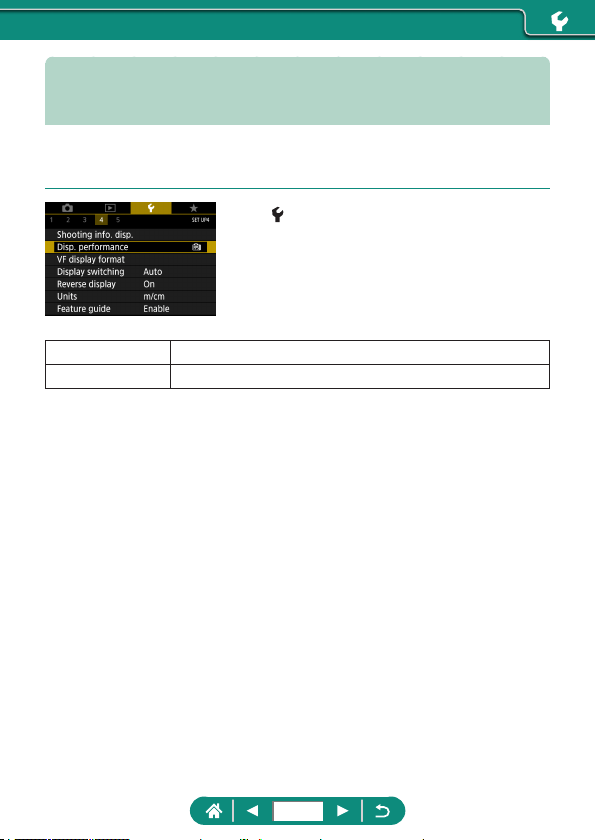
Setting a Priority for Shooting Display
Performance
You can select the performance option to prioritize in shooting screen
display for stills.
1
[Disp. performance]
Power saving Screen display consumes less power.
Smooth Even quick-moving subjects are displayed smoothly.
264
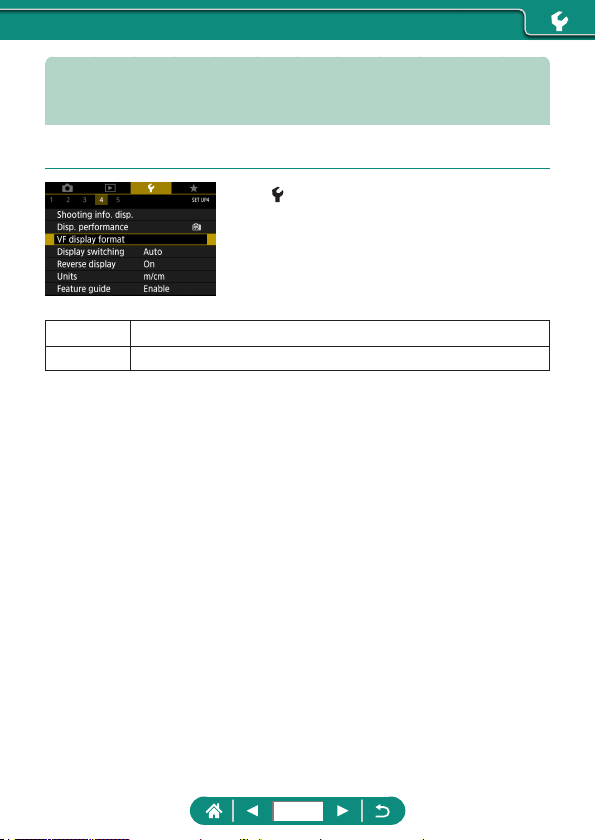
Customizing the Viewfinder Shooting
Screen
Specify the size of shooting screen display in the viewnder.
1
[VF display format]
Display 1 Display the shooting screen at full width.
Display 2 Smaller display of the shooting screen.
265
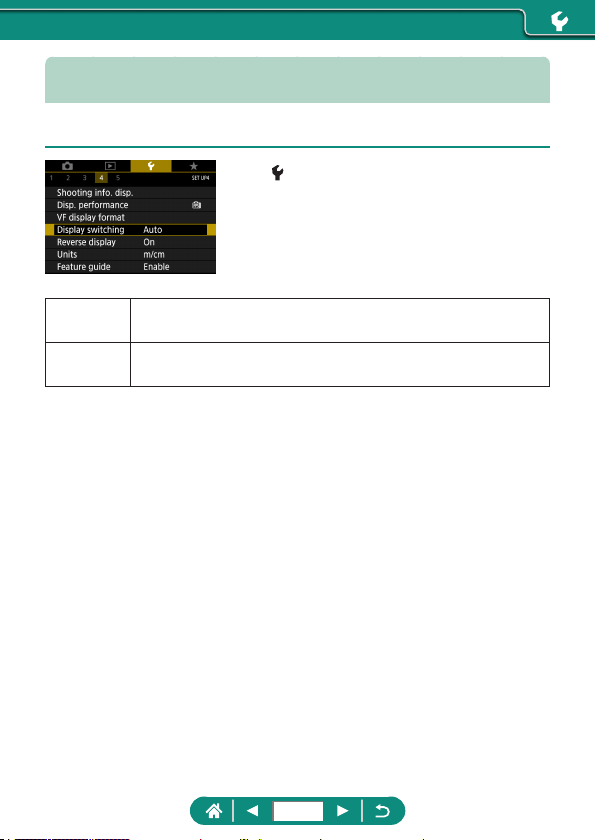
Setting the Display Mode
You can select the display mode for shooting screens.
1
[Display switching]
Auto
Normally use the screen for display, but switch to the
viewnder when you look through it.
Manual
Switch to viewnder display when you pull out the viewnder
eyepiece.
266
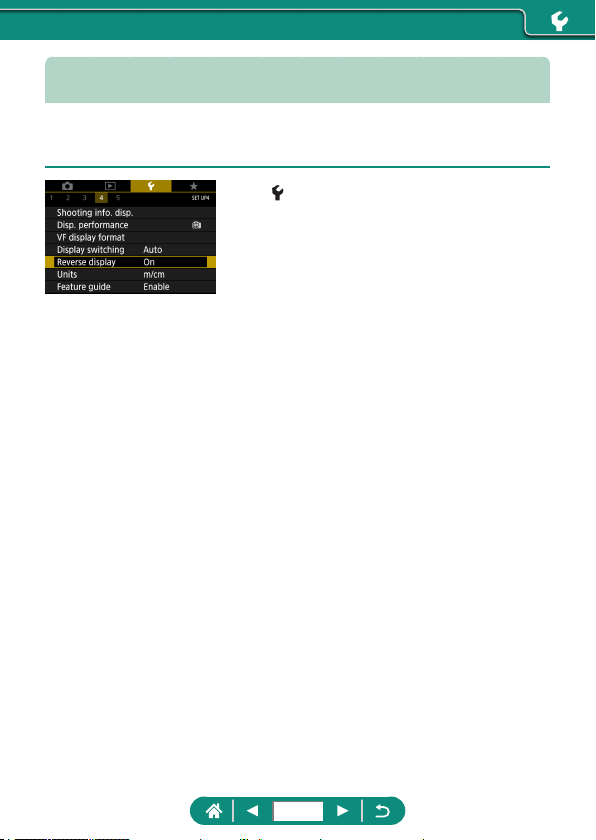
Setting Reverse Display
Specify whether to display a mirror image when shooting with the screen
rotated around toward the front.
1
[Reverse display]
267
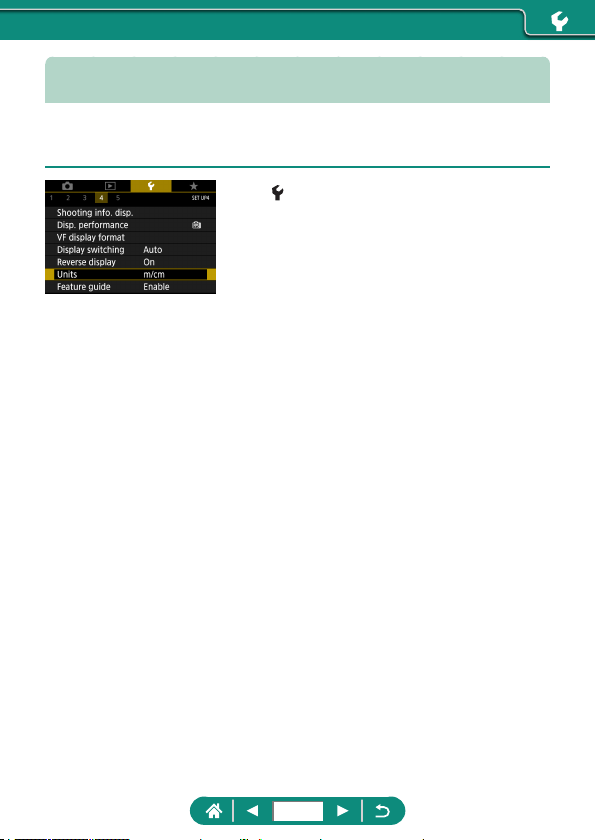
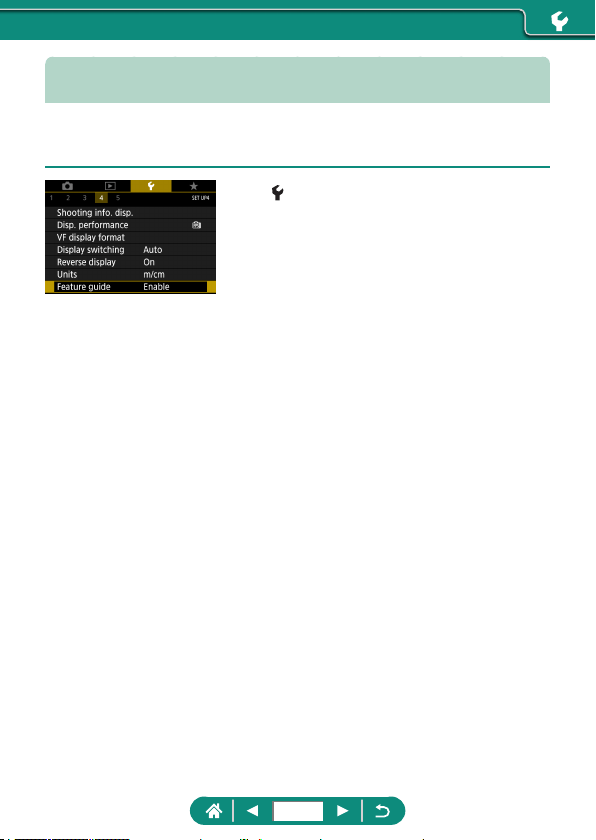
Configuring the Feature Guide
Specify whether to display feature guidance when items are selected on the
Quick Control screen.
1
[Feature guide]
269
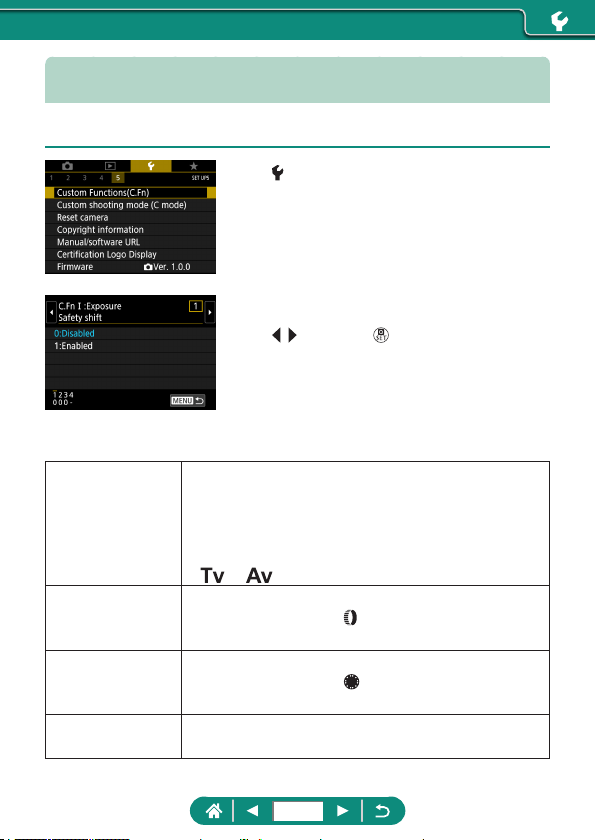
Configuring Custom Functions
Congure Custom Functions for advanced camera customization.
1
[Custom Functions(C.Fn)]
2
Choose an item.
z / buttons → button
3
Configure the settings.
C.Fn I:Exposure
Safety shift
Set to [1:Enabled] for automatic adjustment of
the shutter speed and aperture value to bring
the exposure level closer to standard exposure if
standard exposure would not be available otherwise
under your specied shutter speed or aperture value
in
or mode.
C.Fn II:Others
Control ring
rotation
Change the direction of
ring rotation.
C.Fn II:Others
Control dial
rotation
Change the direction of
dial rotation.
C.Fn II:Others
Custom Controls
Customize functions of buttons, such as the shutter
button.
270
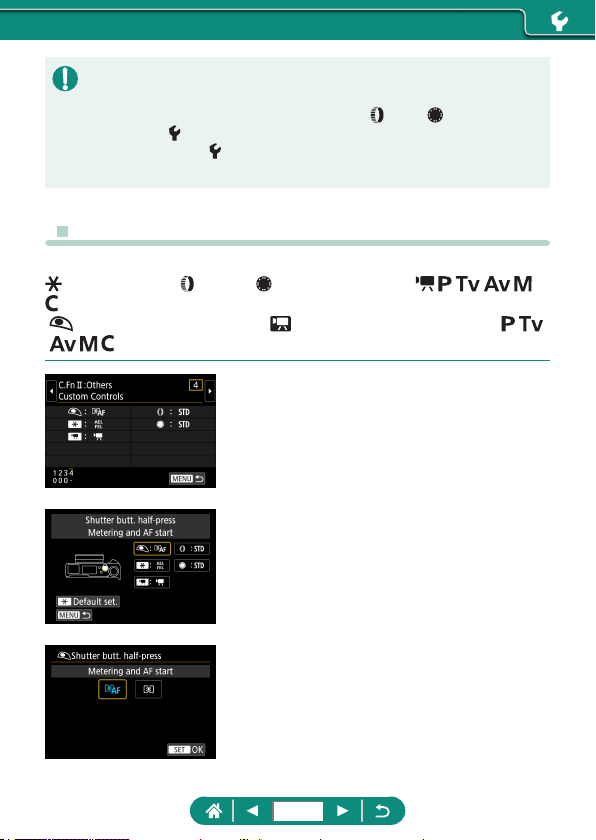
z When C.Fn-2 or C.Fn-3 is set to [1:Reverse direction], changing the
direction of rotation only applies to shutter speed, aperture value, or
Program Shift adjustment, as assigned to the
ring or dial.
z To restore
[Custom Functions(C.Fn)] defaults (except [Custom Controls]
settings), choose
[Reset camera] → [Other settings] → [Custom
Functions(C.Fn)] → [OK].
z Customizing Buttons
Customize functions of buttons, such as the shutter button.
(AE lock) button, ring and dial settings apply to / / / / /
modes.
[
Shutter butt. half-press] and [ Movie button] settings apply to /
/ / / modes.
1
[C.Fn II:Others Custom Controls]
2
Choose a button.
3
Choose a function.
271
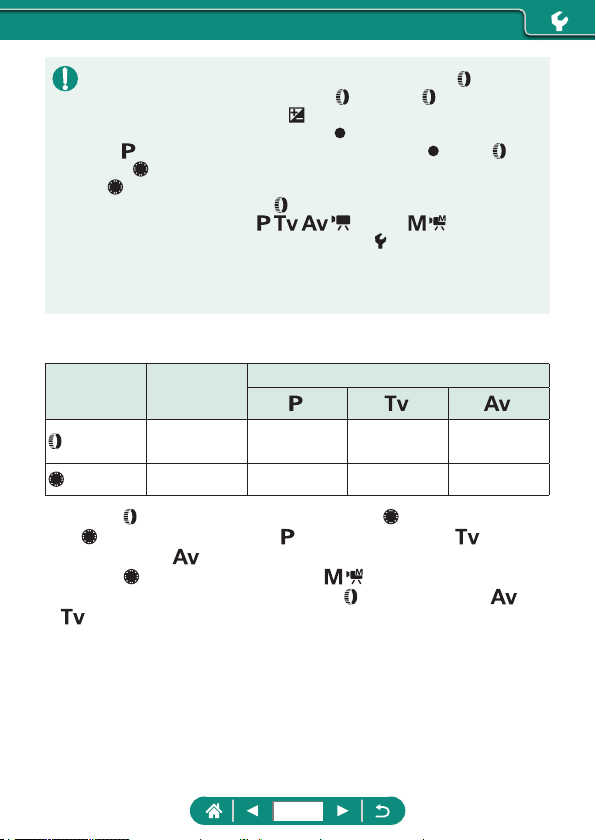
z You can assign [Exposure compensation] functionality to the ring. To
adjust exposure compensation with the
ring, select [ ] on the Custom
Controls setting screen, select [
], return to the shooting screen, and set
the exposure compensation dial to the [
] position.
z In
mode with the exposure compensation dial set to [ ] and the ring
and
dial set to [STD], exposure compensation can be adjusted with the
dial while the metering timer is running.
z Options you can set with the
ring vary depending on the shooting mode
(whether the camera is in
/ / / mode, or / mode).
z To restore [Custom Controls] defaults, choose
[Reset camera] → [Other
settings] → [Custom Controls] → [OK].
z Some functions you congure may not apply (may be disabled) in Movie
mode.
Options you can set when [STD] is assigned
Items Settings
Shooting Modes
ring
STD Program shift
Shutter
speed
Aperture
value
dial
STD - - -
* When the
ring is not assigned to [STD] but the dial is, you can use
the
dial to set Program Shift in mode, shutter speed in mode, or
aperture value in
mode.
* When the
dial is assigned to [STD] in / mode, you can use it to set
shutter speed (or aperture value) when the
ring is assigned to [ ] (or
[
]).
272
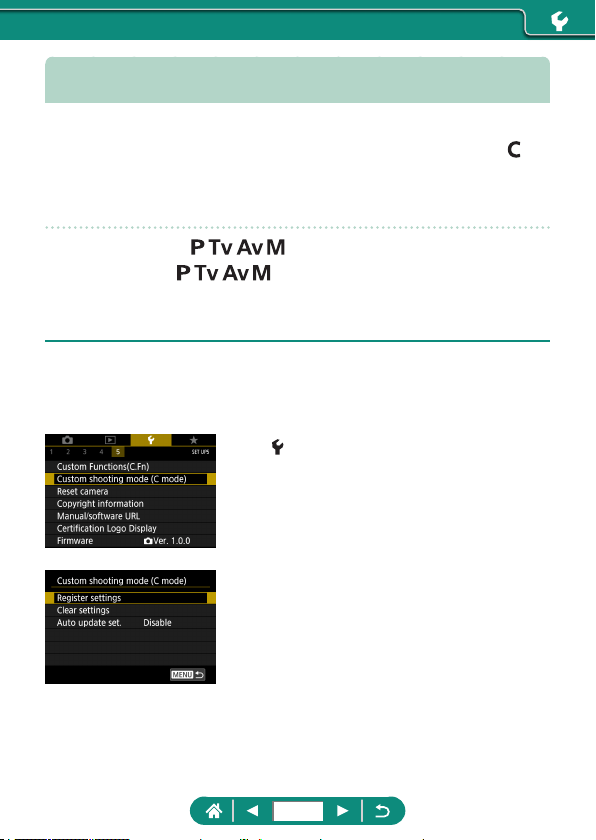
Custom Shooting Modes (C Mode)
Save commonly used shooting modes and your congured function settings
for reuse. To access saved settings later, simply turn the mode dial to
.
Even settings that are usually cleared when you switch shooting modes or
turn the camera o can be retained this way.
Settings That Can Be Saved
z Shooting modes ( / / / )
z Features set in
/ / / modes (with some exceptions)
z Zoom positions
z Manual focus positions (
=
98)
1
Enter a shooting mode with settings
you want to save, and change the
settings as desired.
2
[Custom shooting mode (C
mode)]
3
[Register settings]
273

z To edit saved settings (other than shooting mode), choose , change
the settings, and then choose
[Custom shooting mode (C mode)] →
[Register settings] again. These setting details are not applied in other
shooting modes.
z To reset saved settings to their defaults, choose
[Custom shooting mode
(C mode)] → [Clear settings].
z To automatically update your saved settings with any changes to settings
that you make while shooting in
mode, set [Custom shooting mode
(C mode)] → [Auto update set.] → [Enable].
274
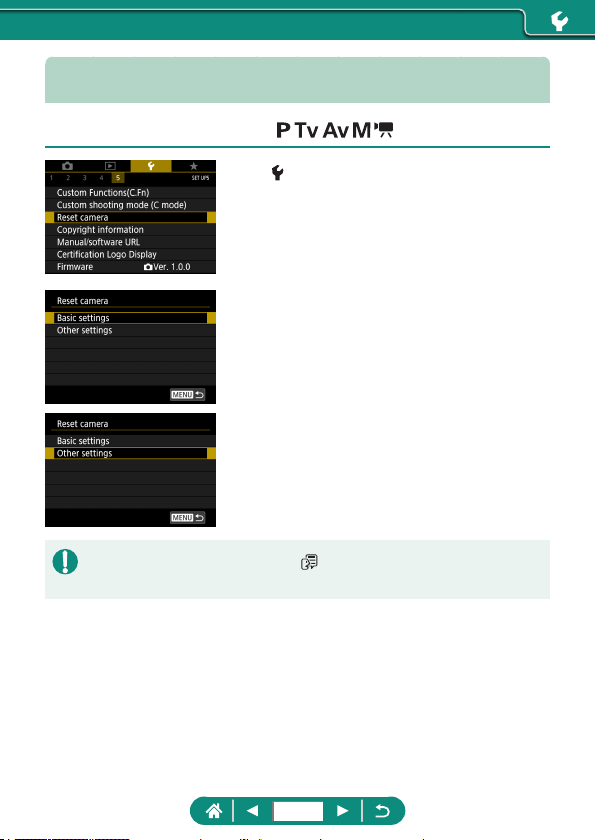
Restoring Default Camera Settings
Restore default camera settings in / / / / modes.
1
[Reset camera]
z Clear basic settings: [Basic settings] →
[OK]
z Clear other settings: [Other settings] →
choose an item → [OK]
z Basic settings such as [Language ] and [Date/Time/Zone] are not
restored to defaults.
275
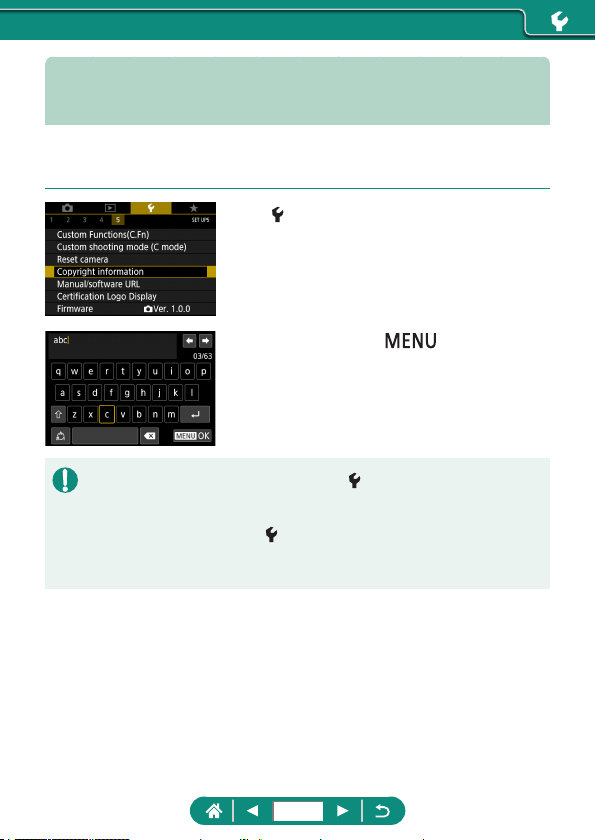
Setting Copyright Information to
Record in Images
Your specied author’s name and copyright details can be recorded in your
shots.
1
[Copyright information] → [Enter
author’s name] or [Enter copyright
details]
z Enter a name → button → [OK]
z To check the information entered, choose [Copyright information] →
[Display copyright info.].
z You can delete both the registered author’s name and copyright details at
the same time by choosing
[Copyright information] → [Delete copyright
information], but copyright information already recorded in images is not
deleted.
276
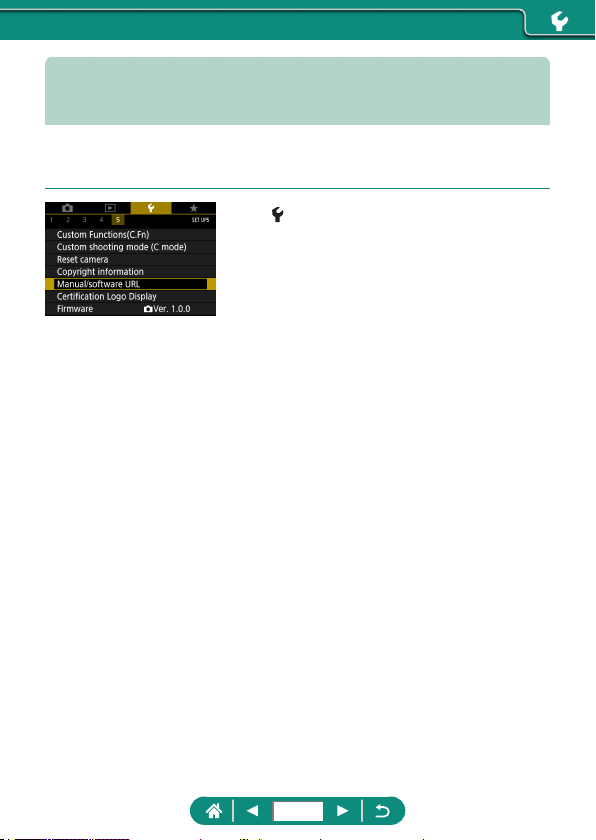
Downloading Manuals/Software from
a QR Code
A QR code can be displayed on the camera screen to access a webpage
for downloading instruction manuals and software.
1
[Manual/software URL]
277
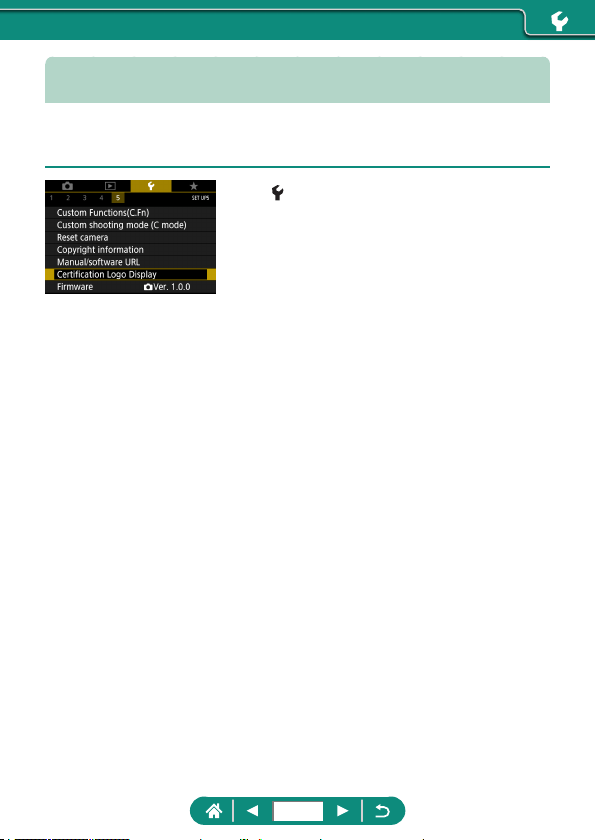
Displaying Certification Logos
Some logos for certication requirements met by the camera can be viewed
on the screen.
1
[Certification Logo Display]
278
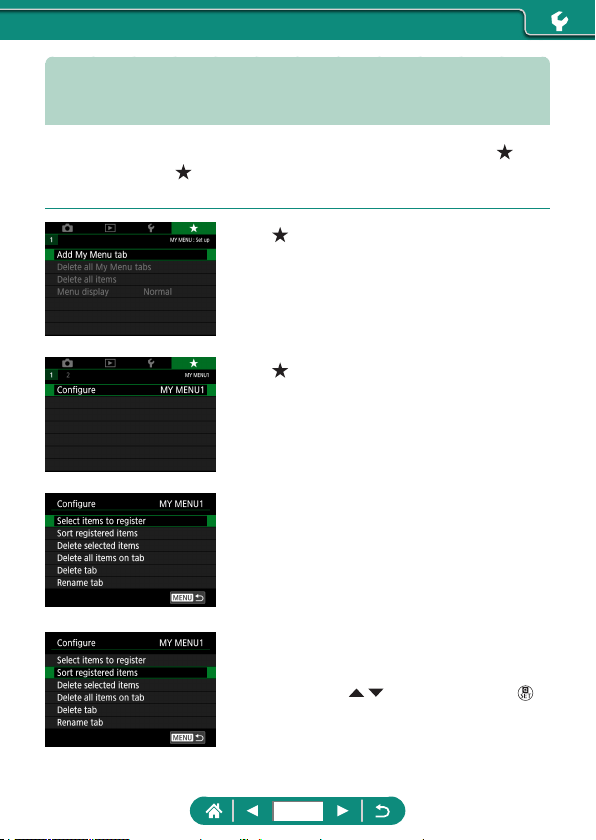
Saving Commonly Used Shooting
Menu Items (My Menu)
You can save up to six commonly used shooting menu items on the tab.
By customizing the
tab, you can access these items quickly from a single
screen.
1
[Add My Menu tab] → [OK]
2
[Configure]
3
[Select items to register]
z Choose an item → [OK]
z Your selected items are added to the My
Menu tab.
Rearranging the items
z [Sort registered items] → choose an item
to move →
/ buttons to move →
button
279
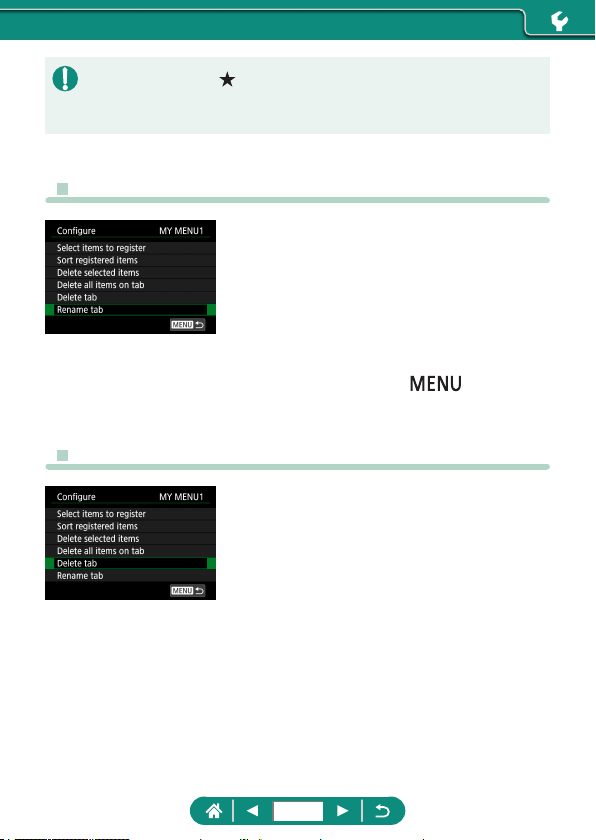
z You can add up to [ 5] My Menu tabs.
z Choosing [Congure] → [Delete all items on tab] → [OK] on your added
My Menu tab will delete all items added to the tab.
z Renaming My Menu Tabs
1
[Rename tab]
2
Change the tab name.
z Enter a tab name → button →
[OK]
z Deleting a My Menu Tab
1
[Delete tab]
280
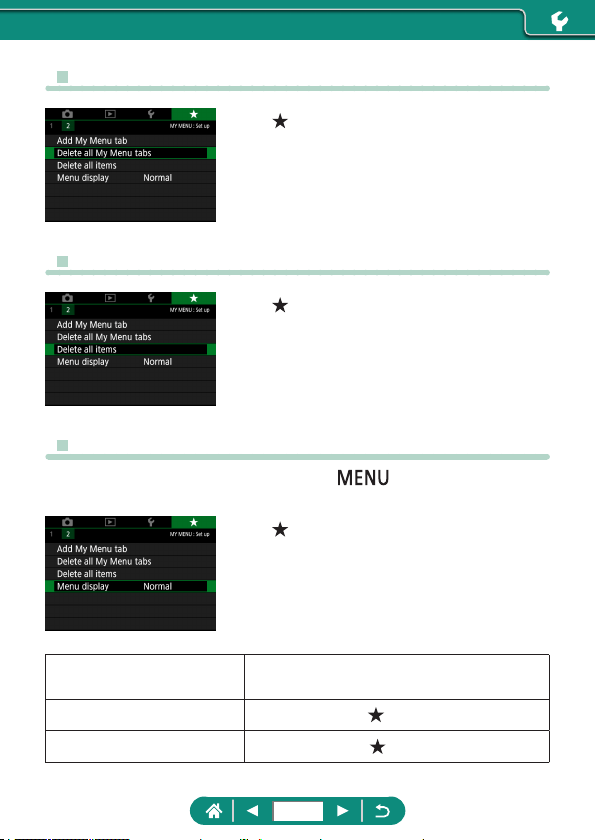
z Deleting All My Menu Tabs
1
[Delete all My Menu tabs]
z Deleting All Added Items
1
[Delete all items]
z Customizing My Menu Display
Specify which screen is displayed when the button is pressed in
shooting modes.
1
[Menu display]
Normal display
Display the most recent menu, as shown for
your previous operation.
Display from My Menu tab
Start display from
tab screens.
Display only My Menu tab
Restrict display to
tab screens.
281
Use of genuine Canon accessories is recommended.
This product is designed to achieve excellent performance when used with
genuine Canon accessories.
Canon shall not be liable for any damage to this product and/or accidents
such as re, etc., caused by the malfunction of non-genuine Canon
accessories (e.g., a leakage and/or explosion of a battery pack). Please
note that any repairs your Canon product may require as a result of such
malfunction are not covered under warranty and will incur a fee.
Enjoy the camera in more ways with optional Canon accessories and other
compatible accessories sold separately.
Accessories
282
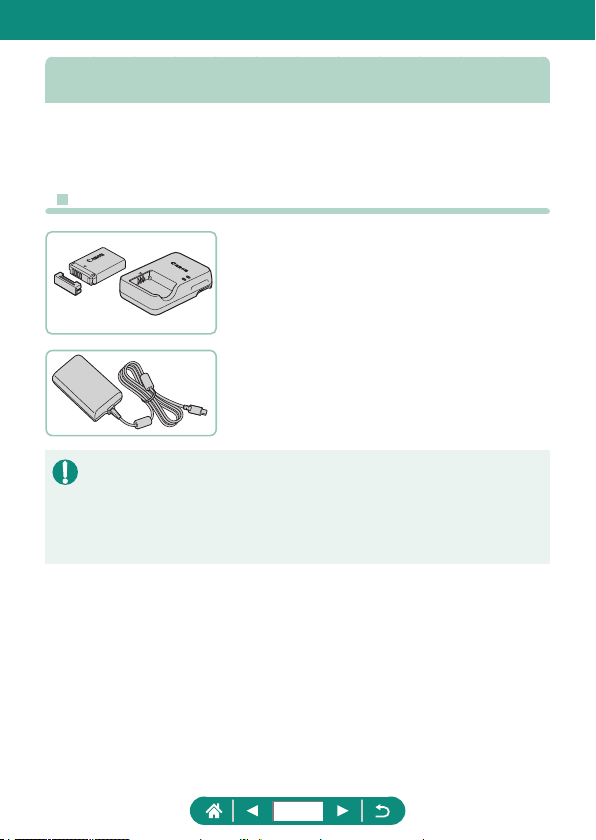
Optional Accessories
The following camera accessories are sold separately. Note that availability
varies by area, and some accessories may no longer be available.
z Power Supplies
Battery Pack NB-13L
z Rechargeable lithium-ion battery
Battery Charger CB-2LH Series
z Charger for Battery Pack NB-13L
USB Power Adapter PD-E1
z Adapter for using the camera with
household power
z The battery charger and USB power adapter can be used in areas with
100 – 240 V AC power (50/60 Hz).
z For power outlets in a dierent format, use a commercially available
adapter for the plug. Never use an electrical transformer designed for
traveling, which may damage the battery pack.
283
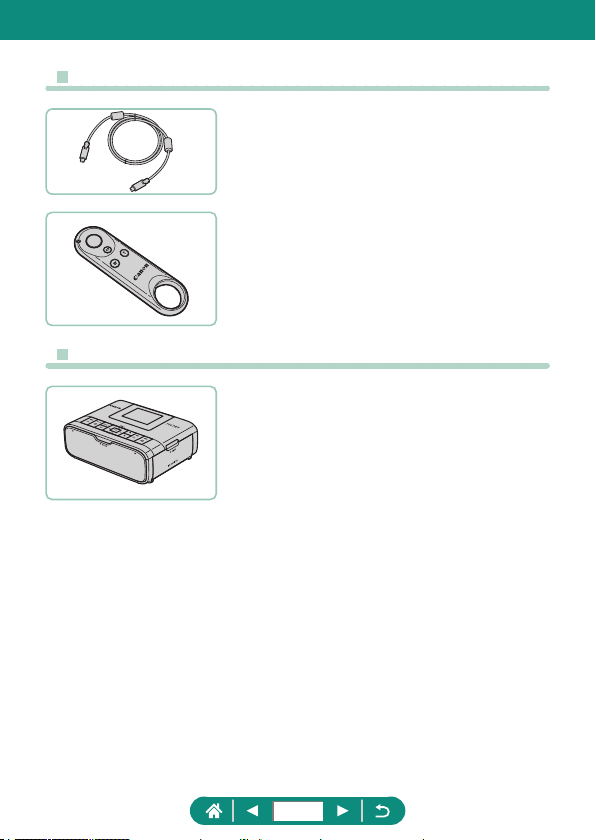
z Others
Interface Cable IFC-100U
z For connecting the camera to a computer
Wireless Remote Control BR-E1
z Bluetooth enabled wireless remote
control
z Printers
Canon PictBridge-Compatible Printers
z Even without using a computer, you can
print images by connecting the camera
directly to a printer.
284
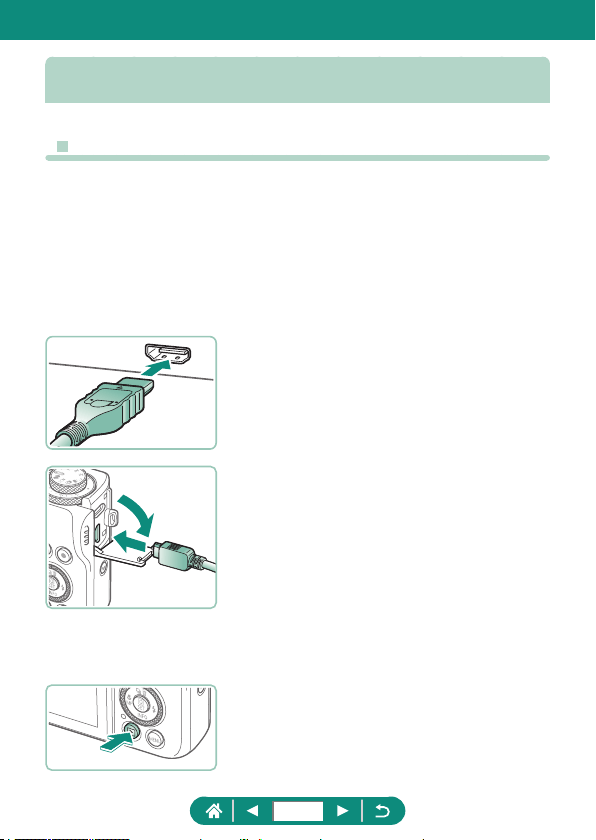
Using Optional Accessories
z Playback on a TV
You can view your shots on a TV by connecting the camera to an HDTV
with a commercially available HDMI cable (not exceeding 2.5 m / 8.2 ft.,
with a Type D terminal on the camera end). You can also shoot while
previewing shots on the larger screen of the TV.
For details on connection or how to switch inputs, refer to the TV manual.
1
Make sure the camera and TV are
off.
2
Connect the camera to the TV.
3
Turn the TV on and switch TV input
to the connected terminal.
4
Switch to playback.
z Images from the camera are now
displayed on the TV. (Nothing is
displayed on the camera screen.)
285
z Some information may not be displayed when viewing images on a TV.
z During HDMI output, display of the next image may take some time if you
switch between 4K and HD movies, or movies of dierent frame rates.
286
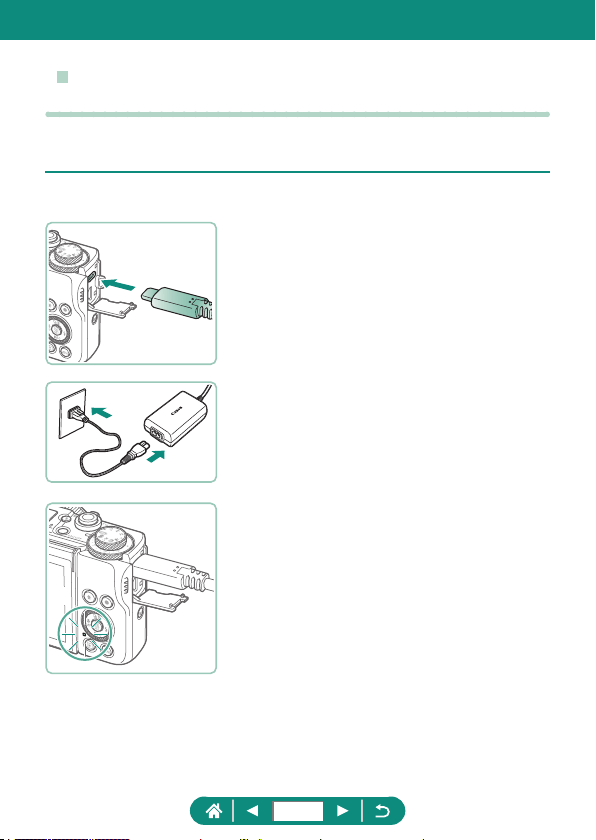
z Using a USB Power Adapter to Charge/Power
the Camera
With USB Power Adapter PD-E1 (sold separately), you can use the camera
while charging the battery without removing it.
1
Make sure the camera is off.
2
Connect the USB power adapter.
z Insert the adapter plug as shown.
3
Connect the power cord.
z Connect the power cord to the USB
power adapter and plug the other end
into a power outlet.
z The charging lamp (1) turns orange, and
charging begins.
z Turn the camera on to use it while
charging the battery (except when
shooting or standing by to shoot).
z The lamp turns o when charging
nishes.
(
1
)
287
z Icon meanings are as follows.
: charging/powering the camera, : powering the camera only,
: fully charged
z To protect the battery pack and keep it in optimal condition, do not charge
it continuously for more than 24 hours.
z If the charging lamp fails to light up or a problem occurs during charging
(shown by the indicator on the back of the camera blinking in orange),
unplug the power cord, reattach the battery, and wait a few minutes before
plugging it in again. If the problem persists, contact a Customer Support
Help Desk.
z The charging time required and the amount charged vary depending on
ambient temperature and remaining capacity.
z For safety reasons, recharging in low temperatures will take longer.
288
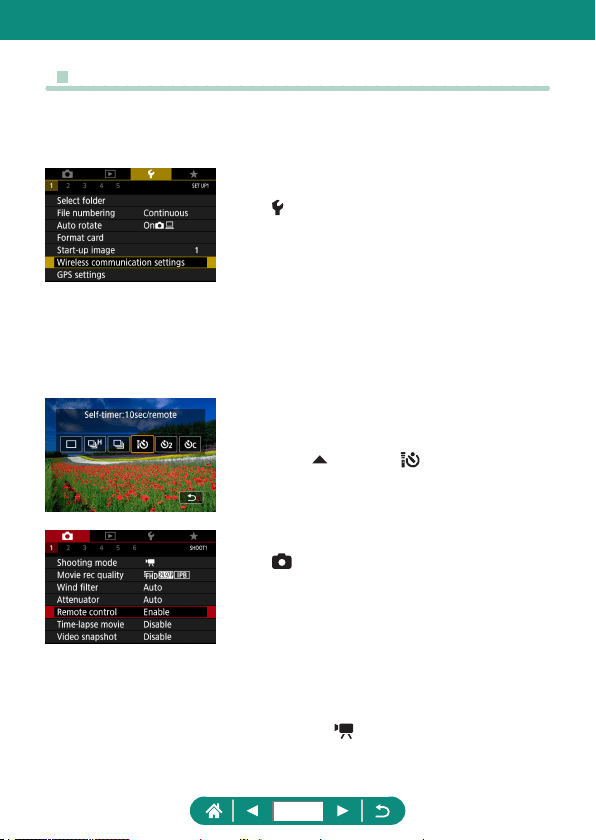
z Shooting Remotely
Wireless Remote Control BR-E1 (sold separately) can be used to shoot.
Also refer to the wireless remote control instruction manual for additional
information.
1
Pair the devices.
z [Wireless communication settings] →
[Bluetooth function] (twice) → [Remote]
→ [Pairing]
2
Hold down both the W and T
buttons on the BR-E1 for at least
three seconds.
z The devices are now paired.
3
Set up the camera for remote
shooting.
z Stills: button → [ ]
z For movie recording, make sure
[Remote control] is set to [Enable].
4
Shoot.
z For movie recording, set the remote
control’s release timing/movie shooting
switch to
and press the release
button.
289
z Auto power o is triggered in about two minutes, even if you have set it for
one minute or less.
z To clear pairing information, choose
[Wireless communication settings]
→ [Bluetooth function] → [Check/clear connection info] and then press the
button.
290
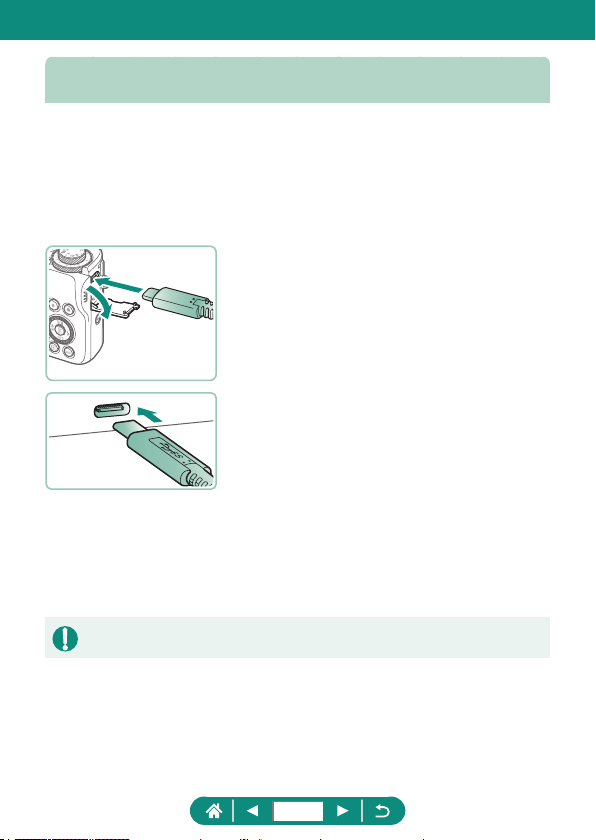
Saving Images to a Computer
You can save images you have captured to a computer by connecting the
camera to the computer with Interface Cable IFC-100U (sold separately;
camera end: Type-C). For details on computer connections, refer to the
computer user manual.
1
Make sure the camera is off.
2
Connect the camera to the
computer.
3
Turn the camera on.
4
Save the images to the computer.
z To open images, use preinstalled or
commonly available software.
z You can also use a card reader to transfer images.
291
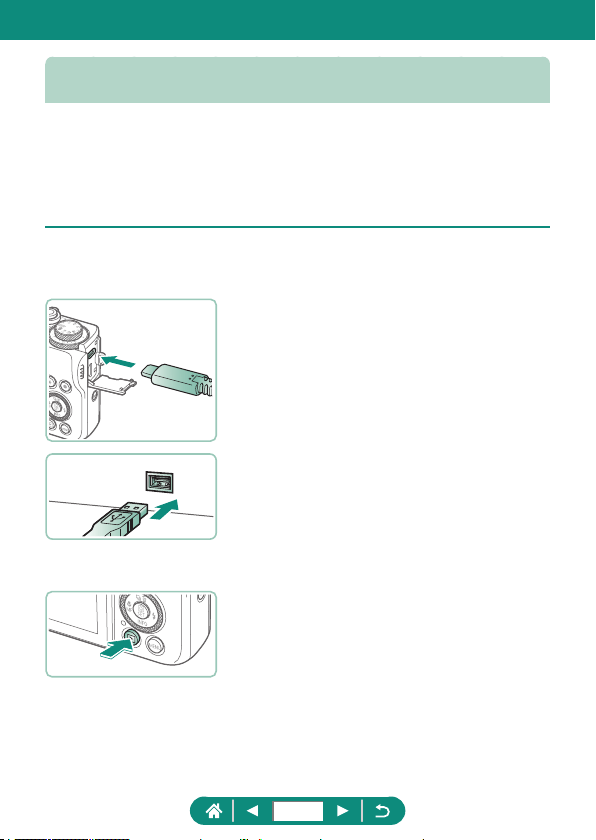
Printing Images
Print your shots by connecting the camera to a PictBridge-compatible
printer with a USB cable (sold separately; camera end: Type-C).
A Canon SELPHY CP series compact photo printer is used here for the
sake of illustration. Screens displayed and available functions vary by
printer. Also refer to the printer manual for additional information.
1
Make sure the camera and printer
are off.
2
Connect the camera to the printer.
3
Turn the printer on.
4
Switch to playback and choose an
image.
292
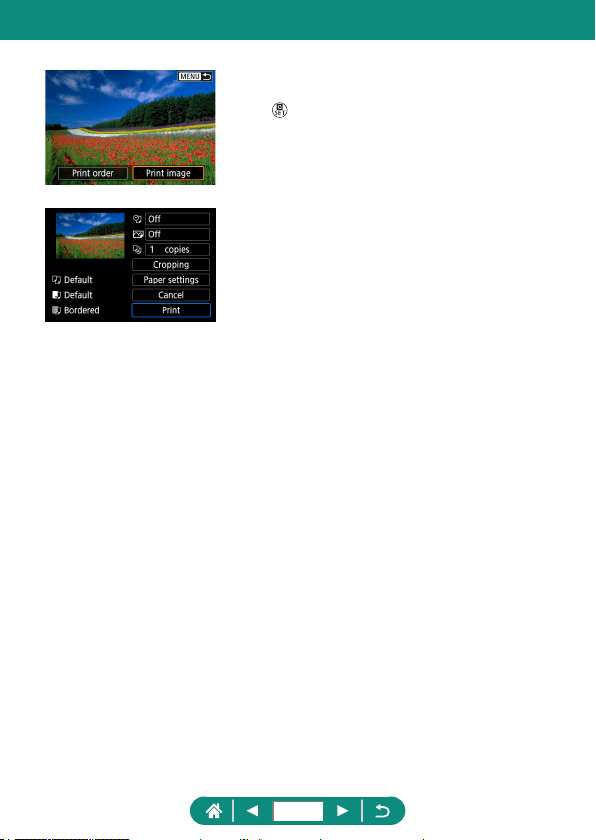
5
Access the printing screen.
z button → [Print image]
6
[Print]
293
Appendix
294
Handling Precautions
z The camera is a high-precision electronic device. Avoid dropping it or
subjecting it to strong impact.
z Never bring the camera near magnets, motors, or other devices that
generate strong electromagnetic elds. Strong electromagnetic elds
may cause malfunction or erase image data.
z If water droplets or dirt adheres to the camera or screen, wipe with
a dry soft cloth, such as an eyeglass cloth. Do not rub hard or apply
force.
z Never use cleaners containing organic solvents to clean the camera or
screen.
z Use a blower brush to remove dust from the lens. If cleaning is dicult,
contact a Customer Support Help Desk.
z Store unused battery packs in a plastic bag or other container. To
maintain battery performance if you will not use the battery pack for
some time, about once a year charge it and then use the camera until it
runs out of power before storing the battery pack.
295
Troubleshooting
If you think there is a problem with the camera, rst check the following. If
the issue persists, contact a Customer Support Help Desk.
Power
Nothing happens when the ON/OFF button is pressed.
z Dirty battery terminals reduce battery performance. Try cleaning the
terminals with a cotton swab and reinserting the battery pack a few
times.
The battery pack runs out of power quickly.
z Battery performance decreases at low temperatures. Try warming the
battery pack a little by putting it in your pocket, for example, ensuring
that the terminals do not touch any metal objects.
z Dirty battery terminals reduce battery performance. Try cleaning the
terminals with a cotton swab and reinserting the battery pack a few
times.
z If these measures do not help and the battery pack still runs out of
power soon after charging, it has reached the end of its useful life.
Purchase a new battery pack.
The battery pack is swollen.
z Battery swelling is normal and does not pose any safety concerns.
However, if battery swelling prevents the battery pack from tting in the
camera, contact a Customer Support Help Desk.
Shooting
Cannot shoot.
z During playback, press the shutter button halfway.
296
Strange display on the screen when shooting.
z Note that the following display problems are not recorded in still images
but are recorded in movies.
- The screen may icker and horizontal banding may appear under
uorescent or LED lighting.
Movie recording or playback suddenly stops.
z For [
] or [ ], use a UHS-I memory card with a UHS
Speed Class 3 or higher.
z For High Frame Rate movies, use a UHS-I memory card with a UHS
Speed Class 3 or higher.
z For playback of 4K time-lapse movies (1), Full HD time-lapse movies
(2), or Hybrid Auto movies (3), use a memory card with a read speed
of approx. (1) 300 Mbps or (2)/(3) 90 Mbps or faster. Using a slow
memory card may cause movie playback in progress to stop.
[
] is displayed and the camera turns o automatically.
z After extended shooting, or shooting in hot weather, [
] is displayed
to indicate that the camera will soon turn o automatically. In this case,
turn o the camera and allow it to cool down.
Continuous shooting is much slower.
z Under high temperatures, continuous shooting may be much slower. In
this case, turn o the camera and allow it to cool down.
[
] is displayed.
z [
] may be displayed after repeated movie recording under the
following settings, or if you keep the camera standing by for movie
recording over extended periods.
- 4K movie recording
- High frame rate movie recording
- Movie recording while connected via Wi-Fi
The camera turns o automatically in approx. 3 min. if you continue
recording while [
] is displayed. The camera may also turn o
automatically while standing by for movie recording when [
] is displayed.
When [
] is displayed, turn o the camera and allow it to cool down.
297
Image quality is poor.
z Image quality may decline if you shoot while the camera’s internal
temperature is high.
Shots are out of focus.
z Conrm that unneeded functions such as macro are deactivated.
z Try shooting with AF lock.
No AF points are displayed and the camera does not focus when the shutter
button is pressed halfway.
z To have AF points displayed and the camera focus correctly, try
composing the shot with higher-contrast subject areas centered before
pressing the shutter button halfway (or pressing it halfway repeatedly).
Subjects in shots look too dark.
z Adjust brightness by using exposure compensation.
z Use AE lock or spot metering.
Subjects look too bright, highlights are washed-out.
z Adjust brightness by using exposure compensation.
z Use AE lock or spot metering.
z Reduce the lighting on subjects.
Shots look too dark despite the ash ring.
z Adjust brightness by using ash exposure compensation or changing
the ash output level.
z Increase the ISO speed.
Subjects in ash shots look too bright, highlights are washed-out.
z Adjust brightness by using ash exposure compensation or changing
the ash output level.
Recording Movies
Subjects look distorted.
z Subjects that pass in front of the camera quickly may look distorted.
298
Wi-Fi
Cannot access the Wi-Fi menu by pressing the button.
z The Wi-Fi menu cannot be accessed while the camera is connected to
a printer or computer via a cable. Disconnect the cable.
Cannot connect to the access point.
z Conrm that the access point channel is set to a channel supported
by the camera. Note that instead of auto channel assignment, it is
advisable to specify a supported channel manually. For details on
supported channels, check the Canon website.
Images take a long time to send. / The wireless connection is disrupted.
z Do not use the camera near sources of Wi-Fi signal interference such
as microwave ovens or other equipment operating on the 2.4 GHz
band.
z Bring the camera closer to the other device you are trying to connect
to (such as the access point), and make sure there are no objects
between the devices.
Cannot pair with a smartphone via Bluetooth.
z Pairing with a smartphone via Bluetooth is not possible if you are using
Wireless Remote Control BR-E1 after choosing [Bluetooth function] →
[Bluetooth function] → [Remote].
Error Codes
Error codes (Errxx) and recommended responses are displayed.
z Error codes are displayed if camera problems occur. If the problem
persists, write down the error code (Errxx) and contact a Customer
Support Help Desk.
z Error numbers for wireless communication errors (Errxx) are displayed
in the upper right of the screen accessed by choosing
[Wireless
communication settings] → [Wi-Fi function]. Press the
button to view
error details on information display screens.
299
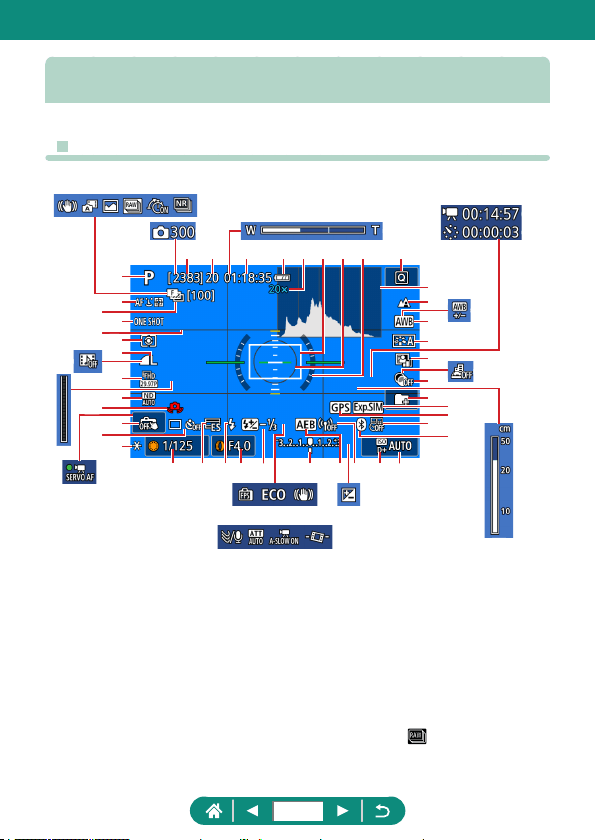
On-Screen Information
z When Shooting
(1)
(2)
(3)
(4)
(5)
(6)
(7)
(8)
(9)
(
11
)
(
12
)
(
10
)
(
13
)
(
14
) (
15
) (
16
) (
17
)(
18
)(
19
)(
20
)(
21
) (
22
)
(
23
)
(
24
)
(
25
)
(
26
)
(
27
)
(
28
)
(
29
)
(
30
)
(
31
)
(
33
)
(
34
) (
35
) (
36
)(
37
)(
38
) (
39
)
(
40
)
(
41
)
(
32
)
(
42
)(
43
)
(
44
)
(
45
)
(
47
) (
48
) (
49
) (
50
) (
51
)
(
52
) (
53
)
(
54
)
(
55
)
(
56
)
(
57
)
(
46
)
(
59
) (
60
) (
61
)
(
62
)
(
63
) (
64
) (
65
) (
66
)
(
58
)
(1) Shooting mode, Scene icon
(2) AF method
(3) Focus bracketing / Number of shots
(4) AF operation
(5) Grid lines
(6) Metering mode
(7) Image quality
(8) Movie recording quality
(9) ND filter
(10) Camera shake warning
(11) Touch Shutter
(12) Drive mode / Self-timer
(13) AE lock
(14) Recordable shots /
Recordable
rolls
300
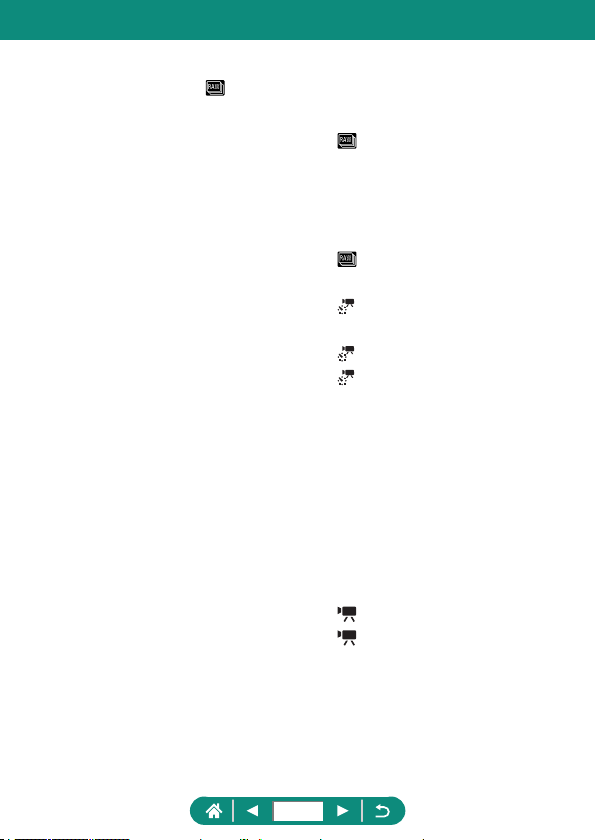
(15) Maximum continuous shots /
Maximum continuous
rolls (fixed
at 1)
(16) Movie recording time available
(17) Battery level
(18) Zoom magnification, Digital tele-
converter
(19) AF point
(20) Spot AE point frame
(21) Electronic level
(22) Quick Control
(23) Histogram
(24) Focus range
(25) White balance
(26) Picture Style
(27) Auto Lighting Optimizer
(28) Creative filters
(29) Create folder
(30) Exposure simulation
(31) Bluetooth smartphone connection,
GPS acquisition status
(32) Date stamp
(33) Bluetooth connection status
(34) Shutter speed
(35) Electronic shutter
(36) Flash mode / FE lock
(37) Aperture value
(38) Flash exposure compensation /
Flash output level
(39) Exposure level indicator
(40) AEB
(41) Wi-Fi signal strength
(42) Highlight tone priority
(43) ISO speed
(44) Video snapshot
(45)
Indicator
(46) Movie Servo AF
(47) Intelligent IS
(48) Hybrid Auto mode / Digest type
(49) RAW burst mode
(50)
Pre-shooting
(51) Multi Shot Noise Reduction
(52)
Number of shots
(53) Zoom bar
(54)
Time required
(55)
Interval
(56) White balance correction
(57) Miniature effect movie
(58) MF indicator
(59) Display performance
(60) Eco mode
(61) Image stabilization
(62) Exposure compensation
(63) Wind filter
(64) Attenuator
(65)
Auto slow shutter
(66)
Auto level
301
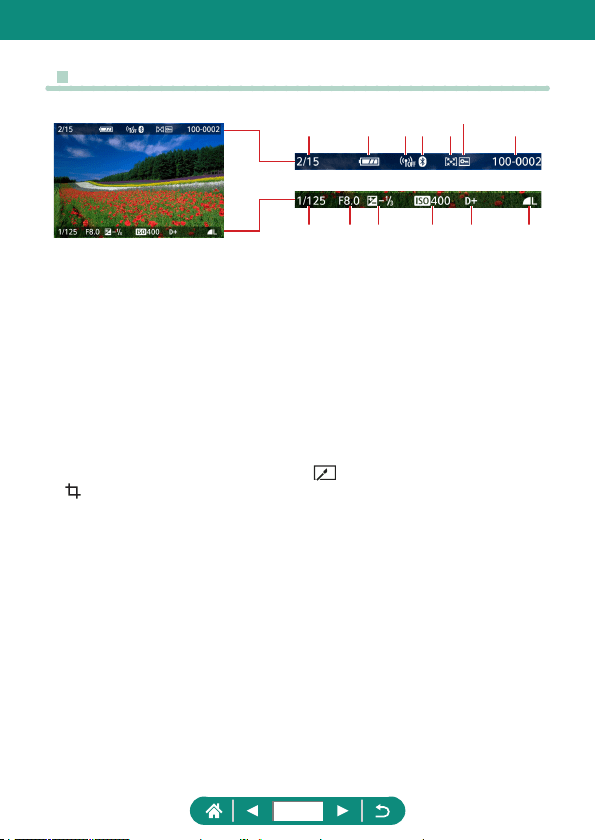
z During Playback
(1)
(8) (9)
(2) (3) (4) (5)
(6)
(7)
(
10
) (
11
) (
12
) (
13
)
(1) Current image / Total images
(2) Battery level
(3) Wi-Fi signal strength
(4) Bluetooth connection status
(5) Rating
(6) Protection
(7) Folder number - File number
(8) Shutter speed
(9) Aperture value
(10) Exposure compensation level
(11) ISO speed
(12) Highlight tone priority
(13) Image quality*
* Images captured with a creative lter, RAW image processing, resizing, cropping, or
red-eye correction applied are labeled with [
]. Cropped images are labeled with
[
].
302
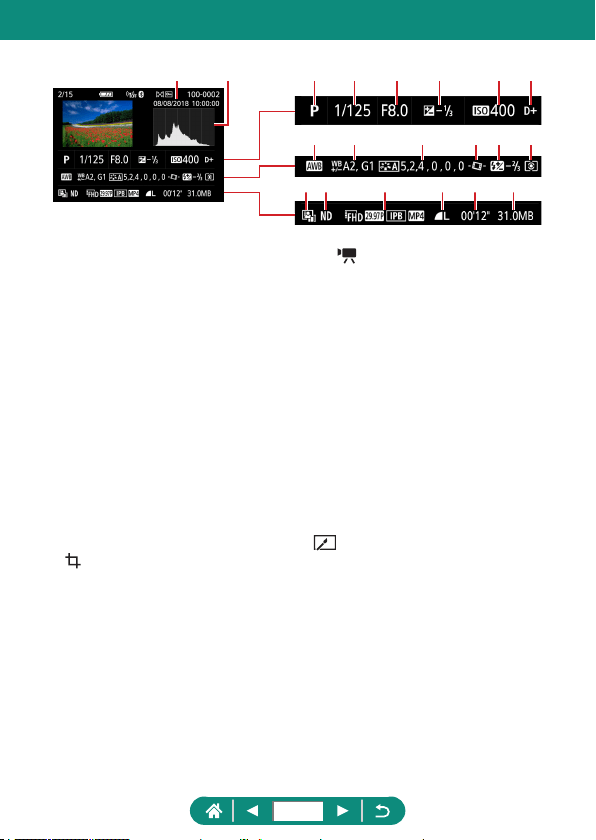
(3) (4) (5) (6) (7) (8)
(9)
(1) (2)
(
10
) (
11
) (
12
) (
13
) (
14
)
(
15
)(
16
) (
17
) (
18
) (
19
) (
20
)
(1) Shooting date/time
(2) Histogram
(3) Shooting mode / RAW burst mode
(4) Shutter speed
(5) Aperture value
(6) Exposure compensation level
(7) ISO speed
(8) Highlight tone priority
(9) White balance
(10) White balance correction
(11) Picture Style setting details
(12)
Auto level
(13) Flash exposure compensation / Multi
Shot Noise Reduction
(14) Metering mode
(15) Auto Lighting Optimizer
(16) ND filter
(17) Movie recording size
(18) Image quality*
(19) Movie recording time / RAW burst
mode
(20) File size
* Images captured with a creative lter, RAW image processing, resizing, cropping, or
red-eye correction applied are labeled with [
]. Cropped images are labeled with
[
].
303
Precautions for Wireless Features
z Before goods or technologies in the camera regulated by the Foreign
Exchange and Foreign Trade Act are exported (which includes bringing
them outside Japan or showing them to non-residents in Japan), export
or service transaction permission may be required from the Japanese
government.
z Because this product includes American encryption items, it falls under
U.S. Export Administration Regulations, and cannot be exported to or
brought into a country under U.S. trade embargo.
z Be sure to make notes of the Wi-Fi settings you use. The wireless
settings saved to this product may change or be erased due to incorrect
operation of the product, the eects of radio waves or static electricity,
or accident or malfunction. Please note that Canon accepts no
responsibility for direct or indirect damages or loss of earnings resulting
from a degradation or disappearance of content.
z When transferring ownership, disposing of the product, or sending it for
repair, restore the default wireless settings by erasing any settings you
have entered.
z Canon will not make compensation for damages resulting from loss or
theft of the product.
Canon accepts no responsibility for damages or loss resulting from
unauthorized access or use of target devices registered on this product
due to loss or theft of the product.
z Be sure to use the product as directed in this guide.
Be sure to use the wireless function of this product within the guidelines
noted in this guide. Canon accepts no responsibility for damages
or loss if the function and product are used in ways other than as
described in this guide.
304
z Security Precautions
Because Wi-Fi uses radio waves to transmit signals, security precautions
more stringent than when using a LAN cable are required.
Keep the following points in mind when using Wi-Fi.
z Only use networks you are authorized to use.
This product searches for Wi-Fi networks in the vicinity and displays
the results on the screen. Networks you are not authorized to use
(unknown networks) may also be displayed. However, attempting to
connect to or using such networks could be regarded as unauthorized
access. Be sure to use only networks you are authorized to use, and do
not attempt to connect to other unknown networks.
If security settings have not been properly set, the following problems may
occur.
z Transmission monitoring
Third parties with malicious intent may monitor Wi-Fi transmissions and
attempt to acquire the data you are sending.
z Unauthorized network access
Third parties with malicious intent may gain unauthorized access to
the network you are using to steal, modify, or destroy information.
Additionally, you could fall victim to other types of unauthorized access
such as impersonation (where someone assumes an identity to gain
access to unauthorized information) or springboard attacks (where
someone gains unauthorized access to your network as a springboard
to cover their tracks when inltrating other systems).
To prevent these types of problems from occurring, be sure to thoroughly
secure your Wi-Fi network.
Only use this camera’s Wi-Fi function with a proper understanding of
Wi-Fi security, and balance risk and convenience when adjusting security
settings.
305
Third-Party Software
z AES-128 Library
Copyright (c) 1998-2008, Brian Gladman, Worcester, UK. All rights
reserved.
LICENSE TERMS
The redistribution and use of this software (with or without changes) is
allowed without the payment of fees or royalties provided that:
1. source code distributions include the above copyright notice, this list
of conditions and the following disclaimer;
2. binary distributions include the above copyright notice, this list of
conditions and the following disclaimer in their documentation;
3. the name of the copyright holder is not used to endorse products
built using this software without specic written permission.
DISCLAIMER
This software is provided 'as is' with no explicit or implied warranties in
respect of its properties, including, but not limited to, correctness and/or
tness for purpose.
306

z CMSIS Core header les
Copyright (C) 2009-2015 ARM Limited.
All rights reserved.
Redistribution and use in source and binary forms, with or without
modication, are permitted provided that the following conditions are
met:
- Redistributions of source code must retain the above copyright
notice, this list of conditions and the following disclaimer.
- Redistributions in binary form must reproduce the above copyright
notice, this list of conditions and the following disclaimer in the
documentation and/or other materials provided with the distribution.
- Neither the name of ARM nor the names of its contributors may be
used to endorse or promote products derived from this software
without specic prior written permission.
THIS SOFTWARE IS PROVIDED BY THE COPYRIGHT HOLDERS
AND CONTRIBUTORS “AS IS” AND ANY EXPRESS OR IMPLIED
WARRANTIES, INCLUDING, BUT NOT LIMITED TO, THE IMPLIED
WARRANTIES OF MERCHANTABILITY AND FITNESS FOR A
PARTICULAR PURPOSE ARE DISCLAIMED. IN NO EVENT SHALL
COPYRIGHT HOLDERS AND CONTRIBUTORS BE LIABLE FOR
ANY DIRECT, INDIRECT, INCIDENTAL, SPECIAL, EXEMPLARY,
OR CONSEQUENTIAL DAMAGES (INCLUDING, BUT NOT
LIMITED TO, PROCUREMENT OF SUBSTITUTE GOODS OR
SERVICES; LOSS OF USE, DATA, OR PROFITS; OR BUSINESS
INTERRUPTION) HOWEVER CAUSED AND ON ANY THEORY OF
LIABILITY, WHETHER IN CONTRACT, STRICT LIABILITY, OR TORT
(INCLUDING NEGLIGENCE OR OTHERWISE) ARISING IN ANY WAY
OUT OF THE USE OF THIS SOFTWARE, EVEN IF ADVISED OF THE
POSSIBILITY OF SUCH DAMAGE.
307

z KSDK Peripheral Drivers, Flash / NVM, KSDK H/W Abstraction Layer
(HAL)
(c) Copyright 2010-2015 Freescale Semiconductor, Inc.
ALL RIGHTS RESERVED.
Redistribution and use in source and binary forms, with or without
modication, are permitted provided that the following conditions are
met:
* Redistributions of source code must retain the above copyright
notice, this list of conditions and the following disclaimer.
* Redistributions in binary form must reproduce the above copyright
notice, this list of conditions and the following disclaimer in the
documentation and/or other materials provided with the distribution.
* Neither the name of the <organization> nor the names of its
contributors may be used to endorse or promote products derived
from this software without specic prior written permission.
THIS SOFTWARE IS PROVIDED BY THE COPYRIGHT HOLDERS
AND CONTRIBUTORS “AS IS” AND ANY EXPRESS OR IMPLIED
WARRANTIES, INCLUDING, BUT NOT LIMITED TO, THE IMPLIED
WARRANTIES OF MERCHANTABILITY AND FITNESS FOR A
PARTICULAR PURPOSE ARE DISCLAIMED. IN NO EVENT SHALL
<COPYRIGHT HOLDER> BE LIABLE FOR ANY DIRECT, INDIRECT,
INCIDENTAL, SPECIAL, EXEMPLARY, OR CONSEQUENTIAL
DAMAGES (INCLUDING, BUT NOT LIMITED TO, PROCUREMENT
OF SUBSTITUTE GOODS OR SERVICES; LOSS OF USE, DATA, OR
PROFITS; OR BUSINESS INTERRUPTION) HOWEVER CAUSED
AND ON ANY THEORY OF LIABILITY, WHETHER IN CONTRACT,
STRICT LIABILITY, OR TORT (INCLUDING NEGLIGENCE OR
OTHERWISE) ARISING IN ANY WAY OUT OF THE USE OF THIS
SOFTWARE, EVEN IF ADVISED OF THE POSSIBILITY OF SUCH
DAMAGE.
308
Personal Information and Security
Precautions
If personal information and/or Wi-Fi security settings, such as passwords,
etc., are saved on the camera, please be aware that such information and
settings may still remain in the camera.
When transferring the camera to another person, disposing of it, or sending
it for repair, be sure to take the following measures to prevent the leakage
of such information and settings.
z Erase registered Wi-Fi security information by choosing [Clear settings]
in the Wi-Fi settings.
309
Trademarks and Licensing
z Microsoft and Windows are trademarks or registered trademarks of
Microsoft Corporation in the United States and/or other countries.
z Macintosh and Mac OS are trademarks of Apple Inc., registered in the
U.S. and other countries.
z App Store, iPhone, and iPad are trademarks of Apple Inc.
z The SDXC logo is a trademark of SD-3C, LLC.
z HDMI, the HDMI logo and High-Denition Multimedia Interface are
trademarks or registered trademarks of HDMI Licensing LLC.
z Wi-Fi
®
, Wi-Fi Alliance
®
, WPA™, WPA2™ and Wi-Fi Protected Setup™
are trademarks or registered trademarks of the Wi-Fi Alliance.
z The Bluetooth
®
word mark and logos are registered trademarks owned
by Bluetooth SIG, Inc. and any use of such marks by Canon Inc. is
under license. Other trademarks and trade names are those of their
respective owners.
z All other trademarks are the property of their respective owners.
z This device incorporates exFAT technology licensed from Microsoft.
z This product is licensed under AT&T patents for the MPEG-4 standard
and may be used for encoding MPEG-4 compliant video and/or
decoding MPEG-4 compliant video that was encoded only (1) for
a personal and non-commercial purpose or (2) by a video provider
licensed under the AT&T patents to provide MPEG-4 compliant video.
No license is granted or implied for any other use for MPEG-4 standard.
310

z THIS PRODUCT IS LICENSED UNDER THE AVC PATENT
PORTFOLIO LICENSE FOR THE PERSONAL USE OF A
CONSUMER OR OTHER USES IN WHICH IT DOES NOT RECEIVE
REMUNERATION TO (i) ENCODE VIDEO IN COMPLIANCE WITH
THE AVC STANDARD (“AVC VIDEO”) AND/OR (ii) DECODE AVC
VIDEO THAT WAS ENCODED BY A CONSUMER ENGAGED IN A
PERSONAL ACTIVITY AND/OR WAS OBTAINED FROM A VIDEO
PROVIDER LICENSED TO PROVIDE AVC VIDEO. NO LICENSE
IS GRANTED OR SHALL BE IMPLIED FOR ANY OTHER USE.
ADDITIONAL INFORMATION MAY BE OBTAINED FROM MPEG LA,
L.L.C. SEE HTTP://WWW.MPEGLA.COM
311
Disclaimer
z Unauthorized reproduction of this guide is prohibited.
z All measurements based on Canon testing standards.
z Information subject to change without notice, as are product
specications and appearance.
z Illustrations and screenshots in this guide may dier slightly from the
actual equipment.
z The above items notwithstanding, Canon cannot be held liable for any
loss arising from the use of this product.
312
Numbers
1-point AF 149
A
Accessories 283
AEB shooting 120
AE lock 96
AF-assist beam 152
AF lock 101
AF method 149
AF points 45, 150
AF-point zoom 98
Aspect ratio 105
Attenuator 163
Auto level 159
Auto Lighting Optimizer 127
Auto mode (shooting mode) 56
Av (shooting mode) 91
B
Background defocus
(shooting mode) 81
Battery charger 283
Battery pack
Charging 21, 287
Eco mode 250
Power saving 251
Beep 259
Bluetooth 213, 241
Bulb exposure 94
C
Camera
Resetting 275
Camera Connect 213
CANON iMAGE GATEWAY 234
Changing or deleting connection
information 242
Charging 21, 287
Color temperature 133
Color (white balance) 133
Compression 103
Continuous AF 151
Continuous shooting 114
Cropping 203
C (shooting mode) 273
Custom Functions 270
Custom white balance 135
D
Date/time/zone
Changing 254
Settings 25
Digital tele-converter 160
Digital zoom 95
Display language
Changing 255
Settings 25
DPOF 194
E
Eco mode 250
Editing
Cropping 203
Red-eye correction 200
Index
313

Resizing images 205
Electronic shutter 147
Erasing 191
Error messages 299
Exposure
AE lock 96
Compensation 119
FE lock 108
F
Face+Tracking 149
FE lock 108
File numbering 245
Fireworks (shooting mode) 64
Fish-eye eect (shooting mode) 82
Flash
Flash exposure compensation 110
Flash o 107
Flash timing 112
Slow synchro 107
Flash exposure compensation 110
Flash o 107
Focus bracketing 153
Focusing
AF lock 101
AF point 149
MF peaking 100
Servo AF 148
Focus range
Macro 97
Manual focus 98
Food (shooting mode) 63
G
Geotagging images 224
Grainy B/W (shooting mode) 81
Grid lines 263
H
Handheld night scene
(shooting mode) 63
HDMI cable 285
HDR art bold (shooting mode) 83
HDR art embossed
(shooting mode) 83
HDR art standard (shooting mode) 83
HDR art vivid (shooting mode) 83
HDR Backlight Control
(shooting mode) 64
HDR movie 88
High Frame Rate 162
High ISO speed noise reduction 143
Hybrid Auto (shooting mode) 60
I
Icons 300, 302
Image quality 103
Images
Display period 106
Erasing 191
Protecting 187
Image stabilization 157
Index display 179
ISO speed 122, 125
J
Jump display 209
L
Lamp 152
Long exposure 94
M
Macro (focus range) 97
Magnied display 177
Manual focus (focus range) 98
314

Memory cards 22
Menu
Basic operations 39
Table 42
Touch operation 50
Metering method 130
MF (Manual focusing) 98
MF peaking 100
Miniature eect movie
(shooting mode) 166
Miniature eect
(shooting mode) 82, 85
Movie manual exposure
(shooting mode) 87
Movies
Create album 201
Editing 180
Recording size 161
Servo AF 164
M (shooting mode) 92
My Menu 279
N
ND lter 129
P
Panning (shooting mode) 68
Panoramic shot (shooting mode) 66
Photobook set-up 196
PictBridge 226, 284, 292
Picture Style 137, 139, 142
Pixel count (image size) 103
Portrait (shooting mode) 62
Power 283
Power saving 251
Printing 194, 226, 292
Program AE 89
Protect images 187
Protecting 187
P (shooting mode) 89
Q
Quick Control screen 41
Basic operations 37
Touch operation 49
R
Rating 206
RAW 103
RAW burst mode 116
RAW image processing 198
Red-eye correction 200
Resetting 275
Resizing images 205
Rotating 190
S
Saturation 139
Saving images to a computer 291
Screen
Display language 25, 255
Icons 300
Searching 208
Self portrait (shooting mode) 62, 65
Self-timer 115
Sending images 234
Sending images to
a smartphone 215, 223
Sending images to Web services 234
Servo AF 148
Shooting
Shooting information 300
Slideshow 207
Smooth skin (shooting mode) 62
Soft focus (shooting mode) 81
315

Software
Sending images to a computer
automatically 230
Spot AF 149
Star nightscape (shooting mode) 72
Star time-lapse movie
(shooting mode) 76
Star trails (shooting mode) 74
Strap 20
T
Terminal 285, 291, 292
Time-lapse movie
(shooting mode) 170
Tone priority 128
Touch & drag AF 146
Touch Shutter 145
Toy camera eect
(shooting mode) 82
Troubleshooting 296
TV display 285
Tv (shooting mode) 90
V
Video snapshot 168, 201
Video system 257
Viewing 30, 175
Digest movies 178
Image search 208
Index display 179
Jump display 209
Magnied display 177
Single-image display 175
Slideshow 207
Touch operation 52
TV display 285
W
Water painting eect
(shooting mode) 82
White balance (color) 133
Wi-Fi features 212
Wind lter 163
Wireless features 212, 304
Z
Zoom 28, 56, 95, 102
316