KeyPad User Manual
Updated March 24, 2021
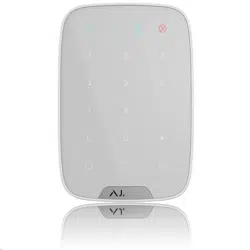
KeyPad is a wireless indoor touch-sensitive keyboard for managing the Ajax
security system. Designed for indoor use. With this device, the user can arm and
disarm the system and see its security status. KeyPad is protected against
attempts to guess the passcode and can raise a silent alarm when the passcode
is entered under duress.
Connecting to the Ajax security system via a secured radio protocol,
KeyPad communicates with the at a distance of up to 1,700 m in line of
sight.
KeyPad operates with Ajax hubs only and does not support connecting via
or integration modules.
The device is set up via the for iOS, Android, macOS, and Windows.
Jeweller
hub
ocBridge Plus
uartBridge
Ajax apps
Buy keypad KeyPad
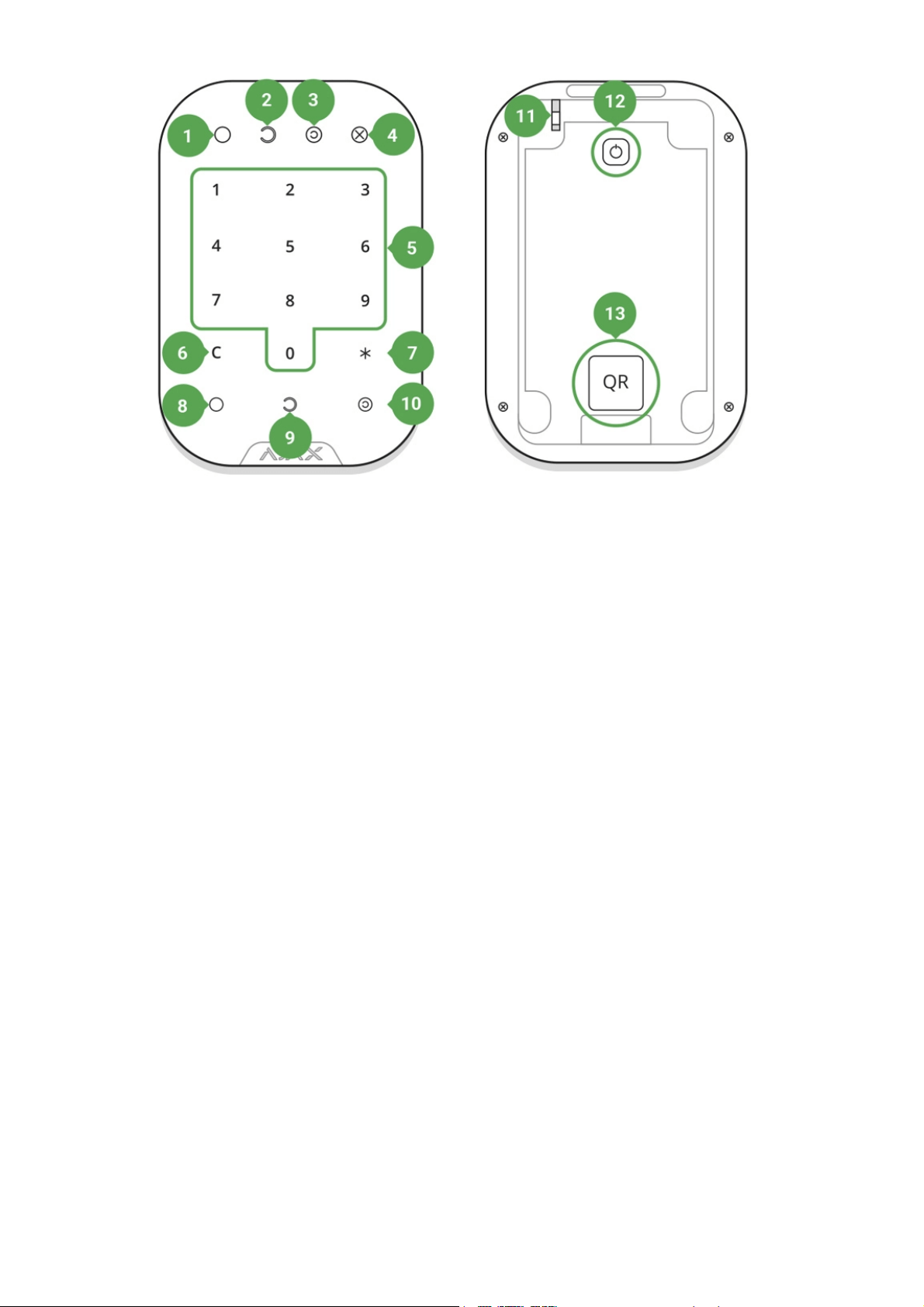
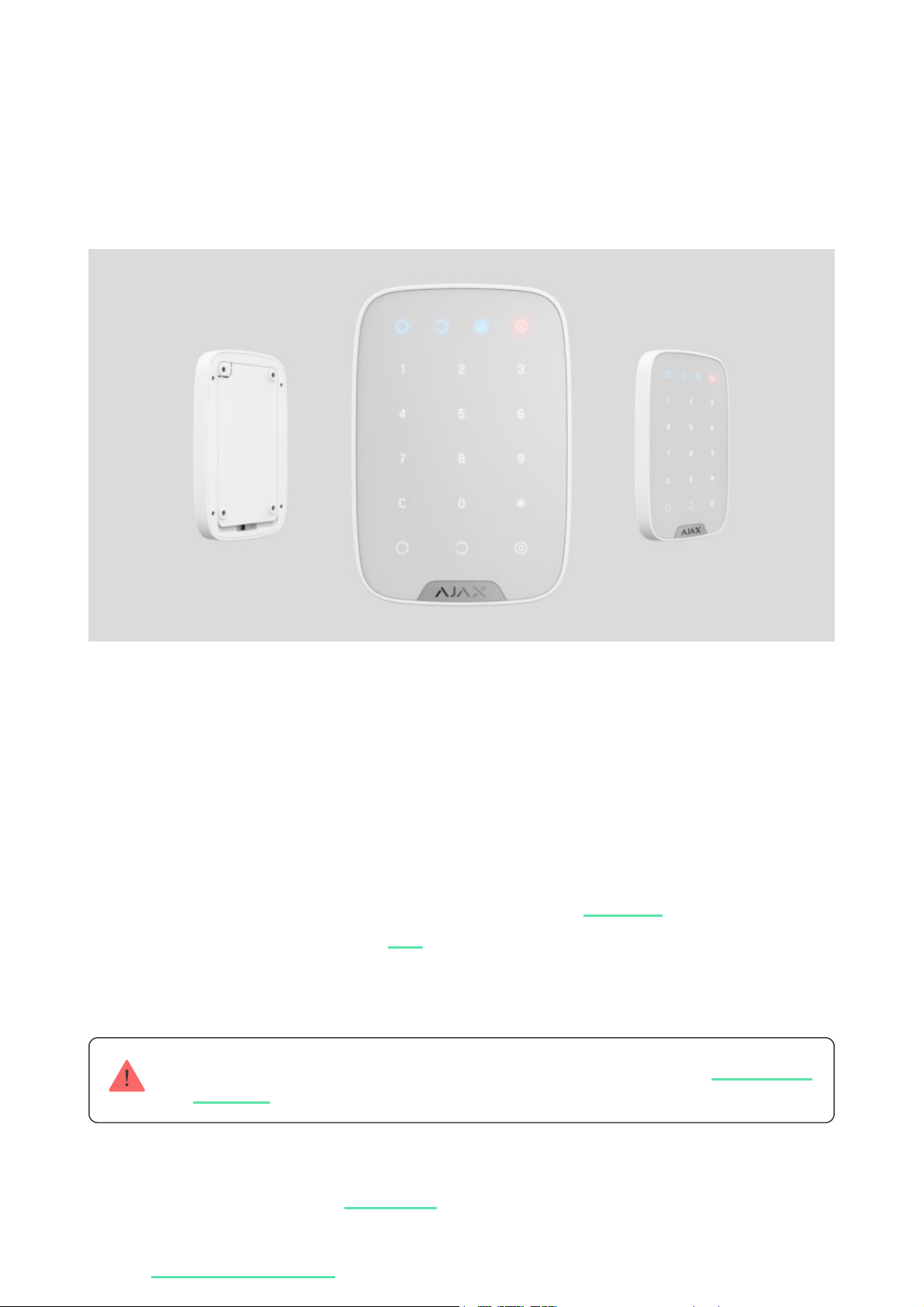
Functional elements
To remove the SmartBracket panel, slide it down (perforated part is required for
actuating the tamper in case of any attempt to tear off the device from the
surface).
1. Armed mode indicator
2. Disarmed mode indicator
3. Night mode indicator
4. Malfunction indicator
5. The block of numerical buttons
6. “Clear” button
7. “Function” button
8. “Arm” button
9. “Disarm” button
10. “Night mode” button
11. Tamper button
12. On/Off button
13. QR code
Operating Principle
KeyPad is a stationary control device located indoors. Its functions include
arming/disarming the system with a numerical combination (or just by pressing
the button), activating Night Mode, indicating the security mode, blocking when
someone tries to guess the passcode and raising the silent alarm when
someone forces the user to disarm the system.
KeyPad indicates the state of communication with the hub and system
malfunctions. Buttons are highlighted once the user touches the keyboard so
you can enter the passcode without external lighting. KeyPad also uses a beeper
sound for indication.
To activate KeyPad, touch the keyboard: the backlight will switch on, and the
beeper sound will indicate that KeyPad has woken up.
If the battery is low, the backlight switches on at a minimum level, regardless of
the settings.
If you do not touch the keyboard for 4 seconds, KeyPad dims the backlight, and
after another 12 seconds, the device switches to the sleep mode.
When switching to sleep mode, KeyPad clears the entered commands!
KeyPad supports passcodes of 4-6 digits. The entered passcode is sent to the
hub after pressing the button: (arm), (disarm) or (Night mode).
Incorrect commands can be reset with the button (Reset).
When incorrect passcode is entered three times during 30 minutes, KeyPad
locks for the time preset by the administrator user. Once KeyPad is locked, the
hub ignores any commands, simultaneously notifying the security system users
of the attempt to guess the passcode. The administrator user can unlock
KeyPad in the app. When the pre-set time is up, KeyPad unlocks automatically.
KeyPad allows arming the system without passcode: by pressing the button
(Arm). This feature is disabled by default.

When the function button (*) is pressed without entering the passcode, the hub
executes the command assigned to this button in the app.
KeyPad can notify a security company of the system being disarmed by force.
The Duress Code — unlike the panic button — does not activate sirens. KeyPad
and the app notify of successful disarming the system, but the security
company receives an alarm.
Indication
When touching KeyPad, it wakes up highlighting the keyboard and indicating the
security mode: Armed, Disarmed, or Night Mode. The security mode is always
actual, regardless of the control device that was used to change it (the key fob
or app).
Event Indication
Malfunction indicator X blinks
Indicator noties about lack of communication
with hub or keypad lid opening. You can check
the reason for malfunction in the
KeyPad button pressed
A short beep, the system’s current arming state
LED blinks once
The system is armed
Short sound signal, Armed mode / Night mode
LED indicator lights up
The system is disarmed
Two short sound signals, LED disarmed LED
indicator lights up
Incorrect passcode
Long sound signal, the keyboard backlight
blinks 3 times
Failed to arm one or several detectors
(e.g., a window is opened)
Long sound signal, the security mode indicator
blinks 3 times
A malfunction is detected when arming
(e.g., the detector is lost)
A long beep, the system’s current arming state
LED blinks 3 times
The hub does not respond to the command —
no connection
Long sound signal, the malfunction indicator
lights up
KeyPad is locked after 3 unsuccessful attempts
to enter the passcode
Long sound signal, security mode indicators
blink simultaneously
Low battery After arming/disarming the system, the
malfunction indicator blinks smoothly. The
Ajax
Security System app
keyboard is locked while the indicator blinks.
When activating KeyPad with low batteries, it
will beep with a long sound signal, the
malfunction indicator smoothly lights up and
then switches off
Connecting
Before connecting the device:
Only users with administrator rights can add a device to the app
How to connect KeyPad to the hub:
For detection and pairing to occur, KeyPad should be located within the
coverage of the wireless network of the hub (at the same protected object).
1. Switch on the hub and check its Internet connection (the logo glows white
or green).
2. Install the . Create the account, add the hub to the app, and create
at least one room.
Ajax app
3. Make sure that the hub is not armed, and it does not update by checking its
status in the Ajax app.
1. Select the Add Device option in the Ajax app.
2. Name the device, scan/write manually the QR Code (located on the body
and packaging), and select the location room.
3. Select Add — the countdown will begin.
4. Switch on KeyPad by holding power button for 3 seconds — it will blink once
with the keyboard backlight.

A request for connection to the hub is transmitted for a short time at the
moment of switching on the device.
If KeyPad failed to connect to the hub, switch it off for 5 seconds and retry.
The connected device will appear in the app device list. Update of the device
statuses in the list depends on the detector ping interval in the hub settings (the
default value is 36 seconds).
There are no pre-set passwords for KeyPad. Before using a KeyPad, set all necessary
passwords: common, personal, and duress code if you are forced to disarm the system.
Selecting the Location
The location of the device depends on its remoteness from the hub, and
obstacles hindering the radio signal transmission: walls, oors, large objects
inside the room.
The device developed only for indoor use.
Do not install KeyPad:
1. Near the radio transmission equipment, including that operates in 2G/3G/4G
mobile networks, Wi-Fi routers, transceivers, radio stations, as well as an
Ajax hub (it uses a GSM network).
2. Close to electrical wiring.
3. Close to metal objects and mirrors that can cause radio signal attenuation
or shading.
4. Outside the premises (outdoors).
5. Inside premises with the temperature and humidity beyond the range of
permissible limits.
6. Closer than 1 m to the hub.
Check the Jeweller signal strength at the installation location
During testing, the signal level is displayed in the app and on the keyboard with
security mode indicators (Armed mode), (Disarmed mode), (Night
mode) and malfunction indicator X.
If the signal level is low (one bar), we cannot guarantee the stable operation of
the device. Take all possible measures to improve the quality of the signal. At
least, move the device: even a 20 cm shift can signicantly improve the quality
of signal reception.
If the device has low or unstable signal strength even after moving, use a
.
KeyPad is designed for operation when xed to the vertical surface. When using
KeyPad in hands, we cannot guarantee successful operation of the sensor
keyboard.
States
Parameter Value
Temperature
Temperature of the device. Measured on the
processor and changes gradually
Jeweller Signal Strength Signal strength between the hub and KeyPad
Battery Charge
Battery level of the device. Two states available:
ReX
radio signal range extender
1. Devices
2. KeyPad
ОК
Battery discharged
How battery charge is displayed in
Ajax apps
Lid The tamper mode of the device, which reacts to
the detachment of or damage to the body
Connection
Connection status between the hub and the
KeyPad
Routed Through ReX
Displays the status of using the ReX range
extender
Temporary Deactivation
Shows the status of the device: active,
completely disabled by the user, or only
notications about triggering of the device
tamper button are disabled
Firmware Detector rmware version
Device ID Device identier
Settings
Setting Value
First eld Device name, can be edited
Room
Selecting the virtual room to which the device is
assigned
Arming/Disarming Permissions
Selecting the security group to which KeyPad is
assigned
Access Settings
Selecting the way of verication for
arming/disarming
Keypad code Setting a passcode for arming/disarming
Duress Code
Setting
Button Function Selection of the button function *
1. Devices
2. KeyPad
3. Settings
Keypad code only
User passcode only
Keypad and user passcode
a duress code for silent alarm

Arming without Password
If active, the system can be armed by pressing
Arm button without passcode
Unathorised Access Auto-lock
If active, the keyboard is locked for the pre-set
time after entering incorrect passcode three
times in a row (during 30 min). During this time,
the system cannot be disarmed via KeyPad
Auto-lock Time (min) Lock period after wrong passcode attempts
Brightness Brightness of the keyboard backlight
Volume Volume of the beeper
Alert with a siren if panic button is pressed
The setting appears if the Alarm mode is
selected for Function button.
If active, the Function button pressing triggers
the sirens installed at the object
Jeweller Signal Strength Test
Switches the device to the signal strength test
mode
Attenuation Test
Switches the KeyPad to the signal fade test
mode (available in devices with rmware
version 3.50 and later)
Temporary Deactivation Allows the user to disconnect the device
without removing it from the system.
Two options are available:
Off — the Function button is disabled and
does not execute any commands when
pressed
Alarm — by pressing the Function button,
the system sends an alarm to the
monitoring station of the security company
and to all users
Mute Interconnected Fire Alarm — when
pressed, mutes the re alarm of
FireProtect/FireProtect Plus detectors. The
feature works only if Interconnected
FireProtect Alarms is enabled
Learn more
Entirely— the device will not execute
system commands or participate in
automation scenarios, and the system will
ignore device alarms and other notications
User Guide Opens the KeyPad User Manual
Unpair Device
Disconnects the device from the hub and
deletes its settings
KeyPad allows to set both general and personal passcodes for each user.
To install a personal passcode:
Each user sets a personal passcode individually!
Security management by passwords
You can control the security of the entire facility or separate groups using
common or personal passwords (congured in the app).
If a personal password is used, the name of the user who armed/disarmed the
system is displayed in notications and in the hub event feed. If a common
password is used, the name of the user who changed the security mode is not
displayed.
Security management of the entire facility using a common
password
Lid only— the system will ignore only
notications about the triggering of the
device tamper button
Learn more about temporary
deactivation of devices
1. Go to prole settings (Hub → Settings → Users → Your prole settings)
2. Click Access Code Settings (in this menu you can also see the user identier)
3. Set the User Code and Duress Code

Enter the common password and press the arming / disarming / Night
mode activation .
For example: 1234 →
Group security management with a common password
Enter the common password, press the *, enter the group ID and press the
arming / disarming / Night mode activation .
For example: 1234 → * → 02 →
If a group is assigned to the KeyPad (Arming / Disarming permission eld in the
keypad settings), you do not need to enter the group ID. To manage the arming
mode of this group, entering a common or personal password is sucient.
Please note that if a group is assigned to the KeyPad, you will not be able to
manage Night mode using a common password.
In this case, Night mode can only be managed using a personal password (if the
user has the appropriate rights).
Security management of the entire facility using a personal
password
Enter user ID, press *, enter personal password, and press the arming /
disarming / Night mode activation .
For example: 02 → * → 1234 →
Group security management using a personal password
What is Group ID?
Rights in the Ajax security system
What is User ID?
Enter user ID, press *, enter personal password, press*, enter group ID, and
press the arming / disarming / Night mode activation .
For example: 02 → * → 1234 →* → 05 →
If a group is assigned to the KeyPad (Arming / Disarming permission eld in the
keypad settings), you do not need to enter the group ID. To manage the arming
mode of this group, entering a personal password is sucient.
Using a duress password
A duress password allows you to raise a silent alarm and imitate alarm
deactivation. A silent alarm means that the Ajax app and sirens will not shout
and expose you. But a security company and other users will be alerted
instantly. You can use both personal and common duress password.
Scenarios and sirens react to disarming under duress in the same way as to normal
disarming.
To use a common duress password:
Enter the common duress password and press the disarming key .
For example: 4321 →
To use a personal duress password:
Enter user ID, press *, then enter personal duress password and press the
disarming key .
For example: 02 → * → 4422 →
What is Group ID?
What is User ID?
What is a duress password and how do you use it?
How the re alarm muting function works
Using the KeyPad, you can mute the interconnected re detectors alarm by
pressing the Function button (if the corresponding setting is enabled). The
reaction of the system to pressing a button depends on the state of the system:
Functionality Testing
The Ajax security system allows conducting tests for checking the functionality
of connected devices.
The tests do not start straight away but within a period of 36 seconds when
using the standard settings. The test time start depends on the settings of the
detector scanning period (the paragraph on “Jeweller” settings in hub settings).
Installation
Before installing the detector, make sure that you have selected the optimal location and
it is in compliance with the guidelines contained in this manual!
KeyPad should be attached to the vertical surface.
Interconnected FireProtect Alarms have already propagated — by the rst
press of the Function button, all sirens of the re detectors are muted,
except for those that registered the alarm. Pressing the button again mutes
the remaining detectors.
The interconnected alarms delay time lasts — by pressing the Function
button, the siren of the triggered FireProtect/FireProtect Plus detector is
muted.
Learn more about interconnected alarms of re detectors
Jeweller Signal Strength Test
Attenuation Test

As soon as the KeyPad is xed in SmartBracket, it will blink with the LED
X(Fault) — this will be a signal that the tamper has been actuated.
If the malfunction indicator Xdid not blink after installation in SmartBracket,
check the status of the tamper in the and then check the xing
tightness of the panel.
If the KeyPad is torn off from the surface or removed from the attachment panel,
you will receive the notication.
KeyPad Maintenance and Battery Replacement
Check the KeyPad operating capability on a regular basis.
The battery installed in the KeyPad ensures up to 2 years of autonomous
operation (with the inquiry frequency by the hub of 3 minutes). If the KeyPad
battery is low, the security system will send the relevant notices, and the
malfunction indicator will smoothly lights up and goes out after each successful
passcode entry.
Complete Set
1. Attach the SmartBracket panel to the surface using bundled screws, using
at least two xing points (one of them — above the tamper). After selecting
other attachment hardware, make sure that they do not damage or deform
the panel.
The double-sided adhesive tape may be only used for temporary attachment of
KeyPad. The tape will run dry in course of time, which may result in the falling of the
KeyPad and damage of the device.
2. Put KeyPad on the attachment panel and tighten the mounting screw on the
body underside.
Ajax app
How long Ajax devices operate on batteries, and what affects this
Battery Replacement
Technical Specications
Sensor type Capacitive
Anti-tamper switch Yes
Protection against passcode guessing Yes
Frequency band
868.0 – 868.6 MHz or 868.7 – 869.2 MHz
depending on the region of sale
Compatibility
Operates only with all Ajax , and
Maximum RF output power Up to 20 mW
Modulation of the radio signal GFSK
Radio signal range Up to 1,700 m (if there are no obstacles)
Power supply 4 × AAA batteries
Power supply voltage 3 V (batteries are installed in pairs)
Battery life Up to 2 years
Installation method Indoors
Operating temperature range From -10°C to +40°C
Operating humidity Up to 75%
Overall dimensions 150 × 103 × 14 mm
Weight 197 g
Certication
Security Grade 2, Environmental Class II in
conformity with the requirements of EN 50131-
1, EN 50131-3, EN 50131-5-3
1. KeyPad
2. SmartBracket mounting panel
3. Batteries AAA (pre-installed) — 4 pcs
4. Installation kit
5. Quick Start Guide
hubs range
extenders

Warranty
Warranty for the “AJAX SYSTEMS MANUFACTURING” LIMITED LIABILITY
COMPANY products is valid for 2 years after the purchase and does not apply to
the pre-installed battery.
If the device does not work correctly, you should rst contact the support
service — in half of the cases, technical issues can be solved remotely!
Technical support:
The full text of the warranty
User Agreement
suppor[email protected]