Operating instructions
V-ZUG-Home

Thank you for choosing to buy one of our products. Your appliance is made to high
standards and is easy to use. Nevertheless, please take the time to read these operating
instructions in order to familiarize yourself with V-ZUG-Home and get the best use out of
the appliance.
Please follow the safety precautions.
Modifications
Text, diagrams and data correspond to the technical standard of the appliance at the
time these operating instructions went to press. The right to make technical modifications
for the purpose of the further development of the appliances is reserved.
Validity
These operating instructions apply to:
All appliances with V-ZUG-Home.
Variations depending on the model are noted in the text.
© V-ZUG Ltd, CH-6302 Zug, 2020
2

3
Contents
1Safety warnings4
1.1Symbols used.........................................................4
1.2General safety precautions..................................4
1.3Appliance-specific notes......................................4
2Using for the first time6
2.1Conditions...............................................................6
2.2Checking the connection type............................6
3Module description7
3.1Modes......................................................................7
3.2Networking state....................................................9
4Connecting the appliance via WLAN10
4.1Installing the app.................................................10
4.2Enabling the V-ZUG-Home mode on the
appliance...............................................................10
4.3Connecting the appliance to the home network.
10
4.4Setting up remote access..................................11
5Connecting the appliance via LAN11
5.1Connecting the network cable..........................11
5.2Connecting the appliance to the home network.
12
5.3Enabling the V-ZUG-Home mode on the
appliance...............................................................12
5.4Connecting the smartphone or tablet to the
appliance...............................................................12
6Enabling V-ZUG-Home mode13
6.1Ovens, cookers, steam cookers.......................13
6.2Washing machines and tumble dryers............14
6.3Dishwashers.........................................................14
6.4Hobs.......................................................................15
6.5Refrigerators.........................................................15
7V-ZUG-Home configuration16
7.1Ovens, cookers, steam cookers.......................16
7.2Washing machines and tumble dryers............19
7.3Dishwashers.........................................................21
7.4Hobs.......................................................................22
7.5Refrigerators.........................................................23
7.6V-ZUG-Home factory settings............................24
8Trouble-shooting24
8.1Via WLAN-connected appliances......................24
8.2Via LAN-connected appliances..........................26
9Index27
11Service & Support31
4
1 Safety warnings
1.1 Symbols used
Denotes important safety precau-
tions.
Failure to observe said precautions
can result in injury or in damage to
the appliance or fittings!
Information and precautions that
should be observed.
Information on disposal
Information about the Operating In-
structions
▸Indicates step-by-step instructions.
– Describes how the appliance reacts
to the steps taken.
▪ Indicates a list.
1.2 General safety precautions
▪ Read the operating instruc-
tions before using the appli-
ance for the first time.
▪ This appliance can be used
by children aged 8 and above
and by persons with reduced
physical, sensory or mental
capabilities, or lack of experi-
ence and/or knowledge,
provided they are supervised
or have been instructed on
the safe use of the appliance
and have understood the haz-
ards involved. Children shall
not play with the appliance.
Cleaning and user mainten-
ance shall not be undertaken
by children without supervi-
sion.
▪ If an appliance is not
equipped with a mains cable
and a plug or other means for
disconnecting from the mains
with a contact opening on
each pole complying with the
conditions of overvoltage cat-
egory III for full isolation, an
isolating device must be in-
corporated into the perman-
ently installed electrical install-
ation in accordance with the
installation regulations.
▪ If the mains cable of this ap-
pliance is damaged, it must
be replaced by the manufac-
turer or its Customer Services
or a similarly qualified person
in order to avoid hazard.
1.3 Appliance-specific notes
Before using for the first time
▪ Internet access is required for full use
of V-ZUG-Home.
▪ The appliance must be installed and
connected to the electricity supply in
accordance with the separate installa-
tion instructions. Have a qualified fitter/
electrician carry out the necessary
work.
▪ Dispose of the packaging material in
accordance with local regulations.

1 Safety warnings
5
▪ Before using a newly installed appli-
ance for the first time, please follow the
tips in the «Using for the first time» sec-
tion (see page 6).
Correct use
▪ Any repairs, modifications or manipula-
tions to the appliance, especially any
electrically live parts, may only be car-
ried out by the manufacturer, its cus-
tomer service department or similarly
qualified persons. Repairs if carried out
incorrectly may cause serious injury,
damage to the appliance and fittings,
as well as affect the functioning of the
appliance. If the appliance is not work-
ing properly or in case a repair is
needed, follow the instructions given in
the «Service and support» section.
Please contact our Customer Services if
necessary.
▪ Use original spare parts only.
▪ Retain these operating instructions for
future reference.
Note on use
▪ During operation, microwave appli-
ances can interfere with the WLAN net-
work. In certain circumstances this may
lead to limitations on the use of V-ZUG-
Home or other applications that com-
municate via WLAN. Where possible,
select the «automatic» channel setting
on your WLAN router and avoid chan-
nels 8–13.
Children in the home
▪ Packaging material, e.g. plastic film and
polystyrene, can be dangerous for chil-
dren. Danger of suffocation! Keep pack-
aging material away from children.
▪ The appliance is designed for use by
adults who are familiar with these oper-
ating instructions. Children may not al-
ways be aware of the danger involved
in using electrical appliances. Ensure
proper supervision and do not allow
children to play with the appliance –
there is a danger that children could
hurt themselves.
2 Using for the first time
2.1 Conditions
The following conditions must be met for full use of V-ZUG-Home:
▪ Access to the internet and to Google Play
TM
Store / App Store
®
▪ Smartphone or tablet that is connected to the home network
▪ System requirements for smartphone or tablet: from Android 6.0 or from iOS 11.0
▪ For connection via WLAN only: a wireless network that meets one of the following
standards: 2.4GHz 802.11 b/g/n
Google Play
TM
is a trademark of Google Inc.
Apple and the Apple logo are trademarks of Apple Inc., re-
gistered in the U.S. and other countries. App Store
®
is a service
mark of Apple Inc.
2.2 Checking the connection type
Depending on the type of appliance and model number, your appliance must be connec-
ted to the home network via LAN or WLAN.
▸The model number can be found on the identification plate of the appliance (corres-
ponds to the first 5 alphanumerics of the serial number).
▸Depending on the model number, connect the appliance to the home network via LAN
(see page 11) or WLAN (see page 10).
WLAN
Type of applianceModel designationModel number
Ovens and cook-
ers
Combair SL | SLP | XSL | XSLP21092–21101
Combair V200 | V400 | V60021036–21041, 21074–21076,
21084, 22017–22027
Steam cookersCombi-Steam HSL | XSL,
Combair-Steam SL
23062–23071
Combi-Steam MSLQ23072, 23073
HobsGK11TIXFK FullFlex31093
CookTopInduction V6000 Full-
Flex
31132, 31134
DishwashersAdora SL | SL WP41127–41140
AdoraDish V2000 | V4000 |
V6000
41091, 41093–41125
Washing ma-
chines
Adora SL | SLQ | SLQ WP11012–11014
AdoraWash V2000 | V4000 |
V6000
11021, 11023, 11025
Tumble dryersAdoraDry V2000 | V4000 |
V6000
CombiAdoraDry V4000
12011–12014
6

3 Module description
Type of applianceModel designationModel number
RefrigeratorsCombiCooler V400 | V2000 |
V4000
51086, 51100, 51101
LAN
Type of applianceModel designationModel number
Ovens and cook-
ers
Combair SL | SLP | XSL | XSLP21021–21025, 21028–21030
Steam cookersCombi-Steam HSL | XSL,
Combair-Steam SL
23003–23008, 23011–23013
Combi-Steam MSLQ23014, 23015
HobsGK11TIFKZ/S FullFlex31062
DishwashersAdora SL | SL WP41056, 41058, 41084, 41059,
41061, 41082, 41086
Washing ma-
chines
Adora SL | SLQ | SLQ WP11012–11014
Tumble dryersAdora TS WP | TSLQ WP12005, 12006
3 Module description
3.1 Modes
V-ZUG-Home offers 3 different modes.
Off
In the V-ZUG-Home mode «Off», the V-ZUG-Home module is fully disabled and can only
be enabled again over the household appliance.
Type of applianceModel designationDisplay
Ovens and cook-
ers
Combair SL | SLP | XSL | XSLP
Combair V200 | V400-
Combair V600
Steam cookersCombi-Steam HSL | XSL | MSLQ,
Combair-Steam SL
HobsGK11TIFKZ/S FullFlex, GK11TIXFK FullFlex,
CookTopInduction V6000 FullFlex
DishwashersAdora SL | SL WP-
AdoraDish V2000 | V4000 | V6000
Washing ma-
chines
Adora SL | SLQ | SLQ WP
AdoraWash V2000 | V4000 | V6000
Tumble dryersAdora TS WP | TSLQ WP
AdoraDry V2000 | V4000 | V6000,
CombiAdoraDry V4000
RefrigeratorsCombiCooler V400 | V2000 | V4000OF
7

3 Module description
Display
In the V-ZUG-Home mode «Display», status information can be called up, push notifica-
tions received, time synchronized and software updated only. All other functions, such as
e.g. configuring user settings, are locked.
Type of applianceModel designationDisplay
Ovens and cook-
ers
Combair SL | SLP | XSL | XSLP
Combair V200 | V400-
Combair V600
Steam cookersCombi-Steam HSL | XSL | MSLQ,
Combair-Steam SL
HobsGK11TIFKZ/S FullFlex, GK11TIXFK FullFlex,
CookTopInduction V6000 FullFlex
DishwashersAdora SL | SL WP-
AdoraDish V2000 | V4000 | V6000
Washing ma-
chines
Adora SL | SLQ | SLQ WP
AdoraWash V2000 | V4000 | V6000
Tumble dryersAdora TS WP | TSLQ WP
AdoraDry V2000 | V4000 | V6000, Combi-
AdoraDry V4000
Operate and display / Operate
In the V-ZUG-Home mode «Operate and display» / «Operate», all functions are available.
Type of applianceModel designationDisplay
Ovens and cook-
ers
Combair SL | SLP | XSL | XSLP
Combair V200 | V400-
Combair V600
Steam cookersCombi-Steam HSL | XSL | MSLQ,
Combair-Steam SL
HobsGK11TIFKZ/S FullFlex, GK11TIXFK FullFlex,
CookTopInduction V6000 FullFlex
DishwashersAdora SL | SL WP-
AdoraDish V2000 | V4000 | V6000
Washing ma-
chines
Adora SL | SLQ | SLQ WP
AdoraWash V2000 | V4000 | V6000
Tumble dryersAdora TS WP | TSLQ WP
AdoraDry V2000 | V4000 | V6000, Combi-
AdoraDry V4000
RefrigeratorsCombiCooler V400 | V2000 | V4000On
8
3 Module description
3.2 Networking state
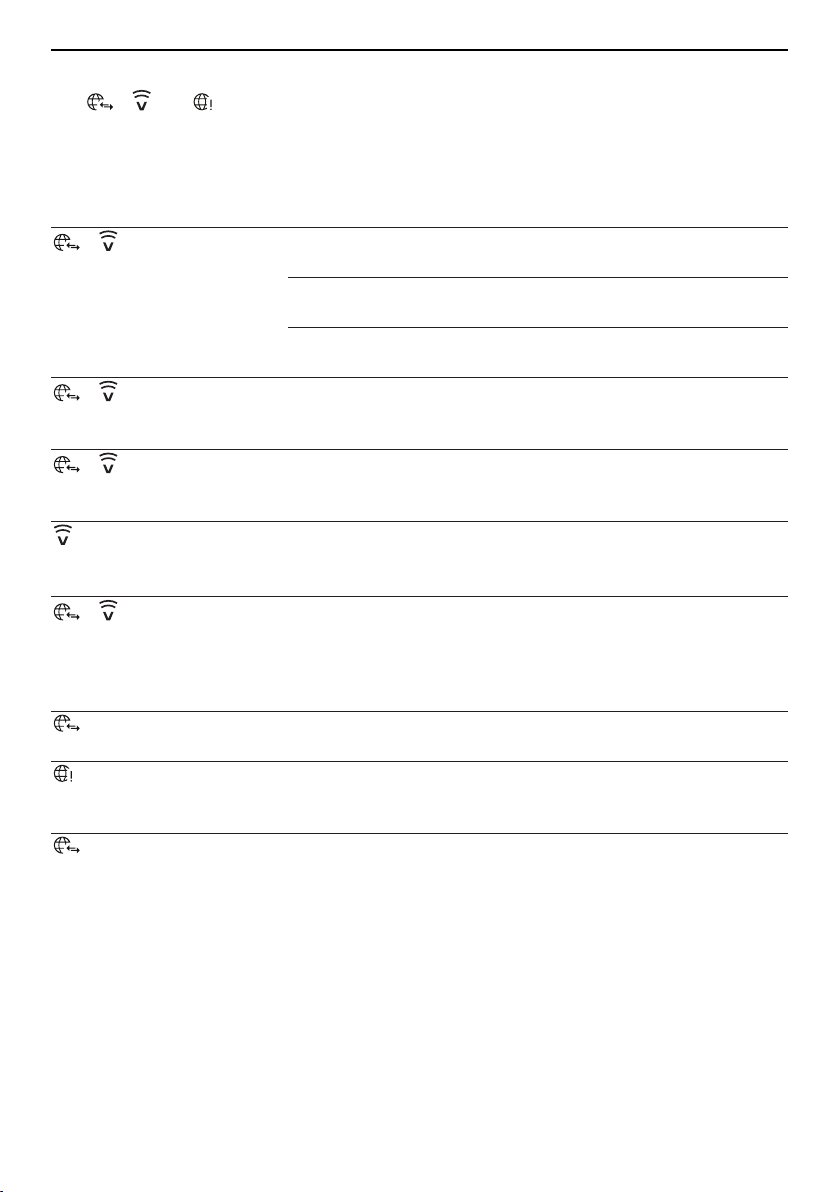
The
/ and symbols in the display or on the operating panel of your appliance
show the networking state of the V-ZUG-Home module.
Ovens, cookers, steam cookers, washing machines, tumble dryers,
dishwashers
Symbol activityModeNetworking state
/ remains dark.
▪ OffV-ZUG-Home mode «Off» is
enabled.
▪ DisplayV-ZUG-Home mode «Dis-
play» is enabled.
▪ Operate and display
▪ Operate
Appliance is in energy-saving
EcoStandby mode.
/ flashes at irregular
intervals.
▪ Display
▪ Operate and display
▪ Operate
Data transfer is taking place.
/ flashes every
second.
▪ Display
▪ Operate and display
▪ Operate
There is no connection
between the V-ZUG-Home
module and the network.
flashes at very short in-
tervals (only possible with
Combair V200 | V400).
▪ Operate and displayThe appliance is in connect-
ing mode and can be con-
nected to the network.
/ illuminates.
▪ Operate and display
▪ Operate
Appliance is connected to
the network.
Hobs
Symbol activityModeNetworking state
is not displayed.
▪ OffV-ZUG-Home mode «Off» is
enabled.
is displayed.
▪ Display
▪ Operate and display
There is no connection
between the V-ZUG-Home
module and the network.
is displayed.
▪ Display
▪ Operate and display
▪ Data transfer is taking
place.
▪ Appliance is connected to
the network.
9
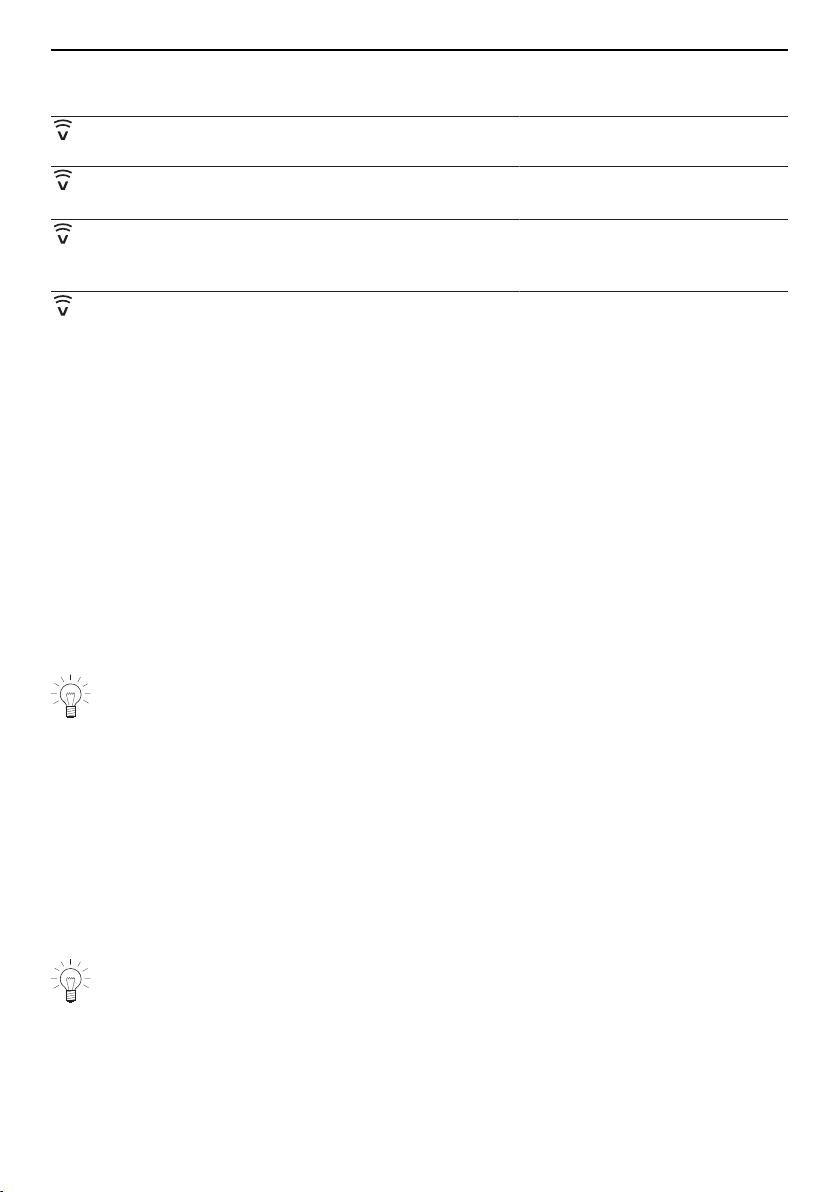
4 Connecting the appliance via WLAN
Refrigerators
Symbol activityModeNetworking state
remains dark.
▪ OffV-ZUG-Home mode «Off» is en-
abled.
flashes at irregular inter-
vals.
▪ Operate and displayData transfer is taking place.
flashes every second.
▪ Operate and displayThere is no connection
between the V-ZUG-Home mod-
ule and the network.
illuminates.
▪ Operate and displayAppliance is connected to the
network.
4 Connecting the appliance via WLAN
Check (see page 6) whether your appliance must be connected via LAN or WLAN.
4.1 Installing the app
▸Enable bluetooth and location determination on the smartphone or tablet.
▸Search the Google Play
TM
Store or the App Store® for «V-ZUG».
▸Install and open the V-ZUG App.
4.2 Enabling the V-ZUG-Home mode on the appliance
▸Enable either V-ZUG-Home or the V-ZUG-Home mode «Display» / «Operate and dis-
play» / «Operate» in the user settings of the appliance (see page 13).
4.3 Connecting the appliance to the home network
When establishing a connection, stay close to your appliance and have the pass-
word for your wireless network at the ready.
Ovens and cookers (Combair SL | SLP | XSL | XSLP | V600), steam cookers,
dishwashers, washing machines, tumble dryers, refrigerators, hobs
▸In the V-ZUG App, add the appliance.
– A bluetooth pairing request appears in the V-ZUG App.
– A 6-digit PIN appears in the display of the appliance.
▸Enter the 6-digit PIN in the V-ZUG App and confirm the bluetooth pairing request.
– All available wireless networks appear in the V-ZUG App.
▸Select your wireless network.
▸Enter the password for your wireless network.
– The appliance is connected to your wireless network.
You can find further information under home.vzug.com.
10
5 Connecting the appliance via LAN
Ovens and cookers (Combair V200 | V400)
▸In the V-ZUG App, add the appliance.
– All available wireless networks appear in the V-ZUG App.
▸Select your wireless network.
▸Enter the password for your wireless network.
– illuminates if the appliance is successfully connected to your wireless network.
You can find further information under home.vzug.com.
4.4 Setting up remote access
When establishing a connection, stay close to your appliance.
To be able to also access your appliances outside your home network, you need a V-
ZUG-Home account.
Creating a V-ZUG-Home account
▸Create a V-ZUG-Home account in the V-ZUG App.
– A registration e-mail will be sent to the e-mail account you provided.
▸Go to the inbox of the e-mail account, open the registration e-mail and confirm the e-
mail address.
– The V-ZUG-Home account has now been created.
Setting up remote access
▸Log into the V-ZUG App with the V-ZUG-Home account.
▸To set up remote access to individual appliances, follow the instructions in the V-ZUG
App.
5 Connecting the appliance via LAN
Check (see page 6) whether your appliance must be connected via LAN or WLAN.
V-ZUG Ltd does not supply network cables, powerline adapters or wireless
bridges.
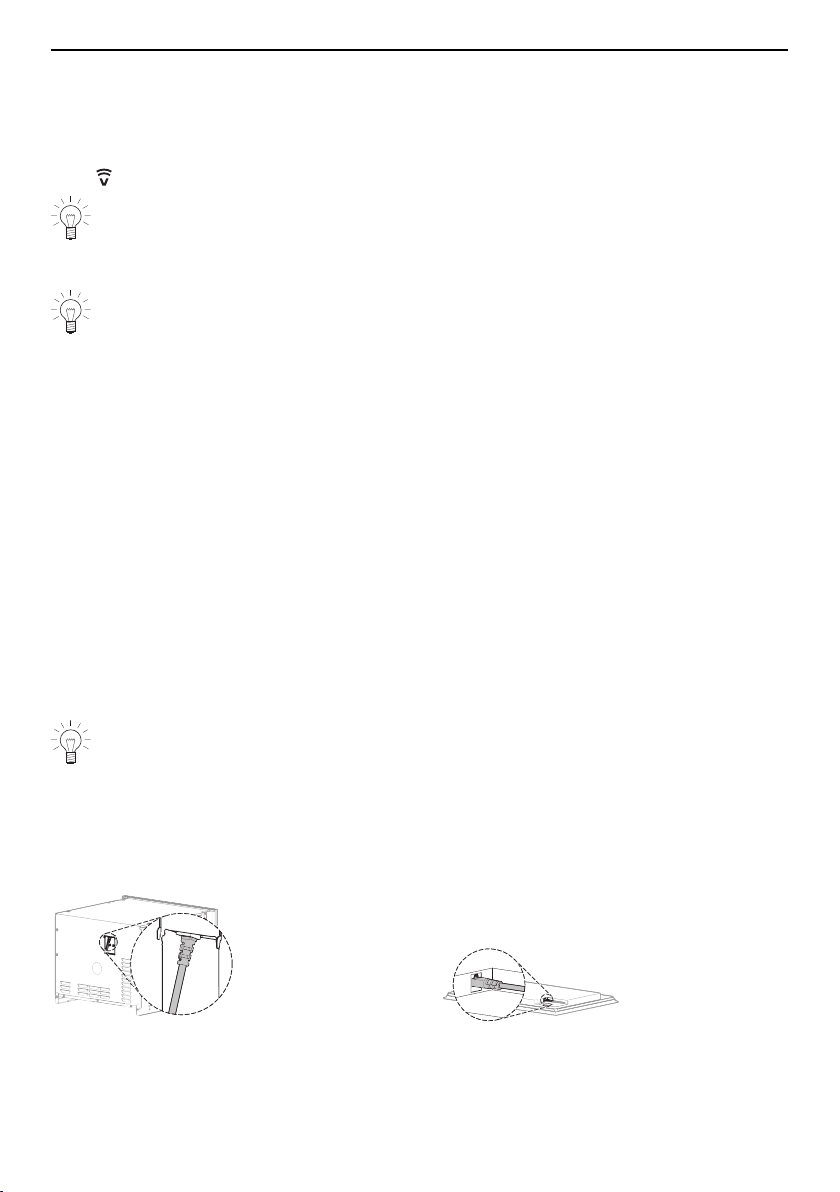
5.1 Connecting the network cable
▸Connect the network cable to the cable connection for the V-ZUG-Home module.
V-ZUG ovens and steam cookers:V-ZUG hobs:
11

5 Connecting the appliance via LAN
V-ZUG dishwashers:V-ZUG washing machines
and tumble dryers:
5.2 Connecting the appliance to the home network
▸Use one of the following options for connecting the V-ZUG appliance to the router R:
1Ethernet: Network cable
1
2
3
R
2Powerline adapter: Powerline adapter and
network cable
3Wireless bridge: Wireless bridge and net-
work cable
The wireless bridge must be accessible at all times.
The wireless bridge must be installed not behind the appliance, but besides it or in
an adjacent unit. Connection problems may occur if it is not positioned correctly.
5.3 Enabling the V-ZUG-Home mode on the appliance
▸Enable either V-ZUG-Home or the V-ZUG-Home mode «Display» / «Operate and dis-
play» / «Operate» in the user settings of the appliance (see page 13).
5.4 Connecting the smartphone or tablet to the appliance
▸Search the Google Play
TM
Store or the App Store
®
for «V-ZUG».
▸Install and open the V-ZUG App.
▸In the V-ZUG App, add the appliance.
– The appliance is displayed on the smartphone or tablet.
12
6 Enabling V-ZUG-Home mode
6 Enabling V-ZUG-Home mode
6.1 Ovens, cookers, steam cookers
Combair SL | SLP | XSL | XSLP and steam cookers
▸Touch the
touch button.
– The user settings menu appears in the display.
▸Select the
«V-ZUG-Home» user setting.
– The main V-ZUG-Home menu appears in the display.
▸Select
«V-ZUG-Home mode».
– A selection of V-ZUG-Home modes appears in the display.
▸Select
«Display V-ZUG-Home» or «Operate and display V-ZUG-Home».
▸Press the adjusting knob.
– The setting is saved.
– The main V-ZUG-Home menu appears in the display.
▸For LAN connection: Connect smartphone or tablet to appliance (see page 12).
▸For WLAN connection: Connect appliance to home network (see page 10).
Combair V600
▸With the appliance switched off, hold the
button depressed for 5seconds.
– The user settings can now be changed.
▸Press the
button repeatedly until appears in the digital display.
– The light bars for the
and symbols flash.
▸Press the
button 1× or 2×.
–
or appears in the digital display.
– The V-ZUG-Home mode «Display» or «Operate and display» is selected.
▸Press the
button.
– The setting is saved.
▸Connect appliance to home network (see page 10).
Combair V400
▸Hold the
and buttons depressed at the same time for about 5 seconds.
–
flashes.
– The connecting mode is active for 60seconds.
▸Connect the appliance to the home network within this time (see page 10).
Combair V200
▸Turn the
dial to the position.
▸Turn the
dial clockwise as far as it will go and hold in this end-stop position for at
least 3seconds.
–
flashes.
– The connecting mode is active for 60seconds.
▸Connect the appliance to the home network within this time (see page 10).
13
6 Enabling V-ZUG-Home mode
6.2 Washing machines and tumble dryers
Adora SL | TS WP
▸Hold the
button depressed until the serial number (FN) appears in the display.
▸Press the
button repeatedly until the following appears in the display: «Configure
V-ZUG-Home».
▸Press the
/ button.
– In the display appears: «V-ZUG-Home mode».
▸Press the
button.
– In the display appears: «Off».
▸Press the
/ button / 1× or 2×.
– In the display appears: «Display» or «Operate and display».
▸Press the
button 2×.
– In the display appears: «Configuration saved».
▸Connect smartphone or tablet to appliance (see page 12).
Adora SLQ | SLQ WP | TSLQ WP, AdoraWash, AdoraDry, CombiAdoraDry
▸Close the appliance door.
▸Touch the
button.
▸Touch the
button.
– The user settings menu appears in the display.
▸Touch the
/ / button repeatedly until the / «V-ZUG-Home» user set-
ting appears.
▸Touch / «V-ZUG-Home».
– The main V-ZUG-Home menu appears in the display.
▸Touch the
/ «Mode».
– A selection of V-ZUG-Home modes appears in the display.
▸Touch
/ «Display» or / «Operate and display».
▸Touch the
button.
– The setting is saved.
▸For LAN connection: Connect smartphone or tablet to appliance (see page 12).
▸For WLAN connection: Connect appliance to home network (see page 10).
6.3 Dishwashers
Adora SL | SL WP
▸Hold the
button depressed for about 5 seconds.
– In the display appears: «User settings».
▸Press the
button repeatedly until the following appears in the display: «V-ZUG-Home
mode».
▸Press the
button 1× or 2×.
– In the display appears: «Display» or «Operate».
▸Press the
button repeatedly until the following appears in the display: «Configuration
saved».
▸For LAN connection: Connect smartphone or tablet to appliance (see page 12).
▸For WLAN connection: Connect appliance to home network (see page 10).
14
6 Enabling V-ZUG-Home mode
AdoraDish
▸On the start screen, touch the
button repeatedly until «User settings» appears.
▸Touch the
button.
– The user settings menu appears in the display.
▸Touch the
button repeatedly until the «V-ZUG-Home» user setting appears.
▸Touch the
button.
– The main V-ZUG-Home menu appears in the display.
▸Touch the
«V-ZUG-Home mode» button.
– A selection of V-ZUG-Home modes appears in the display.
▸Touch the
«Display» or «Operate» button.
– The setting is saved.
▸Touch the
button.
– The main V-ZUG-Home menu appears in the display.
▸Connect appliance to home network (see page 10).
6.4 Hobs
▸Touch the
button.
– The user settings menu appears in the display.
▸Swipe and tap to select the «V-ZUG-Home» user setting.
– The main V-ZUG-Home menu appears in the display.
▸Touch «Mode».
– A selection of V-ZUG-Home modes appears in the display.
▸Touch
«Display» or «Operate and display».
– The selected user setting is being saved.
▸For LAN connection: Connect smartphone or tablet to appliance (see page 12).
▸For WLAN connection: Connect appliance to home network (see page 10).
6.5 Refrigerators
▸Touch the
button.
– The main functions and user settings menu appears in the display.
▸Touch
button repeatedly until flashes in the display.
▸Touch the
button.
▸Touch the
/ button repeatedly until «On» appears in the display.
▸Touch the
button.
–
appears in the display.
– The setting is saved.
▸Connect appliance to home network (see page 10).
15
7 V-ZUG-Home configuration
7 V-ZUG-Home configuration
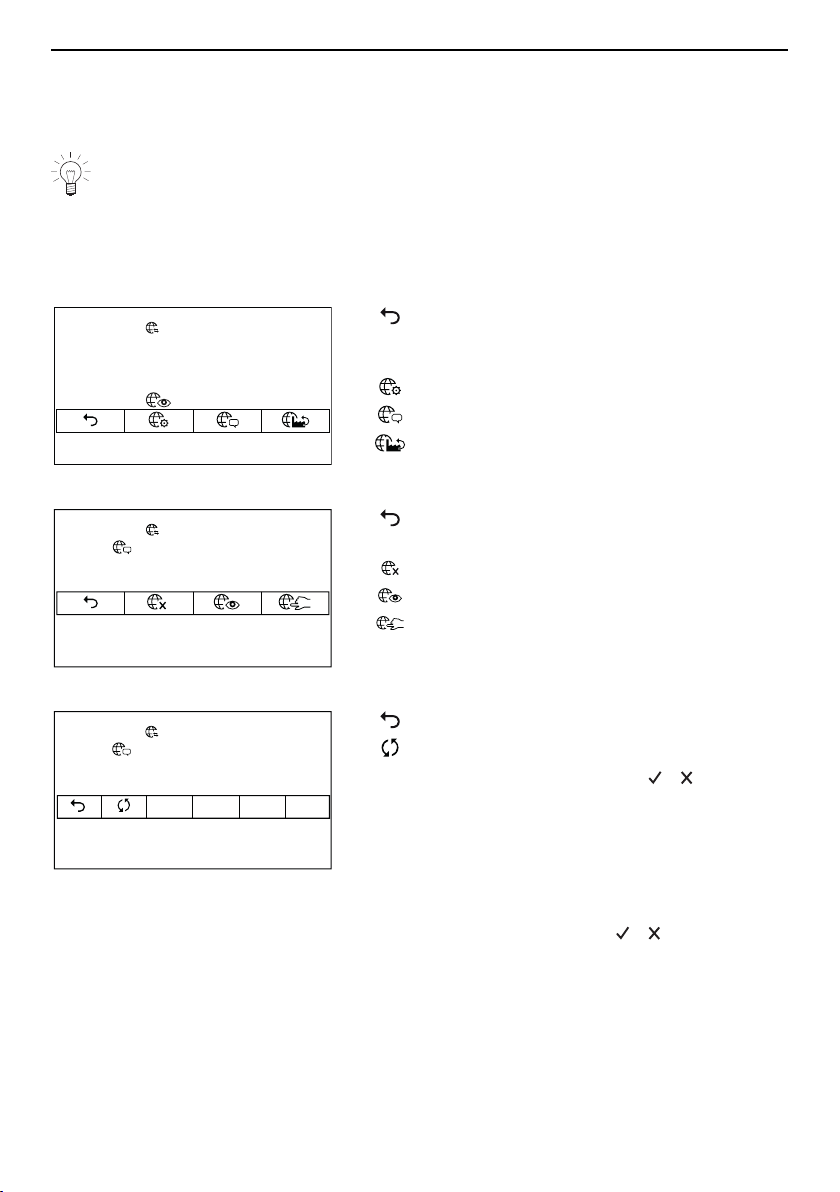
Here, information about the appliance can be displayed and the V-ZUG-Home settings
can be changed.
The displays illustrated are examples.
7.1 Ovens, cookers, steam cookers
Combair SL | SLP | XSL | XSLP and steam cookers
Main V-ZUG-Home menu
V-ZUG-Home mode
V-ZUG-Home
▪ Back to the user settings of the appli-
ance
▪ Save changes made
V-ZUG-Home mode
Display information
V-ZUG-Home factory settings
V-ZUG-Home mode
Display V-ZUG-Home
V-ZUG-Home mode
V-ZUG-Home
▪ Back to the main V-ZUG-Home menu
▪ Save changes made
V-ZUG-Home off
Display V-ZUG-Home
Operate and display V-ZUG-Home
Display information
INTF MAC IP
INTN
Display information
V-ZUG-Home
203.0.113.195
IP address
Back to the main V-ZUG-Home menu
Start connection diagnostics
INTF
▪ Interface connection:
/
▪ Restart interface connection: The V-
ZUG-Home module (interface) is re-
started.
MAC
MAC address
IP
IP address
INTN
Internet connection:
/
16
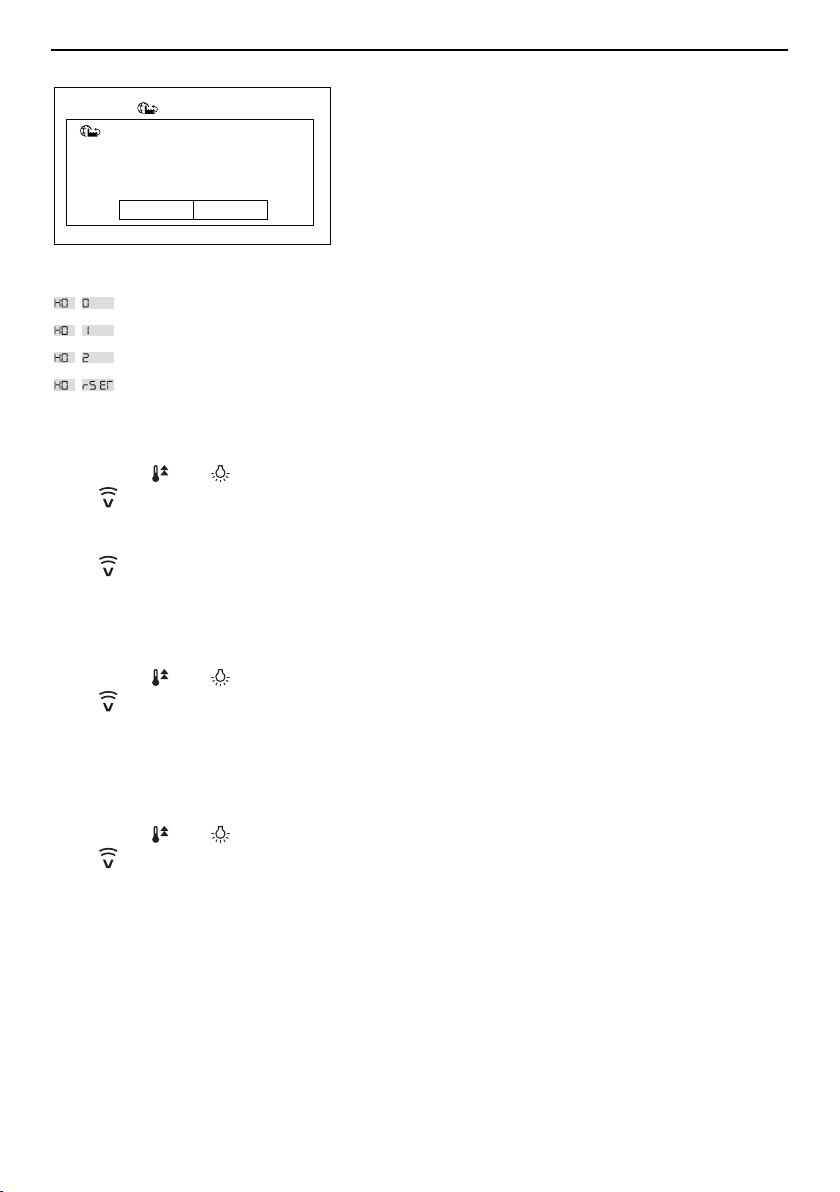
7 V-ZUG-Home configuration
V-ZUG-Home factory settings
Do you want to restore the V-ZUG-Home
settings to the factory settings?
V-ZUG-Home
V-ZUG-Home factory settings
No
Yes
Yes
The V-ZUG-Home settings are reset to
the factory settings (see page 24). The
menu is closed.
No
The menu is closed; the configuration
remains unchanged.
Combair V600
V-ZUG-Home mode «Off»
V-ZUG-Home mode «Display»
V-ZUG-Home mode «Operate and display»
The V-ZUG-Home settings are reset to the factory settings (see page 24).
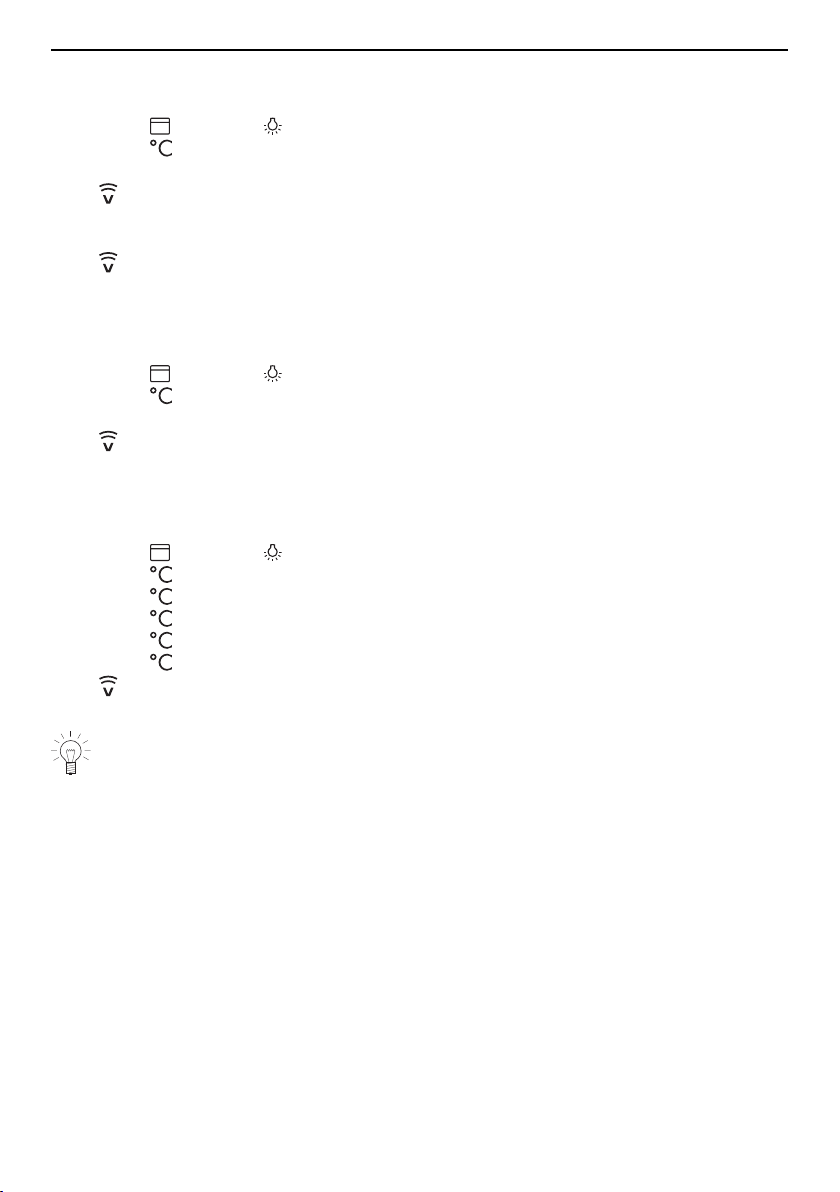
Combair V400
Enabling V-ZUG-Home mode «Operate and display»
▸Hold the
and buttons depressed at the same time for about 5 seconds.
–
flashes.
– The connecting mode is active for 60seconds.
▸Connect the appliance to the home network within this time (see page 11).
–
illuminates.
– The V-ZUG-Home mode «Operate and display» is enabled.
Enabling V-ZUG-Home mode «Off»
▸Hold the
and buttons depressed at the same time for about 5 seconds.
–
is no longer illuminated.
– The V-ZUG-Home mode «Off» is enabled.
Resetting the V-ZUG-Home settings to the factory settings
▸Enable V-ZUG-Home mode «Off».
▸Hold the
and buttons depressed at the same time for about 10 seconds.
–
flashes.
– The V-ZUG-Home settings have been reset to the factory settings (see page 24).
17
7 V-ZUG-Home configuration
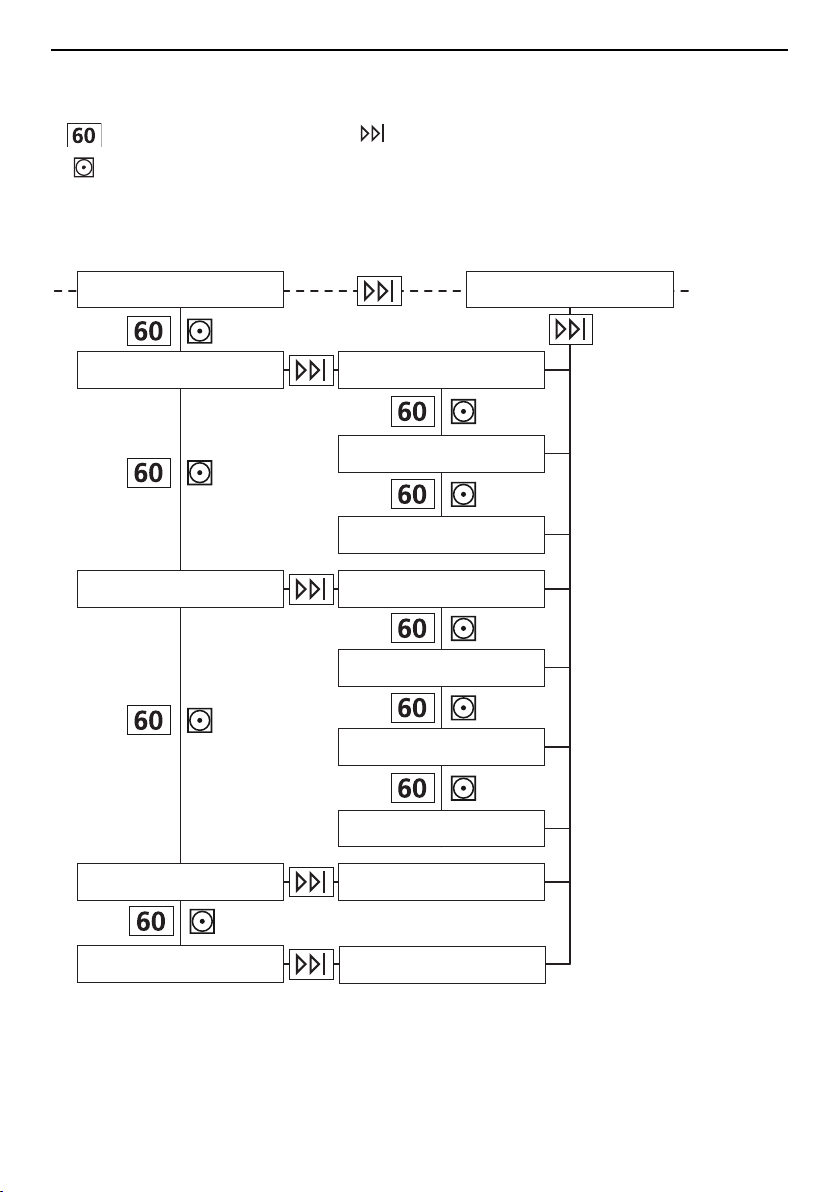
Combair V200
Enabling V-ZUG-Home mode «Operate and display»
▸Turn the
dial to the position.
▸Turn the
dial clockwise as far as it will go and hold in this end-stop position for at
least 3seconds.
–
flashes.
– The connecting mode is active for 60seconds.
▸Connect the appliance to the home network within this time (see page 11).
–
illuminates.
– The V-ZUG-Home mode «Operate and display» is enabled.
Enabling V-ZUG-Home mode «Off»
▸Turn the
dial to the position.
▸Turn the
dial clockwise as far as it will go and hold in this end-stop position for at
least 3seconds.
– is no longer illuminated.
– The V-ZUG-Home mode «Off» is enabled.
Resetting the V-ZUG-Home settings to the factory settings
▸Turn the
dial to the position.
▸Turn the
dial clockwise as far as it will go (until the end-stop).
▸Turn the
dial anti-clockwise to below «250°C».
▸Turn the
dial clockwise as far as it will go (until the end-stop).
▸Turn the
dial anti-clockwise to below «250°C».
▸Turn the
dial clockwise as far as it will go (until the end-stop).
–
illuminates.
– The V-ZUG-Home settings have been reset to the factory settings (see page 24).
The temperature selector must be turned to below 250°C twice within 6seconds.
18
7 V-ZUG-Home configuration
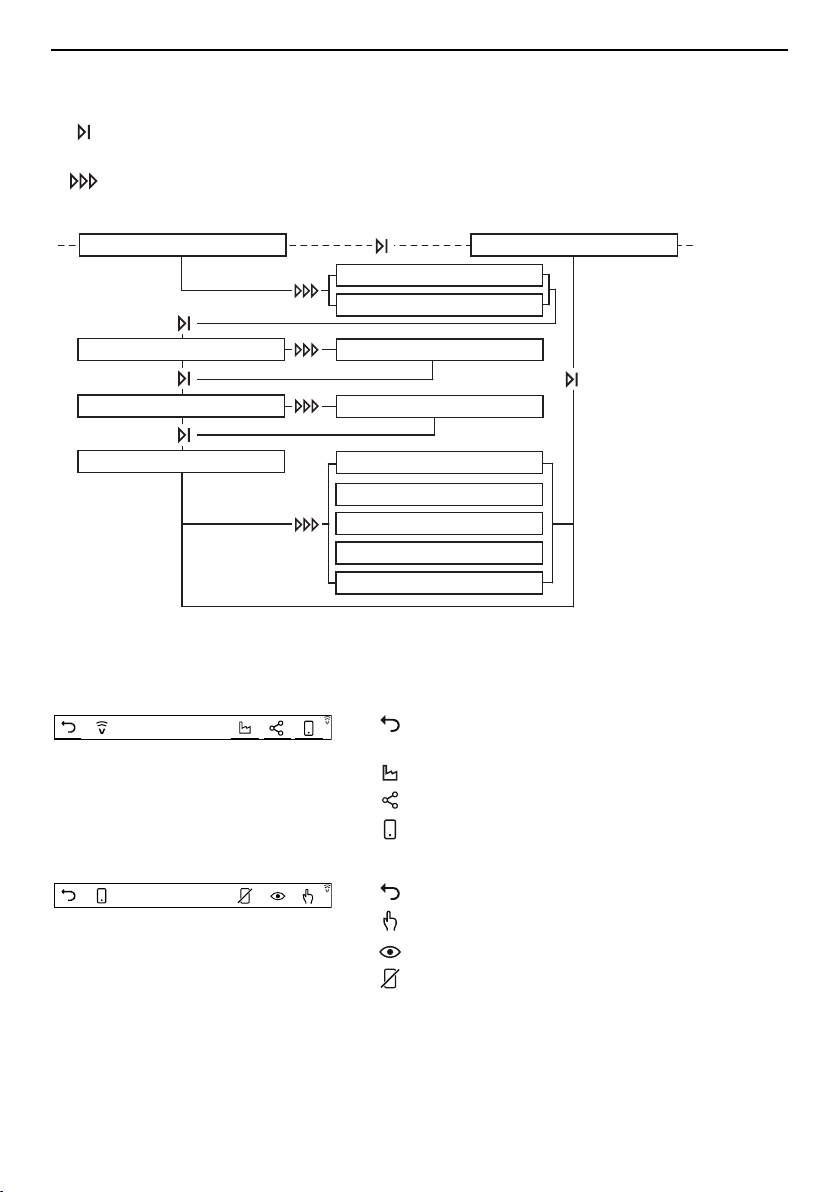
7.2 Washing machines and tumble dryers
Adora SL | TS WP
Adora SL▪ To next user setting
▪ Next to a submenu of V-ZUG-Home
▪ Save changes made
▪ Exit V-ZUG-Home submenu
▪ Back to the user settings menu
Adora TS WP
V-ZUG-Home information
Interface connection
V-ZUG-Home information
MAC address
V-ZUG-Home information
IP address
V-ZUG-Home
Information
V-ZUG-Home information
Internet connection
V-ZUG-Home
Interface
Reset V-ZUG-Home?
YES ↓
V-ZUG-Home
Factory settings
NO ↓
Restart interface?
NO ↓
YES ↓
*
V-ZUG-Home mode
V-ZUG-Home mode
V-ZUG-Home mode
Off
Restore
factory settings?
Display
Operate and display
V-ZUG-Home
Configure
V-ZUG-Home
Mode
*V-ZUG-Home settings are reset to the factory settings (see page 24).
19

7 V-ZUG-Home configuration
Adora SLQ | SLQ WP | TSLQ WP, AdoraWash, AdoraDry, CombiAdoraDry
Main V-ZUG-Home menu
Display information
Mode
Reset factory settings
Display information
Display information
Mode
Mode
Werkeinstellung deaktivieren
Reset factory settingsReset factory settings
Display information
Mode
Reset factory settings
V-ZUG-Home
Back to the user settings of the
appliance
/
V-ZUG-Home mode
/
Display information
/
V-ZUG-Home factory settings
Save changes made
V-ZUG-Home mode
Operate and display
Display
Off
V-ZUG-Home
Back to the main V-ZUG-Home menu
/
Operate and display
/ Display
/
Off
Save changes made
Display information
Update Restart interface
Update
Update
Restart interface
Restart interface
Update Restart interface
Interface connection:
MAC address: 00:D0:59:CA:84:98
IP address: 203.0.113.195
Internet connection:
V-ZUG-Home
Back to the main V-ZUG-Home menu
Save changes made
Interface/Internet connection available
No interface/internet connection
available
Update: Update information
Restart interface: The V-ZUG-Home
module (interface) is restarted.
V-ZUG-Home factory settings
To reset V-ZUG-Home to
factory settings, press ok.
V-ZUG-Home
Back to the main V-ZUG-Home menu
The V-ZUG-Home settings are reset to
the factory settings (see page 24).
20
7 V-ZUG-Home configuration
7.3 Dishwashers
Adora SL | SL WP
▪ Move to next user setting
▪ Save changes made
▪ Change user setting
V-ZUG-Home mode OFF
V-ZUG-Home Display
Restart V-ZUG-Home NO
Start V-ZUG-Home diagnostics
Reset V-ZUG-Home YES
Restart V-ZUG-Home YES
V-ZUG-Home diagnostics OK
Connection to module OK
MAC FC:1B:FF:00:08:88
IP 172.18.59.135
V-ZUG-Home Operate
Reset V-ZUG-Home NO
Automatic door opener YES
*
Connection to server OK
*V-ZUG-Home settings are reset to the factory settings (see page 24).
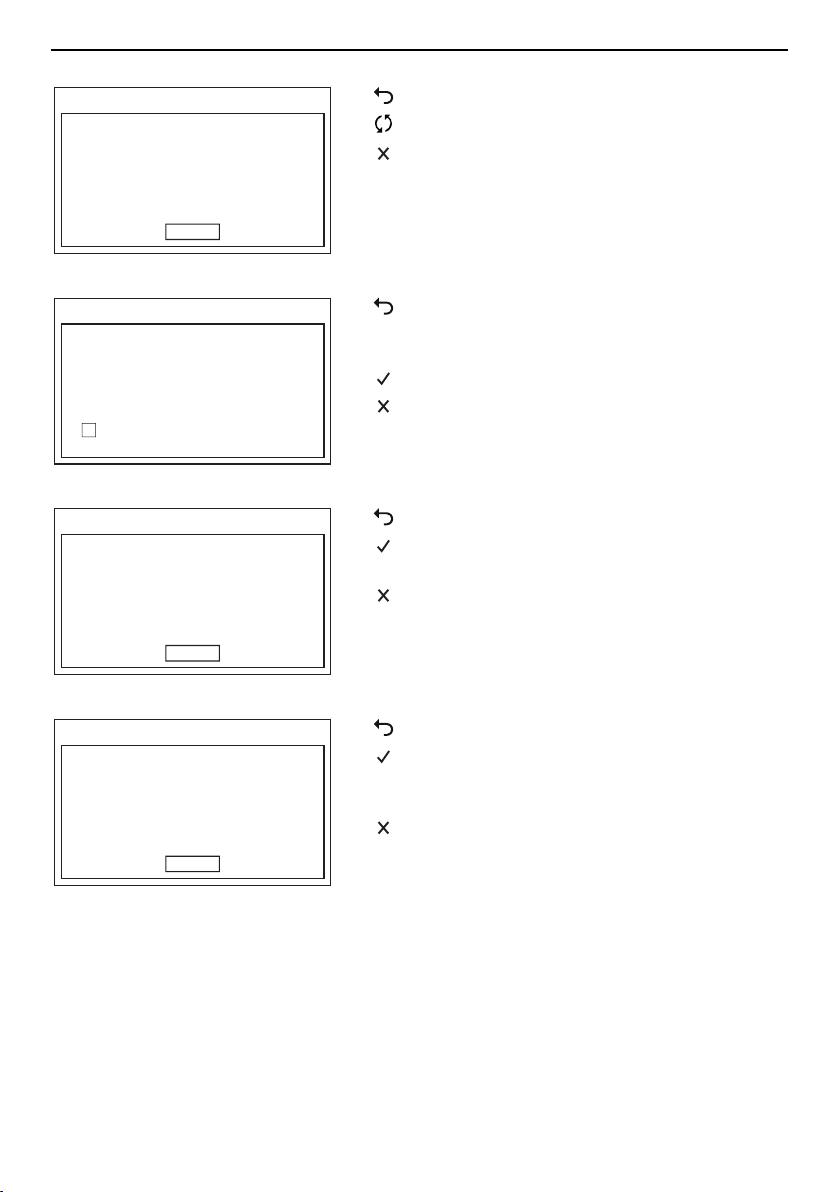
AdoraDish
Main V-ZUG-Home menu
V-ZUG-Home
Back to the user settings of the
appliance
V-ZUG-Home factory settings
V-ZUG-Home information
V-ZUG-Home mode
V-ZUG-Home mode
V-ZUG-Home mode
Display
Back to the main V-ZUG-Home menu
Operate
Display
Off
21
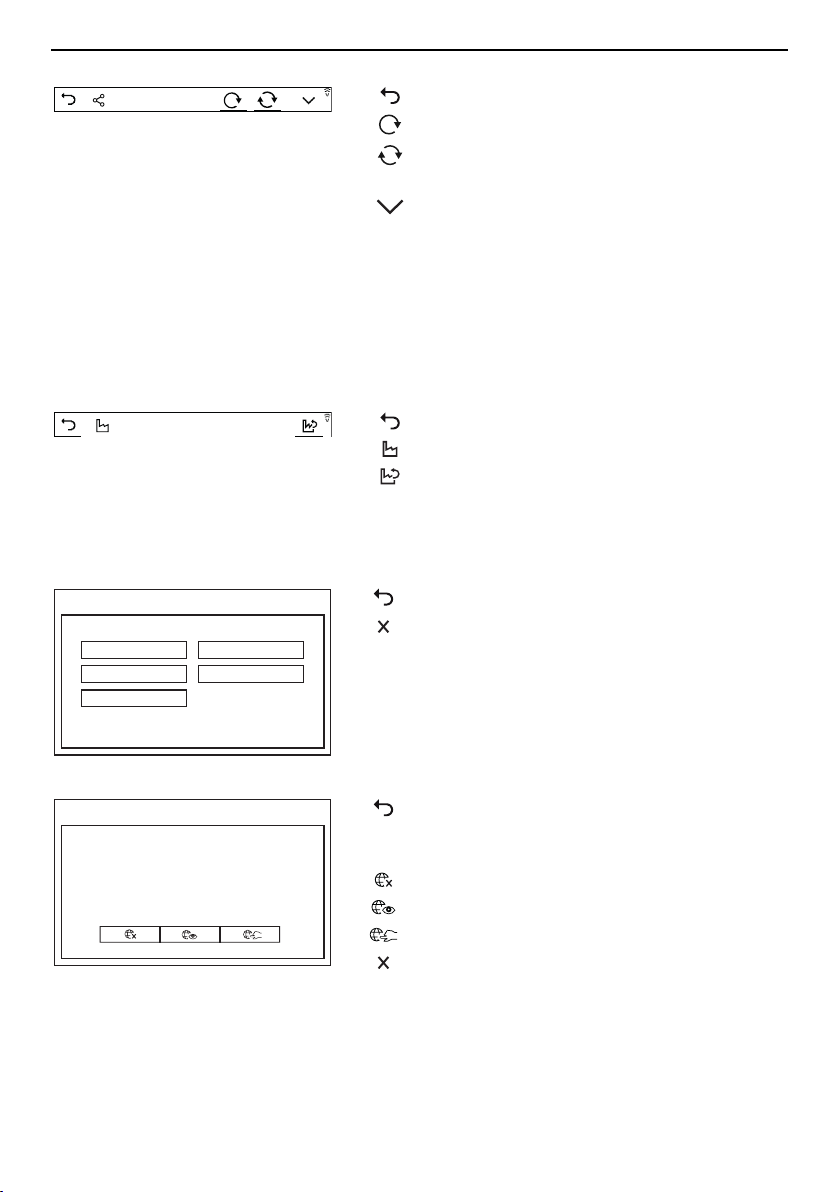
7 V-ZUG-Home configuration
V-ZUG-Home network information
V-ZUG-Home
Network information
Back to the main V-ZUG-Home menu
Restart WLAN module
Reload network and appliance
information
Display network and appliance
information:
▪ MAC address
▪ IP address
▪ Interface status
▪ Internet status
▪ WLAN SSID
▪ WLAN signal strength
V-ZUG-Home factory settings
Reset V-ZUG-Home
to factory settings
Back to the main V-ZUG-Home menu
V-ZUG-Home factory settings
Reset V-ZUG-Home to the factory
settings
7.4 Hobs
Main V-ZUG-Home menu
굸굗
7LPHV\QFKURQL]DWLRQ
)DFWRU\VHWWLQJV
0RGH
5HVWDUW
,QIRUPDWLRQ
9=8*+RPH
Back to the user settings of the appliance
Exit user settings
V-ZUG-Home mode
굸굗
굖
0RGH
7RXVH9=8*+RPHWKH9=8*+RPHPRGH
'LVSOD\궊RU2SHUDWHDQGGLVSOD\궋PXVWEH
HQDEOHG
▪ Back to the user settings of the
appliance
▪ Save changes made
V-ZUG-Home off
Display V-ZUG-Home
Operate and display V-ZUG-Home
▪ Exit user settings
▪ Save changes made
22
7 V-ZUG-Home configuration
Information
굸
,QWHUIDFHFRQQHFWLRQ
0$&DGGUHVV
,3DGGUHVV
,QWHUQHWFRQQHFWLRQ
<HV
DHIGH
1R
궍
,QIRUPDWLRQ굗
Back to the user settings of the appliance
Update information
Exit user settings
Time synchronization
굸굗
:LWKWLPHV\QFKURQL]DWLRQWKHGDWHDQGWLPHVHWWLQJV
DUHV\QFKURQL]HGRYHU9=8*+RPH
7LPHV\QFKURQL]DWLRQ
6ZLWFKRQWLPHV\QFKURQL]DWLRQ
굖
▪ Back to the user settings of the
appliance
▪ Save changes made
Switch on time synchronization
▪ Exit user settings
▪ Save changes made
Restart
굸굗
'R\RXZDQWWRUHVWDUWWKH9=8*+RPHLQWHUIDFH"
굖
5HVWDUW
Back to the user settings of the appliance
The V-ZUG-Home module (interface) is re-
started. The menu is closed.
Exit user settings
V-ZUG-Home factory settings
굸굗
'R\RXZDQWWRUHVWRUHWKH9=8*+RPHVHWWLQJVWRWKH
IDFWRU\VHWWLQJV"
굖
)DFWRU\VHWWLQJV
Back to the user settings of the appliance
The V-ZUG-Home settings are reset to the
factory settings (see page 24). The
menu is closed.
Exit user settings
7.5 Refrigerators
OFV-ZUG-Home mode «Off» is enabled.
OnV-ZUG-Home mode «Operate and display» is enabled.
rSThe V-ZUG-Home settings are reset to the factory settings (see page 24).
23

8 Trouble-shooting
7.6 V-ZUG-Home factory settings
If you reset the V-ZUG-Home settings to the factory settings, depending on the connec-
tion type (see page 6) different settings are reset.
WLAN
If your appliance must be connected via WLAN,
▪ automatic IP address assignment (DHCP) is enabled in the network settings and the
set WLAN (SSID/PSK) is deleted,
▪ password protection is disabled,
▪ the push message history is deleted,
▪ the list of all connected bluetooth appliances is deleted.
LAN
If your appliance must be connected via LAN,
▪ automatic IP address assignment (DHCP) is enabled in the network settings,
▪ password protection is disabled,
▪ the push message history is deleted.
8 Trouble-shooting
This section lists faults that can be solved simply by following the instructions given. If
another fault is displayed or the fault cannot be remedied, please call Customer Ser-
vices.
8.1 Via WLAN-connected appliances
MalfunctionPossible causeSolution
The V-ZUG App does
not detect the new
appliance.
▪ The V-ZUG-Home mode
«Off» is enabled.
▸Enable V-ZUG-Home mode «Dis-
play» or «Operate and display» /
«Operate» (see page 13).
▪ The appliance is already
connected to another
smartphone or tablet via
bluetooth. A maximum of
one connection can be es-
tablished via bluetooth per
appliance.
▸Disable bluetooth on the other
smartphone or tablet.
▪ If the problem could not be
resolved:
▸Restart the interface in the V-
ZUG-Home user settings (see
page 16).
▸Disable and re-enable bluetooth
on the smartphone or tablet.
24

8 Trouble-shooting
MalfunctionPossible causeSolution
The V-ZUG App can-
not establish a con-
nection between the
appliance and the
wireless network
after entering the
PIN.
▪ The smartphone or tablet
and the appliance are not
in the same wireless net-
work.
▸In the V-ZUG App, select the
wireless network over which the
smartphone or tablet is also
connected.
▪ If the problem could not be
resolved:
▸Remove the appliance from the
V-ZUG App.
▸Add the appliance to the V-ZUG
App again.
▸Restart the interface in the V-
ZUG-Home user settings (see
page 16).
▸Delete the appliance in the
bluetooth settings of the smart-
phone or tablet and reconnect
the appliance via WLAN (see
page 10).
/ is not illumin-
ated or is not dis-
played.
▪ The V-ZUG-Home mode
«Off» is enabled.
▸Enable V-ZUG-Home mode «Dis-
play» or «Operate and display» /
«Operate» (see page 13).
/ does not
stop flashing or
does not stop illumin-
ating even though
the V-ZUG-Home
mode «Operate and
display» / «Operate»
is enabled.
▪ The appliance is not con-
nected via WLAN.
▪ The WLAN is no longer ac-
cessible.
▸Connect the appliance via
WLAN (see page 10).
▪ Data transfer is taking
place or software is being
updated (see page 9).
▸No remedy necessary.
When you log into
the V-ZUG-Home ac-
count, the e-mail ad-
dress or password is
not recognized.
▪ No V-ZUG-Home account
has been created in the V-
ZUG App yet.
▸Create a V-ZUG-Home account
in the V-ZUG App (see page
11).
▪ The login of the online
portal (www.vzug.com) was
used.
▸Use the login of the V-ZUG-
Home account.
There is no registra-
tion e-mail in the in-
box of the e-mail ac-
count to create the V-
ZUG-Home account.
▪ The registration e-mail is in
the spam or trash folder of
the e-mail account.
▸Check the spam or trash folder
of the e-mail account.
▸Open the registration e-mail and
confirm the e-mail address.
– The V-ZUG-Home account
has now been created.
25

8 Trouble-shooting
8.2 Via LAN-connected appliances
MalfunctionPossible causeSolution
is not illuminated
or is not displayed.
▪ The V-ZUG-Home mode
«Off» is enabled.
▸Enable V-ZUG-Home mode «Dis-
play» or «Operate and display» /
«Operate» (see page 13).
does not stop
flashing or
does
not stop illuminating
even though the V-
ZUG-Home mode
«Operate and dis-
play» or «Operate» is
enabled.
▪ The network cable is not
connected to the cable
connection for the V-ZUG-
Home module.
▸Check all network cable con-
nectors and connect the appli-
ance via LAN (see page 11).
▸Call Customer Services if the
cable connection is not access-
ible.
▪ Error in home network.▸Check internet connection via
smartphone or tablet.
▸Call network technician.
▪ Data transfer is taking
place or software is being
updated (see page 9).
▸No remedy necessary.
26

9 Index
B
Before using for the first time........................... 4
C
Combair V200
Enabling mode.............................................13
Settings in the appliance............................18
Combair V400
Enabling mode.............................................13
Settings in the appliance............................17
Combair V600
Enabling mode.............................................13
Settings in the appliance............................17
D
Dishwasher
Enabling mode.............................................14
Network connection....................................12
Settings in the appliance............................21
Dishwashers
Settings in the appliance............................21
Display.................................................................. 8
E
Enabling mode
Combair V200..............................................13
Combair V400..............................................13
Combair V600..............................................13
Dishwasher...................................................14
Hob.................................................................15
Oven / steam cooker..................................13
Refrigerator...................................................15
Tumble dryer................................................14
Washing machine........................................14
H
Hob
Enabling mode.............................................15
Network connection....................................12
Settings in the appliance............................22
I
Internet connection
Checking................................................16, 20
Establishing...................................................12
L
LAN connection................................................ 12
N
Network connection......................................... 12
Notes.................................................................. 29
O
OF.......................................................................... 7
Off.......................................................................... 7
On.......................................................................... 8
Operate................................................................. 8
Operate and display........................................... 8
Oven
Network connection....................................12
Ovens
Enabling mode.............................................13
Settings in the appliance............................16
R
Refrigerator
Enabling mode.............................................15
Settings in the appliance............................23
S
Safety precautions
Before using for the first time.......................4
Correct use......................................................5
Safety warnings
General.............................................................4
Smartphone
Connecting to appliance............................12
System requirements.....................................6
Steam cooker
Network connection....................................12
Steam cookers
Enabling mode.............................................13
Settings in the appliance............................16
Symbol activity..................................................... 9
Symbols................................................................ 4
T
Tablet
Connecting to appliance............................12
System requirements.....................................6
Technical questions......................................... 31
Tumble dryer
Enabling mode.............................................14
Network connection....................................12
Settings in the appliance.....................19, 20
V
Validity................................................................... 2
V-ZUG App........................................................ 10
W
Warranty extensions........................................ 31
Washing machine
Enabling mode.............................................14
27


29
10 Notes

30

11 Service & Support
The «Trouble-shooting» section gives you valuable tips on how to deal with minor
malfunctions yourself, saving you the time and trouble of calling out a service tech-
nician and any cost that goes along with it.
Your repair order
At www.vzug.com →Service→Service number you will find the telephone number of your
nearest V‑ZUG service centre.
Technical questions, accessories, warranty extensions
V-ZUG is happy to help you with any general administrative or technical queries, to take
your orders for accessories and spare parts and to inform you about our progressive
service agreements.
31