N e t w o r k C D R e c e i v e r
© 2013 Yamaha Corporation
Printed in Malaysia ZH10760-1
O W N E R ’ S M A N UA L
Read the su ppl ied bo oklet “S afety Broch ure” before usi ng the un it.
AB
2 En
Contents
Introduction......4
Supplied accessories......4
About this manual......4
Part name......5
Front panel......5
Rear panel......6
Front panel display......7
Adjusting display brightness......7
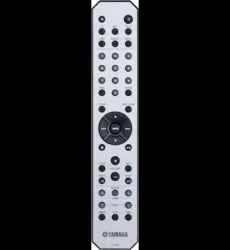
Remote control......8
Preparations......9
Connecting the speakers......9
Connecting antenna......10
Connecting to the network......11
Turning on the power......12
Setting the network devices......13
PC......13
NAS......13
Mobile devices......13
Listening to CD......14
Listening to iPod/USB devices......15
Playing iPod......15
Playing USB devices......15
Listening to the songs in the
computer
......17
Setting the media sharing of music files......17
Playing back songs in the PC......18
Listening to external sources......19
More on playback......20
Shuffle playback......20
Repeat playback......20
Playback information......21
Adjusting sound quality......22
Listening to DAB stations......23
Initial scan......23
Tuning in DAB stations......23
Presetting DAB stations......24
Selecting preset DAB stations......24
Deleting a preset station......24
Confirming the reception......25
Listening to FM radio stations......26
Tuning in FM stations......26
Presetting FM stations......26
Selecting preset FM stations......27
Deleting a preset station......27
Radio Data System
(U.K. model only)......28
Listening to Internet radio......29
Listening to the Music with
AirPlay
......30
Playing iPod......30
Playing iTunes......30
Using the clock......31
Setting the clock......31
Setting the wake-up timer......32
Sleep timer......33
Updating the firmware......34
Option settings......35
Option menu list......36
Troubleshooting......37
General......37
Network......38
iPod......39
Disc......40
USB devices......40
DAB reception......41
FM reception......41
Messages on the front panel display......42
Supported devices/media and
file formats
......43
Specifications......45
Information about software......i
En 3
Awesome!
Great sound!!
The sound from a PC is
something else!
......17, 18
High-resolution sound is
played back
......22
More on music
A variety of external devices (Blu-ray/
DVD/mobile music player etc.) can
be connected
...... 19
I can listen to the internet radio
from my audio system
...... 29
Anytime,
anywhere,
music!
Convenient App! My smartphone as a
remote control
......18
Songs in my iPhone from
speakers wirelessly.
......30
4 En
Introduction
Confirm the package contents and useful points of this manual.
Supplied accessories
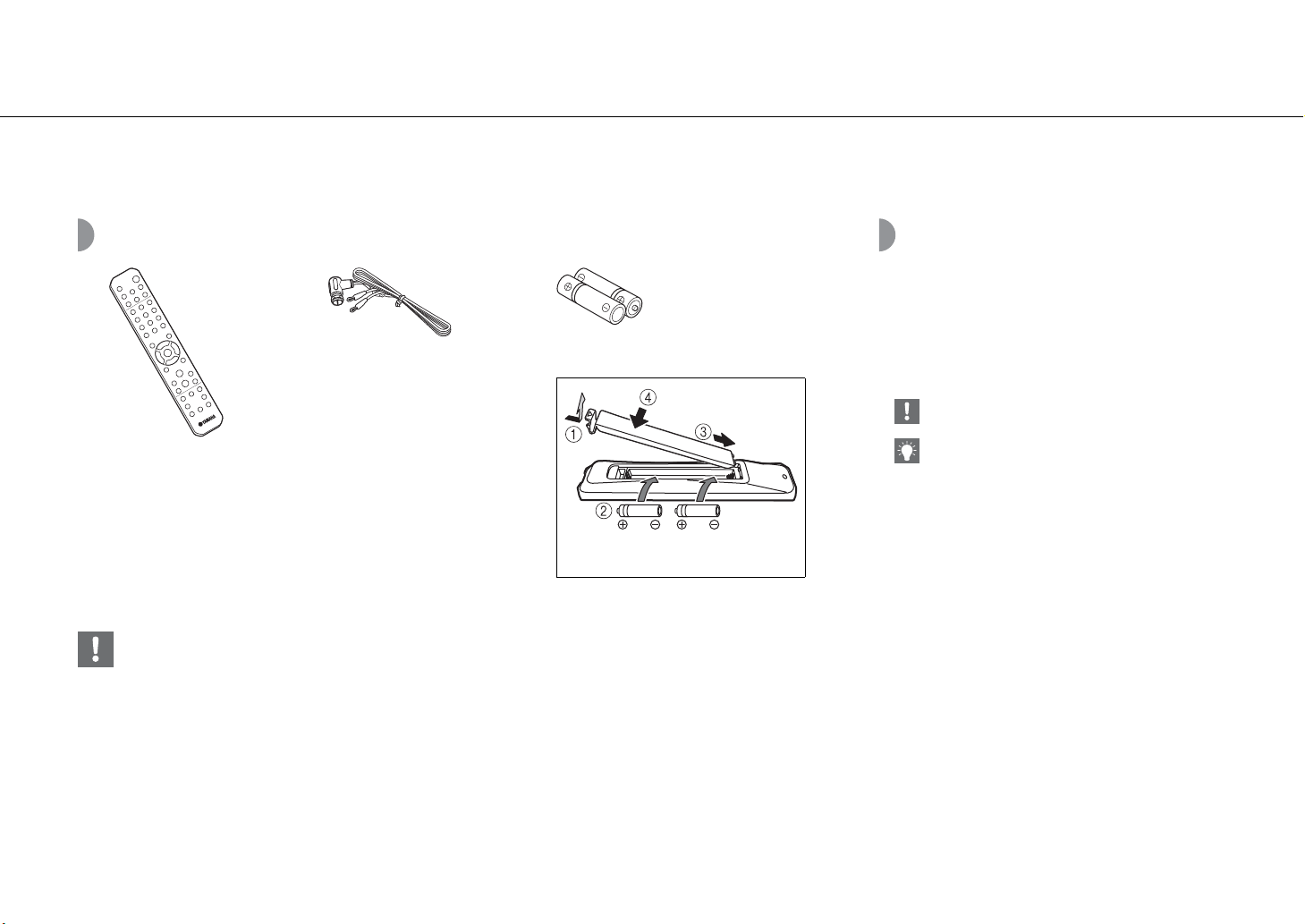
• Change both batteries when the operation range of the remote control decreases.
Remote control
Batteries (× 2)
(AA, R6, UM-3)
Check the “+” and “-” of the batteries and
inset them the correct way around.
DAB/FM antenna
About this manual
• How to operate this unit is described mainly using the
remote control.
• Illustrations may differ from actual item depicted.
• “iPod” described in this manual may also refer to
“iPhone” or “iPad.”
• Symbols:
Indicates precautions for use of the unit and its
feature limitations.
Indicates supplementary explanations for better
use.
&
Indicates the corresponding reference page(s).
En 5
Part name
Familiarize yourself with all parts and these functions.
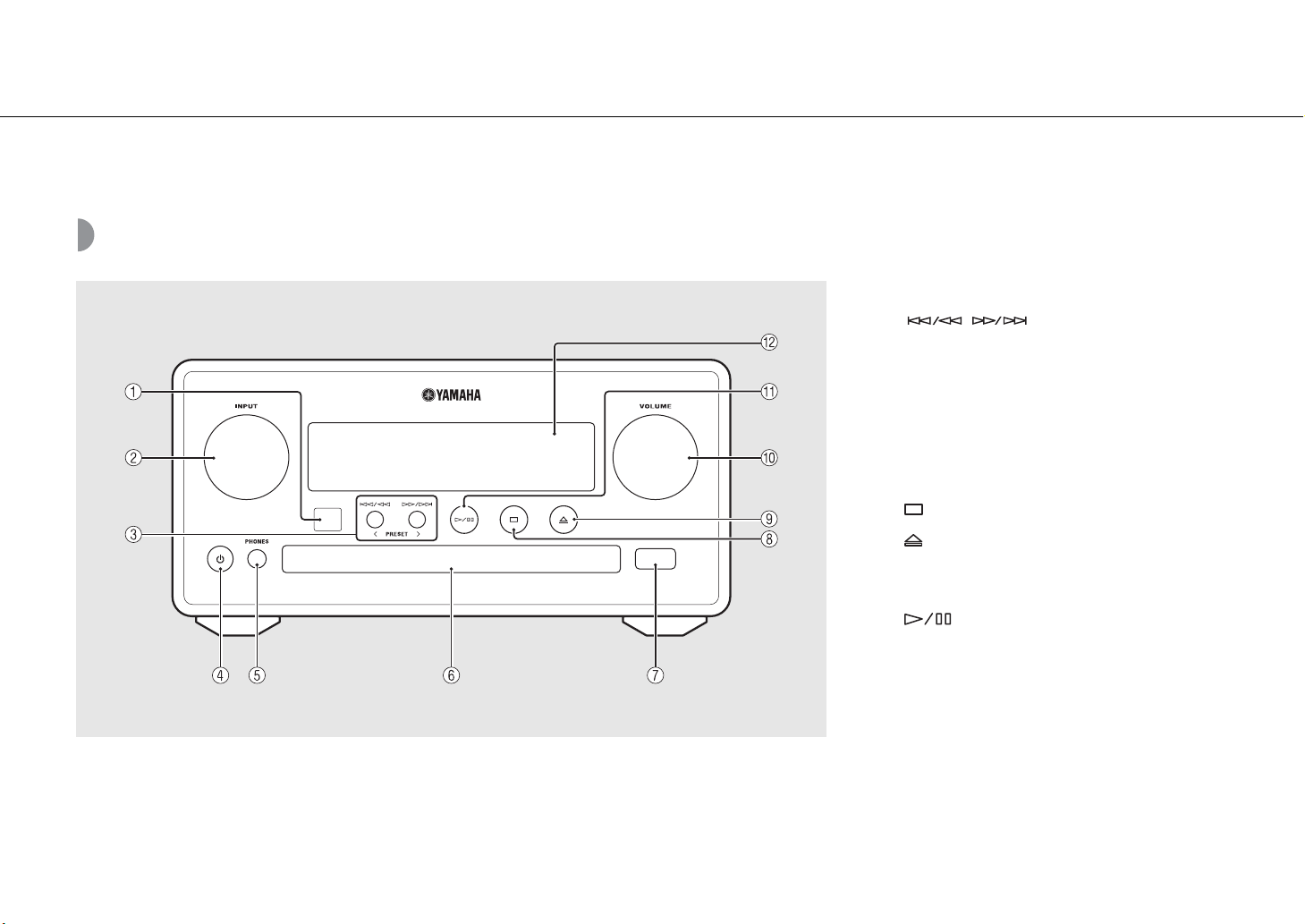
Front panel
1 Remote control receiver
2 INPUT
Turn left or right to change the audio source. (The source
is shown on the front panel display.)
3 (& P.14, 16, 18)
PRESET</> (& P.27)
4 A (Power) (& P.12)
5 PHONES
Connect headphones to this jack.
6 Disc tray (& P.14)
7 USB jack (& P.15)
8 (Stop) (& P.14, 16, 18, 29)
9 (Open/close the disc tray) (& P.14)
0 VOLUME
Controls the volume.
A (Play/pause) (& P.14, 16, 18)
B Front panel display (& P.7)
Part name
6 En
Rear panel
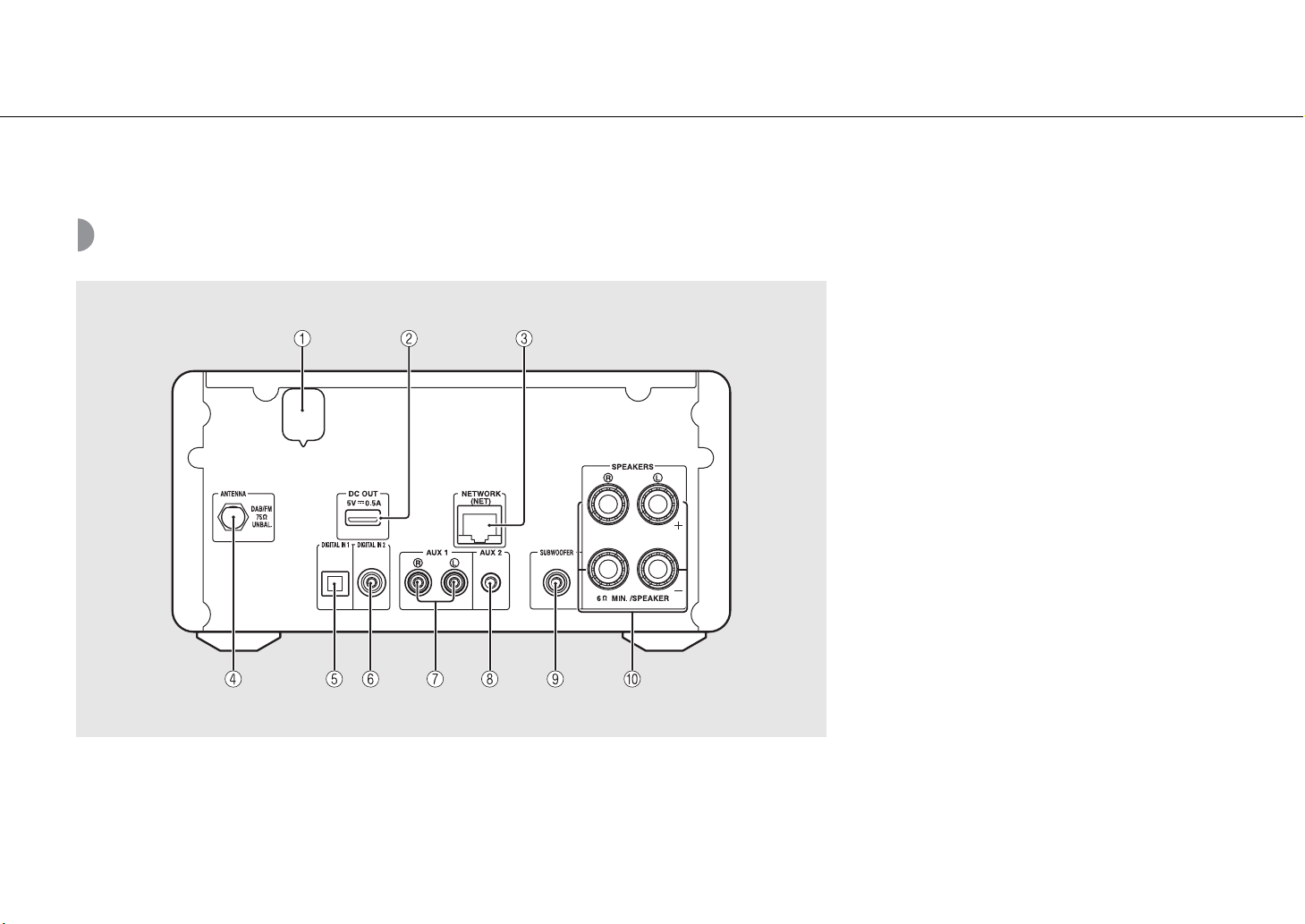
1 Power cable (& P.12)
2 DC OUT terminal
Supplies power to the Yamaha AV accessories from this
terminal. When using this, set [Use Accessory] in [System
Config] from the option setting, to [YES] (& P.35). For
details, refer to the owner’s manual supplied with the
accessory.
3 NETWORK terminal (& P.11)
Connects to a network using a commercially available
network cable.
4 DAB/FM antenna terminal (& P.10)
5 DIGITAL IN 1 terminal (optical input) (& P.19)
6 DIGITAL IN 2 terminal (coaxial input) (& P.19)
7 AUX 1 terminal (RCA input) (& P.19)
8 AUX 2 terminal (mini jack input) (& P.19)
9 SUBWOOFER terminal (& P.9)
0 SPEAKERS terminal (& P.9)
Part name
En 7
Front panel display
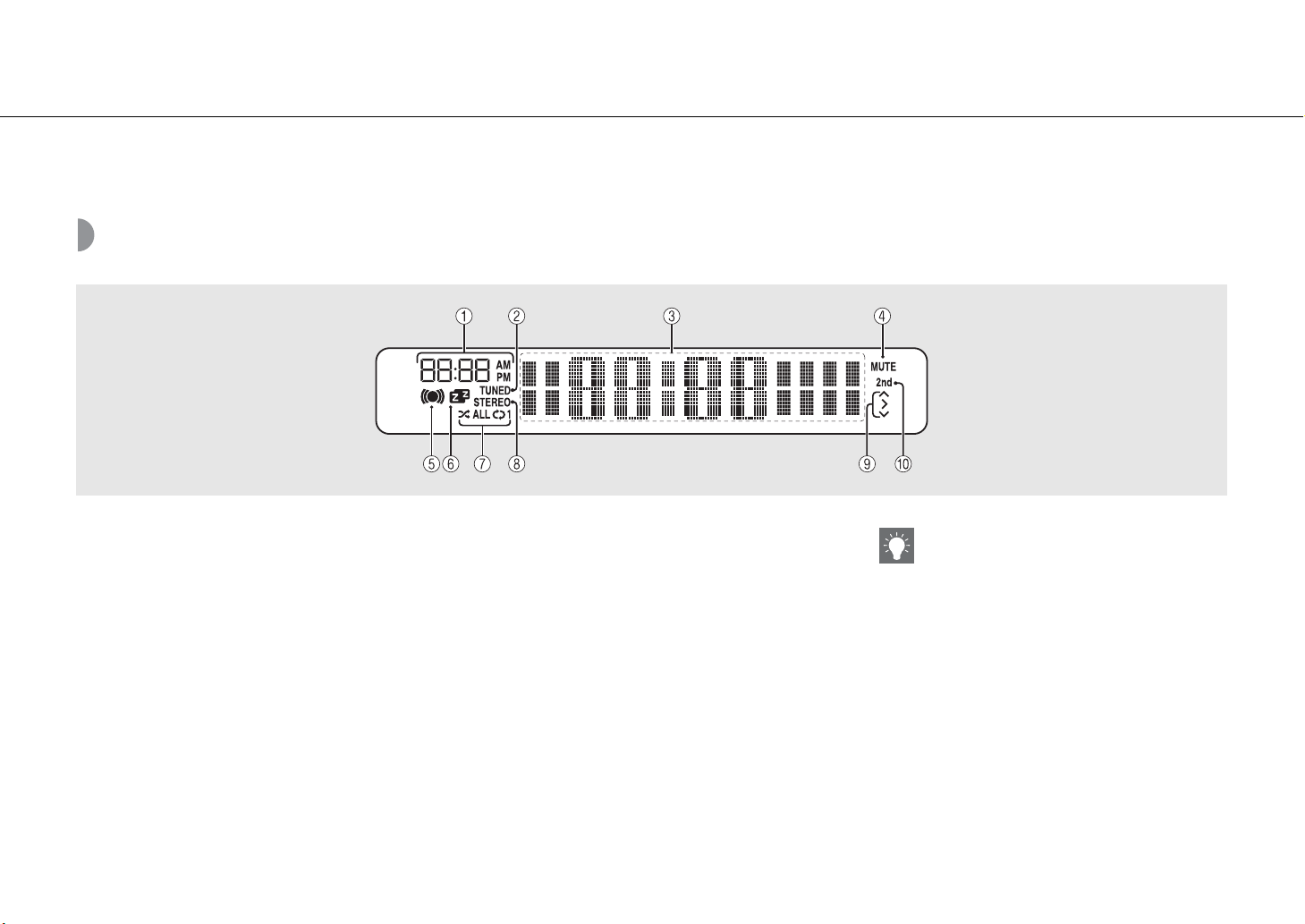
1 Clock
Displays the time when the power is on.
2 TUNED indicator
Lights up when the unit is tuned into a station.
3 Multi information display
Shows various information, such as the clock in standby
mode, music information, or radio frequency
(alphanumerics only).
4 MUTE indicator
Lights up when the sound is muted (& P.8).
5 Wake-up timer indicator
Blinks while setting the wake-up timer and lights up
when the timer is set (& P.32).
6 Sleep timer indicator
Lights up when the sleep timer is set (& P.33).
7 Shuffle/repeat indicator
Lights up when you set your iPod, CD, USB device, or
computer to shuffle or repeat playback (& P.20).
8 STEREO indicator
Lights up when the unit is receiving a strong signal from
an FM stereo broadcast.
9 Operation indicators
Shows available control buttons S/T/ENTER (& P.8) of
the remote control.
0 2nd indicator
Appears when the DAB station has a secondary station
(& P.23).
Adjusting display brightness
You can adjust the brightness of the front panel
display by pressing the DIMMER button on the
remote control (& P.8).
• Each press of the button changes the brightness:
bright (default), mid dim, or dim.
Part name
8 En
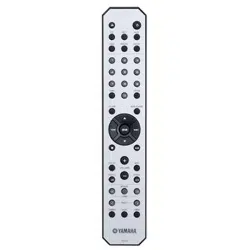
Remote control
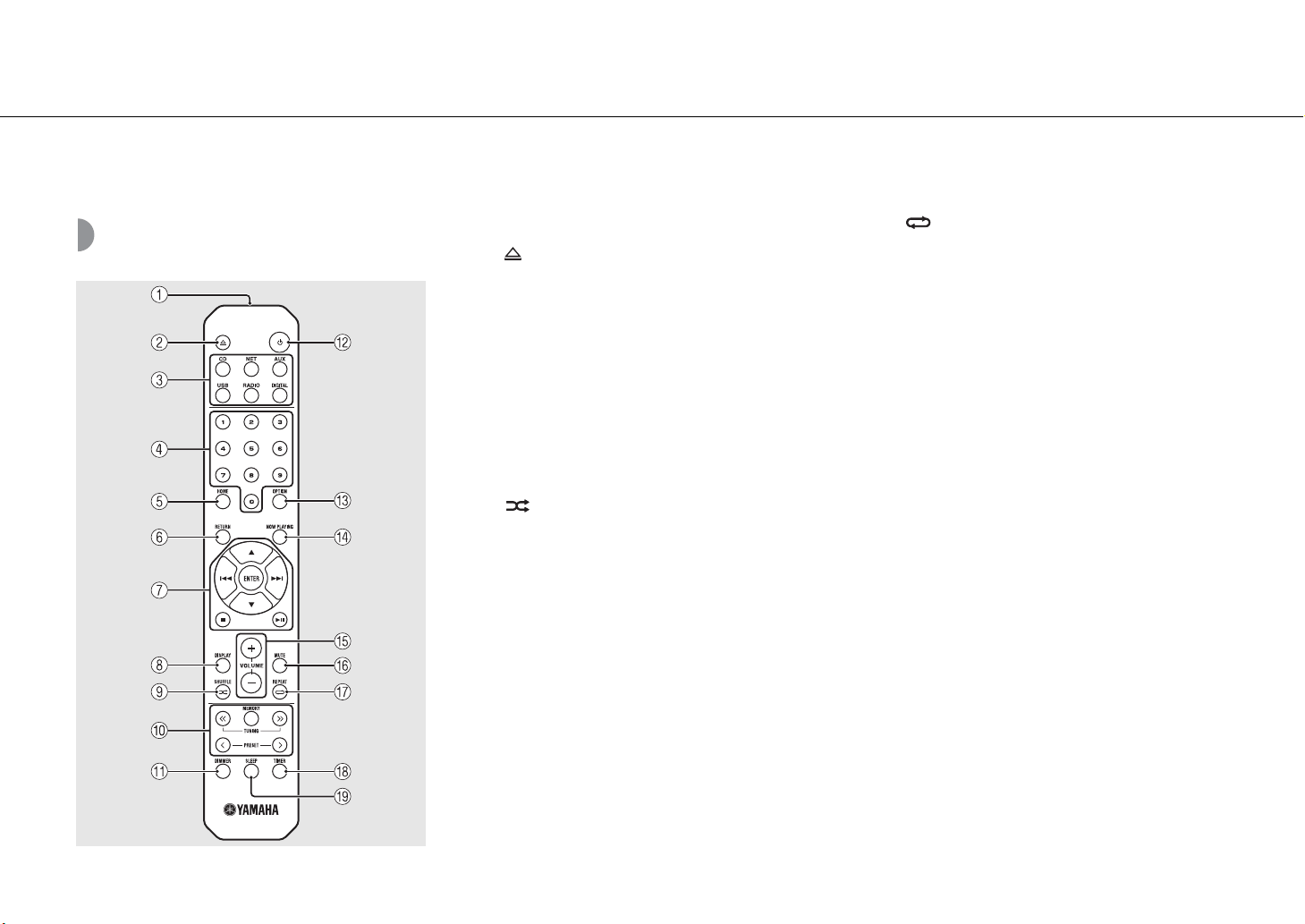
1 Infrared signal transmitter
2 (Open/close the disc tray) (& P.14)
3 Source buttons
Switch the audio source to be played.
4 Numeric buttons (& P.14)
5 HOME (& P.16, 18, 29)
6 RETURN (& P.14, 16, 18, 29)
7 Audio control, cursor control buttons
(& P.14, 16, 18, 29)
8 DISPLAY (& P.21)
9 (SHUFFLE) (& P.20)
0 DAB/FM control buttons (& P.23, 24, 26, 27)
A DIMMER (& P.7)
B A (Power) (& P.12)
C OPTION (& P.22, 25, 31, 35)
D NOW PLAYING (& P.16, 18, 29)
E VOLUME +/–
Controls the volume.
F MUTE
Turns mute on or off.
G (REPEAT) (& P.20)
H TIMER (& P.32)
I SLEEP (& P.33)
En 9
Preparations
Connect speakers or antenna and turn the unit on.
Do not connect the power cable of the unit until you have finished connecting all cables.
Connecting the speakers
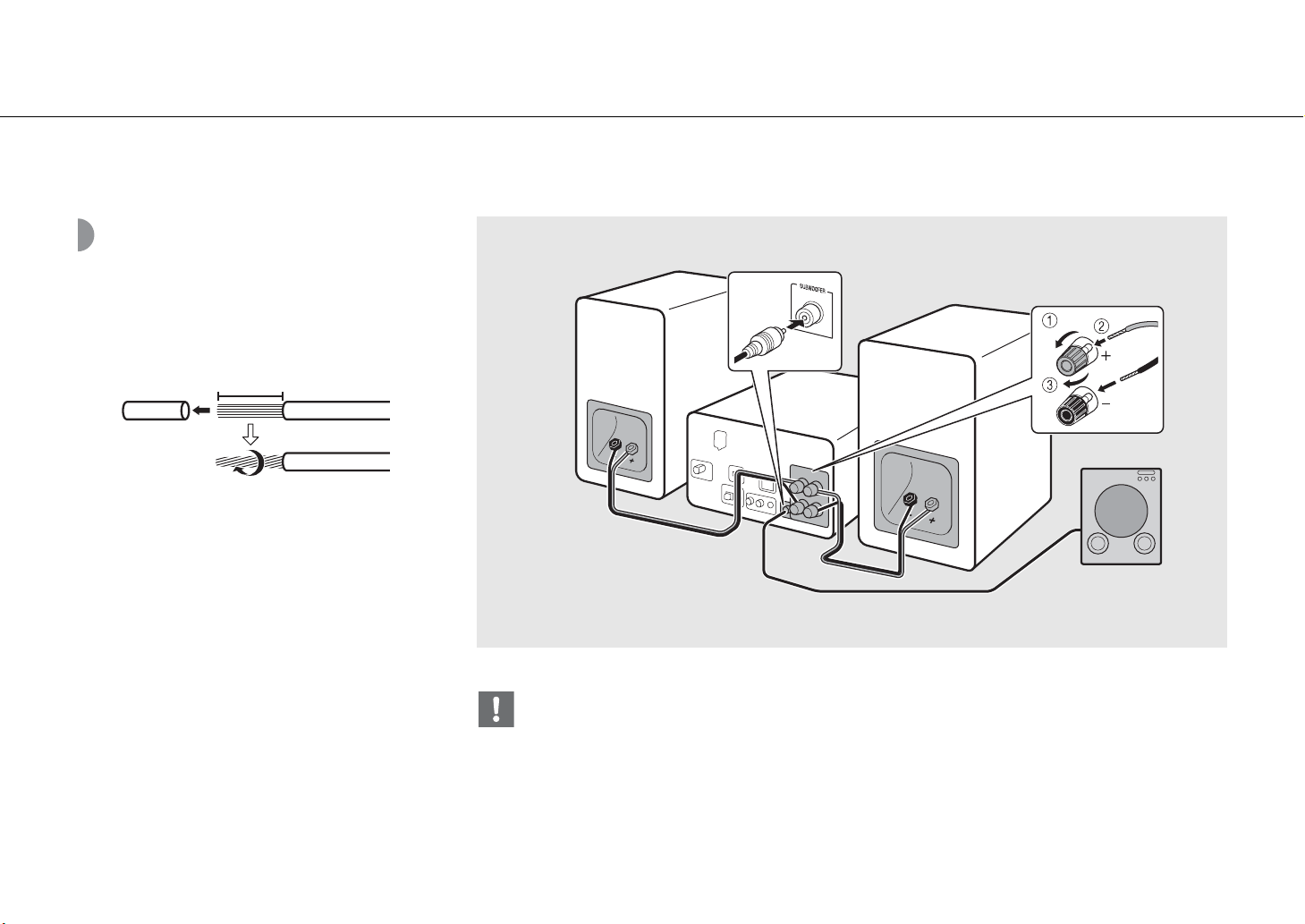
1 Remove the insulation from the end of
the speaker cable to expose the bare
wires.
2 Connect the speaker to the unit, as the
illustration shows.
• Prepare speakers and speaker cables separately.
• For connection of the speakers, refer to the
owner’s manual supplied with them.
15 mm (5/8 in.)
• Take care not to allow the bare speaker wires to touch each other or any metal part of the unit. This could damage the
unit and/or the speakers.
• Make sure that left and right (L, R) connections and polarity (red: +, black: -) are correct. If connections are incorrect, the
sound will be unnatural.
• Use speakers of at least 6 Ω impedance.
• You can also connect a subwoofer with built-in amplifier to the unit.
2
Right speaker
Left speaker
Subwoofer
Monaural pin cable
Speaker
cable
Preparations
10 En
Connecting antenna
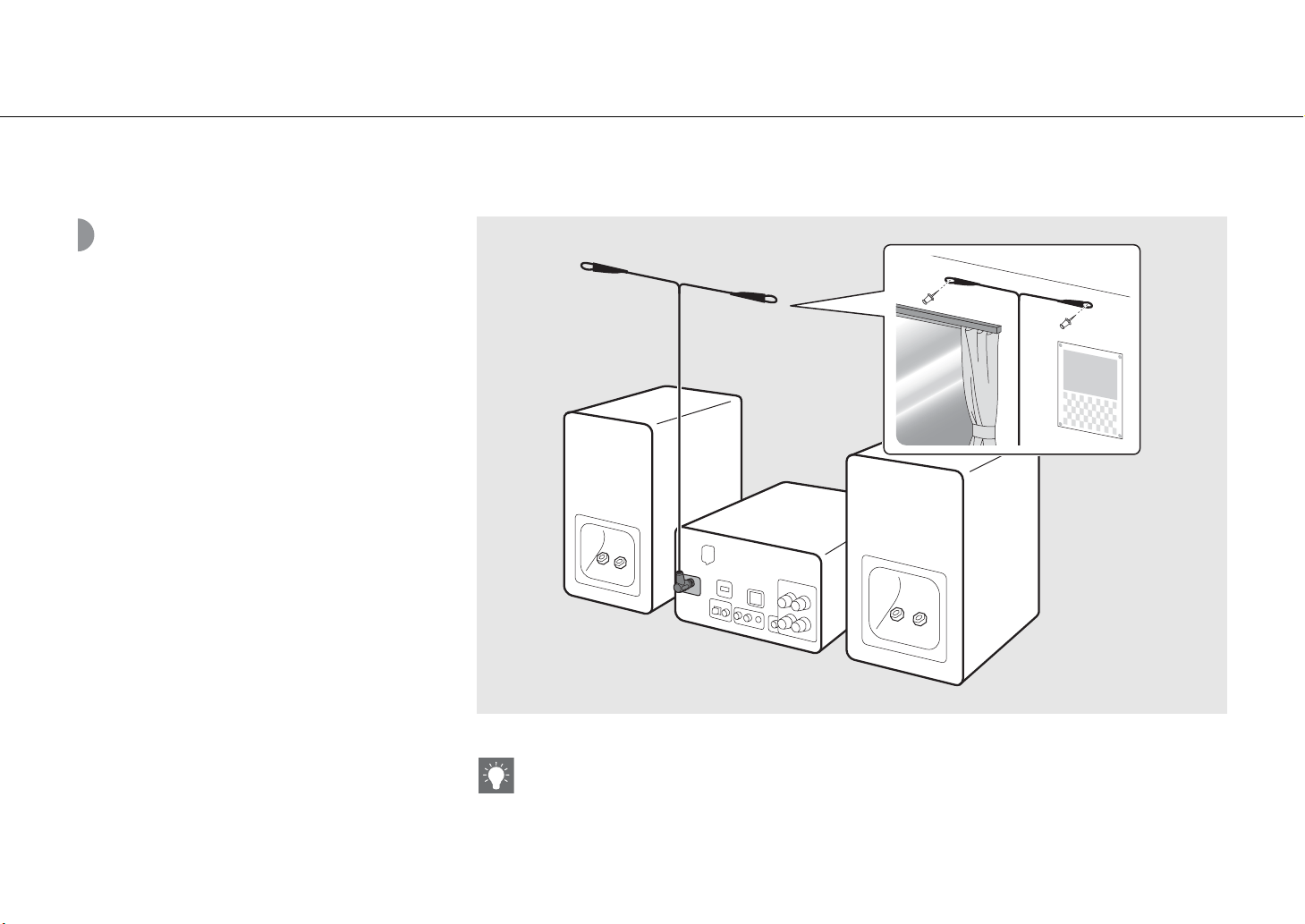
1 Connect the supplied antenna to the
unit.
2 Install it with pins where the unit can
obtain good reception.
• Be sure to stretch out the antenna as the illustration shows.
• If radio reception with the supplied antenna is not satisfactory, a commercially available outdoor antenna may improve
reception.
1
2
Supplied antenna
Preparations
En 11
Connecting to the
network
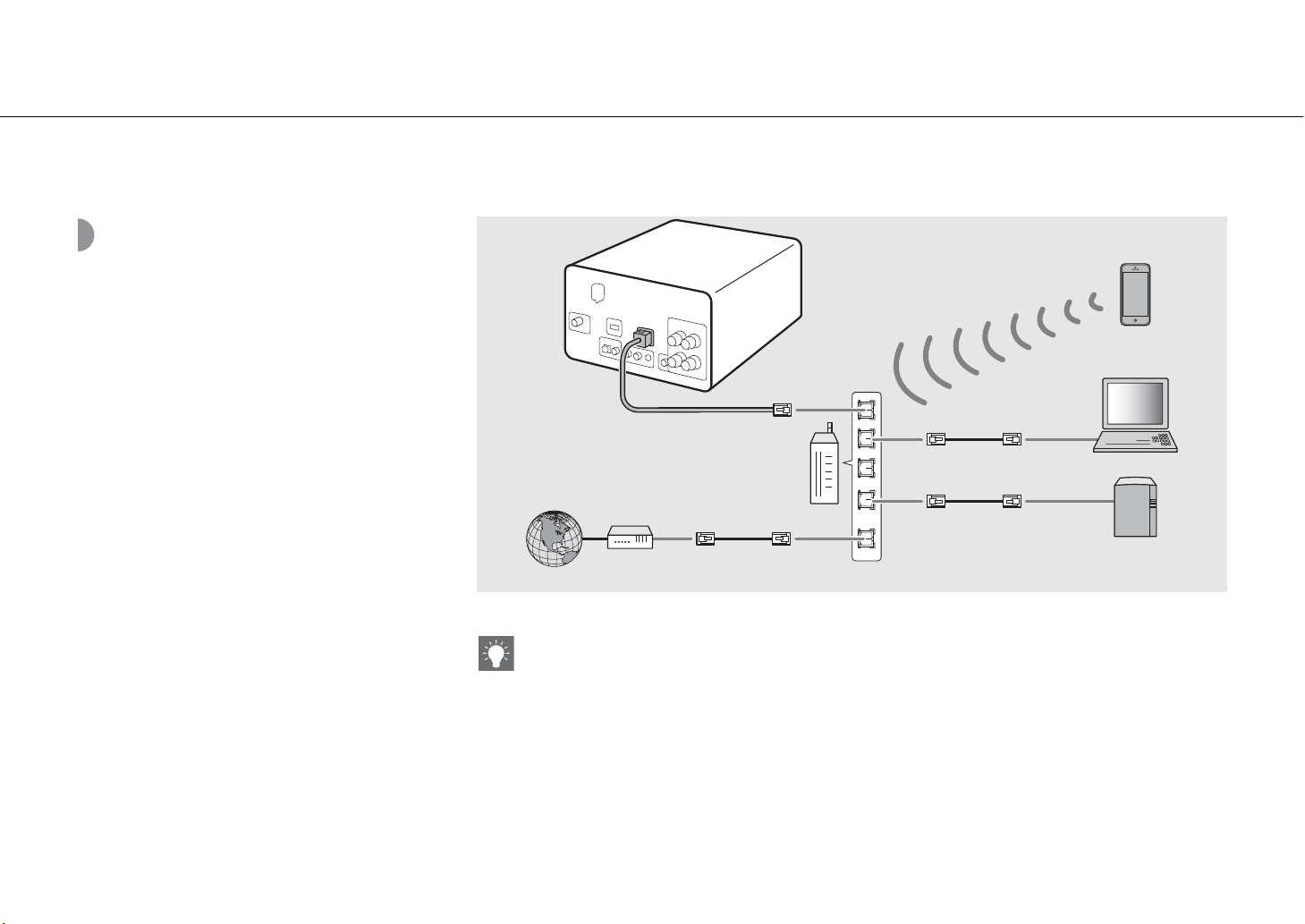
You can play back music files stored on your PC, mobile
devices, DLNA*-compatible NAS, or audio contents on the
Internet, by connecting this unit to the network. You can
also operate the unit with your mobile device.
* Digital Living Network Alliance
Connect the unit to the network as shown
on the right.
• Connect with a commercially available STP (shielded
twisted pair) network cable (CAT-5 or higher, straight-
throughcable).
• For details on Internet connection, refer to the owner’s manuals of your network devices.
• If you are using a router that supports DHCP, you do not need to configure any network settings for the unit. If you are
using a router that does not support DHCP, configure the network setting from [Network Config] in the option setting
(& P.35).
• Wired connections are recommended for devices other than the mobile to ensure high sound quality.
• Some security software installed on your PC or the firewall settings of network devices (such as a router) may block the
access of the unit to the network devices or the Internet. In this case, change the setting of the security software or
network devices.
• When setting the subnet manually, each server must be connected to the same subnet as the unit (& P.36).
LAN
WAN
This unit
Broadband
router
Internet
Modem
Mobile device
PC
Network attached
storage (NAS)
Network cable
Preparations
12 En
Turning on the power
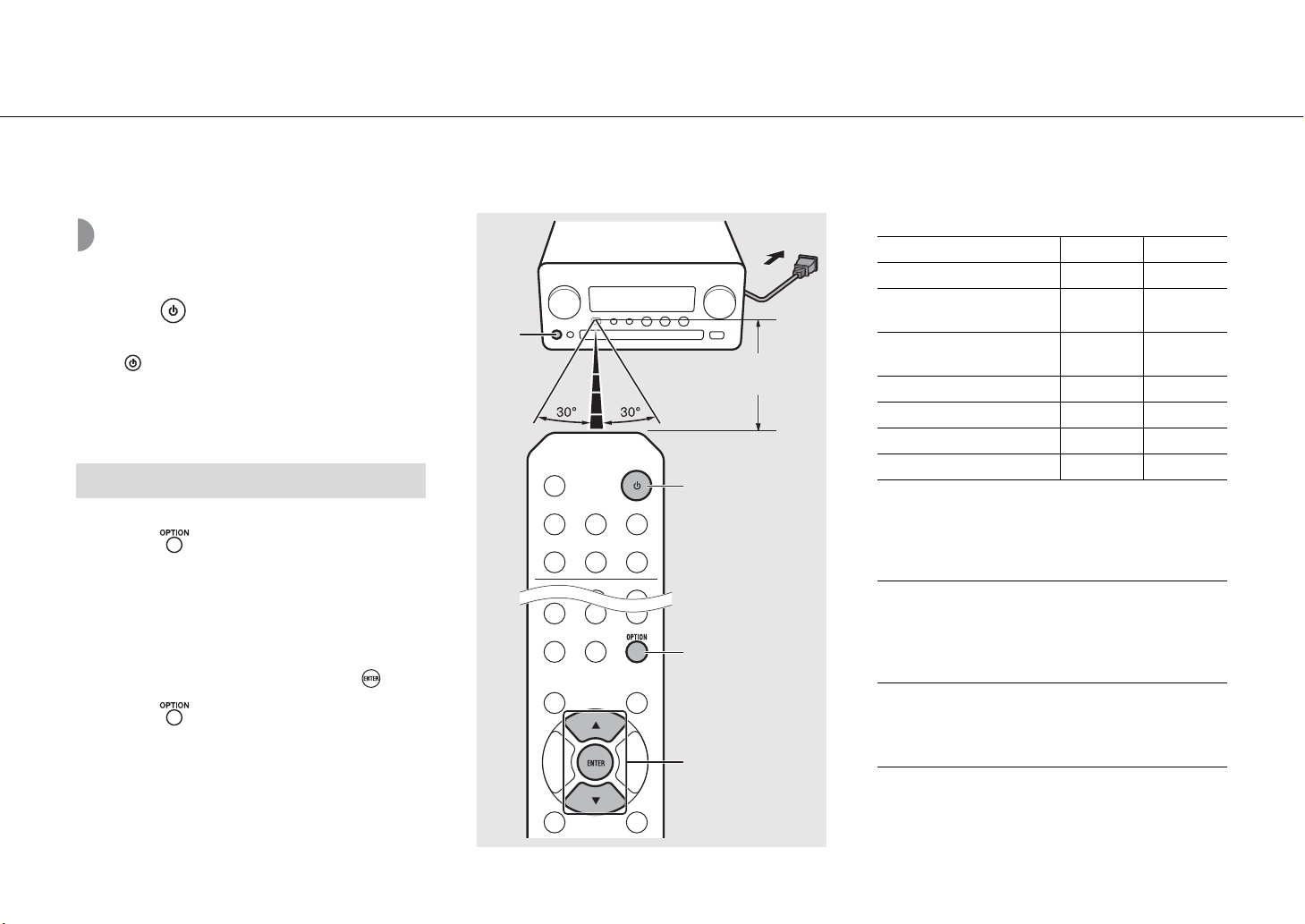
Plug the power cable into the wall outlet
and press .
• The unit turns on.
• Press again to turn off (standby mode).
• “Eco standby” (default) reduces power consumption of
the unit while limiting certain features (as shown in the
table on the right).
1 Press .
• Option menu is shown on the front panel display.
2 Cancel the eco standby.
• Set the item in the order of [System Config] -
[Power Saving] - [Normal].
• Change the item with S/T and press to set.
3 Press to finish the option setting.
Status in standby/eco standby
* Operation with the remote control only
Option menu regarding power (System Config)
Canceling the eco standby
Within 6 m
(20 ft)
A
A
1, 3
OPTION
2
S/T,
ENTER
Standby Eco standby
Charging of iPod/USB devices 3 —
Enable/disable the wake-up
timer*
3 —
Operation of the source
buttons*
33
CD load/eject 33
AirPlay 3 —
Power-on by the application 3 —
Clock display 3 —
(Setting value. Bold: default)
Power Saving
Configure the power supply settings.
(Normal, Eco)
When you select [Eco], nothing is shown on the front
panel display in the eco standby mode.
Auto Power Off
Set the time at which the unit enters standby mode if no
operation is performed.
(Timer 2H, Timer 4H, Timer 8H, Timer 12H, OFF)
En 13
Setting the network devices
Configure your devices connected to the network to play back music files stored on your PC or NAS, or configure your mobile device to control this unit.
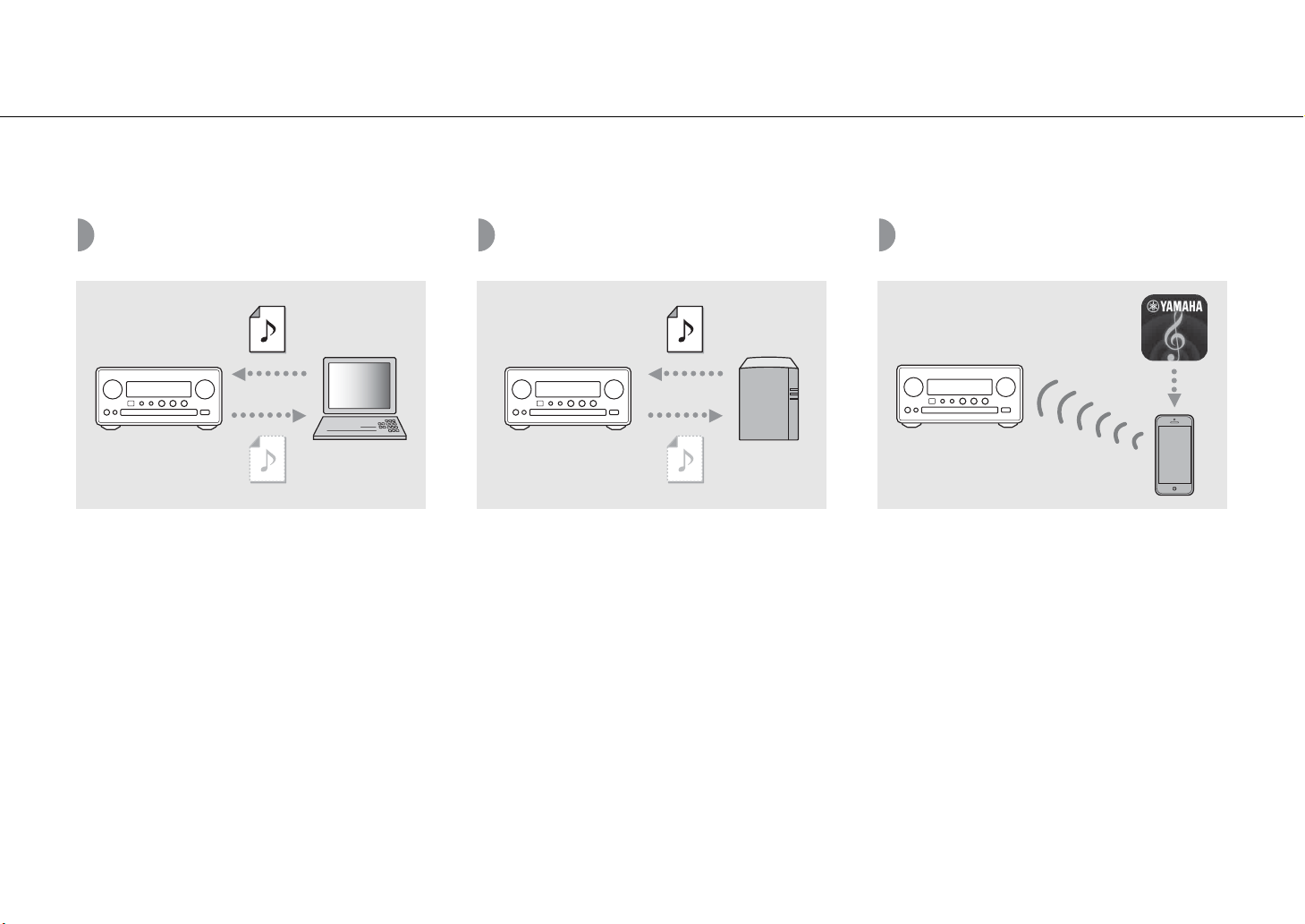
PC
Configure the media sharing setting of
your PC (& P.17).
NAS
Configure the settings to access your NAS.
• Enable DHCP setting of your NAS if needed.
• For more detailed settings, refer to the owner’s manual
supplied with your NAS.
Mobile devices
Install the dedicated application
“NETWORK PLAYER CONTROLLER” to your
mobile devices (& P.18).
• The application supports iPhone/iPad/iPod touch and
Android mobile devices.
• The mobile device needs to be connected to the same
router as the unit.
14 En
Listening to CD
This unit allows playback of audio CDs and data CDs in which the MP3/WMA files are recorded.
For details on playable CDs, see “Supported devices/medias” (P.43).
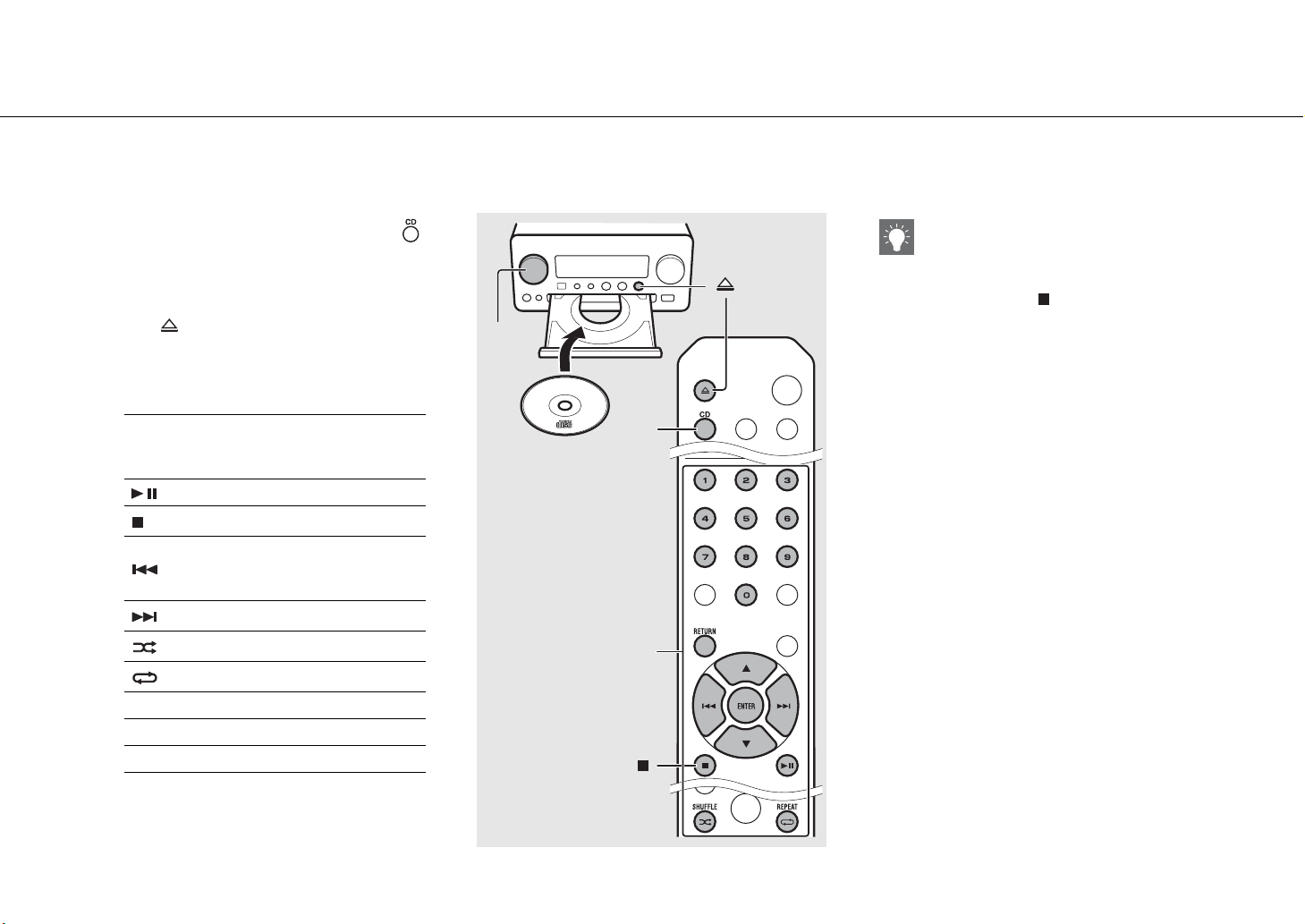
1 Turn INPUT to select [CD]. Or, press
on the remote control.
2 Set a CD in a disc tray.
• Press to open/close the disc tray.
3 Playback starts.
• The remote control functions are shown below.
S
T
Skip to the first file of the previous or
next folder when playing back MP3/
WMA files.
Play/pause
Stop
Skip to the beginning of the song
being played back or the previous
song.
Skip to the next song.
Starts shuffle playback (& P.20).
Starts repeat playback (& P.20).
1 - 9, 0 Specify the song number.
RETURN Cancel the song number.
ENTER Apply the song number.
2
1
INPUT
1
CD
3
• Files on a data CD are played back in
alphanumeric order.
• When CD playback is stopped, playback will
resume from the beginning of the song last
played. Pressing while playback is stopped will
clear resume playback.
En 15
Listening to iPod/USB devices
This unit allows playback of iPod or USB devices which music files are recorded.
For details on playable iPod/USB devices, see “Supported devices/media and file formats” (P.43).
Playing iPod
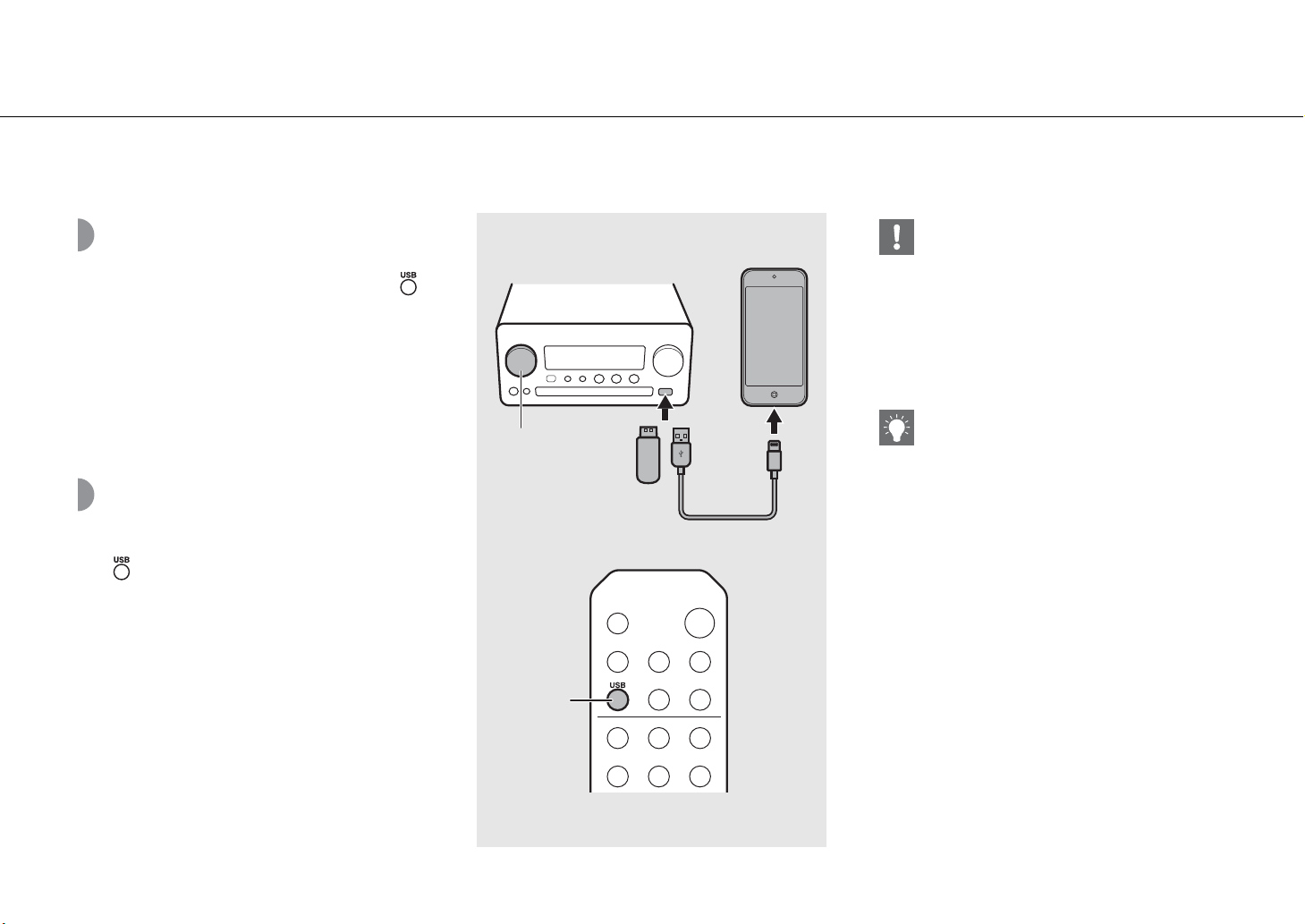
1 Turn INPUT to select [USB] or press
on the remote control.
2 Connect the iPod to the USB jack.
• Prepare the USB cable supplied with your iPod.
• The source changes to [iPod].
3 Playback starts (& P.16).
Playing USB devices
1 Turn INPUT to select [USB]. Or, press
on the remote control.
2 Connect a USB device to the USB port.
3 Playback starts (& P.16).
1
INPUT
1
USB
2
• Some iPods/USB devices may not work properly
even if they meet the requirements. Playability of
and power supply to all iPods/USB devices are not
guaranteed.
• Yamaha and suppliers do not accept any liability
for the loss of data saved on an iPod or a USB
device connected to the unit. As a precaution, it is
recommended to make backup copies of
important files.
• Stop playback before disconnecting the USB
device.
• An iPod or USB device is automatically charged
when it is connected to the unit, except in the eco
standby mode.
Listening to iPod/USB devices
16 En
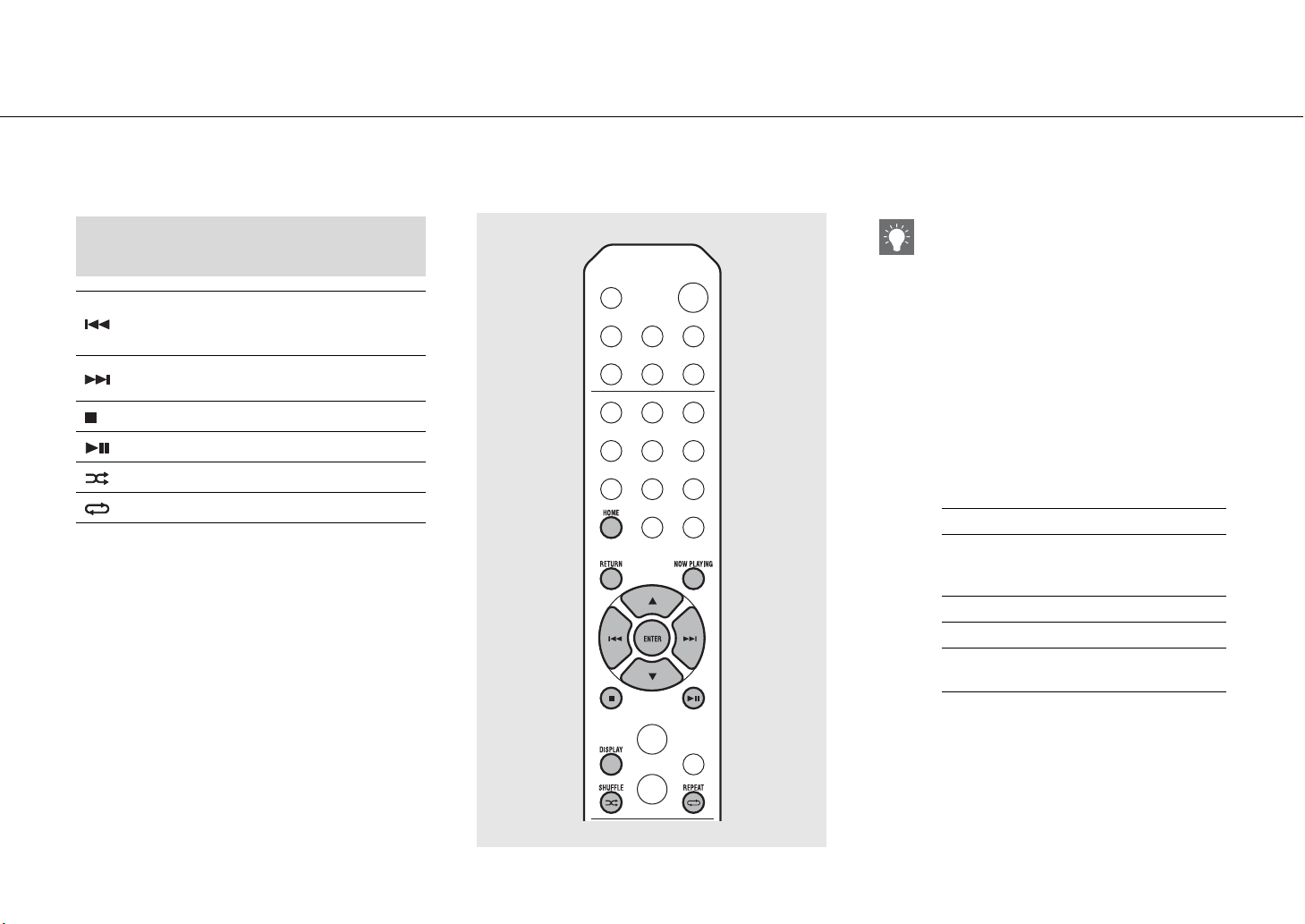
Remote control operation for iPods/USB
devices
Skip to the beginning of the song being
played back or previous song (for iPod, press
and hold to fast rewind).
Skip to the next song (for iPod, press and
hold to fast forward).
Stop
Play/pause
Shuffle playback (& P.20)
Repeat playback (& P.20)
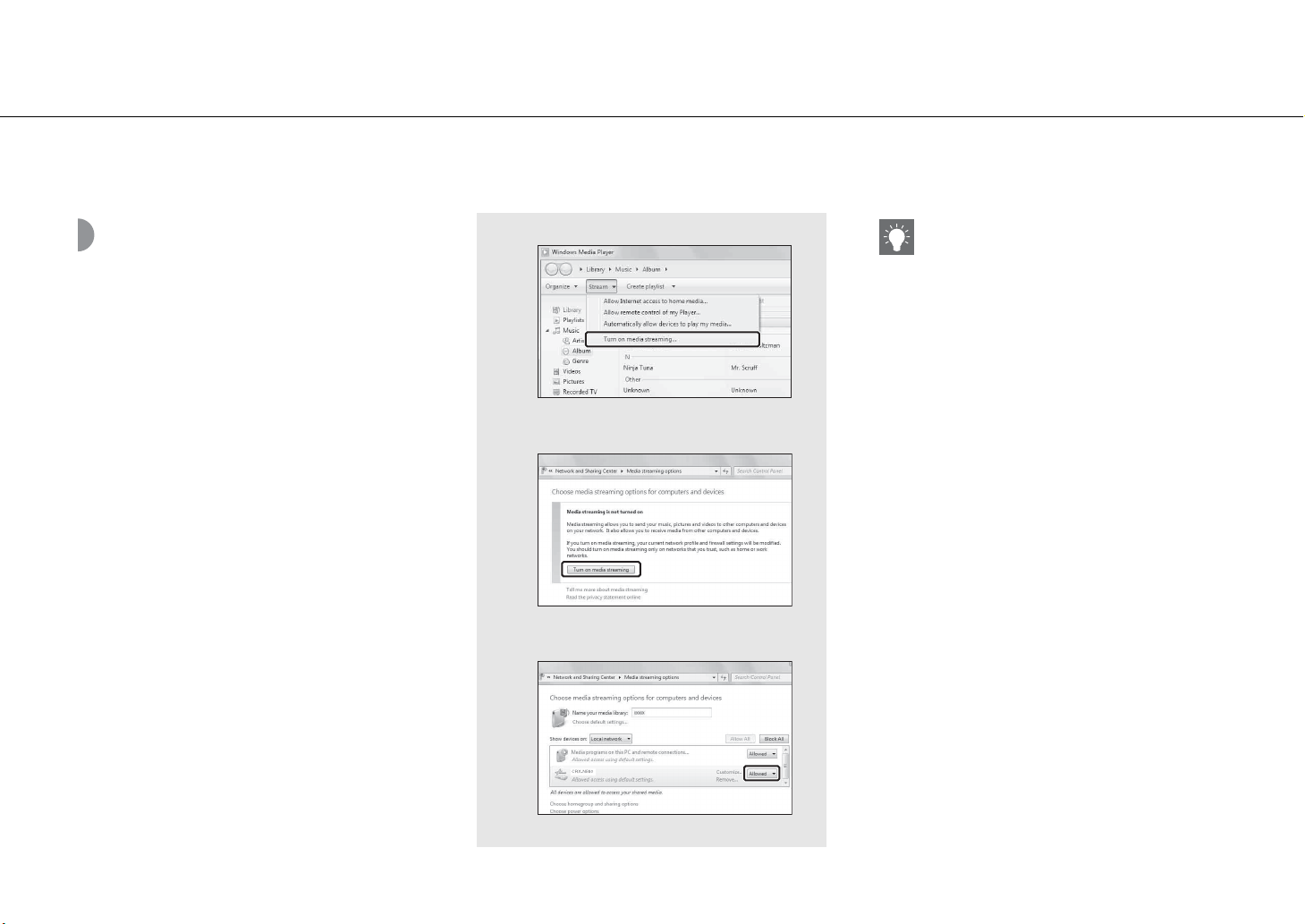
Switching the information display of iPod
• When operating your iPod with Yamaha’s
application “NETWORK PLAYER CONTROLLER,” the
information display switches to the extended
mode.
To switch the information display mode, press and
hold the DISPLAY button.
- Standard mode (default): Operate your iPod
while viewing the screen of the iPod and select
a song to play back.
- Extended mode: Operate the remote control
while viewing the iPod information shown on
the front panel display (browsing operation)
and select a song to play back. The remote
control functions are as shown below.
S/T Show other item.
ENTER
Confirm the selected item and
proceed to the next level or start
playback.
HOME Show the top-level item.
RETURN Back to the previous item.
NOW
PLAYING
Finish browsing and display the
playback content information.
En 17
Listening to the songs in the computer
This unit allows you to play back music files such as MP3, WMA, or FLAC (lossless audio data compression format) files stored in the computer (server) connected to
the network or NAS. Brows the front panel display and select your favorite music file.
Setting the media
sharing of music files
To play back music files in your computer with this unit,
you need to make the media sharing setting between the
unit and computer (Windows Media Player 11 or later). In
here, setting with Windows Media Player 12 in Windows 7
is taken as an example.
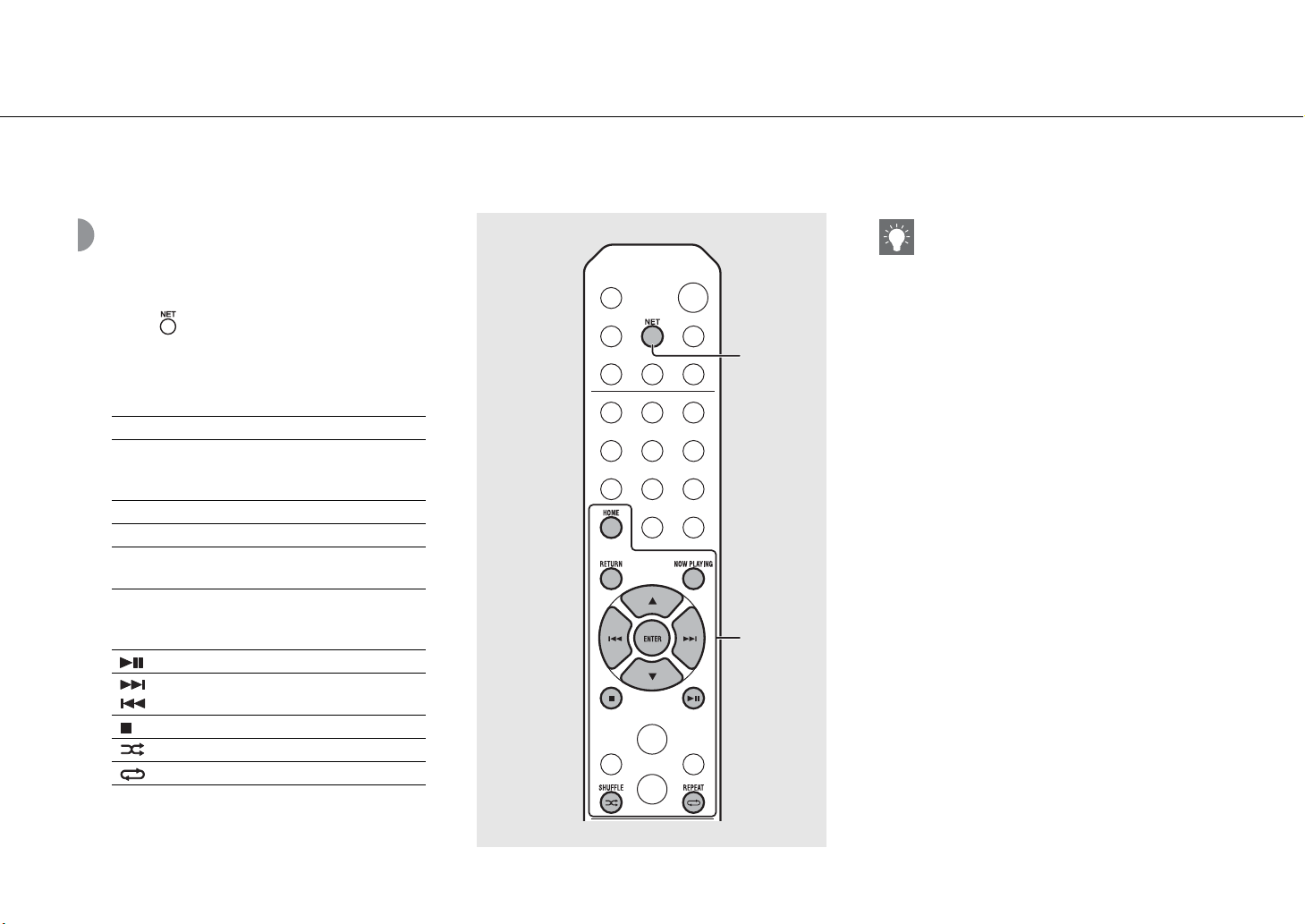
1 Start Windows Media Player 12 on
your PC.
2 Select “Stream”, then “Turn on media
streaming.”
• The control panel window of your PC is shown.
3 Click “Turn on media streaming.”
4 Select “Allowed” from the drop-down
list next to “CRX-N560D.”
5 Click “OK” to exit.
2
3
4
• For details on media sharing settings, refer to
Windows Media Player help.
For Windows Media Player 11
1 Start the Windows Media Player 11 on your PC.
2 Select “Library” then “Media Sharing.”
3 Check the “Share my media to” box, select the
“CRX-N560D” icon, and click “Allow.”
4 Click “OK” to exit.
For a PC or a NAS with other DLNA server
software installed
Refer to the owner’s manual of your device or
software and configure the media sharing settings.
Listening to the songs in the computer
18 En
Playing back songs in
the PC
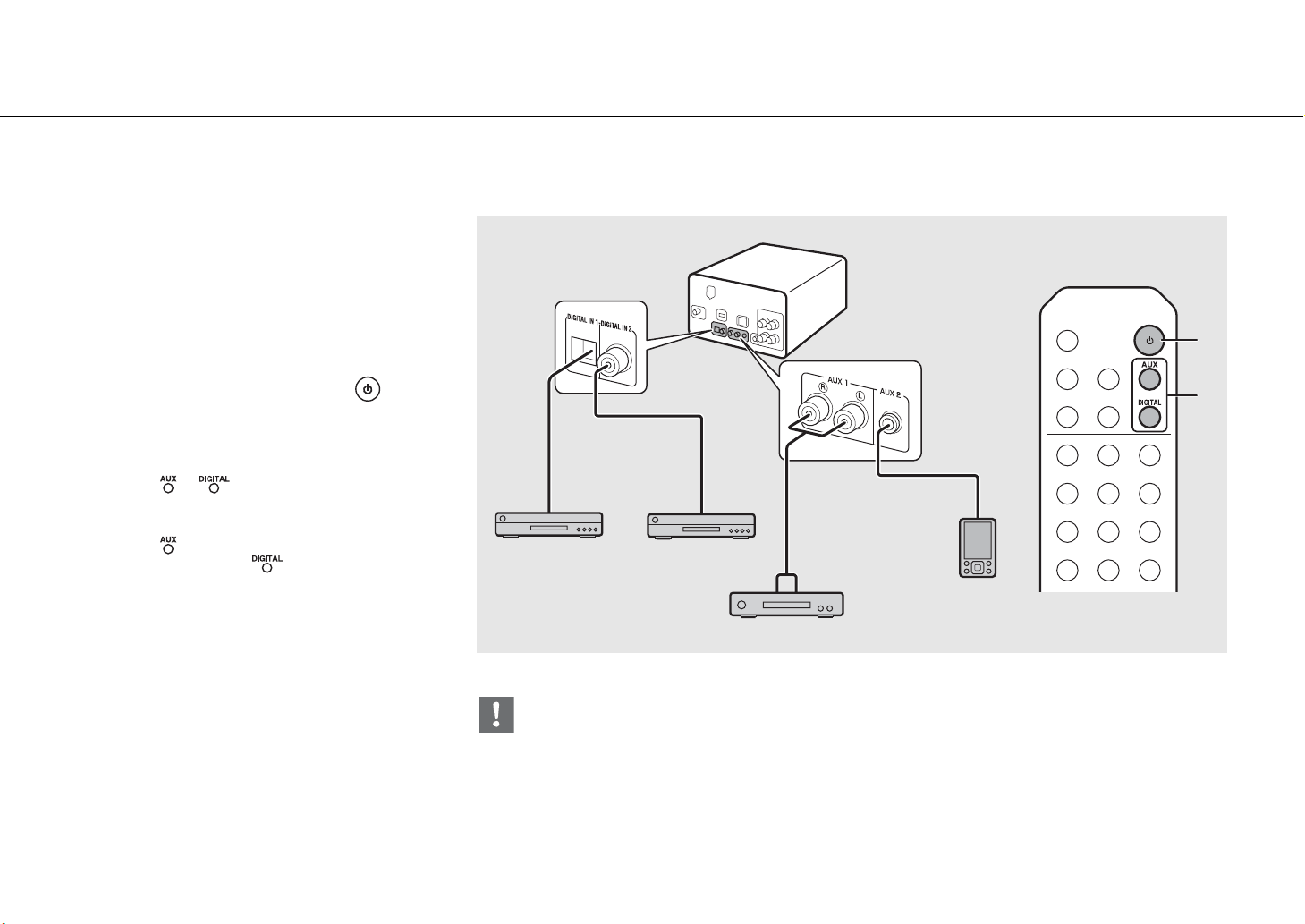
1 Press repeatedly and select
[Server].
2 Browse and select a song.
3 Start playback.
S/T Show other item.
ENTER
Confirm the selected item and
proceed to the next level or start
playback.
HOME Show the top-level item.
RETURN Back to the previous item.
NOW
PLAYING
Finish browsing and display
playback content information.
Play/pause
/ Move to the next or previous song
in the folder.
Stop
Shuffle playback (& P.20)
Repeat playback (& P.20)
1
NET
2, 3
• If playback is not possible, make sure this unit and
the PC (server) are connected to the same router
(& P.11).
Operating from your mobile device
Once you install the app “NETWORK PLAYER
CONTROLLER” in your mobile device, you can
operate the unit with the mobile device.
• Features
- Power-on/off, adjusting volume or other basic
operation
- Changing the music source
- Displaying the information of the radio tuner
- Selecting, playing back, and stopping songs
- Playing back songs stored in devices
For downloading the app or the latest information,
access to the App Store or Google Play and search
“NETWORK PLAYER CONTROLLER.”
En 19
Listening to external sources
This unit allows playback of external devices, such as a DVD player or mobile music player. Use the terminal (DIGITAL IN 1/2 or AUX 1/2) according to the device to
be connected (& P.6). For the connection of each external device, refer to its supplied owner’s manual.
1 Unplug the power cable of the unit
and connect the external device to the
unit.
• Prepare commercially available cables for
connection.
2 Plug the power cable of the unit back
into the wall outlet and press to
turn the unit on.
3 Change the music source.
• Press or according to the connecting
terminal for the external device you wish to play
back.
• Press to change the source to AUX1/AUX2
(analog input), press to change the source
to DIGITAL IN1/DIGITAL IN2 (digital input).
4 Play back the connected external
device.
• For details on playback, refer to the owner’s
manual supplied with the external device.
• Decrease the volume of the unit and the external device before connection. Otherwise, playback volume may be
too loud.
1
RCA stereo
cable
DVD disc player, etc.
3.5 mm stereo
mini-plug cable
Mobile music
player
2
A
3
Optical cable
Coaxial digital audio
cable
Blu-ray disc player, etc.
20 En
More on playback
You can enjoy music in varied song order or sound quality, and view music information during playback.
Operations described in this section apply to all devices, such as PC (server), iPod, USB device, or CD.
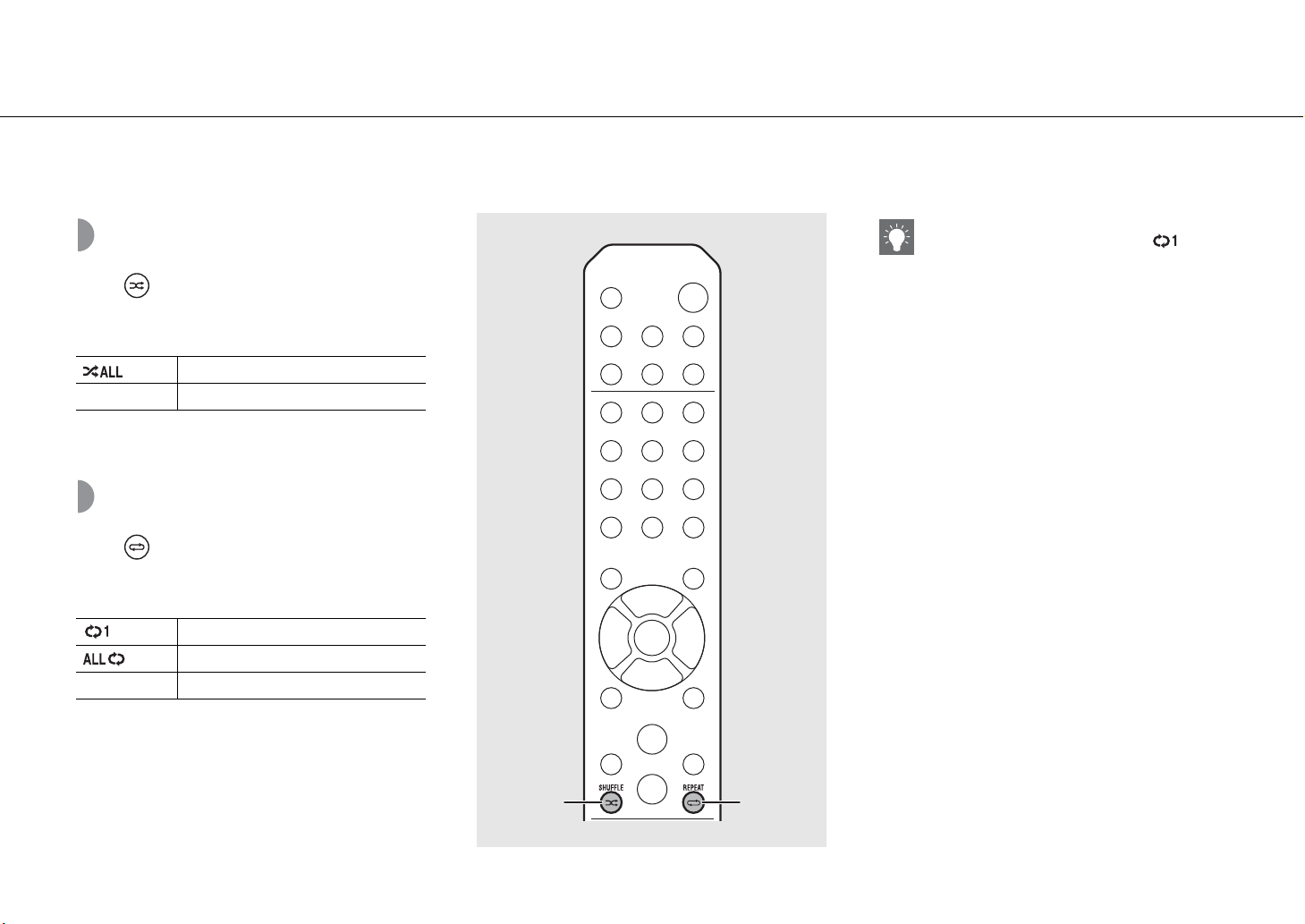
Shuffle playback
Press during playback.
• The shuffle indicator in the front panel display switches
as shown below each time you press the button.
* The range of shuffle depends on the media being played
back.
Repeat playback
Press during playback.
• The repeat indicator in the front panel display switches
as shown below each time you press the button.
* The range of repeat depends on the playback media.
Perform shuffle playback.*
Not displayed Does not perform shuffle playback.
Repeat the song being played back.
Perform repeat playback.*
Not displayed Does not perform repeat playback.
REPEAT SHUFFLE
• Shuffle playback and repeat playback can be
performed at the same time (except ).
More on playback
En 21
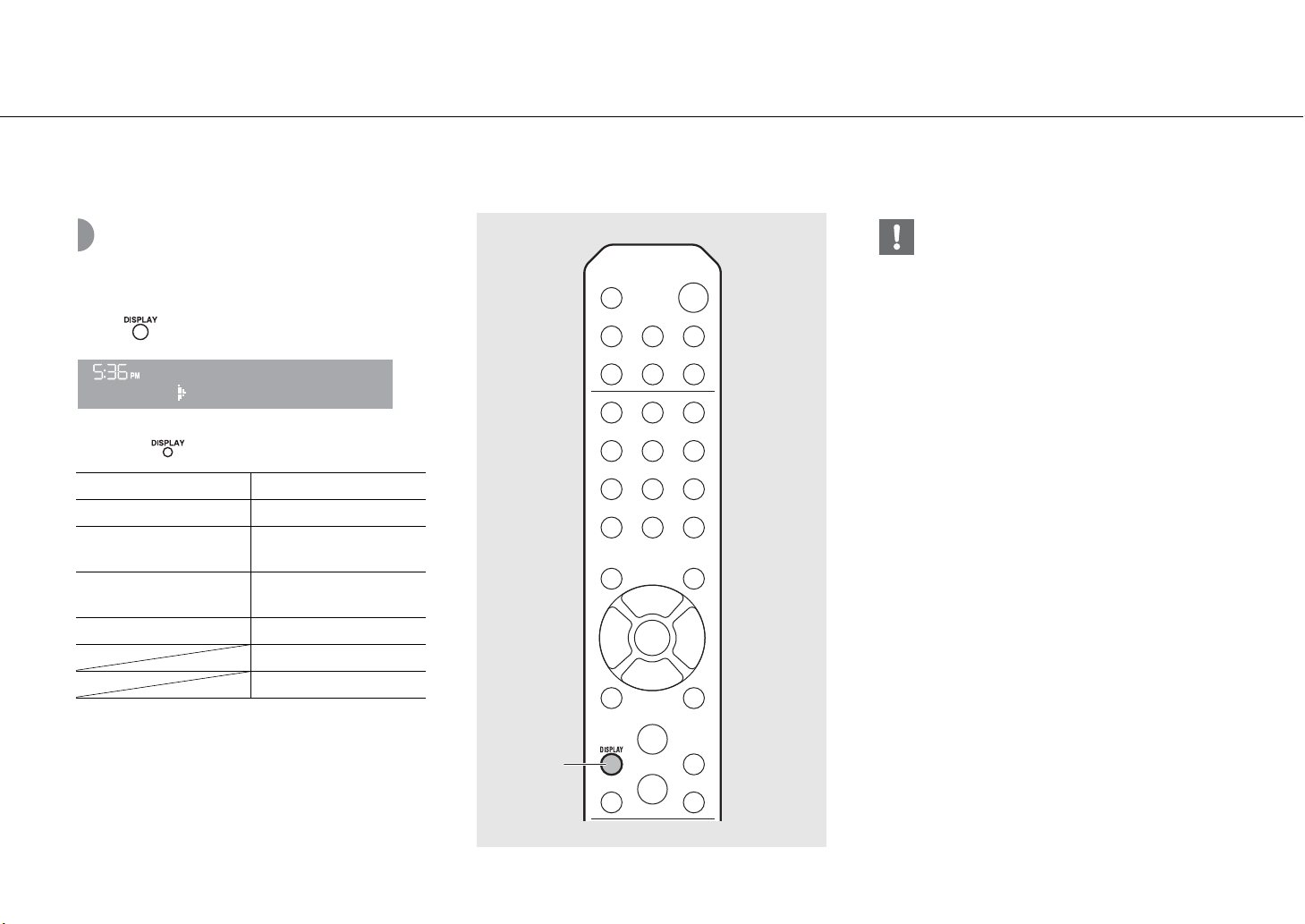
Playback information
Song title, elapsed time, etc., can be shown on the front
panel display.
Press during playback.
• Display switches in the order as shown below each time
you press .
*1 If the song title cannot be obtained, the file title may be
displayed.
*2 Only when playing an audio CD.
*3 Only when playing an audio CD and when there is
information to display.
USB/iPod/AirPlay/Server CD
Song title*
1
Playing time
Album tile
Remaining time of the
song*
2
Artist name
Remaining time of the
disc*
2
Playing time Song title*
1, 3
Album tile*
3
Artist name*
3
AL
M
B
e
U
t
M
eora
DISPLAY
• Characters shown on the front panel display are
alphanumerics only.
• Information is not displayed when the iPod display
mode is the standard mode (& P.16).
More on playback
22 En
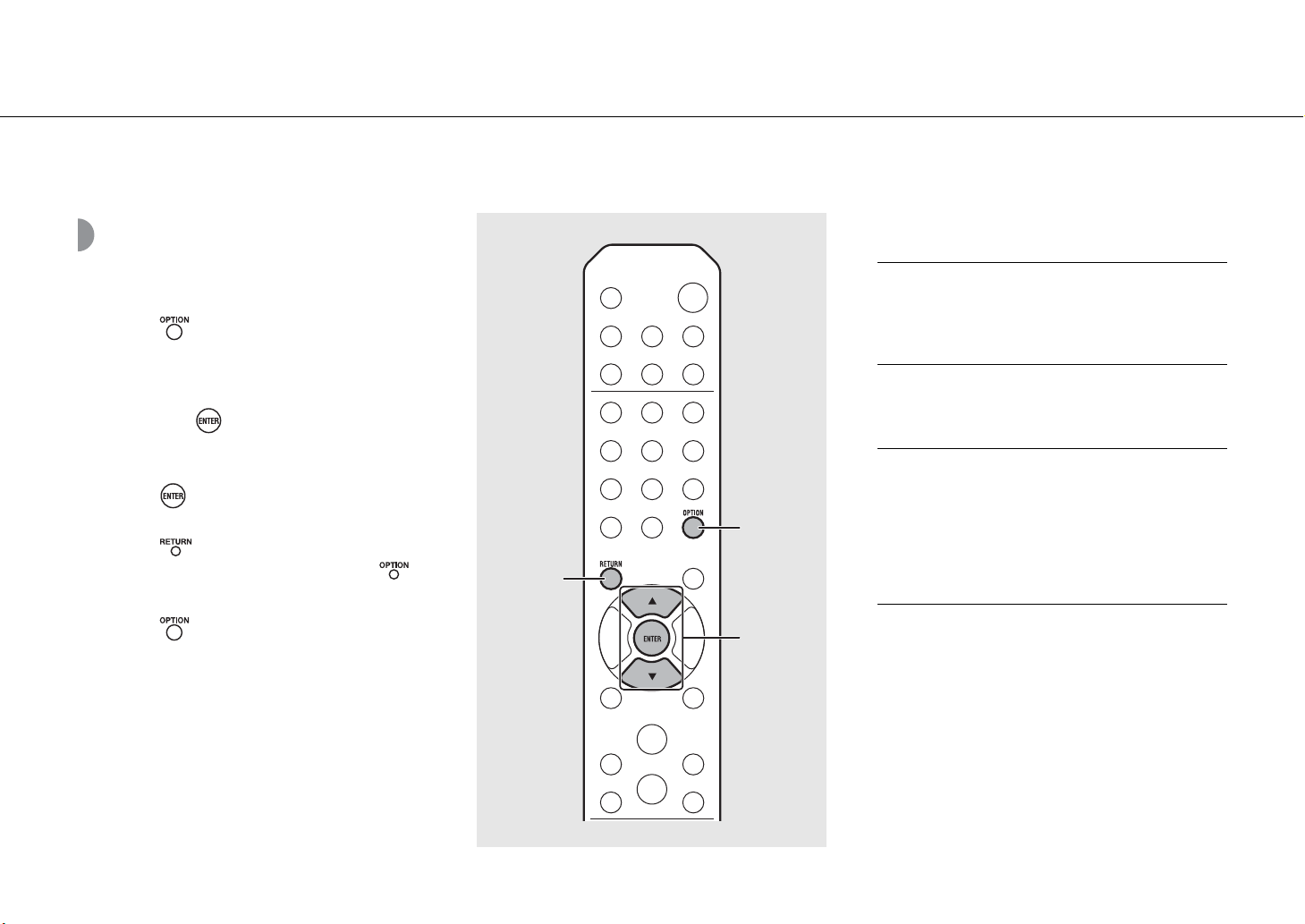
Adjusting sound quality
Use the option setting to adjust sound quality.
1 Press .
• Option menu is shown on the front panel display.
2 Press S/T to select the desired item
and press .
3 Press S/T to change the setting and
press .
• The setting is applied.
• Press to return to the previous item.
• To cancel the sound quality setting, press .
• To set other items, repeat steps 2 and 3.
4 Press to finish the option setting.
Option menu regarding sound quality
1, 4
OPTION
2, 3
S/T,
ENTER
RETURN
(Setting value. Bold: default)
Equalizer
Adjusts low frequency [EQ Low], middle frequency [EQ
Mid], and high frequency [EQ High]. The setting is also
applied when using headphones.
(-10 to 0 to +10)
Balance
Adjusts the volume balance of the left and right speakers.
This setting is not applied when using headphones.
(Lch. +10 to --CENTER-- to Rch.+10)
Music Enhancer
Regenerates musical elements that are lost through
compression.
(ON, OFF)
When playing back a high quality music source, such as
FLAC or WAV, it is recommended to set to [OFF]. When
playing back an audio CD that has not been compressed,
this function is not available even if [ON] is set.
En 23
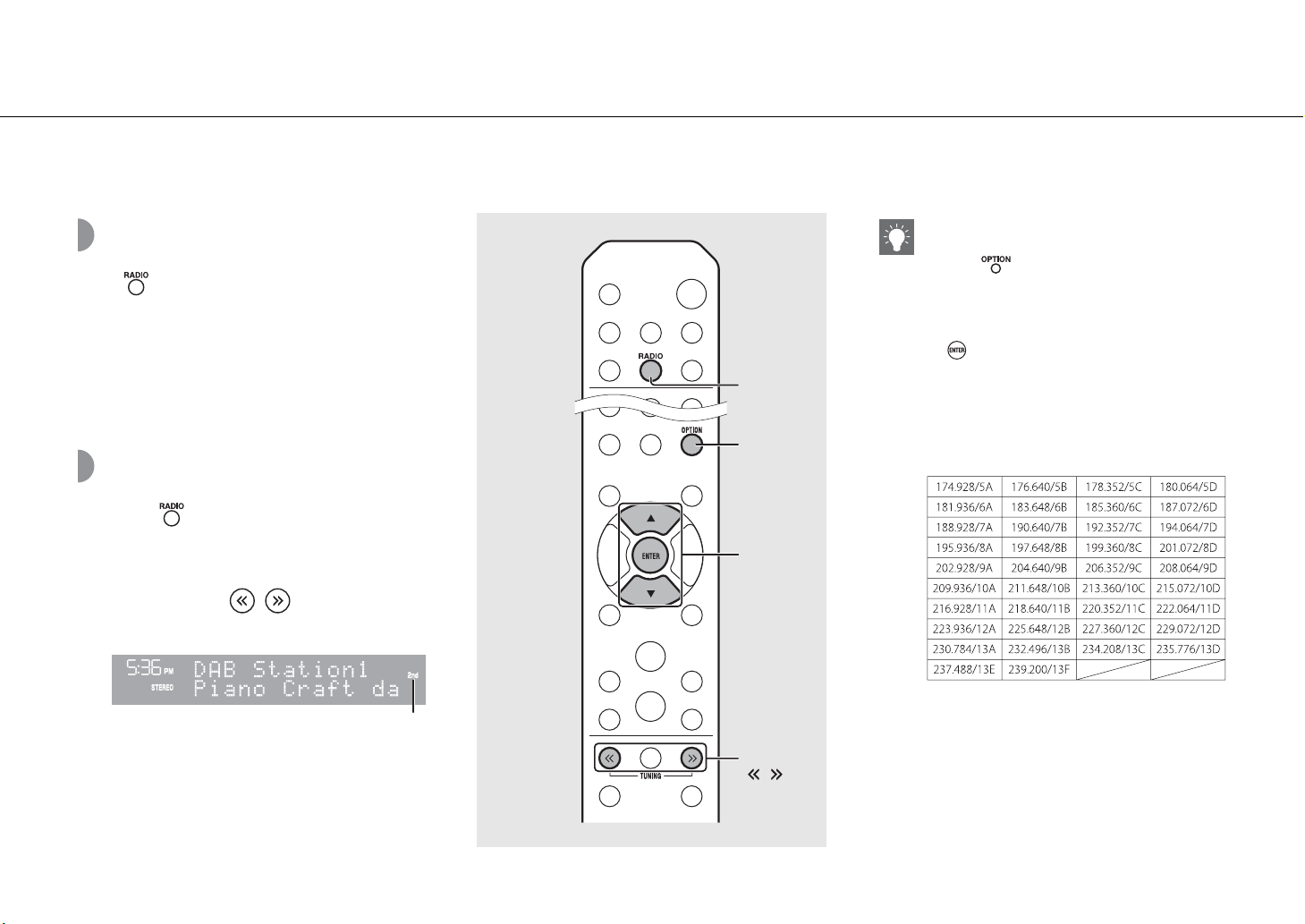
Listening to DAB stations
You can listen to radio of higher quality sound with Digital Audio Broadcasting (DAB) and DAB+ (upgraded version of DAB).
Connect the supplied antenna (& P.10) and perform an initial scan before you tune into DAB for the first time.
Initial scan
Press repeatedly to select [DAB].
• Initial scan starts automatically when you select [DAB]
for the first time.
• When scanning is complete, the number of receivable
DAB stations is shown on the front panel display
momentarily, and the first station stored in station order
is played.
Tuning in DAB stations
1 Press repeatedly to select [DAB].
• When the unit cannot receive the DAB signal, “Off
Air” is shown on the front panel display.
2 Press TUNING / to select a DAB
station.
Secondary indicator
(appears if station has a sub station)
1
RADIO
2
TUNING
/
S/T,
ENTER
OPTION
• You can also perform initial scan from the option
setting.
1 Press when the source is DAB.
- Option menu is shown on the front panel
display.
2 Press S/T to select [Initial Scan] and press
.
- Initial scan starts and finishes automatically.
• If the initial scan is performed, stored DAB station
information and preset DAB stations are cleared.
• This unit can receive only Band III DAB frequencies.
Frequency in MHz/Channel label
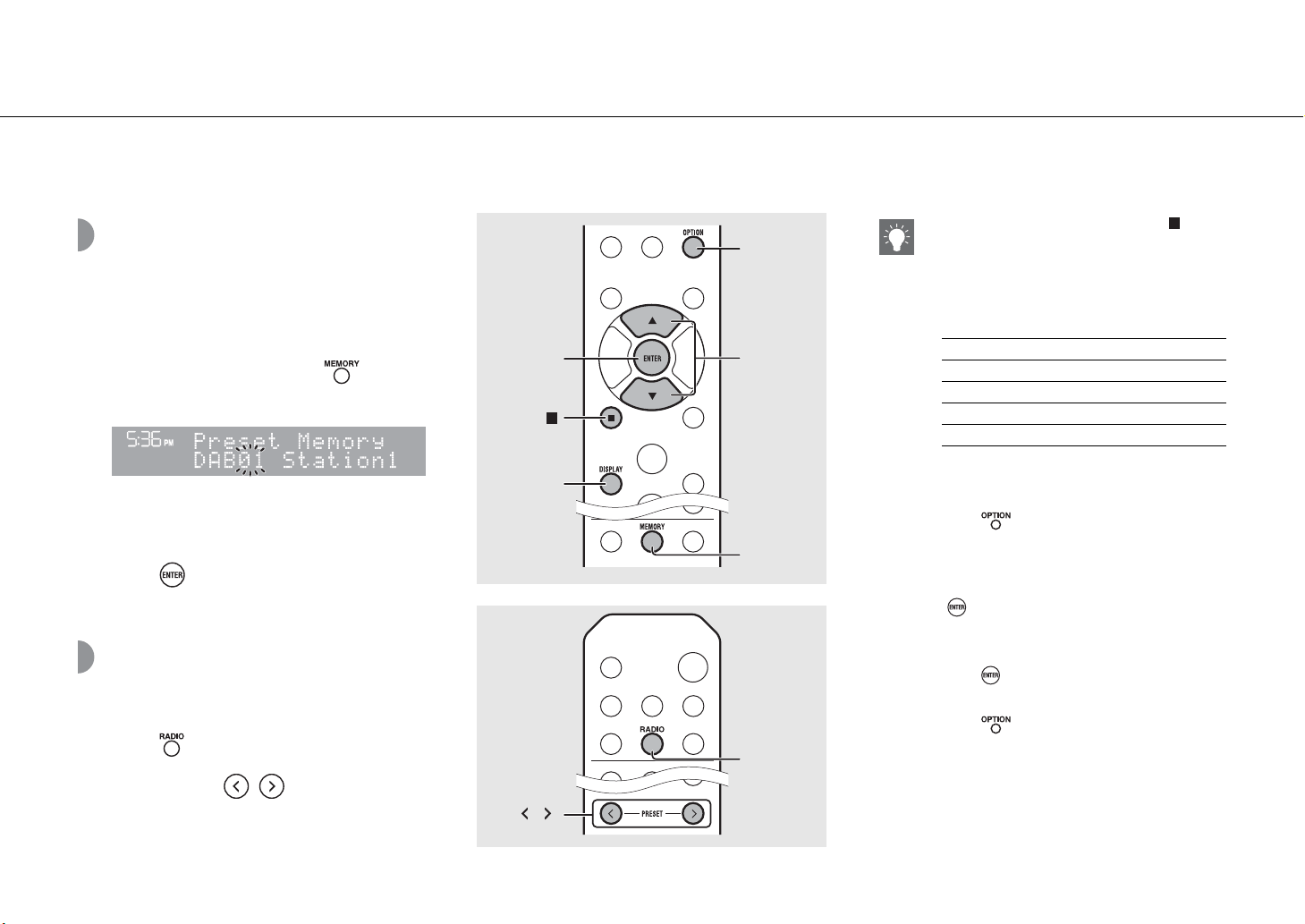
Listening to DAB stations
24 En
Presetting DAB stations
Use the preset function to store your favorite 30 DAB
stations.
1 Tune in a DAB station you want to
preset (& P.23) and press .
• Preset number flashes on the front panel display.
2 Press S/T to select the desired preset
number.
3 Press to completes presetting.
Selecting preset DAB
stations
1 Press repeatedly to select [DAB].
2 Press PRESET / to select a
preset station.
OPTION
1
MEMORY
3
ENTER
S/T
2
DISPLAY
1
RADIO
2
PRESET
/
• To cancel the DAB preset setting, press .
• You can change the information of the DAB
station shown on the front panel display by
pressing the DISPLAY button. Display switches in
the order as shown below each time you press the
DISPLAY button.
Deleting a preset station
Use the option setting to delete a preset station.
1 Press when the source is DAB.
- Option menu is shown on the front panel
display.
2 Press S/T to select [Preset Delete] and press
.
3 Press S/T to select the preset number to be
deleted.
4 Press .
- A preset station is deleted.
5 Press to finish the option setting.
DLS (Dynamic Label Segment) (default)
ENSEMBLE
CHANNEL/FREQ (Channel label and frequency)
SIGQ. (signal quality)
AUDIO FORMAT
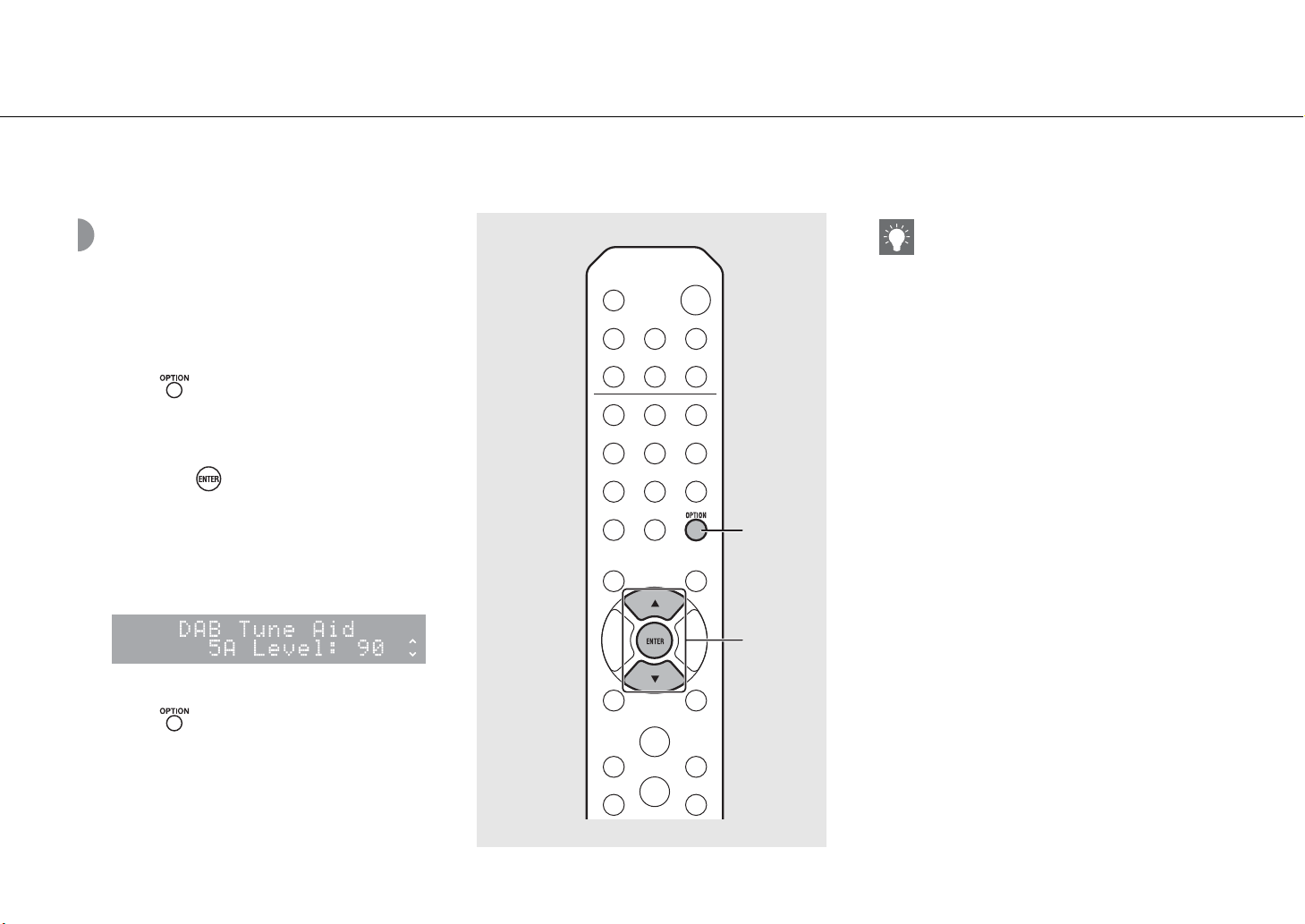
Listening to DAB stations
En 25
Confirming the
reception
You can confirm the DAB signal level. This is useful when
you set the antenna.
1 Press when the source is [DAB].
• Option menu is shown on the front panel display.
2 Press S/T to select [DAB Tune Aid]
and press .
3 Press S/T to change the channel
label.
• The measured DAB signal reception level is
displayed.
• The level is from 0 (none) to 100 (best).
4 Press to finish the option setting.
1, 4
OPTION
2, 3
S/T,
ENTER
• When performing DAB Tune Aid and the DAB
signal is weak, try adjusting the position of the
antenna to obtain good reception.
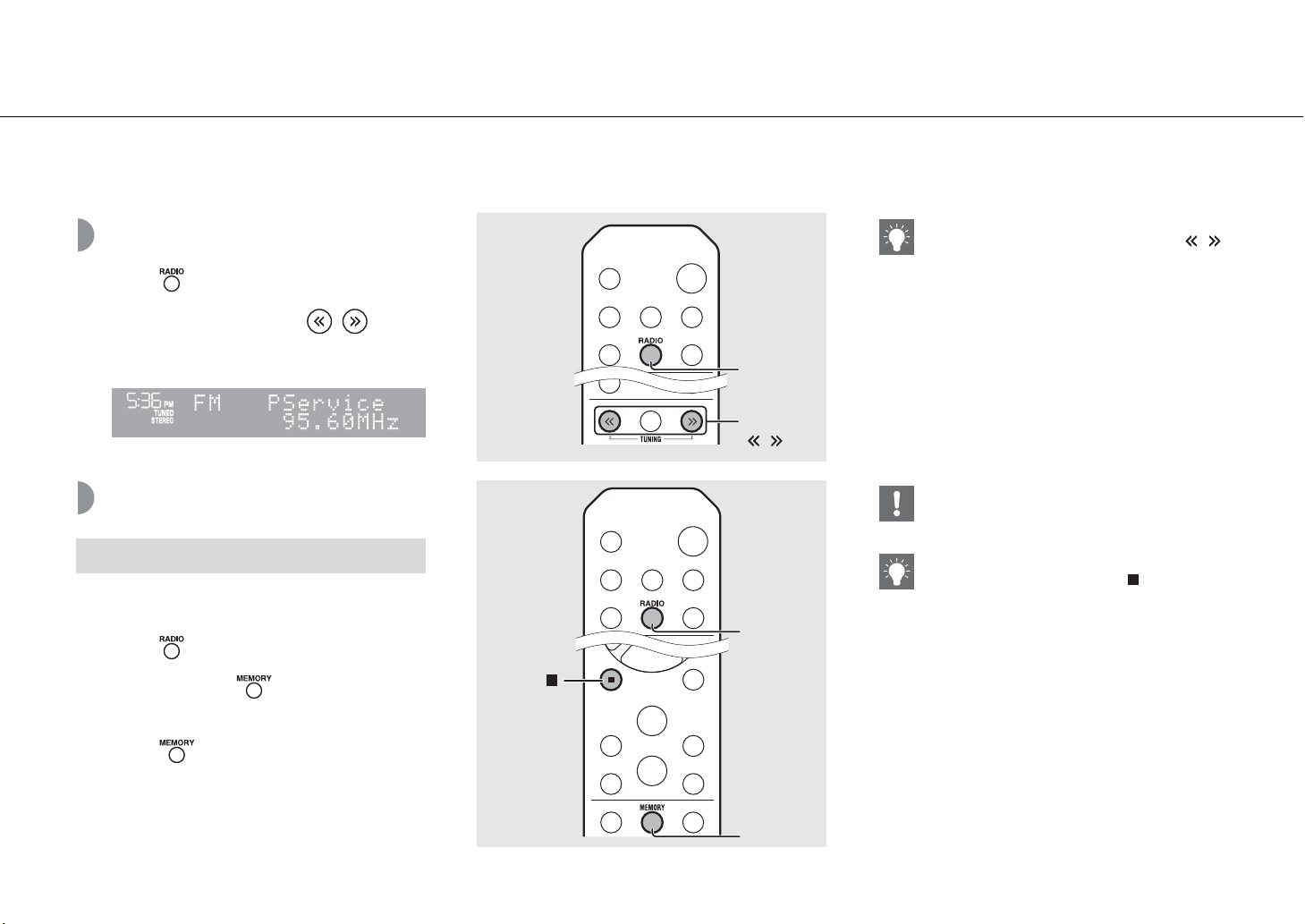
26 En
Listening to FM radio stations
To listen to FM radio stations, connect the supplied antenna.
See “Connecting antenna” (P.10) for connecting the antenna to the unit.
Tuning in FM stations
1 Press .
2 Press and hold TUNING / .
• Automatic tuning starts, then stops automatically
when a station is tuned in.
Presetting FM stations
Tunes in stations with good reception and presets them
automatically.
1 Press .
2 Press and hold for 2 seconds or
more.
3 Press .
• Auto preset starts and when it finishes,
“Completed!” is shown on the front panel display.
Auto preset
1
RADIO
2
TUNING
/
1
RADIO
2, 3
MEMORY
• If station reception is weak, you can tune into a
station manually by pressing the TUNING /
button repeatedly.
• Auto preset replaces all currently-stored stations
with newly-stored stations.
• You can preset up to 30 FM stations.
• To cancel the auto preset, press .
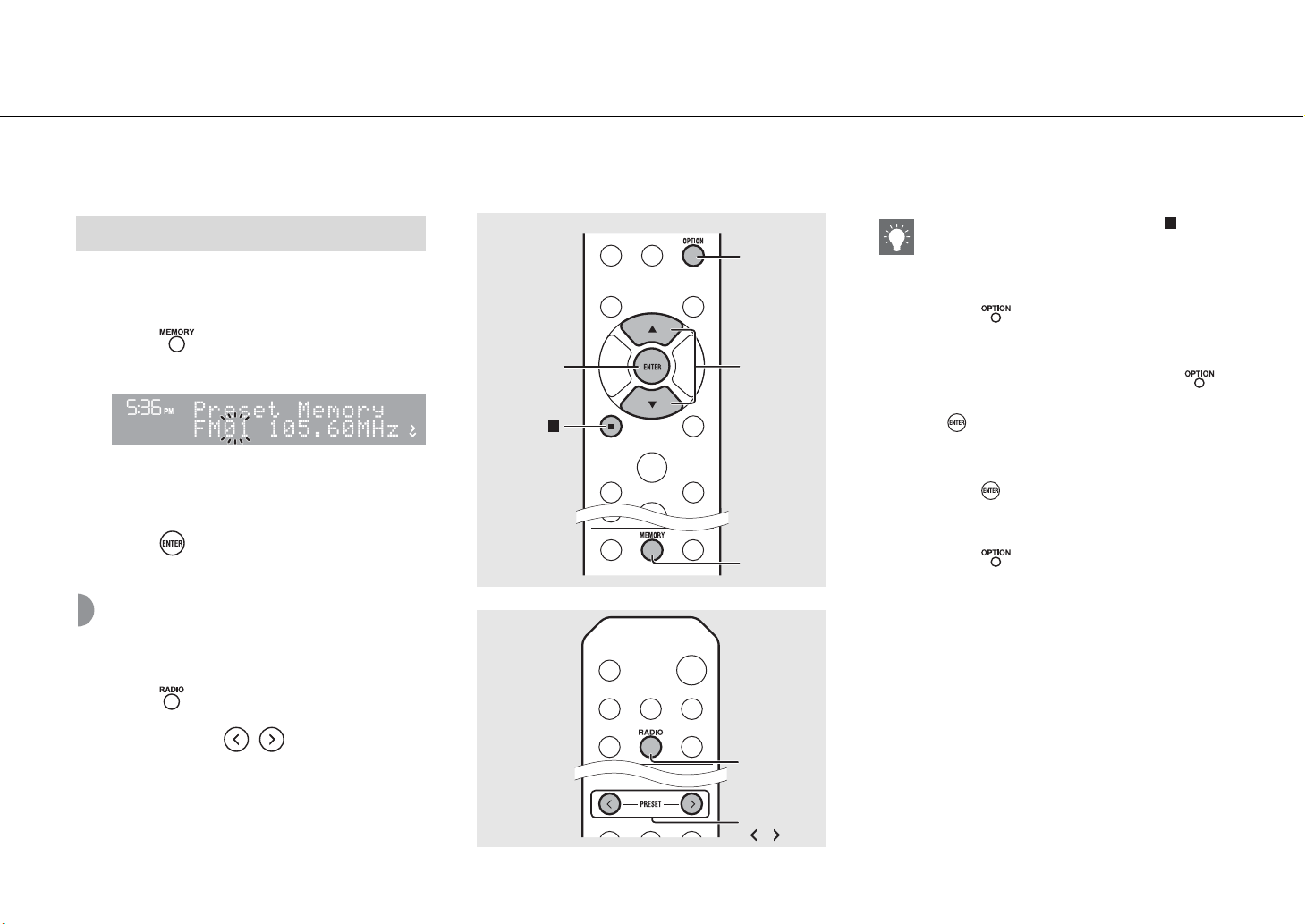
Listening to FM radio stations
En 27
1 Tune into a station you want to store
(& P.26).
2 Press .
• Preset number flashes on the front panel display.
3 Press S/T to select the desired preset
number.
4 Press to preset the station.
Selecting preset FM
stations
1 Press .
2 Press PRESET / to select a
station.
Manual preset
4
ENTER
S/T
OPTION
3
2
MEMORY
1
RADIO
2
PRESET
/
• To cancel manual preset setting, press .
Deleting a preset station
Use the option setting to delete a preset station.
1 Press when the source is FM.
- Option menu is shown on the front panel
display.
- To cancel deleting preset stations, press .
2 Press S/T to select [Preset Delete] and press
.
3 Press S/T to select the preset number to be
deleted.
4 Press .
- The preset station is deleted and [Deleted!] is
shown on the front panel display.
5 Press to finish the option setting.
Listening to FM radio stations
28 En
Radio Data System
(U.K. model only)
The unit can receive Radio Data System information.
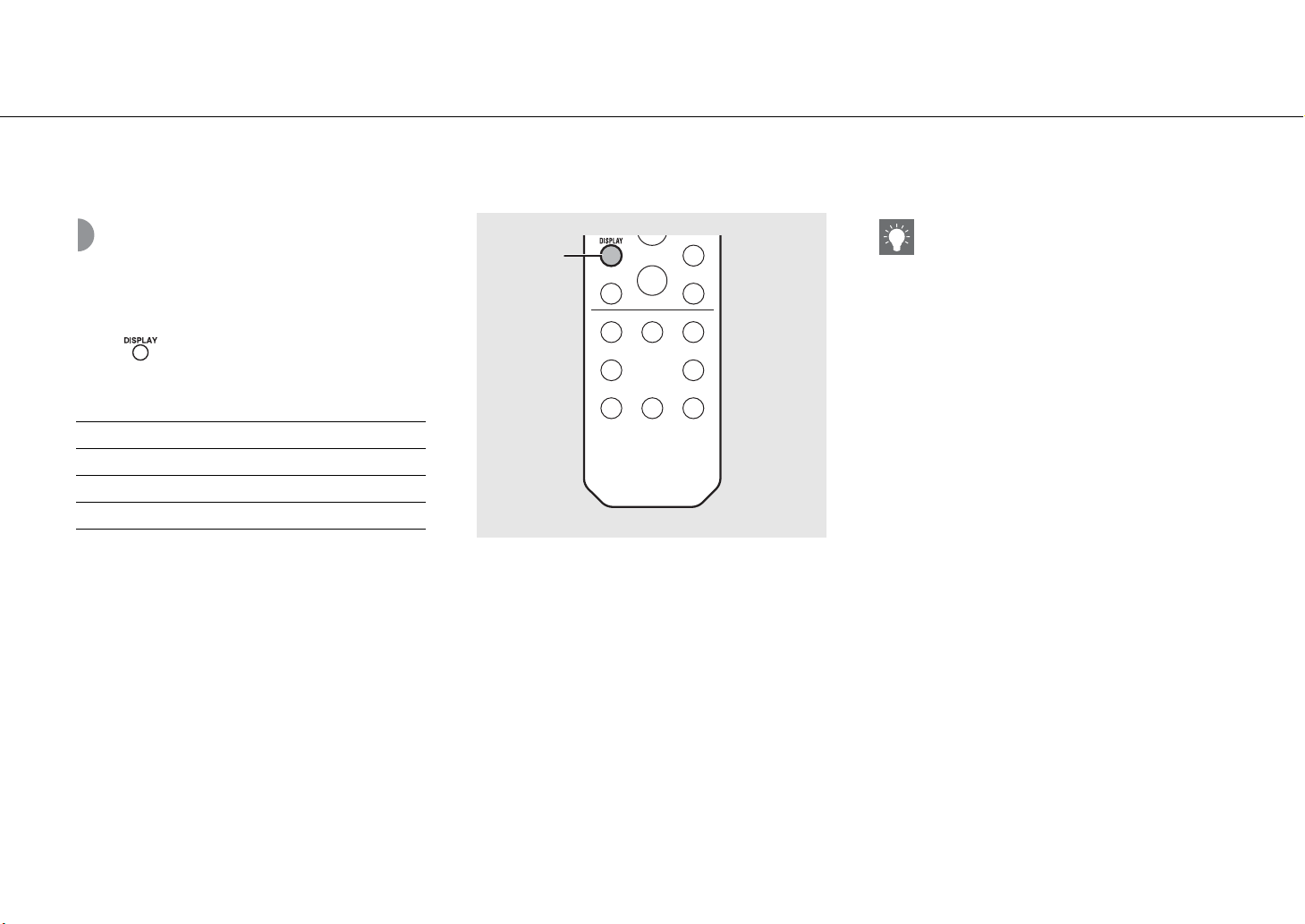
Press when the source is FM.
• Each press of the button changes the information
displays shown below.
Frequency (default)
PTY (Program Type)
RT (Radio Text)
CT (Clock Time)
DISPLAY
• If the signal transmission of the Radio Data System
station is too weak, this unit may not be able to
receive Radio Data System information
completely. In particular, RT (Radio Text)
information uses a lot of bandwidth, so it may be
less available compared to other types of
information.
En 29
Listening to Internet radio
You can listen to world-wide radio stations via Internet.
Make sure that the unit is connected to the Internet properly (& P.11).
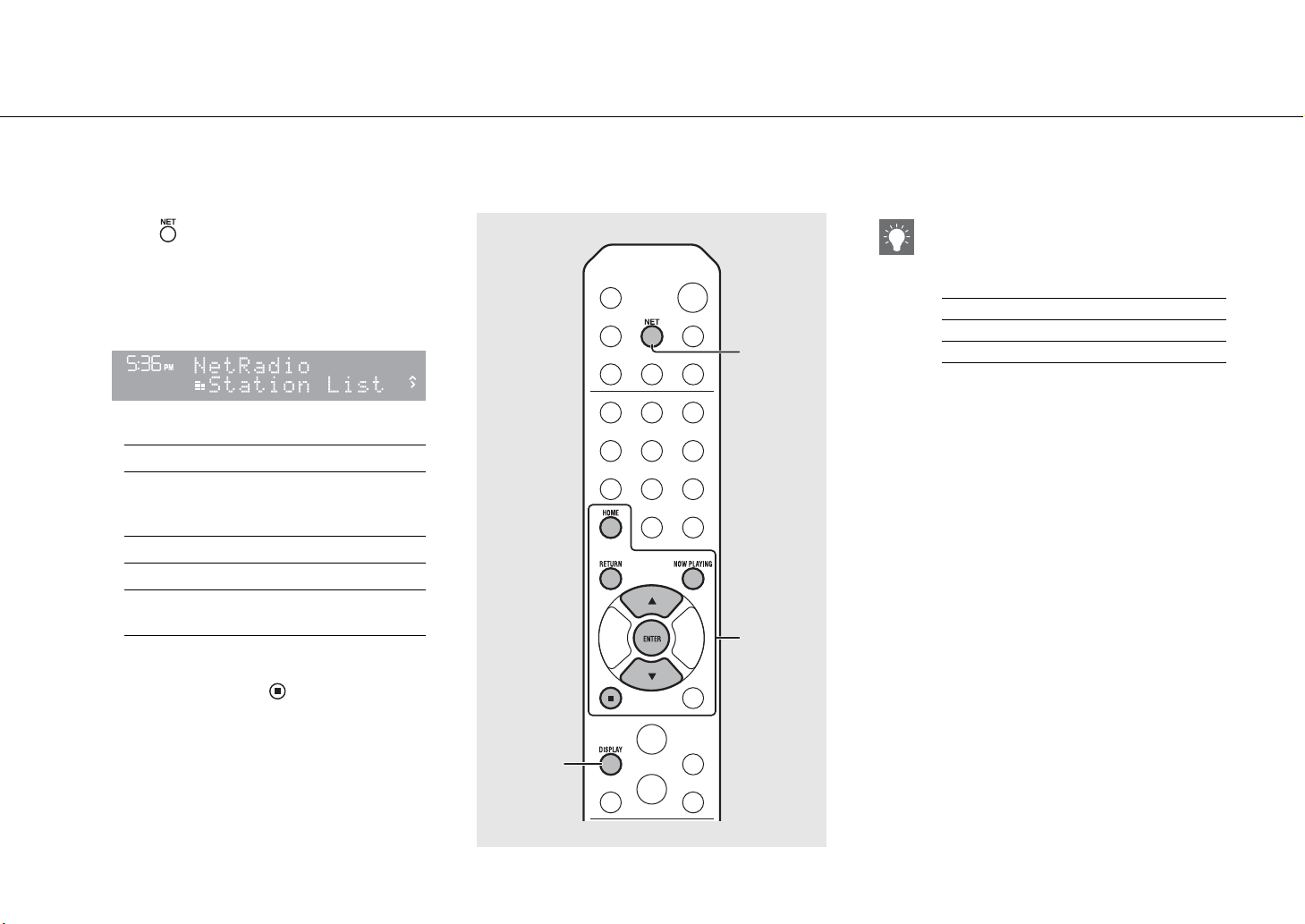
1 Press repeatedly to select [Net
Radio].
2 Browse the Internet and select a radio
station.
• The remote control functions are shown below.
3 Playback starts.
• To stop playback, press .
S/T Shows other item.
ENTER
Confirm the selected item and
proceed to the next level or start
playback.
HOME Show the top-level item.
RETURN Back to the previous item.
NOW
PLAYING
Finish browsing and display the
playback content information.
1
NET
2, 3
DISPLAY
• Playback information can be shown by pressing
the DISPLAY button while Internet radio is played
back. Information changes as shown below each
time you press it.
• You can register your favorite Internet radio
stations to the “Bookmarks” folder by selecting
[Net Radio] as the source on the unit and then
accessing the following website with the web
browser on your PC.
http://yradio.vtuner.com/
To use this feature, you need the vTuner ID of the
unit and your e-mail address to create your
personal account. You can check the vTuner ID
(MAC address of the unit) in [Network Info]
(& P.36) in the option setting.
Radio station name (default)
Song title
Playing time
30 En
Listening to the Music with AirPlay
The AirPlay function allows you to play back iTunes/iPod music on the unit wirelessly via a network.
Make sure that the unit and your PC or iPod are connected to the same router (& P.11).
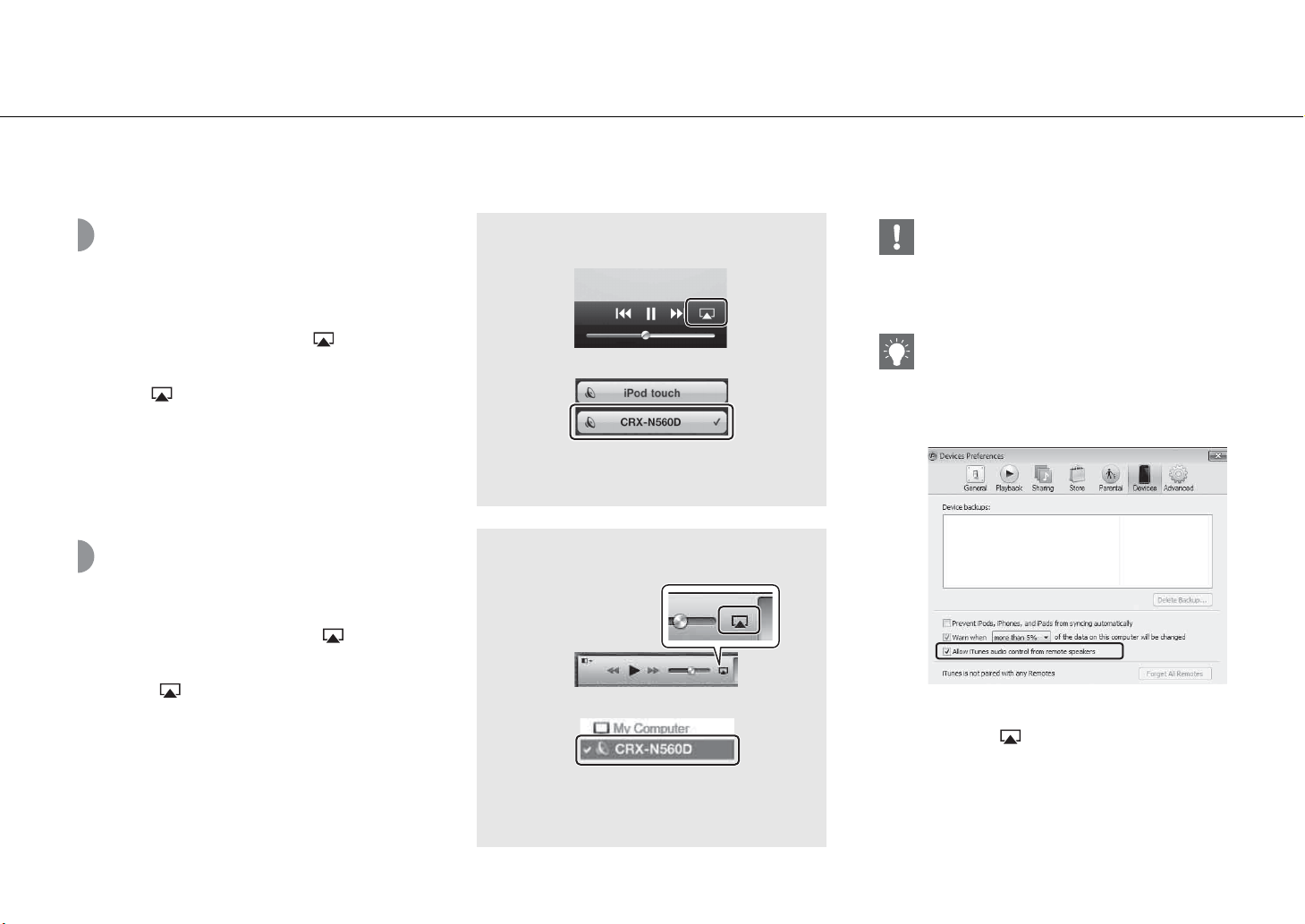
Playing iPod
1 Turn on the unit and display the
playback screen on the iPod.
• If the iPod recognizes the unit, is shown on
the screen of the iPod.
2 Tap and select the unit’s name.
• The source automatically switches to [AirPlay] and
playback starts (except in the eco standby mode).
Playing iTunes
1 Turn on the unit and start iTunes.
• If the iTunes recognizes the unit, is shown on
the screen of iTunes.
2 Click and select the unit’s name.
• The source automatically switches to [AirPlay]
(except in the eco standby mode).
3 Play back songs with iTunes.
1
2
Example
Example
1
2
• When you use iTunes/iPod controls to adjust
volume, the volume may be unexpectedly loud.
This could result in damage to the unit or
speakers. If the volume increases during playback,
stop playback on iPod/iTunes immediately.
• You can also use the unit and remote control to
play back, pause, stop, and skip songs.
• To control iTunes playback with the remote
control, you need to configure the iTunes
preferences to enable iTunes control from remote
speakers in advance.
Clearing AirPlay
• Tap/click on the iPod/iTunes screen and
select a device other than CRX-N560D from the
speaker list. Or, change the source to other than
AirPlay.
En 31
Using the clock
Once you set the clock, you can play your favorite song or radio program as an alarm.
Setting the clock
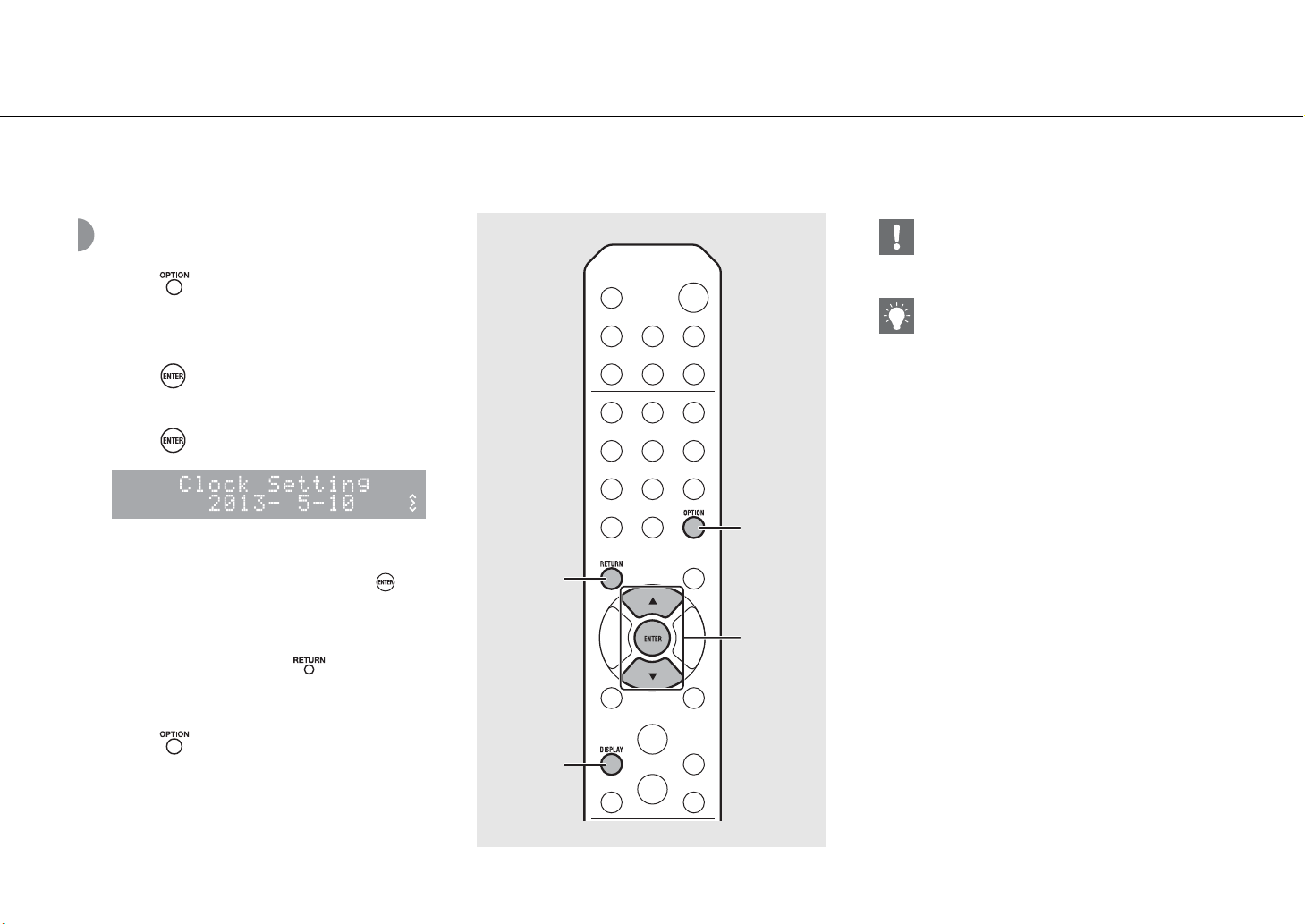
1 Press .
• Option menu is shown on the front panel display.
2 Select [System Config] with S/T and
press .
3 Select [Clock Setting] with S/T and
press .
4 Set the date and time.
• Change the setting with S/T and press to
confirm it.
• Perform the procedure in the order of year,
month, day, hour, and minute.
• To cancel the setting, press .
• When the setting completes, [Completed!] is
shown.
5 Press to finish the option setting.
2, 3, 4
S/T,
ENTER
RETURN
1, 5
OPTION
DISPLAY
• The clock setting will be lost if you disconnect the
power cable from the wall outlet for about a week.
Set the clock again.
• The clock format (12-hour/24-hour) can be
changed if you press the DISPLAY button while
setting the clock.
Using the clock
32 En
Setting the wake-up
timer
Music or beep will be started at the time you set.
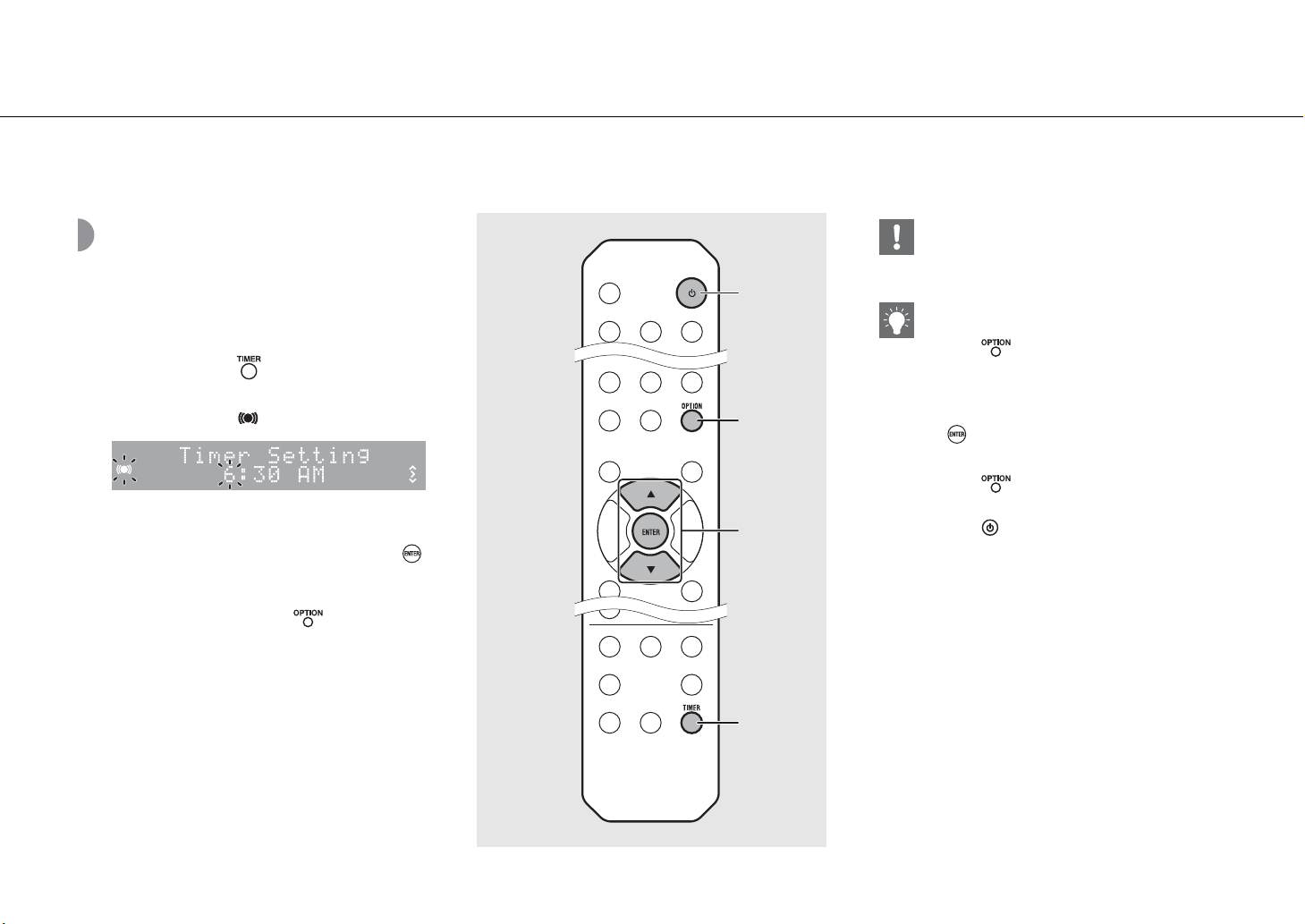
1 Press and hold .
• [Timer Setting] and time are shown on the front
panel display, and and hour flash.
2 Set the following items, 1 to 3.
• Press S/T to select a setting value and press
to set the item.
• The display switches to the next item.
• To cancel the setting, press .
Continue to the next page \
1
Start-up time
Set the hour and minute.
2
Volume
Can be set between [5] to [59], and [MAX].
3
Repeat
Repeat: Wake-up timer sounds everyday at
the set time.
No Repeat: Wake-up timer sounds once.
2
S/T,
ENTER
OPTION
1
TIMER
A
• Set the clock before setting the wake-up timer.
• Wake-up timer is not available when [Power
saving] is set to [Eco]. Set it to [Normal] (& P.12).
• You can also set the wake-up timer using the
option setting.
1 Press .
- The setting menu is shown on the front panel
display.
2 Press S/T to select [Timer Setting] and press
.
3 Perform step 2 on the left.
4 Press to finish the option setting.
5 Set the music source, play back the source, and
press .
Using the clock
En 33
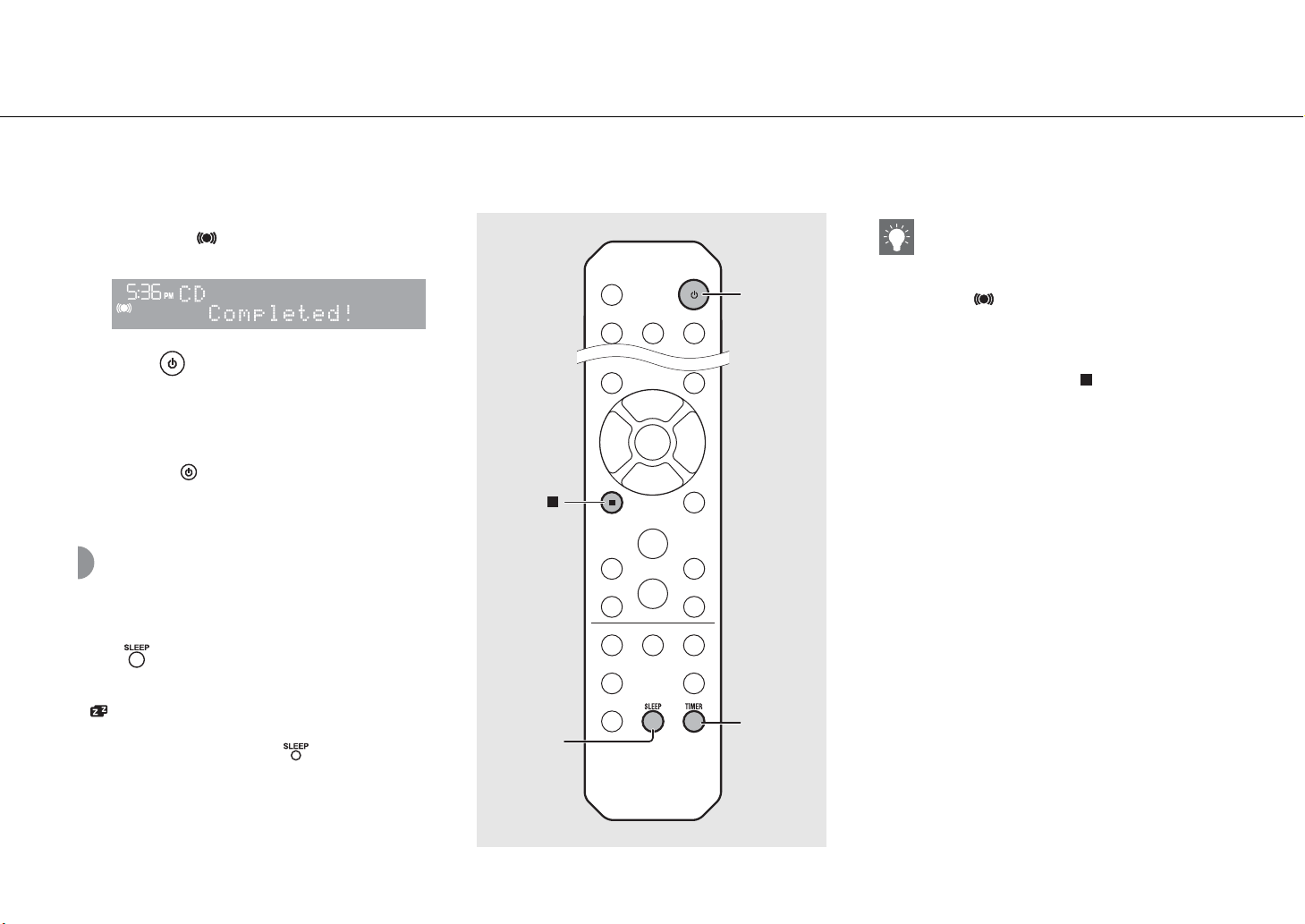
• When the setting completes, [Completed!] is
shown and lights up on the front panel
display.
3 Press .
• The unit enters the standby mode and the beep
sounds at the time you set.
• If you wish to play back music at the time you set,
select an audio source and play it back before
pressing in this step. See (*) at the bottom of
tips on the right for details on audio source
playback.
Sleep timer
You can set the time to elapse which the unit
automatically enters to standby mode.
Press several times to select the time.
• Time can be selected from 30/60/90/120 min., or OFF.
• lights up shortly after the time is selected, and the
sleep timer is set.
• To cancel the sleep timer, press again.
3
A
TIMER
SLEEP
• If the source is removed from the unit after the
wake-up timer is set, the unit will beep at the start-
up time.
• If any music source is played back at the start-up
time, flashes and playback will continue.
• After setting the wake-up timer, you can enable or
disable it by pressing the TIMER button when the
unit is on.
• To stop the beep, press or A; otherwise, it will
stop after 60 minutes.
* When the music source is set to AUX, Server,
DIGITAL IN, or AirPlay, the unit beeps at the start-
up time.
34 En
Updating the firmware
When new firmware is released, a message to update your current firmware will be shown on the front panel display (when the unit is connected to the Internet
only). In this page, an updating method via a network using the option setting is shown.
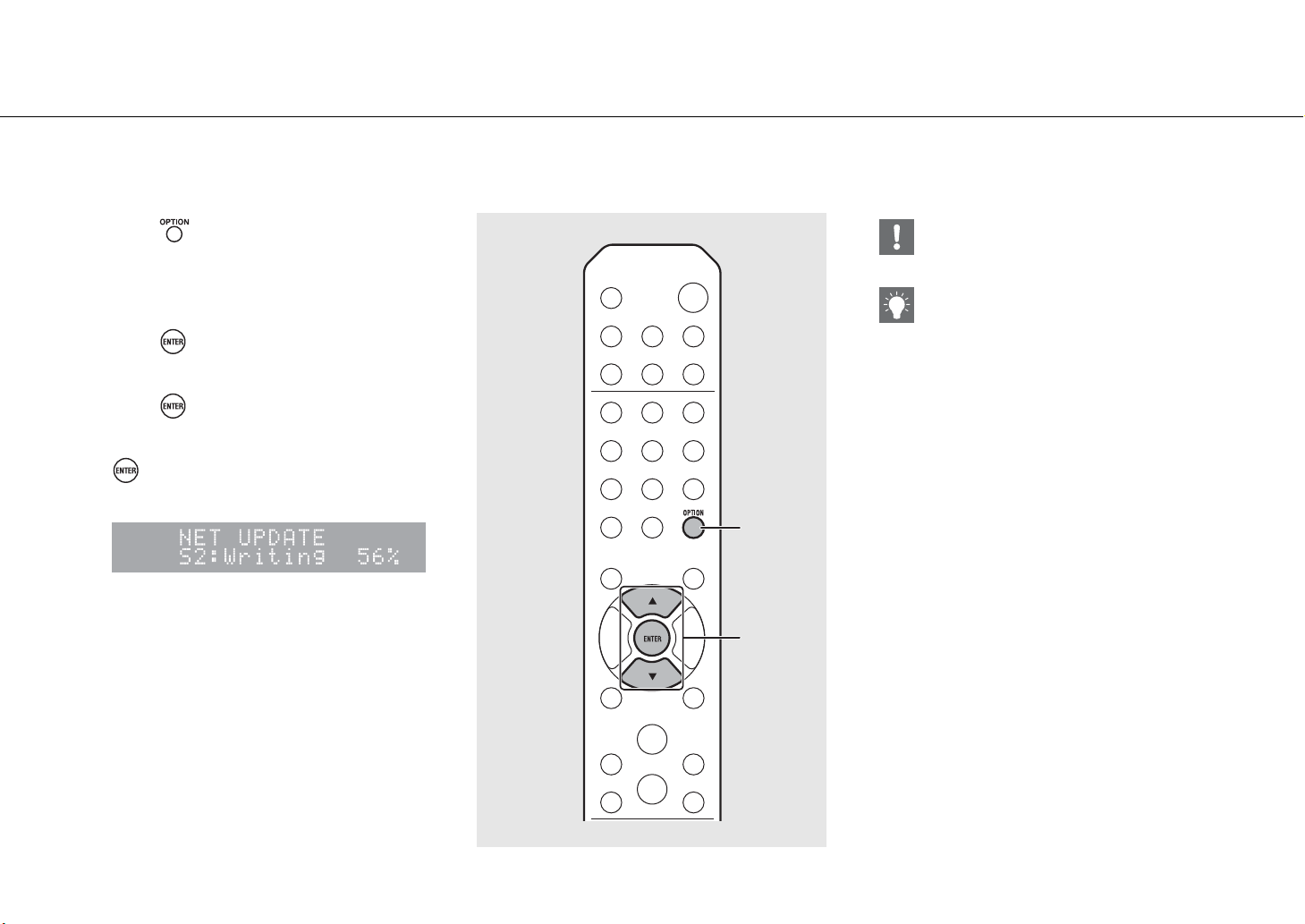
1 Press .
• The option menu is shown on the front panel
display.
2 Select [System Config] with S/T and
press .
3 Select [Firm Update] with S/T and
press .
4 Select [Network] with S/T and press
.
• Update starts.
• When update finishes, messages are shown in the
following order: “Update success.”, “Please…”, and
“power off!.”
5 Unplug the power cable from the wall
outlet and plug it back after about 30
seconds.
• Update is applied.
2, 3, 4
S/T,
ENTER
1
OPTION
• Do not operate the unit or disconnect the power
cable and network cables while updating.
• Once the message prompting update is shown on
the front panel display, it will not be shown again,
even if you do not perform updating. However,
when you turn on the unit after the power cable
has been disconnected from the wall outlet for a
while, the message will be shown.
• When Internet speed is not fast enough or the unit
is connected to the wireless network via a wireless
network adapter, network update may not be
possible depending on the condition of the
wireless connection. In this case, try again or
update the firmware using a USB memory device.
The firmware can be downloaded from the
Yamaha Website.
To update the firmware using a USB memory
device
You can download the firmware to the USB memory
device, and connect that USB memory device to the
USB jack on the unit.
• Select [USB] in step 4 and press the ENTER button
to start the update.
En 35
Option settings
Option settings allow you to configure the unit to suit how you will use it.
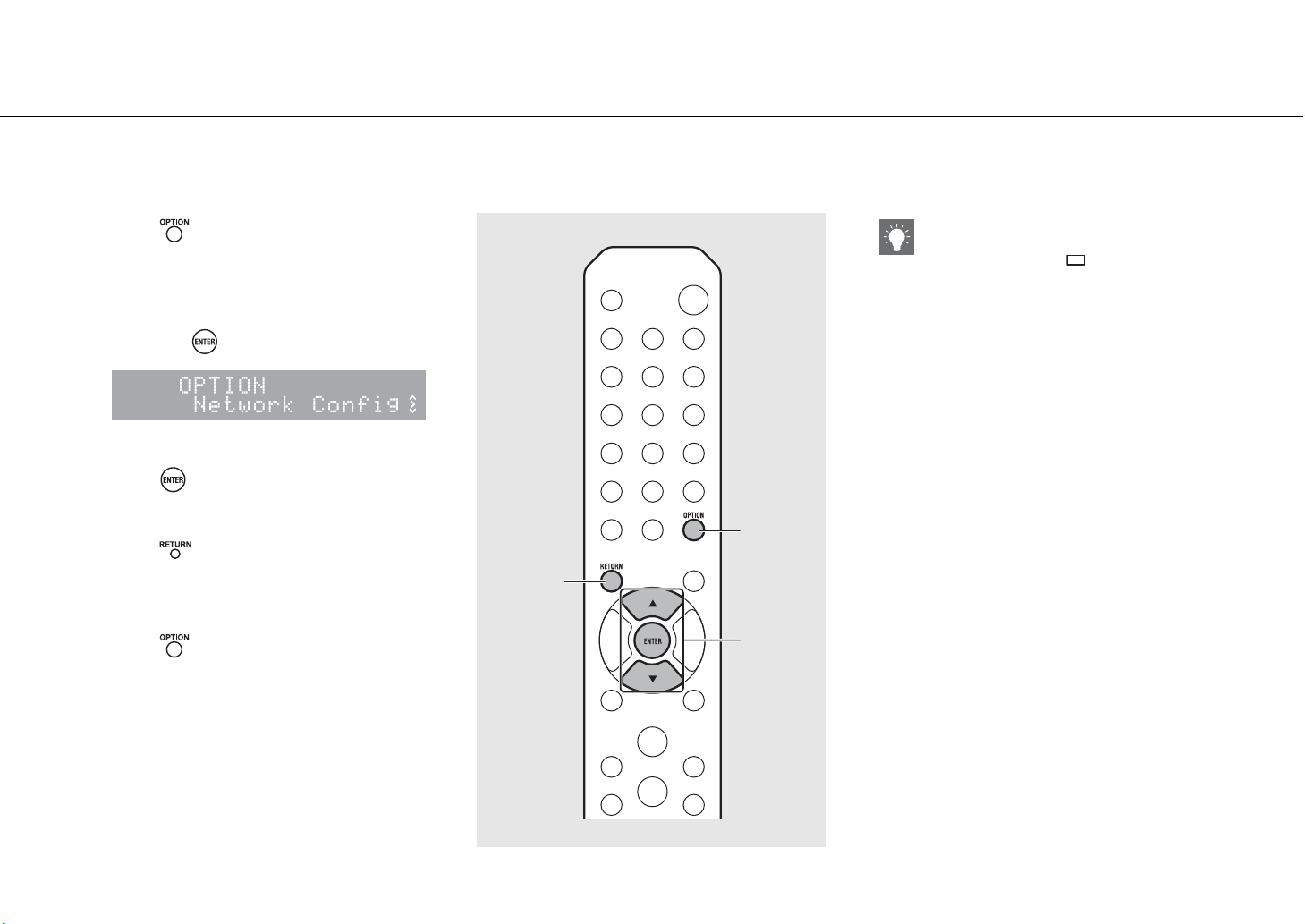
1 Press .
• Option menu is shown on the front panel display
(& P.36).
2 Select a desired option menu with S/T
and press .
3 Change the setting with S/T and
press .
• Repeat step 3 if the sub menu is required to be
set.
• Press to cancel the setting and return to the
previous level.
• Repeat steps 2 and 3 if you set another menu
item.
4 Press to finish the option setting.
2, 3
S/T,
ENTER
1, 4
OPTION
RETURN
• To set [Advanced Setup] in the option menu, press
the OPTION button on the remote control while
pressing and holding (stop button) of the
unit, then proceed to step 3.
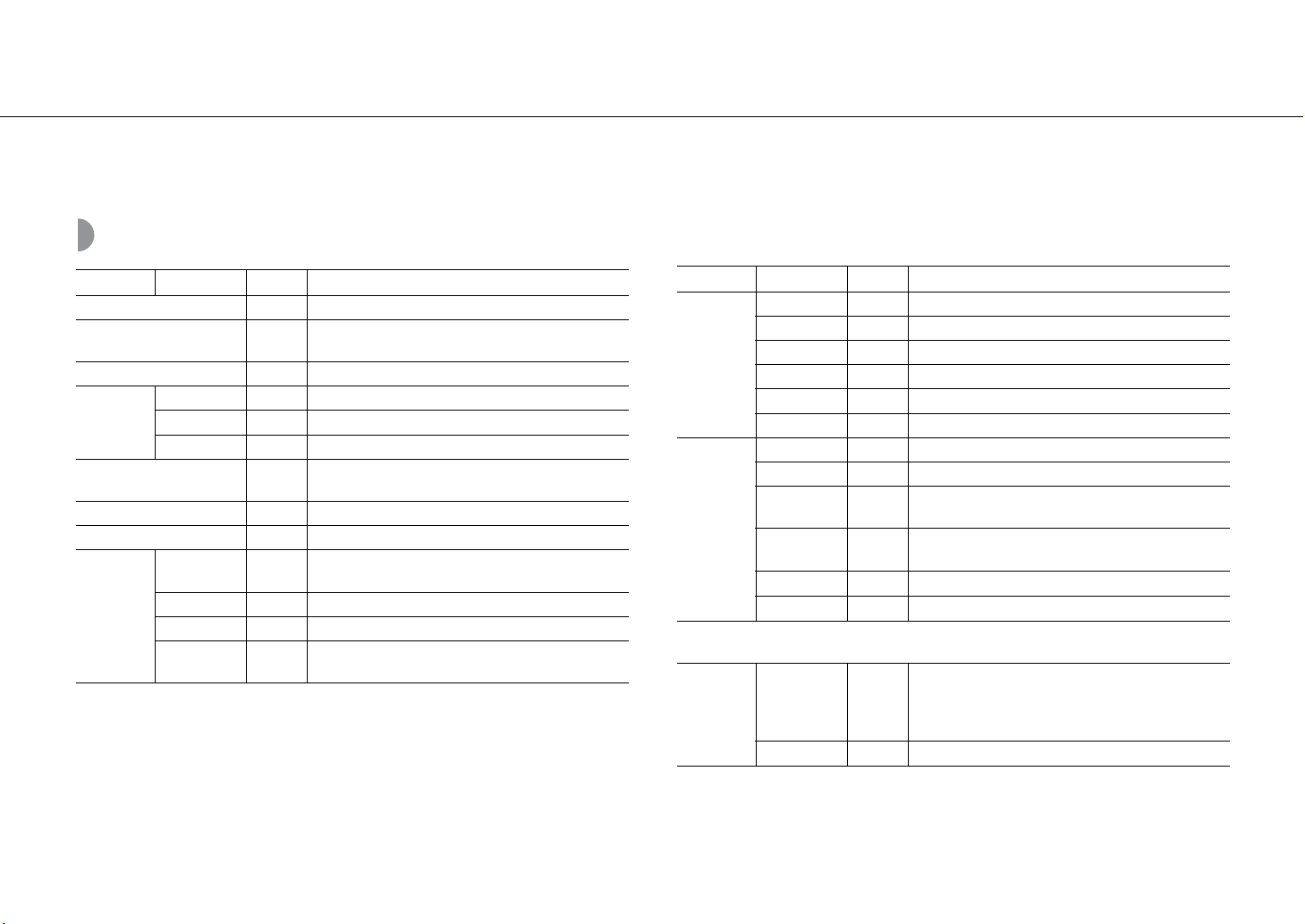
Option settings
36 En
Option menu list
*1 Only when the radio is played back
Menu Sub menu Default Function
Preset Delete*
1
(& P.24, 27) Deletes preset stations.
Initial Scan*
1
(& P.23)
Scans all receivable frequencies and registers them in
the unit.
DAB Tune Aid*
1
(& P.25) Shows the level of received DAB signal.
Equalizer
(& P.22)
EQ Low 0 Adjusts low frequency.
EQ Mid 0 Adjusts middle frequency.
EQ High 0 Adjusts high frequency.
Balance (& P.22) CENTER
Adjusts the volume balance of the left and right
speakers.
Music Enhancer (& P.22)
OFF Enables/disables Music Enhancer.
Timer Setting (& P.32) Sets the wake-up timer.
Network
Info
Network
Status
Shows connection status of the unit and network.
MAC Address Shows MAC address.
System ID Shows the system ID.
Network
Name
Shows the name of the unit that appears on the
network.
Network
Config
DHCP Enabled YES Enables/disables DHCP.
IP Address 0.0.0.0 Confirms and sets the IP address.
Subnet Mask 0.0.0.0 Confirms and sets the subnet mask.
Def. Gateway 0.0.0.0 Confirms and sets the default gateway.
DNS Server(P) 0.0.0.0 Confirms and sets the primary DNS server.
DNS Server(S) 0.0.0.0 Confirms and sets the secondary DNS server.
System
Config
Clock Setting Sets clock of this unit (& P.31).
Power Saving Eco Sets the eco standby (& P.12).
Auto Power
Off
Timer 8H Sets the unit into standby mode automatically (& P.12).
Use Accessory NO
Selects whether or not to supply power to a Yamaha
accessory connected through the DC OUT jack.
Firm Version
Shows the firmware version of the unit.
Firm Update
Network Updates the firmware of the unit (& P.34).
Advanced
Setup
(& P.35)
MAC
Add.Filter
OFF
Specifies the MAC address (up to 5) and restricts access
to this unit of network components.
(Operation with AirPlay is not affected even if [MAC
Add.Filter] is set to [ON].)
Factory Reset Resets the unit’s settings to factory default.
Menu Sub menu Default Function
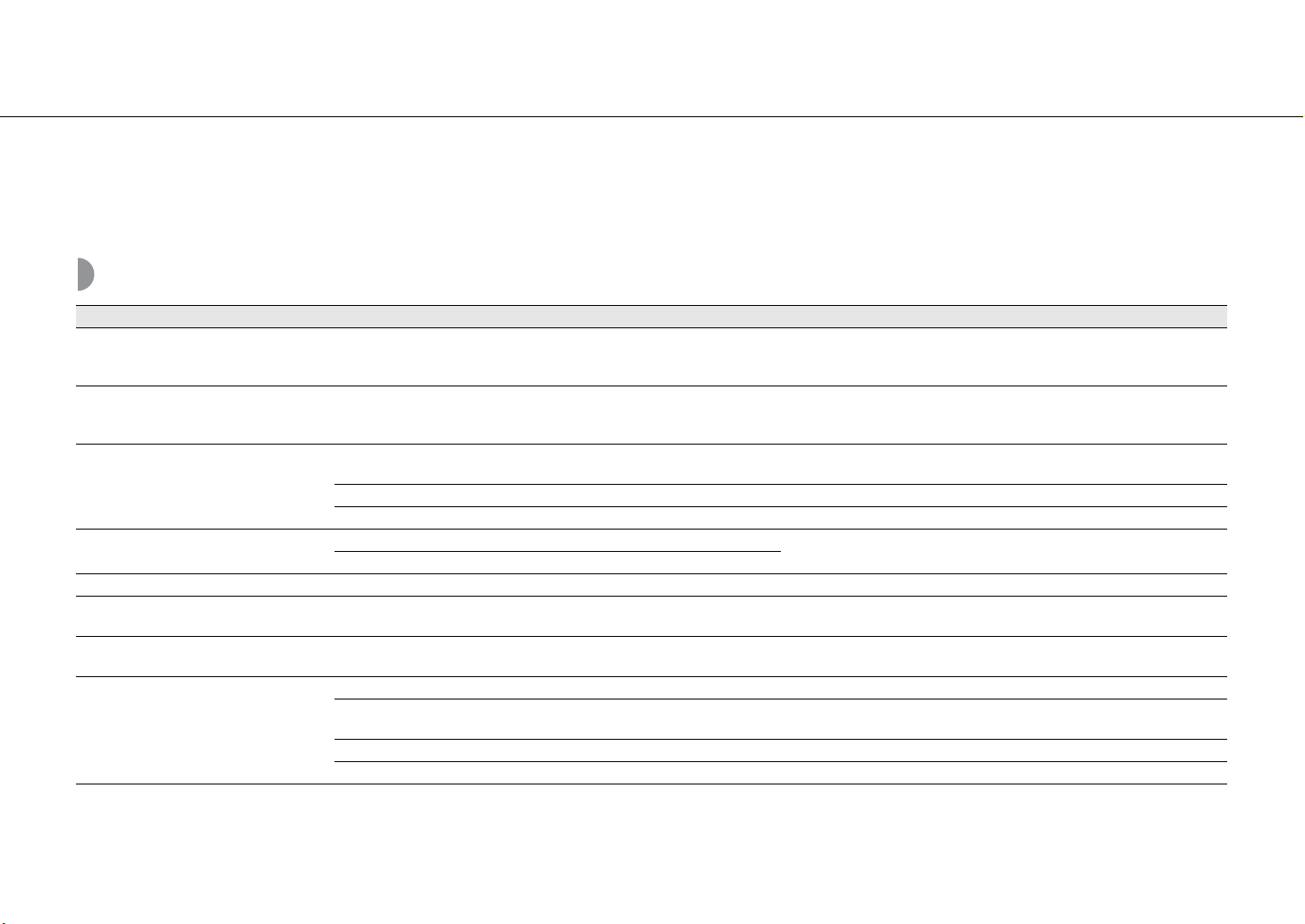
En 37
Troubleshooting
Refer to the table below when the unit does not function properly. If your problem is not listed below or if the instruction below does not help, turn off the unit,
disconnect the power cable, and contact the nearest authorized Yamaha dealer or service center.
First, check that the connectors of each cable are securely inserted in to jacks on each device.
General
Problem Cause Solution
The unit enters the standby mode soon
after the power is turned on.
The unit does not operate properly.
The power cable is not properly connected. Connect the power cable firmly.
The power does not turn off.
The internal microcomputer has frozen, due to an external electric shock
(such as lightning or excessive static electricity) or to a drop in the power
supply voltage.
Hold down A on the front panel for more than 10 seconds to initialize and
reboot the unit. (If the problem persists, unplug the power cable from the
wall outlet and plug it again after 30 seconds or more.)
No sound.
No appropriate source has been selected.
Select an appropriate source with INPUT on the front panel or the source
buttons on the remote control (& P.5, 8).
Speaker connections are not secure. Secure the connections (& P.9).
The volume is minimum or mute. Turn up the volume.
The power is suddenly turned off.
The sleep timer may be set (& P.33).
Turn on the unit and play the source again.
Auto Power Off is set (& P.12).
The clock setting has been cleared. The power cable has been disconnected or there was power outage. Connect the power cable, and set the clock again (& P.31).
Sound is heard from the speaker on one
side only.
Source device or speakers are not connected properly.
Connect the source device or speaker cables properly (& P.9, 19). If the
problem persists, the cables may be defective.
There is noise interference from digital or
high-frequency equipment.
This unit is too close to the digital or high-frequency equipment. Place this unit farther away from such equipment.
The remote control does not work or does
not function properly.
The remote control may be operated outside its operation range. Operate the remote control within its operation range (& P.12).
The remote control sensor on this unit may be exposed to direct sunlight or
strong lighting such as an inverter type fluorescent lamp.
Change the orientation of lighting or the unit, or location of the unit.
The battery may be worn out. Replace the batteries with new ones (& P.4).
There are obstacles between the sensor of this unit and the remote control. Remove the obstacles.
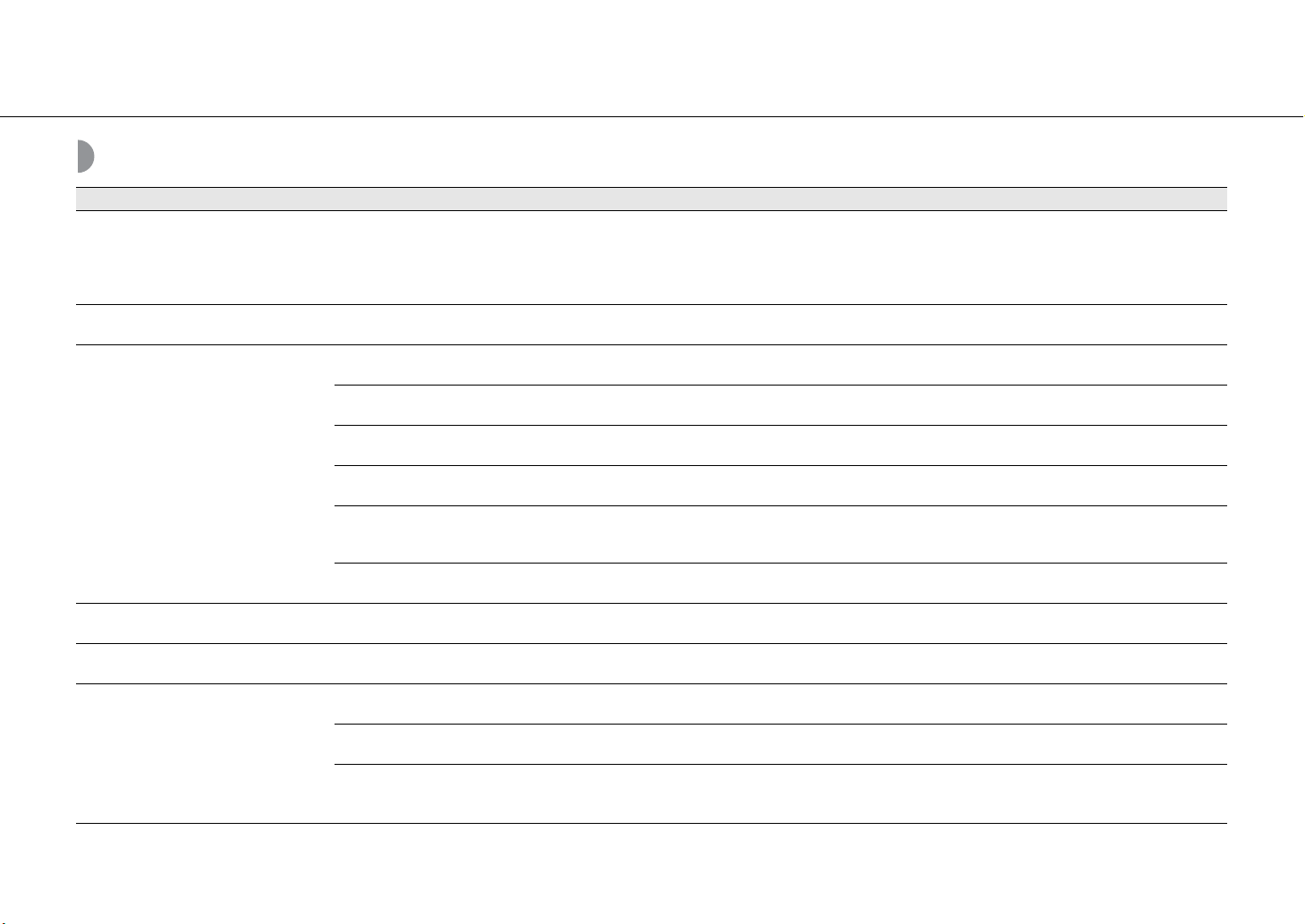
Troubleshooting
38 En
Network
Problem Cause Solution
The network feature does not function. The network parameters (IP address) have not been obtained properly.
Enable the DHCP server function on your router and set [DHCP Enabled] of
[Network Config] in the option menu to [YES] on the unit. If you want to
configure the network parameters manually, check that you are using an IP
address which is not used by other network devices in your network
(& P.36).
Playback stops (songs cannot be played
back continuously).
There are unsupported files in the server.
Remove the files (including image files or hidden files) which the unit does
not support, from the folder being played back.
The unit does not detect the PC.
The media sharing setting is not correct.
Configure the sharing setting and select the unit as a device to which music
contents are shared (& P.17).
Some security software installed on your PC is blocking the access of the
unit to your PC.
Check the settings of security software installed on your PC.
The unit and PC are not in the same network.
Check the network connections and your router settings, and then connect
the unit and the PC to the same network.
The MAC address filter is enabled on the unit.
In [Advanced Setup] in the option menu of the unit, set [MAC Add.Filter] to
[OFF] (& P.36).
Your PC is connected to the secondary SSID of a router supporting multi
SSID.
When your PC is connected to the secondary SSID, access to the device
connecting to the primary SSID or LAN is restricted (only Internet access is
available). Connect your PC to the primary SSID.
Multiple routers are connected between your network devices (double
router).
Disconnect Internet temporarily, check the local network, and connect the
network device you wish to use to the same router.
The files in the PC cannot be viewed or
played back.
The files are not supported by the unit or the media server.
Use the file format supported by both the unit and the media server
(& P.44).
Some files cannot be played back with the
unit.
You are trying to play back files with DRM (Digital Rights Management)
purchased on iTunes Store.
Files with DRM (Digital Rights Management) purchased on iTunes Store
cannot be played back.
The Internet radio cannot be played.
The selected Internet radio station is currently not available.
There may be a network problem at the radio station, or the service may
have been stopped. Try the station later or select another station.
The selected Internet radio station is currently broadcasting silence.
Some Internet radio stations broadcast silence at certain of times of the day.
Try the station later or select another station.
Access to the network is restricted by the firewall settings of your network
devices (such as the router).
Check the firewall settings of your network devices. The Internet radio can
be played only when it passes through the port designated by each radio
station. The port number varies depending on the radio station.
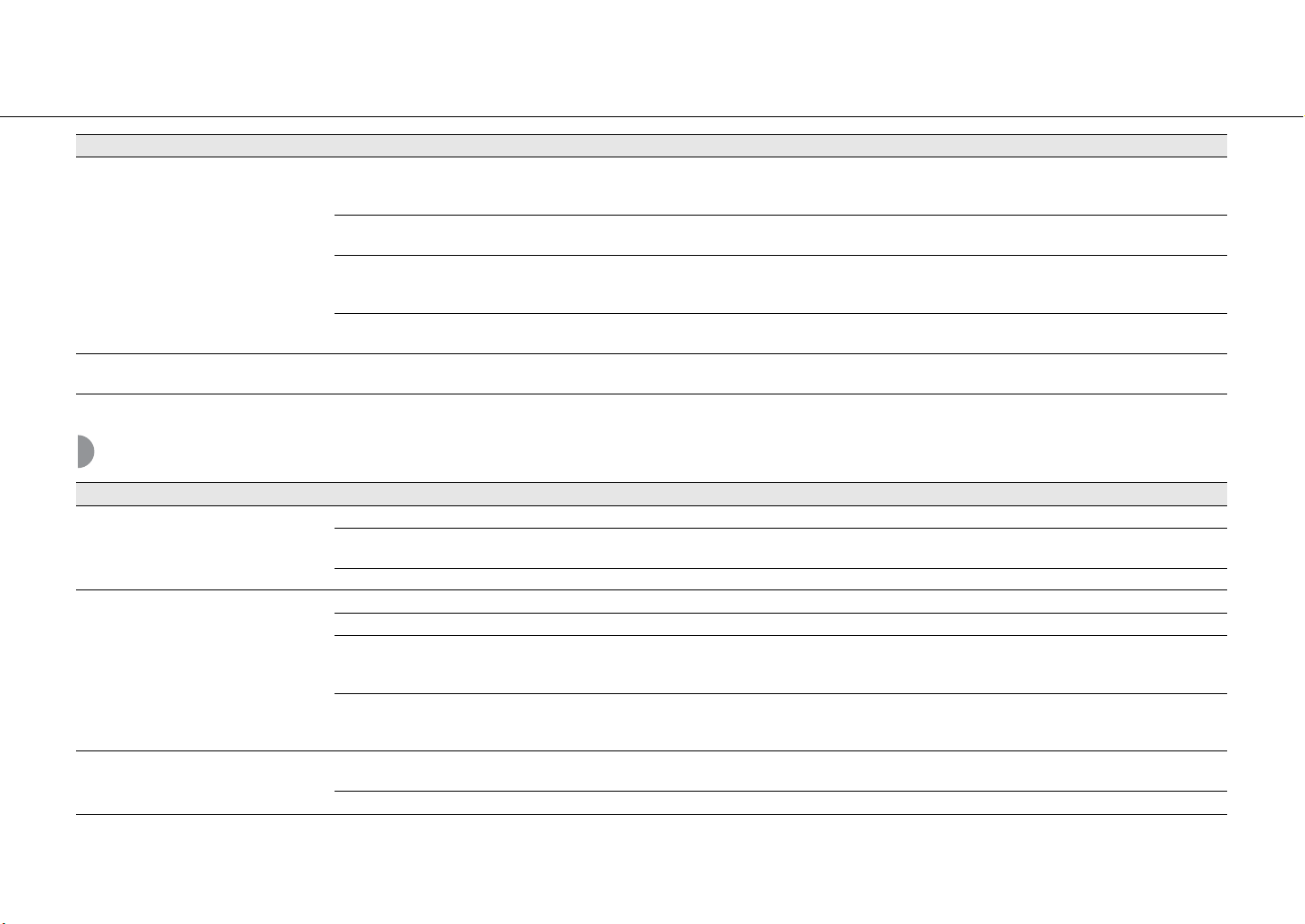
Troubleshooting
En 39
iPod
The application dedicated to mobile
devices does not detect the unit.
The MAC address filter is enabled on the unit.
In [Advanced Setup] in the option menu of the unit, set [MAC Add.Filter] to
[OFF] or specify the MAC address of your mobile devices to allow it to
access to the unit (& P.36).
The unit and mobile devices are not in the same network.
Check the network connections and your router settings, and then connect
the unit and mobile device to the same network.
Your mobile device is connected to the secondary SSID of a router
supporting multi SSID.
When your mobile device is connected to the secondary SSID, access to the
device connecting to the primary SSID or LAN is restricted (only Internet
access is available). Connect your mobile device to the primary SSID.
Multiple routers are connected between your network devices (double
router).
Disconnect Internet temporarily, check the local network, and connect the
network device you wish to use to the same router.
Update of the firmware via network failed. The network connection is unstable.
Try updating again after a while. Or update the firmware via USB memory
(& P.34).
Problem Cause Solution
Problem Cause Solution
No sound.
The iPod is not connected properly. Reconnect the iPod to the USB jack (& P.15).
The iPod software version is out of date.
Download the latest iTunes software from Apple’s website to update the
iPod software version.
The iPod is in the process of connecting with the unit. Please wait for a while.
The iPod cannot be operated by the iPod,
unit, or remote control.
The iPod is not supported by this unit. Use a supported iPod (& P.43).
The iPod is not connected properly. Reconnect the iPod to the USB jack (& P.15).
The iPod software version is out of date.
Download the latest iTunes software from Apple’s website to update the
iPod software version. If the problem cannot be solved, even with the latest
software, reset the iPod.
When the display mode for iPod is set to the standard mode, the unit or
remote control cannot control an iPod. When in the extended mode, iPod
does not function for controlling itself.
Check the display mode (& P.16).
The playback information is not shown on
the front panel display.
The iPod does not support display of playback information.
This function is only available with an iPod suitably supported by this unit
(& P.43).
The display mode is set to the standard mode. Change the display mode to the extended mode (& P.16).
Troubleshooting
40 En
Disc
USB devices
The iPod does not charge up.
The iPod is not connected properly. Reconnect the iPod to the USB jack (& P.15).
The iPod is not supported by this unit. Use a supported iPod (& P.43).
The unit is in the eco standby mode. Set [Power Saving] to [Normal] with the option setting (& P.12).
Problem Cause Solution
Problem Cause Solution
Playback does not start after a disc is set.
Some button operations do not work.
The disc set into the unit may not be compatible. Use a disc supported by the unit (& P.43).
Playback does not start immediately after
pressing on the unit or on
the remote control (stops immediately).
The disc may be dirty. Wipe the disc clean (& P.43).
The disc set in the unit may not be supported. Use the disc supported by the unit (& P.43).
If the unit was moved from a cold to warm place, condensation may have
formed on the disc reading lens.
Wait for an hour or two until the unit adjusts to the room temperature, and
try again.
Problem Cause Solution
The unit does not detect the USB device.
The USB device is not connected to the USB jack securely.
Turn off the unit, reconnect your USB device, and turn the unit on again
(& P.15).
The file system of the USB device is not FAT16 or FAT32. Use a USB device with FAT16 or FAT32 format.
Folders and files in the USB device cannot
be viewed.
The data in the USB device is protected by the encryption. Use a USB device without an encryption function.
Troubleshooting
En 41
DAB reception
FM reception
Problem Cause Solution
Cannot tune into any DAB stations. The initial scan operations were not performed. Perform the initial scan operations (& P.23).
The initial scan operations are not
successful and [Not Found] is shown on
the front panel display.
The DAB signals are too weak.
Use the DAB Tune Aid feature to conform the best position of the antenna
(& P.25).
The positioning of the antenna is not optimal for DAB reception.
There is no DAB coverage in your area.
Check with your dealer or WorldDMB online at http://www.worlddab.org
for a listing of the DAB coverage in your area.
There is noise interference (e.g. hiss,
crackle or jitter)
The antenna needs to be repositioned. Readjust the position of the antenna (& P.10).
The DAB signals are too weak.
Use the DAB Tune Aid feature to conform the best position of the antenna
(& P.25).
The DAB station information is not shown
or is inaccurate.
The DAB station may be temporarily out of service, or the DAB station
information is not provided by the DAB broadcaster.
Contact the DAB broadcaster.
Problem Cause Solution
FM stereo reception is noisy.
The antenna is not connected properly.
Make sure the antenna is connected properly and change the position of
the antenna (& P.10).
The radio station you selected may be far from your area, or the antenna
input is poor.
Use a commercially available outdoor antenna. For details, consult a
specialist store.
Automatic tuning does not work.
The radio station you selected may be far from your area, or the antenna
input is poor.
Use a commercially available outdoor antenna. For details, consult a
specialist store.
Use the manual tuning method (& P.26).
Cannot select a preset radio station. The preset (memory) may have been erased. Preset radio stations again (& P.26, 27).
There is distortion, and clear reception
cannot be obtained even with a good FM
antenna or an outdoor antenna.
Multipath reflection or other radio interference may have occurred. Change the height, direction, or placement of the antenna.
Troubleshooting
42 En
Messages on the front panel display
Message Cause Solution
Unknown
There is a problem with the signal path from your iPod to this unit. Reconnect the iPod.
The iPod/USB device being connected is not supported by the unit. Use a supported iPod/USB device (& P.43).
The iPod software is out of date.
Download the latest iTunes software from Apple’s website to update the iPod software
version.
Timer not work The unit is in the eco standby mode. Set [Power Saving] to [Normal] with the option setting (& P.12).
Overcurrent
The connected iPod/USB device is not supported by the unit.
Disconnect the iPod/USB device, turn off the unit, and turn it on again. If this does not
solve the problem for the USB device, it is not playable on the unit.
iPod/USB device is not connected properly.
Unplugged iPod/USB device is not connected firmly. Disconnect the iPod/USB device and reconnect it (& P.15).
No Disc
The disc set in the unit may not be supported by the unit. Use a disc supported by the unit (& P.43).
The disc may be dirty, or foreign objects may be attached to it. Remove the disc and then wipe the disc clean.
Disc is set upside-down. Set the disc with the labeled side facing up.
No Songs The disc does not contain playable files. Set a disc with playable files (& P.43).
Initializing The unit is starting up.
Wait until the message disappears. If the message stays more than 3 minutes, turn off the
unit and turn it on again.
Loading… The unit is loading the specified file/contents. Wait until the unit finishes loading.
No Content Selected folder does not contain playable files. Select a folder with playable files (& P.44).
Not Connected The unit is not connected to the Internet. Check the Internet connection.
Unsupported You are trying to play back a file which the unit does not support Play a file supported by the unit (& P.44).
No Operation You are trying to open the disc tray while setting the option menu. Open the disc tray after the option setting is finished.
Access Denied Access to the PC is denied.
Configure the sharing settings and select the unit as a device to which music contents are
shared (& P.17).
Access Error
The unit cannot access the USB device.
Turn off the unit and reconnect your USB device. If the problem persists, try another USB
device.
The unit cannot access the iPod. Turn off the iPod and turn it on again.
The connected iPod is not supported by the unit. Use an iPod supported by the unit (& P.43).
There is a problem with the signal path from the network to the unit.
Make sure your router and modem are turned on.
Check the connection between the unit and your router (or hub) (& P.11).
Version Error Firmware update is failed. Update the firmware again.
En 43
Supported devices/media and file formats
Supported devices/
medias
PC with Windows Media Player 11 or Windows Media
Player 12 installed.
NAS that is compatible with DLNA version 1.5.
• This unit supports USB mass storage class devices (e.g., flash
memories or portable audio players) using FAT16 or FAT32
format.
• Do not connect devices other than USB mass storage class
devices (such as USB chargers or USB hubs), PCs, card
readers, an external HDD, etc.
• USB devices with encryption cannot be used.
(As of August 2013)
Note
iPod is licensed on the condition that individuals perform
privately duplication and playback of uncopyrighted
material or material legally approved of duplication and
playback. Infringement of copyright is prohibited by law.
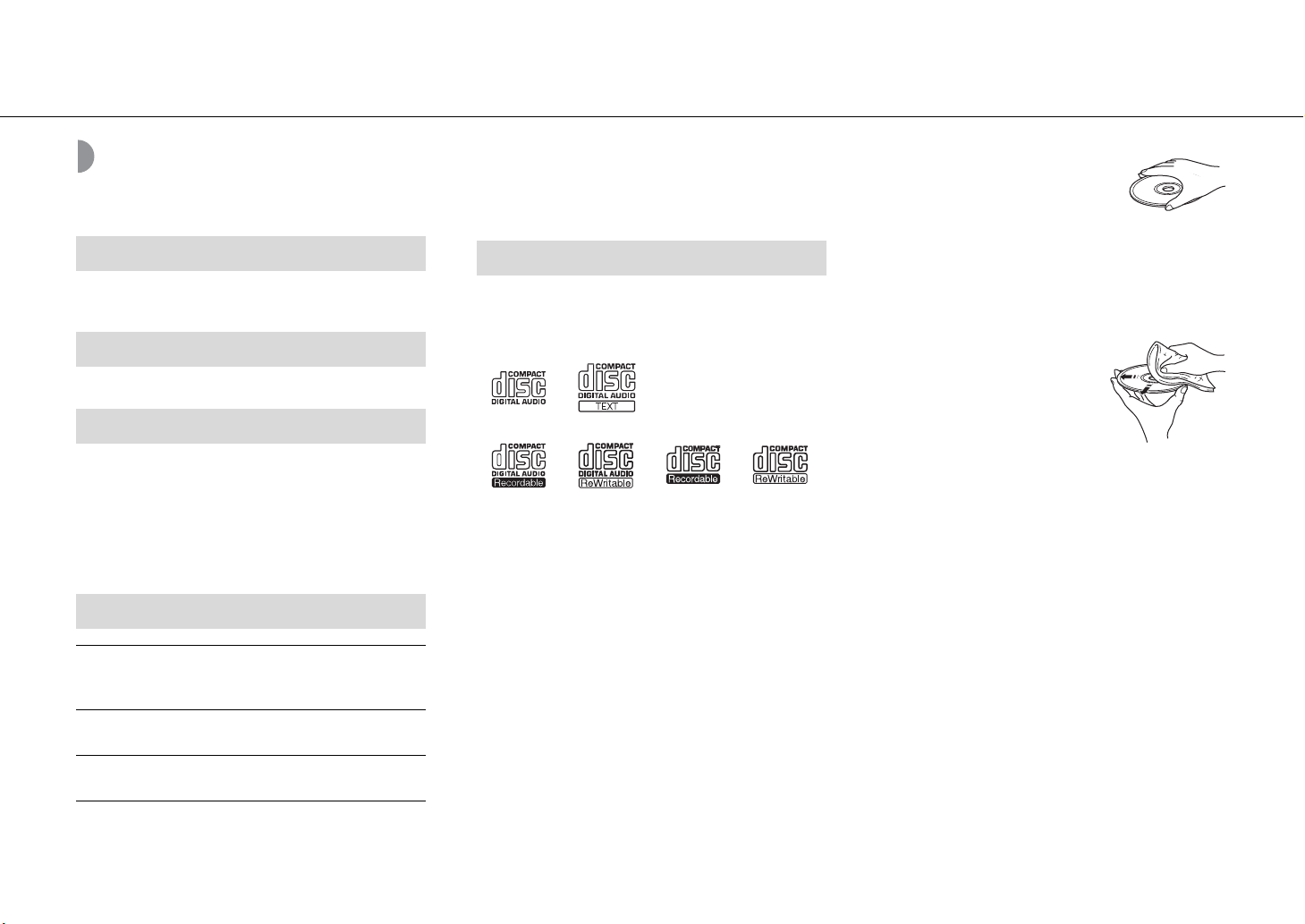
• This unit is designed for use with audio CD, CD-R/RW (ISO
9660 format) with any of the following logos printed on the
disc or the disc jacket.
Audio CD
CD-R/RW
*
* Discs which bear one of the following.
FOR CONSUMER
FOR CONSUMER USE
FOR MUSIC USE ONLY
• 8-cm discs are playable with this unit.
Set a disc in the inner recessed area of the disc tray.
Notes on discs
• Do not set any other type of disc other than stated above in
this unit. Doing so may damage the unit.
• CD-R/RW cannot be played back unless finalized.
• Some discs cannot be played back depending on the disc
characteristics or recording conditions.
• Do not use any non-standard shaped discs such as a heart-
shaped disc.
• Do not use discs with many scratches or a crack on their
surface, or warped/glued discs.
Handling discs
• Do not touch the surface of the disc.
Hold a disc by its edge or center hole.
• Use a soft-tipped pen when writing on
the label side of a disc.
• Do not put tape, seal, glue, etc., on a disc.
• Do not use a protective cover to prevent scratches.
• Do not set foreign object on the disc tray.
• Do not set more than one disc in this unit at one time. This
could cause damage to both this unit and the discs.
• If a disc becomes dirty, wipe it with a
clean, dry soft cloth from the center
out to the edge. Do not use record
cleaner or paint thinner.
• Do not use any lens cleaners as they
may cause malfunction.
• Do not expose discs to direct
sunlight, high temperature, high humidity, or dust.
• When a disc is not being used, remove it from this unit and
store in an appropriate case.
PCs
NAS
USB devices
iPod
iPod
iPod touch (1st, 2nd, 3rd, 4th and 5th
generations), iPod nano (2nd, 3rd, 4th, 5th,
6th and 7th generations)
iPhone
iPhone 5, iPhone 4S, iPhone 4, iPhone 3GS,
iPhone 3G, iPhone
iPad
iPad (4th generation), iPad mini, iPad (3rd
generation), iPad 2, iPad
Discs
Supported devices/media and file formats
44 En
File format
File format the unit supporting is as follows.
• The unit supports playback of WAV (PCM format only),
MP3, WMA, MPEG-4 AAC and FLAC files (1- or 2-channel
audio only).
• The unit is compatible with sampling rates of up to 192
kHz for WAV and FLAC files, and 48 kHz for other files.
• To play back FLAC files, you need to install server
software that supports sharing of FLAC files via DLNA on
your PC or use a NAS that supports FLAC files.
• Digital Rights Management (DRM) contents cannot be
played back.
• The unit supports playback of MP3 and WMA files with a
sampling rate of up to 48 kHz.
• The unit is compatible with both constant and variable
bitrates of from 8 to 320 kbps for MP3 files, and from 16
to 320 kbps for WMA files.
• This unit can play back a maximum of 512 files, 255
folders (maximum of 511 files in a folder).
• Digital Rights Management (DRM) files cannot be
played back.
DLNA/USB
Discs
AirPlay works with iPhone, iPad, and iPod touch with iOS
4.3.3 or later, Mac with OS X Mountain Lion, and Mac and PC
with iTunes 10.2.2 or later.
“Made for iPod,” “Made for iPhone,” and “Made for iPad”
mean that an electronic accessory has been designed to
connect specifically to iPod, iPhone, or iPad, respectively,
and has been certified by the developer to meet Apple
performance standards.
Apple is not responsible for the operation of this device or
its compliance with safety and regulatory standards.
Please note that the use of this accessory with iPod, iPhone,
or iPad may affect wireless performance.
AirPlay, iPad, iPhone, iPod, iPod nano, iPod touch and
iTunes are trademarks of Apple Inc., registered in the U.S.
and other countries.
MPEG Layer-3 audio coding technology licensed from
Fraunhofer IIS and Thomson.
This unit supports network connections.
DLNA™ and DLNA CERTIFIED™ are trademarks or registered
trademarks of Digital Living Network Alliance. All rights
reserved. Unauthorized use is strictly prohibited.
Windows™
Windows is a registered trademark of Microsoft Corporation
in the United States and other countries.
Internet Explorer, Windows Media Audio and Windows
Media Player are either registered trademarks or trademarks
of Microsoft Corporation in the United States and/or other
countries.
Android™
Android and Google Play are trademarks of Google, Inc.
The unit supports DAB/DAB+ tuning.
En 45
Specifications
(As of August 2013)
Specifications are subject to change without notice.
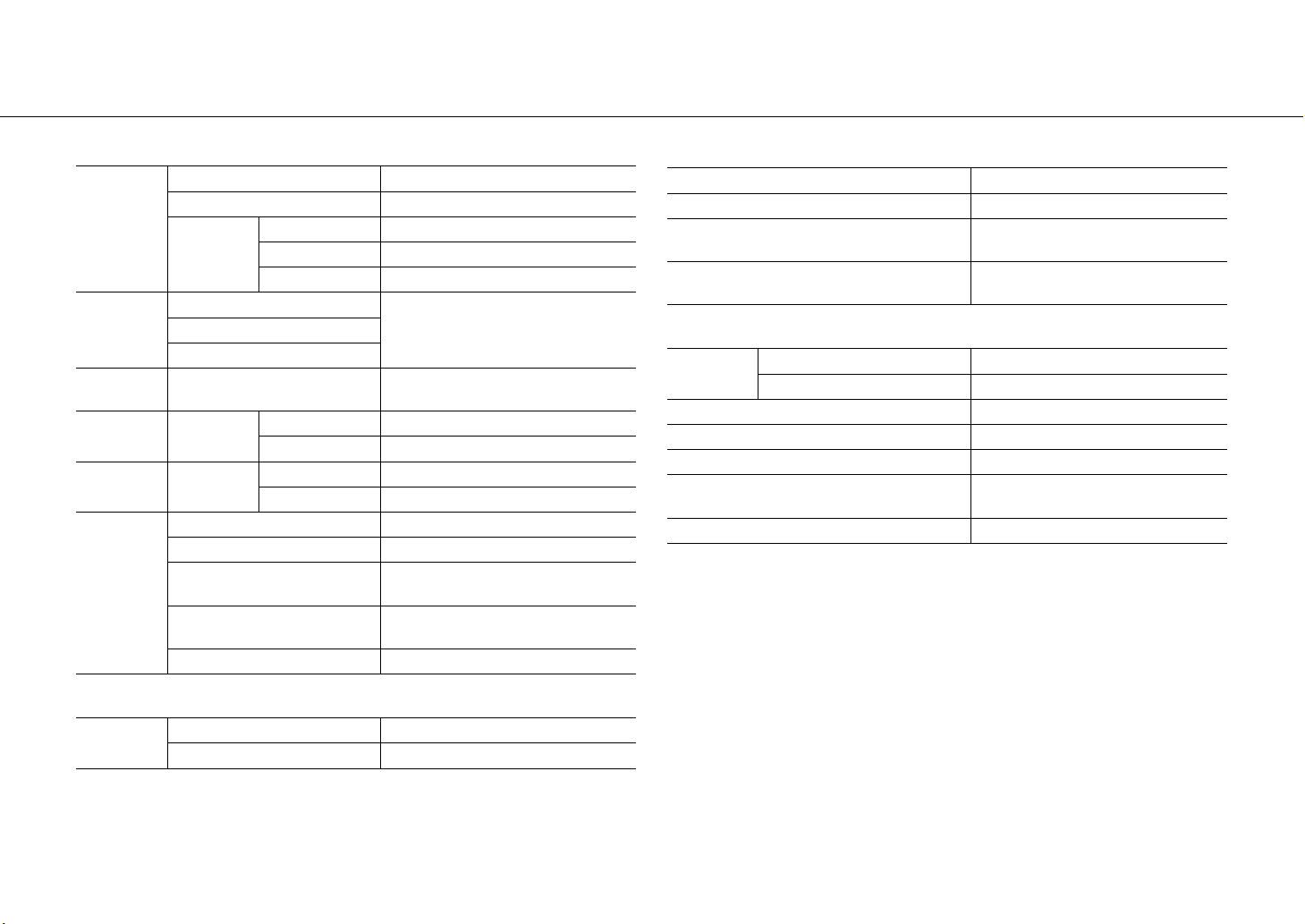
Player section
CD
Media CD, CD-R/RW
Audio format Audio CD, MP3, WMA
Laser
Type Semiconductor laser GaAs/GaAlAs
Wave length 790 nm
Output power 10 mW
iPod
(digital
connection)
Supported iPod
See page 43.Supported iPhone
Supported iPad
USB Supported file format
MP3, WMA, MPEG4 AAC, WAV*, FLAC*
* up to 192 kHz/24 bit
AUX IN
Input
connector
AUX1 Stereo L/R: RCA
AUX2 3.5 mm stereo mini jack
DIGITAL IN
Input
connector
DIGITAL IN 1 Optical
DIGITAL IN 2 Coaxial
Network
Interface 100Base-TX/10Base-T
Internet radio vTuner service supported
PC client function
DLNA Ver. 1.5 (DMP/DMR function)
supported
Supported file format
MP3, WMA, MPEG4 AAC, WAV*, FLAC*
* up to 192 kHz/24 bit
AirPlay AirPlay supported
Tuner section
Tuning range
DAB 174 to 240 MHz (Band III)
FM 87.50 to 108.00 MHz
Amplifier section
Maximum output power 32 W + 32 W (6 Ω 1 kHz, 10% THD)
Total harmonic distortion AUX1 1 kHz/12.5 W 0.05% or less
EQ control
EQ High (treble)/EQ Mid (middle)/EQ Low
(bass): ±10 dB
Headphones
Stereo L/R: 3.5mm stereo mini jack
Adapted impedance: 16 Ω - 32 Ω
General
Power supply
U.K. model AC 230 V, 50 Hz
Australia model AC 240 V, 50 Hz
Power consumption 44 W
Power consumption in the standby mode 6 W or less
Power consumption in the eco standby mode 0.5 W or less
Dimensions (W × H × D)
215 × 110 × 288 mm
(8-1/2 × 4-3/8 × 11-3/8 in)
Weight 2.7 kg (6.0 lbs.)

i En
Information about software
This product uses the following free software. For information (copyright, etc) about each software, read the original sentences stated below.
z About ASN.1 object dumping code
ASN.1 object dumping code, copyright Peter Gutmann
<[email protected]d.ac.nz>, based on ASN.1 dump
program by David Kemp <dpk[email protected]>, with
contributions from various people including Matthew
Hamrick <hamrick@rsa.com>, Bruno Couillard
<bcouillar[email protected]m>, Hallvard Furuseth
<[email protected]>, Geoff Thorpe
<geoff@raas.co.nz>, David Boyce <d.boyce@isode.com>,
John Hughes <john.hughes@entegrity.com>, Life is hard, and
then you die <ronald@trustpoint.com>, Hans-Olof
Hermansson <hans-olof.herman[email protected]>, Tor
Rustad <Tor.Rusta[email protected]>, Kjetil Barvik
<kjetil.barvik@bbs.no>, James Sweeny
<[email protected]m.com>, and several other people whose
names I’ve misplaced.
This code grew slowly over time without much design or
planning, with features being tacked on as required.
It’s not representative of my normal coding style.
z About FLAC codec Library
Copyright ©
2000,2001,2002,2003,2004,2005,2006,2007,2008,2009 Josh
Coalson
Redistribution and use in source and binary forms, with or
without modification, are permitted provided that the
following conditions are met:
Redistributions of source code must retain the above
copyright notice, this list of conditions and the following
disclaimer.
Redistributions in binary form must reproduce the above
copyright notice, this list of conditions and the following
disclaimer in the documentation and/or other materials
provided with the distribution.
Neither the name of the Xiph.org Foundation nor the names
of its contributors may be used to endorse or promote
products derived from this software without specific prior
written permission.
THIS SOFTWARE IS PROVIDED BY THE COPYRIGHT HOLDERS
AND CONTRIBUTORS “AS IS” AND ANY EXPRESS OR IMPLIED
WARRANTIES, INCLUDING, BUT NOT LIMITED TO, THE IMPLIED
WARRANTIES OF MERCHANTABILITY AND FITNESS FOR A
PARTICULAR PURPOSE ARE DISCLAIMED. IN NO EVENT SHALL
THE FOUNDATION OR CONTRIBUTORS BE LIABLE FOR ANY
DIRECT, INDIRECT, INCIDENTAL, SPECIAL, EXEMPLARY, OR
CONSEQUENTIAL DAMAGES (INCLUDING, BUT NOT LIMITED
TO, PROCUREMENT OF SUBSTITUTE GOODS OR SERVICES;
LOSS OF USE, DATA, OR PROFITS; OR BUSINESS
INTERRUPTION) HOWEVER CAUSED AND ON ANY THEORY OF
LIABILITY, WHETHER IN CONTRACT, STRICT LIABILITY, OR TORT
(INCLUDING NEGLIGENCE OR OTHERWISE) ARISING IN ANY
WAY OUT OF THE USE OF THIS SOFTWARE, EVEN IF ADVISED
OF THE POSSIBILITY OF SUCH DAMAGE.
z About libexpat
Copyright © 1998, 1999, 2000 Thai Open Source Software
Center Ltd and Clark Cooper
Copyright © 2001, 2002, 2003, 2004, 2005, 2006 Expat
maintainers.
Permission is hereby granted, free of charge, to any person
obtaining a copy of this software and associated
documentation files (the “Software”), to deal in the Software
without restriction, including without limitation the rights to
use, copy, modify, merge, publish, distribute, sublicense, and/
or sell copies of the Software, and to permit persons to whom
the Software is furnished to do so, subject to the following
conditions:
The above copyright notice and this permission notice shall
be included in all copies or substantial portions of the
Software.
THE SOFTWARE IS PROVIDED “AS IS”, WITHOUT WARRANTY
OF ANY KIND, EXPRESS OR IMPLIED, INCLUDING BUT NOT
LIMITED TO THE WARRANTIES OF MERCHANTABILITY, FITNESS
FOR A PARTICULAR PURPOSE AND NONINFRINGEMENT. IN
NO EVENT SHALL THE AUTHORS OR COPYRIGHT HOLDERS BE
LIABLE FOR ANY CLAIM, DAMAGES OR OTHER LIABILITY,
WHETHER IN AN ACTION OF CONTRACT, TORT OR
OTHERWISE, ARISING FROM, OUT OF OR IN CONNECTION
WITH THE SOFTWARE OR THE USE OR OTHER DEALINGS IN
THE SOFTWARE.
z About The Independent JPEG
Group’s JPEG software
The Independent JPEG Group’s JPEG software
Copyright © 1991-2010, Thomas G. Lane, Guido Vollbeding.
All Rights Reserved except as specified below.
The authors make NO WARRANTY or representation, either
express or implied, with respect to this software, its quality,
accuracy, merchantability, or fitness for a particular purpose.

Information about software
En ii
This software is provided “AS IS”, and you, its user, assume the
entire risk as to its quality and accuracy.
Permission is hereby granted to use, copy, modify, and
distribute this software (or portions thereof) for any purpose,
without fee, subject to these conditions:
(1) If any part of the source code for this software is
distributed, then this README file must be included, with
this copyright and no-warranty notice unaltered; and any
additions, deletions, or changes to the original files must
be clearly indicated in accompanying documentation.
(2) If only executable code is distributed, then the
accompanying documentation must state that “this
software is based in part on the work of the Independent
JPEG Group”.
(3) Permission for use of this software is granted only if the
user accepts full responsibility for any undesirable
consequences; the authors accept NO LIABILITY for
damages of any kind.
These conditions apply to any software derived from or based
on the IJG code, not just to the unmodified library. If you use
our work, you ought to acknowledge us.
Permission is NOT granted for the use of any IJG author’s
name or company name in advertising or publicity relating to
this software or products derived from it. This software may
be referred to only as “the Independent JPEG Group’s
software”.
We specifically permit and encourage the use of this software
as the basis of commercial products, provided that all
warranty or liability claims are assumed by the product
vendor.
z About JsonCpp
Copyright © 2007-2010 Baptiste Lepilleur
Permission is hereby granted, free of charge, to any person
obtaining a copy of this software and associated
documentation files (the “Software”), to deal in the Software
without restriction, including without limitation the rights to
use, copy, modify, merge, publish, distribute, sublicense, and/
or sell copies of the Software, and to permit persons to whom
the Software is furnished to do so, subject to the following
conditions:
The above copyright notice and this permission notice shall
be included in all copies or substantial portions of the
Software.
THE SOFTWARE IS PROVIDED “AS IS”, WITHOUT WARRANTY
OF ANY KIND, EXPRESS OR IMPLIED, INCLUDING BUT NOT
LIMITED TO THE WARRANTIES OF MERCHANTABILITY, FITNESS
FOR A PARTICULAR PURPOSE AND NONINFRINGEMENT. IN
NO EVENT SHALL THE AUTHORS OR COPYRIGHT HOLDERS BE
LIABLE FOR ANY CLAIM, DAMAGES OR OTHER LIABILITY,
WHETHER IN AN ACTION OF CONTRACT, TORT OR
OTHERWISE, ARISING FROM, OUT OF OR IN CONNECTION
WITH THE SOFTWARE OR THE USE OR OTHER DEALINGS IN
THE SOFTWARE.
z About Network
Copyright © 1988 Stephen Deering.
Copyright © 1992, 1993
The Regents of the University of California. All rights reserved.
Copyright © 1985, 1986, 1993
The Regents of the University of California. All rights reserved.
Redistribution and use in source and binary forms, with or
without modification, are permitted provided that the
following conditions are met:
(1) Redistributions of source code must retain the above
copyright notice, this list of conditions and the following
disclaimer.
(2) Redistributions in binary form must reproduce the above
copyright notice, this list of conditions and the following
disclaimer in the documentation and/or other materials
provided with the distribution.
(3) All advertising materials mentioning features or use of
this software must display the following
acknowledgement:
This product includes software developed by the
University of California, Berkeley and its contributors.
(4) Neither the name of the University nor the names of its
contributors may be used to endorse or promote
products derived from this software without specific
prior written permission.
THIS SOFTWARE IS PROVIDED BY THE REGENTS AND
CONTRIBUTORS “AS IS” AND ANY EXPRESS OR IMPLIED
WARRANTIES, INCLUDING, BUT NOT LIMITED TO, THE IMPLIED
WARRANTIES OF MERCHANTABILITY AND FITNESS FOR A
PARTICULAR PURPOSE ARE DISCLAIMED. IN NO EVENT SHALL
THE REGENTS OR CONTRIBUTORS BE LIABLE FOR ANY DIRECT,
INDIRECT, INCIDENTAL, SPECIAL, EXEMPLARY, OR
CONSEQUENTIAL DAMAGES (INCLUDING, BUT NOT LIMITED
TO, PROCUREMENT OF SUBSTITUTE GOODS OR SERVICES;
LOSS OF USE, DATA, OR PROFITS; OR BUSINESS
INTERRUPTION) HOWEVER CAUSED AND ON ANY THEORY OF
LIABILITY, WHETHER IN CONTRACT, STRICT LIABILITY, OR TORT
(INCLUDING NEGLIGENCE OR OTHERWISE) ARISING IN ANY
WAY OUT OF THE USE OF THIS SOFTWARE, EVEN IF ADVISED
OF THE POSSIBILITY OF SUCH DAMAGE.

Information about software
iii En
Copyright © 1982, 1986 Regents of the University of
California.
All rights reserved.
Copyright © 1982, 1986, 1988 Regents of the University of
California.
All rights reserved.
Redistribution and use in source and binary forms are
permitted provided that the above copyright notice and this
paragraph are duplicated in all such forms and that any
documentation, advertising materials, and other materials
related to such distribution and use acknowledge that the
software was developed by the University of California,
Berkeley. The name of the University may not be used to
endorse or promote products derived from this software
without specific prior written permission.
THIS SOFTWARE IS PROVIDED “AS IS” AND WITHOUT ANY
EXPRESS OR IMPLIED WARRANTIES, INCLUDING, WITHOUT
LIMITATION, THE IMPLIED WARRANTIES OF MERCHANTIBILITY
AND FITNESS FOR A PARTICULAR PURPOSE.
z About PNG Reference Library
ibpng versions 1.2.6, August 15, 2004, through 1.4.5,
December 9, 2010, are Copyright © 2004, 2006-2010 Glenn
Randers-Pehrson, and are distributed according to the same
disclaimer and license as libpng-1.2.5 with the following
individual added to the list of Contributing Authors
Cosmin Truta
libpng versions 1.0.7, July 1, 2000, through 1.2.5 - October 3,
2002, are Copyright © 2000-2002 Glenn Randers-Pehrson, and
are distributed according to the same disclaimer and license
as libpng-1.0.6 with the following individuals added to the list
of Contributing Authors
Simon-Pierre Cadieux
Eric S. Raymond
Gilles Vollant
and with the following additions to the disclaimer:
There is no warranty against interference with your
enjoyment of the library or against infringement. There is
no warranty that our efforts or the library will fulfill any of
your particular purposes or needs. This library is provided
with all faults, and the entire risk of satisfactory quality,
performance, accuracy, and effort is with the user.
libpng versions 0.97, January 1998, through 1.0.6, March 20,
2000, are Copyright © 1998, 1999 Glenn Randers-Pehrson,
and are distributed according to the same disclaimer and
license as libpng-0.96, with the following individuals added to
the list of Contributing Authors:
Tom Lane
Glenn Randers-Pehrson
Willem van Schaik
libpng versions 0.89, June 1996, through 0.96, May 1997, are
Copyright © 1996, 1997 Andreas Dilger
Distributed according to the same disclaimer and license as
libpng-0.88, with the following individuals added to the list of
Contributing Authors:
John Bowler
Kevin Bracey
Sam Bushell
Magnus Holmgren
Greg Roelofs
Tom Tanner
libpng versions 0.5, May 1995, through 0.88, January 1996, are
Copyright © 1995, 1996 Guy Eric Schalnat, Group 42, Inc.
For the purposes of this copyright and license, “Contributing
Authors” is defined as the following set of individuals:
Andreas Dilger
Dave Martindale
Guy Eric Schalnat
Paul Schmidt
Tim Wegner
The PNG Reference Library is supplied “AS IS”. The
Contributing Authors and Group 42, Inc. disclaim all
warranties, expressed or implied, including, without
limitation, the warranties of merchantability and of fitness for
any purpose. The Contributing Authors and Group 42, Inc.
assume no liability for direct, indirect, incidental, special,
exemplary, or consequential damages, which may result from
the use of the PNG Reference Library, even if advised of the
possibility of such damage.
Permission is hereby granted to use, copy, modify, and
distribute this source code, or portions hereof, for any
purpose, without fee, subject to the following restrictions:
(1) The origin of this source code must not be
misrepresented.
(2) Altered versions must be plainly marked as such and
must not be misrepresented as being the original source.
(3) This Copyright notice may not be removed or altered
from any source or altered source distribution.
The Contributing Authors and Group 42, Inc. specifically
permit, without fee, and encourage the use of this source
code as a component to supporting the PNG file format in
commercial products. If you use this source code in a
product, acknowledgment is not required but would be
appreciated.
z About RC4 Algorithm
Copyright Mocana Corp 2003-2005. All Rights Reserved.
Proprietary and Confidential Material.
Information about software
En iv
z About WPA Supplicant
Copyright © 2003-2008, Jouni Malinen <[email protected]> and
contributors
All Rights Reserved.
Redistribution and use in source and binary forms, with or
without modification, are permitted provided that the
following conditions are met:
(1) Redistributions of source code must retain the above
copyright notice, this list of conditions and the following
disclaimer.
(2) Redistributions in binary form must reproduce the above
copyright notice, this list of conditions and the following
disclaimer in the documentation and/or other materials
provided with the distribution.
(3) Neither the name(s) of the above-listed copyright
holder(s) nor the names of its contributors may be used
to endorse or promote products derived from this
software without specific prior written permission.
THIS SOFTWARE IS PROVIDED BY THE COPYRIGHT HOLDERS
AND CONTRIBUTORS “AS IS” AND ANY EXPRESS OR IMPLIED
WARRANTIES, INCLUDING, BUT NOT LIMITED TO, THE IMPLIED
WARRANTIES OF MERCHANTABILITY AND FITNESS FOR A
PARTICULAR PURPOSE ARE DISCLAIMED. IN NO EVENT SHALL
THE COPYRIGHT OWNER OR CONTRIBUTORS BE LIABLE FOR
ANY DIRECT, INDIRECT, INCIDENTAL, SPECIAL, EXEMPLARY, OR
CONSEQUENTIAL DAMAGES (INCLUDING, BUT NOT LIMITED
TO, PROCUREMENT OF SUBSTITUTE GOODS OR SERVICES;
LOSS OF USE, DATA, OR PROFITS; OR BUSINESS
INTERRUPTION) HOWEVER CAUSED AND ON ANY THEORY OF
LIABILITY, WHETHER IN CONTRACT, STRICT LIABILITY, OR TORT
(INCLUDING NEGLIGENCE OR OTHERWISE) ARISING IN ANY
WAY OUT OF THE USE OF THIS SOFTWARE, EVEN IF ADVISED
OF THE POSSIBILITY OF SUCH DAMAGE.
z About zlib Library
Copyright notice:
© 1995-2010 Jean-loup Gailly and Mark Adler
This software is provided ‘as-is’, without any express or
implied warranty. In no event will the authors be held liable
for any damages arising from the use of this software.
Permission is granted to anyone to use this software for any
purpose, including commercial applications, and to alter it
and redistribute it freely, subject to the following restrictions:
(1) The origin of this software must not be misrepresented;
you must not claim that you wrote the original software.
If you use this software in a product, an acknowledgment
in the product documentation would be appreciated but
is not required.
(2) Altered source versions must be plainly marked as such,
and must not be misrepresented as being the original
software.
(3) This notice may not be removed or altered from any
source distribution.
Do not disassemble, decompile, or reverse engineer the
software included in Yamaha AV products.
N e t w o r k C D R e c e i v e r
© 2013 Yamaha Corporation
Printed in Malaysia ZH10760-1
O W N E R ’ S M A N UA L
Re ad the su ppl ied bo oklet “S afety Broch ure” before usi ng the un it.
AB