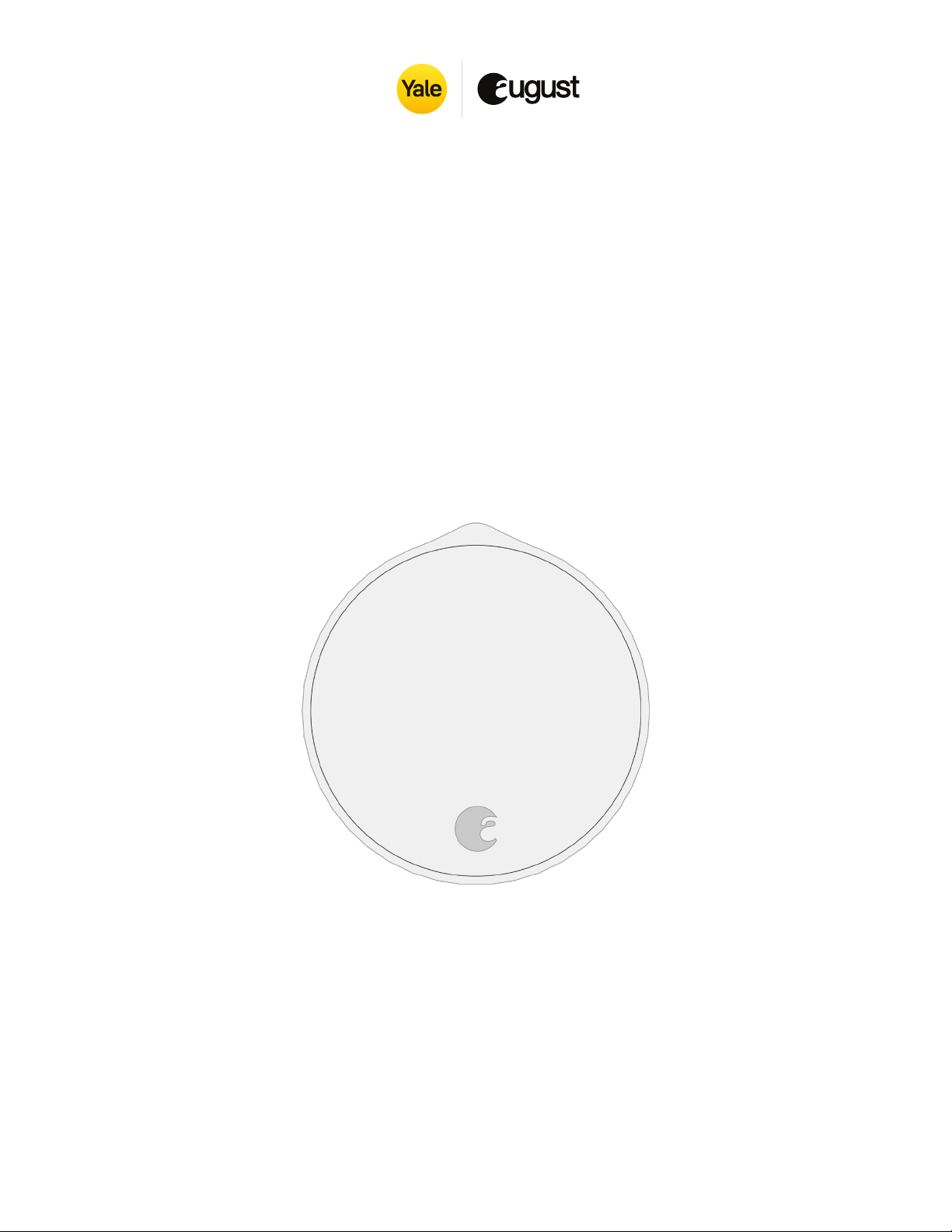
Installation Guide
August Wi-Fi Smart Lock
August is committed to ensuring you have a smooth setup experience.
To learn more about your new smart device go to support.august.com
© 2021 August Home Inc.
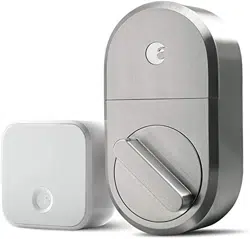
Inside the box
Getting started
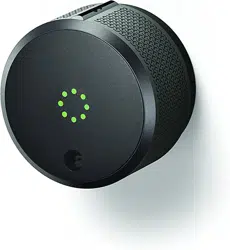
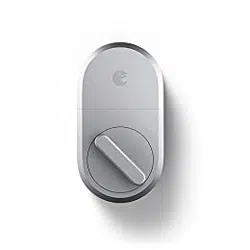
• August Wi-Fi Smart Lock (4th gen)
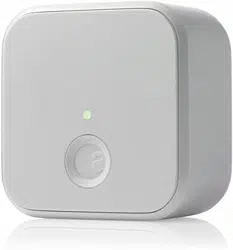
• DoorSense® sensor
• CR123 batteries
• Lock adapter & mounting hardware*
• Tape
What you need
• Phillips Screwdriver
• August App for iOS or Android
• iOS or Android smartphone
• Wi-Fi internet connection
(802.11 b/g/n 2.4GHz)
© 2021 August Home Inc.
Page 1 of 7
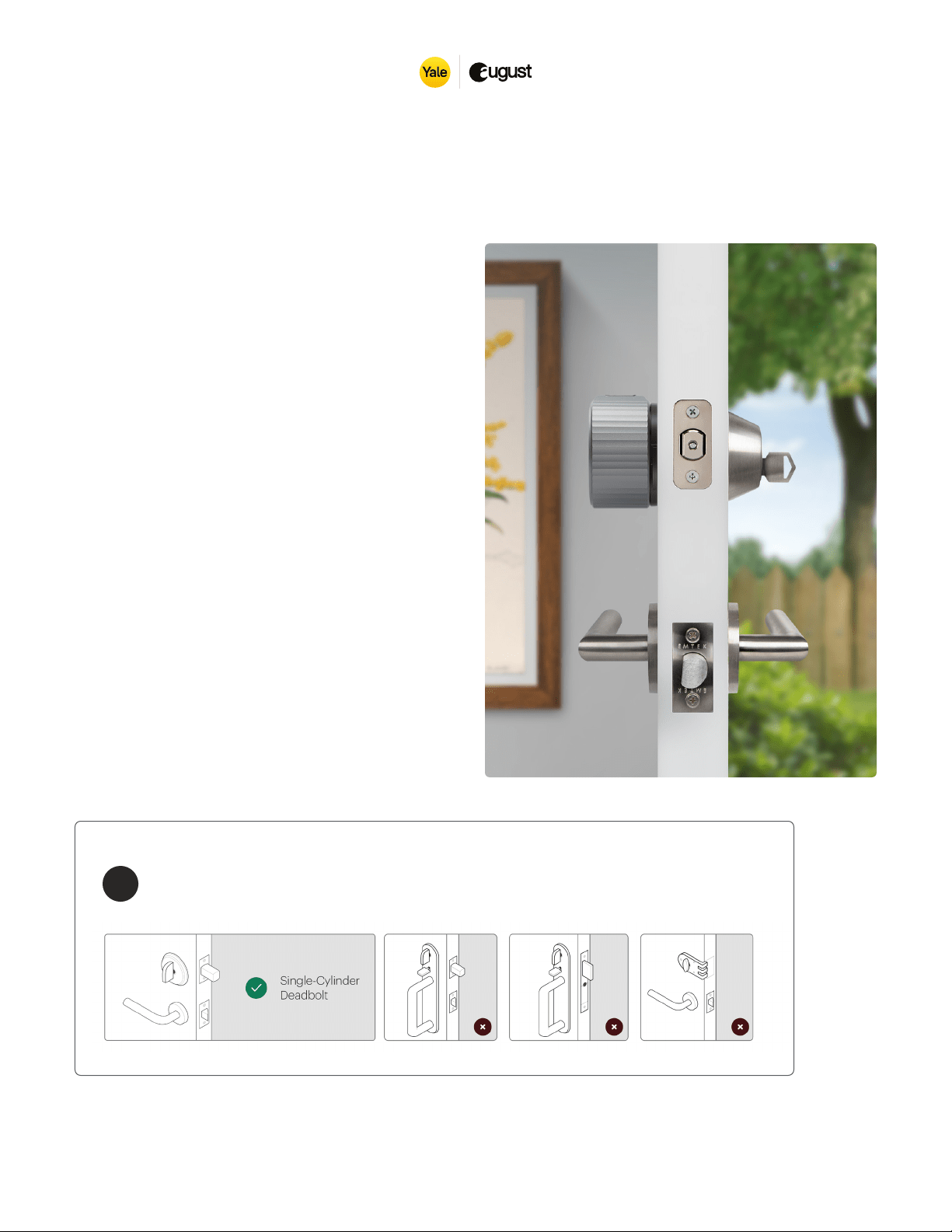
Door Compatibility
The August Wi-Fi Smart Lock is comaptible with most single-cylinder deadbolts.
To learn more go to https://support.august.com/deadbolt-compatibility-list-rkzJDLyR_G
!
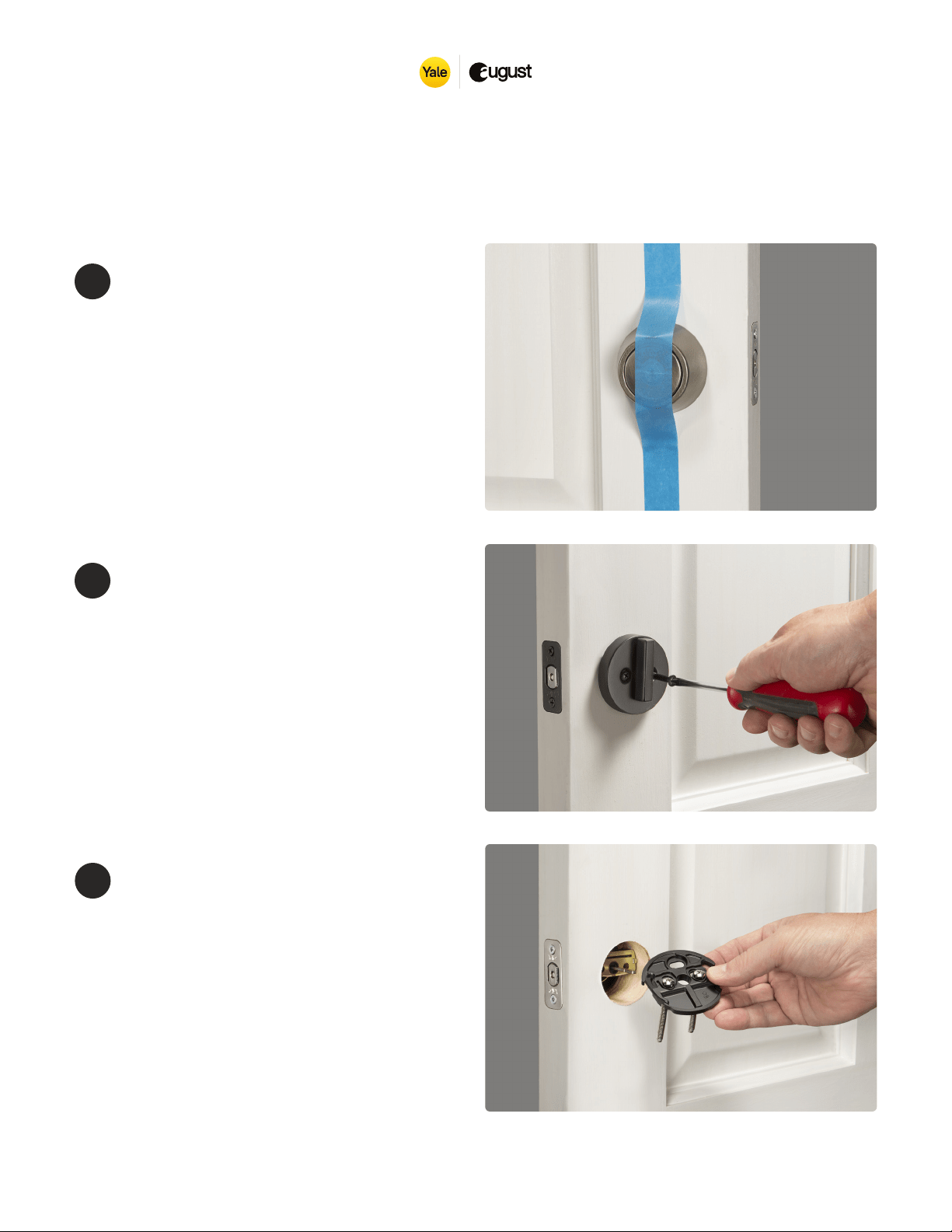
Prepare the
mounting plate
The included Mounting Plate has
two adjustable screw-holes that
can be repositioned as needed.
Use the two screws from the
thumbturn, and insert it through
the screw-holes.
3
Installation
© 2021 August Home Inc.
Page 2 of 7
Remove your
existing thumbturn
Use a Philips Screwdriver to
remove your existing thumbturn.
Be sure to unlock your deadbolt
before removing the thumbturn
entirely. If your deadbolt has a
back plate, remove that as well.
2
Prepare your
existing deadbolt
Place the supplied adhesive strip
to hold the keyed side of the lock
in place. Be sure to press down the
tape against the keyhole when you
install the smart lock on the inside
of the door.
1
Installation
© 2021 August Home Inc.
Page 3 of 7
Optional: Determine if you need the Cover Plate
For oversized deadbolt holes, an optional cover plate is included with your smart lock.
If your smart lock’s mounting plate does not fully cover the hole left by the removed
thumbturn, you may want to use the included Cover Plate.
Attach the Mounting Plate
1. If using the optional Cover Plate, place it over the deadbolt hole.
2. Take note of the DOOR SIDE and UP arrow.
3. Pass the mounting plate screws through the larger opening in the Cover Plate, taking
note of the UP arrow.
4. Tighten the screws until the mounting plate is settled securely against the door.
4
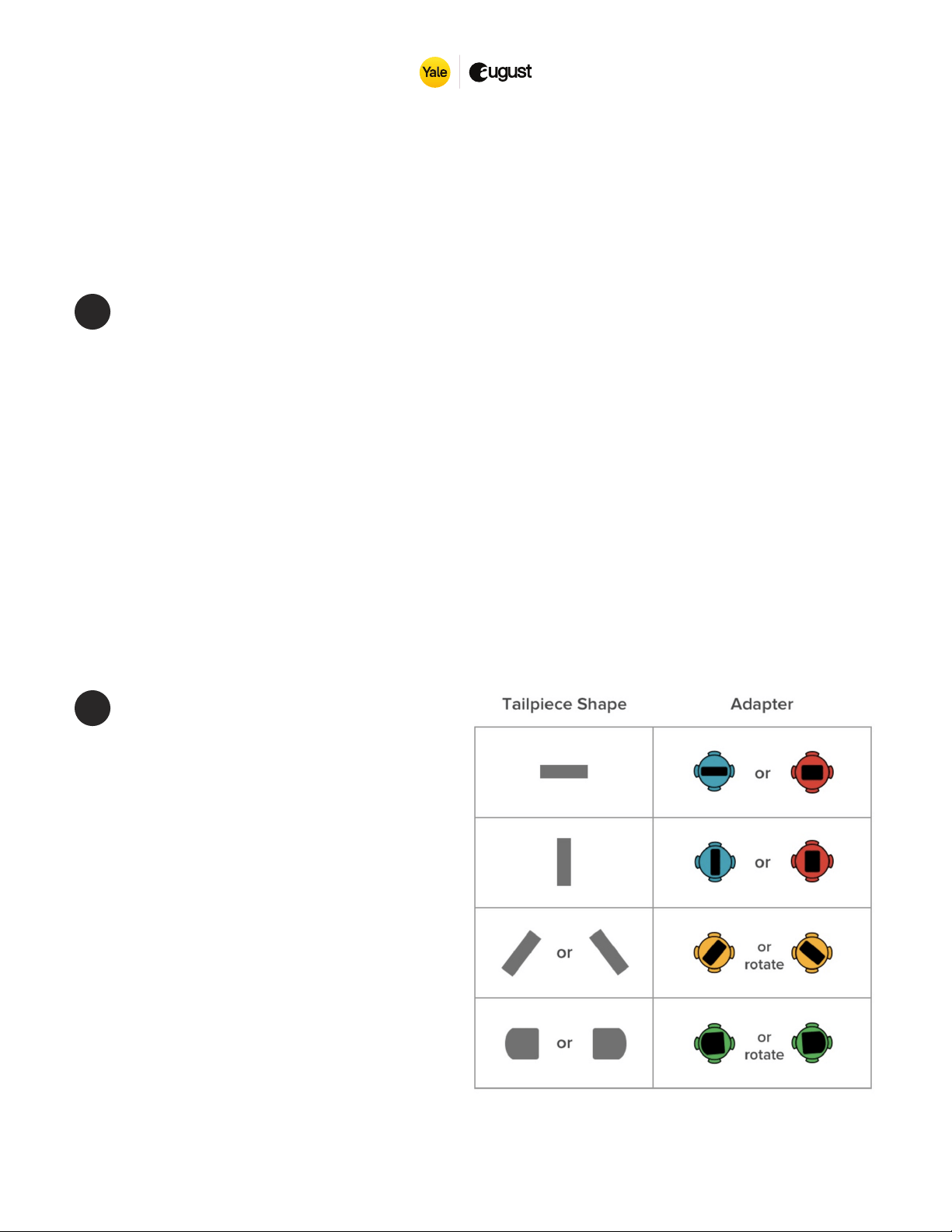
Choose your
adapter
Select your adapter from the
Compatibility Chart. If your lock
brand is not in the chart, slide
each adapter onto the tailpiece
to ind the right one. The correct
adapter will have one of the
teeth pointing up.
5
Installation
© 2021 August Home Inc.
Page 4 of 7
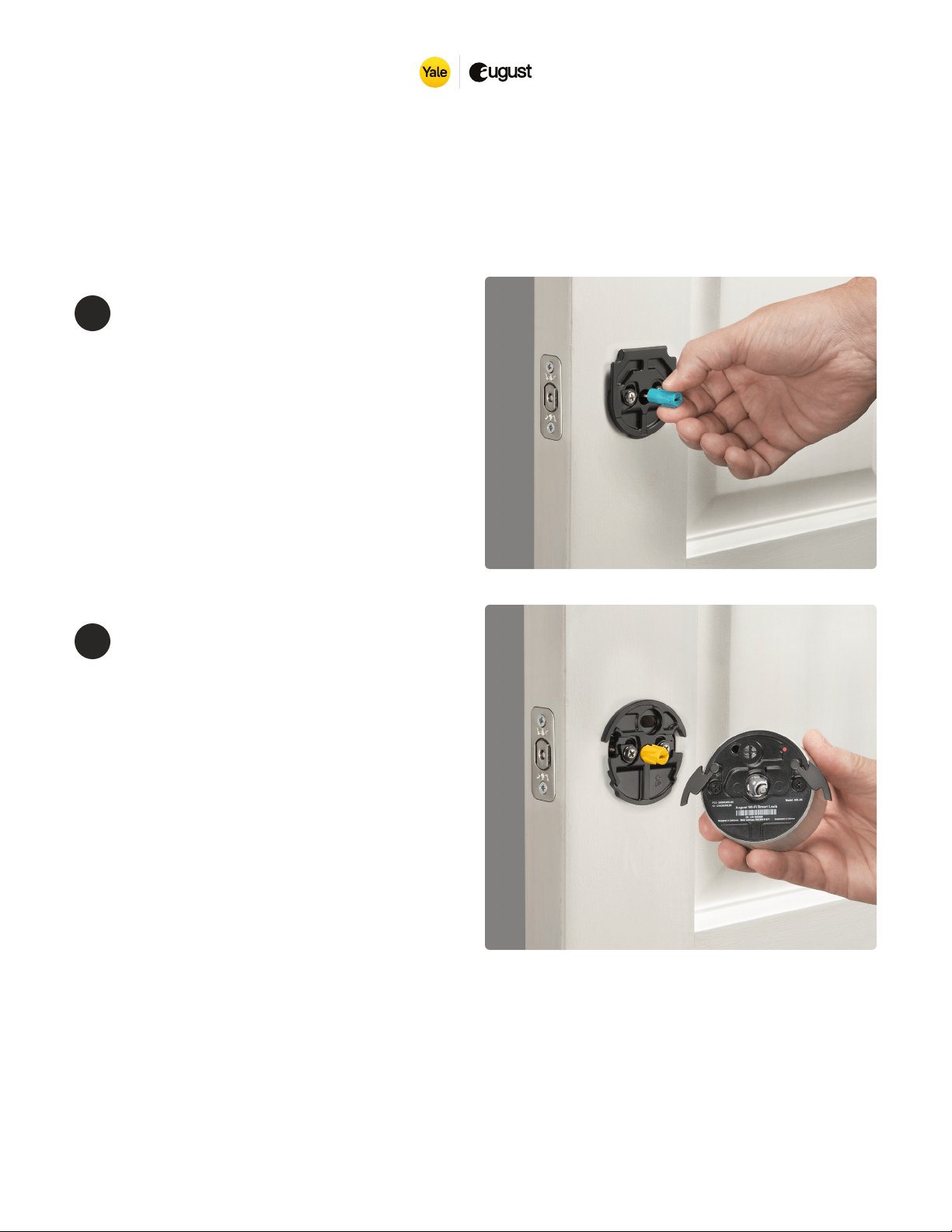
Attach the
adapter
Place the adapter onto the tail piece.
One of the triangle shaped teeth
should be facing up if you have the
correct adapter. Make sure the non
teeth side of the adapter goes in
through the tail piece irst.
6
Rotate to unlocked
position and open
wing latches
Rotate the thumbturn on your
August Smart Lock all the way
to the unlocked position, which
may take some moderate force.
The direction you turn will
depend on which side of the
door your deadbolt is on.
7
Installation
© 2021 August Home Inc.
Page 5 of 7
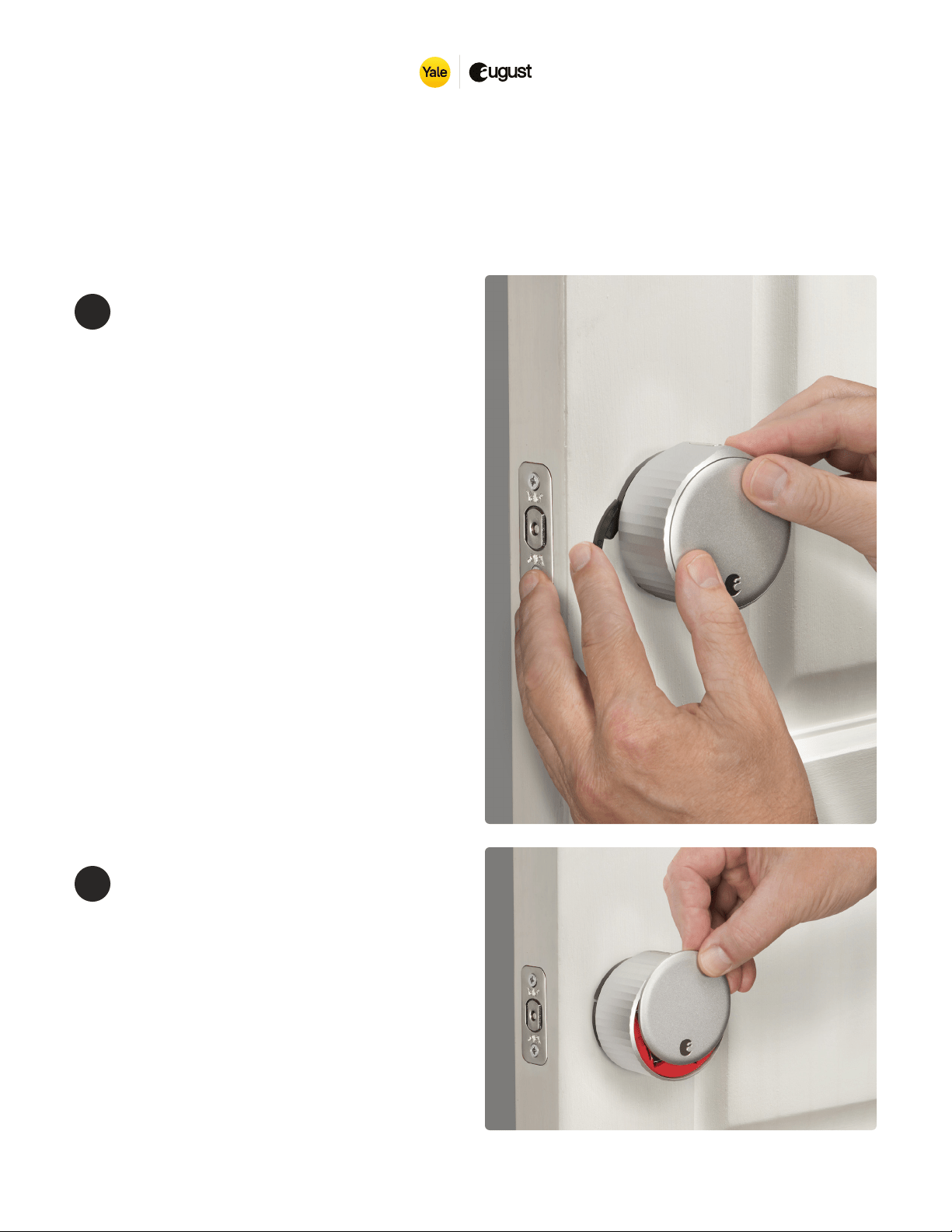
Attach the August
Smart Lock
Before placing the August Smart
Lock on the door, ensure the
thumbturn is in the correct
unlocked position. Slide the
smart lock over the tailpiece and
attach it to the mounting plate.
To secure the smart lock, clamp
down both side wing latches to
the mounting plate completely.
Make sure the back of the lock is
lush with the door, and the lock
is able to lock and unlock the
deadbolt manually by rotating
the outer shell.
8
Remove the
faceplate
Press down on the August logo
located at the bottom of the
face plate. Grab the top of the
faceplate and remove it.
9
Install
DoorSense®
DoorSense® enables your lock to
know when the door is open and
closed. For instructions visit this
support page:
12
Installation
© 2021 August Home Inc.
Page 6 of 7
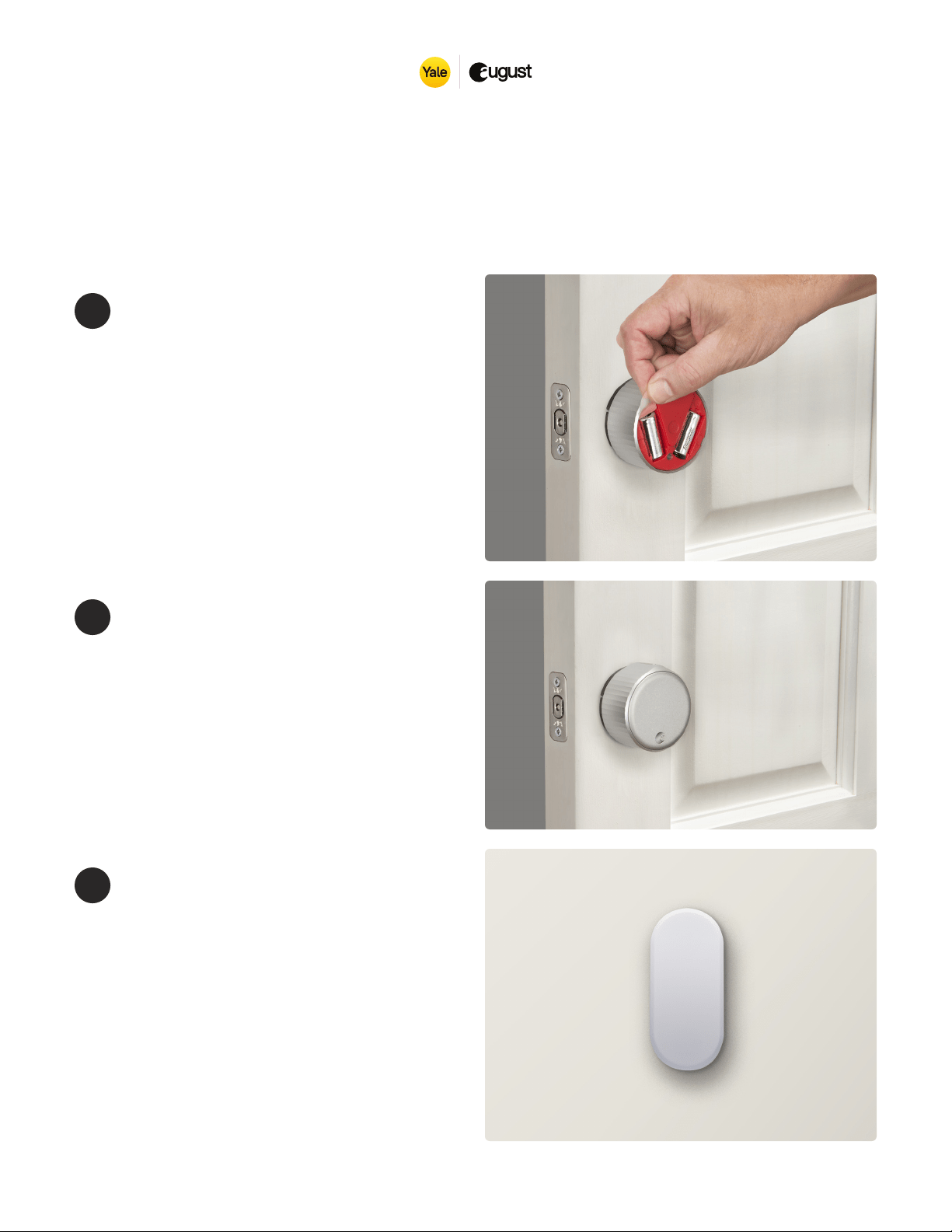
Remove the
battery tab
While holding the batteries in place,
remove the plastic battery isolation
tab. Make sure that the battery is
properly seated in its compartment.
10
Reattach the
faceplate
Place the faceplate back onto the
smart lock, with the August logo at
the bottom
11
https://support.august.com/what-is-
doorsensetm-Hk4vL1A_z
Installation
© 2021 August Home Inc.
Page 7 of 7
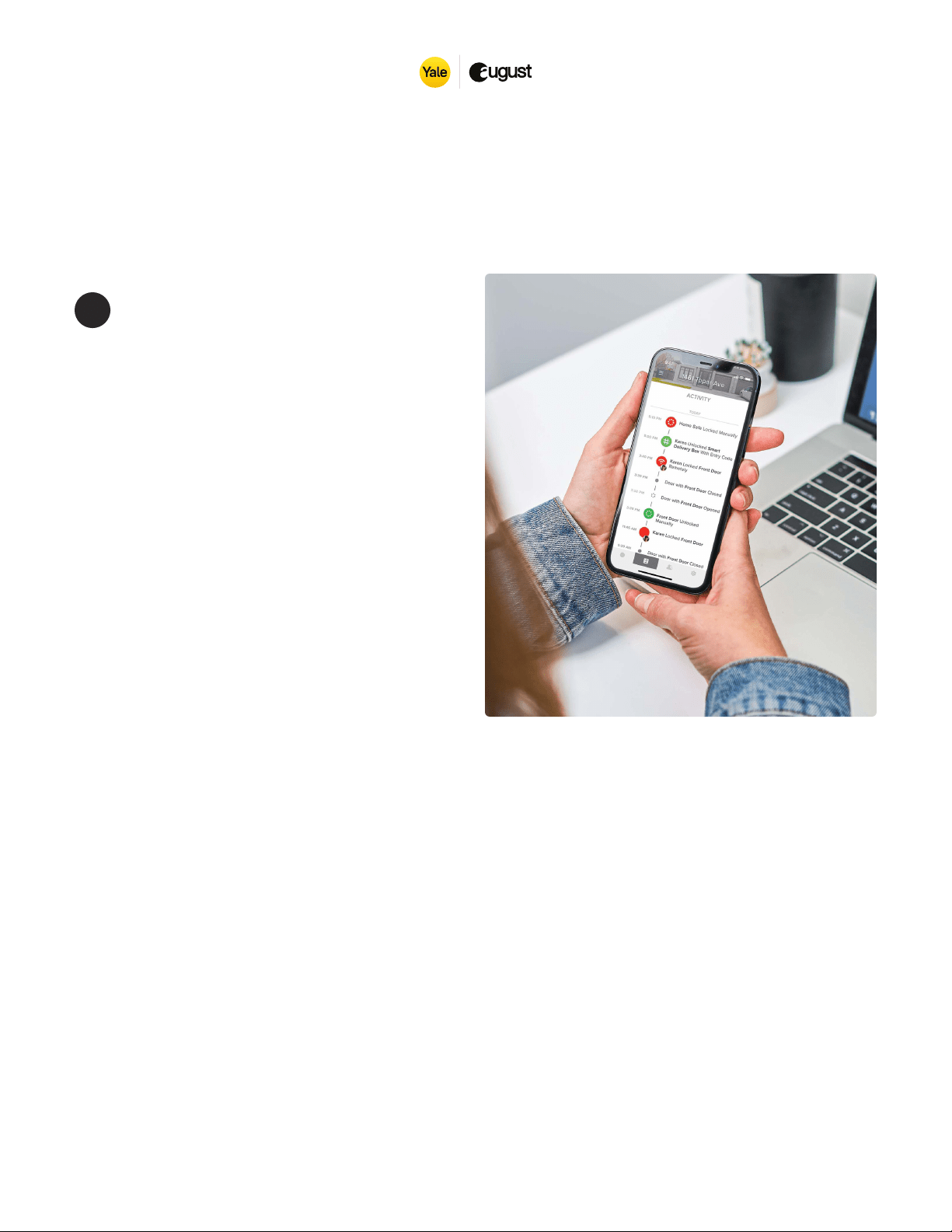
Use the August
Home App to
complete setup
Download the free August App from
the App Store or Google Play Store.
Create an account.
From the menu, tap “Set up a device.”
Then tap “Set up a smart lock” and
choose “WIFI SMART LOCK 4TH
GENERATION.”
Tap “Start” and then tap “Continue,
my device is installed.” The app will
then begin the process of connecting
to your Smart Lock.
13