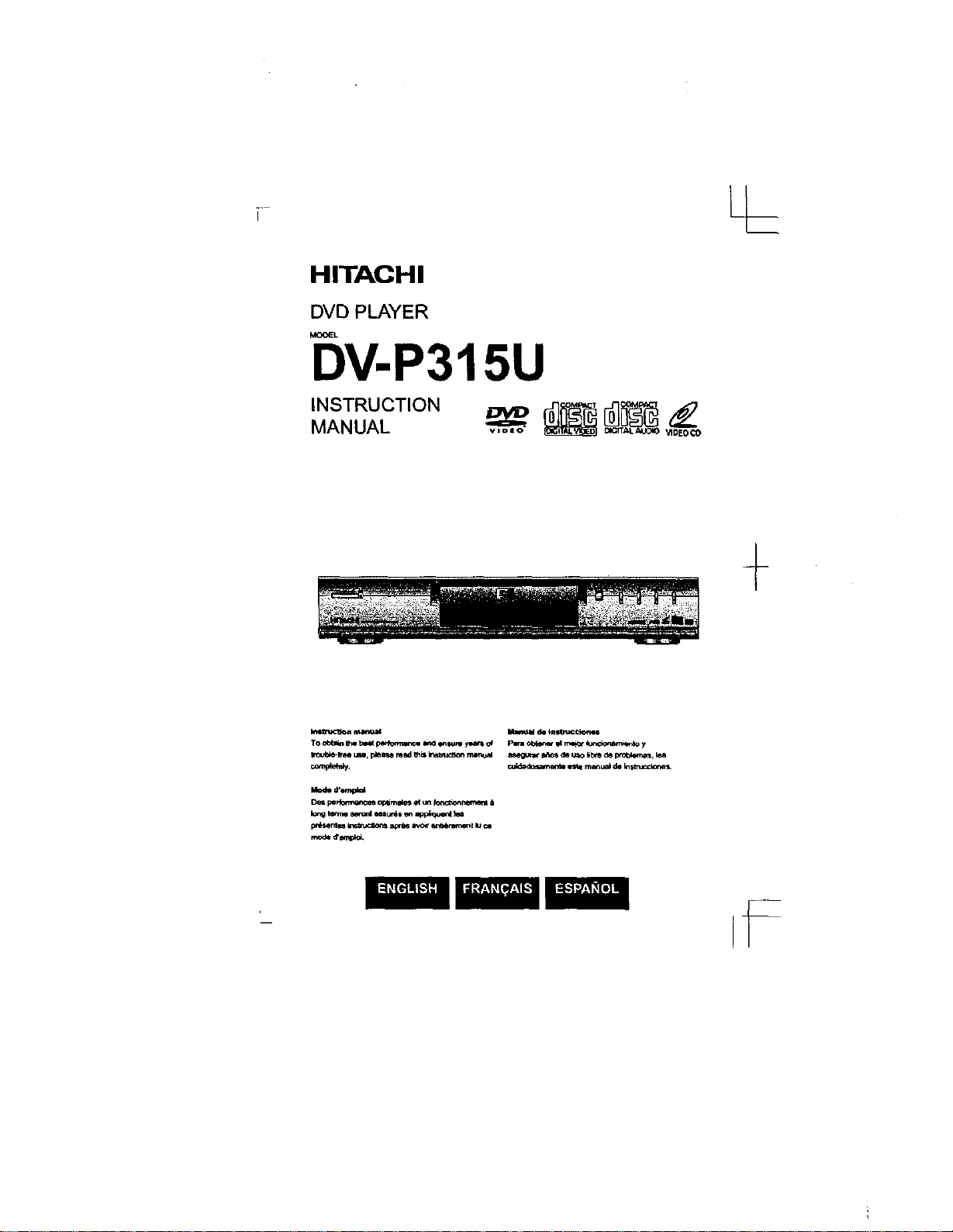
HITACHI
DVD PLAYER
MOOEL
DV-P315U
INSTRUCTION
MANUAL
+
Toot_ ffm bmMtp_ anchlmr_m _a_nLof F_m obten_ M rn_ k:t_cion_Qnlo y
_mple(_. c_d_.=S_sawe_*__ manuaJde _
DQSperllOril_llO_ o_m_ _ U_ronGila_n_'l_B__
p_,sent_ Ins_(:s_s _rbs t,_*" _0&m,n'_nl luce
TO REDUCE THE RISK OF ELECTRIC SHOCK, DO NOT
REMOVE THE COVER(OR BACK),
NO USER-SERVICEABLE PARTS ARE INSIDE, REFER
SERVICING TO QUALIFIED SERVICE PERSONNEL.
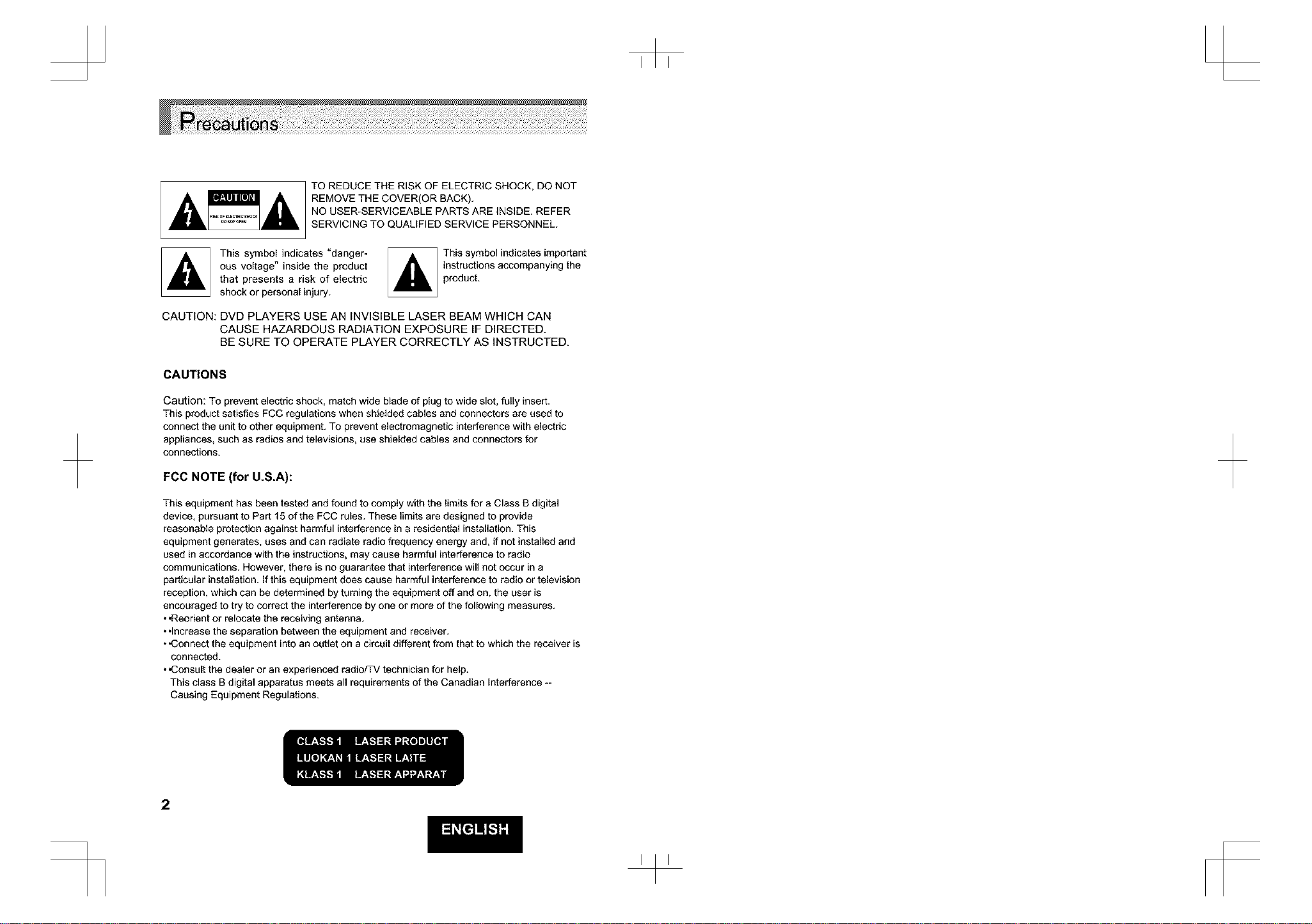
This symbol indicates "danger-
ous voltage" inside the product
that presents a risk of electric
shock or personal injury.
This symbol indicates important
instructions accompanying the
product.
CAUTION: DVD PLAYERS USE AN INVISIBLE LASER BEAM WHICH CAN
CAUSE HAZARDOUS RADIATION EXPOSURE IF DIRECTED.
BE SURE TO OPERATE PLAYER CORRECTLY AS INSTRUCTED.
CAUTIONS
Caution: To prevent electric shock, match wide blade of plug to wide slot, fully insert.
This product satisfies FCC regulations when shielded cables and connectors are used to
connect the unit to other equipment. To prevent electromagnetic interference with electric
appliances, such as radios and televisions, use shielded cables and connectors for
connections.
FCC NOTE (for U.S.A):
This equipment has been tested and found to comply with the limits for a Class B digital
device, pursuant to Part 15 of the FCC rules. These limits are designed to provide
reasonable protection against harmful interference in a residential installation. This
equipment generates, uses and can radiate radio frequency energy and, if not installed and
used in accordance with the instructions, may cause harmful interference to radio
communications. However, there is no guarantee that interference will not occur in a
particular installation. If this equipment does cause harmful interference to radio or television
reception, which can be determined by turning the equipment off and on, the user is
encouraged to try to correct the interference by one or more of the following measures.
• "Reorient or relocate the receiving antenna.
• •Increase the separation between the equipment and receiver.
• ,Connect the equipment into an outlet on a circuit different from that to which the receiver is
connected.
• ,Consult the dealer or an experienced radioFFV technician for help.
This class B digital apparatus meets all requirements of the Canadian Interference --
Causing Equipment Regulations.
2
WARNING
To reduce the risk
of fire or shock
hazard, do not
expose this DVD
player to rain or
moisture.
CAUTION
THIS PRODUCT UTILIZES A LASER. USE OF CONTROLS OR
ADJUSTMENTS OR PERFORMANCE OF PROCEDURES
OTHER THAN THOSE SPECIFIED HEREIN MAY RESULT IN
HAZARDOUS RADIATION EXPOSURE. DO NOT OPEN
COVER AND DO NOT REPAIR YOURSELE REFER
SERVICING TO QUALIFIED PERSONNEL.
Notes:
• •This unit can be used only where the power supply is AC 120V, 60Hz. It cannot be
used elsewhere.
• •This DVD player is designed and manufactured to respond to the Region Management
Information. If the Region number of a DVD disc does not correspond to the Region
number of this DVD player, this DVD player cannot play the disc.
• •This device is protected by U.S. patent numbers 4,631,603 and 4,577,216 and
4,819,098 and other intellectual property rights. The use of Macrovision.s copy
protection technology in the device must be authorized by Macrovision and is intended
for home and other limited pay-per-view uses only, unless otherwise authorized in
writing by Macrovision. Reverse engineering or disassembly is prohibited.
• .Before connecting other components to this player, be sure to turn them all off.
• ,Do not move the player while a disc is being played, or the disc may be scratched or
broken, and the player's internal parts may be damaged.
• ,Do not install the player on top of a heat producing device. When installing in a cabinet,
place the player below the amplifier or any other heat producing audio devices, as far as
possible (but in a dust free spot).
*,Do not put a flower vase filled with water or any small metal objects on the player.
• •Be careful not to put your hand into the disc tray.
• •Do not place anything other than the disc in the disc tray.
• .Exterior interference such as lightning and static electricity can affect normal operation
of this player. If this occurs, turn the player off and on again with the POWER button, or
disconnect and then reconnect the AC power cord to the AC power outlet. The player will
operate normally.
*•Be sure to remove the disc and turn off the player after use.
• .Disconnect the AC power cord from the AC outlet when you don't intend to use the
player for long periods of time.
*,Clean the disc by wiping in a straight line from the inside to the outside of the disc.
Be careful not to harm the disc because the data on these discs is highly vulnerable to the
environment.
• ,Do not keep under direct sunlight.
*.Keep in a cool ventilated area.
• •Store vertically.
• .Keep in a clean protection jacket.
For safety reasons, be sure to disconnect the AC power cord from the AC outlet.
• ,Do not use benzene, thinner, or other solvents for cleaning.
• *Wipe the cabinet with a soft cloth.
3
[
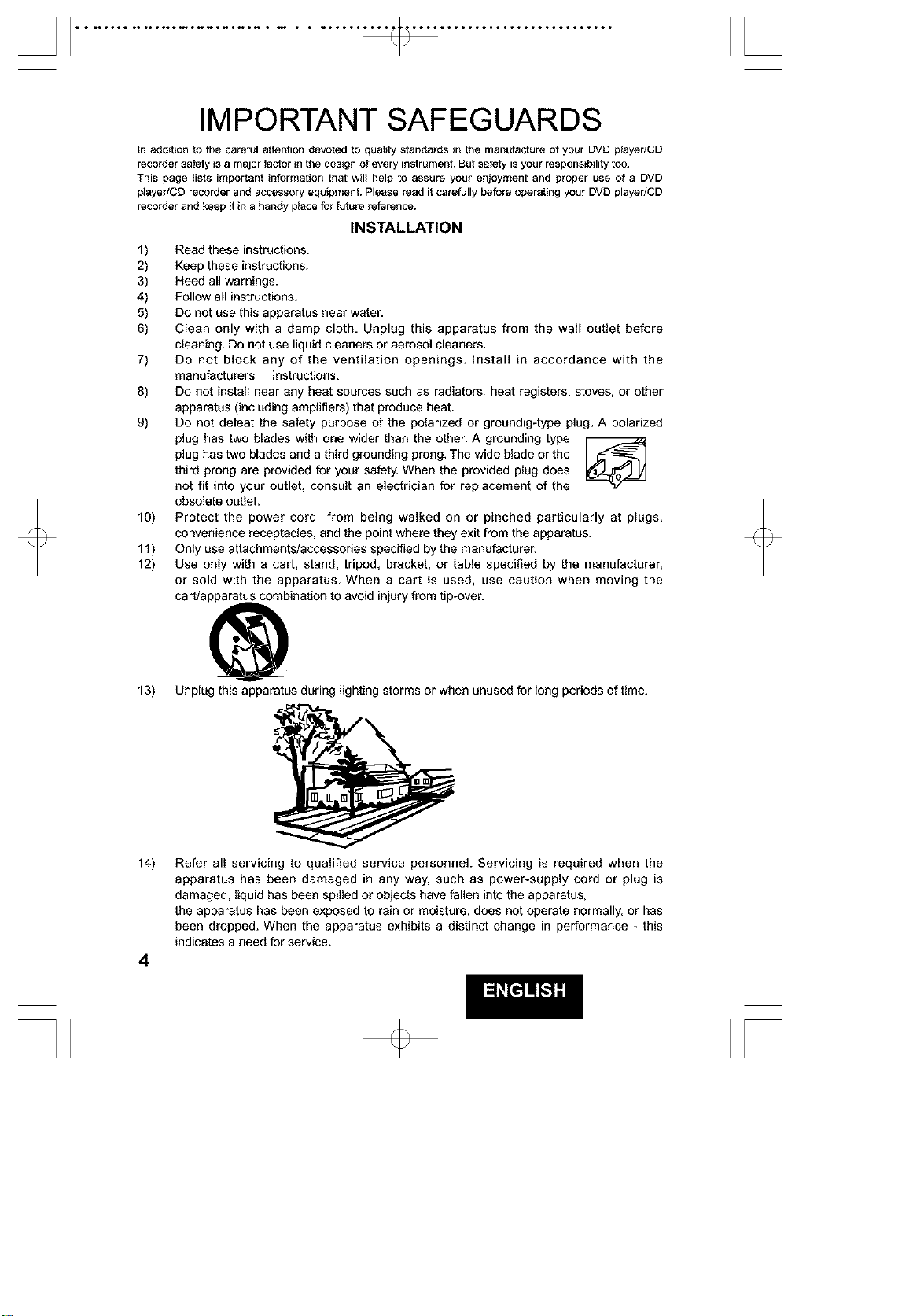
IMPORTANT SAFEGUARDS
fe addition to the careful attention devoted to quatity standards in the manufacture of your DVDplayer/CD
recorder safetyis a major factor in the design of every instrument.But safetyis your responsibility to&
This page fists important information that will help to assure your enjoyment and proper use of a DVD
player/CD recorder and accessoryequipment. Please read it carefully beforeoperating your DVDplayer/CD
recorder andkeep it in a handy place forfuture reference.
INSTALLATION
1) Read these instructions.
2) Keep these instructions.
3) Heed all warnings.
4) Follow all instructions.
5) Do not use this apparatus near water.
6) Clean only with a damp cloth. Unplug this apparatus from the wall outlet before
cleaning. Do not use liquid cleaners or aerosol cleaners.
7) Do not block any of the ventilation openings, install in accordance with the
manufacturers instructions.
8) Do not install near any heat sources such as radiators, heat registers, stoves, or other
apparatus (including amplifiers) that produce heat.
9) Do not defeat the safety purpose of the polarized or groundig-type plug. A polarized
plug has two blades with one wider than the other. A grounding type
plug has two blades and a third grounding prong. The wide blade or the
third prong are provided for your safety. When the provided plug does
not fit into your outlet, consult an electrician for replacement of the
obsolete outlet.
10) Protect the power cord from being walked on or pinched particularly at plugs,
convenience receptacles, and the point where they exit from the apparatus.
11) Only use attachments/accessories specified by the manufacturer.
12) Use only with a cart, stand, tripod, bracket, or table specified by the manufacturer,
or sold with the apparatus. When a cart is used, use caution when moving the
cart/apparatus combination to avoid injury from tip-over.
13) Unplug this apparatus during lighting storms or when unused for long periods of time.
14)
4
Refer all servicing to qualified service personnel. Servicing is required when the
apparatus has been damaged in any way, such as power-supply cord or plug is
damaged, liquid has been spilled or objects have fallen into the apparatus,
the apparatus has been exposed to rain or moisture, does not operate normally, or has
been dropped. When the apparatus exhibits a distinct change in performance - this
indicates a need for service.
[
t t to••or tooolottmo_noNl_t_o _ • • _• l
CAUTION:
1 Power Sources - This DVD
player/CD recorder should be operated only
from the type of power source indicated on
the marking label. If you are not sure of the
type of power supply to your home, consult
your dealer or local power company.
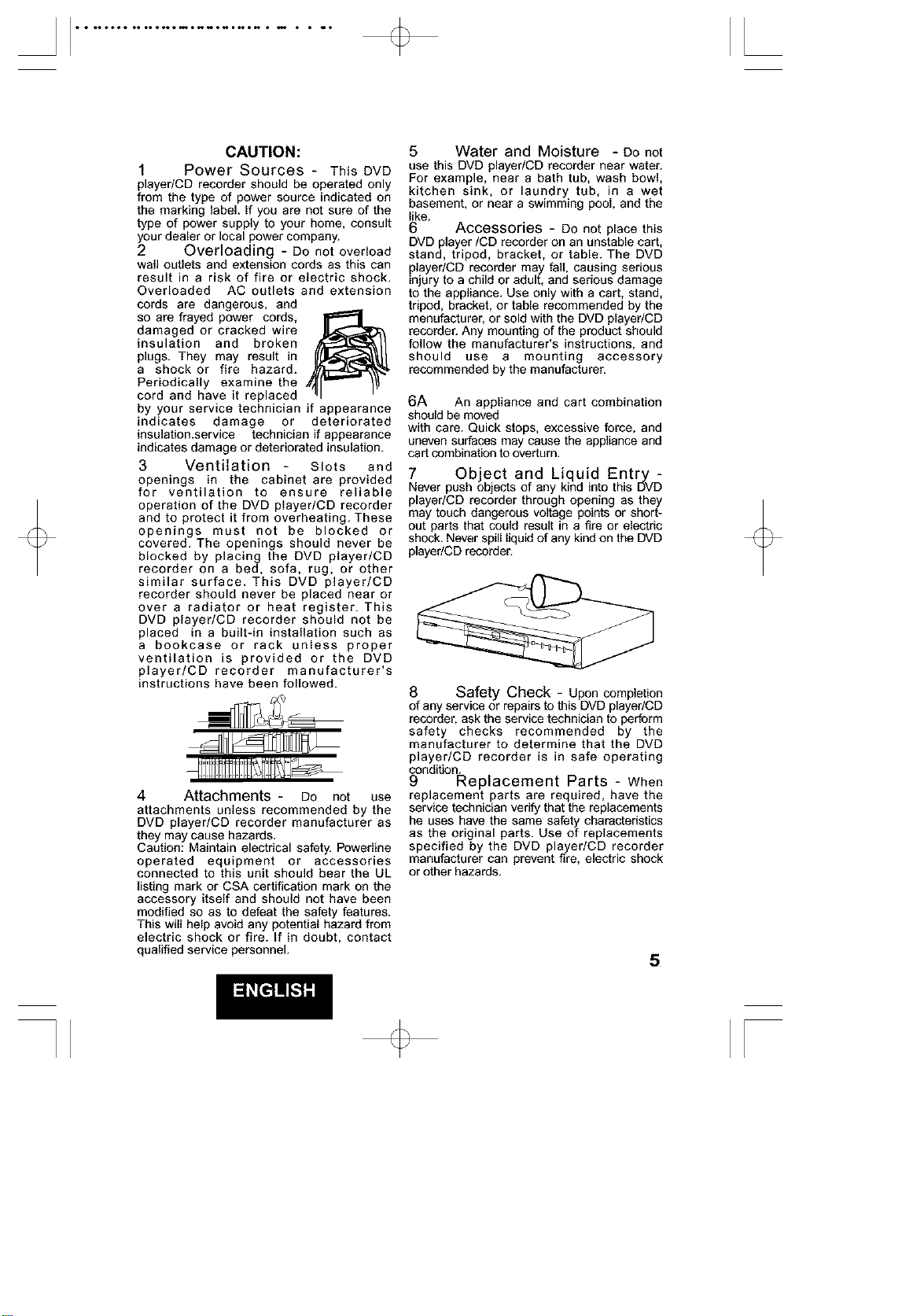
2 Overloading - Do not overload
wall outlets and extension cords as this can
result in a risk of fire or electric shock.
Overloaded AC outlets and extension
cords are dangerous, and
so are frayed power cords,
damaged or cracked wire
insulation and broken
plugs. They may result in
a shock or fire hazard.
Periodically examine the
cord and have it replaced
by your service technician if appearance
indicates damage or deteriorated
insulation.service technician if appearance
indicates damage or deteriorated insulation.
3 Ventilation - Slots and
openings in the cabinet are provided
for ventilation to ensure reliable
operation of the DVD player/CD recorder
and to protect it from overheating. These
openings must not be blocked or
covered. The openings should never be
blocked by placing the DVD player/CD
recorder on a bed, sofa, rug, or other
similar surface. This DVD player/CD
recorder should never be placed near or
over a radiator or heat register. This
DVD player/CD recorder should not be
placed in a built-in installation such as
a bookcase or rack unless proper
ventilation is provided or the DVD
player/CD recorder manufacturer's
instructions have been followed.
4 Attachments - Do not use
attachments unless recommended by the
DVD player/CD recorder manufacturer as
they may cause hazards.
Caution: Maintain electrical safety. Powerline
operated equipment or accessories
connected to this unit should bear the UL
listing mark or CSA certification mark on the
accessory itself and should not have been
modified so as to defeat the safety features.
This will help avoid any potential hazard from
electric shock or fire. If in doubt, contact
qualified service personnel.
5 Water and Moisture - Do not
use this DVD player/CD recorder near water.
For example, near a bath tub, wash bowl,
kitchen sink, or laundry tub, in a wet
basement, or near a swimming pool, and the
like.
6 Accessories - Do not place this
DVD player/CD recorder on an unstable cart,
stand, tripod, bracket, or table. The DVD
playedCD recorder may fall, causing serious
injury to a child or adult, and serious damage
to the appliance. Use only with a cart, stand,
tripod, bracket, or table recommended by the
menufacturer, or sold with the DVD player/CD
recorder. Any mounting of the product should
follow the manufacturer's instructions, and
should use a mounting accessory
recommended by the manufacturer.
6A An appliance and cart combination
should be moved
with care. Quick stops, excessive force, and
uneven surfaces may cause the appliance and
cart combination to overturn.
7 Object and Liquid Entry -
Never push objects of any kind into this DVD
player/CD recorder through opening as they
may touch dangerous voltage points or short-
out parts that could result in a fire or electric
shock. Never spill liquid of any kind on the DVD
playedCD recorder.
8 Safety Check - Upon completion
of any service or repairs to this DVD player/CD
recorder, ask the service technician to perform
safety checks recommended by the
manufacturer to determine that the DVD
player/CD recorder is in safe operating
condition.
9 Replacement Parts - When
replacement parts are required, have the
service technician verify that the replacements
he uses have the same safety characteristics
as the original parts. Use of replacements
specified by the DVD player/CD recorder
manufacturer can prevent fire, electric shock
or other hazards.
5
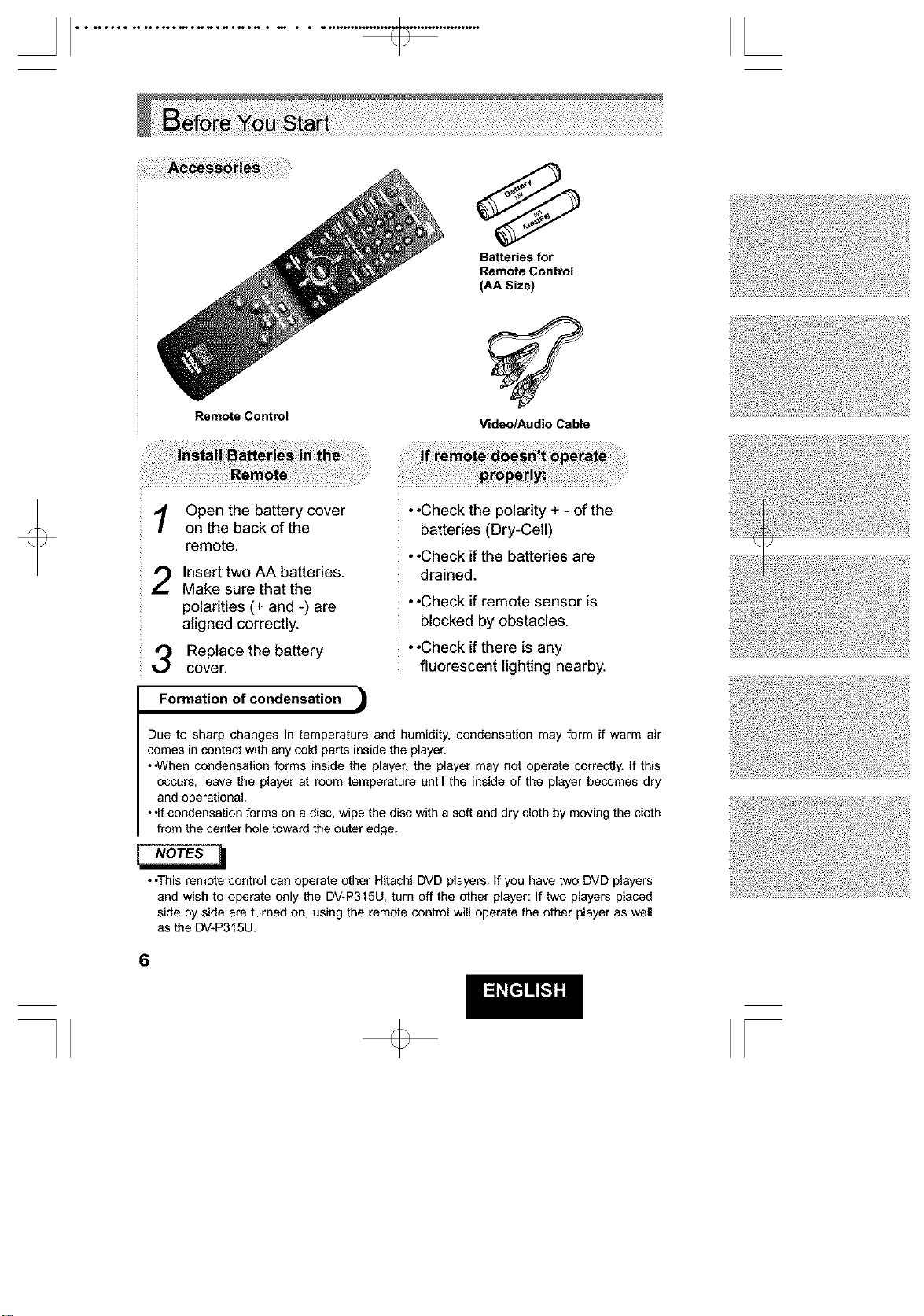
Remote Control
Batteries for
Remote Control
(AA Size)
Video/Audio Cable
Open the battery cover
on the back of the
remote.
Insert two AA batteries.
Make sure that the
polarities (+ and -) are
aligned correctly.
Replace the battery
cover.
••Check the polarity + - of the
batteries (Dry-Cell)
••Check if the batteries are
drained.
••Check if remote sensor is
blocked by obstacles.
••Check if there is any
fluorescent lighting nearby.
Formation of condensation
Due to sharp changes in temperature and humidity, condensation may form if warm air
comes in contact with any cold parts inside the player.
• ,When condensation forms inside the player, the player may not operate correctly, if this
occurs, leave the player at room temperature until the inside of the player becomes dry
and operational.
• •If condensation forms on a disc, wipe the disc with a soft and dry cloth by moving the cloth
from the center hole toward the outer edge.
• ,This remote control can operate other Hitachi DVD players. If you have two DVD players
and wish to operate only the DV-P315U, turn off the other player: if two players placed
side by side are turned on, using the remote control will operate the other player as well
as the DV-P315U.
6
• * ooolo* oo I*IOOIO0*ONNIO0*O0**O • OIO * • _O l
7
• * ooolo* oo I*IOOIO0*ONNIO0*O0**O • OIO * • _O l
B
ttto...tto.o..ttm._noN._t_o _ • • _• [
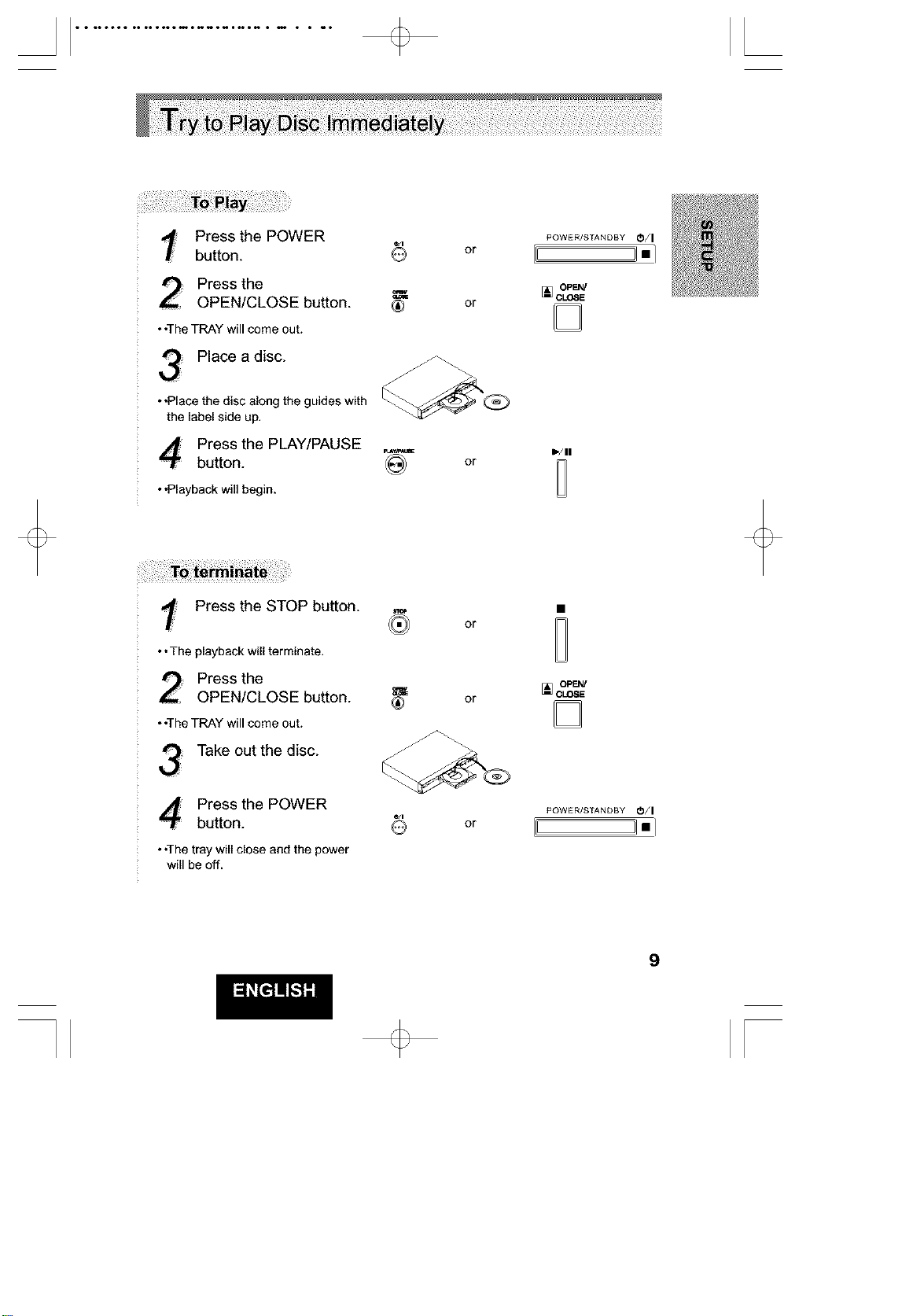
t Press the POWER POWER]STANDBY O/I
button, or i] nl
oPt,,#,
Press the _ [] c_,sE
OPEN/CLOSE button. ® or
• *The TRAY will come out.
Place a disc.
• *Place the disc along the guides with
the label side up,
4 Press the PLAY/PAUSE ,_,__ _./,,
button. @ or
• *Playback will begin.
t Press the STOP button.
•*The playbackwill terminate.
Press the
OPEN/CLOSE button.
•*TheTRAY will come out.
Take out the disc.
4 button.Pressthe POWER
•*Thetray will close andthe power
will be off.
(_) or
or
or
[] OPEN/
OLOSE
POWER]STANDBY O/I
il•ii
9
[
t t to••or tooo,ottmo_noN,_t_o _ • • _•, [
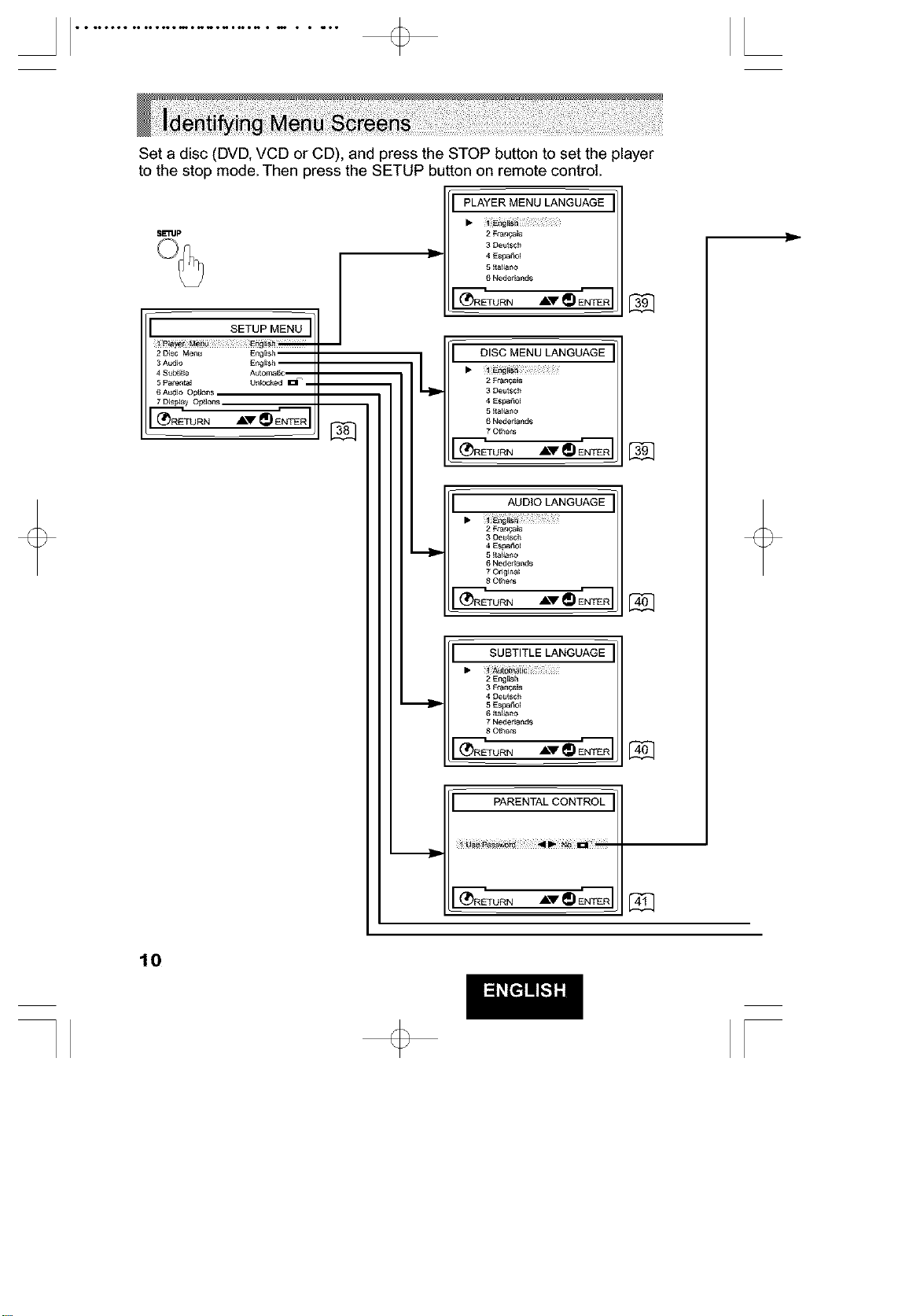
Set a disc (DVD, VCD or CD), and press the STOP button to set the player
to the stop mode. Then press the SETUP button on remote control.
SE11Jp
SETUP MENU
2 Disc Me_ E_gE_Sh
3 Audio E_gE_Sh
4 Sub_Et_e AutomatL
5 Parental UnEOCked IE_ _ m
6 Audio Opt]ot_
7 Display Options
(_rVRN AV_ E_R
J
•..................t_
PLAYER MENU LANGUAGE
2 Ffan£.ais
3 Deutsch
4 Es£af_o_
5 Ital_a_o
6 Neder_ands
(_RETURN A'_V _ ENTER
DISC MENU LANGUAGE
L •
2 Frane._is
3 Deutsch
4 ES_I_O_
g Itallar_o
6 Ne6er_ands
70_ers
_ r-------
_RETURN ,dL'_r _ ENTER
AUDIO LANGUAGE
2 Frane._is
3 Deutsch
g _tallar_o
6 N_er_an(l_
70dgi_a_
80_ers
_ r-------
(_RETURN ,_'_ _ ENTER
SUBTITLE LANGUAGE
2 _ng[_sh
3 F_n£ais
4 Deutsch
5 _sga fiol
6 Italla_o
7 Nederla_d_
80tilels
(_RETURN ,_'_ _ ENTER
PARENTAL CONTROL
_RETURN ,_'_ _ ENTER
10
[
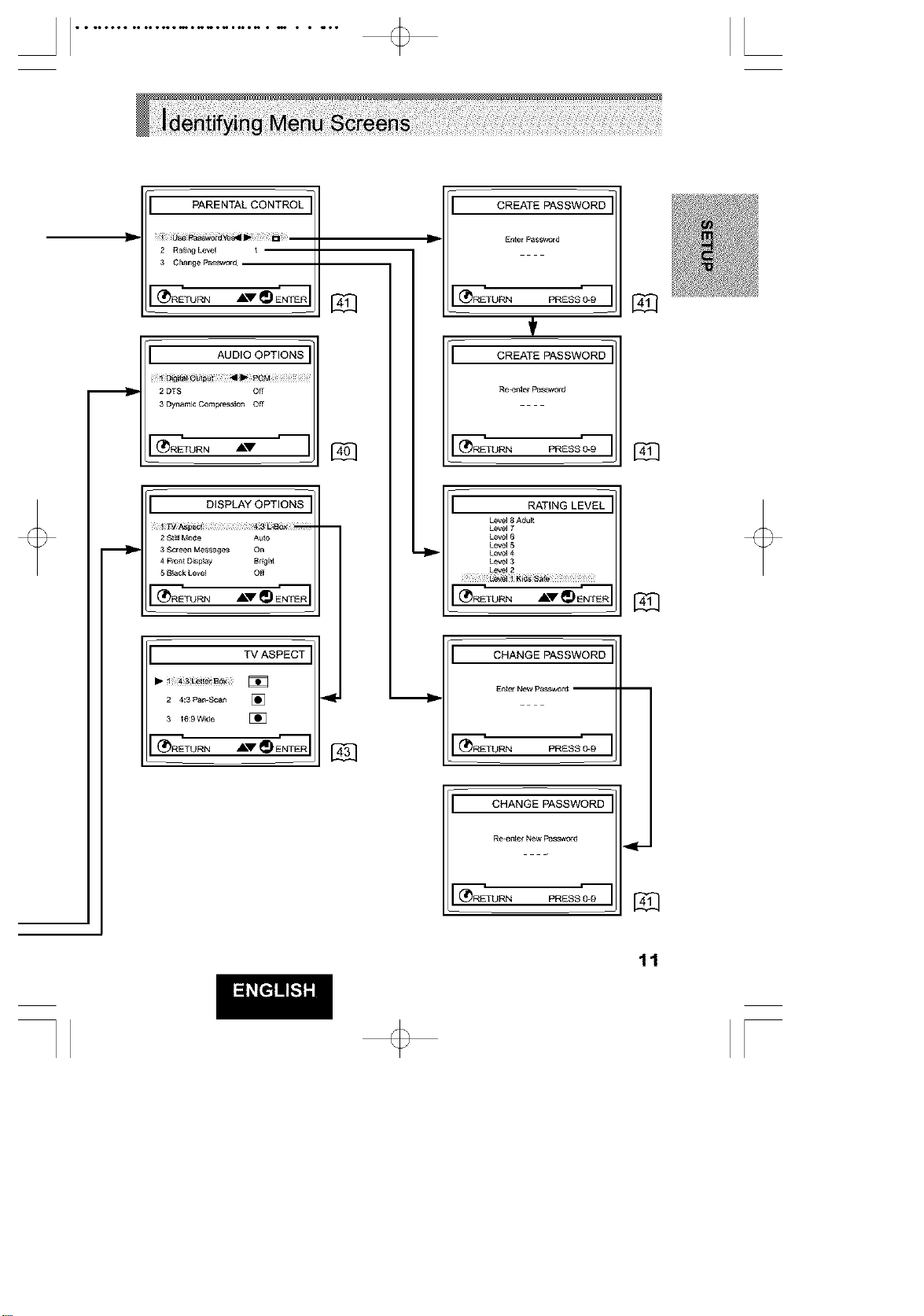
PARENTAL CONTROL
i b_e pa_wo_yes41_ _
2 Rating Level
3 Change PasSword
(_RETURN A'_V _) ENTER
AUDIO OPTIONS
2 DTS Off
3 Dynamic Cornpt_ss_ol Off
DISPLAY OPTIONS
2 Slill Mode A_to
3 Screen Messages on
4 Fron[ D_aplay Br_t
5 Black Leve_ O_I
........i r......-
(_RETURN A'_V _ ENTER
TV ASPECT
2 4:3 pan-Scan []
3 16:9 Wide [_
{_RE_IJRN ,dlLV _ ENTER
II
CREATE PASSWORD
Enter PaSSWOrd
(_RETURN PRESS 0_9
CREATE PASSWORD
Reenter password
TURN PRESS 0_9
RATING LEVEL
Level 8 Adu_
Level 7
Level 6
Level 5
Level 4
Level 3
........i r......
(_TURN A_"_ ENrE_
CHANGE PASSWORD
Enter N_W p_word --
(_RETURN PRESS 0_9
CHANGE PASSWORD
Re-enter N_w password
®RETURNPRESS
11
[
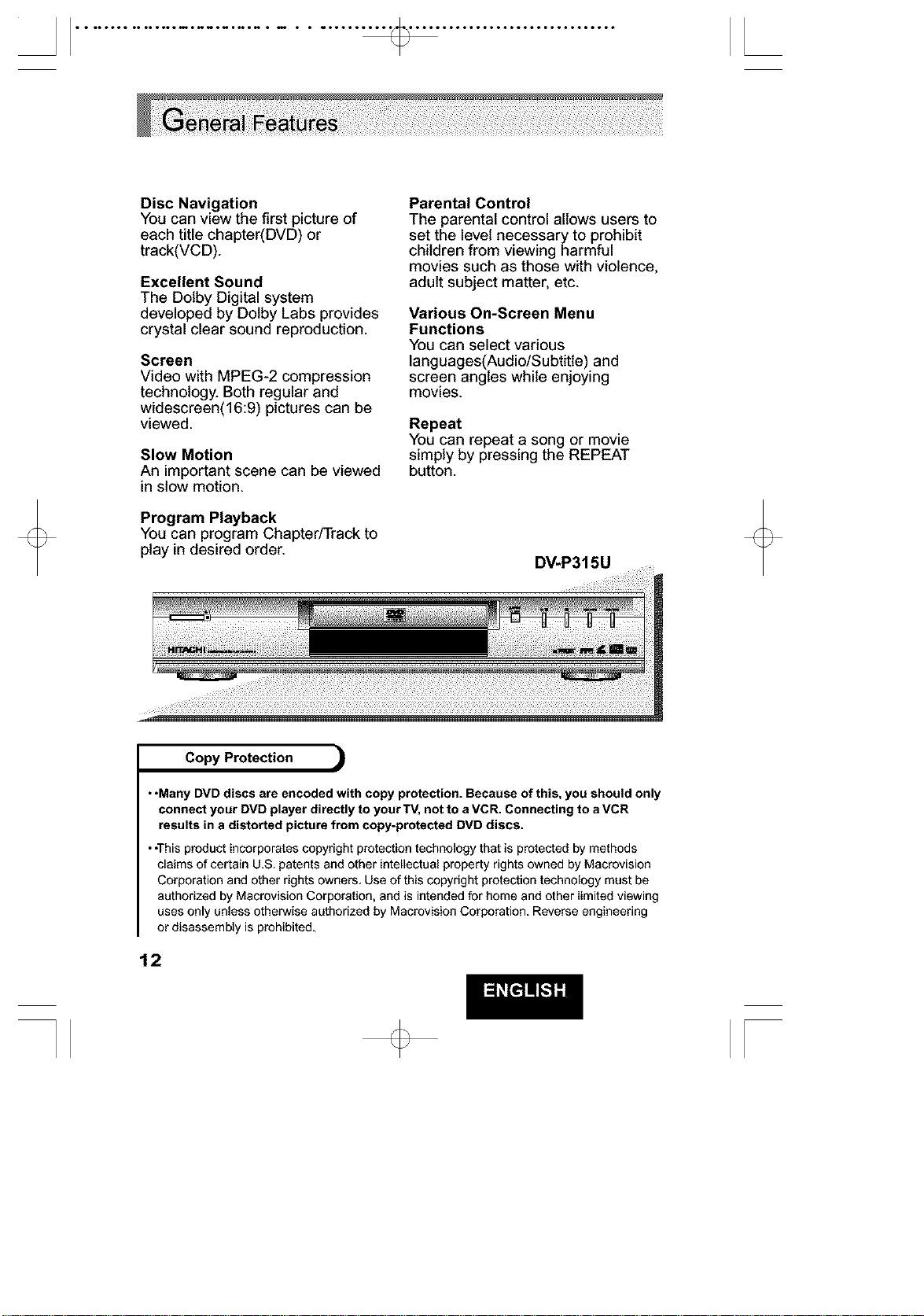
Disc Navigation
You can view the first picture of
each title chapter(DVD) or
track(VCD).
Excellent Sound
The Dotby Digital system
developed by Dotby Labs provides
crystal clear sound reproduction.
Screen
Video with MPEG-2 compression
technology. Both regular and
widescreen(16:9) pictures can be
viewed.
Slow Motion
An important scene can be viewed
in slow motion.
Program Playback
You can program Chapter/Track to
play in desired order.
Parental Control
The parental control allows users to
set the level necessary to prohibit
children from viewing harmful
movies such as those with violence,
adult subject matter, etc.
Various On-Screen Menu
Functions
You can select various
languages(Audio/Subtitle) and
screen angles while enjoying
movies.
Repeat
You can _peata song or movie
simply by pressingthe REPEAT
bu_on.
DV-P315U
Copy Protection
• .Many DVD discs are encoded with copy protection. Because of this, you should only
connect your DVD player directly to your TV, not to aVCR. Connecting to a VCR
results in s distorted picture from copy-protected DVD discs.
• .This product incorporates copyright protection technology that is protected by methods
claims of certain U,S. patents and other intellectual property rights owned by Macrovision
Corporation and other rights owners, Use of this copyright protection technology must be
authorized by Macrovision Corporation. and is intended for home and other limited viewing
uses only unless otherwise authorized by Macrovision Corporation. Reverse engineering
or disassembly is prohibited.
12
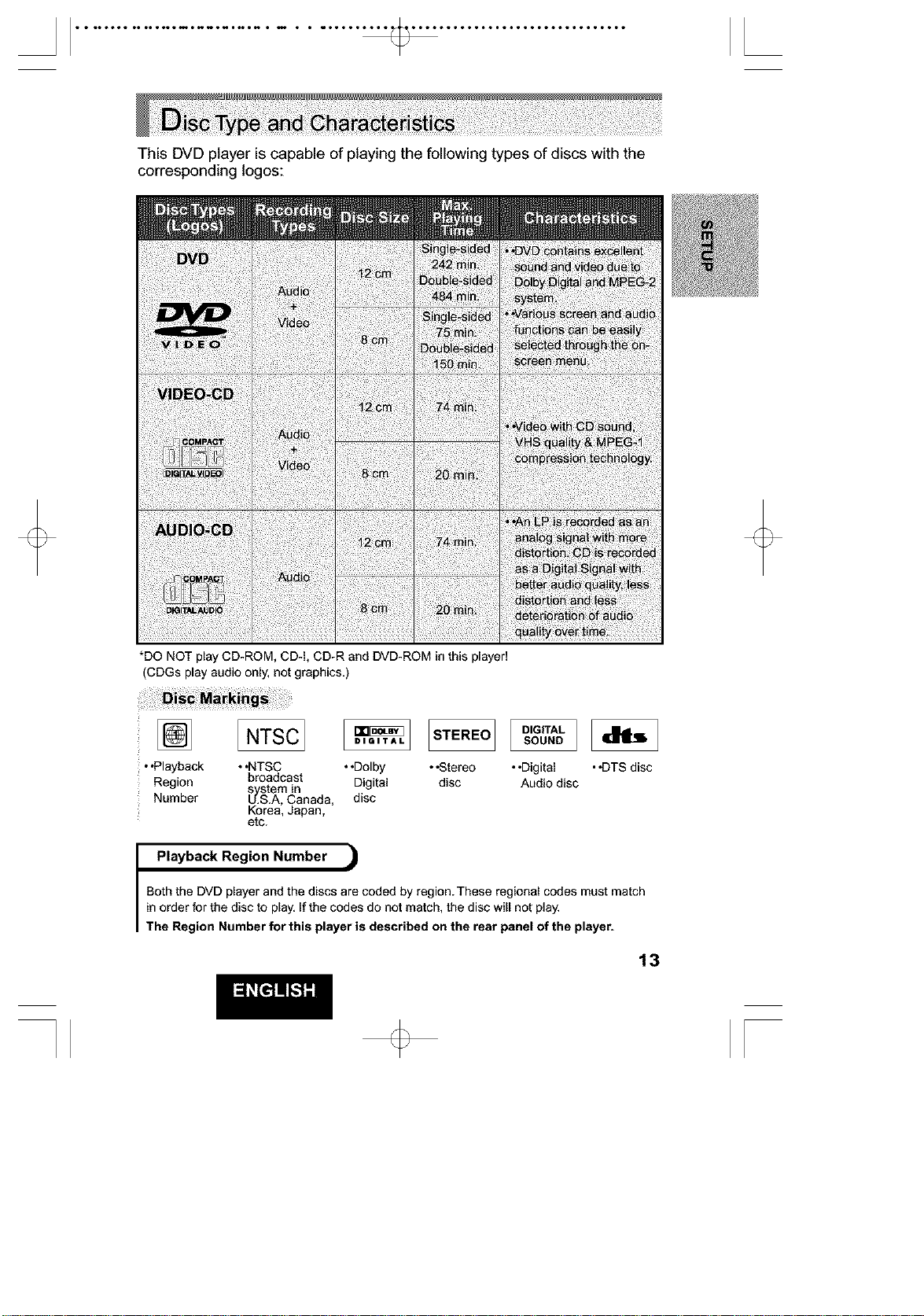
This DVD player is capable of playing the following types of discs with the
corresponding logos:
*DO NOT play CD-ROM, CD-I. CD-R and DVD-ROM in this player!
(CDGs play audio only. not graphics,)
[NTSCI ID_T,_LI[STEREO][_O_::_][dh_]
• .Playback • .NTSC • .Dolby • .Stereo • .Digital • .DTS disc
Region broadcast Digital disc Audio disc
s stem in
Number _J_S.A,Canada, disc
Korea, Japan,
etc
Playback Region Number
Both the DVD player and the discs are coded by region These regional codes must match
in order for the disc to play, If the codes do not match, the disc will not play.
The Region Number for this player is described on the rear panel of the player.
13
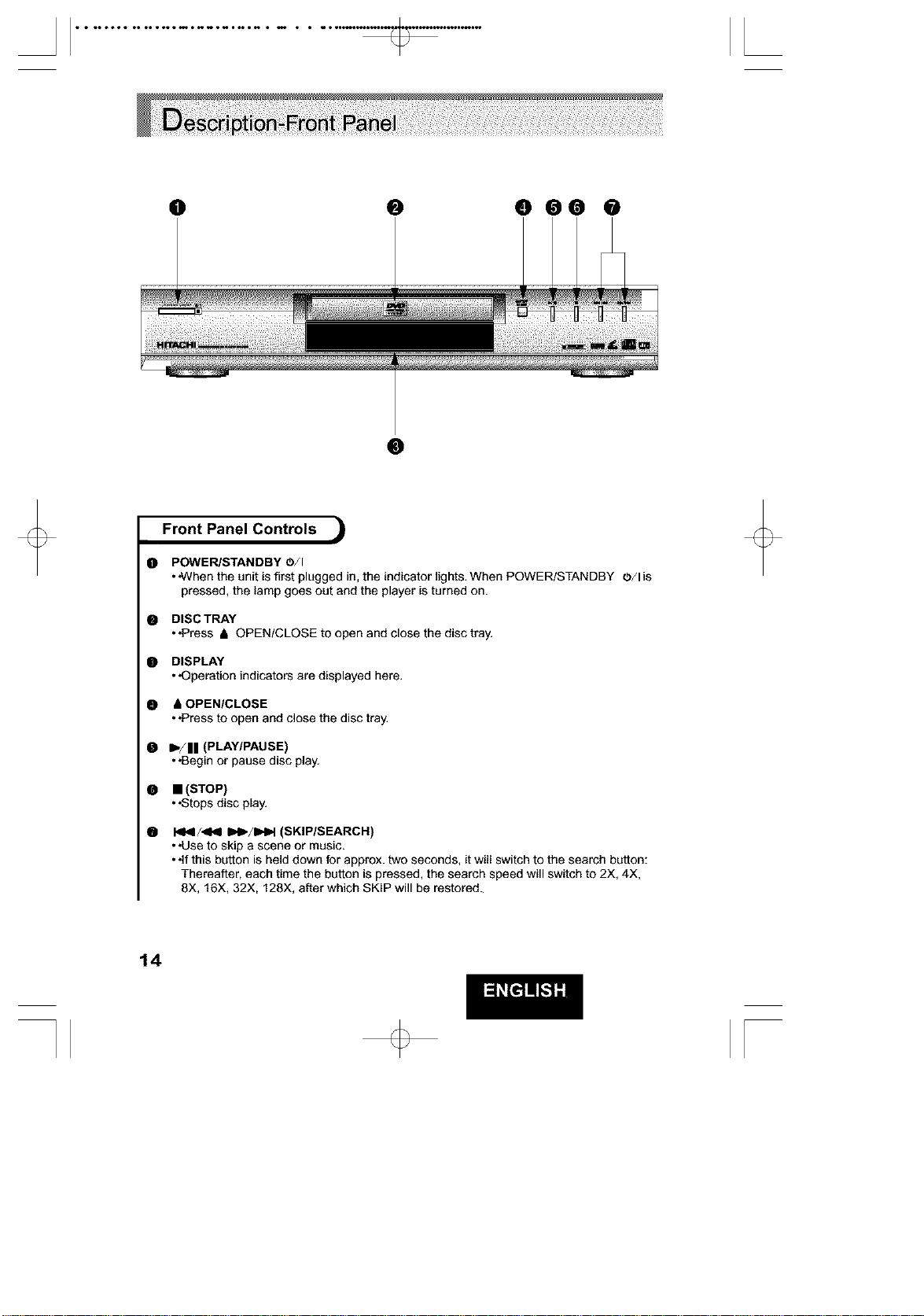
0 @ 000 0
@
0
@
@
0
0
0
0
Front Panel Controls
POWER/STANDBY O/I
• ,When the unit is first plugged in, the indicator lights. When POWER/STANDBY O/lis
pressed, the lamp goes out and the player is turned on.
DISC TRAY
• .Press & OPEN/CLOSE to open and close the disc tray.
DISPLAY
• ,Operation indicators are displayed here.
& OPEN/CLOSE
• .Press to open and close the disc tray.
-/11 (PLAY/PAUSE)
• .Begin or pause disc play.
• (STOP)
• .Stops disc play.
I<1</_1_ I_,/IPIPI (SKIP/SEARCH)
• "Use to skip a scene or music.
• .if this button is held down for approx, two seconds, it will switch to the search button:
Thereafter, each time the button is pressed, the search speed will switch to 2X, 4X,
8X, 16X, 32X, 128X, after which SKIP will be restored.
14
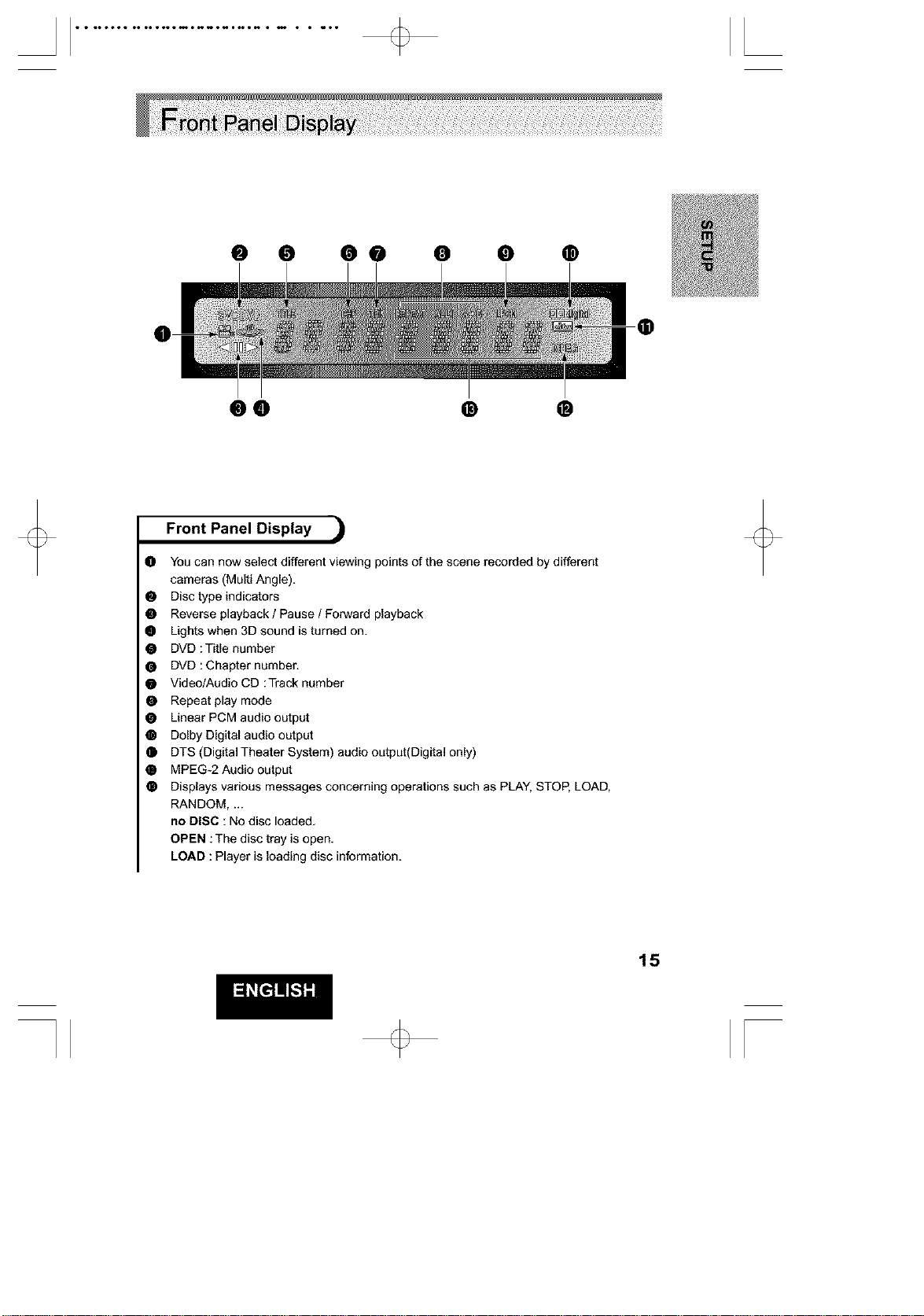
@ O O0 O • @
®
0O • ®
Front Panel Display =)
O You can now select different viewing points of the scene recorded by different
cameras (Multi Angle),
• Disc type indicators
• Reverse playback / Pause / Forward playback
• Lights when 3D sound is turned on.
• DVD :Title number
• DVD :Chapter number.
• Video/Audio CD :Track number
• Repeat play mode
• Linear PCM audio output
• Dolby Digital audio output
• DTS (DigitaITheater System) audio output(Digital only)
• MPEG-2 Audio output
• Displays various messages concerning operations such as PLAY, STOP, LOAD,
RANDOM ....
no DISC : No disc loaded,
OPEN :The disc tray is open.
LOAD : Player is loading disc information,
15
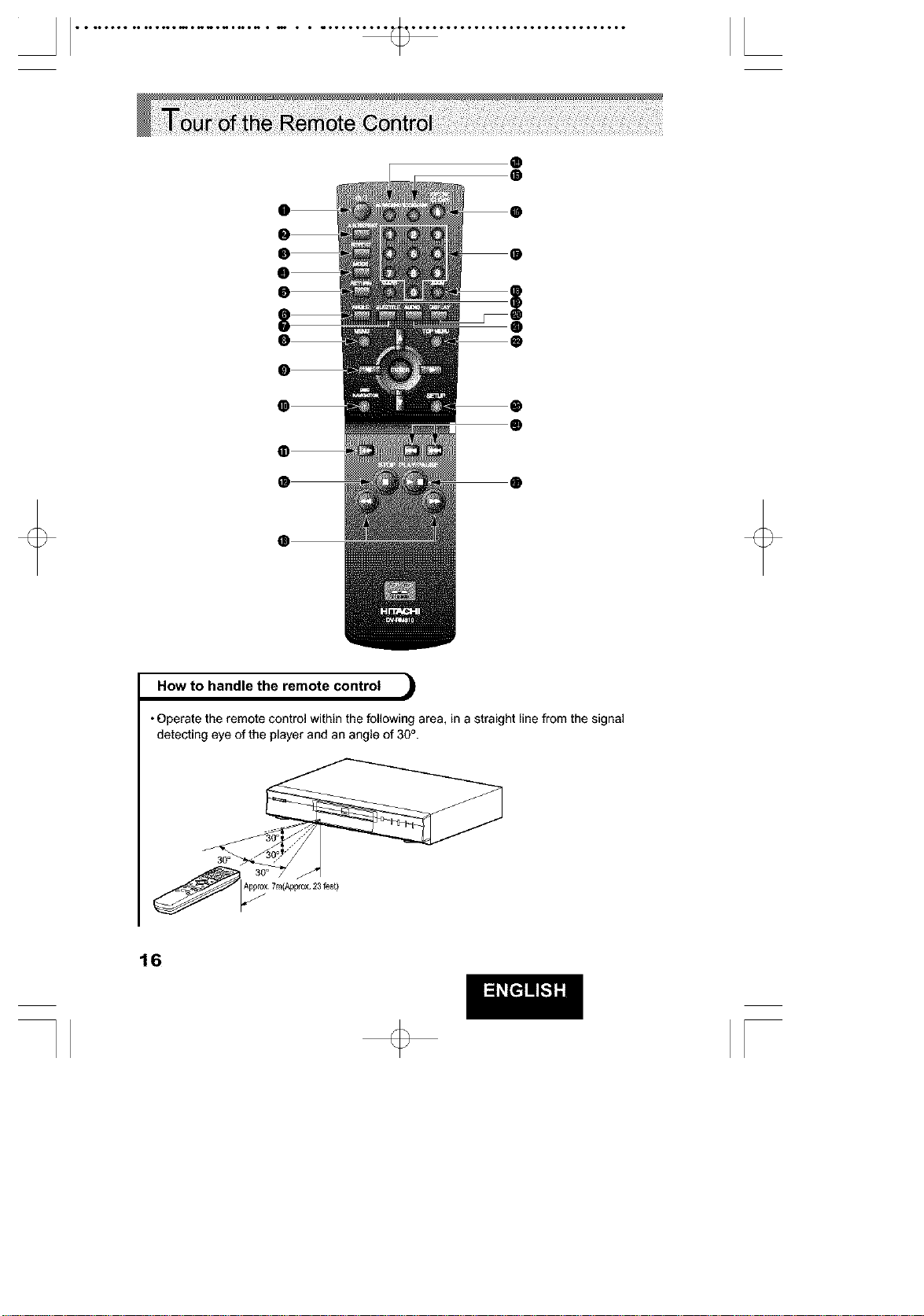
$
®
®
®
How to handle the remote control
• Operate the remote control within the following area, in a straight line from the signal
detecting eye of the player and an angle of 30°.
_,pprox7m(Appfox23feet)
J
16
[
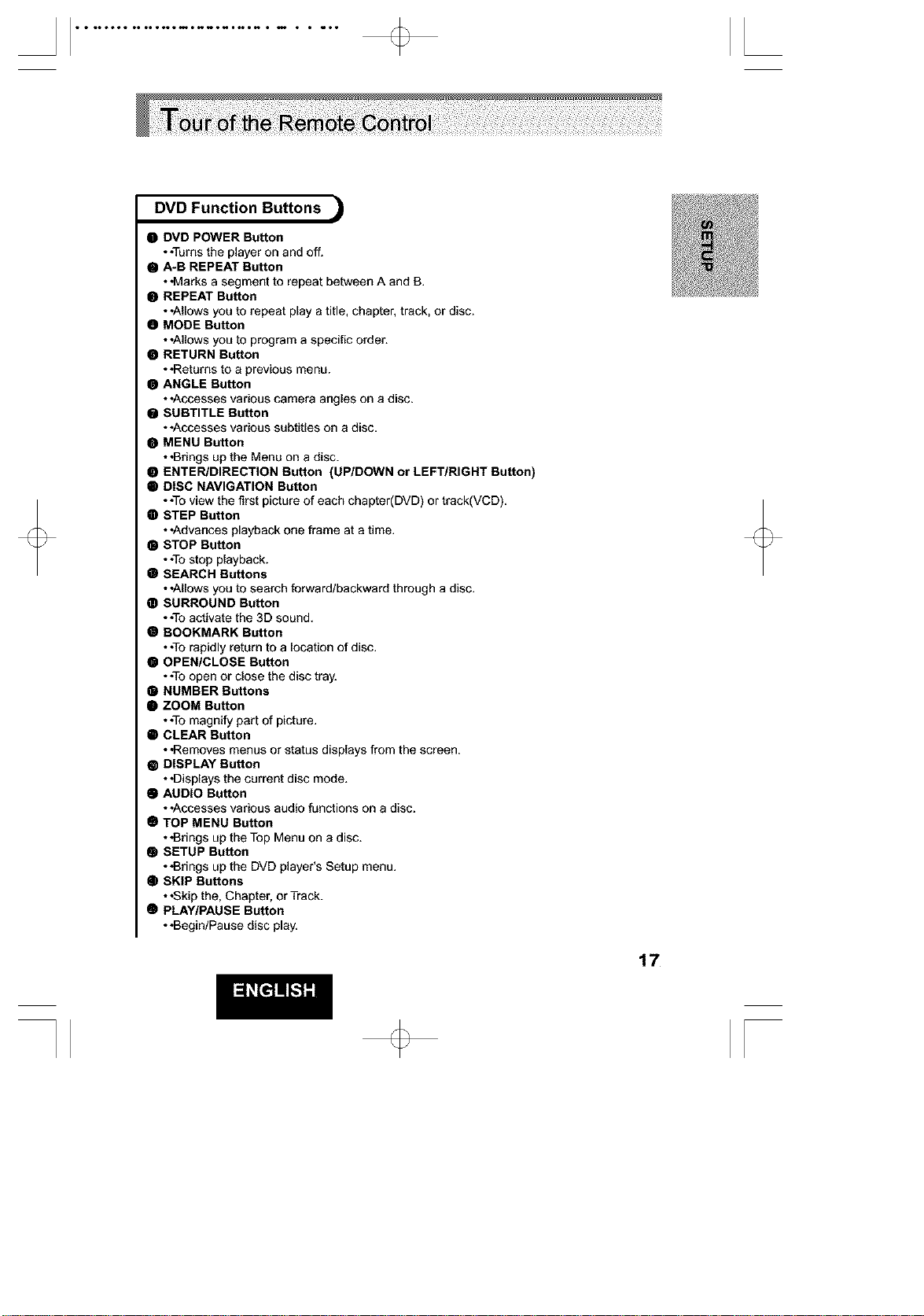
DVD Function Buttons
• DVD POWER Button
• .Turns the player on and off.
• A-B REPEAT Button
• -Marks a segment to repeat between A and B.
• REPEAT Button
• .Allows you to repeat play a title, chapter, track, or disc.
• MODE Button
• .Allows you to program a specific order.
• RETURN Button
• .Returns to a previous menu.
• ANGLE Button
• .Accesses various camera angles on a disc.
O SUBTITLE Button
• .Accesses various subtitles on a disc.
• MENU Button
• .Brings up the Menu on a disc.
• ENTER/DIRECTION Button (UP/DOWN or LEFT/RIGHT Button)
Q DISC NAVIGATION Button
• .Toview the first picture of each chapter(DVD) or track(VCD).
• STEP Button
• .Advances playback one frame at a time.
O STOP Button
• .Tostop playback.
• SEARCH Buttons
• .Allows you to search forward/backward through a disc.
• SURROUND Button
• .To activate the 3D sound.
@ BOOKMARK Button
• .Torapidly return to a location of disc.
• OPEN/CLOSE Button
• .Toopen or close the disc tray.
• NUMBER Buttons
• ZOOM Button
• .Tomagnify part of picture.
• CLEAR Button
• -Removes menus or status displays from the screen.
• DISPLAY Button
• .Displays the current disc mode.
• AUDIO Button
• .Accesses various audio functions on a disc.
Q TOP MENU Button
• .Brings up the Top Menu on a disc.
• SETUP Button
• .Brings up the DVD player's Setup menu.
• SKIP Buttons
• .Skip the, Chapter, or Track.
Q PLAY/PAUSE Button
• .Begin/Pause disc play.
17
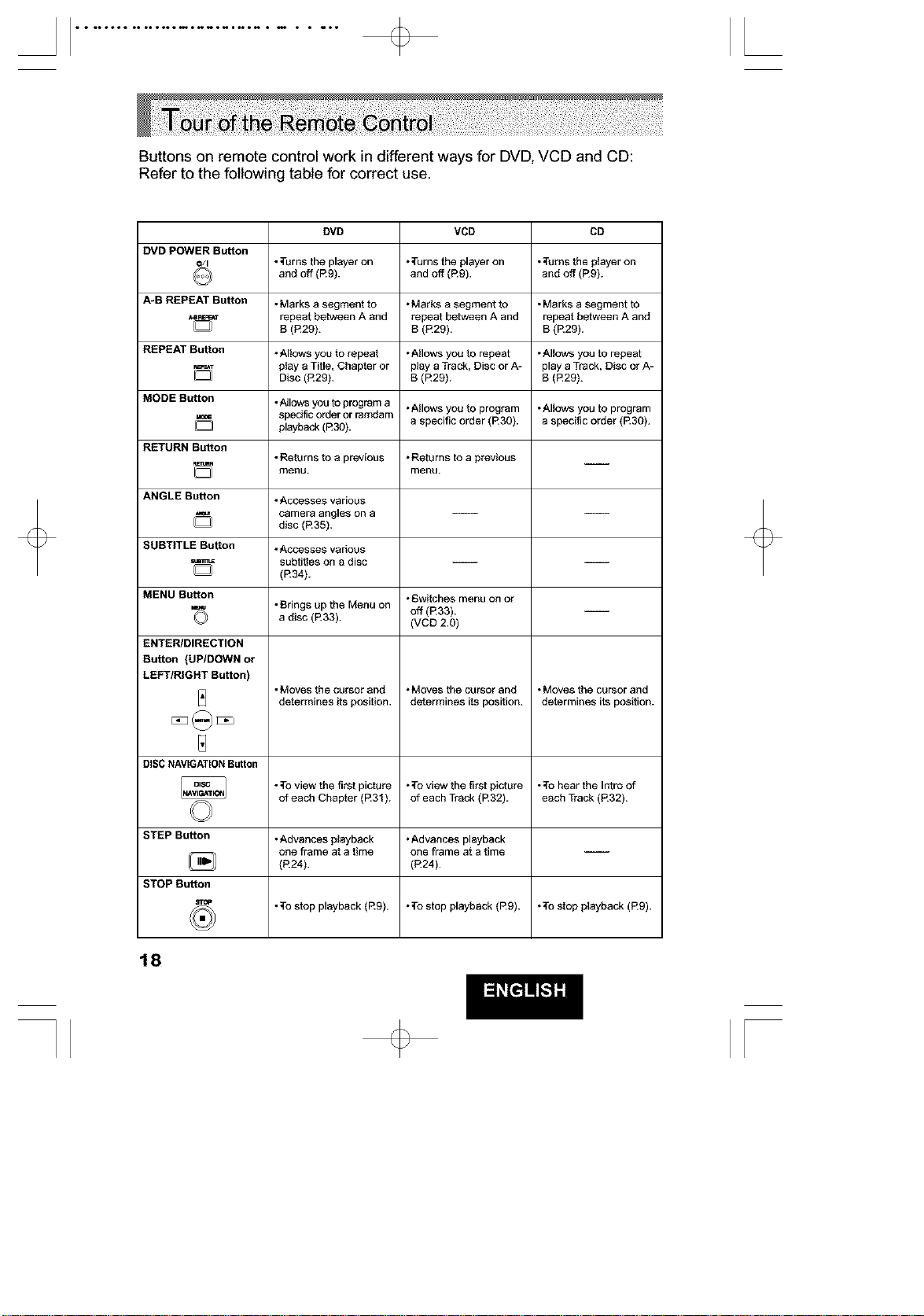
***oooo**ooolo**mo_noNl_*_o _ • * _•l [
Buttons on remote control work in different ways for DVD, VCD and CD:
Refer to the following table for correct use.
DVD VCD CD
DVD POWER Button
Oil • ;['urnsthe player on °Turns the player on •Turns the pIayer on
and off (R9). and off (R9). and off (R9).
A-B REPEAT Button * Marks a segment to *Marks a segment to *Marks a segment to
_M_ repeat between A and repeat between A and repeat between A and
[_ B (R29). B (R29). B (R29).
REPEAT Button •Al!ows you to repeat •Allows you to repeat •Allows you to repeat
_T play a Title, Chapter or play a Track, Disc or A- play a Track, Disc or A-
D Disc (P29). B (P29). B (E29).
MODE Button •Allows you to program a •Allows you to program •Allows you to program
specific order or ramdam
_] a specific order (P30). a specific order (R30).
playback (R30).
RETURN Button
• Returns to a previous •Returns to a previous
menu. menu.
ANGLE Button •Accesses various
camera angles on a -- --
disc (R35).
SUBTITLE Button •ACCeSSeSvarious
subtitles on a disc -- --
(R34}.
MENU Button oGwitches menu on or
• Brings up the Menu on
=_ a disc (R33).
off (R33).
(VCD 2.0)
ENTER/DIRECTION
Button (UP/DOWN or
LEFT/RIGHT Button)
_] • Moves the cursor and •Moves tbe cursor and •Moves the cursor and
determines its position, determines its position, determines its position.
DISCNAVIGATION Button
• ;to view the first picture •To view the first picture •To hear the Intro of
of each Chapter (R31). of each Track (R32). each Track (R32).
STEP Button •Advances playback •Advances playback
one frame at a time one frame at a time
(R24). (R24).
STOP Button
•To stop playback (R9). •To stop playback (Rg). •To stop playback (R9).
18
[
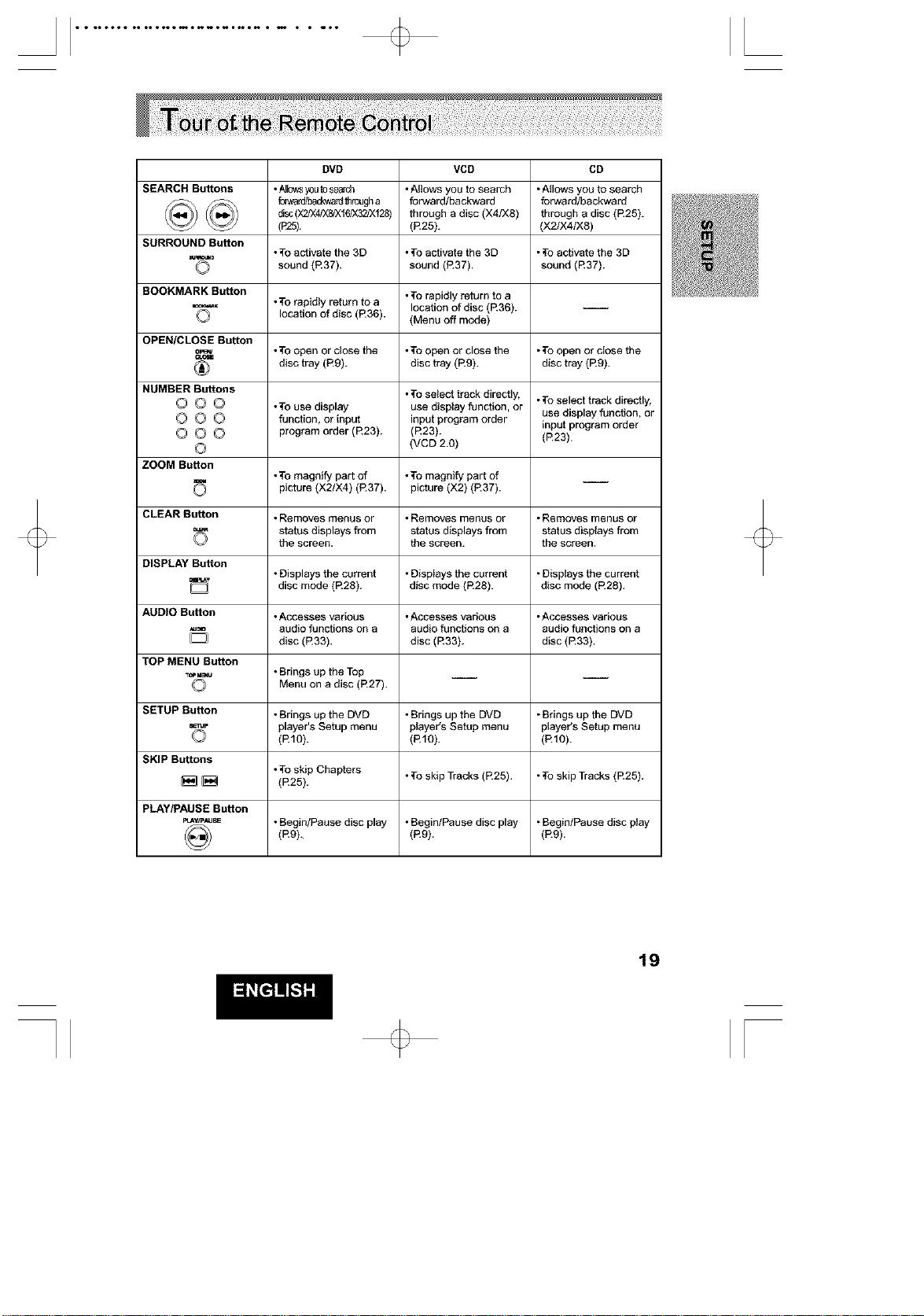
t t to•oct tooolottmo_noNl_t_o _ • • _•l [
DVD VCD CD
SEARCH Buttons •._ows y0u_ose&,dl ,Allows you to search ,Allows you to search
_ f:w_ardlbad_vardthrougha forwardlbackward forward/backward
disc(X2/X4/Xa_XtC/X32/Xf28) through a disc (X4/Xa) through a disc (£25).
(R25). (R25). (X2/X4/Xa)
SURROUND Button
•;roactivate the 3D • ;to activate the 3D •;I-oactivate the 3D
O sound (R37). sound (R37). sound (£37).
BOOKMARK Button ,To rapidly return to a
•To rapidly return to a location of disc (£36). --
O location of disc (R36). (Menu off mode)
OPEN/CLOSE Button
&_ •TOopen or close tile • ;to open or close the •;to open or close the
disc tray (£9). disc tray (R9). disc tray (£9).
NUMBER Buttons • ;to select track directly, •;to select track directly,
O (_ O •To use display use display function, or
0 0 0 function, or input input program order use display function, or
input program order
O O O program order (£23). (£23). (R23).
O (VCD 2.0)
ZOOM Button
•To magnify part of • To magnify part of
picture (X2/X4) (R37). picture (X2) (R37).
CLEAR Button •Removes menus or • Removes menus or •Removes menus or
status displays from status displays from status displays from
the screen, the screen, the screen.
DISPLAY Button
•Displays the current • Displays the current •Displays the current
_T disc mode (R28). disc mode (R28). disc mode
(£28).
AUDIO Button •Accesses vadous • Accesses various •Accesses various
•,= audio functions on a audio functions on a audio functions on a
D disc (£33). disc (R33). disc (R33).
TOP MENU Button
_,mu •Brings up the Top __ __
O Menu on a disc (£27).
SETUP Button •Brings up the DVD • Erings up the DVD •Bdngs up the DVD
_rJp player's Setup menu player's Setup menu player's Setup menu
O (R1O). (R1O). (£10).
SKIP Buttons
•;roskip Chapters • ;to skip Tracks (£25). •;to skip Tracks (R25).
_] _ (R25).
PLAY/PAUSE Button
PLAV_AU= •Begin/Pause disc play • Eegin/Pause disc play •Begin/Pause disc play
(R9). (Rg). (Re).
19
[
***OOO0**OOOIO**mO_HONI_*_O _ • * _•l [
O @ 0 • 0 •
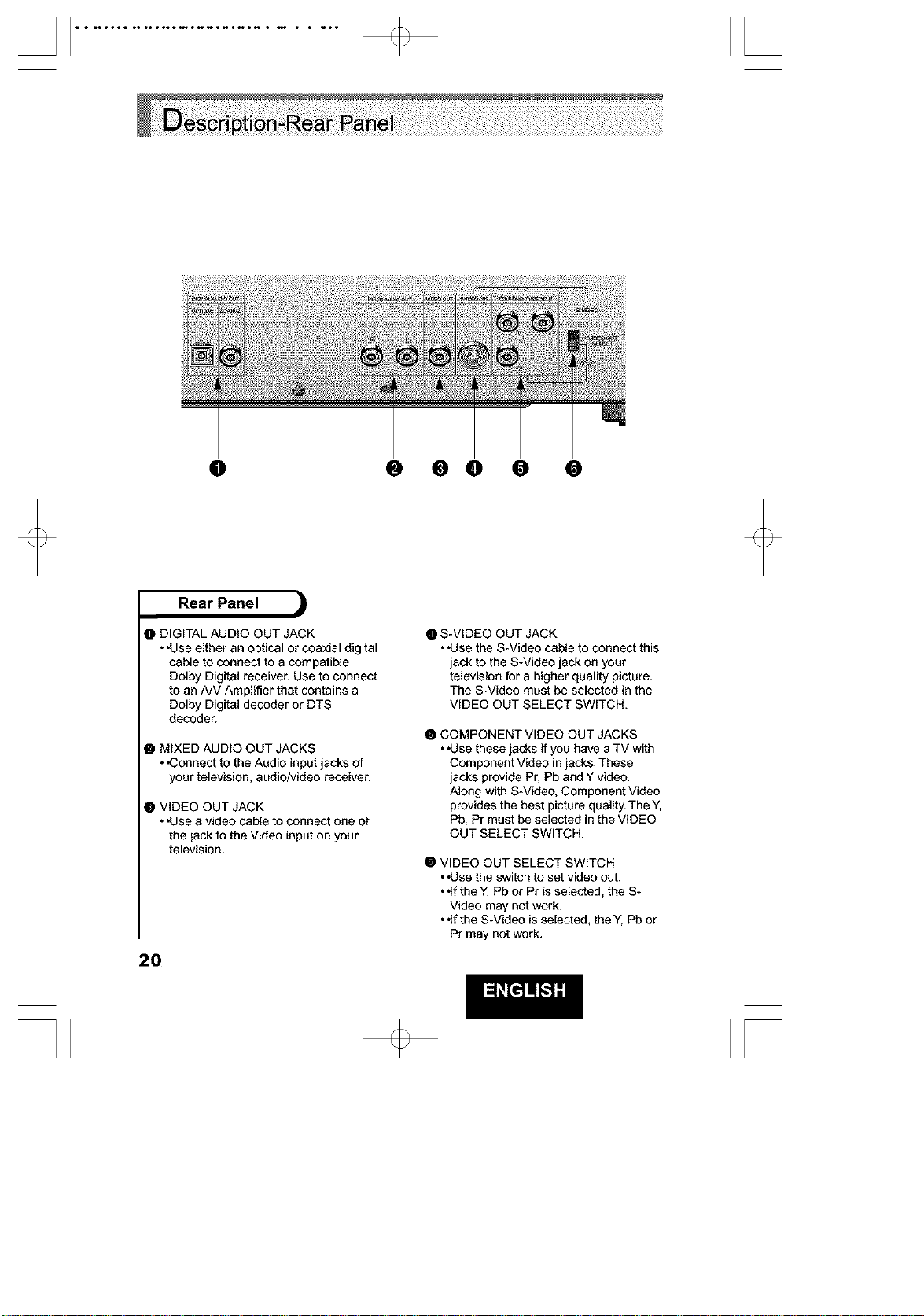
Rear Panel
O DIGITAL AUDIO OUT JACK
• *Use either an optical or coaxial digital
cable to connect to a compatible
Dolby Digital receiver. Use to connect
to an A/V Amplifier that contains a
Dolby Digital decoder or DTS
decoder.
• MIXED AUDIO OUT JACKS
• ,Connect to the Audio input jacks of
your television, audio/video receiver.
@ VIDEO OUT JACK
• *Use a video cable to connect one of
the jack to the Video input on your
television.
20
• S-VIDEO OUT JACK
• *Use the S-Video cable to connect this
jack to the S-Video jack on your
television for a higher quality picture.
The S-Video must be selected in the
VIDEO OUT SELECT SWITCH.
• COMPONENT VIDEO OUT JACKS
• *Use these jacks if you have aTV with
Component Video in jacks. These
jacks provide Pr, Pb and Y video.
Along with S-Video, Component Video
provides the best picture quality. The Y,
Pb, Pr must be selected in the VIDEO
OUT SELECT SWITCH.
O VIDEO OUT SELECT SWITCH
• *Use the switch to set video out.
• .If the Y, Pb or Pr is selected, the S-
Video may not work.
• .If the S-Video is selected, the Y, Pb or
Pr may not work.
[
The following show examples of connections commonly used to connect
the DVD player with a TV and other components.
• •Always turn off the DVD player, TV, and other components before you connect
or disconnect any cables.
• •Refer to owner's manual of the additional components you are connecting for
more information for those particular components.
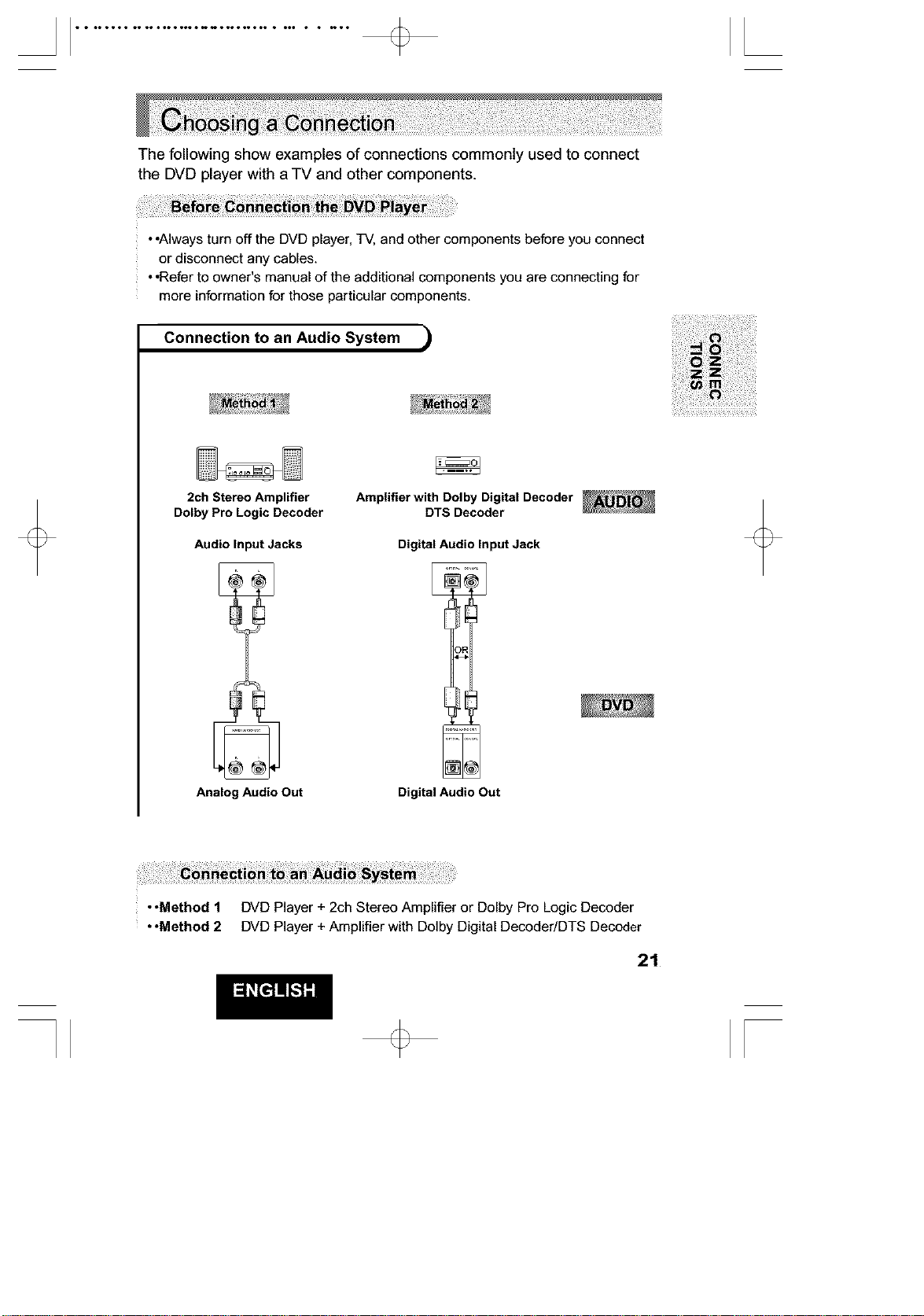
Connection to an Audio System )
2ch Stereo Amplifier
Dolby Pro Logic Decoder
Audio Input Jacks
Analog AudioOut
Amplifier with Dolby Digital Decoder
DTS Decoder
Digital Audio Input Jack
Digital Audio Out
• *Method 1 DVD Player + 2ch Stereo Amplifier or Dolby Pro Logic Decoder
• *Method 2 DVD Player + Amplifier with Dolby Digital Decoder/DTS Decoder
21
......................................................................L
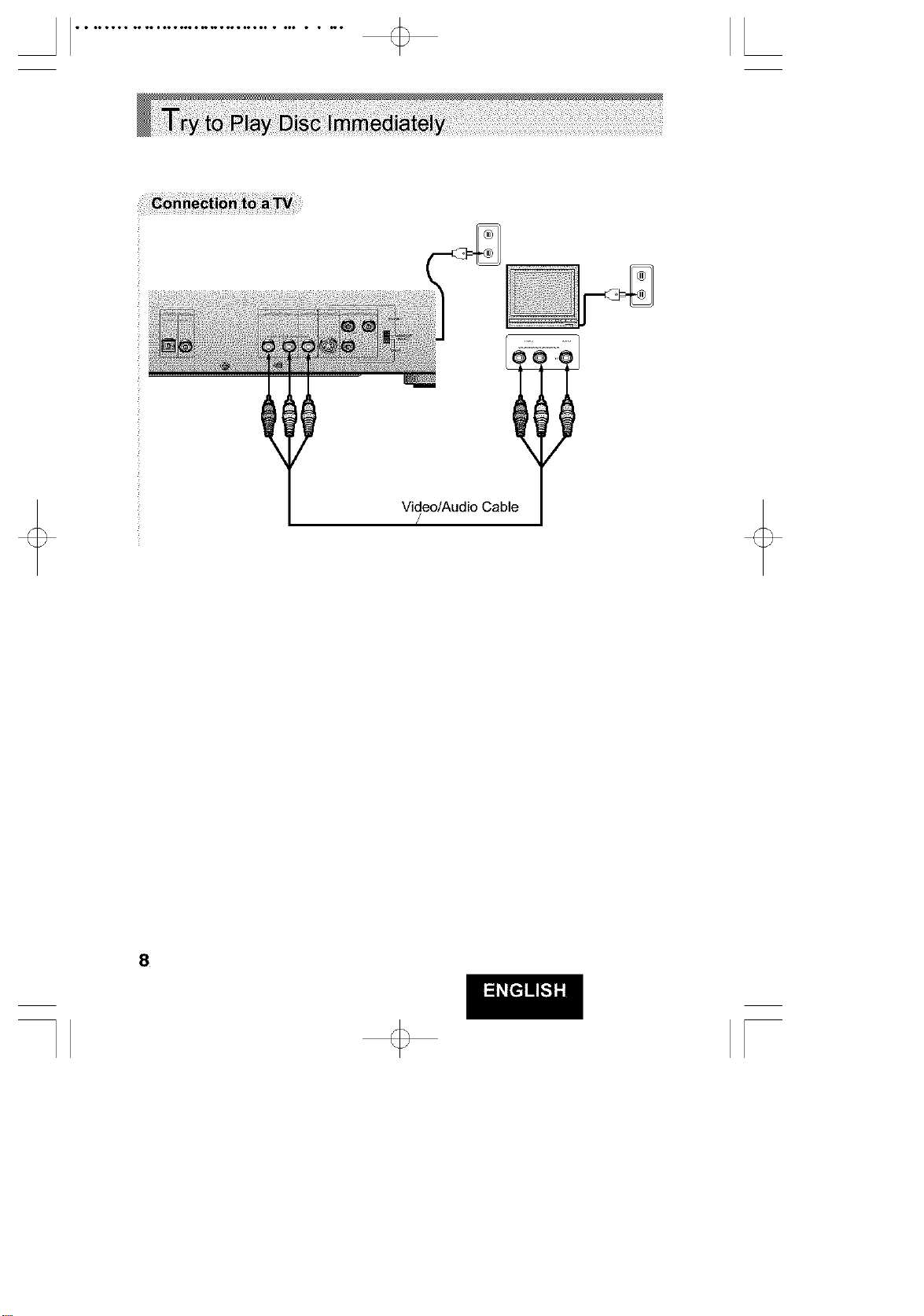
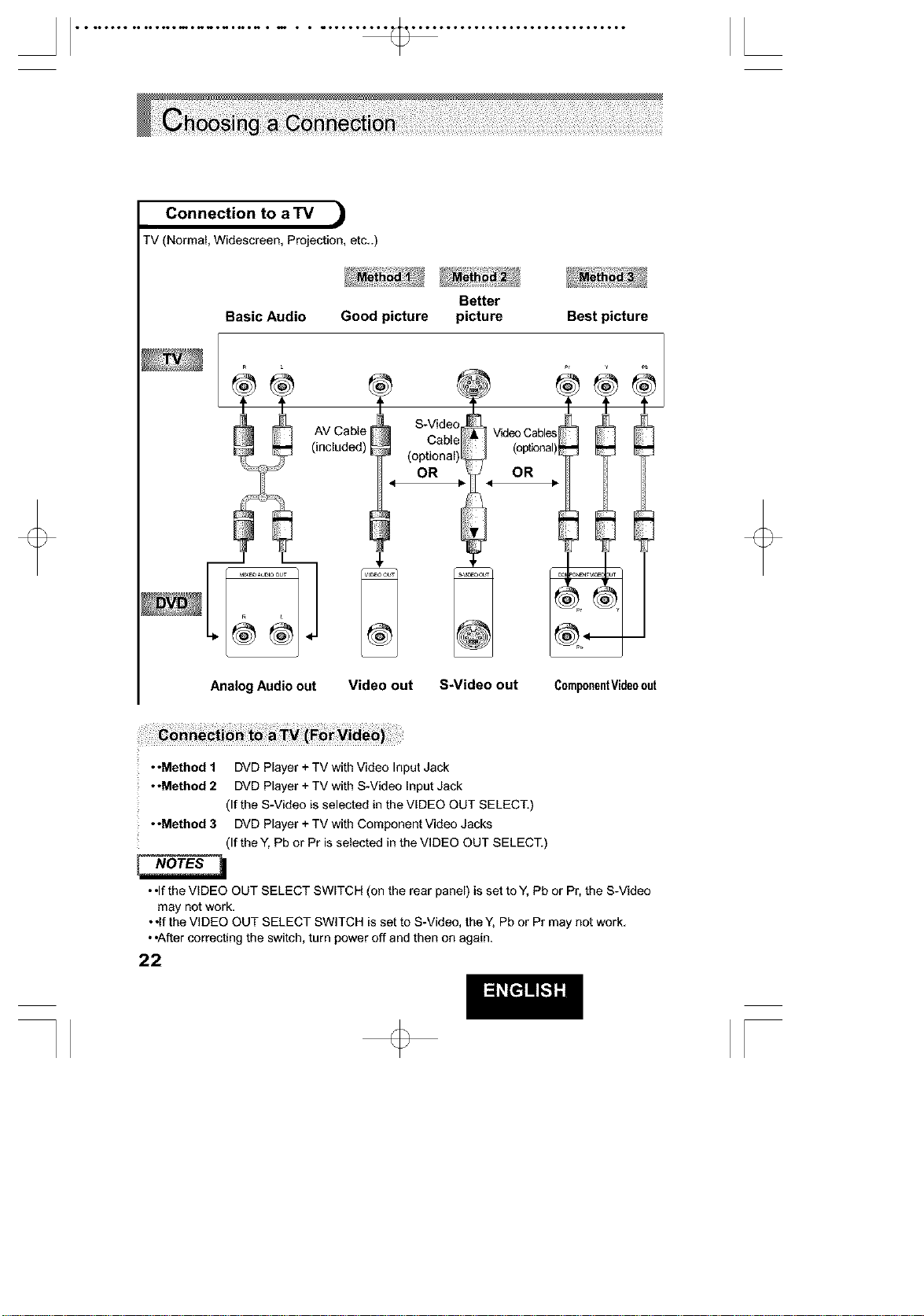
Connection to a TV ,_
TV (Normal, Widescreen, Projection, etc..)
Better
Basic Audio Good picture picture Best picture
S-Vide€
Cable
(optional'
OR
r •
Analog Audio out Video out S-Video out ComponentVideoout
• •Method 1 DVD Player + TV with Video Input Jack
• •Method 2 DVD Player + TV with S-Video Input Jack
(If the S-Video is selected in the VIDEO OUT SELECT.)
• •Method 3 DVD Player + TV with Component Video Jacks
(If the Y, Pb or Pr is selected in the VIDEO OUT SELECT.)
• *Ifthe VIDEO OUT SELECT SWITCH (on the rear panel) is set to Y, Pb or Pr, the S-Video
may not work.
• •If the VIDEO OUT SELECT SWITCH is set to S-Video, the Y, Pb or Pr may not work.
• *After correcting the switch, turn power off and then on again.
22
SELECT MENU LANGUAGE
Pfes_ 1 for Engl_
Touche 2 pcur Ran_Js
Dr uck_n 3 fur _,Ch
Pu_e 4 paraEspafio_
prorr_re 5 per Italiano
Toels 6 vcor N_daruls
--.--...i I----..-
(_RE-rURN AV_ ENTER
• •Turn on aTV and press the TV/VIDEO button to select
video mode.
• •Turn on your Audio System to select AUX, CD or DVD.
• •Refer to your AUDIO User's Manual.
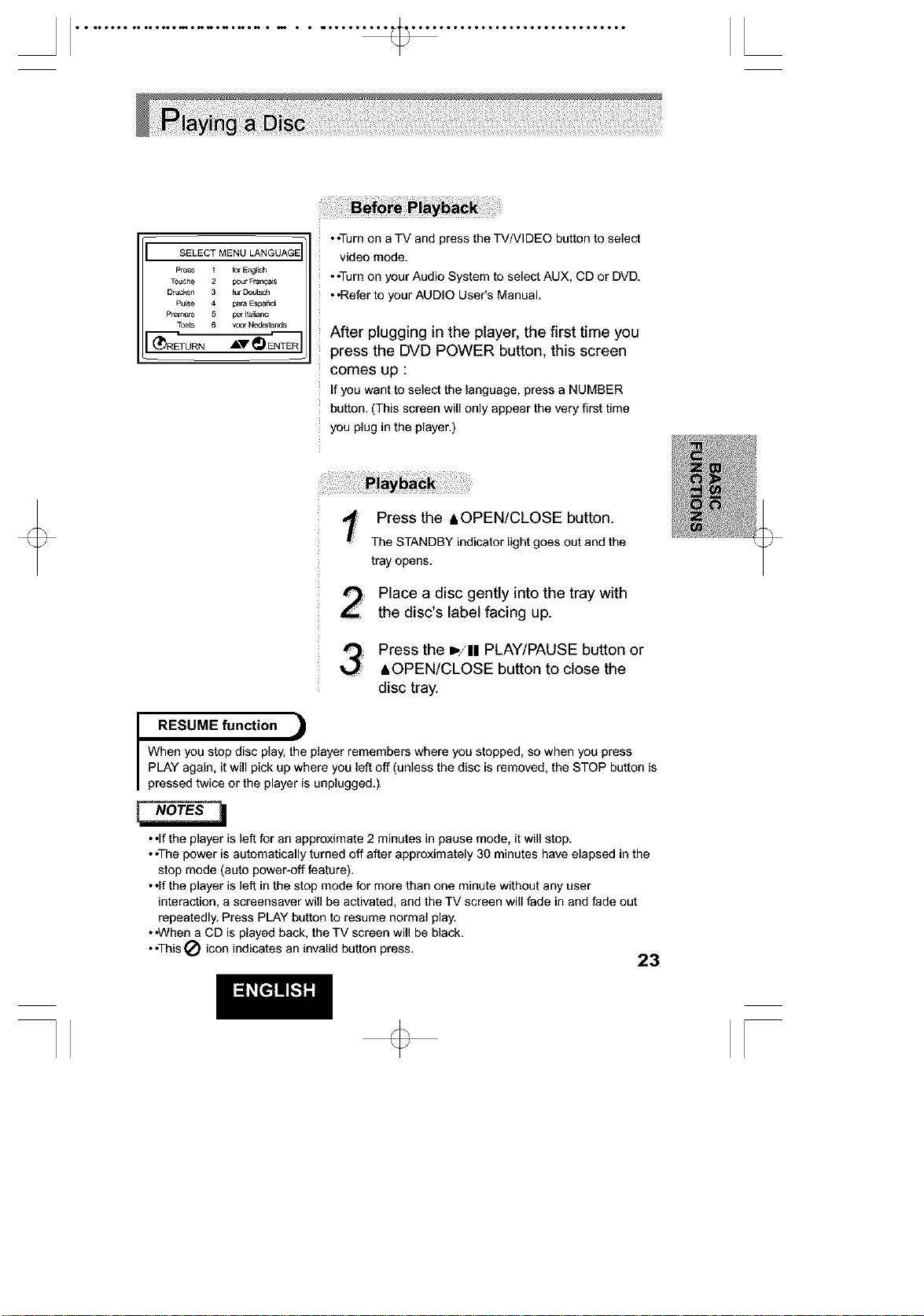
After plugging in the player, the first time you
press the DVD POWER button, this screen
comes up :
Ifyou want to select the language, press a NUMBER
button.(This screen will only appear the very first time
you plug in the player.)
t Press the AOPEN/CLOSE button.
The STANDBYindicator light goesoutand the
trayopens.
Place a disc gently into the tray with
the disc's label facing up.
Press the _,/11 PLAY/PAUSE button or
AOPEN/CLOSE button to close the
disc tray.
RESUME function
When you stop disc play, the player remembers where you stopped, so when you press
PLAY again, it will pick up where you left off (unless the disc is removed, the STOP button is
pressed twice or the player is unplugged.)
• •If the player is left for an approximate 2 minutes in pause mode, it will stop.
• *The power is automatically turned off after approximately 30 minutes have elapsed in the
stop mode (auto power-off feature).
**If the player is left in the stop mode for more than one minute without any user
interaction, a screensaver will be activated, and the TV screen will fade in and fade out
repeatedly. Press PLAY button to resume normal play.
• *When a CD is played back, the TV screen will be black.
• •This Q icon indicates an invalid button press.
23
[
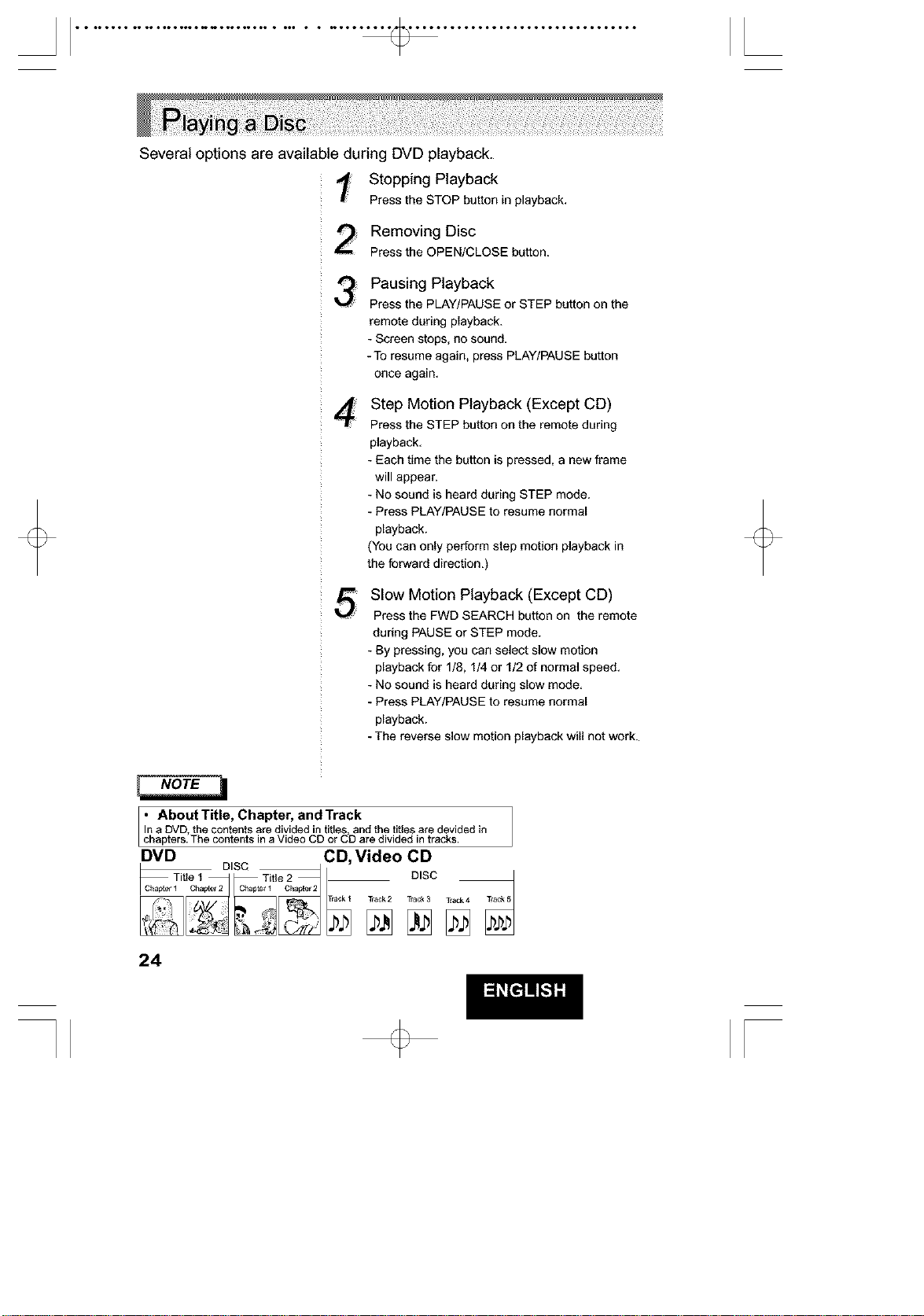
Several options are available during DVD playback.
Stopping Playback
Pressthe STOPbutton in playback,
Removing Disc
Pressthe OPEN/CLOSE button.
!
4!¸:¸
5
Pausing Playback
Press the PLAY/PAUSE or STEP button on the
remote during playback.
- Screen stops, no sound.
-To resume again, press PLAY/PAUSE button
once again.
Step Motion Playback (Except CD)
Press the STEP button on the remote during
playback.
- Each time the button is pressed, a new frame
will appear.
- No sound is heard during STEP mode.
- Press PLAY/PAUSE to resume normal
playback.
(You can only perform step motion playback in
the forward direction.)
Slow Motion Playback (Except CD)
Press the FWD SEARCH button on the remote
during PAUSE or STEP mode.
- By pressing, you can select slow motion
playback for 1/8, 1/4 or 1/2 of normal speed.
- No sound is heard during slow mode.
- Press PLAY/PAUSE to resume normal
playback.
- The reverse slow motion playback will not work.
• AboutTitle, Chapter, andTrack
In a DVD the contents are divided intitles, andthe titles are devidedin
chapters.The contents n aVdeo CD or CD are d v deal n tracks.
DVD CD, Video CD
_ _ TraCk2 TraCk3 TraCk4
•_ro %,
24
[
• • ••ooo• •• o••oo••m•_o_o_•N • m • • _•s k
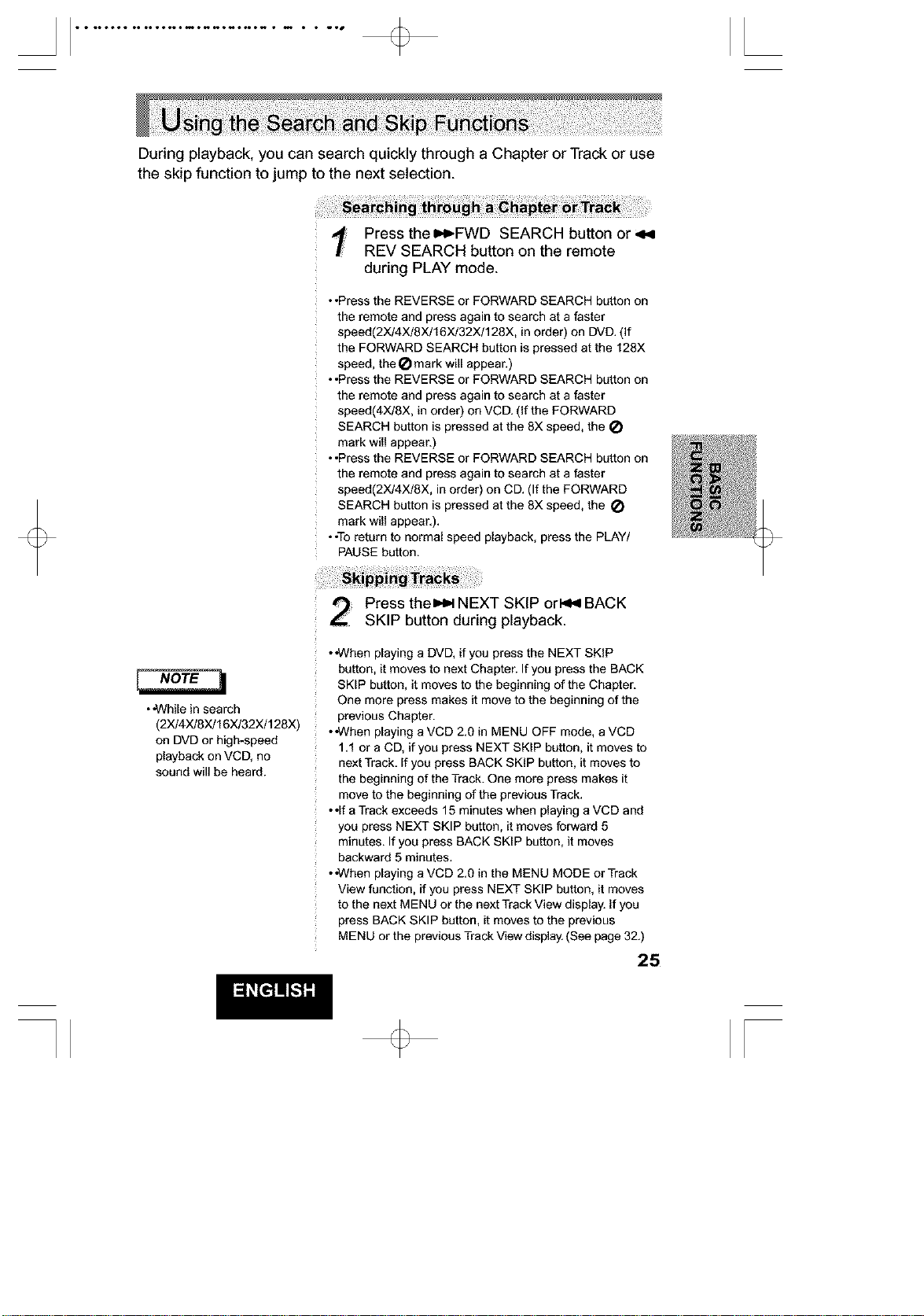
During playback, you can search quickly through a Chapter or Track or use
the skip function to jump to the next selection
Press the m,,_FWD SEARCH button or ,_9
REV SEARCH button on the remote
during PLAY mode.
• •Press the REVERSE or FORWARD SEARCH button on
the remote and press again to search at a faster
speed(2X/4X/8X!16X!32X/128X, in order) on DVD. (If
the FORWARD SEARCH button is pressed at the 128X
speed, the _ mark will appear.)
• •Press the REVERSE or FORWARD SEARCH button on
the remote and press again to search at a faster
speed(4X/SX, in order) on VCD. (if the FORWARD
SEARCH button is pressed at the 8X speed, the
mark will appear.)
• •Press the REVERSE or FORWARD SEARCH button on
the remote and press again to search at a faster
speed(2X/4X/8X, in order) on CD. (If the FORWARD
SEARCH button is pressed at the 8X speed, the
mark will appear).
• .To return to normal speed playback, press the PLAY/
PAUSE button.
• "While in search
(2X!4X!8X!16X/32X/128X)
on DVD or high-speed
playback on VCD, no
sound will be heard
Press then,,_ NEXT SKIP or_ BACK
SKIP button during playback
• "When playing a DVD, if you press the NEXT SKIP
button, it moves to next Chapter. If you press the BACK
SKIP button, it moves to the beginning of the Chapter
One more press makes it move to the beginning of the
previous Chapter
• "When playing a VCD 2.0 in MENU OFF mode, a VCD
1.1 or a CD, if you press NEXT SKIP button, it moves to
next Track. If you press BACK SKIP button, it moves to
the beginning of the Track One more press makes it
move to the beginning of the previous Track.
• *If aTrack exceeds 15 minutes when playing a VCD and
you press NEXT SKIP button, it moves forward 5
minutes. If you press BACK SKIP button, it moves
backward 5 minutes.
• "When playing a VCD 2.0 in the MENU MODE or Track
View function, if you press NEXT SKIP button, it moves
to the next MENU or the next Track View display. If you
press BACK SKIP button, it moves to the previous
MENU or the previous Track View display. (See page 32.)
25
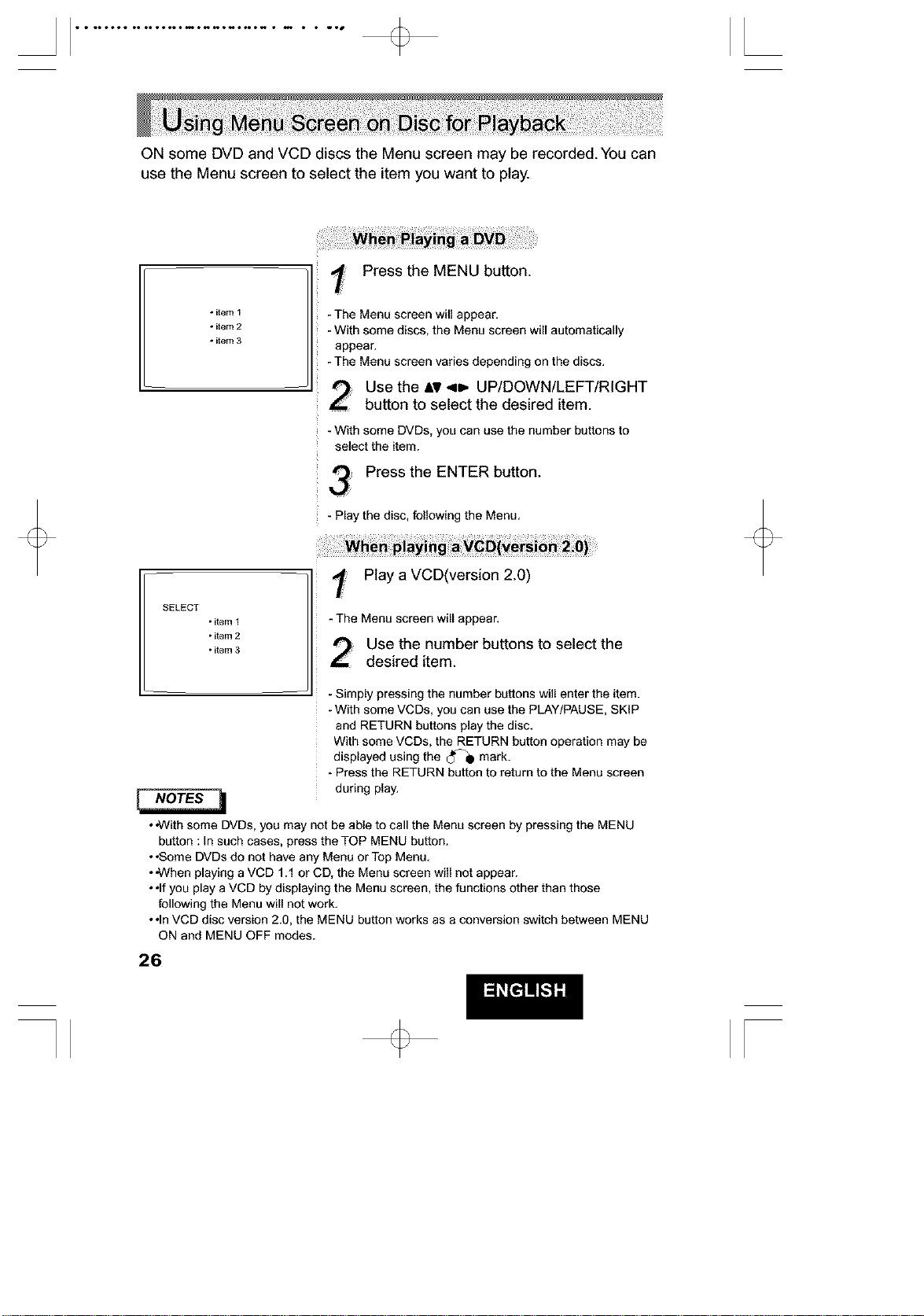
ON some DVD and VCD discs the Menu screen may be recorded.You can
use the Menu screen to select the item you want to play.
• item 1
• item 2
• item 3
SELECT
• item 1
• item 2
• item 3
:: Press the MENU button.
-The Menu screen will appear.
- With some discs, the Menu screen will automatically
appear.
- The Menu screen varies depending on the discs.
Use the AV,o, UP/DOWN/LEFT/RIGHT
button to select the desired item.
- With some DVDs, you can use the number buttons to
select the item.
Press the ENTER button.
- Play the disc, following the Menu.
: Play a VeD(versien 2.0)
- The Menu screen will appear.
Use the number buttons to select the
desired item.
- Simply pressing the number buttons will enter the item.
- With some VCDs, you can use the PLAY/PAUSE, SKIP
and RETURN buttons play the disc.
With some VCDs, the RETURN button operation may be
displayed using the C_-_ mark.
- Press the RETURN button to return to the Menu screen
during play.
• "Withsome DVDs, you may not be able to call the Menu screen by pressing the MENU
button : In such cases, press the TOP MENU button.
• •Some DVDs do not have any Menu orTop Menu.
• ,When playing a VCD 1.1 or CD, the Menu screen will not appear.
• •If you play a VCD by displaying the Menu screen, the functions other than those
following the Menu will not work.
• •In VCD disc version 2.0, the MENU button works as a conversion switch between MENU
ON and MENU OFF modes.
26
[
• • ••ooo• •• ooloo••m•_o_o_•N • m • • _•s l
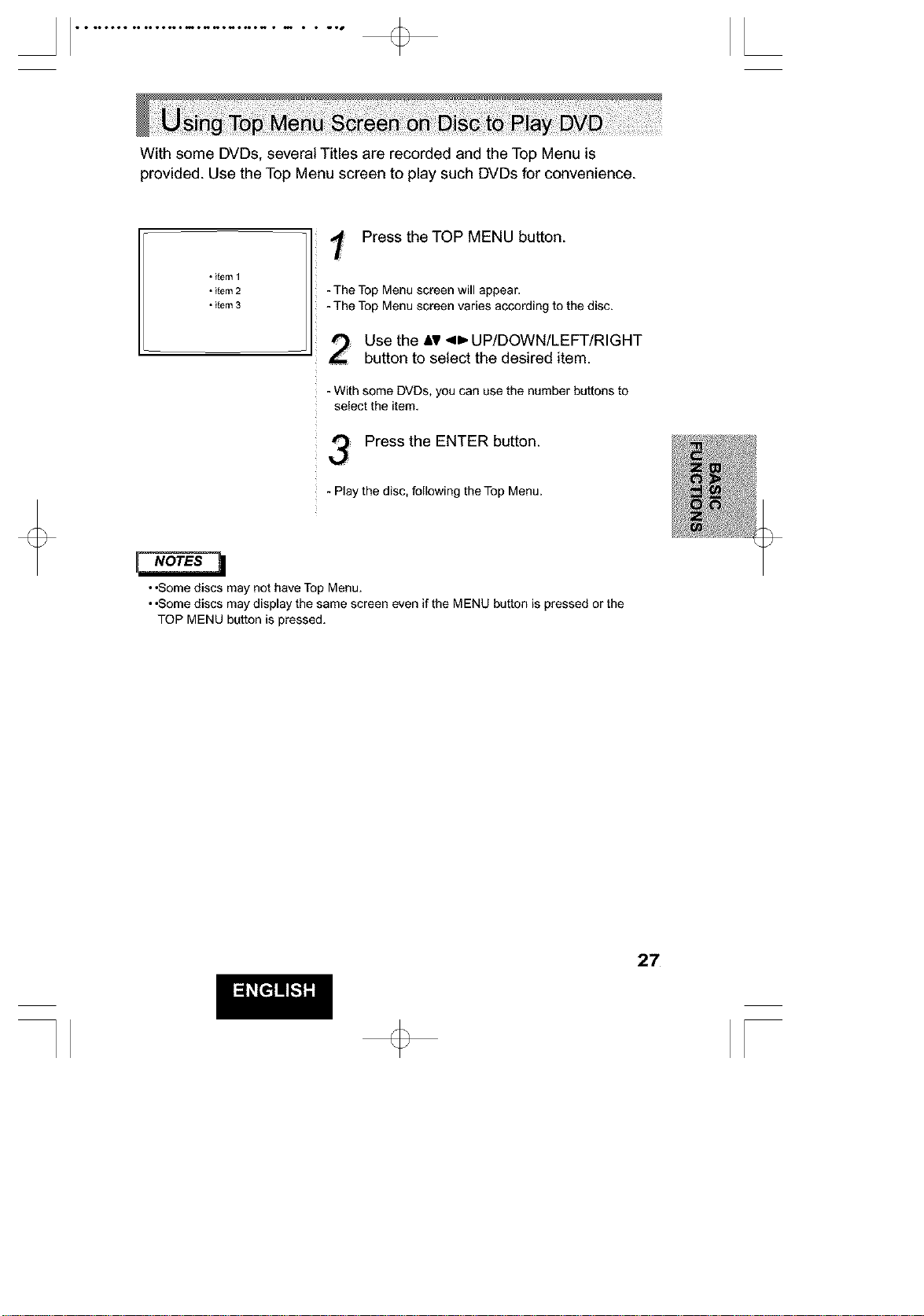
With some DVDs, several Titles are recorded and the Top Menu is
provided. Use the Top Menu screen to play such DVDs for convenience.
• item 1
• item2
• item3
Press the TOP MENU button.
-The Top Menuscreen will appear.
- TheTop Menuscreen varies accordingto the disc.
Use the AV ,o. UP/DOWN/LEFT/RIGHT
button to select the desired item.
-With some DVDs, youcan use the number buttons to
select the item.
Press the ENTER button.
- Playthe disc, following theTop Menu.
• ,Some discs may not have Top Menu.
• ,Some discs may display the same screen even if the MENU button is pressed or the
TOP MENU button is pressed.
27
• • ••ooo• •• ooloo••m•_o_o_•N • m • • _•s [
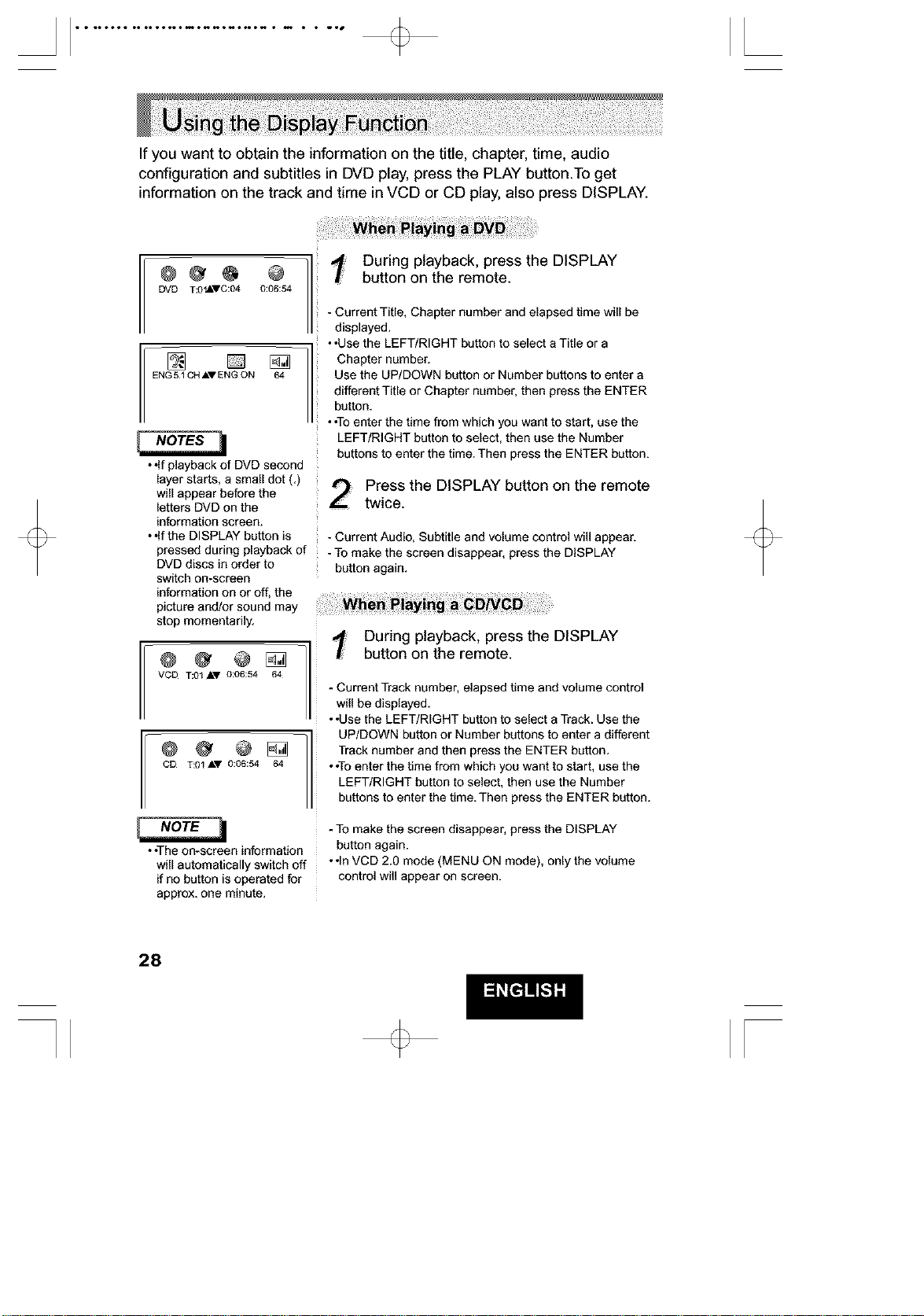
If you want to obtain the information on the title, chapter, time, audio
configuration and subtitles in DVD play, press the PLAY button.To get
information on the track and time in VCD or CD play, also press DISPLAY.
°° 1
DVD T:OIkVC:04 0:06:54
ENOS 'C"'ENO ON1
• olfplayback of DVD second
layer starts, a small dot (,)
will appear before the
letters DVD on the
information screen.
• olfthe DISPLAY button is
pressed during playback of
DVD discs in order to
switch on-screen
information on or off, the
picture and/or sound may
stop momentarily.
T:0t AV 0:06:54 64
CO T:01 AY 0:06:54 64
• •The on-screen information
will automatically switch off
if no button is operated for
approx, one minute.
During playback, press the DISPLAY
button on the remote.
- Current Title, Chapter number and elapsed time will be
displayed.
• ,Use the LEFT/RIGHT button to select a Title or a
Chapter number.
Use the UP/DOWN button or Number buttons to enter a
different Title or Chapter number, then press the ENTER
button.
• ,To enter the time from which you want to start, use the
LEFT/RIGHT button to select, then use the Number
buttons to enter the time. Then press the ENTER button.
Press the DISPLAY button on the remote
twice.
- Current Audio, Subtitle and volume control will appear.
- To make the screen disappear, press the DISPLAY
button again.
During playback, press the DISPLAY
button on the remote.
- Current Track number, elapsed time and volume control
will be displayed.
• ,Use the LEFT/RIGHT button to select a Track. Use the
UP/DOWN button or Number buttons to enter a different
Track number and then press the ENTER button.
• ,To enter the time from which you want to start, use the
LEFT/RIGHT button to select, then use the Number
buttons to enter the time. Then press the ENTER button.
- To make the screen disappear, press the DISPLAY
button again.
• ,In VCD 2.0 mode (MENU ON mode), only the volume
control will appear on screen.
28
[
• • ••ooo• •• o••oo••m•_o_o_•N • m • • _•s [
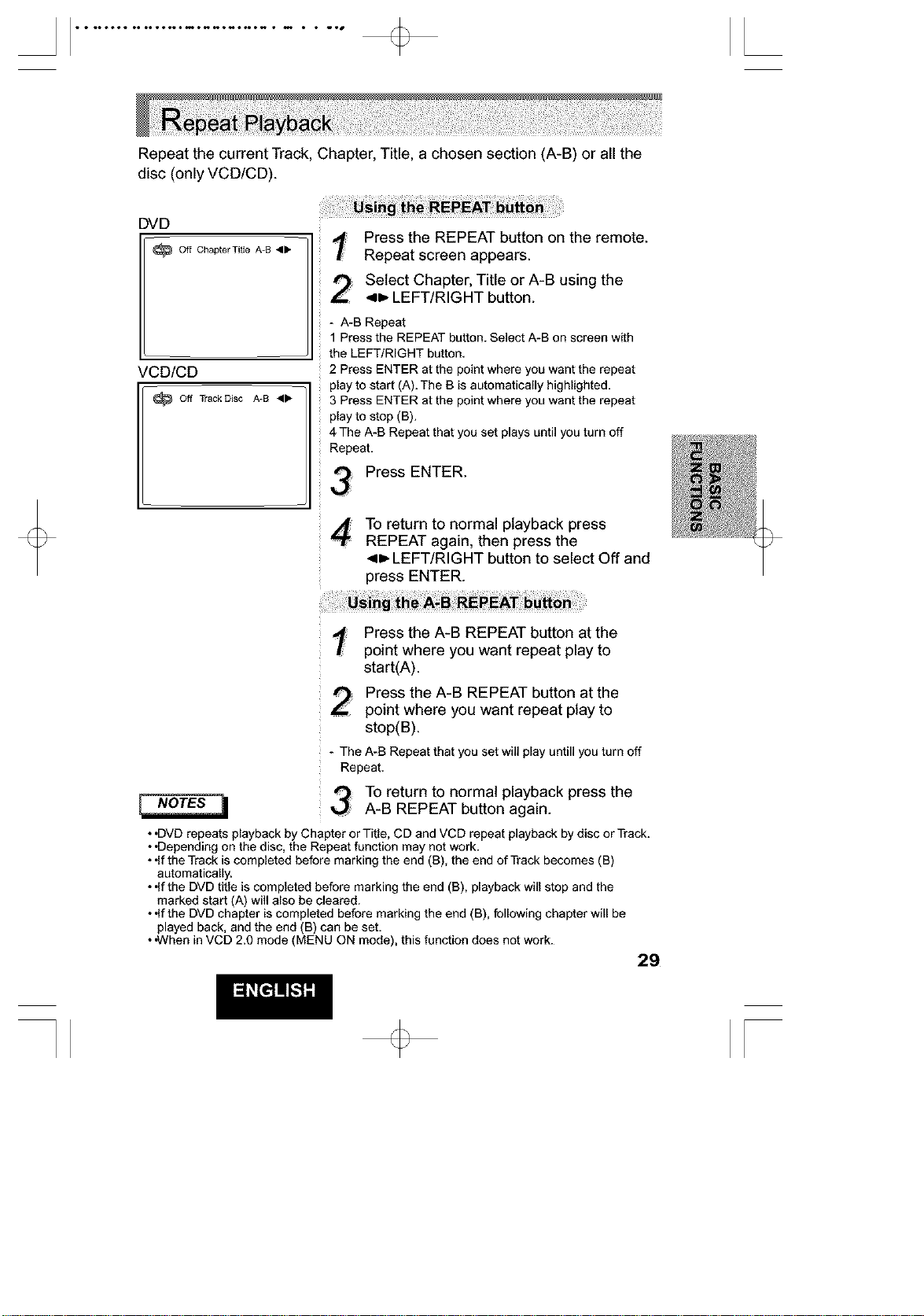
Repeat the current Track, Chapter, Title, a chosen section (A-B) or all the
disc (only VCD/CD).
DVD
4_
VCD/CD
Off Track Disc A-B 41_
Press the REPEAT button on the remote.
Repeat screen appears.
: Select Chapter, Title or A-B using the
4t, LEFT/RIGHT button.
- A-B Repeat
1 Press the REPEAT button. Select A-B on screen with
the LEFT/RIGHT button.
2 Press ENTER at the point where you want the repeat
play to start (A). The B is automatically highlighted.
3 Press ENTER at the point where you want the repeat
play to stop (B).
4 The A-B Repeat that you set plays until you turn off
Repeat.
3 PressENTER
To return to normal playback press
REPEAT again, then press the
41,,LEFT/RIGHT button to select Off and
press ENTER.
: Press the A-B REPEAT button at the
point where you want repeat play to
start(A).
Press the A-B REPEAT button at the
point where you want repeat play to
stop(B).
- The A-B Repeat that you set will play untill you turn off
Repeat.
To return to normal playback press the
A-B REPEAT button again.
• .DVD repeats playback by Chapter or Title, CD and VCD repeat playback by disc or Track.
• •Depending on the disc, the Repeat function may not work.
• .If the Track is completed before marking the end (B), the end of Track becomes (B)
automatically.
• .If the DVD title is completed before marking the end (B), playback will stop and the
marked start (A) will also be cleared.
• .If the DVD chapter is completed before marking the end (B), following chapter will be
played back, and the end (B) can be set.
• .When in VCD 2.0 mode (MENU ON mode), this function does not work.
29
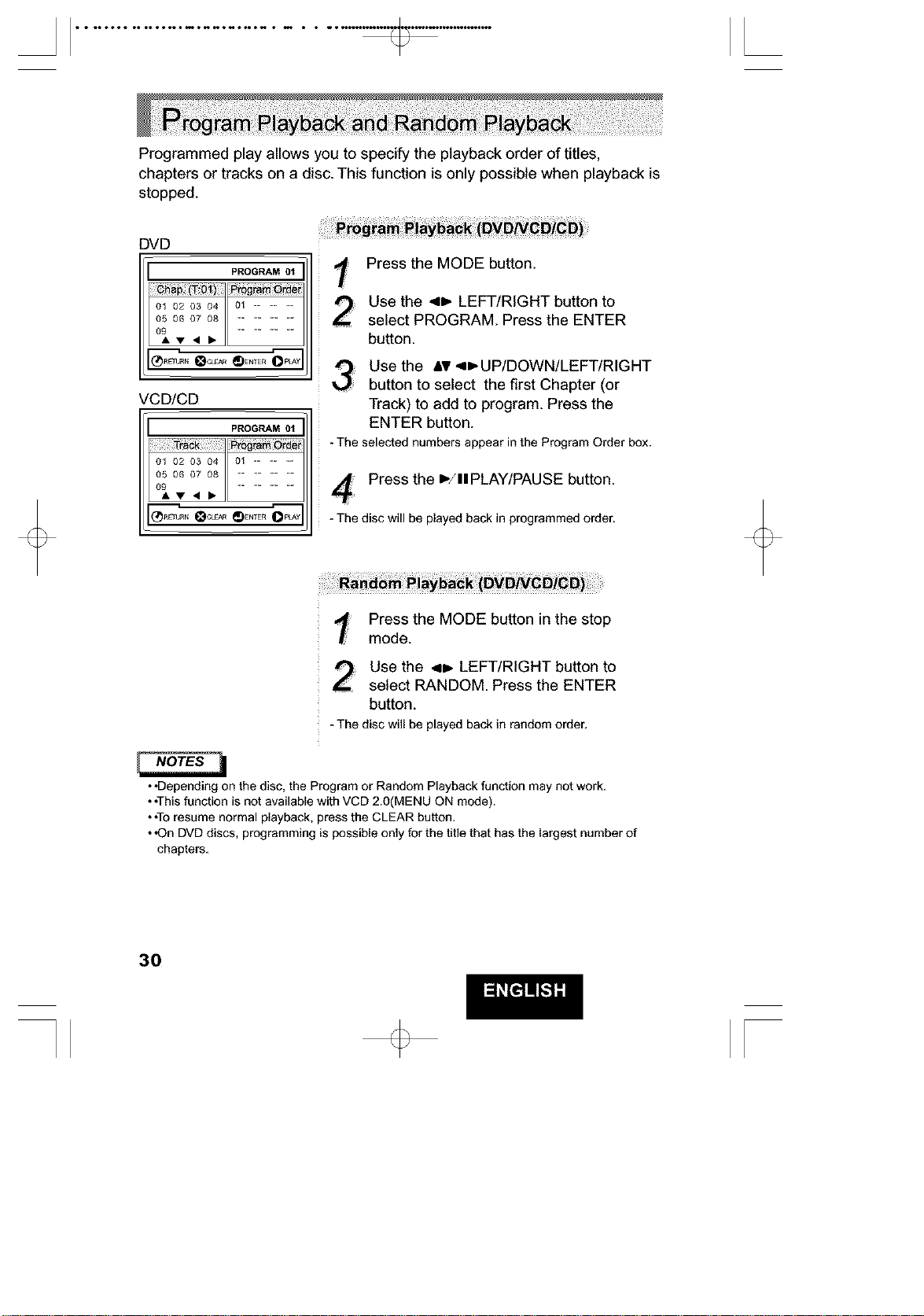
Programmed play allows you to specify the playback order of titles,
chapters or tracks on a disc. This function is only possible when playback is
stopped.
DVD
PROGRAM 01
01 02 03 04 01 -- -- --
05 06 07 08
--...-i r.---
VCD/CD
PROGRAM 01
ol o2 o3 o4 ol -- -- --
05 06 07 08
--...-i r.---
i_
Press the MODE button.
Use the 4=,. LEFT/RIGHT button to
select PROGRAM. Press the ENTER
button.
Use the aV 4=,.UP/DOWN/LEFT/RIGHT
button to select the first Chapter (or
Track) to add to program. Press the
ENTER button.
- TheselectednumbersappearintheProgram Orderbox.
Press the b/ll PLAY/PAUSE button.
- The disc will be playedback in programmed order.
; Press the MODE button in the stop
mode.
Use the 4B. LEFT/RIGHT button to
select RANDOM. Press the ENTER
button.
-The discwillbeplayed backin randomorder.
• •Depending on the disc, the Program or Random Playback function may not work.
• •This function is not available with VCD 2.0(MENU ON mode).
• *To resume normal playback, press the CLEAR button.
• *On DVD discs, programming is possible only for the title that has the largest number of
chapters.
30
[
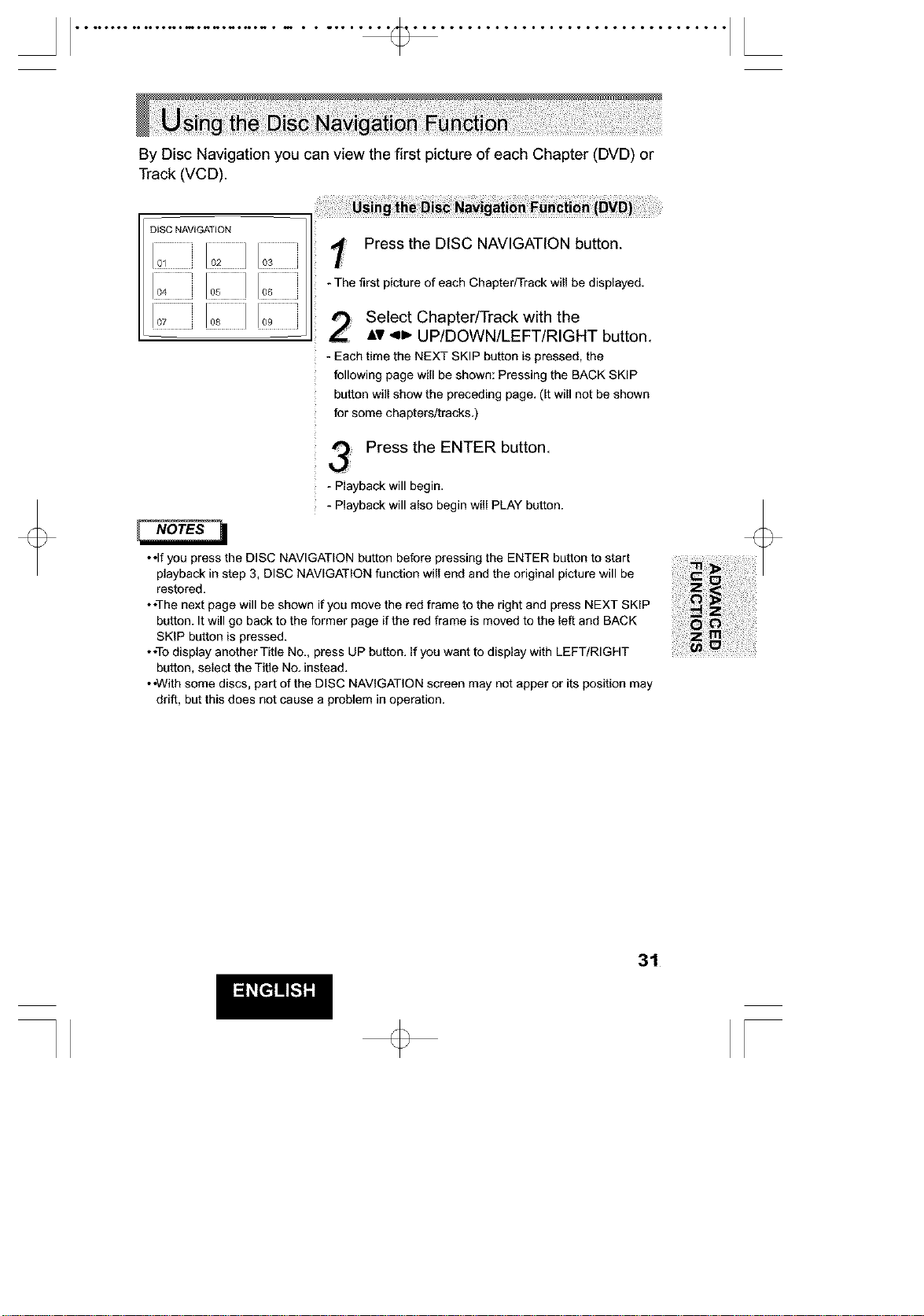
By Disc Navigation you can view the first picture of each Chapter (DVD) or
Track (VCD).
DISC NAVIGATION
IiiiiZiiiiiIiiiiZiiil]IiiiiZiiil]
i!LiilLIIZIi
Press the DISC NAVIGATION button.
-The first picture of eachChapterFi-rackwill be displayed,
Select Chapter/Track with the
Av qD, UP/DOWN/LEFT/RIGHT button.
- Each time the NEXT SKIP button is pressed, the
following page will be shown: Pressing the BACK SKIP
button will show the preceding page, (It will not be shown
for some chapters/tracks,)
Press the ENTER button.
- Playback will begin,
- Playback will also begin will PLAY button.
• *If you press the DISC NAVIGATION button before pressing the ENTER button to start
playback in step 3, DISC NAVIGATION function will end and the original picture will be
restored,
• •The next page will be shown if you move the red frame to the right and press NEXT SKIP
button. It will go back to the former page if the red frame is moved to the left and BACK
SKIP button is pressed.
• *Todisplay another Title No., press UP button. If you want to display with LEFT/RIGHT
button, seJect the Title No. instead.
• *With some discs, part of the DISC NAVIGATION screen may not apper or its position may
drift, but this does not cause a problem in operation.
31
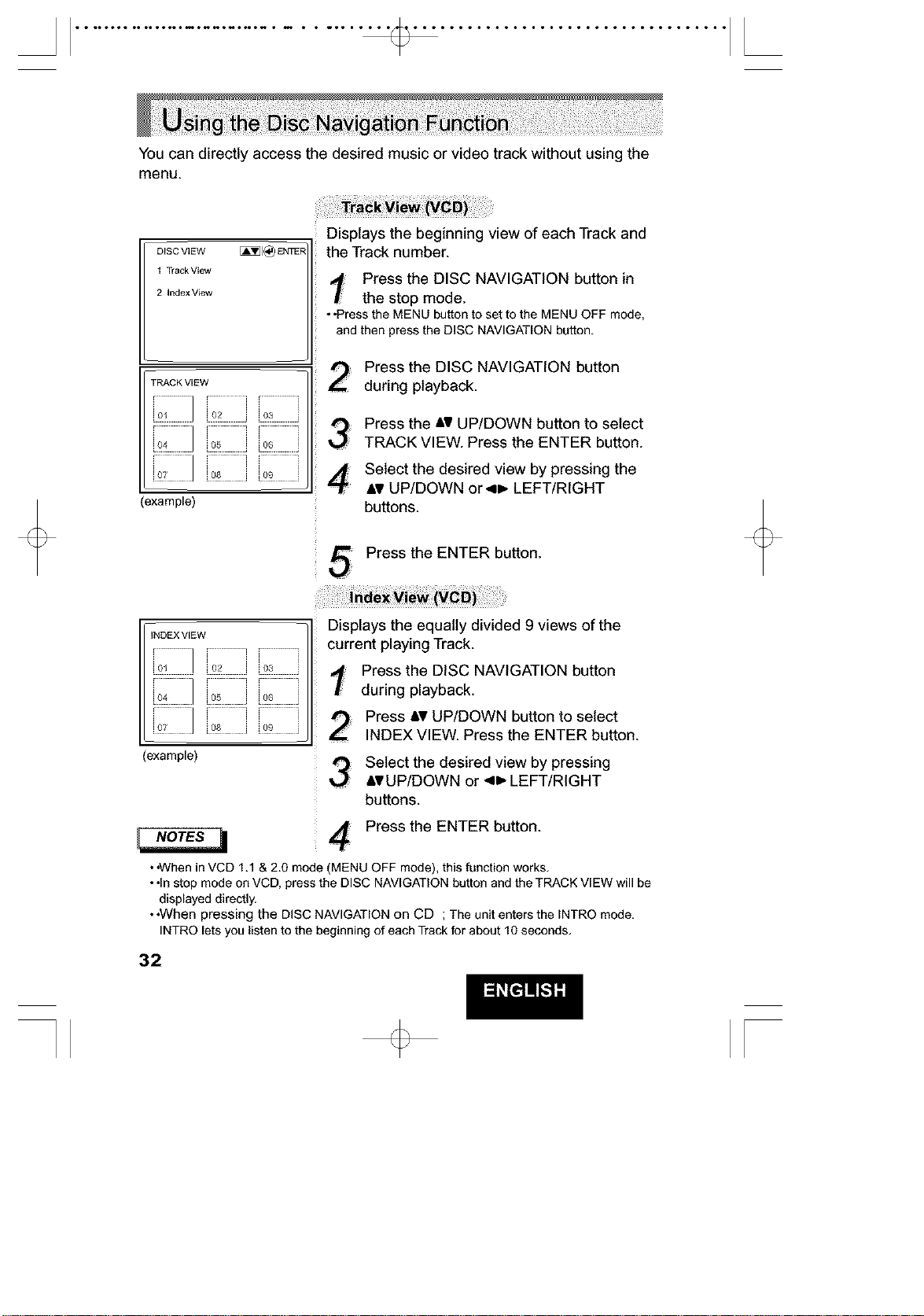
You can directly access the desired music or video track without using the
menu.
_SC VIEW [_]1_ ENT_F
1 Track View
2 Index View
TRACK ViEW
o_iiiiiii]'1o2 11o3 [
Z2],o_,,oo','
ZZI,oo,,oo','
(example)
INDEX VIEW
Z /'
[02 [[oa [
Z£1,oo',,oo",
(example)
Displays the beginning view of each Track and
the Track number.
Press the DISC NAVIGATION button in
the stop mode.
• .Pressthe MENU buttonto set to the MENUOFF mode,
and then pressthe DISC NAVIGATIONbutton.
; Press the DISC NAVIGATION button
during playback.
Press the At UP/DOWN button to select
TRACK VIEW. Press the ENTER button.
Select the desired view by pressing the
At UP/DOWN orqD, LEFT/RIGHT
buttons.
Press the ENTER button.
Displays the equally divided 9 views of the
current playing Track.
Press the DISC NAVIGATION button
during playback.
2
Press At UP/DOWN button to select
INDEX VIEW. Press the ENTER button.
Select the desired view by pressing
AVUP/DOWN or 4D, LEFT/RIGHT
buttons.
Press the ENTER button.
• •When in VCD 1.1 & 2.0 mode (MENU OFF mode), this function works.
• .In stop mode on VCD, press the DISC NAVIGATION button and the TRACK VIEW will be
displayed directly.
• •When pressing the DISC NAVIGATION on CD ; The unit enters the INTRO mode.
INTRO lets you listen to the beginning of each Track for about 10 seconds.
32
[
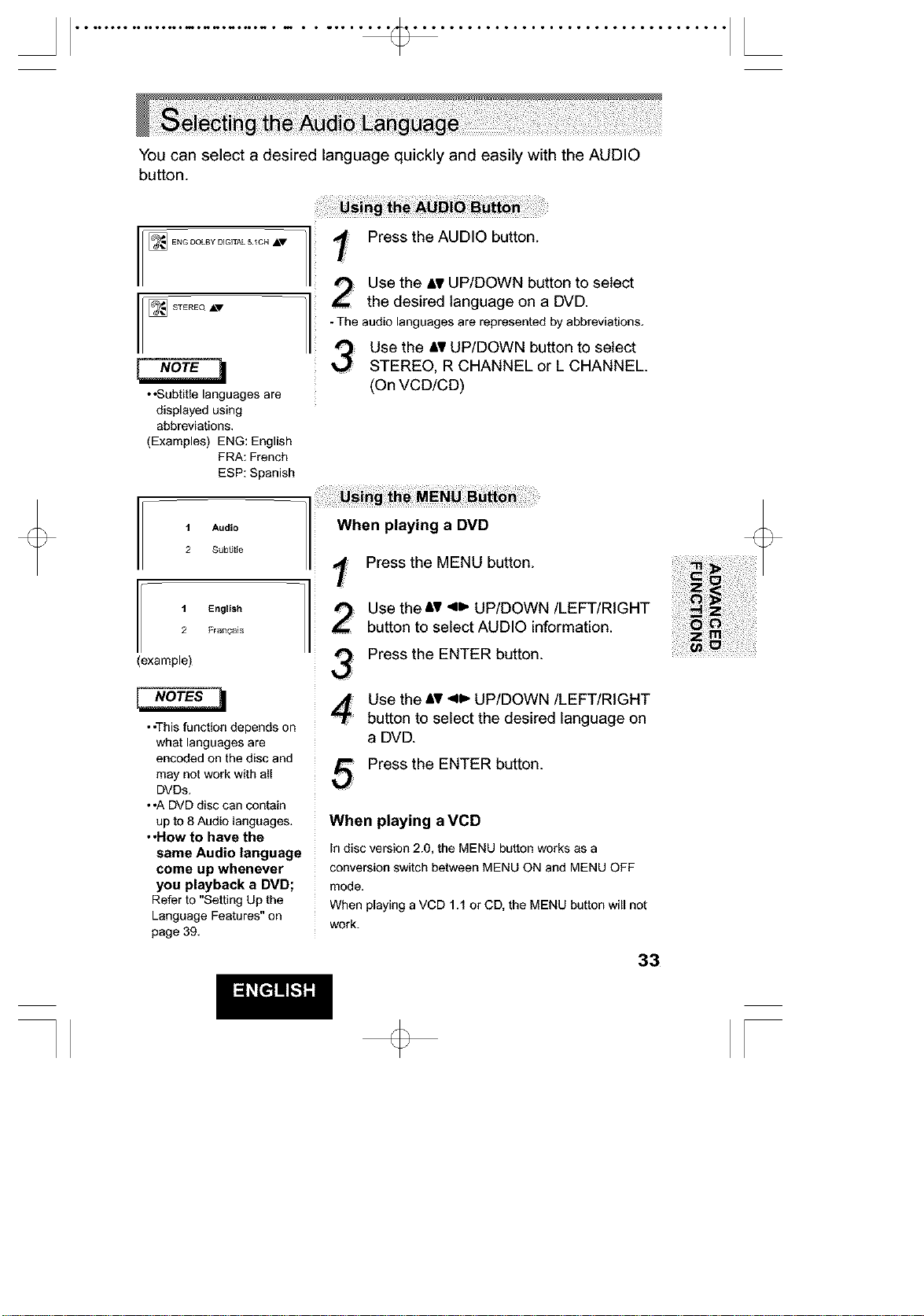
You can select a desired language quickly and easily with the AUDIO
button.
_ ENG DOLBy DIGITAL 5 _CH ,_,V
i sTEREo-
• *Subtitle languages are
displayed using
abbreviations.
(Examples) ENG: English
FRA: French
ESP: Spanish
I 1 Audio
2 Sub,tie
I I English
2 FfanOais
(example)
• •This function depends on
what languages are
encoded on the disc and
may not work with all
DVDs.
• .A DVD disc can contain
up to 8 Audio languages.
• •How to have the
same Audio language
come up whenever
you playback a DVD;
Refer to "Setting Up the
Language Features" on
page 39.
t Press the AUDIO button.
Use the &VUP/DOWN button to select
the desired language on a DVD.
- Theaudiolanguages are represented by abbreviations.
Use the AVUP/DOWN button to select
STEREO, R CHANNEL or L CHANNEL.
(On VCD/CD)
!ii i ii ! ii!!!iiiiii¸i!i!ii i! giiii i!iiiiM i i iiiii! i ! iiiiiii !iii ii! !i!
When playing a DVD
/I 1 Press theMENUbutton.
Use the At 411_UP/DOWN/LEFT/RIGHT
/I ou,,on,oselectAUDIOinformation.
3 Press the ENTER button.
Use the =Vqw,,UP/DOWN/LEFT/RIGHT
button to select the desired language on
a DVD.
Press the ENTER button.
When playing a VCD
in disc version 2.0, the MENU button works as a
conversion switch between MENU ON and MENU OFF
mode.
When playing a VCD 1.1 or CD, the MENU button will not
work.
33
[
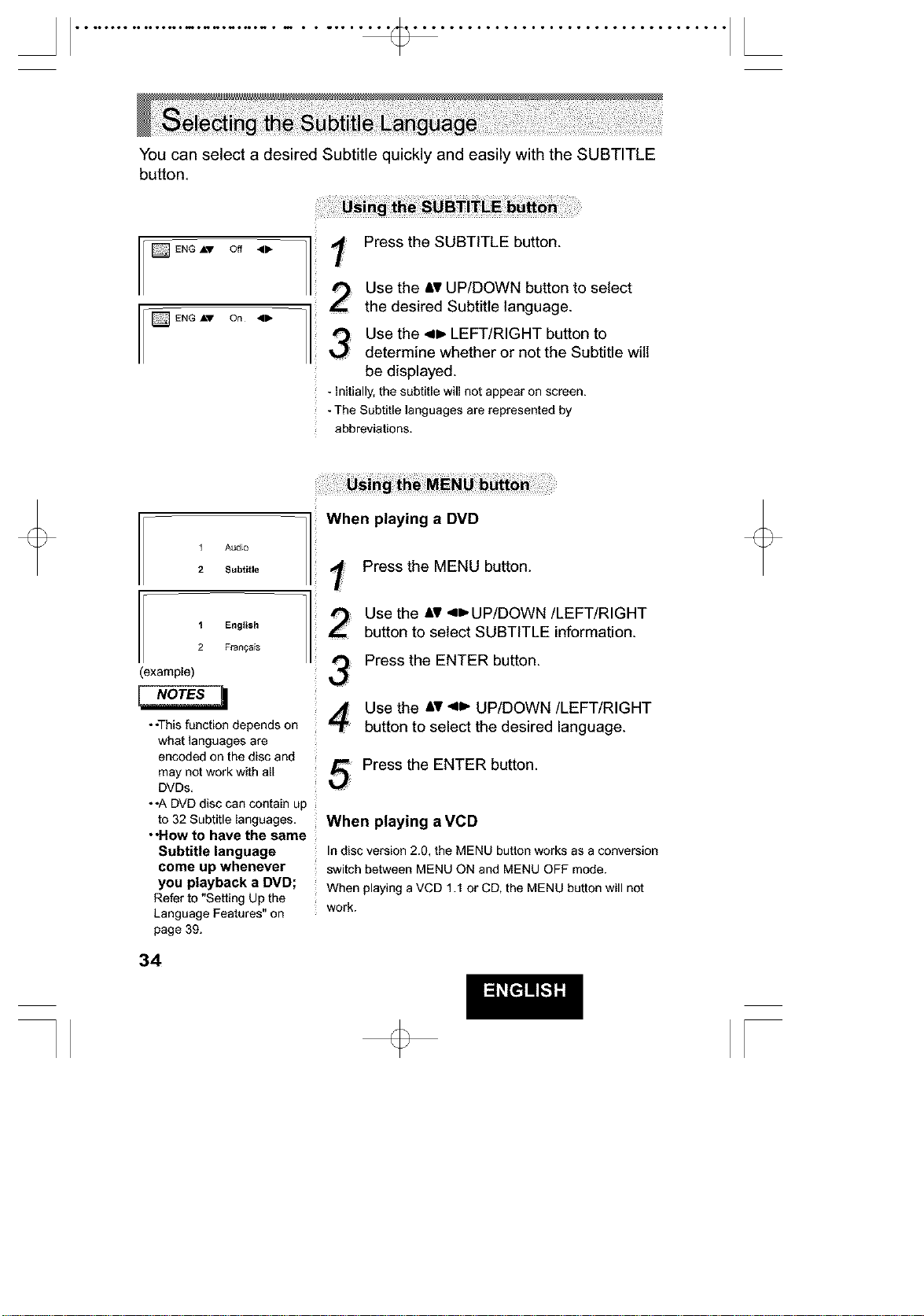
You can select a desired Subtitle quickly and easily with the SUBTITLE
button.
[]ENG A'V Off 411_ _ 1
/
2
ENG-°°-13
Press the SUBTITLE button.
Use the ,=vUP/DOWN button to select
the desired Subtitle language.
Use the 4=, LEFT/RIGHT button to
determine whether or not the Subtitle will
be displayed.
- initially, the subtitle will not appear on screen.
-The Subtitle languages are represented by
abbreviations.
1 Audio ]
2 Subtitle
_ _ English 1
2 Flatboats
(example)
• •This function depends on
what languages are
encoded on the disc and
may not work with all
DVDs.
• .A DVD disc can contain up
to 32 Subtitle languages.
• "How to have the same
Subtitle language
come up whenever
you playback a DVD;
Refer to "Setting Up the
Language Features" on
page 39.
34
When playing a DVD
Press the MENU button.
Use the AT <_UP/DOWN/LEFT/RIGHT
button to select SUBTITLE information.
Press the ENTER button.
Use the &v <1_ UP/DOWN/LEFT/RIGHT
button to select the desired language.
Press the ENTER button.
When playing a VCD
In disc version 2.0, the MENU button works as a conversion
switch between MENU ON and MENU OFF mode.
When playing a VCD 1.1 or CD, the MENU button will not
work.
[
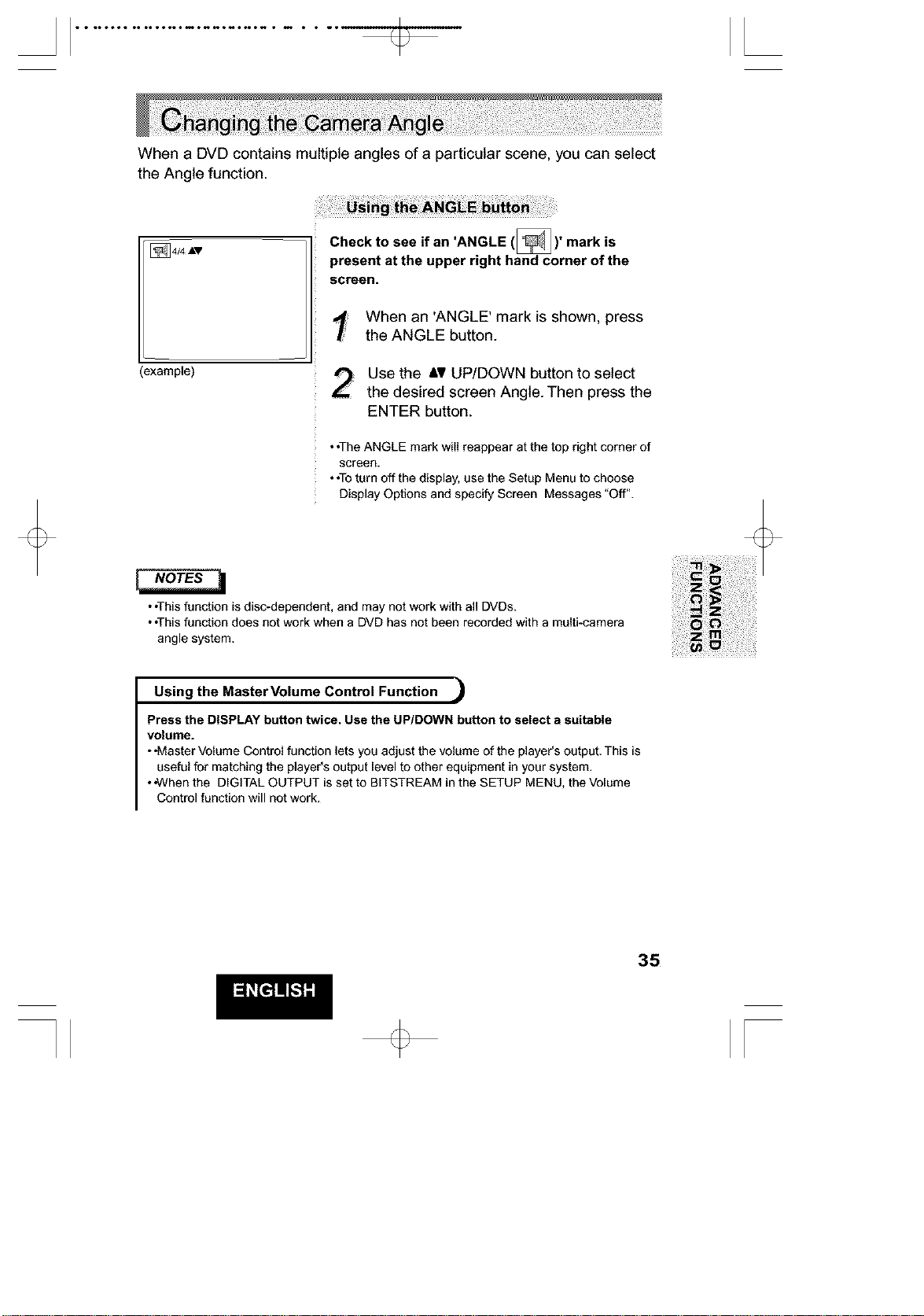
When a DVD contains multiple angles of a particular scene, you can select
the Angle function.
(example)
Check to see if an 'ANGLE (_)' mark is
present at the upper right hand corner of the
screen.
When an 'ANGLE' mark is shown, press
the ANGLE button.
Use the &It UP/DOWN button to select
the desired screen Angle. Then press the
ENTER button.
• •The ANGLE mark will reappear at the top right corner of
screen.
• •To turn off the display, use the Setup Menu to choose
Display Options and specify Screen Messages "Off".
• •This function is disc-dependent, and may not work with all DVDs.
• •This function does not work when a DVD has not been recorded with a multi-camera
angle system.
Using the MasterVolume Control Function ,_
Press the DISPLAY button twice. Use the UP/DOWN button to select a suitable
volume.
• .Master Volume Control function lets you adjust the volume of the player's output. This is
useful for matching the player's output level to other equipment in your system.
• ,When the DIGITAL OUTPUT is set to BITSTREAM in the SETUP MENU, the Volume
Control function will not work.
35
[
• • ••ooo• •• o•,oo••m•_o_o_•N • m • • _, I [
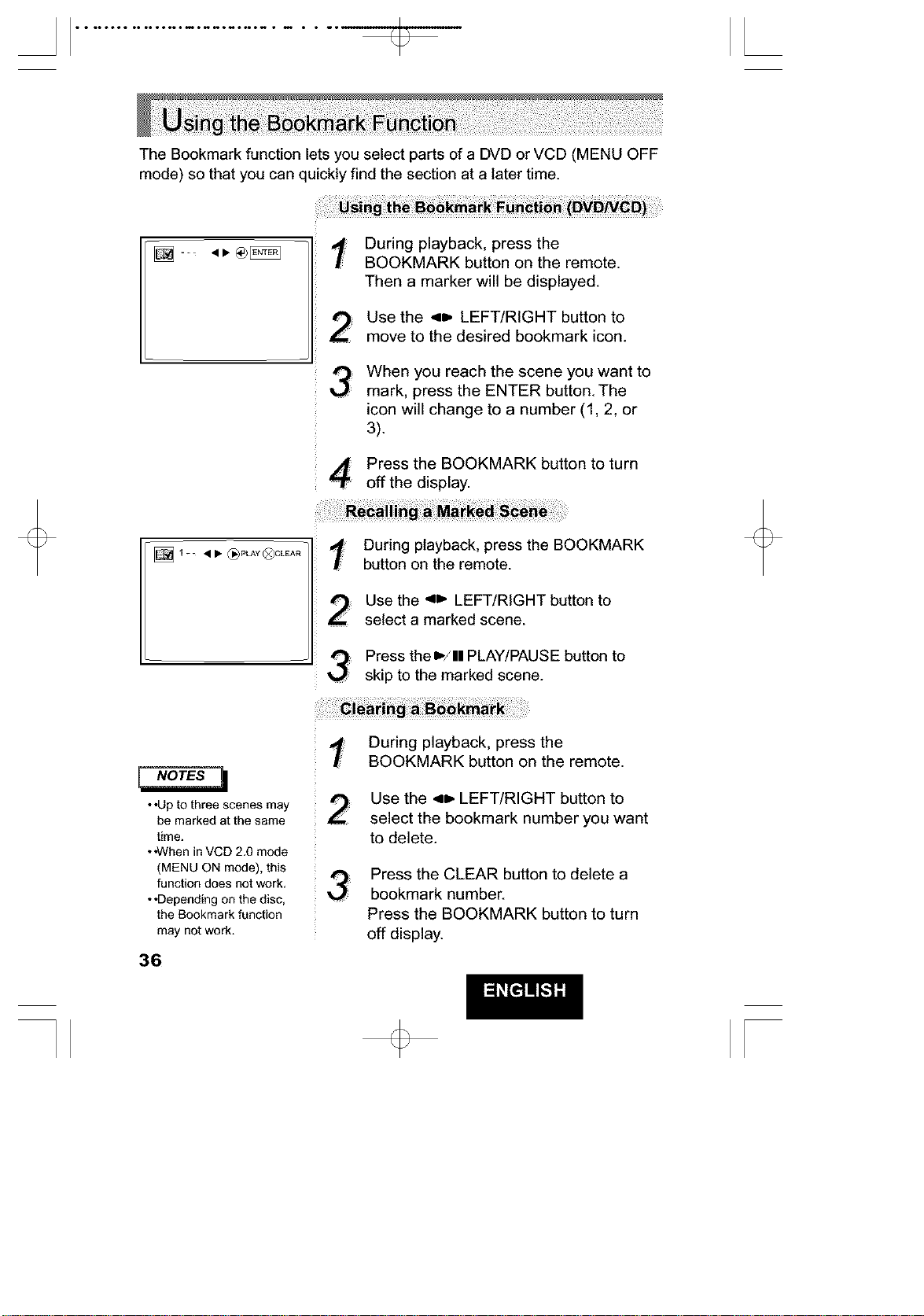
The Bookmark function lets you select parts of a DVD or VCD (MENU OFF
mode) so that you can quickly find the section at a later time.
t During playback, press the
BOOKMARK button on the remote.
Then a marker will be displayed.
_
Use the 4_ LEFT/RIGHT button to
move to the desired bookmark icon.
When you reach the scene you want to
mark, press the ENTER button. The
icon will change to a number (1, 2, or
3).
Press the BOOKMARK button to turn
off the display.
: During playback, press the BOOKMARK
button on the remote.
Use the 4J,. LEFT/RIGHT button to
select a marked scene.
Press theD,/ll PLAY/PAUSE button to
skip to the marked scene.
• *Up to three scenes may
be marked at the same
time.
• 4Nhen in VCD 2.0 mode
(MENU ON mode), this
function does not work.
• •Depending on the disc,
the Bookmark function
may not work.
36
During playback, press the
BOOKMARK button on the remote.
!
Use the 4D, LEFT/RIGHT button to
select the bookmark number you want
to delete.
Press the CLEAR button to delete a
bookmark number.
Press the BOOKMARK button to turn
off display.
[
• • ••ooo• •• o••oo••m•_o_o_•N • m • • _• I [
• .3D Sound is possible only
on discs recorded using
DOLBY SURROUND or
DOLBY DIGITAL,
However, some of these
discs do not contain rear
channel sound signals,
• •Depending on the disc,
the Zoom and Surround
function may not work.
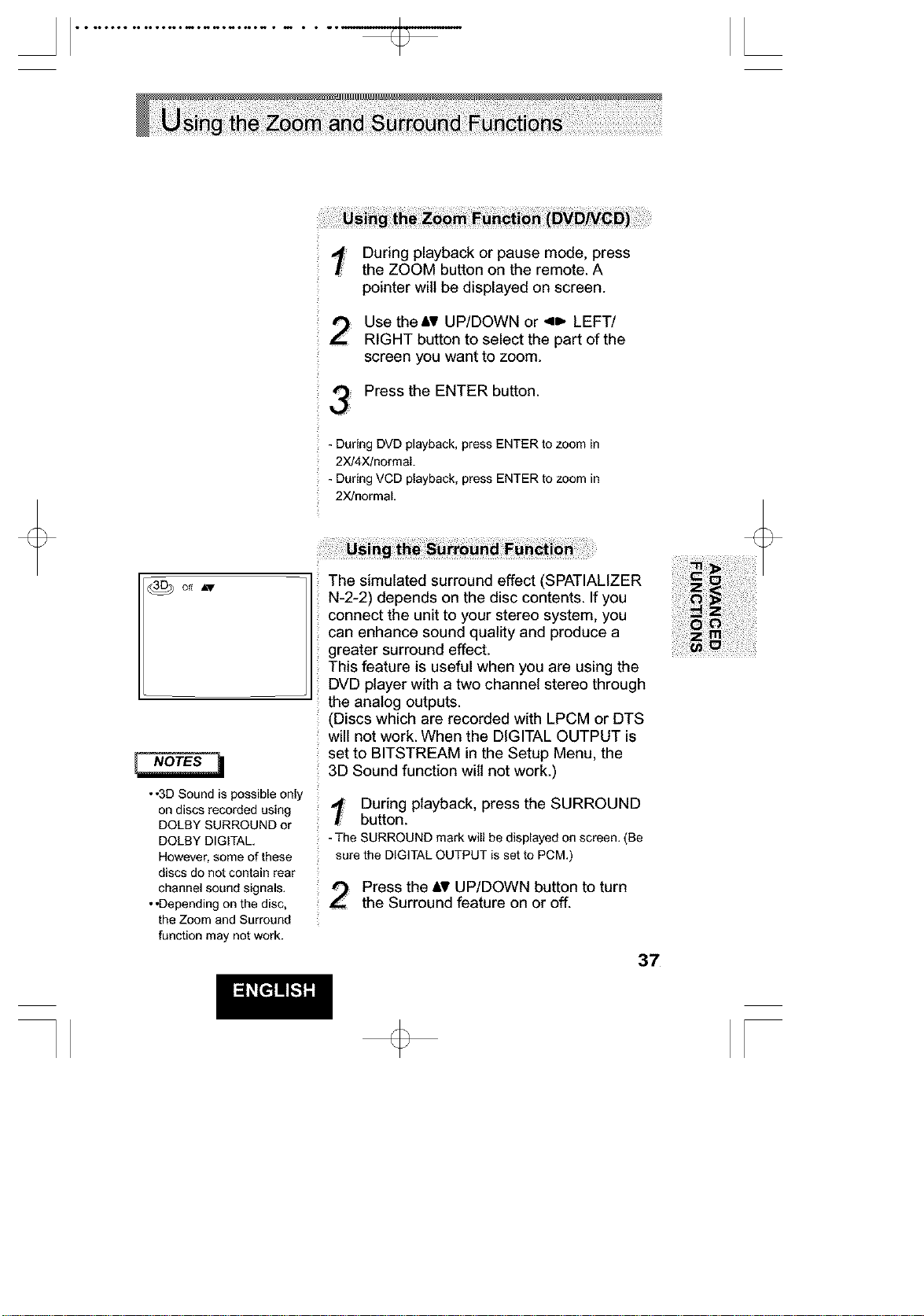
During playback or pause mode, press
the ZOOM button on the remote. A
pointer wilt be displayed on screen.
Use theAV UP/DOWN or 41, LEFT/
RIGHT button to select the part of the
screen you want to zoom.
Press the ENTER button.
- During DVD playback, press ENTER to zoom in
2X!4X/normaL
- During VCD playback, press ENTER to zoom in
2X!normal.
The simulated surround effect (SPATIALIZER
N-2-2) depends on the disc contents. If you
connect the unit to your stereo system, you
can enhance sound quality and produce a
greater surround effect.
This feature is useful when you are using the
DVD player with a two channel stereo through
the analog outputs.
(Discs which are recorded with LPCM or DTS
will not work. When the DIGITAL OUTPUT is
set to BITSTREAM in the Setup Menu, the
3D Sound function wilt not work.)
During playback, press the SURROUND
button.
- The SURROUND mark will bedisplayed on screen.(Be
sure the DIGITALOUTPUT is set to PCM.)
Press the AV UP/DOWN button to turn
the Surround feature on or off.
37
[
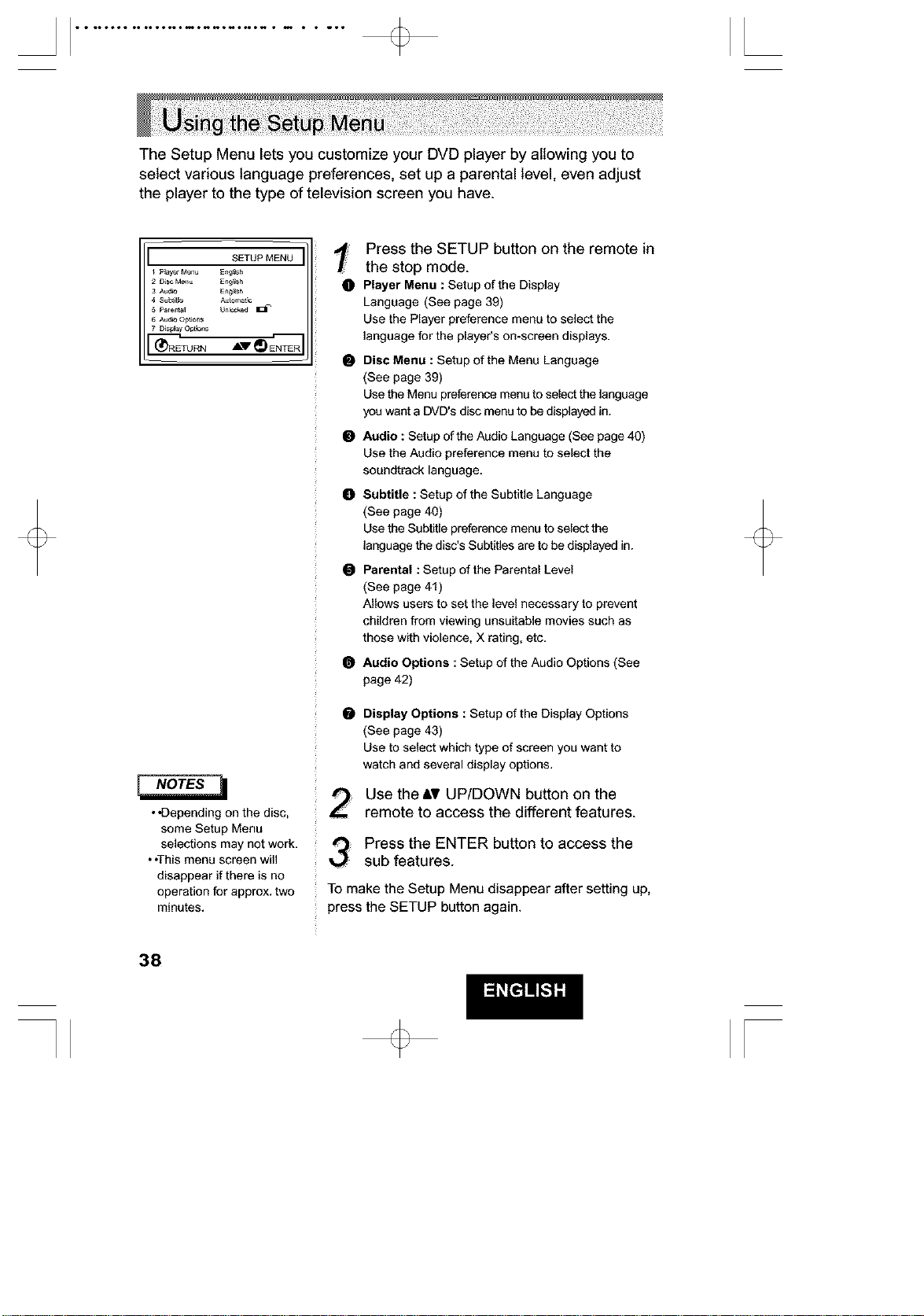
The Setup Menu lets you customize your DVD player by allowing you to
select various language preferences, set up a parental level, even adjust
the player to the type of television screen you have.
• *Depending on the disc,
some Setup Menu
selections may not work.
• ,This menu screen will
disappear if there is no
operation for approx, two
minutes.
Press the SETUP button on the remote in
the stop mode.
O Player Menu : Setup of the Display
Language (See page 39)
Use the Player preference menu to select the
language for the player's on-screen displays.
O Disc Menu : Setup of the Menu Language
(See page 39)
Use the Menu preference menu to select the language
you want a DVD's disc menu to be displayed in.
O Audio : Setup of the Audio Language (See page 40)
Use the Audio preference menu to select the
soundtrack language.
O Subtitle : Setup of the Subtitle Language
(See page 40)
Use the Subtitle preference menu to select the
language the disc's Subtitles are to be displayed in.
Parental : Setup of the Parental Level
(See page 41)
Allows users to set the level necessary to prevent
children from viewing unsuitable movies such as
those with violence, X rating, etc.
Audio Options : Setup of the Audio Options (See
page 42)
O
Display Optione : Setup of the Display Options
(See page 43)
Use to select which type of screen you want to
watch and several display options.
Use theAT UP/DOWN button on the
remote to access the different features.
Press the ENTER button to access the
sub features.
Tomake the Setup Menudisappear aftersetting up,
press the SETUP button again.
38
[
• • •o•,o• •, •O•,O•,O•••NN,OO••,O•• • •,, • • _,O [
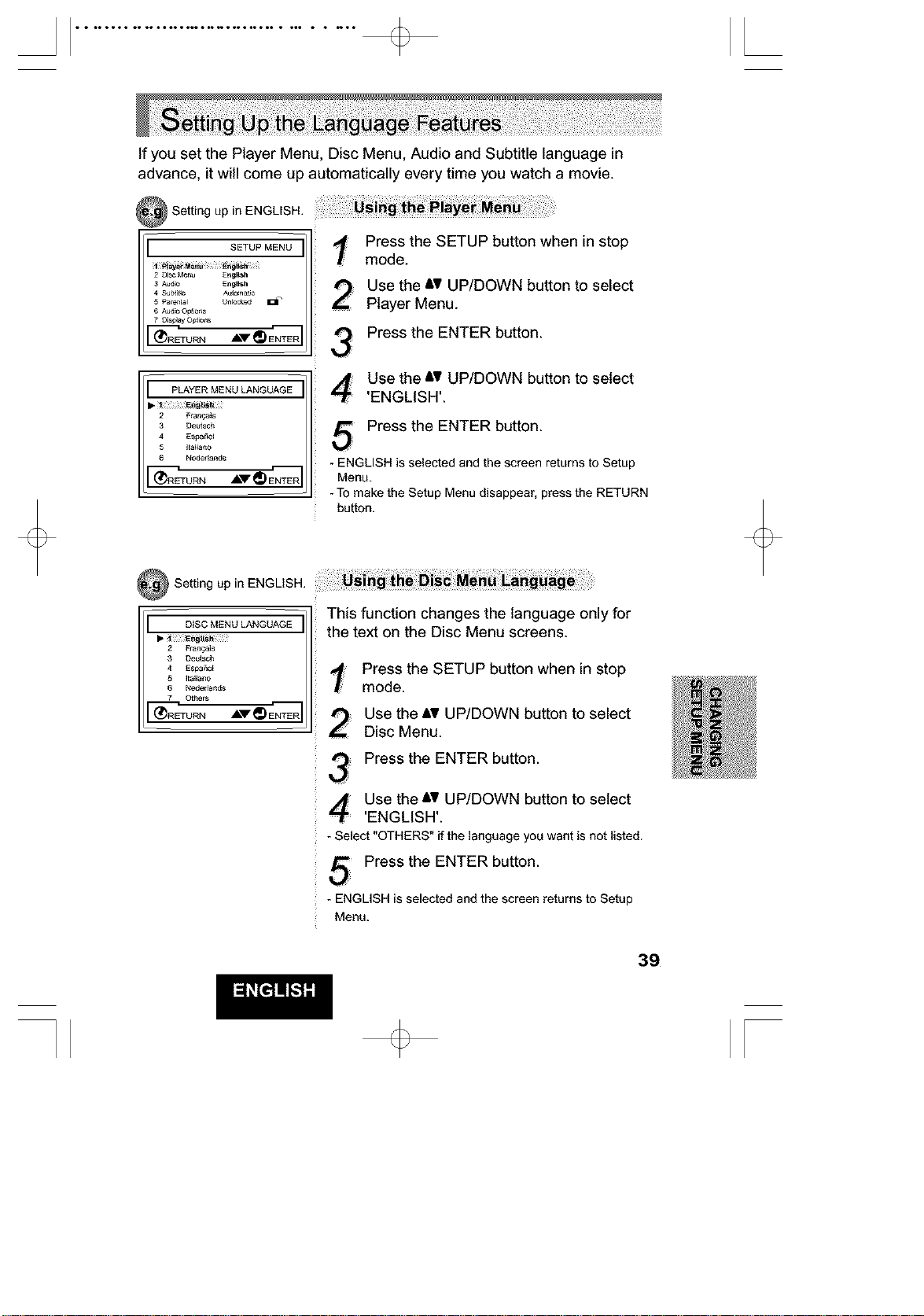
If you set the Player Menu, Disc Menu, Audio and Subtitle language in
advance, it will come up automatically every time you watch a movie.
Setting up in ENGLISH.
SETUP MENU
2 DISC Me_ Et,,_l}sh
3 Audio E_l}sh
4 SUbH_e A_m _tlc
5 Pare_al Uf_k_cket_ I1_
6 Aud_ O#_JO_S
(_RETUR N A_'_r _ ENTER
PLAYER MENU LANGUAGE
2 Fr_ngais
3 Deetsch
4 Espa6ol
5 I_a_ano
6 Neder_ands
"_'_R_URN AV_ ENTER
Press the SETUP button when in stop
mode.
; Use the &V UP/DOWN button to select
Player Menu.
Press the ENTER button.
Use the &V UP/DOWN button to select
'ENGLISH'.
Press the ENTER button.
- ENGLISH is selected and the screen returns to Setup
Menu.
- To make the Setup Menu disappear, press the RETURN
button.
Setting up in ENGLISH.
DISC MENU LANGUAGE
2 Ffangais
3 De_tsch
4 Espa60_
6 Neder_and_
7 Others
(_RE]'URN _ _ ENTER
This function changes the language only for
the text on the Disc Menu screens.
Press the SETUP button when in stop
mode.
Use the &_ UP/DOWN button to select
Disc Menu.
Press the ENTER button.
Use the &_ UP/DOWN button to select
'ENGLISH'.
- Select "OTHERS" if the language you want is notlisted.
Press the ENTER button.
- ENGLISH is selected andthe screen returns to Setup
Menu.
39
[
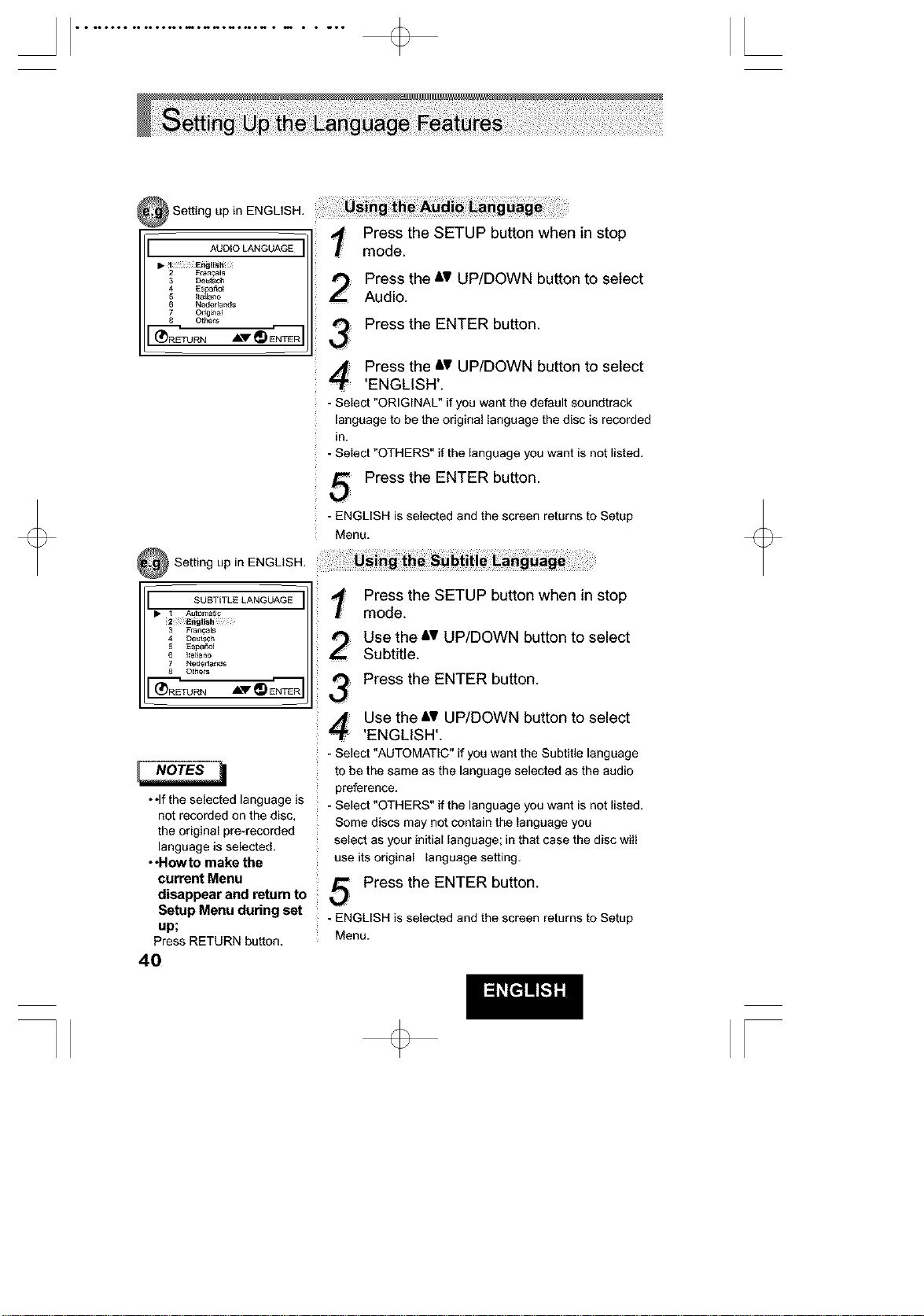
• • ••ooo• •• ooloo••m•_o_o_•N • m • • _•• [
!Sett ng up n ENGL SH
Press the SETUP button when in stop
AUDIO LANGUAGE mode.
• 1 ErJgUsh
2 Ftan£.ais
3 Deutsch
4 Espaf_o_
5 Ita_a_o
Neder_ands
7 Odgi_a_
8 Others
(_RETURN ,J_.'_V _ ENTER
Press the _,VUP/DOWN button to select
Audio.
Press the ENTER button.
Press the AV UP/DOWN button to select
'ENGLISH'.
- Select "ORIGINAL" if you want the default soundtrack
language to be the original language the disc is recorded
in.
- Select "OTHERS" if the language you want is not listed,
Press the ENTER button.
- ENGLISH is selected and the screen returns to Setup
Menu,
,Sett, 0upinENGLISH
SUBTITLE LANGUAGE
• I Au[oma{Jc
2 E_li_b
3 Frar_a_
_ Deutsc h
_ ]ta_ano
7 NederJar_s
8 O[hers
--.--..-i r--....
(_RETURN J_._ _ ENTER
• ,If the selected language is
not recorded on the disc,
the original pre-recorded
language is selected.
• oHowto make the
current Menu
disappear and return to
Setup Menu during set
up;
Press RETURN button,
4O
Press the SETUP button when in stop
mode.
Use the &v UP/DOWN button to select
Subtitle.
Press the ENTER button.
Use the AV UP/DOWN button to select
'ENGLISH'.
- Select "AUTOMATIC" if you want the Subtitle language
to be the same as the language selected as the audio
preference,
- Select "OTHERS" if the language you want is not listed,
Some discs may not contain the language you
select as your initial language; in that case the disc will
use its original language setting,
Press the ENTER button.
- ENGLISH is selected and the screen returns to Setup
Menu.
[
• • ••ooo• •• ooloo••m•_o_o_•N • m • • _•• [
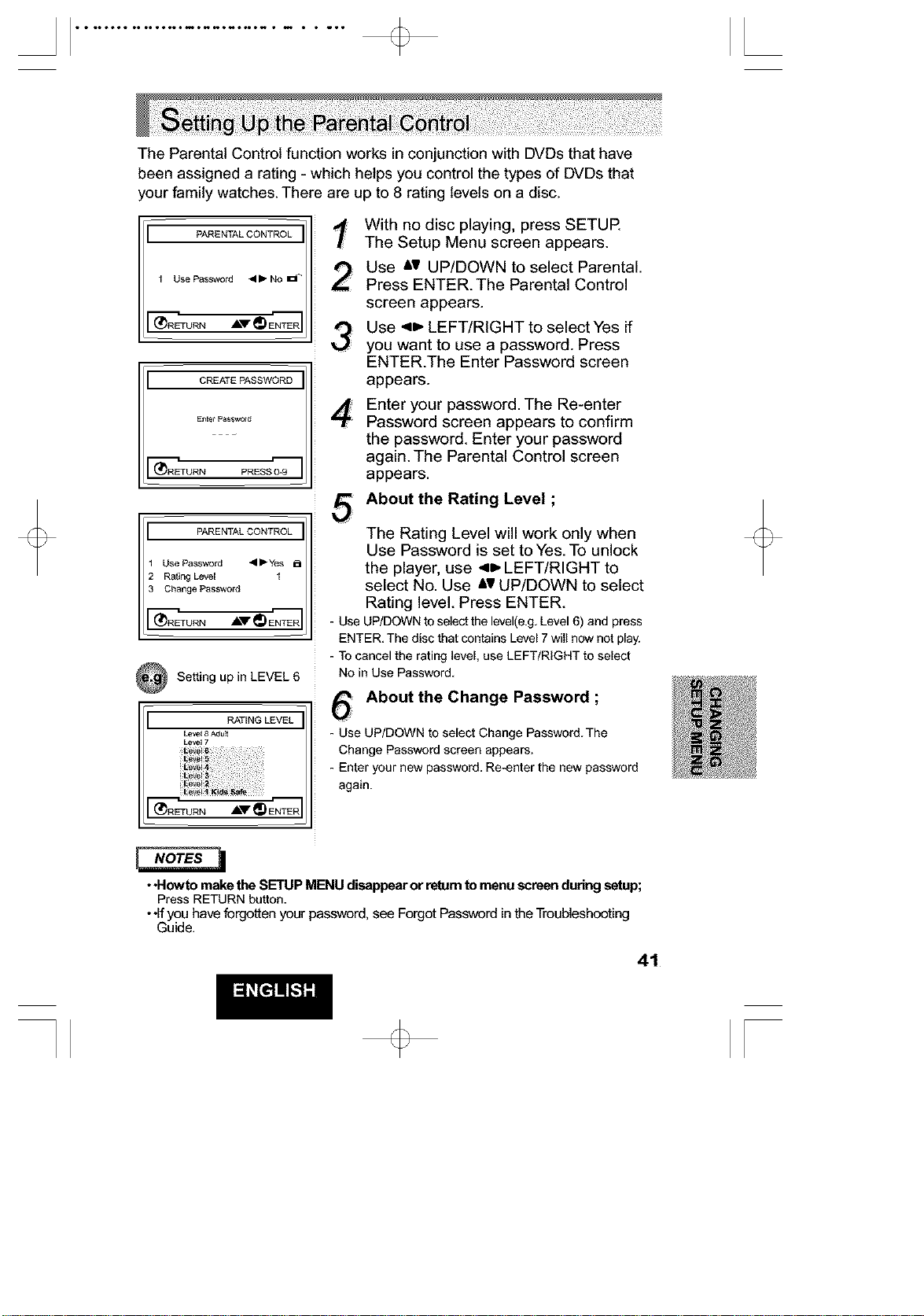
The Parental Control function works in conjunction with DVDs that have
been assigned a rating - which helps you control the types of DVDs that
your family watches. There are up to 8 rating levels on a disc.
PARENTAL CONTROL
1 Use Password 411_ No I_l"
(_RETURN AV _) ENTER
CREATE PASSWORD
En[et Password
URN PRNSS 0-9
PARENTAL CONTROL
Use Password _1P'Yes
Rating Levee 1
Change Password
_'_R_URN AV_ ENTER
Setting up in LEVEL 6
RATIN G LEVEL
Level 8 Adult
Level 7
(_RETURN A_"_) ENTER
With no disc playing, press SETUP.
The Setup Menu screen appears.
_
4:
5
Use Av UP/DOWN to select Parental.
Press ENTER. The Parental Control
screen appears.
Use ,,n, LEFT/RIGHT to select Yes if
you want to use a password. Press
ENTER.The Enter Password screen
appears.
Enter your password. The Re-enter
Password screen appears to confirm
the password. Enter your password
again. The Parental Control screen
appears.
About the Rating Level ;
The Rating Level will work only when
Use Password is set toYes. To unlock
the player, use _ LEFT/RIGHT to
select No. Use Av UP/DOWN to select
Rating level. Press ENTER.
- Use UP/DOWN to select the level(e.g, Level 6) and press
ENTER, The disc that contains Level 7 will now not play.
- To cancel the rating level, use LEFT/RIGHT to select
No in Use Password,
About the Change Password ;
- Use UP/DOWN to select Change Password.The
Change Password screen appears.
- Enter your new password. Re-enter the new password
again.
••Howto make the SETUP MENU disappear or returnto menu screen during setup;
Press RETURN button.
•,if you have forgotten your password, see Forgot Password in the Troubleshooting
Guide.
41
[
AUDIO OPTIONS
Digita_ Outpet PCM
2 DTS Of
3 Dynamic cornpress_o_ On
(_RETURN ,_
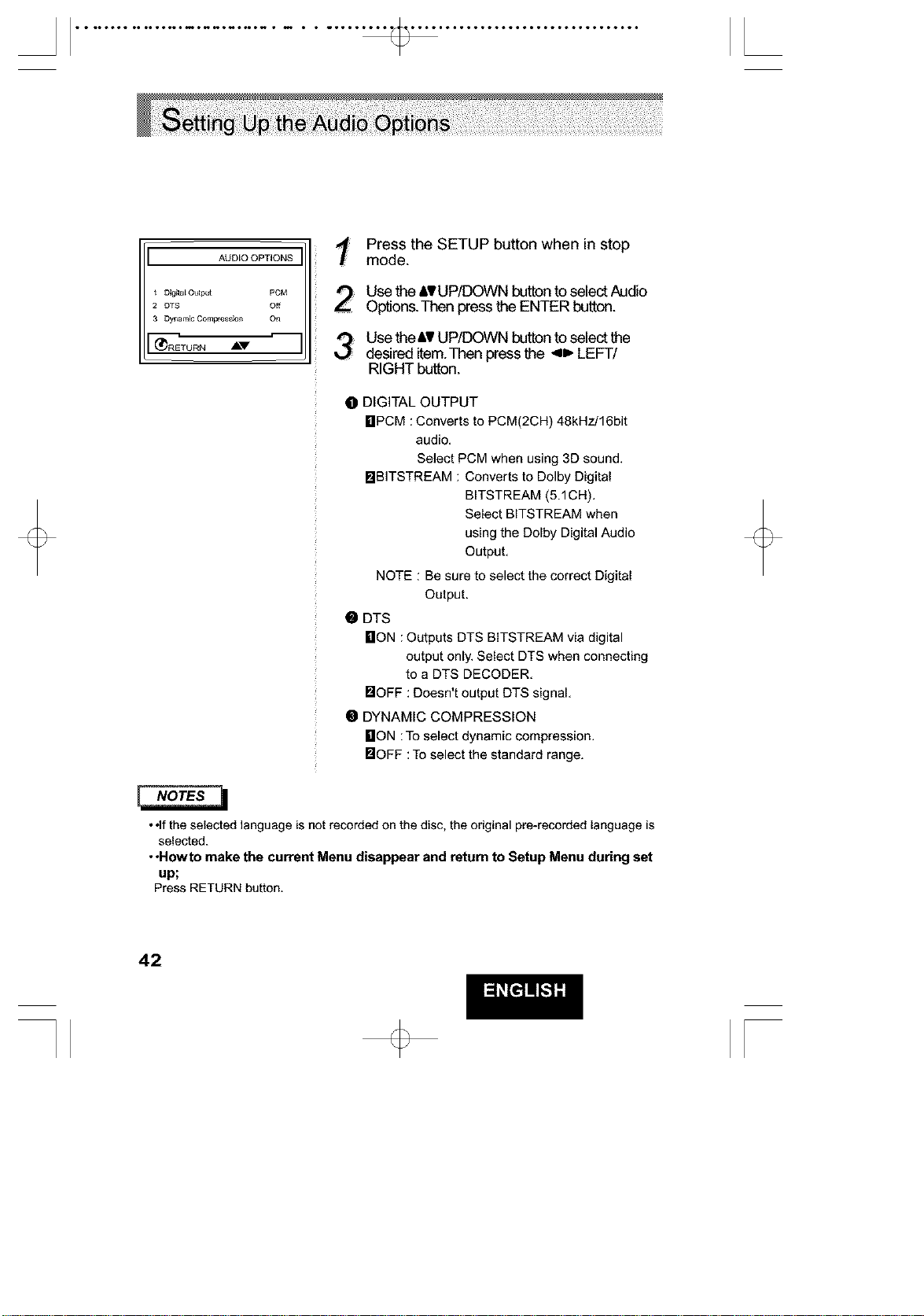
Press the SETUP button when in stop
mode.
Use the &, UP/DOWN button to select Audio
Options.Then press the ENTER button.
Use the At UP/DOWN button to select the
desired item.Then press the 4_. LEFT/
RIGHT button.
O DIGITAL OUTPUT
HPCM :Converts to PCM(2CH) 48kHz/16bit
audio,
Select PCM when using 3D sound,
DBITSTREAM : Converts to Dolby Digital
BITSTREAM (5.1CH),
Select BITSTREAM when
using the Delby Digital Audio
Output,
NOTE : Be sure to select the correct Digital
Output.
O DTS
LION : Outputs DTS BITSTREAM via digital
output only, Select DTS when connecting
to a DTS DECODER,
DOFF : Doesn't output DTS signal
• DYNAMIC COMPRESSION
LION :To select dynamic compression.
DOFF : Toselect the standard range.
• ,if the selected language is not recorded on the disc, the original pre-recorded language is
selected.
• oHowto make the current Menu disappear and return to Setup Menu during set
up;
Press RETURN button.
42
[
DISPLAY OPTIONS
1 TV Aspect 4:3 L_ox
2 Still Mode Auto
3 Screen Messages on
4 Fron[ D_Spl_y Auto Dim
5 Black Leve_ Of_
(_RETURN AV _) ENTER
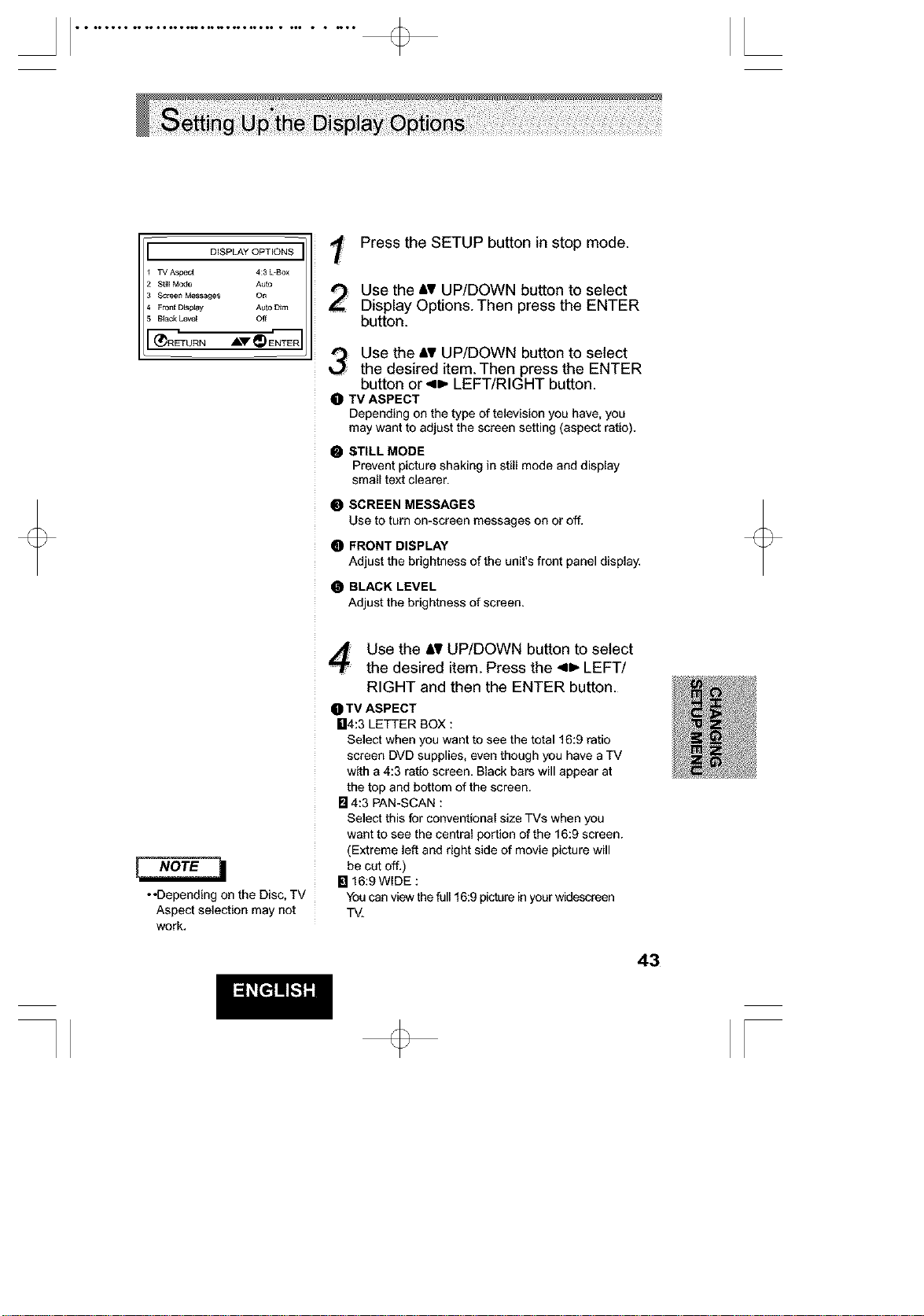
Press the SETUP button in stop mode.
Use the AV UP/DOWN button to select
Display Options. Then press the ENTER
button.
Use the _,VUP/DOWN button to select
the desired item. Then press the ENTER
button or ,o, LEFT/RIGHT button.
0 TV ASPECT
Depending on the type of television you have, you
may want to adjust the screen setting (aspect ratio).
STILL MODE
Prevent picture shaking in still mode and display
small text clearer.
O SCREEN MESSAGES
Use to turn on-screen messages on or off.
FRONT DISPLAY
Adjust the brightness of the unit's front panel display.
BLACK LEVEL
Adjust the brightness of screen.
*,Depending on the Disc, TV
Aspect selection may not
work.
Use the AV UP/DOWN button to select
the desired item. Press the _llb LEFT/
RIGHT and then the ENTER button.
TV ASPECT
U4:3 LETTER BOX :
Select when you want to see the total 16:9 ratio
screen DVD supplies, even though you have a TV
with a 4:3 ratio screen. Black bars will appear at
the top and bottom of the screen.
[] 4:3 PAN-SCAN :
Select this for conventional size TVs when you
want to see the central portion of the 16:9 screen.
(Extreme left and right side of movie picture will
be cut off.)
[] 16:9 WIDE :
You can view the full 16:9 picture in your widescreen
T_
43
[
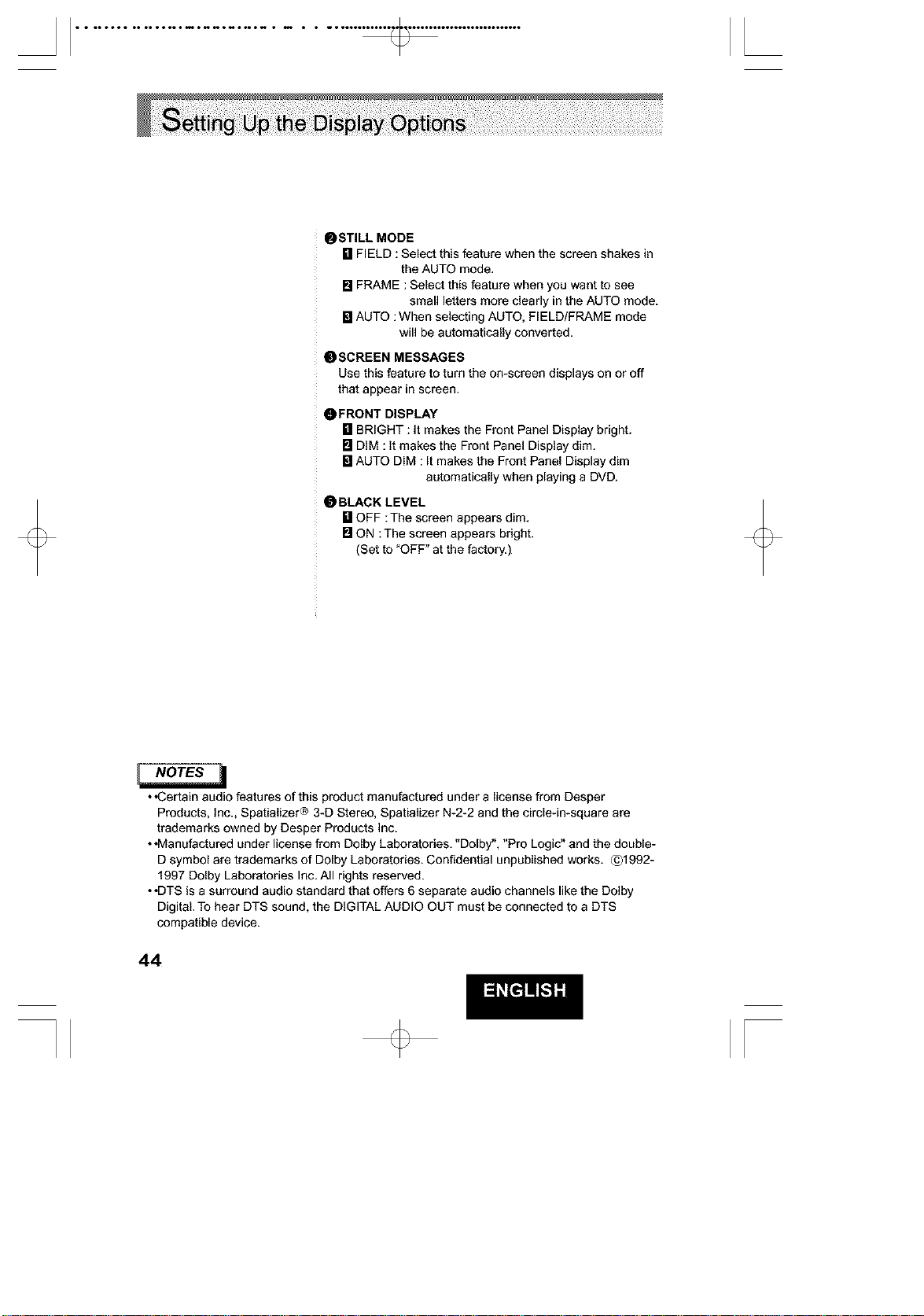
OSTILL MODE
[] FIELD : Select this feature when the screen shakes in
the AUTO mode.
[] FRAME :Select this feature when you want to see
small letters more dearly in the AUTO mode.
[] AUTO :When selecting AUTO, FIELD/FRAME mode
will be automatically converted.
OSCREEN MESSAGES
Use this feature to turn the on-screen displays on or off
that appear in screen.
OFRONT DISPLAY
[] BRIGHT : It makes the Front Panel Display bright.
[] DIM : It makes the Front Panel Display dim.
[] AUTO DIM : It makes the Front Panel Display dim
automatically when playing a DVD.
_BLACK LEVEL
[] OFF :The screen appears dim.
[] ON :The screen appears bright.
(Set to "OFF" at the factory.)
• ,Certain audio features of this product manufactured under a license from Desper
Products, Inc., Spatializer® 3-D Stereo, Spatializer N-2-2 and the circle-in-square are
trademarks owned by Desper Products Inc.
• •Manufactured under license from Dolby Laboratories. "Dolby", "Pro Logic" and the double-
D symbol are trademarks of Dolby Laboratories. Confidential unpublished works. ©1992-
1997 Dolby Laboratories Inc. All rights reserved.
• •DTS is a surround audio standard that offers 6 separate audio channels like the Dolby
Digital. To hear DTS sound, the DIGITAL AUDIO OUT must be connected to a DTS
compatible device.
44
• • ••ooo• •• ooioo••m•_o_o_•N • m • • _•• [
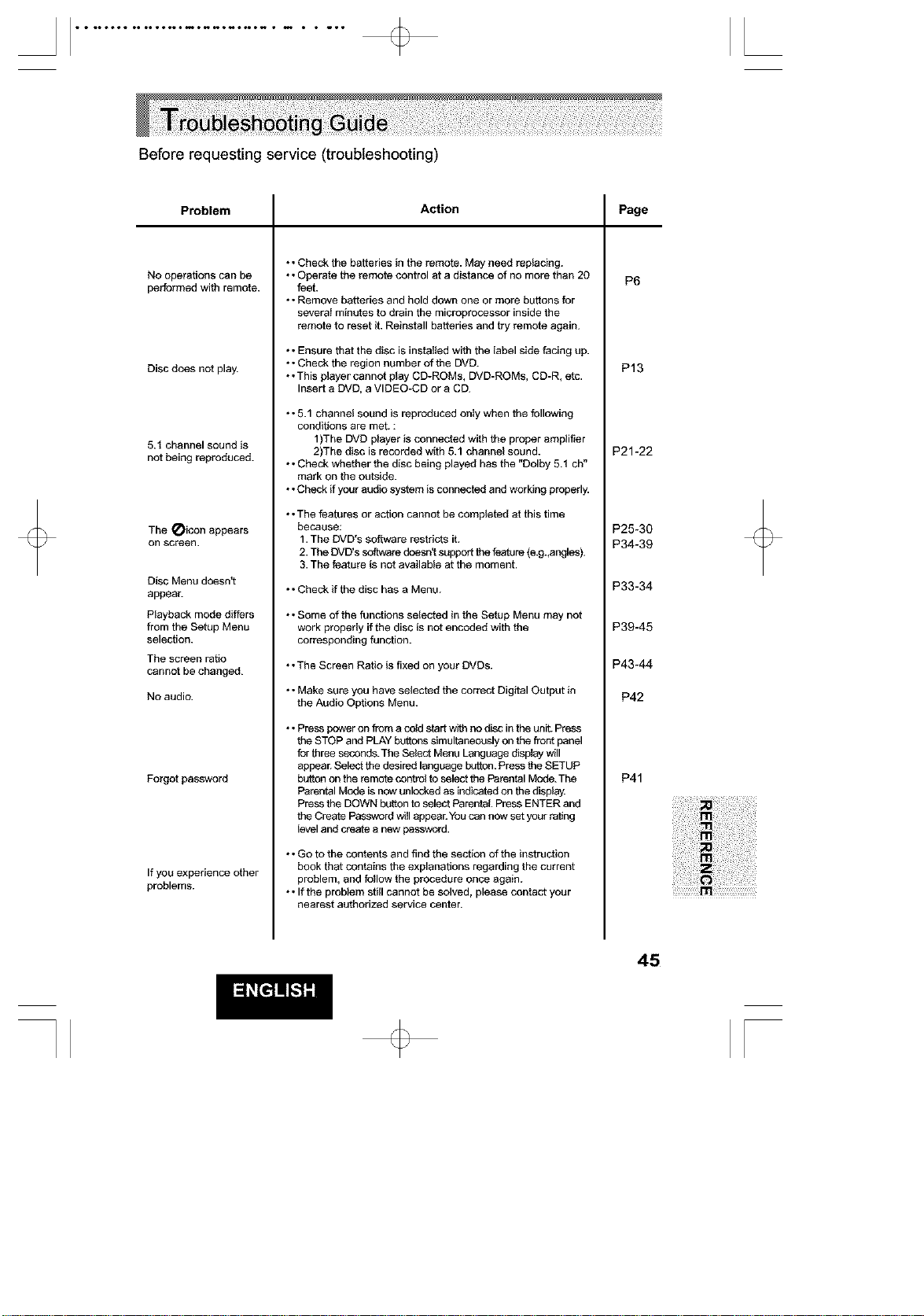
Before requesting service (troubleshooting)
Problem
No operations can be
performed with remote.
Disc does not play.
5.1 channel sound is
not being reproduced.
The _icon appears
on screen.
Disc Menu doesn't
appear.
Playback mode differs
from the Setup Menu
selection.
The screen ratio
cannot be changed.
No audio.
Forgot password
If you experience other
problems.
Action
•• Check the batteries in the remote. May need replacing.
•• Operate the remote control at a distance of no more than 20
feet.
•• Remove batteries and hold down one or more buttons for
severaI minutes to drain the microprocessor inside the
remote to reset it. Reinstall batteries and try remote again.
•• Ensure that the disc is instaIted with the label side facing up.
•• Check the region number of the DVD.
•• This player cannot ptay CD-ROMs, DVD-ROMs, CD-R, etc.
Insert a DVD, a VIDEO-CD or a CD.
•• 5.1 channel sound is reproduced only when the following
conditions are met. :
1)The DVD ptayer is connected with the proper amplifter
2)The disc is recorded with 5.1 channel sound.
•• Check whether the disc being played has the "Dolby 5.1 ch"
mark on the outside.
•• Check if your audio system is connected and working properly.
•• The features or action cannot be comptated at this time
because:
1. The DVD's software restricts it.
2. The DVD's software doesnt support the feature (e.g.,angles).
3. The feature is not available at the moment.
•• Check if the disc has a Menu.
•• Some of the functions setected in the Setup Menu may not
work properly if the disc is not encoded with the
corresponding function.
•.The Screen Ratio is fixed on your DVDs.
•• Make sure you have setactad the correct Digital Output in
the Audio Options Menu.
•• Press power on from a cold start with no disc in the unit. Press
the STOP and PLAY bu_ons simultaneously on the front panel
for three seconds.The Select Menu Language display will
appear Select the desired language I_tton. Press the SETUP
button on the remote control to select the Parental Mode. The
Parental Mode is now unlocked as indicated on the displa_
Press the DOWN bt_on to select Parental. Press ENTER and
the Create Password will appea_ You can now set your rating
_eveland create a new password.
•• Go to the contents and find the section of the instruction
book that contains the explanations regarding the current
problem, and fellow the procedure once again.
•• If the problem still cannot be solved, please contact your
nearest authorized service center.
Page
P6
P13
P21-22
P25-30
P34-39
P33-34
P39-45
P43-44
P42
P41
45
[
• • ••ooo• •• o••oo••m•_o_o_•N • m • • _•• [
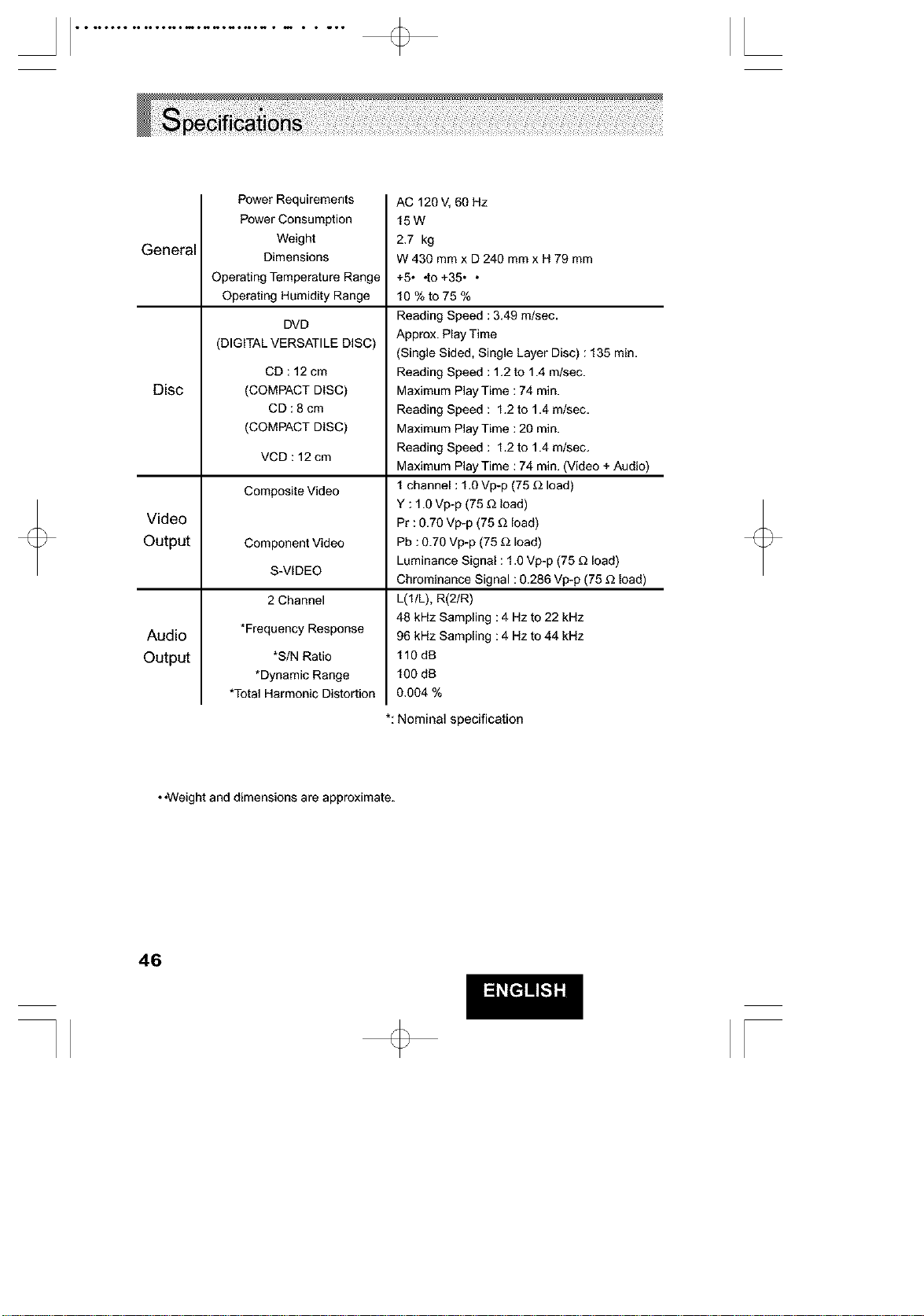
General
Disc
Video
Output
Audio
Output
Power Requirements
Power Consumption
Weight
Dimensions
Operating Temperature Range
Operating Humidity Range
DVD
(DIGITAL VERSATILE DISC)
CD : 12 cm
COMPACT DISC)
CD:8cm
COMPACT DISC)
VCD : 12 cm
Composite Video
Component Video
S-VIDEO
2 Channel
*Frequency Response
*SIN Ratio
*Dynamic Range
*Total Harmonic Distortion
AC 120 V, 60 Hz
15W
2.7 kg
W 430 mmx D 240 mm x H 79 mm
+5• ,to +35 • •
10%to75%
Reading Speed : 3.49 m/sec.
Approx. Play Time
(Single Sided, Single Layer Disc) : 135 min.
Reading Speed : 1.2 to 1.4 m/sec.
Maximum PlayTime : 74 min.
Reading Speed : 1.2 to 1.4 m/sec.
Maximum PlayTime : 20 min.
Reading Speed : 1.2 to 1.4 m/sec.
Maximum PlayTime : 74 min. (Video + Audio)
1 channel: 1.0 Vp-p (75 _2load)
Y : 1.0 Vp-p (75 _ load)
Pr : 0.70 Vp-p (75 _2load)
Pb : 0.70 Vp-p (75 _2load)
Luminance Signal : 1.0 Vp-p (75 _ load)
Chrominance Signal : 0.286 Vp-p (75 _ load)
L(1/L). R(2/R)
48 kHz Sampling :4 Hz to 22 kHz
96 kHz Sampling :4 Hz to 44 kHz
110dB
100 dB
0.004 %
*: Nominal specification
• .Weight and dimensions are approximate.
46
[
HITAOHI
1-800-448-2244
HNaCNhu made m_ry Mfort to _ y_J hotml M IrmJbiefnm_r_m f_m yow ul_L _. _ _
h_rO sef_lcm.I netwo_ of _ Authori2ed 8t_lco FM.iliUIs his been _b#Shed In a#4S0 _ _
HOME _LE_rRI_II_ OIVISION
18_5 Doqlc<;hCOt_,
,S_nD)_o. C_ g215,1-7225
Td :1-BGO_tITACHI
(l-SOO44e-2244)
HITACHI CANADA LTD *
D_G_rAL MED_. D{VISION
674O_ Road, _au_.
Onta_o I.SN2i.8 CANADA
Te_ 1_O0-PNT_;HI
(1_2244)
d_le,_ _e busi_e_ hou_
Monday - Fliday E$T _nt";';_pm
Salucd_ EST 9:0_m-'3:00gm
durumbs heums de h_,rN'_:
Lur,di au Vodm_ 9:C_rn-*7:0Opm (h.n,e,)
9:0(]arr,-5:(_pm _h.n.e.)
TP12461 O H_md_ Ltd. 2OOT