QUICK USER M ANUAL M M C-X40
1
4K SM ART M EDIA PLAYER
QUICK USER M ANUAL M M C-X40
2
Index
The Remote cont rol 3
Wireless Screen Pointer 4
Player out puts 5
Connecting to TV 6
Connecting to the Internet 7
Cable connection to the internet using a M odem/ Router 8
Wi-Fi connect ion to the internet using a M odem/ Rout er 8
The home Screen 11
The apps Centre 12
Smart Apps 13
Settings 14
Feature overview 15
FAQ 16
Calibrat ing t he Air M ouse 16
Specifications 17
IM PORTANT SAFETY INSTRUCTIONS AND PRECAUTIONS
- Read all instruct ions carefully before use.
- Retain manuals for future reference.
- Use this product only in the manner described.
- Only use a water-dam pened soft -cloth to clean the surface of this product.
- The follow ing will damage this product: any liquid such as wat er or moist ure, extreme heat ;
cold; humidity, dust y or sandy environment s.
- Only place this device on st able surfaces and ensure t hat any attached cables are secure and
will not cause the device t o fall.
- If charging is required, it is recommended to t horoughly charge electronic devices for the first
time overnight. Subsequent charges can be as needed. During charging, or extended use, the
product may become warm.
- There are no user serviceable parts in this product.
- Un-authorized att empt s to dismantle or repair this product will void product warranty
- Using this device near ot her electronic devices may cause interference.
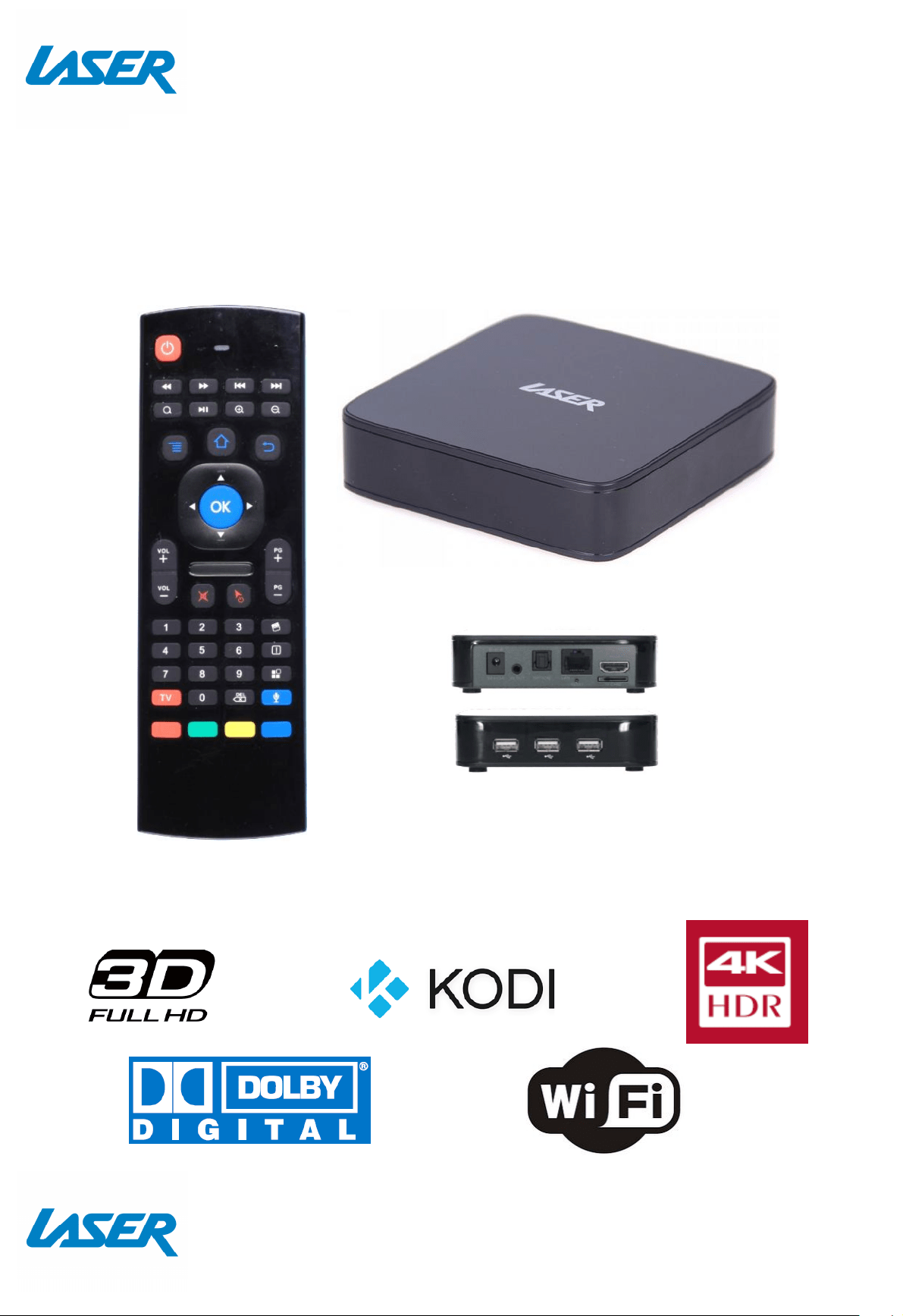
PRODUCT INCLUDES
Remote cont rol with built-in compact keyboard, Remote Cont rol Dongle, HDM I Cable,
RCA to 3.5mm Audio Visual Cable, 240v Ext ernal Power Supply.
QUICK USER M ANUAL M M C-X40
3
9
8
1
1
4
2
4
5
6
7
Not available
with this model
10
11
3
1
3
1
2
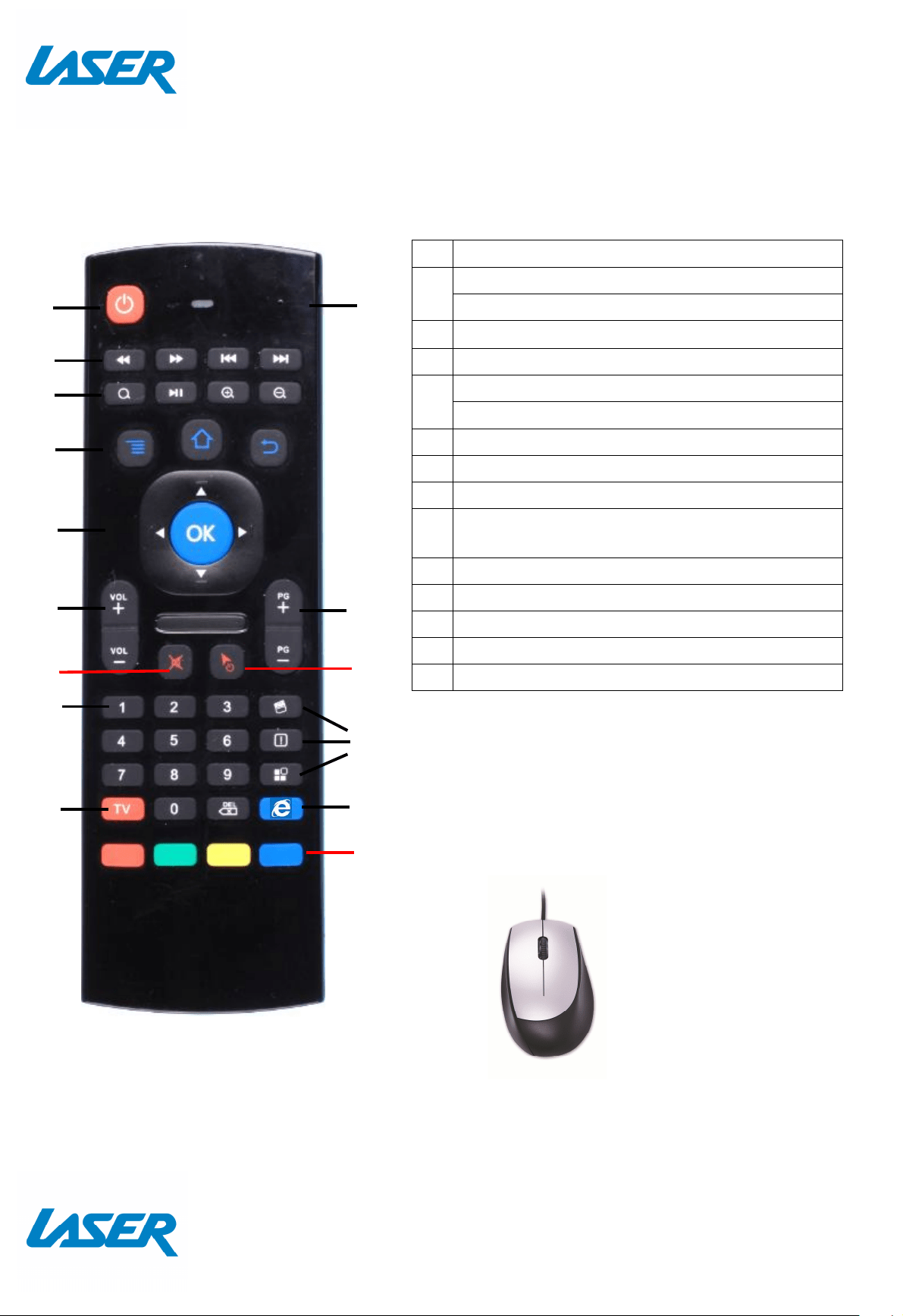
THE REM OTE CONTROL
1 Power ON, Power OFF
2
Rewind, Fast forward
Previous, Next
3 Search / Play Pause / Zoom In and Out
4 M enu, Home, back page
5
Navigate UP, DOW N, LEFT, RIGHT
ENTER or CONFIRM (OK)
6 Volume UP or DOWN
7 M ut e
8 Numerical keys
9
TV Navigation Type (St andard via remote
but tons or cont rol point er using remot e butt ons)
10
LED Indicator
11
Channel UP or DOW N
12
Air M ouse Calibration (See FAQ page)
13
Stop / Start / Apps screen shortcut
14
Internet Browser (shortcut)
Note: Key functions may change in
alternat e modes or have no function at all.
Tip. Some subscription
based Apps may require a
mouse or keyboard for easy
setup and operation. You
can connect a wired mouse
and keyboard if this is more
comfortable for you.
QUICK USER M ANUAL M M C-X40
4
W IRELESS SCREEN POINTER
Connect the USB dongle t o operate the on screen
pointer, a virtual mouse, which you can use t o
navigate by simply point ing your remote at your TV
screen. Please remember to press the TV
NAVIGATION TYPE and or CALIBRATION button on
your remote control to swap bet ween remote cont rol and screen
pointer modes.
Tip. Some subscription
based Apps may require a
mouse or keyboard for easy
setup and operation. You
can connect a wired mouse
and keyboard if this is more
comfortable for you.
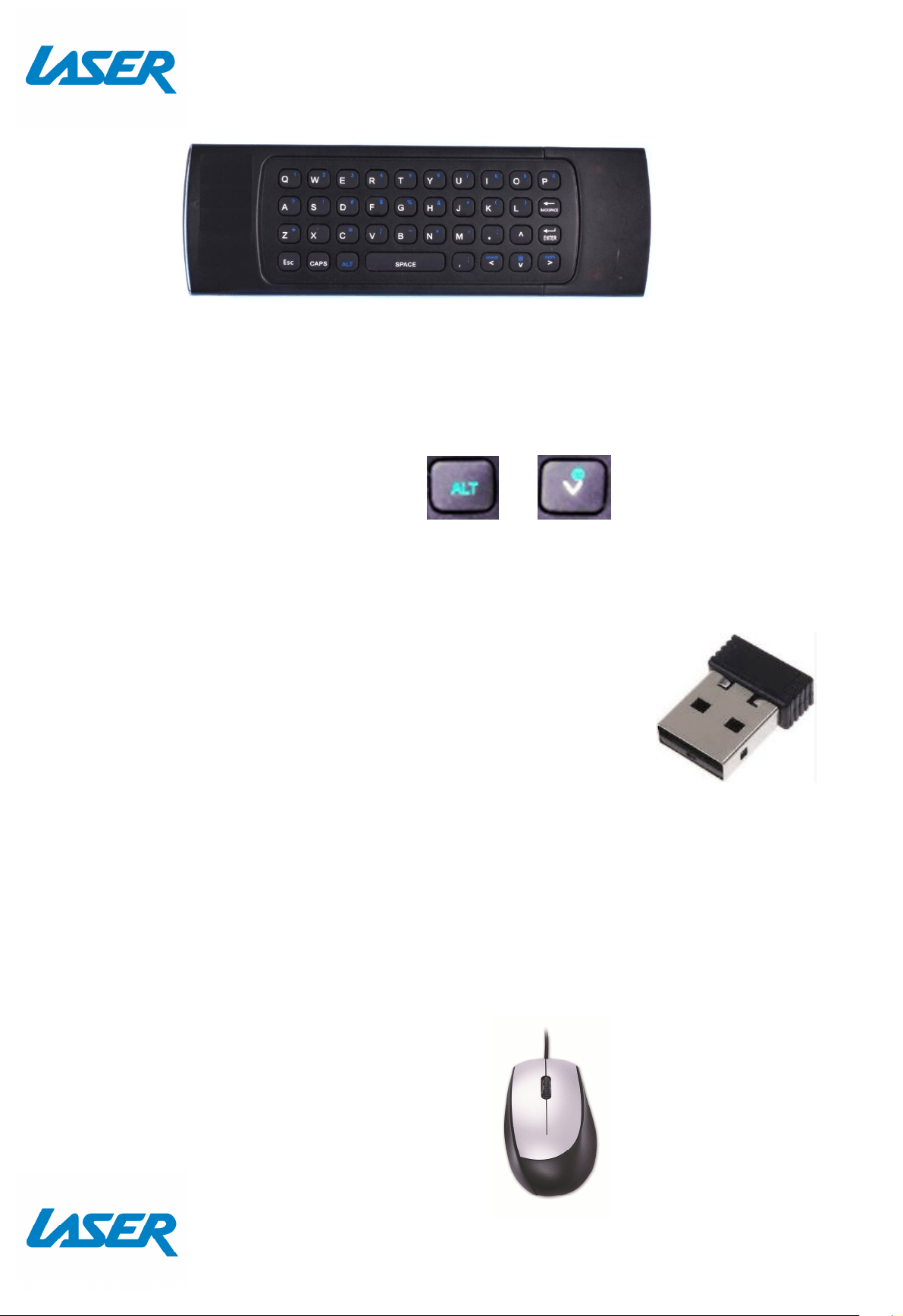
Note: Press and hold the ALT key to operate the dual function
keys which are marked with BLUE markings.
For example: To ent er the “ @” symbol hold the ALT button and
press the dow n arrow button.
+
QUICK USER M ANUAL M M C-X40
5
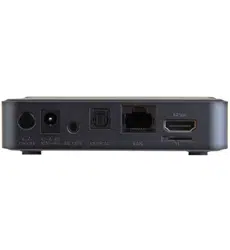
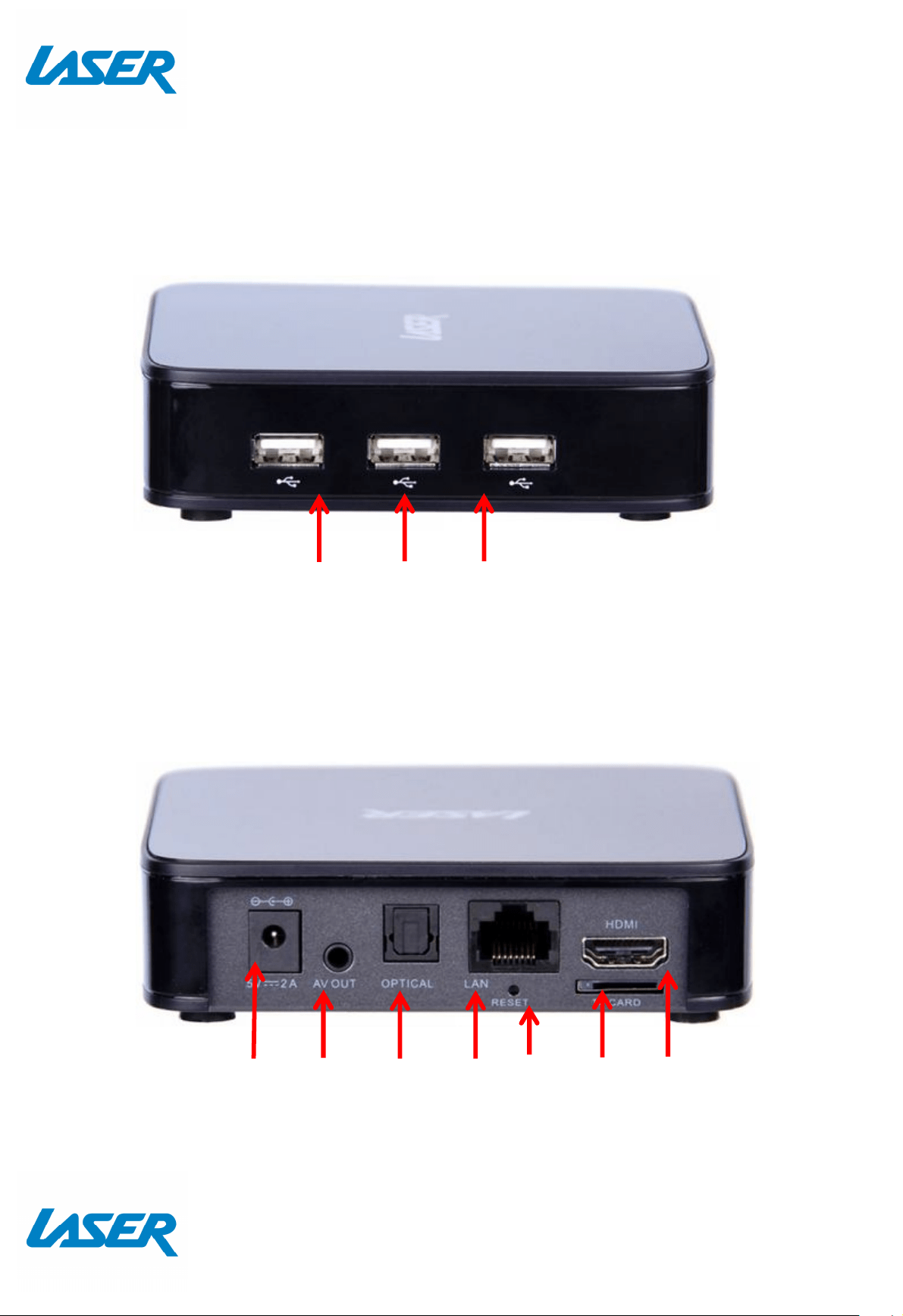
THE PLAYER OUTPUTS
FRONT PANEL
REAR PANEL
USB PORTS
Power
Connector
3.5mm AV
Connector
Optical
Audio
Output
(SPDIF)
Rj45
Net work
Et hernet
Port
HDM I
Output
for
Audio &
Video
M icro
SD
card
slot
Factory
Reset

QUICK USER M ANUAL M M C-X40
6
CONNECTING TO TV
GOOD – via RCA Cables
BEST – via HDM I Cable
Not e: RCA A/ V Cable not supplied
Not e: HDM I A/ V Cable not supplied
QUICK USER M ANUAL M M C-X40
7
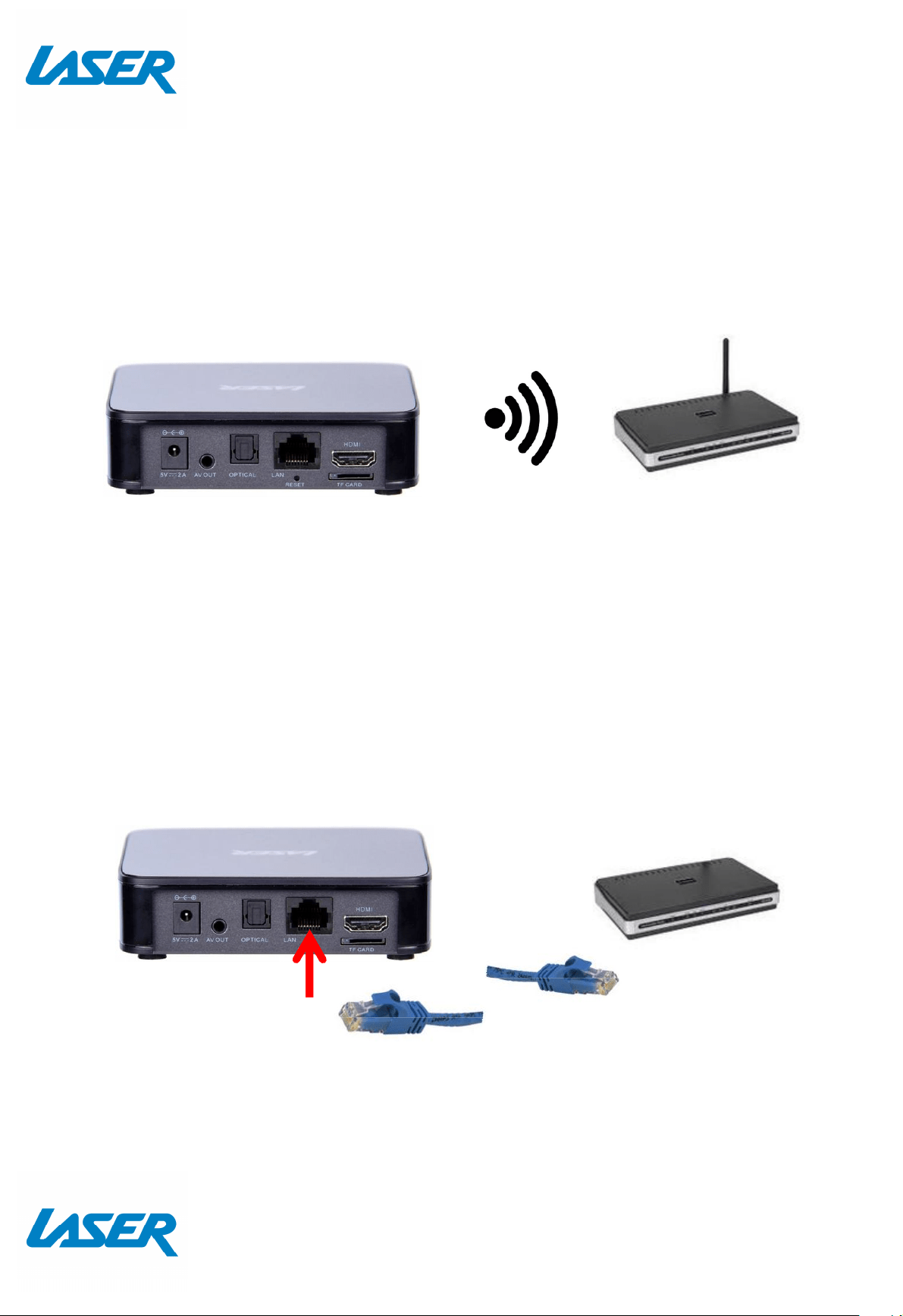
CONNECTION TO INTERNET
GOOD – Wi-Fi
BEST – Direct Connection (to a M odem/ Router)
Note: An Ethernet cable internet connect ion is recommended for streaming HD and FHD
video.
M ODEM
WIRELESS M ODEM
Not e: Net w or k cables not supplied
QUICK USER M ANUAL M M C-X40
8
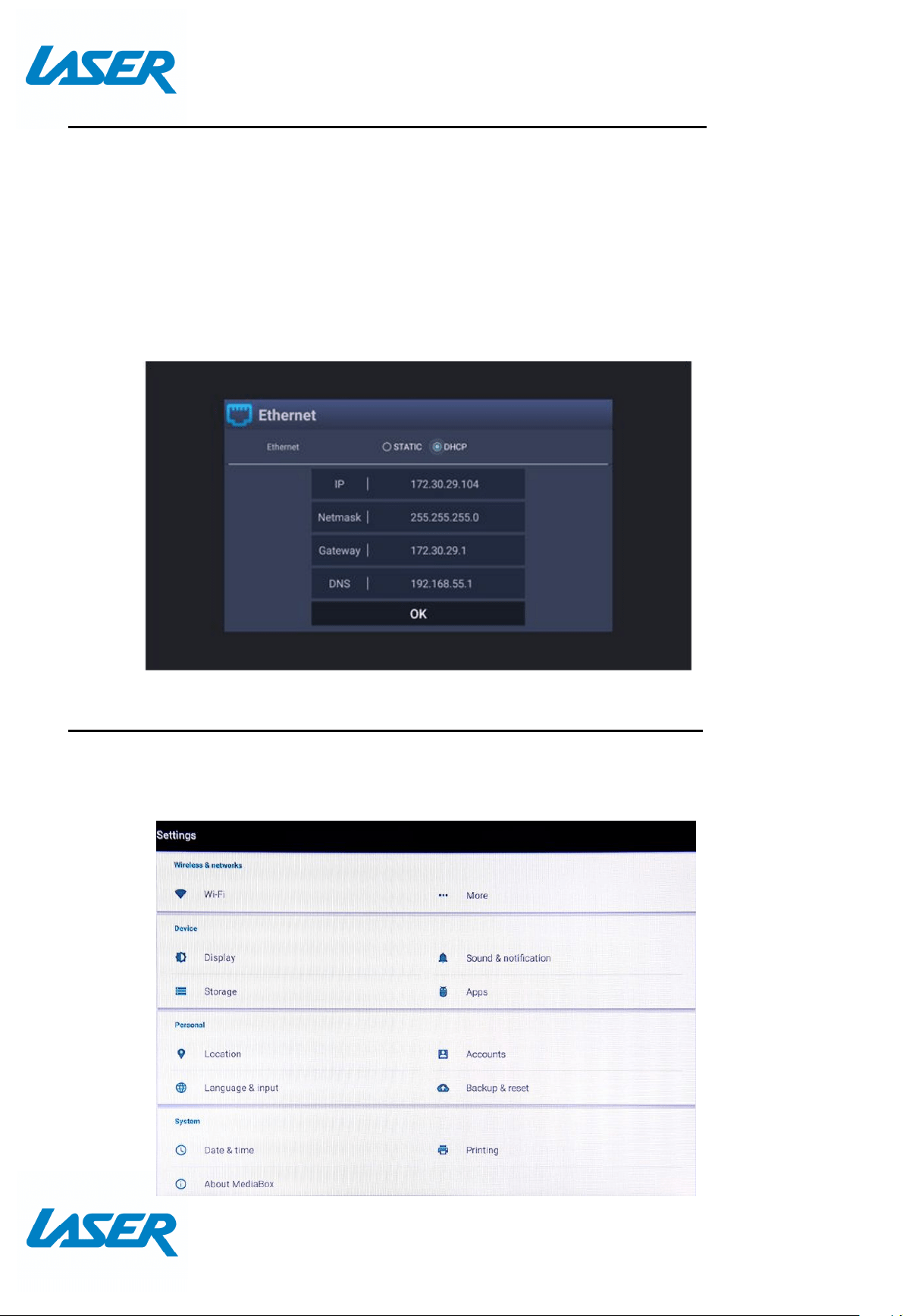
Cable connection to the internet using a M odem/ Router
- Connect the net work cable to the M edia Player and your M odem/ Router.
- In most cases your M odem/ Router will automatically assign net work settings to your
media player and display t he screen below. Then click OK. If not , you may have to:
-Turn on and login into your M odem/ Rout er to ensure an IP address can be
automatically assigned to your M edia Player (DHCP (Dynamic Host Configuration
Protocol must be enabled)
- After connection has been successful the below screen will be displayed, showing IP,
Net mask, Gateway and DNS. Then click OK.
W i-Fi connection to the internet using a M odem/ Router
ADVANCE ICON
1) Go to the advance icon and press sett ings.
2) Goto Wireless and net works, t hen Wi-Fi to setup up your Wi-Fi
QUICK USER M ANUAL M M C-X40
9
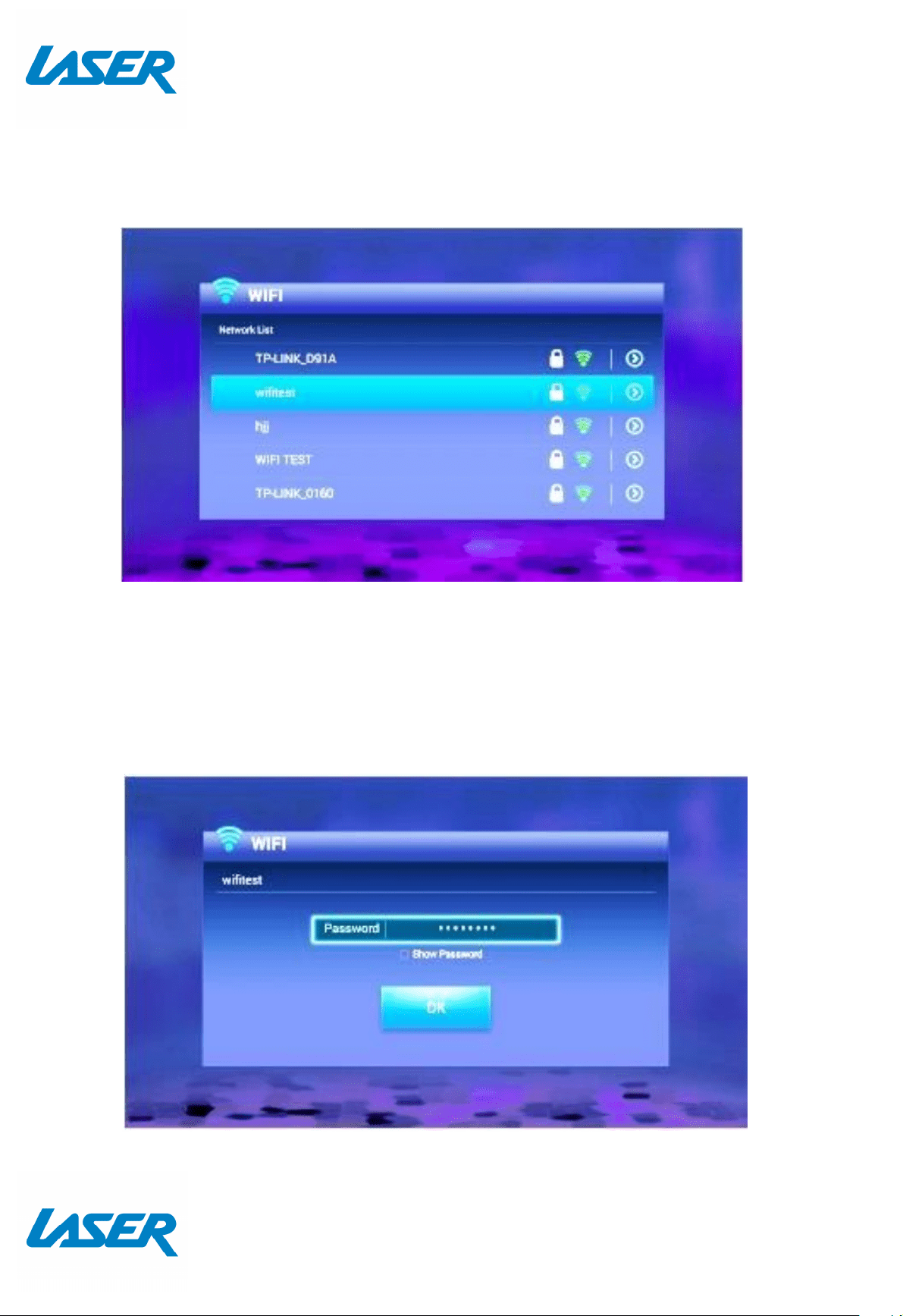
W IFI ICON (ALTERNATIVE)
- From the home screen press "Wi-Fi".
- A list of available Wi-Fi connections will be displayed. See the example screen below .
Note: The Et hernet cable musts be unplugged.
Note: If the wireless net work is not encrypted, you can connect to it directly. If the
network is encrypted, select the Wi-Fi name to pop up the window for password, press
OK on the remote control and call out the soft keypad on the screen, enter the password,
select “ Next” on the keypad or press the Return key on the remote control to hide the
keypad, and then select “ Connect” to connect to it. (Note: to hide the keypad on the TV
box, press the Return key on the remot e cont rol.)
QUICK USER M ANUAL M M C-X40
10
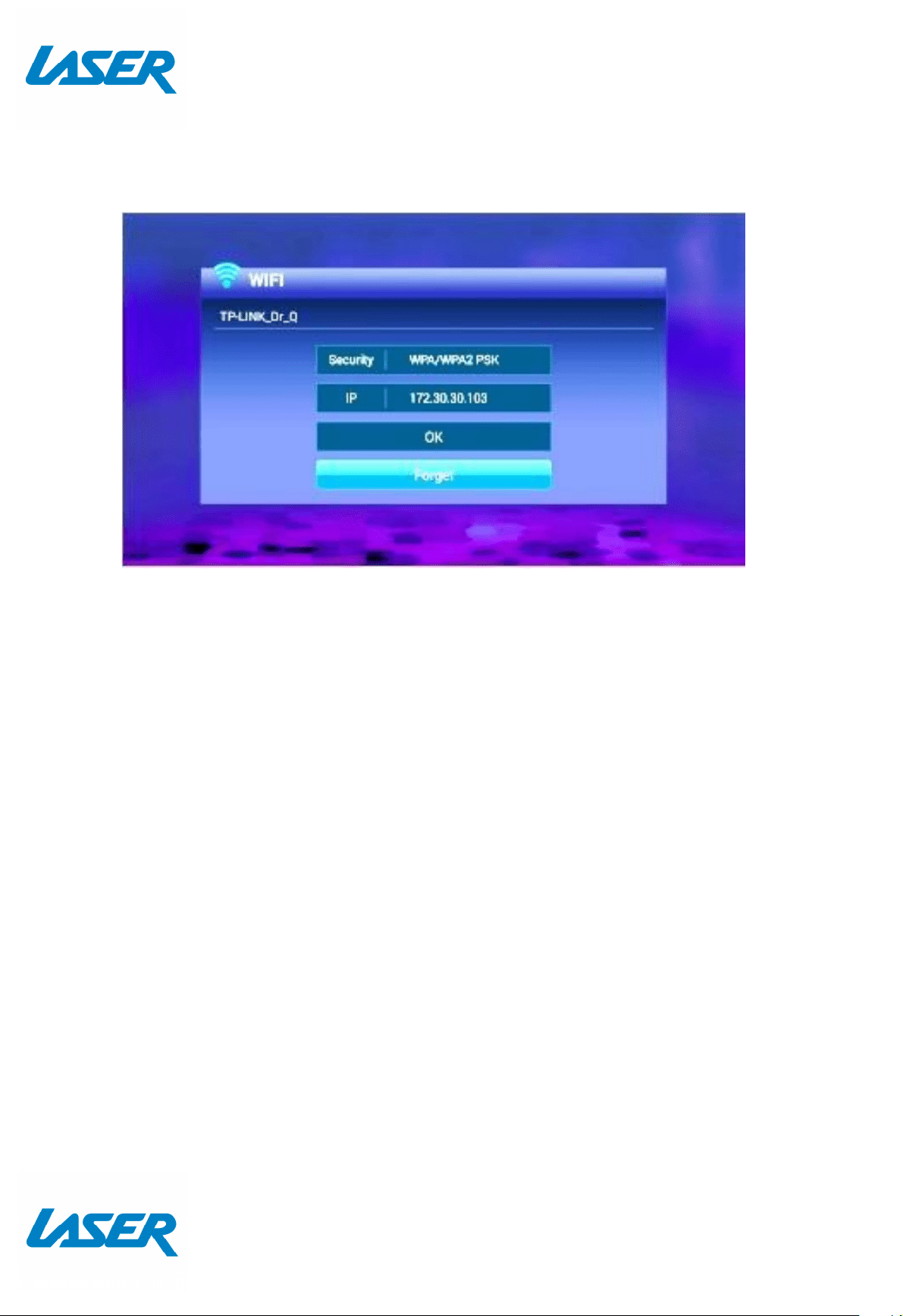
- To forget a WIFI connection, select it and press the Right butt on on the remote control.
Then t he interface shows up as below pict ure. Choose Forget but ton to forget this WIFI
informat ion.
QUICK USER M ANUAL M M C-X40
11
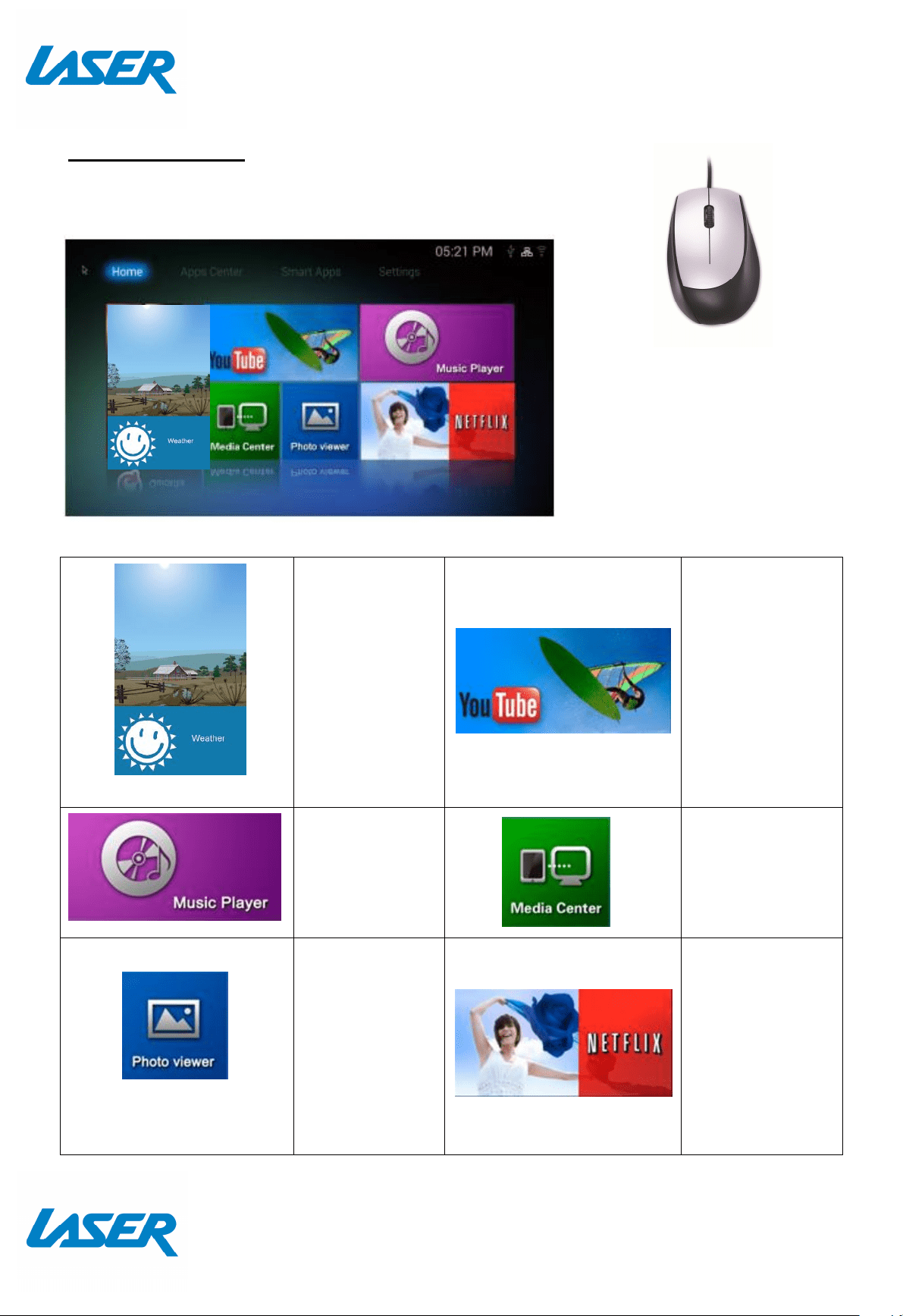
APP OVERVIEW
The Home screen
W eather
Use this handy
app to monitor
the weather
and to check
forecasts.
YouTube Stream
Yout ube Videos
M usic Player
Play M usic
through the
device
M edia Centre
Connect to
DLNA Server to
play M edia
Photo Viewer
View photos
on the device
Netflix Stream
M ovies and TV
for a M ont hly
price.(Account is
required)
Please note: A mouse
may be required for
use with this app
Note. Some subscription based Apps
may require a mouse or keyboard for
setup and operation. You can connect a
wired mouse and keyboard if this is
more comfortable for you.
QUICK USER M ANUAL M M C-X40
12
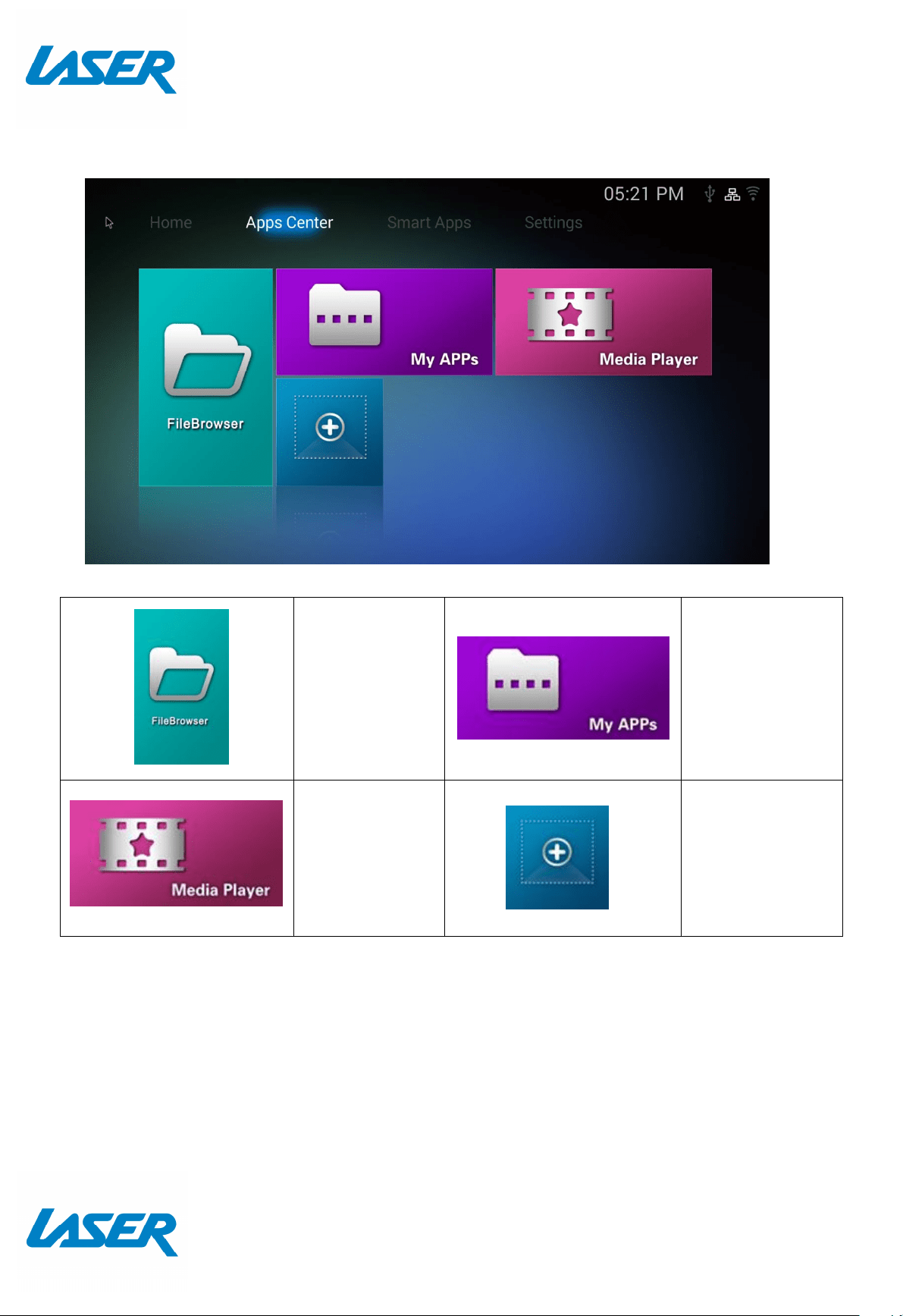
The Apps Centre
FileBrowser
Browse your
files
M y APPs View
app the installed
apps
M edia Player
Play M edia
through the
device
+ Add apps to
the Apps Centre
screen
QUICK USER M ANUAL M M C-X40
13
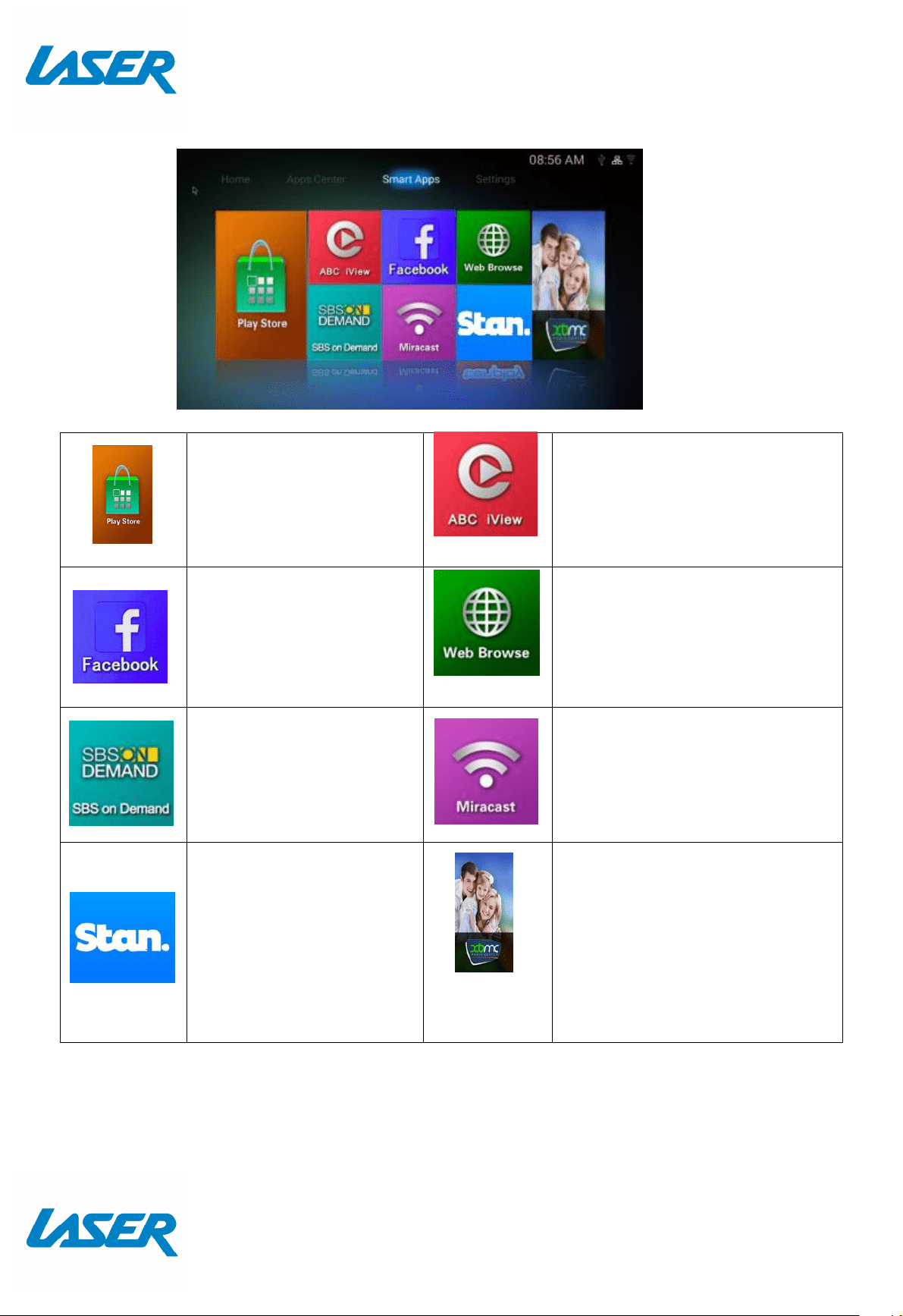
Smart Apps
Play Store
Access the Google Play St ore.
Purchase and Dow nload
apps, music, movies and
more
ABC iView
Let’s you catch up on the best of
ABC TV
Please not e: A mouse may be
required for use with this app
FaceBookFaceBook
Let’s you catch up on your
Facebook pages and post s.
Please not e: A mouse may be
required for use with this app
W eb Browse
Brow se the Web
SBS on Demand
let ’s you cat ch up on the best
of SBS TV
Please not e: A mouse may be
required for use with this app
M iracast
Wirelessly display that allow s you t o
M irror your Smartphone or tablet
Stan
Stan is an Aust ralian
st reaming company which
offers subscription to
selected movies and TV
shows. Please not e: A mouse
may be required for use wit h
this app
XBM C (Kodi) is a free and open-
source media player softw are. It
allows users to play and view most
videos, music, such as podcast s from
the internet , and all common digit al
media files from local and network
st orage media. For more information
please visit:
kodi.wiki/ view/ Quick_st art _guide
QUICK USER M ANUAL M M C-X40
14
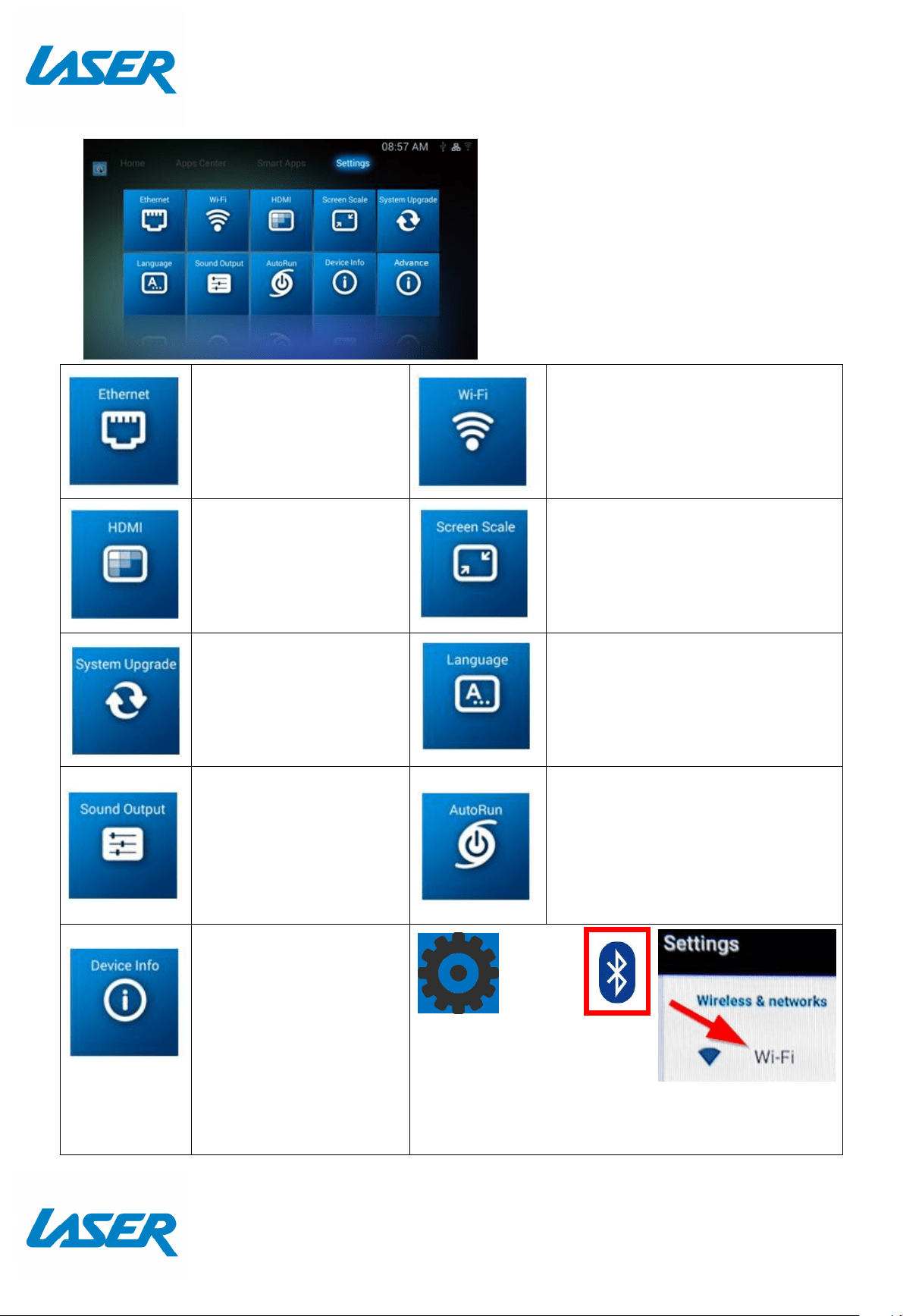
Settings
Ethernet
Check the Ethernet
Settings and IP
informat ion
W i-Fi
Setup a Wi-Fi connection
HDM I
Change the screen
resolut ion
Screen Scale
Adjust the screen scale to fit on
screen properly
System Upgrade
Upgrade the System
either via Storage or
OTA (Over the Air)
Language
Change Language
Sound Output
Change the sound
out put
AutoRun
Allow apps to auto run
Device Info
View t he device
informat ion.
Advance
Press ADVANCE then
SETTINGS to turn on
Bluetooth and W i-Fi if required. This button
will take you to the Android Settings page.
Note: To set up a new Wi-Fi or
BLUETOOTH connect ion, please select
the ADVANCE icon, followed by
SETTINGS then WIFI.
Review ing a previous connection can
be accessed directly via the WIFI icon.
QUICK USER M ANUAL M M C-X40
15
FEATURE OVERVIEW
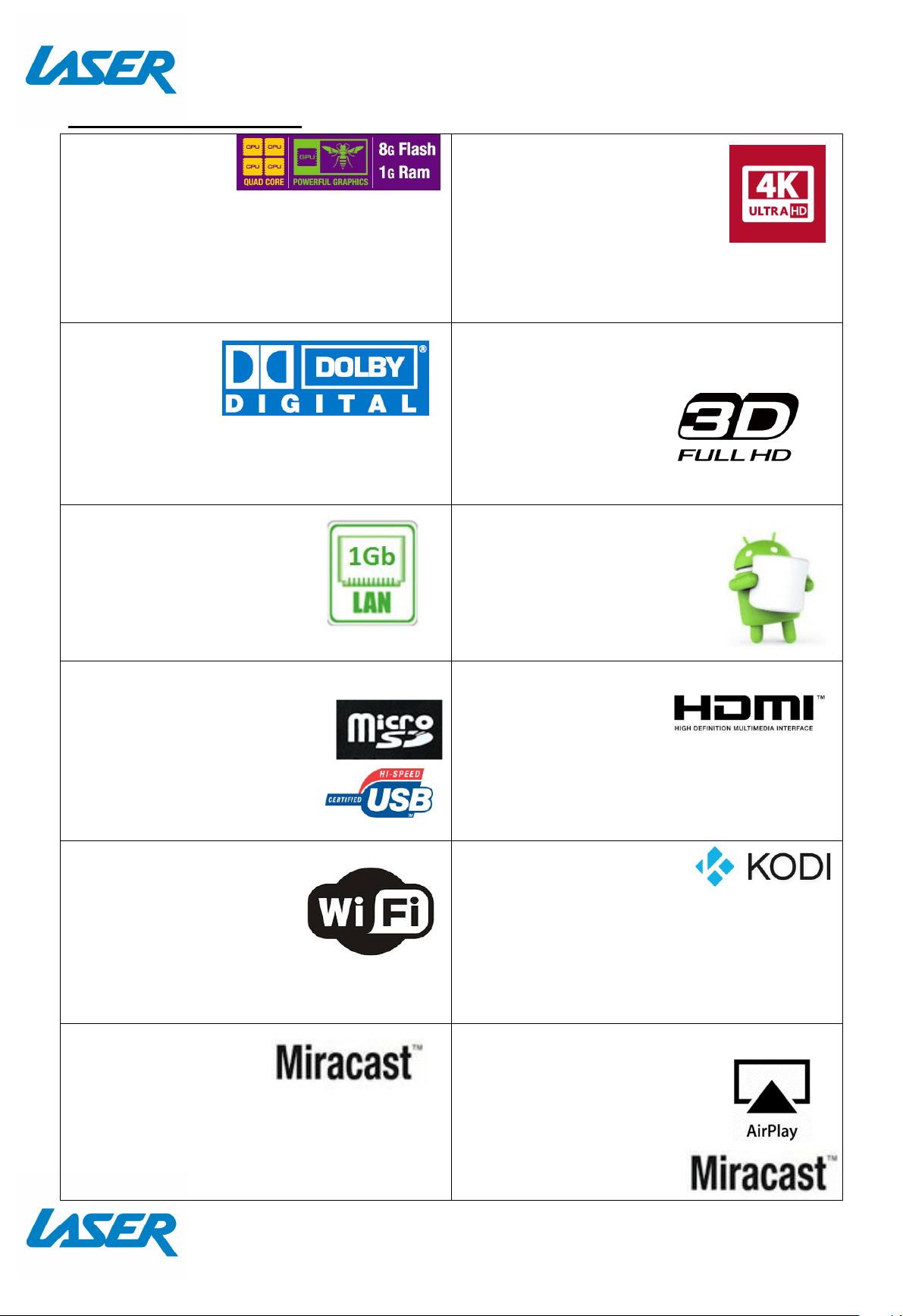
8Core GPU &
QUAD Core CPU
Fast Processor &
memory designed for video
With a Quad core 2Ghz processor & 8GB
storage/ 1GB flash of processor memory,
movies will play smoot hly & load faster
4k Ultra HDR resolution
ready
Stunning clarity, vivid colour
and sharp detail will make
the best of new generation
UHD TV’s, Full HD 1080p also looks great.
Digital
Surround
Sound
All sound
formats from 2 channel stereo to 7.1 Dolby
and DTS. Also Flac lossless HD audio is
supported.
3D ready*
Watch eye popping 3D
content from files (like
BDM V / 3D BD-ISO or
streamed 3D movies)
High Speed LAN
With up to 1Gb LAN fast
data transfer, wait times for
movie buffering are a t hing
of the past
Android OS Smarts
Android opens a world of
possibilities through t he
Google Play store. Games,
video players, apps, utilit ies
and lots more.
USB Ports & M icro SD input
Connect USB flash drives,
hard drives or input devices
like mice, keyboards or
web cams or read cont ent
from a M icro SD card.
HDM I or Analogue AV output
Connect to older TV’s
via Composite video
and L/ R stereo (cable included) or connect
to new TV’s with HDM I for the ultimate in
sound and vision.
W ireless Connectivity
Wifi and Bluetoot h on
board means that you
can connect to wireless
networks or connect
wireless products to t he media player
Play it all -M ulti source,
M ulti Format ready.
Whet her it ’s 4K movies from Netflix®,
Yout ube® videos online or movies/ music
from your home network or USB storage
drive, wit h KODI and ot her media players
file playback is assured*
M iracast ready
Share your tablet or
smart phone screen onto your TV for
everyone to see. (it’s like HDM I only
wireless)
AirPlay: Developed by Apple, t his app
allows wireless streaming
between devices of audio,
video, device screens, and
photos, toget her with
related metadata.

QUICK USER M ANUAL M M C-X40
16
Note: Although this android M edia Player can support all the above feat ures, you must
have the correct hardware and compat ible video files. For example, if you would like to
playback a 3D movie you must have a 3D TV and a 3D movie file first, in order for this
feature to work correctly.
CALIBRATING THE AIR M OUSE
If your screen air moue pointer does not line up accurately on your TV screen you may
need to calibrate your air mouse. In this case, center the air mouse pointer (cursor) in
the middle of your screen as best you can. Press the calibrat ion button w hich will turn
the pointer off and stop it from moving. Align your air mouse (remote) to the center on
the screen again, then press the calibrat ion button again t o turn your air mouse pointer
back on again. Repeat the process as required.
FAQ
Some apps I downloaded are not working
properly. Why?
They may have not installed correctly.
Please uninstall the apps and reinstall
them again.
M y remot e cont rol is not working. Why?
M ake sure the bat teries are installed
correctly. Try a different set of batteries.
Please not e: Some apps will not work
correctly w it h a remote. A mouse may be
required for use.
The new app I installed takes a long time to
open. Is this normal?
News Apps may need a lit tle more t ime to
set up when first installed. If your app
takes a little longer t han usual to start, try
closing the app and reopening it in a few
mins. In most cases this will allow the app
to setup in the background and to open
correctly.
I cannot connect with my WiFi net work
First go to the Advance sett ings and ensure
Wifi is turned on. Then check available
WiFi net works. You can also click the WiFi
icon from the main screen if you have
already turned on your Wi-Fi.
Why can’t I see my screen pointer?
Please ensure that you have 1) plugged in
your screen pointer dongle, 2) adjust t he
screen pointer location by using t he
calibrat ion but ton, 3) check that you have
selected RF from your remote control
QUICK USER M ANUAL M M C-X40
17
SPECIFICATIONS
Interface
Composite AV Out (Jack to RCA)
HDM I
USB x 3
LAN
M icro SD Card
Power Supply 5V
Dimensions 110 x 110 x 27m m
W arranty Against Defects
Laser Corporat ion Pt y Lt d (“ Laser” ) warrant s your new product to be free from defects in materials and
workmanship for 12 mont hs, from the date of purchase, provided that the product is used in
accordance wit h accompanying recommendations or instruct ions where provided. The benefit of this
warranty is in addit ion to your rights under the Aust ralian Consumer Law and to ot her rights and
remedies of the consumer under a law in relation to the goods or services to which the warrant y
relates.
Through a net work of ret ailers and resellers, Laser will provide you wit h your choice of a repair,
exchange (where possible) or refund (wit hin Dead on Arrival period) for this product if it becomes
defective w ithin the warranty period.
This warrant y will no longer apply where the defect is a result of alt erat ion, accident , misuse, abuse,
normal wear and tear, neglect or improper st orage. Please ret ain your receipt as proof of purchase
How to make a product warranty claim :
Step 1: Find your receipt which proves the dat e of purchase. Where the date of purchase cannot be
verified, your place of purchase or Laser will make an assessment based on the date of manufacture,
the condition of the Laser Product and the type of defect.
Step 2a): Cont act your place of purchase. They will assess t he nature of the fault and
repair, replace or
fund
the product as per their st ore refund or warrant y policy.
Step 2b): If your place of purchase cannot be cont acted, then you can cont act Laser. Customer Service
wit h det ails of your defect ive Laser Product: Phone: (02) 9870 3388; or Email: support@laserco.com.au
or online www .laserco.com.au/ w arrant y (click on “ Consumers (End Users)” ). Our business address is at
1/ 6-8 Byfield St reet, North Ryde, NSW 2113
Step 3: Laser will issue you with a Return Authorisat ion (RA) num ber within 48 hours. When
requested, send us the defective Product and a copy of your receipt. Laser will cover the cost of the
ret urn delivery.
Step 4: Wait for us t o contact you. Once we have received your defect ive Laser Product for
inspection, we will inform you of our assessment of your claim within 7 days. When we contact you, we
will first ly let you know whether you have a valid claim under this Warrant y, and if so, we w ill inf orm
you whether your defect ive Laser Product will be replaced or repaired, toget her with the number of
days you can expect to wait to receive your replaced or repaired Laser Product.
Step 5: For furt her det ails on warranty cover and returns, please check
Terms and Conditions for
W arranty Returns
section on ht tp:/ / w ww.laserco.com.au/ w arrant y
Our goods come wit h guarantees t hat cannot be excluded under the Aust ralian Consumer Law. You
are ent itled to a replacement or refund for a major failure and compensation for any ot her reasonably
foreseeable loss or damage. You are also entit led t o have the goods repaired or replaced if the goods
fail t o be of acceptable quality and the failure does not amount to a major failure.