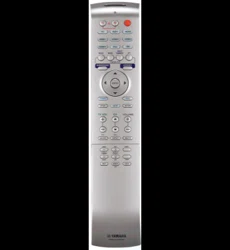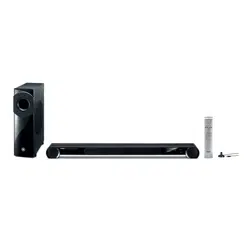
@
YSP-4300
[ YSP-CU4300+ NS-WSWI60]
YSP-3300
[YSP-CU3300 + NS-WSW160]
Digital Sound Projector TM
Owner,s Manual
English
for North America
J
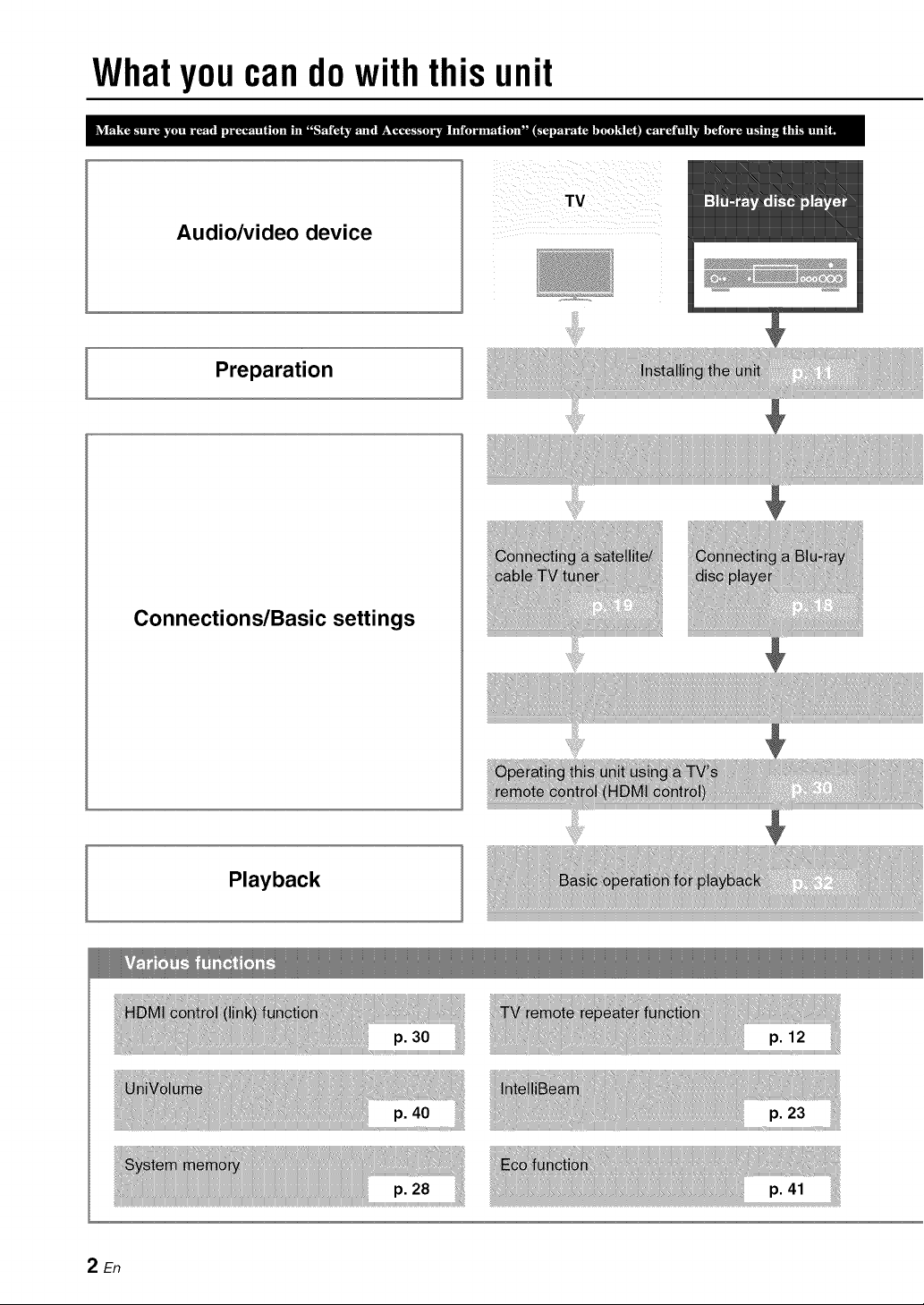
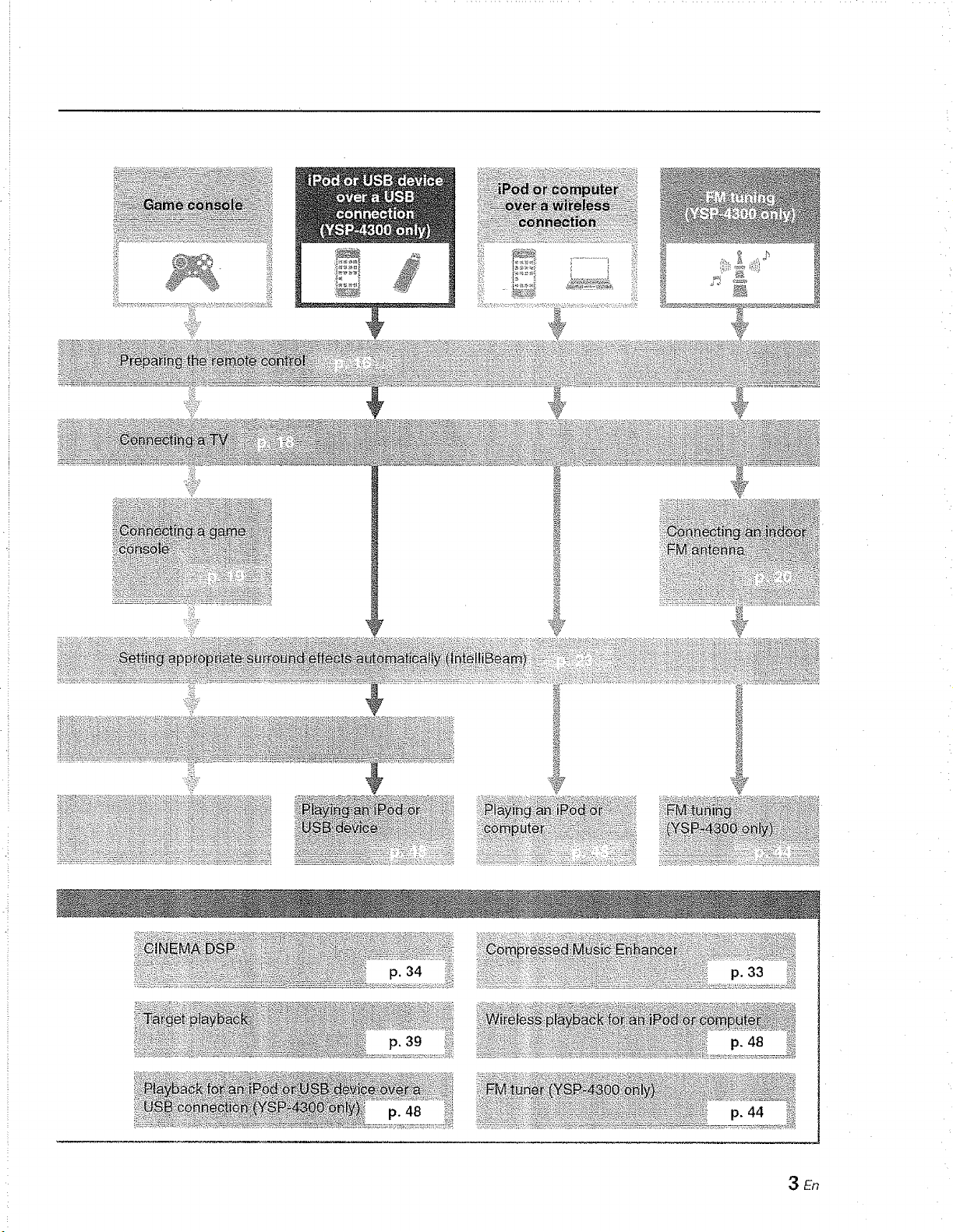
What you cando with this unit
Audio/video device
TV
Preparation
Connections/Basic settings
Playback
2En
p. 39
3En
Contents
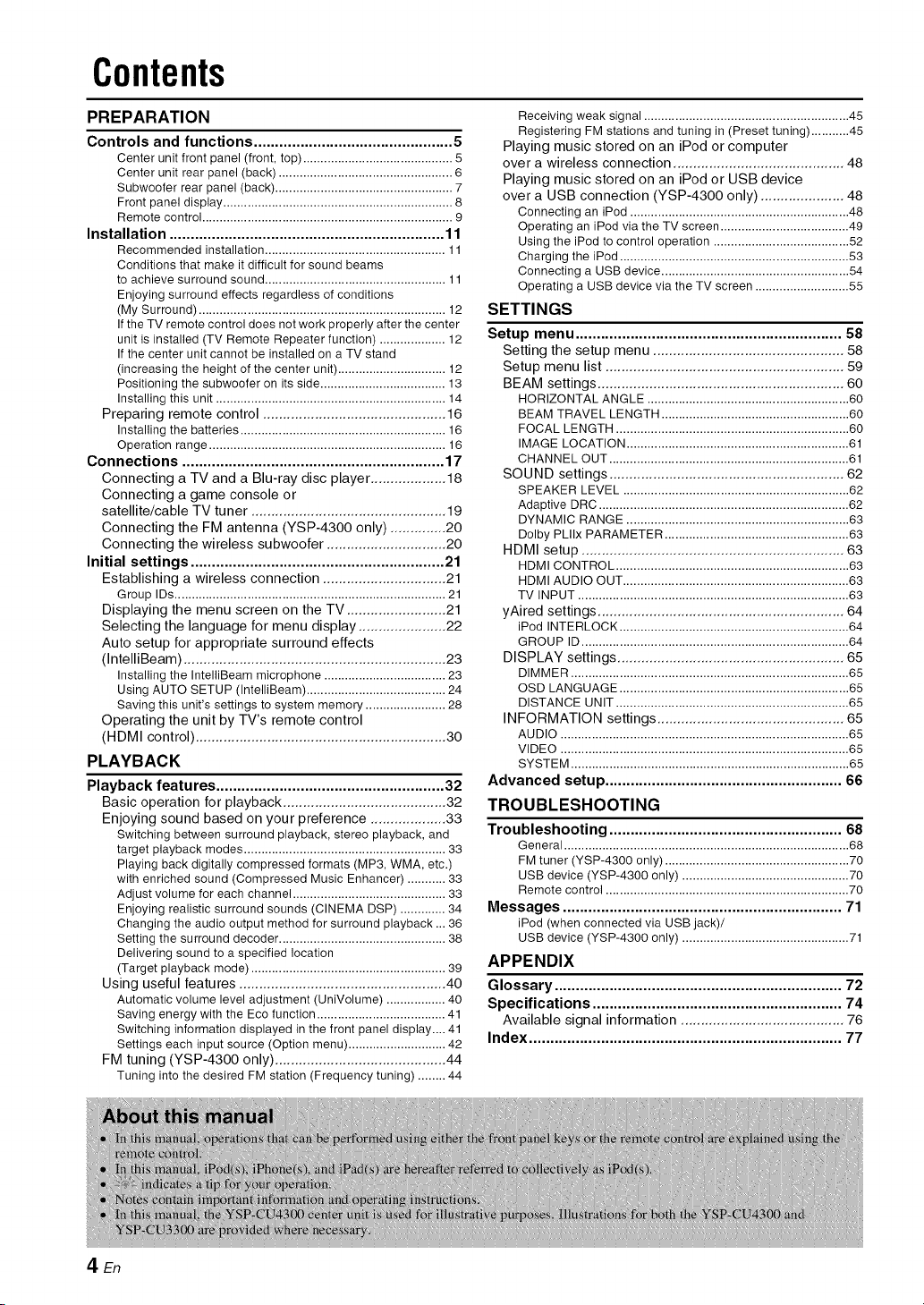
PREPARATION
Controls and functions ............................................... 5
Center unit front panel (front, top) ........................................... 5
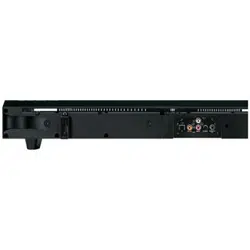
Center unit rear panel (back) .................................................. 6
Subwoofer rear panel (back) ................................................... 7
Front panel display .................................................................. 8
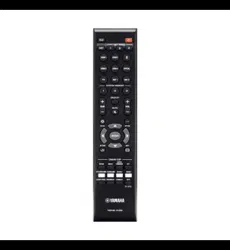
Remote control ........................................................................ 9
Installation ................................................................. 11
Recommended installation .................................................... 11
Conditions that make it difficult for sound beams
to achieve surround sound .................................................... 11
Enjoying surround effects regardless of conditions
(My Surround) ....................................................................... 12
If the TV remote control does not work properly after the center
unit is installed (TV Remote Repeater function) ................... 12
If the center unit cannot be installed on a TV stand
(increasing the height of the center unit) ............................... 12
Positioning the subwoofer on its side .................................... 13
Installing this unit .................................................................. 14
Preparing remote control .............................................. 16
Installing the batteries ........................................................... 16
Operation range .................................................................... 16
Connections .............................................................. 17
Connecting a TV and a Blu-ray disc player ................... 18
Connecting a game console or
satellite/cable TV tuner ................................................. 19
Connecting the FM antenna (YSP-4300 only) .............. 20
Connecting the wireless subwoofer .............................. 20
Initial settings ............................................................ 21
Establishing a wireless connection ............................... 21
Group IDs .............................................................................. 21
Displaying the menu screen on the TV ......................... 21
Selecting the language for menu display ...................... 22
Auto setup for appropriate surround effects
(IntelliBeam) .................................................................. 23
Installing the IntelliBeam microphone ................................... 23
Using AUTO SETUP (IntelliBeam) ........................................ 24
Saving this unit's settings to system memory ....................... 28
Operating the unit by TV's remote control
(HDMI control) ............................................................... 30
PLAYBACK
Playback features ...................................................... 32
Basic operation for playback ......................................... 32
Enjoying sound based on your preference ................... 33
Switching between surround playback, stereo playback, and
target playback modes .......................................................... 33
Playing back digitally compressed formats (MP3, WMA, etc.)
with enriched sound (Compressed Music Enhancer) ........... 33
Adjust volume for each channel ............................................ 33
Enjoying realistic surround sounds (CINEMA DSP) ............. 34
Changing the audio output method for surround playback ... 36
Setting the surround decoder ................................................ 38
Delivering sound to a specified location
(Target playback mode) ........................................................ 39
Using useful features .................................................... 40
Automatic volume level adjustment (UniVolume) ................. 40
Saving energy with the Eco function ..................................... 41
Switching information displayed in the front panel display.... 41
Settings each input source (Option menu) ............................ 42
FM tuning (YSP-4300 only) ........................................... 44
Tuning into the desired FM station (Frequency tuning) ........ 44
Receiving weak signal ........................................................... 45
Registering FM stations and tuning in (Preset tuning) ........... 45
Playing music stored on an iPod or computer
over a wireless connection ........................................... 48
Playing music stored on an iPod or USB device
over a USB connection (YSP-4300 only) ..................... 48
Connecting an iPod ............................................................... 48
Operating an iPod via the TV screen ..................................... 49
Using the iPod to control operation ....................................... 52
Charging the iPod .................................................................. 53
Connecting a USB device ...................................................... 54
Operating a USB device via the TV screen ........................... 55
SETTINGS
Setup menu ............................................................... 58
Setting the setup menu ................................................ 58
Setup menu list ............................................................ 59
BEAM settings .............................................................. 60
HORIZONTAL ANGLE .......................................................... 60
BEAM TRAVEL LENGTH ...................................................... 60
FOCAL LENGTH ................................................................... 60
IMAGE LOCATION ................................................................ 61
CHANNEL OUT ..................................................................... 61
SOUND settings ........................................................... 62
SPEAKER LEVEL ................................................................. 62
Adaptive DRC ........................................................................ 62
DYNAMIC RANGE ................................................................ 63
Dolby PLIIx PARAMETER ..................................................... 63
HDMI setup .................................................................. 63
HDMI CONTROL ................................................................... 63
HDMI AUDIO OUT ................................................................. 63
TV INPUT .............................................................................. 63
yAired settings .............................................................. 64
iPod INTERLOCK .................................................................. 64
GROUP ID ............................................................................. 64
DISPLAY settings ......................................................... 65
DIMMER ................................................................................ 65
OSD LANGUAGE .................................................................. 65
DISTANCE UNIT ................................................................... 65
INFORMATION settings ............................................... 65
AUDIO ................................................................................... 65
VIDEO ................................................................................... 65
SYSTEM ................................................................................ 65
Advanced setup ........................................................ 66
TROUBLESHOOTING
Troubleshooting ....................................................... 68
General .................................................................................. 68
FM tuner (YSP-4300 only) ..................................................... 70
USB device (YSP-4300 only) ................................................ 70
Remote control ...................................................................... 70
Messages .................................................................. 71
iPod (when connected via USB jack)/
USB device (YSP-4300 only) ................................................ 71
APPENDIX
Glossary .................................................................... 72
Specifications ........................................................... 74
Available signal information ......................................... 76
Index .......................................................................... 77
n_l'n :01_ fO tli
ooil
nan ),
.1Cat tlD y
ont_ _mp_ n
nan _the _P m_t [l ons _or _
4En
Controlsandfunctions
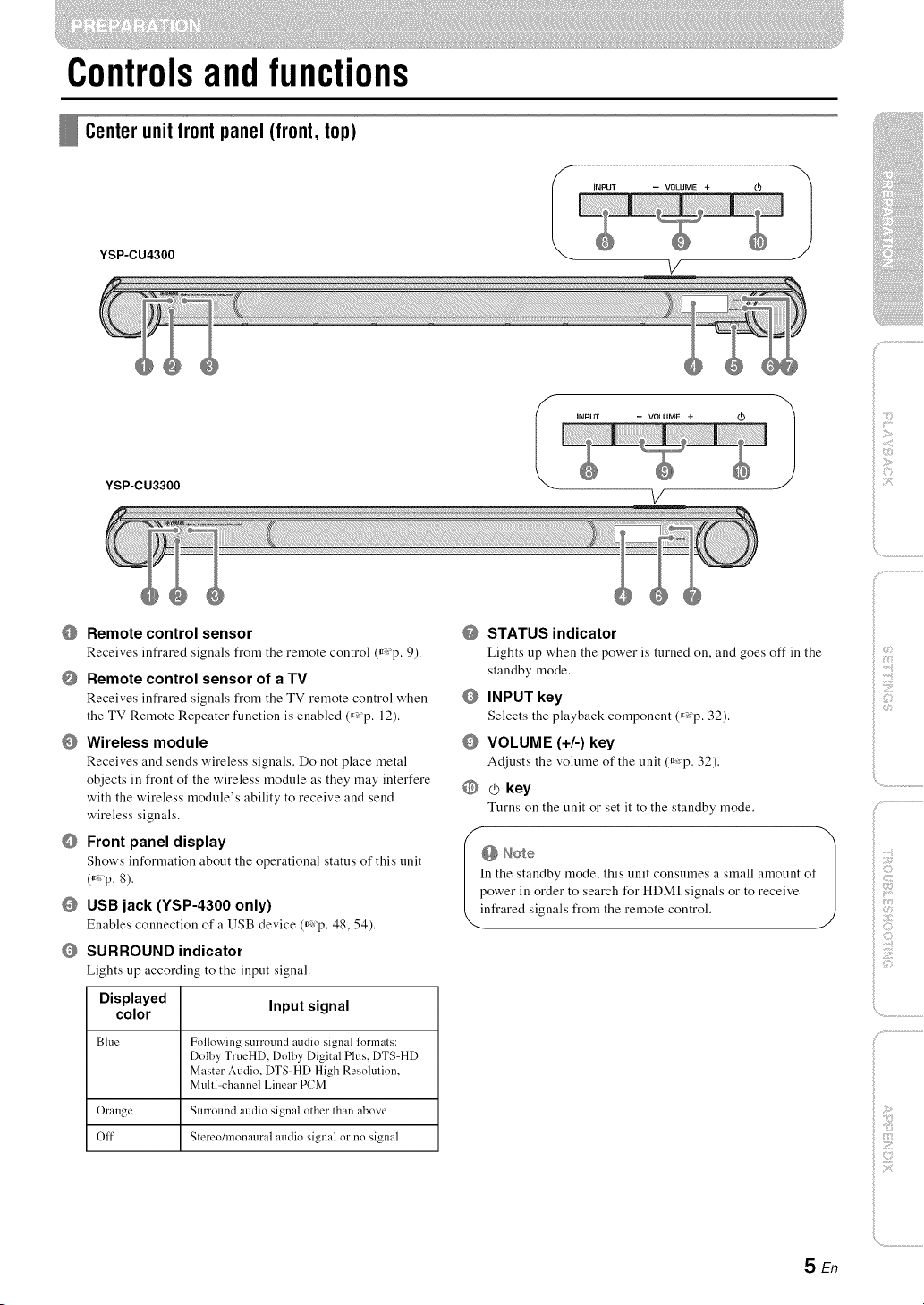
Centerunit front panel(front, top)
YSP-CU4300
I iNPUT -- VOLUME +
V
YSP-CU3300
I NPUT - VOLUME+_ 1
V
ilii_i_i_iiii_!i!i!iii!!i!_
', ,,iiiiii_'_!_i_iII!............
Remote control sensor
Receives infrared signals from the remote control (_'p. 9).
Remote control sensor of a TV
Receives infrared signals fi'c)m the TV remote control when
the TV Remote Repeater function is enabled (_ p. 12).
O Wireless module
Receives and sends w'ireless signals. Do not place metal
objects in front of the wireless module as they may interfere
with the w'ireless module's ability to receive and send
wireless signals.
Front panel display
Show's information about the operational status of this unit
(_ p. 8).
USB jack (YSP-4300 only)
Enables connection of a USB device (_ p. 48, 54).
SURROUND indicator
Lights up according to the input signal.
Displayed Input signal
color
Blue Following surrotmd audio signal lormats:
Dolby TrueHD, Dolby Digital Plus, DTS-HD
Master Audio, DTS-HD High Resolution,
Multi-channel Linear PCM
Orange Surround audio signal other than above
Off Stereo/monam'al audio signal or no signal
@ STATUS indicator
Lights up when the power is turned on, and goes off in the
standby mode.
INPUT key
Selects the playback component (_ p. 32).
VOLUME (+/-) key
Adjusts the volume of the unit (_ p. 32).
@ _ key
Turns on the unit or set it to the standby mode.
n the standby mode, this unit consumes a small amount of
ower in order to search for HDM[ signals or to receive
infi:ared signals fi:om the remote control.
)
SEn
Controls and functions
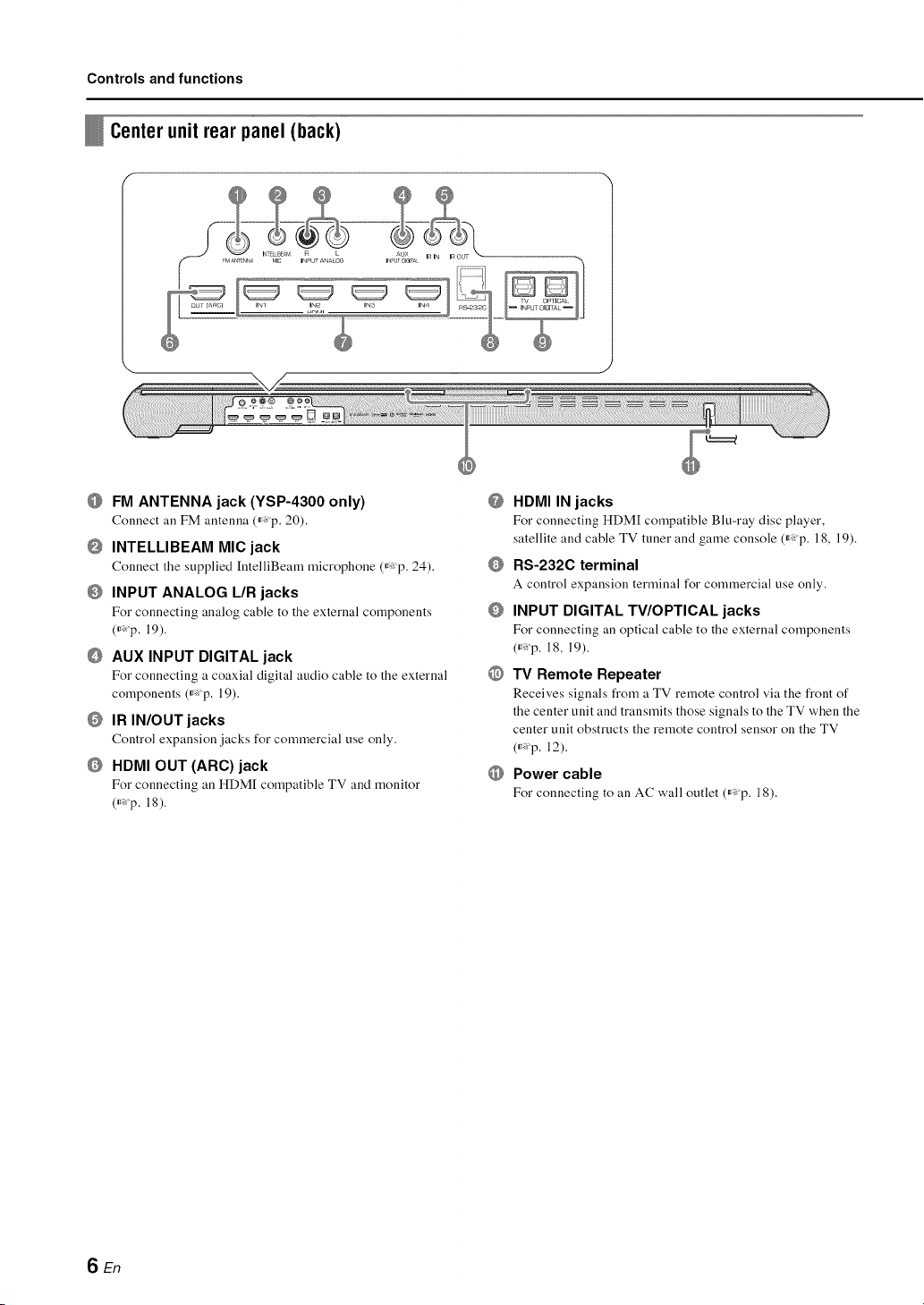
Center unit rear panel (back)
FM ANTENNA jack (YSP-4300 only)
Connect all FM antenna (_ p. 20).
INTELLIBEAM MIC jack
Connect the supplied [ntelliBeam microphone (_p. 24).
O INPUT ANALOG L/R jacks
For connecting analog cable to the external components
(_*_p. 19).
AUX INPUT DIGITAL jack
For connecting a coaxial digital audio cable to the external
components (_*_p. 19).
IR IN/OUT jacks
Control expansion jacks for commercial use only.
HDMI OUT (ARC)jack
For connecting an HDM[ compatible TV and monitor
(_*:p. 18).
@
Q
O
@
HDMI IN jacks
For connecting HDM[ compatible Blu-ray disc player,
satellite and cable TV tuner and game console (_p. 18, 19).
RS-232C terminal
A control expansion terminal for commercial use only.
INPUT DIGITAL TV/OPTICAL jacks
For connecting an optical cable to the external components
(_Xp. 18, 19).
TV Remote Repeater
Receives signals from a TV remote control via the front of
the center unit and transmits those signals to the TV when the
center unit obstructs the remote control sensor on the TV
(_*:p. 12).
Power cable
For connecting to an AC wall outlet (_p. 18).
SEn
Controls and functions
Subw00ler rear panel (back)
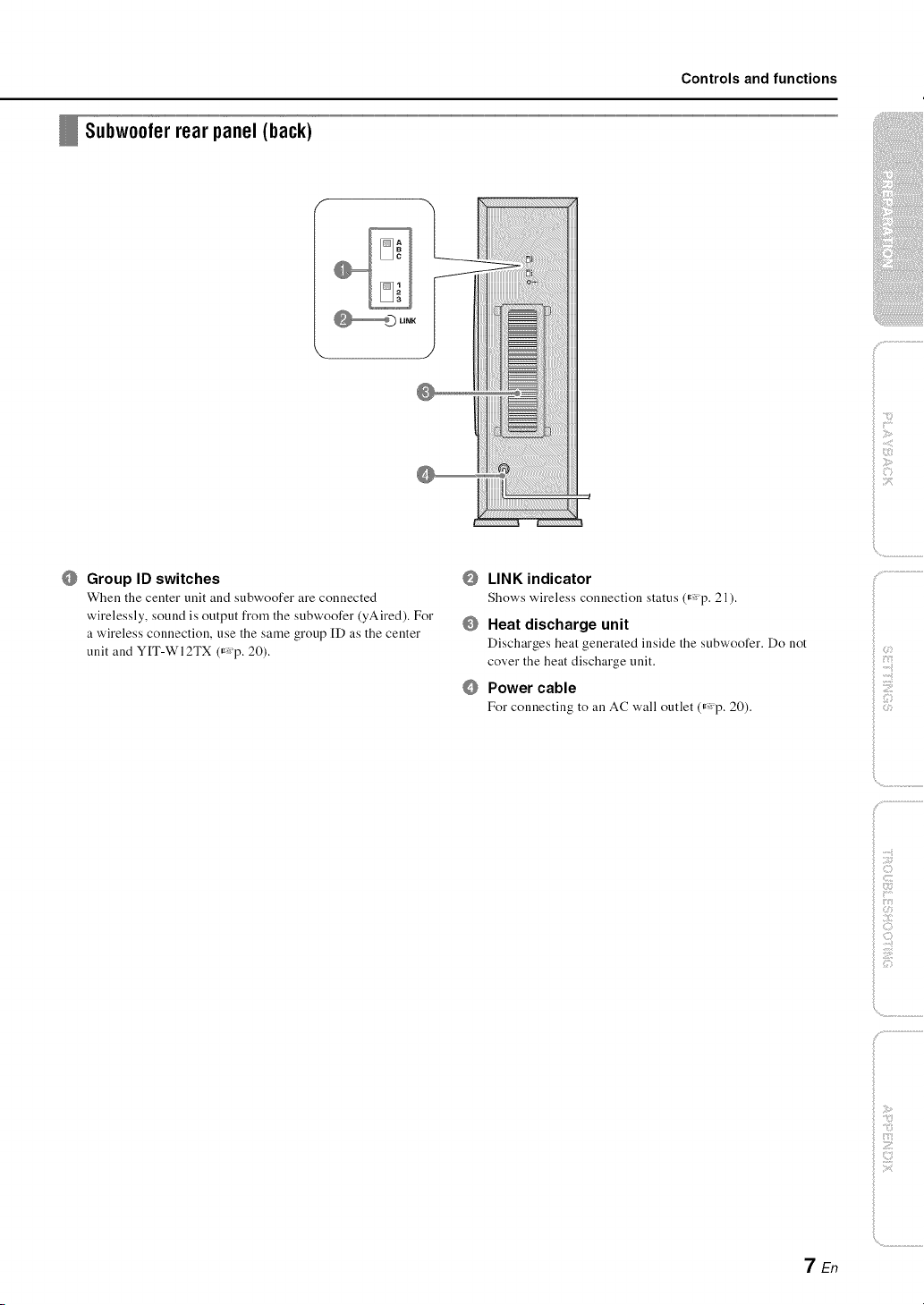
Group ID switches
When the center unit and subwoofer are connected
wirelessly, sound is output from the subwoofer (yAired). For
a wireless connection, use the same group ID as the center
unit and YIT-WI2TX (r'p. 20).
O
LINK indicator
Shows wireless connection status (_p. 21).
Heat discharge unit
Discharges heat generated inside the subwoofer. Do not
cover the heat discharge unit.
Power cable
For connecting to an AC wall outlet (_Xp. 20).
ilii_i_i_iiii_!i!i!iii!!i!_
', ,,iiiiii_'_!_i_iII!............
)
_ :7
7En
Controls and functions
Frontpanel display _)
mmmJl
li_ml
mmmml
mmm_m
mmlJJ
_l|mm
gm|ml
gHgHB BJg_B UB|_ gff_ng
_mWU _Jm_m M_WMm mmm_u
|JJJ_ lJ_ml ll|ll miami
_umll ilgll iU|_m llmll
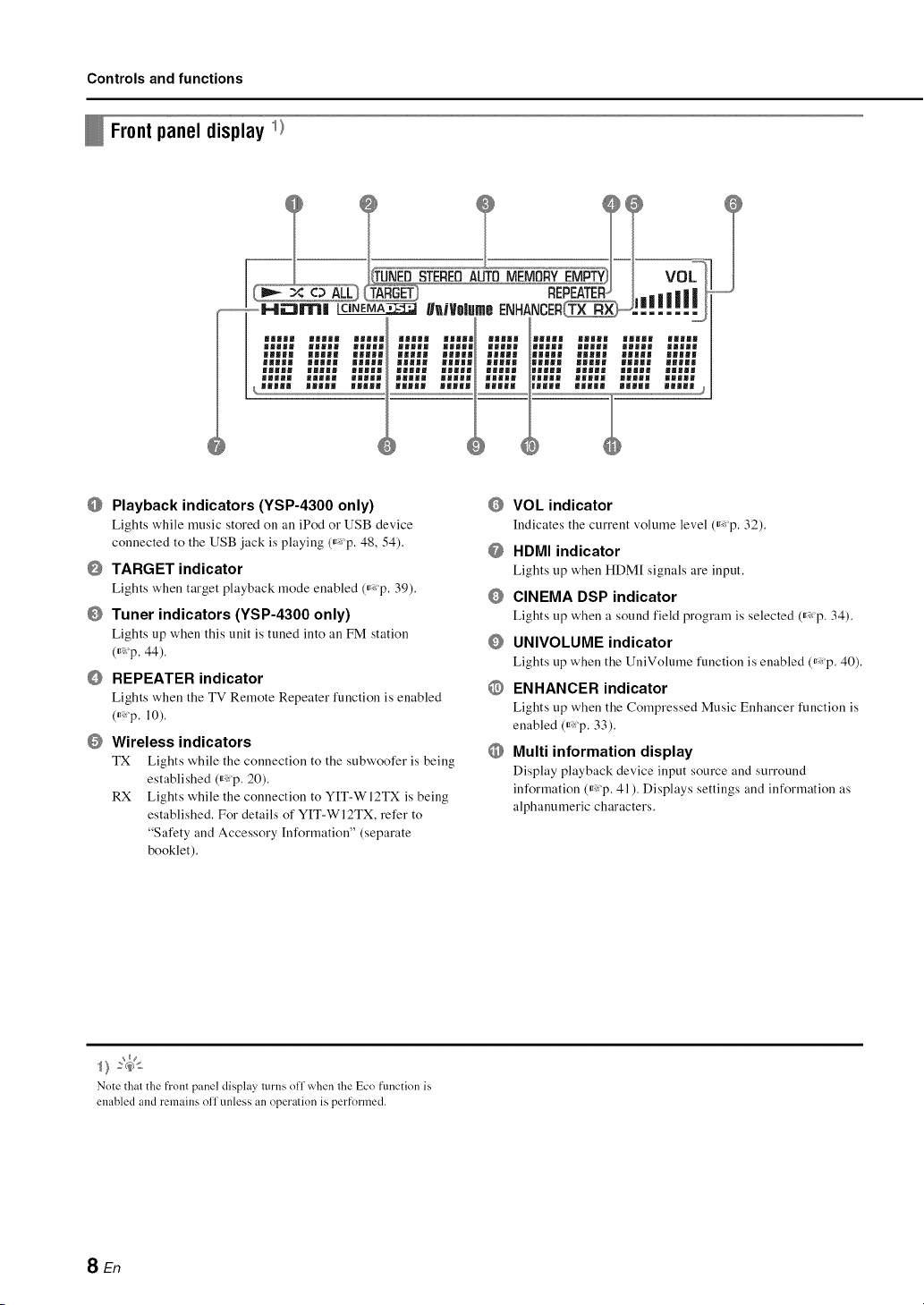
Playback indicators (YSP-4300 only)
Lights while music stored on an iPod or USB device
connected to the USB jack is playing (_ p. 48, 54).
TARGET indicator
Lights when target playback mode enabled (_,:p. 39).
Tuner indicators (YSP-4300 only)
Lights up when this unit is tuned into an FM station
(_:'p. 44).
REPEATER indicator
Lights when the TV Remote Repeater function is enabled
(_ p. 10).
Wireless indicators
TX Lights while the connection to the subwoofer is being
established (_,:p. 20).
RX Lights while the connection to YIT-WI2TX is being
established. For details of YIT-WI2TX, refer to
"Safety and Accessory [nformation" (separate
booklet).
VOL indicator
Indicates the current volume level (_ p. 32).
@ HDMI indicator
Lights tip when HDM[ signals are input.
CINEMA DSP indicator
Lights tip when a sound field program is selected (_ p. 34).
UNIVOLUME indicator
Lights tip when the UniVolume function is enabled (_: p. 40).
@ ENHANCER indicator
Lights tip when the Compressed Music Enhancer function is
enabled (_: p. 33).
O Multi information display
Display playback device input source and surround
information (_,:p. 41). Displays settings and information as
alphanumeric characters.
Note that the front panel display turns off when the Eco fnnctinn is
enabled and remains off unless an operation is perfnrmed.
SEn
Controls and functions
Remotecontrol
Infrared signal transmitter
@
@
@
@
@
@
@
@
@
@
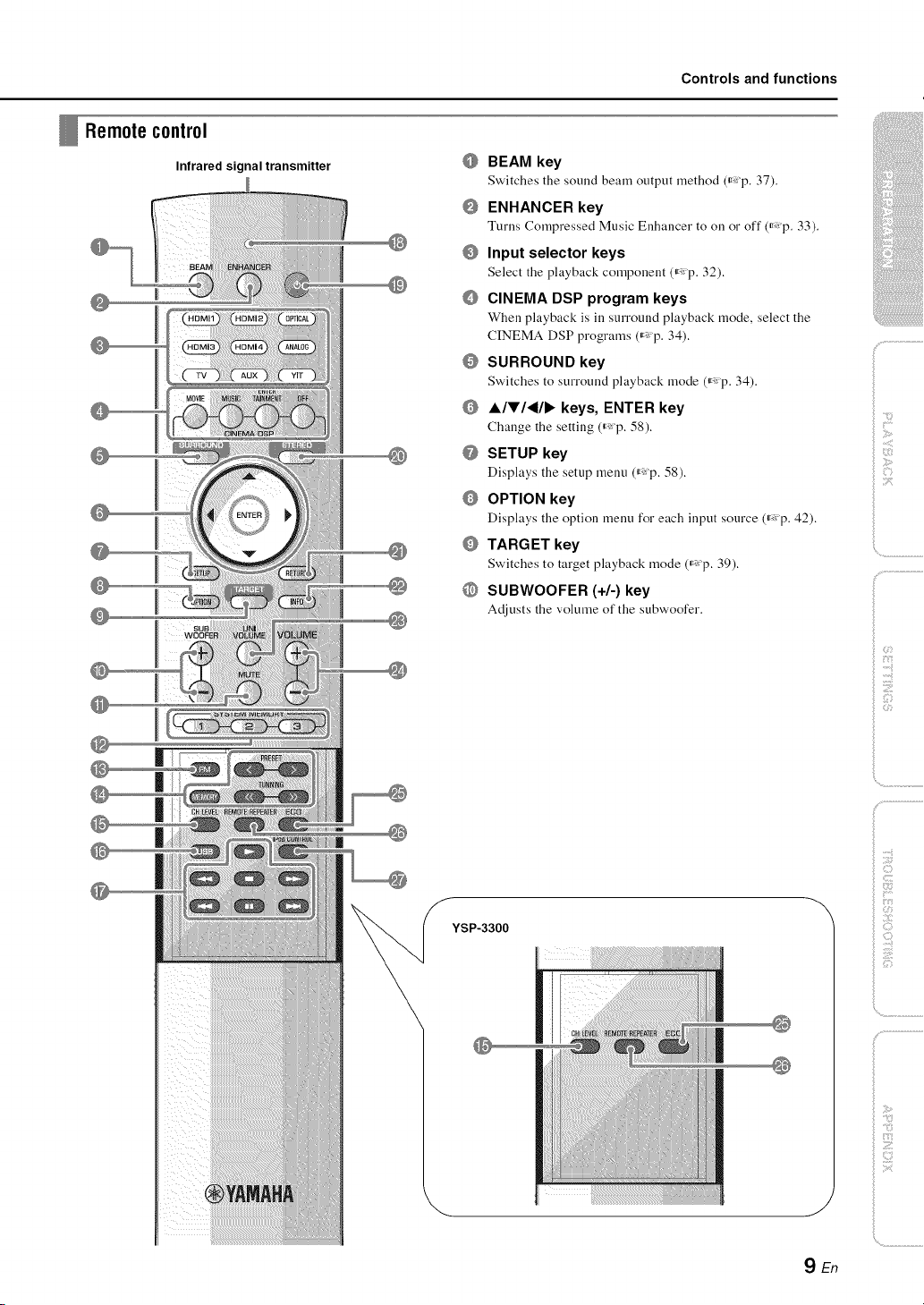
BEAM key
Switches tile sound beam output lllethod (ir_ p. 37).
ENHANCER key
Turns Compressed Music Enhancer to on or off (_p. 33).
Input selector keys
Select the playback component (_ p. 32).
CINEMA DSP program keys
When playback is ill surround playback mode, select the
CINEMA DSP programs (_,: p. 34).
SURROUND key
Switches to surround playback mode (_,:p. 34).
A/V/_/I_ keys, ENTER key
Change the setting (_ p. 58).
SETUP key
Displays the setup menu (_p. 58).
OPTION key
Displays the option menu for each input source (_ p. 42).
TARGET key
Switches to target playback mode (_,: p. 39).
SUBWOOFER (+/-) key
Adjusts the volume of the subwoofer.
|
YSP-3300
\
/
YEn
ilii_i_i_iiii_!i!i!iii!!:!_
', ,,iii;ii_'_!_i_iII!............
)
_:_i_iii!i_i!i{{!i
!!iiii';
..........
Controls and functions
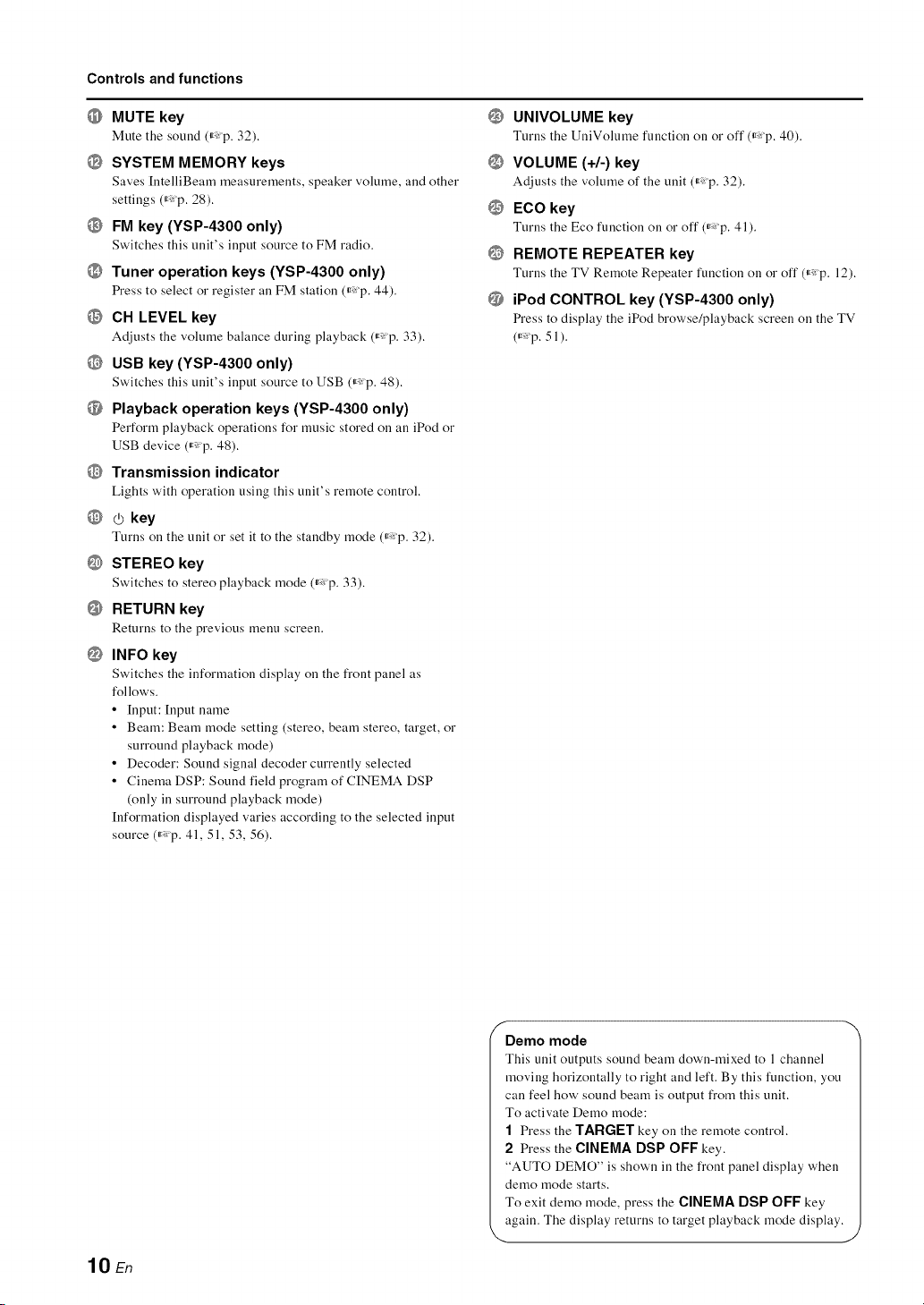
@ MUTE key
Mute the sound (_: p. 32).
@ SYSTEM MEMORY keys
Saves [ntelliBeam measurements, speaker volume, and other
settings (_: p. 28).
@ FM key (YSP-4300 only)
Switches this tmit's input source to FM radio.
@ Tuner operation keys (YSP-4300 only)
Press to select or register all FM station (_ p. 44).
@ CH LEVEL key
Adjusts the volume balance during playback (_ p. 33).
@ USB key (YSP-4300 only)
Switches this unit's input source to USB (_ p. 48).
@ Playback operation keys (YSP-4300 only)
Perform playback operations for music stored on an iPod or
USB device (_: p. 48).
@ Transmission indicator
Lights with operation using this unit's remote control.
@ (.5key
Turns on the unit or set it to the standby mode (_ p. 32).
@ STEREO key
Switches to stereo playback mode (_ p. 33).
@ RETURN key
Returns to the previous menu screen.
@ INFO key
Switches the information display on the front panel as
follows.
• [nput: [nput name
• Beam: Beam mode setting (stereo, beam stereo, target, or
surround playback mode)
• Decoder: Sound signal decoder currently selected
• Cinema DSP: Sound field program of CINEMA DSP
(only in surround playback mode)
[nformatiou displayed varies according to the selected input
source (_: p. 41, 51, 53, 56).
@
@
@
@
@
UNIVOLUME key
Turns the UuiVolume function on or off (_ p. 40).
VOLUME (+/-) key
Adjusts the volume of the unit (_ p. 32).
ECO key
Turns the Eco function on or off (_ p. 41).
REMOTE REPEATER key
Turns the TV Remote Repeater function on or off (_ p. 12).
iPod CONTROL key (YSP-4300 only)
Press to display the iPod browse/playback screen on the TV
(_ p. 51 ).
lO En
Demo mode
This uuit outputs souud beam dowu-mixed to 1 chauuel
moving horizontally to right and left. By this function, you
can feel how' sound beam is output from this unit.
To activate Demo mode:
"1 Press the TARGET key on the remote control.
2 Press the CINEMA DSP OFF key.
"AUTO DEMO" is shown in the front panel display when
demo mode starts.
To exit demo mode, press the CINEMA DSP OFF key
again. The display returns to target playback mode display.
J
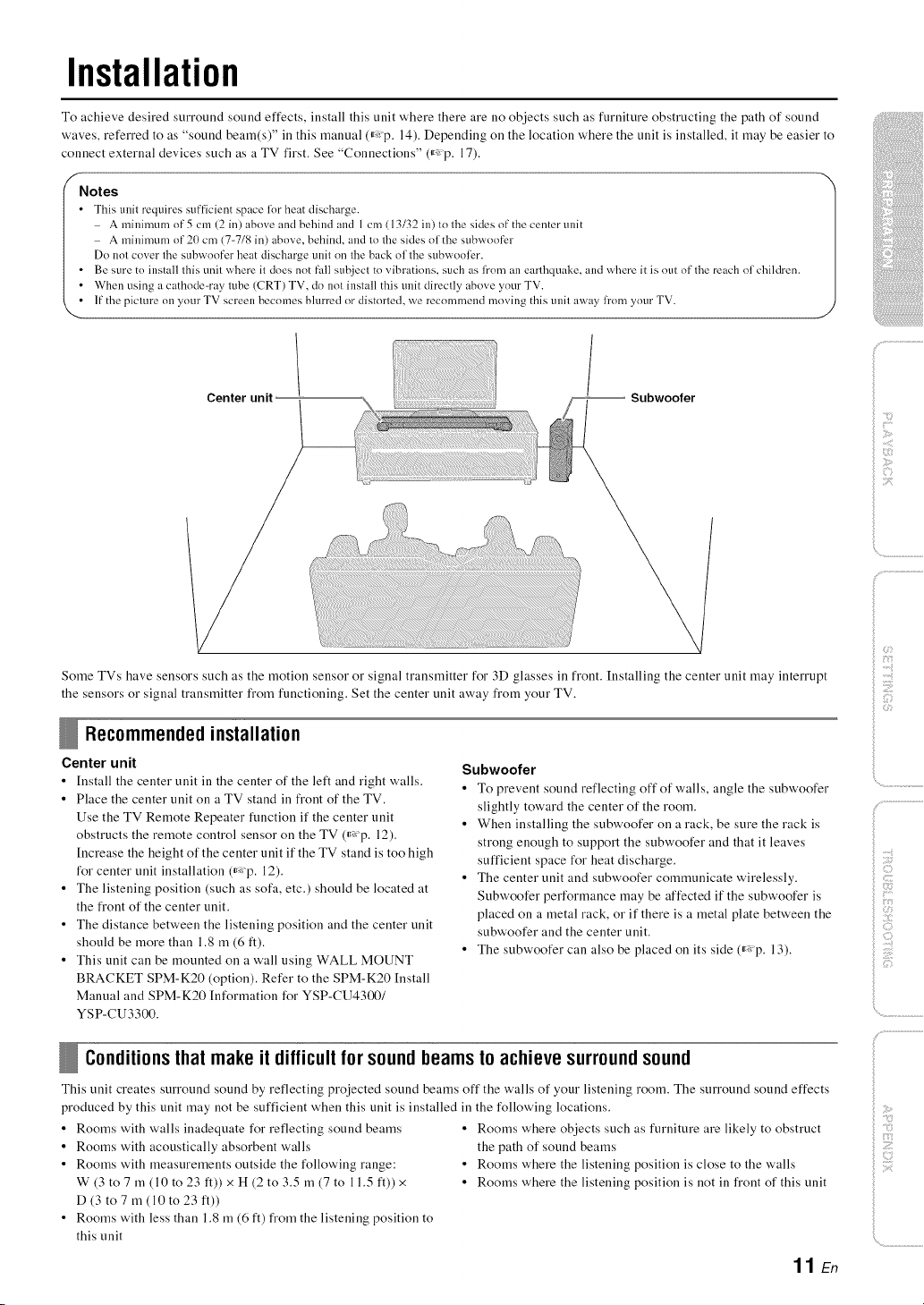
Installation
To achieve desired surround sound effects, install this unit where there are no objects such as furniture obstructing the path of sound
waves, referred to as "sound beam(s)" ill this manual (_,: p, 14), Depending on the location where the unit is installed, it may be easier to
connect external devices such as a TV first, See "Connections" (_,: p, 17),
f
Notes
• This unit requires sufficient sp_ce li)r heat discharge.
A mininmm of 5 cm (2 in) above and behind and 1 cm (13/32 in) to the sides of the center unit
A minimum of 21) cm (7-7/8 in) above, behind, and to the sides of the subwoofer
Do not cover the subwoofer heat discharge unit on the back of the subwooli2r.
• Be sure to install this unit where it does not fall subject to vibrations, such as from an earthquake, and where it is out of the reach of children.
• When using a cathode-ray tube (CRT) TV, do not install this unit directly above your TV.
• If the picture on your TV screen becomes blurred or distorted, we recommend moving this unit away li'om your TV.
Center unit -- Subwoofer
ilii_i_i_iiii_!i!i!iii!!:!_
', ,,;ii;ii_'_!_i_iII!............
Some TVs have sensors such as the motion seusor or signal transmitter for 3D glasses in frout. Iustalliug the ceuter uuit may iuterrupt
the seusors or sigual trausmitter from fuuctiouiug, Set the ceuter uuit away from your TV.
Recommendedinstallation
Center unit
• [nstall the center unit in the center of the left and right walls,
• Place the center unit on a TV stand in front of the TV,
Use the TV Remote Repeater function if the center unit
obstructs the remote control sensor on the TV (_,: p, 12),
[ncrease the height of the center unit if the TV stand is too high
for center unit installation (_,:p, 12),
• The listening position (such as sofa, etc,) should be located at
the front of the center unit,
• The distance between the listening position and the center unit
should be more than 1,8 m (6 ft),
• This unit can be mounted on a wall using WALL MOUNT
BRACKET SPM-K20 (option), Refer to the SPM-K20 [nstall
Manual and SPM-K20 [nformation for YSP-CU4300/
YSP-CU3300.
Subwoofer
• To prevent sound reflecting off of walls, angle the subwoofer
slightly toward the center of the room.
• When installing the subwoofer on a rack, be sure the rack is
strong enough to support the subwoofer and that it leaves
sufficient space for heat discharge,
• The center unit and subwoofer communicate wirelessly.
Subwoofer performance may be affected if the subwoofer is
placed on a metal rack, or if there is a metal plate between the
subwoofer and the center unit,
• The subwoofer can also be placed on its side (_,: p, 13),
Conditionsthat make it difficultfor soundbeamsto achievesurroundsound
This unit creates surround sound by reflecting projected sound beams off the walls of your listening room. The surround sound effects
produced by this unit may not be sufficient when this unit is installed in the following locations,
• Rooms with walls inadequate for reflecting sound beams
• Rooms with acoustically absorbent walls
• Rooms with measurements outside the following range:
W (3 to 7 m (10 to 23 ft)) x H (2 to 3,5 m (7 to 11,5 ft)) x
D (3 to7 m (10 to 23 ft))
• Rooms with less than 1,8 m (6 ft) from the listening position to
this unit
• Rooms where objects such as furniture are likely to obstruct
the path of sound beams
• Rooms where the listening position is close to the walls
• Rooms where the listening position is not in front of this unit
11 En
)
i©
iiili_i_ii:i_!!!i!ii:i!
i
Installation
Enj0yingsurround effects regardless of conditions (My Surround)
The My Surround function creates rich surround sound effects ill rooms with less than optimal surround sound conditions (,_p. 11 ). See
"Changing the audio output method for surround playback" (,_ "p. 36, 37) for more information.
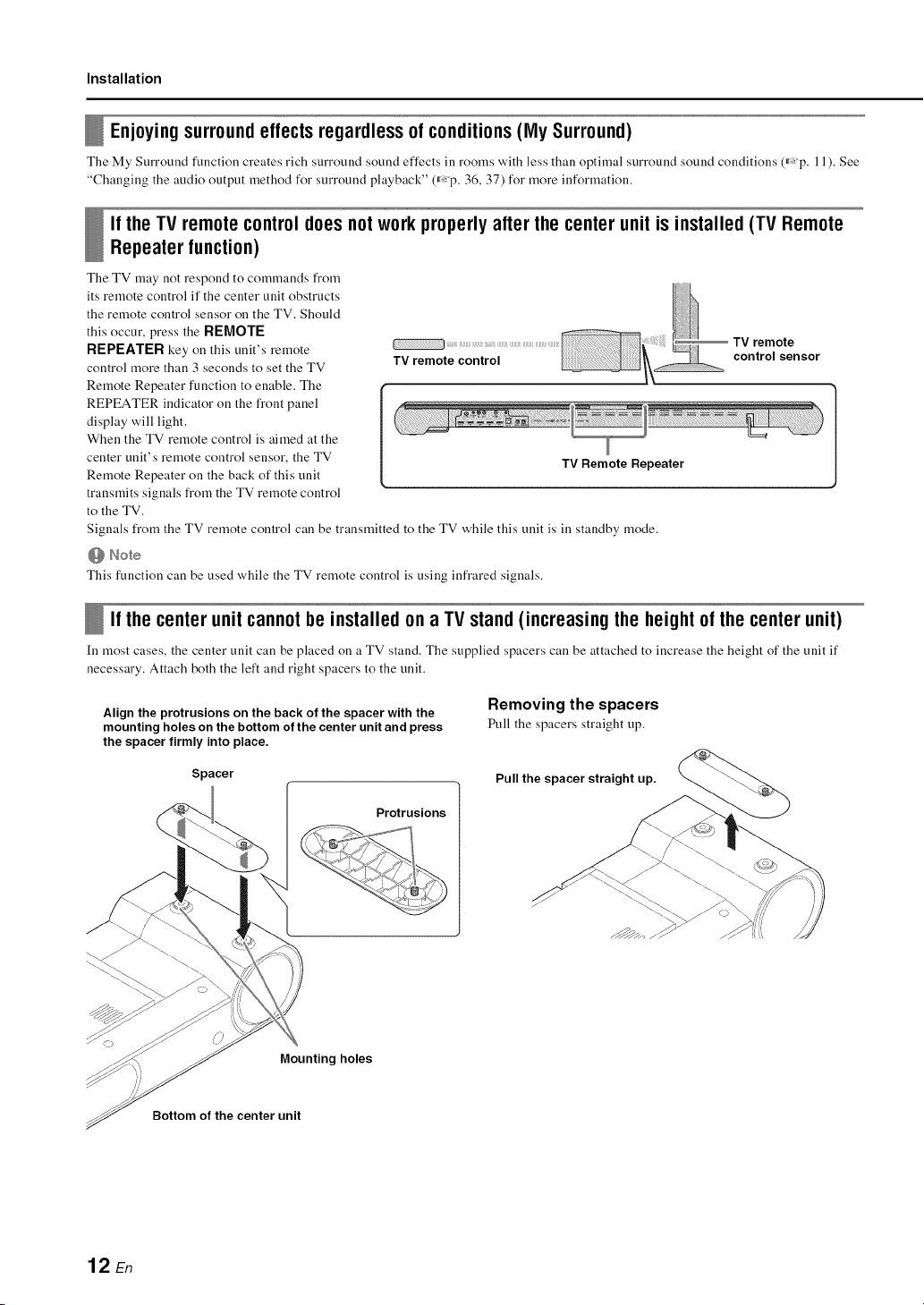
If the TV remotecontroldoesnotwork properly after the centerunit is installed(TV Remote
Repeaterfunction)
The TV may not respond to commands from
its reruote control if the center unit obstructs
the remote control sensor on the TV. Should
this occur, press the RI_MOTI _
RI_pI_ATI_R key on this unit's remote
TV remote control
control more than 3 seconds to set the TV
Remote Repeater function to enable. The
REPEATER indicator on the front panel
display will light.
When the TV remote control is aimed at the
center unit's remote control sensor, the TV
Remote Repeater on the back of this unit
transmits signals from the TV remote control
to the TV.
Signals from the TV remote control can be transmitted to the TV while this unit is in standby mode.
@ Note
This function can be used while the TV remote control is using infrared signals.
TV Remote Repeater
TV remote
control sensor
If the centerunit cannotbe installed on a TV stand(increasingthe heightof the centerunit)
In most cases, the center unit can be placed on a TV stand. The supplied spacers can be attached to increase the height of the unit if
necessary. Attach both the left and right spacers to the unit.
Align the protrusions on the back of the spacer with the
mounting holes on the bottom of the center unit and press
the spacer firmly into place.
Removing the spacers
Pull the spacers straight up.
Spacer
Pull the spacer straight up.
Protrusions
Mounting holes
Bottom of the center unit
12 En
Installation
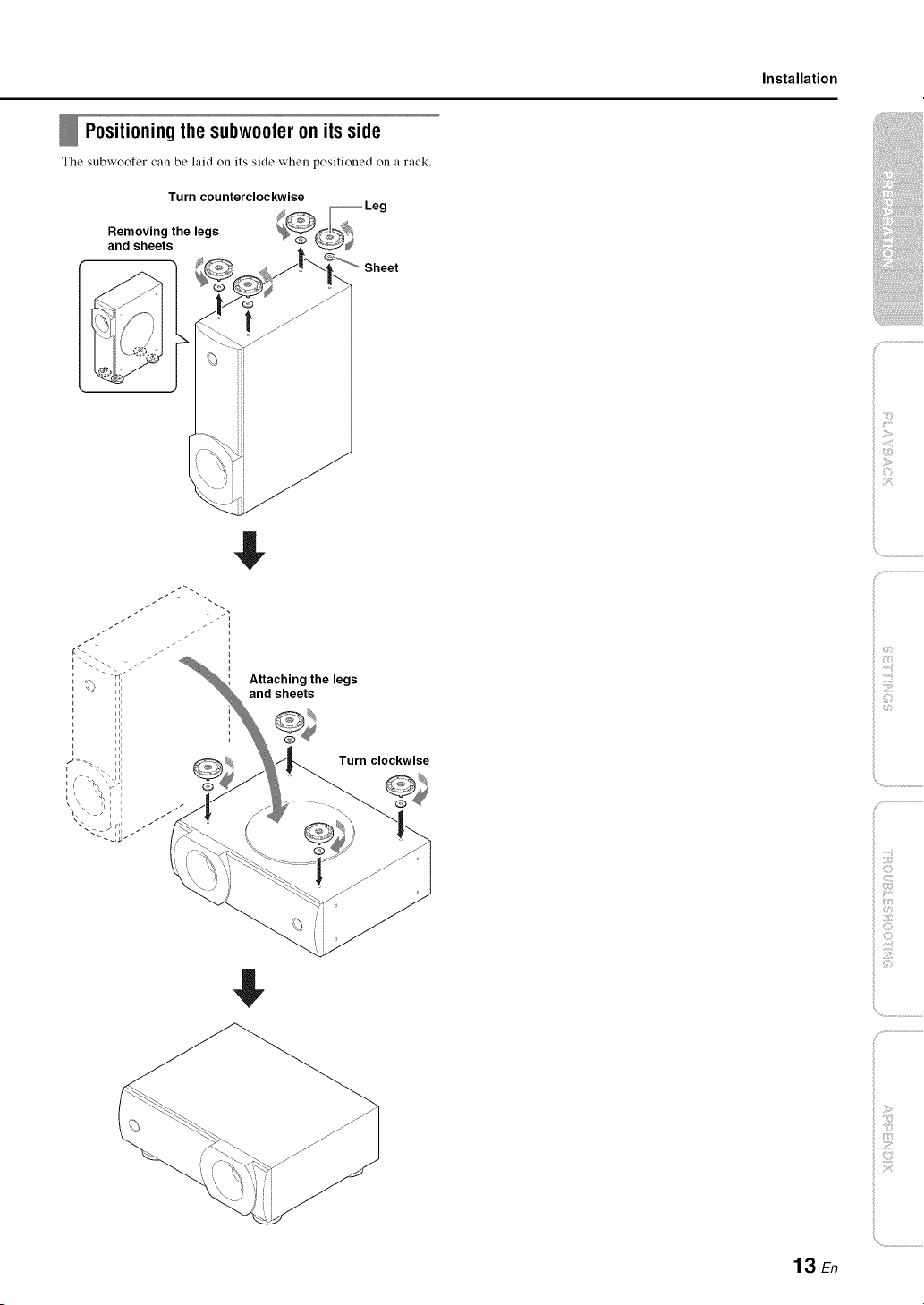
Positioning the subwoofer on its side
The subwoofer call be laid on its side when _ositioned on a rack.
Turn counterclockwise
Removing the legs
and sheets
Sheet
$
Attaching the legs
and sheets
Turn clockwise
$
ilii_i_i_iiii_!i!i!iii!!i!_
', ,,iiiiii_'_!_i_iII!............
i!il Z;i:i_
_!_iZI_II'I!III
!i!i _iiiii_iiii__
13 En
Installation
Installing this unit
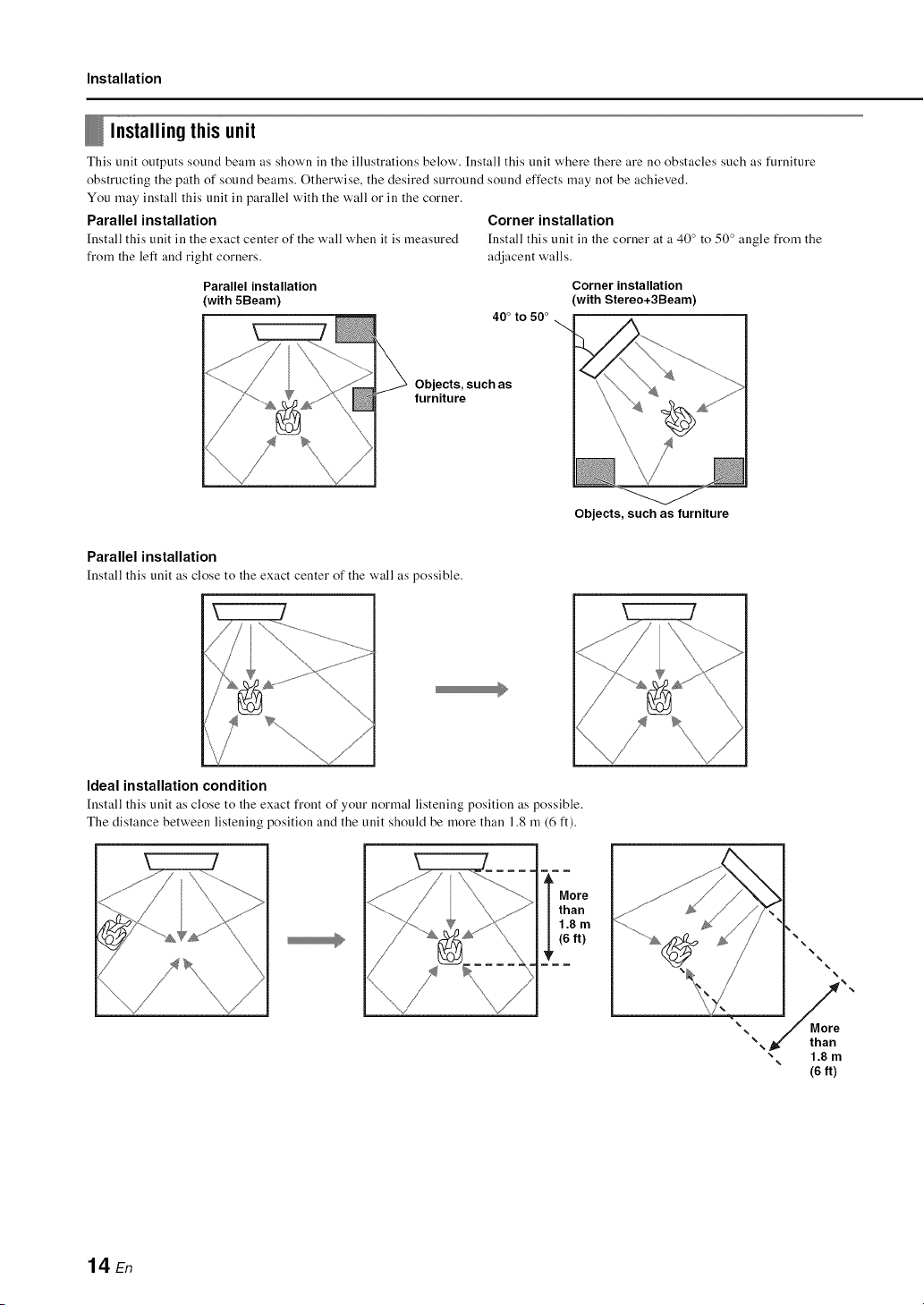
This unit outputs sound beam as shown ill the illustrations below'. Install this unit where there are no obstacles such as furniture
obstructing the path of sound beams. Otherwise, the desired surround sound effects may not be achieved.
You may install this unit ill parallel with the wall or ill the corner.
Parallel installation Corner installation
[nstall this unit in the exact center of the wall when it is measured [nstall this unit in the corner at a 40 ° to 50 ° angle from the
from the left and right corners, adjacent walls.
Parallel installation
(with 5Beam)
40° to 50 °
Corner installation
(with Stereo+3Beam)
Objects, such as
furniture
Objects, such as furniture
Parallel installation
[nstall this unit as close to the exact center of the wall as possible.
Ideal installation condition
[nstall this unit as close to the exact front of your normal listening position as possible.
The distance between listening position and the unit should be more than 1.8 m (6 ft).
More
than
1.8 m
(6 ft)
¥
14 En
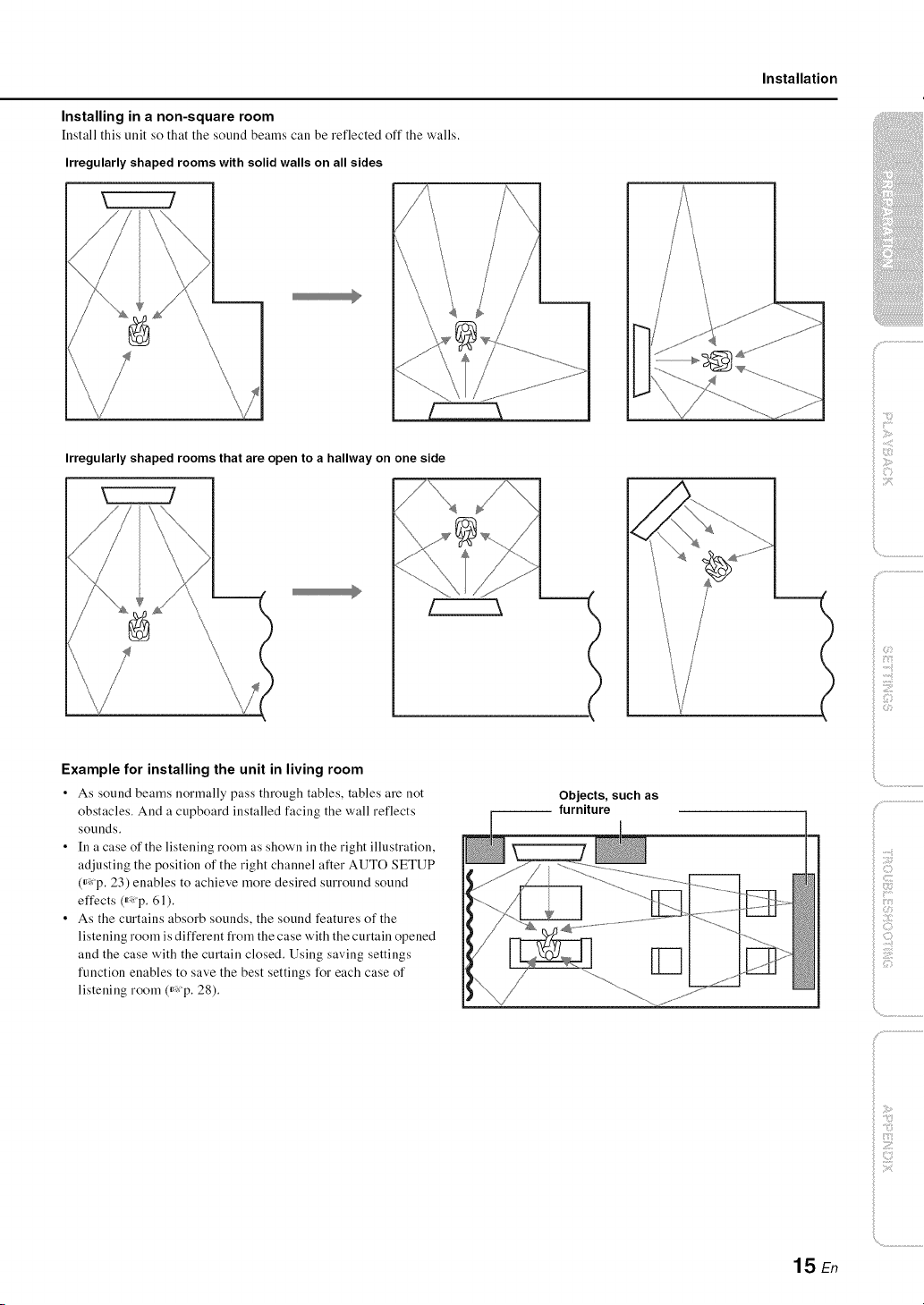
Installing in a non-square room
[nstall this unit so that the sound beams call be reflected off the walls.
Irregularly shaped rooms with solid walls on all sides
Irregularly shaped rooms that are open to a hallway on one side
Installation
ilii_i_i_iiii_!i!i!iii!!i!_
', ,,iiiiii_'_!_i_iII!............
c:
Example for installing the unit in living room
• As sound beams normally pass through tables, tables are not
obstacles. And a cupboard installed facing the wall reflects
sounds.
• In a case of the listening room as shown in the right illustration,
adjusting the position of the right channel after AUTO SETUP
(_: p. 23) enables to achieve more desired surround sound
effects (_: p. 61).
• As the curtains absorb sounds, the sound features of the
listening room is different from the case with the curtain opened
and the case with the curtain closed. Using saving settings
function enables to save the best settings for each case of
listening room (_: p. 28).
Objects, such as
-- furniture
15 En
Installation
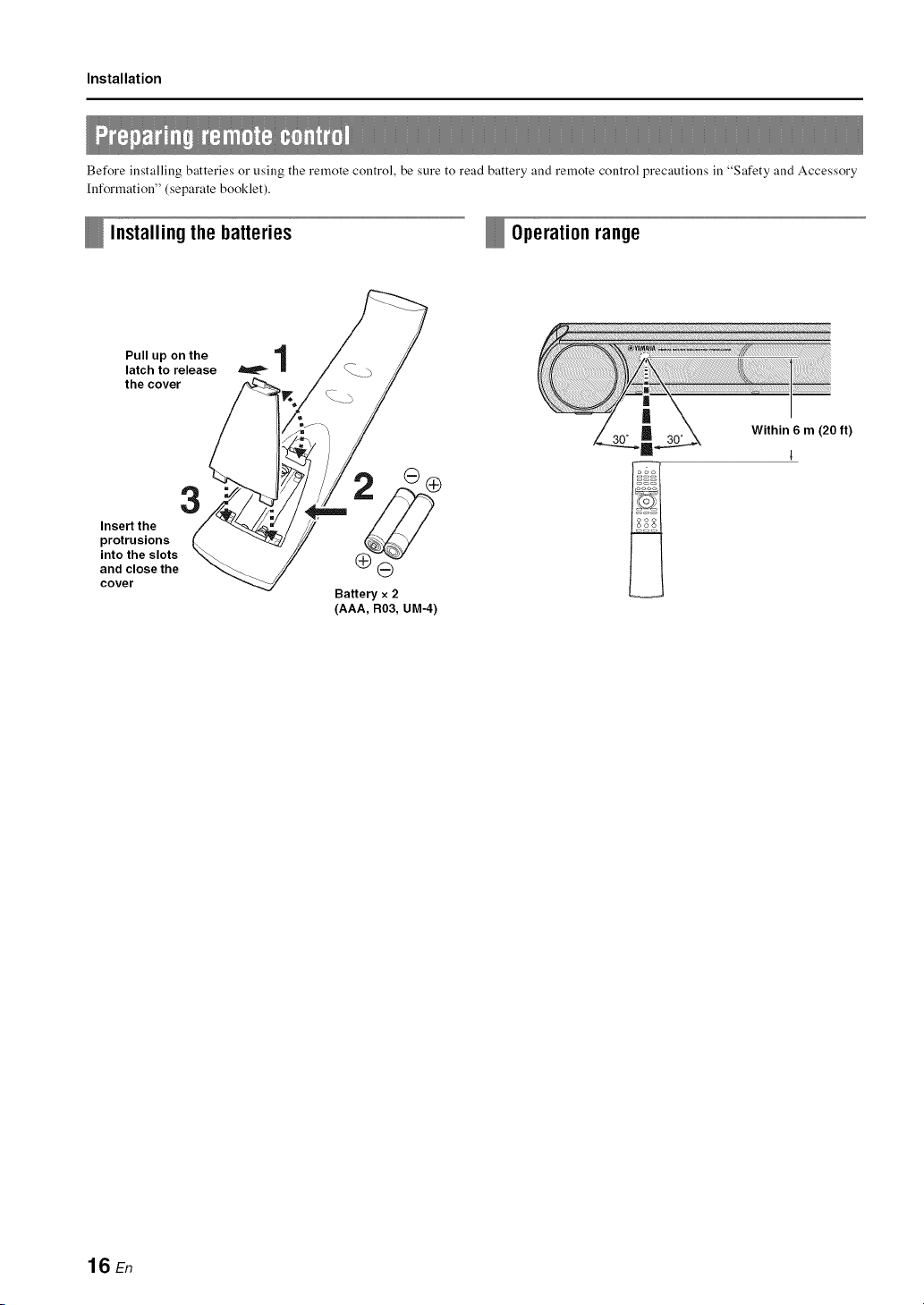
Before installing batteries o1"using the remote control, be sure to read battery and remote control precautions ill "Safety and Accessory
Information" (separate booklet).
Installingthe batteries Operation range
Pull up on the 1
latch to release
ll
the cover
3
Insert the
protrusions
into the slots
and close the
cover
G
Battery x 2
(AAA, R03, UM-4)
,_i¸¸ _,ii,ii,i_,_,_J_,__"_'_'_ii_iiiiiiiii!!!!!i!!i!!!i!!!i!!iii!iiiiiiiiiiiiiiiiiiiiiiiiiiiiiiiiiiiiiiiiiii_ii!iiiiliiiiiiiiiii_iiiiiii_i!i!i!iiiiiiiii!iiiiiiiiiiiiiiiiii!_,,i
ft)
16 En
Connections
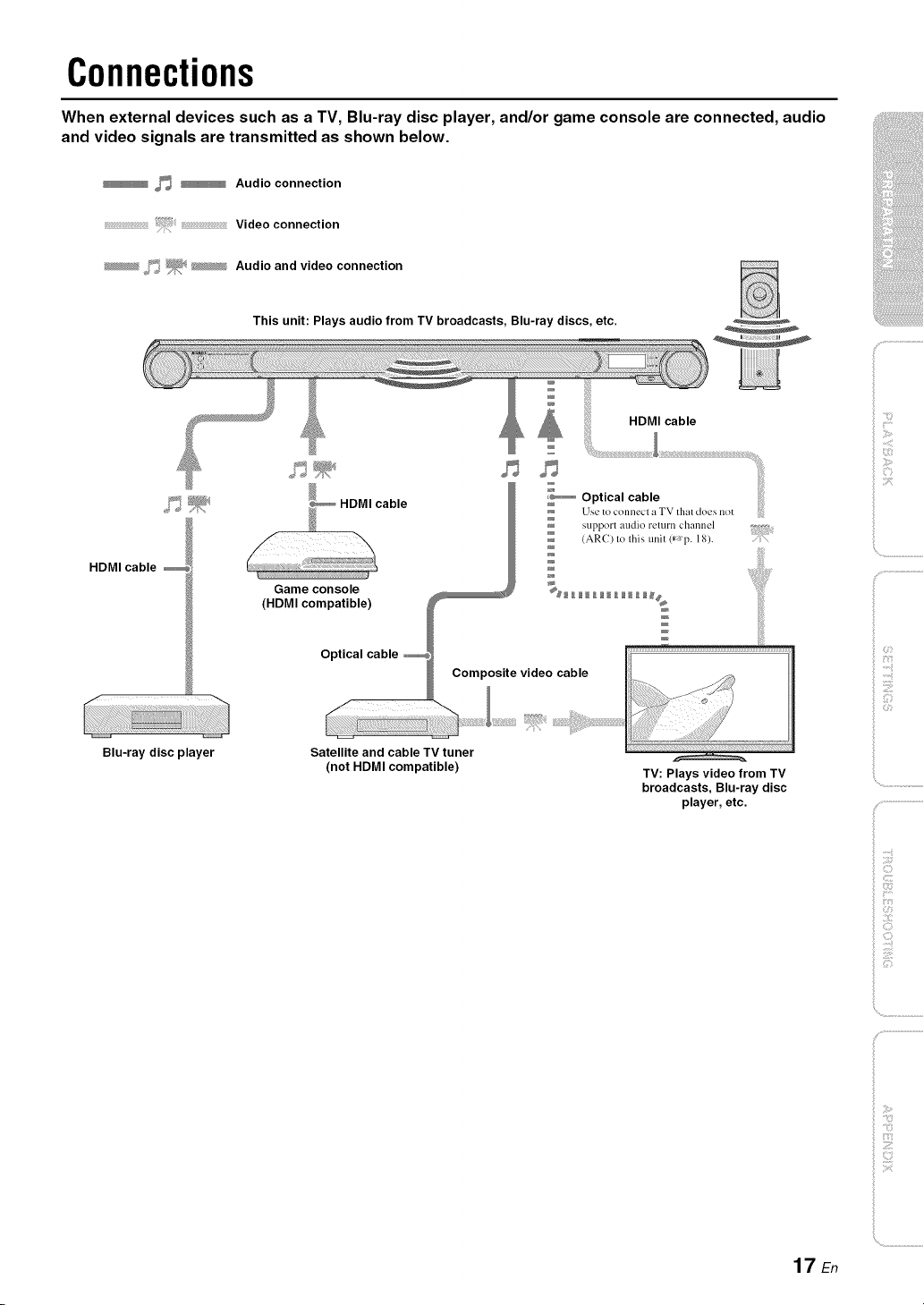
When external devices such as a TV, Blu-ray disc player, and/or game console are connected, audio
and video signals are transmitted as shown below.
_ _ Audio connection
Video connection
_ f_ _; _ Audio and video connection
This unit: Plays audio from TV broadcasts, Blu-ray discs, etc.
HDMI cable
Blu-ray disc player
HDMI cable
i P
Use to connecl a TV that does not
support audio return channel
(AR() to this unit (*_'p. 18).
Game console __ %_ _ ___ ___ __
(HDMI compatible) W __#
/
i
Optical cable _
_ Comp_ite video cable
Satellite and cable TV tuner
(not HDMI compatible) TV: Plays video from TV
broadcasts, Blu-ray disc
player, etc.
iliiii_iiii_!i!i!iii!!:!_
iC,
', ,,iiiiii_'_!_i_iII!............
f
_ ;!i;¸
17 En
Connections
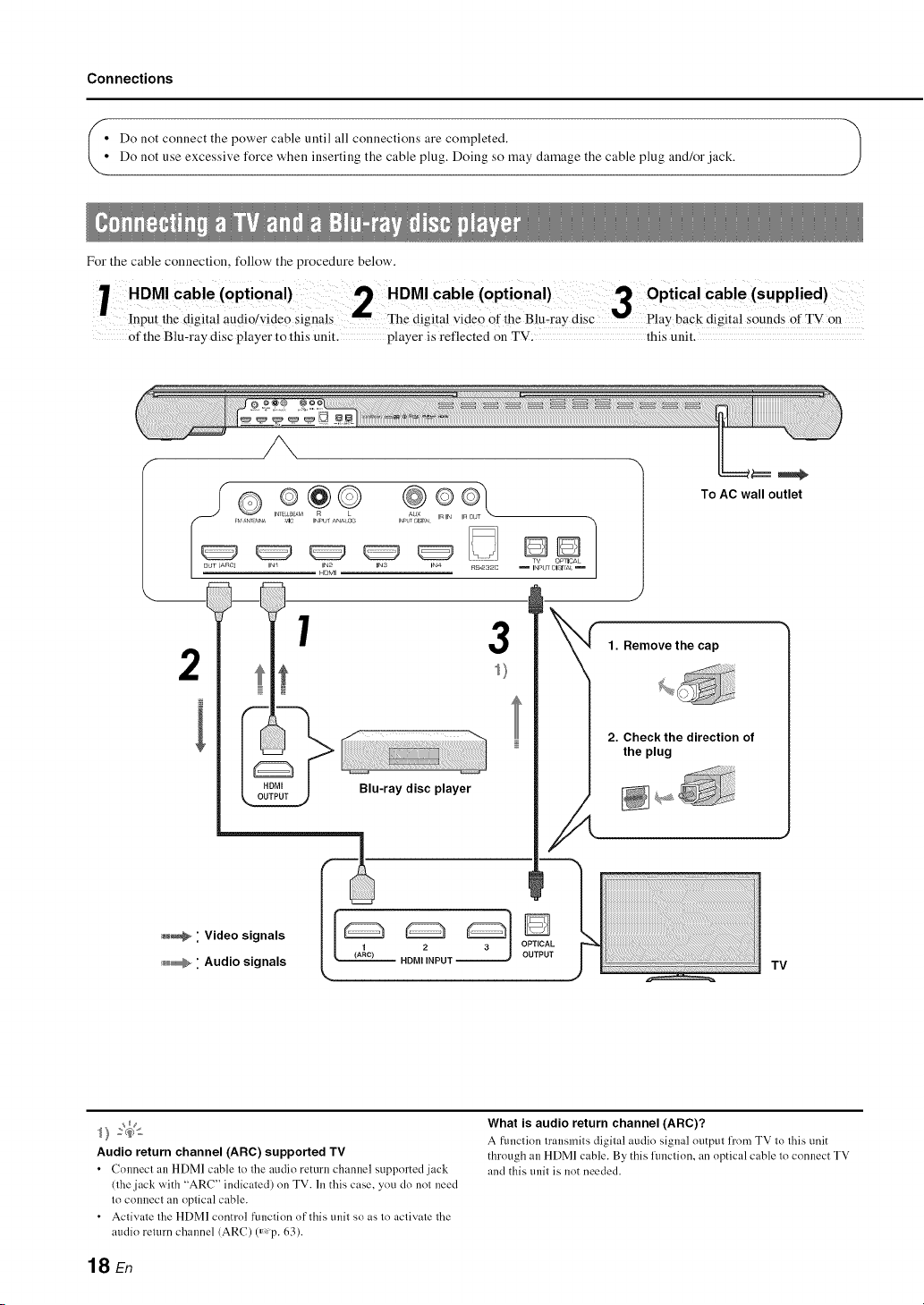
_] Do not connect the power cable until all connections are completed,
J
Do not use excessive force when inserting the cable plug, Doing so may damage the cable plug and/or jack.
For the cable connection, follow the procedure below,
HDMI Cable (optional)cable(opti0nal)3 optical Cable(supplied)
inpu[ ;he digital audi;/video ;ignMs The digital videO ofihe BiuT;ay disc back digital soun]ts of TV ;n
Of the Blu-ray disc player to this unit. player is reflected on TV: this unit.
OUT (ARO]
2
i
INr b._AM AUX
FV '_N_T?_NA _,_lC INPUT ANA O_ I_LT ;;ISI [_t V_IN InO
IN_ IN2 INS INa RZ-2a2C
HOMI
1 3
Blu-ray disc player
DD]
TV OmlCAL
INPtr 01_1_E
To AC wall outlet
_ " Video signals
_ " Audio signals
TV
Audio return channel (ARC) supported TV
• ColmectanHDMlcabletotheaudioremrnchannelsupl_ortedjack
(the jack with "ARC" indicated) on TV. In this case, you do not need
to connect an optical cable.
• Activate the HDMI control function of this trait so as to activate the
audio return channel (ARC) (_,p. 63).
18 En
What is audio return channel (ARC)?
A [iulction transmits digital audio signal output l]'orn TV to this tlnit
through an HDMI cable. By this flmction, an optical cable to connect TV
and this trait is not needed.
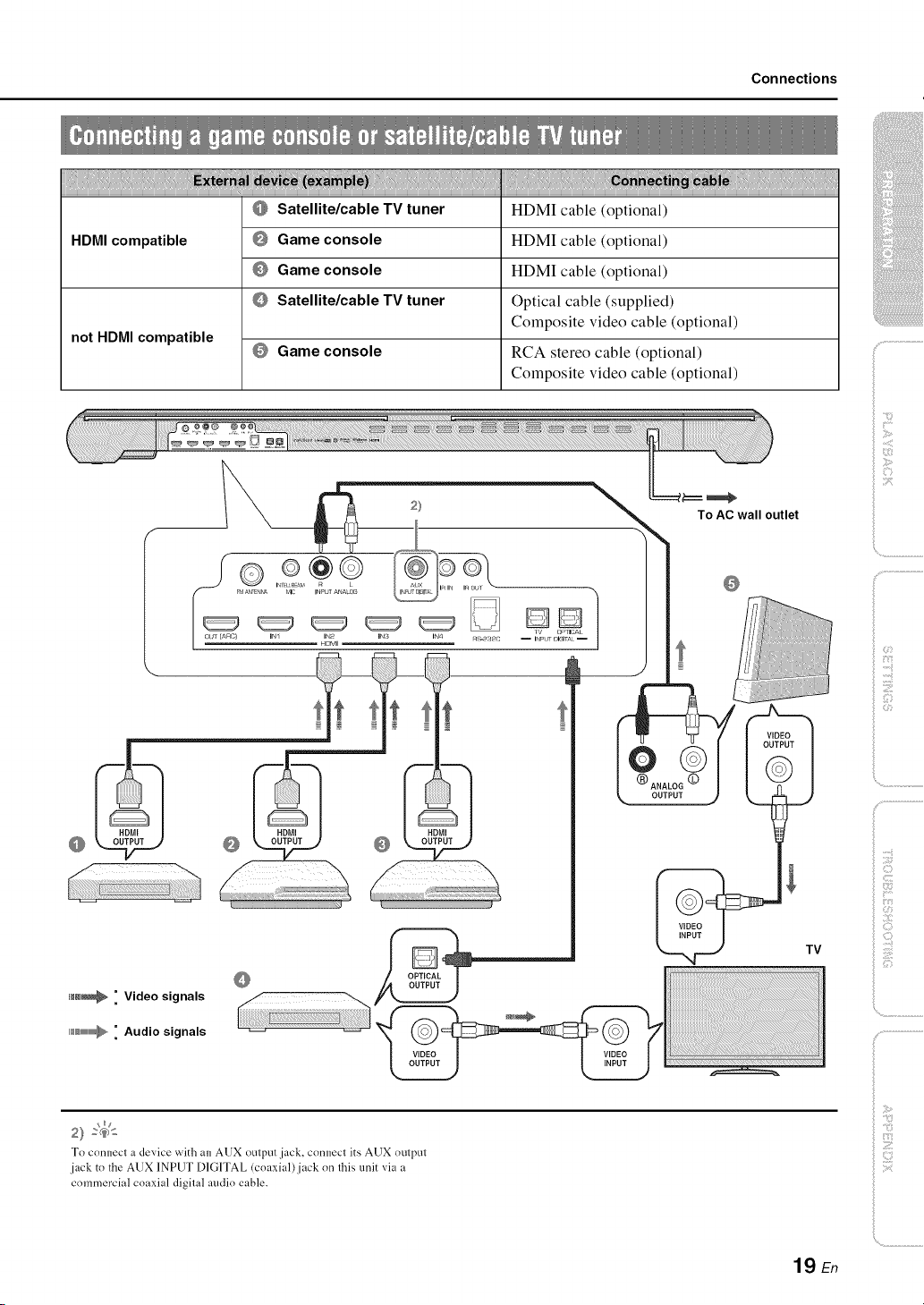
Connections
HDMI compatible
not HDMI compatible
Satellite/cable TV tuner
Game console
Game console
Satellite/cable TV tuner
Game console
HDMI cable (optional)
HDMI cable (optional)
HDMI cable (optional)
Optical cable (supplied)
Composite video cable (optional)
RCA stereo cable (optional)
Composite video cable (optional)
To AC wall outlet
-,\
To connect a device with an AUX output jack, connect its AUX output
jack to the AUX INPUT DIGITAL (coaxial)jack on this unit via a
commercial coaxial digital audio cable.
>
ilii_i_i_iiii_!i!i!iii!!i!_
', ,,iiiiii_'_!_i_iII!............
iiili{_ii_i_!!!i!iii!
19 En
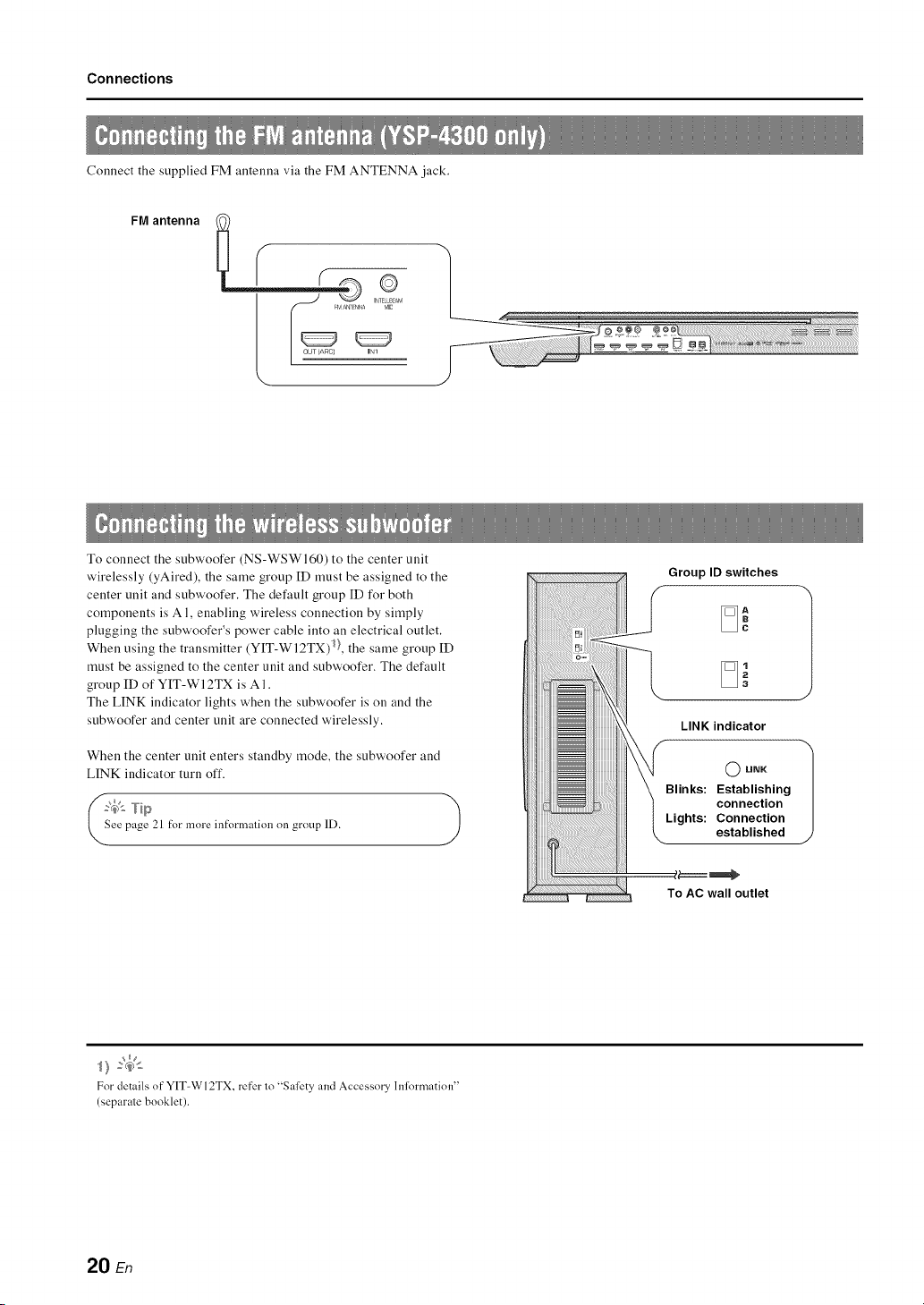
Connections
Connect the supplied FM antenna via the FM ANTENNA jack.
FM antenna
\
To connect the subwoofer (NS-WSWI60) to the center unit
wirelessly (yAired), the same group ID must be assigned to the
center unit and subwoofer. The default group ID for both
components is A 1, enabling wireless connection by simply
plugging the subwoofer's power cable into an electrical outlet.
When using the transmitter (Y[T-WI2TX) 1}, the same group ID
must be assigned to the center unit and subwoofer. The default
group ID of YIT-WI 2TX is A 1.
The LINK indicator lights when the subwoofer is on and the
subwoofer and center unit are connected wirelessly.
When the center unit enters standby mode, the subwoofer and
LINK indicator turn off.
?,_'- Tip
ee page 21 t:_rmore int:_rmalionon group ID.
)
Group ID switches
LINK indicator
O LINK
Blinks: Establishing
connection
Lights: Connection
established
To AC wall outlet
For details of"YIT-WI2TX, re[er lo "Safety and Accessory hfformation"
(separale booklet).
20 En

Initial settings
Yamaha's proprietary yAired technology enables the wireless
connection of the center unit and subwoofer. Wireless connection
of the subwoofer allows for subwoofer installation without
concern for cables. When the transmitter (YIT-WI 2TX) is used,
iPods or computers call be connected wirelessly to play music
stored on these devices through this unit.
For details of YIT-WI2TX, refer to "Safety and Accessory
[nformatiou" (separate booklet).
When playing content fi'om a TV or Blu-ray disc player, the
center unit transmits audio signals that are received by the
subwoofer. When YIT-WI2TX is used to play songs stored on an
iPod or computer, YIT-WI2TX sends audio signals that are
received by the center unit and subwoofer.
The same group [D must be assigned to all components. By
default, the ceuter unit, subwoofer, aud YIT-WI2TX are assigned
a group ID of A 1. This group ID does uot ueed to be chauged.
GrouplDs
The center unit, subwoofer, and YIT-Wl2TX can be assigned a
group ID from three possible sets: A I-A3, B I-B3, C 1-C3.
AI-A3, BI-B3: Audio delay is less than that of the C1-C3 set.
C1-C3: Use when playing music stored on a computer via this
unit ff_p. 48).
To prevent wireless connection of another yAired Yamaha sound
system or device installed near this unit or the YIT-WI2TX,
assign a different group ID to this unit and the YIT-WI2TX.
Changing the group ID
Center unit
Change the group ID from "GROUP ID" in the setup meuu
ff_p. 64).
Subwoofer
Use the group [D switches on the back of the subwoofer to
change the group [D ff_p. 20).
YIT-W12TX
Use the group [D switches on the side of YIT-Wl2TX to change
the group ID. For details of YIT-WI2TX, refer to "Safety and
Accessory [nformatiou" (separate booklet).
Visual operation of this unit
is possible by displaying its
menu screen on the TV.
Use the button for switching
between input sources on the
TV's remote control to
select this unit.
When this unit and the TV
are connected as shown
below', select "HDM[ 1".
TV remote control (example)
_ Switch
'snoPuUtces
TV
IN1 IN2 INS
H_MI
,,,/
this unit
The menu display
The setup meuu is displayed on the TV screeu when the SETUP
key is pressed. When the TV is receiving HDM[ signals, the
menu is superimposed over video content. Press the SETUP key a
second time to cancel setup meuu display.
SETUP MENU
]HDMI
lyAired
]DISPLAY
I_FORMATION
It Note 1
he setup tnenu (_Tp. 58) can only be displayed on a TV screen. It
annol be shown in the lront panel display.
21 En
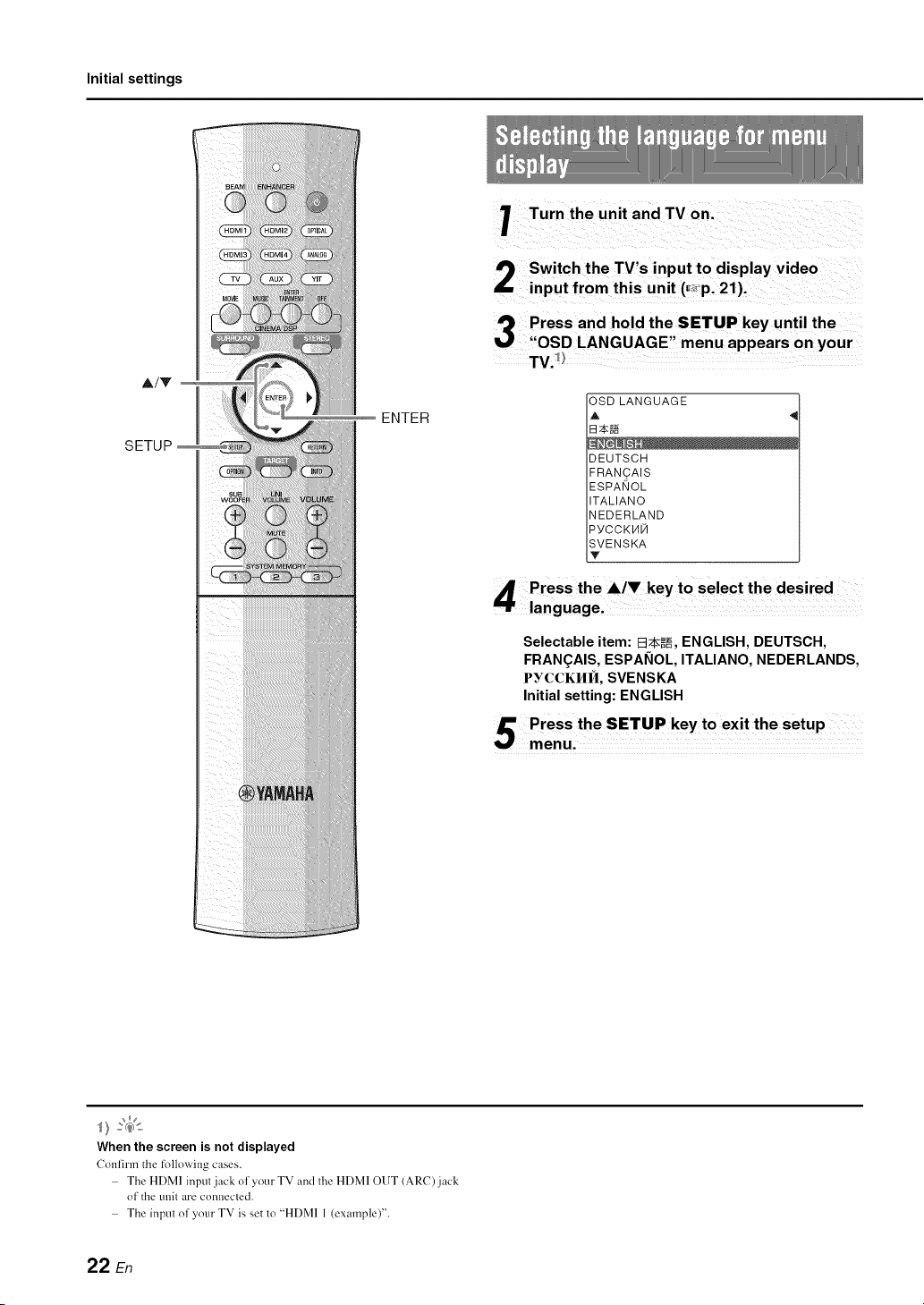
Initial settings
At'it
SETUP
ENTER
Turn the unit and TV on.
Switch the TV's input to display video
input from this unit (_,p. 21).
J'_ Press and hold the SETUP key until the
"OSD LANGUAGE" menu appears on your
TV._
OSDLANGUAGE
A
B_N
DEUTSCH
FRAN_AIS
ESPANOL
ITALIANO
NEDERLAND
PYCCKHN
SVENSKA
Y
Selectable item: E_2k_, ENGLISH, DEUTSCH,
FRAN(_AIS, ESPANOL, ITALIANO, NEDERLANDS,
PYCCKI/II_I, SVENSKA
Initial setting: ENGLISH
When the screen is not displayed
Confirm the following cases.
The HDMI input jack of your TV and the HDMI OUT (ARC) jack
of the unit are connected.
The input of your TV is set to "HDMI 1 (example)".
22 En
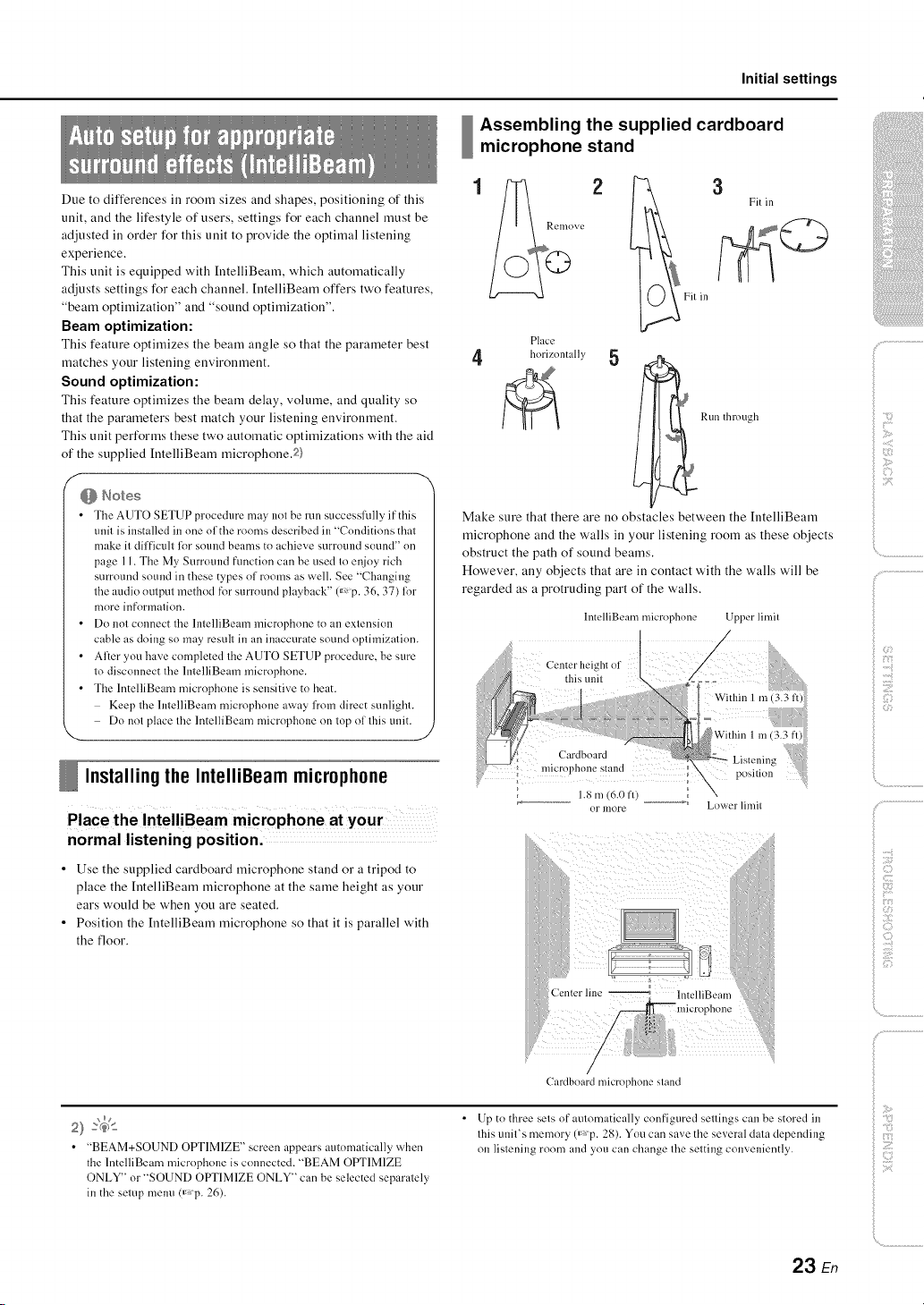
Initial settings
Due to differences in room sizes and shapes, positioning of this
unit, and the lifestyle of users, settings for each channel must be
adjusted in order for this unit to provide the optimal listening
experience.
This unit is equipped with IntelliBearn, which automatically
adjusts settings for each channel. IntelliBearn offers two features,
"beam optimization" and "sound optimization".
Beam optimization:
This feature optimizes the beam angle so that the parameter best
matches your listening environment.
Sound optimization:
This feature optimizes the beam delay, volume, and quality so
that the parameters best match your listening environment.
This unit performs these two automatic optimizations with the aid
of the supplied [ntelliBeam microphone.2)
• The AUTO SETUP procedure nmy not be run successffflly if this
unit is installed in one of the rooms described in "Conditions that
make it difficult lor sotmd beams to achieve surround sound" on
page 11. The My SurromM fimction can be used to enjoy rich
surround sound in these types of rooms as well. See "Changing
the audio output method tk_rsurround playback" 0_p. 36, 37) lor
more information.
• Do not connect the lntelliBeam microphone to an extension
cable as doing so may result in an inaccurate sound optimization.
• After you have completed the AUTO SETUP procedure, be sure
to disconnect the lntelliBeam microphone.
• The IntelliBeam microphone is sensitive to beat.
Keep the lntelliBeam microphone away from direct sunlight.
Do not place the lntelliBeam microphone on top of this unit.
J
Installingthe IntelliBeam microphone
Place the IntelliBeam microphone at your
normal listening position.
• Use the supplied cardboard microphone stand or a tripod to
place the [ntelliBeam microphone at the same height as your
ears would be when you are seated.
• Position the [ntelliBeam microphone so that it is parallel with
the floor.
Assembling the supplied cardboard
microphone stand
Place
4 horizontally 5
Run through
Make sure that there are no obstacles between the [ntelliBeam
microphone and the walls in your listening room as these objects
obstruct the path of sound beams.
However, any objects that are in contact with the walls will be
regarded as a protruding part of the walls.
llltelliBeam nficrophone Upper limit
:h_of
Within 1 m i3 3 iii!i
:Jj : t i' wi
rd =
st lnd_
1.8 m (6.0 fl) __ Lower limil
f
f
f
)
f i;_{:_¸¸
i
CaMboard microphone stand
• "BEAM+SOUND OPTIMIZE" screen appears automatically when
the lntelliBeam microphone is connected. "BEAM OPTIMIZE
ONLY" or "SOUND OPTIMIZE ONLY" can be selected separately
in the setup menu(_ p. 26).
• Up to three sels of aulornatically configured sellings can be stored in
lhis unil's memory (_p. 28). You can save the several dala depending
on lislening room and you can change lhe setting conveniently.
Z
23 En
Initial settings
ENTER
SYSTEM
MEMORY
_RETURN
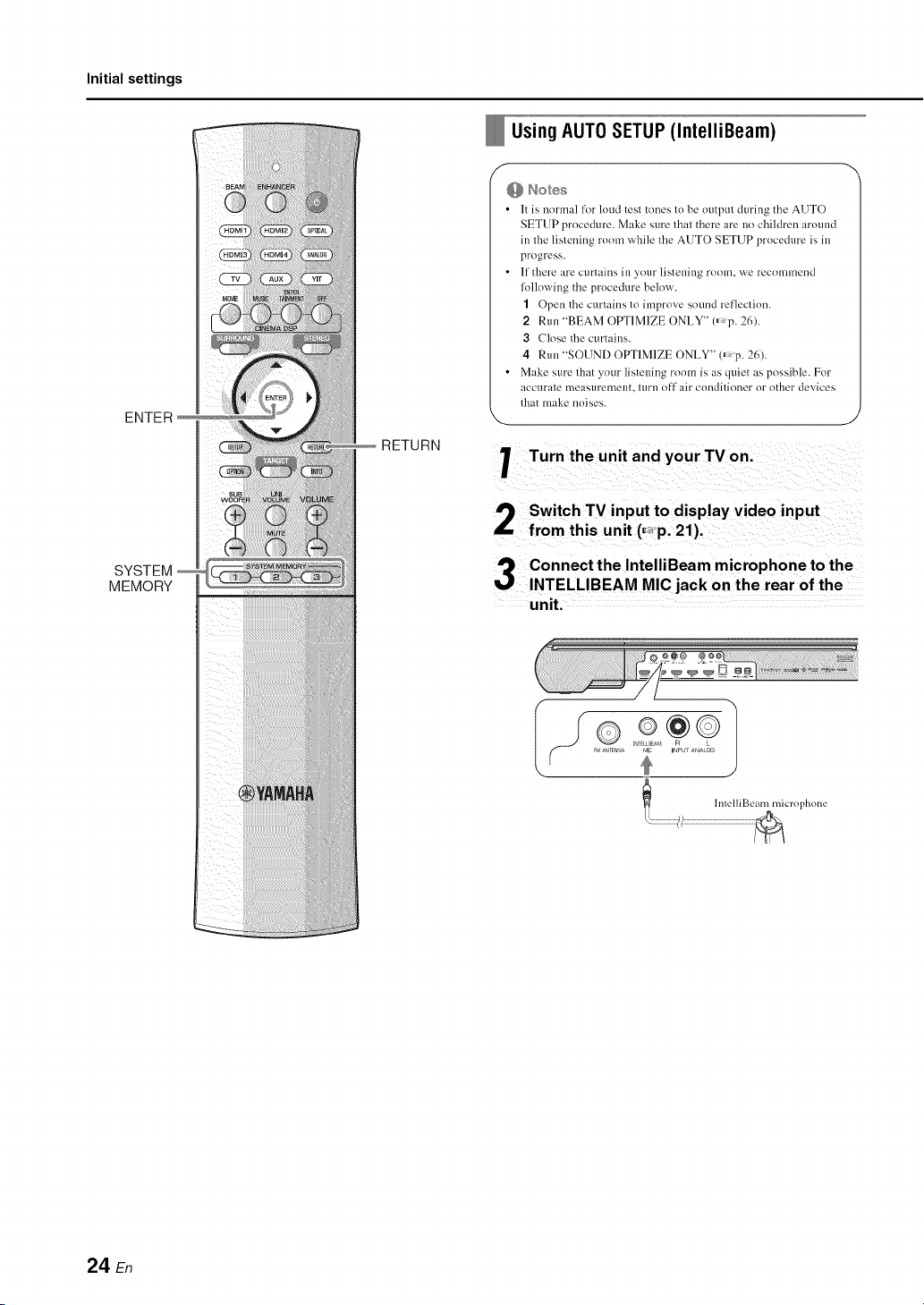
Using AUTO SETUP (IntelliBeam)
f-
• It is normal for loud test tones to be ot/tput dm'ing the AUTO
SETUP procedure. Make sure that there are no children around
in the listening room while the ALTTOSETUP procedure is in
progress.
• If there are curtains in ynur listening room, we recnmmend
lollowing the procedure below.
1 Open the curtains to improve snund reflectinn.
2 Run "BEAM OPTIMIZE ONLY" (_,p. 26).
3 Close the cm'tains.
4 Run "SOUND OPTIMIZE ONLY" (_p. 26).
• Make sure that your listening room is as quiet as possible. For
accurate measurement, turn oft" air conditioner or other devices
that make noises.
Turn the unit and your TV on.
Switch TV input to display video input
from this unit (_p. 21).
Connect the IntelliBeam microphone to the
INTELLIBEAM MIC jack on the rear of the
unit.
II ® 2¢01
'c "' •_,' _'_][NNA I IMI UNPU ANALOG
24 En
Initial settings
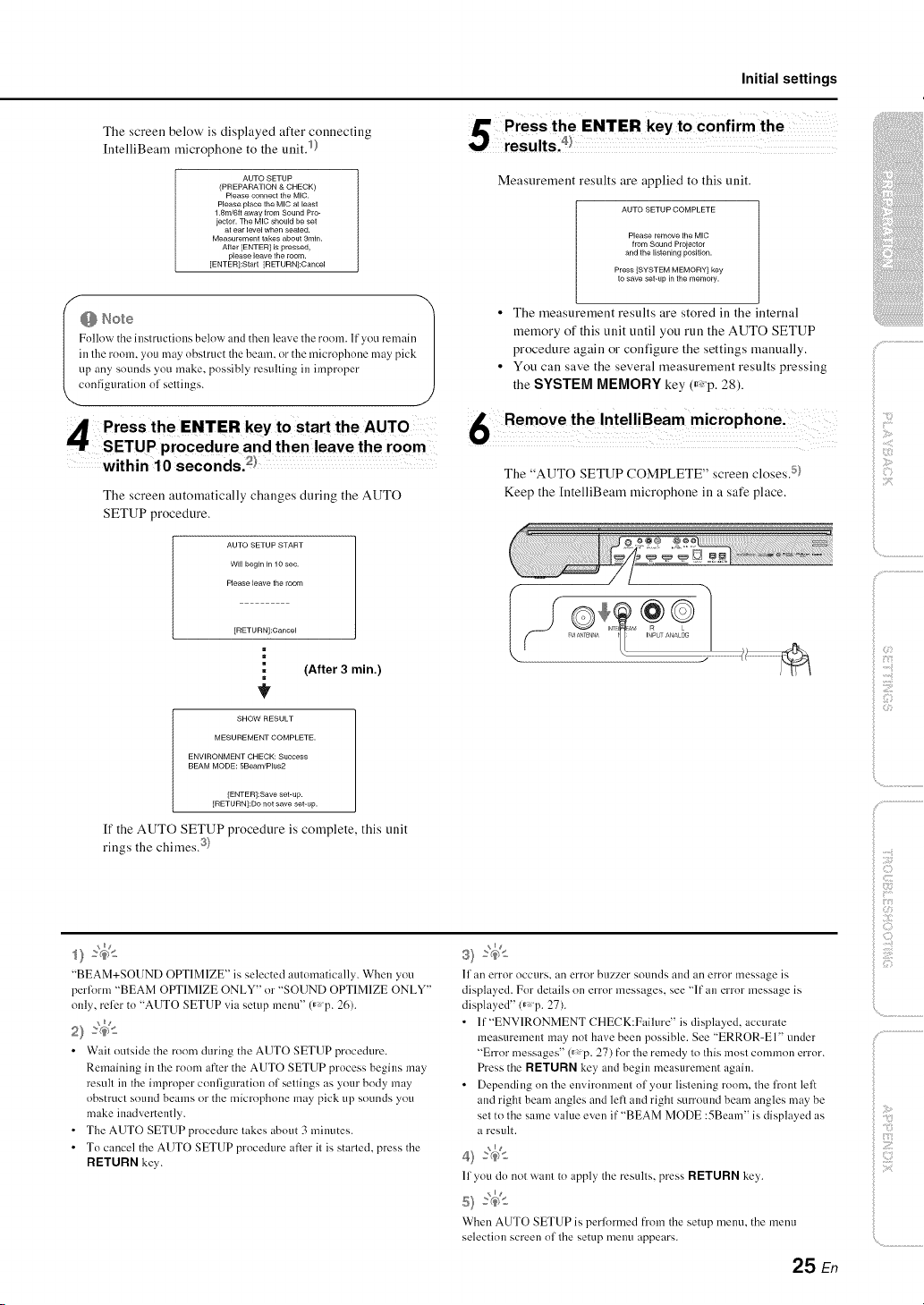
The screen below' is displayed after connecting
[ntelliBeam microphone to the unit. 1)
AUTO SETUP
(PREPARATION & CHECK)
Please connect the MIC.
Please place the MIC at [east
1.8m/6tt away from Sound Pro-
jector. The MIC should be set
at ear level when seated.
Measurement takes about 3rain.
After [ENTER[ is pressed,
please leave the room.
[ENTER]:Start [RETURN]:Cancel
Follovv' the inslructions below anLIthen leave the room. If you remain /
in lhe room, you may obslruc/the beam, or the microphone may pick
up any sOUnLIsyou make, possibly resulling in improper
cnnfiguralion ol sellings.
The screen automatically changes during the AUTO
SETUP procedure.
AUTO SETUP START
Wi[[ begin in 10 sec.
Please leave the room
[RETURN]:Cancel
m
(After 3 min.)
=
SHOW RESULT
MESUREMENT COMPLETE.
ENVIRONMENT CHECK: Success
BEAM MODE: 5Beam/Plus2
[ENTER]:Save set-up.
[RETURNI:Do not save set-up.
If the AUTO SETUP procedure is complete, this unit
rings the chimes. 3}
Measurement results are applied to this unit.
AUTO SETUP COMPLETE
Please remove the MIC
from Sound Prolector
and the listening position.
Press [SYSTEM MEMORY1 key
to save set-up in the memory.
• The measurement results are stored in the internal
memory of this unit until you run the AUTO SETUP
procedure again or configure the settings manually.
• You can save the several measurement results pressing
the SYSTEM MEMORY key (_<p. 28).
6 Remove the IntelliBeam microphone i
The "AUTO SETUP COMPLETE" screen closes. 5}
Keep the [ntelliBeam microphone in a safe place.
/. .................
i>
ilii_i_i_iiii_!i!i!iii!!i!_
', ,,iiiiii_'_!_i_iII!............
)
"BEAM+SOUND OPTIMIZE" is selected automatically. When you
perlorm "BEAM OPTIMIZE ONLY" or "SOUND OPTIMIZE ONLY"
only, relier to "AUTO SETUP via setup menu" (_,p. 26).
_ng
• Wait outside the room during the AUTO SETUP procedure.
Remaining in the room after the AUTO SETUP process begins may
result in the improper configuration of settings as your body may
obstruct sound beams or the microphone may pick up sounds you
make inadvertently.
• The AUTO SETUP procedure takes about 3 minutes.
• To cancel the AUTO SETUP procedure after it is started, press the
RETURN key.
II an error occtlrs, all error bLizzer sounds and an error message is
displayed. For details on error messages, see "If an error message is
displayed" <_p. 27).
• lf"ENV1RONMENT CHECK:Faihu'e" is displayed, accurale
measuremem may not have been possible. See "ERROR-El" uncler
"Error messages" 0_ p. 27) for the remedy 1o Ihis mosl common error.
Press the RETURN key, and begin measurement again.
• Depencling on lhe environmem ol your lislening room, lhe firont lelt
and righl beam angles ancl leR and righl surround beam angles may be
sel to Ihe same value even it""BEAM MODE :5Beam" is displayed as
a result.
_ng
11you do not warn to apply' the resulls, press RETURN key,.
When AUTO SETUP is performed from the setup menu. the menu
selection screen ollhe setup menu appears.
25 En
Z
Initial settings
At'it
SETUP
Fiiiiiiiiiiiiiiiiiiiiiiiiiiiill
ENTER
RETURN
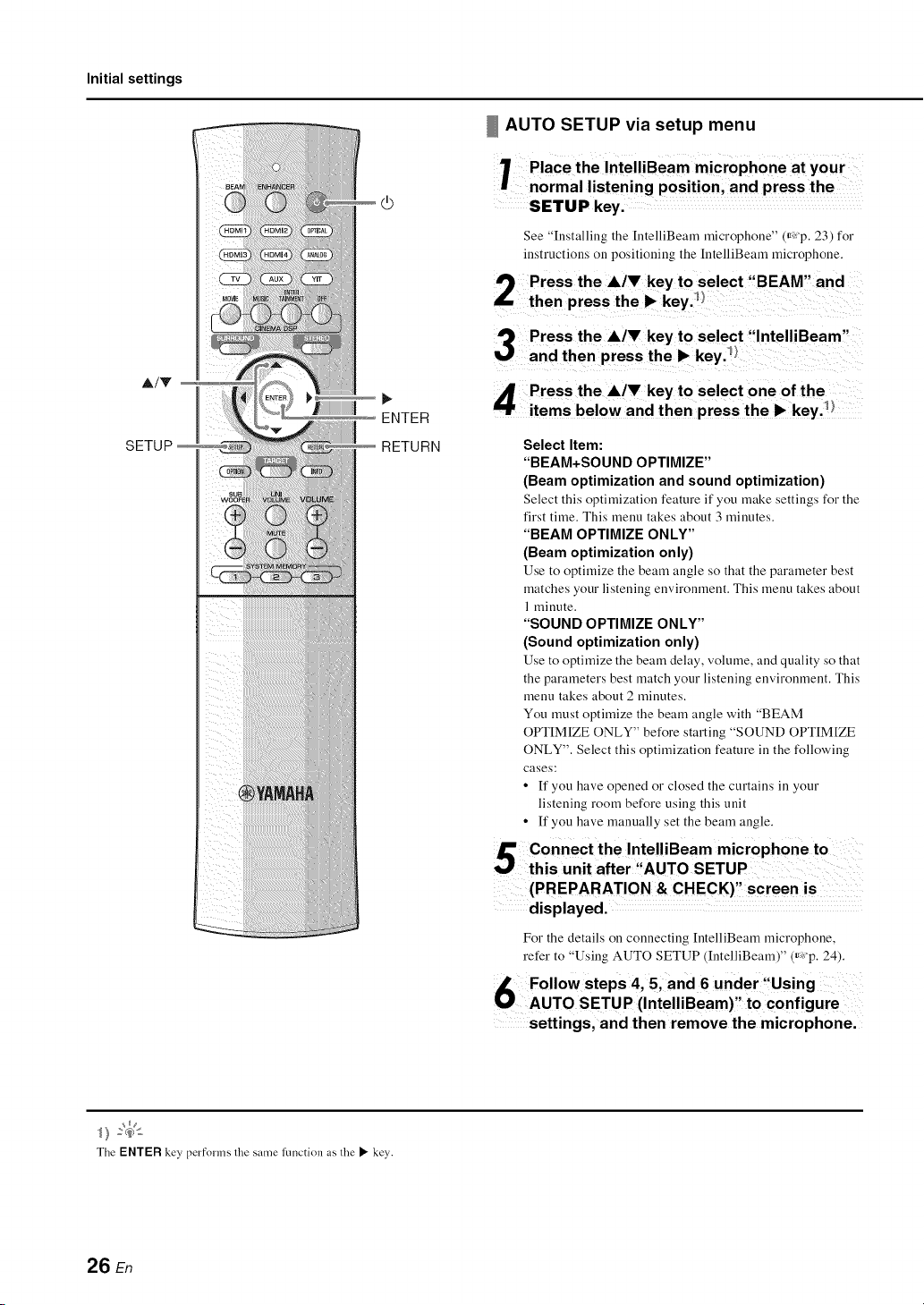
AUTO SETUP via setup menu
1 Place the IntelliBeam microphone at you r
normal listening position, and press the
SETUP key.
See "Installing the [ntelliBeam microphone" (,_xp. 23) for
instructions on positioning the IntelliBeam microphone.
Select Item:
"BEAM+SOUND OPTIMIZE"
(Beam optimization and sound optimization)
Select this optimization feature if you make settings for the
first time. This menu takes about 3 minutes.
"BEAM OPTIMIZE ONLY"
(Beam optimization only)
Use to optimize the beam angle so that the parameter best
matches your listening environment. This menu takes about
1 minute.
"SOUND OPTIMIZE ONLY"
(Sound optimization only)
Use to optimize the beam delay, volume, and quality so that
the paraineters best match your listening environment. This
menu takes about 2 minutes.
You must optimize the beam angle with "BEAM
OPTIM[ZE ONLY" before starting "SOUND OPTIM[ZE
ONLY". Select this optimization feature in the following
cases:
• If you have opened or closed the curtains in your
listening room before using this unit
• If you have manually set the beam angle.
(PREPARATION & CHECK)" screen is ......
displayed. .........
For the details on connecting [ntelliBeam microphone,
refer to 'Using AUTO SETUP (IntelliBeam)" (_,:'p. 24).
Follow steps 4, and 6 under :fUsing
AUTO SETUP (IntelliBeam)' to configure
settings, and then remove the microphone.
The ENTER key, performs lhe same function as lhe • key.
26 En

Initial settings
If an error message is displayed
If all error message is displayed on the TV screen, see "Error
messages" below' to determine the cause and resolve the problem.
Follow' the instructions below' to begin measurement again.
[ERROR E-l]
Press the ENTER key to run the AUTO SETUP procedure again.
Or press the • key to continue the measurement.
[ERROR E-7]
Press the (}) key to turu this uuit to the standby mode, then run
AUTO SETUP procedure again after turning this unit on.
[ERROR E-9]
1 Be sure that a wireless connection betweeu the subwoofer and
center unit has been established (_: p. 20).
2 Press the RETURN key.
The "IntelliBeam" menu is displayed.
3 Select "BEAM+SOUND OPTIM[ZE", "BEAM OPTIM[ZE
ONLY", or "SOUND OPTIM[ZE ONLY" and press the •
key. I)
4 Follow' steps 4, 5, and 6 to measure again (_:p. 25).
[ERROR E-2] through [ERROR E-6]
1 Press the RETURN key.
The "IutelliBeam" menu is displayed.
2 Select "BEAM+SOUND OPTIMIZE", "BEAM OPTIMIZE
ONLY", or "SOUND OPTIMIZE ONLY" and press the •
key. I)
3 Follow' steps 4, 5, and 6 to measure again (_:p. 25).
Error messages
Cause Remedy
There is too much noise in _our Make sure that 2tour listening
listening room. room is as quiet as possible. You
may want to choose certain hours
during the day when there is not
much noise coming from outside.
Cause Remedy
The lntelliBeam microphone is Connect the lntelliBeam
disconnected, microphone to the
1NTELL1BEAM MlCjack on the
rear of this unit and begin
measurement again.
Cause Remedy
Some other operations were Begin measurement again. Do
performed on this unit. not perform any other operations
with this unit during
measurement.
Cause
The hnelliBeam microphone is
not placed in h'ont ol this unit.
Remedy
Position lhe I ntelliBeam
microl?hone in fl'ont ol 1his unit
and begin measurement again.
Cause Remedy
The lntelliBeam microphone is Position the hltelliBeam
not placed in the right distance microphone at a distance of more
from this unit. than 1.8 m (6.0 1:) from this unit
and begin measurement again.
Cause Remedy
The lntelliBeam microphone Position the lntelliBeam
cannot collect the sound microphone properly, check the
produced by this unit. connection, and then begin
measurement again.
Cause Remedy
An internal s}stem error Press the @ key to mrn this unit
occurred, to the standby mode, then run
AUTO SETUP procedure again
after turlfing this unit on.
Cause Remedy
The s[]hx_roo]_r is not connected Be sure that at vvrireless
wirelessly, colmection between the
subwooli_r and center unit has
been established 0_ p. 20) and
measure again.
(3
f
)
ii _i_i;iiiiiiii
_ :7
Z
27 En
Initial settings
SYSTEM
MEMORY
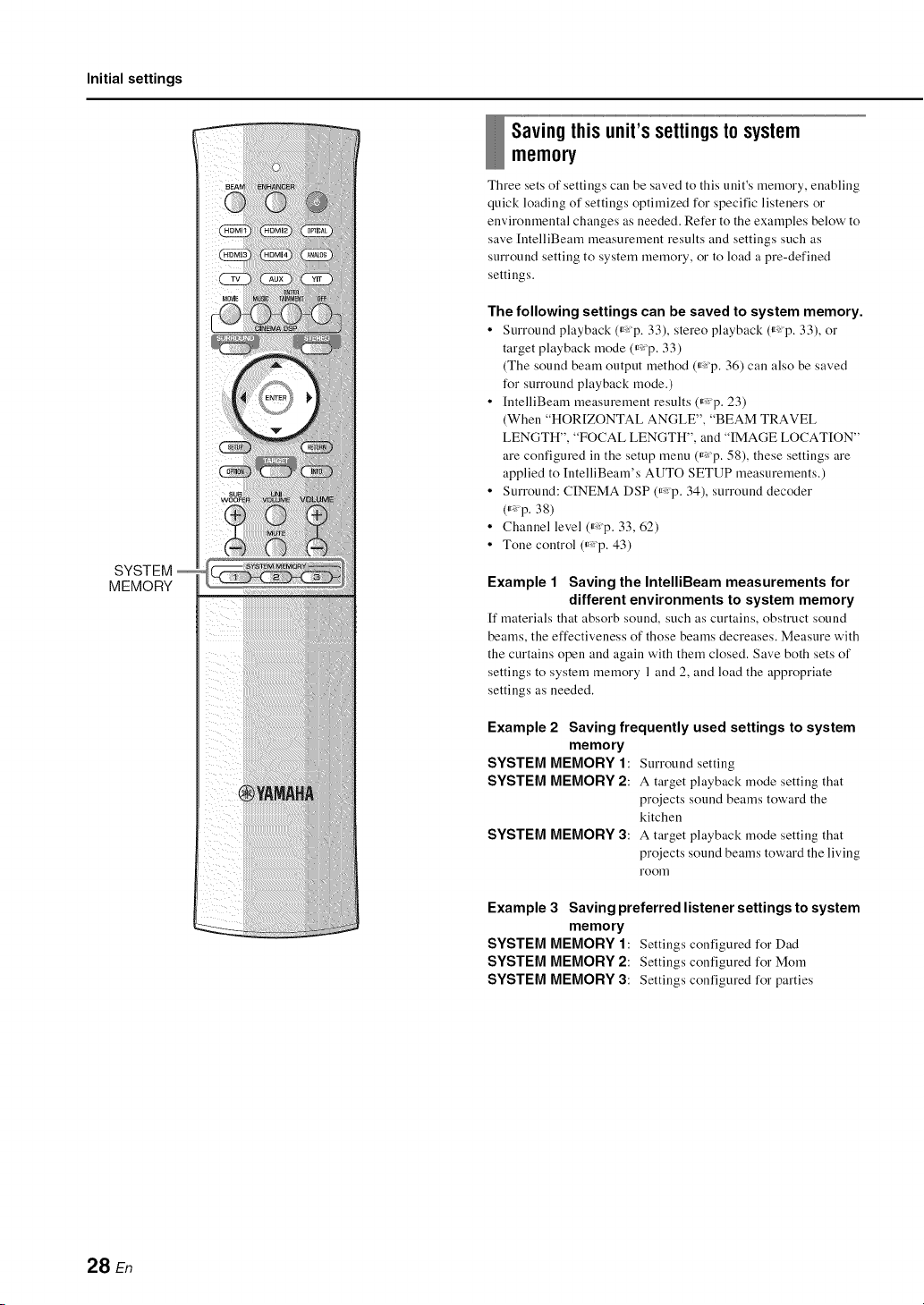
Savingthisunit'ssettingstosystem
memo_
Three sets of settings can be saved to this unit's memory, enabling
quick loading of settings optimized for specific listeners or
environmental changes as needed. Refer to the examples below' to
save [ntelliBeam measurement results and settings such as
surround setting to system memory, or to load a pre-defined
settings.
The following settings can be saved to system memory.
• Surround playback (_ p. 33), stereo playback (_ p. 33), or
target playback rnode (_,_p. 33)
(The sound beam output method (_,_p. 36) can also be saved
for surround playback rnode.)
• [ntelliBeam measurernent results (_p. 23)
(When "HOR[ZONTAL ANGLE", "BEAM TRAVEL
LENGTH", "FOCAL LENGTH", and "IMAGE LOCATION"
are configured in the setup rnenu (_,_p. 58), these settings are
applied to IntelliBearn's AUTO SETUP measurements.)
• Surround: CINEMA DSP (_,_p. 34), surround decoder
(_ p. 38)
• Channel level (_:p. 33, 62)
• Tone control (_,:p. 43)
Example 1 Saving the IntelliBeam measurements for
different environments to system memory
[f materials that absorb sound, such as curtains, obstruct sound
beams, the effectiveness of those beams decreases. Measure with
the curtains open and again with them closed. Save both sets of
settings to system memory 1 and 2, and load the appropriate
settings as needed.
Example 2 Saving frequently used settings to system
memory
SYSTEM MEMORY 1: Surround setting
SYSTEM MEMORY2: A target playback mode setting that
projects sound beams toward the
kitchen
SYSTEM MEMORY 3: A target playback mode setting that
projects sound beams toward the living
room
Example 3 Saving preferred listener settings to system
memory
SYSTEM MEMORY 1: Settings configured for Dad
SYSTEM MEMORY 2: Settings configured for Morn
SYSTEM MEMORY 3: Settings configured for parties
28 En
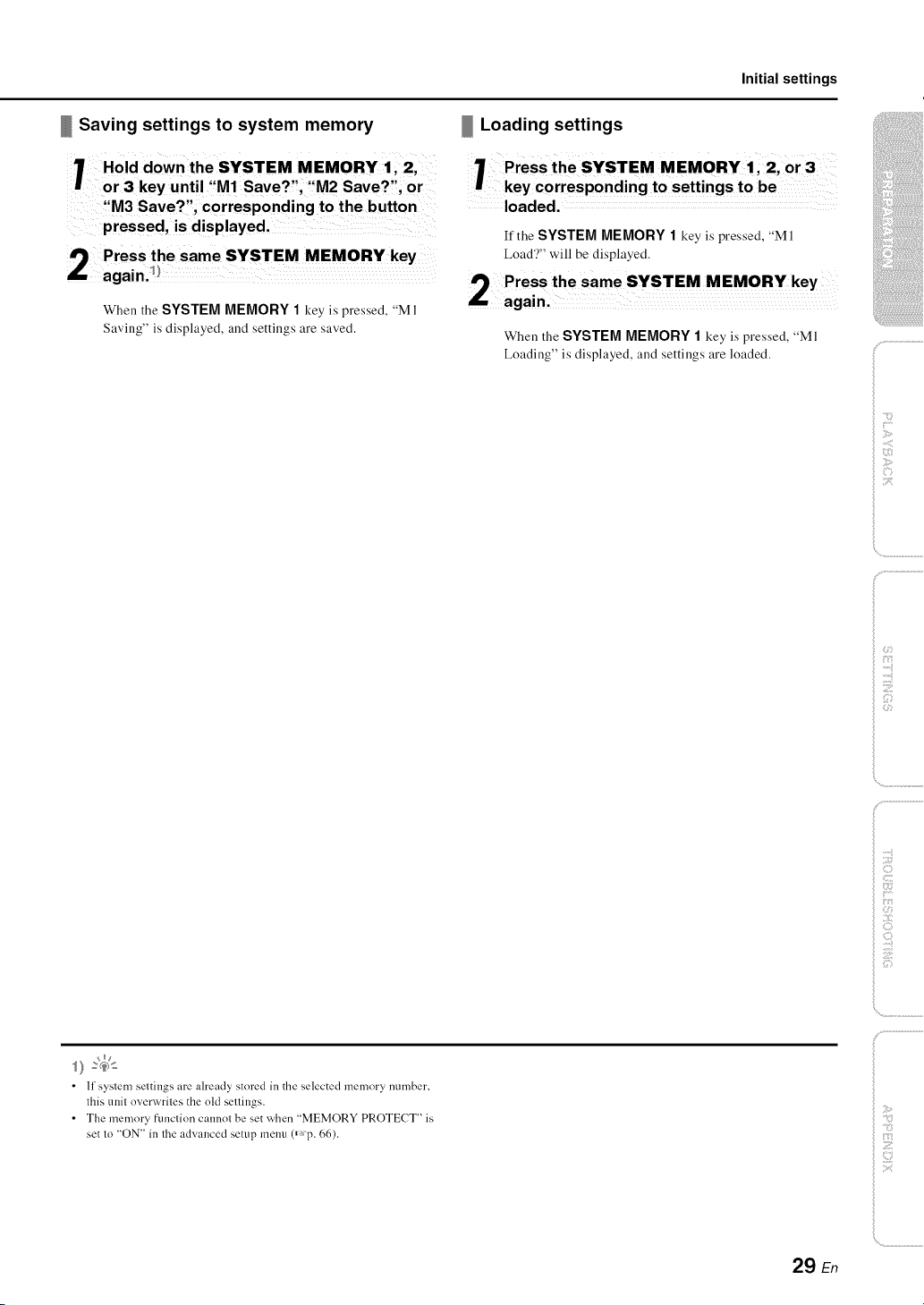
Initial settings
Saving settings to system memory
7 Hold down the SYSTEM, MEMORY 1,:2,
or 3 key until M1Save? ;'M2Save? ;O r
,M3 Save?", corresponding to the button
pressed, is displayed,
I') Press the same SYSTEM MEMORY key
again])
When the SYSTEM MEMORY 1 key is pressed, "M 1
Saving" is displayed, and settings are saved.
Loading settings
1 Press theSYSTEM MEMORY 112' or3
key corresponding to settings to be
loaded.
If the SYSTEM MEMORY 1 key is pressed, "MI
Load'?" will be displayed.
9 Press the same SYSTEM MEMORY key
i.. again.
When the SYSTEM MEMORY 1 key is pressed, "MI
Loading" is displayed, and settings are loaded.
ilii_i_i_iiii_!i!i!iii!!i!_
', ,,iii;ii_'_!_i_iII!............
• If system settings are already stored in the selected memory number,
this unit overwrites the old settings.
• The memory ftmction cannot be set when "MEMORY PROTECT" is
set to "ON" in the advanced setup melm (_,p. 66).
29 En
Initial settings
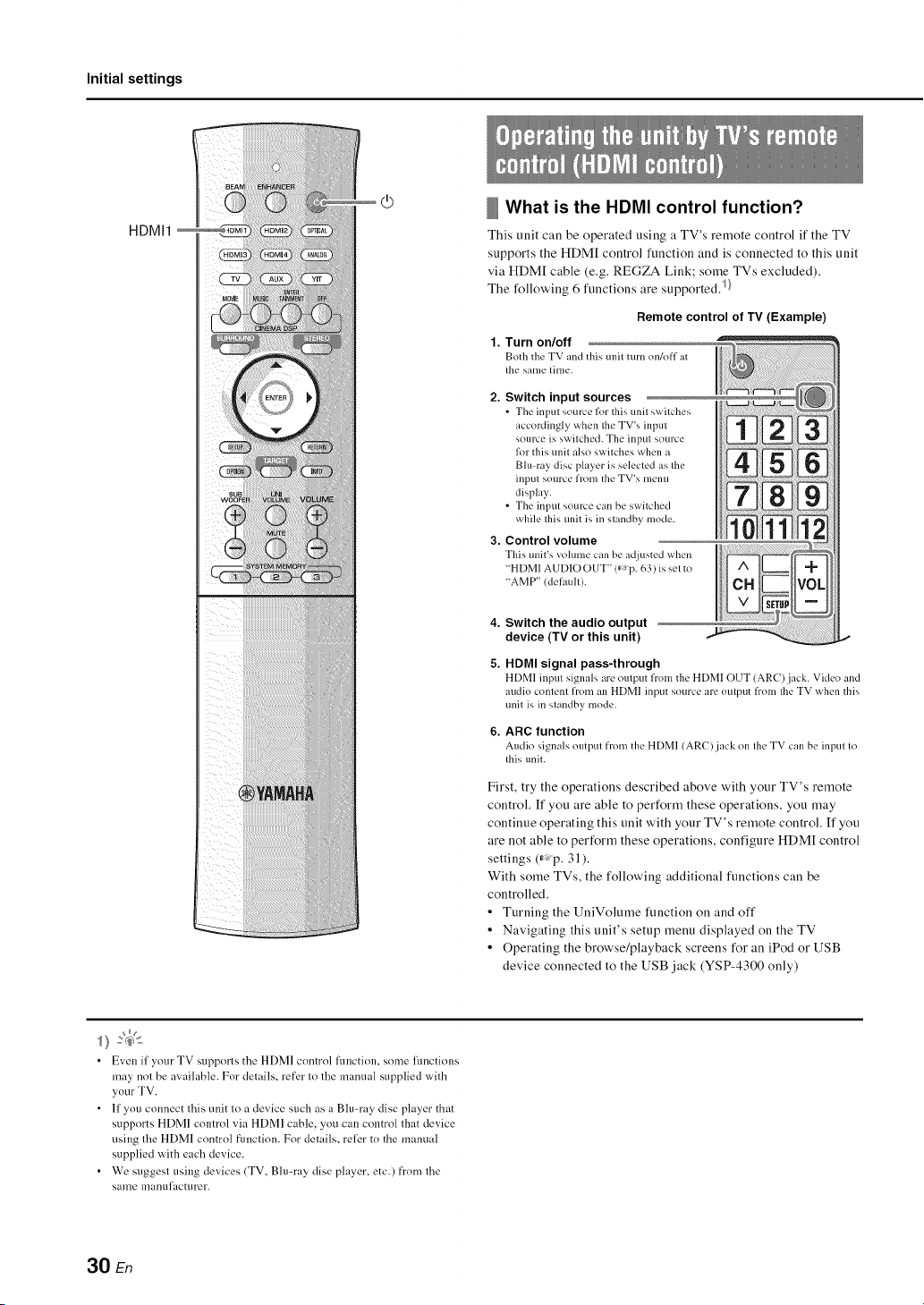
HDMI1
What is the HDMI control function?
This trait call be operated using a TV's reruote control if the TV
supports the HDM[ control ftmction and is connected to this unit
via HDM[ cable (e.g. REGZA Link; some TVs excluded).
The following 6 ftmctions are supported)}
1.
Remote control of TV (Example)
Turn on/off
Both the TV and this/mit turn on/off at
tile same time.
2. Switch input sources
• The input source lklr this unit switches
accordingly when the TV's input
source is switched. The input source
lkw this unit also switches when a
Blu-ray disc player is selected as the
input source from the TV's menu
display.
• The input source can be switched
while this unit is in standby mode.
3. Control volume
This unit's volume can bc ad.justcd when
"HDMI AUDIO OUT" 0" P. 63) is set to
"AMP" (default).
4. Switch the audio output
device (TV or this unit)
5. HDMI signal pass-through
6.
HDMI input signals are output from the HDMI OUT (ARC)jack. Video and
audio content from an HDMI input source art. ' output from tile TV when this
unit is in standby mode.
ARC function
Audio signals output from the HDMI (AR()jack on tilt' TV can bc input to
this unit.
First, try the operations described above with your TV's remote
control. If you are able to perform these operations, you may
continue operating this unit with your TV's remote control. If you
are not able to perform these operations, configure HDM[ control
settings (_: p. 31 ).
With some TVs, the following additional functions can be
controlled.
• Turning the UuiVolume function on and off
• Navigating this unit's setup menu displayed on the TV
• Operating the browse/playback screens for an iPod or USB
device connected to the USB jack (YSP-4300 only)
• Even if your TV supports the HDMI control Rmction, some functions
may not be available. For details, refer to the manual supplied with
your TV.
• If you connect this unit to a device such as a Blu-ray disc player that
supports HDMI control via HDMI cable, you can control that device
using the HDMI control flmction. For details, relier to the manual
supplied with each device.
• We suggest using devices (TV, Bh>ray disc player, etc.) fi'om the
same manufacturer.
30 En
Initial settings
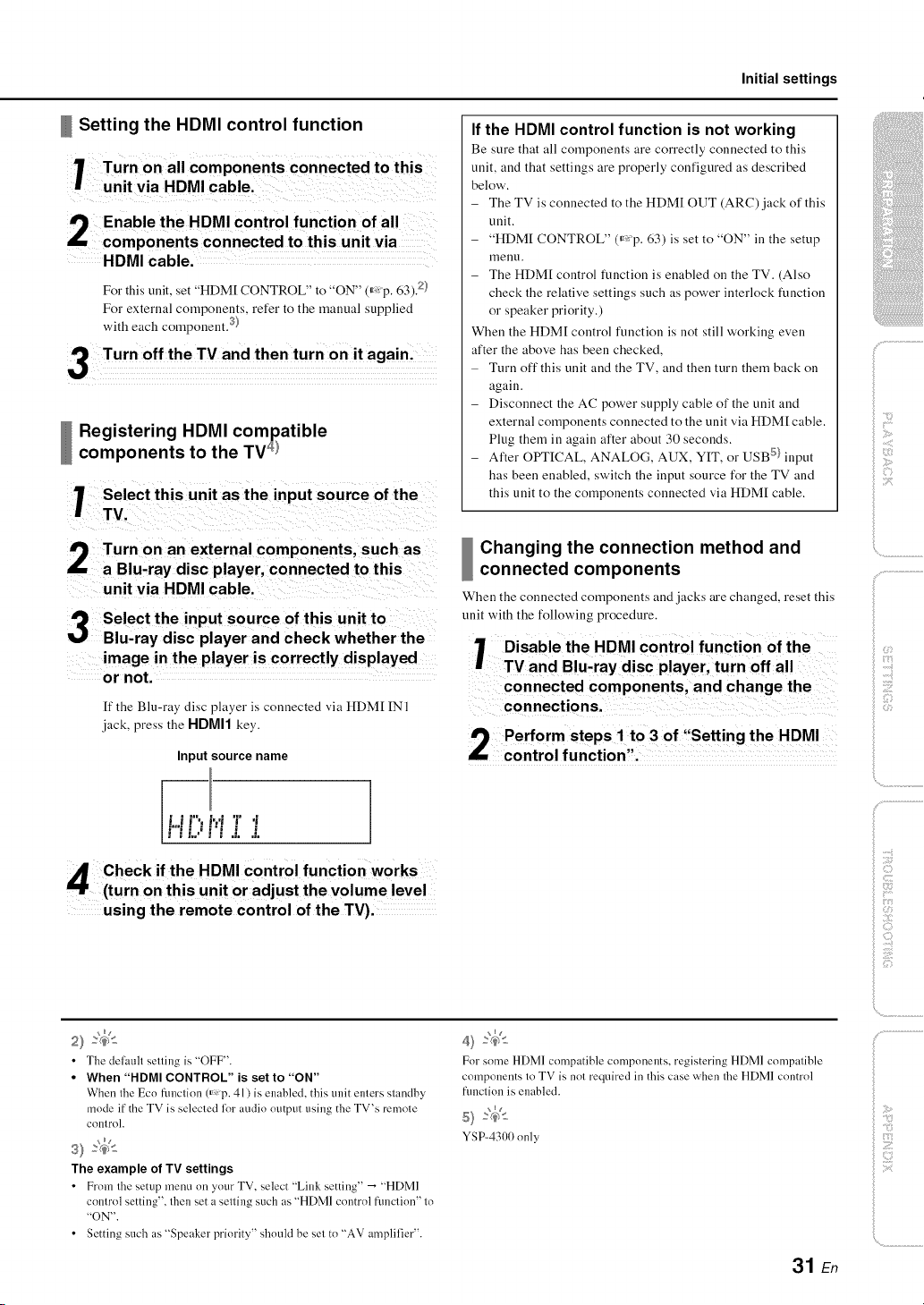
Setting the HDMI control function
2Enable the HDMI control function of all
components connected to this unit via
HDMI cable.
For this unit, set "HDM[ CONTROL" to "ON" (_xp. 63)9
For external components, refer to the manual supplied
with each component. 3)
Registering HDMI compatible
components to the TV 4)
7 Select this unit as the input source of the
I TV.
Turn on an external components, such as
a Blu-ray disc player, connected to this
unit via HDMI cable.
Select the input source of this unit to
Blu-ray disc player and check whether the
image in the player is correctly displayed
or not.
If the Blu-ray disc player is connected via HDM[ IN I
jack, press the HDMI1 key.
Input source name
i"i Zi
4 Check if the HDMI control function works
(turn on this unit o r adjust the volume level
using the remote control of the TV),
If the HDMI control function is not working
Be sure that all components are correctly connected to this
unit, and that settings are properly configured as described
below'.
The TV is connected to the HDM[ OUT (ARC) jack of this
unit.
"HDM[ CONTROL" (_,: p. 63) ix set to "ON" in the setup
menl.1.
The HDM[ control Nnction is enabled on the TV. (Also
check the relative settings such as power interlock Nnction
or speaker priority.)
When the HDM[ control Nnction ix not still working even
after the above has been checked,
Turn off this unit and the TV, and then turn them back on
again.
Disconnect the AC power supply cable of the unit and
external components connected to the unit via HDM[ cable.
Plug them in again after about 30 seconds.
After OPTICAL, ANALOG, AUX, YIT, or USB 5) input
has been enabled, switch the input source for the TV and
this unit to the components connected via HDM[ cable.
Changing the connection method and
connected components
When the connected components and jacks a:e changed, reset this
unit with the following procedure.
1 Disable the HDMI control function of the
TV and Blu,ray disc player, turn off all
{Y)
ii i;!i¸¸
ii! _i;_!
_ii <i:!
iii iiii!il}_iiii!i!
ili {;il)
2) :(_s
• The del_.mlt setting is "OFF".
• When "HDMI CONTROL" is set to "ON"
When the Eco functinn (_,_p. 41 ) is emd_led, this unit enters smndb>
mode if the TV is selected lot audio output using the TV's remote
control.
s>4<
The example of TV settings
• From the setup menu on your TV, select "Link setting" _ "HDM]
control setting", then set a setting such as "HDMI control fimction" to
"ON".
• Setting such as "Speaker priority" should be set to "AV amplifier".
4) _(_
For some HDMI compatible components, registering HDMI compatible
components to TV is not required in this case when the HDMI control
function is enabled.
5) _
YSP-4300 only
31 En
Playbackfeatures
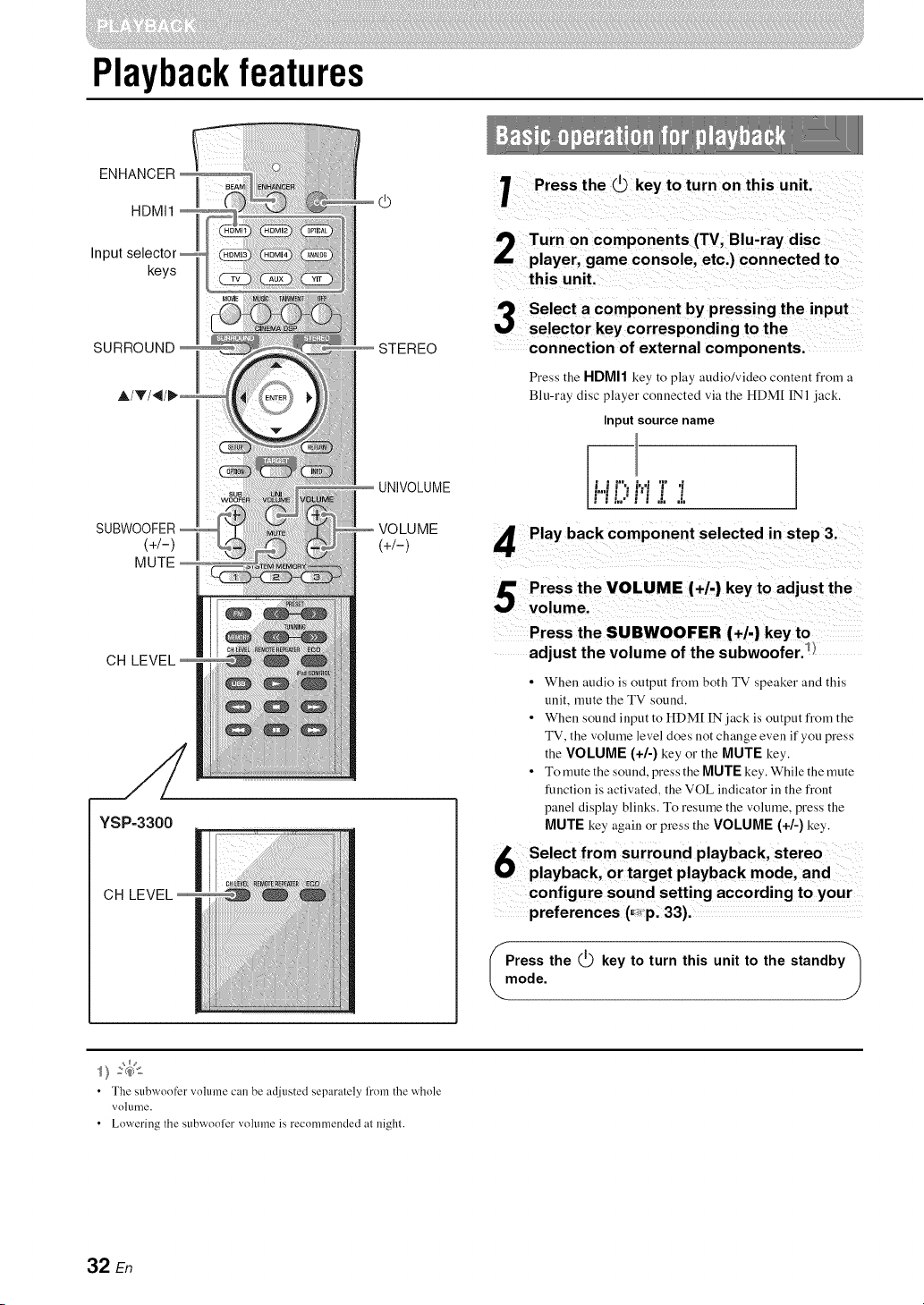
ENHANCER
HDMI1
In_
keys
SURROUND
SUBWOOFER
(+/-)
MUTE
CH LEVEL
YSP=3300
CH LEVEL
d_
STEREO
I
UNIVOLUME
VOLUME
(+/-)
unit.
Turn on components (TV, Blu-ray disc
player, game console, etc.) connected to
this unit.
Select a component by pressing the input
selector key corresponding to the
connection of external components.
Press the HDMI1 key to play audio/video content from a
Blu-ray disc player connected via the HDM[ INI jack.
Input source name
)
H[:,l"ii; .t
Press the SUBWOOFER (+/.) key to .............
adjust the volume of the subwoofer])
• When audio is output fl'om both TV speaker and this
unit, mute the TV sound.
• When sound input to HDM[ IN jack is output fl'om the
TV, the volume level does not change even if you press
the VOLUME (+1-) key or the MUTE key.
• To mute the sound, press the MUTE key. While the mute
function is activated, the VOL indicator ill the front
panel display blinks. To resume the volume, press the
MUTE key again o]"press the VOLUME (+/-) key.
6 Sra_ebt:k°mrStUrr:°e_ndP'baYbkCkod:re°
P y , i i g P y , d
configure sound setting according to you r
preferences (_p; 33).
ress the (_ key to turn this unit to the standby /
ode.
/
• Tile stlbwoo_'or vohlme Call be adiusted separalely lroln the whole
volume.
• Lowering the subwoofer vohlme is recommended at night.
32 En
Playback features
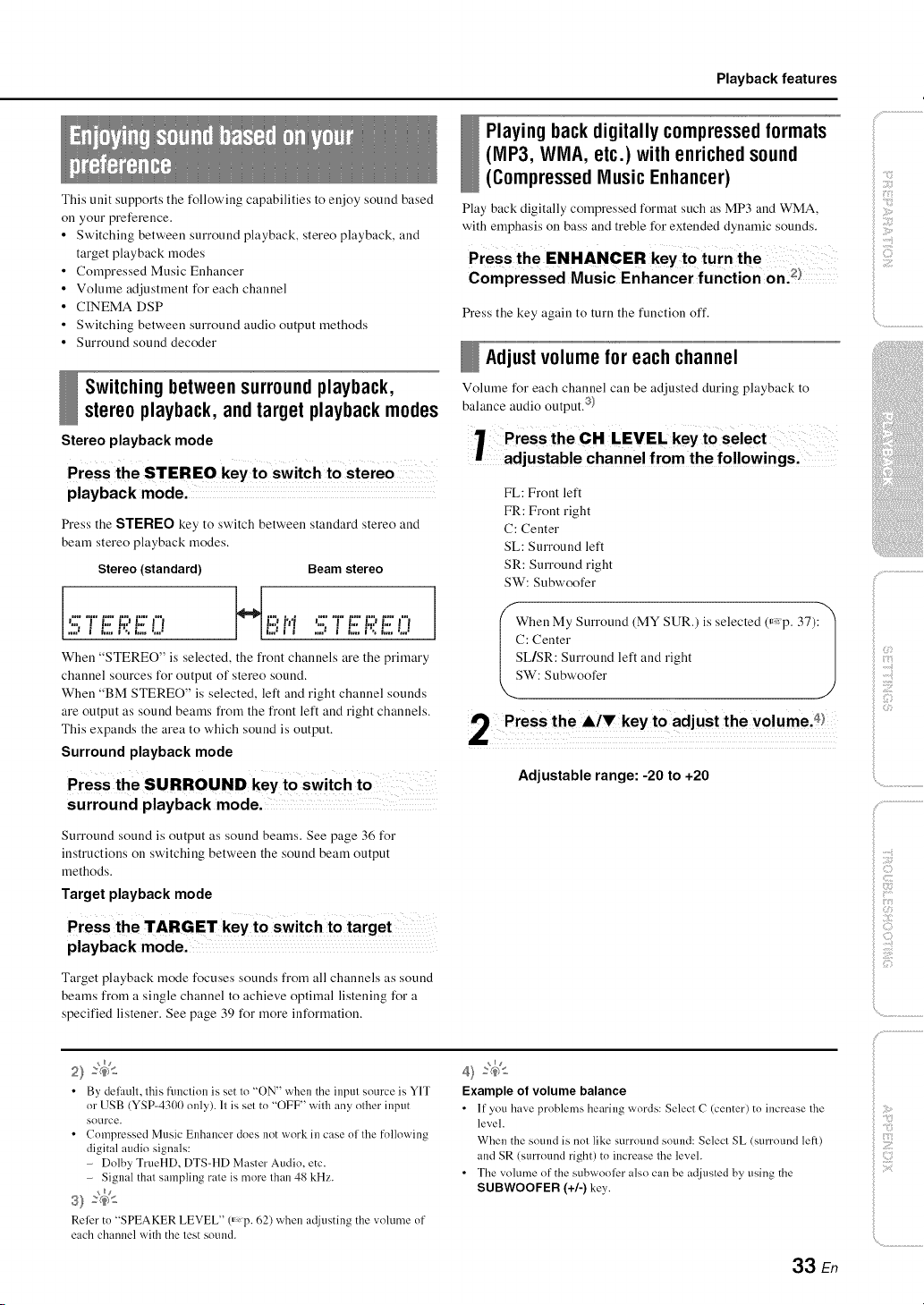
This unit supports the following capabilities to enjoy sound based
on your preference.
• Switching between surround playback, stereo playback, and
target playback )nodes
• Compressed Music Enhancer
• Volume adjustment for each channel
• CINEMA DSP
• Switching between surround audio output methods
• Surround sound decoder
Switchingbetweensurroundplayback,
stereoplayback, and target playbackmodes
Stereo playback mode
Playing back digitally compressed formats
(MP3, WMA, etc.) with enriched sound
(Compressed Music Enhancer)
Play back digitally compressed format such as MP3 and WMA,
with emphasis on bass and treble for extended dynamic sounds.
Press the key agaiu to turu the fuuctiou off.
Adjustvolumefor eachchannel
Volume for each chauuel cau be adjusted during playback to
balance audio output, s}
_i'8
ii >
i! '{3¸¸¸
iiii il;i;iiiii_;il
playback mode.
Press the STEREO key to switch between standard stereo and
beam stereo playback modes.
Stereo (standard) Beam stereo
I I
................ J ! i,.;i i ....; i i,..i'..i,..;,.;
When "STEREO" is selected, the front channels are the primary
channel sources for output of stereo sound.
When "BM STEREO" is selected, left and right channel sounds
are output as sound beams from the front left and right channels.
This expands the area to which sound is output.
Surround playback mode
Press the SURROUND key to switch t°
surround playback mode.
Surround souud is output as sound beams. See page 36 for
instructions on switching betweeu the souud beam output
methods.
Target playback mode
FL: Front left
FR: Front right
C: Center
SL: Surround left
SR: Surround right
SW: Subwoofer
Wheu My Surround (MY SUR.) is selected (_Xp. 37):"_
C: Center
SL/SR: Surrouud left and right
SW: Subwoofer
Adjustable range: -20 to +20
playback mode.
Target playback mode focuses souuds from all channels as sound
beams from a single channel to achieve optimal listening for a
specified listener. See page 39 for more information.
• By delault, this fimctiou is set to "ON" when the input source is Y1T
or USB (YSP-4300 only). It is set to "OFF" with any other input
source.
• Compressed Music Enhancer does not work in case nllhe following
digital audio signals:
- Dolby TrueHD, DTS-HD Master Audio, etc.
- Signal that sampling rate is more than 48 kHz.
_ng
s) _:_
Relier to "SPEAKER LEVEL" (_p. 62) when adjusting the volume of
each channel with the test sound.
4) _(_>_
Example of volume balance
• It" _ou have problems hearing words: Select C (center) to increase the
level.
When the sound is not like surround sound: Select SL (surrnnnd left)
and SR (surround right) to increase the level.
• The volume of the subwooli_r also can be adjusted by using the
SUBWOOFER (+/-) key.
33 En
# .................
_;j 133
_ii!G'_!_
iiiI ({i}iiii
!i!iii_!_i_}!_iii;
iiii {iiiii)
iiii ,_'"{'i
# ...................
iili!i!iiii!!iiiii,i!
ii:i;il}iii_i_i
;>:_ii
Playback features
DSP
SURROUND
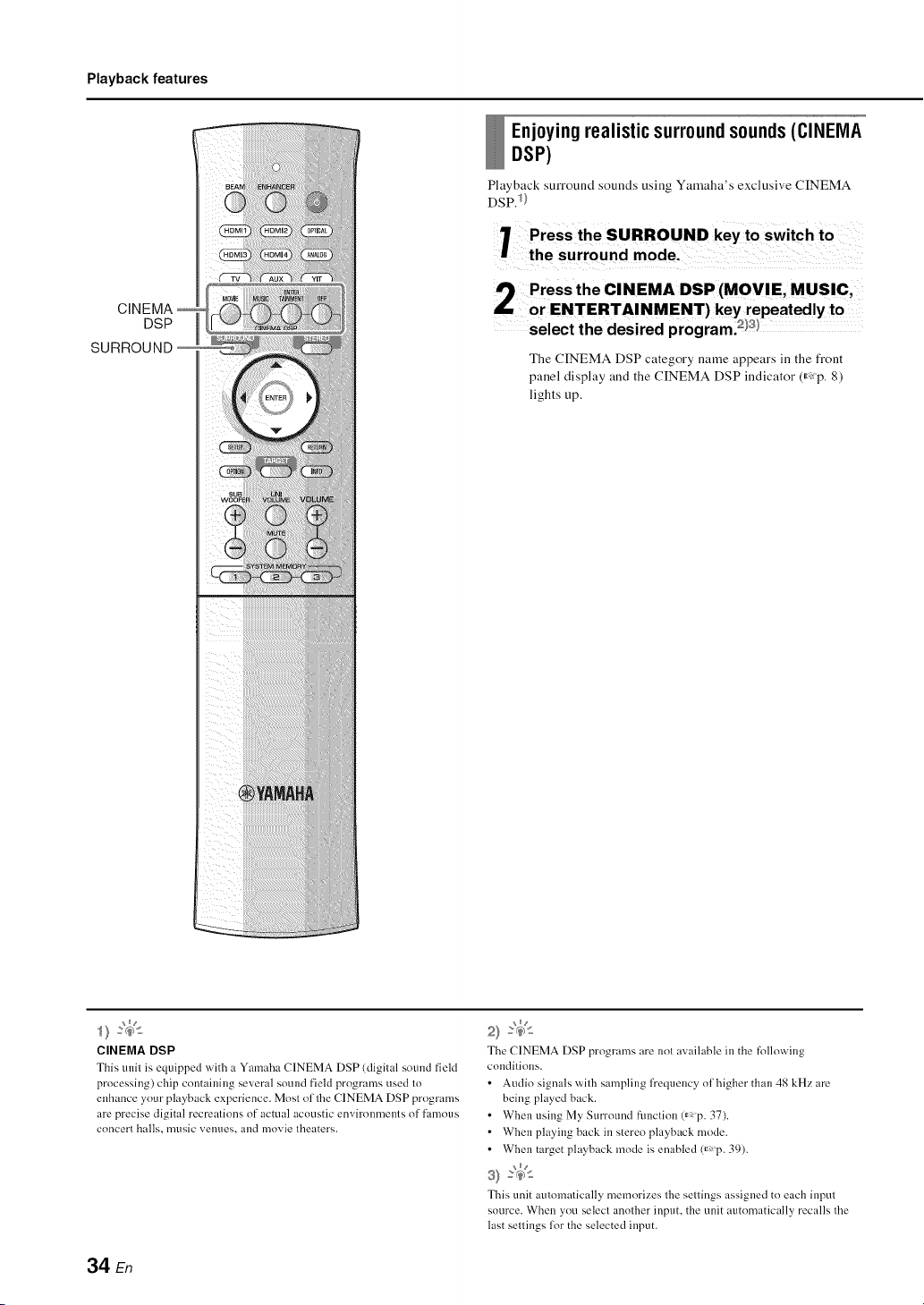
Enjoying realistic surround sounds (CINEMA
DSP)
Playback surround sounds using Yamaha's exclusive CINEMA
DSP. 1)
Press the SURROUND key to switch to
the surround mode.
2 Press the CINEMA DSP (MOVIE, MUSIC,
or ENTERTAINMENT) key repeatedly to
select the desired program.83_
The CINEMA DSP category name appears ill the front
panel display and the CINEMA DSP indicator (_,: p. 8)
lights up.
CINEMA DSP
This unit is equipped with a Ymnaha CINEMA DSP (digital sound field
processing) chip containing several sound field programs used to
enhance your playback experience. Most of the CINEMA DSP programs
are precise digital recreations of actual acoustic envirolm/ents of fi_mnus
concert balls, music relines, and movie theaters.
The CINEMA DSP programs are not available in the following
conditions.
• Audio signals witll sampling fi'equellcy of higher than 48 kHz are
being played back.
• When using My Surroundfimction6_ p. 37).
• When playing back in stereo playback mode.
• When target playback mode is enabled 6_p. 39).
s) _:_
This unit automaticall_ memnrizes tlle settings assigned tn each inptlt
source. When you select annther input, the unit automatically recalls tlle
last settings for the selected input.
34 En
Playback features
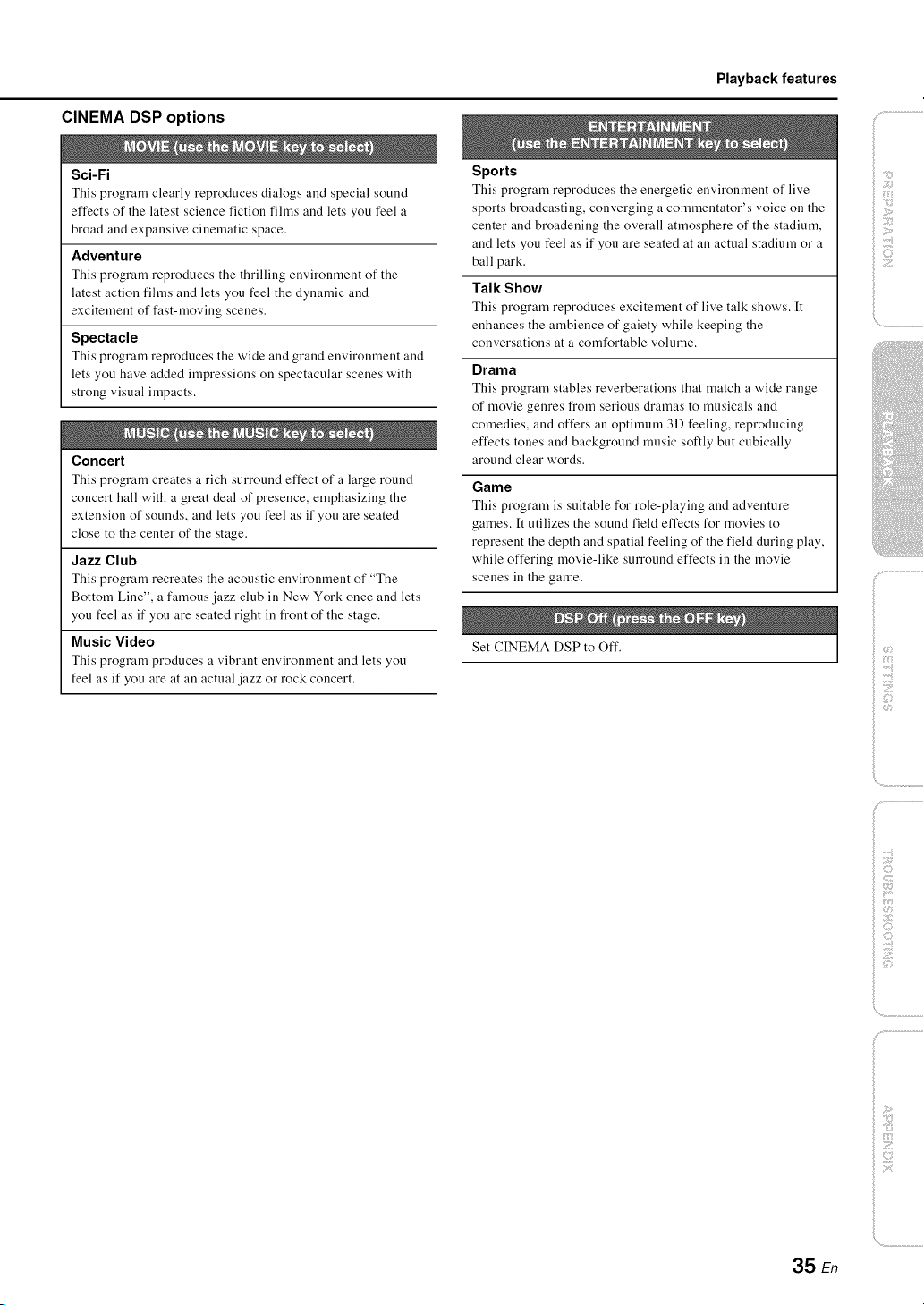
CINEMA DSP options
Sci-Fi
This program clearly reproduces dialogs and special sound
effects of the latest science fiction films and lets you feel a
broad and expansive cinematic space,
Adventure
This program reproduces the thrilling environment of the
latest action films and lets you feel the dynamic and
excitement of fast-moving scenes.
Spectacle
This program reproduces the wide and grand environment and
lets you have added impressions on spectacular scenes with
strong visual impacts.
Concert
This program creates a rich surround effect of a large round
concert hall with a great deal of presence, emphasizing the
extension of sounds, and lets you feel as if you are seated
close to the center of the stage.
Jazz Club
This program recreates the acoustic environment of "The
Bottom Line", a famous jazz club in New York once and lets
you feel as if you are seated right in front of the stage.
Music Video
This program produces a vibrant environment and lets you
feel as if you are at an actual jazz or rock concert.
Sports
This program reproduces the energetic environment of live
sports broadcasting, converging a commentator's voice on the
center and broadening the overall atmosphere of the stadium,
and lets you feel as if you are seated at an actual stadimn or a
ball park.
Talk Show
This program reproduces excitement of live talk shows. It
enhances the ambience of gaiety while keeping the
conversations at a comfortable volume.
Drama
This program stables reverberations that match a wide range
of movie genres from serious dramas to musicals and
comedies, and offers an optimum 3D feeling, reproducing
effects tones and background music softly but cubically
around clear words.
Game
This program is suitable for role-playing and adventure
games. It utilizes the sound field effects for movies to
represent the depth and spatial feeling of the field during play,
while offering movie-like surround effects in the movie
scenes in the game.
Set CINEMA DSP to Off.
il;i;iiiii_;il
)
35 En
Playback features
BEAM
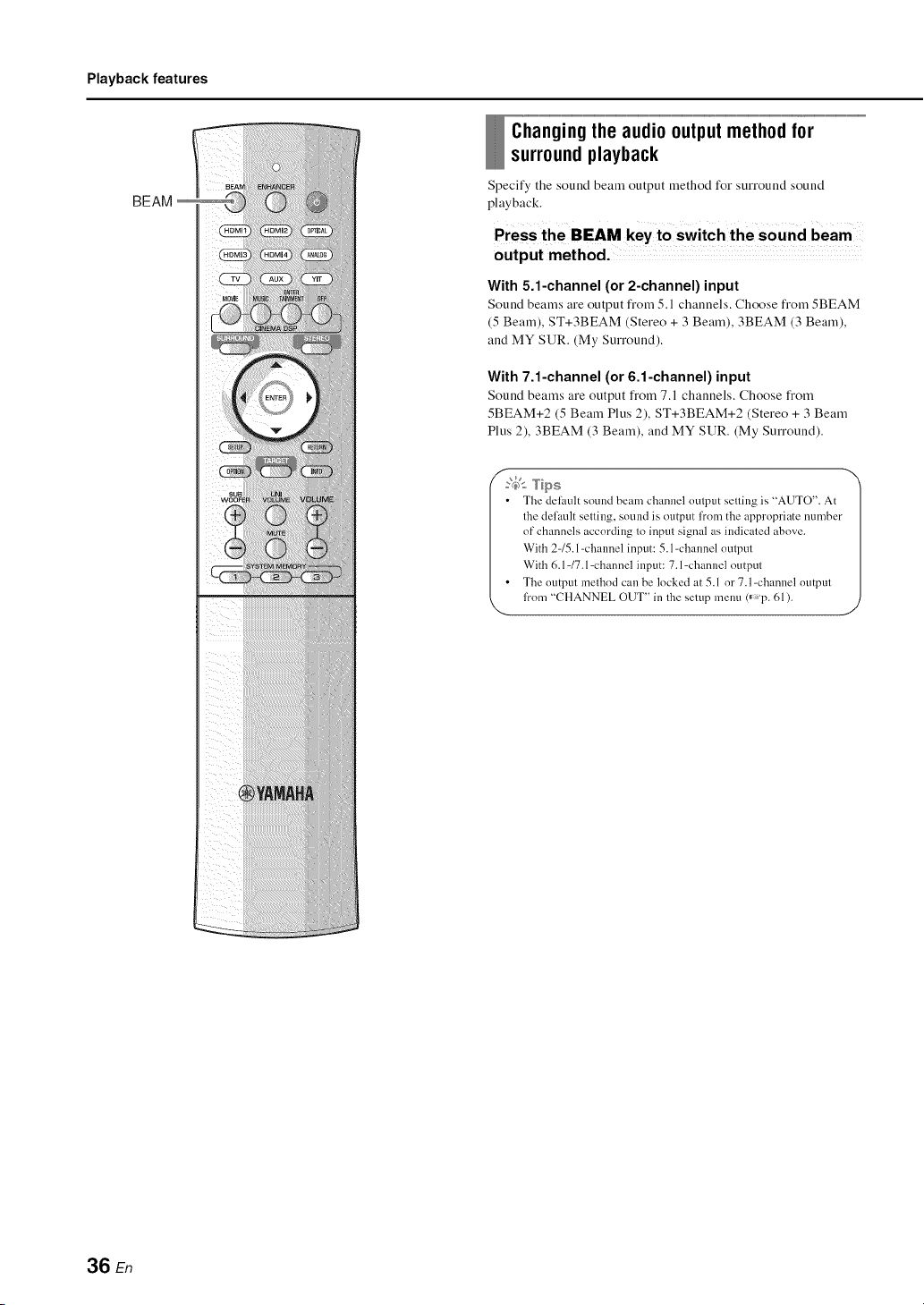
Changing the audio output methodfor
surroundplayback
Specify the sound beam output method for surround sound
playback.
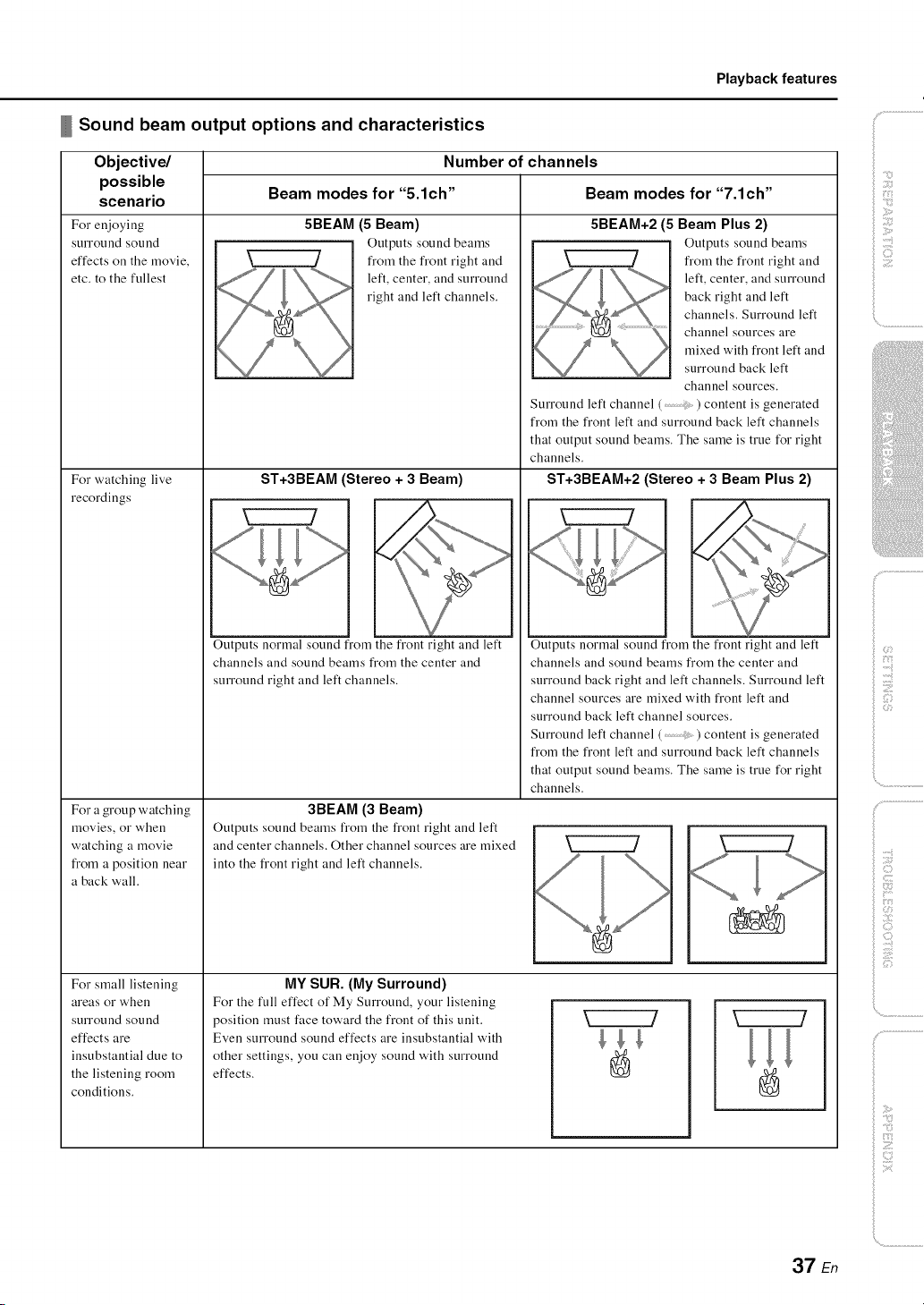
Press the BEAM key to switch the sound beam
output method.
With 5.1-channel (or 2-channel) input
Sound beams are output from 5. l channels. Choose from 5BEAM
(5 Beam), ST+3BEAM (Stereo + 3 Beam), 3BEAM (3 Beam),
and MY SUR. (My Surround).
With 7.1-channel (or 6.1-channel) input
Sound beams are output from 7.1 channels. Choose from
5BEAM+2 (5 Beam Plus 2), ST+3BEAM+2 (Stereo + 3 Beam
Plus 2), 3BEAM (3 Beam), and MY SUR. (My Surround).
f
:_>_ Tips
• The delimit sound beam channel output selling is "AUTO". At
the def:mlt setting, sound is output fl'om the appropriate number
of channels according to input signal as indicated above.
With 2-/5.1 -channel input: 5.1-channel output
With 6.1 -/7.1 -channel input: 7.1 -channel output
The output method can be locked at 5.1 or 7.1-channel output
from "CHANNEL OUT" in the setup menu (_ p. 61 ).
.J
36 En
Playback features
Sound beam output options and characteristics
Number of channels
Beam modes for "5.1ch" Beam modes for "7.1ch"
5BEAM (5 Beam)
Objective/
possible
scenario
For enjoying
Sl.lrrOl.1 nd SOl.1 nd
effects on the movie,
etc. to the fullest
For watching live
recordings
For a group watching
movies, or when
watching a movie
fi'om a position near
a back wall.
For small listening
areas or when
surround sound
effects are
insubstantial due to
the listening room
conditions.
Outputs sound beams
fi'orn the fi'ont right and
left, center, and surround
right and left channels.
ST+3BEAM (Stereo + 3 Beam)
Outputs normal sound from the front right and left
channels and sound beams from the center and
surround right and left channels.
3BEAM (3 Beam)
Outputs sound beams from the front right and left
and center channels. Other channel sources are mixed
into the front right and left channels.
5BEAM+2 (5 Beam Plus 2)
Outputs sound beams
from the front right and
left, center, and surround
back right and left
channels. Surround left
channel sources are
mixed with front left and
surround back left
channel sources.
Surround left channel () content is generated
from the front left and surround back left channels
that output sound beams. The same is true for right
channels.
ST+3BEAM+2 (Stereo + 3 Beam Plus 2)
Outputs normal sound from the front right and left
channels and sound beams from the center and
surround back right and left channels. Surround left
channel sources are mixed with front left and
surround back left channel sources.
Surround left channel () content is generated
from the front left and surround back left channels
that output sound beams. The same is true for right
channels.
MY SUR. (My Surround)
For the full effect of My Surround, your listening
position must face toward the front of this unit.
Even surround sound effects are insubstantial with
other settings, you can enjoy sound with surround
effects.
37 En
il;i;iiiii_;il
)
"iiil)i_
_ii_711_ii!!i_iI
iillii:i;iiiiiii_i_i
..........
Playback features
SURROUND
TARGET
STEREO
Setting thesurrounddecoder
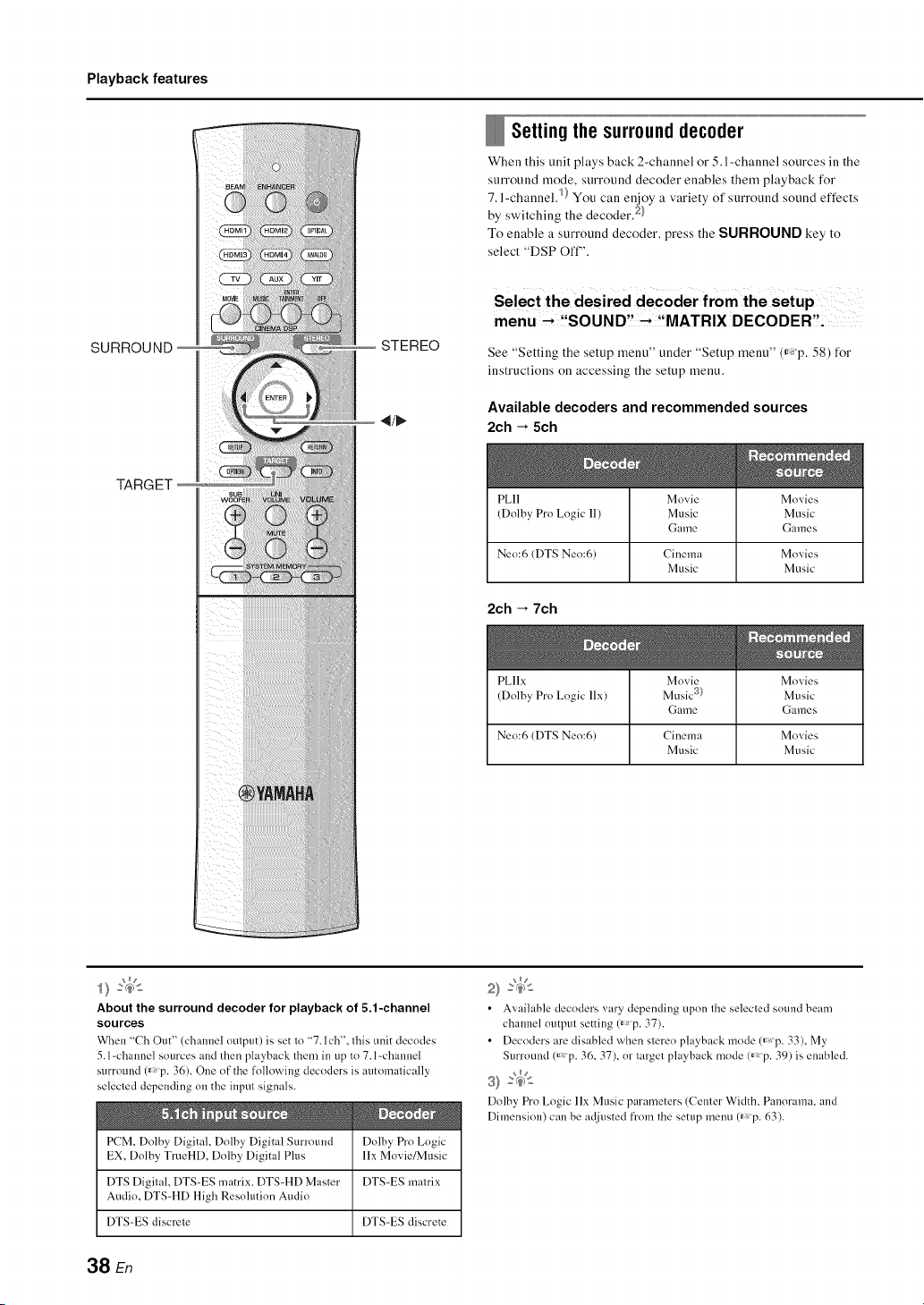
When this unit plays back 2-channel or 5.1 -channel sources in the
surround mode, surround decoder enables them playback for
7. l-channel. I) You call enjoy a variety of surround sound effects
by switching the decoder. 2}
To enable a surround decoder, press the SURROUND key to
select "DSP Oft"'.
Selec t the desired decoder from the setup
menu --* !,SOUND,! --*,!MATRIX DECODER,'i
See "Setting the setup menu" under "Setup menu" ffX'p. 58) for
instructions oil accessing the setup menu.
Available decoders and recommended sources
2ch -_ 5ch
PLII
(Dolby Pro Logic 11)
Movie
Music
Game
Movies
Music
Games
Nero6 (DTS Neo:6) Cinema Movies
Music Music
2ch -_ 7ch
PLllx
(Dolby Pro Logic llx)
Movie
Music 3)
Game
Movies
Music
Games
Nero6 (DTS Neo:6) Cinema Movies
Music Music
About the surround decoder for playback of 5,1-channel
sources
When "Ch Out" (channel output) is set to "7. l ch', this unit decodes
5.1-channel sources and then playback them in up to 7.1-channel
surround 0_ p. 36). One of the following decoders is automatically
selecled depending on the input signals.
PCM, Dolby Digital, Dolby Digital Surround
EX, Dolby TrueHD, Dolby Digital Plus
Dolby Pro Logic
llx Movie/Music
DTS Digital, DTS-ES matrix, DTS-HD Master DTS-ES matrix
Audio, DTS-HD High Resohltion Audio
DTS-ES discrele DTS-ES discrete
2} :(_
• Available decoders vary depending upon the selected sound beam
chalmel output setting 0_ p. 37).
• Decoders are disabled when stere<) playback mode (_'_p. 33), My
Surround 0_p. 36, 37), or target playback mode 0_p. 39) is enabled.
S} _
Dolby Pro Logic llx Music parameters (Center Width, Panorama, and
Dimension) can be adjusted from the setup menu 0_p. 63).
38 En
Playback features
Deliveringsoundto a specifiedlocation
(Target playback mode)
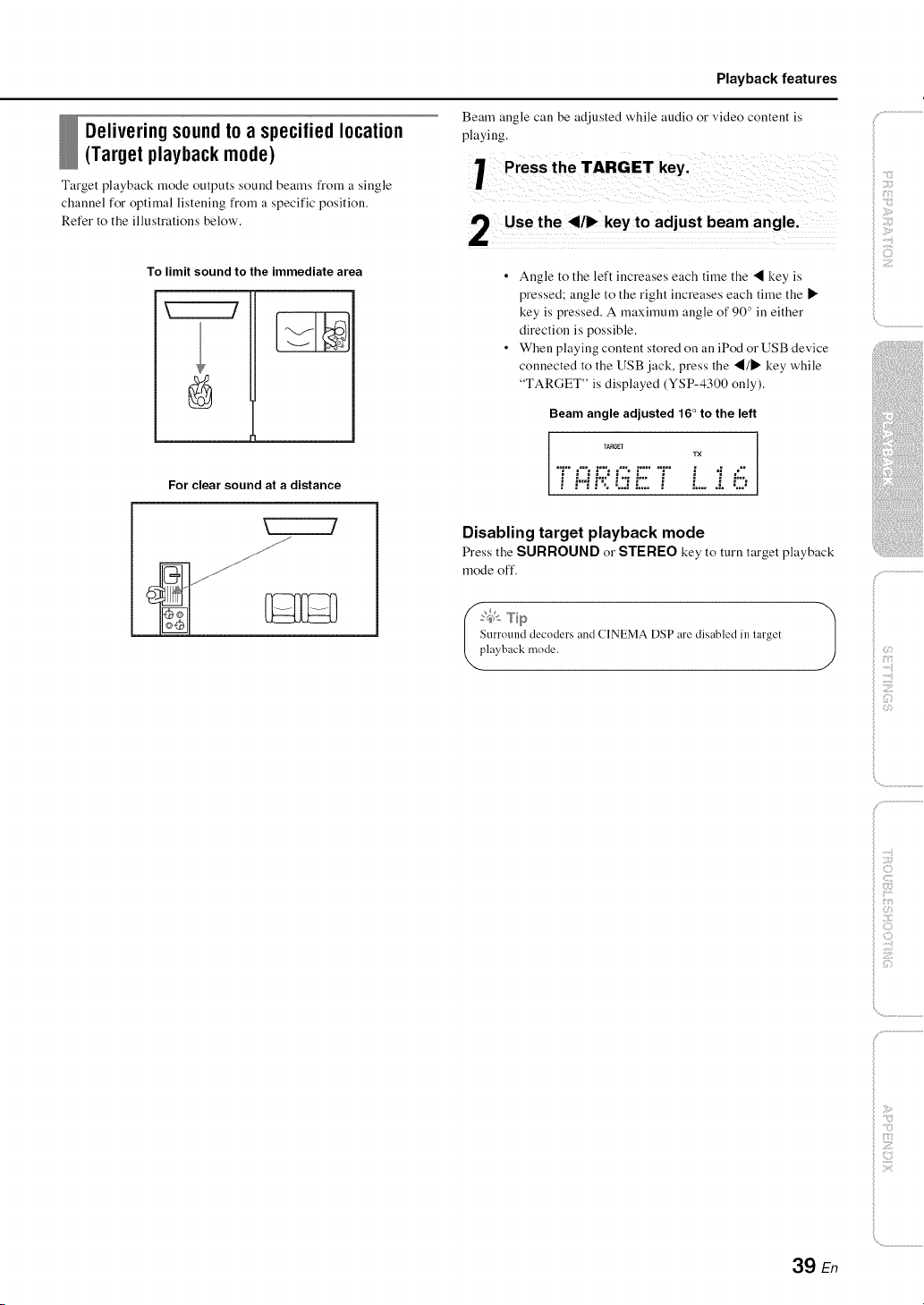
Target playback mode outputs sound beams from a single
channel for optimal listening from a specific position.
Beam angle call be adjusted while audio o1"video content is
playing.
Press the TARGET key.
Refer to the illustrations below'.
To limit sound to the immediate area
For clear sound at a distance
k____J
Use the 41/1_key to adjust beam angle.
• Angle to the left increases each time the • key is
pressed: angle to the right increases each time the •
key is pressed. A maximum angJe of 90 in either
direction is possible.
• When playing content stored on an iPod or USB device
connected to the USB jack, press the •/l_ key while
"TARGET" is displayed (YSP-4300 only).
Beam angle adjusted 16 ° to the left
TARGET
TX
i i:.',i:;: i:[i L
Disabling target playback mode
Press the SURROUND or STEREO key to turn target playback
mode off.
V--Tip )
tlrrotuM decoders and CINEMA DiP are disabled in target
layback mode.
ii ;iii!;;;
ii ii;i;ilii_;ii
i)
)
39 En
Playback features
INFO
Automaticvolumeleveladjustment
(UniVolume)
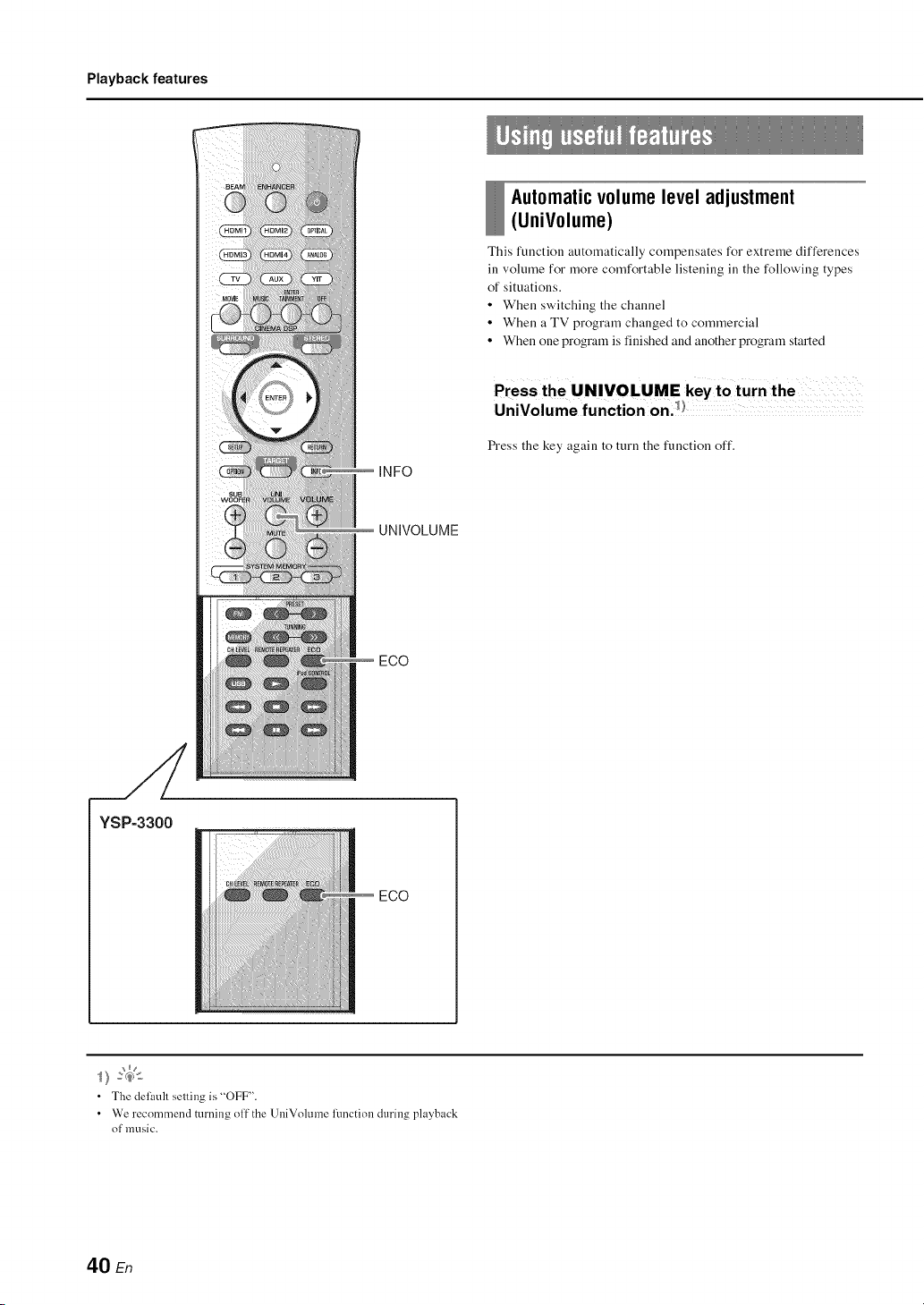
This function automatically compensates for extreme differences
ill volume for more comfortable listening ill the following types
of situations.
• When switching the channel
• When a TV program changed to commercial
• When one program is finished and another program started
Press the UNIVOLUME key to turn the
UniVolume function on.l!
Press the key again to turn the function off.
UNIVOLUME
ECO
YSP=3300
ECO
• The defitull selling is "OFF".
• We recommend turning oil the UniVolume function during playback
of music.
40 En
Playback features
Saving energy with the Eco function
When the Eco function is enabled, this unit automatically enters
standby mode as follows.
• No operations are performed with this unit for 3 hours 2}
• No input signal is received for 30 minutes
• Playback of content stored on the iPod connected to
YIT-WI2TX is stopped for 2 minutes
• The iPod to which YIT-WI2TX is connected is turned off.
• The iPod to which YIT-WI2TX is connected enters sleep
mode.
• The YIT-WI2TX is disconnected fi'om the iPod.
• The YIT-WI2TX is disconnected from the computer.
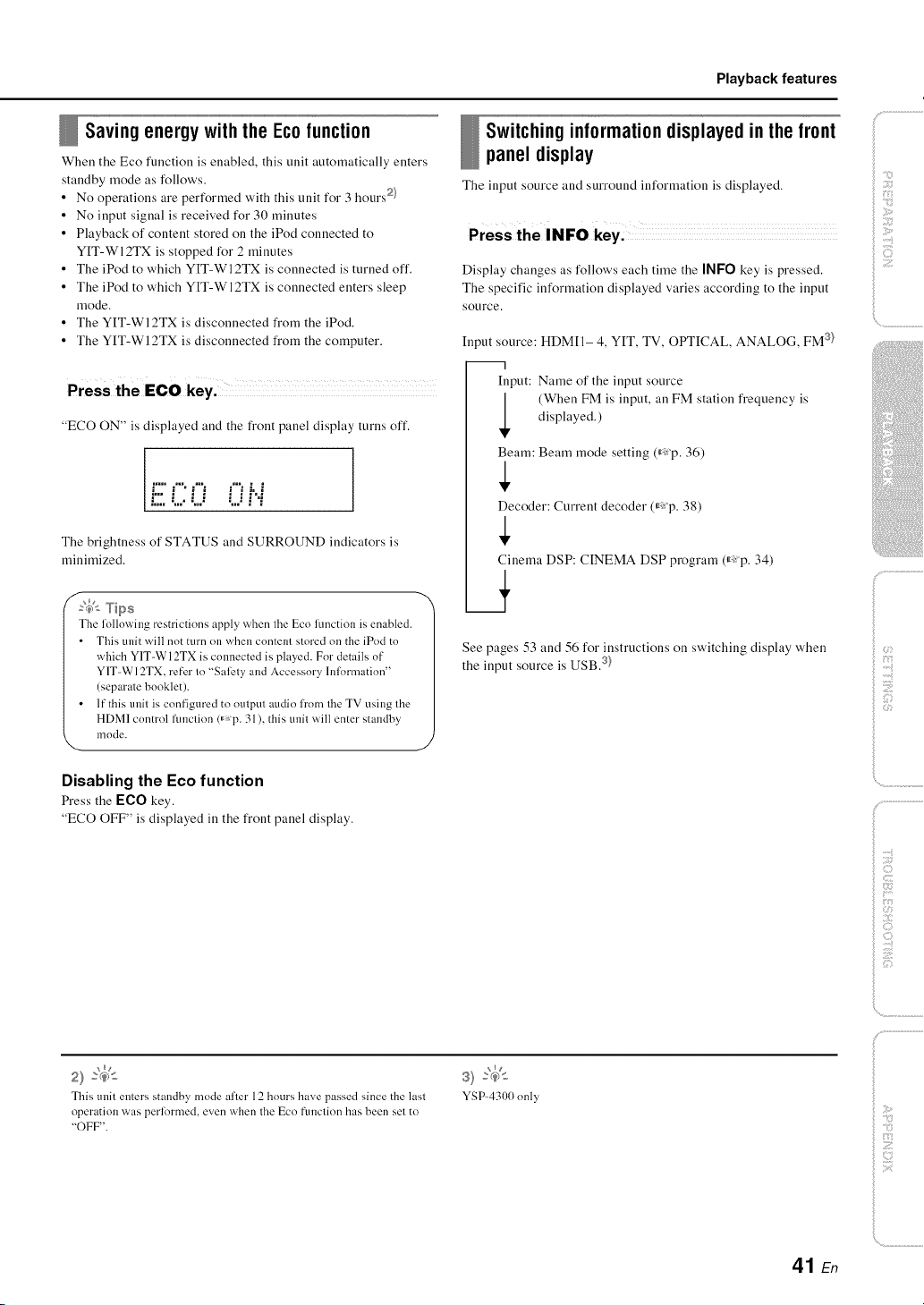
Press the ECO key.
"ECO ON" is displayed and the front panel display turns off.
£C0 0 i..i
The brightness of STATUS and SURROUND indicators is
minimized.
The follovvillg restrictions appl) when the Eco lhnction is enabled.
This unit will not turn on when content stored on the iPod to
which YIT-Wl2TX is connected is played. For details of
Y1T-WI2TX, refer to "Salbty and Accessory hflormation"
(separate booklet).
If this unit is configured to output audio lk'om the TV using the
HDMI control flmction (_p. 31 ), this trait will enter standby
mode.
J
Disabling the Eco function
Press the ECO key.
"ECO OFF" is displayed in the front panel display.
Switchinginformationdisplayedin thefront
panel display
The input source and surround information is displayed.
Display changes as follows each time the INFO key is pressed.
The specific information displayed varies according to the input
source.
Input source: HDMI 1- 4, YIT, TV, OPTICAL, ANALOG, FM 3)
--1
[nput: Name of the input source
(When FM is input, an FM station frequency is
displayed.)
Beam: Beam mode setting ff_:p. 36)
Decoder: Current decoder (_: p. 38)
Cinema DSP: CINEMA DSP program ff_:p. 34)
See pages 53 and 56 for instructions on switching display when
the input source is USB. 3}
i)
2} _(_>_
This unil enters standby mode alter 12 hours have passed since the lasl
operation was perlk)rmed, even when Ihe Eco funclion has been set to
"OFF".
YSP-4300 only
)
41 En

Playback features
Settingseach inputsource(Optionmenu)
Option settings can be specified for each input source (HDM[I-
4, TV, OPTICAL, AUX, ANALOG, YIT, FM Q, USB1)). The
configurable items vary depending on the input source selected.
InF
keys
,A/V
OPTION
Fiiiiiiiiiiiiiiiiiiiiiiiiiiiil
ENTER
The option menu is displayed in the front panel display (it
is not displayed on the TV screen).
"T" r"= r" r"= i !....
i r':. c. c, L..C.
Change setting value by pressing the i/V
key.
Press the OPTION key to exit the option
menu.
YSP=4300
FM
USB
YSP-4300 only
2} :(_>s
The I=NTI=R key performs the same funclion as the li> key.
42 En
Playback features
Option menu items
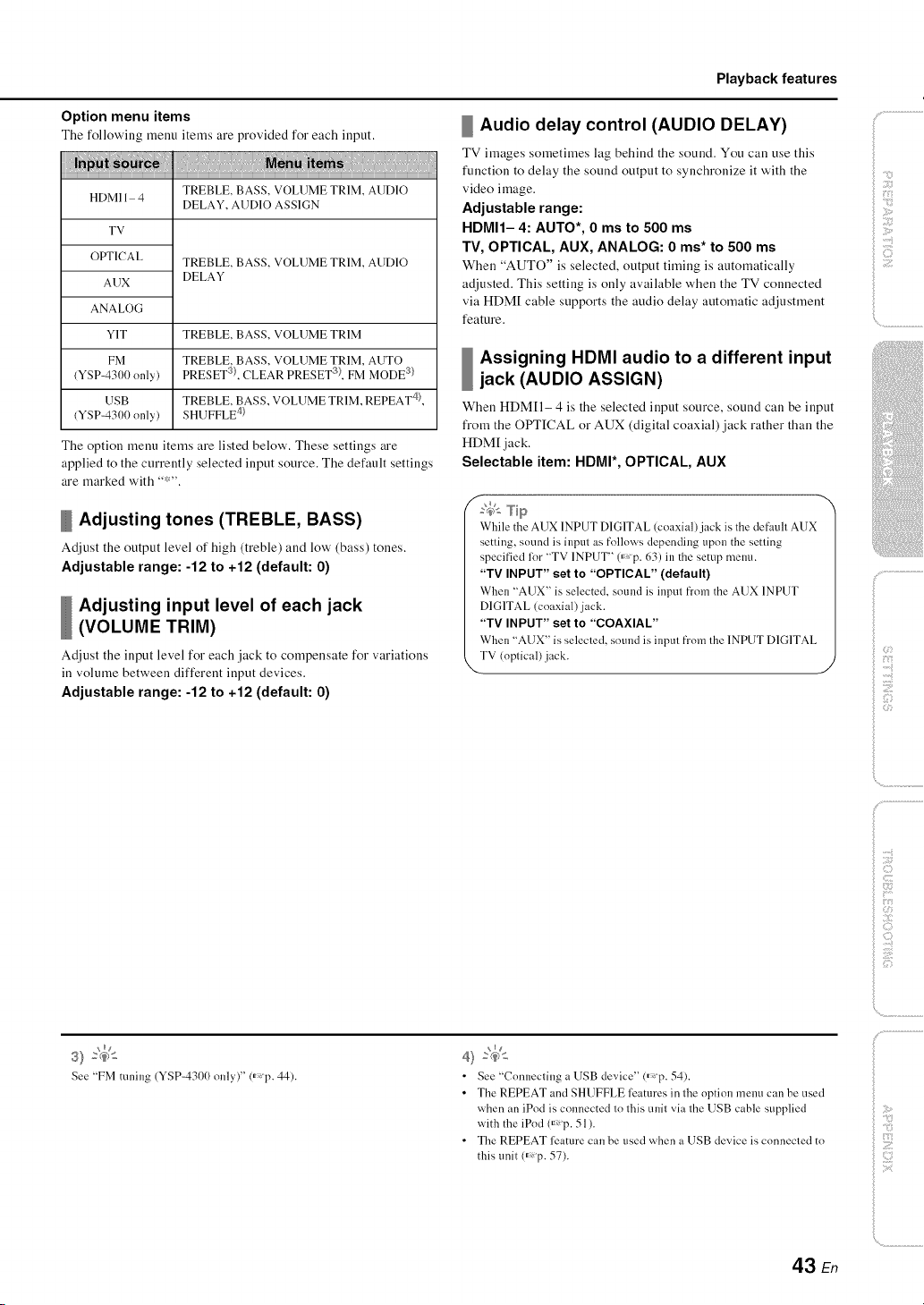
Tile following menu items are provided for each input.
TREBLE, BASS, VOLUME TRIM, AUDIO
DELAY, AUDIO ASSIGN
HDMI 1 4
TV
OPTICAL
AUX
ANALOG
Y1T
FM
(YSP-4300 only)
USB
(YSP-4300 only)
TREBLE. BASS. VOLUME TRIM, AUDIO
DELAY
TREBLE. BASS. VOLUME TRIM
TREBLE, BASS. VOLUME TRIM, AUTO
PRESET a . CLEAR PRESET _), FM MODE a)
TREBLE. BASS, VOLUME TRIM, REPEAT L0,
SHUFFLE 4
The option menu items are listed below'. These settings are
applied to the currently selected input source. The default settings
are marked with "*"
Adjusting tones (TREBLE, BASS)
Adjust tile output level of high (treble) and low' (bass) tones.
Adjustable range: -12 to +12 (default: 0)
Adjusting input level of each jack
(VOLUME TRIM)
Adjust tile input level for each jack to compensate for variations
in volume between different input devices.
Adjustable range: -12 to +12 (default: 0)
Audio delay control (AUDIO DELAY)
TV images sometimes lag behind tile sound. You can use this
function to delay the sound output to synchronize it with the
video image.
Adjustable range:
HDMI1- 4: AUTO*, 0 ms to 500 ms
TV, OPTICAL, AUX, ANALOG: 0 ms* to 500 ms
When "AUTO" is selected, output timing is automatically
adjusted. This setting is only available when the TV connected
via HDM[ cable supports the audio delay automatic adjustment
feature.
Assigning HDMI audio to a different input
jack (AUDIO ASSIGN)
When HDM[I- 4 is tile selected input source, sound can be input
from the OPTICAL or AUX (digital coaxial)jack rather than the
HDM[ jack.
Selectable item: HDMI*, OPTICAL, AUX
:_: Tip
While the AUX INPUT DIGITAL (coaxial)jack is the default AUX
setting, sound is input as follows depending upon the setting
specified li)r "TV INPUT" 0_p. 63) in the setup metal
"TV INPUT" set to "OPTICAL" (default)
When "AUX" is selected, sound is input from the AUX INPUT
DIGITAL (coaxial)jack.
"TV INPUT" set to "COAXIAL"
When "AUX" is selected, sound is input from the INPUT DIGITAL
TV (optical) jack.
CII;)
i)
.....{i
_ :;7
See "FM tuning (YSP-431)(t only)" (_p. 44).
4) _(_,':
• See "Connecting a USB device" (_ p. 54).
• The REPEAT and SHUFFLE ligatures in the option menu can be used
when an iPod is connected to this unit via the USB cable supplied
with theiPod0_ p. 51).
• The REPEAT ligature can be used when a USB device is connected to
this unit(_ p. 57).
)
43 En
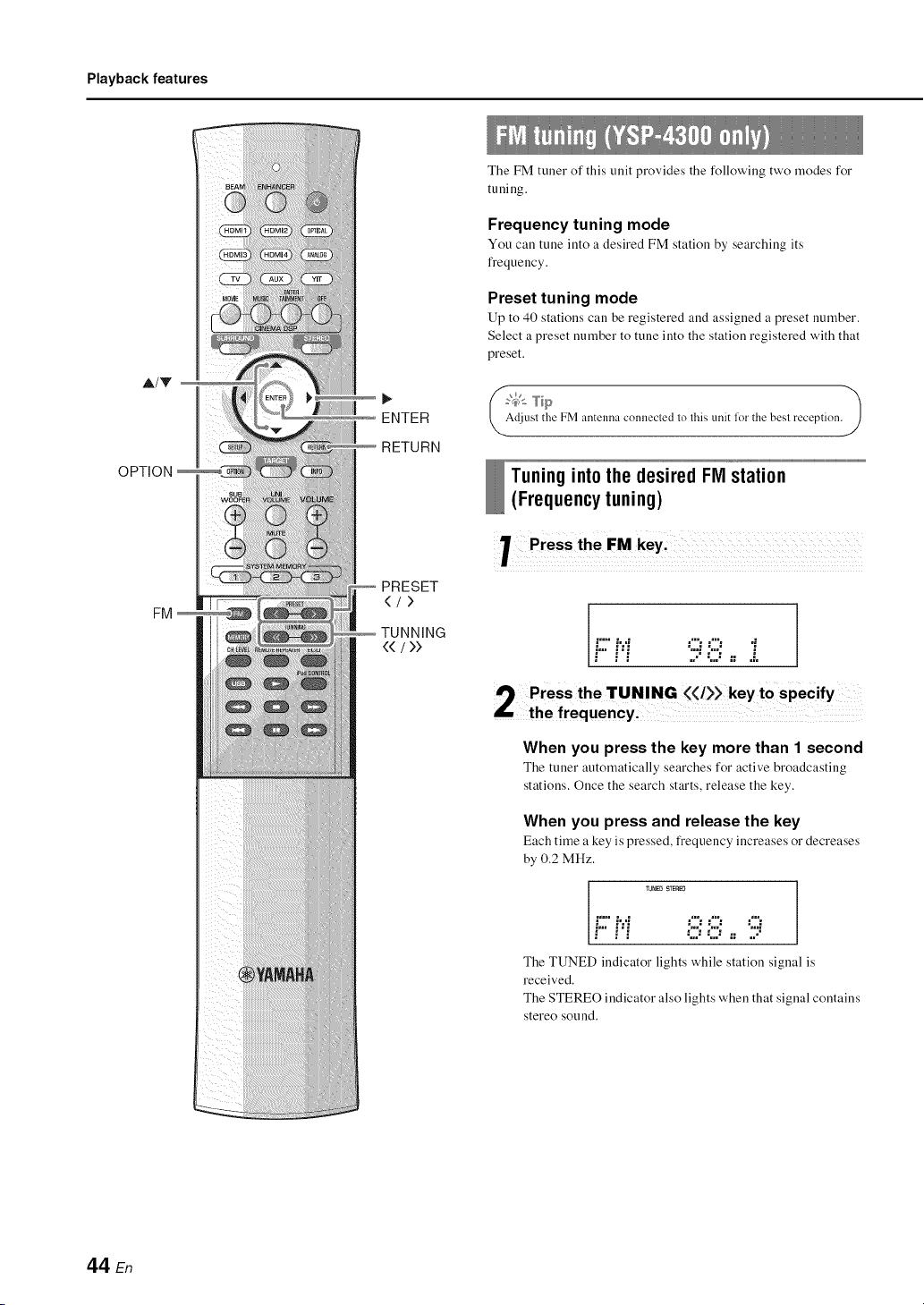
Playback features
A/V
OPTION
FM
Hiiiiiiii/lii]iiiiiiiiiiiiiiiiil
ENTER
RETURN
PRESET
(/>
44 / >>
The FM tuner of this unit provides the following two modes for
tuning.
Frequency tuning mode
You call tulle into a desired FM station by searching its
frequency.
Preset tuning mode
Up to 40 stations call be registered and assigned a preset number.
Select a preset number to tune into the station registered with that
preset.
djusl file FM antelma connecled lo lhis uni'. htr the besl reception.
Tuningintothe desired FM station
(Frequencytuning)
'r Press the FM key'
Fi"i 98,: i
When you press the key more than 1 second
Tile tuner automatically searches for active broadcasting
stations. Once the search starts, release the key.
When you press and release the key
Each time a key is pressed, frequency increases or decreases
by 0.2 MHz.
TUNED STEREO
F!"i '::":":''"
;...:;...::; jj:;
The TUNED indicator lights while station signal is
received.
The STEREO indicator also lights when that signal contains
stereo sound.
44 En
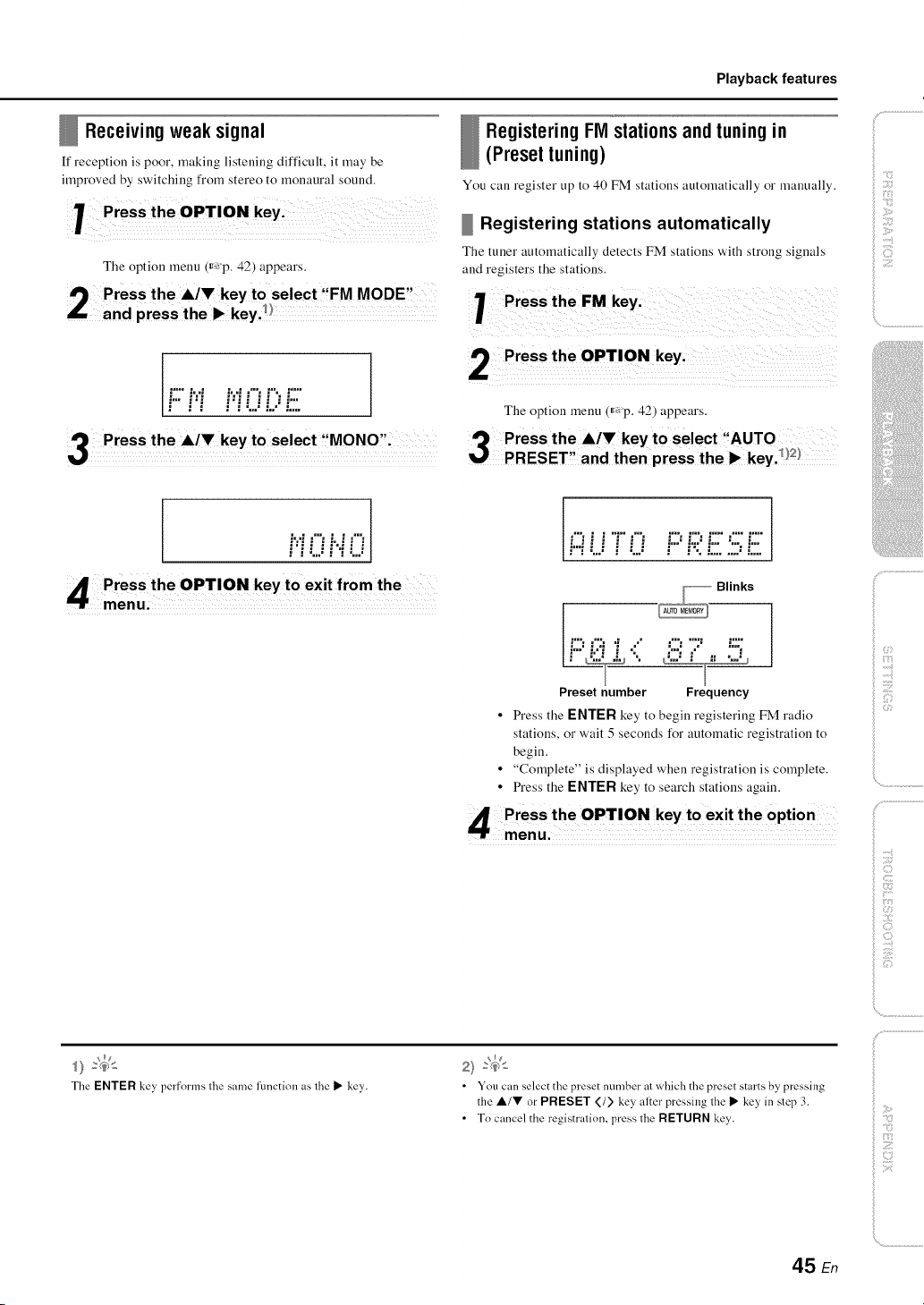
Playback features
Receivingweak signal
If reception is poor, making listening difficult, it may be
improved by switching from stereo to monaural sound.
Press the OPTION key.
The option menu (_'p. 42) appears.
Pres s the A/V key to select ,!FM MODE,:
Land press the I_ key.!!
,=.......... ,== ,=.°
Press the A/V key to select ,MONO' _
RegisteringFM stationsand tuningin
(Presettuning)
You call register up to 40 FM stations automatically o1" manually.
Registering stations automatically
The tuner automatically detects FM stations with strong signals
and registers the stations.
1 Press the FM key:
t Press the OPTION key,
The option menu (r*:'p. 42) appears.
iii .':_i__:'_
i©
!"i :...E i "...E r" !":, !2. 2)!2,
_ Blinks
iJ;;;.."J..""i .."
.."_;_-_ "..
Preset number Frequency
• Press the ENTER key to begin registering FM radio
stations, or wait 5 seconds for automatic registration to
begin.
• "Complete" is displayed when registration is complete.
• Press the ENTER key to search stations again.
The ENTER key performs the same function as the I_ key.
2} :(_>s
• You can select the preset number at which the preset starts by pressing
the lk/V or PRESET </> key after pressing the _" key in step 3.
• To cancel the registration, press the RETURN key.
45 E_
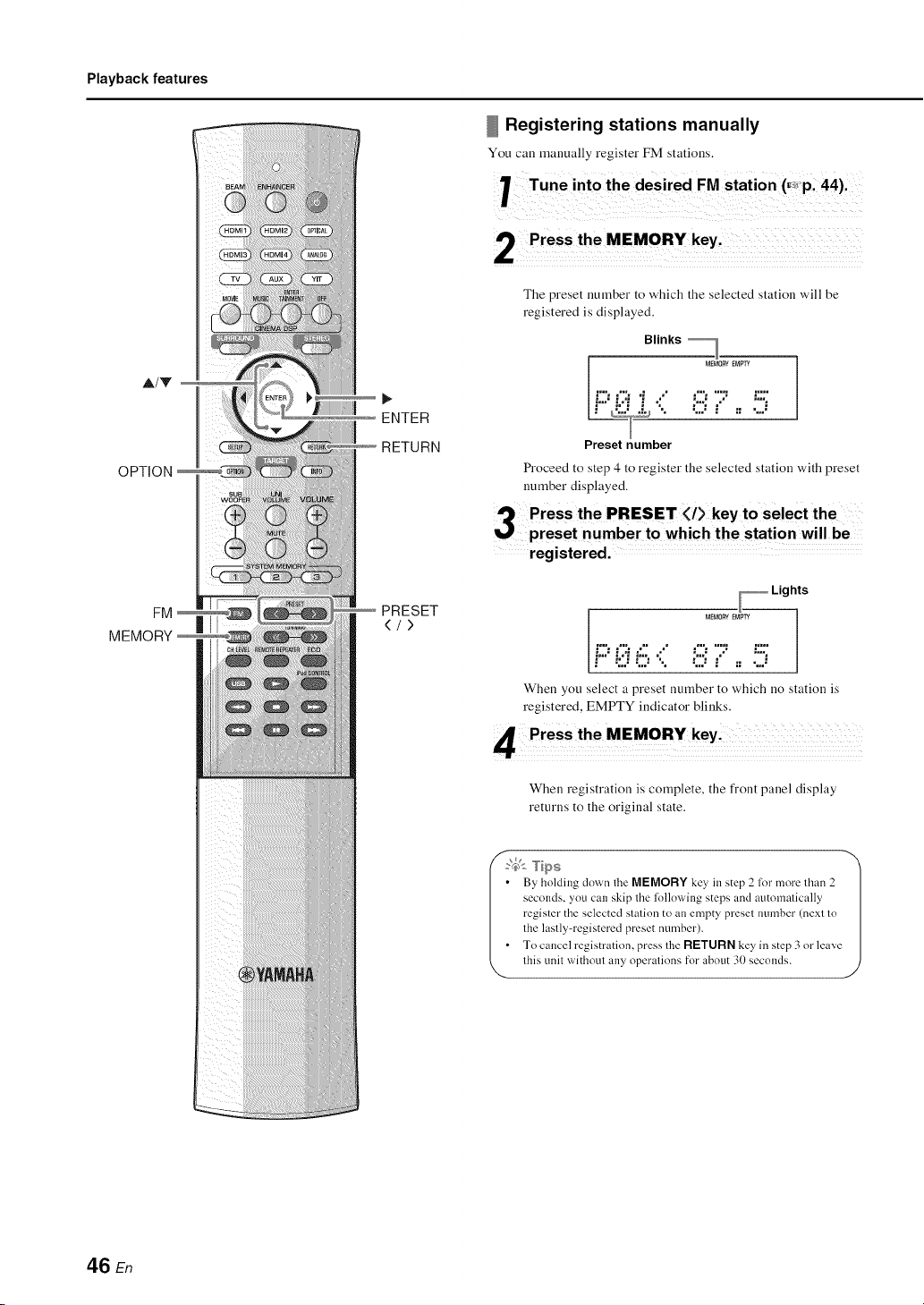
Playback features
A/V
OPTION
FM
MEMORY
Fiiiiiiiiiiiii:iiiiiiiiil
ENTER
RETURN
PRESET
4/)
Registering stations manually
You call manually register FM stations.
The preset number to which the selected station will be
registered is displayed.
Blinks
_ MEMORYEMP'rY
•:- £!7 ":::',
=... =_ :.. =...
Preset number
Proceed to step 4 to register the selected station with preset
number displayed.
Press the PRESET (/> key to selec t the
preset number to which the station will be
registered.
_ Lights
MEMORYEMPTY
=.m =m . =
!""i::ji:::,":.. _::;!7' "::;
=.== =_ :.. =.==
When you select a preset number to which no station is
registered, EMPTY indicator blinks.
Press the MEMORY key'
When registration is complete, the front panel display
returns to the original state.
',_$< Tips 1
By holding dowl] Ihe MEMORY key, in step 2 lk)r more Ihan 2
seconds, you can skip the lk4lovving steps and automatically
register the selected slalion to an empty presel munber (nexl lo
lhe laslly-registered preset number).
To cancel registration, press lhe RETURN key in step 3 or leave
lhis unil vvrithotll all 5,operations for about 30 seconds.
46 En
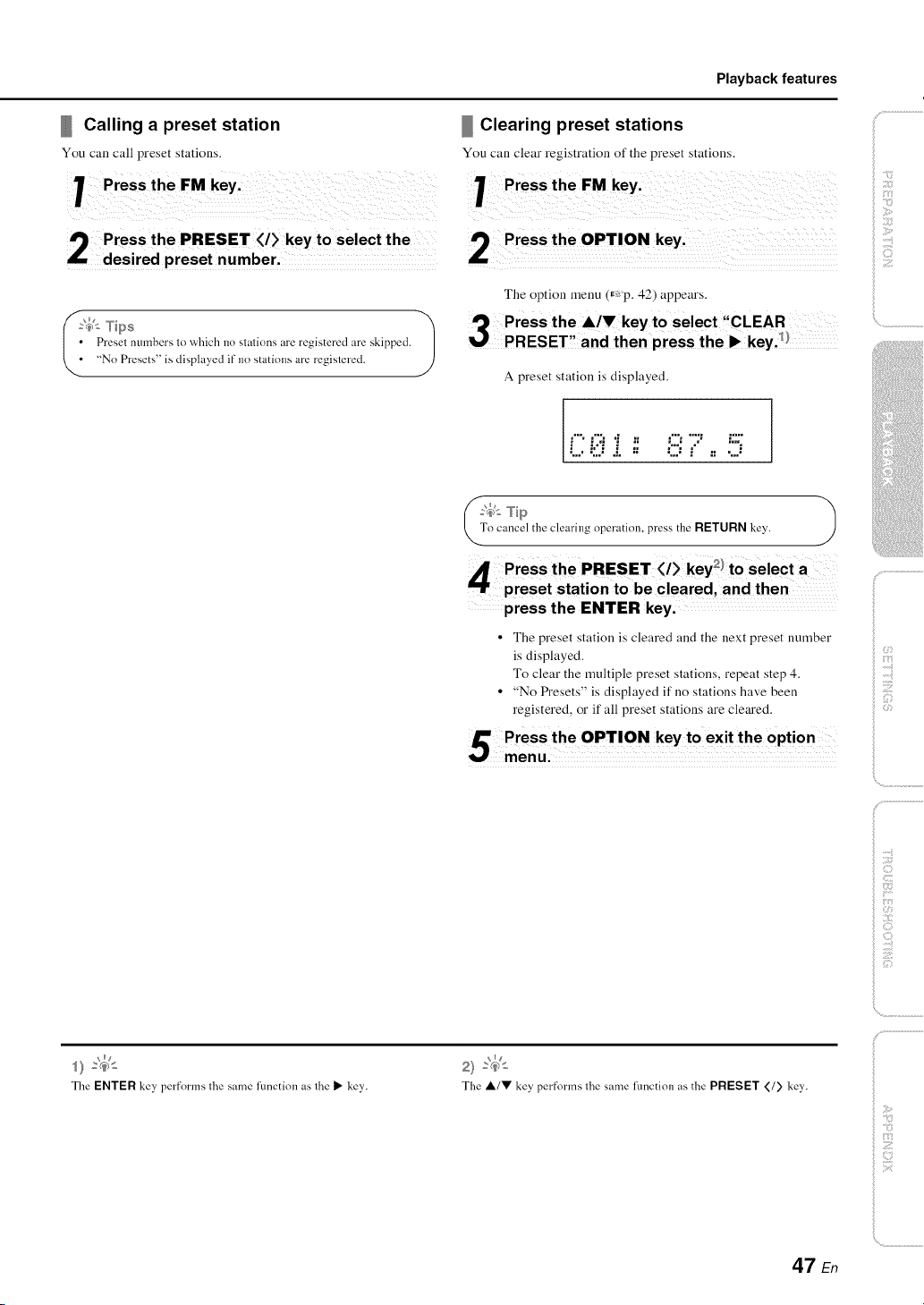
Calling a preset station
You can call preset stations.
Playback features
Clearing preset stations
You can clear registration of the preset stations.
74>% Tips 1
• Preset numbers to which no stations are registered are skipped.
• "No Presets" is displayed if no stations are registered.
_ Press the OPTION key' ...........
The option menu (r,:'p. 42) appears.
A preset station is displayed.
i ;>
ii;i;ilii_;ii
,-,, ,-., ,; ,. ;% ";: -;;;,
.,'....i::j ..,'.;; :2.".," :: ....."
clearing operation, press the RETURN key. J
thePRESETV>key2!tose,ecta
preset station to be cleared, and then
press the ENTER key.
• The preset station is cleared and the next preset number
is displayed.
To clear the multiple preset stations, repeat step 4.
• "No Presets" is displayed if no stations have been
registered, o1"if all preset stations are cletu'ed.
!i IZIi
iii i]i])
_ :7
,_):'4"-
TheENTER key, performs the same function as the IP"key,.
2} _(_>*_
The ,&/V key performs the same function as the PRESET </> key*.
)
47 En
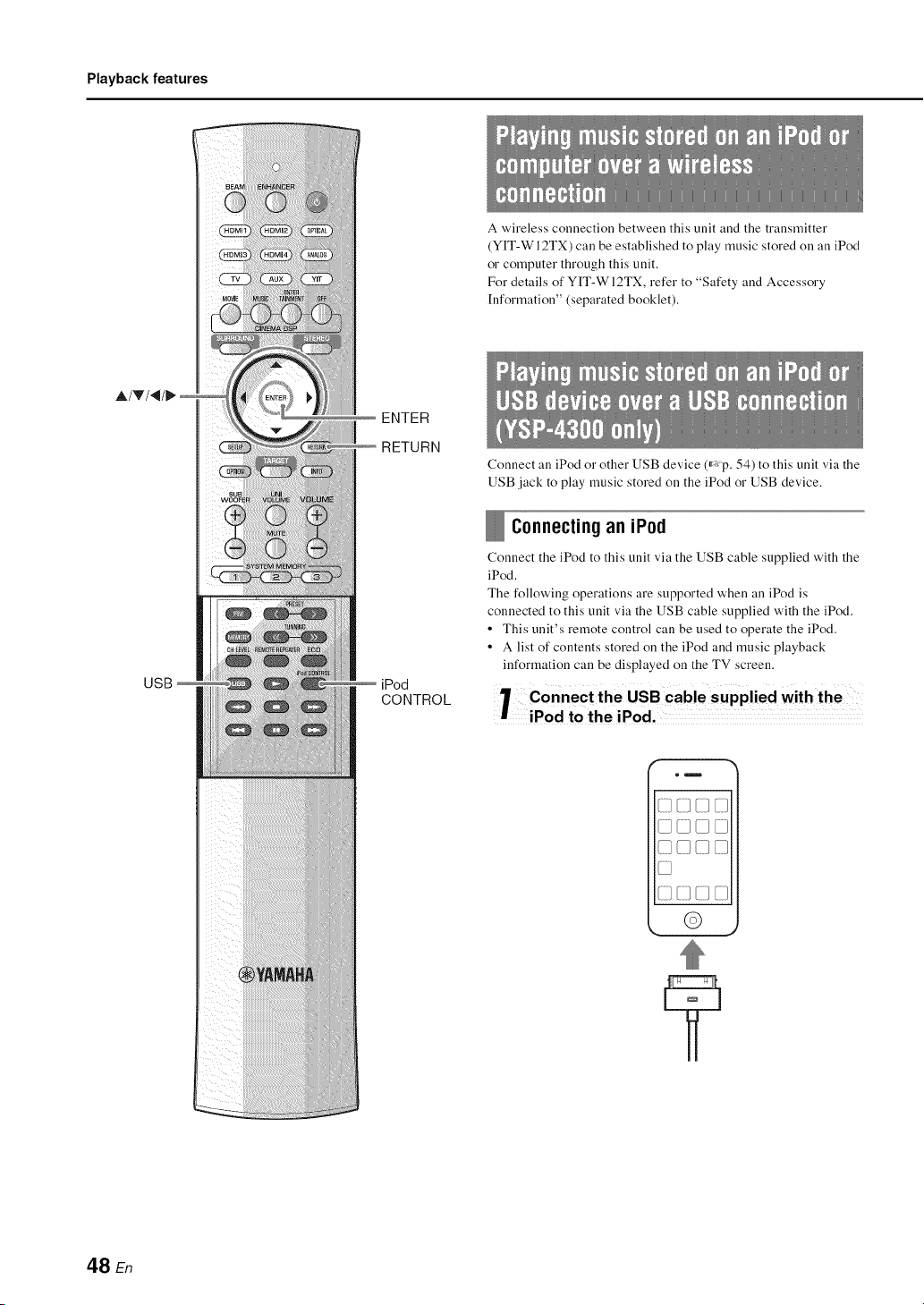
Playback features
A/V/_
USB
ENTER
RETURN
iPod
CONTROL
A wireless connection between this unit and the transmitter
(YIT-WI2TX) call be established to play music stored on all iPod
or computer through this unit.
For details of YIT-W 12TX, refer to "Safety and Accessory
[nformation" (separated booklet).
Connect all iPod o1"other USB device ('_ p. 54) to this unit via the
USB jack to play music stored on the iPod o1"USB device.
Connecting an iPod
Connect the iPod to this unit via the USB cable supplied with the
iPod.
The following operations are supported when all iPod is
connected to this unit via the USB cable supplied with the iPod.
• This unit's remote control can be used to operate the iPod.
• A list of contents stored on the iPod and music playback
information can be displayed on the TV screen.
1 ff;:$t$:h hePuS S cable Supplied with the
em
) 3
iiii/iiii/iiii/Ill
,. @ _,
48 En
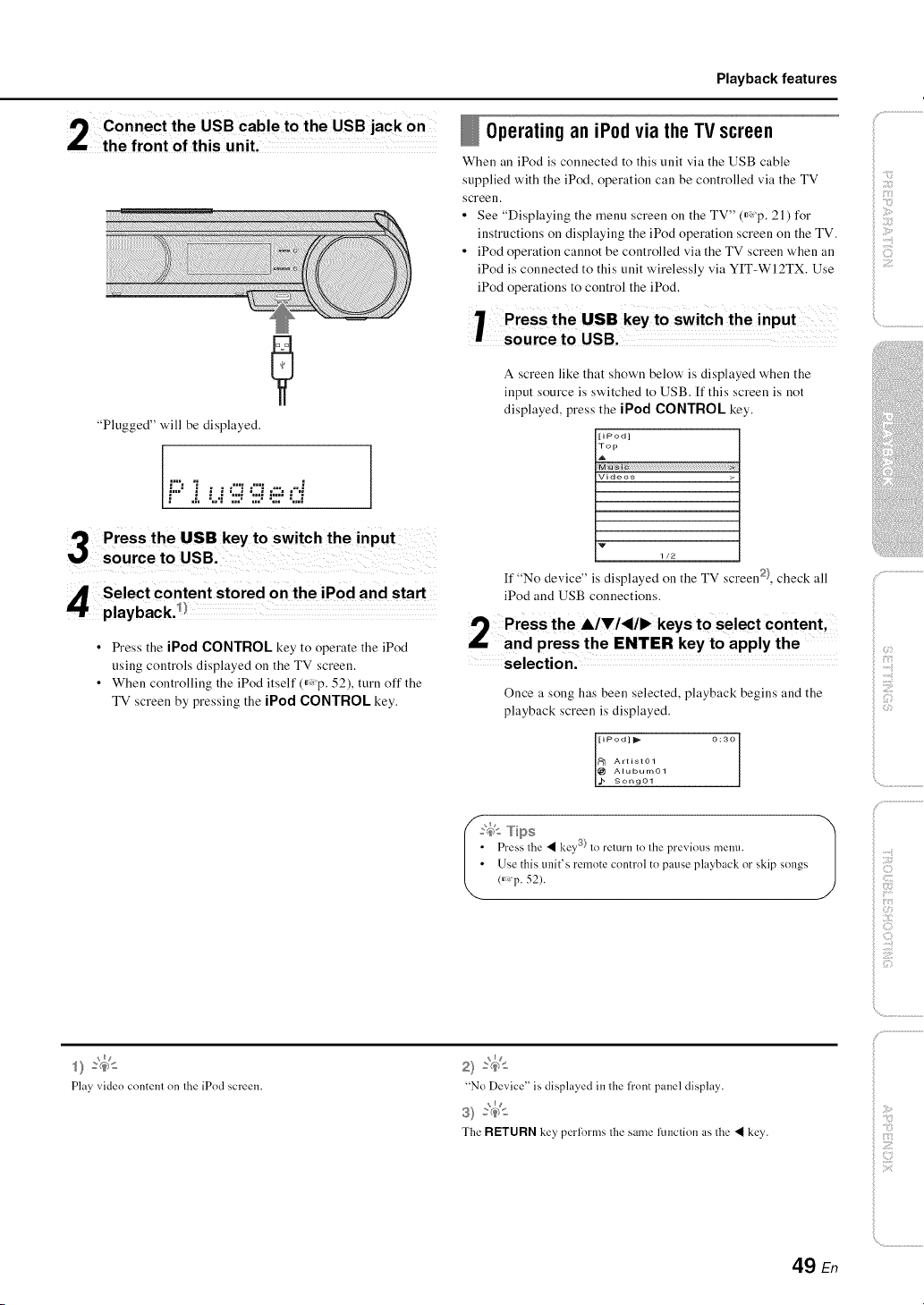
Playback features
"Plugged" will be displayed.
.... , = ..... = . = °.
,: .,:. ;..," ;;;: ;;;: ;;;2 ;..."
Select content stored On the iPod and start
playback.!!
• Press the iPod CONTROL key to operate the iPod
using controls displayed on the TV screen.
• When controlling the iPod itself (_p. 52), turn off the
TV screen by pressing the iPod CONTROL key.
Operating an iPodvia theTV screen
When all iPod is connected to this unit via the USB cable
supplied with the iPod, operation can be controlled via the TV
screen.
• See "Displaying the menu screen on the TV" (_:p. 21) for
instructions on displaying the iPod operation screen on the TV.
• iPod operation cannot be controlled via the TV screen when an
iPod is connected to this unit wirelessly via YIT-WI2TX. Use
iPod operations to control the iPod.
A screen like that shown below' is displayed when the
input source is switched to USB. If this screen is not
displayed, press the iPod CONTROL key.
[iPod]
Top
v
1/2
If "No device" is displayed on the TV screen 2}, check all
iPod and USB connections.
the A/V/_/I_ keys t o select content,
and press the ENTER key to apply the
selection.
Once a song has been selected, playback begins and the
playback screen is displayed.
[iPod]l_ 0:30
_1 Artist01
@ Alubum01
Song01
':4<Tips 1
Press lhe • key :'_)lo rell.lrll 1()lhe previous metal.
Use this unit's remote control to pause playback or skip songs
/_p. 52).
iii!ili;i !
_ii ', ,i_'
il;i;iiiii_;:
i
Play video content on Ihe iPod screen.
2) :_
"No Device" is displayed in the h'ont panel display.
_ng
S) _
The RETURN key performs the same funclion as the • key.
49 En
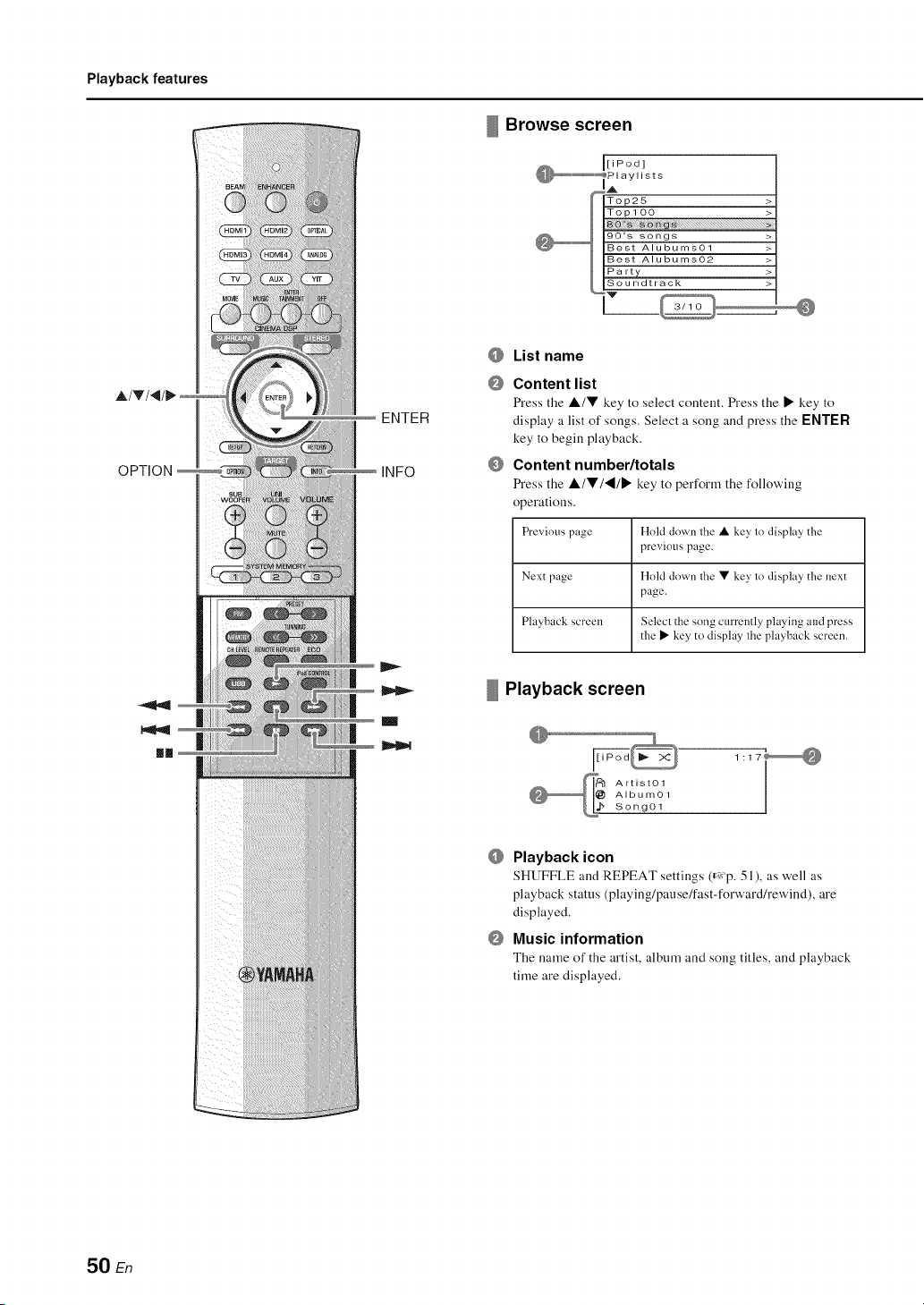
Playback features
_ Browse screen
[iPod]
_Playlists
OPTION
ENTER
INFO
m
@ List name
@ Content list
Press the A/V key to select content. Press the • key to
display a list of songs. Select a song and press the ENTER
key to begin playback.
@ Content number/totals
Press the A/V/'_/• key to perform the following
operations.
Previous page Hold down the • key to display the
previous page.
Next page Hold down the • key to display the next
page.
Playback screen Select the song currently playing and press
the I1_key to display the playback screen.
Playback screen
_!_ Artist01
Album01
Song01
1:17_
@ Playback icon
SHUFFLE and REPEAT settings (_ p. 51), as well as
playback status (playing/pause/fast-forward/rewind), are
displayed.
@ Music information
The name of the artist, album and song titles, and playback
time are displayed.
50 En
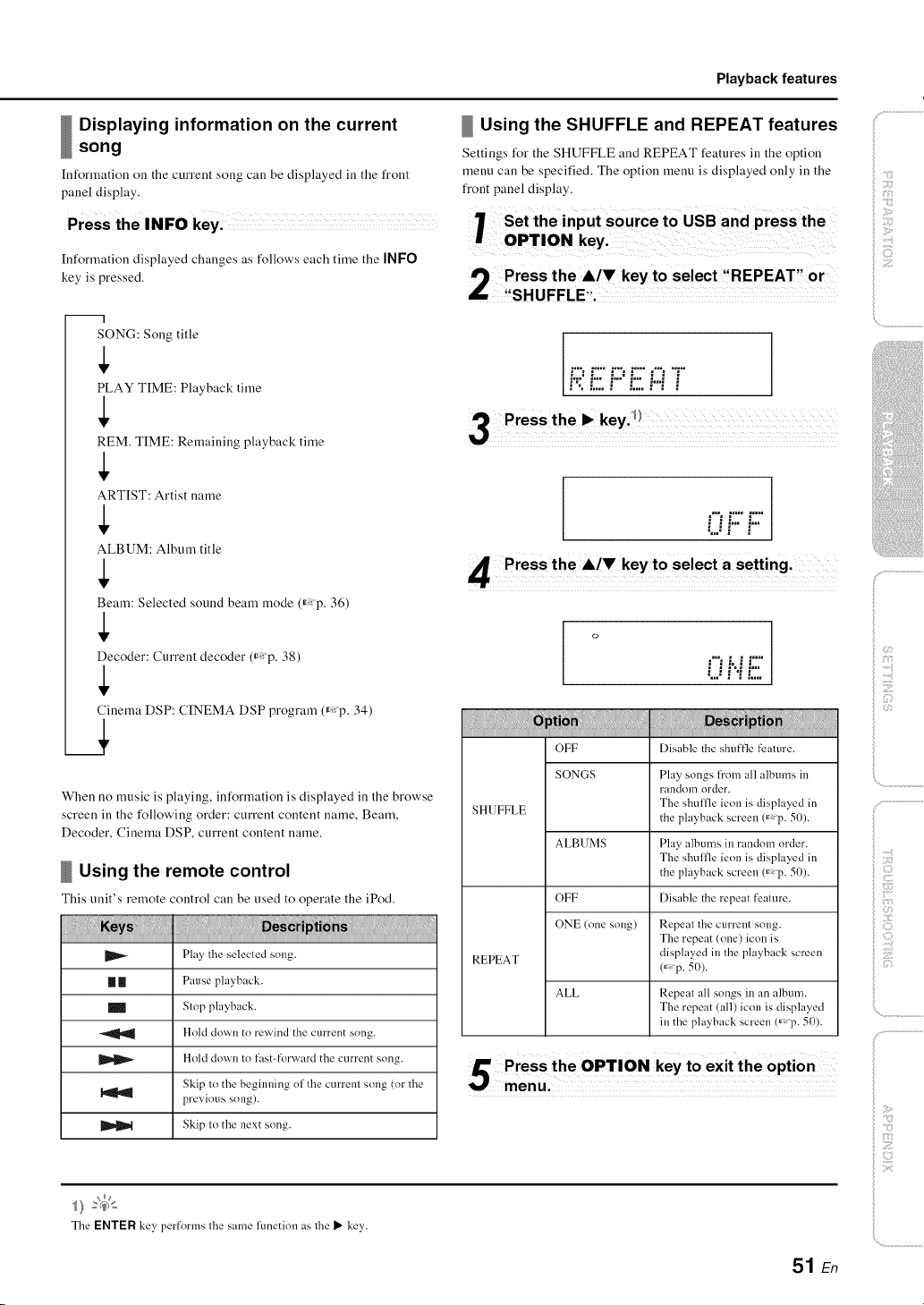
Playback features
Displaying information on the current
song
Information on the current song call be displayed ill the front
panel display.
Press the INFO key,
Information displayed changes as follows each time the INFO
key is pressed.
Using the SHUFFLE and REPEAT features
Settings for the SHUFFLE and REPEAT features ill the option
menu call be specified. The option menu is displayed only in the
front panel display.
m I
SONG: Song title
PLAY TIME: Playback time
REM. TIME: Remaining playback time
ARTIST: Artist name
ALBUM: Album title
Beam: Selected sound beam mode (_: p. 36)
Decoder: Current decoder ff_:p. 38)
Cinema DSP: CINEMA DSP program ff_:p. 34)
_5
When no music is playing, information is displayed in the browse
screen in the following order: current content name, Beam,
Decoder, Cinema DSP, current content name.
Using the remote control
This unit's remote control can be used to operate the iPod.
Play the selected song.
[] [] Pause playback.
m Stop playback.
Hold down to rewind the current song.
Hold down to fast-forward the current song.
Skip to the begiiming of the current song (or the
previous song).
Skip to the next song.
=,==, =,==,, ;.,, =,==,, ===% ,===,,
i':'" :"" i"":"" .:,,." i
3 "
.... ==,° ,==,°
i ii... b.
%,, =" =.
r Press the A!V key to select a setting. ........
c_
=", ; ," g==,.
U r.i !2.
OFF Disable the shuffle feature.
SONGS Play' songs h'om all albums in
randolrl order.
SHUFFLE The shulfle icon is displayed in
the playback screen 0_p. 50).
ALBUMS Play albums in random order.
The shulfle icon is displayed in
the playback screen 0_p. 50).
OFF Disable the repeat feature.
ONE (one song) Repeal lhe currenl song.
The repeat lone) icon is
REPEAT displayed in lhe playback screen
0_p. 50).
ALL Repeal all songs in an album.
The repeat (all) icon is displayed
in the playback screen (_p. 5{}).
The ENTER key* performs the same function as the I_ key*.
51 En
>
2
)
C)
_.'i_iiiiiiiiiiI
71111)i_
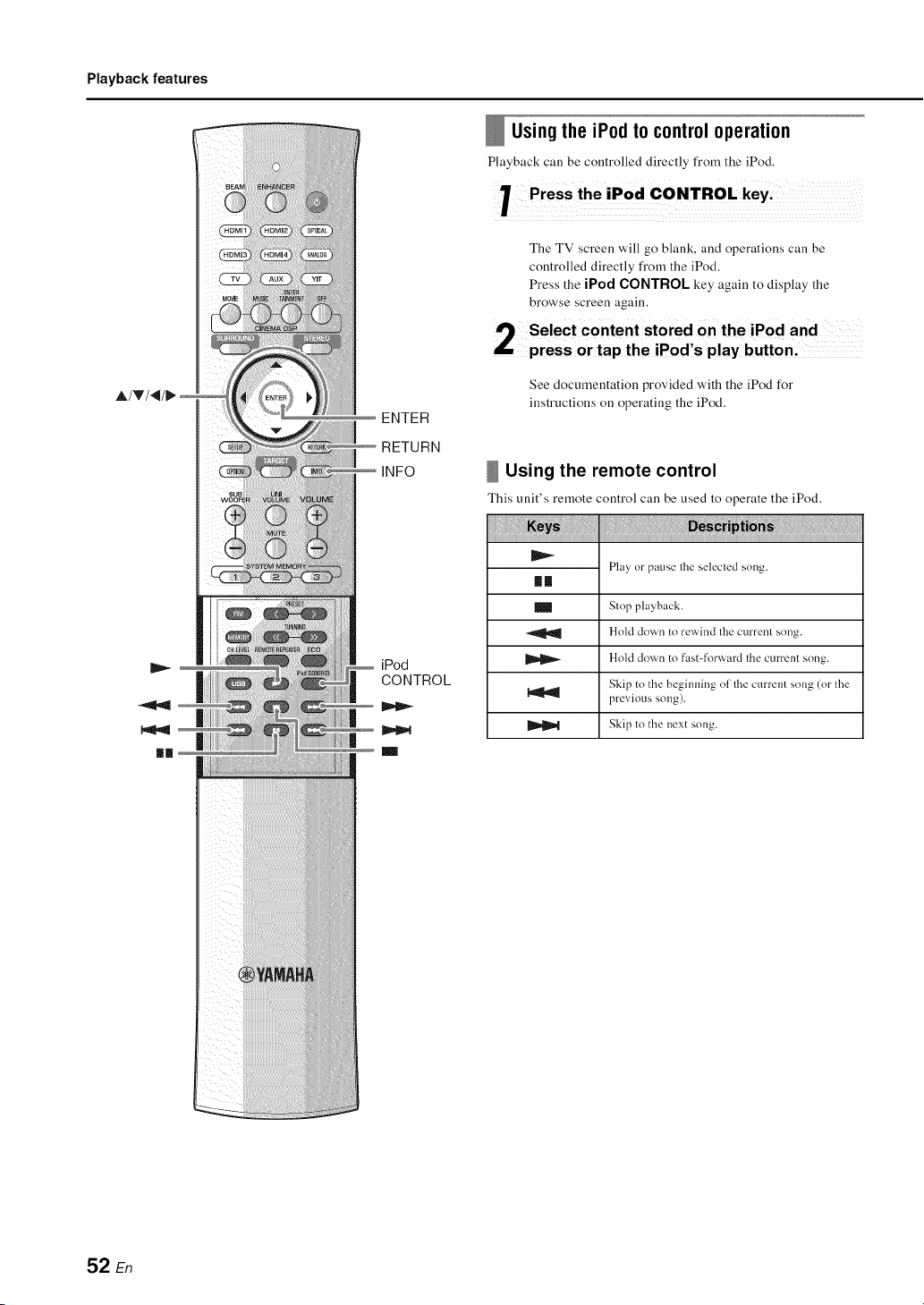
Playback features
A/V/_
II
ENTER
RETURN
INFO
iPod
CONTROL
Using the iPod to control operation
Playback can be controlled directly from tile iPod.
'r Press theiPod
The TV screen will go blank, and operations call be
controlled directly from the iPod.
Press the iPod CONTROl key again to display the
browse screen again,
See documentation provided with the iPod for
instructions on operating the iPod.
Using the remote control
This unit's remote control can be used to operate the iPod.
Play or pause the selecled song.
Ill
I_1 Stop playback.
Hold down to rewind the currenl song.
Hold down to fast-forward the current song.
Skip to the beginning of the current song (or the
previous song).
Skip to the next song.
52 En
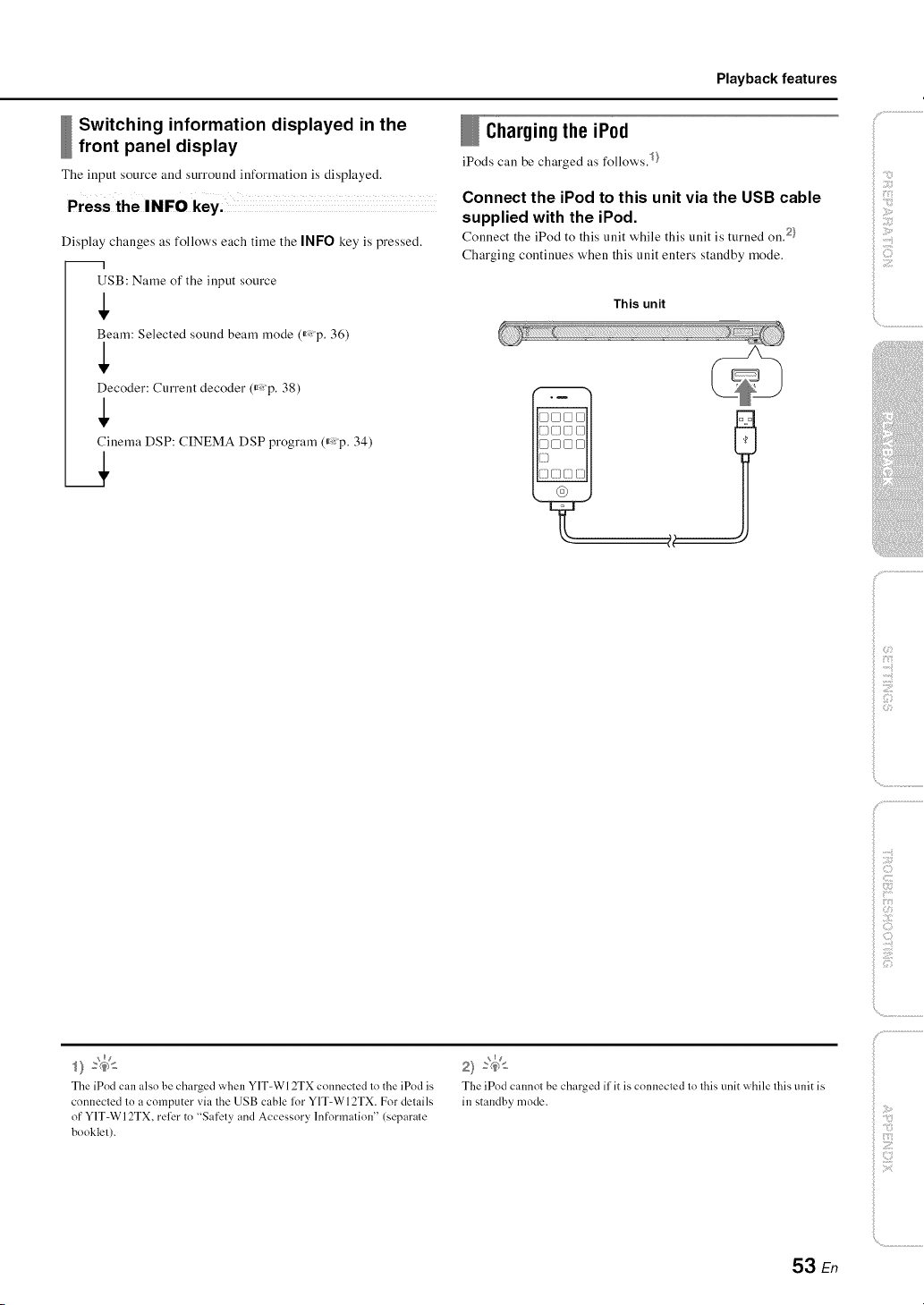
Playback features
Switching information displayed in the
front panel display
The input source and surround information is displayed.
Display changes as follows each time the INFO key is pressed.
--I
USB: Name of the input source
Beam: Selected sound beam )node (_: p. 36)
Decoder: Current decoder (_: p. 38)
Cinema DSP: CINEMA DSP program (_: p. 34)
_5
Charging the iPod
iPods call be charged as follows. _
Connect the iPod to this unit via the USB cable
supplied with the iPod.
Connect the iPod to this unit while this unit is turned on. 2)
Charging continues when this unit enters standby mode.
This unit
_!;ii')
The iPod can also be charged when YIT-W 12TX connected to the iPod is
connected to a computer via the USB cable lor Y1T-WI2TX. For details
of YIT=W12TX, rellzr to "Safety and Accessory lnf_>rmation"(separate
booklet).
2} :(_>s
Tbe iPod cannol be charged ilit is connecled to this unit while this unit is
in standby mode.
53 En
iili!:!;ii!!iiiii'i_
iillii_i;iiiiiii_i_i
..........
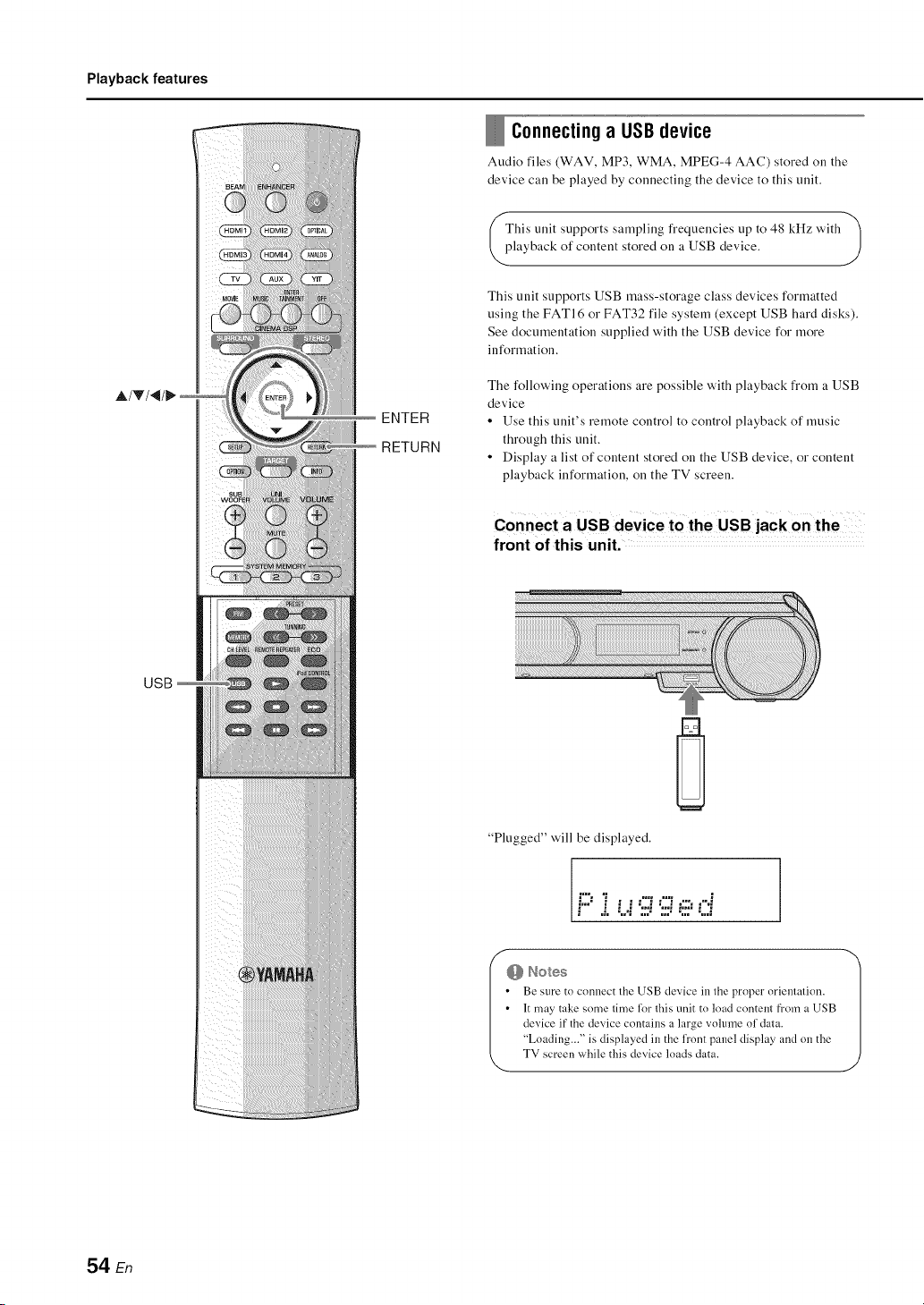
Playback features
A/V/_
USB
ENTER
RETURN
Connectinga USBdevice
Audio files (WAV, MP3, WMA, MPEG-4 AAC) stored on the
device call be played by connecting the device to this unit.
This trait supports sampling frequencies up to 48 kHz with
layback of content stored on a USB device.
J
This unit supports USB mass-storage class devices formatted
using the FATI6 or FAT32 file system (except USB hard disks).
See documentation supplied with the USB device for more
information.
The following operations are possible with playback from a USB
device
• Use this unit's remote control to control playback of music
through this unit.
• Display a list of content stored on the USB device, or content
playback information, on the TV screen.
front of this unit.
"Plugged" will be displayed.
;==% %=
, , , • , ,,==,_ ,==,_ ..... ,_
!" .i. "...i":::."":::.":::::"..:i
@ Notes 1
Be sure to connect the USB device ill the proper orientalion.
It may take some lime for Ibis unit to load cnntem from a USB
device it"the device contains a large vohnne nl data.
"Loading..." is displayed in the lrnnt panel display and on the
TV screen while this device loads data.
54 En
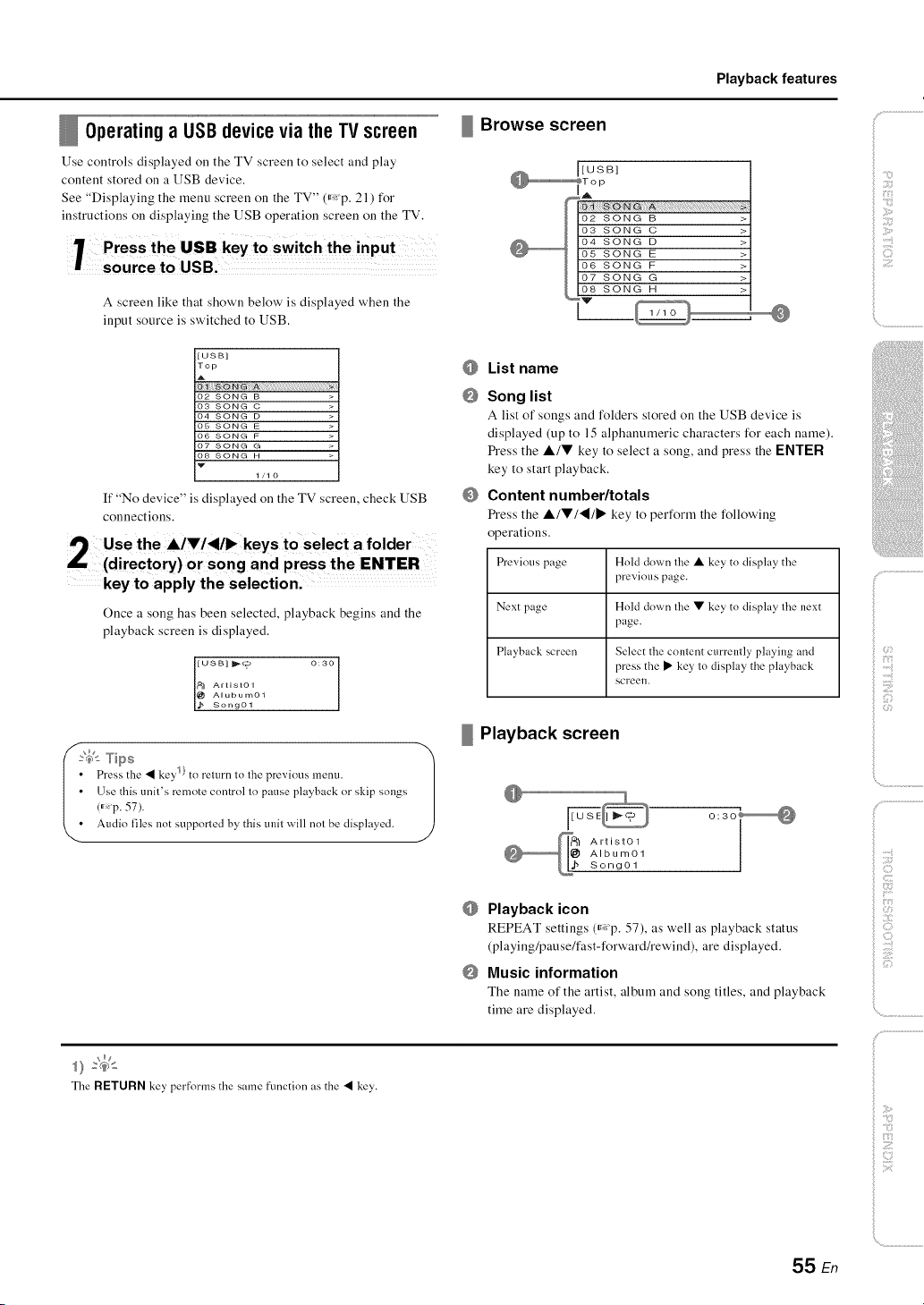
Playback features
Operating a USBdevicevia the TV screen
Use controls displayed on the TV screen to select and play
content stored on a USB device.
See "Displaying the menu screen on the TV" ff<p. 21) for
instructions on displaying the USB operation screen on the TV,
I :rSu;:tht: uUgBB,keyt°swi tchthe
A screen like that shown below' is displayed when the
input source is switched to USB.
_ Browse screen
[USB]
Top
02 SONG B
03 SONG C
04 SONG D
05 SONG E
06 SONG F
07 SONG G
08 SONG H
W
1/10
If "No device" is displayed on the TV screen, check USB
connections,
Use the AIV/,_/I_ keys to select a folder
(directory) or song and press the ENTER
key to apply the selection.
Once a song has been selected, playback begins and the
playback screen is displayed.
[USB] _(_ 0:30
_1 Artist01
@ Alubum01
_ Song01
',4_tTips 1
Press the • key 1}to relurn to the previous menu.
(_p.USethis57).unit'sremote control lo pause playback or skip" songs
Audio files not supporled by this und will nol be displayed.
@
@
@
List name
Song list
A list of songs and folders stored on the USB device is
displayed (up to 15 alphanumeric characters for each name).
Press the Air key to select a song, and press the I=NTER
key to start playback.
Content number/totals
Press the &lVl'_lll_ key to perform the following
operations.
Previous page Hold down the • key to display the
previous page.
Next page Hold down the • key to display the next
page.
Playback screen Select the content currently playing and
press the • key to display the playback
screen.
Playback screen
_1_ Artist01
Album01Song01
@
@
Playback icon
REPEAT settings ffXp. 57), as well as playback status
(playing/pause/fast-forward/rewind), are displayed.
Music information
The name of the artist, album and song titles, and playback
time are displayed.
The RETURN key performs the same function as the • key.
iiii il;i;iiiii_;il
)
:]_{:}
,_ (iii,i!_
{}
_ :;7
55 En
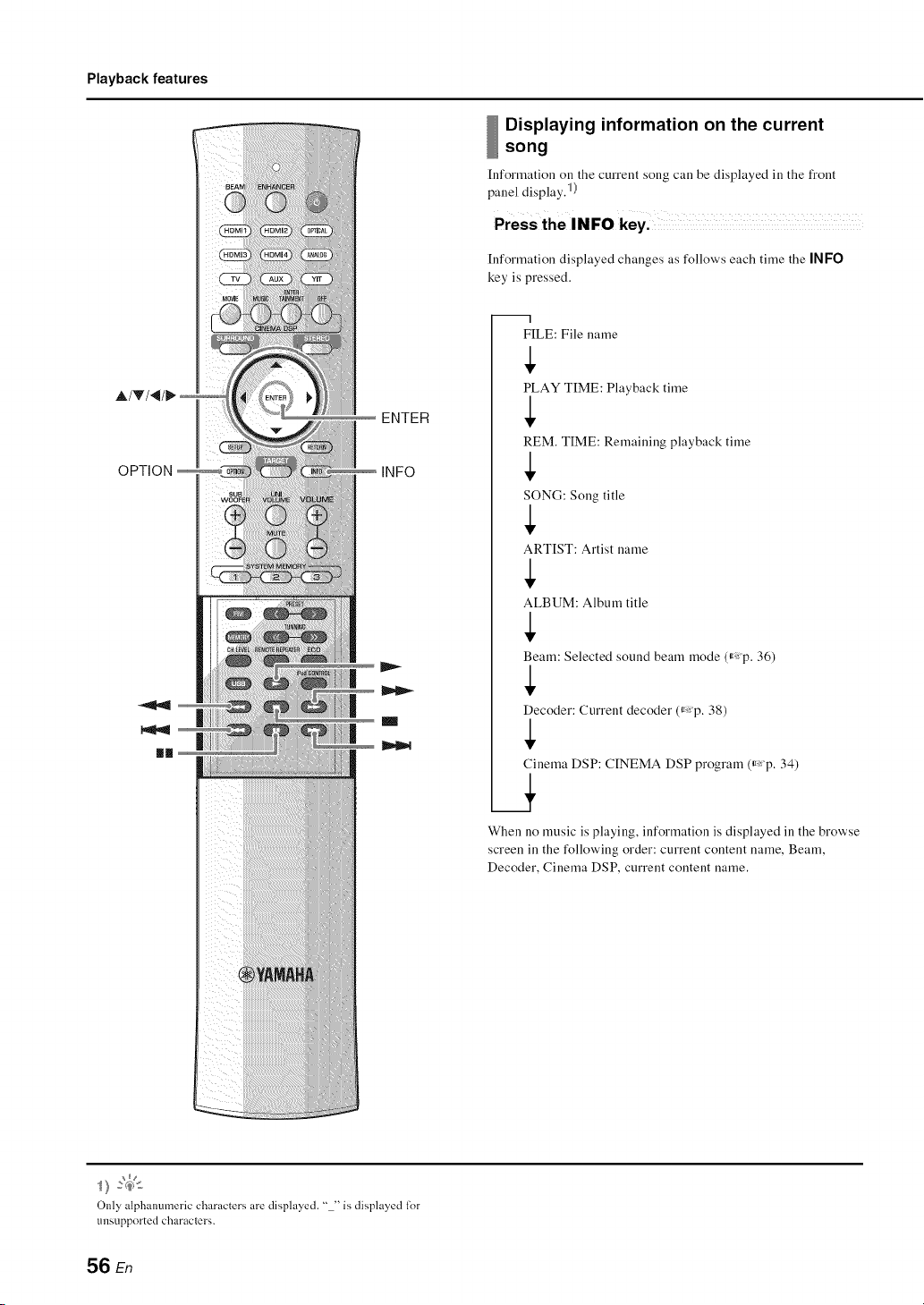
Playback features
Displaying information on the current
song
Information on the current song call be displayed ill the front
panel display.l )
Information displayed changes as follows each time the IN FO
key is pressed.
OPTION
ENTER
INFO
m I
FILE: File name
PLAY TIME: Playback time
REM. TIME: Remaining playback time
SONG: Song title
ARTIST: Artist name
ALBUM: Album title
Beam: Selected sound beam mode (_: p. 36)
Decoder: Current decoder (_: p. 38)
Cinema DSP: CINEMA DSP program (_: p. 34)
When no music is playing, information is displayed in the browse
screen in the following order: current content name, Beam,
Decoder, Cinema DSP, current content name.
Only alphanmneric characters are displayed. " " is displayed l_)r
unsupported characlers.
56 En
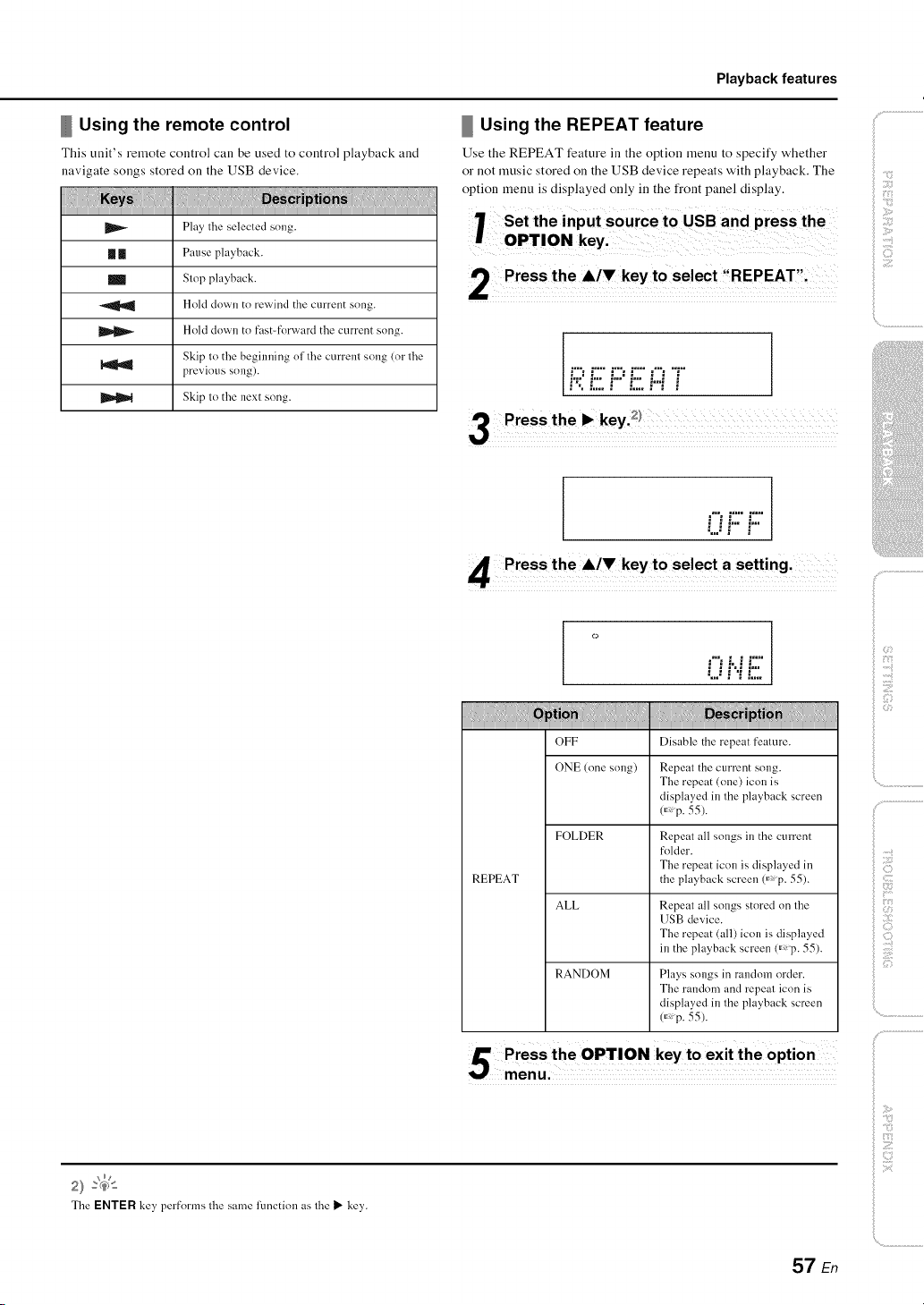
Playback features
Using the remote control
This unit's remote control call be used to control playback and
navigate songs stored on the USB device.
Play the selected song.
[] II Pause playback.
m Stop playback.
Hold down to rewind the current song.
Hold down to fast-forward the current song.
Skip to the beginning of the current song (or the
1'_ previous song).
Skip to the next song.
Using the REPEAT feature
Use the REPEAT feature in the option menu to specify whether
or not music stored on the USB device repeats with playback. The
option menu is displayed only in the front panel display.
2 Pressthe ,/,key t° select !!REPEATI:
=,==, =,==,. ;.% =,==,. ===% %=,.
i';'" i" i'-"i" ."%" i
3 i_ key,£1
.... ==,° ,==,°
i ii... b.
r Press the A!V key to select a setting. ........
o
="', ; ," g==,.
(..ir.i !:::.
OFF Disable the repeat feature.
ONE (one song) Repeat the current song.
The repeat (one) icon is
displayed in the playback screen
(,_ p. 55).
FOLDER Repeat all songs in the current
folder.
The repeat icon is displayed in
REPEAT the playback screen 0_p. 55).
ALL Repeat all songs stored on the
USB device.
The repeat (all) icon is displayed
in the playback screen 0_p. 55).
RANDOM Plays songs in random order.
The random and repeat icon is
displayed in the playback screen
(,_ p. 55).
C_
2} 4<
The ENTER key performs the same function as the I_ key.
57 En

Setupmenu
A/V
SETUP
ENTER
RETURN
A variety of settings for this unit can be specified and adjusted
from the setup menu. Among the options available are the sound
beam output method for optimal surround sound effects, speaker
volume control, and HDM[ settings.
• The setup menu is displayed on, and operated from, the TV
screen (it cannot be displayed in the front panel display). See
"Displaying the menu screen on the TV" (_,: p. 21) for
instructions on displaying the setup menu on the TV.
' F Press the SETUP key.i}
ISETUP MENU
IHDMI
IyAired
tDISPLAY
{_FORMATION
Repeat these steps to display the desired menu.
Press the • key @ to return to the previous menu.
1) @ Note
Hold down the SETUP key to display "OSD LANGUAGE" directly on
lhescreenU p. 22, 65).
2) _(_>_
The ENTER key, performs the same function as the _" key,.
The delault settings are marked with "':"'
The RETURN key performs lhe same funclion as lhe "q key.
58 En
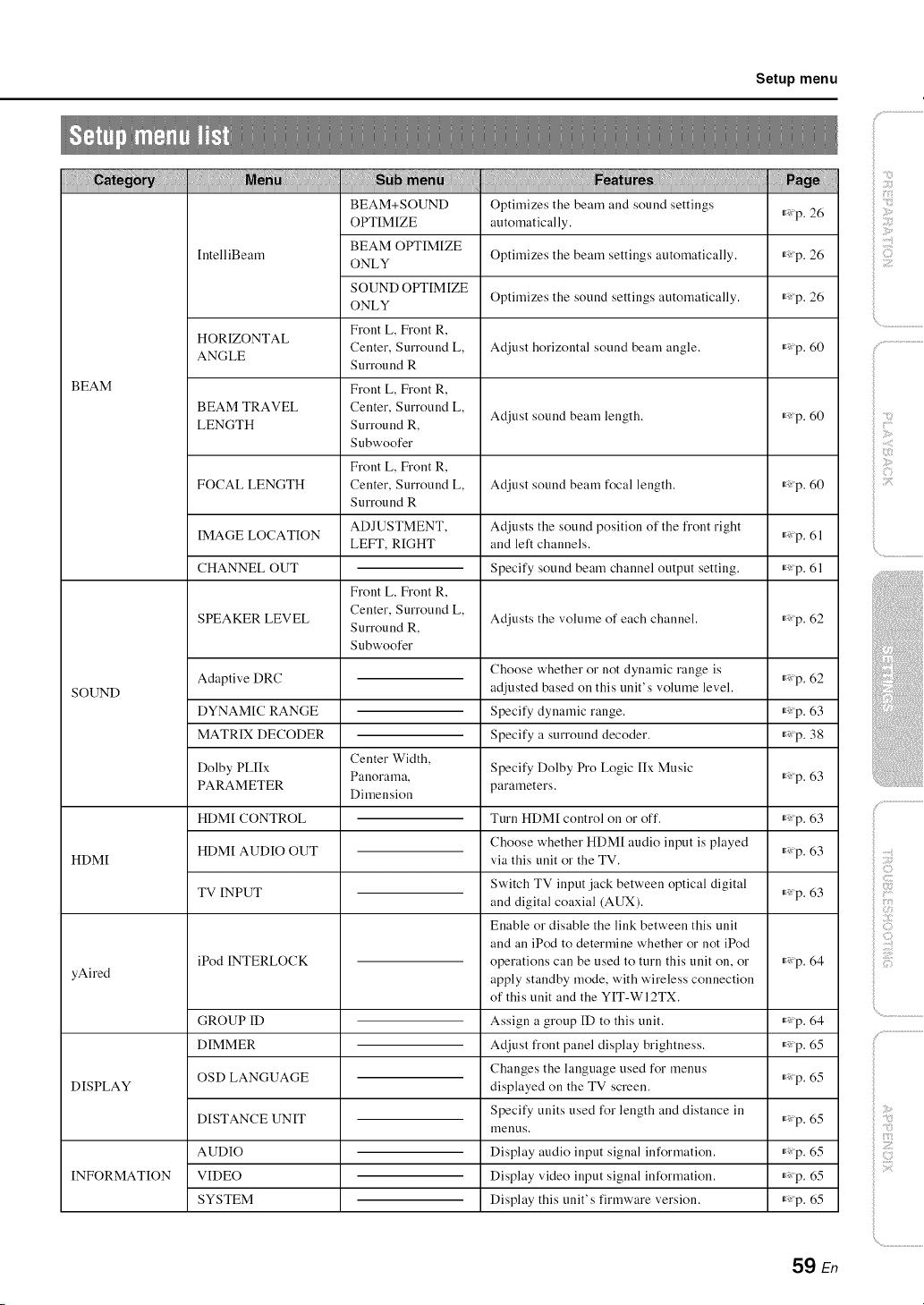
Setup menu
BEAM
SOUND
HDMI
yAired
DISPLAY
INFORMATION
BEAM+SOUND Optimizes the beam and sound settings rXp. 26
OPTIMIZE automatically.
BEAM OPTIMIZE
IntelliBeam ONLY Optimizes the beam settings automatically, rXp. 26
SOUND OPTIMIZE
ONLY Optimizes the sound settings automatically, rXp. 26
Front L, Front R,
HORIZONTAL
Center, Surround L, Adjust horizontal sound beam angle. _Xp. 60
ANGLE
S u rrou nd R
Front L, Front R,
BEAM TRAVEL Center, Surround L,
LENGTH Surround R, Adjust sound beam length, r_p. 60
Subwoofer
Front L, Front R,
FOCAL LENGTH Center, Surround L, Adjust sound beam focal length. _Xp. 60
S u rrou nd R
ADJUSTMENT, Adjusts the sound position of the front right
IMAGE LOCATION LEFT, RIGHT and left channels, r_p. 61
CHANNEL OUT Specify sound beam channel output setting, r_p. 61
Front L, Front R,
Center, Surround L,
SPEAKER LEVEL Adjusts the volume of each channel, r,:p. 62
Surround R,
Subwoofer
Adaptive DRC
DYNAMIC RANGE
MATRIX DECODER
Center Width,
Dolby PLIIx Panorama, Specify Dolby Pro Logic IIx Music
PARAMETER Dimension parameters.
HDMI CONTROL Turn HDMI control on or off.
Choose whether or not dynamic range is
adjusted based on this unit's volume level.
Specify dynamic range.
Specify a surround decoder.
HDMIAUDIOOUT
Choose whether HDM[ audio input is played
via this unit or the TV.
TVINPUT
iPod INTERLOCK
Switch TV input jack between optical digital
and digital coaxial (AUX).
Enable or disable the link between this unit
and an iPod to determine whether or not iPod
operations can be used to turn this unit on, or
apply standby mode, with wireless connection
of this unit and the YIT-WI2TX.
GROUPID
DIMMER
OSDLANGUAGE
DISTANCE UNIT
Assign a group ID to this unit.
Adjust front panel display brightness.
Changes the language used for menus
displayed on the TV screen.
Specify units used for length and distance in
menus.
AUDIO
VIDEO
SYSTEM
Display audio input signal information.
Display video input signal information.
Display this unit's firmware version.
r,:p. 62
r*:p. 63
r*:p. 38
r*:p. 63
r*:p. 63
r,:p. 63
r*:p. 63
_X;p. 64
rX;p. 65
rX;p. 65
rX;p. 65
rX;p. 65
rX;p. 65
59 En
il;i;iiiii_;il
17¸¸:¸¸11
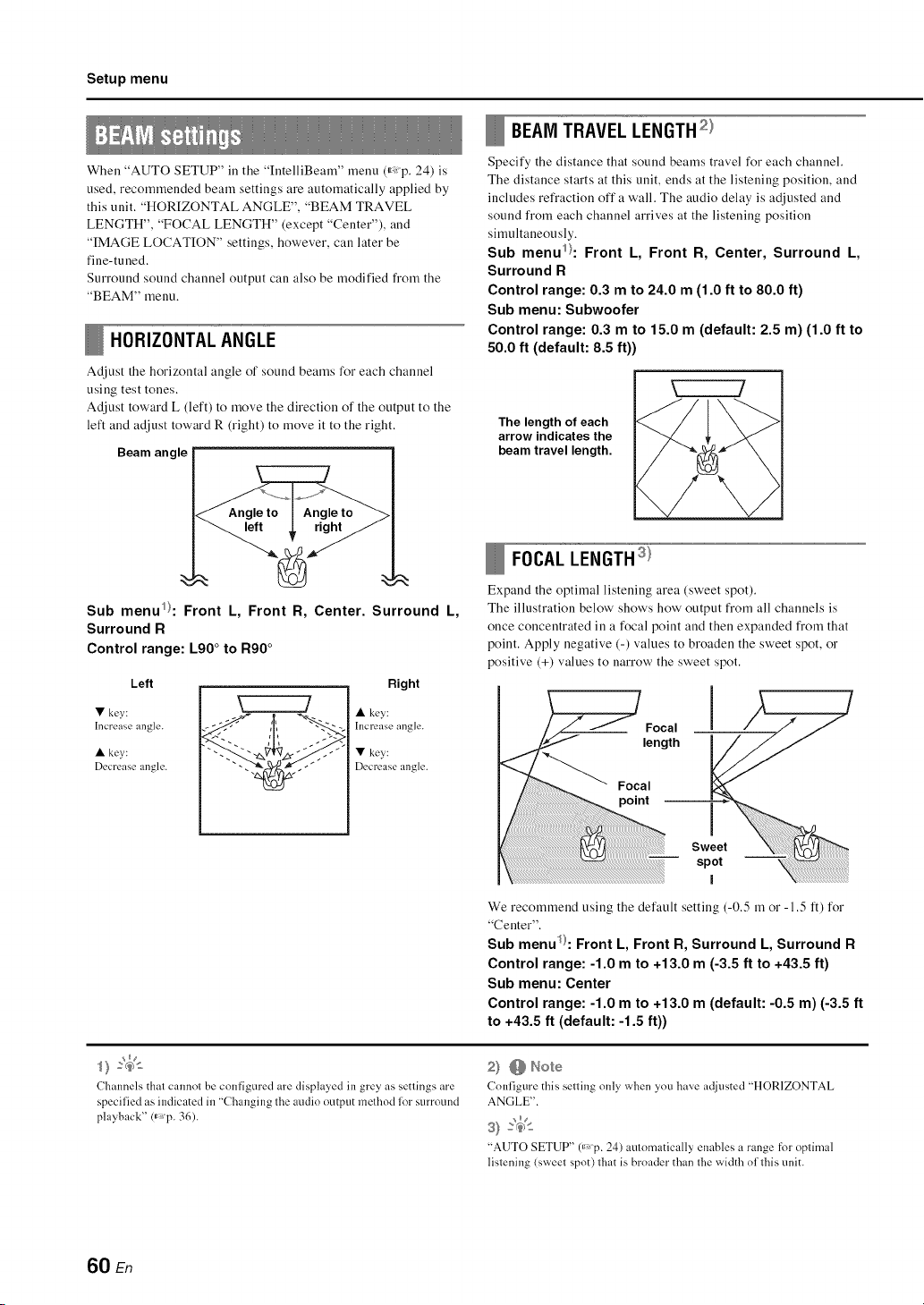
Setup menu
When "AUTO SETUP" ill the "IntelliBeam" menu (_,:p. 24) is
used, recommended beam settings are automatically applied by
this unit. "HORIZONTAL ANGLE", "BEAM TRAVEL
LENGTH", "FOCAL LENGTH" (except "Center"), and
"IMAGE LOCATION" settings, however, call later be
fine-tuned.
Surround sound channel output can also be modified froru the
"BEAM" menu.
HORIZONTAL ANGLE
Adjust the horizontal angle of sound beams for each channel
using test tones.
Adjust toward L (left) to move the direction of the output to the
left and adjust toward R (right) to move it to the right.
Beam angle
Sub menul}: Front L, Front R, Center. Surround L,
Surround R
Control range: L90 ° to R90 °
Left Right
• key:
Increase angle.
• key,:
Decrease angle.
• key:
Increase angle.
• key,:
Decrease angle.
BEAM TRAVEL LENGTH2}
Specify the distance that sound beams travel for each channel.
The distance starts at this unit, ends at the listening position, and
includes refraction off a wall. The audio delay ix adjusted and
sound from each channel arrives at the listening position
simultaneously.
Sub menul}: Front L, Front R, Center, Surround L,
Surround R
Control range: 0.3 m to 24.0 m (1.0 ft to 80.0 ft)
Sub menu: Subwoofer
Control range: 0.3 m to 15.0 m (default: 2.5 m) (1.0 ft to
50.0 ft (default: 8.5 ft))
The length of each
arrow indicates the
beam travel length.
FOCALLENGTHs}
Expand the optimal listening area (sweet spot).
The illustration below' shows how' output from all channels is
once concentrated in a focal point and then expanded from that
point. Apply negative (-) values to broaden the sweet spot, or
positive (+) values to narrow the sweet spot.
Focal
length
Focal
point
We recommend using the default setting (-0.5 m or -1.5 it) for
"Center".
Sub menu_ : Front L, Front R, Surround L, Surround R
Control range: -1.0 m to +13.0 m (-3.5 ft to +43.5 ft)
Sub menu: Center
Control range: -1.0 m to +13.0 m (default: -0.5 m) (-3.5 ft
to +43.5 ft (default: -1.5 ft))
Channels that cannot be configured are displayed in grey as settings are
specified as indicated in "Changing the audio output method lot surround
playback" (_p. 36).
8 @ Here
Conligure this selling only when you have adjusted "HORIZONTAL
ANGLE".
S} _e'_
"AUTO SETUP" 0_ p. 24) aLilnr'_/atically enables a range for nplimal
lislening {sweel spot) lhat is broader than Ihe width ol lhis unit.
60 En
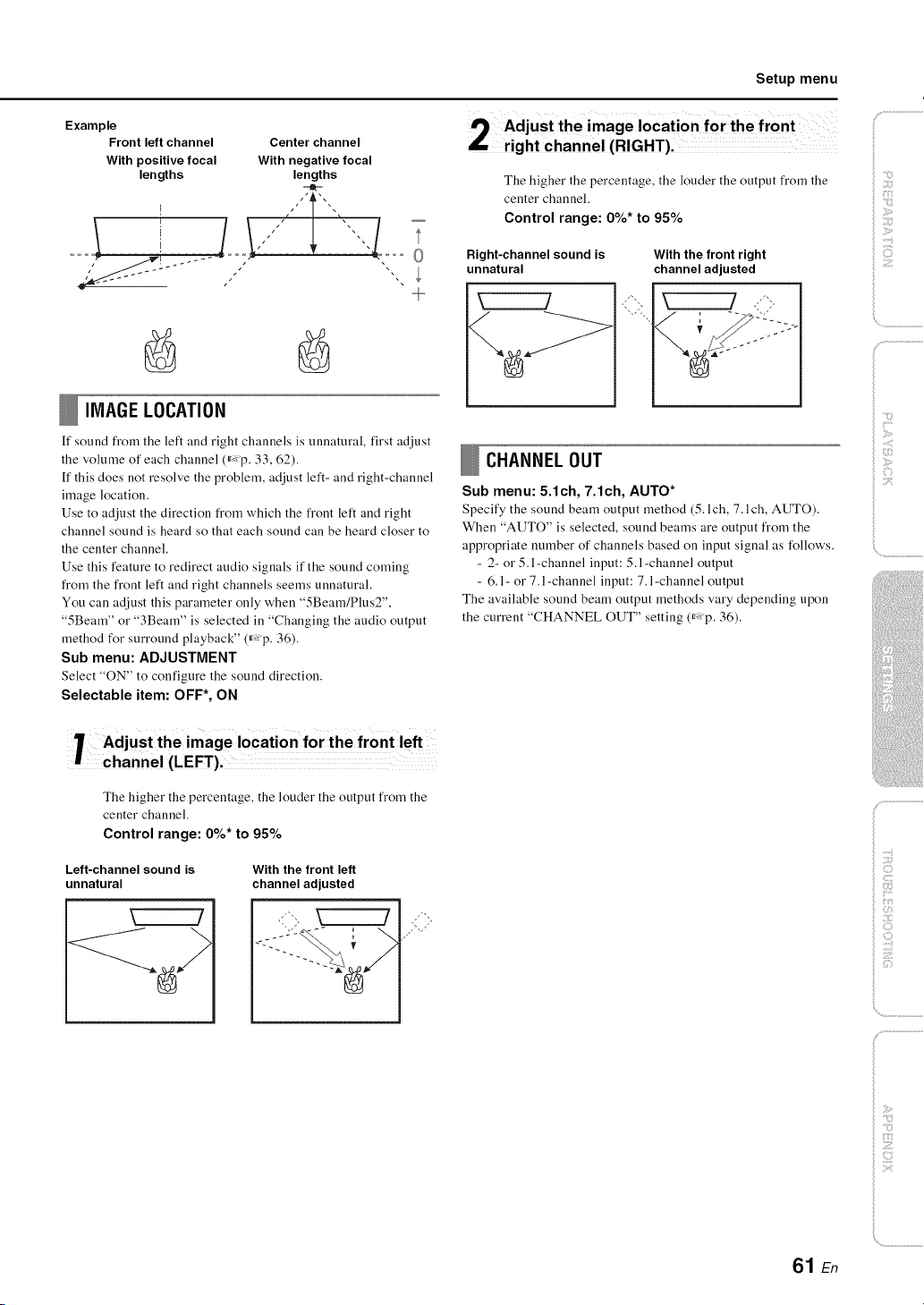
Setup menu
Example
Front left channel Center channel
With positive focal With negative focal
lengths lengths
+
IMAGE LOCATION
ff sound iYom the left and right channels is unnatural, first adjust
the volume of each channel (_,: p. 33, 62).
If this does not resolve the problem, adjust left- and right-channel
image location.
Use to adjust the direction from which the front left and right
channel sound is heard so that each sound call be heard closer to
the center channel.
Use this feature to redirect audio signals if the sound coming
from the front left and right channels seems unnatural.
You can adjust this parameter only when "5Beam/Plus2",
"5Beam" or "3Beam" is selected in "Changing the audio output
method for surround playback" (_,: p. 36).
Sub menu: ADJUSTMENT
Select "ON" to configure the sound direction.
Seleetable item: OFF*, ON
The higher the percentage, the louder the output from the
center channel.
Control range: 0%* to 95%
Right-channel sound is
unnatural
With the front right
channel adjusted
CHANNEL OUT
Sub menu: 5.1ch, 7.1ch, AUTO*
Specify the sound beam output method (5. lch, 7.1ch, AUTO).
When "AUTO" is selected, sound beams are output from the
appropriate number of channels based on input signal as follows.
- 2- or 5.l-channel input: 5.l-channel output
- 6.1 - or 7.1 -channel input: 7. l-channel output
The available sound beam output methods vary depending upon
the current "CHANNEL OUT" setting (_: p. 36).
@
ilii_i_i_iiii_!i!i!iii!!i!_
The higher the percentage, the louder the output from the
center channel.
Control range: 0%* to 95%
Left-channel sound is With the front left
unnatural channel adjusted
iiiI _i(ii12
iiili_i_ii:i_!!!i!ii:i!
iiii _,_;iiii)
61 E,
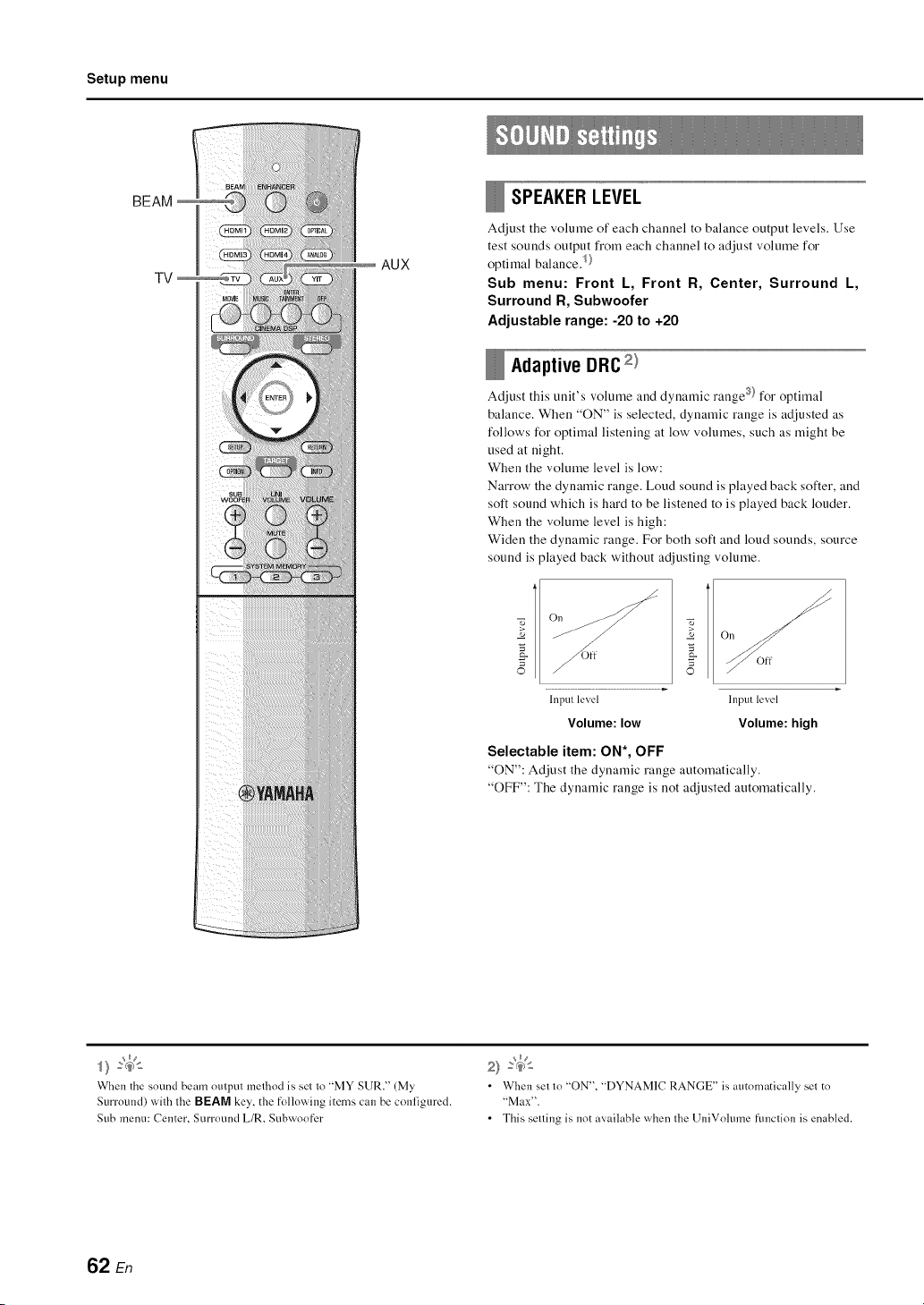
Setup menu
BEAM
AUX
SPEAKER LEVEL
Adjust the volume of each channel to balance output levels. Use
test sounds output from each channel to adjust volume for
opti mal balance./}
Sub menu: Front L, Front R, Center, Surround k,
Surround R, Subwoofer
Adjustable range: -20 to +20
Adaptive DRC 2)
Adjust this tmit's volume and dynamic range 3} for optimal
balance. When "ON" is selected, dynamic range is adjusted as
follows for optimal listening at low' volumes, such as might be
used at night.
When the volume level is low:
Narrow the dynamic range. Loud sound is played back softer, and
soft sound which is hard to be listened to is played back louder.
When the volume level is high:
Widen the dyuamic rauge. For both soft aud loud sounds, source
sound is played back without adjusting volume.
ca
Off
lnpul level Input level
Volume: low Volume: high
Selectable item: ON*, OFF
"ON": Adjust the dynamic range automatically.
"OFF": The dynamic range is not adjusted automatically.
When the sound beam output method is set to "MY SUR." (My
Surround) with the BEAM key, the following items can be configured.
Sub menu: Center, Surround L/R, Subwoofer
2} :(_
• When sel to "ON", "DYNAMIC RANGE" is automatically sel to
"Max".
• This selling is not available when the UniVolume funclion is enabled.
62 En
Setup menu
DYNAMIC RANGE3)
Adjust this unit's dynamic range.
Selectable items: Max*, Standard, Min/Auto
Max: Outputs sound without adjusting the dynamic range of the
input signals. @
Standard: The dynamic range recommended for regular home
use.
Min/Auto:
Min: Sets dynamic range at a level that supports comfortable
listening at low volumes.
Auto: Sets dynamic range in accordance with information
received from input signal.
D01byPkllx PARAMETER
Adjust Dolby Pro Logic IIx Music surround decoder parameters.
Sub menu: Center Width
The greater the value, the broader the sound to the left and right.
Smaller values restrict sound to the center.
Adjustable range: 0 to 7 (default: 3)
Sub menu: Panorama
When this is set to "ON", sounds from the front left and right
channels are routed to the left and right for a surround, panoramic
effect.
Seleetable item: OFF*, ON
Sub menu: Dimension
This setting adjusts the difference in levels between the front and
surround channels. The greater the value, the higher the volume
from the front channel. The smaller the value, the higher the
volume from the surround channels.
Adjustable range: -3 to +3 (default: O)
Use to configure the settings related to HDM[ signals and the
HDM[ control function.
HDMI CONTROL
Turn HDM[ control (_,:p. 30) on or off.
Selectable item: OFF*, ON
"OFF": Disable the control function. The standby power
consumption of this unit decreases.
"ON": Enable the control function.
HDMI AUDIOOUT
Use to select a component to play back HDMI audio signals. This
setting is effective when "HDM[ CONTROL" is set to "OFF". 5
Selectable item: AMP*, TV
"AMP": Play back the input sound signal.
"TV": Plays audio content from the TV connected to the HDM[
OUT (ARC) jack.
TV INPUT
If your TV is not ARC compatible (or if the ARC feature has
been disabled), TV audio is input via the INPUT DIGITAL TV
(OPTICAL) jack (default). This unit's input source can be
changed to the AUX INPUT DIGITAL (COAXIAL) jack. G}
Selectable item: OPTICAL*, COAXIAL
),p_,
]ii il;i;iiiii_;il
ilii_i_i_iiii_!i!i!iii!!i!_
;?;;_i{ii
/ .................
_ ¸:¸¸;¸7
Dynamic range describes the dilference belween minimum and
nMtxi ['fILl n] volunle.
_ng
"Adaptive DRC" is automalically sel to "OFF" when the sellings other
lhan "Max" is selected.
HDMI videosignalsinputto oneof the HDMI IN jacks of this unitare
always outputfi'omlheHDMI OUT (ARC)jack of tiffs unit.
_nz
II this unit's input source is switched to "COAXIAL", audio is input
lrom lhe device {TV) connecled lo lhe AUX INPUT DIGITAL jack on
this unil when the TV key is pressed. Audio is input fi'omthe device
colmected to the INPUT DIGITALTV jack on this unil when the AUX
key is pressed.
63 En
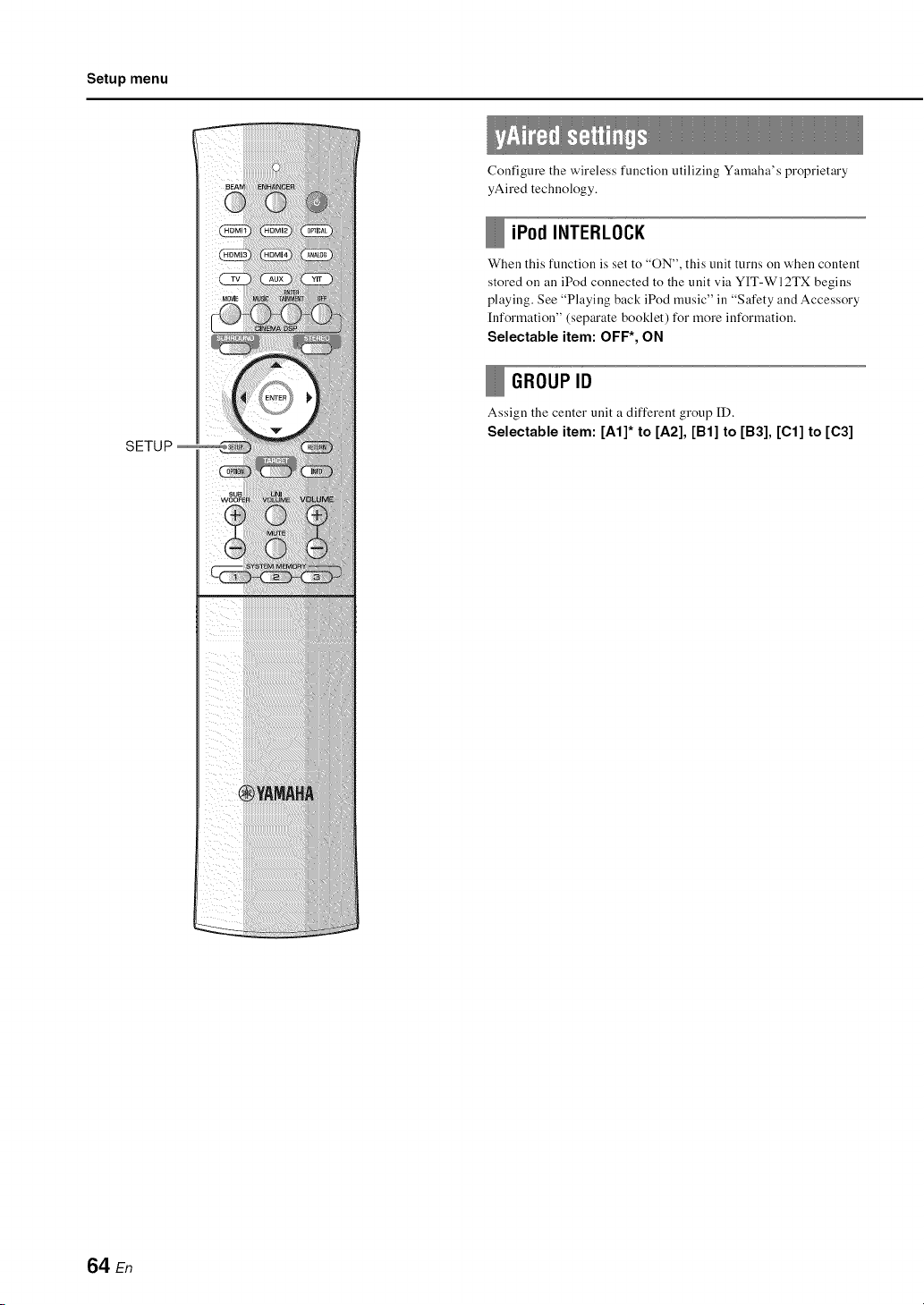
Setup menu
SETUP
Configure the wireless function utilizing Yamaha's proprietary
yAired technology.
iPod INTERLOCK
When this function is set to "ON", this unit turns on when content
stored on all iPod connected to the unit via YIT-WI2TX begins
playing. See "Playing back iPod music" ill "Safety and Accessory
[nformation" (separate booklet) for more information.
Selectable item: OFF*, ON
GROUP ID
Assign the center unit a different group [D.
Selectable item: [A1]* to [A2], [B1] to [B3], [C1] to [C3]
64 En
Setup menu
DIMMER
Adjust the brightness of the front panel display. The smaller the
value, the dimmer the display.
When the Eco function is enabled, the specified brightness is
applied for only a few seconds.
Selectable item: -4 to -1, 0* (brightest)
OSD LANGUAGE_)
Use to select the language used for menus displayed on the TV
screen,
Selectable item: []_ (Japanese), ENGLISH* (English),
DEUTSCH (German), FRAN(_AIS (French), ESPANOL
(Spanish), ITALIANO (Italian), NEDERLANDS (Dutch),
PYCCKHI_I (Russian), SVENSKA (Swedish)
"BTg_": Menus are displayed in Japanese.
"ENGLISH": Menus are displayed ill English.
"DEUTSCH': Menus are displayed in German.
"FRAN(_2AIS": Menus are displayed in French.
"ESPAIqOL": Menus are displayed in Spanish.
"ITALIANO": Menus are displayed in Italian.
"NEDERLANDS": Menus are displayed in Dutch.
"PNCCKI/IVI": Menus are displayed in Russian.
"SVENSKA": Menus are displayed in Swedish.
DISTANCE UNIT
Use to change the display unit of measurement.
Selectable item: METERS, FEET*
If units used for displaying measurements are changed from
"METERS" to "FEET" or vice versa, the change will not be
reflected in current settings. Configure settings again to reflect
the change in units.
Display information for the audio and video signal input to this
unit.
AUDIO
The following information on the current audio input signal is
displayed.
Format Digital audio format
Numher of
chmmels
The number of channels contained within the input
signal fi'ont/surrnund/low field effects (LEE).
Example: "3/2/0.1" means signal contains 3 fi'ont
channels, 2 surround channels, and LFE.
If the signal contains channels other than fi'ont,
surround, and LEE, the total nmnber of chmmels
may be displayed. Example: "5. I ch'.
Sampling The sampling fl'equency of the digital input signal
fl'equency
Bit rate 2) The per-second bit rate of the input signal
VIDEO
The following information on the current video input signal is
displayed.
Type HDMI or DV1
Resolution Video signal resolution
SYSTEM
Display the version of firmware currently installed on this unit.
)'s,,_'
/ .................
• Hold down the SETUP key to display "OSD LANGUAGE" directly
on the TV screen.
• The settings may be changed automatically when using the TV which
supports the HDMI control function.
• Display language can only be selected fnr menus displayed on the TV
screen. Only alphanumeric characters are displayed in the fi'nnt panel
display.
2} 4<_
Audio bil rate may not be displayed for some input signals.
65 En
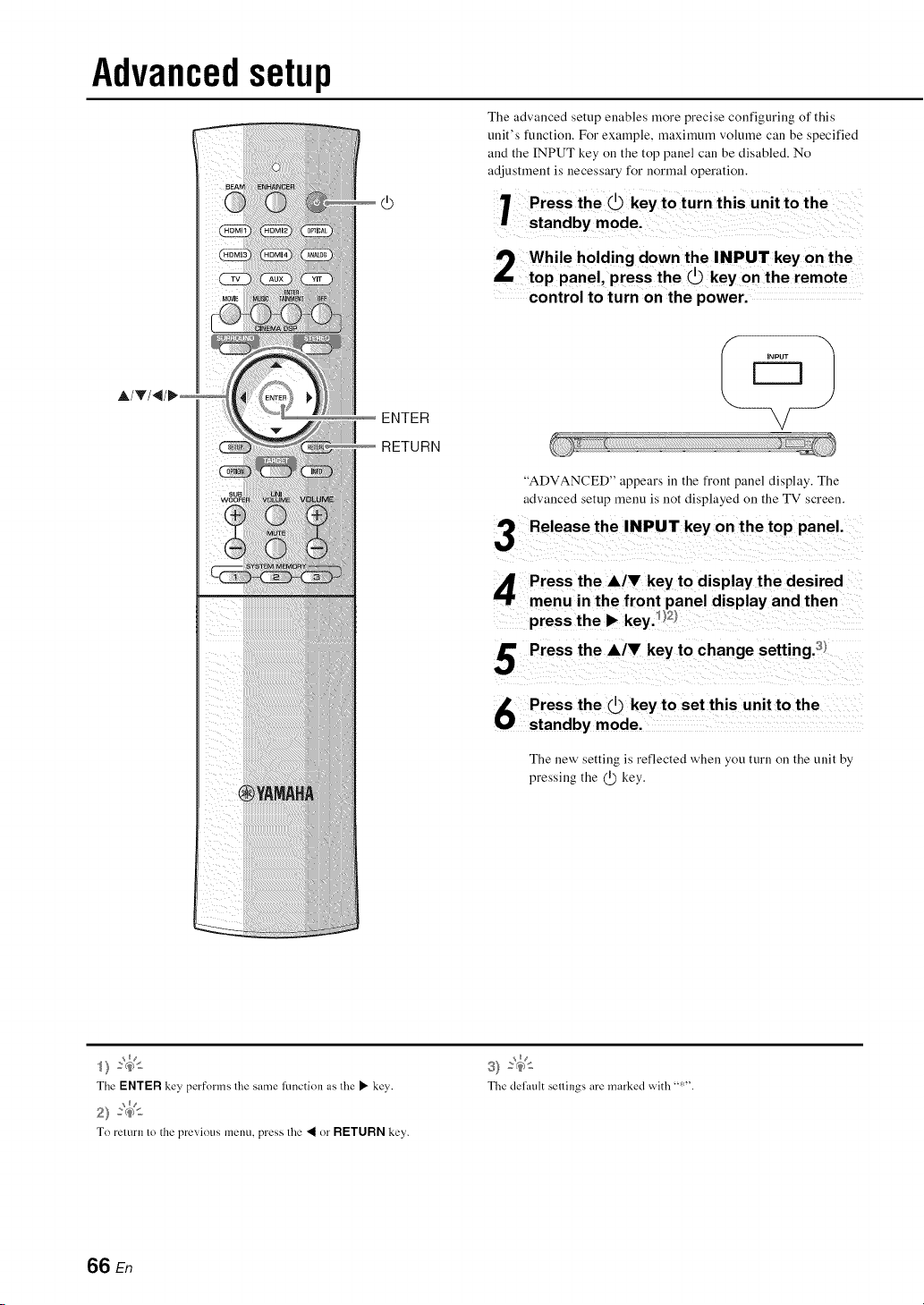
Advancedsetup
AIVI_
The advanced setup enables more precise configuring of this
unit's function. For exainple, maximum volume can be specified
and the INPUT key on the top panel call be disabled. No
ENTER
RETURN
control to turn on the power.
"ADVANCED" appears in the front panel display. The
advanced setup menu is not displayed on the TV screen.
Release the INPUT key on the top panel.
5
Press the i/V key to display the desired
menu in the front panel display and then
press the • key._ ,
Press the i/V key to change setting.
Press the @ key to set this unit to the
standby mode.
The new setting is reflected when you turn oil the unit by
pressing the @ key.
The ENTER key, performs lhe same function as lhe • key.
_ng
2} _<_
To return to the previous menu, press the "< or RETURN key.
The delault seilings are marked wida '":"'
66 En
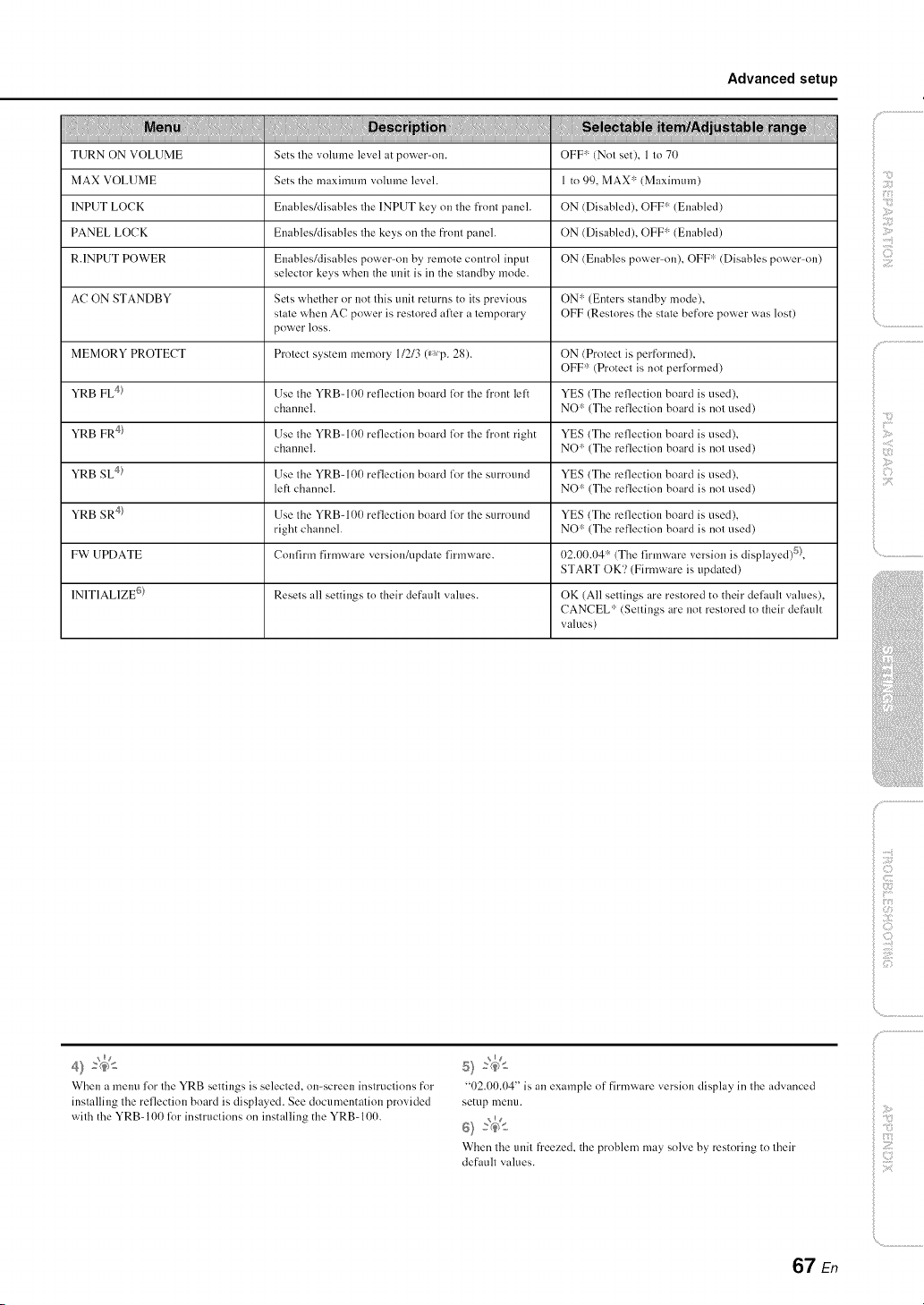
Advanced setup
!!!!!l!li!!ii! !!! !i i!iii @ liii,!, !
TURN ON VOLUME Sets the vohnne level at pnwer-nn. OFF" (Not set), 1 to 70
MAX VOLUME Sets the maximum vnhnne level. 1 to 99, MAX' (Maximum)
1NPUT LOCK EnablesMisables the 1NPUT key nn the front panel. ON (Disabled), OFF" (Enabled)
PANEL LOCK EnablesMisables the keys on the flout panel. ON (Disabled), OFF" (Enabled)
R.1NPUT POWER Enables/disables power-on by remote control input ON (Enables power-on), OFF"' (Disables power-nu)
selector keys when the unit is in the standby mode.
AC ON STANDBY Sets whether or not this unit returns to its previous ON" (Enters standby mode),
state when AC power is restored after a temporary OFF (Restores the state before power was lost)
povv'er lnss.
MEMORY PROTECT Protect system memnry 11213 6_p. 28). ON (Protect is performed),
OFF"' (Protect is not perlormed)
YRB FL 4} Use the YRB-100 reflection board lot the fl'nnt lel: YES (The reflection board is used),
chanuel. NO:" (The reflection board is not used)
YRB FR a? Use the YRB-100 reflection board lot the fl'ont right YES (The reflection board is used),
chanuel. NO:" (The reflection board is not used)
YRB SL 4} Use the YRB-100 reflection board for the surround YES (The reflection board is used),
left channel. NO:" (The reflection board is not used)
YRB SR a? Use the YRB-I O0 reflection board for the surround YES (The reflection board is used),
right channel. NO:" (The reflection board is not used)
FW UPDATE Confirm firmware versiou/update firmware. 02.00.04* (The firmware version is displayed) _?,
START OK'? (Firmware is updated)
INITIALIZE G} Resets all settings to their default values. OK (All settings are restored to their delanlt values),
CANCEL:' (Settings are not restored to their default
values)
il;i;iiiii_;il
(3
;711
_ :7
4) ='4<
When a menu lor Ihe YRB settings is selecled, nu-screeu inslruclions for
installing the reflection board is displayed. See documentation provided
with the YRB-100 for inslruclions on installing the YRB-100.
"02.00.04" is an example of firmware version display in the advanced
setup nleuu.
6>='4£
When the unit ffeezed, the problem may solve by restoring to their
default values.
67 En
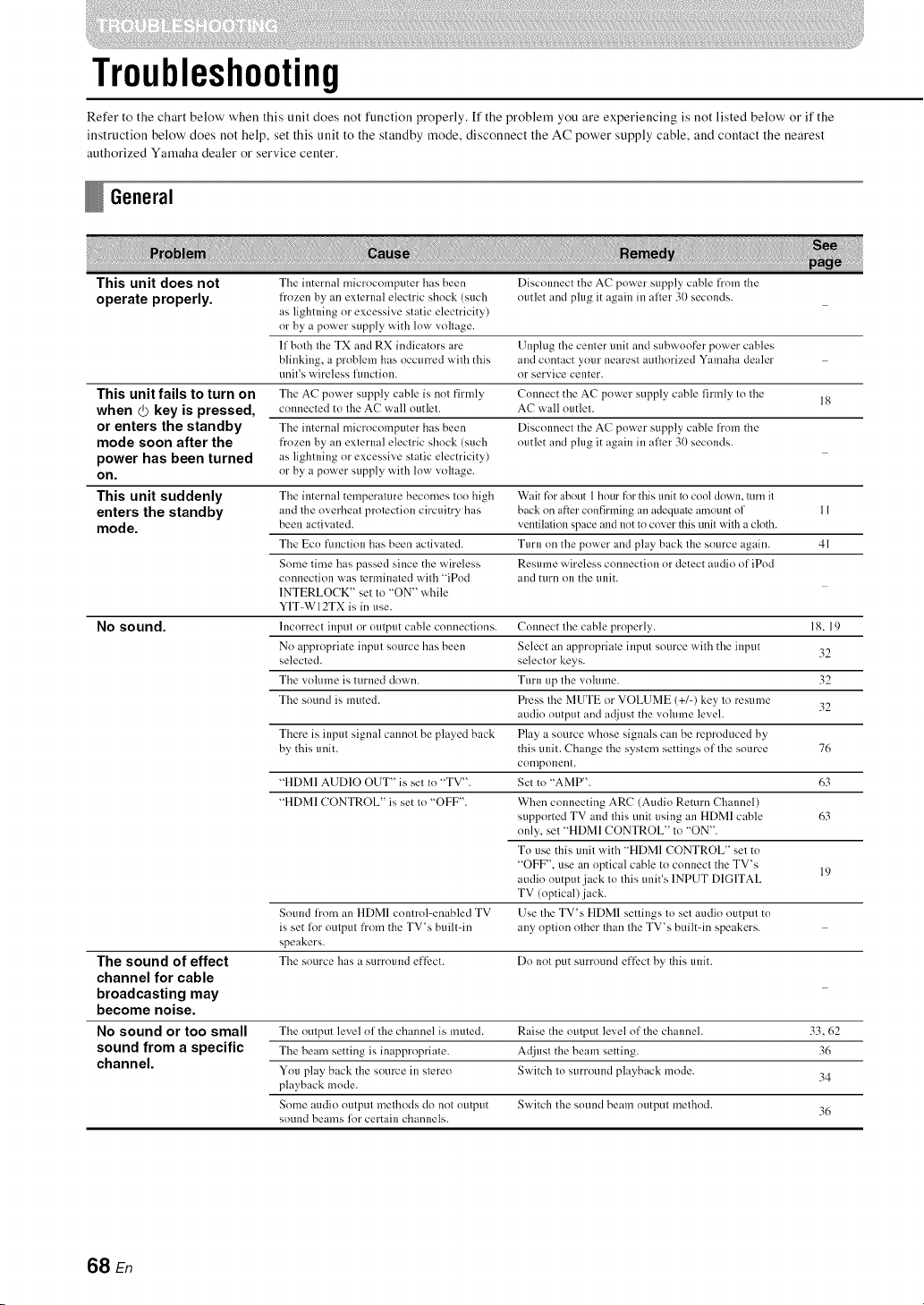
Troubleshooting
Refer to the chart below' when this unit does not function properly, ff the problem you are experiencing is not listed below' or if the
instruction below' does not help, set this unit to the standby mode, disconnect the AC power supply cable, and contact the nearest
authorized Yamaha dealer or service center.
General
This unit does not The internal n/icrncomputer has been Disconnect the AC power supply cable from the
operate properly, frnzen by an external electric shock (such outlet and plug it again in afler 30 seconds.
as lightning or excessive static electricity)
or by a power supply with low voltage.
If both the TX and RX indicators are
blinking, a problem has occurred with this
unit's wireless function.
The AC power supply cable is not firmly
connected to tile AC wall outlet.
The internal microcomputer has been
frnzen by an external electric shock (such
as lightning or excessive static electricity)
nr by a power supply with low voltage.
Unplug the center unit and subwuofer power cables
and contact your nearest authorized Yamaha dealer
nr service center.
This unit fails to turn on Connect the AC power supply cable firmly to tile 18
when @ key is pressed, AC wall outlet.
or enters the standby Disconnect the AC power supply cable from the
mode soon after the outlet and plug it again in after 30 seconds.
power has been turned
on.
This u nit suddenly The internal temperatm'e becomes too high Wait for about 1hour fnr this unit to cool down, turn it
enters the stand by and the overheat protection circuitry has back on after confirming an adequate amount nf 11
mode. been activated, ventilation space and not tn cover this unit wilh a cloth.
The Ecn function has been activated. Turn on the power and play back the source again. 41
Some time has passed since the wireless Resume wireless connection or detect audio of iPod
connection was terminated with "iPod and turn on the trait.
INTERLOCK" set to "ON" while
Y1T-W12TX is in use.
No sound. Incorrect input or output cable connections. Connect tile cable prnperly. 18, 19
Nn appropriate input source has been Select an appropriate input source with the input 32
selected, selector keys.
The volume is turned down. Turn up tile volume. 32
Tile sound is muted. Press tile MUTE or VOLUME (+/-) key to resun/e 32
audio output and adjust the volume level.
There is input signal cannot be played back Play a source whose signals can be reproduced by
by this trait, this unit. Change tile system settings nf tile source 76
component.
"HDMI AUDIO OUT" is set to "TV". Set to "AMP". 63
"HDMI CONTROL" is set to "OFF". When connecting ARC (Audio Return Channel)
supported TV and this unit using an HDMI cable 63
only, set "HDMI CONTROL" to "ON".
To use this unit with "HDMI CONTROL" set to
"OFF", use an optical cable to connect the TV's 19
audio output jack to this unit's INPUT DIGITAL
TV (optical)jack.
Sound li'nm an HDMI control-enabled TV Use tile TV's HDMI settings to set audio output to
is set lot output from the TV's builtqn any option other than tile TV's builtqn speakers.
speakers.
The sound of effect The source has a surround effect. Do not put surround effect by this trait.
channel for cable
broadcasting may
become noise.
No sound or too small The cttltptlt level nf tile channel is retired. Raise the outpllt level of the channel. 33, 62
sound from a specific The beam setting is inapprnpriate. Adjust the beam setting. 36
channel.
Ynu play back the source in stereo Switch to surround playback mode. 34
playback mode.
Some audio output methods do not output Switch the sound beam nutptlt methnd. 36
sound beams lot certain channels.
68 En
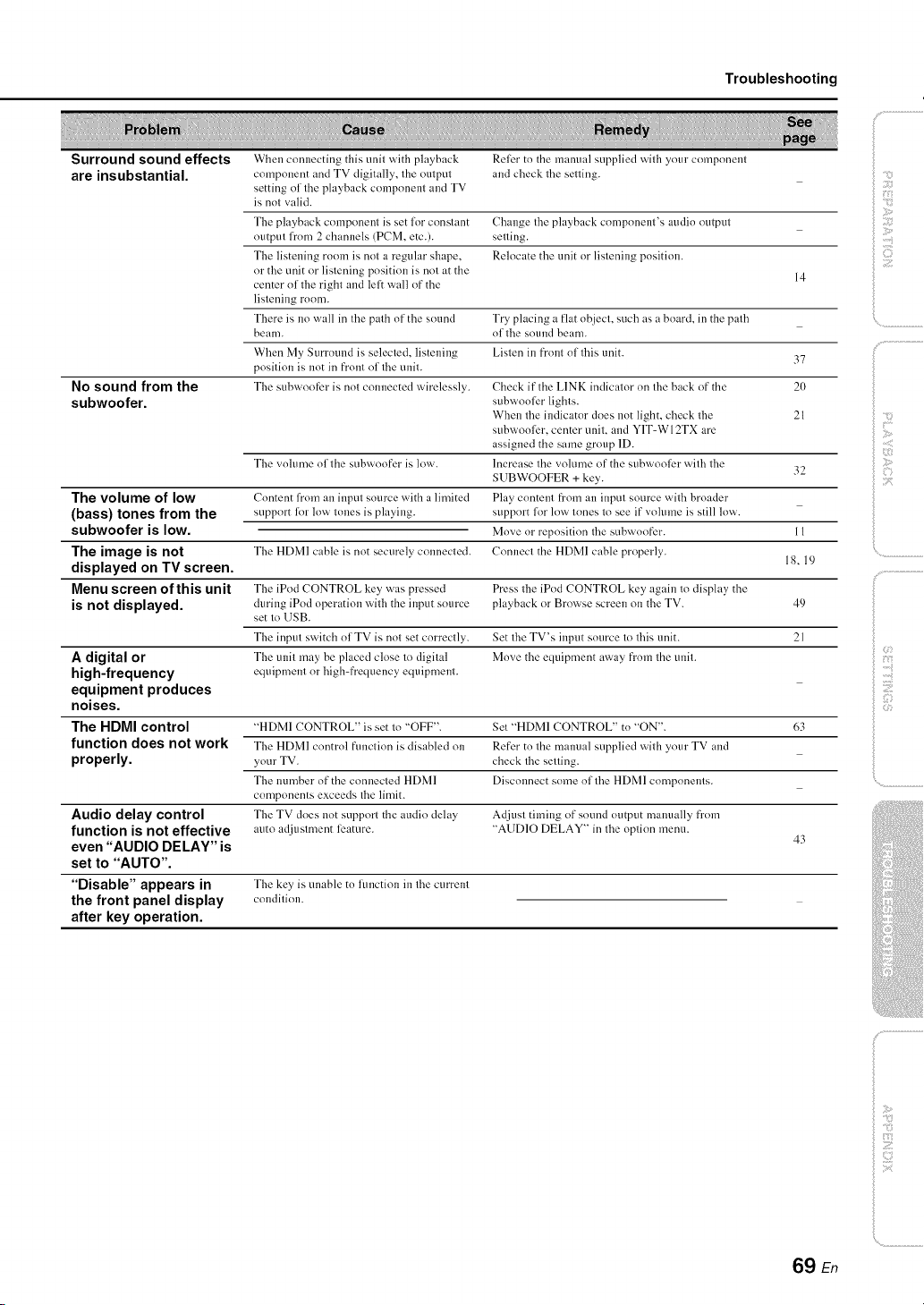
Troubleshooting
Surround sound effects When connecting this unit with playback Relier to the manual supplied with your component
are insubstantial, component and TV digitally, the output and check tile setting.
setting of tile playback component and TV
is not valid.
The playback component is set for constant Change tile playback component's audio output
output from 2 channels (PCM, etc.), setting.
The listening room is not a regular shape, Relocate the unit or listening position.
or the unit or listening position is not at the 14
center of tile right and lel: wall of the
listening room.
There is no wall in tile path of the sound Try placing a flat object, such as a board, in the path
beam. of tile sound beam.
When My SmTonnd is selected, listening Listen in fl'ont of this unit.
37
position is not in fl'ont of tile unit.
No sound from the The subwoofer is not colmected wirelessly. Check if the LINK indicatnr on tile back of the 20
subwoofer. S tl[_r _)_' _" lights.
When tile indicator does not light, check tile 21
subwoolier, center unit. and Y1T-WI2TX are
assigned the same group 1D.
The vohm/e of the subwoofer is low. Increase the volume of the subwnnlier with tile
32
SUBWOOFER + key.
The volume of low Content from an input source with a limited Play content fi'nm an input source with broader
(bass) tones from the support lor low tones is playing, support for low tones to see if vnhnne is still low.
subwoofer is low. Mnve or repnsition tile subwoofer. 11
The image is not Connect the HDMI cable properly.
18, 19
The HDMI cable is not securely connecled.
displayed on TV screen.
Menu screen of this unit The iPnd CONTROL key' was pressed Press tile iPod CONTROL key again to display the
is not displayed, duriug iPnd operation with the input source playback or Browse screen on the TV. 49
set to LISB.
The input switch ol TV is nnl set correclly. Set tile TV's input source lo fllis unit. 21
A digital or The unit may be placed close Io digital Move the equipment avv'ay fi'om the unit.
high-frequency equipment or high-frequency equipment.
equipment produces
noises.
The HDMI control "HDMI CONTROL" is set to "OFF". Set "HDMI CONTROL" tn "ON". 63
function does not work The HDMI control fuuclion is disabled on Refer tn the manual supplied with your TV and
properly, your TV. check tile setting.
The number of the connecled HDMI Disconnect some ol tile HDMI components.
components exceeds tile limit.
Audio delay control The TV does not support the audio delay Adjusl timing of sound output malmally from
function is not effective auto adjustment feature. "AUDIO DELAY" in tile optinn menu.
even "AUDIO DELAY" is 43
set to "AUTO".
"Disable" appears in The key*is unable tn hmction in tile current
the front panel display condition.
after key operation.
iiii il;i;iiiii_;il
iliiiiiili!i!i!iii!!i!_
:ii;ii_!_i_iII!............
f
Z
69 En
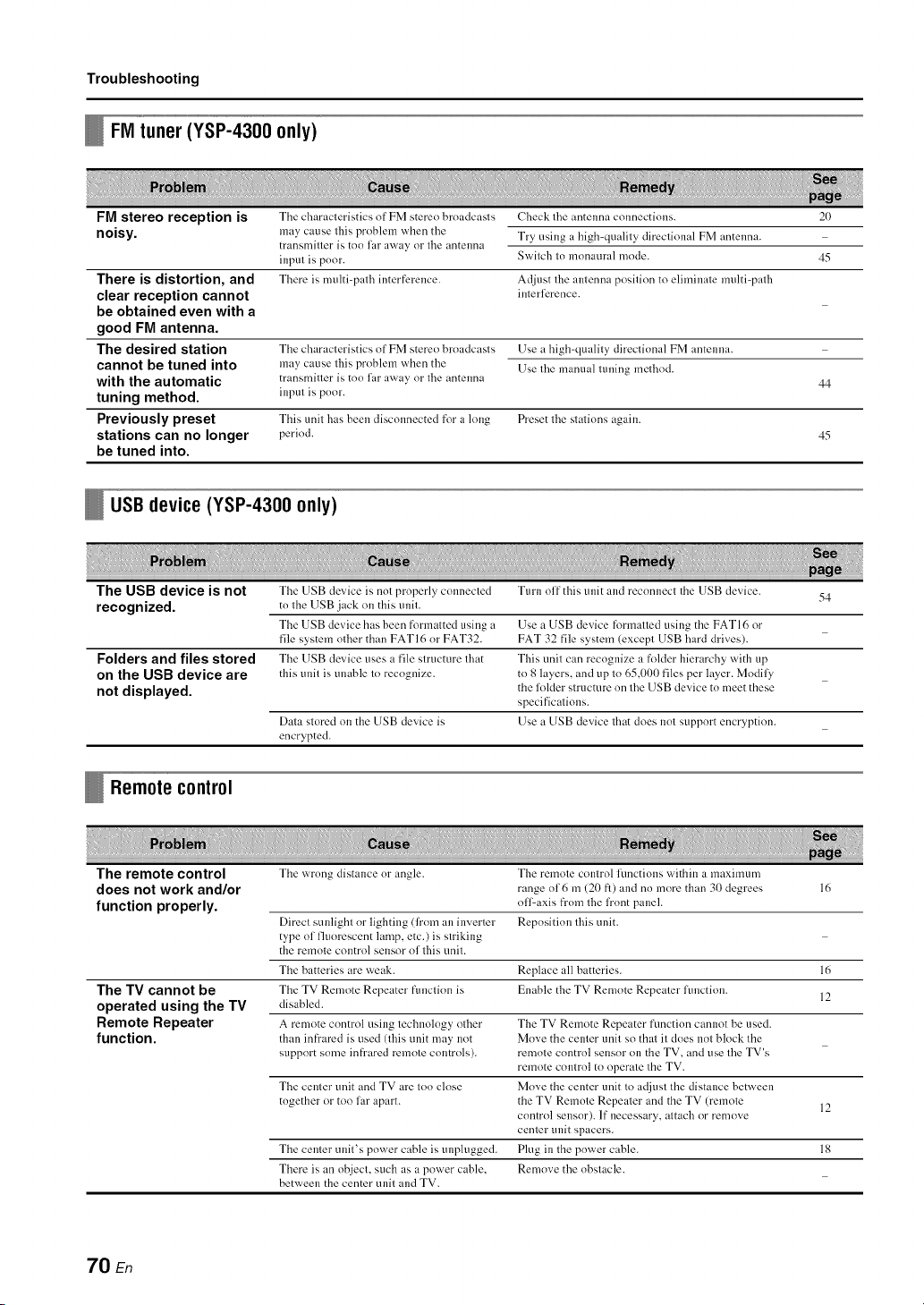
Troubleshooting
FM tuner (YSP-4300 only)
FM stereo reception is The characteristics of FM stereo broadcasts Check the antenna connections. 20
noisy, m:,y cause this problem when tile Try using a high-quality directional FM antenna.
transmitter is too far away or the antenna
input is poor. Switch to monaural mode. 45
There is multi-path interference. Adjust the antenna position to eliminate multi-path
interlerence.
The characteristics of FM stereo brnadcasts
may cause this problem when the
transmitter is too far away nr the antenna
input is poor.
There is distortion, and
clear reception cannot
be obtained even with a
good FM antenna.
The desired station
cannot be tuned into
Use a high<luality direclional FM antenna.
Use the manual tuning method.
with the automatic 44
tuning method.
Previously preset This unit has been disconnected till" a long Preset the stations again.
stations can no longer period. 45
be tuned into.
USBdevice(YSP-4300 0nly)
The USB device is not The USB device is nnt prnperly connecled Turn nil this unit and recnnnecl the USB device.
54
recognized, to the USB jack on this unit.
The USB device has been formatted using a Use a USB device formatted using the FAT I6 or
file system nlher than FAT16 or FAT32. FAT 32 file system (except USB hard drives).
Folders and files stored The USB device uses a file structure that This unit can recognize a folder hierarchy with up
on the USB device are this unit is unable to recognize, to 8 layers, and up to 65,000 files per layer. Modily
the lolder structure on the USB device to meet these
not displayed, specifications.
Data stored on the USB device is Use a USB device that does nol support encryptinn.
encrypted.
Remotecontrol
The remote control The wrong distance or angle. The remole control functions withill a maximum
does not work and/or range o1:6 m (20 fl) and no more than 30 degrees 16
function properly, nllCaxis fi'om the h'ont panel.
Direcl sunlight nr lighting (h'om an inverter Repositinn this unit.
type nl lquorescent lamp, etc.) is striking
the remole control sensor nl this unit.
The batteries are weak. Replace all batteries. 16
The TV cannot be The TV Remote Repeater funclion is Enable the TV Remote Repealer hmction. 12
operated using the TV disabled.
Remote Repeater A remote cnntrnl using technology other The TV Remote Repeater functinn cannot be used.
function, than infi'ared is used (this unit may not Mnve the center unit so that it does not block the
suppnrt some infi'ared remole controls), remnle control sensor on the TV, and use the TV's
remote cnmrnl to nperale the TV.
The center unit and TV are Ion close Move the center unit Io adjusl the distance between
together or ton lar apart, the TV Remole Repealer and the TV (remole 12
cnntrol sellsor). If" necessary attach or remove
center unit spacers.
The center unit's power cable is unphlgged. Plug in the power cable. 18
There is an objecl, such as a power cable, Remove the nbslacle.
between the center unit and TV.
70 En
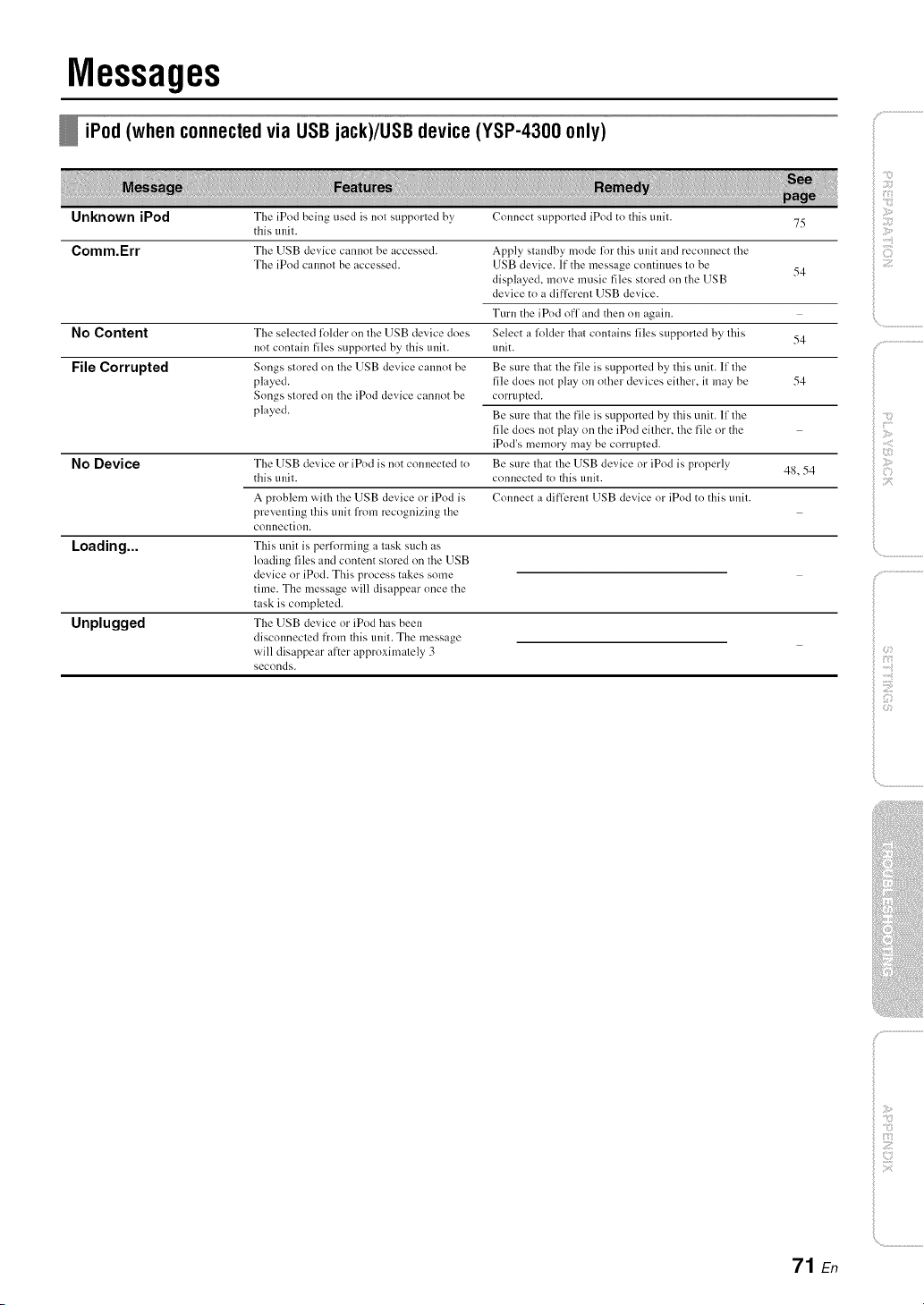
Messages
iPod (when connected via USB jack)/USB device (YSP-4300 only)
Unknown iPod The iPod being used is nol supported by Connect supported iPod to this und. 75
this tulil.
Comm.Err The USB device cannot be accessed. Apply slaMby mode for this unit and reconnect the
The iPod cannol be accessed. USB device. If the message continues lo be 54
displayed, move music files stored on the USB
device to a differenl USB device.
Tun] the iPod ofl and then on again.
NoContent The selecled folder on file USB device does Select a folder lhal conlains files supporled by lhis 54
not contain files supported by' this und. unit.
File Corrupted Songs slored on file USB device cannol be Be sure lhat file file is supported by lhis unit. 11file
played, file does not play on (lille]"devices eilher, il may be 54
Songs slored on the iPod device cannot be corrupted.
played. Be sure lhat file file is supported by lhis unit. lllhe
file does not play on the iPod eilher, file file or the
iPod's memory may be corrupled.
No Device Tile USB device or iPod is not connected to Be sure lhat file USB device or iPod is properly 48, 54
this tll]il, connected to this tll]d.
A problem wilh file USB device or iPod is Connect a differenl USB device or iPod to this und.
prevenling lhis unit h'om recognizing lhe
col]nectiol].
Loading... This unit is performing a lask such as
loading files and content stored on file USB
device or iPod. This process takes some
time. The message will disappear once the
task is compleled.
Tile USB device or iPod has been
disconnecled from this und. The message
will disappear after approximalely 3
seconds.
Unplugged
i! '_;2::¸
iiii il;i;iiiii_;il
:< ..........
ilii_i_i_iiii_!:i!iii!!:!_
', ,,:ii;ii_'_!_i_iII!............
f
71 En
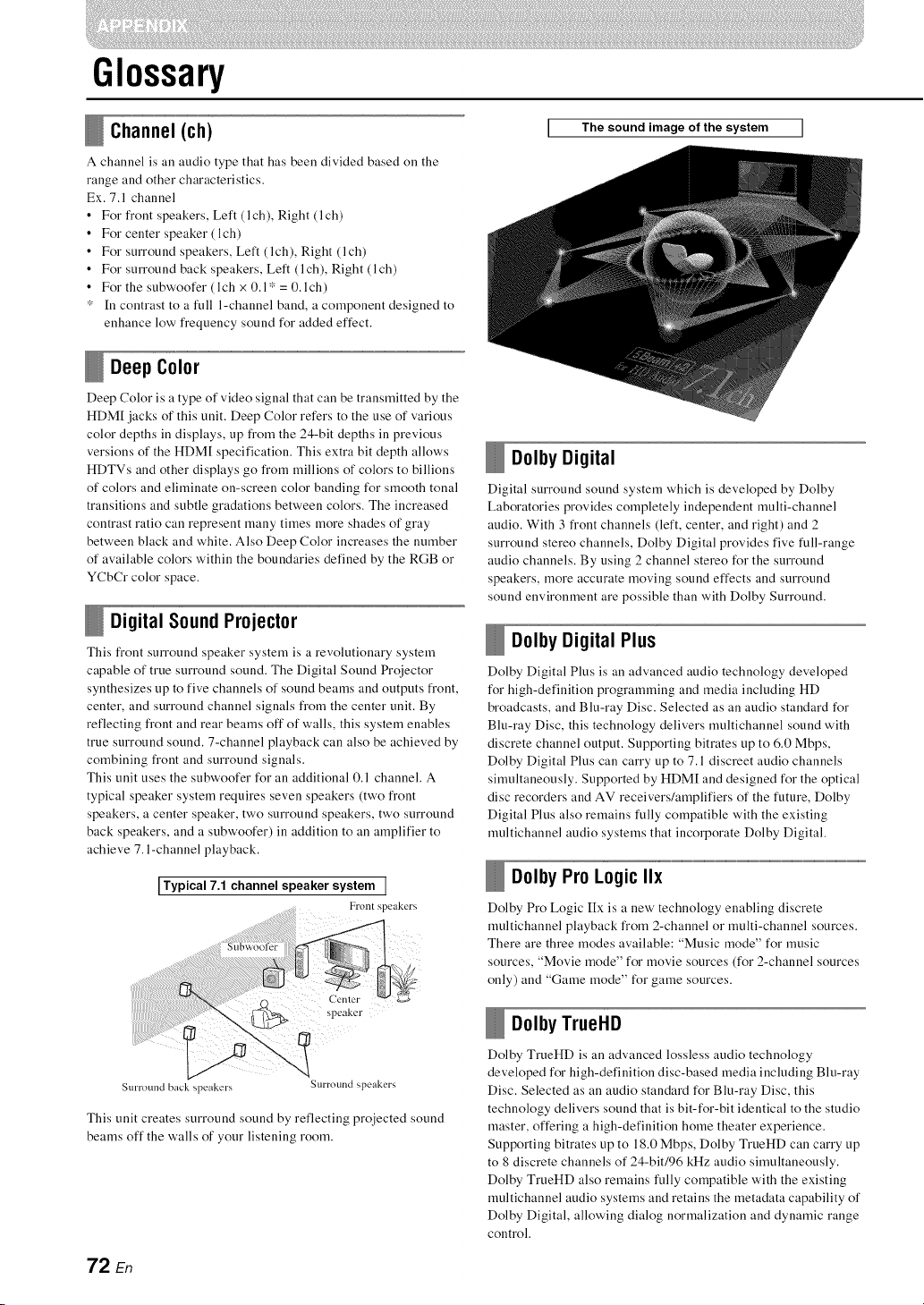
Glossary
Channel (ch)
A channel is all audio type that has been divided based on the
range and other characteristics.
Ex. 7.1 channel
• For iYont speakers, Left (lch), Right (lch)
• For center speaker (lch)
• For surround speakers, Left (lch), Right (lch)
• For surround back speakers, Left (lch), Right (lch)
• For the subwoofer (lch × 0.1" = 0.1ch)
* [n contrast to a full l-channel band, a component designed to
enhance low iYequency sound for added effect.
The sound image of the system ]
Deep Color
Deep Color is a type of video signal that call be transmitted by the
HDM[ jacks of this unit. Deep Color refers to the use of various
color depths ill displays, up from the 24-bit depths ill previous
versions of the HDM[ specification. This extra bit depth allows
HDTVs and other displays go from millions of colors to billions
of colors and eliminate on-screen color banding for smooth tonal
transitions and subtle gradations between colors. The increased
contrast ratio can represent many times more shades of gray
between black and white. Also Deep Color increases the number
of available colors within the boundaries defined by the RGB or
YCbCr color space.
Digital Sound Projector
This front surround speaker system is a revolutionary system
capable of true surround sound. The Digital Sound Projector
synthesizes up to five channels of sound beams and outputs front,
center, and surround channel signals from the center unit. By
reflecting front and rear beams off of walls, this system enables
true surround sound. 7-channel playback can also be achieved by
combining front and surround signals.
This unit uses the subwoofer for an additional 0.1 channel. A
typical speaker system requires seven speakers (two front
speakers, a center speaker, two surround speakers, two surround
back speakers, and a subwoofer) in addition to an amplifier to
achieve 7. l-channel playback.
I Typical 7.1 channel speaker system I
Front speakers
speaker
Surround back speakers Surround speakers
This unit creates surround sound by reflecting projected sound
beams off the walls of your listening room.
Dolby Digital
Digital surround sound system which is developed by Dolby
Laboratories provides completely independent multi-channel
audio. With 3 front channels (left, center, and right) and 2
surround stereo channels, Dolby Digital provides five full-range
audio channels. By using 2 channel stereo for the surround
speakers, more accurate moving sound effects and surround
sound environment are possible than with Dolby Surround.
Dolby Digital Plus
Dolby Digital Plus is an advanced audio technology developed
for high-definition programming and media including HD
broadcasts, and Blu-ray Disc. Selected as an audio standard for
Blu-ray Disc, this technology delivers multichannel sound with
discrete channel output. Supporting bitrates up to 6.0 Mbps,
Dolby Digital Plus can carry up to 7.1 discreet audio channels
simultaneously. Supported by HDM[ and designed for the optical
disc recorders and AV receivers/amplifiers of the future, Dolby
Digital Plus also remains fully compatible with the existing
multichannel audio systems that incorporate Dolby Digital.
Dolby Pro Logic IIx
Dolby Pro Logic IIx is a new technology enabling discrete
multichannel playback from 2-channel or multi-channel sources.
There are three modes available: "Music mode" for music
sources, "Movie mode" for movie sources (for 2-channel sources
only) and "Game mode" for game sources.
Dolby TrueHD
Dolby TrueHD is an advanced lossless audio technology
developed for high-definition disc-based media including Blu-ray
Disc. Selected as an audio standard for Blu-ray Disc, this
technology delivers sound that is bit-for-bit identical to the studio
master, offering a high-definition home theater experience.
Supporting bitrates up to 18.0 Mbps, Dolby TrueHD can carry up
to 8 discrete channels of 24-bit/96 kHz audio simultaneously.
Dolby TrueHD also remains fully compatible with the existing
multichannel audio systems and retains the metadata capability of
Dolby Digital, allowing dialog normalization and dynamic range
control.
72 En
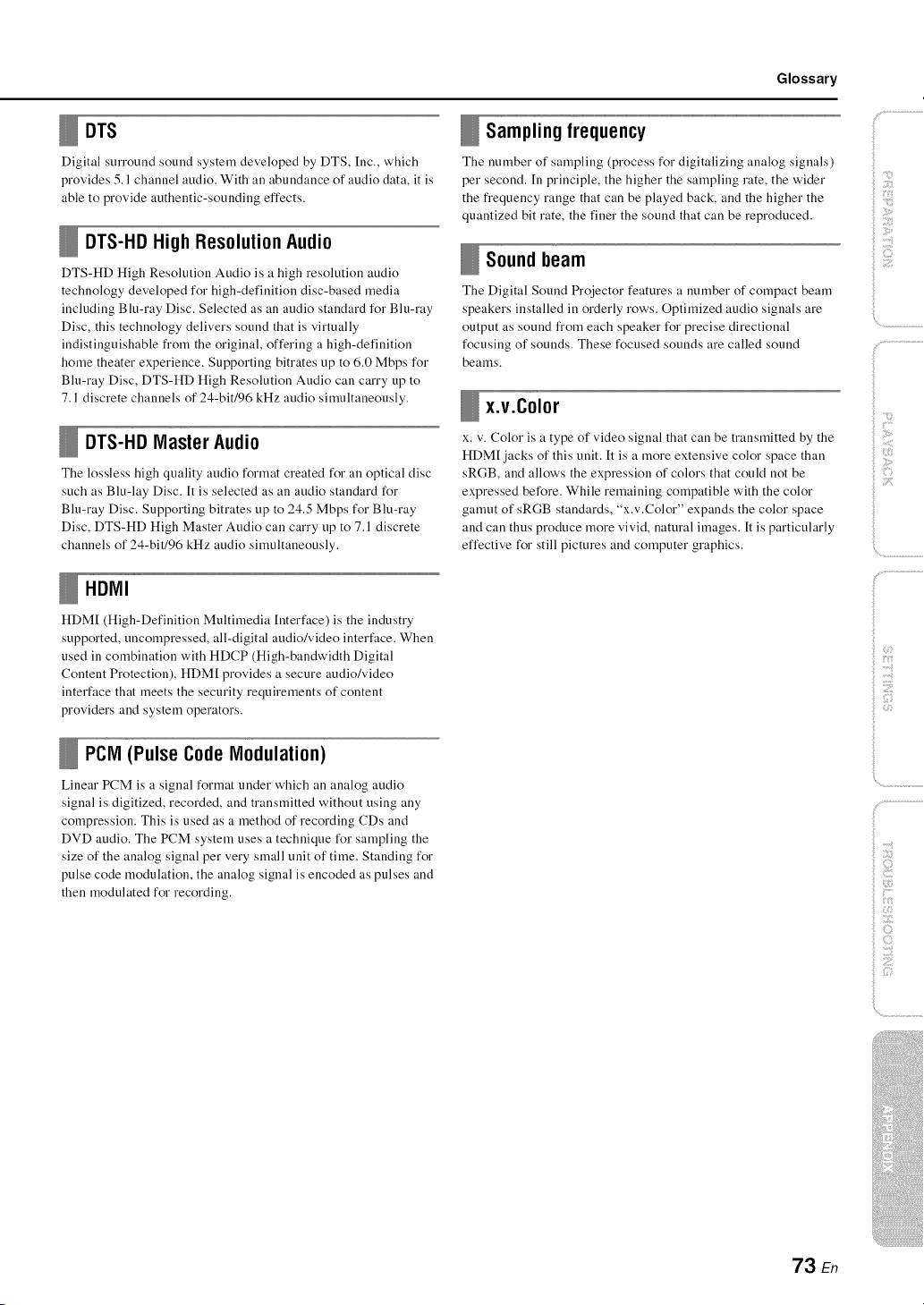
Glossary
DTS
Digital surround sound system developed by DTS, Inc., which
provides 5.1 channel audio. With all abundance of audio data, it is
able to provide authentic-sounding effects.
DTS-HD High Resolution Audio
DTS-HD High Resolution Audio is a high resolution audio
technology developed for high-definition disc-based media
including Blu-ray Disc. Selected as all audio standard for Blu-ray
Disc, this technology delivers sound that is virtually
indistinguishable from the original, offering a high-definition
home theater experience. Supporting bitrates up to 6.0 Mbps for
Blu-ray Disc, DTS-HD High Resolution Audio can carry up to
7.1 discrete channels of 24-bit/96 kHz audio simultaneously.
DTS-HD Master Audio
The lossless high quality audio format created for an optical disc
such as Blu-lay Disc. It is selected as an audio standard for
Blu-ray Disc. Supporting bitrates up to 24.5 Mbps for Blu-ray
Disc, DTS-HD High Master Audio can carry up to 7.1 discrete
channels of 24-bit/96 kHz audio simultaneously.
HDMI
HDM[ (High-Definition Multimedia Interface) is the industry
supported, uncompressed, all-digital audio/video interface. When
used in combination with HDCP (High-bandwidth Digital
Content Protection), HDM[ provides a secure audio/video
interface that meets the security requirements of content
providers and system operators.
PCM (Pulse Code Modulation)
Linear PCM is a signal format under which an analog audio
signal is digitized, recorded, and transmitted without using any
compression. This is used as a method of recording CDs and
DVD audio. The PCM system uses a technique for sampling the
size of the analog signal per very small unit of time. Standing for
pulse code modulation, the analog signal is encoded as pulses and
then modulated for recording.
Samplingfrequency
The number of sampling (process for digitalizing analog signals)
per second. [n principle, the higher the sampling rate, the wider
the frequency range that can be played back, and the higher the
quantized bit rate, the finer the sound that can be reproduced.
Soundbeam
The Digital Sound Projector features a number of compact beam
speakers installed in orderly rows. Optimized audio signals are
output as sound from each speaker for precise directional
focusing of sounds. These focused sounds are called sound
beams.
x.v.Color
x. v. Color is a type of video signal that can be transmitted by the
HDM[jacks of this unit. It is a more extensive color space than
sRGB, and allows the expression of colors that could not be
expressed before. While remaining compatible with the color
gamut of sRGB standards, "x.v.Color" expands the color space
and can thus produce more vivid, natural images. It is particularly
effective for still pictures and computer graphics.
i;;!i¸
!i!i _'!il;;i:_i
i! '_;2¸I¸¸¸
iiii il;i;iiiii_;il
)
iiiI
73 En
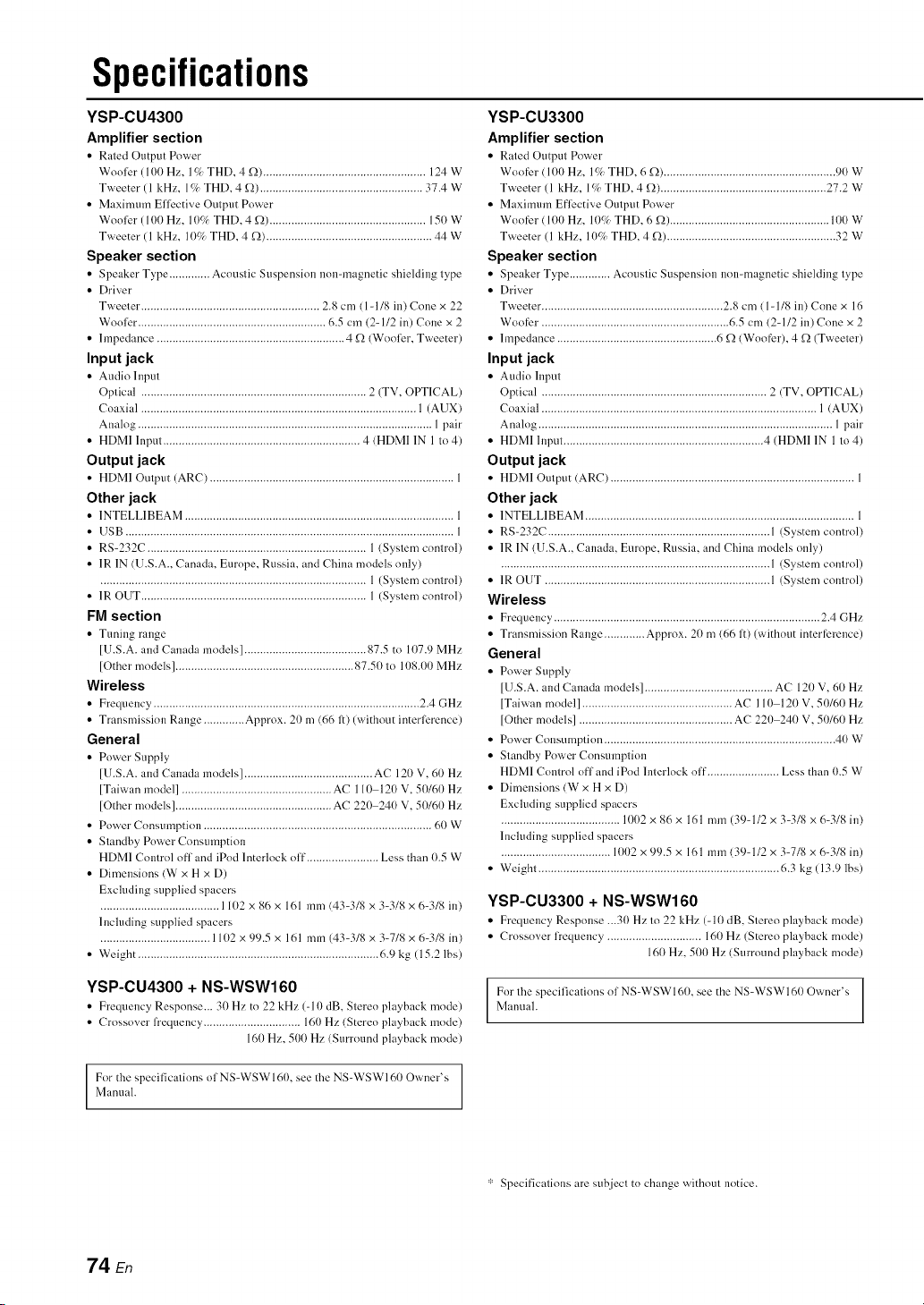
Specifications
YSP-CU4300
Amplifier section
• Rated Output Power
Wooler (100 Hz, lC7_THD. 4 f_) .................................................... 124 W
Tweeter (1 kHz. 1% THD, 4 _) .................................................... 37.4 W
• Maximum Eflective Output Power
Woollzr (100 Hz, 10(/_ THD, 4 _) .................................................. 15() W
Tweeter (1 kHz, 11)(/_THD, 4 _) ..................................................... 44 W
Speaker section
• Speaker TM_e............. Acoustic Suspension non-magnetic shielding type
• Driver
Tweeter ......................................................... 2.8 cm (1-1/8 in) Cone x 22
Wooler ............................................................ 6.5 cm (2-1/2 in) Cone x 2
• hnpedance ............................................................ 4 _ (Wooler, Tweeter)
Input jack
• Audio Input
Optical ........................................................................ 2 (TV, OPTICAL)
Coaxial ........................................................................................ 1 (AUX)
Analog .............................................................................................. 1 pair
• HDMI Input ............................................................... 4 (HDMI 1N 1 to 4)
Output jack
• HDMI Output (ARC) .............................................................................. 1
Other jack
• INTELLIBEAM ......................................................................................
• USB .........................................................................................................
• RS-232C ...................................................................... 1 (System control
• IR 1N (U.S.A.. Canada. Europe, Russia, and China models only)
..................................................................................... 1 (System control
• 1R OUT ........................................................................ 1 (System control
FM section
• Tuning range
[U.S.A. and Canada models] ....................................... 87.5 to 107.9 MHz
IOther models] ......................................................... 87.50 to 108.00 MHz
Wireless
• Frequency ..................................................................................... 2.4 GHz
• Transmission Range ............. Approx. 20 m (66 1:) (without interlerence)
General
• Power Suppl_
[U.S.A. and Canada models] ......................................... AC 120 V, 60 Hz
[Taiwan model] ................................................ AC 110-120 V, 50160 Hz
[Other models] .................................................. AC 22() 240 V, 50160 Hz
• Power Consumption ......................................................................... 60 W
• Standby Power Consumption
HDMI Comrol off and iPod Interlock off ....................... Less than 0.5 W
• Dimensions (W x H x D)
Excluding supplied spacers
...................................... 1102 x 86 x 161 mm (43-318 x 3-318 x 6-318 in)
Including supplied spacers
................................... 1102 x 99.5 x 161 mm (43-318 x 3-718 x 6-318 in)
• Weight ............................................................................. 6.9 kg (15.2 lbs)
YSP-CU4300 + NS-WSW160
• Frequency Response... 30 Hz to 22 kHz (-10 dB. Stereo playback mode)
• Crossover frequency ............................... 16() Hz (Stereo playback mode)
161)Hz, 500 Hz (Surround playback mode)
YSP-CU3300
Amplifier section
• Rated Ot/tpnt Power
Woofer (100 Hz, 1% THD, 6 f)) ....................................................... 90 W
Tweeter (1 kHz, 1% THD, 4 f)) ..................................................... 27.2 W
• Maximmn Eflective Output Power
Woofer (100 Hz, 1()% THD, 6 _) ................................................... 100 W
Tweeter (1 kHz, 10% THD, 4 _) ...................................................... 32 W
Speaker section
• Speaker THee ............. Acoustic Suspension non-magnetic shielding type
• Driver
Tweeter. ......................................................... 2.8 cm (1-118 in) Cone x 16
Woofer ............................................................ 6.5 cm (2-112 in) Cone x 2
• hnpedance ................................................... 6 f-) (Woofer), 4 £_ (Tweeter)
Input jack
• Audio Input
Optical ........................................................................ 2 (TV, OPTICAL)
Coaxial ........................................................................................ 1 (AUX)
Analog .............................................................................................. 1 pair
• HDMI Input ................................................................ 4 (HDMI 1N 1 to 4)
Output jack
• HDMI Output (ARC) .............................................................................. 1
Other jack
• 1NTELLIBEAM ...................................................................................... 1
• RS-232C ....................................................................... 1 (System control)
• IR 1N (U.S.A., Canada, Europe. Russia, and China models only)
...................................................................................... 1 (System control)
• IR OUT ........................................................................ 1 (System control)
Wireless
• Frequenc_ ..................................................................................... 2.4 GHz
• Transmission Range ............. Approx. 20 m (66 1:) (without interference)
General
• Power Suppl_
[U.S.A. and Canada models] ......................................... AC 120 V, 60 Hz
[Taiwan model] ................................................ AC 110-120 V, 50160 Hz
[Other models] ................................................. AC 22() 240 V, 50160 Hz
• Power Consumption .......................................................................... 40 W
• Standby Power Consumption
HDMI Control off and iPod hlterlock off ....................... Less than 0.5 W
• Dimensions (W x H x D)
Excluding supplied spacers
...................................... 1002 x 86 x 161 mm (39-1/2 x 3-3/8 x 6-3/8 in)
hlcluding supplied spacers
................................... 1002 x 99.5 x 161 mm (39-1/2 x 3-7/8 x 6-3/8 in)
• Weight ............................................................................. 6.3 kg (13.9 lbs)
YSP-CU3300 + NS-WSW160
• Frequency Response ...30 Hz to 22 kHz (-10 dB. Stereo playback mode)
• Crossover frequency .............................. 160 Hz (Stereo playback mode)
160 Hz, 500 Hz (Surround playback mode)
/
For the specilications ol NS-WSWI60, see the NS-WSW160 Owner's ]
Manual.
l
For the specificalions ol NS-WSW160, see the NS-WSW160 Owner's
Manual.
':: Specifications are subject to change without notice.
74 E_
Supported USB device (YSP-CU4300)
iPod/iPhone/iPad (as of June 2012)
• iPod touch (1 st, 2nd, 3M and 4th generation)
• iPod nano (3rd, 4th, 5th and 6th generation)
• iPhone 4S, iPhone 4, iPhone 3GS, iPhone 3G, iPhone
• iPad (3rd generation), iPad 2, iPad
USB memory
• Mass storage class device (FATI6/FAT32)
• Supported audio data format
- WAV (SkHz-48kHz, 16bit)
- MP3 (SkHz-48kHz, 5kbps-320kbps)
- WMA (SkHz-48kHz, 5kbps-384kbps)
- MPEG4-AAC (SkHz-48kHz, 8kbps-320kbps)
Specifications
yA@red
The "yA@re d" and "yAired" are trademarks ol Yamaha Corporation.
Inte\liBeam
The "Inte/liBeam" logo and "lntelliBeam" are trademarks of Yamaha
Corporation.
[ C|NEMA_
The "_" logo and "Cinema DSP" are registered trademarks of
Yamaha Corporation.
UniVelume
"UniVolume" is a trademark ol Yanlaba Corporation.
_'] DOLBY.
TRUEHD
Mannlacmred under license fronl Dolby Laboratories. Dolby, Pro Logic,
Surround EX. and the double-D symbol are trademarks ol Dolby
Laboratories.
Manufactured under license under U.S. Patent Nos: 5,956,674; 5,974,380;
6,226,616; 6,487,535; 7,212,872; 7,333,929; 7,392,195:7,272,567 & other
U.S. and worldwide patents issued & pending. DTS-HD, tile Symbol, &
DTS-HD and the Symbol together are registered trademarks of DTS, Inc.
Product includes software. © DTS, Inc. All Rights Reserved.
H."_m!
"HDMI," the "HDMF' logo and "High-Delinitiou Multimedia Interface"
are lrademarks, or regislered lrademarks ol HDMI Licensing LLC.
x.v.Color
"x.v.Color" is a trademark of Sony Corporation.
Manulactured under license h'om Cambridge Mechatrouics Ltd.
Worldwide palents applied lor.
The " I '!" log ....... d "Digilal S ....... 1 Projeclor 'w' are lrad ....... "ks ol
Cambridge Mechalrouics Ltd.
"Made for iPod," "Made R_r iPhone," and "Made lor iPad" mean that an
electronic accessory has been designed to connect specifically to iPod,
iPhone, or iPad. respectively, and has been certified by file developer to
meet Apple performance standards.
Apple is not responsible lot the operation of this device or its compliance
with safbty and regulatory standards.
Please note that the use of this accessory with iPod, iPhone, or iPad may
aflbct wireless performance.
iPad. iPhone, iPod, iPod nano. iPod touch, and Macintosh are trademarks
ol Apple Inc., registered in the U.S. and other countries.
Windows TM
Windows is a registered trademark of Microsoft Corporation in tile United
States and other countries.
Windows XP, Windows Vista. Windows 7, Windows Media Audio and
Windows Media Player are either registered trademarks or trademarks of
Microsofl Corporation in the United States and/or other countries.
iiiiil;i;iiiii_;il
ilii_i_i_iiii_!i!i!iii!!:!
TM
', ,,iii;ii_'_!_i_iII!............
)
ilii:!i_ii!:_i_i
f ......
f
f
75 En
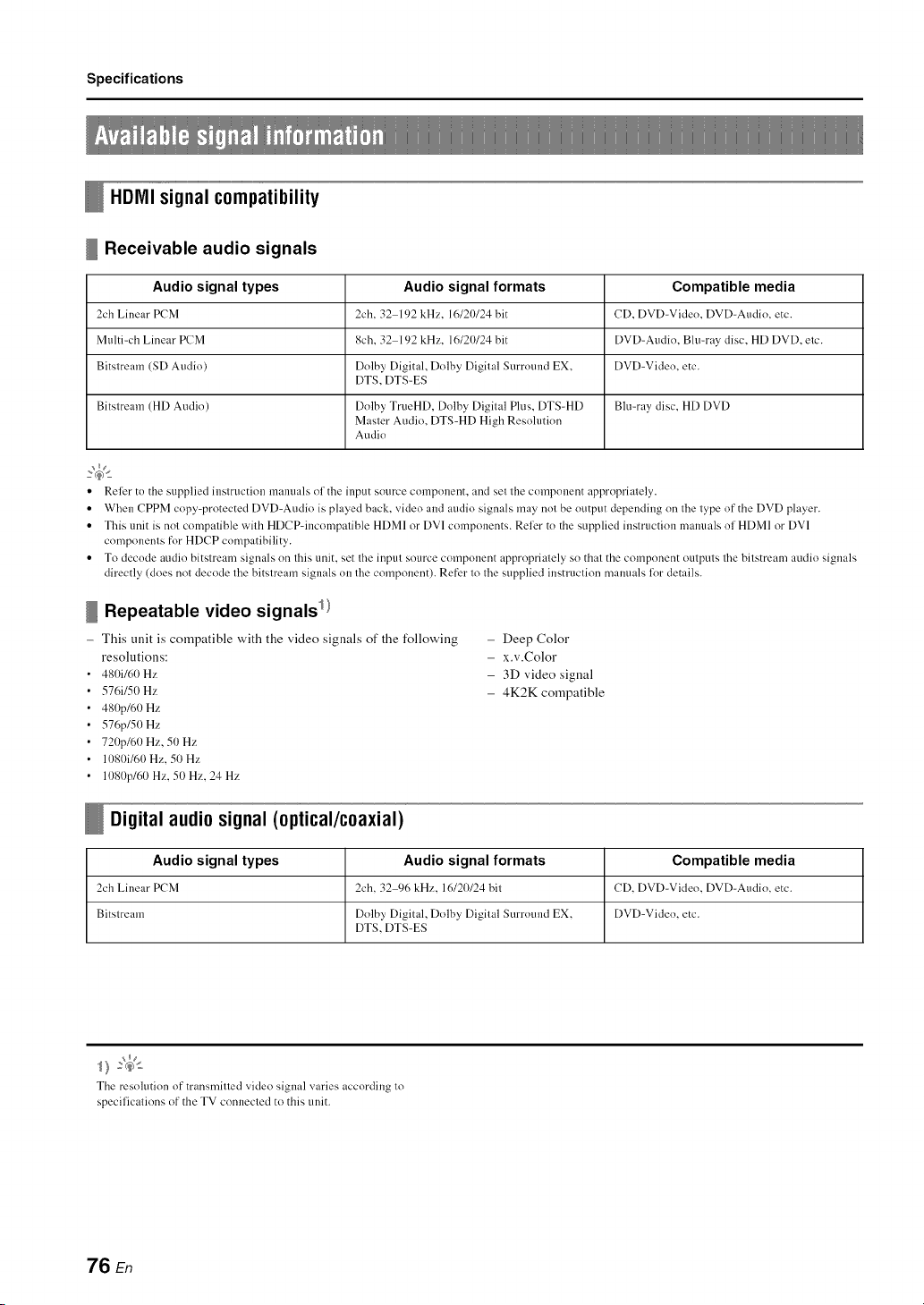
Specifications
HDMIsignal compatibility
Receivable audio signals
Audio signal types Audio signal formats Compatible media
2ch Linear PCM 2ch. 32 192 kHz. 16/20/24 bit CD, DVD-Video. DVD-Audio. etc.
Multi-ch Lineal" PCM 8ch, 32 192 kHz. 16/21)/24 bit DVD-Audio. Blu-ray disc, HD DVD, elc.
Bitslream (SD Audio) Dolby Digital, Dolby Digital Surrotmd EX, DVD-Video. etc.
DTS, DTS-ES
Bitstream (HD Audio) Dolby TrueHD, Dolby Digital Plus, DTS-HD Blu-ray disc. HD DVD
Master Audio, DTS-HD High Resolution
Audio
• Rellzr to the supplied instruction mammls of the input source component, and set the component appropriately.
• When CPPM copy-protected DVD-Audio is played back. video and audio signals may not be output depending on tbe type of the DVD player.
• This unit is not compatible with HDCP-incompatible HDMI or DV1 components. Relizr to the supplied instruction mammls of HDMI or DV1
components for HDCP compatibility.
• To decode audio bitstream signals on tbis unit. set the input source component appropriately so that the component outputs the bitstream audio signals
directly (does not decode the bitstream signals on the component). Refer to the supplied instruction manuals li)r details.
Repeatable video signals /)
- This unit is compatible with the video signals of the following
resolutions:
480i/60 Hz
576i/50 Hz
480p/60 Hz
576p/50 Hz
720p/60 Hz, 51) Hz
1080i/60 Hz, 51)Hz
1080p/60 Hz. 50 Hz. 24 Hz
- Deep Color
- x.v.Color
- 3D video signal
- 4K2K compatible
Digital audio signal (optical/coaxial)
Audio signal types Audio signal formats Compatible media
2ch Linear PCM 2ch. 32 96 kHz, 16/20/24 bit CD. DVD-Video, DVD-Audio. etc.
Bitstream Dolby Digital, Dolby Digital Surround EX, DVD-Video. etc.
DTS, DTS-ES
:'4<
The resohltion of transmitted video signal varies according to
specilications of the TV conuecled to this unit.
76 En
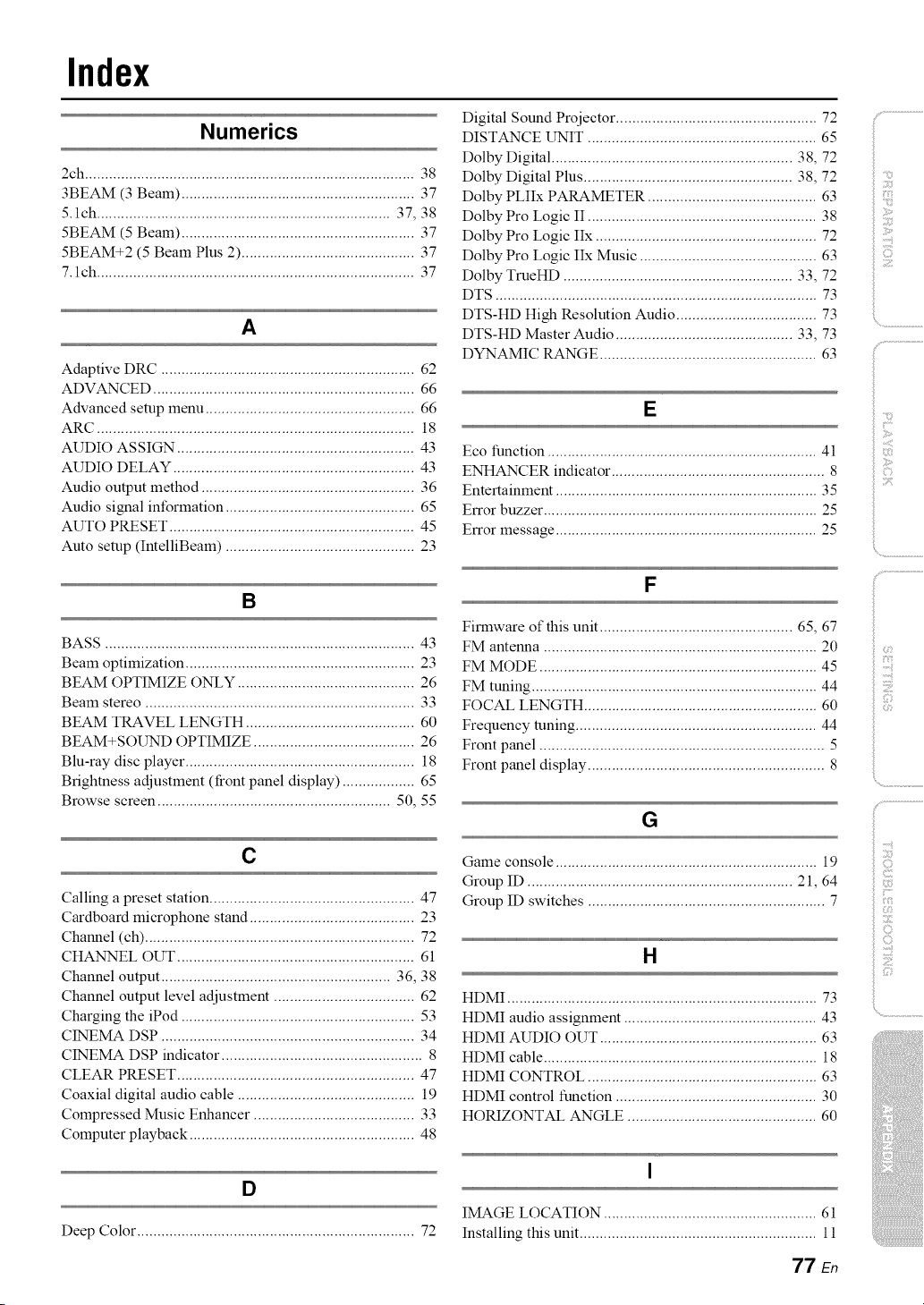
Index
Numerics
2ch .................................................................................. 38
3BEAM (3 Beam) .......................................................... 37
5. lch ......................................................................... 37, 38
5BEAM (5 Beam) .......................................................... 37
5BEAM+2 (5 Beam Plus 2) ........................................... 37
7. lch ............................................................................... 37
A
Adaptive DRC ............................................................... 62
ADVANCED ................................................................. 66
Advanced setup menu .................................................... 66
ARC ............................................................................... 18
AUDIO ASSIGN ........................................................... 43
AUDIO DELAY ............................................................ 43
Audio output method ..................................................... 36
Audio signal information ............................................... 65
AUTO PRESET ............................................................. 45
Auto setup (IntelliBeam) ............................................... 23
B
BASS ............................................................................. 43
Beam optimization ......................................................... 23
BEAM OPTIMIZE ONLY ............................................ 26
Beam stereo ................................................................... 33
BEAM TRAVEL LENGTH .......................................... 60
BEAM+SOUND OPTIMIZE ........................................ 26
Blu-ray disc player ......................................................... 18
Brightness adjustment (front panel display) .................. 65
Browse screen .......................................................... 50, 55
C
Calling a preset station ................................................... 47
Cardboard microphone stand ......................................... 23
Channel (ch) ................................................................... 72
CHANNEL OUT ........................................................... 61
Channel output ......................................................... 36, 38
Channel output level adjustment ................................... 62
Charging the iPod .......................................................... 53
CINEMA DSP ............................................................... 34
CINEMA DSP indicator .................................................. 8
CLEAR PRESET ........................................................... 47
Coaxial digital audio cable ............................................ 19
Compressed Music Enhancer ........................................ 33
Computer playback ........................................................ 48
Digital Sound Projector .................................................. 72
DISTANCE UNIT ......................................................... 65
Dolby Digital ............................................................ 38, 72
Dolby Digital Plus .................................................... 38, 72
Dolby PLIIx PARAMETER .......................................... 63
Dolby Pro Logic II ......................................................... 38
Dolby Pro Logic IIx ....................................................... 72
Dolby Pro Logic IIx Music ............................................ 63
Dolby TrueHD ......................................................... 33, 72
DTS ................................................................................ 73
DTS-HD High Resolution Audio ................................... 73
DTS-HD Master Audio ............................................ 33, 73
DYNAMIC RANGE ...................................................... 63
E
Eco function ................................................................... 41
ENHANCER indicator ..................................................... 8
Entertainment ................................................................. 35
Error buzzer .................................................................... 25
Error message ................................................................. 25
F
Firmware of this unit ................................................ 65, 67
FM antenna .................................................................... 20
FM MODE ..................................................................... 45
FM tuning ....................................................................... 44
FOCAL LENGTH .......................................................... 60
Frequency tuning ............................................................ 44
Front panel ....................................................................... 5
Front panel display ........................................................... 8
G
Game console ................................................................. 19
Group ID .................................................................. 21, 64
Group ID switches ........................................................... 7
H
HDMI ............................................................................. 73
HDMI audio assignment ................................................ 43
HDMI AUDIO OUT ...................................................... 63
HDMI cable .................................................................... 18
HDMI CONTROL ......................................................... 63
HDMI control function .................................................. 30
HORIZONTAL ANGLE ............................................... 60
]ii il;i;iiiii_;il
f
f
>
¢
......!
©
f ......
f
f
O
i_i'iiiii])!
D
Deep Color ..................................................................... 72
I
IMAGE LOCATION ..................................................... 61
Installing this unit ........................................................... 11
77 En
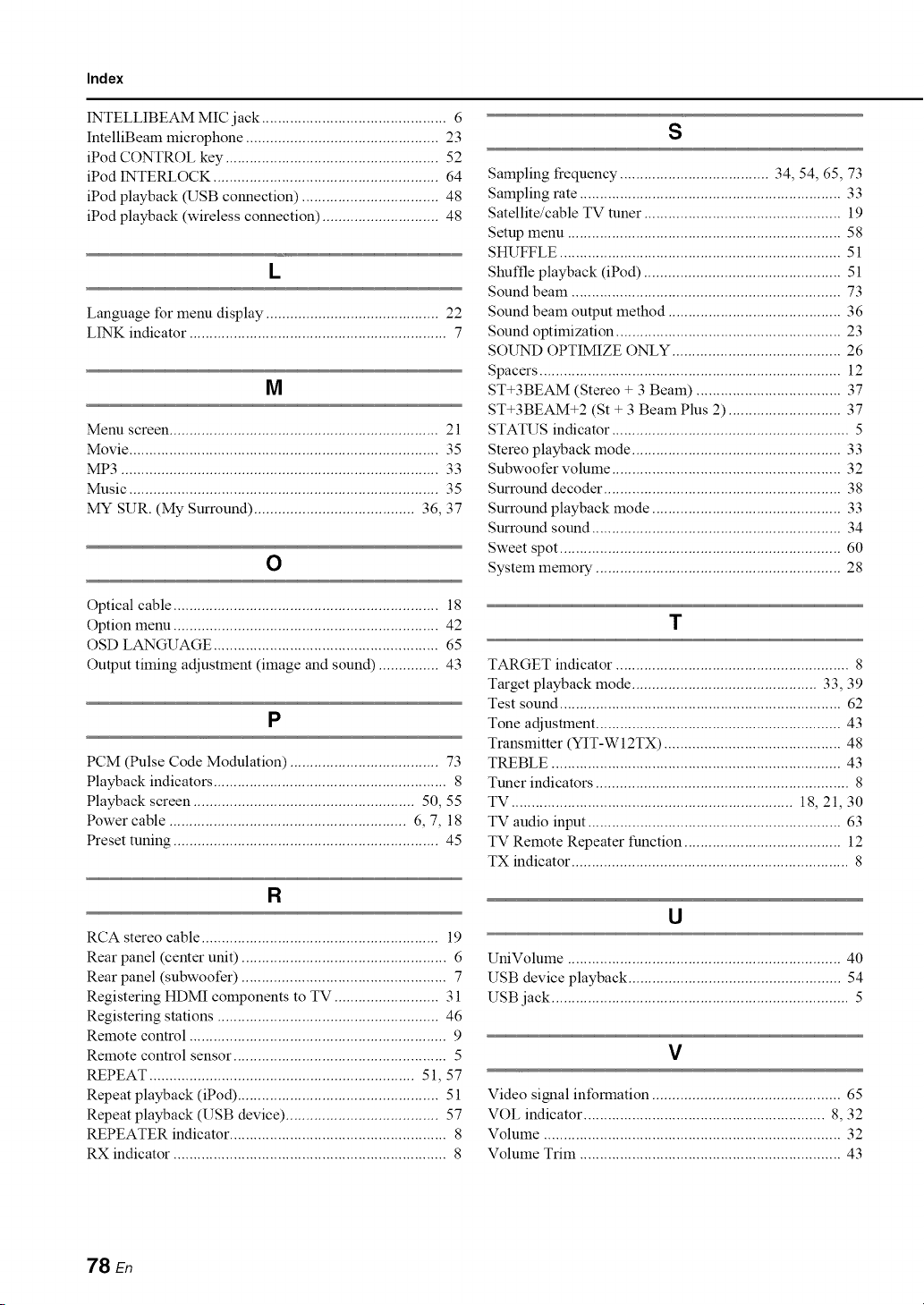
Index
INTELLIBEAM MIC jack .............................................. 6
IntelliBeam microphone ................................................ 23
iPod CONTROL key ..................................................... 52
iPod INTERLOCK ........................................................ 64
iPod playback (USB connection) .................................. 48
iPod playback (wireless connection) ............................. 48
L
Language for menu display ........................................... 22
LINK indicator ................................................................ 7
M
Menu screen ................................................................... 21
Movie ............................................................................. 35
MP3 ............................................................................... 33
Music ............................................................................. 35
MY SUR. (My Surround) ........................................ 36, 37
O
Optical cable .................................................................. 18
Option menu .................................................................. 42
OSD LANGUAGE ........................................................ 65
Output timing adjustment (image and sound) ............... 43
P
PCM (Pulse Code Modulation) ..................................... 73
Playback indicators .......................................................... 8
Playback screen ....................................................... 50, 55
Power cable ........................................................... 6, 7, 18
Preset tuning .................................................................. 45
R
RCA stereo cable ........................................................... 19
Rear panel (center unit) ................................................... 6
Rear panel (subwoofer) ................................................... 7
Registering HDMI components to TV .......................... 31
Registering stations ....................................................... 46
Remote control ................................................................ 9
Remote control sensor ..................................................... 5
REPEAT .................................................................. 51, 57
Repeat playback (iPod) .................................................. 51
Repeat playback (USB device) ...................................... 57
REPEATER indicator ...................................................... 8
RX indicator .................................................................... 8
S
Sampling frequency ..................................... 34, 54, 65, 73
Sampling rate ................................................................. 33
Satellite/cable TV tuner ................................................. 19
Setup menu .................................................................... 58
SHUFFLE ...................................................................... 51
Shuffle playback (iPod) ................................................. 51
Sound beam ................................................................... 73
Sound beam output method ........................................... 36
Sound optimization ........................................................ 23
SOUND OPTIMIZE ONLY .......................................... 26
Spacers ........................................................................... 12
ST+3BEAM (Stereo + 3 Beam) .................................... 37
ST+3BEAM+2 (St + 3 Beam Plus 2) ............................ 37
STATUS indicator ........................................................... 5
Stereo playback mode .................................................... 33
Subwoofer volume ......................................................... 32
Surround decoder ........................................................... 38
Surround playback mode ............................................... 33
Surround sound .............................................................. 34
Sweet spot ...................................................................... 60
System memory ............................................................. 28
T
TARGET indicator .......................................................... 8
Target playback mode .............................................. 33, 39
Test sound ...................................................................... 62
Tone adjustment ............................................................. 43
Transmitter (YIT-W 12TX) ............................................ 48
TREBLE ........................................................................ 43
Tuner indicators ............................................................... 8
TV ...................................................................... 18, 21, 30
TV audio input ............................................................... 63
TV Remote Repeater function ....................................... 12
TX indicator ..................................................................... 8
U
UniVolume .................................................................... 40
USB device playback ..................................................... 54
USB jack .......................................................................... 5
V
Video signal information ............................................... 65
VOL indicator ............................................................ 8, 32
Volume .......................................................................... 32
Volume Trim ................................................................. 43
78 En
Index
W
Weak signal ................................................................... 45
Wireless connection ................................................. 20, 21
Wireless module .............................................................. 5
WMA ............................................................................. 33
X
x.v.Color ........................................................................ 73
Y
yAired ...................................................................... 21, 64
_!iii')
ilii_i_i_iiii_!i!i!iii!!i!_
', ,,iiiiii_'_!_i_iII!............
)
iiiI_i_iii_i_i_!_!i_!
79 En

@
YAMAHA CORPORATION
© 2012 Yamaha Corporation YE830BO/EN1
L
Owner's Manual
CAUTION
RISKOFELECTRICSHOCK
DO NOTOPEN
CAUTION: TO REDUCE THE RISK OF
ELECTRIC SHOCK, DO NOT REMOVE
COVER (OR BACK). NO USER-SERVICEABLE
PARTS INSIDE. REFER SERVICING TO
QUALIFIED SERVICE PERSONNEL.
Explanation of Graphical Symbols
The lightning flash with arrowhead symbol,
within all equilateral triangle, is intended to
alert yon to the presence of nninsulated
"dangerous voltage" within the product's
enclosure that may be of sufficient magnitude
to constitute a risk of electric shock to
persons.
The exclamation point within an equilateral
triangle is intended to alert you to the
presence of important operating and
maintenance (servicing) instructions in the
literature accompanying the appliance.
1
2
3
4
5
6
7
lO
11
12
13
14
Read these instructions.
Keep these instructions.
Heed all warnings.
Follow all instructions.
Do not use this apparatus near water.
Clean only with dry cloth.
Do not block any ventilation openings. Install in accordance with
the manufacturer's instructions.
Do not install near any heat sources such as radiators, heat
registers, stoves, or other apparatus (including amplifiers) that
produce heat.
Do not defeat the safety purpose of the polarized or
grounding-type plug. A polarized ping has two blades with one
wider than the other. A grounding type plug has two blades and a
third grounding prong. The wide blade or the third prong are
provided for your safety. If the provided plug does not fit into
your outlet, consult an electrician t_r replacement of the obsolete
outlet.
Protect the power cord from being walked on or pinched
particularly at pings, convenience receptacles, and the point
where they exit from the apparatus.
Only use attachments/accessories specified by the manufacturer.
Use only with the cart, stand, tripod, bracket,
or table specified by the manufacturer, or
sold with the apparatus. When a cart is used,
use caution when moving the cart/apparatus
combination to avoid injury from tip-over.
Unplug this apparatus during lightning
storms or when unused for long periods of time.
Refer all servicing to qualified service personnel. Servicing is
required when the apparatus has been damaged in any way, such
as power-supply cord or plug is damaged, liquid has been spilled
or objects have fallen into the apparatus, the apparatus has been
exposed to rain or moisture, does not operate normally, or has
been dropped.
We Want You Listening For A Lifetime
Yamaha and the Electronic Industries Association's Consumer Electronics Group want you to get the most out of your _._;,-_
equipment by playing it at a safe level. One that lets the sound come through loud and clear without annoying
blaring or distortion - and, most importantly, without affecting your sensitive hearing.
Since hearing damage from loud sounds is often undetectable until it is too late, Yamaha and the Electronic Industries
Association's Consumer Electronics Group recommend you to avoid prolonged exposure from excessive volume levels. _!ST£N=IN_
IMPORTANT
Please record the serial number of this unit in the space below.
MODEL:
Serial No.:
The serial number is located on the rear of the unit.
Retain this Owner's Manual in a safe place t_r future reference.
Caution-i En
FCC INFORMATION (for US customers)
1. 1 IMPORTANT NOTICE: DO NOT MODIFY THIS UNIT!
This product, when installed as indicated in the instructions
contained in this manual, meets FCC requirements.
Modifications not expressly approved by Yamaha may void
your authority, granted by the FCC, to use the product.
2. IMPORTANT: When connecting this product to accessories
and/or another product use only high quality shiekted cables.
Cable/s supplied with this product MUST be used. Follow all
installation instructions. Failure to t_llow instructions could
void your FCC authorization to use this product in the USA.
3. NOTE: This product has been tested and found to comply with
the requirements listed in FCC Regulations, Part 15 for Class
"B" digital devices. Compliance with these requirements
provides a reasonable level of assurance that your use of this
product in a residential environment will not result in harnfful
interference with other electronic devices.
This equipment generates/uses radio frequencies and, if not
installed and used according to the instructions found in the
users manual, may cause interference harmfld to the operation
of other electronic devices.
Compliance with FCC regulations does not guarantee that
interference will not occur in all installations. If this product is
found to be the source of interference, which can be determined
by turning the unit "OFF" and "ON", please try to eliminate the
problem by using one of the following measures:
Relocate either this product or the device that is being affected
by the interference.
Utilize power outlets that are on different branch (circuit
breaker or fuse) circuits or install AC line filter/s.
In the case of radio or TV interference, relocate/reorient the
antenna. If the antenna lead-in is 300 ohm ribbon lead, change
the lead-in to coaxial type cable.
If these corrective measures do not produce satisfactory results,
please contact the local retailer authorized to distribute this type
of product. If you can not locate the appropriate retailer, please
contact Yamaha Corporation of America A/V Division, 6600
Orangethorpe Ave., Buena Park, CA 90620.
The above statements apply ONLY to those products distributed
by Yamaha Corporation of America or its subsidiaries.
This device complies with Part 15 of the FCC Rules and Industry Canada licence-exempt RSS standard(s).
Operation is subject to the tbllowing two conditions: 1) this device may not cause harmful interference, and 2) this device must accept any
interference received including interference that may cause undesired operation.
See the "Troubleshooting" section at the end of this manual if interference to radio reception is suspected.
FCC WARNING
Change or modifications not expressly approved by the party responsible for compliance could void the user's authority to operate the equipment.
NOTICE
This equipment has been tested and t_und to comply with the limits for a Class B digital device, pursuant to part 15 of the FCC Rules.
These limits are designed to provide reasonable protection against harmflll interference in aresidential installation.
This equipment generates, uses and can radiate radio frequency energy and, if not installed and used in accordance with the instructions, may
cause harmfld interference to radio communications. However, there is no guarantee that interference will not occur in a particular installation. If
this equipment does cause harmful interference to radio or television reception, which can be determined by turning the equipment off and on, the
user is encouraged to try to correct the interference by one or more of the following measures:
Reorient or relocate the receiving antenna.
Increase the separation between the equipment and receiver.
Connect the equipment into an outlet on a circuit different from that to which the receiver is connected.
Consult the dealer or an experienced radio/TV technician for help.
This equipment compiles with FCC/IC radiation exposure limits set t_rth for uncontrolled equipment and meets the FCC radio frequency (RF)
Exposure Guidelines in Supplement C to OET65 and RSS-102 of the IC radio frequency (RF) Exposure rules. This equipment has very low levels
of RF energy that it deemed to comply without maximum permissive exposure evaluation (MPE). But it is desirable that it should be installed and
operated with at least 20 cm and more between the radiator and person's body (excluding extremities: hands, wrists, feet and ankles).
This transmitter must not be co-located or operated in conjunction with any other antenna or transmitter.
FOR CANADIAN CUSTOMERS
To prevent electric shock, match wide blade of plug to wide slot
and fully insert.
This Class B digital apparatus complies with Canadian ICES-003.
POUR LES CLIENTS RI_SIDANT AU CANADA
Afn d'&,iter les risqnes de d_charges _lectriques, veillez "t insurer
_ fond la large broche de la fche clans la large fente de la prise de
courant.
Cet appareil numdriqne de Classe Best confonne _ la norme
canadienne ICES-003.
Caution-ii En
To assure the finest performance, please read this manual
carefully. Keep it in a safe place for future reference.
Install this unit in a cool, dry, clean place - away from windows,
heat sources, sources of excessive vibration, dust, moisture and
cold. Ax.oid sources of humming (transt_rmers, motors). To
prevent fire or electrical shock, do not expose this unit to rain or
water.
The voltage to be used must be the same as that specified on the
rear panel. Using this unit with a higher voltage than specified is
dangerous and may cause a fire and/or electric shock.
Do not use t_rce on switches, controls or connection wires. When
moving the unit, first disconnect the power plug and the wires
connected to other equipment. Never pull the wires themselves.
When not planning to use this unit t_r a long period (ie., vacation,
etc.), disconnect the AC power plug from the wall outlet.
To prevent lightning damage, disconnect the AC power plug when
there is an electric storm.
Since this unit has a built-in power amplifier, heat will radiate
from the rear panel. Place the unit apart from the walls, allowing
at least 20 cm of space above, behind and on both sides of the unit
to prevent fire or damage.
Furthermore, do not position with the rear panel facing clown on
the floor or other surfaces.
Do not cover the rear panel of this unit with a newspaper, a
tablecloth, a curtain, etc., in order not to obstruct heat radiation. If
the temperature inside the unit rises, it may cause fire, damage to
the unit and/or personal injury.
Do not place the following objects on this unit:
Glass, china, small metallic, etc.
If glass, etc., falls as a result of vibrations and breaks, it may
cause bodily injury.
A burning candle etc.
If the candle falls as a result of vibration, it may cause fire
and bodily injury.
A vessel containing water
If the vessel falls as a result of vibration and water spills, it
may cause damage to the speaker, and/or you may get an
electric shock.
Do not place this unit where t_reign material, such as dripping
water. It might cause fire, damage to this unit, and/or personal
injury.
Never put a hand or a foreign object into the YST port located on
the right side of this unit. When moving this unit, do not hold the
port, as it might cause personal injury and/or damage to this unit.
Never place a fragile object near the YST port of this unit. If the
object falls or drops as a result of the air pressure, it may cause
damage to the unit and/or personal injury.
Never open the cabinet. It might cause an electric shock, since this
unit uses a high voltage. It might also cause personal injury and/or
damage to this unit. If something drops into the set, contact your
dealer.
When using a humidifier, be sure to avoid condensation inside this
unit by allowing enough space around this unit or avoiding excess
humidification. Condensation might cause fire, damage to this
unit, and/or electric shock.
Super-bass frequencies reproduced by this unit may cause a
turntable to generate a howling sound. In such a case, move this
unit away from the turntable.
This unit may be damaged if certain sounds are continuously
output at high volume level. For example, if 20 Hz-50 Hz sine
waves from a test disc, bass sounds from electronic instruments,
etc., are continuously output, or when the stylus of a turntable
touches the surface of a disc, reduce the volume level to prevent
this unit from being damaged.
If you hear distortion (i.e., unnatural, intermittent "rapping" or
"hammering" sounds) coming from this unit, reduce the volume
level. Extremely loud playing of a movie soundtrack's low
frequency, bass-heavy sounds or similarly loud popular music
passages can damage this speaker system.
Vibration generated by super-bass frequencies may distort images
on a TV. In such a case, move this unit away from the TV set.
Do not attempt to clean this unit with chemical solvents as this
might damage the finish. Use a clean, dry cloth.
Be sure to read the "Troubleshooting" section regaMing common
operating errors before concluding that the unit is faulty.
Install this unit near the wall outlet and where the AC power plug
can be reached easily.
Radio waves may affect electro-medical devices.
Do not use this unit near medical devices or inside medical
facilities.
Do not use this unit within 22 cm (9 inches) of persons with a heart
pacemaker implant or defibrillator implant.
WARNING
TO REDUCE THE RISK OF FIRE OR ELECTRIC SHOCK, DO
NOT EXPOSE THIS UNIT TO RAIN OR MOISTURE.
Power is continuously supplied to this unit as long as its power
cable is plugged in. When this unit is turned off using an external
audio device, it enters standby mode, a state in which it consumes
very little power.
Caution-iii En
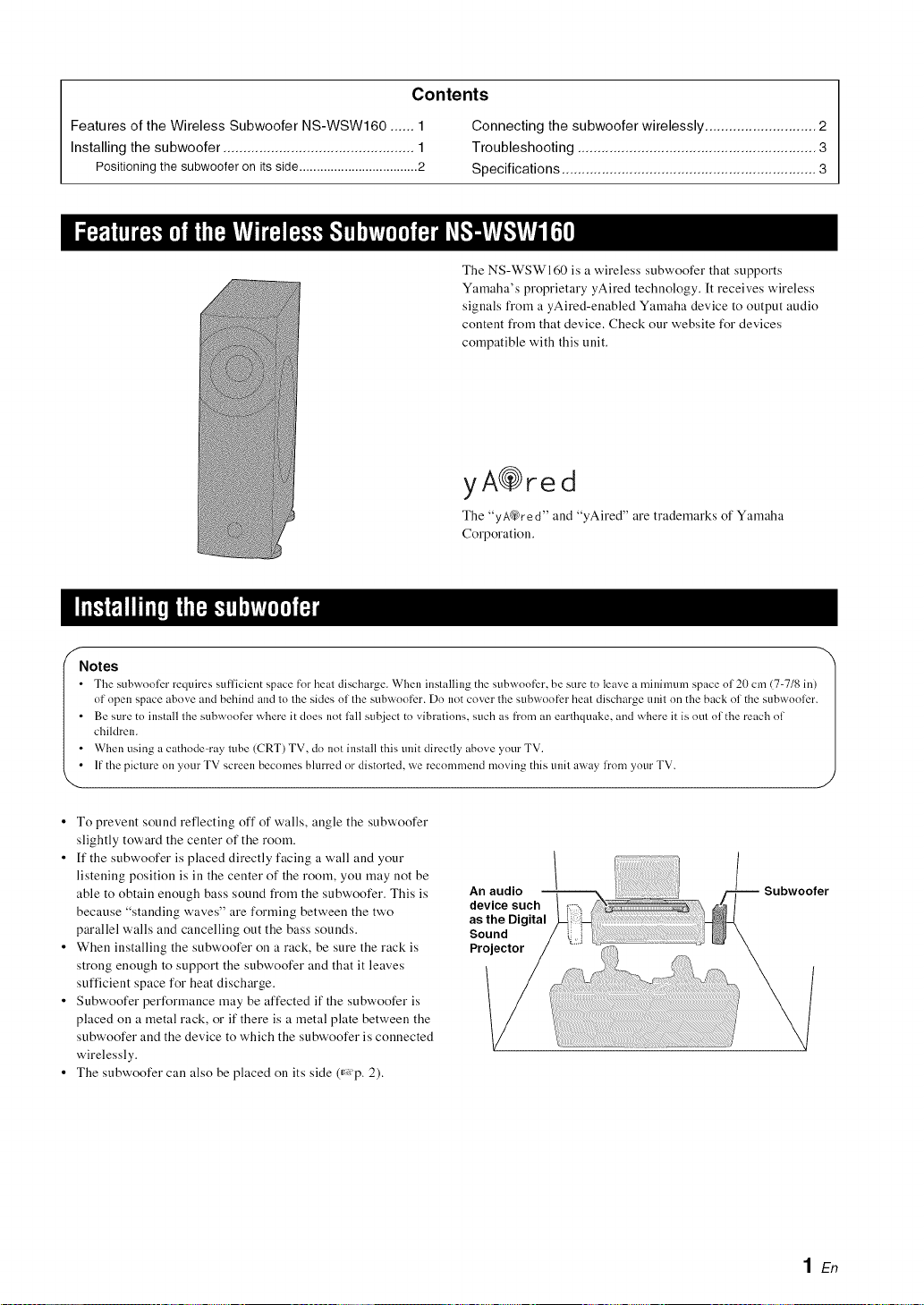
Contents
Features of the Wireless Subwoofer NS-WSW160 ...... 1
Installing the subwoofer ................................................ 1
Positioning the subwoofer on its side..................................2
Connecting the subwoofer wirelessly ............................ 2
Troubleshooting ............................................................ 3
Specifications ................................................................ 3
The NS-WSW160 is a wireless subwoofer that supports
Yamaha's proprietary yAired technology. It receives wireless
signals fi'om a yAired-enabled Yamaha device to output audio
content fi'om that device. Check our website for devices
compatible with this unit.
yA@red
The "yA@red" and "yAired" are trademarks of Yamaha
Corporation.
f
Notes
• The subwooli_r requires sufficient space for he_t discharge. When installing the subwoofer, be sure to le_,e _ minimum space of 2() cm (%7/8 in)
of open space above and behind and to the sides of the subwoofer. Do not cover the subwoofer heat discharge unit on the back of the subwooli_r.
• Be sure to install the subwoofer where it does not lall subject to vibrations, such as from an earthquake, and where it is out of the reach of
children.
• When using a cathode=ray tube (CRT) TV, do not install this unit directly above your TV.
• If the picture on your TV screen becomes blurred or distorted, we recommend moving this unit away from your TV.
• To prevent sound reflecting off of walls, angle the subwoofer
slightly toward the center of the room.
• If the subwoofer is placed directly facing a wall and your
listening position is in the center of the room, you may not be
able to obtain enough bass sound from the subwoofer. This is
because "standing waves" are forming between the two
parallel walls and cancelling out the bass sounds.
• When installing the subwoofer on a rack, be sure the rack is
strong enough to support the subwoofer and that it leaves
sufficient space for heat discharge.
• Subwoofer performance may be affected if the subwoofer is
placed on a metal rack, or if there is a metal plate between the
subwoofer and the device to which the subwoofer is connected
wirelessly.
• The subwoofer can also be placed on its side (_*: p. 2).
An audio
device such
as the Digital
Sound
Projector
Subwoofer
1En
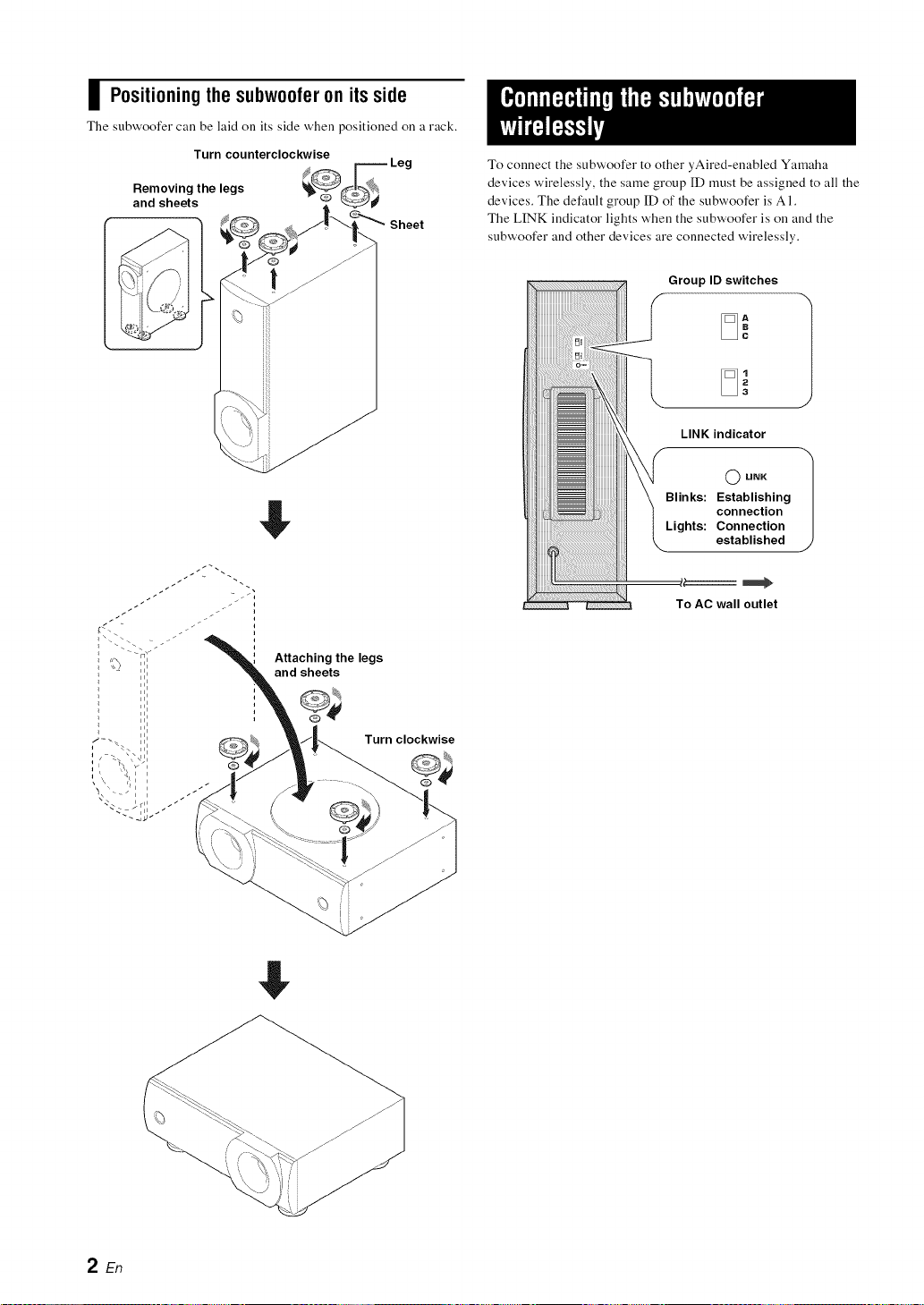
I Positioning the subwoofer on its side
The subwoofer can be laid on its side when positioned on a rack.
Turn counterclockwise
Removing the legs
and sheets
Sheet
To connect the subwoofer to other yAired-enabled Yamaha
devices wirelessly, the same group ID must be assigned to all the
devices. The default group ID of the subwoofer is AI.
The LINK indicator lights when the subwoofer is on and the
subwoofer and other devices are connected wirelessly.
Group ID switches
LINK indicator
Attaching the legs
and sheets
Turn clockwise
To ACwall outlet
#
2En
If this product doesn't work as expected, look for a possible cause below'. If the issue you are experiencing is not listed, o1"you cannot
resolve it after reading through these instructions, disconnect the power cable and contact all authorized Yamaha dealer o1"service
center.
No sound from the The subwoofer is nol connected wirelessly. Make sure ll_e power cable is connected properly.
subwoofer. Check it"the LINK indicalor lighls on llae rear ol lhe subwoofer
0_ p. 21.
When 1he indicator does not light, check Ihat devices to be
connected wirelessly are assigned the same group 1D.
Increase lhe volume of ll_e subwoofer with the volume control lk)r
subwoofer on Ihe colmected device wirelessly.
Try playing source malerial thal contains more bass.
The volume ol 1he sHbwx)o_'el"is low.
The subwoofer is too The source malerial doesn't contain much
quiet, bass.
Reposition Ihe subwoofer {_ p. 1).
Type ...................... Advanced Yamaha Active Servo Technology
Driver .............................................. 16 cm (6-1/2 in) cone woofer
non-magnetic shielding type
Output power ............................. 75 W (100 Hz, 5 _2, 10% T.H.D)
Dynamic power .................................................................... 130 W
Frequency response ................................................. 30 Hz-200 Hz
Wireless
Frequency ................................................................... 2.4 GHz
Transmission Range ............................... Approx. 20 m (66 ft)
(without interference)
Power supply
[U.S.A. and Canada models] ...................... AC 120 V, 60 Hz
[Taiwan model] ................................... AC 110-120 V, 60 Hz
[Australia model] ........................................ AC 240 V, 50 Hz
[U.K., Europe and Russia models] ............. AC 230 V, 50 Hz
[China model] ............................................. AC 220 V, 50 Hz
[Korea model] ............................................. AC 220 V, 60 Hz
[Asia model] .................................. AC 220-240 V, 50/60 Hz
Power comsumption .............................................................. 70 W
Dimensions (W x H x D)
Upright positioning
................. 145 x 446 x 371 mm (5-3/4 x 17-1/2 x 14-5/8 in)
Positioned on side
................. 435 x 146 x 371 mm (17-1/8 x 5-3/4 x 14-5/8 in)
Weight .................................................................. 9.0 kg (19.8 lbs)
Specifications are subject to change without notice.
3En

@
YAMAHA CORPORATION
© 2012 Yamaha Corporation Printedin IndonesiaZD86490
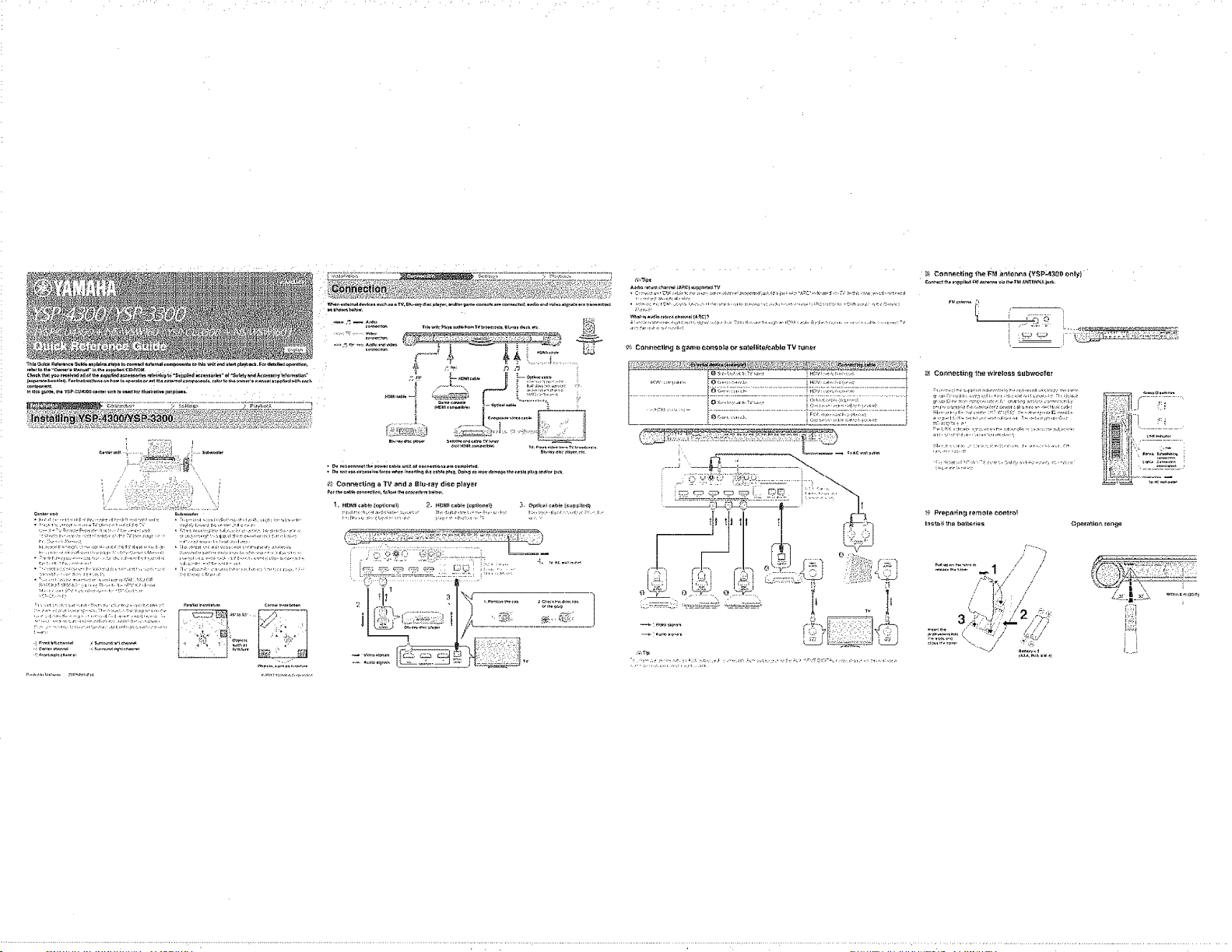
.................... _ ConrteCtlng the FM ;anto_n_ (YSp_4300 only)
G
,,,, •
_ Connecting aTV and a Blu-ray disc pl_y_
J
...... ............:: LL -7.
...............................................,.............................i-i i_
_, P_epnrln_l r_mol_, conlrot
i}ii
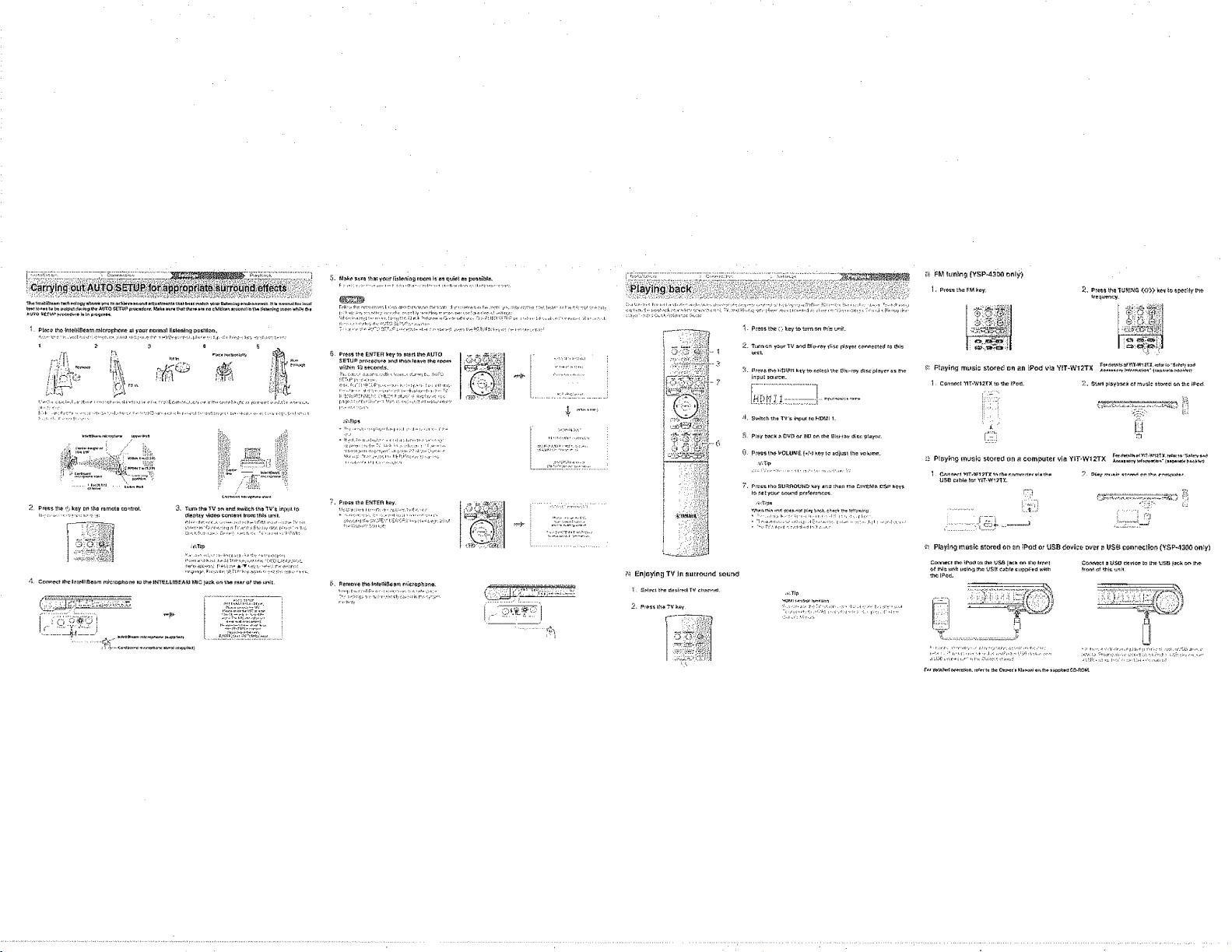
:[ :¢*'tm
t..,t.,_
¥
....... ;,+,, .A,:G ......
t;?;]j:,+,:_Z1'_3Z+:_:'
i_,i En_oy[n_i TV in surro_r_d _ound
>. ,,.__+,;i, i.::,.._;+t.,. : ¸,_,.,-, __:...
Playing m_s_c s_c:,rod on r_ntPer_o* USB dovi_e r_ver _ USB connection (Y._P-4300 only}
@
YSP-4300/YSP-3300
[ YSP-CU4300 + NS-WSW160 / YSP-CU3300 + NS-WSW160]
Digital Sound Projector M
Safety and Accessory Information
For more detailed information, refer to the Owner's Manual on the CD-ROM. To view the Owner's Manual, click "English" ill the
screen displayed automatically when you insert the CD-ROM into your PC. Then follow' the on-screen instructions. [f the screen is not
displayed automatically, open the "index.html" in the CD-ROM.
Caution: Do not attempt to play this CD-ROM on an audio CD player.
PDF versions of this manual and "Owner's Manual" can be downloaded from the following website.
http://download.yamaha.co m/
[For U.S. customers only]
Visit the following website for additional information, FAQ's, downloads such as "Owner's Manual" and product updates.
http:llusa.yamaha.comlsupportl
CAUTION
RISKOFELECTRICSHOCK
DO NOTOPEN
CAUTION: TO REDUCE THE RISK OF
ELECTRIC SHOCK, DO NOT REMOVE
COVER (OR BACK). NO USER-SERVICEABLE
PARTS INSIDE. REFER SERVICING TO
QUALIFIED SERVICE PERSONNEL.
• Explanation of Graphical Symbols
The lightning flash with arrowhead symbol, within an
equilaleral triangle, is intended to alert you to the
presence of uniusulaled "dangerous voltage" wilhin lhe
product's enclosure lhat may he of sufficient magnitude
lo couslitule a risk ol eleclric shock 11tpersons.
1
2
3
4
5
6
7
10
ll
12
The exclamation poim within an equilateral triangle is 13
inteuded to alert you to the presence of important
operating and m_[inteuance (servicing) instructions in 14
the literature accompanying the appliance.
Read these instructions.
Keep these instructions.
Heed all warnings.
Follow all instructions.
Do not use this apparatus near water.
Clean only with dry cloth.
Do not block any ventilation openings. Install in accordance with the
manulacturer's instructions.
Do not install near any heat sources such as radiators, heat registers,
stoves, or other apparatus (including amplifiers) that produce heat.
Do not deleat the salety purpose of the polarized or grounding-type
plug. A polarized plug has two blades with one wider than the other. A
grounding type plug has two hlades and a third grounding prong. The
wide blade or the third prong are provided lot your salety. If the
provided plug does not fit into your outlet, consult an electrician lor
replacement of the obsolete outlet.
Protect the power cord li'om being walked on or pinched particularly
at plugs, convenience receptacles, and the point where they exit fi'om
the apparatus.
Only use attachments/accessories specified by the
manuluctnrer.
Use only with the cart, stand, tripod, bracket, or
table specified by the maunlhcturer, or sold with the
apparatus. When a cart is used, use caution when
moving the cart/apparatus combination to avoid
injury fi'om tip-over.
Unplug this apparatus during lightning storms or
when unused for long periods of time.
Reler all servicing to qualified service personnel.
Serqciug is required when the apparatus has been damaged in any way,
such as power-supply cord or plug is damaged, liquid has been spilled
or ohjects have lhllen into the apparatus, the apparatus has been exposed
to rain or moisture, does not operate normally, or has been dropped.
We Want You Listening For A Lifetime
Yamaha and the Electronic Industries Association's Consumer Electronics Group want you to get the most out of your /f,d_'_
equipment by playing it at a safe level. One that lets the sound come through loud and clear without annoying
blaring or distortion - and, most importantly, without affecting your sensitive hearing. ',_L _.r
Since hearing damage from loud sounds is often undetectable until it is too late, Yamaha and the Electronic Industries
Association's Consumer Electronics Group recommend you to avoid prolonged exposure from excessive volume levels. _!STENIN_
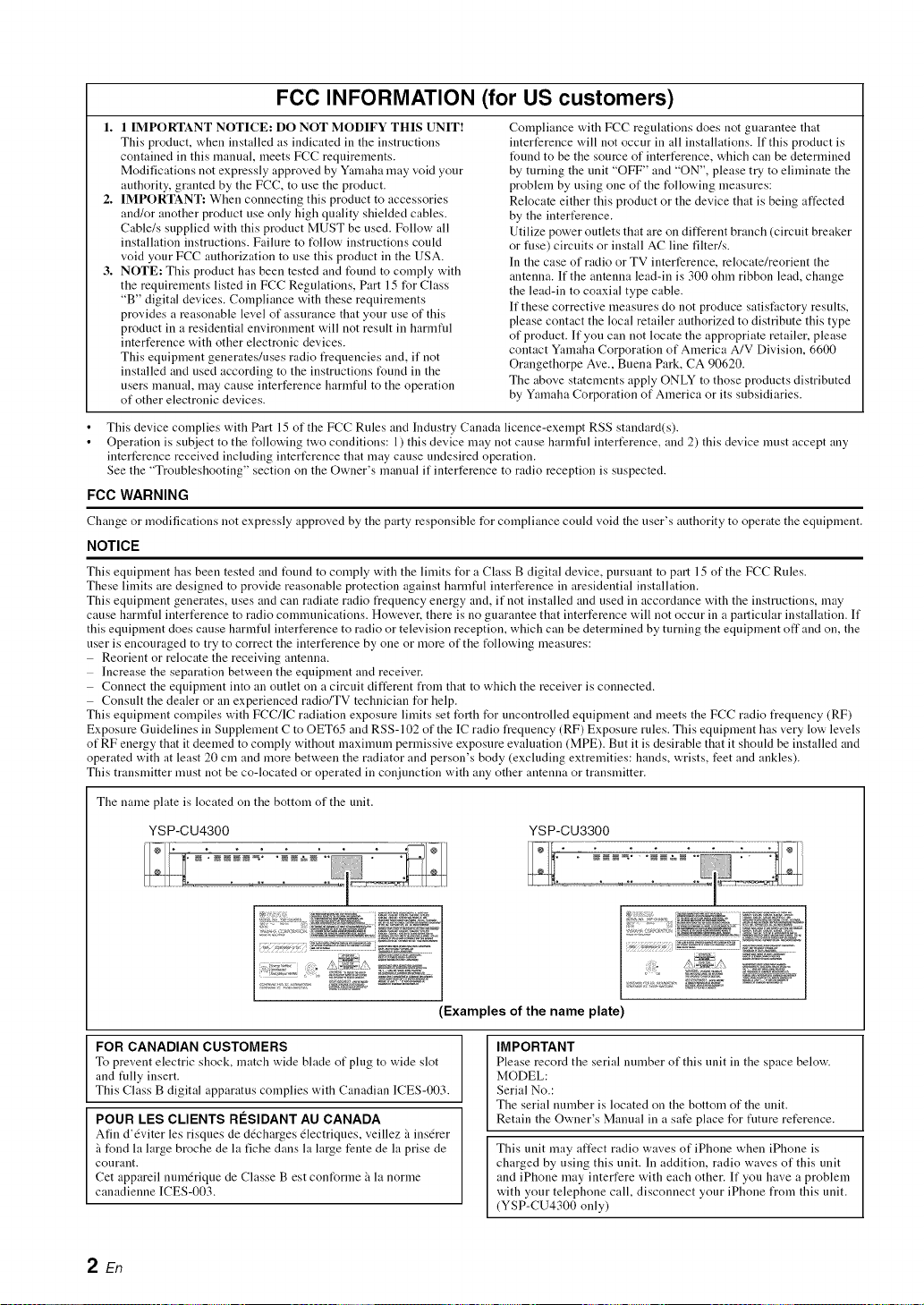
FCC INFORMATION (for US customers)
1. 1 IMPORTANT NOTICE: DO NOT MODIFY THIS UNIT!
This product, when installed as indicated in the instructions
contained in this manual, meets FCC requirements.
Modifications not expressly approved by Yamaha may void your
authority, granted by the FCC, to use the product.
2. IMPORTANT: When connecting this product to accessories
and/or another product use only high quality shielded cables.
Cable/s supplied with this product MUST be used. Follow all
installation instructions. Failure to t_llow instructions could
void your FCC authorization to use this product in the USA.
3. NOTE: This product has been tested and found to comply with
the requirements listed in FCC Regulations, Part 15 for Class
"B" digital devices. Compliance with these requirements
provides a reasonable level of assurance that your use of this
product in a residential environment will not result in harmfid
interference with other electronic devices.
This equipment generates/uses radio frequencies and, if not
installed and used according to the instructions t_und in the
users manual, may cause interference harmfid to the operation
of other electronic devices.
Compliance with FCC regulations does not guarantee that
interference will not occur in all installations. If this product is
found to be the source of interference, which can be determined
by turning the unit "OFF" and "ON", please try to eliminate the
problem by using one of the following measures:
Relocate either this product or the device that is being affected
by the interference.
Utilize power outlets that are on different branch (circuit breaker
or fuse) circuits or install AC line filter/s.
In the case of radio or TV interference, relocate/reorient the
antenna. If the antenna lead-in is 300 ohm ribbon lead, change
the lead-in to coaxial type cable.
If these corrective measures do not produce satisfactory results,
please contact the local retailer authorized to distribute this type
of product. If yon can not locate the appropriate retailer, please
contact Yamaha Corporation of America A/V Division, 6600
Orangethorpe Ave., Buena Park, CA 90620.
The above statements apply ONLY to those products distributed
by Yamaha Corporation of America or its subsidiaries.
This device complies with Part 15 of the FCC Rules and Industry Canada licence-exempt RSS standard(s).
Operation is subject to the t_llowing two conditions: 1) this device may not cause harmfid interference, and 2) this device must accept any
interference received including interference that may cause undesired operation.
See the "Troubleshooting" section on the Owner's manual if interference to radio reception is suspected.
FCC WARNING
Change or modifications not expressly approved by tile party responsible for compliance could void tile user's authority to operate tile eqnipment.
NOTICE
This equipment has been tested and t_und to comply with the limits t_r a Class B digital device, pursuant to part 15 of the FCC Rules.
These limits are designed to provide reasonable protection against harmful interference in aresidential installation.
This equipment generates, uses and can radiate radio frequency energy and, if not installed and used in accordance with the instructions, may
cause harmfid interference to radio communications. However. there is no guarantee that interference will not occur in a particular installation. If
this equipment does cause harmfid interference to radio or television reception, which can be determined by turning the equipment oft" and on, the
user is encouraged to try to correct the interference by one or more of the t_llowing measures:
Reorient or relocate the receiving antenna.
Increase the separation between the equipment and receiver.
Connect the equipment into an outlet on a circuit different from that to which the receiver is connected.
Consult the dealer or an experienced radio/TV technician for help.
This equipment compiles with FCC/IC radiation exposure limits set forth for uncontrolled equipment and meets the FCC radio frequency (RF)
Exposure Guidelines in Supplement C to OET65 and RSS-102 of the IC radio frequency (RF) Exposure rules. This equipment has very low levels
of RF energy that it deemed to comply without maximum permissive exposure evaluation (MPE). But it is desirable that it shoukt be installed and
operated with at least 20 cm and more between the radiator and person's body (excluding extremities: hands, wrists, feet and ankles).
This transmitter must not be co-located or operated in con innction with any other antenna or transmitter.
The name plate is located on the bottom of the unit.
YSP-CU4300 YSP-CU3300
(Examples of the name plate)
FOR CANADIAN CUSTOMERS
To pre_.ent electric shock, match wide blade of plug to wide slot
and Sully insert.
This Class B digital apparatus complies with Canadian ICES-003.
POUR LES CLIENTS RI_SIDANT AU CANADA
Afin d'&,iter les risqnes de ddcharges dlectriqnes, _.eillez "t insdrer
_ fond la large broche de la fiche dans la large fente de la prise de
conralLt.
Cet appareil nnmdrique de Classe B est conforme _ la norme
canadienne ICES-003.
IMPORTANT
Please record the serial number of this unit in the space below.
MODEL:
Serial No.:
The serial number is located on the bottom of the unit.
Retain the Owner's Manual in a sate place for flmLre reference.
This unit may affect radio waves of iPhone when iPhone is
charged by using this unit. In addition, radio waves of this unit
and iPhone may interfere with each other. If yon have a problem
with your telephone call, disconnect your iPhone from this unit.
(YSP-CU4300 only)
2 En
1 To assure the finest performance, please read this manual
carefldly. Keep it in a safe place tUr future reference.
2 Install this unit in a well ventilated, cool, dry, clean place away
from direct sunlight, heat sources, vibration, dust, moisture, and/
or cold. For proper ventilation, allow the following minimum
clearances.
Top : 5 cm (2 in)
Rear: 5 cm (2 in)
Sides: 1 cm (13/32 in)
3 Locate this unit away from other electrical appliances, motors, or
transtUrmers to avoid humming sounds.
4 Do not expose this unit to sudden temperature changes from cokt
to hot, and do not locate this unit in an environment with high
humidity (i.e. a room with a humidifier) to prevent condensation
inside this unit, which may cause an electrical shock, fire,
damage to this unit, and/or personal injury.
5 Avoid installing this unit where foreign object may fall onto this
unit and/or this unit may be exposed to liquid dripping or
splashing. On the top of this unit, do not place:
Other components, as they may cause damage and/or
discoloration on the surface of this unit.
Burning objects (i.e. candles), as they may cause fire, damage
to this unit, and/or personal injury.
Containers with liquid in them, as they may fall and liquid
may cause electrical shock to the user and/or damage to this
unit.
6 Do not cover this unit with a newspaper, tablecloth, curtain, etc.
in order not to obstruct heat radiation. If the temperature inside
this unit rises, it may cause fire, damage to this unit, and/or
personal injury.
7 Do not plug in this unit to a wall outlet until all connections are
complete.
8 Do not operate this unit upside-down. It may overheat, possibly
causing damage.
9 Do not use force on switches, knobs and/or cords.
10 When disconnecting the power cable from the wall outlet, grasp
the plug; do not pull the cable.
11 Do not clean this unit with chemical solvents; this might damage
the finish. Use a clean, dry cloth.
12 Only voltage specified on this unit must be used. Using this unit
with a higher voltage than specified is dangerous and may cause
fire, damage to this unit, and/or personal injury. Yamaha will not
be held responsible for any damage resulting from use of this unit
with a voltage other than specified.
13 To prevent damage by lightning, keep the power cable
disconnected from a wall outlet or this unit during a lightning
storm.
14 Do not attempt to modify or fix this unit. Contact qualified
Yamaha service personnel when any service is needed. The
cabinet should never be opened for any reasons.
15 When not planning to use this unit for long periods of time (i.e.
vacation), disconnect the AC power plug from the wall outlet.
16 Be sure to read the "TROUBLESHOOTING" section (of
"OWNER'S MANUAL" on the supplied CD-ROM) on common
operating errors betUre concluding that this unit is faulty.
17 BetUre moving this unit, press I(_ to set this unit to the standby
mode, and disconnect the AC power plug from the wall outlet.
18 Condensation will turin when the surrounding temperature
changes suddenly. Disconnect the power cable from the outlet,
then leave this unit alone.
19 When using this unit for a long time, this unit may become warm.
Turn the power off. then leave this unit alone for cooling.
2t1 Install this unit near the AC outlet and where the AC power plug
can be reached easily.
21 The batteries shall not be exposed to excessive heat such as
sunshine, fire or the like. When you dispose of batteries, tUllow
your regional regulations.
WARNING
TO REDUCE THE RISK OF FIRE OR ELECTRIC SHOCK, DO
NOT EXPOSE THIS UNIT TO RAIN OR MOISTURE.
WARNING
THE POWER SUPPLY CABLE OF THIS UNIT MUST BE
CONNECTED TO THE MAIN SOCKET OUTLET VIA A
PROTECTIVE EARTHING CONNECTION.
This unit is not disconnected from the AC power source as long as
it is connected to the wall outlet, even if this unit itself is turned off
by I(_. This state is called the standby mode. In this state, this unit
is designed to consume a very small quantity of power.
Radio waves may affect electro-medical devices.
Do not use this unit near medical devices or inside medical
facilities.
Do not use this unit within 22 cm (9 inches) of persons with a heart
pacemaker implant or defibrillator implant.
(Power key)
Turns on tile power of this unit or sets it to tile standby mode.
• Notes on remote controls and batteries
Do not spill water or other liquids on the remote control.
Do not drop the remote control.
Do not leave or store the remote control in the t_llowing
conditions:
places of high humidity, such as near a bath
places of high temperatures, such as near a heater or stove
places of extremely low temperatures
dusty places
Insert the battery according to the polarity markings (+ and -).
Change all batteries if you notice the following conditions:
the operation range of the remote control narrows
the transmit indicator does not flash or is dim
If the batteries run out, immediately remove them from the remote
control to prevent an explosion or acid leak.
If you find leaking batteries, discard the batteries immediately,
taking care not to touch the leaked material. If the leaked material
comes into contact with your skin or gets into your eyes or mouth,
rinse it away immediately and consult a doctor. Clean the battery
compartment thoroughly before installing new batteries.
Do not use okt batteries together with new ones. This may shorten
the life of the new batteries or cause old batteries to leak.
Do not use different types of batteries (such as alkaline and
manganese batteries) together. Specification of batteries may be
different even though they look the same.
Bet_re inserting new batteries, wipe the compartment clean.
If the remote control is without batteries t_r more than 2 minutes,
or if exhausted batteries remain in the remote control, the contents
of the memory may be cleared. In such a case, install new batteries
and set the remote control code.
Dispose of batteries according to your regional regulations.
Keep batteries away from children. If a battery is accidentally
swallowed, contact your doctor immediately.
When not planning to use the remote control for long periods of
time, remove the batteries from the remote control.
Do not charge or disassemble the supplied batteries.
3 En
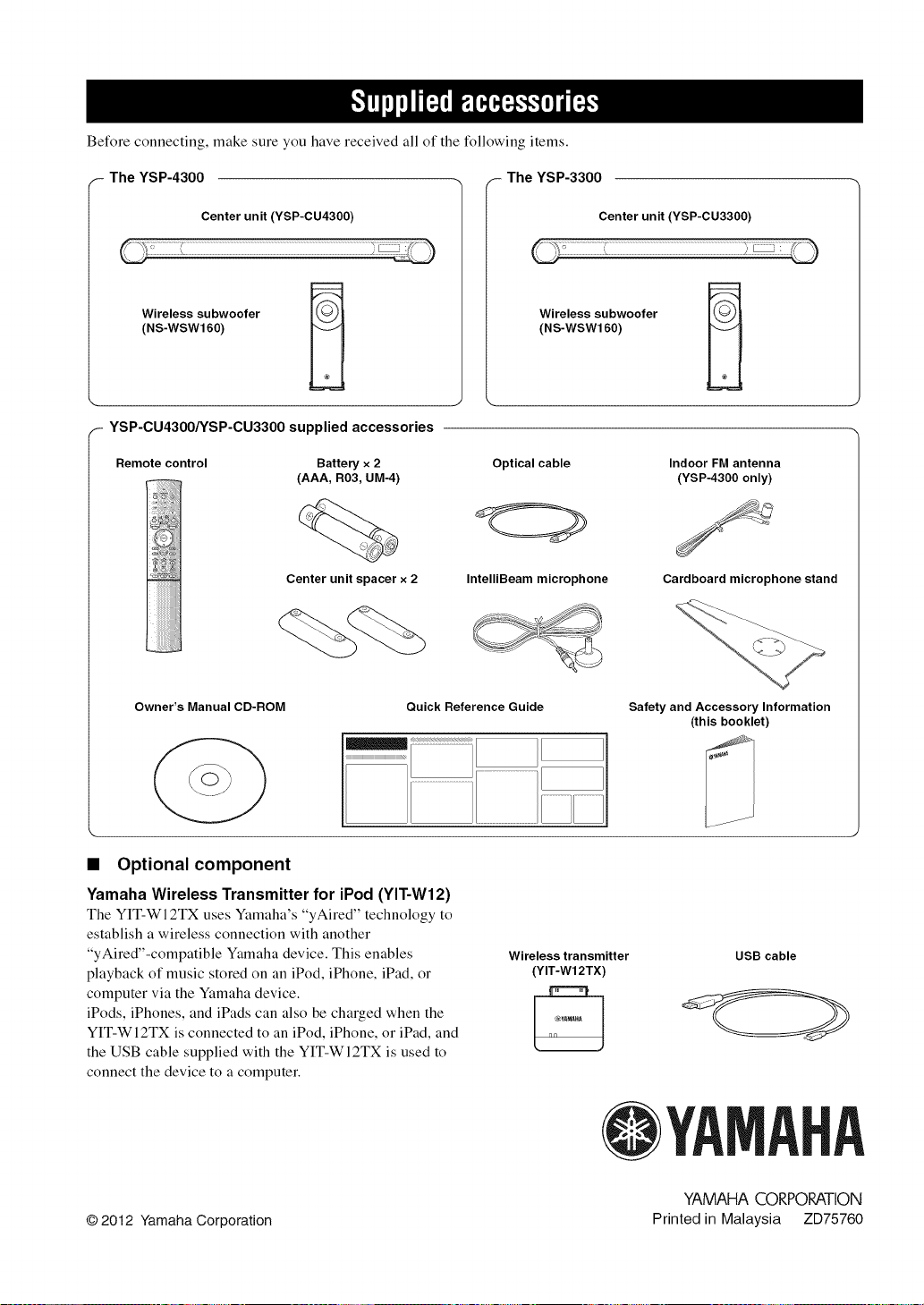
Before connecting, make sure you have received all of the following items.
The YSP-4300 The YSP-3300
Center unit (YSP-CU4300)
Wireless subwoofer
(NS-WSW160)
Center unit (YSP-CU3300)
Wireless subwoofer
(NS-WSW160)
YSP-CU4300/YSP-CU3300 supplied accessories
Remote control Battery x 2
(AAA, R03, UM-4)
Center unit spacer x 2
Optical cable
IntelliBeam microphone
Indoor FM antenna
(YSP-4300 only)
Cardboard microphone stand
Owner's Manual CD-ROM Quick Reference Guide
Safety and Accessory Information
(this booklet)
• Optional component
Yamaha Wireless Transmitter for iPod (YIT-W12)
The YIT-Wl 2TX uses Yamaha's "yAired" technology to
establish a wireless connection with another
"yAired"-compatible Yamaha device. This enables
playback of music stored on an iPod, iPhone, iPad, or
computer via the Yamaha device.
iPods, iPhones, and iPads can also be charged when the
YIT-Wl2TX is connected to an iPod, iPhone, or iPad, and
the USB cable supplied with the YIT-WI2TX is used to
connect the device to a computer.
Wireless transmitter
(YIT-Wl 2TX)
USB cable
@YAMAHA
© 2012 Yamaha Corporation
YAMAHA CORPORATION
Printed in Malaysia ZD75760

Registering Your New Ya aha
Product is Fast and Easy
Thank you for purchasing a new product from Yamaha Electronics.We'd like to
continue providing you with high quality products and better service. So, we've made
it simple to register your new product purchase online. Please take a few minutes to
visit our website at www.yamaha.comlYEClregistrationl and complete the
information and questions included there.We appreciate your business and we look
forward to hearing from you.
Failure to complete the registration form does not diminish your warranty rights in any way. }:
Product registration appfies to USA customers onl .
WF15740

r Your Product
Thank you for purchasing a new product from Yamaha Electronics. We would like to continue
providing you with high quality products and better service. Please take a few minutes to visit our
website and complete the product registration process at www.yamaha.com/YEC/registration/
Yamaha is committed to doing it's part in protecting the environment and reducing the impact
on our natural resources, As a result, this product is supplied with an electronic copy of the
manual on the enclosed disc for use on your computer.
We appreciate your business and look forward to hearing from you soon.
Product registration applies to USA customers onlyo
Failure to complete the registration form does not diminish your warranty rights in any way.
ZC64070
@YAMAHA
LiMiTED WARRANTY ON
HOME AUDIO PRODUCTS
Thank you for selecting a YAMAHA product. YAMAHA products are designed and manufactured to provide a high level of defect-free performance. Yamaha
Corporation of America (YAMAHA") is proud of the experience and craftsmanship that goes into each and every YAMAHA product. YAMAHA sells its
products through a network of reputable, specially authorized dealers and is pleased to offer you, the Original Owner, the following Limited Warranty, which
applies only to products that have been (!) directly purchased from YAMAHA's authorized dealers in the USA, including Puerto Rico (the "Warranted Area")
and (2) used exclusively in the Warranted Area. YAMAHA suggests that you read the Limited Warranty thoroughly, and invites you to contact your authorized
YAMAHA dealer or YAMAHA Customer Service if you have any questions.
THIS WARRANTY COVERS THE LISTED PRODUCTS AGAINST DEFECTS IN MATERIALS OR
WORKMANSHIP FOR THE NUMBER OFYEARS IDENTIFIED BELOW.
Warranty Term
Type of Product
A/V and Stereo Receivers, Processor and Integrated Amplifiers,
Separate Amplifiers and Preamplifiers, Tuners, CD Players and
Changers, HDD Players and Recorders, Network Players, Powered
Loudspeakers, Media Controllers and Speaker Systems purchased
individually, as a pair, or as part of an integrated or Packaged System.
Duration of Warranty from Date of
Purchase by or for the Original Owner
........................ 2 years
Cassette Decks, Blu-ray Disc Players, DVD Players and Changers,
Integrated Systems (Receiver or Amplifier combined or on same
chassis with CD, DVD or Blu-ray Disc Player), Desktop Audio Systems
(i.e. TSX and PDX Series), Multimedia Speakers, Headphones,
Earphones and Accessories.
........................ 1 year
Coverage: YAMAHA will, at its option, repair or replace the product covered by this warranty if it becomes defective, malfunctions or otherwise fails to
conform with this warranty under normal use and service during the term of this warranty, without charge for labor or materials. Repairs may be
performed using new or refurbished parts that meet or exceed YAMAHA specifications for new parts. If YAMAHA elects to replace the product, the
replacement may be a reconditioned unit. You will be responsible for any installation or removal charges and for any initial shipping charges if the
product(s) must be shipped for warranty service. However, YAMAHA will pay the return shipping charges to any destination within the USA if the repairs
are covered by the warranty. This warranty does not cover (a) damage, deterioration or malfunction resulting from accident, negligence, misuse, abuse,
improper installation or operation or failure to follow instructions according to the Owner's Manual for this product; any shipment of the product (claims
must be presented to the carrier); repair or attempted repair by anyone other than YAMAHA or an authorized YAMAHA Service Center; (b) any unit which
has been altered or on which the serial number has been defaced, modified or removed; (c) normal wear, battery or battery replacement and any periodic
maintenancel (d) deterioration due to perspiration, corrosive atmosphere or other external causes such as extremes in temperature or humidity; (e)
damages attributable to power line surge or related electrical abnormalities, lightning damage or acts of God; (f) RFIiEMI (Interference!noise) caused by
improper grounding or the improper use of either certified or uncertified equipment, if applicable; or (g) interference arising from the use of wireless
communication devices (e.g. 2.4 gHz cordless telephones), or other radio frequency emitting products such as microwave ovens, whether such
interference impairs the operation of the product or vice-versa. Consult the Owner's Manuat for guidance on set-up procedures for minimizing the risks of
interference. Any evidence of alteration, erasing or forgery of proof-of-purchase documents wit! cause this warranty to be void. This warranty covers only
the Original Owner and is not transferable.
In Order to Obtain Warranty Service: Warranty service will only be provided for defective products within the Warranted Area. Contact your
local authorized YAMAHA dealer who will advise you of the procedures to be followed. If this is not successful, contact YAMAHA at the address,
telephone number or website shown below. YAMAHA may request that you send the defective product to a local authorized YAMAHA Servicer or
authorize return of the defective product to YAMAHA for repair. For products requiring in-home service, contact your local authorized Yamaha dealer to
arrange for service. If you are uncertain as to whether a dealer has been authorized by YAMAHA, please contact YAMAHA's Service Department at the
number shown below, or check Yamaha's website at http://usa.yamaha.com. Product(s) shipped for service should be packed securely and must be
accompanied by a detailed explanation of the problem(s) requiring service, together with the original or a machine reproduction of the bill of sale or other
dated, proof-of-purchase document describing the product, as evidence of warranty coverage. Should any product submitted for warranty service be
found ineligible therefore, an estimate of repair cost will be furnished and the repair will be accomplished only if requested by you and upon receipt of
payment or acceptable arrangement for payment.
Limitation of Implied Warranties and Exclusion of Damages: ANYIMPLIEDWARRANTIES,iNCLUDINGWARRANTIESOF
MERCHANTABILITY AND FITNESS FOR A PARTICULAR PURPOSE SHALL BE LIMITED IN DURATION TO THE APPLICABLE PERIOD OF TIME SET
FORTH ABOVE. YAMAHA SHALL NOT BE RESPONSIBLE FOR INCIDENTAL OR CONSEQUENTIAL DAMAGES OR FOR DAMAGES BASED UPON
INCONVENIENCE, LOSS OF USE, DAMAGE TO ANY OTHER EQUIPMENT OR OTHER ITEMS AT THE SITE OF USE OR INTERRUPTION OF
PERFORMANCES OR ANY CONSEQUENCES. YAMAHA'S LIABILITY FOR ANY DEFECTIVE PRODUCT IS LIMITED TO REPAIR OR REPLACEMENT
OF THE PRODUCT, AT YAMAHA'S OPTION. SOME STATES DO NOT ALLOW LIMITATIONS ON HOW LONG AN IMPLIED WARRANTY LASTS OR
THE EXCLUSION OR LIMITATION OF INCIDENTAL OR CONSEQUENTIAL DAMAGES, SO THE ABOVE LIMITATION OR EXCLUSION MAY NOT
APPLY TO YOU. This Warranty gives you specific legal rights, and you may also have other rights which vary from state to state. This is the only express
warranty applicable to the product specified herein; Yamaha neither assumes nor authorizes anyone to assume for it any other express warranty.
If you have any questions about service received or if you need assistance in locating an authorized YAMAHA Servicer, please contact:
@
CUSTOMER SERVICE
Yamaha Corporation of America
6600 Orangethorpe Avenue, Buena Park, California 90620-1373
Telephone: 800°292-2982
http:!/usa.yamaha.com
Do not return any product to the above address without a written Return Authorization issued by YAMAHA.
@2012 Yamaha Corporation of America 04/2012 ZE38290