4K HDMI PCIe Capture Card
User manual (v.1.3)
- English -

A. Introduction .......................................................................................................... 1
B. Features ................................................................................................................ 1
C. System requirements ............................................................................................ 1
D. Installation ............................................................................................................ 1
F. Inside the box ....................................................................................................... 3
G. Operating Instructions (Windows with OBS) ....................................................... 3
1. Video Setting ................................................................................................. 4
2. Audio Setting ................................................................................................ 6
1
A. Introduction
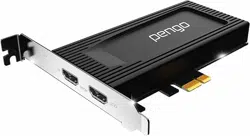
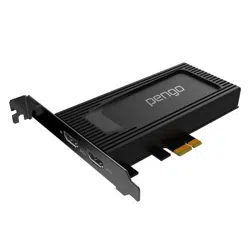
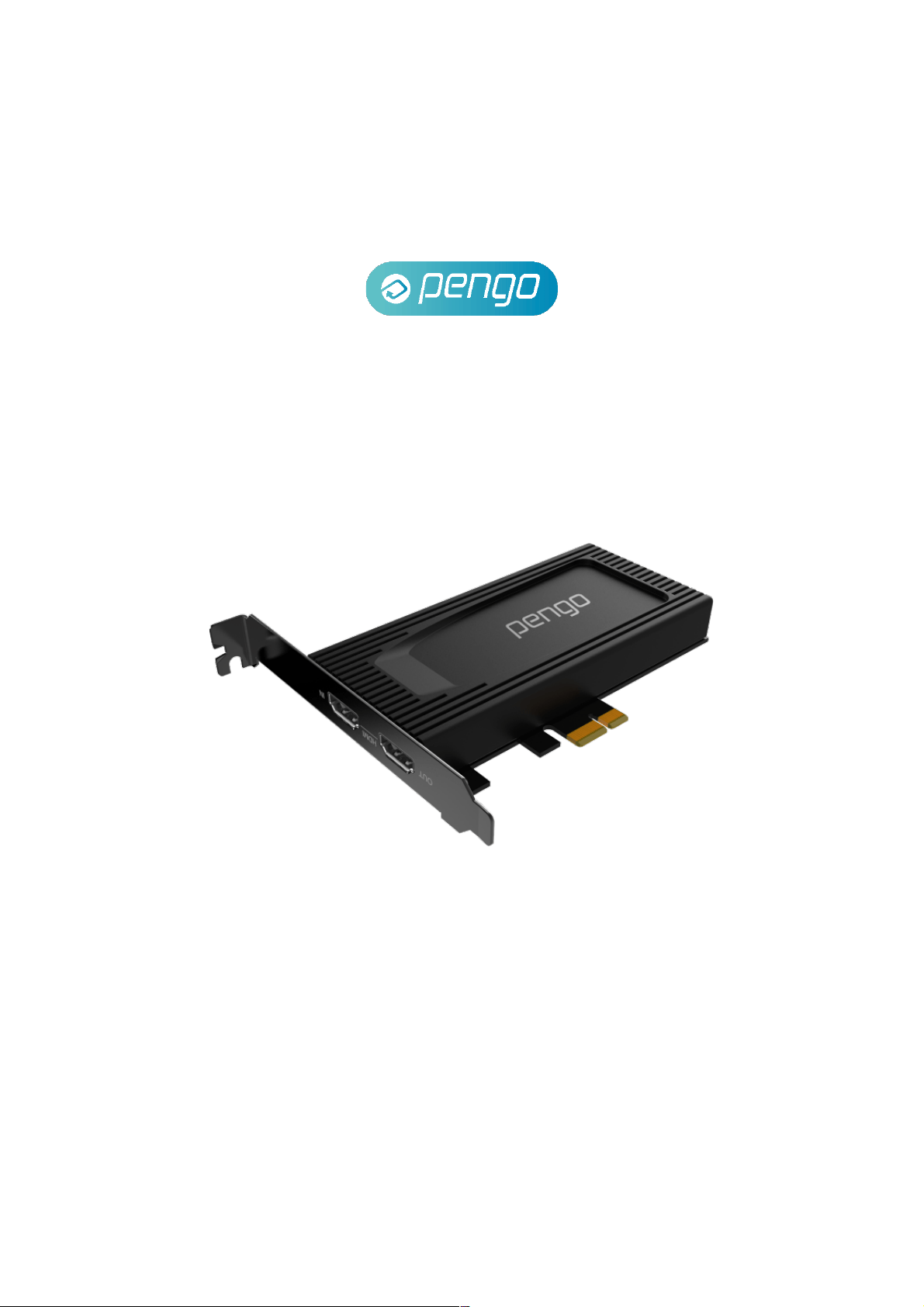
Pengo 4K HDMI PCIe Capture Card adopts a black anodized aluminum alloy
housing to increase the ability of heat dissipation and keep dust away from your
game. Dual black electroplated nickel bracket not only ensures durability but
also prevents oxidation. The premium desktop computer users can effortlessly
rely on the Pengo 4K HDMI PCIe Capture Card for its performance and well-
thought-out design. Stream 4K UHD 60Hz HDR HDMI devices directly from your
desktop. Become the content creator you were born to be. Capture digital
media at 4K UHD 30Hz and share it with the world. Ready to use with no driver
required
B. Features
• HDMI 2.0 input and output (loop-out) supports 4K60 HDR
• Maximum video capture resolution up to 2160p/30Hz or 1080p/120Hz
• Supports deep color (36-bit color)
• Supports PCIex1 (Gen4)
• Heat dissipation anodized aluminum alloy housing
• Dual black electroplated nickel bracket
• Compatible with third-party applications, such as, OBS, XSplit, vMix, Zoom,
Skype, etc
C. System Requirements
CPU: i5 Dual Core 2.8GHz or higher
RAM: 4GB or higher
OS: Microsoft Windows 8.1 and above
D. Installation
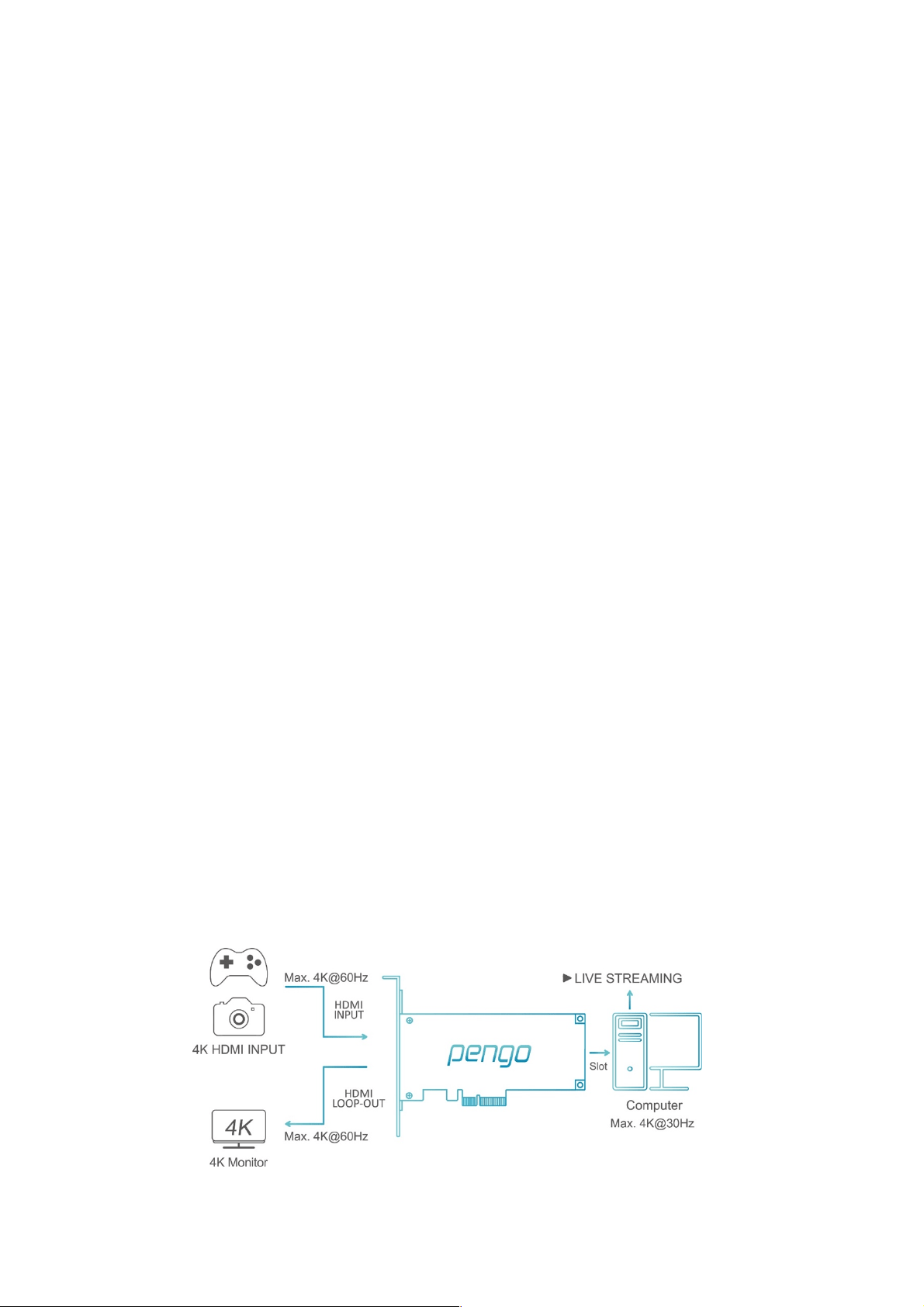
! Connect Pengo 4K PCIe Card into the computer PCIe port
! Plug-in your HDMI source with an HDMI Cable into the HDMI INPUT port.
! Plug-in your display device with a HDMI Cable into HDMI LOOP-OUT port.

2
E. Specifications
MODEL NAME
4K HDMI PCIe Capture Card
INPUT INTERFACE
1 x HDMI 2.0 Type A
OUTPUT INTERFACE
1 x PCIe , 1 x HDMI 2.0 Type A
INPUT/OUTPUT(LOOP-
OUT) RESOLUTION
3840 x 2160p 60/50/30/25/24Hz
2560 x 1440p 144/60Hz
1920 x 1080p 240/144/120/60/50/30/25/24Hz
1920 x 1080i 60/50Hz
1280 x 720p 60/50Hz
720 x 576p 50Hz
720 x 480p 60Hz
720(1440) x 576i 50Hz
720(1440) x 480i 60Hz
640 x 480p 60Hz
CAPTURE RESOLUTION
NV12
YUY2
3840 x 2160p 30 Hz
2560 x 1440p 60 Hz
1920 x 1080p 120/60/50/30/25Hz
1280 x 720p 60 Hz
720 x 480p 60 Hz
720 x 576p 50 Hz
640 x 480p 60 Hz
2560 x 1440p 50 Hz
1920 x 1080p 60/50/30/25 Hz
1280 x 720p 60 Hz
720 x 480p 60 Hz
720 x 576p 50 Hz
640 x 480p 60 Hz
COLOR SAMPLING
RGB, YUV (YCbCr 4:4:4, YCbCr 4:2:2, YCbCr 4:2:0)
VIDEO FORMAT
NV12 , YUY2
UAC AUDIO OUTPUT
Stereo / 16-bit PCM encoded audio at 48KHz sampling rates
SYSTEM REQUIREMENTS
CPU : i5 Dual Core 2.8GHz or higher
RAM : 4GB or higher
OS : Windows (8 and above)
ENVIRONMENT
Operating Temperature 0~45℃
Operating Humidity 20~90%
DIMENSION
120.9 x 133.7 x 21.6 mm (W x L x H)
WEIGHT
160 G
COLOR
Black
PRODUCT NUMBER
8RPCI-H01HP2B0PE
EAN NUMBER
4718009820531
3
F. Inside the box
! Pengo 4K HDMI PCIe Capture Card x 1
G. Operating Instructions (Windows with OBS)
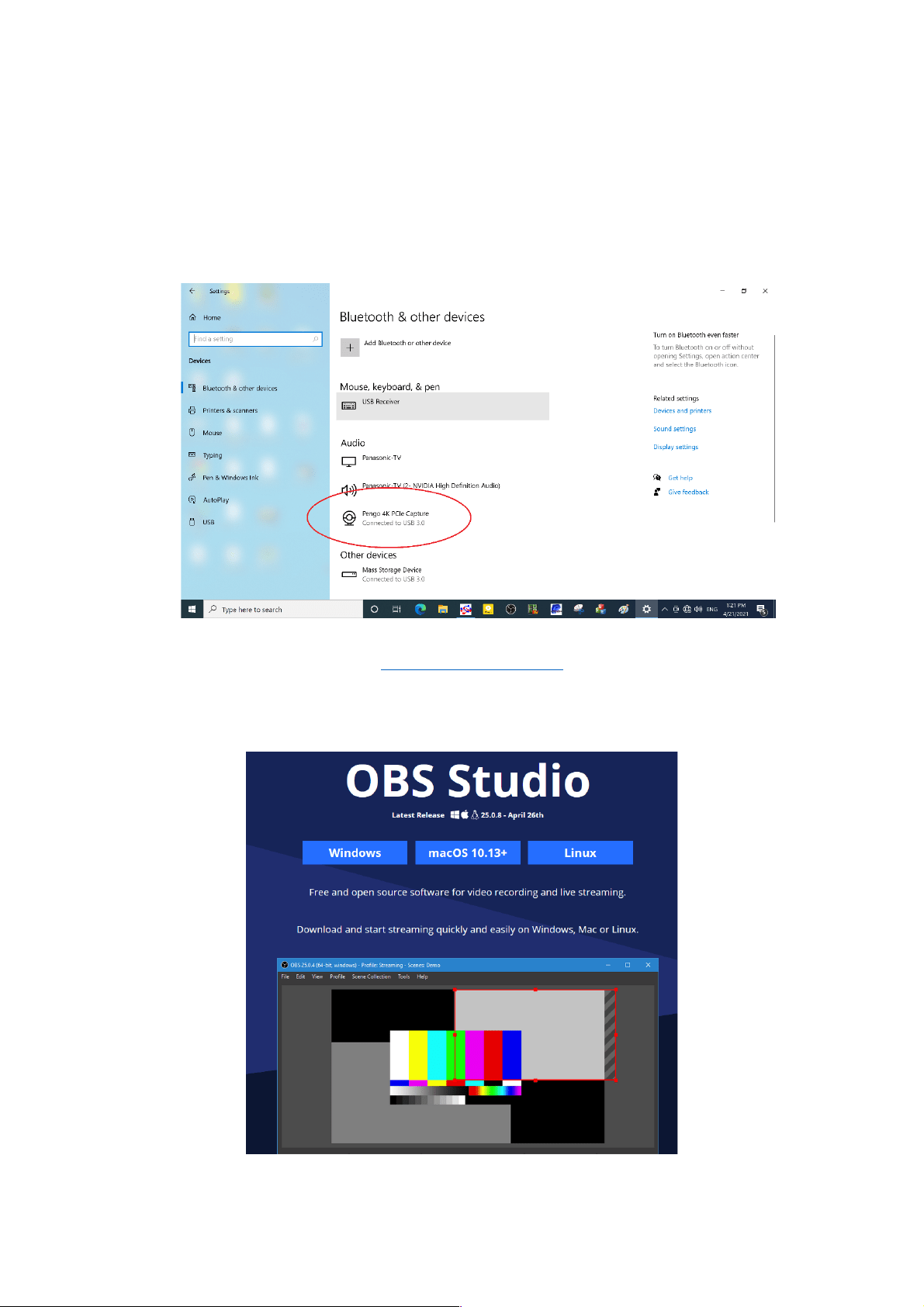
1. After plugging in your device, go to [Windows Settings] and then go under
[BT and Other Devices] and make sure Pengo 4K PCIe Capture is detected
2. Download OBS Studio: https://obsproject.com/
(OBS-Studio-25.0.8-Full-Installer-x64. exe)
3. Open OBS Studio. (version 25.0.8)
4
1. Video Setting
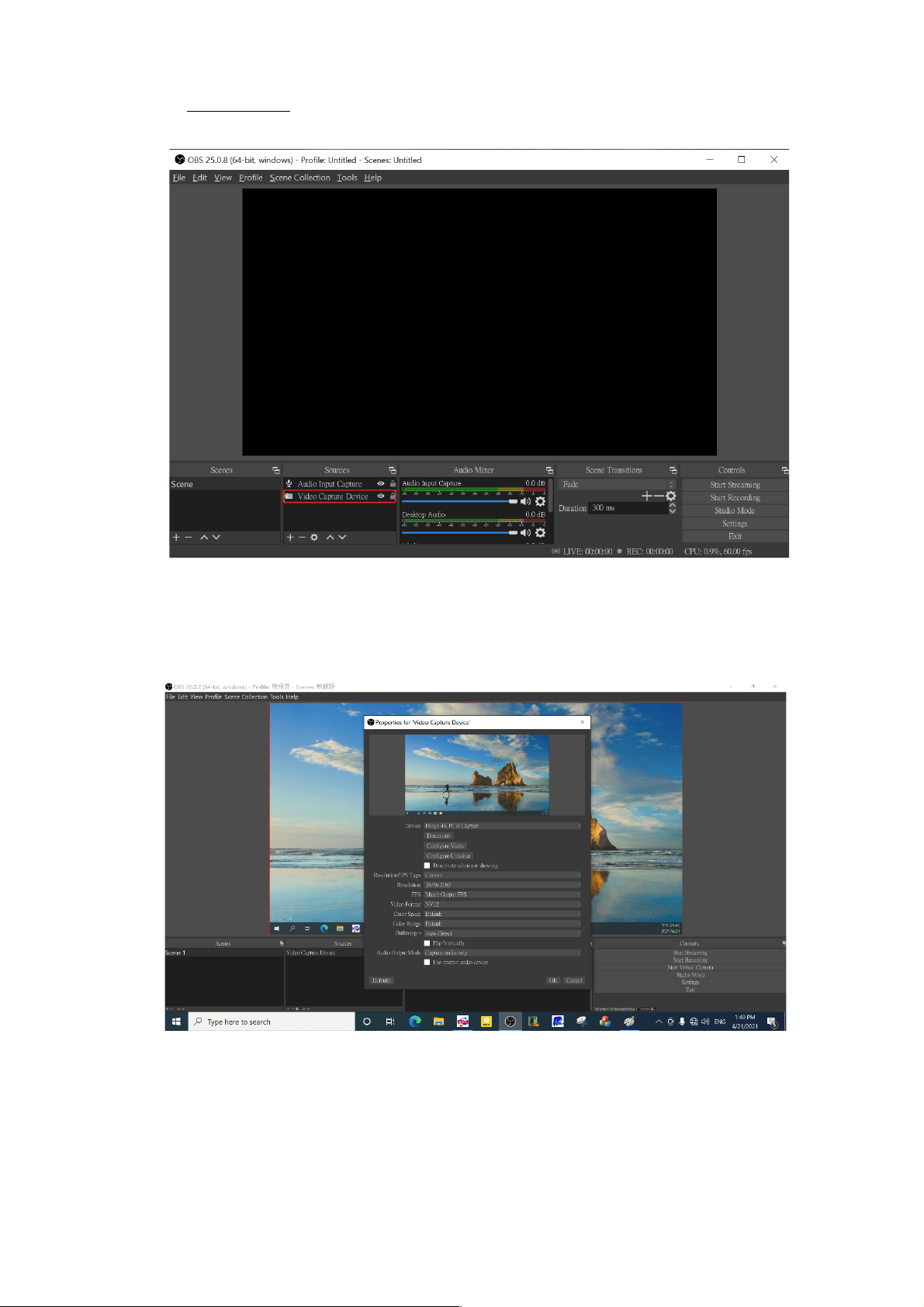
1.1 Add and select “Video Capture Device”, rename the source and click OK
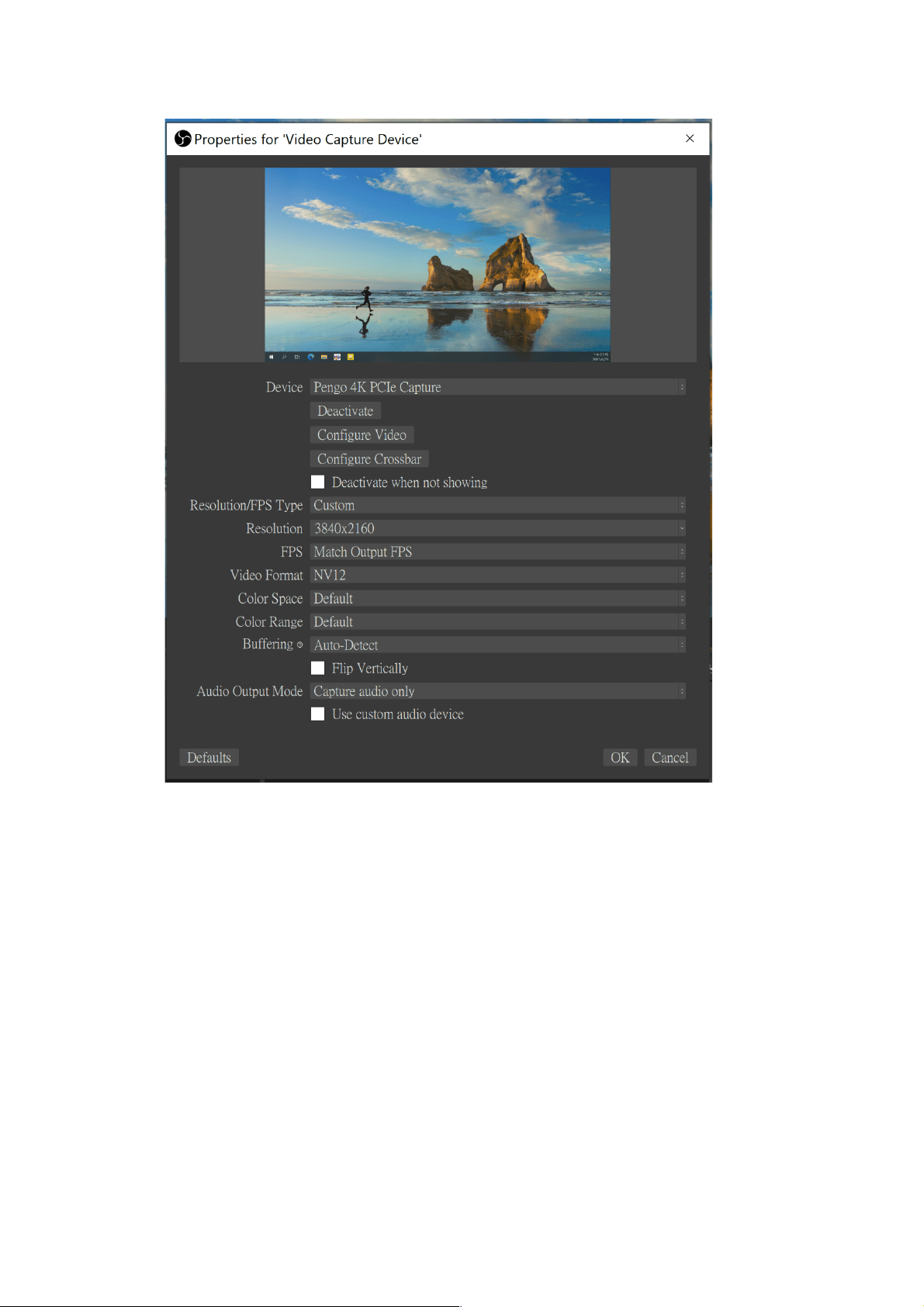
1.2 Select “Pengo 4K PCIE Capture” as your device
5
1.3 Parameter Setting references are displayed as below
*Resolution/FPS Type: Custom
*Resolution: 3840x2160
*FPS: Match Output FPS (auto select: 30)
*Video Format: NV12
6
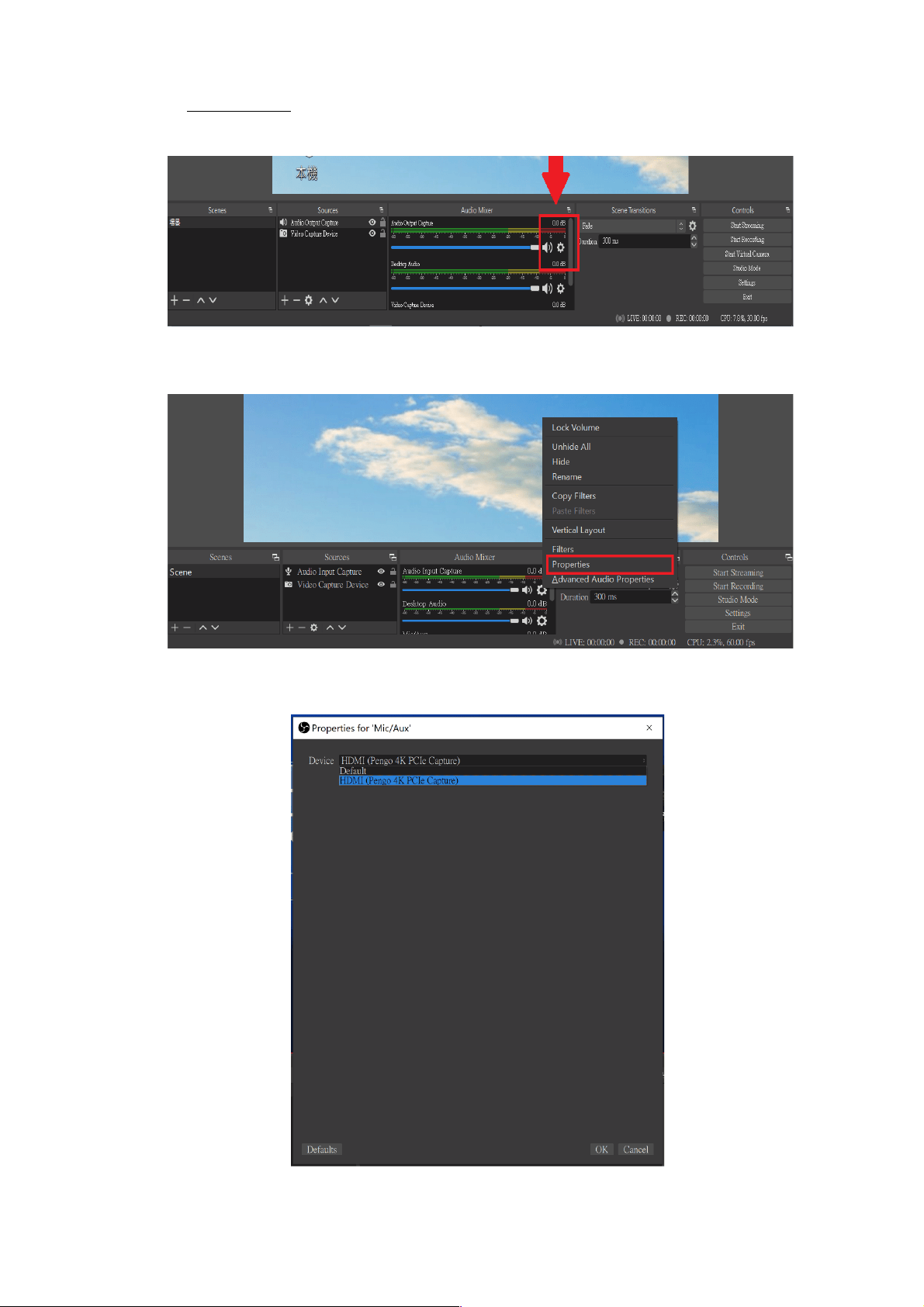
2. Audio Setting
1.1 Click on the Mic / Aux audio setting icon as displayed below
1.2 Select “Properties”
1.3 Under Properties: Select “HDMI (Pengo 4K PCIe Capture)” as your device
7
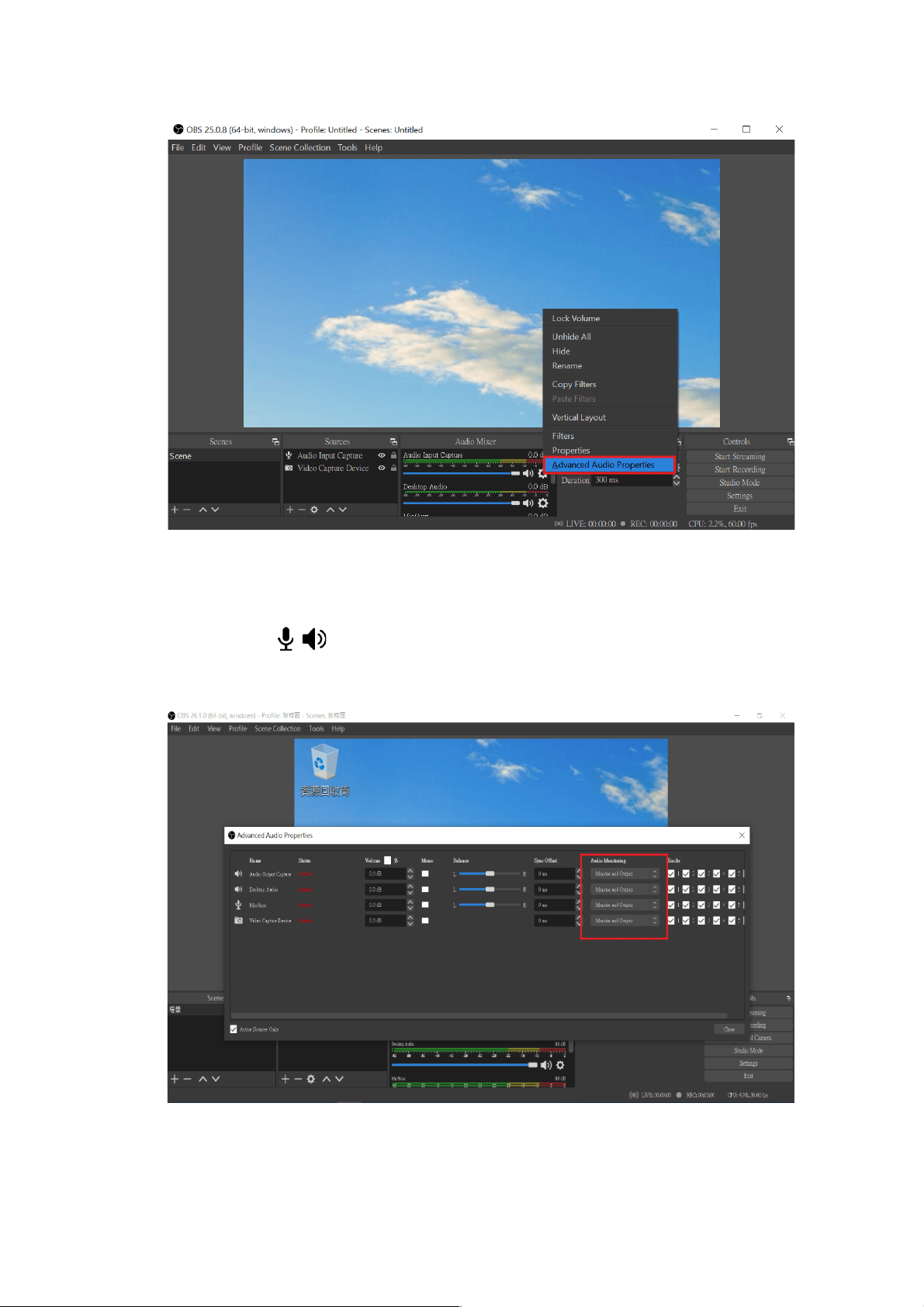
1.4 Under the Audio Setting Icon: Select “Advanced Audio properties”
1.5 Under Advanced Audio Properties: Adjust your audio source to suggested
preferences ( Microphone and speaker need to change the setting into
Monitor and Output)
1.6 OBS Setting completed

8
Note:
! Different versions will have slightly different interface.
! Make sure your source does not have HDCP, we do not support HDCP.
! Please contact us if you have any issue.
! Please register your Pengo product at: www.pengohome.com/register
! We reserve the right to make any updates without prior notice
- END -