
ii
Package Contents
Be sure all items listed here were included with your camera.
Memory cards are sold separately.
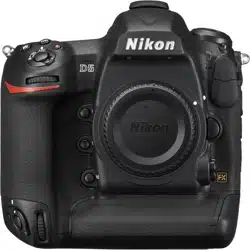
D6 Model Name: N1823
Package Contents
❏
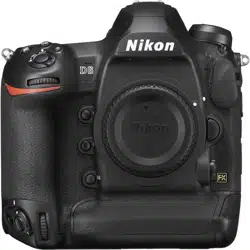
Camera
❏
BF-1B body cap
❏
BS-3 accessory shoe cover
(
0
204)
❏
EN-EL18c rechargeable
Li-ion battery with terminal
cover
❏
MH-26a battery charger
with power cable and two
contact protectors (shape
of power cable depends on
country or region of sale)
❏
HDMI/USB cable clip
(
0
206)
❏
UC-E24 USB cable
❏
AN-DC22 strap
❏
Warranty (printed on the
back cover of this manual)
❏
User’s Manual
iii
Package Contents
D
The Nikon Download Center
A pdf version of this manual is available from the Nikon
Download Center, together with an English-language
reference manual with detailed operating instructions,
which can be downloaded in pdf format or viewed online in
html. Visit the Nikon Download Center to download
firmware updates, ViewNX-i and other Nikon computer software, and
manuals for other Nikon products including cameras, NIKKOR lenses, and
flash units.
https://downloadcenter.nikonimglib.com/
iv
About This Manual
❚❚
Symbols
The following symbols and conventions are employed in this
manual. Use them to help locate the information you need.
❚❚
Conventions
•
This camera uses CFexpress (Type B) and XQD memory cards.
Throughout this manual, CFexpress and XQD memory cards
are generally referred to as “memory cards”. The terms
“CFexpress cards” and “XQD cards” are however used where
necessary to distinguish between the two types.
•
Throughout this manual, battery chargers are referred to as
“battery chargers” or “chargers”.
•
Throughout this manual, smartphones and tablets are referred
to as “smart devices”.
•
Throughout this manual, the term “default settings” is used to
refer to the settings in effect at shipment. The explanations in
this manual assume that default settings are used.
About This Manual
D
This icon marks notes, information that should be read before
using this product.
A
This icon marks tips, additional information you may find helpful
when using this product.
0
This icon marks references to other sections in this manual.

v
About This Manual
A
For Your Safety
“For Your Safety” contains important safety instructions. Be sure to read
them before using the camera. For more information, see “For Your
Safety” (
0
xviii).
❚❚
Nikon User Support
Visit the site below to register your camera and keep up-to-date
with the latest product information. You will find answers to
frequently asked questions (FAQs) and can contact us for
technical assistance.
https://www.europe-nikon.com/support

vi
Table of Contents
Package Contents ................................................................................... ii
About This Manual................................................................................. iv
Menu List.................................................................................................. xii
For Your Safety.................................................................................... xviii
Notices ................................................................................................... xxvi
Getting to Know the Camera 1
Parts of the Camera ................................................................................ 1
Camera Body...................................................................... 1
The Power Switch............................................................. 8
The Top Control Panel.................................................... 9
The Rear Control Panel................................................. 11
The Viewfinder ................................................................ 12
The Live View Displays (Photos/Movies)................ 15
Touch Controls................................................................ 18
First Steps 27
Readying the Camera .......................................................................... 27
Attaching the Strap ....................................................... 27
Charging the Battery..................................................... 28
Table of Contents

vii
Table of Contents
Inserting the Battery ..................................................... 32
Attaching a Lens............................................................. 35
Inserting Memory Cards.............................................. 38
Camera Setup.................................................................. 43
The Battery Level and Number of Exposures Remaining....... 47
Battery Level.................................................................... 47
Memory Card Indicators and Number
of Exposures Remaining ......................................... 48
Basic Photography and Playback 50
Taking Photographs ............................................................................ 50
Framing Photographs in the Viewfinder
(Viewfinder Photography)...................................... 50
Framing Photographs in the Monitor
(Live View).................................................................... 55
Recording Movies................................................................................. 63
Taking Photos During Filming .................................. 70
Playback ................................................................................................... 71
Viewing Movies .............................................................. 73
Deleting Unwanted Pictures...................................... 76
Uploading Pictures............................................................................... 77
Uploading Pictures to Smart Devices..................... 77
Uploading Pictures to a Computer or
FTP Server .................................................................... 77

viii
Table of Contents
Camera Controls 80
The
G
Button ..................................................................................... 80
Using the Menus............................................................. 81
The
i
Button (the
i
Menu) ................................................................ 88
The Still Photography
i
Menu................................... 90
The Movie
i
Menu ......................................................... 92
The Playback
i
Menu.................................................... 93
The
R
Button ......................................................................................... 94
Viewfinder Photography ............................................. 94
Live View Photography ................................................ 95
The Focus-Mode Selector................................................................... 97
The AF-Mode Button............................................................................ 98
Choosing an AF Mode .................................................. 98
Choosing an AF-Area Mode..................................... 101
The AF-ON Button.............................................................................. 107
The
I
Button.................................................................................. 108
Choosing an Exposure Mode.................................. 108
The Release Mode Dial and
S
Button ....................................... 109
Choosing a Release Mode ........................................ 109
The
Y
Button ...................................................................................... 111
Choosing a Metering Option .................................. 111
The BKT Button ................................................................................... 113

ix
Table of Contents
The
S
(
Q
) Button........................................................................... 114
Adjusting ISO Sensitivity........................................... 114
Enabling Auto ISO Sensitivity Control.................. 116
The
E
Button........................................................................................ 117
Adjusting Exposure Compensation ...................... 117
The
T
Button................................................................................ 118
Adjusting Image Quality ........................................... 118
Choosing an Image Size ............................................ 120
The
U
Button .................................................................................... 121
Adjusting White Balance........................................... 121
The
g
(
h
/
Q
) Button...................................................................... 125
Choosing a Picture Control ...................................... 125
The
W
(
N
) Button .............................................................................. 131
Choosing a Flash Mode ............................................. 131
Adjusting Flash Compensation .............................. 133
The Pv Button....................................................................................... 134
The Fn1, Fn2, Fn3 (
C
), and Fn (Vertical) Buttons..................... 135
Troubleshooting 136
Before Contacting Customer Support ........................................ 136
Problems and Solutions ................................................................... 138
Battery/Display ............................................................. 138
Shooting.......................................................................... 140

x
Table of Contents
Playback.......................................................................... 147
Bluetooth and Wi-Fi (Wireless Networks)........... 149
Miscellaneous ............................................................... 149
Alerts and Error Messages............................................................... 150
Alerts................................................................................ 150
Error Messages ............................................................. 155
Technical Notes 159
Camera Displays ................................................................................. 159
The Viewfinder ............................................................. 159
The Information Display ........................................... 164
Live View (Still Photography/Movies).................. 167
The Top Control Panel............................................... 171
The Rear Control Panel.............................................. 174
Compatible F Mount Lenses .......................................................... 175
CPU lenses...................................................................... 175
Non-CPU lenses and Other Accessories.............. 183
The Electronic Rangefinder ..................................... 187
Compatible Flash Units.................................................................... 189
The Nikon Creative Lighting System (CLS)......... 189
Other Compatible Accessories...................................................... 198
Attaching a Power Connector and
AC Adapter................................................................ 207

xi
Table of Contents
Software................................................................................................. 209
Caring for the Camera....................................................................... 211
Storage ............................................................................ 211
Cleaning .......................................................................... 211
The Low-Pass Filter...................................................... 213
Replacing the Clock Battery..................................... 221
Caring for the Camera and Battery: Cautions........................... 223
Camera Care .................................................................. 223
Battery Care.................................................................... 227
Using the Charger........................................................ 230
Exposure Program.............................................................................. 231
Specifications....................................................................................... 232
Nikon D6 Digital Camera........................................... 232
Calibrating Batteries ................................................... 252
Approved Memory Cards................................................................. 257
Memory Card Capacity ..................................................................... 258
[FX (36 × 24)] Selected for Image Area................. 258
[DX (24 × 16)] Selected for Image Area................ 260
Battery Endurance.............................................................................. 263
Location Data (GPS/GLONASS)...................................................... 266
Trademarks and Licenses................................................................. 267
Notices.................................................................................................... 275
Bluetooth and Wi-Fi (Wireless LAN) ............................................. 277
Index........................................................................................................ 282
Warranty Terms - Nikon Europe Service Warranty ................. 287
xii
Menu List
The camera offers the following menus. Some items may not be
displayed depending on camera settings or on the type of lens,
flash unit, or other accessory attached.
Menu List
PLAYBACK MENU
Delete
Playback folder
Playback display options
Delete images from both slots
Dual-format recording PB slot
Filtered playback criteria
Image review
After delete
After burst, show
Rotate tall
Copy image(s)
Hide image
Slide show
PHOTO SHOOTING MENU
Photo shooting menu bank
Extended photo menu banks
Storage folder
File naming
Role played by card in Slot 2
Image area
Image quality
Image size
NEF (RAW) recording
ISO sensitivity settings
White balance
Set Picture Control
Manage Picture Control
Color space
Active D-Lighting
Long exposure NR
High ISO NR
xiii
Menu List
Vignette control
Diffraction compensation
Auto distortion control
Flicker reduction
Flash control
Auto bracketing
Multiple exposure
HDR (high dynamic range)
Interval timer shooting
Time-lapse movie
Focus shift shooting
Silent live view photography
PHOTO SHOOTING MENU MOVIE SHOOTING MENU
Reset movie shooting menu
File naming
Destination
Image area
Frame size/frame rate
Movie quality
Movie file type
ISO sensitivity settings
White balance
Set Picture Control
Manage Picture Control
Active D-Lighting
High ISO NR
Diffraction compensation
Flicker reduction
Electronic VR
Microphone sensitivity
Attenuator
Frequency response
Wind noise reduction
Headphone volume
Timecode
xiv
Menu List
CUSTOM SETTING MENU
Custom settings bank
a Autofocus
a1 AF-C priority selection
a2 AF-S priority selection
a3 Focus tracking with lock-on
a4 Focus points used
a5 Store points by orientation
a6 AF activation
a7 Single-point AF watch area
a8 3D-tracking face-detection
a9
Group-area AF face
detection
a10 Custom groupings (C1/C2)
a11
Auto-area AF face
detection
a12 Auto-area AF starting point
a13 Focus point persistence
a14
Limit AF-area mode
selection
a15
Autofocus mode
restrictions
a16 Focus point wrap-around
a17 Focus point options
a18
Manual focus ring in AF
mode
b Metering/exposure
b1 ISO sensitivity step value
b2 EV steps for exposure cntrl
b3 Exp./flash comp. step value
b4
Easy exposure
compensation
b5 Matrix metering
b6 Center-weighted area
b7
Fine-tune optimal
exposure
c Timers/AE lock
c1
Shutter-release button
AE-L
c2 Standby timer
c3 Self-timer
c4 Monitor off delay
CUSTOM SETTING MENU
xv
Menu List
d Shooting/display
d1
Continuous shooting
speed
d2 Max. continuous release
d3
Limit release mode
selection
d4 Sync. release mode options
d5 Exposure delay mode
d6
Electronic front-curtain
shutter
d7
Extended shutter speeds
(M)
d8 Limit selectable image area
d9 File number sequence
d10 Peaking highlights
d11 Framing grid display
d12 Rear control panel
d13 LCD illumination
d14
Live view in continuous
mode
d15 Optical VR
CUSTOM SETTING MENU
e Bracketing/flash
e1 Flash sync speed
e2 Flash shutter speed
e3 Exposure comp. for flash
e4
Auto
N
ISO sensitivity
control
e5 Flash burst priority
e6 Modeling flash
e7 Auto bracketing (mode M)
e8 Bracketing order
e9 Bracketing burst options
CUSTOM SETTING MENU
xvi
Menu List
f Controls
f1 Customize
i
menu
f2 Customize
i
menu (Lv)
f3 Custom controls
f4
Multi selector center
button
f5 Shutter spd & aperture lock
f6 Customize command dials
f7 Multi selector
f8 Release button to use dial
f9 Reverse indicators
f10 Live view button options
f11
D
switch
f12 Full-frame playback flicks
g Movie
g1 Customize
i
menu
g2 Custom controls
g3
Multi selector center
button
g4 Highlight display
CUSTOM SETTING MENU SETUP MENU
Format memory card
Language
Time zone and date
Monitor brightness
Monitor color balance
Virtual horizon
Information display
AF fine-tuning options
Non-CPU lens data
Clean image sensor
Lock mirror up for cleaning
Image Dust Off ref photo
Pixel mapping
Image comment
Copyright information
IPTC
Voice memo options
Beep options
Touch controls
HDMI
Location data (built-in)
xvii
Menu List
Wireless remote (WR) options
Assign remote (WR) Fn button
Airplane mode
Connect to smart device
Connect to PC (built-in Wi-Fi)
Wired LAN/WT
Conformity marking
Battery info
Slot empty release lock
Save/load menu settings
Reset all settings
Firmware version
SETUP MENU RETOUCH MENU
NEF (RAW) processing
Trim
Resize
D-Lighting
Red-eye correction
Straighten
Distortion control
Perspective control
Monochrome
Image overlay
Trim movie
MY MENU
Add items
Remove items
Rank items
Choose tab
xviii
For Your Safety
To prevent damage to property or injury to yourself or to others, read “For
Your Safety” in its entirety before using this product.
Keep these safety instructions where all those who use this product will
read them.
For Your Safety
A
DANGER: Failure to observe the precautions marked with this icon
carries a high risk of death or severe injury.
A
WARNING: Failure to observe the precautions marked with this icon
could result in death or severe injury.
A
CAUTION: Failure to observe the precautions marked with this icon
could result in injury or property damage.
A
WARNING
Do not use while walking or operating a vehicle.
Failure to observe this precaution could result in accidents or other
injury.
Do not disassemble or modify this product. Do not touch internal
parts that become exposed as the result of a fall or other accident.
Failure to observe these precautions could result in electric shock or
other injury.
Should you notice any abnormalities such as the product producing
smoke, heat, or unusual odors, immediately disconnect the battery
or power source.
Continued operation could result in fire, burns or other injury.

xix
For Your Safety
Keep dry. Do not handle with wet hands. Do not handle the plug
with wet hands.
Failure to observe these precautions could result in fire or electric shock.
Do not let your skin remain in prolonged contact with this product
while it is on or plugged in.
Failure to observe this precaution could result in low-temperature burns.
Do not use this product in the presence of flammable dust or gas
such as propane, gasoline or aerosols.
Failure to observe this precaution could result in explosion or fire.
Do not directly view the sun or other bright light source through the
lens or camera.
Failure to observe this precaution could result in visual impairment.
Do not aim the flash or AF-assist illuminator at the operator of a
motor vehicle.
Failure to observe this precaution could result in accidents.
Keep this product out of reach of children.
Failure to observe this precaution could result in injury or product
malfunction. In addition, note that small parts constitute a choking
hazard. Should a child swallow any part of this product, seek immediate
medical attention.
Do not entangle, wrap or twist the straps around your neck.
Failure to observe this precaution could result in accidents.
xx
For Your Safety
Do not use batteries, chargers, or AC adapters not specifically
designated for use with this product. When using batteries,
chargers, and AC adapters designated for use with this product, do
not:
•
Damage, modify, forcibly tug or bend the cords or cables, place
them under heavy objects, or expose them to heat or flame.
•
Use travel converters or adapters designed to convert from one
voltage to another or with DC-to-AC inverters.
Failure to observe these precautions could result in fire or electric shock.
Do not handle the plug when charging the product or using the AC
adapter during thunderstorms.
Failure to observe this precaution could result in electric shock.
Do not handle with bare hands in locations exposed to extremely
high or low temperatures.
Failure to observe this precaution could result in burns, or frostbite.
A
CAUTION
Do not leave the lens pointed at the sun or other strong light
sources.
Light focused by the lens could cause fire or damage to product’s
internal parts. When shooting backlit subjects, keep the sun well out of
the frame. Sunlight focused into the camera when the sun is close to the
frame could cause fire.

xxi
For Your Safety
Turn this product off when its use is prohibited. Disable the location
data feature. End location tracking. Disable wireless features when
the use of wireless equipment is prohibited.
The radio-frequency emissions produced by this product could interfere
with equipment onboard aircraft or in hospitals or other medical
facilities.
Remove the battery and disconnect the AC adapter if this product
will not be used for an extended period.
Failure to observe this precaution could result in fire or product
malfunction.
Do not fire the flash in contact with or in close proximity to the skin
or objects.
Failure to observe this precaution could result in burns or fire.
Do not leave the product where it will be exposed to extremely high
temperatures, for an extended period such as in an enclosed
automobile or in direct sunlight.
Failure to observe this precaution could result in fire or product
malfunction.
Do not look directly at the AF-assist illuminator.
Failure to observe this precaution could have adverse effects on vision.
Do not transport cameras or lenses with tripods or similar
accessories attached.
Failure to observe this precaution could result in injury or product
malfunction.

xxii
For Your Safety
A
DANGER (Batteries)
Do not mishandle batteries.
Failure to observe the following precautions could result in the batteries
leaking, overheating, rupturing, or catching fire:
•
Use only rechargeable batteries approved for use in this product.
•
Do not expose batteries to flame or excessive heat.
•
Do not disassemble.
•
Do not short-circuit the terminals by touching them to necklaces,
hairpins, or other metal objects.
•
Do not expose batteries or the products in which they are inserted to
powerful physical shocks.
•
Do not step on batteries, pierce them with nails, or strike them with
hammers.
Charge only as indicated.
Failure to observe this precaution could result in the batteries leaking,
overheating, rupturing, or catching fire.
If battery liquid comes into contact with the eyes, rinse with plenty
of clean water and seek immediate medical attention.
Delaying action could result in eye injuries.
xxiii
For Your Safety
A
WARNING (Batteries)
Keep batteries out of reach of children.
Should a child swallow a battery, seek immediate medical attention.
Keep batteries out of reach of household pets and other animals.
The batteries could leak, overheat, rupture, or catch fire if bitten,
chewed, or otherwise damaged by animals.
Do not immerse batteries in water or expose to rain.
Failure to observe this precaution could result in fire or product
malfunction. Immediately dry the product with a towel or similar object
should it become wet.
Discontinue use immediately should you notice any changes in the
batteries, such as discoloration or deformation. Cease charging
EN-EL18c rechargeable batteries if they do not charge in the
specified period of time.
Failure to observe these precautions could result in the batteries leaking,
overheating, rupturing, or catching fire.
When batteries are no longer needed, insulate the terminals with
tape.
Overheating, rupture, or fire may result should metal objects come into
contact with the terminals.
If battery liquid comes into contact with a person's skin or clothing,
immediately rinse the affected area with plenty of clean water.
Failure to observe this precaution could result in skin irritation.

xxiv
For Your Safety
A
DANGER (CR1616 Lithium Watch Batteries)
Do not mishandle batteries.
Failure to observe the following precautions could result in the battery
leaking, overheating, rupturing, or catching fire:
•
Do not attempt to recharge the battery.
•
Do not expose batteries to flame or excessive heat.
•
Do not disassemble.
•
Do not short-circuit the terminals by touching them to necklaces,
hairpins, or other metal objects.
•
Do not expose batteries or the products in which they are inserted to
powerful physical shocks.
If battery liquid comes into contact with the eyes, rinse with plenty
of clean water and seek immediate medical attention.
Delaying action could result in eye injuries.
xxv
For Your Safety
A
WARNING (CR1616 Lithium Watch Batteries)
Keep batteries out of reach of children.
Should a child swallow a battery, seek immediate medical attention.
Do not immerse batteries in water or expose to rain.
Failure to observe this precaution could result in fire or product
malfunction. Immediately dry the product with a towel or similar object
should it become wet.
Discontinue use immediately should you notice any changes in the
battery, such as discoloration or deformation.
Failure to observe this precaution could result in the battery leaking,
overheating, rupturing, or catching fire.
Insert the battery in the correct orientation.
Failure to observe this precaution could result in the battery leaking,
overheating, rupturing, or catching fire.
When batteries are no longer needed, insulate the terminals with
tape.
Overheating, rupture, or fire may result should metal objects come into
contact with the terminals.
If battery liquid comes into contact with a person's skin or clothing,
immediately rinse the affected area with plenty of clean water.
Failure to observe this precaution could result in skin irritation.

xxvi
Notices
•
No part of the manuals included with this product may be reproduced,
transmitted, transcribed, stored in a retrieval system, or translated into
any language in any form, by any means, without Nikon’s prior written
permission.
•
Nikon reserves the right to change the appearance and specifications of
the hardware and software described in these manuals at any time and
without prior notice.
•
Nikon will not be held liable for any damages resulting from the use of
this product.
•
While every effort has been made to ensure that the information in
these manuals is accurate and complete, we would appreciate it were
you to bring any errors or omissions to the attention of the Nikon
representative in your area (address provided separately).
Notices

xxvii
Notices
●
Notice Concerning Prohibition of Copying or Reproduction
Note that simply being in possession of material that has been digitally
copied or reproduced by means of a scanner, digital camera, or other
device may be punishable by law.
•
Items prohibited by law from being copied or reproduced
Do not copy or reproduce paper money, coins, securities, government
bonds, or local government bonds, even if such copies or reproductions
are stamped “Sample.”
The copying or reproduction of paper money, coins, or securities which
are circulated in a foreign country is prohibited.
Unless the prior permission of the government has been obtained, the
copying or reproduction of unused postage stamps or post cards issued
by the government is prohibited.
The copying or reproduction of stamps issued by the government and
of certified documents stipulated by law is prohibited.
•
Cautions on certain copies and reproductions
The government has issued cautions on copies or reproductions of
securities issued by private companies (shares, bills, checks, gift
certificates, etc.), commuter passes, or coupon tickets, except when a
minimum of necessary copies are to be provided for business use by a
company. Also, do not copy or reproduce passports issued by the
government, licenses issued by public agencies and private groups, ID
cards, and tickets, such as passes and meal coupons.
•
Comply with copyright notices
Under copyright law, photographs or recordings of copyrighted works
made with the camera cannot be used without the permission of the
copyright holder. Exceptions apply to personal use, but note that even
personal use may be restricted in the case of photographs or recordings
of exhibits or live performances.

xxviii
Notices
●
Use Only Nikon Brand Electronic Accessories
Nikon cameras are designed to the highest standards and include
complex electronic circuitry. Only Nikon brand electronic accessories
(including lenses, chargers, batteries, AC adapters, and flash accessories)
certified by Nikon specifically for use with this Nikon digital camera are
engineered and proven to operate within the operational and safety
requirements of this electronic circuitry.
The use of non-Nikon electronic accessories could damage
the camera and may void your Nikon warranty. The use of
third-party rechargeable Li-ion batteries not bearing the
Nikon holographic seal shown at right could interfere with
normal operation of the camera or result in the batteries overheating,
igniting, rupturing, or leaking.
For more information about Nikon brand accessories, contact a local
authorized Nikon dealer.

xxix
Notices
D
Before Taking Important Pictures
Before taking pictures on important occasions (such as at weddings or
before taking the camera on a trip), take a test shot to ensure that the
camera is functioning normally. Nikon will not be held liable for damages
or lost profits that may result from product malfunction.
D
Life-Long Learning
As part of Nikon’s “Life-Long Learning” commitment to ongoing product
support and education, continually-updated information is available on-
line at the following sites:
•
For users in the U.S.A.: https://www.nikonusa.com/
•
For users in Europe and Africa:
https://www.europe-nikon.com/support/
•
For users in Asia, Oceania, and the Middle East:
https://www.nikon-asia.com/
Visit these sites to keep up-to-date with the latest product information,
tips, answers to frequently-asked questions (FAQs), and general advice on
digital imaging and photography. Additional information may be
available from the Nikon representative in your area. See the following
URL for contact information: https://imaging.nikon.com/

xxx
Notices
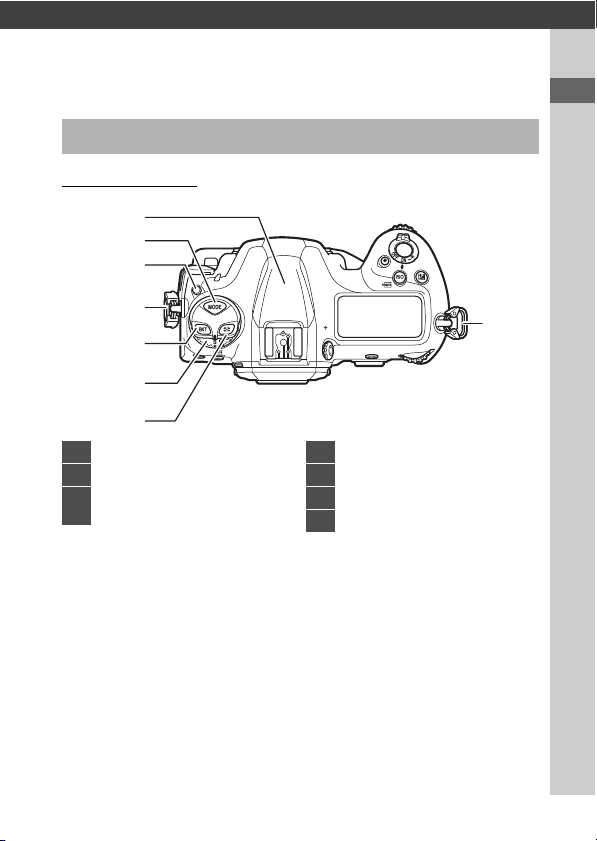
3
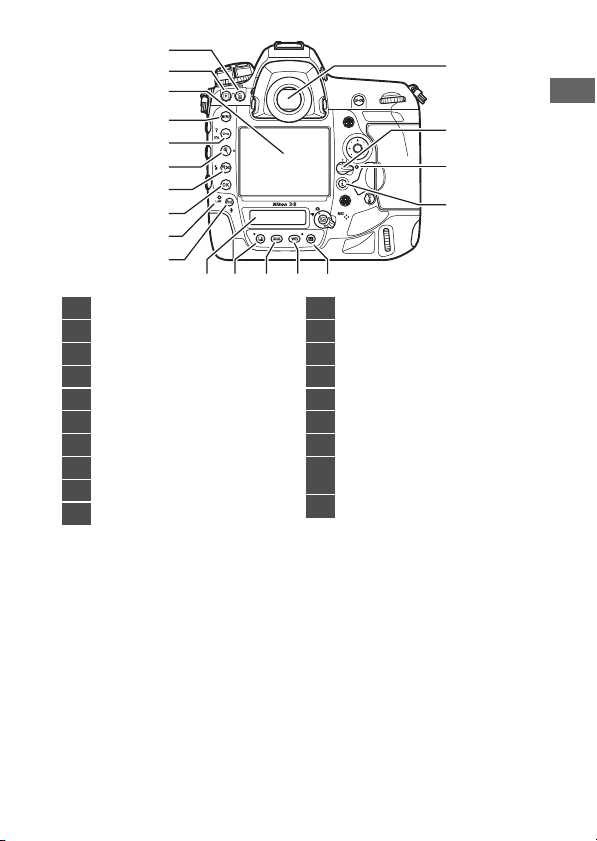
Parts of the Camera
2
1
3
24
4
5
6
7
8
9
10
11
1415
12
13
16
19
20
21
23
22
18
17
1
Stereo microphone (for
movies;
0
63)
2
Meter coupling lever
3
Mirror (
0
63, 216)
4
Self-timer lamp
5
Flash sync terminal cover
6
Ten-pin remote terminal cover
7
USB connector cover
8
Peripheral connector cover
9
HDMI connector cover
10
Cover for microphone,
headphone, and Ethernet
connectors
11
Lens release button (
0
37)
12
Battery-chamber cover latch
(
0
32)
13
Battery-chamber cover (
0
32)
14
AF-mode button (
0
98)
15
Focus-mode selector (
0
97)
16
Flash sync terminal
17
Ten-pin remote terminal
18
Peripheral connector
19
USB connector
20
HDMI connector
21
Connector for external
microphone
22
Headphone connector
23
Ethernet connector
24
Body cap (
0
35)
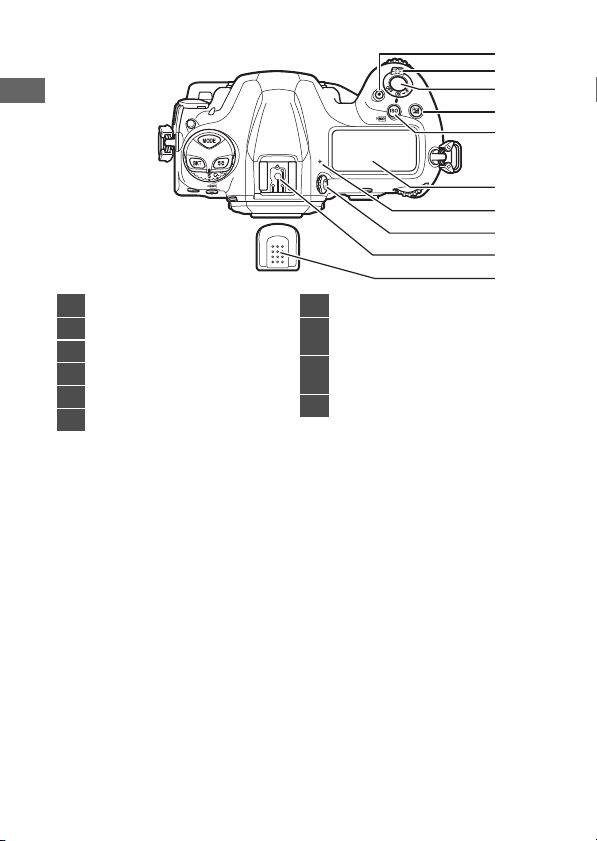
4
Parts of the Camera
1
2
3
4
5
8
7
6
11
10
9
12
13
1
Pv button (
0
62, 134)
2
Sub-command dial
3
Fn1 button (
0
135)
4
Fn2 button (
0
135)
5
Sub-command dial for vertical
shooting
6
Shutter-release button for
vertical shooting
7
Fn button (vertical;
0
135)
8
Security slot (for anti-theft
cable;
0
7)
9
Lens mounting mark (
0
35)
10
Lens mount (
0
35)
11
CPU contacts
12
Tripod socket
13
Vertical shooting shutter-
release button lock (
0
54)
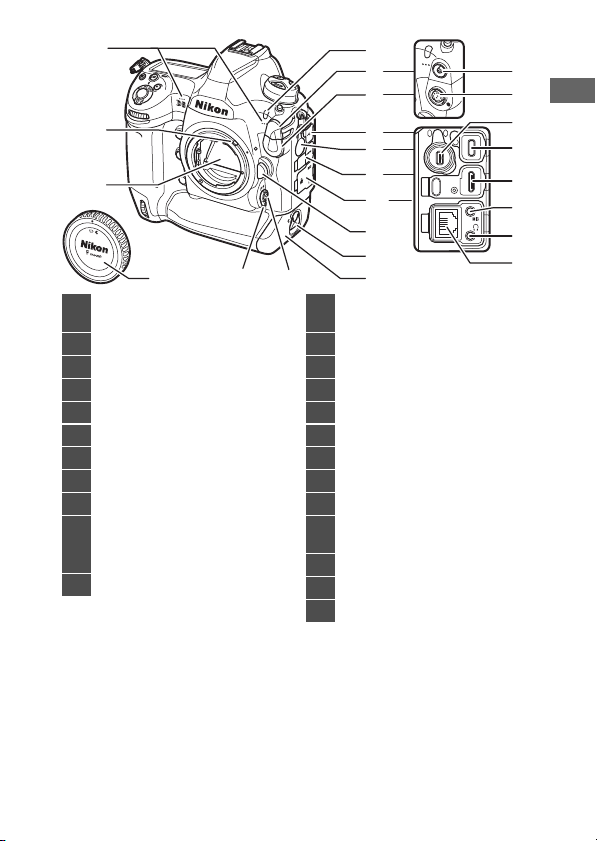
5
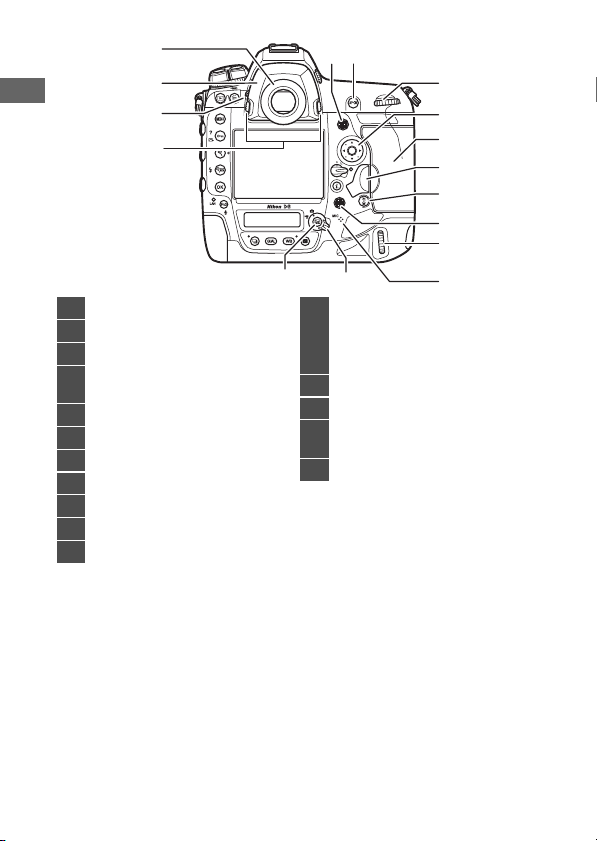
Parts of the Camera
1
2
3
4
5
6
7
8
9
10
1211 15
18
19
17
16
13 14
1
O
(
Q
) button (
0
76)
2
K
button (
0
71)
3
Monitor (
0
18, 55, 63)
4
G
button (
0
80)
5
g
(
h
/
Q
) button (
0
87, 125)
6
X
button (
0
61)
7
W
(
M
) button (
0
61, 131)
8
J
(OK) button (
0
81)
9
Network indicator
10
Fn3 (
C
) button (
0
135)
11
Rear control panel (
0
11, 174)
12
S
button (
0
109)
13
T
button (
0
118)
14
U
button (
0
121)
15
R
button (
0
94)
16
Viewfinder (
0
14)
17
Focus selector lock
18
Memory card access lamp
(
0
38)
19
i
button (
0
88)
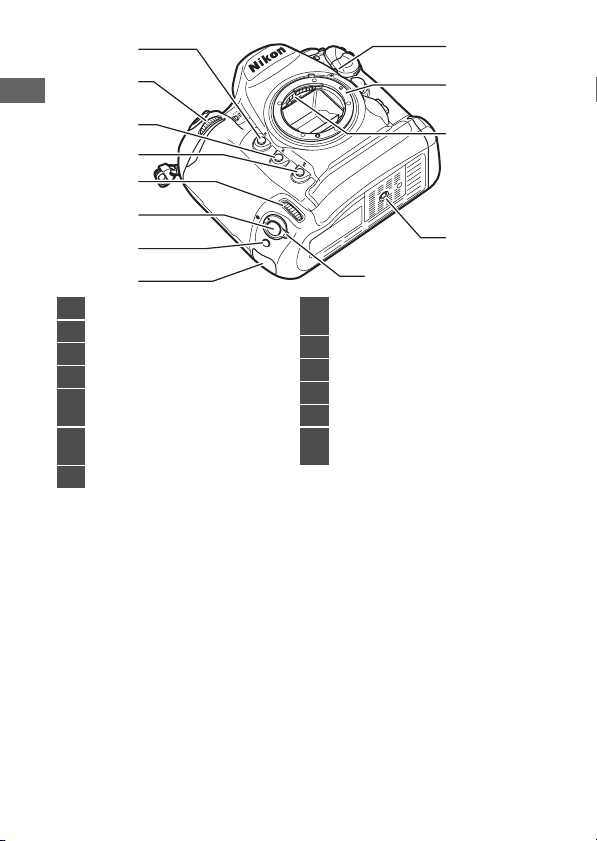
6
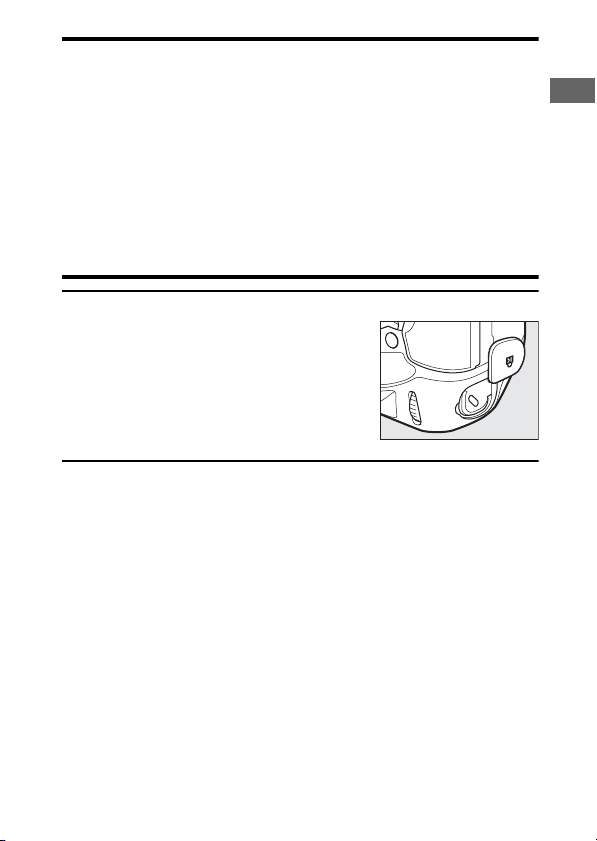
Parts of the Camera
2
1
3
4
87
9
11
12
13
14
16
15
10
65
1
Viewfinder eyepiece (
0
205)
2
Eyepiece adapter (
0
205)
3
Eyepiece shutter lever (
0
13)
4
Eyepiece adapter latch
(
0
205)
5
a
button (
0
55, 63)
6
Live view selector (
0
55, 63)
7
Sub-selector
8
AF-ON button (
0
107)
9
Main command dial
10
Multi selector (
0
81)
11
Memory card slot cover (
0
38)
12
Card slot cover release button
cover (
0
38)
Card slot cover release button
(under cover;
0
38)
13
C
button (
0
107)
14
Multi selector (vertical)
15
Main command dial (vertical)
Speaker
16
Microphone (for voice memos)
7
Parts of the Camera
D
The GNSS Antenna
If possible, stay in the open when using location data services. Keep the
antenna pointed to the sky for best reception.
D
The Connector Covers
Be sure to close the covers when the connectors are not in use. Foreign
matter in the connectors could cause malfunction.
D
The Speaker
Close proximity to the speaker could corrupt data stored on magnetic
stripe cards or other such magnetic storage devices. Keep magnetic
storage devices away from the speaker.
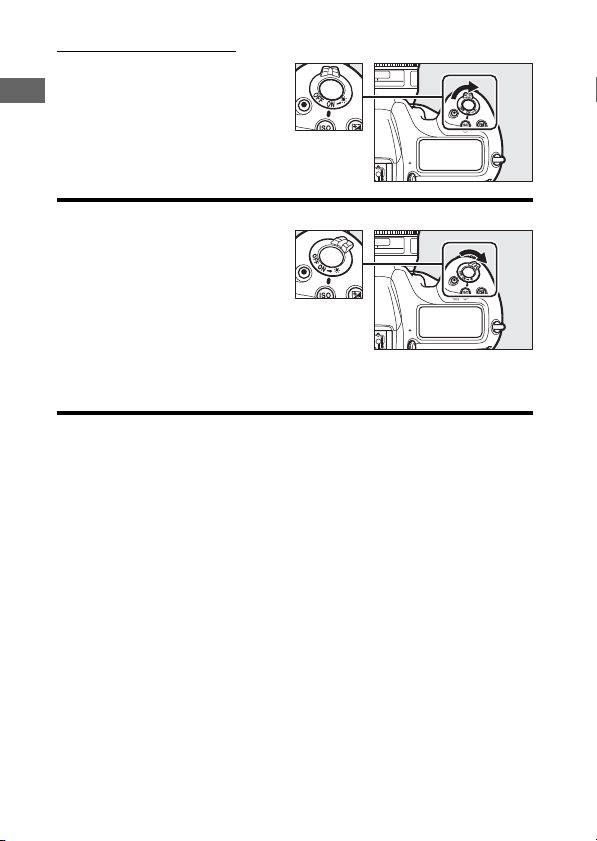
A
The Security Slot
The security slot serves as an attachment point
for third-party anti-theft cables. It is compatible
and intended for use with Kensington security
cable locks. For more information, see the
documentation provided with the security
cable lock.
8
Parts of the Camera
The Power Switch
Rotate the power switch to
the “ON” position as shown to
turn the camera on. Returning
the switch to the “OFF”
position turns the camera off.
D
The LCD Illuminator
Rotating the power switch to
D
activates the backlights for the
buttons and control panels (LCD
illuminator). The backlights will
remain lit for a few seconds after
the power switch is released. The
backlights turn off when the
switch is rotated to
D
a second time or the shutter is released. Activating
the button backlight makes the camera easier to use in the dark.
9
Parts of the Camera
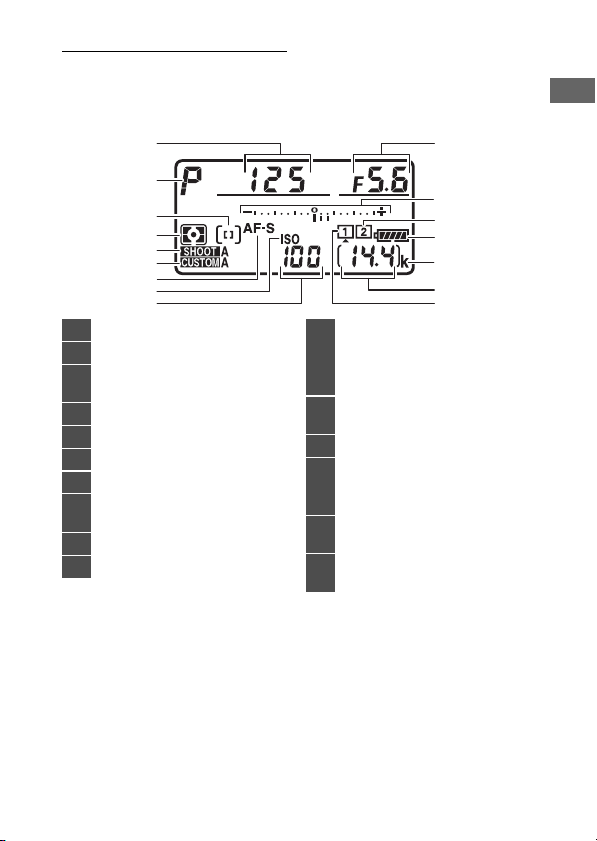
The Top Control Panel
The following indicators appear in the top control panel at
default settings. For a full list of the indicators that may be
displayed, see “Camera Displays” (
0
171) in “Technical Notes”.
7
1
2
3
5
4
6
13
10
12
11
15
169
8
14
1
Shutter speed
2
Exposure mode (
0
108)
3
AF-area mode indicator
(
0
101)
4
Metering (
0
111)
5
Photo shooting menu bank
6
Custom settings bank
7
Autofocus mode (
0
98)
8
ISO sensitivity indicator
(
0
114)
9
ISO sensitivity (
0
114)
10
Aperture (f-number)
11
Exposure indicator
Exposure
Exposure compensation
(
0
117)
12
Memory card icon (Slot 2;
0
41, 48)
13
Battery indicator (
0
47)
14
“k” (appears when memory
remains for over 1000
exposures;
0
48)
15
Number of exposures
remaining (
0
48, 258)
16
Memory card icon (Slot 1;
0
41, 48)
10
Parts of the Camera
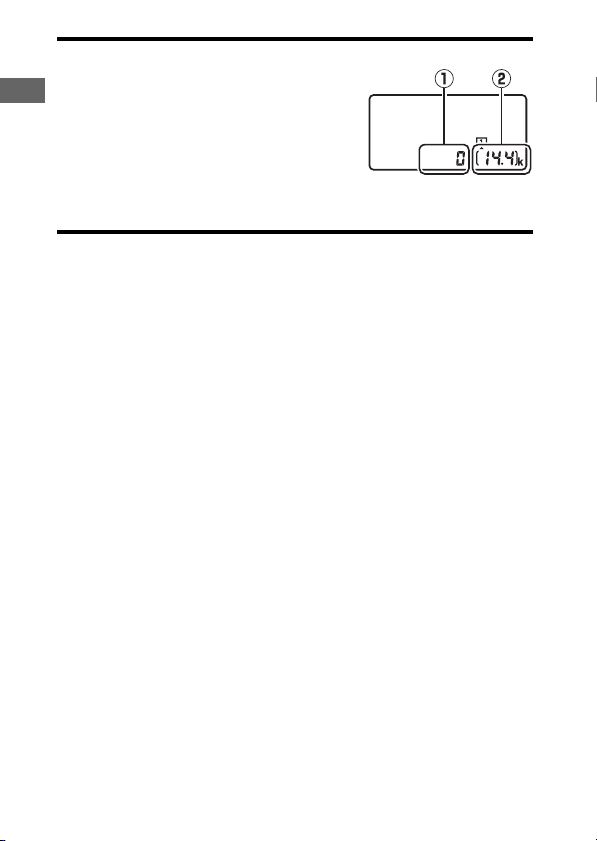
D
Camera Off Display
If the camera is turned off with a battery and
memory card inserted, the memory card icon,
the number of photos in the current folder
(
q
), and the number of exposures remaining
(
w
) will be displayed in the top control panel.
Depending on the memory card, the camera
may in rare cases not display this information
when a card is inserted. This can be addressed by turning the camera on.
11
Parts of the Camera
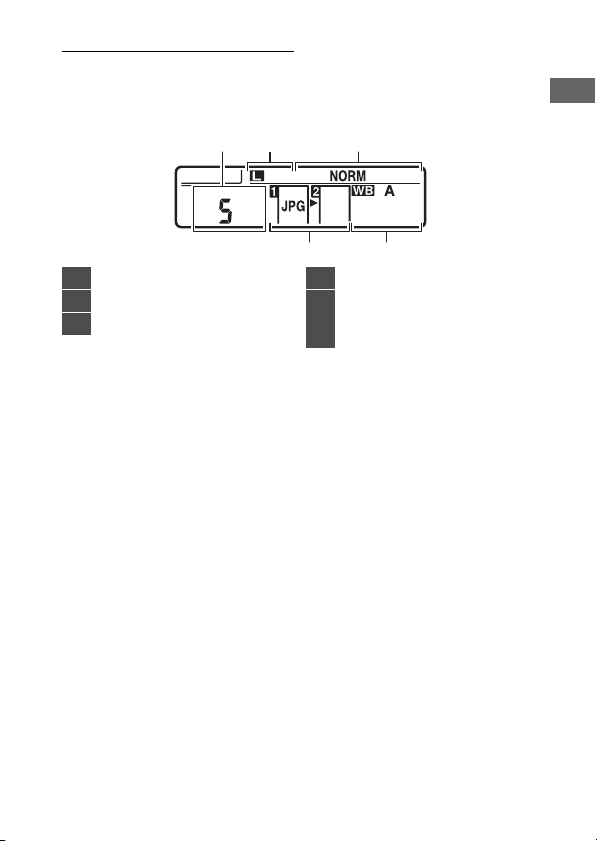
The Rear Control Panel
The following indicators appear in the rear control panel at
default settings. For a full list of the indicators that may be
displayed, see “Camera Displays” (
0
174) in “Technical Notes”.
4
312
5
1
Release mode (
0
109)
2
Size (JPEG images;
0
120)
3
Image quality (
0
118)
4
White balance (
0
121)
5
Role played by memory card
in Slot 2
Image quality (
0
118)
12
Parts of the Camera
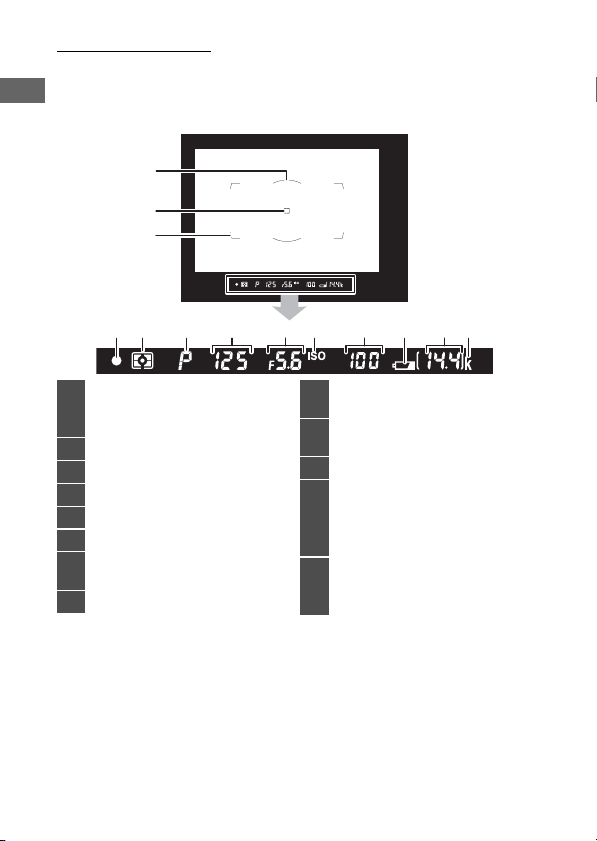
The Viewfinder
The following indicators appear in the viewfinder at default
settings. For a full list of the indicators that may be displayed,
see “Camera Displays” (
0
159) in “Technical Notes”.
1
3
2
4 5 6 7 8 9 10 12 13
11
1
12-mm reference circle for
center-weighted metering
(
0
111)
2
Focus points
3
AF-area brackets (
0
50)
4
Focus indicator (
0
50)
5
Metering (
0
111)
6
Exposure mode (
0
108)
7
Shutter speed
Autofocus mode (
0
98)
8
Aperture (f-number)
9
ISO sensitivity indicator
(
0
114)
10
ISO sensitivity (
0
114)
AF-area mode (
0
101)
11
Battery indicator (
0
47)
12
Number of exposures
remaining (
0
48, 258)
Number of shots remaining
before memory buffer fills
13
“k” (appears when memory
remains for over 1000
exposures;
0
48)
13
Parts of the Camera
D
The Viewfinder
When the battery is exhausted or no battery is inserted, the display in the
viewfinder will dim. The display will return to normal when a charged
battery is inserted.
D
Temperature Extremes
The brightness of the control panel and viewfinder displays varies with
temperature, and response times may drop when the temperature is low;
the displays will return to normal at room temperature.
D
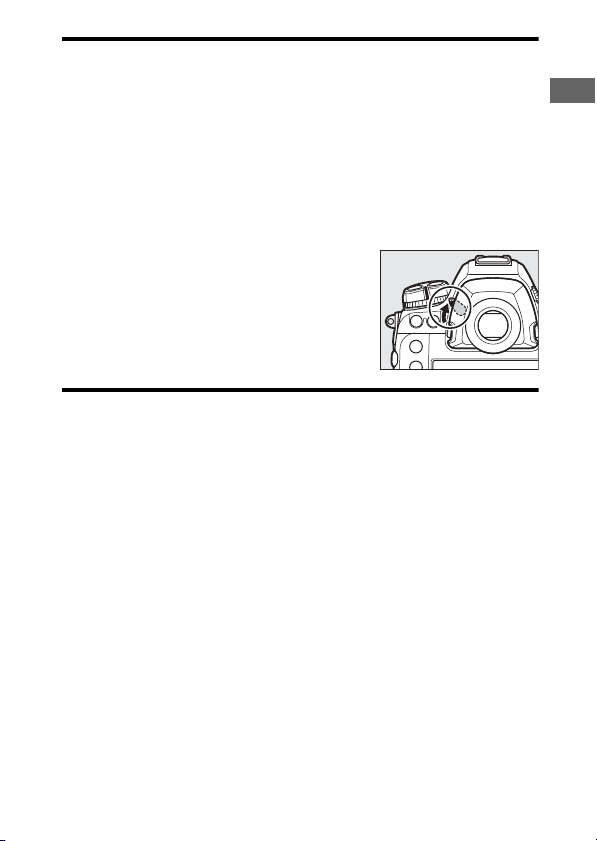
The Viewfinder Eyepiece Shutter
To prevent light entering via the viewfinder
interfering with photographs or exposure, raise
the viewfinder eyepiece shutter lever to close
the viewfinder eyepiece shutter when taking
photos without your eye to the viewfinder.
14
Parts of the Camera
A
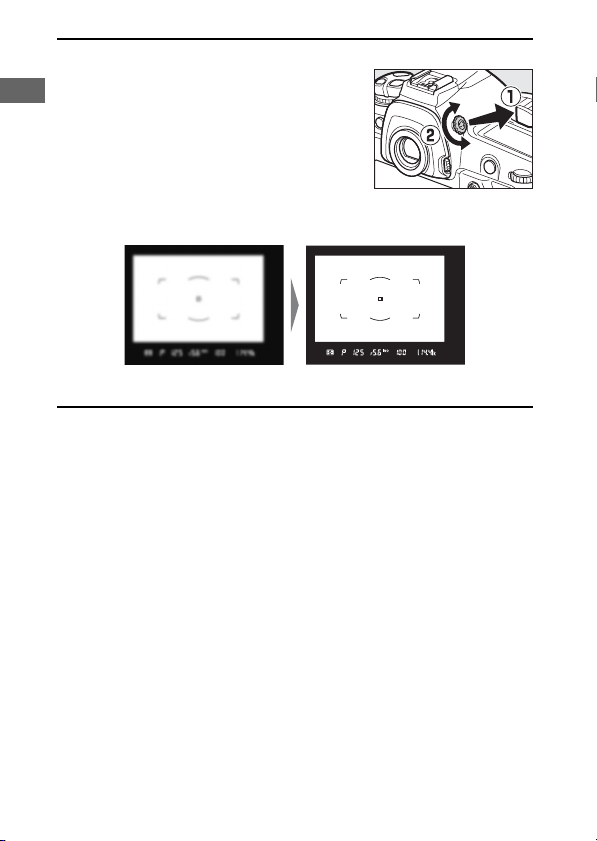
The Diopter Adjustment Control
The viewfinder can be focused by lifting and
rotating the diopter adjustment control. With
your eye to the viewfinder, rotate the diopter
control until display in the viewfinder is in
sharp focus.
•
Corrective lenses (available separately) can
be used to further adjust viewfinder diopter.
•
After adjusting diopter, push the diopter adjustment control back into
its original position.
Viewfinder not in focus Viewfinder in focus
15
Parts of the Camera
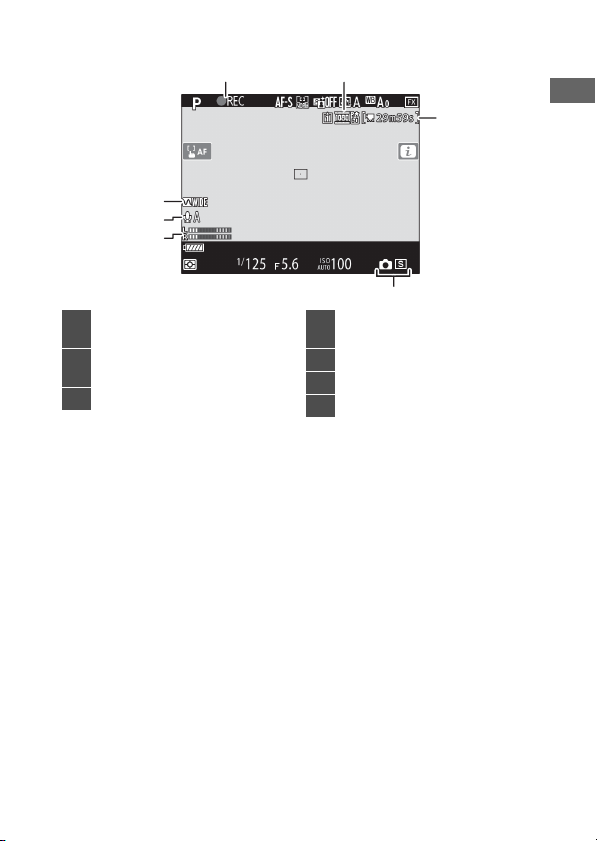
The Live View Displays (Photos/Movies)
Press the
a
button to display the view through the lens in the
monitor. Rotate the live view selector to
C
to take photographs
or to
1
to record movies.
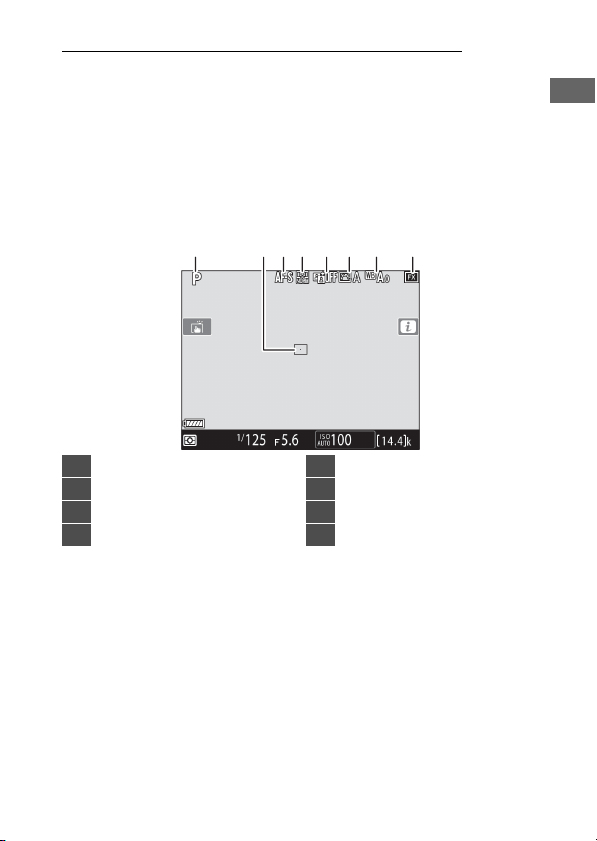
❚❚
Live View Photography
The following indicators appear in the monitor at default
settings. For a full list of the indicators that may be displayed,
see “Camera Displays” (
0
167) in “Technical Notes”.
1 2 843 56 7
1
Exposure mode (
0
108)
2
Focus point
3
Autofocus mode (
0
98)
4
AF-area mode (
0
101)
5
Active D-Lighting
6
Picture Control (
0
125)
7
White balance (
0
121)
8
Image area

18
Parts of the Camera
Touch Controls
•
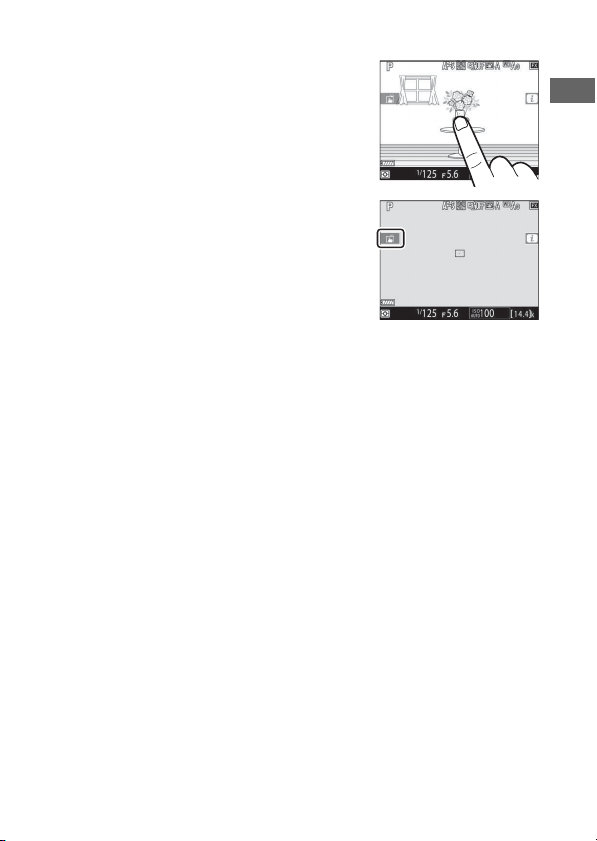
The touch-sensitive monitor offers a
variety of controls that can be operated
by touching the display with your
fingers.
•
Touch controls can be used to:
- Focus and release the shutter (
0
19)
- Adjust settings (
0
20)
-View pictures (
0
21)
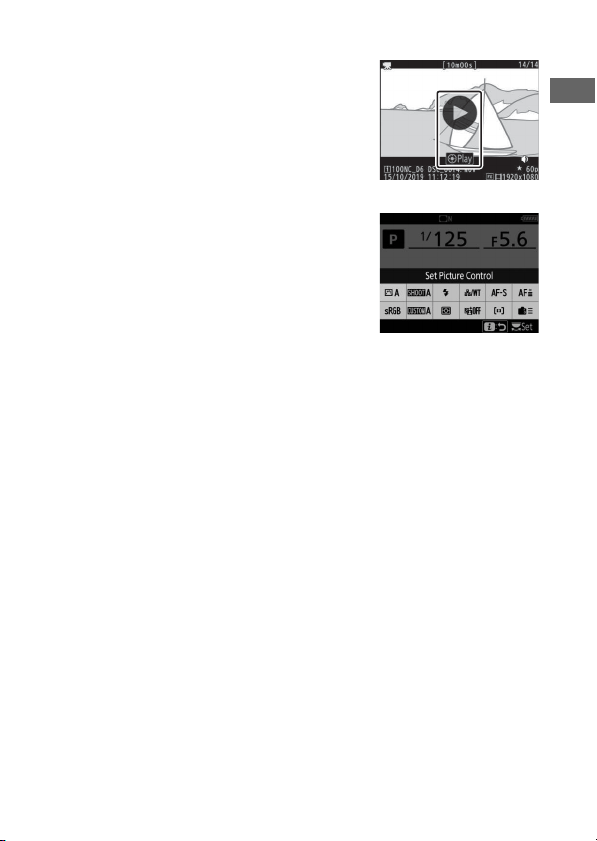
- View movies (
0
23)
- Access the
i
menu (
0
23)
-Enter text (
0
24)
- Navigate the menus (
0
25)
19
Parts of the Camera
❚❚
Focusing and Releasing the Shutter
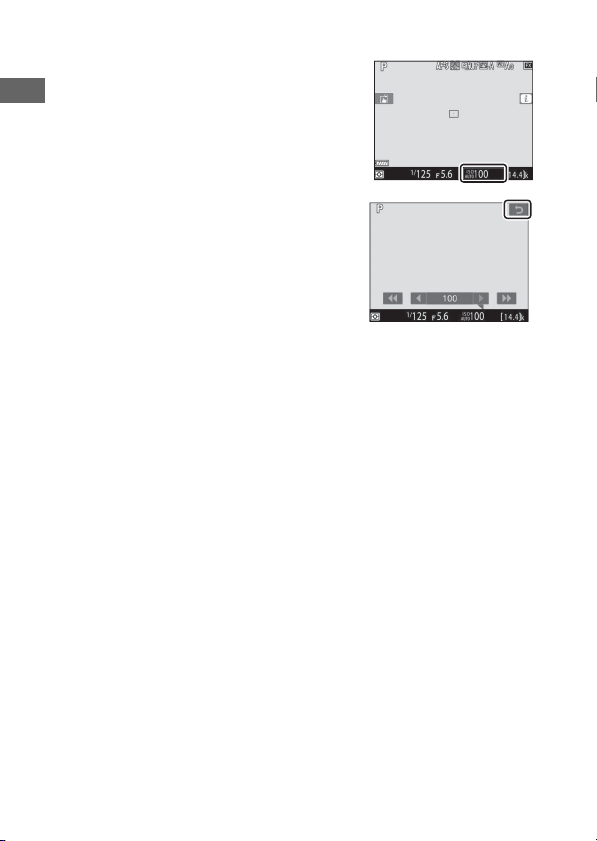
•
Touch the monitor during live view to
focus on the selected point (touch AF).
•
During still photography, the shutter
will be released when you lift your
finger from the display (touch shutter).
•
Touch AF settings can be adjusted by
tapping the
W
icon.
20
Parts of the Camera
❚❚
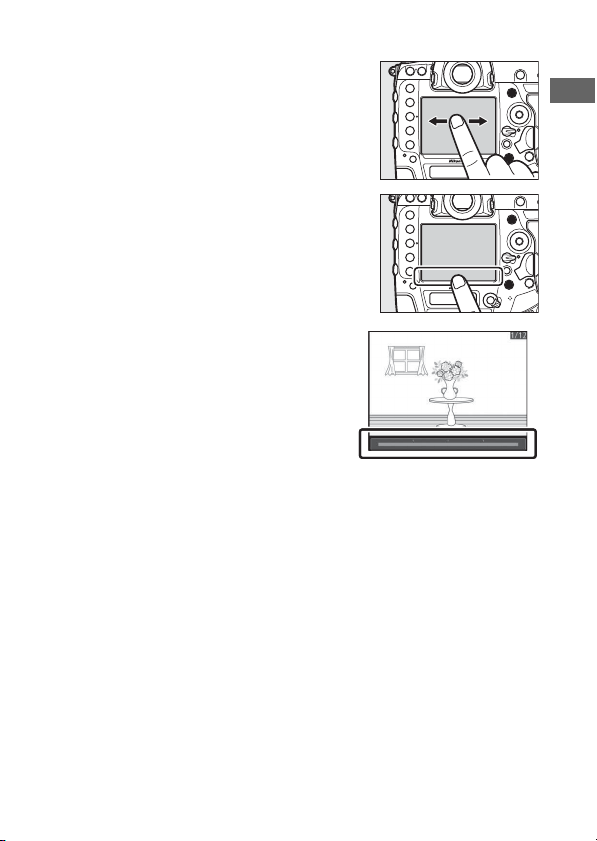
Adjusting Settings
•
Tap highlighted settings in the display.
•
You can then choose the desired
option by tapping icons or sliders.
•
Tap
Z
or press
J
to select the chosen
option and return to the previous
display.
21
Parts of the Camera
❚❚
Playback
•
Flick left or right to view other pictures
during full-frame playback.
•
In full-frame playback, touching the
bottom of the display brings up a
frame-advance bar. Slide your finger
left or right over the bar to scroll rapidly
to other pictures.
22
Parts of the Camera
•
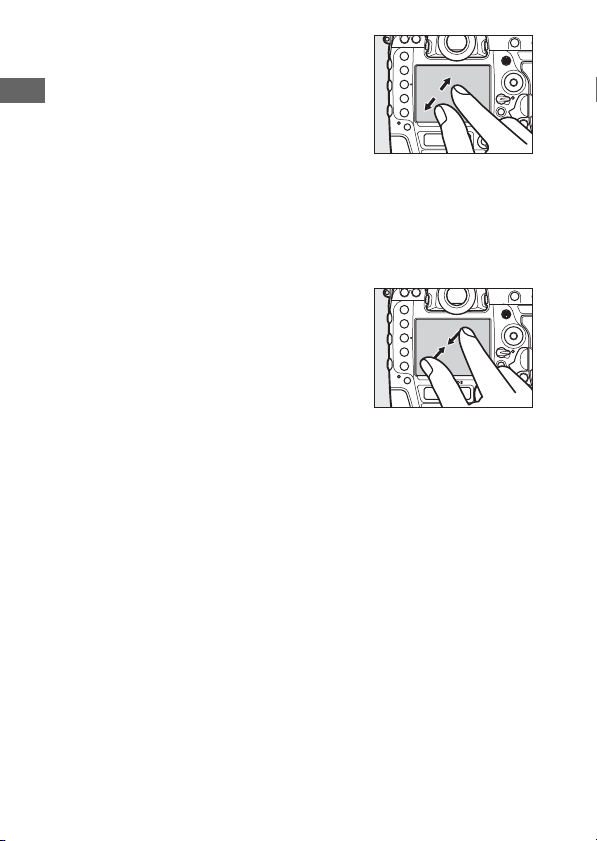
To zoom in on a picture displayed in
full-frame playback, use a stretch
gesture or give the display two quick
taps. After zooming in, you can adjust
the zoom ratio using stretch gestures
to zoom in and pinch gestures to zoom
out.
•
Use slide gestures to view other parts of the image during
zoom.
•
Giving the display two quick taps while zoom is in effect
cancels zoom.
•
To “zoom out” to a thumbnail view, use
a pinch gesture in full-frame playback.
Use pinch and stretch to choose the
number of images displayed from 4, 9,
and 72 frames.
24
Parts of the Camera
❚❚
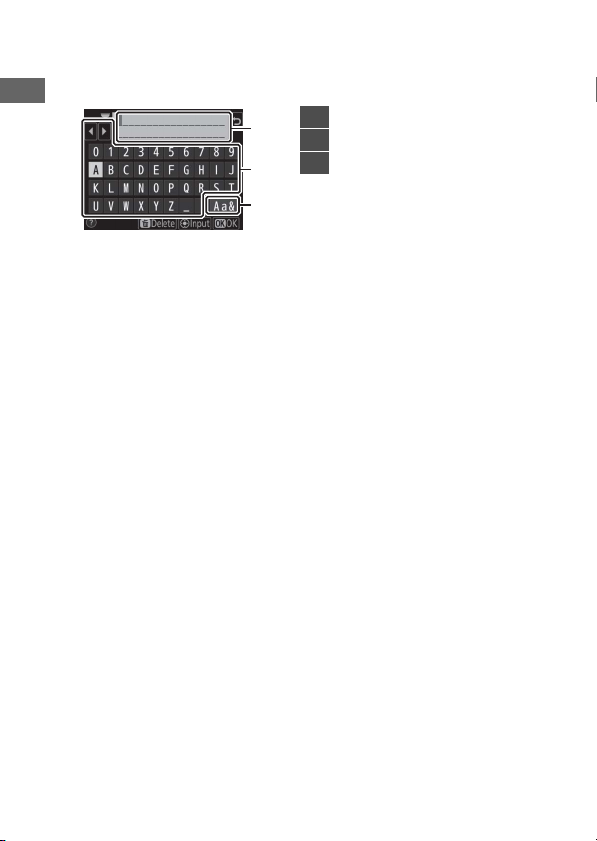
Text Entry
•
When a keyboard is displayed, you can enter text by tapping
the keys.
•
To position the cursor, tap
e
or
f
or tap directly in the text
display area.
•
To cycle through the upper- and lower-case and symbol
keyboards, tap the keyboard selection button.
3
2
1
1
Text display area
2
Keyboard area
3
Keyboard selection
25
Parts of the Camera
❚❚
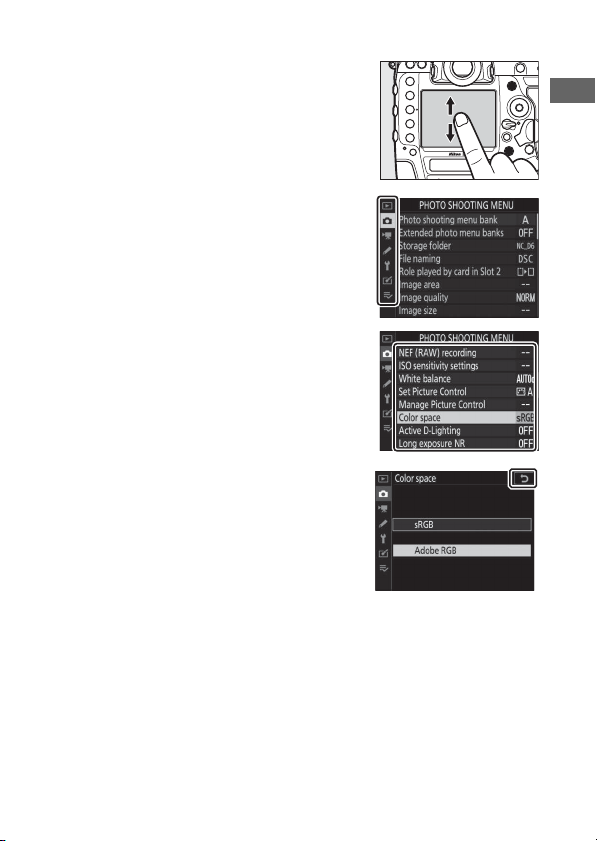
Navigating the Menus
•
After pressing the
G
button to
display the menus, you can slide up or
down to scroll.
•
Tap a menu icon to choose a menu.
•
Tap menu items to display options.
You can then choose the desired
option by tapping icons or sliders.
•
To exit without changing settings, tap
Z
.

26
Parts of the Camera
D
The Touch Screen
•
The touch screen responds to static electricity. It may not respond when
touched with fingernails or gloved hands. For improved response when
using the touch screen with gloves, select [Enabled] for [Touch
controls] > [Glove mode] in the setup menu.
•
Do not touch the screen with sharp objects.
•
Do not use excessive force.
•
The screen may not respond when covered with third-party protective
films.
•
The screen may not respond when touched simultaneously in multiple
locations.
A
Enabling or Disabling Touch Controls
Touch controls can be enabled or disabled using the [Touch controls]
item in the setup menu.
27
Readying the Camera
First Steps
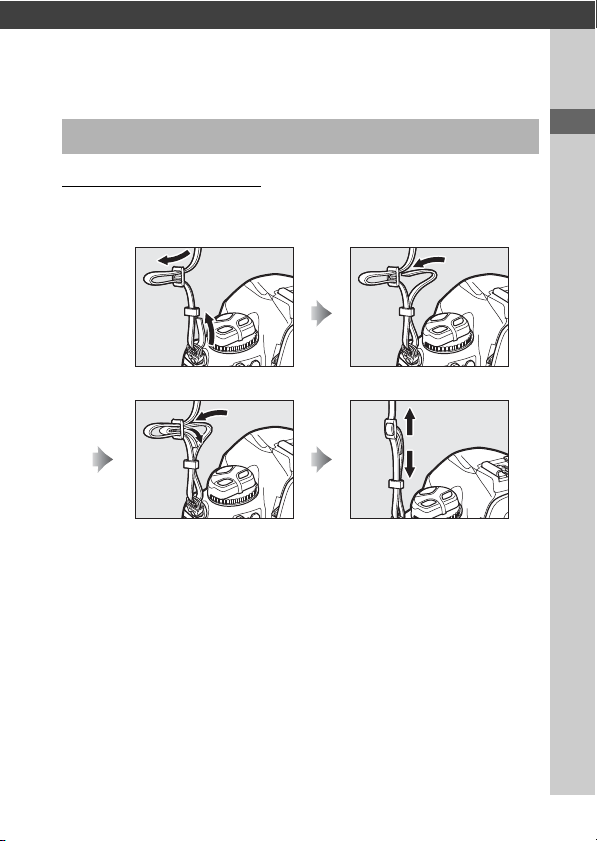
Attaching the Strap
To attach a strap (whether the supplied strap or one that has
been purchased separately):
Readying the Camera
28
Readying the Camera
Charging the Battery
Charge the supplied EN-EL18c battery in the supplied MH-26a
battery charger before use. An exhausted battery will fully
charge in about two hours and 35 minutes.
D
The Battery and Charger
Read and follow the warnings and cautions in “For Your Safety” (
0
xviii)
and “Caring for the Camera and Battery: Cautions” (
0
223).
1
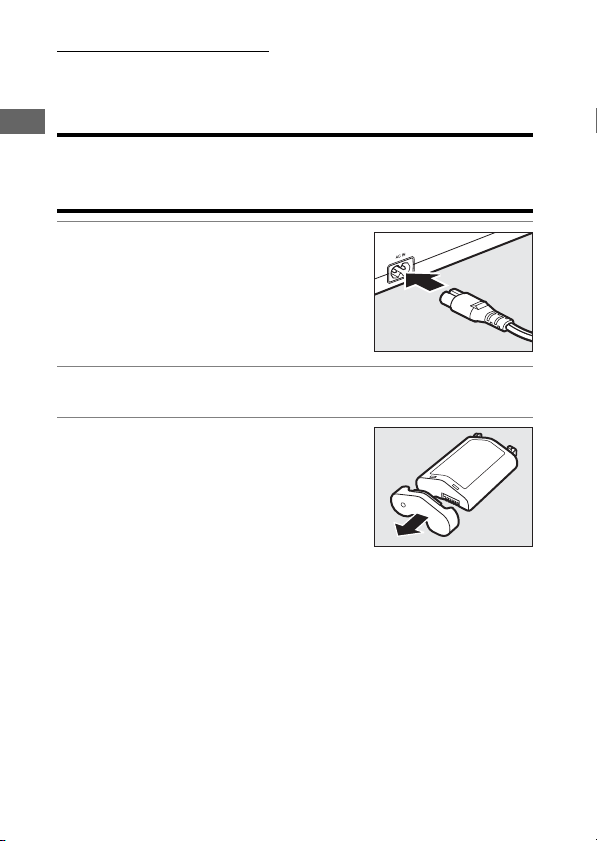
Connect the power cable to the
charger.
2
Plug the charger in.
3
Remove the battery terminal
cover.
29
Readying the Camera
4
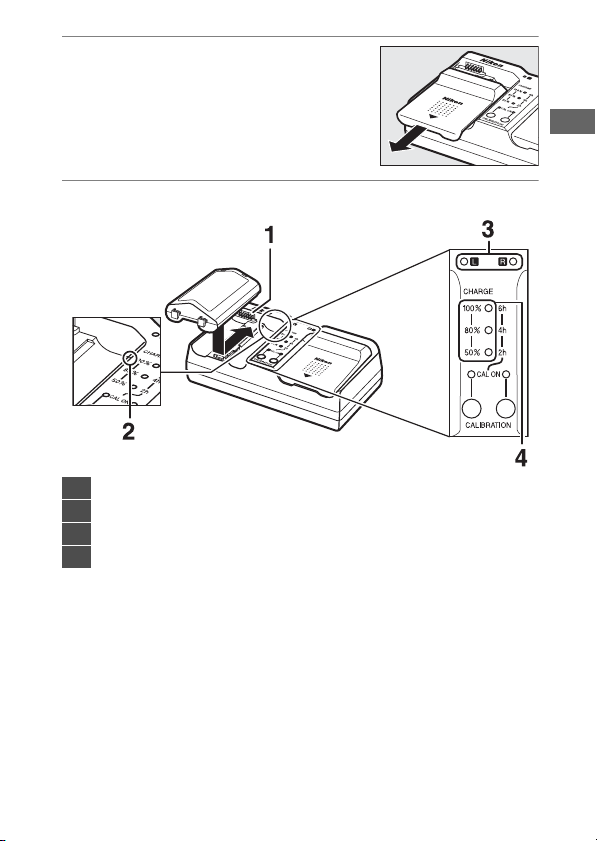
Remove the contact protector.
Slide the contact protector from the
charger as shown.
5
Charge the battery.
1
Contacts
2
Guide
3
Chamber lamps
4
Charge lamps (green)
30
Readying the Camera
•
Insert the battery (terminals first), aligning the end of the
battery with the guide and then sliding the battery in the
direction indicated until it clicks into place.
•
The lamp for the chamber containing the battery (“L” or
“R”) will start to flash as charging begins.
•
Charging is complete when the chamber lamp stops
flashing and the charge lamps turn off.
•
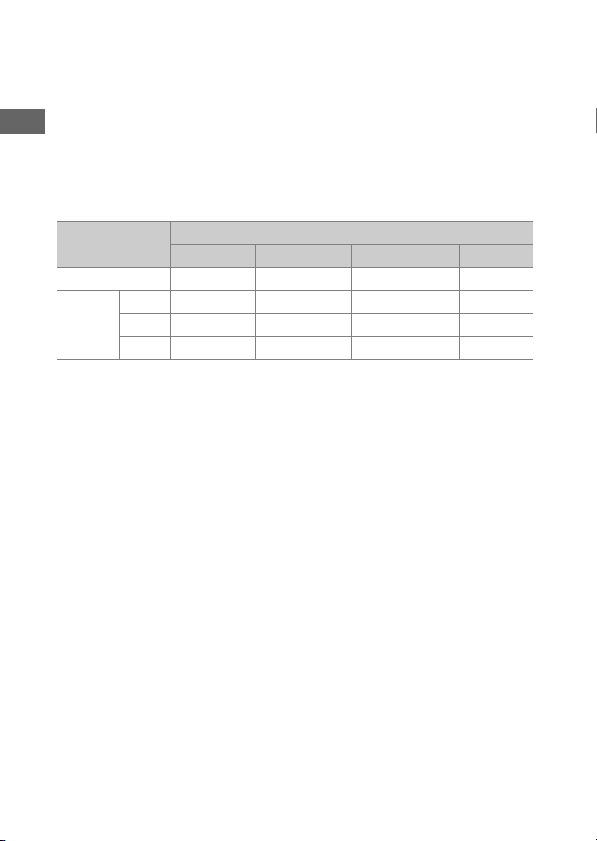
Battery status is shown by the chamber and charge lamps:
Charge state
<50% ≥50%, <80% ≥80%, <100% 100%
Chamber lamp
H
(flashes)
H
(flashes)
H
(flashes)
K
(on)
Charge
lamps
100%
I
(off)
I
(off)
H
(flashes)
I
(off)
80%
I
(off)
H
(flashes)
K
(on)
I
(off)
50%
H
(flashes)
K
(on)
K
(on)
I
(off)

31
Readying the Camera
6
Remove the battery and unplug the charger when
charging is complete.
D
Calibration
For information on calibrating batteries to ensure the accuracy of the
battery level displays, see “Calibrating Batteries” (
0
252).
D
Warning Indicators
If the MH-26a chamber and charge lamps flash on and off in sequence,
take the steps described below.
•
If no battery inserted: There is a problem with the charger. Unplug the
charger and consult a Nikon-authorized service representative.
•
If a battery is inserted: A problem has occurred with the battery or
charger during charging. Remove the battery, unplug the charger, and
consult a Nikon-authorized service representative.
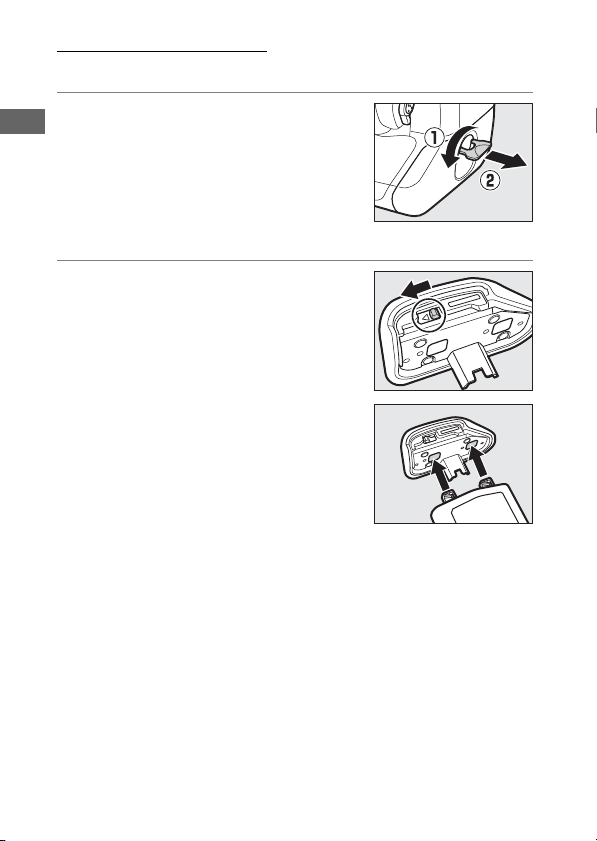
32
Readying the Camera
Inserting the Battery
Turn the camera off before inserting or removing the battery.
1
Remove the BL-6 battery-
chamber cover.
Lift the battery-chamber cover latch,
turn it to the open (
A
) position (
q
)
and remove the battery-chamber
cover (
w
).
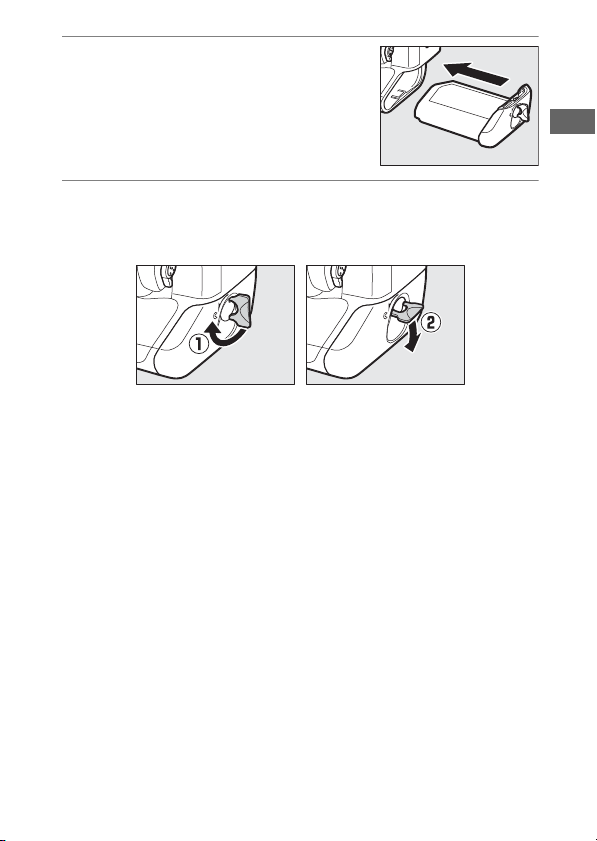
2
Attach the cover to the battery.
•
If the battery release is positioned
so that the arrow (
H
) is visible, slide
the battery release to cover the
arrow (
H
).
•
Insert the two projections on the
battery into the matching slots in
the cover as shown. The battery
release will slide aside to
completely reveal the arrow (
H
).
33
Readying the Camera
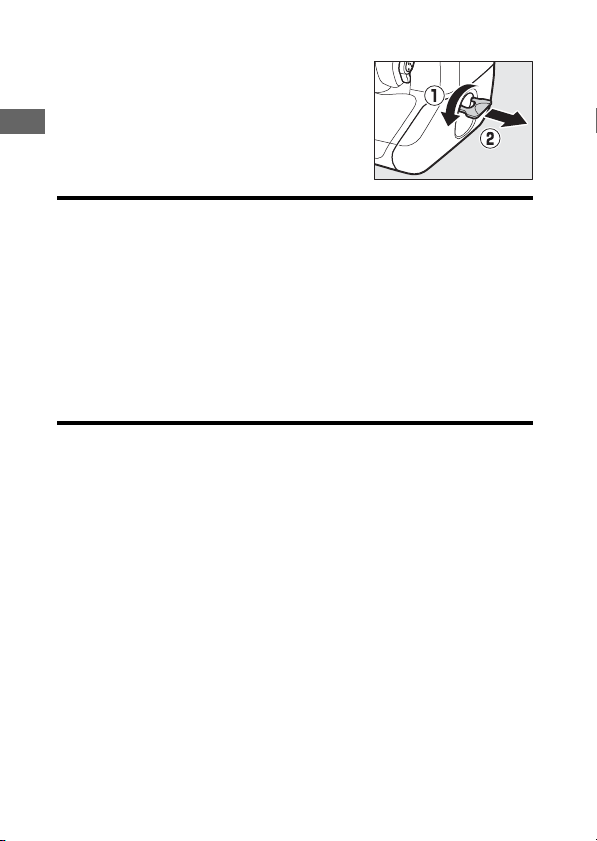
3
Insert the battery.
Insert the battery fully and securely
as shown.
4
Latch the cover.
•
Rotate the latch to the closed position (
q
) and fold it down
as shown (
w
).
•
Be sure the cover is securely latched to prevent the battery
from becoming dislodged during operation.
34
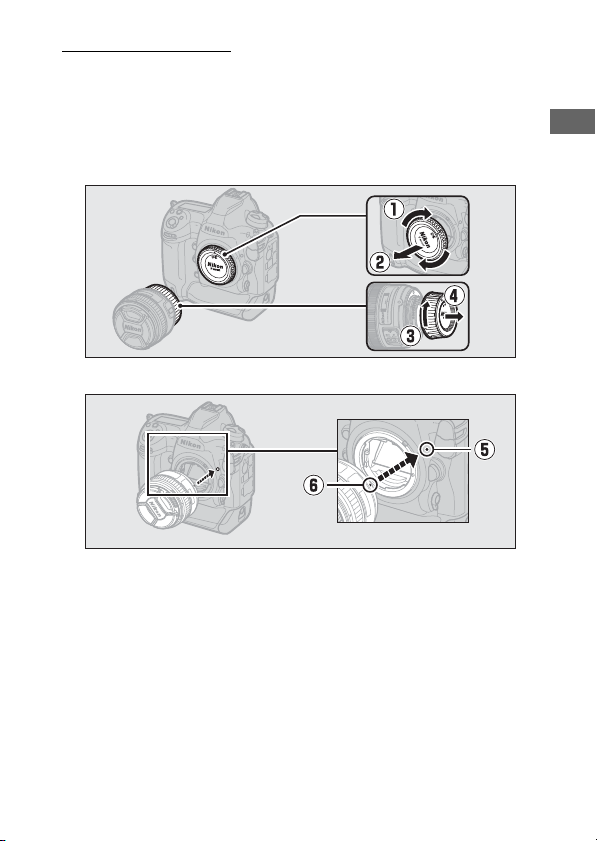
Readying the Camera
❚❚
Removing the Battery
Before removing the battery, turn the
camera off, lift the battery-chamber
cover latch, and turn it to the open (
A
)
position.
D
Removing the Battery-Chamber Cover
To unlatch the battery-chamber cover so that it can be removed from the
battery, slide the battery release in the direction indicated by the arrow
(
H
) until it stops.
D
The Battery-Chamber Cover
•
Use BL-6 battery-chamber covers only; other battery-chamber covers
cannot be used with this camera.
•
The battery can be charged with the cover attached.
•
To prevent dust accumulating inside the battery chamber, replace the
battery-chamber cover on the camera when the battery is not inserted.
35
Readying the Camera
Attaching a Lens
•
The lens generally used in this manual for illustrative purposes
is an AF-S NIKKOR 50mm f/1.4G.
•
Be careful to prevent dust entering the camera.
•
Confirm that the camera is off before attaching the lens.
- Remove the camera body cap (
q
,
w
) and rear lens cap (
e
,
r
).
- Align the mounting marks on the camera (
t
) and lens (
y
).
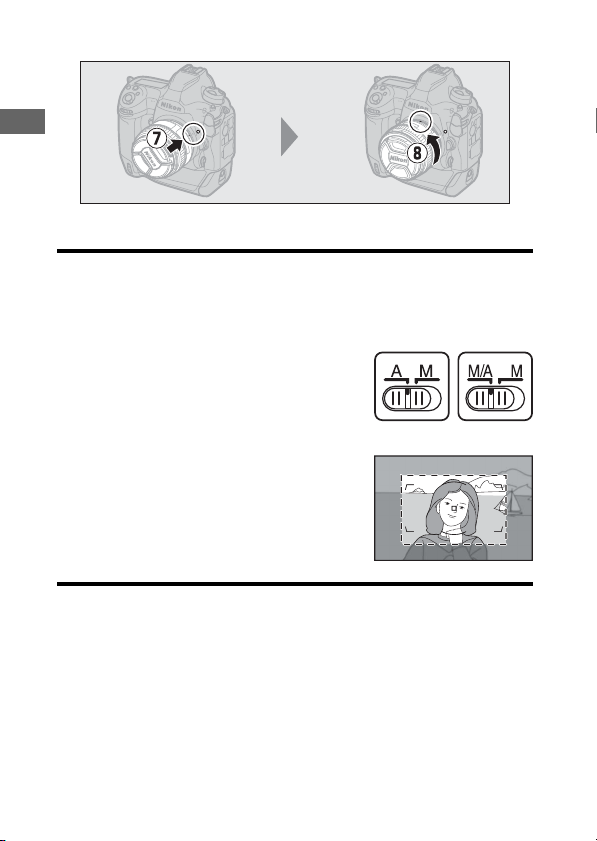
36
Readying the Camera
- Rotate the lens as shown until it clicks into place (
u
,
i
).
•
Remove the lens cap before taking pictures.
D
CPU Lenses with Aperture Rings
When using a CPU lens equipped with an aperture ring (
0
182), lock
aperture at the minimum setting (highest f-number).
D
Lens Focus Mode
If the lens is equipped with a focus mode
switch, select autofocus mode (A, M/A, or A/
M).
D
Image Area
The DX format image area is automatically
selected when a DX lens is attached.
37
Readying the Camera
❚❚
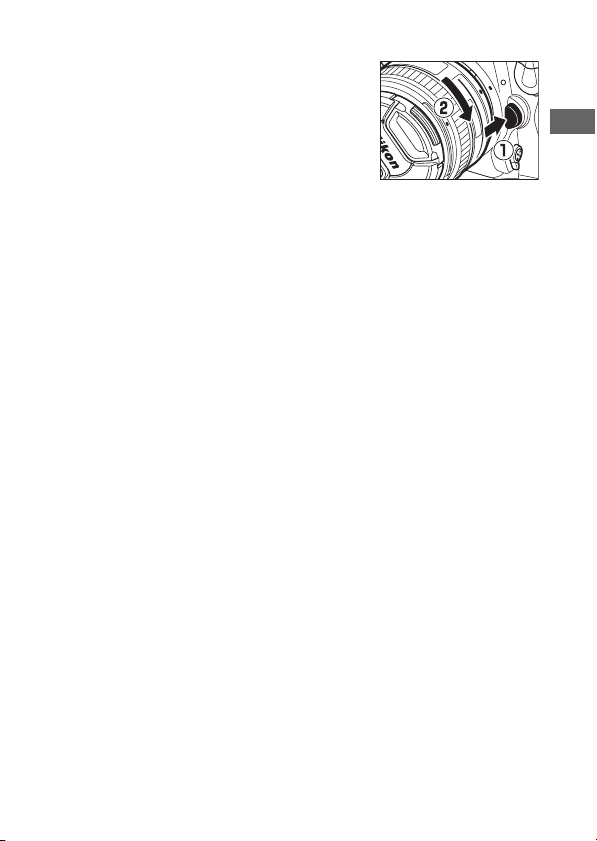
Detaching Lenses
•
After turning the camera off, press and
hold the lens release button (
q
) while
turning the lens in the direction shown
(
w
).
•
After removing the lens, replace the
lens caps and camera body cap.
38
Readying the Camera
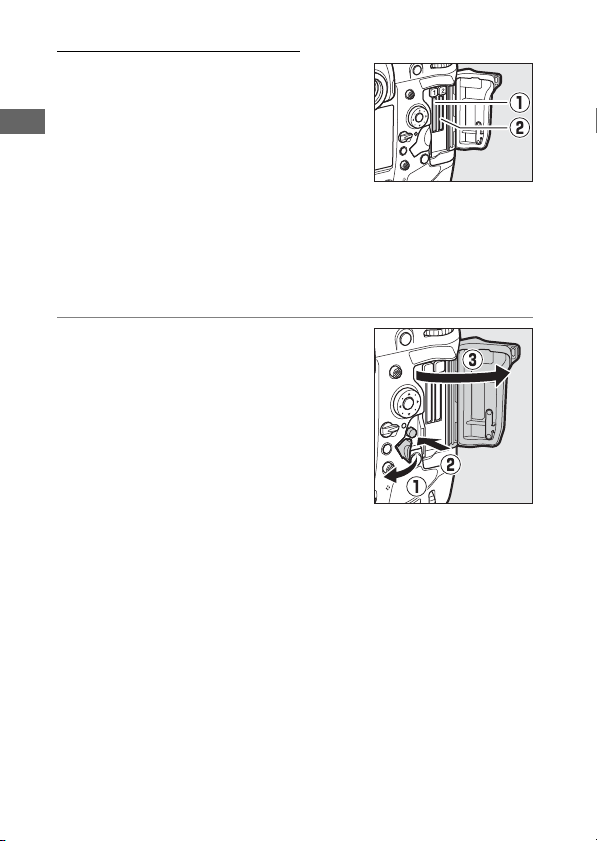
Inserting Memory Cards
The camera is equipped with two
memory card slots: Slot 1 (
q
) and Slot 2
(
w
), allowing simultaneous use of two
memory cards.
•
Turn the camera off before inserting or removing memory
cards.
•
Do not push on the memory card while pressing the eject
button. Failure to observe this precaution could damage the
camera or memory card.
1
Open the card slot cover.
Open the door protecting the card-
slot cover release button (
q
) and
press the release button (
w
) to open
the card slot (
e
).
39
Readying the Camera
2
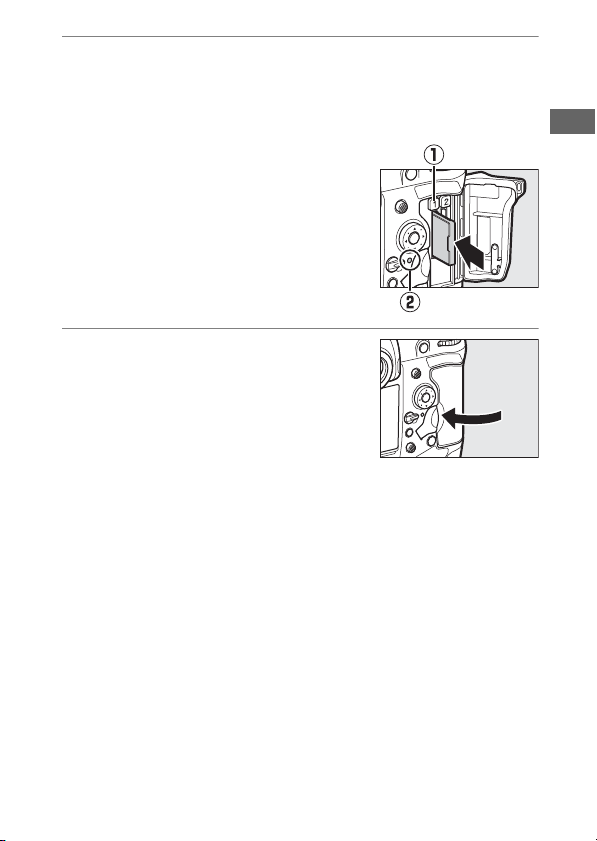
Insert the memory card.
Inserting a card upside down or backwards could damage the
camera or the card. Check to be sure that the card is in the
correct orientation.
Holding the card with the rear label
toward the monitor, slide it all the
way into the slot. When the memory
card is fully inserted, the eject button
(
q
) will pop up and the green
memory card access lamp (
w
) will
light briefly.
3
Close the card slot cover.
If this is the first time the memory
card will be used after being used or
formatted in another device, format
the card in the camera before
proceeding.
40
Readying the Camera
A
Two Memory Cards
When two memory cards are inserted (one in each of Slots 1 and 2), the
role played by the card in Slot 2 can be selected using [Role played by
card in Slot 2] in the photo shooting menu.
•
[Overflow]: Pictures will be recorded to the card in Slot 2 only when the
card in Slot 1 is full.
•
[Backup]: Two identical copies are recorded, one to each memory card
and each with the same image quality and size.
•
[RAW Slot 1 - JPEG Slot 2]: The NEF (RAW) copies of photos taken at
settings of NEF (RAW) + JPEG are recorded only to the card in Slot 1, the
JPEG copies only to the card in Slot 2.
•
[JPEG Slot 1 - JPEG Slot 2]: Two JPEG copies are recorded, one to each
memory card, but at different sizes.
❚❚
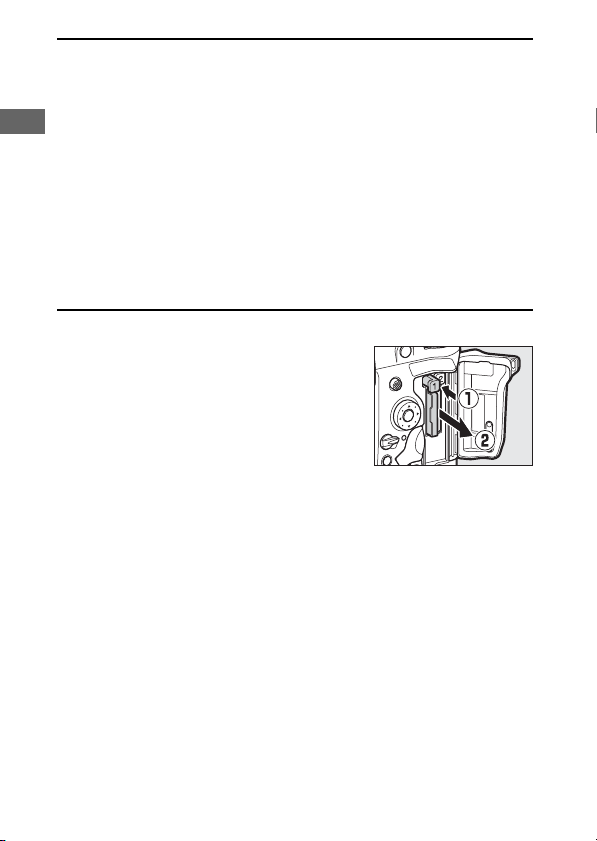
Removing Memory Cards
After confirming that the memory card
access lamp is off, turn the camera off
and open the memory card slot cover.
Press the eject button (
q
) to partially
eject the card (
w
); the memory card can
then be removed by hand.
41
Readying the Camera
D
Memory Cards
•
Memory cards may be hot after use. Observe due caution when
removing memory cards from the camera.
•
Do not perform the following operations during formatting or while
data are being recorded, deleted, or copied to a computer or other
device. Failure to observe these precautions could result in loss of data
or in damage to the camera or card.
- Do not remove or insert memory cards
- Do not turn the camera off
- Do not remove the battery
- Do not disconnect AC adapters
•
Do not touch the card terminals with your fingers or metal objects.
•
Do not use excessive force when handling memory cards. Failure to
observe this precaution could damage the card.
•
Do not bend or drop memory cards or subject them to strong physical
shocks.
•
Do not expose memory cards to water, heat, or direct sunlight.
•
Do not format memory cards in a computer.
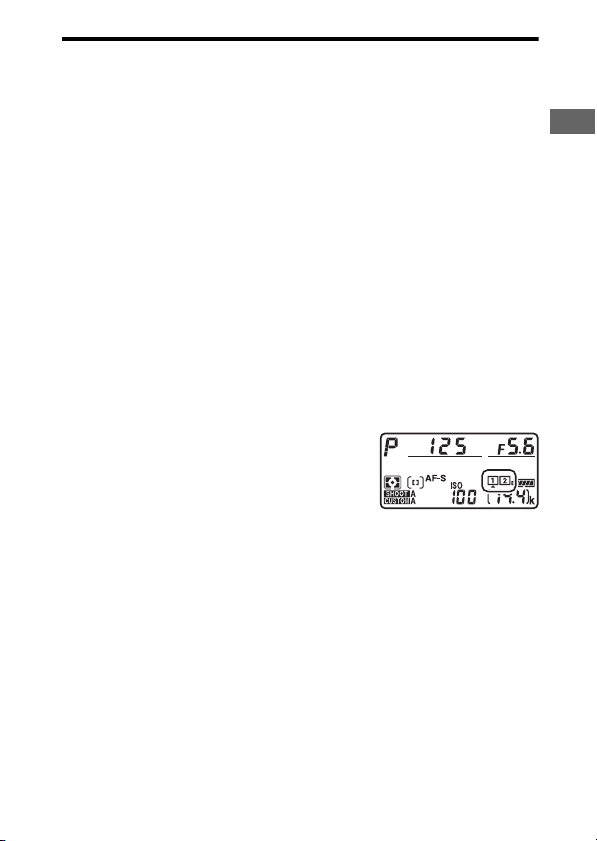
D
Memory Card Icons
The memory card icons in the top control panel
light when memory cards are inserted (the
example in the illustration shows the display
when two memory cards are inserted).
If the memory card is full or an error has
occurred, the icon for the affected card will
flash.
42
Readying the Camera
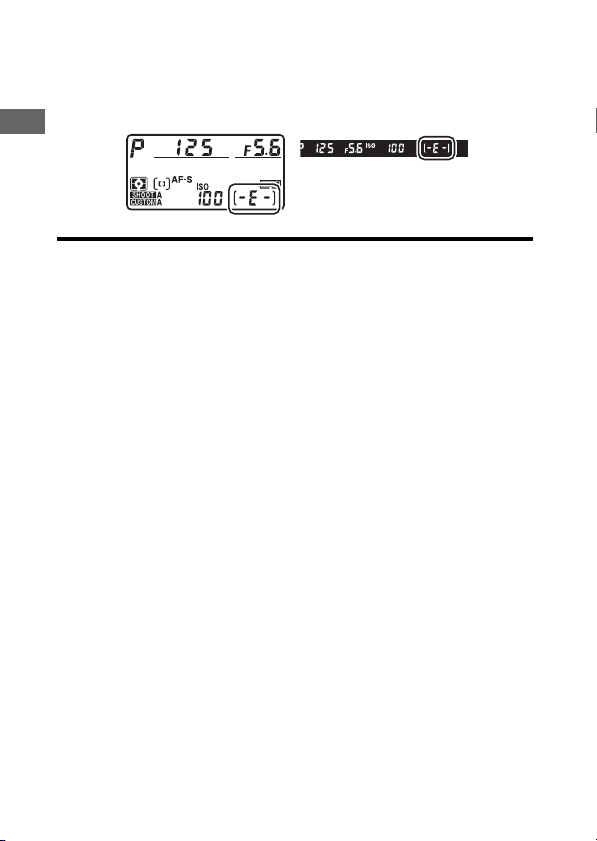
D
No Memory Card Inserted
If no memory card is inserted, the exposure count displays in the
viewfinder and top control panel will show
S
. If the camera is turned
off with a battery and no memory card inserted,
S
will be displayed in
the top control panel.
43
Readying the Camera
Camera Setup
The language option in the setup menu is automatically
highlighted the first time menus are displayed. Choose a
language and set the camera clock.
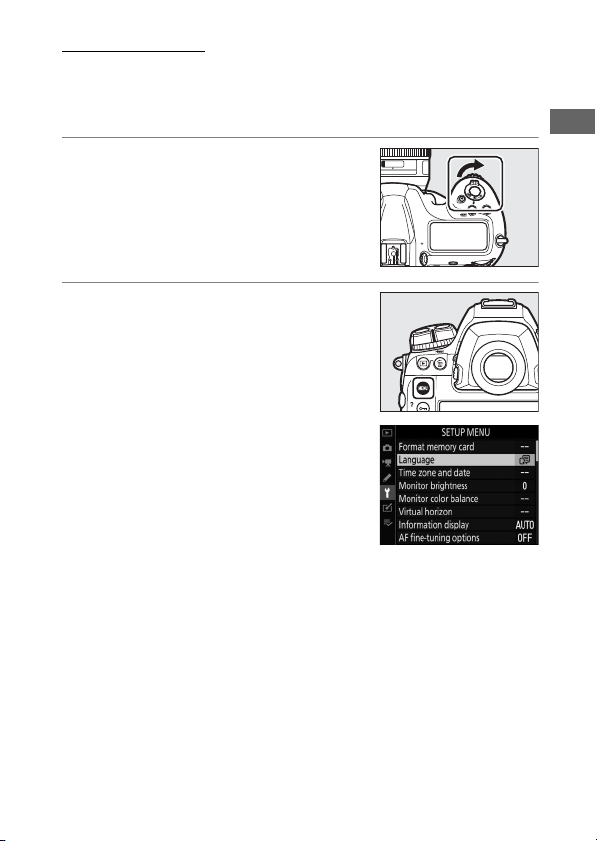
1
Turn the camera on.
2
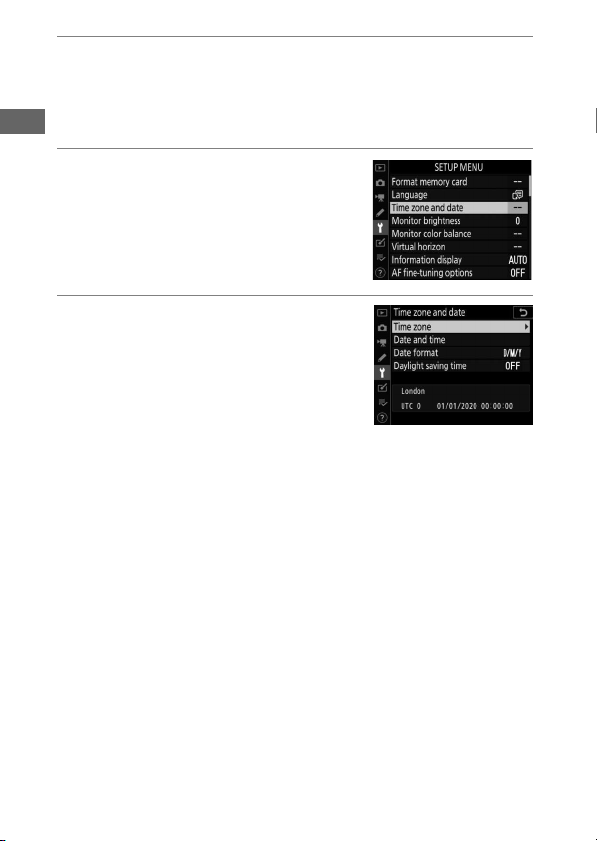
Highlight [Language] in the
setup menu and press
2
.
•
The [Language] item is
automatically highlighted in the
setup menu the first time the
G
button is pressed after purchase.
•
For information on using the
menus, see “Using the Menus”
(
0
81).
44
Readying the Camera
3
Select a language.
Press
1
or
3
to highlight the desired language and press
J
(the languages available vary with the country or region in
which the camera was originally purchased).
4
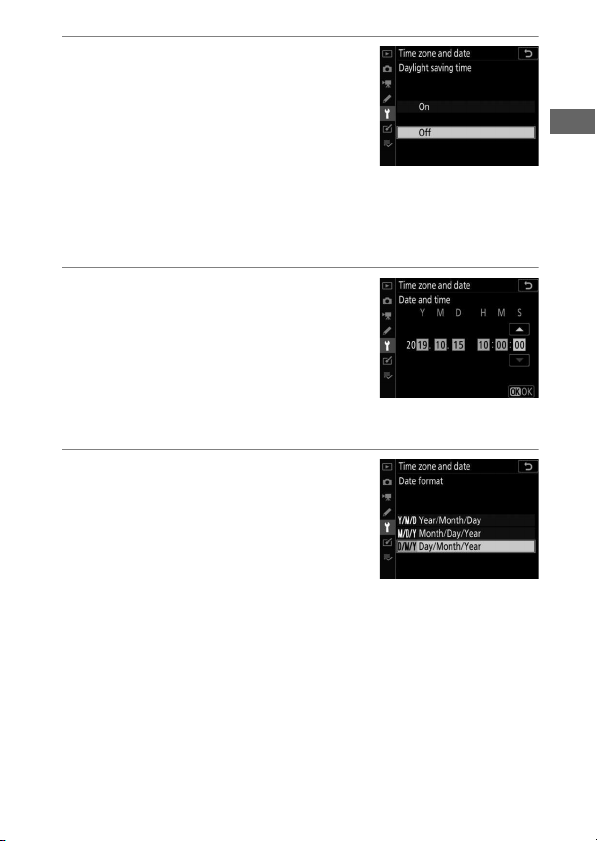
Highlight [Time zone and date]
and press
2
.
5
Choose a time zone.
•
Select [Time zone] in the [Time
zone and date] display.
•
Highlight a time zone in the [Time
zone] display and press
J
.
•
The display shows a time zone map
listing the selected cities in the chosen zone and the
difference between the time in the chosen zone and UTC.
45
Readying the Camera
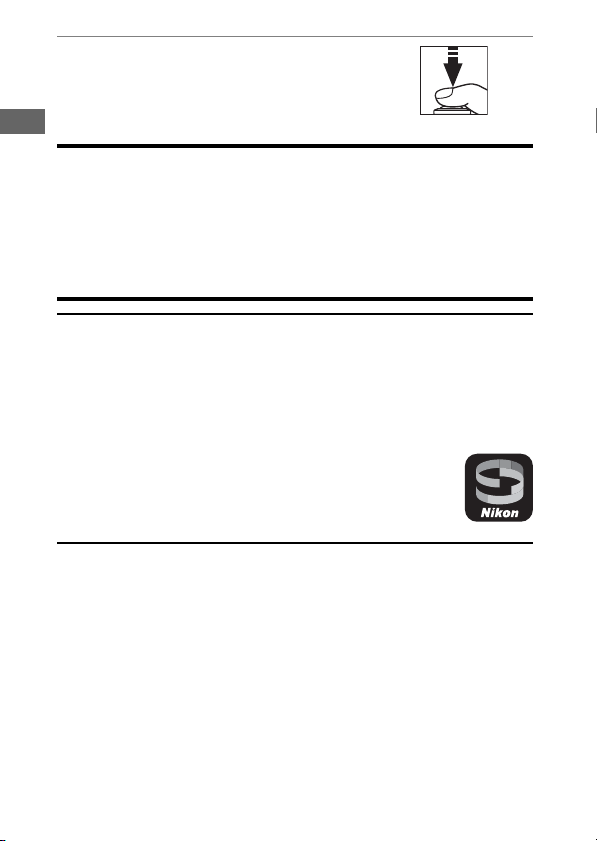
6
Turn daylight saving time on or
off.
•
Select [Daylight saving time] in
the [Time zone and date] display.
•
Highlight [On] (daylight saving time
on) or [Off] (daylight saving time
off) and press
J
.
•
Selecting [On] advances the clock one hour; to undo the
effect, select [Off].
7
Set the clock.
•
Select [Date and time] in the [Time
zone and date] display.
•
Press
J
after using the multi
selector to set the clock to the date
and time in the selected time zone
(note that the camera uses a 24-hour clock).
8
Choose a date format.
•
Select [Date format] in the [Time
zone and date] display.
•
Highlight the desired date (year,
month, and day) display order and
press
J
.
46
Readying the Camera
9
Exit the menus.
Lightly press the shutter-release
button halfway to exit to shooting
mode.
D
The Clock Battery
The camera clock is powered by a separate, non-rechargeable CR1616
lithium battery with a life of about two years. When this battery is low, a
B
icon will be displayed in the top control panel while the standby
timer is on, indicating that it is time to purchase a replacement. For
information on replacing the clock battery, see “Replacing the Clock
Battery” (
0
221).
A
Setting the Clock via GNSS
To record your location and the current UTC (Universal Coordinated
Time), select [On] for [Location data (built-in)] > [Record location data].
To set the camera clock to the time supplied by the built-in GNSS receiver,
select [Yes] for [Location data (built-in)] > [Set clock from satellite].
A
SnapBridge
Use the SnapBridge app to synchronize the camera clock
with the clock on a smartphone or tablet (smart device). See
SnapBridge online help for details.
47
The Battery Level and Number of Exposures Remaining
Before taking photographs, check the battery level and number
of exposures remaining.
Battery Level
Check the battery level before taking photographs. The battery
level is shown in the top control panel and viewfinder.
The Battery Level and Number of
Exposures Remaining
Top control
panel
Viewfinder Description
L
— Battery fully charged.
K
—
Battery partially discharged.
J
—
I
—
H d
Low battery. Charge battery or ready
spare battery.
H
(flashes)
d
(flashes)
Shutter release disabled. Charge or
exchange battery.
48
The Battery Level and Number of Exposures Remaining
Memory Card Indicators and Number of
Exposures Remaining
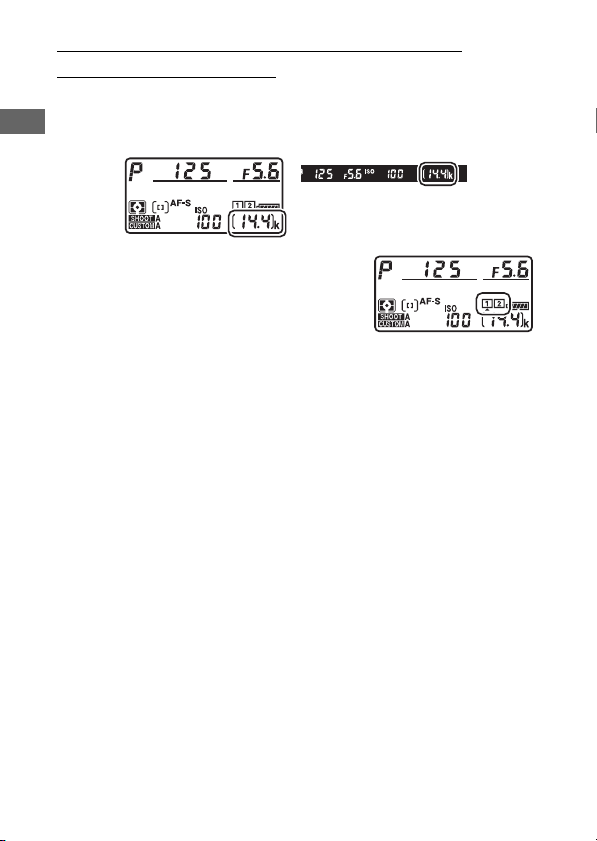
The top control panel and viewfinder show the number of
additional photographs that can be taken at current settings
(i.e, the number of exposures remaining).
•
The top control panel shows the slot or
slots that currently hold a memory card
(the example shows the icons
displayed when cards are inserted in
both slots).
•
At default settings, [Overflow] is selected for [Role played by
card in Slot 2] in the photo shooting menu. When two
memory cards are inserted, pictures will first be recorded to
the card in Slot 1, switching to Slot 2 when the card in Slot 1 is
full.

49
The Battery Level and Number of Exposures Remaining
•
If two memory cards are inserted, the camera will show the
number of additional photographs that can be recorded to
the card in Slot 1. When the card in Slot 1 is full, the display will
show the number of exposures remaining on the card in Slot
2.
•
Values over 1000 are rounded down to the nearest hundred.
For example, values in the vicinity of 1400 are shown as 1.4 k.
•
If the memory card is full or a card error has occurred, the icon
for the affected slot will flash.
50
Taking Photographs
Basic Photography and
Playback
Photographs can be framed in the viewfinder (viewfinder
photography) or in the monitor (live view photography).
Framing Photographs in the Viewfinder
(Viewfinder Photography)
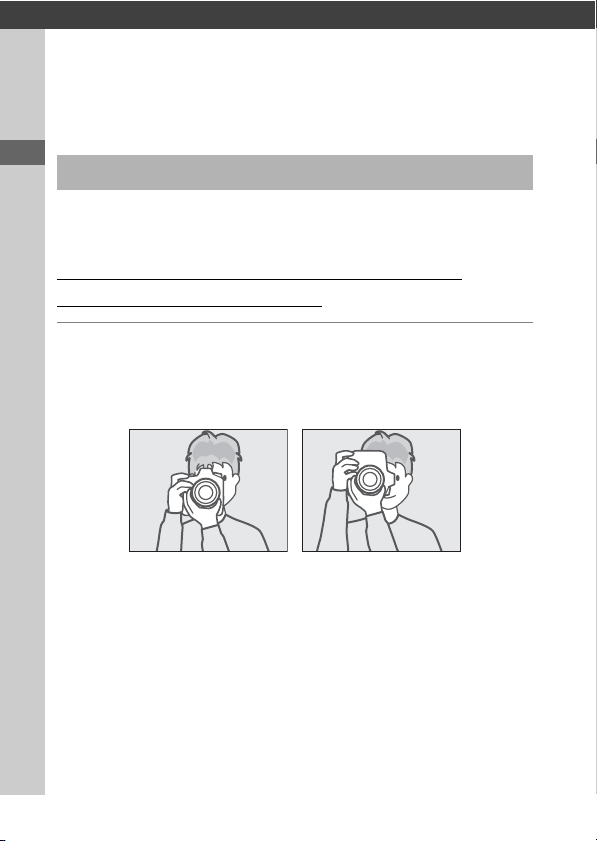
1
Ready the camera.
Holding the handgrip in your right hand and cradling the
camera body or lens with your left, bring your elbows in
against the sides of your chest.
Taking Photographs
51
Taking Photographs
2
Frame the photograph.
•
Frame a photograph in the
viewfinder.
•
Position the main subject in the
AF-area brackets.
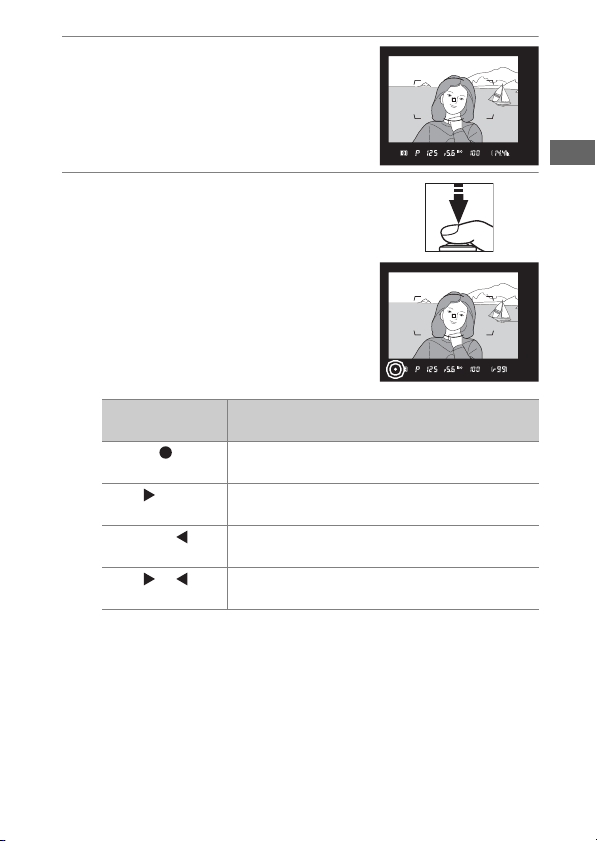
3
Press the shutter-release
button halfway to focus.
•
The in-focus indicator (
I
) will
appear in the viewfinder when the
focus operation is complete.
•
You can also focus by pressing the AF-ON button.
Viewfinder
display
Description
(steady)
The subject is in focus.
(steady)
The focus point is in front of the subject.
(steady)
The focus point is behind the subject.
(flashes)
The camera is unable to focus using autofocus.
52
Taking Photographs
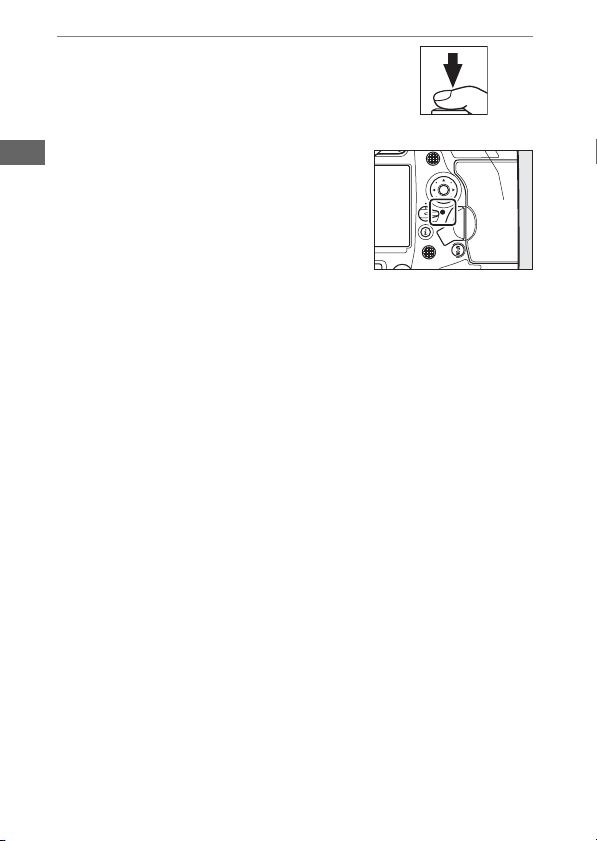
4
Smoothly press the shutter-
release button the rest of the
way down to take the
photograph.
The memory card access lamp will
light while the photograph is being
recorded. Do not eject the memory
card or remove or disconnect the
power source until the lamp has gone
out and recording is complete.
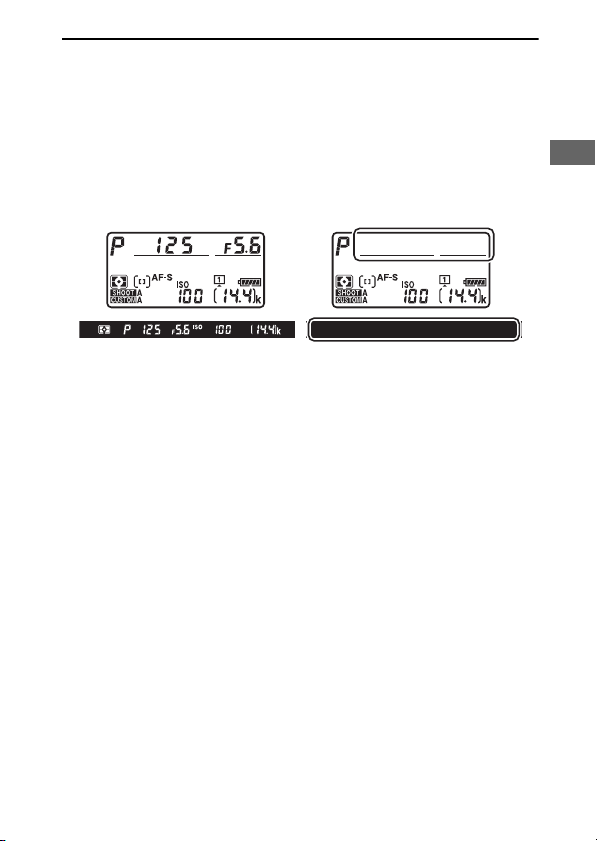
53
Taking Photographs
A
The Standby Timer (Viewfinder Photography)
The camera uses a standby timer to help reduce the drain on the battery.
The timer starts when the shutter-release button is pressed halfway and
expires if no operations are performed for about 6 seconds. The
viewfinder display and the shutter speed and aperture indicators in the
top control panel turn off when the timer expires. To restart the timer and
restore the displays, press the shutter-release button halfway a second
time. The length of time before the standby timer expires can be adjusted
using Custom Setting c2 [Standby timer].
Standby timer on Standby timer off
54
Taking Photographs
A
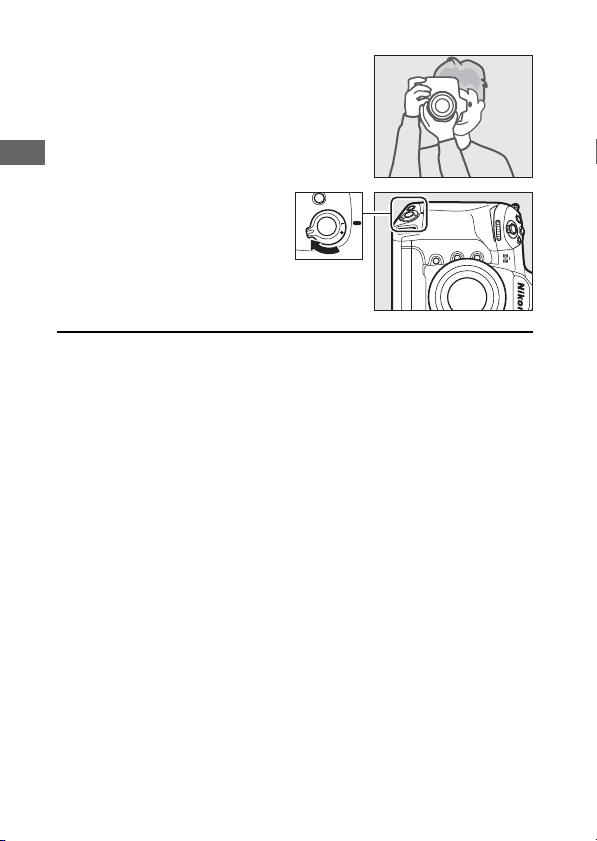
Framing Photos in Portrait (“Tall”) Orientation
The camera is equipped with controls for use in
portrait (“tall”) orientation, including vertical
shutter-release, Fn, and AF-ON buttons, main
and sub-command dials, and a multi selector.
•
Rotate the vertical shooting
shutter-release button lock to L
to avoid accidentally operating
these controls when the camera
is in landscape (“wide”)
orientation.
55
Taking Photographs
Framing Photographs in the Monitor (Live
View)
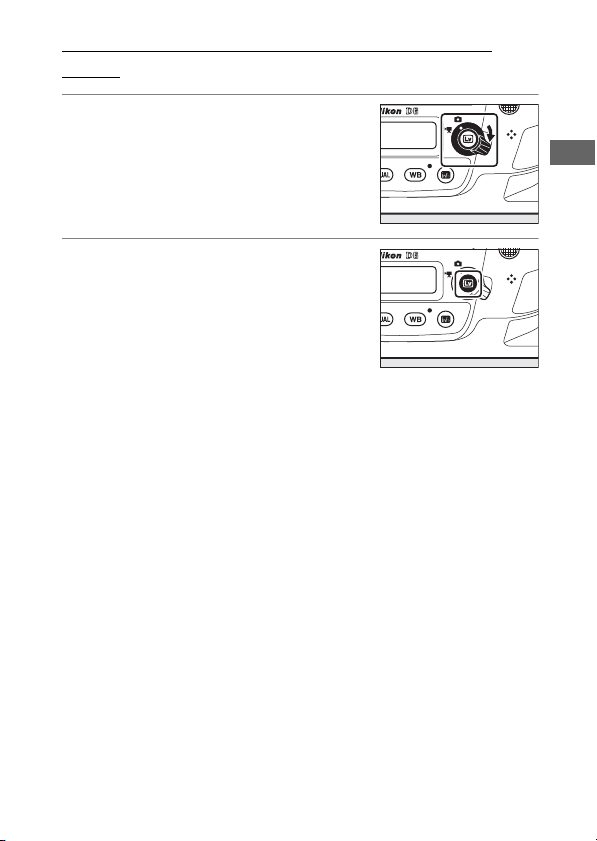
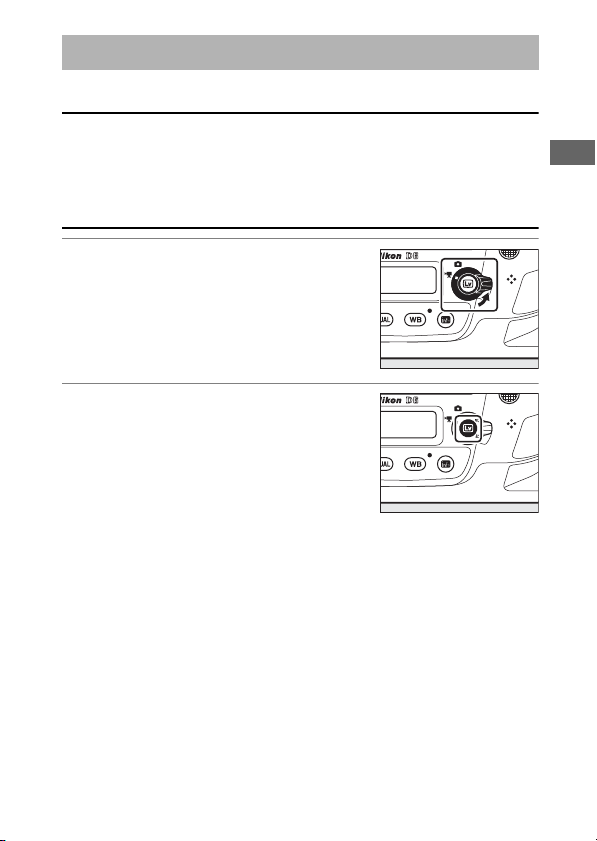
1
Rotate the live view selector to
C
(live view photography).
2
Press the
a
button.
•
The mirror will be raised and live
view will start. The viewfinder will
go dark and the view through the
lens will be displayed in the
monitor.
•
During live view, exposure for movies and photographs
can be previewed in the monitor.
56
Taking Photographs
3
Ready the camera.
Hold the handgrip securely in your right hand and cradle the
camera body or lens with your left.
4
Frame the photograph.
Position the subject near the center
of the frame.
57
Taking Photographs
5
Press the shutter-release
button halfway to focus.
•
Focus locks while the shutter-
release button is pressed halfway.
•
If the camera is able to focus, the focus point will be
displayed in green. If the camera is unable to focus, for
example because the subject is too close to the camera,
the focus point will flash red.
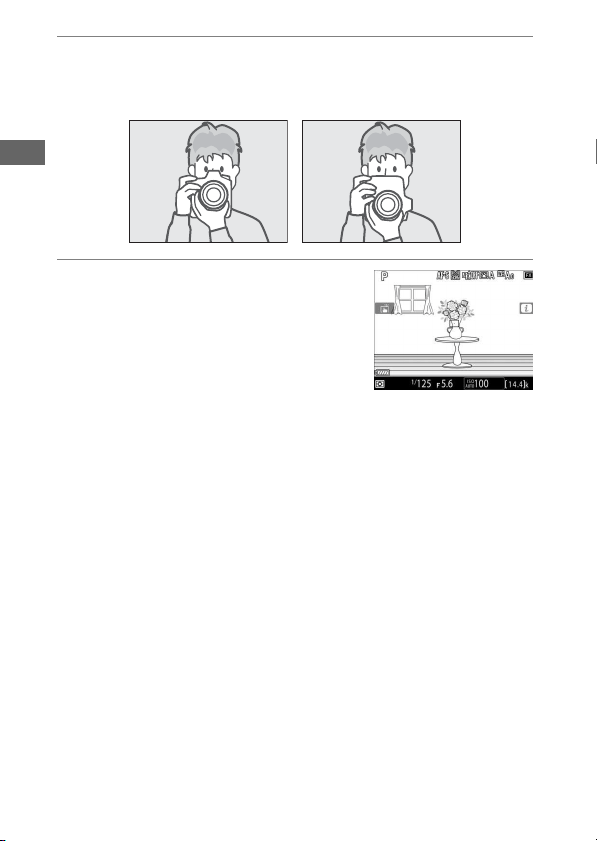
•
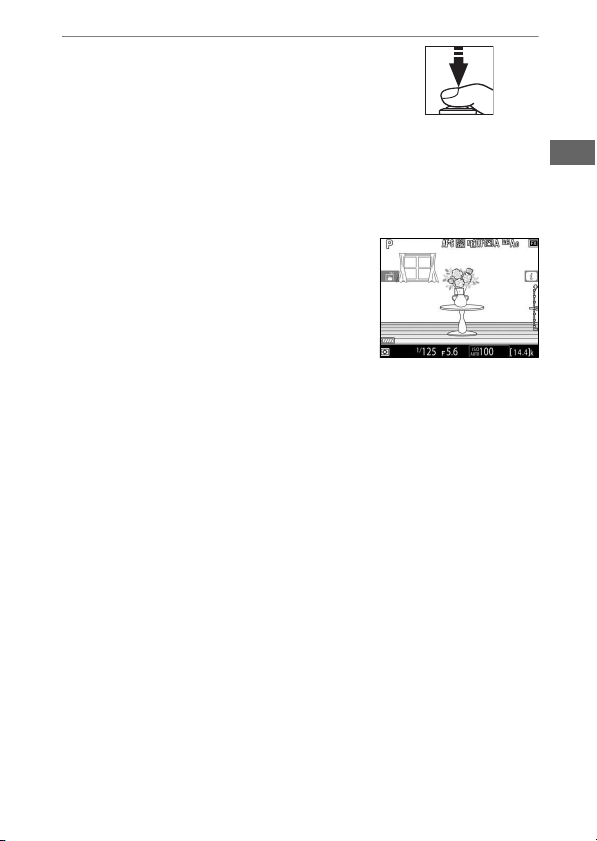
To preview exposure in the monitor
as shown in the illustration
(exposure preview), press the
J
button. You can preview how the
settings selected for shutter speed,
aperture, and ISO sensitivity affect
exposure during shooting. Exposure compensation can be
adjusted by ±5 EV, although only values between −3 and
+3 EV are reflected in the preview display.
58
Taking Photographs
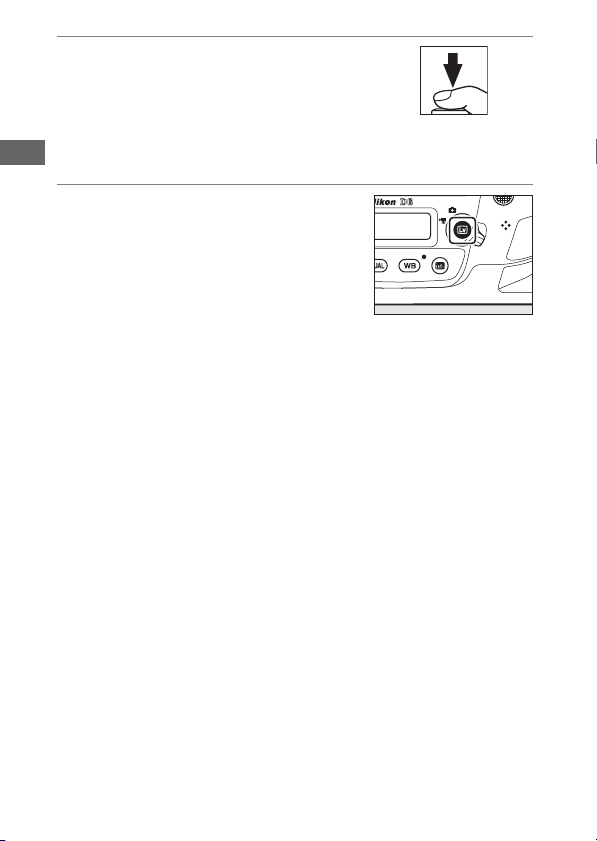
6
Press the shutter-release
button the rest of the way
down to take the photograph.
The monitor turns off during
shooting.
7
Press the
a
button to exit live
view.

59
Taking Photographs
D
Shooting in Live View
•
Although these effects are not visible in the final pictures, during live
view you may notice the following in the monitor:
- Moving objects in the display appear distorted (individual subjects
such as trains or cars moving at high speed through the frame may be
distorted, or the entire frame may appear distorted when the camera
is panned horizontally)
- Jagged edges, color fringing, moiré, and bright spots may appear in
the display
- Bright regions or bands may appear in scenes lit by flashing signs and
other intermittent light sources or when the subject is briefly
illuminated by a strobe or other bright, momentary light source
•
Flicker and banding visible in the monitor under fluorescent, mercury
vapor, or sodium lamps can be reduced using the [Flicker reduction]
item in the movie shooting menu, although they may still be visible in
photographs taken at some shutter speeds.
•
To prevent light entering via the viewfinder interfering with
photographs or exposure, raise the viewfinder eyepiece shutter lever to
close the viewfinder eyepiece shutter.
•
When shooting in live view, avoid pointing the camera at the sun or
other bright light sources. Failure to observe this precaution could
result in damage to the camera’s internal circuitry.
•
Regardless of the option selected for Custom Setting c2 [Standby
timer], the standby timer will not expire during live view.

60
Taking Photographs
D
The Count-Down Display
A count down will appear in the top left corner of the display
approximately 30 s before live view ends automatically.
•
If the timer has been triggered by Custom Setting c4 [Monitor off
delay], the count down will be displayed in black starting 30 s before
the timer expires, switching to red when there are only 5 s to go. If [No
limit] is selected for [Monitor off delay] > [Live view], the camera may
nevertheless terminate live view as necessary to protect its internal
circuits from high temperatures and the like.
•
A count down will be displayed in red starting 30 s before the camera
shuts down to protect its internal circuits. Depending on shooting
conditions, the timer may appear immediately when live view is
selected.
D
Exposure Preview
•
Exposure preview is not available when
A
(Bulb) or
%
(Time) is
selected for shutter speed. The preview may not accurately reflect the
final results when:
- Flash lighting is used
-[Active D-Lighting] or [HDR (high dynamic range)] is in effect
-[A] (auto) is selected for the Picture Control [Contrast] parameter
(
0
128)
-
p
is selected for shutter speed
- Bracketing is in effect
•
If the subject is very bright or very dark, the exposure indicators will
flash to warn that the preview may not accurately reflect exposure.
61
Taking Photographs
A
Touch Controls
Touch controls can be used in place of the shutter-release button to focus
and take pictures during live view photography (
0
19).
A
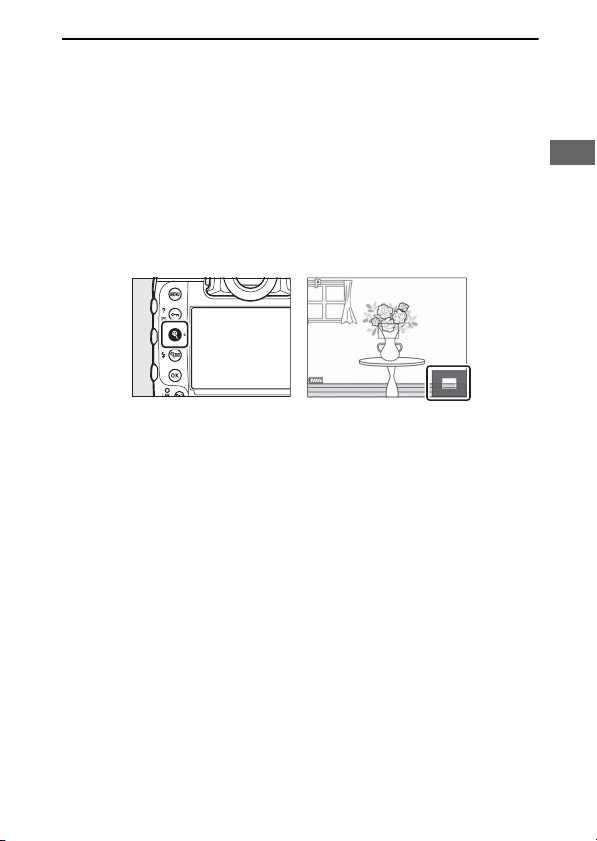
Live View Zoom Preview
Press the
X
button to magnify the view in the monitor up to a maximum
of about 11×.
•
Press
X
to zoom in,
W
(
M
) to zoom out.
•
A navigation window will appear in a gray frame at the bottom right
corner of the display.
•
Use the multi selector to scroll to areas of the frame not visible in the
monitor.

62
Taking Photographs
A
Previewing Focus During Live View
To temporarily select maximum aperture for an improved focus preview
during live view, press the Pv button. To return aperture to its original
value, press the Pv button again or focus using autofocus. If the shutter-
release button is pressed all the way down to take a picture during focus
preview, aperture will return to the original value before the photo is
taken. The maximum aperture icon (
t
) is displayed while maximum
aperture is selected.
63
Recording Movies
Live view can be used to record movies.
A
“Filming” Versus “Recording”
Throughout this manual, the terms “filming” and “recording” are used as
follows: “filming” is used if the live view selector is rotated to
1
, while
“recording” refers to the act of shooting footage using the movie-record
button.
1
Rotate the live view selector to
1
(movie live view).
2
Press the
a
button.
•
The mirror will be raised and live
view will start. The viewfinder will
go dark and the view through the
lens will be displayed in the
monitor.
•
During live view, exposure for movies and photographs
can be previewed in the monitor.
Recording Movies
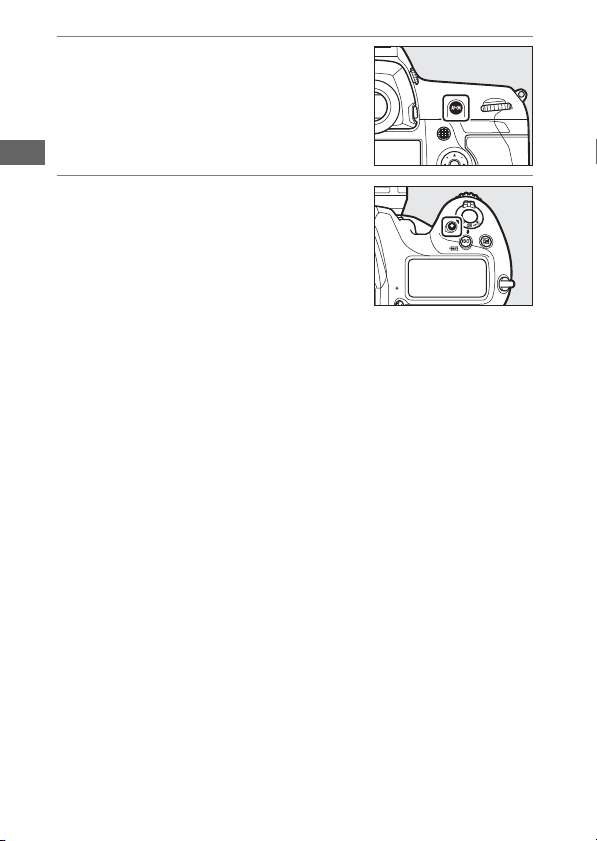
64
Recording Movies
3
Press the AF-ON button to
focus.
•
Focus before beginning recording.
•
Focus can be adjusted by tapping
your subject in the monitor.
4
Press the movie-record button
to start recording.
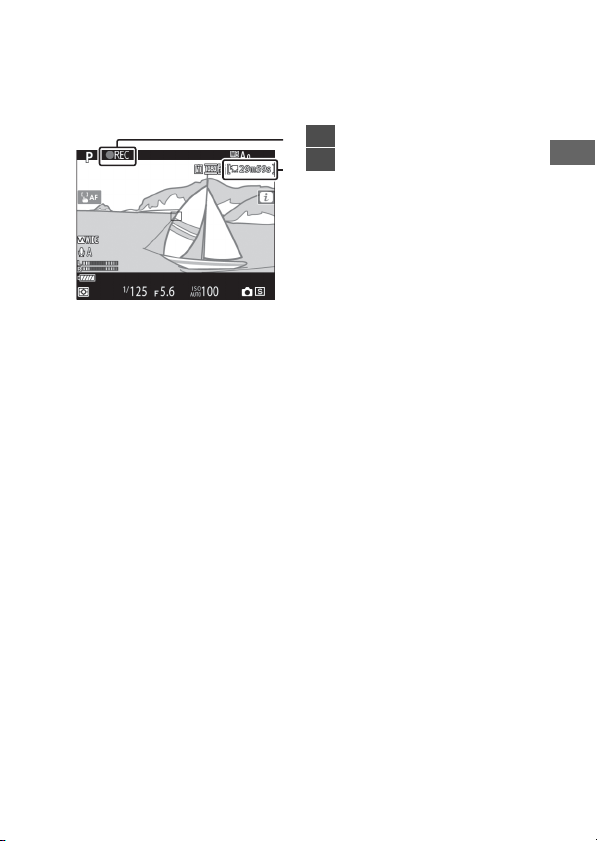
65
Recording Movies
•
A recording indicator will be displayed in the monitor. The
monitor also shows the time remaining, or in other words
the approximate amount of new footage that can be
recorded to the memory card.
•
The camera can be refocused during recording by pressing
the AF-ON button or by tapping your subject in the
monitor.
•
Sound is recorded via the built-in microphone for movie
recording. Do not cover the microphone during recording.
•
Exposure can be altered by up to ±3 EV using exposure
compensation.
2
1
1
Recording indicator
2
Time remaining
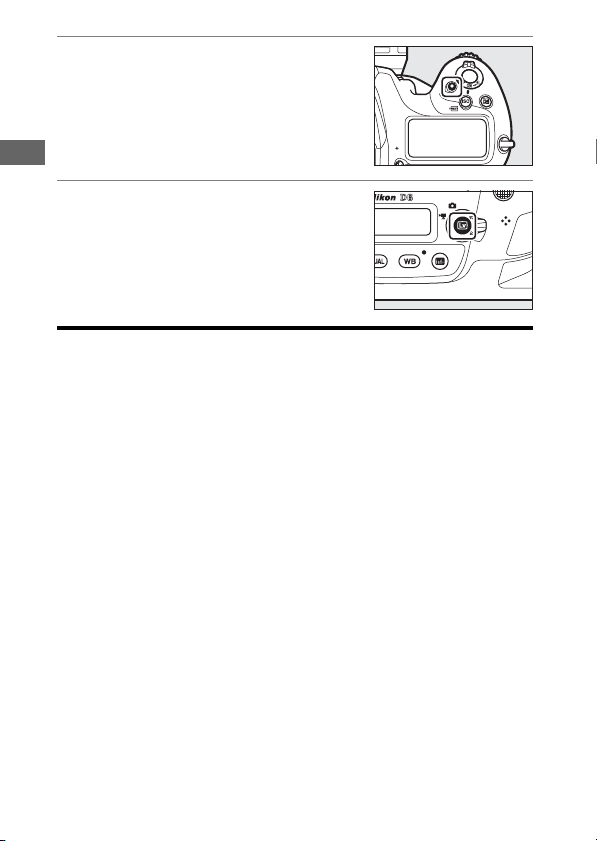
66
Recording Movies
5
Press the movie-record button
again to end recording.
6
Press the
a
button to exit live
view.
D
Recording Movies
•
When filming movies, you may notice the following in the display. These
phenomena will also be visible in any footage recorded with the
camera.
- Flicker or banding in scenes lit by such sources as fluorescent,
mercury vapor, or sodium lamps
- Distortion associated with motion (individual subjects such as trains
or cars moving at high speed through the frame may be distorted, or
the entire frame may appear distorted when the camera is panned
horizontally)

67
Recording Movies
- Jagged edges, color fringing, moiré, and bright spots in the display
- Bright regions or bands in scenes lit by flashing signs and other
intermittent light sources or when the subject is briefly illuminated by
a strobe or other bright, momentary light source
- Flicker occurring while power aperture is in use
•
Note that noise (randomly-spaced bright pixels, fog, or lines) and
unexpected colors may appear if you use the
X
button to zoom in on
the view through the lens (
0
69) during filming.
•
Movie recording will end automatically if:
- The maximum length is reached
- The live view selector is rotated to another setting
- The lens is removed
•
When recording movies, avoid pointing the camera at the sun or other
strong light sources. Failure to observe this precaution could result in
damage to the camera’s internal circuitry.
•
Sounds made by the camera may be audible in footage recorded:
-During autofocus
- When power aperture is used
- During aperture adjustment
- With vibration reduction enabled on vibration reduction (VR) lenses
•
If the sound level is displayed in red, the volume is too high. Adjust
microphone sensitivity.

68
Recording Movies
D
The Count-Down Display
A count down will appear in the top left corner of the display
approximately 30 s before live view ends automatically.
•
If the timer has been triggered by Custom Setting c4 [Monitor off
delay], the count down will be displayed in black starting 30 s before
the timer expires, switching to red when there are only 5 s to go. If [No
limit] is selected for [Monitor off delay] > [Live view], the camera may
nevertheless terminate live view as necessary to protect its internal
circuits from high temperatures and the like.
•
A count down will be displayed in red starting 30 s before the camera
shuts down to protect its internal circuits. Depending on shooting
conditions, the timer may appear immediately when live view is
selected.
•
Note that regardless of the time available (displayed in the top right
corner of the monitor), live view and movie recording will end
automatically when the count-down timer expires.
D
Adjusting Settings During Movie Recording
•
Headphone volume cannot be adjusted during recording.
•
If an option other than
I
(microphone off) is currently selected,
microphone sensitivity can be changed while recording is in progress.
I
cannot be selected.

69
Recording Movies
A
Focusing During Movie Recording
Focus can also be adjusted by pressing the shutter-release button
halfway.
A
Live View Zoom Preview
Press the
X
button to zoom in on the view in the monitor (
0
61). For a
100% zoom ratio during recording, press the
X
button. Press
W
(
M
) to
restore the previous zoom ratio.
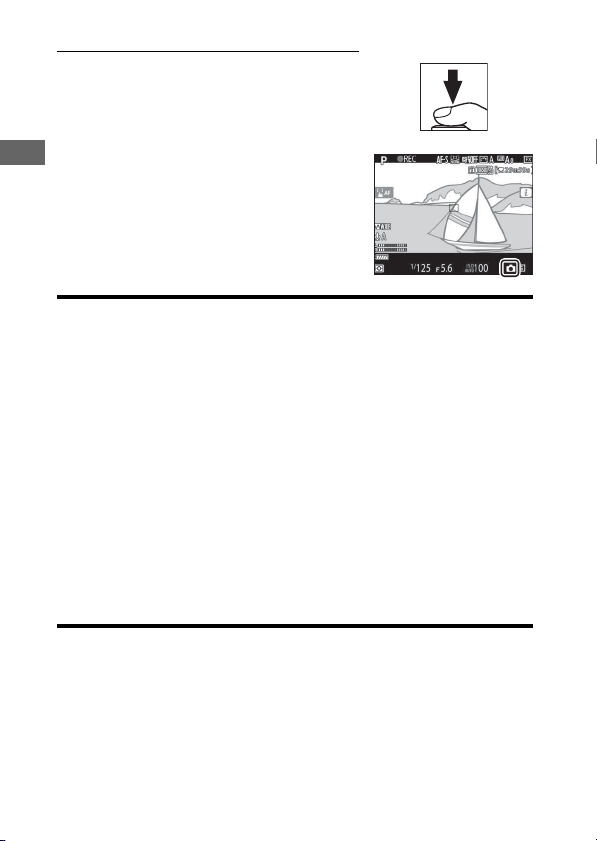
70
Recording Movies
Taking Photos During Filming
Photos can be taken during filming by
pressing the shutter-release button all
the way down. The resulting photo will
have an aspect ratio of 16:9.
•
A
C
icon will flash in the display when
a photo is taken.
•
Photos can be taken while recording is
in progress. Taking photos does not
interrupt movie recording.
D
Taking Photos During Filming
•
Note that photos can be taken even when the subject is not in focus.
•
Photos are recorded at the dimensions currently selected for movie
frame size.
•
Photos are recorded in [JPEG fine
c
] format, regardless of the option
selected for image quality.
•
Photos are recorded to the card in the slot selected for [Destination] in
the movie shooting menu.
•
The frame advance rate for continuous release modes varies with the
option selected for [Frame size/frame rate]. While recording is in
progress, only one photo will be taken each time the shutter-release
button is pressed.
•
Up to 50 photographs can be taken with each movie.
•
Photographs taken during filming will not be displayed automatically
after shooting even if [On] is selected for [Image review] in the
playback menu.
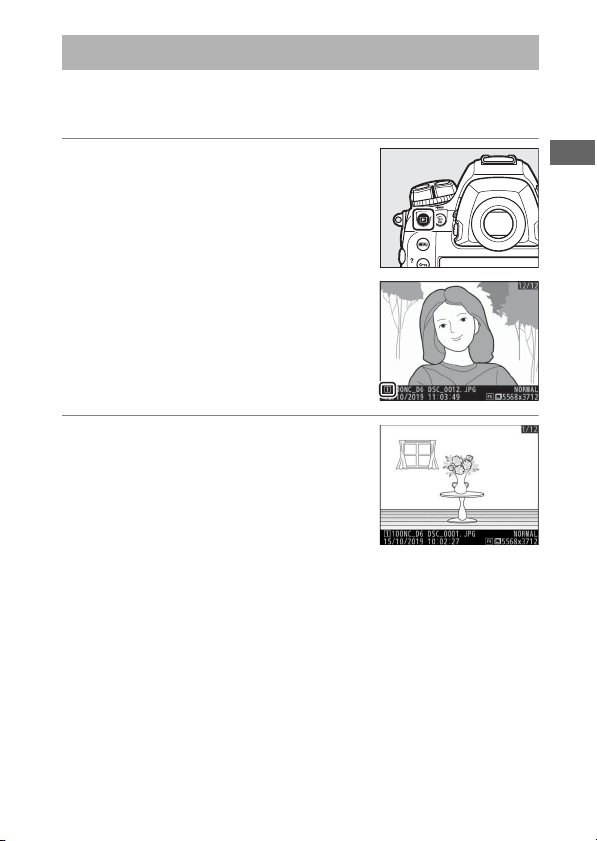
71
Playback
Press the
K
button to view photos and movies recorded with
the camera.
1
Press the
K
button.
•
A picture will be displayed in the
monitor.
•
The memory card containing the
picture currently displayed is
shown by an icon.
2
Press
4
or
2
to view
additional pictures.
•
Additional pictures can also be
viewed by flicking a finger left or
right over the display (
0
21).
•
To end playback and return to
shooting mode, press the shutter-release button halfway.
Playback

72
Playback
A
Image Review
When [On] is selected for [Image review] in the playback menu, pictures
are automatically displayed in the monitor after shooting without the
user pressing the
K
button.
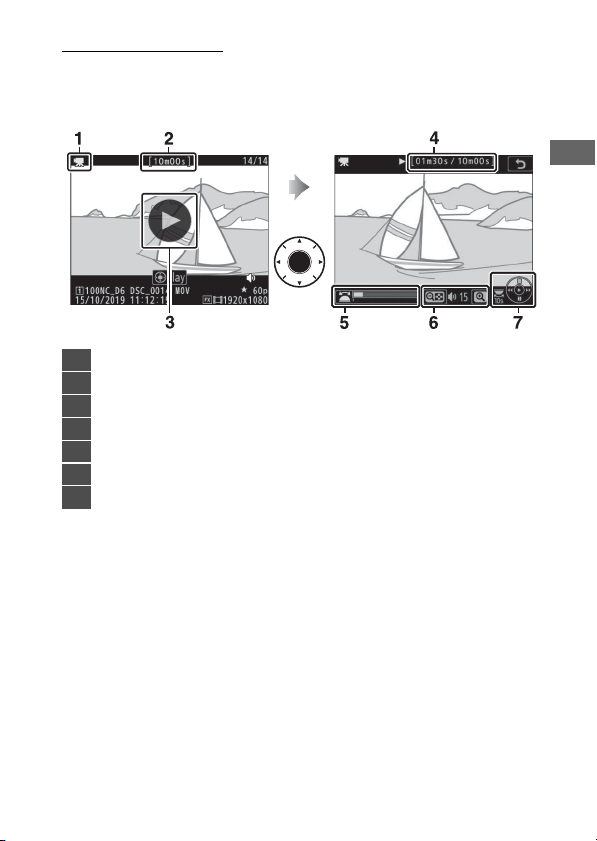
73
Playback
Viewing Movies
Movies are indicated by a
1
icon. Tap the
a
icon in the display
or press the center of the multi selector to start playback (a
progress bar shows your approximate position in the movie).
1
1
icon
2
Length
3
a
icon
4
Current position/total length
5
Progress bar
6
Volume
7
Guide
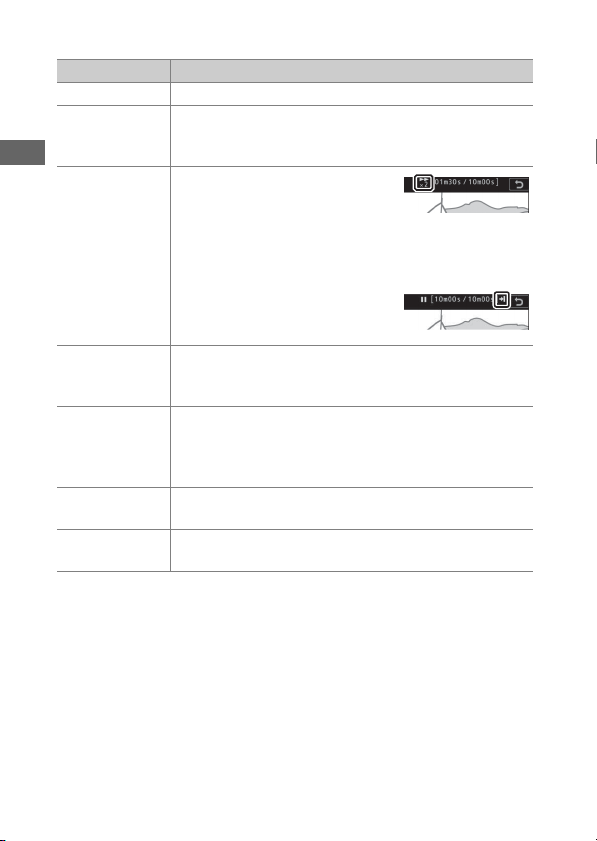
74
Playback
❚❚
Movie Playback Operations
To Description
Pause Press
3
to pause playback.
Resume
Press the center of the multi selector to resume
playback when playback is paused or during rewind/
advance.
Rewind/
advance
•
Press
4
to rewind,
2
to
advance. Speed increases with
each press, from 2× to 4× to 8×
to 16×.
•
Keep
4
or
2
pressed to skip respectively to the first
frame or last frame.
•
The first frame is indicated by a
h
in the top right corner of the
display, the last frame by a
i
.
Start slow-
motion
playback
Press
3
while the movie is paused to start slow-
motion playback.
Jog rewind/
advance
•
Press
4
or
2
while the movie is paused to rewind or
advance one frame at a time.
•
Keep
4
or
2
pressed for continuous rewind or
advance.
Skip 10 s
Rotate the main command dial one stop to skip ahead
or back 10 s.
Skip to last or
first frame
If the movie contains no indices, you can skip to the
first or last frame by rotating the sub-command dial.
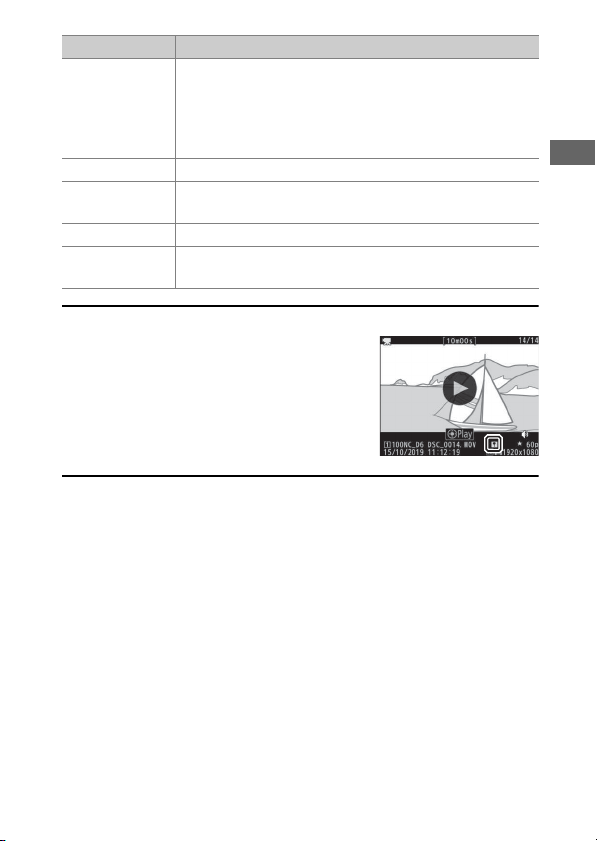
75
Playback
A
Indices
Indices can be added when playback is paused
by pressing the
i
button and selecting [Add
index]. You can quickly jump to indexed
locations during playback and editing. The
presence of indices is indicated by a
p
icon in
the full-frame playback display.
Skip to index
If the movie contains indices, rotating the sub-
command dial takes you to the next or previous index.
•
Indices can be added or removed from the [EDIT
MOVIE] menu, which can be displayed by pausing
playback and pressing the
i
button.
Adjust volume Press
X
to increase volume,
W
(
M
) to decrease.
Trim movie
To display the [EDIT MOVIE] menu, pause playback
and press the
i
button.
Exit Press
1
or
K
to exit to full-frame playback.
Exit to
shooting mode
Press the shutter-release button halfway to exit
playback and return to shooting mode.
To Description
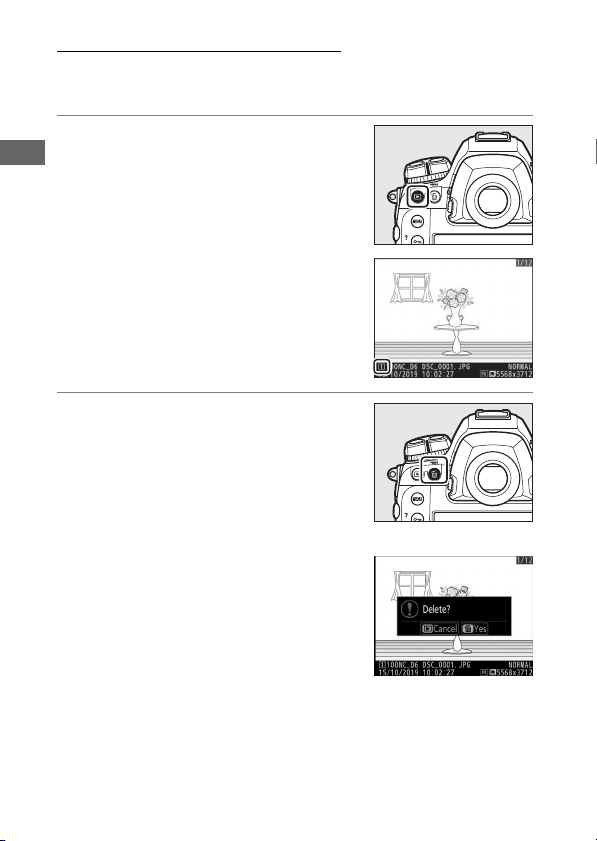
76
Playback
Deleting Unwanted Pictures
Pictures can be deleted as described below. Note that once
deleted, pictures cannot be recovered.
1
Display the picture.
•
Press the
K
button to start
playback and press
4
or
2
until the
desired picture is displayed.
•
The location of the current image
is shown by an icon at the bottom
left corner of the display.
2
Delete the picture.
•
Press the
O
(
Q
) button; a
confirmation dialog will be
displayed. Press the
O
(
Q
) button
again to delete the image and
return to playback.
•
To exit without deleting the
picture, press
K
.
77
Uploading Pictures
You can upload your pictures to smartphones or tablets (smart
devices) or computers. Options for doing so are listed below.
For more information, see the following in the Reference
Manual: “Connecting to Computers and TVs”, “Built-in Wireless”,
and “Ethernet/WT-6”.
Uploading Pictures to Smart Devices
Use the SnapBridge app to upload pictures using the
camera’s built-in Wi-Fi or Bluetooth.
Uploading Pictures to a Computer
or FTP Server
Several options are available for uploading pictures to
computers.
❚❚
Built-in Wi-Fi
Use the camera’s built-in Wi-Fi to upload
pictures to a computer via a wireless
connection.
Uploading Pictures
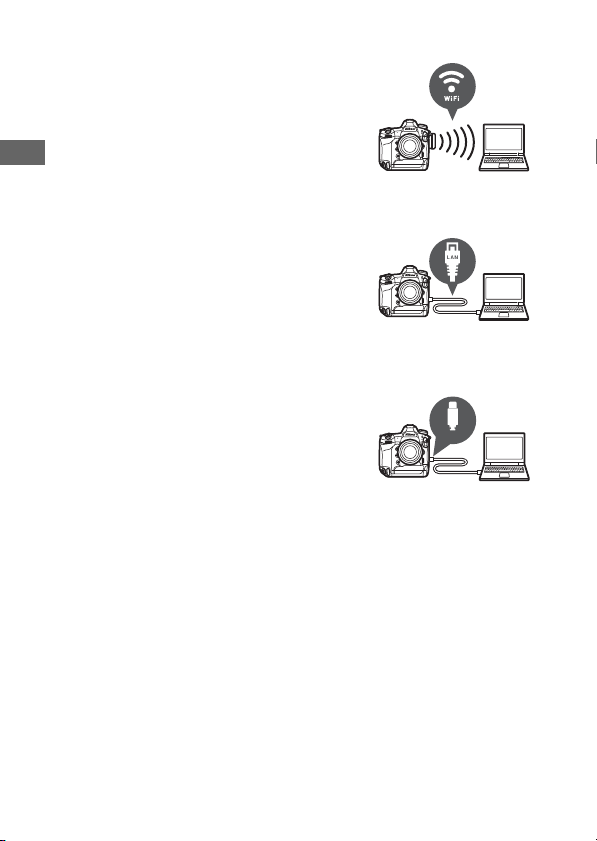
78
Uploading Pictures
❚❚
The WT-6 Wireless Transmitter
Use the optional WT-6 wireless
transmitter to connect to wireless
networks and upload pictures to
computers or ftp servers. The WT-6 offers
more reliable wireless connections than
the camera’s built-in Wi-Fi.
❚❚
Ethernet
Connect to networks using an Ethernet
cable attached to the camera’s Ethernet
connector and upload pictures to
computers or ftp servers.
❚❚
USB
Connect the camera to a computer using
a USB cable and transfer pictures using
the ViewNX-i computer application.
Typ e
-
C

79
Uploading Pictures
D
The Wireless Transmitter Utility
You will need Wireless Transmitter Utility computer software when
uploading pictures to a computer via the camera’s built-in Wi-Fi, the
WT-6, or an Ethernet connection.
D
The SnapBridge App and Computer Applications
•
The SnapBridge app is available from the Apple App Store® and on
Google Play™.
•
Nikon computer software is available from the Nikon Download Center.
Check the version and system requirements and be sure to download
the latest version.
https://downloadcenter.nikonimglib.com/
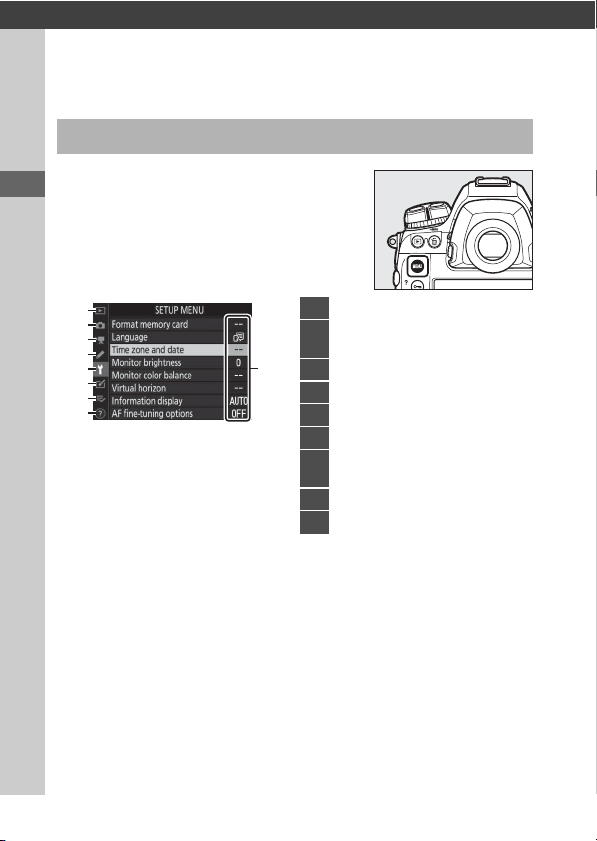
80
The
G
Button
Camera Controls
Press the
G
button to view the menus.
* You can choose the menu displayed. The default is [MY MENU].
The
G
Button
9
1
2
3
4
5
6
7
8
1
D
[PLAYBACK MENU]
2
C
[PHOTO SHOOTING
MENU]
3
1
[MOVIE SHOOTING MENU]
4
A
[CUSTOM SETTING MENU]
5
B
[SETUP MENU]
6
N
[RETOUCH MENU]
7
O
[MY MENU] /
m
[RECENT
SETTINGS]
*
8
d
Help icon
9
Current settings
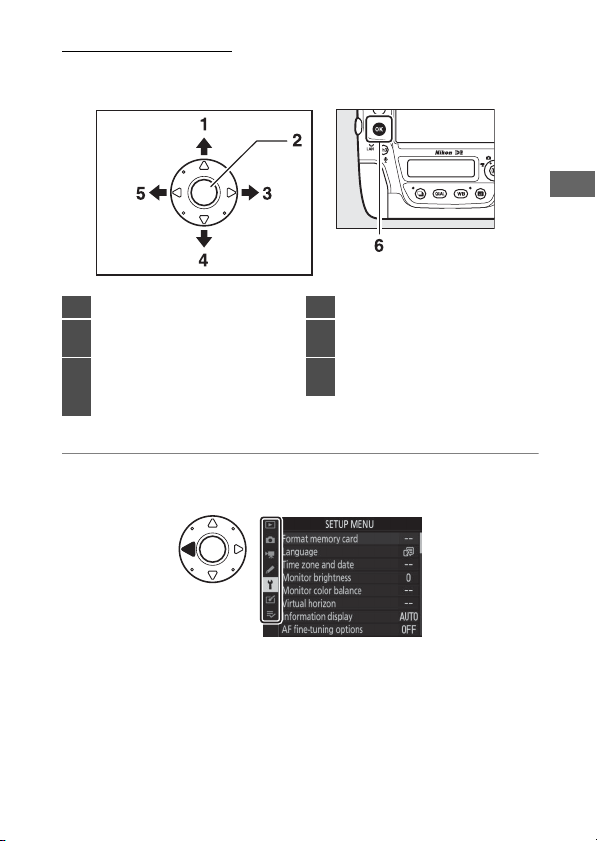
81
The
G
Button
Using the Menus
You can navigate the menus using the multi selector and
J
button.
1
Highlight the icon for the current menu.
Press
4
to highlight the icon for the current menu.
1
Move cursor up
2
Center of multi selector: select
highlighted item
3
Display sub-menu, select
highlighted item, or move
cursor right
4
Move cursor down
5
Cancel and return to previous
menu, or move cursor left
6
J
button: select highlighted
item
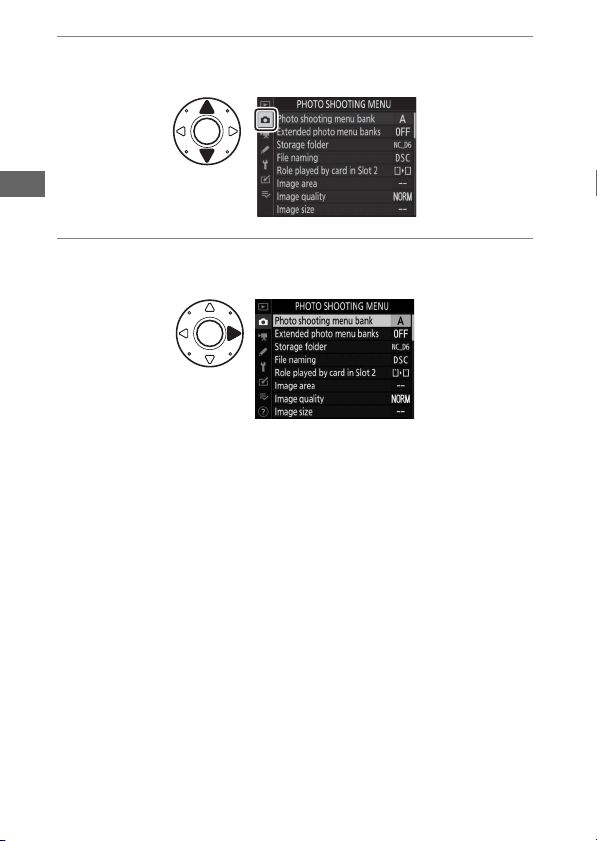
82
The
G
Button
2
Select a menu.
Press
1
or
3
to select the desired menu.
3
Position the cursor in the selected menu.
Press
2
to position the cursor in the selected menu.
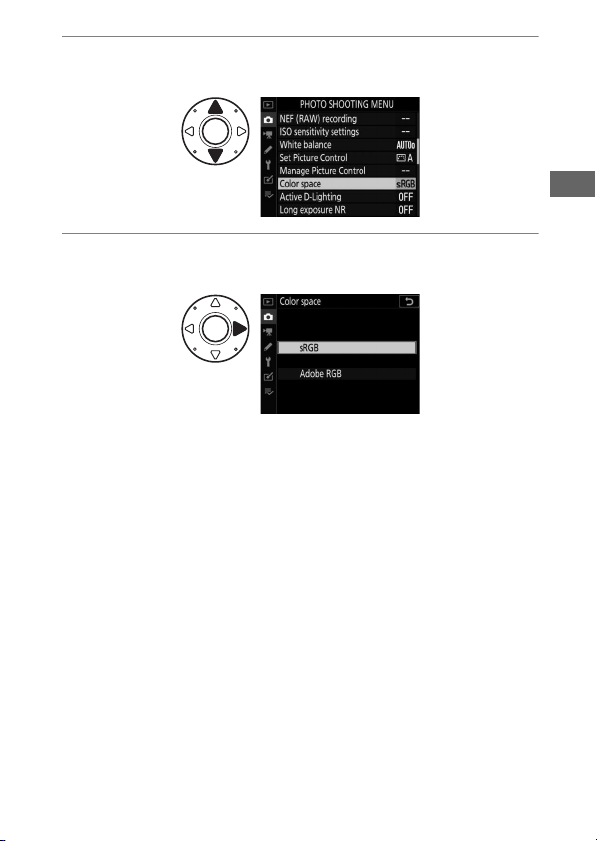
83
The
G
Button
4
Highlight a menu item.
Press
1
or
3
to highlight a menu item.
5
Display options.
Press
2
to display options for the selected menu item.
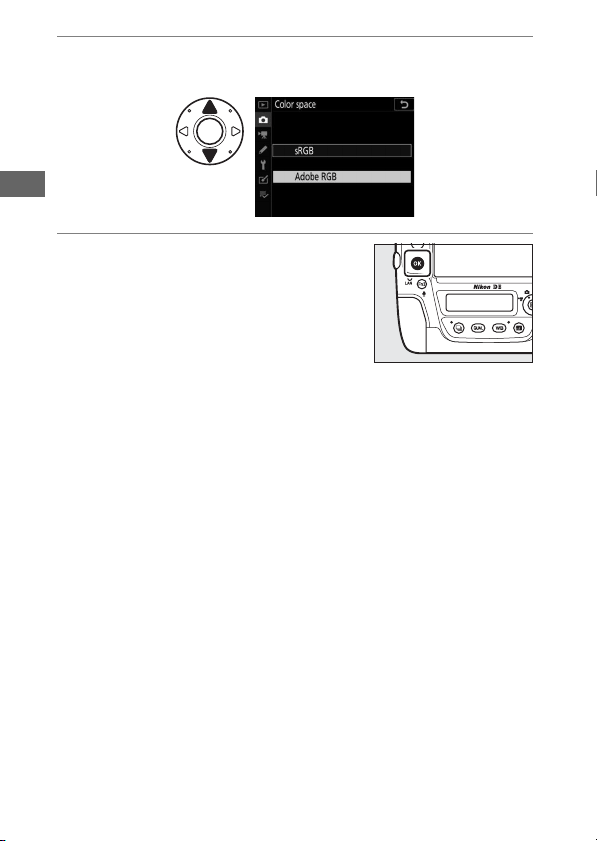
84
The
G
Button
6
Highlight an option.
Press
1
or
3
to highlight an option.
7
Select the highlighted option.
•
Press
J
.
•
To exit without making a selection,
press the
G
button.
•
To exit the menus and return to
shooting mode, press the shutter-
release button halfway.
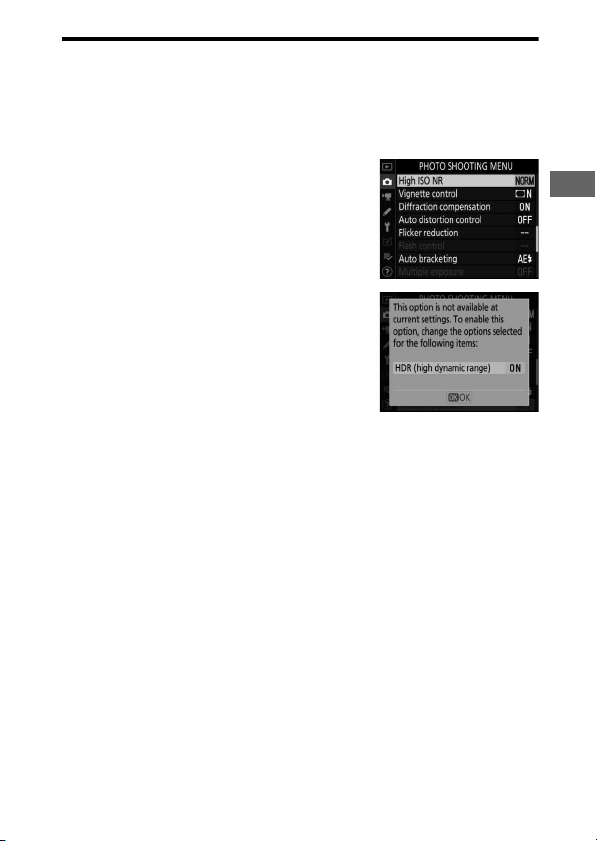
85
The
G
Button
D
The
J
Button
While pressing
2
or the center of the multi selector generally has the
same effect as pressing
J
, there are some items for which selection can
only be made by pressing
J
.
D
Grayed-Out Items
•
Some items and menu options may be
unavailable depending on camera status.
Unavailable items are displayed in gray.
•
In some cases, pressing
J
when a grayed-out
item is highlighted will display a message
explaining why the item is unavailable.
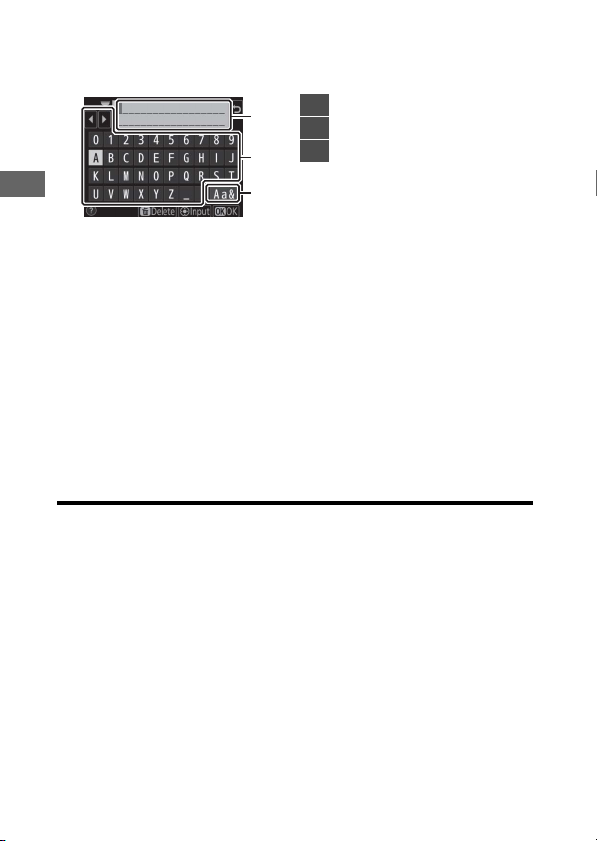
86
The
G
Button
D
Text Entry
A keyboard is displayed when text entry is required. Enter text as
described below.
•
Enter characters at the current cursor position by highlighting them
with the multi selector arrow keys and then pressing the center of the
multi selector.
•
To move the cursor left or right in the text display area, rotate the main
command dial.
•
To cycle through the upper- and lower-case and symbol keyboards,
highlight the keyboard selection icon and press the center of the multi
selector. The keyboard selection icon may not be available in some
cases.
•
If a character is entered when the text display area is full, the rightmost
character will be deleted.
•
To delete the character under the cursor, press the
O
(
Q
) button.
•
To complete entry, press
J
.
•
To exit without completing text entry, press
G
.
3
2
1
1
Text display area
2
Keyboard area
3
Keyboard selection
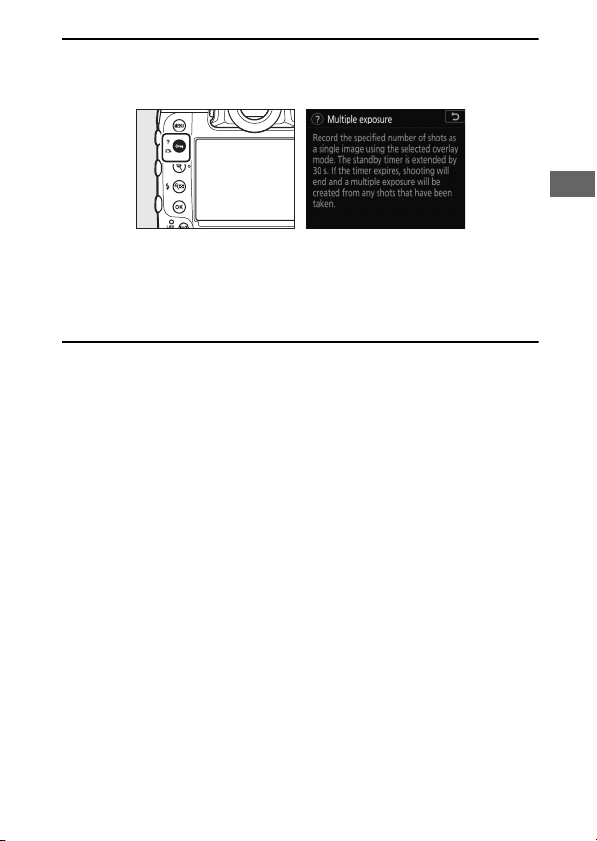
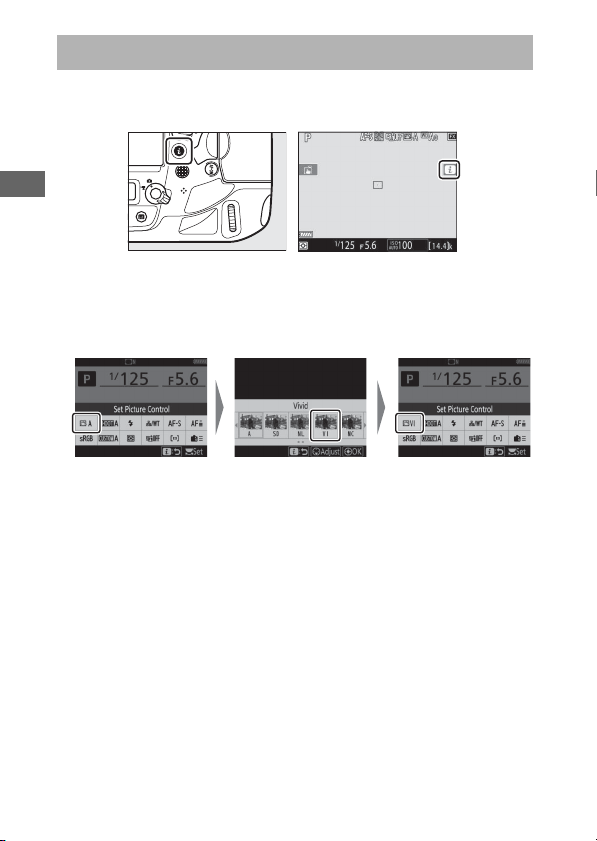
88
The
i
Button (the
i
Menu)
For quick access to frequently-used settings, press the
i
button
or tap the
i
icon in the live-view display to view the
i
menu.
•
Highlight items using the multi selector and press the center
of the multi selector to view options. Highlight the desired
option and press the center of the multi selector to select and
return to the
i
menu.
•
To cancel and return to the previous display, press the
i
button.
•
Different menus are displayed during viewfinder
photography, live view, and movie recording.
The
i
Button (the
i
Menu)
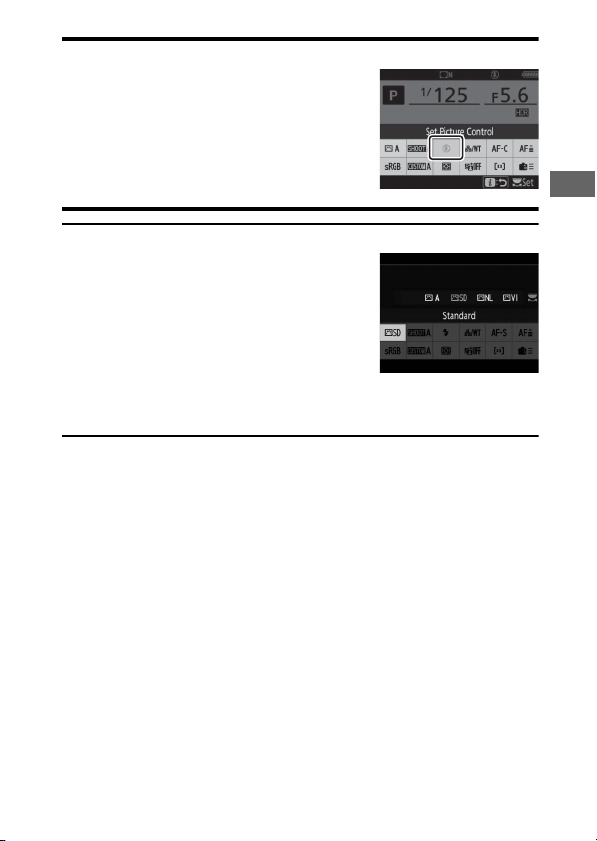
89
The
i
Button (the
i
Menu)
D
Grayed-Out Items
Some items and menu options may be
unavailable depending on camera status.
Unavailable items are displayed in gray and
cannot be selected.
A
The Command Dials
•
The main command dial can be used to
choose the setting for the item currently
highlighted in the
i
menu. Options for the
selected setting, if any, can be selected by
rotating the sub-command dial.
•
Some items can be adjusted by rotating
either dial.
•
Press
J
to save changes. You can also save changes by pressing the
shutter-release button halfway or highlighting another item.
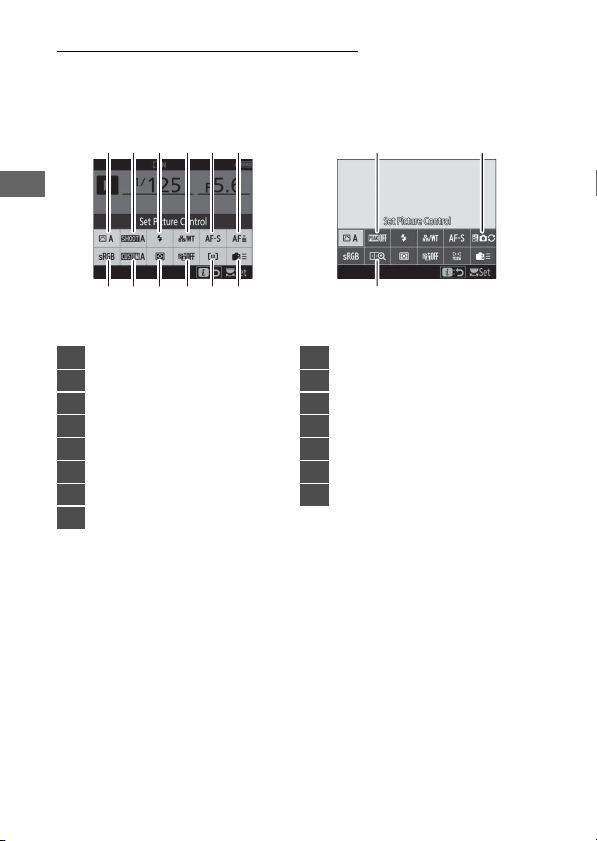
90
The
i
Button (the
i
Menu)
The Still Photography
i
Menu
Pressing the
i
button during still photography displays the
items listed below. Highlight the desired item using the multi
selector and press
J
to view options.
1 Displayed during viewfinder photography only.
2 Displayed during live view photography only.
Viewfinder photography Live view photography
123 456
87 9 10 11 12
13 14
15
1
Set Picture Control
2
Photo shooting menu bank
1
3
Flash mode
4
Wired LAN/WT
5
Autofocus mode
6
Focus tracking with lock-on
1
7
Color space
8
Select custom settings bank
1
9
Metering
10
Active D-Lighting
11
AF-area mode
12
Custom controls
13
Peaking highlights
2
14
Photo live view display WB
2
15
Split-screen display zoom
2

91
The
i
Button (the
i
Menu)
A
Customizing the
i
Menu
Choose the items displayed in the
i
menus. Use Custom Settings f1
[Customize
i
menu] and f2 [Customize
i
menu (Lv)] to choose the
items displayed in viewfinder and live photography, respectively.
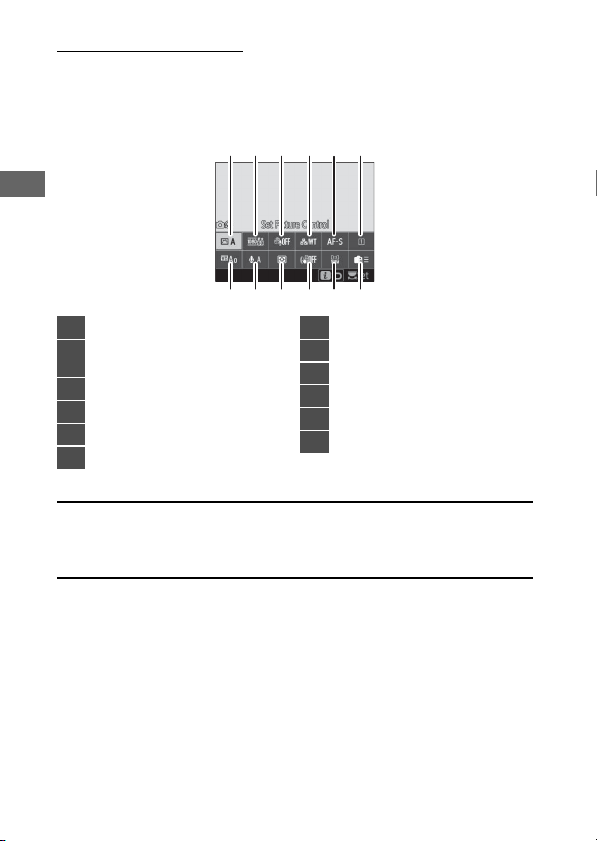
92
The
i
Button (the
i
Menu)
The Movie
i
Menu
Pressing the
i
button during movie recording displays the
items listed below. Highlight the desired item using the multi
selector and press
J
to view options.
A
Customize the
i
Menu
Use Custom Setting g1 [Customize
i
menu] to choose the items
displayed in the movie
i
menu.
123 456
87 9 10 11 12
1
Set Picture Control
2
Frame size and rate/image
quality
3
Wind noise reduction
4
Wired LAN/WT
5
Autofocus mode
6
Destination
7
White balance
8
Microphone sensitivity
9
Metering
10
Electronic VR
11
AF-area mode
12
Custom controls
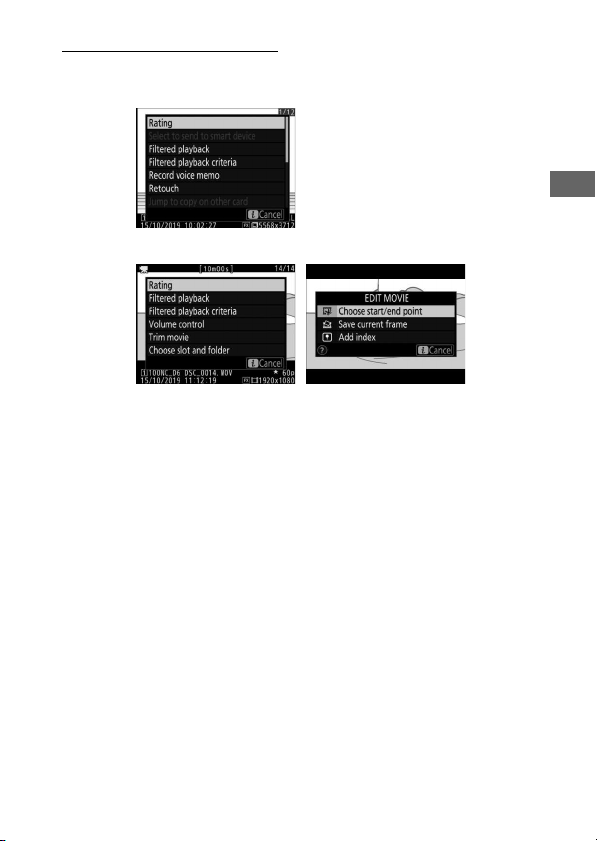
93
The
i
Button (the
i
Menu)
The Playback
i
Menu
Pressing the
i
button during playback displays a context-
sensitive
i
menu of frequently-used playback options.
Photo playback
Movie playback Movie playback paused
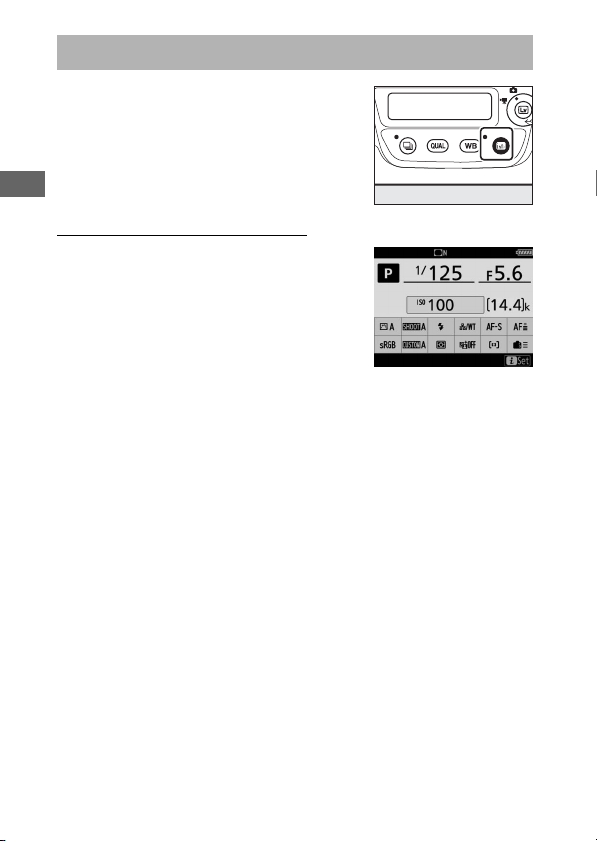
94
The
R
Button
Use the
R
button to view shooting
information or choose the indicators
displayed.
Viewfinder Photography
During viewfinder photography, you can
press the
R
button to view an
information display in the monitor. The
display lists such data as shutter speed,
aperture, number of exposures
remaining, and AF-area mode.
The
R
Button
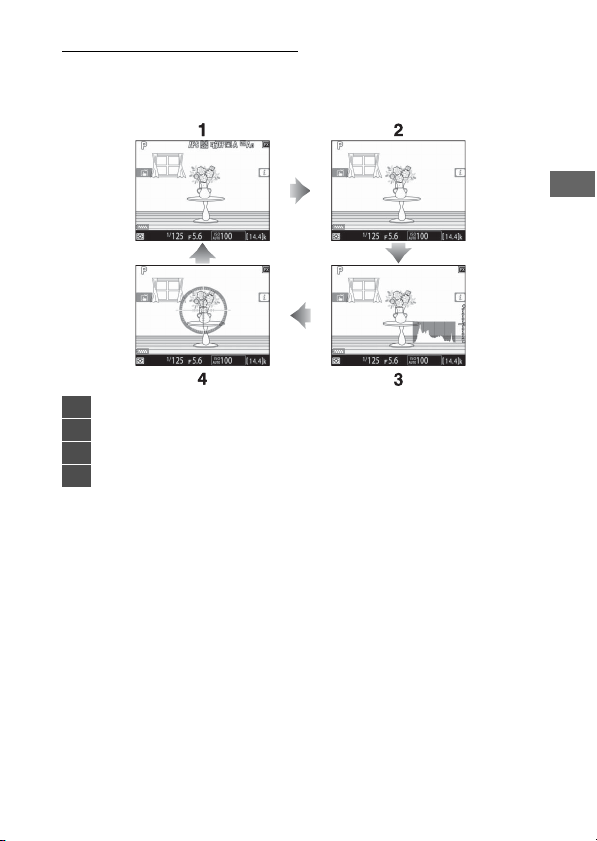
95
The
R
Button
Live View Photography
Use the
R
button to cycle through the following displays:
❚❚
Live View Selector Rotated to
C
*Displayed during exposure preview only.
1
Indicators on
2
Simplified display
3
Histogram
*
4
Virtual horizon
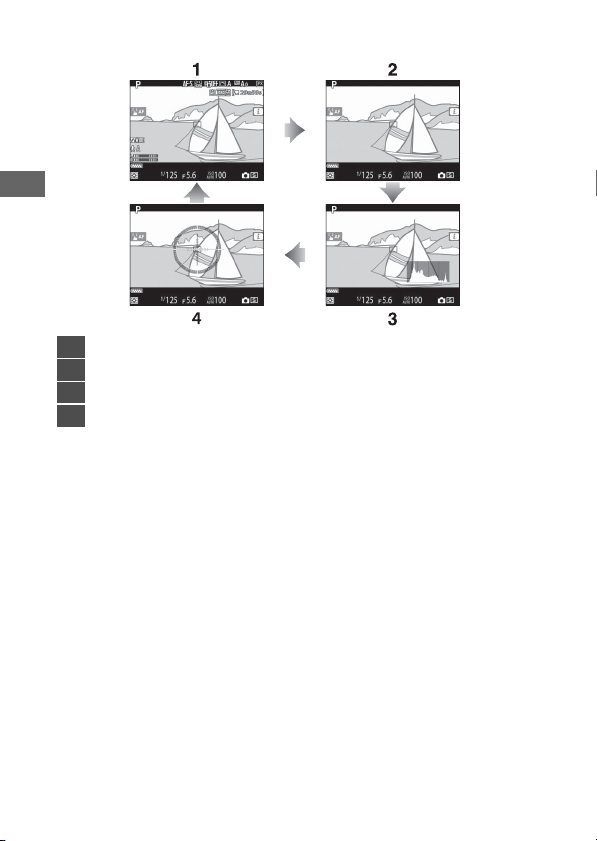
96
The
R
Button
❚❚
Live View Selector Rotated to
1
1
Indicators on
2
Simplified display
3
Histogram
4
Virtual horizon
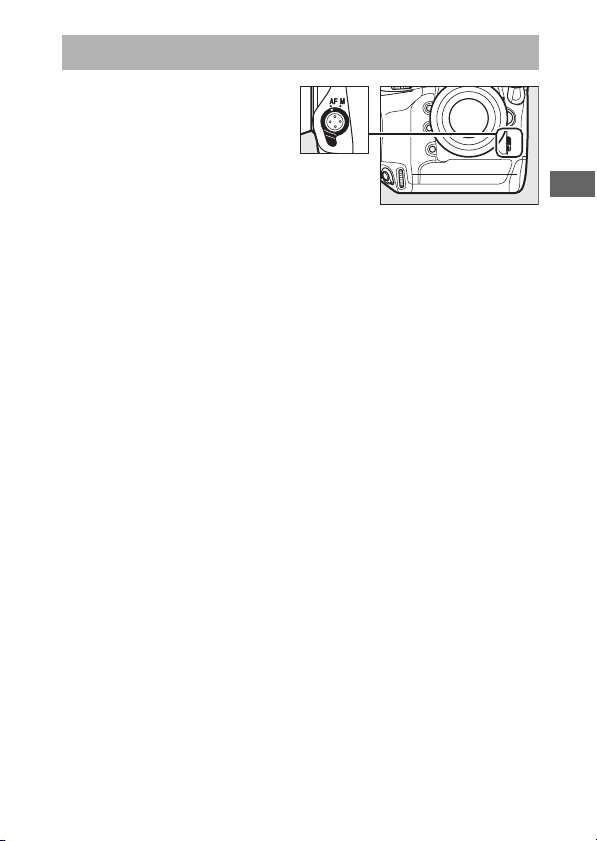
97
The Focus-Mode Selector
Choose AF for autofocus, M
for manual focus.
The Focus-Mode Selector
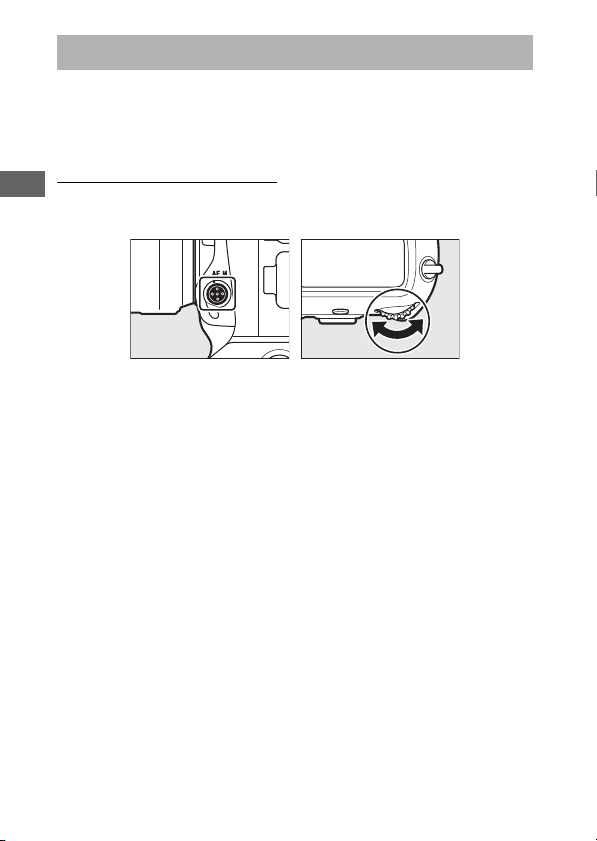
98
The AF-Mode Button
Choose the AF and AF-area modes. The AF mode determines
how the camera focuses in autofocus mode, the AF-area mode
how the camera selects the focus point for autofocus.
Choosing an AF Mode
Hold the AF-mode button and rotate the main command dial.
The options available vary with camera settings.
The AF-Mode Button
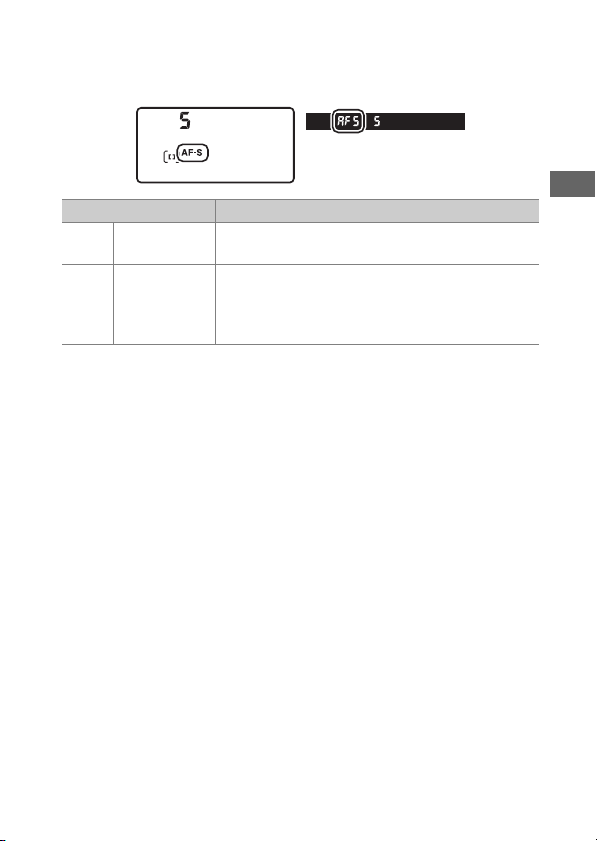
99
The AF-Mode Button
❚❚
Viewfinder Photography
During viewfinder photography, the selected AF mode is
displayed in the top control panel and viewfinder.
Option Description
AF-S [Single AF]
Use with stationary subjects. Focus locks while
the shutter-release button is pressed halfway.
AF-C
[Continuous
AF]
For moving subjects. The camera adjusts focus
continuously in response to changes in the
distance to the subject while the shutter-release
button is pressed halfway.
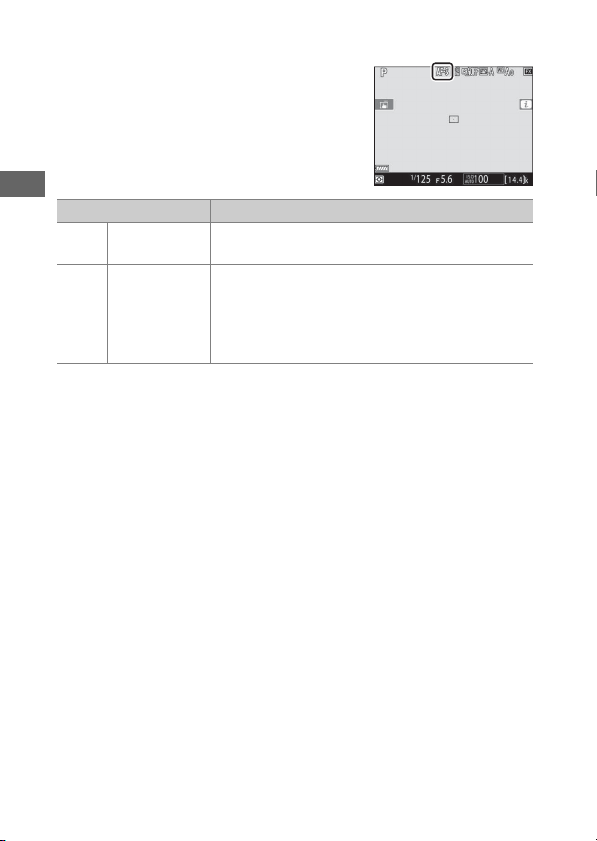
100
The AF-Mode Button
❚❚
Live View Photography and Filming
During live view photography and
filming, the selected AF mode is
displayed in the monitor.
Option Description
AF-S [Single AF]
Use with stationary subjects. Focus locks while
the shutter-release button is pressed halfway.
AF-F [Full-time AF]
For moving subjects. The camera adjusts focus
continuously in response to changes in the
distance to the subject until the shutter-release
button is pressed halfway. Focus locks while the
shutter-release button is pressed halfway.
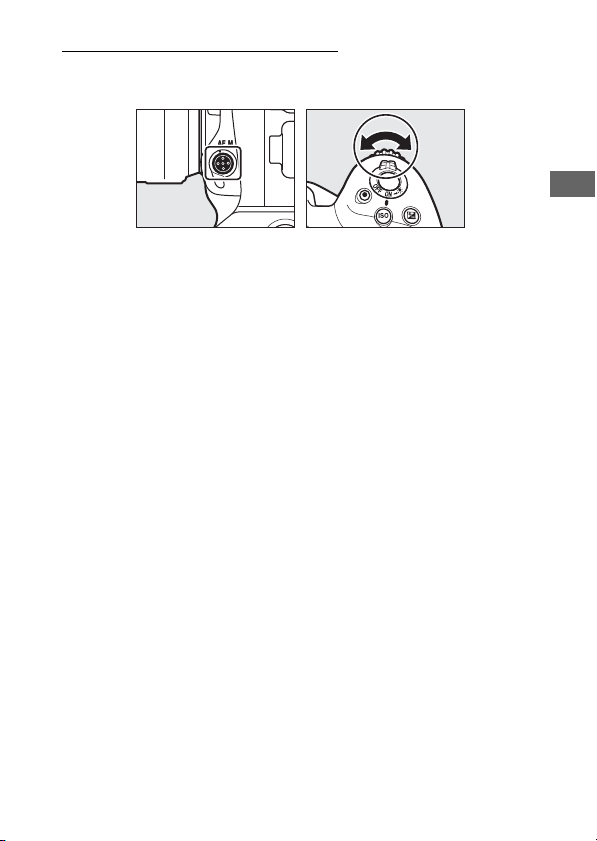
101
The AF-Mode Button
Choosing an AF-Area Mode
Hold the AF-mode button and rotate the sub-command dial.
The options available vary with the AF mode.
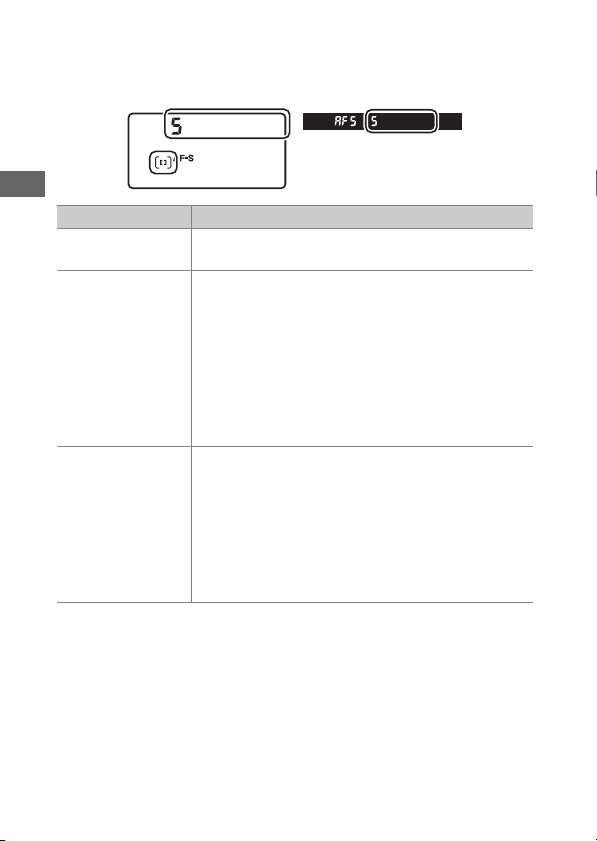
102
The AF-Mode Button
❚❚
Viewfinder Photography
The selected AF-area mode is displayed in the top control panel
and viewfinder during viewfinder photography.
Option Description
[Single-point AF]
The camera focuses on a point selected by the user.
•
Use with stationary subjects.
[Dynamic-area AF
(9 points)]/
[Dynamic-area AF
(25 points)]/
[Dynamic-area AF
(49 points)]/
[Dynamic-area AF
(105 points)]
The camera focuses on a point selected by the user;
if the subject briefly leaves the selected point, the
camera will focus based on information from
surrounding focus points. Dynamic-area AF is
available when AF-C is selected for autofocus
mode.
•
Choose for subjects that move unpredictably. The
greater the number of focus points, the wider the
area used for focus.
[3D-tracking]
The user selects the focus point; while the shutter-
release button is pressed halfway, the camera will
track subjects that leave the selected focus point
and select new focus points as required. 3D-
tracking is available when AF-C is selected for
autofocus mode.
•
Use for subjects that are moving erratically from
side to side.
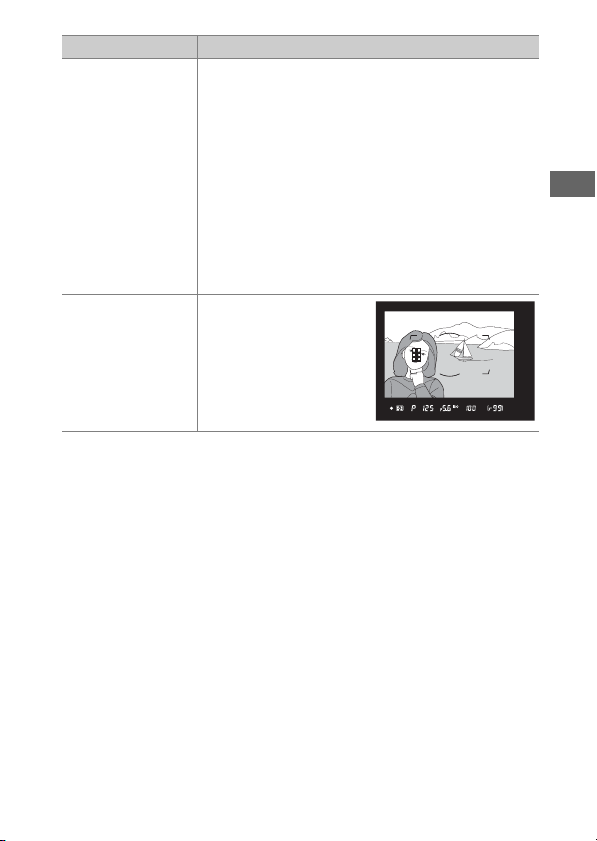
103
The AF-Mode Button
[Group-area AF]/
[Group-area AF
(C1)]/[Group-area
AF (C2)]
The camera focuses using a group of focus points
selected by the user.
•
Choose for snapshots, subjects that are in motion,
and other subjects that are difficult to
photograph using [Single-point AF].
•
Use [Group-area AF (C1)] and [Group-area AF
(C2)] to create custom groups in which the
number of focus points in each dimension can be
chosen using the multi selector. This can be used,
for example, if the size and shape of the area used
for focus can be determined in advance with a fair
degree of accuracy.
[Auto-area AF]
The camera
automatically detects
the subject and selects
the focus point. If a face
is detected, the camera
will give priority to the
portrait subject.
Option Description
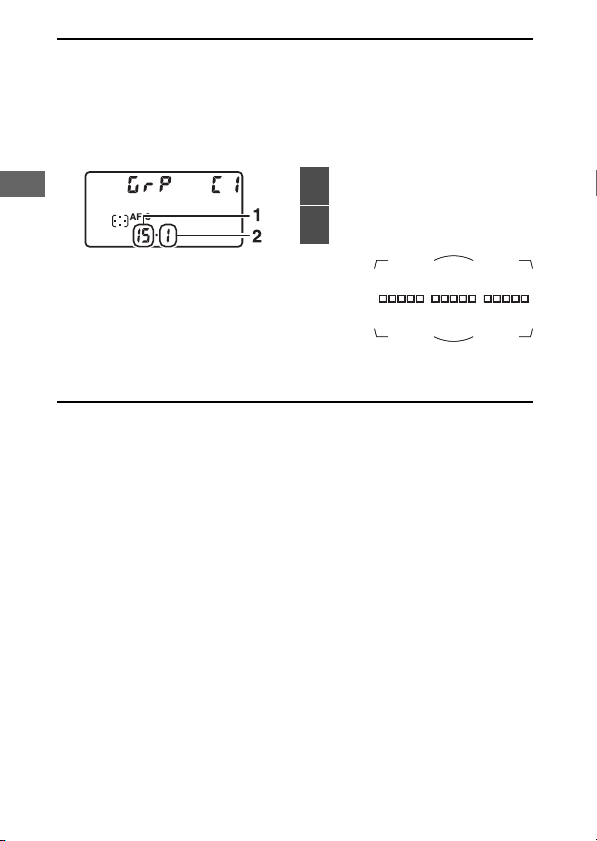
104
The AF-Mode Button
A
Custom Focus Groups: [Group-Area AF (C1)]/[Group-Area AF
(C2)]
•
When [Group-area AF (C1)] or [Group-area AF (C2)] is highlighted, you
can adjust the width of the custom focus group by holding the AF-mode
button and pressing
4
or
2
. Press
1
or
3
to choose the height. The
height and width are shown in the top control panel.
•
If you keep your eye to the viewfinder while
choosing the number of focus points, you
can preview the shape of the selected
custom focus group.
•
The number of focus points can also be selected using Custom Setting
a10 [Custom groupings (C1/C2)].
1
Width (number of focus
points)
2
Height (number of focus
points)
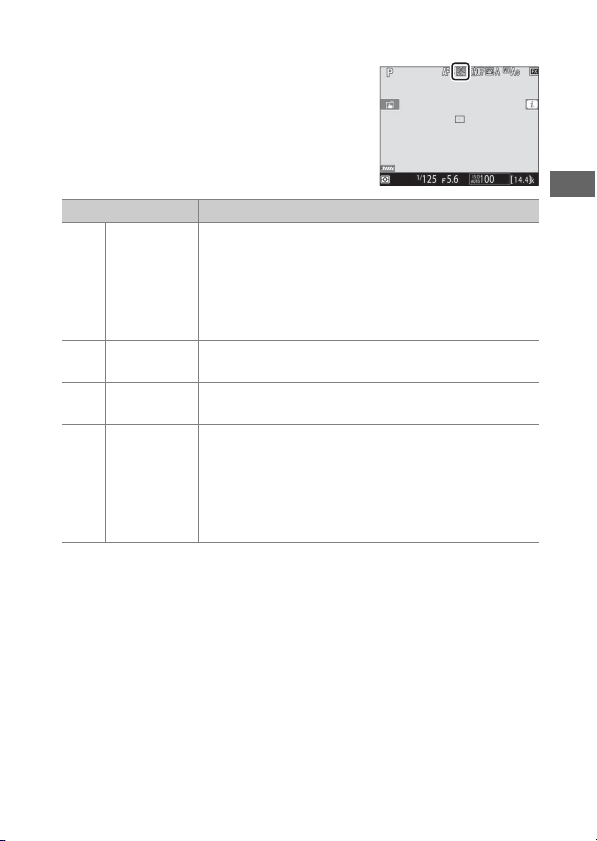
105
The AF-Mode Button
❚❚
Live View Photography/Movie Recording
The selected AF-area mode is displayed
in the monitor during live view
photography and filming.
Option Description
!
[Face-
priority AF]
The camera automatically detects and focuses on
portrait subjects; the selected subject is indicated
by a yellow border. If multiple faces (up to a
maximum of 16) are detected, you can choose a
subject using the multi selector.
•
Use for portraits.
5
[Wide-area
AF]
As for [Normal-area AF] except that the camera
focuses on a wider area.
6
[Normal-
area AF]
The camera focuses on a point selected by the user.
n
[Subject-
tracking AF]
Position the focus point over your subject and
press the center of the multi selector; the focus
point will track the selected subject as it moves
through the frame. To end tracking, press the
center of the multi selector again.
•
Use to track focus on a chosen subject.
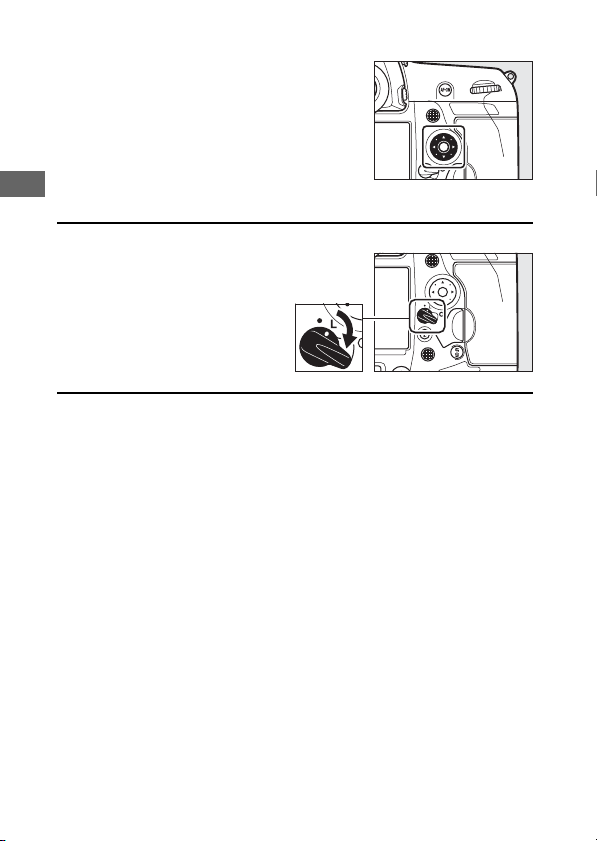
106
The AF-Mode Button
❚❚
Manual Focus-Point Selection
When an option other than [Auto-area
AF], [Face-priority AF], or [Subject-
tracking AF] is selected for AF-area
mode, you can select the focus point
manually. Press the multi selector up,
down, left, or right (
1342
) or
diagonally to select the focus point.
A
Locking Focus-Point Selection
Focus-point selection can be
locked by rotating the focus
selector lock to the “L” position.
Focus-point selection can be re-
enabled by rotating the lock to
I
.
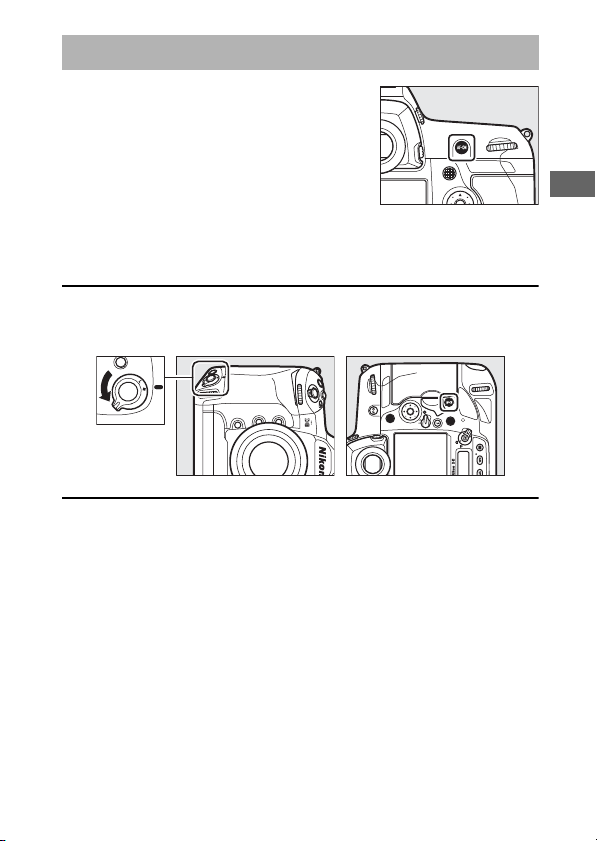
107
The AF-ON Button
The AF-ON button can be used for focus
in autofocus mode.
•
You can choose the role assigned to
the AF-ON button. Use Custom
Settings f3 [Custom controls] and g2
[Custom controls] in the Custom
Settings menu to choose the roles played by the button
during photography and movie recording, respectively.
A
The AF-ON Button for Vertical Shooting
The AF-ON button performs the same function, but can only be used
when the vertical shooting shutter-release button lock is unlocked.
The AF-ON Button
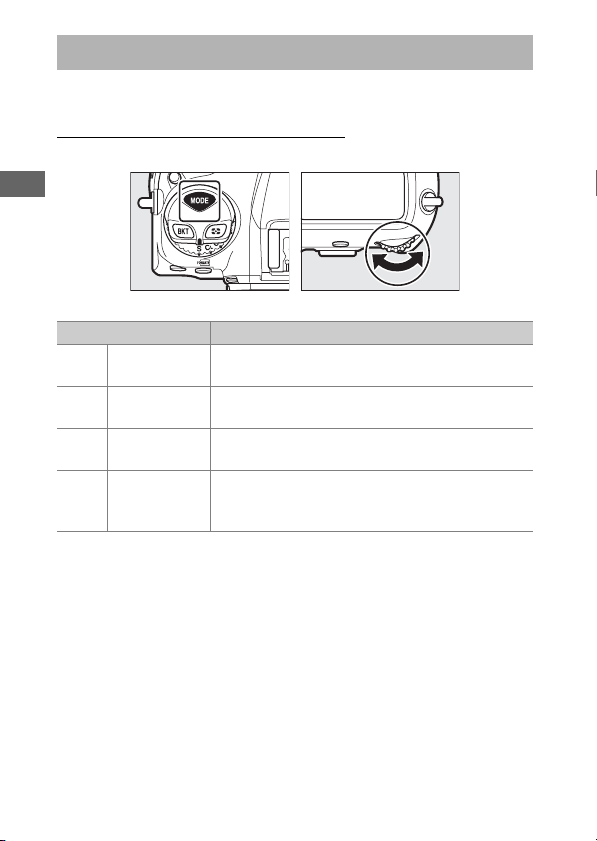
108
The
I
Button
Choose an exposure mode.
Choosing an Exposure Mode
Hold the
I
button and rotate the main command dial.
The
I
Button
Mode Description
P
Programmed
auto
The camera sets shutter speed and aperture for
optimal exposure.
S
Shutter-
priority auto
You choose the shutter speed; the camera
selects the aperture for best results.
A
Aperture-
priority auto
You choose the aperture; the camera selects the
shutter speed for best results.
MManual
You control both shutter speed and aperture.
Set shutter speed to “bulb” or “time” for long
time-exposures.
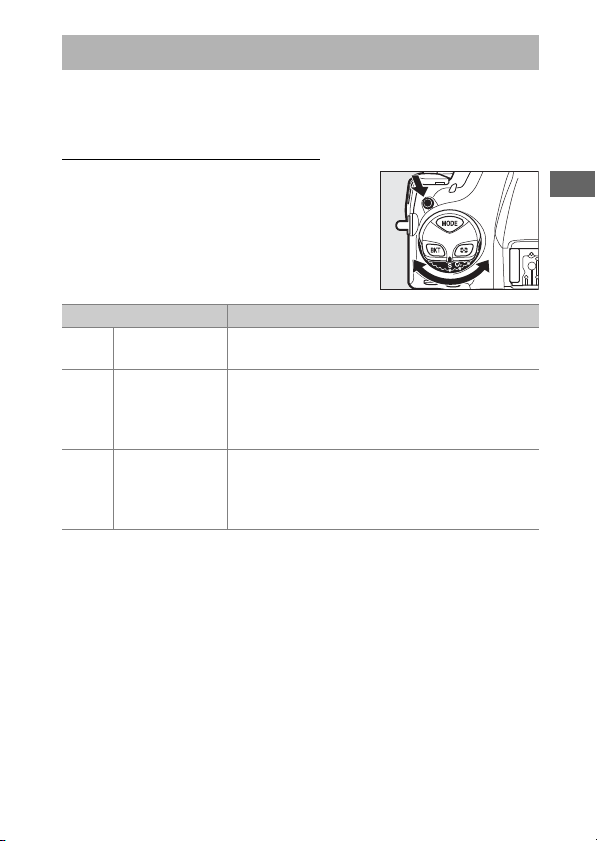
109
The Release Mode Dial and
S
Button
Rotate the release mode dial to choose the operation
performed when the shutter is released.
Choosing a Release Mode
Press the release mode dial lock release
on top of the camera and rotate the
release mode dial.
The Release Mode Dial and
S
Button
Mode Description
SSingle frame
The camera takes one photograph each time
the shutter-release button is pressed.
C
L
Continuous
low speed
The camera takes photos at a selected rate
while the shutter-release button is pressed.
The frame rate can be selected from values
between 1 and 10 fps.
C
H
Continuous
high speed
The camera takes photos at a selected rate
while the shutter-release button is pressed.
The frame rate can be selected from values
between 10 and 14 fps.
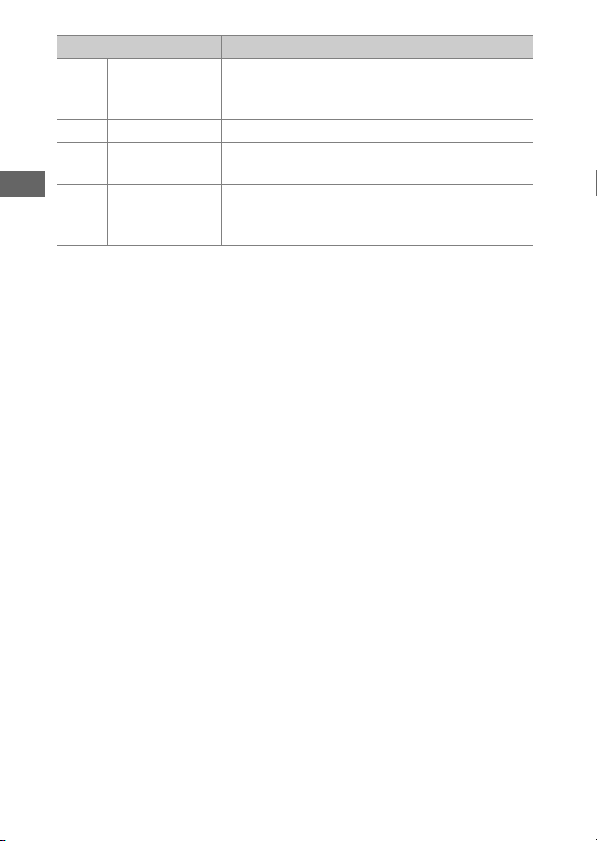
110
The Release Mode Dial and
S
Button
Q
Quiet shutter
release
Take pictures more quietly than in single-
frame mode. Burst shooting at rates of 1 to 5
fps is also supported.
E
Self-timer Take pictures with the self-timer.
M
UP Mirror up
The mirror is raised before shooting to
minimize blur caused by camera shake.
S
Quick release-
mode
selection
The release mode can be selected by holding
the
S
button and rotating the main command
dial.
Mode Description
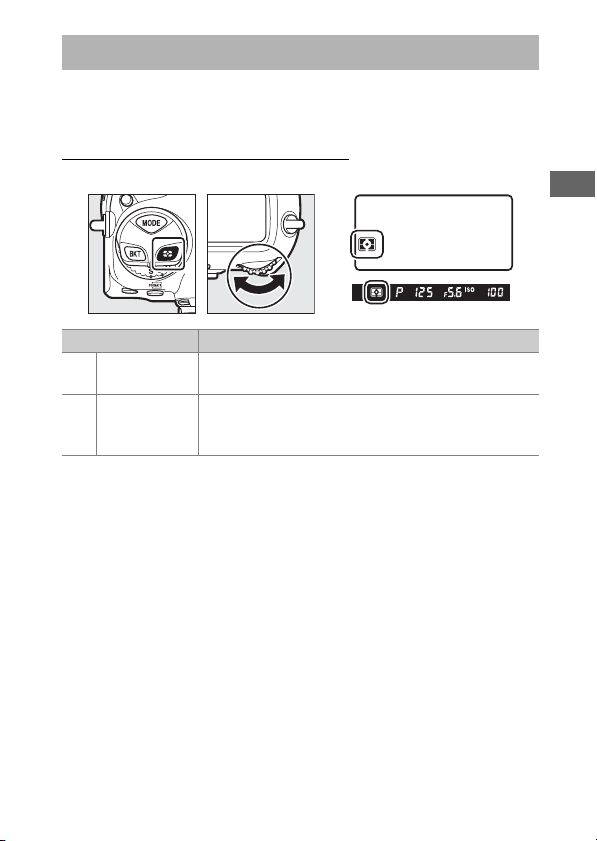
111
The
Y
Button
Use the
Y
button to choose how the camera meters light when
setting exposure.
Choosing a Metering Option
Hold the
Y
button and rotate the main command dial.
The
Y
Button
Option Description
L
[Matrix
metering]
Matrix metering is adapted to a wide range of
subjects. It produces natural-looking results.
M
[Center-
weighted
metering]
The camera assigns the greatest weight to the
center of the frame. It can be used with subjects
that dominate the composition, for example.

112
The
Y
Button
N
[Spot
metering]
The camera meters a circle 4 mm (0.16 in.) in
diameter (approximately 1.5% of frame). Use for
example to meter a specific area of the frame when
your subject is backlit or features sharply
contrasting areas.
t
[Highlight-
weighted
metering]
The camera assigns the greatest weight to
highlights. Use this option to reduce loss of detail
in highlights, for example when photographing
spotlit performers on stage.
Option Description
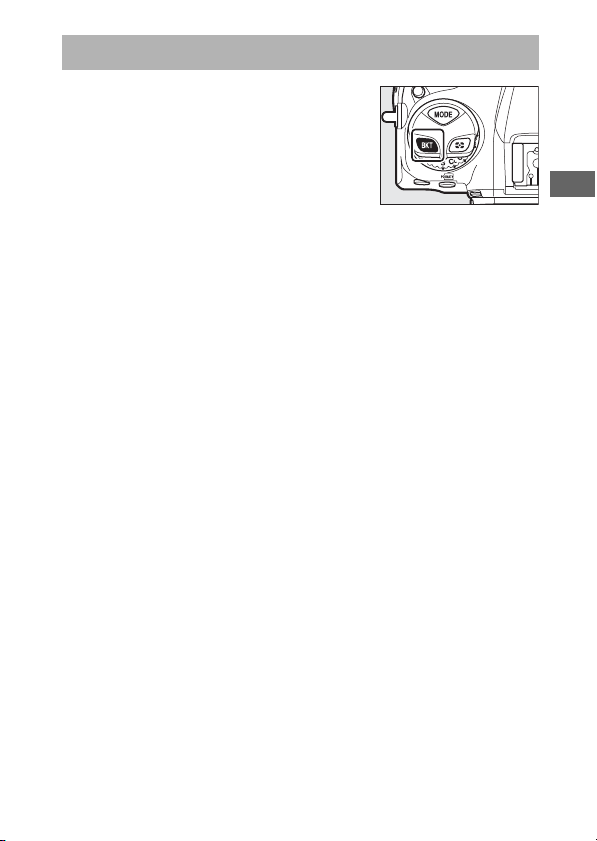
113
The BKT Button
Use the BKT button to choose the
bracketing increment and number of
shots in the bracketing program.
Bracketing is used to vary exposure, flash
level, white balance, or Active D-Lighting
(ADL) over a series of shots.
•
The role performed by the BKT button can be chosen using
Custom Setting f3 [Custom controls].
The BKT Button
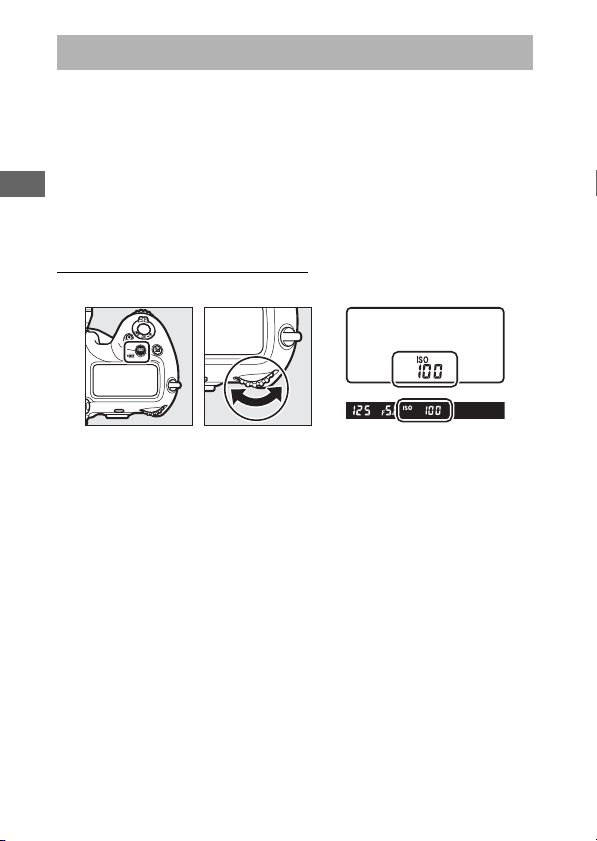
114
The
S
(
Q
) Button
Use the
S
(
Q
) button to adjust the camera’s sensitivity to
light (ISO sensitivity). The higher the ISO sensitivity, the less light
needed to make an exposure, allowing faster shutter speeds or
smaller apertures. You also have the option of enabling auto ISO
sensitivity control, which automatically adjusts sensitivity if
optimal exposure cannot be achieved at the setting selected by
the user.
Adjusting ISO Sensitivity
Hold the
S
(
Q
) button and rotate the main command dial.
Choose from values of from ISO 100 to 102400. Settings of from
about 0.3 to 1 EV below ISO 100 and 0.3 to 5 EV above ISO
102400 are also available.
The
S
(
Q
) Button

115
The
S
(
Q
) Button
D
High ISO Sensitivities
The higher the ISO sensitivity, the less light needed to make an exposure,
allowing pictures to be taken when lighting is poor and helping prevent
blur when the subject is in motion. Note, however, that the higher the
sensitivity, the more likely the image is to be affected by “noise” in the
form of randomly-spaced bright pixels, fog, or lines.
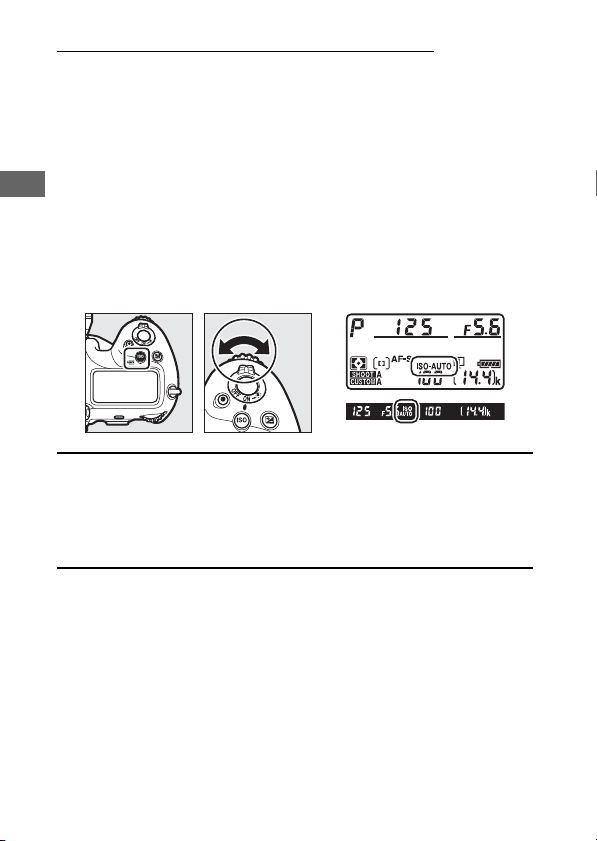
116
The
S
(
Q
) Button
Enabling Auto ISO Sensitivity Control
Hold the
S
(
Q
) button and rotate the sub-command dial to
choose whether the camera will automatically adjust ISO
sensitivity if the desired exposure cannot be achieved at the
value selected by the user.
•
When auto ISO sensitivity control is enabled, ISO AUTO
indicators will appear in the top control panel and viewfinder.
When these indicators are lit (not flashing), pictures will be
taken at the sensitivity selected for [ISO sensitivity]. When
sensitivity is altered from the value selected by the user, the
ISO AUTO indicators will flash and the altered value will be
shown in the displays.
A
Maximum Sensitivity
You can select an upper limit for auto ISO sensitivity control to prevent
ISO sensitivity being raised too high. The maximum ISO sensitivity can be
selected using the [ISO sensitivity settings]> [Auto ISO sensitivity
control]> [Maximum sensitivity] item in the photo shooting menu.
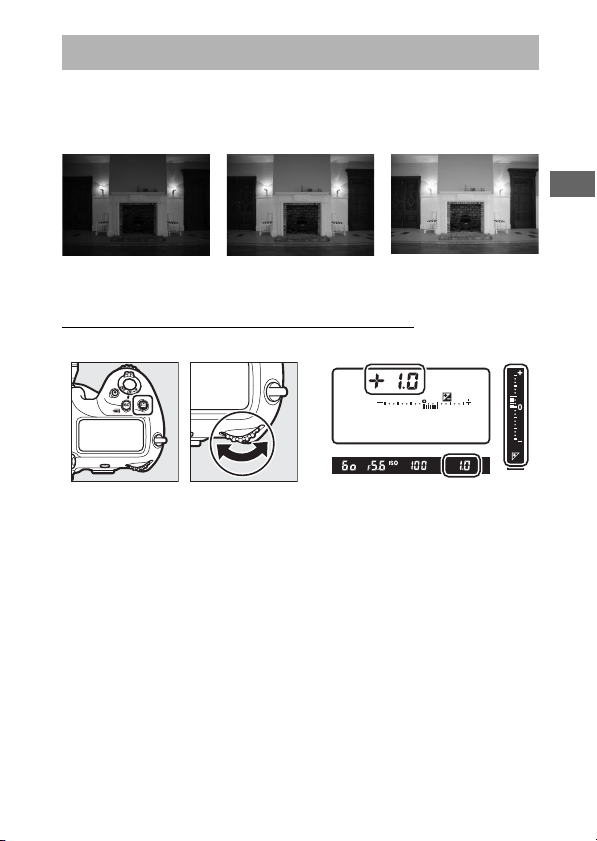
117
The
E
Button
Use the
E
(exposure compensation) button to alter exposure
from the value suggested by the camera. Exposure
compensation can be used to make pictures brighter or darker.
Adjusting Exposure Compensation
Hold the
E
button and rotate the main command dial.
•
Higher values make the subject brighter, lower values darker.
•
Normal exposure can be restored by setting exposure
compensation to ±0.0. Exposure compensation is not reset
when the camera is turned off.
The
E
Button
−1 EV No exposure
compensation
+1 EV
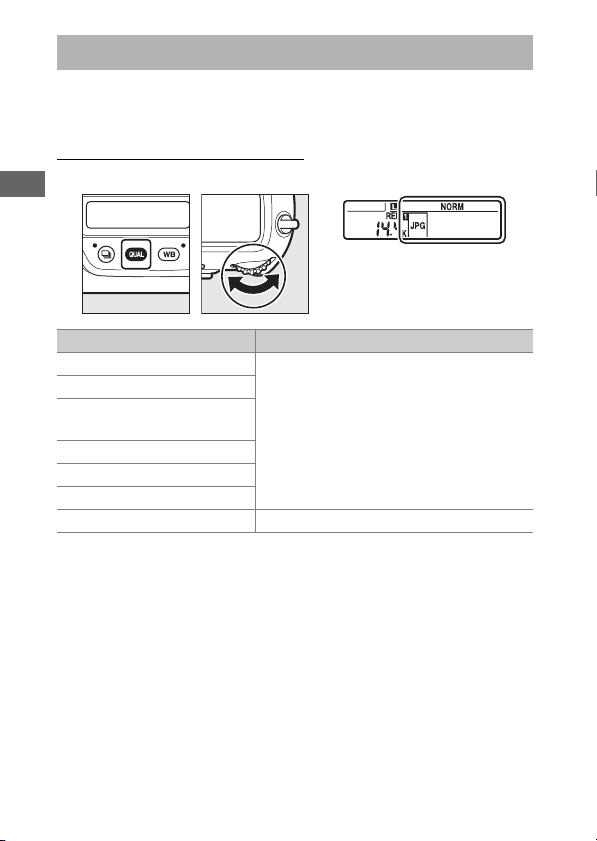
118
The
T
Button
The
T
button is used to adjust image quality and choose the
size of JPEG images.
Adjusting Image Quality
Hold the
T
button and rotate the main command dial.
The
T
Button
Option Description
[NEF (RAW) + JPEG fine
c
]
Record two copies of each photo: an NEF
(RAW) image and a JPEG copy. For the
JPEG copy, you can choose from options
prioritizing image quality or file size.
Options with a star (“
c
”) prioritize image
quality, those without a star (“
c
”) file size.
[NEF (RAW) + JPEG fine]
[NEF (RAW) + JPEG
normal
c
]
[NEF (RAW) + JPEG normal]
[NEF (RAW) + JPEG basic
c
]
[NEF (RAW) + JPEG basic]
[NEF (RAW)] Record photos in NEF (RAW) format.

119
The
T
Button
A
Dual-Format Recording
•
If you select [RAW Slot 1 - JPEG Slot 2] for [Role played by card in Slot
2] in the photo shooting menu when taking pictures with a NEF (RAW) +
JPEG option selected for image quality, the NEF (RAW) copies will be
recorded to the card in Slot 1 and the JPEG copies to the card in Slot 2.
•
If a JPEG option is selected for image quality and [JPEG Slot 1 - JPEG
Slot 2] is selected for [Role played by card in Slot 2], the camera will
record two copies of each picture, one to each memory card and each at
different sizes.
[JPEG fine
c
]
Record photos in JPEG format. Image
quality increases as quality progress from
basic through normal to fine. Options
with a star (“
c
”) prioritize image quality,
those without a star (“
c
”) file size.
[JPEG fine]
[JPEG normal
c
]
[JPEG normal]
[JPEG basic
c
]
[JPEG basic]
Option Description
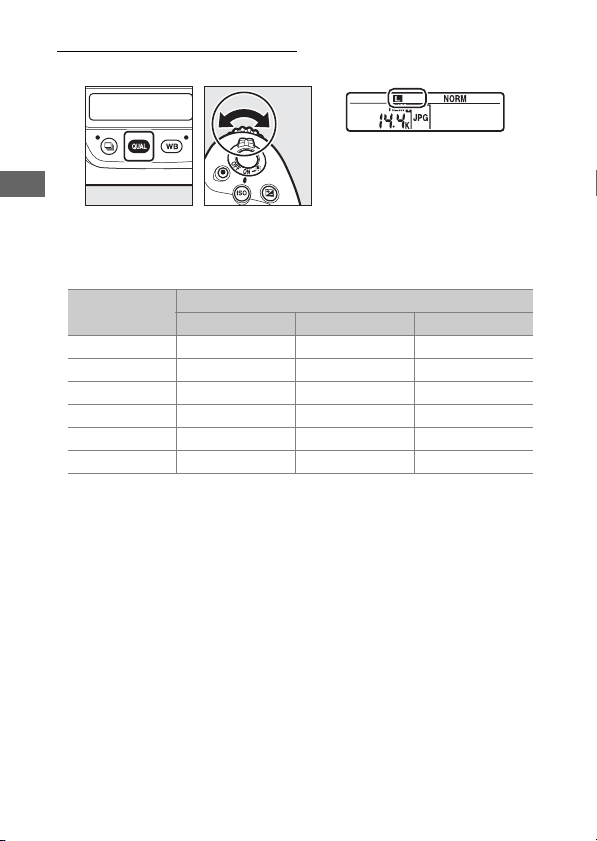
120
The
T
Button
Choosing an Image Size
Hold the
T
button and rotate the sub-command dial.
•
Choose from [Large], [Medium], and [Small]; the selected
option applies to JPEG photos. The physical dimensions of the
photos in pixels varies with image area.
•
The size of NEF (RAW) images can be selected using the
[Image size] > [NEF (RAW)] item in the photo shooting menu.
Image area
Image size
[Large] [Medium] [Small]
[FX (36×24)] 5568×3712 4176×2784 2784×1856
[1.2× (30×20)] 4640×3088 3472×2312 2320×1544
[DX (24×16)] 3648×2432 2736×1824 1824×1216
[5:4 (30×24)] 4640×3712 3472×2784 2320×1856
[1:1 (24×24)] 3712×3712 2784×2784 1856×1856
[16:9 (36×20)] 5568×3128 4176×2344 2784×1560
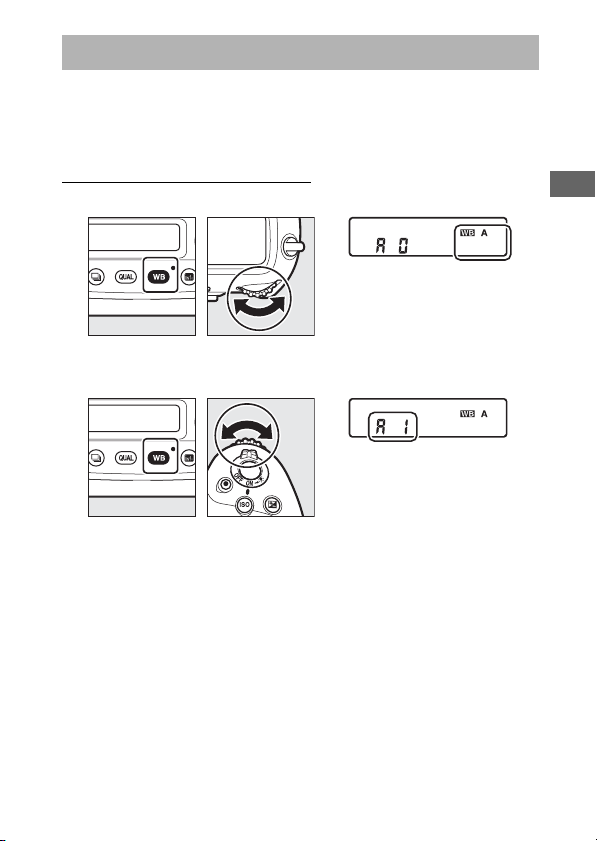
121
The
U
Button
The
U
button can be used to adjust white balance. White
balance delivers natural colors with light sources of different
hues.
Adjusting White Balance
Hold the
U
button and rotate the main command dial.
Options for the selected setting, if any, can be selected by
holding the
U
button and rotating the sub-command dial.
The
U
Button
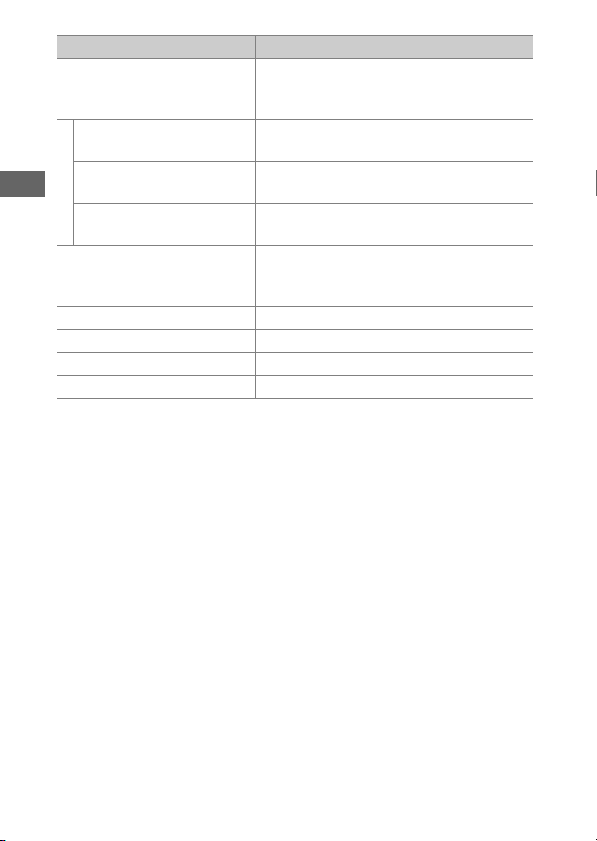
122
The
U
Button
Option Description
v
[Auto]
White balance is adjusted automatically
for optimal results with most light
sources.
v
0 [Keep white
(reduce warm colors)]
Eliminate the warm color cast produced
by incandescent lighting.
v
1 [Keep overall
atmosphere]
Partially preserve the warm color cast
produced by incandescent lighting.
v
2 [Keep warm
lighting colors]
Preserve the warm color cast produced
by incandescent lighting.
D
[Natural light auto]
When used under natural light in place of
[Auto], this option produces colors closer
to those seen by the naked eye.
H
[Direct sunlight] Use with subjects lit by direct sunlight.
G
[Cloudy] Use in daylight under overcast skies.
M
[Shade] Use in daylight with subjects in shade.
J
[Incandescent] Use under incandescent lighting.
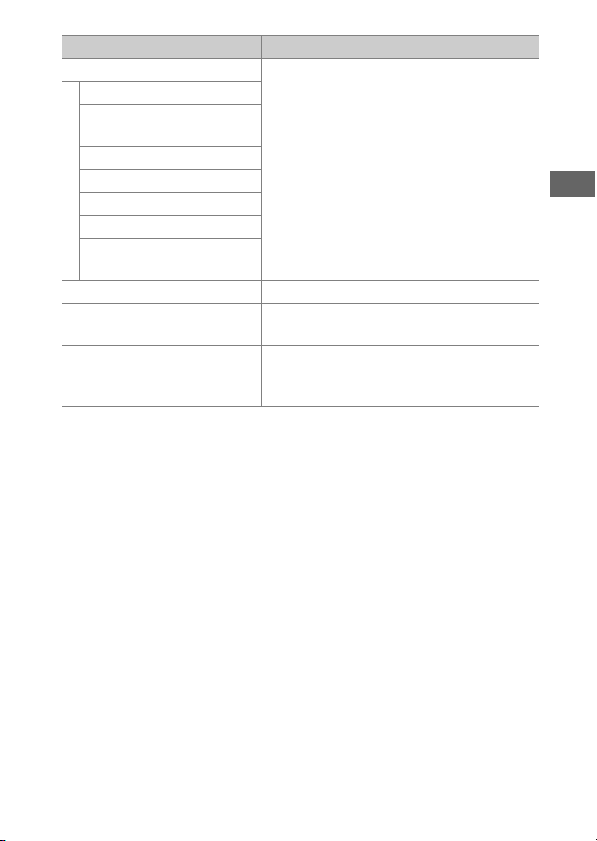
123
The
U
Button
I
[Fluorescent]
Use under fluorescent lighting; choose
the bulb type according to the light
source.
[Sodium-vapor lamps]
[Warm-white
fluorescent]
[White fluorescent]
[Cool-white fluorescent]
[Day white fluorescent]
[Daylight fluorescent]
[High temp. mercury-
vapor]
N
[Flash] Use for flash photography.
K
[Choose color
temperature]
Choose the color temperature directly.
L
[Preset manual]
Measure white balance for the subject or
light source or copy white balance from
an existing photograph.
Option Description
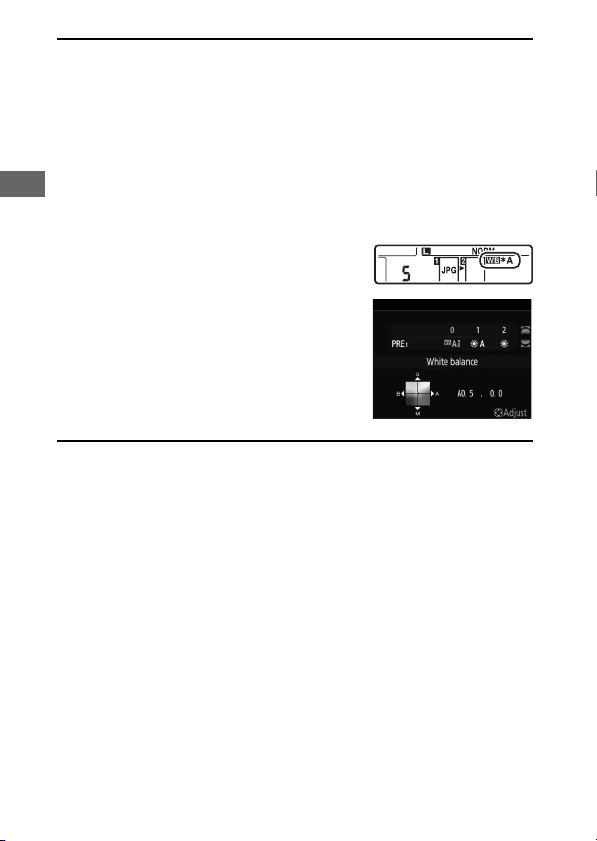
124
The
U
Button
A
Fine-Tuning White Balance
To fine-tune white balance, use the multi selector while holding the
U
button.
•
When an option other than [Choose color temperature] or [Preset
manual] is selected, you can fine-tune white balance on the amber-blue
axis by pressing
4
or
2
and on the green-magenta axis by pressing
1
or
3
.
•
When [Choose color temperature] is selected, you can press
4
or
2
to
highlight a digit. Press
1
or
3
to change.
•
Release the
U
button to return to shooting mode.
•
At settings other than 0, an asterisk (“
U
”)
appears in the rear control panel.
•
To view the current value, press the
U
button while shooting information is
displayed.
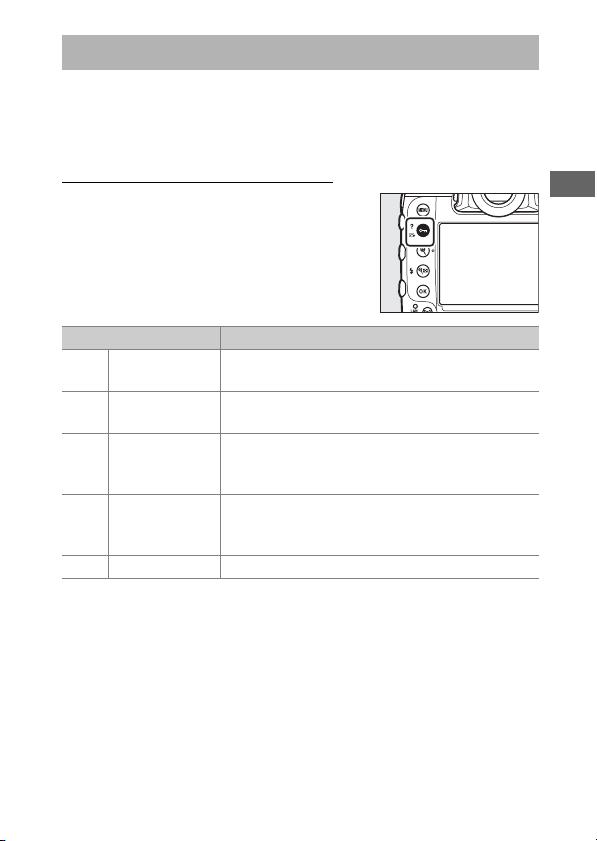
125
The
g
(
h
/
Q
) Button
Use the
g
(
h
/
Q
) button to choose image processing (“Picture
Control”) options for new photos according to the scene or your
creative intent.
Choosing a Picture Control
Pressing the
g
(
h
/
Q
) button displays
Picture Control options. Highlight an
option using
4
or
2
and press
J
to
select.
The
g
(
h
/
Q
) Button
Option Description
n
[Auto]
The camera automatically adjusts hues and
tones based on the [Standard] Picture Control.
Q
[Standard]
Standard processing for balanced results.
Recommended for most situations.
R
[Neutral]
Minimal processing for natural results. Choose
for photographs that will later be processed or
retouched.
S
[Vivid]
Pictures are enhanced for a vivid, photoprint
effect. Choose for photographs that emphasize
primary colors.
T
[Monochrome] Take monochrome photographs.
126
The
g
(
h
/
Q
) Button
o
[Portrait]
Smooth complexions for natural-looking
portraits.
p
[Landscape] Shoot vibrant landscapes and cityscapes.
q
[Flat]
Details are preserved over a wide tone range,
from highlights to shadows. Choose for
photographs that will later be extensively
processed or retouched.
l
01
-
l
20
Creative
Picture
Control
Creative Picture Controls offer unique
combinations of hue, tone, saturation, and
other settings tuned for particular effects.
Choose from a total of 20 options, including
[Dream] and [Morning].
Option Description
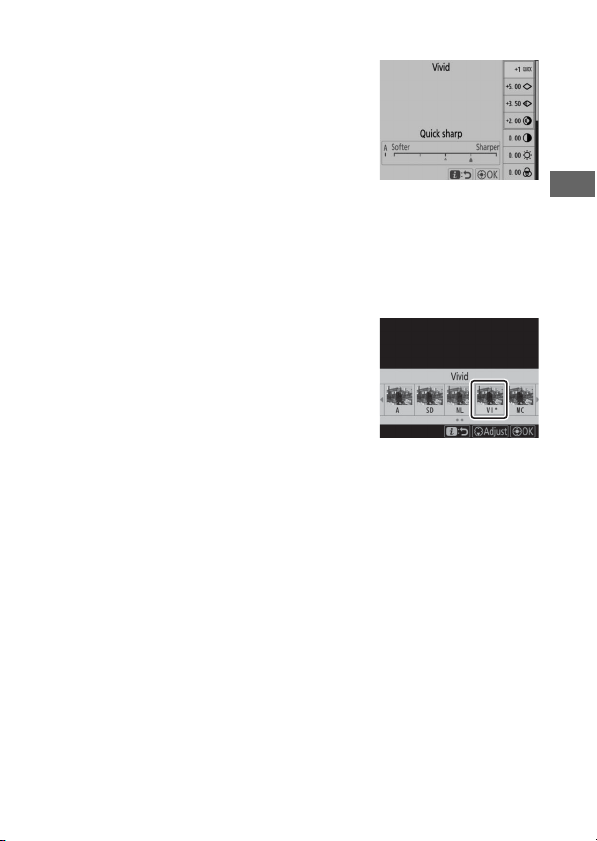
127
The
g
(
h
/
Q
) Button
❚❚
Modifying Picture Controls
To modify Picture Control settings,
highlight a Picture Control and press
3
.
•
Press
1
or
3
to highlight settings.
Press
4
or
2
to choose a value in
increments of 1, or rotate the sub-
command dial to choose a value in
increments of 0.25.
•
The options available vary with the Picture Control selected.
•
Default settings can be restored by pressing the
O
(
Q
)
button.
•
Press
J
to save changes.
•
Picture Controls that have been
modified from default settings are
indicated by an asterisk (“
U
”).
128
The
g
(
h
/
Q
) Button
❚❚
Picture Control Settings
Option Description
[Effect level]
Mute or heighten the effect of Creative Picture
Controls.
[Quick sharp]
Quickly adjust levels for balanced [Sharpening], [Mid-
range sharpening], and [Clarity]. These parameters
can also be adjusted individually.
[Sharpening] Control the sharpness of details and outlines.
[Mid-range
sharpening]
Adjust the sharpness of patterns and lines in the range
between [Sharpening] and [Clarity].
[Clarity]
Adjust overall sharpness and the sharpness of thicker
outlines without affecting brightness or dynamic
range.
[Contrast]Adjust contrast.
[Brightness]
Raise or lower brightness without loss of detail in
highlights or shadows.
[Saturation] Control the vividness of colors.
[Hue]Adjust hue.
[Filter effects]
Simulate the effect of color filters on monochrome
pictures.
[Toning]
Choose the tint used in monochrome pictures.
Pressing
2
when an option other than [B&W] (black-
and-white) is selected displays saturation options.
[Toning]
(Creative Picture
Control)
Choose the shade of color used for Creative Picture
Controls.
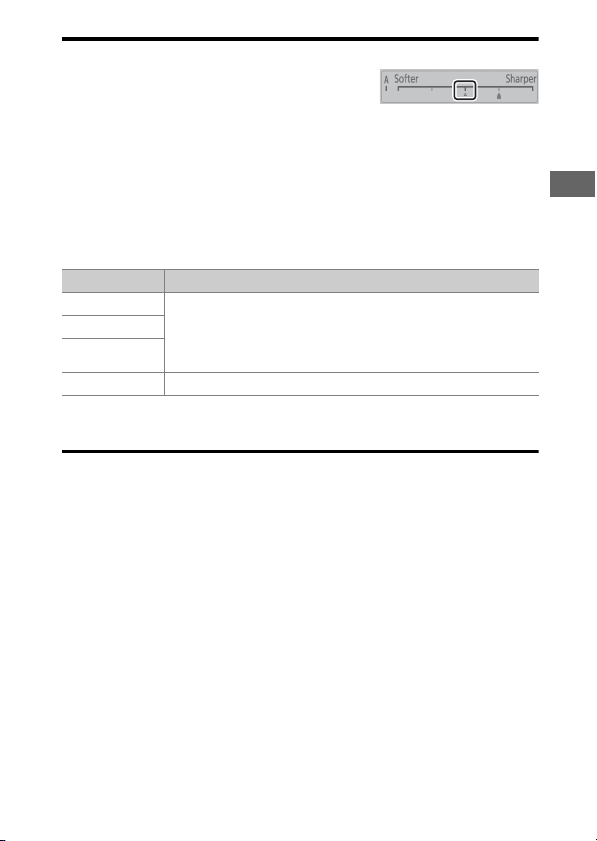
129
The
g
(
h
/
Q
) Button
D
The
j
Indicator
The
j
indicator under the value display in the
Picture Control setting menu indicates the
previous value for the setting.
D
[A] (Auto)
•
Selecting the [A] (auto) option available for some settings lets the
camera adjust the setting automatically.
•
Results vary with exposure and the position of the subject in the frame.
D
[Filter Effects]
Choose from the following [Filter effects]:
* The term in parentheses is the name of the corresponding third-party
color filter for black-and-white photography.
Option Description
[Y] (yellow)
*
These options enhance contrast and can be used to tone
down the brightness of the sky in landscape
photographs. Orange [O] produces more contrast than
yellow [Y], red [R] more contrast than orange.
[O] (orange)
*
[R] (red)
*
[G] (green)
*
Green softens skin tones. Use for portraits and the like.
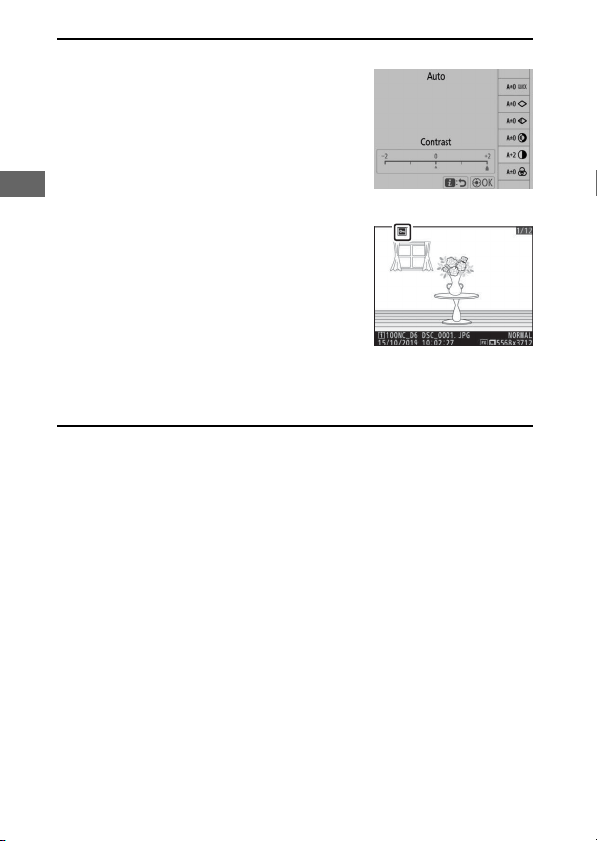
130
The
g
(
h
/
Q
) Button
A
The [Auto] Picture Control
Settings can be adjusted in the range [A−2] to
[A+2].
A
Protecting Pictures from Deletion
During playback, the
g
(
h
/
Q
) button can be
used to protect pictures. Protecting pictures
helps prevent accidental deletion.
A
Viewing Help
Press the
g
(
h
/
Q
) button to view help for the current item, where
available (
0
87).
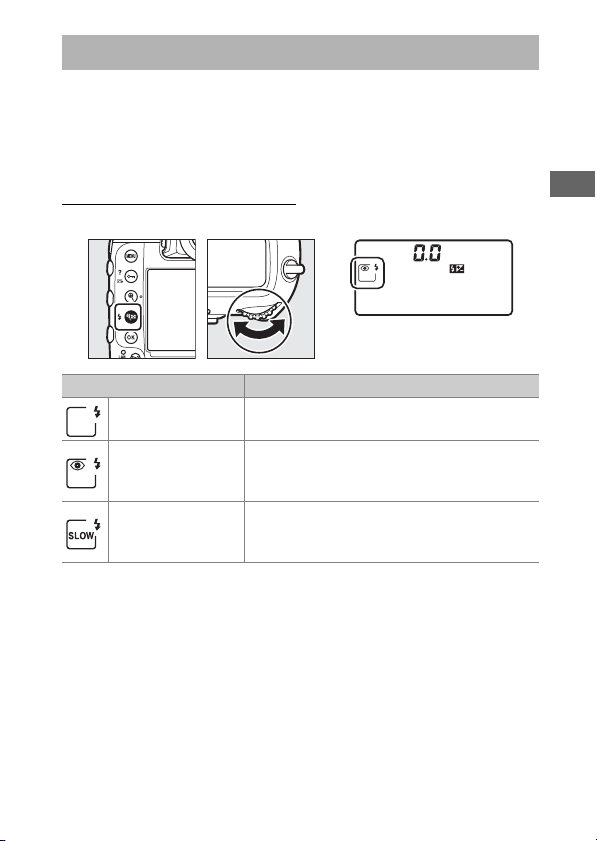
131
The
W
(
N
) Button
During shooting, the
W
(
N
) button can be used to choose the
flash mode and adjust flash compensation for optional flash
units. Flash mode determines the effect produced by the flash,
flash compensation the flash level.
Choosing a Flash Mode
Hold the
W
(
N
) button and rotate the main command dial.
The
W
(
N
) Button
Option Description
[Fill flash] (front-
curtain sync)
This mode is recommended for most
situations.
[Red-eye
reduction] (red-
eye reduction)
The flash fires before the photograph is
taken, reducing “red-eye”.
[Slow sync] (slow
sync)
As for “fill flash”, except that slow shutter
speeds are used to capture background
lighting at night or under low light.
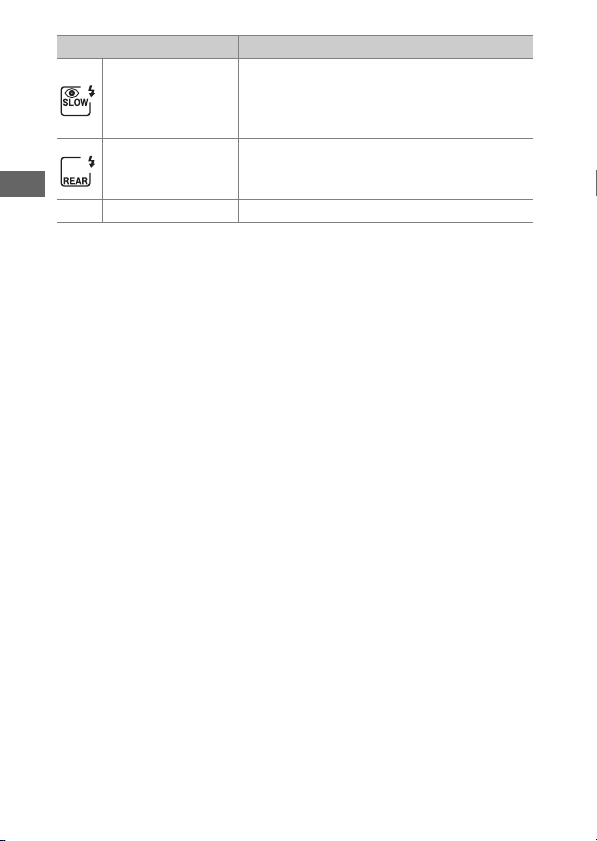
132
The
W
(
N
) Button
[Slow sync + red-
eye] (red-eye
reduction with
slow sync)
As for “red-eye reduction”, except that slow
shutter speeds are used to capture
background lighting at night or under low
light.
[Rear-curtain
sync] (rear-curtain
sync)
The flash fires just before the shutter closes.
s
[Flash off] The flash does not fire.
Option Description
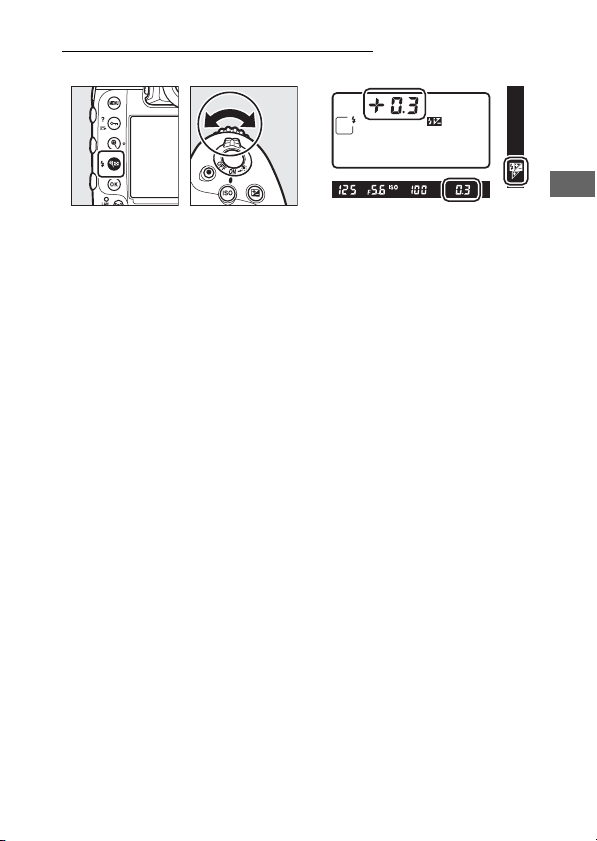
133
The
W
(
N
) Button
Adjusting Flash Compensation
Hold the
W
(
N
) button and rotate the sub-command dial.
•
Choose positive values for brighter lighting, negative values to
ensure that the subject is not too brightly lit.
•
Normal flash output can be restored by setting flash
compensation to ±0.0. Flash compensation is not reset when
the camera is turned off.
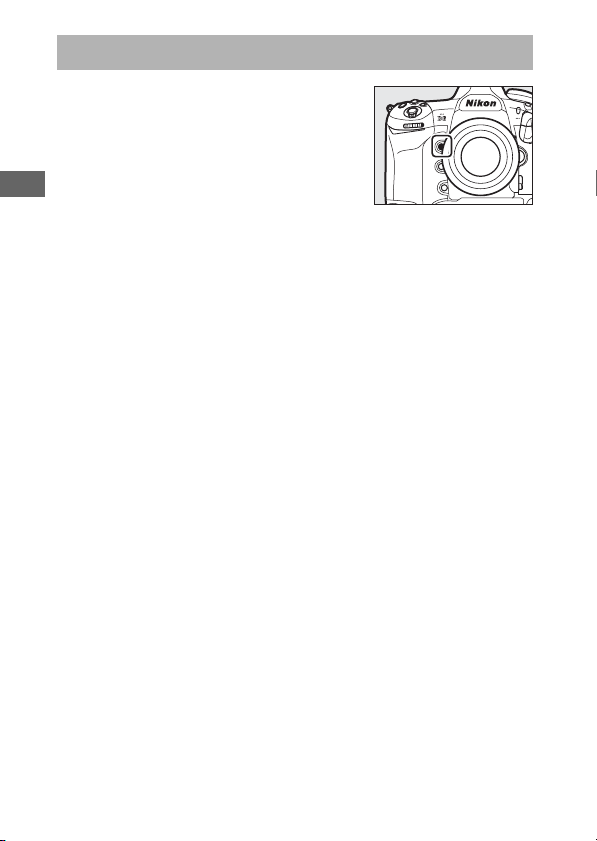
134
The Pv Button
Pressing the Pv button during
viewfinder photography stops lens
aperture down to the current value,
allowing depth of field to be previewed
as long as the button is kept pressed.
•
Optional flash units compatible with
the Nikon Creative Lighting System (CLS) will emit a modeling
flash. The modeling flash can be disabled by selecting [Off] for
Custom Setting e6 [Modeling flash].
•
You can choose the role assigned to the Pv button. Use
Custom Settings f3 [Custom controls] and g2 [Custom
controls] in the Custom Settings menu to choose the roles
played by the button during photography and filming,
respectively.
The Pv Button
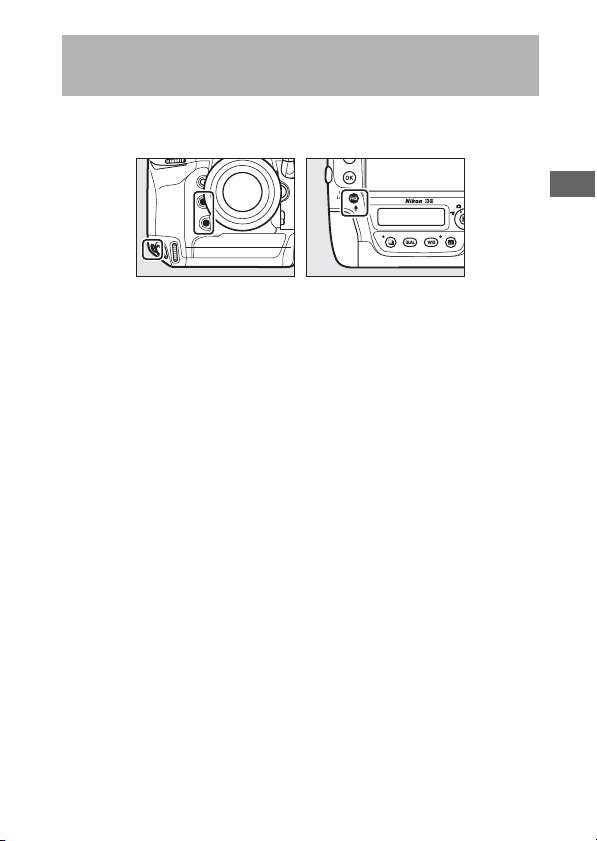
135
The Fn1, Fn2, Fn3 (
C
), and Fn (Vertical) Buttons
Use the Fn1, Fn2, Fn3 (
C
), or vertical Fn button for quick access
to selected settings.
•
The assigned setting can be adjusted by holding the
corresponding button and rotating the command dials. In
some cases, adjustments can be made using both the main
and sub-command dials.
•
Use Custom Settings f3 [Custom controls] and g2 [Custom
controls] in the Custom Settings menu to choose the roles
played by these buttons during photography and movie
recording, respectively.
The Fn1, Fn2, Fn3 (
C
), and Fn (Vertical)
Buttons
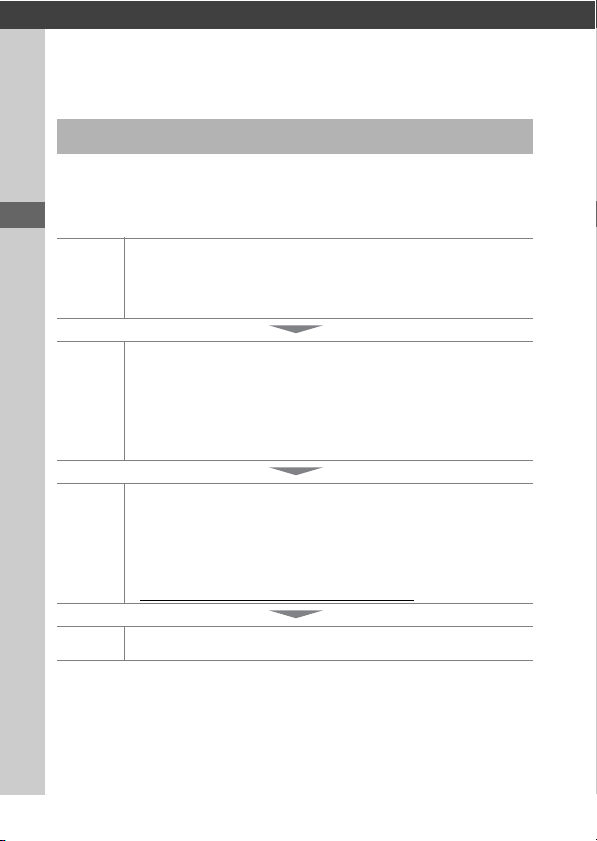
136
Before Contacting Customer Support
Troubleshooting
You may be able to resolve any issues with the camera by
following the steps below. Check this list before consulting your
retailer or Nikon-authorized service representative.
Before Contacting Customer Support
STEP
1
Check the common problems listed in the following
sections:
•
“Problems and Solutions” (
0
138)
•
“Alerts and Error Messages” (
0
150)
STEP
2
Turn the camera off and remove the battery, then wait
about a minute, re-insert the battery and turn the camera
on.
D
The camera may continue to write data to the memory
card after shooting. Wait at least a minute before
removing the battery.
STEP
3
Search Nikon websites.
•
For support information and answers to frequently asked
questions, visit the website for your country or region
(
0
xxix).
•
To download the latest firmware for your camera, visit:
https://downloadcenter.nikonimglib.com/
STEP
4
Consult a Nikon-authorized service representative.

137
Before Contacting Customer Support
D
Restoring Default Settings
•
Depending on current settings, some menu items and other features
may be unavailable. To access menu items that are grayed out or
features that are otherwise unavailable, try restoring default settings
using the [Reset all settings] item in the setup menu.
•
Note, however, that wireless network profiles, copyright information,
and other user-generated entries will also be reset. Once reset, settings
cannot be restored.
138
Problems and Solutions
Solutions to some common issues are listed below.
Battery/Display
Problems and Solutions
●
The camera is on but does not respond:
•
Wait for recording and other operations to end.
•
If the problem persists, turn the camera off.
•
If the camera does not turn off, remove and reinsert the battery.
•
If you are using an AC adapter, disconnect and reconnect the AC
adapter.
- Any data currently being recorded will be lost.
- Data that have already been recorded are not affected by
removing or disconnecting the power source.
●
The viewfinder is out of focus:
•
Rotate the diopter adjustment control to adjust viewfinder focus.
•
If adjusting viewfinder focus does not correct the problem, set the
autofocus mode to AF-S and the AF-area mode to [Single-point
AF]. Next, select the center focus point, choose a high-contrast
subject, and focus using autofocus. With the camera in focus, use
the diopter adjustment control to bring the subject into clear focus
in the viewfinder.
•
If necessary, viewfinder focus can be further adjusted using optional
corrective lenses.
139
Problems and Solutions
●
The viewfinder is dark:
Is the battery charged? The viewfinder may dim if the battery is
exhausted or not inserted (
0
28, 47).
●
The display in the viewfinder, control panel, or monitor turns off
without warning:
Choose longer delays for Custom Setting c2 [Standby timer] or c4
[Monitor off delay].
●
The display in control panel or viewfinder is dim and
unresponsive:
The response times and brightness of these displays vary with
temperature.
●
Patterns appear in the viewfinder:
The viewfinder display may turn red when a focus point is
highlighted, but this is normal for this type of viewfinder and does not
indicate a malfunction.

140
Problems and Solutions
Shooting
●
The camera takes time to turn on:
More time will be needed to find files if the memory card contains
large numbers of files or folders.
●
The shutter cannot be released:
•
Is a memory card inserted, and if so, does it have space available?
•
When a CPU lens of a type other than G or E is attached, the shutter
cannot be released unless the aperture ring is locked at minimum
aperture (the highest f-number). If
B
is displayed in the top
control panel, select [Aperture ring] for Custom Setting f6
[Customize command dials]> [Aperture setting] and adjust
aperture using the lens aperture ring.
•
If you selected mode S after selecting a shutter speed of
A
(Bulb) or
%
(Time) in mode M, choose a different shutter speed.
•
Is [Release locked] selected for [Slot empty release lock] in the
setup menu?
●
The camera is slow to respond to the shutter-release button:
Select [Off] for Custom Setting d5 [Exposure delay mode].
●
Burst shooting is unavailable:
Burst shooting cannot be used in conjunction with HDR.
141
Problems and Solutions
●
Photos are out of focus:
•
Is the camera in manual focus mode? To enable autofocus, rotate
the focus-mode selector to AF.
•
Autofocus does not perform well under the following conditions. In
these cases, use manual focus or focus lock. Autofocus does not
perform well if: there is little or no contrast between the subject and
the background, the focus point contains objects at different
distances from the camera, the subject is dominated by regular
geometric patterns, the focus point contains areas of sharply
contrasting brightness, background objects appear larger than the
subject, or the subject contains many fine details.
●
The beep does not sound:
•
A beep does not sound when the camera focuses with AF-C
selected for autofocus mode.
•
Select an option other than [Off] for [Beep options] > [Beep on/off]
in the setup menu.
●
The full range of shutter speeds is not available:
Using a flash restricts the range of shutter speeds available. Flash sync
speed can be set to values of
1
/
250
–
1
/
60
s using Custom Setting e1
[Flash sync speed]. When using flash units that support auto FP high-
speed sync, choose [1/250 s (Auto FP)] for a full range of shutter
speeds.
142
Problems and Solutions
●
Focus does not lock when the shutter-release button is pressed
halfway:
If AF-C is selected for autofocus mode, focus can be locked by
pressing the center of the sub-selector.
●
Focus-point selection is not available:
•
Is the focus selector lock in the L (lock) position?
•
Focus-point selection is not available when [Auto-area AF] is
selected for AF-area mode.
•
Focus point selection is not available in playback mode or when
menus are in use.
•
Has the standby timer expired? To enable focus-point selection,
press the shutter-release button halfway.
●
AF mode selection is not available:
Select [No restrictions] for Custom Setting a15 [Autofocus mode
restrictions].
●
The camera is slow to record photos:
Is [On] selected for [Long exposure NR] in the photo shooting menu?

143
Problems and Solutions
●
“Noise” (bright spots, randomly-spaced bright pixels, fog, or
lines) appears in photos:
•
To reduce noise, adjust settings such as ISO sensitivity, shutter
speed, or Active D-Lighting.
•
At high ISO sensitivities, noise may become more noticeable in long
exposures or in pictures recorded when the camera temperature is
elevated.
144
Problems and Solutions
●
Photographs and movies do not appear to have the same
exposure as the preview shown in the monitor during live view:
Changes to monitor brightness during live view have no effect on
images recorded with the camera.
●
Flicker or banding appears in the display during movie recording:
Select [Flicker reduction] in the movie shooting menu and choose an
option that matches the frequency of the local AC power supply.
●
Bright regions or bands appear in live view:
Bright regions or bands may occur if a flashing sign, flash, or other
light source with brief duration is used during live view.
●
Smudges appear in photographs:
•
Are there smudges on the front or rear (mount-side) lens elements?
•
Is there foreign matter on the low-pass filter? Perform image sensor
cleaning.
●
Live view ends unexpectedly or does not start:
•
Live view may end automatically to prevent damage to the camera’s
internal circuits, for example if:
- The ambient temperature is high
- The camera has been used for extended periods in live view or to
record movies
- The camera has been used in continuous release modes for
extended periods
•
If the camera is running hot and live view does not start, wait for the
internal circuits to cool and then try again. Note that the camera
may feel warm to the touch, but this does not indicate a
malfunction.
145
Problems and Solutions
●
“Noise” (bright spots, randomly-spaced bright pixels, fog, or
lines) appears during live view:
•
Randomly-spaced bright pixels, fog, or bright spots may arise as a
result of increases in the temperature of the camera’s internal
circuits during live view. Exit live view when the camera is not in use.
•
Randomly-spaced bright pixels, fog, lines or unexpected colors may
appear if you press the
X
button to zoom in on the view through the
lens during live view.
•
In movies, the amount and distribution of randomly-spaced bright
pixels, fog, and bright spots are affected by the option selected for
[Frame size/frame rate] in the movie shooting menu.
•
Note that the distribution of noise in the monitor may differ from
that in the final picture.
●
Monitor hue changes sharply during live view:
Monitor hue may change sharply at high sensitivities (Hi 0.3 to Hi 5)
during burst photography or immediately after the shutter is
released; this does not indicate a malfunction. The display will shortly
return to normal. Pictures taken with the camera are unaffected.
●
The camera cannot measure a value for preset manual white
balance:
The subject is too dark or too bright.
●
Certain pictures cannot be selected as sources for preset white
balance:
Pictures created with cameras of other types cannot serve as sources
for preset manual white balance.
146
Problems and Solutions
●
White balance (WB) bracketing is unavailable:
•
White balance bracketing is not available when an NEF (RAW) or
NEF + JPEG option is selected for image quality.
•
White balance bracketing cannot be used in multiple exposure and
HDR modes.
●
The effects of [Set Picture Control] differ from image to image:
[Auto] is selected for [Set Picture Control] or as the basis for a
custom Picture Control created using [Manage Picture Control], or
[A] (auto) is selected for [Quick sharp], [Contrast], or [Saturation].
For consistent results over a series of photographs, choose a setting
other than [A] (auto).
●
The option selected for metering cannot be changed:
The option selected for metering cannot be changed during exposure
lock.
●
Exposure compensation is not available:
Changes to exposure compensation in mode M apply only to the
exposure indicator and have no effect on shutter speed or aperture.
●
Uneven shading may appear in long exposures:
Uneven shading may appear in long exposures shot at shutter speeds
of
A
(Bulb) or
%
(Time). The effect can be mitigated by selecting
[On] for [Long exposure NR] in the photo shooting menu.
●
Sound is not recorded with movies:
Is [Microphone off] selected for [Microphone sensitivity] in the
movie shooting menu?
147
Problems and Solutions
Playback
●
NEF (RAW) pictures are not visible during playback:
The camera displays only the JPEG copies of pictures taken with
[NEF (RAW) + JPEG fine
c
], [NEF (RAW) + JPEG fine], [NEF (RAW) +
JPEG normal
c
], [NEF (RAW) + JPEG normal], [NEF (RAW) + JPEG
basic
c
], or [NEF (RAW) + JPEG basic] selected for [Image quality].
●
Pictures taken with other cameras are not displayed:
Pictures recorded with other types of camera may not display
correctly.
●
Not all photos are visible during playback:
Select [All] for [Playback folder] in the playback menu.
●
“Tall” (portrait) orientation photos are displayed in “wide”
(landscape) orientation:
•
Is [Off] selected for [Rotate tall] in the playback menu?
•
Auto image rotation is not available during image review.
•
Camera orientation may not be correctly recorded in photos taken
with the camera pointing up or down.
●
Pictures cannot be deleted:
Are the pictures protected?
●
Pictures cannot be retouched:
•
The pictures cannot be further edited with this camera.
•
There is insufficient space on the memory card to record the
retouched copy.
●
The camera displays the message, [Folder contains no images]:
Select [All] for [Playback folder] in the playback menu.
●
Pictures are not displayed on HDMI devices:
Confirm that an HDMI cable is correctly connected.
148
Problems and Solutions
●
The Image Dust Off option in Capture NX-D does not have desired
effect:
Image sensor cleaning changes the position of dust on the low-pass
filter and will not have the desired effect if:
•
Dust off reference data recorded after image sensor cleaning is
performed are used with photographs taken before image sensor
cleaning is performed
•
Dust off reference data recorded before image sensor cleaning is
performed are used with photographs taken after image sensor
cleaning is performed
●
The effects of [Set Picture Control], [Active D-Lighting], or
[Vignette control] are not visible:
In the case of NEF (RAW) images, the effect can only be viewed using
Nikon software. View NEF (RAW) images using Capture NX-D or
ViewNX-i.
●
Pictures cannot be copied to a computer:
Depending on the operating system, you may be unable to upload
pictures when the camera is connected to a computer. Copy pictures
from the memory card to a computer using a card reader or other
device.
149
Problems and Solutions
Bluetooth and Wi-Fi (Wireless Networks)
Miscellaneous
●
Smart devices do not display the camera SSID (network name):
•
Navigate to the setup menu and confirm both that [Disable] is
selected for [Airplane mode] and that [Enable] is selected for
[Connect to smart device] > [Pairing (Bluetooth)] > [Bluetooth
connection].
•
Confirm that the [Connect to smart device] > [Wi-Fi connection] is
enabled in the setup menu.
•
Try disabling and re-enabling wireless network features on the
smart device.
●
The camera cannot connect to printers and other wireless
devices:
The camera cannot establish wireless connections with devices other
than smartphones, tablets, and computers.
●
The date of recording is not correct:
Is the camera clock set correctly? The clock is less accurate than most
watches and household clocks; check it regularly against more
accurate timepieces and reset as necessary.
●
Menu items cannot be selected:
•
Some items are not available at certain combinations of settings.
•
The [Battery info] item in the setup menu is not available when
camera is powered by an optional power connector and AC adapter.
150
Alerts and Error Messages
This section lists the alerts and error messages that appear in
the viewfinder, top control panel, and monitor.
Alerts
The following alerts appear in the top control panel and
viewfinder:
Alerts and Error Messages
Alert
Problem/solution
Top
control
panel
Viewfinder
B
(flashes)
B
(flashes)
Lens aperture ring is not set to minimum
aperture.
Set lens aperture ring to minimum aperture
(highest f-number).
H d
Low battery.
Ready spare battery.
151
Alerts and Error Messages
H
(flashes)
d
(flashes)
Battery exhausted.
•
Replace with spare battery.
•
Charge battery.
Battery info not available.
•
Battery cannot be used. Contact Nikon-
authorized service representative.
•
Battery level is extremely low; charge battery.
Battery cannot supply data to camera.
Replace third-party batteries with genuine Nikon
batteries.
High battery temperature.
Remove battery and wait for it to cool.
B
(flashes)
—
Camera clock is not set.
Set camera clock.
FF
Aperture shown in stops from maximum
aperture. No lens attached, or non-CPU lens
attached without specifying maximum
aperture.
Aperture value will be displayed if maximum
aperture is specified.
Alert
Problem/solution
Top
control
panel
Viewfinder
152
Alerts and Error Messages
—
F
H
(flashes)
Camera unable to focus using autofocus.
Change composition or focus manually.
A
(flashes)
A
(flashes)
A
(Bulb) selected in mode S.
•
Change shutter speed.
•
Select mode M.
%
(flashes)
%
(flashes)
%
(Time) selected in mode S.
•
Change shutter speed.
•
Select mode M.
1
(flashes)
k
(flashes)
Processing in progress.
Wait for processing to complete.
—
N
(flashes)
Flash has fired at full power.
Photo may be underexposed. Check distance to
subject and settings such as aperture, flash
range, and ISO sensitivity.
Alert
Problem/solution
Top
control
panel
Viewfinder

153
Alerts and Error Messages
(Exposure indicators
and shutter speed or
aperture display flash)
Subject too bright; limits of camera exposure
metering system exceeded.
•
Lower ISO sensitivity.
•
Mode P: Use third-party ND (neutral density)
filter (filter can also be used if alert is still
displayed after following settings are adjusted
in mode S or A).
•
Mode S: Choose faster shutter speed.
•
Mode A: Choose smaller aperture (higher f-
number).
Subject too dark; limits of camera exposure
metering system exceeded.
•
Increase ISO sensitivity.
•
Mode P: Use optional flash unit (flash can also
be used if alert is still displayed after following
settings are adjusted in mode S or A).
•
Mode S: Choose slower shutter speed.
•
Mode A: Choose wider aperture (lower f-
number).
Alert
Problem/solution
Top
control
panel
Viewfinder

154
Alerts and Error Messages
Y
(flashes)
—
Flash unit that does not support red-eye
reduction attached and flash mode set to red-
eye reduction or red-eye reduction with slow
sync.
•
Use flash unit that supports red-eye reduction.
•
Change flash mode.
n
(flashes)
j
(flashes)
Memory insufficient to record further photos.
•
Delete pictures from memory card until there
is room for additional pictures to be recorded.
Copy pictures you wish to keep to computer or
other device before proceeding.
•
Insert new memory card.
Camera has run out of file numbers.
•
Delete pictures from memory card until there
is room for additional pictures to be recorded.
Copy pictures you wish to keep to computer or
other device before proceeding.
•
Insert new memory card.
O
(flashes)
O
(flashes)
Camera malfunction.
Press shutter-release button again. If error
persists or appears frequently, consult Nikon-
authorized service representative.
Alert
Problem/solution
Top
control
panel
Viewfinder
155
Alerts and Error Messages
Error Messages
The following alerts appear in the monitor and top control
panel:
Alert
Problem/solution
Monitor
Top
control
panel
No memory
card.
S
Memory card not inserted or inserted
incorrectly.
Check that card is inserted correctly.
Cannot access
this memory
card.
Insert another
card.
W
,
R
(flashes)
Error accessing memory card.
•
Check that camera supports memory card.
•
If error persists after card has been
repeatedly ejected and reinserted, card
may be damaged. Contact retailer or
Nikon-authorized service representative.
Unable to create new folder.
•
Delete pictures from memory card until
there is room for additional pictures to be
recorded. Copy pictures you wish to keep
to computer or other device before
proceeding.
•
Insert new memory card.
156
Alerts and Error Messages
This card is not
formatted.
Format the
card.
T
(flashes)
Memory card is not correctly formatted.
•
Format memory card.
•
Replace with correctly-formatted memory
card.
Unable to start
live view. Please
wait.
—
Camera’s internal temperature is
elevated.
Suspend shooting until camera has cooled.
Folder contains
no images.
—
Folder contains no pictures.
Insert memory card that contains pictures.
No pictures in folder selected for
playback.
Use [Playback folder] item in playback
menu to select folder that contains pictures.
All images are
hidden.
—
All pictures in current folder are hidden.
Use [Hide image] item in playback menu to
reveal pictures.
Alert
Problem/solution
Monitor
Top
control
panel
157
Alerts and Error Messages
Cannot display
this file.
—
File has been modified using computer
application or does not conform to DCF
file standard.
Do not overwrite images using computer
applications.
File is corrupt.
Do not overwrite images using computer
applications.
Cannot select
this file.
—
Selected picture cannot be retouched.
Retouch options are available only with
pictures taken with or previously retouched
on camera.
This movie
cannot be
edited.
—
Selected movie cannot be edited.
•
Movies created with other devices cannot
be edited.
•
Movies under two seconds long cannot be
edited.
Alert
Problem/solution
Monitor
Top
control
panel
158
Alerts and Error Messages
This file cannot
be saved to the
destination
memory card.
See the
camera's user's
manual for
details.
—
Files 4 GB or larger can only be saved to
memory cards formatted for exFAT. They
cannot be saved to cards formatted for
other file systems, such as FAT32.
Use a memory card with a capacity over
32 GB formatted in the camera or keep file
size to under 4 GB.
Alert
Problem/solution
Monitor
Top
control
panel
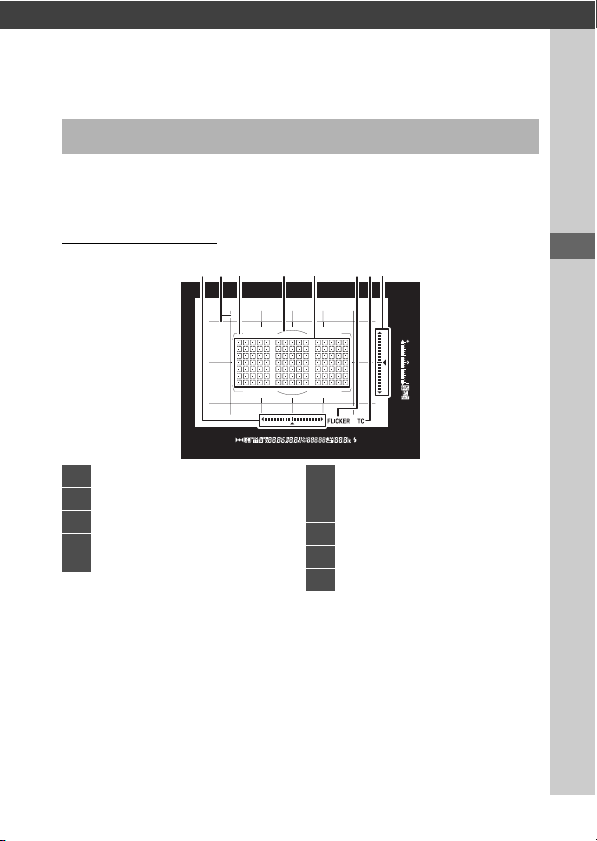
159
Camera Displays
Technical Notes
For illustrative purposes, the displays are shown with all
indicators lit.
The Viewfinder
Camera Displays
4 5 837612
1
Roll indicator
1, 2
2
Framing grid
3
3
AF-area brackets
4
12-mm reference circle for
center-weighted metering
5
Focus points
Spot metering targets
AF-area mode indicator
6
Flicker detection
7
Teleconverter indicator
4
8
Pitch indicator
1, 5
160
Camera Displays
1 Displayed by pressing button to which [Viewfinder virtual horizon]
has been assigned using Custom Setting f3 ([Custom controls]).
2 Functions as a pitch indicator when the camera is rotated to take
pictures in “tall” (portrait) orientation.
3 Displayed when [On] is selected for Custom Setting d11 [Framing
grid display].
4 Displayed only when a lens with a built-in teleconverter is attached
and the teleconverter is in use.
5 Functions as a roll indicator when the camera is rotated to take
pictures in “tall” (portrait) orientation.
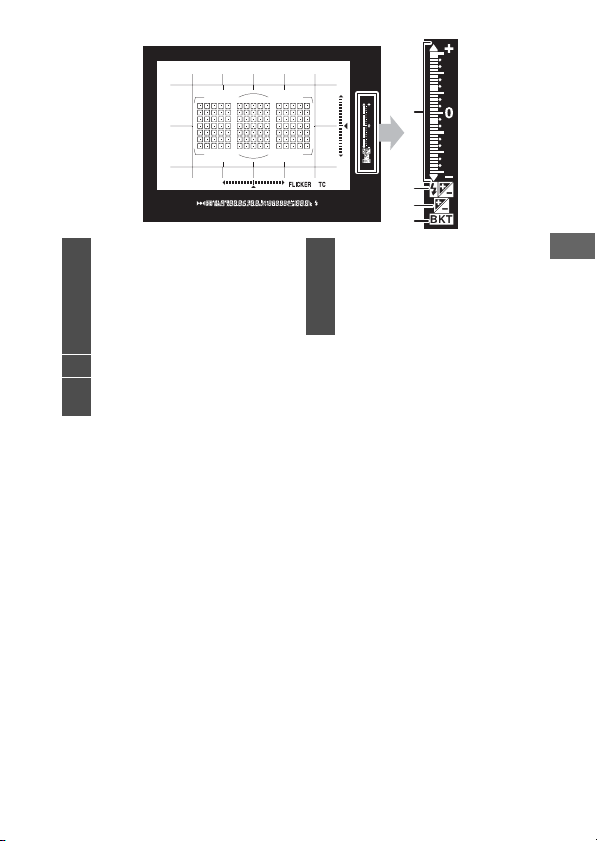
161
Camera Displays
1
3
4
2
1
Exposure indicator
Exposure
Exposure compensation
Exposure and flash
bracketing progress
indicator
2
Flash compensation indicator
3
Exposure compensation
indicator
4
Bracketing indicator
Exposure and flash
bracketing
WB bracketing
ADL bracketing
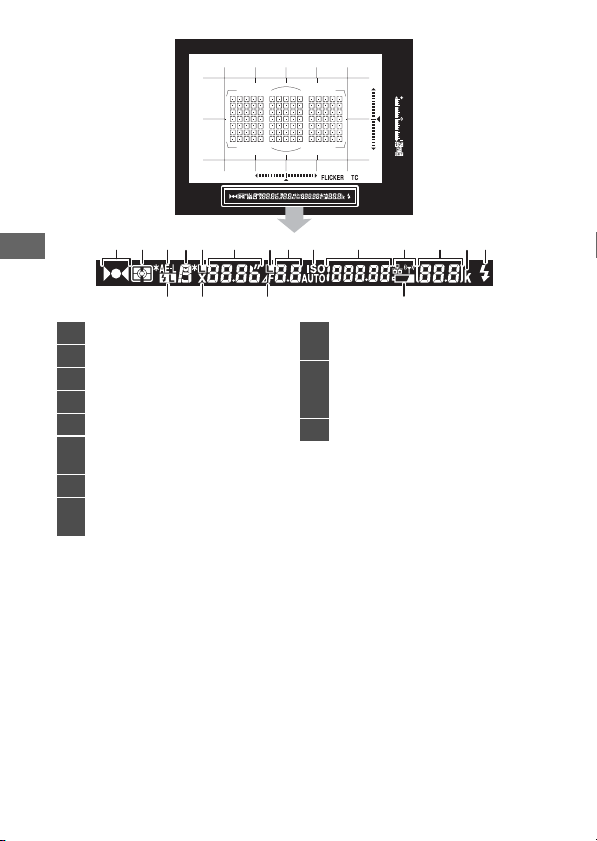
162
Camera Displays
1
18 17 16 15
2 3 4 5 6 7 8 9 10 11 12 1314
1
Focus indicator
2
Metering
3
Autoexposure (AE) lock
4
Exposure mode
5
Shutter speed lock icon
6
Shutter speed
Autofocus mode
7
Aperture lock icon
8
Aperture (f-number)
Aperture (number of stops)
9
ISO sensitivity indicator
Auto ISO sensitivity indicator
10
ISO sensitivity
Active D-Lighting amount
AF-area mode
11
Network display

163
Camera Displays
* Displayed when an optional flash unit is attached. The flash-ready
indicator lights when the flash is charged.
D
The Viewfinder
When the battery is exhausted or no battery is inserted, the display in the
viewfinder will dim. The display will return to normal when a charged
battery is inserted.
D
Temperature Extremes
The brightness of the control panel and viewfinder displays varies with
temperature, and response times may drop when the temperature is low;
the displays will return to normal at room temperature.
12
Number of exposures
remaining
Number of shots remaining
before memory buffer fills
Preset white balance
recording indicator
Exposure compensation value
Flash compensation value
PC mode indicator
13
“k” (appears when memory
remains for over 1000
exposures)
14
Flash-ready indicator
*
15
Low battery warning
16
Aperture stop indicator
17
Flash sync indicator
18
FV lock indicator
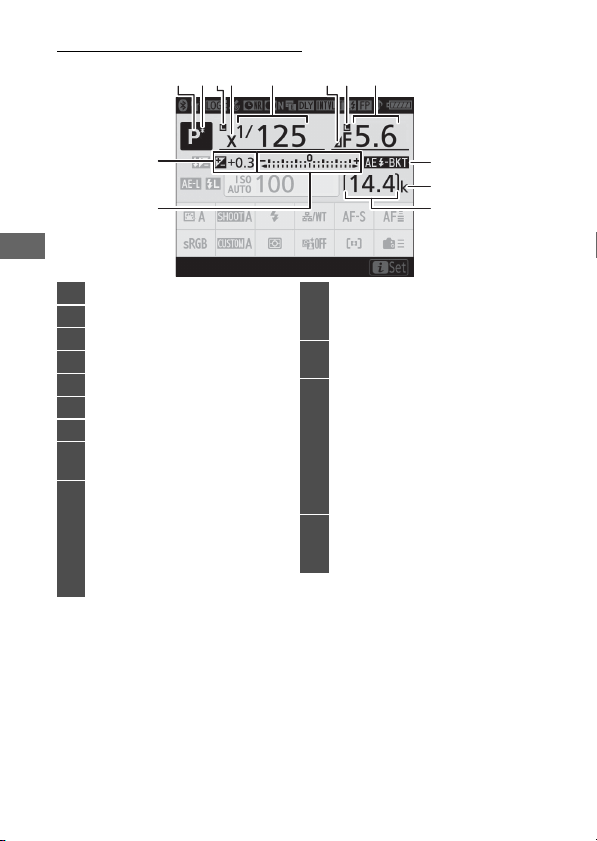
164
Camera Displays
The Information Display
13
9
10
1112
58316742
1
Exposure mode
2
Flexible program indicator
3
Shutter speed lock icon
4
Flash sync indicator
5
Shutter speed
6
Aperture stop indicator
7
Aperture lock icon
8
Aperture (f-number)
Aperture (number of stops)
9
Exposure and flash bracketing
indicator
WB bracketing indicator
ADL bracketing indicator
HDR indicator
Multiple exposure indicator
10
“k” (appears when memory
remains for over 1000
exposures)
11
Number of exposures
remaining
12
Exposure indicator
Exposure
Exposure compensation
Exposure and flash
bracketing
WB bracketing
ADL bracketing
13
Exposure compensation
indicator
Exposure compensation value
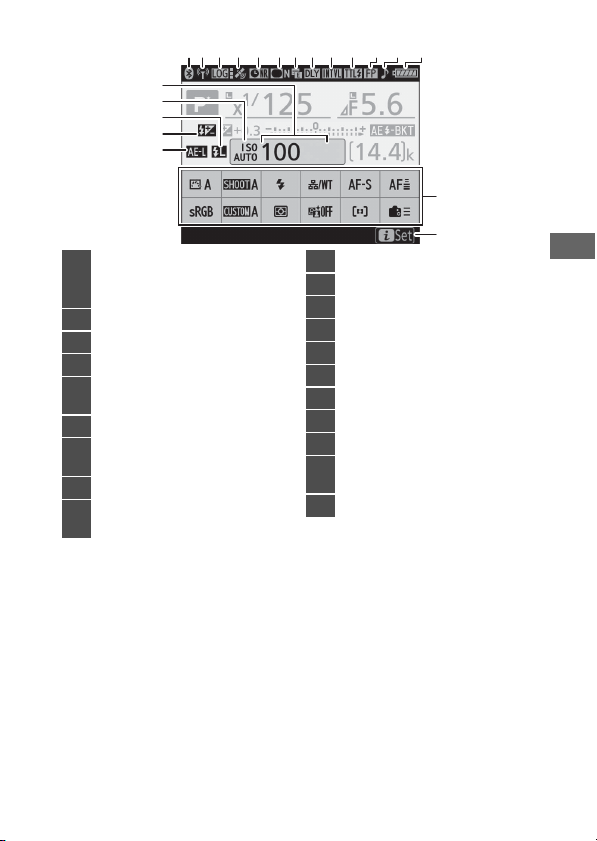
165
Camera Displays
1112 13
21
3
4
68910
5
7
15
14
19
18
20
16
17
1
Bluetooth connection
indicator
Airplane mode
2
Wi-Fi connection indicator
3
Track log indicator
4
Satellite signal indicator
5
Long exposure noise
reduction indicator
6
Vignette control indicator
7
Electronic front-curtain
shutter
8
Exposure delay mode
9
Interval timer indicator
!
(“clock not set”) indicator
10
Flash control mode
11
FP indicator
12
“Beep” indicator
13
Battery indicator
14
i
menu display area
15
Guide
16
Autoexposure (AE) lock
17
Flash compensation indicator
18
FV lock indicator
19
ISO sensitivity indicator
Auto ISO sensitivity indicator
20
ISO sensitivity
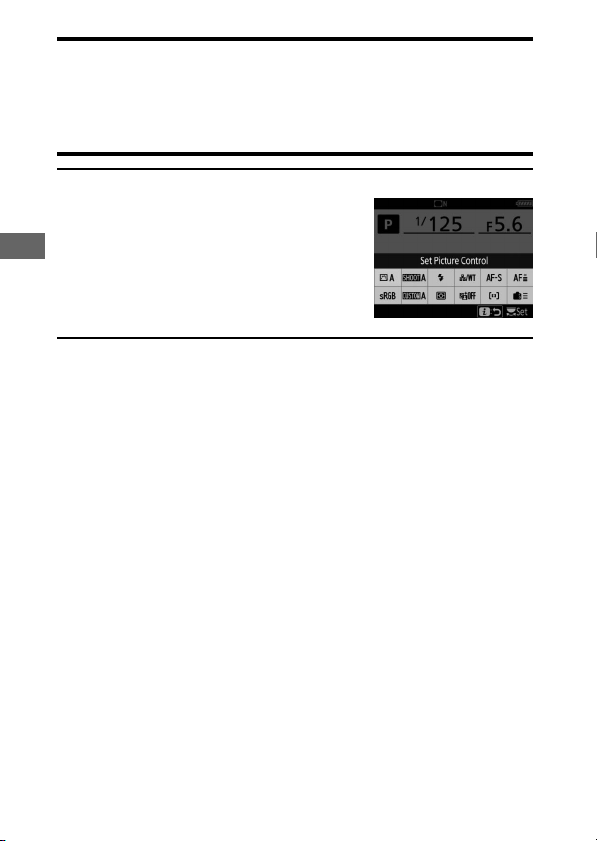
166
Camera Displays
D
The
!
Icon
A flashing
!
icon indicates that the camera clock has been reset. The date
and time recorded with new photographs will not be correct; use the
[Time zone and date] > [Date and time] option in the setup menu to set
the clock to the correct time and date.
A
Using the
i
Menu
To access the
i
menu, press the
i
button or tap
the guide in the information display. Press the
i
button again or press the
R
button to return
to the information display when settings are
complete.
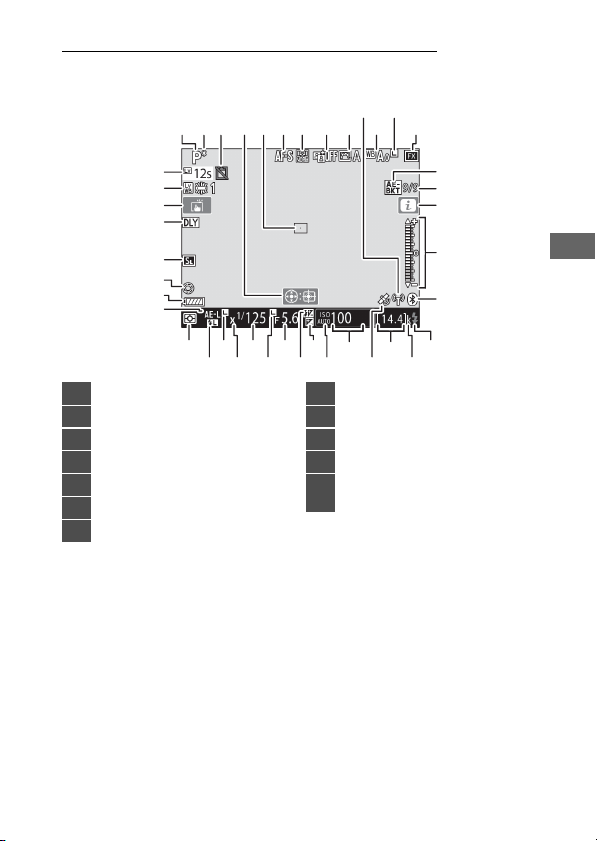
167
Camera Displays
Live View (Still Photography/Movies)
❚❚
Still Photography
34
35
36
37
38
39
40
41
17
21
1210
45 137689113
16
15
14
18
20
19
2430
25
22
2931
2628
27
32
33 2123
1
Exposure mode
2
Flexible program indicator
3
“No memory card” indicator
4
Subject tracking AF
5
Focus point
6
Autofocus mode
7
AF-area mode
8
Active D-Lighting
9
Picture Control
10
Wi-Fi connection indicator
11
White balance
12
“Auto white balance locked”
indicator

168
Camera Displays
13
Image area
14
Exposure and flash bracketing
indicator
WB bracketing indicator
ADL bracketing indicator
HDR indicator
Multiple exposure indicator
15
Position of current frame in
exposure/flash bracketing
sequence
Position of current frame in
white balance bracketing
sequence
ADL bracketing amount
HDR exposure differential
Number of exposures
(multiple exposure)
16
i
icon
17
Exposure indicator
18
Bluetooth connection
indicator
Airplane mode
19
Flash-ready indicator
20
“k” (appears when memory
remains for over 1000
exposures)
21
Number of exposures
remaining
22
Satellite signal indicator
23
ISO sensitivity
24
ISO sensitivity indicator
Auto ISO sensitivity indicator
25
Exposure compensation
indicator
26
Flash compensation indicator
27
Aperture
28
Aperture lock icon
29
Shutter speed
30
Flash sync indicator
31
Shutter speed lock icon
32
FV lock indicator
33
Metering
34
Autoexposure (AE) lock
35
Battery indicator
36
Maximum aperture indicator
37
Silent photography
Electronic front-curtain
shutter
38
Exposure delay mode
169
Camera Displays
D
Temperature Warnings
•
If the camera temperature becomes elevated, a temperature warning
and count-down timer will be displayed. When the timer reaches zero,
the monitor will turn off.
•
The timer turns red when the thirty second mark is reached. In some
cases, the timer may be displayed immediately after the camera is
turned on.
39
Touch shooting
40
Photo live view display WB
41
Time remaining
Temperature warning
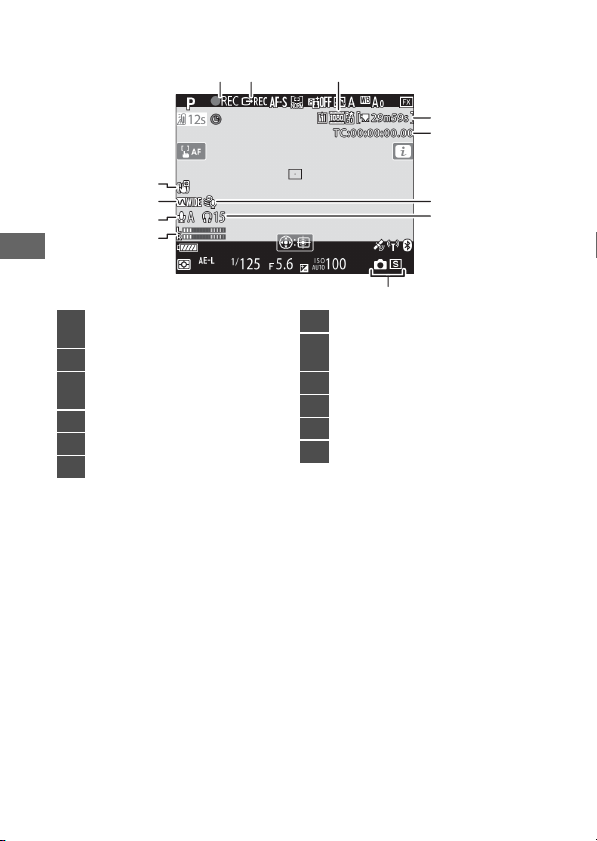
170
Camera Displays
❚❚
Filming
9
10
11
12
12 3
4
5
6
7
8
1
Recording indicator
“No movie” indicator
2
External recording control
3
Frame size and rate/image
quality
4
Time remaining
5
Time code
6
Wind noise reduction
7
Headphone volume
8
Release mode (still
photography)
9
Sound level
10
Microphone sensitivity
11
Frequency response
12
Electronic VR indicator
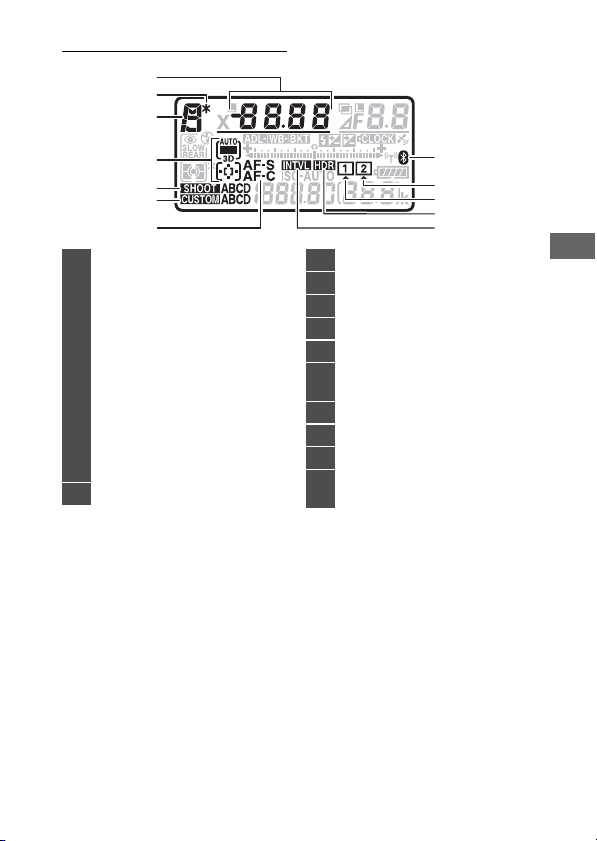
171
Camera Displays
The Top Control Panel
7
1
2
3
4
5
6
8
9
10
11
12
1
Shutter speed
AF-area mode
Exposure compensation value
Flash compensation value
Number of shots in exposure
and flash bracketing sequence
Number of shots in WB
bracketing sequence
Overlay mode
Number of intervals for
interval-timer photography
Focal length (non-CPU lenses)
2
Flexible program indicator
3
Exposure mode
4
AF-area mode indicator
5
Photo shooting menu bank
6
Custom settings bank
7
Autofocus mode
8
Bluetooth connection
indicator
9
Memory card icon (Slot 2)
10
Memory card icon (Slot 1)
11
HDR indicator
12
Interval timer indicator
Time-lapse on indicator
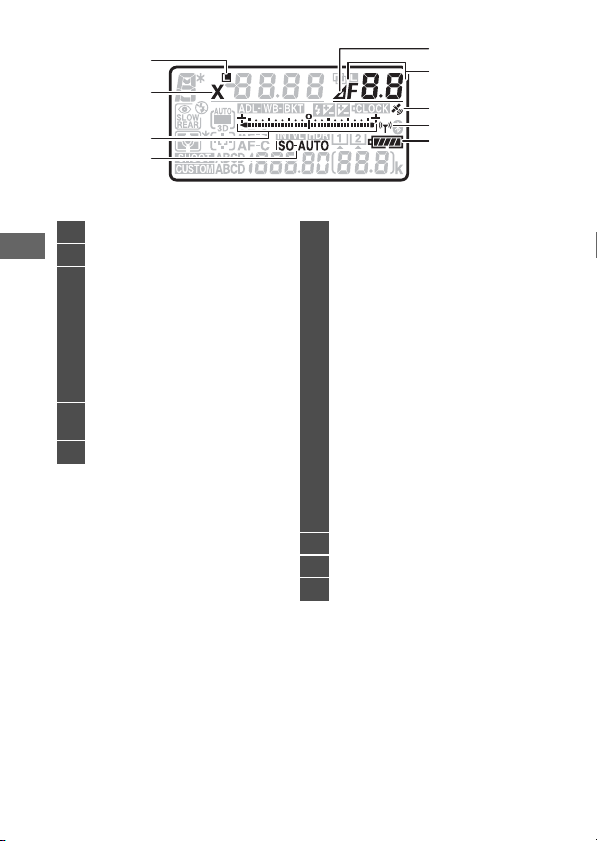
172
Camera Displays
7
6
8
9
5
4
3
1
2
1
Shutter-speed lock icon
2
Flash sync indicator
3
Exposure indicator
Exposure
Exposure compensation
Exposure and flash
bracketing
WB bracketing
ADL bracketing
4
ISO sensitivity indicator
Auto ISO sensitivity indicator
5
Aperture stop indicator
6
Aperture (f-number)
Aperture (number of stops)
Bracketing increment
(exposure and flash
bracketing)
Bracketing increment (WB
bracketing)
Number of shots in ADL
bracketing sequence
Number of shots per interval
HDR exposure differential
Number of exposures
(multiple exposure)
Maximum aperture (non-CPU
lenses)
PC mode indicator
7
Satellite signal indicator
8
Wi-Fi connection indicator
9
Battery indicator
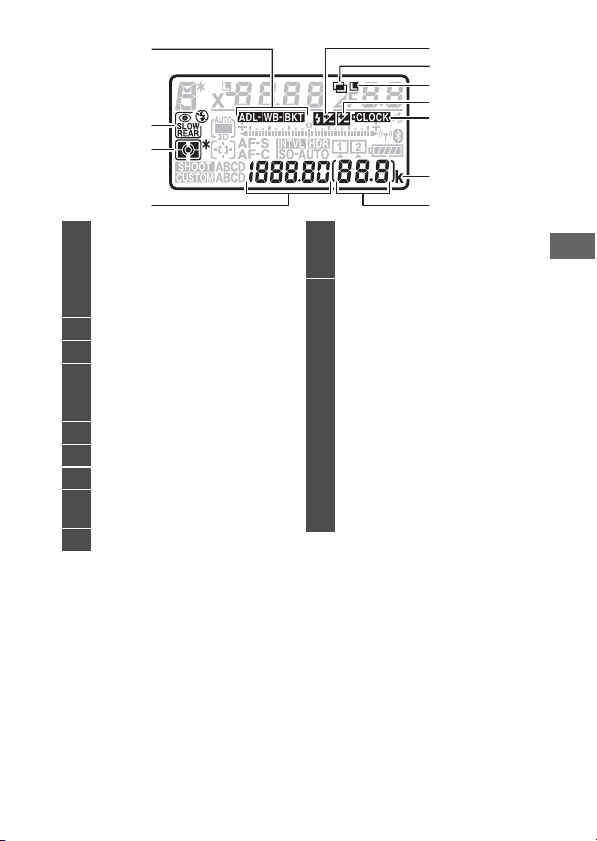
173
Camera Displays
1
2
3
4
5
9
8
6
7
11
10
1
Bracketing indicator
Exposure and flash
bracketing
WB bracketing
ADL bracketing
2
Flash mode
3
Metering
4
Frame count
ISO sensitivity
White balance preset number
5
Flash compensation indicator
6
Multiple exposure indicator
7
Aperture lock icon
8
Exposure compensation
indicator
9
Clock battery indicator
10
“k” (appears when memory
remains for over 1000
exposures)
11
Number of exposures
remaining
Number of shots remaining
before memory buffer fills
Preset white balance
recording indicator
Active D-Lighting amount
HDR mode
Multiple exposure mode
Manual lens number
Time-lapse recording
indicator
Camera control mode
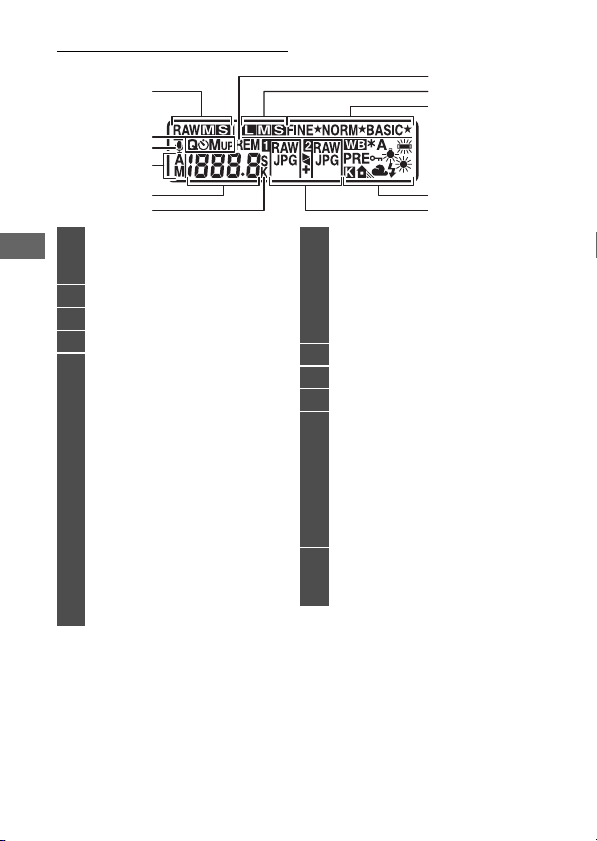
174
Camera Displays
The Rear Control Panel
1
3
2
4
5
10
9
8
7
6
11
1
Image size (NEF/RAW)
Size for JPEG images recorded
to card in Slot 2
2
Release mode
3
Voice memo status indicator
4
Voice memo recording mode
5
Release mode
Continuous shooting speed
Self-timer shot count/self-
timer delay
Number of exposures
remaining
Frame count
Length of voice memo
Sub-option selected for [Auto]
or [Fluorescent] white
balance
White balance preset number
Color temperature
PC mode indicator
6
“k” (appears when memory
remains for over 1000
exposures)
Color temperature indicator
Supplementary seconds
display
7
“Remaining” indicator
8
Image size (JPEG)
9
Image quality
10
White balance
White balance fine-tuning
indicator
“Auto white balance locked”
indicator
White balance preset
protection indicator
11
Role played by memory card
in Slot 2
Image quality
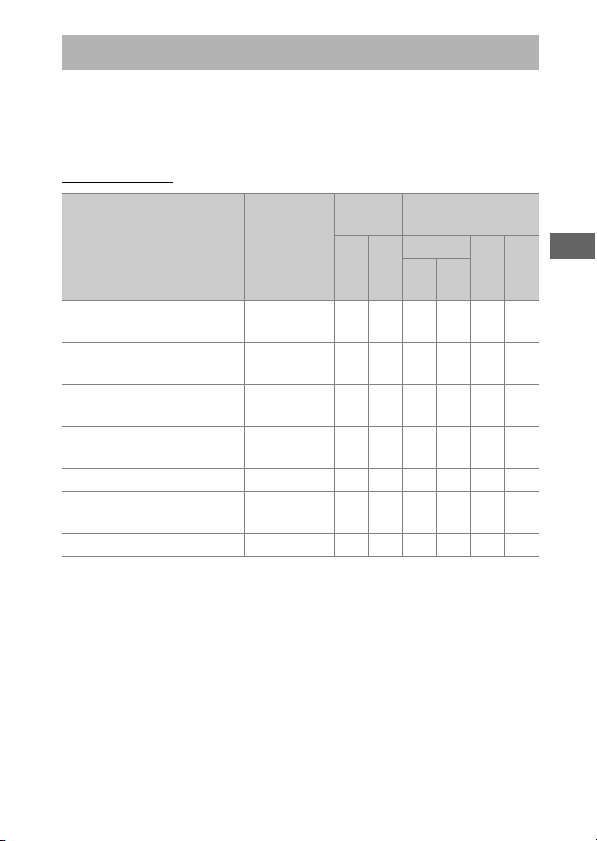
175
Compatible F Mount Lenses
CPU lenses are recommended (but note that IX-NIKKOR lenses
cannot be used). Types G, E, and D, which grant access to a full
range of camera features, are particularly recommended.
CPU lenses
Compatible F Mount Lenses
Lens
1
/accessory Autofocus
2
Exposure
mode
Metering
P
S
A
M
L
M
N
t
3D-
RGB
RGB
Type G, E, or D
3
; AF-S,
AF-P, AF-I
4444
—
4
4
4
PC NIKKOR 19mm f/4E
ED
5
—
4
6
4
6
4
6
—
4
4,
6
4
6
PC-E NIKKOR series
5
—
4
6
4
6
4
6
—
4
4,
6
4
6
PC Micro 85mm f/2.8D
5, 7
——
4
8
4
6
—
4
4,
6
4
6
AF-S/AF-I Teleconverter
9
4444
—
4
4
4
Other AF NIKKOR (except
lenses for F3AF)
4
10
44
—
44
4
—
AI-P NIKKOR —
44
—
44
4
—
176
Compatible F Mount Lenses
1 IX-NIKKOR lenses cannot be used.
2 M (manual focus) is available with all lenses.
3 Vibration reduction (VR) is supported with VR lenses.
4[Spot metering] meters the selected focus point.
5 Fog, lines, and other image artifacts (“noise”) may appear in photos
taken with the electronic front-curtain shutter. This can be
prevented by selecting [Disable] for Custom Setting d6 [Electronic
front-curtain shutter].
6 Cannot be used with shifting or tilting.
7 The camera’s exposure metering and flash control systems will not
function as expected when the lens is shifted and/or tilted, or when
an aperture other than the maximum aperture is used.
8Mode M (manual) only.
9 For information on the focus points available for autofocus and
electronic rangefinding, see “AF-S/AF-I Teleconverters and Available
Focus Points” (
0
180).
10 When an AF 80–200mm f/2.8, AF 35–70mm f/2.8, AF 28–85mm
f/3.5–4.5 <New>, or AF 28–85mm f/3.5–4.5 lens is focused at the
minimum distance at maximum zoom, the in-focus indicator may be
displayed when the image on the matte screen in the viewfinder is
not in focus. Adjust focus manually until the image in the viewfinder
is in focus.
•
“Noise” in the form of lines may appear during autofocus at high ISO
sensitivities. Use manual focus or focus lock. Lines may also appear at
high ISO sensitivities when aperture is adjusted during movie recording
or live view photography.
177
Compatible F Mount Lenses
D
Lens f-Number
The f-number is a measure of lens “speed”, its maximum (widest)
aperture. It appears at the end of the lens name, for example as “f/2.8” or
“f/3.5–5.6”.
D
VR Lenses
The lenses listed below are not recommended for long exposures or
photographs taken at high ISO sensitivities, as due to the design of the
vibration reduction (VR) control system the resulting photos may be
marred by fog.
•
AF-S VR Zoom-Nikkor 24–120mm f/3.5–5.6G IF-ED
•
AF-S VR Zoom-Nikkor 70–200mm f/2.8G IF-ED
•
AF-S VR Zoom-Nikkor 70–300mm f/4.5–5.6G IF-ED
•
AF-S VR Nikkor 200mm f/2G IF-ED
•
AF-S VR Nikkor 300mm f/2.8G IF-ED
•
AF-S NIKKOR 16–35mm f/4G ED VR
•
AF-S NIKKOR 24–120mm f/4G ED VR
•
AF-S NIKKOR 28–300mm f/3.5–5.6G ED VR
•
AF-S NIKKOR 400mm f/2.8G ED VR
•
AF-S NIKKOR 500mm f/4G ED VR
•
AF-S DX VR Zoom-Nikkor 18–200mm f/3.5–5.6G IF-ED
•
AF-S DX NIKKOR 16–85mm f/3.5–5.6G ED VR
•
AF-S DX NIKKOR 18–200mm f/3.5–5.6G ED VR II
•
AF-S DX Micro NIKKOR 85mm f/3.5G ED VR
•
AF-S DX NIKKOR 55–300mm f/4.5–5.6G ED VR
We recommend turning vibration reduction off when using other VR
lenses.
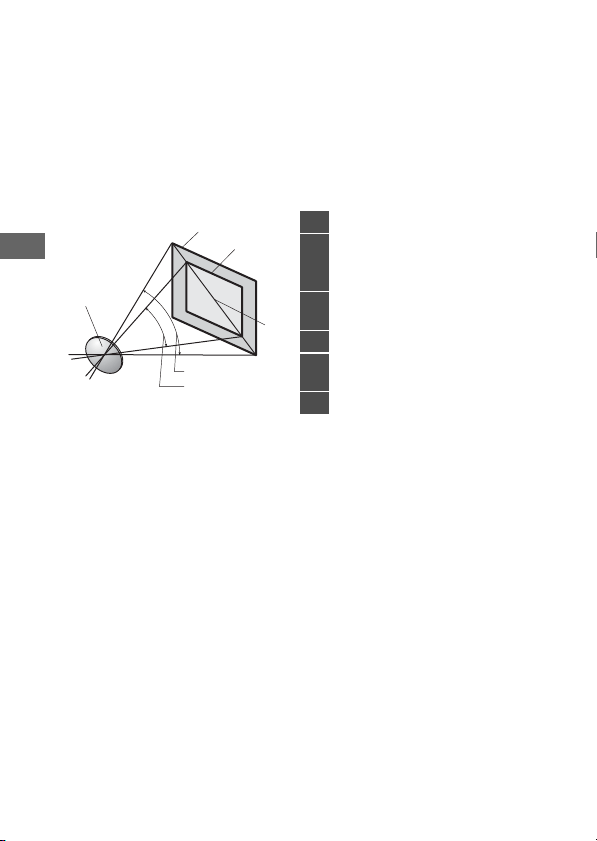
178
Compatible F Mount Lenses
D
Calculating Angle of View
The camera can be used with Nikon lenses for 35 mm format cameras. If a
35 mm format lens or a lens that supports the FX format is attached, the
angle of view will be the same as a frame of 35 mm film.
•
You can also take pictures at angles of view that differ from that of the
current lens by selecting different options for [Image area] > [Choose
image area] in the photo shooting menu. For example, if a 35 mm
format lens or a lens that supports the FX format is attached, you can
reduce the angle of view by selecting [DX (24×16)].
•
The picture diagonal for 35 mm format is about 1.5 times that of the [DX
(24×16)] crop. Selecting [DX (24×16)] therefore multiplies the apparent
focal length of 35 mm format lenses attached to the camera by about
1.5×. For example, selecting [DX (24×16)] when a lens with a focal
length of 50 mm is attached increases the apparent focal length to
about 75 mm.
1
2
3
4
5
6
1
Lens
2
[FX (36×24)] picture size (35.9
× 23.9 mm, equivalent to
35 mm format camera)
3
[DX (24×16)] picture size (23.5
× 15.7 mm)
4
Picture diagonal
5
[FX (36×24)] angle of view (35
mm format)
6
[DX (24×16)] angle of view
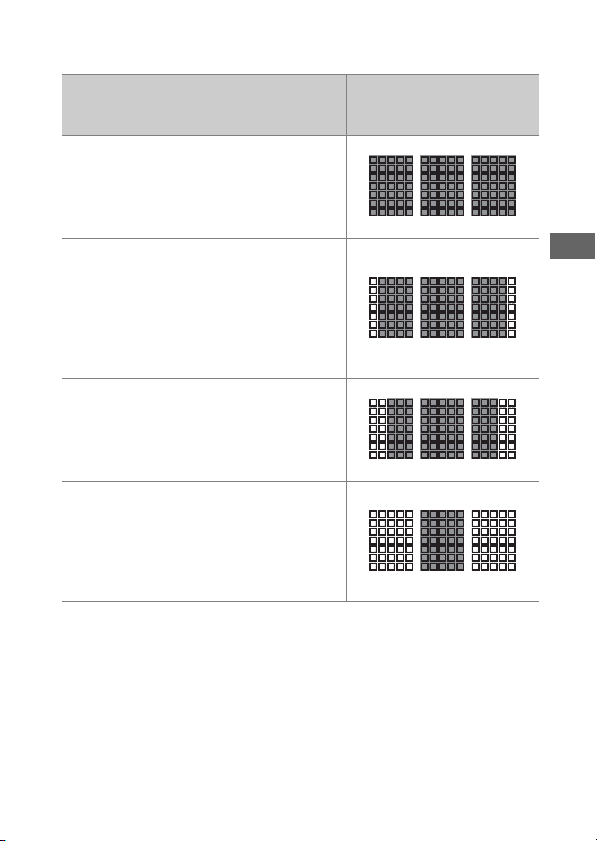
179
Compatible F Mount Lenses
D
Cross Sensors
The availability of cross-sensor focus points varies with the lens used.
1 At maximum zoom, in the case of zoom lenses.
2 Other focus points use line sensors, which detect horizontal lines.
Lens
Cross sensors (cross-
sensor focus points
highlighted in gray
2
)
AF-S and AF-P lenses other than those
listed below with maximum apertures of
f/4 or faster
1
105 cross sensors
•
AF-S DX Zoom-Nikkor 12–24mm f/4G
IF-ED
•
AF-S NIKKOR 500mm f/4E FL ED VR
•
AF-S NIKKOR 600mm f/4G ED VR
•
AF-S NIKKOR 600mm f/4E FL ED VR
•
AF-S Nikkor 600mm f/4D IF-ED II
•
AF-S Nikkor 600mm f/4D IF-ED
91 cross sensors
•
AF-S NIKKOR 500mm f/4G ED VR
•
AF-S Nikkor 500mm f/4D IF-ED II
•
AF-S Nikkor 500mm f/4D IF-ED
77 cross sensors
•
AF-S NIKKOR 200–400mm f/4G ED VR II
•
AF-S VR Zoom-Nikkor 200–400mm f/4G
IF-ED
•
AF-S and AF-P lenses with maximum
apertures slower than f/4
1
•
Non–AF-S, non–AF-P lenses
35 cross sensors
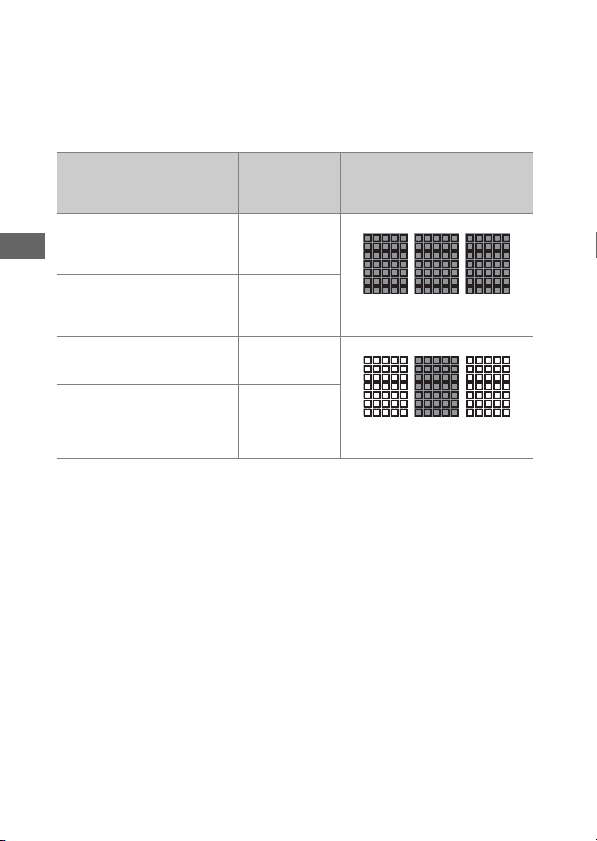
180
Compatible F Mount Lenses
D
AF-S/AF-I Teleconverters and Available Focus Points
When an AF-S or AF-I teleconverter is attached, the focus points shown in
the illustrations can be used during viewfinder photography for
autofocus and electronic rangefinding (note that at maximum combined
apertures slower than f/5.6, the camera may not be able to focus on dark
or low-contrast subjects).
Teleconverter
Max. lens
aperture
1
Available focus points
(cross-sensor focus points
highlighted in gray
2
)
TC-14E, TC-14E II, TC-14E III
TC-17E II
TC-20E, TC-20E II, TC-20E III
f/2
•
105 focus points
•
105 cross sensors
TC-14E, TC-14E II, TC-14E III f/2.8
TC-17E II
TC-20E, TC-20E II, TC-20E III
f/2.8
•
105 focus points
•
35 cross sensors
TC-14E, TC-14E II, TC-14E III f/4
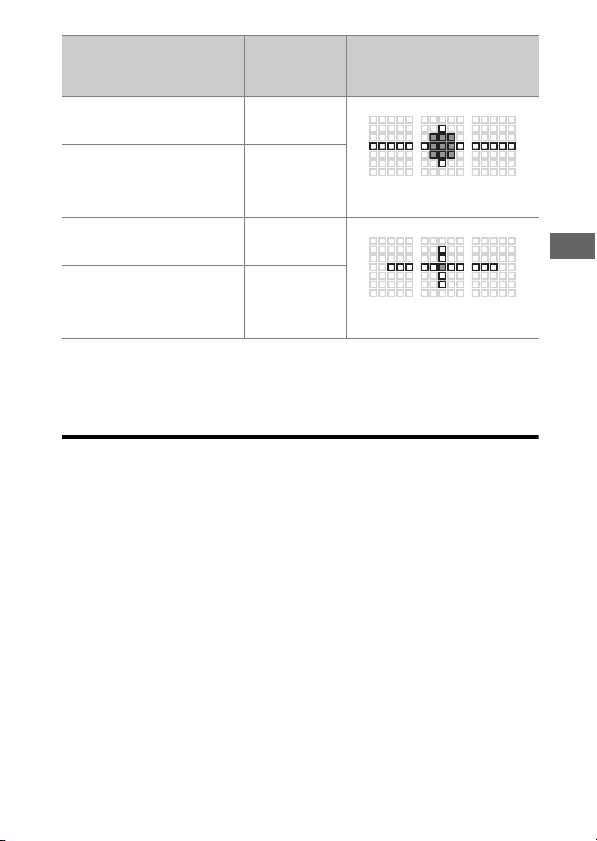
181
Compatible F Mount Lenses
1 At maximum zoom, in the case of zoom lenses.
2 Other focus points use line sensors, which detect horizontal lines.
Autofocus is not available when teleconverters are used with AF-S VR
Micro-Nikkor 105mm f/2.8G IF-ED lenses.
TC-17E II f/4
•
23 focus points
•
9 cross sensors
TC-800-1.25E ED f/5.6
TC-20E, TC-20E II, TC-20E III f/4
•
15 focus points
•
1 cross sensor
TC-14E, TC-14E II, TC-14E III f/5.6
Teleconverter
Max. lens
aperture
1
Available focus points
(cross-sensor focus points
highlighted in gray
2
)
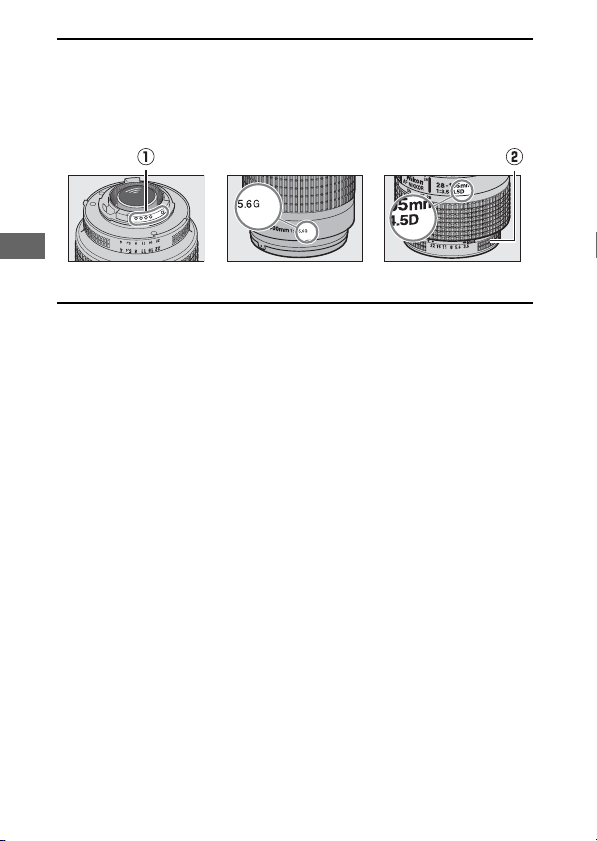
182
Compatible F Mount Lenses
A
Recognizing CPU and Type G, E, and D Lenses
CPU lenses can be identified by the presence of CPU contacts (
q
). Type G
lenses are marked with a “G”, type E lenses with an “E”, and type D lenses
with a “D”. Type G and E lenses are not equipped with a lens aperture ring
(
w
).
CPU lens Type G or E lens
Type D lens
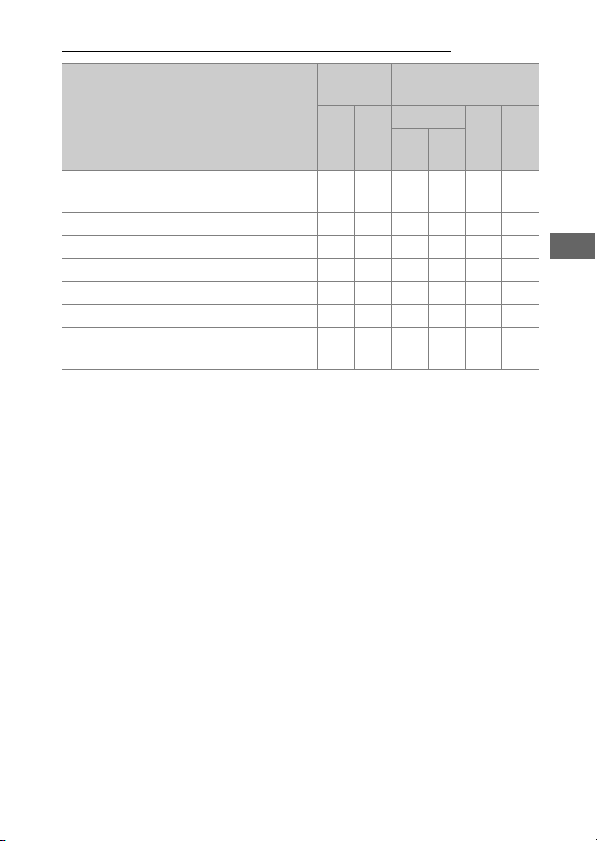
183
Compatible F Mount Lenses
Non-CPU lenses and Other Accessories
1 Some lenses cannot be used (
0
185).
2 The range of rotation for the AI 80–200mm f/2.8 ED tripod mount is
limited by the camera body. Filters cannot be exchanged while an AI
200–400mm f/4 ED is mounted on camera.
3 If the maximum aperture is specified using the [Non-CPU lens data]
item in the setup menu, the aperture value will be displayed in the
viewfinder and control panel.
Lens
1
/accessory
Exposure
mode
Metering
P
S
A
M
L
M
N
t
3D-
RGB
RGB
AI-, AI-modified NIKKOR or Nikon
Series E lenses
2
—
4
3
—
4
4
4
5
—
Medical-NIKKOR 120mm f/4 —
4
6
————
Reflex-NIKKOR —
4
3
——
4
5
—
PC-NIKKOR —
4
7
——
4
—
AI-type Teleconverter
8
—
4
3
—
4
4
4
5
—
PB-6 Bellows Focusing Attachment
9
—
4
10
——
4
—
Auto extension rings (PK-series 11A,
12, or 13; PN-11)
—
4
3
——
4
—
184
Compatible F Mount Lenses
4 Can be used only if the lens focal length and maximum aperture are
specified using the [Non-CPU lens data] item in the setup menu.
Some lenses may, however, fail to produce the desired results even if
the focal length and maximum aperture are supplied. Use [Spot
metering] or [Center-weighted metering] if the desired results are
not achieved.
5 For improved precision, specify the lens focal length and maximum
aperture using the [Non-CPU lens data] item in the setup menu.
6 Can be used in mode M at shutter speeds one step or more slower
than the flash sync speed.
7 Use stop-down metering. In mode A, stop aperture down using the
controls on the lens and lock exposure before shifting the lens. In
mode M, stop aperture down using the controls on the lens and
meter exposure before shifting the lens.
8 Exposure compensation required with AI 28–85mm f/3.5–4.5, AI 35–
105mm f/3.5–4.5, AI 35–135mm f/3.5–4.5, or AF-S 80–200mm
f/2.8D lenses.
9 Requires a PK-12 or PK-13 auto extension ring. A PB-6D may be
required depending on camera orientation.
10 Can be used with stop-down metering; in mode A, stop aperture
down using the controls on the bellows attachment and meter
exposure before taking photographs.
•
Lines may appear at high ISO sensitivities when aperture is adjusted
during movie recording or live view photography.

185
Compatible F Mount Lenses
D
Incompatible Lenses and Accessories
The following non-CPU lenses and accessories cannot be used.
Attempting to mount them on the camera could damage the camera or
lens.
•
TC-16A AF teleconverters
•
Non-AI lenses (lenses with pre-AI exposure couplings)
•
Lenses that require the AU-1 focusing unit (400mm f/4.5, 600mm f/5.6,
800mm f/8, 1200mm f/11)
•
Fisheye (6mm f/5.6, 7.5mm f/5.6, 8mm f/8, OP 10mm f/5.6)
•
2.1cm f/4
•
K2 extension rings
•
180–600mm f/8 ED lenses (serial numbers 174041–174180)
•
360–1200mm f/11 ED lenses (serial numbers 174031–174127)
•
200–600mm f/9.5 lenses (serial numbers 280001–300490)
•
AF lenses for the F3AF (AF 80mm f/2.8, AF 200mm f/3.5 ED, TC-16 AF
teleconverters)
•
PC 28mm f/4 lenses (serial numbers 180900 or earlier)
•
PC 35mm f/2.8 lenses (serial numbers 851001–906200)
•
PC 35mm f/3.5 lenses (old type)
•
Reflex 1000mm f/6.3 lenses (old type)
•
Reflex 1000mm f/11 lenses (serial numbers 142361–143000)
•
Reflex 2000mm f/11 lenses (serial numbers 200111–200310)
186
Compatible F Mount Lenses
A
Compatible Non-CPU Lenses
•
Specifying the lens focal length and maximum aperture using the [Non-
CPU lens data] item in the setup menu allows many of the features
available with CPU lenses, including aperture value display and color
matrix metering, to be used with non-CPU lenses. If the focal length and
maximum aperture are not provided and [Matrix metering] is selected
for metering, [Center-weighted metering] will be used instead.
•
Aperture must be set using the lens aperture ring. If the maximum
aperture is not provided using [Non-CPU lens data], the aperture
displays in the camera top control panel and viewfinder will show the
number of stops from maximum aperture and the actual aperture value
must be read off the lens aperture ring.
187
Compatible F Mount Lenses
The Electronic Rangefinder
The conditions under which the electronic rangefinder can be
used vary with the lens.
❚❚
CPU lenses
1 Cannot be used with shifting or tilting.
2 When an AF 80–200mm f/2.8, AF 35–70mm f/2.8, AF 28–85mm f/3.5–
4.5 <New>, or AF 28–85mm f/3.5–4.5 lens is focused at the minimum
distance at maximum zoom, the in-focus indicator may be displayed
when the image on the matte screen in the viewfinder is not in focus.
Adjust focus manually until the image in the viewfinder is in focus.
3 With a maximum aperture of f/5.6 or faster.
Lens/accessory
Viewfinder
photography
Live view
Type G, E, or D; AF-S, AF-P, AF-I
4
—
PC NIKKOR 19mm f/4E ED
4
1
—
PC-E NIKKOR series
4
1
—
PC Micro 85mm f/2.8D
4
1
—
AF-S/AF-I Teleconverter
4
—
Other AF NIKKOR (except lenses for
F3AF)
4
2
—
AI-P NIKKOR
4
3
—
188
Compatible F Mount Lenses
❚❚
Non-CPU Lenses and Other Accessories
1 With a maximum aperture of f/5.6 or faster.
2 Cannot be used with shifting or tilting.
3 With a maximum effective aperture of f/5.6 or faster.
Lens/accessory
Viewfinder
photography
Live view
AI-, AI-modified NIKKOR or Nikon
Series E lenses
4
1
—
Medical-NIKKOR 120mm f/4
4
—
Reflex-NIKKOR — —
PC-NIKKOR
4
2
—
AI-type Teleconverter
4
3
—
PB-6 Bellows Focusing Attachment
4
3
—
Auto extension rings (PK-series 11A,
12, or 13; PN-11)
4
3
—
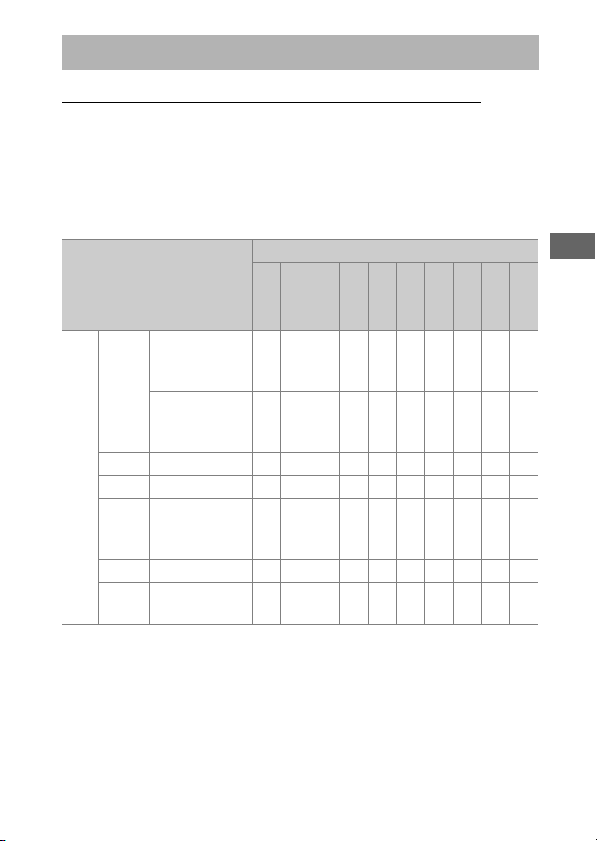
189
Compatible Flash Units
The Nikon Creative Lighting System (CLS)
Nikon’s advanced Creative Lighting System (CLS) supports a
variety of features thanks to improved communication between
the camera and compatible flash units.
❚❚
Features Available with CLS-Compatible Flash
Units
Compatible Flash Units
Supported features
Flash unit
SB-5000
SB-910/
SB-900/
SB-800
SB-700
SB-600
SB-500
SU-800
SB-R200
SB-400
SB-300
Single flash
i-TTL
i-TTL balanced
fill-flash for
digital SLR
1
44444
——
44
Standard i-TTL
fill-flash for
digital SLR
4
2
4
2
44
2
4
——
44
q
A Auto aperture
44
3
———————
A Non-TTL auto —
4
3
———————
GN
Distance-
priority
manual
444
——————
M Manual
44444
4
——
4
4
4
4
RPT
Repeating
flash
44
———————
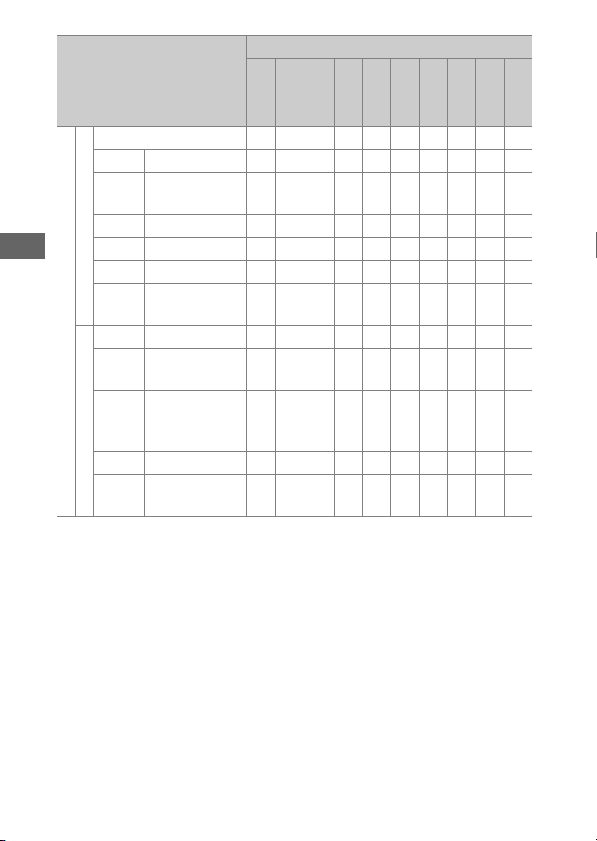
190
Compatible Flash Units
Optical Advanced Wireless Lighting
Master
Remote flash control
444
—
4
4
4
———
i-TTL i-TTL
444
—
4
4
————
[A : B]
Quick wireless
flash control
4
—
4
——
4
5
———
q
A Auto aperture
44
———————
A Non-TTL auto — — ———————
M Manual
444
—
4
4
————
RPT
Repeating
flash
44
———————
Remote
i-TTL i-TTL
44444
—
4
——
[A : B]
Quick wireless
flash control
44444
—
4
——
q
A/A
Auto
aperture/non-
TTL auto
4
6
4
6
———————
M Manual
44444
—
4
——
RPT
Repeating
flash
44444
————
Supported features
Flash unit
SB-5000
SB-910/
SB-900/
SB-800
SB-700
SB-600
SB-500
SU-800
SB-R200
SB-400
SB-300
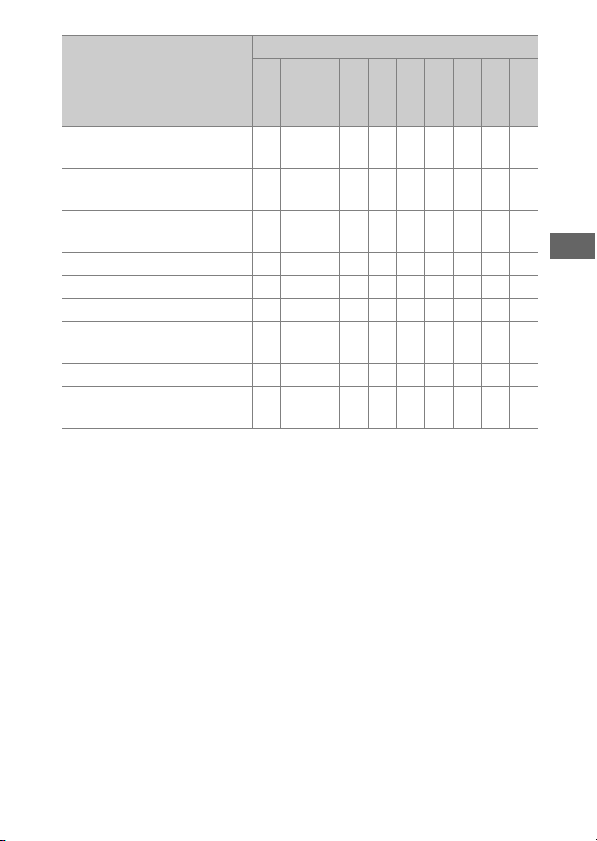
191
Compatible Flash Units
Radio-controlled Advanced
Wireless Lighting
4
7
— ———————
Color Information
Communication (flash)
44444
——
44
Color Information
Communication (LED light)
————
4
————
Auto FP high-speed sync
8
4444444
——
FV lock
9
4 4 4444444
Red-eye reduction
44444
——
4
—
Camera modeling
illumination
4444444
——
Unified flash control
4
———
4
——
44
Camera flash unit firmware
update
44
10
4
—
4
———
4
Supported features
Flash unit
SB-5000
SB-910/
SB-900/
SB-800
SB-700
SB-600
SB-500
SU-800
SB-R200
SB-400
SB-300
192
Compatible Flash Units
1 Not available with spot metering.
2 Can also be selected via the flash unit.
3
q
A/A mode selection is performed on the flash unit using custom
settings.
4 Can be selected using the [Flash control] item in the camera menus.
5 Available during close-up photography only.
6Choice of
q
A and A depends on the option selected with the master
flash.
7 Supports the same features as remote flash units with optical AWL.
8 Available only in i-TTL,
q
A, A, GN, and M flash-control modes.
9 Available only in i-TTL flash control mode or when the flash is
configured to emit monitor preflashes in
q
A or A flash control
mode.
10 Firmware updates for the SB-910 and SB-900 can be performed from
the camera.
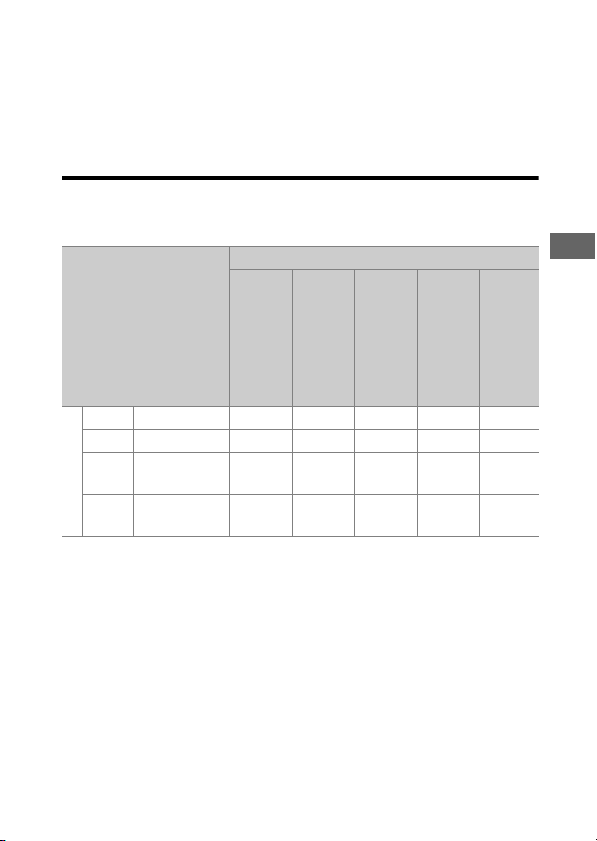
193
Compatible Flash Units
❚❚
The SU-800 Wireless Speedlight Commander
When mounted on a CLS-compatible camera, the SU-800 can be
used as a commander for SB-5000, SB-910, SB-900, SB-800,
SB-700, SB-600, SB-500, or SB-R200 flash units. Group flash
control is supported for up to three groups. The SU-800 itself is
not equipped with a flash.
D
Other Flash Units
The following flash units can be used in non-TTL auto (A) and manual
modes. The options available do not vary with the lens used.
1 Mounting an SB-27 on the camera automatically sets the flash mode
to TTL, but setting the flash mode to TTL disables the shutter release.
Set the SB-27 to A.
2 Available when the camera is used to select the flash mode.
Supported features
Flash unit
SB-80DX
SB-28DX
SB-50DX
SB-28
SB-26
SB-25
SB-24
SB-30
SB-27
1
SB-22S
SB-22
SB-20
SB-16B
SB-15
SB-23
SB-29
SB-21B
SB-29S
Flash mode
A Non-TTL auto
4
—
44
—
M Manual
44444
G
Repeating
flash
4
—
4
——
REAR
2
Rear-curtain
sync
44444
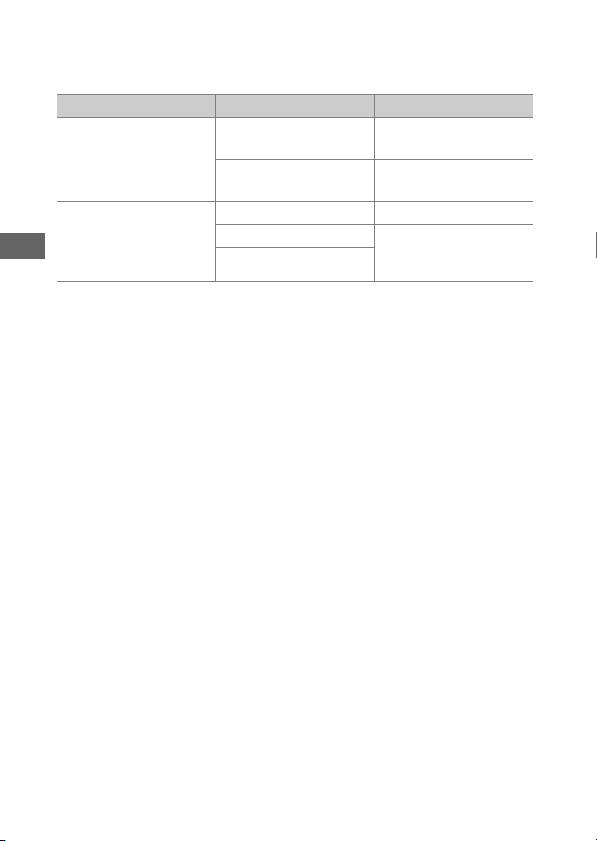
194
Compatible Flash Units
D
Metering Areas for FV Lock
The areas metered when FV lock is used with optional flash units are as
follows:
D
Notes on Optional Flash Units
•
Refer to the flash unit manual for detailed instructions.
•
If the unit supports CLS, refer to the section on CLS-compatible digital
SLR cameras. This camera is not included in the “digital SLR” category in
the SB-80DX, SB-28DX, and SB-50DX manuals.
•
If the flash-ready indicator (
N
) flashes for about three seconds after a
photograph is taken in i-TTL or non-TTL auto mode, the flash has fired at
full power and the photograph may be underexposed (CLS-compatible
flash units only).
•
i-TTL flash control can be used at ISO sensitivities between 100 and
12800.
Picture taken with Flash control mode Metered area
Stand-alone flash unit
i-TTL
6-mm circle in center
of frame
Auto aperture (
q
A)
Area metered by flash
exposure meter
Remote flash units
controlled via
Advanced Wireless
Lighting
i-TTL Entire frame
Auto aperture (
q
A)
Area metered by flash
exposure meter
Non-TTL auto (A)
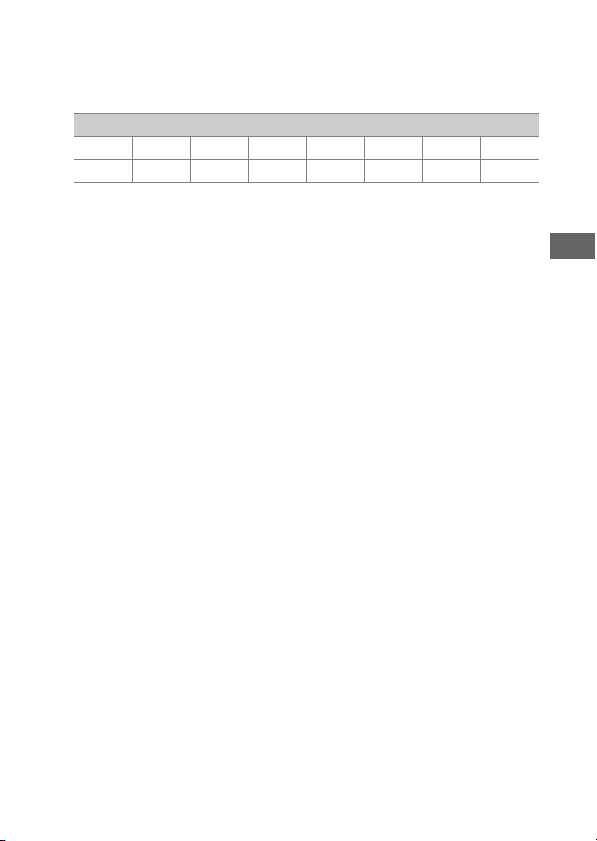
195
Compatible Flash Units
•
At ISO sensitivities over 12800, the desired results may not be achieved
at some ranges or aperture settings.
•
In mode P, the maximum aperture (minimum f-number) is limited
according to ISO sensitivity, as shown below:
* If the maximum aperture of the lens is smaller than given above, the
maximum value for aperture will be the maximum aperture of the lens.
•
The SB-5000, SB-910, SB-900, SB-800, SB-700, SB-600, SB-500, and
SB-400 provide red-eye reduction in red-eye reduction and slow-sync
with red-eye reduction flash modes.
•
“Noise” in the form of lines may appear in flash photographs taken with
an SD-9 or SD-8A high-performance battery pack attached directly to
the camera. Reduce ISO sensitivity or increase the distance between the
camera and the battery pack.
•
The SB-5000, SB-910, SB-900, SB-800, SB-700, SB-600, and SU-800
provide AF-assist illumination as required.
Maximum aperture (f-number) at ISO equivalent of:
100 200 400 800 1600 3200 6400 12800
4 5 5.67.1 8 101113
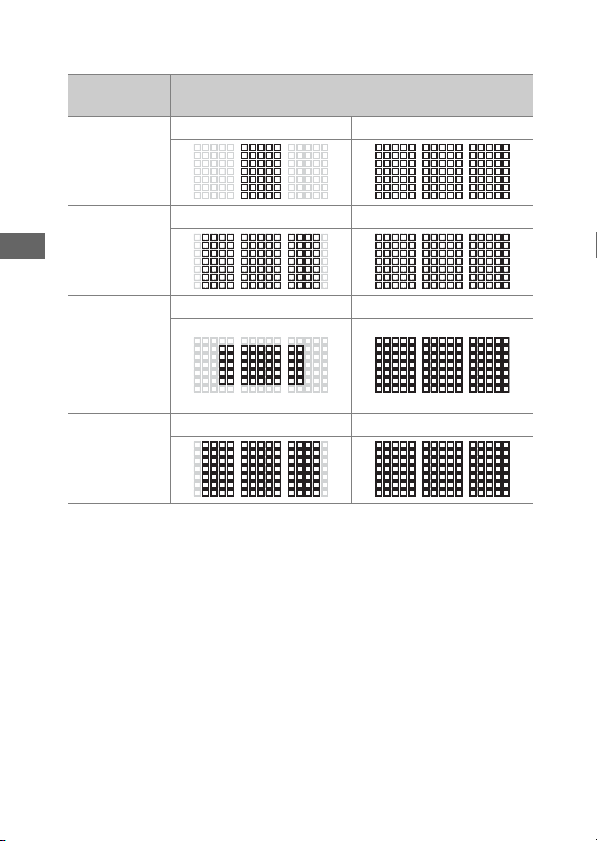
196
Compatible Flash Units
•
During viewfinder photography, the focus points for which AF
illumination is available vary with focal length.
•
Depending on the lens used and scene recorded, the in-focus indicator
(
I
) may be displayed when the subject is not in focus, or the camera
may be unable to focus and the shutter release will be disabled.
Flash unit
Examples of focus points for which AF-assist
illumination is available
SB-5000
Focal length 24 mm Focal length 135 mm
SB-910/
SB-900
Focal length 17 mm Focal length 135 mm
SB-800/
SB-600/
SU-800
wireless
speedlight
commander
Focal length 24 mm Focal length 105 mm
SB-700
Focal length 24 mm Focal length 135 mm

197
Compatible Flash Units
•
When an SC-series 17, 28, or 29 sync cable is used for off-camera flash
photography, correct exposure may not be achieved in i-TTL mode. We
recommend that you select standard i-TTL fill-flash. Take a test shot and
view the results in the monitor.
•
In i-TTL, do not use any form of flash panel (diffusion panel) other than
the flash unit’s built-in flash panel or bounce adapters provided with the
flash unit. Using other panels may produce incorrect exposure.
D
Flash Compensation for Optional Flash Units
In i-TTL and auto aperture (
q
A) flash control modes, the flash
compensation selected with the optional flash unit or the [Flash control]
item in the photo shooting menu is added to the flash compensation
selected with the
W
(
M
) button.
A
Modeling Illumination
•
Optional CLS-compatible flash units emit a modeling flash when the
camera Pv button is pressed.
•
This feature can be used with Advanced Wireless Lighting to preview
the total lighting effect achieved with multiple flash units.
•
Modeling illumination can be turned off by selecting [Off] for Custom
Setting e6 [Modeling flash].

198
Other Compatible Accessories
A variety of accessories are available for your Nikon camera.
●
Power Sources
•
EN-EL18c Rechargeable Li-ion Battery: EN-EL18c batteries can be
used with Nikon D6 digital cameras. EN-EL18c batteries can be charged
and calibrated using MH-26a battery chargers.
- EN-EL18b/EN-EL18a/EN-EL18 batteries can also be used. Note,
however, that fewer pictures can be taken on a single charge with an
EN-EL18 than with an EN-EL18c/EN-EL18b/EN-EL18a (
0
263).
•
MH-26a Battery Charger: The MH-26a can be used to recharge
EN-EL18c/EN-EL18b/EN-EL18a/EN-EL18 batteries. The MH-26a can also
be used to calibrate batteries.
- MH-26 battery chargers can be used in place of the MH-26a.
•
EP-6 Power Connector, EH-6c AC Adapter: Use AC adapters to power
the camera for extended periods.
- The EP-6 is needed to connect the EH-6c to the camera. See “Attaching
a Power Connector and AC Adapter” (
0
207) for details.
- EH-6b, EH-6a, and EH-6 AC adapters can be used in place of the EH-6c.
Other Compatible Accessories

199
Other Compatible Accessories
●
Accessory Shoe Covers
BS-3/BS-1 Accessory Shoe Covers: Accessory shoe covers protect the
accessory shoe when no flash unit is attached (
0
204).
●
Body Caps
BF-1B Body Cap/BF-1A Body Cap: Body caps prevent dust entering the
camera when no lens is in place.
●
Viewfinder Eyepiece Accessories
•
DK-19 Rubber Eyecup: A rubber eyecup that can be fitted to the
camera viewfinder. The DK-19 makes the image in the viewfinder easier
to see, preventing eye fatigue.
•
DK-17C Diopter-Adjustment Viewfinder Lenses: These lenses can be
dropped into the viewfinder eyepiece to accommodate the needs of
far- and near-sighted photographers. Choose from lenses with diopters
of −3, −2, 0, +1, and +2 m
−1
. Be sure to try the lenses in the store before
purchase, as results can vary widely from person to person. Diopter
adjustment lenses (
0
205) can be used for diopters beyond the range
of the camera’s diopter adjustment control (−3 to +1 m
−1
).
•
DK-17M Magnifying Eyepiece: When fitted to the camera viewfinder,
the DK-17M increases magnification by approximately 1.2×.
•
DG-2 Eyepiece Magnifier: The DG-2 magnifies the scene at the center
of the viewfinder. Use it in situations requiring especially precise focus.
•
DK-18 Eyepiece Adapter: An adapter used when attaching DG-2
magnifiers or DR-3 right-angle viewing attachments (
0
205).
•
DK-27 Eyepiece Adapter: A DK-27 is supplied with the camera.
•
DK-14/DK-17A Antifog Finder Eyepieces: These viewfinder eyepieces
prevent fogging in humid or cold conditions.
200
Other Compatible Accessories
•
DK-17F Fluorine-Coated Finder Eyepiece: A DK-17F is supplied with
the camera. The protective glass features Nikon’s unique, easy-to-clean
fluorine coating on both surfaces.
•
DR-5 Right-Angle Viewing Attachment: The DR-5 attaches to the
viewfinder eyepiece at a right angle, allowing the image in the
viewfinder to be viewed from above when the camera is used to take
pictures in “wide” (landscape) orientation. Choose from magnifications
of 1× and 2×
*
, the former to view the entire frame and the latter for
greater precision when focusing. Diopter adjustment is also supported.
* The edges of the frame are not visible when the view is magnified.
•
DR-4 Right-Angle Viewing Attachment: The DR-4 attaches to the
viewfinder eyepiece at a right angle, allowing the image in the
viewfinder to be viewed from above when the camera is used to take
pictures in “wide” (landscape) orientation.
●
Filters
•
Neutral Color (NC) filters can be used to protect the lens.
•
The camera cannot be used with linear polarizing filters. Use the C-PL or
C-PLII circular polarizing filter instead.
•
Filters may cause ghosting when the subject is framed against a bright
light, or when a bright light source is in the frame. Filters can be
removed if ghosting occurs.
•
RGB and 3D-RGB matrix metering may not produce the desired results
with filters with exposure factors (filter factors) over 1× (Y44, Y48, Y52,
O56, R60, X0, X1, C-PL, ND2S, ND4, ND4S, ND8, ND8S, ND400, A2, A12,
B2, B8, B12); we suggest that [Center-weighted metering] be selected
instead. See the filter manual for details.
•
Filters intended for special-effects photography may interfere with
autofocus or the electronic rangefinder.

201
Other Compatible Accessories
●
Wireless Transmitters
1, 2
WT-6 Wireless Transmitters: Use a wireless transmitter to upload
pictures over a wireless network or control the camera from a computer
running Camera Control Pro 2 (available separately). You can also take
and browse pictures remotely from a computer or smart device.
1 Requires a wireless network and some basic network knowledge. Be
sure to update the wireless transmitter software to the latest version.
2 WT-5 wireless transmitters cannot be used.
●
Wireless Remote Controllers
•
WR-R10/WR-T10 Wireless Remote Controllers: When a WR-R10 is
connected to the ten-pin remote terminal using a WR-A10 adapter, the
camera can be controlled remotely using a WR-T10 wireless remote
controller.
- The WR-R10 can also be used to control radio-controlled flash units.
- For synchronized release involving more than one camera, ready
multiple cameras with paired WR-R10 units attached.
•
WR-1 Wireless Remote Controller: WR-1 units are used with WR-R10 or
WR-T10 wireless remote controllers or with other WR-1 remote
controllers, with the WR-1 units functioning as either transmitters or
receivers. When a WR-R10 or a WR-1 configured as a receiver is
connected to the ten-pin remote terminal, a WR-T10 or a second WR-1
configured as a transmitter can be used to take pictures remotely.
Camera settings can also be adjusted using a WR-1 configured as a
transmitter.
* Be sure the firmware for the WR-R10 and WR-1 has been updated to the
latest versions (WR-R10 firmware version 3.0 or later and WR-1 firmware
version 1.0.1 or later). For information on firmware updates, see the
Nikon website for your area. Consult a Nikon-authorized service
representative when updating the firmware for the WR-R10 from
versions prior to version 2.0 to version 3.0 or later.
202
Other Compatible Accessories
●
Remote Terminal Accessories
The camera is equipped with a ten-pin remote terminal for remote
control and automatic photography.
Be sure to replace the terminal cap when the terminal is not in use. Dust
or other foreign matter accumulating in the terminal contacts could cause
the camera to malfunction.
•
MC-22/MC-22A Remote Cords (length approximately 1 m/3.3 ft):
Remote shutter releases with blue, yellow, and black terminals for
connection to remote shutter-triggering devices, allowing control via
sound or electronic signals.
•
MC-30/MC-30A Remote Cords (length approximately 80 cm/2.7 ft):
Remote shutter releases; can be used to reduce camera shake.
•
MC-36/MC-36A Remote Cords (length approximately 85 cm/2.8 ft):
Remote shutter releases with timers for interval-timer photography.
•
MC-21/MC-21A Extension Cords (length approximately 3 m/9.9 ft):
Can be connected to ML-3 or MC-series 20, 22, 22A, 23, 23A, 25, 25A, 30,
30A, 36, or 36A, but note that two or more extensions cords cannot be
connected together.
•
MC-23/MC-23A Connecting Cords (length approximately 40 cm/
1.4 ft): Use an MC-23 or 23A to connect two cameras via their ten-pin
terminals for simultaneous operation.
•
MC-25/MC-25A Adapter Cords (length approximately 20 cm/7.9 in.):
Ten-pin to two-pin adapter cords for connection to devices with two-
pin terminals, including the MW-2 radio control set, MT-2
intervalometer, and ML-2 modulite control set.
•
WR-A10 WR Adapter: An adapter used to connect WR-R10 wireless
remote controllers to cameras with ten-pin remote terminals.
•
ML-3 Modulite Remote Control Set: Allows infrared remote control at
ranges of up to 8 m (26.2 ft).

203
Other Compatible Accessories
●
USB Cables
•
UC-E24 USB Cable: A USB cable with a type C connector for connection
to the camera and a type A connector for connection to the USB device.
•
UC-E25 USB Cable: A USB cable with two type C connectors.
●
HDMI Cables
HC-E1 HDMI Cable: An HDMI cable with a type C connector for
connection to the camera and a type A connector for connection to HDMI
devices.
●
Microphones
•
ME-1 Stereo Microphone: Connect the ME-1 to the camera
microphone jack to record stereo sound. Using an external microphone
also reduces the chance of picking up equipment noise, such as the
sounds produced by the lens during autofocus.
•
ME-W1 Wireless Microphone: A wireless Bluetooth microphone. Use
the ME-W1 for off-camera recording.
●
Connector Covers
UF-6 Connector Cover for Stereo Mini-Plug Cables: Prevents accidental
disconnection of mini-plug cables for optional ME-1 stereo microphones.
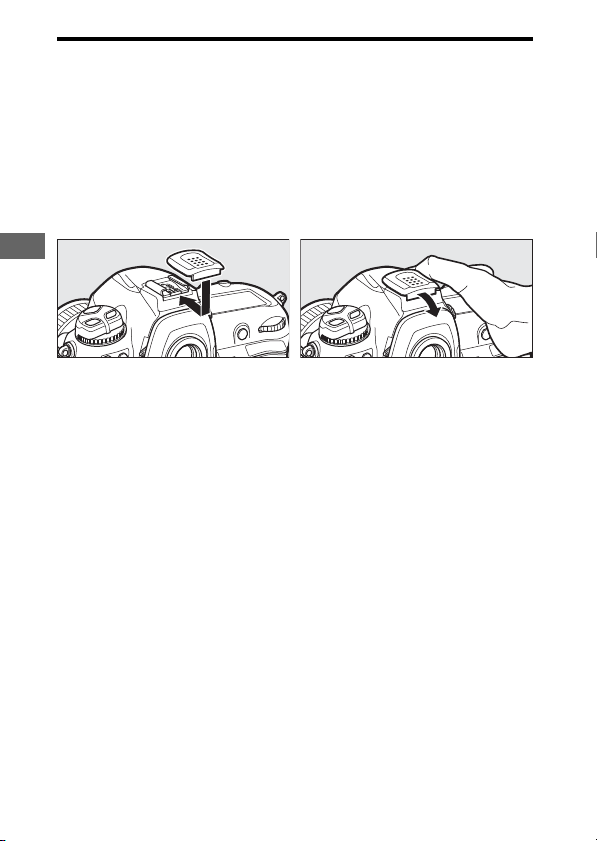
204
Other Compatible Accessories
D
Compatible Accessories
•
Availability may vary with country or region.
•
See our website or brochures for the latest information.
D
The BS-3 Accessory Shoe Cover
The supplied accessory shoe cover can be used to protect the accessory
shoe or to prevent light reflected from the metal parts of the shoe
appearing in photographs. The cover slides into the shoe as shown. To
remove the cover, hold the camera firmly, press the cover down with a
thumb and slide it in the direction shown.
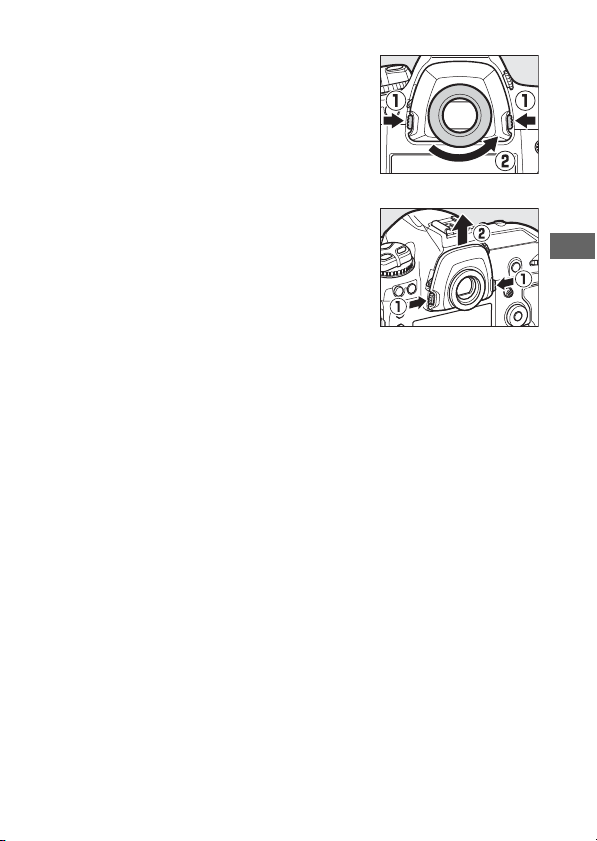
205
Other Compatible Accessories
D
Attaching Diopter-Adjustment Viewfinder Lenses
Remove the DK-17F viewfinder eyepiece
before attaching a diopter-adjustment
viewfinder lens. Press the latches on both sides
of the eyepiece adapter simultaneously to
release the eyepiece lock (
q
) and then unscrew
the eyepiece as shown (
w
).
D
Removing the Eyepiece Adapter
Press and lift the latches on both sides
simultaneously (
q
) and remove the adapter as
shown (
w
).
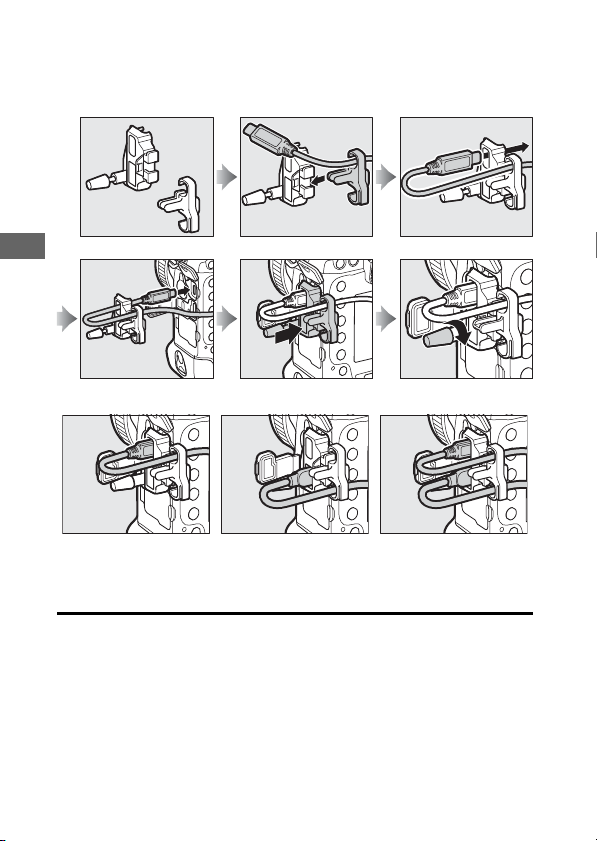
206
Other Compatible Accessories
D
The HDMI/USB Cable Clip
To prevent accidental disconnection, attach the supplied clip to HDMI
cables or to the supplied USB cable as shown (note that the clip may not
fit all third-party HDMI cables). The illustrations show the USB cable.
USB cable HDMI cable HDMI cable and USB
cable used
simultaneously
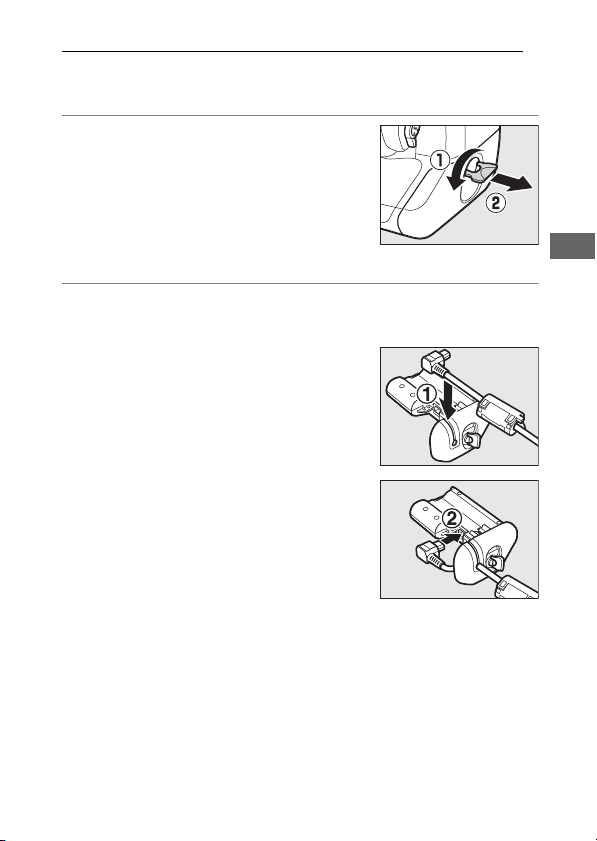
207
Other Compatible Accessories
Attaching a Power Connector and AC Adapter
Turn the camera off before attaching an optional power
connector and AC adapter.
1
Remove the BL-6 battery-
chamber cover.
Lift the battery-chamber cover latch,
turn it to the open (
A
) position (
q
),
and remove the BL-6 battery-
chamber cover (
w
).
2
Connect the EH-6c AC adapter to the EP-6 power
connector.
•
Pass the DC cable over the power
connector cable guide (
q
) and slide
it down until it is at the bottom of
the slot.
•
Insert the DC plug into the DC IN
connector (
w
).
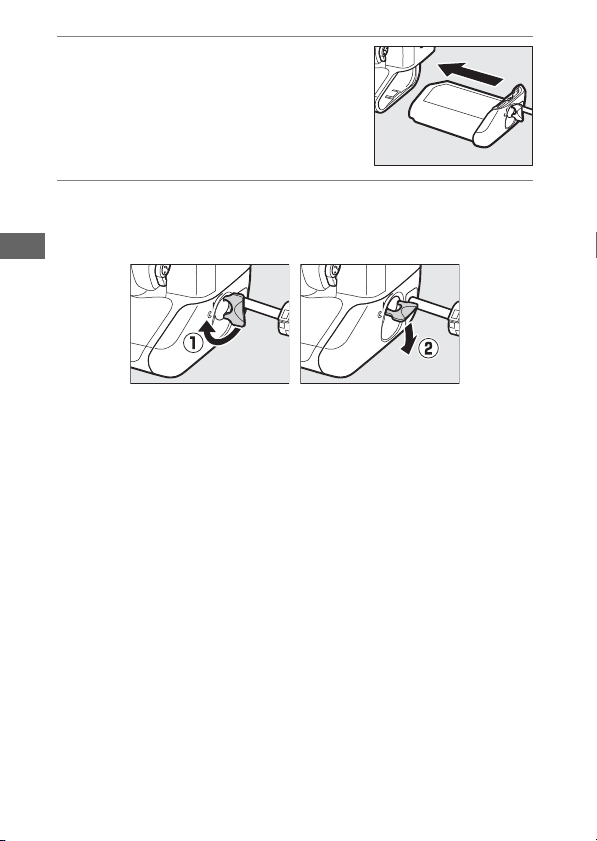
208
Other Compatible Accessories
3
Insert the power connector.
Fully insert the power connector into
the battery chamber as shown.
4
Latch the power connector.
•
Rotate the latch to the closed position (
q
) and fold it down
as shown (
w
).
•
To prevent the power connector being dislodged during
operation, be sure that it is securely latched.
•
The battery level is not displayed in the top control panel
while the camera is powered by the AC adapter and power
connector.

209
Software
The following Nikon software can be used with the camera:
●
Computer Software
Nikon computer software is available from the Nikon Download Center.
Check the version and system requirements and be sure to download the
latest version.
https://downloadcenter.nikonimglib.com/
•
Camera Control Pro 2 (available for purchase): Control the camera
remotely from a computer and save photographs directly to the
computer hard disk. A PC connection indicator (
c
) will be displayed in
the camera top control panel if Camera Control Pro 2 is launched while
the camera is connected to the computer.
•
ViewNX-i
*
: More than a tool for viewing and editing photos and movies
shot with Nikon digital cameras, ViewNX-i can be used in combination
with other Nikon imaging applications to help you get the most from
your pictures. It also offers smooth access to online services.
* Existing users should be sure to download the latest version, as earlier
versions may not support the camera.
•
Capture NX-D: Fine-tune photos shot in Nikon’s unique NEF/NRW
(RAW) formats or convert them to JPEG or TIFF (NEF/RAW processing).
Capture NX-D can be used not only with NEF/NRW (RAW) pictures but
also with JPEG and TIFF photos shot with Nikon digital cameras for such
tasks as editing tone curves and enhancing brightness and contrast.
Software
210
Software
•
Wireless Transmitter Utility: The Wireless Transmitter Utility is
required if the camera is to be connected to a network. Pair the camera
with the computer and download pictures via Wi-Fi.
●
Smartphone (Tablet) Apps
Smartphone apps can be downloaded from the Apple App Store® or on
Google Play™. Visit the Nikon website for the latest information.
SnapBridge: Download photos and movies from the camera to your
smart device via a wireless connection.
211
Caring for the Camera
Storage
When the camera will not be used for an extended period,
remove the battery. Before removing the battery, confirm that
the camera is off.
Do not store the camera in locations that:
•
are poorly ventilated or subject to humidities of over 60%
•
are next to equipment that produces strong electromagnetic
fields, such as televisions or radios
•
are exposed to temperatures above 50 °C (122 °F) or below
−10 °C (14 °F)
Cleaning
The procedure varies with the part that requires cleaning. The
procedures are detailed below.
•
Do not use alcohol, thinner, or other volatile chemicals.
Caring for the Camera
212
Caring for the Camera
❚❚
Camera Body
Use a blower to remove dust and lint, then wipe gently with a
soft, dry cloth. After using the camera at the beach or seaside,
wipe off sand or salt with a cloth lightly dampened in distilled
water and dry the camera thoroughly.
Important: Dust or other foreign matter inside the camera may
cause product malfunction. Damage due to the presence of foreign
matter inside the camera is not covered under warranty.
❚❚
Lens, Mirror, and Viewfinder
These glass elements are easily damaged: remove dust and lint
with a blower. If using an aerosol blower, keep the can vertical
to prevent the discharge of liquid that could damage glass
elements. To remove fingerprints and other stains, apply a small
amount of lens cleaner to a soft cloth and clean with care.
❚❚
Monitor
Remove dust and lint with a blower. When removing
fingerprints and other stains, wipe the surface lightly with a soft
cloth or chamois leather. Do not apply pressure, as this could
result in damage or malfunction.
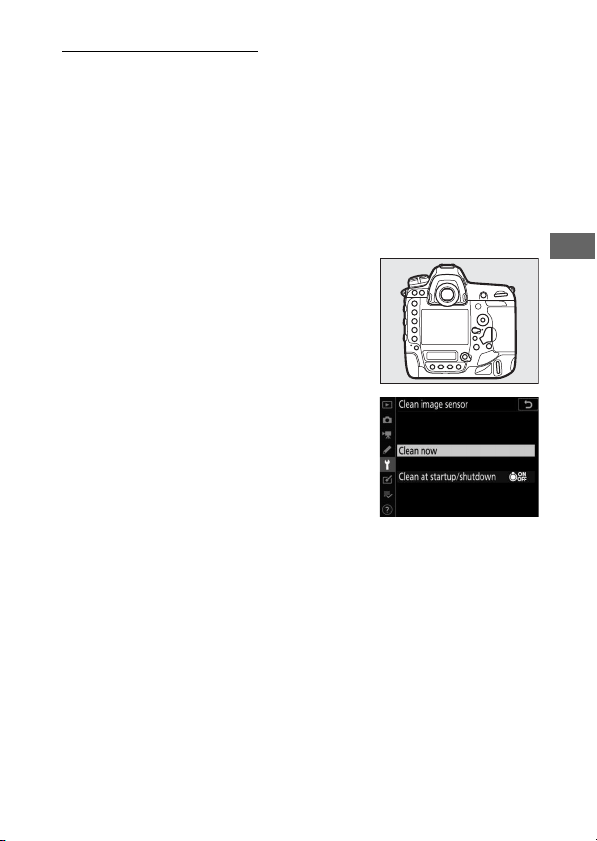
213
Caring for the Camera
The Low-Pass Filter
Dirt or dust entering the camera when lenses are exchanged or
the body cap is removed may adhere to the low-pass filter and
affect your photographs. The “clean image sensor” option
vibrates the filter to remove dust.
The filter can be cleaned at any time from the menus, or
cleaning can be performed automatically when the camera is
turned on or off.
❚❚
Using the Menus
•
For maximum effect, hold the camera
in normal orientation (base down).
•
Select [Clean image sensor] in the
setup menu, then highlight [Clean
now] and press
J
to begin cleaning.
•
Camera controls cannot be used while cleaning is in progress.
Do not remove or disconnect the power source.
•
The setup menu will be displayed when cleaning is complete.
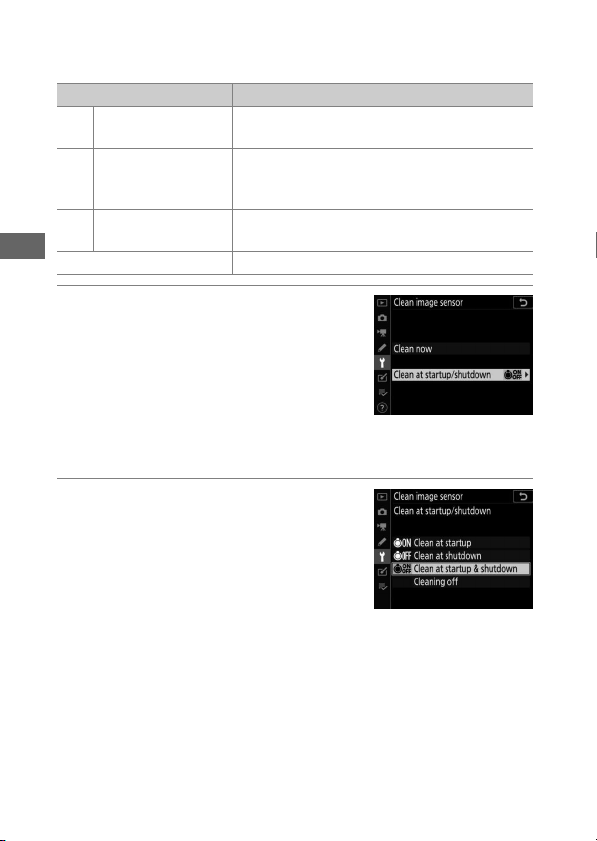
214
Caring for the Camera
❚❚
Cleaning the Image Sensor at Startup and/or
Shutdown
1
Select [Clean at startup/
shutdown] for [Clean image
sensor].
Pressing
2
when [Clean at startup/
shutdown] is highlighted displays
[Clean at startup/shutdown]
options.
2
Highlight an option.
Press
J
to select the highlighted
option.
Option Description
5
[Clean at startup]
The image sensor is automatically cleaned
each time the camera is turned on.
6
[Clean at
shutdown]
The image sensor is automatically cleaned
during shutdown each time the camera is
turned off.
7
[Clean at startup &
shutdown]
The image sensor is cleaned automatically at
startup and at shutdown.
[Cleaning off] Automatic image sensor cleaning off.

215
Caring for the Camera
D
Image Sensor Cleaning
•
Using camera controls interrupts any image sensor cleaning begun in
response to the operation of the power switch.
•
Image sensor cleaning may not fully remove all foreign matter from the
filter. Clean the filter manually (
0
216) or consult a Nikon-authorized
service representative.
•
If image sensor cleaning is performed several times in succession, image
sensor cleaning may be temporarily disabled to protect the camera’s
internal circuitry. Cleaning can be performed again after a short wait.
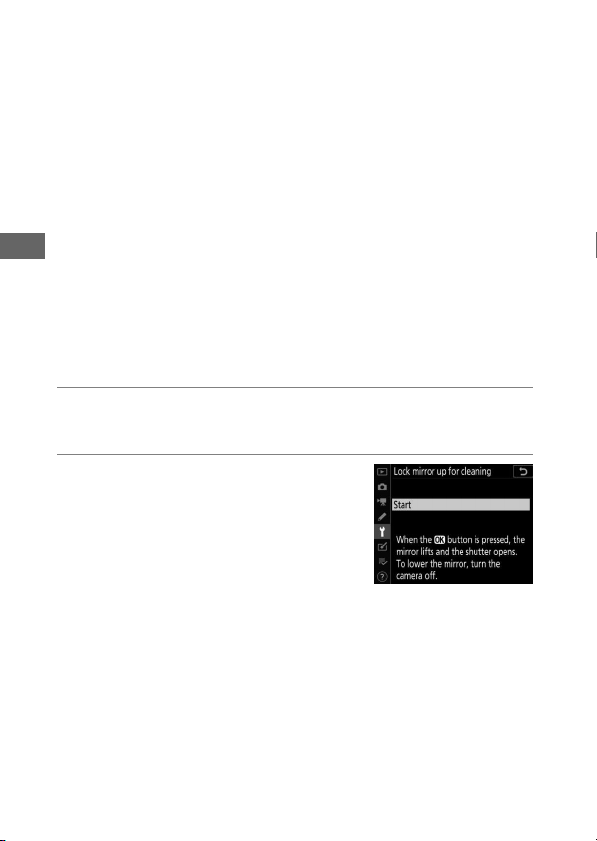
216
Caring for the Camera
❚❚
Manual Cleaning
If foreign matter cannot be removed from the low-pass filter
using the “clean image sensor” option (
0
213), the filter can be
cleaned manually as described below. Note, however, that
because the filter is extremely delicate and easily damaged, we
recommend that manual cleaning be performed only by a
Nikon-authorized service representative.
•
To prevent loss of power during the operation, use a fully-
charged battery or connect an optional AC adapter and power
connector.
•
Manual cleaning requires use of the [Lock mirror up for
cleaning] item in the setup menu. The [Lock mirror up for
cleaning] item is not available at battery levels of
J
or below
or if the camera is connected to a smart device via Bluetooth
or other devices via USB.
1
Turn the camera off and remove the lens.
After removing the lens, turn the camera on.
2
Highlight [Lock mirror up for
cleaning] in the setup menu
and press
2
.
The camera will prepare to lock the
mirror up.
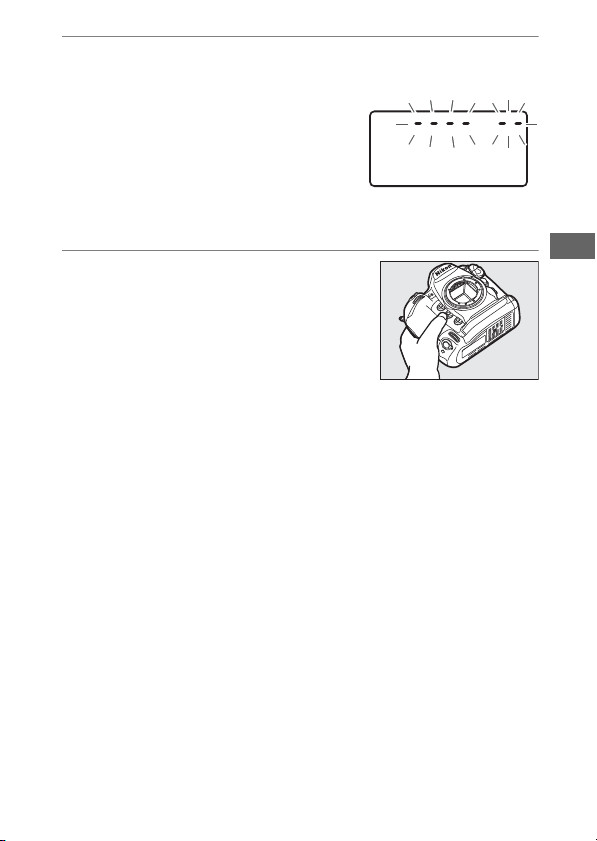
217
Caring for the Camera
3
Press
J
.
•
The mirror will be raised and the shutter curtain will open.
•
The display in the top control
panel will flash. The displays in the
viewfinder and rear control panel
will turn off.
•
To restore normal operation
without inspecting the low-pass filter, turn the camera off.
4
Holding the camera so that
light can enter the camera,
examine the filter for dust or
lint.
If no foreign objects are present,
proceed to Step 6.
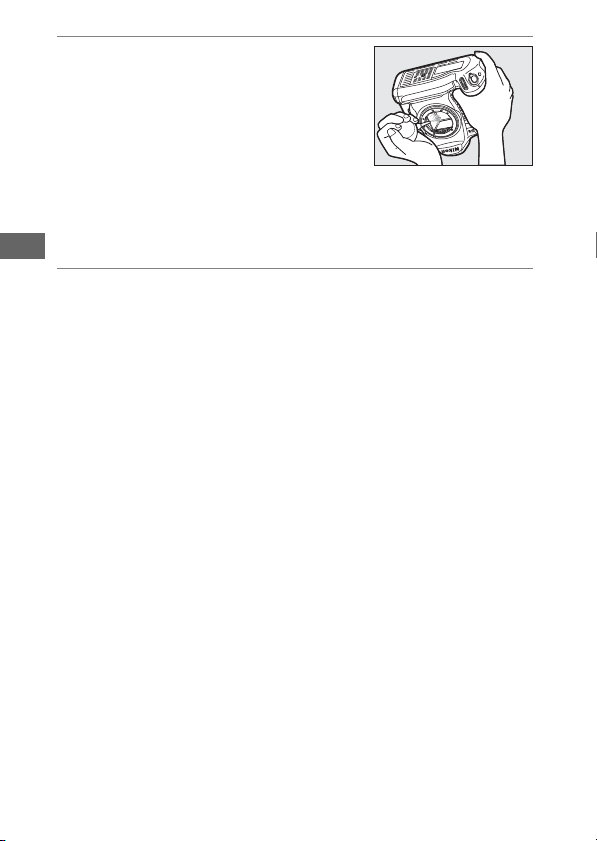
218
Caring for the Camera
5
Remove any dust and lint from
the low-pass filter with a
blower.
•
Do not use a blower-brush. The
bristles could damage the filter.
•
Dirt that cannot be removed with a
blower can only be removed by Nikon-authorized service
personnel. Under no circumstances should you touch or
wipe the filter.
6
Turn the camera off and replace the lens.
The mirror will return to the down position and the shutter
curtain will close.
219
Caring for the Camera
D
Use a Reliable Power Source
The shutter curtain is delicate and easily damaged. If the camera powers
off while the mirror is raised, the curtain will close automatically. To
prevent damage to the curtain caused by the shutter closing
inadvertently during the operation, observe the following precautions:
•
Do not turn the camera off while the mirror is raised.
•
Do not remove or disconnect the power source while the mirror is
raised.
•
If the battery runs low while the mirror is raised, a beep will sound and
the self-timer lamp will flash. The shutter curtain will close and the
mirror will be lowered after about two minutes; end cleaning or
inspection immediately.
D
Foreign Matter on the Low-Pass Filter
Foreign matter entering the camera when lenses or body caps are
removed or exchanged (or in rare circumstances lubricant or fine particles
from the camera itself) may adhere to the low-pass filter, where it may
appear in photographs taken under certain conditions. To prevent entry
of foreign matter when attaching the body cap or exchanging lenses,
avoid dusty environments and be sure to remove all dust and other
foreign matter that may be adhering to the camera mount, lens mount, or
body cap. To protect the camera when no lens is in place, be sure to
replace the supplied body cap. Should you encounter foreign matter that
cannot be removed using the image sensor cleaning option (
0
213),
clean the low-pass filter as described in “Manual Cleaning” (
0
216), or
have the filter cleaned by authorized Nikon service personnel.
Photographs affected by the presence of foreign matter on the sensor can
be retouched using the clean image options available in some imaging
applications.
220
Caring for the Camera
D
Servicing the Camera and Accessories
The camera is a precision device and requires regular servicing; Nikon
recommends that the camera be inspected once every one to two years,
and that it be serviced once every three to five years (note that fees apply
to these services).
•
Frequent inspection and servicing are particularly recommended if the
camera is used professionally.
•
Any accessories regularly used with the camera, such as lenses or
optional flash units, should be included when the camera is inspected
or serviced.
221
Caring for the Camera
Replacing the Clock Battery
The camera clock is powered by a CR1616 lithium battery.
CR1616 batteries have a life of about two years. If the
B
icon is
displayed in the top control panel while the standby timer is on,
the battery is running low and needs to be replaced. When the
battery is exhausted, the
B
icon will flash while the standby
timer is on, indicating that although photographs can still be
taken, they will not be stamped with the correct time and date.
❚❚
Replacing the Clock Battery
1
Turn the camera off and remove the main battery.
2
Slide the clock battery chamber cover, which is
located on the roof of the main battery chamber,
toward the front of the main battery chamber.
3
Remove the clock battery.
222
Caring for the Camera
4
Insert a new CR1616 lithium
battery so that the positive
side (the side marked with “+”
and the battery name) is
visible.
5
Slide the clock battery
chamber cover towards the
back of the main battery
chamber.
Stop when the cover clicks into place.
6
Reinsert the main battery.
7
Set the camera clock.
The
B
icon will flash in the top
control panel until the clock is set.
D
Inserting the Clock Battery
Insert the clock battery in the correct orientation. Inserting the battery
incorrectly could not only prevent the clock from functioning but could
damage the camera.

223
Caring for the Camera and Battery: Cautions
Camera Care
●
Do Not Drop
Do not drop the camera or lens or subject them to blows. The product
may malfunction if subjected to strong shocks or vibration.
●
Keep Dry
Keep the camera dry. Rusting of the internal mechanism caused by water
inside the camera can not only be expensive to repair but can in fact
cause irreparable damage.
●
Avoid Sudden Changes in Temperature
Sudden changes in temperature, such as those that occur when entering
or leaving a heated building on a cold day, can cause condensation inside
the device. To prevent condensation, place the device in a carrying case
or plastic bag before exposing it to sudden changes in temperature.
●
Keep Away from Strong Magnetic Fields
Static charges or the magnetic fields produced by equipment such as
radio transmitters could interfere with the monitor, corrupt data stored
on the memory card, or affect the product’s internal circuitry.
Caring for the Camera and Battery:
Cautions
224
Caring for the Camera and Battery: Cautions
●
Do Not Leave the Lens Pointed at the Sun
Do not leave the lens pointed at the sun or other strong light source for
extended periods. Intense light may damage the image sensor or cause
fading or “burn in”. Photographs taken with the camera may exhibit a
white blur effect.
●
Lasers and Other Bright Light Sources
Do not direct lasers or other extremely bright light sources toward the
lens, as this could damage the camera’s image sensor.
●
Cleaning
When cleaning the camera body, use a blower to gently remove dust and
lint, then wipe gently with a soft, dry cloth. After using the camera at the
beach or seaside, wipe off any sand or salt using a cloth lightly dampened
in fresh water and then dry the camera thoroughly. In rare instances,
static electricity may cause the LCD displays to light up or go dark; this
does not indicate a malfunction. The display will soon return to normal.
●
Cleaning the Lens and Mirror
These elements are easily damaged: remove dust and lint with a blower. If
using an aerosol blower, keep the can vertical to prevent the discharge of
liquid that could damage glass elements. To remove fingerprints and
other stains from the lens, apply a small amount of lens cleaner to a soft
cloth and wipe the lens carefully.
●
Cleaning the Low-Pass Filter
For information on cleaning the low-pass filter, see “The Low-Pass Filter”
(
0
213) and “Manual Cleaning” (
0
216).

225
Caring for the Camera and Battery: Cautions
●
The Lens Contacts
Keep the lens contacts clean.
●
Do Not Touch the Shutter Curtain
•
The shutter curtain is extremely thin and easily damaged: under no
circumstances should you exert pressure on the curtain, poke it with
cleaning tools, or subject it to powerful air currents from a blower. These
actions could scratch, deform, or tear the curtain.
•
The shutter curtain may appear to be unevenly colored; this does not
indicate a malfunction. It also has no effect on pictures.
●
Store in a Well-Ventilated Area
To prevent mold or mildew, store the camera in a dry, well-ventilated
area. Do not store the camera with naphtha or camphor moth balls, next
to equipment that produces strong electromagnetic, or where it will be
exposed to extremely high temperatures, for example near a heater or in
an enclosed vehicle on a hot day. Failure to observe these precautions
could result in product malfunction.
●
Long-Term Storage
To prevent damage caused by, for example, leaking battery fluid, remove
the battery if the product will not be used for an extended period. Store
the camera in a plastic bag containing a desiccant. Do not, however, store
the leather camera case in a plastic bag, as this may cause the material to
deteriorate. Store the battery in a cool, dry place. Note that desiccant
gradually loses its capacity to absorb moisture and should be replaced at
regular intervals. To prevent mold or mildew, take the camera out of
storage at least once a month, insert the battery, and release the shutter a
few times.
226
Caring for the Camera and Battery: Cautions
●
Turn the Product Off Before Removing or Disconnecting the Power
Source
Removing or disconnecting the power source while the camera is on
could damage the product. Particular care should be taken not to remove
or disconnect the power source while images are being recorded or
deleted.
●
Notes on the Monitor
•
The monitor is constructed with extremely high precision; at least
99.99% of pixels are effective, with no more than 0.01% being missing
or defective. Hence while these displays may contain pixels that are
always lit (white, red, blue, or green) or always off (black), this is not a
malfunction. Images recorded with the device are unaffected. Your
understanding is requested.
•
Images in the monitor may be difficult to see in a bright light.
•
Do not apply pressure to the monitor. The monitor could malfunction or
suffer damage. Dust or lint on the monitor can be removed with a
blower. Stains can be removed by wiping the monitor lightly with a soft
cloth or chamois leather. Should the monitor break, care should be
taken to avoid injury from broken glass. Be careful that liquid crystal
from the monitor does not touch the skin or enter the eyes or mouth.
●
Dry the Accessory Shoe Cover
If the camera is used in the rain, water may penetrate the supplied
accessory shoe cover. Remove and dry the accessory shoe cover after
using the camera in the rain.
227
Caring for the Camera and Battery: Cautions
Battery Care
●
Precautions for Use
•
If improperly handled, batteries may rupture or leak, causing the
product to corrode. Observe the following precautions when handling
batteries:
- Turn the product off before replacing the battery.
- Batteries may be hot after extended use.
- Keep the battery terminals clean.
- Use only batteries approved for use in this equipment.
- Do not short or disassemble batteries or expose them to flame or
excessive heat.
- Replace the terminal cover when the battery is not inserted in the
camera or charger.
•
If the battery is hot, for example immediately after use, wait for it to cool
before charging. Attempting to charge the battery while its internal
temperature is elevated will impair battery performance, and the
battery may not charge or charge only partially.
•
If the battery will not be used for some time, insert it in the camera and
run it flat before removing it from the camera for storage. The battery
should be stored in a cool location with an ambient temperature of
15 °C to 25 °C (59 °F to 77 °F). Avoid hot or extremely cold locations.
•
Batteries should be charged within six months of use. During long
periods of disuse, charge the battery and use the camera to run it flat
once every six months before returning it to a cool location for storage.
•
Remove the battery from the camera or charger when not in use. The
camera and charger draw minute amounts of charge even when off and
could draw the battery down to the point that it will no longer function.
228
Caring for the Camera and Battery: Cautions
•
Do not use the battery at ambient temperatures below 0 °C (32 °F) or
above 40 °C (104 °F). Failure to observe this precaution could damage
the battery or impair its performance. Charge the battery indoors at
ambient temperatures of 5 °C–35 °C (41 °F–95 °F). The battery will not
charge if its temperature is below 0 °C (32 °F) or above 60 °C (140 °F).
•
Capacity may be reduced and charging times increase at battery
temperatures from 0 °C (32 °F) to 15 °C (59 °F) and from 45 °C (113 °F) to
60 °C (140 °F).
•
Batteries in general exhibit a drop in capacity at low ambient
temperatures. Even fresh batteries charged at temperatures under
about 5°C (41°F) may show a temporary increase from “0” to “1” in the
setup menu [Battery info] age display, but the display will return to
normal once the battery has been recharged at a temperature of about
20 °C (68 °F) or higher.
•
Battery capacity drops at low temperatures. The change in capacity with
temperature is reflected in the camera battery-level display. As a result,
the battery display may show a drop in capacity as the temperature
drops, even if the battery is fully charged.
•
Batteries may be hot after use. Observe due caution when removing
batteries from the camera.
●
Charge Batteries Before Use
Charge the battery before use. The supplied battery is not fully charged at
shipment.
●
Ready Spare Batteries
Before taking photographs, ready a spare battery and keep it fully
charged. Depending on your location, it may be difficult to purchase
replacement batteries on short notice.

229
Caring for the Camera and Battery: Cautions
●
Have Fully-Charged Spare Batteries Ready on Cold Days
Partially-charged batteries may not function on cold days. In cold
weather, charge one battery before use and keep another in a warm
place, ready to be exchanged as necessary. Once warmed, a cold battery
may recover some of its charge.
●
Battery Level
•
Turning the camera on or off repeatedly when the battery is fully
discharged will shorten battery life. Batteries that have been fully
discharged must be charged before use.
•
A marked drop in the time a fully charged battery retains its charge
when used at room temperature indicates that it requires replacement.
Purchase a new rechargeable battery.
●
Do Not Attempt to Charge Fully-Charged Batteries
Continuing to charge the battery after it is fully charged can impair
battery performance.
●
Recycling Used Batteries
Recycle rechargeable batteries in accord with local regulations, being
sure to first insulate the terminals with tape.
230
Caring for the Camera and Battery: Cautions
Using the Charger
•
Do not short the charger terminals. Failure to observe this precaution
could result in overheating and damage to the charger.
•
Unplug the charger when it is not in use.
•
Use the MH-26a with compatible batteries only.
•
Do not use chargers with damage that leaves the interior exposed or
that produce unusual sounds when used.
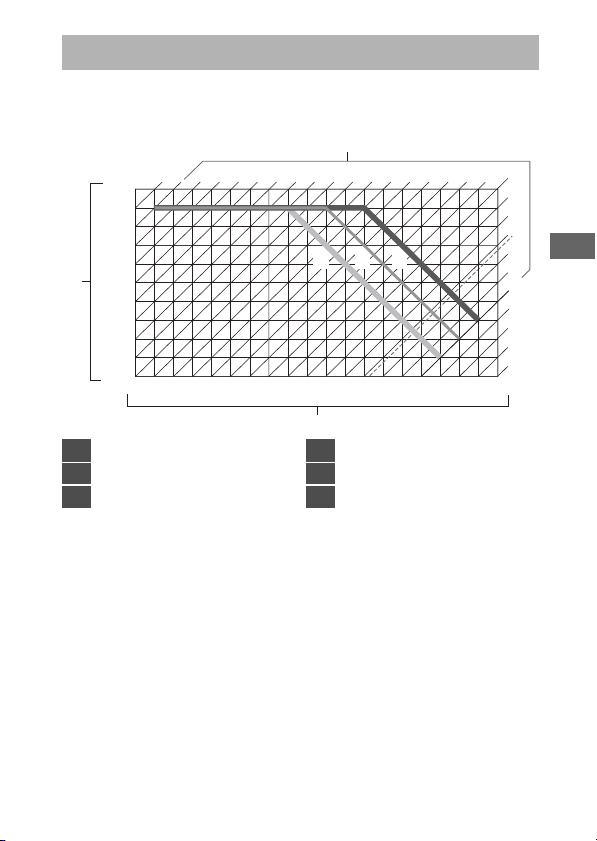
231
Exposure Program
The following graph shows the exposure program for mode P
(ISO 100, maximum lens aperture f/1.4):
•
The maximum and minimum values for EV vary with the
metering range.
•
When matrix metering is used, values over 17
1
/
3
EV are
reduced to 17
1
/
3
EV.
Exposure Program
1 2 3
f/1.4
f/1
f/2
f/2.8
f/4
f/5.6
f/8
f/11
f/16
f/22
f/32
[
EV
]
5
-3
12
14
-2
-4
-1
0
1
2
3
4
5
6
7
8
9
10
11
30" 15"
8"
4" 2" 1"
1
/
2
1
/
4
1
/
8
1
/
15
1
/
30
1
/
60
1
/
125
1
/
250
1
/
500
1
/
1000
1
/
2000
1
/
4000
1
/
8000
13
1
/
16000
4
6
23
22
21
20
19
18
17
16
15
24
17
1
/
3
1
F (lens focal length) ≤ 55 mm
2
55 mm < F ≤ 135 mm
3
135 mm < F
4
Metering range: −3 to 20 EV
5
Aperture
6
Seconds (shutter speed)
232
Specifications
Nikon D6 Digital Camera
Specifications
Type
Type Single-lens reflex digital camera
Lens mount Nikon F mount (with AF coupling and AF contacts)
Effective
angle of view
Nikon FX format
Effective pixels
Effective
pixels
20.8 million
Image sensor
Type 35.9 × 23.9 mm CMOS sensor
Total pixels 21.33 million
Dust-
reduction
system
Image sensor cleaning, Image Dust Off reference data
(Capture NX-D software required)
233
Specifications
Storage
Image size
(pixels)
•
[FX (36 × 24)] selected for image area:
- 5568 × 3712 (Large: 20.7 M)
- 4176 × 2784 (Medium: 11.6 M)
- 2784 × 1856 (Small: 5.2 M)
•
[1.2 × (30 × 20)] selected for image area:
- 4640 × 3088 (Large: 14.3 M)
- 3472 × 2312 (Medium: 8.0 M)
- 2320 × 1544 (Small: 3.6 M)
•
[DX (24 × 16)] selected for image area:
- 3648 × 2432 (Large: 8.9 M)
- 2736 × 1824 (Medium: 5.0 M)
- 1824 × 1216 (Small: 2.2 M)
•
[5:4 (30 × 24)] selected for image area:
- 4640 × 3712 (Large: 17.2 M)
- 3472 × 2784 (Medium: 9.7 M)
- 2320 × 1856 (Small: 4.3 M)
•
[1:1 (24 × 24)] selected for image area:
- 3712 × 3712 (Large: 13.8 M)
- 2784 × 2784 (Medium: 7.8 M)
- 1856 × 1856 (Small: 3.4 M)
•
[16:9 (36 × 20)] selected for image area:
- 5568 × 3128 (Large: 17.4 M)
- 4176 × 2344 (Medium: 9.8 M)
- 2784 × 1560 (Small: 4.3 M)
•
Photographs taken while filming movies at a
frame size of 3840 × 2160: 3840 × 2160
•
Photographs taken while filming movies at a
frame size of 1920 × 1080: 1920 × 1080
•
Photographs taken while filming movies at a
frame size of 1280 × 720: 1280 × 720
234
Specifications
File format
(image
quality)
•
NEF (RAW): 12 or 14 bit (lossless compressed,
compressed, or uncompressed); large, medium, and
small available (medium and small images are
recorded at a bit depth of 12 bits using lossless
compression)
•
JPEG: JPEG-Baseline compliant with fine (approx. 1:4),
normal (approx. 1:8), or basic (approx. 1:16)
compression; size-priority and optimal-quality
compression available
•
NEF (RAW)+JPEG: Single photograph recorded in
both NEF (RAW) and JPEG formats
Picture
Control
System
Auto, Standard, Neutral, Vivid, Monochrome, Portrait,
Landscape, Flat, Creative Picture Controls (Dream,
Morning, Pop, Sunday, Somber, Dramatic, Silence,
Bleached, Melancholic, Pure, Denim, Toy, Sepia, Blue,
Red, Pink, Charcoal, Graphite, Binary, Carbon); selected
Picture Control can be modified; storage for custom
Picture Controls
Media CFexpress (Type B) and XQD memory cards
Double card
slots
The card in Slot 2 can be used for overflow or backup
storage, for separate storage of NEF (RAW) and JPEG
copies of photos taken at image quality settings of NEF
(RAW) + JPEG, or to store separate copies of JPEG
photos at different sizes and compression ratios;
pictures can be copied between cards
File system DCF 2.0, Exif 2.31
Storage
235
Specifications
Viewfinder
Viewfinder Eye-level pentaprism single-lens reflex viewfinder
Frame
coverage
•
FX: Approx. 100% horizontal and 100% vertical
•
1.2×: Approx. 97% horizontal and 97% vertical
•
DX: Approx. 97% horizontal and 97% vertical
•
5:4: Approx. 97% horizontal and 100% vertical
•
1:1: Approx. 95% horizontal and 100% vertical
•
16:9: Approx. 100% horizontal and 96% vertical
Magnification Approx. 0.72× (50 mm f/1.4 lens at innity, −1.0 m
−1
)
Eyepoint
17 mm (−1.0 m
−1
; from center surface of viewfinder
eyepiece lens)
Diopter
adjustment
−3–+1 m
−1
Focusing
screen
Type B BriteView Clear Matte Mark X screen (with AF-
area brackets; framing grid can be displayed)
Reflex mirror Quick return
Depth-of-field
preview
Pressing Pv button stops lens aperture down to value
selected by user (A and M modes) or by camera (P and S
modes)
Lens aperture Instant return, electronically controlled
236
Specifications
Lens
Compatible
lenses
•
Types G, E, and D (some restrictions apply to PC
lenses)
•
Other AF NIKKOR lenses (excluding IX NIKKOR lenses
and lenses for the F3AF)
•
AI-P NIKKOR lenses
•
DX lenses (using [DX (24 × 16)] image area)
•
Non-CPU AI lenses (modes A and M only)
•
During viewfinder photography, the electronic
rangefinder can be used with lenses that have a
maximum aperture of f/5.6 or faster. With lenses that
have a maximum aperture of f/8 or faster, the
electronic rangefinder supports 15 focus points.
Shutter
Type
Electronically-controlled vertical-travel focal-plane
mechanical shutter; electronic front-curtain shutter;
electronic shutter
Speed
1
/
8000
–30 s (choose from step sizes of
1
/
3
,
1
/
2
, and 1 EV,
extendable to 900 s in mode M), Bulb; Time; X250
Flash sync
speed
X=
1
/
250
s; synchronizes with shutter at
1
/
250
s or slower
•
Auto FP high-speed sync supported
237
Specifications
Release
Release mode
S (single frame), C
L (continuous low speed), CH
(continuous high speed), Q (quiet shutter-release),
E
(self-timer), M
UP (mirror up)
Approximate
frame
advance rate
•
CL: 1–10 fps
•
CH: 10–14 fps
•
Q: 1–5 fps
Self-timer
2 s, 5 s, 10 s, 20 s; 1–9 exposures at intervals of 0.5, 1, 2,
or 3 s
Exposure
Metering
system
•
Viewfinder photography: TTL exposure metering
using RGB sensor with approximately 180K (180,000)
pixels
•
Live view: TTL exposure metering performed by
image sensor
238
Specifications
Metering
mode
•
Matrix: 3D color matrix metering III (type G, E, and D
lenses); color matrix metering III (other CPU lenses);
color matrix metering available with non-CPU lenses if
user provides lens data
•
Center-weighted: Weight of 75% given to 12 mm
circle in center of frame; diameter of circle can be
changed to 8, 15, or 20 mm, or weighting can be
based on average of entire frame (non-CPU and AF-S
Fisheye NIKKOR 8–15mm f/3.5– 4.5E ED lenses use
12-mm circle)
•
Spot: Meters circle approximately 4 mm in diameter
(about 1.5% of frame) centered on selected focus
point (on center focus point when non-CPU or AF-S
Fisheye NIKKOR 8–15mm f/3.5–4.5E ED lens is used)
•
Highlight-weighted: Available with type G, E, and D
lenses
Range
*
•
Matrix or center-weighted metering: −3–+20 EV
•
Spot metering: 2–20 EV
•
Highlight-weighted metering: 0–20 EV
* Figures are for ISO 100 and f/1.4 lens at 20 °C/68 °F
Exposure
meter
coupling
Combined CPU and AI
Exposure
239
Specifications
Mode
P (programmed auto with flexible program); S (shutter-
priority auto); A (aperture-priority auto); M (manual)
Exposure
compensation
–5 – +5 EV; −3 – +3 EV when lming movies (choose
from step sizes of
1
/
3
,
1
/
2
, and 1 EV)
Exposure lock Luminosity locked at detected value
ISO sensitivity
(
Recommended
Exposure
Index
)
ISO 100–102400 (choose from step sizes of
1
/
3
,
1
/
2
, and 1
EV); can also be set to approx. 0.3, 0.5, 0.7, or 1 EV (ISO
50 equivalent) below ISO 100 or to approx. 0.3, 0.5, 0.7,
1, 2, 3, 4, or 5 EV (ISO 3280000 equivalent) above ISO
102400; auto ISO sensitivity control available
Active
D-Lighting
Can be selected from Auto, Extra high +2, Extra high +1,
High, Normal, Low, and Off
Autofocus
Type
•
Viewfinder photography: TTL phase-detection; 105
focus points, all of which are cross-type sensors and
15 of which support f/8; detection performed by
Multi-CAM 37K autofocus sensor module; autofocus
fine-tuning supported
•
Live view: Contrast-detect AF available at all points in
frame; focus point selected by camera when face
detection or subject-tracking is used
Exposure
240
Specifications
Detection
range
−4.5 – +20 EV (ISO 100, 20 °C/68 °F)
Lens servo
•
Autofocus (AF): Single-servo AF (AF-S); continuous-
servo AF (AF-C, viewfinder photography only;
predictive focus tracking activated automatically
according to subject status); full-time AF (AF-F;
available only during live view and movie recording)
•
Manual focus (M): Electronic rangefinder can be used
Focus points
105 focus points (number available for selection in
viewfinder photography can be chosen from 105, 27,
and 15)
AF-area mode
•
Viewfinder photography: Single-point AF; 9-, 25-,
49-, or 105- point dynamic-area AF; 3D-tracking;
group-area AF; group-area AF (C1); group-area AF
(C2); auto-area AF
•
Live view: Face-detection AF, wide-area AF, normal-
area AF, subject-tracking AF
Focus lock
Focus can be locked by pressing shutter-release button
halfway (single-servo AF/AF-S) or by pressing the
center of the sub-selector
Autofocus
241
Specifications
Flash
Flash control
TTL flash control using RGB sensor with
approximately 180K (180,000) pixels: i-TTL flash
control; i-TTL balanced fill-flash for digital SLR is used
with matrix, center-weighted, and highlight-weighted
metering, standard i-TTL fill-flash for digital SLR with
spot metering
Flash mode
Front-curtain sync, red-eye reduction, slow sync, red-
eye reduction with slow sync, rear-curtain sync, off
Flash
compensation
–3 – +1 EV (choose from step sizes of
1
/
3
,
1
/
2
and 1 EV)
Flash-ready
indicator
Lights when optional flash unit is fully charged; flashes
after flash is fired at full output
Accessory
shoe
ISO 518 hot-shoe with sync and data contacts and
safety lock
Nikon
Creative
Lighting
System (CLS)
i-TTL flash control, radio-controlled Advanced Wireless
Lighting, optical Advanced Wireless Lighting, modeling
illumination, FV lock, Color Information
Communication, auto FP high-speed sync, AF-assist for
multi-area AF (viewfinder photography), unified flash
control
Sync terminal ISO 519 sync terminal with locking thread
242
Specifications
White balance
White balance
Auto (3 types), natural light auto, direct sunlight,
cloudy, shade, incandescent, fluorescent (7 types), flash,
choose color temperature (2500 K–10,000 K), preset
manual (up to 6 values can be stored, spot white
balance measurement available during live view), all
with fine-tuning
Bracketing
Bracketing Exposure and/or flash, white balance, and ADL
Live view
Mode
C
(photo live view),
1
(movie live view)
Movie
Metering
system
TTL metering using camera image sensor
Metering
mode
Matrix, center-weighted, or highlight-weighted
243
Specifications
Frame size
(pixels) and
frame rate
•
3840 × 2160 (4K UHD): 30p (progressive), 25p, 24p
•
1920 × 1080: 60p, 50p, 30p, 25p, 24p
•
1280 × 720: 60p, 50p
•
1920 × 1080 crop: 60p, 50p, 30p, 25p, 24p
* Actual frame rates for 60p, 50p, 30p, 25p, and 24p are
59.94, 50, 29.97, 25, and 23.976 fps respectively
* Quality selection available at all sizes except 3840 ×
2160, when quality is fixed at
c
(high)
File format MOV, MP4
Video
compression
H.264/MPEG-4 Advanced Video Coding
Audio
recording
format
Linear PCM (for movies recorded in MOV format) or AAC
(for movies recorded in MP4 format)
Audio
recording
device
Built-in stereo or external microphone with attenuator
option; sensitivity adjustable
ISO sensitivity
(
Recommended
Exposure
Index
)
•
Mode M: Manual selection (ISO 100 to 102400; choose
from step sizes of
1
/
3
,
1
/
2
, and 1 EV) with additional
options available equivalent to approximately 0.3, 0.5,
0.7, 1, 2, 3, 4, or 5 EV (ISO 3280000 equivalent) above
ISO 102400; auto ISO sensitivity control (ISO 100 to Hi
5) available with selectable upper limit
•
Modes P, S, and A: Auto ISO sensitivity control (ISO
100 to Hi 5) with selectable upper limit
Movie
244
Specifications
Active
D-Lighting
Can be selected from Extra high, High, Normal, Low,
and Off
Other options
Time-lapse movie recording, electronic vibration
reduction, time codes
Monitor
Monitor
8-cm/3.2-in., approx. 2359k-dot (XGA) TFT touch-
sensitive LCD with 170 ° viewing angle, approximately
100% frame coverage, 11-level manual brightness
adjustment, and color balance control
Playback
Playback
Full-frame and thumbnail (4, 9, or 72 images) playback
with playback zoom, playback zoom cropping, movie
playback, photo and/or movie slide shows, histogram
display, highlights, photo information, location data
display, picture rating, auto image rotation, index
marking, voice memo input and playback, and IPTC
information embedding and display
Movie
245
Specifications
Interface
USB
Type C USB connector (SuperSpeed USB); connection to
built-in USB port is recommended
HDMI output Type C HDMI connector
Audio input
Stereo mini-pin jack (3.5 mm diameter; plug-in power
supported)
Audio output Stereo mini-pin jack (3.5 mm diameter)
Ten-pin
remote
terminal
Built-in (can be used with MC-30A/MC-36A remote
cords and other optional accessories)
Ethernet
RJ-45 connector
•
Standards: IEEE 802.3ab (1000BASE-T)/IEEE 802.3u
(100BASE-TX)/IEEE 802.3 (10BASE-T)
•
Data rates
*
: 10/100/1000 Mbps with auto detect
•
Port: 1000BASE-T/100BASE-TX/10BASE-T (AUTO-
MDIX)
* Maximum logical data rates according to IEEE
standard; actual rates may differ.
Peripheral
connector
For WT-6
246
Specifications
Wi-Fi/Bluetooth
Wi-Fi
•
Standards:
- IEEE 802.11b/g/n (Africa, Asia, and Oceania)
- IEEE 802.11b/g/n/a/ac (Europe, U.S.A., Canada,
Mexico)
- IEEE 802.11b/g/n/a (other countries in the Americas)
•
Operating frequency:
- 2412–2462 MHz (channel 11; Africa, Asia, and
Oceania)
- 2412–2462 MHz (channel 11) and 5180–5825 MHz
(U.S.A., Canada, Mexico)
- 2412–2462 MHz (channel 11) and 5180–5805 MHz
(other countries in the Americas)
- 2412–2462 MHz (channel 11) and 5745–5805 MHz
(Georgia)
- 2412–2462 MHz (channel 11) and 5180–5320 MHz
(other European countries)
•
Maximum output power (EIRP):
- 2.4 GHz band: 6.8 dBm
- 5 GHz band: 6.3 dBm (Georgia)
- 5 GHz band: 9.3 dBm (other countries)
•
Authentication: Open system, WPA2-PSK
247
Specifications
Bluetooth
•
Communication protocols: Bluetooth Specification
Version 4.2
•
Operating frequency:
- Bluetooth: 2402–2480 MHz
- Bluetooth Low Energy: 2402–2480 MHz
•
Maximum output power (EIRP):
- Bluetooth: 1.3 dBm
- Bluetooth Low Energy: −0.2 dBm
Range (line of
sight)
Approximately 10 m (32 ft)
*
* Without interference. Range may vary with signal
strength and presence or absence of obstacles.
Location data
Supported
GNS systems
GPS (USA), GLONASS (Russia), QZSS (Japan)
Data acquired
Latitude, longitude, altitude, UTC (Universal
Coordinated Time)
Clock
synchronization
Camera clock can be set to time acquired via GNSS
Track logs NMEA-compliant
Log interval 15 s, 30 s, 1 min., 2 min., 5 min.
Wi-Fi/Bluetooth
248
Specifications
Maximum log
recording
time
6, 12, or 24 hours
Log deletion Supported
Power source
Battery
One EN-EL18c rechargeable Li-ion battery
*
* EN-EL18b/EN-EL18a/EN-EL18 batteries can also be
used. Note, however, that fewer pictures can be taken
on a single charge with an EN-EL18 than with an
EN-EL18c/EN-EL18b/EN-EL18a.
AC adapter
EH-6c AC adapter; requires EP-6 power connector
(available separately)
Tripod socket
Tripod socket 1/4 in. (ISO 1222)
Dimensions/weight
Dimensions
(W× H × D)
Approx. 160 × 163 × 92 mm (6.3 × 6.5 × 3.7 in.)
Weight
Approx. 1450 g (3 lb. 3.2 oz.) with battery and two
CFexpress memory cards but without body cap and
accessory shoe cover; approx. 1270 g/2 lb. 12.8 oz.
(camera body only)
Location data
249
Specifications
•
Unless otherwise stated, all measurements are performed in conformity
with Camera and Imaging Products Association (CIPA) standards or
guidelines.
•
All figures are for a camera with a fully-charged battery.
•
The sample images displayed on the camera and the images and
illustrations in the manuals are for expository purposes only.
•
Nikon reserves the right to change the appearance and specifications of
the hardware and software described in this manual at any time and
without prior notice. Nikon will not be held liable for damages that may
result from any mistakes that this manual may contain.
Operating environment
Temperature 0 °C–40 °C (+32 °F–104 °F)
Humidity 85% or less (no condensation)
250
Specifications
❚❚
MH-26a Battery Charger
The symbols on this product represent the following:
m
AC,
p
DC,
q
Class II equipment (the construction of the product is
double-insulated)
Rated input AC 100 to 240 V, 50/60 Hz
Rated output DC 12.6 V/1.2 A
Supported
batteries
Nikon EN-EL18c/EN-EL18b/EN-EL18a/EN-EL18
rechargeable Li-ion batteries
Charging time
per battery
Approx. 2 hours and 35 minutes
* Time required to charge battery at an ambient
temperature of 25 °C (77 °F) when no charge
remains
Operating
temperature
0 °C–40 °C (+32 °F–104 °F)
Dimensions
(W× H × D)
Approx. 160 × 85 × 50.5 mm (6.3 × 3.3 × 2 in.)
Length of
power cable
Approx. 1.8 m/6 ft (U.S.A. and Canada) or 1.5 m/4.9 ft
(other countries)
Weight
Approx. 285 g (10.1 oz), including two contact
protectors but excluding power cable; approx. 265 g
(9.3 oz), excluding both contact protectors and power
cable
251
Specifications
❚❚
EN-EL18c Rechargeable Li-ion Battery
Type Rechargeable lithium-ion battery
Rated capacity 10.8 V/2500 mAh
Operating
temperature
0 °C–40 °C (+32 °F–104 °F)
Dimensions
(W× H × D)
Approx. 56.5 × 27 × 82.5 mm (2.2 × 1.1 × 3.2 in.)
Weight Approx. 160 g (5.6 oz), excluding terminal cover
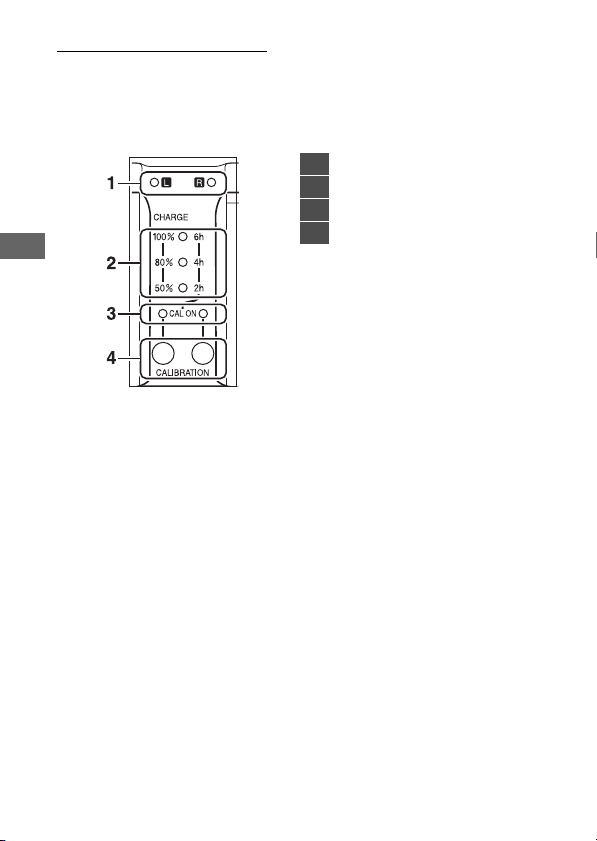
252
Specifications
Calibrating Batteries
The MH-26a battery charger can detect whether batteries
require calibration and calibrate them as necessary to ensure
the accuracy of the battery level display. Calibration status and
progress are shown by lamps on the battery charger:
If the calibration lamp for the current battery chamber flashes
when a battery is inserted, the battery needs to be calibrated.
To begin calibration, press the calibration button for the current
chamber for about a second. The chamber lamp for the current
battery chamber flashes while calibration is in progress.
The display can be read as follows:
1
Chamber lamps (green)
2
Charge lamps (green)
3
Calibration lamps (yellow)
4
Calibration buttons
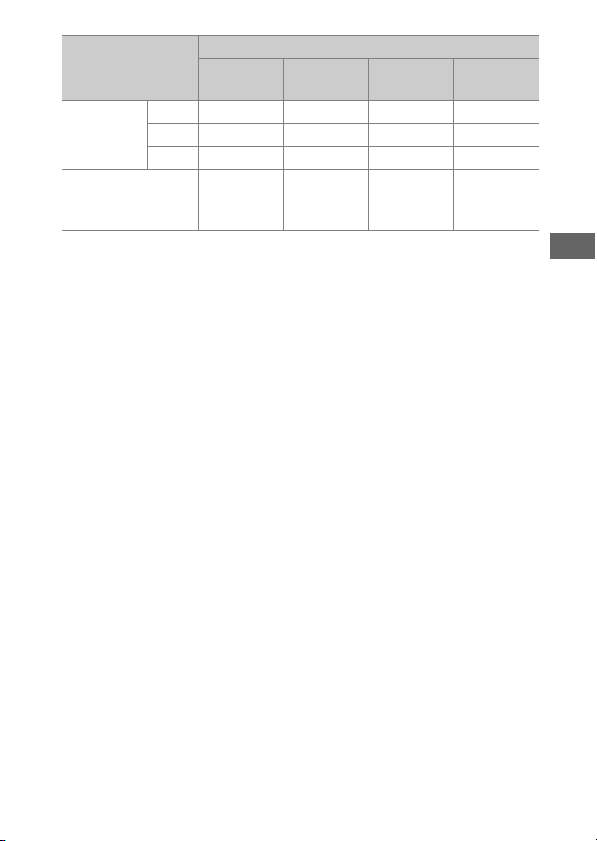
253
Specifications
Although calibration is recommended for accurate
measurement of battery charge state, calibration need not be
performed when the calibration lamp flashes. Once begun,
calibration can be interrupted as desired.
•
If the calibration button is not pressed while the calibration
lamp is flashing, normal charging will begin after about ten
seconds.
•
To interrupt calibration, press the calibration button again.
Calibration will end and charging will begin.
When calibration is complete, the calibration and charge lamps
will turn off and charging will begin immediately.
Approximate time needed to recalibrate battery
Under 2
hours
2–4 hours 4–6 hours
Over 6
hours
Charge
lamps
(green)
2h
I
(off)
K
(on)
K
(on)
K
(on)
4h
I
(off)
I
(off)
K
(on)
K
(on)
6h
I
(off)
I
(off)
I
(off)
K
(on)
Calibration (CAL
ON) lamp (yellow):
L/R
K
(on)
K
(on)
K
(on)
K
(on)
254
Specifications
D
Warning Indicators
•
If the “L” and “R” chamber and calibration lamps flash on and off in
sequence when no battery is inserted…
…there is a problem with the charger. Unplug the charger and consult a
Nikon-authorized service representative.
•
If the “L” and “R” chamber and calibration lamps flash on and off in
sequence when a battery is inserted…
…a problem has occurred with the battery or charger during charging.
Remove the battery, unplug the charger, and consult a Nikon-
authorized service representative.
A
Charging and Calibrating Two Batteries
If batteries are inserted in both chambers, they will be charged in the
order inserted. If a calibration button is pressed when either calibration
lamp is flashing, the charger will calibrate and then charge whichever of
the batteries was the first to be inserted. The second battery cannot be
calibrated or charged until the process is complete.
255
Specifications
D
Disposing of Data Storage Devices
Please note that deleting images or formatting memory cards or other
data storage devices does not completely erase the original image data.
Deleted files can sometimes be recovered from discarded storage devices
using commercially available software, potentially resulting in the
malicious use of personal image data. Ensuring the privacy of such data is
the user’s responsibility.
Before discarding a data storage device or transferring ownership to
another person, erase all data using commercial deletion software, or
format the device and then completely refill it with images containing no
private information (for example, pictures of empty sky). Care should be
taken to avoid injury when physically destroying data storage devices.
Before discarding the camera or transferring ownership to another
person, you should also use the [Reset all settings] item in the camera
setup menu to delete network settings and other personal information.
256
Specifications
D
Supported Standards
•
DCF Version 2.0: The Design Rule for Camera File System (DCF) is a
standard widely used in the digital camera industry to ensure
compatibility among different makes of camera.
•
Exif version 2.31: The camera supports Exif (Exchangeable Image File
Format for Digital Still Cameras) version 2.31, a standard introduced
with the goal of improving the interoperability of printers and digital
cameras, making it easier to produce high-quality prints. Information
stored with photographs is used for optimal color reproduction when
the images are output on Exif-compliant printers. See the printer
manual for details.
•
HDMI: High-Definition Multimedia Interface is a standard for
multimedia interfaces used in consumer electronics and AV devices.
This standard ensures that audiovisual data and control signals can be
transmitted to HDMI-compliant devices via a single cable connection.

257
Approved Memory Cards
•
The camera can be used with CFexpress (Type B) and XQD
memory cards.
•
Cards with write speeds of 45 MB/s (300×) or better are
recommended for movie recording and playback. Slower
speeds may result in recording being interrupted. Playback
may also be interrupted or jerky when movies are viewed on
the camera.
•
Contact the manufacturer for information on features,
operation, and limitations on use.
Approved Memory Cards
258
Memory Card Capacity
The following table shows the approximate number of pictures
that can be stored on a 128 GB
1
card at different image area,
image quality, and image size settings. Actual capacity varies
with shooting conditions and the type of card.
[
FX (36 × 24)] Selected for Image Area
This category also includes images taken with non-DX lenses
when [On] is selected for [Image area] > [Auto DX crop].
Memory Card Capacity
Image quality
Image
size
File size
Number of
exposures
remaining
2
Buffer
capacity
2, 3
NEF (RAW), Lossless
compressed, 12-bit
Large
Approx.
20.2 MB
3500 frames
184
frames
Medium
Approx.
14.6 MB
4700 frames 79 frames
Small
Approx.
11.1 MB
6200 frames 84 frames
NEF (RAW), Lossless
compressed, 14-bit
Large
Approx.
25.1 MB
3000 frames
146
frames
NEF (RAW),
Compressed, 12-bit
Large
Approx.
18.4 MB
4700 frames
186
frames
NEF (RAW),
Compressed, 14-bit
Large
Approx.
22.6 MB
3900 frames
152
frames
259
Memory Card Capacity
NEF (RAW),
Uncompressed,
12-bit
Large
Approx.
33.1 MB
3500 frames
133
frames
NEF (RAW),
Uncompressed,
14-bit
Large
Approx.
38.0 MB
3000 frames
105
frames
JPEG fine
4
Large
Approx.
10.8 MB
8400 frames
200
frames
Medium
Approx.
6.9 MB
13,900
frames
200
frames
Small
Approx.
3.8 MB
25,600
frames
200
frames
JPEG normal
4
Large
Approx.
5.7 MB
16,500
frames
200
frames
Medium
Approx.
3.5 MB
27,000
frames
200
frames
Small
Approx.
2.0 MB
48,700
frames
200
frames
JPEG basic
4
Large
Approx.
2.6 MB
31,400
frames
200
frames
Medium
Approx.
1.8 MB
51,300
frames
200
frames
Small
Approx.
1.1 MB
88,600
frames
200
frames
Image quality
Image
size
File size
Number of
exposures
remaining
2
Buffer
capacity
2, 3
260
Memory Card Capacity
[
DX (24 × 16)] Selected for Image Area
This category also includes images taken with DX lenses when
[On] is selected for [Image area] > [Auto DX crop].
Image quality
Image
size
File size
Number of
exposures
remaining
2
Buffer
capacity
2, 3
NEF (RAW), Lossless
compressed, 12-bit
Large
Approx.
9.8 MB
7600 frames
200
frames
Medium
Approx.
7.2 MB
10,100
frames
129
frames
Small
Approx.
5.6 MB
13,000
frames
142
frames
NEF (RAW), Lossless
compressed, 14-bit
Large
Approx.
11.9 MB
6700 frames
200
frames
NEF (RAW),
Compressed, 12-bit
Large
Approx.
9.0 MB
10,000
frames
200
frames
NEF (RAW),
Compressed, 14-bit
Large
Approx.
10.8 MB
8500 frames
200
frames
NEF (RAW),
Uncompressed,
12-bit
Large
Approx.
15.1 MB
7600 frames
200
frames
NEF (RAW),
Uncompressed,
14-bit
Large
Approx.
17.2 MB
6700 frames
200
frames
261
Memory Card Capacity
JPEG fine
4
Large
Approx.
5.6 MB
17,400
frames
200
frames
Medium
Approx.
3.7 MB
26,300
frames
200
frames
Small
Approx.
2.3 MB
42,400
frames
200
frames
JPEG normal
4
Large
Approx.
2.9 MB
33,600
frames
200
frames
Medium
Approx.
2.0 MB
48,700
frames
200
frames
Small
Approx.
1.3 MB
75,000
frames
200
frames
JPEG basic
4
Large
Approx.
1.6 MB
60,900
frames
200
frames
Medium
Approx.
1.1 MB
88,600
frames
200
frames
Small
Approx.
0.8 MB
121,000
frames
200
frames
Image quality
Image
size
File size
Number of
exposures
remaining
2
Buffer
capacity
2, 3
262
Memory Card Capacity
1 Figures are for a Sony CEB-G128 128 GB CFexpress memory card (as of
December 2019).
2 Number of pictures that can be saved to memory card or stored in
memory buffer varies with scene recorded.
3 Maximum number of exposures that can be stored in memory buffer
at ISO 100. May drop in some situations, including when:
•
An optimal-compression (
c
) JPEG option is selected for [Image
quality]
•
[On] is selected for [Auto distortion control]
4 Figures assume a size-priority option (an option not marked with
c
) is
selected for [Image quality]. Selecting an optimal-compression (
c
)
option increases file size; the number of images and buffer capacity
drop accordingly.
D
Maximum Number of Photo per Burst
The maximum number of photographs that can be taken in a single burst
can be set to any amount between 1 and 200 using Custom Setting d2
[Max. continuous release].

263
Battery Endurance
The movie footage or number of shots that can be recorded
with a fully-charged EN-EL18c (2500 mAh) rechargeable Li-ion
battery
1
is given below. Actual endurance varies with such
factors as the condition of the battery, the interval between
shots, and the options selected in the camera menus.
•
Photographs, single-frame release mode: Approximately 3580
(CIPA standard
2
)
•
Photographs, continuous release modes: Approximately 8670
(Nikon standard
3
)
•
Movies: Approximately 105 minutes
4
Actions such as the following can reduce battery endurance:
•
Using the monitor, for example for live view photography
•
Keeping the shutter-release button pressed halfway
•
Repeated autofocus operations
•
Taking NEF (RAW) photographs
•
Slow shutter speeds
Battery Endurance
264
Battery Endurance
•
Using camera Ethernet, Wi-Fi (wireless LAN), and Bluetooth
features
•
Using the built-in GNSS receiver
•
Using the camera with optional accessories connected
•
Using VR (vibration reduction) with VR lenses
•
Repeatedly zooming in and out with AF-P lenses
To ensure that you get the most from rechargeable Nikon
EN-EL18c batteries:
•
Keep the battery contacts clean. Soiled contacts can reduce
battery performance.
•
Use batteries immediately after charging. Batteries will lose
their charge if left unused.
•
Check the condition of the battery regularly using the
[Battery info] option in the setup menu. If a
j
icon appears
in the [Calibration] field, calibrate the battery in the MH-26a
battery charger (
0
252). If the battery has not been used for
more than six months, recharge the battery when calibration
is complete.

265
Battery Endurance
1 EN-EL18b/EN-EL18a/EN-EL18 batteries can also be used. Note,
however, that the EN-EL18 can take fewer pictures on a single charge
than the EN-EL18c/EN-EL18b/EN-EL18a.
2 Lens cycled from infinity to minimum range and one photograph
taken at default settings once every 30 s. Live view not used.
Measured at 23 °C/73.4 °F (±2 °C/3.6 °F) with an AF-S NIKKOR 24–
70mm f/2.8E ED VR lens.
3 Image quality set to JPEG normal, image size set to large, shutter
speed
1
/
250
s, focus cycled from infinity to minimum range three times
after shutter-release button has been pressed halfway for 3 s; six shots
are then taken in succession and monitor turned on for 5 s and then
turned off; no operations performed until stand-by timer has expired.
The cycle is then repeated. Measured at 23 °C/73.4 °F (±2 °C/3.6 °F)
with an AF-S NIKKOR 70–200mm f/2.8E FL ED VR lens (VR off).
4 Actual battery endurance as measured under conditions specified by
the Camera and Imaging Products Association (CIPA). Measured at
23 °C/73.4 °F (±2 °C/3.6 °F) with an AF-S NIKKOR 24–70mm f/2.8E ED
VR lens. Measurement performed at default settings.
•
Each shot can be up to 29 minutes 59 seconds in length.
•
If camera temperature rises, recording may end before maximum
length or size is reached.

266
Location Data (GPS/GLONASS)
●
Location Data and Track Logs
•
If [On] is selected for [Location data (built-in)] > [Record location
data] in the setup menu or log tracking is progress, the camera will
continue to acquire log and/or location even while off.
•
Personal information may be inferred from the location data stored in
track logs or embedded in photos and movies. Exercise caution when
sharing photos, movies, or track logs or when posting them to the
Internet or other locations where they can be viewed by third parties. Be
sure to also read “Disposing of Data Storage Devices” (
0
255).
●
Navigation
This product is a camera. It is not intended for use as a navigation or
surveying device.
•
The location reported by the camera is an approximation only. It is not
to be used for surveying or for navigation when travelling by air or car,
on foot, or by other means.
●
Overseas Use
•
Before travelling, check with your travel agent or the embassy or
tourism board of the countries you will be visiting for information on
restrictions that may apply to the use of cameras that support the
recording of location data. China, for example, prohibits unauthorized
recording of location data. Select [Off] for [Record location data].
•
As of December, 2019, the location data function may not perform as
expected in China and in the vicinity of the Chinese border.
Location Data (GPS/GLONASS)

267
Trademarks and Licenses
•
CFexpress is a trademark of the CompactFlash Association in
the United States and other countries.
•
NVM Express is a trademark of NVM Express Inc. in the United
States and other countries.
•
XQD is a trademark of Sony Corporation.
•
Windows is either a registered trademark or a trademark of
Microsoft Corporation in the United States and/or other
countries.
•
Apple®, App Store®, the Apple logos, iPhone®, iPad®, iPod
touch®, Mac, and macOS are trademarks of Apple Inc.
registered in the U.S. and/or other countries.
•
Android, Google Play and the Google Play logo are trademarks
of Google LLC. The Android robot is reproduced or modified
from work created and shared by Google and used according
to terms described in the Creative Commons 3.0 Attribution
License.
•
IOS is a trademark or registered trademark of Cisco Systems,
Inc., in the United States and/or other countries and is used
under license.
Trademarks and Licenses
268
Trademarks and Licenses
•
HDMI, the HDMI logo and High-Definition Multimedia
Interface are trademarks or registered trademarks of HDMI
Licensing, LLC.
•
The Bluetooth® word mark and logo are registered trademarks
owned by Bluetooth SIG, Inc., and any use of such marks by
Nikon is under license.
•
Wi-Fi and the Wi-Fi logo are trademarks or registered
trademarks of the Wi-Fi Alliance.
•
All other trade names mentioned in this manual or the other
documentation provided with your Nikon product are
trademarks or registered trademarks of their respective
holders.
Use of the Made for Apple badge means that an accessory has been
designed to connect specifically to the Apple products identified in the
badge, and has been certified by the developer to meet Apple
performance standards. Apple is not responsible for the operation of this
device or its compliance with safety and regulatory standards. Please
note that the use of this accessory with an Apple product may affect
wireless performance.
269
Trademarks and Licenses
D
FreeType License (FreeType2)
Portions of this software are copyright © 2012 The FreeType Project
(https://www.freetype.org
). All rights reserved.
D
MIT License (HarfBuzz)
Portions of this software are copyright © 2018 The HarfBuzz Project
(https://www.freedesktop.org/wiki/Software/HarfBuzz
). All rights
reserved.
D
Unicode® Character Database License
(
Unicode® Character
Database
)
The software for this product uses the Unicode® Character Database
License open-source software. The terms of the software license are as
follows:
COPYRIGHT AND PERMISSION NOTICE
Copyright © 1991-2019 Unicode, Inc. All rights reserved.
Distributed under the Terms of Use in
https://www.unicode.org/copyright.html
.
Permission is hereby granted, free of charge, to any person obtaining a
copy of the Unicode data files and any associated documentation (the
"Data Files") or Unicode software and any associated documentation (the
"Software") to deal in the Data Files or Software without restriction,
including without limitation the rights to use, copy, modify, merge,
publish, distribute, and/or sell copies of the Data Files or Software, and to
permit persons to whom the Data Files or Software are furnished to do so,
provided that either
(i) this copyright and permission notice appear with all copies of the
Data Files or Software, or
(ii) this copyright and permission notice appear in associated
Documentation.
270
Trademarks and Licenses
THE DATA FILES AND SOFTWARE ARE PROVIDED "AS IS", WITHOUT
WARRANTY OF ANY KIND, EXPRESS OR IMPLIED, INCLUDING BUT NOT
LIMITED TO THE WARRANTIES OF MERCHANTABILITY, FITNESS FOR A
PARTICULAR PURPOSE AND NONINFRINGEMENT OF THIRD PARTY
RIGHTS.
IN NO EVENT SHALL THE COPYRIGHT HOLDER OR HOLDERS INCLUDED IN
THIS NOTICE BE LIABLE FOR ANY CLAIM, OR ANY SPECIAL INDIRECT OR
CONSEQUENTIAL DAMAGES, OR ANY DAMAGES WHATSOEVER
RESULTING FROM LOSS OF USE, DATA OR PROFITS, WHETHER IN AN
ACTION OF CONTRACT, NEGLIGENCE OR OTHER TORTIOUS ACTION,
ARISING OUT OF OR IN CONNECTION WITH THE USE OR PERFORMANCE
OF THE DATA FILES OR SOFTWARE.
Except as contained in this notice, the name of a copyright holder shall
not be used in advertising or otherwise to promote the sale, use or other
dealings in these Data Files or Software without prior written
authorization of the copyright holder.
D
AVC Patent Portfolio License
THIS PRODUCT IS LICENSED UNDER THE AVC PATENT PORTFOLIO LICENSE FOR THE
PERSONAL AND NON-COMMERCIAL USE OF A CONSUMER TO ( i) ENCODE VIDEO IN
COMPLIANCE WITH THE AVC STANDARD ("AVC VIDEO") AND/OR (ii) DECODE AVC
VIDEO THAT WAS ENCODED BY A CONSUMER ENGAGED IN A PERSONAL AND
NONCOMMERCIAL ACTIVITY AND/OR WAS OBTAINED FROM A VIDEO PROVIDER LICENSED
TO PROVIDE AVC VIDEO. NO LICENSE IS GRANTED OR SHALL BE IMPLIED FOR ANY OTHER
USE. ADDITIONAL INFORMATION MAY BE OBTAINED FROM MPEG LA, L.L.C. SEE
https://www.mpegla.com
271
Trademarks and Licenses
D
BSD License (NVM Express Driver)
The license for the open-source software included in the camera’s NVM
Express driver is as follows:
ComponentName.c
Copyright (c) 2013, Intel Corporation. All rights reserved.
This program and the accompanying materials are licensed and made
available under the terms and conditions of the BSD License which
accompanies this distribution. The full text of the license may be found at
http://opensource.org/licenses/bsd-license.php
.
THE PROGRAM IS DISTRIBUTED UNDER THE BSD LICENSE ON AN “AS IS”
BASIS, WITHOUT WARRANTIES OR REPRESENTATIONS OF ANY KIND,
EITHER EXPRESS OR IMPLIED.
NvmExpress.c
Copyright (c) 2013 - 2017, Intel Corporation. All rights reserved.
This program and the accompanying materials are licensed and made
available under the terms and conditions of the BSD License which
accompanies this distribution. The full text of the license may be found at
http://opensource.org/licenses/bsd-license.php
.
THE PROGRAM IS DISTRIBUTED UNDER THE BSD LICENSE ON AN “AS IS”
BASIS, WITHOUT WARRANTIES OR REPRESENTATIONS OF ANY KIND,
EITHER EXPRESS OR IMPLIED.
NvmExpress.h
(C) Copyright 2016 Hewlett Packard Enterprise Development LP
Copyright (c) 2013 - 2018, Intel Corporation. All rights reserved.
This program and the accompanying materials are licensed and made
available under the terms and conditions of the BSD License which
accompanies this distribution. The full text of the license may be found at
http://opensource.org/licenses/bsd-license.php.
THE PROGRAM IS DISTRIBUTED UNDER THE BSD LICENSE ON AN “AS IS”
BASIS, WITHOUT WARRANTIES OR REPRESENTATIONS OF ANY KIND,
EITHER EXPRESS OR IMPLIED.
272
Trademarks and Licenses
NvmExpressBlockIo.c
Copyright (c) 2013 - 2018, Intel Corporation. All rights reserved.
This program and the accompanying materials are licensed and made
available under the terms and conditions of the BSD License which
accompanies this distribution. The full text of the license may be found at
http://opensource.org/licenses/bsd-license.php
.
THE PROGRAM IS DISTRIBUTED UNDER THE BSD LICENSE ON AN “AS IS”
BASIS, WITHOUT WARRANTIES OR REPRESENTATIONS OF ANY KIND,
EITHER EXPRESS OR IMPLIED.
NvmExpressBlockIo.h
Copyright (c) 2013 - 2016, Intel Corporation. All rights reserved.
This program and the accompanying materials are licensed and made
available under the terms and conditions of the BSD License which
accompanies this distribution. The full text of the license may be found at
http://opensource.org/licenses/bsd-license.php
THE PROGRAM IS DISTRIBUTED UNDER THE BSD LICENSE ON AN “AS IS”
BASIS, WITHOUT WARRANTIES OR REPRESENTATIONS OF ANY KIND,
EITHER EXPRESS OR IMPLIED.
NvmExpressDiskInfo.c
Copyright (c) 2013, Intel Corporation. All rights reserved.
This program and the accompanying materials are licensed and made
available under the terms and conditions of the BSD License which
accompanies this distribution. The full text of the license may be found at
http://opensource.org/licenses/bsd-license.php.
THE PROGRAM IS DISTRIBUTED UNDER THE BSD LICENSE ON AN “AS IS”
BASIS, WITHOUT WARRANTIES OR REPRESENTATIONS OF ANY KIND,
EITHER EXPRESS OR IMPLIED.
NvmExpressDiskInfo.h
Copyright (c) 2013, Intel Corporation. All rights reserved.
This program and the accompanying materials are licensed and made
available under the terms and conditions of the BSD License which
accompanies this distribution. The full text of the license may be found at
http://opensource.org/licenses/bsd-license.php
THE PROGRAM IS DISTRIBUTED UNDER THE BSD LICENSE ON AN “AS IS”
BASIS, WITHOUT WARRANTIES OR REPRESENTATIONS OF ANY KIND,
EITHER EXPRESS OR IMPLIED.
273
Trademarks and Licenses
NvmExpressDxe.inf
Copyright (c) 2013 - 2018, Intel Corporation. All rights reserved.
This program and the accompanying materials are licensed and made
available under the terms and conditions of the BSD License which
accompanies this distribution. The full text of the license may be found at
http://opensource.org/licenses/bsd-license.php
.
THE PROGRAM IS DISTRIBUTED UNDER THE BSD LICENSE ON AN “AS IS”
BASIS, WITHOUT WARRANTIES OR REPRESENTATIONS OF ANY KIND,
EITHER EXPRESS OR IMPLIED.
NvmExpressDxe.uni
Copyright (c) 2013 - 2014, Intel Corporation. All rights reserved.
This program and the accompanying materials are licensed and made
available under the terms and conditions of the BSD License which
accompanies this distribution. The full text of the license may be found at
http://opensource.org/licenses/bsd-license.php
.
THE PROGRAM IS DISTRIBUTED UNDER THE BSD LICENSE ON AN “AS IS”
BASIS, WITHOUT WARRANTIES OR REPRESENTATIONS OF ANY KIND,
EITHER EXPRESS OR IMPLIED.
NvmExpressDxeExtra.uni
Copyright (c) 2014 - 2018, Intel Corporation. All rights reserved.
This program and the accompanying materials are licensed and made
available under the terms and conditions of the BSD License which
accompanies this distribution. The full text of the license may be found at
http://opensource.org/licenses/bsd-license.php
THE PROGRAM IS DISTRIBUTED UNDER THE BSD LICENSE ON AN “AS IS”
BASIS, WITHOUT WARRANTIES OR REPRESENTATIONS OF ANY KIND,
EITHER EXPRESS OR IMPLIED.
NvmExpressHci.c
Copyright (c) 2013 - 2018, Intel Corporation. All rights reserved.
This program and the accompanying materials are licensed and made
available under the terms and conditions of the BSD License which
accompanies this distribution. The full text of the license may be found at
http://opensource.org/licenses/bsd-license.php
.
THE PROGRAM IS DISTRIBUTED UNDER THE BSD LICENSE ON AN “AS IS”
BASIS, WITHOUT WARRANTIES OR REPRESENTATIONS OF ANY KIND,
EITHER EXPRESS OR IMPLIED.

274
Trademarks and Licenses
NvmExpressHci.h
(C) Copyright 2016 Hewlett Packard Enterprise Development LP
Copyright (c) 2013 - 2015, Intel Corporation. All rights reserved.
This program and the accompanying materials are licensed and made
available under the terms and conditions of the BSD License which
accompanies this distribution. The full text of the license may be found at
http://opensource.org/licenses/bsd-license.php
.
THE PROGRAM IS DISTRIBUTED UNDER THE BSD LICENSE ON AN “AS IS”
BASIS, WITHOUT WARRANTIES OR REPRESENTATIONS OF ANY KIND,
EITHER EXPRESS OR IMPLIED.
NvmExpressPassthru.c
(C) Copyright 2014 Hewlett-Packard Development Company, L.P.
Copyright (c) 2013 - 2018, Intel Corporation. All rights reserved.
This program and the accompanying materials are licensed and made
available under the terms and conditions of the BSD License which
accompanies this distribution. The full text of the license may be found at
http://opensource.org/licenses/bsd-license.php.
THE PROGRAM IS DISTRIBUTED UNDER THE BSD LICENSE ON AN “AS IS”
BASIS, WITHOUT WARRANTIES OR REPRESENTATIONS OF ANY KIND,
EITHER EXPRESS OR IMPLIED.
275
Notices
Notices for Customers in the U.S.A.
Federal Communications Commission (FCC) Radio Frequency Interference Statement
This equipment has been tested and
found to comply with the limits for a
Class B digital device, pursuant to Part 15
of the FCC rules. These limits are
designed to provide reasonable
protection against harmful interference
in a residential installation. This
equipment generates, uses, and can
radiate radio frequency energy and, if
not installed and used in accordance
with the instructions, may cause harmful
interference to radio communications.
However, there is no guarantee that
interference will not occur in a particular
installation. If this equipment does
cause harmful interference to radio or
television reception, which can be
determined by turning the equipment
off and on, the user is encouraged to try
to correct the interference by one or
more of the following measures:
• Reorient or relocate the receiving
antenna.
• Increase the separation between the
equipment and receiver.
• Connect the equipment into an
outlet on a circuit different from that
to which the receiver is connected.
• Consult the dealer or an experienced
radio/television technician for help.
CAUTIONS
Modifications
The FCC requires the user to be
notified that any changes or
modifications made to this device that
are not expressly approved by Nikon
Corporation may void the user’s
authority to operate the equipment.
Interface Cables
Use the interface cables sold or provided
by Nikon for your equipment. Using
other interface cables may exceed the
limits of Class B Part 15 of the FCC rules.
Nikon Inc., 1300 Walt Whitman Road,
Melville, New York 11747-3064, U.S.A.
Tel.: 631-547-4200
Notices
The Battery Charger
IMPORTANT SAFETY INSTRUCTIONS—SAVE THESE
INSTRUCTIONS
DANGER—TO REDUCE THE RISK OF FIRE OR ELECTRIC
SHOCK, CAREFULLY FOLLOW THESE INSTRUCTIONS
For connection to a supply not in the U.S.A., use an attachment plug adapter
of the proper configuration for the power outlet if needed. This power unit
is intended to be correctly oriented in a vertical or floor mount position.
D6
276
Notices
Power Cable
At voltages over AC 125 V (U.S.A. only): The power cable must be rated for the
voltage in use, be at least AWG no. 18 gauge, and have SVG insulation or
better with a NEMA 6P-15 plug rated for AC 250 V 15 A.
Notice for Customers in Canada
CAN ICES-3 B / NMB-3 B
Notices for Customers in Europe
This symbol indicates
that electrical and
electronic equipment is
to be collected
separately.
The following apply only
to users in European countries:
• This product is designated for
separate collection at an
appropriate collection point. Do not
dispose of as household waste.
• Separate collection and recycling
helps conserve natural resources
and prevent negative consequences
for human health and the
environment that might result from
incorrect disposal.
• For more information, contact the
retailer or the local authorities in
charge of waste management.
This symbol on the
battery indicates that the
battery is to be collected
separately.
The following apply only
to users in European
countries:
• All batteries, whether marked with
this symbol or not, are designated
for separate collection at an
appropriate collection point. Do not
dispose of as household waste.
• For more information, contact the
retailer or the local authorities in
charge of waste management.
CAUTION: RISK OF EXPLOSION IF BATTERY IS REPLACED BY AN INCORRECT
TYPE. DISPOSE OF USED BATTERIES ACCORDING TO THE INSTRUCTIONS.

277
Bluetooth and Wi-Fi (Wireless LAN)
This product is controlled by the United States Export Administration
Regulations (EAR). The permission of the United States government is not
required for export to countries other than the following, which as of this
writing are subject to embargo or special controls: Cuba, Iran, North Korea,
Sudan, and Syria (list subject to change).
The use of wireless devices may be prohibited in some countries or regions.
Contact a Nikon-authorized service representative before using the wireless
features of this product outside the country of purchase.
The Bluetooth transmitter in this device operates in the 2.4 GHz band.
Notice for Customers in the U.S.A. and Canada
This device complies with part 15 of FCC Rules and Innovation, Science and
Economic Development Canada’s licence-exempt RSSs. Operation is subject
to the following two conditions: (1) this device may not cause harmful
interference, and (2) this device must accept any interference received,
including interference that may cause undesired operation.
FCC WARNING
The FCC requires the user to be notified that any changes or modifications
made to this device that are not expressly approved by Nikon Corporation
may void the user’s authority to operate the equipment.
Bluetooth and Wi-Fi (Wireless LAN)
278
Bluetooth and Wi-Fi (Wireless LAN)
Compliance with FCC requirement 15.407(c)
Data transmission is always initiated by software, which is the passed down
through the MAC, through the digital and analog baseband, and finally to the
RF chip. Several special packets are initiated by the MAC. These are the only
ways the digital baseband portion will turn on the RF transmitter, which it
then turns off at the end of the packet. Therefore, the transmitter will be on
only while one of the aforementioned packets is being transmitted. In other
words, this device automatically discontinue transmission in case of either
absence of information to transmit or operational failure.
Frequency Tolerance: ±20 ppm
FCC Radio Frequency Interference Statement
Note: This equipment has been tested and found to comply with the limits for
a Class B digital device, pursuant to part 15 of the FCC Rules. These limits are
designed to provide reasonable protection against harmful interference in a
residential installation. This equipment generates, uses and can radiate radio
frequency energy and, if not installed and used in accordance with the
instructions, may cause harmful interference to radio communications.
However, there is no guarantee that interference will not occur in a particular
installation. If this equipment does cause harmful interference to radio or
television reception, which can be determined by turning the equipment off
and on, the user is encouraged to try to correct the interference by one or
more of the following measures:
• Reorient or relocate the receiving antenna.
• Increase the separation between the equipment and receiver.
• Connect the equipment into an outlet on a circuit different from that to
which the receiver is connected.
• Consult the dealer or an experienced radio/TV technician for help.
Co-location
This transmitter must not be co-located or operated in conjunction with any
other antenna or transmitter.
Nikon Inc., 1300 Walt Whitman Road, Melville, New York 11747-3064, U.S.A.
Tel.: 631-547-4200
279
Bluetooth and Wi-Fi (Wireless LAN)
FCC/ISED RF Exposure Statement
The available scientific evidence does not show that any health problems are
associated with using low power wireless devices. There is no proof, however,
that these low power wireless devices are absolutely safe. Low power Wireless
devices emit low levels of radio frequency energy (RF) in the microwave range
while being used. Whereas high levels of RF can produce health effects (by
heating tissue), exposure of low-level RF that does not produce heating
effects causes no known adverse health effects. Many studies of low-level RF
exposures have not found any biological effects. Some studies have
suggested that some biological effects might occur, but such findings have
not been confirmed by additional research. This product has been tested and
found to comply with FCC/ISED radiation exposure limits set forth for an
uncontrolled environment and meets the FCC radio frequency (RF) Exposure
Guidelines and RSS-102 of the ISED radio frequency (RF) Exposure rules.
Please refer to the SAR test report that was uploaded to FCC website.
Compliance with RSS-247 Issue 2 §6.4
Data transmission is always initiated by software, which is the passed down
through the MAC, through the digital and analog baseband, and finally to the
RF chip. Several special packets are initiated by the MAC. These are the only
ways the digital baseband portion will turn on the RF transmitter, which it
then turns off at the end of the packet. Therefore, the transmitter will be on
only while one of the aforementioned packets is being transmitted. In other
words, this device automatically discontinue transmission in case of either
absence of information to transmit or operational failure.
Notice for Customers in Canada
For indoor use only (5150-5350MHz).
Notice for Customers in Europe and in Countries Complying with the
Radio Equipment Directive
Hereby, Nikon Corporation declares that the radio equipment
type D6 is in compliance with Directive 2014/53/EU.
The full texts of the EU declarations of conformity are available at
the following internet addresses:
https://imaging.nikon.com/support/pdf/DoC_N1823.pdf
280
Bluetooth and Wi-Fi (Wireless LAN)
Notice for Customers in Singapore
This device complies with radio-frequency regulations. The content of
certification labels not affixed to the device is given below.
Notice for Customers in Nigeria
Security
Although one of the benefits of this product is that it allows others to freely
connect for the wireless exchange of data anywhere within its range, the
following may occur if security is not enabled:
• Data theft: Malicious third-parties may intercept wireless transmissions to
steal user IDs, passwords, and other personal information.
• Unauthorized access: Unauthorized users may gain access to the network
and alter data or perform other malicious actions. Note that due to the
design of wireless networks, specialized attacks may allow unauthorized
access even when security is enabled.
• Unsecured networks: Connecting to open networks may result in
unauthorized access. Use secure networks only.
A Conformity Marking
The standards with which the camera complies can be viewed using the
Conformity marking option in the setup menu.
Trade Name:
Model: D6
Complies with
IMDA Standards
DA103423
Connection and use of this communications
equipment is permitted by the Nigerian
Communications Commission
281
Bluetooth and Wi-Fi (Wireless LAN)
A
Certificates
Oman-TRA
D090024
R/8569/19
AGREE PAR L’ANRT MAROC
Numéro d’agrément : MR 21504 ANRT 2019
282
Index
Symbols
P (Programmed auto)
.......................
108
S (Shutter-priority auto)
..................
108
A (Aperture-priority auto)
.............
108
M (Manual)
...................................................
108
S (Single frame)
......................................
109
C
L (Continuous low speed)
.........
109
C
H (Continuous high speed)
......
109
Q (Quiet shutter release)
...............
110
E
(Self-timer)
............................................
110
M
UP (Mirror up)
......................................
110
S
(Quick release-mode selection)
110
d
(Single-point AF)
...........................
102
e
(Dynamic-area AF)
.......................
102
T
(3D-tracking)
.....................................
102
g
(Group-area AF)
..............................
103
h
(Auto-area AF)
..................................
103
!
(Face-priority AF)
...........................
105
5
(Wide-area AF)
..................................
105
6
(Normal-area AF)
............................
105
n
(Subject-tracking AF)
.................
105
L
(Matrix metering)
...........................
111
M
(Center-weighted metering)
........
111
N
(Spot metering)
...............................
112
t
(Highlight-weighted
metering)
.................................................
112
a
(Live view) button
..................
55
,
63
i
button
............................................................
88
R
button
.........................................................
94
E
(Exposure compensation)
button
.........................................................
117
Y
button
......................................................
111
g
(
h
/
Q
) button
...............................
125
W
(
N
) button
...........................................
131
d
(Help)
............................................................
87
i
menu
..............................................................
88
Numerics
3D-tracking
.................................................
102
A
AC adapter
......................................
198
,
207
AF-area mode
...........................................
101
AF-C
.......................................................................
99
AF-F
....................................................................
100
AF-mode button
.......................................
98
AF-ON button
...........................................
107
AF-S
...........................................................
99
,
100
Angle of view
............................................
178
Aperture-priority auto
.....................
108
Attaching a lens
........................................
35
Auto (Set Picture Control)
............
125
Auto (White balance)
........................
122
Auto bracketing
.....................................
113
Auto ISO sensitivity control
........
116
Auto-area AF
.............................................
103
Autofocus mode
.......................................
98
B
Battery
..............................................
28
,
32
,
47
Battery charger
..........................................
28
BKT button
..................................................
113
Bluetooth
.........................................................
77
Body cap
........................................................
199
Brightness
....................................................
128
Built-in Wi-Fi
.................................................
77
Index

283
Index
C
Calibration
...................................................
252
Center-weighted metering
........
111
CFexpress card
...............................
38
,
257
Choose color temperature (White
balance)
.....................................................
123
Clarity
...............................................................
128
Clean image sensor
............................
213
Clock battery
....................................
46
,
221
Cloudy (White balance)
..................
122
Compatible F mount lenses
.......
175
Continuous AF
.............................................
99
Continuous high speed
..................
109
Continuous low speed
....................
109
Contrast
.........................................................
128
CPU contacts
.............................................
182
CPU lens
.............................................
175
,
182
Creative Picture Control
................
126
D
Delete
...................................................................
76
Depth of field
...........................................
134
Detaching lenses
......................................
37
Diopter adjustment control
...........
14
Direct sunlight (White balance)
.......
122
Dynamic-area AF
...................................
102
E
Effect level
...................................................
128
Electronic rangefinder
.....................
187
Exposure compensation
...............
117
Exposure mode
......................................
108
Exposure preview
...........................
57
,
60
Exposure program
...............................
231
External microphone
...............
68
,
203
Eyepiece shutter lever
.........................
13
F
Face-priority AF
......................................
105
Fill flash
..........................................................
131
Filter effects
...............................................
128
Flash (White balance)
.......................
123
Flash compensation
..........................
133
Flash mode
.................................................
131
Flash off
.........................................................
132
Flash sync speed
...................................
141
Flash unit
......................................................
189
Flat (Set Picture Control)
...............
126
Fluorescent (White balance)
.....
123
Fn button
.....................................................
135
Focus point
.....................................................
98
Focus selector lock
.............................
106
Focus-mode selector
............................
97
Full-time AF
................................................
100
G
Group-area AF
.........................................
103
H
H.264
.................................................................
243
Highlight-weighted metering
.
112
Histogram
...............................................
95
,
96
Hue
.....................................................................
128
I
Image Dust Off ref photo
.............
148
Image quality
...........................................
118
Image size
....................................................
120
Incandescent (White balance)
.
122
S
(
Q
) button
......................................
114
ISO sensitivity
...........................................
114
284
Index
L
L (large)
...........................................................
120
Landscape (Set Picture Control)
......
126
LCD illuminator
..............................................
8
Live view photography
......................
55
Live view selector
...........................
55
,
63
Location data
...................................................
7
Lock mirror up for cleaning
........
216
Low-pass filter
..........................................
213
M
M (medium)
................................................
120
Manual (Exposure mode)
..............
108
Matrix metering
.....................................
111
Maximum aperture
.............................
177
Memory card
...........................
38
,
48
,
257
Memory card capacity
.....................
258
G
button
....................................................
80
Metering
........................................................
111
Microphone
.......................................
65
,
203
Mid-range sharpening
.....................
128
Mirror up mode
......................................
110
I
button
.................................................
108
Modeling flash
.........................................
134
Monochrome (Set Picture
Control)
......................................................
125
Movies
........................................................
63
,
73
N
Natural light auto (White balance)
122
Neutral (Set Picture Control)
.....
125
Non-CPU lens
...............................
183
,
186
Normal-area AF
.......................................
105
P
Peripheral connector
........................
245
Picture Controls
.....................................
125
Playback
...................................................
71
,
73
Portrait (Set Picture Control)
.....
126
Power connector
......................
198
,
207
Preset manual (White balance)
.........
123
Press the shutter-release button
all the way down
.................................
52
Programmed auto
...............................
108
Pv button
......................................................
134
Q
T
button
.............................................
118
Quick release-mode selection
.
110
Quick sharp
.................................................
128
Quiet shutter release
.........................
110
R
Rear-curtain sync
..................................
132
Rechargeable Li-ion battery
.........
28
Red-eye reduction
...............................
131
Release mode
...........................................
109
Release mode dial
................................
109
S
S (small)
..........................................................
120
Saturation
....................................................
128
Security slot
.......................................................
7
Self-timer
......................................................
110
Shade (White balance)
....................
122
Sharpening
.................................................
128
Shutter-priority auto
.........................
108
Shutter-release button
.......................
51
285
Index
Single AF
..............................................
99
,
100
Single frame
...............................................
109
Single-point AF
.......................................
102
Slow sync
......................................................
131
SnapBridge
.....................................................
77
Spot metering
..........................................
112
Standard (Set Picture Control) 125
Standby timer
..............................................
53
Stereo microphone (for movies)
.....
65
Subject tracking AF
............................
105
T
Time zone and date
...............................
43
Toning
.............................................................
128
Touch screen
.................................................
18
Type D lens
.................................................
182
Type E lens
..................................................
182
Type G lens
.................................................
182
U
USB
...................................................................
ii
,
78
V
Viewfinder photography
..................
50
ViewNX-i
............................................................
78
Virtual horizon
...................................
95
,
96
Vivid (Set Picture Control)
............
125
W
U
button
...................................................
121
White balance
..........................................
121
Wide-area AF
............................................
105
Wi-Fi
.......................................................................
77
Wired LAN
........................................................
78
Wireless LAN
.....................................
77
,
201
Wireless remote controller
.........
201
Wireless Transmitter Utility
............
79
WT-6
.........................................................
78
,
201
X
XQD card
..............................................
38
,
257
286
Index

287
Warranty Terms - Nikon Europe Service Warranty
Dear Nikon Customer,
We thank you for your purchasing this Nikon product. Should
your Nikon product require warranty service, please contact the
dealer from whom it was purchased or a member of our
authorized service network within the sales territory of Nikon
Europe B.V. (e.g. Europe/Russia/others). See details under:
https://www.europe-nikon.com/support
In order to avoid any unnecessary inconvenience, we advise you
to read the user manuals carefully before contacting the dealer
or our authorized service network.
Your Nikon equipment is guaranteed against any manufacturing
defects for one full year from the date of original purchase. If
during this period of guarantee the product proves defective
due to improper material or workmanship, our authorized
service network within the sales territory of Nikon Europe B.V.
will, without charge for labor and parts, repair the product in the
terms and conditions set as below. Nikon reserves the right (at its
sole discretion) to replace or repair the product.
1. This warranty is only provided upon presentation of the
completed warranty card and original invoice or purchase
receipt indicating the date of purchase, product type and
dealer’s name, together with the product. Nikon reserves the
right to refuse free-of-charge warranty service if the above
documents cannot be presented or if the information
contained in it is incomplete or illegible.
Warranty Terms - Nikon Europe Service
Warranty
288
Warranty Terms - Nikon Europe Service Warranty
2. This warranty will not cover:
• necessary maintenance and repair or replacement of parts
due to normal wear and tear.
• modifications to upgrade the product from its normal
purpose as described in user manuals, without the prior
written consent of Nikon.
• transport costs and all risks of transport relating directly or
indirectly to the warranty of the products.
• any damage resulting from modifications or adjustments
which may be made to the product, without the prior
written consent of Nikon, in order to comply with local or
national technical standards in force in any other country
than the ones for which the product was originally designed
and/or manufactured.
3. The warranty will not be applicable in the case of:
• damage caused by misuse including but not limited to
failure to use the product for its normal purpose or
according to the user instructions on the proper use and
maintenance, and to installation or use of the product
inconsistent with the safety standards in force in the
country where it is used.
• damage caused by accidents including but not limited to
lightning, water, fire, misuse or neglect.
• defacing, illegibility or removal of the model or serial
number on the product.
• damage resulting from repairs or adjustments which have
been conducted by unauthorized service organizations or
persons.
• defects in any system into which the product is
incorporated or with which it is used.

289
Warranty Terms - Nikon Europe Service Warranty
4. This service warranty does not affect the consumer’s statutory
rights under applicable national laws in force, nor the
consumer’s right against the dealer arising from their sales/
purchase contract.
Notice: An overview of all authorized Nikon Service Stations can
be found online by following this Link
(URL = https://www.europe-nikon.com/service/).
No reproduction in any form of this manual, in whole or in part (except
for brief quotation in critical articles or reviews), may be made without
written authorization from NIKON CORPORATION.
Nikon D6
AMA17090
Printed in Europe
SB0B01(11)
6MB46911-01
SAMPLE