Europe, Middle East
ENGLISH
FRANÇAIS
DEUTSCH
NEDERLANDS
ITALIANO
ESPAÑOL
PORTUGUÊS
РУССКИЙ
ΕΛΛΗΝΙΚΑ
TÜRKÇE
POLSKI
ﺔﻴﺑﺮﻌﻟا
North America/
Norteamérica
ENGLISH
FRANÇAIS
ESPAÑOL
Latin America/
América Latina
ENGLISH
ESPAÑOL
PORTUGUÊS
Asia Pacific
日本語
한국어
ENGLISH
䭧ἺḔ㕮
ENGLISH
丨檻Ḕ㕮
ENGLISH
1/26
User Manual
WARNING:
To ensure that your T300 racing wheel functions correctly with games,
you may be required to install the game’s automatic updates
(available when your system is connected to the Internet).
2/26
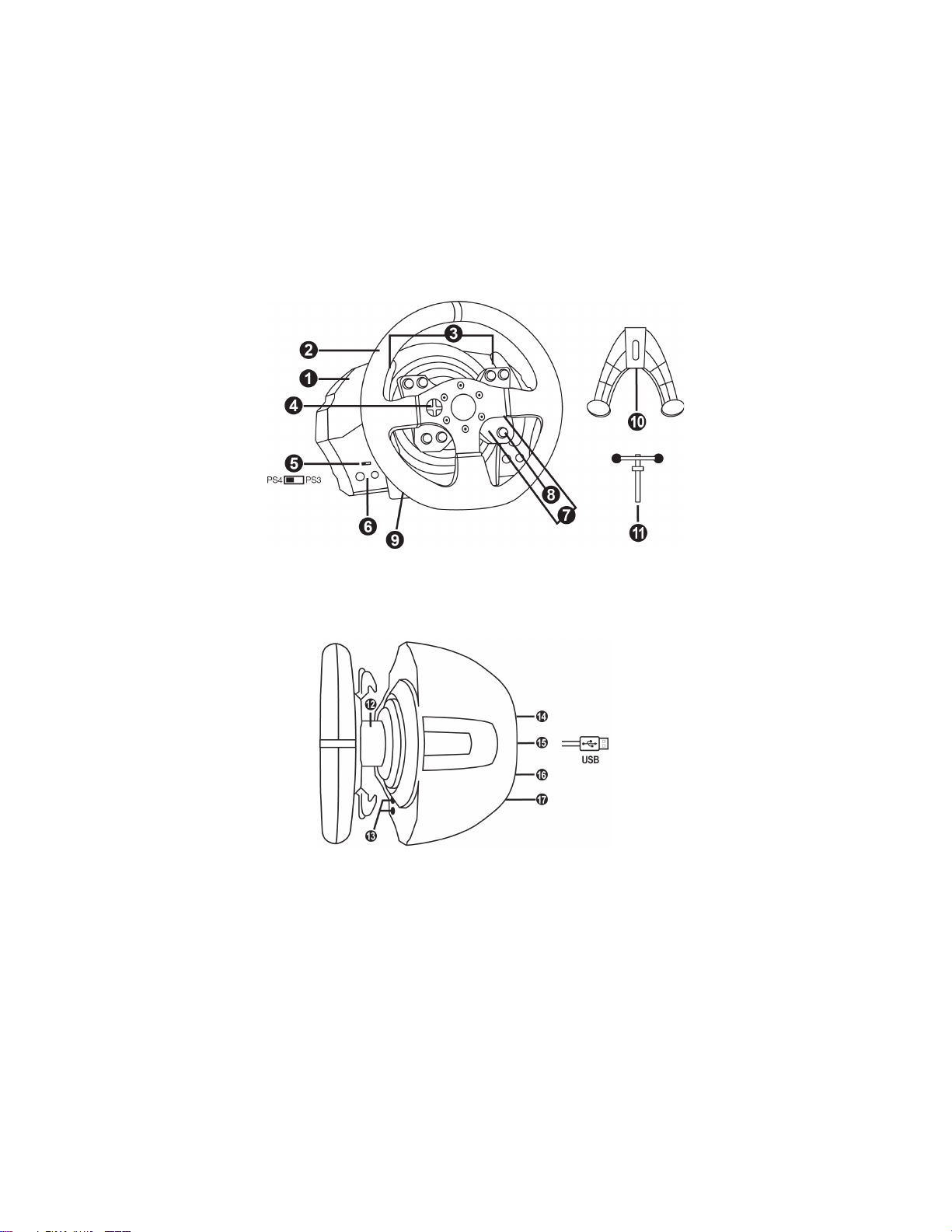
TECHNICAL FEATURES
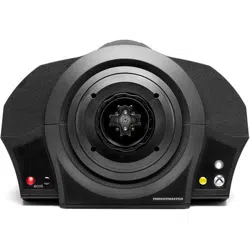
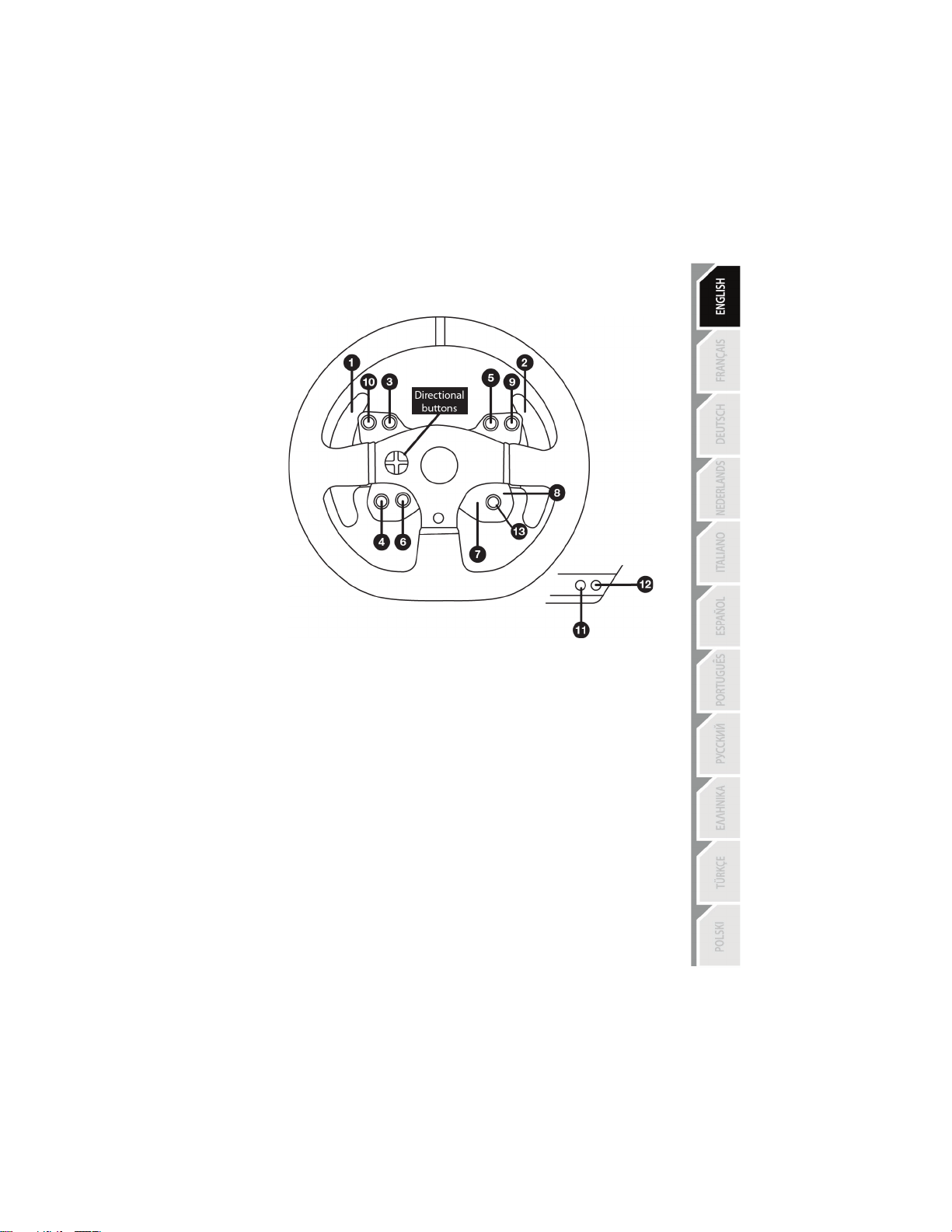
1 T300 RS base
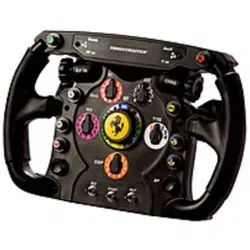
2 Ferrari 599XX EVO Wheel
3 2 sequential paddle shifters (up & down)
4 Directional buttons
5 Built-in USB sliding switch for PS4™/PS3™
6 MODE button + red/green indicator light
7 SELECT/START buttons on PS3™ and
SHARE/OPTIONS on PS4™
8 PS button
9 Large threaded hole (for attachment system
and fastening screw)
10 Attachment system
11 Metal fastening screw
12 Thrustmaster Quick Release
13 L3/R3 buttons
14 Power supply connector (type A or B)
(varies from one country to another)
15 Racing wheel USB cable and connector
16 Gearbox connector
(gearbox sold separately)
17 Pedal set connector
3/26
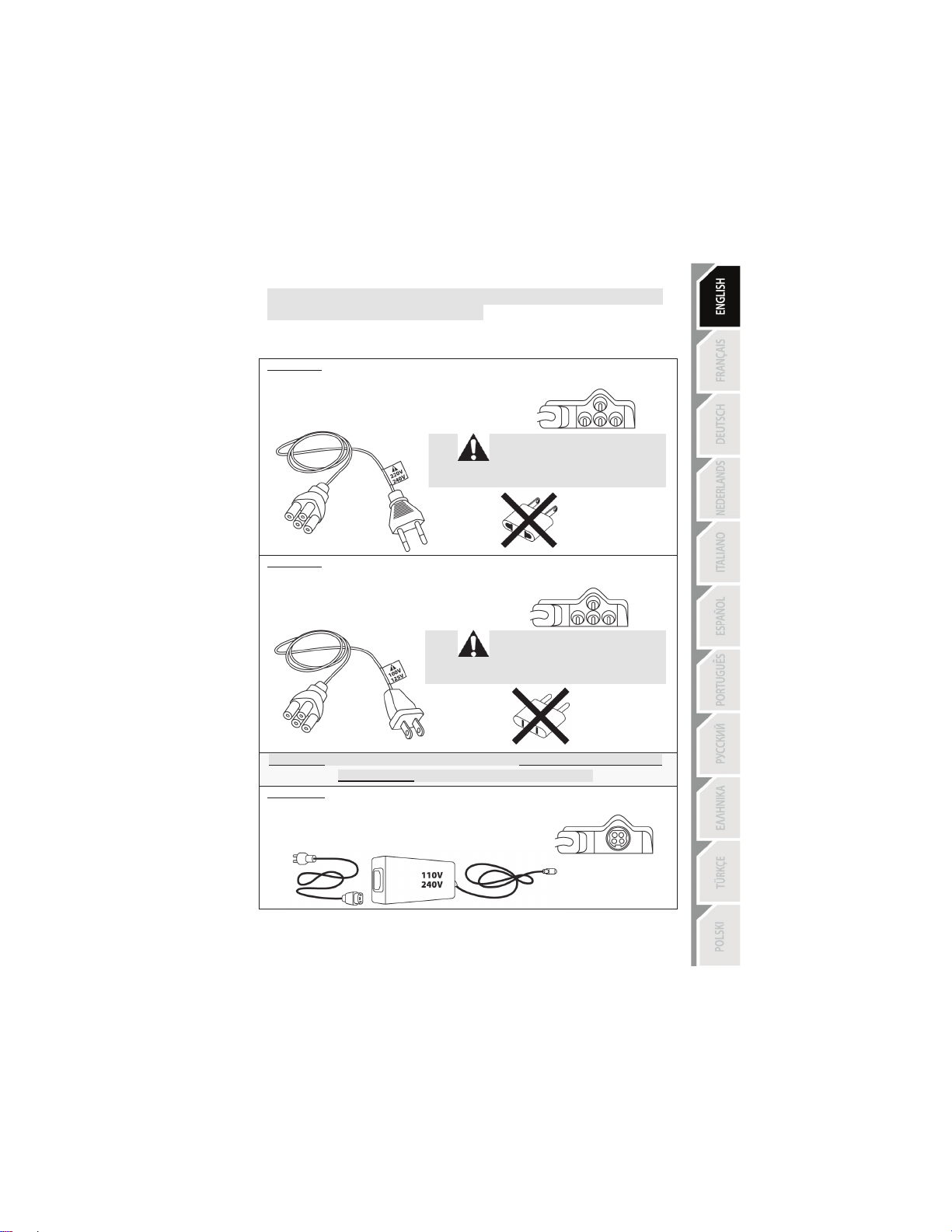
PLUGGING THE RACING WHEEL INTO AN ELECTRICAL OUTLET:
PLEASE READ BEFORE PROCEEDING!
Your racing wheel’s power supply varies according to the country where you purchased your device.
The power supply can be:
Internal, with:
* a power supply unit located directly inside the racing wheel’s base, with a type A
connector.
* a 220-240 V power supply cable.
= compatible only with 220-240 V electrical power.
Never connect the 220-240 V cable
to a 100-130 V electrical outlet!!!
Never connect this cable to a power adapter!!!
Internal, with:
* a power supply unit located directly inside the racing wheel’s base, with a type A
connector.
* a 100-125 V power supply cable.
= compatible only with 100-125 V electrical power.
Never connect the 100-125 V cable
to a 220-240 V electrical outlet!!!
Never connect this cable to a power adapter!!!
IMPORTANT: if you do not know which voltage is supplied in the area in which you are using
your racing wheel, please ask your local electricity supplier.
External, with:
* an external power supply unit, with a type B connector.
* a power supply cable.
= compatible with all electrical voltages, from 110-240 V.
4/26
WARNING
Before using this product, please read this manual carefully and save it for later reference.
Warning – Electrical shock
* Keep the product in a dry location and do not expose it to dust or sunlight.
* Do not twist or pull on the connectors and cables.
* Do not spill any liquid on the product or its connectors.
* Do not short-circuit the product.
* Never dismantle the product; do not throw it onto a fire and do not expose it to high temperatures.
* Do not use a power supply cable other than the one provided with your racing wheel.
* Do not use the power supply cable if the cable or its connectors are damaged, split or broken.
* Make sure that the power supply cable is properly plugged into an electrical outlet, and properly
connected to the connector at the rear of the racing wheel’s base.
* Do not open up the racing wheel: there are no user-serviceable parts inside. Any repairs must be
carried out by the manufacturer, its authorised representative or a qualified technician.
* Only use attachment systems/accessories specified by the manufacturer.
* If the racing wheel is operating abnormally (if it is emitting any abnormal sounds, heat or odours), stop
using it immediately, unplug the power supply cable from the electrical outlet and disconnect the other
cables.
* If you will not be using the racing wheel for an extended period of time, unplug its power supply cable
from the electrical outlet.
Air vents
Make sure not to block any of the air vents on the racing wheel’s base. For optimal ventilation, make sure
to do the following:
* Position the wheel’s base at least 10cm away from any wall surfaces.
* Do not place the base in any tight spaces.
* Do not cover the base.
* Do not let any dust build up on the air vents.
For safety reasons, never use the pedal set with bare feet
or while wearing only socks on your feet.
THRUSTMASTER
®
DISCLAIMS ALL RESPONSIBILITY IN THE EVENT OF
INJURY RESULTING FROM USE OF THE PEDAL SET WITHOUT SHOES.
Warning – Injuries due to force feedback and repeated movements
Playing with a force feedback racing wheel may cause muscle or joint pain. To avoid any problems:
* Avoid lengthy gaming periods.
* Take 10 to 15 minute breaks after each hour of play.
* If you feel any fatigue or pain in your hands, wrists, arms, feet or legs, stop playing and rest for a few
hours before you start playing again.
5/26
Warning – Injuries due to force feedback and repeated movements (continued)
* If the symptoms or pain indicated persist when you start playing again, stop playing and consult your
doctor.
* Keep out of children’s reach.
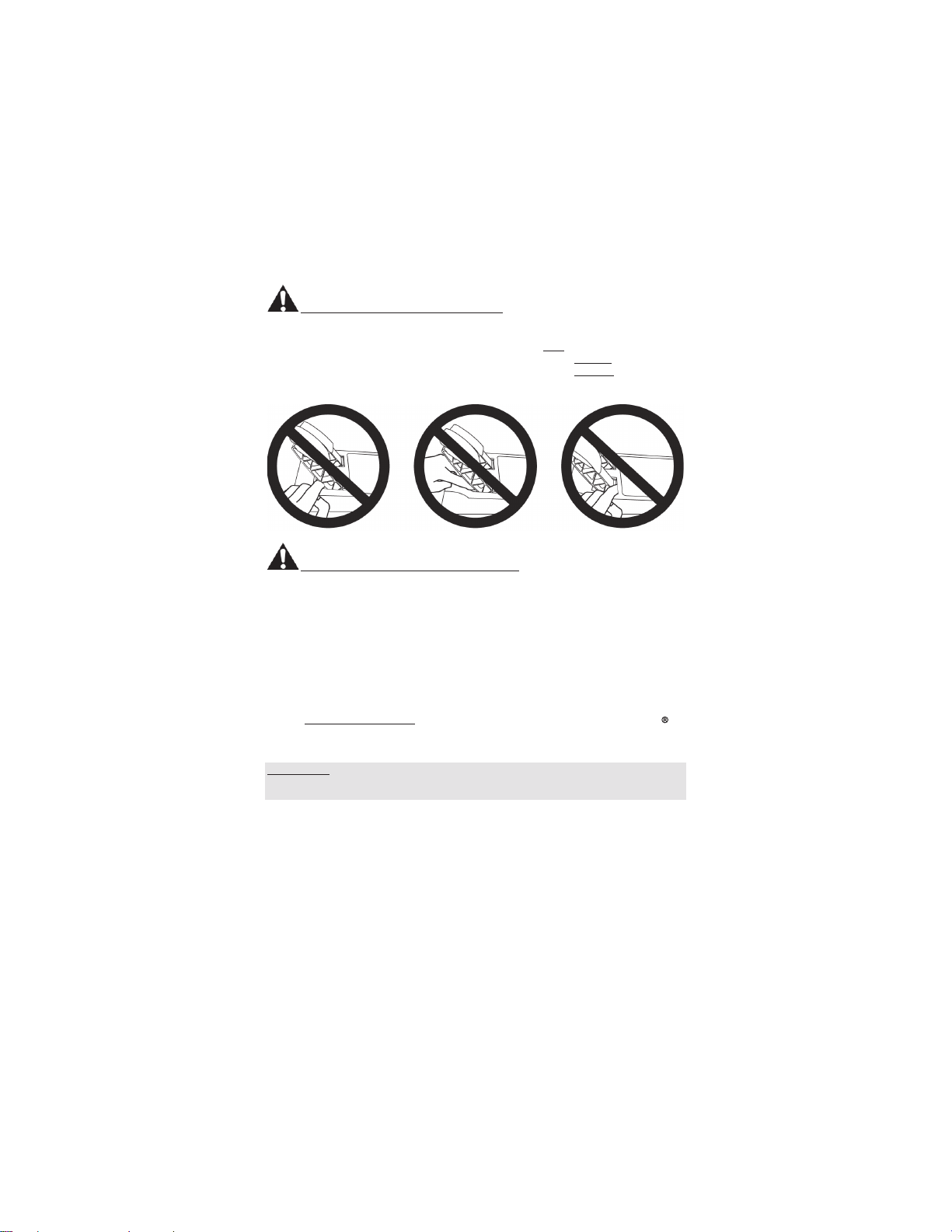
* During gameplay, always leave both hands correctly positioned on the wheel without completely
letting go.
* During gameplay, never place your hands or your fingers under the pedals or anywhere near the
pedal set.
* During calibration and gameplay, never place your hand or your arm through the openings in the
racing wheel.
* Make sure that the racing wheel’s base is properly secured, as per this manual’s instructions.
Product to be handled only by users
16 years of age or older
HEAVY PRODUCT
Be careful not to drop the product on
yourself or on anyone else!
ALWAYS NEVER NEVER
6/26
Warning – Pedal set pinch hazard when playing
* Keep the pedal set out of children’s reach.
* During gameplay, never place your fingers on or anywhere near the sides of the pedals.
* During gameplay, never place your fingers on or anywhere near the pedal’s rear base.
* During gameplay, never place your fingers on or anywhere near the pedal’s front base.
NEVER NEVER NEVER
Warning – Pedal set pinch hazard when not playing
* Store the pedal set in a safe place, and keep it out of children’s reach.
UPDATING YOUR RACING WHEEL’S FIRMWARE
The firmware included in your racing wheel’s base can be updated to a more recent version featuring
product enhancements.
To display the firmware version that your racing wheel is currently using and update it if required: on
PC, visit http://ts.thrustmaster.com. In the Updates and Downloads section, click PlayStation
£ /
Wheels / T300 RS, then select Driver/Firmware and follow the instructions describing the download
and installation procedure.
Important note:
On PC, the USB sliding switch (5) on the racing wheel’s base must always be set to the PS3™
position.
7/26
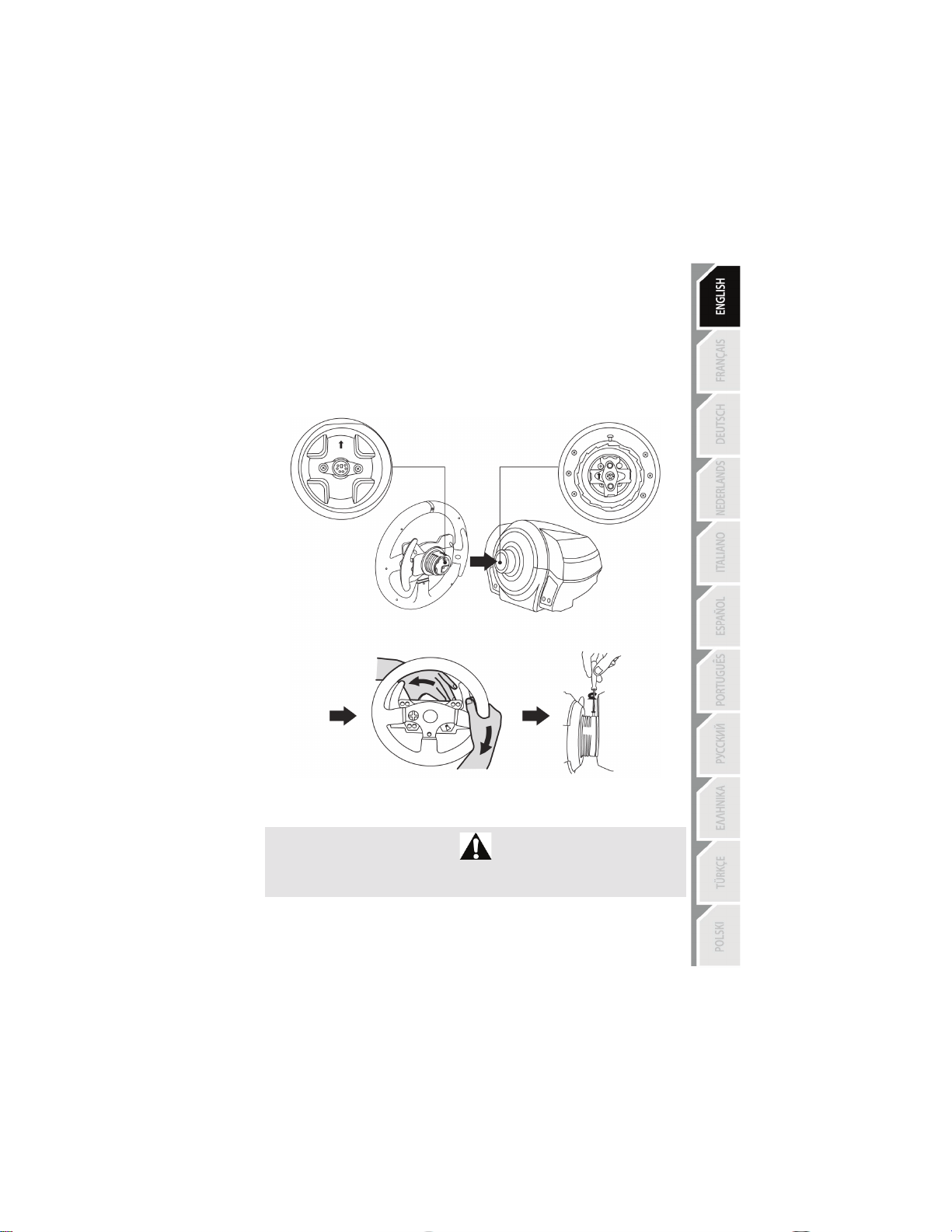
INSTALLING THE WHEEL ON ITS BASE
Align the connector positions using the arrows:
Base (1) connector: Arrow pointing upwards
Racing wheel (2) connector: Arrow pointing upwards
Once the connectors are correctly positioned, simply rotate the Thrustmaster Quick Release (12) device’s
ring anticlockwise, while holding the racing wheel (2) in position.
Then, tighten the ring as much as you can: to do so, hold the ring in position and rotate the racing wheel
clockwise.
Once you have installed the wheel, rotate it 180° (when facing the wheel, the Ferrari® logo should be
upside down) to access the small attachment screw located on the ring of the Thrustmaster Quick
Release (12) device. Use a large Phillips screwdriver to tighten the small attachment screw (do not use
excessive force), turning it clockwise.
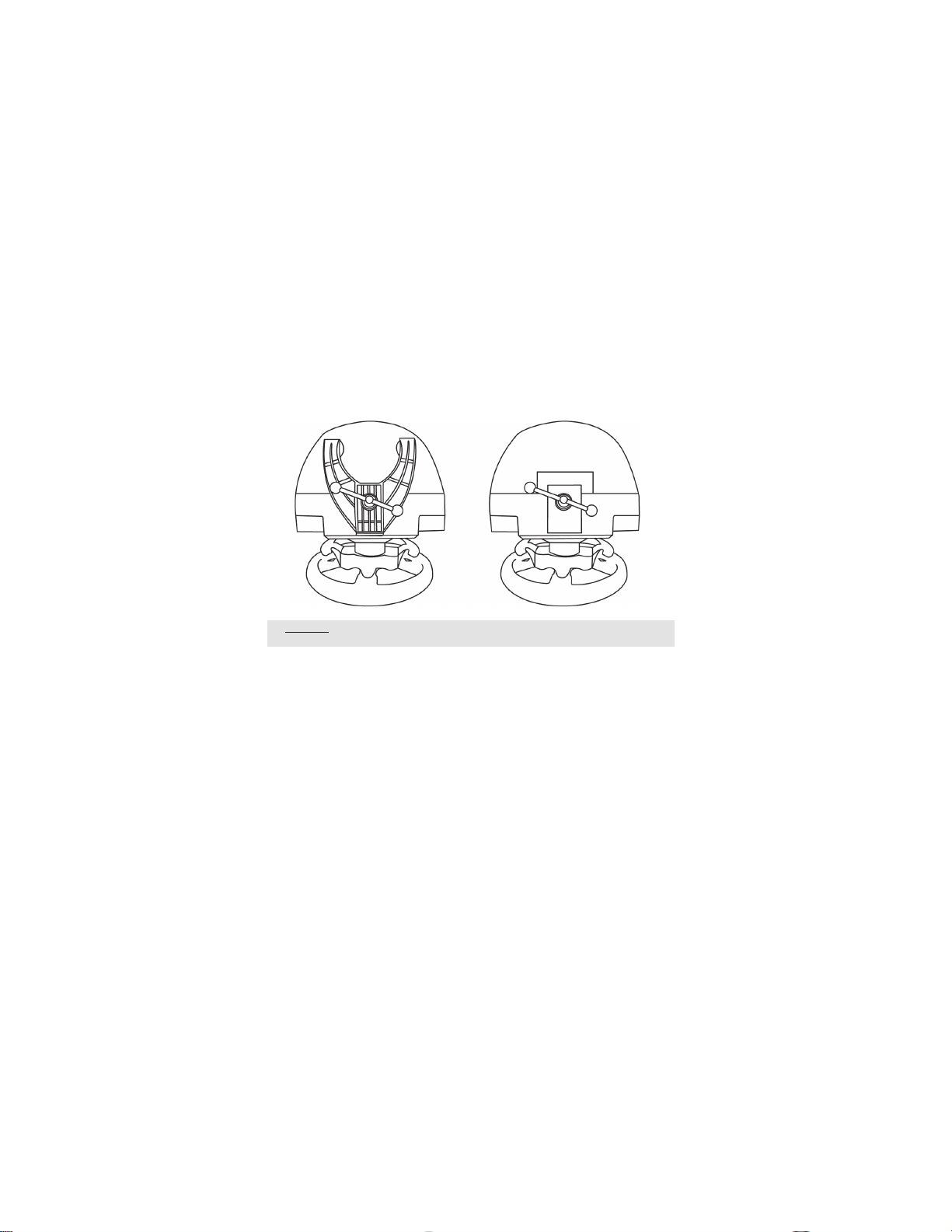
Do not use excessive force when tightening the small attachment screw
(using a Phillips screwdriver)!
Stop turning the screw as soon as you feel some resistance.
8/26
ATTACHING THE RACING WHEEL
Attaching the racing wheel to a table or a desktop
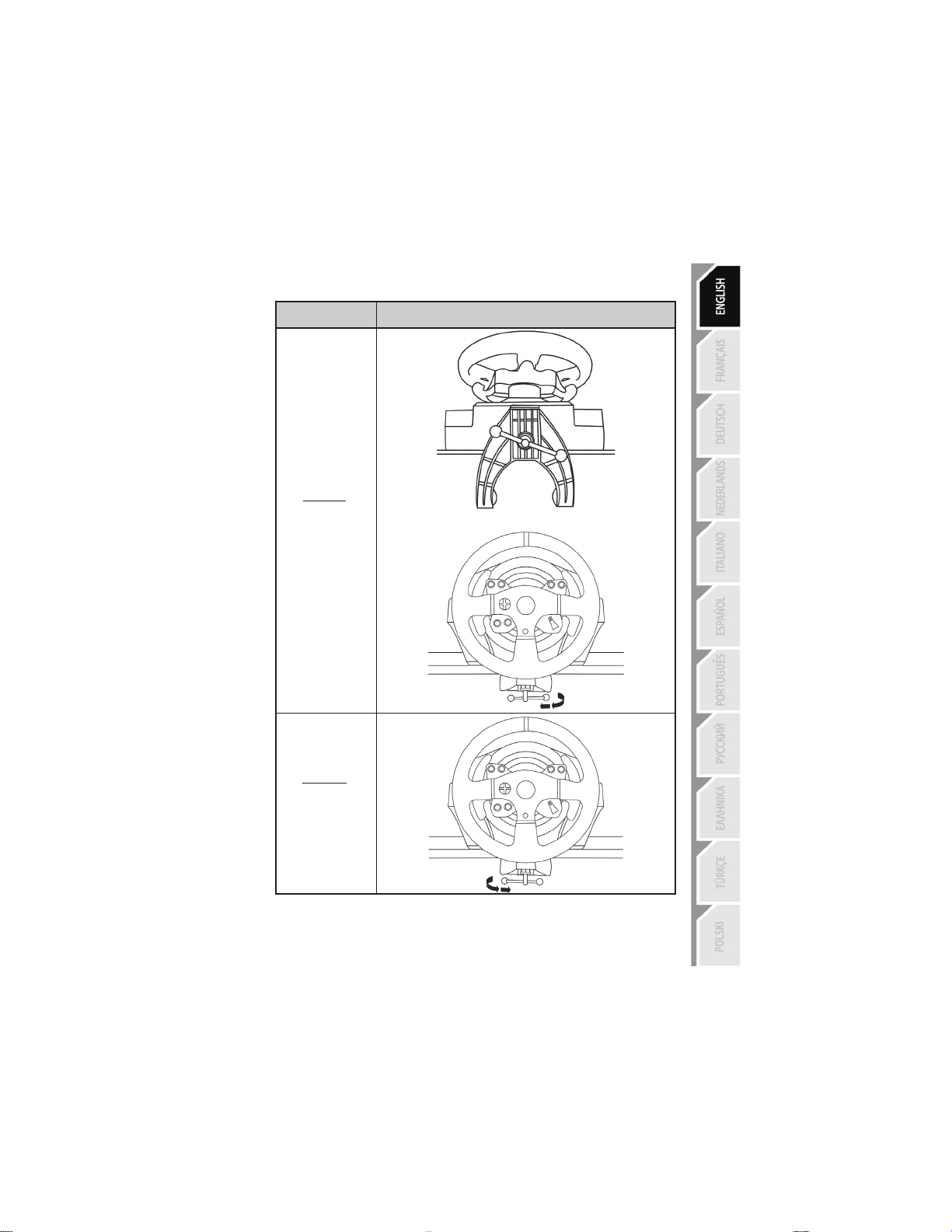
1. Place the racing wheel on a table or any other horizontal, flat and stable surface.
2. Insert the fastening screw (11) in the attachment system (10), then tighten the device by turning
the screw anticlockwise, so that it feeds into the large threaded hole (9) located beneath the
racing wheel, until the wheel is perfectly stable.
ALWAYS NEVER
WARNING: Never tighten the screw alone, without the attachment system in place!
(This could damage the racing wheel.)
9/26
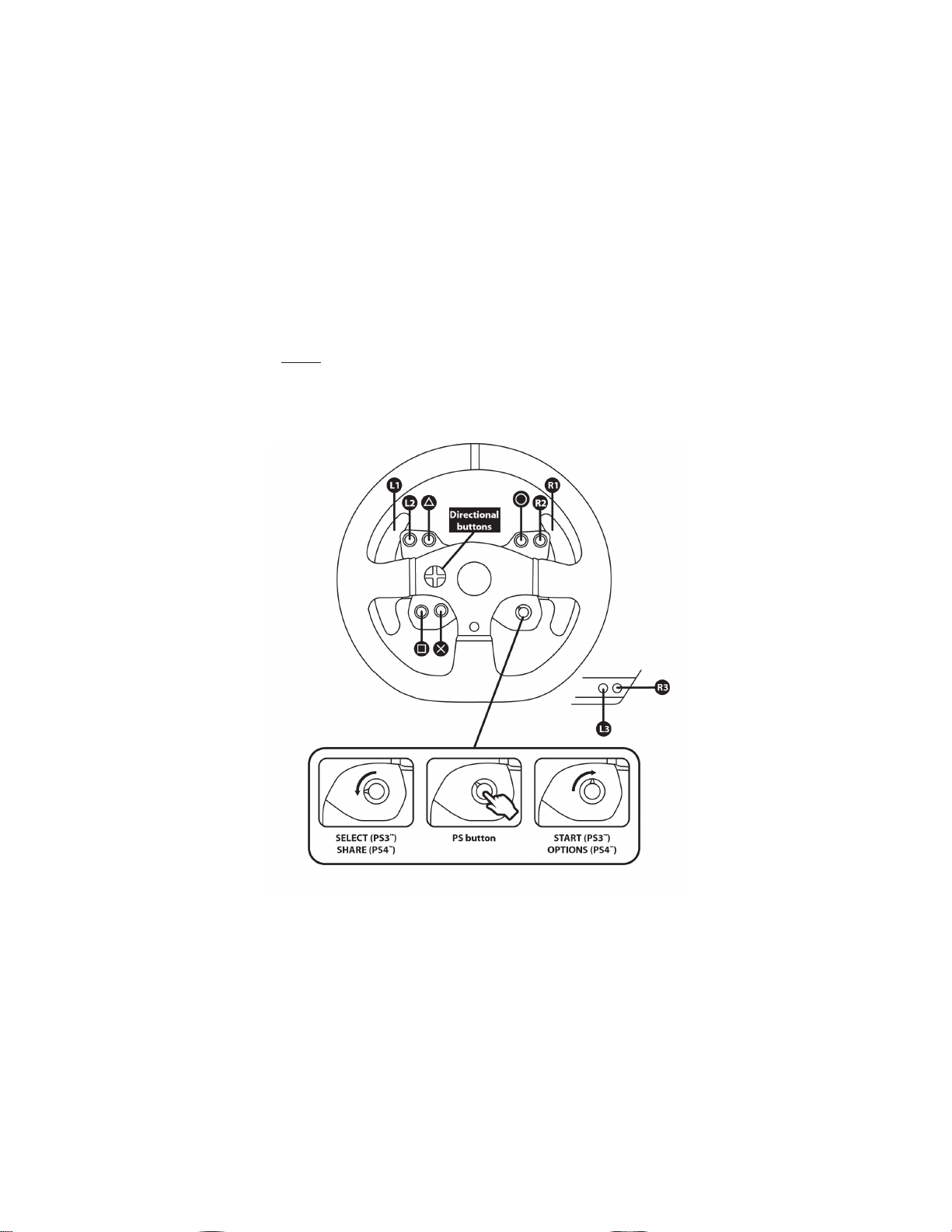
ATTACHMENT /
REMOVAL
DIRECTION
To tighten:
Turn the screw
anticlockwise
To release:
Turn the screw
clockwise
10/26
Attaching the racing wheel’s base to a cockpit
1. Place the racing wheel’s base on the cockpit shelf.
2. Drive two M6 screws (not included) through the cockpit shelf, then feed them into the two small
screw threads located on the underside of the racing wheel.
Important: The length of the two M6 screws must not exceed the thickness of the shelf + 12 mm;
longer screws could cause damage to internal components located in the racing wheel’s base.
3. If required, tighten the standard attachment system by inserting the fastening screw in the large
threaded hole.
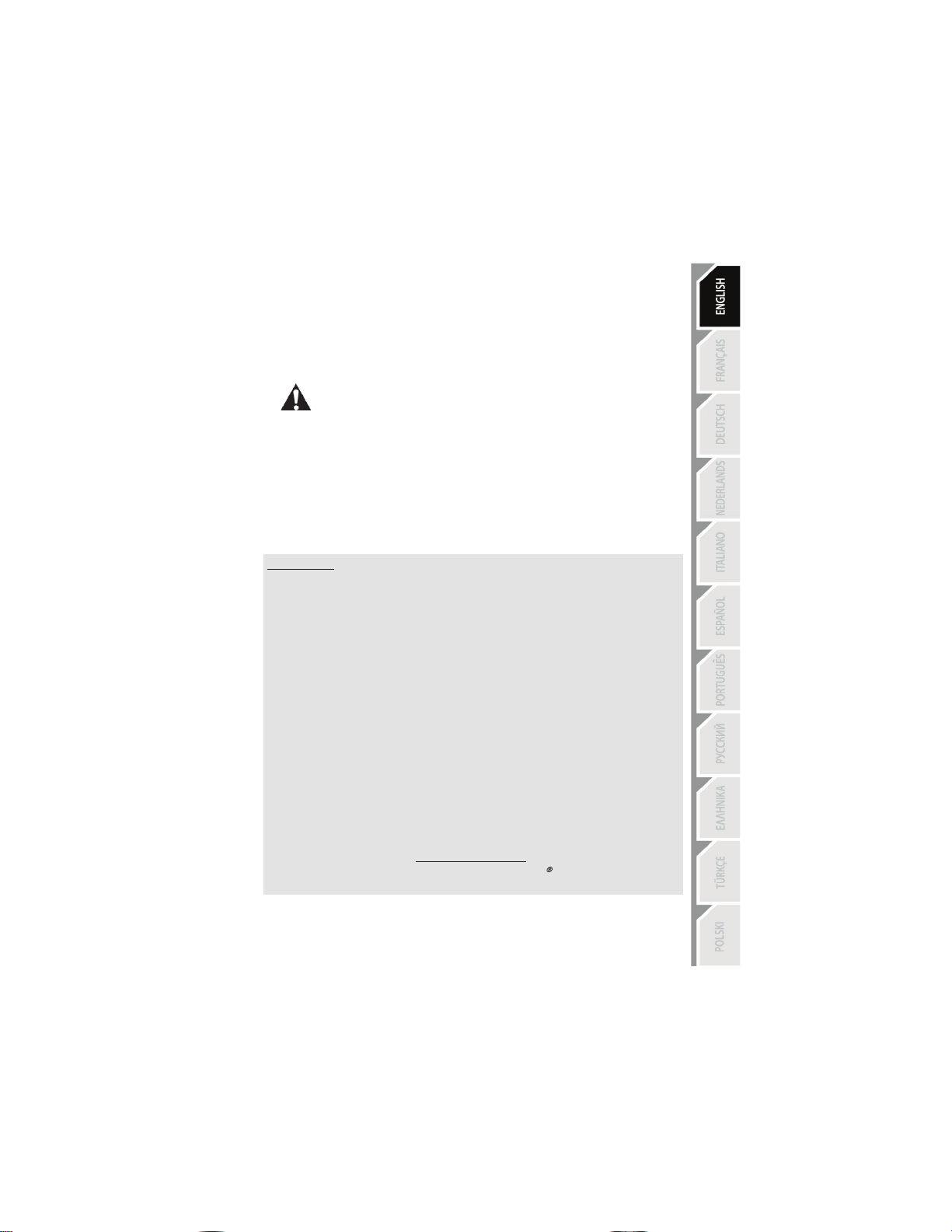
PLAYSTATION®3 AND PLAYSTATION®4 MAPPING
11/26
SETTING UP THE RACING WHEEL FOR PLAYSTATION®3 OR
P
LAYSTATION®4
1. Connect the pedal set to the connector (17) located at the back of the racing wheel's base.
2. Connect the power supply cable to the connector (14) located at the back of the racing wheel's
base.
3. Plug the power supply cable into an electrical outlet with the same voltage specifications.
For more information about this, please refer to the PLUGGING THE RACING
WHEEL INTO AN ELECTRICAL OUTLET section, on page 3 in this manual.
4. Set the USB sliding switch (5) on the racing wheel’s base to either the PS3™ or PS4™ position,
depending on the system or the game you are using.
5. Connect the racing wheel’s USB connector (15) to one of the system’s USB ports.
6. Once your system is powered on, your racing wheel will calibrate itself automatically.
7. On PlayStation
®4 (when the USB sliding switch is set to the PS4™ position): press the racing
wheel’s PS button (8) and sign in to your Sony Entertainment Network account, in order to be able
to use the wheel.
You are now ready to play!
Important notes:
- The USB sliding switch (5) on the racing wheel’s base must always be set to the proper
position (PS3™ or PS4™) before connecting the wheel’s USB cable to the system. To change
the sliding switch’s position, disconnect the USB cable from the system and then change the
position of the switch before reconnecting the USB cable to the system.
- On PlayStation
®3, the USB sliding switch (5) must always be set to the PS3™ position:
* The wheel is recognised in most games as a T500RS wheel.
* The wheel is functional in compatible games and in system menus.
* The “PS” function is functional on the wheel.
- On PlayStation
®4, with the USB sliding switch (5) in the PS3™ position:
* The wheel is recognised in most games as a T500RS wheel.
* The wheel is functional in compatible games, but not in system menus.
* The “SHARE” and “PS” functions are not functional on the wheel.
- On PlayStation
®4, with the USB sliding switch (5) in the PS4™ position:
* Don't forget to press the racing wheel’s PS button (8) in order to be able to use the wheel.
* The wheel is recognised in most games as a T300 RS wheel.
* The wheel is functional in compatible games and in system menus.
* The “SHARE” and “PS” functions are functional on the wheel.
- The list of PlayStation
®3 and PlayStation®4 games compatible with the T300 RS (along with
the required position for the USB sliding switch (5) according to the game being played) is
available at:
http://ts.thrustmaster.com
(in the Updates and Downloads section, click PlayStation
£
/ Wheels / T300 RS).
This list is updated regularly.

12/26
SETTING UP THE RACING WHEEL FOR PC*
*PC compatibility not tested nor endorsed by Sony Computer Entertainment Europe
Important note:
On PC, the USB sliding switch (5) on the racing wheel’s base must always be set to the PS3™
position.
1. Go to http://ts.thrustmaster.com to download the drivers and the force feedback software for PC. In the
Updates and Downloads section, click PC / Wheels / T300 RS, then select Drivers.
2. Once the download is complete, launch the installation, and follow the on-screen instructions to
connect the wheel’s USB plug to your computer and complete the installation.
3. Once the installation is complete, click Finish and restart your computer.
4. Select Start / All Programs / Thrustmaster / FFB Racing Wheel / Control Panel to open the Game
Controllers window.
The Game Controllers window displays the racing wheel’s name T300 RS Racing Wheel with the status
OK.
5. Click Properties to configure your wheel in the T300 RS control panel:
7HVW,QSXWWDEDOORZVWRWHVWDQGYLHZWKHDFWLRQEXWWRQVdirectional buttons, wheel and pedals axes,
and to adjust the wheel’s rotation angle in your PC games.
7HVW)RUFHVWDEDOORZVWRWHVWIRUFHIHHGEDFNHIIHFWV
*DLQ6HWWLQJVWDEDOORZVWRDGMXVWWKHSRZHURIWKHIRUFHIHHGEDFNHIIHFWVLQ\RXU3&JDPes.
You are now ready to play!
General notes:
- On PC, click OK to close the Game Controllers window before launching the game.
- On PC, the adjustments made in the Game Controllers window will only be saved on your computer
(hence they will have no effect on PlayStation
®3 or PlayStation®4).
- Your wheel’s firmware version is displayed in the upper right-hand corner of the T300 RS control panel
tabs.
13/26
PC MAPPING
14/26
AUTOMATIC RACING WHEEL AND PEDAL SET CALIBRATION
The wheel automatically self-calibrates when you plug the racing wheel into an electrical outlet and
connect the racing wheel’s USB connector to the system.
During this phase, the racing wheel will rotate quickly towards the left and the right, covering a 900
degree angle, before stopping at the centre.
WARNING:
Never touch the racing wheel during the self-calibration phase!
(This could result in improper calibration and/or personal injuries.)
AUTOMATIC CALIBRATION OF THE PEDAL SET
Never connect the pedal set to the racing wheel’s base (or disconnect it from the base) when it is
connected to the system or during gameplay (this could result in improper calibration).
Always connect the pedal set before connecting the racing wheel to the system.
Once the racing wheel’s calibration is complete and the game has been started, the pedals are
automatically calibrated after a few presses.
WARNING:
Never press the pedals during the racing wheel's
self-calibration phase or while a game is loading!
(This could result in improper calibration.)
If your racing wheel and/or pedal set do not function correctly, or if they seem to be improperly
calibrated:
Power off your system and completely disconnect the racing wheel. Then reconnect all cables (including
the power supply cable and the pedal set), and restart your system and your game.
INTERNAL TEMPERATURE SENSOR
The wheel’s cooling system is composed of a heat sink and a fan.
x A thermostat monitors the wheel’s internal temperature.
x When you are using the wheel in a game:
- The cooling fan starts up when the wheel has reached a certain temperature (after a few minutes
of gameplay, depending on the strength of the Force Feedback effects used).
- The power of the Force Feedback effects automatically decreases as soon as the wheel reaches
a much higher temperature level (to protect the motor). The power of these effects automatically
increases as soon as the temperature slightly decreases.
x When you’re done playing: due to the motor’s thermal inertia, the cooling fan continues to operate
until the temperature drops below the fan’s startup level. Your wheel has been designed in this way
in order to facilitate cooling, and to protect the motor (this may take from 5 to 45 minutes, depending
on the temperature reached while using the wheel in a game).
15/26
MODE BUTTON AND INDICATOR LIGHT (6)
MODE button for the pedal set
You can electronically swap the accelerator and clutch pedals.
To do so, simply press the MODE button (6) for 2 seconds.
The racing wheel’s internal memory stores whether the pedals have been swapped around or not.
GAS AND CLUTCH PEDALS
Colour of the MODE indicator light (6)
NORMAL
RED
SWAPPED AROUND
GREEN
Other information regarding the MODE button
To learn more about the MODE button and indicator light, please visit http://ts.thrustmaster.com. In
the Updates and Downloads section, click PlayStation£ / Wheels / T300 RS, then select
Manual/Help file.
HELP FILES AND FAQS (NOT INCLUDED IN THIS MANUAL)
Please visit http://ts.thrustmaster.com, and in the Updates and Downloads section, click
PlayStation£ / Wheels / T300 RS, then select Manual/Help file.
16/26
17/26
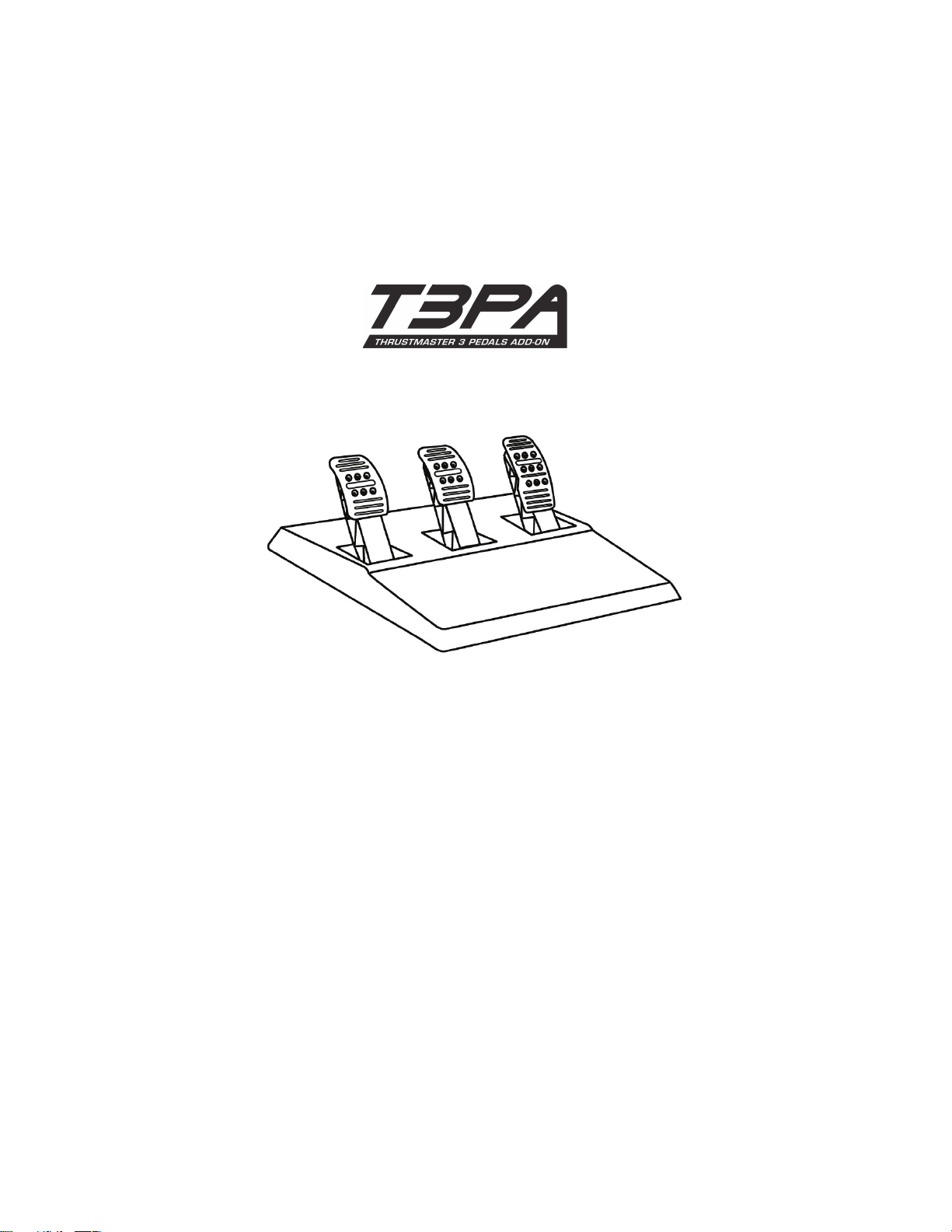
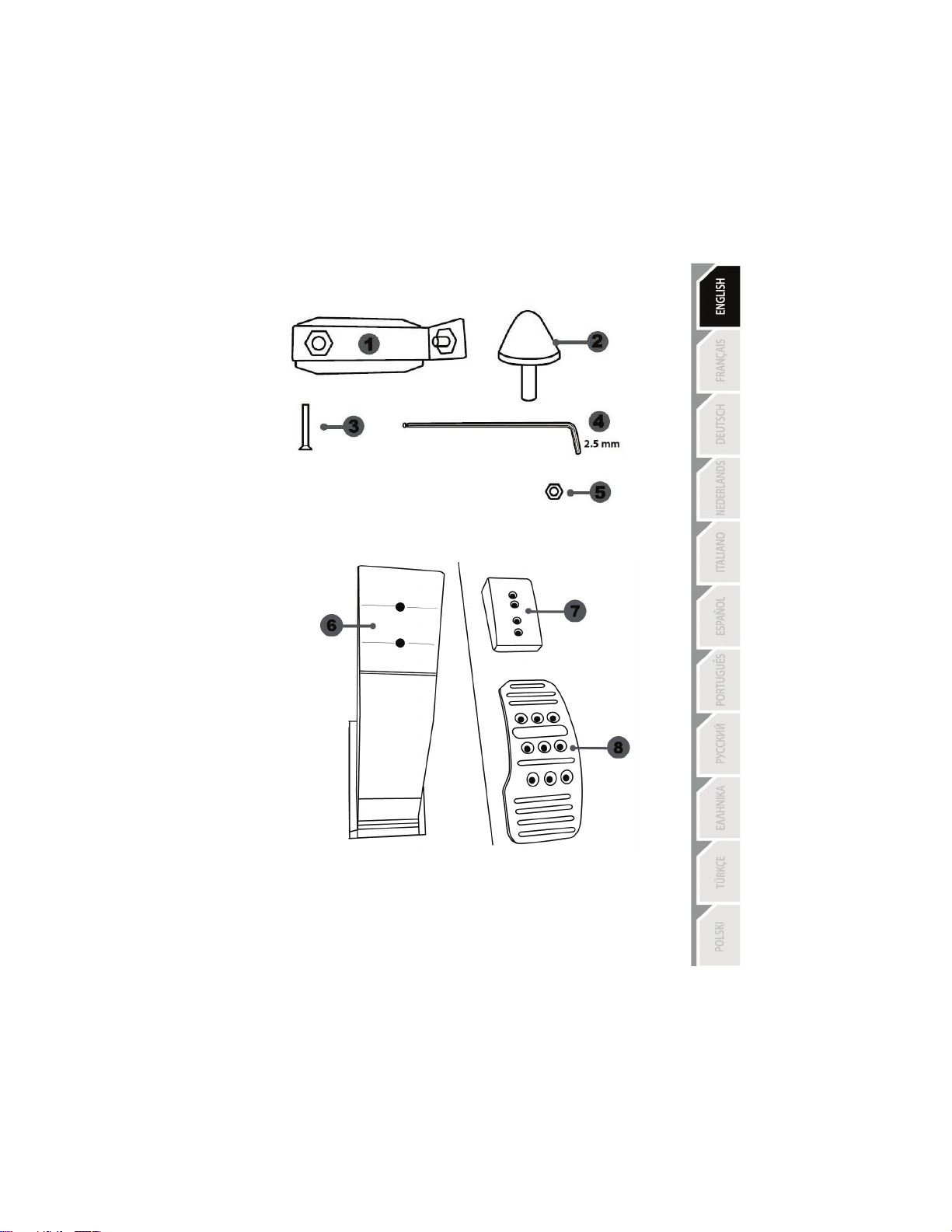
TECHNICAL FEATURES
1 Metal support for conical stop
(not installed by default)
2 Conical stop
3 Attachment screw for metal support
4 2.5 mm Allen key (included)
5 Position adjustment nut for conical stop
6 Pedal arm
7 Plastic head support
8 Metal pedal head
18/26
WARNING
Before using this product, be sure to read these instructions carefully and save them for future reference.
For safety reasons, never use the pedal set with bare feet or while wearing
only socks on your feet.
THRUSTMASTER® DISCLAIMS ALL RESPONSIBILITY IN THE EVENT OF
INJURY RESULTING FROM USE OF THE PEDAL SET WITHOUT SHOES.
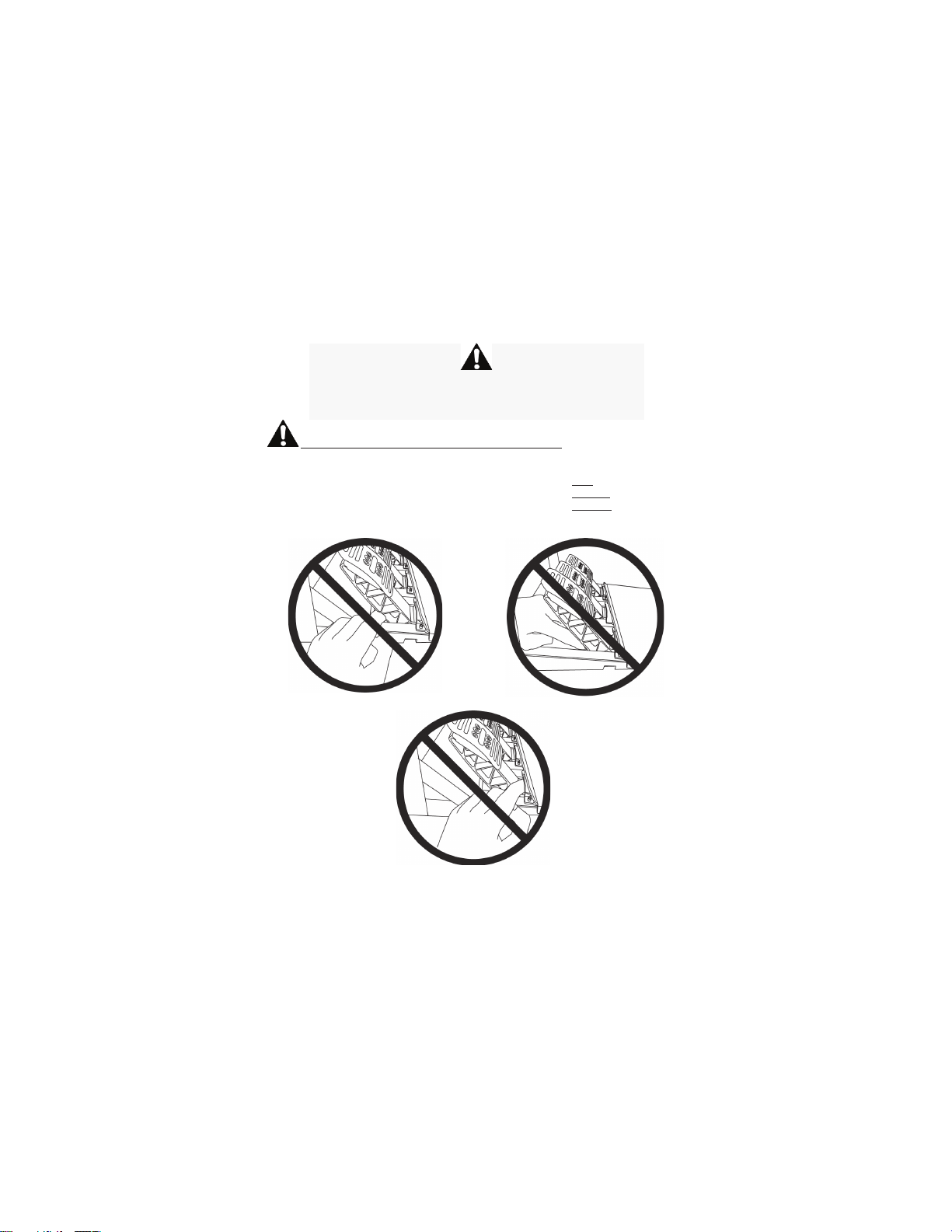
Warning – Pedal set pinching hazard during gaming sessions
* Keep the pedal set out of the reach of children.
* During gaming sessions, never place your fingers or thumbs on or near the sides of the pedals.
* During gaming sessions, never place your fingers or thumbs on or near the rear base of the pedals.
* During gaming sessions, never place your fingers or thumbs on or near the front base of the pedals.
NEVER
NEVER
NEVER
19/26
AUTOMATIC CALIBRATION OF PEDALS
IMPORTANT:
- Never connect or disconnect the pedal set from the base of the wheel when the wheel is
connected to the PS3™ or PS4™, or during gaming sessions, to avoid calibration problems.
= Always connect the pedal set to the wheel before connecting the wheel to the PS3™ or PS4™.
- Once the wheel has self-calibrated and the game has started, the pedals automatically calibrate
themselves after being pressed a few times.
- Never press on the pedals when the wheel is self-calibrating or when your game is starting up, to
avoid calibration problems.
- If the pedals are not functioning correctly or appear to be improperly calibrated, power off your
system, completely disconnect your wheel, then reconnect all of the cables (including the power
supply cable and the pedal set cable), power the system back on and restart your game.
ATTACHING THE PEDAL SET TO A COCKPIT
- Attach the pedal set using the small screw threads located on the underside of the pedal set.
- Screw two M6 screws (not included) into the cockpit’s pedal support plate and into the two small
screw threads located on the underside of the pedal set.
Important: The length of the two M6 screws must not exceed the thickness of the cockpit’s pedal
support plate plus an additional 10 mm, to avoid damaging the pedal set’s internal components.
20/26
ADJUSTING THE PEDAL SET
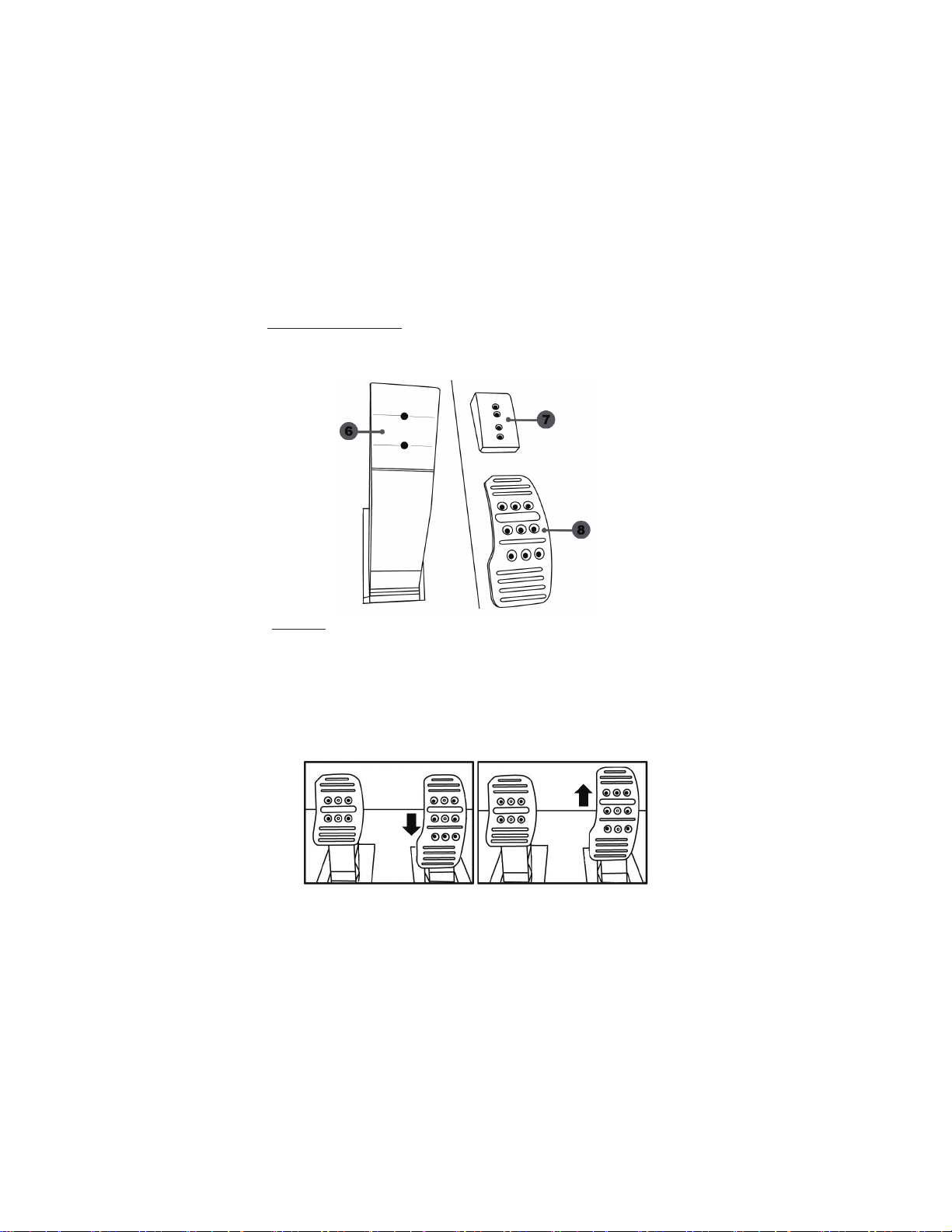
Each of the three pedals includes:
- A metal head (8) with multiple perforations (nine for the accelerator – six for the brake – six for the
clutch).
- A plastic head support (7) (placed between the head and the arm) with four perforations.
- A pedal arm (6) with two perforations.
ATTENTION: To avoid any calibration problems, be sure to always disconnect your wheel’s
USB cable from the PS3™ or PS4™ before making any adjustments to your pedal set.
Adjusting the HEIGHT of the accelerator pedal
- Using the included 2.5 mm Allen key (4), unscrew the two screws holding the metal head (8) and
its support (7) in place.
- Select your preferred height position, then replace and re-tighten the screws so that the metal
head (8) and its support (7) are held firmly in place.
㻌
Low position (default)
㻌
High position
㻌
21/26
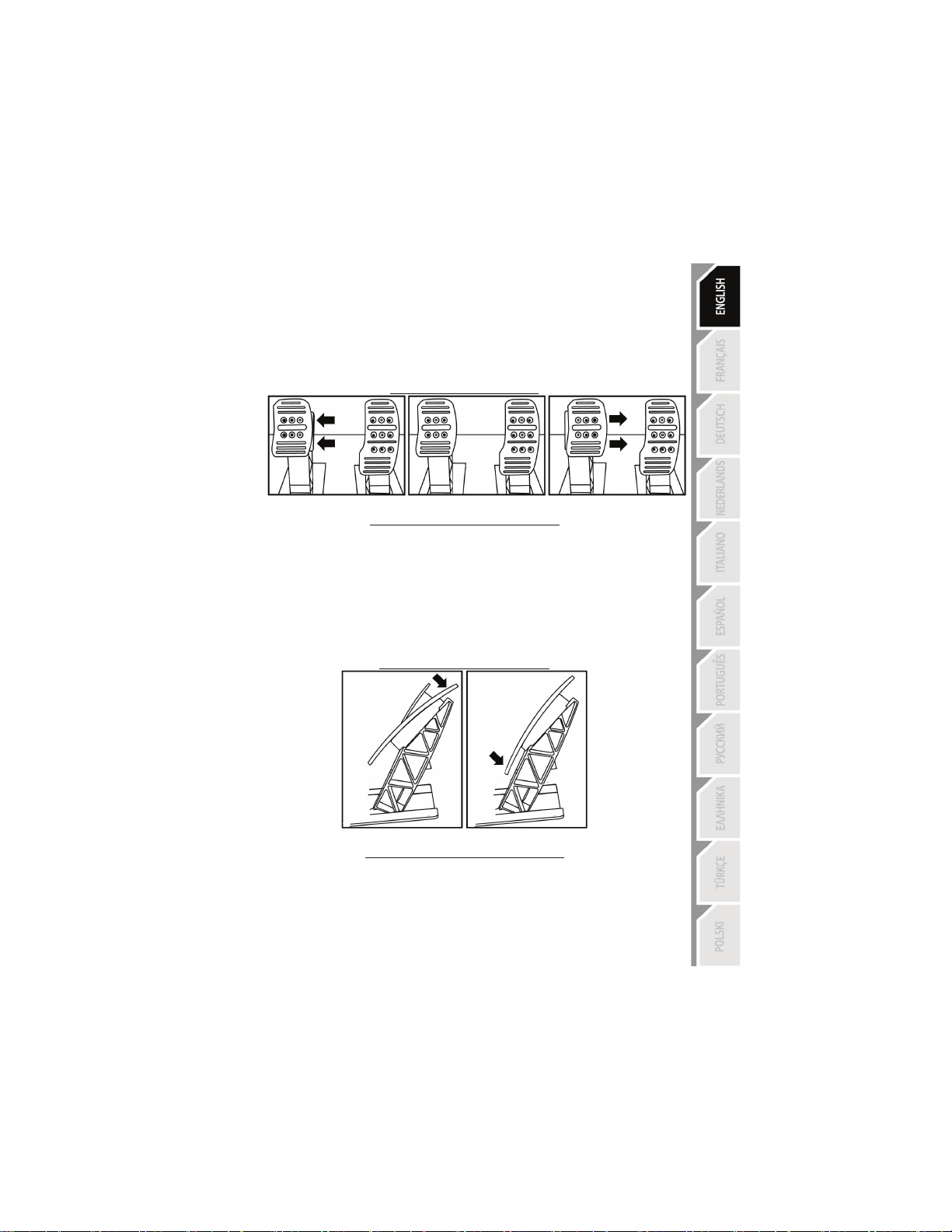
Adjusting the SPACING of the three pedals
- Using the included 2.5 mm Allen key (4), unscrew the two screws holding the metal head (8) and
its support (7) in place.
- Select your preferred position (to the left, centered, or to the right), then replace and re-tighten the
screws so that the metal head (8) and its support (7) are held firmly in place.
Examples illustrating the brake pedal:
Left position Centered position (default) Right position
Number of possible spacing positions per pedal:
- Three for accelerator pedal
- Three for brake pedal
- Three for clutch pedal
Adjusting the INCLINATION of the pedals
- Using the included 2.5 mm Allen key (4), unscrew the two screws holding the metal head (8) and
its support (7) in place.
- Turn the plastic head support (7) 180°, then replace and re-tighten the screws so that the metal
head (8) and its support (7) are held firmly in place.
Examples illustrating the accelerator pedal:
Less inclined position More inclined position (default)
Number of possible inclination positions per pedal:
- Two for accelerator pedal
- Two for brake pedal
- Two for clutch pedal
22/26
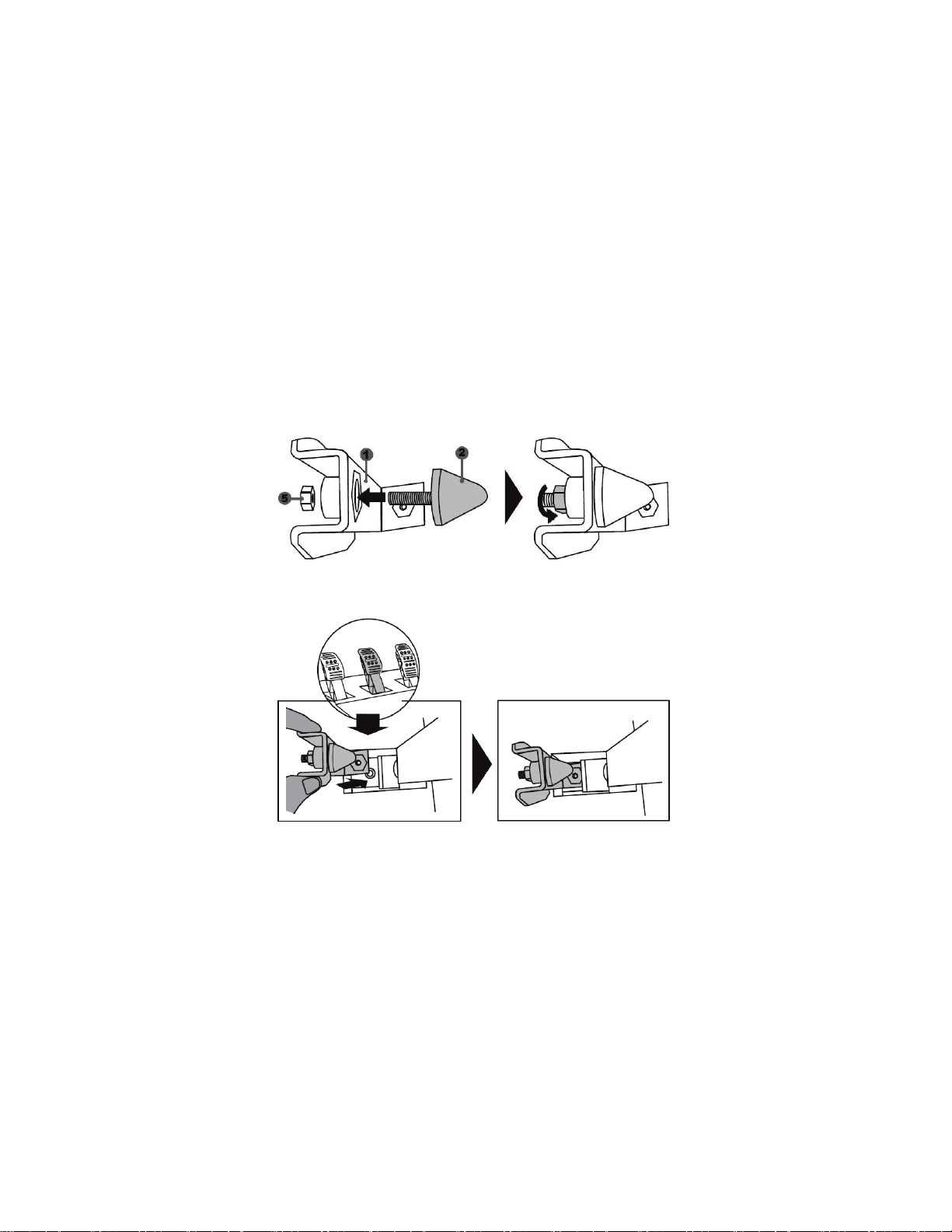
Installing the conical stop (“CONICAL RUBBER BRAKE” mod)
This modification (or “mod”) is not essential, and is not installed by default. This means that the
brake pedal functions perfectly even if the mod is not installed.
This mod lets you experience a different feeling and resistance when braking.
It’s up to you whether or not to install it, depending on your own preferences.
- Screw the conical stop (2) onto its metal support (1).
- Screw the position adjustment nut (5) onto the bottom (onto the conical stop’s screw thread).
- Position the unit at the back of the brake pedal’s arm.
23/26
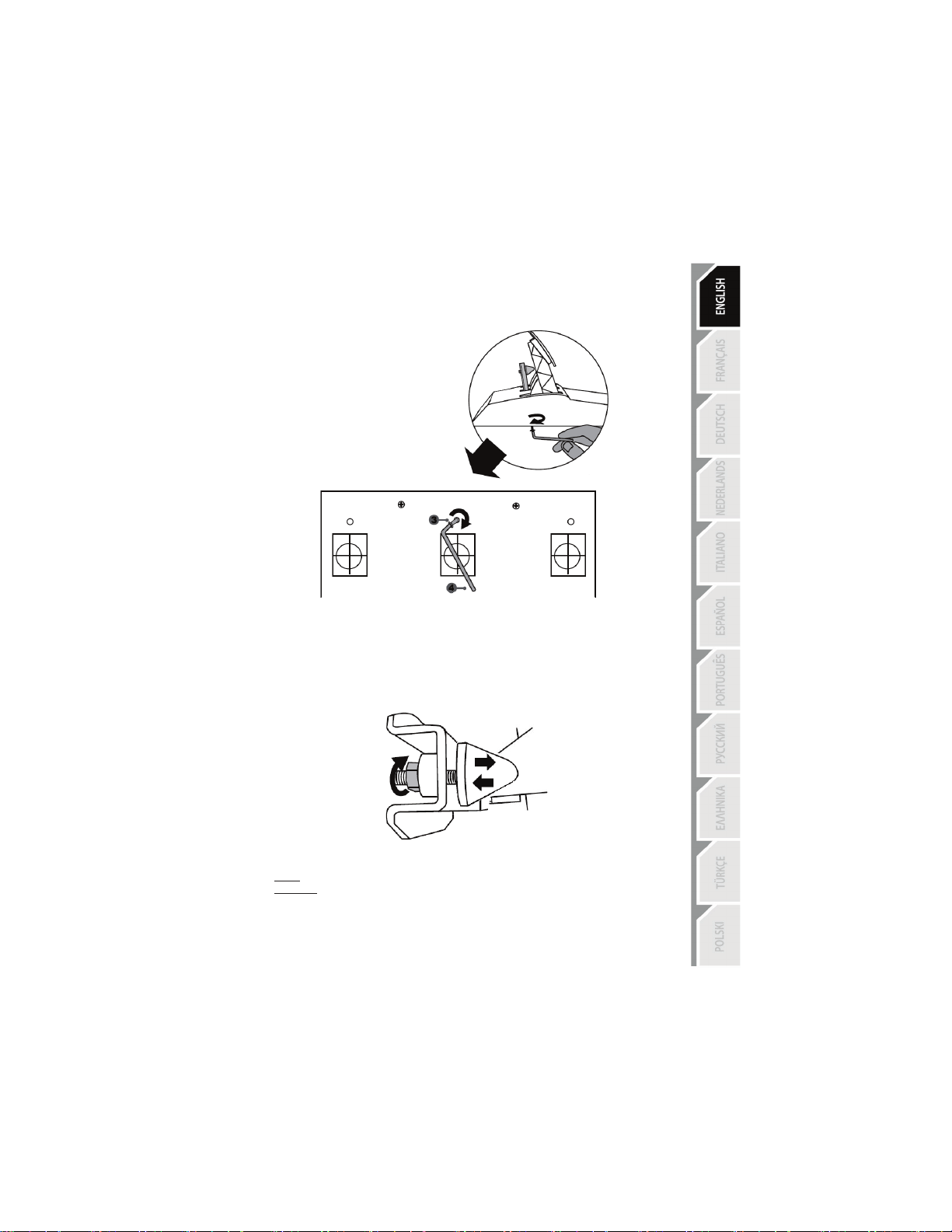
- Using the included 2.5 mm Allen key (4), attach the unit using the attachment screw (3) and the
small central screw thread located on the underside of the pedal set.
The “CONICAL RUBBER BRAKE” mod is now installed!
Adjusting the brake pedal’s RANGE of travel and STRENGTH of resistance
By slightly unscrewing the nut (5), you can further strengthen the resistance of the brake pedal by
moving the conical stop (2) closer to the back of the pedal’s arm (if necessary, use a 14 mm wrench
or pliers to re-tighten the nut and maintain the selected position). The closer the conical stop is
positioned to the back of the pedal’s arm, the greater the strength of resistance will be.
Note: When the conical stop is very close to the back of the brake pedal’s arm, you may experience
difficulties in reaching the maximum calibration value. Should that be the case:
* Slowly, press very hard on the brake pedal so as to reach the maximum value (if necessary, stand
very briefly on the pedal – just for a second), then release the pressure; or else
* Move the conical stop a bit farther away from the back of the brake pedal’s arm.

24/26
CONSUMER WARRANTY INFORMATION
Worldwide, Guillemot Corporation S.A., whose registered office is located at Place du Granier, B.P.
97143, 35571 Chantepie, France (hereinafter “Guillemot”) warrants to the consumer that this
Thrustmaster product shall be free from defects in materials and workmanship, for a warranty period
which corresponds to the time limit to bring an action for conformity with respect to this product. In
the countries of the European Union, this corresponds to a period of two (2) years from delivery of
the Thrustmaster product. In other countries, the warranty period corresponds to the time limit to
bring an action for conformity with respect to the Thrustmaster product according to applicable laws
of the country in which the consumer was domiciled on the date of purchase of the Thrustmaster
product (if no such action exists in the corresponding country, then the warranty period shall be one
(1) year from the original date of purchase of the Thrustmaster product).
Notwithstanding the above, rechargeable batteries are covered by a warranty period of six (6)
months from the date of original purchase.
Should the product appear to be defective during the warranty period, immediately contact
Technical Support, who will indicate the procedure to follow. If the defect is confirmed, the product
must be returned to its place of purchase (or any other location indicated by Technical Support).
Within the context of this warranty, the consumer’s defective product shall, at Technical Support’s
option, be either replaced or returned to working order. If, during the warranty period, the
Thrustmaster product is subject to such reconditioning, any period of at least seven (7) days during
which the product is out of use shall be added to the remaining warranty period (this period runs
from the date of the consumer’s request for intervention or from the date on which the product in
question is made available for reconditioning, if the date on which the product is made available for
reconditioning is subsequent to the date of the request for intervention). If permitted under
applicable law, the full liability of Guillemot and its subsidiaries (including for consequential
damages) is limited to the return to working order or the replacement of the Thrustmaster product. If
permitted under applicable law, Guillemot disclaims all warranties of merchantability or fitness for a
particular purpose.
This warranty shall not apply: (1) if the product has been modified, opened, altered, or has suffered
damage as a result of inappropriate or abusive use, negligence, an accident, normal wear, or any
other cause unrelated to a material or manufacturing defect (including, but not limited to, combining
the Thrustmaster product with any unsuitable element, including in particular power supplies,
rechargeable batteries, chargers, or any other elements not supplied by Guillemot for this product);
(2) in the event of failure to comply with the instructions provided by Technical Support; (3) to
software, said software being subject to a specific warranty; (4) to consumables (elements to be
replaced over the product’s lifespan: disposable batteries, audio headset or headphone ear pads,
for example); (5) to accessories (cables, cases, pouches, bags, wrist-straps, for example); (6) if the
product was sold at public auction.
This warranty is nontransferable.
The consumer’s legal rights with respect to laws applicable to the sale of consumer goods in his or
her country are not affected by this warranty.
25/26
Additional warranty provisions
During the warranty period, Guillemot shall not provide, in principle, any spare parts, as Technical
Support is the only party authorized to open and/or recondition any Thrustmaster product (with the
exception of any reconditioning procedures which Technical Support may request that the
consumer carry out, by way of written instructions – for example, due to the simplicity and the lack
of confidentiality of the reconditioning process – and by providing the consumer with the required
spare part(s), where applicable).
Given its innovation cycles and in order to protect its know-how and trade secrets, Guillemot shall
not provide, in principle, any reconditioning notification or spare parts for any Thrustmaster product
whose warranty period has expired.
Liability
If permitted under applicable law, Guillemot Corporation S.A. (hereinafter “Guillemot”) and its
subsidiaries disclaim all liability for any damages caused by one or more of the following: (1) the
product has been modified, opened or altered; (2) failure to comply with assembly instructions; (3)
inappropriate or abusive use, negligence, an accident (an impact, for example); (4) normal wear. If
permitted under applicable law, Guillemot and its subsidiaries disclaim all liability for any damages
unrelated to a material or manufacturing defect with respect to the product (including, but not limited
to, any damages caused directly or indirectly by any software, or by combining the Thrustmaster
product with any unsuitable element, including in particular power supplies, rechargeable batteries,
chargers, or any other elements not supplied by Guillemot for this product).
TECHNICAL SUPPORT
http://ts.thrustmaster.com