MX-490
Owner’s Manual
Complete Control
MX-490
Owner’s Manual
Complete Control
MX-490
Owner’s Manual
Rev 1.2
Table of Contents
Introducing the MX-490
Thank you for purchasing URC’s MX-490 remote control. Its easy
and intuitive use helps to simplify your life while adding control of
more things than thought possible.
Online Support:
This remote is sold direct only and must be installed/programmed
by a certified custom integrator.
End-User Support:
Visit the URC Home Page for product information, owner’s
manuals, and support contact information.
Contact Support:
The MX-490 is a URC product sold direct only. For questions or
assistance contact your Custom Installer/Programmer.
My Installer/Programmer
Technical Suppor t
Toll Free: 800-904-0800
Main: 914-835-4484
techsupport@urc-automation.com
H o u r s : 9 : 0 0 a m - 5 : 0 0 p m E S T M - F
Congratulations!..................................................... 1
Using the MX-490 ................................................... 2
Accessing the Setup Menu .................................. 3
Basic Setup ............................................................. 4
Search the Database ......................................5
Learn ..................................................................8
Learn: On the Main Menu ..............................9
Learn: Inside a Device..................................10
Delete a Device .............................................11
Review Code Set ...........................................12
Advanced Setup.................................................... 13
Copy & Paste ..................................................14
To One Device ................................................15
To All Devices ................................................16
To the Main & Fav..........................................17
Macros ............................................................18
Setup a New Macro: On the Main Menu ..19
Setup a New Macro: Inside a Device........20
Test/Edit Existing Macro: On the Main
Menu................................................................21
Test/Edit Existing Macro: Inside a Device22
Hide or Display Pages ..................................23
On the Main Menu: Hide or Display Pages
24
On the Main Menu: Hide or Display
Devices............................................................25
Inside a Device: Hide or Display Pages ....26
Inside a Device: Hide or Display Buttons .27
Edit Labels ......................................................28
On the Main Menu.........................................29
Inside a Device ..............................................30
Edit Main Label..............................................31
Erasing.............................................................32
Macros: One Button ......................................33
Macros: One Button -
On the Main Menu.........................................34
Macros: One Button -
Inside a Device ..................................35
Macros: All on 1 Device ...................36
Macros: All Everywhere ..................37
Learned Commands: One Button .... 38
Learned Commands: One Button -
On the Main Menu.............................39
Learned Commands:
One Button - Inside a Device .......... 40
Learned Commands:
All on 1 Device................................... 41
Learned Commands:
All Everywhere .................................. 42
RF Setup ............................................... 43
All Devices Set Same ....................... 44
Each Device Differs ..........................47
Favorite Channels.......................................50
Add & Edit Favs................................... 51
Delete Favs .......................................... 54
One Fav Channel................................55
All Fav Channels................................56
User Settings...............................................57
Color Screen........................................ 58
Brightness........................................... 59
Auto Turn Off Timing.......................... 60
Button Lighting.................................... 61
Automatic On......................................62
Auto Turn Off Timing.......................... 63
System & Battery Info........................ 64
Power Remaining.............................. 65
System Info ......................................... 66
Factory Default.................................... 67
Display Tips .................................................68
Specifications .............................................69
Parts List ......................................................69
Limited Warranty Statement.....................69
1
Complete Control
MX-490
Owner’s Manual
Congratulations!
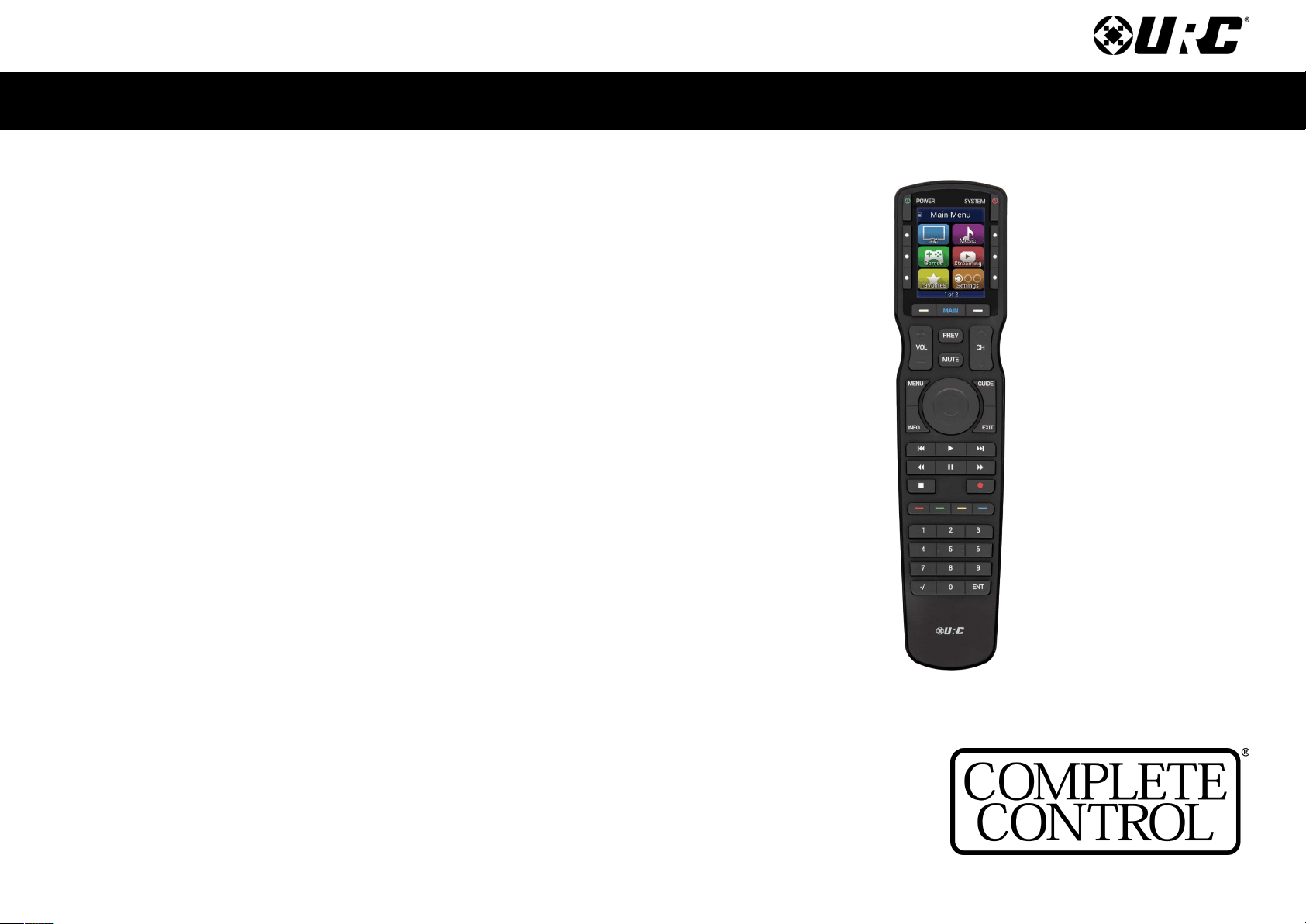
Thank you for purchasing the MX-490 remote control. This unit can directly control
every IR device in your home. You can also control devices located in different rooms
by integrating an MRF base station. Controlling your home is simple with the
MX-490 remote.
Brilliant LCD color display with hard button interface
The color LCD (Liquid Crystal Display) screen, as well as the remote buttons, light up.
Once the screen is lit, each of the three buttons on either side of the screen are labeled.
These button labels are based on the devices you want to watch or listen to.
User interface customization for any activity
Each Main Menu button can be customized for activities, such as watching TV or
listening to the radio. These activities can contain multiple commands (macros) which
enable a single button press to turn the needed devices ON or OFF.
Ultra-reliable narrow band RF - compatible with URC 418 MHz RF Base Stations
The MX-490 can communicate directly to RF base stations. This gives the
MX-490 the ability to control your system without being in direct line-of-sight.
Fast setup of complex systems via Complete Control PC editor
To fully automate an audio/video system, the programmer must have a detailed
knowledge of each component and how the system connects and operates. Only a
trained and certied professional audio/video installer can install an MX-490 remote
control in a timely and efcient manner.
Replacing the Batteries
Remove the cover by lightly pressing down on the grooves along the top and sliding the
cover away from the remote. Observe the + and – polarity indicators inside the battery
compartment and the batteries. Place the four AA batteries into their positions in the
battery compartment. Now, replace the battery cover and slide it into place.
2
Complete Control
MX-490
Owner’s Manual
Using the MX-490
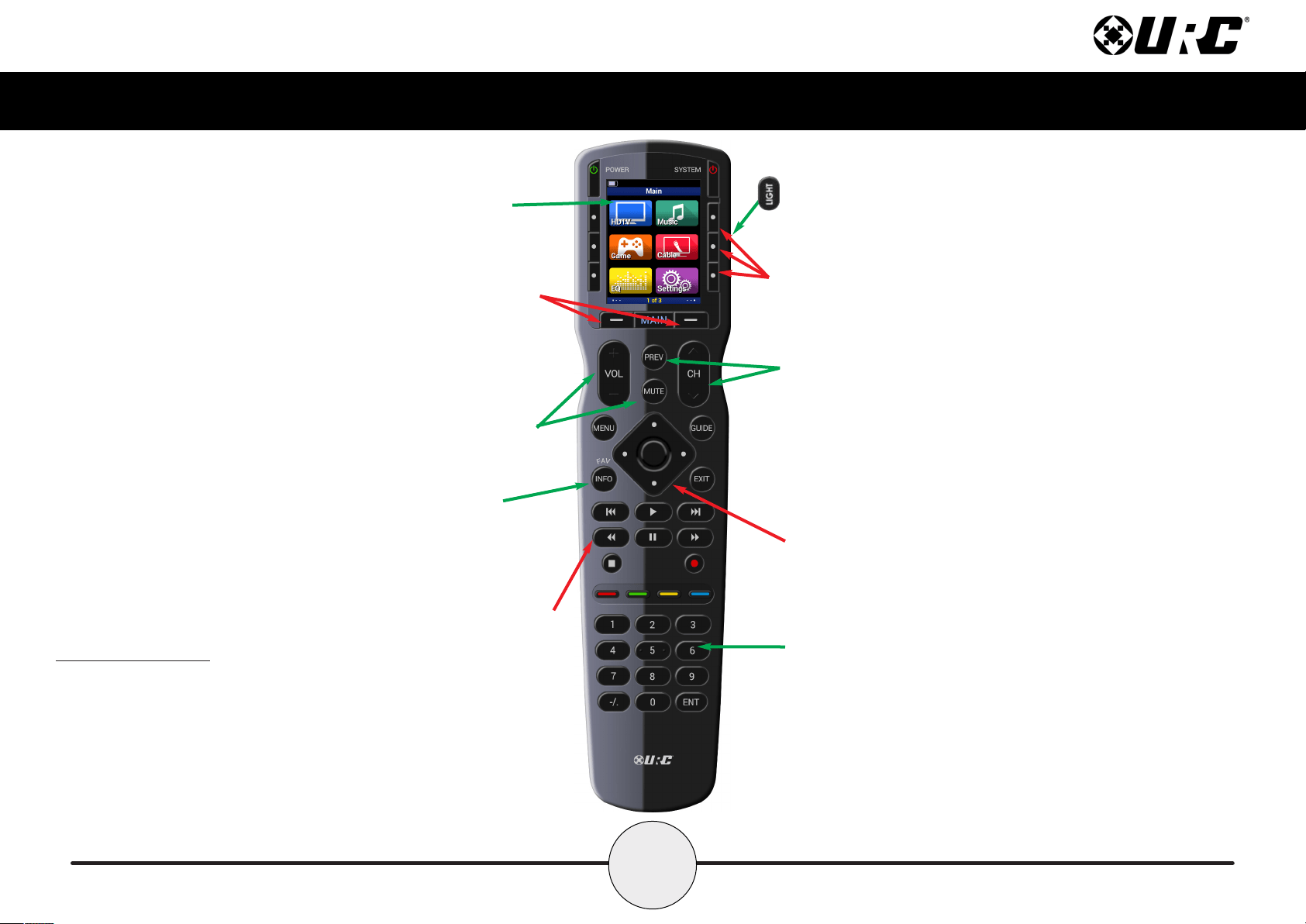
The MX-490 displays the title (Main or
name of the device being used) at the top of
the screen. Below the title, the LCD displays
the device’s command names. All of the
hard buttons of the MX-490 are changed to
control the functions of the selected device.
The Number keypad enters numbers for the devices you’ve
selected. When watching Cable TV, use the number keypad to
enter channel numbers. When listening to a CD, the number
keypad enters track numbers.
The 4-way cursor buttons enable you to navigate
on screen guides and menus with ease.
The Volume and Mute buttons always
control the sound regardless of what
screen is displayed.
Press either of the Page buttons
to see any other available choices.
The Title displays what the main
page or device you can control.
The Transport buttons
(Play, Stop, Skip-,
Skip+, Rec, Fwd,
Rew and Pause)
operate when the
selected device
requires them.
The LCD button labels describe special
features for this activity.
The Light button activates button backlighting.
The Channel and Previous Channel buttons will change
channels when you have selected devices like CABLE.
To access Favorite Channels, press and
hold the Info button for three (3) seconds.
3
Complete Control
MX-490
Owner’s Manual
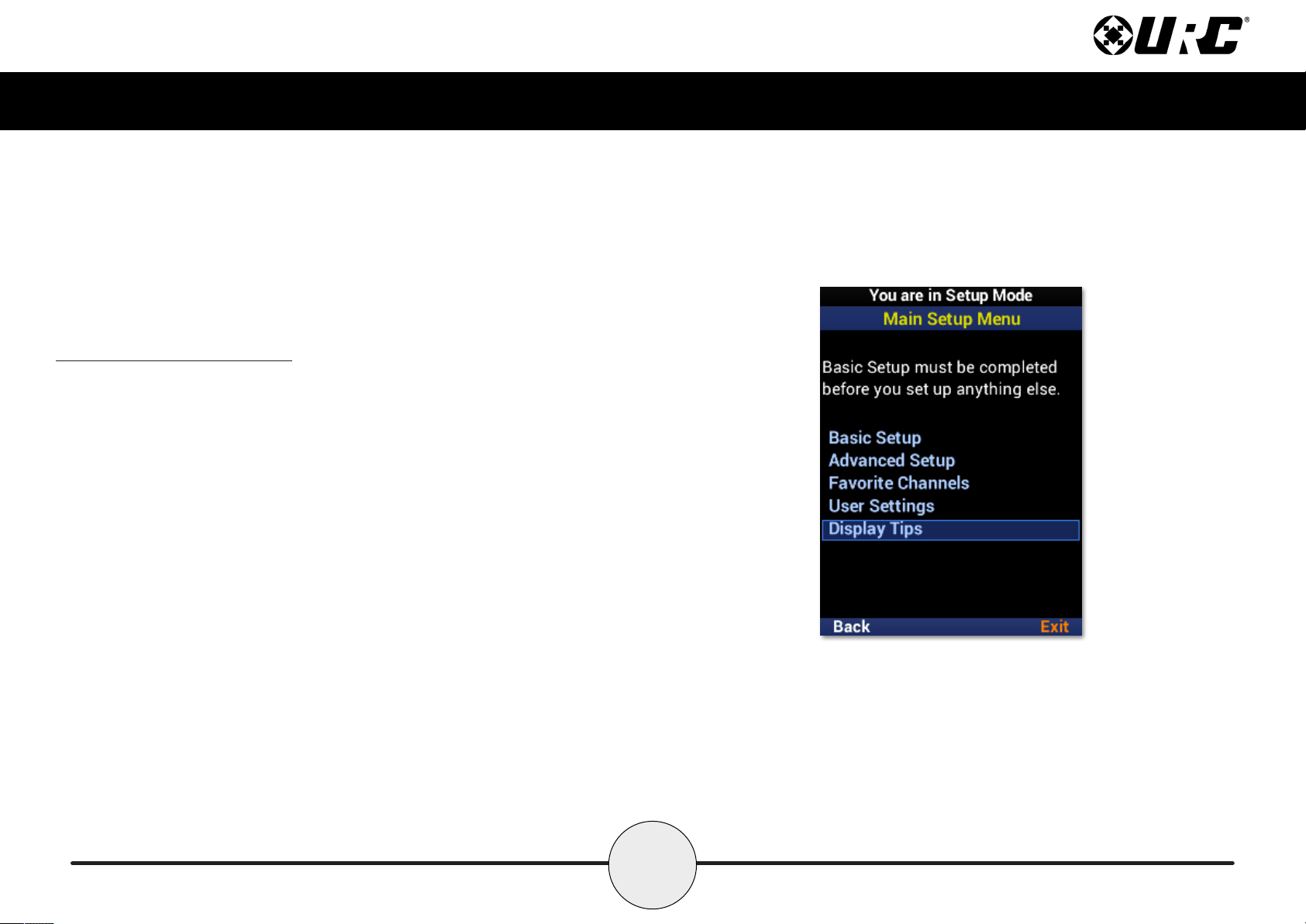
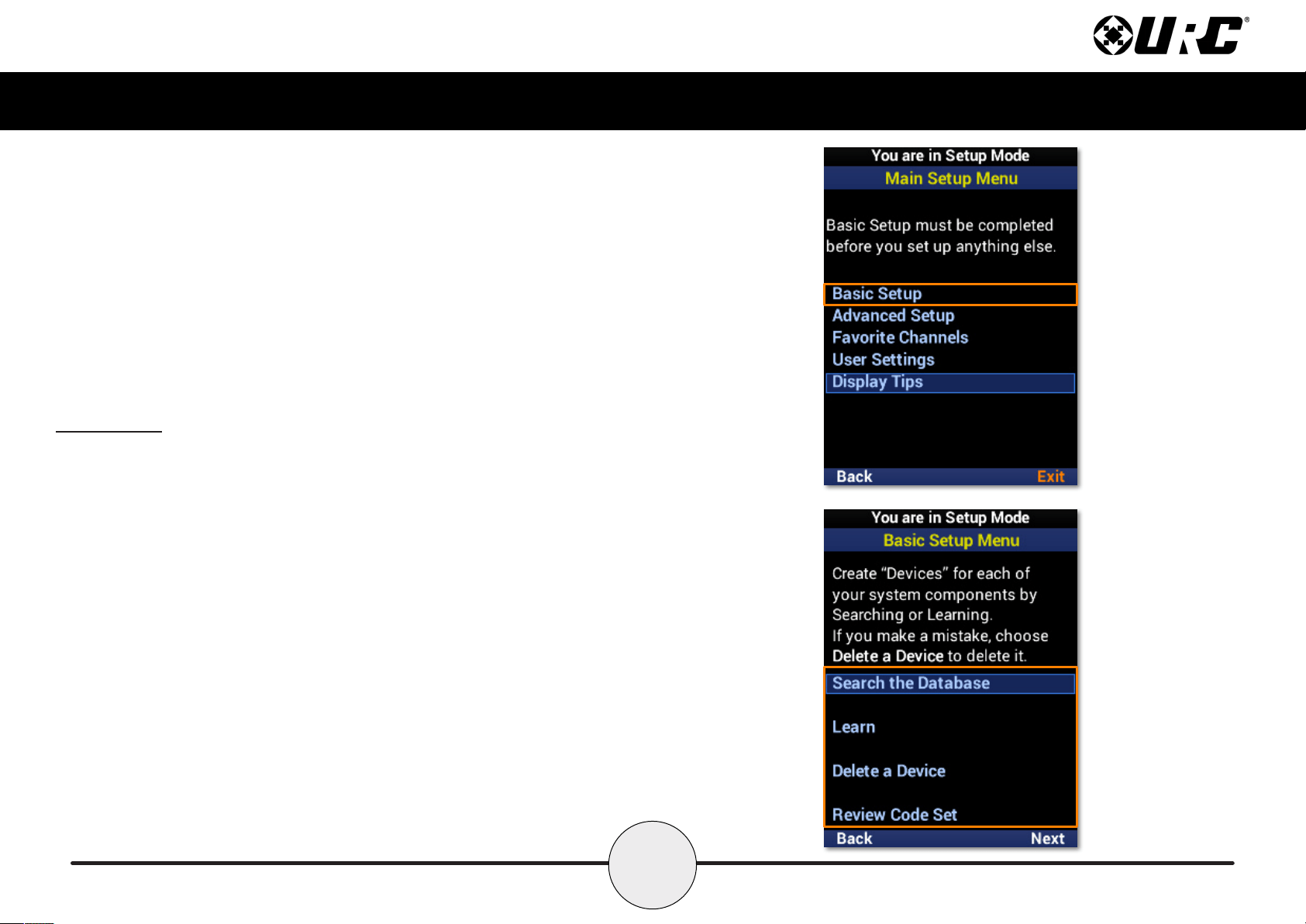
Accessing the Setup Menu
You can adjust settings for the MX-490 whenever you like by pressing and holding the
Main button for three (3) seconds. When you do, the screen changes to the Tip screen.
Press the Main button to leave the Tip screen and reach the Setup Menu. To exist the
Setup Menu, press the LCD button under Exit.
If Tips are disabled during initial setup, holding the Main button for three (3) seconds
will take the user directly to the Setup Menu.
If no button is pressed for thirty (30) seconds, the MX-490 returns to the Main Menu.
4
Complete Control
MX-490
Owner’s Manual
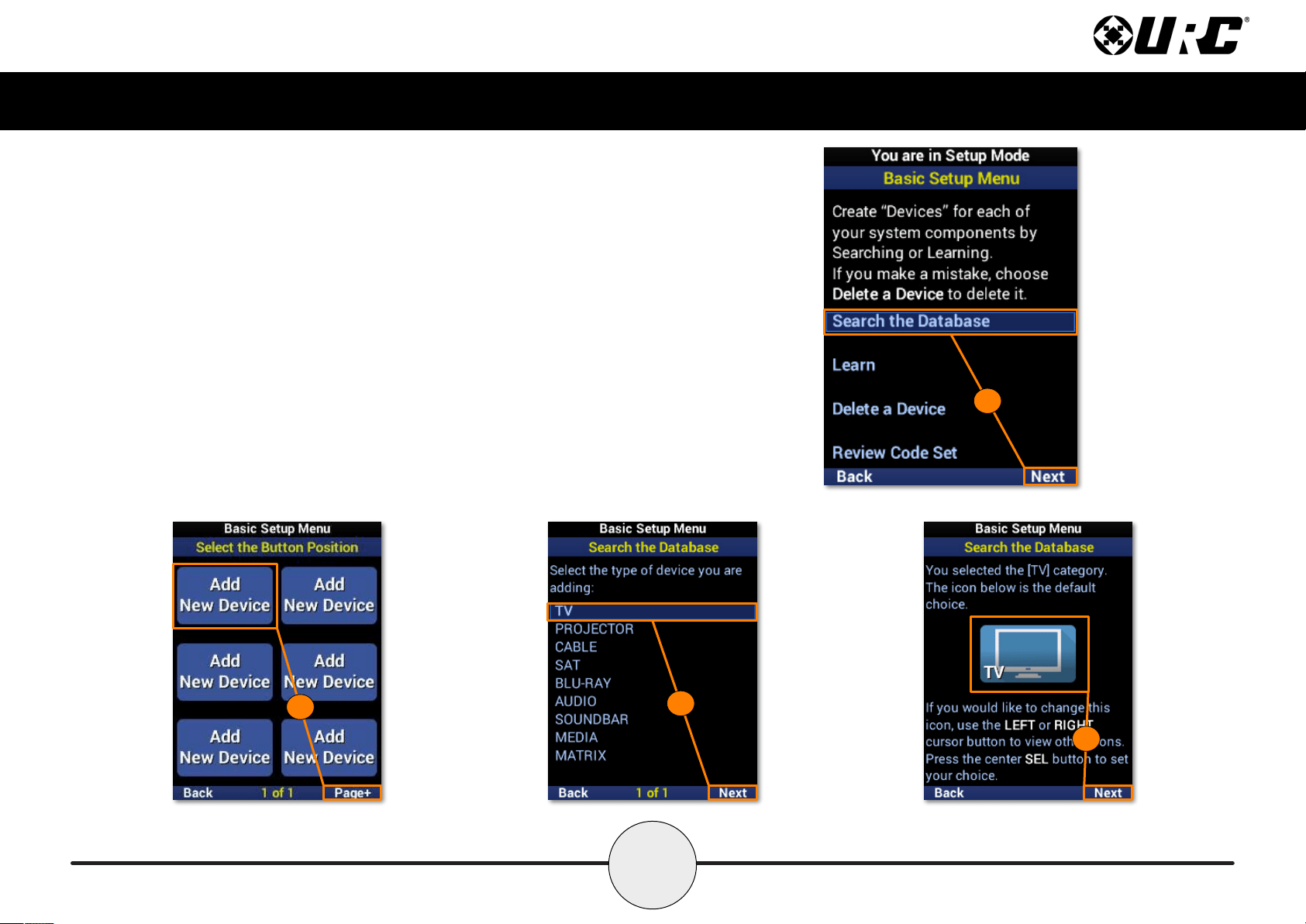
Basic Setup
The Basic Setup section allows for basic programming of the MX-490. This includes
adding devices from the built-in database, learning IR from other remotes, removing
devices from the remote UI, and the ability to review the code sets used by a device.
5
Complete Control
MX-490
Owner’s Manual
Search the Database
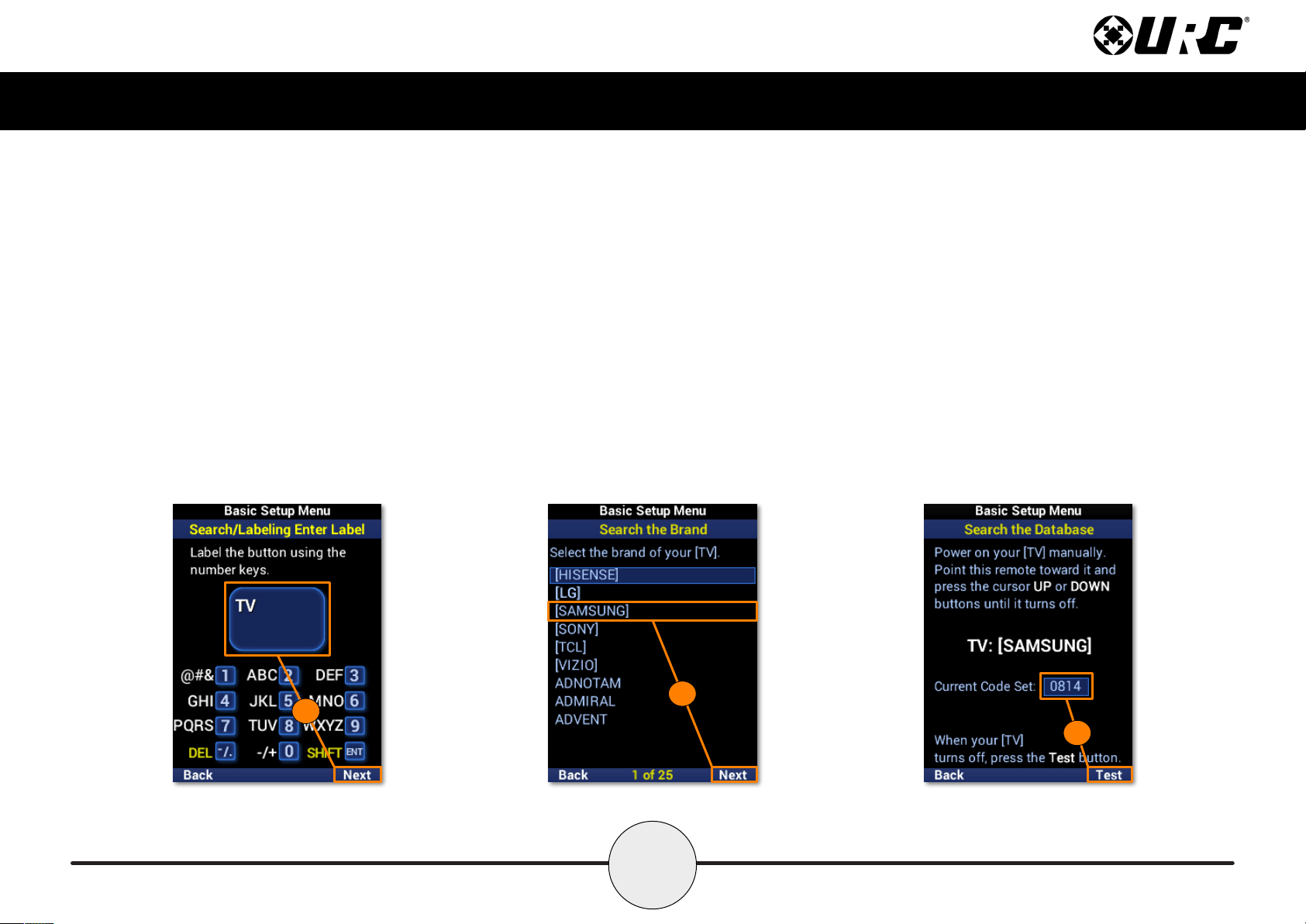
To add a new device to the remote, perform the following:
1. Highlight Search the Database and select Next.
2. Select a location on the UI for the new device. Use the Page+ option to
add another six device locations to the menu.
3. Select the type of device to be added and select Next. A TV is used in
this example.
4. If desired, use the left and right navigation buttons to select a new icon
and select Next.
1
3
4
2
6
Complete Control
MX-490
Owner’s Manual
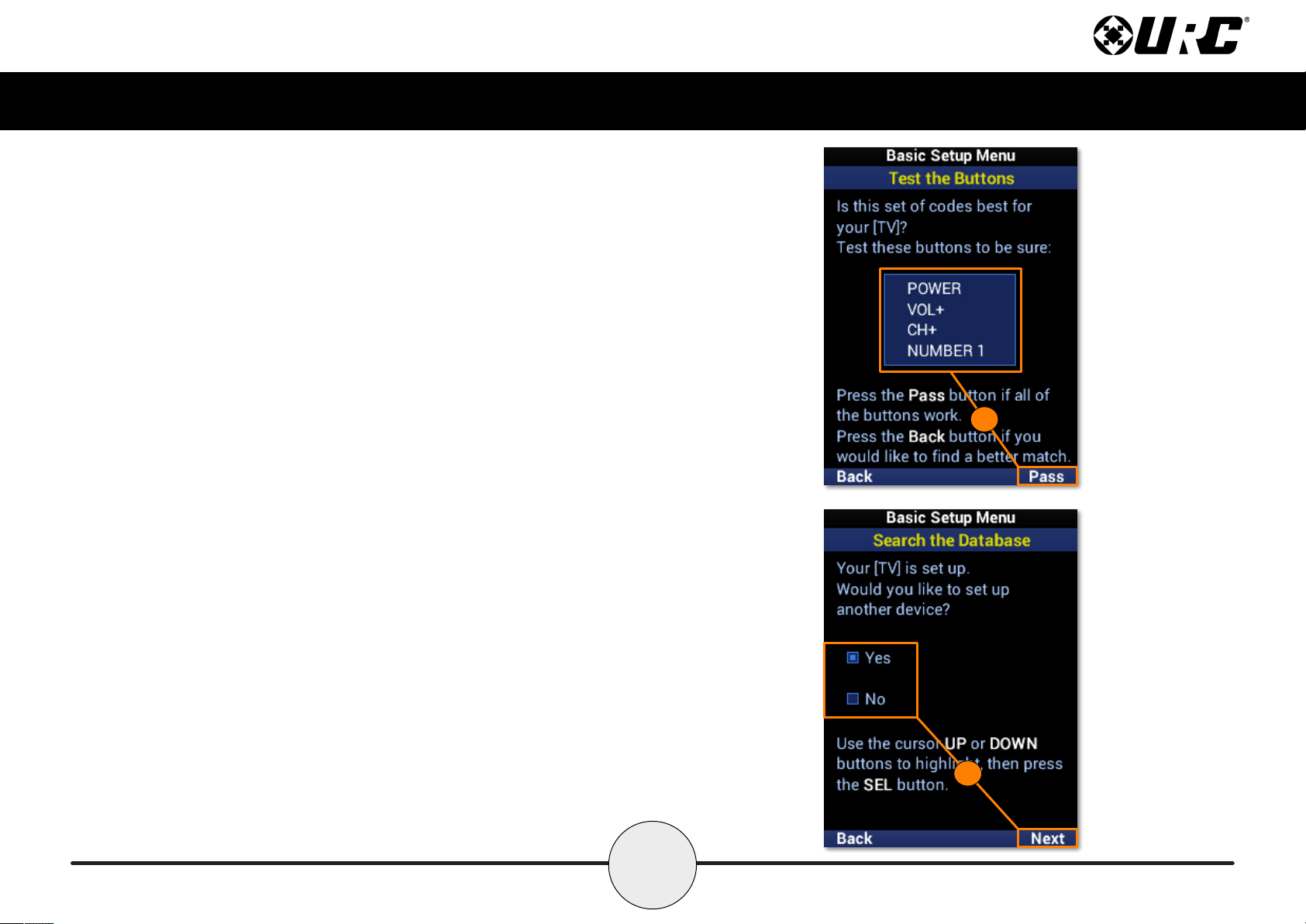
5. Enter a label for the new device using the number pad and select Next.
6. Before continuing the setup process, manually turn on the device. Highlight
the brand of the device. Point the MX-490 at the device and select Next.
7. If the device turned off, select Test to continue. If the device is still on, press
the Down navigation button to select the next code set. Repeat this step until
the device turns off and then select Test.
5
7
6
7
Complete Control
MX-490
Owner’s Manual
8. Conrm the code set works for the device. For a TV, test the Power,
Volume, Channel, and other buttons to test them. Select Pass if the
buttons are functioning properly.
9. The device has now been added. Highlight Yes to add another device or No
to nish adding devices, and select Next.
8
9

8
Complete Control
MX-490
Owner’s Manual
Learn
The MX-490 is capable of learning IR commands from another remote. The IR
window on the MX-490 is narrower than most of URC’s remotes. Ensure the
MX-490 and the other remote are on a level surface with the IR windows
closely facing each other.
9
Complete Control
MX-490
Owner’s Manual
Learn: On the Main Menu
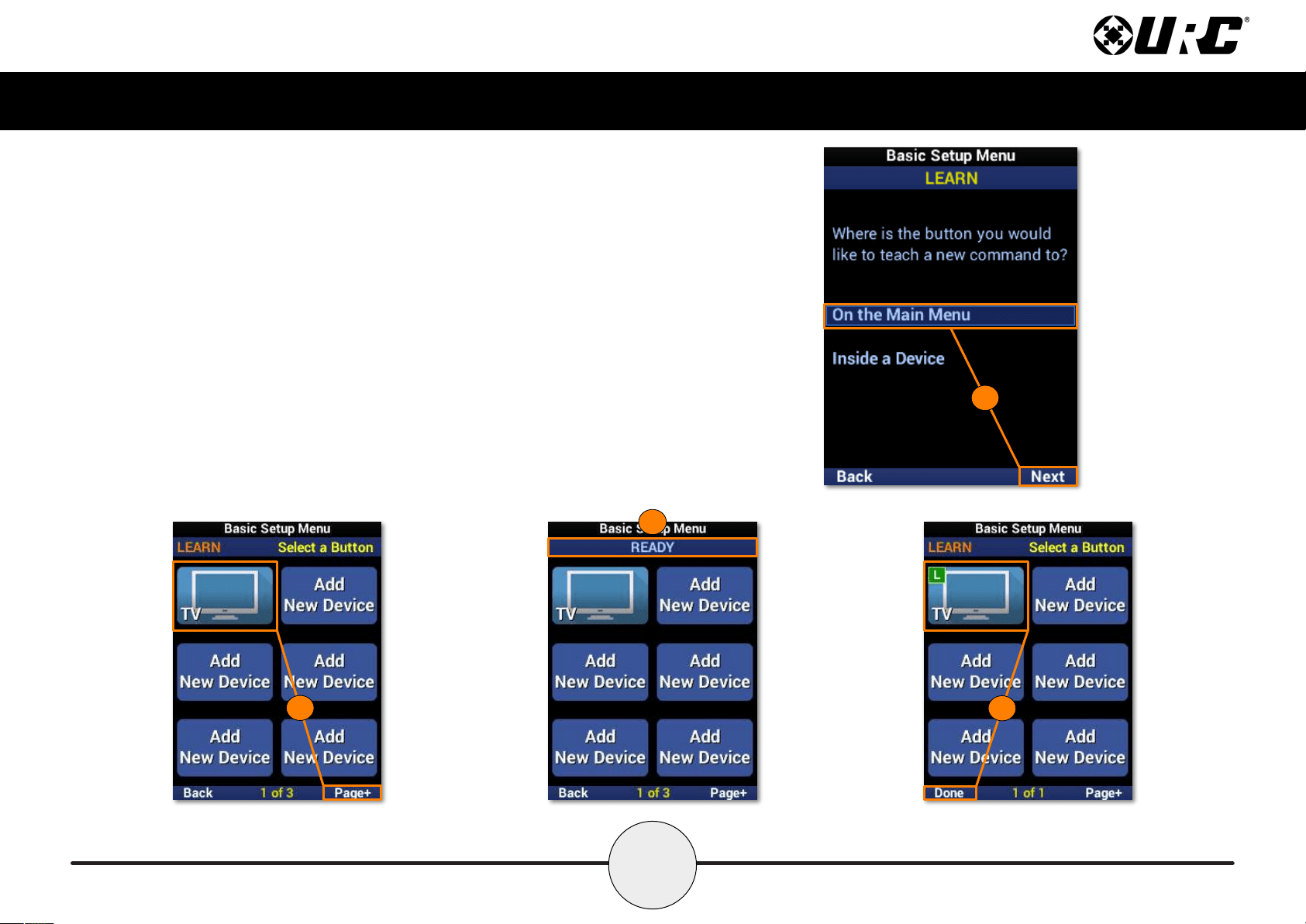
This learn method is for adding IR commands to a device on the main menu.
1. Highlight On the Main Menu and select Next.
2. Select the device from the menu. Use Page+ to move between pages.
3. Once selected, the banner will ash “READY” to indicate it is ready to
learn IR commands. Point the other remote directly at the MX-490 and
press a button to learn the IR command.
4. The banner will ash “SAVED” and return to the device menu. A
device with a learned IR command displays an L in a green box.
Repeat this process for each command to be learned. Select Done
to return to the menu.
4
3
1
2
10
Complete Control
MX-490
Owner’s Manual
Learn: Inside a Device
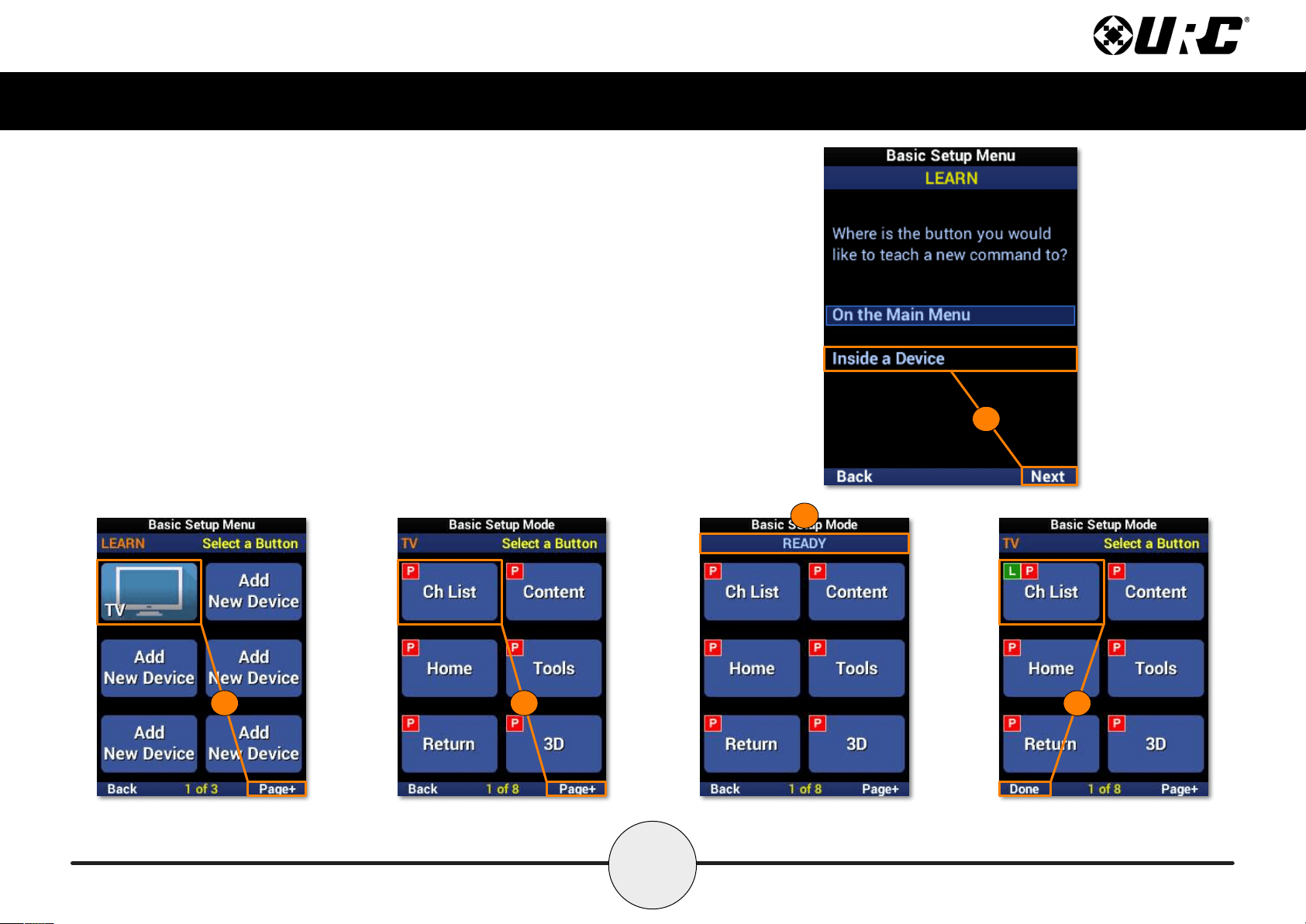
This learn method is for adding IR commands within a device.
1. Highlight Inside a Device and select Next.
2. Select the device from the menu. Use Page+ to move between pages.
3. Select the function button to learn an IR command to. Use Page+ to move between pages.
4. Once selected, the banner will ash “READY” to indicate it is ready to learn IR commands.
Point the other remote directly at the MX-490 and press a button to learn the IR command.
5. The banner will ash “SAVED” and return to the function list. A function button with a
learned IR command displays an L in a green box. Repeat this process for each command
to be learned. Select Done to return to the menu.
1
4
1
2 3
11
Complete Control
MX-490
Owner’s Manual
Delete a Device
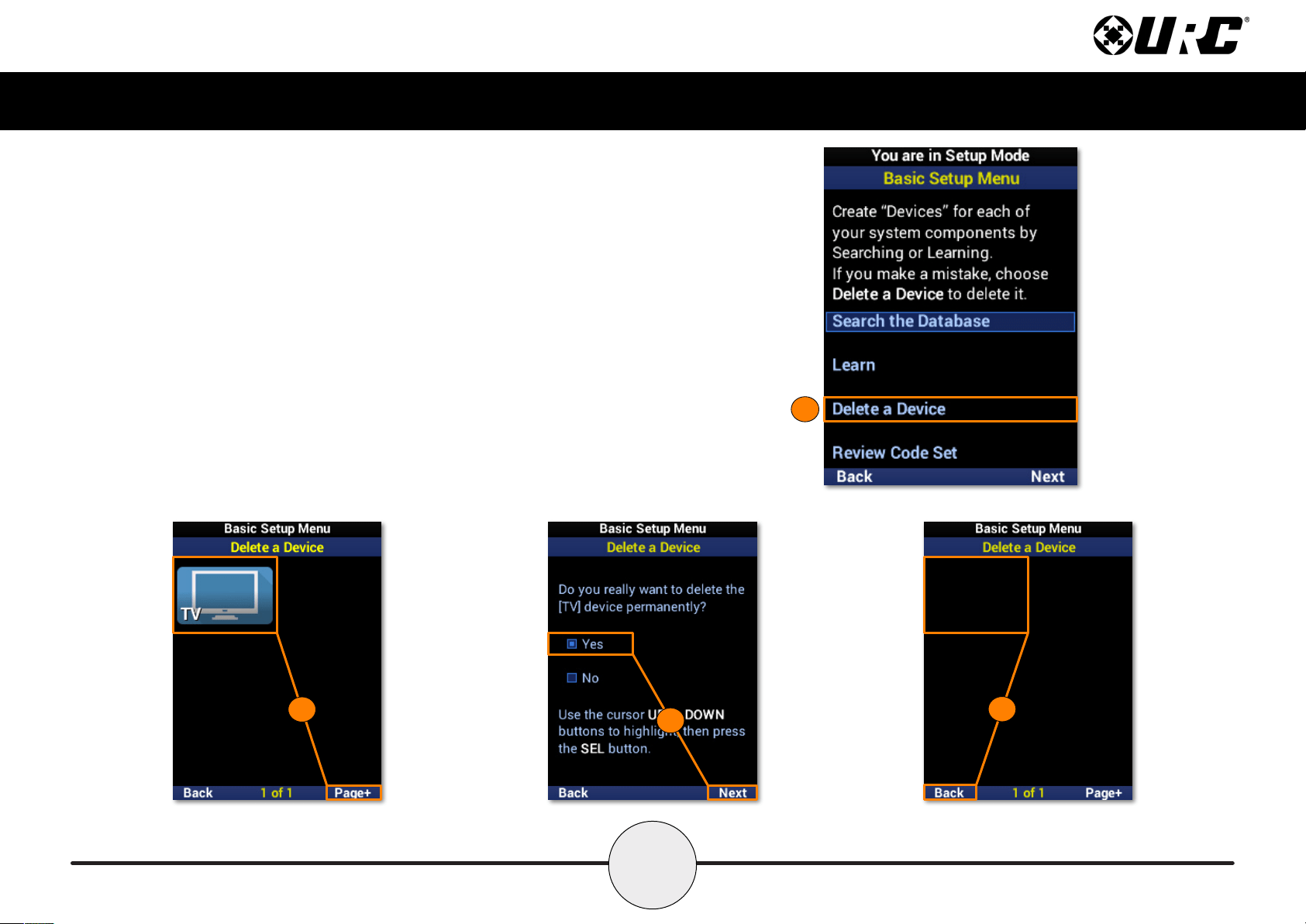
To remove a device from the remote, perform the following:
1. Highlight Delete a Device and select Next.
2. Select the device to be deleted. Use Page+ to move between pages.
3. Highlight Yes and select Next.
4. The device list is displayed to conrm the removal of the device. Repeat this
process for each device to be removed. Select Back to return to the menu.
1
2
3
4
12
Complete Control
MX-490
Owner’s Manual
Review Code Set
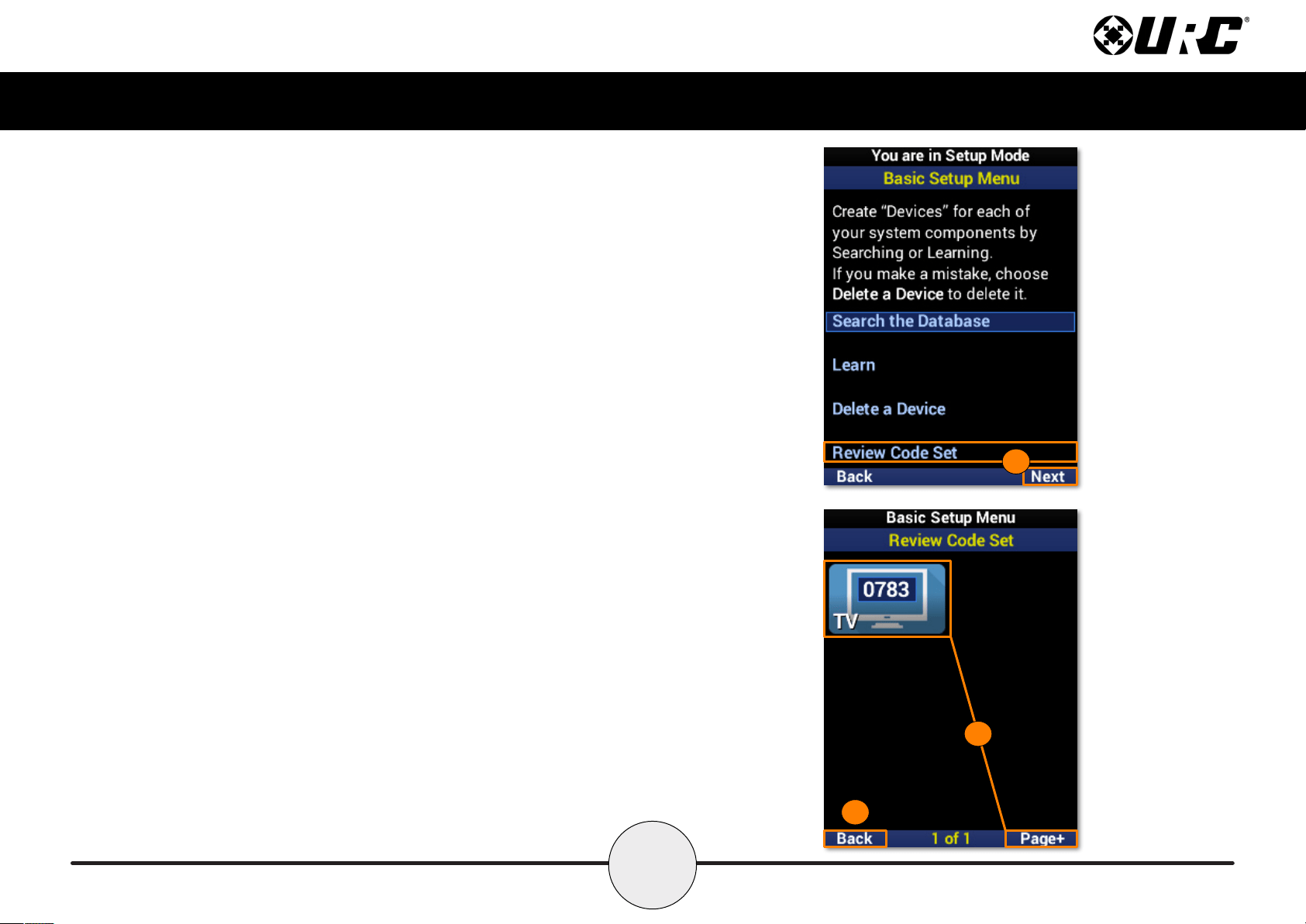
Easily check the code sets used by each device on the remote.
1. Highlight Review Code Set and select Next.
2. Each device displays the code set it is using. Use the Page+ button to
move between menu pages.
3. Select Back to return to the menu.
3
2
1
13
Complete Control
MX-490
Owner’s Manual
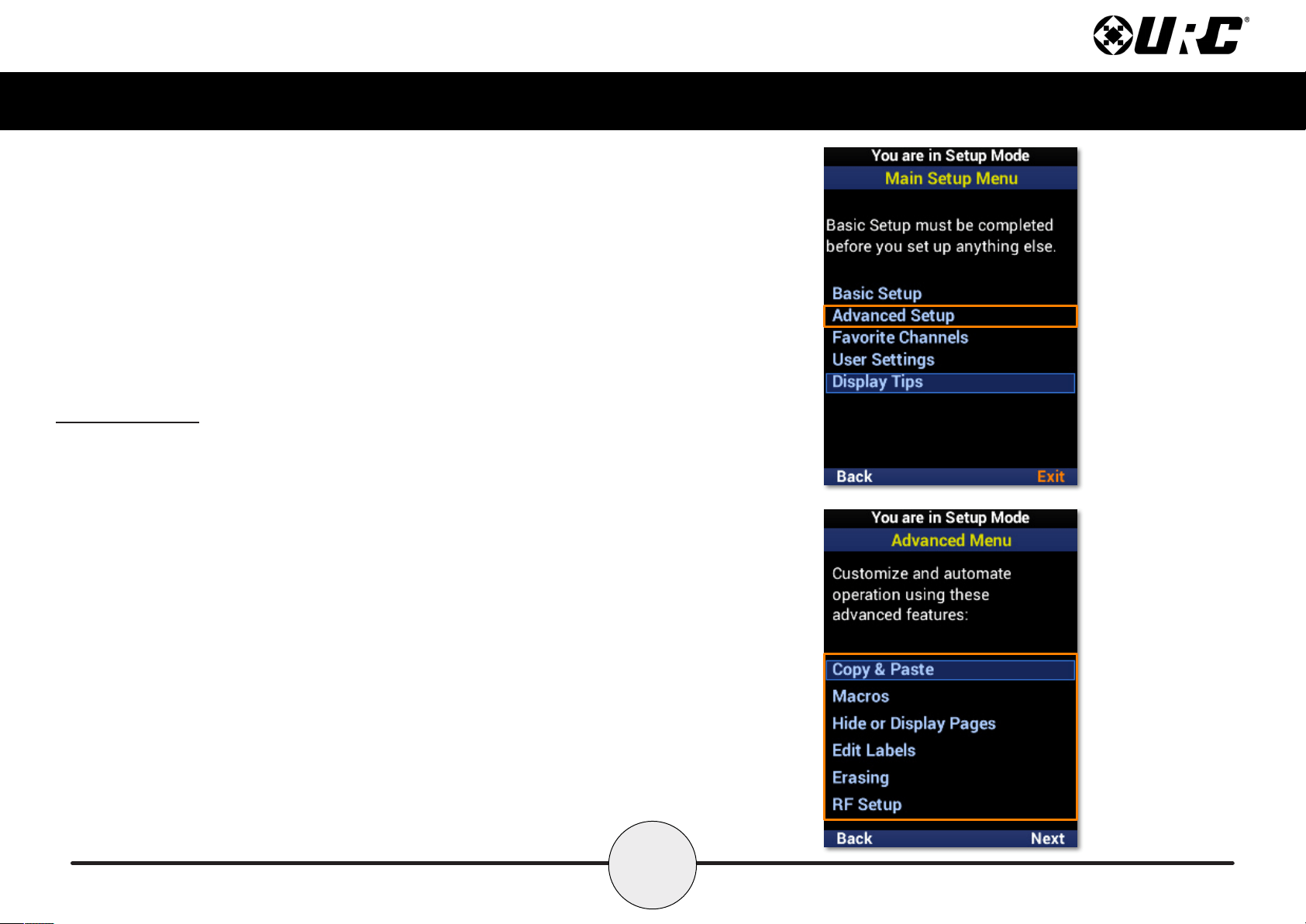
Advanced Setup
The Advanced Setup section allows for more specic, customized programming of the
MX-490. This includes copy and pasting commands, creating and adding macros to
devices, hiding devices and pages on the UI, editing device labels, erasing macros and
learned commands, and RF control configuration.
14
Complete Control
MX-490
Owner’s Manual
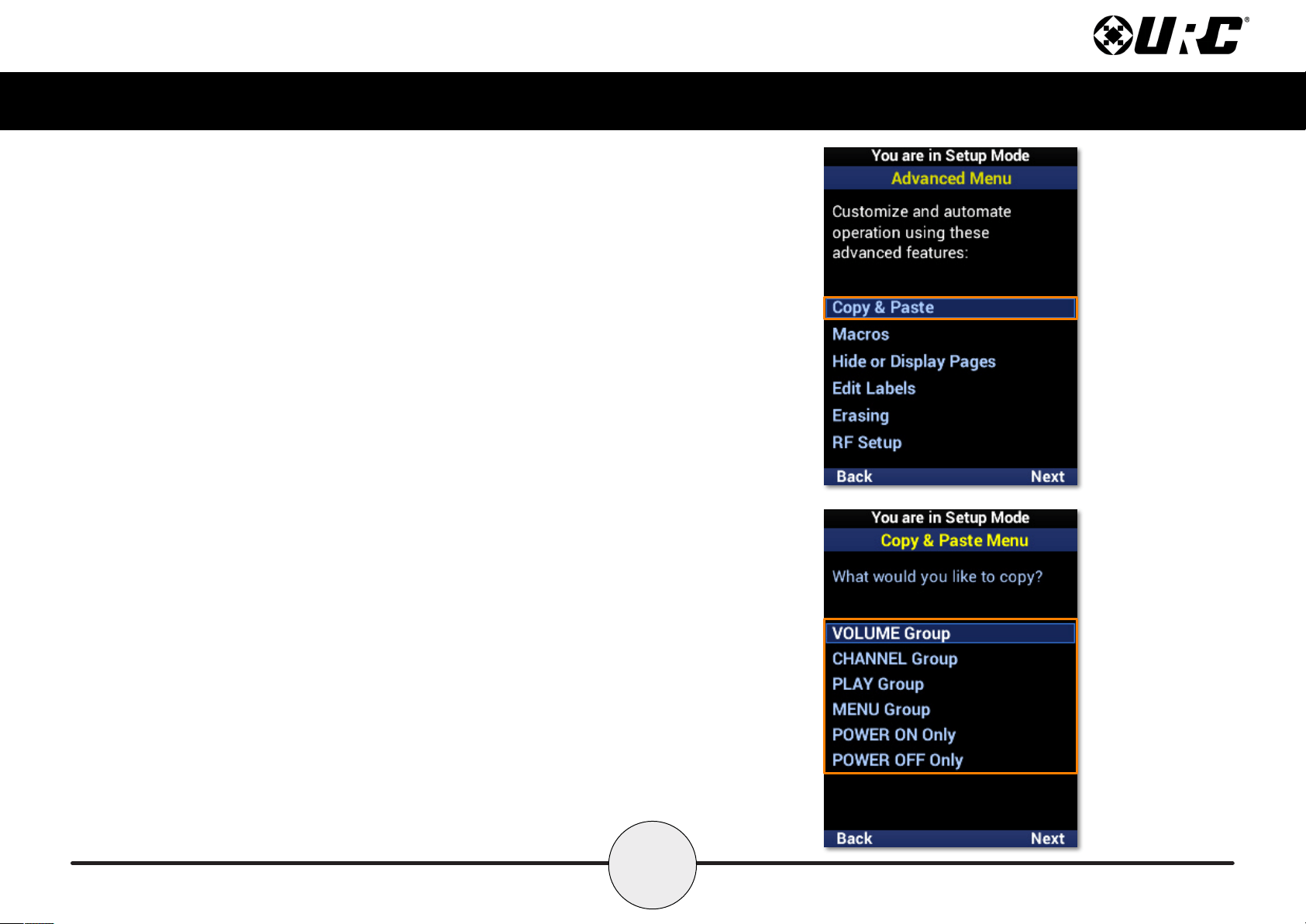
Copy & Paste
The MX-490 is capable of copying and pasting several groups of commands across
devices. When pasting, there are a few options available to the programmer to make
customization easier.
• Volume Group: Includes Vol+, Vol-, and Mute commands.
• Channel Group: Includes Ch+, Ch-, and Prev Ch commands.
• Play Group: Includes Play, Pause, Stop, Rew, Fwd, Skip+,
Skip-, and Rec commands.
• Menu Group: Includes Menu, Info, Guide, Navigation,
Select, and Exit commands.
• Power On Only: Includes only the Power On command.
• Power Off Only: Includes only the Power Off command.
The Volume Group is used for all examples in this section.
15
Complete Control
MX-490
Owner’s Manual
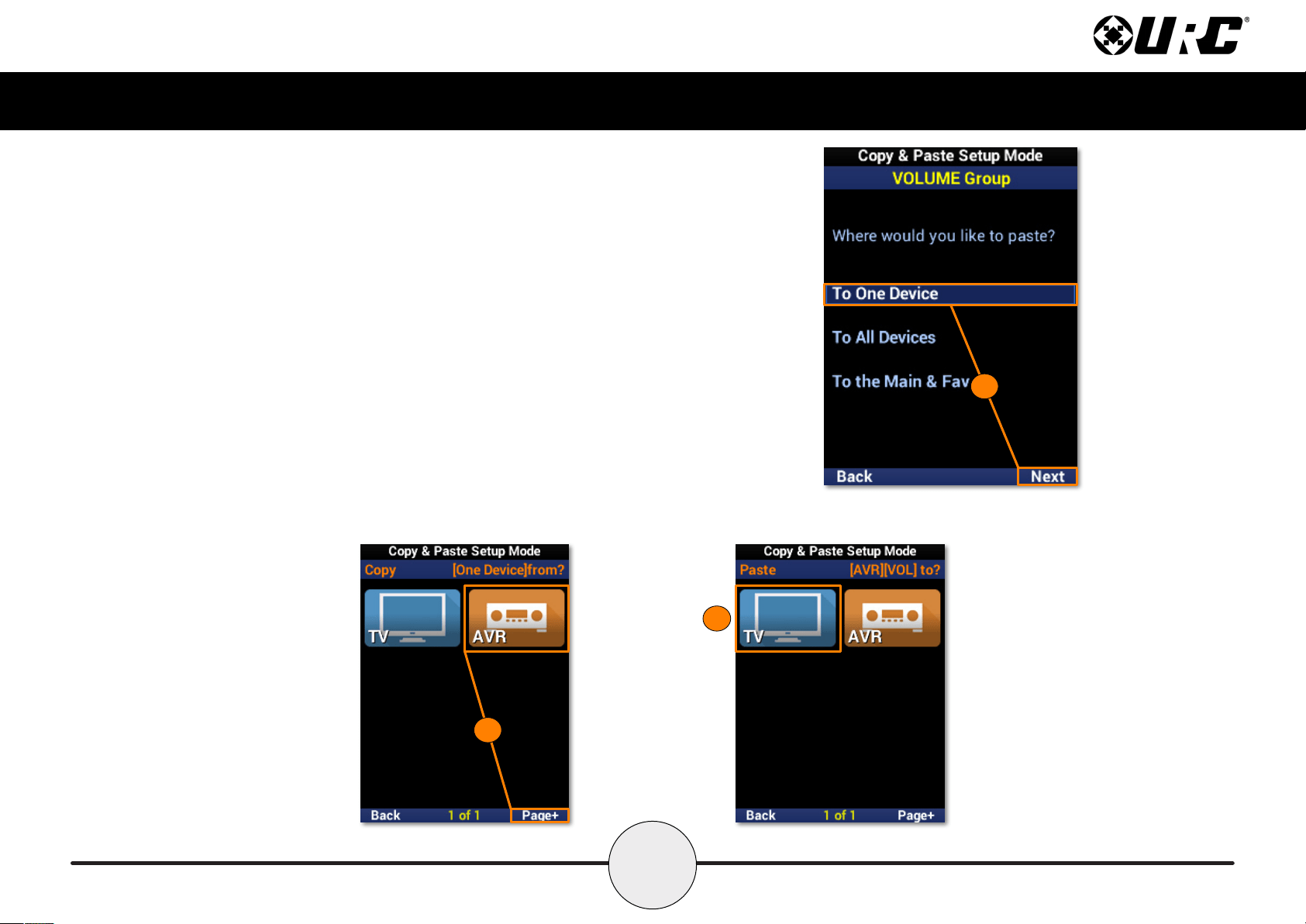
To One Device
This option supports pasting commands to a single device.
1. Highlight To One Device and select Next.
2. Select a device from the list. Use Page+ to move between device pages.
3. Select the device again to conrm. The banner ashes “SAVING” and
returns to the Paste menu when complete.
2
3
1
16
Complete Control
MX-490
Owner’s Manual
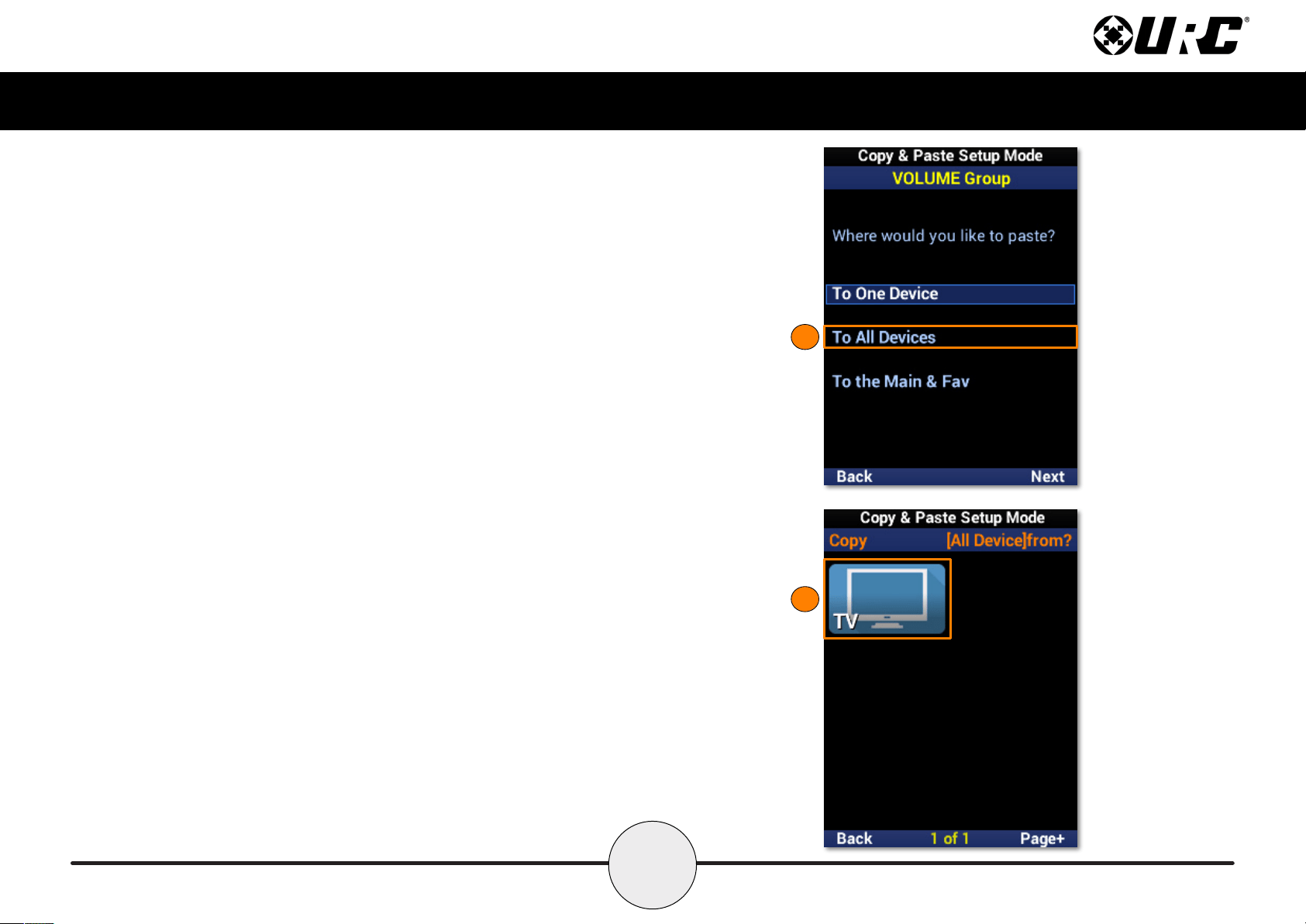
To All Devices
This option supports pasting commands to all devices.
1. Highlight To All Devices and select Next.
2. Select a device from the list to paste the commands to all devices. The
banner ashes “SAVING” and returns to the Paste menu when complete.
1
2
17
Complete Control
MX-490
Owner’s Manual
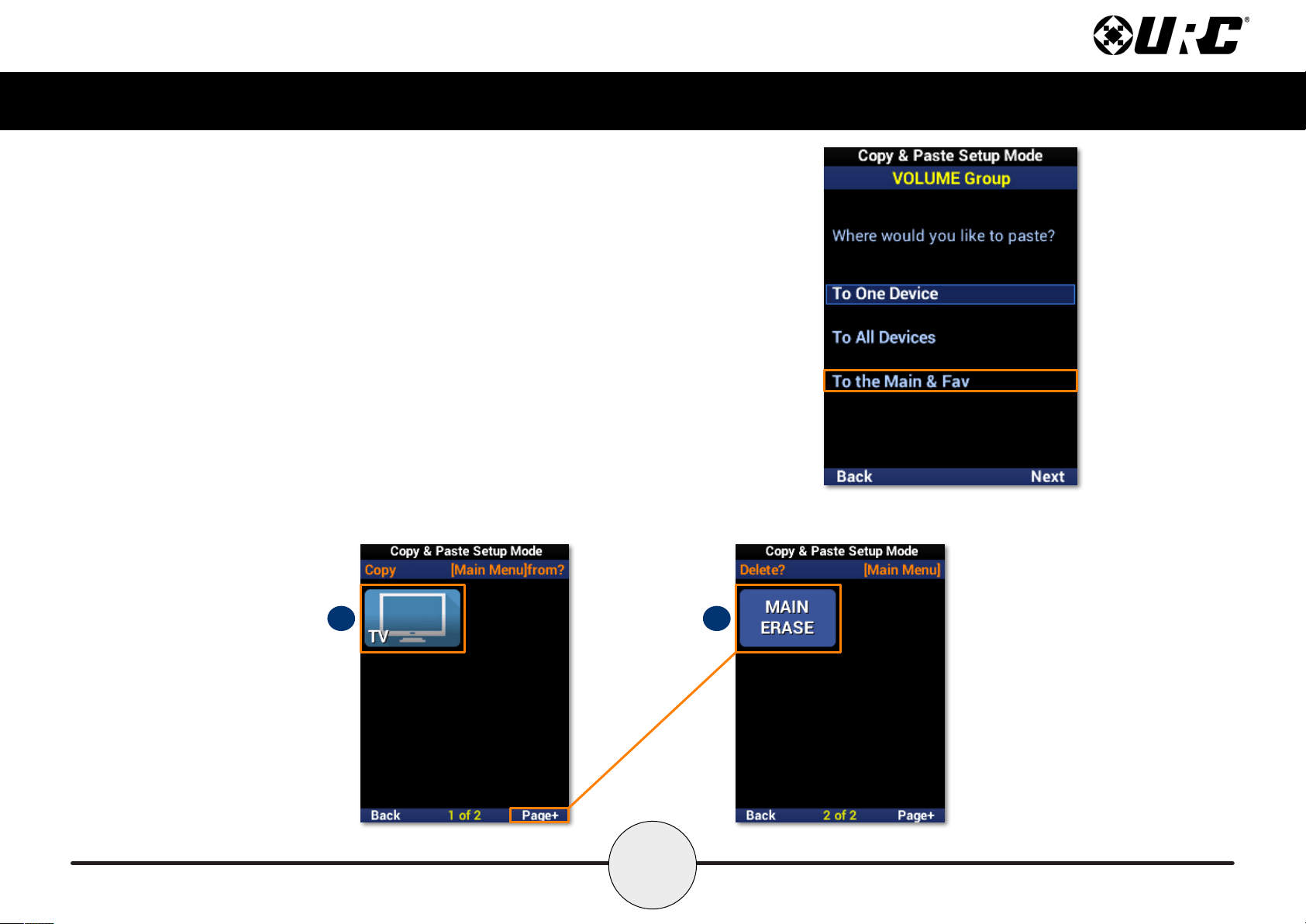
To the Main & Fav
This option supports pasting commands to the Main Menu and Favorite Channels.
1. Highlight To the Main & Fav and select Next.
A. Select a device from the list to paste the commands to the main menu
and favorite channels. The banner ashes “SAVING” and returns to the
Paste menu when complete.
B. Select Page+ to access the option to erase pasted commands from the
Main Menu.
A B
18
Complete Control
MX-490
Owner’s Manual
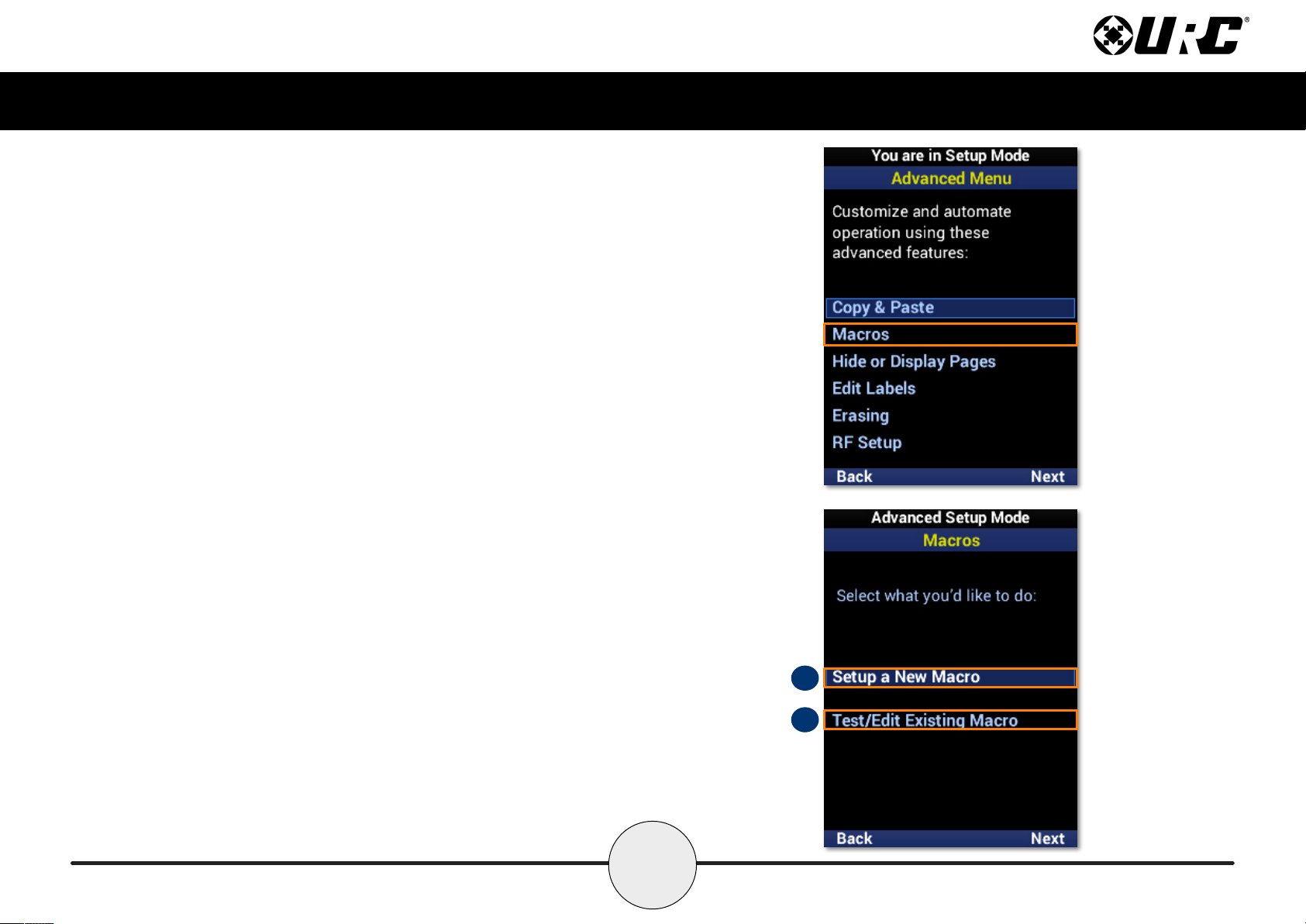
Macros
The MX-490 macro feature allows for multiple functions and/or button presses
to be assigned to a single button.
A. Setup a New Macro: Creates a new macro.
B. Test/Edit Existing Macro: Edit an existing macro.
B
A
19
Complete Control
MX-490
Owner’s Manual
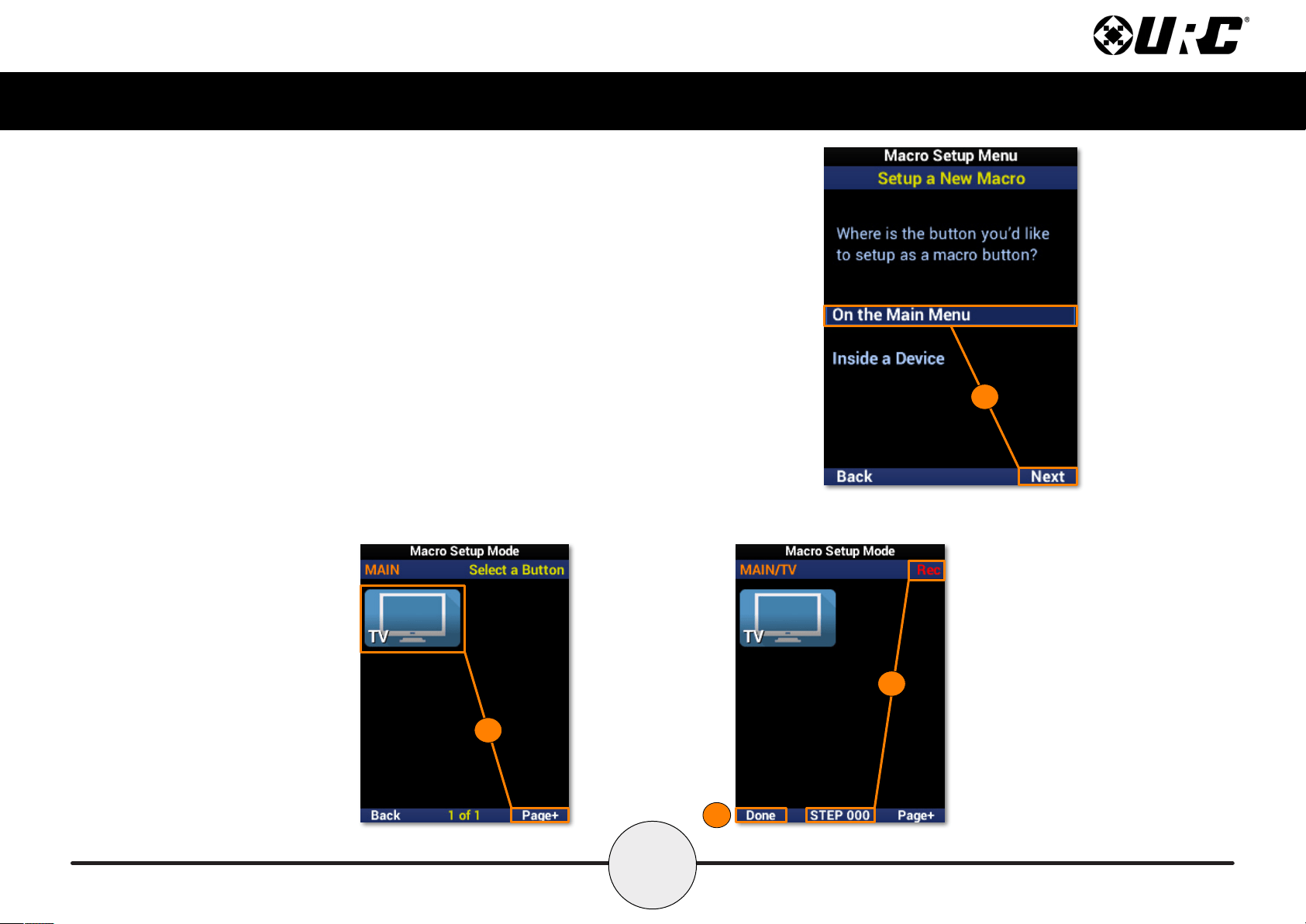
Setup a New Macro: On the Main Menu
1. Highlight On the Main Menu and select Next.
2. Select a device to begin recording a macro to it. Use Page+ to move
between menu pages.
3. Once selected, a “Rec” label appears in the top right corner and a
“Step” counter at the bottom middle of the screen. Enter the macro by
pressing the associated buttons.
4. Select Done to nish recording and save the new macro.
1
4
3
2
20
Complete Control
MX-490
Owner’s Manual
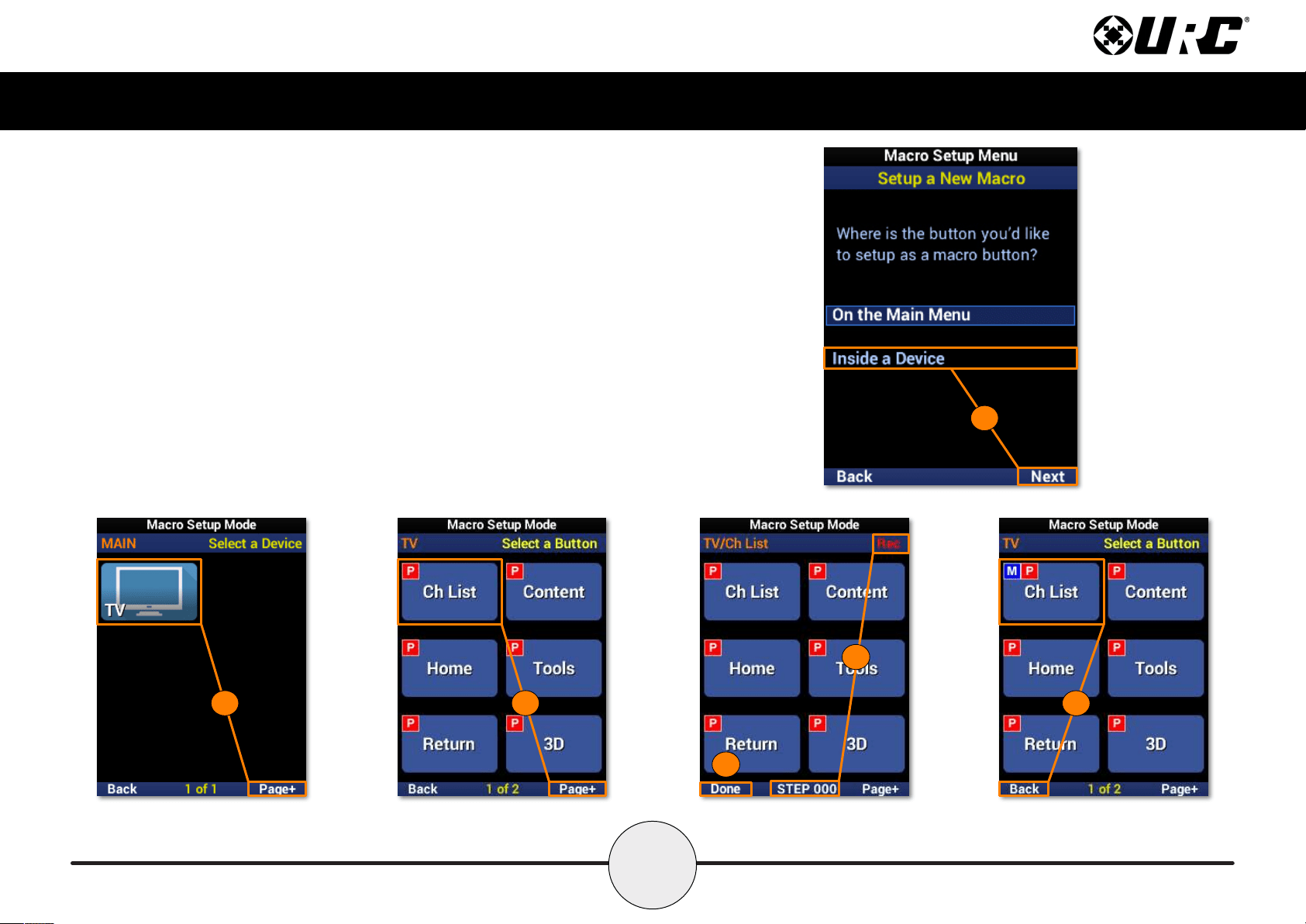
Setup a New Macro: Inside a Device
1. Highlight Inside a Device and select Next.
2. Select a device. Use Page+ to move between menu pages.
3. Select a device button to add a macro to it. Use Page+ to move between device pages.
4. Once selected, a “Rec” label appears in the top right corner and a “Step” counter at the
bottom middle of the screen. Enter the macro by pressing the associated buttons.
5. Select Done to nish recording and save the new macro.
6. The device button displays an “M” to show a macro is assigned to it. Select Back to
return to the menu.
1
2
3
4
5
6
21
Complete Control
MX-490
Owner’s Manual
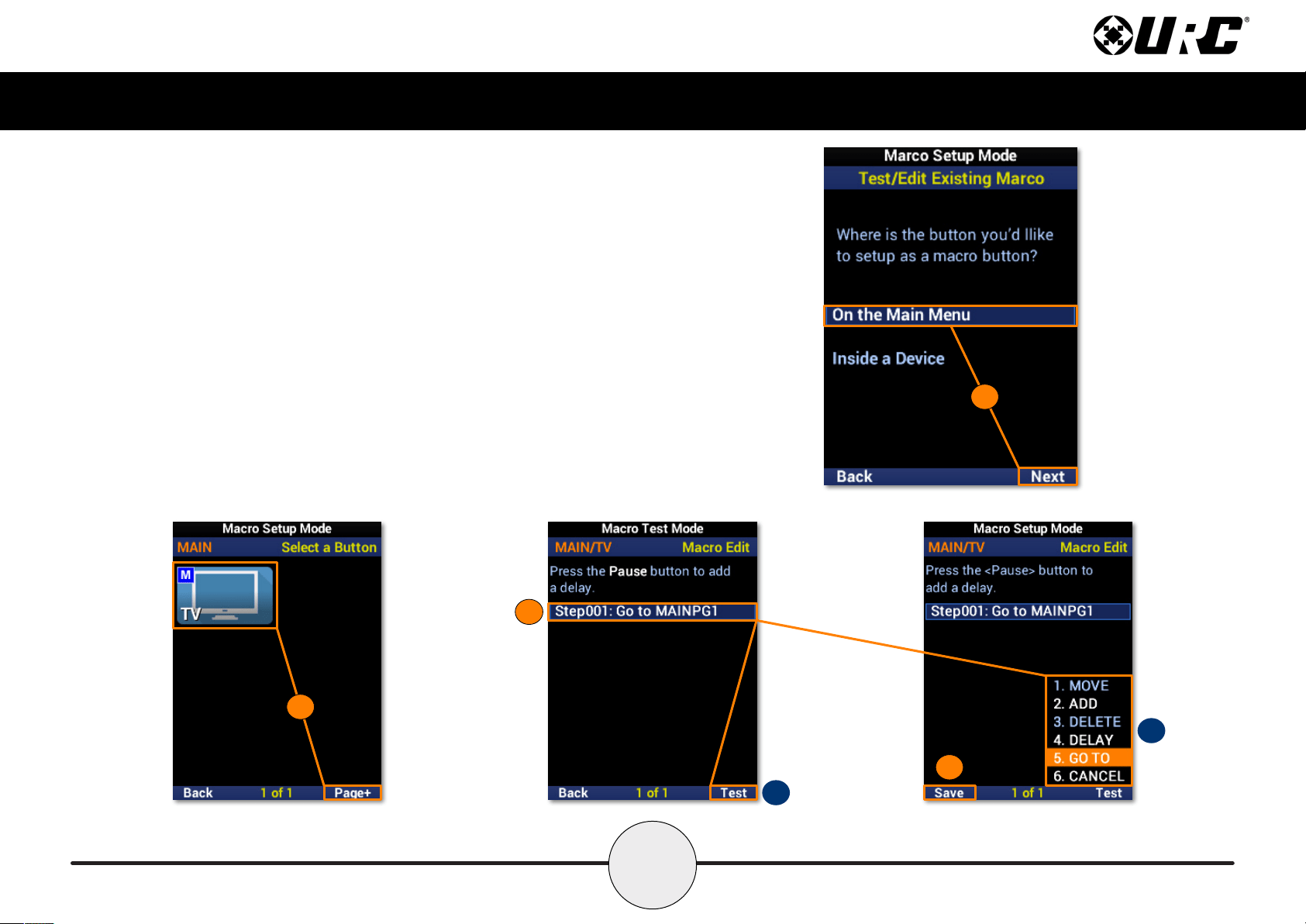
Test/Edit Existing Macro: On the Main Menu
1. Highlight On the Main Menu and select Next.
2. Select a device to view the macros assigned to it. Use Page+ to move
between menu pages.
3. Highlight a macro from the list.
A. Test: Use this option to test commands and ensure they function correctly.
B. Edit Menu: Provides several edit options, including moving a macro,
adding to it, and including delays.
4. Select Save to conrm any changes.
1
2
B
4
A
3
22
Complete Control
MX-490
Owner’s Manual
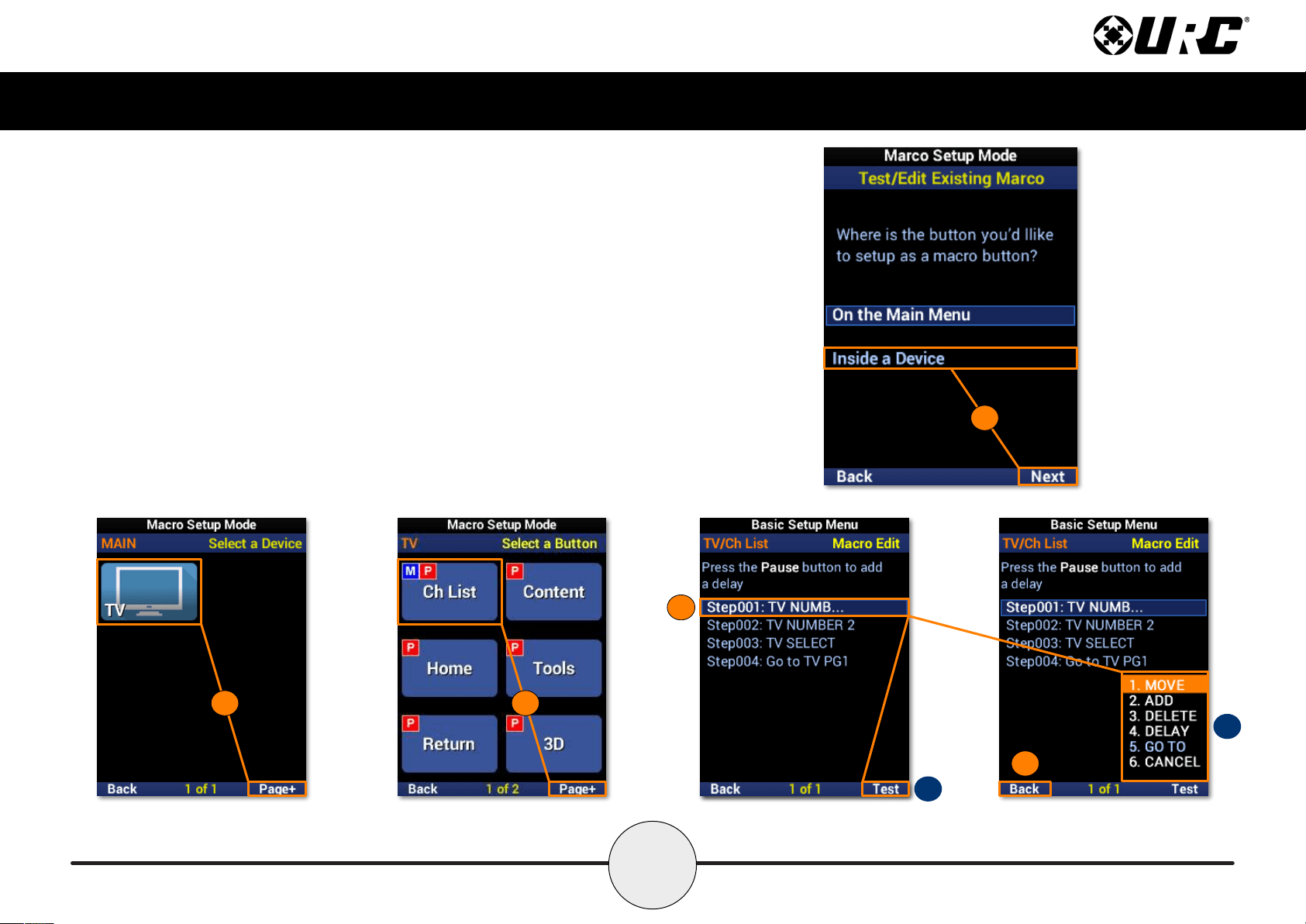
Test/Edit Existing Macro: Inside a Device
1. Highlight Inside a Device and select Next.
2. Select a device. Use Page+ to move between menu pages.
3. Select a function button. Use Page+ to move between device pages.
4. Highlight a macro from the list.
A. Test: Use this option to test commands and ensure they function correctly.
B. Edit Menu: Provides several edit options, including moving a macro,
adding to it, and including delays.
5. Select Save to conrm any changes
1
2
3
B
5
A
4
23
Complete Control
MX-490
Owner’s Manual
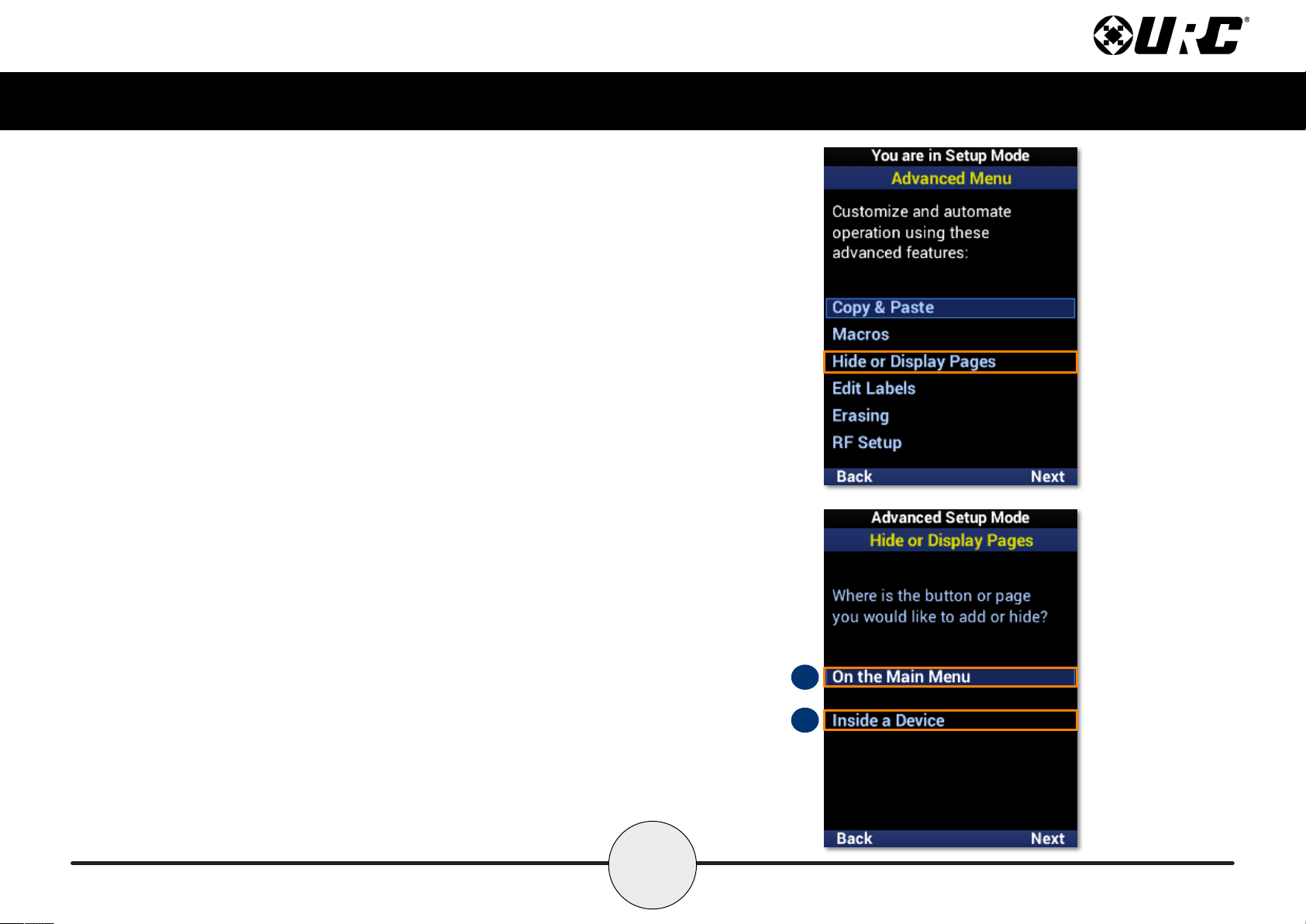
Hide or Display Pages
This feature allows the programmer to customize what is seen by the user or
hidden from view. There are two areas available for customization:
A. On the Main Menu: Select this option to show or hide pages and
devices located on the Main Menu.
B. Inside a Device: Select this option to show or hide pages and functions
located within a device.
A
B
24
Complete Control
MX-490
Owner’s Manual
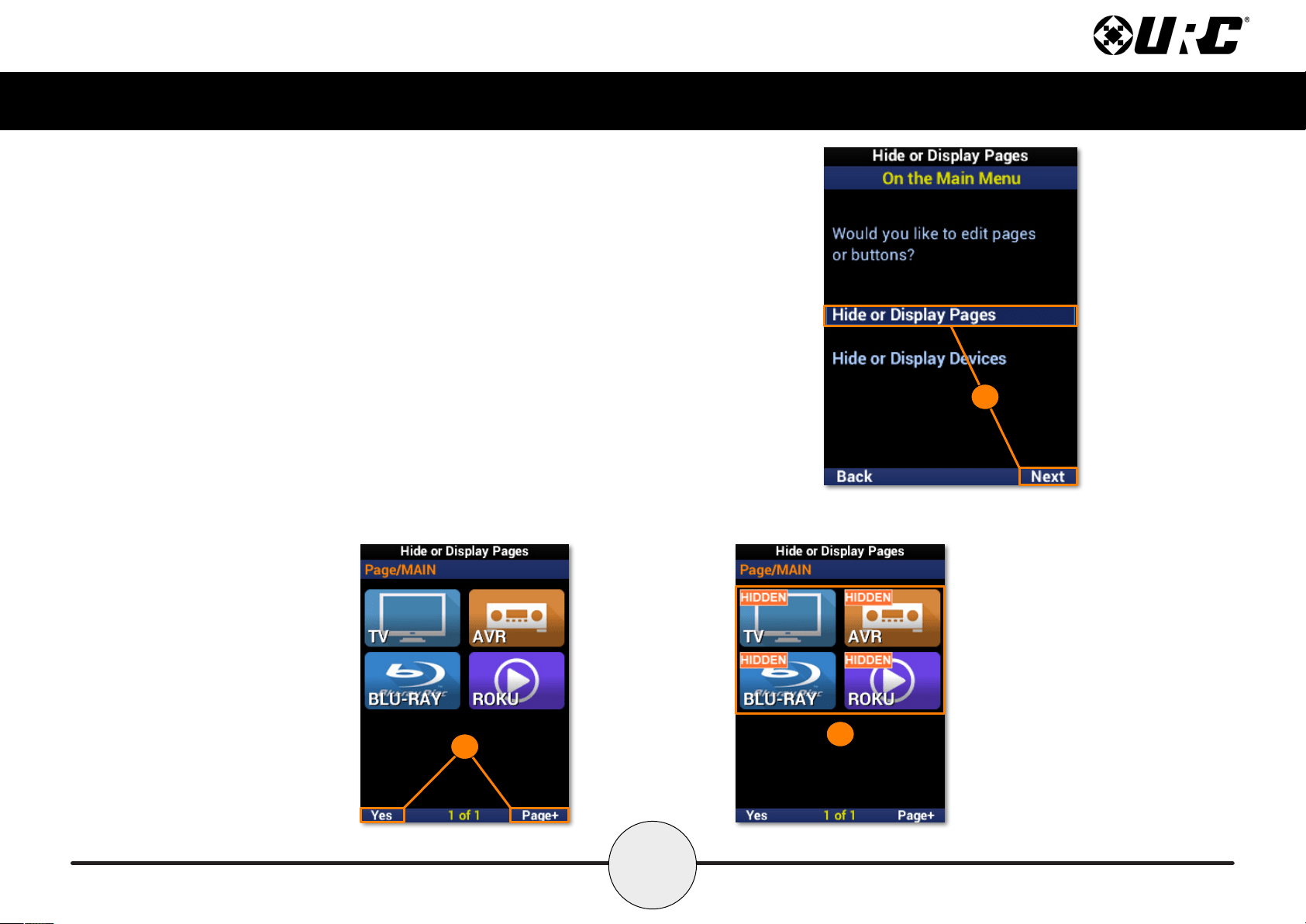
On the Main Menu: Hide or Display Pages
This option allows for Main Menu pages to be visible to or hidden from the user.
1. Highlight Hide or Display Pages and select Next.
2. Select a page to hide and select Yes to conrm. Use Page+ to move
between device pages.
3. The page is now hidden. Conrm by selecting Hide or Display Pages
again. A “HIDDEN” label will appear on all devices of the hidden page.
Select Main to exit.
1
3
2
25
Complete Control
MX-490
Owner’s Manual
On the Main Menu: Hide or Display Devices
This option allows for Main Menu devices to be visible to or hidden from the user.
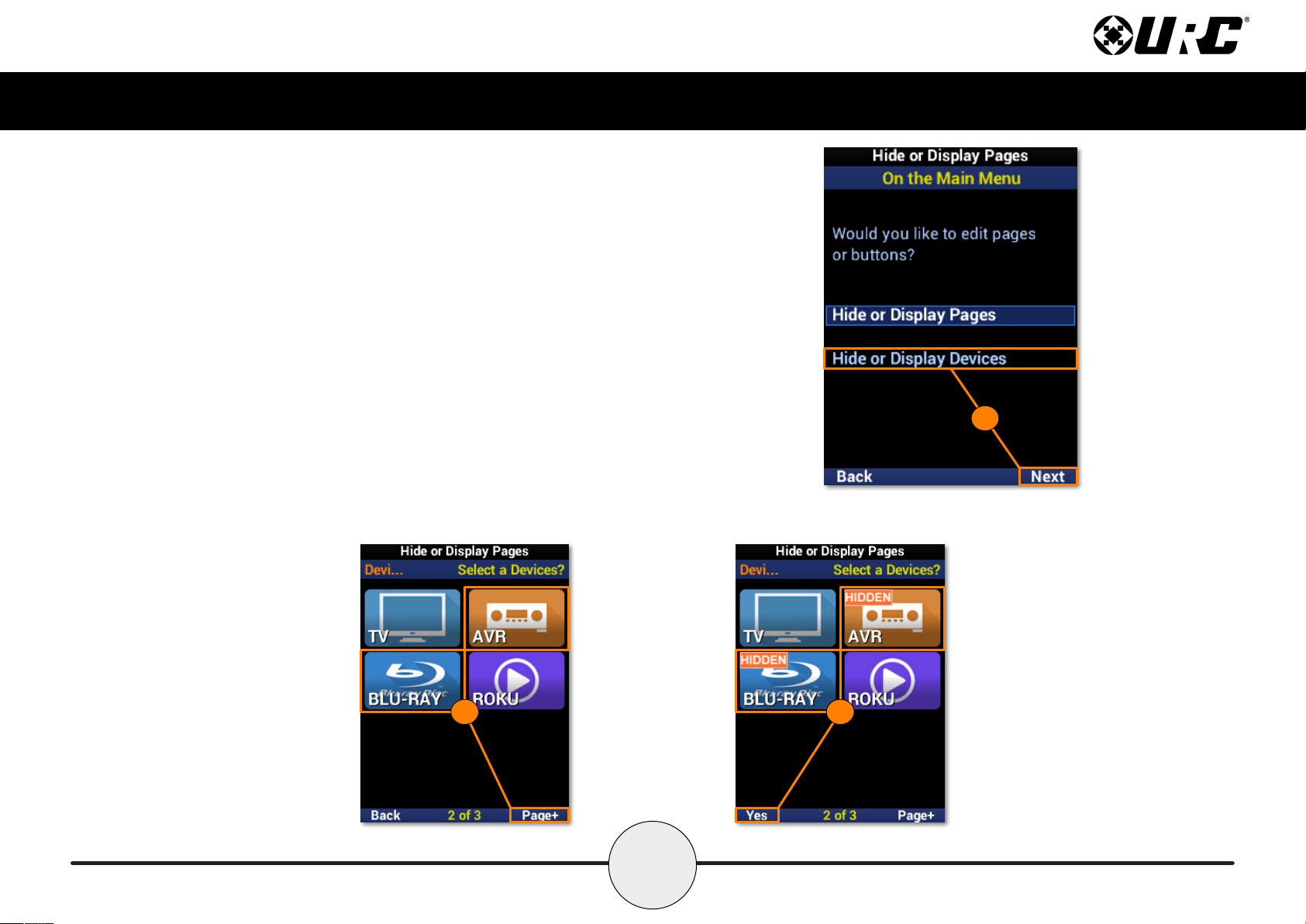
1. Highlight Hide or Display Devices and select Next.
2. Select each device to be hidden. Use Page+ to move between device pages.
3. A “HIDDEN” label will appear on all devices to be hidden from view. Select
Yes to conrm.
1
2 3
26
Complete Control
MX-490
Owner’s Manual
Inside a Device: Hide or Display Pages
This option allows for device pages to be visible or hidden from the user.
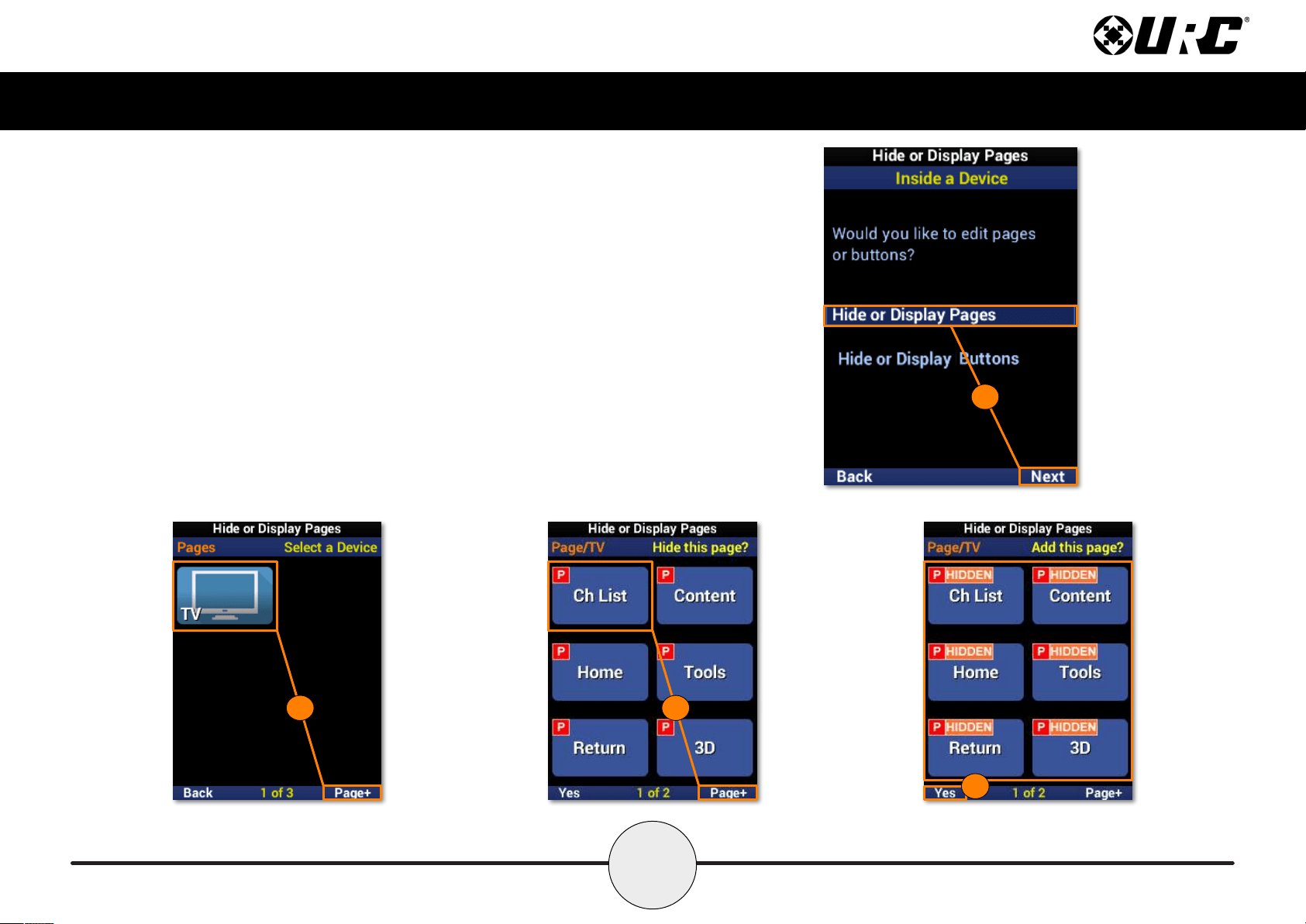
1. Highlight Hide or Display Pages and select Next.
2. Select a device. Use Page+ to move between device pages.
3. Select which page(s) to hide from view by selecting a device. Use
Page+ to move between device pages.
4. A “HIDDEN” label will appear on the buttons of pages that are hidden
from view. Select Yes to conrm.
1
2 3
4
27
Complete Control
MX-490
Owner’s Manual
Inside a Device: Hide or Display Buttons
This option allows for device buttons to be visible or hidden from the user.
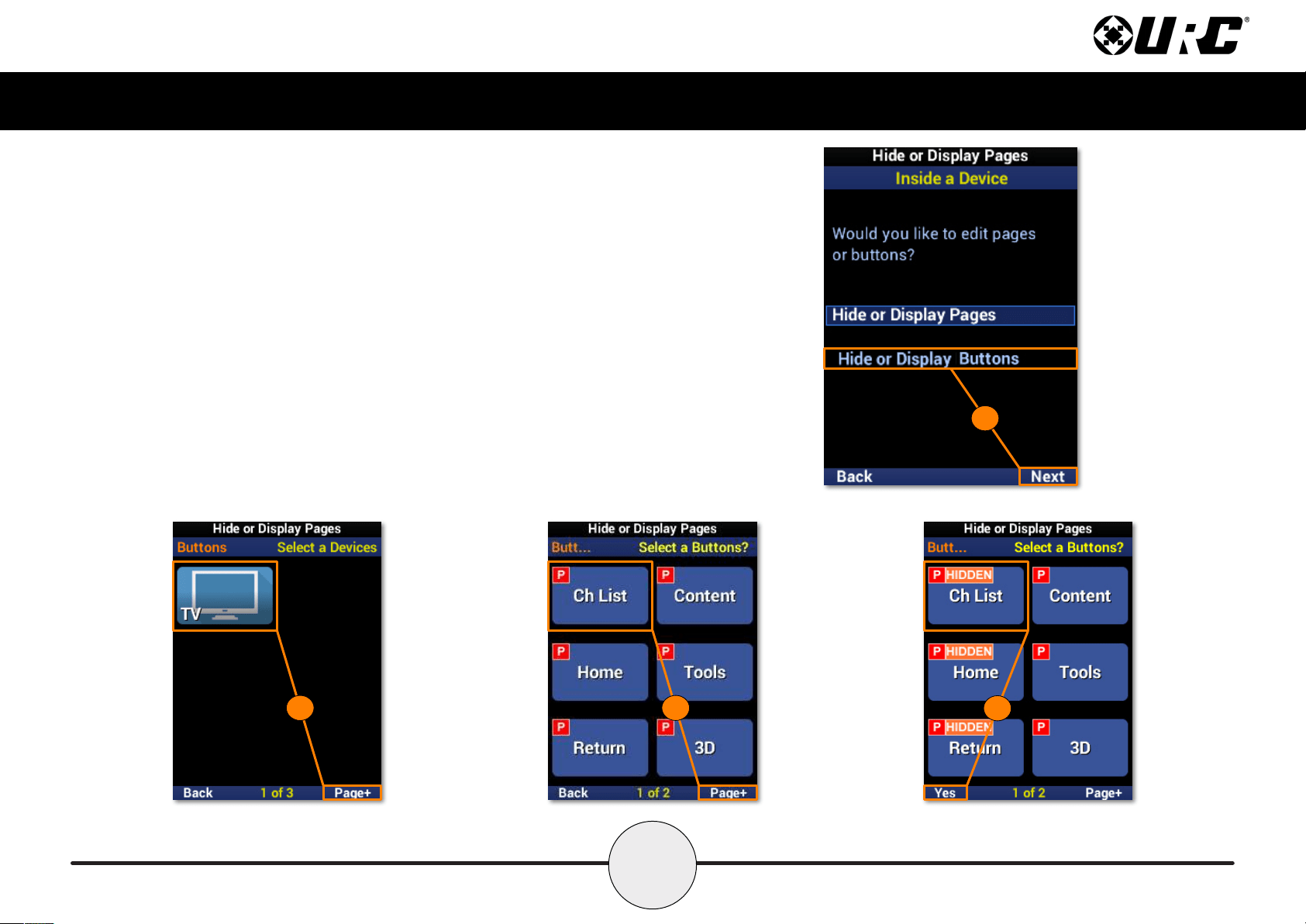
1. Highlight Hide or Display Buttons and select Next.
2. Select a device. Use Page+ to move between device pages.
3. Select which button(s) to hide from view. Use Page+ to move between
device pages.
4. A “HIDDEN” label will appear on any buttons that are hidden from view.
Select Yes to conrm.
1
2 3
4
28
Complete Control
MX-490
Owner’s Manual
Edit Labels
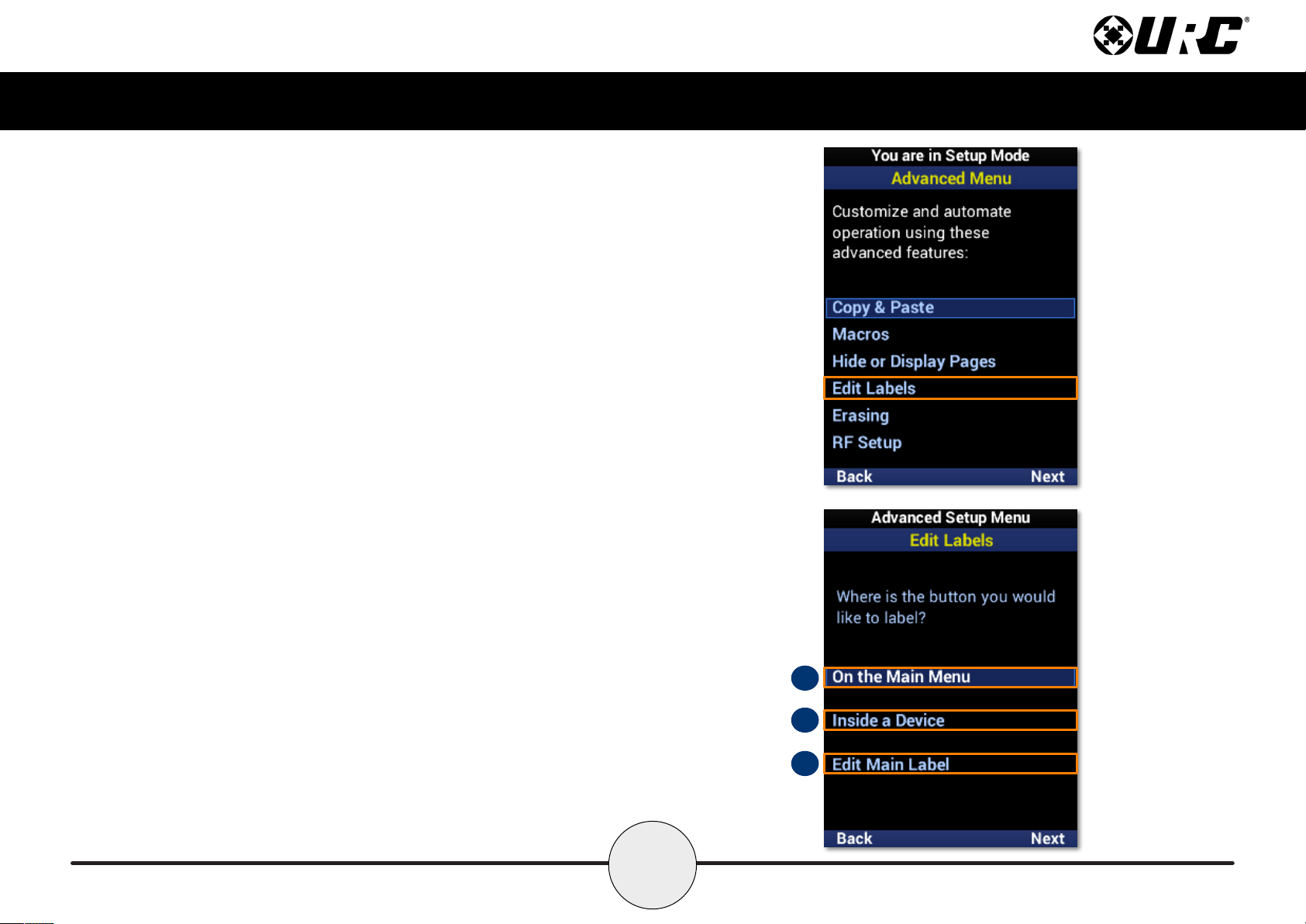
These options allow for custom labels to be added to devices, the function
buttons within, and the Main Menu.
A. On the Main Menu: Customize device labels on the Main Menu.
B. Inside a Device: Customize button labels within a device.
C. Edit Main Label: Customize the Main Menu label.
C
B
A
29
Complete Control
MX-490
Owner’s Manual
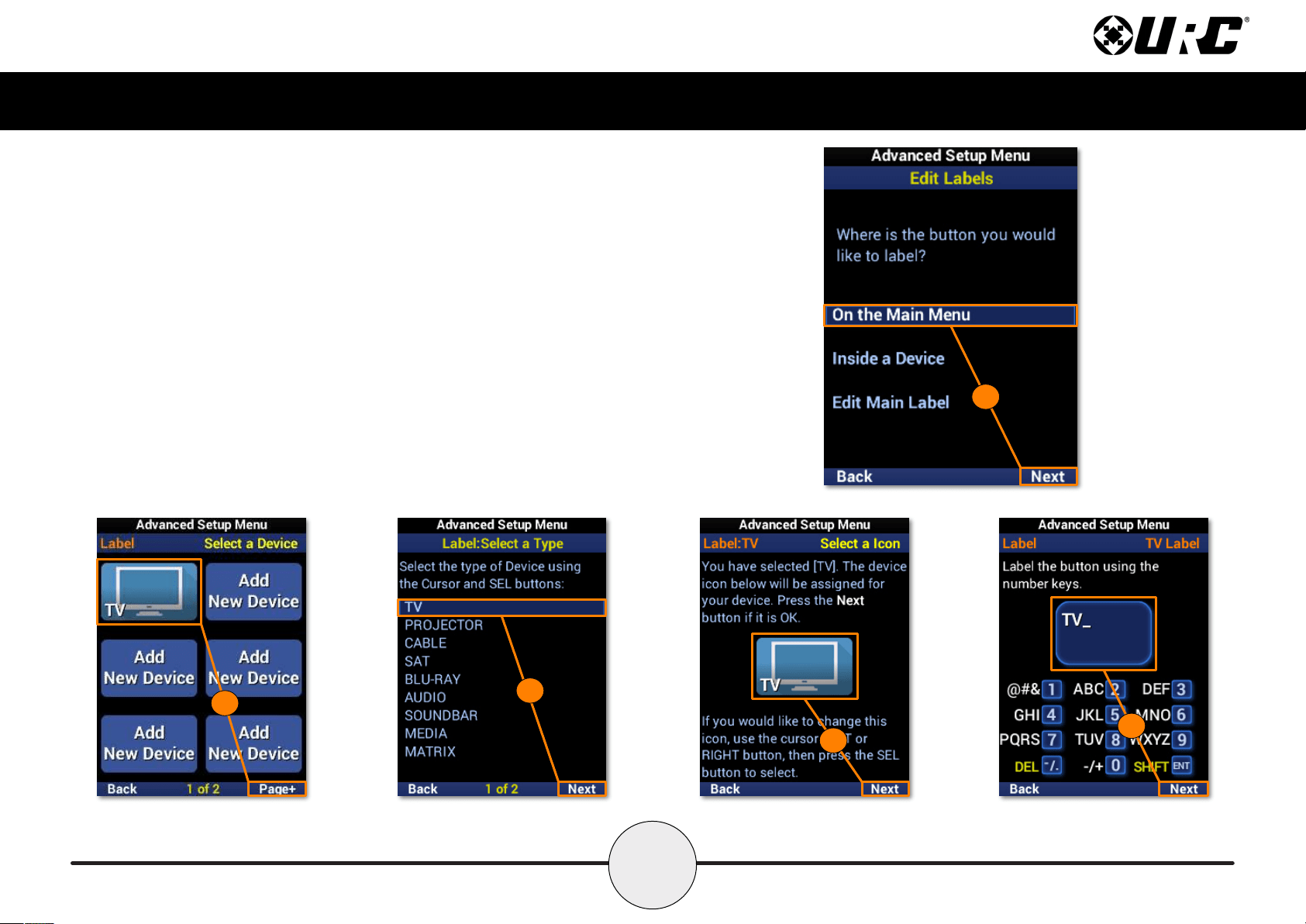
On the Main Menu
1. Highlight Inside a Device and select Next.
2. Select a device from the list. Use Page+ to move between menu pages.
3. Select the device type.
4. Select an icon for the device.
5. Enter a label using the number pad and select Next to conrm the new label.
6. The device reects the label change. Select Done to conrm.
1
2
3
4
5
30
Complete Control
MX-490
Owner’s Manual
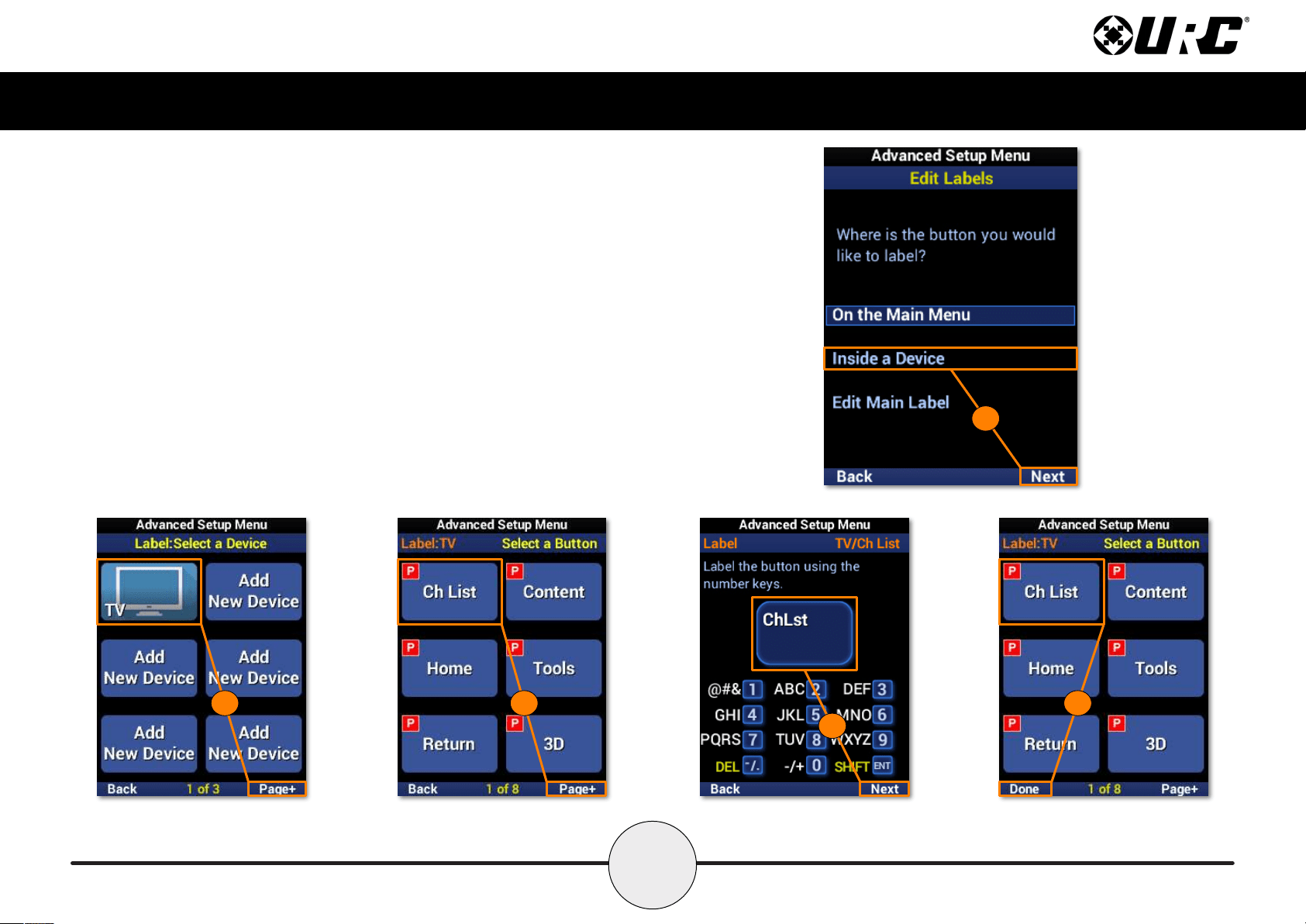
Inside a Device
1. Highlight Inside a Device and select Next.
2. Select a device from the list. Use Page+ to move between menu pages.
3. Select a button to edit the label. Use Page+ to move between device pages.
4. Enter a label using the number pad and select Next to conrm the new label.
5. The button reects the label change. Select Done to conrm.
1
3
4
2
5
31
Complete Control
MX-490
Owner’s Manual
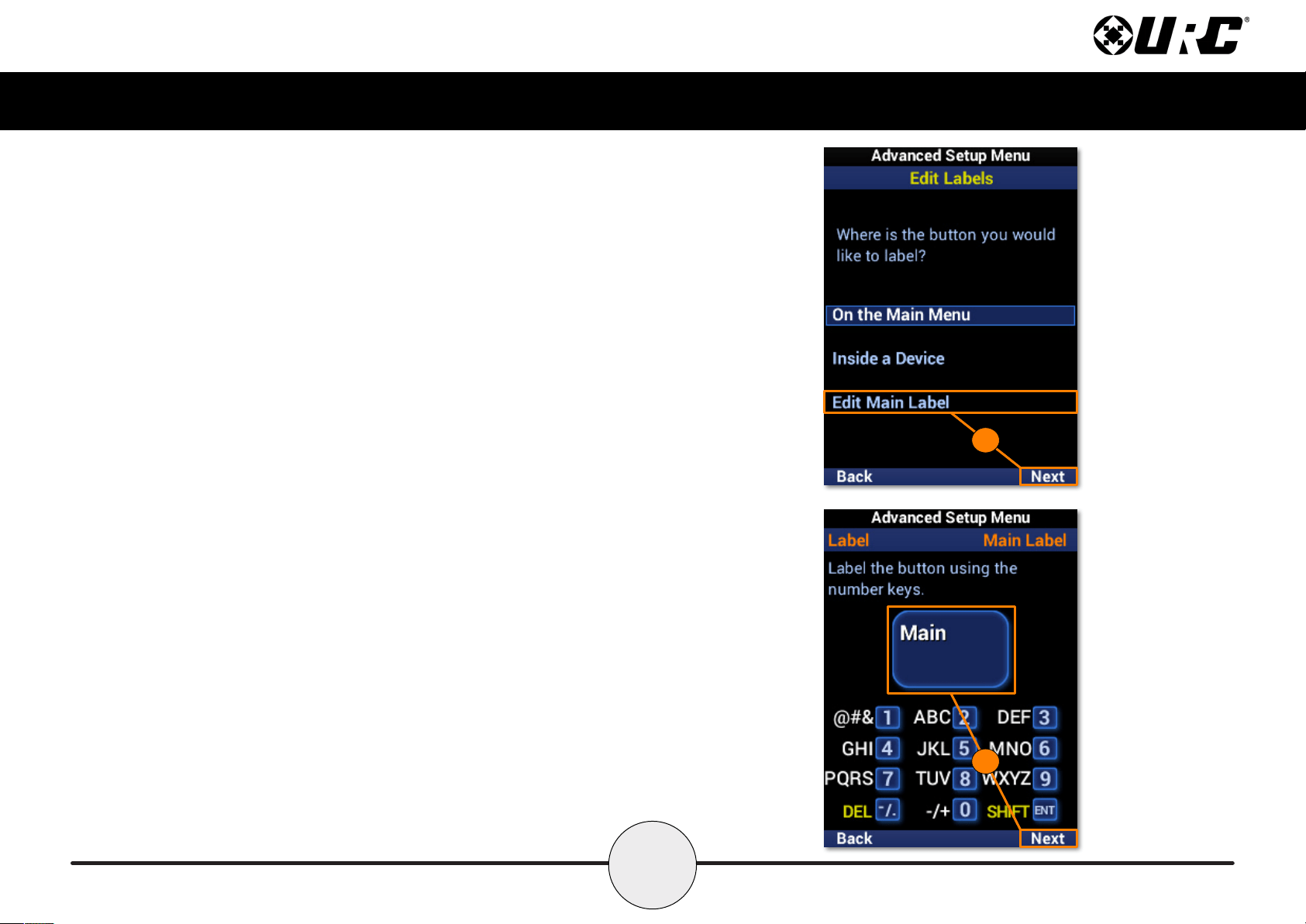
Edit Main Label
1. Highlight Edit Main Label and select Next.
2. Enter a label for the Main Menu using the number pad and select
Next to conrm the new label.
2
1
32
Complete Control
MX-490
Owner’s Manual
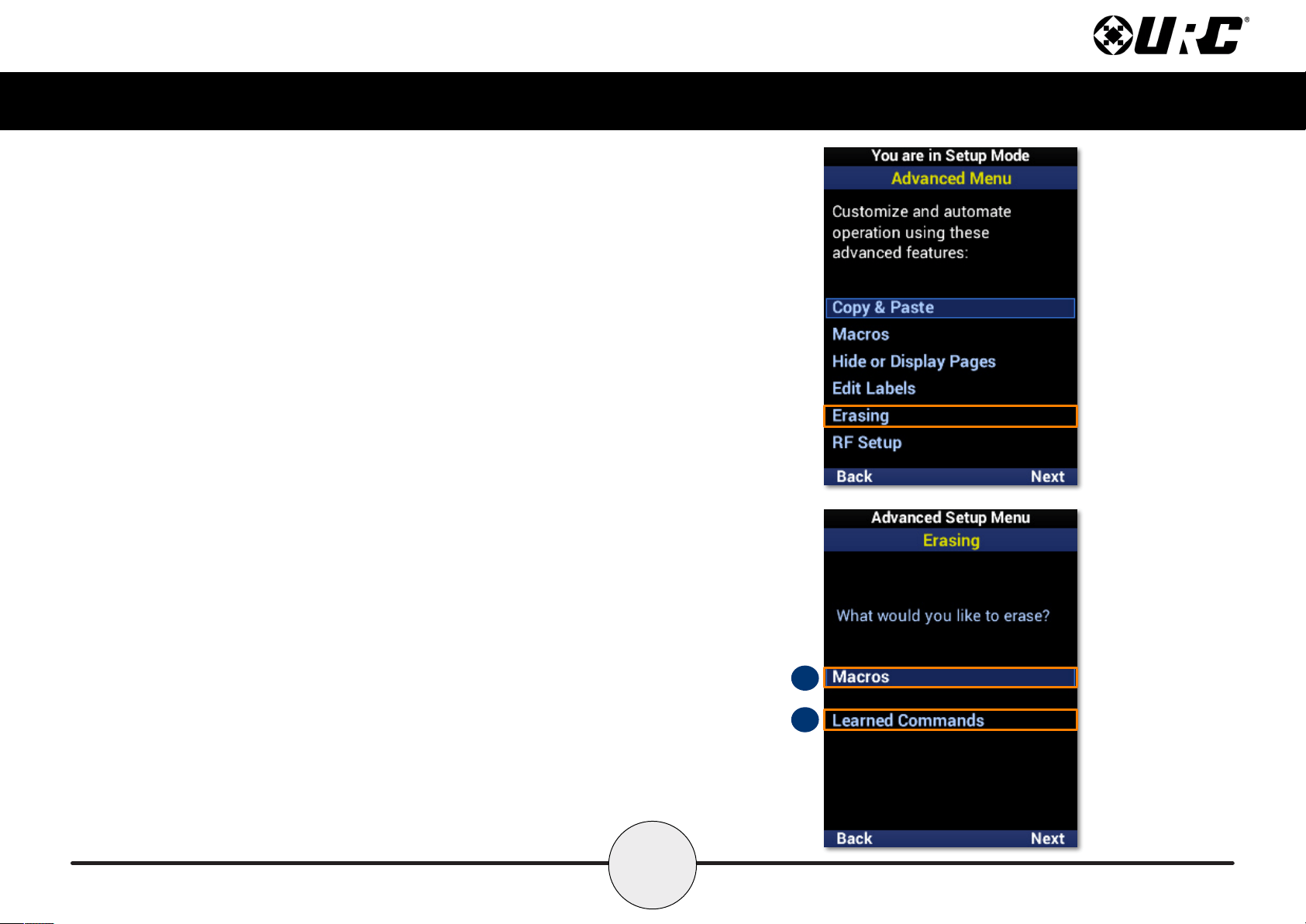
Erasing
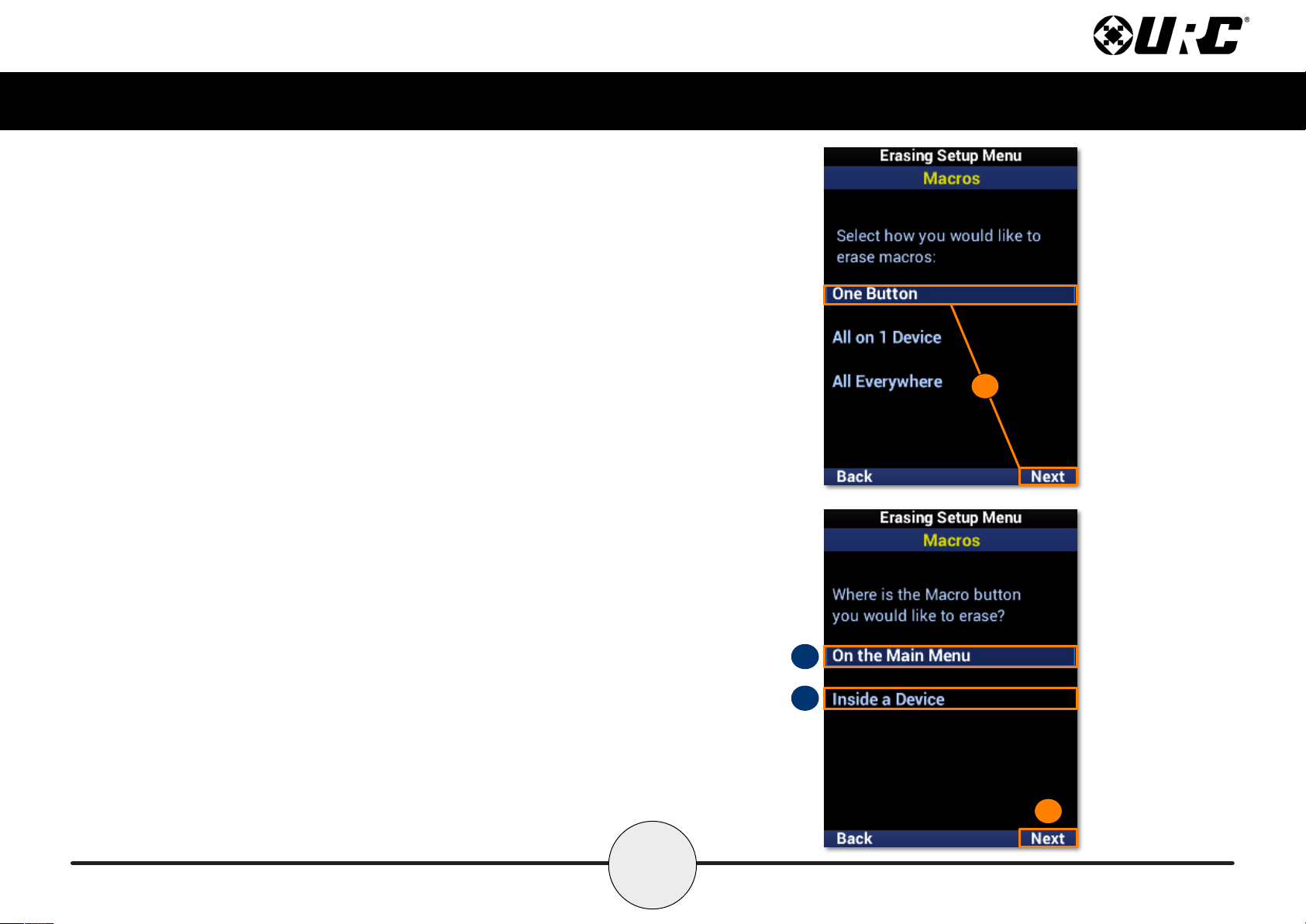
Mistakes happen. The MX-490 offers a convenient erase feature to quickly remove
macros and learned commands.
A. Macros: Offers options for the removal of macros only.
B. Learned Commands: Offers options for the removal of learned commands only.
A
B
33
Complete Control
MX-490
Owner’s Manual
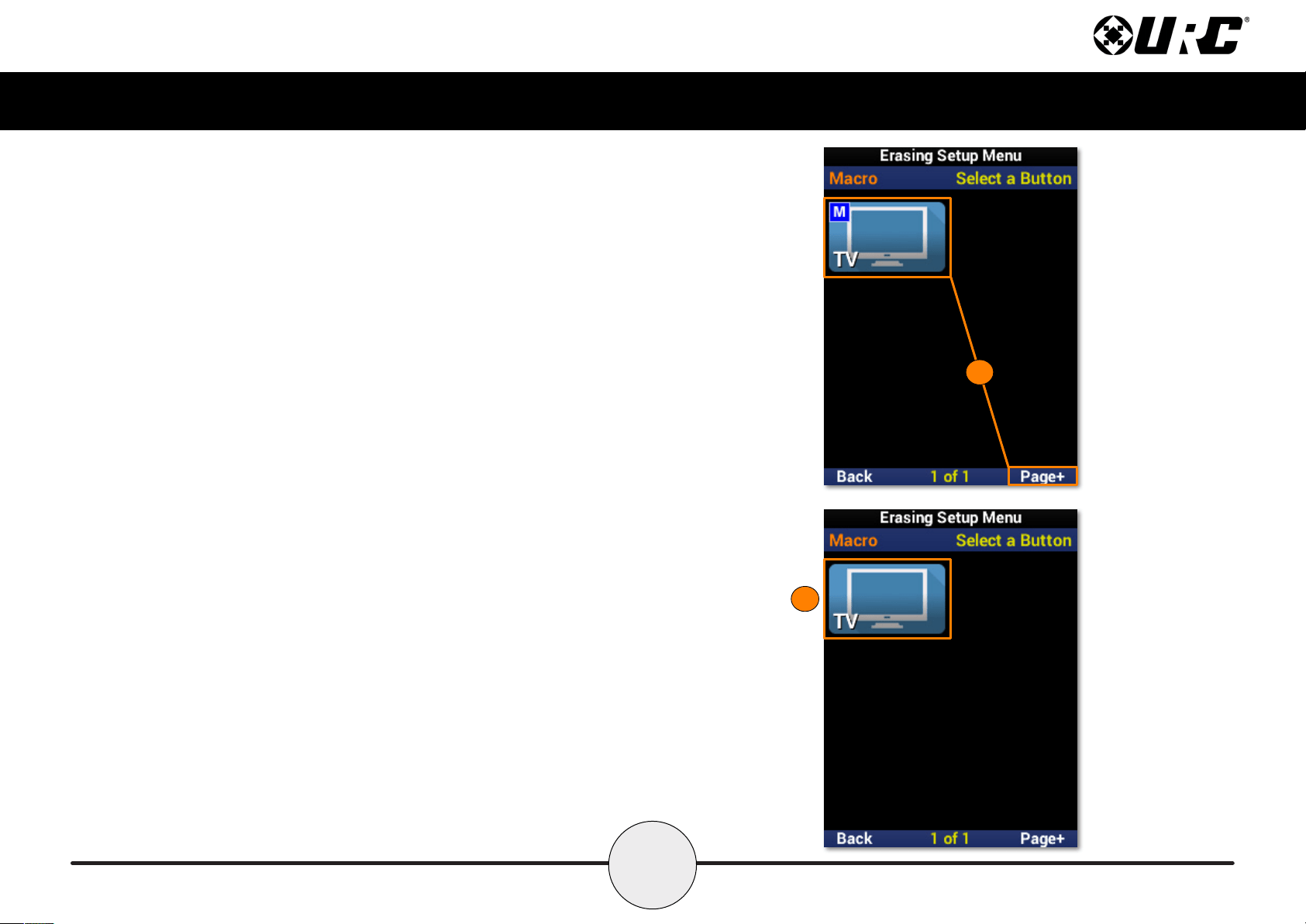
Macros: One Button
Removes a macro from a single function button.
1. Highlight One Button and select Next.
2. Highlight an option based on the macro location and select Next.
A. On the Main Menu: Removes a macro from a device on the main menu.
B. Inside a Device: Removes a macro from a function button within a device.
1
A
B
2
34
Complete Control
MX-490
Owner’s Manual
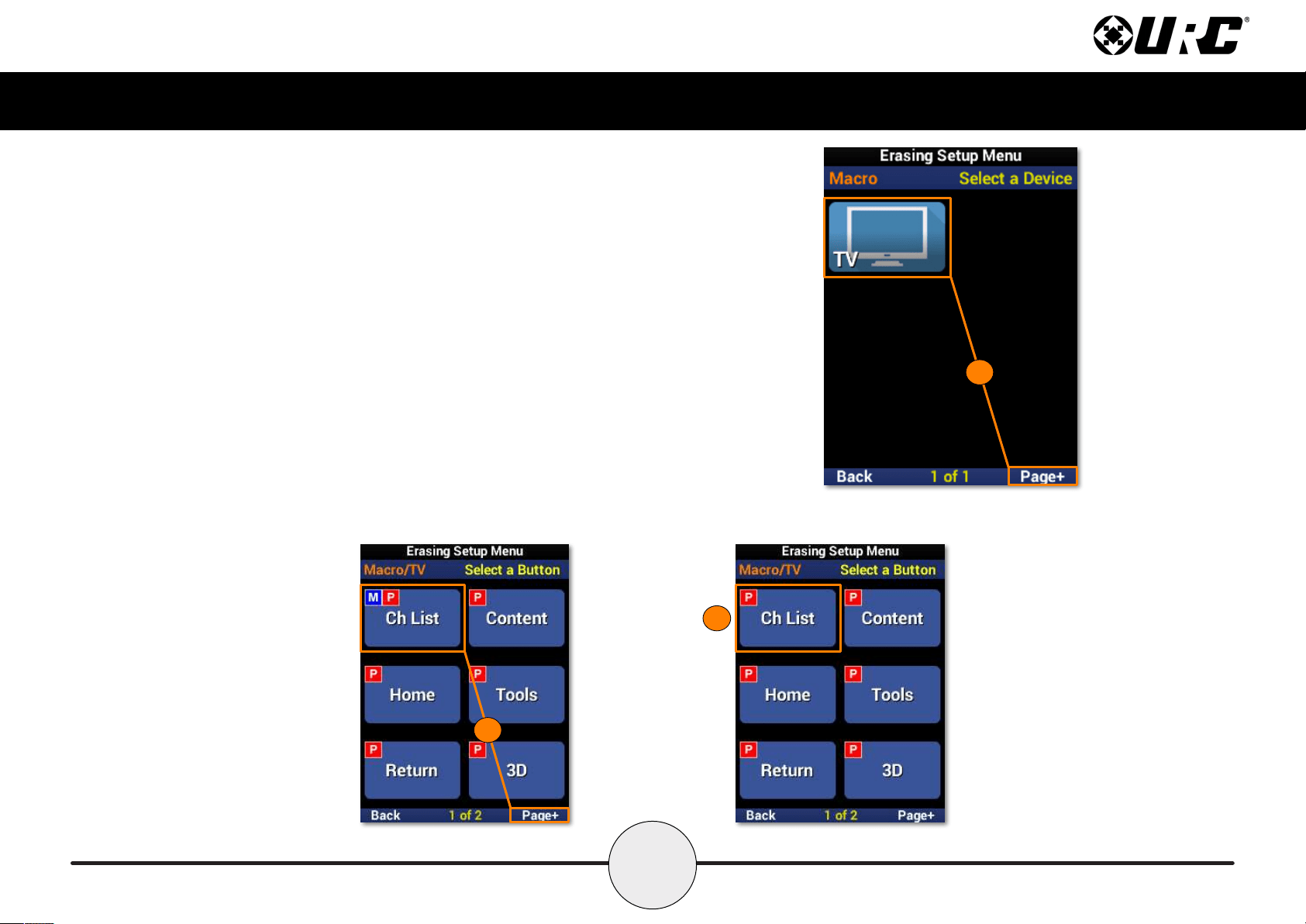
Macros: One Button - On the Main Menu
1. Select a device. Use Page+ to move between menu pages.
2. The macro has been removed from the device.
1
2
35
Complete Control
MX-490
Owner’s Manual
Macros: One Button - Inside a Device
1. Select a device. Use Page+ to move between menu pages.
2. Select a function button. Use Page+ to move between device pages.
3. The macro has been removed from the function button.
1
2
3
36
Complete Control
MX-490
Owner’s Manual
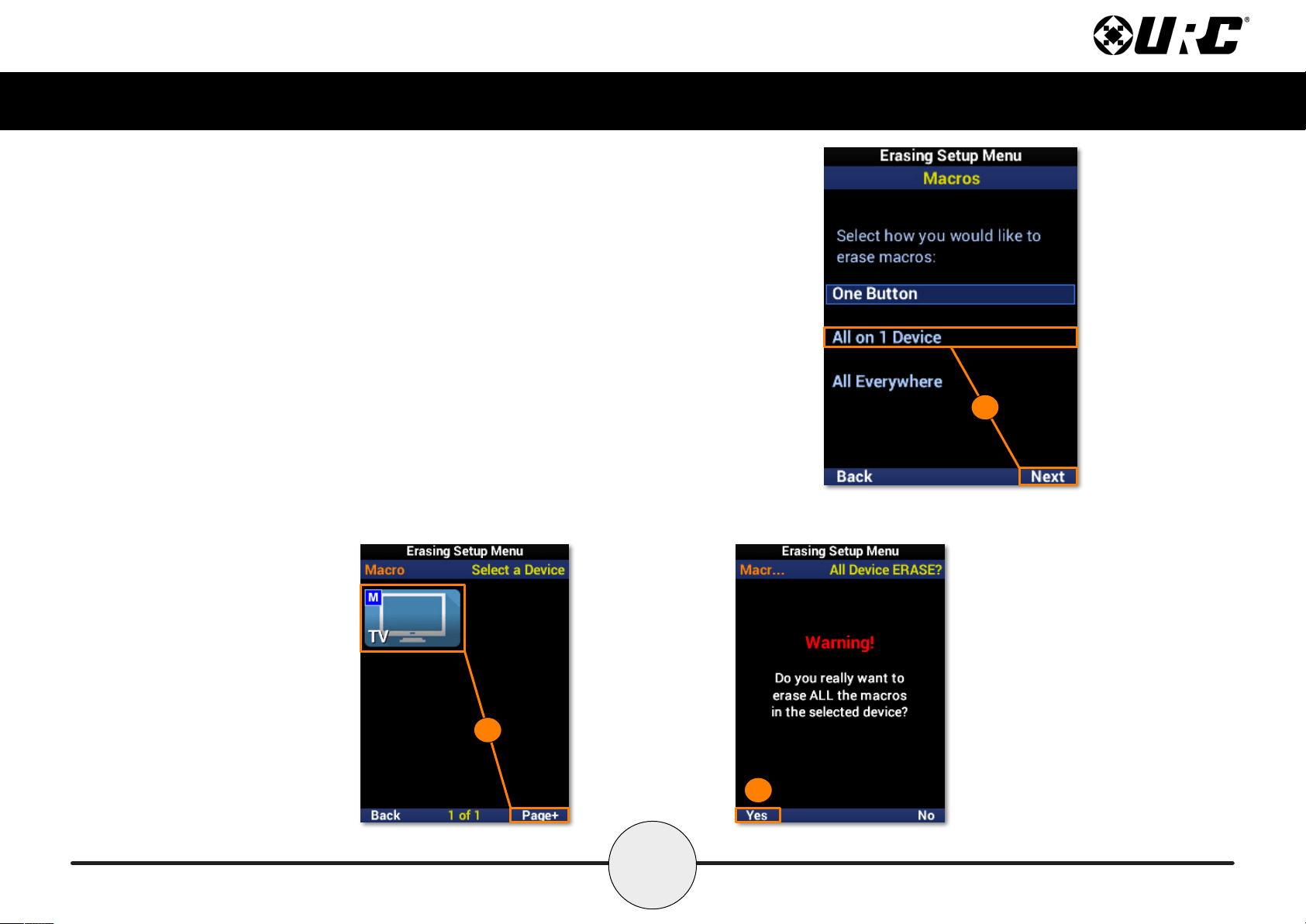
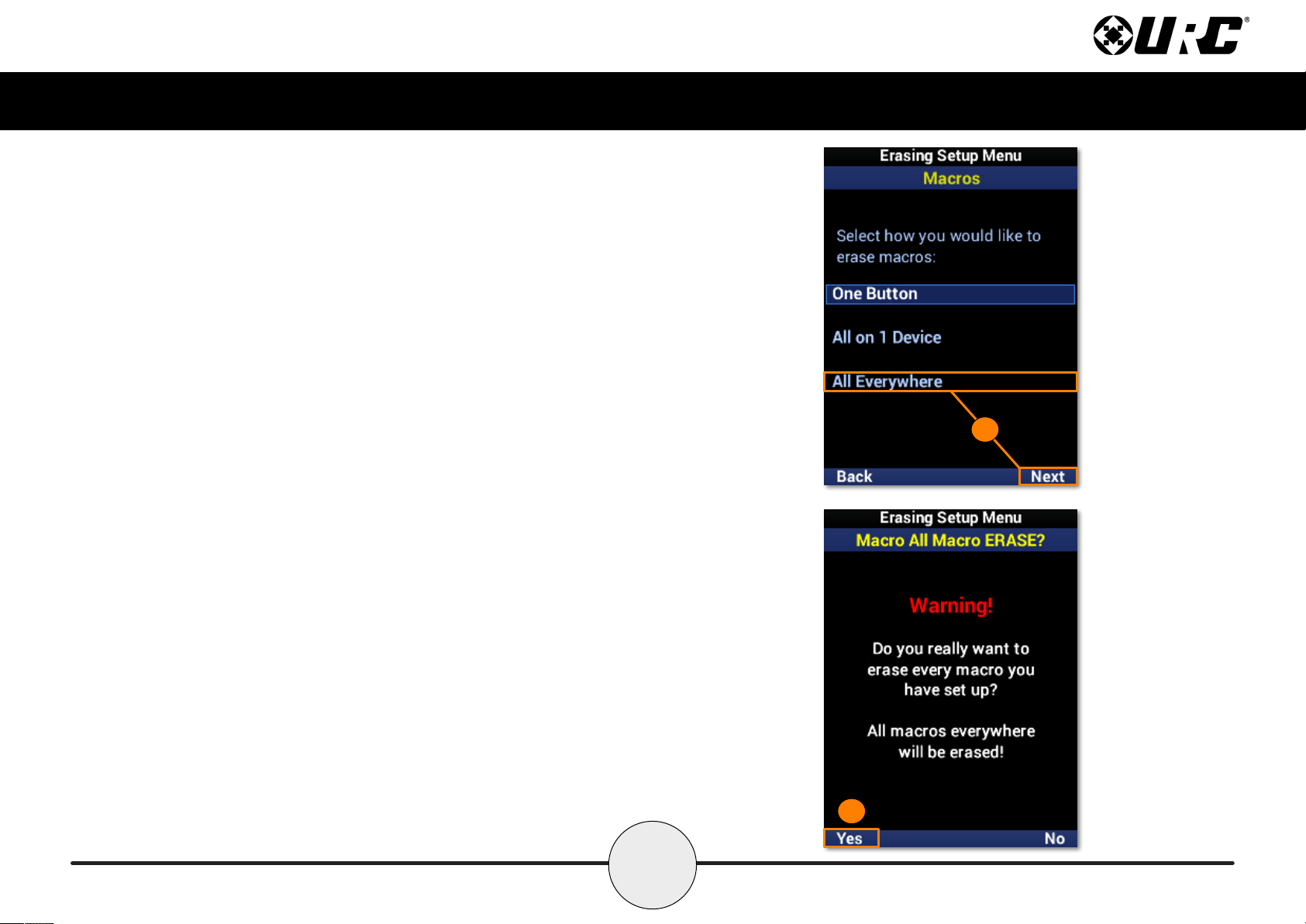
Macros: All on 1 Device
Removes all macros from a single device.
1. Highlight All on 1 Device and select Next.
2. Select a device to remove all the macros from. Use Page+ to
move between menu pages.
3. Select Yes to conrm the removal of all macros assigned to
the device and its functions.
1
2
3
37
Complete Control
MX-490
Owner’s Manual
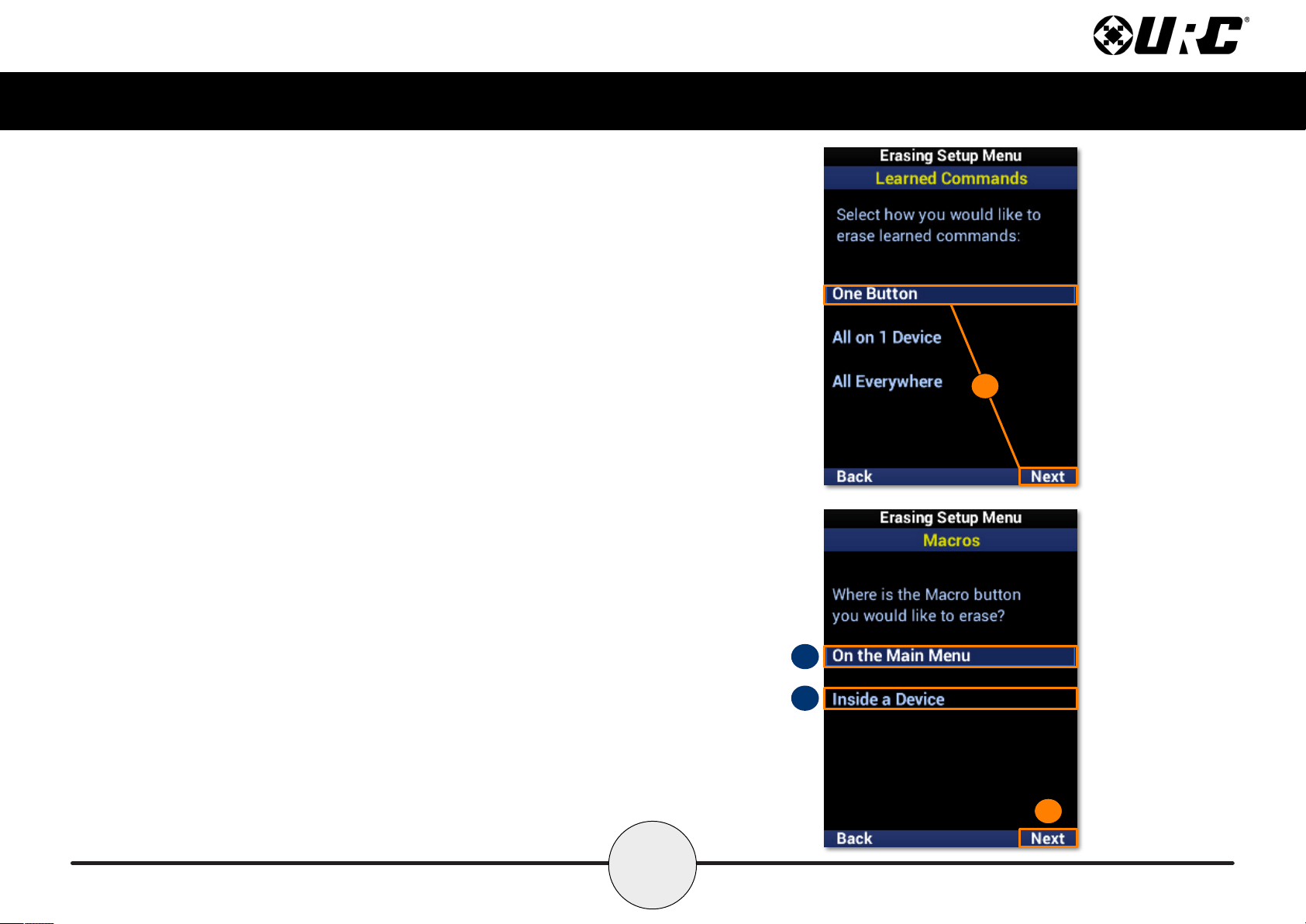
Macros: All Everywhere
Removes all macros from the remote.
1. Highlight All Everywhere and select Next.
2. Select Yes to conrm the removal of all macros on the remote.
1
2
38
Complete Control
MX-490
Owner’s Manual
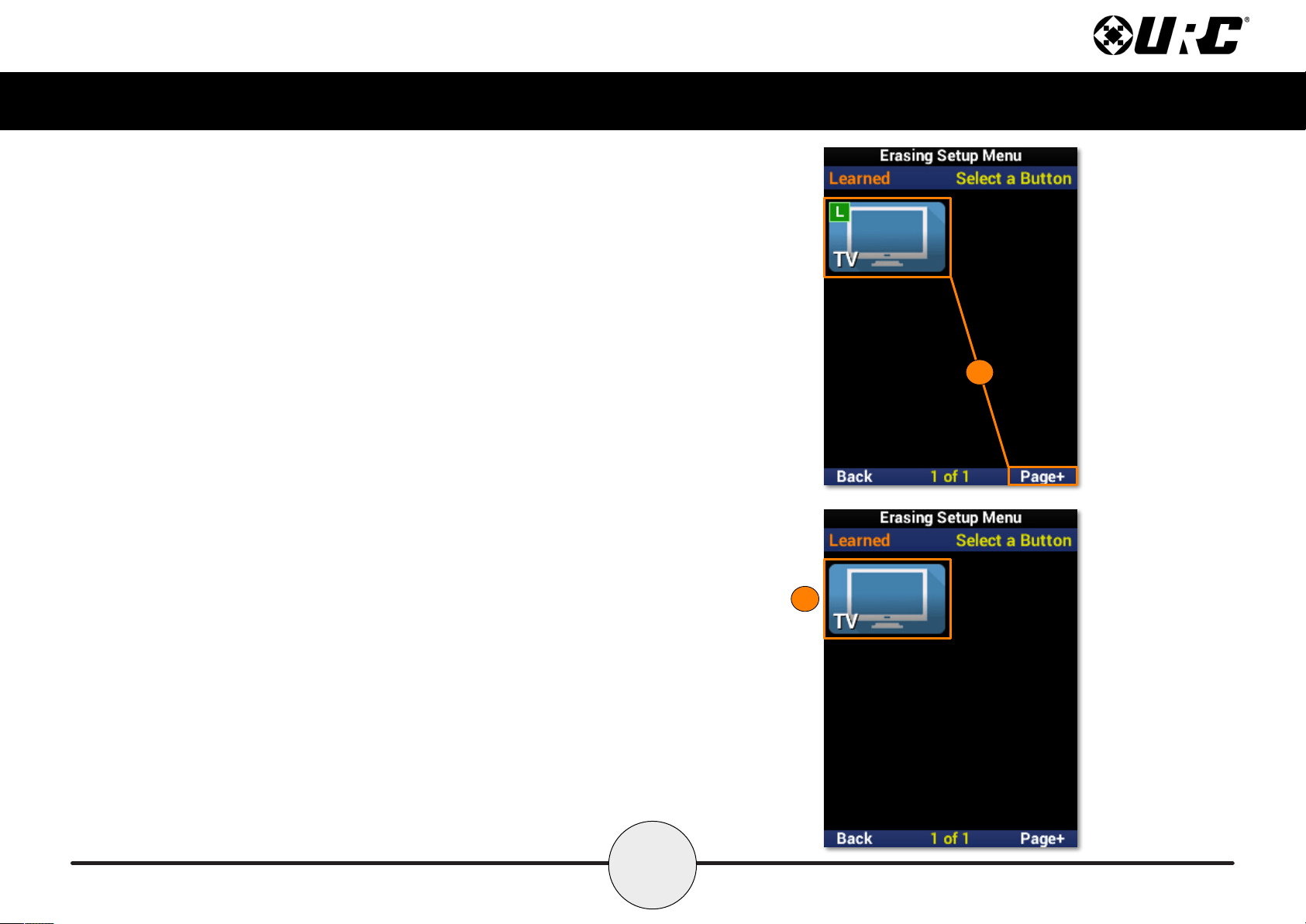
Learned Commands: One Button
Removes a macro from a single function button.
1. Highlight One Button and select Next.
2. Highlight an option based on the macro location and select Next.
A. On the Main Menu: Removes a macro from a device on the main menu.
B. Inside a Device: Removes a macro from a function button within a device.
1
A
B
2
39
Complete Control
MX-490
Owner’s Manual
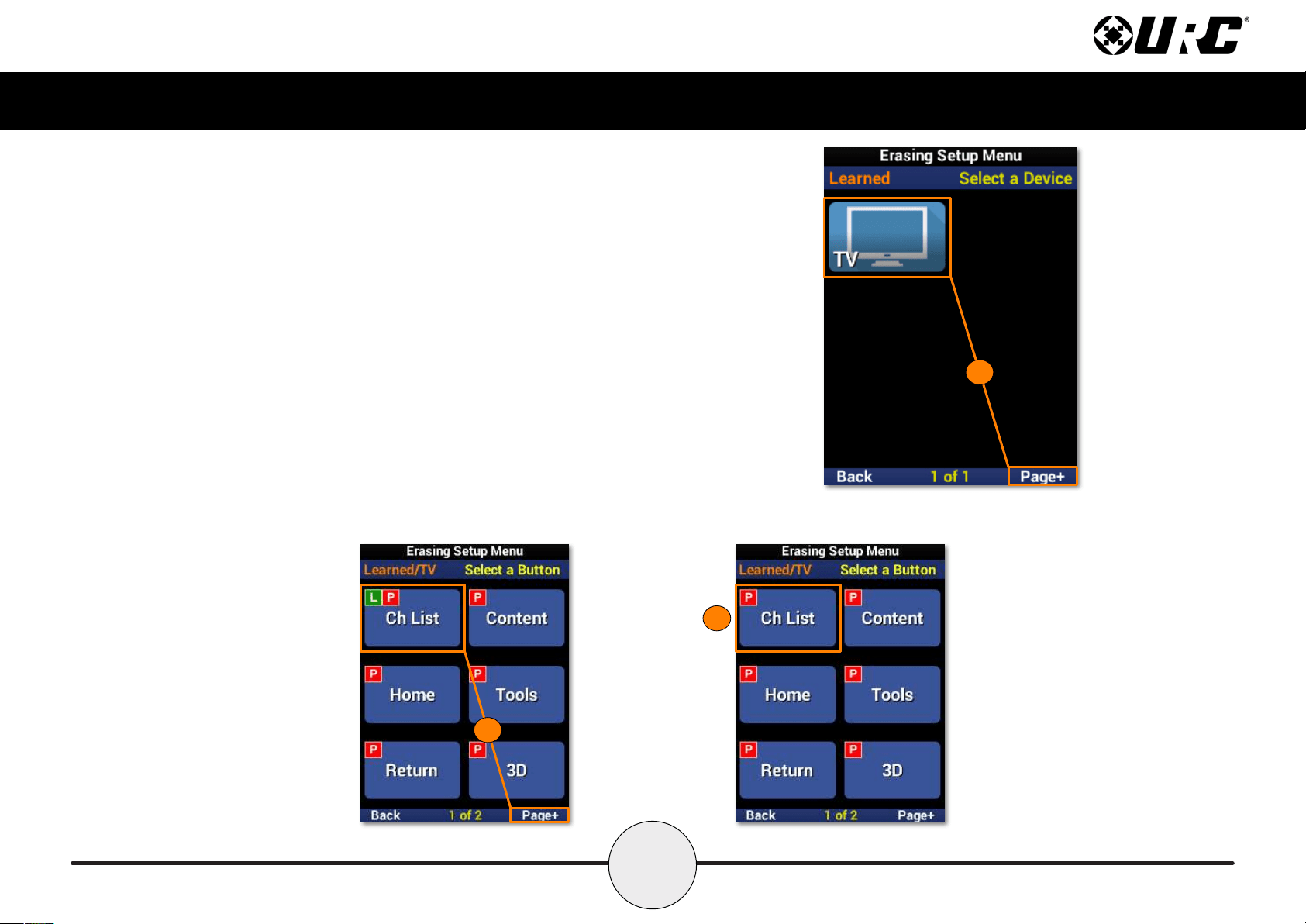
Learned Commands: One Button - On the Main Menu
1. Select a device. Use Page+ to move between menu pages.
2. The learned command has been removed from the device.
1
2
40
Complete Control
MX-490
Owner’s Manual
Learned Commands: One Button - Inside a Device
1. Select a device. Use Page+ to move between menu pages.
2. Select a function button. Use Page+ to move between device pages.
3. The learned command has been removed from the function button.
1
2
3
41
Complete Control
MX-490
Owner’s Manual
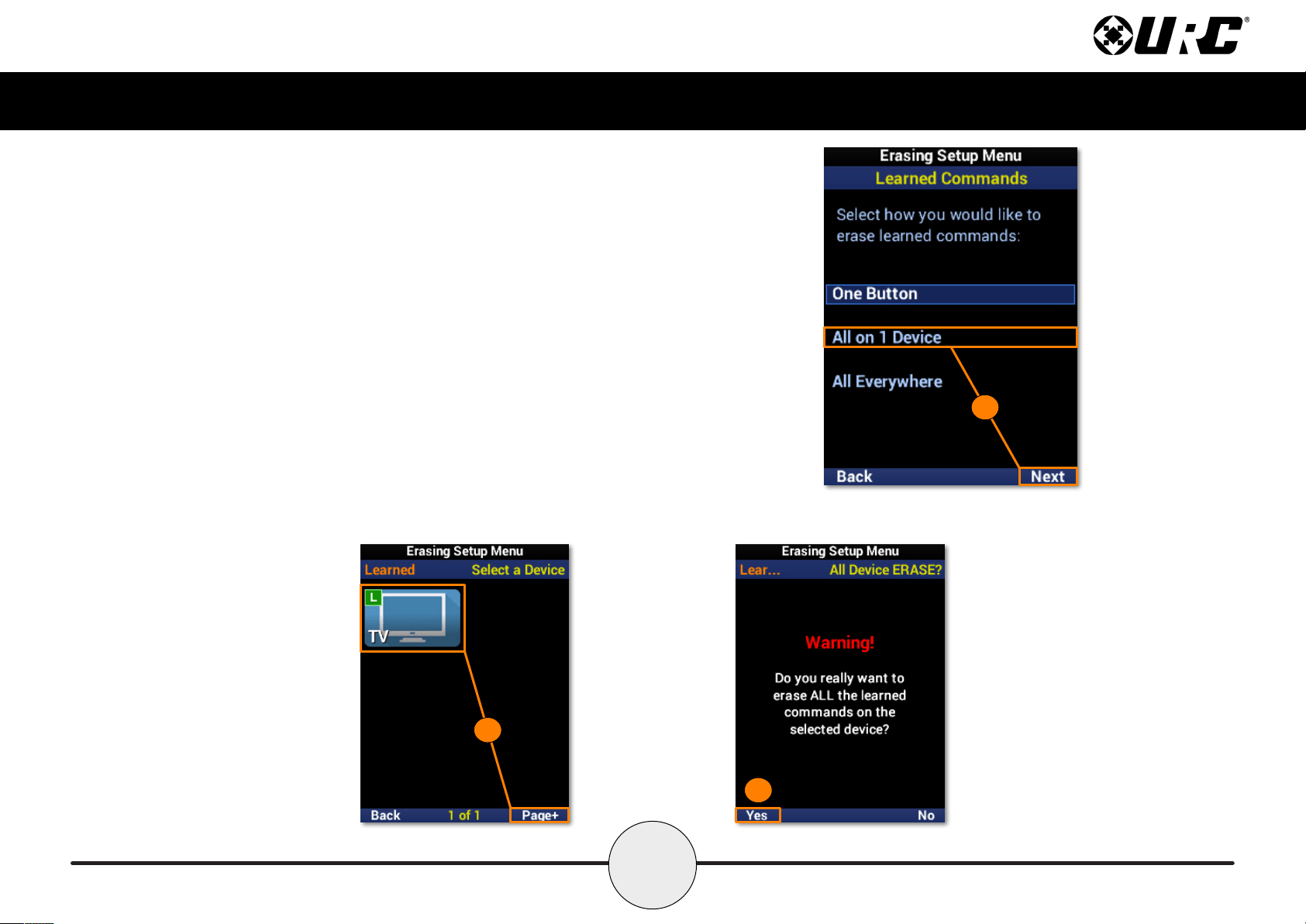
Learned Commands: All on 1 Device
Removes all learned commands from a single device.
1. Highlight All on 1 Device and select Next.
2. Select a device to remove all the learned commands from. Use Page+
to move between menu pages.
3. Select Yes to conrm the removal of all learned commands assigned
to the device and its functions.
1
2
3
42
Complete Control
MX-490
Owner’s Manual
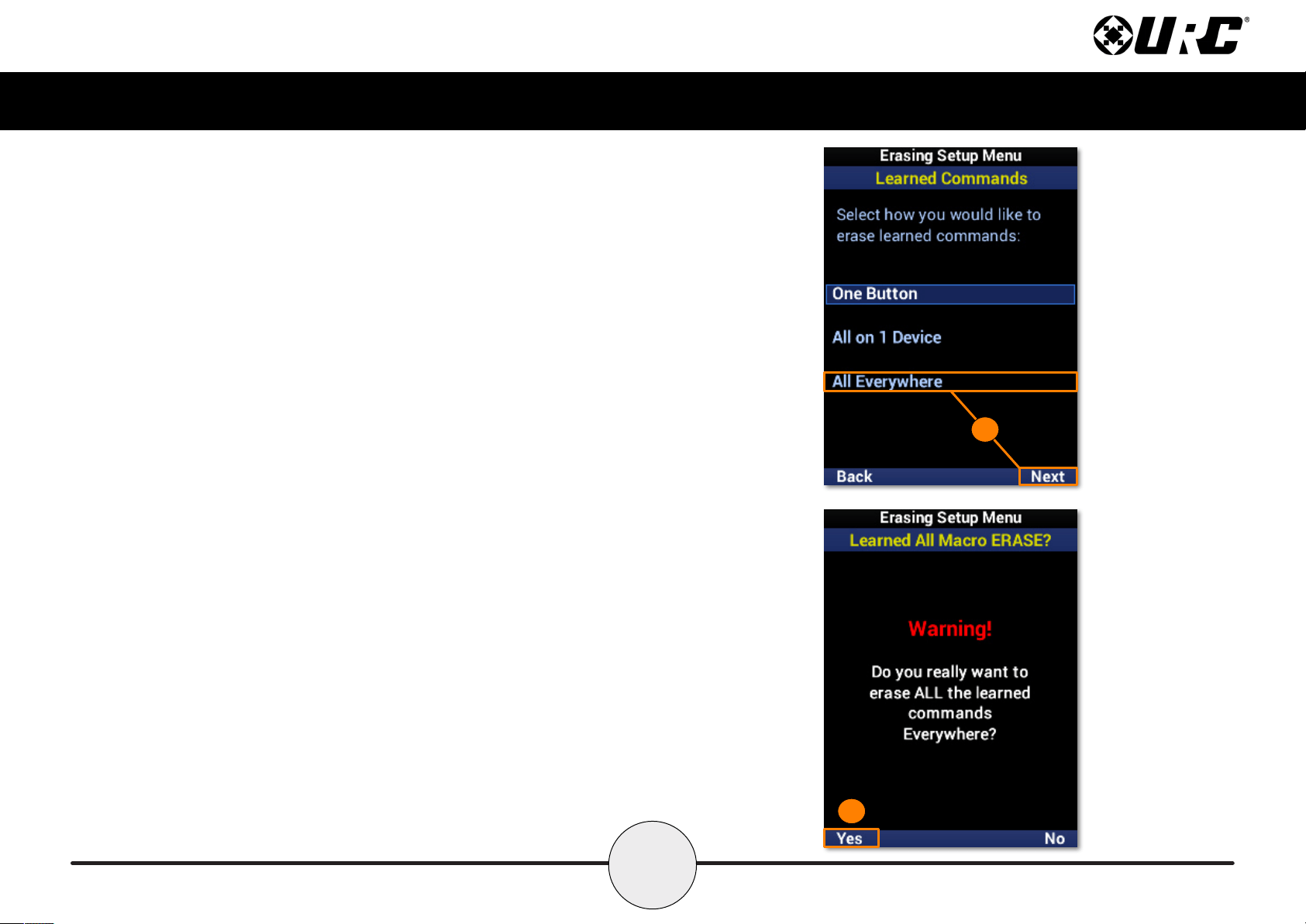
Learned Commands: All Everywhere
Removes all learned commands from the remote.
1. Highlight All Everywhere and select Next.
2. Select Yes to conrm the removal of all learned commands on the remote.
1
2
43
Complete Control
MX-490
Owner’s Manual
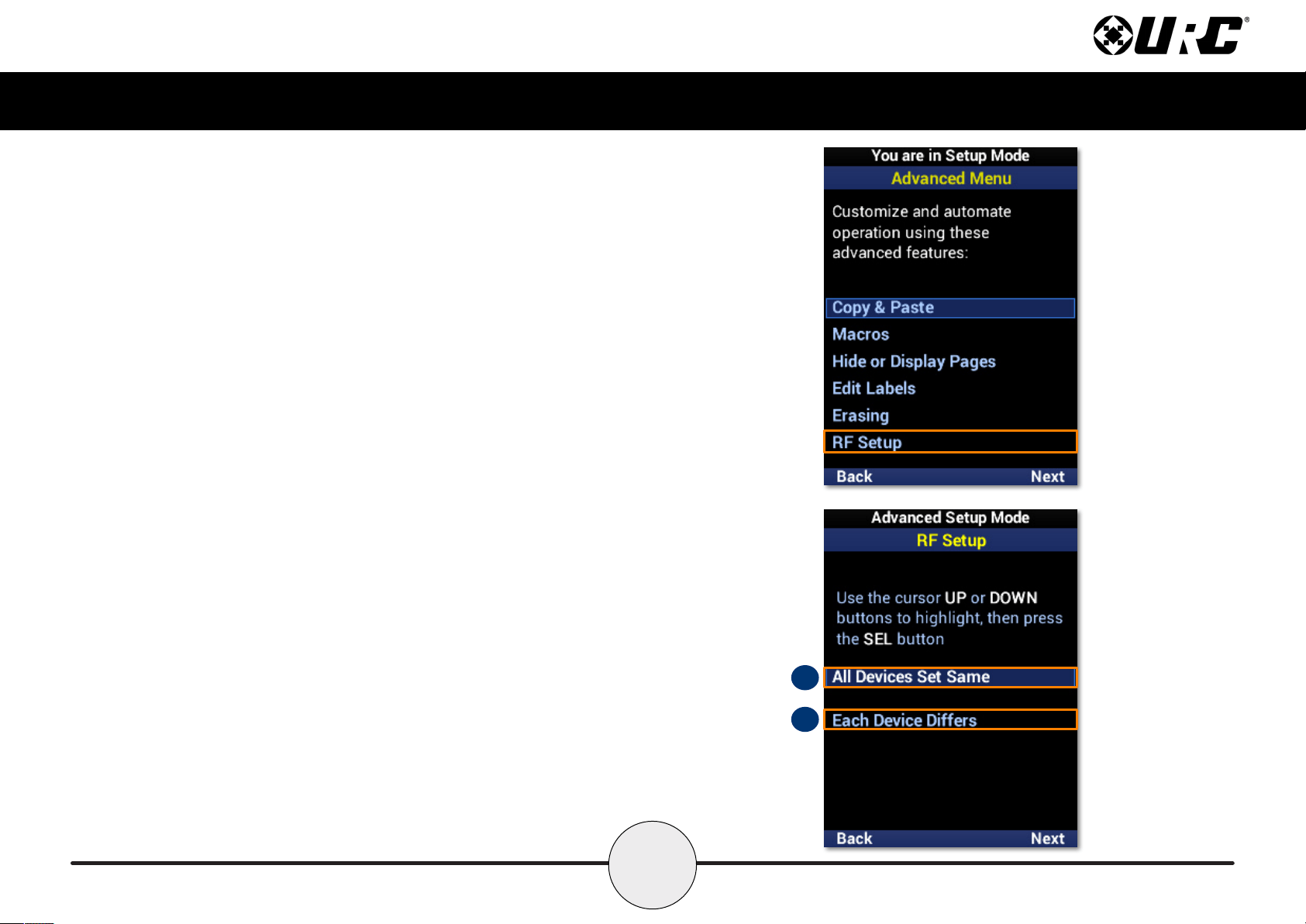
RF Setup
The MX-490 is capable of sending both IR and RF commands. RF control requires
additional devices to receive commands from the remote.
A. All Devices Set Same: Select this option to congure the entire remote for a
single RF ID.
B. Each Device Differs: Select this option to congure each device for IR and RF.
B
A
44
Complete Control
MX-490
Owner’s Manual
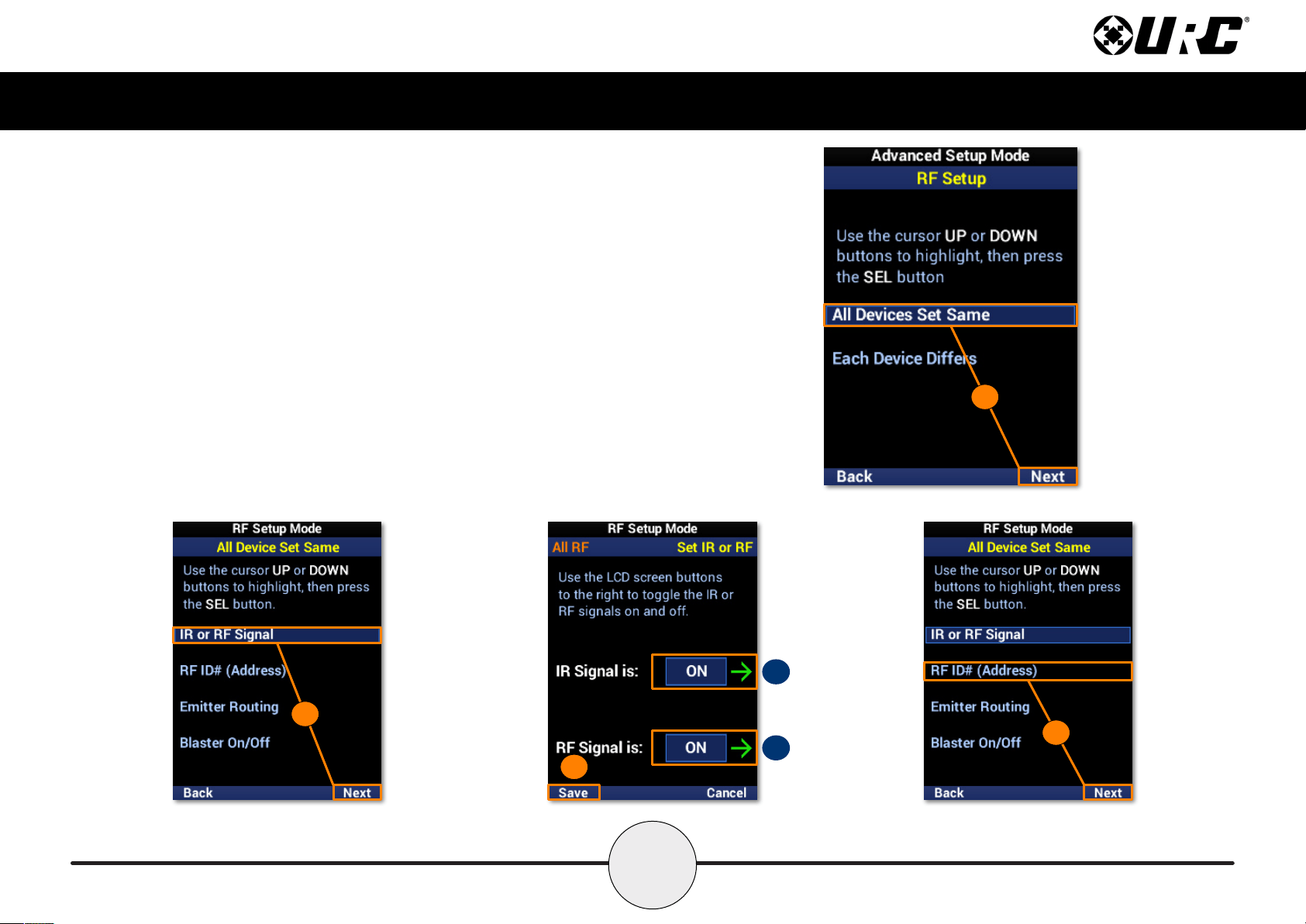
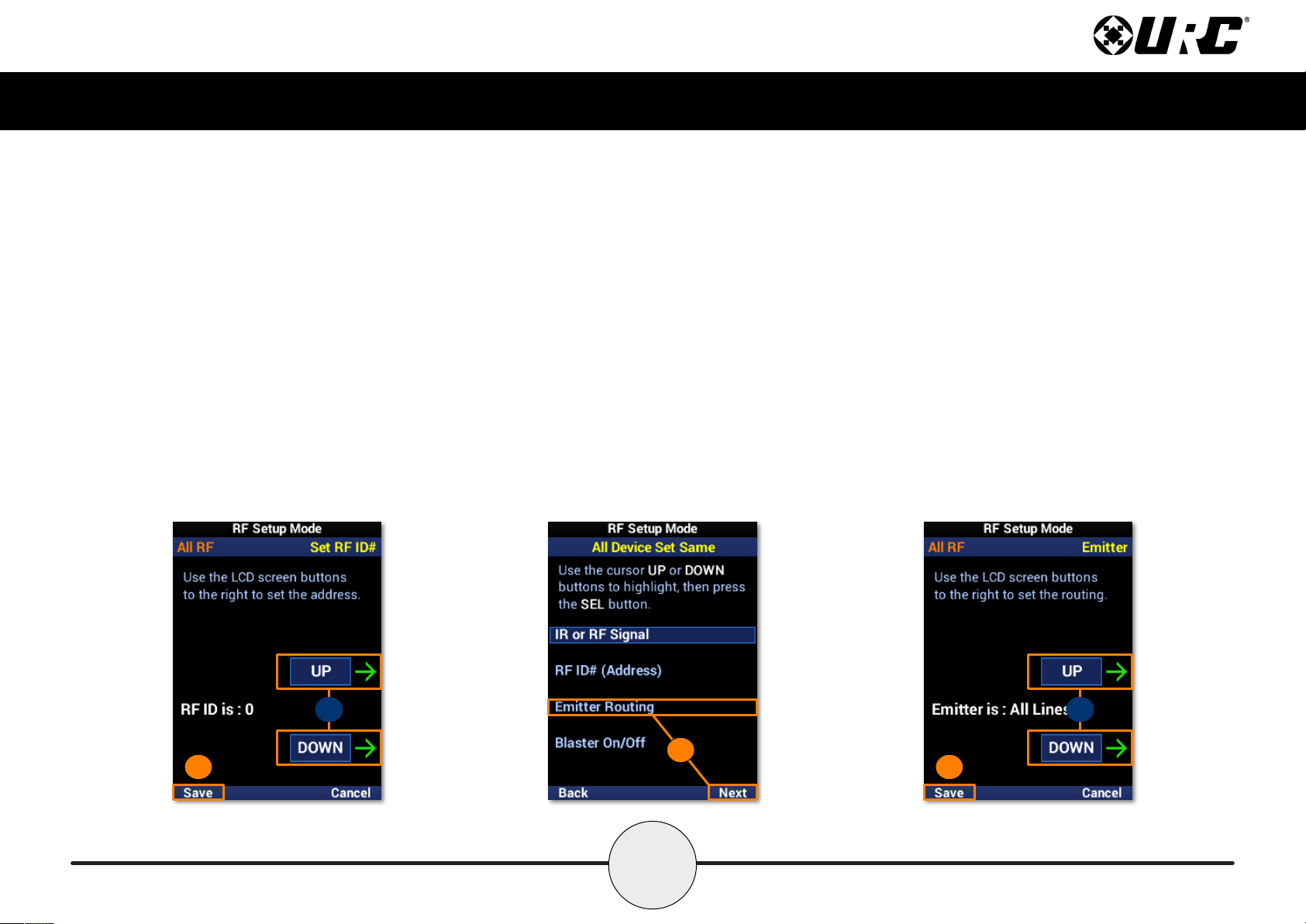
All Devices Set Same
1. Highlight All Devices Set Same and select Next.
2. Highlight IR or RF Signal and select Next.
A. IR Signal is: Use the LCD button to enable or disable IR.
B. RF Signal is: Use the LCD button to enable or disable RF.
3. Select Save to conrm any changes.
4. Highlight ID# (Address) and select Next.
1
A
B
3
2
4
45
Complete Control
MX-490
Owner’s Manual
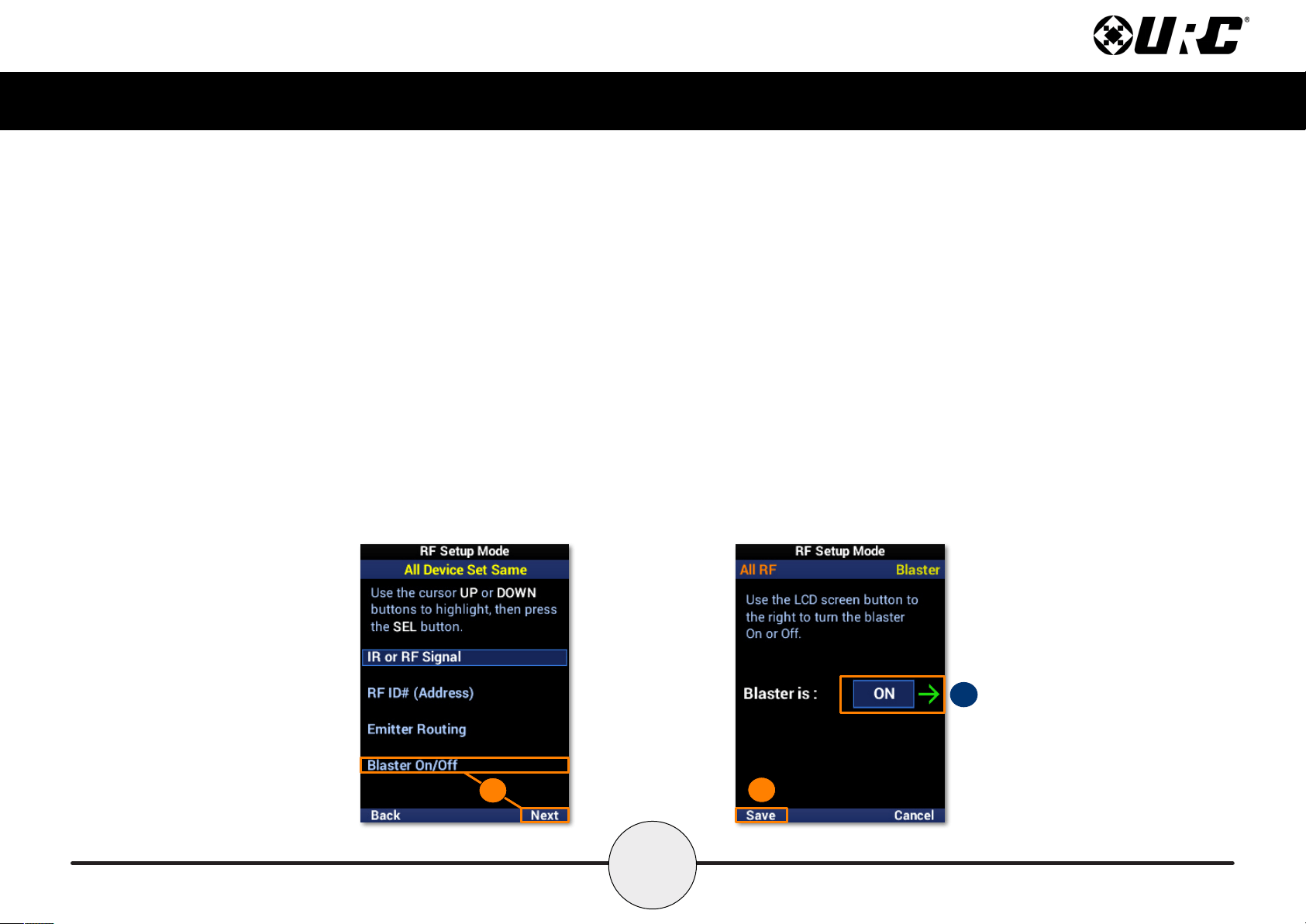
A. RF ID is: Use the LCD buttons to set the RF ID number.
5. Select Save to conrm any changes.
6. Highlight Emitter Routing and select Next.
A. Emitter is: Use the LCD buttons to set the emitter line number.
7. Select Save to conrm any changes.
A
75
6
A
46
Complete Control
MX-490
Owner’s Manual
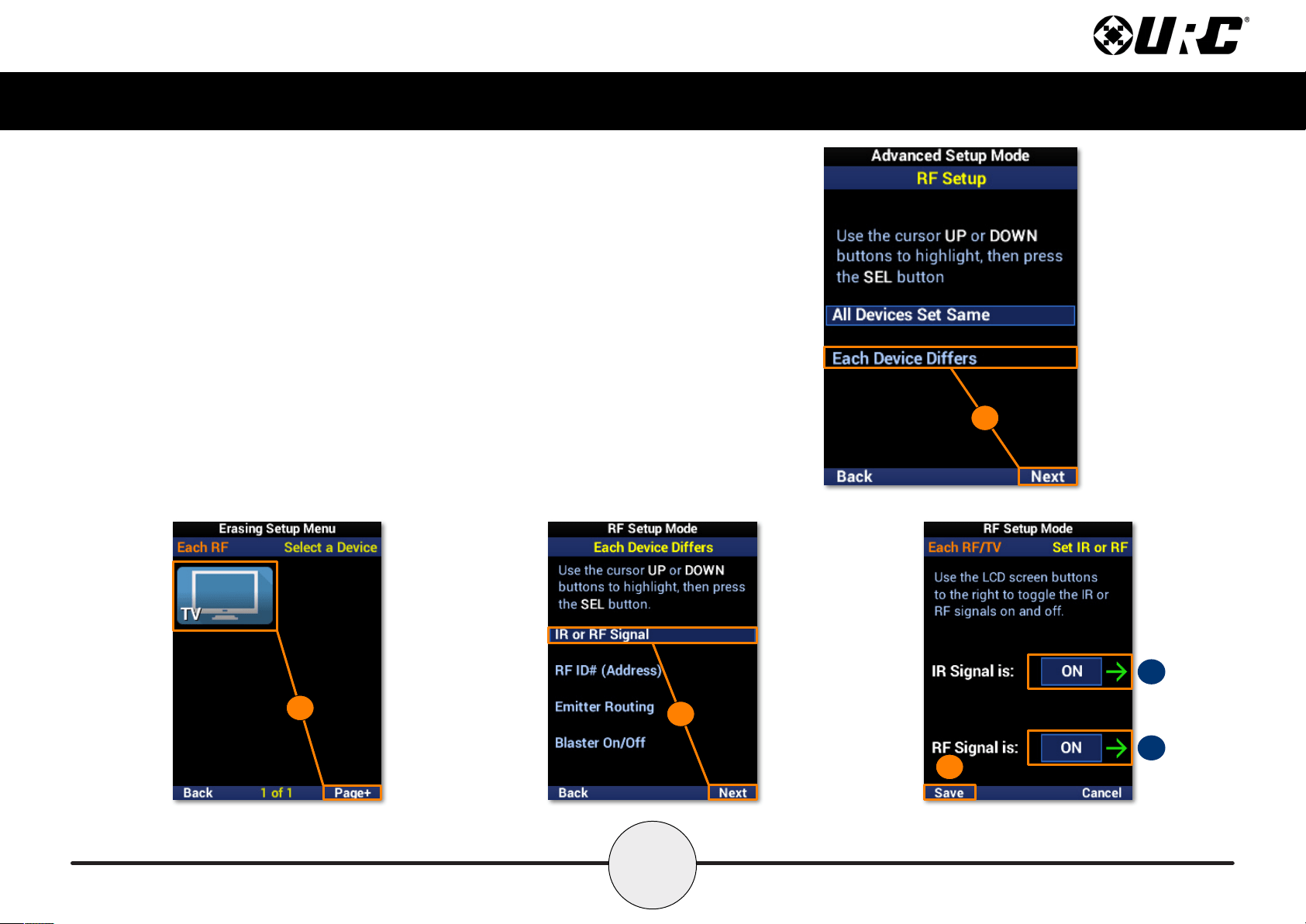
8. Highlight Blaster On/Off and select Next.
A. Blaster is: Use the LCD button to enable or disable the IR Blaster.
9. Select Save to conrm any changes.
8
A
9
47
Complete Control
MX-490
Owner’s Manual
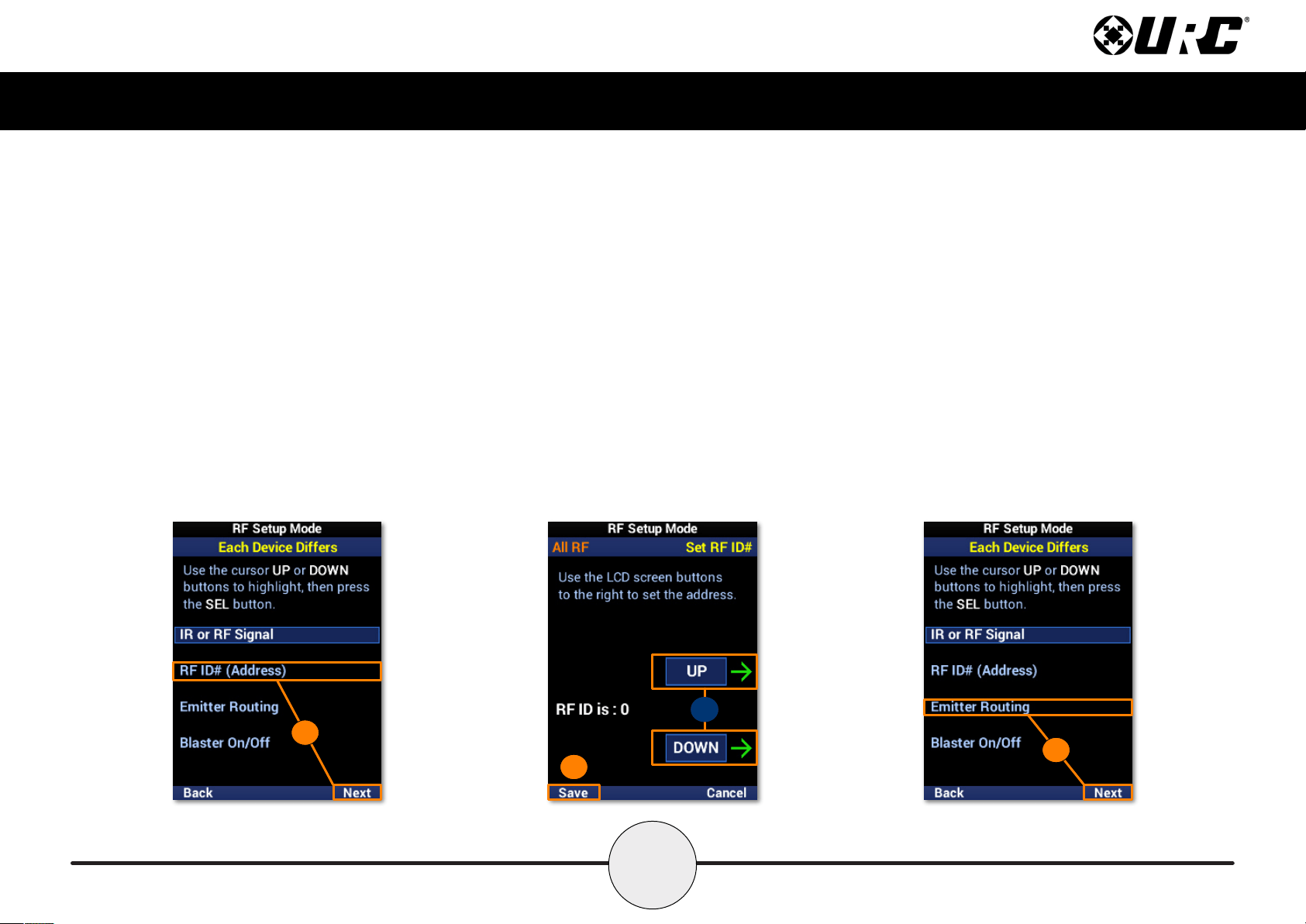
Each Device Differs
1. Highlight Each Device Differs and select Next.
2. Select a device from the list to congure. Use Page+ to move
between device pages.
3. Highlight IR or RF Signal and select Next.
A. IR Signal is: Use the LCD button to enable or disable IR.
B. RF Signal is: Use the LCD button to enable or disable RF.
4. Select Save to conrm any changes.
1
3
2
A
B
4
48
Complete Control
MX-490
Owner’s Manual
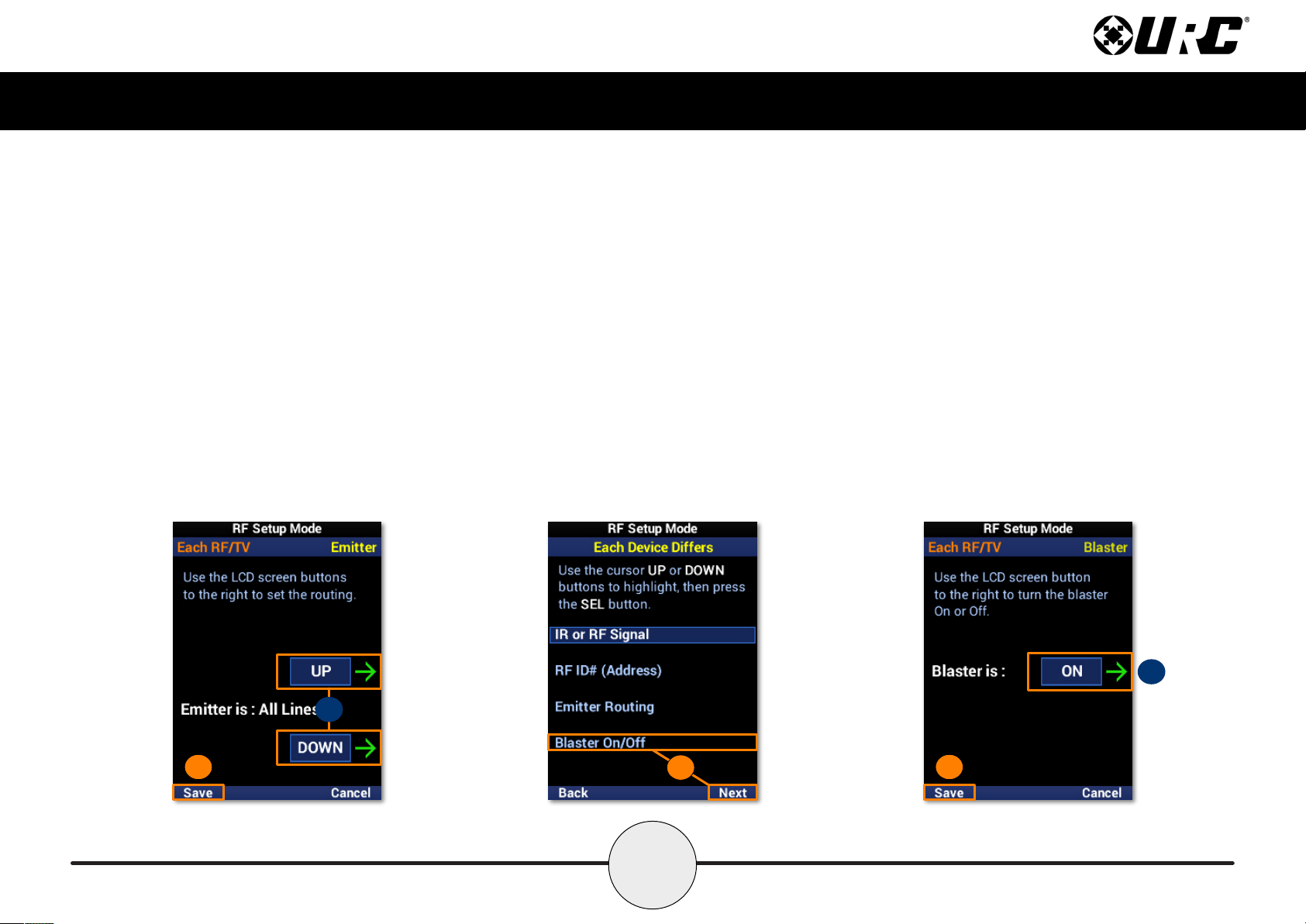
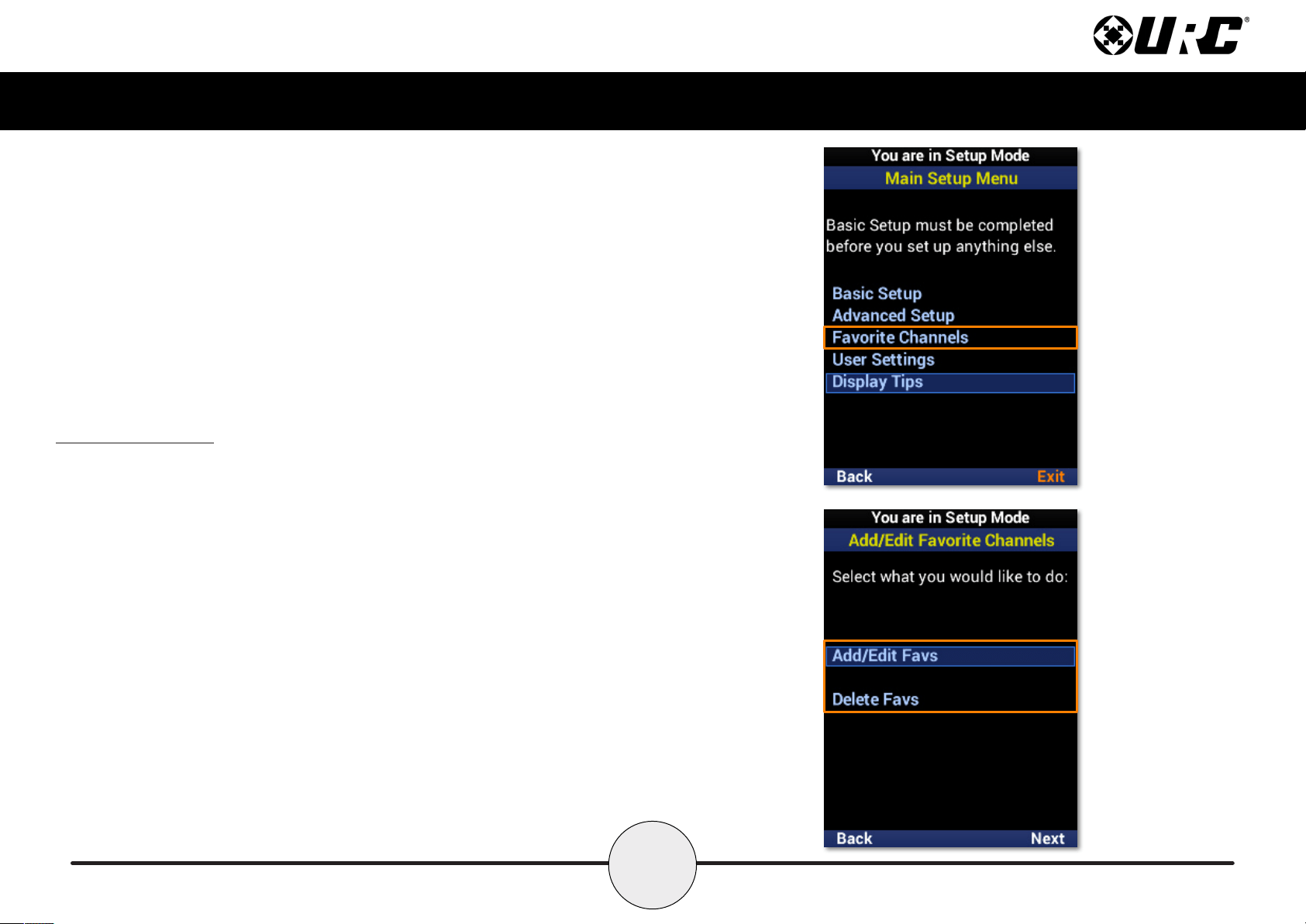
5. Highlight ID# (Address) and select Next.
A. RF ID is: Use the LCD buttons to set the RF ID number.
6. Select Save to conrm any changes.
7. Highlight Emitter Routing and select Next.
A. Emitter is: Use the LCD buttons to set the emitter line number.
5
6
7
A
49
Complete Control
MX-490
Owner’s Manual
8. Select Save to conrm any changes.
9. Highlight Blaster On/Off and select Next.
A. Blaster is: Use the LCD button to enable or disable the IR Blaster.
10. Select Save to conrm any changes.
A
8
9
A
10
50
Complete Control
MX-490
Owner’s Manual
Favorite Channels
Favorite channels provide a quick and easy means of reaching a viewer’s preferred
content. The favorites may be customized with unique labels, logos, and macros.
51
Complete Control
MX-490
Owner’s Manual
Add & Edit Favs
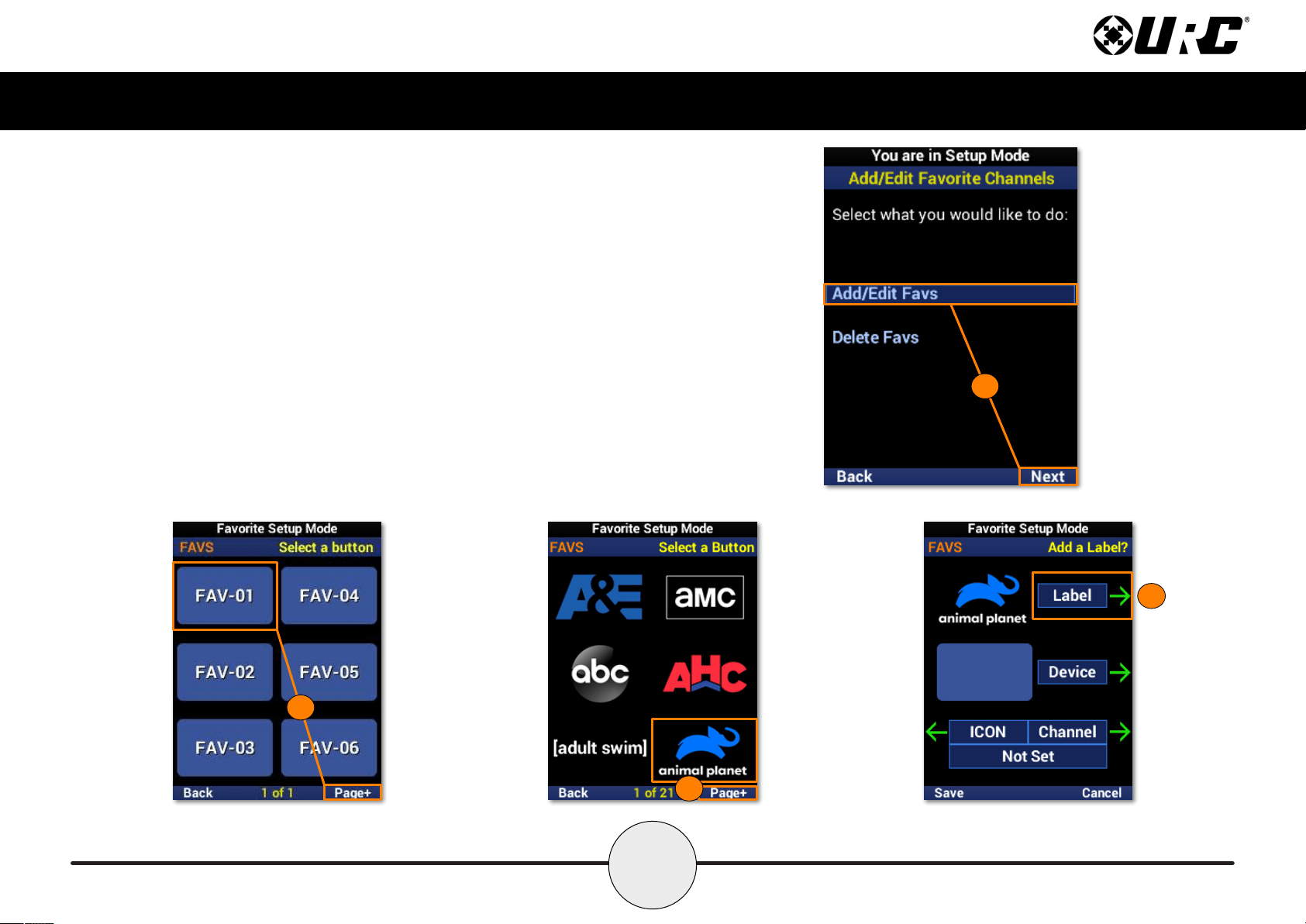
To add new favorite channels, or edit existing ones, perform the following:
1. Highlight Add/Edit Favs and select Next.
2. Select a location on the UI for the new favorite channel. Use the Page+
option to add another six locations to the menu. When editing, select the
favorite channel from the UI.
3. Browse the collection of channel logos using the navigation buttons and
Page+. Animal Planet is used in this example.
4. Select Label to add a custom label to the button.
1
4
2
3
52
Complete Control
MX-490
Owner’s Manual
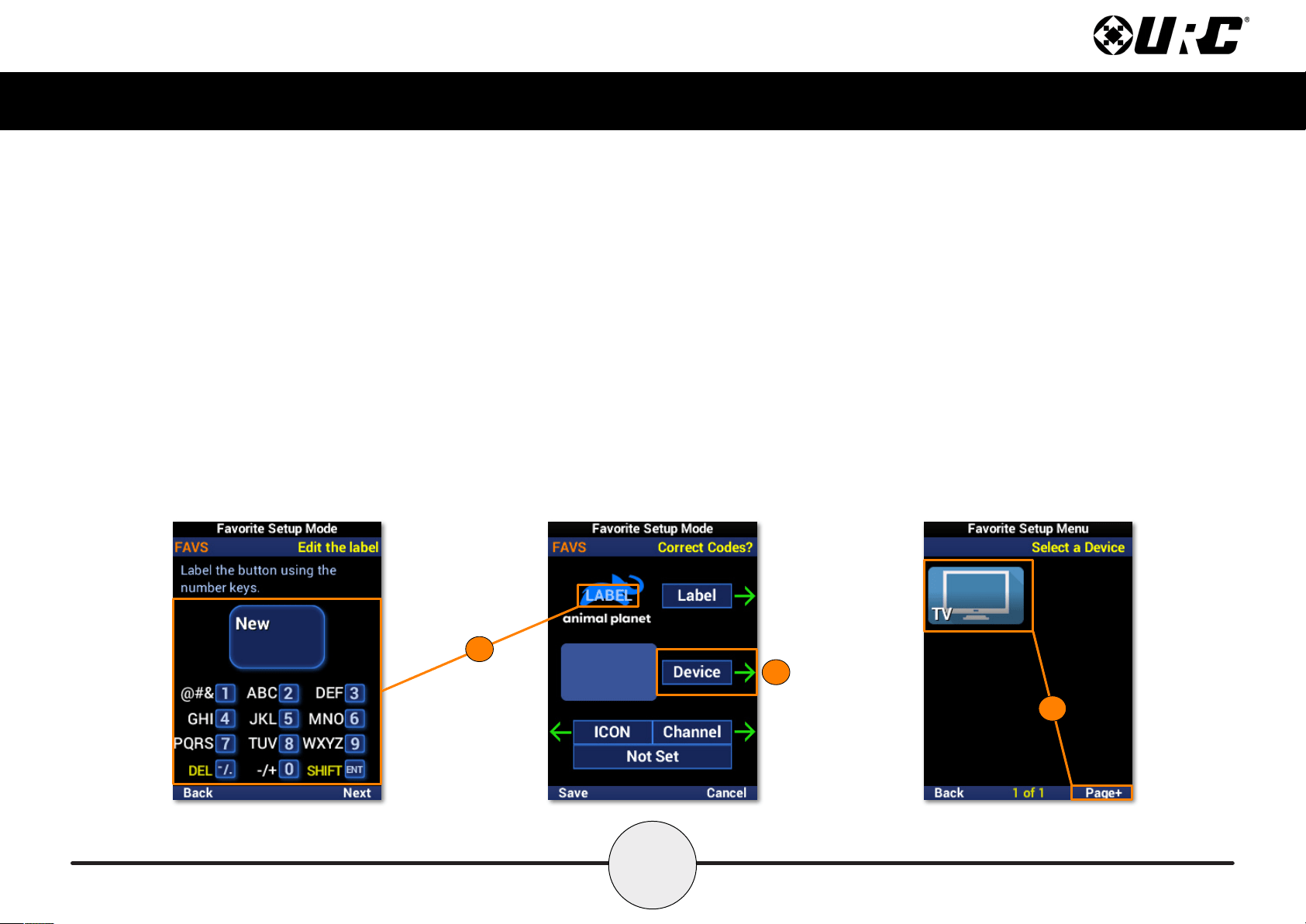
5. Using the number pad, enter a label for the favorite channel. Select
Next when nished. “LABEL” is used in this example.
6. Select Device.
7. Select a device from the list to add the favorite channel to it. Use
Page+ to move between device pages. Animal Planet is being added
to a TV in this example.
6
5
7
53
Complete Control
MX-490
Owner’s Manual
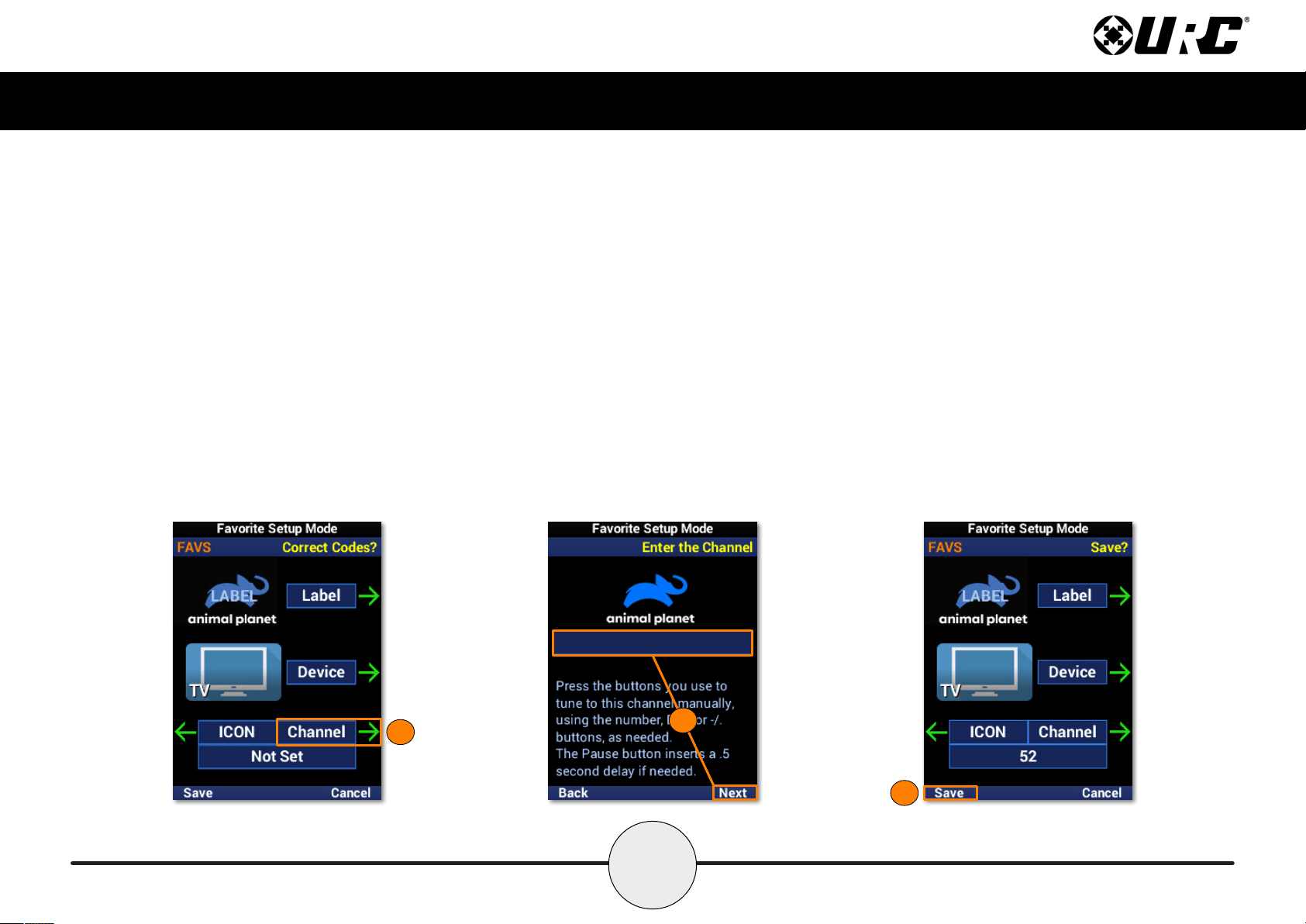
8. Select Channel.
9. Using the number pad, enter the channel numbers and select Next.
10. Select Save to nish creating the favorite channel.
10
8
9
54
Complete Control
MX-490
Owner’s Manual
Delete Favs
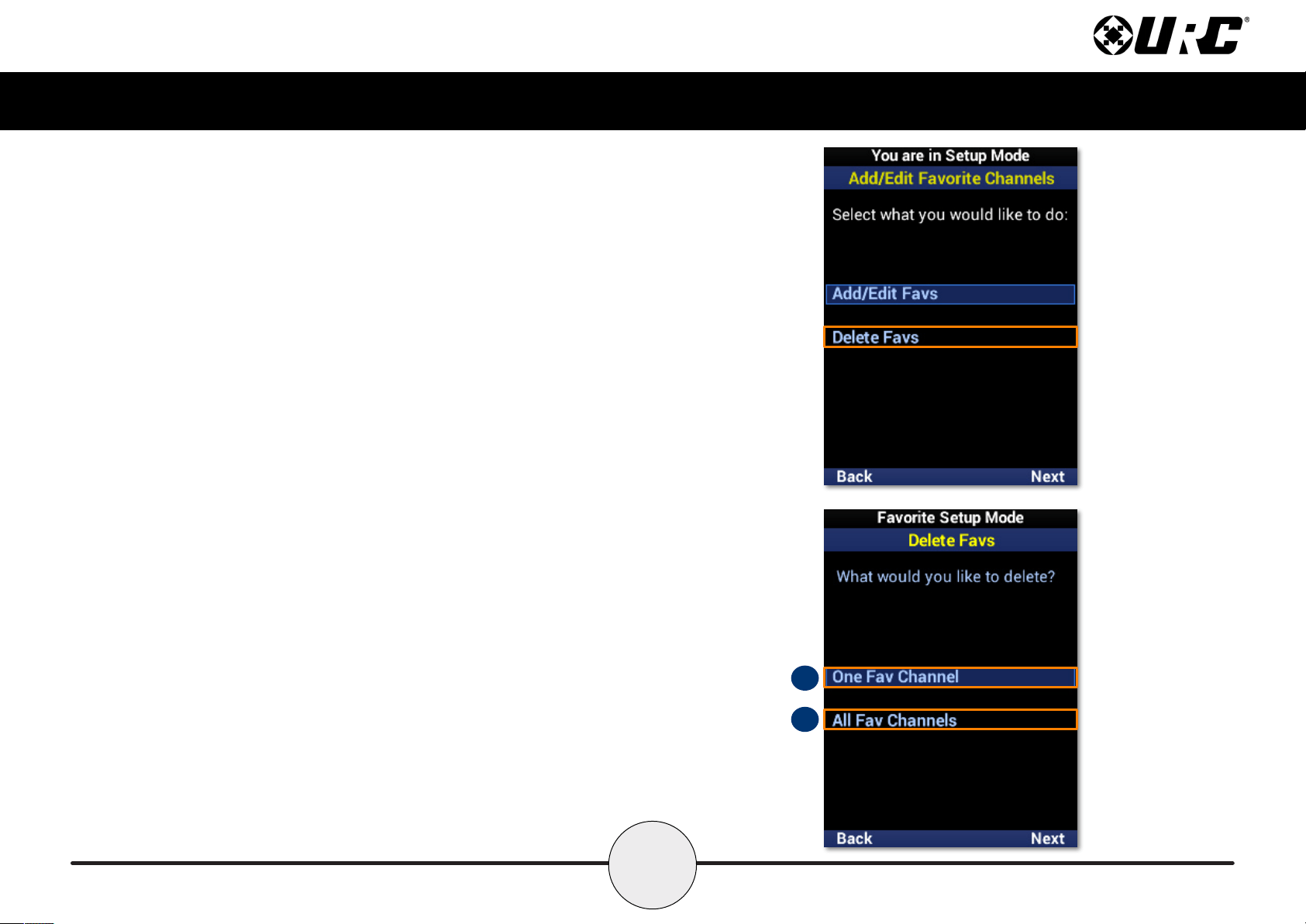
MX-490 favorite channels may be removed by specically choosing individual
channels or removing all of them at once.
A. One Fav Channel: Removes specified favorite channels..
B. All Fav Channels: Removes all favorite channels from the remote.
A
B
55
Complete Control
MX-490
Owner’s Manual
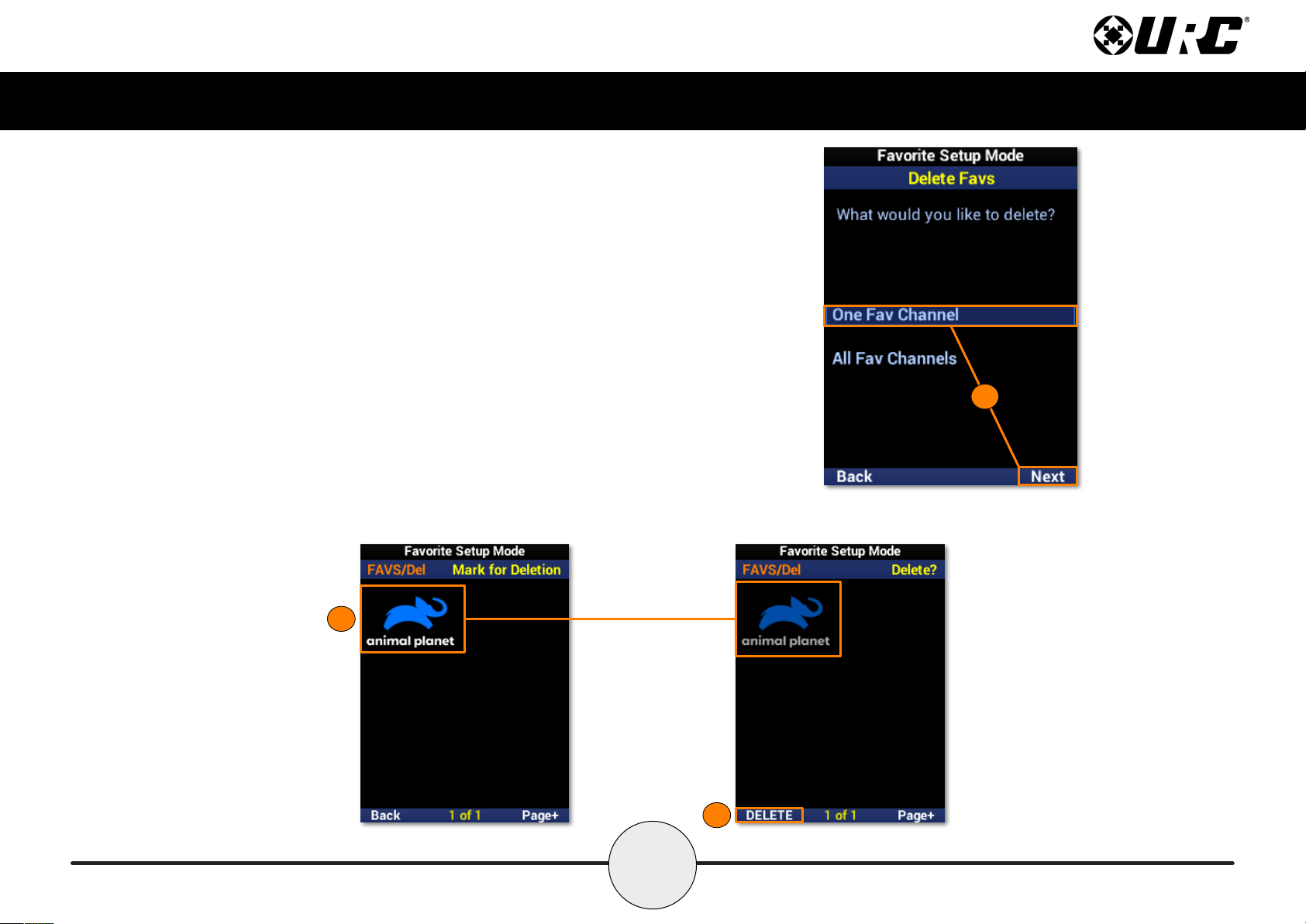
One Fav Channel
1. Highlight One Fav Channel and select Next.
2. Select each favorite channel to be removed. Once selected, a
channel appears slightly faded.
3. Select Delete to remove the selected favorites.
3
2
1
56
Complete Control
MX-490
Owner’s Manual
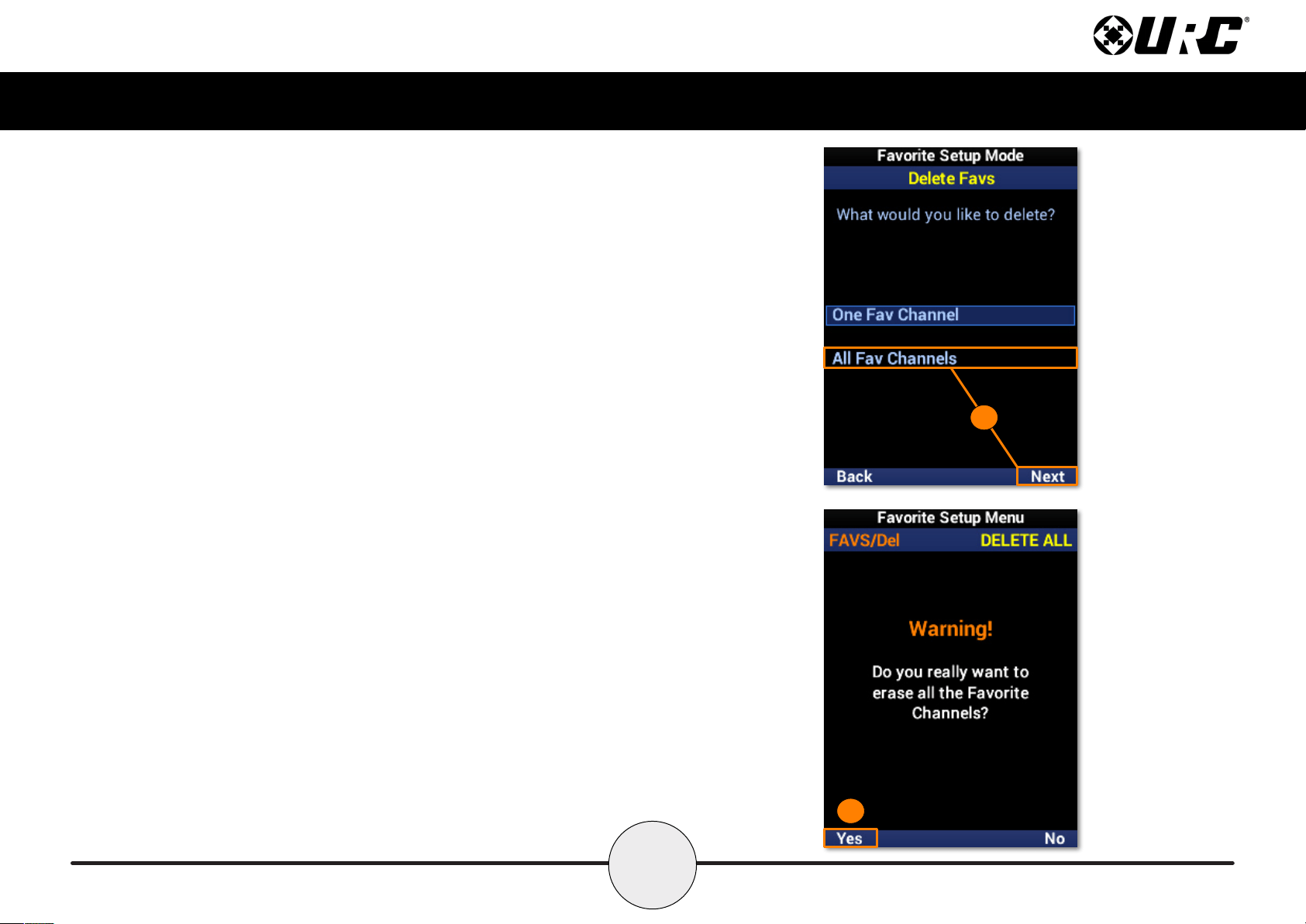
All Fav Channels
1. Highlight All Fav Channels and select Next.
2. Select Yes to conrm the removal of all favorite channels.
2
1
57
Complete Control
MX-490
Owner’s Manual
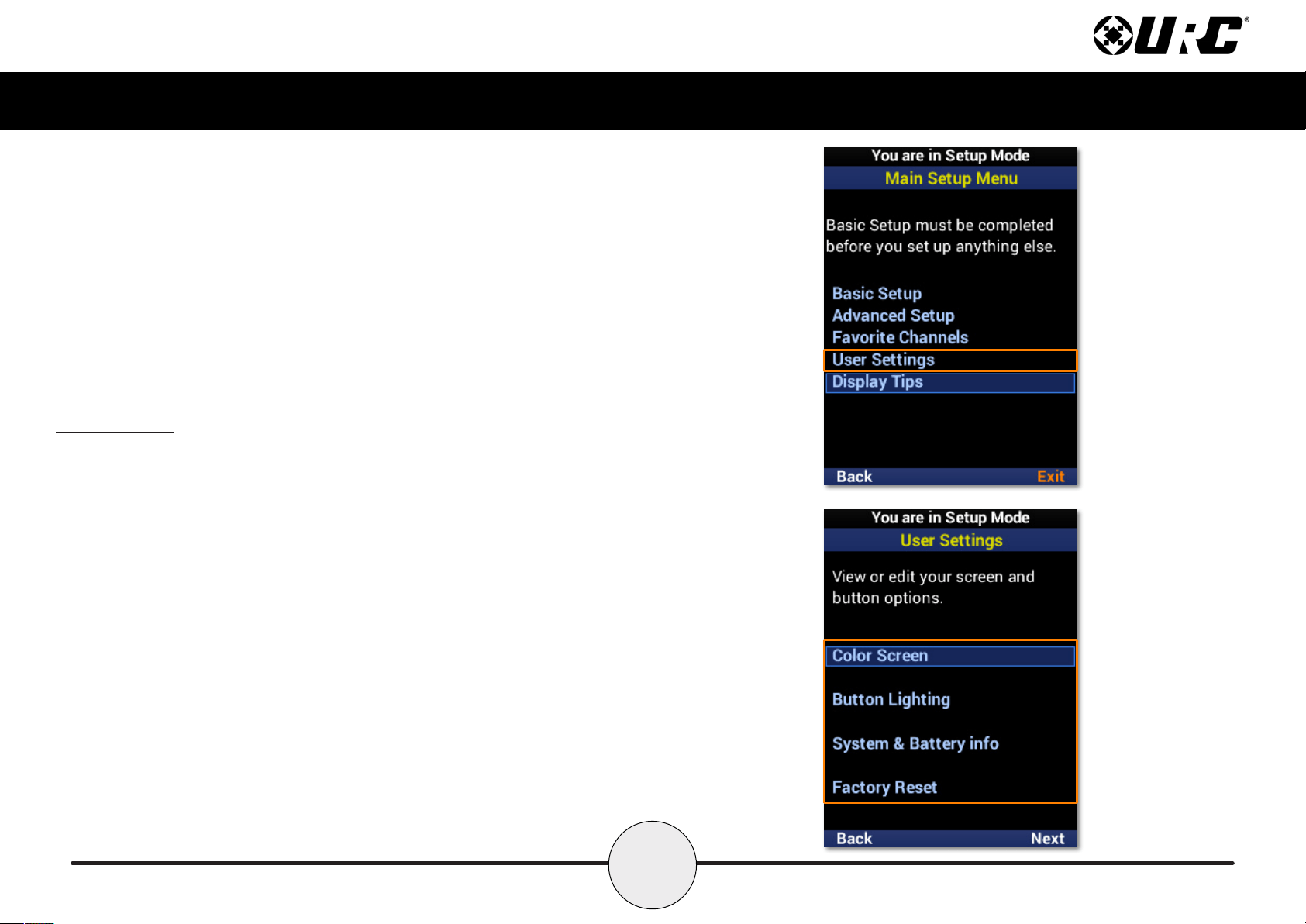
User Settings
This section of the Setup Menu allows for the customization of screen and button
lighting, provides system information on memory usage and firmware, and allows for
the remote to be restored to factory conditions.
58
Complete Control
MX-490
Owner’s Manual
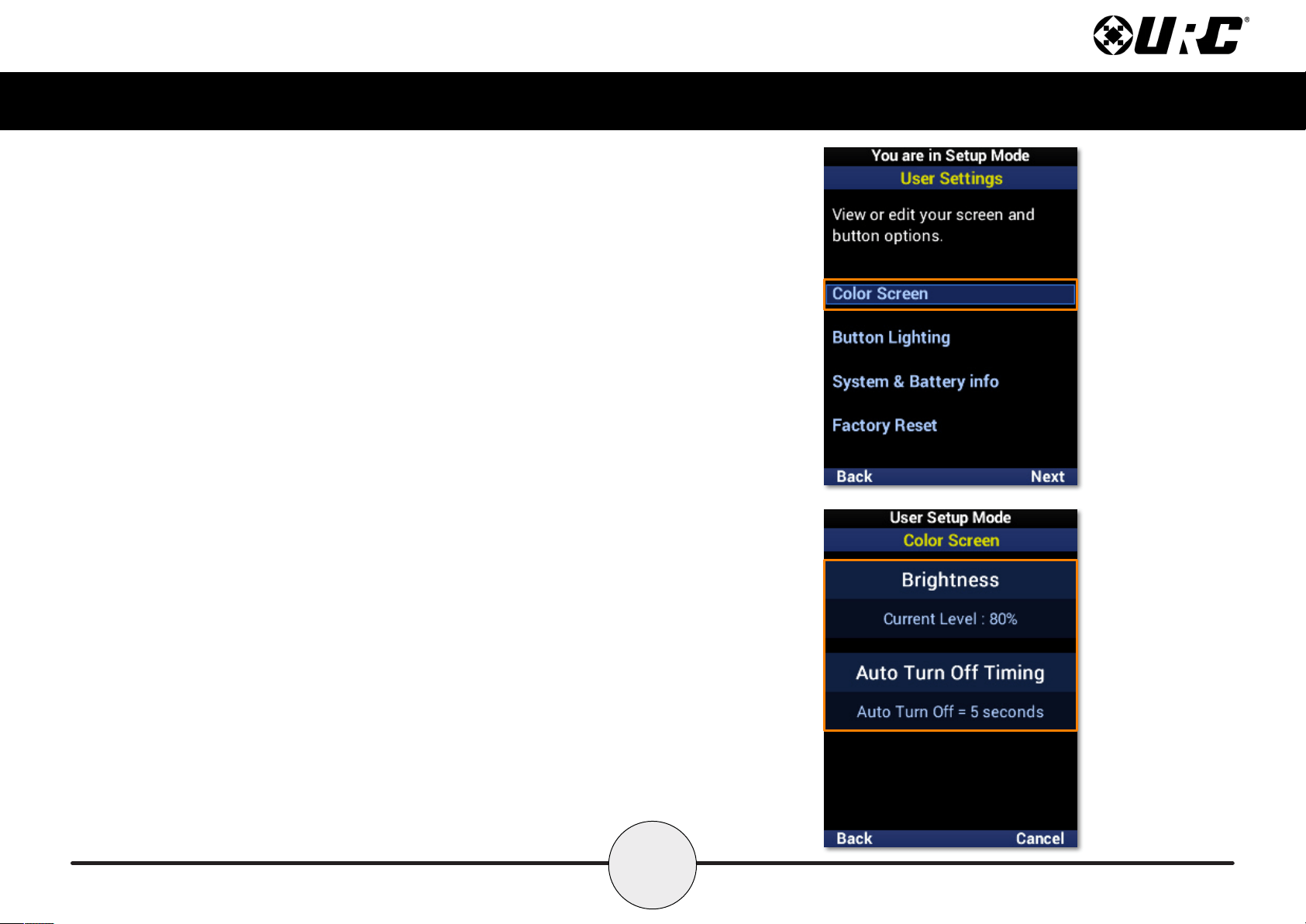
Color Screen
Allows for simple customization of the MX-490 LCD screen.
59
Complete Control
MX-490
Owner’s Manual
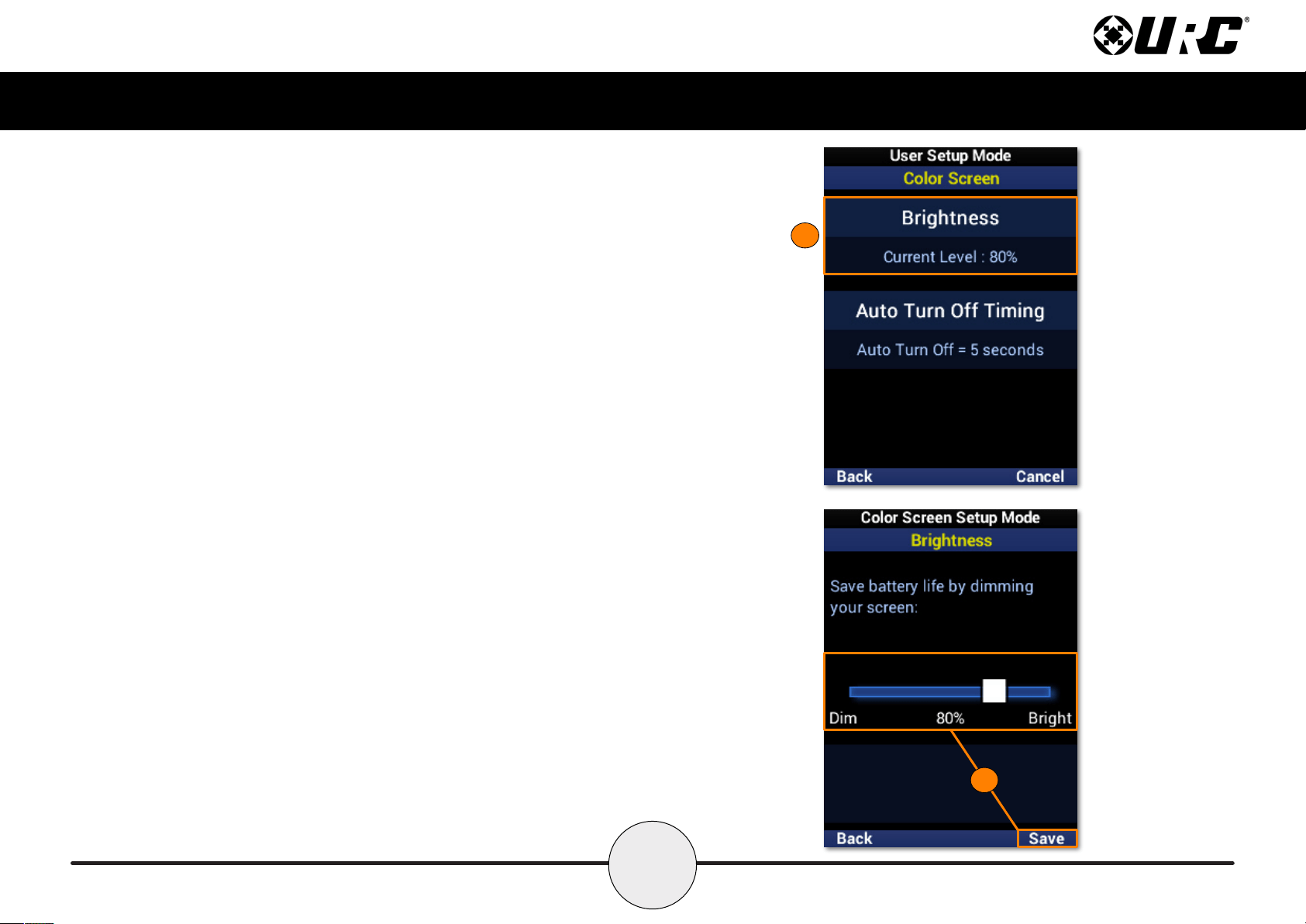
Brightness
Shows the current brightness level of the MX-490 screen.
1. Select this option to customize the brightness level of the screen.
2. Move the brightness slider with the LCD buttons. Select Save to
conrm any changes.
1
2
60
Complete Control
MX-490
Owner’s Manual
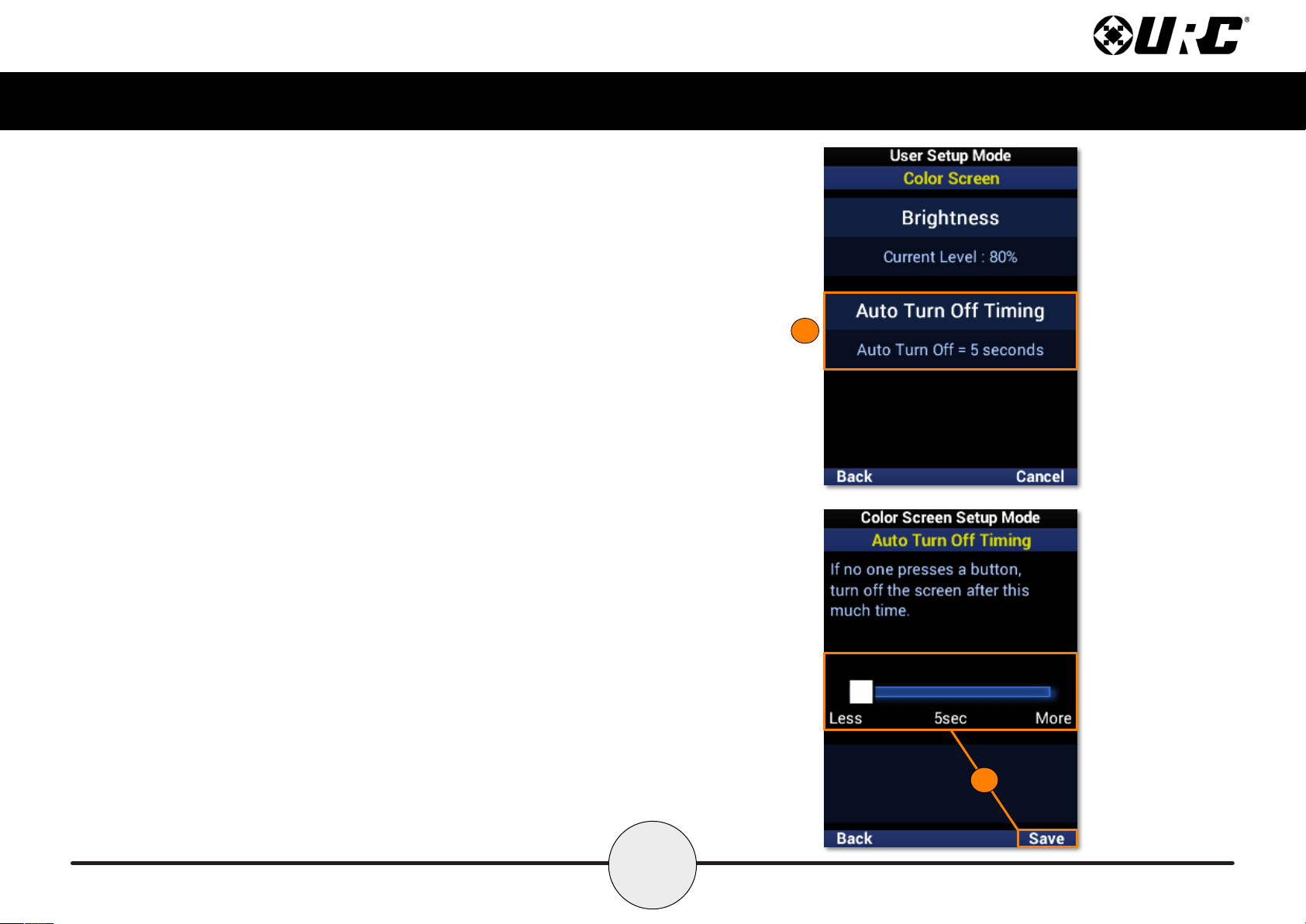
Auto Turn Off Timing
Shows the screen timeout in seconds, indicating how long the MX-490 waits
before automatically turning off the screen.
1. Select this option to customize the screen timeout.
2. Move the timeout slider with the LCD buttons. Select Save to
conrm any changes.
1
2
61
Complete Control
MX-490
Owner’s Manual
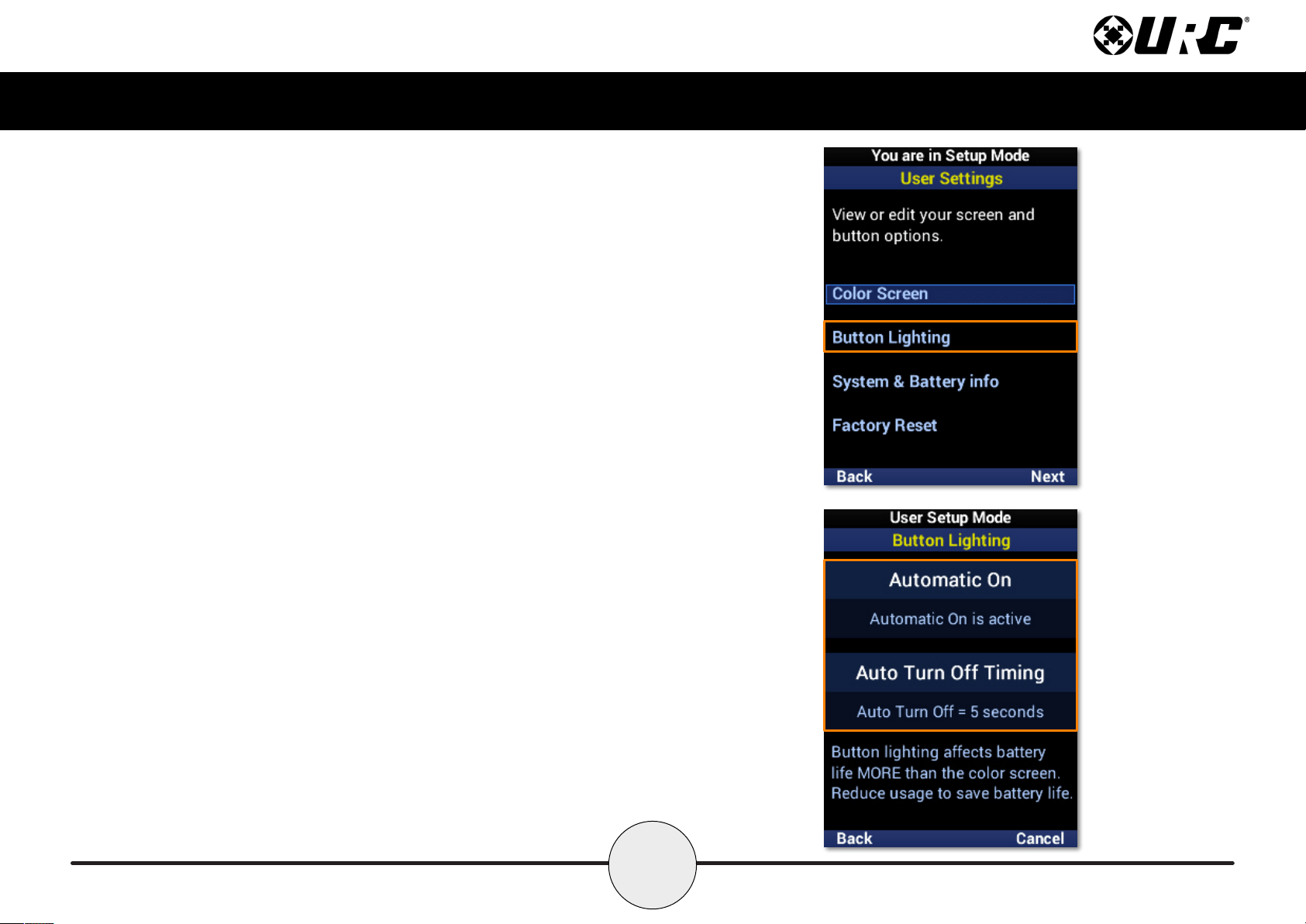
Button Lighting
Allows for simple customization of the MX-490 hard buttons.
62
Complete Control
MX-490
Owner’s Manual
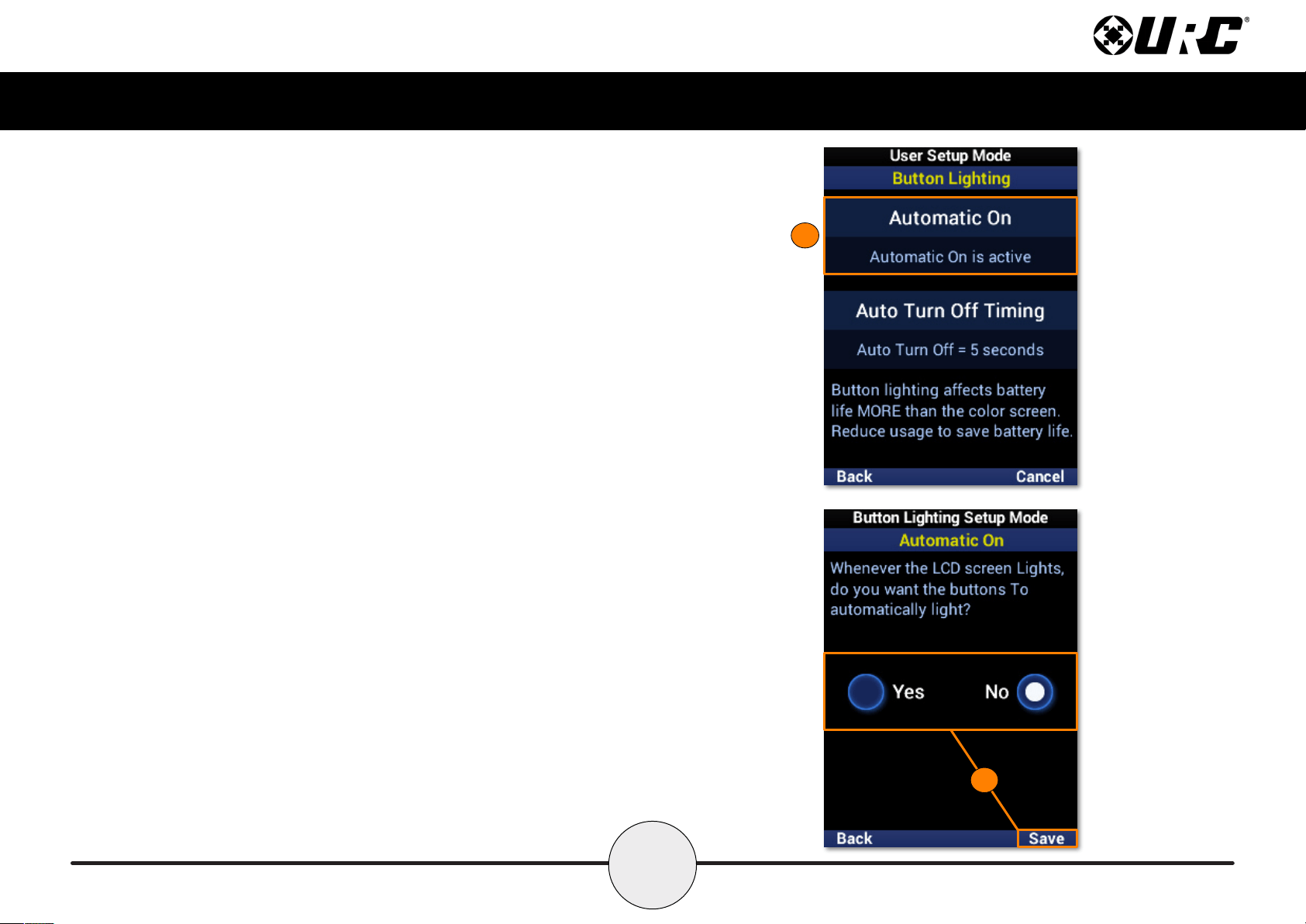
Automatic On
Shows the current status of button automatic lighting.
1. Select this option to change the automatic lighting setting.
2. Use the left and right navigation buttons to select Yes or No, which
enables or disables the button automatic lighting feature.
1
2
63
Complete Control
MX-490
Owner’s Manual
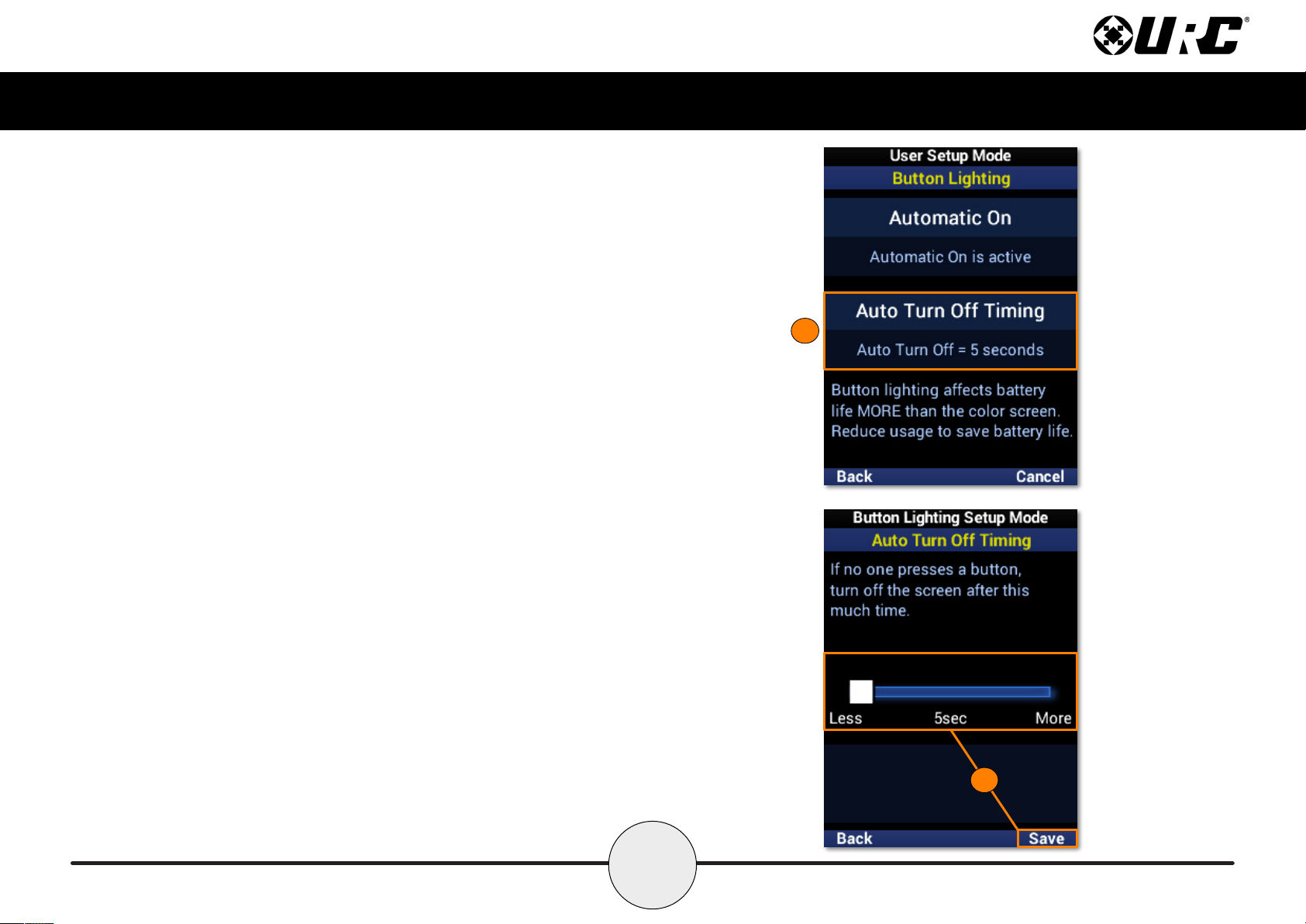
Auto Turn Off Timing
Shows the button timeout in seconds, indicating how long the MX-490 waits
before automatically turning off the button backlighting.
1. Select this option to customize the button timeout.
2. Move the timeout slider with the LCD buttons. Select Save to
conrm any changes.
1
2
64
Complete Control
MX-490
Owner’s Manual
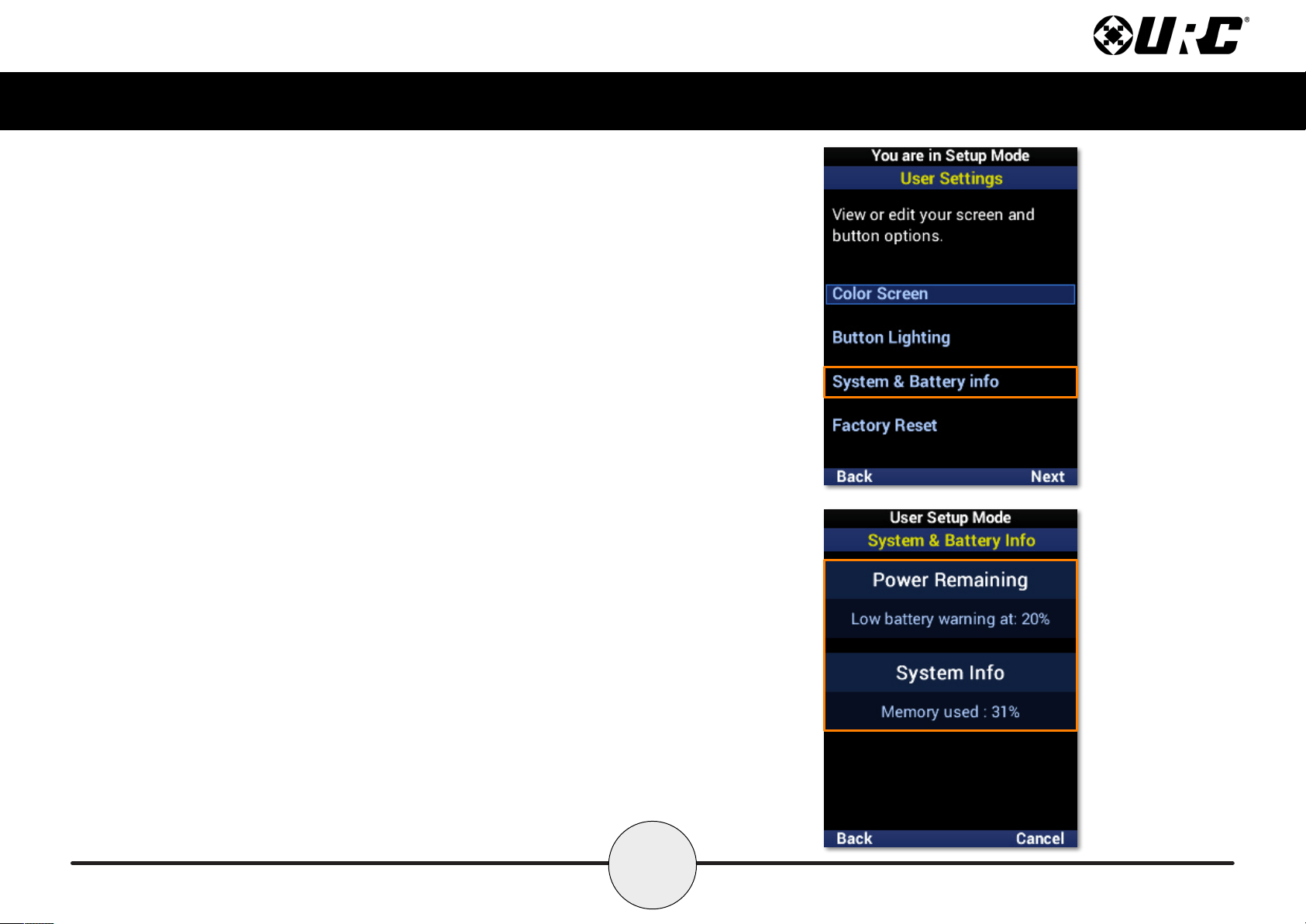
System & Battery Info
Provides current information on the power level and used memory of the MX-490.
65
Complete Control
MX-490
Owner’s Manual
Power Remaining
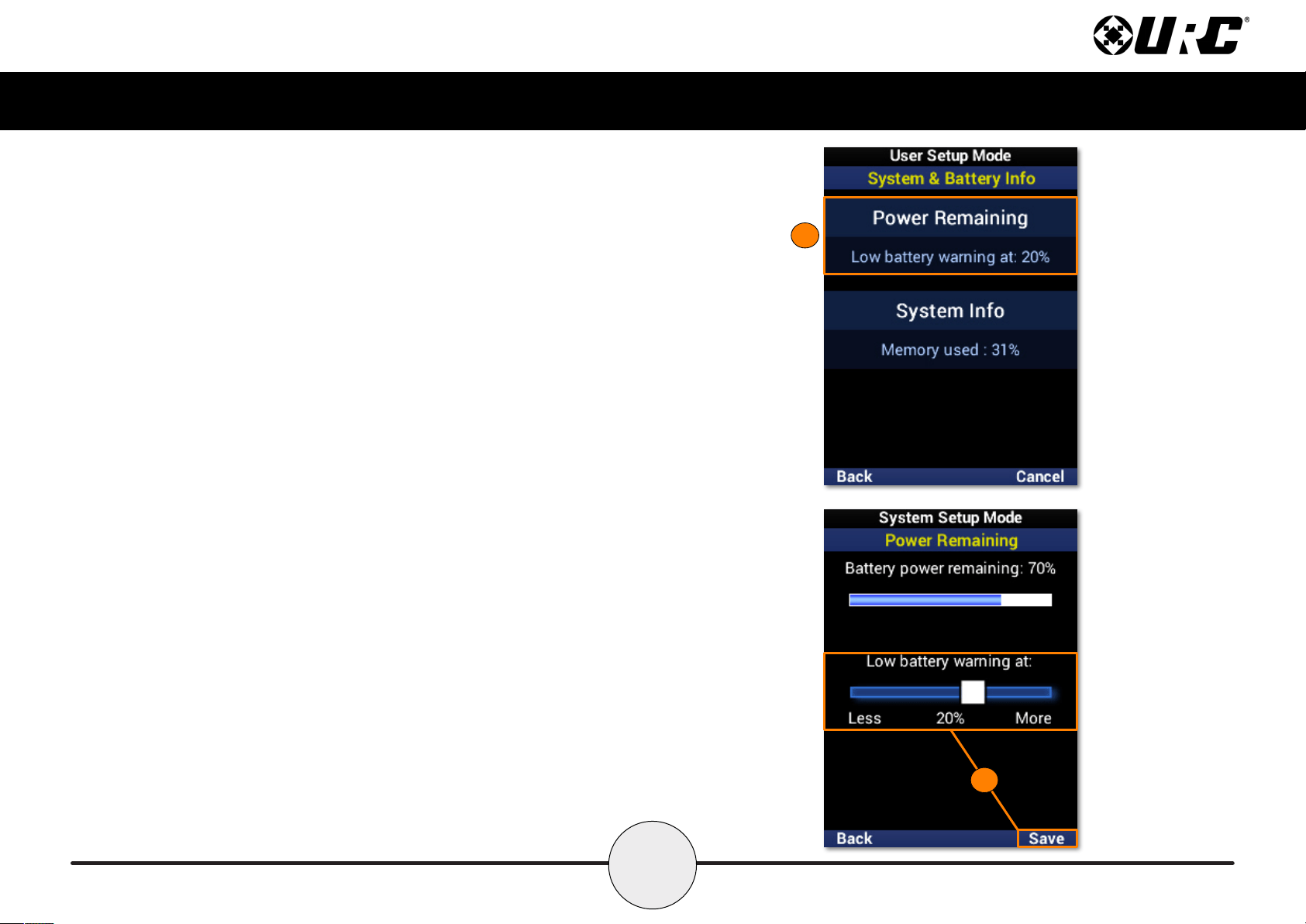
Shows the percentage set for low power warnings.
1. Select this option to customize the low power warning and view the
current battery percentage.
2. Move the warning slider with the LCD buttons. Select Save to
conrm any changes.
1
2
66
Complete Control
MX-490
Owner’s Manual
System Info
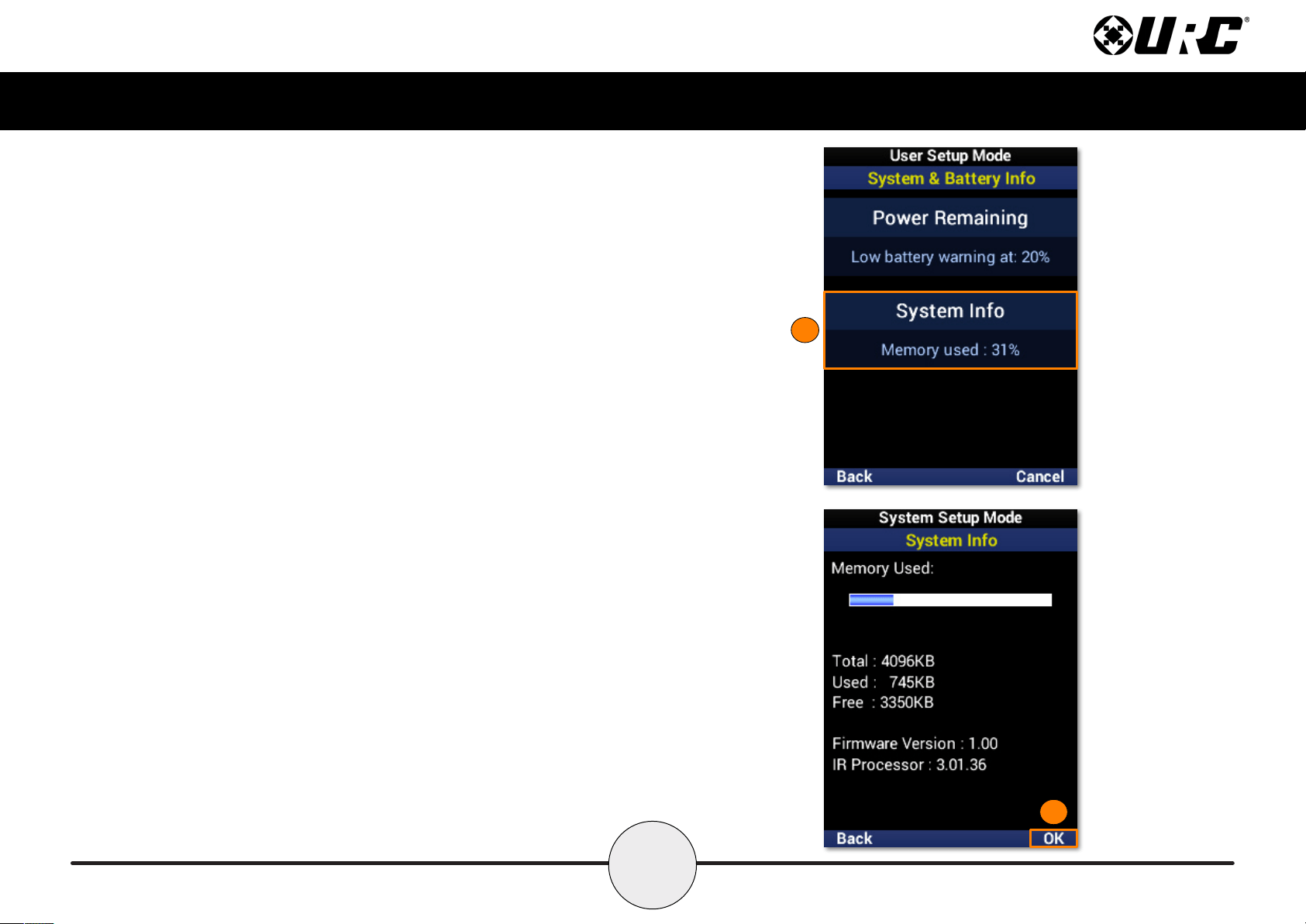
Shows the current percentage of used memory.
1. Select this option to view further details on the remote, including the
firmware version.
2. Select OK to exit System Info.
1
2
67
Complete Control
MX-490
Owner’s Manual
Factory Default
Only use this feature when instructed to do so by URC Technical Support.
It resets the memory of the MX-490 to the factory default. All of your
programming will be lost!
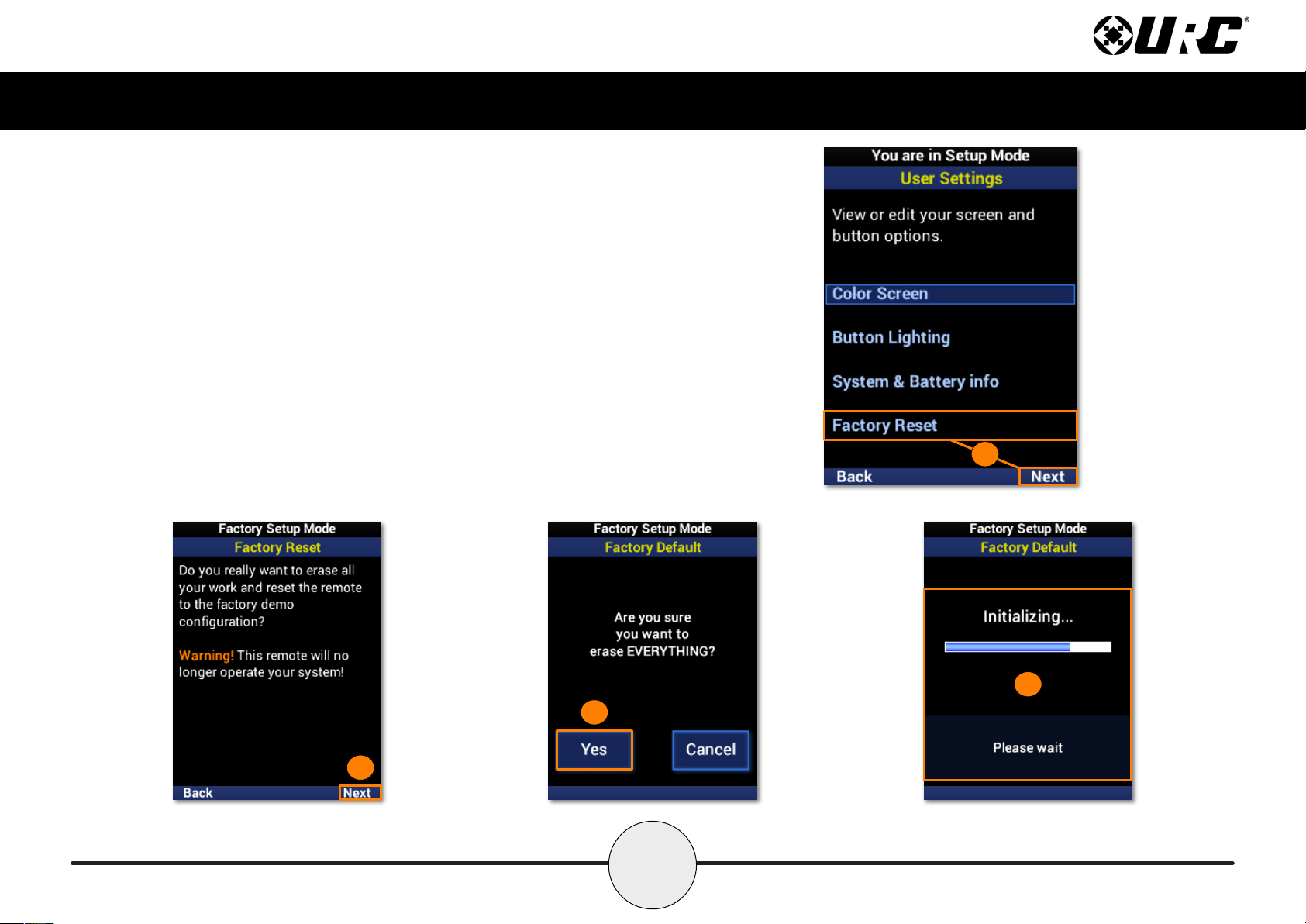
To erase your MX-490 program, perform the following:
1. Highlight Factory Reset and select Next.
2. Select Next to conrm the reset.
3. Select Yes to once again conrm the reset.
4. Please wait as the remote is reset to factory settings. The process
automatically returns to the Main screen.
2
3
4
1
68
Complete Control
MX-490
Owner’s Manual
Display Tips
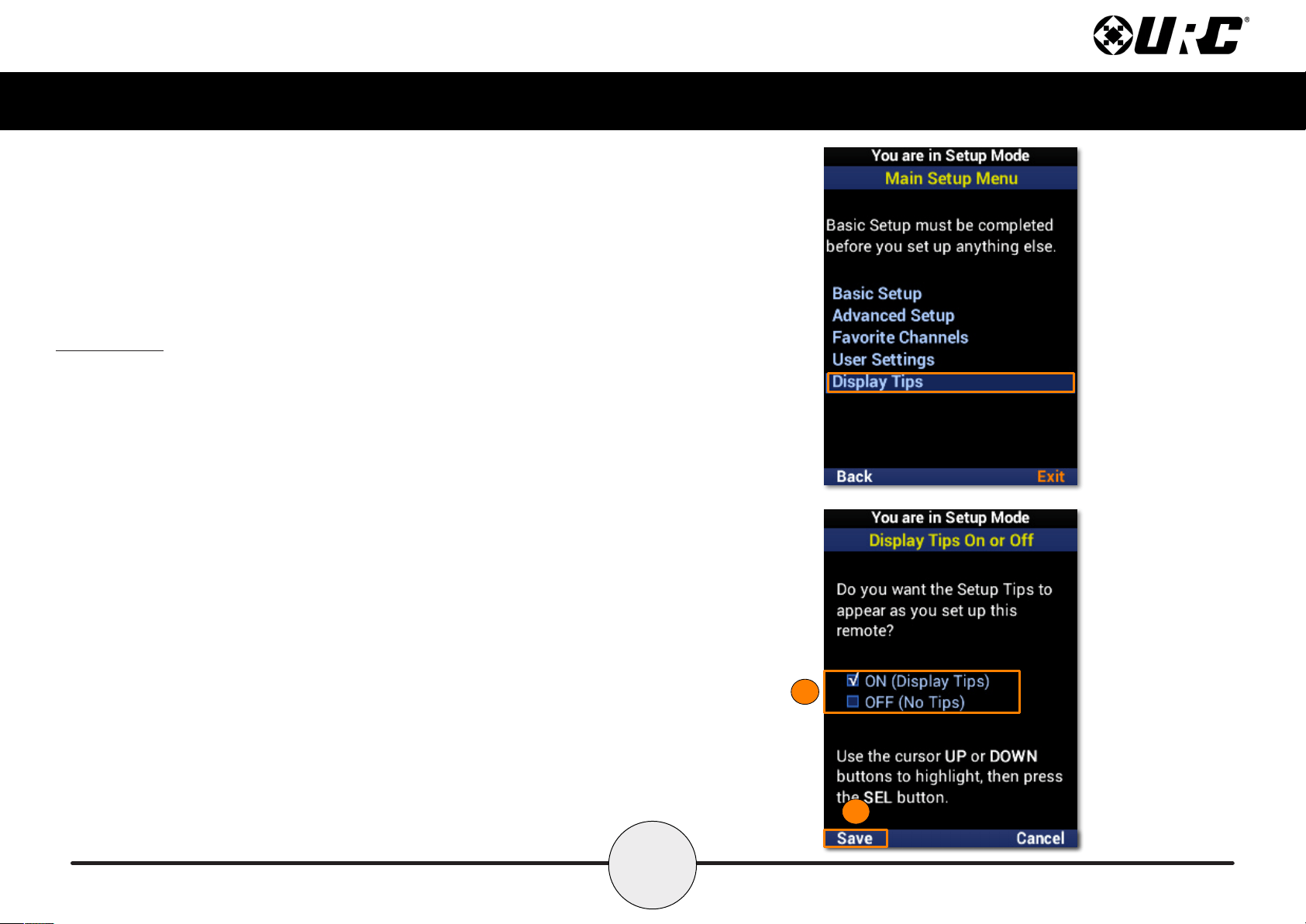
Programming tips are displayed prior to entering the Setup Menu and during the
conguration process. These tips may be disabled, but URC recommends rst-time
programmers take advantage of the extra help during setup.
1. Select an option:
• ON: Programming tips are displayed during the conguration process.
• OFF: Programming tips are no longer displayed.
2. Select Save.
1
2
69
Complete Control
MX-490
Owner’s Manual
Specifications
These are the technical specications for the MX-490:
Microprocessor: ARM Cortex
Memory: External 64Mb
RAM: CPU Internal 48Kbytes
LCD: 240 x 320, 2” TFT LCD
IR Range (Line of Sight via Infrared): 30 to 50 feet, depending on the environment
RF Range (Radio Frequency): 50 to 100 feet, depending on the environment
Batteries: 4x AA Alkaline Batteries (DC 6V / 1.5V x 4EA)
Operating Temp: 0~40 ℃
Size: 225 X 52 X 27.5 (mm)
Product Weight: 222g (with battery loaded)
Limited Warranty Statement
https://www.urc-automation.com/legal/warranty-statement/
End User Agreement
The terms and conditions of the End User Agreement available at
https://www.urc-automation.com/legal/end-user-agreement/ shall apply.
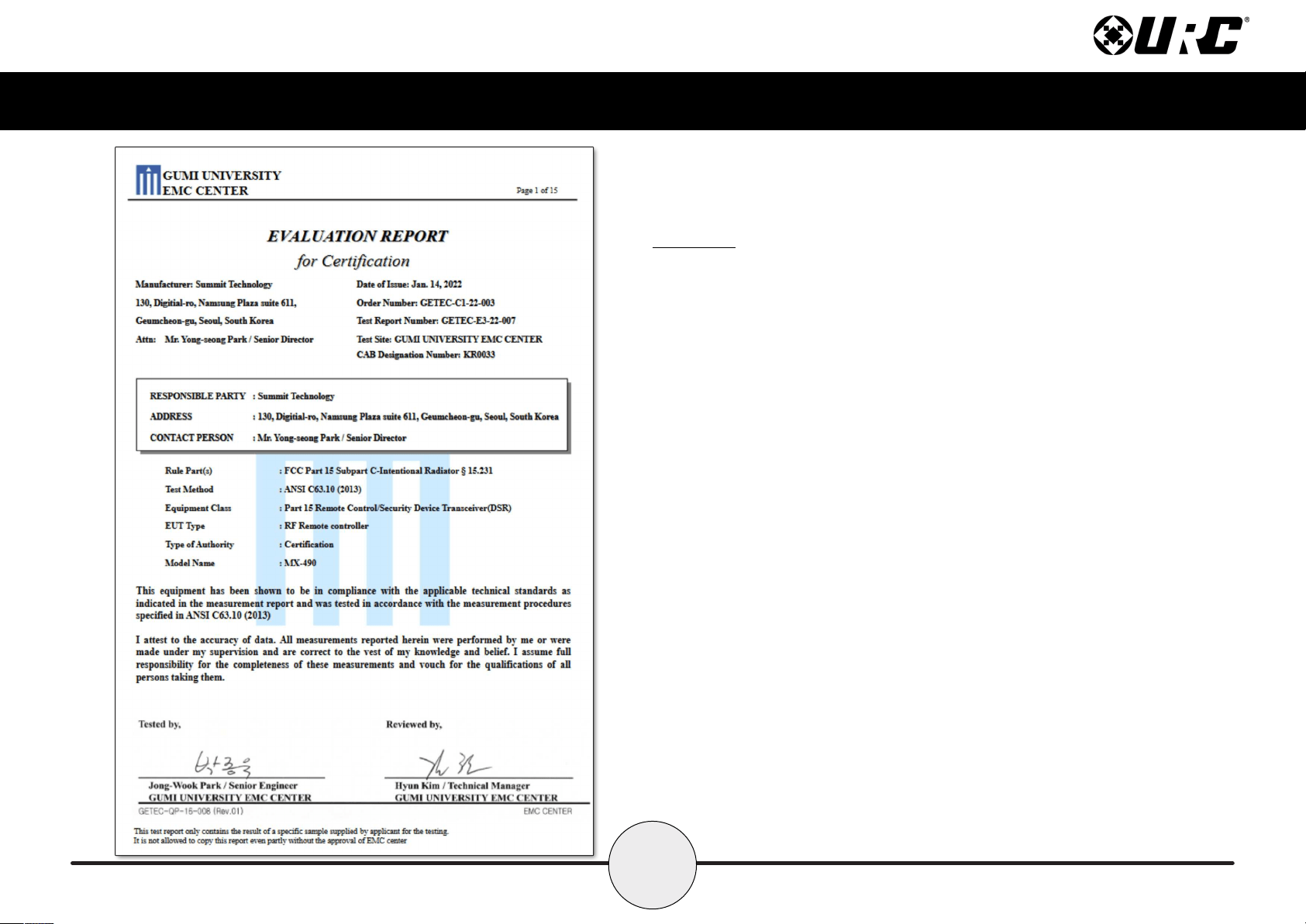
Federal Communication Commission Interference Statement
This equipment has been tested and found to comply with the limits for a Class B
digital device, pursuant to part 15 of the FCC Rules. These limits are designed to
provide reasonable protection against harmful interference in a residential installation.
This equipment generates, uses and can radiate radio frequency energy and, if not
installed and used in accordance with the instructions, may cause harmful interference
to radio communications. However, there is no guarantee that interference will not
occur in a particular installation. If this equipment does cause harmful interference to
radio or television reception, which can be determined by turning the equipment off
and on, the user is encouraged to try to correct the interference by one more of the
following measures:
• Reorient or relocate the receiving antenna.
• Increase the separation between the equipment and receiver.
• Connect the equipment into an outlet on a circuit different from that to which
the receiver is connected.
• Consult the dealer or an experienced radio/TV technician for help.
Parts List
These are the parts included within the packaging:
• MX-490 Remote Control
• 4x AA Alkaline Batteries
•
70
Complete Control
MX-490
Owner’s Manual
Warning!
The manufacturer is not responsible for any Radio or TV interference caused by
unauthorized modications to this equipment.
Changes or modications not expressly approved by the manufacturer could void the
user's authority to operate the equipment.