
SAFETY INSTRUCTIONS
- 1 -
www.SCEPTRE.com
SCEPTRE Y40 Display User Manual
Electricity is used to perform many useful functions, but it can also cause personal
injuries and property damage if improperly handled. This product has been engineered
and manufactured with the highest priority on safety. However, improper use can result
in electric shock and / or fire. In order to prevent potential danger, please observe the
following instructions when installing, operating and cleaning the product. To ensure
your safety and prolong the service life of your Liquid Crystal Display, please read the
following precautions carefully before using the product.
1. Read these instructions.
2. Keep these instructions.
3. Heed all warnings.
4. Follow all instructions.
5. Do not use this apparatus near water.
6. Clean only with dry cloth.
7. Do not block any ventilation openings. Install in accordance with the
manufacturer’s instructions.
8. Do not install near any heat sources such as radiators, heat registers, stoves,
or other apparatus (including amplifiers) that produce heat.
9. Do not defeat the safety purpose of the polarized or grounding-type plug. A
polarized plug has two blades with one wider than the other. A grounding
type plug has two blades and a third grounding prong. The wide blade and
the third prong are provided for your safety. If the provided plug does not fit
into your outlet, consult an electrician for replacement of the obsolete outlet.
10. Protect the power cord from being walked on or pinched particularly at the
plugs, convenience receptacles, and the point where they exit from the
apparatus.
11. Only use attachments/accessories specified by the manufacturer.
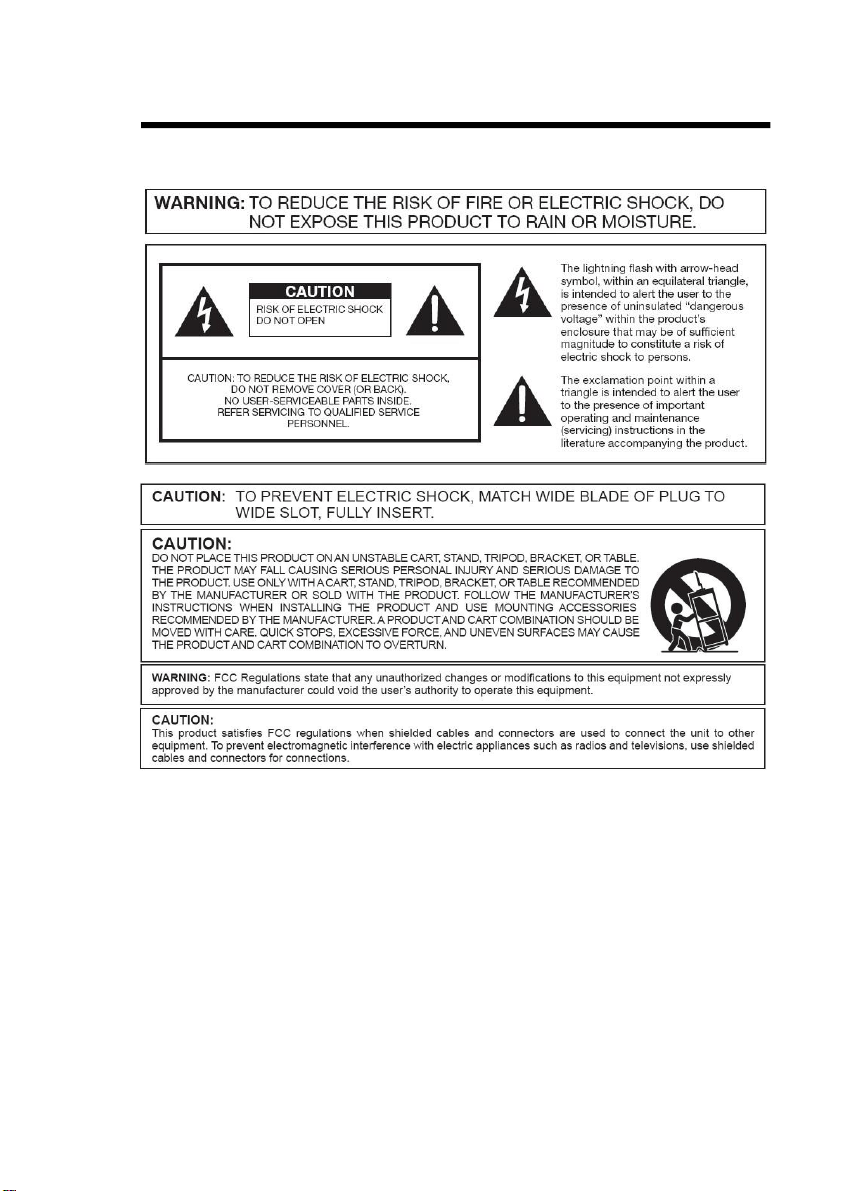
12. Use only with the cart, stand, tripod, bracket, or table specified by the
manufacturer, or sold with the apparatus. When a cart is used, use
caution when moving the cart/apparatus combination to avoid injury
from tip-over.
13. Unplug this apparatus during lightning storms or when unused for long
periods of time.
14. Refer all servicing to qualified service personnel. Servicing is required when
the apparatus has been damaged in any way, such as power-supply cord or
plug is damaged, liquid has been spilled or objects have fallen into the
apparatus, the apparatus has been exposed to rain or moisture, does not
operate normally, or has been dropped.

SAFETY INSTRUCTIONS
- 2 -
www.SCEPTRE.com
SCEPTRE Y40 Display User Manual
Never place a display set in an unstable location. A display set may fall, causing
serious personal injury or death. Many injuries, particularly to children, can be avoided
by taking simple precautions such as:
1. Use only cabinets or stands recommended by the manufacturer of the display
set.
2. Use only furniture that can safely support the display set.
3. Make sure the display set is not overhanging the edge of the supporting
furniture.
4. Do not place the display set on tall furniture (for example, cupboards or
bookcases) without anchoring both the furniture and the display set to a
suitable support.
5. Do not place the display set on cloth or other materials that may be located
between the display set and supporting furniture.
6. Make sure to warn and educate children about the dangers of climbing on
furniture to reach the display set or its controls.
7. Keep a minimum distance of 5 cm around all edges of the display for
sufficient ventilation.
8. The ventilation should not be impeded by covering the ventilation openings wi
th items, such as newspapers, table-cloths, curtains, etc. Install in accordance
with the manufacturer’s instructions.
9. No naked flame sources, such as lighted candles, should be placed on the ap
paratus.
10. Use only the Sceptre provided power cable or AC adapter approved for use
with this device.
Utilisez uniquement la ligne d’alimentation électrique fournie par la verge ou
l’adaptateur de courant autorisé pour ce dispositif.
11. Operating environment: Temperature: 5°C~40°C, Humidity: 10% to 85%
noncondensing, Altitude: 0~2,000 m.
SAFETY INSTRUCTIONS
- 3 -
www.SCEPTRE.com
SCEPTRE Y40 Display User Manual
- 4 -
www.SCEPTRE.com
SCEPTRE Y40 Display User Manual
IMPORTANT INFORMATION
Dispose unwanted electronics and batteries through an approved
recycler.
For display please visit the web at
http://www.earth911.com/recyclingguide/how-to-recycle-large-
electronics/
For Batteries please visit the web at http://www.call2recycle.org/
For more information, visit: www.sceptre.com/recycling.html or call
+1 (888) 580-5588.
This equipment has been tested and found to comply with the limits for a
Class B digital device, pursuant to part 15 of the FCC Rules. Please refer
to the last page for further references.
- 5 -
www.SCEPTRE.com
SCEPTRE Y40 Display User Manual
The house icon identifies that this product is for indoor use.
WARNING: This product can expose you to chemicals including lead,
which is known to the State of California to cause cancer. For more
information, go to www.P65Warnings.ca.gov.
IMPORTANT INFORMATION
This product is designed and manufactured to operate within defined design limits, and
misuse may result in electric shock or fire. To prevent the product from being
damaged, the following rules should be observed for the installation, use and
maintenance of the product. Read the following safety instructions before operating the
display. Keep these
instructions in a safe place for future reference.
• To avoid the risk of electric shock or component
damage, switch off the power before connecting
other components to the display.
• Unplug the power cord before cleaning the
display. Please use a microfiber cleaning cloth
for cleaning the bezel of the display only. Do not
use a liquid or a spray cleaner for
cleaning the product. Do not use
abrasive cleaners.
• Always use the accessories
recommended by the manufacturer to
insure compatibility.
• When moving the display from an
area of low temperature to an area of
high temperature, condensation may

- 6 -
www.SCEPTRE.com
SCEPTRE Y40 Display User Manual
form on the housing. Do not turn on the display
immediately after this to avoid causing fire,
electric shock or component damage.
• Do not place the display on an
unstable cart, stand, or table. If the
display falls, it can injure a person and
cause serious damage to the
appliance. Use only a cart or stand
recommended by the manufacturer or
sold with the display.
• Only use furniture that can safely support the
display.
• Make sure the display is not overhanging the
edge of the support furniture.
• Do not place the display onto tall furniture (such
as cupboards or bookcases) without anchoring
both the furniture and the display to a suitable
support.
• Do not place the display on cloth or other
materials that may be located between the
display and supporting furniture.
• Be sure to educate your children regarding the
dangers of climbing on furniture to reach the
display or its controls.
• Any heat source should maintain a distance of
at least 5 feet away from the display, i.e.
radiator, heater, oven, amplifier etc. Do not
install the product too close to anything that
produces smoke or moisture. Operating the
product close to smoke or moisture may cause
fire or electric shock.
• Slots and openings in the back and bottom of
the cabinet are provided for ventilation. To
ensure reliable operation of the display and to
protect it from overheating, be sure these
openings are not blocked or covered. Do not
place the display in a bookcase or cabinet
unless proper ventilation is provided.
• Never push any object into the
ventilation slots of the display. Do not place any
objects on the top of the Product. It could short
circuit parts causing a fire or electric shock.
Never spill liquids on the display.
• Do not use the display in a portrait format (by
rotating 90 degrees) under high temperature
environment (25°C or higher), since this would
retard heat dissipation and would eventually
damage the display.
• The display should be operated only from the
type of power source indicated on the label. If
you are not sure of the type of power supplied
to your home, consult your dealer or
local power company.
• The power cable must be replaced
when using different voltage from that
specified in the User Manual. For
more information, contact your dealer.
• The display is equipped with a
twopronged plug.
• Do not overload power strips and
extension cords. Overloading can
result in fire or electric shock.
• The wall socket should be installed
near the equipment and should be
easily accessible.
• Only the marked power source can be
used for the product. Any power
source other than the specified one
may cause fire or electric shock.
• Do not touch the power cord during
thunderstorms. To avoid electric
shock, avoid handling the power cord
during electrical storms.
• Unplug the unit during a lightning
storm or when it will not be used for a
long period of time. This will protect
the display from damage due to power
surges.
• Do not attempt to repair or service the
product yourself. Opening or removing
the back cover may expose you to
high voltages, the risk of electric
shock, and other hazards. If repair is
required, please contact your dealer
and refer all servicing to qualified
service personnel.
• Keep the product away from moisture.
Do not expose this appliance to rain
or moisture. If water penetrates into
the product, unplug the power cord
and contact your dealer. Continuous
use in this case may result in fire or
electric shock.
• Do not use the product if any
abnormality occurs. If any smoke or
odor becomes apparent, unplug the
power cord and contact your dealer
immediately. Do not try to repair the
product yourself.

- 7 -
www.SCEPTRE.com
SCEPTRE Y40 Display User Manual
• Avoid using dropped or damaged
appliances. If the product is dropped and the
housing is damaged, the internal components
may function abnormally. Unplug the power
cord immediately and contact your dealer for
repair. Continued use of the product may cause
fire or electric shock.
• Do not install the product in an area with heavy
dust or high humidity. Operating the product in
environments with heavy dust or high humidity
may cause fire or electric shock.
• Hold the power connector when removing the
power cable. Pulling the power cable itself may
damage the wires inside the cable and cause
fire or electric shocks. When the product will not
be used for an extended period of time, unplug
the power connector.
• To avoid risk of electric shock, do not touch the
connector with wet hands.
• Insert batteries in accordance with instructions
while using the remote control. Incorrect
polarities may cause damage and leakage of
the batteries, operator injury and contamination
the remote control.
• If any of the following occurs please contact the
dealer:
o The power connector fails or frays.
o Liquid sprays or any object drops
into the display.
o The display is exposed to rain or
other moisture.
o The display is dropped or damaged
in any way. o The performance
of the display changes substantially.
• Operating environment: Temperature: 5°C ~
40°C, Humidity: 10% to 85% non-condensing,
Altitude: 0~2,000 m.
- 8 -
www.SCEPTRE.com
SCEPTRE Y40 Display User Manual
Dear Sceptre Customer,
Congratulations on your new SCEPTRE Y40 LED monitor purchase. Thank you for your
support. To ensure safety and many years of trouble-free operation of your LED
monitor, please read the manual carefully before making any adjustments, and keep
them in a safe place for future reference. We hope you enjoy your new SCEPTRE
monitor.
For technical assistance, please call 1(800) 788-2878 and select option 3 or email our
tech support group at SceptreTS@SCEPTRE.com.
For all other inquiries, please call 1(800) 788-2878 and select option 4 or email our
customer service group at Sceptre[email protected]m.
Technical Support, Customer Service, and Online Chat available during business
hours Monday to Friday 8:30AM - 5:30PM (Pacific Standard Time).
We recommend you register your SCEPTRE monitor by going to our website
http://www.sceptre.com/registration.html.

- 9 -
www.SCEPTRE.com
SCEPTRE Y40 Display User Manual
Opening the Package
The SCEPTRE display is packaged in a carton. The size and weight of the product
might be too heavy for 1 person to handle. In the event of that happening; it is
recommended that the display package must be handled by a minimum of 2 or more
persons. Since the glass can be easily scratched or broken, please handle the product
gently. Never place the unit on a surface with the glass facing downwards unless it is on
protective padding. When opening the carton, check that the product is in good
condition and that all standard accessories and items are included. Save the original
box and all packing materials for future shipping needs.
Package Contents
SCEPTRE Display x 1
Display Base x 1
Display Neck x 1
Display Base Screw x 3 (M5 x 15mm)
Wall Mount Plate x 1
Wall Mount Plate Screws x 4 (M4 x 16mm) DisplayPort
Cable x 1
AC Power Cable x 1
Monitor Remote x 1 (AAA Batteries Not Included)
User Manual x 1

- 10 -
www.SCEPTRE.com
SCEPTRE Y40 Display User Manual
Installation
Please read the user manual carefully before performing the installation. When an
extension cord is required, use one with the correct power rating. Use only the Sceptre
provided power cable or AC adapter approved for use with this device. The product
should be installed on a flat surface to avoid tipping. Space should be maintained
between the back of the product and the wall for proper ventilation. Avoid installing the
product in the kitchen, bathroom or other places with high humidity dust or smoke, so as
not to shorten the service life of the electronic components. Please ensure the product is
installed with the screen in landscape orientation. Any 90° clockwise or
counterclockwise installation may induce poor ventilation and successive component
damage.
Installing the Monitor Stand Assembly
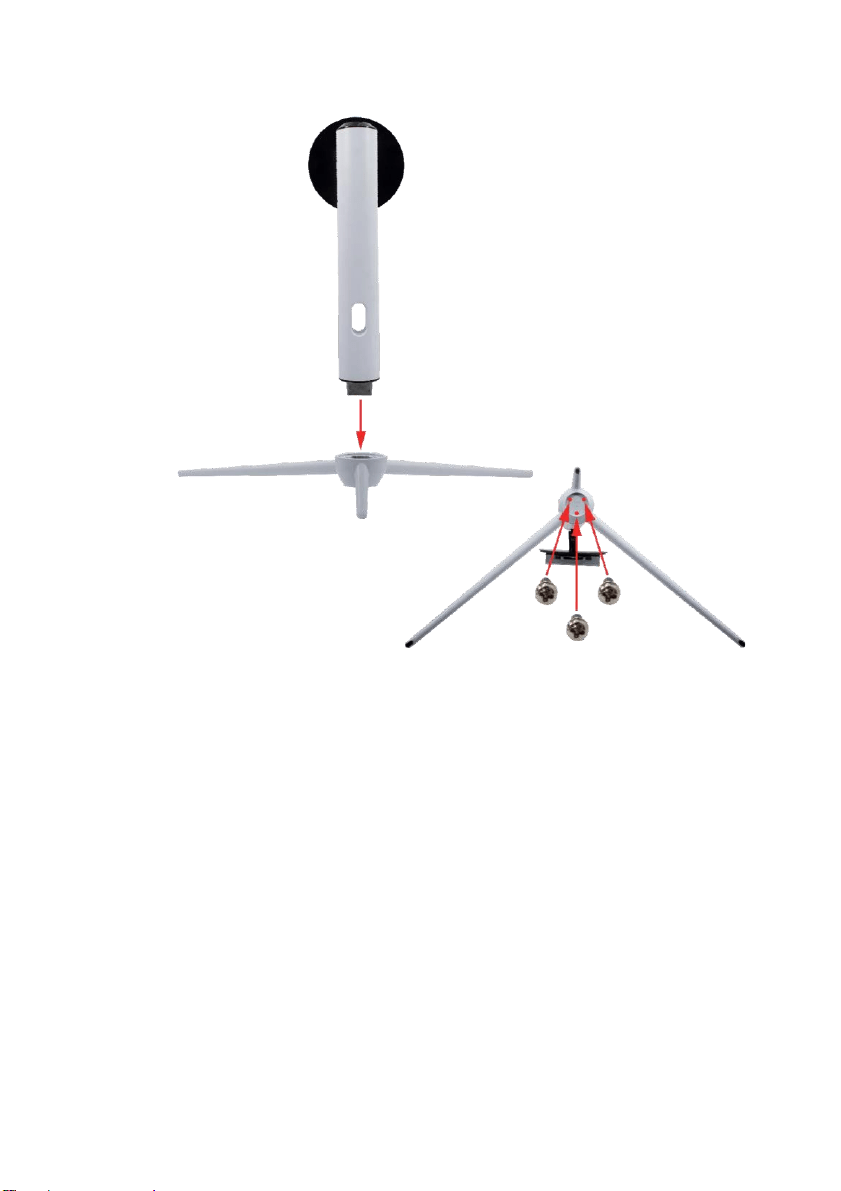
1. Take the monitor with packing foam out of the box. Lay the monitor screen facing
down on a table with the monitor still resting on the packing foam. Obtain the
display base and attach it to the display neck. While the neck is attached to the
base, insert and tighten 3 base screws to the bottom of the base.
- 11 -
www.SCEPTRE.com
SCEPTRE Y40 Display User Manual
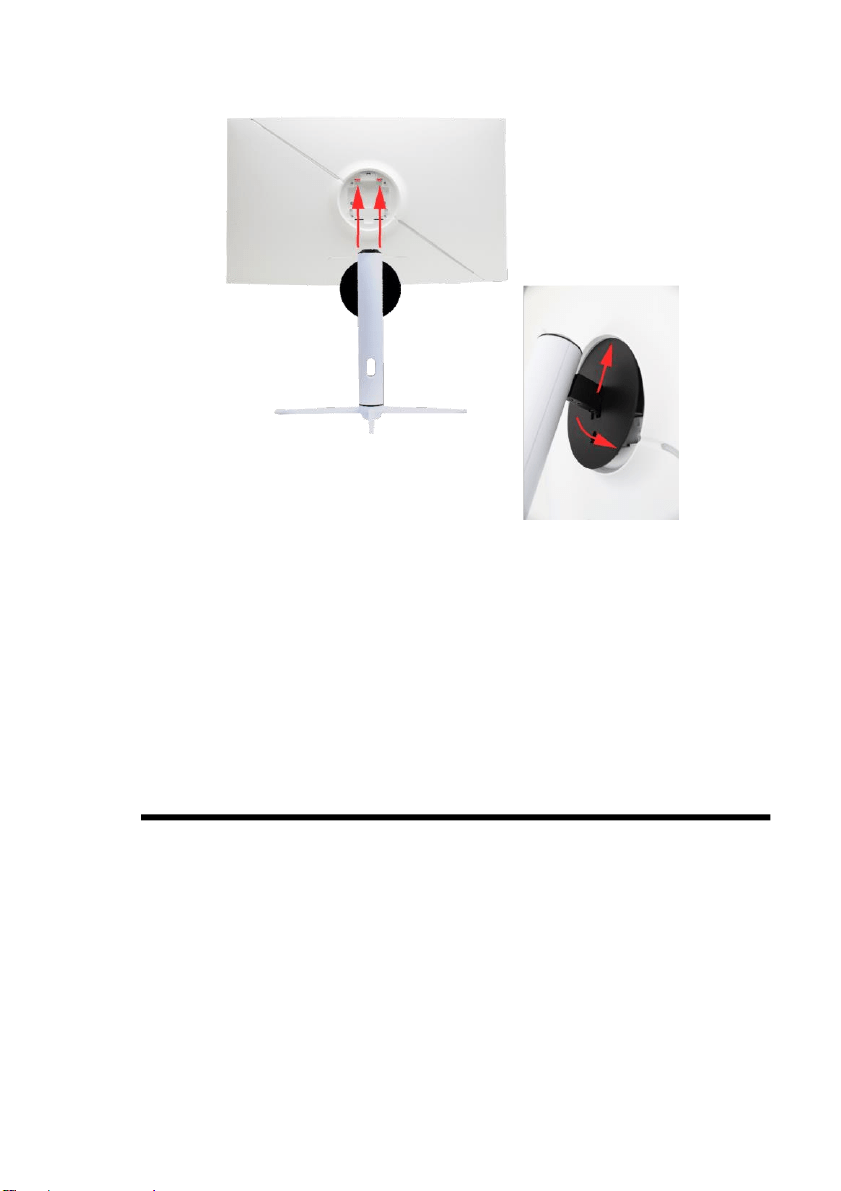
2. Open the packing foam with the monitor resting facing downwards. Take the
assembled stand piece and insert it head first into the circular opening on the back
of the monitor.
- 12 -
www.SCEPTRE.com
SCEPTRE Y40 Display User Manual
3. Once it is inserted press downwards on the neck until you hear a click sound.
4. To finalize your installation of the display, please read the following:
a. If you are placing the display on a stand, we would recommend you to
use a display safety strap (not included) in order to minimize the
possibility of the display toppling over.
b. Securely install all screws and connections.
Wall Mounting
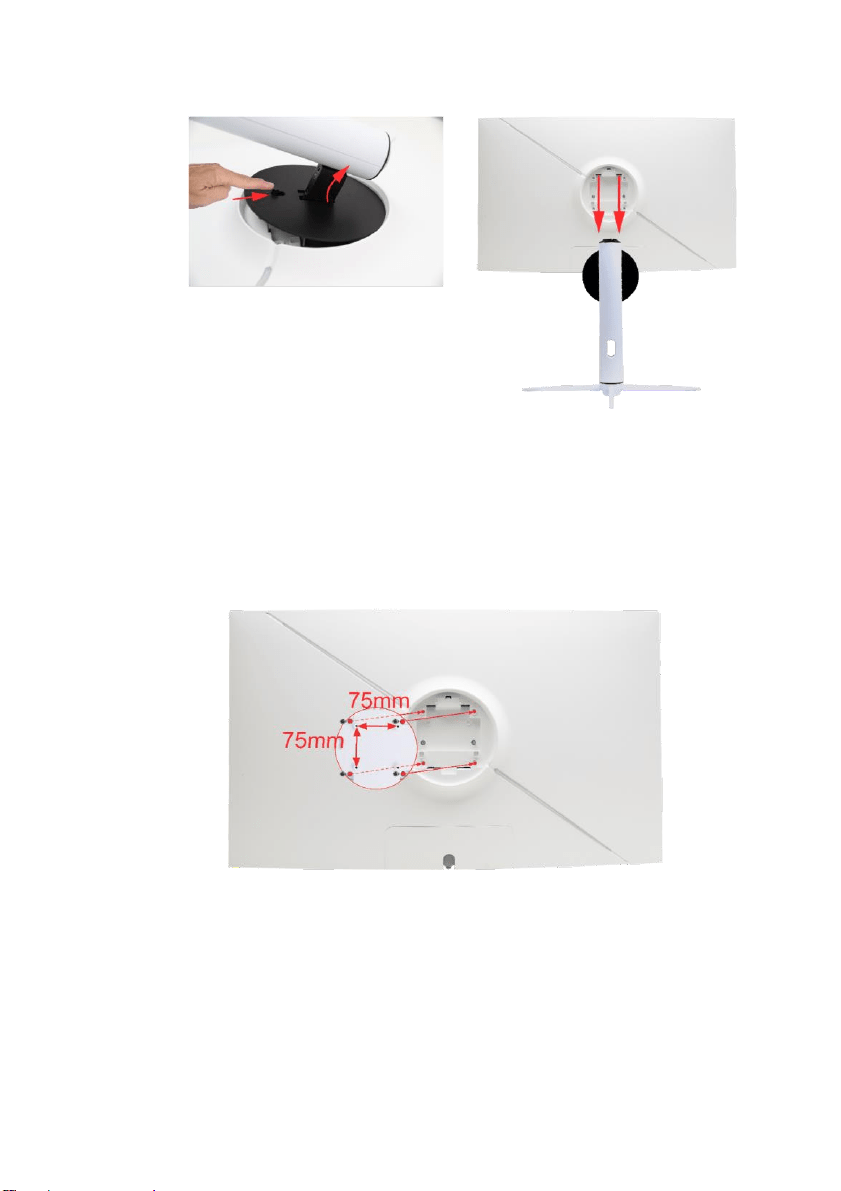
1. To prep the monitor for wall mounting, remove the back plate by pushing up
on the lever near the neck joint with the monitor and lifting the stand piece
upwards. Once the stand is lifted upwards you can slide out the entire stand
assembly.
- 13 -
www.SCEPTRE.com
SCEPTRE Y40 Display User Manual
2. With the circular indentation now open to you, you will see 4 screws installed
on the back of the monitor. Please unscrew them.
3. Install the wall mount plate to the back of the monitor using the provided Wall
Mount Plate Screws (M4 x 16mm).
4. Once the wall mount plate is installed, the monitor is ready to be wall
mounted. The mounting pattern is 75mm x 75mm using M4 x 16mm
screws.

- 14 -
www.SCEPTRE.com
SCEPTRE Y40 Display User Manual
Table of Contents
SAFETY INSTRUCTIONS ................................................................... 1
IMPORTANT INFORMATION ..............................................................
4 Opening the Package
........................................................................... 8 Package Contents
................................................................................ 8 Installation
............................................................................................ 8 Installing
the Monitor Stand Assembly ................................................. 9 Wall
Mounting .................................................................................... 11
Table of Contents ............................................................................... 12
Identifying Front and Rear Panel ....................................................... 13
Front View ......................................................................................
13 Rear View
...................................................................................... 13 Front
View with Buttons ................................................................. 14
Panel Swivel Adjustment ............................................................... 15
Panel Tilt Adjustment ..................................................................... 15
Panel Height Adjustment ............................................................... 16
Remote ..........................................................................................
17
Rear View with Connections .......................................................... 18
Connections .......................................................................................
19
If You have HDMI Connection on Your Video Card… ...................
19 If You have DisplayPort Connection on Your Video Card…
......... 20
If You want to use dual input PIP/PBP on the monitor… .............. 21
On Screen Display (OSD) Menu ........................................................ 22
QUICK START ...............................................................................
23 PICTURE
....................................................................................... 24 COLOR
.......................................................................................... 26
SYSTEM ........................................................................................
27 Supported DisplayPort Resolution .....................................................
28 Supported HDMI Resolution ..............................................................
28 Troubleshooting
................................................................................. 29 How do I detach
the DisplayPort Cable? ........................................... 32 How do I clean
the monitor? .............................................................. 33 Specification
....................................................................................... 34 LIMITED
- 15 -
www.SCEPTRE.com
SCEPTRE Y40 Display User Manual
PRODUCT WARRANTY .................................................... 35
Disclaimer, Trademarks, Icons & Copyright Information ................... 37
FCC Compliance Statement .............................................................. 38
Identifying Front and Rear Panel
Front View
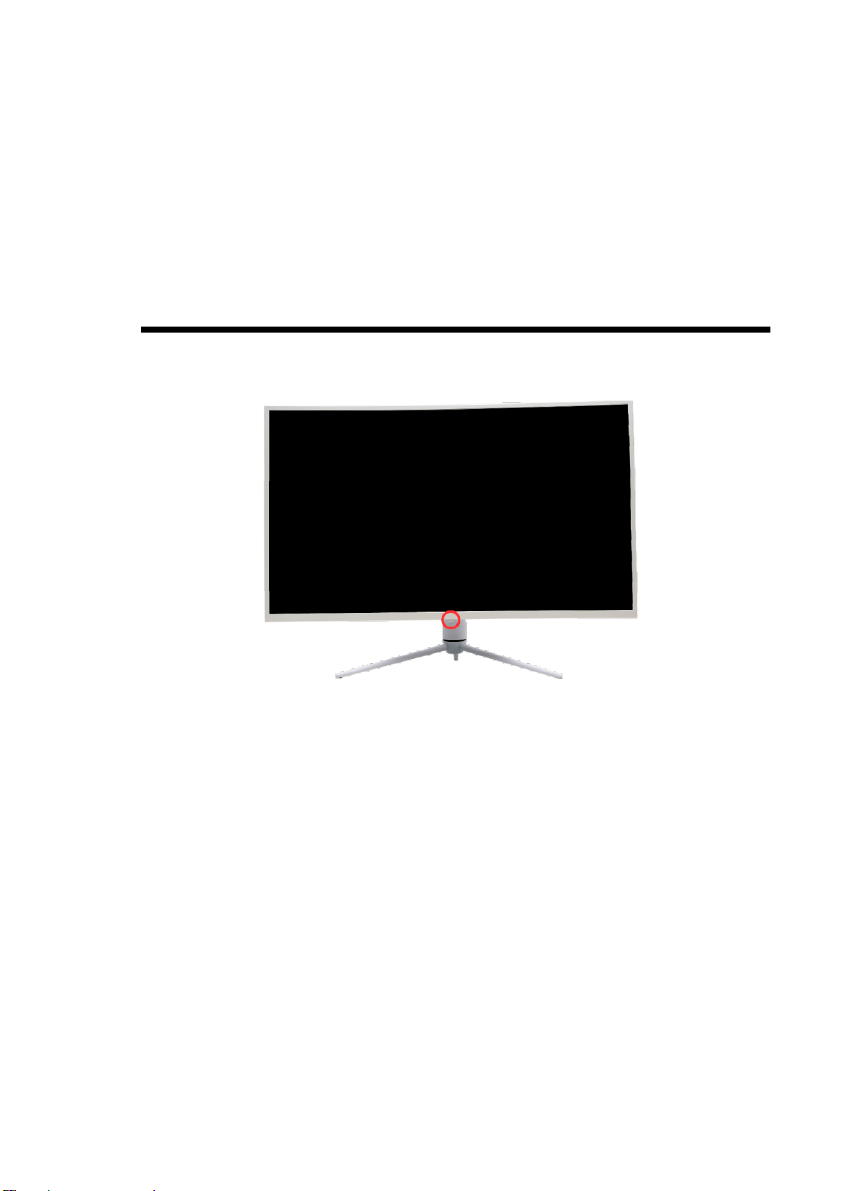
Indicator Light – The light is blue when the monitor is turned on. The light is red when
the monitor is turned off but plugged into power. The light is flashing blue when there is
no signal given to the monitor.
Rear View
- 16 -
www.SCEPTRE.com
SCEPTRE Y40 Display User Manual
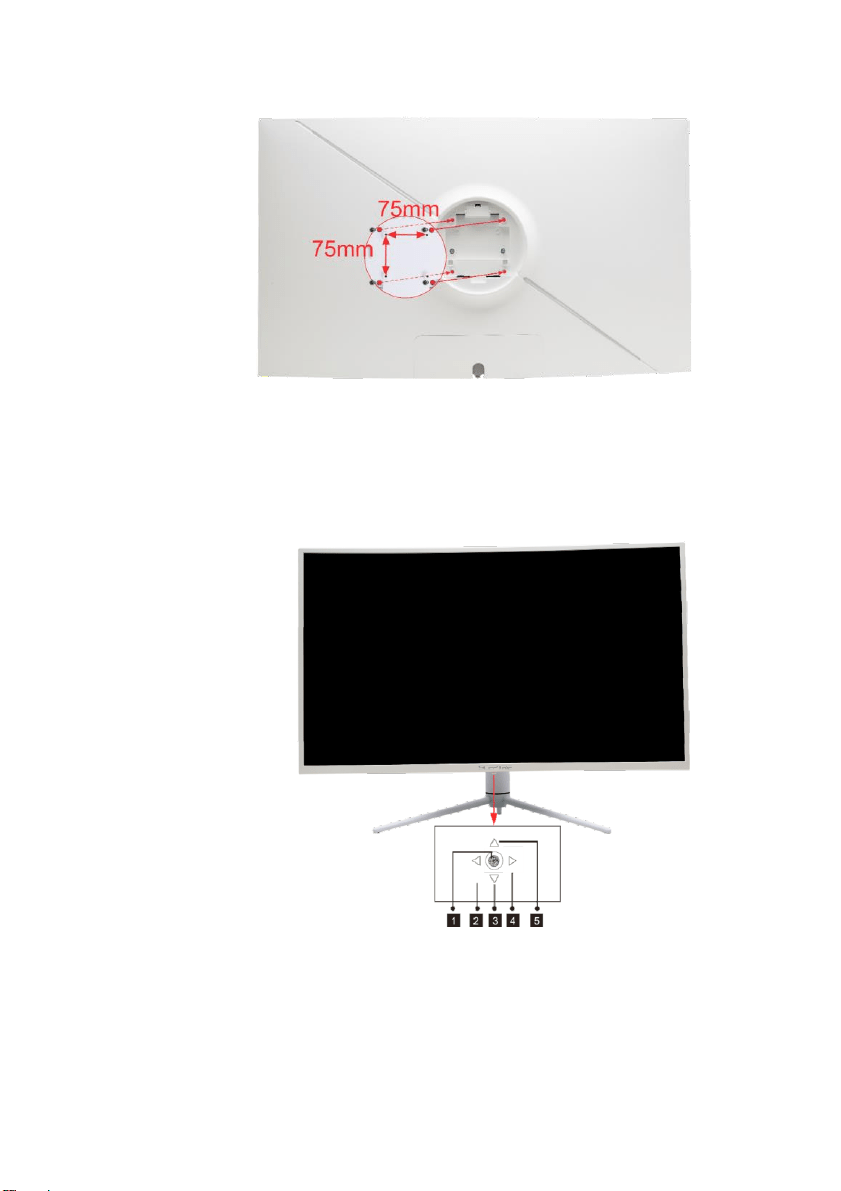
The mounting holes are covered by the stand. Once you remove the stand you’ll need
to attach a mounting plate to wall mount the monitor. The mounting pattern is 75mm x
75mm using M4 x 16mm screws.
Front View with Buttons
Monitor Joystick Control
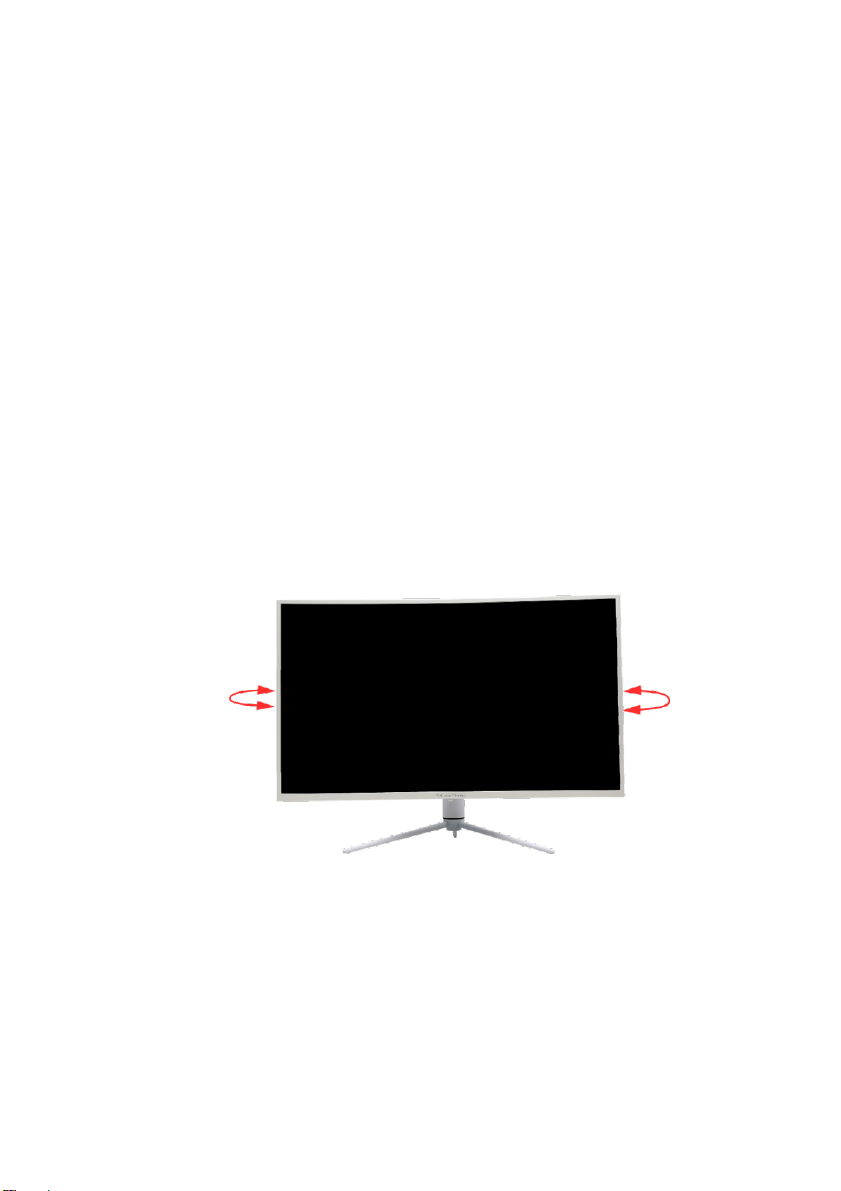
1. ● – When the monitor is off, pressing this button will turn on the monitor. When the
monitor is on, pressing and holding this button will turn the monitor off. With no
OSD, pressing the joystick button inward will open the monitor’s OSD. With the
- 17 -
www.SCEPTRE.com
SCEPTRE Y40 Display User Manual
OSD turned on, pressing the joystick button inward will enter into the selected
option.
2. ◄– With no OSD, this joystick direction opens the Volume OSD and decreases
the monitor’s volume output. With the OSD turned on, this joystick direction exits
the OSD Menu.
3. – With no OSD, pulling the joystick towards you opens the Source OSD, allowing
you to change the input source of the monitor. With the OSD turned on, pull the
joystick towards you moves the selection downwards. This button will also
decrease the value of an adjustment while an option is open.
4. ▶– With no OSD, this joystick direction opens the Volume OSD and increases
the monitor’s volume output. With the OSD turned on, this joystick selects or enters
the selected option.
5. – With no OSD, pushing the joystick away from you adjusts the monitor’s Picture
Preset settings. While the OSD is active, pushing the joystick away from you
moves the selection upwards. This button will also increase the value of an
adjustment while an option is open.
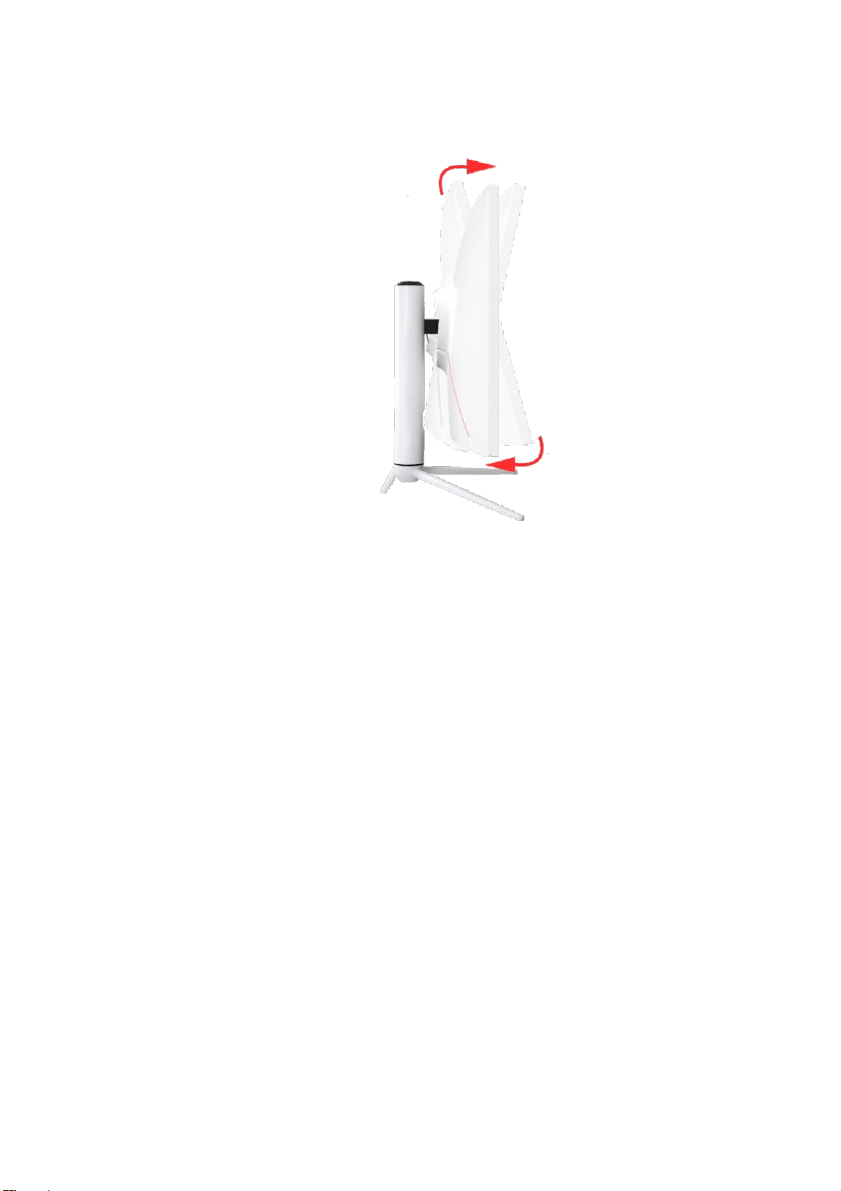
Panel Swivel Adjustment
The monitor stand can swivel 15°±2°.
- 18 -
www.SCEPTRE.com
SCEPTRE Y40 Display User Manual
Panel Tilt Adjustment
The screen can be adjusted by inclining forward and
backward; however, the specific adjustment depends on the specific model of the
device. Generally, it may be inclined 5°±1°forward and 15°±2° backward.
Please Note:
• When adjust the angle of the monitor, be sure not to touch or press the
LCD screen.
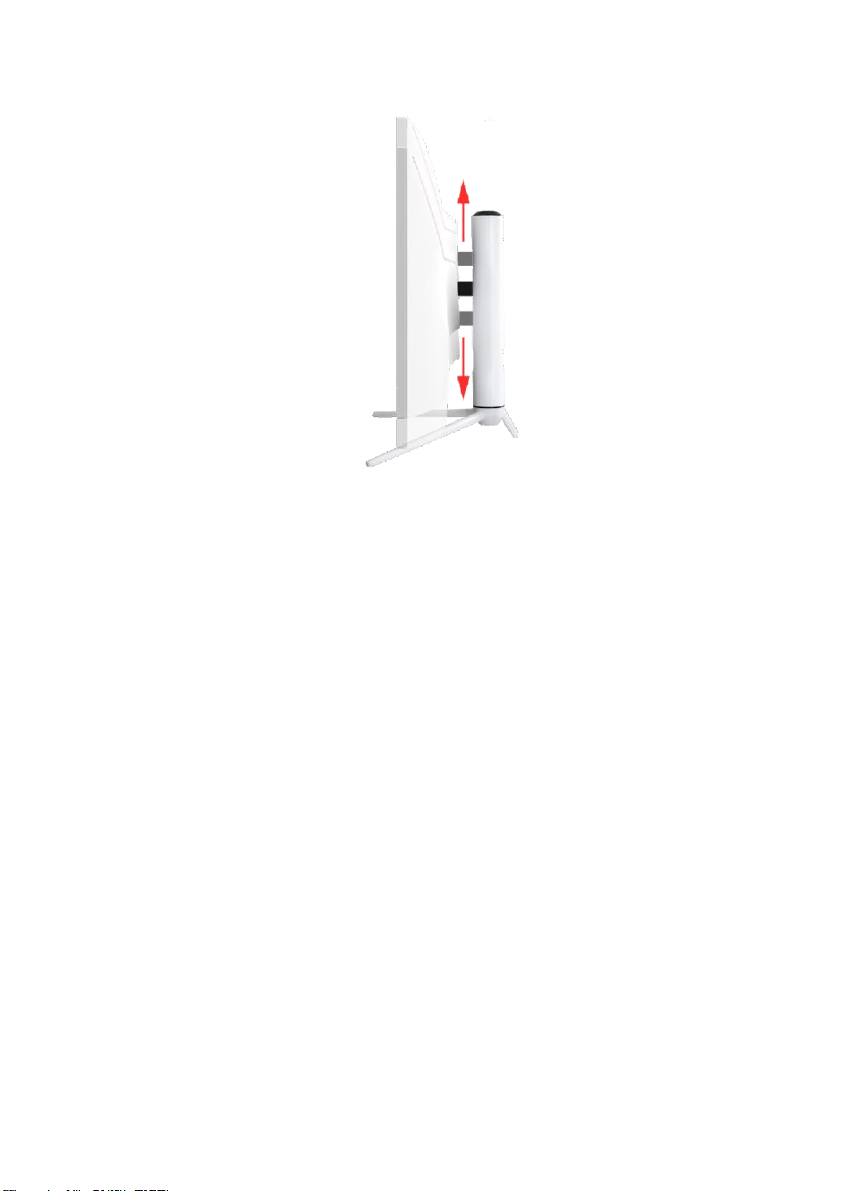
Panel Height Adjustment
- 19 -
www.SCEPTRE.com
SCEPTRE Y40 Display User Manual
The screen height can be adjusted by 3.75”. The screen can be adjusted by lifting the
bottom of the display.
- 20 -
www.SCEPTRE.com
SCEPTRE Y40 Display User Manual
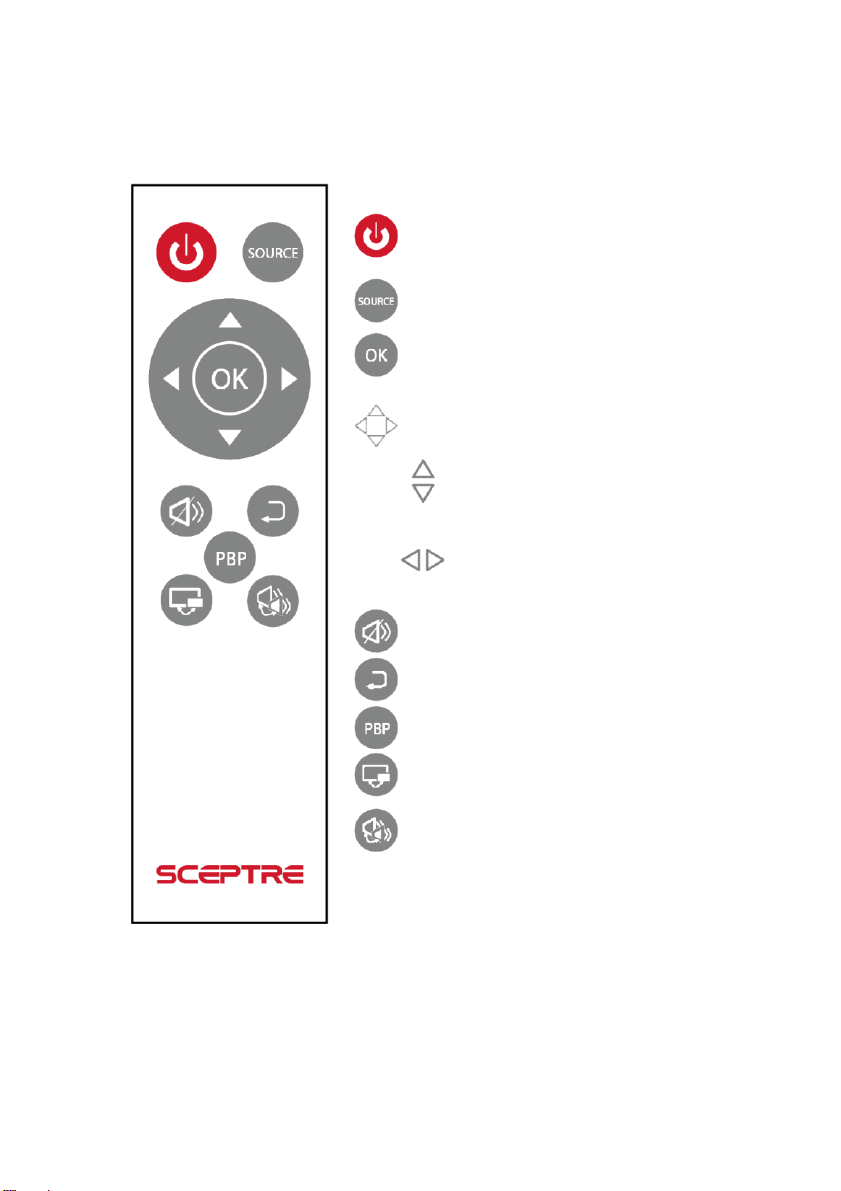
Remote
1. POWER - Press this button to turn the
monitor on or off.
2. SOURCE – Press this button to switch
input sources on the monitor.
3. OK - Press to enter the OSD menu or
press to confirm.
4. NAVIGATION – When the OSD is open,
use these arrow keys to navigate the OSD menu.
UP / DOWN ARROWS – Navigate the
OSD
menu with directional arrows. These buttons’
shortcuts open the monitor’s Presets Menu.
LEFT / RIGHT ARROWS – Navigate the
OSD
Menu with directional arrows. These buttons’
shortcuts open the monitor’s Volume Menu.
5. MUTE – Press this button to mute the
monitor’s audio output.
6. Back – Press this button to go back or
exit the monitor’s OSD menu.
7. PBP - Cycles different multi window
modes.
8. MULTIWINDOW – Press this button to
cycle through the monitor’s different multi-window
modes.
9. AUDIO – Press this button during multiwindow
modes to swap the current audio source output.
- 21 -
www.SCEPTRE.com
SCEPTRE Y40 Display User Manual
Please Note:
• The remote takes 2 x AAA batteries (not included) .
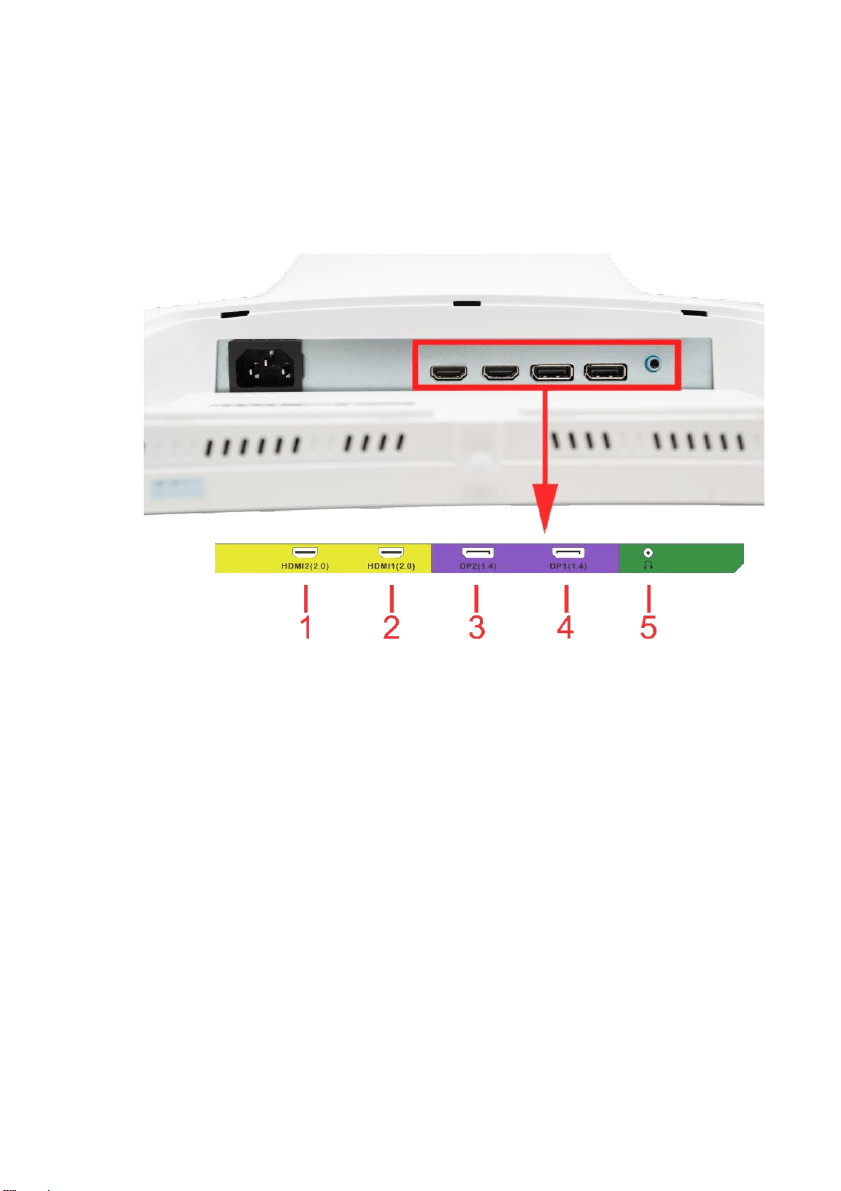
Rear View with Connections
1. HDMI 2 – HDMI stands for High-Definition Multimedia Interface. This
connection is for computers with HDMI video output. HDMI supports adaptive
sync, a feature that eliminates picture tearing and stuttering.
2. HDMI 1 – HDMI stands for High-Definition Multimedia Interface. This
connection is for computers with HDMI video output. HDMI supports adaptive
sync, a feature that eliminates picture tearing and stuttering.
3. DP 2 – DisplayPort (DP) is a digital video connection for connection to
computers with display port video output. DisplayPort supports up to 165Hz
refresh rate depending on the resolution.
4. DP 1 – DisplayPort (DP) is a digital video connection for connection to
computers with display port video output. DisplayPort supports up to 165Hz
refresh rate depending on the resolution.
5. AUDIO OUT (3.5mm Mini-jack) – This connection is for audio out from the
monitor to multimedia speakers or headphones.
Please Note:

- 22 -
www.SCEPTRE.com
SCEPTRE Y40 Display User Manual
• HDMI at native resolution 2560 x 1440 will support 144Hz.
• DP at native resolution 2560 x 1440 will support 165Hz.
• In order to remove the DP cable from the monitor you need to depress
the buckle on the cable while unplugging.
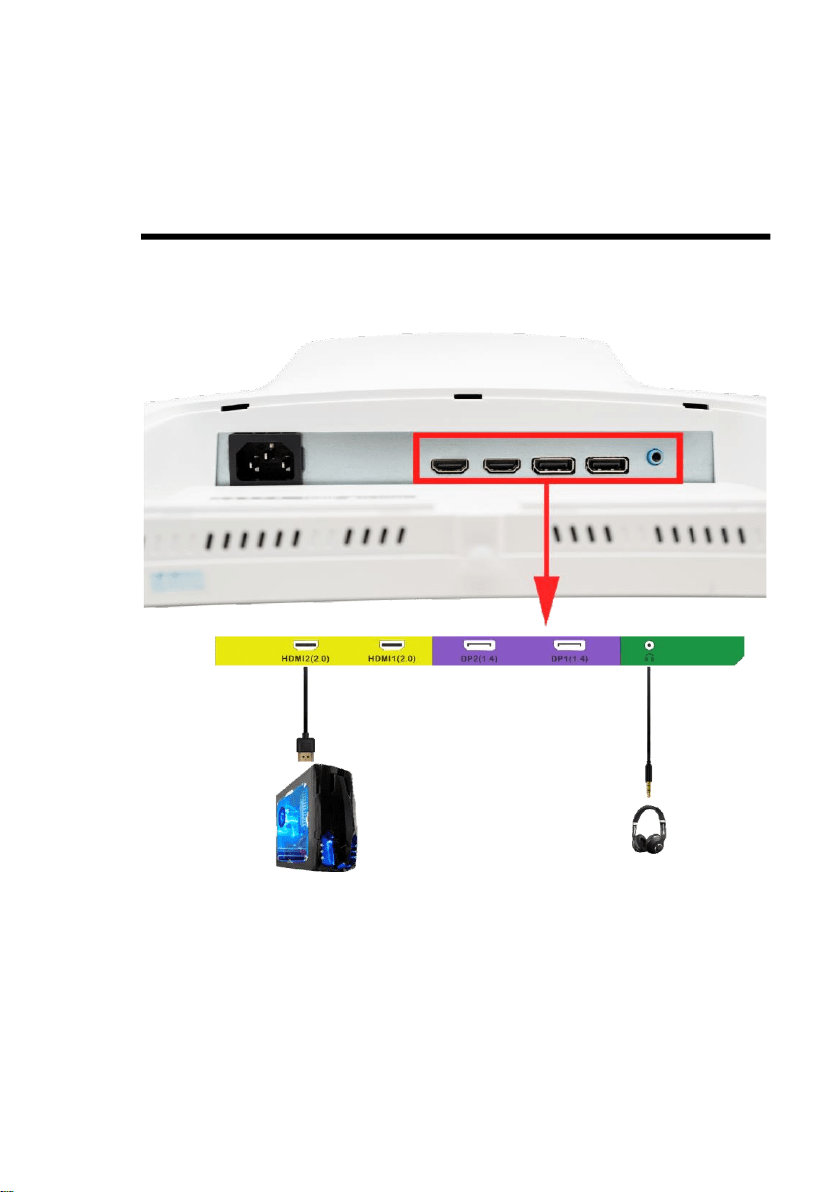
Connections
If You have HDMI Connection on Your Video Card…
1. Make sure the power of the Y40 LED MONITOR is turned off.
2. Obtain a HDMI cable and connect one end to the back of the
monitor and the other end to the back of the computer.
3. For audio you can plug in a set of headphones or speakers into
the headphone jack.
4. Turn on the power of both the Y40 LED MONITOR and the
computer.
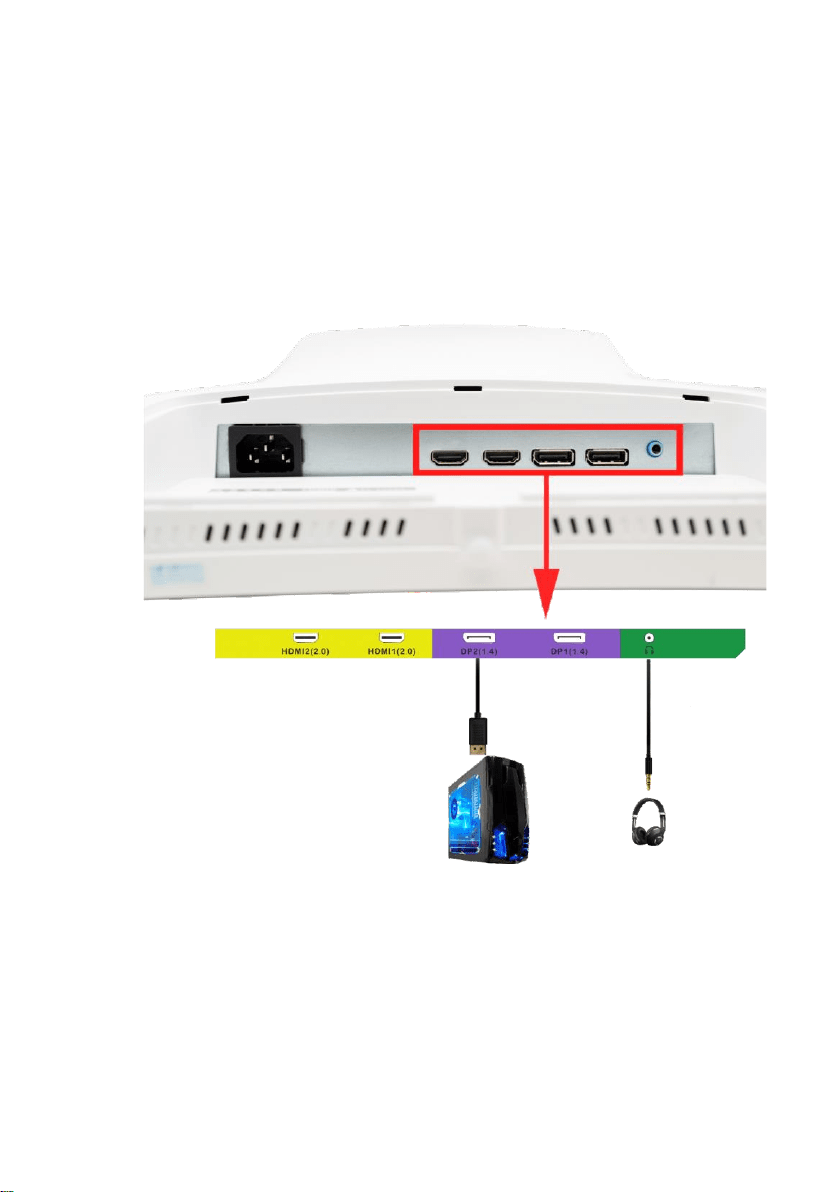
If You have DisplayPort Connection on Your Video Card…
1. Make sure the power of the Y40 LED MONITOR is turned off.
2. Obtain a DisplayPort cable and connect one end to the back of
the monitor and the other end to the back of the computer.
3. For audio you can plug in a set of headphones or speakers into
the headphone jack.
4. Turn on the power of both the Y40 LED MONITOR and the
computer.
Please Note:
• DisplayPort supports AMD FreeSync™.
• DisplayPort supports up to 165Hz refresh rate.
• At optimal resolution of 2560 x 1440, the support refresh
rate is 165Hz for DP.
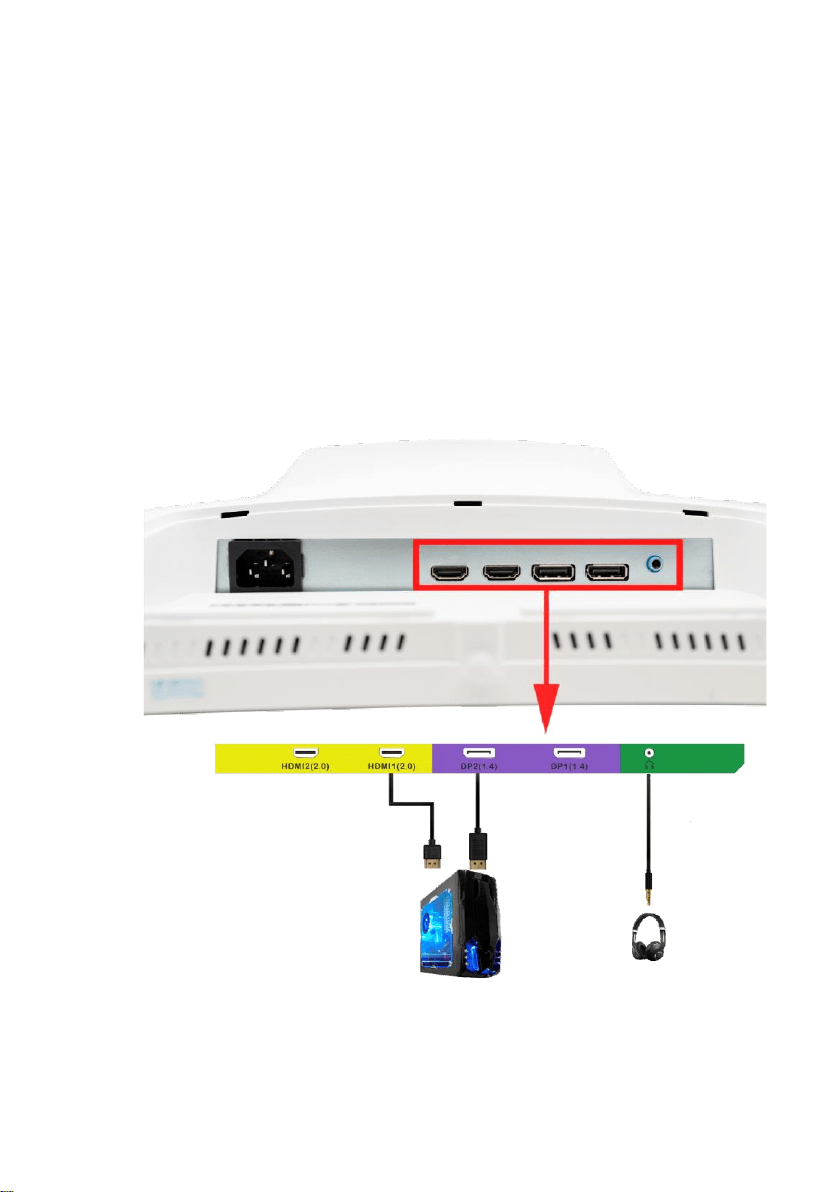
If You want to use dual input PIP/PBP on the monitor…

1. Make sure the power of the Y40 LED MONITOR is turned off.
2. Obtain a DisplayPort cable and connect one end to the back of the
monitor and the other end to the back of the computer.
3. Obtain a HDMI cable and connect one end to the back of the
monitor and the other end to the back of the computer.
4. For audio you can plug in a set of headphones or speakers into the
headphone jack.
5. Turn on the power of both the Y40 LED MONITOR and the
computer.
6. From the monitor side, open the OSD by pressing the Button
button. Under PICTURE, select and turn on Multi Window either by
using PIP or PBP. Change to the correct HDMI source (diagram
above shows computer connected to HDMI 1) for the secondary
input.
7. From windows go to display settings and select extend display to
show the desktop on both inputs.
Please Note:
• When running multiple windows, the lowest refresh rate signal
given will be the refresh rate for all windows.
On Screen Display (OSD) Menu
The OSD menu of the monitor provides various adjustments for the monitor
such as color, brightness, and contrast …..etc.
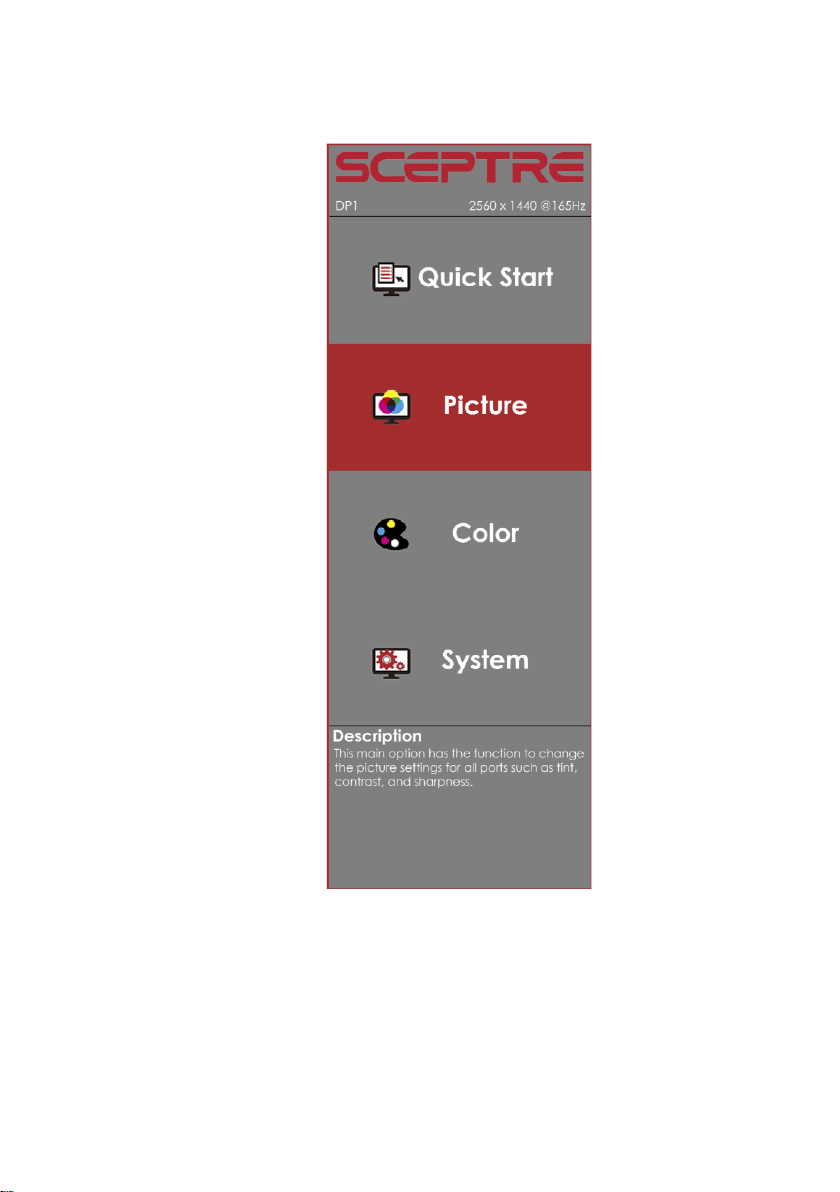
When you press the joystick button on the monitor, the OSD screen will
appear. Select each of the functions with the Up or Down buttons. Use the
Right button again to enter each of the function or when you’re in the
function already, use the Right button to select the option you want to
adjust. Use the Up or Down buttons to adjust each option’s values. When
you want to exit press the Left button.
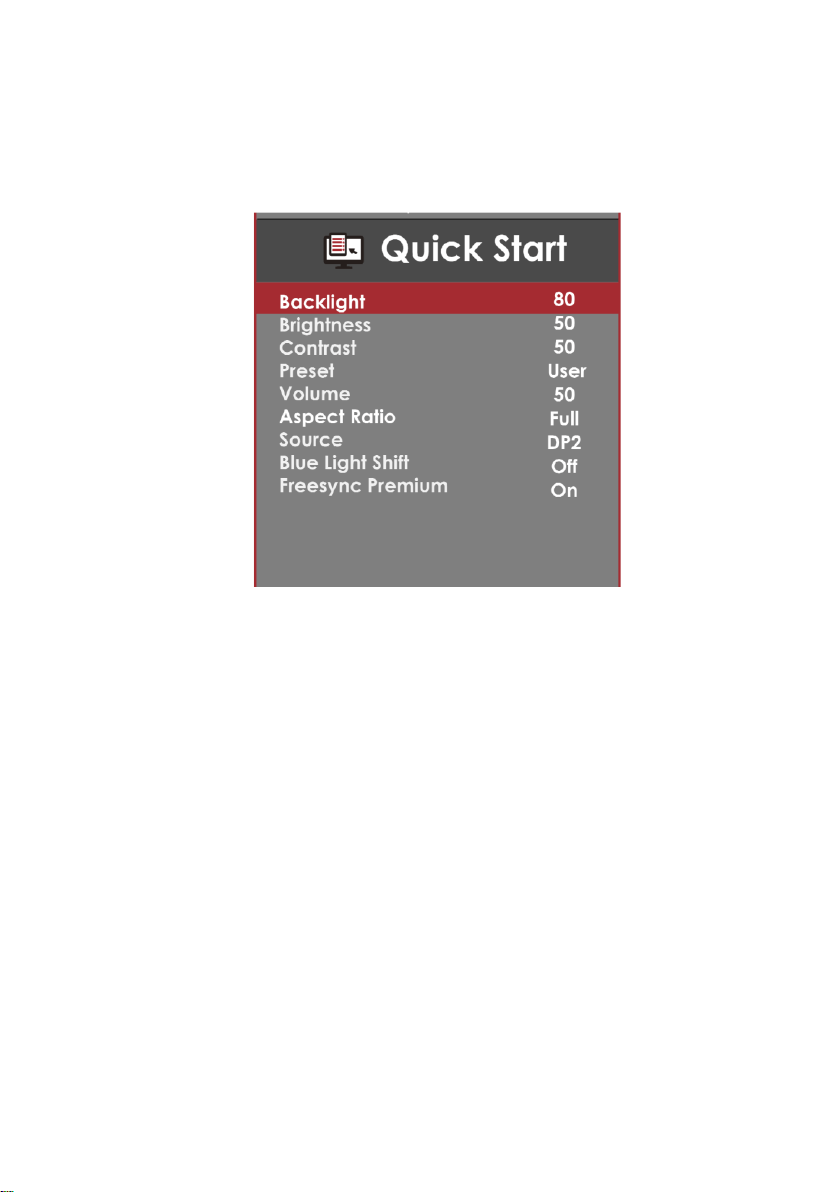
QUICK START
1. BACKLIGHT - This option adjusts the intensity of the LED diode directly.
2. BRIGHTNESS – This option adjusts the brightness of the monitor.
3. CONTRAST- This option adjusts the contrast of the monitor.
4. PRESET – This option lets the user select different preset display modes of
the monitor.
Only USER mode will allow the user to adjust options freely.
a. STANDARD – This display mode is for regular users.
b. USER – This display mode allows you to adjust contrast and
brightness manually.
c. MOVIE – This display mode is for playing movies.
d. ECO – This display mode is for power saving.
e. FPS – This display mode is for playing first person shooter
games.
f. RTS – This display mode is for playing real time strategy games.
5. VOLUME – This option adjusts the loudness of the speaker.
6. ASPECT RATIO – This option lets the user adjust the aspect ratio of the
monitor.
a. FULL – This option automatically stretches any picture to the full
screen regardless of picture proportion.
b. DOT BY DOT – This option displays the resolution exactly as
is.
c. 4:3 – This option forces any resolution to a 4:3 square format.
d. 16:9 – This option forces any resolution to a 16:9 square format.
7. SOURCE – This option lets the user manually switch an input or auto where
the monitor detects a signal and changes the source automatically.
8. BLUE LIGHT SHIFT – This display mode filters out blue light for users
who want blue light protection.
9. FREESYNC PREMIUM™ – This option turns on or off the FreeSync
Premium™ function, which reduces screen tearing with compatible graphics
cards.
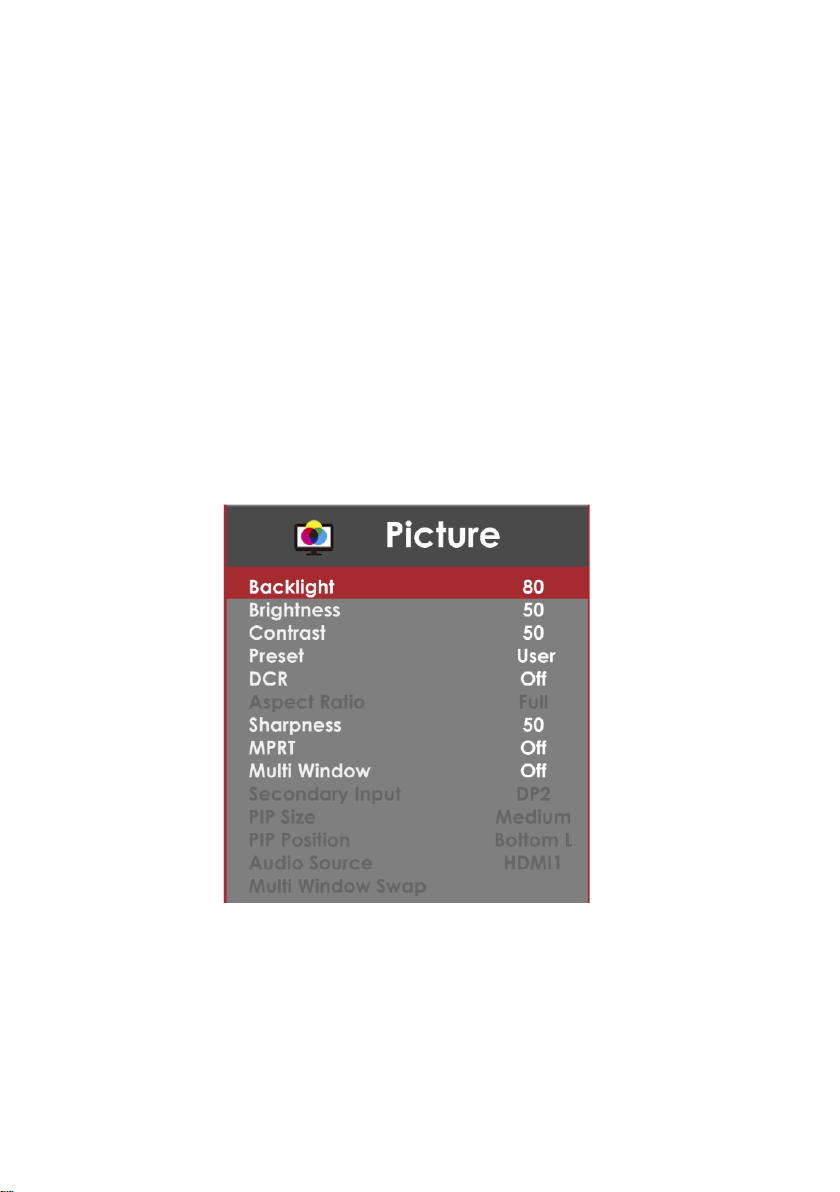
PICTURE
1. BACKLIGHT - This option adjusts the intensity of the LED diode directly.
2. BRIGHTNESS – This option adjusts the brightness of the monitor.
3. CONTRAST- This option adjusts the contrast of the monitor.

4. PRESET – This option lets the user select different preset display modes of
the monitor.
Only USER mode will allow the user to adjust options freely.
a. STANDARD – This display mode is for regular users.
b. USER – This display mode allows you to adjust contrast and
brightness manually.
c. MOVIE – This display mode is for playing movies.
d. ECO – This display mode is for power saving.
e. FPS – This display mode is for playing first person shooter
games.
f. RTS – This display mode is for playing real time strategy games.
5. DCR – This option turns on or off the dynamic contrast option of the monitor.
Dynamic Contrast automatically adjusts the contrast of the monitor based off
the video signal provided.
6. ASPECT RATIO – This option lets the user adjust the aspect ratio of the
monitor.
a. FULL – This option automatically stretches any picture to the full
screen regardless of picture proportion.
b. DOT BY DOT – This option displays the resolution exactly as
is.
c. 4:3 – This option forces any resolution to a 4:3 square format.
d. 16:9 – This option forces any resolution to a 16:9 square format.
7. SHARPNESS – This option adjusts the sharpness of graphics and text for
this monitor.
8. MPRT – This option allows users to increase the pixel response time.
9. MULTI WINDOW – This option allows user to display a second source of
video simultaneously on the monitor.
a. PIP – This option displays a second source of video in a small
window at the corner of the monitor.
b. PBP – This option displays a second source of video on the
right half of the monitor.
10. SECONDARY INPUT – This option lets the user select the input of the
second video.
11. PIP SIZE – This option changes the size of the PIP window.
12. PIP POSITION – This option changes the location of the PIP window.
13. AUDIO SOURCE – This option lets the user select the audio either from
the main display source or the PIP/PBP display source.
14. MULTI WINDOW SWAP – This option swaps the video between the
PIP/PBP display and the main display.

COLOR
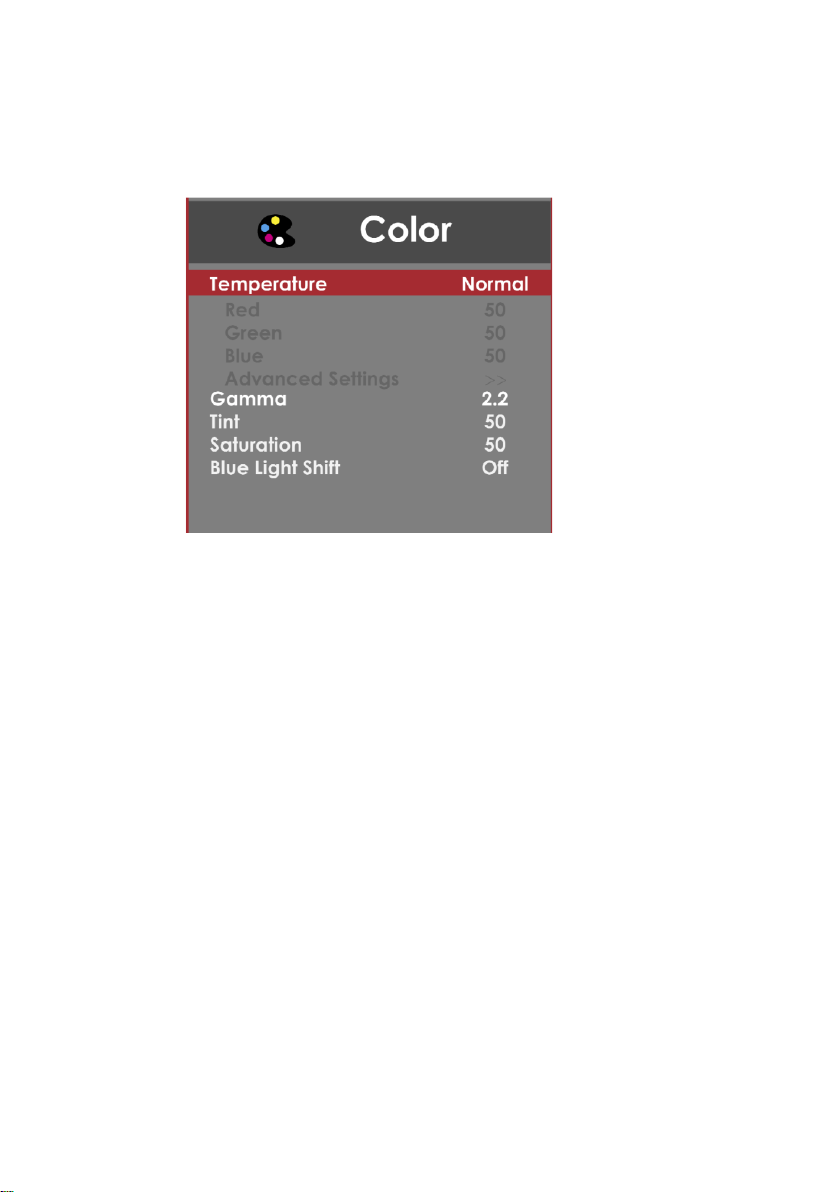
1. TEMPERATURE – This option let users select different color temperatures
of the monitor.
a. NORMAL – This color temperature is for users who prefer a
neutral white balance.
b. COOL – This color temperature is for users who prefer a cool
white balance.
c. USER – This color temperature is for users who would like to
adjust the RGB (red, green, blue) values manually.
i. ADVANCED – This setting adjusts finer values
besides RGB going into cyan, magenta, and yellow.
d. WARM – This color temperature is for users who prefer a warm
white balance.
2. GAMMA – This option adjusts the gamma curve value of the monitor.
3. TINT – This option adjusts the tint of the entire monitor.
4. SATURATION – This option adjusts the color saturation of the entire
monitor.
5. BLUE LIGHT SHIFT – This display mode filters out blue light for users
who want blue light protection.
SYSTEM
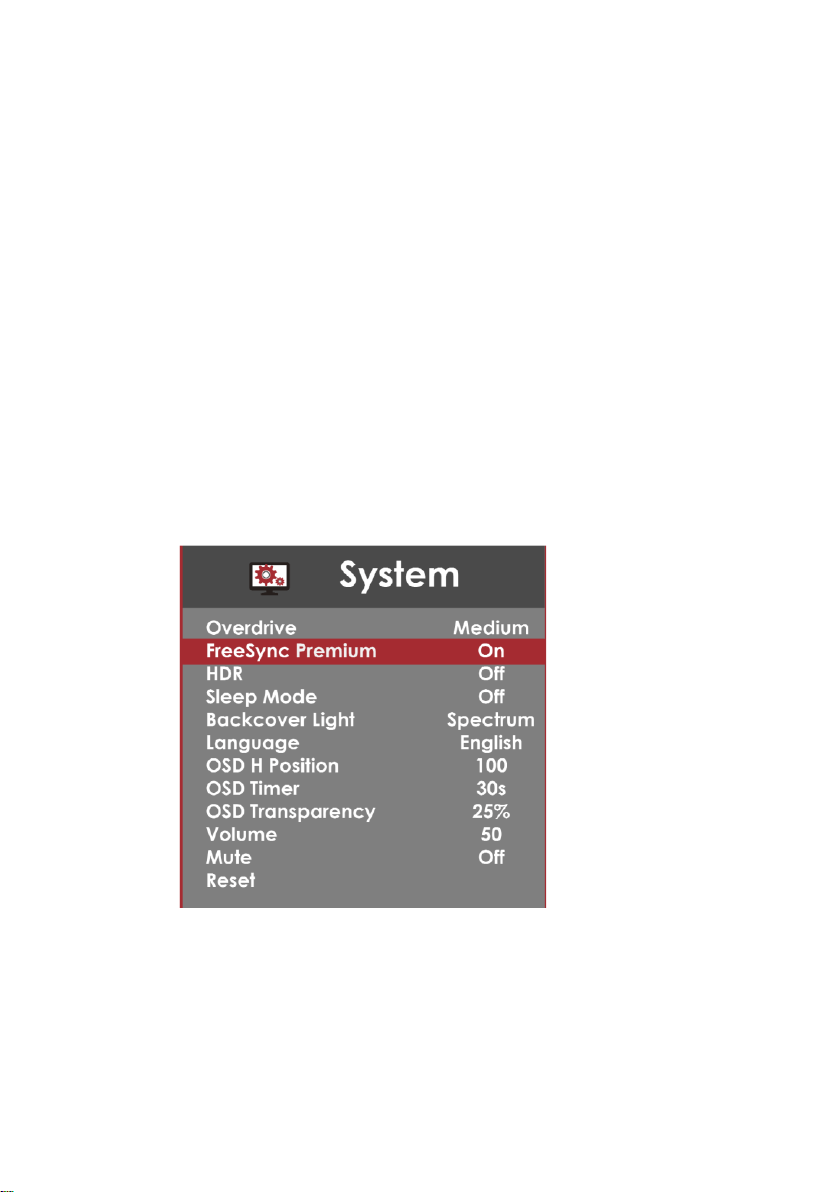
1. OVERDRIVE – This option increases the pixel response time of the LCD
screen.
2. FREESYNC PREMIUM™ – This option turns on or off the FreeSync
Premium™ function, which reduces screen tearing with compatible graphics
cards.
3. HDR – This option turns on or off the High Dynamic Range performance of
the monitor.
4. SLEEP MODE – With the monitor given no video signal, enabling this
option will make the monitor automatically shut off after 30 minutes, 60
minutes, or 2 hours.
5. BACKCOVER LIGHT – This option cycles through the different lighting
modes of the lights on the back of the monitor.
6. LANGUAGE – This option allows users to change the menu language of
the monitor.
7. OSD H POSITION – This option adjusts the placement of the OSD menu
horizontally.
8. OSD TIMER – This option adjusts the time it takes for the OSD menu to
automatically shut off.
9. OSD TRANSPARENCY – This option adjusts the opacity of the OSD
menu.
10. VOLUME – This option allows users to change the output level of the audio
out port.
11. MUTE – This option silences the monitor speakers.
12. VOLUME – This option adjusts the loudness of the speaker.
13. RESET – This option resets all values of the menu back to factory default.
Supported DisplayPort Resolution
RESOLUTION & REFRESH RATE
2560 x 1440 @ 165Hz, 144Hz, 120Hz, 60Hz
1280 x 1440 @ 60Hz
1920 x 1080 @ 60Hz
1680 x 1050 @ 60Hz
1600 x 900 @ 60Hz
1280 x 1024 @ 75Hz, 60Hz
1280 x 720 @ 60Hz
800 x 600 @ 75Hz, 72Hz, 60Hz, 56Hz
640 x 480 @ 75Hz, 72Hz, 60Hz
Supported HDMI Resolution
RESOLUTION & REFRESH RATE
2560 x 1440 @ 144Hz, 120Hz, 60Hz
1280 x 1440 @ 60Hz
1920 x 1080 @ 60Hz
1680 x 1050 @ 60Hz
1600 x 900 @ 60Hz
1280 x 1024 @ 75Hz, 60Hz
1280 x 720 @ 60Hz
800 x 600 @ 75Hz, 72Hz, 60Hz, 56Hz
640 x 480 @ 75Hz, 72Hz, 60Hz
*Specifications are subject to change without notice.
Troubleshooting
Problem
Possible solutions
THERE IS NO LED
DISPLAY or
SCREEN SAYS NO
SIGNAL
Make sure you switched to the correct source. Check both
sources to see video is on the other source. Check your
video cable. It might be corrupt. Swap out the video cable for
another one to see if the monitor will work. Check your
power plug. See if it is fully plugged in on both the monitor
and the wall.
MONITOR SAYS
“SIGNAL OUT OF
RANGE”
If you have a CRT monitor, please connect the CRT monitor to
the computer and change the refresh rate down to 60 Hz via
your video card’s display settings menu. After the setting of 60
Hz has been changed, you can then use the Y40 LED Monitor
on the computer.
1. To change the setting go to display settings by right
clicking on your desktop with nothing selected.
Choose the PROPERTIES option.
2. Click on the SETTINGS tab, verify the resolution is
NOT higher than 2560 x 1440, and click on the
ADVANCED button.
3. Click on the MONITOR tab and change the refresh
rate to 60 Hz.
4. Click on OK 2-3 times to finalize your change.
If you do NOT have a CRT monitor or it’s already broken, please
make sure both the Y40 LED monitor and your computer is
turned off.
1. Turn on the LED monitor and the computer.
2. While the computer is turned on, press the “F8” key on
your keyboard continuously until a selection menu
appears and select the “Safe Mode” option.
3. When you’ve entered Safe Mode please uninstall any
video card driver and monitor driver by using either
the “Add / Remove Programs” icon or going into
“System
4. Properties” and manually removing anything under
“Monitors” and “Display Adapters”. After removing all
the drivers, please reboot your computer and you
should be able to see windows. Please install your
monitor driver first, then your video card driver.
Please remember to make sure your refresh rate
should be at 60Hz.
I CAN’T OPEN THE
OSD
You need to have a valid video signal going through the monitor
before you can turn on the OSD.
Problem
Possible solutions
I CANNOT GET THE
CORRECT
RESOLUTION
Sometimes your video card will not read the monitor
correctly and will not allow you to achieve the resolution you
want. Rebooting your computer will solve the situation.
You can also make sure your video card’s video drivers are
up to date. You can find what video card you have by
clicking on START then RUN. Type in “DXDIAG”. When the
diagnostic window pops up, click on the DISPLAY tab. The
program will tell you what video chipset you have. Copy that
name then search it with an online search engine like
GOOGLE™. Find your video card company’s web address
and search for newer drivers. If updating your drivers does
not work, you probably have one of the older video cards
and cannot achieve a widescreen resolution. You’ll need to
upgrade your video card to a newer one.
THE VIDEO IS TOO
BRIGHT NO MATTER
WHAT I ADJUST
Sometimes having older video cards this type of problem
might happen due to newer LEDs having to provide HD
video capability and not being fully compatible with older
video cards. You can try adjusting the contrast to a lower
value and adjust the brightness to compensate.
THE WORDS AND
VIDEO ARE TOO
BLURRY
Are you using the monitor’s native resolution? If not, you’ll
need to switch resolution to the native 3840 x 1080 at 60 Hz
to make the words clearer.
If the words are still blurry, please try enabling or disabling
CLEAR TYPE function from windows.
THE COLORS ARE
NOT CORRECT
Sometimes the colors are not correct because your DVI or
DP or HDMI cable is loose or corrupt. Please try
reconnecting your cable or swap out your current cable to
see if the problem persists.
HOW DO I RESET
THE MONITOR
Make sure there is a valid video signal to the monitor and
press menu to open the OSD. Look for RESET under the
OTHER options.
I CHANGED MY
COLOR SETTINGS
NOW I CAN’T GET
THE FACTORY
DEFAULT BACK.
Open the OSD, under OTHER, select RESET to reset all
values back to factory default.
Problem
Possible solutions
THE WORDS ARE
TOO SMALL AT
2560 x 1440
At the native resolution of 2560 x 1440, some people might
feel that the words are too small to read. You can change
the size of the words in Windows Operating System via its
display properties.
For Windows XP
1. Right click on the background with nothing
selected. Left click on the PROPERTIES option.
2. Click on the SETTINGS tab.
3. Under SETTINGS, click on the ADVANCED
button.
4. Under GENERAL tab, change the size of the
words by selecting the option NORMAL SIZE and
change it to LARGE SIZE.
5. Click on OK on all windows to exit.
6. Once you have finished rebooting, the computer is
ready for use.
For Windows VISTA or Windows 8 or Windows 10
1. Right click on the Wallpaper. Left click on the
PERSONALIZE option.
2. Click on ADJUST FONT SIZE (DPI) option on the
left column and
3. Click on CONTINUE.
4. In there you can change the size of the words by
changing from the option DEFAULT SCALE to
LARGE SCALE.
5. Click on APPLY to finalize your selection.
6. Once you have finished rebooting, the computer is
ready for use.
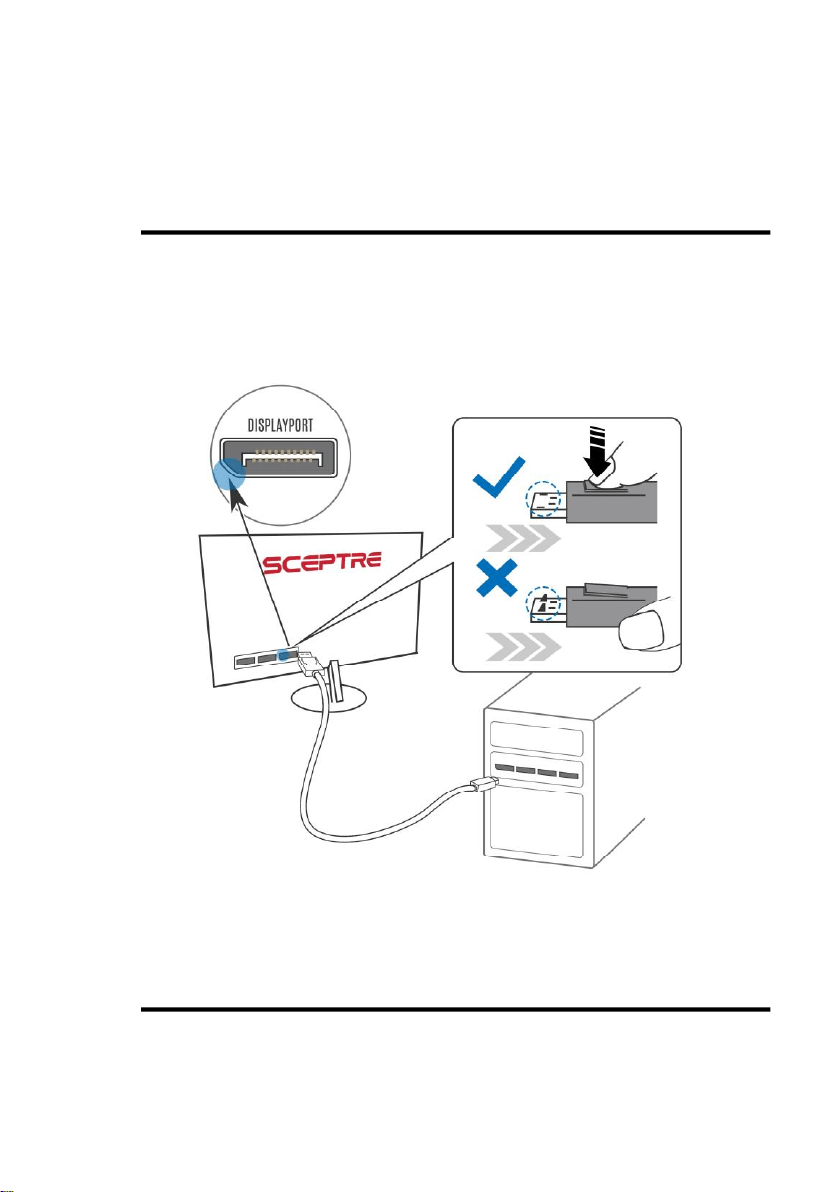
How do I detach the DisplayPort Cable?
To detach the DP cable from the monitor, press down on the cables
unlocking button while pulling the cable out.
How do I clean the monitor?

IMPORTANT
1. The power cable has to be removed from the
socket before cleaning the display.
2. Do not use volatile solvent (alcohol, rosin, and
toluene) to clean the display. These types of
chemicals might damage the housing and the
LCD glass.
Cleaning the bezel
1. Use a 100% cotton cloth or micro-fiber cloth for
cleaning.
2. If the bezel is dirty to the point where you cannot
simply dry wipe it, please lightly dampen the
wiping material with clean water and wipe again.
Wipe the display with a dry micro-fiber cloth or
100% cotton cloth afterwards.
Please Note:
• Make sure you wring the water out of
the cloth before cleaning the bezel in
order to prevent water from
penetrating into the electronics.
Cleaning the Screen
1. Use a 100% cotton cloth or micro-fiber cloth for
cleaning.
2. The LCD screen glass is extremely fragile. Do
not scrape it with any material. Do not press or
tap the screen to avoid cracking. When the
screen is dirty to the point where you cannot
simply dry wipe it, please lightly dampen the
wiping material with clean water and wipe again.
Wipe the display with a dry micro-fiber cloth or
100% cotton cloth afterwards.
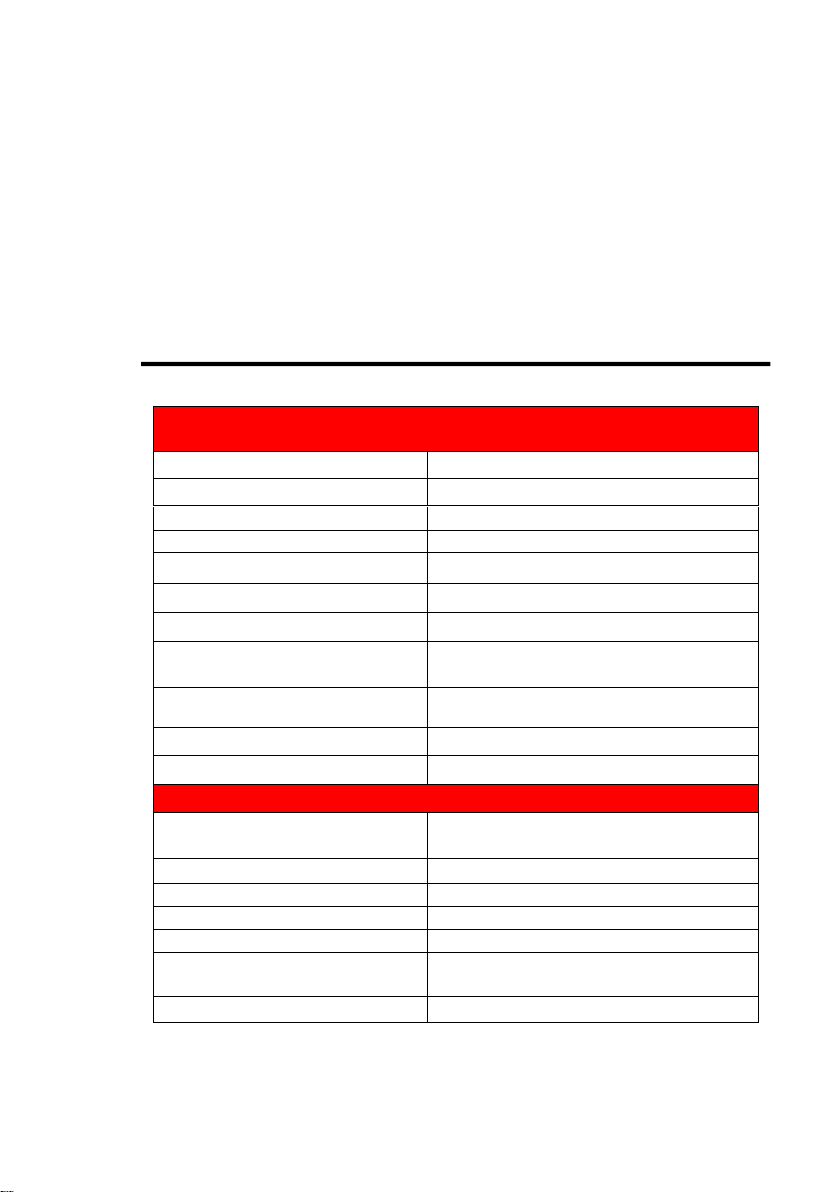
Specification
Display panel
Active Area / Screen Size
38.5” Diagonal Viewable
Aspect Ratio
Widescreen 16 : 9
Resolution
Native: 2560 x 1440
Brightness
280 cd/m
2
Dynamic Contrast
3,000:1 typical
Response Time
1ms (MPRT) , 7 ms (G-to-G) OD
Refresh Rate
Up to 165Hz (DP)
Viewing Angle
Typical 178/178 Degree (Horizontal/Vertical)
Colors
16.7 million of colors (8 bit + FRC)
sRGB 99%, NTSC 85%, DCI-P3 88%
Panel Type
VA
LED Backlight
30,000 hours+ (ELED)
Monitor Display
Dimension
With Stand: 42.89” x 11.29” x 21.55” Without
Stand: 42.89” x 3.29” x 12.97”
Weight
25.57 lb (with stand), 20.98 lb (without stand)
Wall Mount Pattern
75mm x 75mm; Screw Size M4 x 16mm
Base Screws
M5 x 15mm
Wall Mount Plate Screws
M4 x 16mm
Power input
Input: 100 – 240V~ 50/60Hz
Power Consumption: 65W (72W Max)
Tilt
Forward: 5° Backward:15°
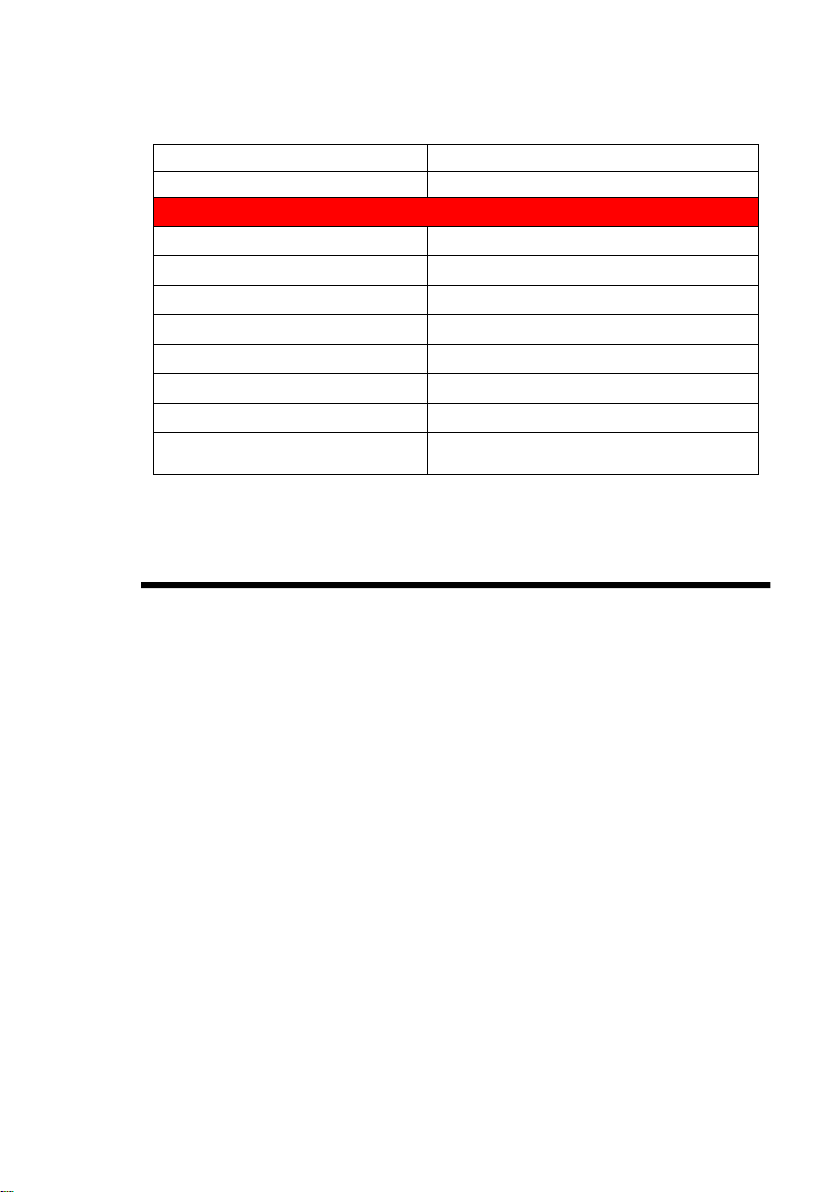
Heights Adjustment
3.75”
Speaker
4Ω/2W
Features
On Screen Display Control (OSD)
QuickStart, Picture, Color, System
OSD Language
English (Default), French, Spanish, Chinese
Radeon FreeSync™
Supported
Preset Picture Mode
Standard, User, Movie, Eco
Preset Game Mode
RTS, FPS
Blue Light Elimination
Available
I/O
HDMI 2.0 x 2, DP 1.4 x 2, 3.5mm Audio Out,
Compliance
FCC, RoHS, cTUVus, ISTA, HDMI, AMD
FreeSync™
*Specifications are subject to change without notice.
LIMITED PRODUCT WARRANTY
Please read this warranty card carefully, it is a “ONE-YEAR LIMITED
WARRANTY” on parts and labor (90 days for commercial use) and is only valid
when purchased from an Authorized Reseller, only on new and non-refurbished
product, and available to customers in the Continental US, Alaska, Hawaii and
Puerto Rico. See below for the SCEPTRE Extended Service warranty.
SCEPTRE’s Responsibility
SCEPTRE units purchased from an authorized SCEPTRE U.S. Reseller in the
United States and that are used in the fifty (50) United States or Puerto Rico and
Canada are warranted to be free from manufacturing defects in materials and
workmanship for a period of one (1) year from the date of their original retail
purchase (or a period of ninety (90) days for commercial use). If the unit fails to
conform to this warranty, we will service the units using new or refurbished parts.
In the event that the part required for replacement is no longer in production
and/or is obsolete, SCEPTRE will repair or replace the unit with similar or like
parts of equal value. If a similar or like part is not available, a charge may be
incurred to the owner, for any upgraded parts substituted.
Service Labor
During a period of one (1) year from the effective warranty date (or a period of
ninety (90) days for commercial use), SCEPTRE will provide, when needed,
service labor to repair a manufacturing defect at its designated Service Center. To

obtain warranty service in the United States, you must first call our Customer
Support at (800) 788-2878. The determination of service will be made by
SCEPTRE Customer Support. PLEASE DO NOT RETURN YOUR UNIT TO
SCEPTRE WITHOUT PRIOR AUTHORIZATION.
Parts
New or remanufactured parts will be used for repairs by SCEPTRE at its
designated Service Center for one (1) year (or ninety (90) days for commercial
use) from the effective warranty date. Such replacement parts are warranted for
the remaining portion of the original warranty period.
Service
During the one (1) year (or ninety (90) days for commercial use) warranty period,
SCEPTRE will, at its option and sole discretion, repair or replace defective parts,
including replacement of the entire Panel. The Customer will be required to ship
the unit to the Service Center indicated at the time Customer Support is contacted
to make the necessary repairs, you are responsible for all transportation charges
to the service facility. SCEPTRE is not responsible for the de-installation or re-
installation of the unit.
Packaging and Shipping Instruction
When you send the product to an authorized SCEPTRE service facility you must
use the original carton box and packing material or an equivalent as designated by
SCEPTRE. If you no longer have them please contact Sceptre’s Customer
Support.
Not Covered
This warranty does not cover the following: cosmetic defects; damage,
malfunctions, or failures resulting from shipping or transit accidents, abuse,
misuse, operation contrary to furnished instructions, operation on incorrect power
supplies, operation with faulty associated equipment, modification, alteration,
improper servicing, tampering and or, damage from fire, water, lightning, power
surges, abnormal environmental conditions, or other acts of nature; normal wear
and tear (SCEPTRE reserves the right to determine “wear and tear” on any and all
products); unsatisfactory visual or audio performance not caused by a
manufacturing defect; or displays on which the serial number has been removed
or defaced. Image Sticking caused by operating at excessive brightness levels for
extended periods or mishandling are not covered by this warranty. Installation,
removal, transportation and reinstallation of a display and routine maintenance
and cleaning, are not covered by this warranty. Any hardware, components,
and/or software bundled with the display are not covered by this warranty. Any
damages caused directly or indirectly by Buyer’s or Reseller’s “Value Added
Feature” are not covered by this warranty or Sceptre, Inc. Any damages of any
kind including, but not limited to, direct or indirect damages, lost profits, lost
savings, or other special incidental, exemplary or consequential damages whether
for breach of contract, tort, or otherwise, or whether arising out of the use of or
inability to use the product, even if SCEPTRE, INC. or any dealer, distributor of

authorized service provider/partner has been advised of the possibility of such
damages, or any claim by any other warranty are not covered by this warranty or
Sceptre Inc.
ANY IMPLIED WARRANTIES, INCLUDING ANY IMPLIED WARRANTY OF
MERCHANTABILITY AND FITNESS FOR A PARTICULAR PURPOSE SHALL BE
LIMITED
IN DURATION TO THE PERIOD OF TIME SET FORTH ABOVE. OUR LIABILITY
FOR ANY
AND ALL LOSSES AND DAMAGES RESULTING FROM ANY CAUSE
WHATSOEVER,
INCLUDING OUR NEGLIGENCE, ALLEGED DAMAGE OR DEFECTIVE GOODS,
WHETHER SUCH DEFECTS ARE DISCOVERABLE OR LATENT, SHALL IN NO
EVENT
EXCEED THE PURCHASE PRICE OF THE DISPLAY. WE SHALL NOT BE
RESPONSIBLE
FOR LOSS OF USE, COMMERCIAL LOSS OR OTHER INCIDENTAL OR
CONSEQUENTIAL DAMAGES. SOME STATES DO NOT ALLOW LIMITATIONS
ON HOW
LONG AN IMPLIED WARRANTY LASTS OR THE EXCLUSION OR LIMITATION
OF
INCIDENTAL OR CONSEQUENTIAL DAMAGES, SO THE ABOVE LIMITATIONS
OR
EXCLUSIONS MAY NOT APPLY TO YOU. This warranty gives you specific legal
rights, and you may also have other rights which vary from state to state. This is
the only warranty applicable; no one is authorized to extend or modify it or to grant
any other warranty. SCEPTRE retains the right to assess all warranty claims and
to determine if damages are covered by the warranty. In case of a claim that is not
covered by the warranty, you will be contacted to determine whether SCEPTRE
should repair the damage for a fee or whether the product should be returned to
you as received by the repair center.
Dead Pixel Policy
SCEPTRE sets limit on the LCD at 3 dead pixels in a cluster adjacent to each
other, or 5 dead pixels in a combination of color and brightness. Any number of
dead or bad pixels under the limit is considered to be within normal performance
specification of the LCD and is not considered defective.
Owner’s Responsibility
Effective Warranty Date
Warranty begins on the date of sale to the end user. To ensure warranty service,
keep the dated bill or sale receipt as evidence of the purchase date. If you can no
longer obtain your receipt, the warranty will revert to the unit’s manufacture date
according to the serial number of the unit. This limited warranty applies only to the
original purchaser and is non-transferable.
Warranty Service
For warranty service information, contact SCEPTRE Technical Support at email
address SceptreTS@SCEPTRE.com, via phone at (800) 788-2878, or via World
Wide Web chatting service at www.Sceptre.com. SCEPTRE Technical Support is
available Monday to Friday 8:30 AM to 5:30 PM Pacific Time. Parts and service
labor that are SCEPTRE’s responsibility (see above) will be provided without
charge. Other services or services not covered by the warranty are at the owner’s
expense. You must provide the model, serial number and date of purchase.
Before you ask for warranty service, read your User Manual. You might avoid a
service call.
Warranty conditions are subject to change, for latest Warranty Terms and
Conditions and additional information regarding your warranty, please see
complete details online at www.SCEPTRE.com.
Disclaimer, Trademarks, Icons &
Copyright Information
• “HDMI, the HDMI logo and High-
Definition
Multimedia Interface are trademarks or registered trademarks
of HDMI
Licensing LLC.”
• DisplayPort is a trademark or
registered trademark of Video
Electronics Standards Association.
• VESA® is a registered trademark and
DisplayHDR™ is a trademark of VESA.
All other trademarks, service marks,
registered trademarks, and registered
service marks are the property of their
respective owners.
• AMD FreeSync™ is a trademark or
registered trademark of Advanced
Micro Devices, Inc.

• Radeon FreeSync™ is a trademark or
registered trademark of Advanced
Micro Devices, Inc.
• Microsoft, Windows are registered
trademarks of Microsoft Corporation in
the United States and other countries.
• SCEPTRE is a trademark or registered
trademark of Sceptre Group.
• Sceptre, Inc. shall not be liable for
technical or editorial errors or
omissions contained herein; nor for
incidental or consequential damages
resulting from furnishing this material,
or the performance or use of this
product.
• In the interest of continuing product
improvement, Sceptre, Inc. reserves
the right to change product
specifications without notice.
Information in this document may
change without notice.
• No part of this document may be
copied, reproduced, or transmitted by
any means, for any purpose without
prior written permission from Sceptre,
Inc.
FCC Compliance Statement
This device complies with Part 15 of the FCC Rules.
Operation is subject to the following two conditions:
(1) This device may not cause harmful interference, and (2) this device must accept any
interference received, including interference that may cause undesired operation.

Please Note: This equipment has been tested and found to comply with the limits for a
Class B digital device, pursuant to part 15 of the FCC Rules. These limits are designed
to provide reasonable protection against harmful interference in a residential installation.
This equipment generates uses and can radiate radio frequency energy and, if not
installed and used in accordance with the instructions, may cause harmful interference
to radio communications. However, there is no guarantee that interference will not occur
in a particular installation. If this equipment does cause harmful interference to radio or
television reception, which can be determined by turning the equipment off and on, the
user is encouraged to try to correct the interference by one or more of the following
measures:
• Reorient or relocate the receiving antenna.
• Increase the separation between the equipment and the receiver.
• Connect the equipment into an outlet on a circuit different from
that to which the receiver is connected.
Caution: To comply with the limits for an FCC Class B computing device, always
use the signal cord and power cord supplied with this unit.
The Federal Communications Commission warns that changes or modifications to the
unit not expressly approved by the party responsible for compliance could void the
user’s authority to operate the equipment.
European Notice
Products with the CE marking comply with both the EMC Directive (89/336/EEC),
(93/68/EEC) and the Low Voltage Directive (72/23/EEC) issued by the Commission of
the European Community.