corsair.com/downloads
B E TTER
TOGETH ER
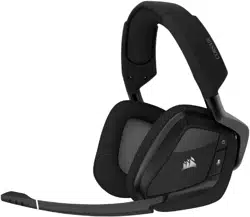
Premium Gaming Headset with 7.1 Surround Sound
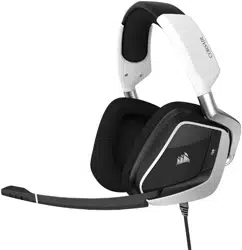
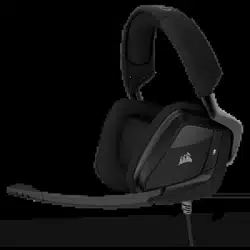
VOID ELITE SURROUND
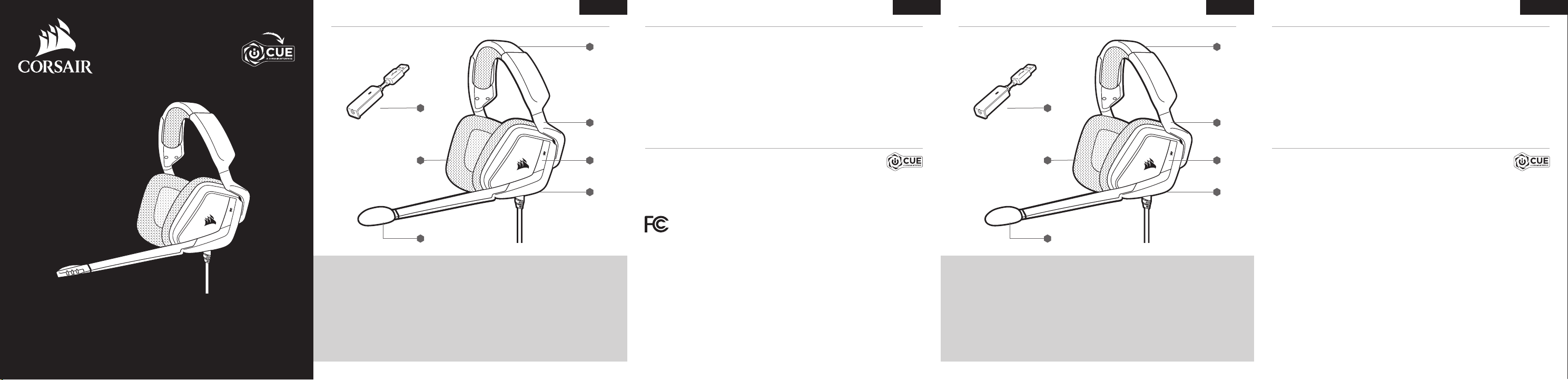
CONTROLS AND FEATURES COMMANDES ET FONCTIONS
ENGLISH ENGLISH FRANÇAIS FRANÇAIS
> Select and customize audio equalizer (EQ) settings.
> Adjust microphone input volume and microphone side tone.
> Set 7.1 surround sound on or off.
NOTE: Prolonged listening at high volumes may adversely affect your hearing. Take breaks between sessions and
always begin with the volume at the lowest possible level before increasing.
> Sélectionner et personnaliser les paramètres de l’égaliseur audio (EQ).
> Ajustez le volume d’entrée et l’effet local du microphone.
> Activer ou désactiver le son 7.1 surround.
REMARQUE: Une écoute prolongée à des volumes élevés pourrait avoir une incidence négative sur votre ouïe.
Faites des pauses et baissez toujours le volume pour commencer, quitte à l’augmenter par la suite.
iCUE SOFTWARE CAN BE USED TO LE LOGICIEL iCUE PEUT ÊTRE UTILISÉ POUR
VOID ELITE SURROUND is a multi-platform headset that operates in two audio modes:
Stereo and 7.1 surround sound.
> In stereo mode, you can connect the 3.5mm audio jack into any PC, Mac, PlayStation 4, XBOX One*,
Nintendo Switch or mobile device.
> The included 7.1 surround sound USB adapter enables surround sound on PC.
* May require Microsoft adapter sold separately.
If using headset on PC, go to corsair.com/support/downloads to download the iCUE Software. Using the iCUE
software will enable the full feature set of your headset.
NOTE: if the headset is used without software, some features will be disabled.
> Install the iCUE software on a PC running Windows 7, Windows 8.1, Windows 10 or later.
> After installation is complete, reboot your PC, and launch iCUE.
Le VOID ELITE SURROUND est un casque multiplateforme destiné à fonctionner en deux modes audio:
le mode stéréo et le mode 7.1 Surround.
> En mode stéréo, vous pouvez connecter la prise 3,5 mm du casque sur un PC, un Mac, une PlayStation 4,
une XBOX One*, une Nintendo Switch ou un appareil mobile.
> L’adaptateur USB 7.1 pour son surround inclus permet le son surround sur PC.
* Peut nécessiter un adaptateur Microsoft vendu séparément.
Si vous utilisez le casque sur votre PC, rendez-vous sur corsair.com/support/downloads pour télécharger le
logiciel iCUE. Utiliser le logiciel iCUE permettra d’activer toutes les fonctionnalités de votre casque.
REMARQUE: si le casque est utilisé sans le logiciel, certaines fonctions seront désactivées.
> Installez le logiciel iCUE sur un PC exécutant Windows 7, Windows 8.1, Windows 10 ou une version ultérieure.
> Une fois l’installation terminée, redémarrez votre ordinateur et lancez iCUE.
GETTING STARTED WITH YOUR VOID ELITE SURROUND HEADSET MISE EN ROUTE DE VOTRE CASQUE VOID ELITE SURROUND
F
E
C
A
B
D
G
F
E
C
A
B
D
G
This equipment has been tested and found to comply with the limits for a Class B digital device, pursuant to Part
15 of the FCC Rules. These limits are designed to provide reasonable protection against harmful interference
in a residential installation. This equipment generates, uses and can radiate radio frequency energy and, if not
installed and used in accordance with the instructions, may cause harmful interference to radio communications.
However, there is no guarantee that interference will not occur in a particular installation. If this equipment does
cause harmful interference to radio or television reception, which can be determined by turning the equipment off
and on, the user is encouraged to try to correct the interference by one of the following measures:
- Reorient or relocate the receiving antenna.
- Increase the separation between the equipment and receiver.
- Connect the equipment into an outlet on a circuit different from that to which the receiver is connected.
- Consult the dealer or an experienced radio/TV technician for help.
FCC Caution: Any changes or modifications not expressly approved by the party responsible for compliance
could void the user’s authority to operate this equipment.
This Class B digital apparatus meets all requirements of the Canadian Interference-Causing Equipment Regulations.
CAN ICES-3(B)/NMB-3(B).
This device complies with Part 15 of the FCC Rules. Operation is subject to the following two
conditions: (1) This device may not cause harmful interference, and (2) this device must accept any
interference received, including interference that may cause undesired operation.
Cet appareil numérique de la class B respecte toutes les exigences du Règlement sur le materiel brouilleur du Canada.
CAN ICES-3(B)/NMB-3(B)
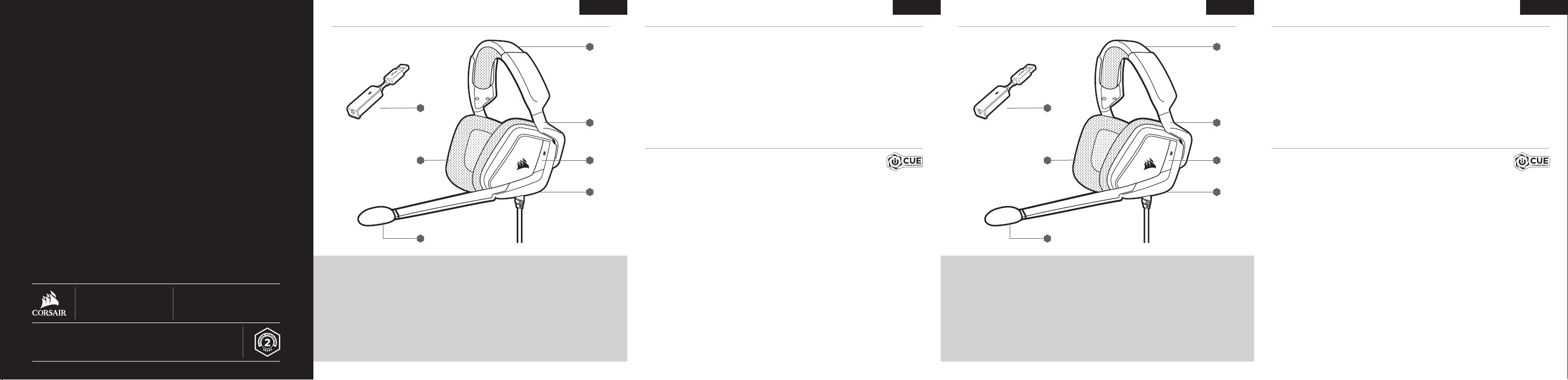
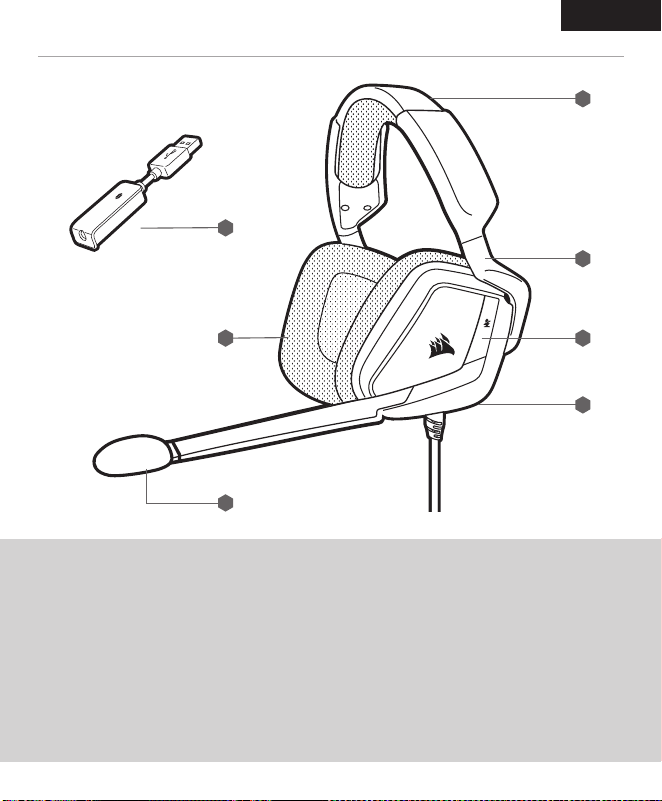
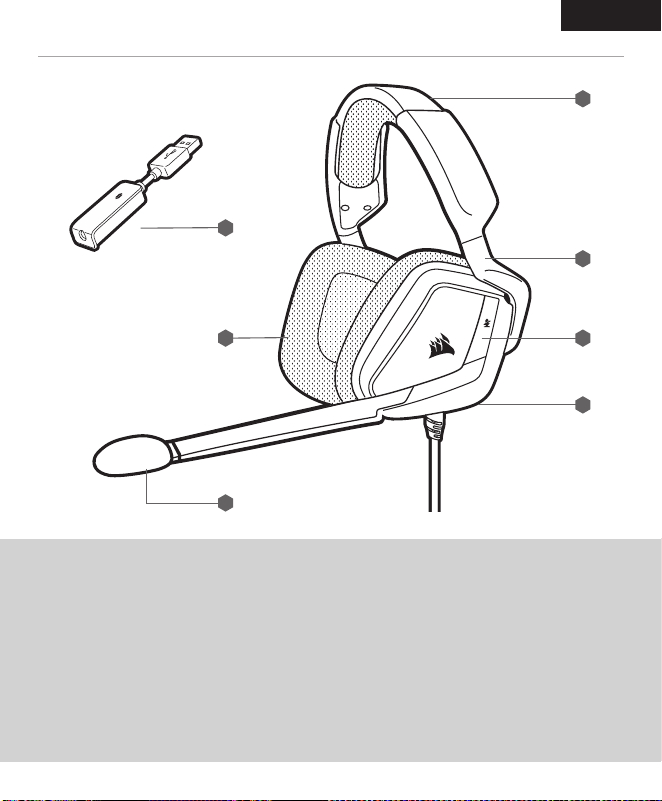
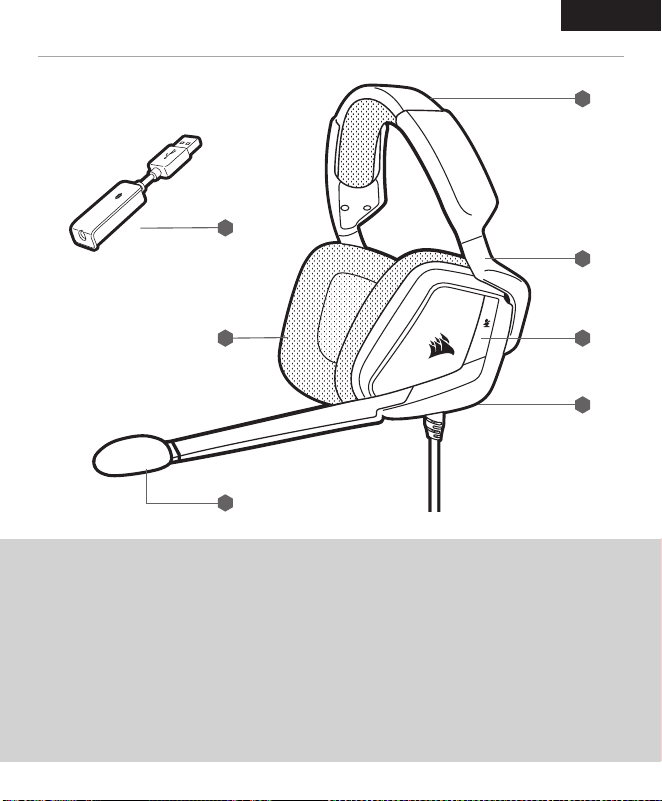
A — HEADBAND ADJUSTMENT
B — CANTILEVERED ARM + HINGE
C — MUTE BUTTON
D — VOLUME CONTROL
E — 7.1 SURROUND SOUND USB ADAPTER
F — MICROFIBER COVERED EAR PADS
G — MICROPHONE FOAM WINDSCREEN
(REMOVABLE)
A — RÉGLAGE DE L’ARCEAU
B — BRAS + CHARNIÈRE EN PORTE-À-FAUX
C — BOUTON DE COUPURE DU SON
D — CONTRÔLE DU VOLUME
E — ADAPTATEUR USB SON SURROUND 7.1
F — COUSSINETS D’OREILLE RECOUVERTS
DE MICROFIBRE
G — BONNETTE POUR MICRO
(POUVANT ÊTRE RETIRÉE)
corsair.com/downloads
B E TTE R
TOGETH ER
Premium Gaming Headset with 7.1 Surround Sound
VOID ELITE SURROUND
CONTROLS AND FEATURES COMMANDES ET FONCTIONS
ENGLISH ENGLISH FRANÇAIS FRANÇAIS
> Select and customize audio equalizer (EQ) settings.
> Adjust microphone input volume and microphone side tone.
> Set 7.1 surround sound on or off.
NOTE: Prolonged listening at high volumes may adversely affect your hearing. Take breaks between sessions and
always begin with the volume at the lowest possible level before increasing.
> Sélectionner et personnaliser les paramètres de l’égaliseur audio (EQ).
> Ajustez le volume d’entrée et l’effet local du microphone.
> Activer ou désactiver le son 7.1 surround.
REMARQUE: Une écoute prolongée à des volumes élevés pourrait avoir une incidence négative sur votre ouïe.
Faites des pauses et baissez toujours le volume pour commencer, quitte à l’augmenter par la suite.
iCUE SOFTWARE CAN BE USED TO LE LOGICIEL iCUE PEUT ÊTRE UTILISÉ POUR
VOID ELITE SURROUND is a multi-platform headset that operates in two audio modes:
Stereo and 7.1 surround sound.
> In stereo mode, you can connect the 3.5mm audio jack into any PC, Mac, PlayStation 4, XBOX One*,
Nintendo Switch or mobile device.
> The included 7.1 surround sound USB adapter enables surround sound on PC.
* May require Microsoft adapter sold separately.
If using headset on PC, go to corsair.com/support/downloads to download the iCUE Software. Using the iCUE
software will enable the full feature set of your headset.
NOTE: if the headset is used without software, some features will be disabled.
> Install the iCUE software on a PC running Windows 7, Windows 8.1, Windows 10 or later.
> After installation is complete, reboot your PC, and launch iCUE.
Le VOID ELITE SURROUND est un casque multiplateforme destiné à fonctionner en deux modes audio:
le mode stéréo et le mode 7.1 Surround.
> En mode stéréo, vous pouvez connecter la prise 3,5 mm du casque sur un PC, un Mac, une PlayStation 4,
une XBOX One*, une Nintendo Switch ou un appareil mobile.
> L’adaptateur USB 7.1 pour son surround inclus permet le son surround sur PC.
* Peut nécessiter un adaptateur Microsoft vendu séparément.
Si vous utilisez le casque sur votre PC, rendez-vous sur corsair.com/support/downloads pour télécharger le
logiciel iCUE. Utiliser le logiciel iCUE permettra d’activer toutes les fonctionnalités de votre casque.
REMARQUE: si le casque est utilisé sans le logiciel, certaines fonctions seront désactivées.
> Installez le logiciel iCUE sur un PC exécutant Windows 7, Windows 8.1, Windows 10 ou une version ultérieure.
> Une fois l’installation terminée, redémarrez votre ordinateur et lancez iCUE.
GETTING STARTED WITH YOUR VOID ELITE SURROUND HEADSET MISE EN ROUTE DE VOTRE CASQUE VOID ELITE SURROUND
F
E
C
A
B
D
G
F
E
C
A
B
D
G
This equipment has been tested and found to comply with the limits for a Class B digital device, pursuant to Part
15 of the FCC Rules. These limits are designed to provide reasonable protection against harmful interference
in a residential installation. This equipment generates, uses and can radiate radio frequency energy and, if not
installed and used in accordance with the instructions, may cause harmful interference to radio communications.
However, there is no guarantee that interference will not occur in a particular installation. If this equipment does
cause harmful interference to radio or television reception, which can be determined by turning the equipment off
and on, the user is encouraged to try to correct the interference by one of the following measures:
- Reorient or relocate the receiving antenna.
- Increase the separation between the equipment and receiver.
- Connect the equipment into an outlet on a circuit different from that to which the receiver is connected.
- Consult the dealer or an experienced radio/TV technician for help.
FCC Caution: Any changes or modifications not expressly approved by the party responsible for compliance
could void the user’s authority to operate this equipment.
This Class B digital apparatus meets all requirements of the Canadian Interference-Causing Equipment Regulations.
CAN ICES-3(B)/NMB-3(B).
This device complies with Part 15 of the FCC Rules. Operation is subject to the following two
conditions: (1) This device may not cause harmful interference, and (2) this device must accept any
interference received, including interference that may cause undesired operation.
Cet appareil numérique de la class B respecte toutes les exigences du Règlement sur le materiel brouilleur du Canada.
CAN ICES-3(B)/NMB-3(B)
A — HEADBAND ADJUSTMENT
B — CANTILEVERED ARM + HINGE
C — MUTE BUTTON
D — VOLUME CONTROL
E — 7.1 SURROUND SOUND USB ADAPTER
F — MICROFIBER COVERED EAR PADS
G — MICROPHONE FOAM WINDSCREEN
(REMOVABLE)
A — RÉGLAGE DE L’ARCEAU
B — BRAS + CHARNIÈRE EN PORTE-À-FAUX
C — BOUTON DE COUPURE DU SON
D — CONTRÔLE DU VOLUME
E — ADAPTATEUR USB SON SURROUND 7.1
F — COUSSINETS D’OREILLE RECOUVERTS
DE MICROFIBRE
G — BONNETTE POUR MICRO
(POUVANT ÊTRE RETIRÉE)
corsair.com/downloads
B E TTE R
TOGETH ER
Premium Gaming Headset with 7.1 Surround Sound
VOID ELITE SURROUND
CONTROLS AND FEATURES COMMANDES ET FONCTIONS
ENGLISH ENGLISH FRANÇAIS FRANÇAIS
> Select and customize audio equalizer (EQ) settings.
> Adjust microphone input volume and microphone side tone.
> Set 7.1 surround sound on or off.
NOTE: Prolonged listening at high volumes may adversely affect your hearing. Take breaks between sessions and
always begin with the volume at the lowest possible level before increasing.
> Sélectionner et personnaliser les paramètres de l’égaliseur audio (EQ).
> Ajustez le volume d’entrée et l’effet local du microphone.
> Activer ou désactiver le son 7.1 surround.
REMARQUE: Une écoute prolongée à des volumes élevés pourrait avoir une incidence négative sur votre ouïe.
Faites des pauses et baissez toujours le volume pour commencer, quitte à l’augmenter par la suite.
iCUE SOFTWARE CAN BE USED TO LE LOGICIEL iCUE PEUT ÊTRE UTILISÉ POUR
VOID ELITE SURROUND is a multi-platform headset that operates in two audio modes:
Stereo and 7.1 surround sound.
> In stereo mode, you can connect the 3.5mm audio jack into any PC, Mac, PlayStation 4, XBOX One*,
Nintendo Switch or mobile device.
> The included 7.1 surround sound USB adapter enables surround sound on PC.
* May require Microsoft adapter sold separately.
If using headset on PC, go to corsair.com/support/downloads to download the iCUE Software. Using the iCUE
software will enable the full feature set of your headset.
NOTE: if the headset is used without software, some features will be disabled.
> Install the iCUE software on a PC running Windows 7, Windows 8.1, Windows 10 or later.
> After installation is complete, reboot your PC, and launch iCUE.
Le VOID ELITE SURROUND est un casque multiplateforme destiné à fonctionner en deux modes audio:
le mode stéréo et le mode 7.1 Surround.
> En mode stéréo, vous pouvez connecter la prise 3,5 mm du casque sur un PC, un Mac, une PlayStation 4,
une XBOX One*, une Nintendo Switch ou un appareil mobile.
> L’adaptateur USB 7.1 pour son surround inclus permet le son surround sur PC.
* Peut nécessiter un adaptateur Microsoft vendu séparément.
Si vous utilisez le casque sur votre PC, rendez-vous sur corsair.com/support/downloads pour télécharger le
logiciel iCUE. Utiliser le logiciel iCUE permettra d’activer toutes les fonctionnalités de votre casque.
REMARQUE: si le casque est utilisé sans le logiciel, certaines fonctions seront désactivées.
> Installez le logiciel iCUE sur un PC exécutant Windows 7, Windows 8.1, Windows 10 ou une version ultérieure.
> Une fois l’installation terminée, redémarrez votre ordinateur et lancez iCUE.
GETTING STARTED WITH YOUR VOID ELITE SURROUND HEADSET MISE EN ROUTE DE VOTRE CASQUE VOID ELITE SURROUND
F
E
C
A
B
D
G
F
E
C
A
B
D
G
This equipment has been tested and found to comply with the limits for a Class B digital device, pursuant to Part
15 of the FCC Rules. These limits are designed to provide reasonable protection against harmful interference
in a residential installation. This equipment generates, uses and can radiate radio frequency energy and, if not
installed and used in accordance with the instructions, may cause harmful interference to radio communications.
However, there is no guarantee that interference will not occur in a particular installation. If this equipment does
cause harmful interference to radio or television reception, which can be determined by turning the equipment off
and on, the user is encouraged to try to correct the interference by one of the following measures:
- Reorient or relocate the receiving antenna.
- Increase the separation between the equipment and receiver.
- Connect the equipment into an outlet on a circuit different from that to which the receiver is connected.
- Consult the dealer or an experienced radio/TV technician for help.
FCC Caution: Any changes or modifications not expressly approved by the party responsible for compliance
could void the user’s authority to operate this equipment.
This Class B digital apparatus meets all requirements of the Canadian Interference-Causing Equipment Regulations.
CAN ICES-3(B)/NMB-3(B).
This device complies with Part 15 of the FCC Rules. Operation is subject to the following two
conditions: (1) This device may not cause harmful interference, and (2) this device must accept any
interference received, including interference that may cause undesired operation.
Cet appareil numérique de la class B respecte toutes les exigences du Règlement sur le materiel brouilleur du Canada.
CAN ICES-3(B)/NMB-3(B)
A — HEADBAND ADJUSTMENT
B — CANTILEVERED ARM + HINGE
C — MUTE BUTTON
D — VOLUME CONTROL
E — 7.1 SURROUND SOUND USB ADAPTER
F — MICROFIBER COVERED EAR PADS
G — MICROPHONE FOAM WINDSCREEN
(REMOVABLE)
A — RÉGLAGE DE L’ARCEAU
B — BRAS + CHARNIÈRE EN PORTE-À-FAUX
C — BOUTON DE COUPURE DU SON
D — CONTRÔLE DU VOLUME
E — ADAPTATEUR USB SON SURROUND 7.1
F — COUSSINETS D’OREILLE RECOUVERTS
DE MICROFIBRE
G — BONNETTE POUR MICRO
(POUVANT ÊTRE RETIRÉE)
corsair.com/downloads
B E TTE R
TOGETH ER
Premium Gaming Headset with 7.1 Surround Sound
VOID ELITE SURROUND
CONTROLS AND FEATURES COMMANDES ET FONCTIONS
ENGLISH ENGLISH FRANÇAIS FRANÇAIS
> Select and customize audio equalizer (EQ) settings.
> Adjust microphone input volume and microphone side tone.
> Set 7.1 surround sound on or off.
NOTE: Prolonged listening at high volumes may adversely affect your hearing. Take breaks between sessions and
always begin with the volume at the lowest possible level before increasing.
> Sélectionner et personnaliser les paramètres de l’égaliseur audio (EQ).
> Ajustez le volume d’entrée et l’effet local du microphone.
> Activer ou désactiver le son 7.1 surround.
REMARQUE: Une écoute prolongée à des volumes élevés pourrait avoir une incidence négative sur votre ouïe.
Faites des pauses et baissez toujours le volume pour commencer, quitte à l’augmenter par la suite.
iCUE SOFTWARE CAN BE USED TO LE LOGICIEL iCUE PEUT ÊTRE UTILISÉ POUR
VOID ELITE SURROUND is a multi-platform headset that operates in two audio modes:
Stereo and 7.1 surround sound.
> In stereo mode, you can connect the 3.5mm audio jack into any PC, Mac, PlayStation 4, XBOX One*,
Nintendo Switch or mobile device.
> The included 7.1 surround sound USB adapter enables surround sound on PC.
* May require Microsoft adapter sold separately.
If using headset on PC, go to corsair.com/support/downloads to download the iCUE Software. Using the iCUE
software will enable the full feature set of your headset.
NOTE: if the headset is used without software, some features will be disabled.
> Install the iCUE software on a PC running Windows 7, Windows 8.1, Windows 10 or later.
> After installation is complete, reboot your PC, and launch iCUE.
Le VOID ELITE SURROUND est un casque multiplateforme destiné à fonctionner en deux modes audio:
le mode stéréo et le mode 7.1 Surround.
> En mode stéréo, vous pouvez connecter la prise 3,5 mm du casque sur un PC, un Mac, une PlayStation 4,
une XBOX One*, une Nintendo Switch ou un appareil mobile.
> L’adaptateur USB 7.1 pour son surround inclus permet le son surround sur PC.
* Peut nécessiter un adaptateur Microsoft vendu séparément.
Si vous utilisez le casque sur votre PC, rendez-vous sur corsair.com/support/downloads pour télécharger le
logiciel iCUE. Utiliser le logiciel iCUE permettra d’activer toutes les fonctionnalités de votre casque.
REMARQUE: si le casque est utilisé sans le logiciel, certaines fonctions seront désactivées.
> Installez le logiciel iCUE sur un PC exécutant Windows 7, Windows 8.1, Windows 10 ou une version ultérieure.
> Une fois l’installation terminée, redémarrez votre ordinateur et lancez iCUE.
GETTING STARTED WITH YOUR VOID ELITE SURROUND HEADSET MISE EN ROUTE DE VOTRE CASQUE VOID ELITE SURROUND
F
E
C
A
B
D
G
F
E
C
A
B
D
G
This equipment has been tested and found to comply with the limits for a Class B digital device, pursuant to Part
15 of the FCC Rules. These limits are designed to provide reasonable protection against harmful interference
in a residential installation. This equipment generates, uses and can radiate radio frequency energy and, if not
installed and used in accordance with the instructions, may cause harmful interference to radio communications.
However, there is no guarantee that interference will not occur in a particular installation. If this equipment does
cause harmful interference to radio or television reception, which can be determined by turning the equipment off
and on, the user is encouraged to try to correct the interference by one of the following measures:
- Reorient or relocate the receiving antenna.
- Increase the separation between the equipment and receiver.
- Connect the equipment into an outlet on a circuit different from that to which the receiver is connected.
- Consult the dealer or an experienced radio/TV technician for help.
FCC Caution: Any changes or modifications not expressly approved by the party responsible for compliance
could void the user’s authority to operate this equipment.
This Class B digital apparatus meets all requirements of the Canadian Interference-Causing Equipment Regulations.
CAN ICES-3(B)/NMB-3(B).
This device complies with Part 15 of the FCC Rules. Operation is subject to the following two
conditions: (1) This device may not cause harmful interference, and (2) this device must accept any
interference received, including interference that may cause undesired operation.
Cet appareil numérique de la class B respecte toutes les exigences du Règlement sur le materiel brouilleur du Canada.
CAN ICES-3(B)/NMB-3(B)
A — HEADBAND ADJUSTMENT
B — CANTILEVERED ARM + HINGE
C — MUTE BUTTON
D — VOLUME CONTROL
E — 7.1 SURROUND SOUND USB ADAPTER
F — MICROFIBER COVERED EAR PADS
G — MICROPHONE FOAM WINDSCREEN
(REMOVABLE)
A — RÉGLAGE DE L’ARCEAU
B — BRAS + CHARNIÈRE EN PORTE-À-FAUX
C — BOUTON DE COUPURE DU SON
D — CONTRÔLE DU VOLUME
E — ADAPTATEUR USB SON SURROUND 7.1
F — COUSSINETS D’OREILLE RECOUVERTS
DE MICROFIBRE
G — BONNETTE POUR MICRO
(POUVANT ÊTRE RETIRÉE)

corsair.com/downloads
B E TTE R
TOGETH ER
Premium Gaming Headset with 7.1 Surround Sound
VOID ELITE SURROUND
CONTROLS AND FEATURES COMMANDES ET FONCTIONS
ENGLISH ENGLISH FRANÇAIS FRANÇAIS
> Select and customize audio equalizer (EQ) settings.
> Adjust microphone input volume and microphone side tone.
> Set 7.1 surround sound on or off.
NOTE: Prolonged listening at high volumes may adversely affect your hearing. Take breaks between sessions and
always begin with the volume at the lowest possible level before increasing.
> Sélectionner et personnaliser les paramètres de l’égaliseur audio (EQ).
> Ajustez le volume d’entrée et l’effet local du microphone.
> Activer ou désactiver le son 7.1 surround.
REMARQUE: Une écoute prolongée à des volumes élevés pourrait avoir une incidence négative sur votre ouïe.
Faites des pauses et baissez toujours le volume pour commencer, quitte à l’augmenter par la suite.
iCUE SOFTWARE CAN BE USED TO LE LOGICIEL iCUE PEUT ÊTRE UTILISÉ POUR
VOID ELITE SURROUND is a multi-platform headset that operates in two audio modes:
Stereo and 7.1 surround sound.
> In stereo mode, you can connect the 3.5mm audio jack into any PC, Mac, PlayStation 4, XBOX One*,
Nintendo Switch or mobile device.
> The included 7.1 surround sound USB adapter enables surround sound on PC.
* May require Microsoft adapter sold separately.
If using headset on PC, go to corsair.com/support/downloads to download the iCUE Software. Using the iCUE
software will enable the full feature set of your headset.
NOTE: if the headset is used without software, some features will be disabled.
> Install the iCUE software on a PC running Windows 7, Windows 8.1, Windows 10 or later.
> After installation is complete, reboot your PC, and launch iCUE.
Le VOID ELITE SURROUND est un casque multiplateforme destiné à fonctionner en deux modes audio:
le mode stéréo et le mode 7.1 Surround.
> En mode stéréo, vous pouvez connecter la prise 3,5 mm du casque sur un PC, un Mac, une PlayStation 4,
une XBOX One*, une Nintendo Switch ou un appareil mobile.
> L’adaptateur USB 7.1 pour son surround inclus permet le son surround sur PC.
* Peut nécessiter un adaptateur Microsoft vendu séparément.
Si vous utilisez le casque sur votre PC, rendez-vous sur corsair.com/support/downloads pour télécharger le
logiciel iCUE. Utiliser le logiciel iCUE permettra d’activer toutes les fonctionnalités de votre casque.
REMARQUE: si le casque est utilisé sans le logiciel, certaines fonctions seront désactivées.
> Installez le logiciel iCUE sur un PC exécutant Windows 7, Windows 8.1, Windows 10 ou une version ultérieure.
> Une fois l’installation terminée, redémarrez votre ordinateur et lancez iCUE.
GETTING STARTED WITH YOUR VOID ELITE SURROUND HEADSET MISE EN ROUTE DE VOTRE CASQUE VOID ELITE SURROUND
F
E
C
A
B
D
G
F
E
C
A
B
D
G
This equipment has been tested and found to comply with the limits for a Class B digital device, pursuant to Part
15 of the FCC Rules. These limits are designed to provide reasonable protection against harmful interference
in a residential installation. This equipment generates, uses and can radiate radio frequency energy and, if not
installed and used in accordance with the instructions, may cause harmful interference to radio communications.
However, there is no guarantee that interference will not occur in a particular installation. If this equipment does
cause harmful interference to radio or television reception, which can be determined by turning the equipment off
and on, the user is encouraged to try to correct the interference by one of the following measures:
- Reorient or relocate the receiving antenna.
- Increase the separation between the equipment and receiver.
- Connect the equipment into an outlet on a circuit different from that to which the receiver is connected.
- Consult the dealer or an experienced radio/TV technician for help.
FCC Caution: Any changes or modifications not expressly approved by the party responsible for compliance
could void the user’s authority to operate this equipment.
This Class B digital apparatus meets all requirements of the Canadian Interference-Causing Equipment Regulations.
CAN ICES-3(B)/NMB-3(B).
This device complies with Part 15 of the FCC Rules. Operation is subject to the following two
conditions: (1) This device may not cause harmful interference, and (2) this device must accept any
interference received, including interference that may cause undesired operation.
Cet appareil numérique de la class B respecte toutes les exigences du Règlement sur le materiel brouilleur du Canada.
CAN ICES-3(B)/NMB-3(B)
A — HEADBAND ADJUSTMENT
B — CANTILEVERED ARM + HINGE
C — MUTE BUTTON
D — VOLUME CONTROL
E — 7.1 SURROUND SOUND USB ADAPTER
F — MICROFIBER COVERED EAR PADS
G — MICROPHONE FOAM WINDSCREEN
(REMOVABLE)
A — RÉGLAGE DE L’ARCEAU
B — BRAS + CHARNIÈRE EN PORTE-À-FAUX
C — BOUTON DE COUPURE DU SON
D — CONTRÔLE DU VOLUME
E — ADAPTATEUR USB SON SURROUND 7.1
F — COUSSINETS D’OREILLE RECOUVERTS
DE MICROFIBRE
G — BONNETTE POUR MICRO
(POUVANT ÊTRE RETIRÉE)
ESPAÑOL ESPAÑOL PORTUGUÊS PORTUGUÊS
WEB: corsair.com
PHONE: (888) 222-4346
SUPPORT: support.corsair.com
BLOG: corsair.com/blog
FORUM: forum.corsair.com
YOUTUBE: youtube.com/corsairhowto
© 2020 CORSAIR MEMORY Inc. All rights reserved. CORSAIR and the sails logo
are registered trademarks in the United States and/or other countries. All other
trademarks are the property of their respective owners. Product may vary slightly
from those pictured. 49-002041 AA
VOID ELITE SURROUND
CONTROLES Y FUNCIONES CONTROLES E RECURSOS
> Seleccionar y personalizar los ajustes del ecualizador (EQ) de audio.
> Ajuste el volumen de entrada del micrófono y el tono local del micrófono.
> Activar o desactivar sonido envolvente de 7.1.
NOTA: Las escuchas prolongadas a volúmenes elevados pueden afectar negativamente a su audición. Haga
pausas entre sesiones y comience siempre con el volumen al nivel más bajo posible antes de aumentarlo.
> Selecionar e personalizar as configurações do equalizador de áudio (EQ).
> Ajustar o volume de entrada do microfone e o som de retorno do microfone.
> Ligar ou desligar o som surround do 7.1.
NOTA: Um uso prolongado em volumes elevados pode afetar negativamente sua audição. Faça pausas entre
sessões e comece sempre com o volume no menor nível possível antes de aumentar.
EL SOFTWARE iCUE SE PUEDE UTILIZAR PARA O SOFTWARE iCUE PODE SER UTILIZADO PARA
VOID ELITE SURROUND son auriculares para múltiples plataformas, que funcionan en dos modalidades de audio:
estéreo y sonido envolvente 7.1.
> En modo estéreo, se puede conectar la toma de 3,5 mm a cualquier PC, Mac, PlayStation 4, XBOX One*,
Nintendo Switch u otro dispositivo móvil.
> El adaptador USB de sonido envolvente 7.1 incluido permite el sonido envolvente en la PC.
* Puede ser necesario un adaptador de Microsoft, que se vende por separado.
Si utiliza auriculares con el PC, vaya a corsair.com/support/downloads para descargar el software iCUE.
Con el software iCUE habilitará todo el conjunto de funciones de los auriculares.
NOTA: si los auriculares se utilizan sin software, se deshabilitarán algunas funciones.
> Instale el software iCUE en un PC con Windows 7, Windows 8.1, Windows 10 o versiones posteriores.
> Una vez completada la instalación, reinicie el PC se inicie iCUE.
O VOID ELITE SURROUND é um headset compatível com várias plataformas e que opera em dois modos de
áudio: estéreo e som surround 7.1.
> Insira o conector de 3,5 mm no seu PC, Mac, PlayStation 4, XBOX One*, Nintendo Switch ou dispositivo móvel
para usar o headset no modo estéreo.
> O adaptador USB de som surround 7.1 incluído permite o som surround no PC.
* Poderá ser necessário o adaptador Microsoft vendido separadamente.
Se utilizar o headset no PC, aceda a corsair.com/support/downloads para transferir o software iCUE.
A utilização do software iCUE permitirá usufruir de todo o conjunto de funcionalidades do headset.
NOTA: se o headset for utilizado sem software, algumas funcionalidades estarão desativadas.
> Instale o software iCUE num PC com o Windows 7, Windows 8.1, Windows 10 ou posterior.
> Após concluir a instalação, reinicie o PC e inicie o iCUE.
PRIMEROS PASOS CON LOS AURICULARES VOID ELITE SURROUND INTRODUÇÃO AO HEADSET VOID ELITE SURROUND
A — AJUSTE DE LA DIADEMA
B — BRAZO MÓVIL + ARTICULACIÓN
C — BOTÓN DE SILENCIO
D — CONTROL DEL VOLUMEN
E — ADAPTADOR USB DE SONIDO
ENVOLVENTE 7.1
F — OREJERAS ACOLCHADAS CUBIERTAS
DE MICROFIBRA
G — PARAVIENTOS DE ESPUMA DEL
MICRÓFONO (EXTRAÍBLE)
A — AJUSTE DO ARCO
B — BRAÇO + DOBRADIÇA SUSPENSOS
C — BOTÃO MUDO
D — CONTROLE DE VOLUME
E — ADAPTADOR USB DE SOM
SURROUND 7.1
F — ALMOFADAS AURICULARES
DE MICROFIBRA
G — WINDSCREEN DE ESPUMA PARA
MICROFONE (REMOVÍVEL)
F
E
C
A
B
D
G
F
E
C
A
B
D
G

ESPAÑOL ESPAÑOL PORTUGUÊS PORTUGUÊS
WEB: corsair.com
PHONE: (888) 222-4346
SUPPORT: support.corsair.com
BLOG: corsair.com/blog
FORUM: forum.corsair.com
YOUTUBE: youtube.com/corsairhowto
© 2020 CORSAIR MEMORY Inc. All rights reserved. CORSAIR and the sails logo
are registered trademarks in the United States and/or other countries. All other
trademarks are the property of their respective owners. Product may vary slightly
from those pictured. 49-002041 AA
VOID ELITE SURROUND
CONTROLES Y FUNCIONES CONTROLES E RECURSOS
> Seleccionar y personalizar los ajustes del ecualizador (EQ) de audio.
> Ajuste el volumen de entrada del micrófono y el tono local del micrófono.
> Activar o desactivar sonido envolvente de 7.1.
NOTA: Las escuchas prolongadas a volúmenes elevados pueden afectar negativamente a su audición. Haga
pausas entre sesiones y comience siempre con el volumen al nivel más bajo posible antes de aumentarlo.
> Selecionar e personalizar as configurações do equalizador de áudio (EQ).
> Ajustar o volume de entrada do microfone e o som de retorno do microfone.
> Ligar ou desligar o som surround do 7.1.
NOTA: Um uso prolongado em volumes elevados pode afetar negativamente sua audição. Faça pausas entre
sessões e comece sempre com o volume no menor nível possível antes de aumentar.
EL SOFTWARE iCUE SE PUEDE UTILIZAR PARA O SOFTWARE iCUE PODE SER UTILIZADO PARA
VOID ELITE SURROUND son auriculares para múltiples plataformas, que funcionan en dos modalidades de audio:
estéreo y sonido envolvente 7.1.
> En modo estéreo, se puede conectar la toma de 3,5 mm a cualquier PC, Mac, PlayStation 4, XBOX One*,
Nintendo Switch u otro dispositivo móvil.
> El adaptador USB de sonido envolvente 7.1 incluido permite el sonido envolvente en la PC.
* Puede ser necesario un adaptador de Microsoft, que se vende por separado.
Si utiliza auriculares con el PC, vaya a corsair.com/support/downloads para descargar el software iCUE.
Con el software iCUE habilitará todo el conjunto de funciones de los auriculares.
NOTA: si los auriculares se utilizan sin software, se deshabilitarán algunas funciones.
> Instale el software iCUE en un PC con Windows 7, Windows 8.1, Windows 10 o versiones posteriores.
> Una vez completada la instalación, reinicie el PC se inicie iCUE.
O VOID ELITE SURROUND é um headset compatível com várias plataformas e que opera em dois modos de
áudio: estéreo e som surround 7.1.
> Insira o conector de 3,5 mm no seu PC, Mac, PlayStation 4, XBOX One*, Nintendo Switch ou dispositivo móvel
para usar o headset no modo estéreo.
> O adaptador USB de som surround 7.1 incluído permite o som surround no PC.
* Poderá ser necessário o adaptador Microsoft vendido separadamente.
Se utilizar o headset no PC, aceda a corsair.com/support/downloads para transferir o software iCUE.
A utilização do software iCUE permitirá usufruir de todo o conjunto de funcionalidades do headset.
NOTA: se o headset for utilizado sem software, algumas funcionalidades estarão desativadas.
> Instale o software iCUE num PC com o Windows 7, Windows 8.1, Windows 10 ou posterior.
> Após concluir a instalação, reinicie o PC e inicie o iCUE.
PRIMEROS PASOS CON LOS AURICULARES VOID ELITE SURROUND INTRODUÇÃO AO HEADSET VOID ELITE SURROUND
A — AJUSTE DE LA DIADEMA
B — BRAZO MÓVIL + ARTICULACIÓN
C — BOTÓN DE SILENCIO
D — CONTROL DEL VOLUMEN
E — ADAPTADOR USB DE SONIDO
ENVOLVENTE 7.1
F — OREJERAS ACOLCHADAS CUBIERTAS
DE MICROFIBRA
G — PARAVIENTOS DE ESPUMA DEL
MICRÓFONO (EXTRAÍBLE)
A — AJUSTE DO ARCO
B — BRAÇO + DOBRADIÇA SUSPENSOS
C — BOTÃO MUDO
D — CONTROLE DE VOLUME
E — ADAPTADOR USB DE SOM
SURROUND 7.1
F — ALMOFADAS AURICULARES
DE MICROFIBRA
G — WINDSCREEN DE ESPUMA PARA
MICROFONE (REMOVÍVEL)
F
E
C
A
B
D
G
F
E
C
A
B
D
G
ESPAÑOL ESPAÑOL PORTUGUÊS PORTUGUÊS
WEB: corsair.com
PHONE: (888) 222-4346
SUPPORT: support.corsair.com
BLOG: corsair.com/blog
FORUM: forum.corsair.com
YOUTUBE: youtube.com/corsairhowto
© 2020 CORSAIR MEMORY Inc. All rights reserved. CORSAIR and the sails logo
are registered trademarks in the United States and/or other countries. All other
trademarks are the property of their respective owners. Product may vary slightly
from those pictured. 49-002041 AA
VOID ELITE SURROUND
CONTROLES Y FUNCIONES CONTROLES E RECURSOS
> Seleccionar y personalizar los ajustes del ecualizador (EQ) de audio.
> Ajuste el volumen de entrada del micrófono y el tono local del micrófono.
> Activar o desactivar sonido envolvente de 7.1.
NOTA: Las escuchas prolongadas a volúmenes elevados pueden afectar negativamente a su audición. Haga
pausas entre sesiones y comience siempre con el volumen al nivel más bajo posible antes de aumentarlo.
> Selecionar e personalizar as configurações do equalizador de áudio (EQ).
> Ajustar o volume de entrada do microfone e o som de retorno do microfone.
> Ligar ou desligar o som surround do 7.1.
NOTA: Um uso prolongado em volumes elevados pode afetar negativamente sua audição. Faça pausas entre
sessões e comece sempre com o volume no menor nível possível antes de aumentar.
EL SOFTWARE iCUE SE PUEDE UTILIZAR PARA O SOFTWARE iCUE PODE SER UTILIZADO PARA
VOID ELITE SURROUND son auriculares para múltiples plataformas, que funcionan en dos modalidades de audio:
estéreo y sonido envolvente 7.1.
> En modo estéreo, se puede conectar la toma de 3,5 mm a cualquier PC, Mac, PlayStation 4, XBOX One*,
Nintendo Switch u otro dispositivo móvil.
> El adaptador USB de sonido envolvente 7.1 incluido permite el sonido envolvente en la PC.
* Puede ser necesario un adaptador de Microsoft, que se vende por separado.
Si utiliza auriculares con el PC, vaya a corsair.com/support/downloads para descargar el software iCUE.
Con el software iCUE habilitará todo el conjunto de funciones de los auriculares.
NOTA: si los auriculares se utilizan sin software, se deshabilitarán algunas funciones.
> Instale el software iCUE en un PC con Windows 7, Windows 8.1, Windows 10 o versiones posteriores.
> Una vez completada la instalación, reinicie el PC se inicie iCUE.
O VOID ELITE SURROUND é um headset compatível com várias plataformas e que opera em dois modos de
áudio: estéreo e som surround 7.1.
> Insira o conector de 3,5 mm no seu PC, Mac, PlayStation 4, XBOX One*, Nintendo Switch ou dispositivo móvel
para usar o headset no modo estéreo.
> O adaptador USB de som surround 7.1 incluído permite o som surround no PC.
* Poderá ser necessário o adaptador Microsoft vendido separadamente.
Se utilizar o headset no PC, aceda a corsair.com/support/downloads para transferir o software iCUE.
A utilização do software iCUE permitirá usufruir de todo o conjunto de funcionalidades do headset.
NOTA: se o headset for utilizado sem software, algumas funcionalidades estarão desativadas.
> Instale o software iCUE num PC com o Windows 7, Windows 8.1, Windows 10 ou posterior.
> Após concluir a instalação, reinicie o PC e inicie o iCUE.
PRIMEROS PASOS CON LOS AURICULARES VOID ELITE SURROUND INTRODUÇÃO AO HEADSET VOID ELITE SURROUND
A — AJUSTE DE LA DIADEMA
B — BRAZO MÓVIL + ARTICULACIÓN
C — BOTÓN DE SILENCIO
D — CONTROL DEL VOLUMEN
E — ADAPTADOR USB DE SONIDO
ENVOLVENTE 7.1
F — OREJERAS ACOLCHADAS CUBIERTAS
DE MICROFIBRA
G — PARAVIENTOS DE ESPUMA DEL
MICRÓFONO (EXTRAÍBLE)
A — AJUSTE DO ARCO
B — BRAÇO + DOBRADIÇA SUSPENSOS
C — BOTÃO MUDO
D — CONTROLE DE VOLUME
E — ADAPTADOR USB DE SOM
SURROUND 7.1
F — ALMOFADAS AURICULARES
DE MICROFIBRA
G — WINDSCREEN DE ESPUMA PARA
MICROFONE (REMOVÍVEL)
F
E
C
A
B
D
G
F
E
C
A
B
D
G

ESPAÑOL ESPAÑOL PORTUGUÊS PORTUGUÊS
WEB: corsair.com
PHONE: (888) 222-4346
SUPPORT: support.corsair.com
BLOG: corsair.com/blog
FORUM: forum.corsair.com
YOUTUBE: youtube.com/corsairhowto
© 2020 CORSAIR MEMORY Inc. All rights reserved. CORSAIR and the sails logo
are registered trademarks in the United States and/or other countries. All other
trademarks are the property of their respective owners. Product may vary slightly
from those pictured. 49-002041 AA
VOID ELITE SURROUND
CONTROLES Y FUNCIONES CONTROLES E RECURSOS
> Seleccionar y personalizar los ajustes del ecualizador (EQ) de audio.
> Ajuste el volumen de entrada del micrófono y el tono local del micrófono.
> Activar o desactivar sonido envolvente de 7.1.
NOTA: Las escuchas prolongadas a volúmenes elevados pueden afectar negativamente a su audición. Haga
pausas entre sesiones y comience siempre con el volumen al nivel más bajo posible antes de aumentarlo.
> Selecionar e personalizar as configurações do equalizador de áudio (EQ).
> Ajustar o volume de entrada do microfone e o som de retorno do microfone.
> Ligar ou desligar o som surround do 7.1.
NOTA: Um uso prolongado em volumes elevados pode afetar negativamente sua audição. Faça pausas entre
sessões e comece sempre com o volume no menor nível possível antes de aumentar.
EL SOFTWARE iCUE SE PUEDE UTILIZAR PARA O SOFTWARE iCUE PODE SER UTILIZADO PARA
VOID ELITE SURROUND son auriculares para múltiples plataformas, que funcionan en dos modalidades de audio:
estéreo y sonido envolvente 7.1.
> En modo estéreo, se puede conectar la toma de 3,5 mm a cualquier PC, Mac, PlayStation 4, XBOX One*,
Nintendo Switch u otro dispositivo móvil.
> El adaptador USB de sonido envolvente 7.1 incluido permite el sonido envolvente en la PC.
* Puede ser necesario un adaptador de Microsoft, que se vende por separado.
Si utiliza auriculares con el PC, vaya a corsair.com/support/downloads para descargar el software iCUE.
Con el software iCUE habilitará todo el conjunto de funciones de los auriculares.
NOTA: si los auriculares se utilizan sin software, se deshabilitarán algunas funciones.
> Instale el software iCUE en un PC con Windows 7, Windows 8.1, Windows 10 o versiones posteriores.
> Una vez completada la instalación, reinicie el PC se inicie iCUE.
O VOID ELITE SURROUND é um headset compatível com várias plataformas e que opera em dois modos de
áudio: estéreo e som surround 7.1.
> Insira o conector de 3,5 mm no seu PC, Mac, PlayStation 4, XBOX One*, Nintendo Switch ou dispositivo móvel
para usar o headset no modo estéreo.
> O adaptador USB de som surround 7.1 incluído permite o som surround no PC.
* Poderá ser necessário o adaptador Microsoft vendido separadamente.
Se utilizar o headset no PC, aceda a corsair.com/support/downloads para transferir o software iCUE.
A utilização do software iCUE permitirá usufruir de todo o conjunto de funcionalidades do headset.
NOTA: se o headset for utilizado sem software, algumas funcionalidades estarão desativadas.
> Instale o software iCUE num PC com o Windows 7, Windows 8.1, Windows 10 ou posterior.
> Após concluir a instalação, reinicie o PC e inicie o iCUE.
PRIMEROS PASOS CON LOS AURICULARES VOID ELITE SURROUND INTRODUÇÃO AO HEADSET VOID ELITE SURROUND
A — AJUSTE DE LA DIADEMA
B — BRAZO MÓVIL + ARTICULACIÓN
C — BOTÓN DE SILENCIO
D — CONTROL DEL VOLUMEN
E — ADAPTADOR USB DE SONIDO
ENVOLVENTE 7.1
F — OREJERAS ACOLCHADAS CUBIERTAS
DE MICROFIBRA
G — PARAVIENTOS DE ESPUMA DEL
MICRÓFONO (EXTRAÍBLE)
A — AJUSTE DO ARCO
B — BRAÇO + DOBRADIÇA SUSPENSOS
C — BOTÃO MUDO
D — CONTROLE DE VOLUME
E — ADAPTADOR USB DE SOM
SURROUND 7.1
F — ALMOFADAS AURICULARES
DE MICROFIBRA
G — WINDSCREEN DE ESPUMA PARA
MICROFONE (REMOVÍVEL)
F
E
C
A
B
D
G
F
E
C
A
B
D
G

ESPAÑOL ESPAÑOL PORTUGUÊS PORTUGUÊS
WEB: corsair.com
PHONE: (888) 222-4346
SUPPORT: support.corsair.com
BLOG: corsair.com/blog
FORUM: forum.corsair.com
YOUTUBE: youtube.com/corsairhowto
© 2020 CORSAIR MEMORY Inc. All rights reserved. CORSAIR and the sails logo
are registered trademarks in the United States and/or other countries. All other
trademarks are the property of their respective owners. Product may vary slightly
from those pictured. 49-002041 AA
VOID ELITE SURROUND
CONTROLES Y FUNCIONES CONTROLES E RECURSOS
> Seleccionar y personalizar los ajustes del ecualizador (EQ) de audio.
> Ajuste el volumen de entrada del micrófono y el tono local del micrófono.
> Activar o desactivar sonido envolvente de 7.1.
NOTA: Las escuchas prolongadas a volúmenes elevados pueden afectar negativamente a su audición. Haga
pausas entre sesiones y comience siempre con el volumen al nivel más bajo posible antes de aumentarlo.
> Selecionar e personalizar as configurações do equalizador de áudio (EQ).
> Ajustar o volume de entrada do microfone e o som de retorno do microfone.
> Ligar ou desligar o som surround do 7.1.
NOTA: Um uso prolongado em volumes elevados pode afetar negativamente sua audição. Faça pausas entre
sessões e comece sempre com o volume no menor nível possível antes de aumentar.
EL SOFTWARE iCUE SE PUEDE UTILIZAR PARA O SOFTWARE iCUE PODE SER UTILIZADO PARA
VOID ELITE SURROUND son auriculares para múltiples plataformas, que funcionan en dos modalidades de audio:
estéreo y sonido envolvente 7.1.
> En modo estéreo, se puede conectar la toma de 3,5 mm a cualquier PC, Mac, PlayStation 4, XBOX One*,
Nintendo Switch u otro dispositivo móvil.
> El adaptador USB de sonido envolvente 7.1 incluido permite el sonido envolvente en la PC.
* Puede ser necesario un adaptador de Microsoft, que se vende por separado.
Si utiliza auriculares con el PC, vaya a corsair.com/support/downloads para descargar el software iCUE.
Con el software iCUE habilitará todo el conjunto de funciones de los auriculares.
NOTA: si los auriculares se utilizan sin software, se deshabilitarán algunas funciones.
> Instale el software iCUE en un PC con Windows 7, Windows 8.1, Windows 10 o versiones posteriores.
> Una vez completada la instalación, reinicie el PC se inicie iCUE.
O VOID ELITE SURROUND é um headset compatível com várias plataformas e que opera em dois modos de
áudio: estéreo e som surround 7.1.
> Insira o conector de 3,5 mm no seu PC, Mac, PlayStation 4, XBOX One*, Nintendo Switch ou dispositivo móvel
para usar o headset no modo estéreo.
> O adaptador USB de som surround 7.1 incluído permite o som surround no PC.
* Poderá ser necessário o adaptador Microsoft vendido separadamente.
Se utilizar o headset no PC, aceda a corsair.com/support/downloads para transferir o software iCUE.
A utilização do software iCUE permitirá usufruir de todo o conjunto de funcionalidades do headset.
NOTA: se o headset for utilizado sem software, algumas funcionalidades estarão desativadas.
> Instale o software iCUE num PC com o Windows 7, Windows 8.1, Windows 10 ou posterior.
> Após concluir a instalação, reinicie o PC e inicie o iCUE.
PRIMEROS PASOS CON LOS AURICULARES VOID ELITE SURROUND INTRODUÇÃO AO HEADSET VOID ELITE SURROUND
A — AJUSTE DE LA DIADEMA
B — BRAZO MÓVIL + ARTICULACIÓN
C — BOTÓN DE SILENCIO
D — CONTROL DEL VOLUMEN
E — ADAPTADOR USB DE SONIDO
ENVOLVENTE 7.1
F — OREJERAS ACOLCHADAS CUBIERTAS
DE MICROFIBRA
G — PARAVIENTOS DE ESPUMA DEL
MICRÓFONO (EXTRAÍBLE)
A — AJUSTE DO ARCO
B — BRAÇO + DOBRADIÇA SUSPENSOS
C — BOTÃO MUDO
D — CONTROLE DE VOLUME
E — ADAPTADOR USB DE SOM
SURROUND 7.1
F — ALMOFADAS AURICULARES
DE MICROFIBRA
G — WINDSCREEN DE ESPUMA PARA
MICROFONE (REMOVÍVEL)
F
E
C
A
B
D
G
F
E
C
A
B
D
G