Complete
Surveillance
User Guide

VIMTAG SURVEILLANCE SOLUTION USER GUIDE
Page 1
Trademark and Terms of Use Statement
Information in this document is subject to change without notice. No part
of this document may be reproduced or transmitted in any form or by any
means, electronic, mechanical or otherwise, for any purpose, without the
express written permission of Vimtag LLC. This document does not
transfer licensing rights. Use of the Vimtag web-based application and/or
Windows or MAC versions is subject to the terms detailed below, except
as expressly provided in any written license agreement from Vimtag LLC.
© 2016 Vimtag LLC. All rights reserved.
Windows is a registered trademark of Microsoft Corporation in the
United States and/or other countries. MAC and OS X are trademarks
of Apple Inc., registered in the U.S. and other countries. Android is a
trademark of Google Inc. All other product and company names and logos
are trademarks or registered trademarks of their respective holders.
Technical Support
Support email: [email protected]m
Support hours:
Sunday 10:00am-5:30pm EST
Monday-Thursday 9:00am-5:30pm EST
If you have any questions, you can always contact our customer support.

VIMTAG SURVEILLANCE SOLUTION USER GUIDE
Page 2
1. Introduction ............................................................................... 3
Key Benefits of the Vimtag Solution.......................................................... 4
Overview of the Vimtag Workflow ............................................................ 5
2. Vimtag Devices ........................................................................... 6
3. Installing the Vimtag App ............................................................ 9
Creating an Account ................................................................................ 10
4. Installing the Camera and VimBox ............................................. 13
Installation Prerequisites ........................................................................ 13
Package Contents .................................................................................... 14
Connecting the Device ............................................................................ 14
Adding a Device ....................................................................................... 15
Deleting a Device ..................................................................................... 19
Storing the VimBox.................................................................................. 20
5. Using the Website Interface or Web App ................................... 22
Controlling the Camera Display ............................................................... 25
Controlling the Camera Movement ........................................................ 26
Managing Your Account .......................................................................... 30
Operating the Camera ............................................................................. 27
6. Overview of the Device Settings Page ........................................ 34
System Settings ....................................................................................... 35
Initial Settings .......................................................................................... 38
Storage Options ....................................................................................... 39
Working with the Camera ....................................................................... 41
System ..................................................................................................... 48
Others ...................................................................................................... 50
7. Troubleshooting ....................................................................... 51
VIMTAG SURVEILLANCE SOLUTION USER GUIDE
Page 3
1. Introduction
The Vimtag solution combines an advanced software monitoring and
control application with sophisticated cameras and storage devices to
provide an easy-to-install and easy-to-use complete business and home
surveillance system.
Using the Vimtag solution, you can quickly and easily:
Observe what is happening in real time from remote locations
Capture and store video and images both manually and automatically
Modify the viewing area covered by each camera (in some cases you
can rotate the camera nearly 360°, tilt the view to capture areas
above or below the current view, etc.
Zoom in to get a better view of a specific area
Communicate with people (or pets) in
the viewing area
Hear what is happening in the
viewing area
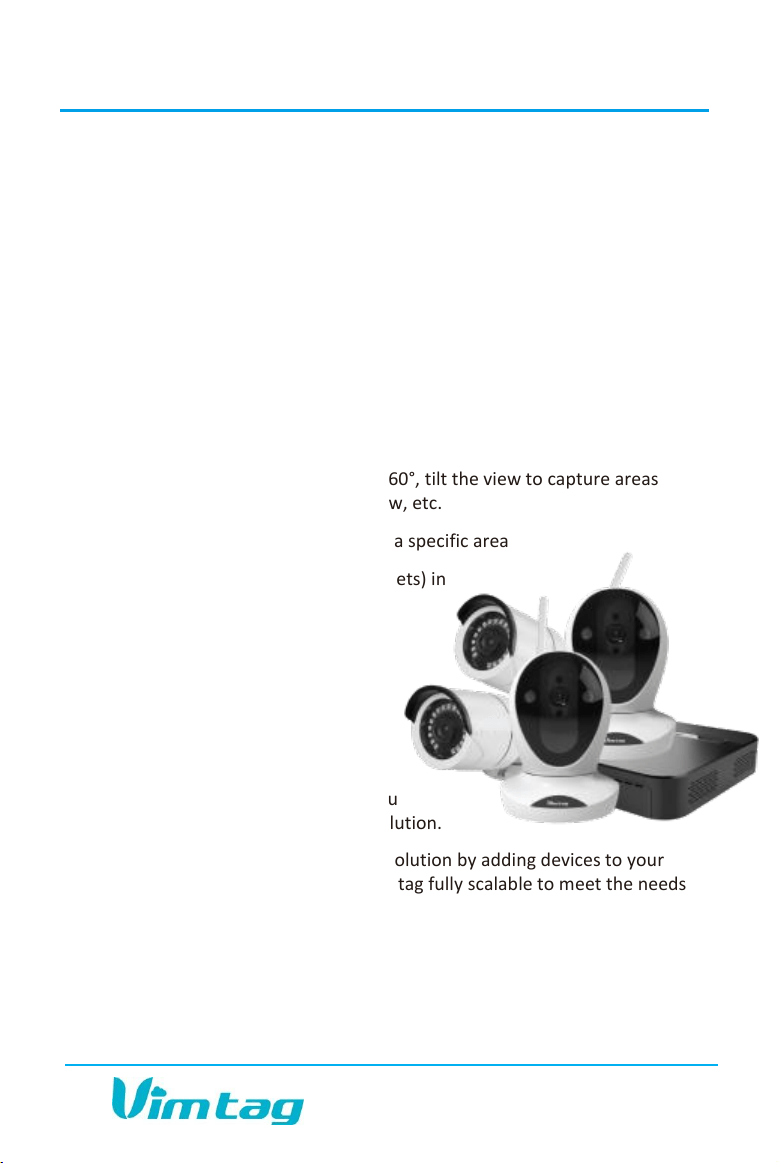
Vimtag cameras are available in
several configurations and
combine with an advanced cloud-
based application that lets you
manage and control each device you
add to form your overall security solution.
You can customize the size of your solution by adding devices to your
account at any time, making the Vimtag fully scalable to meet the needs
of any commercial or private entity.
This document details how to install and work with the Vimtag solution as
well as its key benefits.

VIMTAG SURVEILLANCE SOLUTION USER GUIDE
Page 4
Key Benefits of the Vimtag Solution
Traditional IP cameras tend to be difficult to install and use. The Vimtag IP
cameras are simple to set up and operate. They offer the ease of a truly
Plug and Play system with many distinct features and functions. Unlike
other solutions, Vimtag does not require you to define port mapping
settings, deal with an IP address, or define DNS server settings.
Use Examples
In a small business, a single camera might be installed to enable the
business owner to monitor who enters and exits the store during the day
and any night traffic once the business is closed. This can even be done
remotely, long after business hours have ended.
In larger businesses, even if located in multiple sites or even different
cities, several cameras, including indoor and outdoor models, can be
combined with the VimBox to record and store activity within the viewing
area. Security guards onsite can use the motion detection options to be
alerted if someone enters restricted areas. Alerts are triggered and
notification to mobile devices can be configured.
In residential use, the Vimtag solution provides security for the home as
well as the ability to monitor what is happening while you aren’t there.
You can observe your children and those who are responsible for them
when you are not home; you can set the cameras up as added protection
for elderly parents; you can even use it to watch what your pets are doing
while you are away. If you don’t expect any visitors to come through your
back door, you can set Vimtag’s solution to notify you if it detects any
motion from this direction. The Vimtag solution offers many benefits,
including:
Supports wireless streaming real-time video on computers, Android
and iOS devices (iPhone, iPad), ensuring a smooth image. Offers 25
frames per image transmission, can record 720p HD images.

VIMTAG SURVEILLANCE SOLUTION USER GUIDE
Page 5
Remote monitoring for real-time control from any computer or
mobile device, any location, at any time.
Motion detection function.
Two way audio to listen to sounds from the area under surveillance;
to communicate with those who are there.
Ability to view recorded videos and snapshots.
The advanced web-based application enables you to access and view
surveillance activity via a wide variety of mobile devices, including both
iOS and Android devices. Another benefit of the Vimtag solution is its
cost-effectiveness, making it an ideal solution both for large corporations
that need to secure large areas, as well as smaller businesses and even
homeowners wishing to provide surveillance and security on a more
moderate scale.
Overview of the Vimtag Workflow
The main steps in getting started are:
Downloading the Vimtag app to either your mobile device or
computer.
Opening the application and signing up to create a user account. This
user account can be used for many cameras and storage devices so
you only need to do this once, regardless of how many or which
types of devices you are installing.
Set up each camera and attach it to your Ethernet or Wi-Fi network.
Add the device to your account. You will need to do this for each
device (camera or VimBox).
Manually adjust the camera to optimize the area under surveillance
by viewing the real-time feed on your computer or mobile device. For
more information, see Fout! Verwijzingsbron niet gevonden..
Begin monitoring or recording with your camera.
VIMTAG SURVEILLANCE SOLUTION USER GUIDE
Page 6
2. Vimtag Devices
The Vimtag solution is a fully scalable, modular system built by adding
one or more cameras to your account. It can be expanded, as needed, to
include VimBoxes and additional cameras. All of the Vimtag cameras offer
wireless connectivity and can be added to a Vimtag account and then
controlled and managed remotely via the Vimtag app (either run on
Windows, MAC, Android or iOS platforms).
The following table explains each of the currently available camera
models and the benefits and features of each.
Model
Image
Description
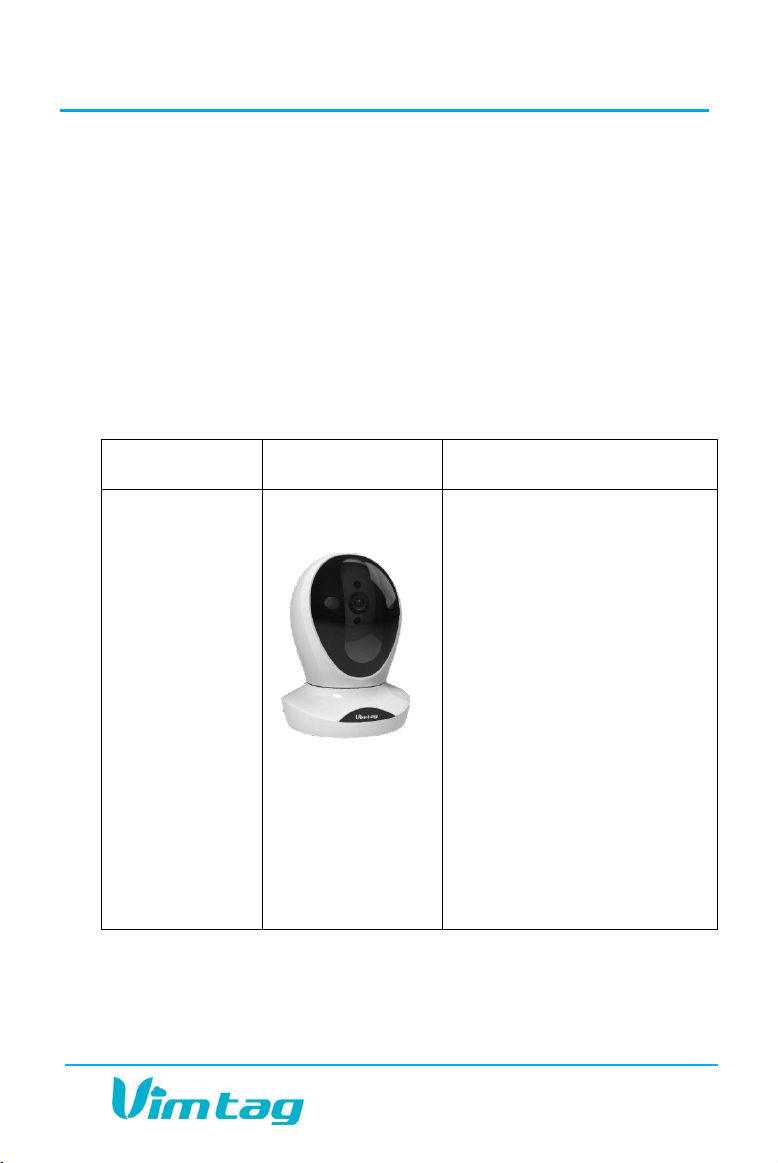
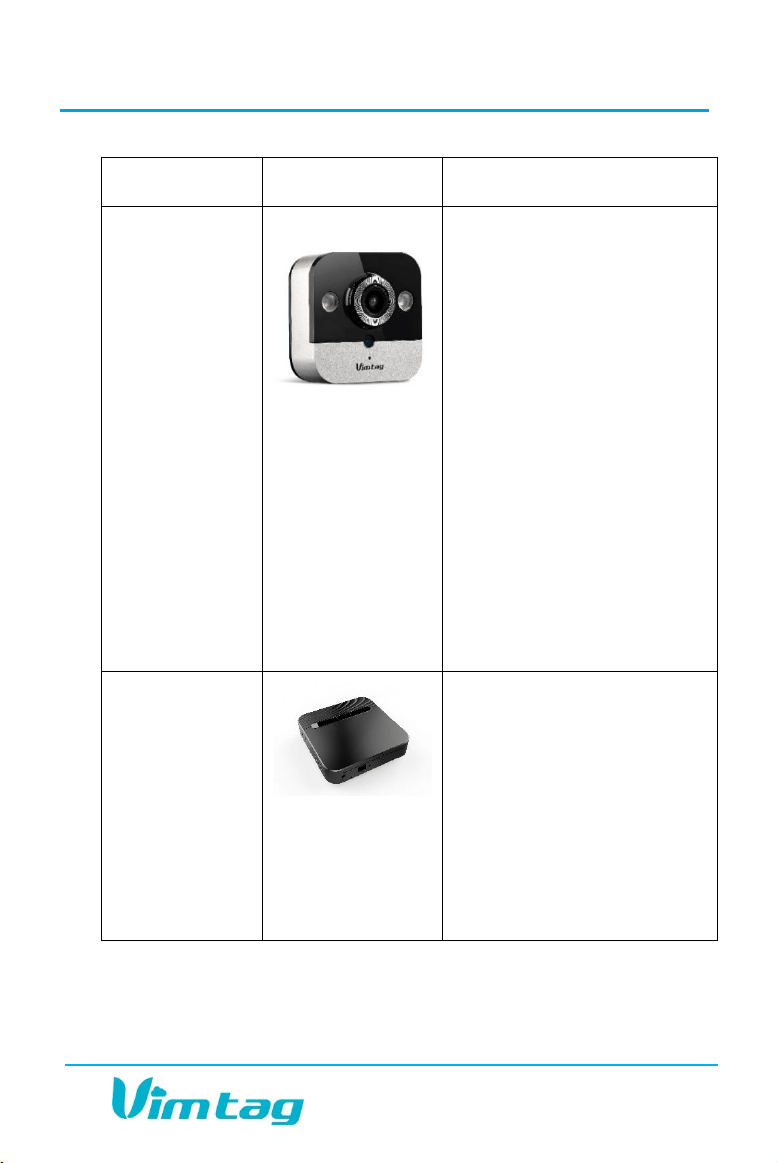
Vimtag P1
Vimtag’s P1 Series offers
unparalleled quality,
packaged in an attractive,
patented design. P1 provides
hi-definition video recording
capabilities with a 4x Digital
Zoom and 2-way voice with
high echo cancellation. It is
equipped with advanced
night-vision technology and
storage either through an SD
card (up to 64 GB) or via
wireless connectivity, it can
store snapshots and videos
on a Vimtag VimBox. Use this
camera for indoor security
and surveillance.
VIMTAG SURVEILLANCE SOLUTION USER GUIDE
Page 7
Model
Image
Description
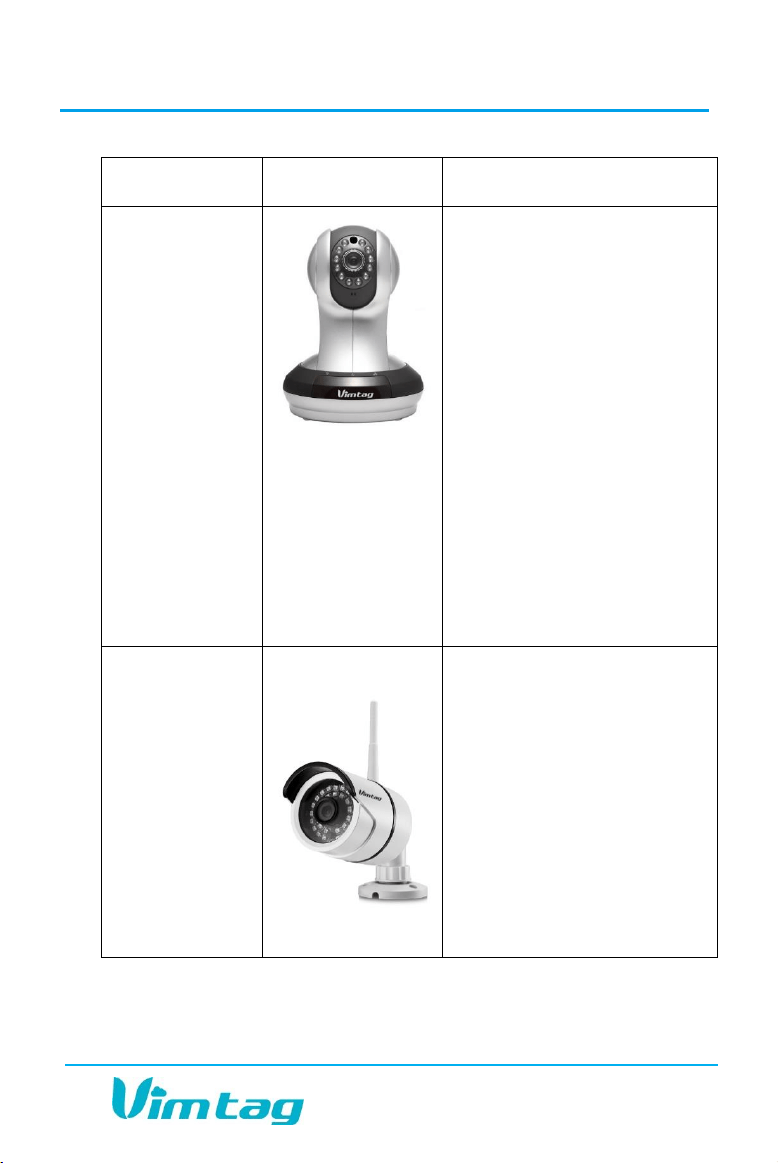
Vimtag VT-361
Vimtag’s VT-361 supports
two-way voice intercom,
pan/tilt capabilities up to
120°, zoom and the ability to
rotate and broadcast images
of nearly 360°. The camera
has built-in Infrared LED and
offers up to 10 meters of
night vision, whole day
monitoring, unbiased color
images. Supports motion
detection, external alarm
detection for the
implementation of
comprehensive protection.
Use this camera for indoor
coverage only.
Vimtag B1
Like the indoor cameras, the
M1 works seamlessly with
the Vimtag App. It features
night vision, motion
detection alerts, and is
specifically designed to be
weather-proof. It takes
videos that are clear and
smooth even when viewed
from multiple apps, SD cards,
or a VimBox. This camera is
intended for outdoor use.
VIMTAG SURVEILLANCE SOLUTION USER GUIDE
Page 8
Model
Image
Description
Vimtag M1
The M1 Series offers a small,
elegant, compact, indoor
camera that can be mounted
or placed in small or
inconspicuous places. It
offers HD video, motion
detection notifications, 2-
way voice with high echo
cancellation. It features a
wide viewing lens, and night
vision up to 8 meters and
should be used indoors,
especially when you want
the camera to be
inconspicuous or mounted in
a small, tight area. This
camera is for indoor use
only.
VimBox S1 (1
TB and 2 TB
models)
The Vimtag Vimbox is the
ideal solution for storing the
videos and snapshots taken
by all your Vimtag cameras.
It provides seamless
integration with the cameras
and can easily be accessed
by Android devices, iOS
devices, and computers
using the Vimtag App.

VIMTAG SURVEILLANCE SOLUTION USER GUIDE
Page 9
3. Installing the Vimtag App
You can operate and control the Vimtag cameras in several ways by
downloading and installing the Vimtag app, available for the following
platforms:
iOS or Android devices (both phones and tablets). To use the
application, you need to have:
o iOS devices: iOS 5.0 or above
o Android devices - Android 2.1 or above; at least 600MHz.
Downloadable App for Windows or MAC
Note: You can also operate and control the Vimtag devices without
installing the Vimtag app on your mobile device or computer by logging
into your Vimtag website account www.Vimtag.com and clicking the
Devices link.
The following sections detail installing and using the Vimtag mobile app
for iOS and Android devices.
Downloading the Vimtag App
There are several ways to download the Vimtag application. These
include:
On an iOS device: open the App Store and search for
“Vimtag”. Download and install the app to your iOS
device.
On an Android device, open the Play Store and search
for “Vimtag”. Download and install the app to your
Android device.
Using the appropriate device and/or operating system, navigate to
the Vimtag website (www.vimtag.com), locate and click the
Download APP link. This will open the Download page from which
VIMTAG SURVEILLANCE SOLUTION USER GUIDE
Page 10
you can download according the appropriate version for your device
or computer. Options include:
o Windows
o MAC
o Android
o iOS
On your computer, open the Vimtag website
(www.vimtag.com), and hover over APP
Download option. QR code will appear. Using
your mobile device, scan the QR barcode to
access a link to the appropriate Web app and
install as above.
Enter the direct link in your browser on any computer or mobile
device: (www.vimtag.com/download/), and install the app directly.
Once you have successfully downloaded and installed the Vimtag app,
you will need to create a Vimtag account.
Creating an Account
To use the cloud-based Vimtag solution, you will need to set up an
account with Vimtag.
To create an account:
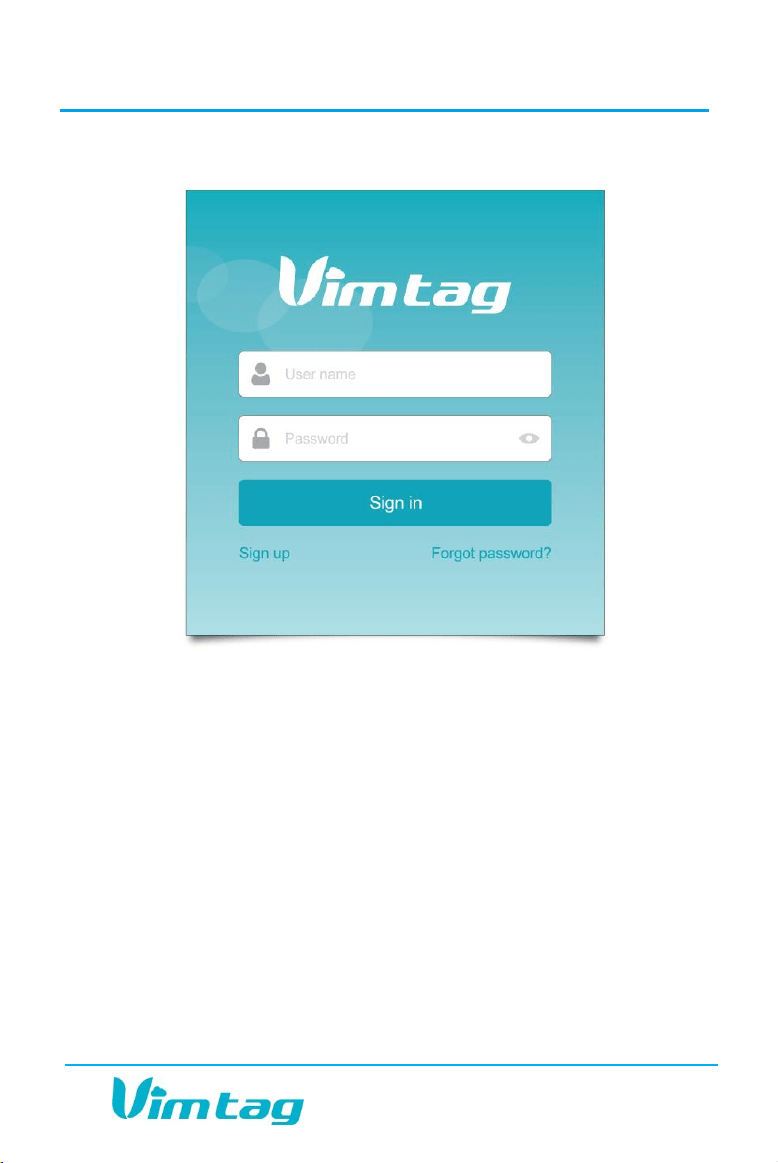
1. Locate the Sign up link:
o In the Vimtag app on your mobile device, press I am a new user
Sign up >>.
o Using your Internet browser, navigate to www.vimtag.com and
locate the Sign up option under the Sign in form and click the
link.
VIMTAG SURVEILLANCE SOLUTION USER GUIDE
Page 11
2. The Sign Up page opens. Create a User name and a Password.
Note: The user name should have 6-20 characters containing only
numbers and letters. The user name is not case-sensitive. The password
should also contain 6-20 characters. The password IS case sensitive.
3. Enter the password again in the Confirm Password field.
4. Click Sign up. If you have not picked a unique name to the system,
you will be notified and you will need to enter a new user name.
5. Once you have successfully provided a unique user name, the site will
ask you to confirm that you wish to sign in to the account. Click OK.

VIMTAG SURVEILLANCE SOLUTION USER GUIDE
Page 12
Once you have an account, you will be able to log into the system and add
one or more devices.
Logging in to the Vimtag Account
When signing in to access your account, you will select Sign in, rather
than Sign up. (Sign up is only used once to create your account.)
To log in to your Vimtag account:
1. Locate the Sign up link:
o In the Vimtag app on your mobile device, press Existing account
Sign in >>.
o Using your Internet browser, navigate to www.vimtag.com and
locate the Sign in and click the link.
1. Enter your user name and password in the appropriate fields.
2. Click Sign in.
Note: If you forgot your password, you can click the Forgot password
link.

VIMTAG SURVEILLANCE SOLUTION USER GUIDE
Page 13
4. Installing the Camera and VimBox
Vimtag cameras have been designed to be easy-to-install. All of the
cameras also have the ability to be used with an SD card.
Note: The Vimtag B1 has a built-in, 32 GB SD card pre-installed.
Alternatively, you can purchase and use the VimBox, which is available in
two models with storage capacities of either 1 Terabyte or 2 Terabytes.
Installation Prerequisites
Before installing the camera, you should ensure that your network meets
the following minimum requirements.
Computer Requirements
To effectively use the Vimtag solution, you should ensure that your
computer meets the following requirements:
Computer equipped with Microsoft Windows® XP and above; or Mac
OS, or Linux
CPU clocked at 1.3G or higher, with at least 128MB of RAM
Web browser to access the Vimtag website
Phone Requirements
iOS System Requirements - iOS 5.0 or above
Android System Requirements - Android 2.1 or above
Network Requirements
10/100 Ethernet or Wi-Fi network
2.4 Ghz Wireless network

VIMTAG SURVEILLANCE SOLUTION USER GUIDE
Page 14
Storage Requirements
SD card up to 64 GB, or
VimBox (either 1 TB or 2 TB version)
Package Contents
There are slight variations in what is shipped with each camera or
VimBox. A basic package will contain the following:
The device
Ethernet cable
Ethernet adaptor, relevant for models: EagleCam (P1) and PearlCam
(M1)
Power adapter
Stand and installation kit (where applicable)
Wireless antenna, relevant for models: VT-361 and SeaCam (B1)
Warranty card
Getting Started card (containing a download link for manual)
Note: Always make sure you are using the correct voltage power supply
for your device. Failure to use the correct voltage power supply could
result in equipment damage and invalidate your warranty.
Connecting the Device
Access to the camera is accomplished with an Ethernet or Wi-Fi
connection:
ETHERNET: If you plan to use the device through a wired connection, you
simply connect an Ethernet cable from the Ethernet interface to your
router. The device will then show up on your network. You can go to the

VIMTAG SURVEILLANCE SOLUTION USER GUIDE
Page 15
Vimtag site and add the device using the Add a device option (+ on
mobile devices), to get it started.
Wi-Fi: If you plan to connect through Wi-Fi, you will find the camera on
the network with a mobile device once it is hooked up and the power is
turned on. You will be able to add the camera, using the Add a device
option, on the Vimtag app.
Note: If connecting the VimBox, there is no Wi-Fi connection option and
therefore the device must be manually connected using an Ethernet
connection.
To connect your device to your network:
1. Connect the device to a power source
and wait approximately one
minute for the
camera to fully power On. If you connect via an
Ethernet connection, the wired network light will flash green three
times every three seconds, indicating that the camera is connected
normally.
2. Connect your mobile device to the same Wi-Fi on which the device is
running.
Note: This only needs to be done once during the initial setup.
After you connect your device to the network, you need to log in to your
Vimtag account and add the device to it.
For more information, see:
Logging in to the Vimtag Account
Adding a Device
Adding a Device
Once you have created an account and connected the devices to your
network, you can now add the device to your account. Each camera or

VIMTAG SURVEILLANCE SOLUTION USER GUIDE
Page 16
VimBox is considered to be a device and each must be added one time to
create an overall surveillance system.
To add a device using a mobile device:
Note: For adding a device on a computer, see the following section.
1. Log into the Vimtag app and on the main page, click + to add a
device.
Note: You only need to add a device once. After that, the device will
appear in the account, regardless of whether you access the account on
an iOS device, an Android device or a computer.
2. A QR scanner program will open. Locate the QR code on the bottom
of the device and let the mobile device scan the QR code.
Alternatively, you can click Manual input device ID and then enter
the device ID manually. This includes entering the 13 character device
ID found on the bottom on the device and the initial password of the
device. The default password for all devices is admin (all lower case).
3. Press Add.
4. On a mobile device, select Wi-Fi. Your Wi-Fi name should appear.
Enter your Wi-Fi password and press Add. Alternatively, you can use
a wired connection via the Ethernet port. For the EagleCam (P1) and
PearlCam (M1), an Ethernet adaptor can be found in the original box
in which the device was shipped.
5. Within 90 seconds, the device should be connected to the Wi-Fi and
you will be directed to change the device password. The new
password should be 6-20 characters and IS case sensitive. When the
system has finished configuring the device, you will see a Finish
prompt. Click OK.
Note: If, after following the procedure detailed below on a mobile
device, the system failed to connect with the smart Wi-Fi, check the
following:
That your wireless network is turned on and active

VIMTAG SURVEILLANCE SOLUTION USER GUIDE
Page 17
That you have entered the correct Wi-Fi password
That your Wi-Fi is 2.4 Ghz
If it still unable to connect, try to connect using an Ethernet cable. This
is needed only during the initial setup procedure. Further
communication between the device and the Vimtag app is
accomplished via wireless communication. For information adding a
device on a mobile device using an Ethernet cable, see the following
section.
To add a device using an Ethernet cable (on either a computer or a
mobile device:
While you should be able to add a device wirelessly to your account via a
mobile device, to add a device on your account via the computer requires
an Ethernet connection.
1. Open the Vimtag app and log in to your account (or you can also add
a device while logged in to your account on the www.vimtag.com
site).
2. The next step is to enable the computer or mobile device to identify
the Vimtag device. Click Add device (+ icon).
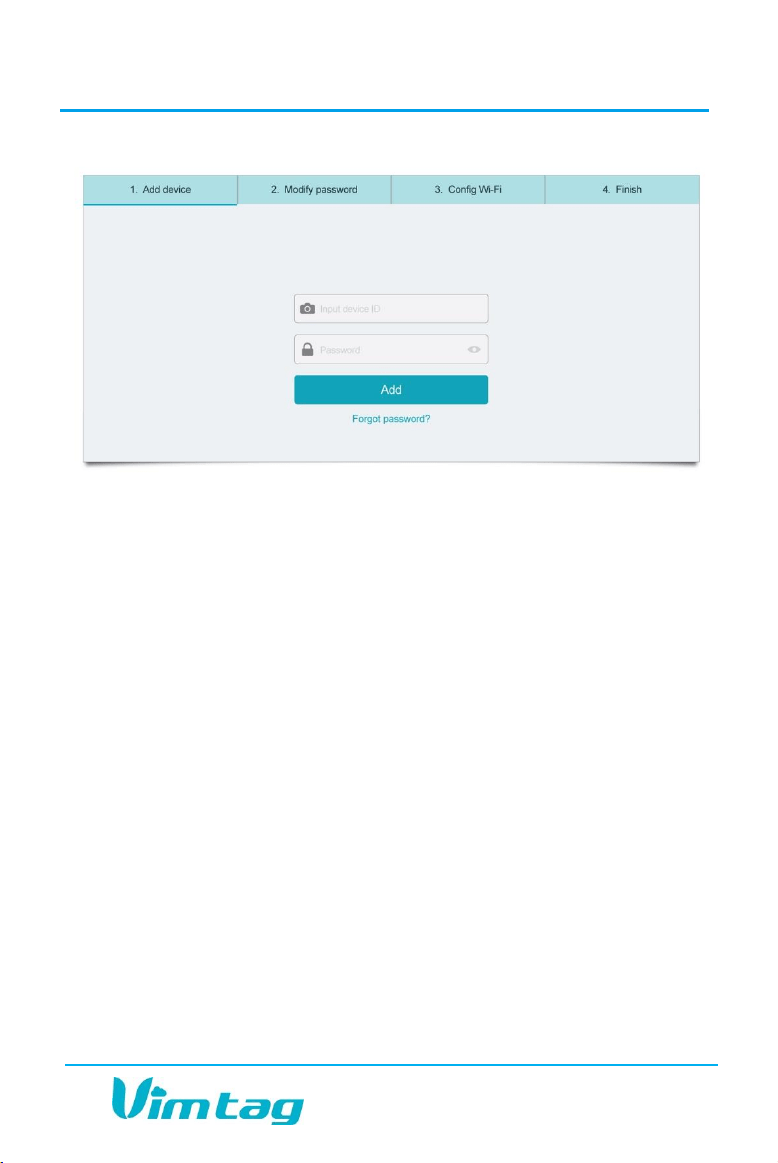
o On a computer: On the Add device tab, enter the ID of the input
device and a password for the device. For a new device, the
default password is set to admin (all lower case).
VIMTAG SURVEILLANCE SOLUTION USER GUIDE
Page 18
o On a mobile device: a QR scanner opens, enabling you to scan
the QR code found on the device. Scan the code and the default
password is entered automatically.
3. Click Add. This moves you to the next step: Modify Password.
4. Create a new password for the device, which should be 6 to 20
characters. Retype the same password to confirm it and press Next.
This moves you to the next step in the wizard which is to configure
the Wi-Fi connection.
5. Select your Wi-Fi name from the dropdown list by clicking on the
arrow to display all available Wi-Fi options. If you do not see your Wi-
Fi, hit Refresh. Once you select your Wi-Fi, enter your Wi-Fi password
and click Apply. The device will now be added and the Finish screen
will open. You can also skip this option for now and do this later, and
the device will still be added to your account at this time.
6. Click Finish to complete the process.
The device should now be associated with your account.

VIMTAG SURVEILLANCE SOLUTION USER GUIDE
Page 19
Deleting a Device
There are two ways to delete a device from your account:
On a mobile device, you can simply do a long press on the camera,
and then select delete from the menu that pops up.
Select the device that you would like to delete and open the Settings
page of that device. Click Delete.
Installing the Camera on Walls and Ceilings
Before mounting the Vimtag camera on a wall or ceiling, you should first
add the camera (device) to your account. This will enable you to see the
area that the camera can cover when installed in a location.
Once you have decided on a location, it is important to check the quality
and angle of the image before actually mounting the camera. Consider
several key factors when choosing a location:
Do you want the camera to be visible or would you prefer that it be
located in a more discreet location?
Are there objects blocking the camera’s view?
Is it high enough off the ground to be safe from being knocked down
or touched by people, children, animals, etc.?
Is the Wi-Fi signal strong in the location where you intend to install
the device?
Once you have verified that you have optimized the camera location and
that using the Vimtag app, you can maximize the viewing area, affix the
mounting bracket tray to the wall using a screwdriver and the appropriate
screw. You can then place the camera on the mounting bracket tray and
secure it by tightening the screws by hand.

VIMTAG SURVEILLANCE SOLUTION USER GUIDE
Page 20
If you place the camera upside down, the viewed image will be upside
down when you view it through the monitoring site. To reverse the image
so it appears right side up, use the Flip function. See Settings and Options.
Optimizing Camera Positioning
Camera placement is one of the most important elements for optimizing
the use of your new security camera. You need to make sure that you are
putting it in an area that will provide the best possible coverage for each
location that you need to keep secure. The “perfect placement” is likely
going to be different for each camera, as the layout of rooms and
buildings vary widely.
The best way to optimize the placement of the camera is simply by “trial
and error”. Try placing the camera in several different spots, checking
how well each place works by viewing the camera’s range of coverage in
real time. As needed, move and adjust the camera until you can get the
best possible angle and location for your site.
When you are connecting through an Ethernet port, run the link cable
from the camera to your router so you can connect it to your network.
Connecting by Wi-Fi tends to give you more options in terms of
placement, since you do not have to worry about the proximity to the
router.
In many cases, you will be able to place the camera on a desk, a
bookshelf, or other horizontal surface. Or, you may need to mount it on a
wall or other location to get that perfect angle.
Storing the VimBox
The VimBox is connected to your account in the same way that a camera
is connected. However, placement for the VimBox is likely to be different.
The VimBox does not have to be placed in the same physical location as
the camera (or cameras) connected to the account, but it does have to be
connected to the same network.

VIMTAG SURVEILLANCE SOLUTION USER GUIDE
Page 21
You might want to consider putting the VimBox in an inconspicuous place,
safe from getting damaged or stolen.
Note: The VimBox needs to be connected via an Ethernet cable while in
use.
VIMTAG SURVEILLANCE SOLUTION USER GUIDE
Page 22
5. Using the Website Interface or Web App
You can operate the camera from the web, using a computer or mobile
device. Two or more people can be logged in to the same camera, control
it remotely, and see the results of any actions made by one, or both at the
same time. From any computer or mobile device at any time, you can log
in to your account to see what is happening at a camera site.
To log in to the Vimtag website:
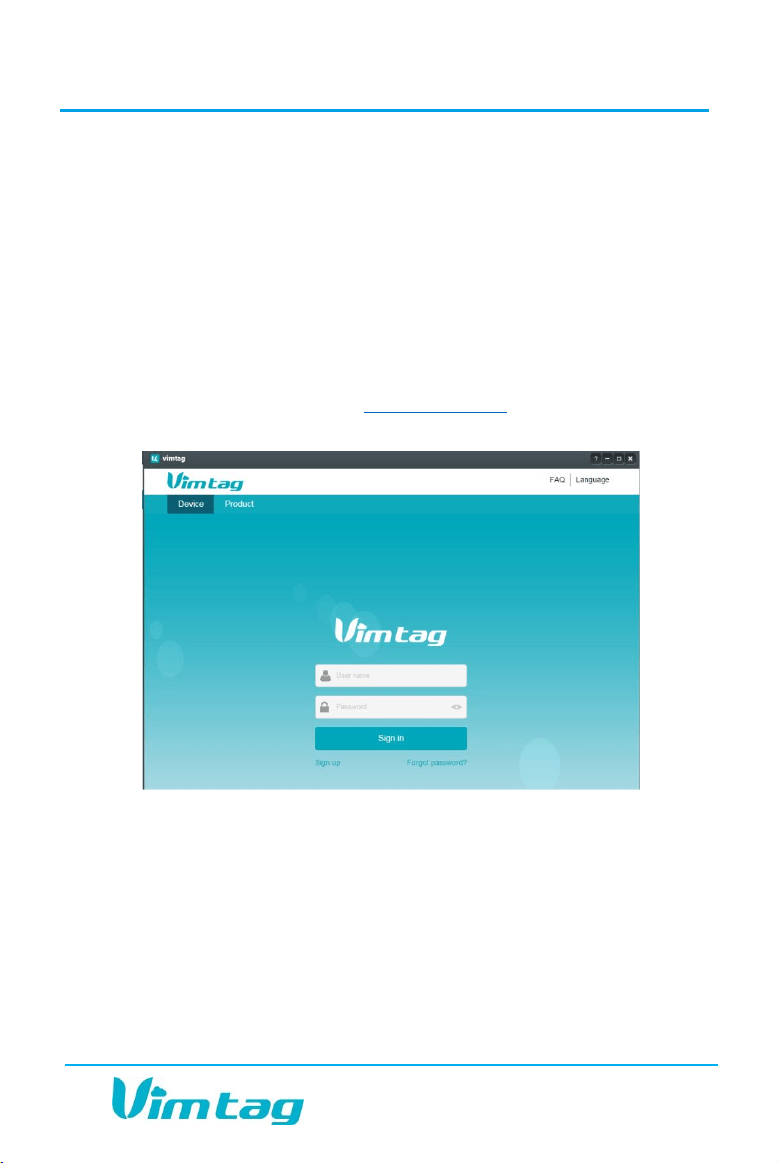
1. In your Web browser, go to www.vimtag.com. The following window
appears:
o Enter your User name and Password, and click Sign in.
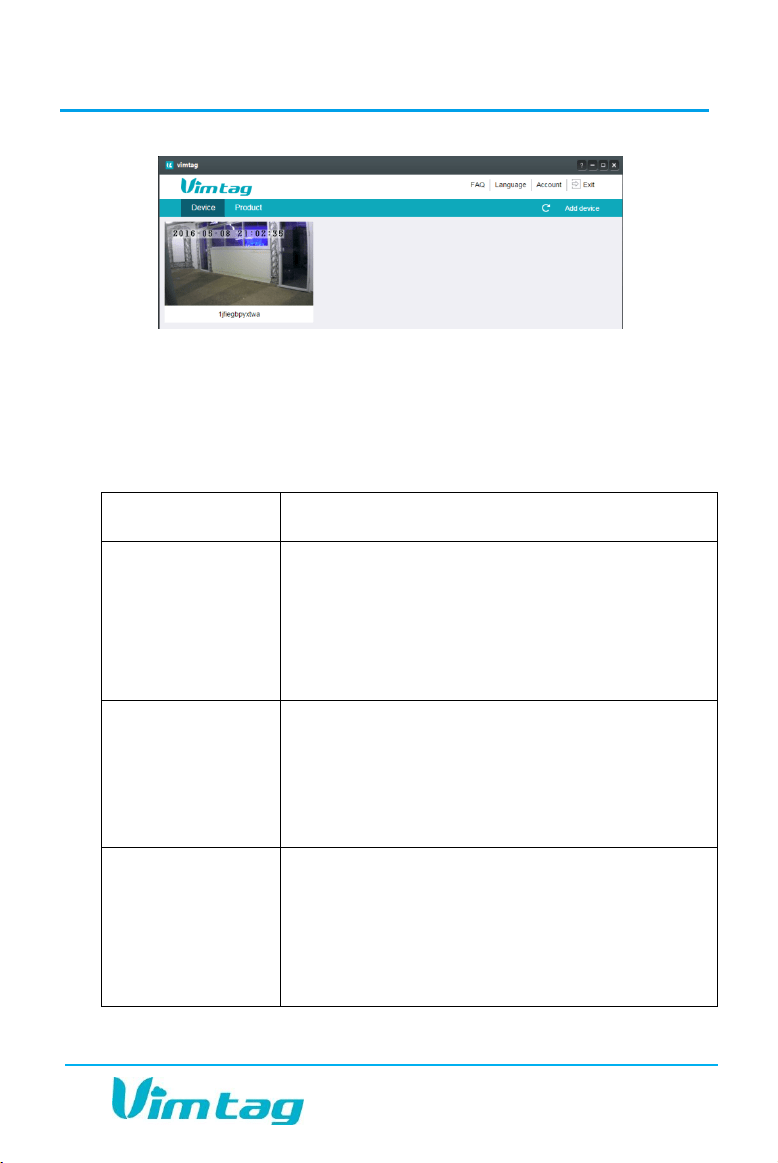
o The Vimtag website interface opens. If devices have been added,
the current image for each active device is shown in the
dashboard.
VIMTAG SURVEILLANCE SOLUTION USER GUIDE
Page 23
Overview of the Dashboard
When you first open the Vimtag app and log in, the main Dashboard
appears. Although there are some differences between the various
platforms, all Vimtag apps have the following elements:
Element
Description
Add device
On mobile devices, this option appears as a plus
sign (+)
On the Vimtag app for Windows and MAC, and
on the Vimtag.com site, this option is located on
the top right as Add device.
Device
Thumbnails
For each device that has been added to the
account, one thumbnail appears. Below the
image, the Nickname of the device is listed. Click
(for computers) or tap (for mobile devices) on
the device to open it.
Account link
On mobile devices, this link is located at the
bottom of the screen.
On the Vimtag app for Windows and MAC, and
on the Vimtag.com site, this option is located on
the top right of the screen.

VIMTAG SURVEILLANCE SOLUTION USER GUIDE
Page 24
Element
Description
When you click the Account option, it opens the
Account page. For more information, see
Managing Your Account.
Viewing Devices
By default, you can have up to 32 cameras (additional cameras can be
supported. For more information or to add additional cameras beyond
this number, contact customer support).
The ability to scale up your surveillance solution by adding additional
cameras and VimBoxes is why the Vimtag solution works well for homes
and small businesses, as well as for large businesses, with several sites,
perhaps in various parts of a city, many cities, or even many countries.
Multiple cameras also work well for large sites, such as big homes and
public institutions, which require optimal security.
When the camera is offline, an “X” will appear in the Vimtag app on the
camera when offline. If you are unable to confirm that the camera is
working, see For the Camera.
Vimtag makes it easy for you to view and control all cameras from the
same account. You are able to switch between them by selecting the
camera name and making sure that the camera is live. For this reason, it is
a good idea to provide the cameras with names that help identify its
location or cause. When you open the Vimtag App, each device is
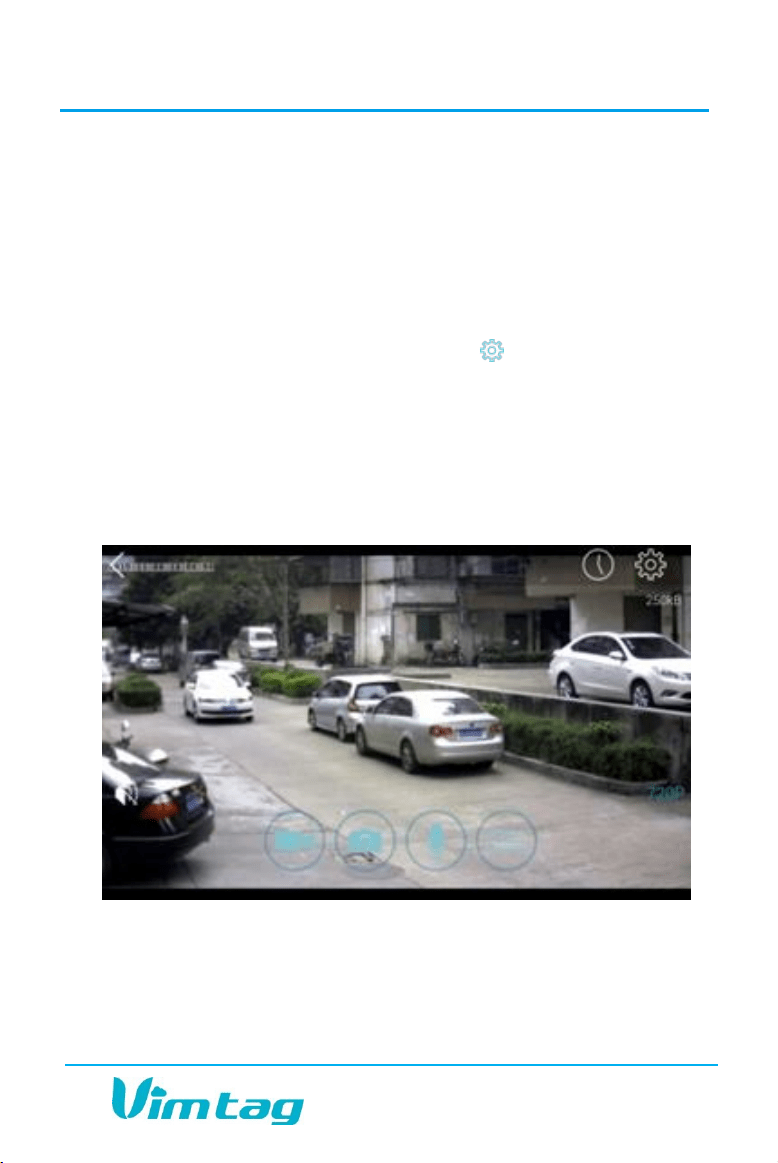
represented on your Dashboard by a thumbnail picture. The Nickname
assigned in the Settings > Nickname option appears below the picture.
The Nickname you use for the camera should assist you in identifying
either its location, its purpose, or some other useful and unique
information.
VIMTAG SURVEILLANCE SOLUTION USER GUIDE
Page 25
To change the name of a camera:
Note: The camera device ID is not the Nickname you may have assigned
to the camera but the actual device ID number assigned by Vimtag.
You can set or change the name of the camera by accessing the Settings
window, as follows:
1. In the Vimtag Web App, select the relevant device. When the device
results are loaded, click the Settings icon ( ).
2. In the Settings options, click Nickname. The display name of the
camera appears.
3. Change the name and then click Apply to save it.
The Camera Display
The following icons are located on each video image on the screen:
Sound (to transmit remote sounds)
VIMTAG SURVEILLANCE SOLUTION USER GUIDE
Page 26
Record (to initiate a live recording)
Snapshot (to create a snapshot image of the current view)
Microphone (to transmit your voice through the device)
Resolution (which enables you to set the mode for brightness,
contrast, saturation, etc.)
History Access (which opens to the History page and a filter)
Settings (which opens with a list of Settings tabs)
For more information see, Operating the Camera.
Controlling the Camera Movement
Depending on the camera model, one important advantage of the Vimtag
solution is the ability to not only see the camera view from remote
locations, but also the ability to control the camera. While viewing the live
image on your mobile device, you can swipe to the right or the left to
move the camera in that direction. You can also pan (move the camera
focus to the left or right) and tilt (move the camera focus up or down) the
display, as well as zoom in and out.
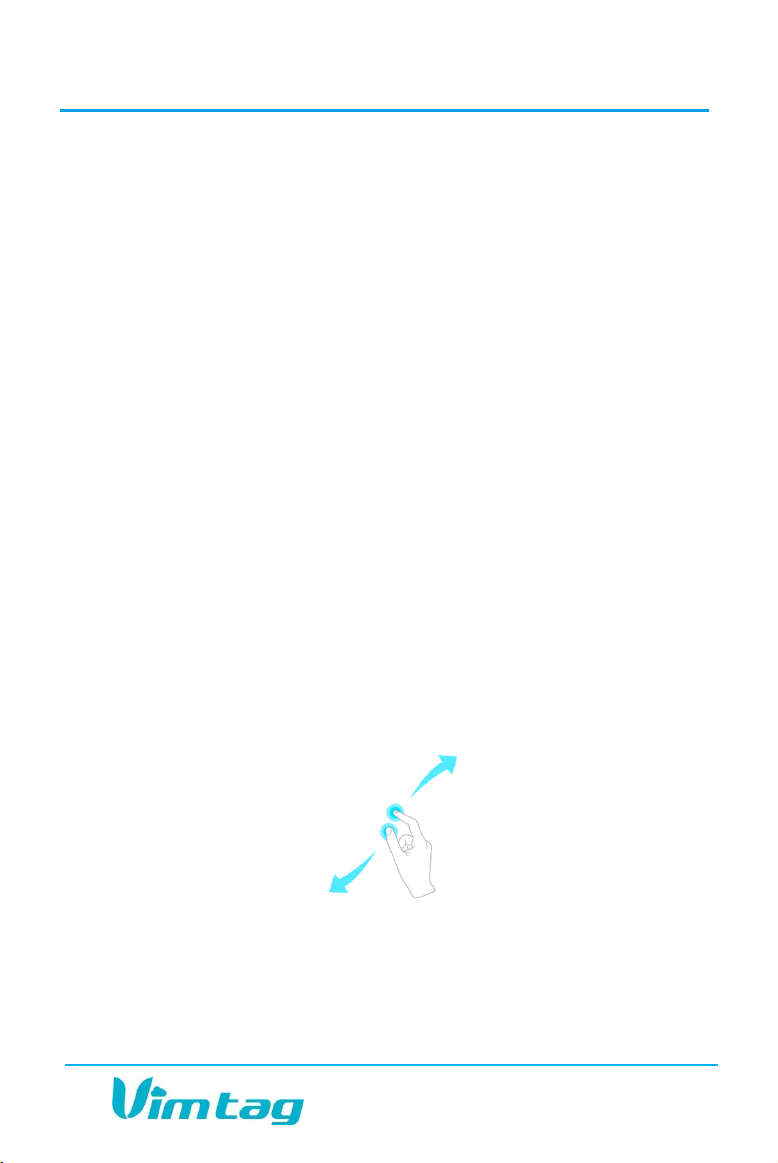
To zoom in, place two fingers together on the screen and then slide
them apart.
To zoom out, place two fingers further apart on screen and then
“pinch” them together.
VIMTAG SURVEILLANCE SOLUTION USER GUIDE
Page 27
Using the Vimtag app from your computer, you can use the control
arrows on the left, right, top, and bottom of the screen to move the
camera’s viewing location. These controls are only available as you move
the mouse to hover over the display edges (top center, bottom center,
left center and right center).
Operating the Camera
The Vimtag app provides several icons that enable you to control the
camera and initiate actions such as recording a video, creating a snapshot,
etc. remotely. While the options are very similar on all platforms, there
are some differences. For example, on a mobile device, you can use
standard zoom in and zoom out methods, while this functionality is not
available when operating the camera from a computer.
To operate the camera:
1. On the Dashboard of the Vimtag app, there is a thumbnail image for
each device that has been associated to the account. Select the
device you want to view from the dashboard by clicking the image
related to that device. The camera picture opens to almost the full
screen and the right panel shows the device list.
2. Use the following controls to operate the camera:
Note: Dragging sliders to the left will decrease the level of the setting,
while dragging to the right will increase the setting.
Icon
Action
Mute and unmute the sound. This is the sound that may
be happening in the viewing area.
Note: By default, the sound is muted.
VIMTAG SURVEILLANCE SOLUTION USER GUIDE
Page 28
Icon
Action
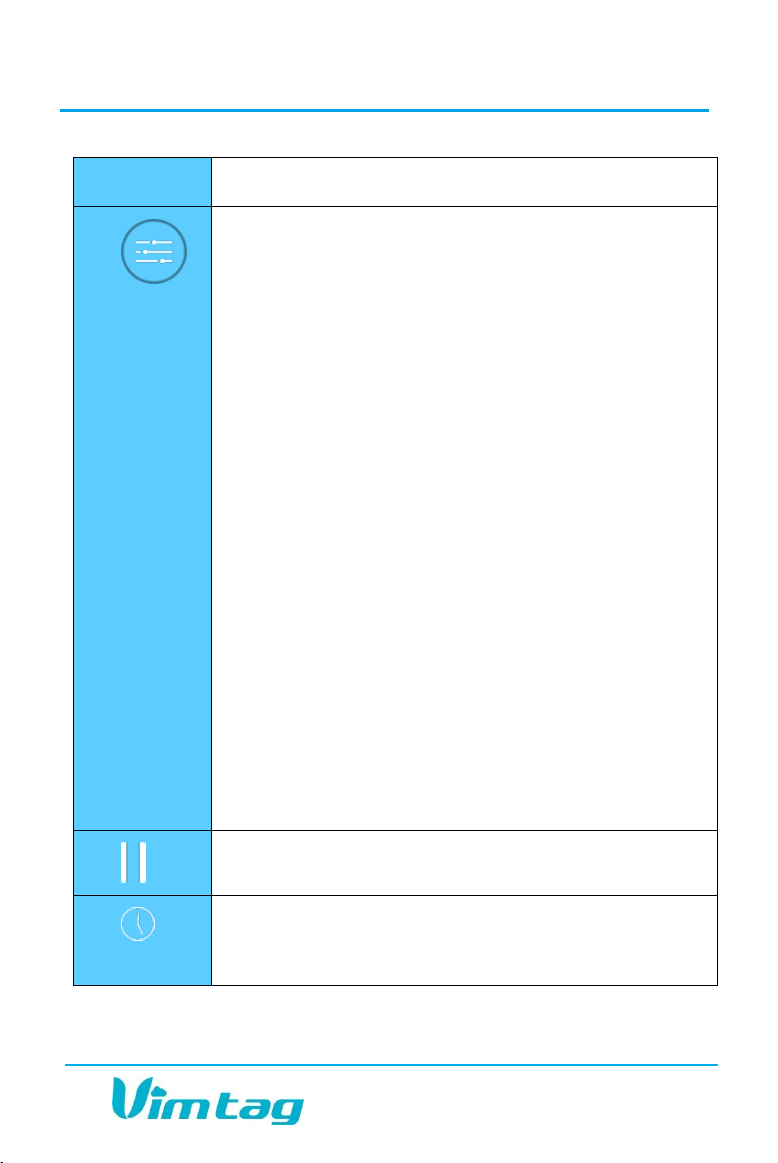
Start recording a video.
Note: Camera must be equipped with a SD card
unless you are recording on to a mobile device
(where the recordings are saved to > Account > My
folder).
Take a snapshot of the current camera view.
Turn the microphone ON to enable transmitting your
voice through the camera.
Note: On an Android device, you are prompted to
press to speak.
VIMTAG SURVEILLANCE SOLUTION USER GUIDE
Page 29
Icon
Action
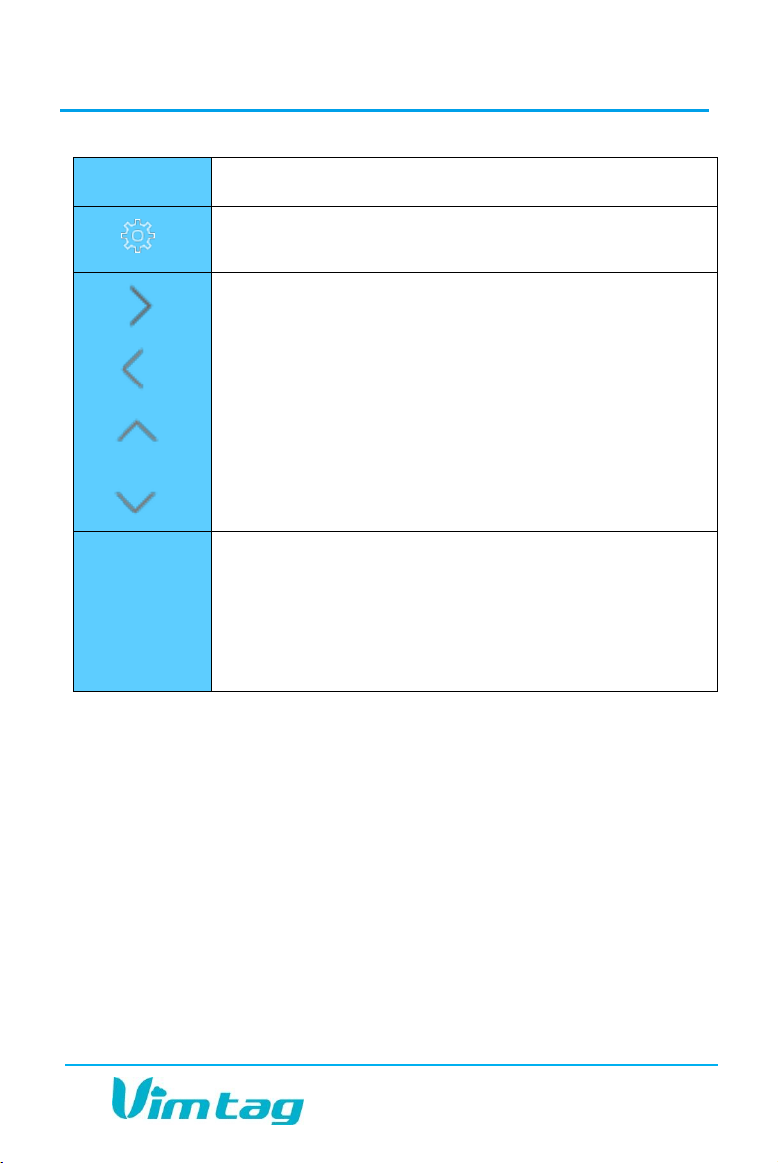
Adjust picture quality.
Mode: Click appropriate button for setting based on
the time of day or the room setting:
o Day - The video will be in color.
o Night – The video will be in black and white
(the camera uses infrared technology to
enhance its capabilities to record in dark
conditions and therefore renders the video
in black and white).
o Auto - Automatic adjustments based on the
quality of the room’s current lighting
conditions. Using the Auto setting, the video
will be either in black and white or in color,
depending on the conditions.
Sharpness: Move slider from left to right for more
sharpness.
Contrast: Move slider from left to right for more
contrast.
Saturation: Move slider from left to right for more
saturation.
Brightness: Move slider from left to right for more
brightness.
On computers only: pause and start the camera.
Search the history for videos or snapshots. For more
information, see Filtering Video ArchiveFiltering Video
Archive
VIMTAG SURVEILLANCE SOLUTION USER GUIDE
Page 30
Icon
Action
Modify settings and select options. For more information,
see Overview of the Device Settings Page.
On computers only: move camera right, left, up and
down using directional controls.
These controls are only available as you move the mouse
to hover over the display edges (in the top center,
bottom center, left center and right center until the
control appears).
Note: Not all cameras provide the full range of rotation,
panning, tilting, etc.
Auto
Camera resolution:
720P (HD)
Standard
Smooth
Auto
Managing Your Account
The Vimtag app offers you access to view, monitor and configure your
devices. The app also has an option to view or configure your Account
information. Vimtag enables you to configure two types of settings:
Account settings and Device settings. For information on Device settings,
see Overview of the Device Settings Page.
When you click the Account option, the following options appear:
My folder (only for iOS and Android Vimtag apps)
Settings

VIMTAG SURVEILLANCE SOLUTION USER GUIDE
Page 31
Exit
Any videos or snapshots that you take manually, or any scheduled videos
that you choose to download to your mobile device are stored in your My
folder location.
Note: The location and options on the Settings page differ slightly
between operating systems.
Account Settings for Windows and MAC
The Settings page contains the following options:
Software version
User admin password – Enter the Old password, and a new
password, and then enter the new password again in the
Confirm password field. This enables you to change your account
password.
User guest password – If you wish to allow someone access to
your Vimtag solution, you can assign them a user guest
password, which can be disabled at any time. Guests can view
what the cameras are broadcasting and can move the cameras,
but they will not be able to make any changes in the settings or
use the remote microphone. To create a guest user password,
you will need to enter the Admin password, and then the new
guest password (once in the first field and then again in the
Confirm password field).
Binding email – Enter an Email address. This is the email account
to which notification is sent when you ask to reset your
password.
Download path – Enter the default address path for
downloading videos and snapshots.

VIMTAG SURVEILLANCE SOLUTION USER GUIDE
Page 32
Account Settings for Mobile Devices
The Settings page for iOS and Android are very similar. Minor differences
are indicated below. The Settings page for mobile devices contains the
following options:
In the Notification Center section:
Sound – toggle to turn the sound on/off. This is the sound of the
notifications that would be sent to the phone based on alerts set on
each device
Vibration – toggle whether the phone should vibrate or not when an
alert is triggered
Notification ringtone – select a ringtone that will sound when an
alert is triggered
In the email section:
Binding email – Enter an email address. This is the email account to
which notification is sent when you ask to reset your password.
In the Password section:
User admin password – Enter the Old password, and a new
password, and then enter the new password again in the Confirm
password field.
User guest password – If you wish to allow someone access to your
Vimtag solution, you can assign them a user guest password, which
can be disabled at any time. Guests can view what the cameras are
broadcasting and can move the cameras, but they will not be able to
make any changes in the settings or use the remote microphone. To
create a guest user password, you will need to enter the Admin
password, and then the new guest password (once in the first field
and then again in the Confirm password field).

VIMTAG SURVEILLANCE SOLUTION USER GUIDE
Page 33
In the Others section:
Software version
Rate us (for Android only)
At the bottom of the screen, there is a Clear cache button. Click this to
clear the cache on your mobile device. The original snapshots and/or
videos stored on either your SD card or your Storage Device are not
deleted when you click Clear Cache. This option relates only to the mobile
device and the cache that has been stored on it (either manually taken or
downloaded).
Note: This will delete My folder.

VIMTAG SURVEILLANCE SOLUTION USER GUIDE
Page 34
6. Overview of the Device Settings Page
In addition to being able to configure Account-related settings (see
Managing Your Account), you can also set many Device-related settings,
which are accessed by pressing the Settings icon ( ).
In the Device Settings page you can configure the following values for
each camera selected.
Note: The Settings page options vary slightly between the mobile
application and the non-mobile version used on a either a Windows or a
MAC computer. For more information on each option, click the link
below.
Option
Explanation
About
Provides information about your device.
Nickname
Set a user-friendly name for your device.
Device Admin Password
Change the Admin password.
Device Guest Password
Create a Guest password.
Network
Configure network settings.
OSD (On Screen Display)
Modify the on-screen display settings.
SD Card
Enable the use of an SD Card. You can also
format and unmount the SD Card.
Storage Device
Enable a VimBox for additional storage,
then enter the device ID and password.
Motion and Notification
Configure motion detection options and
notifications sent when motion triggers the
camera.

VIMTAG SURVEILLANCE SOLUTION USER GUIDE
Page 35
Option
Explanation
Note: On the Vimtag app for Windows
and MAC, these features are located in
the Motion Sensitivity and Motion
Detection options on the computer.
Scheduling Alerts
Schedule specific times when alerts should
be active.
Schedule Recording
Times
Schedule times when you want the camera
to record. Options are either 24/7 or at
specific times.
Date/Time
Set the date and time for the device.
System
Set System options such as restoring to
factory settings, restarting, etc.
Others
Miscellaneous options such as flipping the
camera view, adjusting the audio, etc.
Delete device
Delete the device.
System Settings
About
In this section, you will find static information about the camera that you
are using:
Model - Model of the camera you are using.
Software Version – The software version of the camera you are using.
Plug-in Version - The version of the plug-in you are using (for PCs).
Device ID - The identifying number for your device.
VIMTAG SURVEILLANCE SOLUTION USER GUIDE
Page 36
Device Admin Password
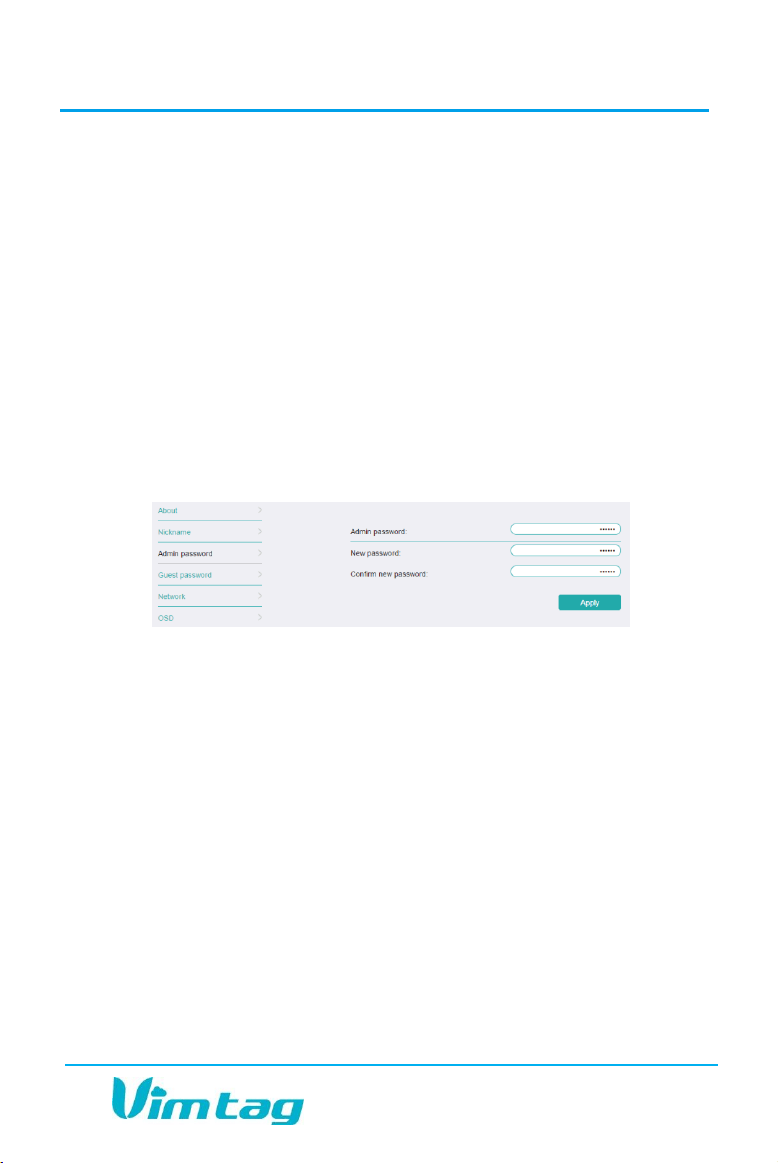
To change the Admin password, type in your old password in the top box,
then type in the new password below. Confirm your new password by
typing it in again, and then click Apply. You can change the password as
many times as needed.
Note: This is not the account password, but the password for the
specific device.
Each camera can have a different Admin password. You can choose to
give a person Admin permissions on a single camera, but not all of the
other cameras in your system, when you change the password through
this setting. You can also reset the password back to the default setting
(where the device password will return to be admin.
Device Guest Password
If you wish to grant someone access to your Vimtag solution, you can
assign them a device guest password, which can be disabled at any time.
Guests can view what the cameras are broadcasting and can move the
cameras, but they will not be able to make any changes in the settings or
use the remote microphone.
To create a device guest password, you will need to first enter your
Admin password, then create the guest password and confirm it. Click
Apply, and your guest password is created. The guest password added in
this section will only work for the selected camera. As previously
described, guests will have limited abilities and permissions.
VIMTAG SURVEILLANCE SOLUTION USER GUIDE
Page 37
To enable guests to access the device, each guest must have a Vimtag
account created and the device added to that account. Once this is done,
the guest can either use Vimtag app or access the Vimtag website
interface. For more information, see Creating an Account.
Network
Warning: If you change the settings on this tab, it is possible that the
network can be disconnected.
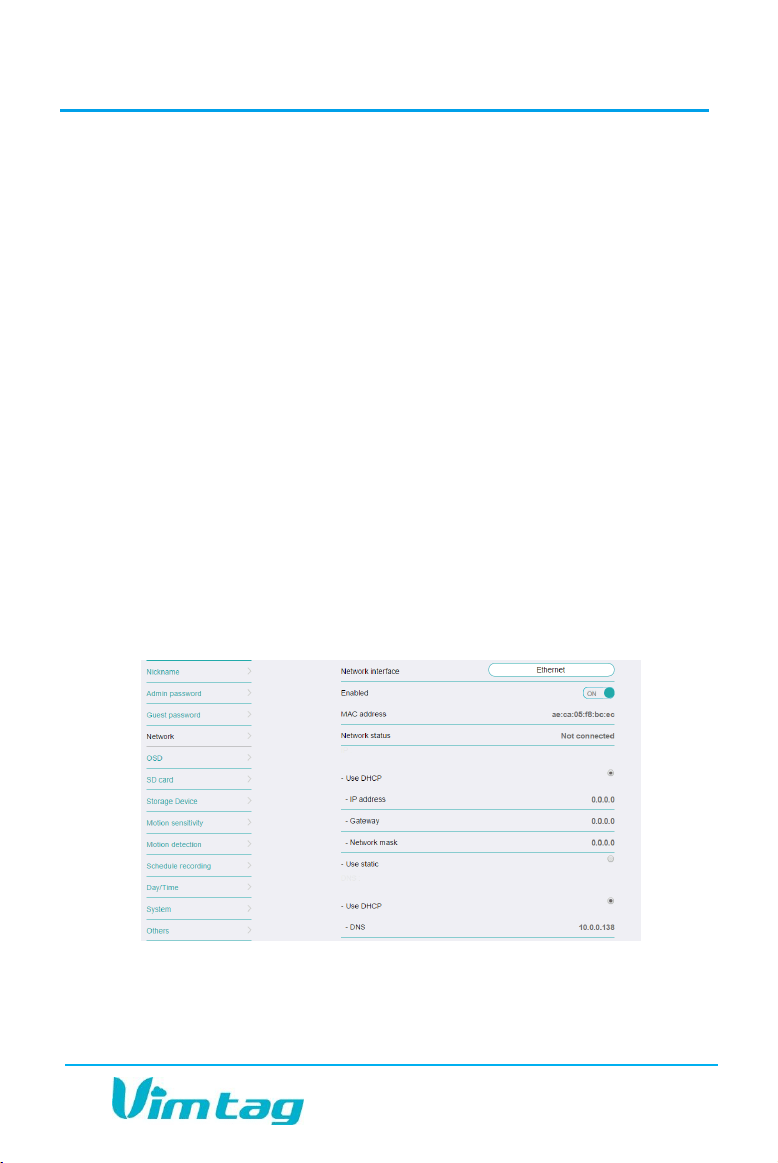
The Network Tab enables you to choose the network interface that you
want to use - Ethernet or Wi-Fi. When you choose Ethernet, you can view
the MAC address, the network status, and the IP information.
Once your device is connected, it is recommended that you do not
change the settings or click Apply on the Network tab, as this is likely to
cause you to be disconnected from the Network.
Note: The Ethernet option will show up first. However, if you are
connected via Wi-Fi only, you will see that the Network status for Ethernet
is set to Not connected. When you switch to the Wi-Fi option, the Network
status will indicate that your network is Connected via Wi-Fi.
When you choose Wi-Fi, you can view the MAC address, mode, network
status, DNS, and IP information. You will also be able to choose Wi-Fi

VIMTAG SURVEILLANCE SOLUTION USER GUIDE
Page 38
access points from the drop-down list. If you do not see your network,
refresh the list. On this list, you will be able to view the strength of the
Wi-Fi signal. Multiple bars indicate a stronger connection.
You can also choose a static IP.
OSD (On Screen Display)
In the OSD tab, you are able to manage what displays on the video
screen. These settings include:
Display Text - Add text that will show up on the video screen. You
could choose to add the camera’s nickname, so you can easily tell
which camera you are watching.
Display Date - Choose whether to display the date on the screen and
the type of date format (MM-DD-YYY or YYY-MM-DD).
Display Time - Choose whether to display the time on the screen
and the time format (12 hour or 24 hour).
Display Day of the Week - Choose whether to display the day of the
week on the live screen.
After changing the settings, click Apply.
Initial Settings
Nickname
The Nickname option enables you to quickly identify a camera. Type the
name in the box and then click Apply. The camera is now listed by its
name. For example, you may have one camera named Office and one
named Entrance. If you do not create a name, the default device ID is
used.
VIMTAG SURVEILLANCE SOLUTION USER GUIDE
Page 39
Note: The camera device ID is not the Nickname you may have assigned
to the camera but the actual device ID number assigned by Vimtag. You
can see the device ID on the Settings page in the About option.
Date/Time
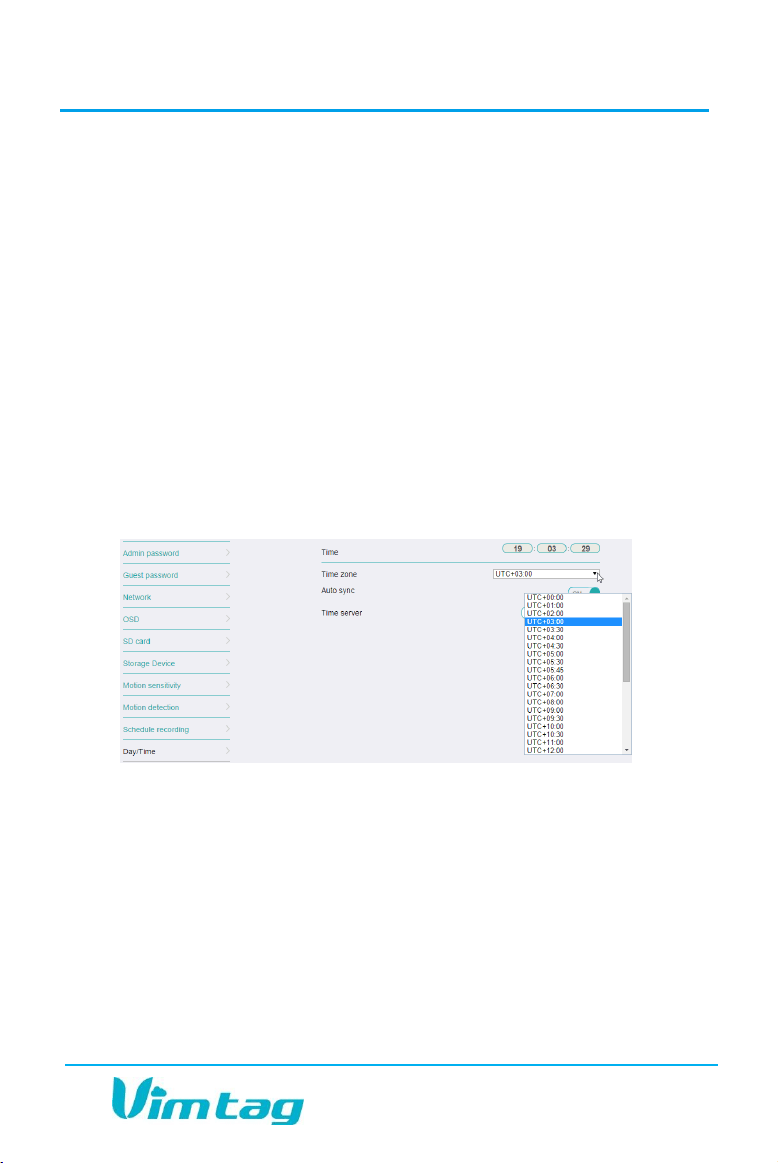
In the Date/Time tab, you can set the date and time for your camera.
Choose the date, time, and the time zone. You can also choose to
synchronize to the local date and time automatically. However, you can
change the time manually if you prefer. You will want to have the correct
date and time so you can schedule your recordings correctly.
Note: On mobile devices, to change your time zone, you need to first
turn the Auto sync off. On a computer, you can change the time zone
even while the Auto sync is on, however you cannot change the time
manually, unless you first turn the Auto sync off.
Storage Options
SD Card
The SD Card section indicates whether you have an SD card in the camera
and whether it is enabled.
To use the SD card, place it into the slot on the back of the camera. If
the card does not go in all the way by pushing it with your finger, you
VIMTAG SURVEILLANCE SOLUTION USER GUIDE
Page 40
can use the edge of a paperclip or pen to push it into place. It will not
damage the camera.
If the camera does not recognize the SD card, remove the card and
unplug the camera. Put the SD card back in, plug the camera back in
and restart it. The camera will reboot, and then it should be
recognized.
Note: It is always recommended that you format the SD card after
inserting it into the camera.
The maximum recommended size card for the camera is 64 GB, which
should be able to record approximately 120 hours of video. At the end of
the 120 hours, the card will record over the oldest segments first.
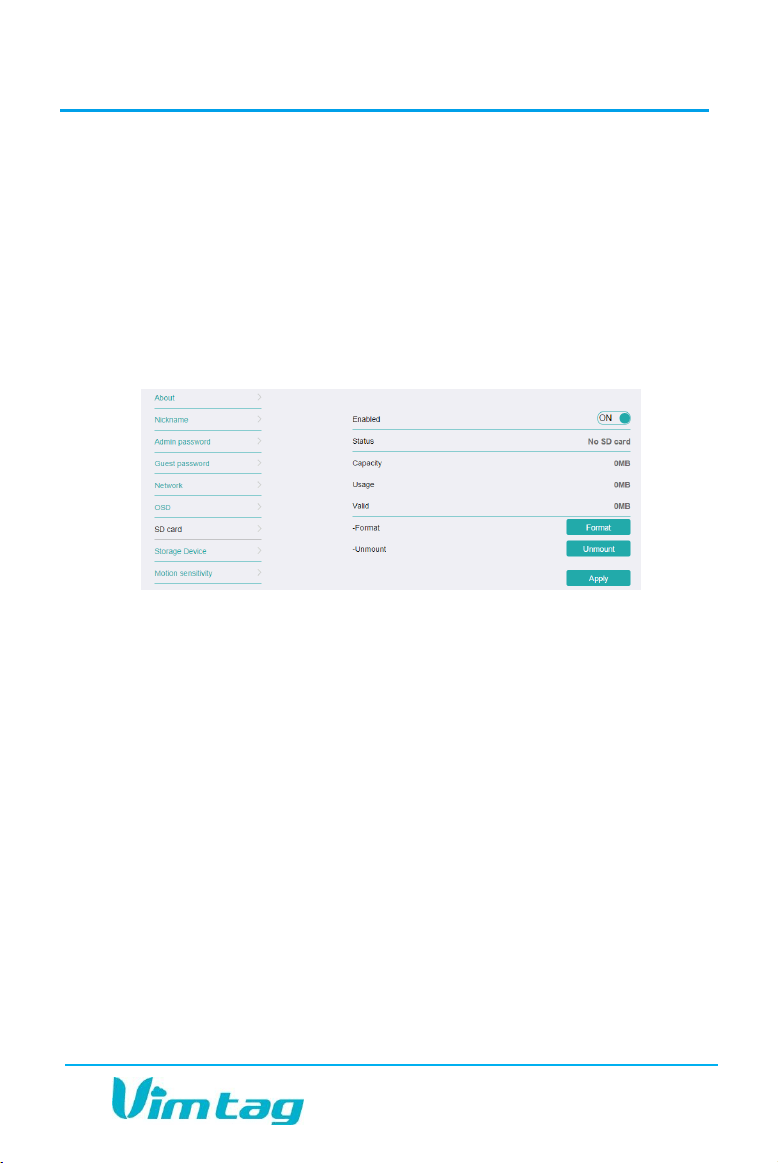
When you go to the SD card settings, the card should be enabled by
default. If not, click ON. The following fields display the card information:
Status – indicates the status of the SD card (options include: No SD
card, Mounted, or Unmounted)
Capacity – which indicates the size of your SD card.
Usage – Amount of used space.
Valid – Amount of space remaining.
The following option buttons allow you to perform important actions on
the card:

VIMTAG SURVEILLANCE SOLUTION USER GUIDE
Page 41
Format is an option for formatting the card. Whenever you install a
new card, you will need to format the card. Formatting erases
everything on the card. After clicking Format, follow the prompts.
Note: Every time you format the card, all of the content will be erased.
If you have content that you need to save, make sure you save it off the
card before formatting.
Unmount is an option to disable the ability to record onto the SD
card without having to remove the card. You will have the option to
mount a dismounted card. Click Apply to save the setting.
Storage Device
Using the Storage Device option, you can introduce another element of
the Vimtag solution, the VimBox. The VimBox is an ideal DIY (Do It
Yourself) security solution for homes and small businesses that require
the recording of many hours of continuous video.
To use a VimBox, you must first connect the VimBox to the same network
where one or more Vimtag cameras are connected. Once you have
confirmed that the VimBox is connected, you need to enter the VimBox ID
and password and enable its use in the Storage Device tab. For more
information on the VimBox, see the VimBox documentation.
Working with the Camera Settings
Motion and Notification
The cameras can detect motion in the viewing areas and can, as a result
of that detection, take a snapshot, record a video, trigger an alert, etc.
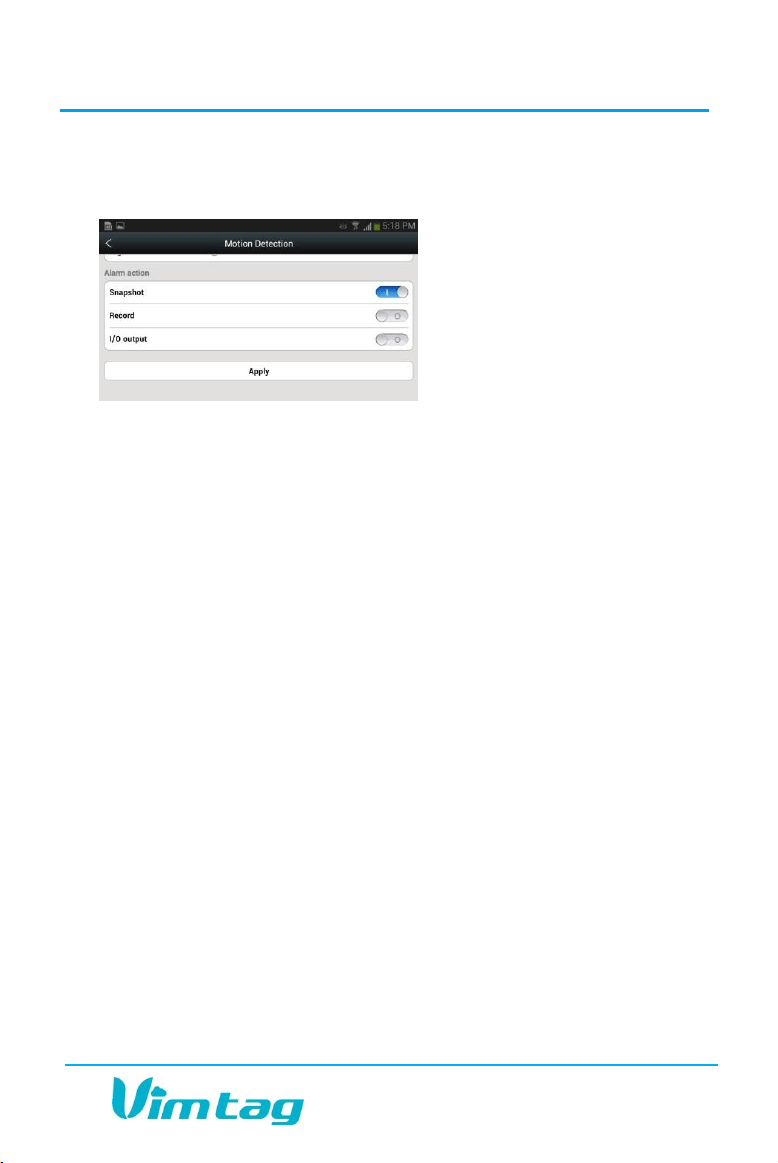
The Motion and Notification tab offers two options to configure what the
camera should do if and when motion is detected in the covered area:
Motion Detection
I/O Alarm
VIMTAG SURVEILLANCE SOLUTION USER GUIDE
Page 42
Select the Motion Detection tab to determine how sensitive the camera
is when it comes to sensing motion. You can change the sensitivity
settings for day and night
operation separately to improve
motion detection.
Note: It is recommended that
you start with the default
settings and then alter them as
needed to adjust to the
conditions in the viewing area.
If you place the settings too high, you could get a number of false alarms.
If you lower the settings too much, it might not provide you with accurate
results. Therefore, it is recommended that you first start with the default
settings, which should provide optimal coverage.
You can also select what you want the camera to do if motion is detected.
For example, you can configure the camera to take a snapshot, or to start
recording a video automatically.
The I/O Alarm is for external devices connected to the camera. This
setting is not commonly used.
When finished, click Apply to save your changes, and then Click Turn alert
on. Toggle the Turn alert off button to Turn alert On.
On the Android and iPhone app, whenever there is a motion alert, it will
send you an alarm and you can sign in to see what is happening or what
happened and was recorded (depending on what you configure the
camera to do).
Notifications are only sent via mobile devices. This means that if you are
logged on with your mobile device and your computer, you will receive
notifications on your mobile device only. Although you will not receive a
notification on your computer, snapshots and recordings will still be saved
and available for viewing via the History pages.

VIMTAG SURVEILLANCE SOLUTION USER GUIDE
Page 43
Scheduling Alerts
The Schedule Alerting tab enables you to specify the days and times of
the week when you want to receive alerts and during that time,
automatically record any motion in the viewing area. An alert would be
triggered based on detected motion. At times when you do not expect
there to be movement around your home or office, you may wish to
schedule an alert.
For example, a store might set up a camera just inside the entrance. It is
likely that the store would expect customers to be entering and exiting
during the day but once the store closed in the evening and the owners
left, there should be no movement. By enabling the Schedule Alerting
feature, an alert would be triggered during the evening and night hours
when the store is closed.
For each schedule, you can set a beginning time and an ending time, and
specify the days of the week, the app should generate an alert if motion is
detected. The system uses a 24-hour clock, in sequential order up to
23:59. This means, that if you want to record from midnight to 5:00 AM,
for example, you would enter 00:01 as the start time and 05:00 as the end
time. If you want to record from noon to 5:00 PM, you would enter 12:00
to 17:00. However, if you wish to record from 20:00 to 3:00 (8:00 PM to
3:00 AM), you will need to specify two schedules:
From 20:00 to 23:59
From 00:01 to 3:00
Note that it is possible to specify in increments of one minute, such that
you can also record from 13:15 to 18:43. Once you have configured all of
your schedules, click Apply.
Note: To ensure that the recordings are made at the correct time, it is
important to verify that the time on the camera is set properly.

VIMTAG SURVEILLANCE SOLUTION USER GUIDE
Page 44
Schedule Recording Times
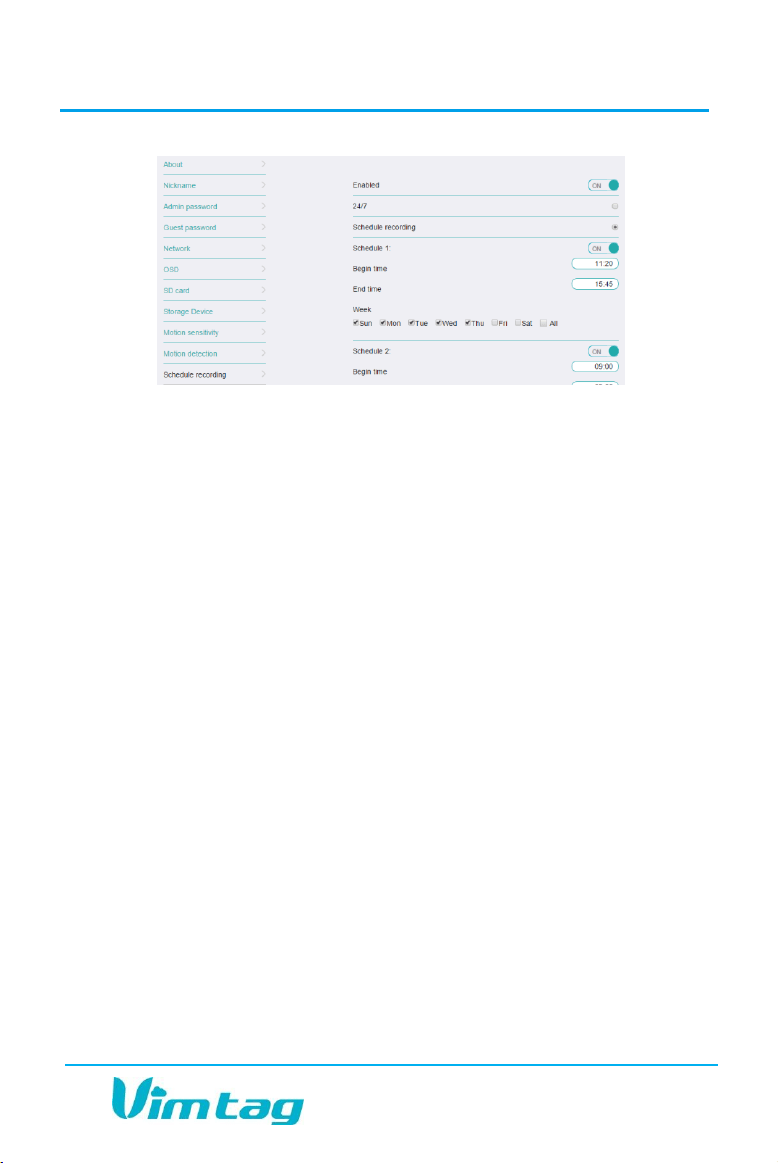
Under the Schedule Recording tab, you have the ability to enable
recordings based on two different options: 24/7 and Scheduled. You
should enable one of these options if you wish to schedule recording
times automatically.
24/7 - You will be recording around the clock.
A Scheduled Recording gives you control over the times that you
actually record by scheduling a specific times. You will be able to
schedule up to four different recording sessions.
For each schedule, you can set a beginning time and an ending time, and
specify the days of the week. The system uses a 24-hour clock, in
sequential order up to 23:59. This means, that if you want to record from
midnight to 5:00 AM, for example, you would enter 00:01 as the start
time and 05:00 as the end time. If you want to record from noon to 5:00
PM, you would enter 12:00 to 17:00. However, if you wish to record from
20:00 to 3:00 (8:00 PM to 3:00 AM), you will need to specify two
schedules:
From 20:00 to 23:59
From 00:01 to 3:00
Note that it is possible to specify in increments of one minute, such that
you can also record from 13:15 to 18:43. Once you have configured all
of your schedules, click Apply.
VIMTAG SURVEILLANCE SOLUTION USER GUIDE
Page 45
To set up the first scheduled recording:
1. Click Schedule 1.
2. Select the days of the week that you want to record. In addition to
specifying specific days, you can also select All to configure the
system to record every day of the week.
3. Select the beginning and ending times. The system uses a 24-hour
clock. If you want to record from midnight to 5AM, for example, you
would enter 00:01 as the start time and 05:00 as the end time. If you
wanted to record from noon to 5PM, you would enter 12:00 to 17:00.
Keep in mind that you can add minutes as well, so you could record
from 13:00 to 18:43.
If you want to create another schedule after you have made your first,
click Schedule 2 and repeat the process. Continue for Schedule 3 and
Schedule 4, if needed. Once you have configured all of your schedules,
click Apply.
Note: To ensure that the recordings are made at the correct time, it is
important to verify that the time on the camera is set properly.
Recording a Video
There are several different ways to begin videotaping the viewing area.
These include:

VIMTAG SURVEILLANCE SOLUTION USER GUIDE
Page 46
Manually initiating the camera by clicking the Recording icon ( ).
Automatically scheduling (using the Schedule recording option on the
Settings page).
24/7 recording.
Motion detection recording (recording initiated by the camera
detecting motion in the viewing area).
You can capture a video either to an SD card in your camera (if you have
one), or to the VimBox, which can be managed by the Vimtag App on your
computer, your mobile device, or the Vimtag website.
Playing Back a Recorded Video
You can play back the videos that have been captured. The videos that
you recorded manually are stored in My folder (for mobile devices) or on
the SD card (which is mandatory for recording from a computer). You will
see a listing of videos that are stored on your VimBox (if you have added
this device to your system). Each video has a timestamp indicating when it
was captured.
To watch a video, click the video image in the list and then click the play
button. To length of the video is indicated below each video.
Filtering Video Archive
Over time, if you save many videos, it is possible that it will be hard to
locate a specific video and so the Vimtag app includes a search option to
filter the video history.
To filter the search results:
1. Navigate to the VimBox or to the clock icon ( ) to get to the SD
Card containing the video you wish to locate.
2. On the calendar, select the day on which the video was recorded.

VIMTAG SURVEILLANCE SOLUTION USER GUIDE
Page 47
3. If you wish to further filter the videos, click on the filter icon ( ).
The filter icon enables you to set the criteria for the search. As with
other elements of the app, there are slight differences, depending on
which operating system you are using. The main criteria options are:
o Format: select from video (Recording) or a snapshot
o Category: select from Event or All.
o Duration: specify the approximately time length of the video.
You can select one of the following options: Short, 5 minutes, 30
minutes, or 1 hour. By default, videos are automatically saved in
30 minute increments. If you filter for an hour, two videos will be
combined into one 60 minute video.
Downloading and Sharing Videos
You can download videos, either ones that were automatically recorded
or ones that were manually initiated by either a mobile device or a
computer.
To download videos:
3. On the main page, select Device and then the storage device where
the videos are stored (either a VimBox or the SD card that has been
inserted into the camera).
If the video is stored on the VimBox, use the Vimtag App to
navigate to the video you wish to download and click on it.
If the video is stored on an SD card, remove the SD card
from the camera, insert it into your computer, and navigate
to the video you wish to transfer to your computer.
Note: You can use the filter to display videos in one of three increments
(1 hours, 30 minutes, 5 minutes). To speed up the process of
downloading a video, it is recommended that you select a shorter
duration).

VIMTAG SURVEILLANCE SOLUTION USER GUIDE
Page 48
4. Click the download icon ( ). Your video will begin downloading.
To access the downloaded video:
On a mobile device, you can access the downloaded video by
opening the Account > My folder page.
On a computer, the download path is shown before the video is
downloaded.
To share the video with others:
1. You can share the downloaded as follows:
o On a mobile phone:
Open the video in the Account > My folder page and press
the share icon. A message with an IP address appears on the
phone.
Copy the local IP address into the Address field of a browser
on your computer (which is connected to the same network)
to access the IP address. A page displaying information
about the video and a Download button appears.
Click the Download button to begin downloading the video
to your computer to the default download location on your
computer.
Note: Do not close the Share page on your mobile device or the
download page on the browser until the download is complete.
System
Under System, there are three sections under System, as detailed below:

VIMTAG SURVEILLANCE SOLUTION USER GUIDE
Page 49
Online upgrade
Online upgrade displays the current version number and shows if there is
a newer version. On a mobile device, you will see a red dot next to the
Setting icon identifying that there is a new upgrade available. To
download and install the latest software version, click Update.
Ideally, this field should display “No update available,” indicating that
your Vimtag device is using the latest upgrade available.
Restore to factory settings
If you click Restore, it will restore the camera to the factory defaults,
which can be helpful in case you have made changes to the camera and
want to cancel these changes.
Note: When choosing Restore to Factory Settings, you also have the
choice to keep or remove the network settings. If you do not keep the
network settings, then you will have to reenter the network information
to get the camera working on your network again. It is recommended
that you keep the network settings, and just restore the other parts of
the camera back to factory settings.
Restart device
Clicking Restart reboots the camera. It is the same as unplugging the
camera and plugging it back in again but is accomplished remotely.
Note: When the camera goes offline, such as when using the Restart
button, the snapshots are deleted if you do not have a storage location
specified (either VimBox or SD card).
If you have a VimBox or an SD card configured, the information is safe.
Many use the Restart button as a way to clear the images from their
camera quickly.

VIMTAG SURVEILLANCE SOLUTION USER GUIDE
Page 50
Others
Use the sliders to adjust the Speaker and the Microphone. You can make
the volume higher or lower with these sliders. Sliding to the right makes
the volume go higher, and sliding to the left makes it lower.
1. Speaker refers to the speaker on the camera, not on the microphone
you are using to speak. The speaker setting will determine the
volume of your voice when it comes out of the camera’s speaker.
2. Mic refers to the microphone that is on the camera. When you make
this louder, it increases the sound that you will hear when you are
watching a live feed and listening to what is happening in the
surroundings.
3. Flip is used when the camera is mounted upside down (for example,
when it is attached to a ceiling). It will flip the images viewed from
the camera (either snapshot or recordings) so that they appear
properly.

VIMTAG SURVEILLANCE SOLUTION USER GUIDE
Page 51
7. Troubleshooting
For the Camera
If the camera is not connecting properly, you can try several things:
Make sure that there is a network connection to the camera. You will
see a green light flash every three seconds when the camera is
successfully connected.
Try to restart the network router.
Check the cable connections on the camera to make sure they are
secure.
Verify that the camera itself is on.
Restart the camera.