We have paid close attention to the safety of this camera. When using this
camera, we request your special attention regarding items marked with the
following symbols.
Warning
• Do not disassemble or modify the camera. High voltage areas are
present inside the camera, with the risk of electric shock.
• If the camera interior is exposed due to dropping or otherwise damaging
the camera, never touch the exposed portion. There is a risk of electric
shock.
• Do not aim the camera at the sun or other strong light sources when
taking pictures or leave the camera sitting in direct sunlight with a lens
cap off. Doing so may cause the camera to malfunction or cause a fire.
• Do not look at the sun or other strong light sources through a lens. Doing
so may lead to a loss of eyesight or cause vision to be impaired.
• If any irregularities occur during use, such as smoke and a strange odor,
stop using the camera immediately, remove the battery or the AC
adapter, and contact your nearest service center. Continued use can
cause a fire or electric shock.
Caution
• Do not place your finger over the flash when discharging the flash. You
may burn yourself.
• Do not cover the flash with clothing when discharging the flash.
Discoloration may occur.
• Some portions of the camera heat up during use. There is a risk of low
temperature burns when holding such portions for long periods.
• Should the monitor be damaged, be careful of glass fragments. Also, be
careful not to allow the liquid crystal to get on your skin or in your eyes
or mouth.
• Depending on your individual factors or physical condition, the use of the
camera may cause itching, rashes or blisters. In case of any
abnormality, stop using the camera and get medical attention
immediately.
Warning
• Always use the battery charger and AC adapter exclusively developed
for this camera, with the specified power and voltage. Using a battery
charger or AC adapter not exclusive to this camera, or using the
exclusive battery charger or AC adapter with an unspecified power or
voltage can cause a fire, electric shock, or camera breakdown. The
specified voltage is 100 - 240V AC.
• Do not disassemble or modify the product. This can cause a fire or
electric shock.
• If the generation of smoke or strange odor from the product or other
abnormality occurs, immediately discontinue using and consult your
nearest service center. Continued use can cause a fire or electric shock.
• If water should happen to get inside the product, consult your nearest
service center. Continued use can cause a fire or electric shock.
• If you see a lightning flash or hear thunder during use of the battery
charger or AC adapter, unplug the power plug and discontinue using.
Continued use can cause damage to the product, fire or electric shock.
• Wipe off the power plug if it should become covered with dust.
Accumulated dust may cause a fire.
• To reduce the risk of hazards, use only CSA/UL certified power supply
cord set, cord is Type SPT-2 or heavier, minimum NO.18 AWG copper,
one end with a molded-on male attachment plug cap (with a specified
NEMA configuration), and the other is provided with a molded-on female
connector body (with a specified IEC nonindustrial type configuration) or
the equivalent.
Caution
• Do not place or drop heavy objects on or forcefully bend the AC plug
cord. Doing so may damage the cord. Should the AC plug cord be
damaged, consult your nearest service center.
• Do not touch or short-circuit the terminal area of the AC plug cord while
the cord is plugged in.
• Do not handle the power plug with wet hands. This can cause an electric
shock.
• Do not drop the product, or subject it to violent impact. This can cause
the product to breakdown.
• Do not use the battery charger D-BC90 to charge batteries other than
the rechargeable lithium-ion battery D-LI90. Attempting to charge other
types of batteries may cause an explosion or heating, or may damage
the battery charger.
For Using Your Camera Safely
Warning
This symbol indicates that ignoring this item could
cause serious personal injuries.
Caution
This symbol indicates that ignoring this item could
cause minor or medium personal injuries, or loss
of property.
About the Camera
About the Battery Charger and AC Adapter
e_kb597_cover_6mm.fm Page 2 Friday, December 22, 2017 3:06 PM
1
Warning
• If any leakage from the battery should come in contact with your eyes,
do not rub them. Flush your eyes with clean water and get medical
attention immediately.
Caution
• Only use the specified battery with this camera. Use of other batteries
may cause an explosion or fire.
• Do not disassemble the battery. Disassembling the battery may cause
an explosion or leakage.
• Remove the battery from the camera immediately if it becomes hot or
begins to smoke. Be careful not to burn yourself during removal.
• Keep wires, hairpins, and other metal objects away from the + and -
contacts of the battery.
• Do not short the battery or dispose of the battery in fire. This can cause
an explosion or fire.
• If any leakage from the battery should come in contact with skin or
clothing, it may cause irritation to the skin. Wash the affected areas
thoroughly with water.
• Precautions for D-LI90 Battery Usage:
- USE SPECIFIED CHARGER ONLY. RISK OF FIRE AND BURNS.
- DO NOT INCINERATE.
- DO NOT DISASSEMBLE.
- DO NOT SHORT CIRCUIT.
- DO NOT EXPOSE TO HIGH TEMP. (140°F / 60°C)
- SEE MANUAL.
Warning
• Do not place the camera and its accessories within the reach of small
children.
1. If the product falls or is operated accidentally, it may cause serious
personal injuries.
2. Wrapping the strap around a neck may cause suffocation.
3. To avoid the risk of a small accessory such as the battery or memory
cards from being swallowed by mistake, keep them out of the reach
of small children. Seek medical attention immediately if an accessory
is accidentally swallowed.
About the Rechargeable Lithium-ion Battery
Keep the Camera and its Accessories out of the
Reach of Small Children

2
Memo

How to Use This Manual
4
Checking the Contents of the Package .....p.9
Names and Functions of the Working
Parts .............................................................p.10
Display Indicators .......................................p.14
How to Change Function Settings ............. p.22
Menu List ......................................................p.25
Attaching the Strap .....................................p.37
Attaching a Lens .........................................p.37
Using the Battery and Charger ..................p.38
Inserting a Memory Card ............................p.40
Initial Settings ..............................................p.41
Basic Shooting Operation ..........................p.44
Reviewing Images .......................................p.47
Configuring the Capture Settings ..............p.48
Taking Still Pictures ....................................p.49
Recording Movies .......................................p.53
Setting the Exposure ..................................p.55
Setting the Focus Method ..........................p.57
Setting the Drive Mode ...............................p.62
Setting the White Balance ..........................p.69
Using a Flash ...............................................p.71
Controlling the Image Finishing Tone .......p.72
Correcting Images .......................................p.75
Using the GPS .............................................p.79
How to Use This Manual
1
Introducing the K-1 Mark II ...............p.9
Gives you an overview of the K-1 Mark II.
Read this and get to know your K-1 Mark II!
2
Getting Started........................................p.37
Explains how to get your K-1 Mark II ready for
shooting as well as basic operations.
3
Taking Pictures.......................................p.48
Once you’ve confirmed that the camera works
properly, try out the camera and take lots of pictures!
How to Use This Manual
5
Playback Mode Palette Items .....................p.83
Changing the Playback Method .................p.84
Editing and Processing Images .................p.88
Using the Camera with a Computer ........... p.94
Using the Camera with a Communication
Device ...........................................................p.95
Camera Settings ..........................................p.97
File Management Settings ..........................p.103
Restrictions on the Combinations of Special
Functions .....................................................p.108
Functions Available with Various Lenses
.......................................................................p.109
Functions when Using an External Flash
.......................................................................p.112
Troubleshooting ..........................................p.114
Main Specifications .....................................p.117
Index .............................................................p.124
Care to be Taken During Handling ............p.128
WARRANTY POLICY ...................................p.131
There is a possibility that the illustrations and the display screen
of the monitor in this manual are different from the actual ones.
4
Playback Functions..............................p.83
Explains various operations for playing back and
editing images.
5
Sharing Images.......................................p.94
Explains how to connect your K-1 Mark II to a
computer or communication device to operate the
camera and use images in the camera.
6
Changing the Settings ........................p.97
Explains how to change other settings.
7
Appendix....................................................p.108
Provides other resources to get the most from your
K-1 Mark II.
6
Contents
How to Use This Manual .........................4
Introducing the K-1 Mark II ......................9
Checking the Contents of the Package ..............9
Names and Functions of the Working Parts ....10
Operating Controls ....................................................... 11
Adjusting the Angle of the Monitor ............................... 13
Display Indicators ...............................................14
Monitor ......................................................................... 14
Viewfinder .................................................................... 20
LCD Panel ................................................................... 21
How to Change Function Settings ....................22
Using the Direct Keys .................................................. 22
Using the Smart Function ............................................ 22
Using the Control Panel ............................................... 23
Using the Menus .......................................................... 24
Menu List .............................................................25
Rec. Mode Menus ........................................................ 25
Movie Menus ............................................................... 30
Playback Menu ............................................................ 31
Set-up Menus .............................................................. 32
Custom Setting Menus ................................................ 35
Getting Started .......................................37
Attaching the Strap ............................................37
Attaching a Lens .................................................37
Using the Battery and Charger ..........................38
Charging the Battery .................................................... 38
Inserting/Removing the Battery ................................... 39
Using the AC Adapter .................................................. 40
Inserting a Memory Card ...................................40
Initial Settings .....................................................41
Turning the Camera On ............................................... 41
Setting the Display Language ...................................... 41
Setting the Date and Time ........................................... 42
Setting the LCD Display ............................................... 43
Formatting a Memory Card .......................................... 43
Basic Shooting Operation .................................44
Shooting with the Viewfinder ........................................ 44
Shooting while Viewing the Live View Image ............... 45
Reviewing Images ..............................................47
Taking Pictures ......................................48
Configuring the Capture Settings ..................... 48
Memory Card Settings ................................................. 48
Image Capture Settings ............................................... 48
Movie Capture Settings ................................................ 48
Setting the Angle of View ............................................. 48
Taking Still Pictures ...........................................49
Exposure Modes .......................................................... 49
EV Compensation ........................................................ 52
Using the Electronic Shutter ........................................ 52
Recording Movies ...............................................53
Playing Back Movies .................................................... 54
Setting the Exposure ..........................................55
Sensitivity ..................................................................... 55
AE Metering ................................................................. 56
Setting the Focus Method .................................. 57
Setting the Autofocus when Shooting with
the Viewfinder .............................................................. 57
Setting the Autofocus when Shooting with
Live View ...................................................................... 59
AF Fine Adjustment ..................................................... 61
Checking the Depth of Field (Preview) ........................ 61
Setting the Drive Mode .......................................62
Continuous Shooting .................................................... 63
Self-timer ...................................................................... 63
Remote Control ............................................................ 64
Bracketing .................................................................... 65
Contents

Contents
7
Mirror Lock-up Shooting .............................................. 66
Multi-exposure ............................................................. 67
Interval Shooting .......................................................... 68
Setting the White Balance .................................69
Adjusting the White Balance Manually ........................ 70
Adjusting the White Balance with Color
Temperature ................................................................ 71
Using a Flash ......................................................71
Connecting a Flash ...................................................... 71
Setting the Flash Mode ................................................ 71
Controlling the Image Finishing Tone ..............72
Custom Image ............................................................. 72
Digital Filter .................................................................. 74
Correcting Images ..............................................75
Brightness Adjustment ................................................. 75
Shake Reduction ......................................................... 75
Lens Correction ........................................................... 76
Quality Level and Texture Adjustment ......................... 76
Composition Adjustment .............................................. 78
Using the GPS .....................................................79
Performing a Calibration .............................................. 80
Recording the Camera Route (GPS Logging) ............. 81
Shooting Celestial Bodies (ASTROTRACER) ............. 82
Playback Functions ...............................83
Playback Mode Palette Items ............................83
Changing the Playback Method ........................84
Displaying Multiple Images .......................................... 84
Displaying Images by Folder ....................................... 85
Displaying Images by Shooting Date ........................... 85
Playing Back Images Continuously ............................. 86
Displaying Rotated Images .......................................... 86
Connecting the Camera to an AV Device .................... 87
Editing and Processing Images ........................88
Copying an Image ........................................................ 88
Changing the Image Size ............................................ 88
Correcting Color Moiré ................................................. 89
Processing Images with Digital Filters ......................... 90
Editing Movies ............................................................. 91
Developing RAW Images ............................................. 92
Sharing Images ......................................94
Using the Camera with a Computer ..................94
Setting the Connection Mode ....................................... 94
Copying an Image on the Memory Card ...................... 94
Operating the Camera with a Computer ...................... 95
Using the Camera with a Communication
Device ..................................................................95
Enabling the Wi-Fi™ Function ..................................... 95
Operating the Camera with a Communication
Device .......................................................................... 96
Changing the Settings ...........................97
Camera Settings .................................................97
Customizing the Button/E-dial Functions ..................... 97
Setting the Monitor and Indicator Lamps ................... 100
Saving Frequently Used Settings ............................... 101
Selecting Settings to Save in the Camera ................. 102
File Management Settings ...............................103
Protecting Images from Deletion ................................ 103
Specifying the Folder/File Settings ............................ 103
Setting the Copyright Information .............................. 106
Displaying the Local Date and Time of the Specified
City ............................................................................. 106
Appendix...............................................108
Restrictions on the Combinations of Special
Functions ..........................................................108
Functions Available with Various Lenses ......109
Using the Aperture Ring ............................................. 111
Performing Catch-in Focus Shooting ......................... 111
Setting the Focal Length ............................................ 112
Functions when Using an External Flash ......112
Troubleshooting ...............................................114
Sensor Cleaning ........................................................ 115
Error Messages .......................................................... 116

Contents
8
Main Specifications ..........................................117
Operating Environment for USB Connection and
Provided Software ..................................................... 123
Index ..................................................................124
Care to be Taken During Handling ..................128
WARRANTY POLICY ........................................131
Regarding copyrights
Images taken with this camera that are for anything other
than personal enjoyment cannot be used without permission
according to the rights as specified in the Copyright Act.
Please take care, as there are cases where limitations are
placed on taking pictures even for personal enjoyment during
demonstrations, performances or of items on display. Images
taken with the purpose of obtaining copyrights cannot also be
used outside the scope of use of the copyright as laid out in
the Copyright Act, and care should be taken here also.
To users of this camera
• Do not use or store this camera in the vicinity of equipment
that generates strong electromagnetic radiation or
magnetic fields. Strong static charges or the magnetic
fields produced by equipment such as radio transmitters
could interfere with the monitor, damage the stored data,
or affect the camera’s internal circuitry and cause camera
misoperation.
• The liquid crystal panel used for the monitor is
manufactured using extremely high precision technology.
Although the level of functioning pixels is 99.99% or better,
you should be aware that 0.01% or fewer of the pixels may
not light up or may light up when they should not.
However, this has no effect on the recorded image.
• The Shake Reduction (SR) mechanism of this camera
uses the PENTAX original technology and moves the
image sensor to an appropriate position at high speed with
a magnetic force, which reduces image blurring caused by
camera motion. A rattling sound is made when the camera
is shaken, for example, by changing its orientation, but this
is not a malfunction.
• In this manual, the generic term “computer(s)” refers to
either a Windows
®
PC or a Macintosh.
• In this manual, the term “battery(ies)” refers to any type of
batteries used for this camera and its accessories.
Regarding User Registration
In order to better serve you, we request that you complete
the user registration, which can be found on the CD-ROM
supplied with the camera or on our website.
Thank you for your cooperation.
http://www.ricoh-imaging.com/registration/
1
9
Introduction
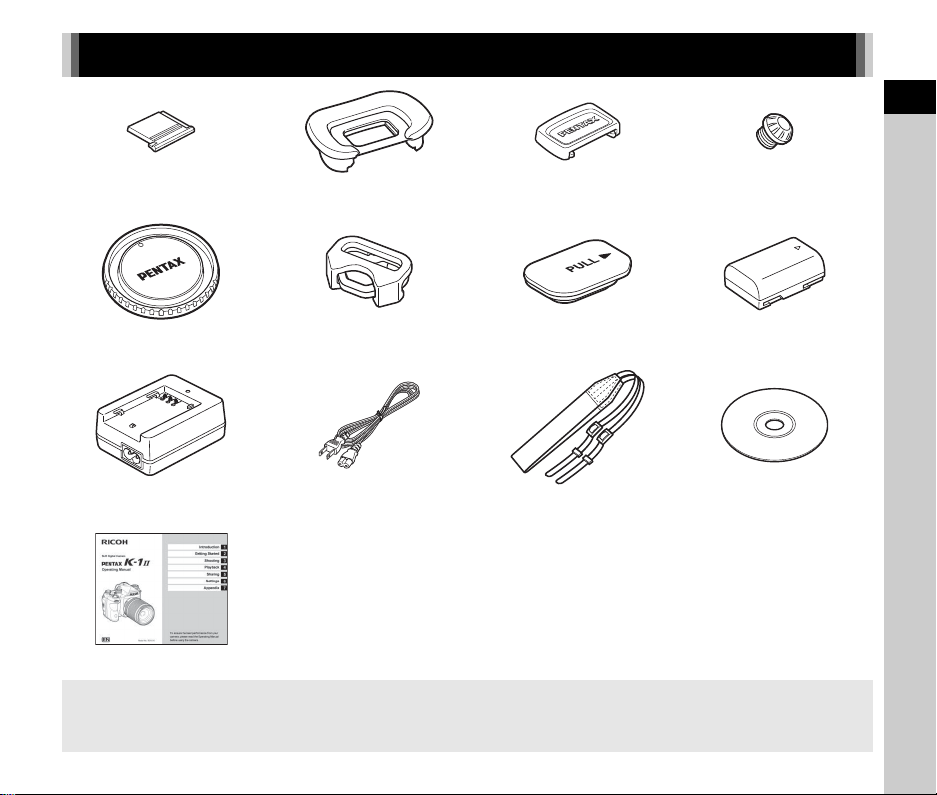
Checking the Contents of the Package
Hot shoe cover FK
(Installed on camera)
Eyecup FT
(Installed on camera)
ME viewfinder cap Sync socket 2P cap
(Installed on camera)
Body mount cap K II
(Installed on camera)
Triangular ring and protective cover
(Installed on camera)
Battery grip terminal cover
(Installed on camera)
Rechargeable lithium-ion
battery D-LI90
Battery charger
D-BC90
AC plug cord Strap
O-ST162
Software (CD-ROM)
S-SW171
Operating Manual (this manual)
Lenses you can use
Lenses that can be used with this camera are D FA, DA, DA L, FA, and FA J lenses and lenses that have an 9 (Auto) position
on the aperture ring. To use any other lens or accessory, see p.109.
1
10
Introduction
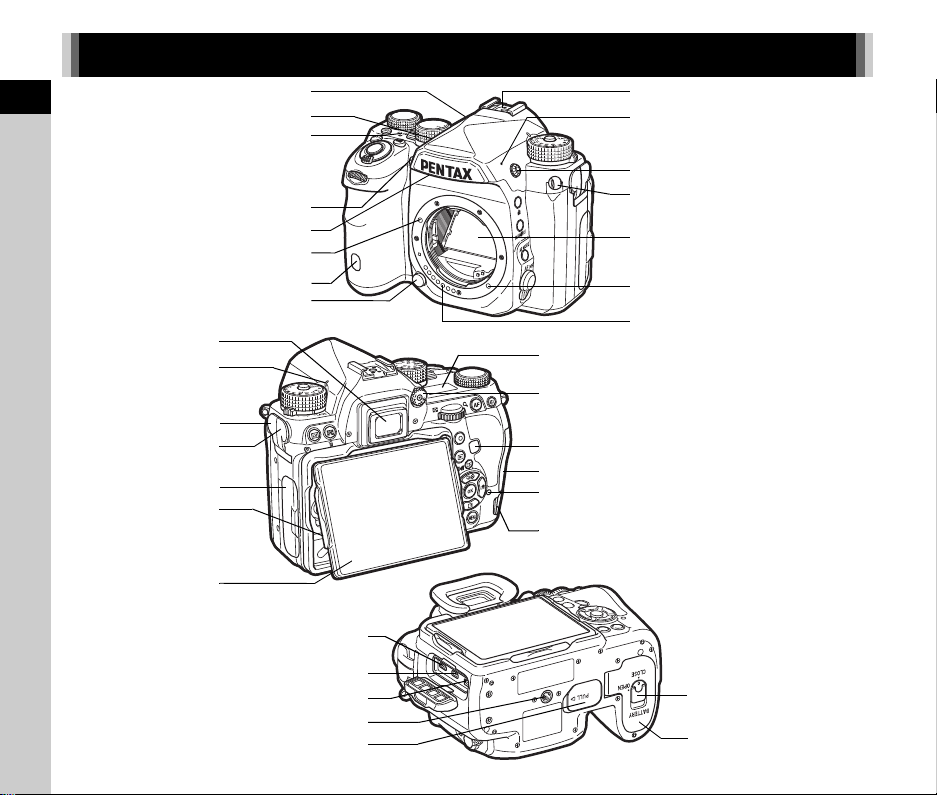
Names and Functions of the Working Parts
HDR
BKT
CH/CL
ISO
Wi
-
Fi
Crop
SR
Grid
AF coupler
Mirror
Lens information contacts
X-sync socket
Hot shoe
Strap lug
Lens unlock button
AF assist light
Speaker
Lens mount index
Terminal cover
Microphone terminal
Viewfinder
Headphone terminal
Dial indicator
LED light for
backside controls
(located on backside
of the monitor)
Card access lamp
LCD panel
Cable switch terminal
Self-timer lamp/Remote control receiver
Diopter adjustment dial
Dual card slot for SD Memory Cards
Tripod socket
Battery grip contacts
Battery cover unlock knob
Battery cover
Image plane indicator
Wi-Fi lamp
LED light for lens mount
Self-timer lamp/Remote control receiver
Flexible tilt monitor
USB terminal (micro B)
DC input terminal
HDMI terminal (type D)
Microphone

1
Introduction
11
1 Illumination button (8)
Provides lighting for the LCD panel, the backside controls,
the lens mount, and the card slot/connector. You can set
whether to turn on the light or not for each part. (p.100)
2 ISO button (N)
Press to change the ISO sensitivity. (p.55)
3 Shutter release button (0)
Press to capture images. (p.45)
In playback mode, press halfway to switch to capture mode.
4 Main switch
Turns the power on or off, or activates the preview function.
(p.41, p.61)
5 Front e-dial (Q)
Changes the values for camera settings such as exposure.
(p.50)
You can change the menu category when a menu screen is
displayed. (p.24)
In playback mode, use this to select a different image.
6 EV Compensation button (J)
Press to change the exposure compensation value. (p.52)
7 Mode dial lock button
Press to allow the mode dial to be turned. (p.44)
8 Mode dial
Changes the capture mode. (p.49)
9 Mode dial lock release lever
Use this lever to release the mode dial lock to operate the
mode dial without pressing the mode dial lock button. (p.46)
0 Lock button (7)
Temporarily disables dial and button operations to prevent
misoperation. (p.46)
a RAW/Fx1 button (X)
You can assign a function to this button. (p.97)
b AF Mode button (b)
Press to change the autofocus mode or the focusing area.
(p.58)
c Focus mode switch
Changes the focus mode. (p.57)
d AE Metering/Delete button (2/L)
Press to change the metering method. (p.56)
In playback mode, press to delete images. (p.47)
e Live View button (K)
Displays the Live View image. (p.45)
Operating Controls
HDR
BKT
CH/CL
ISO
Wi
-
Fi
Crop
SR
Grid
HDR
BKT
CH/CL
ISO
Wi
-
Fi
Crop
SR
Grid
2
f
c
j
k
n
p
9
8
g
i
h
o
7
4
3
a
0
5
1
e
d
l
b
m
6
q
r
s
1
Introduction
12
f Green button (M)
Resets the value being adjusted.
Switches to ISO AUTO when adjusting the sensitivity.
g INFO button (G)
Changes the style of the display on the monitor. (p.14, p.18)
h GPS button (4)
Turns the GPS function on or off. (p.79)
i Function dial
Selects the function to change its settings with the setting
dial. (Smart Function, p.22)
j Capture mode selector switch
Switches between A (still picture) mode and C (movie)
mode. (p.44)
k Setting dial
Changes the settings for the function selected with the
function dial. (Smart Function, p.22)
l AF button (I)
Available for adjusting focus, instead of pressing 0
halfway. (p.57)
m AE Lock button (H)
Locks the exposure value before shooting.
In playback mode, press to save the last captured JPEG
image also in RAW format. (p.47)
n Rear e-dial (R)
Changes the values for camera settings such as exposure.
(p.50)
You can change the menu tabs when a menu screen is
displayed. (p.24)
You can change camera settings when the control panel is
displayed. (p.23)
In playback mode, use this to magnify the image or display
multiple images at the same time. (p.47, p.84)
o Playback button (3)
Switches to playback mode. (p.47) Press the button again to
switch to capture mode.
p Change AF Point/Card slot switch button (c/d)
Enables changing the focusing area. (p.58)
In playback mode, press this button to switch between the
memory cards inserted in the two slots, SD1 and SD2.
(p.47)
q Four-way controller (ABCD)
Displays the Drive Mode, White Balance, or Custom Image
setup menu. (p.22)
When a menu or the control panel is displayed, use this to
move the cursor or change the item to set.
You can assign a function to B and use it as the Fx2 button
(Y). (p.97)
Press B in single image display of the playback mode to
display the playback mode palette. (p.83)
r OK button (E)
When a menu or the control panel is displayed, press this
button to confirm the selected item.
s MENU button (F)
Displays a menu. Press this button while the menu is
displayed to return to the previous screen. (p.24)
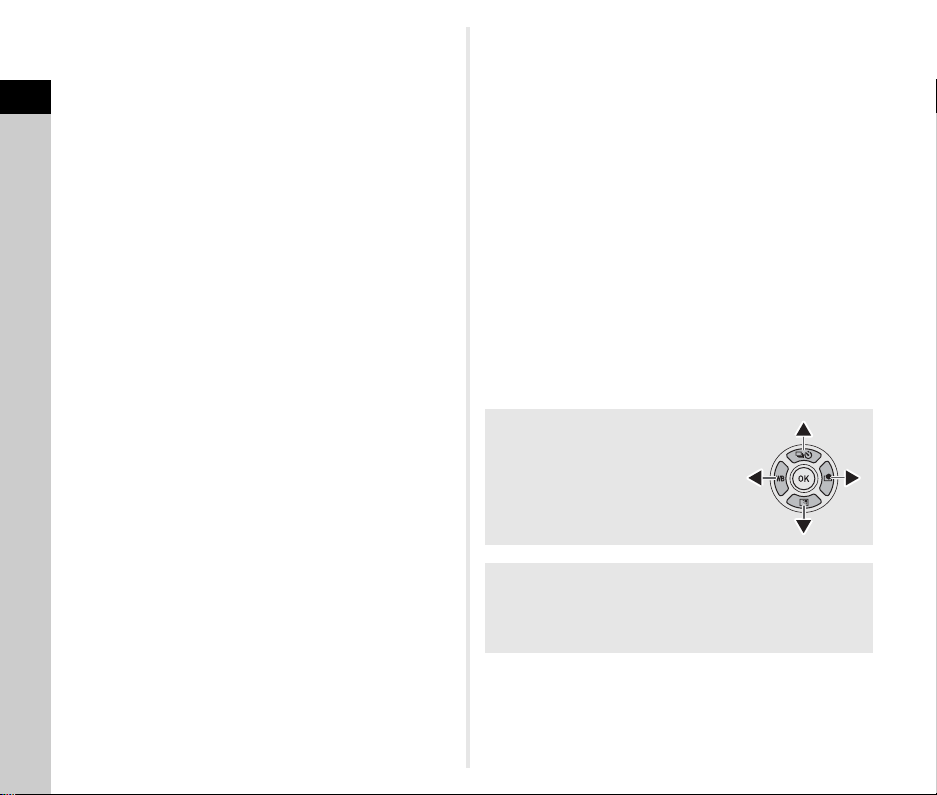
About the Four-way Controller
In this manual, each button of the four-
way controller is indicated as shown in
the illustration on the right.
About the Indicator Lamps
You can set the illumination settings for the Wi-Fi lamp, GPS
indicator lamp, self-timer lamp, and remote control receiver
lamp in [Indicator Lamps] of the D2 menu. (p.100)
1
Introduction
13
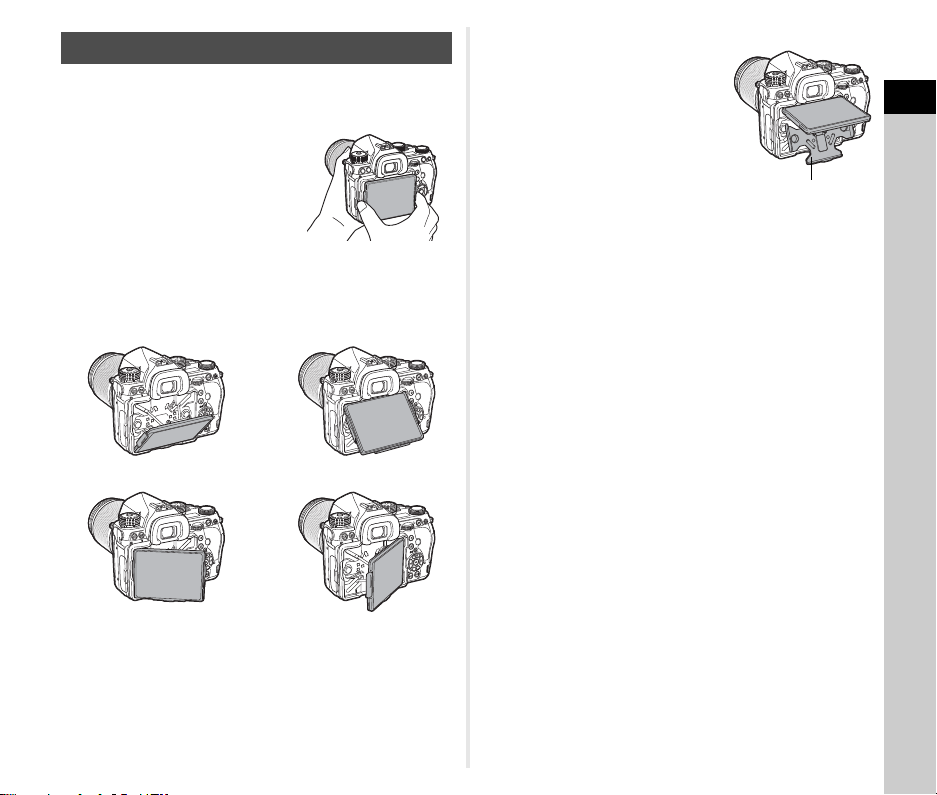
The monitor can be moved in four directions (up, down, left, and
right).
1 Hold the camera with one
hand and hold the both the
right and left of the monitor
and pull it out with the
other hand.
2 Adjust the monitor angle.
The monitor angle can be adjusted up to approximately 44°
upward or downward, and up to approximately 35° to left or
right.
u Caution
• Do not forcefully pull out or apply strong force to the monitor.
• Keep the monitor retracted when carrying the camera.
t Memo
• The monitor can be moved in four
directions with it placed on the base
cradle. When the monitor is pulled
up from the base cradle as shown in
the illustration on the right, you can
take pictures by holding the camera
at the waist high position.
• When the monitor is pulled out, you
can illuminate the backside controls
by pressing 8. (Default setting: Off) Change the setting in
[Backside Controls] of [Illumination Settings] in the D2 menu.
(p.100)
• When retracting the monitor, place the monitor on the base
cradle and then push both the right and left edges of the
monitor to the camera body.
Adjusting the Angle of the Monitor
Base cradle
1
Introduction
14
With this camera, you can take pictures while looking through
the viewfinder or while viewing the image on the monitor.
When using the viewfinder, you can take pictures while
checking the status screen displayed on the monitor and looking
through the viewfinder. (p.44) When not using the viewfinder,
you can take pictures while viewing the Live View image
displayed on the monitor. (p.45)
The camera is in “standby mode” when it is ready to shoot, such
as when the status screen or Live View image is displayed.
Press G in standby mode to display the “control panel” and
change settings. (p.23) You can change the type of information
displayed in standby mode by pressing G while the control
panel is displayed. (p.17)
t Memo
• You can set the display color of the status screen, control
panel, and menu cursor in “Initial Settings” (p.41).
Display Indicators
Monitor
Capture Mode
G
G
1/1/
250250
160 01600
FF
5.65.6
99 99 999999
99 99 999999
1/1/
250250
160 01600
FF
5.65.6
99 99 999999
99 99 999999
99 99999999
99 99999999
10:2310:23
32003200
Status ScreenStatus ScreenStatus Screen
AUTO ISO (Maximum)AUTO ISO (Maximum)AUTO ISO (Maximum)
03/03/201803/03/2018
Standby mode
(Status screen)
Shooting Info Display
selection screen
Control panel
Adjusting the Monitor Brightness
If the monitor display is difficult to
see when you take pictures
outdoors or in other situations,
adjust the brightness of the
monitor in [Outdoor View Setting]
of the D1 menu. When [Outdoor
View Setting] is assigned to X or
Y, you can adjust the brightness of the monitor by a simple
button operation. (p.97) By default, [Outdoor View Setting] is
assigned to Y (B).
1/1/
250250
16001600
FF
5.65.6
99 99 999999
99 99 999999
Outdoor View SettingOutdoor View Setting
1
Introduction
15
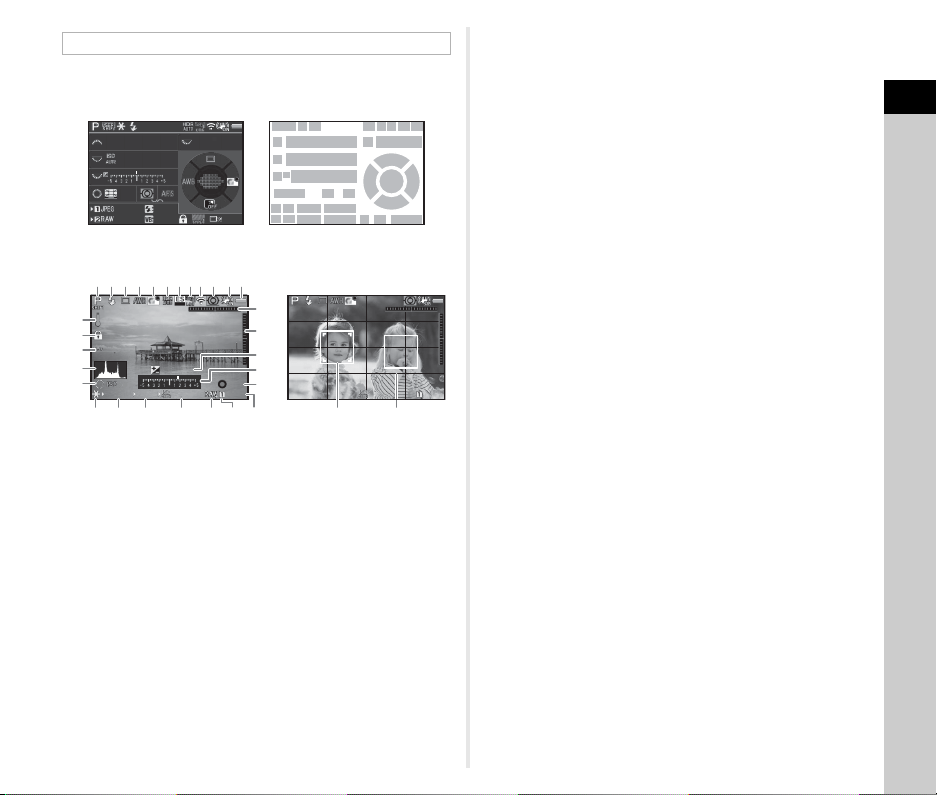
The settings for shooting are displayed.
Status Screen
Live View
t Memo
•
In [Live View] of the
A
5 and
C
2 menus, you can change the
display settings of Live View. (p.27, p.30)
• You can display grid lines on the Live View screen using the
Smart Function. (p.22)
Standby Mode
1 Capture mode (p.49) 11 Aperture value
2 AE Lock 12 Sensitivity (p.55)
3 Flash Mode (p.71) 13 EV Compensation
(p.52)/Bracketing (p.65)
4 Clarity (p.76)/Skin Tone
(p.76)/Digital Filter
(p.74)/HDR Capture
(p.75)/Pixel Shift
Resolution (p.77)
14 EV bar scale
15 Operation guide for
Smart Function (p.22)
16 AE Metering (p.56)
5 GPS positioning status
(p.79)
17 Focus Method (p.57)
18 Drive Mode (p.62)
6 Wi-Fi™ connection
status (p.95)
19 White Balance (p.69)
20 Focusing area (AF point)
(p.58)7 Shake Reduction (p.75)/
Horizon Correction/
Movie SR
21 Custom Image (p.72)
22 Operation guide for Y
(p.97)
8 Battery level
9 E-dial guide 23 Card slot number
10 Shutter speed 24 File Format (p.48)
1
910 11
12
1413
15 16 17
20
22
30292827
26252423
252423
21
18
19
9
9
9
23 45678
1/1/
250250
160 01600
FF
5.65.6
99 99 999999
99 99 999999
+1 .0+1.0
G1A 1G1A1 200 02000
39
+1.7
EV
+1.7
EV
1/
2000
1/
2000
F2.8F2.8
102400102400
99999999
±0EV ±0EV
1/
2000
1/
2000
F2.8F2.8
16001600
99999999
13
18 19 21
4
16
8
32
23
765
31
37
14
2
36
13
25 3810 11 12 24
28
33
34
15
35
25 Image storage capacity 33 Crop (p.48)
26 Flash Exposure
Compensation (p.72)
34 Histogram
35 Electronic Level
(horizontal tilt) (p.21)27 White Balance fine-
tuning (p.70)
36 Electronic Level
(vertical tilt) (p.21)28 Operation controls
disabled (p.46)
37 Operation guide
29 AA Filter Simulator (p.78) 38 Face detection frame
(when [Contrast AF] is
set to [Face Detection])
(p.60)
30 Number of shots during
Multi-exposure or
Interval Shooting
31 Electronic Shutter (p.52) 39 Grid Display
32 Temperature warning
1
Introduction
16
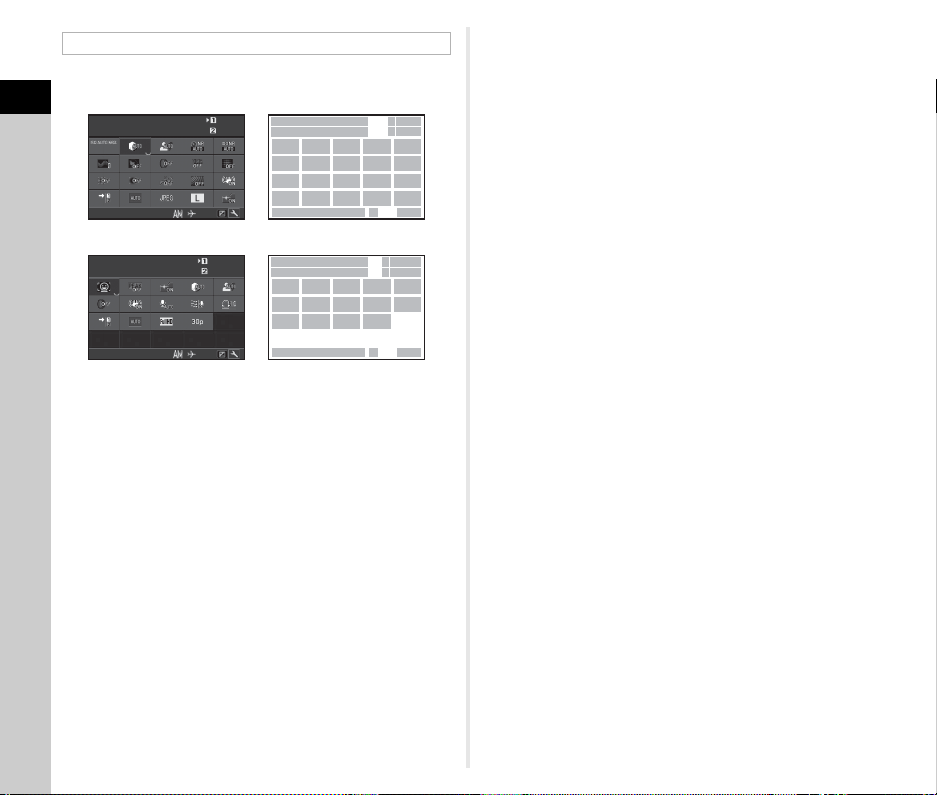
The following functions are displayed with the default setting.
t Memo
• Refer to “Using the Control Panel” (p.23) for how to use the
control panel.
• The functions displayed on the control panel can be
customized. (p.23)
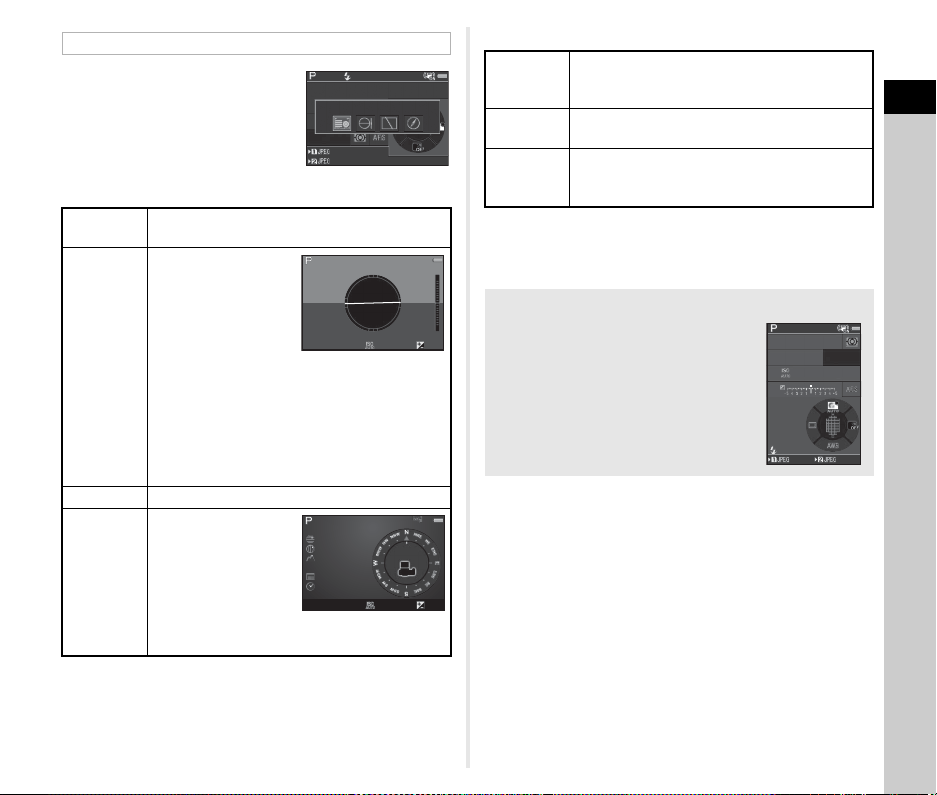
Control Panel
1 Function name 15 Distortion Correction
(p.76)
2 Setting
3 Card slot number 16 Peripheral Illumination
Correction (p.76)
4 Number of recordable
still pictures/Movie
recordable time
17 ASTROTRACER (p.82)
18 AA Filter Simulator (p.78)
5 AUTO ISO (Maximum)
(p.55)
19 Shake Reduction (p.75)/
Movie SR
6 Highlight Correction
(p.75)
20 Memory Card Options
(p.48)
7 Shadow Correction
(p.75)
21 Crop (p.48)
22 File Format (p.48)
8 Slow Shutter Speed NR
(p.50)
23 JPEG Recorded Pixels
(p.48)/Movie Recorded
Pixels (p.48)
9 High-ISO NR (p.55)
10 Clarity (p.76) 24 AF Assist Light (p.58)
11 Skin Tone (p.76) 25 Contrast AF (p.60)
12 Digital Filter (p.74) 26 Focus Peaking (p.59)
13 HDR Capture (p.75) 27 Recording Sound Level
(p.53)
14 Pixel Shift Resolution
(p.77)
10:2310:23
1
2
34
34
98
11
16
21
10
15
20
12
65
7
17
22
13
18
23 24
14
19
31 3332
32003200
99 99999999
99 99999999
Highlight CorrectionHighlight CorrectionHighlight Correction
AutoAutoAuto
03/03/201803/03/2018
10:2310:23
1
2
76
19
21
12
20
27
2625
24
23
28
30
29
31
3332
9: 59’59”9:59’59”
9: 59’59”9:59’59”
34
34
Contrast AFContrast AFContrast AF
Face Detection
Face DetectionFace Detection
03/03/201803/03/2018
C mode
A mode
28 Wind Noise Reduction
(p.53)
31 Current date and time
32 Destination (p.106)
29 Playback Sound Volume 33 Operation guide for the
control panel
customization (p.23)
30 Framerate (p.48)
1
Introduction
17
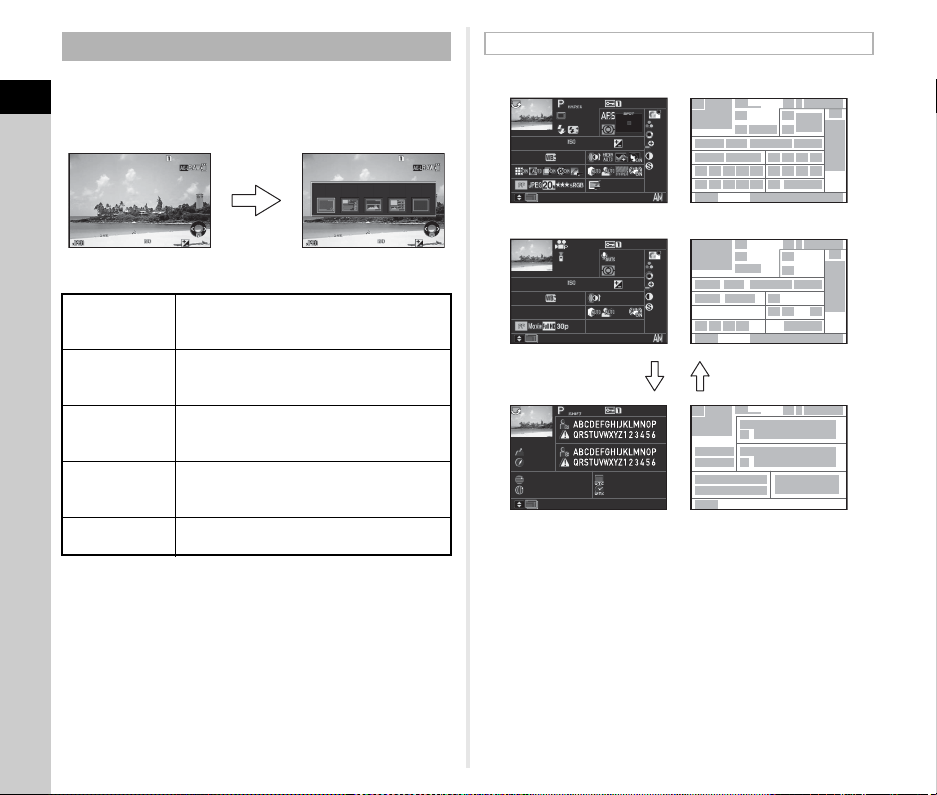
You can change the type of
information displayed in standby
mode by pressing G while the
control panel is displayed. Use CD
to select the type and press E.
When shooting with the viewfinder
When shooting with Live View
t Memo
• The screen selected on the Shooting Info Display selection
screen appears when the camera is turned off and on again.
Shooting Info Display
Status
Screen
Displays the settings for shooting with the
viewfinder. (p.15)
Electronic
Level
Displays the camera
angle.
A bar scale indicating
the horizontal camera
angle appears at the
center of the screen,
and a bar scale
indicating the vertical
camera angle
appears on the right
side. When the angle exceeds the range that
can be displayed in each bar scale, the indicator
segments of the scale are displayed in red.
Display Off Nothing is displayed on the monitor.
Electronic
Compass
Turns on the GPS
function and displays
the current latitude,
longitude, altitude,
lens direction,
Coordinated
Universal Time
(UTC), capture mode, and other information.
1/
1/
250
250
1600
1600
F
F
5.6
5.6
99 99 9
99999
99 99 9
99999
Status Screen
Status Screen
1/
250
1/
250
F5.6F5.6 16001600 0.00.0
Example:
Tilted 1.5° to the left
(yellow)
Vertically level (green)
1/
250
1/
250
F5.6F5.6 16001600 0.00.0
10:00:0010:00:00
0°
N
36°45.410'N
36°45.410'
W140°02.000'W140°02.000'
89m89m
03/03/201803/03/2018
Standard
Information
Display
The Live View image and the settings for
shooting with Live View are displayed. (p.15)
Electronic
Level
The electronic level is displayed in Standard
Information Display.
No
Information
Display
Certain icons, such as those for the capture
mode and drive mode, are not displayed.
When the Camera is Held Vertically
When the camera is rotated to the vertical
position, the status screen is displayed
vertically. To not display the status screen
vertically, set [Auto Screen Rotation] to Y
(Off) in [Other Display Settings] of the A5
menu. (p.28)
1/
1/
250
250
1600
1600
F
F
5.6
5.6
99 99 9
99999
99 99 9
99999
1
Introduction
18
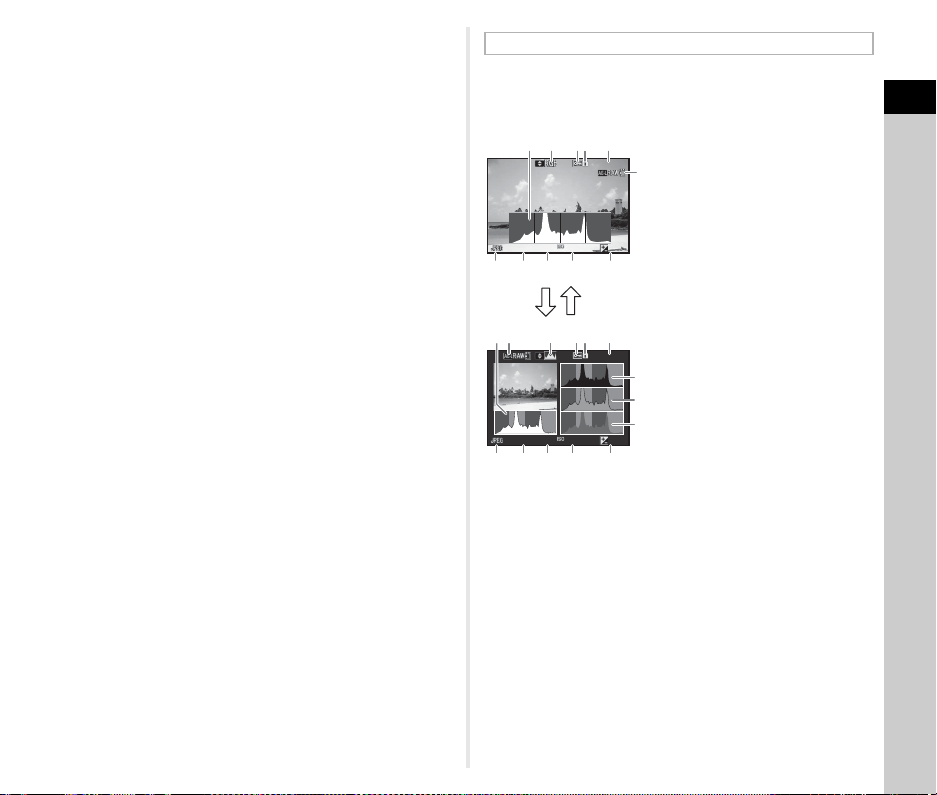
The captured image and shooting information are displayed in
single image display of the playback mode.
Press G to change the type of information displayed in
single image display. Use CD to select the type and press E.
t Memo
• You can set overexposed areas to blink red in Standard
Information Display, Histogram Display, and No Information
Display. Set in [Highlight Alert] of [Image Display] in the B1
menu.
• The screen selected on the Playback Info Display selection
screen is displayed in playback mode when the camera is
turned off and on again. If [Playback Info Display] is set to Y
(Off) in [Memory] of the A5 menu, the Standard Information
Display always appears first when the camera is turned on.
(p.102)
Playback Mode
Standard
Information
Display
Captured image, file format, exposure
parameters, and operation guide indicators
are displayed.
Detailed
Information
Display
Detailed information on how and when the
image was taken is displayed. (p.18)
Histogram
Display
Captured image and brightness histogram
are displayed. (p.19)
Not available during movie playback.
RGB Histogram
Display
Captured image and RGB histogram are
displayed. (p.19)
Not available during movie playback.
No Information
Display
Only the captured image is displayed.
1/
2000
1/
2000
F2.8F2.8 200200 +0.3+0.3
100-0001100-0001
1/
2000
1/
2000
F2.8F2.8 200200 +0.3+0.3
100-0001100-0001
G
Standard Information DisplayStandard Information Display
Single image display
(Standard Information Display)
Playback Info Display
selection screen
Detailed Information Display
1 Captured image 11 AE Metering (p.56)
2 Rotation information
(p.86)
12 Focusing area (AF point)
(p.58)
3 Capture mode (p.49) 13 Shutter speed
4 Protect setting (p.103) 14 Aperture value
5 Card slot number in use 15 Sensitivity (p.55)
6 Folder number-File
number (p.103)
16 EV Compensation (p.52)
17 White Balance (p.69)
7 Drive Mode (p.62) 18 White Balance fine-
tuning (p.70)
8 Flash Mode (p.71)
9 Flash Exposure
Compensation (p.72)
19 Digital Filter (p.74)
10 Focus Method (p.57)
1
3
3
4
9
14
18
24 25 26
33
42
41
41
41
42
34 35 36
32 33 34 45
37 38
27 28 29 30 31
32
19 20 21 22
23
15 16
17
10
8
12
13
39
40
39
40
11
65
465
465
47
48
46
4650
51
52
53
49
44
11
3
7
43
14 15 1613
17 18 19
28 29 31
38
7
2
2
1
1
+1.0+1.0
1/
2000
1/
2000 F2.8F2.8
55.0mm55.0mm
16001600
5000K5000K
100-0001100-0001
+1.5+1.5
±
0
±
0
±
0
±
0
±
0
±
0
±
0
±
0
±
0
±
0
10:3010:30
10'10"10'10"
G1A1G1A1
100-0001100-0001
0m0m
123°123°
N
36°45.410'N
36°45.410'
10:00:0010:00:00
W140°02.000'W140°02.000'
1/
125
1/
125 F8.0F8.0
55.0mm55.0mm
16001600
5000K5000K
100-0001100-0001
+1.5+1.5
±
0
±
0
±
0
±
0
±
0
±
0
±
0
±
0
±
0
±
0
10:3010:30
G1A1G1A1
03/03/201803/03/2018
03/03/201803/03/2018
03/03/201803/03/2018
Still pictures
Movies
Page 2
AB
1
Introduction
19
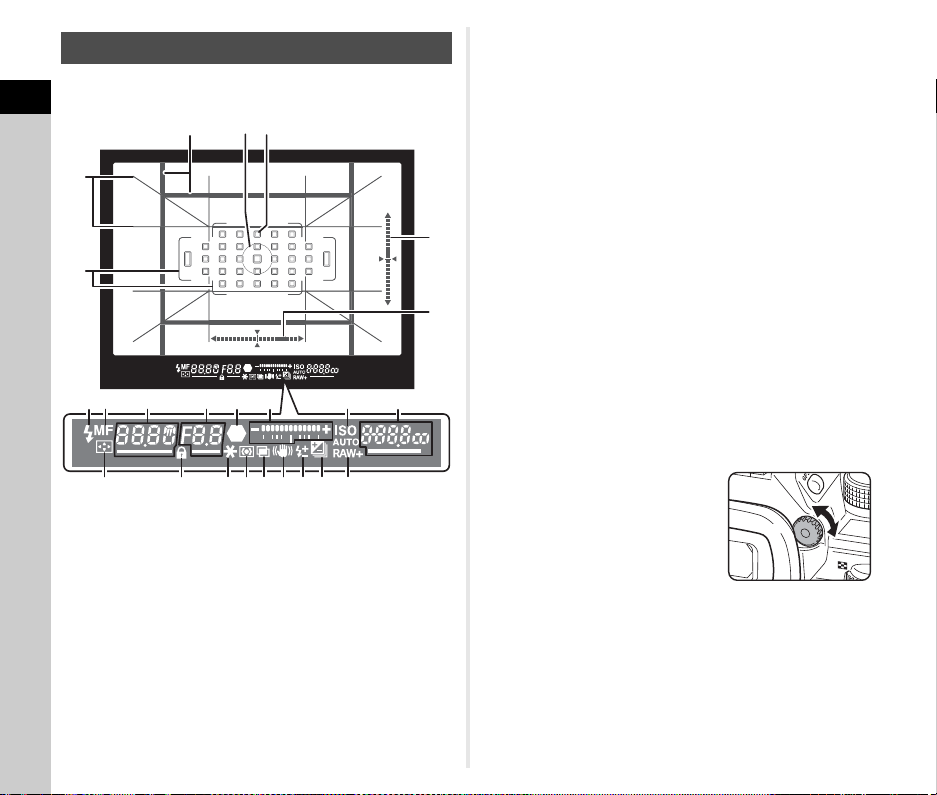
Use AB to switch between the brightness histogram and RGB
histogram.
20 HDR Capture (p.75)/
Pixel Shift Resolution
(p.77)
35 JPEG Quality (p.48)
36 Color Space (p.48)
37 Color Moiré Correction
(p.89)
21 Clarity (p.76)
22 Skin Tone (p.76) 38 Lens focal length
23 Distortion Correction
(p.76)
39 Custom Image setting
(p.72)
24 Peripheral Illumination
Correction (p.76)
40 Custom Image
parameters
25 Lateral Chromatic
Aberration Adjustment
(p.76)
41 Operation guide
42 Shooting date and time
43 Length of time of the
recorded movie
26 Diffraction Correction
(p.76)
44 Recording Sound Level
(p.53)27 Color Fringe Correction
(p.93)
45 Framerate (p.48)
28 Highlight Correction
(p.75)
46 Tampered image
warning
29 Shadow Correction
(p.75)
47 Photographer (p.106)
48 Copyright Holder (p.106)
30 AA Filter Simulator (p.78) 49 Altitude
31 Shake Reduction (p.75)/
Horizon Correction/
Movie SR
50 Lens direction
51 Latitude
52 Longitude
32 Crop (p.48) 53 Universal Coordinated
Time
33 File Format (p.48)
34 JPEG Recorded Pixels
(p.48)/Movie Recorded
Pixels (p.48)
Histogram Display
1 Histogram (Brightness)
2 RGB histogram/
Brightness histogram
3 Protect setting
4 Card slot number in use
5 Folder number-File
number
6 Save RAW Data
7 File Format
8 Shutter speed
9 Aperture value
10 Sensitivity
11 EV Compensation
12 Histogram (R)
13 Histogram (G)
14 Histogram (B)
100-0001100-0001
1/
2000
1/
2000
F2.8F2.8 200200 +0.3+0.3
100-0001100-0001
1/
2000
1/
2000
F2.8F2.8 200200 +0.3+0.3
135
6
2 4
12
13
14
7 8 9 10 11
354261
7 8 9 1110
Brightness histogram
AB
RGB histogram
1
Introduction
20
When shooting with the viewfinder, information appears in the
viewfinder.
t Memo
• The information is displayed in the viewfinder when 0
is pressed halfway, or during the meter operating time
(default setting: 10 sec.). You can change the meter
operating time in [3 Meter Operating Time] of the E1 menu.
(p.35)
• The AF point in use for autofocus is emphasized when
0 is pressed halfway.
• You can adjust the viewfinder
image sharpness using the diopter
adjustment dial.
• The display of Grid Display,
Electronic Level, AF Frame, Spot
Metering Frame, and AF Points
can be turned on or off in
[Viewfinder Overlay] of the A5 menu. (p.27)
• The viewfinder is illuminated when focusing the subject or
changing the focusing area in a dark place. To change the
illumination method, set in [9 Viewfinder Light] of the E2
menu. (p.35)
Viewfinder
1 Cropping frame (p.48) 10 Shutter speed/
Remaining processing
time for Slow Shutter
Speed NR (p.50)/AF
Mode (p.58)/Number of
shots for Bracketing
(p.65)
2 Spot metering frame
(p.56)
3 AF point (p.58)
4 Grid Display
5 AF frame (p.45)
6 Electronic Level
(vertical tilt) (p.21)
11 Aperture value/Bracket
value (p.65)
7 Electronic Level
(horizontal tilt) (p.21) 12 Focus indicator
8 Flash indicator 13 EV bar scale
9 Focus Method (p.57) 14 ISO/ISO AUTO
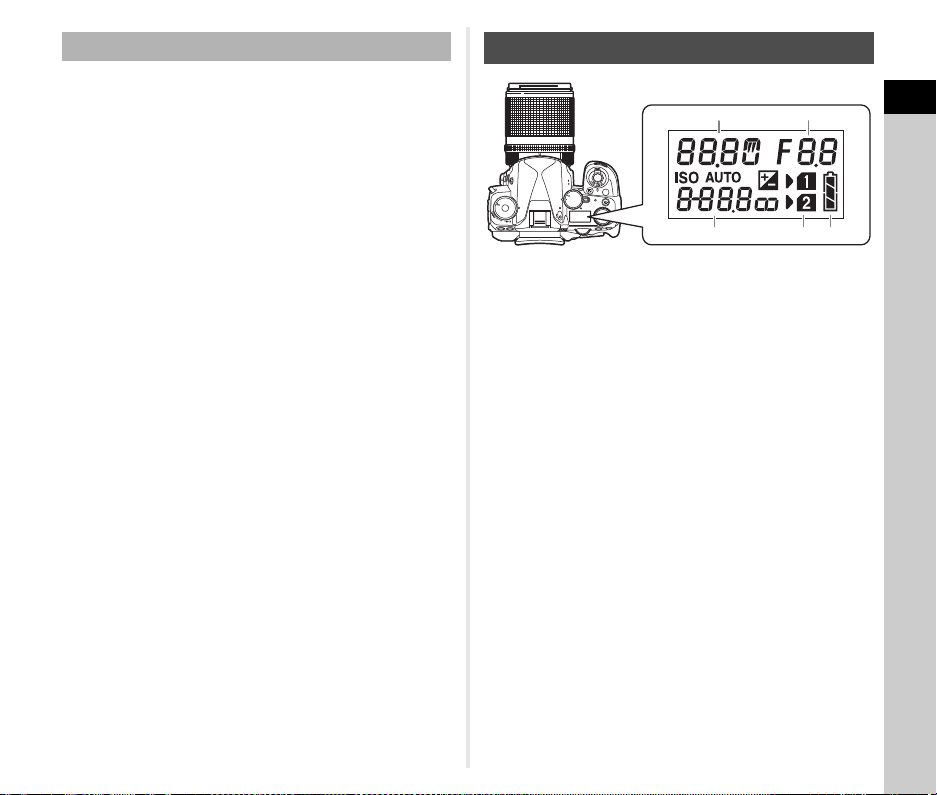
5
4
8
23
2422212019181716
10 14 15
2
1
6
7
3
9 11 12 13
15 Sensitivity (p.55)/
Exposure
compensation value/
Image storage capacity/
AF Active Area (p.58)
16 Change AF Point (p.59)
17 Operation controls
disabled (p.46)
18 AE Lock
19 AE Metering (p.56)
L Auto (33 AF
Points)
20 Multi-exposure (p.67)
21 Shake Reduction (p.75)
M Zone Select 22 Flash Exposure
Compensation (p.72)
N Select
O Expanded Area
AF (S)
23 EV Compensation
(p.52)/Bracketing (p.65)
P Expanded Area
AF (M)
24 File Format (p.48)
Q Expanded Area
AF (L)
R Spot
Wi
-
Fi
Crop
1
Introduction
21
You can check whether the camera is tilted by displaying the
electronic level. The electronic levels for the vertical and
horizontal camera angles can be displayed in the viewfinder and
on the Live View screen. (p.15)
Select whether to display the electronic level in [Viewfinder
Overlay] and [Live View] of the A5 menu. (p.27)
t Memo
• When [Electronic Level] is assigned to X or Y, you can
turn the electronic level display on or off by a simple button
operation. (p.97)
t Memo
• The LCD panel is illuminated when 8 is pressed.
You can set the brightness of the LCD panel when 8 is
pressed in [Illumination Settings] of the D2 menu. (p.100)
Electronic Level
LCD Panel
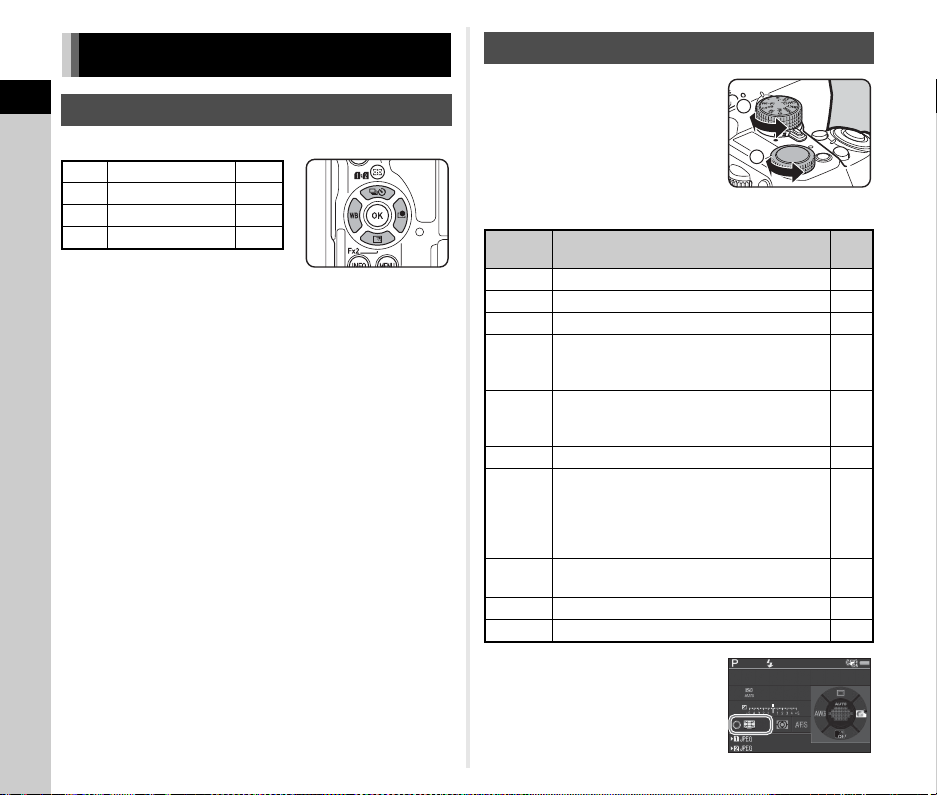
1 Shutter speed/Number
of shots for Bracketing
(p.65)/USB connection
mode (p.94)/Sensor
cleaning in progress
(p.115)
2 Aperture value/Bracket
value (p.65)
3 Sensitivity (p.55)/EV
Compensation (p.52)
4 Card slot number
5 Battery level
ISO
Wi-Fi
HDR
BKT
CH/CL
ISO
Wi
-
Fi
Crop
SR
Grid
Sv
P
AUTO
U1
U2
U3
U5
X
B
M
TAv
Av
Tv
12
43
5
1
Introduction
22
Press ABCD in standby mode.
You can assign a function to B and use it as the Fx2 button
(Y). By default, [Outdoor View Setting] is assigned. (p.14)
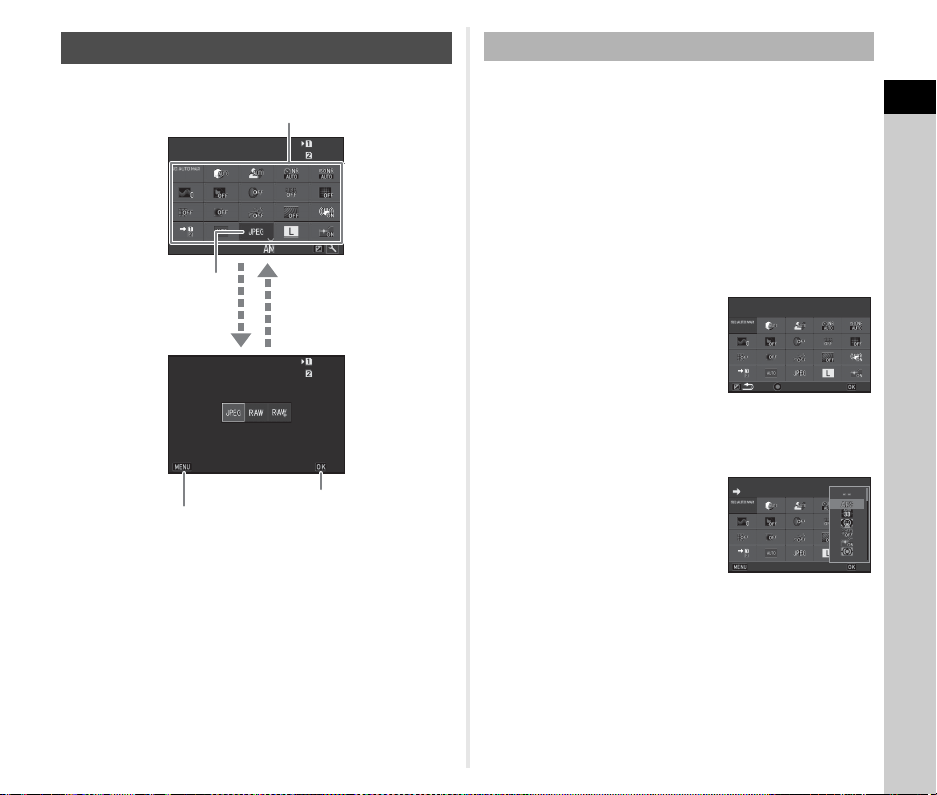
You can easily change settings with
two dials: the function dial and the
setting dial. Use the function dial (1)
to select the desired function, and
use the setting dial (2) to change its
setting value.
The following functions can be selected.
The operation guide for the Smart
Function is displayed on the status
screen and Live View screen.
How to Change Function Settings
Using the Direct Keys
A Drive Mode p.62
B Fx2 Button p.97
C White Balance p.69
D Custom Image p.72
Using the Smart Function
Function
Dial
Function Page
R Disables the setting dial operation. —
+/- Changes the exposure compensation value. p.52
ISO Changes the ISO sensitivity. p.55
CH/CL
Switches between Continuous Shooting and
Single Frame Shooting and changes the
shooting speed for Continuous Shooting.
p.63
BKT
Switches between Bracketing and Single
Frame Shooting and changes the bracket
value for Bracketing.
p.65
HDR Changes the capture type of HDR Capture. p.75
Grid
Turns the grid display in the viewfinder on or
off when shooting with the viewfinder.
Changes the type of grid displayed on the
Live View screen when shooting with Live
View.
p.27
SR
Turns the Shake Reduction and Movie SR
functions on or off.
p.75
Crop Changes the Crop setting. p.48
Wi-Fi Turns the Wi-Fi™ function on or off. p.96
1
2
1/
1/
250
250
1600
1600
F
F
5.6
5.6
99 99 9
99999
99 99 9
99999
1
Introduction
23
Press G in standby mode.
t Memo
• The functions that can be selected vary depending on the
current camera settings.
• If no operations are made within approximately 1 minute
while the control panel is displayed, the camera returns to
standby mode.
The functions displayed on the control panel can be
customized.
Some functions in the A, C, and D menus can be saved as
control panel items. Refer to “Menu List” (p.25) for details on the
functions that can be saved.
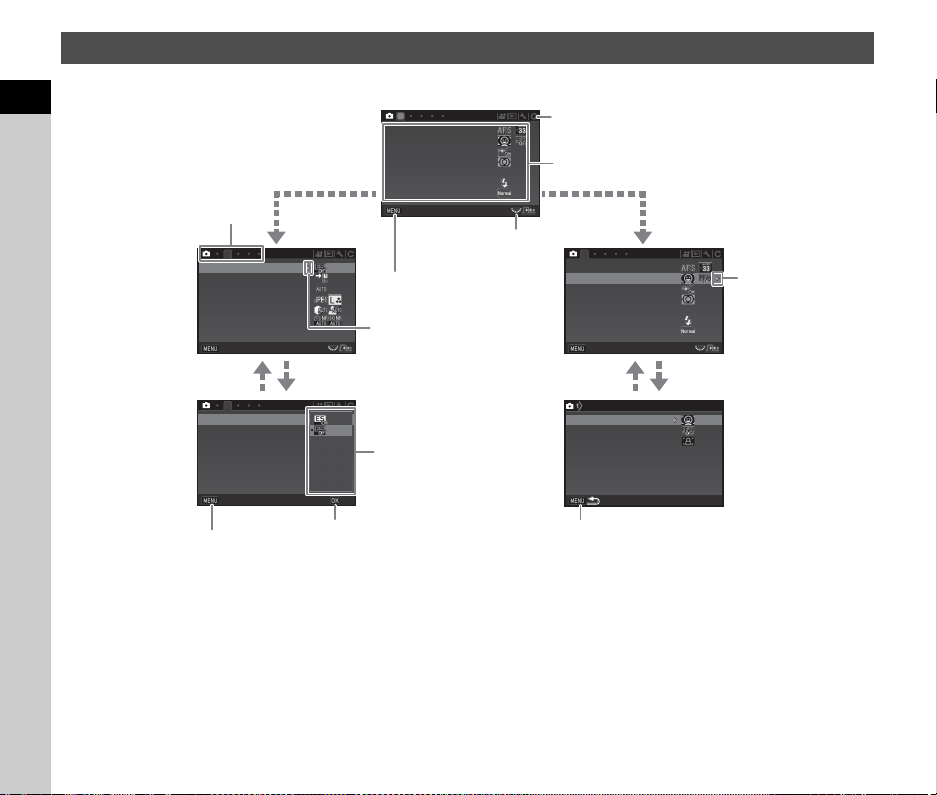
1 Press G in standby mode.
The control panel appears.
2 Press J.
The customization screen appears.
3 Use ABCD to select the
function to change.
Press M to reset to the default
settings.
4 Press E.
Selectable functions are displayed in the pop-up menu.
5 Use AB to select the
function to save.
Select [--] if you do not want to
save any function.
6 Press E.
The screen of Step 3 reappears.
7 Press J.
The control panel reappears.
8 Press F.
The camera returns to standby mode.
Using the Control Panel
999 9999999
999 9999999
999 9999999
999 9999999
10:2310:23
32003200
File FormatFile Format
CancelCancel
OKOK
03/03/201803/03/2018
File FormatFile FormatFile Format
Use ABCD to select an item.
Use R to change
settings.
Press F to cancel
the setting operation.
Press E to confirm the
selected item and return to
the control panel.
Press E to make
detailed settings.
Customizing the Control Panel
3200
3200
Select the location of the
Select the location of the
Select the location of the
item you want to change
item you want to change
item you want to change
Reset
Reset
OK
OK
3200
3200
AUTO ISO (Maximum)
AUTO ISO (Maximum)
AUTO ISO (Maximum)
AF Mode
AF Mode
AF Mode
Cancel
Cancel
OK
OK
1
24
Introduction
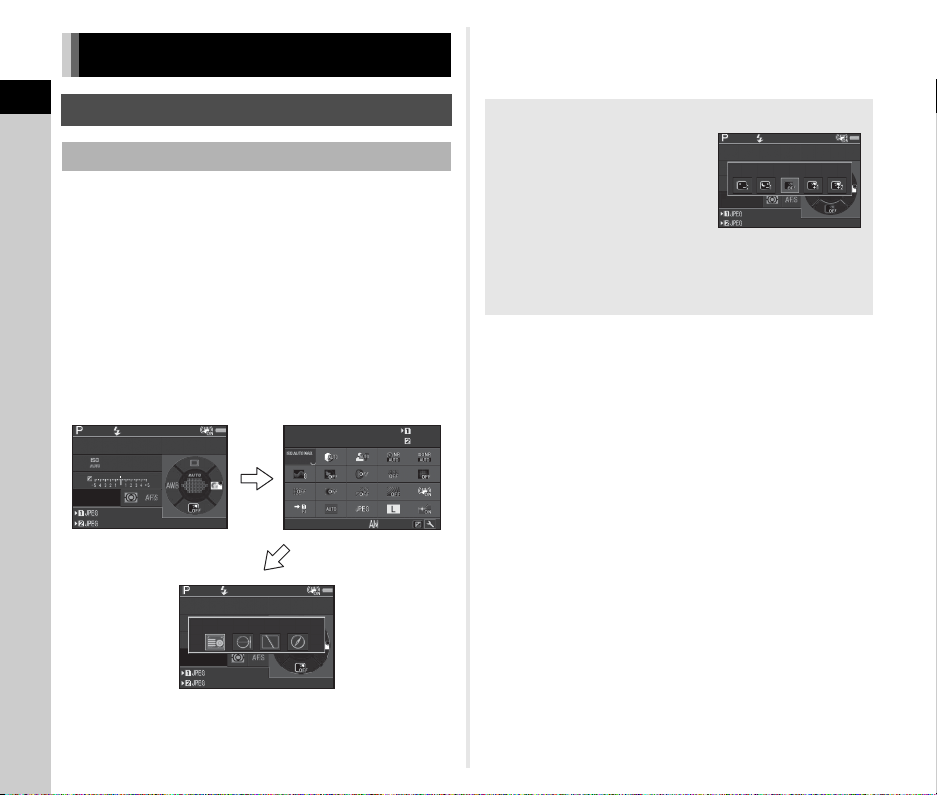
Most functions are set from the menus.
t Memo
• For the Custom Setting menus (E menus), you can display the setting screen of the next item in order of the menu list by turning
R while the submenu of the currently selected item is displayed on the monitor.
• Press F to display the first tab of the most appropriate menus for the camera settings at that time. To display the menu tab last
selected first, set in [23 Save Menu Location] of the E4 menu.
• The settings changed with the menus, direct keys, Smart Function, control panel, and playback mode palette are returned to their
default values with [Reset] of the D4 menu. To reset the setting values of the Custom Setting menu items to the defaults, use
[Reset Custom Functions] of the E4 menu. (Some settings do not apply.)
Using the Menus
1
2 1
2
Phase Detection AFPhase Detection AF
Contrast Detection AFContrast Detection AF
AF Assist LightAF Assist Light
AE MeteringAE Metering
ISO AUTO SettingISO AUTO Setting
Flash ModeFlash Mode
Program LineProgram Line
Program LineProgram Line
ExitExit
CropCrop
Memory Card OptionsMemory Card Options
LV Electronic ShutterLV Electronic Shutter
D-Range SettingsD-Range Settings
Image Capture SettingsImage Capture Settings
Noise ReductionNoise Reduction
CropCrop
Memory Card OptionsMemory Card Options
LV Electronic ShutterLV Electronic Shutter
D-Range SettingsD-Range Settings
Image Capture SettingsImage Capture Settings
Noise ReductionNoise Reduction
ExitExit
CancelCancel
OKOK
Phase Detection AFPhase Detection AF
Contrast Detection AFContrast Detection AF
AF Assist LightAF Assist Light
AE MeteringAE Metering
ExitExit
ISO AUTO SettingISO AUTO Setting
Flash ModeFlash Mode
Contrast AFContrast AF
Focus PeakingFocus Peaking
Contrast Detection AFContrast Detection AF
Contrast AF OptionsContrast AF Options
Use AB to select an item.
Use R to switch
between menu tabs.
Press F to exit the
menu screen.
Menu tabs
Press D to display the
pop-up menu.
Press D to display
the submenu.
Press E to confirm the
selected item.
Press F to cancel the
pop-up menu.
Press F to return to the previous screen.
Use AB to select an item.
Use Q to change the menu category.
1
25
Introduction
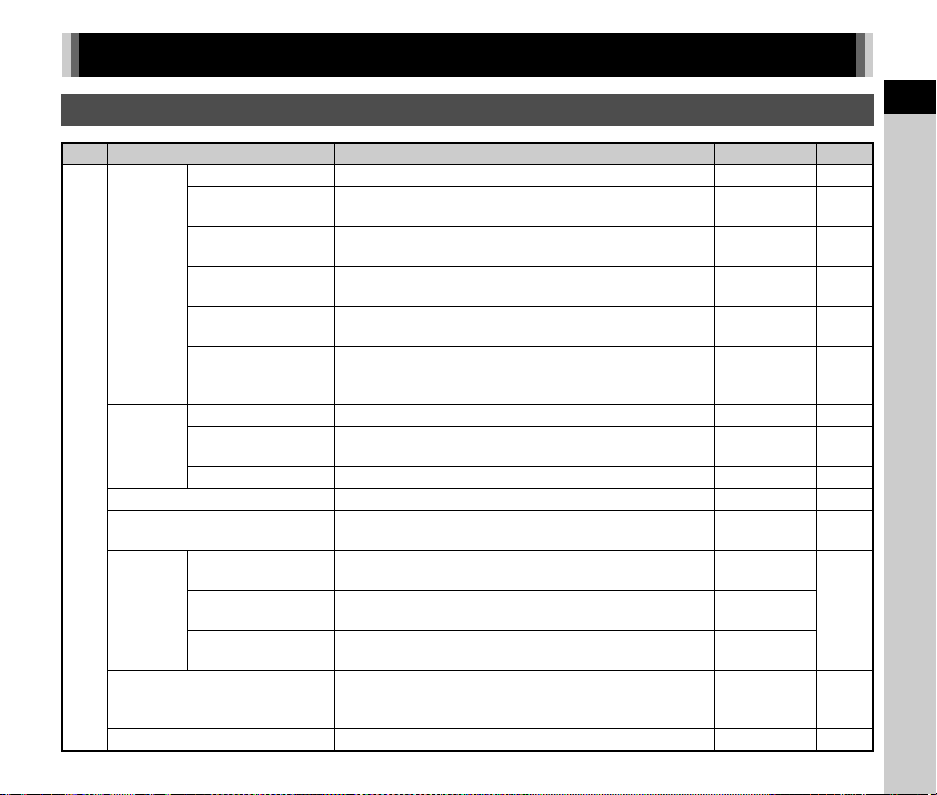
Menu List
Rec. Mode Menus
Item Function Default Setting Page
A1
Phase
Detection
AF
AF Mode
*1
Selects the autofocus method for shooting with the viewfinder.
x p.58
AF Active Area
*1
Selects the area to adjust the focus for shooting with the
viewfinder.
Auto
(33 AF Points)
p.58
AF.S Setting
Sets the action priority for when the autofocus mode is set to
x and 0 is fully pressed.
Focus-priority p.57
1st Frame Action in
AF.C
Sets the action priority for the first frame when the autofocus
mode is set to y and 0 is fully pressed.
Auto p.57
Action in AF.C Cont.
Sets the action priority during Continuous Shooting when the
autofocus mode is set to y.
Auto p.57
Hold AF Status
Maintains the focus for a certain amount of time when the
subject happens to move out of the selected focusing area
after being focused.
Off p.57
Contrast
Detection
AF
Contrast AF
*1
Sets the autofocus mode for shooting with Live View. Face Detection p.60
Focus Peaking
*1
Emphasizes the outline of the subject in focus and makes it
easier to check the focus.
Off p.59
Contrast AF Options Sets the action priority for when 0 is fully pressed. Focus-priority p.59
AF Assist Light
*1
Illuminates the assist light when autofocusing in dark locations.
On p.58
AE Metering
*1
Selects the part of the sensor to use for measuring brightness
and determining the exposure.
Multi-segment p.56
ISO AUTO
Setting
ISO Range
(Maximum)
*1
Sets the upper limit value for ISO AUTO. ISO 6400
p.55
ISO Range
(Minimum)
Sets the lower limit value for ISO AUTO. ISO 100
AUTO ISO
Parameters
Specifies the manner in which the sensitivity is increased. Std.
Flash Mode
*1
Sets the flash mode.
Flash On or
Auto Flash
Discharge
p.71
Program Line
*1
Selects the Program Line setting. Normal p.51
1
26
Introduction
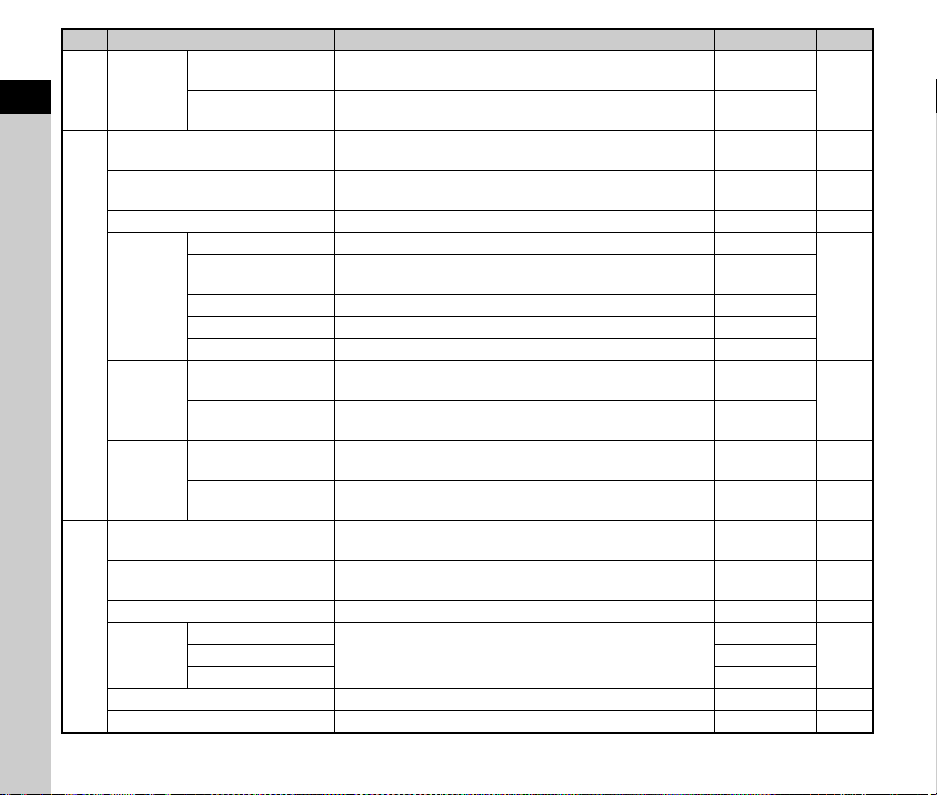
A1
Exposure
Mode
*2
Exposure Mode
Temporarily changes the exposure mode when the mode dial
is set to one of the modes from O to 5.
G
p.102
Program Line
Selects the Program Line setting when the mode dial is set to
one of the modes from O to 5.
Normal
A2
LV Electronic Shutter
*1
Sets whether to use the electronic shutter during shooting
with Live View.
Off p.52
Memory Card Options
*1
Sets the recording method for when two memory cards are
inserted.
Sequential Use p.48
Crop
*1
Sets the angle of view for shooting. Auto p.48
Image
Capture
Settings
File Format
*1
Sets the file format of images.
JPEG
p.48
JPEG Recorded
Pixels
*1
Sets the recording size of JPEG images.
q
JPEG Quality
*1
Sets the quality of JPEG images.
m
RAW File Format Sets the RAW file format.
PEF
Color Space Sets the color space to use.
sRGB
D-Range
Settings
Highlight Correction
*1
Expands the dynamic range and prevents overexposed
areas from occurring.
Auto
p.75
Shadow Correction
*1
Expands the dynamic range and prevents underexposed
areas from occurring.
Auto
Noise
Reduction
Slow Shutter Speed
NR
*1
Sets the Noise Reduction setting when shooting with a slow
shutter speed.
Auto p.50
High-ISO NR
*1
Sets the Noise Reduction setting when shooting with a high
ISO sensitivity.
Auto p.55
A3
Clarity
*1
Changes the clarity of images using an image processing
function.
±0 p.76
Skin Tone
*1
Enhances the skin tone of images using an image processing
function.
Off p.76
Digital Filter
*1
Applies a digital filter effect when taking pictures. No Filter p.74
HDR
Capture
HDR Capture *1
Makes settings for high dynamic range shooting.
Off
p.75Bracket Value ±2EV
Auto Align On
Pixel Shift Resolution
*1
Merges multiple images and outputs a high-definition image. Off p.77
ASTROTRACER
*1
Makes settings to track and capture celestial bodies. Off p.82
Item Function Default Setting Page
1
27
Introduction
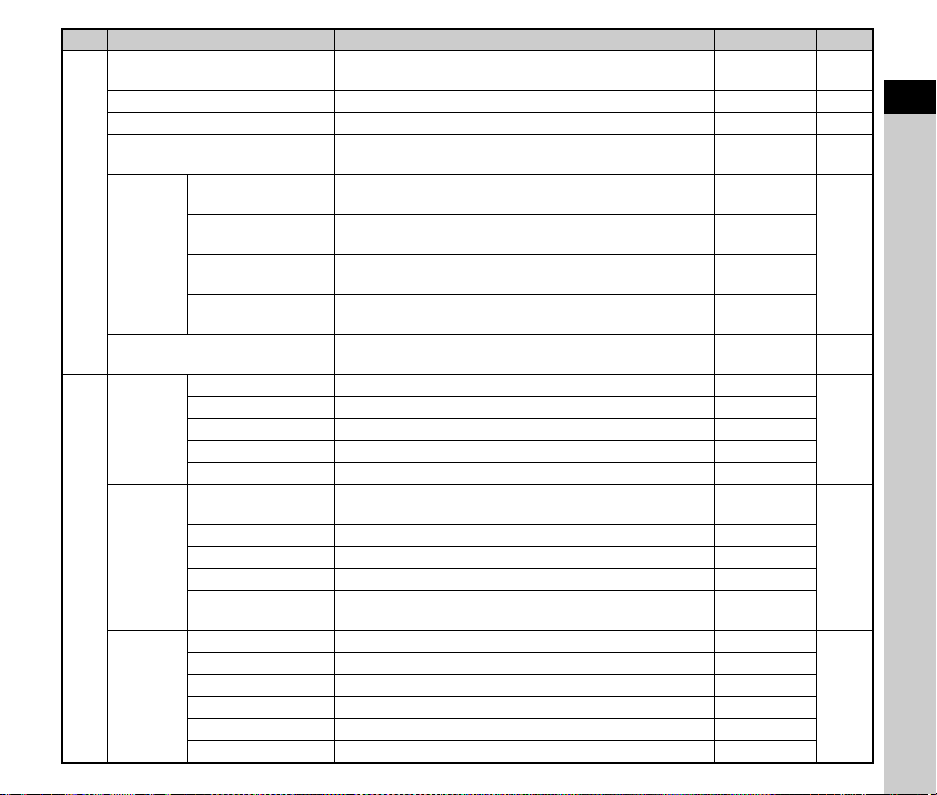
A4
AA Filter Simulator
*1
Applies a low-pass filter effect using the Shake Reduction
mechanism.
Off p.78
Shake Reduction
*1
Activates the Shake Reduction function. On p.75
Horizon Correction
*1
Corrects horizontal tilt when in A mode. Off —
Composition Adjust.
*1
Allows you to adjust the composition of your image using the
Shake Reduction mechanism.
Off p.78
Lens
Correction
Distortion
Correction
*1
Reduces distortions occurring due to lens properties. Off
p.76
Peripheral Illumin.
Corr.
*1
Reduces peripheral light fall-off occurring due to lens
properties.
Off
Lat-Chromatic-Ab
Adj
*1
Reduces lateral chromatic aberrations occurring due to lens
properties.
On
Diffraction
Correction
*1
Corrects blur caused by diffraction when using a small
aperture.
On
Input Focal Length
*1
Sets the focal length when using a lens of which focal length
information cannot be obtained.
35mm
p.112
A5
Viewfinder
Overlay
Grid Display
*1
Displays grid lines in the viewfinder. On
p.20
Electronic Level
*1
Displays the electronic level in the viewfinder. On
AF Frame Displays the AF frame in the viewfinder. On
Spot Metering Frame Displays the spot metering frame in the viewfinder. On
AF Points Displays the AF points in the viewfinder. On
Live View
Grid Display
*1
Sets the type and color of the grid lines displayed during Live
View.
Off, Black
p.15
Electronic Level
*1
Displays the electronic level during Live View. On
Histogram Display Displays the histogram during Live View. Off
Highlight Alert Sets overexposed areas to blink red during Live View. Off
Flicker Reduction
Cuts down on the Live View screen flicker by setting the
power frequency.
50Hz
Instant
Review
Display Time Sets the Instant Review display time. 1sec.
p.46
Zoom Review Displays the magnified image during Instant Review. On
Save RAW Data Saves the RAW data during Instant Review. On
Delete Deletes the displayed image during Instant Review. On
Histogram Display Displays the histogram during Instant Review. Off
Highlight Alert Sets overexposed areas to blink red during Instant Review. Off
Item Function Default Setting Page
1
28
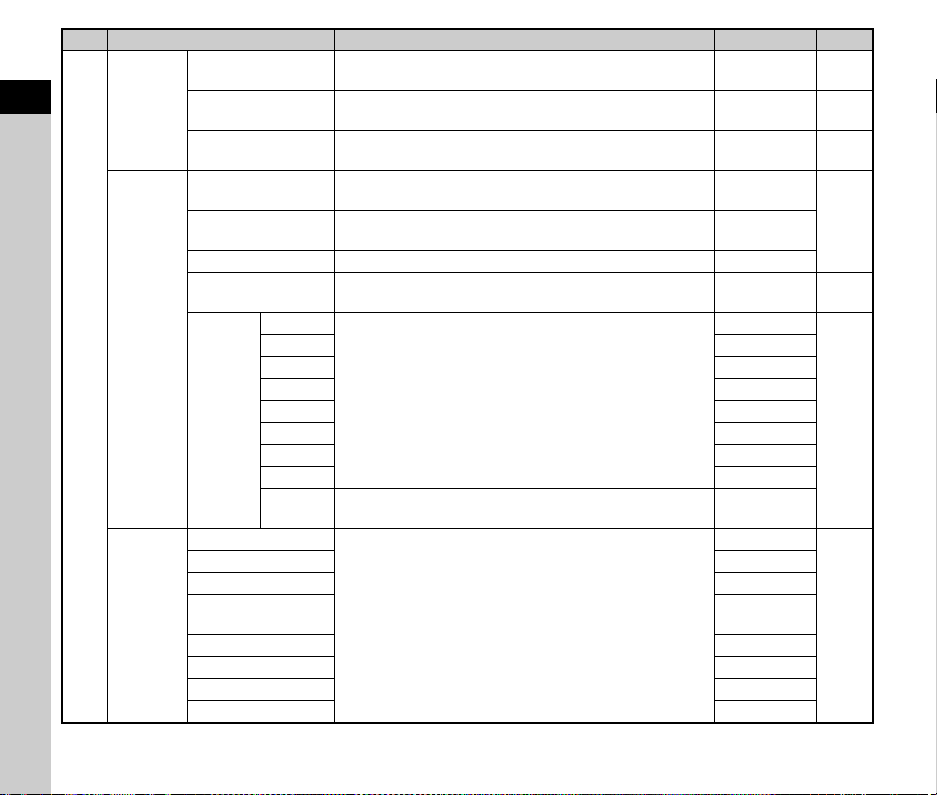
Introduction
A5
Other
Display
Settings
Guide Display
Displays operation guides when the capture mode is
changed.
On p.45
Auto Screen
Rotation
Displays the status screen vertically if the camera is held
vertically.
On p.17
Display Color
Sets the display color of the status screen, control panel, and
menu cursor.
1
p.43
Button
Customi-
zation
Fx1 Button Sets the function for when X is pressed.
One Push
File Format
p.97
Fx2 Button Sets the function for when Y (B) is pressed.
Outdoor View
Setting
AF Button Sets the function for when I is pressed. Enable AF1
Preview Dial
Sets the camera action for when the main switch is turned to
the U position.
Optical
Preview
p.61
E-Dial
Program-
ming
G
Sets the Q / R / M operation for each exposure mode.
I
,
J
,
XG
p.99
H
–, ISO, –
I
I, –, –
J
–, J, –
K
I
,
J
,
G
LINE
L
I
,
J
,
G
LINE
M
–, J, –
N
–, J, –
Rotation
Direction
Reverses the effect obtained when Q or R is turned. Rotate Right
Memory
Sensitivity
Determines which settings to save when the power is turned
off.
On
p.102
EV Compensation On
Flash Mode On
Flash Exposure
Comp.
On
Drive Mode On
White Balance On
Custom Image On
Clarity Off
Item Function Default Setting Page
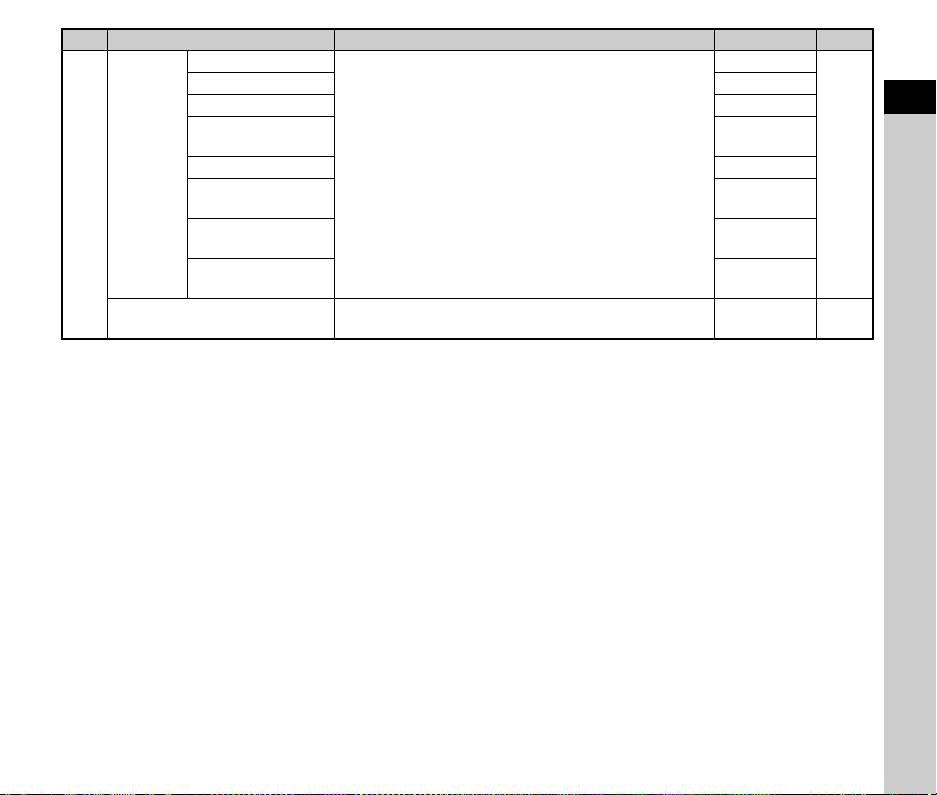
1
29
Introduction
*1 Available as a control panel item.
*2 The function appears only when the mode dial is set to one of the modes from O to 5.
A5
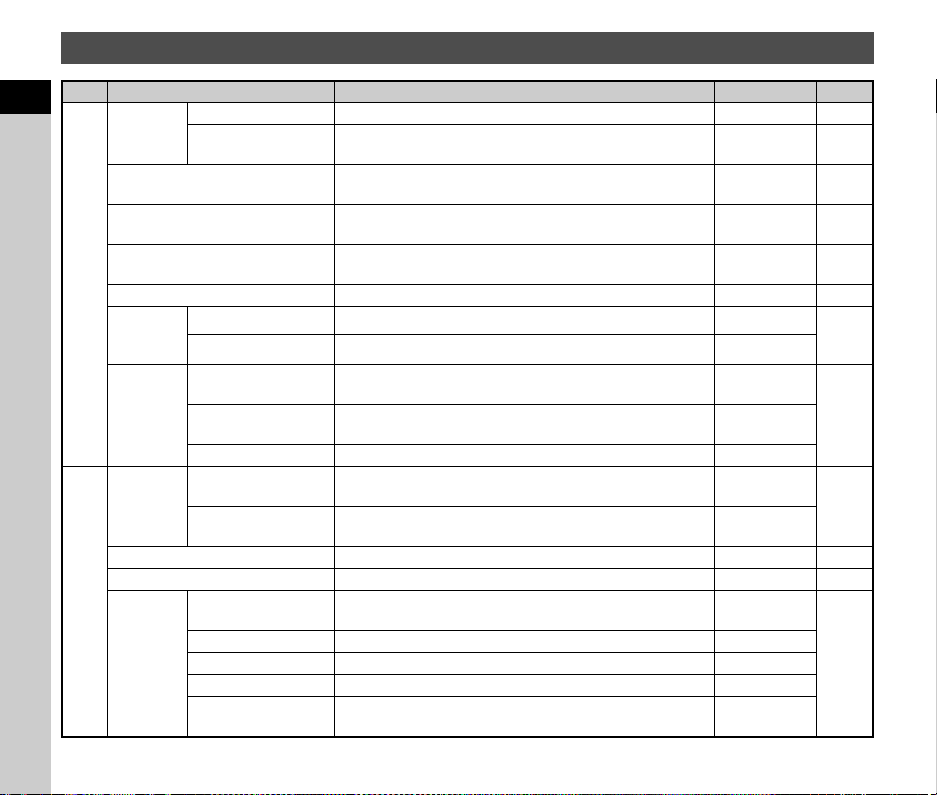
Memory
Skin Tone
Determines which settings to save when the power is turned
off.
Off
p.102
Digital Filter Off
HDR Capture Off
Pixel Shift
Resolution
Off
Composition Adjust. On
Playback Info
Display
On
Operation Control
Lock
On
Outdoor View
Setting
Off
Save USER Mode
You can save frequently used capture settings to O to 5
of the mode dial.
–p.101
Item Function Default Setting Page
1
30
Introduction
Movie Menus
Item Function Default Setting Page
C1
Contrast
Detection
AF
Contrast AF
*1
Sets the autofocus mode. Face Detection p.60
Focus Peaking
*1
Emphasizes the outline of the subject in focus and makes it
easier to check the focus.
Off p.59
AF Assist Light
*1
Illuminates the assist light when autofocusing in dark
locations.
On p.58
AE Metering
*1
Selects the part of the sensor to use for measuring brightness
and determining the exposure.
Multi-segment p.56
Memory Card Options
*1
Selects one of the memory cards inserted in the SD1 and the
SD2 slots for recording movies.
SD1
p.48
Crop
*1
Sets the angle of view for shooting. Auto p.48
Movie
Capture
Settings
Recorded Pixels
*1
Sets the number of recorded pixels of the movie. u
p.48
Framerate
*1
Sets the number of frame rate of the movie. 30p
Sound
Volume
Setting
Recording Sound
Level
*1
Sets the sound volume level for recording. Auto
p.53Wind Noise
Reduction
*1
Reduces wind noise. Off
Headphone Volume
*1
Sets the sound volume when a headphone is connected. 10
C2
D-Range
Settings
Highlight Correction
*1
Expands the dynamic range and prevents overexposed
areas from occurring.
Auto
p.75
Shadow Correction
*1
Expands the dynamic range and prevents underexposed
areas from occurring.
Auto
Digital Filter
*1
Applies a digital filter effect when recording a movie. No Filter p.74
Movie SR
*1
Activates the Shake Reduction function. On —
Live View
Grid Display
*1
Sets the type and color of the grid lines displayed during Live
View.
Off, Black
p.15
Electronic Level
*1
Displays the electronic level during Live View. On
Histogram Display Displays the histogram during Live View. Off
Highlight Alert Sets overexposed areas to blink red during Live View. Off
Flicker Reduction
Cuts down on the Live View screen flicker by setting the
power frequency.
50Hz
1
31
Introduction
*1 Available as a control panel item.
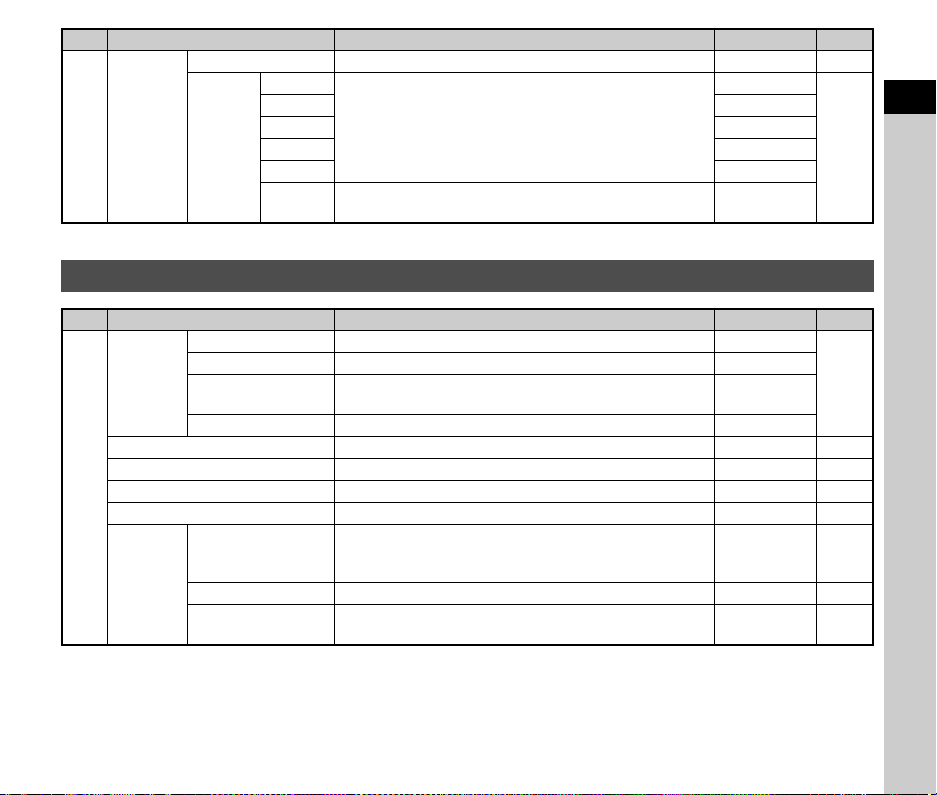
C2
Button
Customi-
zation
AF Button (Movie) Sets the function for when I is pressed. Enable AF1 p.97
E-Dial
Program-
ming
m
Sets the Q / R / M operation for each exposure mode.
–, –, –
p.99
j
I
, –,
G
LINE
n
–,
J
,
G
LINE
p
I
,
J
,
G
LINE
o
I
,
J
,
G
LINE
Rotation
Direction
Reverses the effect obtained when Q or R is turned. Rotate Right
Playback Menu
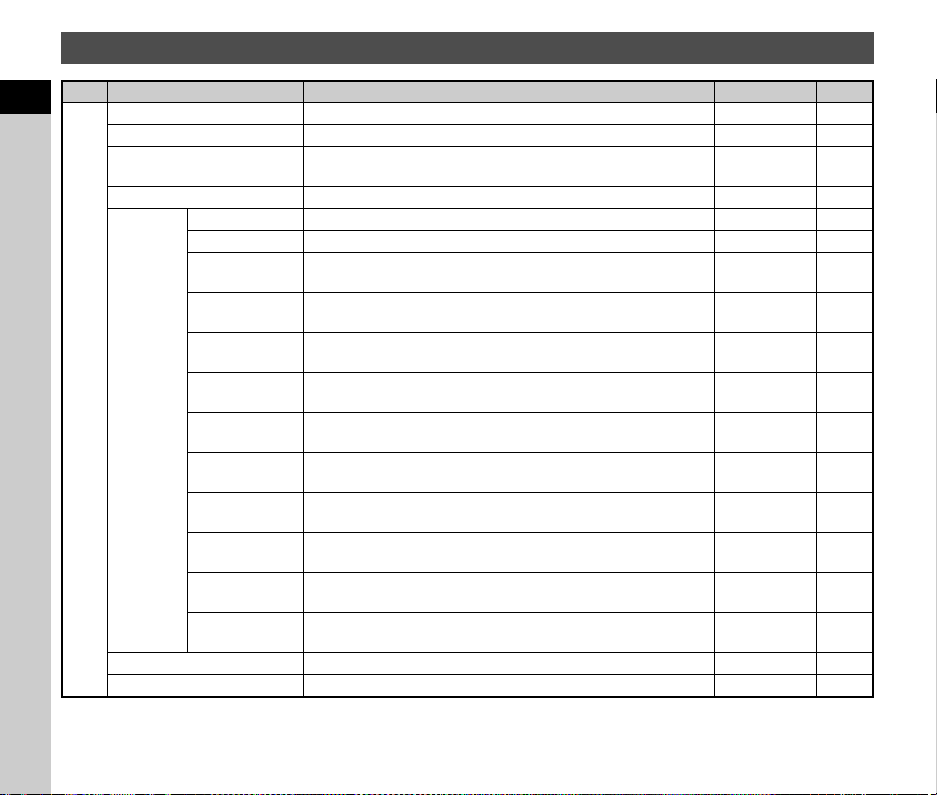
Item Function Default Setting Page
B1
Slideshow
Display Duration Sets an image display interval. 3sec.
p.86
Screen Effect Sets a transition effect when the next image is displayed. Off
Repeat Playback
Starts the slideshow again from the beginning after the last
image is displayed.
Off
Auto Movie Playback Plays back movies during the slideshow. On
Protect All Images Protects all stored images at once. — p.103
Delete All Images Deletes all stored images at once. — —
Quick Zoom Sets the initial magnification when magnifying images. Off p.47
Playback Sound Volume Sets the sound volume during movie playback. 10 p.54
Image
Display
Auto Image Rotation
Rotates images which were captured with the camera held
vertically or of which the rotation information has been
changed.
On p.86
Grid Display Sets the type and color of grid lines. Off, Black p.47
Highlight Alert
Sets overexposed areas to blink red in Standard Information
Display or Histogram Display of the playback mode.
Off p.18
Item Function Default Setting Page
1
32
Introduction
Set-up Menus
Item Function Default Setting Page
D1
Language/W Changes the display language.
English
p.41
Date Adjustment Sets the date and time and the display format.
01/01/2018
p.42
World Time
Switches between the date and time display of your hometown city
and that of a specified city.
Hometown p.106
Text Size Magnifies the text size when selecting a menu item. Std. p.42
Sound
Effects
Volume Sets the sound volume of beep sounds.
3
—
In-focus Sets whether to make a beep sound when the subject is focused.
On
p.45
AE Lock
Sets whether to make a beep sound when the exposure value is
locked.
On
—
Self-timer
Sets whether to make a beep sound during the countdown for
Self-timer shooting.
On
p.63
Remote Control
Sets whether to make a beep sound during Remote Control
shooting.
On
p.64
Mirror Up
Sets whether to make a beep sound during Mirror Lock-up
Shooting.
On
p.66
AF Active Area
Sets whether to make a beep sound when the function of the arrow keys
(
ABCD
) is switched to AF point change mode.
On
p.59
One Push File
Format
Sets whether to make a beep sound when the file format is
changed with X or Y.
On
p.98
Pixel Shift
Resolution
Sets whether to make a beep sound when the Pixel Shift
Resolution function is turned on or off with X or Y.
On
p.77
Shake
Reduction
Sets whether to make a beep sound when the Shake Reduction
function is turned on or off with X or Y.
On
p.75
Horizon
Correction
Sets whether to make a beep sound when the Horizon Correction
function is turned on or off with X or Y.
On
—
Electronic Level
Sets whether to make a beep sound when the Electronic Level
display is turned on or off with X or Y.
On
p.21
LCD Display Settings Adjusts the brightness, saturation and the color of the monitor.
0
p.100
Outdoor View Setting Adjusts the brightness of the monitor for outdoor shooting. Off p.14
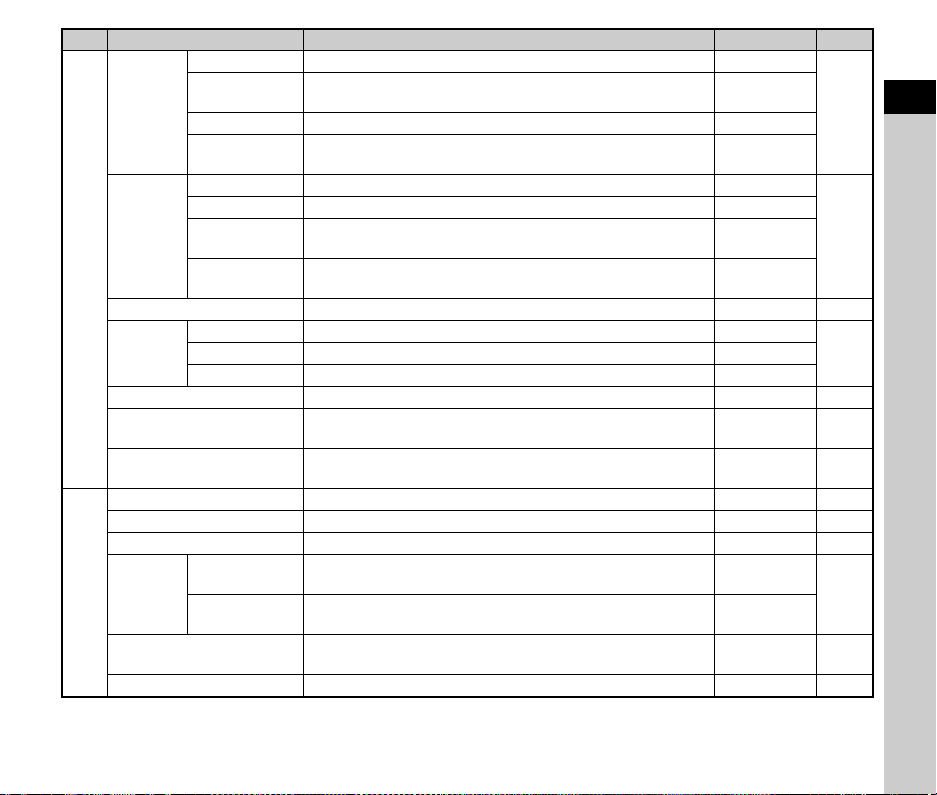
1
33
Introduction
D2
Illumination
Settings
LCD Panel Sets whether to illuminate the LCD panel when 8 is pressed. High
p.100
Backside
Controls
Sets whether to illuminate the backside controls when 8 is
pressed after the monitor is pulled out.
Off
Lens Mount Sets whether to illuminate the lens mount when 8 is pressed. Off
Card Slot/
Connector
Sets whether to illuminate the card slots and connector when 8
is pressed.
Off
Indicator
Lamps
Wi-Fi Sets the brightness of the Wi-Fi lamp. High
p.100
GPS Sets the brightness of the GPS indicator lamp. High
Self-timer
Sets whether to light up the self-timer lamp when shooting with the
self-timer.
On
Remote Control
Sets whether to light up the self-timer lamp when shooting with
remote control.
On
Wi-Fi
*1
Activates the Wi-Fi™ function. Off p.96
GPS/
E-Compass
GPS Logging Sets the camera action during GPS logging. On
p.81GPS Time Sync Automatically adjusts the date and time settings. On
Calibration Performs a calibration of direction information. —
USB Connection Sets the USB connection mode when connecting to a computer. MSC p.94
HDMI Out
Sets the output format when connecting to an AV device with an
HDMI
®
input terminal.
Auto p.87
Auto Power Off
Sets the time until the camera turns off automatically if no
operations are made for a certain period of time.
1min. p.41
D3
Create New Folder Creates a new folder on the memory card. — p.103
Folder Name Sets the folder name in which images are stored. Date p.103
File Name Sets the file name assigned to an image. IMGP, _IMG p.105
File No.
Sequential
Numbering
Continues the sequential numbering for the file name when a new
folder is created.
On
p.105
Reset File
Number
Resets the file number setting and returns to 0001 each time a
new folder is created.
—
Copyright Information
Sets the photographer and copyright information embedded in the
Exif data.
Off p.106
Format Formats a memory card. — p.43
Item Function Default Setting Page
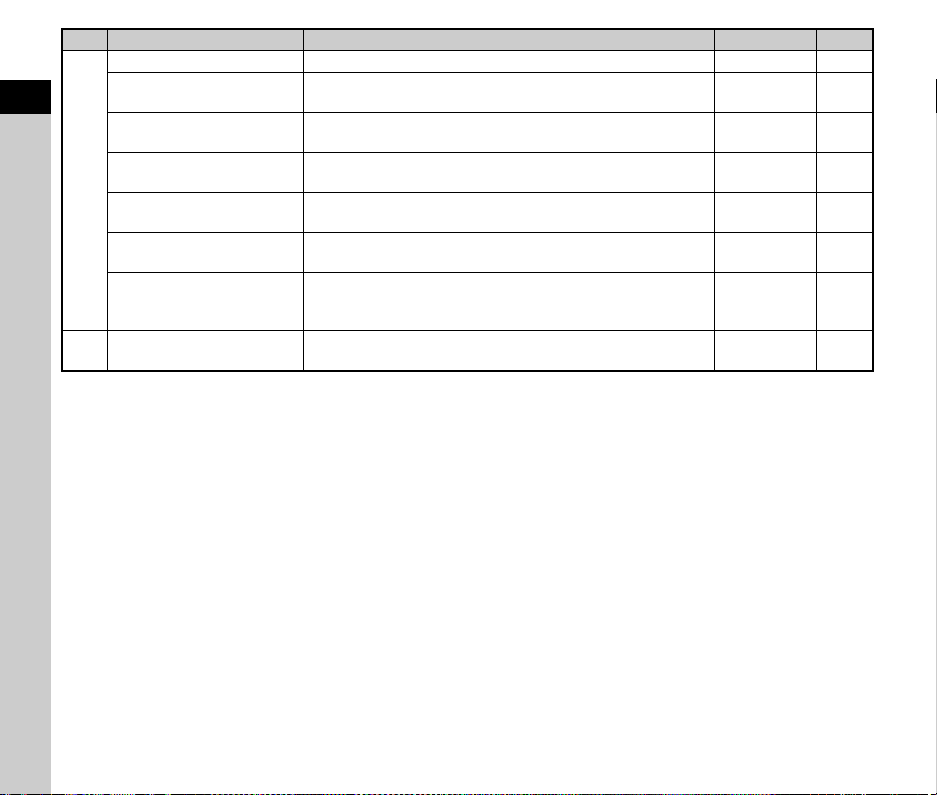
1
34
Introduction
*1 Available as a control panel item.
D4
Pixel Mapping Maps out and corrects defective pixels on the sensor. — p.114
Dust Removal
Cleans the sensor by applying high-frequency (ultrasonic)
vibrations.
On, On p.114
Sensor Cleaning
Locks the mirror in the up position for cleaning the sensor with a
blower.
—p.115
Select Battery
Sets the camera action for when the optional battery grip is
attached to the camera.
Auto Select,
Auto-detect
p.39
Certification Marks
Displays the certification marks of conformance to wireless
technical standards.
—p.129
Firmware Info/Options
Displays the camera’s firmware version. You can check the
current firmware version before running an update.
——
Reset
Resets the settings of the direct keys and Smart Function and for
the items of the A menus, C menus, B menu, D menus,
control panel, and playback mode palette.
——
D5 Night Vision LCD Display
*1
Changes the monitor display color to red for shooting in a dark
place such as night-time shooting.
Off p.82
Item Function Default Setting Page
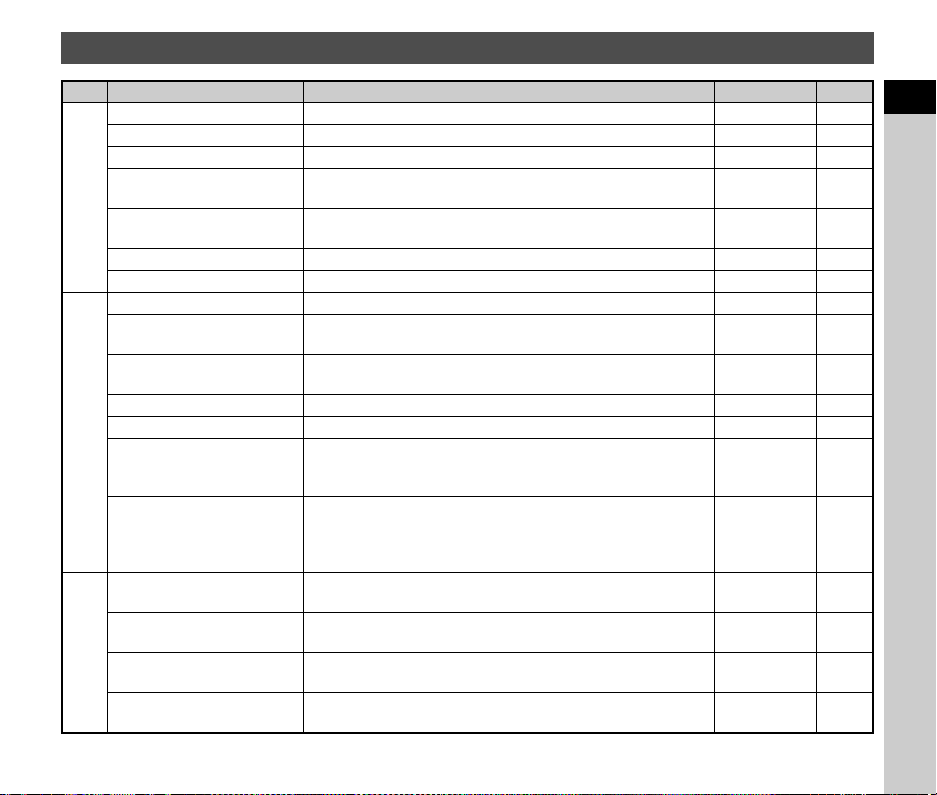
1
35
Introduction
Custom Setting Menus
Item Function Default Setting Page
E1
1 EV Steps Sets the adjustment steps for the exposure. 1/3 EV Steps p.50
2 Sensitivity Steps Sets the adjustment steps for the ISO sensitivity. 1 EV Step p.55
3 Meter Operating Time Sets the meter operating time. 10sec. —
4 Auto EV Compensation
Automatically compensates the exposure when the correct
exposure cannot be achieved with the current settings.
Off —
5 Link AE and AF Point
Sets whether to link the exposure value and the AF point in the
focusing area.
Off p.56
6 Bulb (B) Mode Options Sets the camera operation when 0 is pressed in M mode.
Type1
—
7 Flash Sync Speed Selects the flash sync speed. 1/200 p.113
E2
8 AE-L with AF Locked Sets whether to lock the exposure value when the focus is locked. Off —
9 Viewfinder Light
Sets whether to light up the viewfinder when focusing the subject
or changing the focusing area.
Auto p.20
10 AF with Remote Control
Sets whether to use autofocus when shooting with a remote
control unit.
Off p.65
11 Bracketing Order Sets the order for Bracketing shooting.
0 - +
p.66
12 One-Push Bracketing Shoots all frames with one release when using Bracketing. Off p.66
13 Interval Shooting Options
Sets whether to start counting the time of interval from when
exposure starts or when exposure ends for Interval Shooting,
Interval Composite, and Interval Movie Record.
Interval p.69
14 AF in Interval Shooting
Sets whether to lock the focus position used when the first picture
is taken or perform autofocus for each exposure for Interval
Shooting, Interval Composite, Interval Movie Record, and Star
Stream.
Locks focus at
1st exposure
p.69
E3
15 WB Adjustable Range
Sets whether to automatically fine-tune the white balance when
the light source is specified for the white balance setting.
Fixed p.70
16 AWB in Tungsten Light
Sets the tungsten light color tone when the white balance is set to
[Auto White Balance].
Strong
Correction
p.70
17 WB When Using Flash Sets the white balance setting when using a flash.
Auto White
Balance
p.70
18 Color Temperature Steps
Sets the adjustment steps for the Color Temperature option of the
white balance.
Kelvin p.71
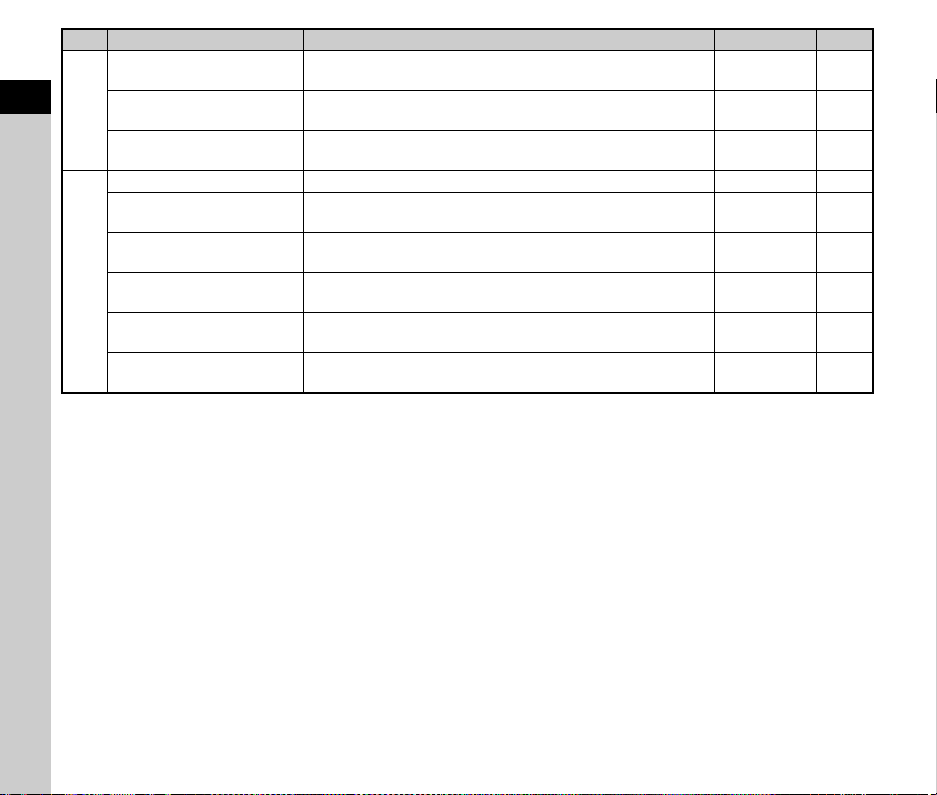
1
36
Introduction
E3
19 Enable/Disable Control
Enables or disables operation of the selected group of buttons and
dials.
Type1 p.46
20 Change AF Point Button
Selects the c operation when the focusing area selection mode
is set to one of some select-type options.
Type1 p.59
21 Auto SR Off
Automatically turns off the Shake Reduction function when the
drive mode is set to [Self-timer] or [Remote Control].
Enable Auto
SR Off
p.63
E4
22 Save Rotation Info Saves rotation information when shooting. On p.86
23 Save Menu Location
Saves the last menu tab displayed on the monitor and displays it
again the next time F is pressed.
Reset Menu
Location
p.24
24 Catch-in Focus
Enables Catch-in Focus shooting when a manual focus lens is attached.
The shutter is released automatically when the subject comes into focus.
Off p.111
25 AF Fine Adjustment
Allows you to precisely fine-tune your lenses with the camera’s
autofocus system.
Off p.61
26 Using Aperture Ring
Enables the shutter to release when the lens aperture ring is set
to a position other than 9 (Auto).
Disable p.111
Reset Custom Functions
Resets the setting values of the Custom Setting menu items to the
defaults.
——
Item Function Default Setting Page
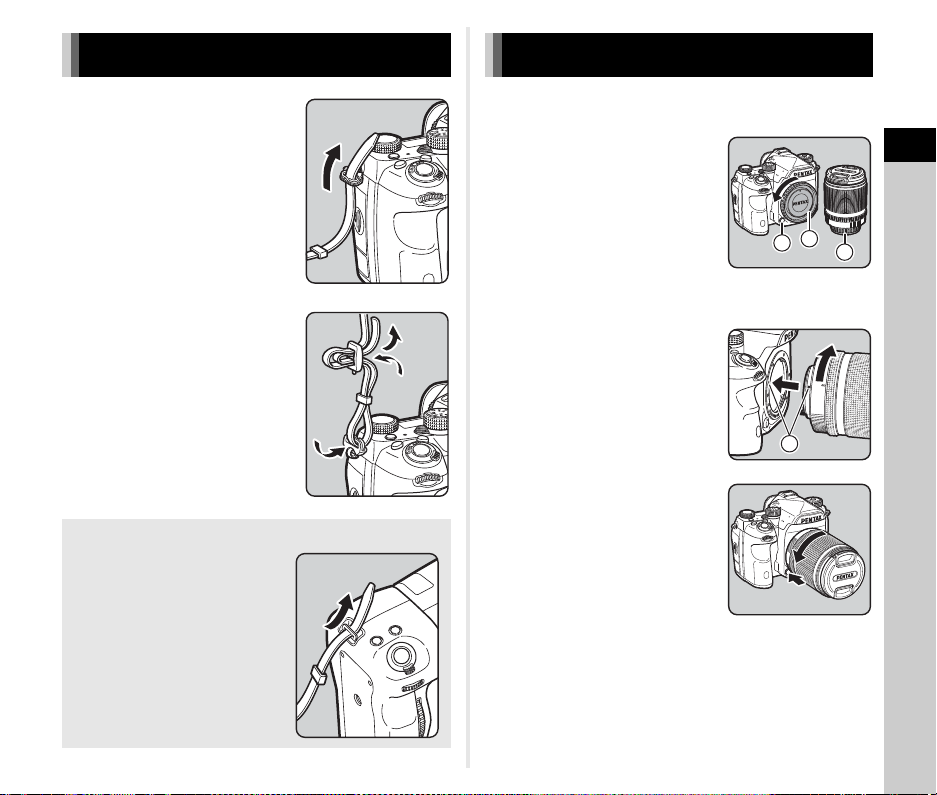
2
Getting Started
37
1 Pass the end of the strap
through the triangular ring.
2 Secure the end of the strap
on the inside of the clasp.
1 Make sure that the camera is turned off.
2
Remove the body mount
cap (
1
) and lens mount
cover (
2
).
Turn the body mount cap
counterclockwise while pressing
the lens unlock button (3).
After removing the cover, be sure
to put the lens down with the lens
mount side facing upward.
3 Align the lens mount
indexes (red dots: 4) on
the camera and the lens,
and secure by turning the
lens clockwise until it
clicks.
To remove the lens
Attach the lens cap, and then turn
the lens counterclockwise while
pressing the lens unlock button.
Attaching the Strap
When the Battery Grip is Used
When the optional Battery Grip
D-BG6 is used, you can attach
one end of the strap to the battery
grip.
Attaching a Lens
2
1
3
4
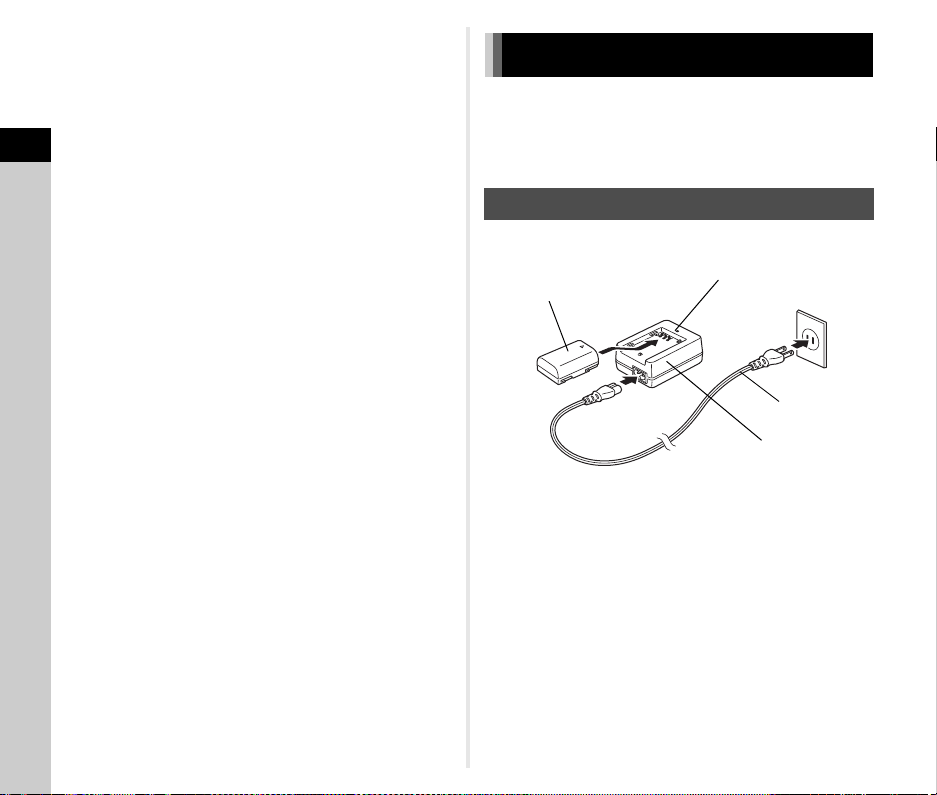
2
Getting Started
38
u Caution
• When attaching or removing the lens, choose an environment
that is relatively free of dirt and dust.
• Keep the body mount cap attached on the camera when a
lens is not attached.
• Be sure to attach the lens mount cover and lens cap to the
lens after removing it from the camera.
• Do not insert your fingers inside the lens mount of the camera
or touch the mirror.
• The camera body and lens mount incorporate lens
information contacts. Dirt, dust, or corrosion may damage the
electrical system. Please contact your nearest service center
for professional cleaning.
• When a retractable lens is attached and is not extended, you
cannot take pictures or use some functions. If the lens is
retracted during shooting, the camera stops working. Refer to
“How to Use a Retractable Lens” (p.46) for details.
• We assume no responsibility nor liability for accidents,
damages, and malfunctions resulting from the use of lenses
made by other manufacturers.
t Memo
• Refer to “Functions Available with Various Lenses” (p.109) for
details on the functions of each lens.
• You can illuminate the lens mount by pressing 8. (Default
setting: Off) The lens mount is illuminated even when the
camera is turned off. Change the setting in [Lens Mount] of
[Illumination Settings] in the D2 menu. (p.100)
Use the battery D-LI90 and battery charger D-BC90 exclusively
developed for this camera.
Note: AC plug cord
UL Listed, Type SPT-2 or NISPT-2, 18/2 flexible cord, rated
125 V, 7 A, minimum 6 ft. (1.8 m)
1 Connect the AC plug cord to the battery charger.
2 Plug the AC plug cord into the power outlet.
3 Face the A mark on the battery up, and insert it
into the battery charger.
The indicator lamp is lit while charging and turns off when
the battery is fully charged.
u Caution
• Do not use the battery charger D-BC90 to charge batteries
other than the battery D-LI90. Charging other batteries may
cause damage or heating.
• Replace the battery with a new one in the following cases:
• If the indicator lamp blinks or does not light after the battery
is inserted correctly
• If the battery starts to run down more quickly even after
being charged (the battery may have reached the end of its
service life)
Using the Battery and Charger
Charging the Battery
Lithium-ion
battery
Battery charger
Indicator lamp
AC plug cord
3
1
2
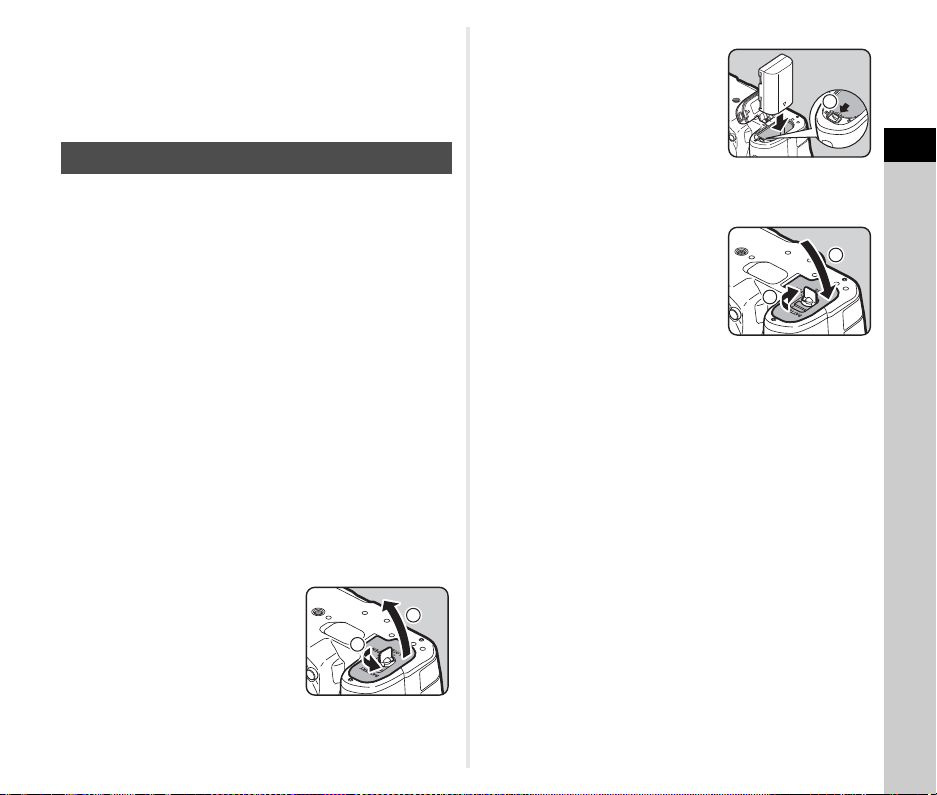
2
Getting Started
39
t Memo
• The maximum charging time is approximately 390 minutes (it
depends on temperature and remaining battery power).
Charge the battery in a location where the temperature is
between 0°C and 40°C (32°F and 104°F).
u Caution
• Insert the battery correctly. If the battery is inserted
incorrectly, it may not be removed.
• Wipe the electrodes of the battery with a soft dry cloth before
inserting.
• Do not open the battery cover or remove the battery while the
power is on.
• Be careful as the camera or battery may become hot after the
camera has been used continuously for a long period of time.
• Remove the battery when you do not use the camera for a
long time. The battery may leak and damage the camera if left
installed during prolonged periods of non-use. If the removed
battery is not used for six months or longer, charge the battery
for about 30 minutes before storing it. Be sure to recharge the
battery every six to twelve months.
• Store the battery in a location where the temperature will
remain at or below room temperature. Avoid locations with
high temperatures.
• The date and time may be reset if you leave the battery out of
the camera for long periods of time. If this happens, set the
current date and time again.
1 Open the battery cover.
Lift the battery cover unlock
knob, turn it towards OPEN to
unlock, and then pull the cover
open.
2 Face the A mark on the
battery towards the
outside of the camera, and
insert the battery until it
locks into place.
To remove the battery, push the
battery lock lever in the direction
of 3.
3 Close the battery cover.
Turn the battery cover unlock
knob towards CLOSE to lock,
and then put it down.
t Memo
• The battery level may not be displayed properly if the camera
is used at low temperatures or when performing Continuous
Shooting for a long time.
• Battery performance temporarily decreases as the
temperature decreases. When using the camera in cold
climates, have extra batteries at hand and keep them warm in
your pocket. Battery performance will return to normal at
room temperature.
• Have extra batteries ready when traveling overseas or taking
a lot of pictures.
• When the optional Battery Grip D-BG6 is used, the following
settings can be made in [Select Battery] of the D4 menu.
• Priority order of battery use
• Type of AA batteries to use
Inserting/Removing the Battery
1
2
3
4
5
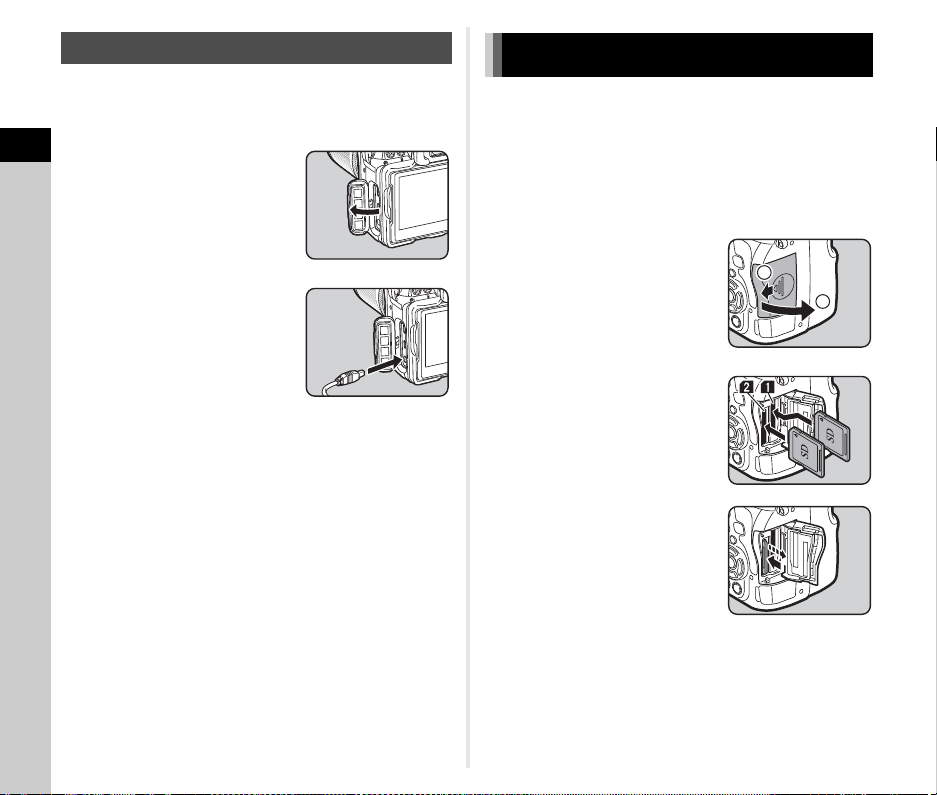
2
Getting Started
40
We recommend the use of the optional AC adapter kit K-AC167
when using the monitor for a long time or when connecting the
camera to a computer or AV device.
1 Make sure that the camera
is turned off, and open the
terminal cover.
2 Align the A marks on the
DC terminal of the AC
adapter and DC input
terminal of the camera, and
connect.
3 Connect the AC adapter to the AC plug cord, and
plug the cord into the power outlet.
u Caution
• Make sure that the camera is turned off before connecting or
disconnecting the AC adapter.
• Make sure that the connections are secure between the
terminals. The memory card or data may be corrupted if the
connection to the power supply is lost while the card is being
accessed.
• Be sure to read the manual of the AC adapter kit before using
the AC adapter.
The following memory cards can be used with this camera.
• SD Memory Card
• SDHC Memory Card
• SDXC Memory Card
In this manual, these cards are referred to as memory cards.
1 Make sure that the camera is turned off.
2 Slide the memory card
cover in the direction of 1
and then rotate it to open
as shown by 2.
3 Insert a card all the way
into each memory card slot
with the memory card label
facing toward the side with
the monitor.
Push the memory card in once
and release to remove.
Using the AC Adapter
Inserting a Memory Card
2
1
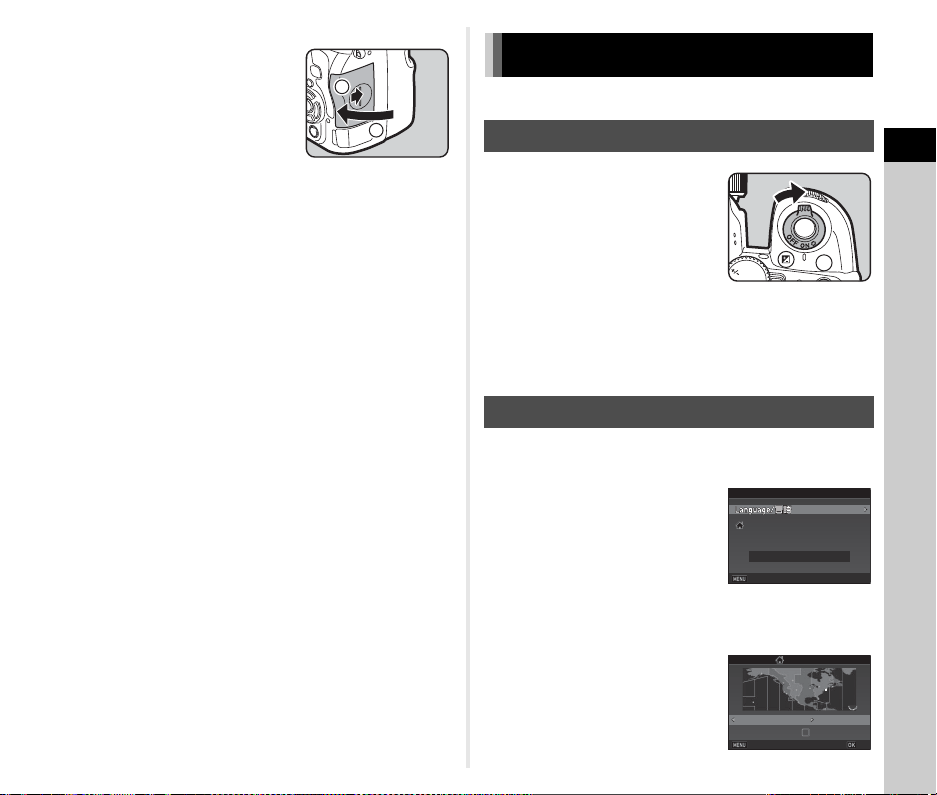
2
Getting Started
41
4 Rotate the memory card
cover as shown by 3, and
slide it in the direction of
4.
u Caution
• Do not remove the memory card while the card access lamp
is lit.
• If the memory card cover is opened while the power is on, the
camera turns off. Do not open the cover while the camera is
in use.
• Use this camera to format (initialize) a memory card that is
unused or has been previously used on other devices. (p.43)
• Use a high-speed memory card when recording movies. If the
write speed cannot keep up with the recording speed, writing
may stop during recording.
t Memo
• For details on how the data is recorded when two memory
cards are inserted, refer to “Memory Card Settings” (p.48).
• You can illuminate the card slot chamber by pressing 8.
(Default setting: Off) The card slot chamber is illuminated
even when the camera is turned off. Change the setting in
[Card Slot/Connector] of [Illumination Settings] in the D2
menu. (p.100)
Turn the camera on and make the initial settings.
1 Turn the main switch to
[ON].
The first time the camera is
turned on after purchase, the
[Language/W] screen
appears.
t Memo
• The power automatically turns off when you do not perform
any operations within a set period of time. (Default setting:
1min.) You can change the setting in [Auto Power Off] of the
D2 menu.
1 Use ABCD to select the desired language and
press E.
The [Initial Setting] screen
appears in the selected
language.
Proceed to Step 6 if F
(Hometown) does not need to be
changed.
2 Press B to move the frame to F and press D.
The [F Hometown] screen appears.
3 Use CD to select a city.
Use R to change the region.
y Cities that can be selected
as a hometown (p.122)
4
3
Initial Settings
Turning the Camera On
Setting the Display Language
ISO
HDR
BKT
CH/CL
ISO
Text SizeText Size Std.Std.
New YorkNew York
EnglishEnglish
Initial SettingInitial Setting
Settings completeSettings complete
CancelCancel
HometownHometown
New YorkNew York
DSTDST
CancelCancel
OKOK
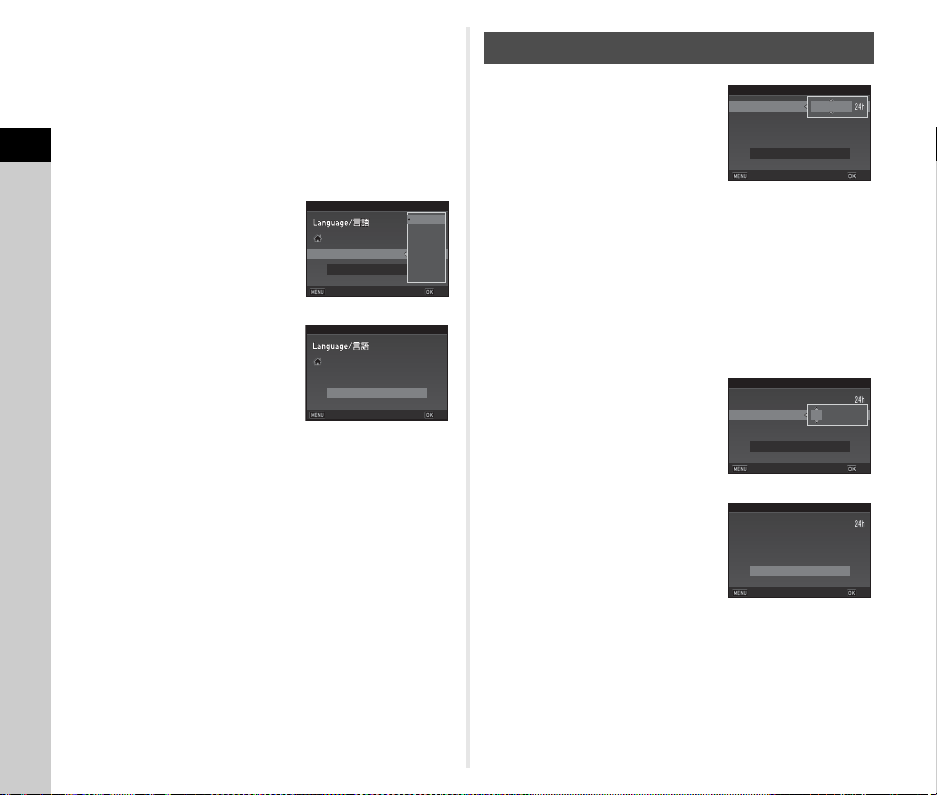
2
Getting Started
42
4 Press B to select [DST] (daylight saving time),
and use CD to select Y or Z.
5 Press E.
The camera returns to the [Initial Setting] screen.
6 Press B to select [Text Size] and press D.
7
Use
AB
to select [Std.] or
[Large], and press
E
.
Selecting [Large] increases the
text size of the selected menu
item.
8 Press B to select
[Settings complete] and
press E.
The [Date Adjustment] screen
appears.
1 Press D, and use AB to
select the date format.
2 Press D, and use AB to select [24h] or [12h].
3 Press E.
The frame returns to [Date Format].
4 Press B, and then press D.
The frame moves to the month if the date format is set to
[mm/dd/yy].
5 Use AB to set the month.
Set the day, year, and time in the
same manner.
6 Press B to select [Settings
complete] and press E.
The [LCD Display] screen
appears.
Text Size
Text Size
Std.
Std.
Large
Large
New York
New York
Initial Setting
Initial Setting
Settings complete
Settings complete
Cancel
Cancel
OK
OK
Text SizeText Size Std.Std.
New YorkNew York
EnglishEnglish
Initial SettingInitial Setting
Settings completeSettings complete
CancelCancel
OKOK
Setting the Date and Time
Time
Time
Date
Date
Date Format
Date Format
00:00
00:00
mm/dd/yy
mm/dd/yy
01/01/2018
01/01/2018
Date Adjustment
Date Adjustment
Settings complete
Settings complete
Cancel
Cancel
OK
OK
Time
Time
Date
Date
Date Format
Date Format
00:00
00:00
mm/dd/yy
mm/dd/yy
01/01/2018
01/01/2018
Date Adjustment
Date Adjustment
Settings complete
Settings complete
Cancel
Cancel
OK
OK
Time
Time
Date
Date
Date Format
Date Format
10:00
10:00
mm/dd/yy
mm/dd/yy
03/03/2018
03/03/2018
Date Adjustment
Date Adjustment
Settings complete
Settings complete
Cancel
Cancel
OK
OK
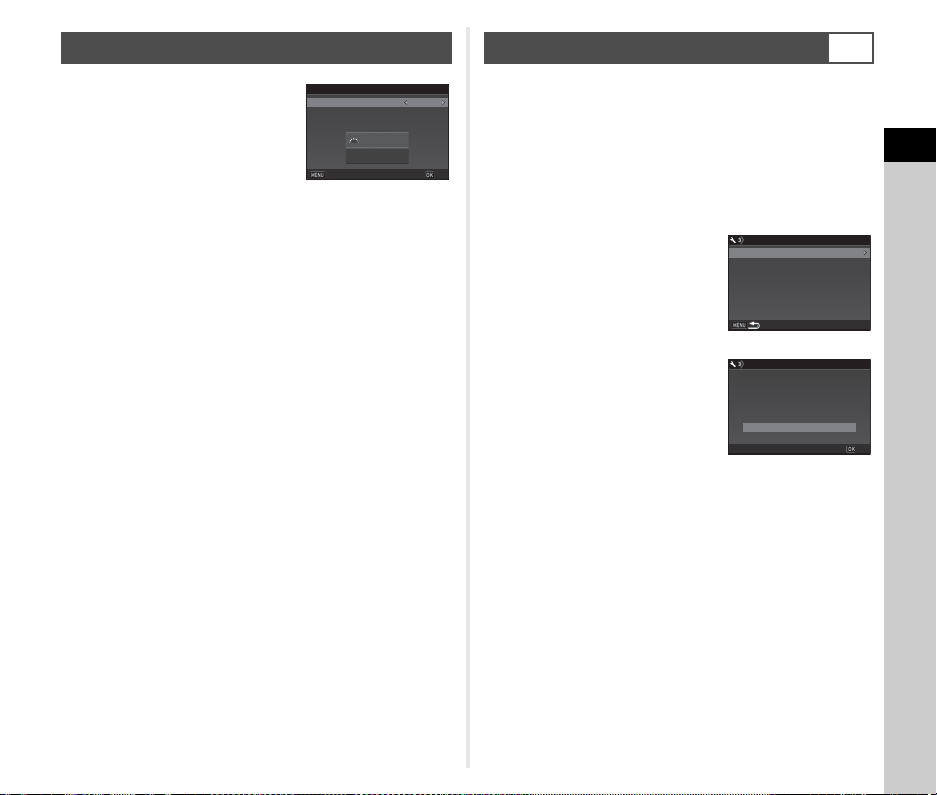
2
Getting Started
43
1 Use CD to select a color.
Select the display color of the
status screen, control panel, and
menu cursor from the colors 1 to
12.
2 Press E.
The camera switches to capture mode and is ready to take
a picture.
t Memo
• You can change the language, text size, and date and time
settings from the D1 menu, and the display color from [Other
Display Settings] of the A5 menu. (p.28, p.32)
• While the GPS is on, the date and time settings are adjusted
using information obtained from satellites. (p.79)
1 Press F.
The A1 menu appears.
2 Use Q or R to display D3 menu.
3 Use AB to select [Format] and press D.
The [Format] screen appears.
4 Use AB to select the
memory card slot in which
the memory card to format
is inserted and press D.
5 Press A to select [Format]
and press E.
Formatting starts. When
formatting is completed, the
screen of Step 4 reappears.
6 Press F twice.
u Caution
• Do not remove the memory card while formatting, or the card
may be damaged.
• Formatting deletes all data, both protected and unprotected.
t Memo
• When a memory card is formatted, the volume label “K-1 II” is
assigned to the card. When the camera is connected to a
computer, the memory card is recognized as a removable
disk with the name “K-1 II”.
Setting the LCD Display
1/
1/
125
125
F
F
5.6
5.6
1
1
Display Color
Display Color
LCD Display
LCD Display
Cancel
Cancel
OK
OK
Formatting a Memory Card
D3
SD1SD1
SD2SD2
FormatFormat
FormatFormat
FormatFormat
card will be deletedcard will be deleted
All data on SD1 memoryAll data on SD1 memory
CancelCancel
OKOK
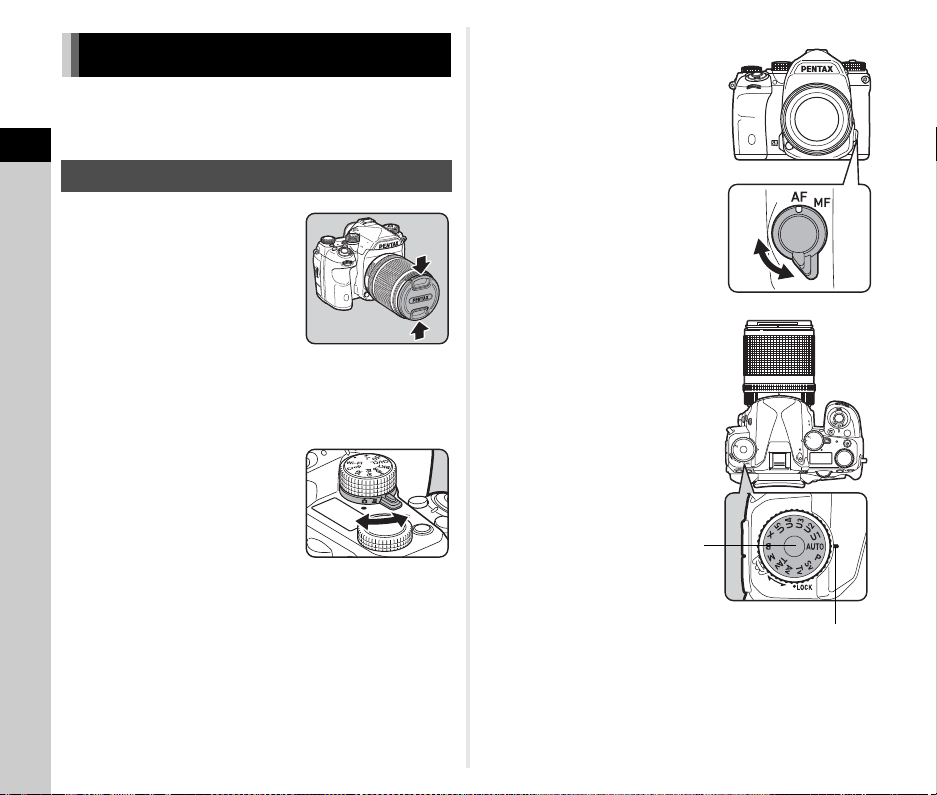
2
Getting Started
44
Take pictures in R (Scene Analyze Auto) mode in which
the camera analyzes shooting conditions and automatically sets
the optimal shooting settings.
1 Remove the front lens cap
by pushing the top and
bottom portions as
indicated in the
illustration.
When a retractable lens is
attached, extend the lens before
turning the camera on.
y How to Use a Retractable Lens (p.46)
2 Turn the camera on.
3 Turn the capture mode
selector switch to A.
4 Set the focus mode switch
to v.
5 Set the mode dial to R
while pressing the mode
dial lock button.
Basic Shooting Operation
Shooting with the Viewfinder
ISO
Wi-Fi
HDR
BKT
CH/CL
ISO
Wi
-
Fi
Crop
SR
Grid
Sv
P
AUTO
U1
U2
U3
U5
X
B
M
TAv
Av
Tv
Mode dial
lock button
Dial indicator
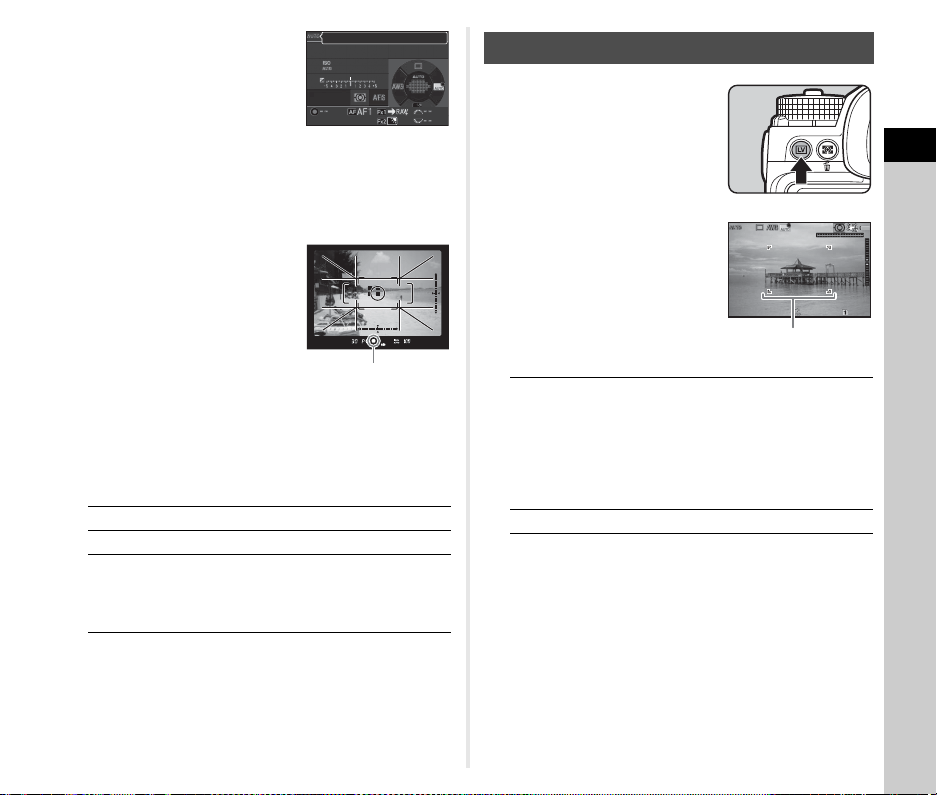
2
Getting Started
45
The selected capture mode and
functions assigned to buttons/
dials are displayed on the
monitor (Guide Display).
y Guide Display settings
(p.28)
6 Look through the viewfinder to view the subject.
When using a zoom lens, turn the zoom ring to the right or
left to change the angle of view.
7 Position the subject inside
the AF frame and press
0 halfway.
The focus indicator (P) appears
and you will hear a beep when
the subject comes into focus.
y Sound Effects settings
(p.32)
8 Press 0 fully.
The captured image is displayed on the monitor (Instant
Review).
Available operations during Instant Review
1 Press K in Step 6 on
“Shooting with the
Viewfinder” (p.45).
The Live View image is displayed
on the monitor.
2 Position the subject inside
the AF frame on the
monitor and press 0
halfway.
The AF frame turns green and
you will hear a beep when the
subject comes into focus.
Available operations
Subsequent steps are the same as shooting with the
viewfinder.
L
Deletes the image.
R to the right Magnifies the image.
H
Saves the RAW data (only
when a JPEG image was
taken and the data remains in
the buffer).
1/
1/
250
250
1600
1600
F
F
5.6
5.6
Scene Analyze Auto
Scene Analyze Auto
Focus indicator
Shooting while Viewing the Live View Image
E
Magnifies the image.
Use R to change the magnification (up to
16×).
Use ABCD to change the area to display.
Press M to return the display area to the
center.
Press E to return to 1× image display.
K
Exits shooting with Live View.
1/
2000
1/
2000
F2.8
F2.8
1600
1600
9999
9999
AF frame
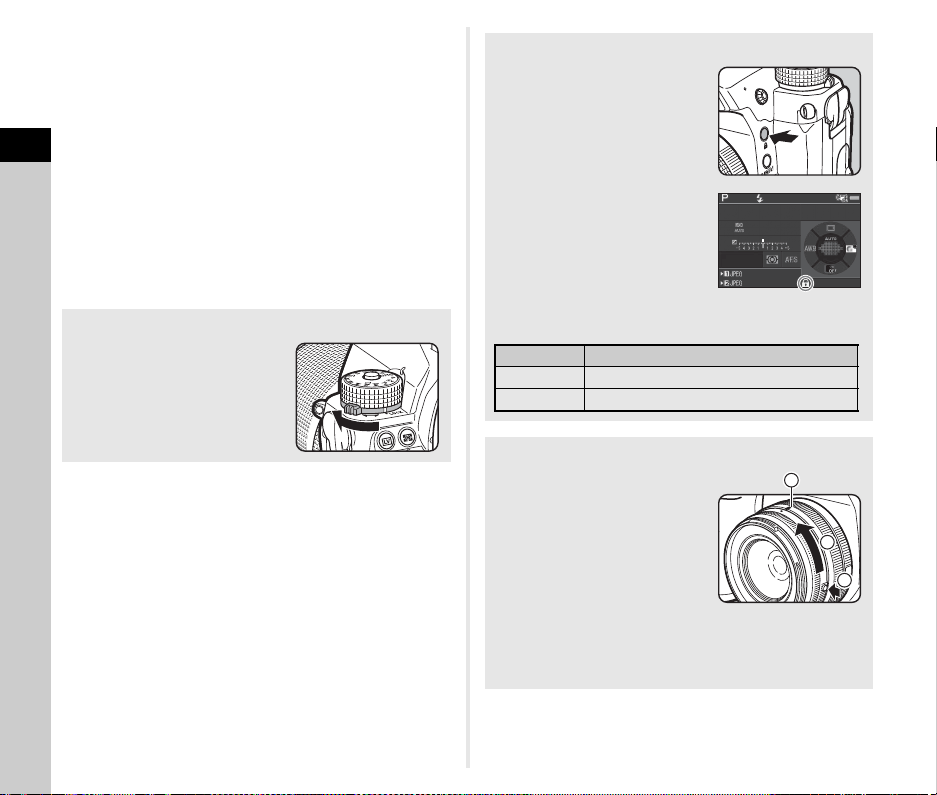
2
Getting Started
46
t Memo
• You can use I to focus on the subject. (p.57)
• You can preview the image on the monitor and check the
depth of field before shooting. (p.61)
• You can set the operation and display settings for Instant
Review in [Instant Review] of the A5 menu. (p.27) When
[Display Time] is set to [Hold], the Instant Review image is
displayed until the next operation.
• When the function dial is set to R, you can magnify the image
using the setting dial.
• You can use the electronic shutter during shooting with Live
View. (p.52)
u Caution
• Some functions are not available in R mode.
Easy Operation of the Mode Dial
Release the mode dial lock using
the mode dial lock release lever to
easily operate the mode dial
without having to press the mode
dial lock button.
Disabling Operation Controls
Operation of buttons and dials can
be temporarily disabled to prevent
misoperation during shooting.
Turning R while pressing 7
disables the operation of buttons
and dials. Turning R again
enables the operation of them.
e is displayed on the status
screen and Live View screen and
in the viewfinder while the
operation of buttons and dials is
disabled.
The group of buttons and dials to
be disabled can be selected in [19
Enable/Disable Control] of the E3 menu.
How to Use a Retractable Lens
If the camera is turned on when a
retractable lens, such as HD
PENTAX-DA 18-50mm F4-5.6 DC
WR RE, is attached and is not
extended, an error message is
displayed on the monitor. Turn the
zoom ring in the direction of 2
while pressing the button on the
ring (1) to extend the lens. When
retracting the lens, turn the zoom ring in the opposite
direction to 2 while pressing the button on the ring and align
the white dot to the position 3.
1/1/
250250
16001600
FF
5.65.6
99 99 999999
99 99 999999
Type Buttons and Dials Disabled
Type1 Q, R, J, N, M, H
Type2 c, ABCD, E, F
1
2
3
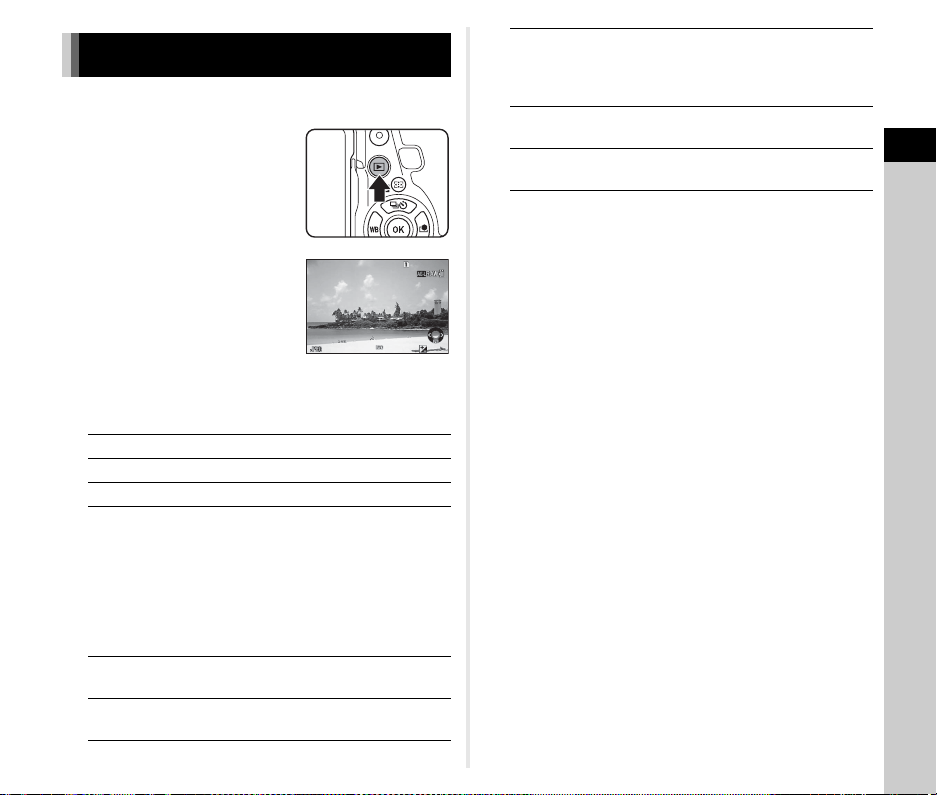
2
Getting Started
47
You can review the captured image on the monitor.
1 Press 3.
The camera enters playback
mode and the most recently
captured image is displayed
(single image display).
2 Review the captured image.
Available operations
t Memo
• When R is turned to the right to magnify the image, the
magnification is displayed at the bottom right of the screen.
z appears when the image is displayed at the actual pixel
size (1× image display). You can set the initial magnification
when magnifying images in [Quick Zoom] of the B1 menu.
• When Hv is displayed on the monitor, the JPEG image
that was just taken can also be saved in RAW format (Save
RAW Data).
• You can display grid lines in single image display. Set in [Grid
Display] of [Image Display] in the B1 menu. (p.31)
Reviewing Images
C/Q to the left Displays the previous image.
D/Q to the right Displays the next image.
L Deletes the image.
R to the right Magnifies the image (up to
16×).
Use ABCD to change the
area to display.
Press M to return the display
area to the center.
Press E to return to entire
image display mode.
R to the left Switches to thumbnail
display mode (p.84).
d
Switches between the SD1
card and the SD2 card.
1/
2000
1/
2000
F2.8
F2.8
200
200
0.0
0.0
100-0001
100-0001
H Saves the RAW data (only
when a JPEG image was
taken and the data remains in
the buffer).
G
Changes the type of
information displayed (p.18).
B
Displays the playback mode
palette (p.83).
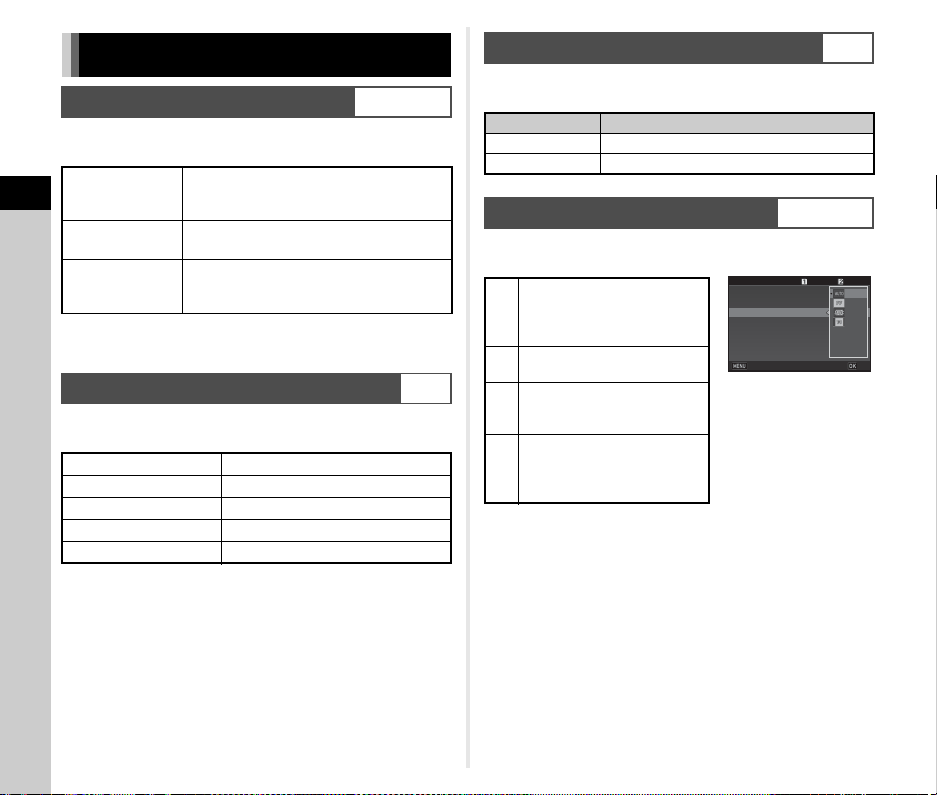
3
Shooting
48
Set the recording method for when two memory cards are
inserted in [Memory Card Options] of the A2 menu.
When in C mode, data is saved to the card in either the SD1
slot or the SD2 slot.
Set the file format for still pictures in [Image Capture Settings] of
the A2 menu.
u Caution
• When [Memory Card Options] is set to [Separate RAW/
JPEG], [File Format] is fixed to [RAW+].
t Memo
•
When [File Format] is set to [RAW+], a JPEG image and a RAW
image with the same file number are saved at the same time.
• You can change the setting so that you can take pictures in
another file format (One Push File Format) when X or Y is
pressed. (p.98)
• [PEF] of [RAW File Format] is a PENTAX original RAW file
format.
Set the file format for movies in [Movie Capture Settings] of the
C1 menu.
You can change the angle of view in [Crop] of the A2 and C1
menus.
t Memo
• The angle of view can also be changed by the Smart
Function. (p.22)
•Select 3 when you want a frame corresponding to the APS-
C size image sensor irrespective of the lens in use (either DA
lenses or 35mm full-frame compatible lenses, such as D FA
lenses). Select 1 when you want the camera to select
automatically the angle of view between the 35mm full-frame
and the APS-C size depending on the lens in use.
• When changing the angle of view, the cropping frame is
displayed in the viewfinder. (p.20)
u Caution
• When the drive mode is set to [Interval Movie Record] or [Star
Stream] of [Interval Shooting], 4 cannot be selected.
Configuring the Capture Settings
Memory Card Settings
A2/C1
W
Sequential
Use
When the memory card in the SD1 slot
becomes full, data is saved to the card in
the SD2 slot.
Y
Save to
Both
Saves the same data to the memory cards
in both the SD1 and the SD2 slots.
Z
Separate
RAW/JPEG
Saves the RAW data to the memory card in
the SD1 slot, and the JPEG data to the
card in the SD2 slot.
Image Capture Settings
A2
File Format JPEG, RAW, RAW+
JPEG Recorded Pixels q, p, o, r
JPEG Quality m, l, k
RAW File Format PEF, DNG
Color Space sRGB, AdobeRGB
Movie Capture Settings
C1
Recorded Pixels Frame Rate
u 60i, 50i, 30p, 25p, 24p
t 60p, 50p
Setting the Angle of View
A2/C1
1
Automatically changes the
angle of view depending on
the lens mounted to the
camera.
2
Sets the angle of view in
35mm full-frame format.
3
Provides the angle of view
equivalent to that of the APS-
C size image sensor.
4
Sets the angle of view in full-
frame format with an aspect
ratio of 1:1. (4 is not
available in C mode.)
99 99 9
99999
99 99 9
99999
Crop
Crop
Image Capture Settings
Image Capture Settings
Memory Card Options
Memory Card Options
LV Electronic Shutter
LV Electronic Shutter
Noise Reduction
Noise Reduction
D-Range Settings
D-Range Settings
Cancel
Cancel
OK
OK
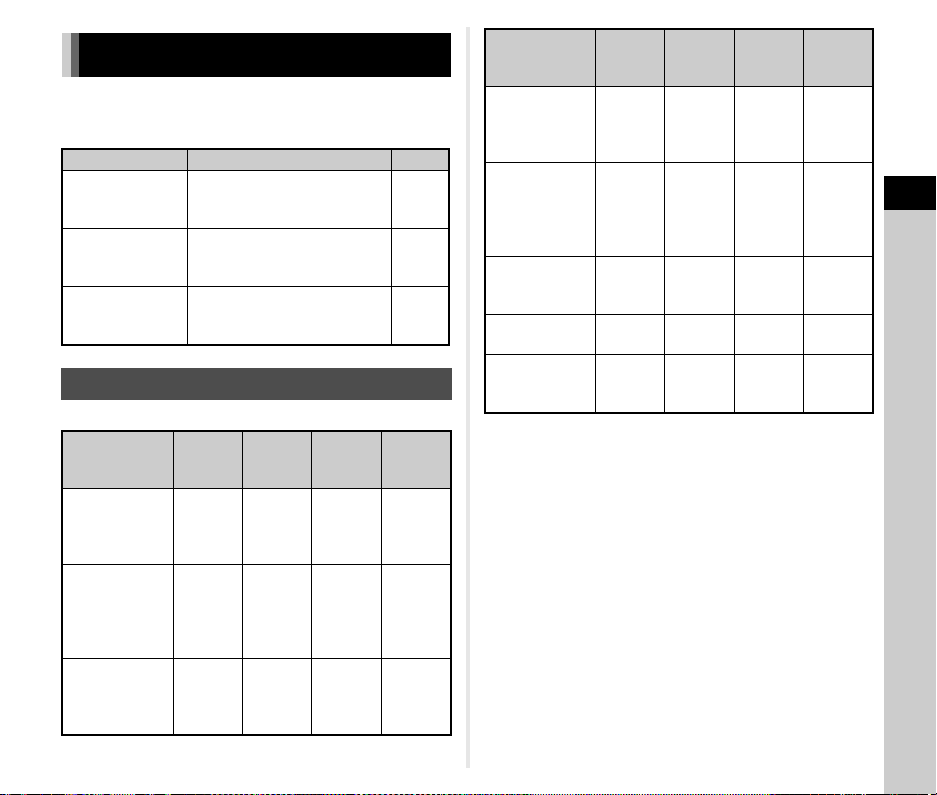
3
Shooting
49
Select the capture mode that suits the subject and shooting
conditions.
The following capture modes are available on this camera.
x: Available #: Restricted
×
: Not available
*1 You can set the value to be changed in [E-Dial Programming] of
[Button Customization] in the A5 menu. (p.99)
*2 [ISO AUTO] is not available.
*3 Fixed to [ISO AUTO].
*4 When the timed exposure is enabled, shutter speeds ranging from 10
seconds to 20 minutes can be set. (p.51)
*5 You can set the flash sync speed in [7 Flash Sync Speed] of the E1
menu.
Taking Still Pictures
Capture Mode Function Page
R
(Scene Analyze
Auto mode)
Automatically sets the optimal
shooting settings.
p.44
G/H/I/J/
K/L/M/N
(Exposure modes)
Allows you to change the
shutter speed, aperture value,
and sensitivity.
p.49
O to 5
(USER modes)
Allows you to save frequently
used exposure modes and
capture settings together.
p.101
Exposure Modes
Mode
Change
Shutter
Speed
Change
Aperture
Value
Change
Sensitivity
EV
Compen-
sation
G
Program
Automatic
Exposure
#
*1
#
*1
xx
H
Sensitivity
Priority
Automatic
Exposure
××
x
*2
x
I
Shutter Priority
Automatic
Exposure
x
×
xx
J
Aperture Priority
Automatic
Exposure
×
xxx
K
Shutter &
Aperture Priority
Automatic
Exposure
xx
×
*3
x
L
Manual
Exposure
xxx
*2
x
M
Bulb Exposure
×
*4
xx
*2
×
N
Flash X-sync
Speed
×
*5
xx
*2
x
Mode
Change
Shutter
Speed
Change
Aperture
Value
Change
Sensitivity
EV
Compen-
sation
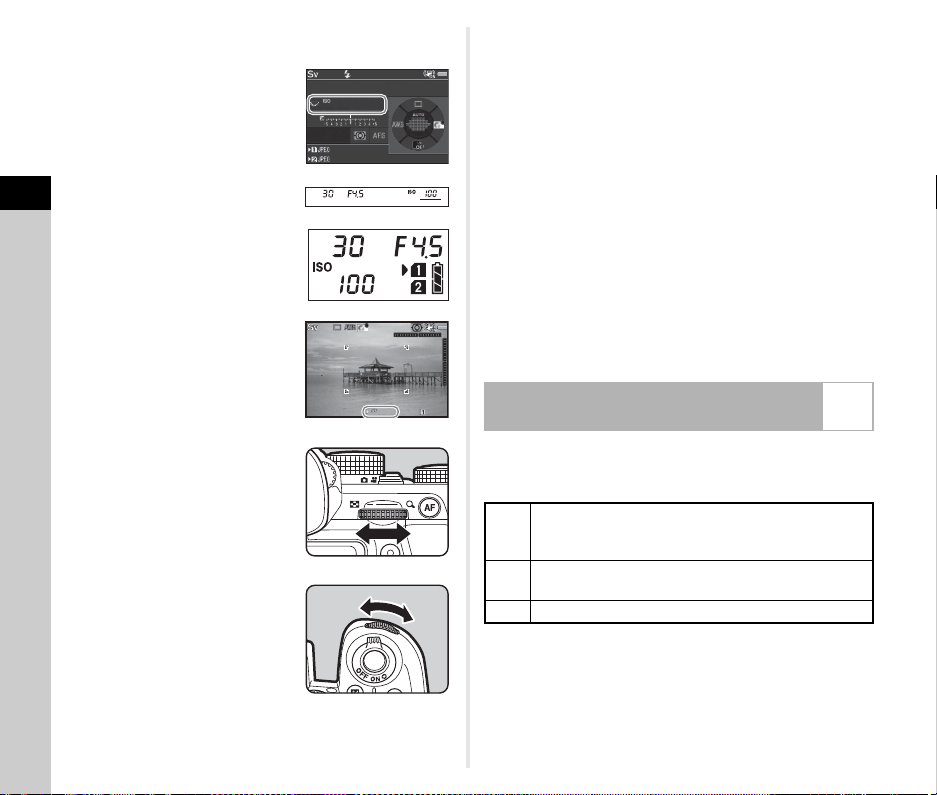
3
Shooting
50
1 Set the mode dial to the desired exposure mode.
Q or R appears on the
status screen for the value that
can be changed.
The value that can be changed is
underlined in the viewfinder.
The values of the current camera
settings are displayed on the LCD
panel.
During Live View, D appears for
the value that can be changed.
2 Turn R.
The aperture value is changed in
J, K, L, M, or N mode.
The sensitivity is changed in H
mode.
3 Turn Q.
The shutter speed is changed in
I, K, or L mode.
t Memo
• The settings for the exposure can be specified in increments
of 1/3 EV steps. In [1 EV Steps] of the E1 menu, you can
change the adjustment steps to 1/2 EV steps.
•In L or N mode, the difference from the correct exposure is
displayed on the EV bar scale while the exposure is adjusted.
• For each exposure mode, you can set the camera operation
for when Q or R is turned or M is pressed. Set in
[E-Dial Programming] of [Button Customization] in the A5
menu. (p.99)
u Caution
• The correct exposure may not be obtained with the selected
shutter speed and aperture value when the sensitivity is fixed
at a certain sensitivity.
•In M mode, the drive mode cannot be set to [Continuous
Shooting], [Bracketing], or [Interval Shooting].
•In M or N mode, [LV Electronic Shutter] of the A2 menu
cannot be used.
When shooting with a slow shutter speed, you can reduce
image noise in [Slow Shutter Speed NR] of [Noise Reduction] in
the A2 menu.
1/
1/
30
30
100
100
F
F
4.5
4.5
99 99 9
99999
99 99 9
99999
1/
30
1/
30
F4.5
F4.5
100
100
9999
9999
Reducing Noise when Shooting with a
Slow Shutter Speed
A2
Auto
Applies Noise Reduction according to the shutter
speed, sensitivity, and internal temperature of the
camera.
On
Applies Noise Reduction when the shutter speed is
slower than 1 second.
Off Does not apply Noise Reduction at any shutter speed.
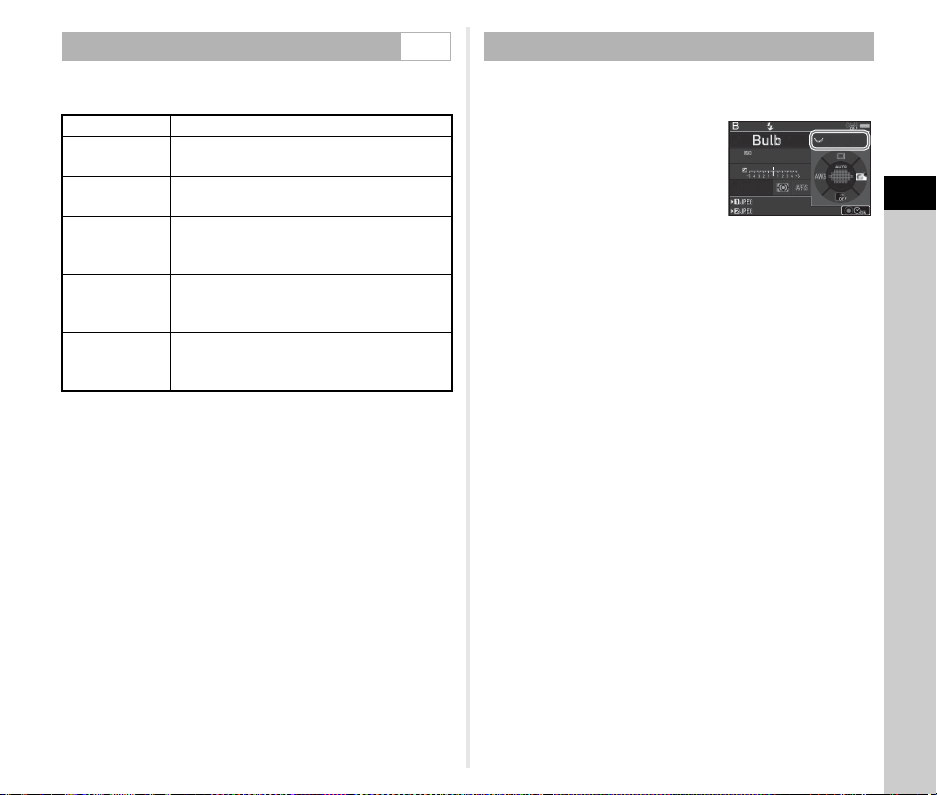
3
Shooting
51
In [Program Line] of the A1 menu, you can specify how the
exposure is controlled.
t Memo
• The Program Line setting is enabled in the following
situations.
•In G or H mode
•
When
G
LINE is set for the
M
operation of
K
or
L
in [E-
Dial Programming] of [Button Customization] in the
A
5 menu
1 Set the mode dial to M.
2 Use R to set the
aperture value.
3 To enable the timed exposure, press M, and
then use Q to set the exposure time.
You can set the exposure time within the range from 10" to
20'00".
4 Press 0.
While 0 is pressed, exposure continues.
If the timed exposure is enabled in Step 3, the exposure
ends when the set exposure time elapses after 0 is
fully pressed.
t Memo
• You can start and end exposure also by pressing 0. Set
in [6 Bulb (B) Mode Options] of the E1 menu.
• When performing the bulb exposure, use a tripod and mount
the camera on it securely. The use of the optional cable
release is recommended.
u Caution
• The drive mode cannot be set to [Continuous Shooting],
[Bracketing], or [Interval Shooting].
Setting the Exposure Control Method A1
A Auto Determines the appropriate settings.
B Standard
Sets to the basic program automatic
exposure (all-around mode).
C
Hi-speed
Priority
Prioritizes high shutter speeds.
D
DOF
Priority
(Deep)
Closes the aperture for a deep depth of field.
E
DOF
Priority
(Shallow)
Opens the aperture for a shallow depth of
field.
F
MTF
Priority
Sets the sharpest aperture of the attached
lens when a D FA, DA, DA L, FA, or FA J lens
is used.
Bulb Exposure
10240 0
102400
F
F
8.0
8.0
99 99 9
99999
99 99 9
99999
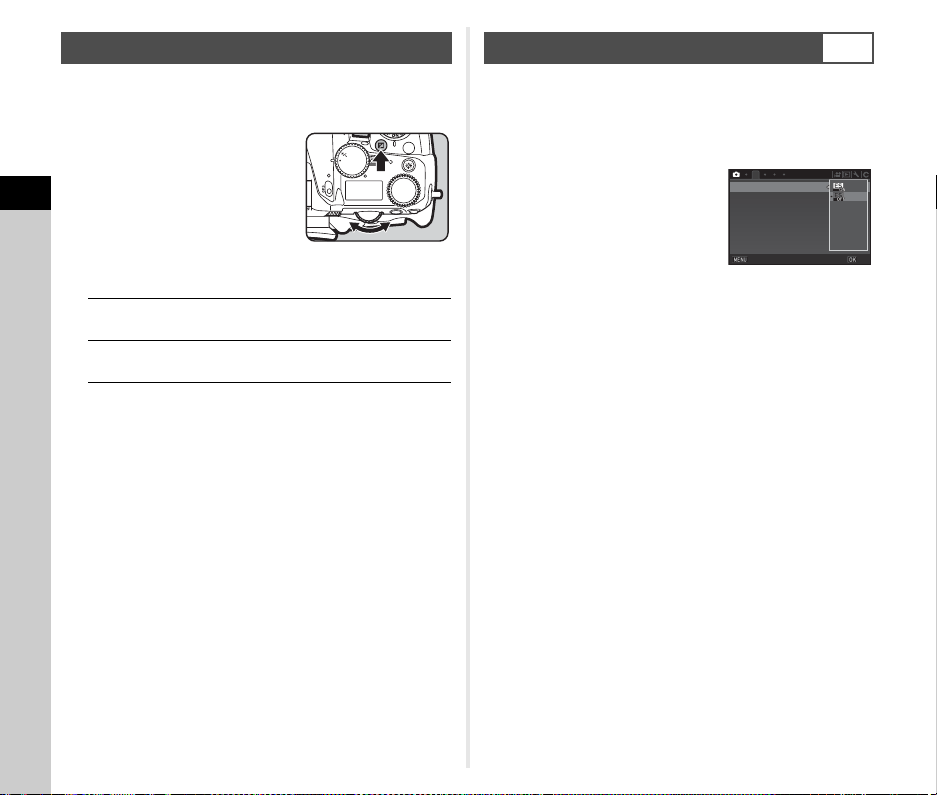
3
Shooting
52
The compensation value can be set between -5 and +5 EV (-2
and +2 EV in C mode).
1 Press J, and then turn
R.
e and the compensation value
are displayed on the status
screen, LCD panel, Live View
screen, and in the viewfinder
during adjustment.
Available operations
t Memo
• The compensation value can also be adjusted by the Smart
Function. (p.22)
A mechanical shutter has front and rear shutter curtains, which
make noise and vibrate the camera when opening and closing
to produce the exposure.
Use of an electronic shutter can reduce noise and vibrations
during shooting with Live View.
Set in [LV Electronic Shutter] of the
A2 menu.
u Caution
• [LV Electronic Shutter] cannot be selected in the following
situations.
•In M mode
• When the drive mode is set to [Continuous Shooting],
[Bracketing], or [Interval Shooting]
• When HDR Capture is set
• When [Pixel Shift Resolution] is set to [Image Stabilization
On]
• The following functions are not available when [LV Electronic
Shutter] is selected.
• Flash discharge
• Shake Reduction
• Distortion can be produced in captured images when
shooting moving objects. Also, the flickering of a fluorescent
light and other factors may cause the distortion of captured
images.
• When [Pixel Shift Resolution] in the A3 menu is set to
[Motion Correction On] or [Motion Correction Off], [LV
Electronic Shutter] is fixed to [On].
EV Compensation
J
Starts/ends adjusting the compensation
value.
M
Resets the adjustment value to the default
setting.
ISO
Wi-Fi
HDR
BKT
CH/CL
ISO
Wi
-
Fi
Crop
SR
Grid
Using the Electronic Shutter
A2
2
CropCrop
Image Capture SettingsImage Capture Settings
Memory Card OptionsMemory Card Options
LV Electronic ShutterLV Electronic Shutter
Noise ReductionNoise Reduction
D-Range SettingsD-Range Settings
CancelCancel
OKOK
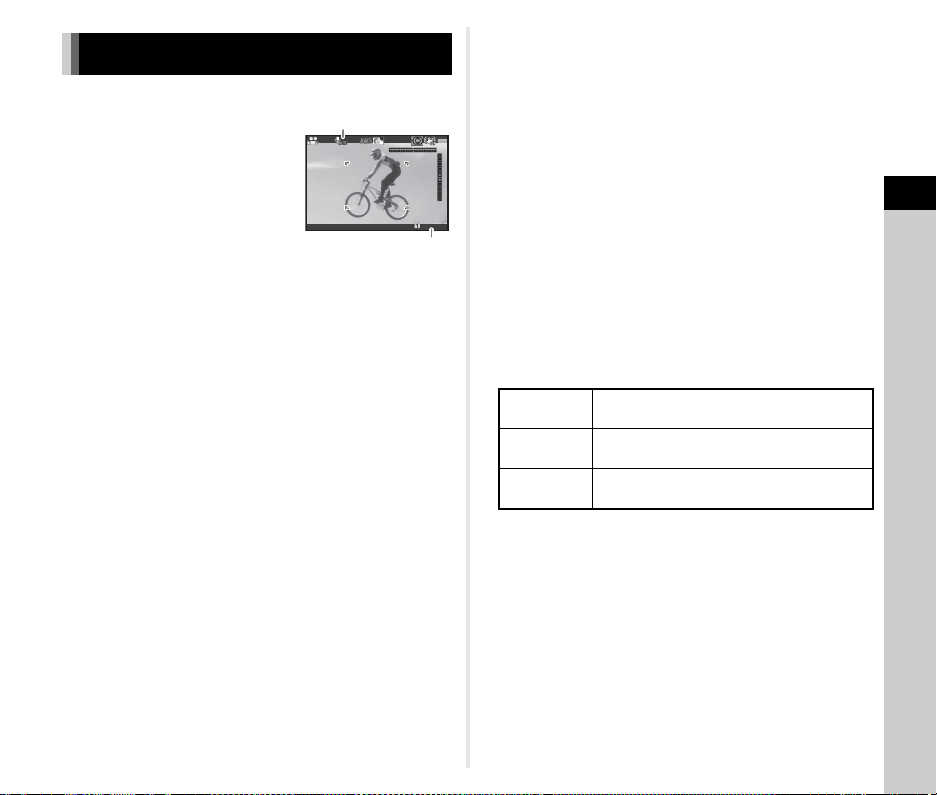
3
Shooting
53
1 Turn the capture mode selector switch to C.
Live View is displayed.
2 Use the mode dial to select an exposure mode.
G, I, J, K, or L can be selected.
3 Use Q or R to set the exposure.
4 Focus on the subject.
In v mode, press 0 halfway.
5 Press 0 fully.
Movie recording starts.
In the upper left area of the monitor, “REC” blinks and the
size of the recorded movie file is displayed.
6 Press 0 fully again.
Movie recording stops.
u Caution
• When recording a movie with sound, camera operation
sounds are also recorded.
• When recording a movie with an image processing function
such as Digital Filter applied, the movie file may be saved with
some frames omitted.
• If the internal temperature of the camera becomes high
during recording, recording may be terminated.
• When a retractable lens is attached, recording stops if the
lens is retracted during recording and an error message is
displayed.
•In C mode, the Wi-Fi™ function is disabled.
t Memo
• When the mode dial is set to other than the modes described
in Step 2, the camera operates in G mode.
• You can change the settings for movie recording in the C
menus. (p.30)
The sound volume for movies can be set in [Sound Volume
Setting] of the C1 menu.
Activating the Wind Noise Reduction function cuts off the low-
pitch sound. It is recommended to set this function to [Off]
when it is not necessary.
• You can record a movie continuously up to 4 GB or 25
minutes. When the memory card is full, recording stops.
Recording Movies
99'99"
99'99"
Sound
Recordable Time
Recording
Sound Level
Auto, 0 to 20
Wind Noise
Reduction
On, Off
Headphone
Volume
0 to 20
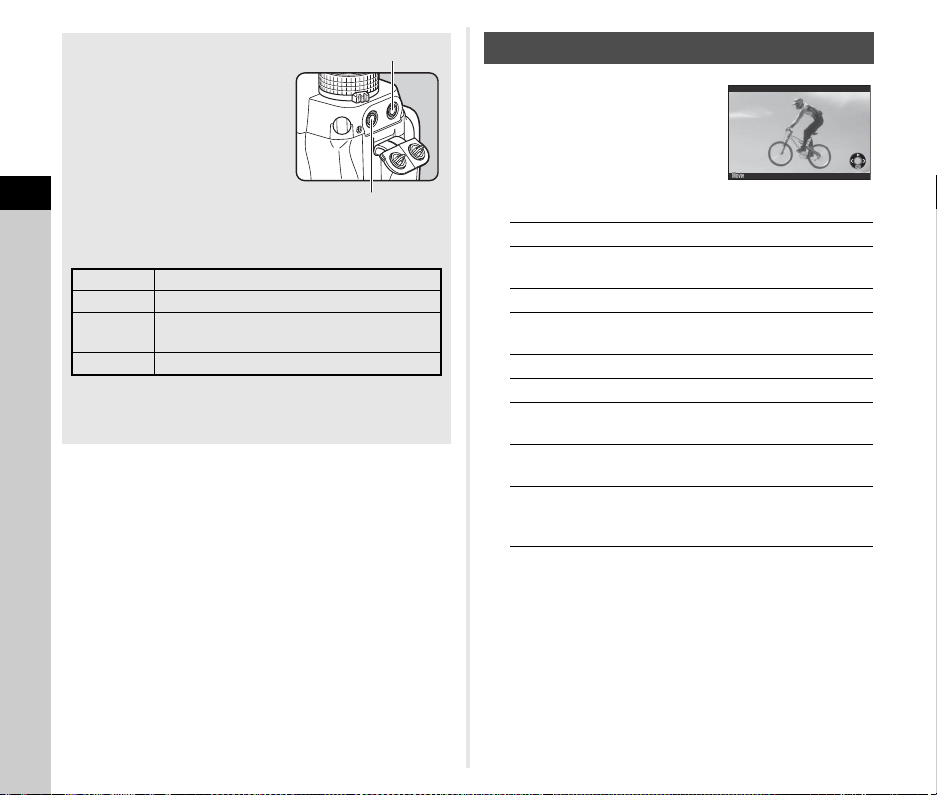
3
Shooting
54
u Caution
• Do not connect a microphone or other device outside the
recommended specifications to the microphone terminal or
headphone terminal. Also, do not use an external microphone
with a 3-meter or longer cable. Doing so may cause the
camera to malfunction.
• If an external microphone is used when recording a movie
with the Wi-Fi™ function enabled, radio noise may be
recorded depending on the compatibility with the microphone.
1 Display the movie to play
back in single image
display of the playback
mode.
Available operations
t Memo
• The sound volume at the start of movie playback can be set
in [Playback Sound Volume] of the B1 menu. (p.31)
• In [Movie Edit] of the playback mode palette, a movie file can
be divided into multiple segments or selected frames can be
deleted. (p.91)
Using a Microphone or
Headphones
You can reduce the possibility of
recording camera operation
sounds by connecting a
commercially available stereo
microphone to the microphone
terminal on the camera.
The following specifications are
recommended for external
microphones. (A monaural microphone cannot be used with
this camera.)
You can record and play back movies while listening to the
sound by connecting commercially available headphones to
the headphone terminal.
Microphone terminal
Headphone terminal
Plug Stereo mini plug (ø3.5 mm)
Format Stereo electret condenser
Power
Plug-in Power Method (operating voltage of
2.0 V or lower)
Impedance 2.2 kΩ
Playing Back Movies
A Plays back/pauses a movie.
D Forwards a frame (when
paused).
Press and hold D Fast-forwards playback.
C Reverses a frame (when
paused).
Press and hold C Fast-reverses playback.
B
Stops playback.
R
Adjusts the sound volume (21
levels).
H Saves the displayed frame as a
JPEG file (when paused).
G Switches between [Standard
Information Display] and [No
Information Display].
10'30"10'30"
100-0001100-0001
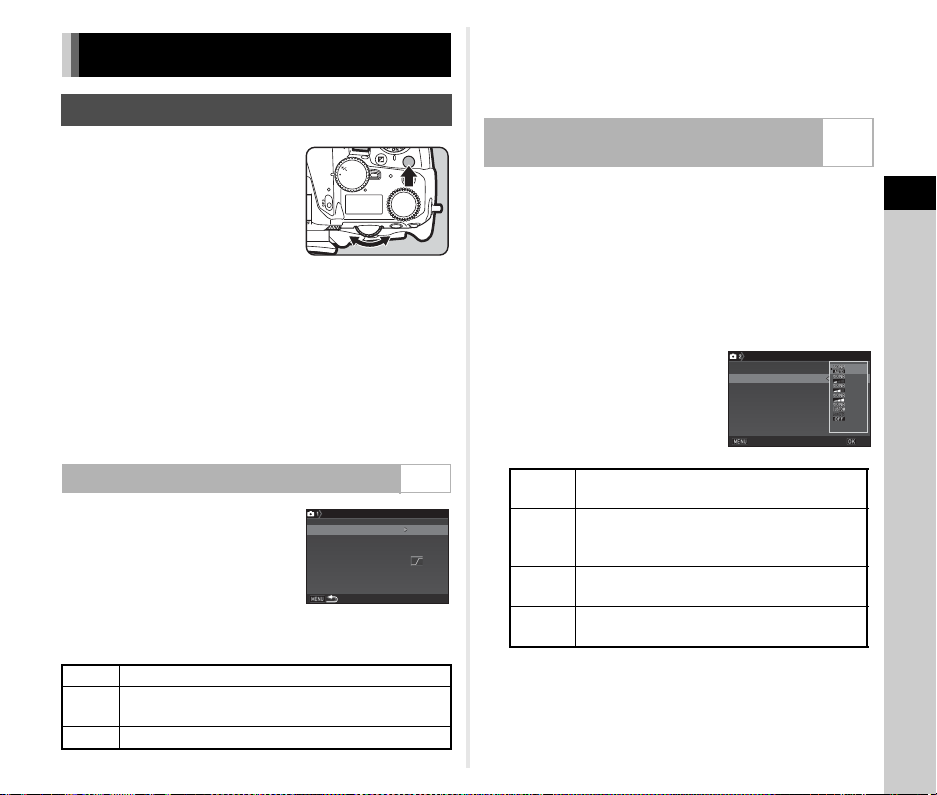
3
Shooting
55
1 Press N, and then turn
R.
The sensitivity displayed on the
status screen, Live View screen,
LCD panel and in the viewfinder
changes.
Press M to set the sensitivity to
[ISO AUTO].
t Memo
• The sensitivity can also be changed by the Smart Function.
(p.22)
•In C mode, the sensitivity can be set from ISO 100 to ISO
25600.
•
The adjustment steps for the sensitivity is 1 EV step. To adjust
the sensitivity in accordance with the EV step setting for the
exposure, set from [2 Sensitivity Steps] of the
E
1 menu.
You can set the range in which the
sensitivity is automatically adjusted
when the sensitivity is set to [ISO
AUTO]. Set in [ISO AUTO Setting] of
the A1 menu.
The manner in which the sensitivity is
increased can be specified in [AUTO
ISO Parameters].
u Caution
• When [HDR Capture] of the A3 menu is enabled and [Auto
Align] is set to Z (On), [AUTO ISO Parameters] is fixed to
J.
You can use the Noise Reduction feature when shooting with a
high ISO sensitivity.
1 Select [Noise Reduction] in A2 menu and press
D.
The [Noise Reduction] screen appears.
2 Select [High-ISO NR] and press D.
3 Select the Noise Reduction
level and press E.
Proceed to Step 7 when other than [Custom] is selected.
4 Select [Setting] and press D.
Setting the Exposure
Sensitivity
Setting the Range of ISO AUTO A1
H Increases the sensitivity as little as possible.
I
Increases the sensitivity at the intermediate level
between H and J.
J Actively increases the sensitivity.
ISO
Wi-Fi
HDR
BKT
CH/CL
ISO
Wi
-
Fi
Crop
SR
Grid
3200
3200
100
100
ISO Range (Maximum)
ISO Range (Maximum)
ISO Range (Minimum)
ISO Range (Minimum)
AUTO ISO Parameters
AUTO ISO Parameters
ISO AUTO Setting
ISO AUTO Setting
Reducing Noise when Shooting with a
High ISO Sensitivity
A2
Auto
Applies Noise Reduction at optimally
calculated levels throughout ISO range.
Low,
Medium,
High
Applies Noise Reduction at constant chosen
level throughout ISO range.
Custom
Applies Noise Reduction at user-defined
levels for each ISO setting.
Off
Does not apply Noise Reduction at any ISO
setting.
Noise Reduction
Noise Reduction
High-ISO NR
High-ISO NR
Slow Shutter Speed NR
Slow Shutter Speed NR
Cancel
Cancel
OK
OK
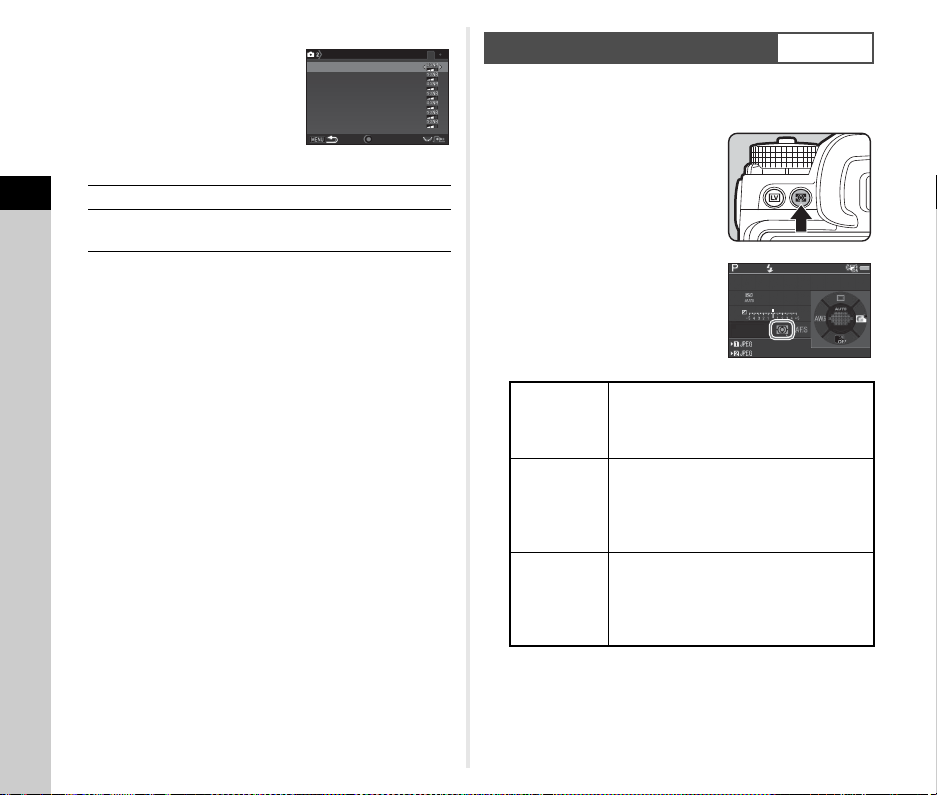
3
Shooting
56
5 Select the Noise Reduction
level for each ISO setting.
Available operations
6 Press F.
The screen of Step 3 reappears.
7 Press F twice.
Choose the part of the sensor to use for measuring brightness
and determining the exposure.
1 Turn R while pressing
2.
t Memo
• The metering method can also be set in [AE Metering] of the
A1 and C1 menus.
• In [5 Link AE and AF Point] of the E1 menu, the metering
point and the AF point can be linked.
R Shows the next/previous page.
M Resets the Noise Reduction level to the
default setting.
1
100
100
200
200
400
400
800
800
1600
1600
3200
3200
6400
6400
ISO
ISO
ISO
ISO
ISO
ISO
ISO
ISO
ISO
ISO
ISO
ISO
ISO
ISO
High-ISO NR
High-ISO NR
Reset
Reset
AE Metering
A1/C1
A
Multi-
segment
Meters the brightness in multiple different
zones of the sensor.
In backlit conditions, this mode
automatically adjusts the exposure.
B
Center-
weighted
Meters the brightness with an emphasis
on the center of the sensor.
The sensitivity increases at the center and
no automatic adjustment is performed
even in backlit conditions.
C Spot
Meters the brightness only within a limited
area at the center of the sensor.
Useful when the subject is small. No
automatic adjustment is performed even
in backlit conditions.
1/1/
250250
16001600
FF
5.65.6
99 99 999999
99 99 999999
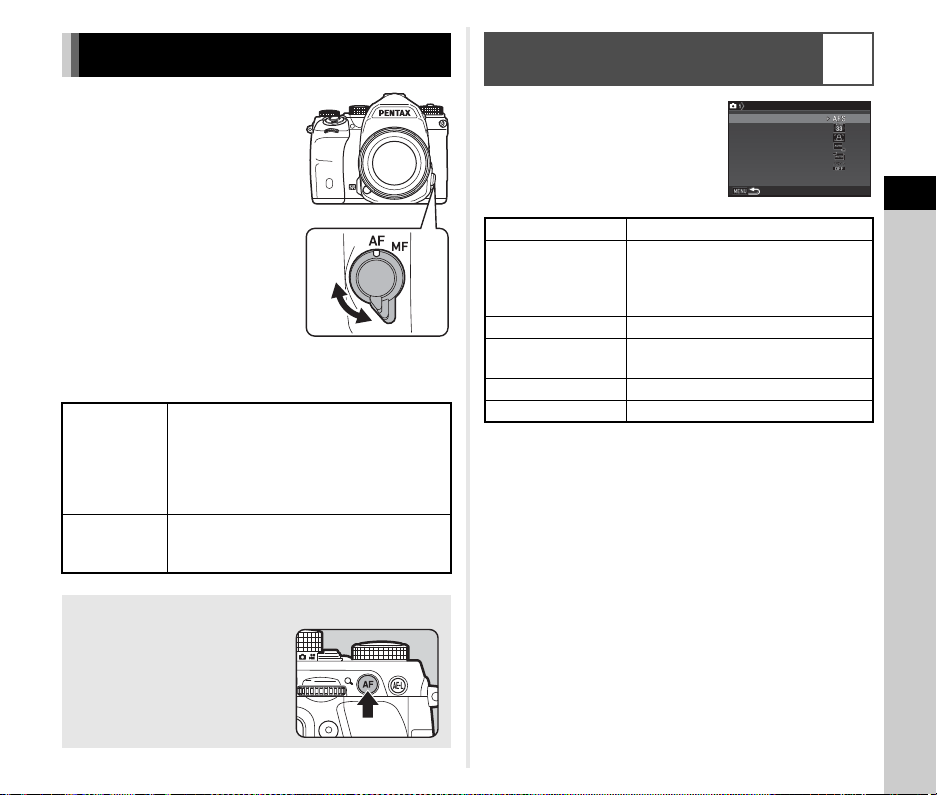
3
Shooting
57
Set the focus mode switch to v or
w.
The autofocus method for shooting with the viewfinder differs
from that for shooting with Live View.
The autofocus operation when
shooting with the viewfinder can be
set in [Phase Detection AF] of the
A1 menu.
t Memo
• The [AF Mode] and [AF Active Area] settings can be changed
by turning Q or R while pressing b. (p.58)
• In [Hold AF Status], you can set whether to immediately
reactivate autofocus or to maintain the focus for a certain
amount of time before reactivating autofocus when the
subject happens to move out of the selected focusing area
after being focused.
Setting the Focus Method
Shooting with
the viewfinder
TTL phase-matching detection AF:
Select from x or y.
Set the focusing area by selecting an AF
point. (p.58)
Faster autofocus performance than the
contrast detection AF is possible.
Shooting with
Live View
Contrast detection AF:
Face Detection and Tracking are available.
(p.60)
Focusing on the Subject Using the I Button
You can use I to focus on the
subject. The I button operation
can be set in [Button
Customization] of the A5 and
C2 menus. (p.97)
Setting the Autofocus when Shooting
with the Viewfinder
A1
AF Mode x, y
AF Active Area
Auto (33 AF Points), Zone Select,
Select, Expanded Area AF (S),
Expanded Area AF (M), Expanded
Area AF (L), Spot
AF.S Setting Focus-priority, Release-priority
1st Frame Action in
AF.C
Auto, Focus-priority, Release-priority
Action in AF.C Cont. Auto, Focus-priority, FPS-priority
Hold AF Status Off, Low, Medium, High
AF Mode
AF Mode
AF Active Area
AF Active Area
AF.S Setting
AF.S Setting
1st Frame Action in AF.C
1st Frame Action in AF.C
Action in AF.C Cont.
Action in AF.C Cont.
Hold AF Status
Hold AF Status
Phase Detection AF
Phase Detection AF
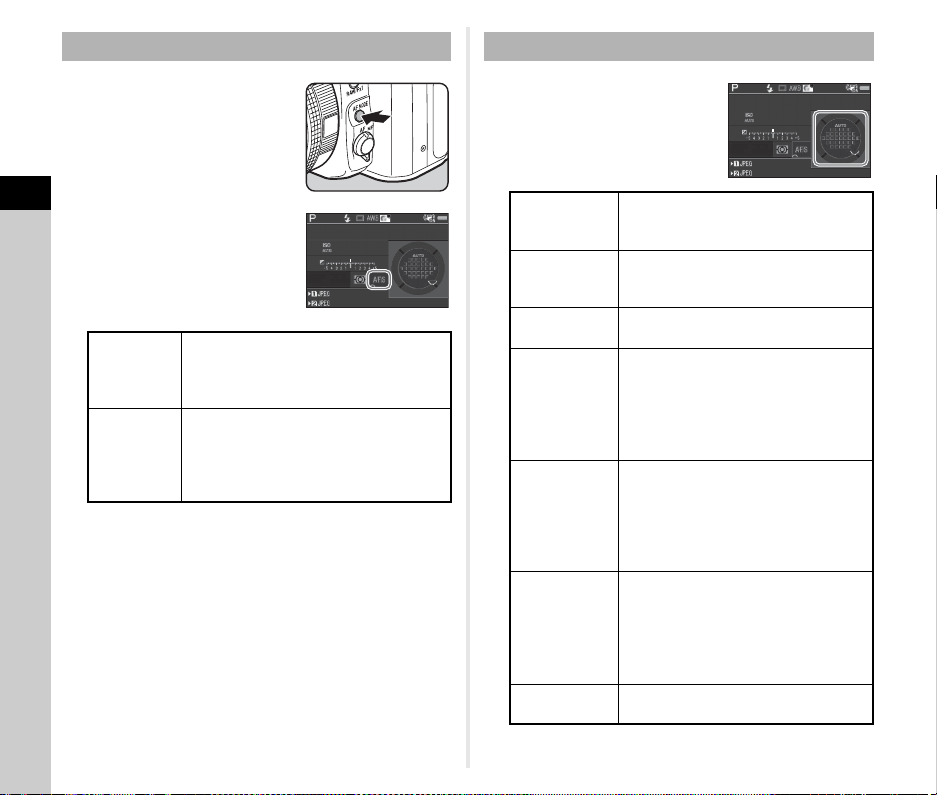
3
Shooting
58
1 Turn Q while pressing
b.
u Caution
•In R mode, the autofocus mode is fixed to x.
1 Turn R while pressing
b.
Proceed to Step 2 when a mode other than [Auto (33 AF
Points)] or [Spot] is selected.
AF Mode
x
Single mode
When 0 is pressed halfway and the
subject comes into focus, the focus is
locked at that position.
The AF assist light turns on as necessary.
y
Continuous
mode
The subject is kept in focus by continuous
adjustment while 0 is pressed
halfway.
The shutter can be released even if the
subject is not in focus.
1/
1/
250
250
1600
1600
F
F
5.6
5.6
99 99 9
99999
99 99 9
99999
AF Active Area (AF Point)
K
Auto
(33 AF
Points)
Out of the 33 AF points, the camera
automatically selects the optimum
focusing area.
I
Zone
Select
Out of the selected 9 AF points, the
camera automatically selects the
optimum focusing area.
E
Select
Sets the focusing area to the user
selected point from 33 points.
F
Expanded
Area AF
(S)
Sets the focusing area to the user selected
point from 33 points. When the subject
happens to move out of the selected focusing
area after being focused, 8 peripheral points
are used as back-up points.
Available only in
y
mode.
G
Expanded
Area AF
(M)
Sets the focusing area to the user selected
point from 33 points. When the subject
happens to move out of the selected focusing
area after being focused, 24 peripheral
points are used as back-up points.
Available only in
y
mode.
H
Expanded
Area AF
(L)
Sets the focusing area to the user selected
point from 33 points. When the subject
happens to move out of the selected focusing
area after being focused, 32 peripheral
points are used as back-up points.
Available only in
y
mode.
D Spot
Sets the focusing area to the center of
the 33 points.
1/
1/
250
250
1600
1600
F
F
5.6
5.6
99 99 9
99999
99 99 9
99999
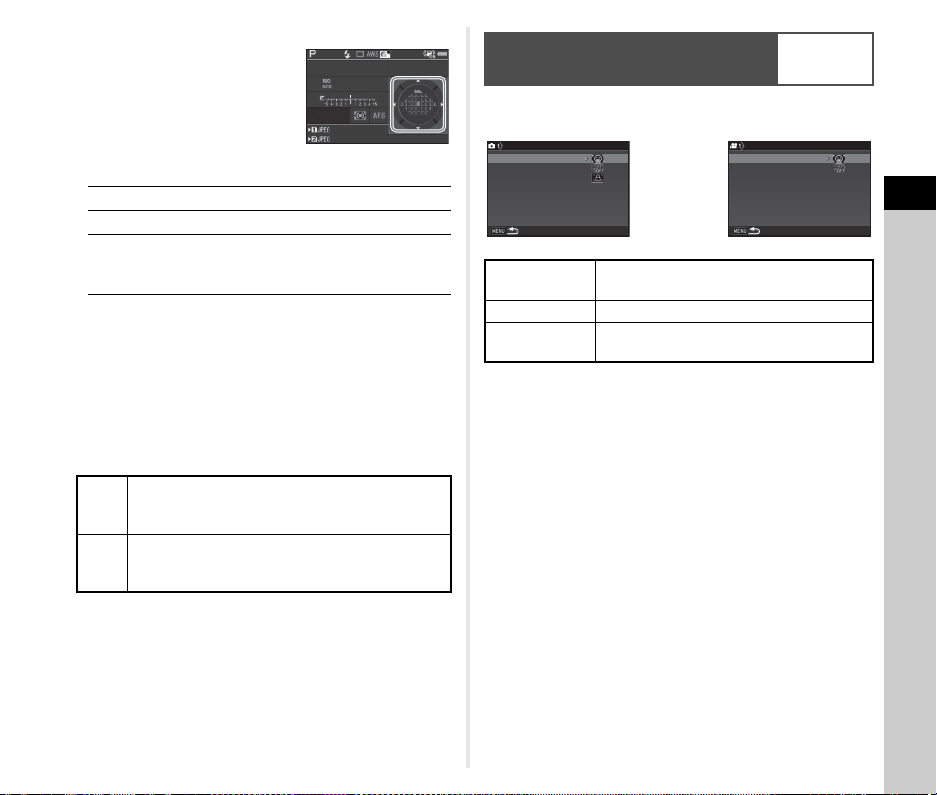
3
Shooting
59
2 Select the desired AF
point.
Available operations
t Memo
•In R mode, [AF Active Area] is fixed to [Auto (33 AF
Points)].
• Q is displayed in the viewfinder when the AF point can be
changed. The selected AF point can be checked also in the
viewfinder. (p.20)
• You can select the button operation when changing the
focusing area in [20 Change AF Point Button] of the E3
menu.
The autofocus operation when shooting with Live View can be
set in [Contrast Detection AF] of the A1 and C1 menus.
t Memo
• The [Contrast AF] setting can be changed by turning R
while pressing b. (p.60)
• When [Focus Peaking] is set to [On], the outline of the subject
in focus is emphasized, and this makes it easier to check the
focus. This function works in both v and w modes.
ABCD
Changes the AF point.
E
Returns the AF point to the center.
c Switches the function of the arrow keys
(ABCD) to AF point change mode or
direct key operation mode.
Type1
Switches the function of the arrow keys (ABCD)
to AF point change mode or direct key operation
mode when c is pressed.
Type2
Switches the function of the arrow keys (ABCD)
to direct key operation mode only when c is
pressed.
1/
1/
250
250
1600
1600
F
F
5.6
5.6
99 99 9
99999
99 99 9
99999
Setting the Autofocus when
Shooting with Live View
A1/C1
Contrast AF
Face Detection, Tracking, Multiple AF
Points, Select, Spot
Focus Peaking On, Off
Contrast AF
Options
Focus-priority, Release-priority
Contrast AF
Contrast AF
Focus Peaking
Focus Peaking
Contrast Detection AF
Contrast Detection AF
Contrast AF Options
Contrast AF Options
Contrast AF
Contrast AF
Focus Peaking
Focus Peaking
Contrast Detection AF
Contrast Detection AF
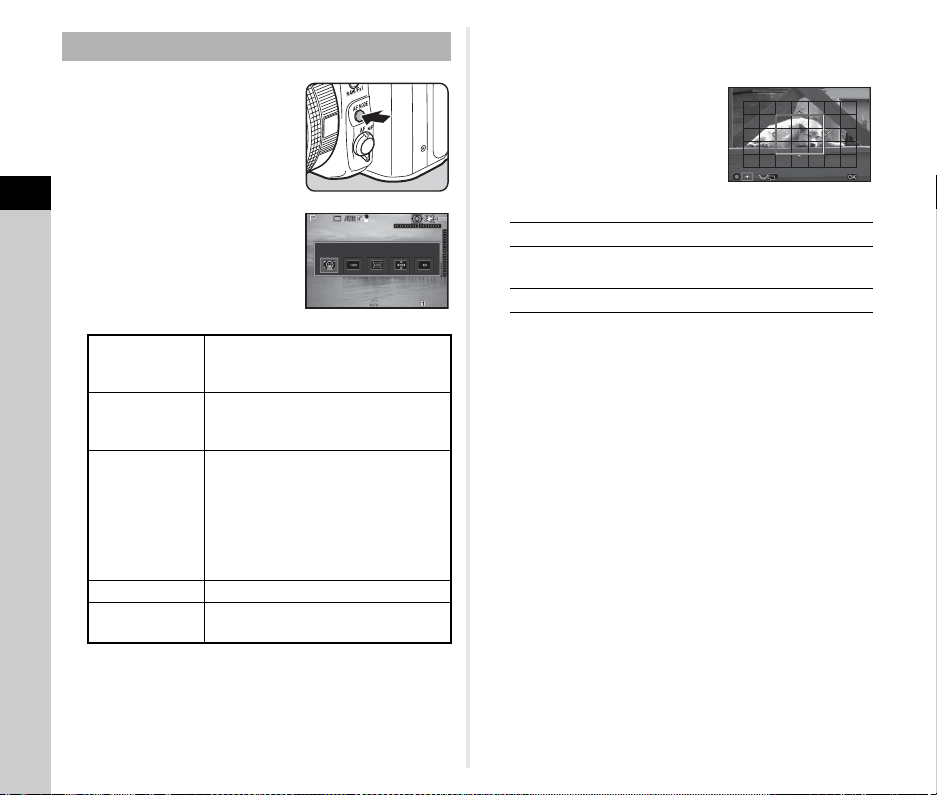
3
Shooting
60
1 Turn R while pressing
b.
Select from [Multiple AF Points], [Select], or [Spot] in C
mode.
Proceed to Step 2 when [Multiple AF Points] or [Select] is
selected.
2 Press c.
3 Select the AF area.
Use the frame that appears on
the monitor to change the
position and size of the AF area.
Available operations
4 Press E.
The AF area is set.
t Memo
•In R mode, [Contrast AF] is fixed to [Face Detection].
Contrast AF
e
Face
Detection
Detects and tracks faces of people.
The main face detection frame for AF
and AE is displayed in yellow.
f Tracking
Tracks the subject in focus.
The shutter can be released even if the
subject is not in focus.
g
Multiple AF
Points
Sets the focusing area to the desired
area.
The sensor is divided into 35 areas (7
horizontal by 5 vertical), and you can
select a wider or narrower focusing
area by using 1, 9, 15, or 25 of those 35
available areas.
h
Select Sets the focusing area by the pixel.
i
Spot
Sets the focusing area to a limited area
at the center.
1/
2000
1/
2000
F2.8
F2.8
1600
1600
9999
9999
Face Detection
Face Detection
ABCD
Changes the position of the AF area.
R
Increases/reduces the size of the AF
area (when g is selected).
M
Returns the AF area to the center.
OK
OK
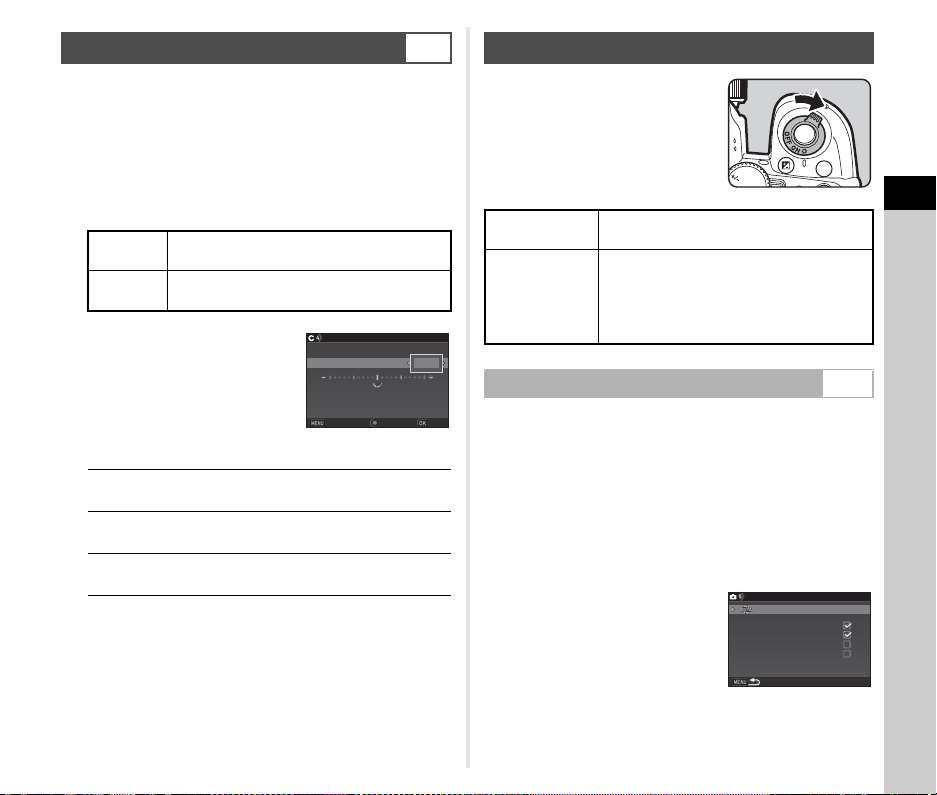
3
Shooting
61
You can precisely fine-tune your lenses with the camera’s
autofocus system.
1 Select [25 AF Fine Adjustment] in E4 menu and
press D.
The [25 AF Fine Adjustment] screen appears.
2 Select [Apply All] or [Apply One] and press E.
3 Select [Setting] and adjust
the value.
Available operations
4 Press E.
The adjustment value is saved.
5 Press F twice.
The camera returns to standby mode.
Turn the main switch to U to use the
preview function.
There are two preview methods.
1 Select [Button Customization] in A5 menu and
press D.
The [Button Customization] screen appears.
2 Select [Preview Dial] and press D.
The [Preview Dial] screen appears.
3 Select [Optical Preview] or [Digital Preview] and
press E.
For Digital Preview, the
operations and information
displayed during preview can be
set.
4 Press F three times.
The camera returns to standby mode.
AF Fine Adjustment
E4
Apply All
Applies the same adjustment value to all
lenses.
Apply One
Saves an adjustment value for the lens being
used. (Up to 20 values)
D/R to the right Adjusts the focus to a closer
position.
C/R to the left Adjusts the focus to a farther
position.
M
Resets the adjustment value
to the default setting.
±0
±0
±0
±0
3
3
25
25
AF Fine Adjustment
AF Fine Adjustment
Apply One
Apply One
Setting
Setting
Reset Individual Settings
Reset Individual Settings
Save
Save
Cancel
Cancel
Checking the Depth of Field (Preview)
Optical Preview
Activates the Optical Preview function to
check the depth of field with the viewfinder.
Digital Preview
Activates the Digital Preview function to
check the composition, exposure, and
focus on the monitor.
You can magnify or save the preview
image.
Setting the Preview Method A5
ISO
HDR
BKT
CH/CL
ISO
Digital Preview
Digital Preview
Zoom Review
Zoom Review
Save Preview Image
Save Preview Image
Histogram Display
Histogram Display
Highlight Alert
Highlight Alert
Preview Dial
Preview Dial
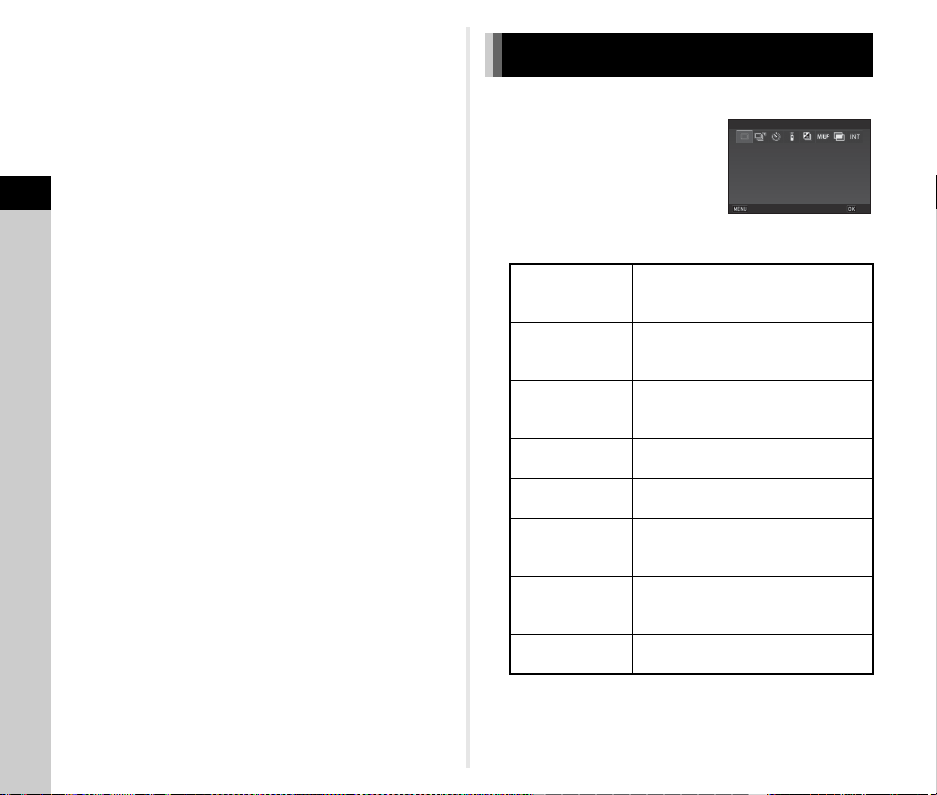
3
Shooting
62
t Memo
• Optical Preview is always used in the following situations
regardless of the setting.
• When the drive mode is set to [Mirror Lock-up Shooting],
[Multi-exposure], or [Interval Shooting]
• When using the ASTROTRACER function
•In C mode
u Caution
• The effects of some functions cannot be checked during
Digital Preview or are not applied to the saved preview image.
1 Press A in standby mode.
The Drive Mode screen appears.
2 Select a drive mode.
u Caution
• There are restrictions on some drive modes when used in
combination with some other functions. (p.108)
Setting the Drive Mode
Single Frame
Shooting
(L)
Normal capture mode
Continuous
Shooting
(Z/a/b)
Continuously takes pictures while
0 is kept pressed. (p.63)
Self-timer
(O/P/Y)
Releases the shutter about 12
seconds or 2 seconds after 0 is
pressed. (p.63)
Remote Control
(Q/R/S)
Enables shooting with remote control.
(p.64)
Bracketing
(T/1/U)
Takes consecutive pictures at
different exposure levels. (p.65)
Mirror Lock-up
Shooting
(c/d)
Takes images with the mirror raised.
(p.66)
Multi-exposure
(V/z/W/X)
Creates a composite image by taking
multiple pictures and merging them
into a single image. (p.67)
Interval Shooting
(q/U/V/w)
Automatically takes pictures at set
intervals. (p.68)
Single Frame Shooting
Single Frame Shooting
Cancel
Cancel
OK
OK
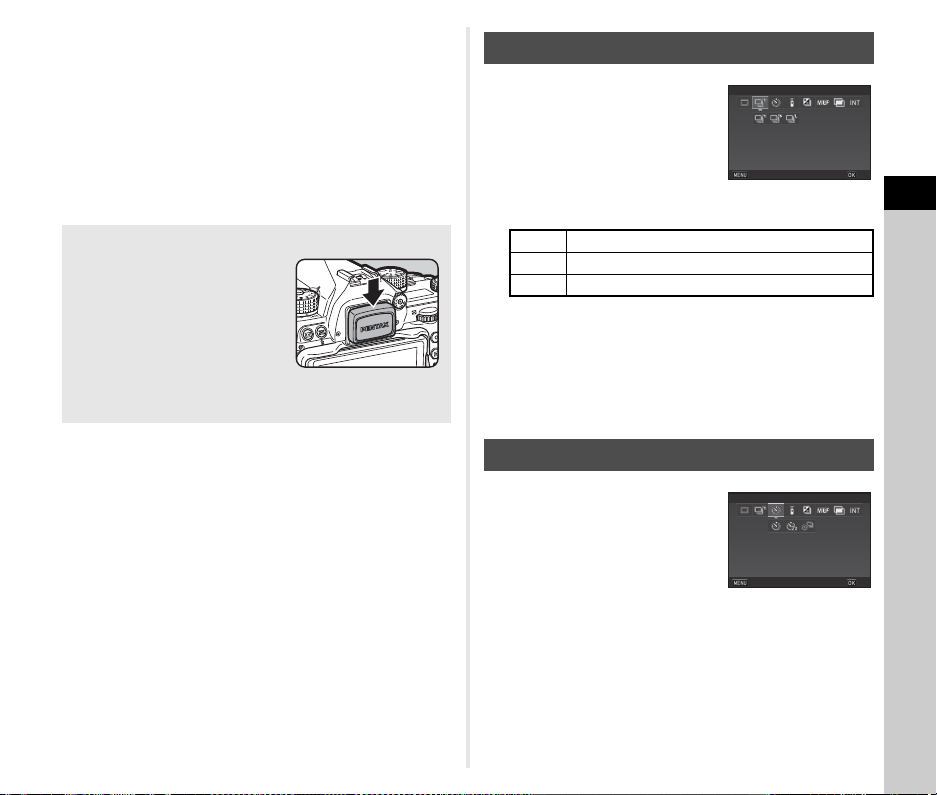
3
Shooting
63
t Memo
• The Drive Mode setting is saved even after the power is
turned off. If [Drive Mode] is set to Y (Off) in [Memory] of the
A5 menu, the setting returns to [Single Frame Shooting]
when the power is turned off. (p.102)
• The [Shake Reduction] of the A4 menu is automatically set
to [Off] when the drive mode is set to [Self-timer], [Remote
Control], or [Mirror Lock-up Shooting]. If you do not want to
turn off the Shake Reduction function, set in [21 Auto SR Off]
of the E3 menu.
1 Select Z on the Drive
Mode screen and press B.
2 Use CD to select Z, a, or b, and press E.
The camera returns to standby mode.
t Memo
• Z, a, and b can also be switched by the Smart Function.
(p.22)
• When the autofocus mode is set to x, the focus position
is locked in the first frame.
1 Select O on the Drive
Mode screen and press B.
If Light Enters through the Viewfinder
When a drive mode that employs
the self-timer or remote control is
selected, exposure may be
affected by the light entering
through the viewfinder. In such a
case, use the AE Lock function or
attach the optional ME viewfinder
cap. Remove the eyecup before attaching the ME viewfinder
cap.
Continuous Shooting
Z Continuous Shooting (at high speed)
a Continuous Shooting (at medium speed)
b Continuous Shooting (at low speed)
Self-timer
Continuous Shooting (H)
Continuous Shooting (H)
Cancel
Cancel
OK
OK
Self-timer (12 sec.)
Self-timer (12 sec.)
Cancel
Cancel
OK
OK
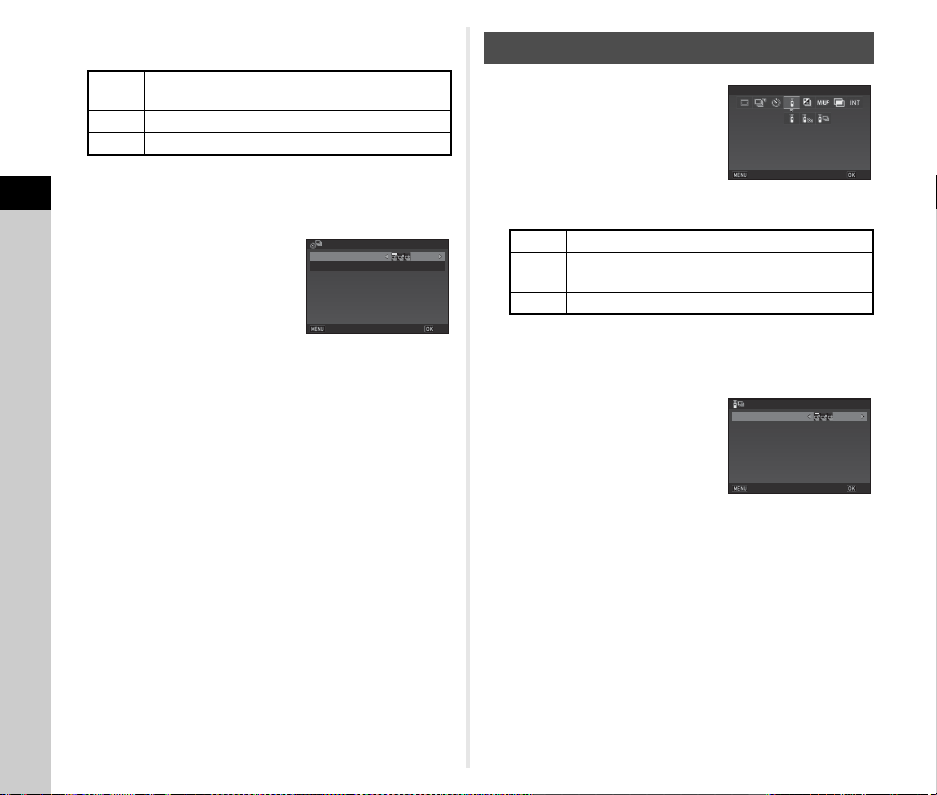
3
Shooting
64
2 Use CD to select O, P, or Y.
Proceed to Step 6 when O or P is selected.
3 Press G.
4 Set [Shooting Speed] and
[Number of Shots].
5 Press E.
The screen of Step 1 reappears.
6 Press E.
The camera returns to standby mode.
7 Press 0 halfway, and then fully.
The shutter is released after about 12 seconds or 2
seconds.
1 Select Q on the Drive Mode
screen and press B.
2 Use CD to select Q, R, or S.
Proceed to Step 6 when Q or R is selected.
3 Press G.
4 Set [Shooting Speed].
5 Press E.
The screen of Step 1 reappears.
6 Press E.
The camera returns to standby mode.
7 Press 0 halfway.
8 Point the remote control unit towards the remote
control receiver on the front of the camera, and
press the shutter release button on the remote
control unit.
O
Self-timer (shutter release after about 12
seconds)
P Self-timer (shutter release after about 2 seconds)
Y Self-timer + Continuous Shooting
3
3
Self-timer + Continuous
Self-timer + Continuous
Shooting Speed
Shooting Speed
Number of Shots
Number of Shots
times
times
Cancel
Cancel
OK
OK
Remote Control
Q Remote Control
R
Remote Control (shutter release after about 3
seconds)
S Remote Control + Continuous Shooting
Remote Control
Remote Control
Cancel
Cancel
OK
OK
Remote Continuous Shooting
Remote Continuous Shooting
Shooting Speed
Shooting Speed
Cancel
Cancel
OK
OK
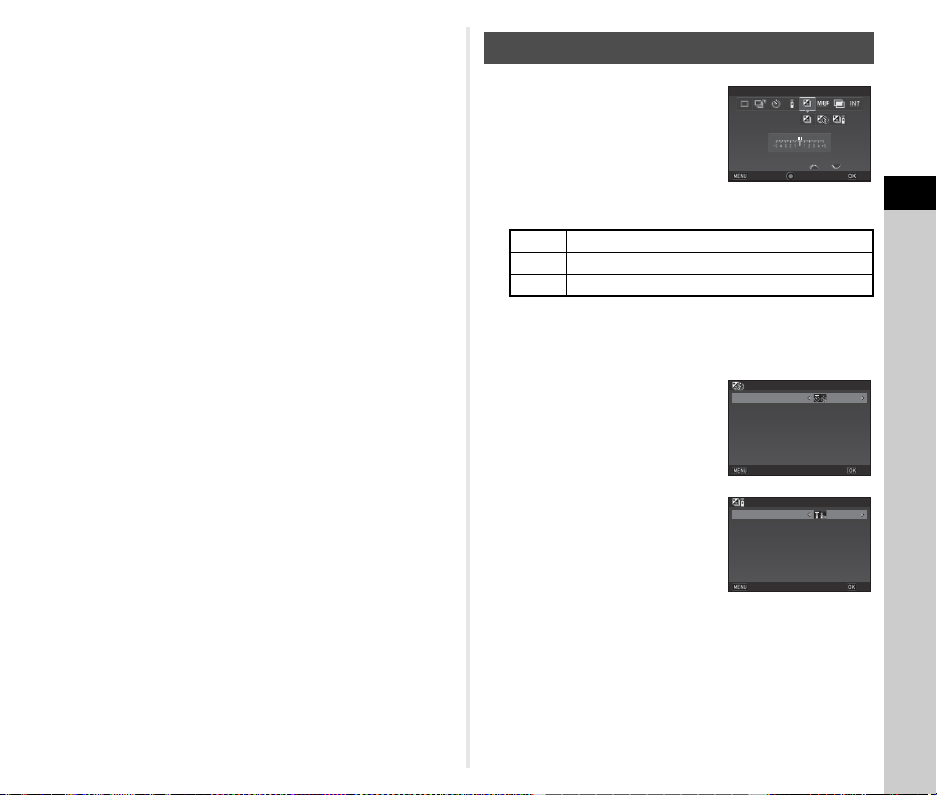
3
Shooting
65
t Memo
• The maximum operating distance of the remote control unit is
approximately 4 m from the front of the camera.
• To adjust focus with remote control, set in [10 AF with Remote
Control] of the E2 menu.
• When using the Remote Control Waterproof O-RC1, the
autofocus system can be operated with the q button on the
remote control unit. The r button cannot be used.
1 Select T on the Drive
Mode screen and press B.
2 Use CD to select T, 1, or U.
Proceed to Step 6 when T is selected.
3 Press G.
4 Select the operation mode.
5 Press E.
The screen of Step 1 reappears.
Bracketing
T Bracketing
1 Bracketing + Self-timer
U Bracketing + Remote Control
±0.3 EV±0.3EVx3x3
BracketingBracketing
CancelCancel
OKOK
ResetReset
Bracketing
Bracketing
Self-timer
Self-timer
Cancel
Cancel
OK
OK
Bracketing
Bracketing
Remote Control
Remote Control
Cancel
Cancel
OK
OK
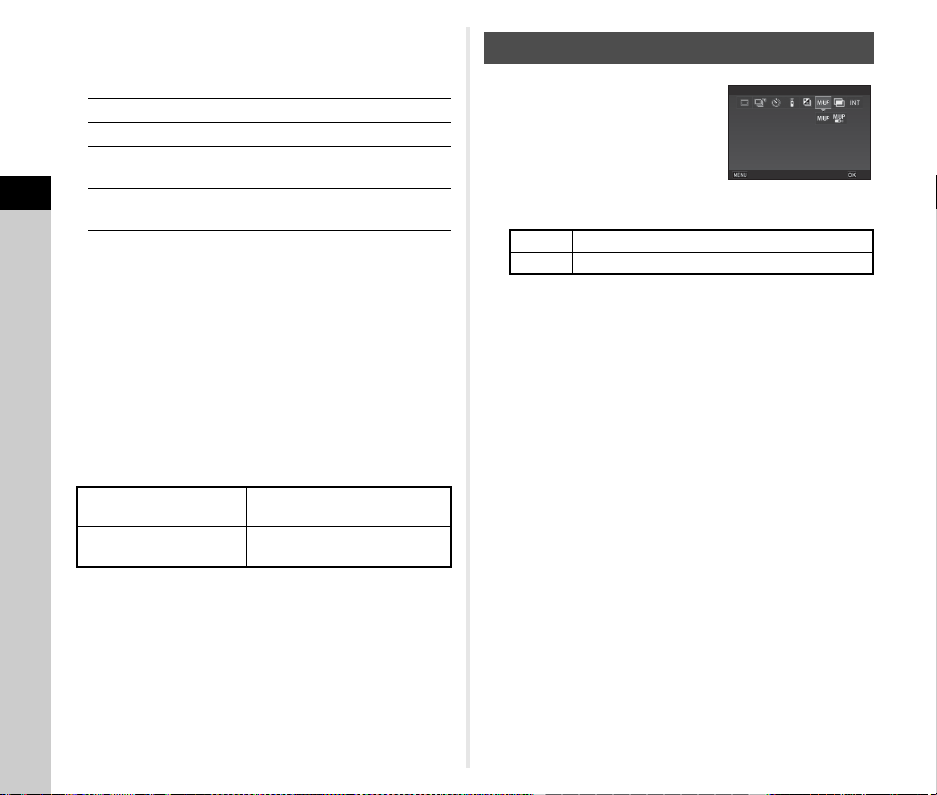
3
Shooting
66
6 Set the number of shots and bracket value.
Available operations
7 Press E.
The camera returns to standby mode.
8 Shoot.
After pictures are taken, the camera returns to standby
mode.
t Memo
• The bracket value can be set in increments of 1/3 EV steps or
1/2 EV steps according to the [1 EV Steps] setting of the E1
menu.
• The following settings for Bracketing can be set in the E2
menu.
• You can switch between [Single Frame Shooting] and
[Bracketing] and change the bracket value for [Bracketing]
using the Smart Function. (p.22)
1 Select c on the Drive
Mode screen and press B.
2 Use CD to select c or d.
3 Press E.
The camera returns to standby mode.
4 Press 0 halfway, and then fully.
The mirror pops up and the AE Lock function is activated.
5 Press 0 fully again.
The mirror returns to its original position after the image is
taken.
t Memo
• The mirror automatically returns to its original position if 1
minute elapses after the mirror pops up.
u Caution
• Mirror Lock-up Shooting cannot be selected when shooting
with Live View.
Q
Sets the number of shots.
R
Changes the bracket value.
JR
Adjusts the exposure compensation
value.
M
Resets the compensation value to the
default setting.
11 Bracketing Order
Changes the shooting order of
pictures.
12 One-Push Bracketing
Takes all pictures with one
release of the shutter.
Mirror Lock-up Shooting
c Mirror Lock-up Shooting
d Mirror Lock-up Shooting + Remote Control
Mirror Lock-up Shooting
Mirror Lock-up Shooting
Cancel
Cancel
OK
OK
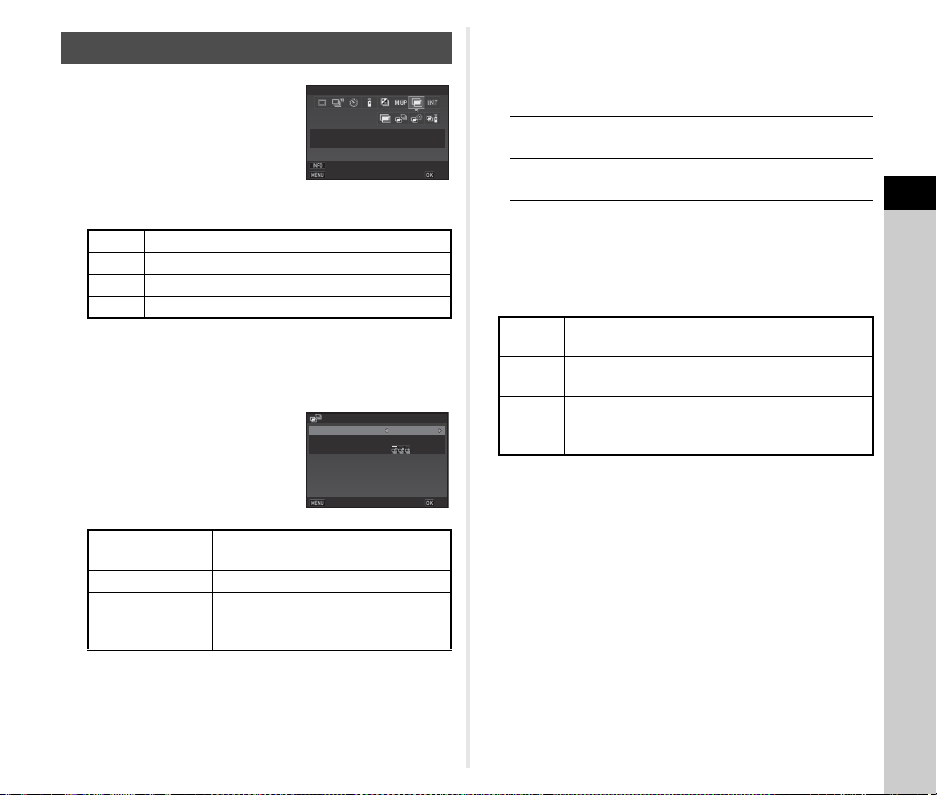
3
Shooting
67
1 Select V on the Drive
Mode screen and press B.
2 Use CD to select V, z, W, or X.
Proceed to Step 6 if you do not need to change the shooting
conditions.
3 Press G.
4 Set the shooting
conditions.
5 Press E.
The screen of Step 1 reappears.
6 Press E.
The camera returns to standby mode.
7 Shoot.
The Instant Review image is displayed.
Available operations during Instant Review
After the specified number of shots are taken, the camera
returns to standby mode.
t Memo
• A composite image is created as follows in each Composite
Mode.
Multi-exposure
V Multi-exposure
z Multi-exposure + Continuous Shooting
W Multi-exposure + Self-timer
X Multi-exposure + Remote Control
Composite Mode
Select from [Average], [Additive], or
[Bright].
Number of Shots Select from 2 to 2000 times.
Shooting Speed/
Self-timer/
Remote Control
Specify the operation mode for the
selected shooting mode.
0002
0002
Multi-exposure
Multi-exposure
Cancel
Cancel
Parameter Adj.
Parameter Adj.
Composite Mode
Composite Mode
Number of Shots
Number of Shots
Average
Average
OK
OK
times
times
00020002
Multi-exposureMulti-exposure
Composite ModeComposite Mode AverageAverage
Shooting SpeedShooting Speed
Number of ShotsNumber of Shots timestimes
CancelCancel
OKOK
L
Discards pictures taken up to that point and
takes pictures again from the first picture.
F
Saves pictures taken up to that point and
displays the A menu.
Average
Creates a composite image with the average
exposure.
Additive
Creates a composite image with the cumulatively
added exposure.
Bright
Creates a composite image replacing only the
portions that are brighter compared with the first
image.
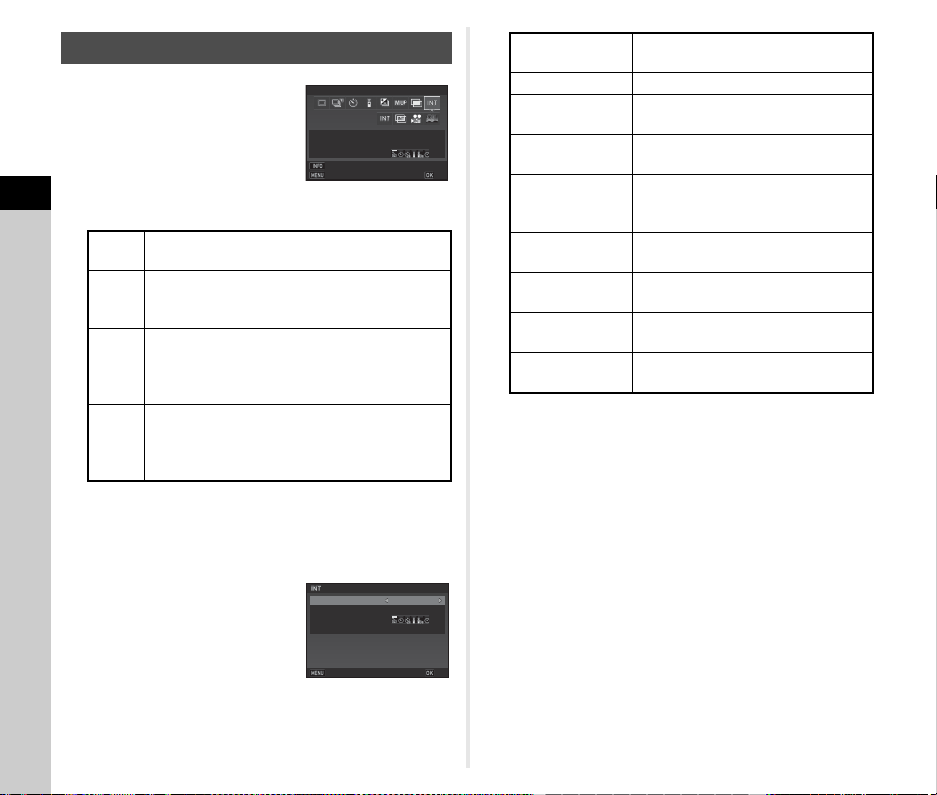
3
Shooting
68
1 Select q on the Drive
Mode screen and press B.
2 Use CD to select q, U, V, or w.
Proceed to Step 6 if you do not need to change the shooting
conditions.
3 Press G.
4 Set the shooting
conditions.
5 Press E.
The screen of Step 1 reappears.
6 Press E.
The camera returns to standby mode.
7 Press 0.
When [Start Interval] is set to [Now], the first picture is
taken. When set to [Set Time], shooting starts at the set
time.
To cancel shooting, turn the main switch to [OFF].
After the specified number of shots are taken, the camera
returns to standby mode.
Interval Shooting
q
Interval Shooting
Takes pictures at set intervals and saves them.
U
Interval Composite
Takes pictures at set intervals and merges them
into a single image.
V
Interval Movie Record
Takes still pictures at set intervals and saves
them as a single movie file (Motion JPEG, file
extension: .AVI).
w
Star Stream
Takes still pictures at set intervals and merges
them into a single movie file (Motion JPEG, file
extension: .AVI) using Interval Composite.
00020002
00
:
00´02˝00
:
00´02˝
Interval ShootingInterval Shooting
CancelCancel
Parameter Adj.Parameter Adj.
IntervalInterval
Number of ShotsNumber of Shots
OKOK
timestimes
Start IntervalStart Interval
00
:
00´02˝
00
:
00´02˝
0002
0002
--
:
--
--
:
--
Interval Shooting
Interval Shooting
Interval
Interval
Start Interval
Start Interval
Number of Shots
Number of Shots
times
times
Cancel
Cancel
OK
OK
Start Time
Start Time
Recorded Pixels
Select from z, u, or t (only for
V and w).
Interval Select from 2 seconds to 24 hours.
Standby Interval
Select from the minimum time or 1
second to 24 hours.
Number of Shots
Select from 2 to 2000 times (from 8 to
2000 times for V and w).
Start Interval
Select when and how to take the first
picture from [Now], [Self-timer],
[Remote Control], or [Set Time].
Start Time
Set the shooting start time when [Start
Interval] is set to [Set Time].
Composite Mode
Select from [Average], [Additive], or
[Bright] (only for U).
Save Process
Select Z to save images in the
middle of processing (only for U).
Fade-out
Select the fade-out effect level of light
trails (only for w).
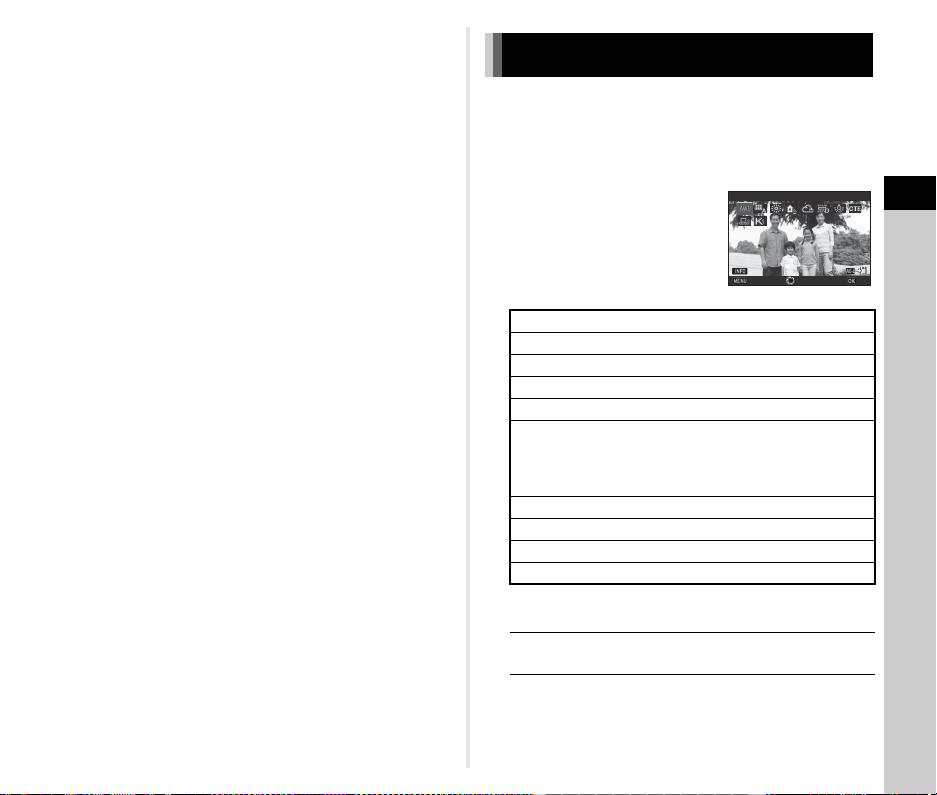
3
Shooting
69
t Memo
•
For
q
and
U
,
a new folder is created and the captured
images are saved there.
• The shortest time that can be set for [Interval] is 10 seconds
when [Digital Filter], [Clarity], or [Skin Tone] is set, and 20
seconds when [HDR Capture] is set.
• The second and later exposures start at the intervals set in
[Interval]. If the exposure time is longer than the time set in
[Interval], some of the pictures that are supposed to be taken
at the set intervals are not actually taken. For example, if the
time set in [Interval] is 2 seconds and the exposure time is 3
seconds, the first exposure has not yet finished at the time the
second exposure is supposed to be started (2 seconds after
shooting has started), and so the second picture is not taken.
As a result, Interval Shooting ends before the specified
number of shots are taken. In such cases, you can set
[Standby Interval] in [13 Interval Shooting Options] of the E2
menu so that every picture is taken at the set intervals after
each exposure ends. The screen displayed in Step 4 varies
depending on the [13 Interval Shooting Options] setting.
•
For
q
,
U
,
V
, and
w
, t the focus position used when the
first picture is taken is locked. When performing autofocus for
each exposure, set [14 AF in Interval Shooting] to [Adjusts
focus for each shot] in the
E
2 menu.
•
For
U
and
w
, set the camera on a fixed support such as a
tripod during shooting.
•
For
V
and
w
, [Shake Reduction] of the
A
4 menu is fixed to
[Off].
•
For
w
, the camera operates in
L
mode regardless of the
mode dial setting.
1 Press C in standby mode.
The White Balance setting screen appears.
Turn the main switch to U to use Digital Preview when
shooting with the viewfinder.
2 Select the desired white
balance setting.
For k, o, and p, turn R to
select the type of white balance.
Available operations when shooting with the
viewfinder
Proceed to Step 5 if you do not need to fine-tune the white
balance.
Setting the White Balance
g
Auto White Balance
u
Multi Auto White Balance
h
Daylight
i
Shade
j
Cloudy
k
q Fluorescent - Daylight Color
r Fluorescent - Daylight White
s Fluorescent - Cool White
t Fluorescent - Warm White
l
Tungsten
n
Color Temperature Enhancement
o
Manual White Balance 1 to 3
p
Color Temperature 1 to 3
H
Saves the preview image (only when the image
can be saved).
WB
±
WB
±
Auto White Balance
Auto White Balance
Cancel
Cancel
Check
Check
OK
OK
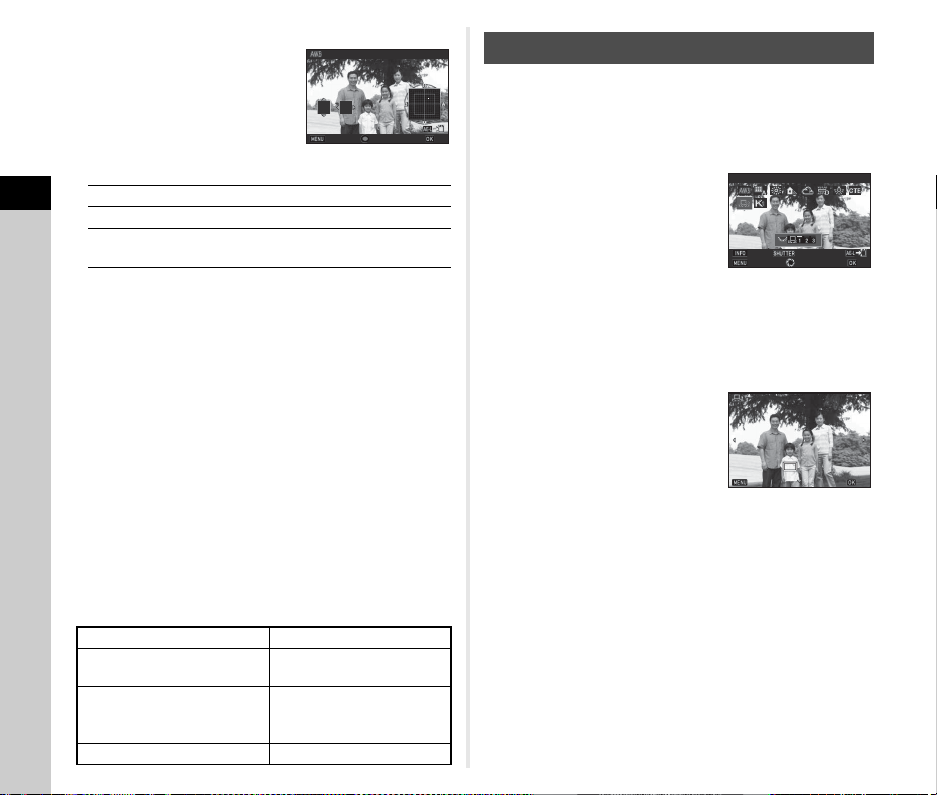
3
Shooting
70
3 Press G.
The fine-tuning screen appears.
Available operations
4 Press E.
The screen of Step 2 reappears.
5 Press E.
The camera returns to standby mode.
u Caution
•In R mode, the white balance is fixed to [Auto White
Balance].
• The Digital Preview operation in Step 1 is disabled when the
drive mode is set to [Mirror Lock-up Shooting], [Multi-
exposure], or [Interval Shooting].
t Memo
• When [Multi Auto White Balance] is set, even if various light
sources are present at the shooting location, the camera
automatically adjusts the white balance according to the light
source of each area. (u is not available in C mode.)
• The following settings for the white balance can be set in the
E3 menu.
You can measure the white balance at a selected location.
1 Select o in Step 2 of “Setting the White
Balance” (p.69).
2 Use R to select 1 to 3.
1 to 3 are the locations where you
can store three different manual
white balance settings.
3 Under the light you wish to measure the white
balance of, select a white area as the subject,
and press 0 fully.
The captured image is displayed.
4 Use ABCD to specify
the measuring area.
Press M to return the measuring
area to the center.
5 Press E.
The White Balance setting screen reappears.
[The operation could not be completed correctly] appears
when measuring is unsuccessful. Press E to remeasure
the white balance.
t Memo
• You can copy the white balance settings of a captured image
and save them as o1 to o3 in [Save as Manual WB] of the
playback mode palette. (p.83)
AB
Adjust: Green-Magenta
CD
Adjust: Blue-Amber
M
Resets the adjustment value to the default
setting.
15 WB Adjustable Range
Fixed, Auto Adjustment
16 AWB in Tungsten Light
Strong Correction, Subtle
Correction
17 WB When Using Flash
Auto White Balance, Multi
Auto White Balance,
Unchanged
18 Color Temperature Steps Kelvin, Mired
G3
G3
A2
A2
±0
±0
Cancel
Cancel
OK
OK
Auto White Balance
Auto White Balance
Adjusting the White Balance Manually
WB
±
WB
±
Manual White Balance
Manual White Balance
Cancel
Cancel
Check
Check
Adjust
Adjust
OK
OK
Cancel
Cancel
OK
OK
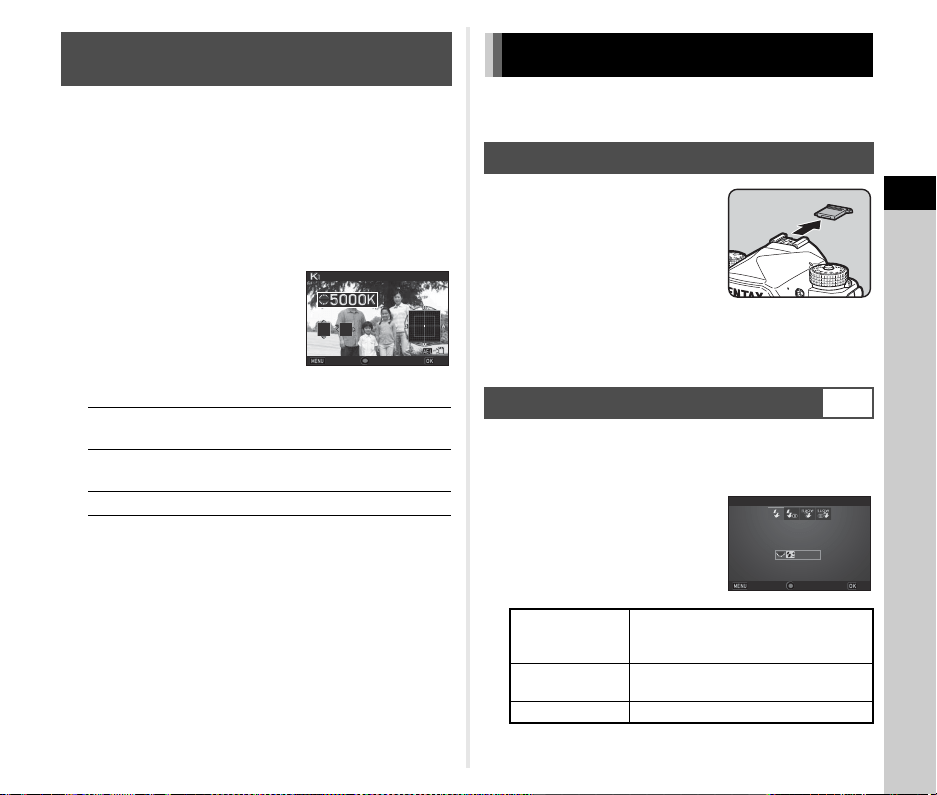
3
Shooting
71
You can specify the white balance with the color temperature.
1 Select p in Step 2 of “Setting the White
Balance” (p.69).
2 Use R to select 1 to 3.
3 Press G.
4 Adjust the color
temperature.
Set the color temperature value
within the range from 2,500K to
10,000K.
Available operations
5 Press E.
The White Balance setting screen reappears.
t Memo
• Select [Mired] in [18 Color Temperature Steps] of the E3
menu to set the color temperature in mired units. The color
temperature can be changed in 20 mired units with Q, and
100 mired units with R. However, figures are converted to
and displayed in Kelvin.
When an external flash (optional) is connected to the camera,
you can discharge a flash for shooting.
Remove the hot shoe cover from the
camera, and attach an external flash.
t Memo
• Refer to “Functions when Using an External Flash” (p.112) for
details on the functions of external flashes.
1 Select [Flash Mode] in A1 menu and press D.
The Flash Mode screen appears.
2 Select a flash mode.
Adjusting the White Balance with Color
Temperature
Q
Changes the color temperature in
increments of 100 Kelvin.
R
Changes the color temperature in
increments of 1,000 Kelvin.
ABCD
Fine-tunes the color temperature.
±0
±0
±0
±0
±0
±0
Cancel
Cancel
OK
OK
Color Temperature
Color Temperature
Using a Flash
Connecting a Flash
Setting the Flash Mode
A1
A
Auto Flash
Discharge
Automatically measures the ambient
light and determines whether to use
the flash.
B
Auto Flash
+ Red-eye
Discharges a pre-flash for red-eye
reduction before an automatic flash.
C
Flash On Discharges a flash for each picture.
0.0EV
0.0EV
±0EV
±0EV
Flash On
Flash On
Cancel
Cancel
OK
OK
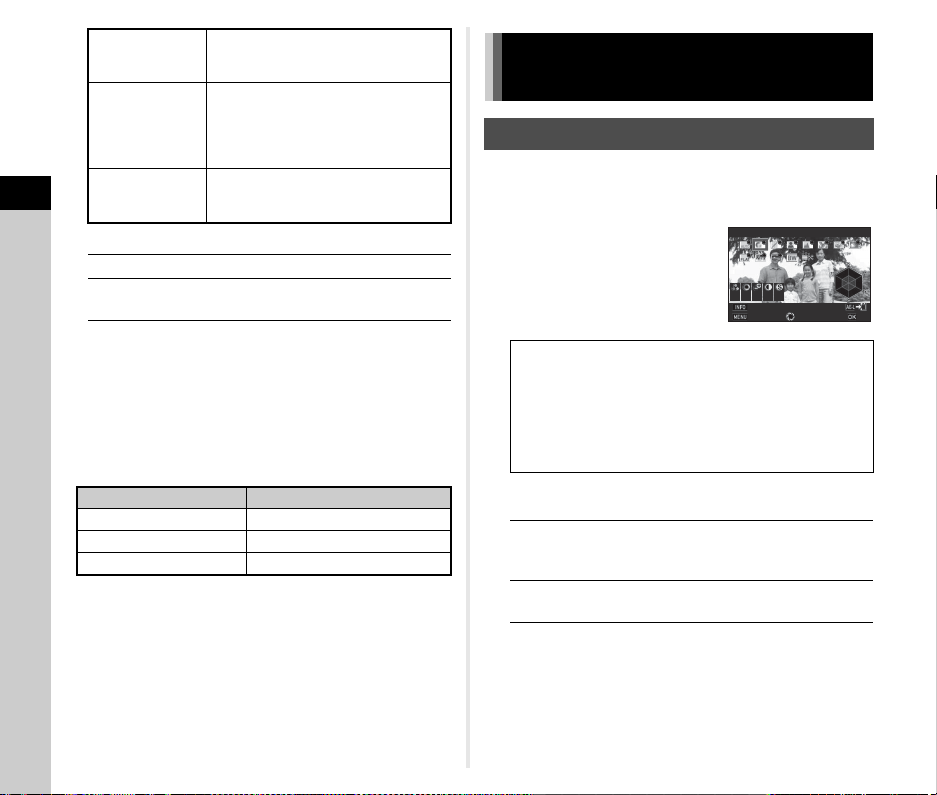
3
Shooting
72
Available operations
3 Press E.
4 Press F.
The camera returns to standby mode.
t Memo
• The flash modes that can be selected vary depending on the
capture mode.
• When the flash is used in J mode, the shutter speed
automatically changes over a range from 1/200 seconds to a
slow shutter speed depending on the lens being used. The
shutter speed is locked at 1/200 seconds when a lens other
than a D FA, DA, DA L, FA, FA J, or F lens is used.
• When the flash is used in I, K, or L mode, any desired
shutter speed of 1/200 seconds or slower can be set.
• When [Flash Mode] is assigned to X or Y, you can display
the Flash Mode screen in Step 2 by a simple button operation.
(p.97)
1 Press D in standby mode.
The Custom Image setting screen appears.
2 Select an image finishing
tone.
Available operations when shooting with the
viewfinder
Proceed to Step 6 when [Auto Select] is selected or if you
do not need to change the parameters.
D
Flash On
+ Red-eye
Discharges a pre-flash for red-eye
reduction before the main flash for
each picture.
E
Slow-
speed Sync
Sets to a slow shutter speed and
discharges a flash for each picture.
Use this, for example, when shooting a
portrait with the sunset in the
background.
F
Slow Sync
+ Red-eye
Discharges a pre-flash for red-eye
reduction before the main flash is
discharged with Slow-speed Sync.
R Compensates the flash exposure.
M Resets the compensation value to the
default setting.
Capture Mode Selectable Flash Mode
R
A, B, C, D
G, H, J C, D, E, F
I, K, L, M, N
C, D
Controlling the Image Finishing
Tone
Custom Image
Auto Select
Bright
Natural
Portrait
Landscape
Vibrant
Radiant
Muted
Flat
Bleach Bypass
Reversal Film
Monochrome
Cross Processing
Main switch to U Uses Digital Preview to preview
the background image with the
selected setting applied.
H
Saves the preview image (only
when the image can be saved).
±0
±0
±0
±0
±0
±0
+1
+1
+1
+1
Bright
Bright
Cancel
Cancel
Parameter Adj.
Parameter Adj.
Check
Check
OK
OK
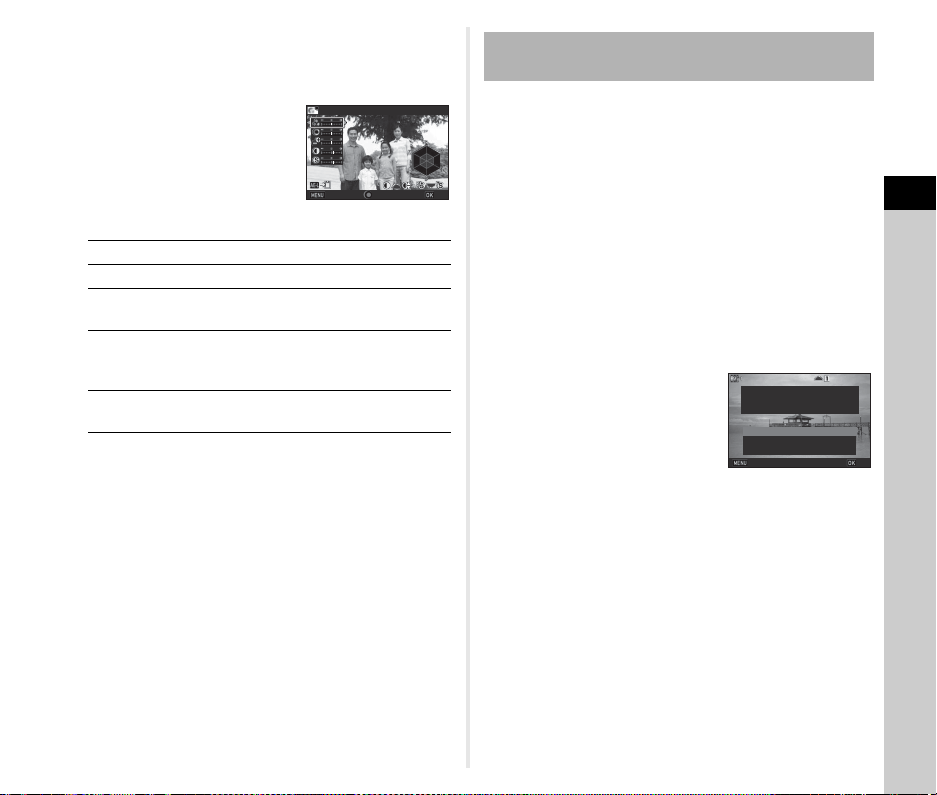
3
Shooting
73
3 Press G.
The parameter setting screen appears.
4 Set the parameters.
Available operations
5 Press E.
The screen of Step 2 reappears.
The adjustment values for parameters are displayed.
6 Press E.
The camera returns to standby mode.
u Caution
•In R mode, [Custom Image] is fixed to [Auto Select].
• The Digital Preview operation in Step 2 is disabled when the
drive mode is set to [Mirror Lock-up Shooting], [Multi-
exposure], or [Interval Shooting].
The outcome of Cross Processing varies each time a picture is
taken. If a cross processed image that you like is taken, you can
save the Cross Processing settings used in the image so that
you can repeatedly use the same settings.
1 Press B in single image display of playback
mode.
The playback mode palette appears.
2 Select [Save Cross Processing] and press E.
The camera searches for cross processed images starting
from the most recent image taken.
[No cross processed image] appears if there are no cross
processed images.
3 Use Q to select a cross
processed image.
4 Select the “Favorite” number 1, 2, or 3 to save
the settings, and press E.
The settings of the selected image are saved as your
“Favorite” settings.
t Memo
• The saved Cross Processing settings can be loaded by
selecting [Cross Processing] in Step 2 of “Custom Image”
(p.72), and selecting one of the Favorite settings 1 to 3 for the
parameter.
AB
Selects a parameter.
CD
Adjusts the value.
Q
Switches between [Contrast], [Highlight
Adjustment], and [Shadow Adjustment].
R
Switches between [Sharpness], [Fine
Sharpness], and [Extra Sharpness].
(Not available in C mode.)
M
Resets the adjustment value to the default
setting.
Saturation
Saturation
Cancel
Cancel
OK
OK
Reset
Reset
Saving the Cross Processing Settings of a
Captured Image
100-0001
100-0001
Saves this image's Cross
Saves this image's Cross
Processing settings
Processing settings
Save as Favorite 1
Save as Favorite 1
Save as Favorite 2
Save as Favorite 2
Save as Favorite 3
Save as Favorite 3
Cancel
Cancel
OK
OK
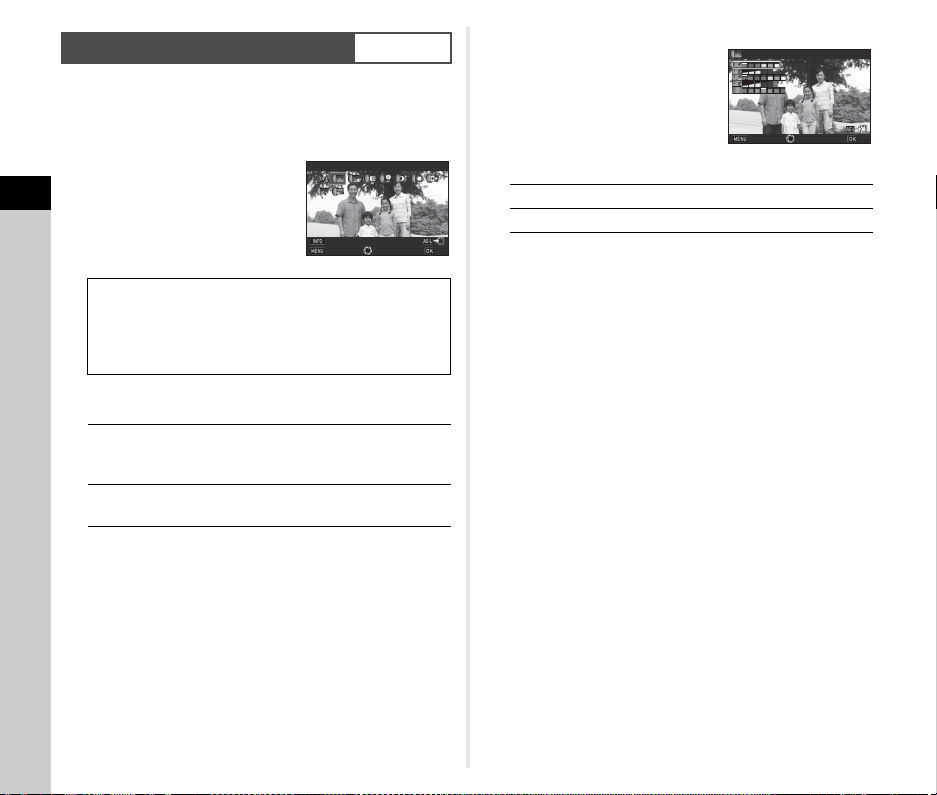
3
Shooting
74
1 Select [Digital Filter] in A3 or C2 menu and
press D.
The Digital Filter setting screen appears.
2 Select a filter.
Select [No Filter] to not shoot with
a digital filter.
Available operations when shooting with the
viewfinder
Proceed to Step 6 if you do not need to change the
parameters.
3 Press G.
The parameter setting screen appears.
4 Set the parameters.
Available operations
5 Press E.
The screen of Step 2 reappears.
6 Press E.
7 Press F.
The camera returns to standby mode.
u Caution
• This function cannot be used in combination with some other
functions. (p.108)
• The Digital Preview operation in Step 2 is disabled when the
drive mode is set to [Mirror Lock-up Shooting], [Multi-
exposure], or [Interval Shooting].
• Depending on the filter used, it may take longer to save
images.
t Memo
• Still pictures can also be processed with digital filters in
playback mode. (p.90)
Digital Filter
A3/C2
Extract Color
Replace Color
Toy Camera
Retro
High Contrast
Shading
Invert Color
Unicolor Bold
Bold Monochrome
Main switch to U Uses Digital Preview to preview
the background image with the
selected effect applied.
H
Saves the preview image (only
when the image can be saved).
Extract Color
Extract Color
Cancel
Cancel
Parameter Adj.
Parameter Adj.
Check
Check
OK
OK
AB
Selects a parameter.
CD
Adjusts the value.
Extracted Color 1
Extracted Color 1
Cancel
Cancel
OK
OK
Check
Check
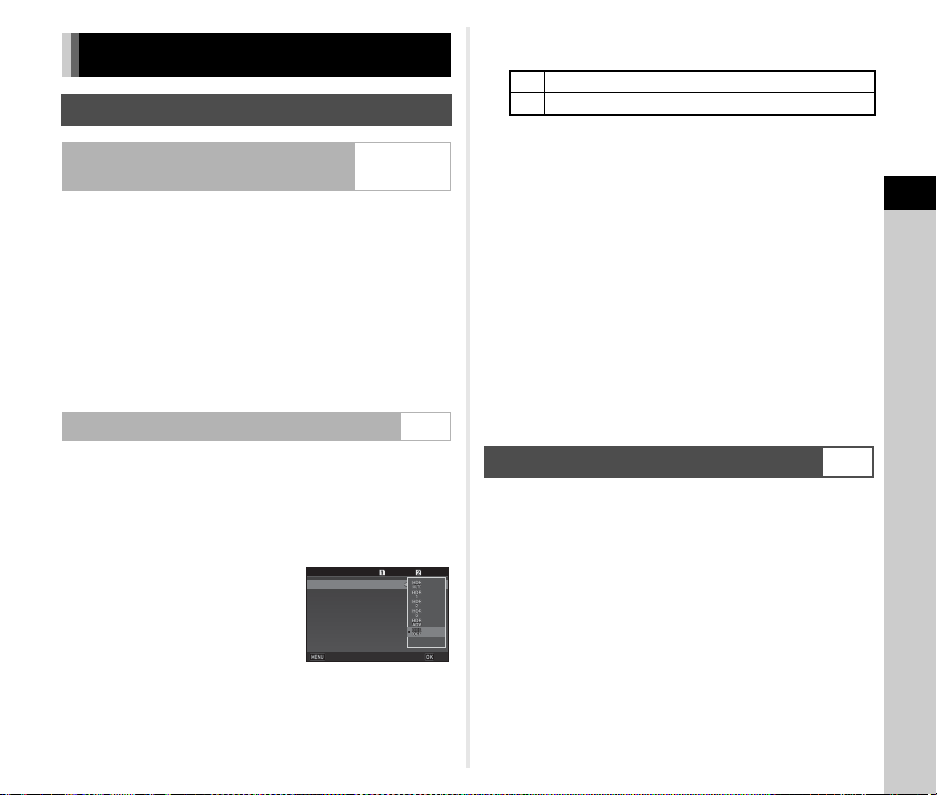
3
Shooting
75
Expands the dynamic range and enables a wider range of tones
to be recorded by the CMOS sensor and reduces the
occurrence of overexposed/underexposed areas.
Set the correction functions from [D-Range Settings] of the A2
or C2 menu.
u Caution
• When the sensitivity is set to less than ISO 200, [Highlight
Correction] cannot be set to [On].
t Memo
• [Highlight Correction] in C mode can be set to [Auto] or [Off].
Takes three consecutive images at three different exposure
levels to create a single composite image with them.
1 Select [HDR Capture] in A3 menu and press D.
The [HDR Capture] screen appears.
2 Select a capture type and
press E.
3 Set the range in which to change the exposure in
[Bracket Value].
Select from [±1EV], [±2EV], or [±3EV].
4 Set whether to use Auto Align or not.
5 Press F twice.
The camera returns to standby mode.
t Memo
• The capture type can also be changed by the Smart Function.
(p.22)
u Caution
• HDR Capture is not available in M, N, or C mode.
• HDR Capture cannot be used in combination with some other
functions. (p.108)
• When the drive mode is set to [Interval Shooting] or [Interval
Movie Record], [Auto Align] is fixed to Y (Off).
• When [Auto Align] is set to Y (Off), [Shake Reduction] of the
A4 menu is fixed to [Off].
• For HDR Capture, multiple images are combined together to
create a single image, so it may take time to save the image.
By using the built-in Shake Reduction unit of the camera,
blurring of images can be reduced. Set in [Shake Reduction] of
the A4 menu.
t Memo
• The Shake Reduction function can also be turned on or off by
the Smart Function. (p.22)
• When [Shake Reduction] is assigned to X or Y, you can
turn the Shake Reduction function on or off by a simple button
operation. (p.97)
Correcting Images
Brightness Adjustment
Highlight Correction
Shadow Correction
A2/C2
HDR Capture A3
99999
99999
99999
99999
Bracket Value
Bracket Value
Auto Align
Auto Align
HDR Capture
HDR Capture
Cancel
Cancel
OK
OK
Z
Uses Auto Align.
Y
Does not use Auto Align.
Shake Reduction
A4
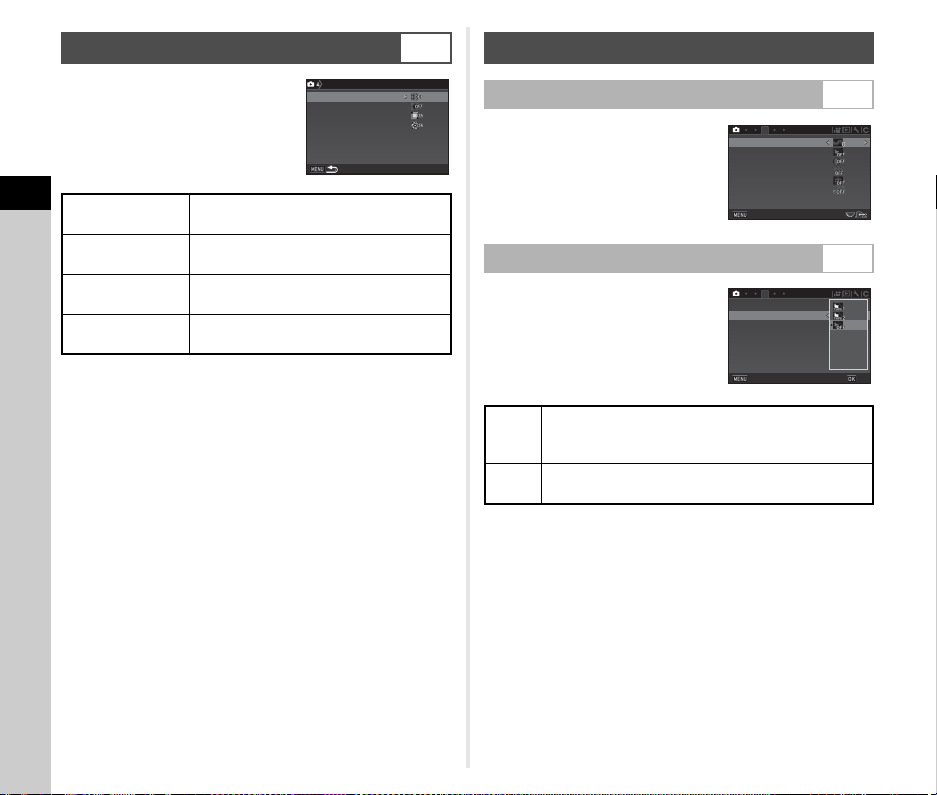
3
Shooting
76
The following features can be set in
[Lens Correction] of the A4 menu.
t Memo
• Corrections can only be made when a compatible lens is
attached. (p.109) The features are disabled when an
accessory such as a rear converter is attached between the
camera and the lens.
• When [File Format] is set to [RAW] or [RAW+] in [Image
Capture Settings] of the A2 menu, correction information is
saved as a RAW file parameter and you can select whether
to apply the correction to the images when developing them.
When developing RAW images, the correction feature [Color
Fringe Correction] is also available. (RAW Development,
p.92)
u Caution
• The Lens Correction features are not available when [Crop]
of the A2 and C1 menus is set to 2 while a DA or DA L
lens (except DA
k
200mm F2.8 ED [IF] SDM, DA
k
300mm F4
ED [IF] SDM, and DA 560mm F5.6 ED AW lenses) is
attached.
The texture and surface details of an
image can be adjusted in the range of
-4 to +4.
Set in [Clarity] of the A3 menu.
The skin tone of portraits can be
enhanced.
Set in [Skin Tone] of the A3 menu.
Lens Correction
A4
Distortion
Correction
Reduces distortions occurring due to lens
properties.
Peripheral
Illumin. Corr.
Reduces peripheral light fall-off occurring
due to lens properties.
Lat-Chromatic-Ab
Adj
Reduces lateral chromatic aberrations
occurring due to lens properties.
Diffraction
Correction
Corrects blur caused by diffraction when
using a small aperture.
Distortion Correction
Distortion Correction
Peripheral Illumin. Corr.
Peripheral Illumin. Corr.
Lat-Chromatic-Ab Adj
Lat-Chromatic-Ab Adj
Diffraction Correction
Diffraction Correction
Lens Correction
Lens Correction
Quality Level and Texture Adjustment
Adjusting the Texture A3
Enhancing the Skin Tone A3
Type1
Determines the skin tone of the subject by the Face
Detection function, and creates a natural-looking skin
tone. (Available only when a face is detected.)
Type2
Softens the entire image, and makes skin
irregularities less noticeable.
3
Skin Tone
Skin Tone
Digital Filter
Digital Filter
ASTROTRACER
ASTROTRACER
Clarity
Clarity
Pixel Shift Resolution
Pixel Shift Resolution
HDR Capture
HDR Capture
Exit
Exit
3
Skin Tone
Skin Tone
Digital Filter
Digital Filter
ASTROTRACER
ASTROTRACER
Clarity
Clarity
Pixel Shift Resolution
Pixel Shift Resolution
HDR Capture
HDR Capture
Cancel
Cancel
OK
OK
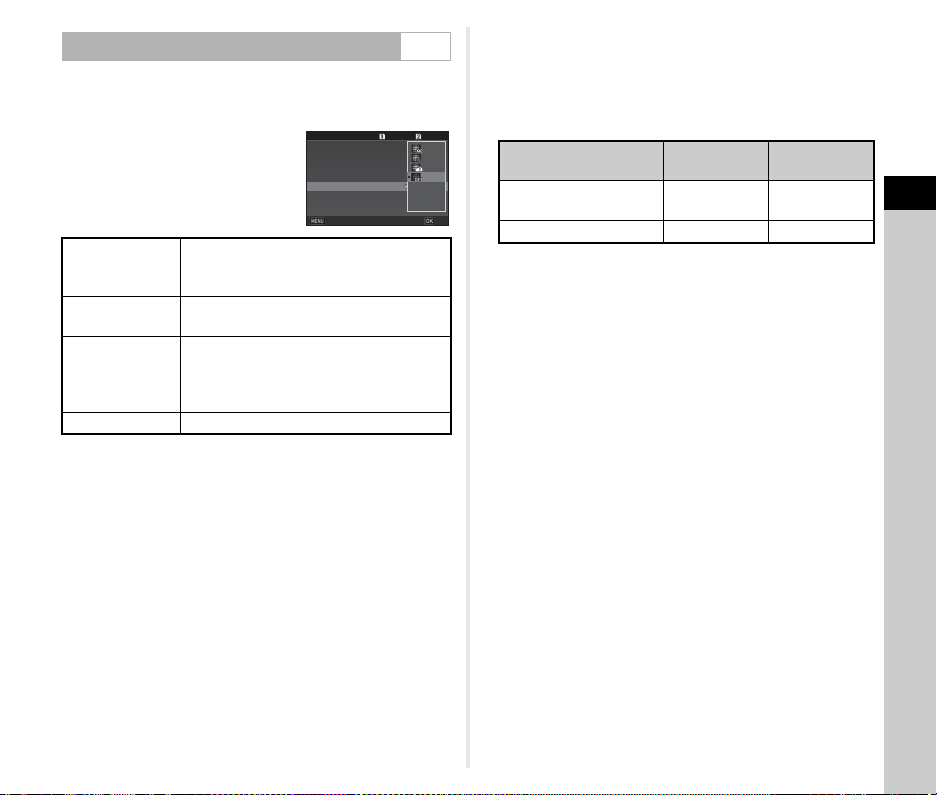
3
Shooting
77
Pixel Shift Resolution is the feature that enables outputting a
high-definition image of stationary objects by merging four
images.
Set in [Pixel Shift Resolution] of the
A3 menu.
When shooting is performed, captured four images are
displayed in turn, and then they are merged into a single image.
u Caution
• This function cannot be used in the following situations.
•In M or N mode
•In C mode
• This function cannot be used in combination with some other
functions. (p.108)
• While this function is used, [AA Filter Simulator] of the A4
menu is fixed to [Off].
• [LV Electronic Shutter] of the A2 menu and [Shake
Reduction] of the A4 menu are fixed to [On] or [Off]
depending on the [Pixel Shift Resolution] setting as shown
below. When the [Pixel Shift Resolution] setting is changed to
[Off], [LV Electronic Shutter] and [Shake Reduction] return to
original settings.
• When [Motion Correction On] or [Motion Correction Off] is
selected, mount the camera on a support such as a tripod
securely before shooting.
• When [Image Stabilization On] is selected, perform shooting
without changing the composition until four images are
captured, not using a support such as a tripod.
t Memo
• When [Pixel Shift Resolution] is assigned to X or Y, you
can change the [Pixel Shift Resolution] setting by a simple
button operation. (p.97)
• If a moving object exists in the frame, mosaic-pattern noise
may appear in the image. In such case, select [Motion
Correction On].
• The use of Pixel Shift Resolution in combination with Self-
timer, Remote Control, or Mirror Lock-up Shooting is
recommended.
• Using [Motion Correction On] or [Motion Correction Off] with
the camera set on a fixed support such as a tripod provides
higher-definition images than using [Image Stabilization On].
Shooting High-Definition Images A3
Motion
Correction On
Corrects mosaic-pattern noise when a
moving object is detected, and captures an
image using the electronic shutter.
Motion
Correction Off
Captures the entire range of image using
the electronic shutter.
Image
Stabilization On
Captures an image while performing image
stabilization using the mechanical shutter
when the camera cannot be set on a fixed
support such as a tripod.
Off Does not use Pixel Shift Resolution.
99999
99999
99999
99999
Skin Tone
Skin Tone
Digital Filter
Digital Filter
ASTROTRACER
ASTROTRACER
Clarity
Clarity
Pixel Shift Resolution
Pixel Shift Resolution
HDR Capture
HDR Capture
Cancel
Cancel
OK
OK
[Pixel Shift Resolution]
setting
LV Electronic
Shutter
Shake
Reduction
Motion Correction On
Motion Correction Off
On Off
Image Stabilization On Off On
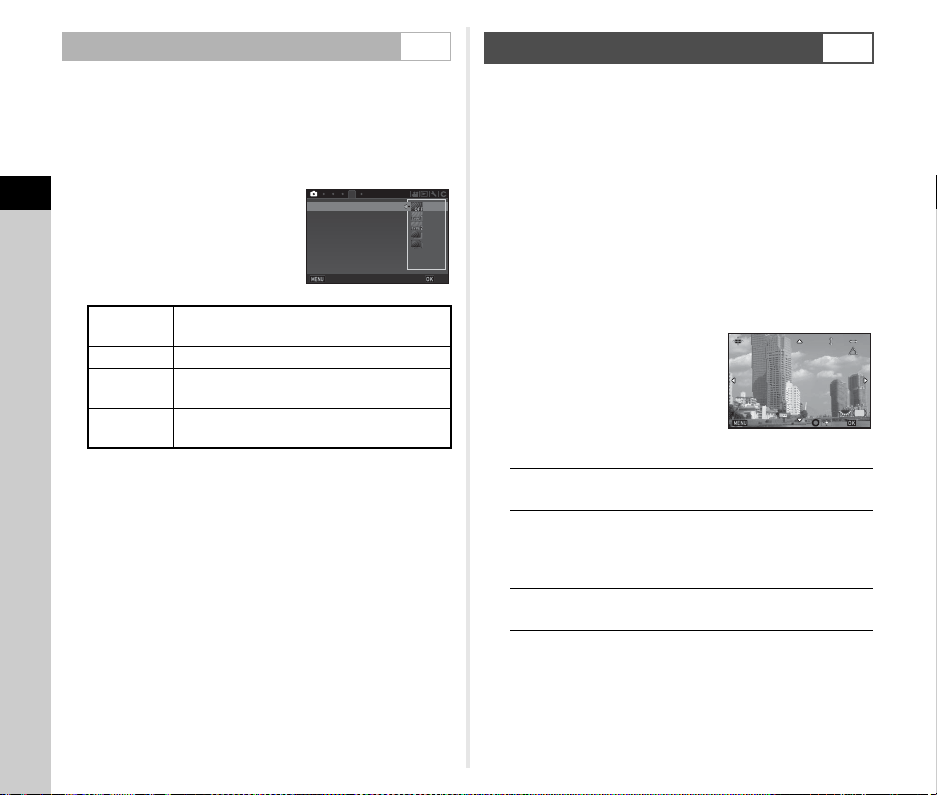
3
Shooting
78
By shaking the Shake Reduction unit, a moiré reduction effect
simulating that of a low-pass filter can be achieved.
1 Select [AA Filter Simulator] in the A4 menu and
press D.
2 Select a capture type and
press E.
u Caution
• This function cannot be used in some capture modes or in
combination with some other functions. (p.108)
• [Bracketing] cannot be selected in the following situations.
•In M mode
• When the drive mode is set to other than [Single Frame
Shooting], [Self-timer] (12 seconds, 2 seconds), or
[Remote Control] (now, after 3 seconds)
• When HDR Capture is set
• When the shutter speed is faster than 1/1000 seconds, the full
effect of this function cannot be achieved.
By using the Shake Reduction mechanism, the composition of
the image can be adjusted. Use this function when you want to
adjust the composition, such as when using a tripod while
shooting with Live View.
1 Select [On] in [Composition Adjust.] of A4
menu.
2 Press F.
The camera returns to standby mode.
3 Press K.
The Live View image is displayed and the message [Adjust
the composition of the image] appears.
4 Adjust the composition.
The amount of adjustment (the
number of steps) is displayed at
the top right of the screen.
Available operations
5 Press E.
The camera returns to standby mode in Live View.
Reducing Color Moiré A4
Type1
Takes pictures while balancing the
resolution and moiré reduction.
Type2 Prioritizes the moiré reduction.
Bracketing
(2 images)
Takes two consecutive images in order of
[Off] and [Type2].
Bracketing
(3 images)
Takes three consecutive images in order of
[Off], [Type1], and [Type2].
4
Shake Reduction
Shake Reduction
Horizon Correction
Horizon Correction
Composition Adjust.
Composition Adjust.
Input Focal Length
Input Focal Length
AA Filter Simulator
AA Filter Simulator
Lens Correction
Lens Correction
Cancel
Cancel
OK
OK
Composition Adjustment
A4
ABCD
Moves the composition of the image (up
to 24 steps).
R Corrects the tilt of the composition (up to
8 steps. Not available when the amount
of adjustment steps in vertical and
horizontal directions is 17 or more).
M
Resets the adjustment values to the
default settings.
0
0
0
0
0
0
Adjust the composition
Adjust the composition
of the image
of the image
Cancel
Cancel
OK
OK
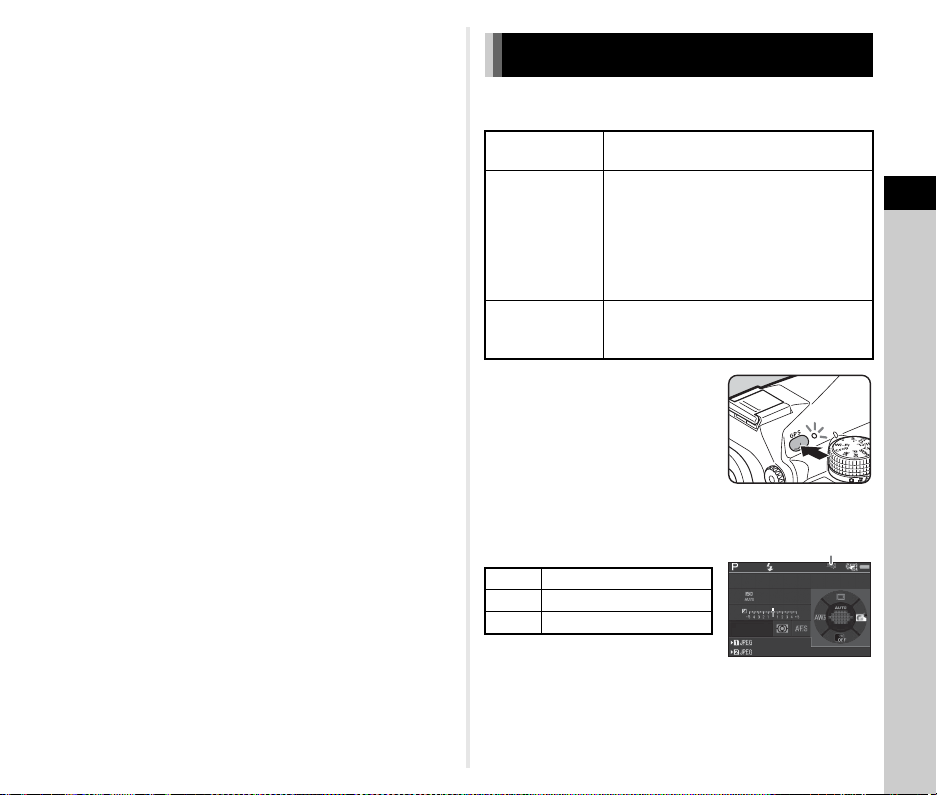
3
Shooting
79
u Caution
• You cannot use this function when the ASTROTRACER
function is used.
t Memo
• When [Grid Display] is set to [On] in [Live View] of the A5
menu, grid lines are displayed on the screen of Step 4.
• The adjusted composition is saved even if Live View is ended
or the camera is turned off. To reset the saved adjustment
value when the camera is turned off, set [Composition
Adjust.] to Y (Off) in [Memory] of the A5 menu. (p.102)
The following functions are available with the camera’s built-in
GPS unit.
Press 4 to turn the GPS on. The
GPS indicator lamp lights up. Press
4 again to turn the GPS off.
You can check the GPS positioning status on the status screen
and Live View screen. The icon color tells the ongoing action.
When a picture is taken while the GPS is on, the GPS
information is stored internally in the image file. The GPS
information is not stored in the movie file. You can check the
GPS information in Detailed Information Display in playback
mode. (p.18)
Using the GPS
GPS Logging
Saves the GPS positioning data received
periodically to the memory card. (p.81)
ASTROTRACER
Tracks and captures celestial bodies.
(p.82)
By matching the movement of the built-in
Shake Reduction unit with the movement
of celestial bodies, celestial bodies can be
captured as individual points even when
shooting with a long exposure setting.
GPS Time Sync
Adjusts the camera’s date and time
settings using information obtained from
GPS satellites.
Green 3D positioning
Yellow 2D positioning
Red No positioning
1/
1/
250
250
1600
1600
F
F
5.6
5.6
99 99 9
99999
99 99 9
99999
GPS positioning status
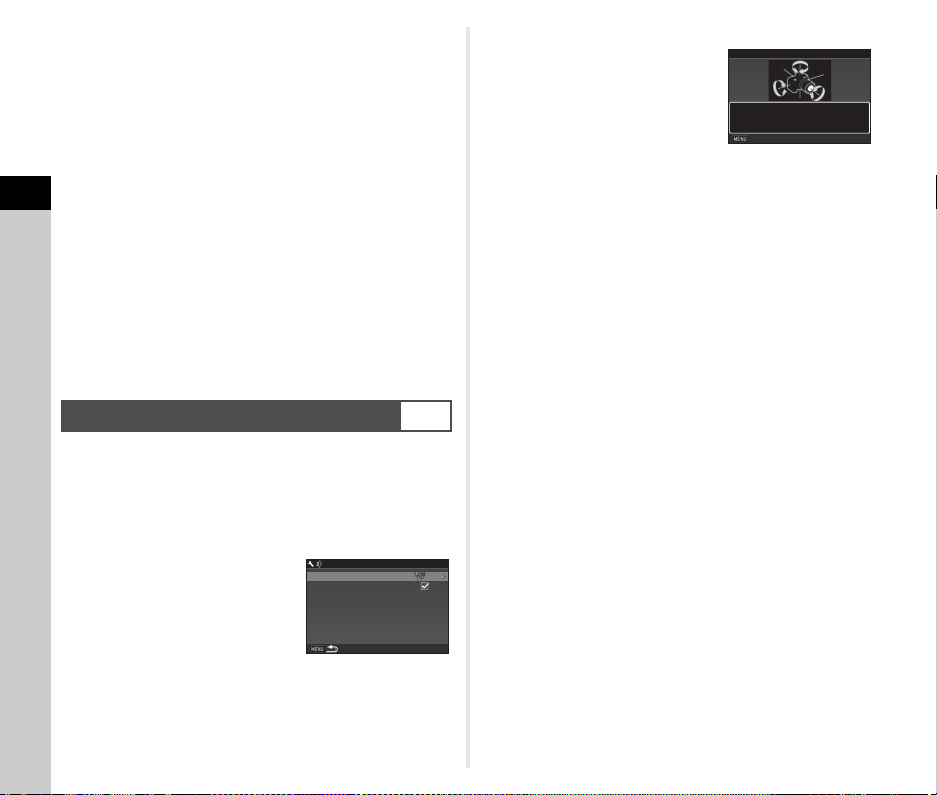
3
Shooting
80
u Caution
• While the GPS is on, the battery drains faster than normal.
• If you use the camera near objects which generate a
magnetic field such as magnets, or have magnetism such as
iron, the electronic compass may not work properly.
• The GPS information stored in the image file cannot be
deleted. If you do not want to share the shooting location
information with the public when posting the image on SNS,
etc., turn the GPS off before shooting.
• You cannot use the optional GPS unit O-GPS1 with this
camera.
• For other precautions on the GPS, refer to “About the GPS”
(p.129).
t Memo
• When the GPS information can be obtained, Coordinated
Universal Time (UTC) is recorded as the shooting date and
time for images. On the Electronic Compass screen (p.17),
the time is displayed after the difference between UTC and
the time of the shooting location is corrected.
Perform a calibration to make the GPS unit operate correctly.
1 Select [GPS/E-Compass] in D2 menu and press
D.
The [GPS/E-Compass] screen appears.
2 Select [Calibration] and
press D.
The [Calibration] screen appears.
3 Rotate the camera
according to the
instruction displayed on
the monitor.
The result of calibration appears.
4 Press E.
The screen of Step 2 reappears.
If [The operation could not be completed correctly] appears,
change the camera direction and perform a calibration
again.
u Caution
• When performing a calibration, be careful not to drop the
camera. Wrap the strap around your wrist or take other
preventive measures.
• If the battery is removed, perform a calibration again after the
battery is put back in.
• Changing the lens or the angle of the monitor after performing
a calibration may have some effect on the magnetic field
environment. In this case, perform a calibration again.
t Memo
• When [GPS Time Sync] is set to Z on the screen of Step 2,
the camera’s date and time settings are automatically
adjusted.
Performing a Calibration
D2
GPS/E-CompassGPS/E-Compass
GPS LoggingGPS Logging
GPS Time SyncGPS Time Sync
CalibrationCalibration
Rotate camera in each of three
Rotate camera in each of three
directions ensuring that each
directions ensuring that each
rotation exceeds 180 degrees
rotation exceeds 180 degrees
Calibration
Calibration
Stop
Stop
3
Shooting
81
1 Select [GPS/E-Compass] in D2 menu and press
D.
The [GPS/E-Compass] screen appears.
2 Select [GPS Logging] and press D.
The [GPS Logging] screen appears.
The GPS automatically turns on.
3 Set the logging conditions.
4 Select [GPS Logging] and press D.
The confirmation screen appears.
5 Select [Start] and press E.
GPS logging starts.
The screen of Step 3 reappears.
u Caution
• GPS log data cannot be recorded when the camera is
connected by USB to a computer.
t Memo
• During GPS logging, “LOG” is displayed under the GPS
positioning status icon on the status screen and Live View
screen. When the time set in [Logging Duration] elapses,
“LOG END” is displayed and a GPS log file is saved.
• Select [Exit] in Step 5 to stop GPS logging. A GPS log file is
saved.
• When the GPS is turned off by pressing 4, GPS logging
stops temporarily. (The countdown for [Logging Duration]
continues.) GPS logging starts again when the GPS is turned
on.
• If there is GPS log data to be saved as a log file, “LOG END”
is displayed in [GPS Logging] on the screen of Step 3. Select
[Save] in Step 5 to save the GPS log data as a log file. “LOG
END” is displayed also when the power is turned off due to
low battery level or when the battery is replaced. In this case,
save the GPS log file before restarting GPS logging.
• During GPS logging, you cannot change the settings of
[Logging Interval] and [Logging Duration].
• A log file (KML format) is saved in the “GPSLOG” folder on
the memory card with a file name of a sequential number from
001 to 999 and month and day (example: 001_0505).
However, if there is no GPS log data to be saved, neither a
log file nor a folder is created. In addition, if the log file
“999_
” has been saved, a new log file cannot be saved.
•
You can display the camera route on Google Earth, etc. by
transferring a log file to a computer and importing it.
Recording the Camera Route (GPS
Logging)
D2
Logging Interval
Select from [5sec.], [10sec.],
[15sec.], [30sec.], or [1min.].
Logging Duration
Select from [1hr.] to [24hr.].
(When [Logging Interval] is set to
[5sec.], select from [1hr.] to [9hr.].
When [Logging Interval] is set to
[10sec.], select from [1hr.] to [18hr.].)
Memory Card
Options
Select the SD1 card or the SD2 card.
1
1
GPS Logging
GPS Logging
GPS Logging
GPS Logging
Logging Interval
Logging Interval
Logging Duration
Logging Duration
Memory Card Options
Memory Card Options
15sec.
15sec.
hr.
hr.
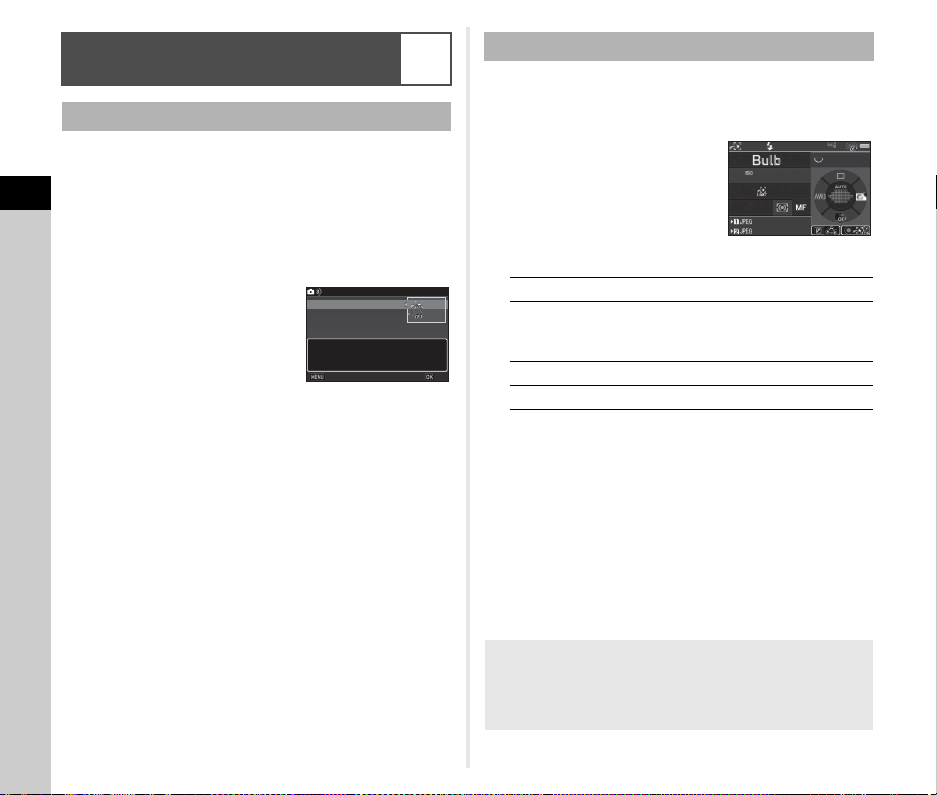
3
Shooting
82
1 Press 4.
2 Select [ASTROTRACER] in A3 menu and press
D.
The [ASTROTRACER] screen appears.
3 Select [ASTROTRACER] and press D.
4 Select [On] and press E.
5 Select [Precise Calibration] and press D.
The [Precise Calibration] screen appears.
y Calibration (p.80)
6 Press E.
The [ASTROTRACER] screen reappears.
7 Press F twice.
The camera returns to standby mode.
u Caution
• As the magnetic field environment varies depending on the
shooting location, a precise calibration must be performed at
each location when shooting images of celestial bodies with
ASTROTRACER.
• Changing the lens or the angle of the monitor after performing
a precise calibration may have some effect on the magnetic
field environment. In this case, perform a precise calibration
again.
1 Set the Exposure Mode to M and set the Focus
Method to w.
2 Set the shooting
conditions.
Available operations
3 Adjust the focus and press 0 fully.
Shooting starts.
4 Press 0 fully again.
Shooting stops.
When the timed exposure is enabled, shooting stops
automatically after the set time has elapsed.
u Caution
• This function cannot be used in combination with some other
functions. (p.108)
Shooting Celestial Bodies
(ASTROTRACER)
A3
Setting the ASTROTRACER
Enables ASTROTRACER function
Enables ASTROTRACER function
in Bulb mode to eliminate star
in Bulb mode to eliminate star
trails during timed exposures
trails during timed exposures
ASTROTRACER
ASTROTRACER
ASTROTRACER
ASTROTRACER
Precise Calibration
Precise Calibration
Cancel
Cancel
OK
OK
Shooting with the ASTROTRACER
M Enables/Disables the timed exposure.
Q Changes the exposure time within the range
from 0'10" to 5'00" when the timed exposure
is enabled.
R Changes the aperture value.
J Performs a precise calibration.
When the Monitor is too Bright
For shooing in a dark place for a long period of time, you can
change the monitor display color to red by setting [Night
Vision LCD Display] to [On] in the D5 menu.
1600
1600
F
F
8.0
8.0
99 99 9
99999
99 99 9
99999
-´--˝
-´--˝
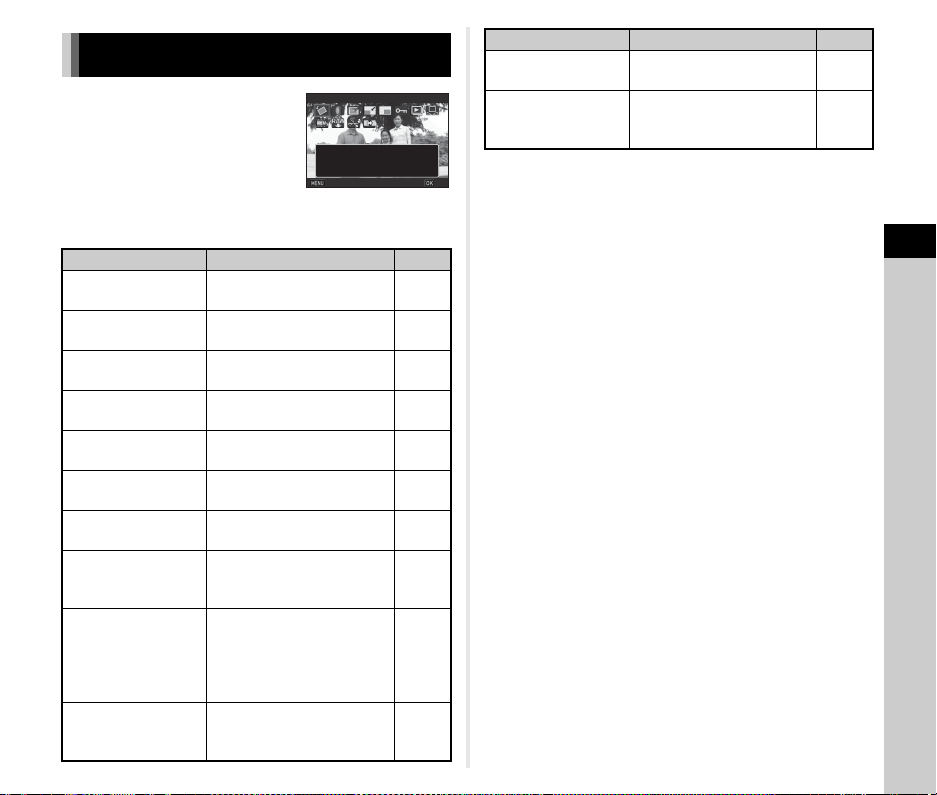
4
Playback
83
Playback functions can be set from
the playback mode palette as well as
the B1 menu (p.31).
Press B in single image display
(Standard Information Display or No
Information Display) of the playback
mode to display the playback mode
palette.
*1 Not available when a TIFF image or movie is displayed.
*2 Not available when a RAW image or TIFF image is displayed.
*3 Available only when a RAW image is saved.
*4 Available only when a movie is displayed.
t Memo
• The functions of the playback mode palette can be used only
for the images saved on the memory card that is currently
being played back. To use the functions for the images saved
on the other memory card, switch to the other memory card
slot by pressing d in single image display, and then display
the playback mode palette.
Playback Mode Palette Items
Item Function Page
a
Image
Rotation
*1
Changes the rotation
information of an image.
p.86
b Digital Filter
*1
Processes images with
digital filters.
p.90
c
Color Moiré
Correction
*1
*2
Reduces color moiré in
images.
p.89
d Resize
*1
*2
Changes the number of
recorded pixels of an image.
p.88
e Cropping
*1
Crops out only the desired
area of an image.
p.89
f Protect
Protects images from being
accidentally erased.
p.103
h Slideshow
Plays back images one after
another.
p.86
i
Save as Manual
WB
*1
Saves the white balance
settings of a captured image
as Manual White Balance.
p.70
j
Save Cross
Processing
Saves the settings used for
an image captured in Cross
Processing mode of Custom
Image as your “Favorite”
settings.
p.73
k
RAW
Development
*3
Develops RAW images into
JPEG images and saves
them as new files.
p.92
Image Rotation
Image Rotation
Exit
Exit
Rotates captured images.
Rotates captured images.
Useful for image playback on
Useful for image playback on
TV and other display devices
TV and other display devices
OK
OK
l Movie Edit
*4
Divides a movie or deletes
unwanted segments.
p.91
n Image Copy
Copies images between
cards in the SD1 and the SD2
slots.
p.88
Item Function Page
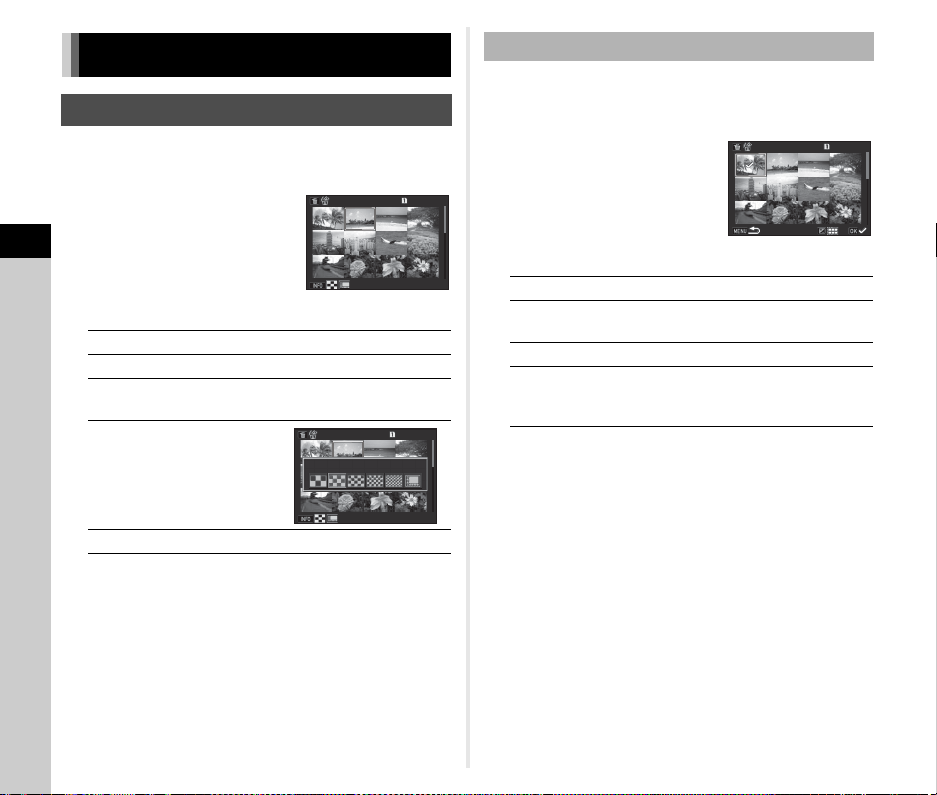
4
Playback
84
You can display 6, 12, 20, 35, or 80 thumbnail images at the
same time.
1 Turn R to the left in
playback mode.
The multi-image display screen
appears.
Available operations
2 Press E.
The selected image appears in single image display.
1 Press L in Step 1 of “Displaying Multiple
Images” (p.84).
2 Select the images to
delete.
Available operations
In the upper left area of the monitor, the number of selected
images is displayed.
3 Press L.
The delete confirmation screen appears.
4 Select [Delete] and press E.
t Memo
• You can select up to 500 images at a time.
• Protected images cannot be selected.
• You can delete the images selected individually along with
the images selected by specifying the range to delete.
• Use the same steps to select multiple images for the following
functions.
• Image Copy (p.88)
• RAW Development (p.92)
• Protect (p.103)
Changing the Playback Method
Displaying Multiple Images
ABCD
Moves the selection frame.
Q
Shows the next/previous page.
d
Switches between the SD1 card and the
SD2 card.
G
Shows the
display style
selection
screen.
L
Deletes the selected images.
100-0505
100-0505
100-0505
100-0505
12 Thumbnail Display
12 Thumbnail Display
Deleting Selected Images
ABCD
Moves the selection frame.
E
Confirms/cancels the selection of the
image to delete.
J
Selects the range of images to delete.
R
Shows the selected image in single
image display.
Use Q to show a different image.
100-0505
100-0505
001/500
001/500
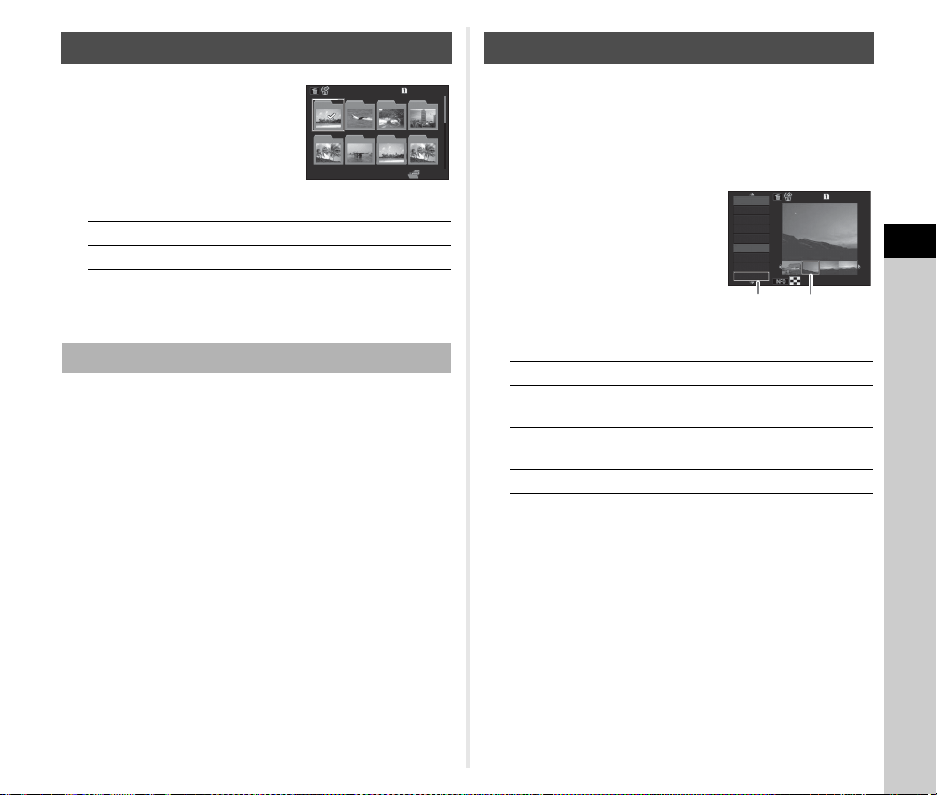
4
Playback
85
1 Turn R to the left in Step
1 of “Displaying Multiple
Images” (p.84).
The folder display screen
appears.
Available operations
2 Press E.
The images in the selected folder are displayed.
1 Select the folder to delete in Step 1 of
“Displaying Images by Folder” (p.85), and press
L.
The delete confirmation screen appears.
2 Select [Delete] and press E.
The selected folder and all the images in it are deleted.
When protected images are in the folder, select [Delete all]
or [Leave all].
Images are grouped and displayed by shooting date.
1 Press G in Step 1 of “Displaying Multiple
Images” (p.84).
The display style selection screen appears.
2 Select [Calendar Filmstrip
Display].
Available operations
3 Press E.
The selected image appears in single image display.
Displaying Images by Folder
ABCD
Moves the selection frame.
L
Deletes the selected folder.
Deleting a Folder
100_0707
100_ 0707
100
100
101
101
102
102
103
103
104
104
105
105
106
106
107
107
123
123
Displaying Images by Shooting Date
AB
Selects a shooting date.
CD
Selects an image taken on the
selected shooting date.
R to the right Shows the selected image in single
image display.
L
Deletes the selected image.
100-0505100-0505
2/52/5
88
2018.32018.3
2018.42018.4
THUTHU
1717
SATSAT
1919
MONMON
2323
FRIFRI
88
SUNSUN
1212
THUTHU
2424
TUETUE
Shooting
date
Thumbnail
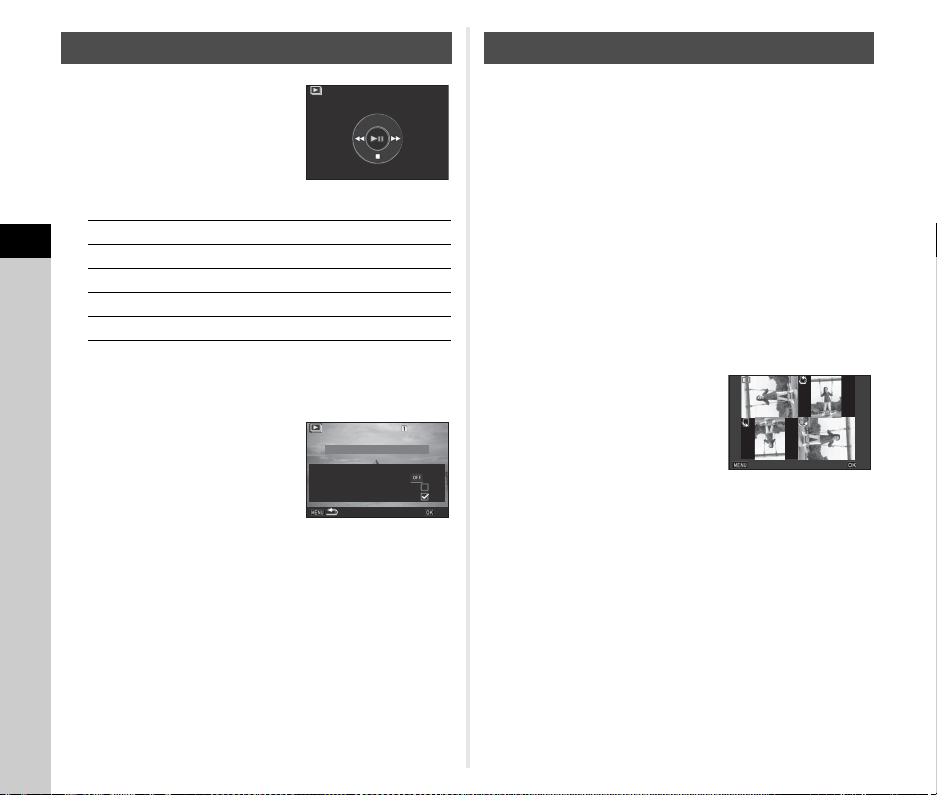
4
Playback
86
1 Select [Slideshow] in the
playback mode palette.
Slideshow starts.
Available operations
After all images are played back, the camera returns to
single image display mode.
t Memo
• You can change the [Display
Duration], [Screen Effect], [Repeat
Playback], and [Auto Movie
Playback] settings for slideshow in
[Slideshow] of the B1 menu.
Slideshow can also be started from
the Slideshow setting screen.
When [Auto Movie Playback] is set to Y (Off), press E
during slideshow to play back a movie.
Image rotation information is saved when you take pictures with
the camera held vertically. When [Auto Image Rotation] of
[Image Display] in the B1 menu is set to Z (On), the image is
automatically rotated based on the rotation information during
playback (default setting).
The rotation information of an image can be changed by
following the procedure below.
1 Display the image to edit in single image
display.
2 Select [Image Rotation] in the playback mode
palette.
The selected image is rotated in 90° increments and the
four thumbnail images are displayed.
3 Use ABCD to select the
desired rotation direction
and press E.
The image rotation information is
saved, and the camera returns to
single image display mode.
u Caution
• When [22 Save Rotation Info] is set to [Off] in the E4 menu,
image rotation information is not saved.
• You cannot change image rotation information in the
following cases.
• Protected images
• Images without a rotation information tag
• When [Auto Image Rotation] of [Image Display] in the B1
menu is set to Y (Off)
• Movie files cannot be rotated.
Playing Back Images Continuously
E
Pauses/resumes playback.
C
Displays the previous image.
D
Displays the next image.
B
Stops playback.
R
Adjusts the sound volume of the movie.
Start
Start
100-0001
100-0001
Start
Start
Display Duration
Display Duration
3sec.
3sec.
Screen Effect
Screen Effect
Repeat Playback
Repeat Playback
Auto Movie Playback
Auto Movie Playback
OK
OK
Displaying Rotated Images
Cancel
Cancel
OK
OK
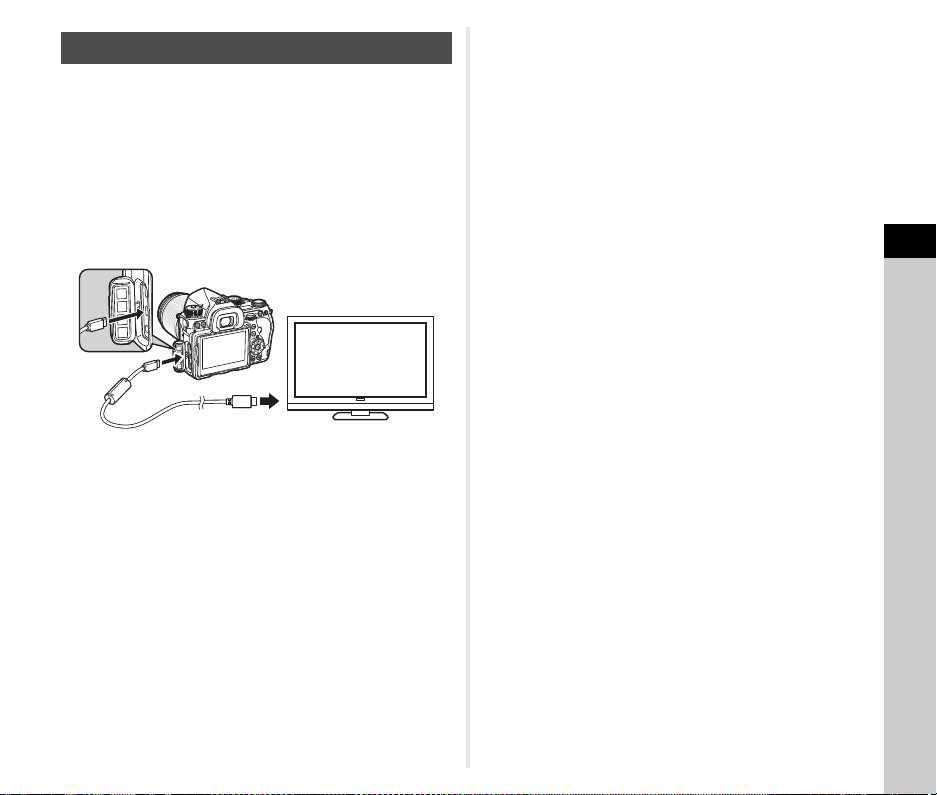
4
Playback
87
Connect to an AV device, such as a TV, equipped with an
HDMI
®
terminal to display Live View images while shooting or
to play back images in playback mode.
Make sure to have a commercially available HDMI
®
cable
equipped with an HDMI
®
terminal (type D).
1 Turn the AV device and camera off.
2 Open the terminal cover of the camera, and
connect the cable to the HDMI
®
terminal.
3 Connect the other end of the cable to the input
terminal on the AV device.
4 Turn the AV device and camera on.
The camera turns on in HDMI
®
mode, and the camera
information is displayed on the screen of the connected AV
device.
u Caution
• While the camera is connected to an AV device, nothing is
displayed on the camera monitor. Also, you cannot adjust the
sound volume on the camera. Adjust the volume on the AV
device.
t Memo
• Check the operating manual of the AV device and select a
suitable input terminal for connecting the camera.
• By default, the maximum resolution supported by both the AV
device and camera is automatically selected. If it fails to play
back images properly, change the setting in [HDMI Out] of the
D2 menu.
• If you intend to use the camera continuously for a long period,
the use of the optional AC adapter kit is recommended. (p.40)
Connecting the Camera to an AV Device
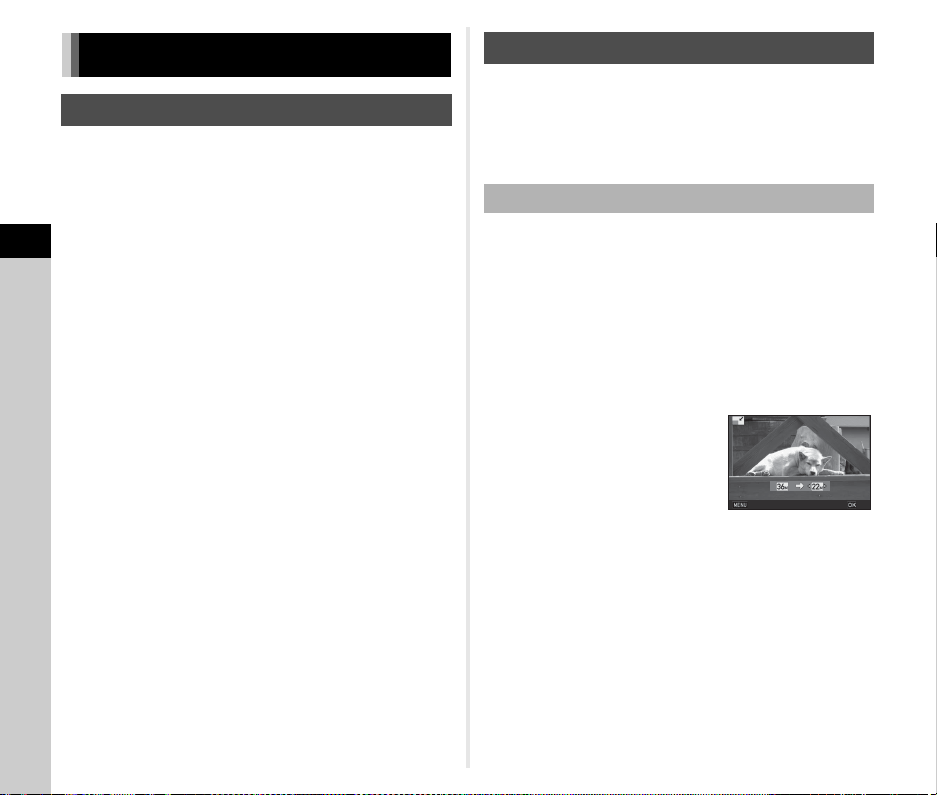
4
Playback
88
Copies images between memory cards in the SD1 and the SD2
slots.
1 Select an image saved on the memory card
which the images are to be copied from, and
display it in single image display.
2 Select [Image Copy] in the playback mode
palette.
3 Select [Select image(s)] or [Select a folder] and
press E.
4 Select image(s) or a folder.
y How to select image(s) (p.84)
5 Press G.
The save confirmation screen appears.
6 Select the location to save the image(s) or folder
and press E.
u Caution
• Only JPEG images captured with this camera can be resized
or cropped.
• Images already resized or cropped to the minimum file size
cannot be processed.
Changes the number of recorded pixels of the selected image,
and saves it as a new file.
1 Display the image to edit in single image
display.
2 Select [Resize] in the playback mode palette.
The screen to select the number of recorded pixels
appears.
3 Use CD to select the
number of recorded pixels
and press E.
You can select an image size
smaller than that of the original
image.
The save confirmation screen appears.
4 Select [Save to SD1] or [Save to SD2] and press
E.
Editing and Processing Images
Copying an Image
Changing the Image Size
Changing the Number of Recorded Pixels
Cancel
Cancel
OK
OK
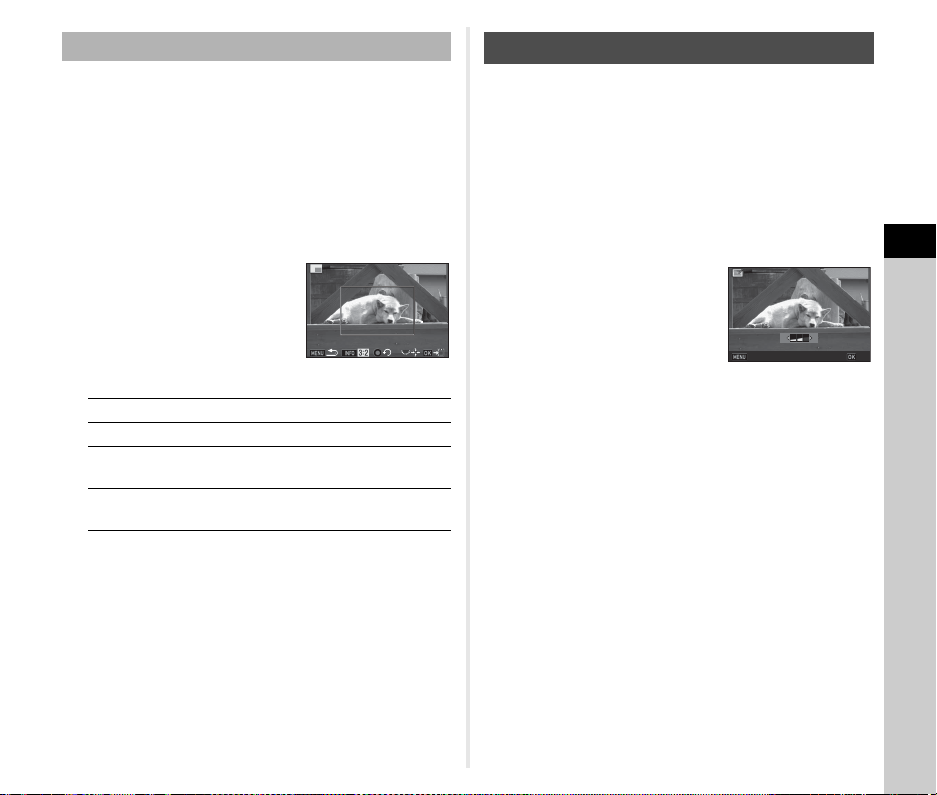
4
Playback
89
Crops out only the desired area of the selected image and
saves it as a new file.
1 Display the image to edit in single image
display.
2 Select [Cropping] in the playback mode palette.
The cropping frame to specify the size and position of the
area to crop appears on the screen.
3 Specify the size and
position of the area to crop
by using the cropping
frame.
Available operations
4 Press E.
The save confirmation screen appears.
5 Select [Save to SD1] or [Save to SD2] and press
E.
Reduces color moiré in images.
1 Display the image to edit in single image
display.
2 Select [Color Moiré Correction] in the playback
mode palette.
If the image cannot be edited, [This image cannot be
processed] appears.
3 Use CD to select the
correction level and press
E.
The save confirmation screen
appears.
4 Select [Save to SD1] or [Save to SD2] and press
E.
u Caution
• The Color Moiré Correction function can only be used for
JPEG images captured with this camera.
Cropping Out Part of the Image
R
Changes the size of the cropping frame.
ABCD
Moves the cropping frame.
G
Changes the Aspect Ratio or Image
Rotation setting.
M
Rotates the cropping frame (only when
possible).
4224x2816
4224x2816
Correcting Color Moiré
CancelCancel
OKOK
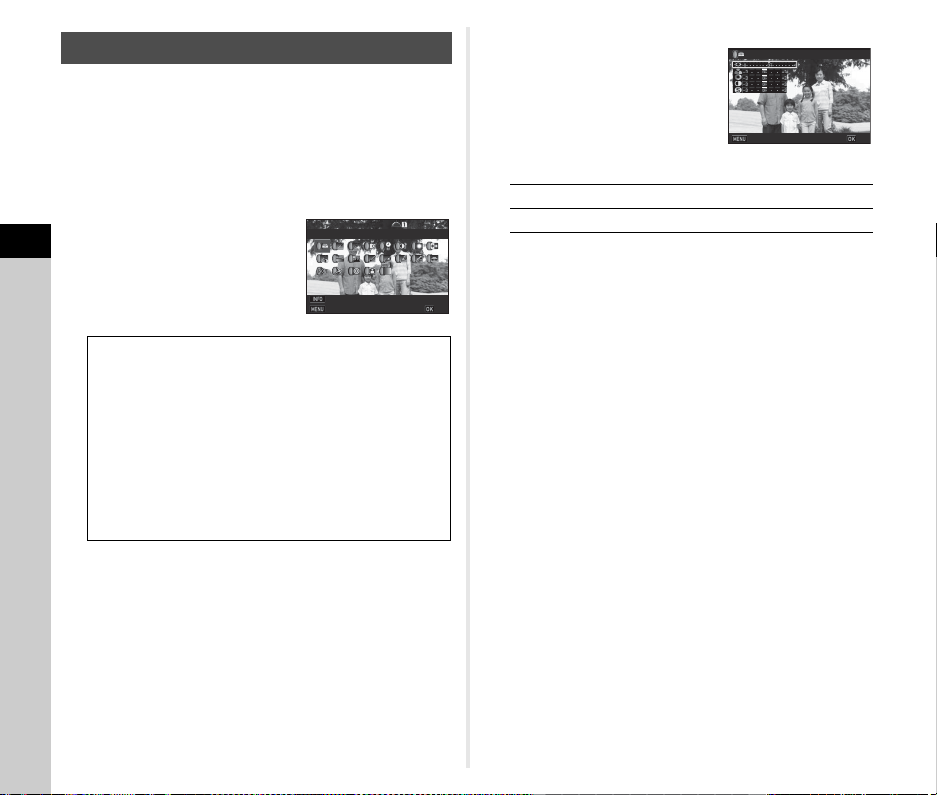
4
Playback
90
1 Display the image to edit in single image
display.
2 Select [Digital Filter] in the playback mode
palette.
The screen to select a filter appears.
3 Select a filter.
Use Q to select a different
image.
Proceed to Step 7 if you do not need to change the
parameters.
4 Press G.
The parameter setting screen appears.
5 Set the parameters.
Available operations
6 Press E.
The screen of Step 3 reappears.
7 Press E.
The save confirmation screen appears.
8 Select [Apply additional filter(s)], [Save to SD1],
or [Save to SD2], and press E.
Select [Apply additional filter(s)] when you want to apply
additional filters to the same image. The screen of Step 3
reappears.
u Caution
• Only JPEG and RAW images captured with this camera can
be edited with the digital filters.
• RAW images captured using HDR Capture or Pixel Shift
Resolution cannot be processed with Digital Filter.
t Memo
• Up to 20 filters, including the digital filter used during shooting
(p.74), can be applied to the same image.
Processing Images with Digital Filters
Base Parameter Adj
Extract Color
Replace Color
Toy Camera
Retro
High Contrast
Shading
Invert Color
Unicolor Bold
Bold Monochrome
Tone Expansion
Sketch
Water Color
Pastel
Posterization
Miniature
Soft
Starburst
Fish-eye
Slim
Monochrome
100-0001
100-0001
Base Parameter Adj
Base Parameter Adj
Stop
Stop
Parameter Adj.
Parameter Adj.
OK
OK
AB
Selects a parameter.
CD
Adjusts the value.
BrightnessBrightness
CancelCancel
OKOK
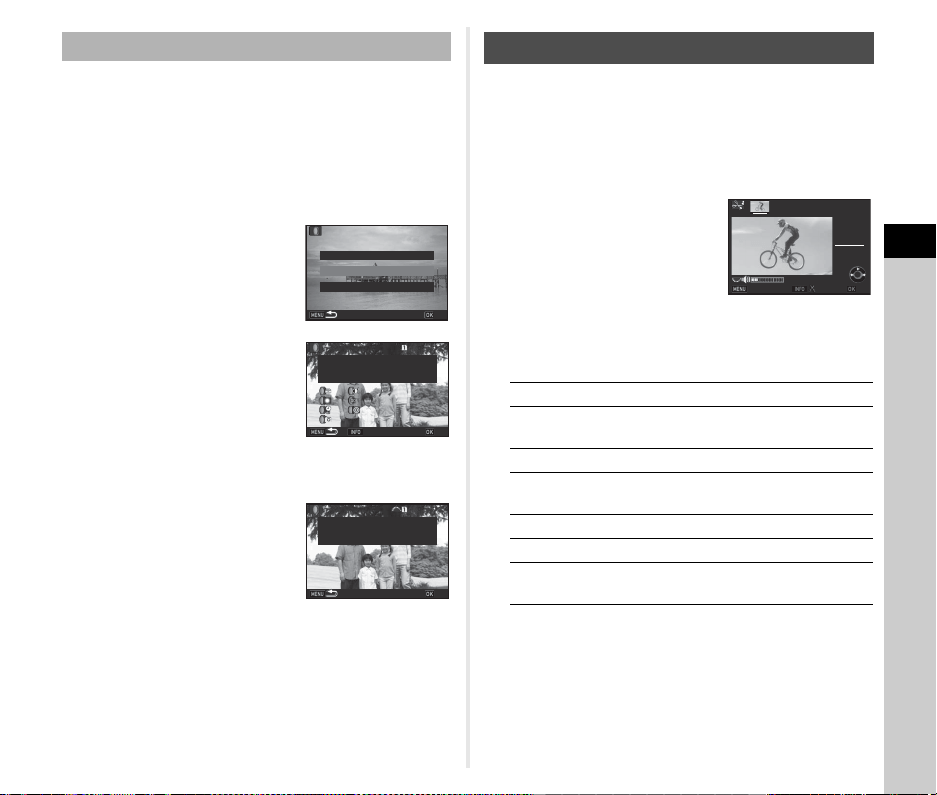
4
Playback
91
Retrieves the filter effects of the selected image and applies the
same filter effects to other images.
1 Display a filter-processed image in single image
display.
2 Select [Digital Filter] in the playback mode
palette.
3 Select [Recreating filter
effects] and press E.
The filter effects used for the
selected image appear.
4 To check the parameter
details, press G.
Press G again to return to the
previous screen.
5 Press E.
The image selection screen appears.
6 Use Q to select an
image for applying the
same filter effects, and
press E.
You can only select an image
saved in the same memory card
that has not been processed with a filter.
The save confirmation screen appears.
7 Select [Save to SD1] or [Save to SD2] and press
E.
t Memo
•
If [Searching for the original image] is selected in Step 3, the
original image prior to digital filter application can be retrieved.
1 Display the movie to edit in single image
display.
2 Select [Movie Edit] in the playback mode palette.
The movie editing screen appears.
3 Select the point where you
want to divide the movie.
The frame at the dividing point is
displayed at the top of the
screen.
Up to four points can be selected
to divide the original movie into
five segments.
Available operations
Proceed to Step 7 if you do not want to delete any segment.
4 Press L.
The screen to select the segments to delete is displayed.
Recreating Filter Effects
Applying the digital filterApplying the digital filter
Recreating filter effectsRecreating filter effects
Searching for original imageSearching for original image
OKOK
100-0001
100-0001
20
20
19
19
18
18
17
17
16
16
--
--
--
--
--
--
--
--
--
--
--
--
--
--
--
--
--
--
--
--
--
--
--
--
--
--
15
15
14
14
13
13
12
12
11
11
10
10
9
9
8
8
7
7
6
6
5
5
4
4
3
3
2
2
1
1
Reapplies following digital filter
Reapplies following digital filter
effects from previous image
effects from previous image
Details
Details
OK
OK
100-0001
100-0001
Performs digital filter
Performs digital filter
processing to this image
processing to this image
OK
OK
Editing Movies
A
Plays back/pauses a movie.
D
Forwards a frame (when
paused).
Press and hold D
Fast-forwards playback.
C
Reverses a frame (when
paused).
Press and hold C
Fast-reverses playback.
R
Adjusts the sound volume.
G
Confirms/cancels the selected
dividing point.
00 ' 00"00 '00"
1
0 ' 00"10 '00"
StopStop
OKOK
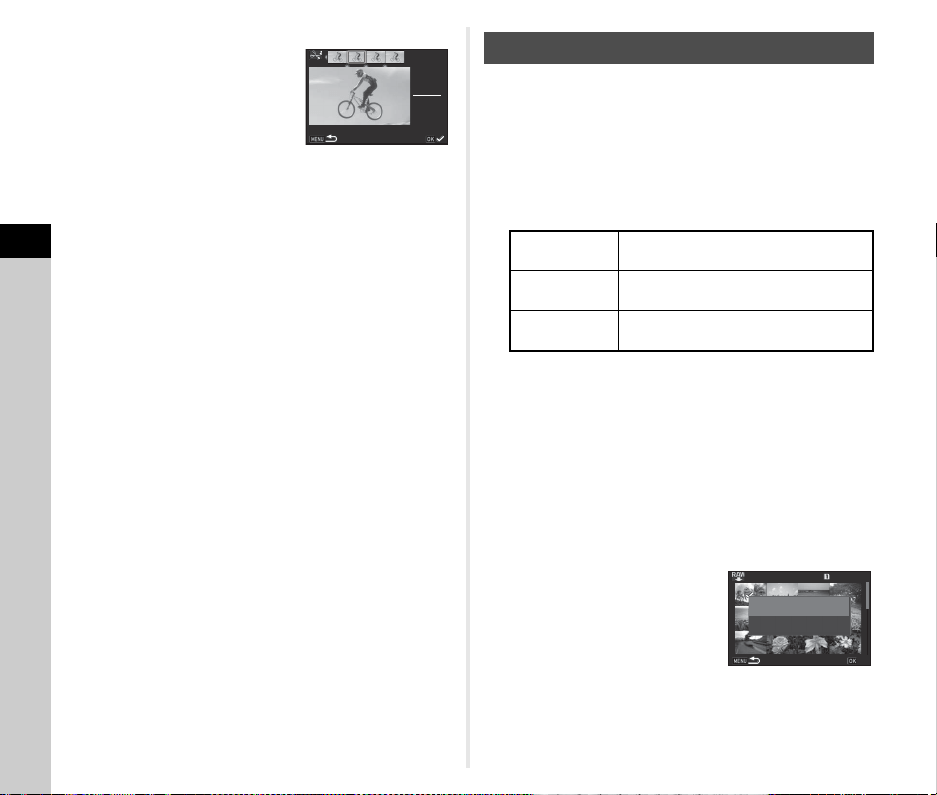
4
Playback
92
5 Use CD to move the
selection frame and press
E.
The segments to delete are
specified. (Multiple segments
can be deleted at once.)
Press E again to cancel the selection.
6 Press F.
The screen of Step 3 reappears.
7 Press E.
The save confirmation screen appears.
8 Select [Save to SD1] or [Save to SD2] and press
E.
t Memo
• Select dividing points in chronological order from the
beginning of the movie. When canceling the selected dividing
points, cancel each of them in reverse order (from the end of
the movie to the beginning). In an order other than specified,
you can neither select dividing points nor cancel the
selections of the dividing points.
You can develop RAW images into JPEG or TIFF images, and
save them as new files.
1 Select [RAW Development] in the playback
mode palette.
The screen for selecting the processing type appears.
2 Select the desired option and press E.
When [Select single image] is selected, proceed to Step 6.
The image/folder selection screen appears.
3 Select image(s) or a folder.
Proceed to Step 5 if a folder is selected.
y How to select image(s) (p.84)
4 Press G.
The screen for selecting the parameter setting method
appears.
5 Select the parameter
setting method and press
E.
00 ' 05"00 '05"
1
0 ' 00"10 '00"
Select segments for deletionSelect segments for deletion
Developing RAW Images
Select single
image
Develops an image.
Select multiple
images
Develops up to 500 images with the
same settings.
Select a folder
Develops up to 500 images in the
selected folder with the same settings.
100-0001
100-0001
001/500
001/500
Develop images as shot
Develop images as shot
Develop images with
Develop images with
modified settings
modified settings
OK
OK
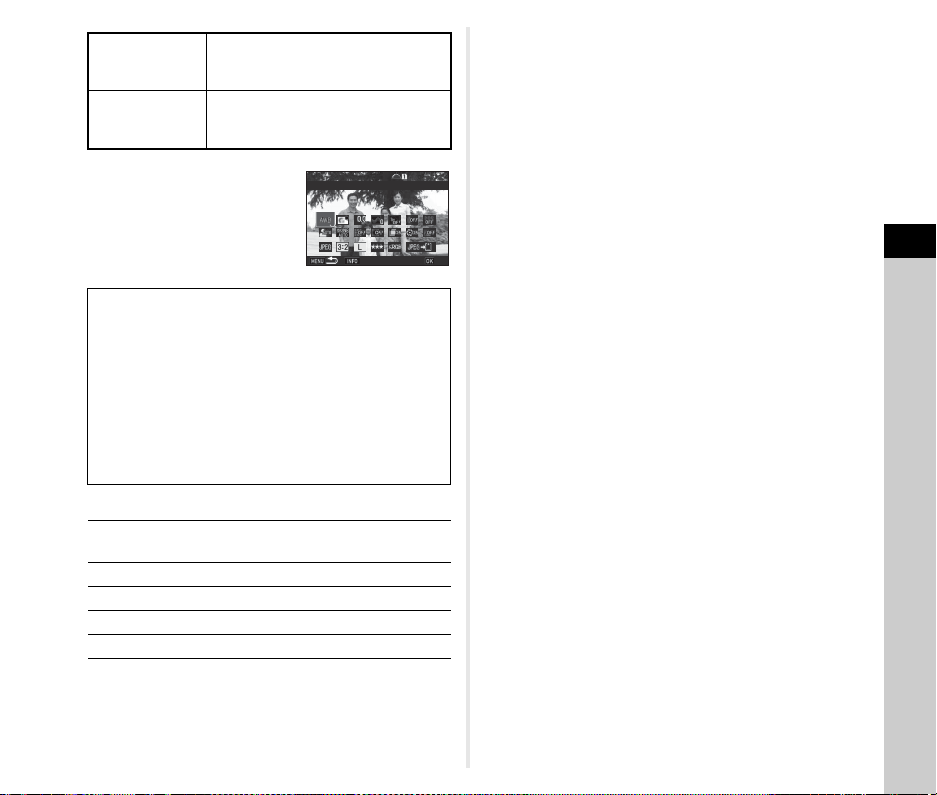
4
Playback
93
6 Select the setting item to
change.
Available operations
7 Use ABCD to select [JPEGu] or [TIFFu].
Turn R to change the file format.
8 Press E.
The save confirmation screen appears.
9 Select [Save to SD1] or [Save to SD2] and press
E.
When [Select single image] is selected, select [Continue] or
[Exit], and press E.
u Caution
• Only RAW images captured with this camera can be
developed.
• For RAW images captured when the drive mode is set to
[Multi-exposure] or [Interval Composite], the images are
developed with the Lens Correction settings used during
shooting. The Lens Correction settings cannot be changed
when developing RAW images.
• For RAW images captured when [Crop] in the A2 menu is
set to [1:1], the aspect ratio cannot be changed.
t Memo
• When [Select multiple images] or [Select a folder] is selected
in Step 2, a folder with a new number is created, and the
JPEG or TIFF images are stored in it.
• For [HDR Capture] and [Pixel Shift Resolution], the setting
item of which parameters can be changed varies depending
on the item used during shooting. For images captured with
the Pixel Shift Resolution function turned on, the Motion
Correction parameters or Image Stabilization parameters can
be changed depending on the setting used during shooting.
• With the provided software “Digital Camera Utility 5”, you can
develop RAW images on a computer.
Develop images
as shot
Allows you to change only File Format,
Aspect Ratio, JPEG Recorded Pixels,
JPEG Quality, and Color Space.
Develop images
with modified
settings
Allows you to change all setting items.
White Balance Distortion Correction
Custom Image Peripheral Illumin. Corr.
Sensitivity Lat-Chromatic-Ab Adj
Clarity Diffraction Correction
Skin Tone Color Fringe Correction
Digital Filter File Format
HDR Capture/ Aspect Ratio
Pixel Shift Resolution JPEG Recorded Pixels
Shadow Correction JPEG Quality
High-ISO NR Color Space
Q
Selects a different image (when in single
image display).
ABCD
Selects a setting item.
R
Changes the value.
G
Reviews the image.
E
Makes detailed settings.
100-0001
100-0001
White Balance
White Balance
Check
Check
OK
OK
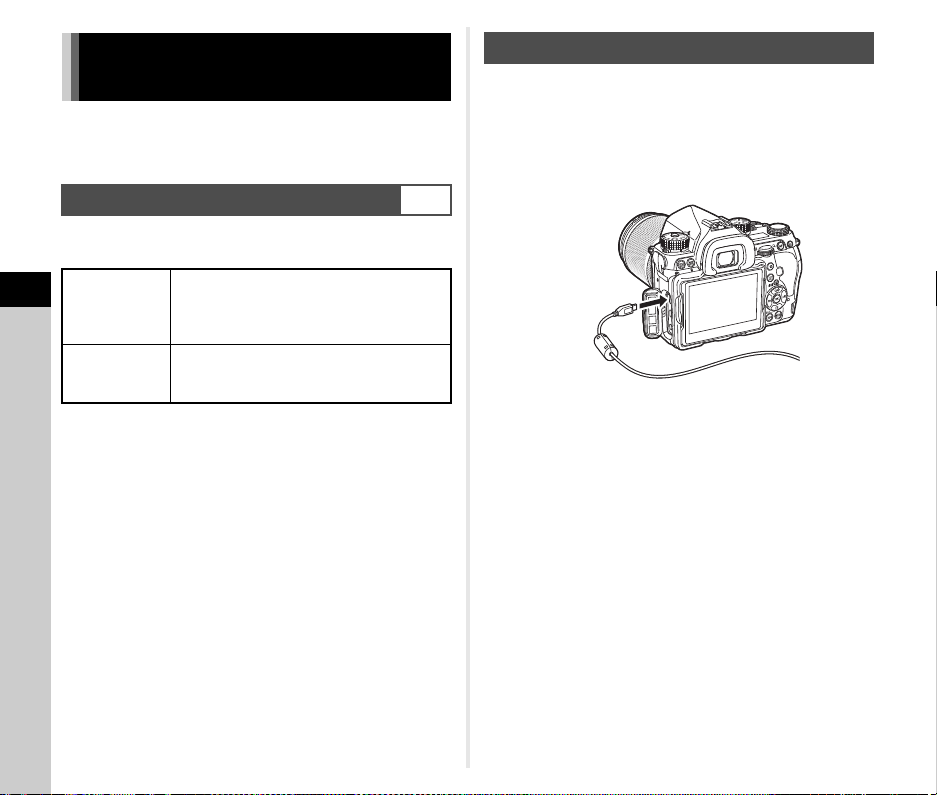
5
Sharing
94
Connect the camera to a computer using a USB cable.
Make sure to have a commercially available USB cable
equipped with a micro B terminal.
Set the connection mode in [USB Connection] of the D2 menu
according to the operation to be performed with a computer.
You can check the selected connection mode on the LCD panel.
(p.21)
t Memo
• Refer to “Operating Environment for USB Connection and
Provided Software” (p.123) for system requirements to
connect the camera to a computer and to use the software.
• If you intend to use the camera continuously for a long period,
the use of the optional AC adapter kit is recommended. (p.40)
1 Set [USB Connection] to [MSC] in the D2 menu.
2 Turn the camera off.
3 Open the terminal cover of the camera, and
connect the USB cable to the USB terminal.
4 Connect the USB cable to the USB port of the
computer.
5 Turn the camera on.
The camera is recognized as a removable disk.
6 Save the captured images to the computer.
7 Disconnect the camera from the computer.
u Caution
• The camera cannot be operated while it is connected to a
computer. To operate the camera, terminate the USB
connection on the computer first, then turn off the camera and
remove the USB cable.
• If the “K-1 II” dialog appears on the computer screen in Step
5, select [Open folder to view files] and click the OK button.
Using the Camera with a
Computer
Setting the Connection Mode
D2
MSC
(default setting)
Allows you to copy the data on the memory
card to a computer by making the computer
recognize the camera as a removable disk.
(p.94)
PTP
Allows you to perform tethered shooting by
operating the camera with a computer.
(p.95)
Copying an Image on the Memory Card
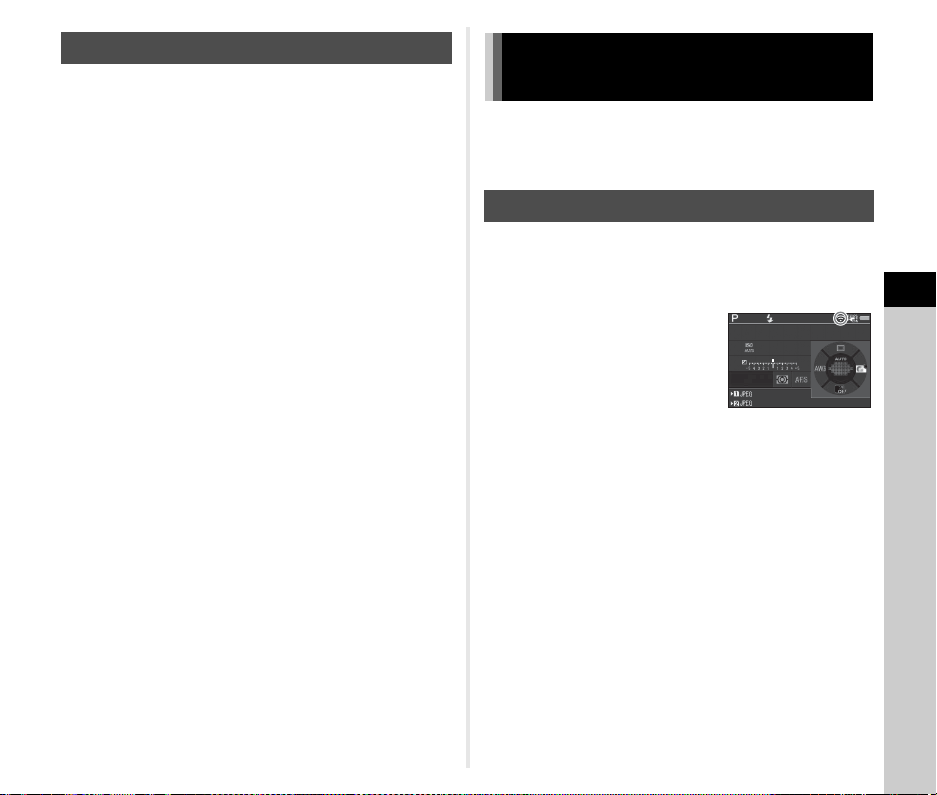
5
Sharing
95
You can perform tethered shooting with the camera connected
to a computer using the optional “IMAGE Transmitter 2”
software. Captured images can be directly saved to the
computer.
1 Set [USB Connection] to [PTP] in the D2 menu.
2 Turn the camera off.
3 Connect the camera to a computer using a USB
cable.
y Connecting the camera to a computer (p.94)
4 Turn the camera on.
5 Start “IMAGE Transmitter 2” on the computer.
“IMAGE Transmitter 2” is started and the computer
recognizes the camera.
u Caution
• When the capture mode selector switch is set to C, tethered
shooting cannot be performed if a memory card is not
inserted in the camera.
t Memo
• For details on “IMAGE Transmitter 2”, download and refer to
the latest version of the “User Guide [Operation]” available at
the following site.
http://www.ricoh-imaging.co.jp/english/support/
download_manual.html
• During tethered shooting, the shutter release always has
priority regardless of the [AF.S Setting] setting of [Phase
Detection AF] and the [Contrast AF Options] setting of
[Contrast Detection AF] in the A1 menu. (p.57, p.59)
This camera has a built-in Wi-Fi™ function. By directly connecting to
a communication device such as a smartphone and tablet via wireless
LAN, the camera can be operated from the communication device and
images can be shared with others via social networks or e-mail.
The Wi-Fi™ function is disabled when the camera is turned on.
Enable the function using one of the following methods.
• Setting from the menus (p.96)
• Setting with the Smart Function (p.96)
When the Wi-Fi™ function is
enabled, the Wi-Fi lamp lights up and
the 7 (white) icon indicating the
wireless LAN status is displayed on
the status screen and Live View
screen. When 8 (gray) is displayed,
a connection with the communication
device is not established correctly.
t Memo
•
Even after the Wi-Fi™ function is enabled, it returns to an inactive
state when the camera is turned off and on again. Also, when the
camera enters
C
mode, the Wi-Fi™ function is disabled.
• Auto Power Off is not available while a Wi-Fi™ connection is
established or images are being transferred. If Auto Power
Off is activated while a connection is not established, the
Wi-Fi™ function is disabled. The function is enabled when the
camera recovers from Auto Power Off.
• The Wi-Fi™ function is disabled during the USB connection.
u Caution
• Do not attempt to use the Wi-Fi™ function in a location where
the use of wireless LAN devices is restricted or prohibited,
such as on airplanes.
• When using the Wi-Fi™ function, observe local laws and
regulations governing radio communication.
•
If a memory card with a built-in wireless LAN function (such as an
Eye-Fi card or a Flucard) is used, radio wave interference may
occur. When this occurs, disable the Wi-Fi™ function of the camera.
Operating the Camera with a Computer
Using the Camera with a
Communication Device
Enabling the Wi-Fi™ Function
1/
1/
250
250
1600
1600
F
F
5.6
5.6
99 99 9
99999
99 99 9
99999
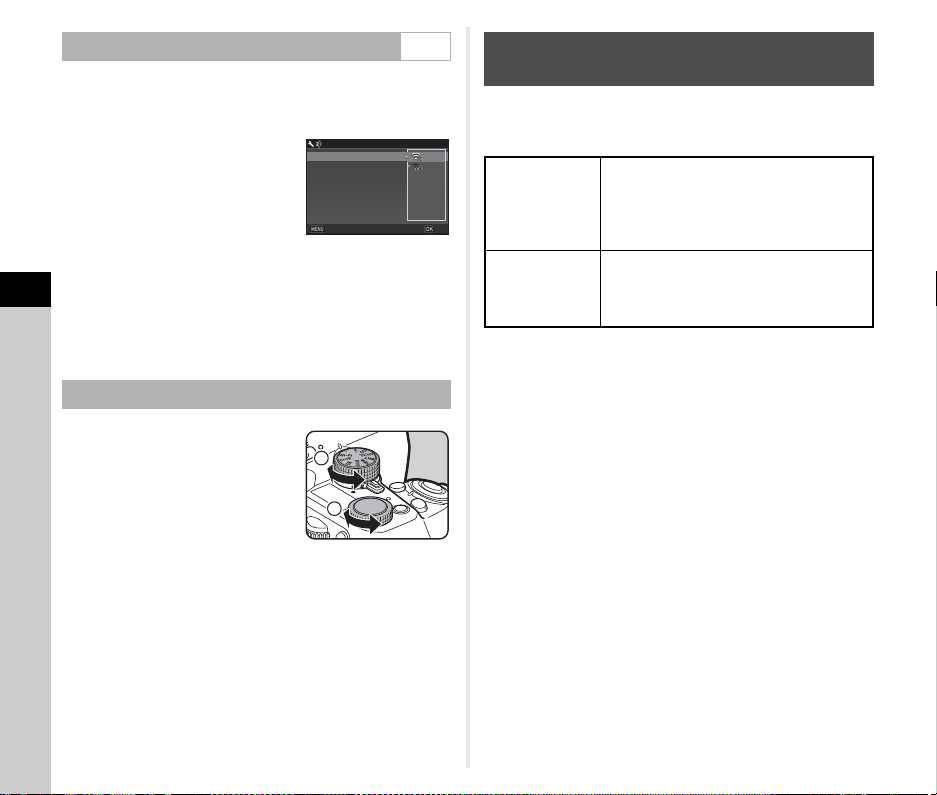
5
Sharing
96
1 Select [Wi-Fi] in D2 menu and press D.
The [Wi-Fi] screen appears.
2 Set [Action Mode] to [On].
Select [Off] to disable the Wi-Fi™
function.
3 Press F twice.
t Memo
• In Step 2, select [Communication Info] to check the SSID,
Password, and MAC Address of the wireless LAN. Or, select
[Reset Settings] to reset the settings to their default values.
1 Set the function dial to [Wi-
Fi].
2 Turn the setting dial.
The Wi-Fi™ function is turned on or off.
The following functions can be used by connecting the camera to
a communication device via Wi-Fi™ and using the dedicated
application “Image Sync”.
Image Sync supports iOS and Android™, and can be
downloaded from the App Store or Google Play™. For the
supported operating system and other details, refer to the
download site.
t Memo
• For details on how to connect the camera to a communication
device and the functions of dedicated application “Image
Sync”, refer to the following site.
http://www.ricoh-imaging.co.jp/english/products/app/
image-sync2/
• For details on how to operate the communication device,
refer to the operating manual of the device.
Setting from the Menus D2
Setting with the Smart Function
Wi-Fi
Wi-Fi
Action Mode
Action Mode
Communication Info
Communication Info
Reset Settings
Reset Settings
Cancel
Cancel
OK
OK
1
2
Operating the Camera with a
Communication Device
Remote Capture
Displays the Live View image of the
camera on the communication device, and
enables controlling exposure settings and
shooting by operating the communication
device.
Image View
Displays the images saved on the memory
card inserted in the camera on the
communication device, and imports the
images to the communication device.

6
Settings
97
You can set the functions for when X, Y (B), or I is
pressed, or when the main switch is turned to U.
In C mode, you can set only the function for when I is
pressed.
1 Select [Button Customization] in A5 or C2
menu and press D.
The [Button Customization] screen appears.
2 Select the desired item and
press D.
The screen to set the function for
the selected item is displayed.
3 Press D and use AB to select the function to
assign to each part.
The following functions can be assigned to each part.
Camera Settings
Customizing the Button/E-dial
Functions
A5/C2
Setting the Button Operation
Button Customization
Button Customization
Fx2 Button
Fx2 Button
AF Button
AF Button
Preview Dial
Preview Dial
E-Dial Programming
E-Dial Programming
Fx1 Button
Fx1 Button
Setting Function Page
Fx1 Button
Fx2 Button
One Push
File Format
Temporarily changes
the file format
(assigned to X by
default).
p.98
Outdoor
View
Setting
Adjusts the
brightness of the
monitor for outdoor
shooting
(assigned to
Y
by default).
p.14
Flash Mode Sets the flash mode. p.71
Pixel Shift
Resolution
Changes the setting
of the Pixel Shift
Resolution function.
p.77
Shake
Reduction
Turns the Shake
Reduction and Movie
SR functions on or off.
p.75
Horizon
Correction
Turns the Horizon
Correction function
on or off.
—
Electronic
Level
Turns the Electronic
Level display for the
viewfinder and Live
View on or off.
p.21
AF Button
AF Button
(Movie)
Enable AF1
Autofocus is performed
when
I
is pressed.
p.57
Enable AF2
Autofocus is
performed when
I
is pressed. Half press
of
0
is disabled.
Cancel AF
While I is pressed,
half press of 0
is disabled.
Preview
Dial
Optical
Preview
Activates the Optical
Preview function.
p.61
Digital
Preview
Activates the Digital
Preview function.
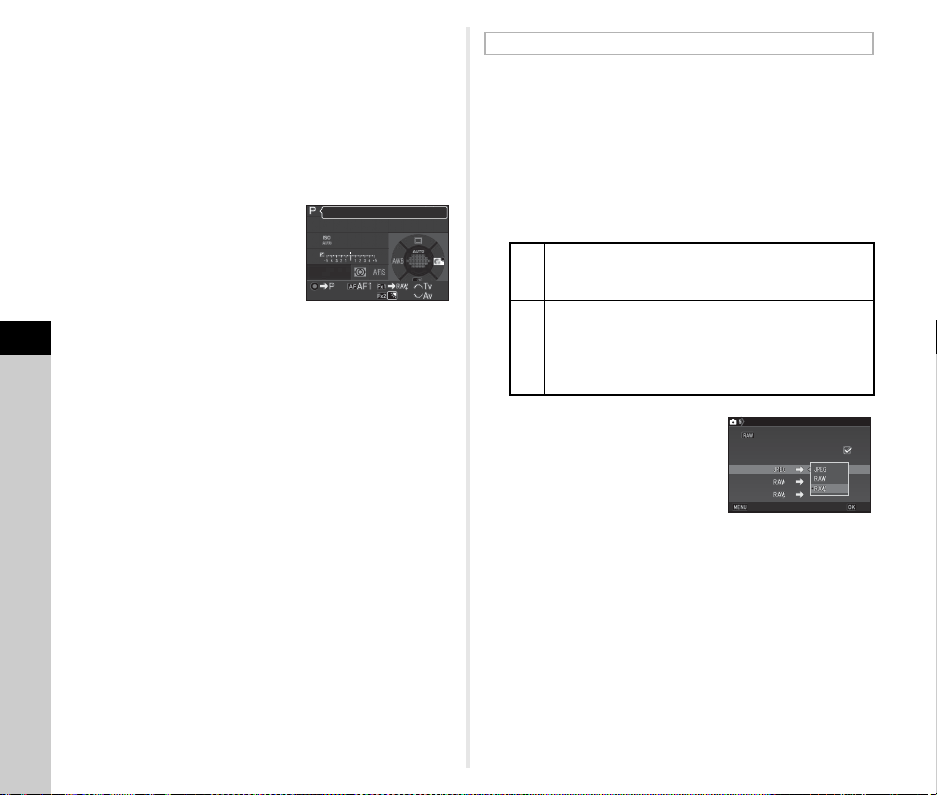
6
Settings
98
4 Press E.
5 Press F.
The screen of Step 2 reappears.
Repeat Steps 2 to 5.
6 Press F twice.
t Memo
• You can check the functions
assigned to the buttons while the
Guide Display feature is active
(p.28).
• You can assign the same function
to X and Y.
• When [One Push File Format] or
[Electronic Level] is assigned to
X or Y, pressing the button makes a beep sound. To
disable the beep sound, change the sound setting for each
function in [Sound Effects] of the D1 menu. (p.32)
You can temporarily change the file format by pressing the
button during shooting. Select the file format to change to when
X or Y is pressed for each [File Format] setting.
1 Set [One Push File Format] to [Fx1 Button] or
[Fx2 Button] in Step 3 of “Setting the Button
Operation” (p.97).
2 Select Z or Y for [Cancel after 1 shot].
3 Select the file format when
X or Y is pressed.
The left side is the [File Format]
setting and the right side is the
changed file format when X or
Y is pressed.
4 Press F three times.
The camera returns to standby mode.
t Memo
• When the button is pressed and held, a beep sounds and the
One Push File Format is enabled.
u Caution
• The One Push File Format function cannot be used when
[Memory Card Options] in the A2 menu is set to [Separate
RAW/JPEG]. (p.48)
1/
1/
250
250
1600
1600
F
F
5.6
5.6
Program AE
Program AE
Setting the One Push File Format
Z
The recording format returns to the [File Format]
setting of [Image Capture Settings] in the A2 menu
after a picture is taken.
Y
The setting is retained until any of the following
operations is performed:
• When X or Y is pressed again
• When 3, F, or G is pressed, or when the
mode dial or main switch is turned
Fx1 Button
Fx1 Button
Cancel after 1 shot
Cancel after 1 shot
One Push File Format
One Push File Format
Cancel
Cancel
OK
OK
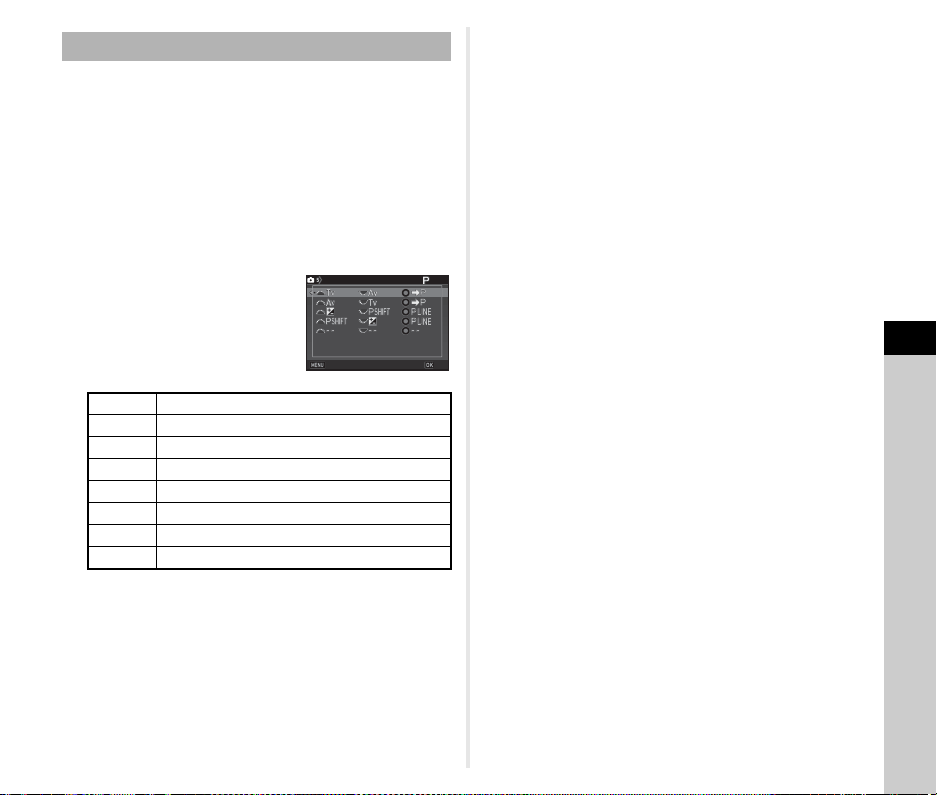
6
Settings
99
For each exposure mode, you can set the functions for when
Q and R are turned and M is pressed.
1 Select [E-Dial Programming] of [Button
Customization] in A5 or C2 menu and press
D.
The [E-Dial Programming] screen appears.
2 Select an exposure mode and press D.
The screen for the selected exposure mode appears.
3 Press D and use AB to
select the combination of
functions for when Q
and R are turned and M
is pressed.
4 Press E.
5 Press F.
The [E-Dial Programming] screen reappears.
Repeat Steps 2 to 5.
6 Press F twice.
t Memo
• If you select [Rotation Direction] in Step 2, you can reverse
the effect obtained by turning Q or R.
• You can check the functions assigned to Q, R, and M
while the Guide Display (p.45) is shown.
Setting the E-dial Operation
I
Change Shutter Speed
J
Change Aperture Value
ISO
Change Sensitivity
e
EV Compensation
XG
Return to G Mode
GSHIFT
Program Shift
GLINE
Program Line
-- Not available
Exposure Mode
Exposure Mode
Cancel
Cancel
OK
OK
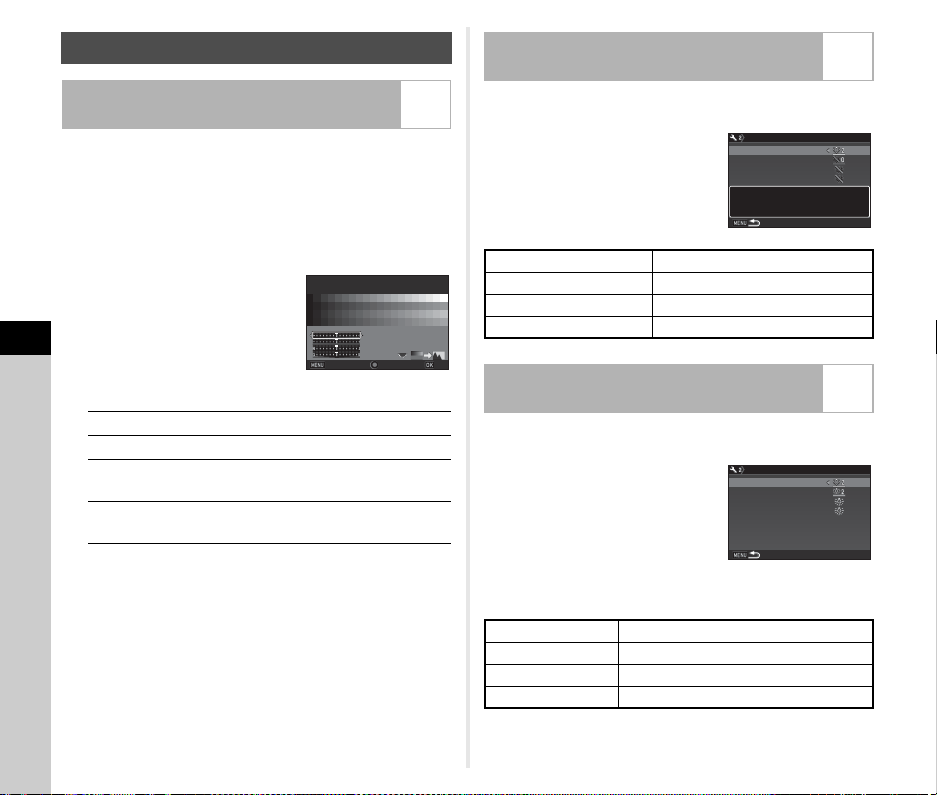
6
Settings
100
You can set the brightness, saturation, and color adjustment of
the monitor.
1 Select [LCD Display Settings] in the D1 menu
and press D.
The [LCD Display Settings] screen appears.
2 Adjust the brightness,
saturation, and color.
Available operations
3 Press E.
The D1 menu reappears.
u Caution
• When [Outdoor View Setting] of the D1 menu is set, [LCD
Display Settings] cannot be changed.
You can set whether to turn on the lights for the following
camera parts when 8 is pressed.
Set in [Illumination Settings] of the
D2 menu. Selecting [Off] provides no
illumination even when 8 is
pressed.
You can set whether to light up the following indicator lamps on
the camera body.
Set in [Indicator Lamps] of the D2
menu.
For [Self-timer], the self-timer lamp
blinks during the countdown for the
drive mode [Self-timer (12 sec.)]. For
[Remote Control], the remote control
receiver lamp blinks during the
standby for shooting.
Setting the Monitor and Indicator Lamps
Adjusting the Brightness, Saturation, and
Color of the Monitor
D1
AB Selects a parameter.
CD Adjusts the value.
R
Switches between the color chart display
and the image display.
M Resets the adjustment value to the default
setting.
±0
±0
LCD Display Settings
LCD Display Settings
Brightness Level
Brightness Level
OK
OK
Cancel
Cancel
Specifying the Illumination Button
Settings
D2
LCD Panel Off, Low, High
Backside Controls Off, Low, High
Lens Mount Off, On
Card Slot/Connector Off, On
Setting the Illumination of the Indicator
Lamps
D2
Wi-Fi Off, Low, High
GPS Off, Low, High
Self-timer Off, On
Remote Control Off, On
Pressing the illumination button
Pressing the illumination button
will provide high illumination
will provide high illumination
for the LCD panel
for the LCD panel
Illumination Settings
Illumination Settings
LCD Panel
LCD Panel
Backside Controls
Backside Controls
Lens Mount
Lens Mount
Card Slot/Connector
Card Slot/Connector
Wi-Fi
Wi-Fi
GPS
GPS
Indicator Lamps
Indicator Lamps
Self-timer
Self-timer
Remote Control
Remote Control
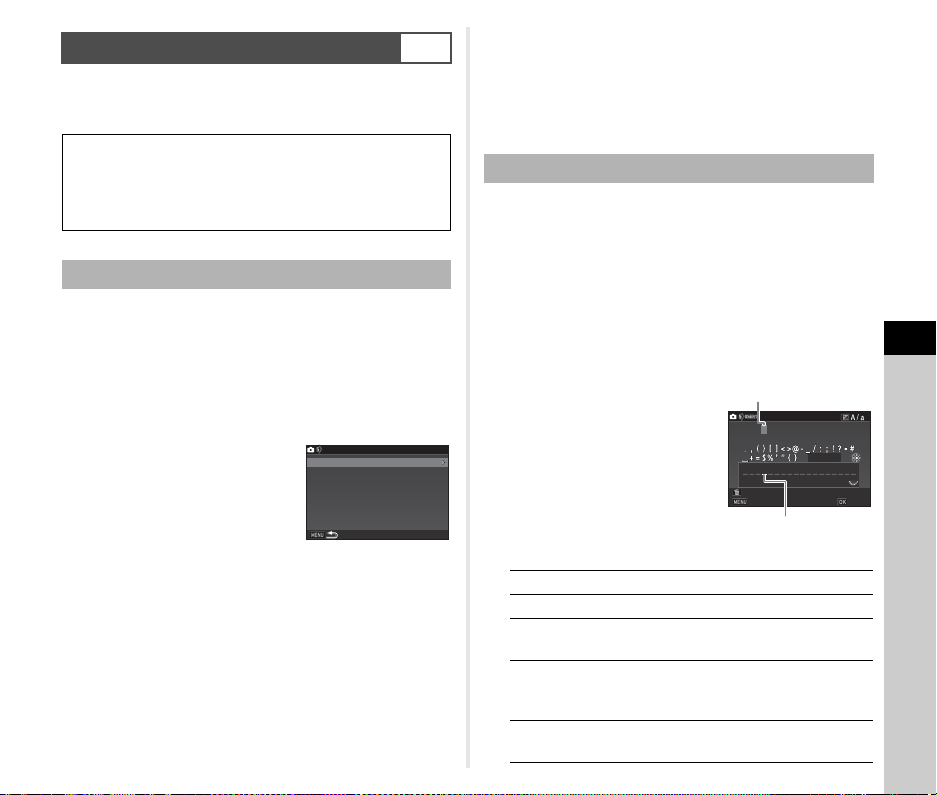
6
Settings
101
Camera settings can be saved to O to 5 of the mode dial
and used repeatedly.
The following settings can be saved.
1 Set the exposure mode and all the necessary
settings to save.
2 Select [Save USER Mode] in A5 menu and
press D.
The [Save USER Mode] screen appears.
3 Select [Save Settings] and
press D.
The [Save Settings] screen
appears.
4 Select a USER mode from [USER1] to [USER5],
and press D.
5 Select [Save] and press E.
The screen of Step 3 reappears.
u Caution
• [Save USER Mode] cannot be selected when the mode dial
is set to R.
t Memo
• The settings saved as the USER mode can be displayed on
the monitor when you select [Check Saved Settings] in Step
3.
• To reset the settings to the default values, select [Reset
USER Mode] in Step 3.
You can change the name of the USER mode in which you
saved settings.
1 Select [Rename USER Mode] in Step 3 of
“Saving the Settings” (p.101) and press D.
The [Rename USER Mode] screen appears.
2 Select a USER mode from [USER1] to [USER5],
and press D.
The text-entry screen appears.
3 Change the text.
Up to 18 single-byte
alphanumeric characters and
symbols can be entered.
Available operations
Saving Frequently Used Settings
A5
Exposure Mode (except
for R)
Sensitivity
EV Compensation
Drive Mode
White Balance
Custom Image
A menu and E menu
settings (with exceptions)
Saving the Settings
Save USER Mode
Save USER Mode
Rename USER Mode
Rename USER Mode
Check Saved Settings
Check Saved Settings
Reset USER Mode
Reset USER Mode
Save Settings
Save Settings
Editing a Setting Name
ABCD
Moves the text selection cursor.
R
Moves the text input cursor.
J
Switches between upper and lower case
letters.
E
Enters a character selected with the text
selection cursor at the position of the text
input cursor.
L
Deletes a character at the position of the
text input cursor.
A
A
B
B
C
C
D
D
E
E
F
F
G
G
H
H
I
I
J
J
K
K
L
L
M
M
N
N
O
O
P
P
Q
Q
R
R
S
S
T
T
U
U
V
V
W
W
X
X
Y
Y
Z
Z
0
0
1
1
2
2
3
3
4
4
5
5
6
6
7
7
8
8
9
9
A
A
B
B
C
C
Rename USER Mode
Rename USER Mode
Cancel
Cancel
Delete One Character
Delete One Character
Enter
Enter
Finish
Finish
Text selection cursor
Text input cursor
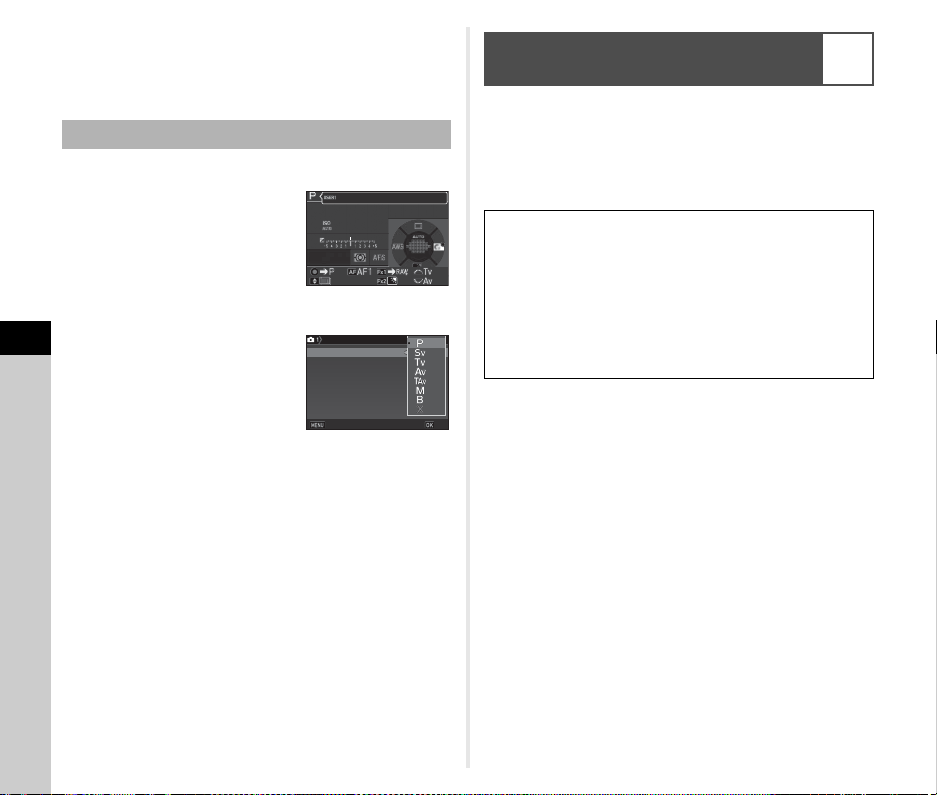
6
Settings
102
4 After entering the text, move the text selection
cursor to [Finish], and press E.
The [Rename USER Mode] screen reappears.
1 Set the mode dial to O to 5.
The USER mode name is
displayed.
Use AB to check the saved
settings.
2 Change the settings as necessary.
The exposure mode can be
changed in [Exposure Mode] of
the A1 menu.
t Memo
• The settings changed in Step 2 are not saved as the USER
mode settings. When the camera is turned off, the camera
returns to the originally saved settings. To change the original
settings, save the USER mode settings again.
The setting values for most functions of this camera are saved
even if the camera is turned off. For the following function
settings, you can select whether to save the settings (Z) or to
return the settings to their default values (Y) when the camera
is turned off.
Set in [Memory] of the A5 menu.
t Memo
• When [Reset] of the D4 menu is performed, all Memory
settings return to the default values.
Using the Saved USER Mode
1/
1/
250
250
1600
1600
F
F
5.6
5.6
ABCDEFGHIJKLMNOPQR
ABCDEFGHIJKLMNOPQR
Exposure Mode
Exposure Mode
Program Line
Program Line
Exposure Mode
Exposure Mode
Cancel
Cancel
OK
OK
Selecting Settings to Save in the
Camera
A5
Sensitivity Digital Filter
EV Compensation HDR Capture
Flash Mode
Pixel Shift Resolution
Flash Exposure Compensation
Composition Adjust.
Drive Mode Playback Info Display
White Balance Operation Control Lock
Custom Image Outdoor View Setting
Clarity Night Vision LCD Display
Skin Tone
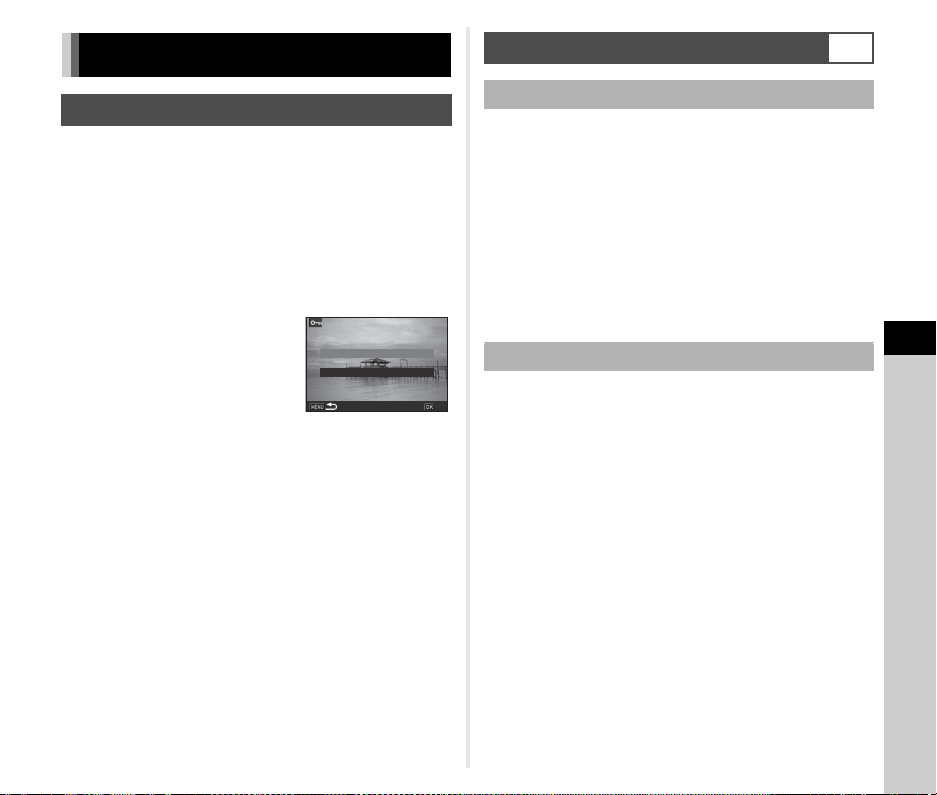
6
Settings
103
You can protect images from being accidentally deleted.
u Caution
• Even protected images are deleted if the inserted memory
card is formatted.
1 Select [Protect] in the playback mode palette.
The screen for selecting the processing type appears.
2 Select [Select image(s)] or
[Select a folder] and press
E.
3 Select the image(s) or folder to protect.
Proceed to Step 5 if [Select a folder] is selected.
y How to select image(s) (p.84)
4 Press G.
The confirmation screen appears.
5 Select [Protect] and press E.
t Memo
• To protect all images stored on the memory card, select
[Protect All Images] of the B1 menu.
When [Create New Folder] is selected in the D3 menu, a folder
is created with a new number when the next image is saved.
u Caution
• You cannot successively create multiple folders.
t Memo
• A new folder is automatically created in the following cases.
• When the drive mode is set to [Interval Shooting] (p.68)
• When [Select multiple images] or [Select a folder] is
selected for [RAW Development] of the playback mode
palette (p.92)
When images are captured with this camera, a folder is
automatically created and the captured images are stored in it.
Each folder name consists of a sequential number from 100 to
999 and a string of five characters.
The character string in the folder name can be changed.
1 Select [Folder Name] in D3 menu and press D.
The [Folder Name] screen appears.
File Management Settings
Protecting Images from Deletion
Select image(s)Select image(s)
Select a folderSelect a folder
OKOK
Specifying the Folder/File Settings
D3
Create New Folder
Folder Name
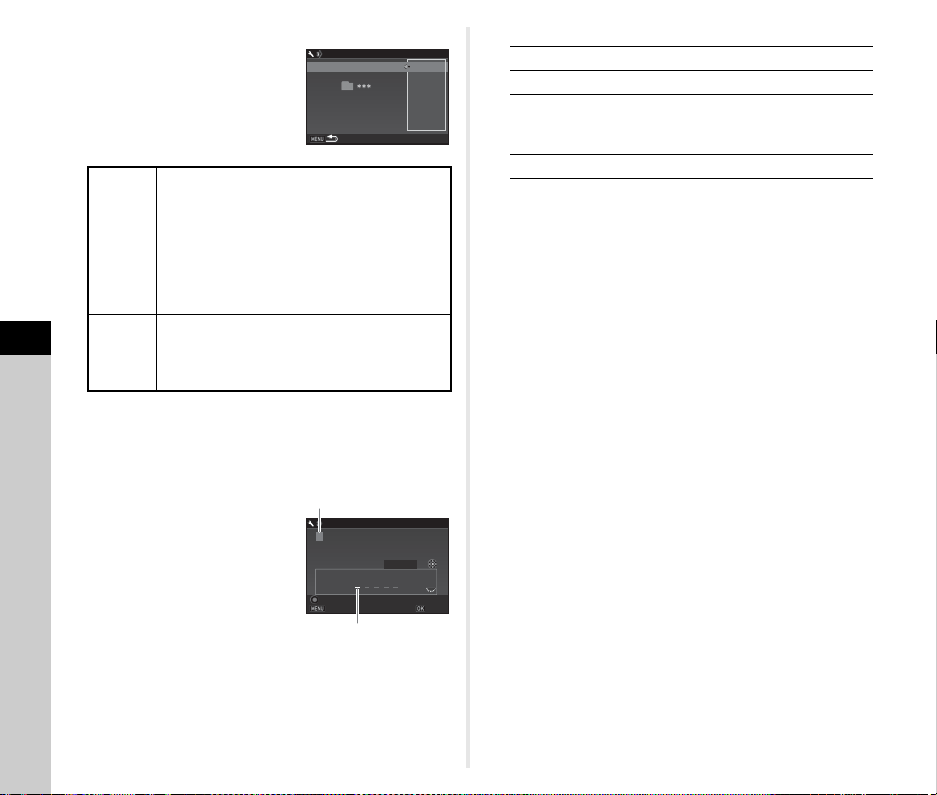
6
Settings
104
2 Press D and select [Date]
or [Optional].
Proceed to Step 6 if you select [Date] or do not need to
change the character string.
3 Press B, and then press D.
The text-entry screen appears.
4 Change the text.
Enter five single-byte
alphanumeric characters.
Available operations
5 After entering the text, move the text selection
cursor to [Finish], and press E.
6 Press F twice.
t Memo
• A folder with a new number is created when the folder name
is changed.
• A maximum of 500 images can be stored in a single folder.
When the number of captured images exceeds 500, a new
folder is created with the number following the number of the
folder currently being used. When the drive mode is set to
[Bracketing], images are stored in the same folder until
shooting is completed.
u Caution
• The maximum folder number is 999. After the folder number
reaches 999, you cannot capture new images if you attempt
to change the folder name or create a new folder, or when the
file name number reaches 9999.
Date
The four digits of the month and day of the
shooting date are assigned after the folder
number.
The month and day appear according to the
[Date Format] setting in [Date Adjustment] of
the D1 menu.
Example) 101_0125: for images taken on
January 25th
Optional
A freely defined string of five characters is
assigned after the folder number.
(Default setting: PENTX)
Example) 101PENTX
_MMDD
_MMDD
Folder Name
Folder Name
Date
Date
Folder Name
Folder Name
Optional
Optional
P
P
E
E
N
N
T
T
X
X
ABCDEFGH I JKLM
NOPQRSTUVWX YZ
0123456789
_
Folder Name
Folder Name
Cancel
Cancel
Reset
Reset
Enter
Enter
Finish
Finish
Text selection cursor
Text input cursor
ABCD
Moves the text selection cursor.
R
Moves the text input cursor.
E
Enters a character selected with the text
selection cursor at the position of the text
input cursor.
M
Resets the entered text to “PENTX”.
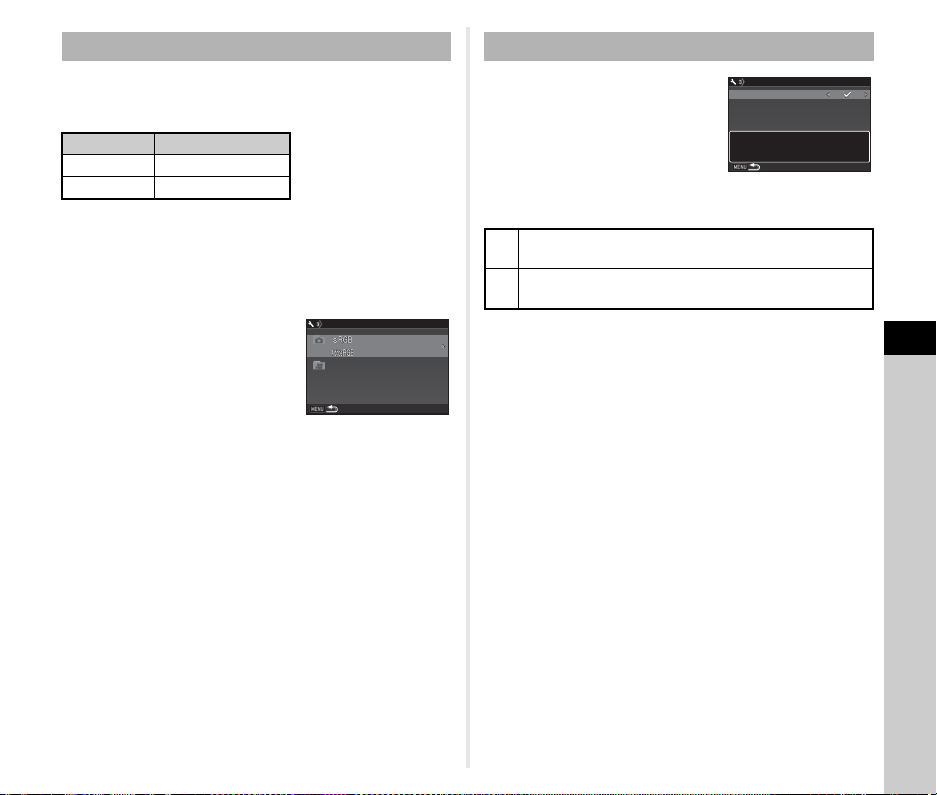
6
Settings
105
One of the following string of characters is used as the file name
prefix depending on the [Color Space] setting of [Image Capture
Settings] in the A2 menu.
The first four characters can be changed to a character string of
your choice.
1 Select [File Name] in D3 menu and press D.
The [File Name] screen appears.
2 Select A or C, and press
D.
The text-entry screen appears.
3 Change the text.
Up to four single-byte alphanumeric characters can be
entered as an alternative for the first part of the file name,
while the asterisks stand for figures that increase
automatically shot by shot.
y How to enter text (p.103)
4 Press F twice.
t Memo
• When [Color Space] is set to [AdobeRGB], the file name
prefix is “_” and first three characters of the entered character
string become the file name.
• For movies, regardless of the [Color Space] setting, the file
name is “IMGP
.MOV” or the one with the entered string
of characters.
Each file name consists of a string of
four characters and a sequential
number from 0001 to 9999. You can
set whether to continue the
sequential numbering for the file
name even if a new folder is created
in [Sequential Numbering] of [File
No.] in the D3 menu.
Select [Reset File Number] to reset the file number to its default
value.
t Memo
• When the file number reaches 9999, a new folder is created
and the file number is reset.
File Name
Color Space File Name
sRGB IMGP
.JPG
AdobeRGB _IMG
.JPG
I
I
M
M
G
G
P
P
.JPG
.JPG
.
MOV
I
I
M
M
G
G
P
P
_
_
I
I
M
M
G
G
File Name
File Name
File No.
Z
Continues the sequential numbering for the file name
even if a new folder is created.
Y
Returns the file number of the first image saved to a
folder to 0001 each time a new folder is created.
File No.
File No.
Sequential Numbering
Sequential Numbering
Reset File Number
Reset File Number
Uses sequential file number
Uses sequential file number
in new folder based on last
in new folder based on last
number in previous folder
number in previous folder
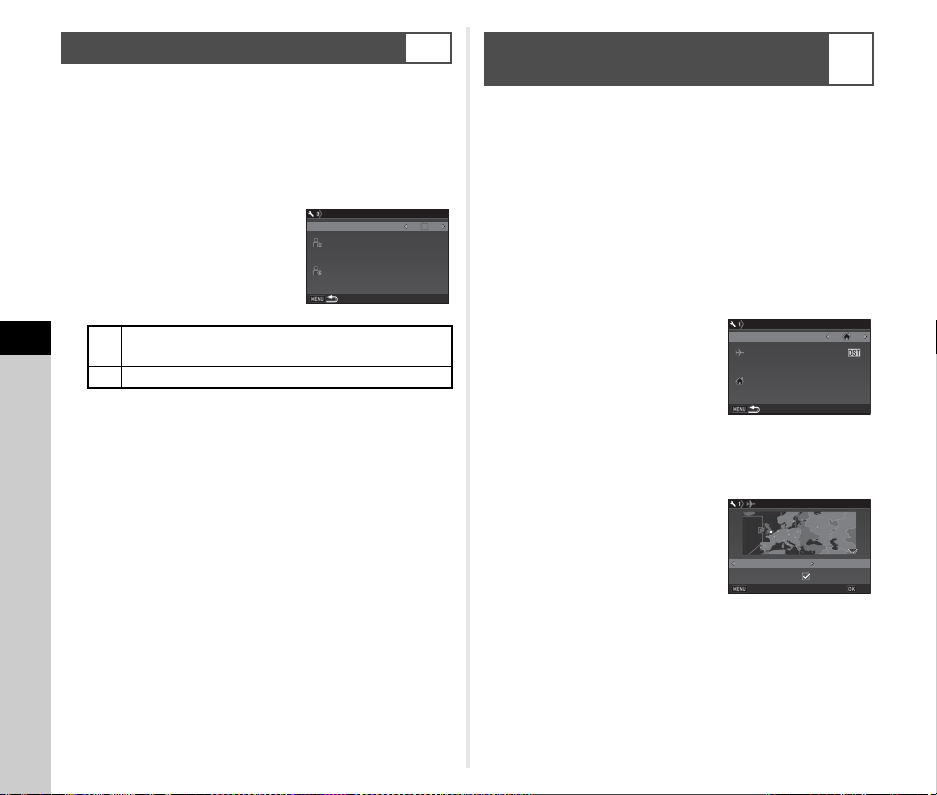
6
Settings
106
You can set the photographer and copyright information
embedded in the Exif data.
1 Select [Copyright Information] in D3 menu and
press D.
The [Copyright Information] screen appears.
2 Use CD to set [Embed
Copyright Data].
3 Select [Photographer] or [Copyright Holder],
and press D.
The text-entry screen appears.
4 Change the text.
Up to 32 single-byte alphanumeric characters and symbols
can be entered.
y How to enter text (p.101)
5 Press F twice.
t Memo
• The Exif information can be checked in Detailed Information
Display of the playback mode (p.18) or using the provided
software “Digital Camera Utility 5”.
The date and time set at the time of initial setting (“Initial
Settings” (p.41)) serve as the date and time of your present
location and are reflected in the shooting date and time for
images.
Setting the destination to a location other than your present
location enables you to display the local date and time on the
monitor when traveling abroad and also save images time-
stamped with the local date and time.
1 Select [World Time] in D1 menu.
The [World Time] screen appears.
2 Select the time you wish to
display in [Time Setting].
F (Hometown) or G
(Destination) can be selected.
3 Select [G Destination] and press D.
The [G Destination] screen appears.
4 Use CD to select a city.
Use R to change the region.
5 Select [DST] (daylight saving time), and use CD
to select Y or Z.
6 Press E.
The screen of Step 2 reappears.
7 Press F twice.
Setting the Copyright Information
D3
Y
Does not embed copyright information in the Exif
data.
Z
Embeds copyright information in the Exif data.
Copyright Information
Copyright Information
Embed Copyright Data
Embed Copyright Data
Photographer
Photographer
Copyright Holder
Copyright Holder
Displaying the Local Date and Time of
the Specified City
D1
World TimeWorld Time
Time SettingTime Setting
DestinationDestination
LondonLondon
HometownHometown
New YorkNew York
16:0016:00
10:0010:00
DestinationDestination
LondonLondon
DSTDST
+6:00 +6:00
16:0016:00
CancelCancel
OKOK

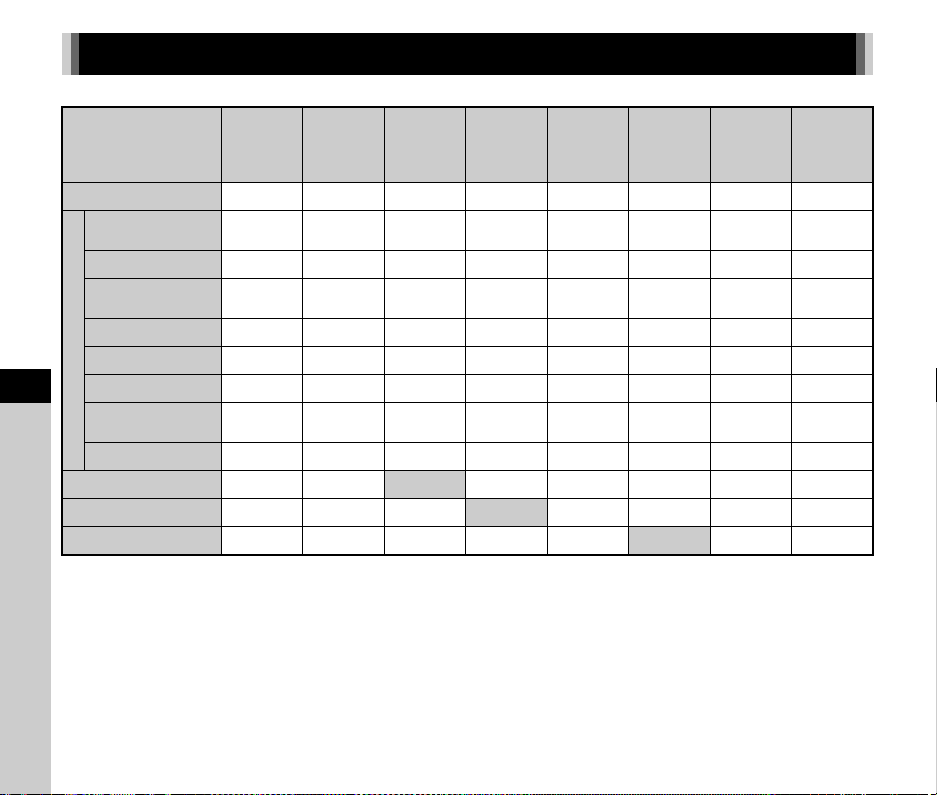
7
108
Appendix
#: Restricted
×
: Not available
*1 Fixed to [On] or [Off] depending on the setting.
*2 There is a restriction on the minimum value for [Interval].
*3 [Bracketing] is not available.
*4 Only the final frame can be saved.
Restrictions on the Combinations of Special Functions
LV
Electronic
Shutter
Clarity/
Skin Tone/
Digital
Filter
HDR
Capture
Pixel Shift
Resolution
ASTRO-
TRACER
AA Filter
Simulator
Distortion
Correction/
Diffraction
Correction
Save RAW
Data
Flash
×××
Drive Mode
Continuous
Shooting
××××
#
*3
×
Bracketing
×××
#
*3
#
*4
Mirror Lock-up
Shooting
×
#
*3
Multi-exposure
××××
#
*3
×
Interval Shooting
×
#
*2
#
*2
××
#
*3
#
*4
Interval Composite
×××××
#
*3
×
#
*4
Interval Movie
Record
×
#
*2
#
*2
××
#
*3
×
Star Stream
×××××
#
*3
××
HDR Capture
××
×××
Pixel Shift Resolution #
*1
××
××
AA Filter Simulator
×××
#
*3
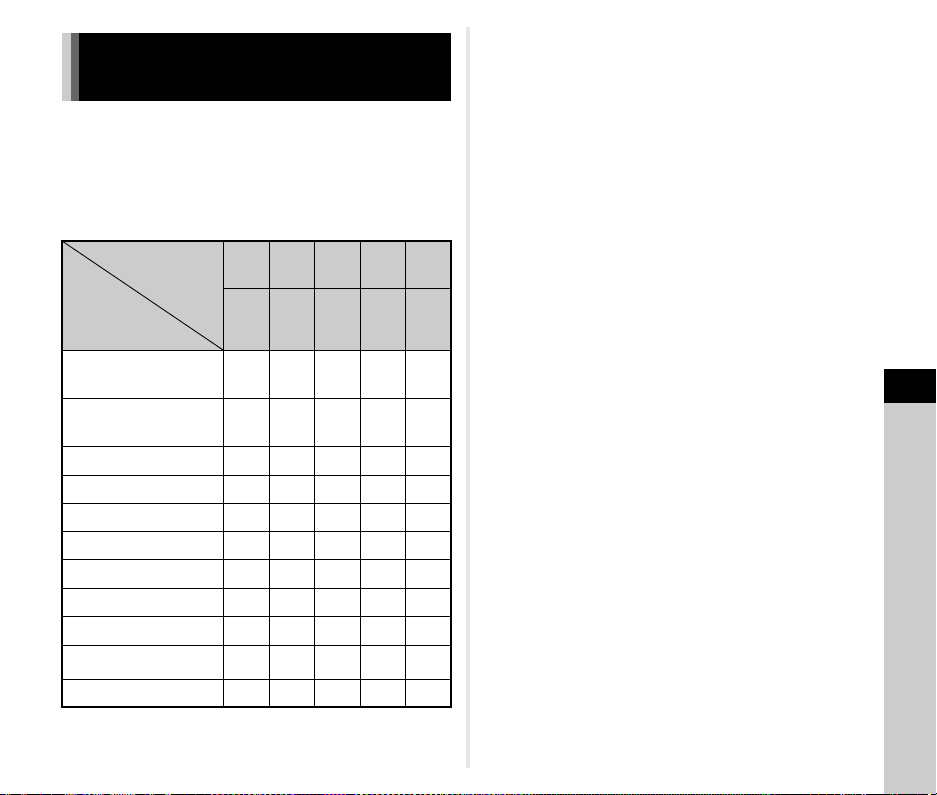
7
109
Appendix
All capture modes are available when a D FA, DA, DA L, FA, or
FA J lens is used, or when a lens with an 9 position is used with
the aperture ring set to the 9 position.
When other lenses than above are used, or a lens with an 9
position is used in a position other than 9, the following
restrictions apply.
x: Available #: Restricted
×
: Not available
*1 Lenses with a maximum aperture of F2.8 or faster. Only available at
the 9 position.
*2 Lenses with a maximum aperture of F5.6 or faster.
*3 Available when using AF540FGZ, AF540FGZ II, AF360FGZ,
AF360FGZ II, AF201FG, AF200FG, or AF160FC.
*4 Only available with compatible lenses.
*5 Distortion Correction and Peripheral Illumination Correction are
disabled when a DA FISH-EYE 10-17mm lens is used.
*6 To use an FA SOFT 28mm F2.8 lens, FA SOFT 85mm F2.8 lens, or
F SOFT 85mm F2.8 lens, set [26 Using Aperture Ring] to [Enable] in
the E4 menu. Pictures can be taken with the aperture you set, but
only within a manually adjustable aperture range.
*7 The auto zoom and preset zoom are disabled.
*8 The Lens Correction is available with the following FA lenses (Only
Distortion Correction and Lateral Chromatic Aberration Adjustment
can be used when the aperture ring is set to a position other than 9.):
FA
k
24mm F2 AL [IF], FA 28mm F2.8 AL, FA 31mm F1.8 Limited, FA
35mm F2 AL, FA 43mm F1.9 Limited, FA 50mm F1.4, FA 77mm F1.8
Limited, FA
k
85mm F1.4 [IF], FA
k
200mm F2.8 ED [IF],
FA
k
MACRO 200mm F4 ED, FA
k
300mm F2.8 ED [IF], FA
k
300mm
F4.5 ED [IF], FA
k
400mm F5.6 ED [IF], FA
k
600mm F4 ED [IF],
FA
k
28-70mm F2.8 ED [IF], FA
k
80-200mm F2.8 ED [IF], and
FA
k
250-600mm F5.6 ED [IF].
*9 Fixed to [Spot].
*10 J with the aperture set to wide open. (The aperture ring has no
effect on the actual aperture value.)
Functions Available with Various
Lenses
Lens
[Mount type]
Function
D FA
DA
DA L
FA
*6
FA J
F
*6
A
M
P
[KAF]
[KAF2]
[KAF3]
[KAF4]
[KAF]
[KAF2]
[KAF] [KA] [K]
Autofocus
(Lens only)
(With AF adapter 1.7×)
*1
x
—
x
—
x
—
—
#
—
#
Manual focus
(With focus indicator)
*2
(With matte field)
xxxxx
Quick-shift focus #
*4
××××
AF Active Area [Auto] xxx
×
*9
×
*9
AE Metering [Multi-segment] xxxx
×
G/H/I/J/K mode xxxx #
*10
L mode xxxx #
P-TTL auto flash
*3
xxxx
×
Power zoom — #
*7
———
Automatic obtaining of the
lens focal length information
xxx
××
Lens Correction #
*5
#
*8
×××
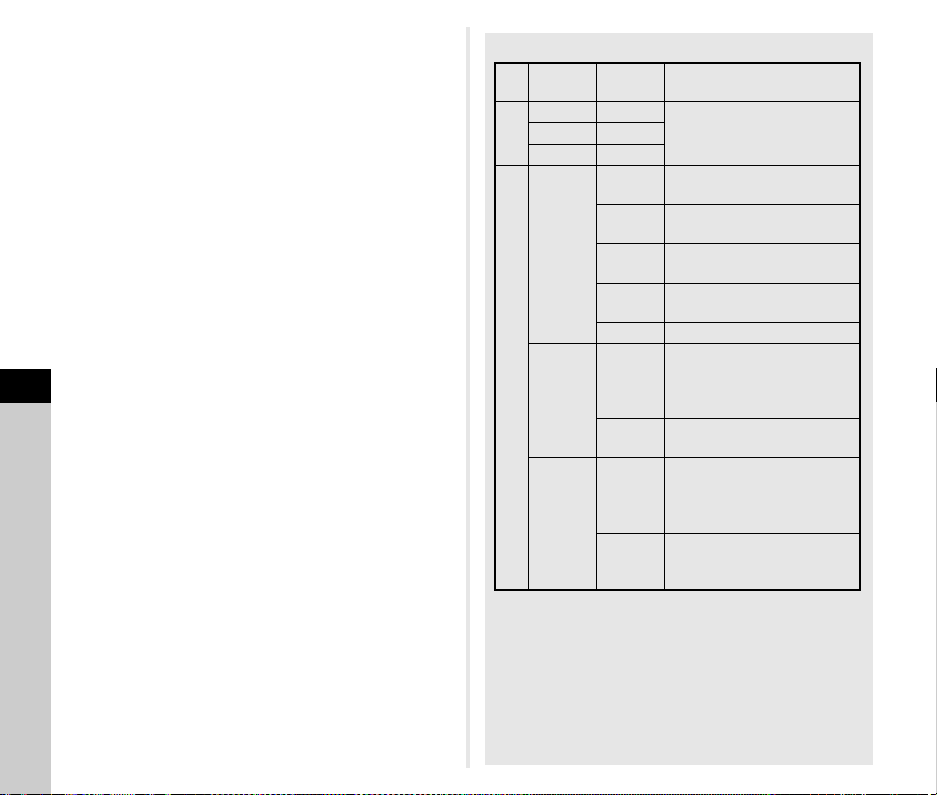
7
Appendix
110
u Caution
• Set the angle of view in [Crop] of the A2 and C1 menus
when using a DA or DA L lens. (p.48) When the angle of view
is changed to be equivalent to that of the APS-C size image
sensor, the cropping frame is displayed in the viewfinder.
(p.20) Perform shooting so that the subject is positioned in the
frame. The Lens Correction features are not available when
[Crop] is set to 2 while a DA or DA L lens (except
DA
k
200mm F2.8 ED [IF] SDM, DA
k
300mm F4 ED [IF]
SDM, and DA 560mm F5.6 ED AW lenses) is attached.
• When the aperture ring is set to a position other than 9 or a
lens without an 9 position or accessories such as an
extension tube are used, the camera does not operate unless
[26 Using Aperture Ring] is set to [Enable] in the E4 menu.
Refer to “Using the Aperture Ring” (p.111) for details.
• When a retractable lens is attached and is not extended, you
cannot take pictures or use some functions. If the lens is
retracted during shooting, the camera stops working.
Lens Names and Mount Names
• DA lenses with a motor and FA zoom lenses with a power
zoom use the KAF2 mount. (Of these lenses, the lenses
without an AF coupler use the KAF3 mount.)
• The KAF3 mount equipped with an electromagnetic
diaphragm mechanism instead of an aperture control
lever is referred to as the KAF4 mount.
• FA single focal length lenses, DA and DA L lenses without
a motor, and D FA, FA J, and F lenses use the KAF mount.
Refer to respective lens manuals for details.
Mount
Lens
Name
Lens Type
MF
SS
For 35mm full-frame sizeKK, M
KA A
AF
KAF
D FA
For both 35mm full-frame size
and APS-C size
DA
For APS-C size
Without the aperture ring
FA
For 35mm full-frame size
Power zoom not compatible
FA J
For 35mm full-frame size
Without the aperture ring
F For 35mm full-frame size
KAF2
DA
For APS-C size
Compatible with the built-in
motor
Without the aperture ring
FA
For 35mm full-frame size
Power zoom compatible
KAF3,
KAF4
D FA
For both 35mm full-frame size
and APS-C size
Dedicated for the built-in motor
Without the aperture ring
DA
For APS-C size
Dedicated for the built-in motor
Without the aperture ring
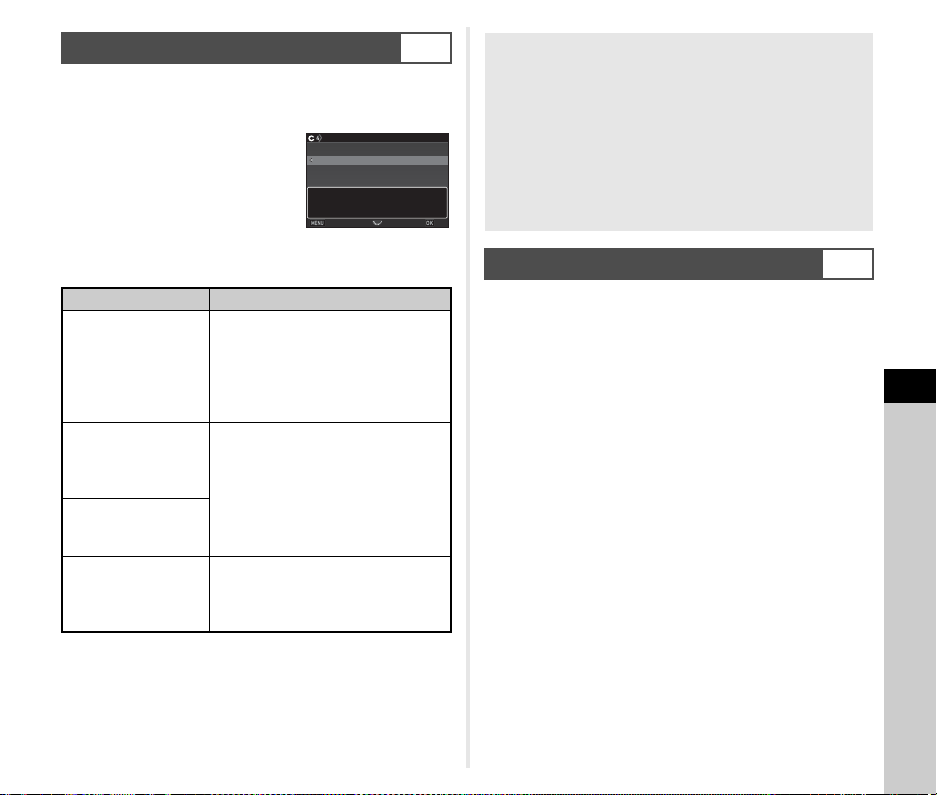
7
111
Appendix
The shutter can be released even if the aperture ring of the D
FA, FA, F, or A lens is not set to the 9 position or a lens without
an 9 position is attached.
Select [Enable] in [26 Using Aperture
Ring] of the E4 menu.
The following restrictions apply depending on the lens being
used.
t Memo
• If the aperture ring is set to a position other than 9, the
camera operates in J mode regardless of the mode dial
setting except when set to L, M, or N mode.
• [F--] appears for the aperture indicator in the status screen,
Live View screen, and viewfinder, and on the LCD panel.
You can perform Catch-in Focus shooting using a manual focus
lens. The shutter is released automatically when the subject
comes into focus.
1 Attach a manual focus lens to this camera.
2 Set [24 Catch-in Focus] to [On] in the E4 menu.
3 Set the autofocus mode to v and set [AF
Mode] to x.
4 Place the camera on a fixed support such as a
tripod.
5 Adjust the focus to the position where the
subject may pass and press 0 fully.
When the subject comes into focus at the specified position,
the shutter is released automatically.
Using the Aperture Ring
E4
Lens Restriction
D FA, FA, F, A, M (lens
only or with automatic
diaphragm
accessories such as
Auto Extension Tube
K)
The aperture remains open.
The shutter speed changes in relation
to the open aperture but an exposure
deviation may occur.
D FA, FA, F, A, M, S
(with diaphragm
accessories such as
Extension Tube K)
Pictures can be taken with the set
aperture value but an exposure
deviation may occur.
Manual diaphragm
lens such as reflex
lens (lens only)
FA SOFT 28mm/
FA SOFT 85mm/
F SOFT 85mm
(lens only)
Pictures can be taken with the set
aperture value in the manually
adjustable aperture range.
26
26
25
25
1
1
1
1
2
2
Using Aperture Ring
Using Aperture Ring
Disable
Disable
Enable
Enable
Shutter will release when
Shutter will release when
aperture ring is not set to the
aperture ring is not set to the
"A" position
"A" position
OK
OK
Cancel
Cancel
How to Achieve the Correct Exposure with the Aperture
Ring Not Set to 9
The correct exposure can be achieved by the following
procedures when the aperture ring is not set to 9.
1 Set the mode dial to L.
2 Set the aperture ring to the desired aperture.
3 Press M.
The correct shutter speed will be set.
4 If the correct exposure cannot be achieved, adjust the
ISO sensitivity.
Performing Catch-in Focus Shooting
E4
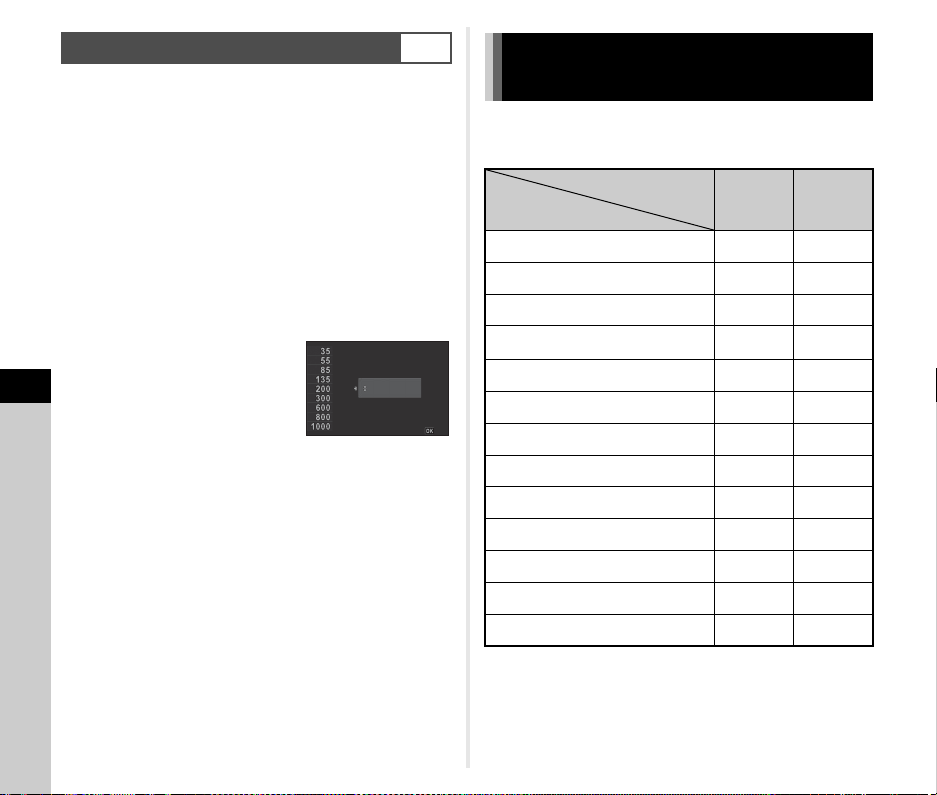
7
Appendix
112
The Shake Reduction function operates by obtaining the lens
information such as focal length. Set the focal length when
using a lens that the focal length information cannot be
automatically obtained.
1 Set [26 Using Aperture Ring] to [Enable] in the
E4 menu.
2 Turn the camera off.
3 Attach a lens to the camera and turn the camera
on.
The [Input Focal Length] screen appears.
4 Use AB to set the focal
length.
Press C to select a value from
the list.
When using a zoom lens, select
the actual focal length which the
zoom is set to.
5 Press E.
The camera returns to standby mode.
t Memo
• The focal length setting can be changed in [Input Focal
Length] of the A4 menu.
Use of the following external flashes (optional) enables a variety
of flash modes, such as P-TTL auto flash mode.
x: Available #: Restricted
×
: Not available
Setting the Focal Length
A4
35
35
mm
mm
OK
OK
Input Focal Length
Input Focal Length
Functions when Using an
External Flash
Compatible Flash
Camera Function
AF540FGZ
AF540FGZ II
AF360FGZ
AF360FGZ II
AF201FG
AF200FG
AF160FC
Red-eye reduction flash xx
Auto Flash Discharge
*1
#
*2
#
*2
Automatic switch to flash sync speed xx
Automatic setting of the aperture value in
G or I mode
#
*2
#
*2
P-TTL auto flash #
*2
#
*2
Slow-speed Sync flash xx
Flash Exposure Compensation xx
AF assist light of the external flash #
*3
×
Trailing Curtain Sync flash
*4
x #
*5
Contrast Control Sync flash #
*6
#
*7
Slave flash #
*6
×
High-speed Sync flash x
×
Wireless flash #
*6
×
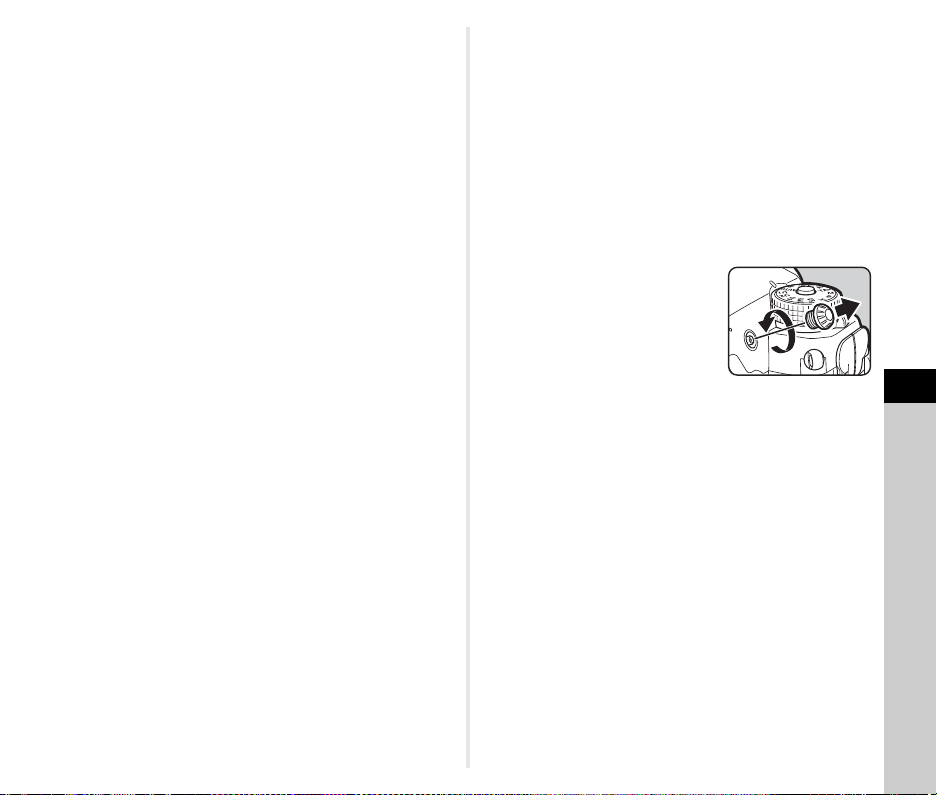
7
113
Appendix
*1 Only the R mode is available for the capture mode.
*2 Available only when using a D FA, DA, DA L, FA, FA J, F, or A lens.
(When using a lens with an aperture ring, set the aperture ring to the
9 position.)
*3 AF assist light is not available with the AF540FGZ or AF360FGZ.
*4 Shutter speed of 1/100 seconds or slower.
*5 Not available with the AF200FG or AF160FC.
*6 Multiple AF540FGZ, AF540FGZ II, AF360FGZ, or AF360FGZ II units
are required.
*7 Available only when combined with the AF540FGZ, AF540FGZ II,
AF360FGZ, or AF360FGZ II.
u Caution
• Flashes with the reversed polarity (the center contact on the
hot shoe is minus) cannot be used due to the risk of damaging
the camera and flash.
• Do not combine with accessories that have a different
number of contacts, such as Hot Shoe Grip, as a malfunction
may occur.
• Combining with flashes from other manufacturers may cause
equipment breakdown.
t Memo
• With the AF540FGZ, AF540FGZ II, AF360FGZ, or
AF360FGZ II, you can use the high-speed sync flash to
discharge a flash and take a picture at a shutter speed faster
than 1/200 seconds. Set the exposure mode to I, K, or
L.
• By using two or more external flashes (AF540FGZ,
AF540FGZ II, AF360FGZ, or AF360FGZ II), you can use the
wireless mode to shoot in P-TTL flash mode without
connecting the flash units with a cord. In this case, set the
camera channel on the external flashes.
• You can set the flash sync speed in [7 Flash Sync Speed] of
the E1 menu.
• You can connect an external flash
to the camera with a sync cord by
using the X-sync socket. Remove
the Sync socket 2P cap to connect
a sync cord to the X-sync socket.
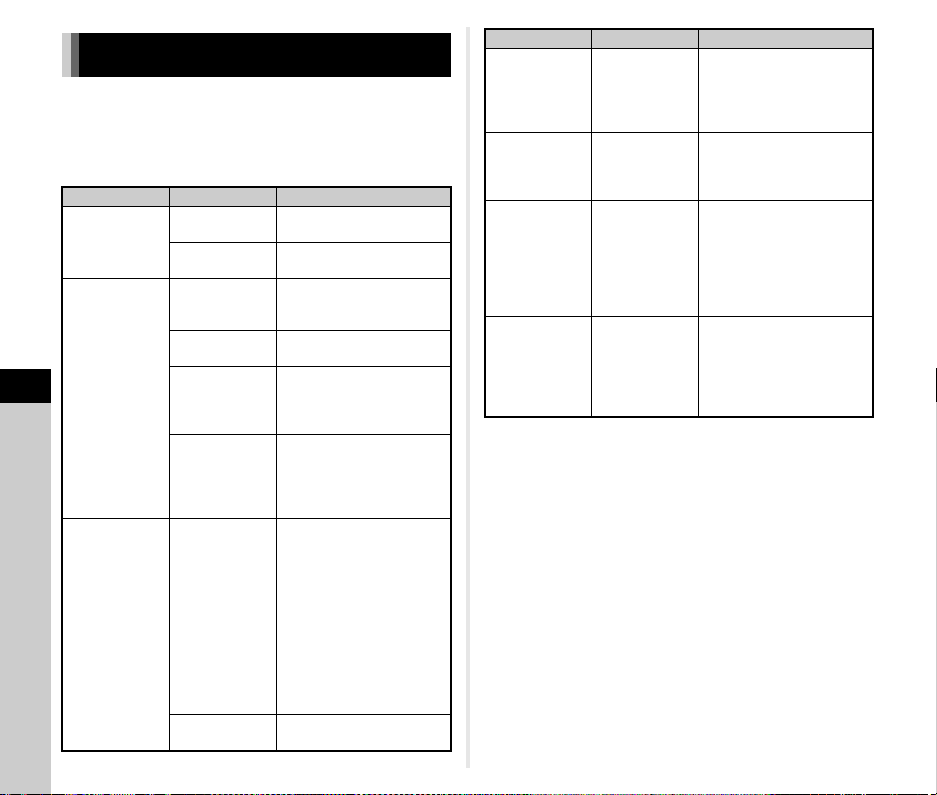
7
Appendix
114
t Memo
• In rare cases, the camera may not operate correctly due to
causes such as static electricity, etc. This can be remedied by
taking the battery out and putting it back in again. If the
camera operates correctly, it does not require any repairs.
Troubleshooting
Problem Cause Remedy
The camera does
not turn on.
The battery is not
installed properly.
Check the orientation of the
battery.
The battery power
is low.
Charge the battery.
The shutter cannot
be released.
There is no
available space on
the memory card.
Insert a memory card with
available space or delete
unwanted images.
Data is being
processed.
Wait until processing is
finished.
The lens aperture
ring is set to a
position other than
9.
Set the lens aperture ring to the
9 position or select [Enable] in
[26 Using Aperture Ring] of the
E4 menu. (p.111)
The autofocus
mode is set to
x and the
subject is not in
focus.
Set the focus method to w
and adjust focus manually.
Autofocus does
not work.
The subject is
difficult to focus
on.
v cannot work well for low-
contrast objects (the sky, white
walls, etc.), dark colors,
intricate designs, rapidly-
moving objects, or scenery shot
through a window or a net-like
pattern.
Lock focus on another object
located at the same distance as
your subject, then aim at the
target and take a picture.
Alternatively, use w.
The subject is too
close.
Move away from the subject
and take a picture.
The flash does not
discharge.
The flash mode is
set to [Auto Flash
Discharge].
When the flash mode is set to
[Auto Flash Discharge], the
flash does not discharge if the
subject is bright.
Change the flash mode. (p.71)
The camera is not
recognized when it
is connected to a
computer.
The USB
connection mode
is set to [PTP].
Set [USB Connection] to [MSC]
in the D2 menu.
Dust or dirt
particles appear in
images.
The CMOS sensor
is dirty or dusty.
Activate [Dust Removal] from
the D4 menu. The Dust
Removal function can be
activated every time the camera
is turned on and off.
Refer to “Sensor Cleaning”
(p.115) if the problem persists.
Pixel defects such
as bright spots
and dark spots
appear in the
image.
There are
defective pixels in
the CMOS sensor.
Activate [Pixel Mapping] from
the D4 menu.
It takes about 30 seconds to
correct the defective pixels, so
be sure to install a fully charged
battery.
Problem Cause Remedy
7
115
Appendix
Raise the mirror up and open the shutter when cleaning the
CMOS sensor with a blower.
1 Turn the camera off and remove the lens.
2 Turn the camera on.
3 Select [Sensor Cleaning] in D4 menu and press
D.
The [Sensor Cleaning] screen appears.
4 Select [Mirror Up] and press E.
The mirror rises up.
5 Clean the CMOS sensor with a blower.
6 Turn the camera off.
The mirror automatically returns to its original position.
u Caution
• Never use a spray blower or a blower with a brush. The
CMOS sensor may be damaged. Do not wipe the CMOS
sensor with a cloth.
• Do not put the tip of the blower inside the lens mount area. If
the power is turned off during cleaning, it may cause damage
to the shutter, the CMOS sensor, and the mirror. Hold the
camera with the lens mount down while cleaning the sensor
so dust will fall away from the sensor when the blower is used.
• When the battery level is low, the message [Not enough
battery power remaining to clean sensor] is displayed on the
monitor. Install a fully charged battery. If the battery capacity
becomes low during cleaning, a warning beep will sound. In
this case, stop cleaning immediately.
t Memo
• Please contact your nearest service center for professional
cleaning as the CMOS sensor is a precision part.
• You can use the optional Image Sensor Cleaning Kit O-ICK1
when cleaning the CMOS sensor.
Sensor Cleaning
D4
7
Appendix
116
Error Messages
Error Messages Description
Memory card full
The memory card is full and no more
images can be saved. Insert a new
memory card or delete unwanted files.
No image
There are no images that can be played
back on the memory card.
This image cannot
be displayed
You are trying to play back an image in a
format not supported by this camera. You
may be able to play it back on a computer.
No card in the camera
There is no memory card inserted in the
camera.
Memory card error
The memory card has a problem, and
image capture and playback are
impossible. You may be able to play back
or recover the images on a computer.
Card is not formatted
The memory card you have inserted is
unformatted or has been previously used
on another device and is not compatible
with this camera. Use the card after
formatting it with this camera.
Card is locked
The write-protect switch on the memory
card you have inserted is locked. (p.128)
Cannot use this card
A memory card not compatible with this
camera is inserted.
Wi-Fi connection disabled
The capture mode is changed to C
mode while the wireless LAN function is
enabled.
This image cannot
be magnified
You are trying to magnify an image that
cannot be magnified.
This image is protected
You are trying to delete an image that is
protected. Remove the protection from
the image. (p.103)
Not enough battery
power remaining to
activate Pixel Mapping
These messages appear when you try to
perform Pixel Mapping or Sensor
Cleaning, or to update the firmware if the
battery level is insufficient. Install a fully
charged battery.
Not enough battery
power remaining to
clean sensor
Not enough battery
power remaining to
update the firmware
Unable to update firmware.
There is a problem with the
firmware update file
The firmware cannot be updated. The
update file is damaged. Try downloading
the update file again.
Image folder cannot
be created
The maximum folder number (999) is
being used, and no more images can be
saved. Insert a new memory card or
format the card.
Unable to store image
The image could not be saved because of
a memory card error.
The operation could not be
completed correctly
The operation failed. Try the operation
again.
No more images
can be selected
You are trying to select more than the
maximum number of images for the
following functions.
• Select & Delete
• Image Copy
• RAW Development
•Protect
No image can be processed
There are no images that can be
processed using the Digital Filter or RAW
Development function.
This image cannot
be processed
This message appears when you try to
perform Resize, Cropping, Digital Filter,
Movie Edit, RAW Development, or Save
as Manual WB for images captured with
other cameras, or when you try to perform
Resize or Cropping for minimum file size
images.
This function is not available
in the current mode
You are trying to set a function that is not
available with the currently selected
capture mode.
The camera will turn off
to prevent damage from
overheating
The camera will turn off because its
internal temperature is too high. Leave
the camera turned off until it has had time
to cool down before turning on the
camera again.
Shutter release is disabled.
Ensure the zooming index on
the lens is set to a position
that permits shutter release
Pictures cannot be taken when a
retractable lens is attached and is not
extended. (p.46)
Error Messages Description
7
117
Appendix
Model Description
Image Capture Unit
File Formats
Viewfinder
Live View
LCD Monitor
Main Specifications
Type TTL autofocus, auto-exposure SLR digital camera
Lens Mount
PENTAX KAF2 bayonet mount (AF coupler, lens
information contacts, K-mount with power contacts)
Compatible
Lenses
KAF4, KAF3, KAF2 (power zoom compatible), KAF,
KA mount lenses
Image Sensor Primary color filter, CMOS, Size: 35.9 × 24.0 (mm)
Effective Pixels Approx. 36.40 megapixels
Total Pixels Approx. 36.77 megapixels
Dust Removal
Image sensor cleaning using ultrasonic vibrations
“DR II”
Sensitivity
(Standard Output)
ISO AUTO, Manual ISO range: 100 to 819200
• EV steps can be set to 1 EV, 1/2 EV, or 1/3 EV
Image Stabilizer
Sensor-shift Shake Reduction (SR; 5-axis image
stabilization system)
AA Filter
Simulator
Moiré reduction using the SR unit: Off, Type1,
Type2, Bracketing (2 images), Bracketing (3 images)
Recording
Formats
RAW (PEF/DNG), JPEG (Exif 2.3 compliant), DCF
2.0 compliant
Recorded Pixels
[35mm Full-Frame]
JPEG: q (36M: 7360×4912)
p (22M: 5760×3840)
o (12M: 4224×2816)
r (2M: 1920×1280)
RAW: (36M: 7360×4912)
[APS-C Size]
JPEG: q (15M: 4800×3200)
p (12M: 4224×2816)
o (8M: 3456×2304)
r (2M: 1920×1280)
RAW: (15M: 4800×3200)
Quality Level
RAW (14bit): PEF, DNG
JPEG: m (Best), l (Better), k (Good)
• RAW + JPEG simultaneously recordable
Color Space sRGB, AdobeRGB
Storage Media
SD, SDHC*, and SDXC* memory cards
* UHS-I compatible
Dual Card Slots
Sequential Use, Save to Both, Separate RAW/
JPEG, Copying images between slots possible
Storage Folder
Folder Name: Date (100_1018, 101_1019...) or a
user-assigned name (default: PENTX)
Storage File
File Name: user-assigned name (default:
IMGP
)
File No.: Sequential Numbering, Reset
Type Pentaprism Finder
Coverage (FOV) Approx. 100%
Magnification Approx. 0.70× (50mm F1.4 at infinity)
Eye-Relief Length
Approx. 20.6 mm (from the view window)
Approx. 21.7 mm (from the center of lens)
Diopter
Adjustment
Approx. -3.5 to +1.2 m
-1
Focusing Screen
Unchangeable Natural-Bright-Matte III focusing
screen
Overlay Items
AF Points, Grid Display, Electronic Level, AF Frame,
and Spot Metering Frame for Viewfinder Overlay;
and frame for Crop
Type TTL method using the CMOS image sensor
Focusing System
Contrast detection (Face Detection, Tracking,
Multiple AF Points, Select, Spot)
Focus Peaking: On, Off
Display
Field of view: approx. 100%, Magnified view (up to
16×), Grid Display (4×4 Grid, Golden Section, Scale,
Square 1, Square 2, Grid Color: Black, White),
Histogram Display, Highlight Alert, Composition
Adjustment
Type
A flexible, tiltable wide viewing angle TFT color LCD
with air-gapless tempered glass
Size 3.2 inches (aspect ratio 3:2)
Dots Approx. 1037K dots
Adjustment Brightness, saturation and colors adjustable
Outdoor View
Setting
Adjustable ±2 steps
Night Vision LCD
Display
On, Off
7
Appendix
118
White Balance
Focus System
Exposure Control
Shutter
Drive Modes
Type
Method using a combination of the CMOS image
sensor and the light source detection sensor
Preset Modes
Auto White Balance, Multi Auto White Balance,
Daylight, Shade, Cloudy, Fluorescent Light (D:
Daylight Color, N: Daylight White, W: Cool White, L:
Warm White), Tungsten Light, n, Manual White
Balance (up to 3 settings), Color Temperature (up to
3 settings), Copying the white balance settings of a
captured image
Fine Adjustment Adjustable ±7 steps on A-B axis and G-M axis
Type TTL phase-matching detection autofocus
Focus Sensor
SAFOX12, 33 points (25 cross type focus points in
the center)
Brightness Range EV -3 to 18 (ISO100, at normal temperature)
AF Modes Single AF (x), Continuous AF (y)
Focusing Area
Selection Modes
Spot, Select, Expanded Area AF (S, M, L), Zone
Select, Auto (33 AF Points)
AF Assist Light Dedicated LED AF assist light
Type
TTL open-aperture metering using 86K pixel RGB
sensor
Metering modes: Multi-segment, Center-weighted,
Spot
Metering Range EV -3 to 20 (ISO100 at 50mm F1.4)
Exposure Modes
Scene Analyze Auto, Program, Sensitivity Priority,
Shutter Priority, Aperture Priority, Shutter & Aperture
Priority, Manual, Bulb, Flash X-sync Speed, USER1,
USER2, USER3, USER4, USER5
EV Compensation ±5 EV (1/3 EV steps or 1/2 EV steps can be selected)
AE Lock
Button type (timer-control: two times the meter
operating time set in Custom Setting); continues as
long as 0 is halfway pressed.
Type
Electronically controlled vertical-run focal plane
shutter
• Electronic shutter is used for Pixel Shift Resolution
Shutter Speed
Auto: 1/8000 to 30 seconds, Manual: 1/8000 to 30
seconds (1/3 EV steps or 1/2 EV steps), Bulb (timed
exposure setting possible: 10 seconds to 20 minutes)
LV Electronic
Shutter
On, Off
Mode Selection
[Still picture]
Single frame, Continuous (H, M, L), Self-timer
(12 sec., 2 sec., continuous), Remote Control
(immediately, 3 sec., continuous), Bracketing*
1
(2, 3,
or 5 frames), Mirror Lock-up Shooting*
2
, Multi-
exposure*
3
, Interval Shooting*
1
, Interval
Composite*
1
, Interval Movie Record*
1
, Star Stream*
1
[Movie]
Remote Control
*1 Available with Self-timer or Remote Control
*2 Available with Remote Control
*3 Available with Continuous Shooting, Self-timer,
or Remote Control
Continuous
Shooting
[35mm Full-Frame]
Max. approx. 4.4 fps, JPEG (q: m at
Continuous H): up to approx. 70 frames, RAW: up to
approx. 17 frames
Max. approx. 3.0 fps, JPEG (q: m at
Continuous M): up to approx. 100 frames, RAW: up
to approx. 20 frames
Max. approx. 0.7 fps, JPEG (q: m at
Continuous L): up to approx. 100 frames, RAW: up
to approx. 100 frames
[APS-C Size]
Max. approx. 6.4 fps, JPEG (q: m at
Continuous H): up to approx. 100 frames, RAW: up
to approx. 50 frames
Max. approx. 3.0 fps, JPEG (q: m at
Continuous M): up to approx. 100 frames, RAW: up
to approx. 70 frames
Max. approx. 1.0 fps, JPEG (q: m at
Continuous L): up to approx. 100 frames, RAW: up
to approx. 100 frames
• When the sensitivity is set to ISO100
Multi-exposure
Composite Mode: Additive, Average, Bright
Number of Shots: 2 to 2000 times
7
119
Appendix
External Flash
Capture Functions
Movie
Interval Shooting
[Interval Shooting]
Interval: 2 sec. to 24 hr., Standby Interval: minimum
time or 1 sec. to 24 hr., Number of Shots: 2 to 2000
times, Start Interval: Now, Self-timer, Remote
Control, Set Time
[Interval Composite]
Interval: 2 sec. to 24 hr., Standby Interval: minimum
time or 1 sec. to 24 hr., Number of Shots: 2 to 2000
times, Start Interval: Now, Self-timer, Remote
Control, Set Time, Composite Mode: Additive,
Average, Bright, Save Process: On, Off
[Interval Movie Record]
Recorded Pixels: z, u, t, Recording Format:
Motion JPEG (AVI), Interval: 2 sec. to 24 hr.,
Standby Interval: minimum time or 1 sec. to 24 hr.,
Number of Shots: 8 to 2000 times (When z is
selected: 8 to 500 times), Start Interval: Now, Self-
timer, Remote Control, Set Time
[Star Stream]
Recorded Pixels: z, u, t, Recording Format:
Motion JPEG (AVI), Standby Interval: minimum time
or 1 sec. to 24 hr., Number of Shots: 8 to 2000 times
(When z is selected: 8 to 500 times), Start Interval:
Now, Self-timer, Remote Control, Set Time, Fade-
out: Off, Low, Medium, High
Flash Modes
Auto Flash Discharge, Auto Flash + Red-eye
Reduction, Flash On, Flash On + Red-eye
Reduction, Slow-speed Sync, Slow-speed Sync +
Red-eye Reduction, P-TTL, Contrast Control Sync*,
High-speed Sync, Wireless Sync*
* Available with two or more compatible external
flash units
Sync Speed 1/200 seconds
Flash Exposure
Compensation
-2.0 to +1.0 EV
Custom Image
Auto Select, Bright, Natural, Portrait, Landscape,
Vibrant, Radiant, Muted, Flat, Bleach Bypass,
Reversal Film, Monochrome, Cross Processing
Cross Processing Random, Preset 1-3, Favorite 1-3
Digital Filter
Extract Color, Replace Color, Toy Camera, Retro,
High Contrast, Shading, Invert Color, Unicolor Bold,
Bold Monochrome
Clarity -4.0 to +4.0
Skin Tone Type1, Type2, Off
HDR Capture
Auto, Type1, Type2, Type3, Advanced HDR, Off
Bracket Value: adjustable
Auto Align (automatic composition correction
function): available
Pixel Shift
Resolution
Motion Correction On, Motion Correction Off, Image
Stabilization On, Off
Lens Correction
Distortion Correction, Peripheral Illumination
Correction, Lateral Chromatic Aberration
Adjustment, Diffraction Correction
D-Range Settings Highlight Correction, Shadow Correction
Noise Reduction Slow Shutter Speed NR, High-ISO NR
GPS
GPS Logging (Logging Interval, Logging Duration,
Memory Card Options), GPS Time Sync
Electronic
Compass
Available
ASTROTRACER Available
Horizon
Correction
SR On: corrects up to 1 degree
SR Off: corrects up to 2 degrees
Composition
Adjustment
Adjustment range of ±1.5 mm up, down, left or right
(±1 mm when rotated); rotating range of ±1 degree
Electronic Level
Displayed in viewfinder (horizontal direction and
vertical direction); displayed on monitor (horizontal
direction and vertical direction)
Recording Format MPEG-4 AVC/H.264 (MOV)
Recorded Pixels/
Frame Rate
u (1920×1080, 60i/50i/30p/25p/24p)
t (1280×720, 60p/50p)
Sound
Built-in stereo microphone, external microphone
(stereo recording compatible)
Recording Sound Level adjustable, Wind Noise
Reduction
Recording Time
Up to 4 GB or approx. 25 minutes; automatically
stops recording if the internal temperature of the
camera becomes high.
Custom Image
Auto Select, Bright, Natural, Portrait, Landscape,
Vibrant, Radiant, Muted, Flat, Bleach Bypass,
Reversal Film, Monochrome, Cross Processing
Cross Processing Random, Preset 1-3, Favorite 1-3
Digital Filter
Extract Color, Replace Color, Toy Camera, Retro,
High Contrast, Shading, Invert Color, Unicolor Bold,
Bold Monochrome
7
Appendix
120
Playback Functions
Customization
GPS/Electronic Compass
Playback View
Single image, Multi-image display (6, 12, 20, 35, and 80
thumbnails), Image magnification (Up to 16×, 100%
display, and quick zoom), Grid Display (4×4 Grid,
Golden Section, Scale, Square 1, Square 2, Grid Color:
Black, White), Rotated image display, Histogram
Display (Y histogram, RGB histogram), Highlight Alert,
Auto Image Rotation, Detailed Information Display,
Copyright Information (Photographer, Copyright
Holder), GPS information (Latitude, Longitude, Altitude,
Coordinated Universal Time (UTC)), Direction, Folder
Display, Calendar Filmstrip Display, Slideshow
Delete
Single image, all images, select & delete, folder,
Instant Review image
Digital Filter
Base Parameter Adj, Extract Color, Replace Color,
Toy Camera, Retro, High Contrast, Shading, Invert
Color, Unicolor Bold, Bold Monochrome, Tone
Expansion, Sketch, Water Color, Pastel,
Posterization, Miniature, Soft, Starburst, Fish-eye,
Slim, Monochrome
RAW
Development
Development options: Select single image, Select
multiple images, Select a folder
Development parameters: White Balance, Custom
Image, Sensitivity, Clarity, Skin Tone, Digital Filter,
HDR Capture, Pixel Shift Resolution, Shadow
Correction, High-ISO NR, Distortion Correction,
Peripheral Illumination Correction, Lateral Chromatic
Aberration Adjustment, Diffraction Correction, Color
Fringe Correction, File Format (JPEG, TIFF), Aspect
Ratio, JPEG Recorded Pixels, JPEG Quality, Color
Space
Editing Features
Image Rotation, Color Moiré Correction, Resize,
Cropping (aspect ratio can be changed and tilt
correction is available), Movie Edit (dividing a movie
file and deleting unwanted segments), Capturing a
JPEG still picture from a movie, Save RAW Data,
Image Copy
USER Mode Up to 5 settings can be saved.
Custom Functions 26 items
Mode Memory 17 items
Button
Customization
X/Y button: One Push File Format, Outdoor View
Setting, Flash Mode, Pixel Shift Resolution, Shake
Reduction, Horizon Correction, Electronic Level
I button: Enable AF1, Enable AF2, Cancel AF
Preview dial: Optical Preview, Digital Preview
E-dials (front/rear): customizable to each exposure
mode
AF Customization
AF.S: Focus-priority, Release-priority
1st Frame Action in AF.C: Auto, Focus-priority,
Release-priority
Action in AF.C Continuous: Auto, Focus-priority, FPS-
priority
Hold AF Status: Off, Low, Medium, High
AF in Interval Shooting: Locks focus at 1st exposure,
Adjusts focus for each shot
AF with Remote Control: Off, On
Enable/Disable
Control
Type1: QR, J, N, M, H
Type2: ABCD, c, E, F
Text Size Standard, Large
World Time World Time settings for 75 cities (28 time zones)
AF Fine
Adjustment
±10 steps, uniform adjustment for all lenses or
individual adjustment for each lens (up to 20 values
can be saved)
Illumination
Settings
LCD Panel: High, Low, Off
Backside Controls: High, Low, Off
Lens Mount: On, Off
Card Slot/Connector: On, Off
Indicator Lamps
Wi-Fi: High, Low, Off
GPS: High, Low, Off
Self-timer: On, Off
Remote Control: On, Off
Copyright
Information
Names of “Photographer” and “Copyright Holder”
are embedded to the image file. A revision history
can be checked using the provided software.
Satellite Systems
GPS, QZSS
SBAS: WAAS, EGNOS, GAGAN, MSAS
Reception
Frequency
L1, 1575.42 MHz
Recorded
Information
Latitude, Longitude, Altitude, Coordinated Universal
Time (UTC), Direction
Geodesics World Geodetic System (WGS84)
GPS Logging
KML format, Logging Interval: 5sec., 10sec., 15sec.,
30sec., or 1min.
Logging Duration: 1hr. to 24hr. (Up to 9 hours when
Logging Interval is set to “5sec.” Up to 18 hours
when Logging Interval is set to “10sec.”)
Electronic
Compass
Azimuth calculation using triaxial geomagnetic
sensor and triaxial acceleration sensor, True north
standard
7
121
Appendix
Power Supply
Interfaces
Wireless LAN
Dimensions and Weight
Operating Environment
Included Accessories
(When using the fully charged battery)
• The image storage capacity (normal recording) is based on measuring
conditions in accordance with CIPA standards, while other data is based
on our measuring conditions. Some deviation from the above figures
may occur in actual use depending on the selected capture mode and
shooting conditions.
(When using an 8 GB memory card)
• The number of storable images may vary depending on the subject,
shooting conditions, selected capture mode, and memory card, etc.
Battery Type Rechargeable Lithium-ion Battery D-LI90
AC Adapter AC Adapter Kit K-AC167 (optional)
Battery Life
Number of recordable images: approx. 670 images
Playback time: approx. 340 minutes
• Tested in compliance with CIPA standard using a
fully charged lithium-ion battery at a temperature
of 23°C. Actual results may vary depending on the
shooting conditions/circumstances.
Connection Port
USB 2.0 (micro B), external power supply terminal,
cable release terminal, X-sync socket, HDMI
®
output
terminal (type D), stereo microphone input terminal,
headphone terminal
USB Connection MSC/PTP
Standards IEEE 802.11b/g/n (standard wireless LAN protocol)
Frequency
(Center
Frequency)
2412 to 2462 MHz (channels: Ch 1 to Ch 11)
Security
Authentication: WPA2
Encryption: AES
Dimensions
Approx. 136.5 mm (W) × 110 mm (H) × 85.5 mm (D)
(excluding protrusions)
Weight
Approx. 1010 g (including the dedicated battery and
an SD Memory Card)
Approx. 925 g (body only)
Temperature -10 to 40°C (14 to 104°F)
Humidity 85% or less (no condensation)
Package
Contents
Strap O-ST162, ME Viewfinder Cap, Rechargeable
Lithium-ion Battery D-LI90, Battery Charger D-
BC90, AC plug cord, Software (CD-ROM) S-SW171
<Mounted to the camera> Eyecup FT, Hot shoe
cover FK, Sync socket 2P cap, Body mount cap K II,
Battery grip terminal cover
Software Digital Camera Utility 5
Approximate Image Storage Capacity and
Playback Time
Battery Temperature Normal Shooting Playback Time
D-LI90 23°C 670 340 minutes
Approximate Image Storage Capacity by Size
Recorded
Pixels
(35mm Full-
Frame)
JPEG Quality
RAW
m l k
q 36M
351 676 1164 101
p 22M
572 1096 1874 —
o 12M
1054 2013 3364 —
r 2M
4723 8469 12927 —
Recorded
Pixels
(APS-C Size)
JPEG Quality
RAW
m l k
q 15M
821 1564 2669 215
p 12M
1054 2013 3364 —
o 8M
1564 2959 4912 —
r 2M
4723 8469 12927 —
Recorded
Pixels
(1:1 Size)
JPEG Quality
RAW
m l k
q 24M
525 1006 1717 101
p 14M
899 1717 2889 —
o 6M
1846 3459 5712 —
r 2M
5582 9824 15351 —
7
Appendix
122
The following cities can be set as Hometown and Destination.
List of World Time Cities
Region City
North
America
Honolulu, Anchorage, Vancouver, San
Francisco, Los Angeles, Calgary, Denver,
Chicago, Miami, Toronto, New York, Halifax
Central
and South
America
Mexico City, Lima, Santiago, Caracas, Buenos
Aires, Sao Paulo, Rio de Janeiro
Europe
Lisbon, Madrid, London, Paris, Amsterdam,
Milan, Rome, Copenhagen, Berlin, Prague,
Stockholm, Budapest, Warsaw, Athens, Helsinki,
Moscow
Africa/
West Asia
Dakar, Algiers, Johannesburg, Istanbul, Cairo,
Jerusalem, Nairobi, Jeddah, Tehran, Dubai,
Karachi, Kabul, Male, Delhi, Colombo,
Kathmandu, Dacca
East Asia
Yangon, Bangkok, Kuala Lumpur, Vientiane,
Singapore, Phnom Penh, Ho chi Minh, Jakarta,
Hong Kong, Beijing, Shanghai, Manila, Taipei,
Seoul, Tokyo, Guam
Oceania
Perth, Adelaide, Sydney, Noumea, Wellington,
Auckland, Pago Pago
7
123
Appendix
With the provided software “Digital Camera Utility 5”, you can
develop RAW images, make color adjustments, or check
shooting information on a computer. Install the software from
the provided CD-ROM (S-SW171).
We recommend the following system requirements to connect
the camera to a computer and to use the software.
t Memo
• Application software that supports both MOV (MPEG-4AVC/
H.264) and AVI (Motion JPEG) formats is required to play
back movie files transferred to a computer.
Operating Environment for USB Connection
and Provided Software
Windows
®
OS
Windows
®
10 (FCU, CU) (32-bit, 64-bit),
Windows
®
8.1 (32-bit, 64-bit), Windows
®
8 (32-bit,
64-bit), or Windows
®
7 (32-bit, 64-bit)
CPU Intel
®
Core™ 2 Duo or higher
RAM 4 GB or more
HDD
For installing and starting up the program:
Approx. 100 MB or more of available space
For saving image files: Approx. 15 MB/file (JPEG),
Approx. 50 MB/file (RAW)
Monitor 1280×1024 dots, 24-bit full color or higher
Macintosh
OS
macOS 10.13 High Sierra, macOS 10.12 Sierra,
OS X 10.11 El Capitan, or OS X 10.10 Yosemite
CPU Intel
®
Core™ 2 Duo or higher
RAM 4 GB or more
HDD
For installing and starting up the program:
Approx. 100 MB or more of available space
For saving image files: Approx. 15 MB/file (JPEG),
Approx. 50 MB/file (RAW)
Monitor 1280×1024 dots, 24-bit full color or higher

7
Appendix
124
Symbols
A menus ........................ 25
C menus ........................ 30
B menu.......................... 31
D menus......................... 32
E menus ......................... 35
C mode.......................... 53
Numerics
1× image display ............. 47
1st Frame Action in AF.C
........................................ 57
A
AA Filter Simulator .......... 78
AC adapter ...................... 40
Action in AF.C Continuous
........................................ 57
AdobeRGB ...................... 48
AE Metering..................... 56
AE-L with AF Locked ....... 35
AF area............................ 60
AF Assist Light .......... 10, 58
AF Button ........................ 97
AF coupler ....................... 10
AF Fine Adjustment......... 61
AF frame.................... 20, 45
AF in Interval Shooting .... 69
AF Mode .......................... 58
AF point ........................... 58
AF with Remote Control .. 65
y............................... 58
x ............................... 58
AF.S Setting .................... 57
Angle adjustment............. 13
Angle of view ................... 48
Anti-aliasing filter ............. 78
Aperture Priority Automatic
Exposure ......................... 49
Aperture value ................. 49
Aspect Ratio .............. 89, 93
ASTROTRACER ............. 82
Auto (AF Active Area)...... 58
Auto EV Compensation ... 35
Auto Flash Discharge ...... 71
Auto Image Rotation........ 86
AUTO ISO Parameters.... 55
R mode.................... 44
Auto Power Off ................ 41
Auto Screen Rotation ...... 17
Auto Select (Custom Image)
........................................ 72
Auto SR Off ..................... 63
Auto White Balance (White
Balance) .......................... 69
Autofocus ........................ 57
AV device ........................ 87
J mode ........................ 49
AWB in Tungsten Light.... 70
B
M mode ........................... 51
Base Parameter Adjustment
(Digital Filter) ................... 90
Battery ............................. 38
Battery grip ...................... 39
Battery grip contacts........ 10
Bleach Bypass (Custom
Image) ............................. 72
Bold Monochrome (Digital
Filter) ......................... 74, 90
Bracketing ....................... 65
Bracketing Order ............. 66
Bright (Custom Image) .... 72
Brightness adjustment ..... 75
Brightness histogram....... 19
Bulb (B) Mode Options .... 51
Bulb Exposure ........... 49, 51
Button .............................. 11
Button Customization ...... 97
C
Cable switch terminal ...... 10
Calendar Filmstrip Display
........................................ 85
Calibration ....................... 80
Camera route .................. 81
Capture mode.................. 49
Capture mode selector switch
......................................... 44
Card................................. 40
Card access lamp............ 10
Catch-in Focus .............. 111
Center-weighted metering
........................................ 56
Certification Marks......... 129
Change AF Point Button.. 59
Changing the image size
........................................ 88
Charging the battery ........ 38
Charging time .................. 39
City names .............. 41, 122
Clarity .............................. 76
Cleaning ........................ 115
Cloudy (White Balance)... 69
Color Fringe Correction ... 93
Color Moiré Correction .... 89
Color Space..................... 48
Color Temperature (White
Balance) .......................... 71
Color Temperature Steps
........................................ 71
Communication device .... 96
Communication Info......... 96
Composition Adjustment.. 78
Computer......................... 94
Continuous mode (AF Mode)
......................................... 58
Continuous playback ....... 86
Continuous Shooting ....... 63
Contrast (Custom Image)
........................................ 73
Contrast AF Options ........ 59
Contrast Detection AF
.................................. 57, 59
Control panel ............. 16, 23
Copyright Holder............ 106
Copyright Information .... 106
Correcting images ........... 75
Create New Folder ........ 103
Crop................................. 48
Cropping .......................... 89
Cropping frame................ 20
Cross Processing (Custom
Image) ............................. 72
n................................ 69
Custom Image ................. 72
Custom Setting menus .... 35
Customization............ 23, 97
D
Date Adjustment .............. 42
Date Format..................... 42
Daylight (White Balance)
........................................ 69
DC input terminal............. 40
Delete .............................. 47
Index

7
Appendix
125
Deleting all images .......... 31
Deleting selected images
........................................ 84
Destination .................... 106
Detailed Information Display
........................................ 18
Developing RAW images
........................................ 92
Dial .................................. 11
Dial indicator.................... 44
Diffraction Correction....... 76
Digital Camera Utility 5
................................ 93, 123
Digital Filter ............... 74, 90
Digital Preview................. 61
Diopter adjustment dial.... 20
Direct keys....................... 22
Disabling dial and button
operations........................ 46
Display Color ................... 43
Distortion Correction........ 76
DNG ................................ 48
D-Range Settings ............ 75
Drive Mode ...................... 62
DST (daylight saving time)
................................ 42, 106
Dust Removal ................ 114
Dynamic range ................ 75
E
E-dial ............................... 99
Editing images ................. 88
Electronic Compass ........ 17
Electronic Level ......... 17, 21
Electronic Shutter ............ 52
Enable/Disable Control.... 46
Error messages ............. 116
EV Compensation ........... 52
EV Steps ......................... 50
Exif data ........................ 106
Expanded Area AF (AF
Active Area) ..................... 58
Exposure modes ..... 49, 102
External flash................. 112
Extract Color (Digital Filter)
.................................. 74, 90
F
Face Detection (Contrast AF)
........................................ 60
File Format ...................... 48
File Name ...................... 105
File No. .......................... 105
Filter .......................... 74, 90
Firmware Info/Options ..... 34
Fish-eye (Digital Filter) .... 90
Flash........................ 71, 112
Flash compensation ........ 72
Flash Mode...................... 71
Flash On .......................... 71
Flash X-sync Speed
................................ 49, 113
Flat (Custom Image)........ 72
Flicker Reduction....... 27, 30
Fluorescent - Cool White
(White Balance) ............... 69
Fluorescent - Daylight Color
(White Balance) ............... 69
Fluorescent - Daylight White
(White Balance) ............... 69
Fluorescent - Warm White
(White Balance) ............... 69
Focus indicator ................ 45
Focus Method.................. 57
Focus mode switch.... 44, 57
Focus Peaking................. 59
Folder display .................. 85
Folder Name.................. 103
Format ............................. 43
Four-way controller.... 12, 22
Framerate ........................ 48
Function dial .................... 22
Fx1/Fx2 button ................ 97
G
GPS ................................. 79
GPS Indicator Lamp ........ 79
GPS Logging ................... 81
GPS Time Sync ............... 79
GPS/E-Compass ............. 81
Grid Display ............... 20, 47
Guide Display .................. 45
H
HDMI Out ........................ 87
HDMI
®
terminal ............... 87
HDR Capture ................... 75
Headphone Volume......... 53
Headphones .................... 54
High Contrast (Digital Filter)
.................................. 74, 90
High-ISO NR ................... 55
Highlight Alert .................. 18
Highlight Correction ......... 75
Histogram Display ........... 19
Hold AF Status ................ 57
Hometown ............... 41, 106
Horizon Correction .......... 27
Hot shoe .......................... 71
I
Illumination Settings ...... 100
Image Capture Settings... 48
Image Copy ..................... 88
Image finishing tone ........ 72
Image plane indicator ...... 10
Image Rotation ................ 86
Image storage capacity
...................................... 121
Image Sync ..................... 96
IMAGE Transmitter 2....... 95
Image View (Image Sync)
........................................ 96
Indicator Lamps ............. 100
Initial settings................... 41
Initializing a memory card
........................................ 43
Input Focal Length......... 112
Instant Review ........... 45, 46
Interval Composite........... 68
Interval Movie Record...... 68
Interval Shooting.............. 68
Interval Shooting Options
........................................ 69
Invert Color (Digital Filter)
.................................. 74, 90
ISO AUTO Setting ........... 55
ISO sensitivity.................. 55
J
JPEG ............................... 48
JPEG Quality ................... 48
JPEG Recorded Pixels .... 48
K
Kelvin............................... 71
L
Landscape (Custom Image)
........................................ 72
Language setting ............. 41
Language/W ................ 41
Lateral Chromatic Aberration
Adjustment....................... 76
LCD Display..................... 43
LCD Display Settings..... 100
LCD panel........................ 21
LED light for backside
controls ............................ 10
LED light for card slot/
connector......................... 41

7
Appendix
126
LED light for lens mount
.................................. 10, 38
Lens......................... 37, 109
Lens Correction ............... 76
Lens focal length ........... 112
Lens information contacts
........................................ 10
Lens mount index ...... 10, 37
Lens unlock button .......... 37
Lens with aperture ring.. 111
Lever ............................... 11
Link AE and AF Point ...... 56
Live View ......................... 15
Log file............................. 81
LV Electronic Shutter....... 52
M
L mode .......................... 49
Macintosh ...................... 123
Manual Exposure ............ 49
Manual White Balance .... 70
ME viewfinder cap ........... 63
Mechanical Shutter.......... 52
Memory ......................... 102
Memory card ................... 40
Memory Card Options ..... 48
Menu ............................... 24
Meter Operating Time ..... 20
Microphone................ 10, 54
Miniature (Digital Filter) ... 90
Mired ............................... 71
Mirror ............................... 10
Mirror Lock-up Shooting .. 66
Mode dial ......................... 44
Mode dial lock button ...... 44
Mode dial lock release lever
........................................ 46
Moiré reduction................ 78
Monitor ...................... 13, 14
Monochrome (Custom
Image) ............................. 72
Monochrome (Digital Filter)
........................................ 90
Movie Capture Settings ... 48
Movie Edit........................ 91
Movie menus ................... 30
Movie mode ..................... 53
Movie SR ......................... 30
MSC .............................. 114
Multi Auto White Balance
(White Balance) ............... 69
Multi-exposure ................. 67
Multi-image display.......... 84
Multiple AF Points (Contrast
AF)................................... 60
Multi-segment metering ... 56
Muted (Custom Image).... 72
N
Natural (Custom Image) .. 72
Night Vision LCD Display
........................................ 82
Noise Reduction ........ 50, 55
O
One Push File Format ..... 98
One-Push Bracketing ...... 66
Operating environment .. 123
Optical Preview ............... 61
Outdoor View Setting
........................................ 14
P
G mode .......................... 49
Pastel (Digital Filter) ........ 90
PEF ................................. 48
Peripheral Illumination
Correction ........................ 76
Phase Detection AF ........ 57
Photographer................. 106
Pixel Mapping ................ 114
Pixel Shift Resolution ...... 77
Playback Info Display
selection screen .............. 18
Playback menu ................ 31
Playback mode ................ 47
Playback mode palette .... 83
Playback Sound Volume
........................................ 54
Portrait (Custom Image) .. 72
Posterization (Digital Filter)
........................................ 90
Power .............................. 41
Preview............................ 61
Preview Dial .................... 61
Processing images .......... 88
Program Automatic Exposure
......................................... 49
Program Line ................... 51
Protect ........................... 103
Protect All Images ......... 103
Provided software.......... 123
PTP ............................... 114
Q
Quality ............................. 48
Quality level adjustment .. 76
Quick Zoom ..................... 47
R
Radiant (Custom Image)
........................................ 72
RAW ................................ 48
RAW Development .......... 92
RAW File Format ............. 48
Rec. Mode menus ........... 25
Recordable time .............. 53
Recorded Pixels .............. 48
Recording Sound Level ... 53
Red-eye reduction ........... 71
Remote Capture (Image
Sync) ............................... 96
Remote Control ............... 64
Remote control receiver .. 10
Replace Color (Digital Filter)
.................................. 74, 90
Reset ......................... 34, 36
Resize.............................. 88
Retractable lens............... 46
Retro (Digital Filter) ... 74, 90
Reversal Film (Custom
Image) ............................. 72
RGB histogram ................ 19
Rotating images............... 86
Rotation Direction ............ 99
S
Save as Manual WB ........ 70
Save Cross Processing ... 73
Save Menu Location........ 24
Save RAW Data ........ 45, 47
Save Rotation Info ........... 86
Save USER Mode ......... 101
Scene Analyze Auto mode
........................................ 44
SD Memory Card............. 40
Select (AF Active Area) ... 58
Select (Contrast AF) ........ 60
Select Battery .................. 39
Self-timer ......................... 63
Self-timer lamp ................ 10
Sensitivity ........................ 55
Sensitivity Priority Automatic
Exposure ......................... 49
Sensitivity Steps .............. 55
Sensor Cleaning ............ 115
Sequential Numbering ... 105
Setting dial....................... 22
Set-up menus .................. 32
Shade (White Balance).... 69
Shading (Digital Filter)
.................................. 74, 90
Shadow Correction .......... 75
Shake Reduction ............. 75

7
Appendix
127
Sharpness (Custom Image)
........................................ 73
Shooting .......................... 44
Shooting celestial bodies
........................................ 82
Shooting Info Display ...... 17
Shooting with Live View .. 45
Shooting with viewfinder.. 44
Shutter & Aperture Priority
Automatic Exposure ........ 49
Shutter Priority Automatic
Exposure ......................... 49
Shutter speed .................. 49
Single Frame Shooting.... 62
Single image display
.................................. 18, 47
Single mode (AF Mode) .. 58
Sketch (Digital Filter) ....... 90
Skin Tone ........................ 76
Slideshow ........................ 86
Slim (Digital Filter) ........... 90
Slow Shutter Speed NR .. 50
Slow-speed Sync............. 72
Smart Function ................ 22
Smartphone ..................... 95
Soft (Digital Filter)............ 90
Sound .............................. 53
Sound Effects .................. 32
Sound Volume Setting..... 53
Speaker ........................... 10
Specifications ................ 117
Spot (AF Active Area)...... 58
Spot (Contrast AF) .......... 60
Spot metering .................. 56
sRGB............................... 48
Standby mode ................. 14
Star Stream ..................... 68
Starburst (Digital Filter) ... 90
Status Screen .................. 15
Strap ................................ 37
H mode ........................ 49
Switch .............................. 11
T
K mode ........................ 49
Tethered shooting ........... 95
Text input....................... 101
Text Size ......................... 42
Texture adjustment.......... 76
Thumbnail display ..... 47, 84
TIFF ................................. 92
Time Setting .................. 106
Timed Exposure .............. 51
Tone Expansion (Digital
Filter) ............................... 90
Toy Camera (Digital Filter)
.................................. 74, 90
Tracking (Contrast AF) .... 60
Tripod socket ................... 10
TTL phase-matching
autofocus ......................... 57
Tungsten (White Balance)
........................................ 69
I mode......................... 49
U
Unicolor Bold (Digital Filter)
.................................. 74, 90
USB Connection ...... 94, 123
USB terminal ................... 94
User registration ................ 8
Using Aperture Ring ...... 111
V
Vertical position ............... 17
Vibrant (Custom Image) .. 72
Viewfinder........................ 20
Viewfinder Light ............... 20
Viewfinder Overlay .......... 20
Volume ............................ 32
Volume label.................... 43
W
WARRANTY POLICY.... 131
Water Color (Digital Filter)
........................................ 90
WB Adjustable Range ..... 70
WB When Using Flash .... 70
White Balance ................. 69
Wi-Fi lamp ....................... 10
Wi-Fi™ ............................ 95
Wind Noise Reduction ..... 53
Windows
®
...................... 123
Wireless LAN................... 95
World Time .................... 106
X
N mode .......................... 49
X-sync socket ................ 113
Z
Zone Select (AF Active Area)
......................................... 58
Zoom Review ............ 45, 47
7
Appendix
128
• When the camera has not been used for a long time, confirm that it is still
working properly, particularly prior to taking important pictures (such as
at a wedding or when traveling). Contents of the recording cannot be
guaranteed if recording, playback or transferring your data to a
computer, etc. is not possible due to a malfunction of your camera or
recording media (memory cards), etc.
• To keep the battery in optimum condition, avoid storing it in a fully
charged state or in high temperatures.
• If the battery is left inserted and the camera is not used for a long time,
the battery will over-discharge and shorten the battery’s life.
• Charging the battery a day before use or on the day of use is
recommended.
• The AC plug cord provided with this camera is developed exclusively for
the battery charger D-BC90. Do not use it with other devices.
• Do not subject the camera to high temperatures or high humidity. Do not
leave the camera in a vehicle, as the temperature can get very high.
• Do not subject the camera to strong vibrations, shocks, or pressure. Use
a cushion to protect the camera from vibrations of motorcycles,
automobiles, or ships.
• The temperature range for camera use is -10°C to 40°C (14°F to 104°F).
• The monitor may appear black at high temperatures, but will return to
normal at normal temperatures.
• The monitor may respond more slowly at low temperatures. This is due
to liquid crystal properties, and is not a malfunction.
• Sudden temperature changes will cause condensation on the inside and
outside of the camera. Place the camera in your bag or a plastic bag,
and remove it after temperatures of the camera and surroundings are
equalized.
• Avoid contact with garbage, mud, sand, dust, water, toxic gases, or salt.
These could cause the camera to breakdown. Wipe the camera to dry
off any rain or water drops.
• Do not press on the monitor with excessive force. This could cause it to
break or malfunction.
• Be careful not to overtighten the screw in the tripod socket when using
a tripod.
• Do not clean the camera with organic solvents such as thinner, alcohol,
and benzine.
• Use a lens brush to remove dust accumulated on a lens. Never use a
spray blower for cleaning as it may damage the lens.
• Please contact your nearest service center for professional cleaning of
the CMOS sensor. (This will involve a fee.)
• Periodic inspections are recommended every one to two years to
maintain high performance.
• Do not store the camera with preservatives or chemicals. Storage in high
temperatures and high humidity can cause mold to grow on the camera.
Remove the camera from its case and store it in a dry and well-ventilated
place.
• Avoid using or storing the camera where it may be exposed to static
electricity or electrical interference.
• Avoid using or storing the camera in direct sunlight or in locations where
it may be exposed to rapid changes in temperature or to condensation.
• The SD Memory Card is
equipped with a write-protect
switch. Setting the switch to
LOCK prevents new data from
being recorded on the card, the
stored data from being deleted,
and the card from being
formatted by the camera or a
computer.
• The SD Memory Card may be
hot when removing the card immediately after using the camera.
•
Do not remove the SD Memory Card or turn off the power while the card
is being accessed. This may cause the data to be lost or the card to be
damaged.
• Do not bend the SD Memory Card or subject it to violent impact. Keep it
away from water and store away from high temperatures.
• Do not remove the SD Memory Card while formatting. The card may be
damaged and become unusable.
• Data on the SD Memory Card may be deleted in the following
circumstances. We do not accept any liability for data that is deleted if
1. the SD Memory Card is mishandled by the user.
2. the SD Memory Card is exposed to static electricity or electrical
interference.
3. the SD Memory Card has not been used for a long time.
Care to be Taken During Handling
Before Using Your Camera
About the Battery and Charger
Precautions on Carrying and Using Your Camera
Cleaning Your Camera
Storing Your Camera
About SD Memory Cards
Write-protect
switch
7
Appendix
129
4. the SD Memory Card or the battery is removed while the card is being
accessed.
• If the SD Memory Card is not used for a long time, the data on the card
may become unreadable. Be sure to regularly make a backup of
important data on a computer.
• Format new SD Memory Cards. Also format SD Memory Cards
previously used with other cameras.
• Please note that deleting data stored on an SD Memory Card, or
formatting an SD Memory Card does not completely erase the original
data. Deleted data can sometimes be recovered using commercially
available software. If you are going to discard, give away or sell your SD
Memory Card, you should ensure that the data on the card is completely
deleted or the card itself is destroyed if it contains any personal or
sensitive information.
• The data on your SD Memory Card should be managed at your own risk.
• Do not use the camera in a place where electrical products, AV/OA
devices, and so on generate magnetic fields and electromagnetic
waves.
• If the camera is affected by magnetic fields and electromagnetic waves,
it may not be able to communicate.
• If the camera is used near a TV or a radio, poor reception or TV screen
glitch may occur.
• If there are multiple wireless LAN access points near the camera and the
same channel is used, search operation may not be executed correctly.
• The security of your data stored, sent or received is your own
responsibility.
This camera conforms to the technical standards under the Radio Law and
Telecommunications Business Law and the certification of conformance to
technical standards can be displayed on the monitor.
The certification marks of conformance to wireless technical standards
under the Radio Law and Telecommunications Business Law can be
displayed from [Certification Marks] of the D4 menu. Refer to “Using the
Menus” (p.24) for how to use the menus.
• Local geographic and atmospheric conditions may prevent or delay the
reception of GPS data. This camera may be unable to receive GPS data
indoors, underground, or near large structures, trees, or other objects
that block or reflect satellite signals.
• The positions of GPS satellites are continuously changing and this may
prevent or delay the reception of GPS data at certain hours of the day.
• The presence of mobile phones or other devices that transmit
frequencies close to those of GPS satellites, or magnetized high-voltage
lines may interfere with the reception of GPS data.
• Note that this camera may take a while to reacquire a signal if it has not
been used for an extended period or has been moved a great distance
from where the GPS data was last received.
• Turn off the GPS function in any place where, or on any occasion when
the use of electronic device is prohibited, such as while visiting a
hospital, or taking off and landing of airplane.
• In some countries or regions, using GPS or collecting positioning data
may be regulated. When you travel overseas, consult the embassy or
your travel agency about using a camera with a GPS function or
collecting the positioning log data.
• The GPS function of this camera has been developed for personal-use
digital cameras. It cannot be used for surveying or for a navigation
system for airplanes, vehicles, or people, etc. We assume no
responsibility nor liability for any damages resulting from the use of the
function for improper purposes.
• Microsoft and Windows are registered trademarks of Microsoft
Corporation in the United States of America and other countries.
• Macintosh, macOS, OS X, and App Store are trademarks of Apple Inc.,
registered in the U.S. and other countries.
• Intel and Intel Core are trademarks of Intel Corporation in the U.S. and/
or other countries.
• SDXC Logo is a trademark of SD-3C, LLC.
• Google, Google Play, Android, and Google Earth are trademarks or
registered trademarks of Google Inc.
• Wi-Fi is a registered trademark of Wi-Fi Alliance.
• IOS is a trademark or registered trademark of Cisco in the U.S. and
other countries and is used under license.
About the Wireless LAN Function
In the frequency band used by the camera, along with industrial,
scientific, and medical devices such as microwave ovens, premises
radio stations (wireless stations requiring license) and specified low
power radio stations (wireless stations not requiring license) for
mobile object identification used in factory production lines, etc., and
amateur radio stations (wireless stations requiring license) are
operated.
1. Before using the camera, confirm that premises radio stations
and specified low power radio stations for mobile object
identification and amateur radio stations are not operated in the
vicinity.
2. In the event that the camera causes harmful radio wave
interference to premises radio stations for mobile object
identification, immediately change the frequency being used to
avoid interference.
3. If you have other troubles such that the camera causes harmful
radio wave interference to specified low power radio stations for
mobile object identification or to amateur radio stations, contact
your nearest service center.
About the GPS
Trademarks
7
Appendix
130
• This product includes DNG technology under license by Adobe Systems
Incorporated.
• The DNG logo is either a registered trademark or trademark of Adobe
Systems Incorporated in the United States and/or other countries.
• HDMI, the HDMI logo and High-Definition Multimedia Interface are
trademarks or registered trademarks of HDMI Licensing, LLC in the
United States and/or other countries.
All other trademarks are the property of their respective owners.
• This product uses the RICOH RT font designed by Ricoh Company Ltd.
• This product supports PRINT Image Matching III. PRINT Image
Matching enabled digital still cameras, printers and software help
photographers to produce images more faithful to their intentions. Some
functions are not available on printers that are not PRINT Image
Matching III compliant.
Copyright 2001 Seiko Epson Corporation. All Rights Reserved. PRINT
Image Matching is a trademark of Seiko Epson Corporation. The PRINT
Image Matching logo is a trademark of Seiko Epson Corporation.
This product is licensed under the AVC Patent Portfolio License for the
personal use of a consumer or other uses in which it does not receive
remuneration to (i) encode video in compliance with the AVC standard
(“AVC video”) and/or (ii) decode AVC video that was encoded by a
consumer engaged in a personal activity and/or was obtained from a video
provider licensed to provide AVC video. No license is granted or shall be
implied for any other use.
Additional information may be obtained from MPEG LA, L.L.C.
See http://www.mpegla.com.
This product includes software licensed under the BSD License. BSD
license is a form of license which permits the redistribution of the software
provided that it is clearly stated that use is unwarranted, and a copyright
notice and a list of licensing conditions are provided. The following
contents are displayed based on the abovementioned licensing conditions
and are not for the purpose of restricting your use of the product, etc.
Tera Term
Copyright (C) 1994-1998 T. Teranishi
(C) 2004-2018 TeraTerm Project
All rights reserved.
Redistribution and use in source and binary forms, with or without
modification, are permitted provided that the following conditions are met:
1. Redistributions of source code must retain the above copyright notice,
this list of conditions and the following disclaimer.
2. Redistributions in binary form must reproduce the above copyright
notice, this list of conditions and the following disclaimer in the
documentation and/or other materials provided with the distribution.
3. The name of the author may not be used to endorse or promote
products derived from this software without specific prior written
permission.
THIS SOFTWARE IS PROVIDED BY THE AUTHOR “AS IS” AND ANY
EXPRESS OR IMPLIED WARRANTIES, INCLUDING, BUT NOT
LIMITED TO, THE IMPLIED WARRANTIES OF MERCHANTABILITY
AND FITNESS FOR A PARTICULAR PURPOSE ARE DISCLAIMED. IN
NO EVENT SHALL THE AUTHOR BE LIABLE FOR ANY DIRECT,
INDIRECT, INCIDENTAL, SPECIAL, EXEMPLARY, OR
CONSEQUENTIAL DAMAGES (INCLUDING, BUT NOT LIMITED TO,
PROCUREMENT OF SUBSTITUTE GOODS OR SERVICES; LOSS OF
USE, DATA, OR PROFITS; OR BUSINESS INTERRUPTION)
HOWEVER CAUSED AND ON ANY THEORY OF LIABILITY, WHETHER
IN CONTRACT, STRICT LIABILITY, OR TORT (INCLUDING
NEGLIGENCE OR OTHERWISE) ARISING IN ANY WAY OUT OF THE
USE OF THIS SOFTWARE, EVEN IF ADVISED OF THE POSSIBILITY
OF SUCH DAMAGE.
AVC Patent Portfolio License
Announcement on the Use of BSD-Licensed Software

7
Appendix
131
All our cameras purchased through authorized bona fide
photographic distribution channels are guaranteed against
defects of material or workmanship for a period of twelve
months from the date of your purchase. Service will be
rendered, and defective parts will be replaced without cost to
you within that period, provided the camera does not show
evidence of impact, sand or liquid damage, mishandling,
tampering, battery or chemical corrosion, operation contrary to
operating instructions, or modification by an unauthorized repair
shop. The manufacturer or its authorized representatives shall
not be liable for any repair or alterations except those made with
its written consent and shall not be liable for damages from
delay or loss of use or from other indirect or consequential
damages of any kind, whether caused by defective material or
workmanship or otherwise; and it is expressly agreed that the
liability of the manufacturer or its representatives under all
guarantees or warranties, whether expressed or implied, is
strictly limited to the replacement of parts as hereinbefore
provided. No refunds will be made on repairs by non-authorized
service facilities.
Procedure During 12-month Warranty Period
Any camera which proves defective during the 12-month
warranty period should be returned to the dealer from whom you
purchased the camera or to the manufacturer. If there are no
representatives of the manufacturer in your country, send the
camera to the manufacturer, with postage prepaid. In this case,
it will take a considerable length of time before the camera can
be returned to you owing to the complicated customs
procedures required. If the camera is covered by warranty,
repairs will be made and parts replaced free of charge, and the
camera will be returned to you upon completion of servicing. If
the camera is not covered by warranty, regular charges of the
manufacturer or of its representatives will apply. Shipping
charges are to be borne by the owner. If your camera was
purchased outside of the country where you wish to have it
serviced during the warranty period, regular handling and
servicing fees may be charged by the manufacturer’s
representatives in that country. Notwithstanding this, your
camera returned to the manufacturer will be serviced free of
charge according to this procedure and warranty policy. In any
case, however, shipping charges and customs clearance fees
to be borne by the sender. To prove the date of your purchase
when required, please keep the receipt or bills covering the
purchase of your camera for at least a year. Before sending
your camera for servicing, please make sure that you are
sending it to the manufacturer’s authorized representatives or
their approved repair shops, unless you are sending it directly
to the manufacturer. Always obtain a quotation for the service
charge, and only after you accept the quoted service charge,
instruct the service station to proceed with the servicing.
• This warranty policy does not affect the customer’s
statutory rights.
• The local warranty policies available from our
distributors in some countries can supersede this
warranty policy. Therefore, we recommend that you
review the warranty card supplied with your product at
the time of purchase, or contact our distributor in your
country for more information and to receive a copy of
the warranty policy.
WARRANTY POLICY

7
Appendix
132
For Customers in USA
STATEMENT OF FCC COMPLIANCE
This device complies with Part 15 of the FCC Rules. Operation
is subject to the following two conditions: (1) This device may
not cause harmful interference, and (2) this device must accept
any interference received, including interference that may
cause undesired operation.
Changes or modifications not approved by the party responsible
for compliance could void the user’s authority to operate the
equipment.
This equipment has been tested and found to comply with the
limits for a Class B digital device, pursuant to part 15 of the FCC
Rules. These limits are designed to provide reasonable
protection against harmful interference in a residential
installation. This equipment generates, uses and can radiate
radio frequency energy and, if not installed and used in
accordance with the instructions, may cause harmful
interference to radio communications. However, there is no
guarantee that interference will not occur in a particular
installation. If this equipment does cause harmful interference to
radio or television reception, which can be determined by
turning the equipment off and on, the user is encouraged to try
to correct the interference by one or more of the following
measures:
• Reorient or relocate the receiving antenna.
• Increase the separation between the equipment and
receiver.
• Connect the equipment into an outlet on a circuit different
from that to which the receiver is connected.
* Consult the dealer or an experienced radio/TV technician for
help.
This transmitter must not be co-located or operated in
conjunction with any other antenna or transmitter.
This equipment complies with FCC radiation exposure limits set
forth for an uncontrolled environment and meets the FCC radio
frequency (RF) Exposure Guidelines. This equipment has very
low levels of RF energy that is deemed to comply without testing
of specific absorption rate (SAR).
Declaration of Conformity
According to 47CFR, Parts 2 and 15 for
Class B Personal Computers and Peripherals
We: RICOH IMAGING AMERICAS
CORPORATION
Located at: 5 Dedrick Place, West Caldwell,
New Jersey 07006, U.S.A.
Phone: 800-877-0155
FAX: 973-882-2008
Declare under sole responsibility that the product identified
herein complies with 47CFR Parts 2 and 15 of the FCC rules as
a Class B digital device. Each product marketed is identical to
the representative unit tested and found to be compliant with the
standards. Records maintained continue to reflect the
equipment being produced can be expected to be within the
variation accepted, due to quantity production and testing on the
statistical basis as required by 47CFR §2.909. Operation is
subject to the following two conditions: (1) This device may not
cause harmful interference, and (2) This device must accept
any interference received, including interference that may
cause undesired operation. The above named party is
responsible for ensuring that the equipment complies with the
standards of 47CFR §15.101 to §15.109.
Product Name: Digital Single Lens Reflex Camera
Model Number: R01010
Contact person: Customer Service Manager
Date and Place: December, 2017 Colorado

7
Appendix
133
For Customers in Canada
Innovation, Science and Economic Development Canada
(ISED) Regulatory Compliance Notice
This Class B digital apparatus complies with Canadian ICES-
003 (B).
This device complies with Innovation, Science and Economic
Development Canada licence-exempt RSS standard(s).
Operation is subject to the following two conditions: (1) this
device may not cause interference, and (2) this device must
accept any interference, including interference that may cause
undesired operation of the device.
The available scientific evidence does not show that any health
problems are associated with using low power wireless devices.
There is no proof, however, that these low power wireless
devices are absolutely safe. Low power wireless devices emit
low levels of radio frequency energy (RF) in the microwave
range while being used. Whereas high levels of RF can produce
health effects (by heating tissue), exposure of low-level RF that
does not produce heating effects causes no known adverse
health effects. Many studies of low-level RF exposures have not
found any biological effects. Some studies have suggested that
some biological effects might occur, but such findings have not
been confirmed by additional research. The K-1 Mark II has
been tested and found to comply with ISED radiation exposure
limits set forth for an uncontrolled environment and meets RSS-
102 of the ISED radio frequency (RF) Exposure rules.
Pour les utilisateurs au Canada
Avis de conformité à la réglementation d’Innovation,
Sciences et Développement économique Canada (ISDE)
Cet appareil numérique de la classe B est conforme à la norme
NMB-003 (B) du Canada.
Le présent appareil est conforme aux CNR d’Innovation,
Sciences et Développement économique Canada applicables
aux appareils radio exempts de licence. L’exploitation est
autorisée aux deux conditions suivantes : (1) l’appareil ne doit
pas produire de brouillage, et (2) l’utilisateur de l’appareil doit
accepter tout brouillage radioélectrique subi, même si le
brouillage est susceptible d’en compromettre le
fonctionnement.
Les connaissances scientifiques dont nous disposons n’ont mis
en évidence aucun problème de santé associé à l’usage des
appareils sans fil à faible puissance. Nous ne sommes
cependant pas en mesure de prouver que ces appareils sans fil
à faible puissance sont entièrement sans danger. Les appareils
sans fil à faible puissance émettent une énergie fréquence
radioélectrique (RF) très faible dans le spectre des micro-ondes
lorsqu’ils sont utilisés. Alors qu’une dose élevée de RF peut
avoir des effets sur la santé (en chauffant les tissus),
l’exposition à de faibles RF qui ne produisent pas de chaleur n’a
pas de mauvais effets connus sur la santé. De nombreuses
études ont été menées sur les expositions aux RF faibles et
n’ont découvert aucun effet biologique. Certaines études ont
suggéré qu’il pouvait y avoir certains effets biologiques, mais
ces résultats n’ont pas été confirmés par des recherches
supplémentaires. Le K-1 Mark II a été testé et jugé conforme
aux limites d’exposition aux rayonnements ISDE énoncées
pour un environnement non contrôlé et respecte les règles
d’exposition aux fréquences radioélectriques (RF) CNR-102 de
l’ISDE.
7
Appendix
134
For Customers in Europe
Information for Users on Collection and Disposal of Old
Equipment and Used Batteries
1. In the European Union
These symbols on the products, packaging and/
or accompanying documents mean that used
electrical and electronic equipment and batteries
should not be mixed with general household
waste.
Used electrical/electronic equipment and
batteries must be treated separately and in
accordance with legislation that requires proper
treatment, recovery and recycling of these
products.
By disposing of these products correctly you will
help ensure that the waste undergoes the
necessary treatment, recovery and recycling
and thus prevent potential negative effects on
the environment and human health which could
otherwise arise due to inappropriate waste
handling.
If a chemical symbol is added beneath the symbol shown
above, in accordance with the Battery Directive, this indicates
that a heavy metal (Hg = Mercury, Cd = Cadmium, Pb = Lead)
is present in the battery at a concentration above an applicable
threshold specified in the Battery Directive.
For more information about collection and recycling of used
products, please contact your local authorities, your waste
disposal service or the point of sale where you purchased the
products.
2. In other countries outside the EU
These symbols are only valid in the European Union. If you wish
to discard used products, please contact your local authorities
or dealer and ask for the correct method of disposal.
For Switzerland: Used electrical/electronic equipment can be
returned free of charge to the dealer, even when you don’t
purchase a new product. Further collection facilities are listed
on the home page of www.swico.ch
or www.sens.ch.
Notice to Users in EEA Countries
This product complies with the essential requirements and
provisions of RE Directive 2014/53/EU.
The CE Declaration of Conformity is available by accessing the
URL:
http://www.ricoh-imaging.co.jp/english/support/
declaration_of_conformity.html
and selecting the product applicable.
Operating frequency band: 2400 MHz - 2483.5 MHz
Maximum radio-frequency power: 8.22 dBm EIRP
European importer: RICOH IMAGING EUROPE S.A.S.
Parc Tertiaire SILIC 7-9, avenue Robert Schuman - B.P. 70102,
94513 Rungis Cedex, FRANCE
Manufacturer: RICOH IMAGING COMPANY, LTD.
1-3-6, Nakamagome, Ohta-ku, Tokyo 143-8555, JAPAN
The CE Mark is a Directive conformity mark of the
European Union.

7
Appendix
135
For Customers in Thai
This telecommunication equipment is in compliance with NTC
requirements.

Memo

Memo
e_kb597_cover_6mm.fm Page 2 Friday, December 22, 2017 3:06 PM

RICOH IMAGING COMPANY, LTD.
1-3-6, Nakamagome, Ohta-ku, Tokyo 143-8555, JAPAN
(http://www.ricoh-imaging.co.jp)
RICOH IMAGING EUROPE
S.A.S.
Parc Tertiaire SILIC 7-9, avenue Robert Schuman - B.P. 70102,
94513 Rungis Cedex, FRANCE
(http://www.ricoh-imaging.eu)
RICOH IMAGING AMERICAS
CORPORATION
5 Dedrick Place, West Caldwell, New Jersey 07006, U.S.A.
(http://www.us.ricoh-imaging.com)
RICOH IMAGING CANADA
INC.
5560 Explorer Drive Suite 100, Mississauga, Ontario, L4W 5M3, CANADA
(http://www.ricoh-imaging.ca)
RICOH IMAGING CHINA CO.,
LTD.
23D, Jun Yao International Plaza, 789 Zhaojiabang Road, Xu Hui District,
Shanghai, 200032, CHINA
(http://www.ricoh-imaging.com.cn)
http://www.ricoh-imaging.co.jp/english
This contact information may change without notice.
Please check the latest information on our websites.
• Specifications and external dimensions are subject to change without notice.
51833 Copyright © RICOH IMAGING COMPANY, LTD. 2018
R02DTE18 Printed in Philippines
e_kb597_cover_6mm.fm Page 1 Friday, May 18, 2018 10:12 AM