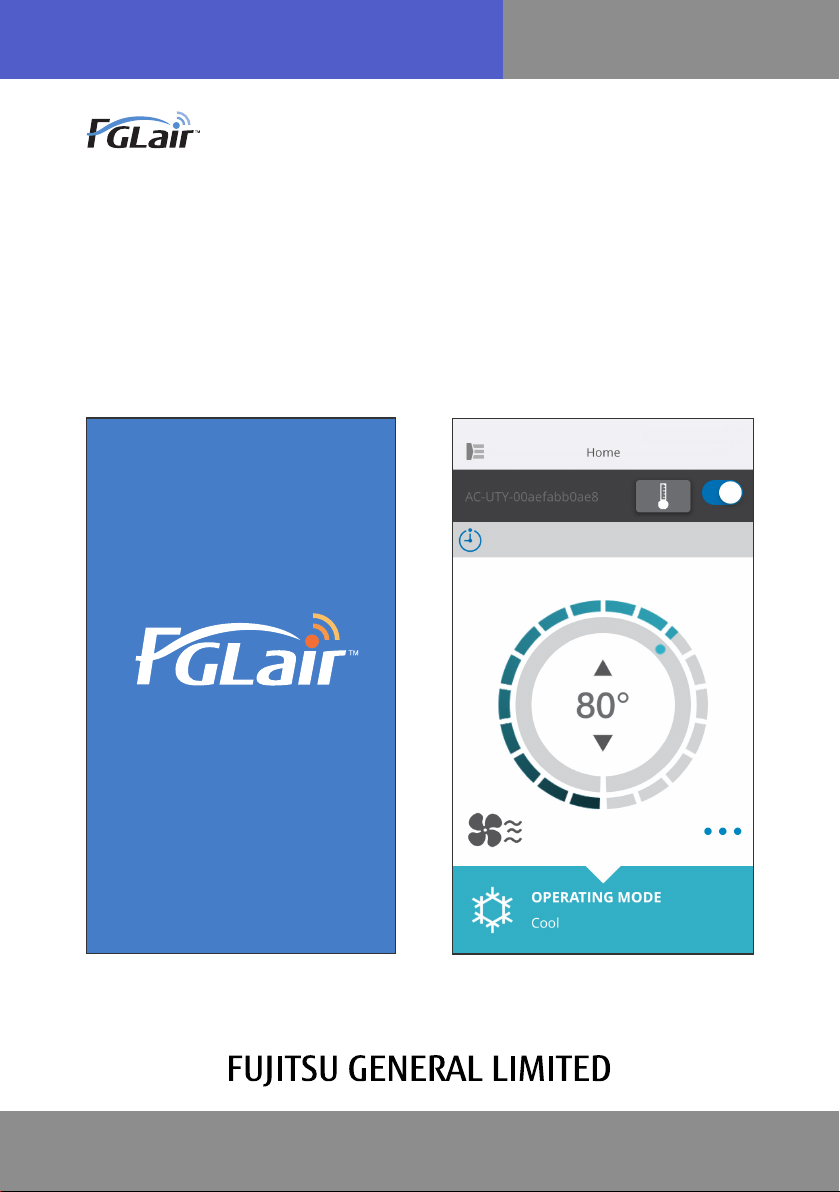
OPER ATING MANUAL
Wireless LAN control
for air conditioner
PART No. 9382719005
To CONTENTS
INTRODUCTION
You can control your air conditioner (as “A/C”) from outside the room or from
a distant location through wireless LAN connection.*
1
You can change various functions*
2
of the
air conditioner.
The operating status will be shown on your
smartphone or tablet PC screen*
3
.
FGLair Mobile application (as “mobile app”)
allows easy access and easy control.
NOTES:
*1: FGLair compatible air conditioner with WLAN adapter (as “this product”) is
necessary.
*2: Usable functions may differ with each air conditioner model. Please refer to the
operating manual of your air conditioner for details.
*3: The display contents are subject to change as a result of updates in the mobile
app, and may not match the actual screen.
To CONTENTS
En-02
CONTENTS
CONTENTS....................................................................................................... En-02
PREPARATION ................................................................................................. En-03
SAFETY PRECAUTIONS ................................................................................. En-04
USAGE PRECAUTIONS ................................................................................... En-05
WIRELESS LAN USAGE PRECAUTIONS ....................................................... En-07
IMPORTANT TIPS .............................................................................................En-10
USER REGISTRATION .....................................................................................En-12
AIR CONDITIONER REGISTRATION ...............................................................En-14
HOME MENU .....................................................................................................En-15
SIDE MENU .......................................................................................................En-17
OPERATING THE AIR CONDITIONER ............................................................En-29
ICON DETAILS ................................................................................................. En-35
TROUBLESHOOTING ...................................................................................... En-36
To CONTENTS
En-03
PREPAR ATION
Items to check
Please prepare the following items before using this product.
Air conditioner FGLair compatible air conditioner with WLAN adapter
Wireless Router This product uses a wireless router that supports
IEEE802.11 b/g/n wireless LAN standard. Set the
connection to the wireless router with WPS to perform
communications by wireless LAN. Refer to the operating
manual of the wireless router you wish to use, if it supports
IEEE802.11b/g/n or WPS.
Smartphone or Tablet
PC
Required OS version:
Android OS 4.1 or later
iOS 8.0 or later
Documents Setting manual for Wireless LAN control
Operating manual of indoor unit
Android is a trademark of Google Inc.
IOS is a trademark or registered trademark of Cisco in the U.S. and other countries
and is used under license.
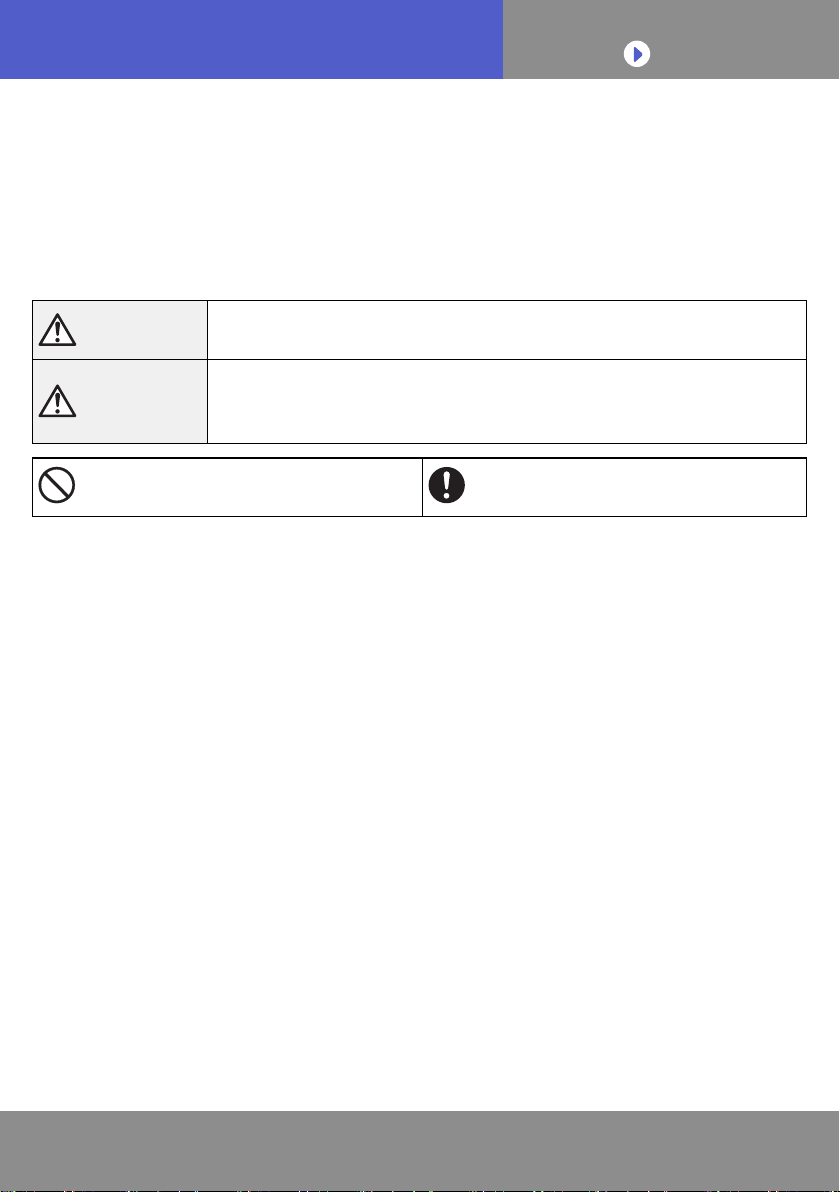
Side menu
For more information on Wireless LAN control, please
refer to the [Help] page from the side menu or see the
following website;
http://www.fujitsu-general.com/global/support/
To CONTENTS
En-04
SAFETY PRECAUTIONS
◆
To prevent personal injury, or property damage, read this section carefully
before you use this product, and be sure to comply with the following
safety precautions.
◆
Incorrect operation due to failure to follow the instructions may cause
harm or damage, the seriousness of which is classied as follows:
WARNING
This mark indicates procedures which, if improperly performed,
might lead to the death or serious injury of the user.
CAUTION
This mark indicates procedures which, if improperly performed,
might possibly result in personal harm to the user or damage to
property.
This mark denotes an action that is
PROHIBITED.
This mark denotes an action that is
COMPULSORY.
To CONTENTS
En-05
USAGE PRECAUTIONS
WARNING
●
When you use this product, it will become possible to operate the air
conditioner from locations where you cannot see it directly. This means that
people in the room may be exposed to the unintended operation of the air
conditioner. Check the condition of the room before using this product.
• Be sure to check on a regular basis that the power supply to the air
conditioner is securely connected, and that dust has not built up in the
surrounding area.
It may cause heating, or re.
• Be sure to check in advance that there are no malfunctions of the air
conditioner.
• Be sure that the airow from the air conditioner will not cause any
adverse effects.
Objects may fall down causing personal injury, re, or damage to property.
• If you know that there are people in the vicinity of the air conditioner,
inform them in advance that you will be operating and stopping it from a
distant location.
Sudden operation or stopping of the air conditioner may surprise a person
and cause the person to fall down or tumble if the person is on a stand.
Furthermore, rapid changes in the room temperature may cause deterioration
in a person’s physical condition. Do not use this product when there are
people in the room who are not able to control the temperature by themselves
(For example, infants, children, those with physical disabilities, elderly or sick
persons.).
• Fully understand the reserved timer settings and other operations
before using this product.
Unexpected operation or stopping of the air conditioner may cause
deterioration in a person’s physical condition or an adverse effect on animals
or plants.
• Frequently check the settings and operating situation of the air
conditioner when using this product from a distant location.
Rapid changes in the room temperature may cause deterioration in a person’s
physical condition or an adverse effect on animals or plants.
To CONTENTS
En-06
USAGE PRECAUTIONS
●
If you operate the air conditioner from this product, the indicator lamps on
the indoor unit will light up, but the lamps will not ash nor will there be
any reception sounds from the indoor unit.
●
If there is bad reception between this product and the wireless router,
adjusting the wireless router position or direction of the antenna may
improve the reception. It may also be possible to improve reception by
moving the wireless router closer to this product or using a wireless LAN
repeater.
To CONTENTS
En-07
WIRELESS LAN USAGE PRECAUTIONS
When you use a wireless LAN, there are precautions that you must follow in
relation to radio waves, personal information, and so on. To use this product
correctly, be sure to read the following precautions and the operating
manual of the wireless LAN equipment you are using. We will assume no
responsibility, unless legal liability is recognized, in regards to failures, other
defects and damages incurred by use of this product that occur through
incorrect use or during use by yourself or a third party.
Radio Wave Usage Precautions
●
Do not use this product in the following locations. Using this product in
such locations may cause communications becoming unstable or not
possible.
• Near wireless communication equipment that uses the same frequency band
(2.4GHz) as this product.
• Places where there are magnetic elds from equipment such as microwave
ovens, or static electricity or radio wave interference occurs. (Radio waves
may not reach depending on the environment.)
To CONTENTS
En-08
WIRELESS LAN USAGE PRECAUTIONS
Personal Information (Security-related)
Usage Precautions
●
There is a possibility of interception if you use wireless LAN equipment
due to the use of radio waves regardless of whether you use encryption or
not.
●
Wireless LAN uses radio waves to exchange information between this
product and the wireless router. This means it has the advantage of freely
being able to make a LAN connection if within reach of radio waves. On
the other hand, if the radio waves are within a certain range, they will
reach all locations beyond obstacles (e.g. walls). Therefore, it is possible
your communications may be intercepted and read or illegally intruded
upon.
●
Do not connect to equipment and networks which you are not authorized
to use when setting up your wireless connection.
●
Initialize the settings of this product when disposing it, or transferring it to
a third party.
Others
●
Use this product as regular wireless LAN equipment.
• Do not use this product in hospitals or in/near locations with medical
equipment.
• Do not use this product within aircraft.
• Do not use this product near electronic equipment that handles high-precision
control or weak signals.
Examples of electronic equipment to be careful of:
Hearing aids, pacemakers, re alarms, automatic doors and other
automatic control equipment.
To CONTENTS
En-09
WIRELESS LAN USAGE PRECAUTIONS
●
This is not a guarantee of wireless connection and performance with all
wireless routers and in all residential environments. Radio waves may not
reach or may be interrupted in the following situations.
• Use in buildings made from concrete, rebars or metal.
• Installation near obstacles.
• Interference with wireless communication equipment using the same
frequency.
• Places where there are magnetic elds from equipment such as microwave
ovens, or static electricity or radio wave interference occurs.
●
Set up this product and install the mobile app only after reading the
operating manual of the wireless router.
To CONTENTS
En-10
IMPORTANT TIPS
About this manual
This manual explains how to use the mobile app to control this product.
For details on how to connect your air conditioner to your wireless LAN
network, please refer to the setting manual.
Internet access
To use this mobile app, Internet access is necessary.
Please conrm that the connection to the wireless LAN network is strong
and will not break during setting.
●
The air conditioner settings from the mobile app will not be reected in the
wireless remote controller.
●
It will not be possible to give operation instructions or carry out monitoring
from the mobile app while the power supply is disconnected from the air
conditioner (via breaker or plug).
●
The room temperature will be displayed in the mobile app during
operation. However, the displayed room temperature may not be correct
depending on the situation in the room, or the air conditioner operating
status. Use this only as a reference.
●
If the mobile app and remote controller settings differ, the latest operation
performed will take priority.
* If timer settings are done from the mobile app and from the wireless or wired
remote controller, both timer settings will be active.
To CONTENTS
En-11
IMPORTANT TIPS
Others
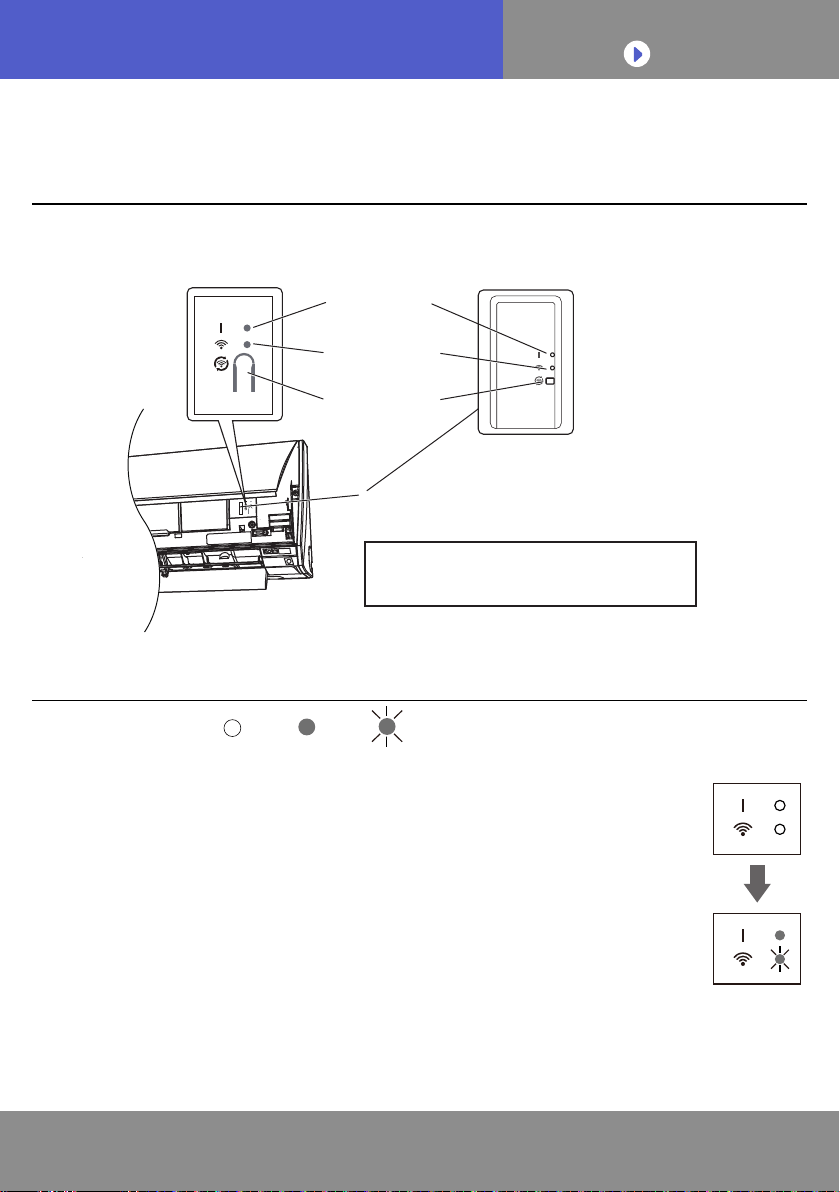
Name of parts (Air conditioner side)
PIN code is not available for some models.
Please check the Wireless LAN label.
MAC:
SSID: AC-UTY-
/
PIN:
Wireless LAN indicator
and button on front panel
(for built-in products)
LED 1
(green)
LED 2
(orange)
Setting
button
Wireless LAN label
Wireless LAN indicator and
button on WLAN adapter
(for option)
Sleep mode**
*Lighting pattern: Off On Flashing
When the WLAN adapter is not used
●
The WLAN adapter will turn to Sleep mode when the WLAN
setup is not completed within an hour after the power supply is
connected to the air conditioner (via breaker or plug).
●
The WLAN adapter cannot be used during Sleep mode. The
WLAN adapter will be nonfunctional, and both LED will be off.
To use the WLAN adapter
●
Press the Setting button of the WLAN adapter. Conrm that the
LED lighting has changed.
**For products with Sleep mode only. Refer to the setting manual to see if it
applies to your WLAN adapter.
LED1: On
LED2: 2sec/on
2sec/off
To CONTENTS
En-12
USER REGISTRATION
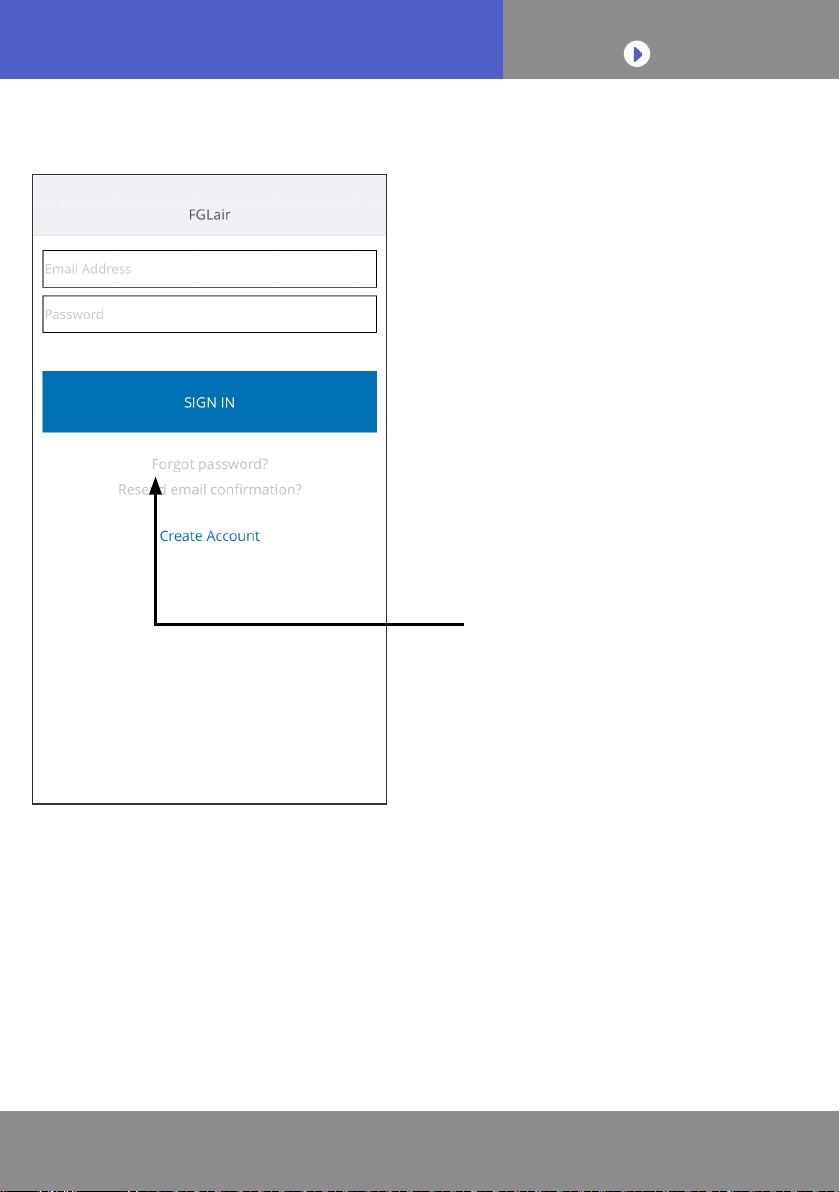
Signing in
After launching the mobile app,
please sign in from this page.
To create a new account, tap
[Create Account] and follow the
procedures in the following pages.
If you already have an account,
sign in with the email address and
password you have registered.
If you have forgotten your
password, tap here.
Enter your email address in the
following pages to receive an
email to reset your password.
To CONTENTS
En-13
USER REGISTRATION
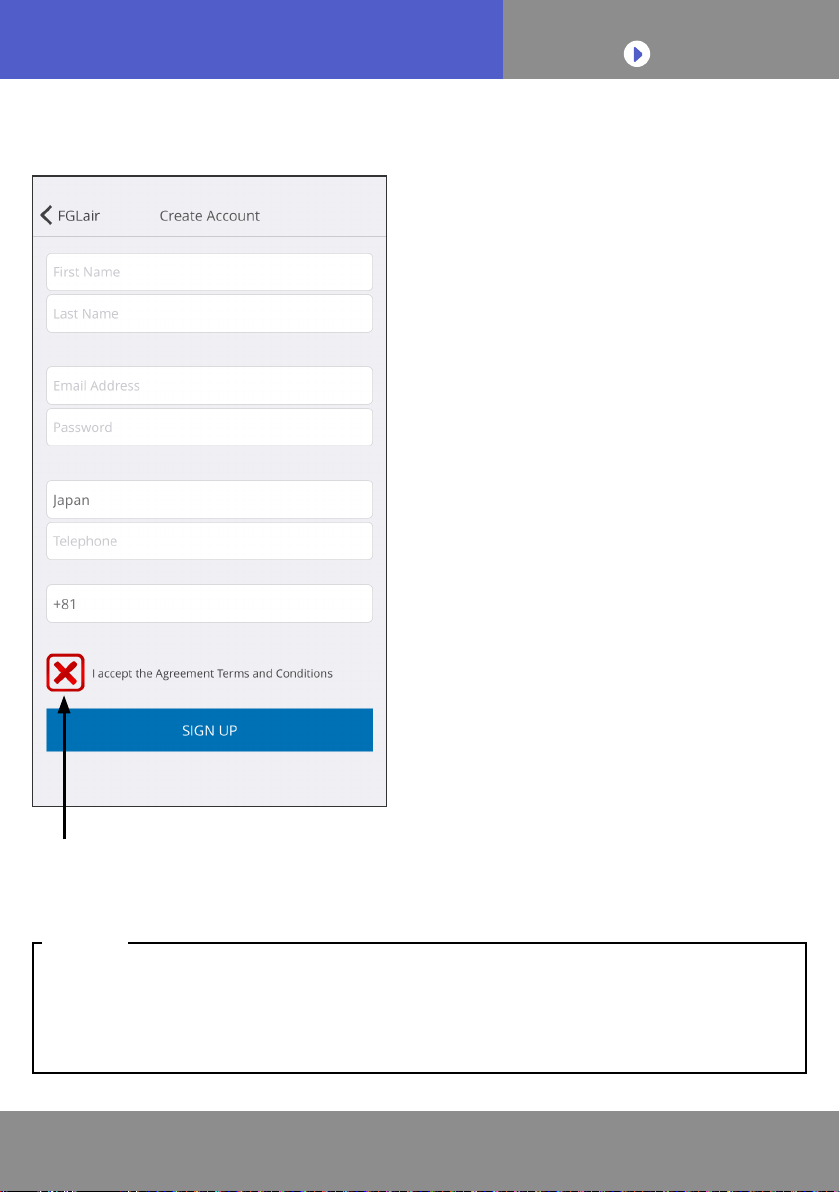
Create an account
Enter your email address,
password and other information
as shown, then tap the box if
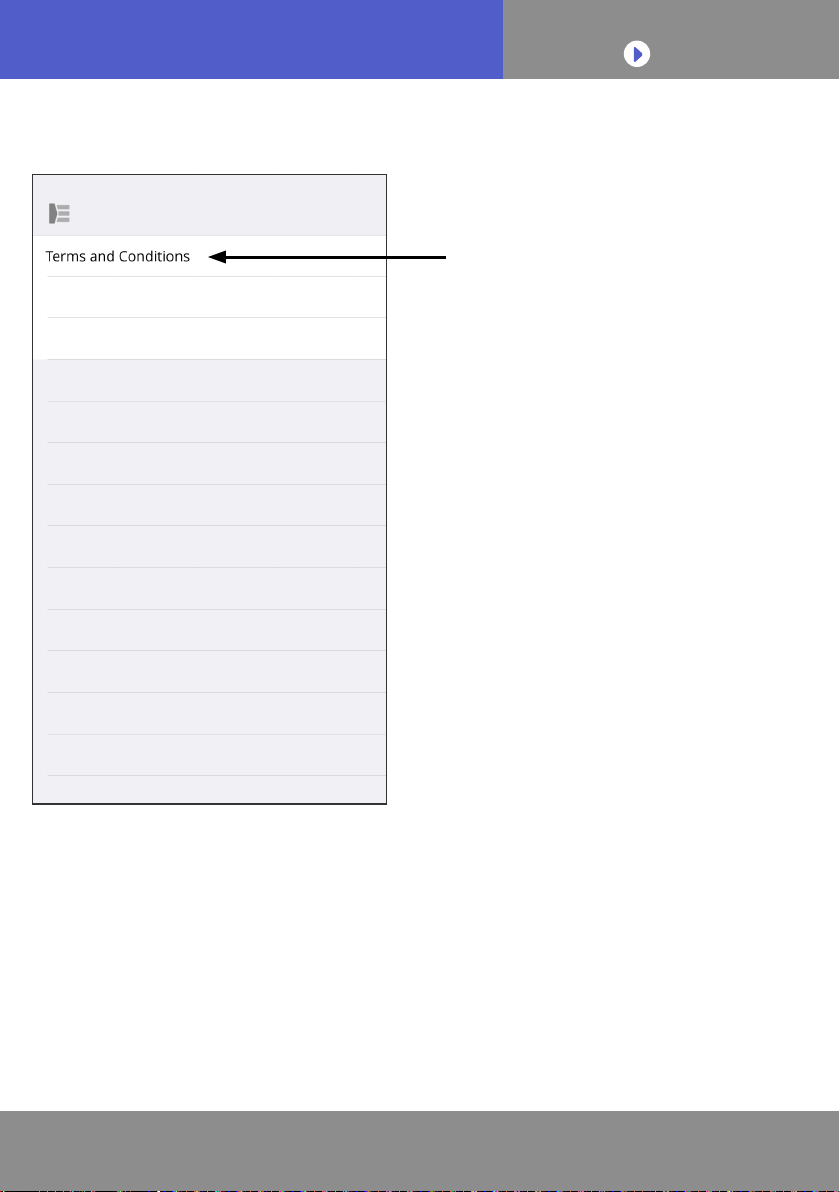
you agree with the Terms and
Conditions. (Approval is necessary
to use this mobile app.)
A conrmation message will be
sent to the email address you have
registered.
To complete creating an account,
tap the link in the conrmation
message.
Tap here to accept.
• You can only register 1 Email address and password per WLAN adapter. Use
the same Email address and password for other users to operate through the
same WLAN adapter.
•Please use an email address that you can access by smartphone or tablet PC.
NOTES:
To CONTENTS
En-15
HOME MENU
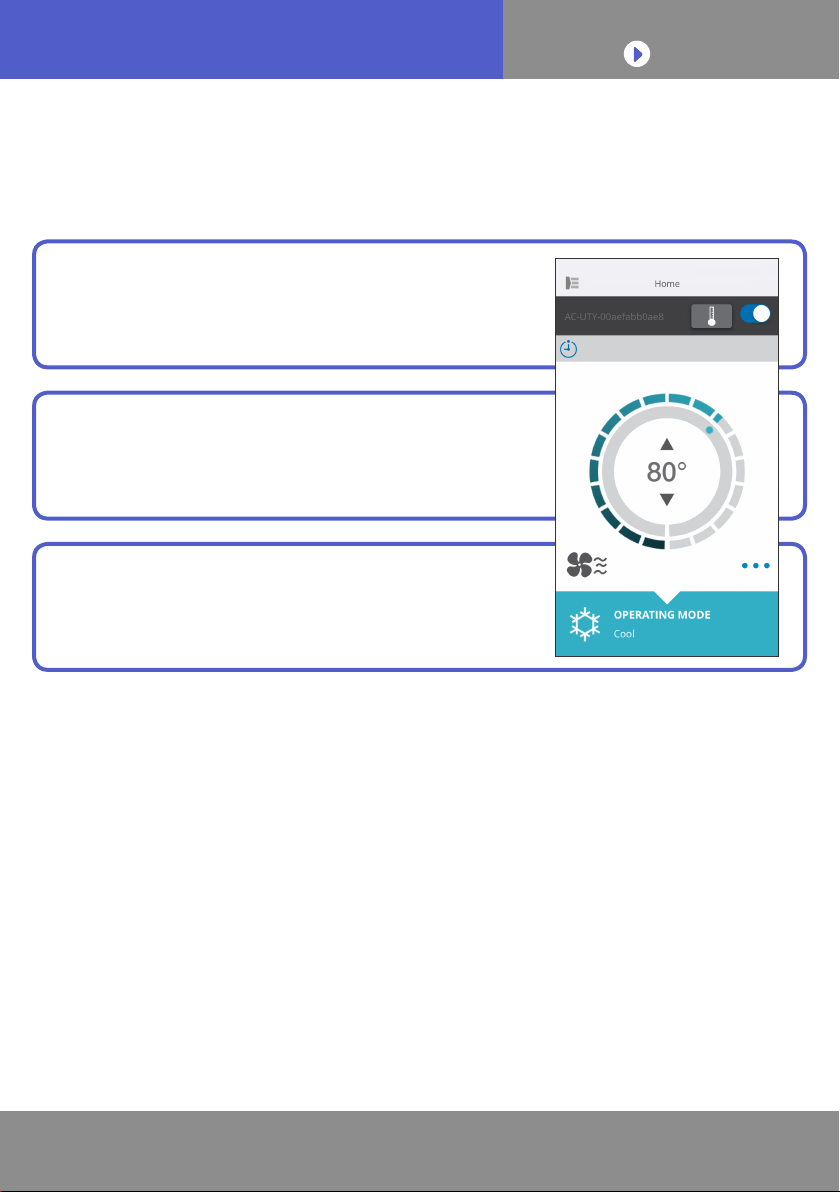
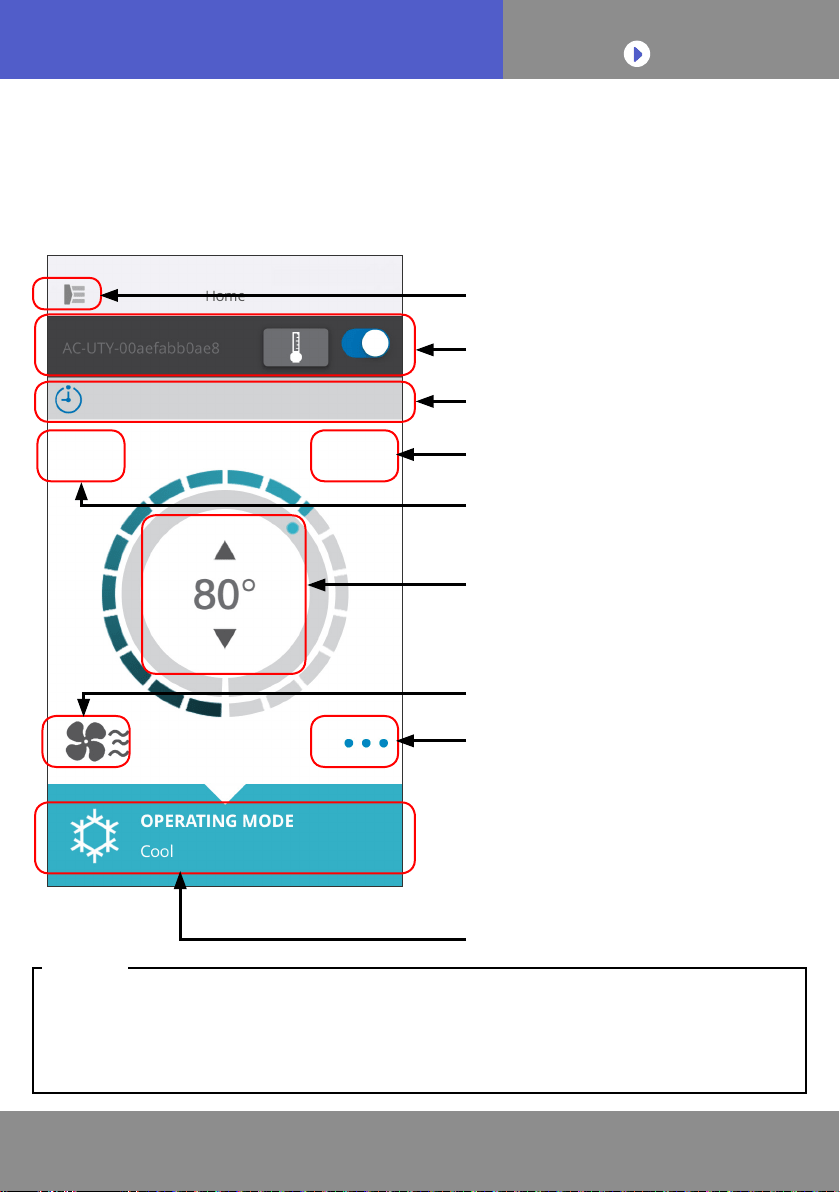
Individual A/C screen
This is the main screen for each air
conditioner connected.
• Status of the individual air conditioner will be updated to the current condition
when the mobile app is active.
• Depending on your air conditioner, some functions may not appear on the
screen.
NOTES:
Registered A/C status and
ON/OFF button
Messages * Refer to the next
page for details.
To side menu: Tap to open.
Error message
Temperature setting
Fan setting
Zone setting
Other functions
Operating mode
To CONTENTS
En-16
HOME MENU
Messages
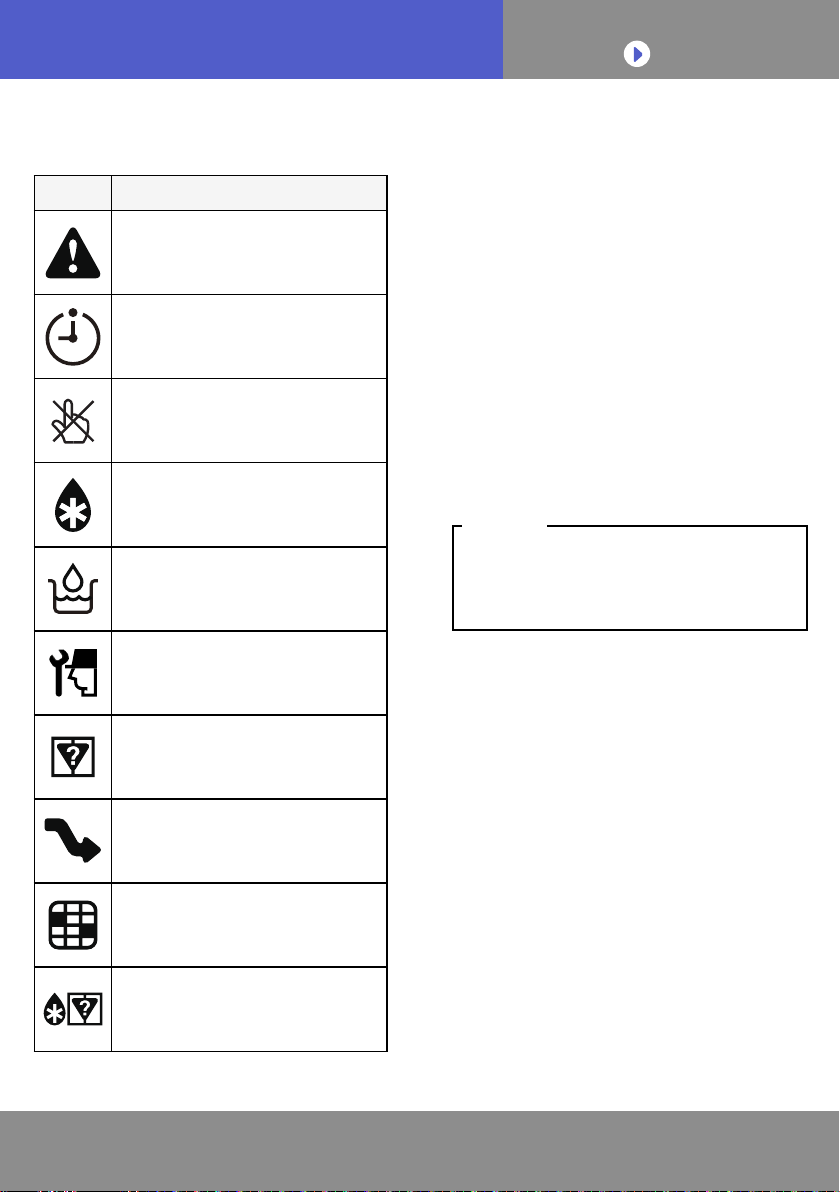
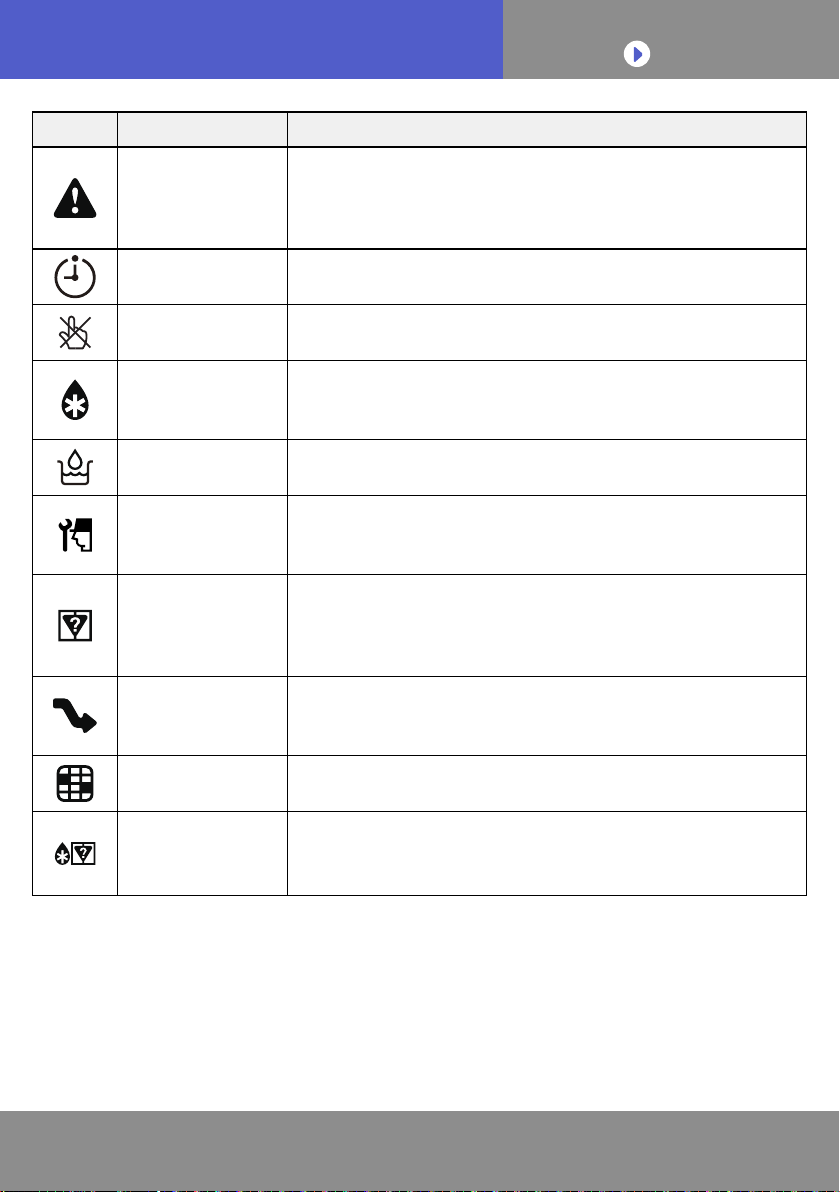
Each icon signies a certain
message.
When the message icon appears
on the screen, tap the icon for
details.
*For details on each icon, refer to
the “ICON DETAILS”
Depending on your air conditioner,
some functions may not appear on
the screen.
NOTES:
Icon Description
Error Message
* This icon will appear on the
right-hand corner.
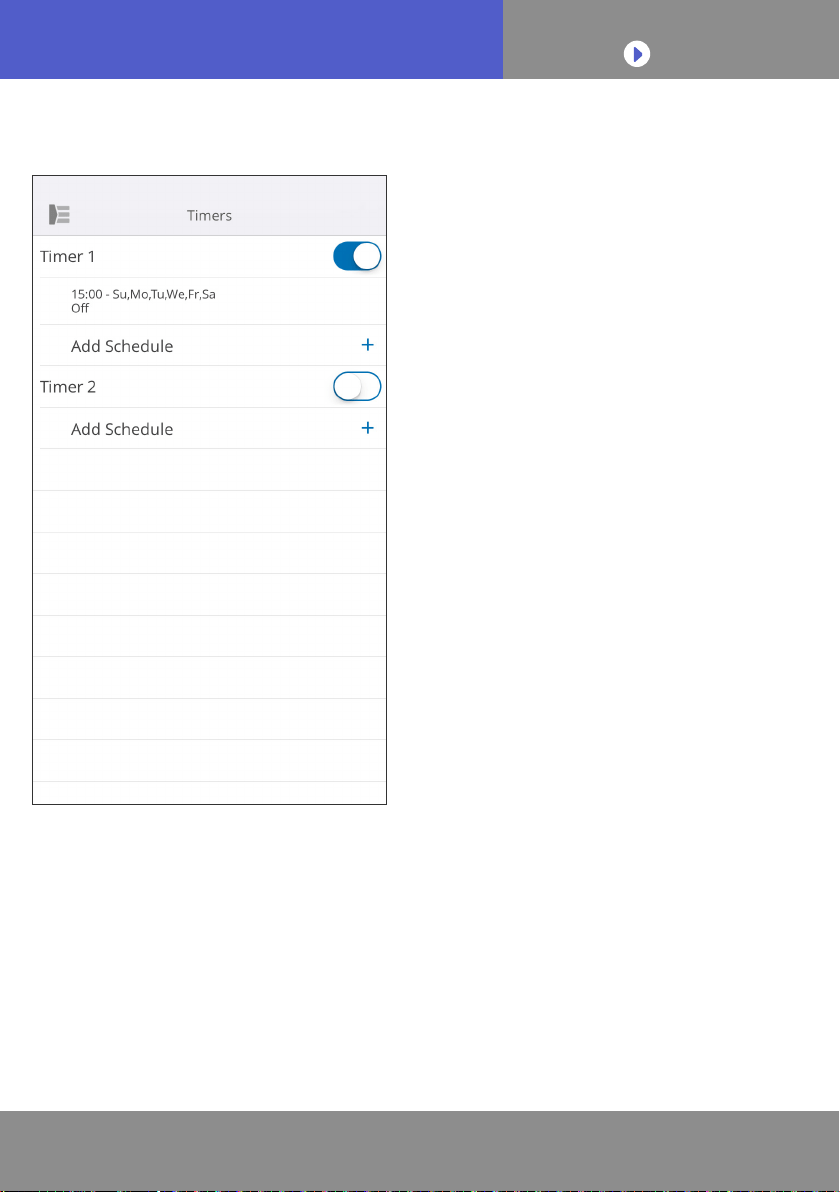
Timers
Prohibited
Defrost
Oil Recovery
Pump Down or Check
Startup or Maintenance
Mode Mismatch
Demand Control
Filter Sign
Defrost or Oil recovery or
Mode mismatch
To CONTENTS
En-18
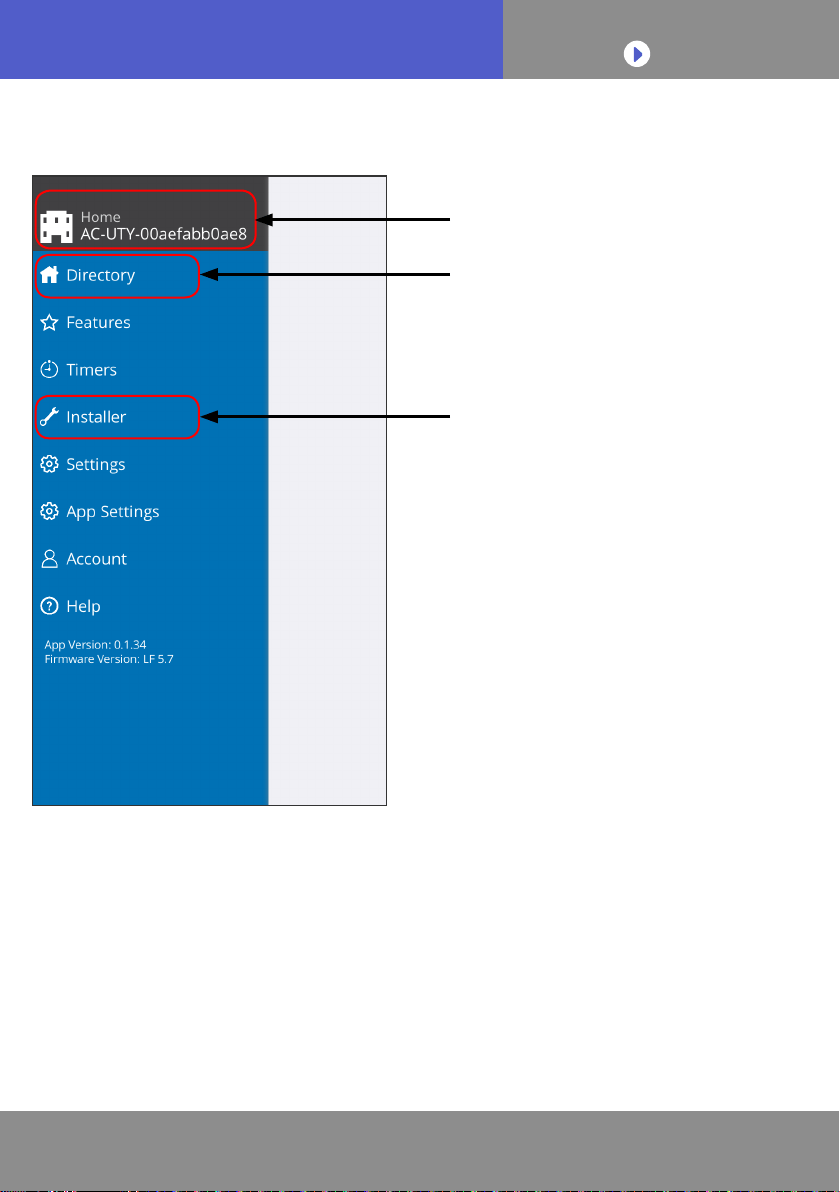
SIDE MENU
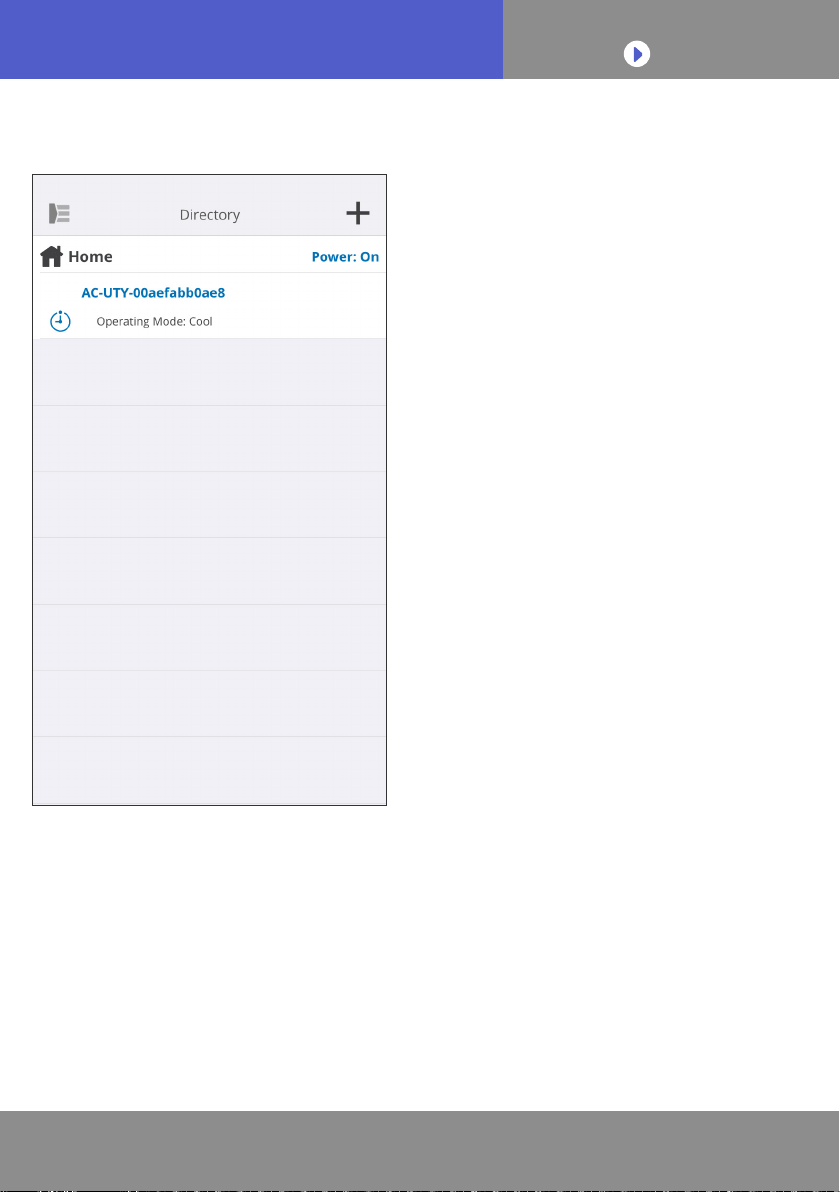
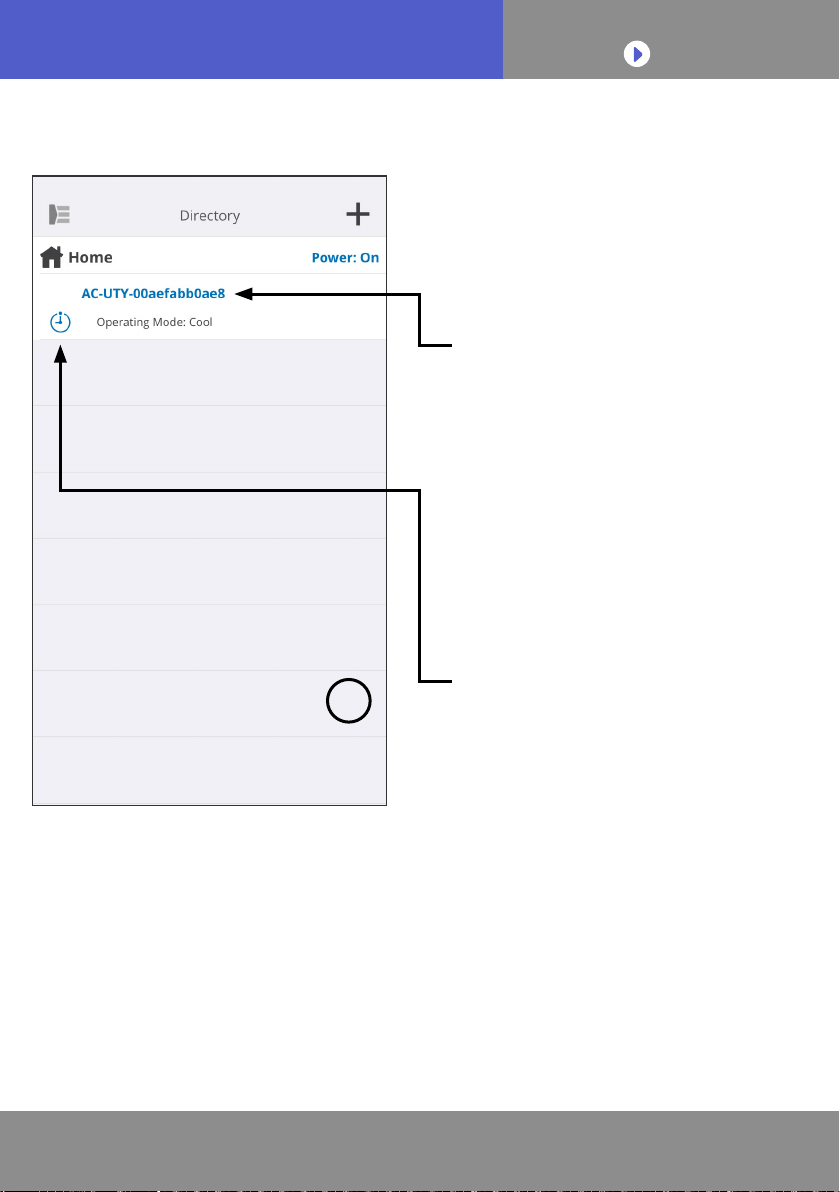
>Side menu>Directory screen
Status of each connected air
conditioner will appear.
(On/Off, Operation Mode, Timer,
Error)
If you cannot nd the air
conditioner you wish to control
in the list, please see the setting
manual for how to connect the air
conditioner via wireless LAN.
If a lock appears on this screen,
the Child Lock is on. Tap and enter
the 4-digit password you have set
to unlock.
Tap here to go to the Home
menu of each air conditioner.
+
To CONTENTS
En-19
SIDE MENU
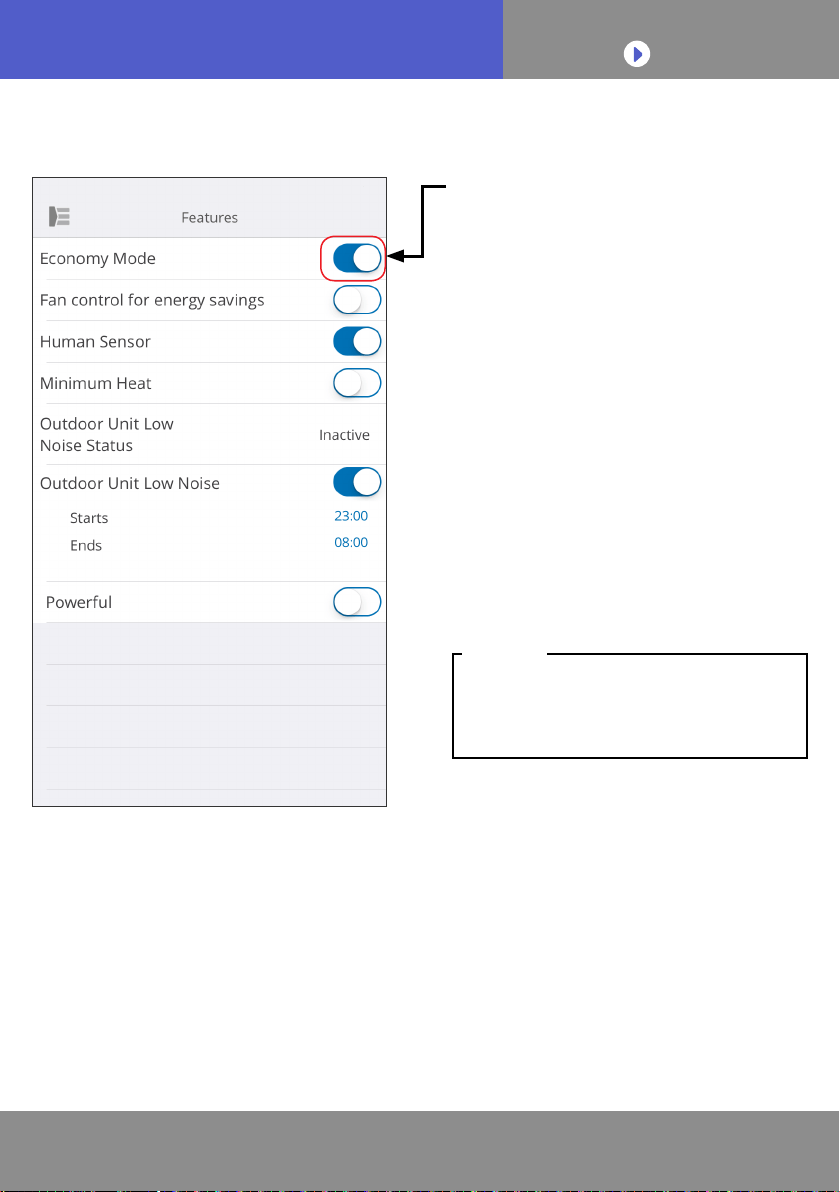
>Side menu>Features menu
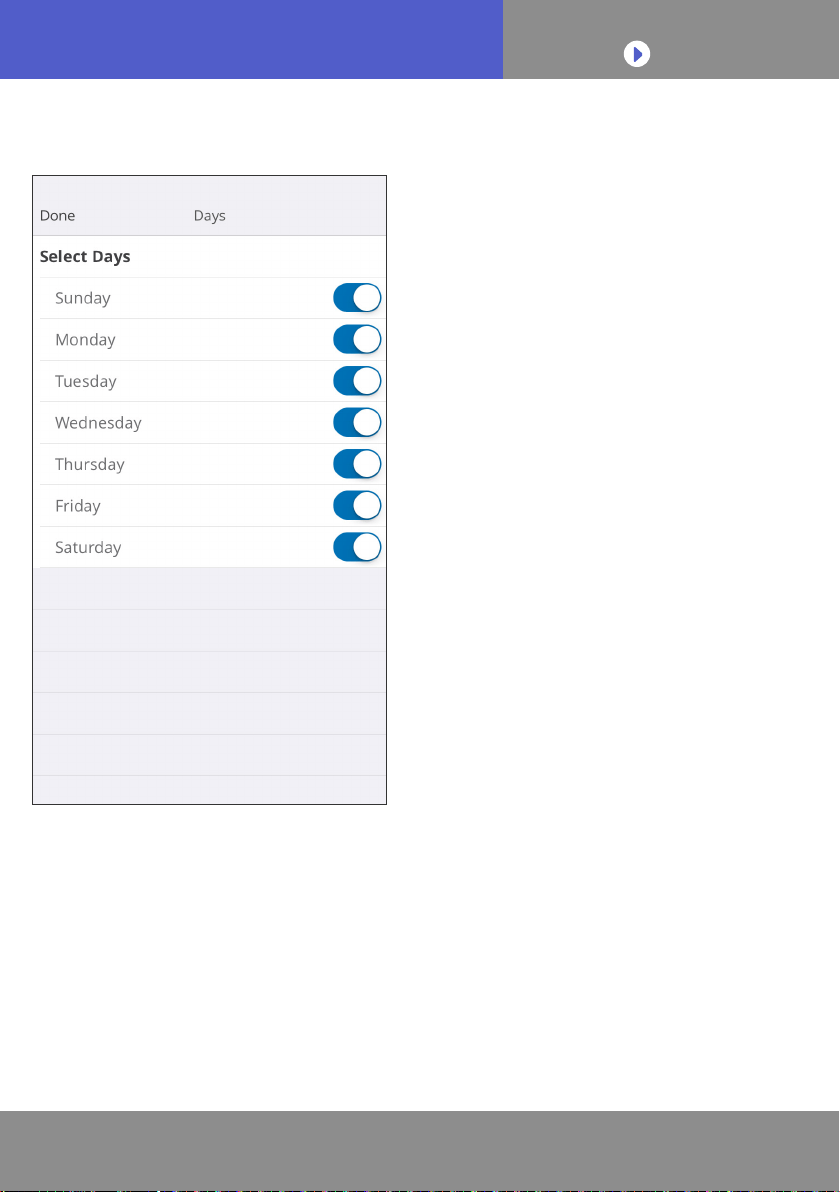
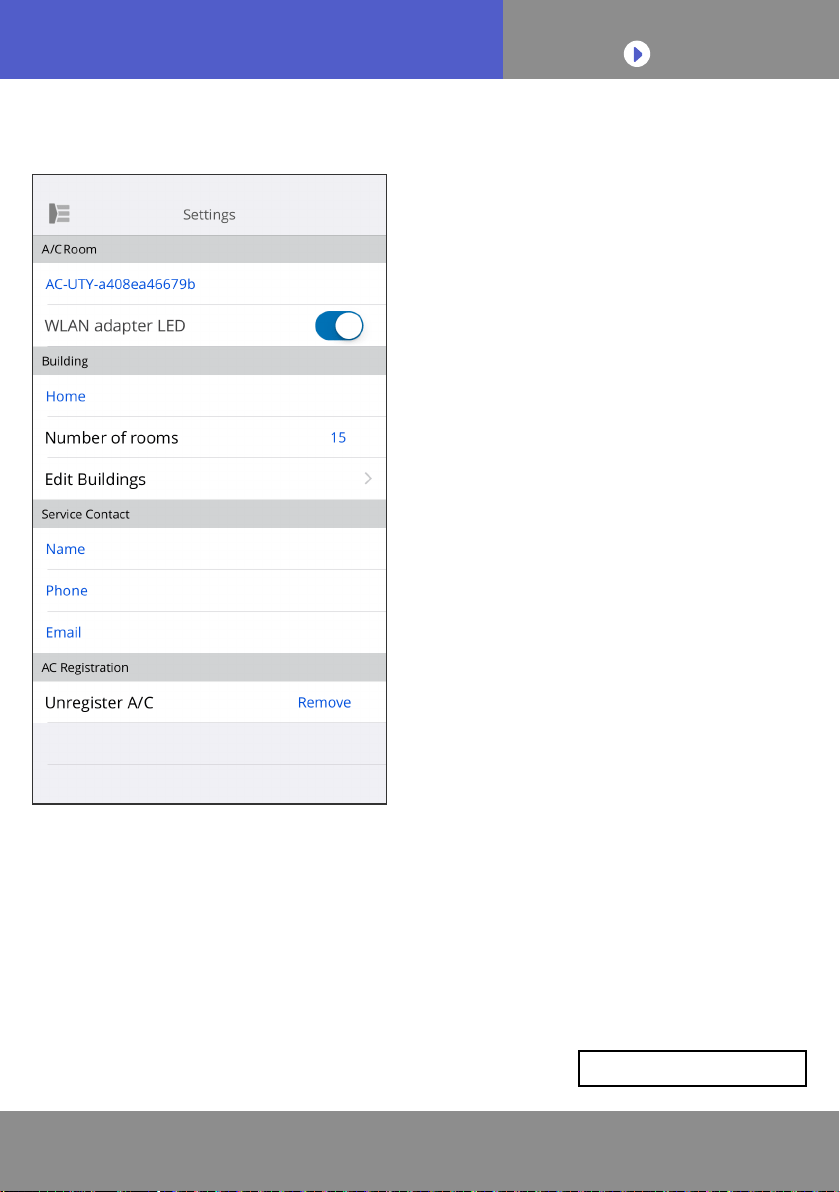
Outdoor Unit Low Noise function
• How to activate
Change status from Off→On.
Set the starting time (Starts) and
ending time (Ends).
• How to deactivate
Change status from On→Off.
Depending on your air conditioner,
some functions may not appear on
the screen.
NOTES:
You can set each feature by
tapping on the status button on the
right hand side.
Off (white): left-side
On (blue): right-side
To CONTENTS
En-23
SIDE MENU
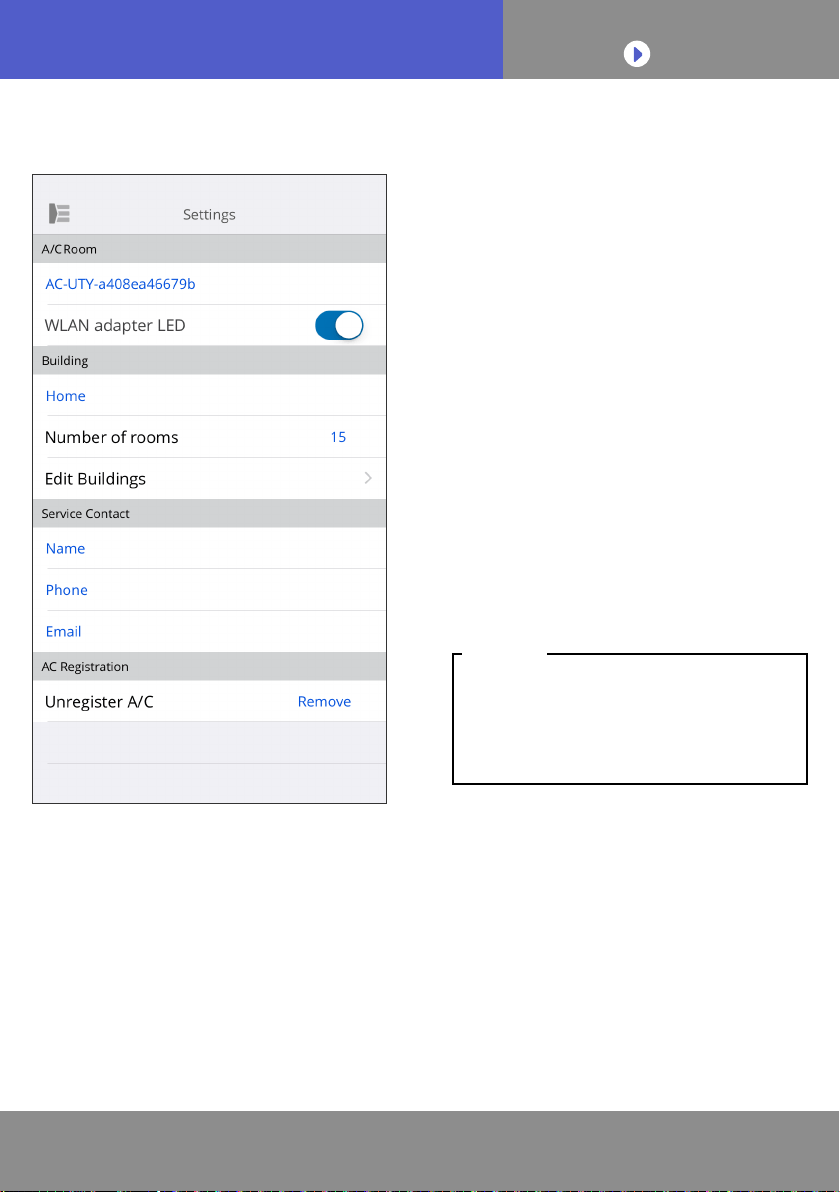
>Side menu >Settings menu
A/C Room:
You can edit details of individual
A/Cs on this screen.
• A/C name:
Edit name using up to 20
characters. (e.g. Room name)
* The initial name will be the
SSID of the WLAN adapter.
• WLAN adapter LED: You can
turn on or off the LED of the
WLAN adapter.
Building Settings:
You can consolidate multiple A/Cs
as a building. Edit the building
settings here.
• Select building
• Edit building name
• Delete building
(continue to next page)
To CONTENTS
En-24
SIDE MENU
>Side menu >Settings menu (continued)
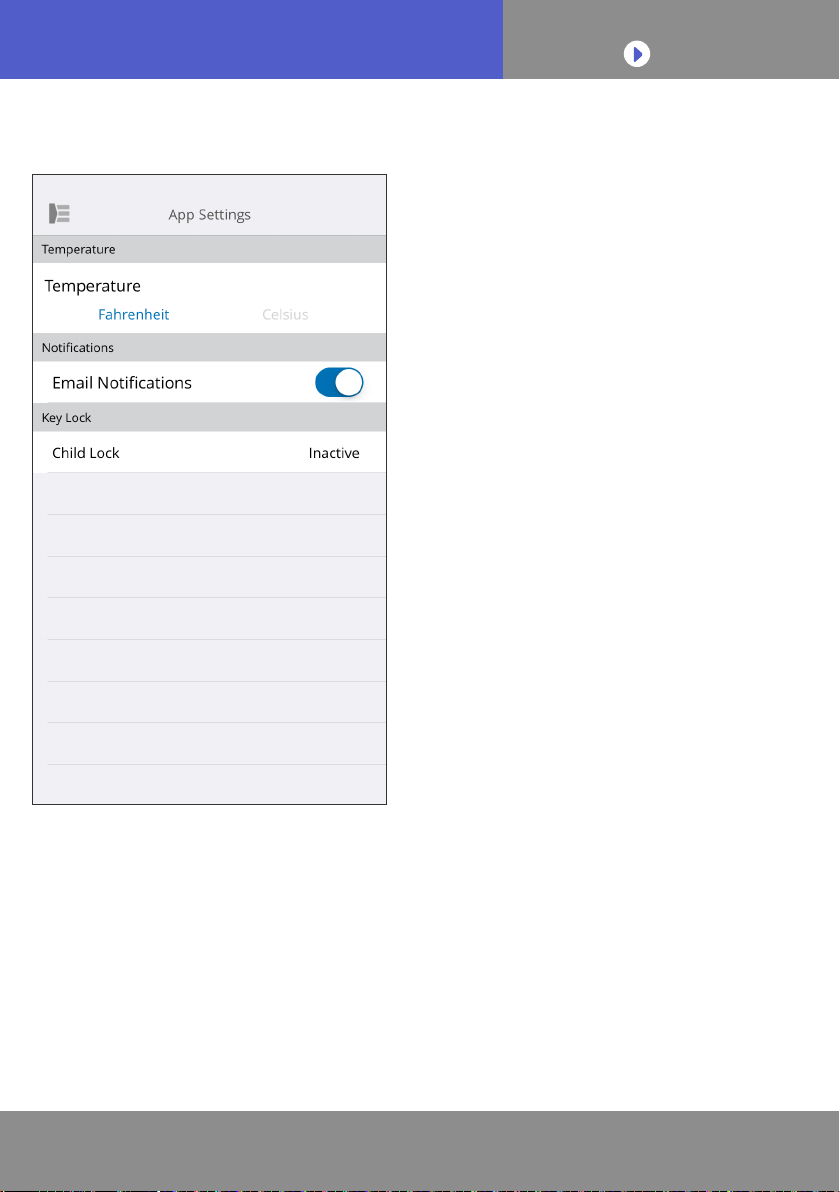
Service Contact:
Update information for future use.
(Contact name, phone number,
and Email address.)
Unregister A/C:
When disposing the WLAN adapter
or transferring it to a third party, be
sure to unregister the A/C from your
mobile app.
* You can also unregister the
A/C from the Directory screen by
pressing down on the A/C name.
After the A/C is unregistered,
initialize the WLAN adapter by
following the procedures in the
setting manual.
NOTES:
To CONTENTS
En-25
SIDE MENU
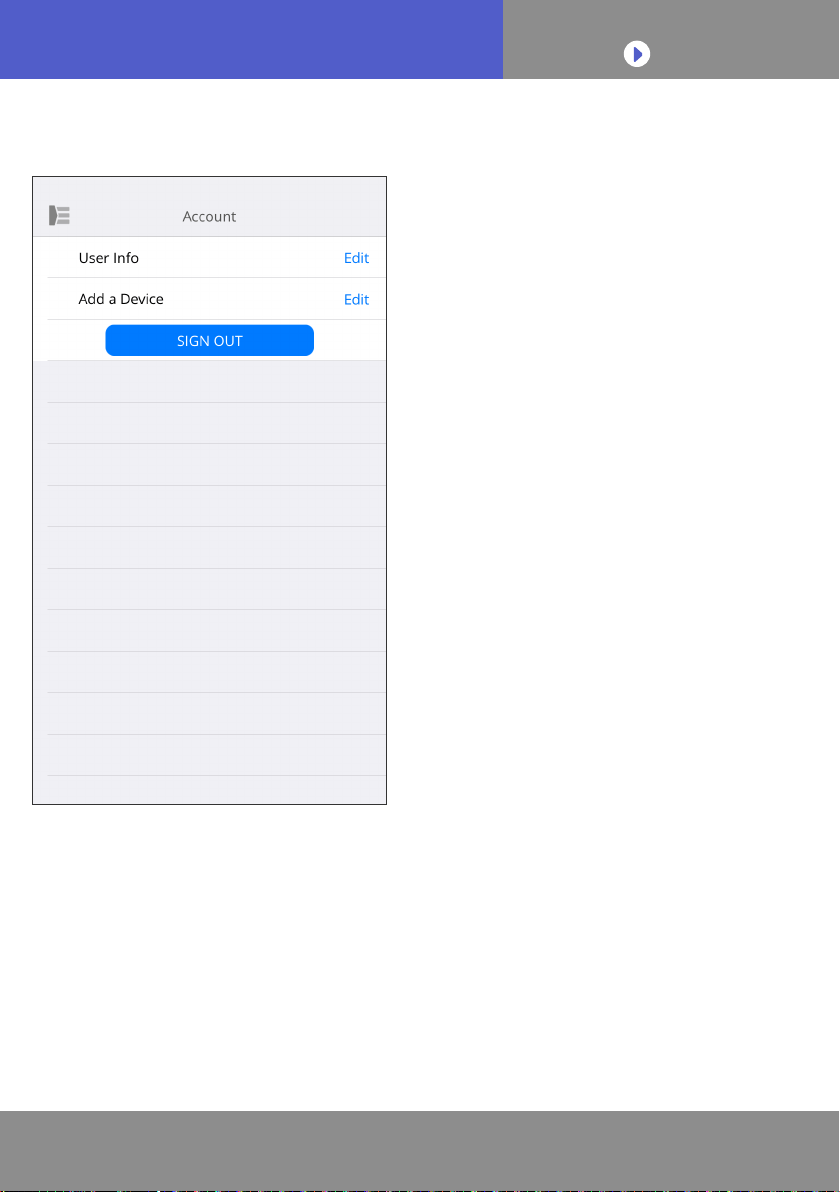
>Side menu >App Settings menu
You can choose the temperature
display between Fahrenheit or
Celsius.
Notications:
Turn to On if you desire notications
by email.
* Notications will be sent when
errors occur.
Child lock:
A locking function is provided to
prevent careless operation by
children or outsiders.
(A key mark will appear on the
screen.)
• Tap to set a new 4-digit
password to turn the Child lock
on.
• Release the lock on the
”Directory” screen when
operating.
* If you have forgotten the
password, enter “0242” to reset
the password.
To CONTENTS
En-27
SIDE MENU
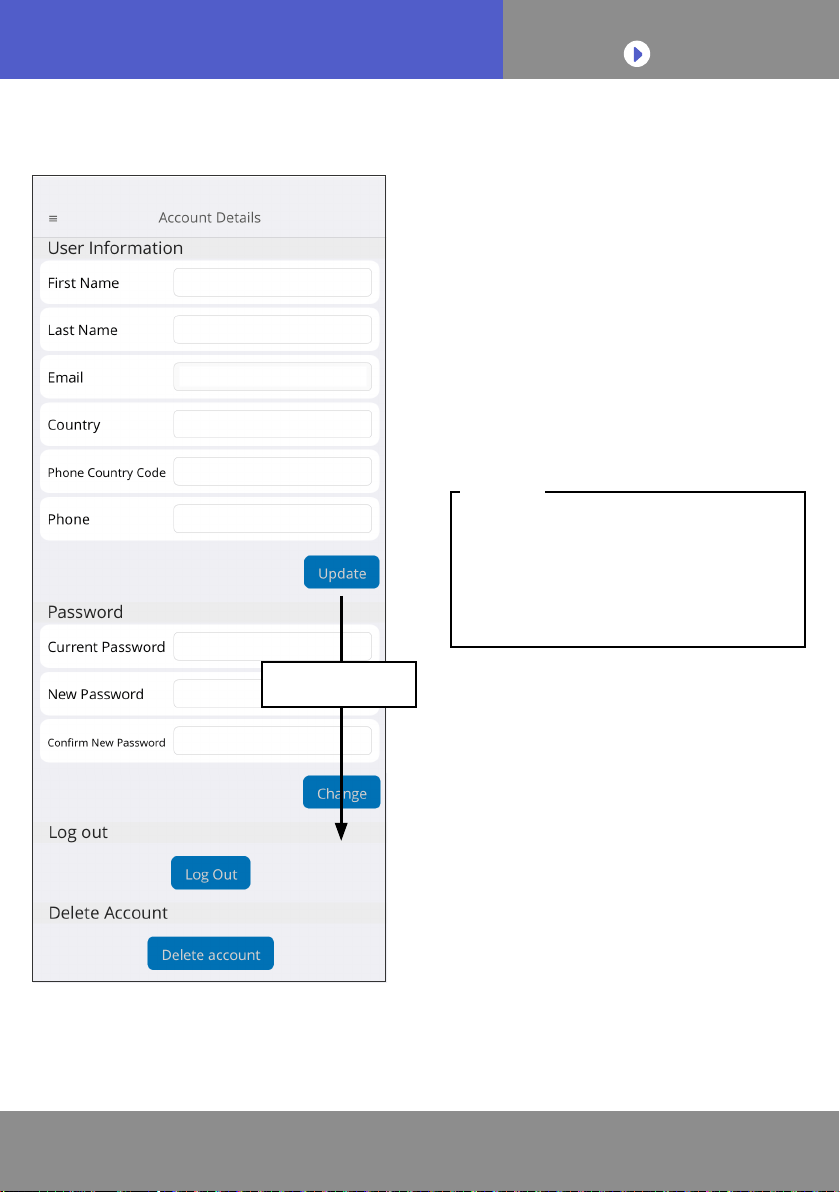
>Side menu >Account >Account Details menu
Change the user information and
password here.
Delete account: When you will no
longer be using the WLAN adapter,
be sure to delete your account
from the mobile app to protect your
personal information.
Uninstalling the mobile app will not
delete your personal information
from the mobile app server.
Please delete your account by
tapping [Delete account].
NOTES:
Scroll screen
To CONTENTS
En-29
OPERATING THE AIR CONDITIONER
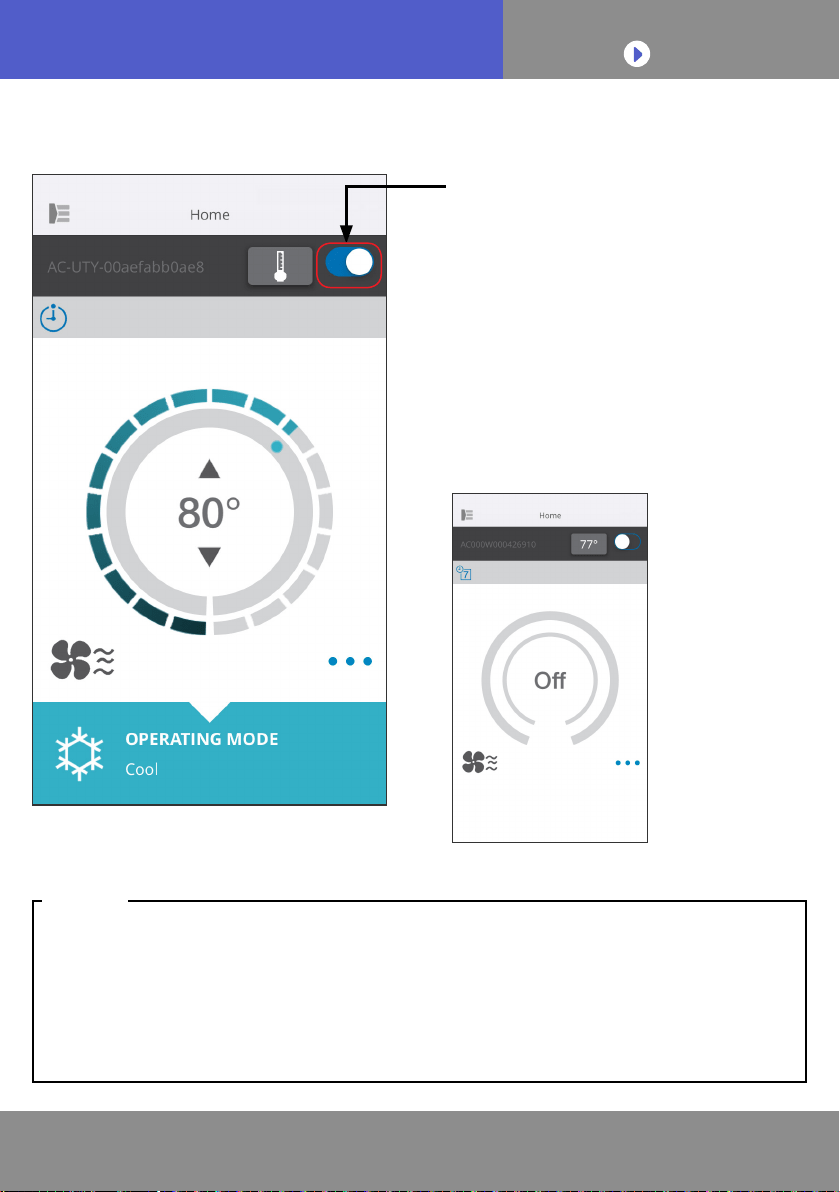
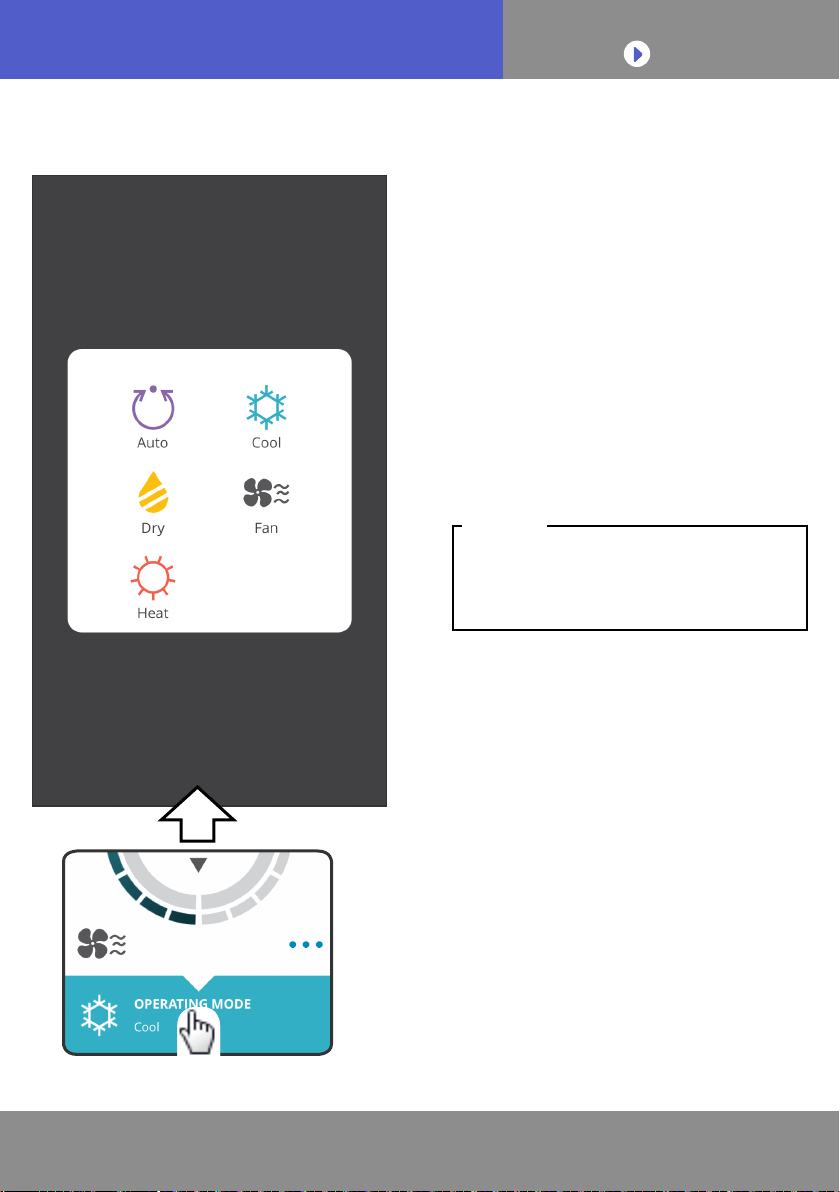
On/Off operation
Display the Individual A/C screen.
Turn the air conditioner on/off by
tapping the On/Off button.
If the air conditioner is off, the
following screen will appear.
If you cannot turn the air conditioner on, please check the following;
-The air conditioner is connected to the power supply. (Via breaker or plug.)
-The wireless LAN LED is ON, and working.
-Your wireless router is ON and connected to the Internet.
When the power is turned on from this mobile app, there will be no beeping
sound from the air conditioner.
NOTES:
Selected A/C (on/off)
To CONTENTS
En-31
OPERATING THE AIR CONDITIONER
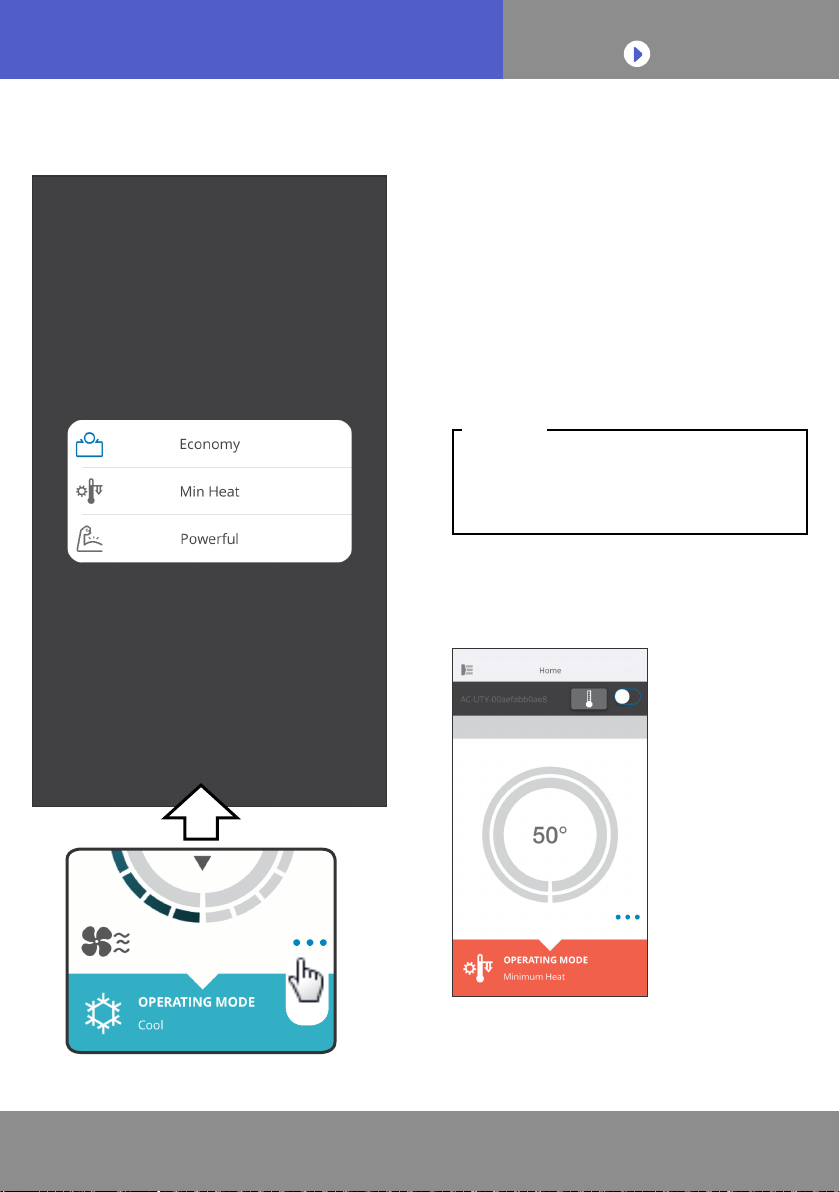
Other functions
To activate the functions shown,
tap the icon on the screen.
Example of functions:
ECONOMY
MINIMUM HEAT (10°C HEAT)
POWERFUL
Depending on your air conditioner,
some functions may not appear on
the screen.
NOTES:
Example of screen when the
Minimum Heat (10°C Heat) is
activated.
Tap
To CONTENTS
En-32
OPERATING THE AIR CONDITIONER
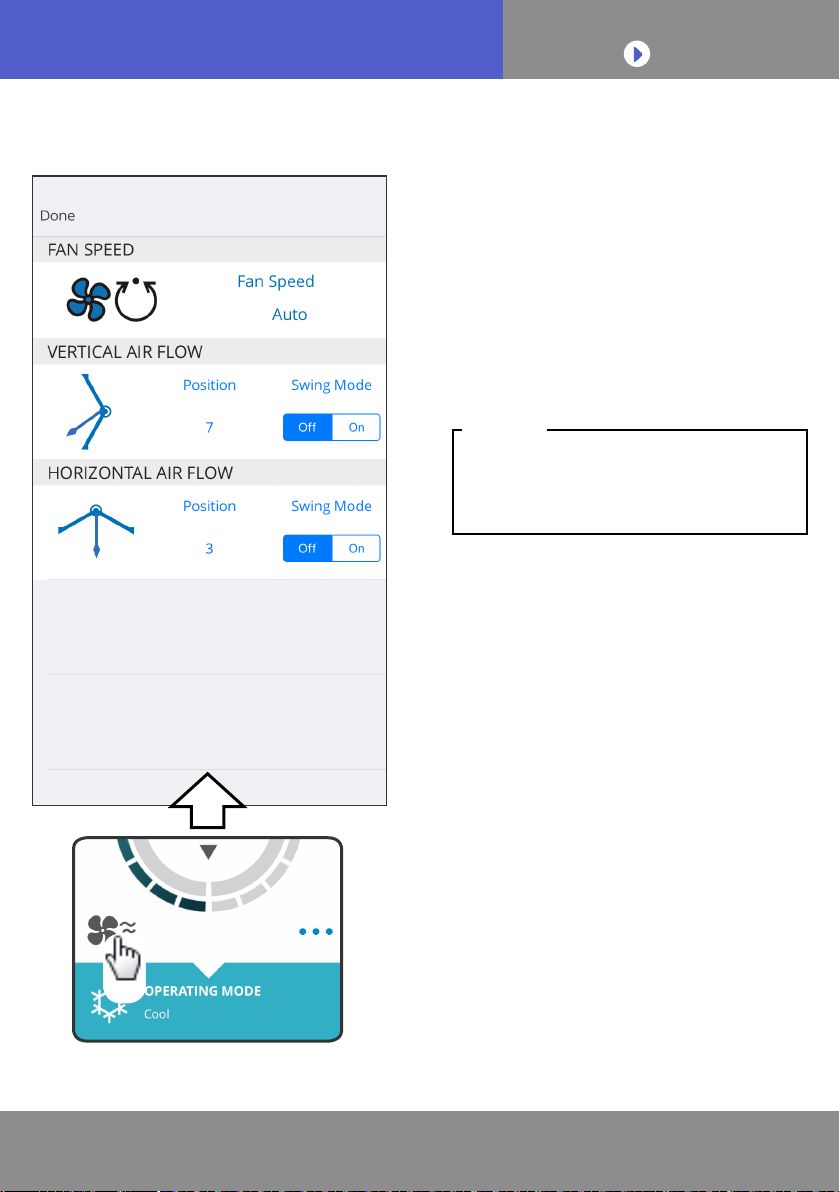
Fan speed and airow setting
By selecting each item as shown
on the screen, you can set the Fan
speed and airow direction.
For detailed information on each
setting, see the operating manual
of the air conditioner.
Depending on your air conditioner,
some functions may not appear on
the screen.
NOTES:
Tap
To CONTENTS
En-33
OPERATING THE AIR CONDITIONER
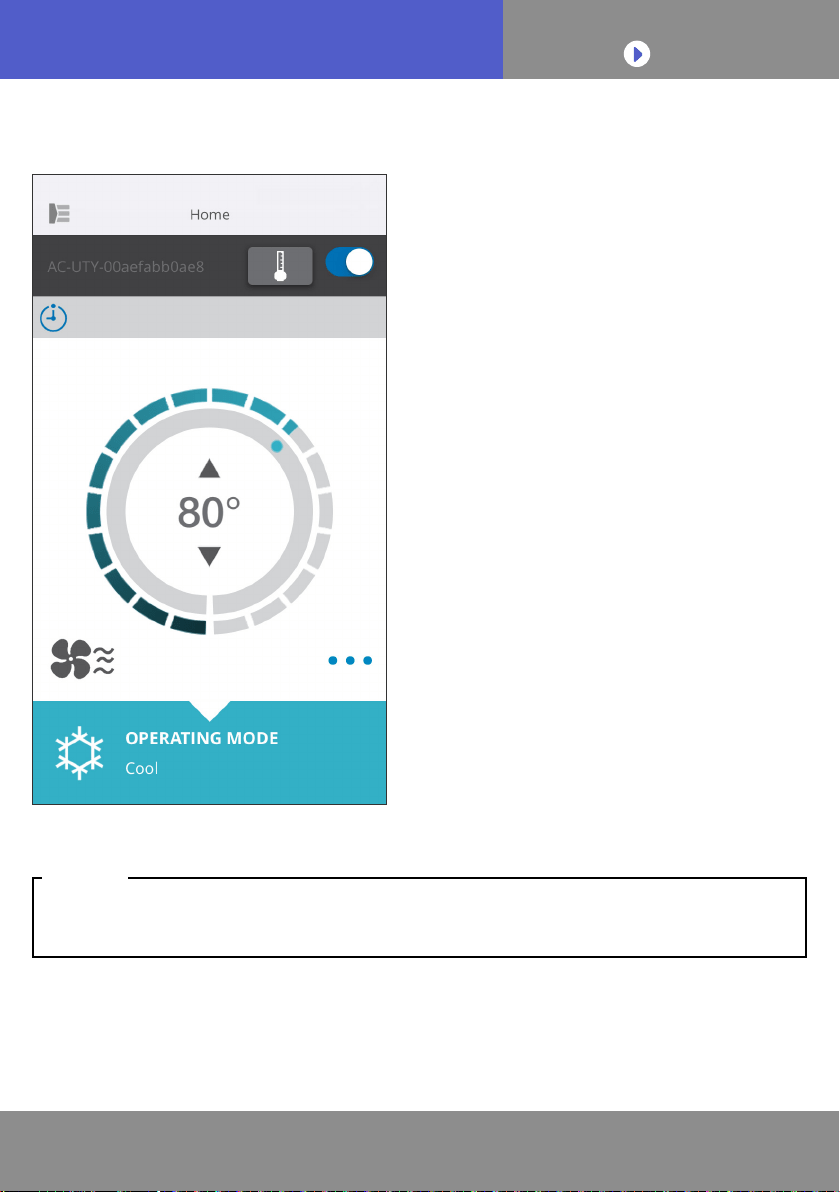
Temperature setting
By tapping ▲▼ icons or by tracing
the outer rim (circle) of the current
temperature, you can set the
temperature of your choice.
Settings can be changed for Auto,
Cool, Heat, or Dry modes.
Temperature range:
For Auto, Cool, Dry
64°F(18°C) to 88 °F(30°C)
For Heat
60°F(16°C) to 88 °F(30°C)
• You will not be able to set below or above the temperature range.
• When operated at Fan mode, the temperature will not be shown.
NOTES:
To CONTENTS
En-34
OPERATING THE AIR CONDITIONER
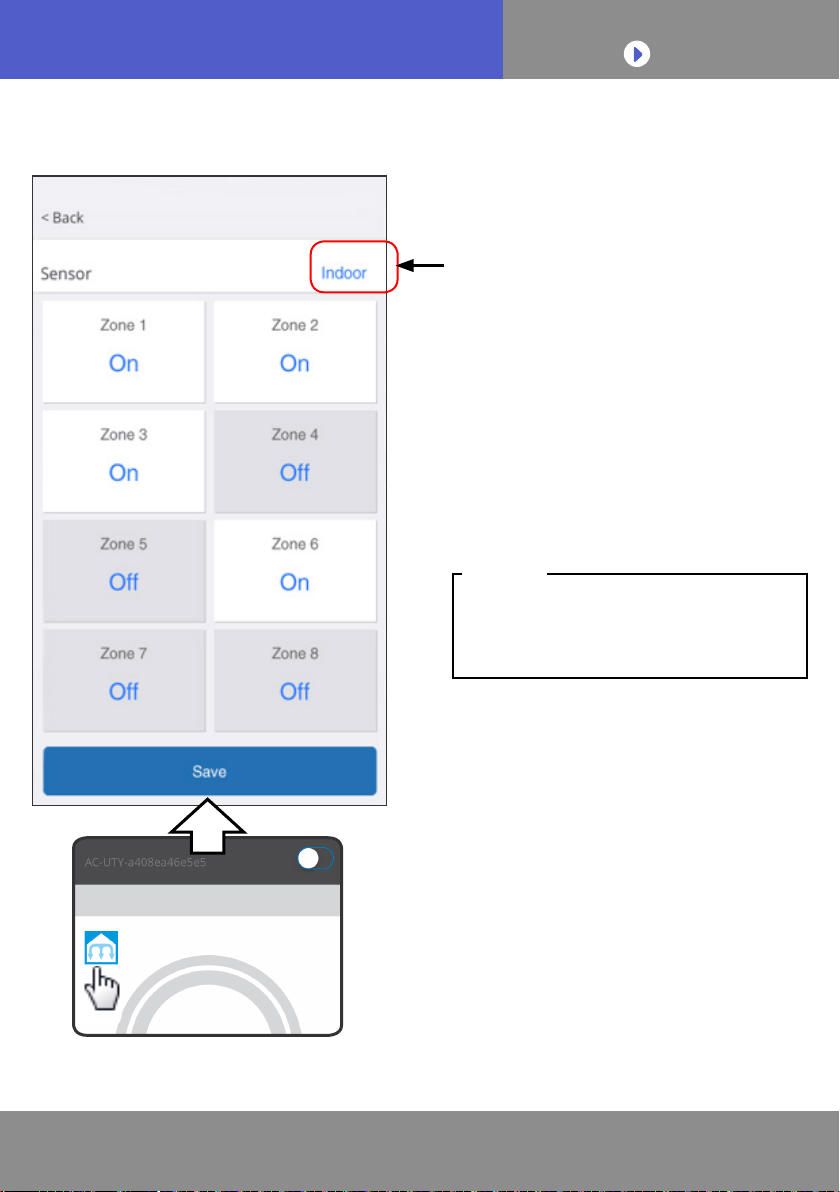
Zone setting
(1) Select the sensor you wish to
set by tapping here.
(2) You can choose to turn on or
off the individual zones by tapping
each zone displayed.
(3) After you have set the zones,
tap [Save] to save the settings.
Depending on your air conditioner,
some functions may not appear on
the screen.
NOTES:
Tap
To CONTENTS
En-35
ICON DETAILS
Icon Description Status
Error Message
An error has occurred with the air conditioner. Please
contact our authorized service personnel.
*The error display may not appear when the air
conditioner is not operating.
Timers The timer is on.
Prohibited
Operation from the mobile app is prohibited by the
Central Controller.
Defrost
At Heating operation, the outdoor unit performs
Defrost operation.
The indoor unit fan is stopped during this time.
Oil Recovery
The outdoor unit is performing Oil Recovery operation.
The indoor unit fan may be stopped during this time.
Pump Down or
Check Startup or
Maintenance
The indoor unit is being inspected.
The indoor unit operation is stopped at this time.
Mode Mismatch
A mode which cannot be used simultaneously with a
master or other indoor units in operation is set in the
same system. In this case, reset to a mode that can
be operated simultaneously such as the Fan mode.
Demand Control
The air conditioner is in Demand Control mode. For
details, refer to the instruction manual for Demand
Control.
Filter Sign
It is time to clean the lter. To erase the icon, tap the
icon then select [Clear].
Defrost or Oil
recovery or
Mode mismatch
The air conditioner status is at Defrost or Oil recovery
or Mode mismatch. Please refer to the above for
details of each item.
To CONTENTS
En-36
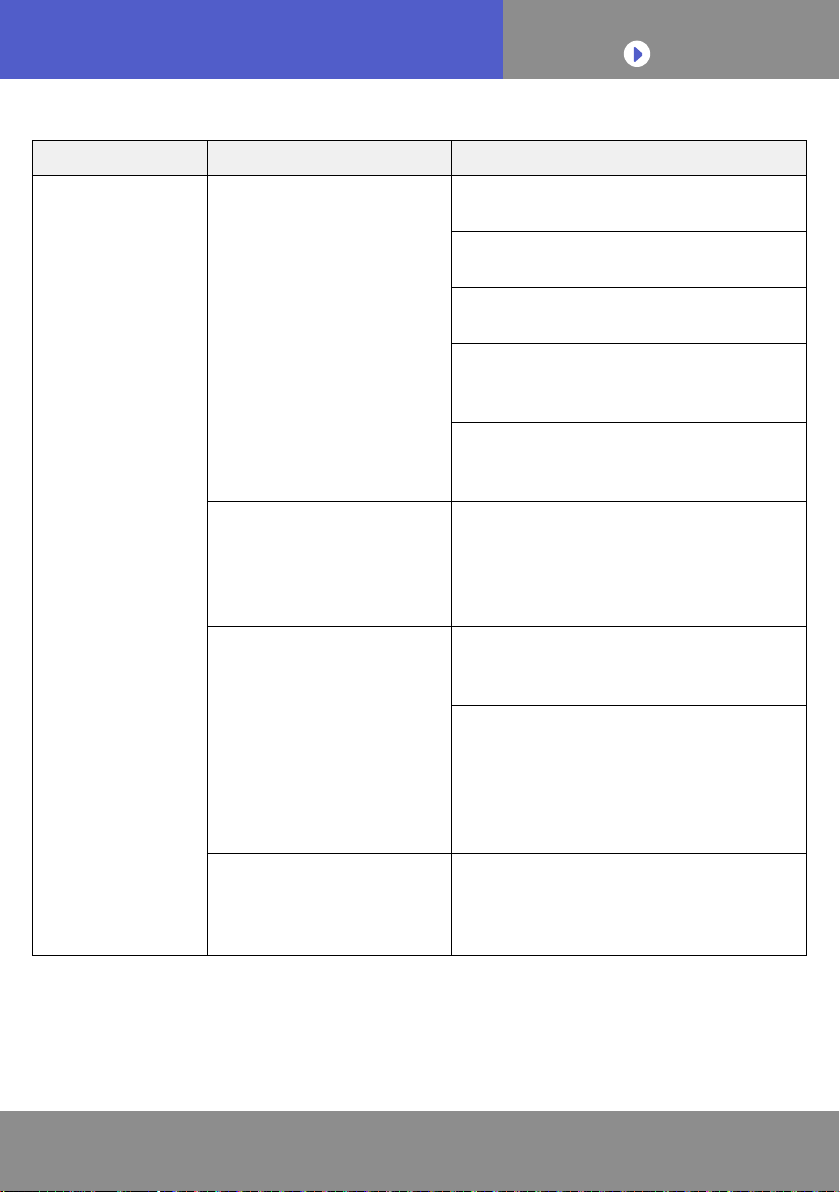
TROUBLESHOOTING
Check the following items before requesting repairs to this product.
Parts/Elements Situation Solutions
Operations from
the mobile app
I am not able to operate
this product from the
mobile app.
Check that the power to the indoor
unit is on.
Check that the power to the wireless
router is on.
Check that your smartphone is not in
ight mode.
Check that you are not in a place
where it is difcult to make a
connection with radio waves.
**Check that the WLAN adapter is
not in Sleep mode. Refer to
“IMPORTANT TIPS” for details.
The airow direction
on the mobile app
is different from the
actual position of the air
conditioner.
The airow direction may have been
changed from a different source
(remote controller or other mobile
apps). Please redo the setting.
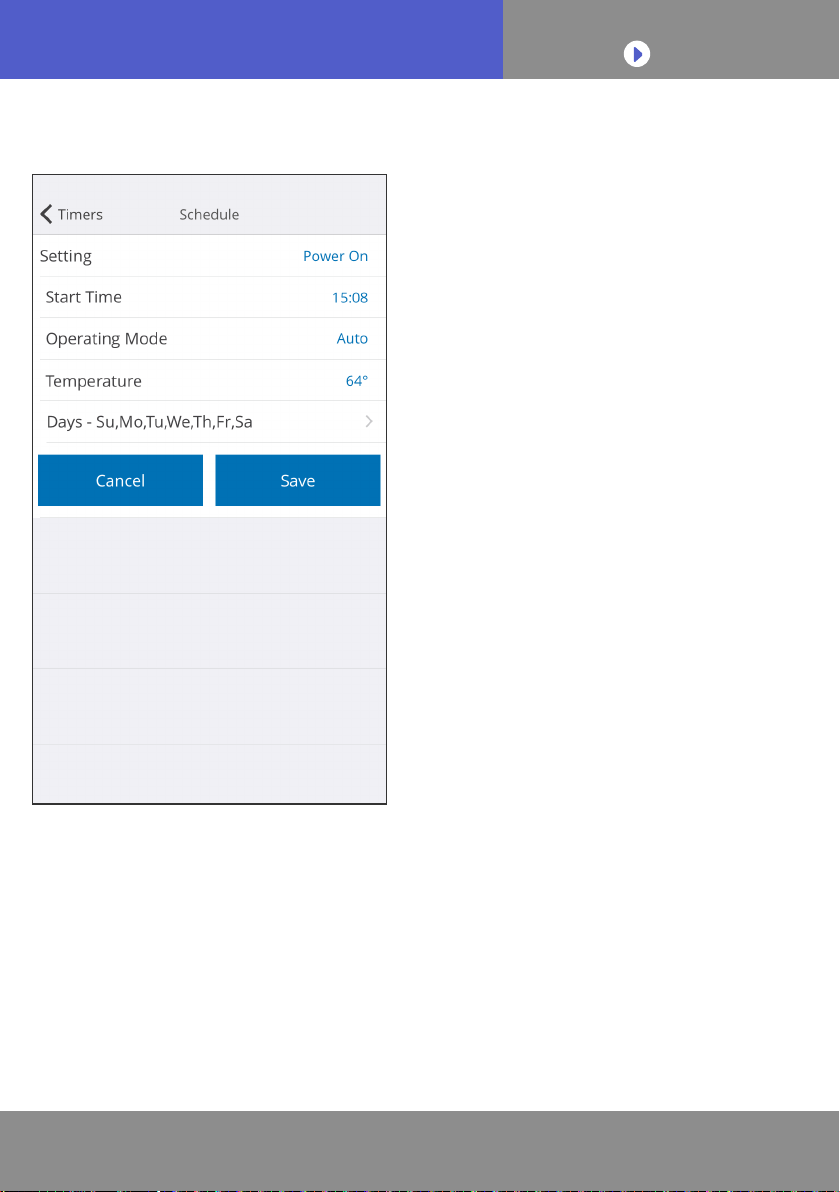
The weekly timer does
not work.
The weekly timer setting may not be
on. Change the weekly timer setting
from Off to On again.
If you have unregistered the A/C
from the mobile app, the weekly
timer settings will be erased. To use
the weekly timer, register the A/C
from the mobile app and set the
weekly timer again.
The weekly timer does
not operate at the set
time.
The weekly timer operates based on
the clock of the smartphone or tablet
PC. Consider any time lag when
setting the weekly timer.
**Only for products with Sleep mode. Refer to the setting manual to see if it
applies to your WLAN adapter.
Please also refer to the operating manual of the indoor unit for
troubleshooting related to the indoor unit.
To CONTENTS
En-37
TROUBLESHOOTING
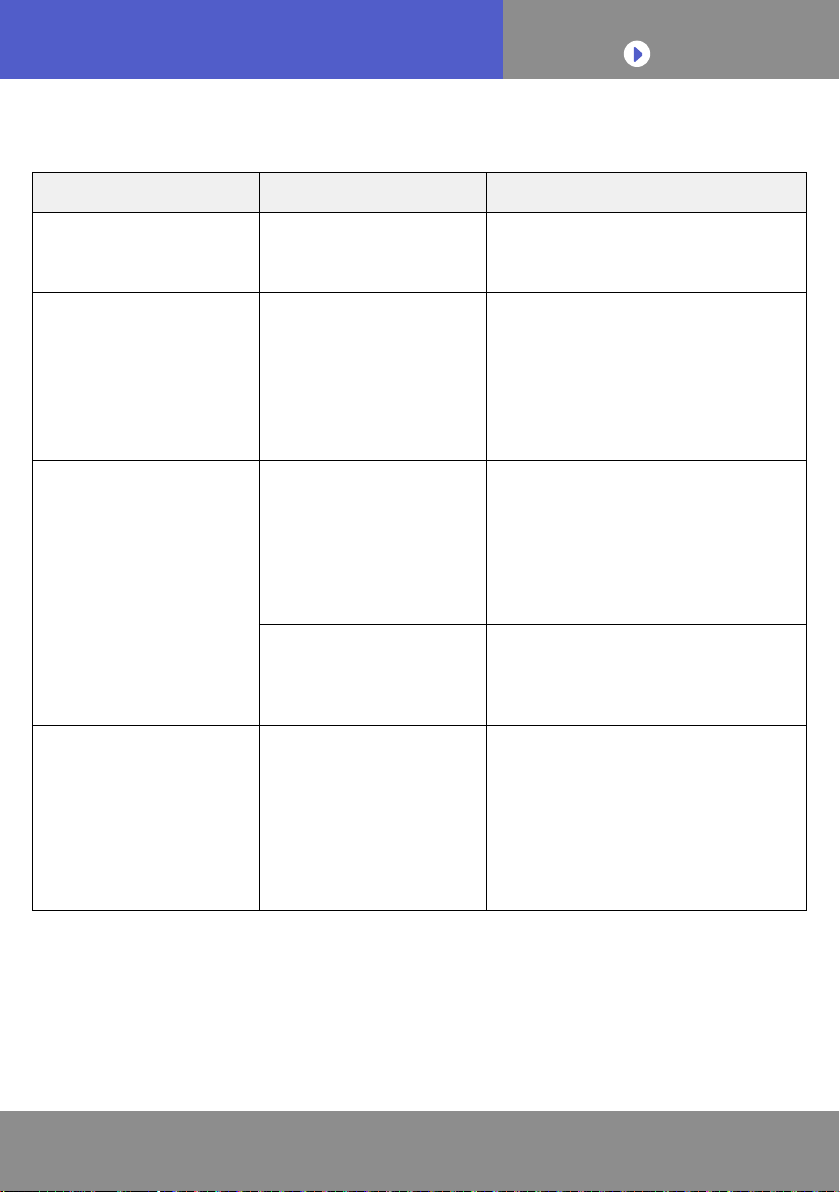
■
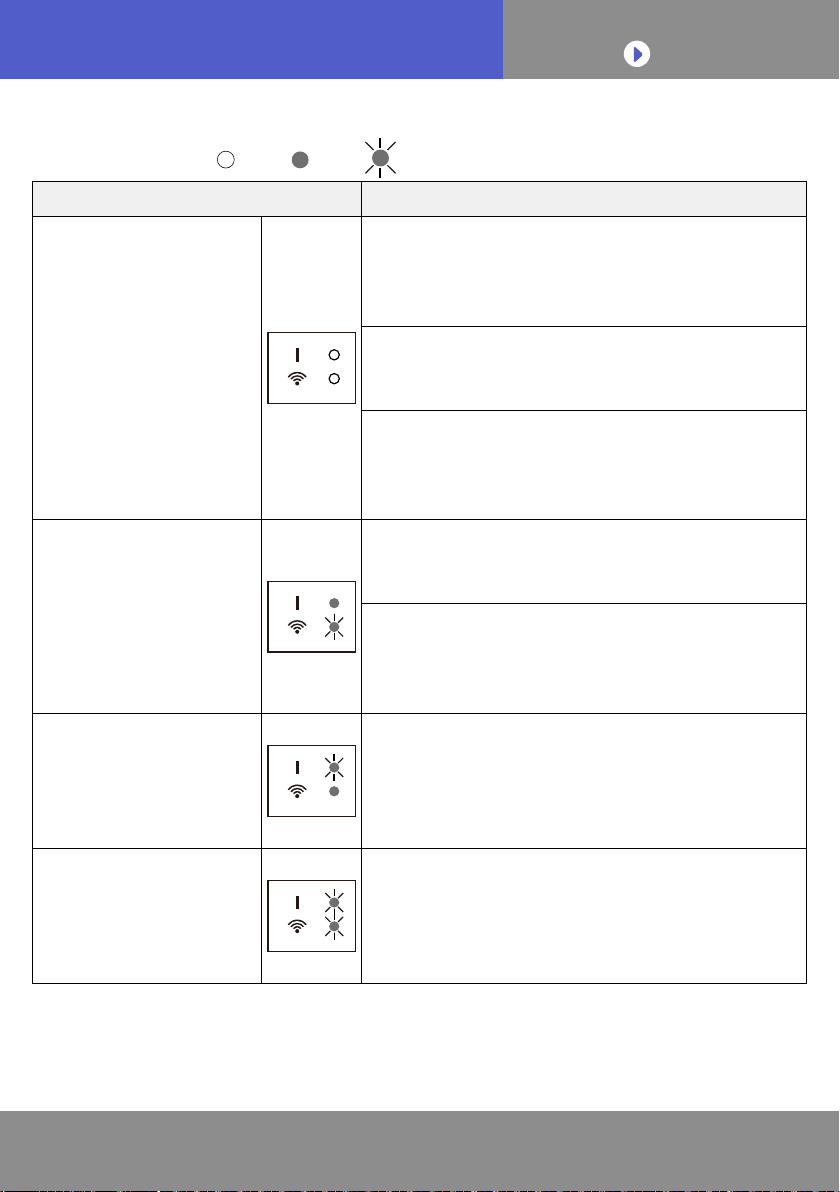
State of the Wireless LAN indicators
*Lighting pattern:
Off On Flashing
State of the Lamps Causes and Solutions
All the lamps are off The power to the WLAN adapter is not on.
→Check that the power to the air conditioner
is on and that the air conditioner breaker is
not tripped.
**The WLAN adapter may be in Sleep mode.
→Push the Setting button on the WLAN
adapter, then check if the LED lights.
The LED lamps are turned off by setting from
the mobile app.
→Refer to the Settings menu in the Side menu
to turn the LED on.
LED 2 is off or ashing
fast
(Repeating 0.5
seconds on / 0.5
seconds off)
The power to the wireless router is not on.
→Check that the power to the wireless router
is on.
There is a possibility that the WLAN adapter is
not properly connected to the wireless router.
→Refer to the setting manual to connect the
wireless router.
LED 1 is ashing fast
(Repeating 0.5
seconds on / 0.5
seconds off)
It is not possible to communicate with the air
conditioner.
→There may be an error in the air conditioner.
Please contact authorized service
personnel.
All the lamps are
ashing fast (Repeating
0.5 seconds on / 0.5
seconds off)
There is a problem with the WLAN adapter.
→Disconnect the power supply to the air
conditioner (via breaker or plug), and then
re-connect. Refer to the setting manual to
setup the wireless LAN again.
**Only for products with Sleep mode. Refer to the setting manual to see if it
applies to your WLAN adapter.
To CONTENTS
En-38
TROUBLESHOOTING
■
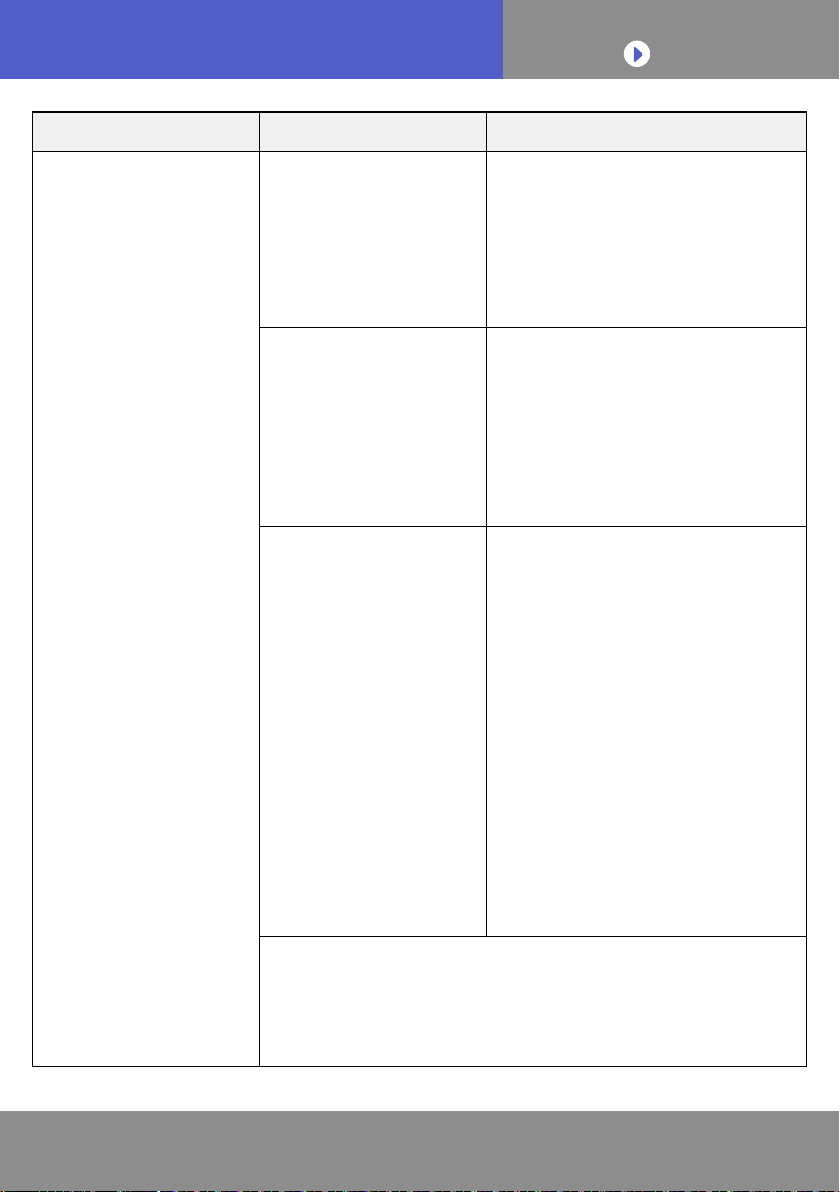
Mobile app errors
Registration Errors (For Android)
Error messages Causes Solutions
Wi-Fi must be enabled
to set up new device
The user has disabled
Wi-Fi on their mobile
device.
Enable Wi-Fi from the Android
setting.
We weren’t able to sign
you onto null. Please
go to the Wi-Fi settings
and join the network
from there.
Return to the app
when you’re done.
The mobile device
and air conditioner are
connected to different
Wi-Fi networks when
attempting to register.
Connect the mobile device
to the same network as the
air conditioner, then retry the
registration.
Could not connect
to the device at this
time. Please reset the
device and try again.
The air conditioner is
not connected to Wi-
Fi.
Check if the router connected to
the air conditioner has internet
access. (You can check by
connecting the mobile device
to the router, then opening the
website.) If there is no access,
connect the router to the internet.
Mobile device is not
connected to the same
network as the air
conditioner.
Connect the mobile device
to the same network as the
air conditioner, then retry the
registration.
The device failed to
connect with service.
Your internet access
may be down or
a rewall may be
blocking requests to
the service.
Check if the router connected to
the air conditioner has internet
access. (You can check by
connecting the mobile device
to the router, then opening the
website.) If there is no access,
connect the router to the internet,
then retry the registration.
To CONTENTS
En-39
TROUBLESHOOTING
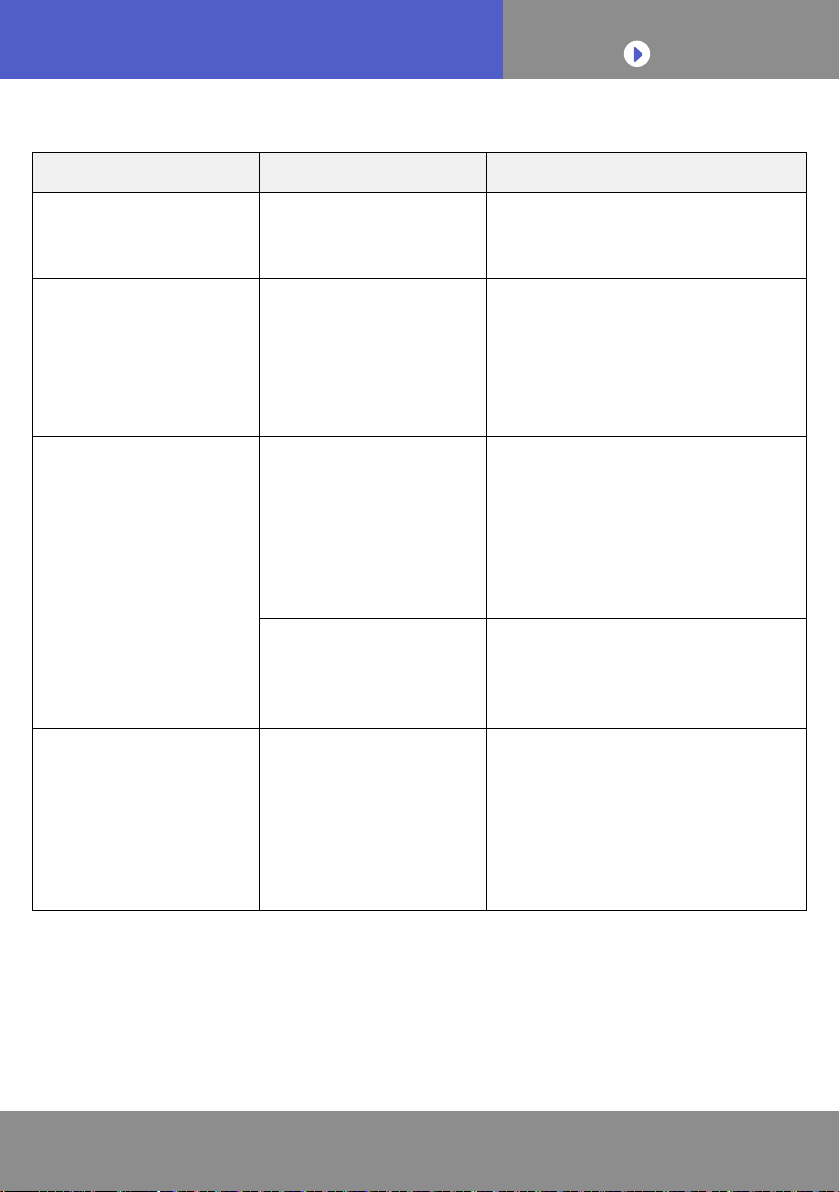
Error messages Causes Solutions
Could not register the
device. Make sure the
device is ready for
registration.
The air conditioner is
not connected to the
router.
Enter the Wi-Fi setting on the
mobile device, then check if the
SSID of the air conditioner
(AC-UT Y-
)
is connected. If the air
conditioner is connected, retry
the registration.
The router the
air conditioner is
connected to, has no
internet access.
Check if the router connected to
the air conditioner has internet
access. (You can check by
connecting the mobile device
to the router, then open the
website.) If there is no access,
connect the router to the internet,
then retry the registration.
The air conditioner is
already registered.
If there is a mobile device that
has already been registered to
the air conditioner, unregister
by using the registered mobile
device. Retry the registration
with the mobile device you wish
to register.
If you do not own the mobile
device registered to the air
conditioner (lost, property of
previous owner, etc.), please
ask your dealer or authorized
service personnel to unregister
the mobile device. Please
notify the MAC address of the
WLAN adapter as written on the
Wireless LAN label.
* If the problem persists even if the all of the above is
conducted, please contact your dealer or authorized
service personnel. When asking for advice, please notify
the MAC address of the WLAN adapter as written on the
Wireless LAN label.
To CONTENTS
En-40
TROUBLESHOOTING
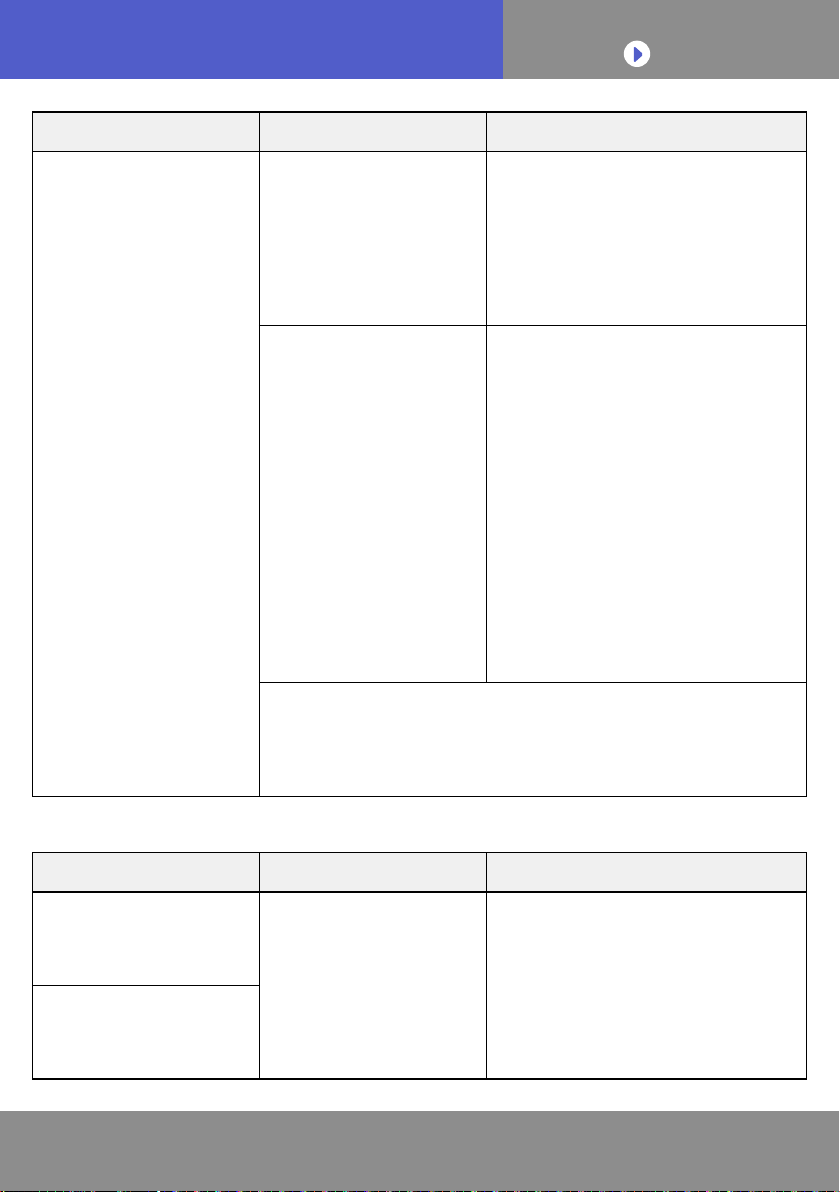
Error messages Causes Solutions
You need an internet
connection to add new
devices.
The user has disabled
Wi-Fi on their mobile
device.
Enable Wi-Fi from the iOS
setting.
Could not register
same LAN device.
Make sure both
devices are in the
same LAN and try
again to register.
The mobile device
and air conditioner are
connected to different
Wi-Fi networks when
attempting to register.
Connect the mobile device
to the same network as the
air conditioner, then retry the
registration.
No registrable device
was found. Make
sure Wi-Fi setup
was successful. This
method only works if
the Wi-Fi was recently
performed.
The air conditioner is
not connected to Wi-
Fi.
Check if the router connected to
the air conditioner has internet
access. (You can check by
connecting the mobile device
to the router, then opening the
website.) If there is no access,
connect the router to the internet.
Mobile device is not
connected to the same
network as the air
conditioner.
Connect the mobile device to
the same network as the air
conditioner, then tap register
button.
Could not register the
device. Make sure the
device is ready for
registration.
The air conditioner is
not connected to the
router.
Enter the Wi-Fi setting on the
mobile device, then check if the
SSID of the air conditioner
(AC-UT Y-
)
is connected. If the air
conditioner is connected, retry
the registration.
Registration Errors (For iOS)
To CONTENTS
En-41
TROUBLESHOOTING
Error messages Causes Solutions
Could not register the
device. Make sure the
device is ready for
registration.
The router the
air conditioner is
connected to, has no
internet access.
Check if the router connected to
the air conditioner has internet
access. (You can check by
connecting the mobile device
to the router, then opening the
website.) If there is no access,
connect the router to the internet,
then retry the registration.
The air conditioner is
already registered.
If there is a mobile device that
has already been registered to
the air conditioner, unregister
by using the registered mobile
device. Retry the registration
with the mobile device you wish
to register.
If you do not own the mobile
device registered to the air
conditioner (lost, property of
previous owner, etc.), please
ask your dealer or authorized
service personnel to unregister
the mobile device. Please
notify the MAC address of the
WLAN adapter as written on the
Wireless LAN label.
* If the problem persists even if the all of the above is
conducted, please contact your dealer or authorized
service personnel. When asking for advice, please notify
the MAC address of the WLAN adapter as written on the
Wireless LAN label.
General Errors (For Android)
Error messages Causes Solutions
No connectivity to Wi-
Fi or the cloud. Please
check your network
connection.
The mobile device has
no internet access.
Connect the mobile device to the
internet.
An error occurred
while trying to update
your prole. Please try
again later.
To CONTENTS
En-42
TROUBLESHOOTING
Error messages Causes Solutions
Device is ofine and
cannot be modied.
The router the
air conditioner is
connected to, has no
internet access.
Check if the router connected to
the air conditioner has internet
access. (You can check by
connecting the mobile device
to the router, then opening the
website.) If there is no access,
connect the router to the internet.
The air conditioner is
not connected to the
router.
Check the LED indicators
on the WLAN adapter. If the
Green or Orange LED lamp is
ashing or off, please check the
TROUBLESHOOTING “State of
the Wireless LAN indicators”.
General Errors (For iOS)
Error messages Causes Solutions
Failed to change
password.
The mobile device has
no internet access.
Connect the mobile device to the
internet.
Could not determine
service reachability.
Failed to update
property.
Could not retrieve
schedules.
The operation couldn’t
be completed.
Operation timed out.
To CONTENTS
En-43
TROUBLESHOOTING
Error messages Causes Solutions
“Device name” is
ofine.
(Device name varies
depending on the air
conditioner)
The router the
air conditioner is
connected to has no
internet access.
Check if the router connected to
the air conditioner has internet
access. (You can check by
connecting the mobile device
to the router, then opening the
website to check access.) If there
is no access, connect the router
to the internet.
The air conditioner is
not connected to the
router.
Check the LED indicators
on the WLAN adapter. If the
Green or Orange LED lamp is
ashing or off, please check the
TROUBLESHOOTING "State of
the Wireless LAN indicators".
Sign-in Errors (For Android/iOS)
Error messages Causes Solutions
Could not reach
service.
The mobile device has
no internet access.
Connect the mobile device to the
internet.