User Manual
75QLEDSM20
75”
ULTRA HD
ANDROID TV
TM

2
Welcome
Congratulations on your purchase!
This manual tells you all you need to know about using your new Hitachi product.
Please take special note of any important safety and usage information presented with the symbol.
All products brought to you by Hitachi are manufactured to the highest standards of performance and safety and, as part
of our philosophy of customer service and satisfaction, are backed by our comprehensive 3 Year Warranty.
We hope you will enjoy using your purchase for many years to come.

3
Contents
Welcome 2
Contents 3
Unpack and Prepare 4
What's in the box 4
Important Tips 5
Attaching the stand 6
Wall-mounting the TV 7
Connect to power 8
Connect your antenna 8
Controls and Connections 9
Get to know your TV 9
Control joystick on the TV 9
Ports on the TV 10
Remote Control 12
Setup 12
Using the Remote Control 13
Remote Pairing 13
Remote Overview 14
On-Screen Set Up 16
How to access other devices
connected to the TV 17
How to turn on/o subtitles in
live TV mode 17
How to play personal videos,
photos and music 17
Smart TV 18
Download or Delete Apps 19
Stream using Chromecast-
enabled Apps 20
Using Voice Interaction 21
Connect To Google Home 21
TV Setting Menus 22
Picture 24
Sound 26
Channel 27
Network & Internet 28
Accounts and Sign-in 30
Google Assistant 30
Apps 31
Retail Mode 31
About 32
Date & Time 33
Inputs 34
Power 35
Screen Saver 36
Location 36
Accessibility 37
Reset 37
Remotes & accessories 38
High Dynamic Range (HDR) 39
TV Guide 40
Recording 41
Recording Live TV 42
Scheduled Recording 42
Playback 42
Pause Live TV (Time-shift) 43
Troubleshooting 44
Specifications 47
Compliance and
Responsible Disposal 48

4 | UNPACK AND PREPARE
See the top box flap for
how to handle the TV
without damaging it!
Unpack and Prepare
What's in the box
Before installing your new TV, check you have everything
needed.
In the box you will find:
A. 75" Ultra HD Android TV
B. Remote Control
C. AAA Batteries
D. Mini AV Adaptor
E. TV Stands
F. Screws for the TV Stand
G. Warning Sheet
H. TV Toppling Safety Message
I. Quick Start Guide
J. Warranty Certificate
K. General Safety Warnings
L. User Manual
You will need:
• Phillips-head screwdriver (for stand installation)
• Someone to help you lift and install your TV
• Google account
• Internet connection (to access Smart TV apps and
functionality)
• Antenna cable (to watch live TV)
D
F
G
H
I
J
K
L
E

UNPACK AND PREPARE | 5
Important Tips
• Place the TV on a level surface.
• Place the TV away from any source that may generate heat or vibrations.
• Make sure there is enough space around vents for airflow.
• The remote control works up to 5 metres away from the TV.
• Unplug the TV before cleaning it.
• Clean using a dry cloth only - do not use water or chemicals.
• Use only the power supply provided.
• It is highly recommended to use safety straps for securing the TV in place.
• Keep liquid, children and pets away from the TV at all times.
6 | UNPACK AND PREPARE
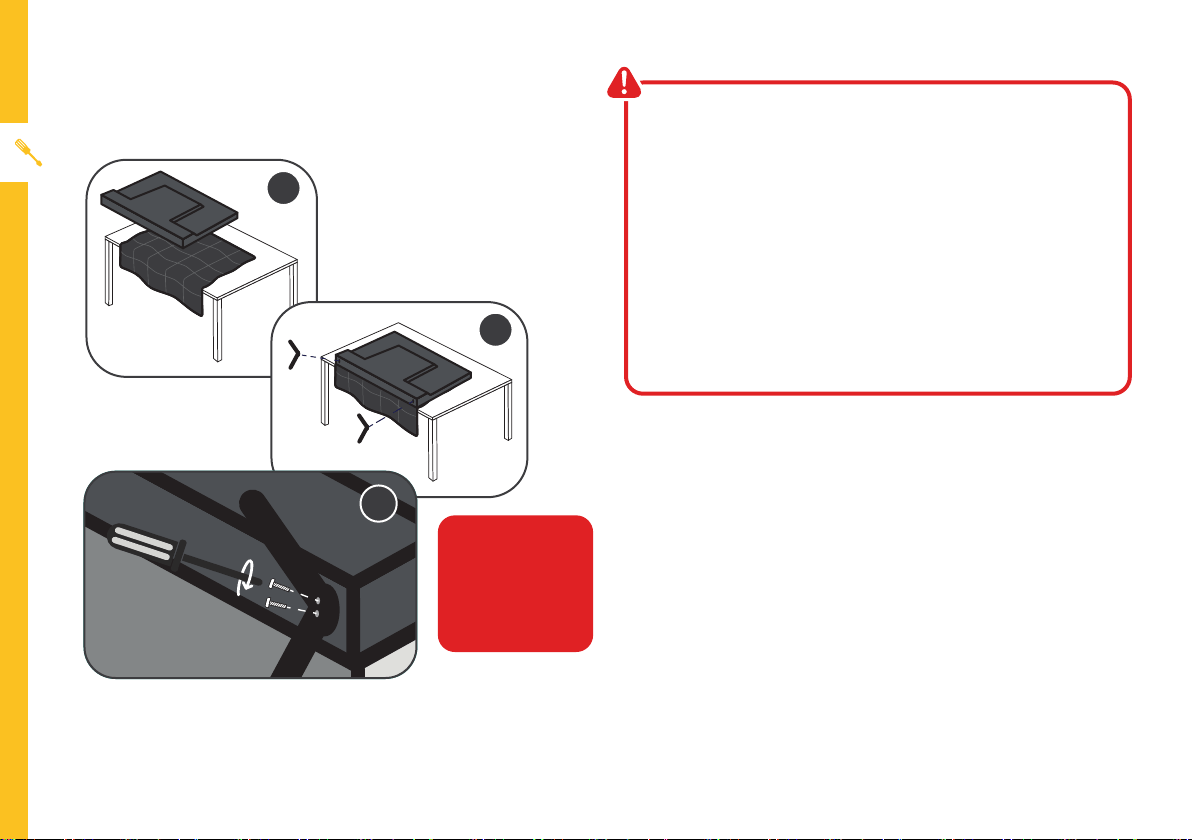
Unless you are wall-mounting the TV, you will need to
attach its stand/legs.
1. Lay the TV face-down on a soft, flat surface (like the
sofa, or a towel on a table) larger than the TV itself.
2. Match the stands to the installation points on the
underside of the TV.
3. Attach the stands to the TV at the installation points
using the screws provided. (Grab a screwdriver for
this bit).
Attaching the stand
• This TV is heavy! We recommend asking someone
to help you lift it.
• Unplug the TV from the power outlet before
installing or removing the stand.
• DO NOT place the TV standing upright without
its stand attached; it could damage the remote
sensor at the bottom of the TV.
• Only touch the frame, not the screen.
• It is highly recommended to use safety straps for
securing the TV.
CAUTION!
Do not apply
excessive force as
you might damage
the screw holes.
1
2
3
UNPACK AND PREPARE | 7
400mm
Back of the TV
300mm
Wall-mounting the TV
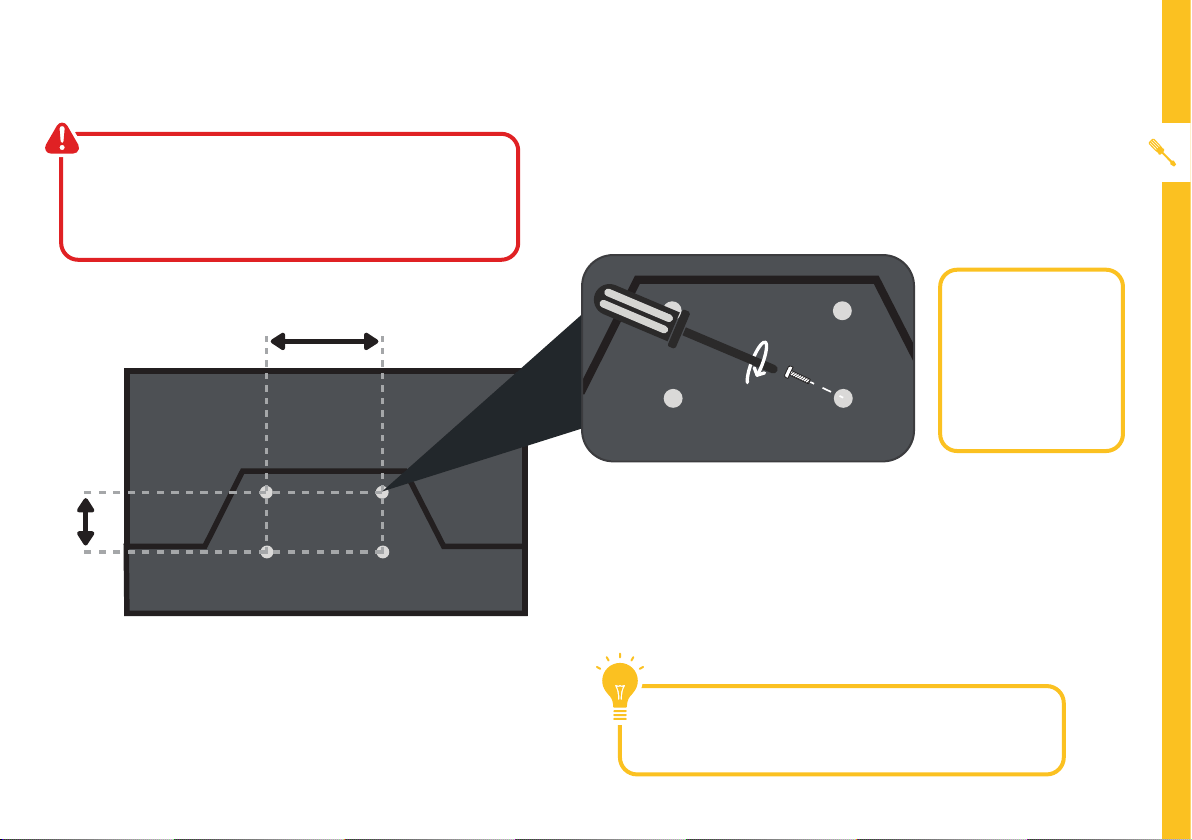
The TV comes with holes on the back panel for use with
wall-mounting brackets (bracket not included).
Use four standard M6*16mm screws (or longer, depending
on the mounting bracket) to wall-mount this TV (screws are
not included).
• Unplug the TV from the power outlet before
wall-mounting.
• Contact a professional for assistance with
wall-mounting the TV.
Required
• VESA Mounting
Bracket
• 4 x M6*16mm
screws (or longer
as required)
The screws in the package are for securing the TV stand
only. If you are wall-mounting the TV, consult a qualified
installer for advice on bracket support and wall support.
8 | UNPACK AND PREPARE
Free-to-air TV in HD (High Definition)
High Definition (HD) channels
provide the best viewing quality and
are available with a digital antenna
connection.
TV channels in Ultra HD resolution are not
currently available in Australia. Therefore
when you watch HD broadcast signals on
an Ultra HD TV, the picture can appear 'soft'
and lacks the detail you see when watching
the same content on an HD TV.
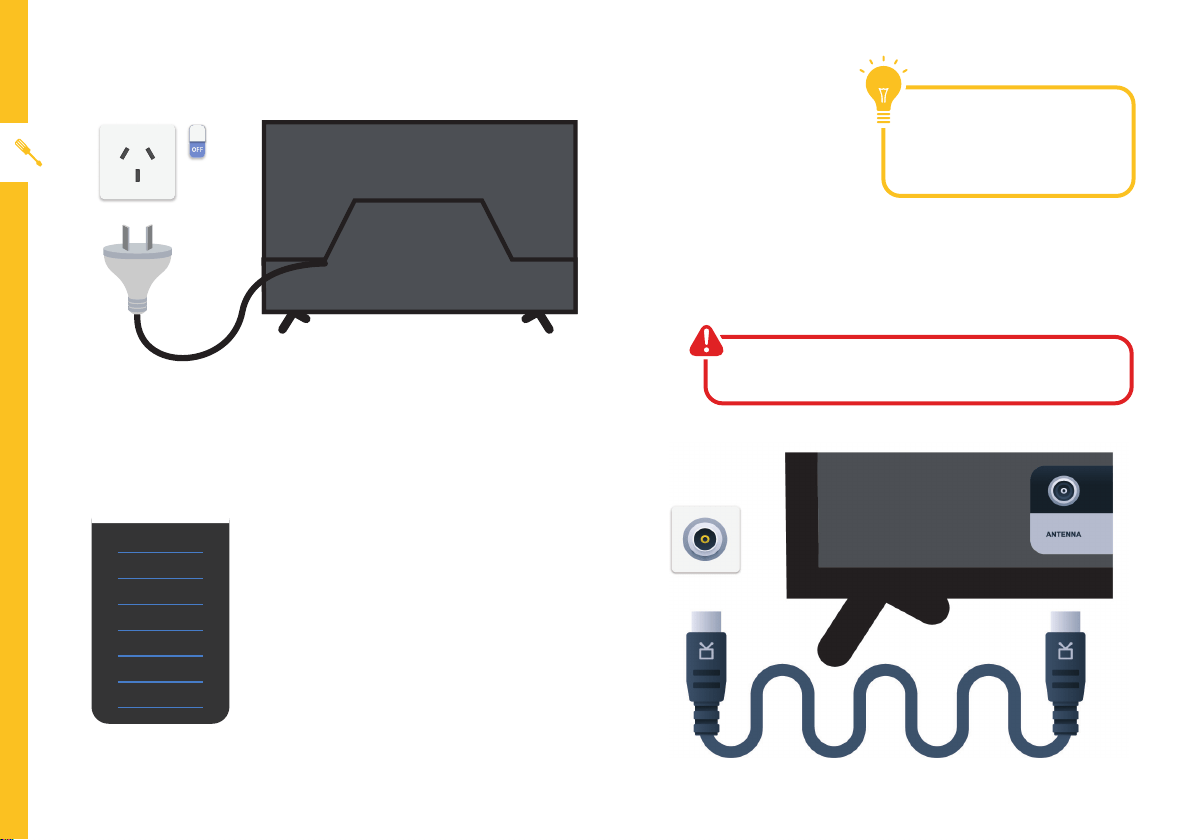
Connect to power
Make sure the TV is switched off at the power outlet
until you have finished connecting your cables.
Connect your antenna
Antenna cable not included.
ABC HD
SBS ONE HD
7HD
9HD
10 HD
PRIME7 HD
WIN HD
Example
HD Channels
Don't forget to plug in the TV
to the power outlet. Leave
the power switched off until
installation is finished.
CONTROLS AND CONNECTIONS | 9
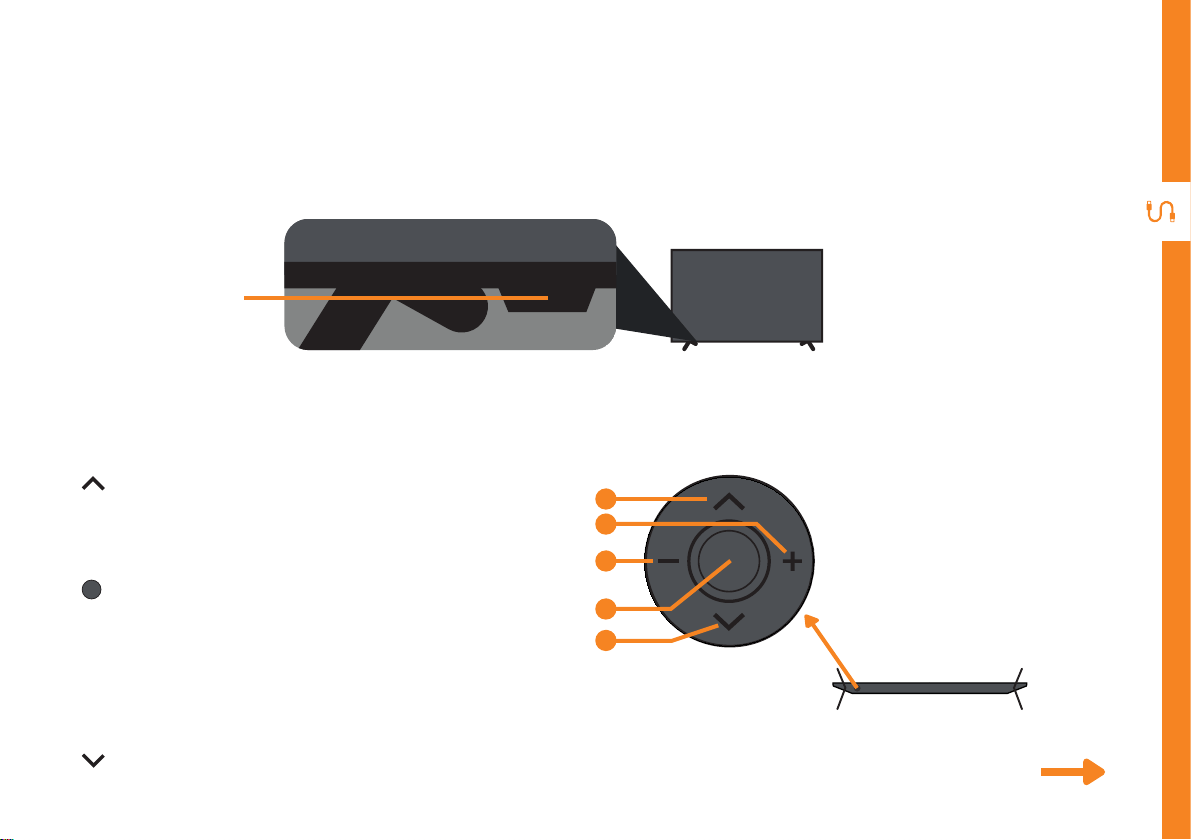
1. : Select the next channel or move up.
2. + : Increase the volume level or move right.
3. - : Decrease the volume level or move left.
4. : • When TV is on standby, press to turn on.
5. : Select the previous channel or move down.
See next page for more info on the connections.
Controls and Connections
Control joystick on the TV
Get to know your TV
1
2
3
4
5
On/Standby light and
Remote sensor
Bottom View
• When TV is on, press to enter the menu.
Use the joystick to navigate around the interface
and press to enter the highlighted item.
• When TV is on, press and hold to put TV on
standby.
10 | CONTROLS AND CONNECTIONS
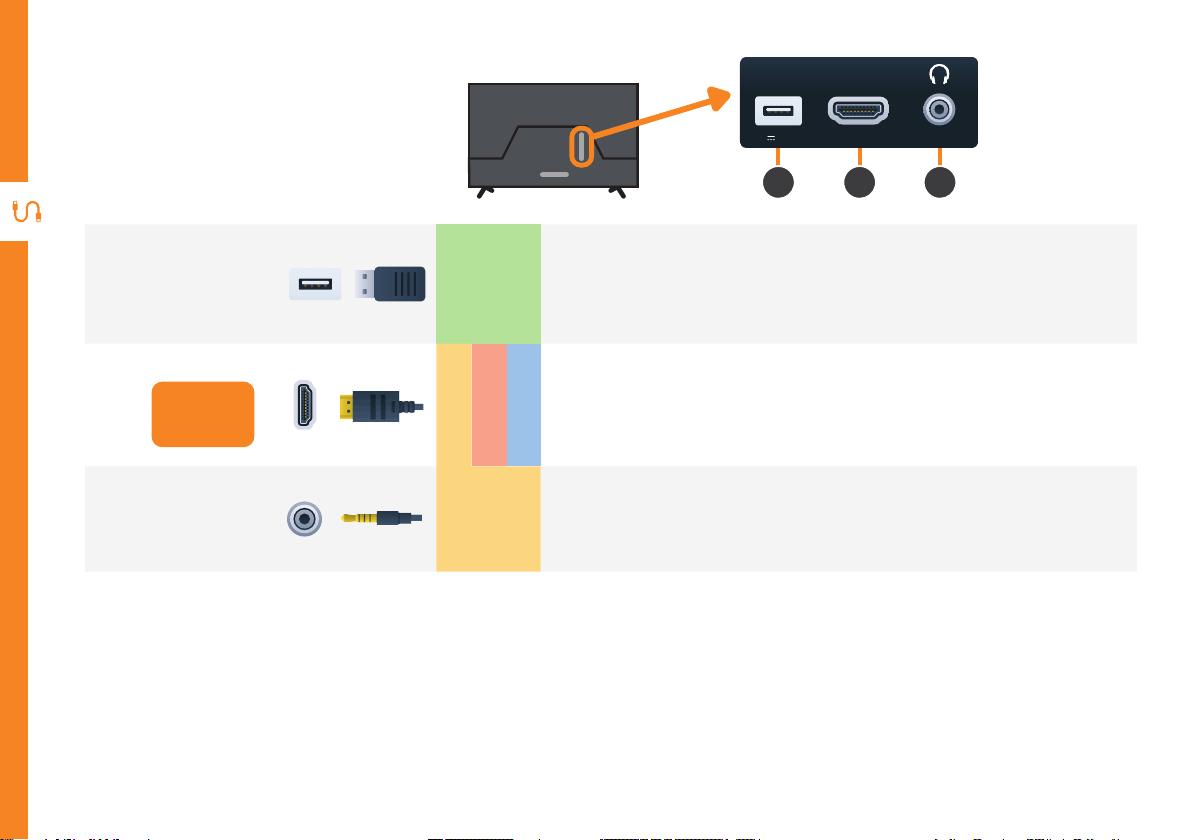
1
USB
STORAGE
• Plug in a USB stick to PVR record and pause live TV.
• Play media files stored on your USB storage device (supported file codecs and
extensions may vary).
• Update the TV software via USB.
2
HDMI IN
Use a high-speed
HDMI cable for
best picture and
sound quality.
SOUND
PICTURE
COMPUTER
All-digital connection between the TV and any HDMI device. Supports Ultra HD
resolution. Requires a high-speed HDMI cable (not included).
3
Headphone
Jack
SOUND
Connect to your headphones, amplifier, soundbar or audio device, using an AUX
cable (not included).
Ports on the TV
1
2 3
USB 2.0
(5V 500mA)
HDMI IN
1
CONTROLS AND CONNECTIONS | 11
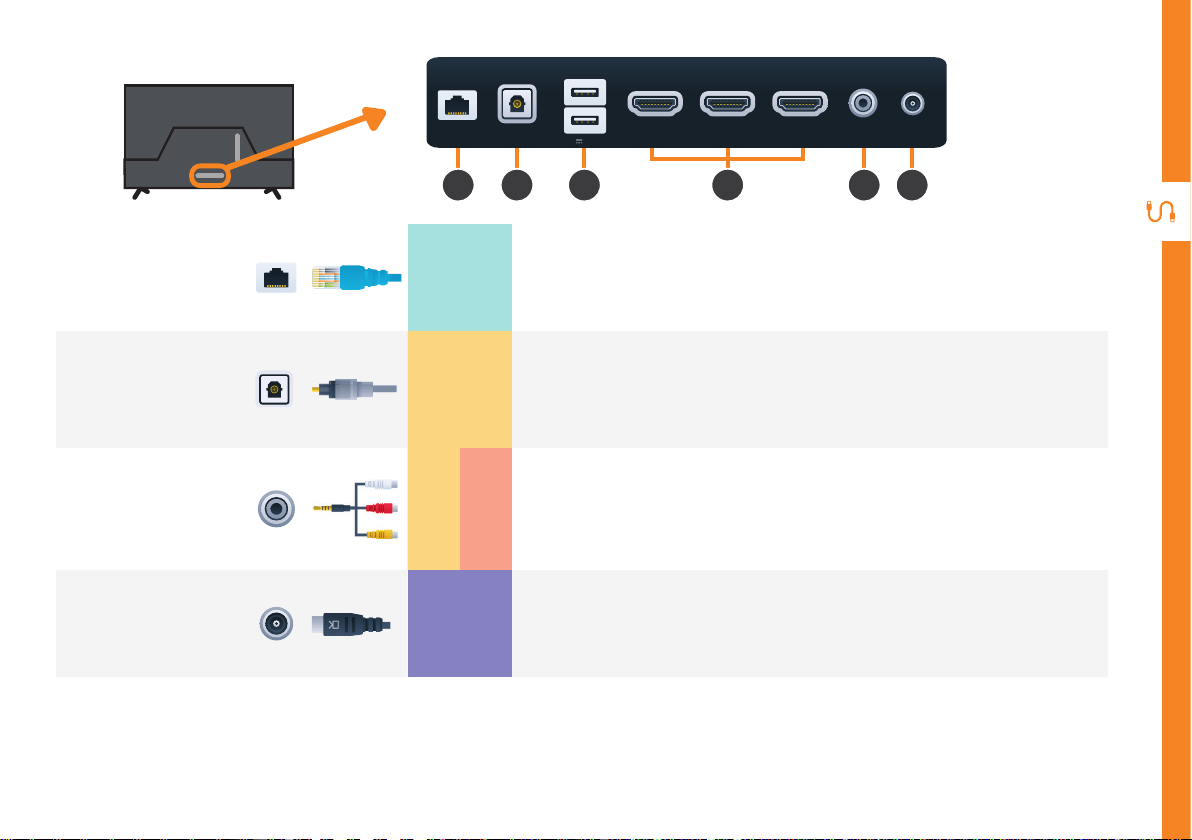
4
LAN
INTERNET
Connect to your broadband modem using a network cable (not included) for best
steaming experience. However, the TV also has built-in wifi.
5
OPTICAL
SOUND
Connect an external digital audio device. Use an Optical cable (not included) to
connect the unit with an amplifier, soundbar or other audio decoding device for
digital audio signal output.
6
AV IN
SOUND
PICTURE
Connect the mini AV adaptor (included) and standard AV cable (not included) to
connect your DVD player. Supports Standard Definition (SD) resolution and audio
connections.
7
ANTENNA
FREE-TO-AIR
TV
Connect your antenna for live TV. (Antenna cable not included.)
4
5
1 6 7
2
OPTICAL
AV IN
USB 2.0
HDMI IN
4 3 2
LAN
ANTENNA
(5V 500mA)

12 | REMOTE CONTROL
2
3
1
Setup
Insert two AAA size batteries according to the polarity
markings (+ / -) inside the compartment. Make sure the
batteries are correctly aligned and properly pushed into
place.
Precautions When Using Batteries
• Do not use old and new batteries together.
• Do not use different types of batteries (e.g.
Manganese and Alkaline batteries) together.
• Remove the batteries from the remote if you do not
intend to use it for a long time.
• When discarding used batteries, follow any guidelines
for recycling and disposal of batteries that apply in
your local area.
• Keep batteries away from children and pets.
• Never throw batteries into a fire or expose them to
extreme heat.
Remote Control
AAA size
batteries
included
Image is for illustration purposes only.
Position of battery cover/clip and polarities of batteries on your
remote control may vary.
3
REMOTE CONTROL | 13
Using the Remote Control
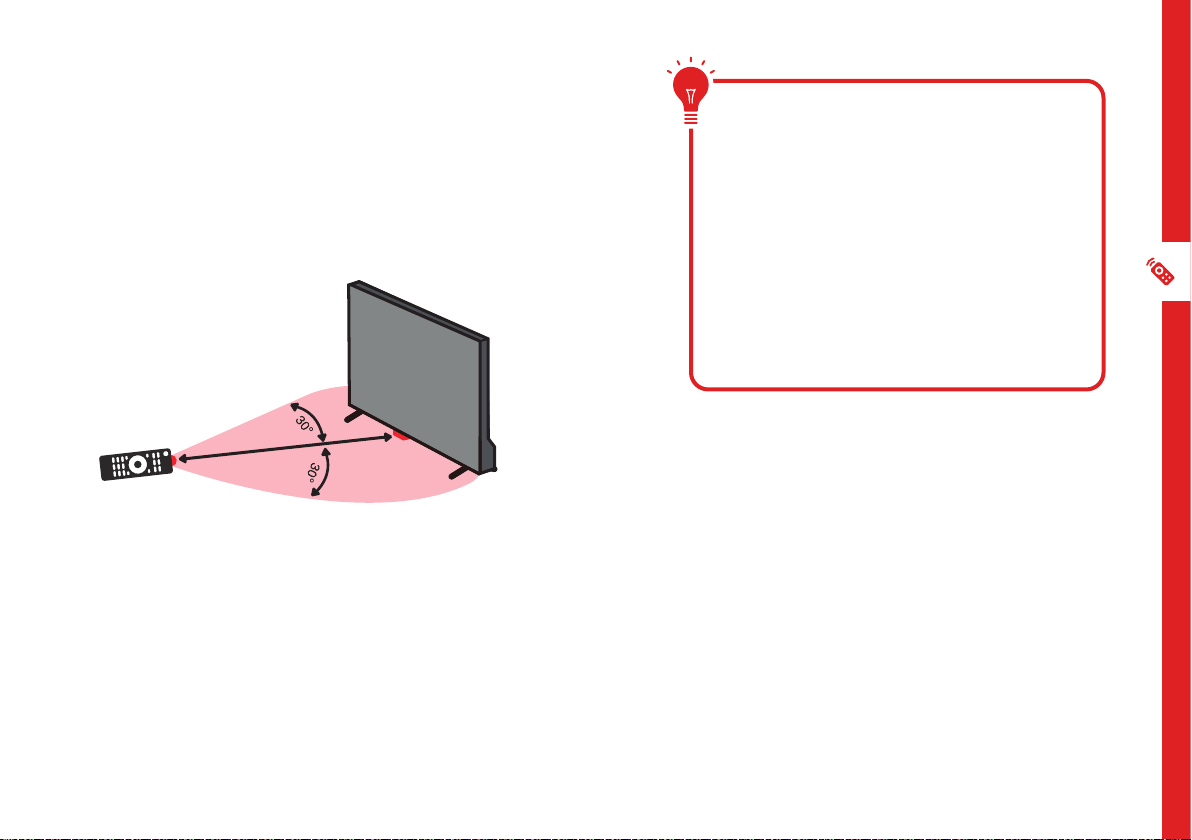
To use the remote, point it towards the remote sensor at
the front of the TV. The remote will not operate if its path is
blocked.
The remote has a range of up to about 5 metres from the
TV at an angle of up to 30 degrees to either side of the
sensor, as illustrated below.
Image is an example only.
Remote sensor location on your TV may vary.
Remote Pairing
This remote control uses both Bluetooth
®
and IR (infrared)
to send its commands to the TV.
• You can use this remote control via IR for most
operations.
• To use advanced operations like voice search, you
need to pair the TV with the remote control. During
the First Time Setup process, follow the on-screen
instructions to pair the remote. Alternatively, go to
Settings > Remotes & Accessories and follow the on-
screen instructions to pair the remote.
5m
Remote Hints and Tips
• Do not drop, step on or otherwise
impact the remote control. This
may damage the parts or lead to
malfunction.
• Do not place objects between the
remote control and the remote sensor.
• Do not use this remote control while
simultaneously operating a remote
control for other devices.
14 | REMOTE CONTROL
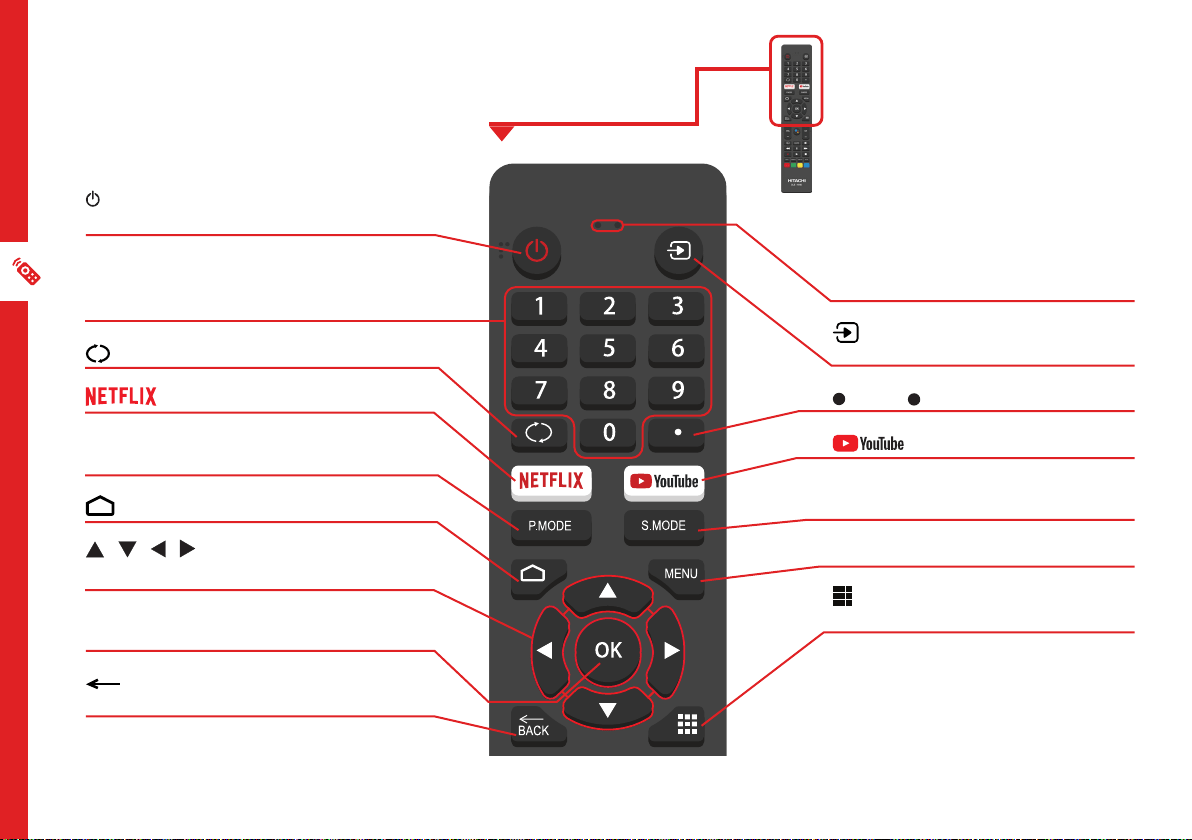
Microphone (lights up when active)
: Switch between input signal
sources
: Enter ( ) character
: Launch the YouTube app
S.MODE: Switch between preset
Sound Modes
MENU: Enter on-screen menu
/ APPS LIST: Access installed apps
list
Remote Overview
(ON): Switch the TV to On or
Standby
NUMBER BUTTONS (0-9): Press to
select a TV channel directly when
watching TV
: Jump to last viewed channel
: Launch the Netflix app
P.MODE: Switch between preset
Picture Modes
: Android TV home screen
/ / / : Press the UP/DOWN/
LEFT/RIGHT buttons to navigate
OK: Confirm your selection; access live
TV Channel list
/ BACK: Return to the previous
screen
REMOTE CONTROL | 15
CLE - 1042
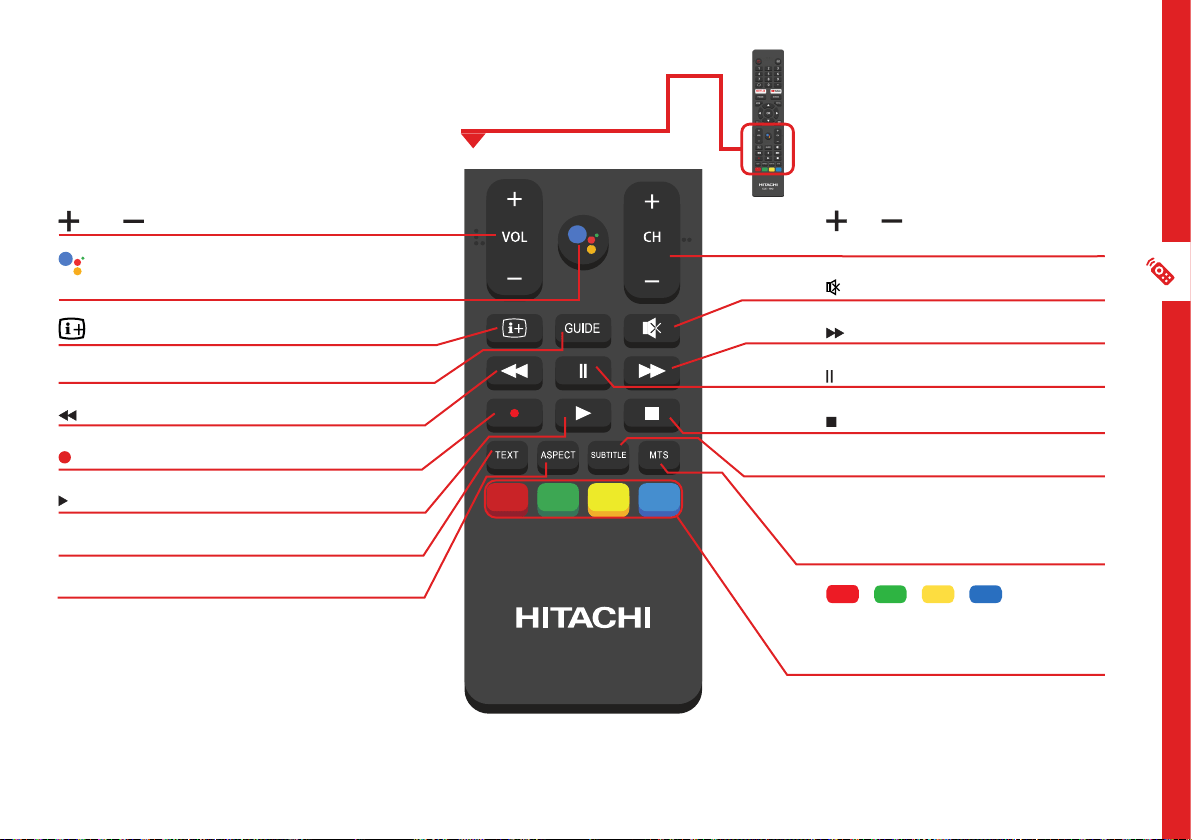
CH : Go to the next or
previous channel
(MUTE): Mute or restore sound
: Fast forward
: Pause
: Stop
SUBTITLE : Display or hide subtitles
MTS : Press to select Mono, Nicam,
Stereo for ATV channels and Audio
language for DTV channels
/ / / RED/
GREEN/YELLOW/BLUE BUTTONS:
Functions are according to the
on-screen display
VOL : Turn the volume up or down
(Google Assistant) : Summon the
Google Assistant
: Display additional information
GUIDE: Launch the TV Guide
: Rewind
/REC: Record a TV program
: Play
TEXT: Teletext (not available in Australia)
ASPECT: Change picture aspect ratio
REC
16 | ON-SCREEN SET UP
First Time Setup Menu
When you turn the TV on for the first time, the First Time Setup Menu will
appear.
Follow the prompts using the / / / / OK buttons to select your
preferences. You will be guided through:
1. Remote Pairing
6. Location
12. TV Mode
8. Google Assistant
13. Chromecast built-in always available 14. Channel Scan
7. Help Improve Android 9. Country 10. Password
11. Timezone
5. Terms Of Service2. Language 3. Quick Setup 4. WiFi Setup
If you make an error, you can update your preferences in the settings
menu later.
On-Screen Set Up
Make sure equipment is properly connected (as shown on page
10-11) before connecting the TV to power.
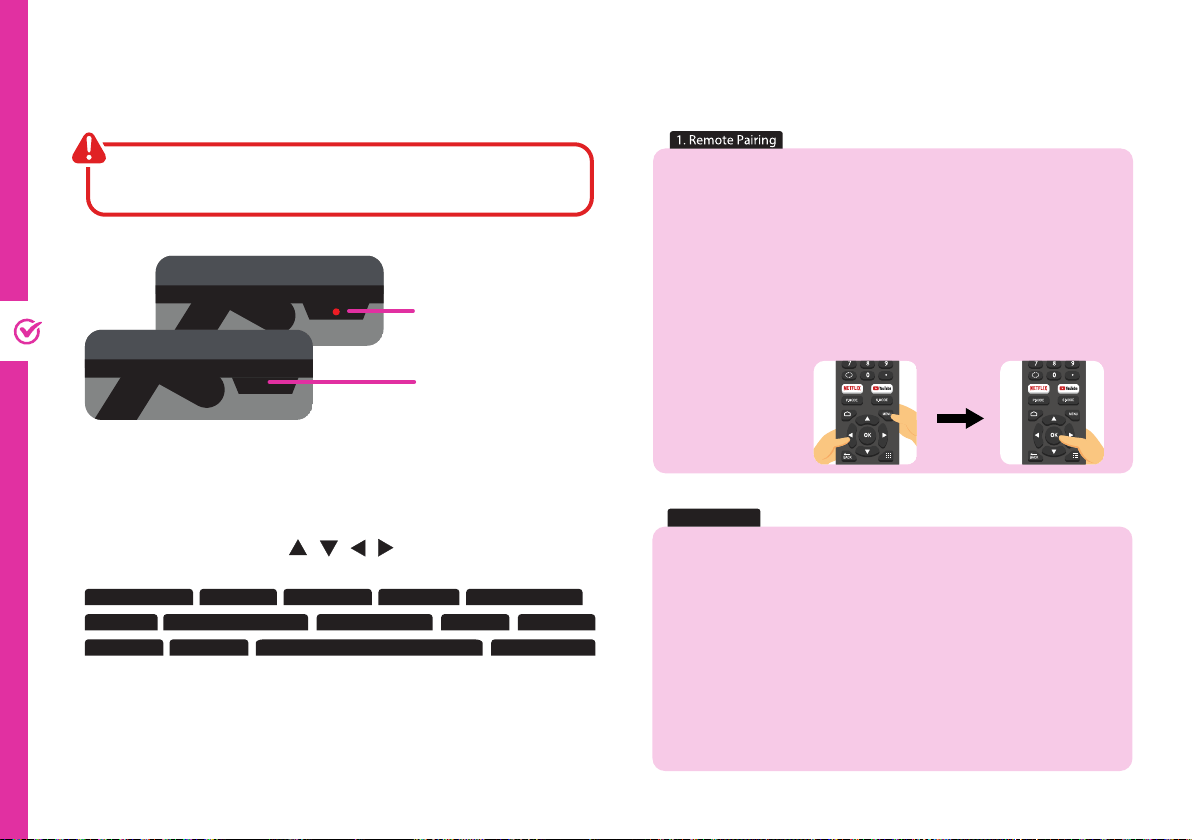
On/Standby light is RED in
standby mode.
On/Standby light is OFF
when the TV is on.
NOTE: To use your Android TV, you will need a Google Account.
There are 3 options to set up your TV:
1. Quick Start using an Android phone: Your Android TV will
automatically connect to the Wi-Fi network and Google
account that the Android phone is connected to.
2. Set up with your remote: Use the remote to manually enter
Google account and connect to Wi-Fi.
3. Set up with a phone or computer: Make sure your phone
or computer is on the same Wi-Fi network as the TV is
connecting to.
3. Quick Setup
1. Press and hold the MENU and LEFT buttons at the same time
for 5 seconds and let go.
2. When "SmartTV-RC" appears on the top-right corner of the
screen, press the OK button to initiate pairing. Once paired,
screen will automatically go to the next step.
3. If pairing was unsuccessful, wait 30 seconds and try again.
Note: Don't worry if you fail to pair the remote, you can still go through the
setup process and pair the remote later by going to Settings > Remotes &
Accessories.
5s

ON-SCREEN SET UP | 17
How to access other devices connected to the TV
1. Press the button on the remote control, select your desired input sources and press OK.
2. (OR) select the icon from the Android TV home screen.
You can rename the inputs to easily identify the device connected to it by going to:
Settings > Device Preferences > Inputs
How to turn on/o subtitles in live TV mode
1. To turn off subtitles, press the SUBTITLE button on the remote, select Digital Subtitle Language Setting and set the
option to 'Off.'
2. To turn on subtitles, press the SUBTITLE button on the remote, select Digital Subtitle Language Setting and set the
option to 'English.'
How to play personal videos, photos and music
You can view your photos or play your music and videos from a connected USB flash drive.
1. Plug in a USB flash drive to one of the USB connections.
2. Press the button and select the MMP (Multi-Media Player) app from the favourite apps list and press OK.
Alternatively, you may use other apps available on the Google Play Store.
18 | SMART TV
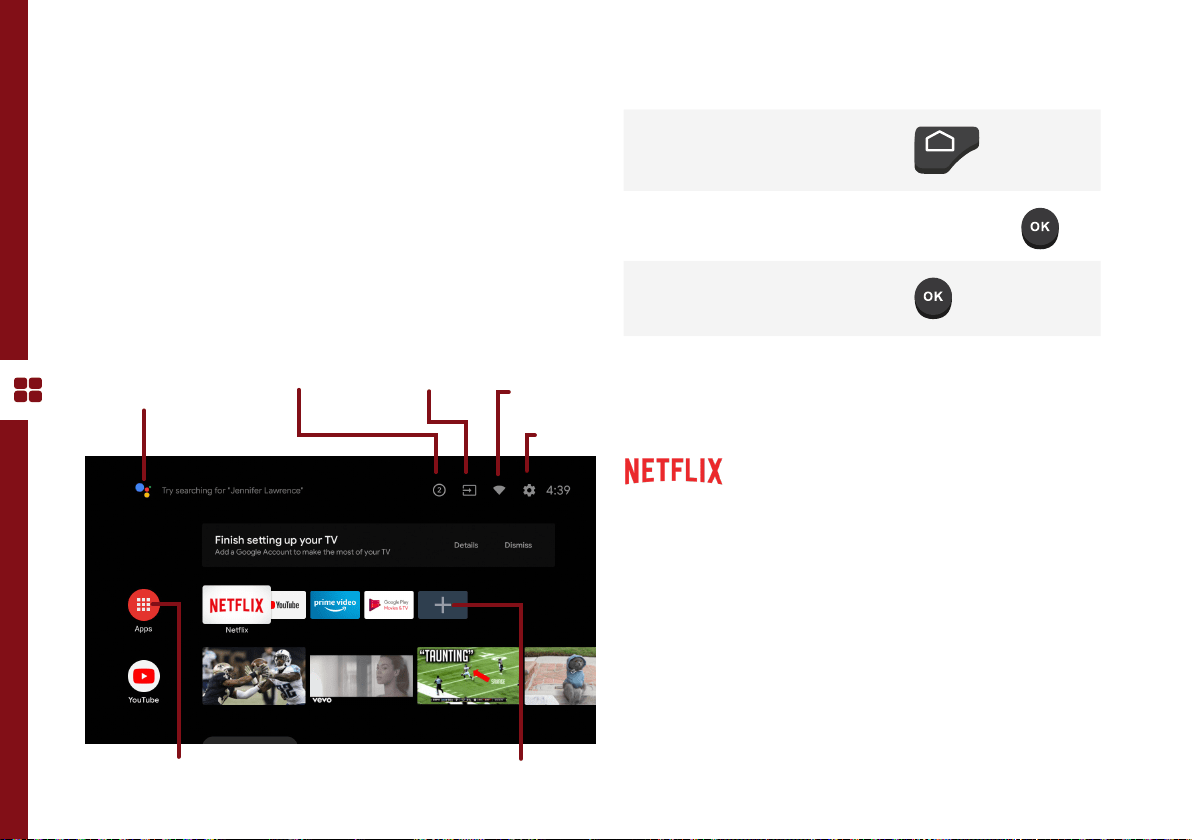
Smart TV
Before you start using apps, your TV must be
connected to the internet.
The speed of your internet connection determines
the quality of your audio/video experience when you
watch streaming content.
Accessing internet content may count towards your
download limit and may incur fees from third parties
such as your internet service provider (ISP).
Function Remote Button
Display the Android TV home
screen
Change the order of apps /
remove an app from favourites
Press and hold
Open your desired App
Netflix is a streaming service that offers unlimited viewing
of a wide variety of award-winning TV shows, movies and
documentaries.
A paid subscription is required.
This TV can play Netflix content in 4K Ultra HD HDR
resolution, however the playback resolution may be lower
depending on your subscription level and your network
speed.
Streaming Netflix content will count towards the data
usage of your broadband plan.
NotificationsVoice search/on-
screen keyboard
Access all apps Favourite apps
Settings
Change inputs
Internet
connectivity
status

SMART TV | 19
Download or Delete Apps
You can download apps and games for your Android TV through the
Google Play Store app.
Download apps
1. From the Android TV Home screen, Select the Google Play Store app.
2. Browse or search for apps and games.
To browse: Move up or down to view different categories. When you find
a category you’re interested in, move to the right to view items.
To search: To speak your search, scroll to the top of the screen and
select the icon. To type your search, scroll to the right at the top of the
screen and select Input .
3. Select the app or game you want.
4. Select Install.
Delete an app
1. From the Android TV Home screen, select Settings.
2. Select Apps.
3. Under "Recently Opened Apps" or "See All Apps", choose the app you
want to remove.
4. Select Uninstall and then press OK.

20 | SMART TV
Stream using Chromecast-enabled Apps
With chromecast built-in, you can cast content from chromecast-enabled apps and chrome browser on your phones,
tablets or laptops to your TV. Make sure to turn "Chromecast built-in always available" to On during first time setup
process.
1. Connect your device to the same Wi-Fi network as this TV.
2. Open the app that has the content you want to cast.
3. In the app, find and select the icon.
4. In the app, select the name of your TV.
5. When the icon changes colour, you have successfully connected.
To stop casting, select the icon on your device and select Disconnect.

SMART TV | 21
Using Voice Interaction
Connect To Google Home
Your TV remote has a built-in microphone. To enable Google Assistant, you must pair the remote control with the TV
which should have been completed during the initial TV setup. If the remote is not paired, see page 38 for pairing
instructions.
• To get help from the Google Assistant, ensure that:
• Your TV is connected to the internet
• You have signed into your Google account.
• Press the button on your remote to get started.
• At the bottom of your TV screen, an introduction will appear. When 4 dots appear, speak into the remote's
microphone. You can ask your Google Assistant for info and play videos from YouTube, etc.
• For ideas about what your Assistant can help with, ask "What can you do?"
• Download the Google Assistant app on your iPhone, iPad or Android smart device to customise your Google
Assistant experience.
Use your voice to control all Google Assistant-enabled smart devices in your home such as cast videos to your Android
TV, stream music to a wireless speaker, turn on/off smart power switches and much more.
To get started, get the Google Home app from your favourite app store. Sign in to your Google account, the same one
that you used to sign in to the TV.
Proceed to add your devices. Your Android TV "Hitachi 4K Android TV" should already be there. Make sure to set it up as
your default display device.
22 | TV SETTING MENUS
Menus Index
Picture 24
• Picture Mode
• User Mode Settings:
• Backlight, Brightness, Contrast, Saturation, Hue,
Sharpness
• Gamma
• Colour Temperature
• HDR
• Advanced Video Settings
• DNR (Digital Noise Reduction), MPEG NR, Adaptive
Luma Control, Game Mode
• Reset To Default
TV Setting Menus
Menu Navigation Buttons
Function Remote Button
Display the main menu
Press and select
Press and select
Enter a sub menu
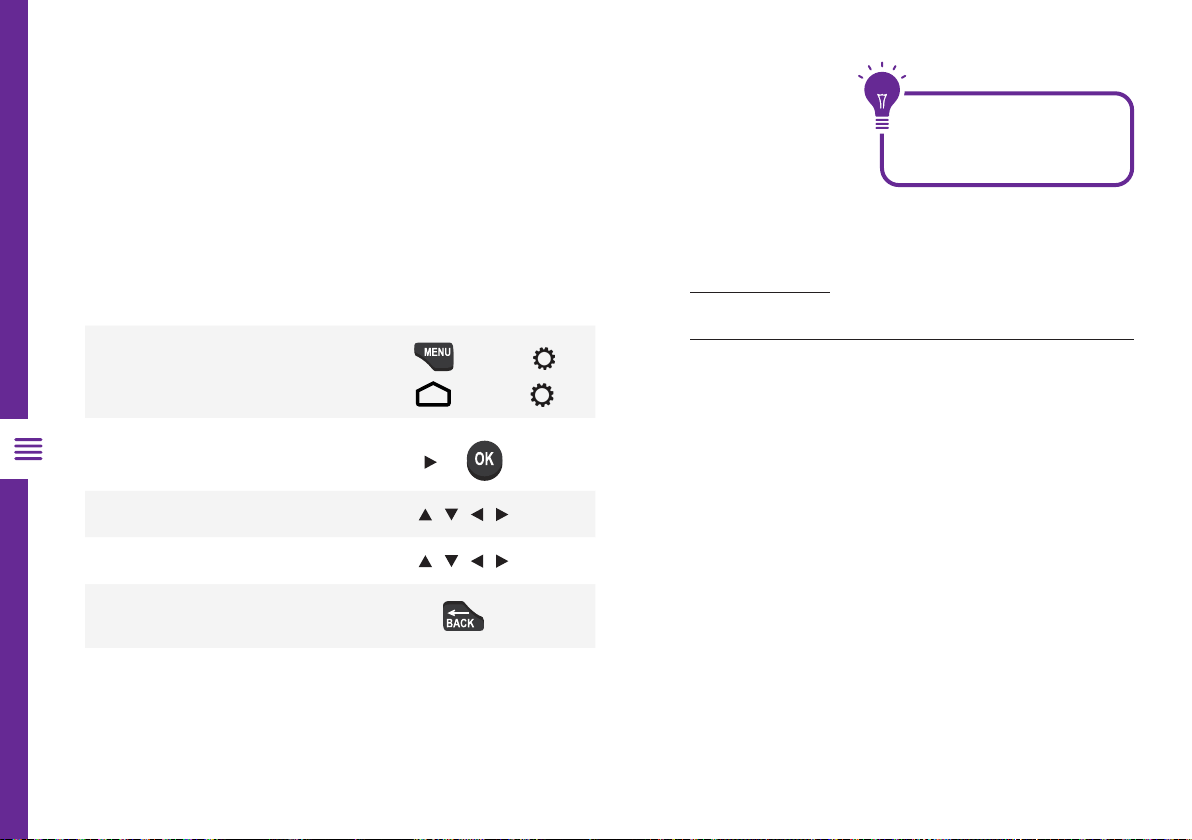
OR
Select an option / / /
Adjust a value / / /
Return to the previous menu
See the guide below for all the other buttons you'll need to
use to adjust and change your settings.
Once you have programed any
settings, the TV will retain them in its
memory until you change them, even
after turning the TV off.

TV SETTING MENUS | 23
Sound 26
• Sound Style
User Mode Settings:
Balance, Sound Surround, Equalizer
Detail, Speakers, Digital Output,
SPDIF Delay, Auto Volume Control,
Reset to Default
Channel 27
• Channel Scan
• Single RF Scan
• Channel Skip
• Channel Edit
• Parental Controls
• Audio Language
Network & Internet 28
• Wired Network Settings
• Proxy Settings
• IP Settings
• Wireless Network Settings
• Wi-Fi
• Available Networks
• Add New Network
Accounts and Sign-in 30
• Add Account
• Choose Synced Apps
• Remove Account
Google Assistant 30
• Searchable Apps
• SafeSearch Filter
• Block Offensive Words
Apps 31
• Recently Opened Apps
• See All Apps
• App Permissions
• Security & Restrictions
Retail Mode 31
About 32
• System Update
• Restart
• Status
• Legal Information
• Version
• Software Version
Date & Time 33
• Automatic Date & Time
• Set Date
• Set Time
• Set Time-zone
• Use 24-hour Format
Inputs 34
• Inputs
• HDMI Control
• Device Auto Power Off
• TV Auto Power On
• HDMI EDID Version
• CEC Device List
Power 35
• Sleep Timer
• Picture Off
• No Signal Auto Power Off
Screen Saver 36
• When To Start
• Put Device To Sleep
Location 36
• Location Status
• Recent Location Requests
Accessibility 37
• Audio Description
• Captions
• High Contrast Text
Reset 37
Remotes & accessories 38
High Dynamic Range (HDR) 39
24 | TV SETTING MENUS
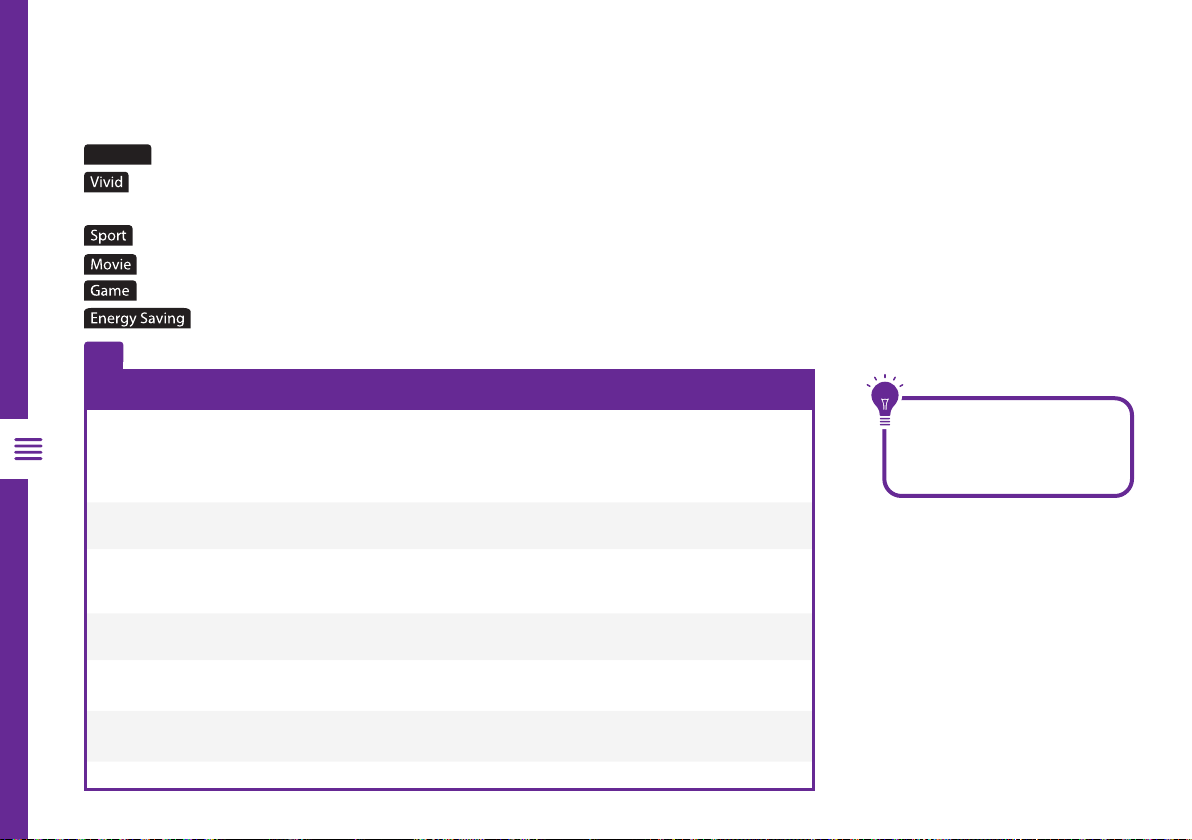
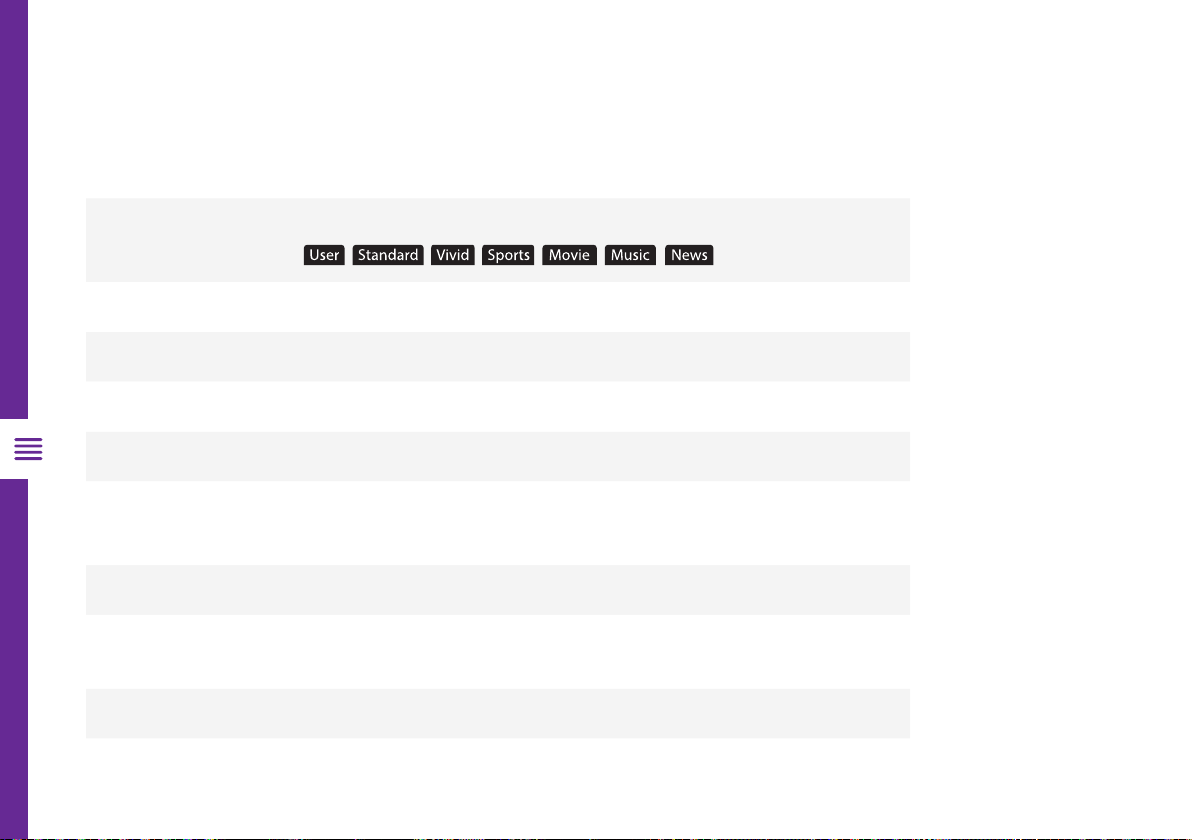
Picture Mode
Standard
: Settings are optimised for viewing in brightly-lit environments such as store-fronts.
: Enhanced brightness with lower contrast, colour depth and edges for standing out in very
bright places such as storefronts.
: Settings are optimised for watching sports.
: Settings are optimised for viewing movies.
: Settings are optimised for gaming.
: Settings are optimised for minimal power consumption.
User
: Adjust settings to best suit your viewing environment and content.
Option Description
Backlight
Adjust the screen brightness by adjusting the backlight. The closer to 100, the brighter the
screen.
Brightness
Adjust the overall screen brightness. The closer to 100, the brighter the picture.
Contrast
Adjust the contrast of the bright and dark areas of the picture. The closer to 100, the
higher the contrast.
Saturation
Adjust the intensity of the colours. The closer to 100, the deeper the colour.
Hue
Adjust the hue of the picture between red and green tints.
Sharpness
Adjust the sharpness of the picture. The closer to 100, the sharper and clearer the image.
Picture
To access picture settings, navigate from Settings > Device Preferences > Picture
User Mode settings
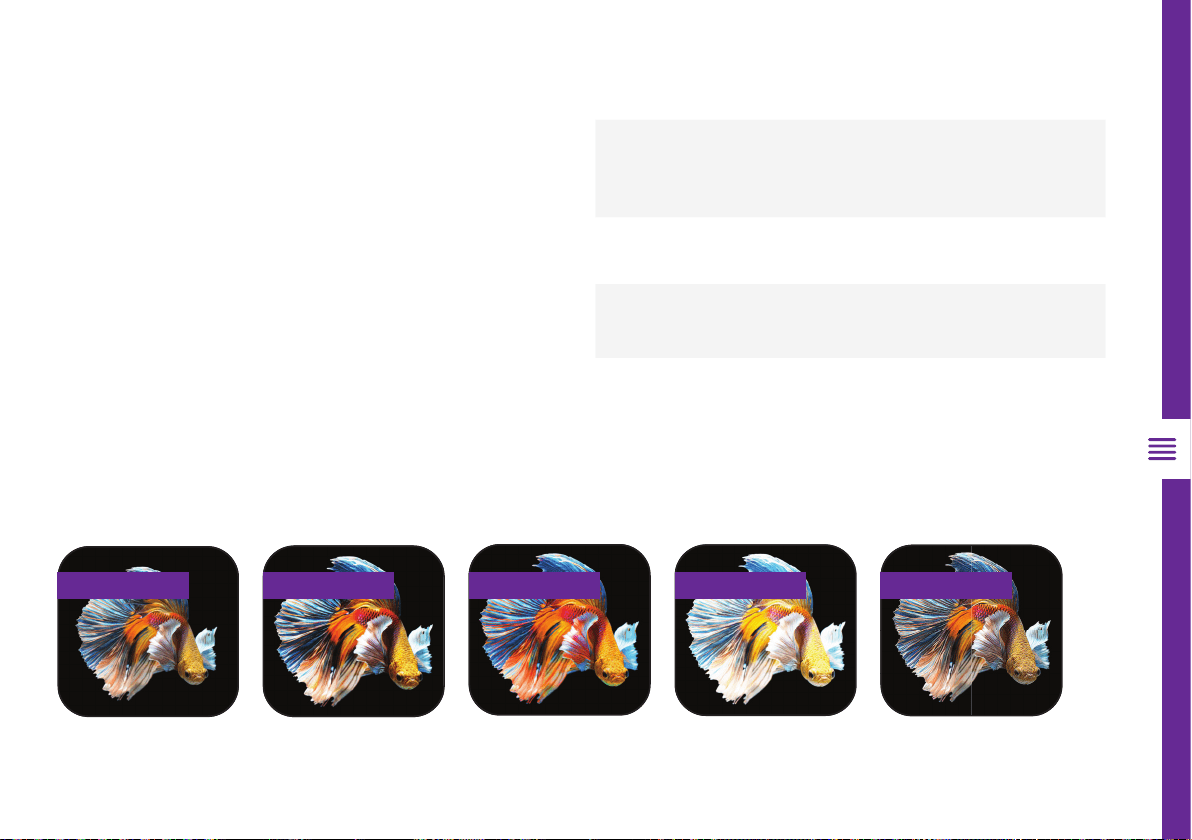
When you adjust backlight/
brightness/contrast/saturation/
hue/sharpness settings, they get
automatically saved under user
mode.
TV SETTING MENUS | 25
Gamma
Adjust the mid level brightness of the picture.
Colour Temperature
Adjust the on-screen colour temperature.
In user mode, you can individually adjust white balance by
changing R/G/B gain settings.
HDR
Turn HDR On/Off. Set it On to experience the best picture quality.
Advanced Video Settings
See the table for more information.
Reset to Default
Reset all Picture settings to factory defaults.
Images are for reference only.
Original Contrast Saturation Brightness Sharpness
Option Description
DNR (Digital
Noise
Reduction)
Reduce screen noise to make the image
clean.
MPEG NR
Reduces the noise produced during the
creation of digital video signals.
Adaptive Luma
Control
Automatically adjusts the brightness and
contrast after analyzing the input signal.
Game Mode
Enhances your gaming experience by
reducing game controller delay.
Advanced Video Settings
26 | TV SETTING MENUS
Option Description
Sound Style
Select your preferred sound mode.
Balance
Adjust the balance between the left and right speakers.
Sound Surround
Turn surround sound effect On/Off.
Equalizer Detail
Adjust equalizer detail frequencies to your liking.
Speakers
Select which speakers the TV uses for audio output.
Digital Output
Select the digital audio output mode.
Options: Auto, Bypass, PCM, Dolby Digital Plus, Dolby Digital.
SPDIF Delay
Synchronize the sound from an external home theatre system with the TV picture.
Auto Volume
Control
Turn on to set volume to be consistent across programs and channels automatically.
Reset to Default
Reset all audio settings to factory defaults.
Sound
To access sound settings, navigate from Settings > Device Preferences > Sound

TV SETTING MENUS | 27
Option Description
Channels > Channel Scan
Automatically scan DTV channels.
Channels > Single RF Scan
Manually scan DTV channels one frequency at a time.
Channels > Channel Skip
Hide channels from the channels list.
Channels > Channel Edit
Delete channels from the channels list.
Parental Controls
Set parental controls for DTV channels.
Audio Language
Select preferred audio language. (Available for digital channels,
depending on the program).
Channel
To access channel settings, navigate from Settings > Channel
28 | TV SETTING MENUS
Network & Internet
To access network settings, navigate from Settings > Network & Internet
You can set up your TV so that it can access the Internet through your home network
using a wired or wireless connection.
When you connect an ethernet cable, the TV automatically accesses the Internet.
Wired Network Settings
Option Description
Proxy settings
Manually setup proxy settings.
IP settings
DHCP: The TV will automatically connect to the network.
Static: Manually assign network settings.
Make sure you have a
network cable connected
to the TV
TV SETTING MENUS | 29
Wireless Network Settings
Option Description
Wi-Fi
Switch Wireless connectivity On/Off.
Available
Networks
Select a wireless network to connect to.
Add New
Network
Manually connect to a Wi-Fi network by entering the name of the
Wi-Fi network and password.
Make sure that you have the wireless router's SSID (name) and password settings before
attempting to connect.
Keep it simple for easy setup!
If an item isn't required, just
leave it on the default setting.

30 | TV SETTING MENUS
Option Description
Searchable Apps
Select which apps to include in search results.
SafeSearch Filter
Enable or Disable SafeSearch filter.
Block Offensive Words
Enable or Disable the blocking of offensive words
Google Assistant
To access Google Assistant settings, navigate from Settings > Device Preferences > Google Assistant
Option Description
Add Account
Add your Google account to your TV.
Choose Synced
Apps
Manage which apps are synced with your Google account.
Remove
Account
Remove your Google account from your TV.
Accounts and Sign-in
To manage account settings, navigate from Settings > Accounts & Sign-in and click on the account

TV SETTING MENUS | 31
Option Description
Recently
Opened Apps
Displays your most recently opened apps.
See All Apps
View all installed apps on your TV.
App
Permissions
Set app permissions for your installed apps.
Security &
Restrictions
Control installation of apps from unknown sources and disallow/warn before
installation of apps that may cause harm.
Apps
To access app settings, navigate from Settings > Apps
Retail Mode
Turn retail mode on/off, go to Settings > Device Preferences > Retail Mode

32 | TV SETTING MENUS
Option Description
System Update
Check if a system software update is available.
Restart
Restart your TV.
Status View information on IP address, MAC address, Bluetooth
®
address
Legal
Information
Read up on legal notices and opt out of personalised ads.
Version
View Android version.
Software
Version
View TV software information.
About
To access about settings, navigate from Settings > Device Preferences > About

TV SETTING MENUS | 33
Option Description
Automatic Date & Time
Use network provided date and time or enable setting update and
time manually.
Set Date
Manually set the date.
Set Time
Manually set the time.
Set Time-zone
Set your time zone.
Use 24-hour Format
Turn On/Off 24 hour time display.
Date & Time
To access date & time settings, navigate from Settings > Device Preferences > Date & Time
34 | TV SETTING MENUS
Option Description
Inputs
Select the input source to customize the input name.
HDMI Control
Allow your TV remote to control other devices (that support CEC)
connected via HDMI.
Device Auto Power
Off
Power off connected HDMI devices when you switch off your TV.
TV Auto Power On
Power on connected HDMI devices when you switch on your TV.
HDMI EDID Version
Switch EDID Version, you can select EDID 1.4, EDID 2.0 or Auto EDID.
Select EDID 2.0 when source signal is transferred by HDMI2.0 specification
and Select EDID 1.4 when source signal is transferred by HDMI1.4
specification. (According to different external devices, the TV can be
switched with EDID settings to match the external device EDID.)
CEC Device List
Show a list of connected devices that supported CEC (Consumer Electronic
Control).
Inputs
To access input settings, navigate from Settings > Device Preferences > Inputs

TV SETTING MENUS | 35
Option Description
Sleep Timer
Select the desired Auto Sleep (Standby) duration.
Picture Off
Turn off the screen while sound continues. Press the OK button to turn on
the screen again.
No Signal Auto
Power Off
If there’s no input signal nor press-button operation, the TV will enter standby
status.
Power
To access power settings, navigate from Settings > Device Preferences > Power
36 | TV SETTING MENUS
Option Description
When To Start
Set the screen saver start time.
Put Device To Sleep
Set the time interval for the TV to go into standby mode.
Screen Saver
To access screen saver settings, navigate from Settings > Device Preferences > Screen Saver
Option Description
Location Status
Select how location is estimated.
Recent Location
Requests
View location requests by apps.
Location
To access location settings, navigate from Settings > Device Preferences > Location

TV SETTING MENUS | 37
Option Description
Audio Description
Turn Audio Description On/Off.
Captions
Enable closed captions, to see audio as text on the screen.
High Contrast Text
Turn high contrast text On/Off.
Accessibility
To access accessibility settings, navigate from Settings > Device Preferences > Accessibility
Reset
To access reset settings, navigate from Settings > Device Preferences > Reset to
reset the TV to factory shipping condition.
38 | TV SETTING MENUS
Remotes & accessories
To access remote and accessories settings, navigate from Settings > Remotes & accessories
In this menu,you can pair Bluetooth
®
devices.
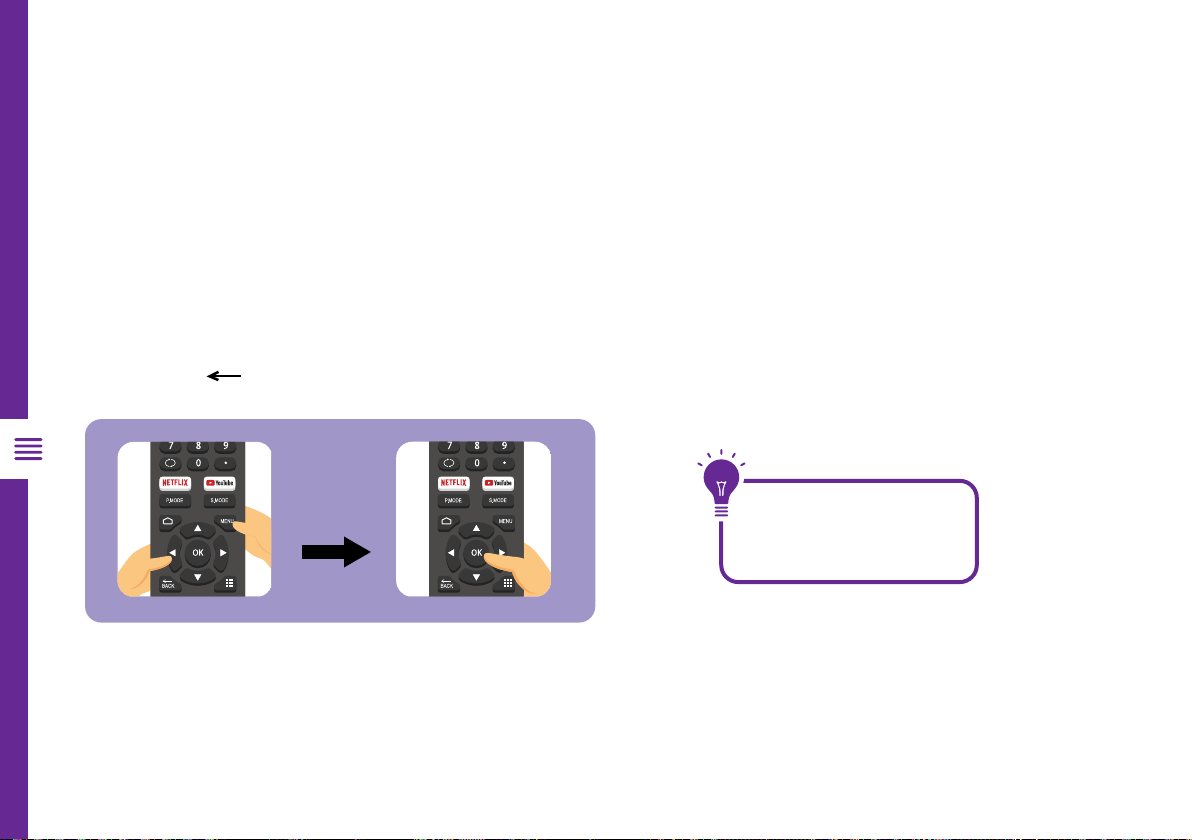
To pair the TV remote:
1. Press the MENU and LEFT button for 5 seconds.
2. When "SmartTV-RC" appears on the top right corner of the screen, select the name and press the
OK button to initiate pairing.
3. If the pairing is unsuccessful, please wait 30 seconds and try again.
4. Press the / BACK button to return to the previous menu.
When pairing other devices,
make sure they are in close
proximity to the TV and are in
Bluetooth mode.
5s
TV SETTING MENUS | 39
About the HDR feature
High Dynamic Range (HDR) is a picture feature on your TV that attempts to mimic the way visuals are perceived in real life
by the human eye.
By using this feature, this TV can reproduce greater dynamic range of luminosity by capturing and then combining several
different exposures.
HDR promises better picture quality thanks to brighter, more realistic highlights, more realistic colour and other
improvements.
It delivers the look that the filmmakers intended to achieve, showing the hidden areas of dark shadows and sunlight with
full clarity, colour and detail.
HDR on your TV
HDR is supported in HDMI and USB input sources and by apps such as Netflix.
NOTE: When watching HDR content, make sure the Settings > Device Preferences > Inputs > HDMI EDID version setting is
set to EDID 2.0. This requires an HDR playback-capable external media player and HDR optimised media content. Use a
High-Speed HDMI cable when connecting to an external media player.
High Dynamic Range (HDR)
40 | TV GUIDE
Function Remote Button
Select a Channel /
Select a Program /
Display programs for the next day
GREEN
Display programs from previous day
RED
Filter programs by category
BLUE
Schedule a program to be recorded
REC
Exit TV Guide menu
TV Guide
(Free to air TV)
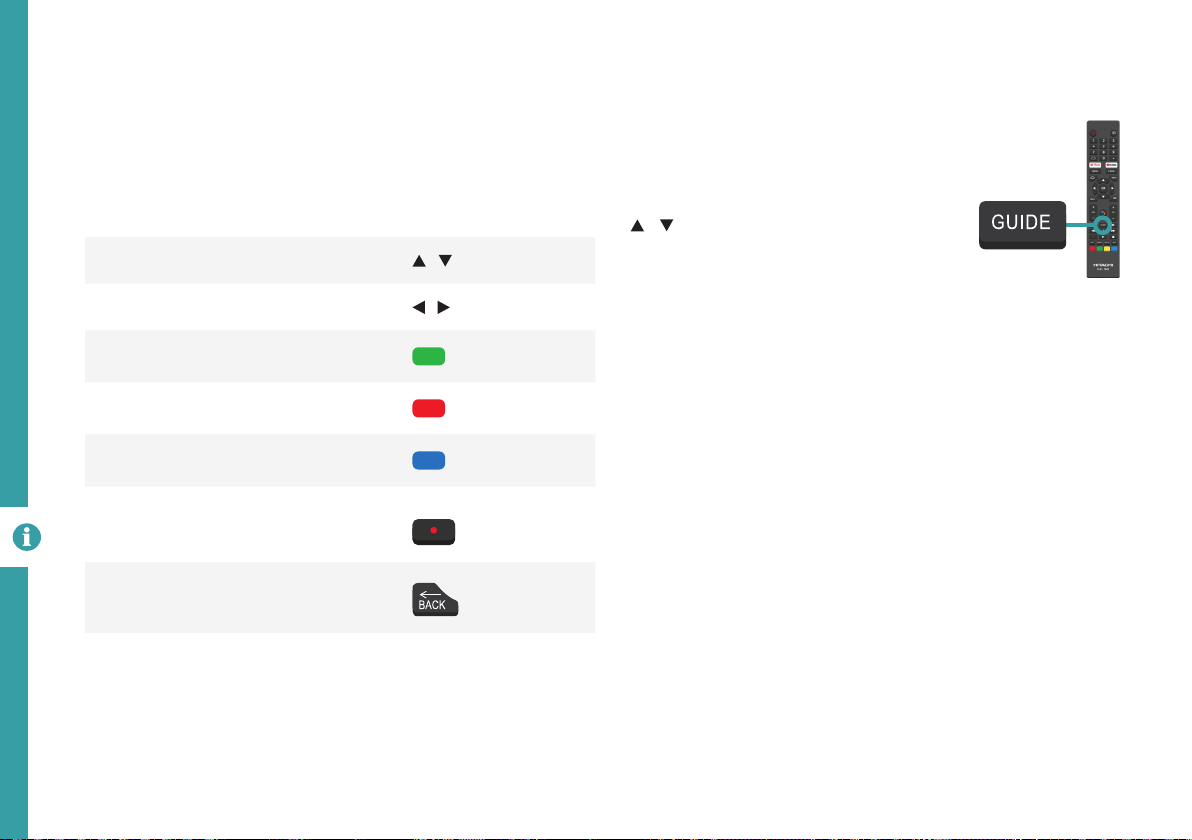
To access the TV guide, press the
Guide button on the remote.
To activate the TV Channels use the
/ buttons to select a channel
in the left column, then press OK to
confirm.
TV Guide Functions

RECORDING AND USB MODE | 41
Recording
Important Tips:
• Back-up your personal data before plugging in your USB to the TV. We do not
assume liability for any loss of data due to misuse or malfunction.
• You cannot change channels while in recording mode.
• If the signal is interrupted while in recording mode, the recording will stop until the
signal is established.
• Do not turn the TV off while it is in time-shift mode.
• The file recorded can only be used on this TV. Do not copy it to any other device.
• When connecting or disconnecting the USB storage device, ensure the TV is not
in USB mode, otherwise the USB device or the files stored on it may be damaged.
Back-up your
personal data before
inserting into the TV.

42 | RECORDING AND USB MODE
Playback
Press the MENU button then press the
DOWN button to go to Record section,
and Record List to display the list of recorded
programs.
Use the / buttons to select a recorded file.
Press the OK button to start playback in Full
Screen Mode.
Press YELLOW to delete the selected file.
Start Recording
Press /REC once to start recording.
Stop Recording
Press (STOP) once to stop recording.
Scheduled Recording
See TV Guide Functions on page 40 to
schedule recordings. View the list of scheduled
recordings, press the MENU button then press
the button to go to the RECORD section then
select Schedule List.
Recording Live TV
Before you can record with this TV
(including time-shift recording), you must
insert your USB storage device into the
USB port.
Recording, scheduled recording and pause live
TV functions only work in DTV mode (free-to-air).
REC
RECORDING AND USB MODE | 43
Recording, scheduled recording and pause live
TV functions only work in DTV mode (free-to-air).
Start Time-shift
Press the button on the remote to enter time-shift mode.
Press the button to resume playing the program.
Stop Time-shift
Press the (STOP) button to exit time-shift.
Pause Live TV (Time-shift)
Temporarily pause the live TV signal, then resume
playback at your convenience.
Enable Time Shift Mode
Press the MENU button then press the button to go to
the RECORD section. Select Time Shift Mode and press
OK.
Press OK to turn on Time Shift mode and press the
/ BACK to exit out of the menu.
Press the button and set up disk for time shift recording.
Before you can record with this TV
(including time-shift recording), you must
insert your USB storage device into the
USB port.
The USB storage device won't retain recorded
data after you exit the time-shift function.
44 | TROUBLESHOOTING
If you experience problems with your TV, check below for advice. If you don't find a solution here, contact After Sales Support on 1300 886 649.
Troubleshooting
Problem Solution
The remote control
does not work
Make sure that the batteries are installed with their poles (+/–) in the correct direction.
Remove any obstacles between the remote control and remote control sensor on the TV.
Check if the power indicator at the bottom of the TV blinks when you press the remote's power button.
If it does not, replace the remote control's batteries.
Try pointing the remote directly at the remote control sensor from 1.5-1.8m away.
The TV won't turn on
Make sure that the AC power cord is securely plugged into the wall outlet.
Check the wall outlet is turned on and the power indicator at the bottom of the TV is lit.
If using a multi-outlet, check if it is working properly. To check whether a power strip is working properly, plug the TV’s
power plug directly to a wall outlet and observe its operation.
Try to power on using the power button on the TV.
There is no picture/
sound or distorted
picture/sound in DTV
mode
Ensure the antenna cable is securely connected to the TV and to the wall outlet.
Ensure the input source is set to DTV.
If "No Signal" is displayed, run Settings > Channel > Channels > Channel Scan to search for channels.
If some channels are missing, run Settings > Channel > Channels > Channel Scan or manually search by Settings >
Channel > Channels > Single RF Scan.
Try a different antenna cable or another TV if possible.
Move the TV away from electronic equipment or devices that could cause interference.
Adjust the antenna position.
If the picture appears fuzzy or blurry, select High Definition (HD) channels or programs.
TROUBLESHOOTING | 45
Problem Solution
There is no picture/
sound or distorted
picture/sound from
an external device
Ensure that connection to the device is correct and that all cables are fully inserted.
Remove and reconnect all cables connected to the TV and the external devices. Try new cables if possible.
Restart the connected devices by unplugging each device's power cord and then plugging it in again.
If "No Signal" is displayed on the TV, ensure that the correct input source has been selected.
When using a 4K playback device, ensuer the cable is a High-speed HDMI cable and adjust settings > Device
Preferences > Inputs > HDMI EDID version setting.
There is no/distorted/
delayed sound
Ensure the volume is not muted. If it is, press the VOL+ button to restore the sound.
Check the volume level of the external device.
If earphones are connected, unplug them.
Ensure that connection to the external audio device is correct and that all cables are fully inserted.
Ensure correct input source and audio settings have been selected on the external audio device.
Move the TV away from electronic equipment or devices that could cause interference.
When using an external audio device via a HDMI cable, ensure that the device supports HDMI-ARC and, if applicable,
the ARC setting is turned On (refer to the connection guide in the user manual of the connected device).
When using an external audio device via an optical cable, check that the Settings > Device Preferences > Sound >
Digital Output is set to "PCM".
If the TV sound is not synchronised with the picture, adjust the applicable Settings > Device Preferences > Sound >
SPDIF Delay.
Adjust Settings > Device Preferences > Inputs > HDMI EDID version setting.
46 | TROUBLESHOOTING
Problem Solution
There is no/
intermittent internet
When using Wi-Fi, make sure the Wi-Fi password is entered correctly.
Turn off the access point. Wait for 2 minutes and then turn them back on.
Ensure that there are no obstacles between the TV and the access point. (The Wi-Fi strength can be decreased by
appliances, cordless phones, stone walls/fireplaces, etc.) Reduce interference by not using or turning off other wireless
devices.
If the Wi-Fi connection fails, connect the TV to the access point via a LAN cable. If the TV can connect via the wired
connection, there might be a problem with the Wi-Fi access point. In this case, try using a different access point.
When using a LAN cable, use one rated CAT 5 or higher. Make sure it is plugged in at both ends.
When using a static IP, ensure network addresses are entered correctly.
If the problem persists, contact your Internet Service Provider or modem manufacturer.
USB storage device
is not recognised or
media files don't play
properly
This TV has been tested with the majority of Flash memory-based devices and hard disks (media players with HDD) on
the market however, it may not be compatible with certain devices.
If the external hard drive has its own power adaptor, use it.
Only use a USB storage device formatted in a FAT32 file system provided with the Windows operating system. If it is
formatted by a different utility program that is not supported by Windows, it may not be recognised.
The TV may not be able to recognise a USB device or read the files if it is connected with a USB extension cable
The files that use an unsupported codec or container will not play on the TV.
Some files may not play correctly if there is an error in the content or container.
Certain files, depending on how they are encoded, may not play on the TV.
Sound or video may not work if they have standard bit rates/frame rates above the TV’s compatibility ratings.

SPECIFICATIONS | 47
Active screen size
(diagonal)
189.4cm
Resolution 3840 x 2160
Refresh rate 60Hz
Aspect ratio 16:9
USB output DC 5V 500mA
Power source AC 100-240V, 50/60Hz
Power consumption 270W
Dimensions (W x D x H)
With stand: 1673 x 316 x
1031 mm
Without stand: 1673 x 76
x 969 mm
Weight
Net 23 kg
Gross 33.1 kg
Specifications
For Technical and Warranty Support
1300 886 649
www.tempo.org
Distributed by Tempo (Aust) Pty Ltd,
PO Box 6056, Frenchs Forest DC 2086
Bluetooth
®
The Bluetooth
®
word mark and logos are registered trademarks owned by
Bluetooth SIG, Inc., and any use of such marks by Hands (IP) Holdings Pty
Ltd is under license. Other trademarks and trade names are those of their
respective owners.

48 | SPECIFICATIONS
Compliance and Responsible Disposal
Trademark acknowledgements
Google, Android, Android TV and Google Play are
trademarks of Google LLC.
Packaging
The packaging of your product has been
selected from environmentally friendly materials
and can usually be recycled. Please ensure these
are disposed of correctly. Plastic wrapping can be a
suffocation hazard for babies and young children, please
ensure all packaging materials are out of reach and are
safely disposed of. Please recycle these materials rather
than throwing them away.
Product
At the end of its working life, do not throw this
product out with your household rubbish. An
environmentally friendly method of disposal will ensure
that valuable raw materials can be recycled. Electrical
and electronic items contain materials and substances
which, if handled or disposed of incorrectly, could
potentially be hazardous to the environment and human
health.
National Television and Computer Recycling
Scheme
The careful disposal of e-waste is important
because many televisions and computers contain
materials which are hazardous to people and the
environment. There are no fees for householders or
small businesses disposing of e-waste at a scheme
collection service.
Individuals can contact their local council for
information on local e-waste management services,
find scheme services listed on Planet Ark’s website at
www.recyclingnearyou.com.au, or call Planet Ark on
1300 733 712.
Compliance
This product complies with the Australian Safety Standard
AS/NZS 60065 to ensure the safety of the product.

49
Notes

50
Notes

51
Notes