9 qx
L_
ii!
LCD TV
Please read this manual carefully before operating
your set and retain it for future reference.
P/NO : SAC34134202 (IO01-REVO0) www.Jge.com
WARNING / CAUTION
TO REDUCE THE RISK OF ELECTRIC SHOCK
DO NOT REMOVE COVER (OR BACK). NO
USER SERVICEABLEPARTSINSIDE. REFERTO
QUALIFIED SERVICEPERSONNEL.
TO REDUCE THE RISK OFFIRE AND ELECTRIC
RAIN OR MOISTURE,
This reminder is provided to call the CATV system
installer's attention to Article 820-40 of the National
Electric Code (U.S.A.). The code provides guidelines for
proper grounding and, in particular, specifies that the
cable ground shall be connected to the grounding system
of the building, as close to the point of the cable entry
as practical.
WARNING / CAUTION
To prevent fire or shock hazards, do not expose
this product to rain or moisture.
Class B digital device
This equipment has been tested and found to comply
with the limits for a Class B digital device, pursuant to
Part 15 of the FCC Rules. These limits are designed
to provide reasonable protection against harmful
interference in a residential installation. This equipment
generates, uses and can radiate radio frequency energy
and, if not installed and used in accordance with the
instructions, may cause harmful interference to radio
communications. However, there is no guarantee that
interference will not occur in a particular installation.
If this equipment does cause harmful interference to
radio or television reception, which can be determined
by turning the equipment off and on, the user is
encouraged to try to correct the interference by one
or more of the following measures:
- Reorient or relocate the receiving antenna.
- Increase the separation between the equipment and
receiver.
- Connect the equipment to an outlet on a circuit
different from that to which the receiver is connected.
-Consult the dealer or an experienced radio/TV
technician for help.
This device complies with part 15 of the FCC Rules.
Operation is subject to the following two conditions:
(1) This device may not cause (harmful)interference,
and (2) this device must accept any interference
received, including interference that may cause unde-
sired operation (of the device).
Any changes or modifications in construction of this
device which are not expressly approved by the party
responsible for compliance could void the user's
authority to operate the equipment.
Do not attempt to modify this product in any way
without written authorization from LG Electronics.
Unauthorized modification could void the user's
authority to operate this product.
2
SAFETY INSTRUCTIONS
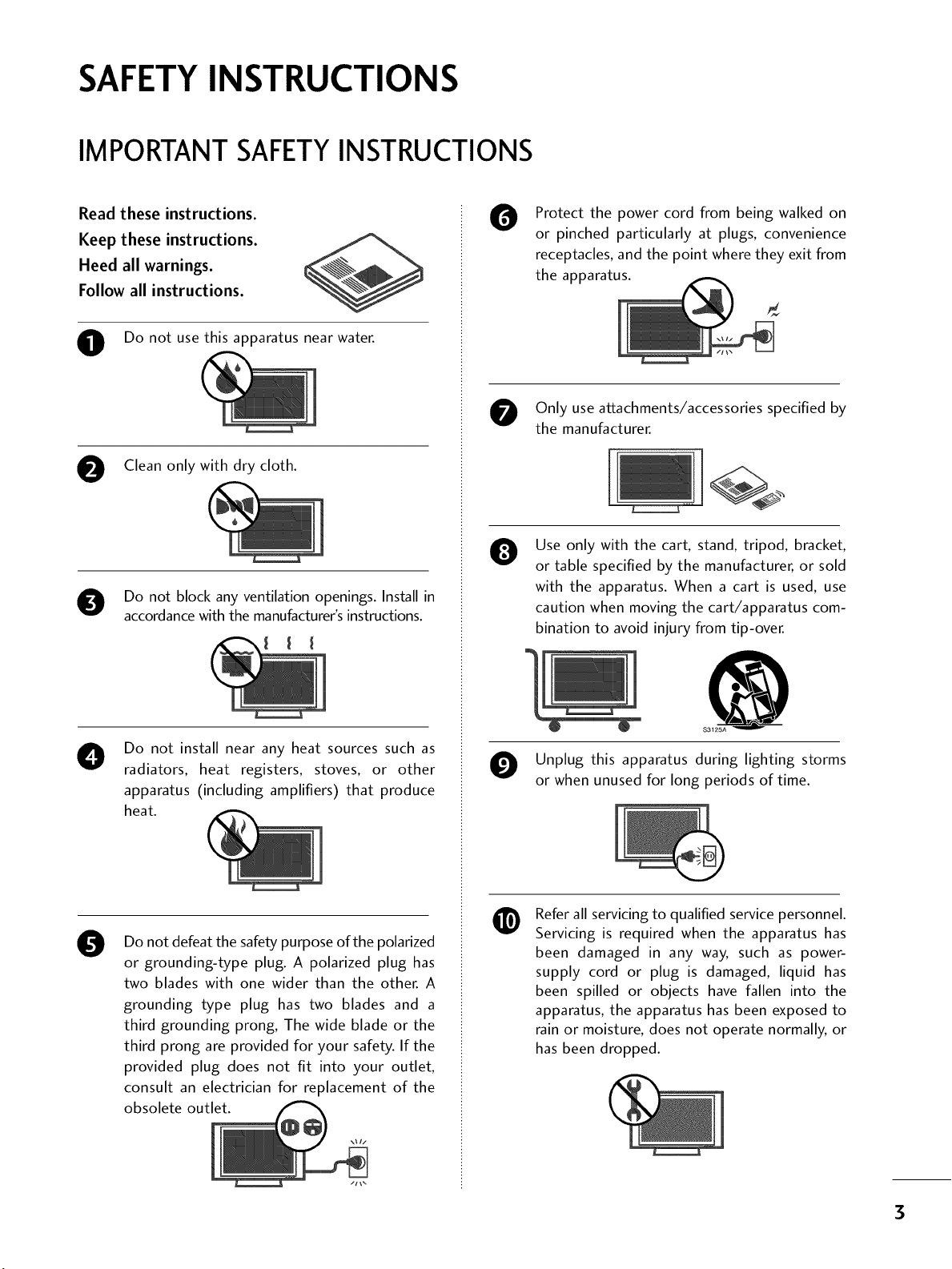
IMPORTANT SAFETYINSTRUCTIONS
Read these instructions.
Keep these instructions.
Heed all warnings.
Follow all instructions.
O Do not use this apparatus near water.
O Clean only with dry cloth.
O Do not block any ventilation openings. Install in
accordance with the manufacturer's instructions.
O
Do not install near any heat sources such as
radiators, heat registers, stoves, or other
apparatus (including amplifiers) that produce
heat.
0
Do not defeat the safety purpose of the polarized
or grounding-type plug. A polarized plug has
two blades with one wider than the other. A
grounding type plug has two blades and a
third grounding prong, The wide blade or the
third prong are provided for your safety. If the
provided plug does not fit into your outlet,
consult an electrician for replacement of the
obsolete outlet.
O
Protect the power cord from being walked on
or pinched particularly at plugs, convenience
receptacles, and the point where they exit from
the apparatus.
Only use attachments/accessories specified by
the manufacturer.
0
Use only with the cart, stand, tripod, bracket,
or table specified by the manufacturer, or sold
with the apparatus. When a cart is used, use
caution when moving the cart/apparatus com-
bination to avoid injury from tip-over.
@
S3125A
O Unplug this apparatus during lighting storms
or when unused for long periods of time.
@
Refer all servicing to qualified service personnel.
Servicing is required when the apparatus has
been damaged in any way, such as power-
supply cord or plug is damaged, liquid has
been spilled or objects have fallen into the
apparatus, the apparatus has been exposed to
rain or moisture, does not operate normally, or
has been dropped.
3
SAFETYINSTRUCTIONS
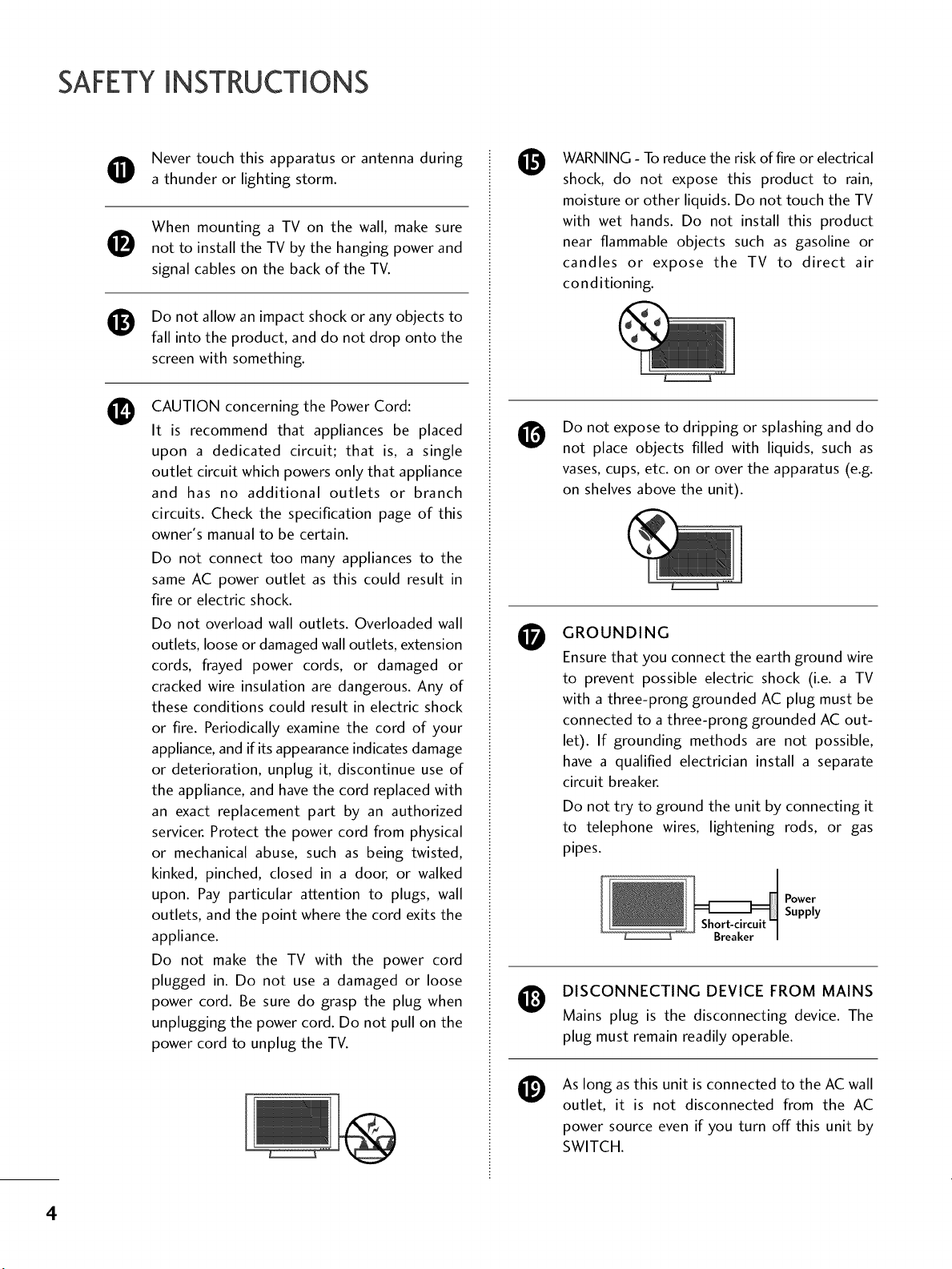
Never touch this apparatus or antenna during
a thunder or lighting storm.
0
0
0
When mounting a TV on the wall, make sure
not to install the TV by the hanging power and
signal cables on the back of the TV.
Do not allow an impact shock or any objects to
fall into the product, and do not drop onto the
screen with something.
CAUTION concerning the Power Cord:
It is recommend that appliances be placed
upon a dedicated circuit; that is, a single
outlet circuit which powers only that appliance
and has no additional outlets or branch
circuits. Check the specification page of this
owner's manual to be certain.
Do not connect too many appliances to the
same AC power outlet as this could result in
fire or electric shock.
Do not overload wall outlets. Overloaded wall
outlets, loose or damaged wall outlets, extension
cords, frayed power cords, or damaged or
cracked wire insulation are dangerous. Any of
these conditions could result in electric shock
or fire. Periodically examine the cord of your
appliance, and if its appearance indicates damage
or deterioration, unplug it, discontinue use of
the appliance, and have the cord replaced with
an exact replacement part by an authorized
servicer. Protect the power cord from physical
or mechanical abuse, such as being twisted,
kinked, pinched, closed in a door, or walked
upon. Pay particular attention to plugs, wall
outlets, and the point where the cord exits the
appliance.
Do not make the TV with the power cord
plugged in. Do not use a damaged or loose
power cord. Be sure do grasp the plug when
unplugging the power cord. Do not pull on the
power cord to unplug the TV.
O
O
O
WARNING - To reduce the risk of fire or electrical
shock, do not expose this product to rain,
moisture or other liquids. Do not touch the TV
with wet hands. Do not install this product
near flammable objects such as gasoline or
candles or expose the TV to direct air
conditioning.
Do not expose to dripping or splashing and do
not place objects filled with liquids, such as
vases, cups, etc. on or over the apparatus (e.g.
on shelves above the unit).
GROUNDING
Ensure that you connect the earth ground wire
to prevent possible electric shock (i.e. a TV
with a three-prong grounded AC plug must be
connected to a three-prong grounded AC out-
let). If grounding methods are not possible,
have a qualified electrician install a separate
circuit breaker.
Do not try to ground the unit by connecting it
to telephone wires, lightening rods, or gas
pipes.
Power
Supply
DISCONNECTING DEVICE FROM MAINS
Mains plug is the disconnecting device. The
plug must remain readily operable.
As long as this unit is connected to the AC wall
outlet, it is not disconnected from the AC
power source even if you turn off this unit by
SWITCH.
4
@
ANTENNAS
Outdoor antenna grounding
If an outdoor antenna is installed, follow the
precautions below. An outdoor antenna system
should not be located in the vicinity of over-
head power lines or other electric light or
power circuits, or where it can come in contact
with such power lines or circuits as death or
serious injury can occur.
Be sure the antenna system is grounded so as
to provide some protection against voltage
surges and built-up static charges.
Section 810 of the National Electrical Code
(NEC) in the U.S.A. provides information with
respect to proper grounding of the mast and
supporting structure, grounding of the lead-in
wire to an antenna discharge unit, size of
grounding conductors, location of antenna dis-
charge unit, connection to grounding elec-
trodes and requirements for the grounding
electrode.
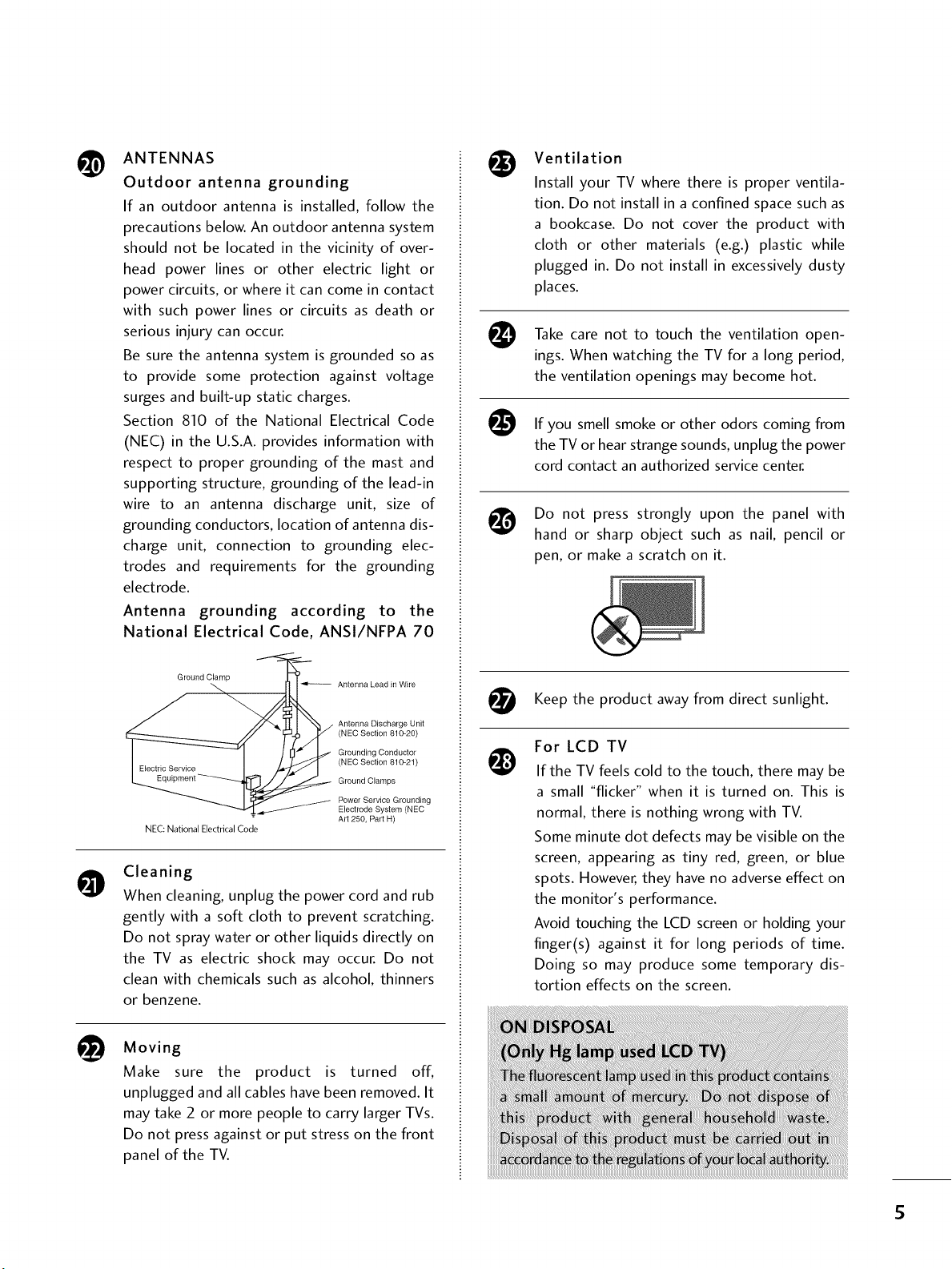
Antenna grounding according to the
National Electrical Code, ANSl/NFPA 70
Ground Clamp
NEC: National Electrical Code
Antenna Lead in Wire
Antenna Discharge Unit
(NEC Section 810-20)
Grounding Conductor
(NEC Section 810-21)
Ground Clamps
Power Service Grounding
Electrode System (NEC
Art 250, Part H)
O
Cleaning
When cleaning, unplug the power cord and rub
gently with a soft cloth to prevent scratching.
Do not spray water or other liquids directly on
the TV as electric shock may occur. Do not
clean with chemicals such as alcohol, thinners
or benzene.
t_ Moving
Make sure the product is turned off,
unplugged and all cables have been removed. It
may take 2 or more people to carry larger TVs.
Do not press against or put stress on the front
panel of the TV.
@
@
@
Ventilation
Install your TV where there is proper ventila-
tion. Do not install in a confined space such as
a bookcase. Do not cover the product with
cloth or other materials (e.g.) plastic while
plugged in. Do not install in excessively dusty
places.
Take care not to touch the ventilation open-
ings. When watching the TV for a long period,
the ventilation openings may become hot.
If you smell smoke or other odors coming from
the TV or hear strange sounds, unplug the power
cord contact an authorized service center.
Do not press strongly upon the panel with
hand or sharp object such as nail, pencil or
pen, or make a scratch on it.
t!_ Keep the product from direct sunlight.
away
For LCD TV
If the TV feels cold to the touch, there may be
a small "flicker" when it is turned on. This is
normal, there is nothing wrong with TV.
Some minute dot defects may be visible on the
screen, appearing as tiny red, green, or blue
spots. However, they have no adverse effect on
the monitor's performance.
Avoid touching the LCD screen or holding your
finger(s) against it for long periods of time.
Doing so may produce some temporary dis-
tortion effects on the screen.
5
CONTENTS
WARNING / CAUTION ............................ 2
SAFETY INSTRUCTIONS .......................... 3
FEATURE OF THIS TV ............................... 8
Accessories ...................................................... 9
Front Panel Information ................................... 10
Back Panel Information .................................... 12
Stand Instructions ........................................... 14
VESAWall Mounting ........................................ 18
Cable Management ......................................... 19
Desktop Pedestal Installation ........................... 20
Swivel Stand ................................................... 20
Positioning your Display .................................. 20
Attaching the TV to a Desk .............................. 21
Kensington Security System ............................. 21
Securing the TV to the wall to prevent falling when
the TV is used on a stand ................................ 22
Antenna or Cable Connection .......................... 23
On-Screen Menus Selection ............................. 42
Quick Menu .................................................... 44
Channel Setup
- Auto Scan (Auto Tuning) ........................... 45
- Add / Delete Channel (Manual Tuning) ...... 46
- Channel Editing ........................................ 47
Channel List .................................................... 48
Favorite Channel Setup .................................... 49
Favorite Channel List ....................................... 50
Brief Information ............................................. 51
Input List ........................................................ 52
Input Label ..................................................... 53
AV Mode ........................................................ 54
Simple Manual ................................................ 54
Key Lock ......................................................... 55
SIMPLINK ....................................................... 56
Entry Modes ................................................... 58
Photo List ....................................................... 59
Music List ....................................................... 63
HD Receiver Setup ......................................... 24
DVD Setup ..................................................... 27
VCR Setup ..................................................... 29
Other A/V Source Setup ................................. 30
USB Connection ............................................. 30
Audio out Connection ..................................... 31
Headphone Setup ........................................... 31
PC Setup ........................................................ 32
Remote Control Functions ............................... 38
Turning On the TV .......................................... 40
Channel Selection ........................................... 40
Volume Adjustment ......................................... 40
Initial Setting ................................................... 41
Picture Size (Aspect Ratio) Control .................. 66
Picture Wizard ................................................. 68
Preset Picture Settings (Picture Mode) ............. 70
Manual Picture Adjustment - User Mode .......... 71
Picture Improvement Technology ..................... 72
Expert Picture Control ..................................... 73
Energy Saving ................................................. 76
Picture Reset ................................................. 77
Demo Mode ................................................... 78
6
Auto Volume Leveler (Auto Volume) ................. 79
Clear Voice II .................................................. 80
Preset Sound Setting (Sound Mode) ................ 81
Sound Setting Adjustment - User Mode ........... 82
Infinite Sound ................................................. 83
Balance .......................................................... 84
TV Speakers On/Off Setup ............................. 85
Audio Reset ................................................... 86
Stereo/SAP Broadcasts Setup .......................... 87
Audio Language .............................................. 88
On-Screen Menus Language Selection ............. 89
Caption Mode
- Analog Broadcasting System Captions ....... 90
- Digital Broadcasting System Captions ........ 91
- Caption Option ....................................... 92
Clock Setting
- Auto Clock Setup .................................... 93
- Manual Clock Setup ................................. 94
Auto On/Off Time Setting .............................. 95
Sleep Timer Setting ......................................... 96
'
Set Password & Lock System ........................... 97
Channel Blocking .......................................... 100
Movie & TV Rating ........................................ 101
Downloadable Rating ..................................... 106
External Input Blocking .................................. 107
Troubleshooting ............................................ 108
Maintenance .................................................. 111
Product Specifications .................................... 112
IR Codes ....................................................... 113
External Control Through RS-232C ................. 114
Open Source License ..................................... 120
7
FEATURE OF THIS TV
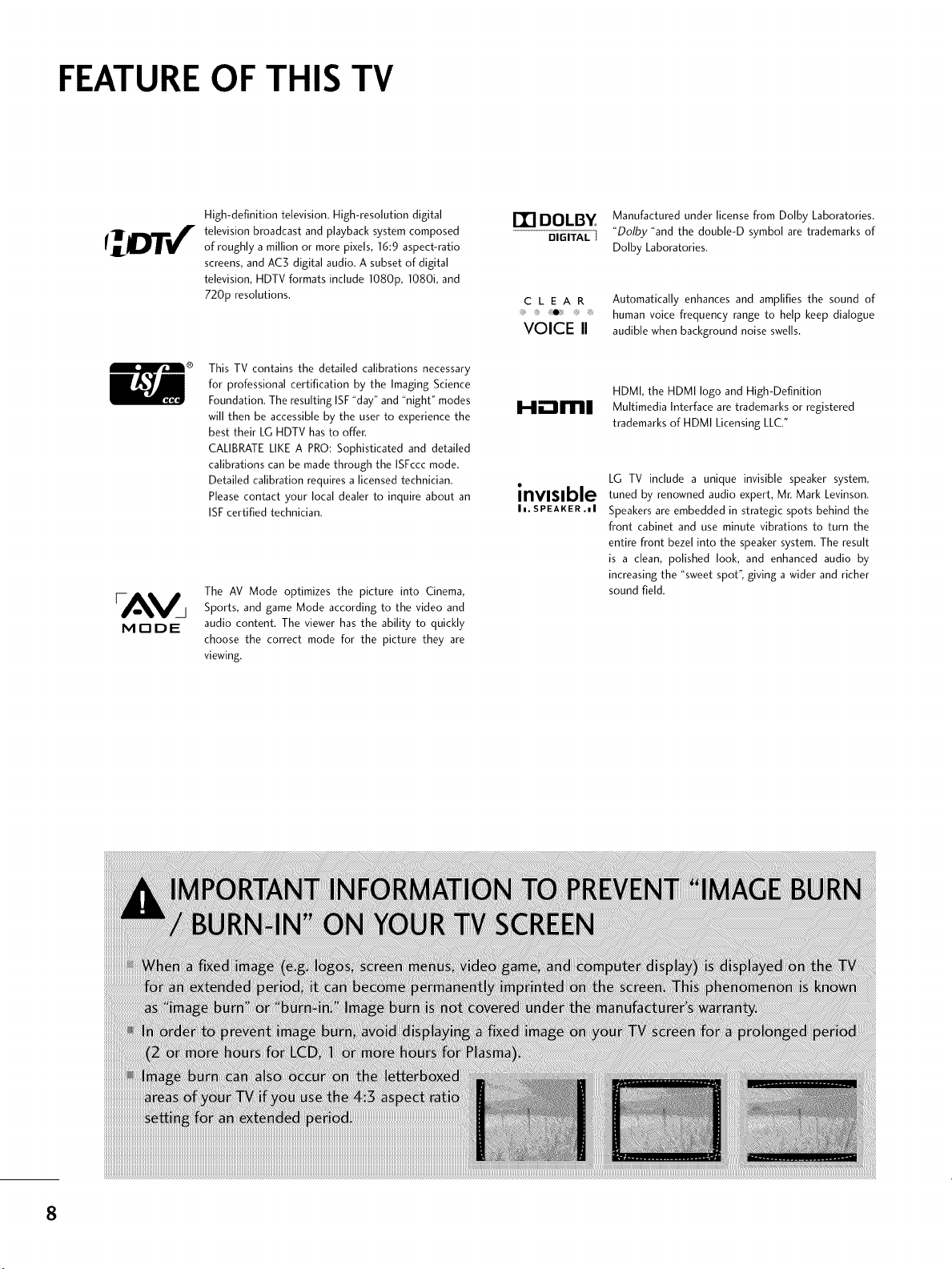
High-definition television. High-resolution digital
i__'i. j[_ _ _I' television broadcast and playback system composed
of roughly a million or more pixels, 16:9 aspect-ratio
screens, and AC3 digital audio. A subset of digital
television, HDTV formats include 1080p, 1080i, and
720p resolutions.
This TV contains the detailed calibrations necessary
for professional certification by the Imaging Science
Foundation. The resulting ISF "day" and "night" modes
will then be accessible by the user to experience the
best their LG HDTV has to offer.
CALIBRATE LIKE A PRO: Sophisticated and detailed
calibrations can be made through the ISFccc mode.
Detailed calibration requires a licensed technician.
Please contact your local dealer to inquire about an
ISF certified technician.
MrlDE
The AM Mode optimizes the picture into Cinema,
Sports, and game Mode according to the video and
audio content. The viewer has the ability to quickly
choose the correct mode for the picture they are
viewing.
I'E! DOLBY
DIGITAL I
CLEAR
VOICE II
H.-_ml
inv=mble
h. SPEAKER .=1
Manufactured under license from Dolby Laboratories.
"Dolby "and the double-D symbol are trademarks of
Dolby Laboratories.
Automatically enhances and amplifies the sound of
human voice frequency range to help keep dialogue
audible when background noise swells.
HDMI, the HDMI logo and High-Definition
Multimedia Interface are trademarks or registered
trademarks of HDMI Licensing LLC."
LG TV include a unique invisible speaker system,
tuned by renowned audio expert, Mr. Mark Levinson.
Speakers are embedded in strategic spots behind the
front cabinet and use minute vibrations to turn the
entire front bezel into the speaker system. The result
is a clean, polished look, and enhanced audio by
increasing the "sweet spot", giving a wider and richer
sound field.
8
PREPARATION
ACCESSORIES
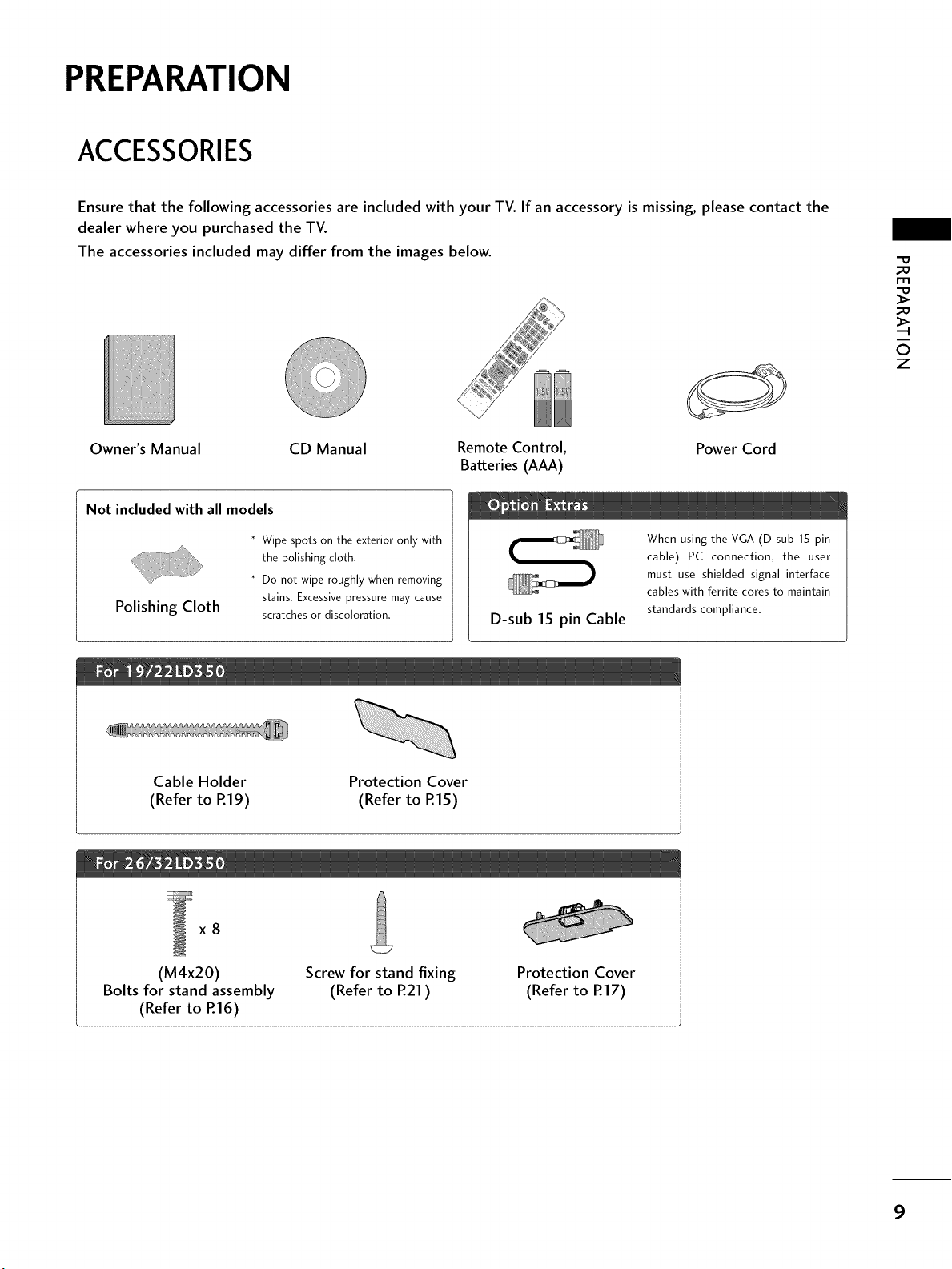
Ensure that the following accessories are included with your TV. If an accessory is missing, please contact the
dealer where you purchased the TV.
The accessories included may differ from the images below.
Owner's Manual
CD Manual Remote Control,
Batteries (AAA)
Not included with all models
Polishing Cloth
* Wipe spots on the exterior only with
the polishing cloth.
* Do not wipe roughly when removing
stains. Excessive pressure may cause
scratches or discoloration.
D-sub 15 pin Cable
Power Cord
When using the VGA (D-sub 15 pin
cable) PC connection, the user
must use shielded signal interface
cables with ferrite cores to maintain
standards compliance.
"0
_o
r_l
_o
©
z
Cable Holder
(Refer to R19)
Protection Cover
(Refer to R15)
x8
(M4x20)
Bolts for stand assembly
(Refer to R16)
Screw for stand fixing
(Refer to R21)
Protection Cover
(Refer to R17)
9
PREPARATION
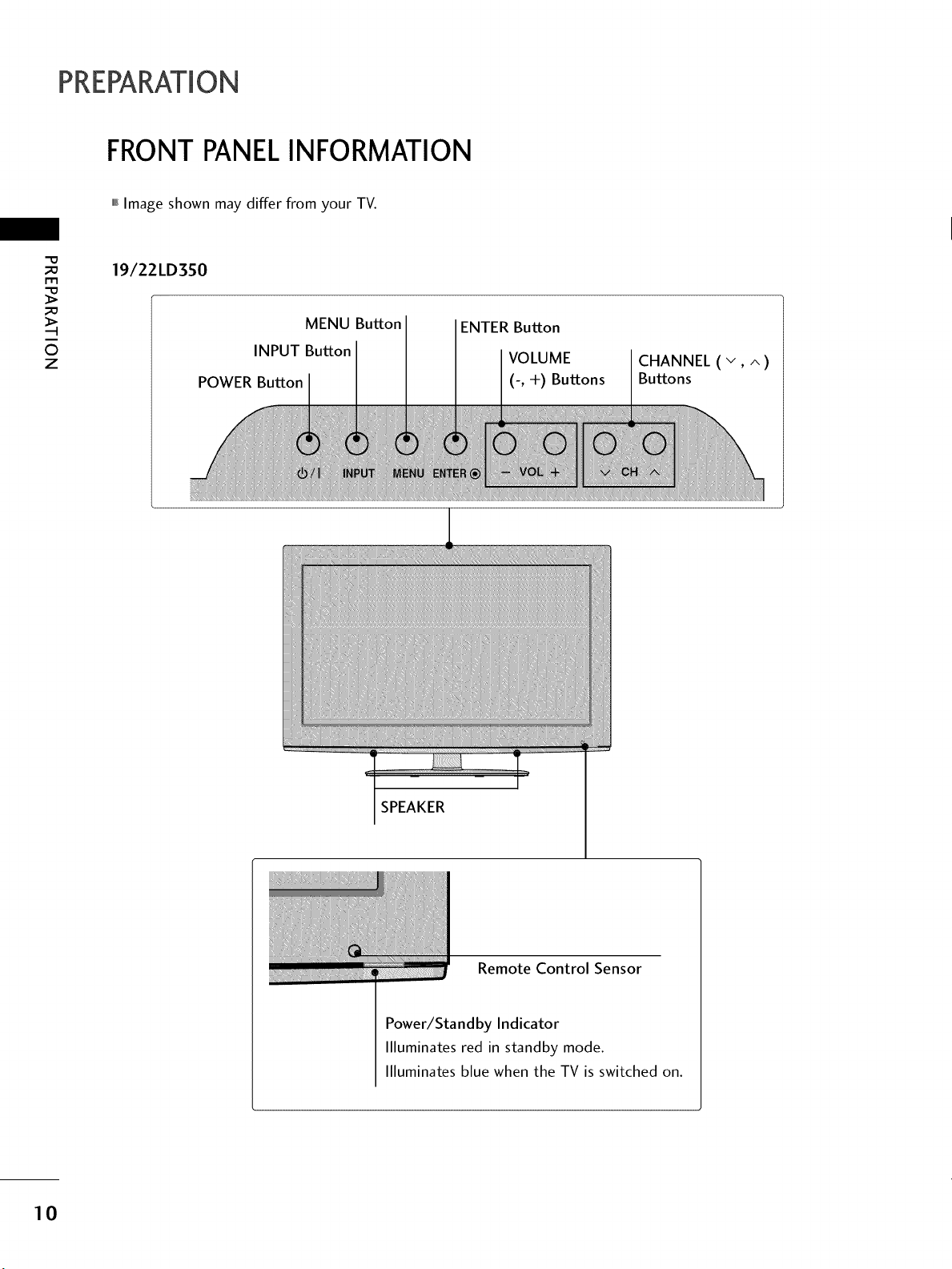
FRONTPANELINFORMATION
,,,IImage shown may differ from your TV.
_o
m
_o
©
z
19/22LD350
MENU Button
INPUT Button
POWER Button
ENTER Button
VOLUME
(-, +) Buttons
CHANNEL (v, ^)
Buttons
SPEAKER
Remote Control Sensor
Power/Standby Indicator
llluminates red in standby mode.
llluminates blue when the TV is switched on.
10
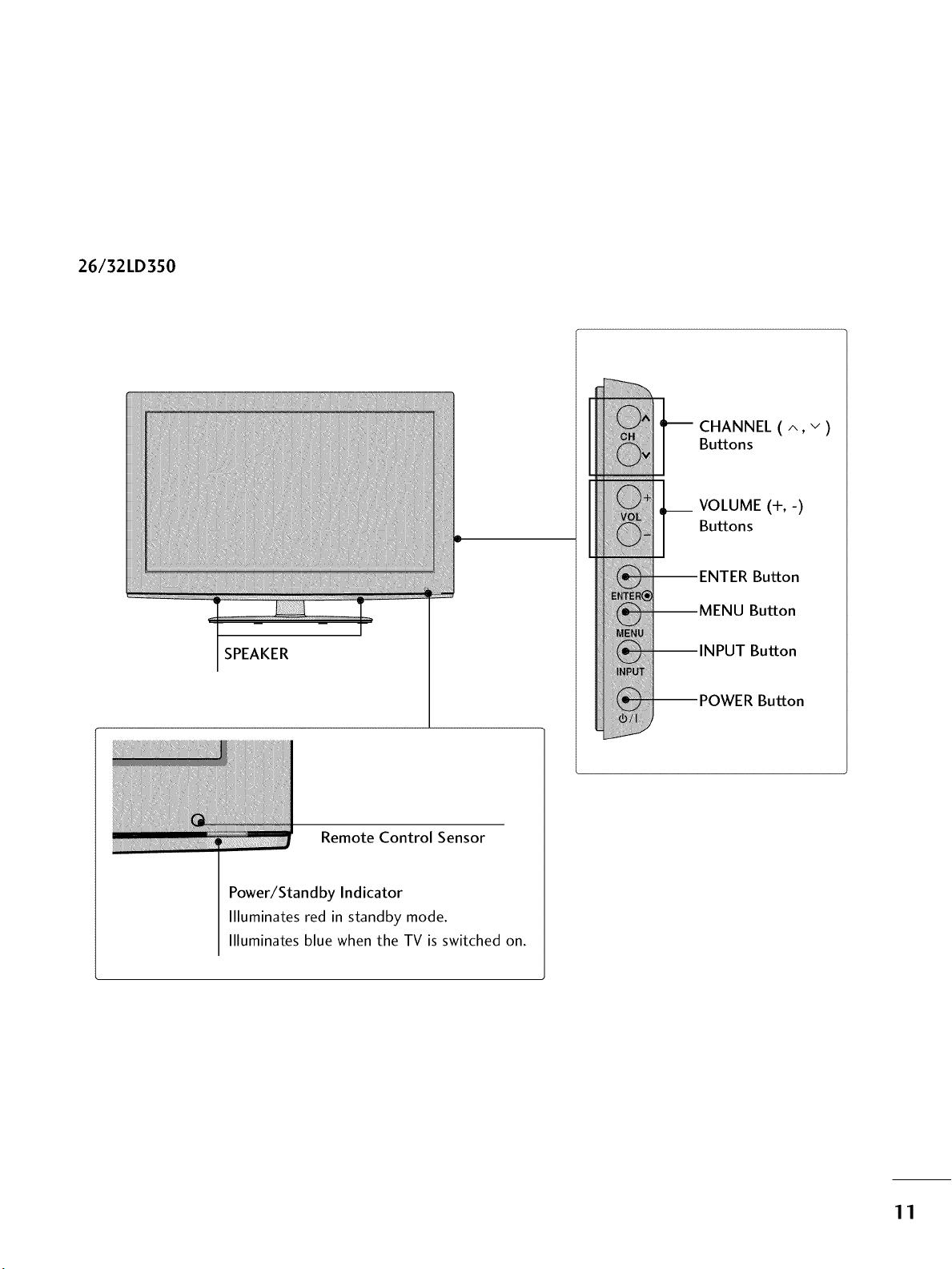
26/32LD350
SPEAKER
CHANNEL ( ^, v)
Buttons
__ VOLUME (+,-)
Buttons
Bu_on
Button
Bu_on
Bu_on
Remote Control Sensor
Power/Standby Indicator
Illuminates red in standby mode.
llluminates blue when the TV is switched on.
11
PREPARATION
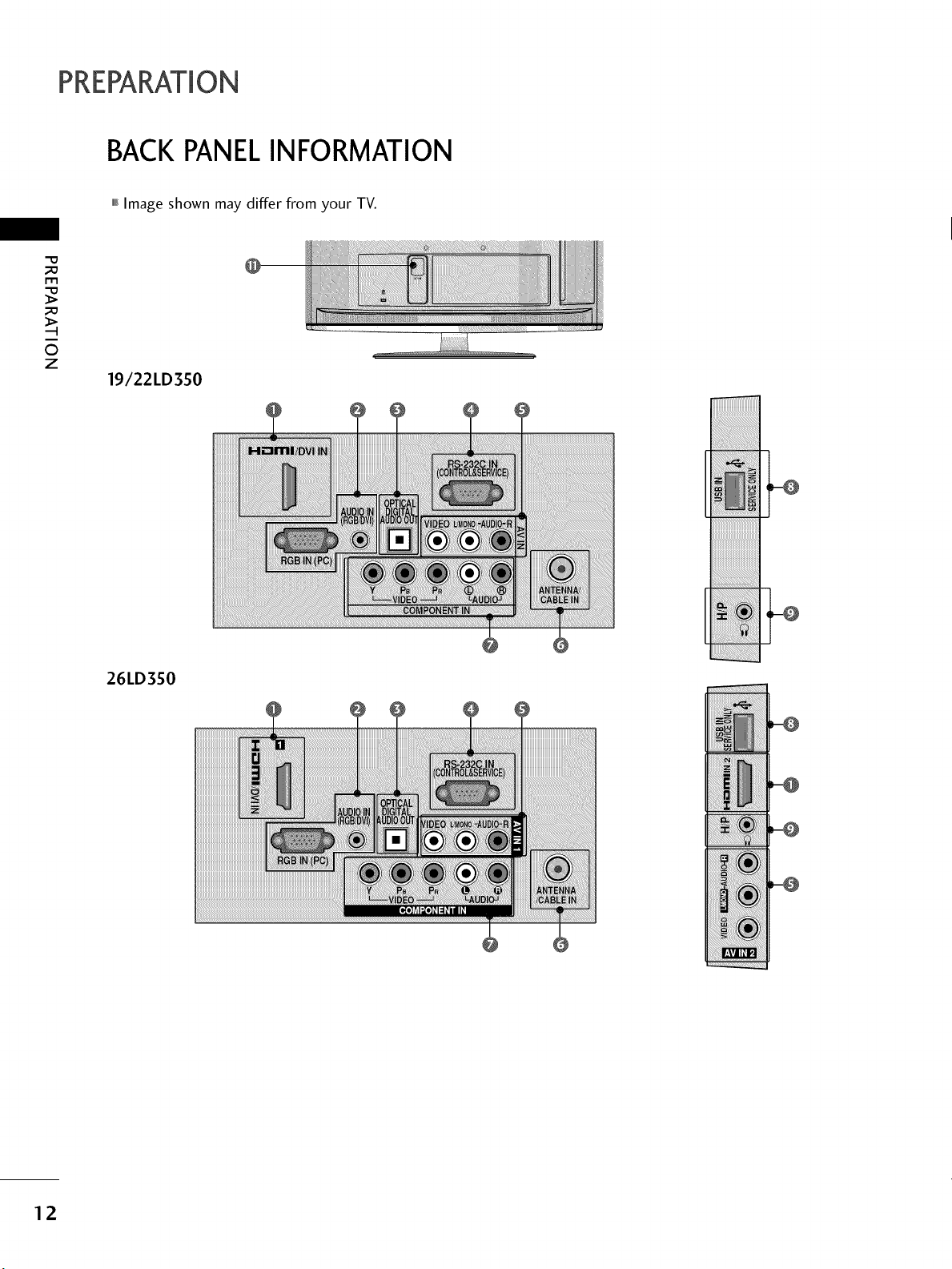
BACKPANELINFORMATION
,,,IImage shown may differ from your TV.
"O
_o
m
_o
©
z
19/22LD350
iiiiiiiiiii
iiiiiiiiii_
iiiiiiiiii
iiiiiiiiiii
iiiiiiiiiii
iiiiiiiiiii
iiiiiiiiiii
L
26LD350
12
_ Image shown may differ from your TV.
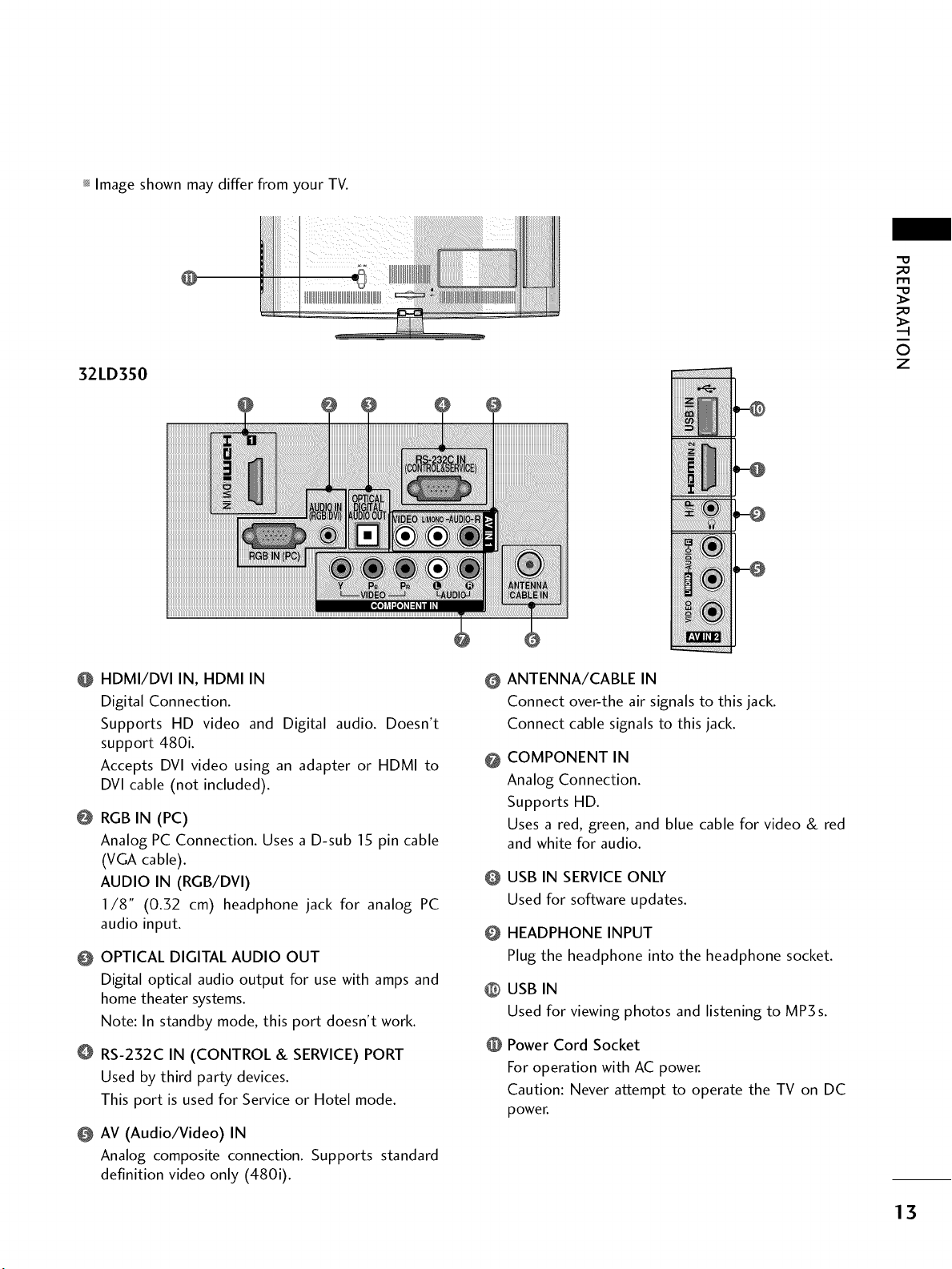
32LD350
_o
_o
©
z
@ HDMI/DVI IN, HDMI IN
Digital Connection.
Supports HD video and Digital audio. Doesn't
support 480i.
Accepts DVI video using an adapter or HDMI to
DVl cable (not included).
@ RGB IN (PC)
Analog PC Connection. Uses a D-sub 15 pin cable
(VGA cable).
AUDIO IN (RGB/DVI)
I/8" (0.32 cm) headphone jack for analog PC
audio input.
@ OPTICAL DIGITAL AUDIO OUT
Digital optical audio output for use with amps and
home theater systems.
Note: In standby mode, this port doesn't work.
O RS-232C IN (CONTROL & SERVICE) PORT
Used by third party devices.
This port is used for Service or Hotel mode.
@ AV (Audio/Video) IN
Analog composite connection. Supports standard
definition video only (480i).
@
@
@
@
@
@
ANTENNA/CABLE IN
Connect over-the air signals to this jack.
Connect cable signals to this jack.
COMPONENT IN
Analog Connection.
Supports HD.
Uses a red, green, and blue cable for video & red
and white for audio.
USB IN SERVICE ONLY
Used for software updates.
HEADPHONE INPUT
Plug the headphone into the headphone socket.
USB IN
Used for viewing photos and listening to MP3s.
Power Cord Socket
For operation with AC power.
Caution: Never attempt to operate the TV on DC
power.
13
PREPARATION
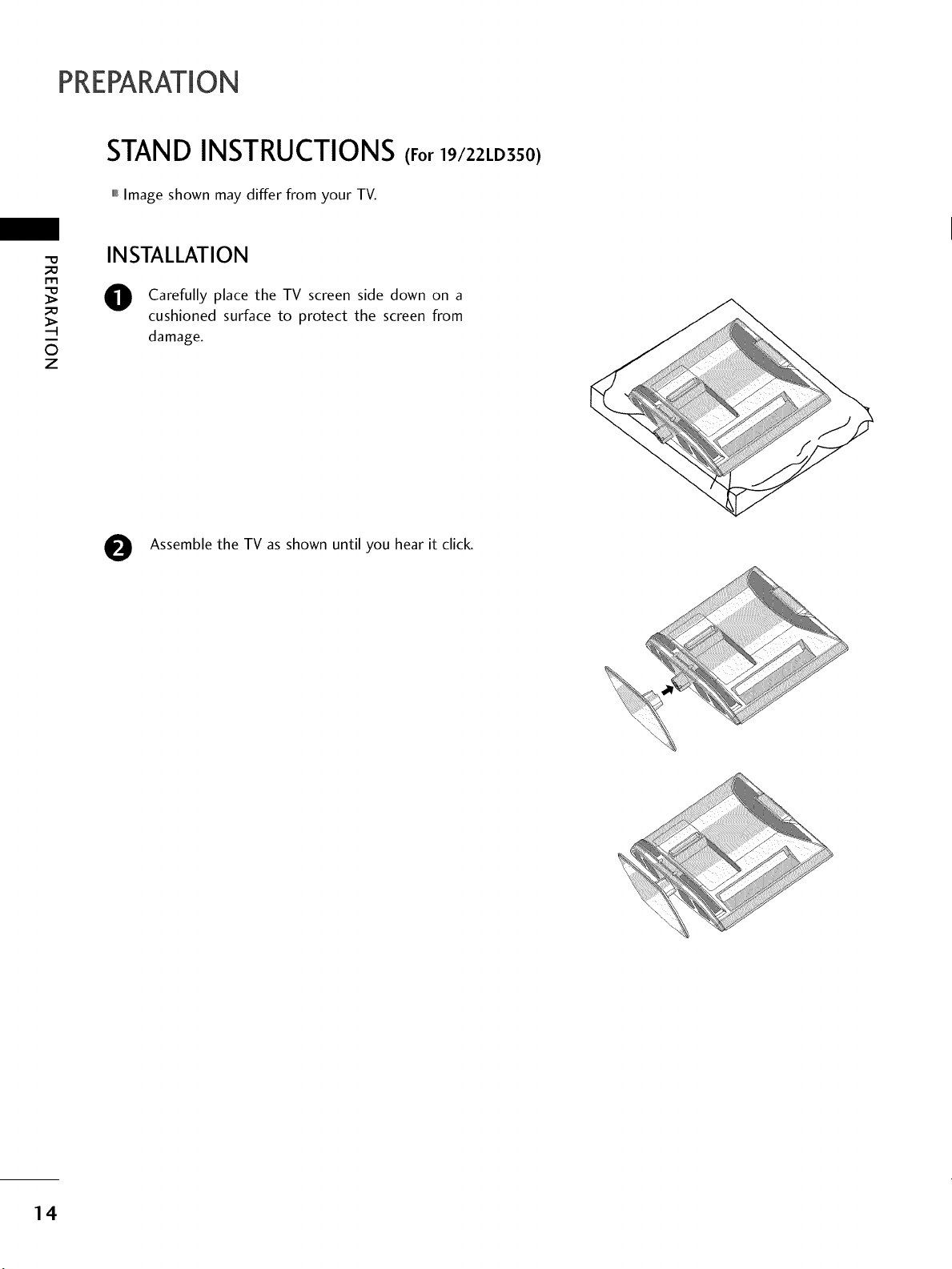
STAND INSTRUCTIONS(For 19/22LD350)
,,,IImage shown may differ from your TV.
-O
_o
m
_o
©
z
INSTALLATION
O Carefully place the TV screen side down on a
cushioned surface to protect the screen from
damage.
Assemble the TV as shown until you hear it click.
14
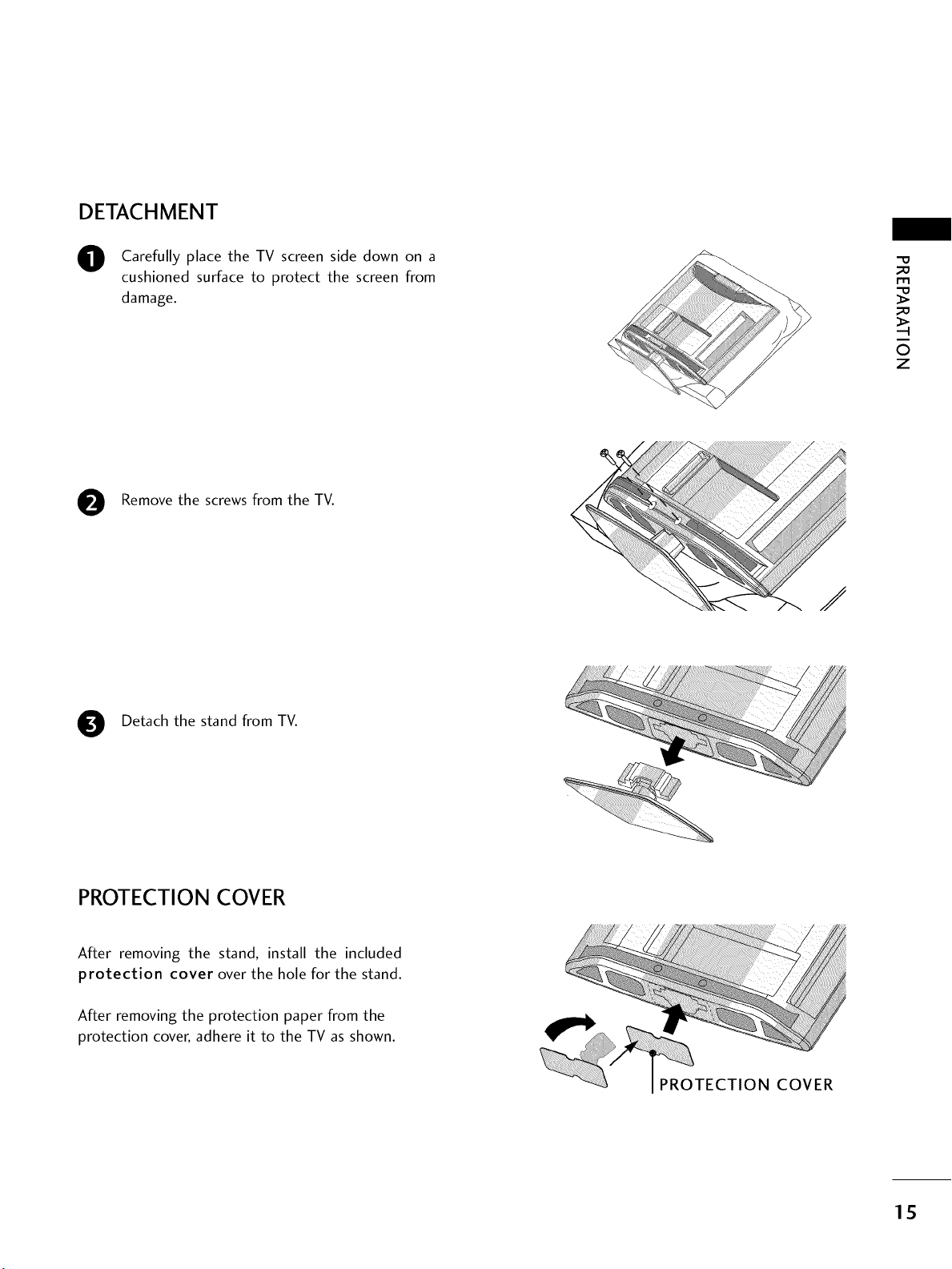
DETACHMENT
O
Carefully place the TV screen side down on a
cushioned surface to protect the screen from
damage.
Remove the screws from the TV.
Detach the stand from TV.
PROTECTION COVER
After removing the stand, install the included
protection cover over the hole for the stand.
After removing the protection paper from the
protection cover, adhere it to the TV as shown.
/
PROTECTION COVER
"0
_o
m
_o
©
z
15
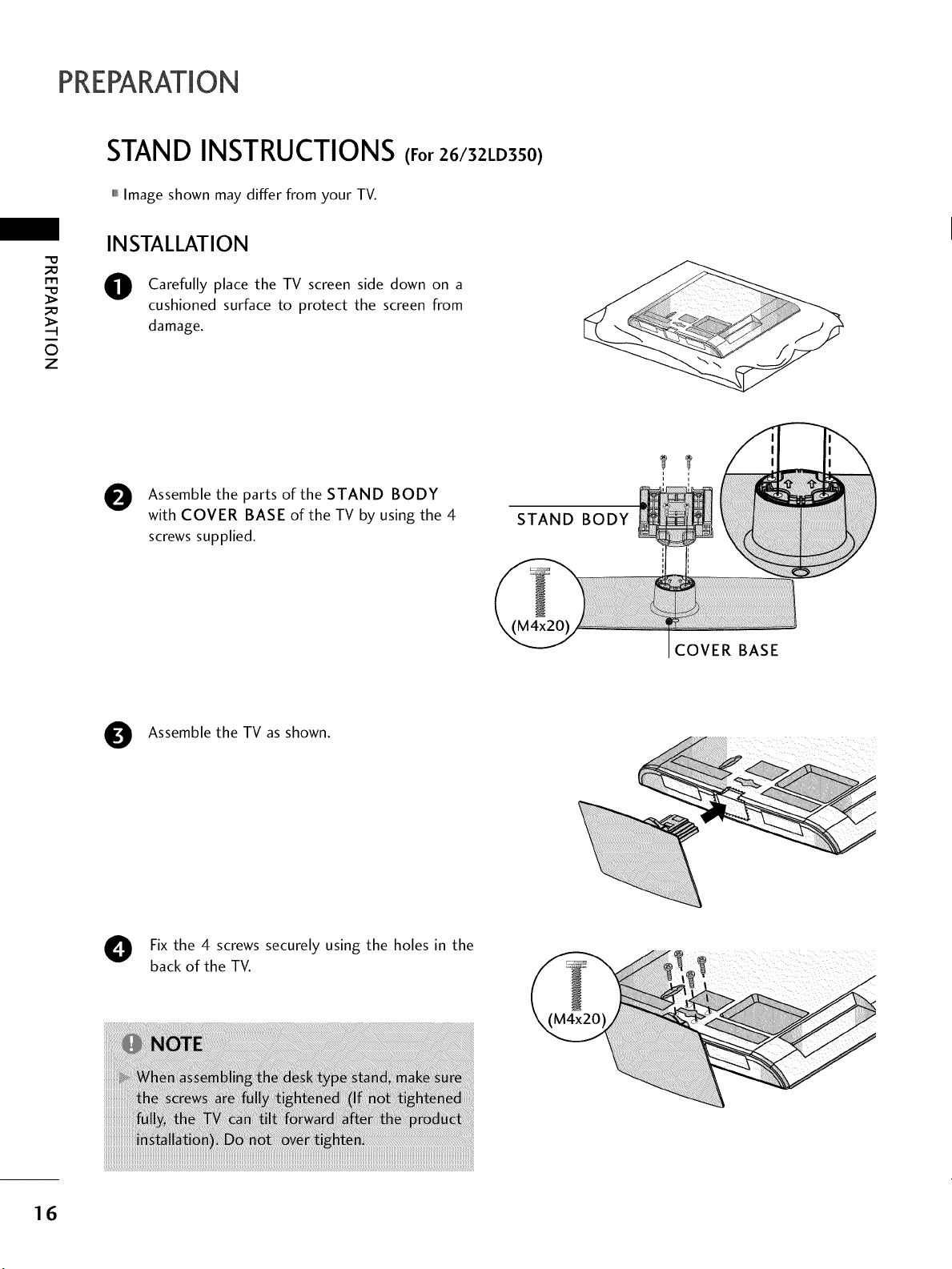
PREPARATION
STAND INSTRUCTIONS (For 26/32LD3S0)
,,,IImage shown may differ from your TV.
"O
©
z
INSTALLATION
O Carefully place the TV screen side down on a
cushioned surface to protect the screen from
damage.
e
Assemble the parts of the STAND BODY
with COVER BASE of the TV by using the 4
screws supplied.
STAND BODY
COVER BASE
Assemble the TV as shown.
Fix the 4 screws securely using the holes in the
back of the TV.
16
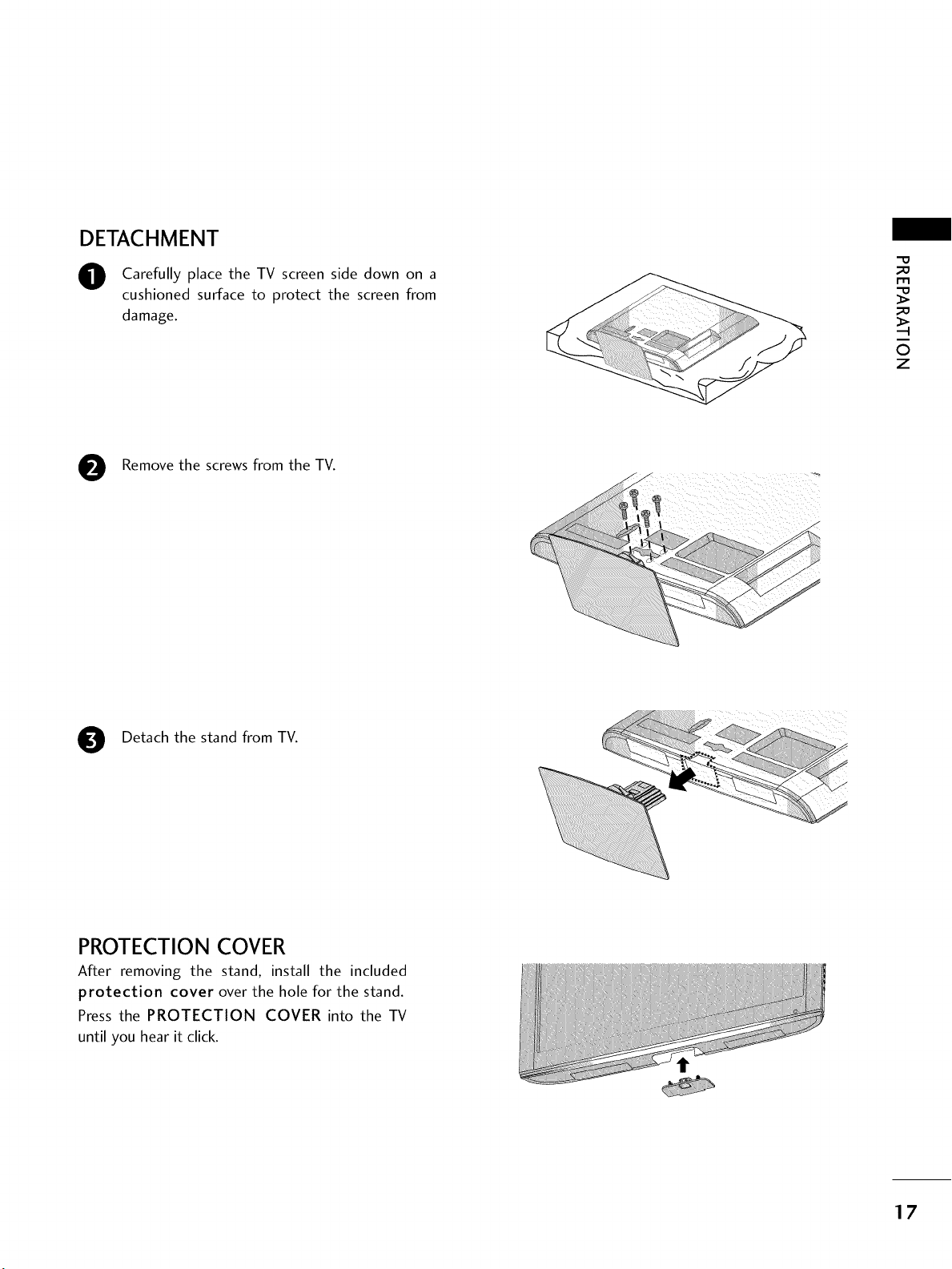
DETACHMENT
O Carefully place the TV screen side down on a
cushioned surface to protect the screen from
damage.
m
0
z
Remove the screws from the TV.
0
Detach the stand from TV.
PROTECTION COVER
After removing the stand, install the included
protection cover over the hole for the stand.
Press the PROTECTION COVER into the TV
until you hear it click.
17
PREPARATION
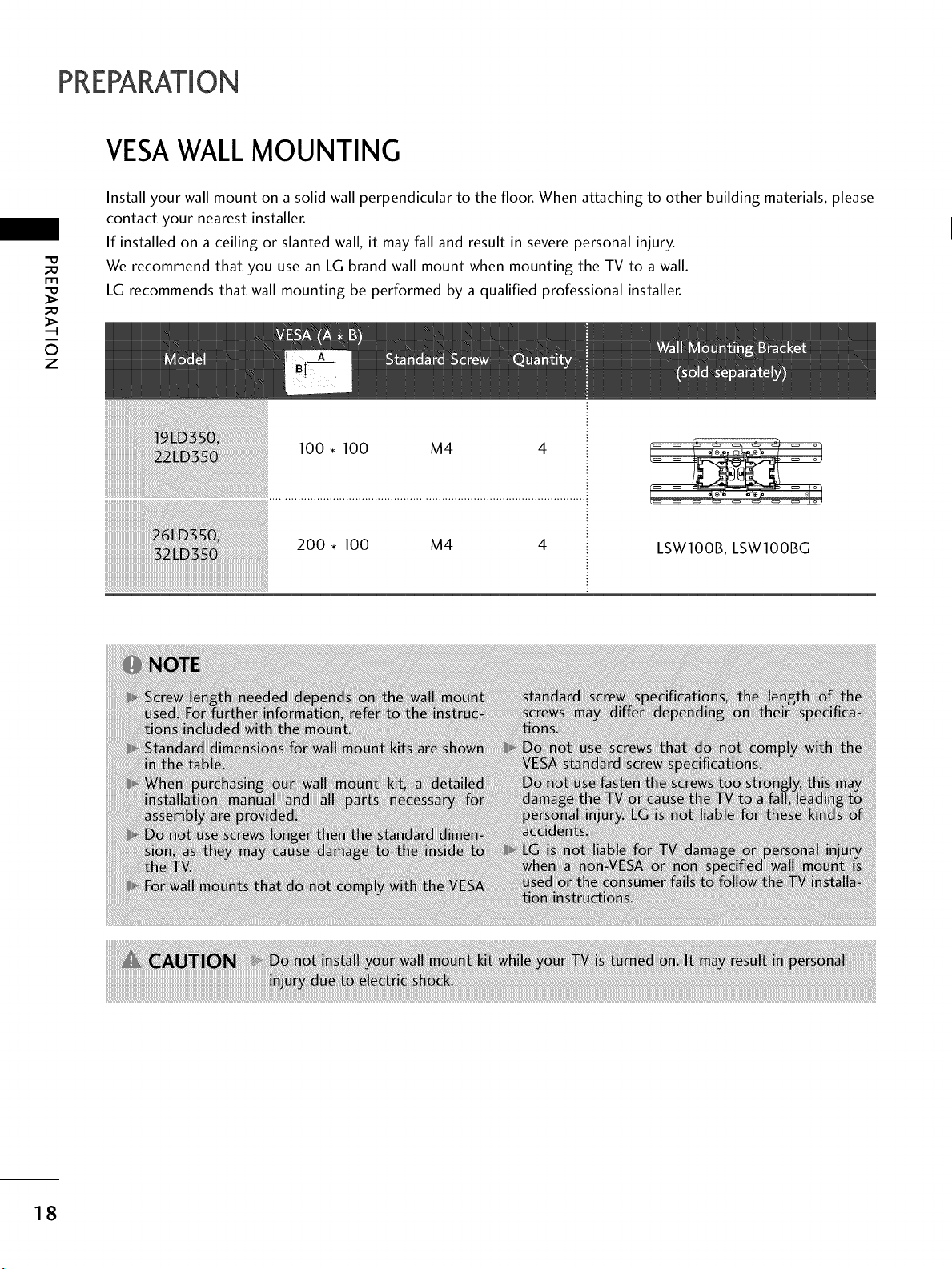
VESAWALL MOUNTING
-O
_a
r'rl
_a
0
z
Install your wall mount on a solid wall perpendicular to the floor. When attaching to other building materials, please
contact your nearest installer.
If installed on a ceiling or slanted wall, it may fall and result in severe personal injury.
We recommend that you use an LG brand wall mount when mounting the TV to a wall.
LG recommends that wall mounting be performed by a qualified professional installer.
100 • 100 M4
200 • 100 M4
LSW100B, LSW100BG
18
CABLEMANAGEMENT
,,,IImage shown may differ from your TV.
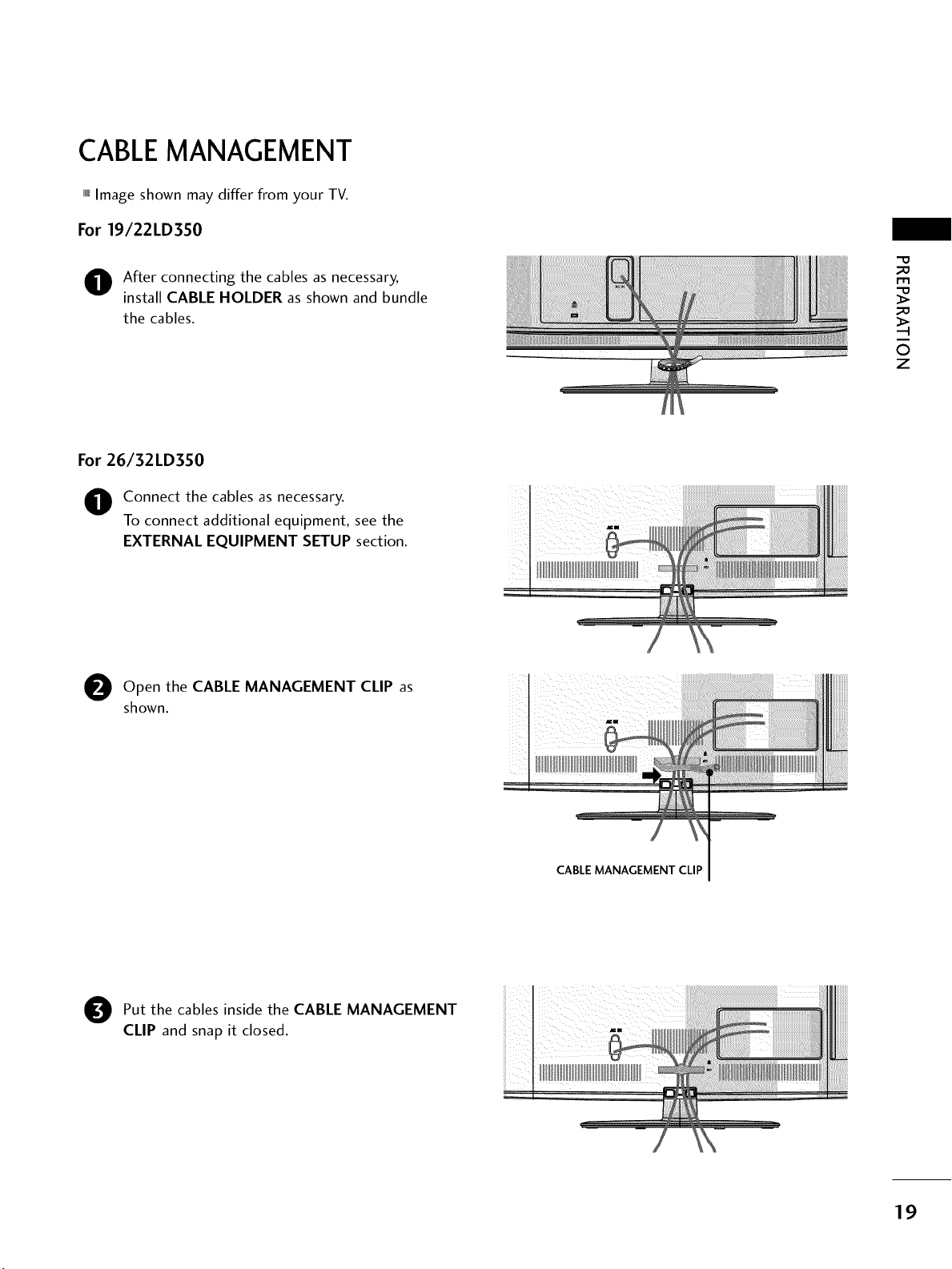
For 19/22LD350
O fter connecting the cables as necessary,
install CABLE HOLDER as shown and bundle
the cables.
"O
m
©
z
For 26/32LD350
O onnect the cables as necessary.
To connect additional equipment, see the
EXTERNAL EQUIPMENT SETUP section.
e the CABLE MANAGEMENT CLIP
Open
as
shown.
CABLE MANAGEMENT CLIP
O ut the cables inside the CABLE MANAGEMENT
CLIP and snap it closed.
19
PREPARATION
DESKTOP PEDESTALINSTALLATION
-0
_o
l'rl
_o
©
z
,,,IImage shown may differ from your TV.
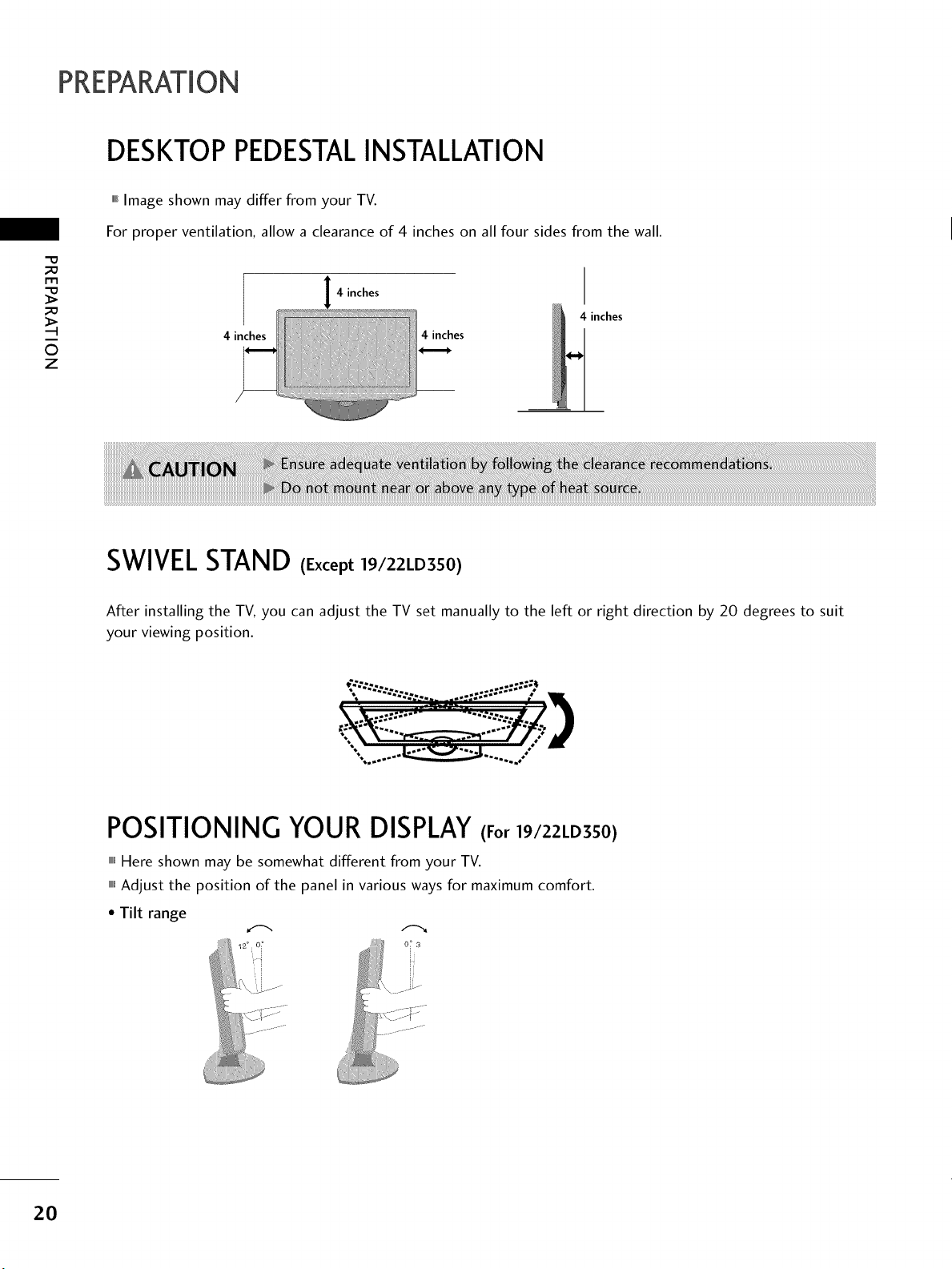
For proper ventilation allow a clearance of 4 inches on all four sides from the wall.
4 inches
4 inches 4 inches
4 inches
SWIVELSTAND (Except 19/22LD350)
After installing the TV, you can adjust the TV set manually to the left or right direction by 20 degrees to suit
your viewing position.
•..........._ ..........---
POSITIONING YOUR DISPLAY(For 19/22LD350)
,,,IHere shown may be somewhat different from your TV.
,,,iAdjust the position of the panel in various ways for maximum comfort.
• Tilt range
20

ATTACHING THE TV TO A DESK (Except 19/22LD3S0)
The TV must be attached to a desk so it cannot be pulled in a forward/backward direction, potentially causing
injury or damaging the product.
Stand
1-Screw
(provided as parts of the product)
Desk
_D
rT1
_D
0
z
KENSINGTONSECURITYSYSTEM
,,,IThis feature is not available for all models.
- The TV is equipped with a Kensington Security System connector on
the back panel. Connect the Kensington Security System cable as
shown below.
For the detailed installation and use of the Kensington Security
System, refer to the user's guide provided with the Kensington
Security System.
For further information, contact http://www.kensington.com,
the internet homepage of the Kensington company. Kensington sells
security systems for expensive electronic equipment such as note-
book PCs and LCD projectors.
NOTE: The Kensington Security System is an optional accessory.
21
PREPARATION
m
©
z
SECURING THE TV TO THE WALL TO PREVENTFALLING
WHEN THE TV IS USED ON A STAND
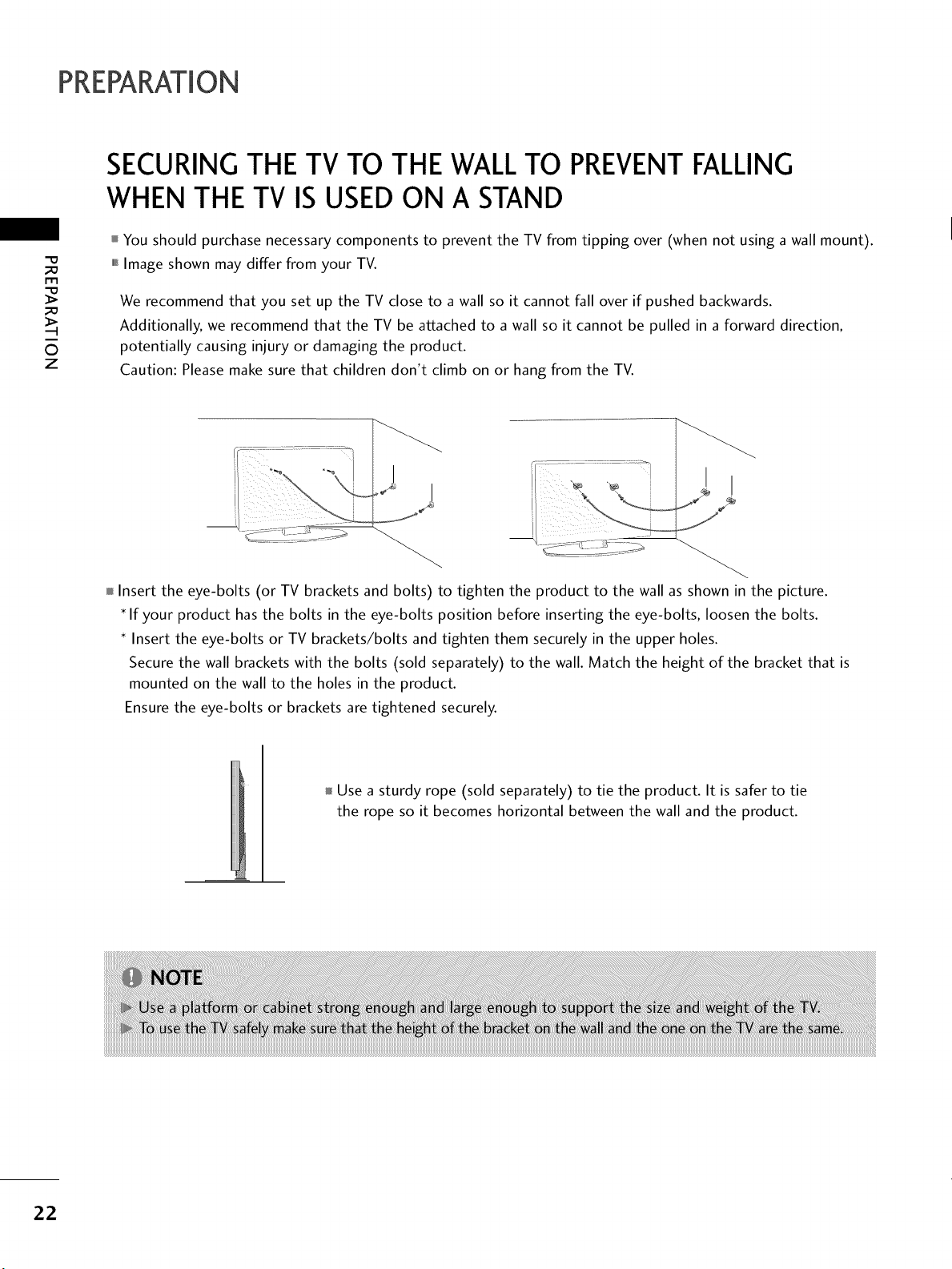
You should purchase necessary components to prevent the TV from tipping over (when not using a wall mount).
,,,iImage shown may differ from your TV.
We recommend that you set up the TV close to a wall so it cannot fall over if pushed backwards.
Additionally, we recommend that the TV be attached to a wall so it cannot be pulled in a forward direction,
potentially causing injury or damaging the product.
Caution: Please make sure that children don't climb on or hang from the TV.
Insert the eye-bolts (or TV brackets and bolts) to tighten the product to the wall as shown in the picture.
If your product has the bolts in the eye-bolts position before inserting the eye-bolts, loosen the bolts.
Insert the eye-bolts or TV brackets/bolts and tighten them securely in the upper holes.
Secure the wall brackets with the bolts (sold separately) to the wall. Match the height of the bracket that is
mounted on the wall to the holes in the product.
Ensure the eye-bolts or brackets are tightened securely.
Use a sturdy rope (sold separately) to tie the product. It is safer to tie
the rope so it becomes horizontal between the wall and the product.
22
,,,ITo prevent damage do not connect to the power outlet until all connections are made between the devices.
""_Image shown may differ from your TV.
ANTENNA OR CABLE CONNECTION
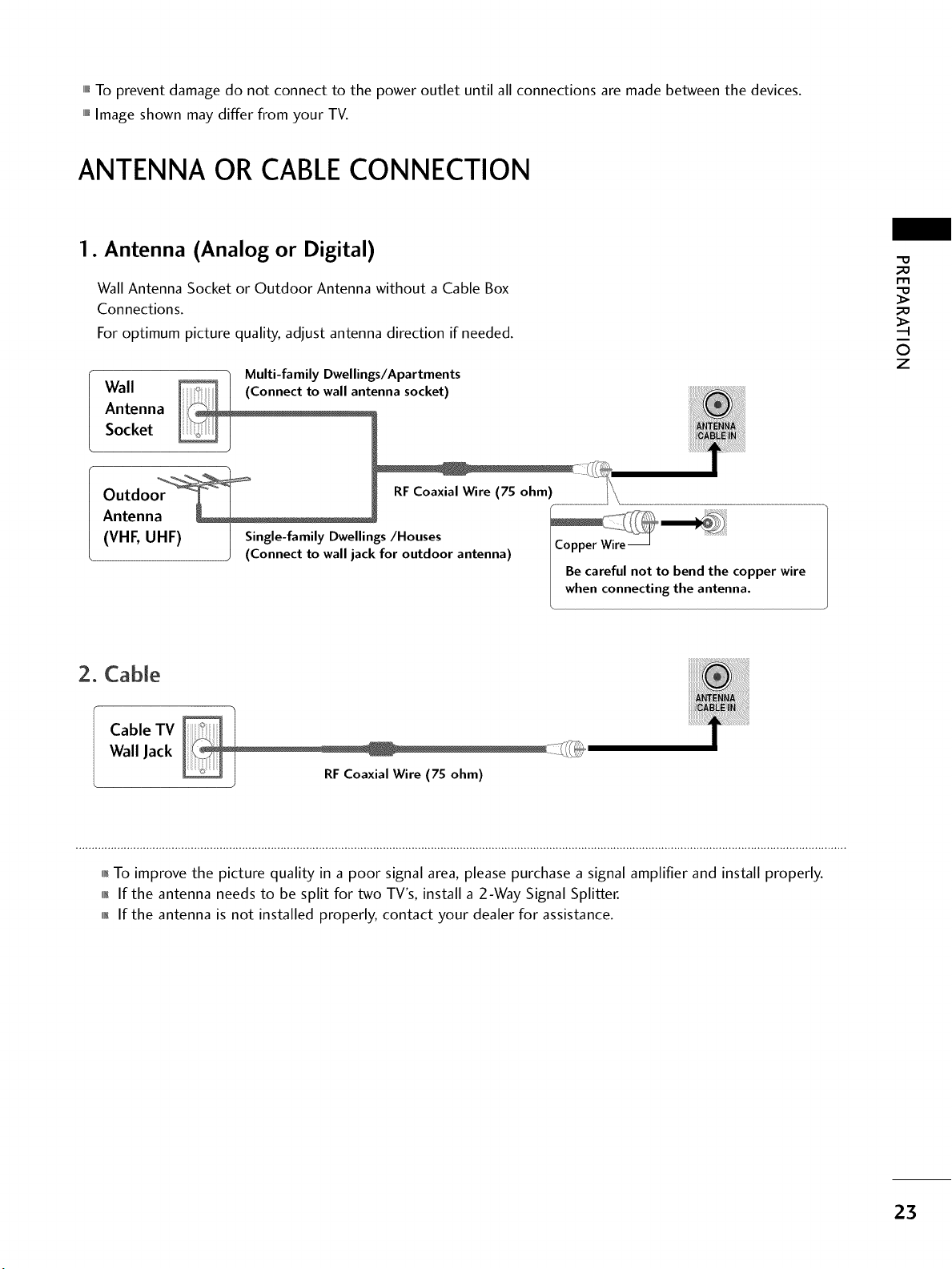
1. Antenna (Analog or Digital)
Wall Antenna Socket or Outdoor Antenna without a Cable Box
Connections.
For optimum picture quality, adjust antenna direction if needed.
Wall
Antenna
Socket
Outdoor
Antenna
(VHF, UHF)
Multi-family Dwellings/Apartments
(Connecttowa,antennasocket)
RF Coaxial Wire (75 ohm) / '_,
Single-family Dwellings/Houses
(Connect to wall jack for outdoor antenna)
I Copper Wire
I Be careful not to bend the copper wire
I when connecting the antenna.
_o
_o
©
z
2. Cable
Cable TV
Wall Jack
_F Coaxial Wire (75 ohm)
01_To improve the picture quality in a poor signal area, please purchase a signal amplifier and install properly.
01_If the antenna needs to be split for two TV's, install a 2-Way Signal Splitter.
01_If the antenna is not installed properly, contact your dealer for assistance.
23
x
_a
z
0
c
"0
z
--I
c
-0
EXTERNAL EQUIPMENT SETUP
,,,_To prevent the equipment damage, never plug in any power cords until you havefinished connecting all equipment.
This part of EXTERNAL EQUIPMENT SETUP mainly use picture for 32LD350.
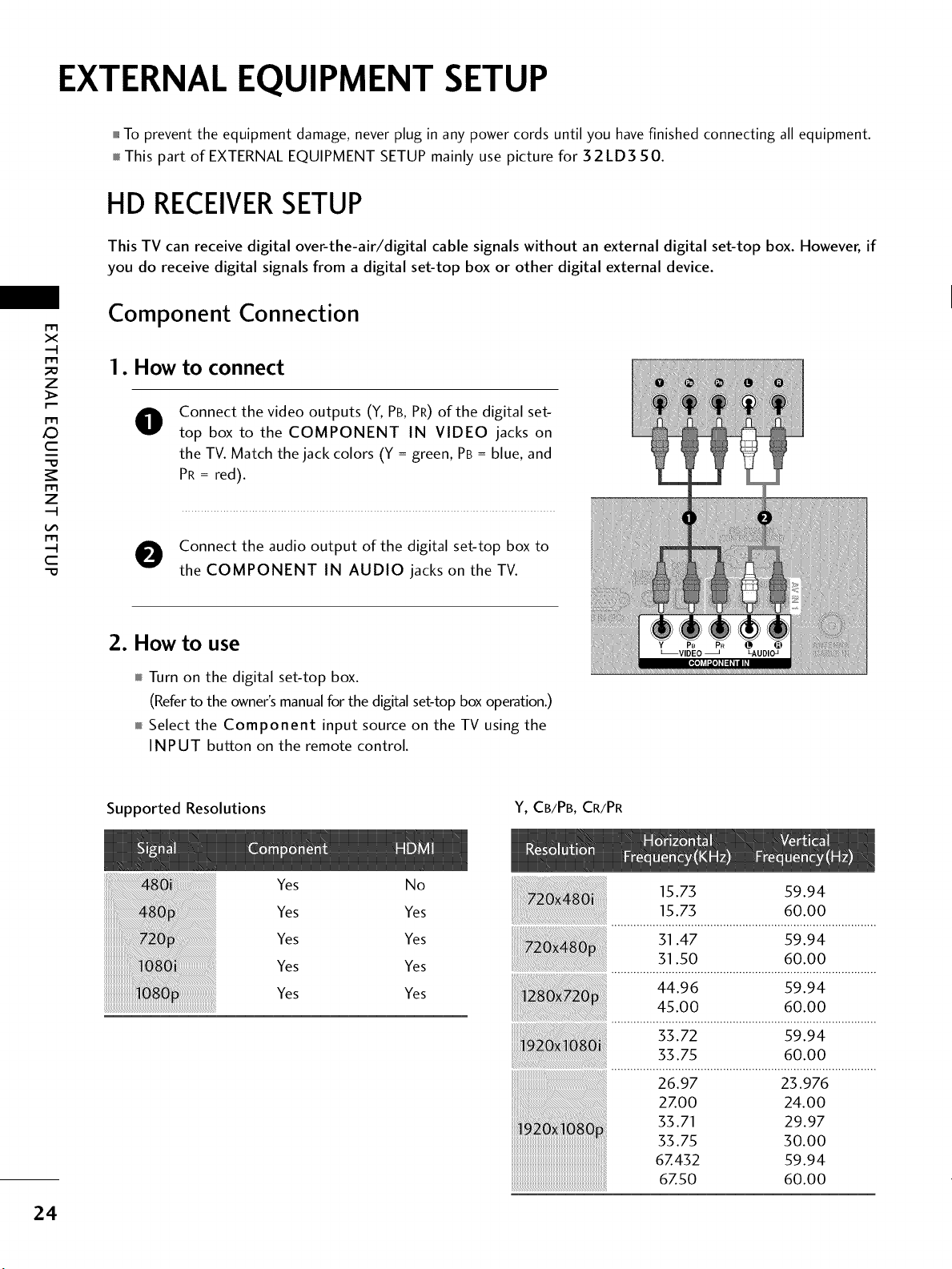
HD RECEIVERSETUP
This TV can receive digital over-the-air/digital cable signals without an external digital set-top box. However, if
you do receive digital signals from a digital set-top box or other digital external device.
Component Connection
I. How to connect
@
Connect the video outputs (Y, PB, PR) of the digital set-
top box to the COMPONENT IN VIDEO jacks on
the TV. Match the jack colors (Y = green, PB = blue, and
PR = red).
O onnect the audio output of the digital set-top box to
the COMPONENT IN AUDIO jacks on the TV.
2. How to use
Turn on the digital set-top box.
(Refer to the owner's manual for the digital set-top box operation.)
Select the Component input source on the TV using the
INPUT button on the remote control.
Y PB PR
_VIDEO LAUDIOJ
Supported Resolutions
Y, CB/PB, CR/PR
24
Yes
Yes
Yes
Yes
Yes
No
Yes
Yes
Yes
Yes
15.73 59.94
15.73 60.00
31.47 59.94
31.50 60.00
44.96 59.94
45.00 60.00
33.72 59.94
33.75 60.00
26.97 23.976
2Z00 24.00
33.71 29.97
33.75 30.00
6Z432 59.94
67.50 60.00
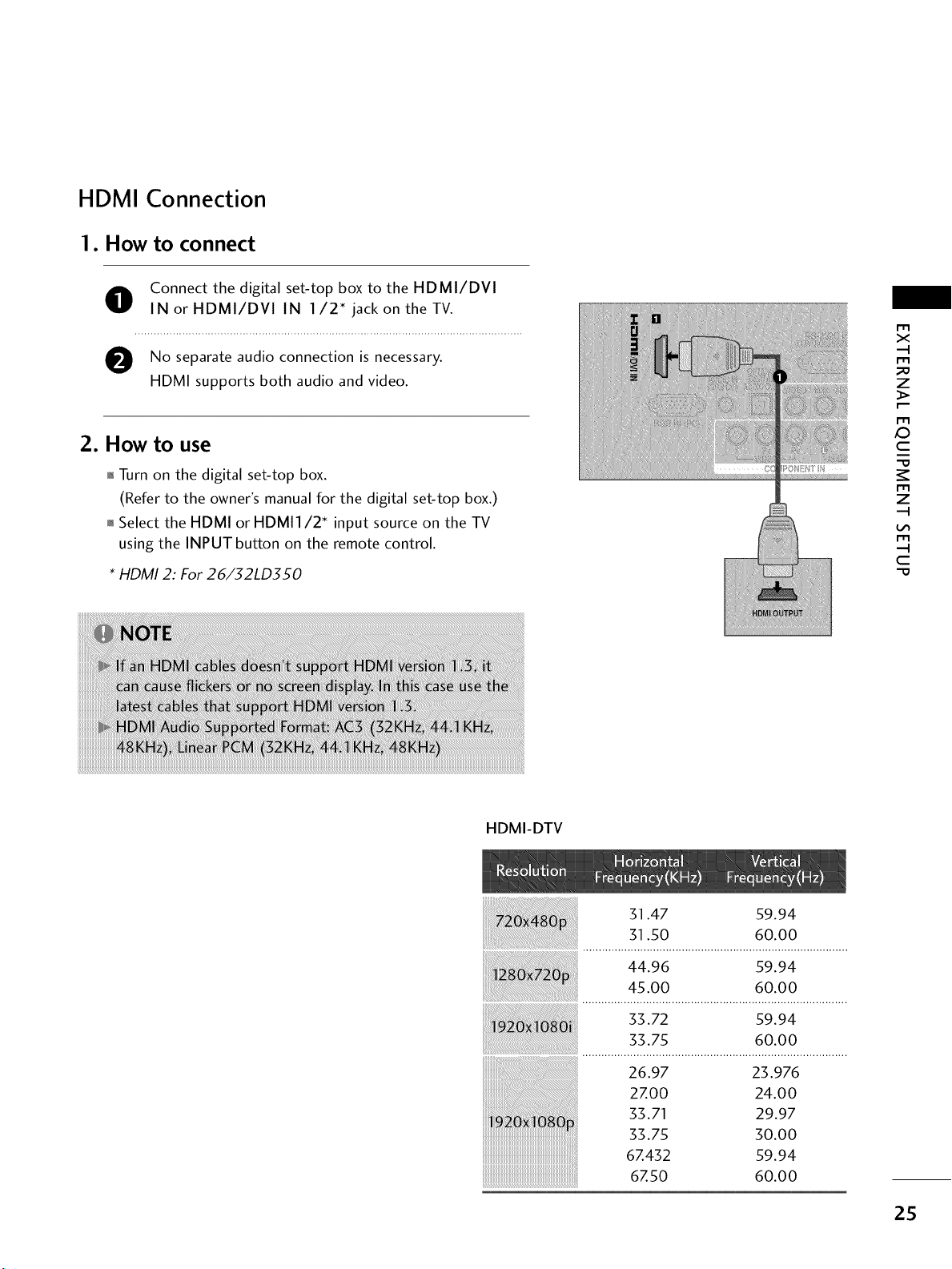
HDMI Connection
1. How to connect
O Connect the digital set-top box to the HDMI/DVI
IN or HDMI/DVl IN 1/2" jack on the TV.
No separate audio connection is necessary.
HDMI supports both audio and video.
2. How to use
01_Turn on the digital set-top box.
(Refer to the owner's manual for the digital set-top box.)
01_Select the HDMI or HDMI1/2 _ input source on the TV
using the INPUT button on the remote control.
* HDMI 2: For 26/32LD350
m
X
m
z
m
_D
C
m
z
m
C
HDMI-DTV
51.47 59.94
51.50 60.00
44.96 59.94
45.00 60.00
55.72 59.94
35.75 60.00
26.97 23.976
2ZOO 24.00
33.71 29.97
33.75 30.00
6Z432 59.94
6Z50 60.00
25
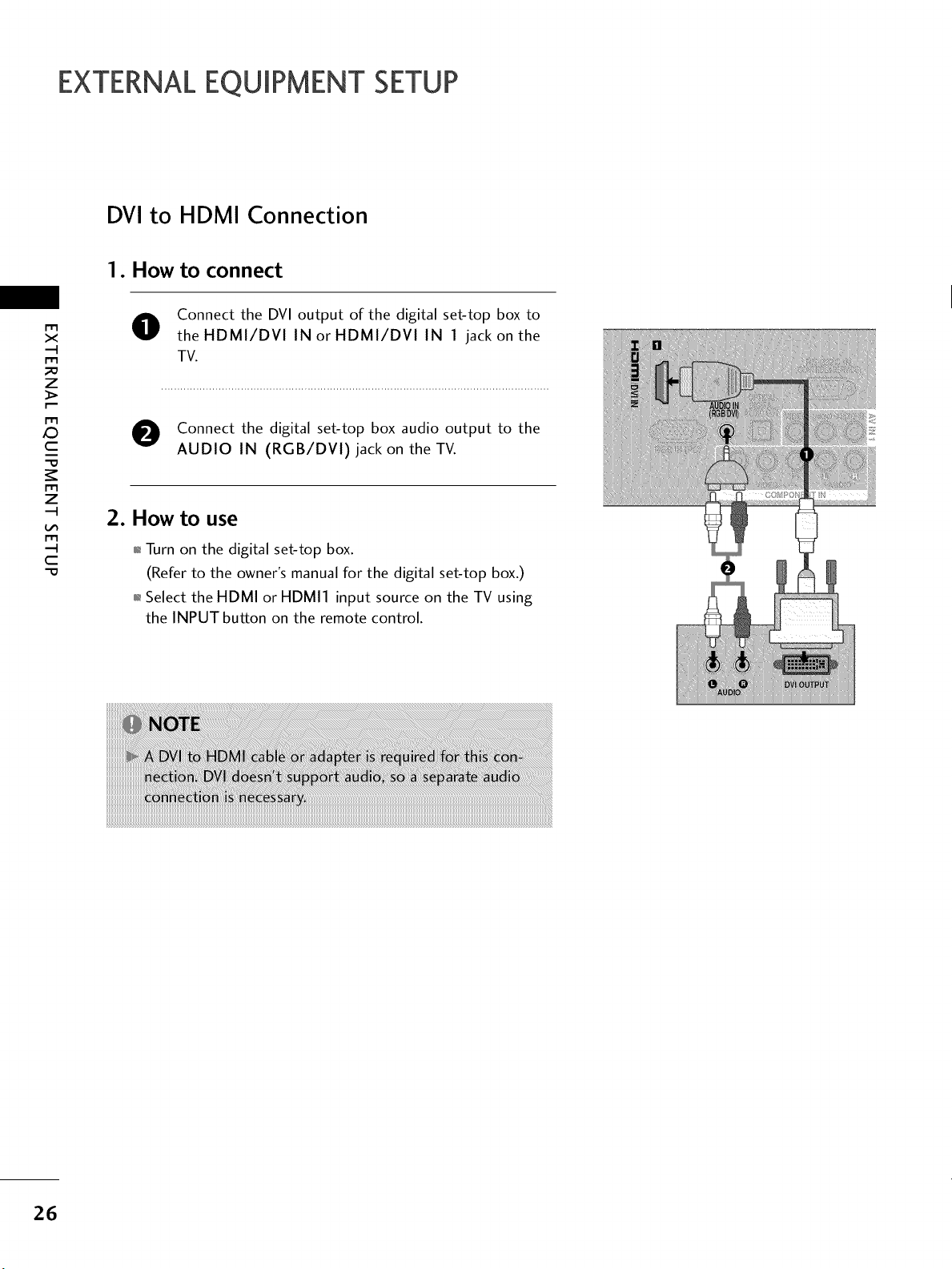
EXTERNALEQUIPMENT SETUP
DVI to HDMI Connection
1. How to connect
m
x
m
_o
z
m
X:)
c
"O
m
z
m
c
"O
O Connect the DVI output of the digital set-top box to
the HDMI/DVl IN or HDMI/DVl IN 1 jack on the
TV.
O Connect the digital set-top box audio output to the
AUDIO IN (RGB/DVl) jack on the TV.
2. How to use
01_Turn on the digital set-top box.
(Refer to the owner's manual for the digital set-top box.)
01_Select the HDMI or HDMI1 input source on the TV using
the INPUT button on the remote control.
26
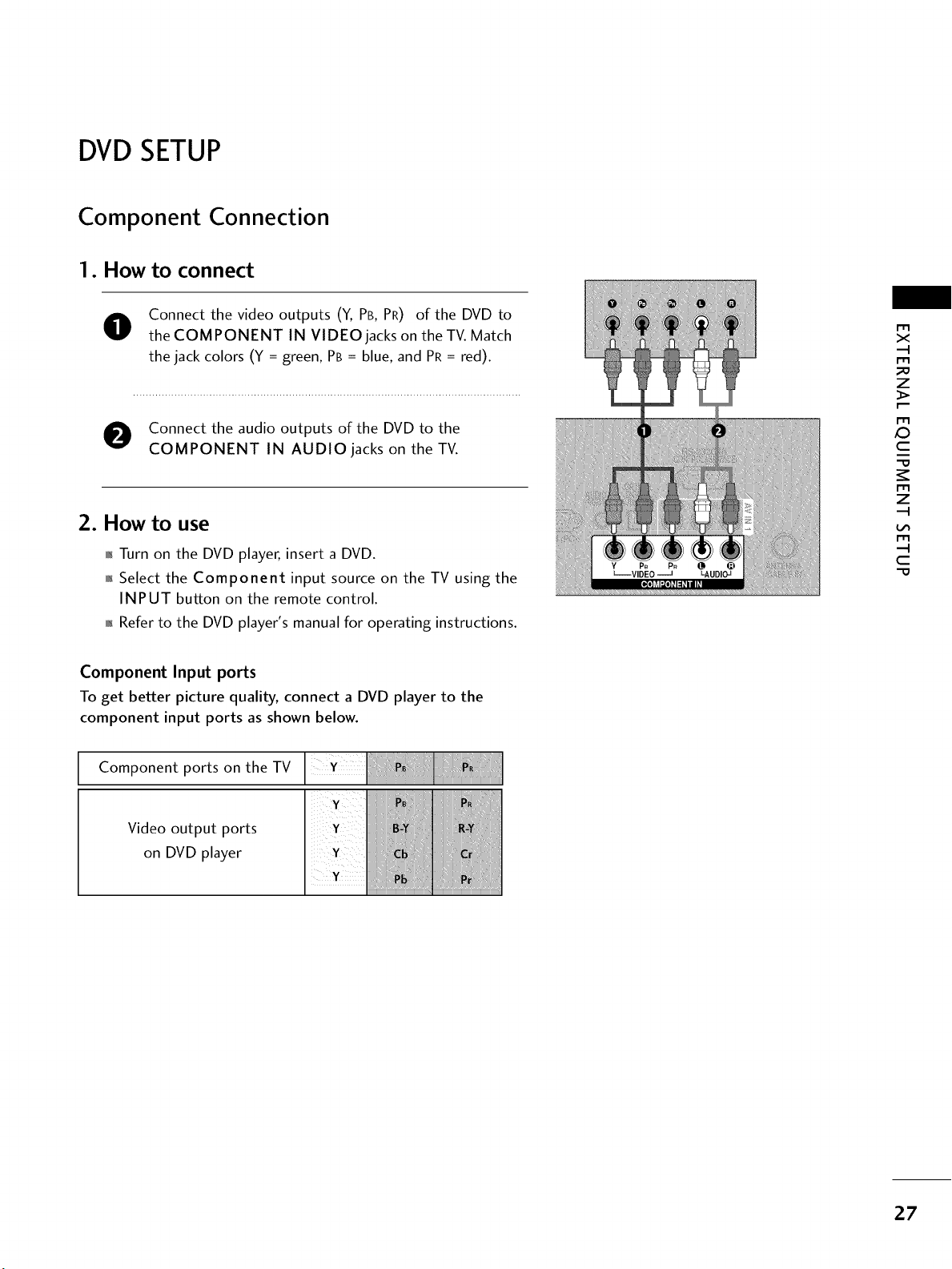
DVD SETUP
Component Connection
1. How to connect
O Connect the video outputs (Y, PB, PR) of the DVD to
the COMPONENT IN VIDEO jacks on the TV. Match
the jack colors (Y = green, PB = blue, and PR = red).
O Connect the audio outputs of the DVD to the
COMPONENT IN AUDIO jacks on the TV.
2. How to use
01_Turn on the DVD player, insert a DVD.
0_Select the Component input source on the TV using the
INPUT button on the remote control.
01_Refer to the DVD player's manual for operating instructions.
r_
x
r_
_o
z
r_
X:)
c
r_
z
r_
c
-O
Component Input ports
To get better picture quality, connect a DVD player to the
component input ports as shown below.
Component ports on the TV
Video output ports
on DVD player
27
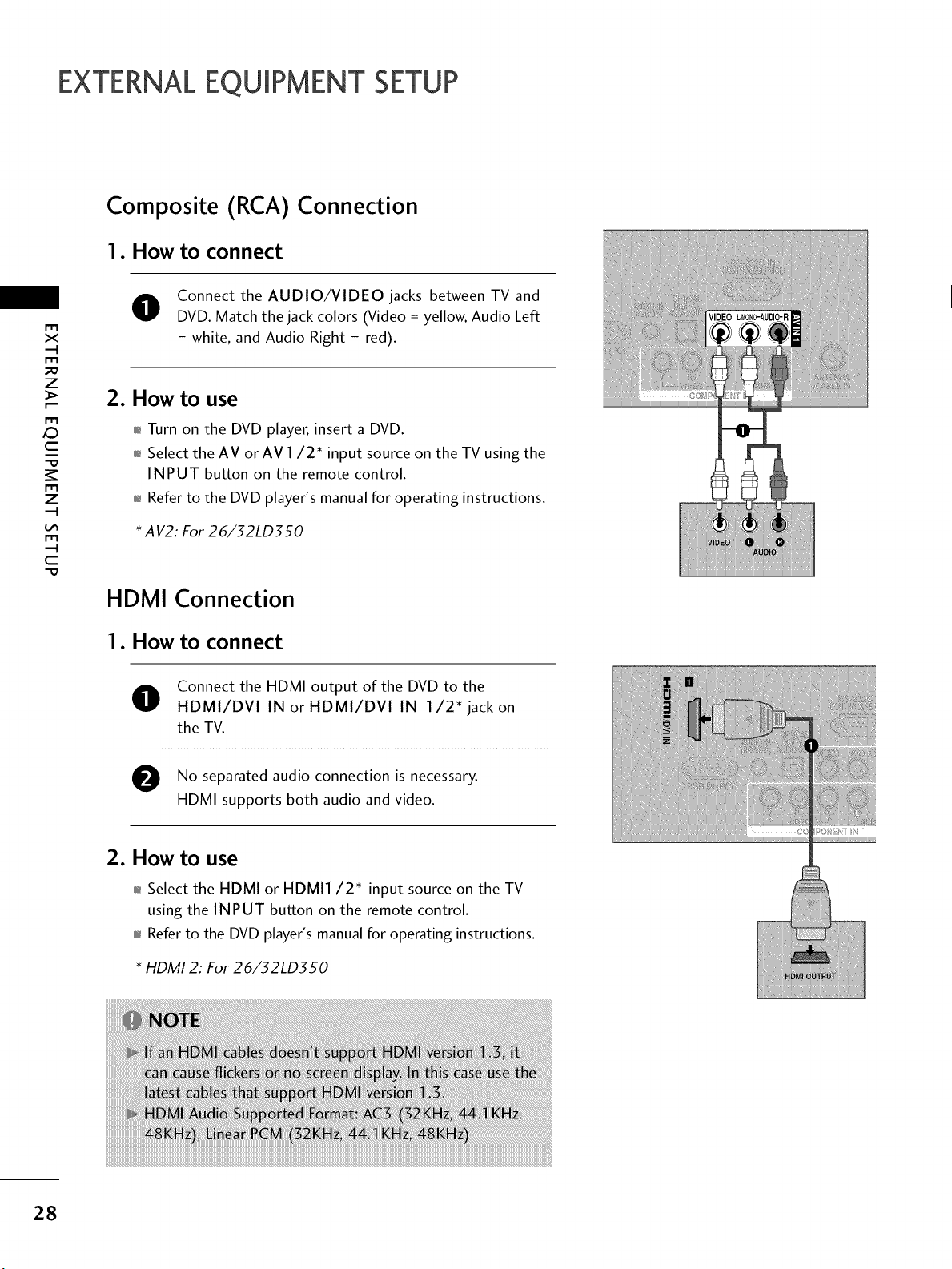
EXTERNALEQUIPMENT SETUP
Composite (RCA)
1. How to connect
Connection
x
z
X:)
c
z
c
"0
O Connect the AUDIO/VIDEO jacks between TV and
DVD. Match the jack colors (Video = yellow, Audio Left
= white, and Audio Right = red).
2. How to use
,l_Turn on the DVD player, insert a DVD.
,l_Select the AV orAV 1/2 _ input source on the TV using the
INPUT button on the remote control.
,l_Refer to the DVD player's manual for operating instructions.
* A V2: For 26/32LD350
HDMI Connection
1. How to connect
O onnect the HDMI output of the DVD to the
HDMI/DVI IN or HDMI/DVI IN 1/2" jack on
the TV.
e No separated audio connection is
necessary.
HDMI supports both audio and video.
2. How to use
01_Select the HDMI or HDMI1/2 _ input source on the TV
using the INPUT button on the remote control.
01,_Refer to the DVD player's manual for operating instructions.
* HDMI 2: For 26/32LD350
_iiii_i!!_i_i!_iii_!_!ii!ii!i_!ii_iii_!iiii!!i_i_!!!_i_i_i_ii!i]i_!i_i!_!!_ii!_!_i!i]i!!_!ii!!!!!!_i!!i!ii!!H!!i
28
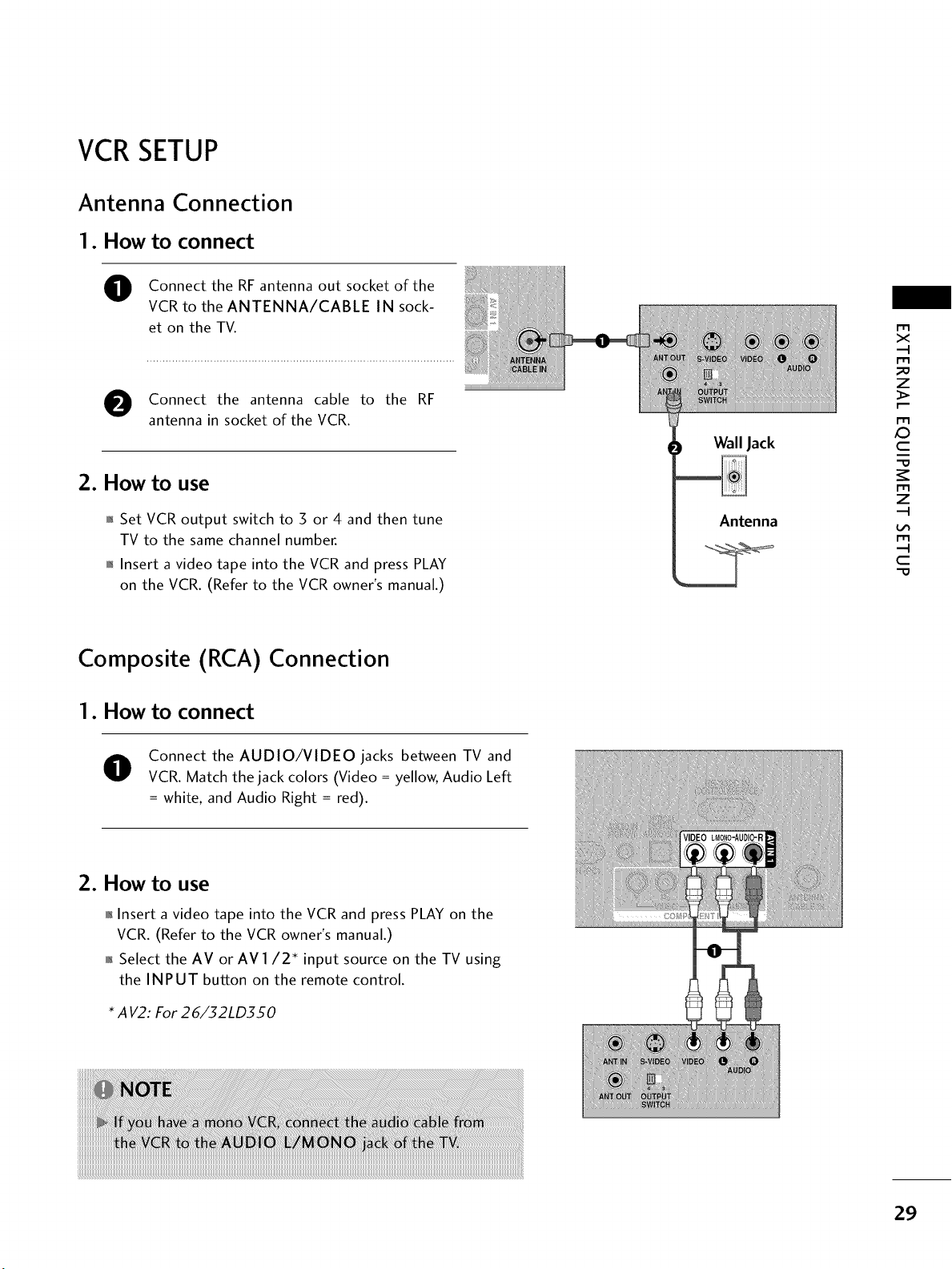
VCR SETUP
Antenna Connection
1. How to connect
Connect the RF antenna out socket of the
VCR to the ANTENNA/CABLE IN sock-
et on the TV.
Connect the antenna cable to the RF
antenna in socket of the VCR.
2. How to use
01_Set VCR output switch to 3 or 4 and then tune
TV to the same channel number.
01_Insert a video tape into the VCR and press PLAY
on the VCR. (Refer to the VCR owner's manual.)
Wall Jack
Antenna
x
r_l
_o
z
X:)
c
r_l
z
I"I'1
c
"O
Composite (RCA) Connection
1. How to connect
O Connect the AUDIO/VIDEO jacks between TV and
VCR. Match the jack colors (Video = yellow, Audio Left
= white, and Audio Right = red).
2. How to use
01_Insert a video tape into the VCR and press PLAY on the
VCR. (Refer to the VCR owner's manual.)
01_Select the AV or AV 1/2 _ input source on the TV using
the INPUT button on the remote control.
* A V2: For 26/32LD350
29
EXTERNALEQUIPMENT SETUP
m
x
m
_o
z
m
_D
c
m
z
m
c
-O
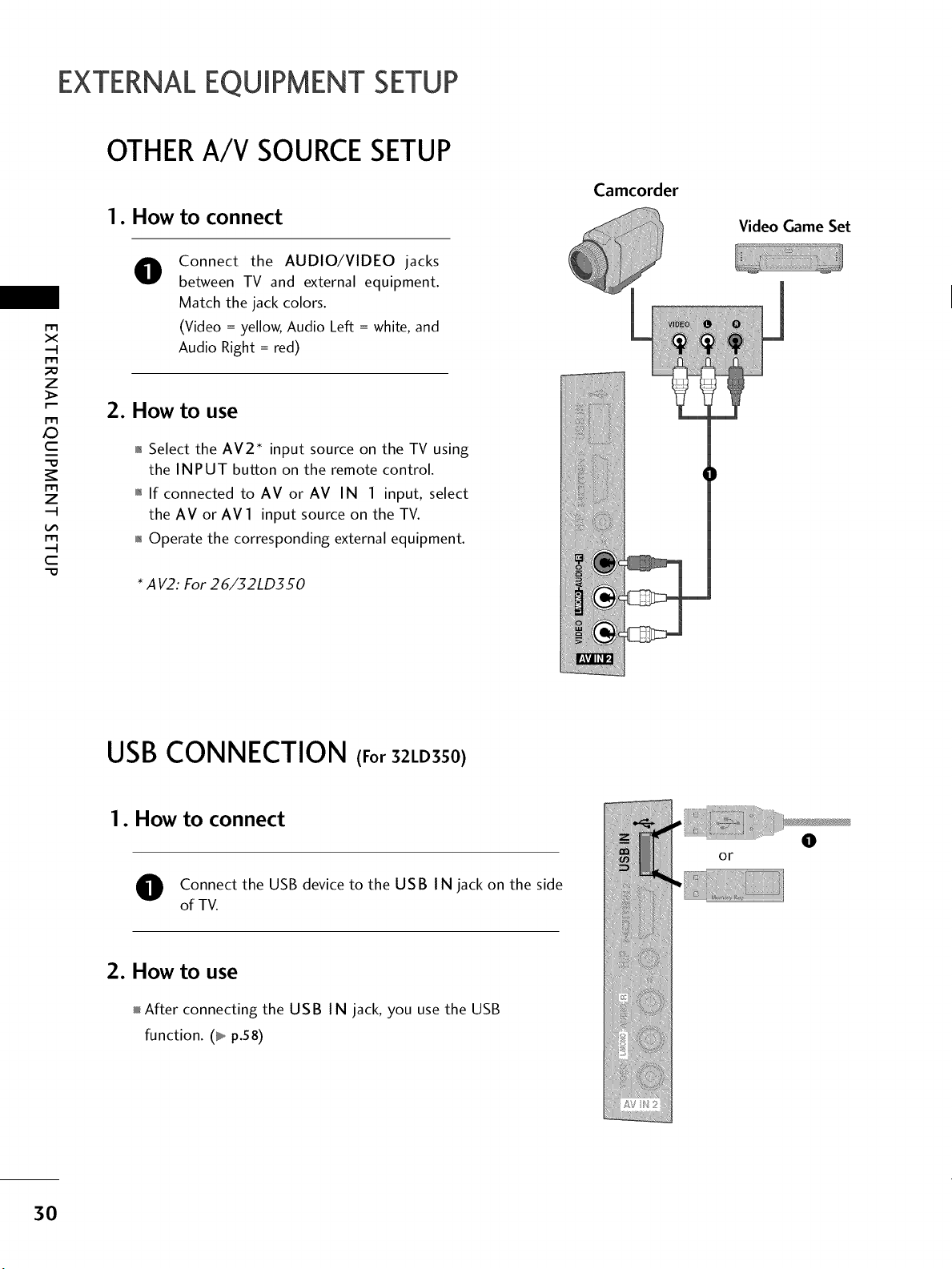
OTHERA/V SOURCESETUP
1. How to connect
O
Connect the AUDIO/VIDEO jacks
between TV and external equipment.
Match the jack colors.
(Video = yellow, Audio Left = white, and
Audio Right = red)
2. How to use
,l_Select the AV2 _ input source on the TV using
the INPUT button on the remote control.
,l_If connected to AV or AV IN 1 input, select
the AV or AVl input source on the TV.
,l_Operate the corresponding external equipment.
* A V2: For 26/32LD350
Camcorder
Video Game Set
USB CONNECTION (For 32LD350)
1. How to connect
O onnect the USB device to the USB IN jack on the side
of TV.
2. How to use
After connecting the USB IN jack, you use the USB
function. (_ p.58)
or
O
3O

AUDIO OUT CONNECTION
Send the TV's audio to external audio equipment via the Audio Output port.
If you want to enjoy digital broadcasting through 5.1 -channel speakers, connect the OPTICAL DIGITAL
AUDIO OUT terminal on the back of TV to a Home Theater (or amp).
1. How to connect
O onnect one end of the optical cable to the TV port of
OPTICAL DIGITAL AUDIO OUT.
O Connect the other end of the optical cable to the digi-
tal audio input on the audio equipment.
O
Set the "TV Speaker option - Off" in the AUDIO
menu. (b p.85). See the external audio equipment
instruction manual for operation.
m
x
m
_o
z
m
XD
c
m
z
m
c
"O
HEADPHONESETUP
You can listen to the sound through the headphone.
1. How to connect
Plug the headphone into the headphone socket.
To adjust the headphone volume, press the VOL + or
- button. If you press the MUTE button, the sound
from the headphone is switched off.
iiiiiiiiiiii
31
EXTERNALEQUIPMENT SETUP
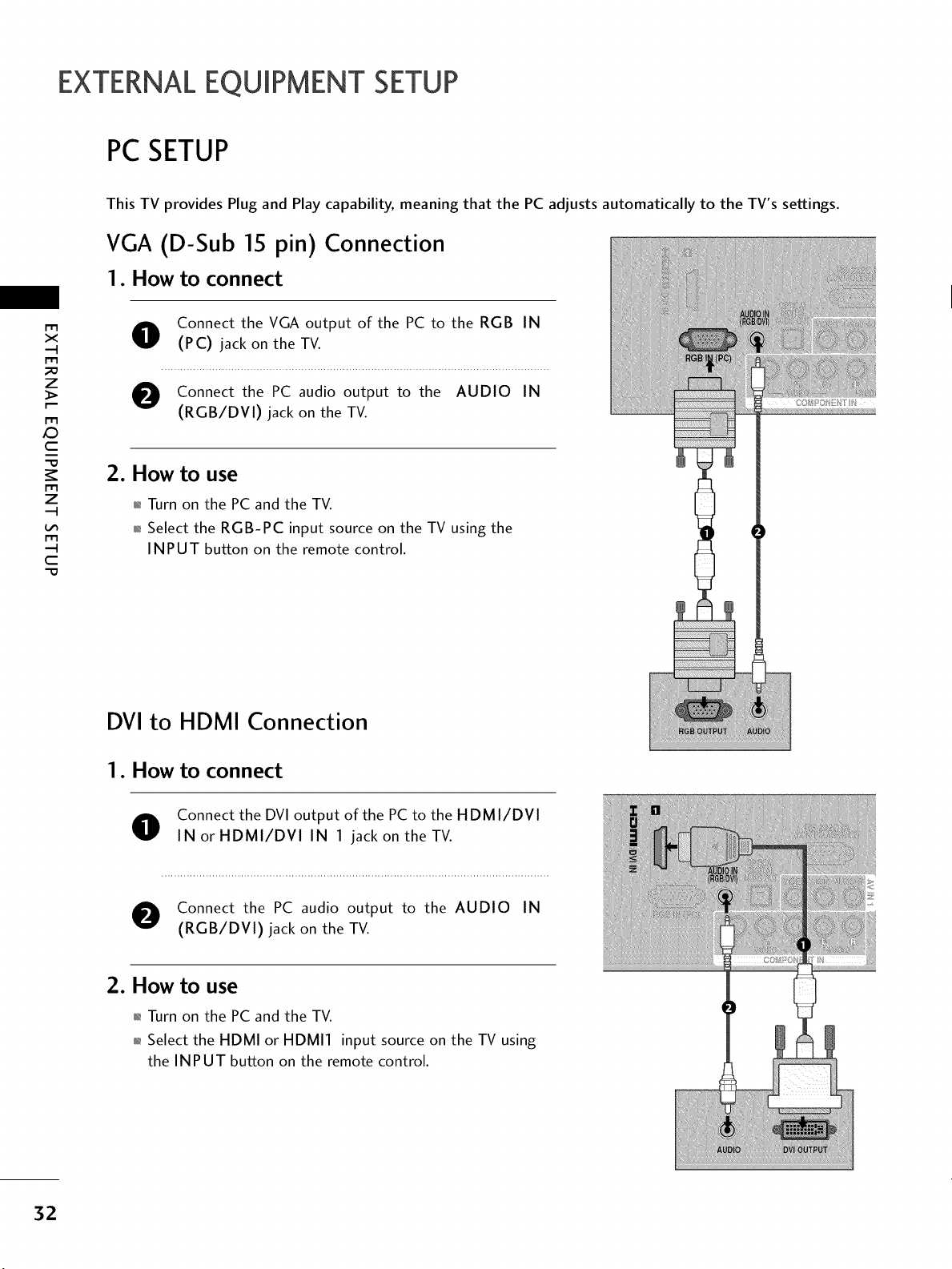
PCSETUP
m
x
m
_o
z
m
X:)
c
-O
m
z
m
--4
C
-O
This TV provides Plug and Play capability, meaning that the PC adjusts automatically to the TV's settings.
VGA (D-Sub 15 pin) Connection
1. How to connect
O onnect the VGA output of the PC to the RGB IN
(PC) jack on the TV.
O Connect the PC audio output to the AUDIO IN
(RGB/DVI) jack on the TV.
2. How to use
01_Turn on the PC and the TV.
01_Select the RGB-PC input source on the TV using the
INPUT button on the remote control.
DVI to HDMI Connection
1. How to connect
O onnect the DVI output of the PC to the HDMI/DVI
IN or HDMI/DVI IN 1 jack on the TV.
O Connect the PC audio output to the AUDIO IN
(RGB/DVI) jack on the TV.
2. How to use
01_Turn on the PC and the TV.
01_Select the HDMI or HDMII input source on the TV using
the INPUT button on the remote control.
32
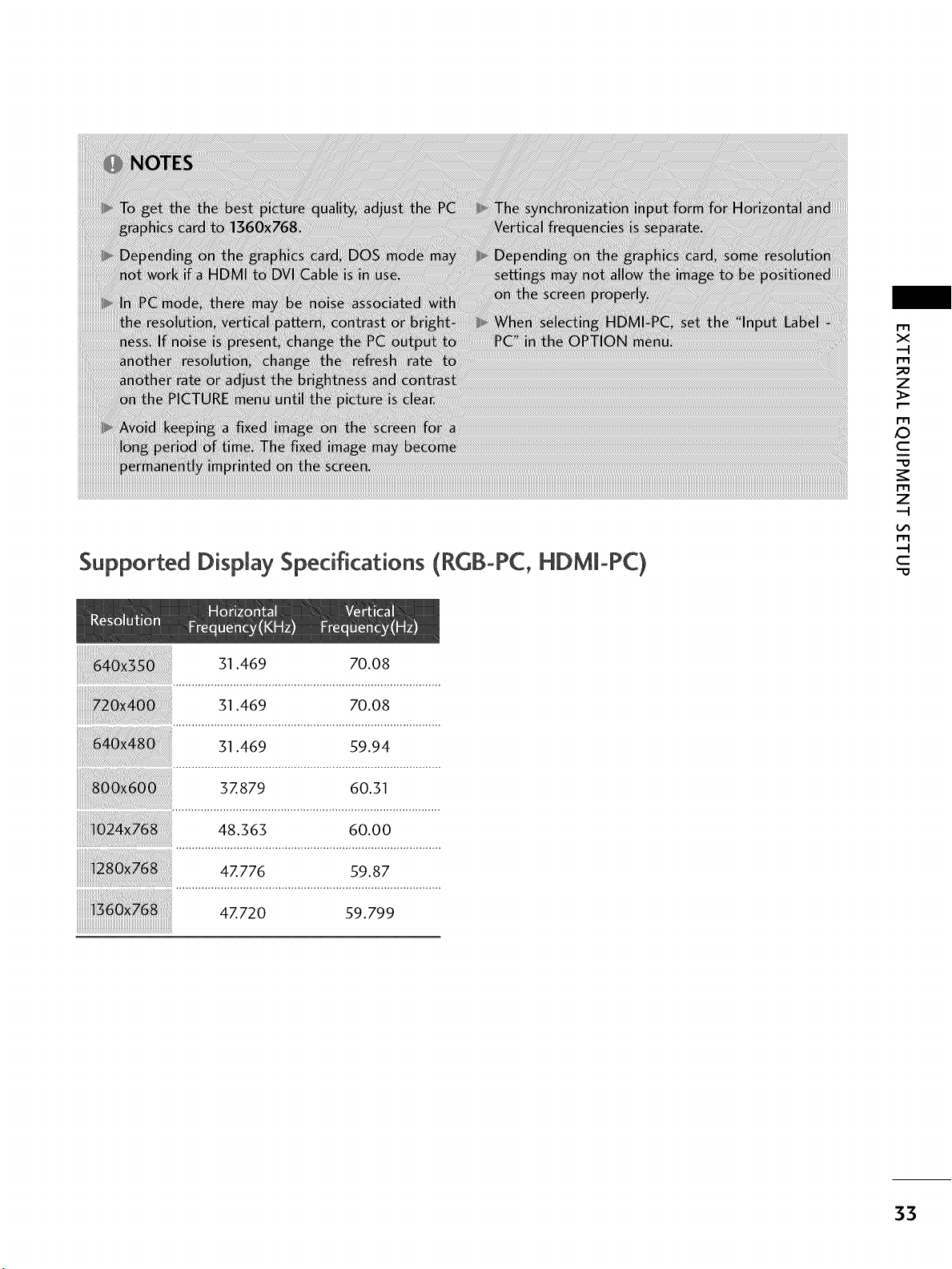
Supported Display Specifications (RGB-PC, HDMm-PC)
m
X
rT1
_o
z
rT1
XD
C
"O
rT1
z
rT1
--4
C
-O
31.469 70.08
31.469 70.08
31.469 59.94
37.879 60.31
4Z776 59.87
4Z720 59.799
55
EXTERNALEQUIPMENT SETUP
Screen Setup for PC mode
m
x
m
_o
z
m
X:)
c
m
z
m
c
"0
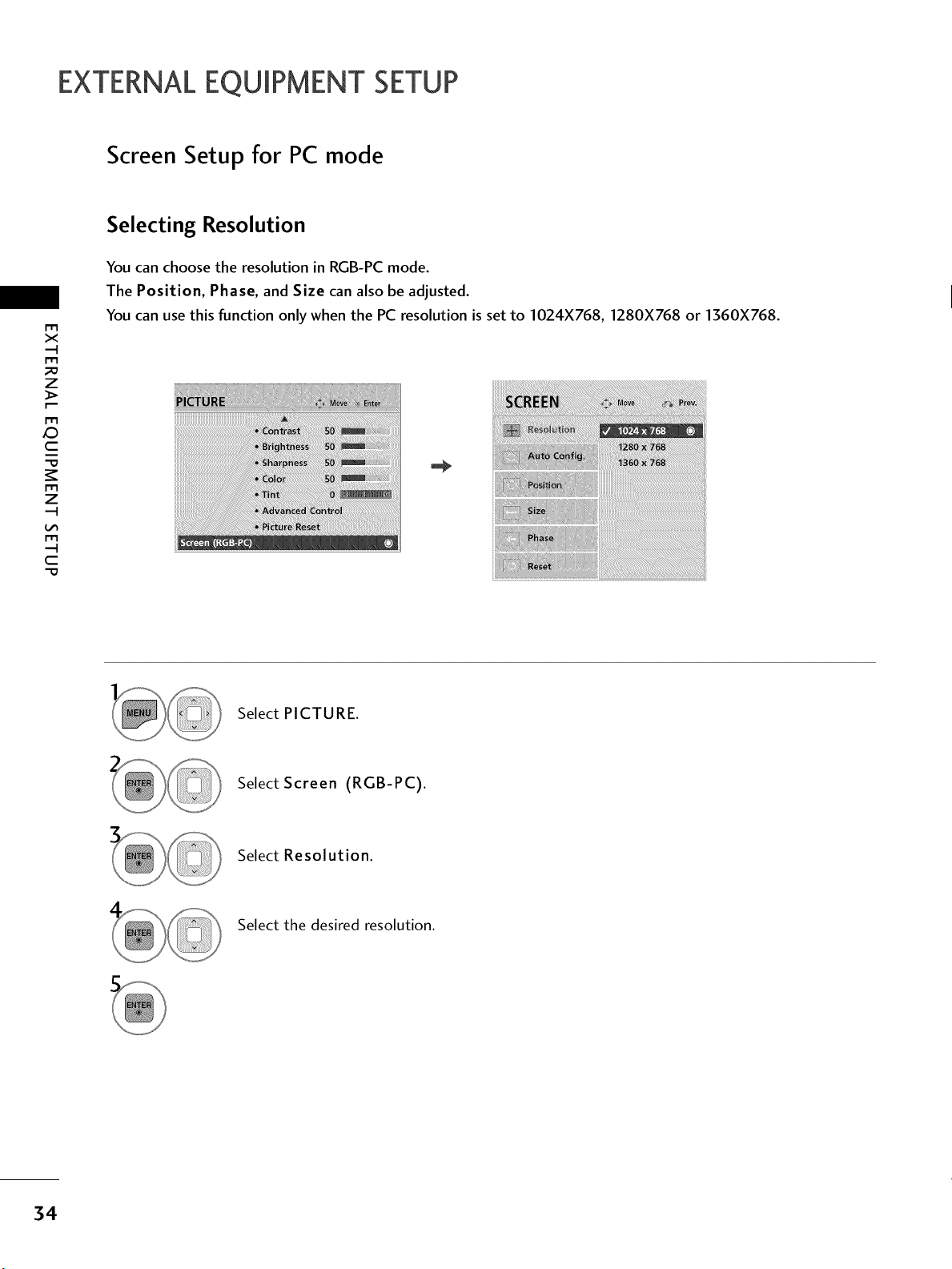
Selecting Resolution
You can choose the resolution in RGB-PC mode.
The Position, Phase, and Size can also be adjusted.
You can use this function only when the PC resolution is set to 1024X768, 1280X768 or 1360X768.
Select PICTURE.
Select Screen (RGB-PC).
Select Resolution.
Select the desired resolution.
34

Auto Configure
Automatically adjusts picture position and minimizes image instability. After adjustment, if the image is still
not correct, try using the manual settings or a different resolution or refresh rate on the PC.
r'_
x
m
z
m
c
m
z
m
c
Select PICTURE.
Select Screen (RGB-PC).
Select Auto Config..
01_If the position of the image is still not
correct, try Auto adjustment again.
011_If picture needs to be adjusted again
after Auto adjustment in RGB-PC, you
can adjust the Position, Size or
Phase.
Select Yes.
Start Auto Configuration.
35

EXTERNALEQUIPMENT SETUP
m
x
m
z
m
_D
c
m
z
m
c
Adjustment for screen Position, Size, and Phase
If the picture is not clear after auto adjustment and especially if characters are still trembling, adjust the picture
phase manually.
This feature operates only in RGB-PC mode.
Select PICTURE.
Select Screen (RGB-PC).
Select Position, Size, or Phase.
Make appropriate adjustments.
_ Position: This function is to adjust pic-
ture to left/right and up/down as you
prefer.
_ Size: This function is to minimize any
vertical bars or stripes visible on the
screen background. And the horizontal
screen size will also change.
_ Phase: This function allows you to
remove any horizontal noise and clear or
sharpen the image of characters.
36

Screen Reset (Reset to original factory values)
Returns Position, Size, and Phase to the default factory settings.
This feature operates only in RGB-PC mode.
iiiiiiiiiii[i[i[i!iii_i_iWii_iii_iiIi[i_ii[i[i_ii!!!iiiiiiIiii_i_iiiii!i!iiiIIii_iii[i[i[iiiIi_iIiii!ii[_i[i_i[_i[i[i!_i_ii[i_iiiiiii[iiiiiiiiiii_i[[i_iiii_iii[_Ii[i_i[[i!i!_i!!i_iii_iii!!Ii_iiiii_iiii[ii/iiiii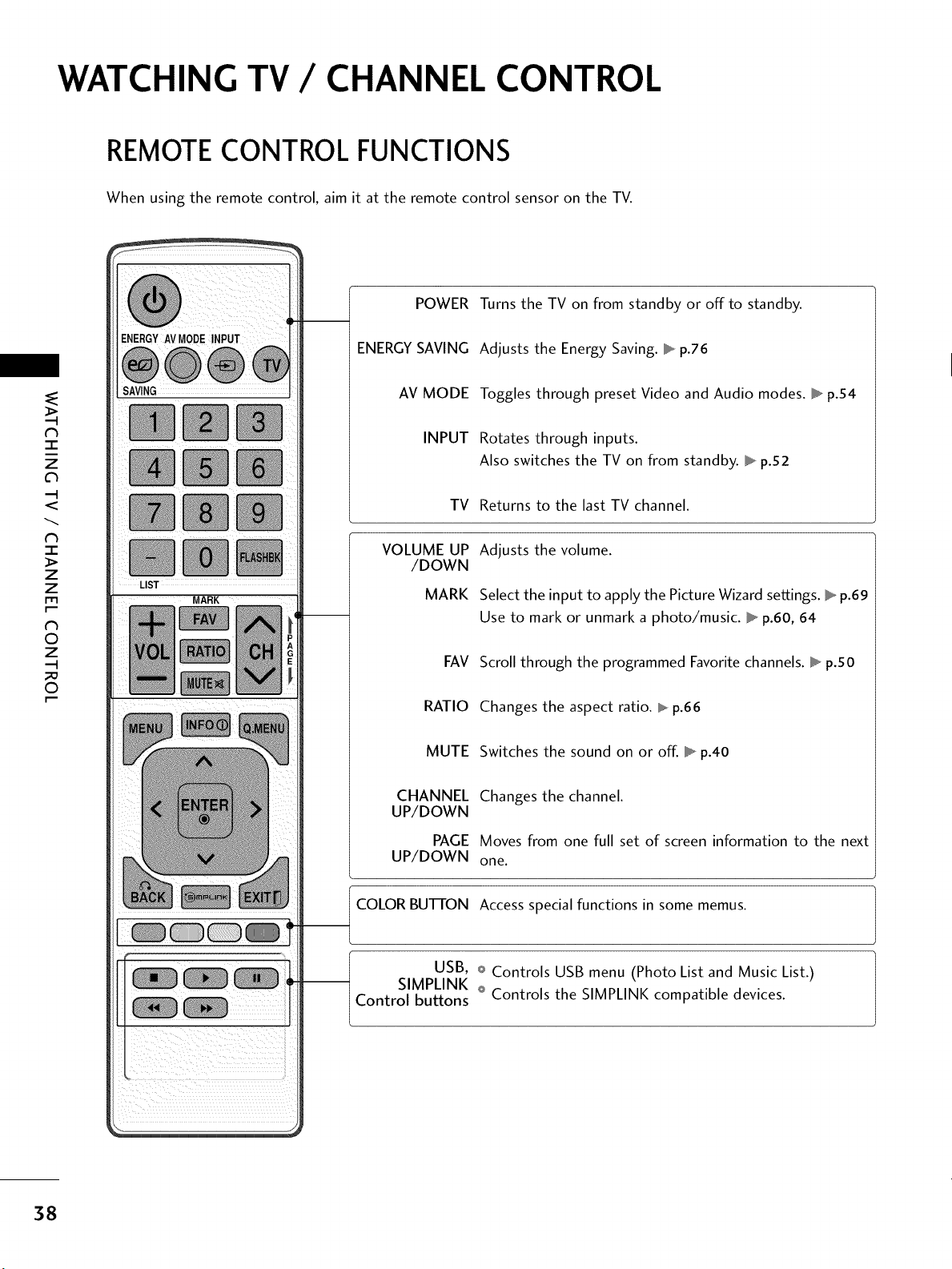
WATCHING TV / CHANNEL CONTROL
REMOTE CONTROL FUNCTIONS
When using the remote control, aim it at the remote control sensor on the TV.
-r"
z
<
N
I
>
z
z
fT1
N
©
Z
©
ENERGYAVMODEINPUT
LIST
MARK
POWER
ENERGYSAVING
AV MODE
INPUT
TV
VOLUME UP
/DOWN
MARK
FAV
RATIO
MUTE
CHANNEL
UP/DOWN
PAGE
UP/DOWN
COLOR BUTTON
Turns the TV on from standby or off to standby.
Adjusts the Energy Saving. _ p.76
Toggles through preset Video and Audio modes. _ p.54
Rotates through inputs.
Also switches the TV on from standby. _ p.52
Returns to the last TV channel.
Adjusts the volume.
Select the input to apply the Picture Wizard settings. _ p.69
Use to mark or unmark a photo/music. _ p.60, 64
Scroll through the programmed Favorite channels. _ p.SO
Changes the aspect ratio. _ p.66
Switches the sound on or off. _ p.40
Changes the channel.
Moves from one full set of screen information to the next
one.
Access special functions in some memus.
USB, o Controls USB menu (Photo List and Music List.)
-- SIMPLINK Q
Control buttons Controls the SIMPLINK compatible devices.
38
ENERGYAVMODEINPUT
MARK
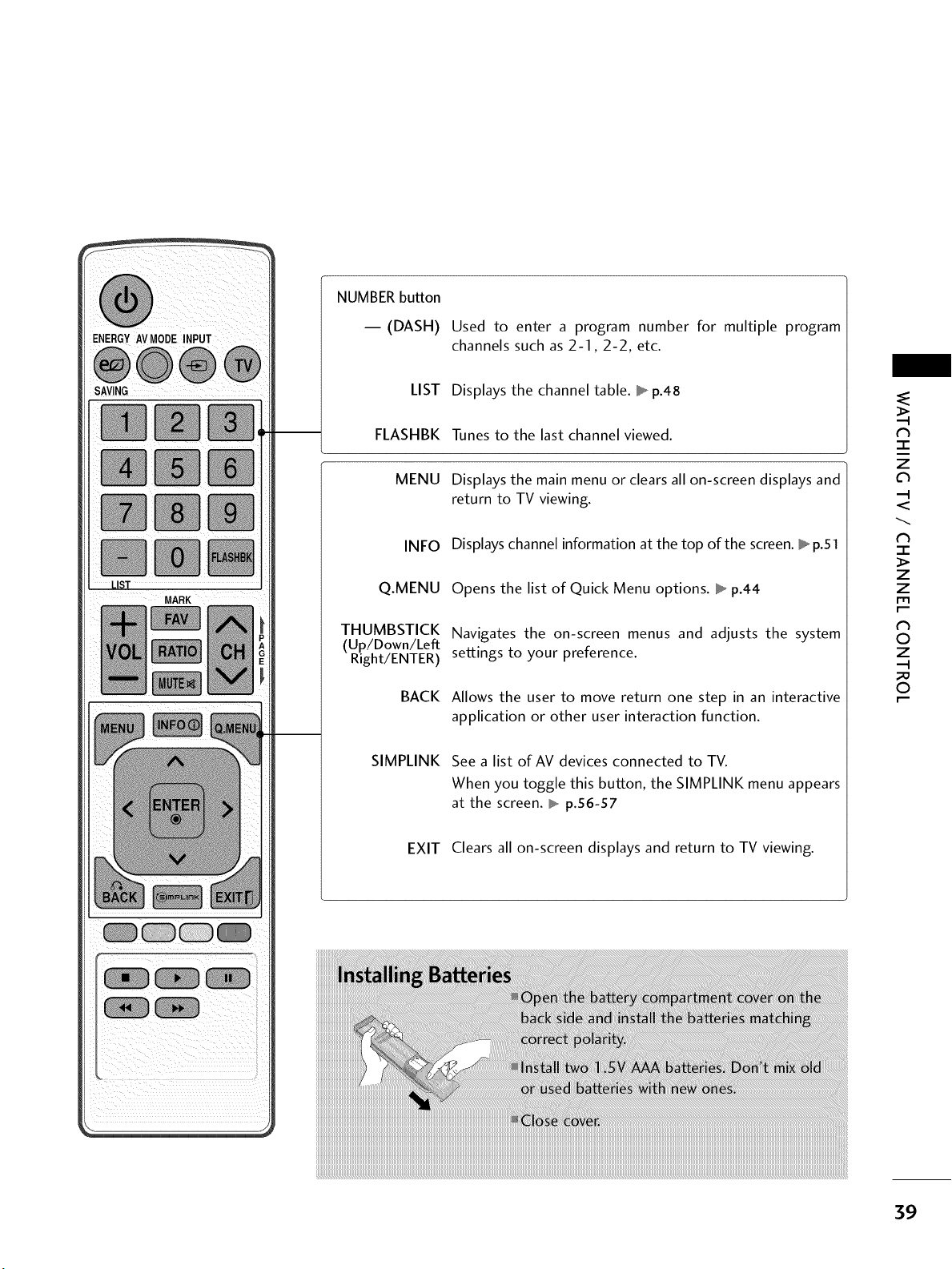
NUMBERbutton
-- (DASH)
LIST
FLASHBK
MENU
INFO
Q.MENU
THUMBSTICK
(Up/Down/Left
Right/ENTER)
BACK
SIMPLINK
EXIT
Used to enter a program number for multiple program
channels such as 2-I, 2-2, etc.
Displays the channel table. _ p.48
Tunes to the last channel viewed.
Displays the main menu or clears all on-screen displays and
return to TV viewing.
Displays channel information at the top of the screen. _ p.51
Opens the list of Quick Menu options. _ p.44
Navigates the on-screen menus and adjusts the system
settings to your preference.
Allows the user to move return one step in an interactive
application or other user interaction function.
See a list of AV devices connected to TV.
When you toggle this button, the SIMPLINK menu appears
at the screen. _ p.56-57
Clears all on-screen displays and return to TV viewing.
N
-r"
z
<
N
-r
>
z
z
fT1
N
©
Z
©
39

WATCHING TV / CHANNEL CONTROL
TURNING ON THE TV
z
<
N
-r
>
Z
z
fT1
N
©
z
©
@
@
First, connect power cord correctly.
At this moment, the TV switches to standby mode.
01_In standby mode to turn TV on, press the (b/I , INPUT, CH ( ^ v ) button on the TV or press the
POWER, INPUT, CH (^ or v),Number (0~9) button on the remote control.
Select the viewing source by using the INPUT button on the remote control.
This TV is programmed to remember which power state it was last set to, even if the power cord is out.
When finished using the TV, press the POWER button on the remote control. The TV reverts to standby
mode.
ii!i!i!i!i!i!i!i!i!i!i!i!i!i!i!i!i!i!i!i!i!i!i!i!i!i!i!i!i!i!i!i!i!i!i!i!i!i!i!i!i!i!i!i!i!i!i!i!i!i!i!i!i!i!i!i!i!i!i!i!i!i!i!i!i!i!i!i!i!i!i!i!i!i!i!i!i!i!i!i!i!i!i!i!i!i!i!i!i!i!i!i!i!i!i!i!i!i!i!i!i!i!i!i!i!i!i!i!i!i!i!i!i!i!i!i!i!i!i!i!i!i!i!i!i!i!i!i!i!i!i!i!i!i!i!i!i!i!i!i!i!i!i!i!i!i!i!i!i!i!i!i!i!i!i!i!i!i!i!i!i!i!i!i!i!i!i!i!i!i!i!i!i!i!i!i!i!i!i!i!i!i!i!i!i!i!i!i!i!i!i!i!i!i!i!i!i!i!i!i!i!i!i!i!i!i!i!i!i!i!i!i!i!i!i!i!i!i!i!i!i!i!i!i!i!i!i!i!i!i!i!i!i!i!i!i!i!i!i!i!i!i!i!i!i!i!i!i!i!i!i!i!i!i!i!i!i!i!i!i!i!i!i!i!i!i!i!i!i!i!i!i!i!i!i!i!i!i!i!i!i!i!i!i!i!i!i!i!i!i!i!i!i!i!i!i!i!i!i!i!i!i!i!i!i!i!i!i!i!i!i!i!i!i!i!i!i!i!i!i!i!i!i!i!i!i!i!i!i!i!i!i!i!i!i!i!i!i!i!i!i!i!i!i!i!i!i!i!i!i!i!i!i!i!i!i!i!i!i!i!i!i!i!i!i!i!i!i!i!i!i!i!i!i!i!i!i!i!i!i!i!i!i!i!i!i!i!i!i!i!i!i!i!i!i!i!i!i!i!i!i!i!i!i!i!i!i!i!i!i!i!i!i!i!i!i!i!i!i!i!i!i!i!i!i!i!i!i!i!i!i!i!i!i!i!i!i!i!i!i!i!i!i!i!i!i!i!i!i!i!i!i!i!i!i!i!i!i!i!i!i!i!i!i!i!i!i!i!i!i!i!i!i!i!i!i!i!i!i!i!i!i!i!i!i!i!i!i!i!i!i!i!i!i!i!i!i!i!i!i!i!i!i!i!i!i!i!i!i!i!i!i!i!i!i!i!i!i!i!i!i!i!i!i!i!i!i!i!i!i!i!i!i!i!i!i!i!i!i!i!i!i!i!i!i!i!i!i!i!i!i!i!i!i!i!i!i!i!i!i!i!i!i!i!i!i!i!i!i!i!i!i!i!i!i!i!i!i!i!i!i!i!i!i!i!i!i!i!i!i!i!i!i!i!i!i!i!i!i!i!i!i!i!i!i!i!i!i!i!i!i!i!i!i!i!i!i!i!i!i!i!i!i!i!i!i!i!i!i!i!i!i!i!i!i!i!i!i!i!i!i!i!i!i!i!i!i!i!i!i!i!i!i!i!i!i!i!i!i!i!i!i!i!i!i!!!_ii_!ii
CHANNELSELECTION
Press the CH (^ or v) or NUMBER buttons to select a channel number.
VOLUMEADJUSTMENT
Adjust the volume to suit your personal preference.
Press the VOL (+ or -) button to adjust the volume.
If you want to switch the sound off, press the MUTE button.
You can cancel the Mute function by pressing the MUTE or VOL (+ or -)
button.
4O
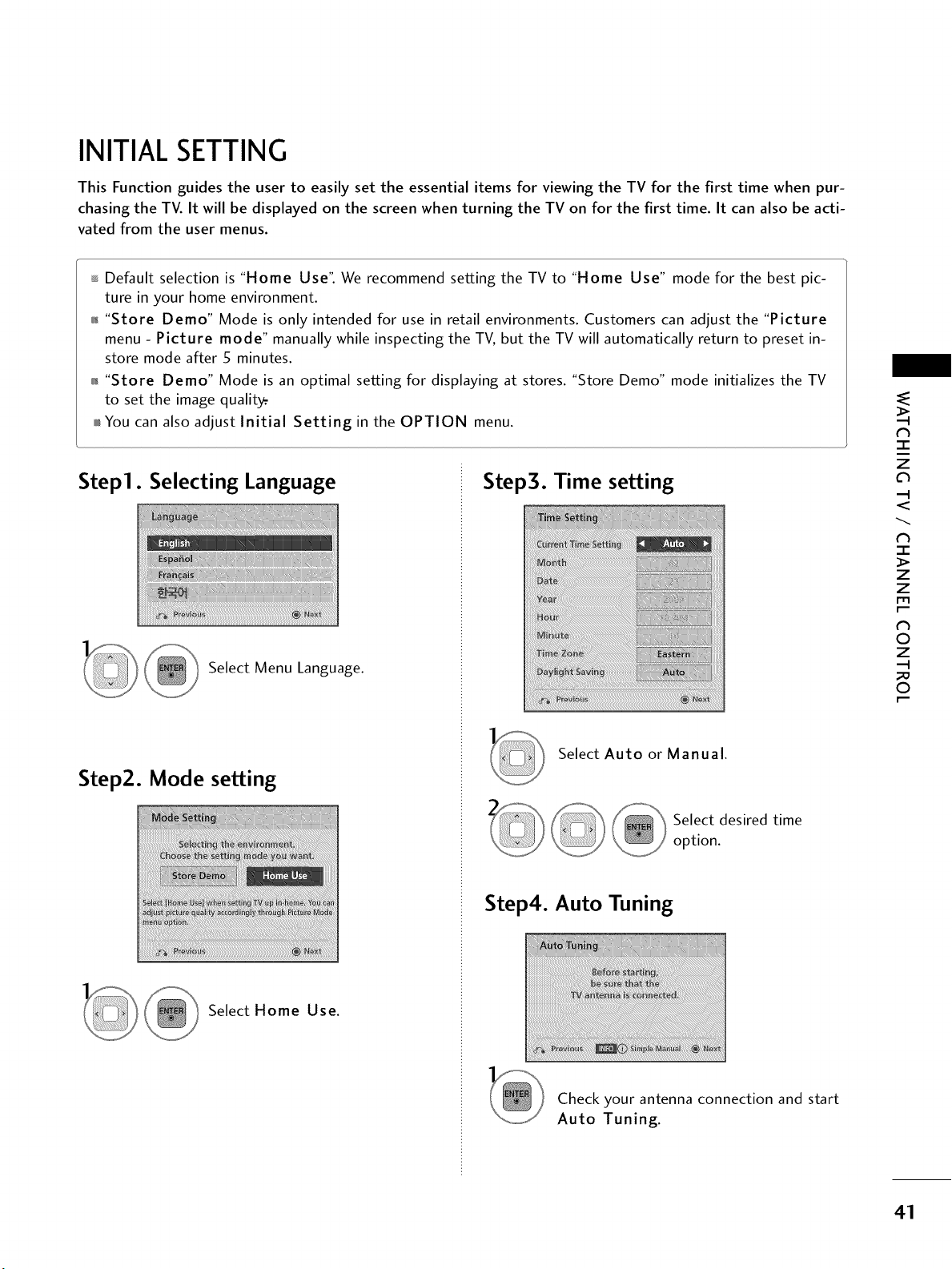
INITIAL SETTING
This Function guides the user to easily set the essential items for viewing the TV for the first time when pur-
chasing the TV. It will be displayed on the screen when turning the TV on for the first time. It can also be acti-
vated from the user menus.
Default selection is "Home Use". We recommend setting the TV to "Home Use" mode for the best pic-
ture in your home environment.
01_"Store Demo" Mode is only intended for use in retail environments. Customers can adjust the "Picture
menu - Picture mode" manually while inspecting the TV, but the TV will automatically return to preset in-
store mode after 5 minutes.
0_"Store Demo" Mode is an optimal setting for displaying at stores. "Store Demo" mode initializes the TV
to set the image quality.
0101_You can also adjust Initial Setting in the OPTION menu.
Step1. Selecting Language
Select Menu Language.
Step2. Mode setting
Select Home Use.
Step3. Time setting
Select Auto or Manual.
Select desired time
_ option.
Step4. Auto Tuning
Check your antenna connection and start
Auto Tuning.
N
-r
z
<
N
-r
>
Z
Z
fT1
N
O
Z
_m
O
41
WATCHING TV / CHANNEL CONTROL
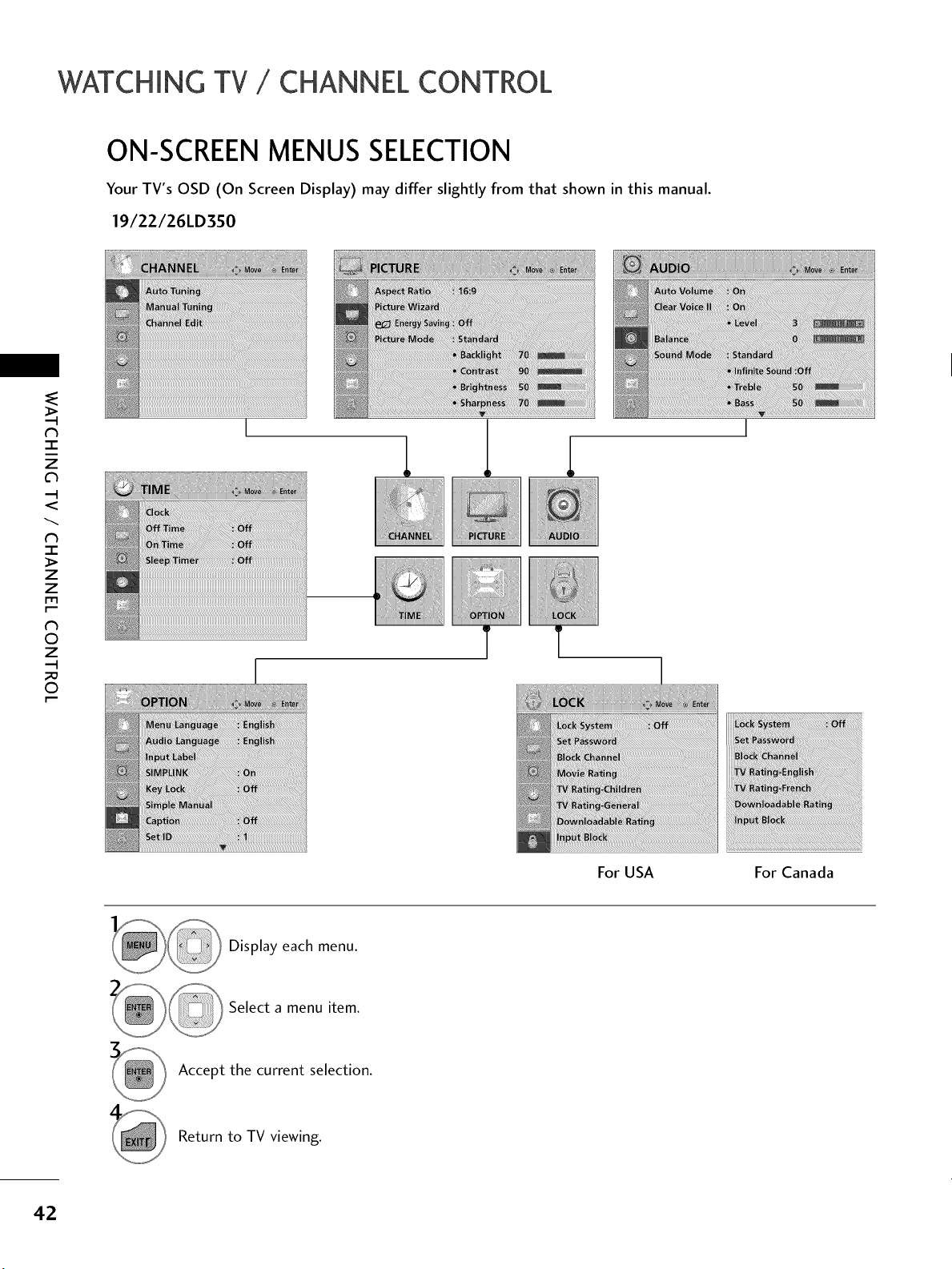
ON-SCREENMENUSSELECTION
Your TV's OSD (On Screen Display) may differ slightly from that shown in this manual.
19/22/26LD350
z
c_
<
N
-r
>
Z
Z
fT1
N
0
Z
0
For USA For Canada
Display each menu.
Select a menu item.
Accept the current selection.
Return to TV viewing.
42
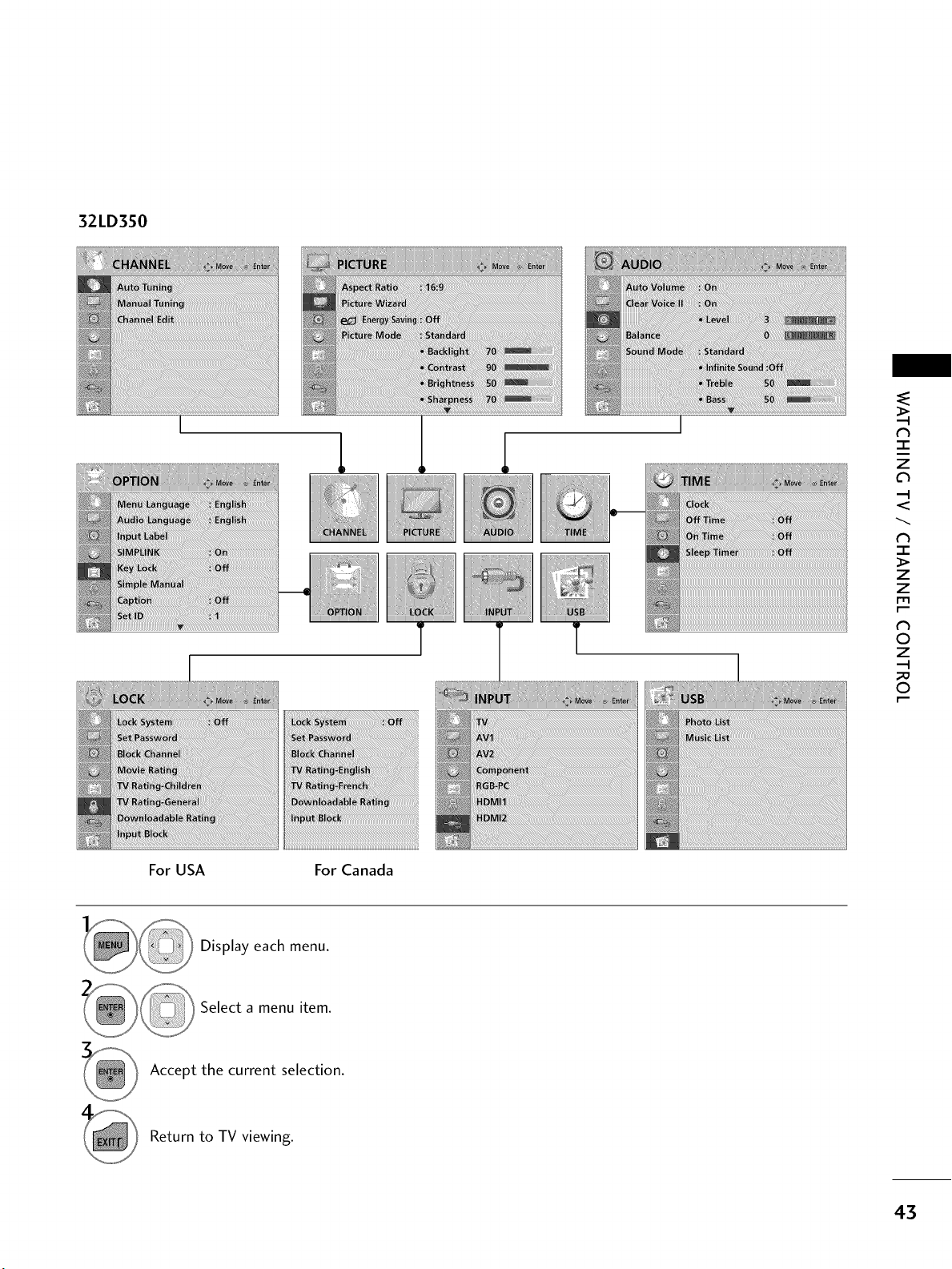
32LD350
I
T
I
_ii_ililiiii!i_!_i!!_!!_!_ii!_!ii!i!!_!!_!!_!!i!!i!!i!!i!!i!!i!!i!!i!!i!!i!!i!!i!_i_!i!%!_!i!i_!_!ii_!_,
i!!i!iiii!ii_i_i!_iii_i_!_i_iiiiiii_iii_!i_!_!_!_!_!_!_!_!_!_!!_!_!!_!_!_!_!_!_!_!_!_!_!_!_!_!_!_!_!_!_!_!_!_!_!_!_!_!_!_!_!_!_
iiiiilWii_!_!_!ii!ii!i_i_ii_!i_iii_!iii!i_!i_!i_!i_!i_ii_ii_ii_iii_ii!_!ii!i!ii!ii!ii!ii!ii!ii!_!i_i!ii!ii!ii!ii!ii!ii!ii!ii!ii!ii!ii!ii!ii!ii!ii!ii!ii!i!iii_ii_!_ii_ii_ii_!_!
For USA For Canada
-r"
z
<
N
-r"
>
Z
Z
r_l
N
©
Z
©
Display each menu.
Select a menu item.
Accept the current selection.
Return to TV viewing.
43
WATCHING TV / CHANNEL CONTROL
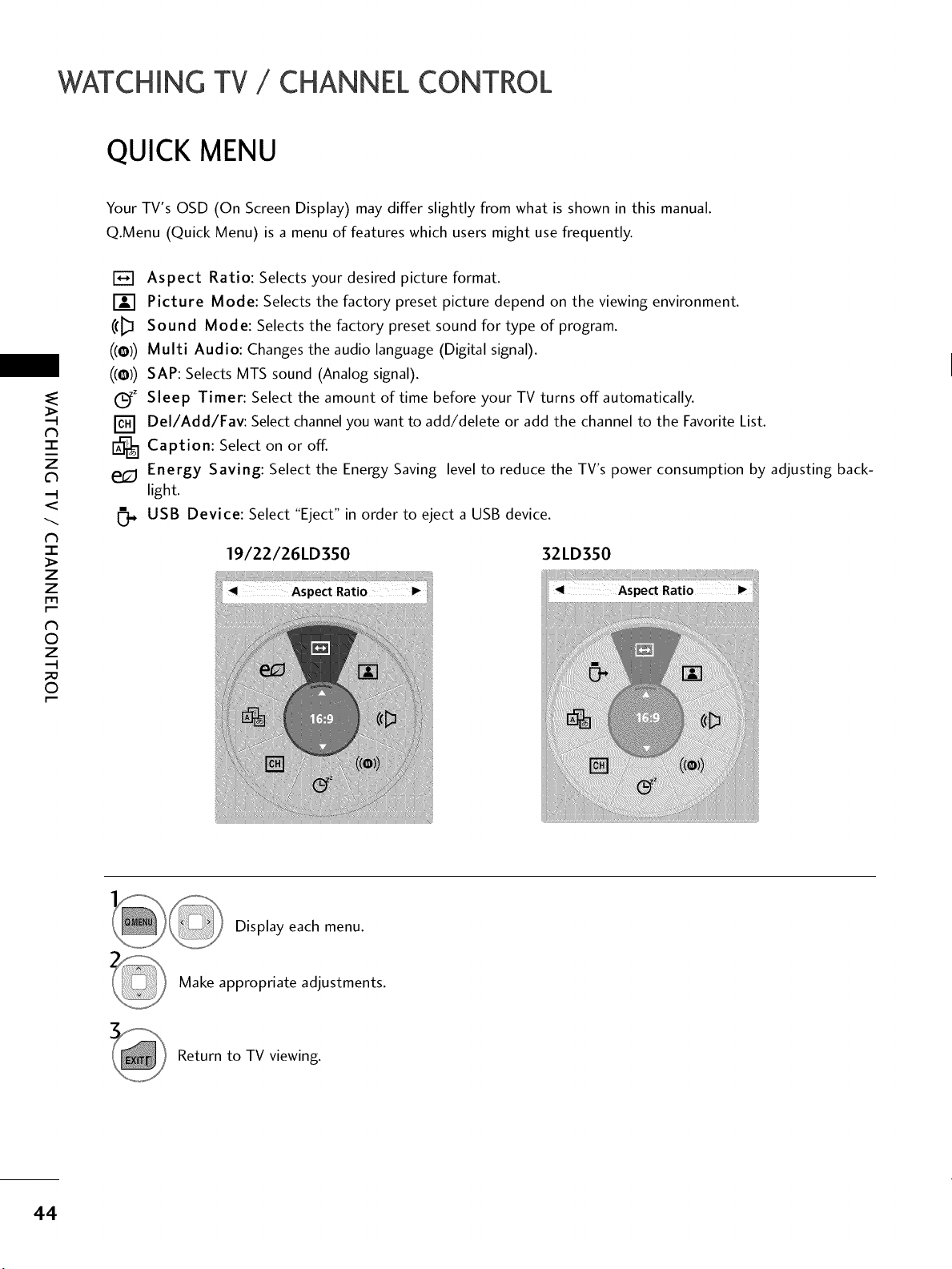
QUICK MENU
Your TV's OSD (On Screen Display) may differ slightly from what is shown in this manual.
Q.Menu (Quick Menu) is a menu of features which users might use frequently.
N
-r"
z
<
N
I
>
z
z
fT1
N
©
Z
©
[]
[]
((o))
((o))
Gfz
[]
e_
Aspect Ratio: Selects your desired picture format.
Picture Mode: Selects the factory preset picture depend on the viewing environment.
Sound Mode: Selects the factory preset sound for type of program.
Multi Audio: Changes the audio language (Digital signal).
SAP: Selects MTS sound (Analog signal).
Sleep Timer: Select the amount of time before your TV turns off automatically.
Del/Add/Fav: Select channel you want to add/delete or add the channel to the Favorite List.
Caption: Select on or off.
Energy Saving: Select the Energy Saving level to reduce the TV's power consumption by adjusting back-
light.
USB Device: Select "Eject" in order to eject a USB device.
19/22/26LD350 32LD350
Display each menu.
Make appropriate adjustments.
Return to TV viewing.
44
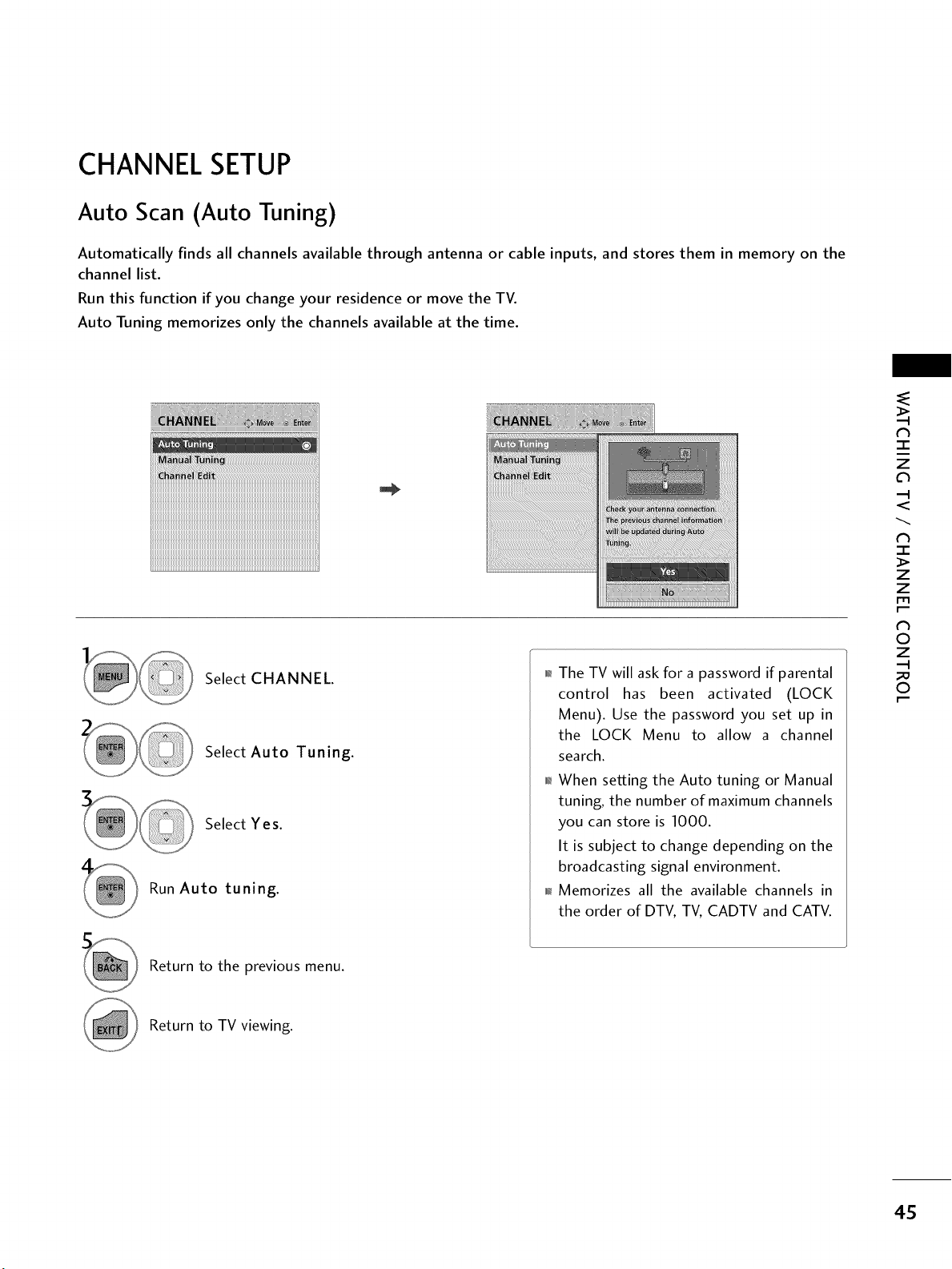
CHANNELSETUP
Auto Scan (Auto Tuning)
Automatically finds all channels available through antenna or cable inputs, and stores them in memory on the
channel list.
Run this function if you change your residence or move the TV.
Auto Tuning memorizes only the channels available at the time.
iii i: i! ii!i iiiiiiiii ! iiiiiill
iiiiiiiiiiiiiiiiiiiiiiiiiiiiiiiiiiiiiiiiiiiiiiiiiiiiiiiiiiiiiiiiiiiiiiiiiiiiiiiiiiiiiiiiiiiiiiiiiiiiiiiiiiiiiiiiiiiiiiiiiiiiiiiiiiiiiiiiiiiii
iiiiiiiiiiiiiiiiiiiiiiiiiiiiiiiiiiiiiiiiiiiiiiiiiiiiiiiiiiiiiiiiiiiiiiiiiiiiiiiiiiiiiiiiiiiiiiiiiiiiiiiiiiiiiiiiiiiiiiiiiiiiiiiiiiiiiiiiiiiii
iiiiiiiiiiiiiiiiiiiiiiiiiiiiiiiiiiiiiiiiiiiiiiiiiiiiiiiiiiiiiiiiiiiiiiiiiiiiiiiiiiiiiiiiiiiiiiiiiiiiiiiiiiiiiiiiiiiiiiiiiiiiiiiiiiiiiiiiiiiii
iiiiiiiiiiiiiiiiiiiiiiiiiiiiiiiiiiiiiiiiiiiiiiiiiiiiiiiiiiiiiiiiiiiiiiiiiiiiiiiiiiiiiiiiiiiiiiiiiiiiiiiiiiiiiiiiiiiiiiiiiiiiiiiiiiiiiiiiiiiii
Select CHANNEL.
Select Auto Tuning.
Select Yes.
Run Auto tuning.
The TV will ask for a password if parental
control has been activated (LOCK
Menu). Use the password you set up in
the LOCK Menu to allow a channel
search.
01_When setting the Auto tuning or Manual
tuning, the number of maximum channels
you can store is 1000.
It is subject to change depending on the
broadcasting signal environment.
011_Memorizes all the available channels in
the order of DTV, TV, CADTV and CATV.
-r"
z
<
N
-r"
>
Z
Z
N
0
Z
_m
0
Return to the previous menu.
Return to TV viewing.
4S
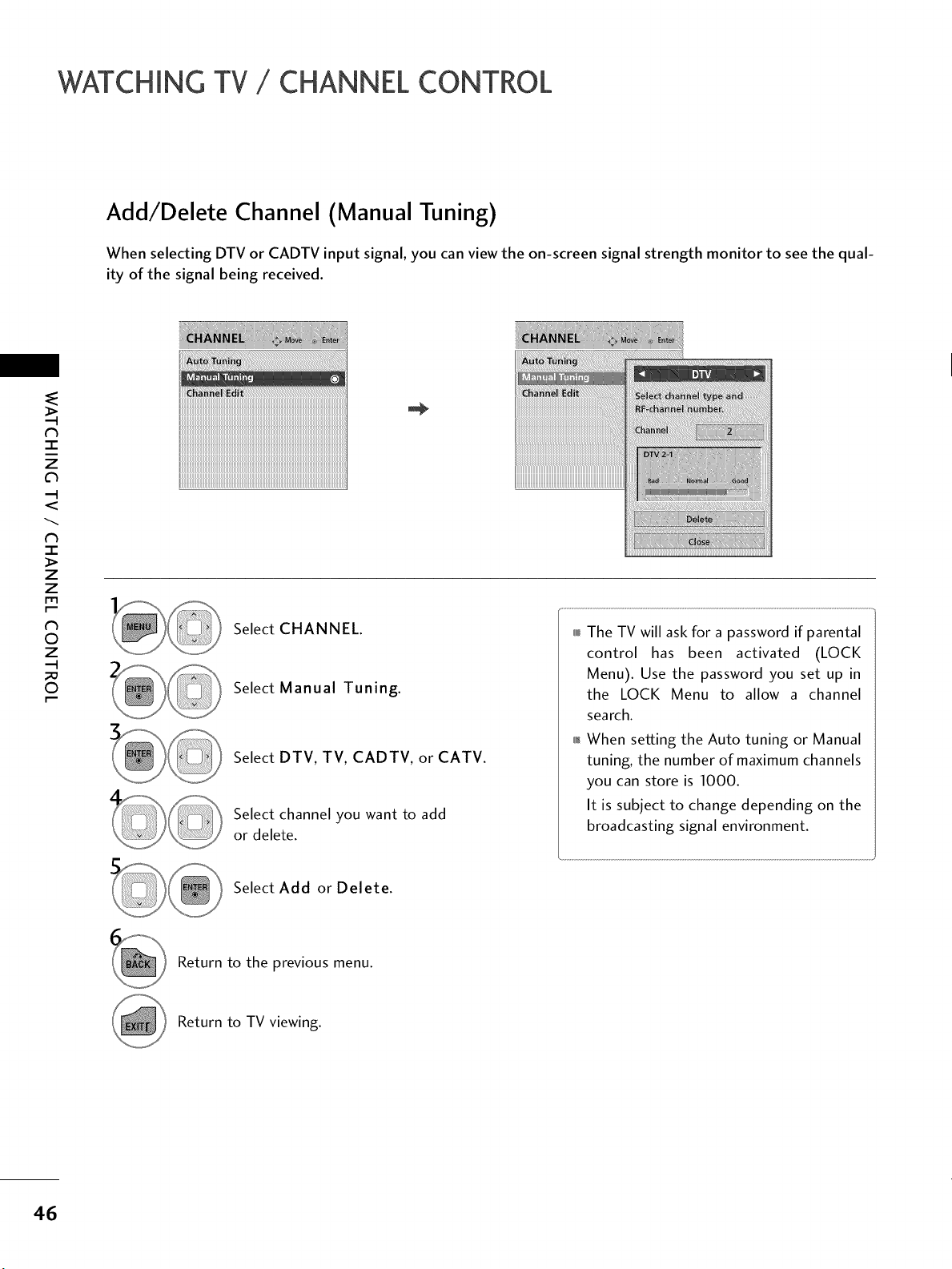
WATCHING TV / CHANNEL CONTROL
Add/Delete Channel (Manual Tuning)
When selecting DTV or CADTV input signal, you can view the on-screen signal strength monitor to see the qual-
ity of the signal being received.
-r"
z
c_
<
N
-r
>
Z
Z
fT1
N
0
Z
0
iiiiiiiiiiiiiiiiiiiiiiiiiiiiiiiiiiiiiiiiiiiiiiiiiiiiiiiiiiiiiiiiiiiiiiiiiiiiiiiiiiiiiiiiiiiiiiiiiiiiiiiiiiiiiiiiiiiiiiiiiiiiiiiiiiiiiiiiiiiii
iiiiiiiiiiiiiiiiiiiiiiiiiiiiiiiiiiiiiiiiiiiiiiiiiiiiiiiiiiiiiiiiiiiiiiiiiiiiiiiiiiiiiiiiiiiiiiiiiiiiiiiiiiiiiiiiiiiiiiiiiiiiiiiiiiiiiiiiiiiii
iiiiiiiiiiiiiiiiiiiiiiiiiiiiiiiiiiiiiiiiiiiiiiiiiiiiiiiiiiiiiiiiiiiiiiiiiiiiiiiiiiiiiiiiiiiiiiiiiiiiiiiiiiiiiiiiiiiiiiiiiiiiiiiiiiiiiiiiiiiii
iiiiiiiiiiiiiiiiiiiiiiiiiiiiiiiiiiiiiiiiiiiiiiiiiiiiiiiiiiiiiiiiiiiiiiiiiiiiiiiiiiiiiiiiiiiiiiiiiiiiiiiiiiiiiiiiiiiiiiiiiiiiiiiiiiiiiiiiiiiii
Select CHANNEL.
Select Manual Tuning.
Select DTV, TV, CADTV, or CATV.
Select channel you want to add
or delete.
H The TV will ask for a password if parental
control has been activated (LOCK
Menu). Use the password you set up in
the LOCK Menu to allow a channel
search.
01_When setting the Auto tuning or Manual
tuning, the number of maximum channels
you can store is 1000.
It is subject to change depending on the
broadcasting signal environment.
Select Add or Delete.
Return to the previous menu.
Return to TV viewing.
46
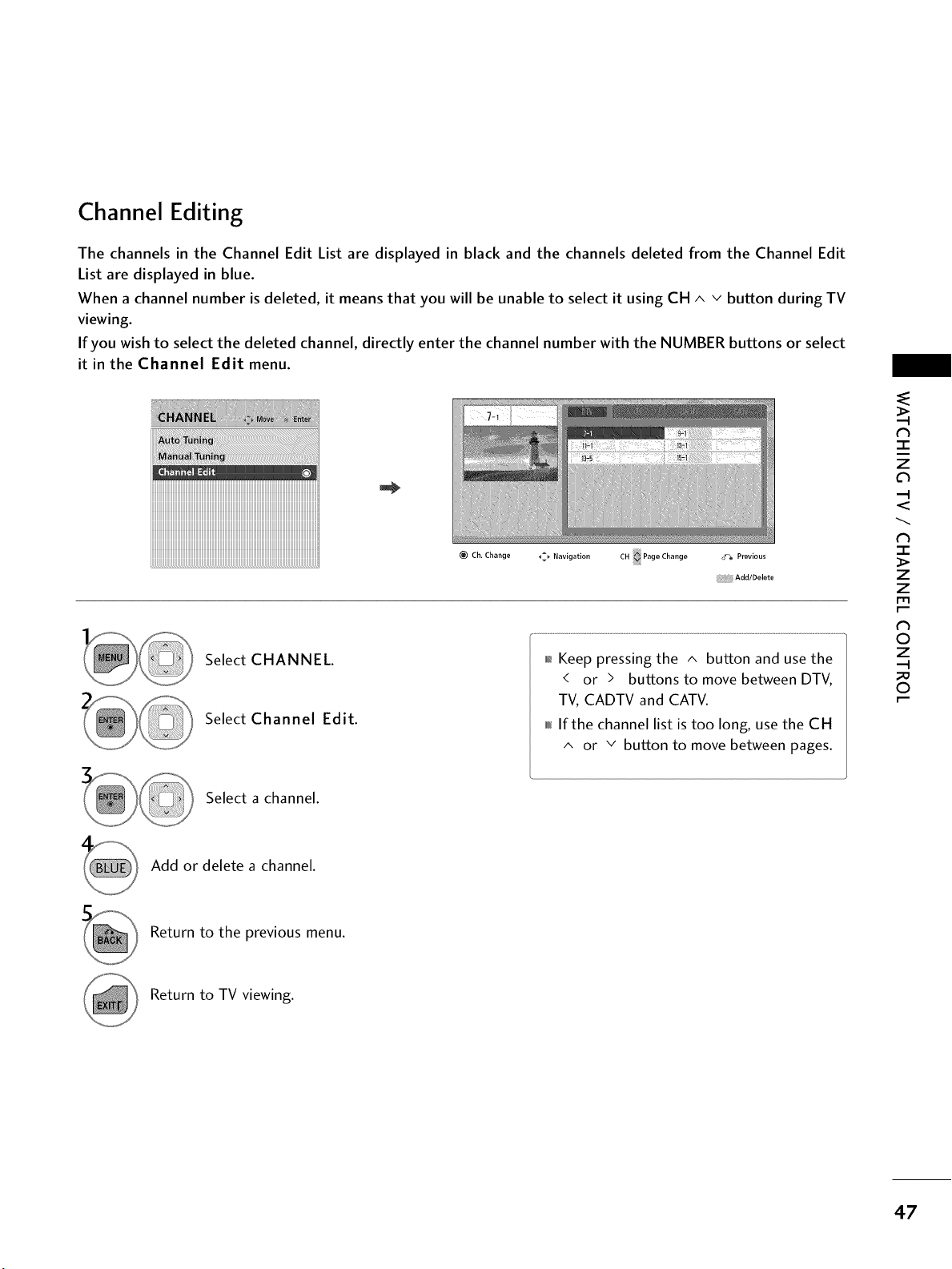
Channel Editing
The channels in the Channel Edit List are displayed in black and the channels deleted from the Channel Edit
List are displayed in blue.
When a channel number is deleted, it means that you will be unable to select it using CH ^ v button during TV
viewing.
If you wish to select the deleted channel, directly enter the channel number with the NUMBER buttons or select
it in the Channel Edit menu.
Ch. Change _ Navigation CH Page Change _a Previous
Add/Delete
Select CHANNEL.
Select Channel Edit.
,_ Keep pressing the ^ button and use the
< or > buttons to move between DTV,
TV, CADTV and CATV.
,_,_If the channel list is too long, use the CH
^ or v button to move between pages.
-r"
z
<
-r
>
z
z
©
z
©
Select a channel.
Add or delete a channel.
Return to the previous menu.
Return to TV viewing.
47
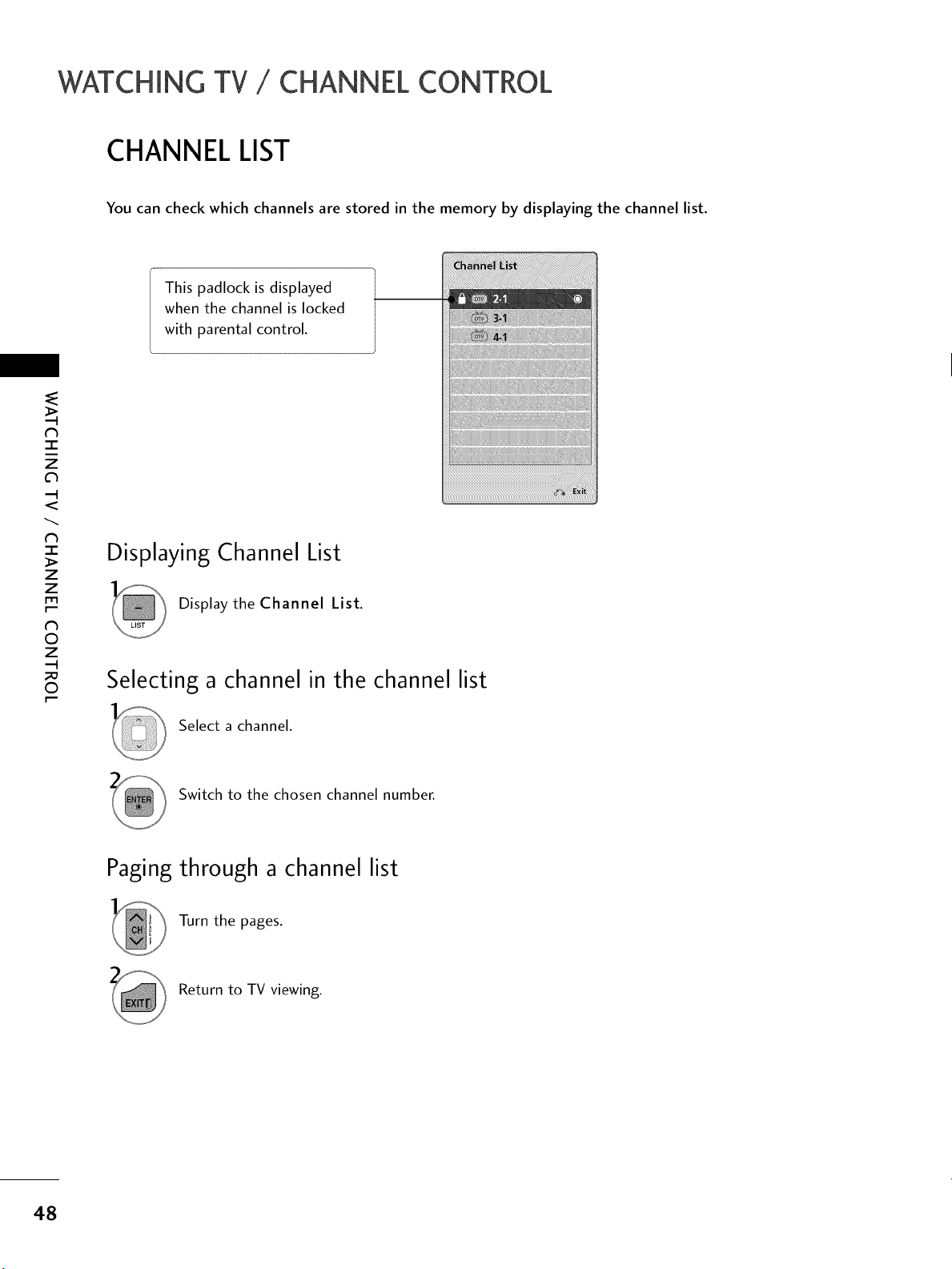
WATCHING TV / CHANNEL CONTROL
CHANNEL LIST
You can check which channels are stored in the memory by displaying the channel list.
z
<
N
-r
>
z
z
fT1
N
©
Z
©
This padlock is displayed
when the channel is locked
with parental control.
Displaying Channel List
Display the Channel List.
Selecting a channel in the channel list
Select a channel.
Switch to the chosen channel number.
Paging through a channel list
Turn the pages.
Return to TV viewing.
48
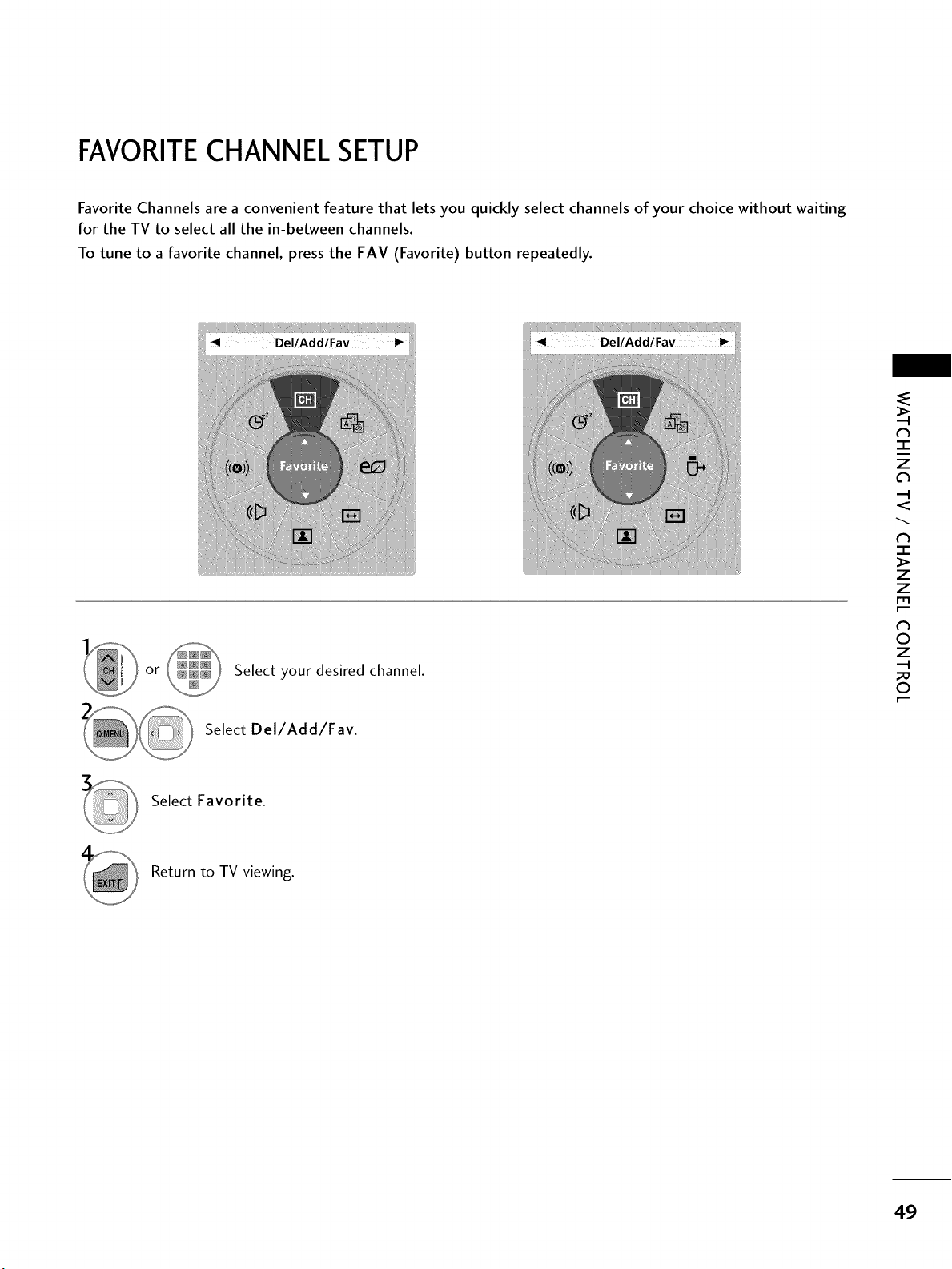
FAVORITECHANNEL SETUP
Favorite Channels are a convenient feature that lets you quickly select channels of your choice without waiting
for the TV to select all the in-between channels.
To tune to a favorite channel, press the FAV (Favorite) button repeatedly.
or
Select your desired channel.
Select Del/Add/Fav.
N
-r"
z
c_
<
N
-r"
>
Z
Z
fT1
N
0
Z
0
Select Favorite.
Return to TV viewing.
49
WATCHING TV / CHANNEL CONTROL
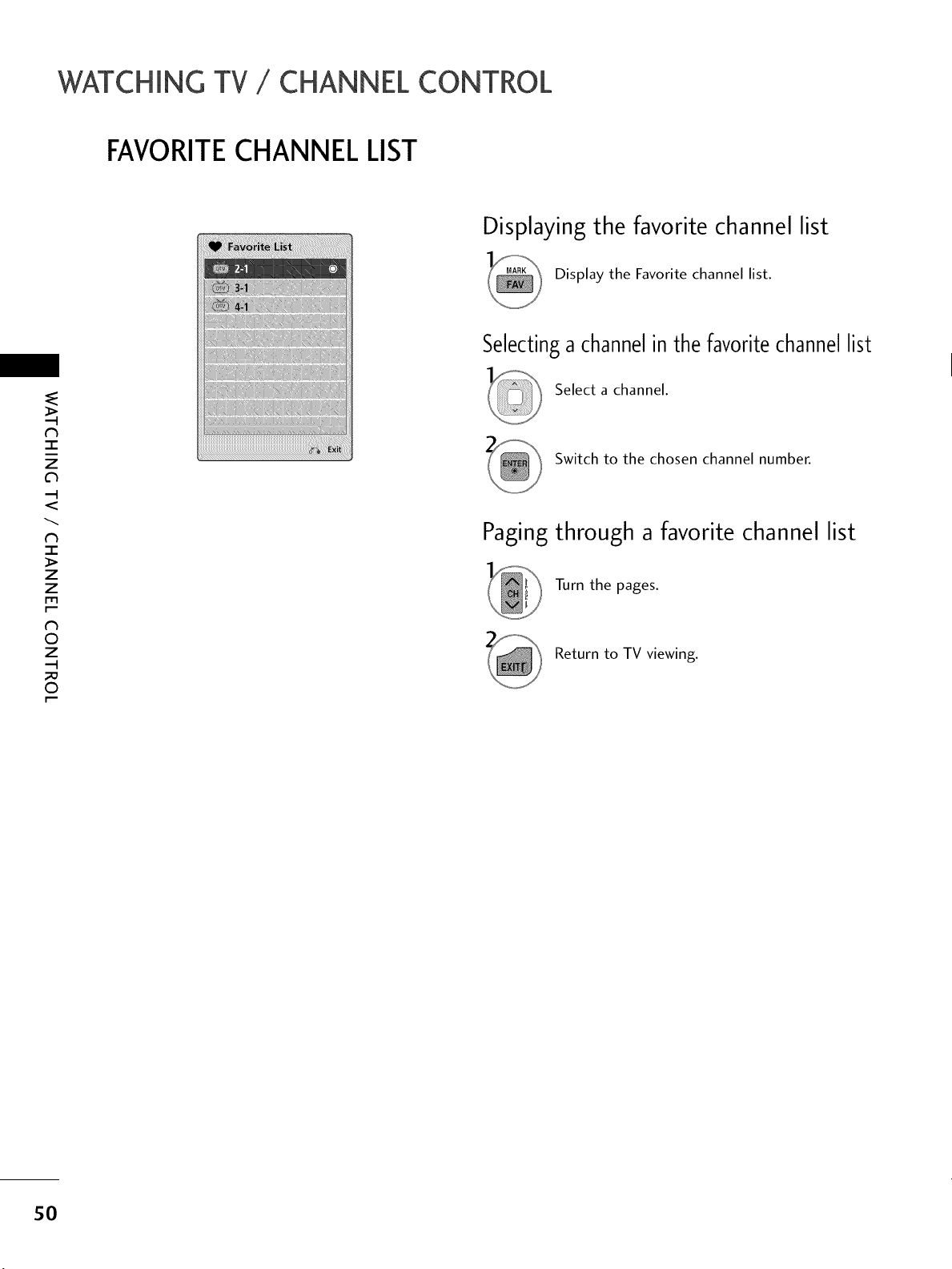
FAVORITECHANNEL LIST
('h
"-r"
z
<
N
-r
>
z
z
fT1
N
©
Z
©
Displaying the favorite channel list
Display the Favorite channel list.
Selectinga channelin the favoritechannellist
Select a channel.
Switch to the chosen channel number.
Paging through a favorite channel list
Turn the pages.
Return to TV viewing.
5O
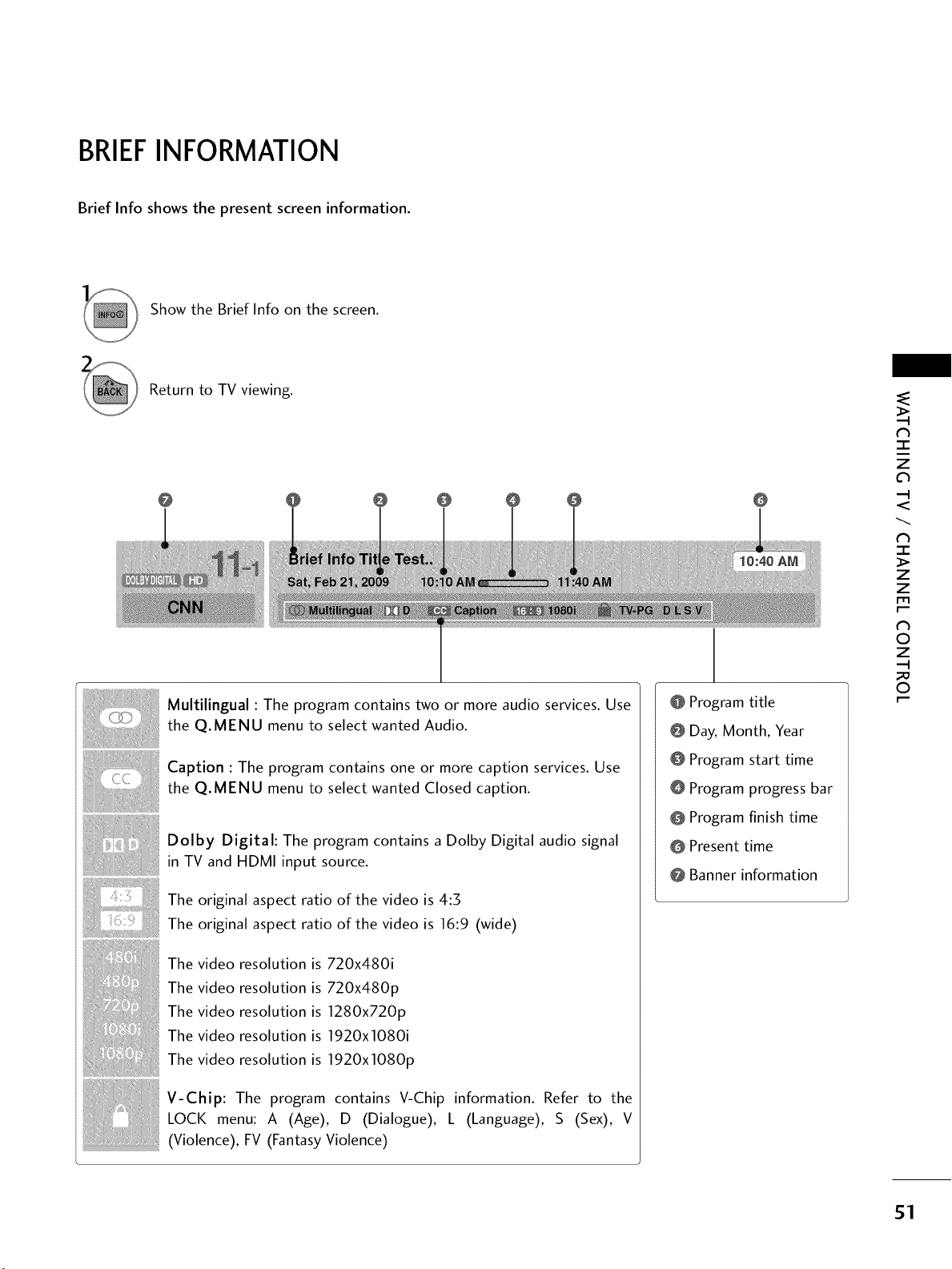
BRIEFINFORMATION
Brief Info shows the present screen information.
Show the Brief Info on the screen.
Return to TV viewing.
@ @
Multilingual : The program contains two or more audio services. Use
the Q.MENU menu to select wanted Audio.
Caption : The program contains one or more caption services. Use
the Q.MENU menu to select wanted Closed caption.
Dolby Digital: The program contains a Dolby Digital audio signal
in TV and HDMI input source.
The original aspect ratio of the video is 4:5
The original aspect ratio of the video is 16:9 (wide)
The video resolution is 720x480i
The video resolution is 720x480p
The video resolution is 1280x720p
The video resolution is 1920x1080i
The video resolution is 1920x1080p
V-Chip: The program contains V-Chip information. Refer to the
LOCK menu: A (Age), D (Dialogue), L (Language), S (Sex), V
(Violence), FV (Fantasy Violence)
@
@ Program title
@ Day, Month, Year
@ Program start time
@ Program progress bar
@ Program finish time
@ Present time
@ Banner information
¢h
-r"
z
<
N
-r
>
z
z
fT1
N
©
Z
©
51
WATCHING TV / CHANNEL CONTROL
('h
-r"
z
<
N
-r
>
z
z
fT1
N
©
Z
©
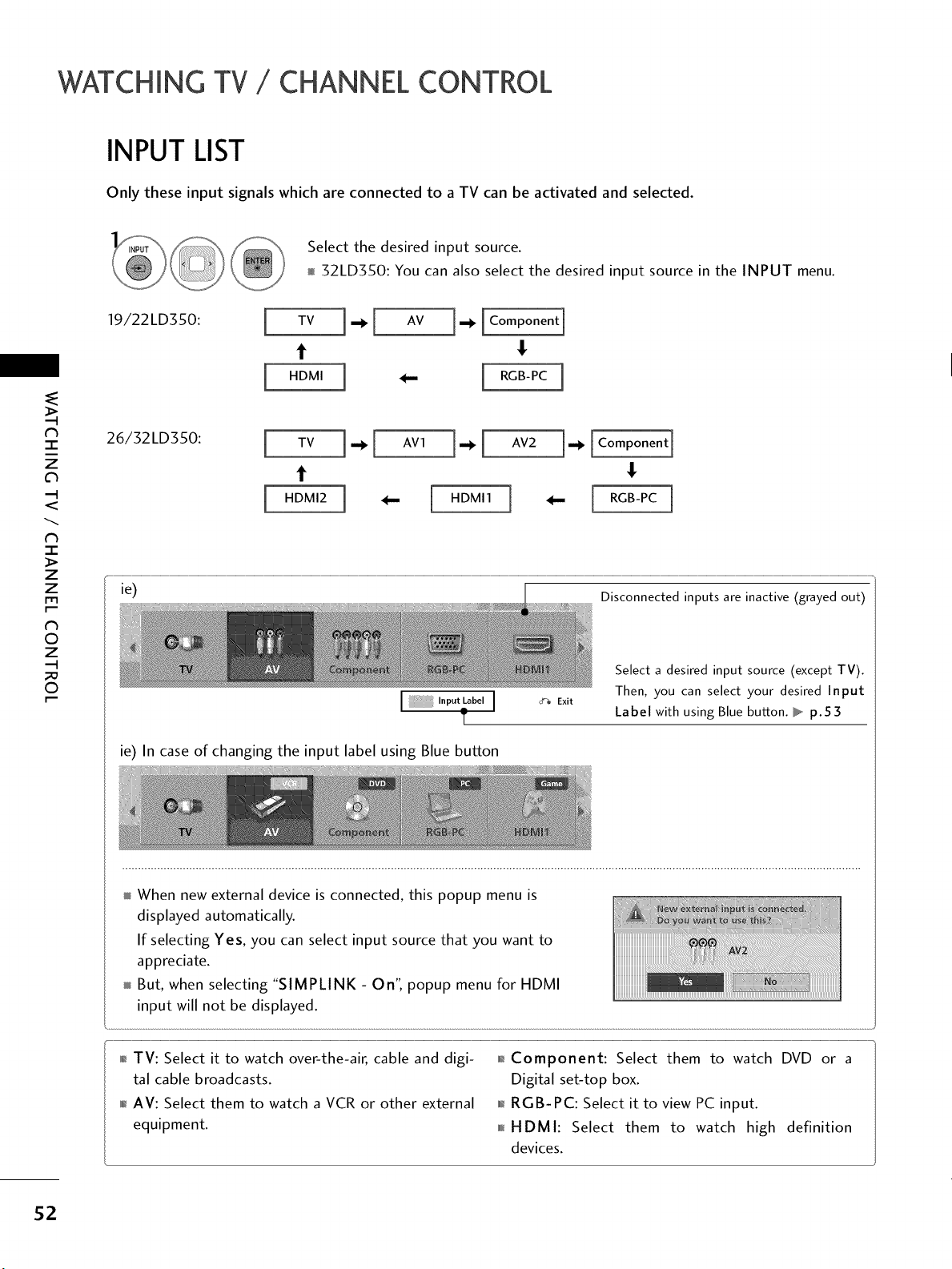
INPUT LIST
Only these input signals which are connected to a TV can be activated and selected.
,NPUT _ Select the desired input source.
__ _ 32LD350: You can also select the desired input source in the INPUT menu.
19,22,o 0:[ TV].1 Av ].[Componentl
t !
t !
[ HDMI2 ] _ HDMI1 ] _,, RGB-PC
ie) Disconnected inputs are inactive (grayed out)
Select a desired input source (except TV).
Then, you can select your desired Input
_-_ Exit
Label with using Blue button. _ p.53
ie) In case of changing the input label using Blue button
When new external device is connected, this popup menu is
displayed automatically.
If selecting Yes, you can select input source that you want to
appreciate.
But, when selecting "SIMPLINK - On", popup menu for HDMI
input will not be displayed.
0_TV: Select it to watch over-the-air, cable and digi-
tal cable broadcasts.
01_AV: Select them to watch a VCR or other external
equipment.
0_Component: Select them to watch DVD or a
Digital set-top box.
01_RGB-PC: Select it to view PC input.
0101_HDMI: Select them to watch high definition
devices.
52
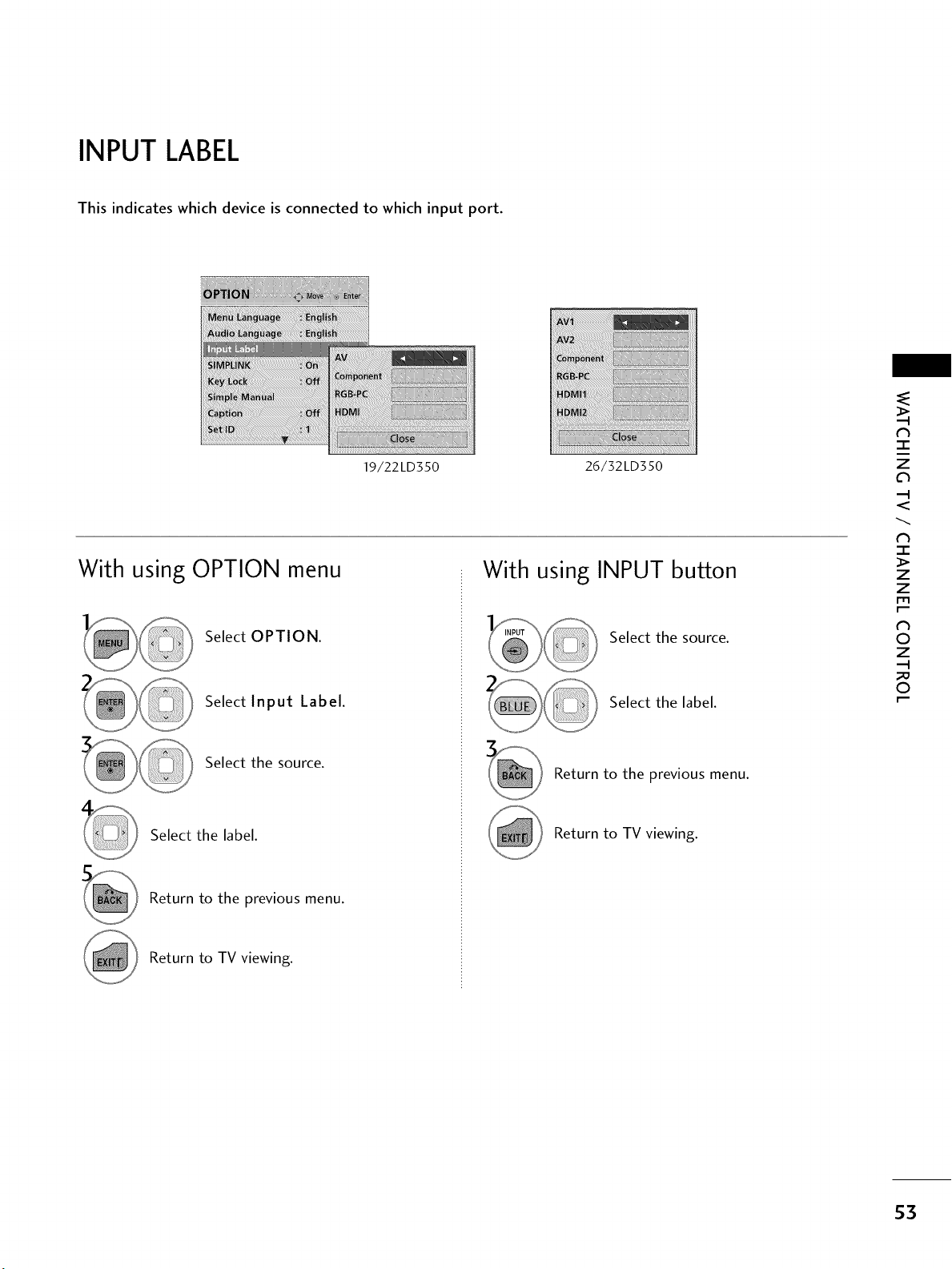
INPUT LABEL
This indicates which device is connected to which input port.
With
19/22LD350
iiiiiiiiiiiiiiiiiiiiiiiiiii!iilil¸i¸i¸il¸!iiil¸i]!i!!!!!!i_!:i)ii!iiiiliiiiiiiiiiili¸ili¸i¸i¸ii¸i¸i¸i¸i!ii¸iiii!!(i!!
26/32LD350
using OPTION menu
With using INPUT button
Select OPTION.
Select Input Label.
Select the source.
Select the label.
Return to the previous menu.
Return to TV viewing.
Select the source.
Select the label.
Return to the _revious menu.
Return to TV wewing.
N
-r"
z
<
N
-r
>
z
z
fT1
N
©
Z
©
$3
WATCHING TV / CHANNEL CONTROL
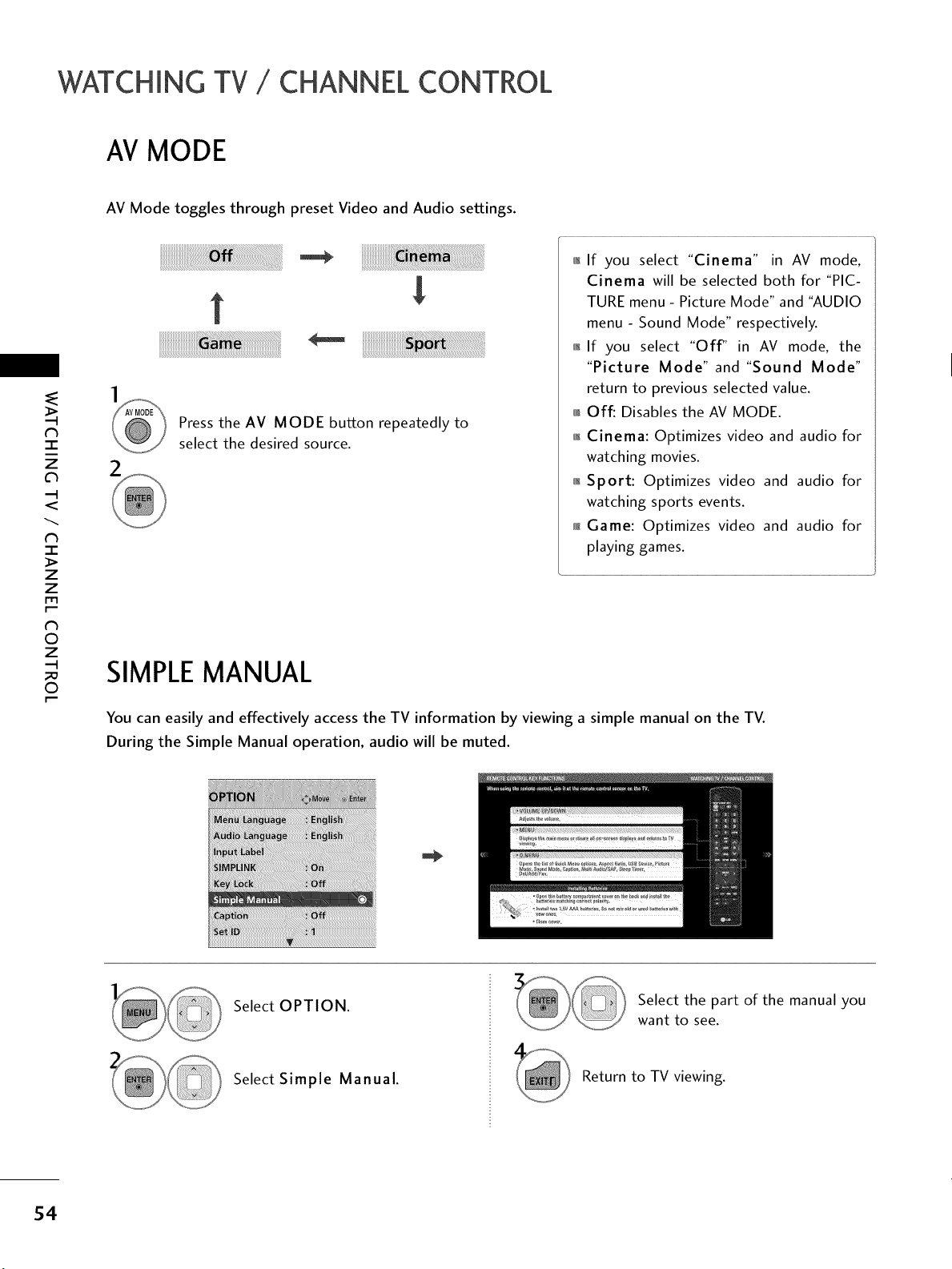
AV MODE
N
"l-
z
<
N
I
>
z
z
fT1
N
©
Z
©
AV Mode toggles through preset Video and Audio settings.
iiiiiiiiiiiiiiiiiiiiiiiiiiiiiiiiiiiiiiiiiiii_i_i_i!iiiiiiiiiiiiiiiiiiiiiiiiiiiiiiiiiiiiiiii_i!!_i6!!_!i!!!!!!!!!!!!!!!!!!!!!!!!!!!!!!!!!!!!!!!!!!!!!!!!!!!!!!!!!!!!i!!i!!_!!i!!i!i!i!i!i!i!i!i!i!i!i!i!ii!i!i_!_i!_i_i
!
!i!i!i!i!i!i!i!i!i!i!i!i!i!i!i!i!i!i!i!i!i!i!i!i!i!i!i!i!i!i!i!i!i!i!iiii_i_i_!_!_!_!!_!!_!!_!!_!!_!!_!!_!!_!!_!!_!!_!!_!!_!!_!!_!!_!!_!!_!!_!!_!!_!!_!!_!!_!!_!!_!!_!!_!!_!!_!!!
2
Press the AV MODE button repeatedly to
select the desired source.
,_,If you select "Cinema" in AV mode,
Cinema will be selected both for "PIC-
TURE menu - Picture Mode" and "AUDIO
menu - Sound Mode" respectively.
,i_If you select "Off" in AV mode, the
"Picture Mode" and "Sound Mode"
return to previous selected value.
,_,r_Off: Disables the AV MODE.
,i_Cinema: Optimizes video and audio for
watching movies.
,i_Sport: Optimizes video and audio for
watching sports events.
i_l_Game: Optimizes video and audio for
playing games.
SIMPLE MANUAL
You can easily and effectively access the TV information by viewing a simple manual on the TV.
During the Simple Manual operation, audio will be muted.
Select OPTION.
Select Simple Manual.
Select the part of the manual you
want to see.
Return to TV viewing.
54
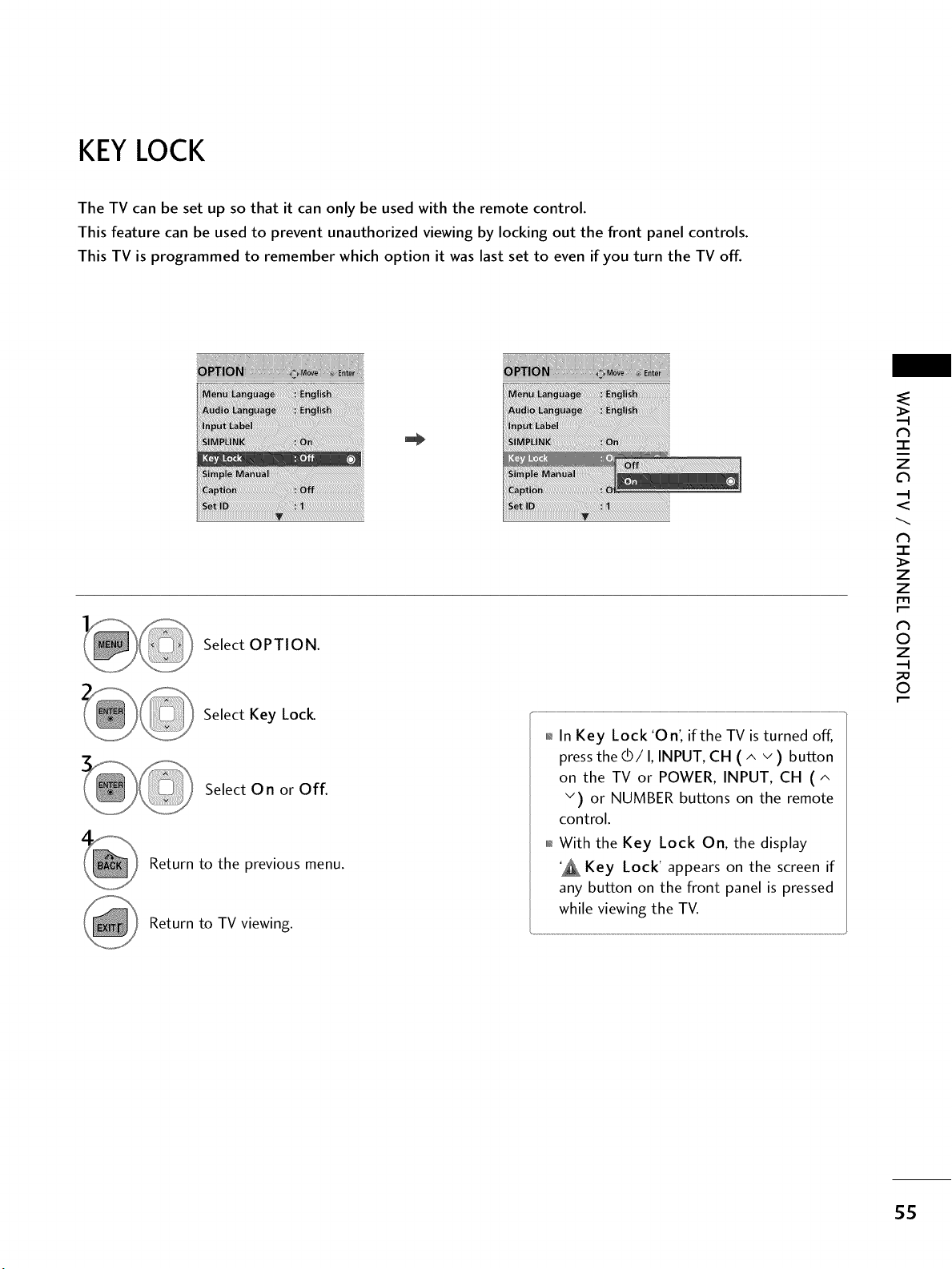
KEYLOCK
The TV can be set up so that it can only be used with the remote control.
This feature can be used to prevent unauthorized viewing by locking out the front panel controls.
This TV is programmed to remember which option it was last set to even if you turn the TV off.
Select OPTION.
Select Key Lock
Select 0 n or Off.
Return to the previous menu.
Return to TV viewing.
01_In Key Lock 'On', if the TV is turned off,
press the dO/I, INPUT, CH ( ^ v ) button
on the TV or POWER, INPUT, CH (^
v) or NUMBER buttons on the remote
control.
0_With the Key Lock On, the display
'_ Key Lock' appears on the screen if
any button on the front panel is pressed
while viewing the TV.
-r"
z
c_
<
N
-r
>
Z
Z
fT1
N
O
Z
O
55
WATCHING TV / CHANNEL CONTROL
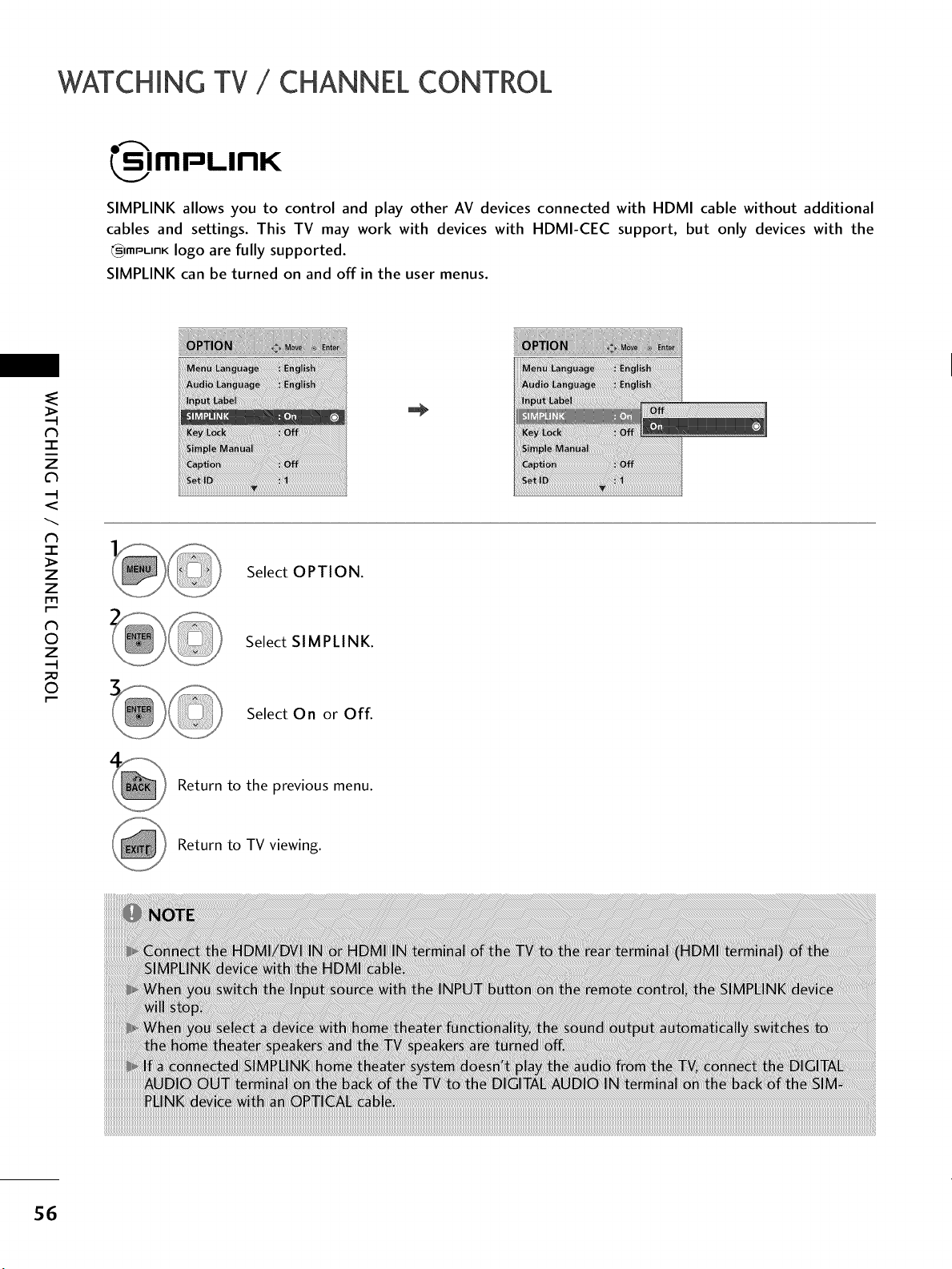
€_ImPLInK
SIMPLINK allows you to control and play other AV devices connected with HDMI cable without additional
cables and settings. This TV may work with devices with HDMI-CEC support, but only devices with the
_)mp-,nK logo are fully supported.
SIMPLINK can be turned on and off in the user menus.
-r"
z
c_
<
N
-r"
>
Z
Z
fT1
N
0
Z
0
Select OPTION.
Select SIMPLINK.
Select On or Off.
Return to the previous menu.
Return to TV viewing.
56
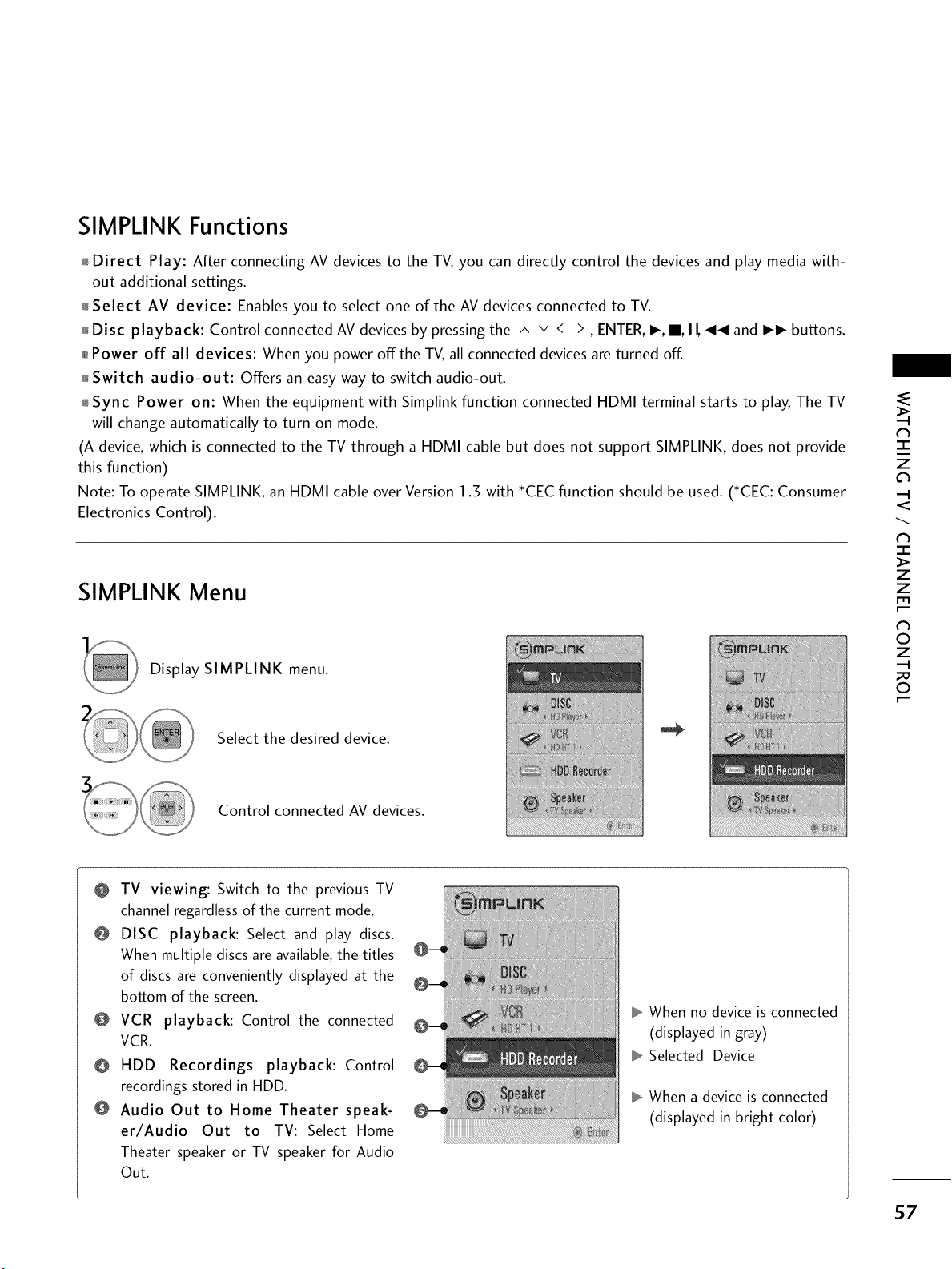
SIMPLINK Functions
Direct Play: After connecting AV devices to the TV, you can directly control the devices and play media with-
out additional settings.
_Select AV device: Enables you to select one of the AV devices connected to TV.
Disc playback: Control connected AV devices by pressing the ^ v < > , ENTER, I_, II, I L _I_I and I_I_ buttons.
01_Power off all devices: When you power offthe TV, all connected devices are turned off.
_Switch audio-out: Offers an easy way to switch audio-out.
Sync Power on: When the equipment with Simplink function connected HDMI terminal starts to play, The TV
will change automatically to turn on mode.
(A device, which is connected to the TV through a HDMI cable but does not support SIMPLINK, does not provide
this function)
Note: To operate SIMPLINK, an HDMI cable over Version I .3 with _CEC function should be used. '_CEC: Consumer
Electronics Control).
SIMPLINK Menu
Display SIMPLINK menu.
Select the desired device.
Control connected AV devices.
N
-r"
z
<
N
I
>
z
z
fT1
N
©
Z
©
@ TV viewing: Switch to the previous TV
channel regardlessof the current mode.
@ DISC playback: Select and play discs.
When multiple discs are available,the titles
of discs are conveniently displayed at the
bottom of the screen.
@ VCR playback: Control the connected
VCR.
@ HDD Recordings playback: Control
recordings stored in HDD.
@ Audio Out to Home Theater speak-
er/Audio Out to TV: Select Home
Theater speaker or TV speaker for Audio
Out.
When no device is connected
(displayed in gray)
Selected Device
When a device is connected
(displayed in bright color)
S7

USB (For 32LD350)
ENTRY MODES
When you connect a USB device, this pop up menu is displayed automatically.
When the Pop Up menu does not appear, you can select Photo List or Music List in the USB menu.
In USB device, you can not add a new folder or delete the existing folder.
C
Do
Connect the USB device to the USB IN
jacks on the side of TV.
Select PHOTO LIST or MUSIC LIST.
_ This TV supports JPG and MP3 files.
When removing the USB device
Select the USB Device menu before removing the
USB device.
Select USB Device.
Select Eject.
Precautions when using the USB device
Only a USB storage device is recognizable. Please connect a USB storage device with cable is
_, If the USB storage device is connected through a offered by USB maker. If connected with cable is
USB hub. the device is not recognizable, not offered by USB maker or an excessively long
A USB storage device using an automatic recogni- cable, the device may not be recognized.
tion program may not be recognized. _ Some USB storage devices may not be supported
A USB storage device which uses its own driver or operate properly.
may not be recognized.
The recognition speed of a USB storage device
may depend on each device.
Please do not turn off the TV or unplug the USB
device when the connected USB storage device is
working. When such device is suddenly separated
or unplugged, the stored files or the USB storage
device may be damaged.
Only use a USB storage device which has normal
music files or image files.
Please use only a USB storage device which was
formatted as a FAT 32 or NTFS file system provid-
ed with the Windows operating system. In case of
a storage device formatted as a different utility
program which is not supported by Windows. it
may not be recognized.
Please connect power to a USB storage device
Please backup important files because data on
USB device may be damaged. Data management is
consumer's responsibility and as a result, the man-
ufacturer does not cover data damage.
If your USB memory device has multiple partitions.
or if you use a USB multi-card reader, you can use
up to 4 partitions or USB memory devices.
n case of USB storage devices formatted as NTFS.
deletion is not allowable.
File alignment method of USB storage device is
similar to Window XP and file name can recognize
up to 100 English characters.
The recommended capacity is 1 TB or less for a
USB external hard disk and 32 GB or less for USB
memory.
If a USB external hard disk with a "Energy Saving
function doesn't work. turn the hard disk off and
over 0.5A) which requ res an externa power sup- on again to make it work properly. Refer to the
ly. If not. the device may not be recognized, user manual of the application USB external hard
disk.
58
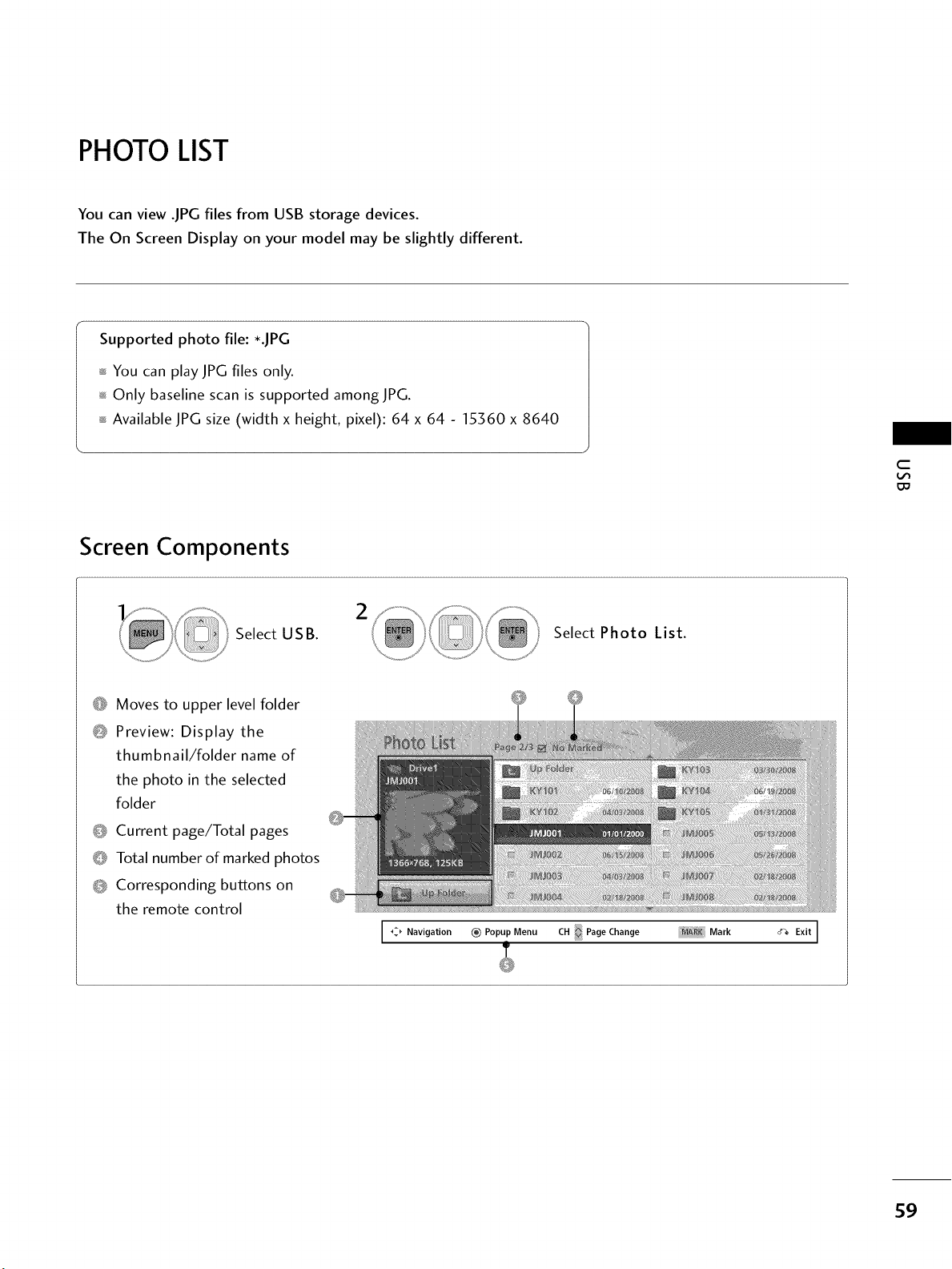
PHOTOLIST
You can view .JPG files from USB storage devices.
The On Screen Display on your model may be slightly different.
Supported photo file: *.JPG
You can play JPG files only.
Only baseline scan is supported amongJPG.
Available JPG size (width x height, pixel): 64 x 64 - 15360 x 8640
c
Screen Components
Select USB.
2
Select Photo List.
O Moves to upper level folder
Q Preview: Display the
thumbnail/folder name of
the photo in the selected
folder
O Current page/Total pages
Q Total number of marked photos
O Corresponding buttons on
the remote control
I _ Navigation _) Popup Menu CH Page Change Mark #g Exit I
59
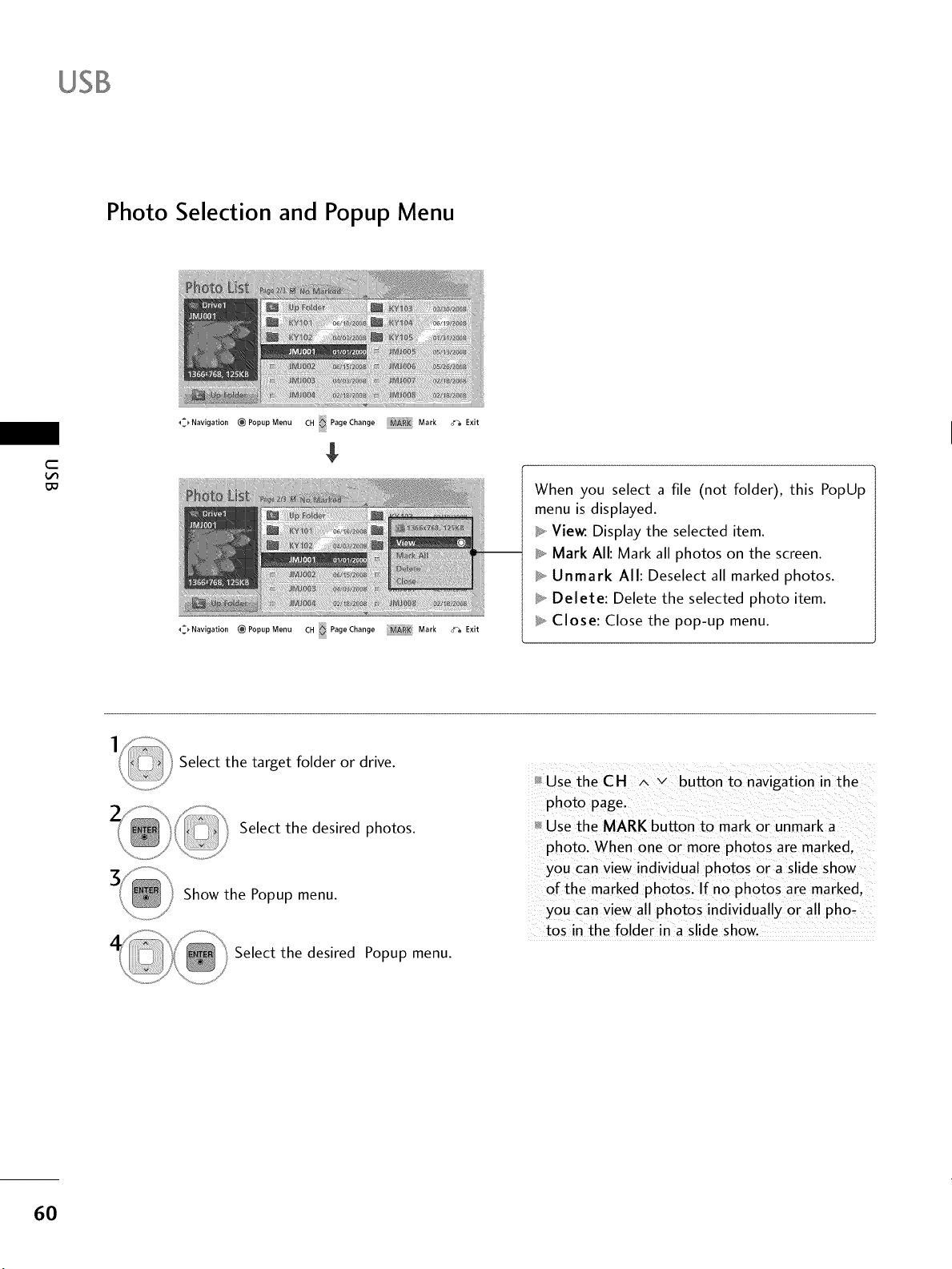
USB
Photo Selection and Popup Menu
C
._Navigation _ Popup Menu
.=_Navigation _ Popup Menu
CH Page Change Mark
CH Page Change Mark
ct% Exit
ct-_ Exit
When you select a file (not folder), this PopUp
menu is displayed.
_, Vie_. Display the selected item.
_, Mark All: Mark all photos on the screen.
_, Unmark All: Deselect all marked photos.
_*, Delete: Delete the selected photo item.
t_, Close: Close the pop-up menu.
Select the target folder or drive.
Select the desired photos.
Show the Popup menu.
Select the desired Popup menu.
Use the CH ^ v button to navigation in the
photo page.
Use the MARK button to mark or unmark a
photo. When one or more photos are marked.
you can view individual photos or a slide show
of the marked photos. If no photos are marked.
you can view all photos individually or all pho-
tos in the folder in a slide show.
6O
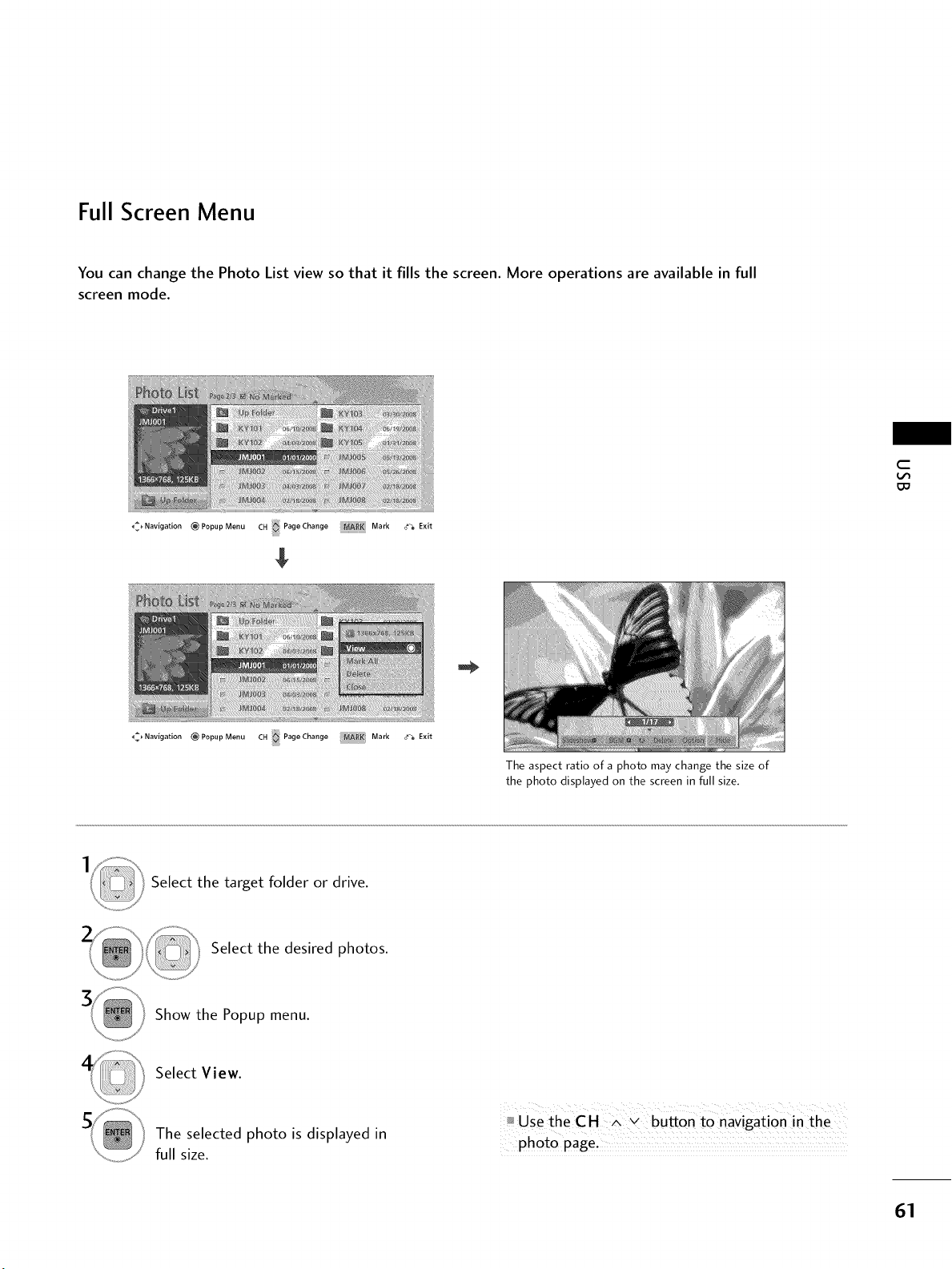
Full Screen Menu
You can change the Photo List view so that it fills the screen. More operations are available in full
screen mode.
_:_Navigation _;PopupMenu CH PageChange Mark (_% Exit
$
The aspect ratio of a photo may change the size of
the photo displayed on the screen in full size.
c
_2Navigation _PopupMenu CH PageChange Mark o_a Exit
Select the target folder or drive.
Select the desired photos.
Show the Popup menu.
Select View.
The selected photo is displayed in
full size.
_UsetheCH A v button to na_igation in the
61
USB
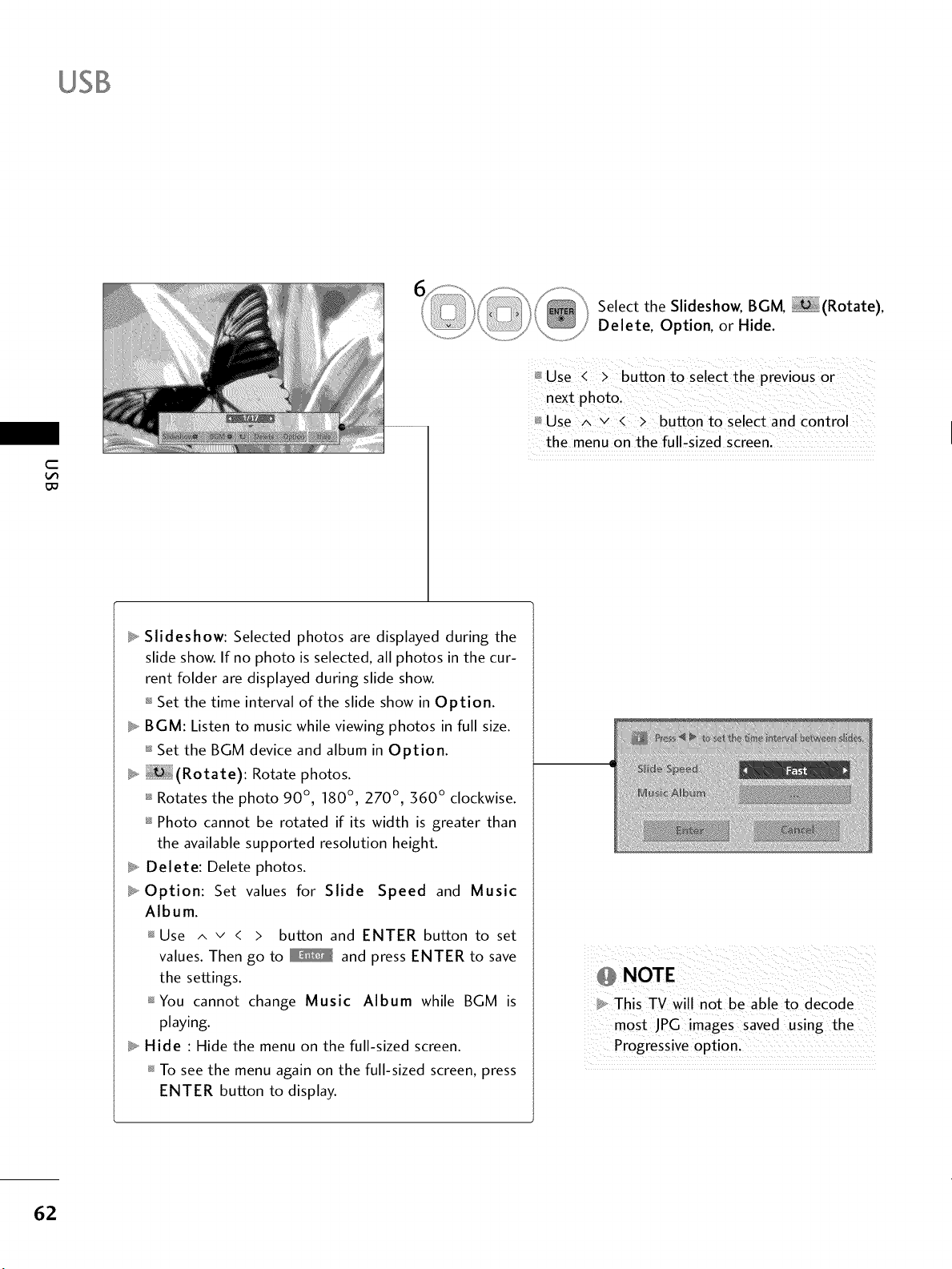
Select the Slideshow, BGM, (Rotate),
Delete, Option, or Hide.
C
L_
m Use A v < > button to select and control
the menu on the full_sized screenl
_ Slideshow: Selected photos are displayed during the
slide show. If no photo is selected, all photos in the cur-
rent folder are displayed during slide show.
Set the time interval of the slide show in Option.
_ BGM: Listen to music while viewing photos in full size.
_ Set the BGM device and album in Option.
_ (Rotate): Rotate photos.
Rotates the photo 90 ° , 180 ° , 270 ° , 360 ° clockwise.
Photo cannot be rotated if its width is greater than
the available supported resolution height.
_ Delete: Delete photos.
_ Option: Set values for Slide Speed and Music
Album.
Use ^ v < > button and ENTER button to set
values. Then go to _ and press ENTER to save
the settings.
_You cannot change Music Album while BGM is
playing.
_ Hide : Hide the menu on the full-sized screen.
To see the menu again on the full-sized screen, press
ENTER button to display.
o NOTE
This TV will not be able to decode
most JPG images saved using the
Progressive option.
62
MUSIC LIST
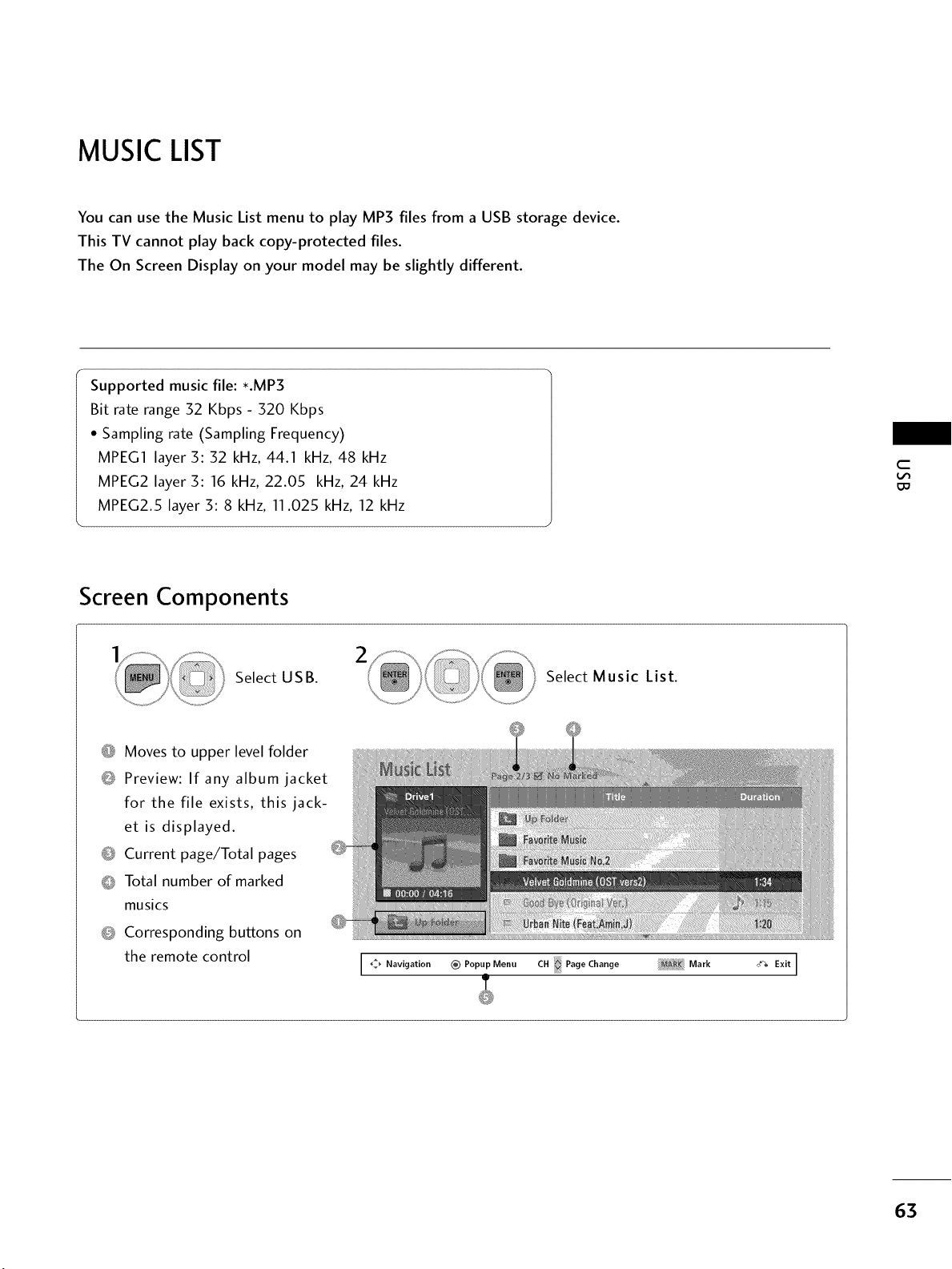
You can use the Music List menu to play MP3 files from a USB storage device.
This TV cannot play back copy-protected files.
The On Screen Display on your model may be slightly different.
Supported music file: *.MP3
Bit rate range 32 Kbps - 320 Kbps
• Sampling rate (Sampling Frequency)
MPEG1 layer 3:32 kHz, 44.1 kHz, 48 kHz
MPEG2 layer 3:16 kHz, 22.05 kHz, 24 kHz
MPEG2.5 layer 3:8 kHz, 11.025 kHz, 12 kHz
c
Do
Screen Components
Select USB.
2
\
\
Select Music List.
0 Moves to upper level folder
0 Preview: If any album jacket
for the file exists, this jack-
et is displayed.
O Current page/Total pages
0 Total number of marked
musics
Corresponding buttons on
the remote control
Navigation _ Popup _0 Page Change _A_K
Menu CH Mark
0% Exit I
63
USB
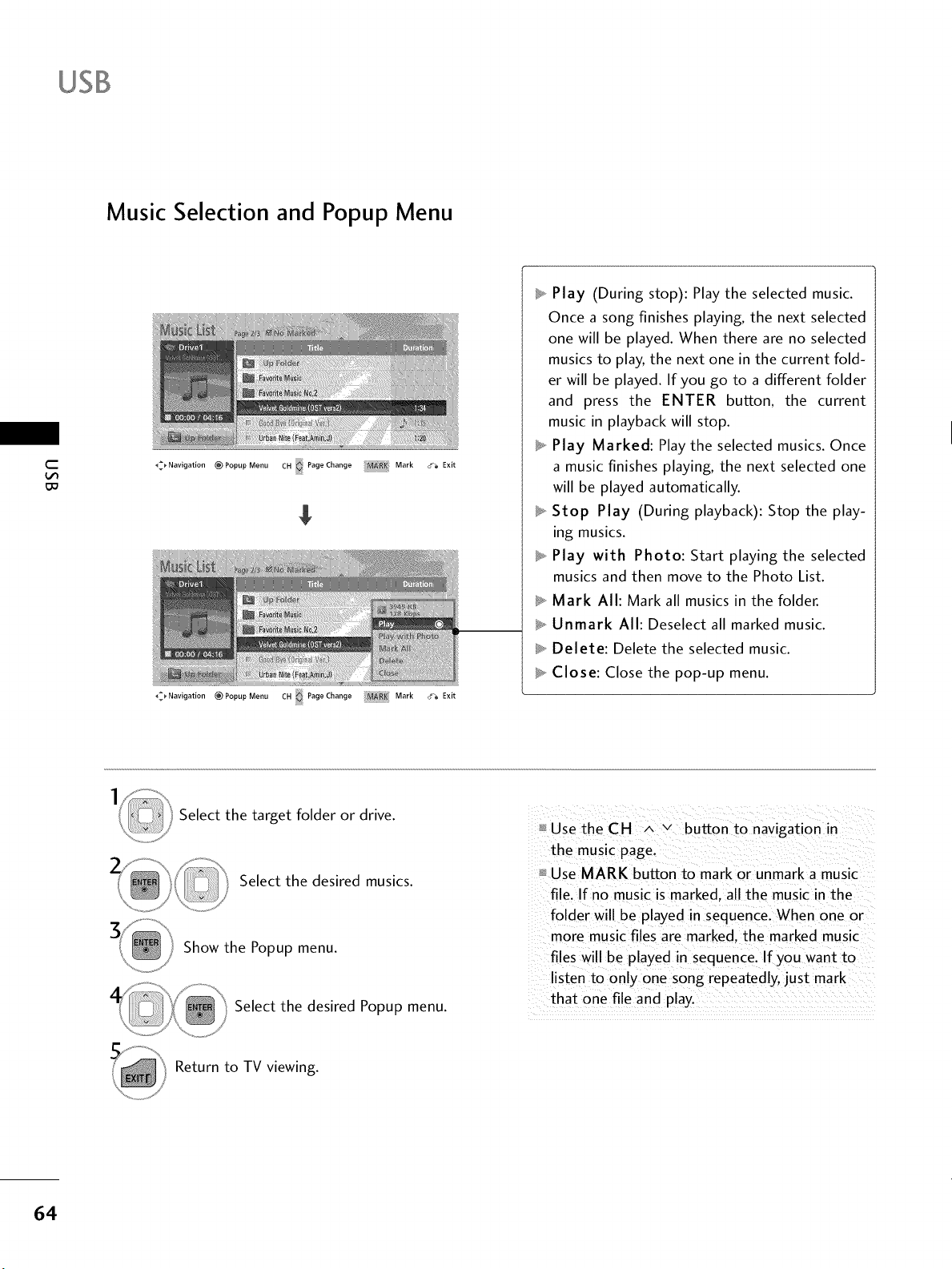
Music Selection and Popup Menu
C
oo
Navigation (_ Popup Menu CH Page Change Mark _%
Exit
$
_Navigation _ Popup Menu CH Page Change Mark ct_
Exit
_, Play (During stop): Play the selected music.
Once a song finishes playing, the next selected
one will be played. When there are no selected
musics to play, the next one in the current fold-
er will be played. If you go to a different folder
and press the ENTER button, the current
music in playback will stop.
_, Play Marked: Play the selected musics. Once
a music finishes playing, the next selected one
will be played automatically.
_, Stop Play (During playback): Stop the play-
ing musics.
_, Play with Photo: Start playing the selected
musics and then move to the Photo List.
_ Mark All: Mark all musics in the folder.
t_, Unmark All: Deselect all marked music.
_,, Delete: Delete the selected music.
_, Close: Close the pop-up menu.
Select the target folder or drive.
Select the desired musics.
Show the Popup menu.
Select the desired Popup menu.
Use the CH ^ v button to navigation in
the music page.
Use MARK button to mark or unmark a music
file. If no music is marked, all the music in the
folder will be played in sequence. When one or
more music files are marked, the marked music
files will be played in sequence. If you want to
listen to only one song repeatedly, just mark
that one file and pay.
Return to TV viewing.
64
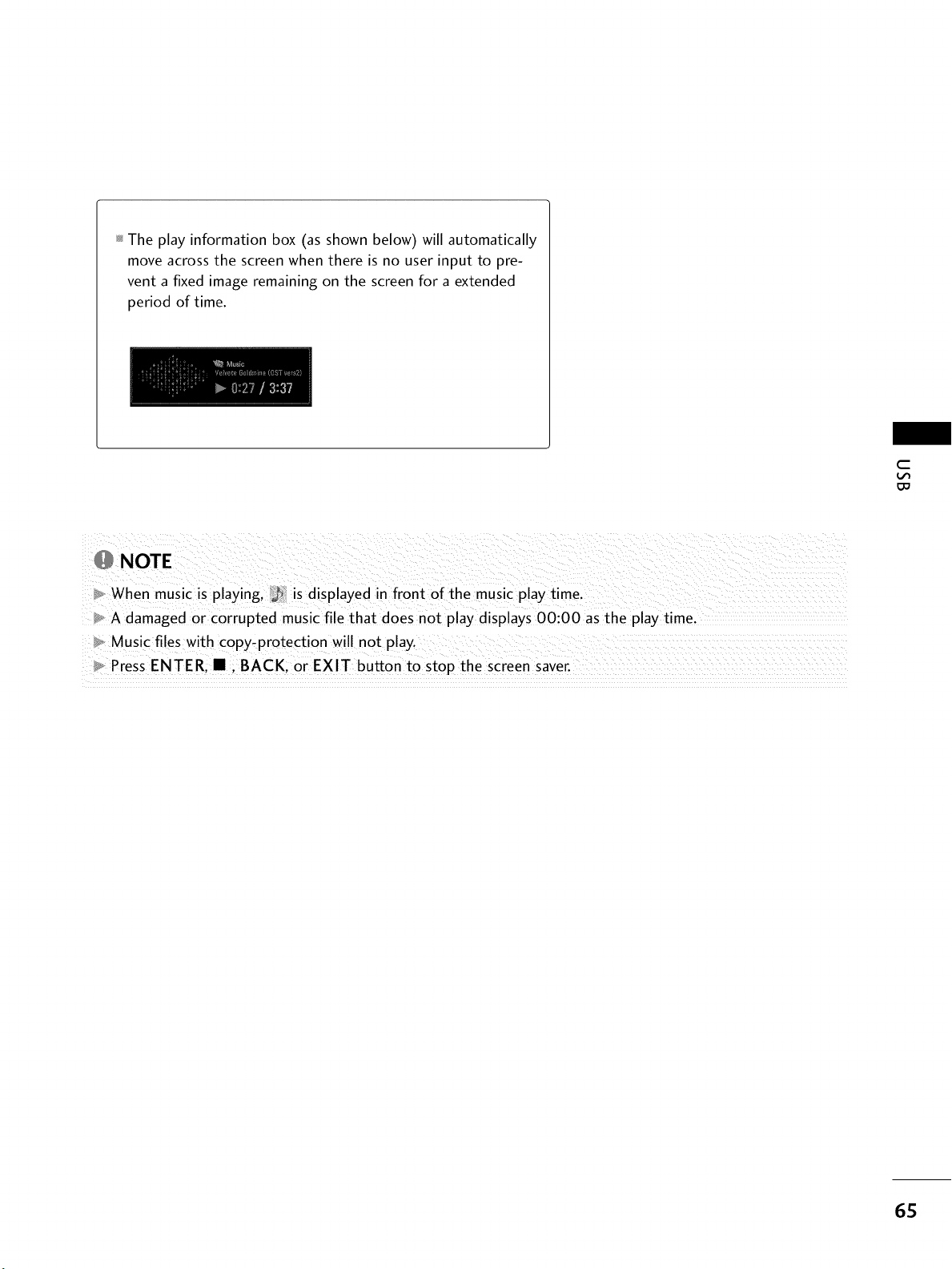
The play information box (as shown below) will automatically
move across the screen when there is no user input to pre-
vent a fixed image remaining on the screen for a extended
period of time.
c
o_NOTE
,_When music is playing, _ is displayed in front of the music play time.
A damaged or corrupted music file that does not play displays 00:00 as the play time.
Music files with copy-protection will not play.
Press ENTER. • . BACK. or EXIT button to stop the screen saver. ....
65
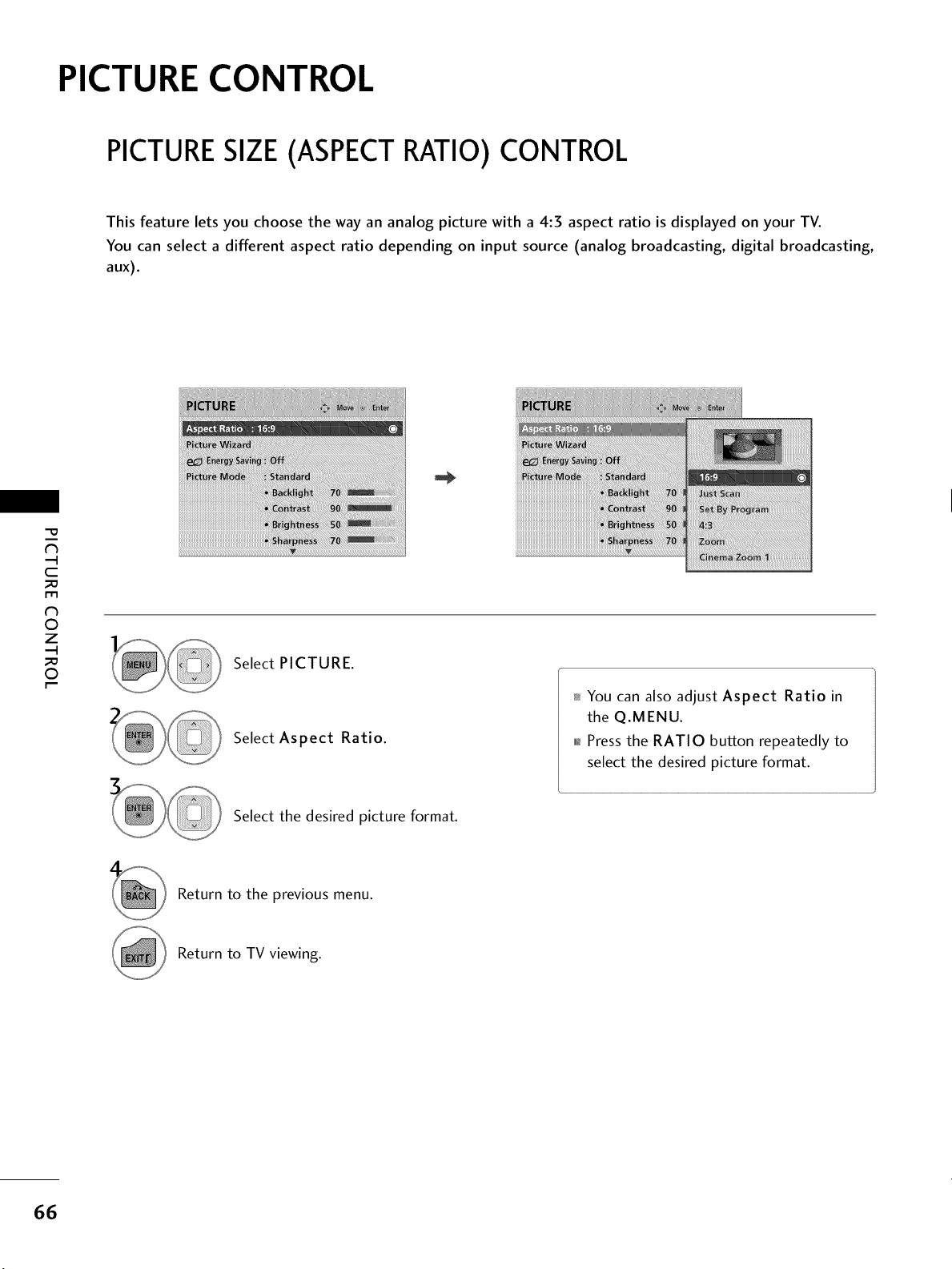
PICTURE CONTROL
PICTURESIZE (ASPECT RATIO) CONTROL
This feature lets you choose the way an analog picture with a 4:3 aspect ratio is displayed on your TV.
You can select a different aspect ratio depending on input source (analog broadcasting, digital broadcasting,
aux).
C
_D
r_
©
z
_D
©
Select PICTURE.
Select Aspect Ratio.
Select the desired picture format.
You can also adjust Aspect Ratio in
the Q.MENU.
01_Press the RATIO button repeatedly to
select the desired picture format.
Return to the previous menu.
Return to TV viewing.
66
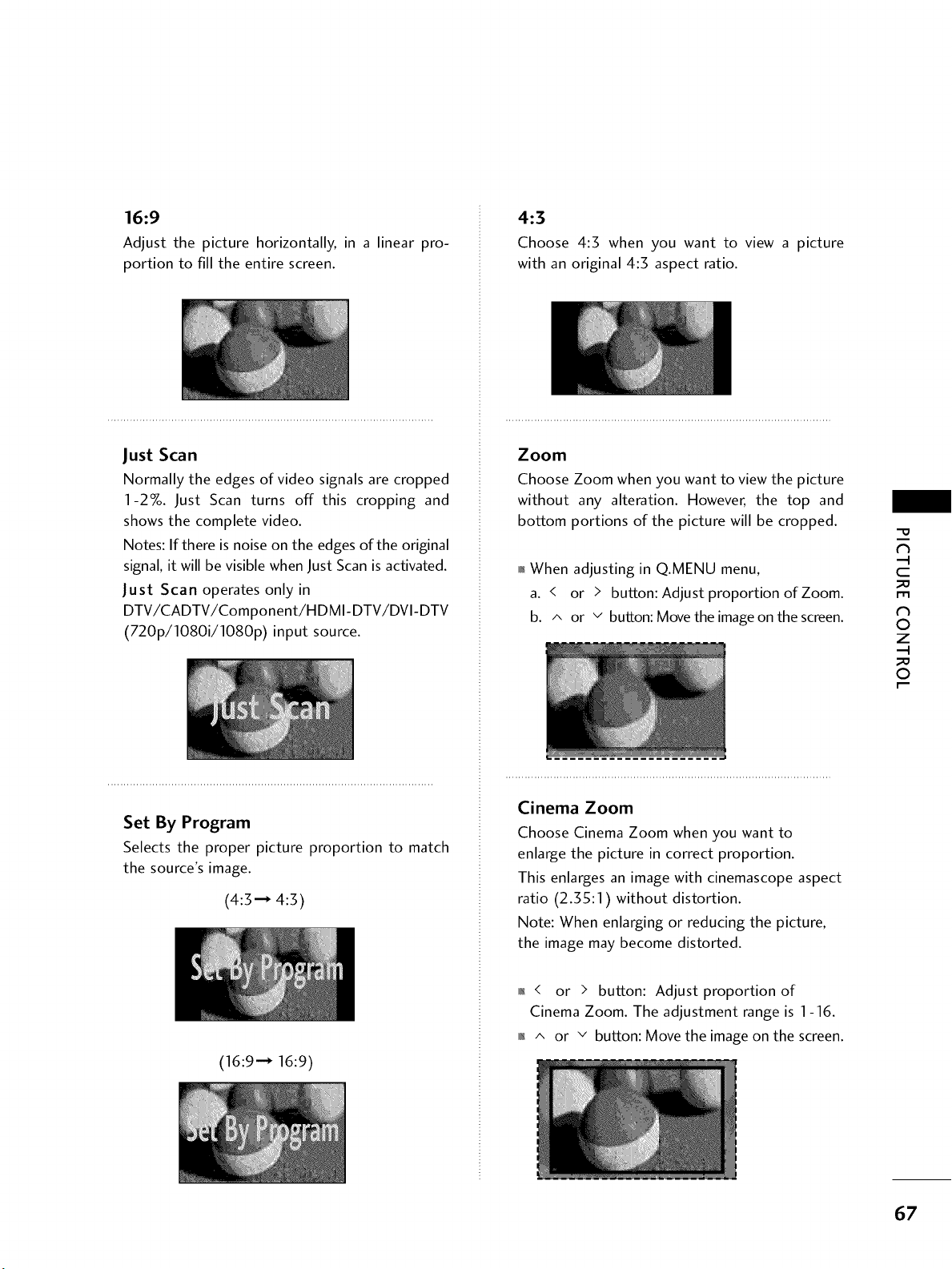
16:9
Adjust the picture horizontally, in a linear pro-
portion to fill the entire screen.
Just Scan
Normally the edges of video signals are cropped
1-27o. Just Scan turns off this cropping and
shows the complete video.
Notes: If there is noise on the edges of the original
signal, it will be visible when Just Scan is activated.
Just Scan operates only in
DTV/CADTV/Component/HDMI-DTV/DVI-DTV
(720p/1080i/1080p) input source.
Set By Program
Selects the proper picture proportion to match
the source's image.
(4:3-_ 4:3)
(16:9 -_ 16:9)
4:3
Choose 4:3 when you want to view a picture
with an original 4:3 aspect ratio.
Zoom
Choose Zoom when you want to view the picture
without any alteration. However, the top and
bottom portions of the picture will be cropped.
o,_When adjusting in Q.MENU menu,
a. < or > button: Adjust proportion of Zoom.
b. ^ or v button: Move the image on the screen.
Cinema Zoom
Choose Cinema Zoom when you want to
enlarge the picture in correct proportion.
This enlarges an image with cinemascope aspect
ratio (2.35:1) without distortion.
Note: When enlarging or reducing the picture,
the image may become distorted.
0_ < or > button: Adjust proportion of
Cinema Zoom. The adjustment range is 1-16.
01_^ or v button: Move the image on the screen.
-O
N
C
_o
m
N
O
Z
_o
O
67
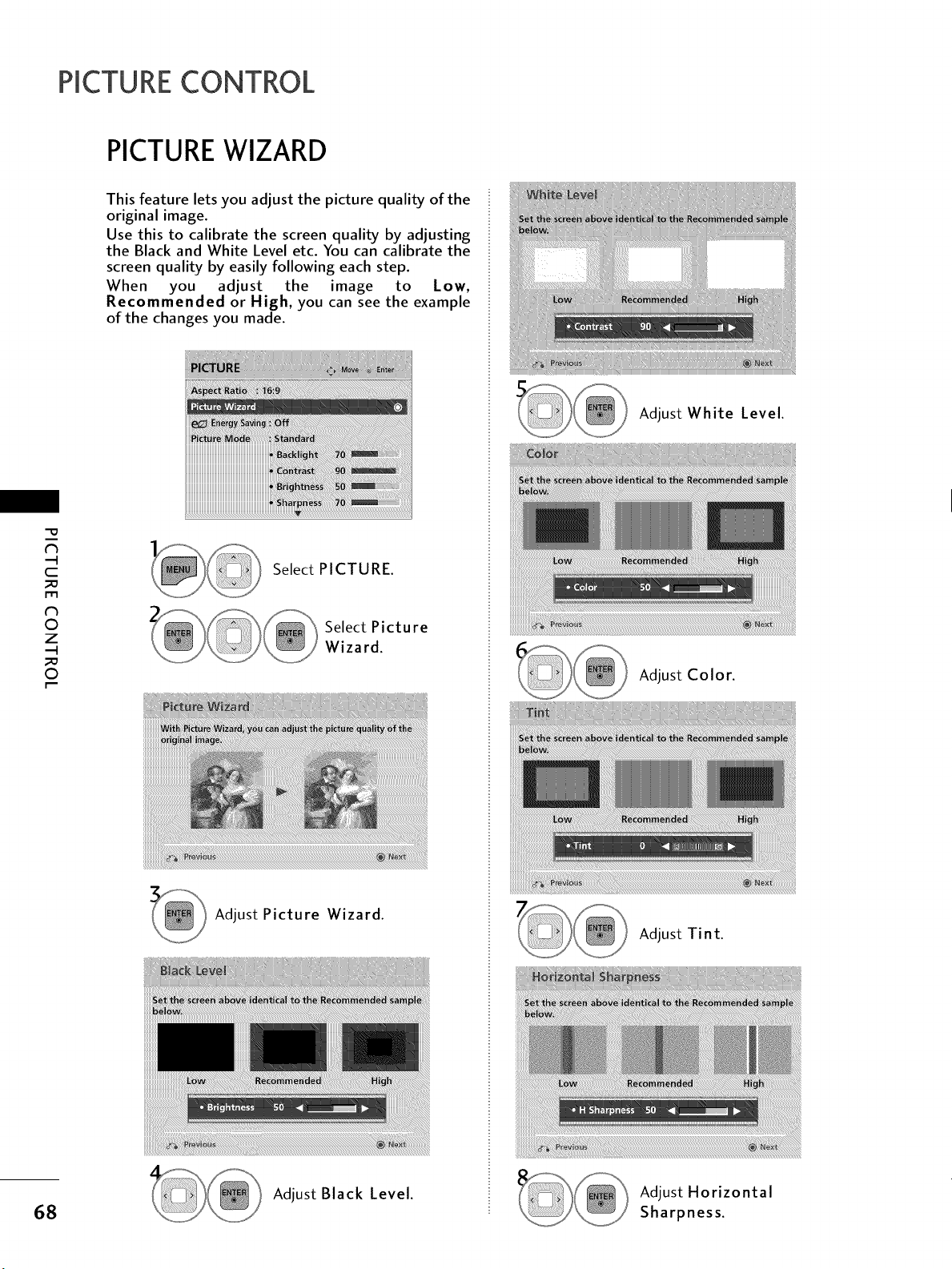
PICTURECONTROL
PICTUREWIZARD
c
_D
I'tl
©
z
_D
©
68
This feature lets you adjust the picture quality of the
original image.
Use this to calibrate the screen quality by adjusting
the Black and White Level etc. You can calibrate the
screen quality by easily following each step.
When you adjust the image to Low,
Recommended or High, you can see the example
of the changes you made.
Select PICTURE.
Select Picture
Wizard.
Adjust Picture Wizard.
Adjust Black Level.
Adjust White Level.
Adjust Color.
Adjust Tint.
Adjust Horizontal
Sharpness.
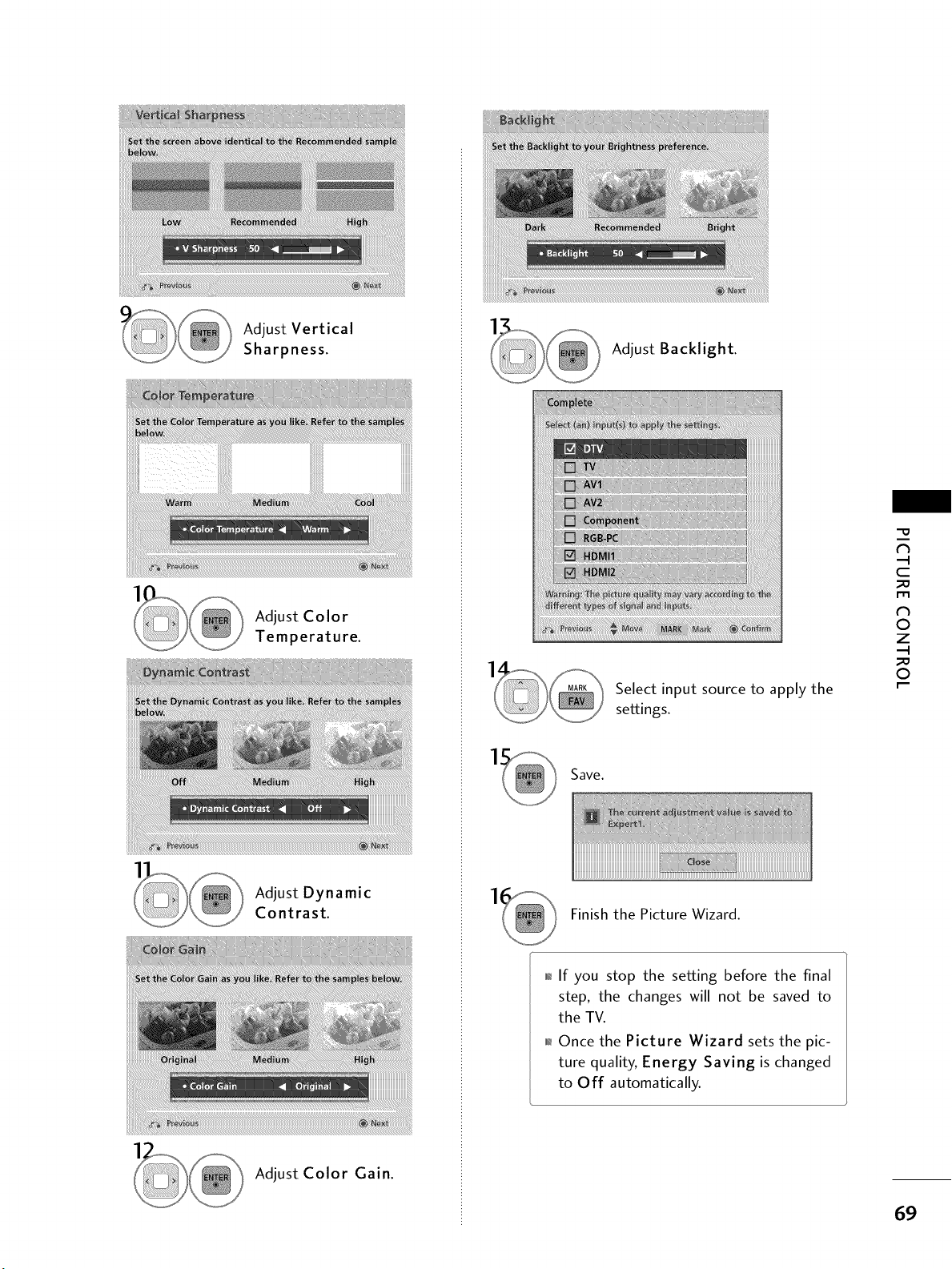
Adjust Vertical
Sharpness.
Adjust Color
Temperature.
Adjust Dynamic
Contrast.
Adjust Color Gain.
1
Adjust Backlight.
Select input source to apply the
settings.
Save.
Finish the Picture Wizard.
01_If you stop the setting before the final
step, the changes will not be saved to
the TV.
0_Once the Picture Wizard sets the pic-
ture quality, Energy Saving is changed
to Off automatically.
"O
N
C
m
N
O
Z
O
69
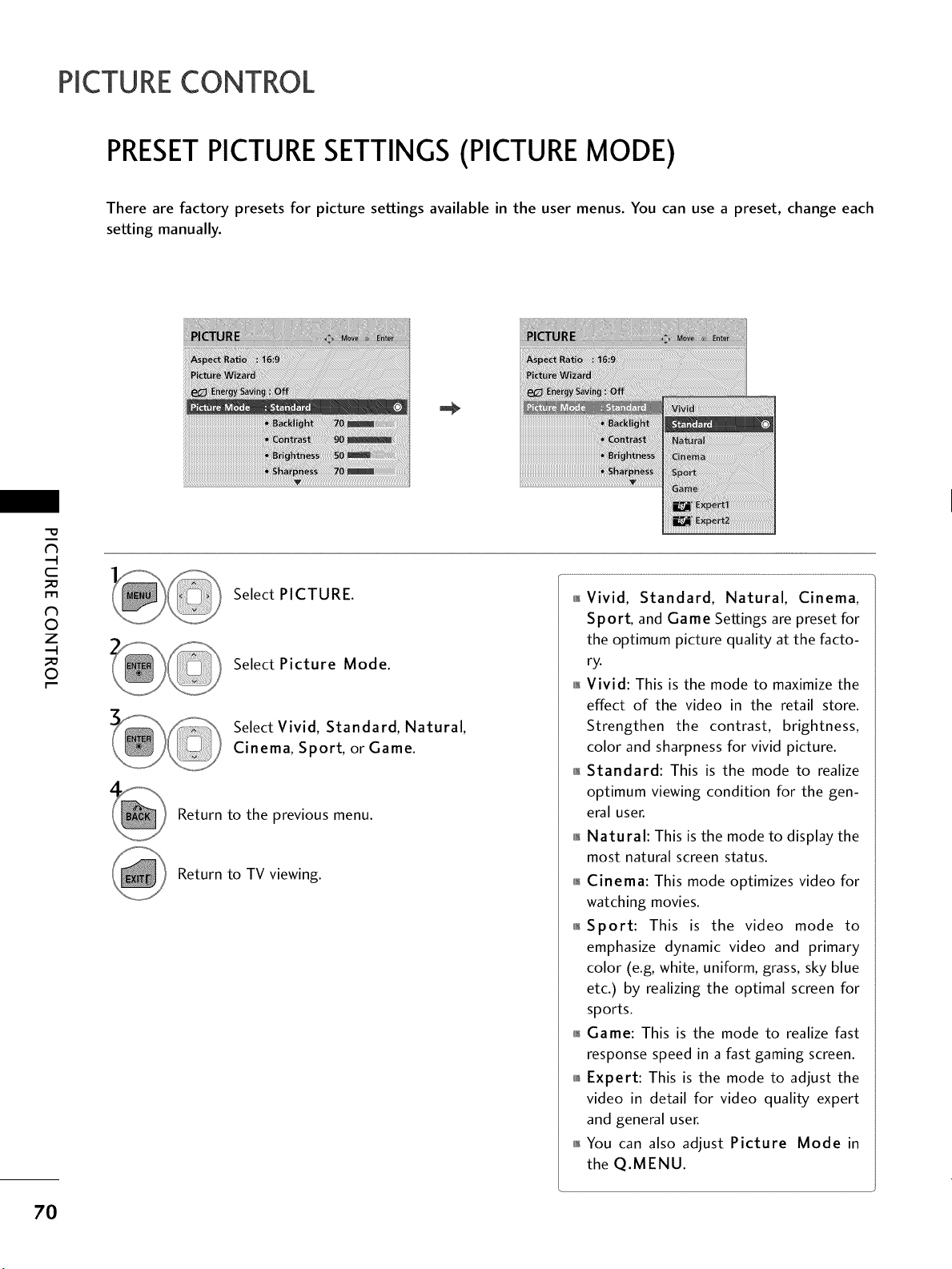
PICTURECONTROL
PRESETPICTURESETTINGS (PICTURE MODE)
There are factory presets for picture settings available in the user menus. You can use a preset, change each
setting manually.
iii,iiiii!!ii!iii!_iiiii,iiiiiiiii!!ii_'_iii!liii_iii/ilil¸i_!!ii!iiiiiiiiii!i!i!!iiii!i!iii¸I¸_i!iiiiii_iiiii!iiiii!_iiiii!!iiiIiiiiiii_iiiiii_ii_ii_ii_ii!iii_i_iiiiiiiiiiiiiiii1iiiiiiiiii!iiiiIiiiiiiiiii!!iiiiiiii!i_iiiiiiiiiiii!!iIiiiiiiIi_ii!iii!_i
"O
N
C
_D
r_
N
©
Z
_D
©
Select PICTURE.
Select Picture Mode.
Select Vivid, Standard, Natural,
Cinema, Sport, or Game.
Return to the previous menu.
Return to TV viewing.
01_Vivid, Standard, Natural, Cinema,
Sport, and Game Settings are preset for
the optimum picture quality at the facto-
ry.
01_Vivid: This is the mode to maximize the
effect of the video in the retail store.
Strengthen the contrast, brightness,
color and sharpness for vivid picture.
01_Standard: This is the mode to realize
optimum viewing condition for the gen-
eral user.
01_Natural: This is the mode to display the
most natural screen status.
0_Cinema: This mode optimizes video for
watching movies.
01_Sport: This is the video mode to
emphasize dynamic video and primary
color (e.g, white, uniform, grass, sky blue
etc.) by realizing the optimal screen for
sports.
01_Game: This is the mode to realize fast
response speed in a fast gaming screen.
010r_Expert: This is the mode to adjust the
video in detail for video quality expert
and general user.
01_You can also adjust Picture Mode in
the Q.MENU.
7O
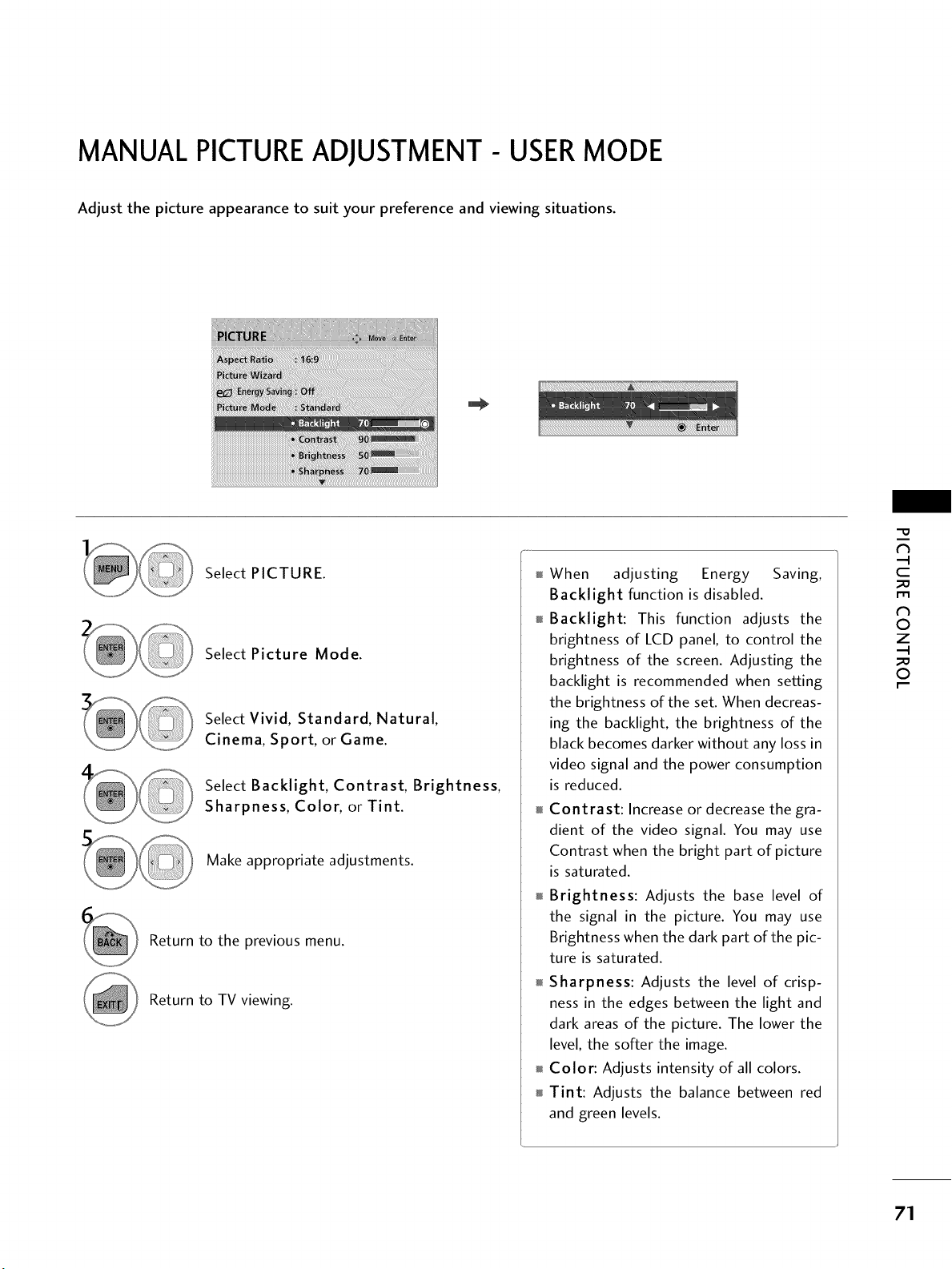
MANUAL PICTUREADJUSTMENT- USERMODE
Adjust the picture appearance to suit your preference and viewing situations.
!i!i!i,iiiiil¸II¸_i_ii_iiiiiii_ii_ii_i[iiiii_ii_!_ii_iii[[i_i_iiii[Iiii_iii_i!i_iiii_iiii!!i_i[i_iii_iiiiiIi_!iii_iiii!!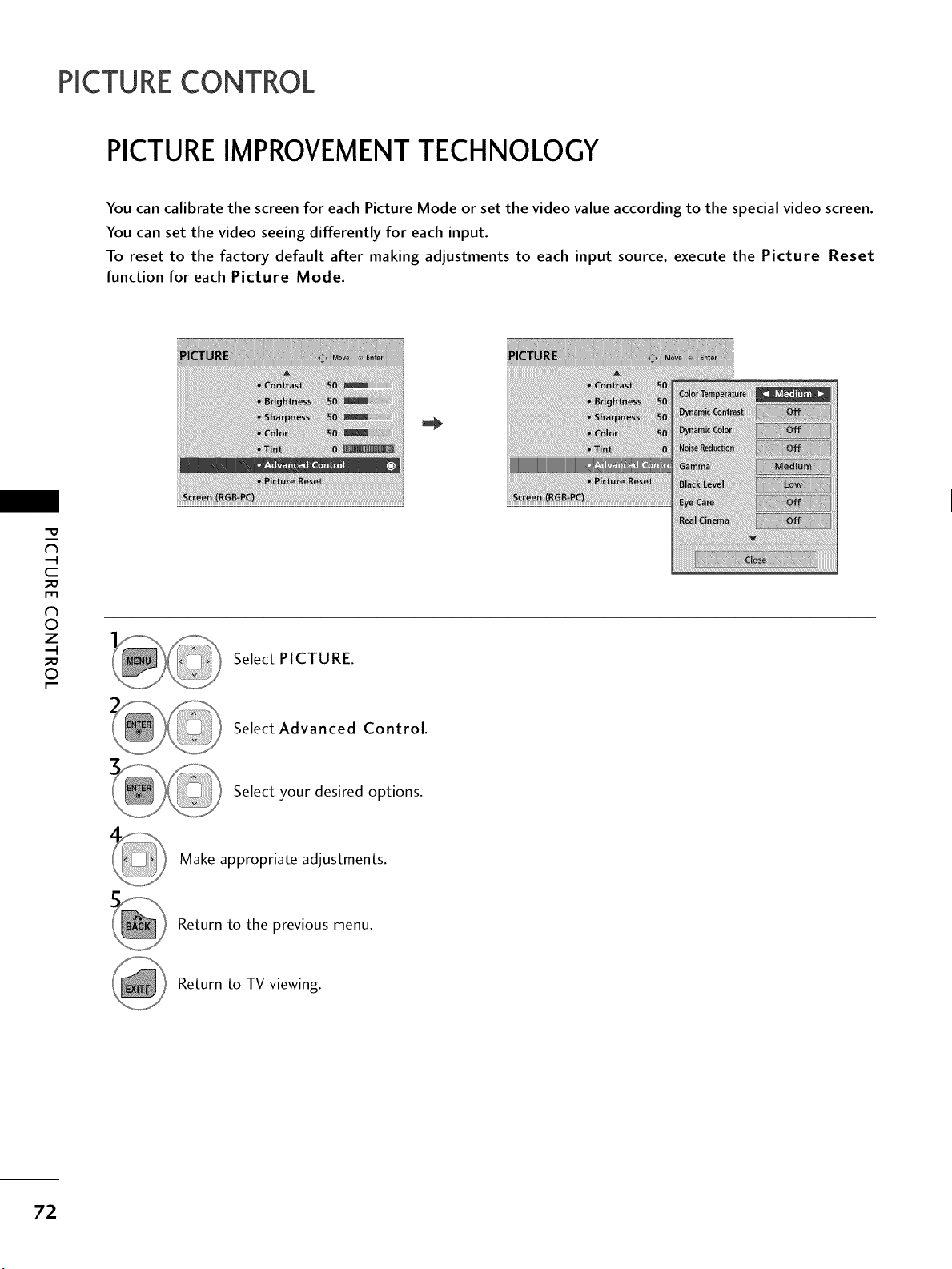
PICTURECONTROL
PICTURE IMPROVEMENTTECHNOLOGY
You can calibrate the screen for each Picture Mode or set the video value according to the special video screen.
You can set the video seeing differently for each input.
To reset to the factory default after making adjustments to each input source, execute the Picture Reset
function for each Picture Mode.
"O
N
C
m
N
O
Z
O
Select PICTURE.
Select Advanced Control.
Select your desired options.
Make appropriate adjustments.
Return to the previous menu.
Return to TV viewing.
72
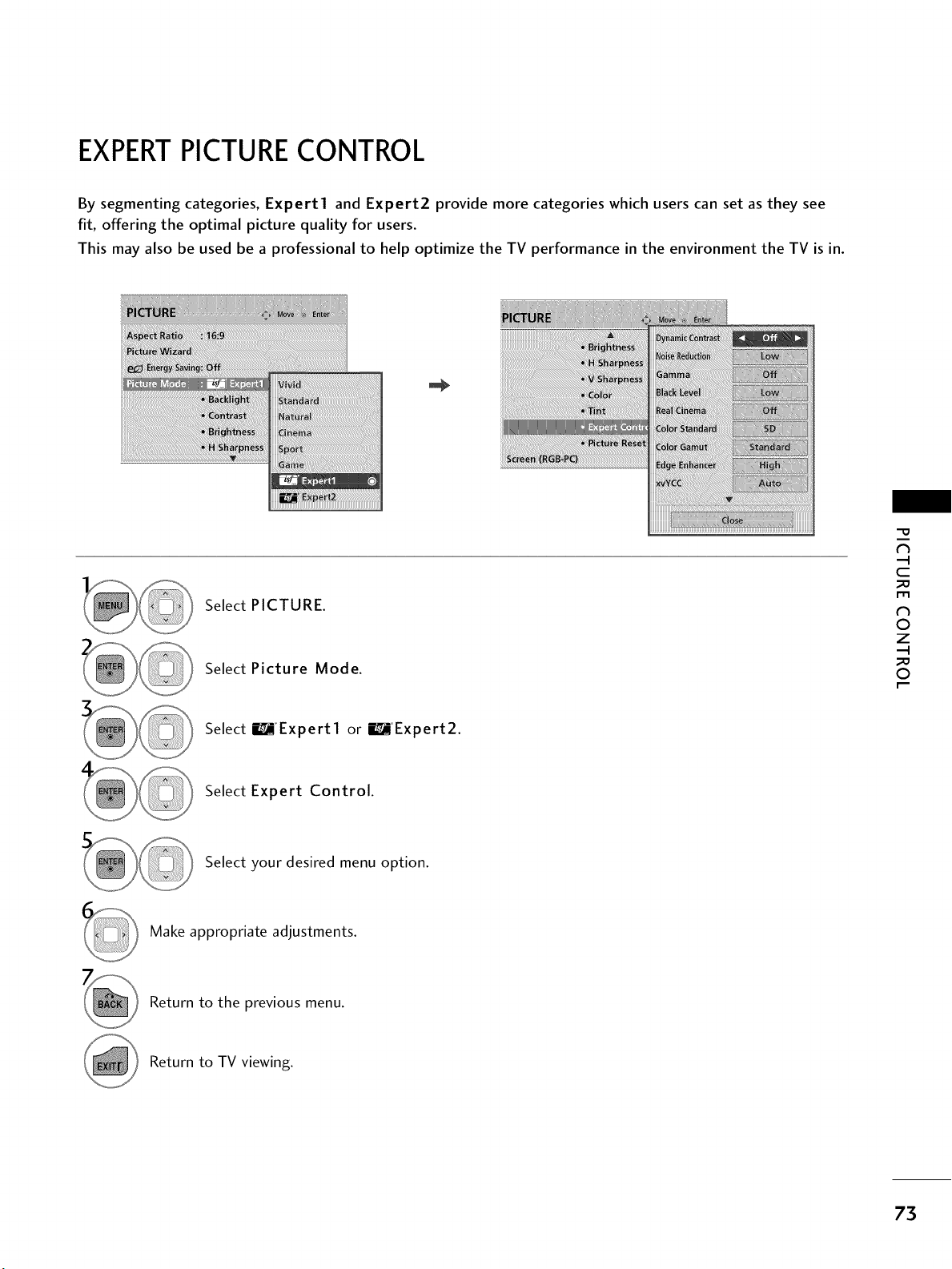
EXPERTPICTURE CONTROL
By segmenting categories, Expert1 and Expert2 provide more categories which users can set as they see
fit, offering the optimal picture quality for users.
This may also be used be a professional to help optimize the TV performance in the environment the TV is in.
Select PICTURE.
Select Picture Mode.
"O
N
C
r_l
N
O
Z
O
Select 17A°Expertl or I._AExpert2.
Select Expert Control.
Select your desired menu option.
Make appropriate adjustments.
Return to the previous menu.
Return to TV viewing.
73
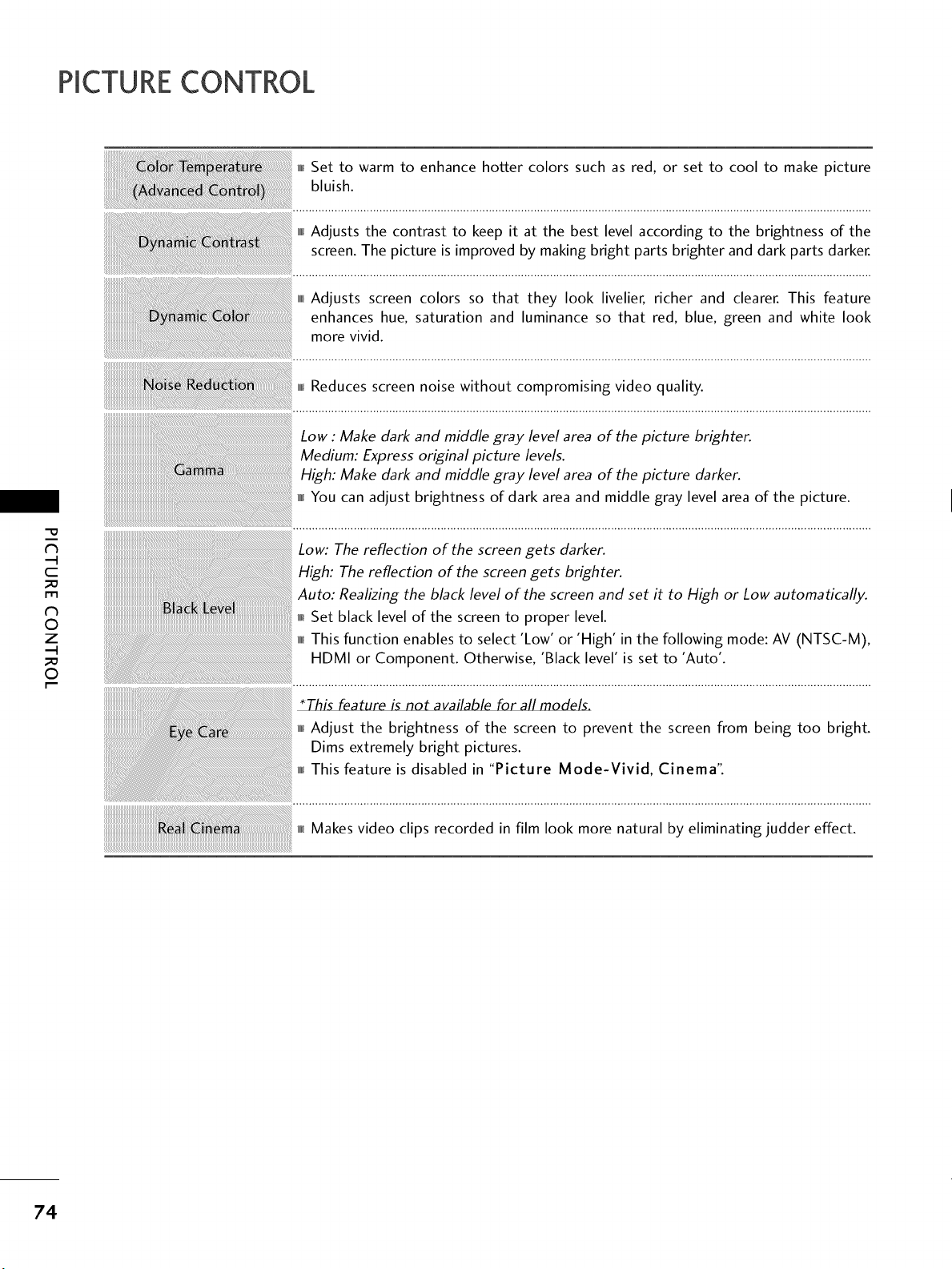
PICTURECONTROL
"O
N
C
_D
m
N
©
Z
_D
©
,_,Set to warm to enhance hotter colors such as red, or set to cool to make picture
bluish.
i,i,iAdjusts the contrast to keep it at the best level according to the brightness of the
screen. The picture is improved by making bright parts brighter and dark parts darker.
i,i,iAdjusts screen colors so that they look livelier, richer and clearer. This feature
enhances hue, saturation and luminance so that red, blue, green and white look
more vivid.
I,I,IReduces screen noise without compromising video quality.
Low : Make dark and middle gray level area of the picture brighter.
Medium: Express original picture levels.
High: Make dark and middle gray level area of the picture darker.
,H You can adjust brightness of dark area and middle gray level area of the picture.
Low: The reflection of the screen gets darker.
High: The reflection of the screen gets brighter.
Auto: Realizing the black level of the screen and set it to High or Low automatically.
Set black level of the screen to proper level.
H This function enables to select 'Low' or 'High' in the following mode: AV (NTSC-M),
HDMI or Component. Otherwise, 'Black level' is set to 'Auto'.
*This feature is not available for all models.
,_,Adjust the brightness of the screen to prevent the screen from being too bright.
Dims extremely bright pictures.
,_ This feature is disabled in "Picture Mode-Vivid, Cinema".
Makes video clips recorded in film look more natural by eliminating judder effect.
74
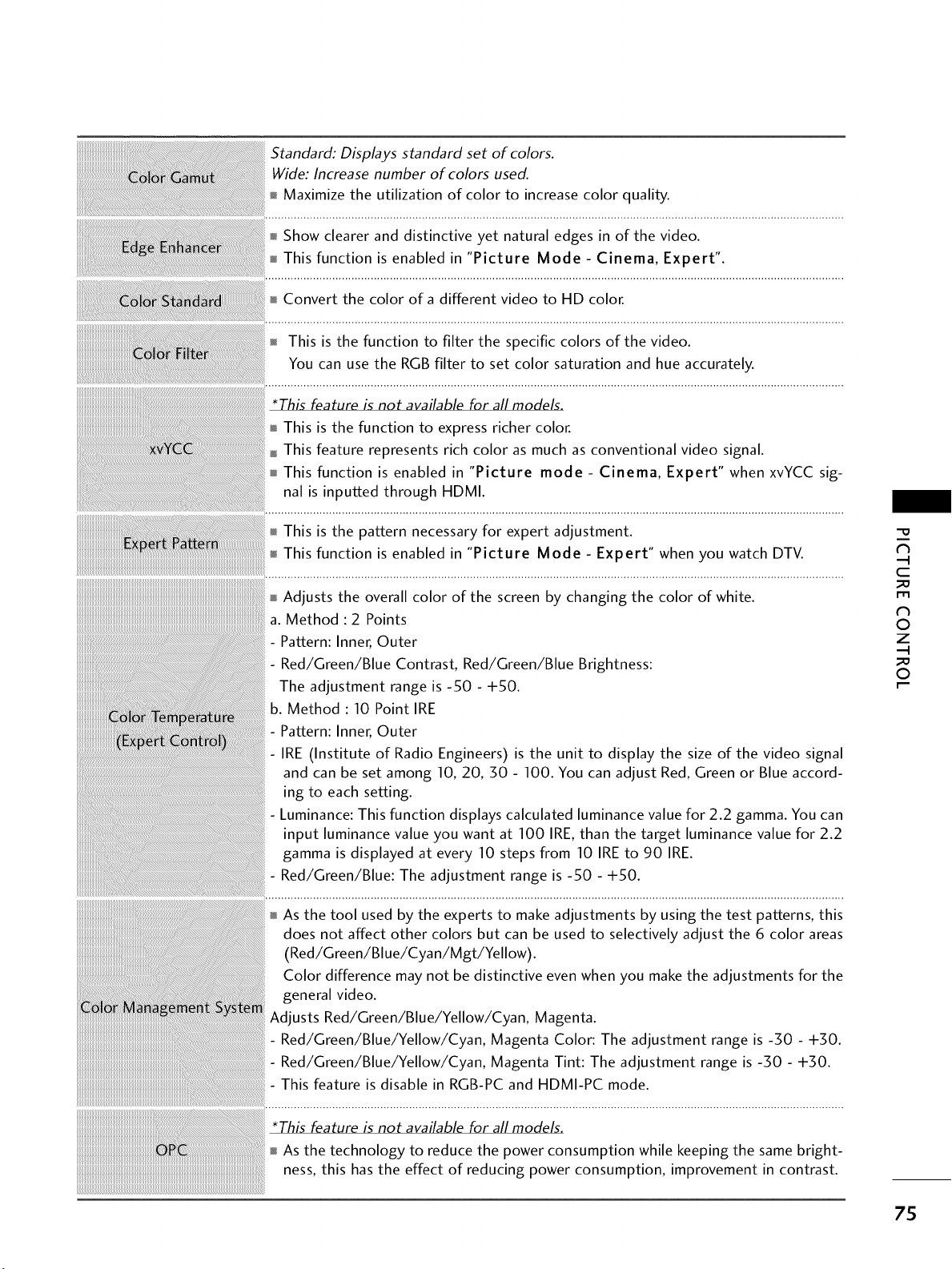
Standard: Displays standard set of colors.
Wide: Increase number of colors used.
Maximize the utilization of color to increase color quality.
Show clearer and distinctive yet natural edges in of the video.
This function is enabled in "Picture Mode - Cinema, Expert".
Convert the color of a different video to HD color.
This is the function to filter the specific colors of the video.
You can use the RGB filter to set color saturation and hue accurately.
This is the function to express richer color.
This feature represents rich color as much as conventional video signal.
This function is enabled in "Picture mode - Cinema, Expert" when xvYCC sig-
nal is inputted through HDMI.
This is the pattern necessary for expert adjustment.
This function is enabled in "Picture Mode - Expert" when you watch DTV.
Adjusts the overall color of the screen by changing the color of white.
a. Method: 2 Points
- Pattern: Inner, Outer- Red/Green/Blue Contrast, Red/Green/Blue Brightness:
The adjustment range is -50 - +50.
b. Method: 10 Point IRE
_i Pattern: In ner, Outer
- IRE (Institute of Radio Engineers) is the unit to display the size of the video signal
and can be set among 10, 20, 30 - 100. You can adjust Red, Green or Blue accord-
ing to each setting.
- Luminance: This function displays calculated luminance value for 2.2 gamma. You can
input luminance value you want at 100 IRE, than the target luminance value for 2.2
gamma is displayed at every 10 steps from 10 IRE to 90 IRE.
- Red/Green/Blue: The adjustment range is -50 - -I-50.
As the tool used by the experts to make adjustments by using the test patterns, this
does not affect other colors but can be used to selectively adjust the 6 color areas
(Red/Green/Blue/Cyan/Mgt/Yellow).
Color difference may not be distinctive even when you make the adjustments for the
general video.
Adjusts Red/Green/Blue/Yellow/Cyan, Magenta.
- Red/Green/Blue/Yellow/Cyan, Magenta Color: The adjustment range is -50 - +50.
- Red/Green/Blue/Yellow/Cyan, Magenta Tint: The adjustment range is -50 - +50.
- This feature is disable in RGB-PC and HDMI-PC mode.
*This feature is not available for all models.
As the technology to reduce the power consumption while keeping the same bright-
ness, this has the effect of reducing power consumption, improvement in contrast.
-O
N
C
['t3
N
©
Z
©
75
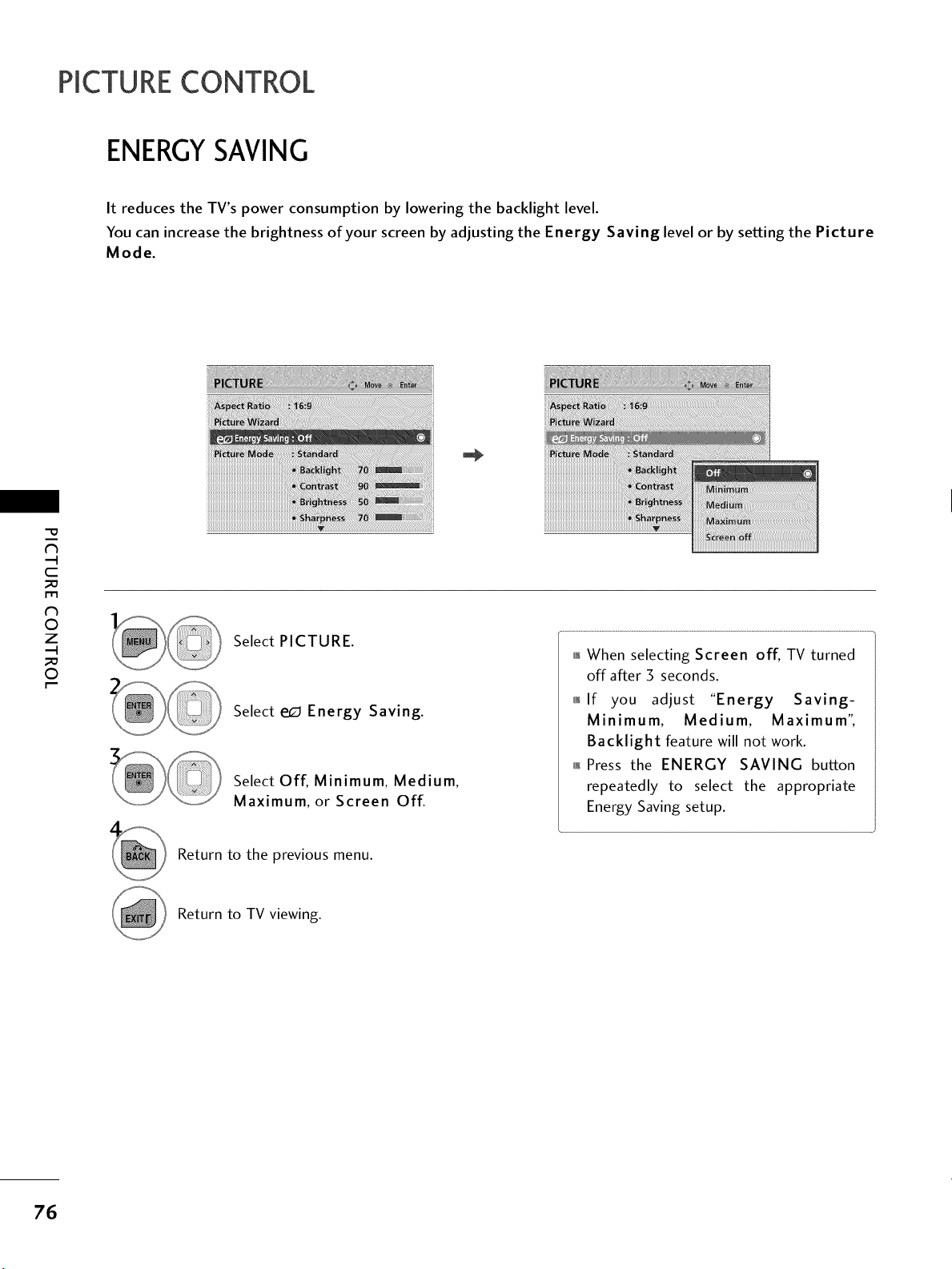
PICTURECONTROL
ENERGYSAVING
It reduces the TV's power consumption by lowering the backlight level.
You can increase the brightness of your screen by adjusting the Energy Saving level or by setting the Picture
Mode.
"O
N
C
_D
r_l
N
©
Z
_D
©
Select PICTURE.
Select e_ Energy Saving.
Select Off, Minimum, Medium,
Maximum, or Screen Off.
01_When selecting Screen off, TV turned
off after 3 seconds.
01_If you adjust "Energy Saving-
Minimum, Medium, Maximum",
Backlight feature will not work.
01_Press the ENERGY SAVING button
repeatedly to select the appropriate
Energy Saving setup.
Return to the previous menu.
Return to TV viewing.
76
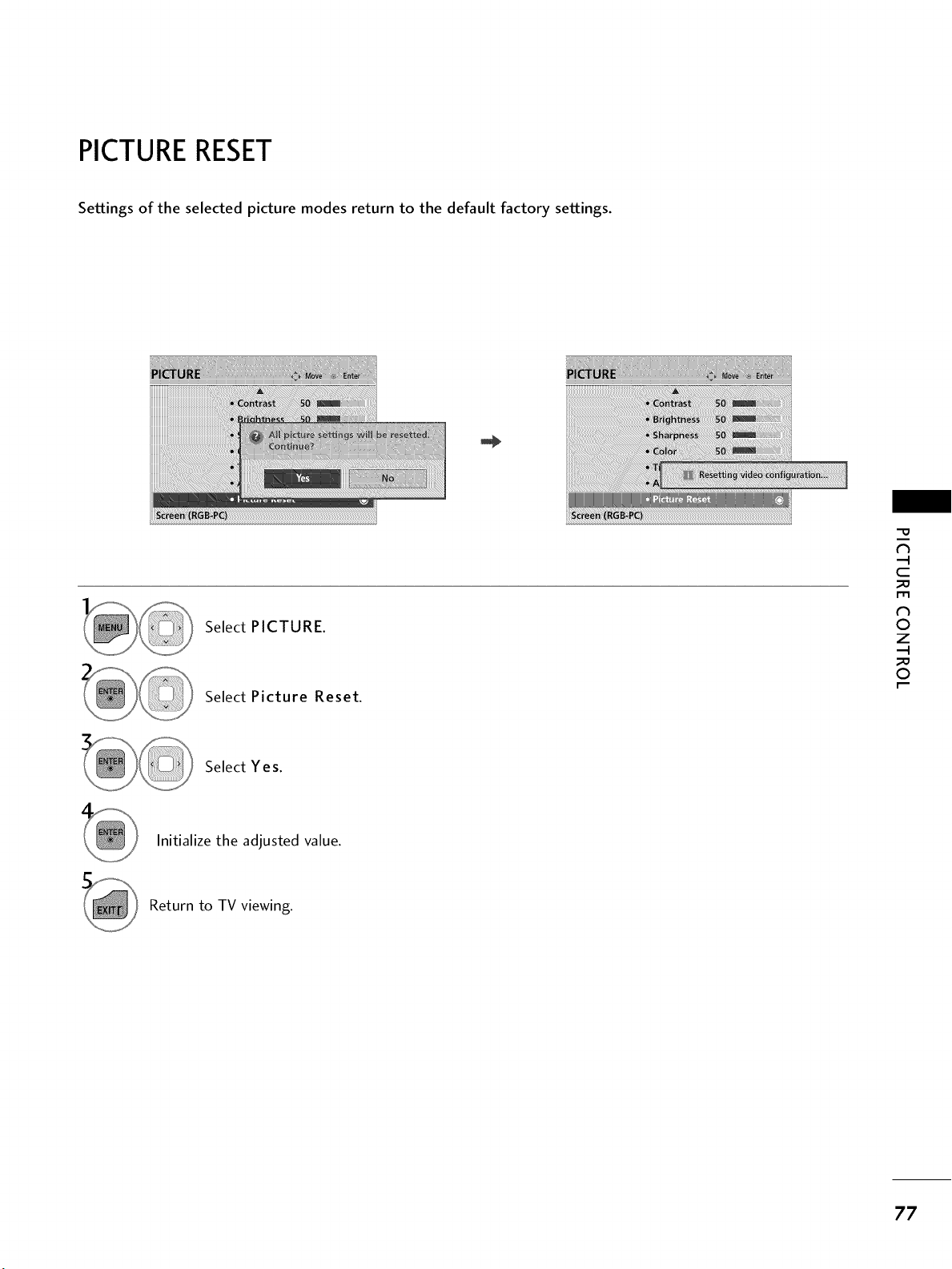
PICTURERESET
Settings of the selected picture modes return to the default factory settings.
Select PICTURE.
Select Picture Reset.
"O
N
C
m
N
O
Z
O
Select Yes.
Initialize the adjusted value.
Return to TV viewing.
77
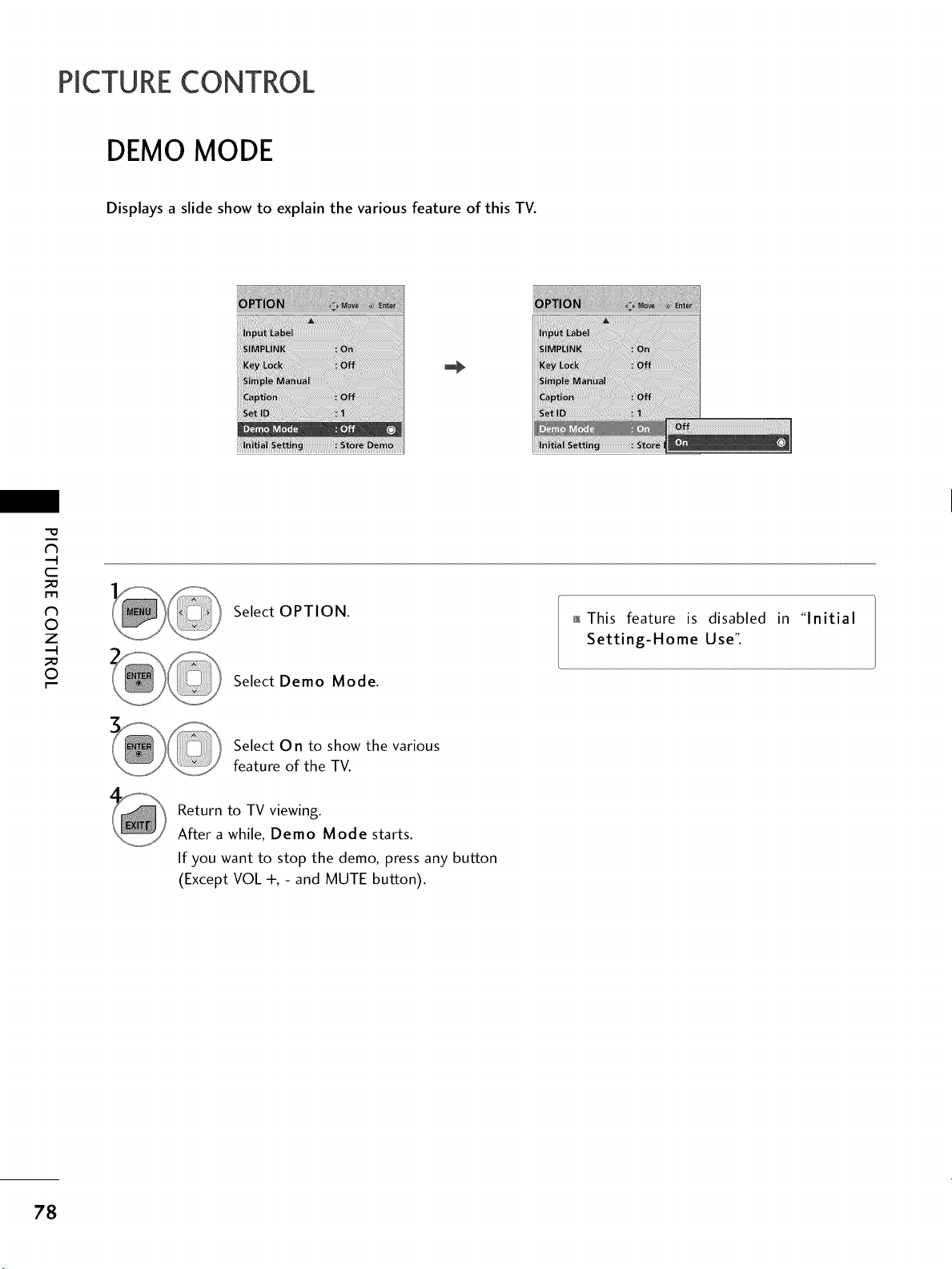
PICTURECONTROL
DEMO MODE
Displays a slide show to explain the various feature of this TV.
"O
N
C
m
N
©
Z
©
Select OPTION.
Select Demo Mode.
01_This feature is disabled in "Initial
Setting-Home Use".
Select On to show the various
feature of the TV.
Return to TV viewing.
After a while, Demo Mode starts.
If you want to stop the demo, press any button
(Except VOL +, - and MUTE button).
78
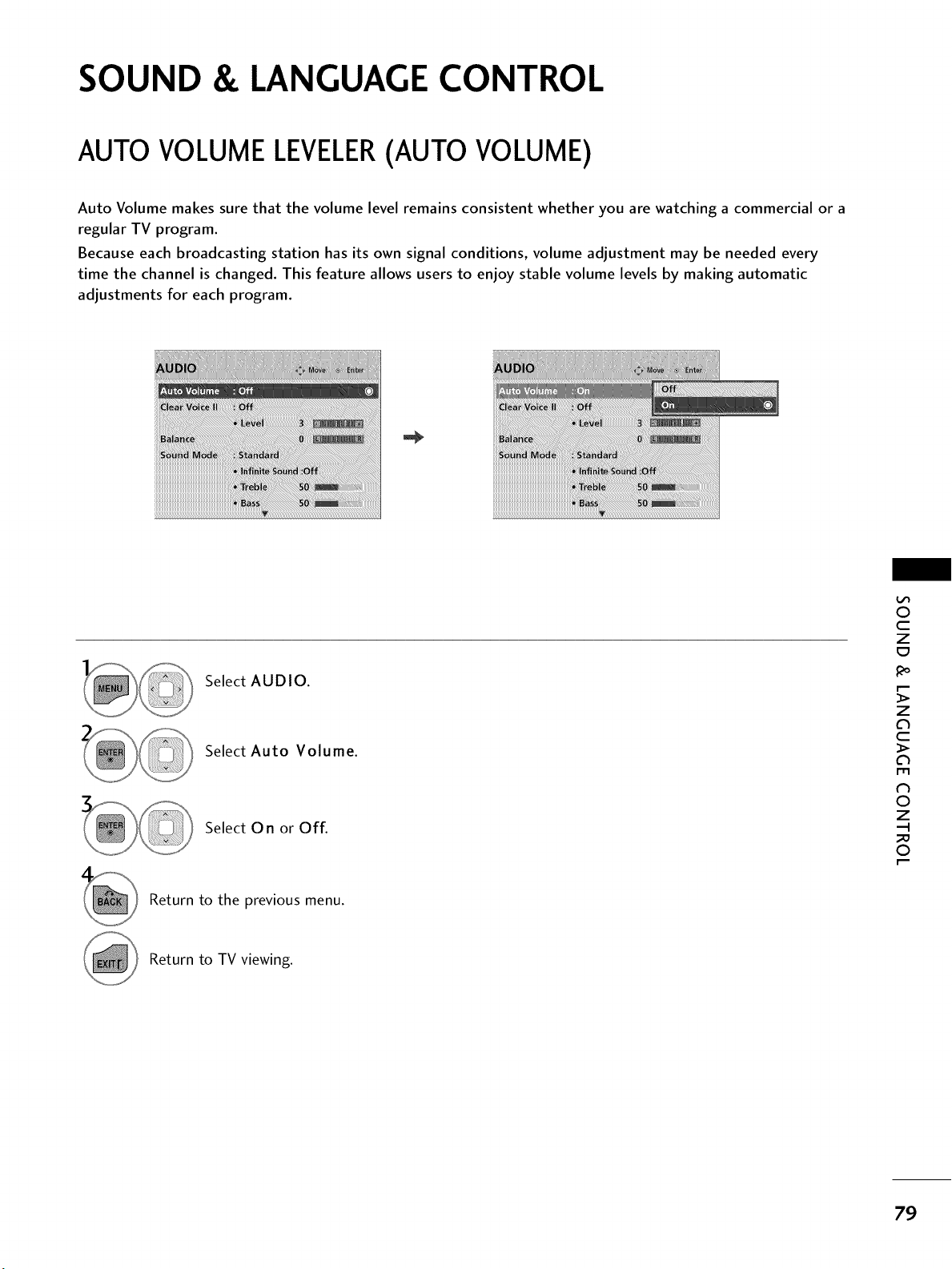
SOUND & LANGUAGE CONTROL
AUTO VOLUME LEVELER(AUTO VOLUME)
Auto Volume makes sure that the volume level remains consistent whether you are watching a commercial or a
regular TV program.
Because each broadcasting station has its own signal conditions, volume adjustment may be needed every
time the channel is changed. This feature allows users to enjoy stable volume levels by making automatic
adjustments for each program.
Select AUDIO.
Select Auto Volume.
Select 0 n or Off.
Return to the previous menu.
0
c
Z
z
c
1-11
N
0
Z
.-I
0
Return to TV viewing.
79
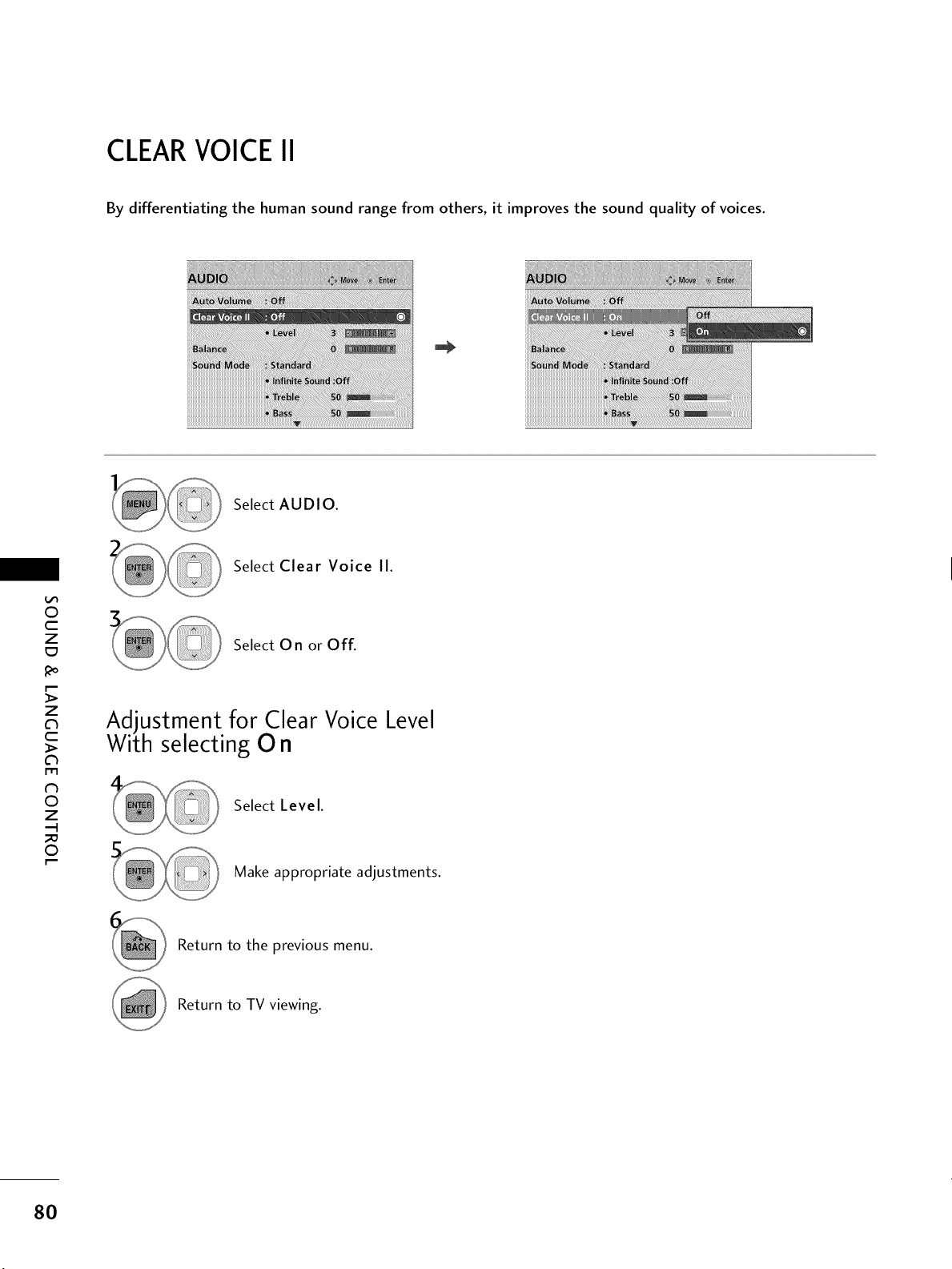
CLEARVOICE II
By differentiating the human sound range from others, it improves the sound quality of voices.
:::
i__!!__!!!!ii!!!!!!i_I!!!!!!!!!!!!!!!!!!!!!!!!!!_!__!!!!!!!!!!!!!i!_!!!!!!!!!!!!
Select AUDIO.
0
c
Z
_o
z
c
l'rl
N
0
Z
.-I
0
Select Clear Voice II.
Select On or Off.
Adjustment for Clear Voice Level
With selecting O n
Select Level.
Make appropriate adjustments.
Return to the previous menu.
Return to TV viewing.
80
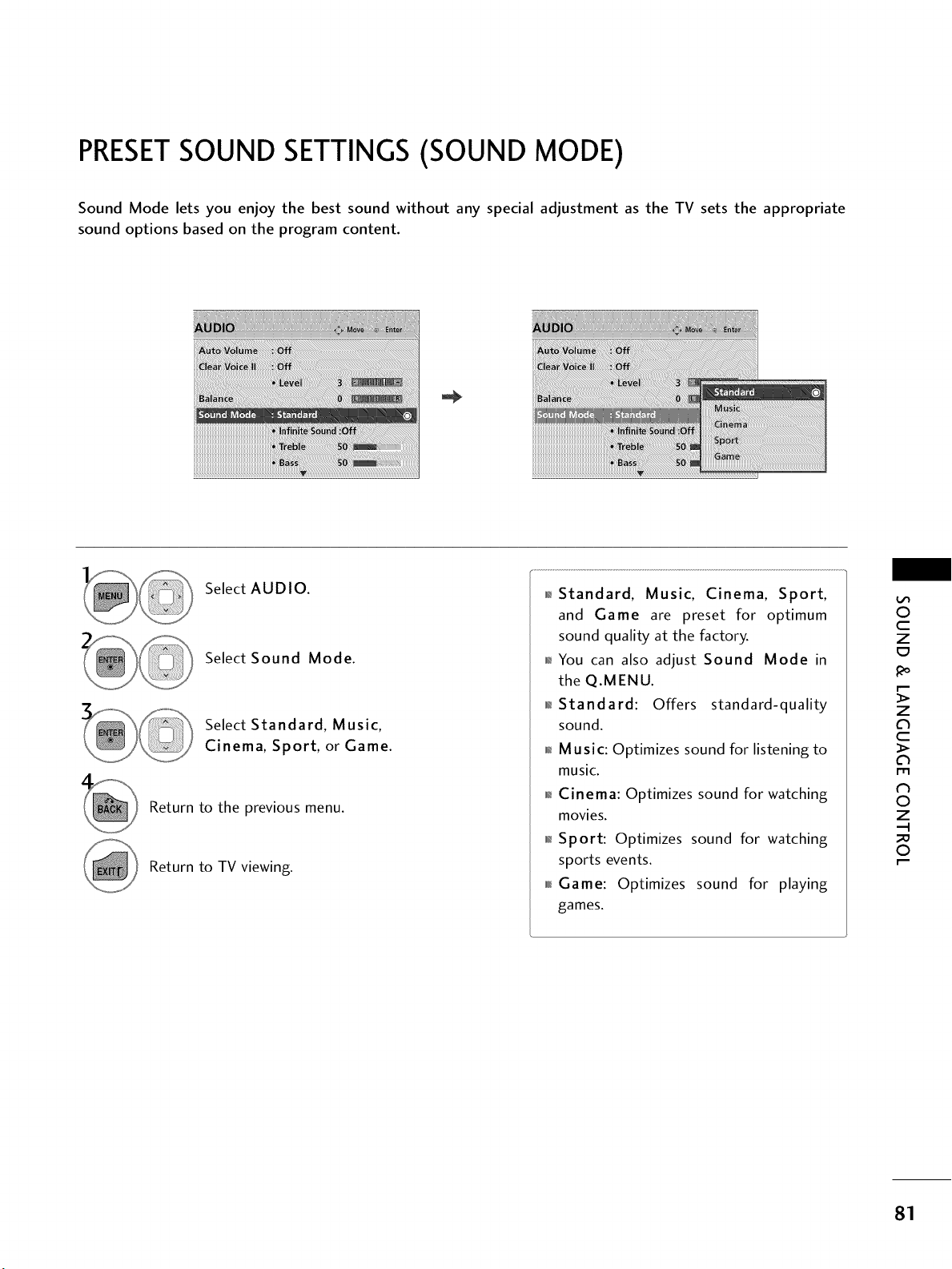
PRESETSOUND SETTINGS (SOUND MODE)
Sound Mode lets you enjoy the best sound without any special adjustment as the TV sets the appropriate
sound options based on the program content.
Select AUDIO.
Select Sound Mode.
Select Standard, Music,
Cinema, Sport, or Game.
Return to the previous menu.
Return to TV viewing.
01_Standard, Music, Cinema, Sport,
and Game are preset for optimum
sound quality at the factory.
01_You can also adjust Sound Mode in
the Q.MENU.
01_Standard: Offers standard-quality
sound.
Music: Optimizes sound for listening to
music.
Cinema: Optimizes sound for watching
movies.
01_Sport: Optimizes sound for watching
sports events.
0101_Game: Optimizes sound for playing
games.
0
c
Z
z
c
l'rl
N
0
Z
.-I
0
81
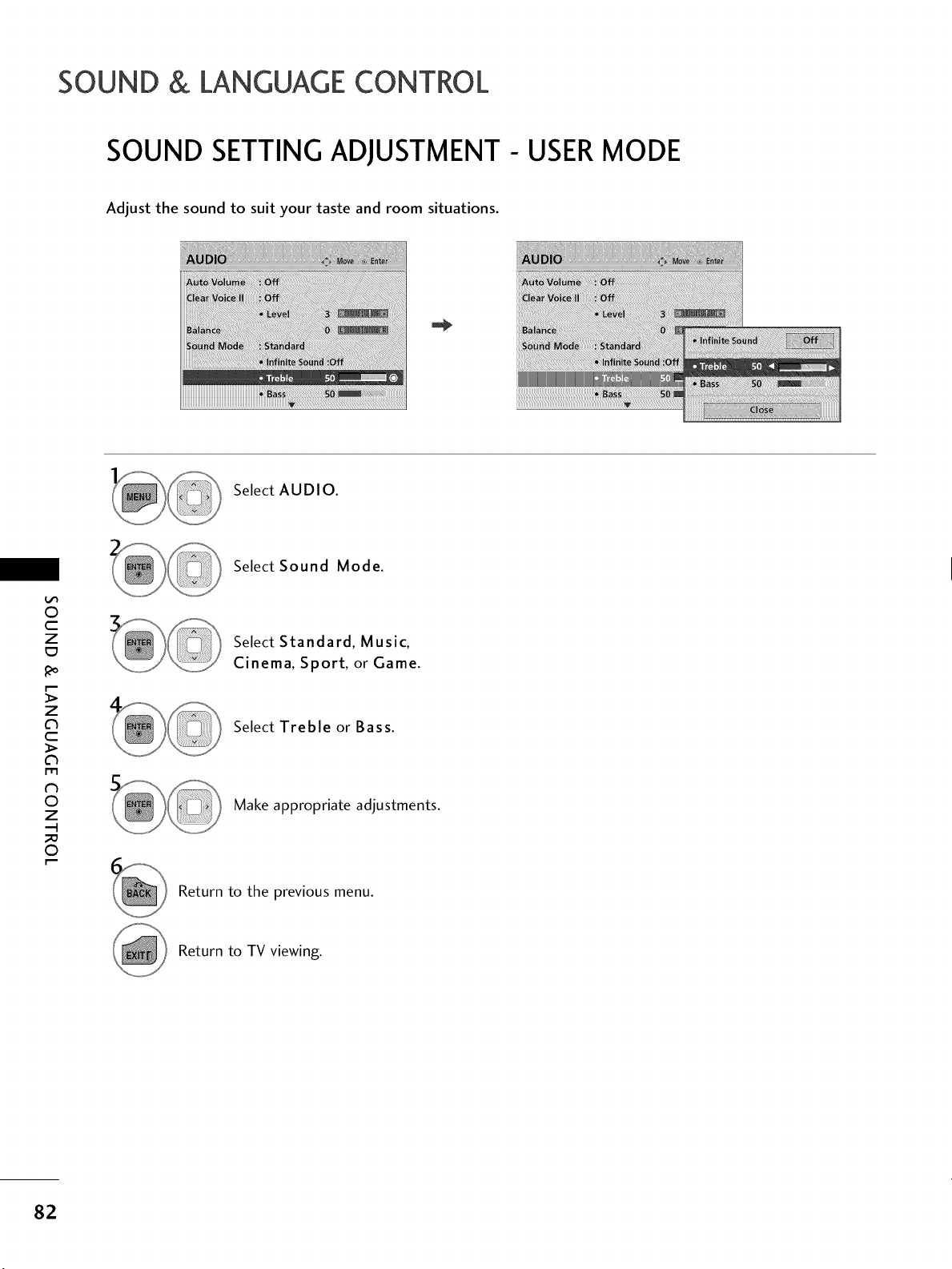
SOUND & LANGUAGE CONTROL
SOUND SETTING ADJUSTMENT- USERMODE
Adjust the sound to suit your taste and room situations.
Select AUDIO.
O
c
Z
_o
z
c
l'rl
N
0
Z
.-I
0
Select Sound Mode.
Select Standard, Music,
Cinema, Sport, or Game.
Select Treble or Bass.
Make appropriate adjustments.
Return to the previous menu.
Return to TV viewing.
82
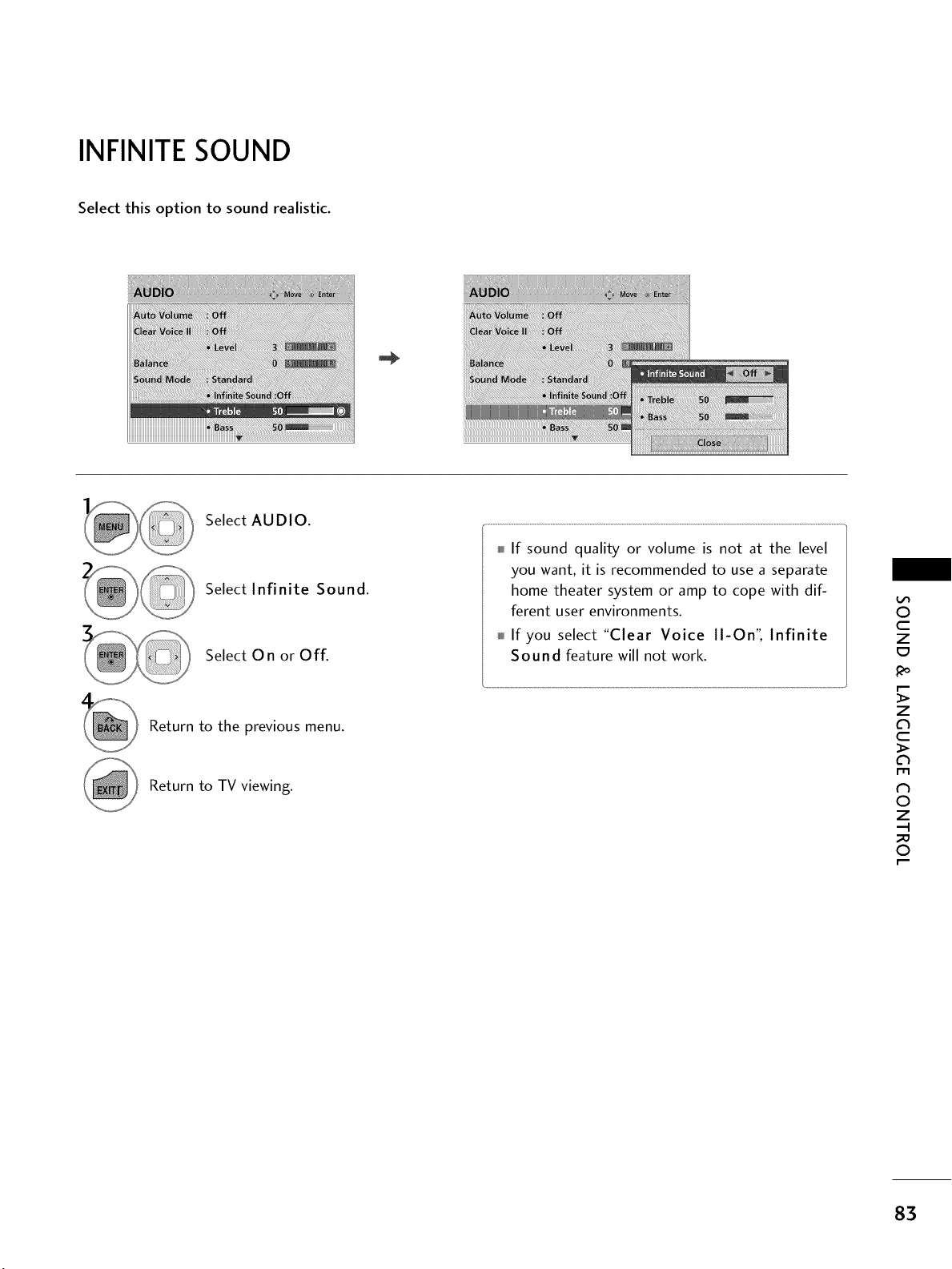
INFINITE SOUND
Select this option to sound realistic.
iiii_i_i_i_iiiiii_i_i_ii_!i_!i_!i_!i_!i_!i_!i_!i_!i_!i_!i_!i_!i_!i_!i_!i_!i_!iii_!i!!!iii_i_i!!_ii_iiiii_!ii_
Select AUDIO.
Select Infinite Sound.
Select On or Off.
Return to the previous menu.
Return to TV viewing.
If sound quality or volume is not at the level
you want, it is recommended to use a separate
home theater system or amp to cope with dif-
ferent user environments.
If you select "Clear Voice II-On': Infinite
Sound feature will not work.
0
c
Z
_o
z
c
l'rl
N
0
Z
.-I
0
83
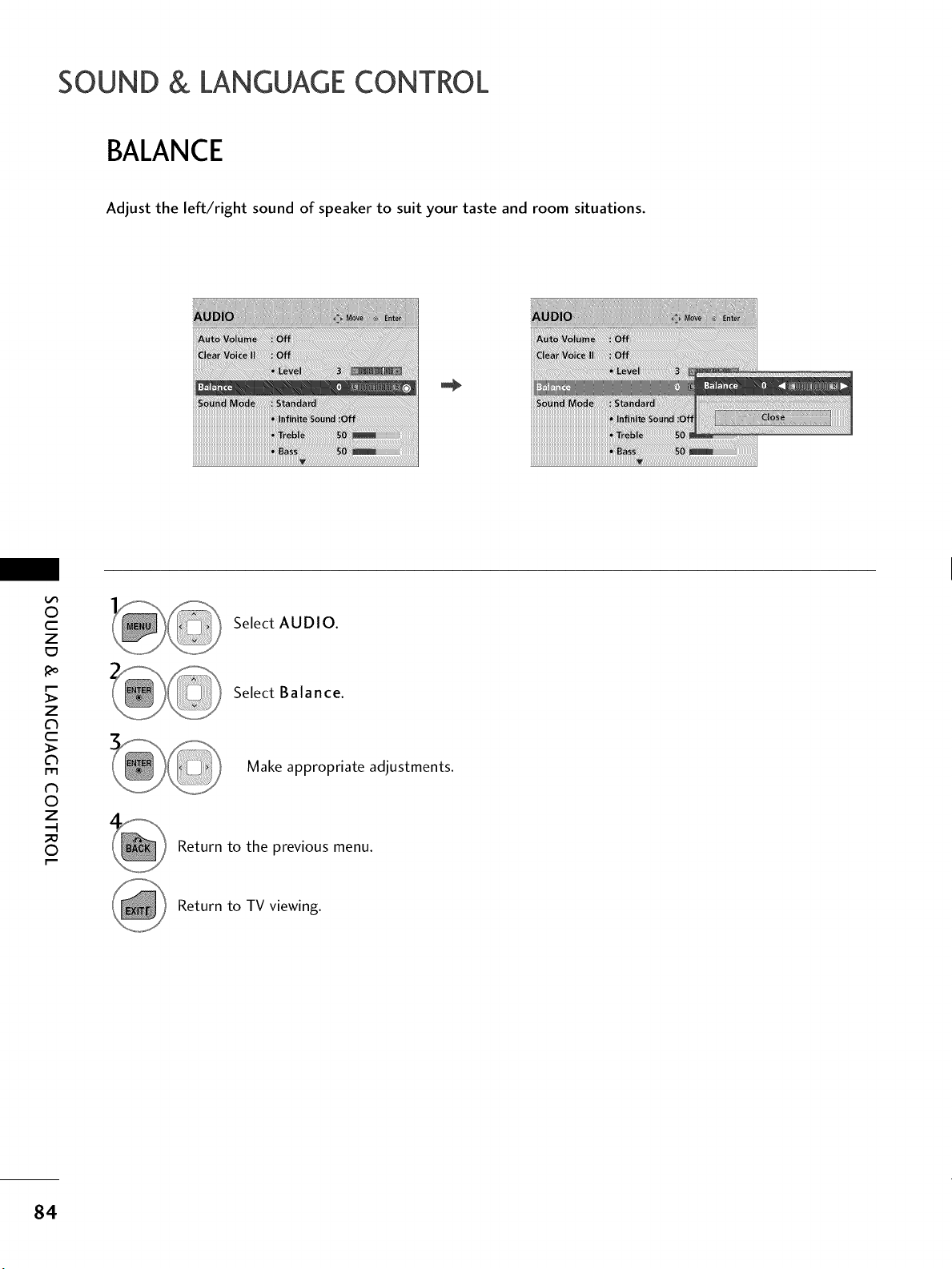
SOUND & LANGUAGE CONTROL
BALANCE
Adjust the left/right sound of speaker to suit your taste and room situations.
_i_iiiiii_ii_iiiii_:_iiiiiiii_iiiiiiiYiiiiii!!iii_Yi_i_i_i_i_iiiiiiiiiIii_iiiiii!!i_iiiii_iiiiii_iiiiii_ii!!iiiiiii_ii_!_!iiiiii_iiii!iIiii_i_iii_i!!i!ii_i_iiii_i!_1_iiIi_i_iiii!!!_:_:_iiii_i_iii_i_iii!!_iiiiiiiiii_iiiii_i_Ii
i_i_iiiiY!:_iiii!!_ii!iiii!iii!i!i_i!ii!ii!iiii!iiiii!_iiiiii!_iiiiii!iii!i!i_iiiiiii!iiiii!iii!i!iii_!!!_!iii_ii_i:i_iiii_ili_iiiiiHi!iiiiii
O
c
z
_o
z
c
l'rl
N
0
Z
.-I
0
Select AUDIO.
Select Balance.
Make appropriate adjustments.
Return to the previous menu.
Return to TV viewing.
84
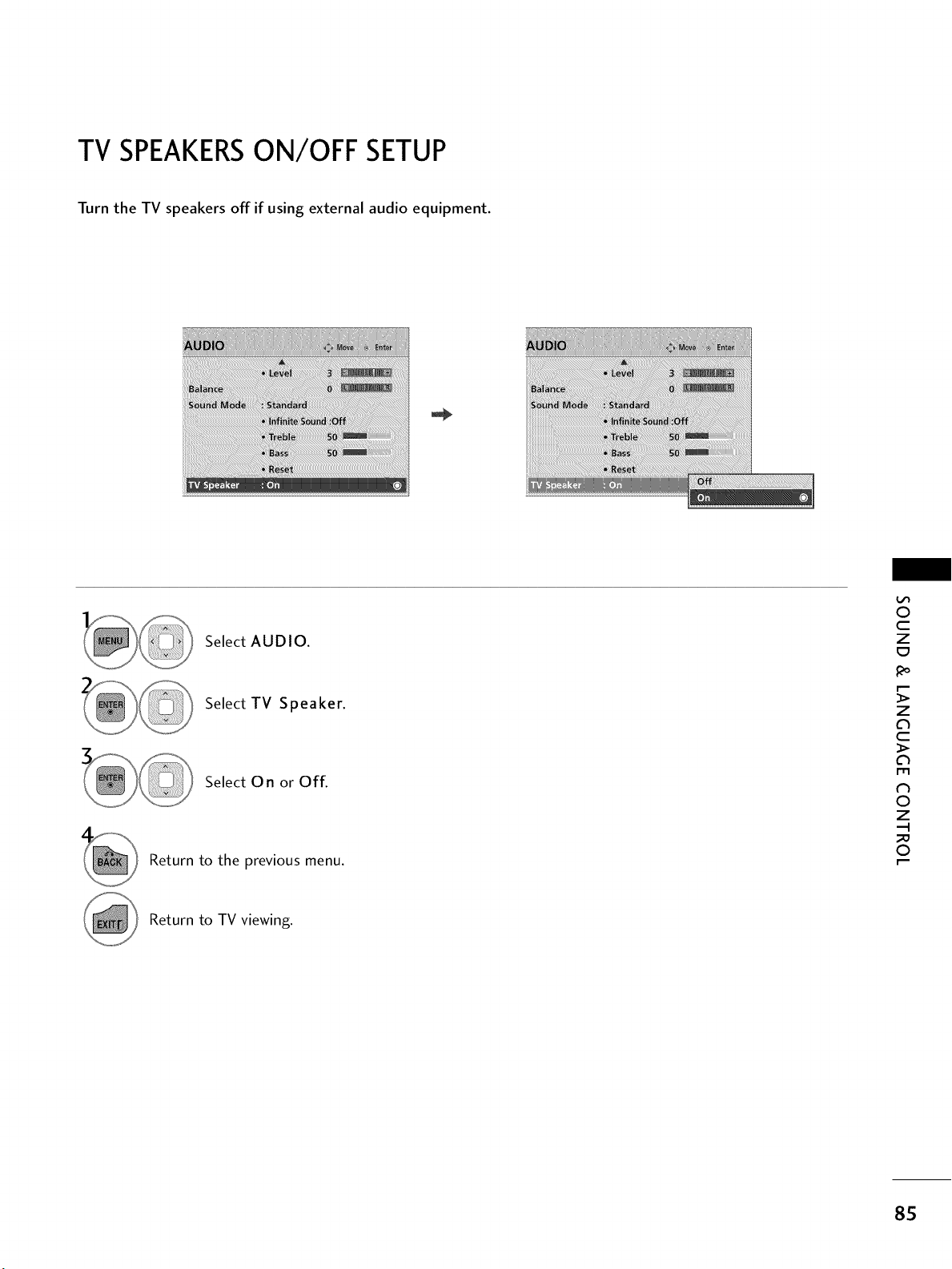
TV SPEAKERSONIOFF SETUP
Turn the TV speakers off if using external audio equipment.
Select AUDIO.
Select TV Speaker.
Select 0 n or Off.
Return to the previous menu.
0
c
Z
_o
z
c
l'rl
N
0
Z
.-I
0
Return to TV viewing.
85
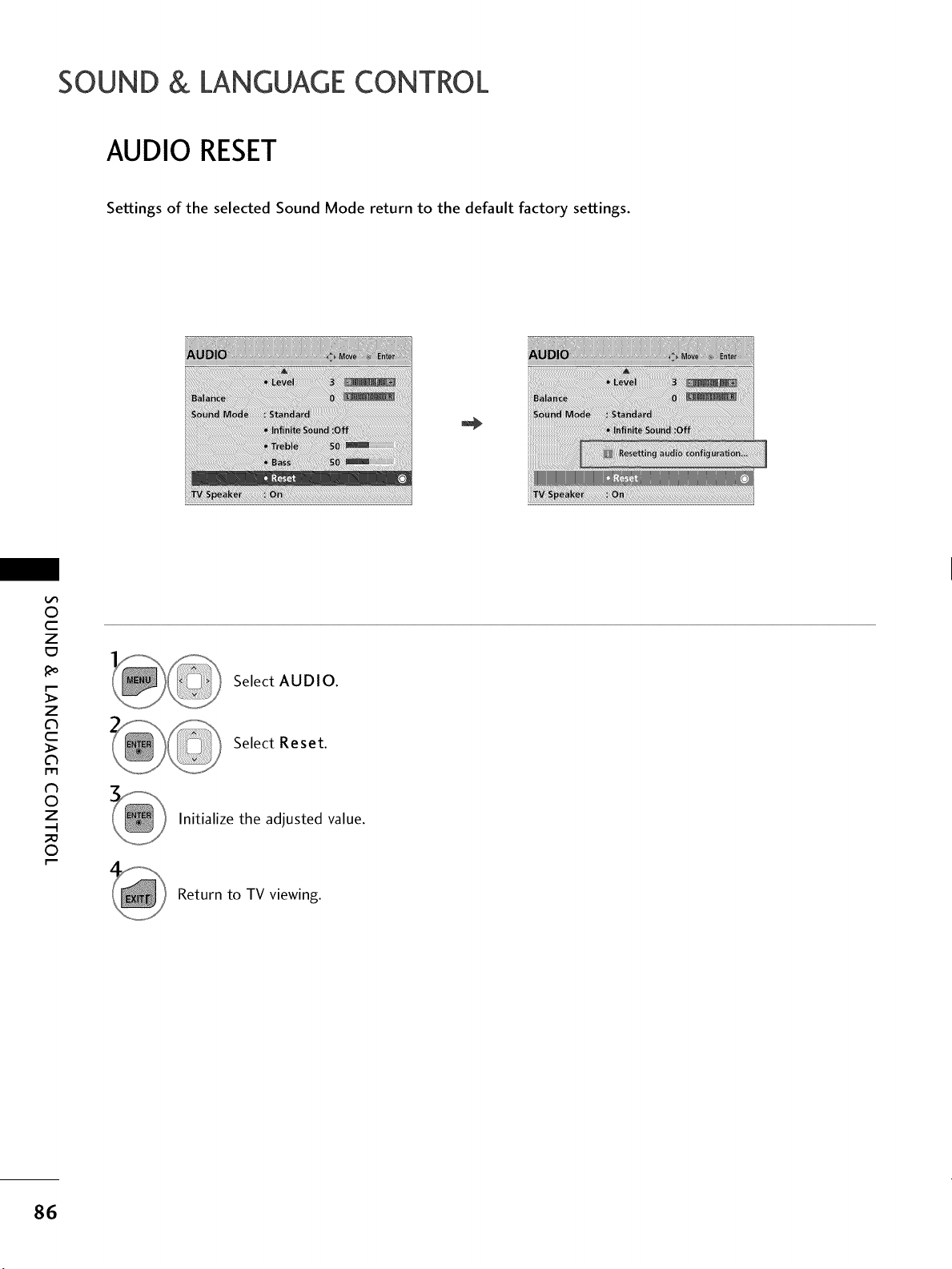
SOUND & LANGUAGE CONTROL
AUDIO RESET
Settings of the selected Sound Mode return to the default factory settings.
0
c
z
z
c
l'rl
N
0
Z
.-I
0
Select AUDIO.
Select Reset.
Initialize the adjusted value.
Return to TV viewing.
86
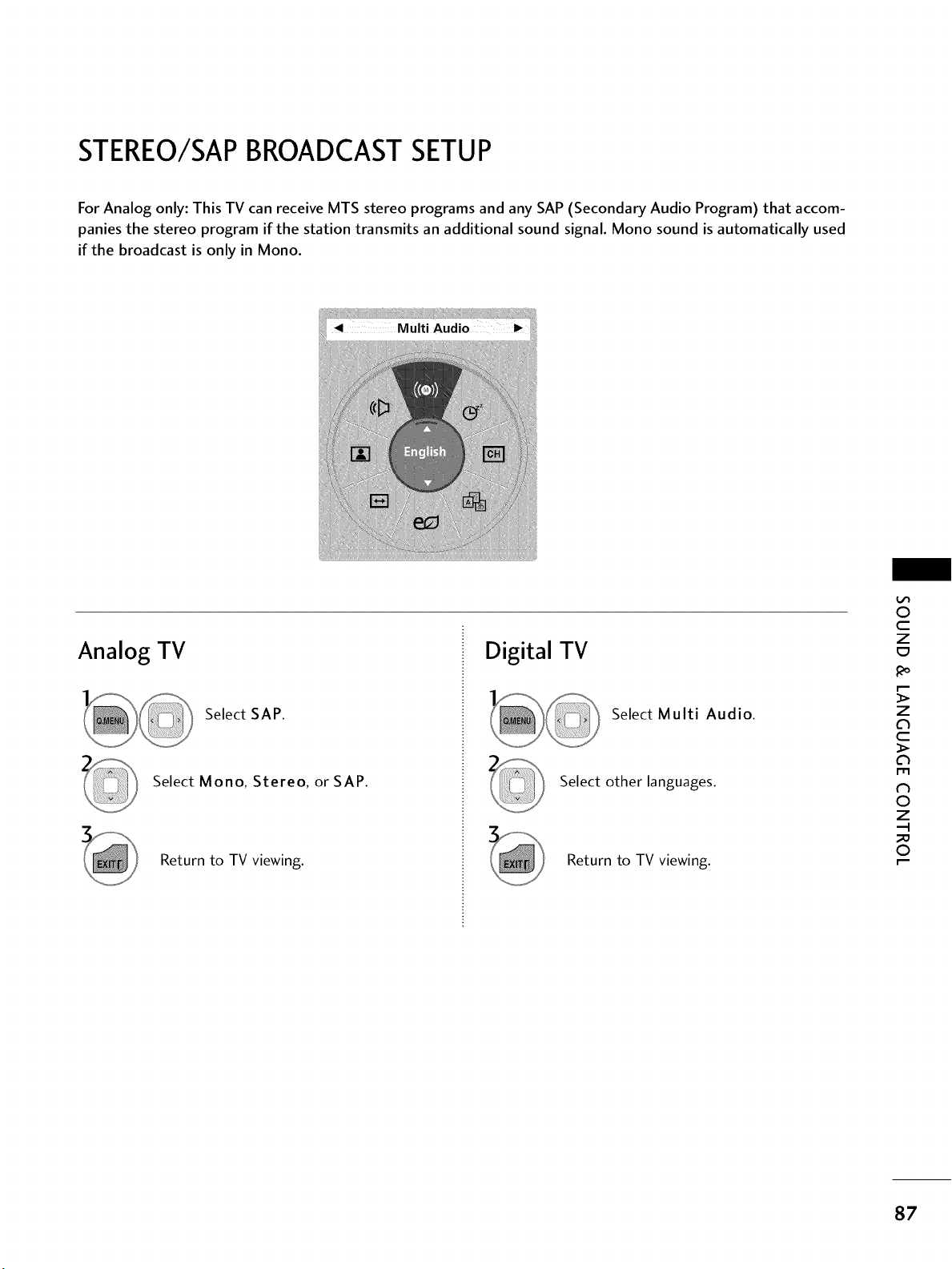
STEREO/SAPBROADCASTSETUP
For Analog only: This TV can receive MTS stereo programs and any SAP (Secondary Audio Program) that accom-
panies the stereo program if the station transmits an additional sound signal. Mono sound is automatically used
if the broadcast is only in Mono.
Analog TV
Select SAP.
Select Mono, Stereo, or SAP.
Return to TV viewing.
Digital TV
Select Multi Audio.
Select other languages.
Return to TV viewing.
0
c
Z
_o
z
c
l'rl
N
0
Z
.-I
0
87
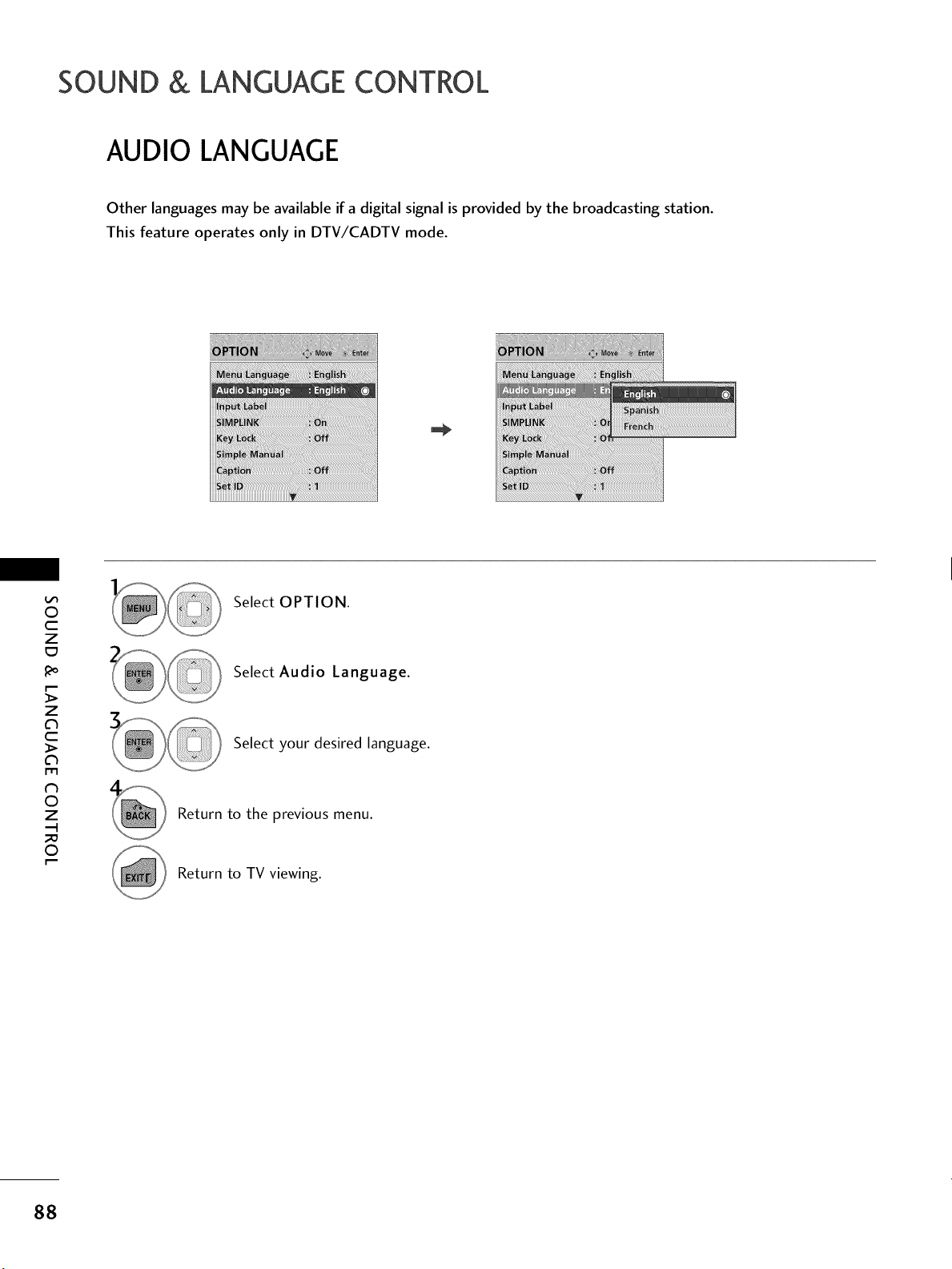
SOUND & LANGUAGE CONTROL
AUDIO LANGUAGE
Other languages may be available if a digital signal is provided by the broadcasting station.
This feature operates only in DTV/CADTV mode.
O
c
Z
_o
z
c
l'rl
N
0
Z
.-I
0
Select OPTION.
Select Audio Language.
Select your desired language.
Return to the previous menu.
Return to TV viewing.
88
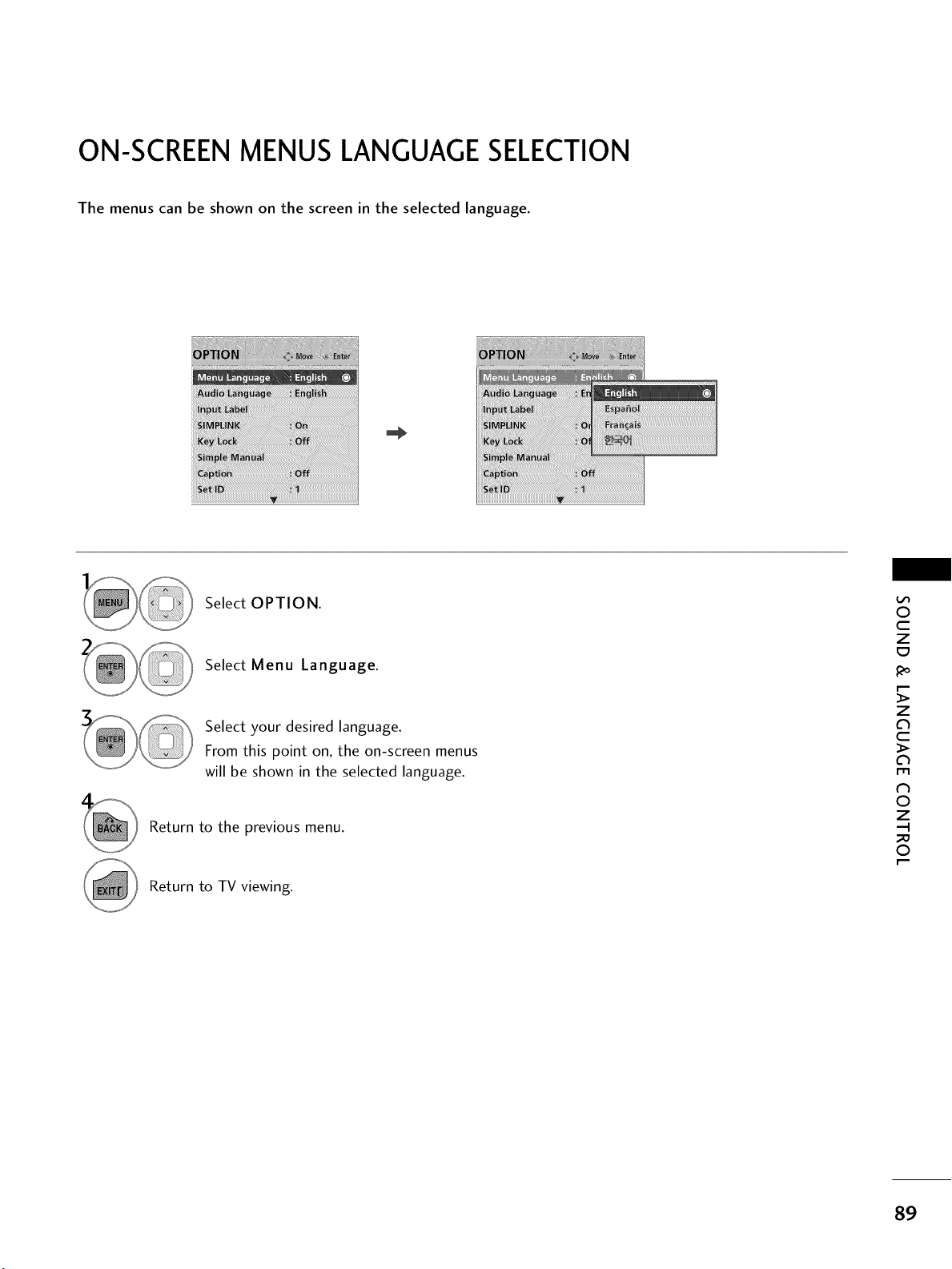
ON-SCREEN MENUS LANGUAGE SELECTION
The menus can be shown on the screen in the selected language.
i
Select OPTION.
Select Menu Language.
Select your desired language.
From this point on, the on-screen menus
will be shown in the selected language.
Return to the previous menu.
Return to TV viewing.
0
c
Z
z
c
l'rl
N
0
Z
.-I
0
89
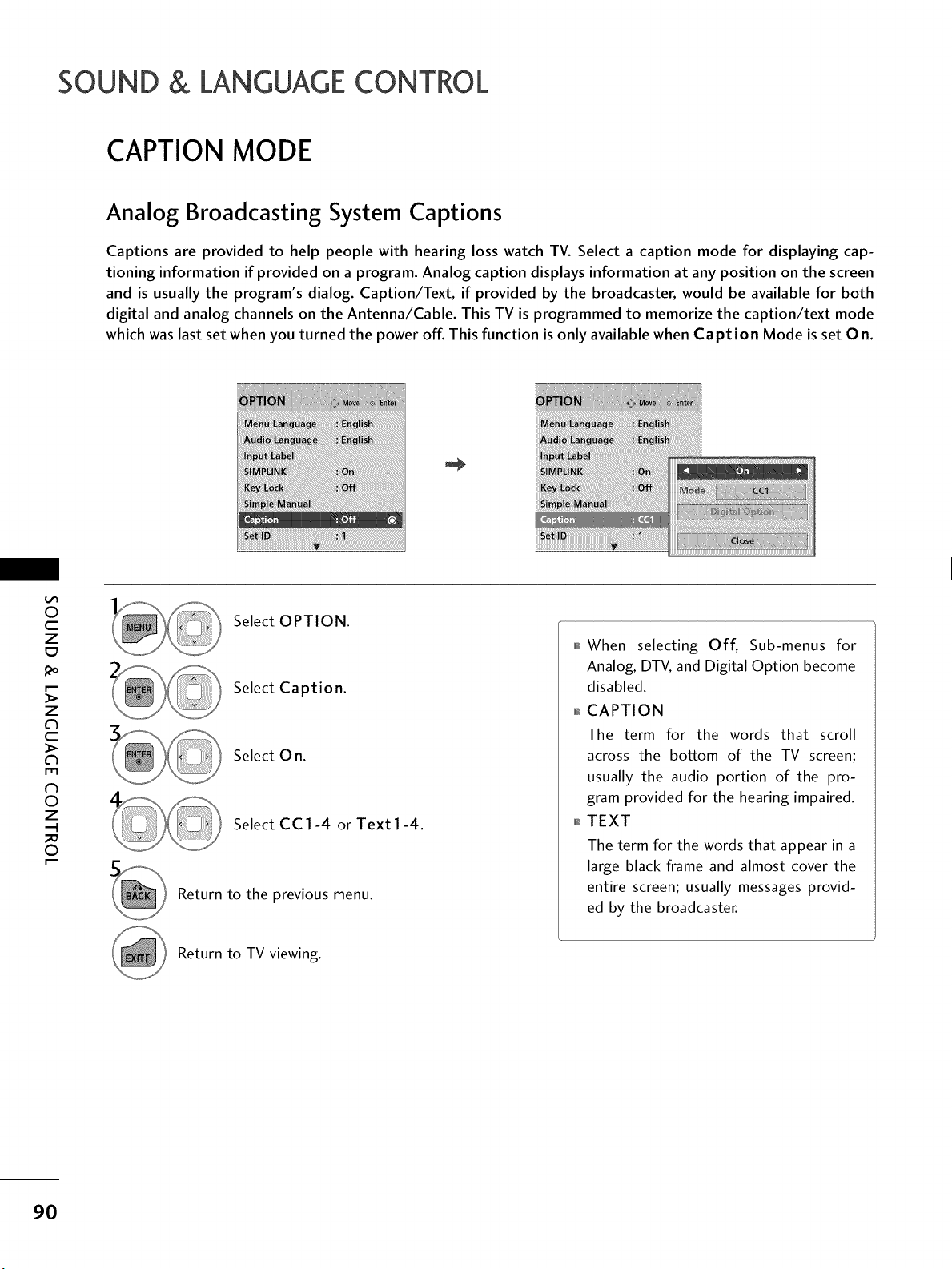
SOUND & LANGUAGE CONTROL
CAPTION MODE
Analog Broadcasting System Captions
Captions are provided to help people with hearing loss watch TV. Select a caption mode for displaying cap-
tioning information if provided on a program. Analog caption displays information at any position on the screen
and is usually the program's dialog. Caption/Text, if provided by the broadcaster, would be available for both
digital and analog channels on the Antenna/Cable. This TV is programmed to memorize the caption/text mode
which was last set when you turned the power off. This function is only available when Caption Mode is set On.
0
c
Z
_o
z
c
l'rl
N
0
Z
.-I
0
Select OPTION.
Select Caption.
Select 0 n.
Select CC1-4 or Text1-4.
Return to the previous menu.
When selecting Off, Sub-menus for
Analog, DTV, and Digital Option become
disabled.
CAPTION
The term for the words that scroll
across the bottom of the TV screen;
usually the audio portion of the pro-
gram provided for the hearing impaired.
TEXT
The term for the words that appear in a
large black frame and almost cover the
entire screen; usually messages provid-
ed by the broadcaster.
Return to TV viewing.
90
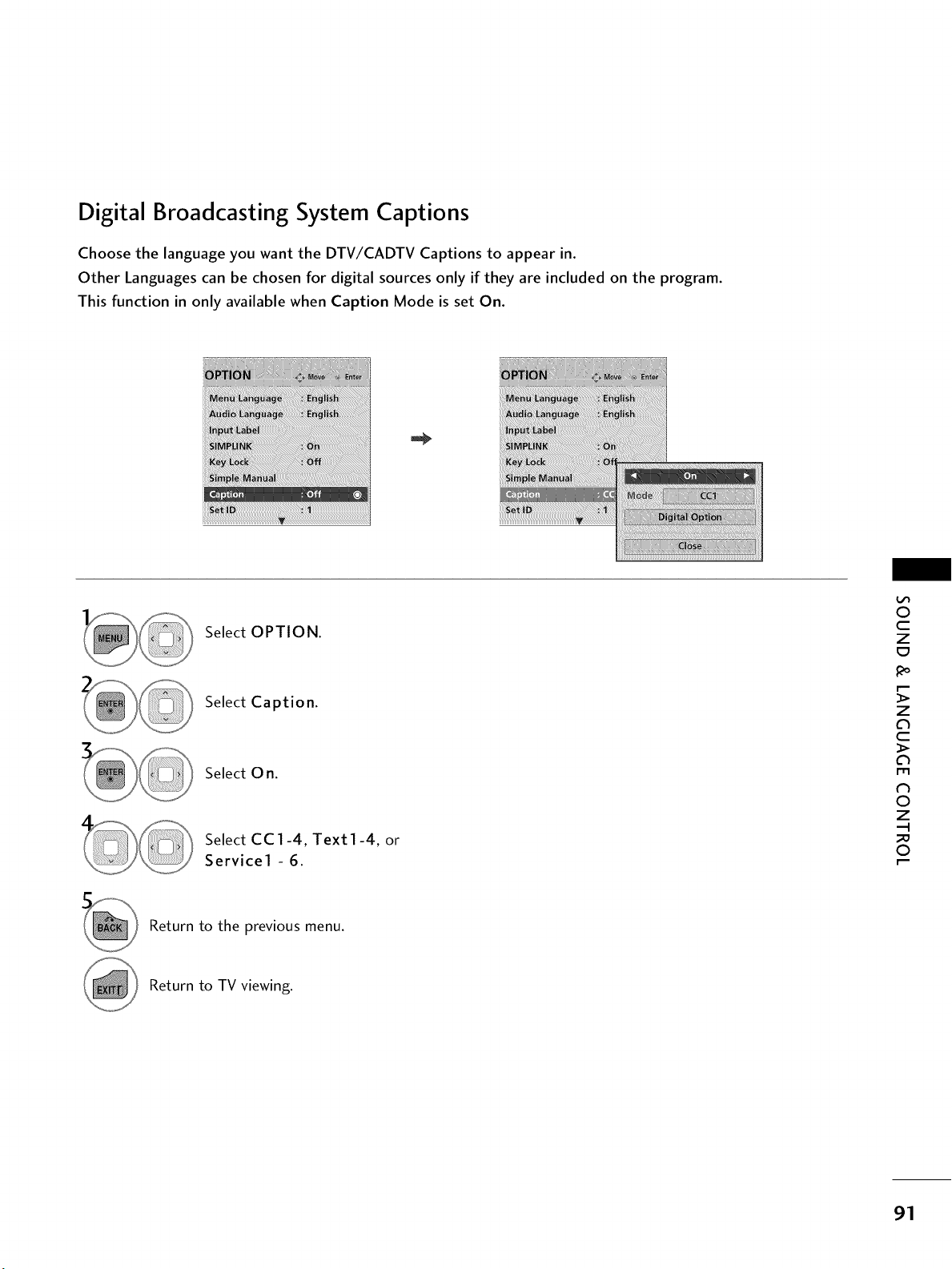
Digital Broadcasting System Captions
Choose the language you want the DTV/CADTV Captions to appear in.
Other Languages can be chosen for digital sources only if they are included on the program.
This function in only available when Caption Mode is set On.
i_iii[[[i/iiiiiiiii[[[i/[/[ili!JiJiiii[[iiMiiiiil¸_i_iiiIi_ii1i!_i[[[[[[iii_iiIii[_i_ji[[[[[[iii_i;_ii[[i!_i_iii[iiiiii[[[[i_iiii_i_!_iii[I[[Ii_i[I[i[i_i_iiiiiiiiii_!i!ii[[i[[[Ii_
Select OPTION.
Select Caption.
Select 0 n.
Select CC1-4, Text1-4, or
Service1 - 6.
0
c
z
t:3
z
c
l'rl
N
0
Z
.-I
0
Return to the previous menu.
Return to TV viewing.
91
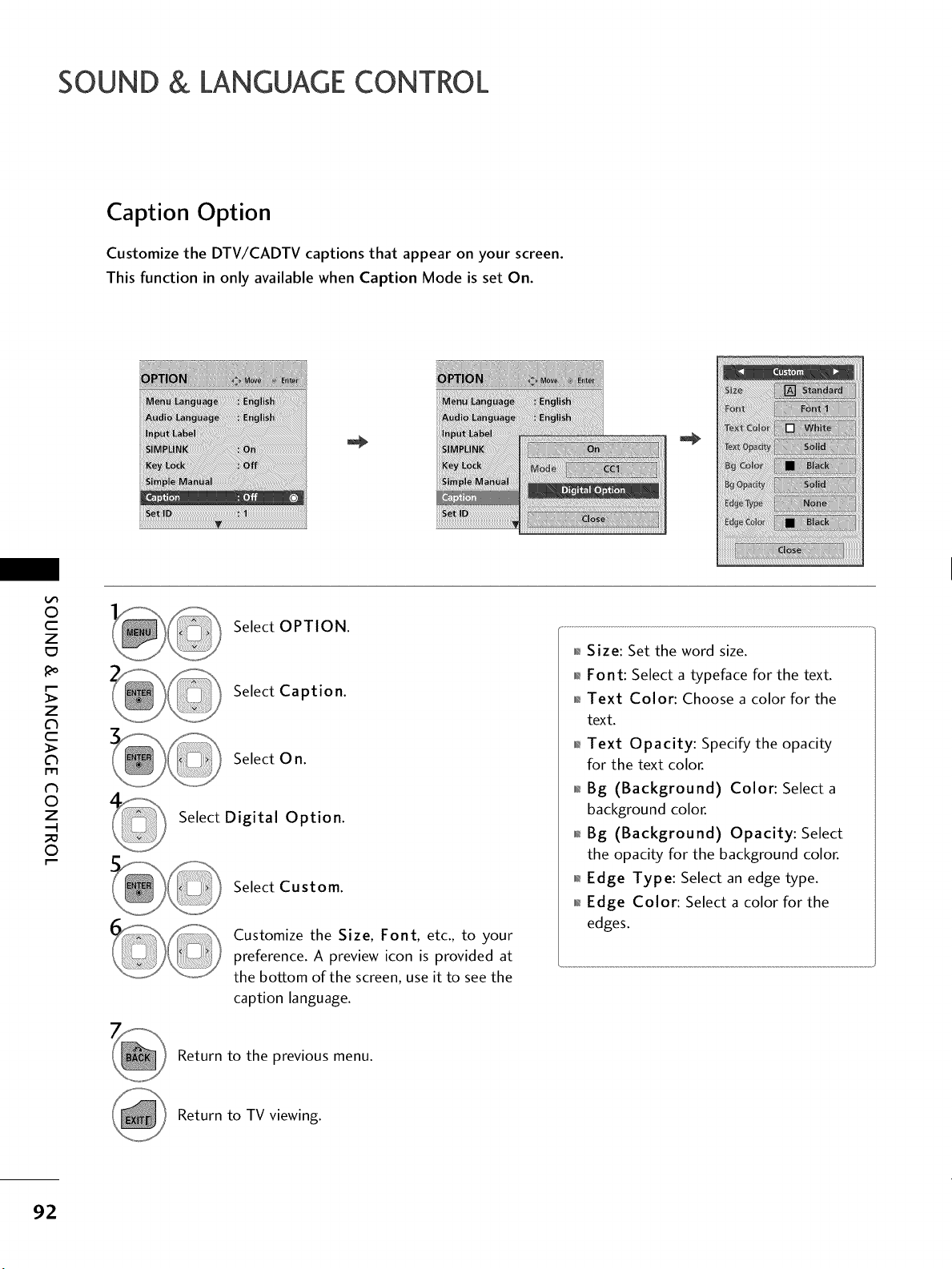
SOUND & LANGUAGE CONTROL
Caption Option
Customize the DTV/CADTV captions that appear on your screen.
This function in only available when Caption Mode is set On.
O
c
Z
_o
z
c
l'rl
N
0
Z
.-I
0
Select OPTION.
Select Caption.
Select O n.
Select Digital Option.
Select Custom.
Customize the Size, Font, etc., to your
preference. A preview icon is provided at
the bottom of the screen, use it to see the
caption language.
01_Size: Set the word size.
01_Font: Select a typeface for the text.
0_Text Color: Choose a color for the
text.
01_Text Opacity: Specify the opacity
for the text color.
01_Bg (Background) Color: Select a
background color.
01_Bg (Background) Opacity: Select
the opacity for the background color.
01_Edge Type: Select an edge type.
01_Edge Color: Select a color for the
edges.
Return to the previous menu.
Return to TV viewing.
92
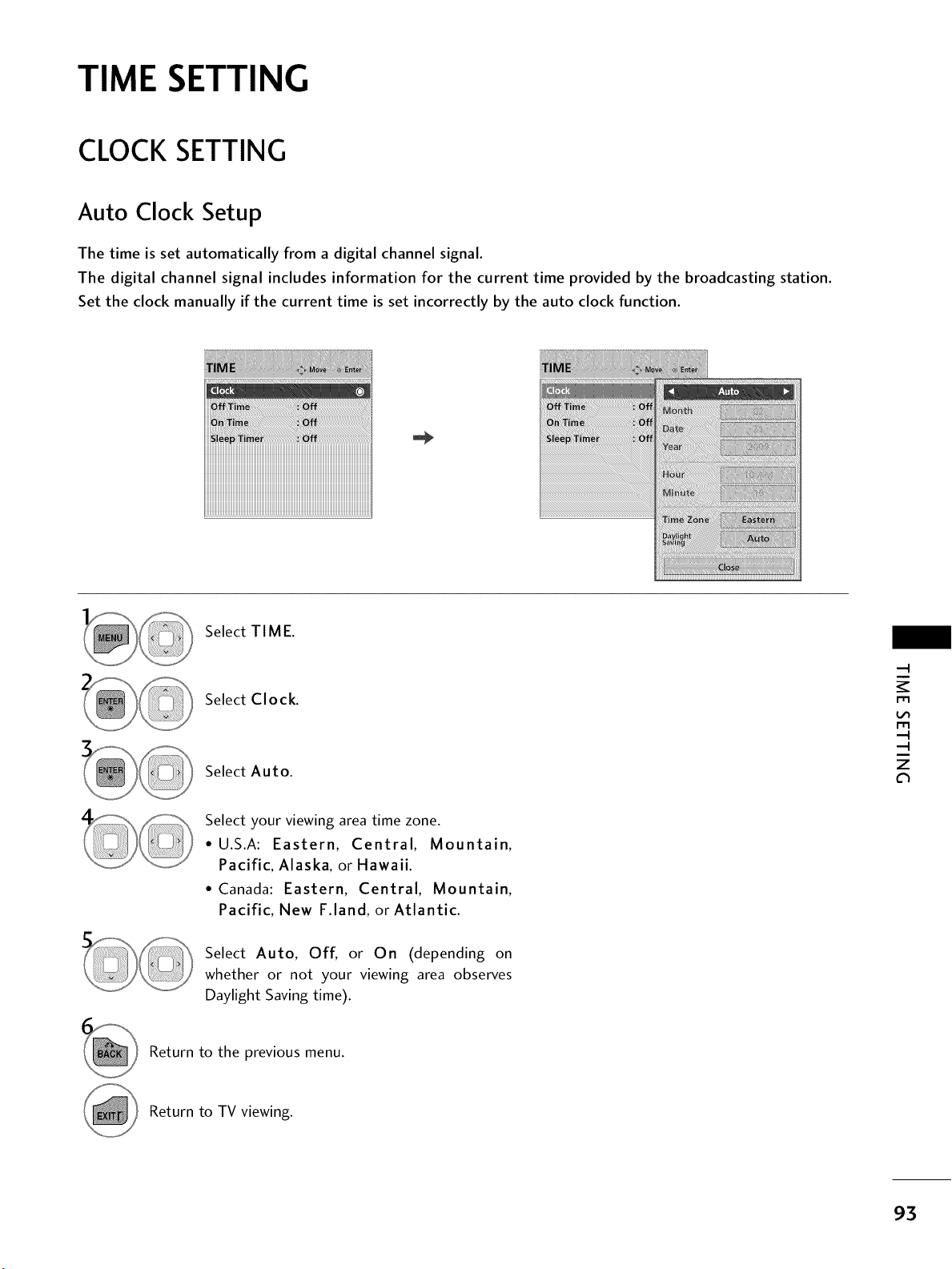
TIME SETTING
CLOCK SETTING
Auto Clock Setup
The time is set automatically from a digital channel signal.
The digital channel signal includes information for the current time provided by the broadcasting station.
Set the clock manually if the current time is set incorrectly by the auto clock function.
Select TIME.
Select Clock.
Select Auto.
Select your viewing area time zone.
• U.S.A: Eastern, Central, Mountain,
Pacific, Alaska, or Hawaii.
• Canada: Eastern, Central, Mountain,
Pacific, New F.land, or Atlantic.
Select Auto, Off, or On (depending on
whether or not your viewing area observes
Daylight Saving time).
m
m
z
Return to the previous menu.
Return to TV viewing.
93
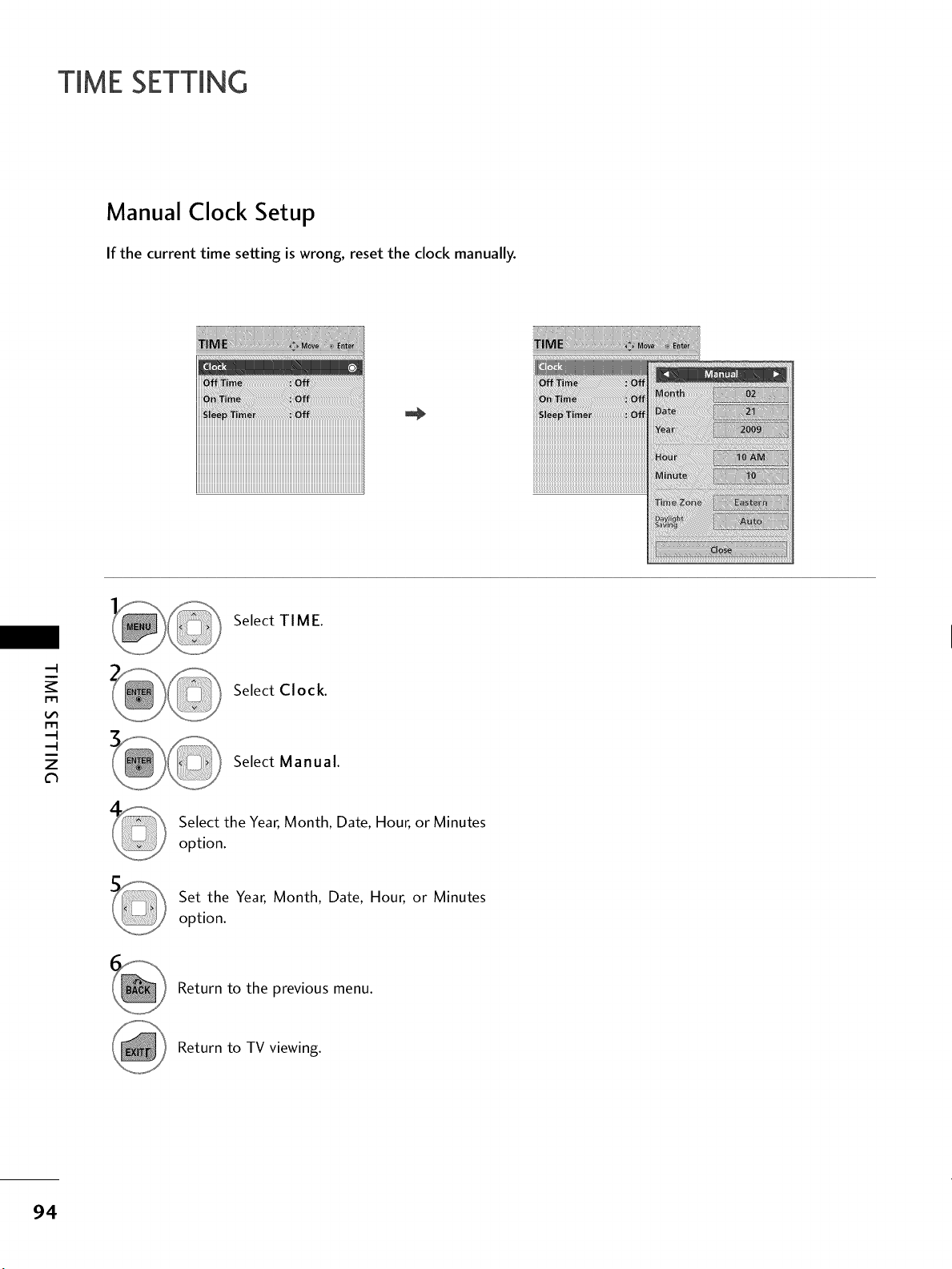
TIME SETTING
Manual Clock Setup
If the current time setting is wrong, reset the clock manually.
Select TIME.
m
m
z
Select Clock.
Select Manual.
Select the Year, Month, Date, Hour, or Minutes
option.
Set the Year, Month, Date, Hour, or Minutes
option.
Return to the previous menu.
Return to TV viewing.
94
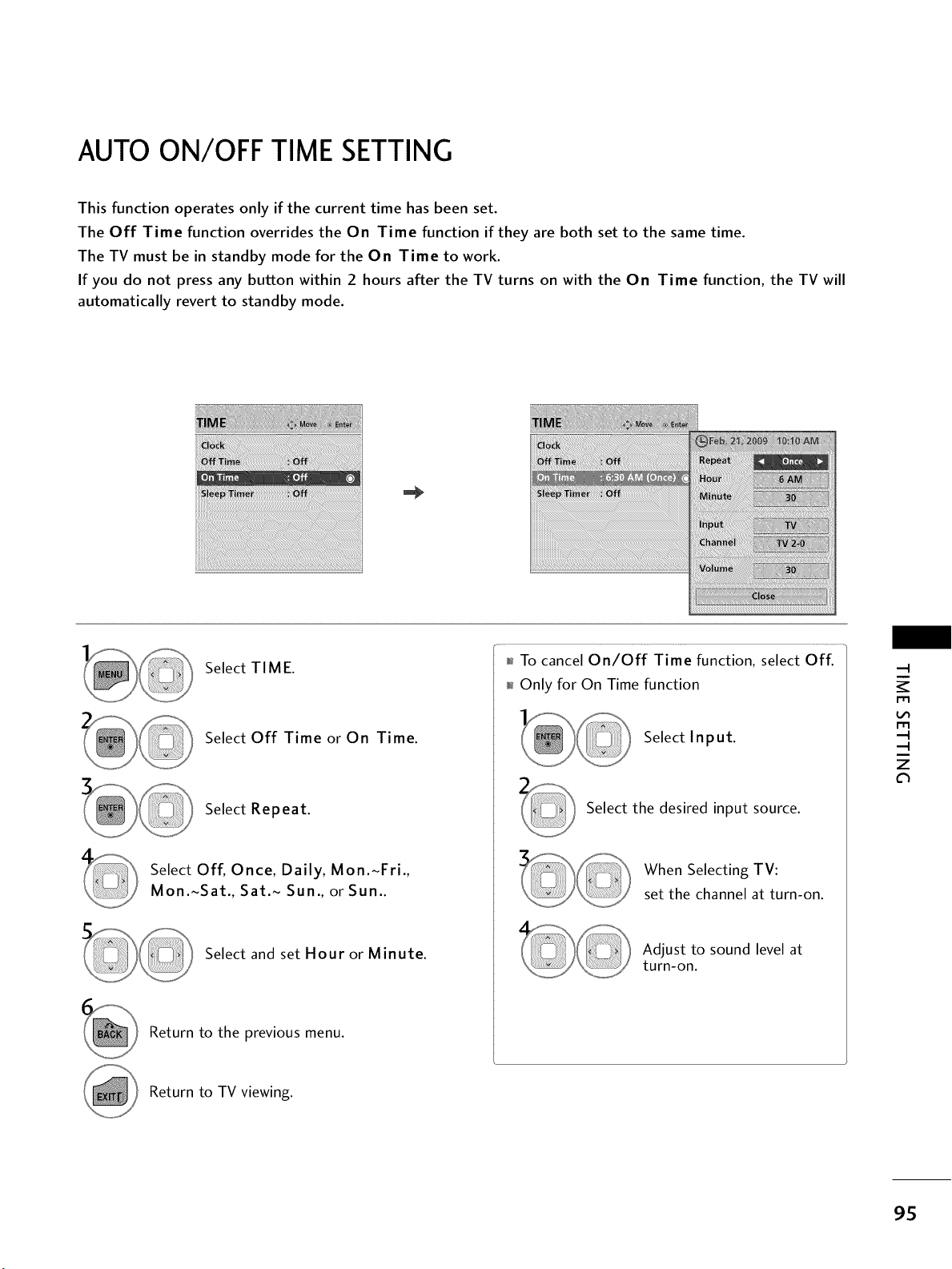
AUTO ON/OFF TIME SETTING
This function operates only if the current time has been set.
The Off Time function overrides the On Time function if they are both set to the same time.
The TV must be in standby mode for the On Time to work.
If you do not press any button within 2 hours after the TV turns on with the On Time function, the TV will
automatically revert to standby mode.
i_iiiii_iii_iii_ii!!!iiHiiXii_iii_i_iii!iiii_!i_iiiiiiJi_i_Wii_Wii_iii_i_i_iiIiiiiiiiiIi!!_iiiiiiii!iiii!iiiiiiii!iiiiii_iiiiiiiiii_ii!iii!i!i_iiii_i
Select TIME.
Select Off Time or On Time.
Select Repeat.
Select Off, Once, Daily, Mon.~Fri.,
Mon.~Sat., Sat.~ Sun., or Sun..
Select and set Hour or Minute.
Return to the previous menu.
i_f_To cancel On/Off Time function, select Off.
i_f_Only for On Time function
Select Input.
Select the desired input source.
When Selecting TV:
set the channel at turn-on.
Adjust to sound level at
turn-on.
rT1
rT1
z
Return to TV viewing.
9S
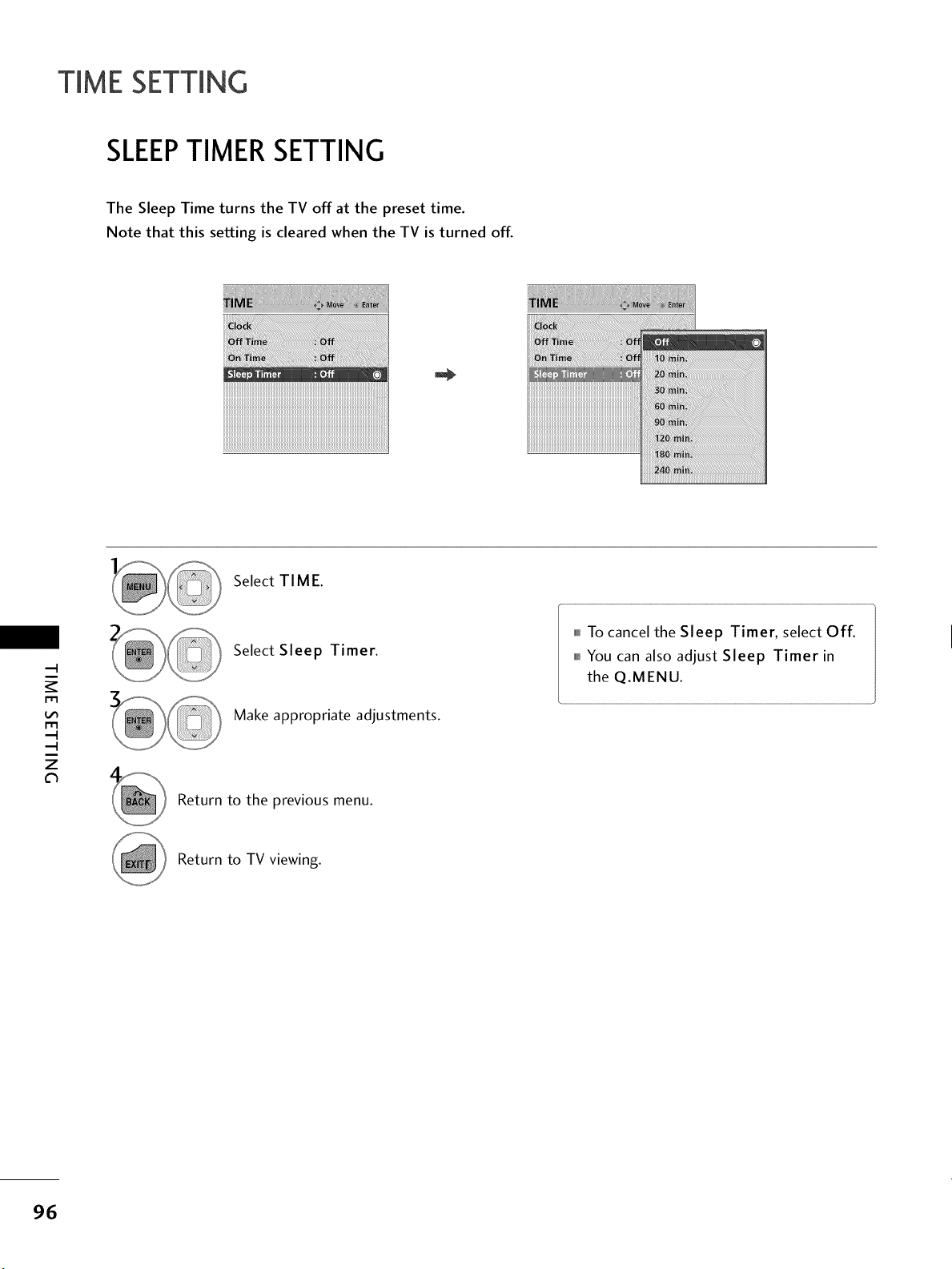
TIME SETTING
SLEEPTIMER SETTING
The Sleep Time turns the TV off at the preset time.
Note that this setting is cleared when the TV is turned off.
iiiiiiiiiiiiiiiiiiiiiiiiiiiiiiiiiiiiiiiiiiiiiiiiiiiiiiiiiiiiiiiiiiiiiiiiiiiiiiiiiiiiiiiiiiiiiiiiiiiiiiiiiiiiiiiiiiiiiiiiiiiiiiiiiiiiiiiii
m
m
z
Select TIME.
Select Sleep Timer.
Make appropriate adjustments.
Return to the previous menu.
H To cancel the Sleep Timer, select Off.
f_i_You can also adjust Sleep Timer in
the Q.MENU.
Return to TV viewing.
96
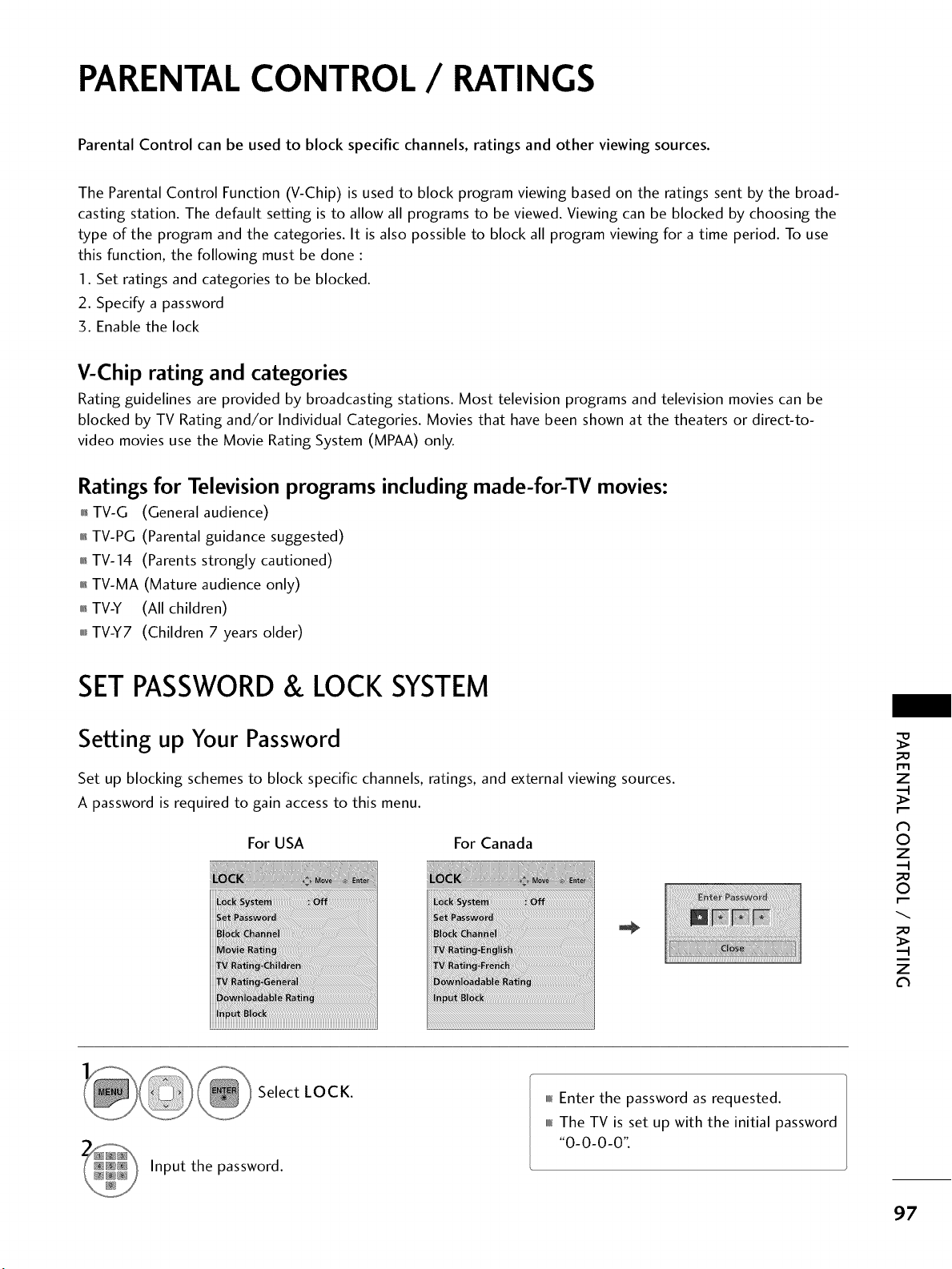
PARENTALCONTROL / RATINGS
Parental Control can be used to block specific channels, ratings and other viewing sources.
The Parental Control Function (V-Chip) is used to block program viewing based on the ratings sent by the broad-
casting station. The default setting is to allow all programs to be viewed. Viewing can be blocked by choosing the
type of the program and the categories. It is also possible to block all program viewing for a time period. To use
this function, the following must be done :
1. Set ratings and categories to be blocked.
2. Specify a password
3. Enable the lock
V-Chip rating and categories
Rating guidelines are provided by broadcasting stations. Most television programs and television movies can be
blocked by TV Rating and/or Individual Categories. Movies that have been shown at the theaters or direct-to-
video movies use the Movie Rating System (MPAA) only.
Ratings for Television programs including made-for-TV movies:
01_TV-G (General audience)
01_TV-PG (Parental guidance suggested)
01_TV-14 (Parents strongly cautioned)
01_TV-MA (Mature audience only)
01_TV-Y (All children)
H TV-Y7 (Children 7 years older)
SETPASSWORD& LOCK SYSTEM
Setting up Your Password
Set up blocking schemes to block specific channels, ratings, and external viewing sources.
A password is required to gain access to this menu.
For USA For Canada
m
z
0
z
0
z
c_
_: Select LOCK.
Input the password.
0101_Enter the password as requested.
0_0_The TV is set up with the initial password
"0-0-0-0".
97
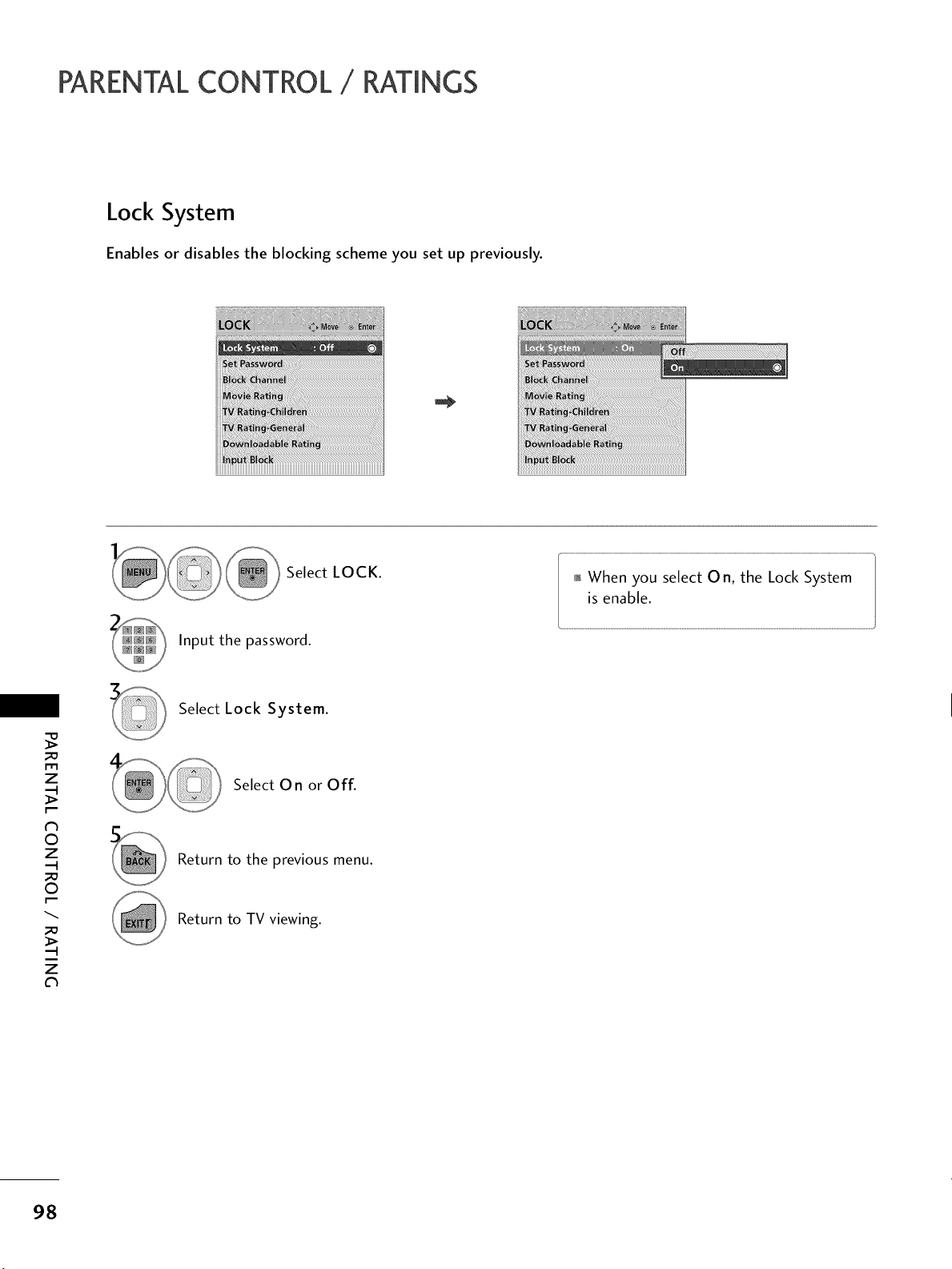
PARENTALCONTROL / RATINGS
Lock System
Enables or disables the blocking scheme you set up previously.
Select LOCK.
Input the password.
01_When you select O n, the Lock System
is enable.
_o
m
z
N
©
z
_o
©
_o
z
Select Lock System.
Select On or Off.
Return to the previous menu.
Return to TV viewing.
98
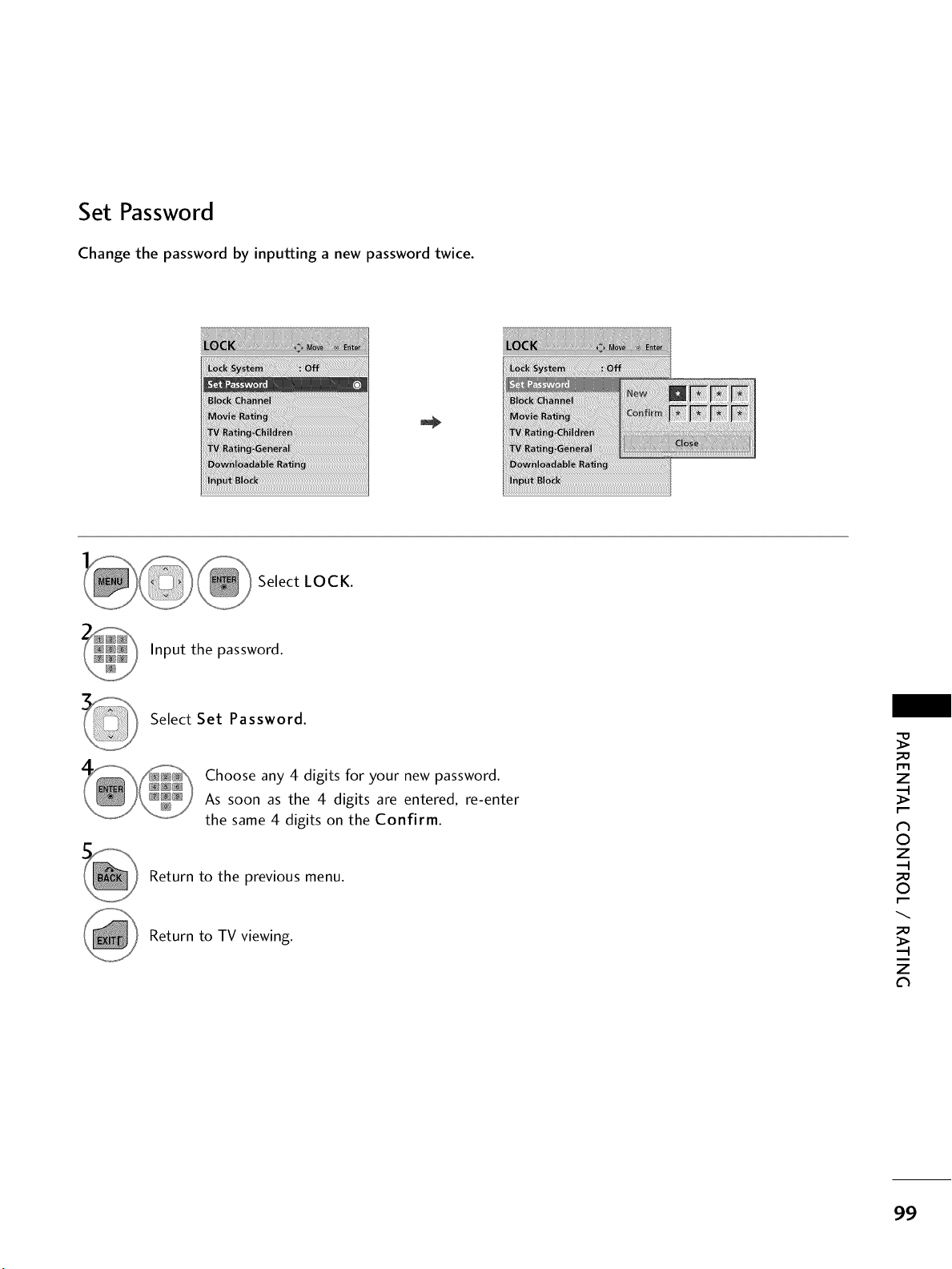
Set Password
Change the password by inputting a new password twice.
iiii! Se,ect,OC.
Input the password.
Select Set Password.
Choose any 4 digits for your new password.
As soon as the 4 digits are entered, re-enter
the same 4 digits on the Confirm.
Return to the previous menu.
Return to TV viewing.
m
z
N
©
z
©
z
99
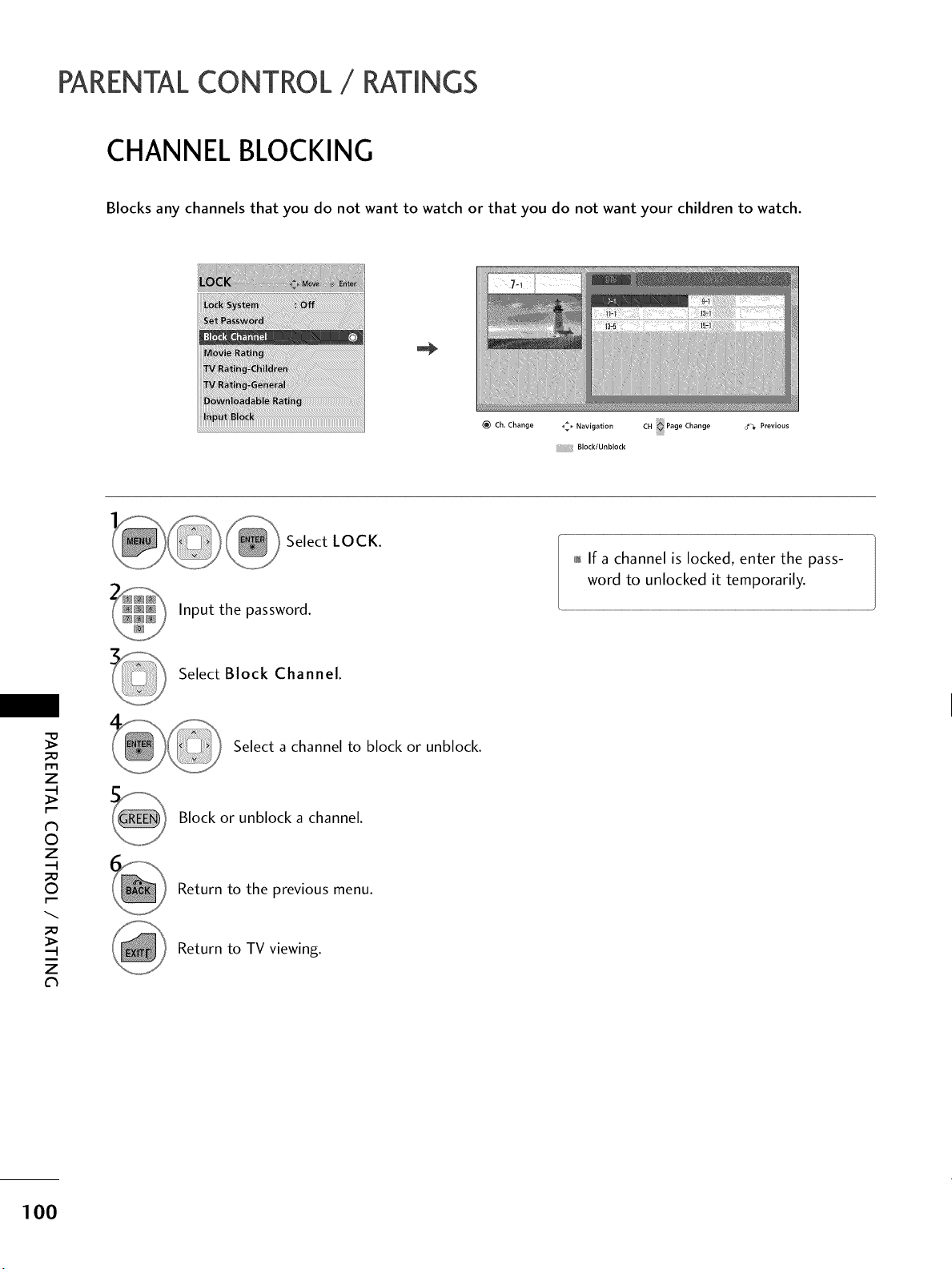
PARENTALCONTROL / RATINGS
CHANNEL BLOCKING
Blocks any channels that you do not want to watch or that you do not want your children to watch.
iiii[i_iiii!!!iiiiii!!i_gi_iiiiii!i_iiiiiiIiiHi_iiiiii[i_iiiiiiiIi_Hiiiiiii!iiiiii_ii!iii_iiiii[i[i_;i;Jiiiiiiiiiiiiii_i_i!iiiiiiiii_iiii_iiii_ii:,:iii!!iiiii/iiiiiiiiiiiiiii:il
Ch. Change _ Navigation CH Page Change _ Previous
Block/Unblock
Select LOCK.
Input the password.
,i,_If a channel is locked, enter the pass-
word to unlocked it temporarily.
Select Block Channel.
m
z
N
0
z
0
z
Select a channel to block or unblock.
Block or unblock a channel.
Return to the previous menu.
Return to TV viewing.
100
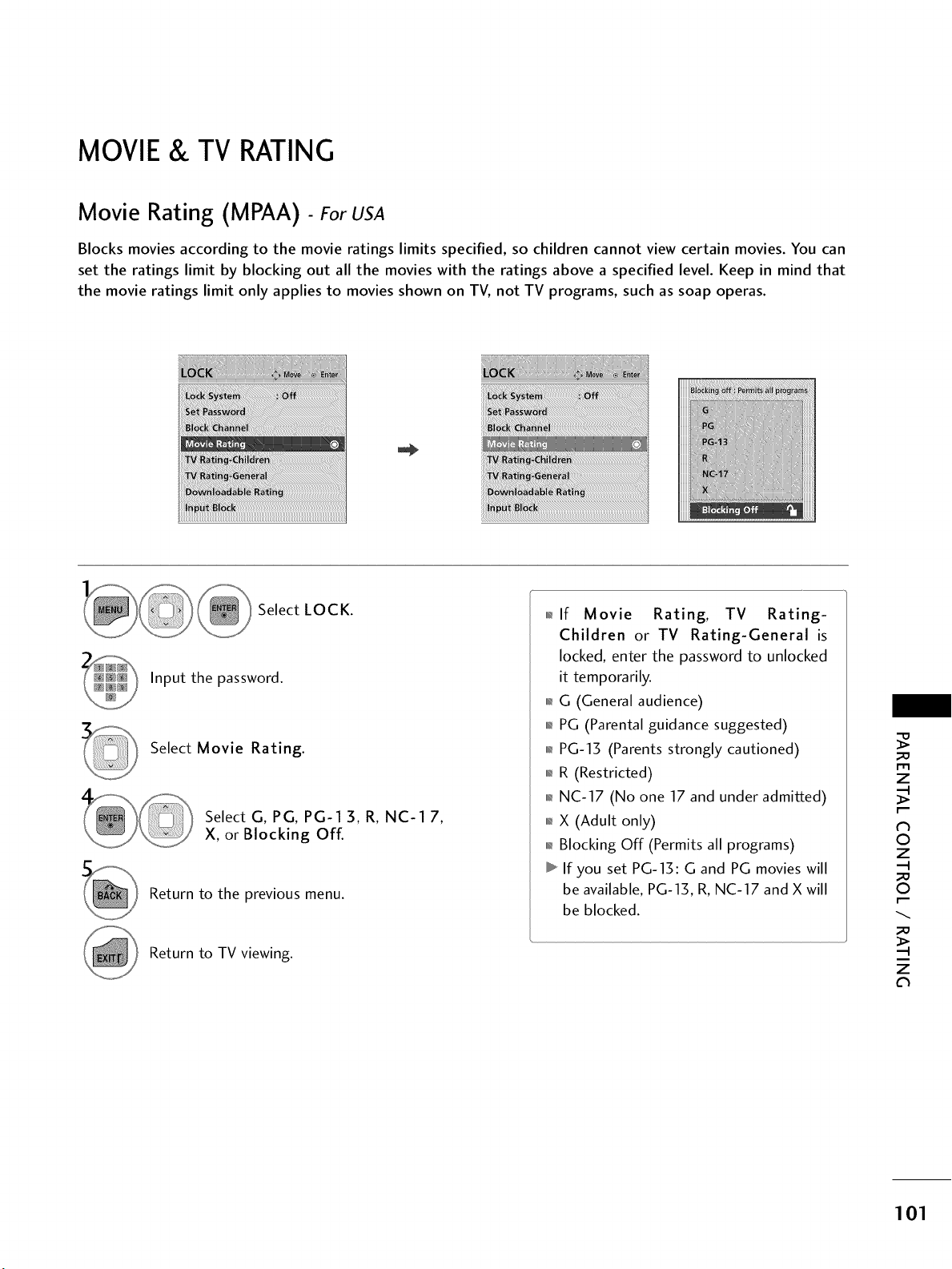
MOVIE & TV RATING
Movie Rating (MPAA) - For USA
Blocks movies according to the movie ratings limits specified, so children cannot view certain movies. You can
set the ratings limit by blocking out all the movies with the ratings above a specified level. Keep in mind that
the movie ratings limit only applies to movies shown on TV, not TV programs, such as soap operas.
iiiiiiiiiiiiiiii!ii!i!:i_i_iiiiiiiiiiii!iiiiiiii_;iiiii_iIi!_iii!i!i_i!ii!ii!ii!ii!ii!ii!!_ii_iiiiiii_ii_iii_ii_iiiiiiii!i!_i_i_iiiii!iiiiii!!ii!;!iiiii_iiIii:;:!:iiiiiii
,!
_ Select LOCK.
Input the password.
Select Movie Rating.
Select G, PG, PG-1 3, R, NC-1 7,
X, or Blocking Off.
Return to the previous menu.
Return to TV viewing.
0_.If Movie Rating, TV Rating-
Children or TV Rating-General is
locked, enter the password to unlocked
it temporarily.
01_G (General audience)
01_PG (Parental guidance suggested)
01_PG-13 (Parents strongly cautioned)
01_R (Restricted)
01_NC-17 (No one 17 and under admitted)
01_X (Adult only)
01_Blocking Off (Permits all programs)
If you set PG-15: G and PG movies will
be available, PG-15, R, NC-17 and X will
be blocked.
Z
N
©
Z
©
Z
101
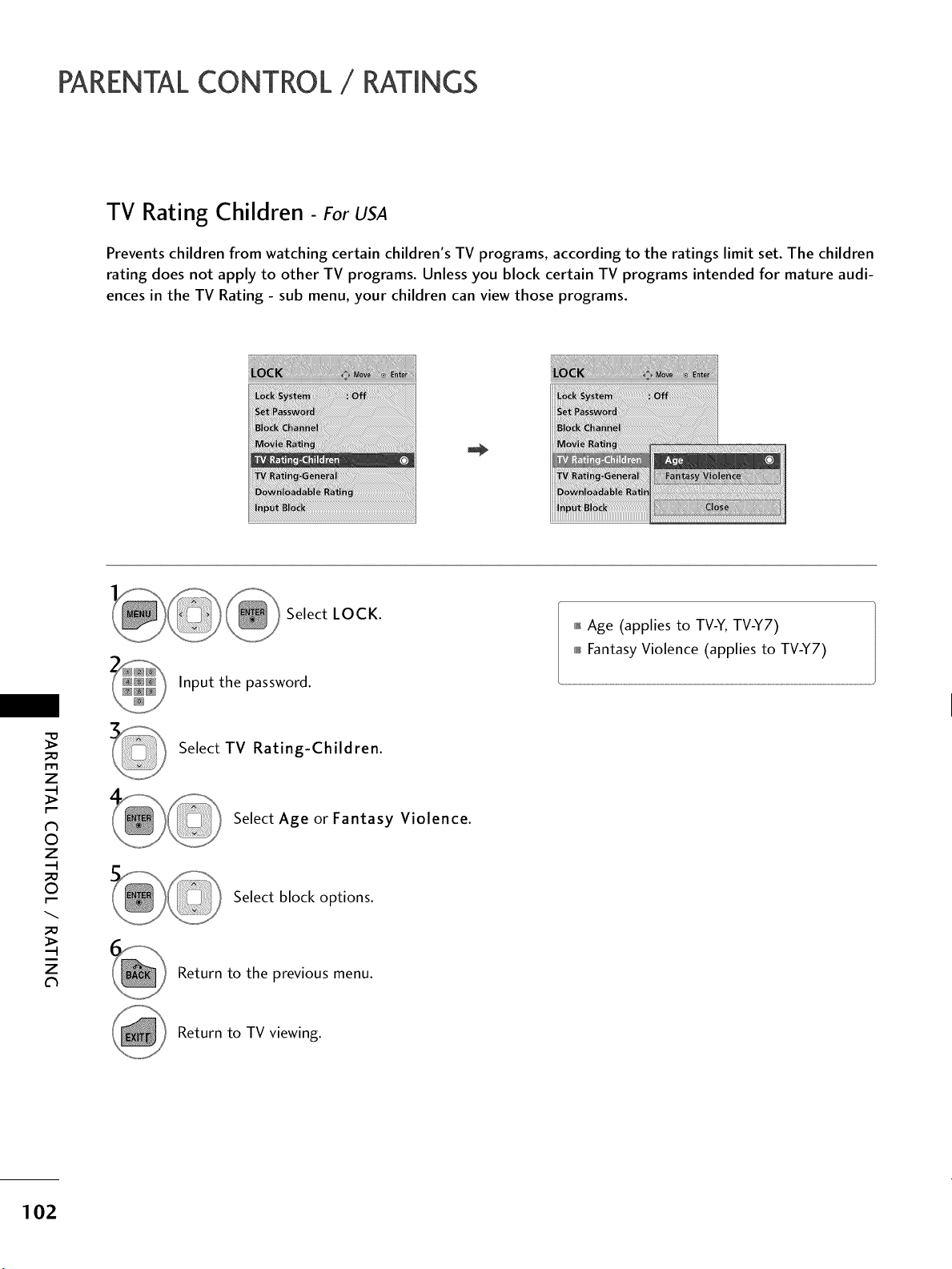
PARENTALCONTROL / RATINGS
TV Rating Children - For USA
Prevents children from watching certain children's TV programs, according to the ratings limit set. The children
rating does not apply to other TV programs. Unless you block certain TV programs intended for mature audi-
ences in the TV Rating - sub menu, your children can view those programs.
!!_iiii_!iiiiiiii_ii_}_ii]iiiiiii!i!!ii:iiiiiiii_iiiii_i_ii]ii!iiii!iiii!iiii!iiii!iiii!iiii!iii]i!!ii_iiiiii;_iiiiiiiiiii!Hiiii_}_iii_i_!i__,_,_iiiiiii!i_iii/i/!i]}iiii
Select LOCK.
Input the password.
01_Age (applies to TV-Y, TV-Y7)
0101_Fantasy Violence (applies to TV-Y7)
m
z
N
O
z
O
z
Select TV Rating-Children.
Select Age or Fantasy Violence.
Select block options.
Return to the previous menu.
Return to TV viewing.
102
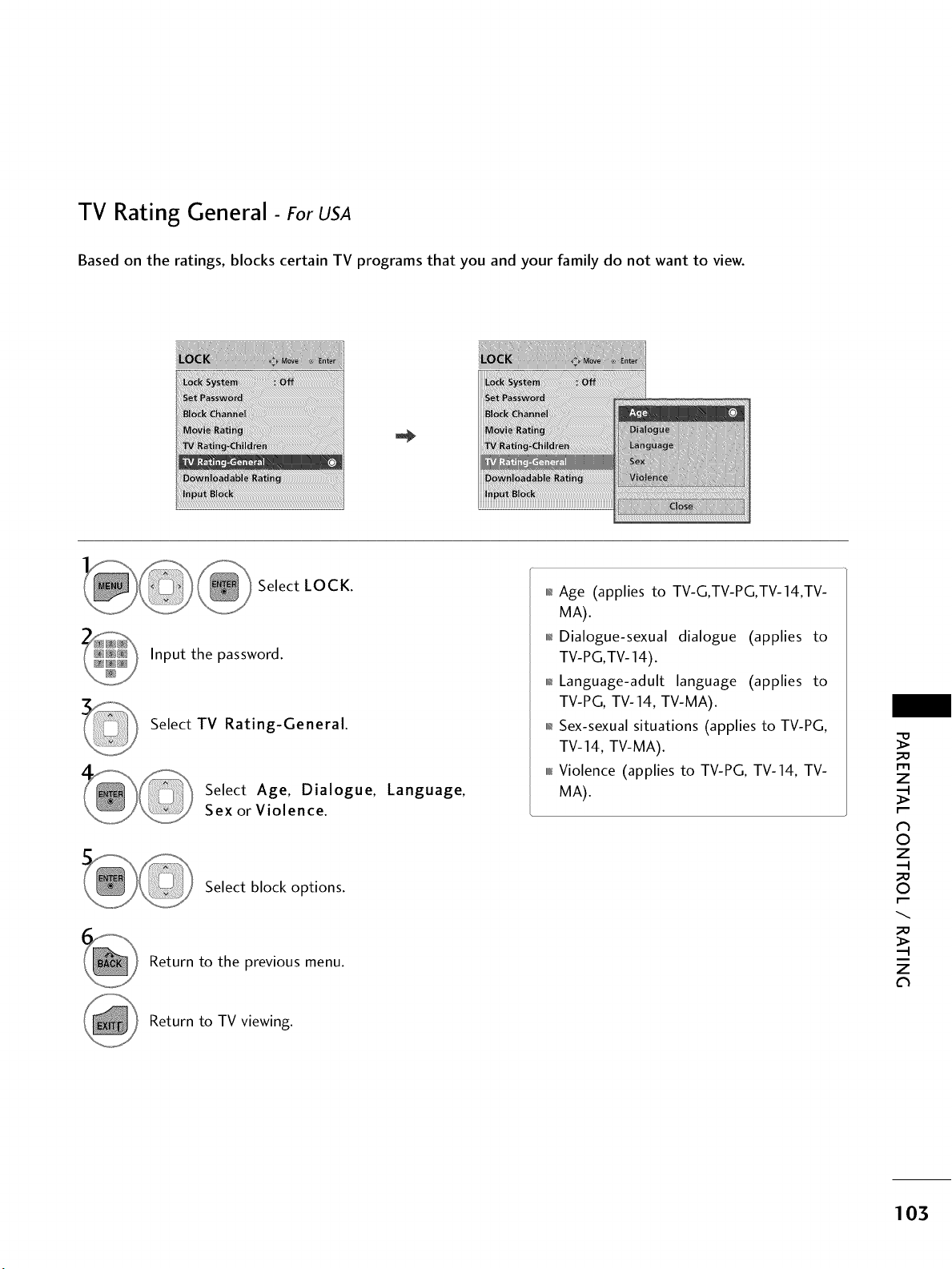
TV Rating General- ForUSA
Based on the ratings, blocks certain TV programs that you and your family do not want to view.
Select LOCK.
Input the password.
Select TV Rating-General.
Select Age, Dialogue, Language,
Sex or Violence.
Select block options.
Return to the previous menu.
01_Age (applies to TV-G,TV-PG,TV-14,TV-
MA).
01_Dialogue-sexual dialogue (applies to
TV-PG,TV- 14).
01_Language-adult language (applies to
TV-PG, TV-14, TV-MA).
01_Sex-sexual situations (applies to TV-PG,
TV-14, TV-MA).
0101_Violence (applies to TV-PG, TV-14, TV-
MA).
_D
m
z
N
O
z
_D
O
_D
z
Return to TV viewing.
103
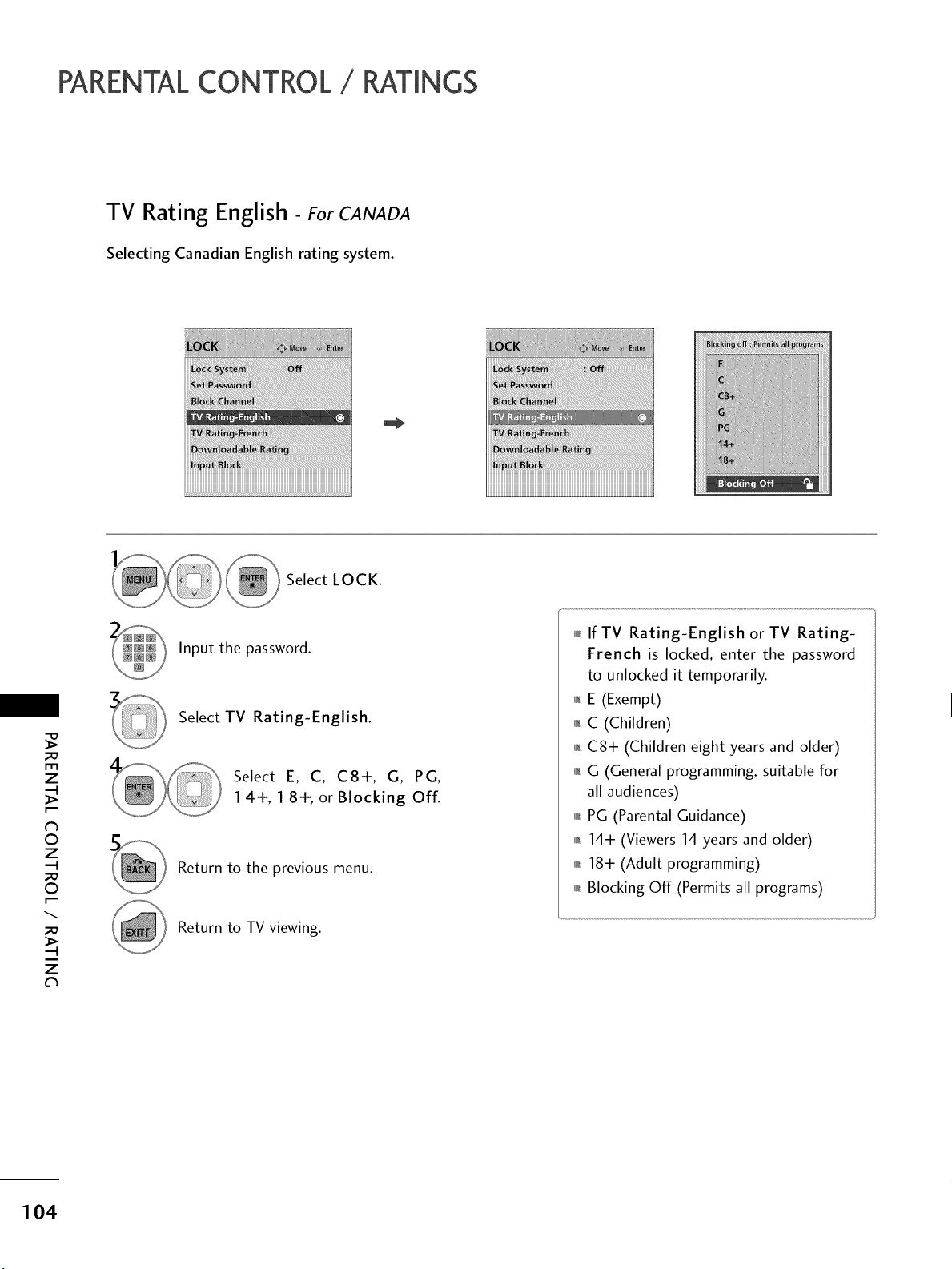
PARENTALCONTROL / RATINGS
TV Rating English - ForCANADA
Selecting Canadian English rating system.
_o
r_l
z
N
©
z
_o
©
_o
z
Select LOCK.
Input the password.
Select TV Rating-English.
Select E, C, C8+, G, PG,
1 4+, 1 8+, or Blocking Off.
Return to the previous menu.
Return to TV viewing.
0fu_IfTV Rating-English or TV Rating-
French is locked, enter the password
to unlocked it temporarily.
01_E (Exempt)
01_C (Children)
01_C8-1- (Children eight years and older)
01_G (General programming, suitable for
all audiences)
0101_PG (Parental Guidance)
01_14+ (Viewers 14 years and older)
0101_18+ (Adult programming)
0101_Blocking Off (Permits all programs)
104
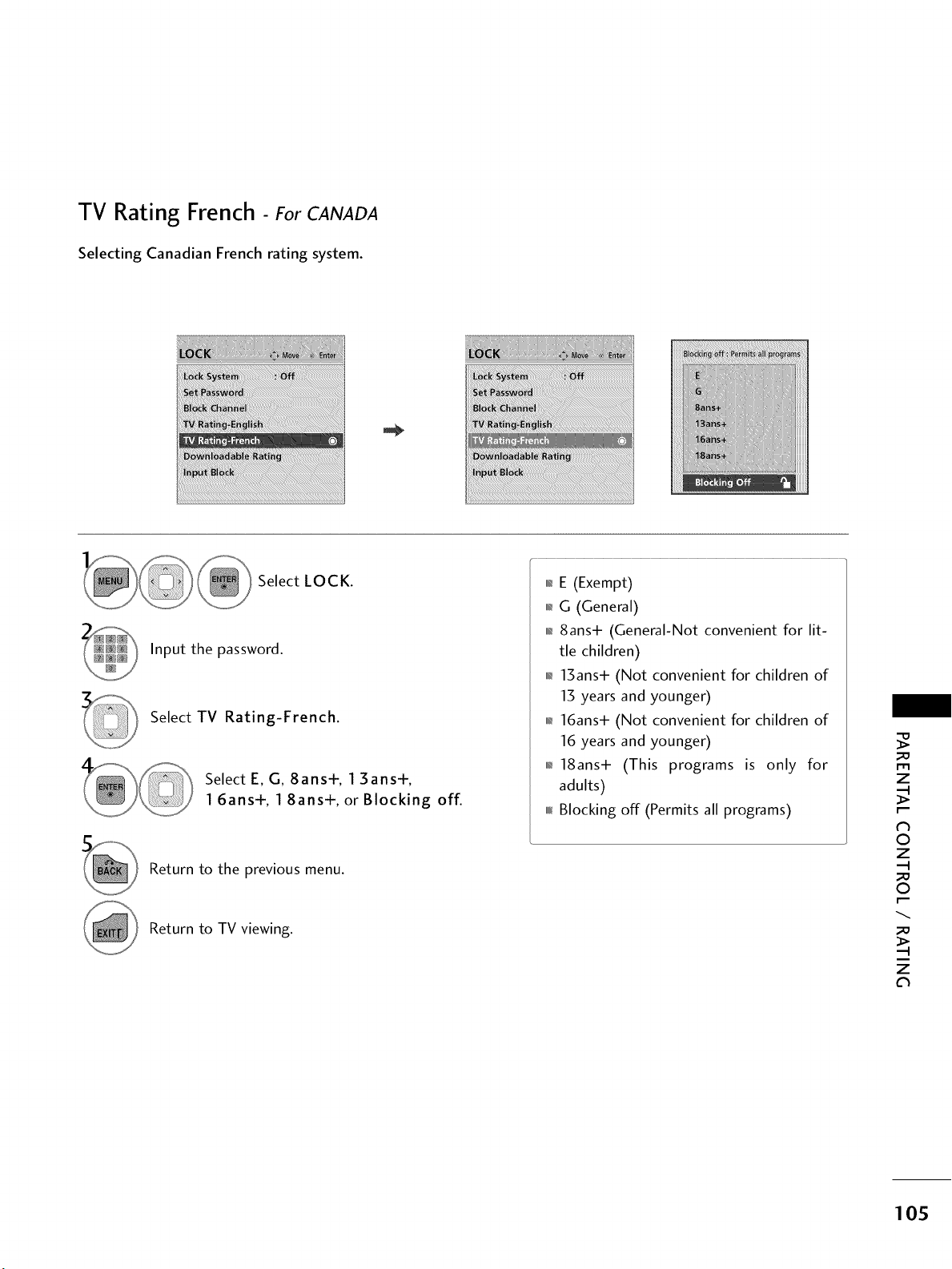
TV Rating French - ForCANADA
Selecting Canadian French rating system.
__ Select LOCK.
Input the password.
Select TV Rating-French.
Select E, G, 8ans+, 1 3ans+,
1 6ans+, 1 8ans+, or Blocking off.
Return to the previous menu.
Return to TV viewing.
0,=E (Exempt)
0,=G (General)
01_8ans+ (General-Not convenient for lit-
tle children)
01_13ans+ (Not convenient for children of
13 years and younger)
01_16ans+ (Not convenient for children of
16 years and younger)
01_18ans+ (This programs is only for
adults)
0101_Blocking off (Permits all programs)
_u
m
z
dh
©
Z
_u
©
_u
z
105
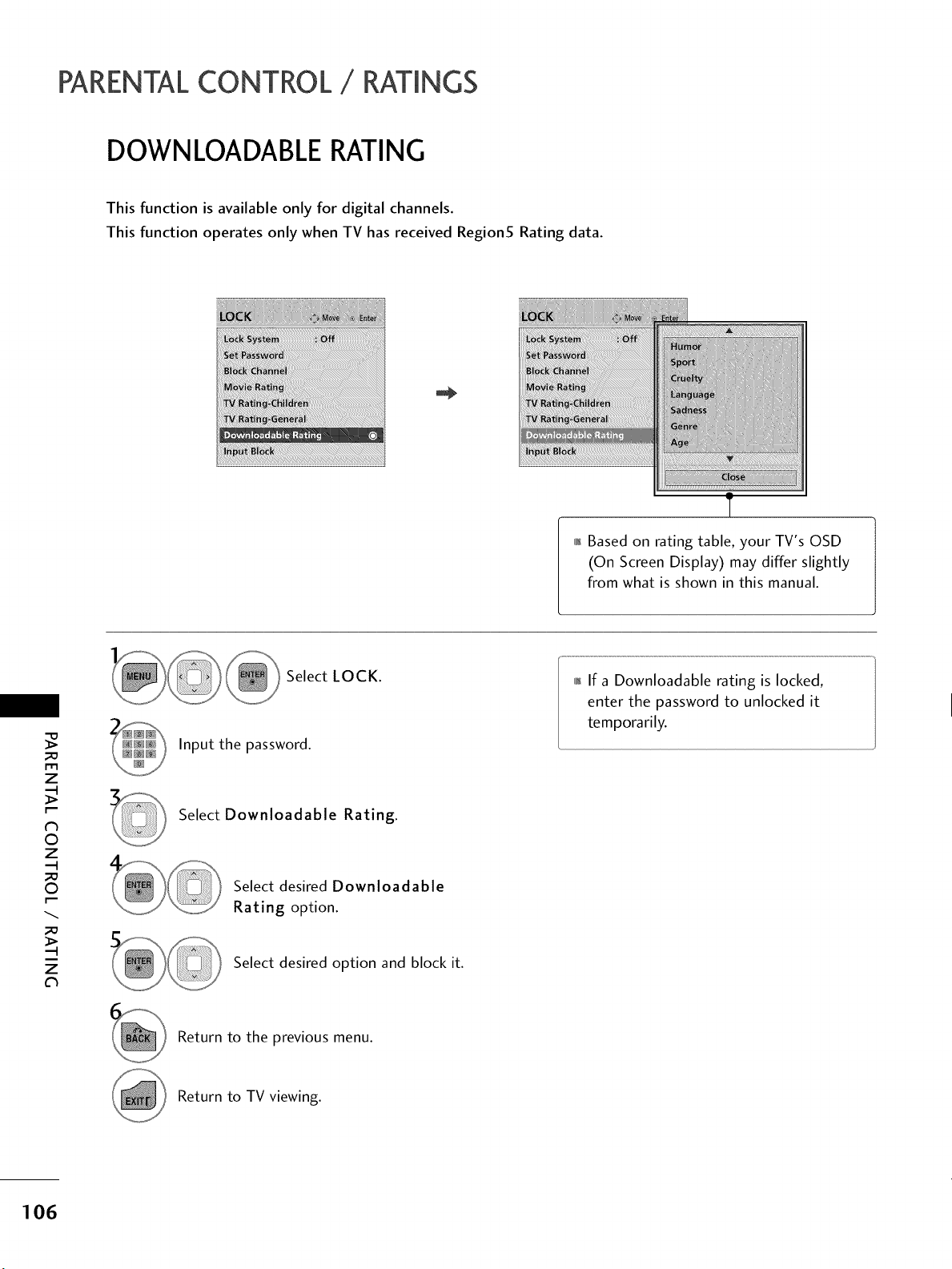
PARENTALCONTROL / RATINGS
DOWNLOADABLE RATING
This function is available only for digital channels.
This function operates only when TV has received Region5 Rating data.
01_Based on rating table, your TV's OSD
(On Screen Display) may differ slightly
from what is shown in this manual.
_D
m
z
N
O
z
_D
O
_D
z
Select LOCK.
Input the password.
Select Downloadable Rating.
Select desired Downloadable
Rating option.
Select desired option and block it.
0_,_If a Downloadable rating is locked,
enter the password to unlocked it
temporarily.
Return to the previous menu.
Return to TV viewing.
106
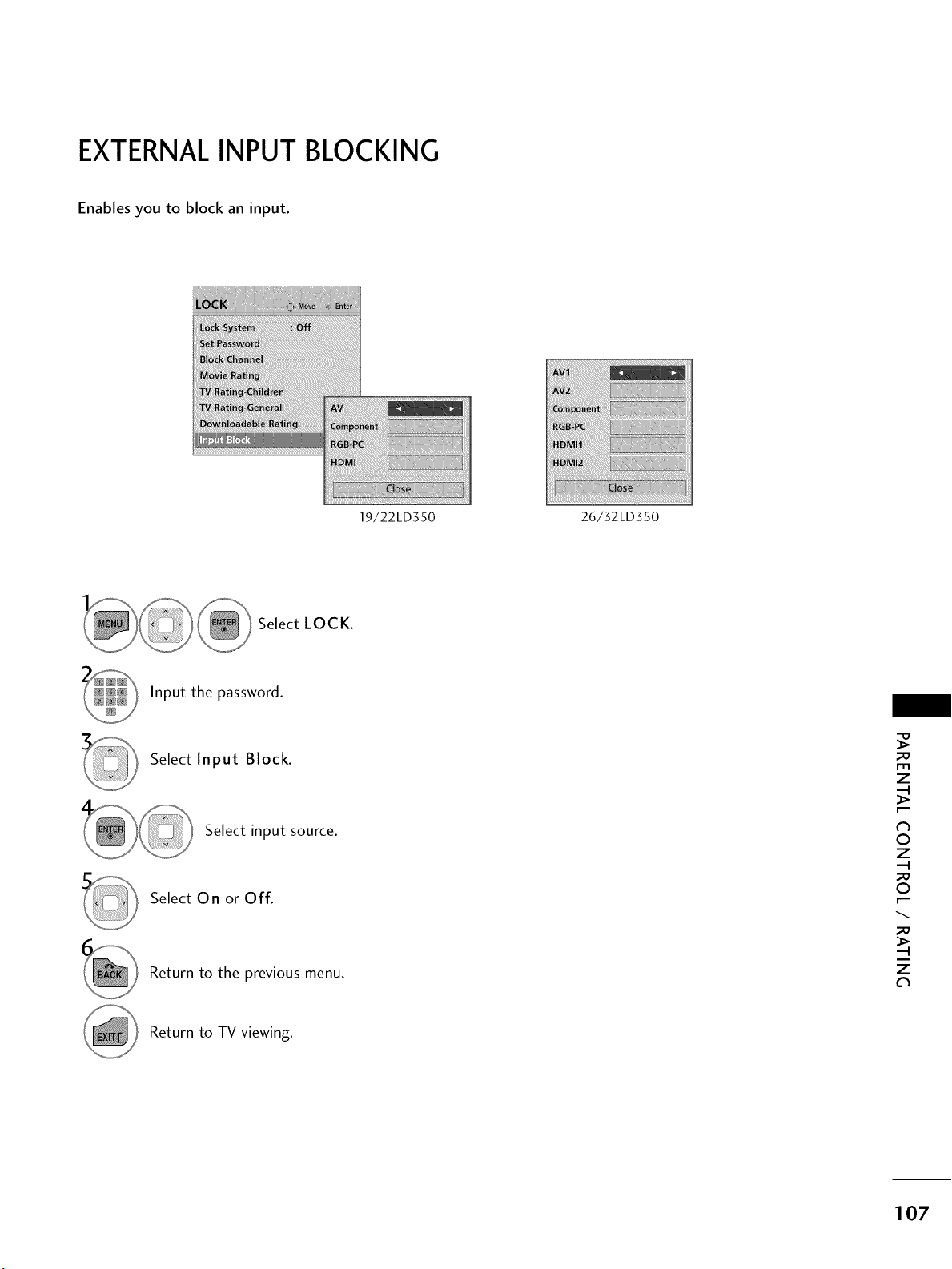
EXTERNAL INPUT BLOCKING
Enables you to block an input.
i!_!_!i,!iiiiiiiiiiiiiii¸iii!ii_i!_i'i_'ii¸il¸ii¸iii!!iiiiiiiiiii!iii!i!iii'_'_iiiiiiiiiiiiiiiiii!ii_:_:i_iiiii!!iiiiiiiiiiiiiiiiiiiiiiiii!iiiii!!iiii:i,i:_!ii_i_i!iiiliiiiii!iiiiiiii!iiiiiiii}liiii!i!l
_iiiii!i_!_!_:_!_!ii!ii!ii!ii!ii!ii!ii!i!ii!ii!ii!ii!ii!ii!ii!ii!ii!ii!ii!ii!ii!ii!ii!ii!ii!ii!ii!ii!ii!i!!_i_!_!_!_i!_i!_i!_i
[
19/22LD350
_i_ i¸iii :::: _iiiiiiiiii_iiiiiiiiiiiiiiiiii_H_
iiiii!!!iiiii!iiiiiiiiiiii!!_i_iiiiilil_I_i!!iiiiiiiiiiiiiiiiiiii_iiiiili!i!iiiiiiiiiiiiiii_iiii!!iiiiiiiiiiiiiiiI
_ii__!_!_ii_ii_iii_iii_iiii_ii_!_!_!_i_i_i_i!_i!_i!_ii_i!_i_ii_ii_ii_ii_ii_i_i!i!_!i_i_i_
i!i_ii_!i!i_i_i_i_i!_i!_i_i!_i_i_i_ii_i!_ii_i!_i!_i!_i!_i!_i!_i!_!i_i_
ii!_i_ii:_!iiiiiiiiiiii!ii!ii!_i!_i!_!i!iii!i_ii_ii_ii_ii_ii_iiiiiiiiiiiii:i
iiiiiiiiiiiiiiiiiiiiiiiiiiiiiiiiiiiiiiiiiiiiiiiiiiiiiiiiiiiiiii_ii_ili_J_!i_il_II_II_!!!_i!_!!_!!_!!_!!_!!_!!_!!_!!_!!_!!_!!_!!_!!_!!_!!_!!_!!_!!_!!_!!_!!_!!_!!_!_!!ii_ii_ii_!!!iiiiiiiiiiiiiiiiiiiiiiiiiiiiiiiiiiiiiiiiiiiiiiiiiii_!__!I_!I_!I_!I_!I_!I_!I_!I_!I_!I_!I_!I_!I_!I_!I_!I_!I_!I_!I_!
26/32LD350
Select LOCK.
Input the password.
Select Input Block.
Select input source.
Select On or Off.
Return to the previous menu.
_D
m
z
0
z
_D
0
_D
z
Return to TV viewing.
107
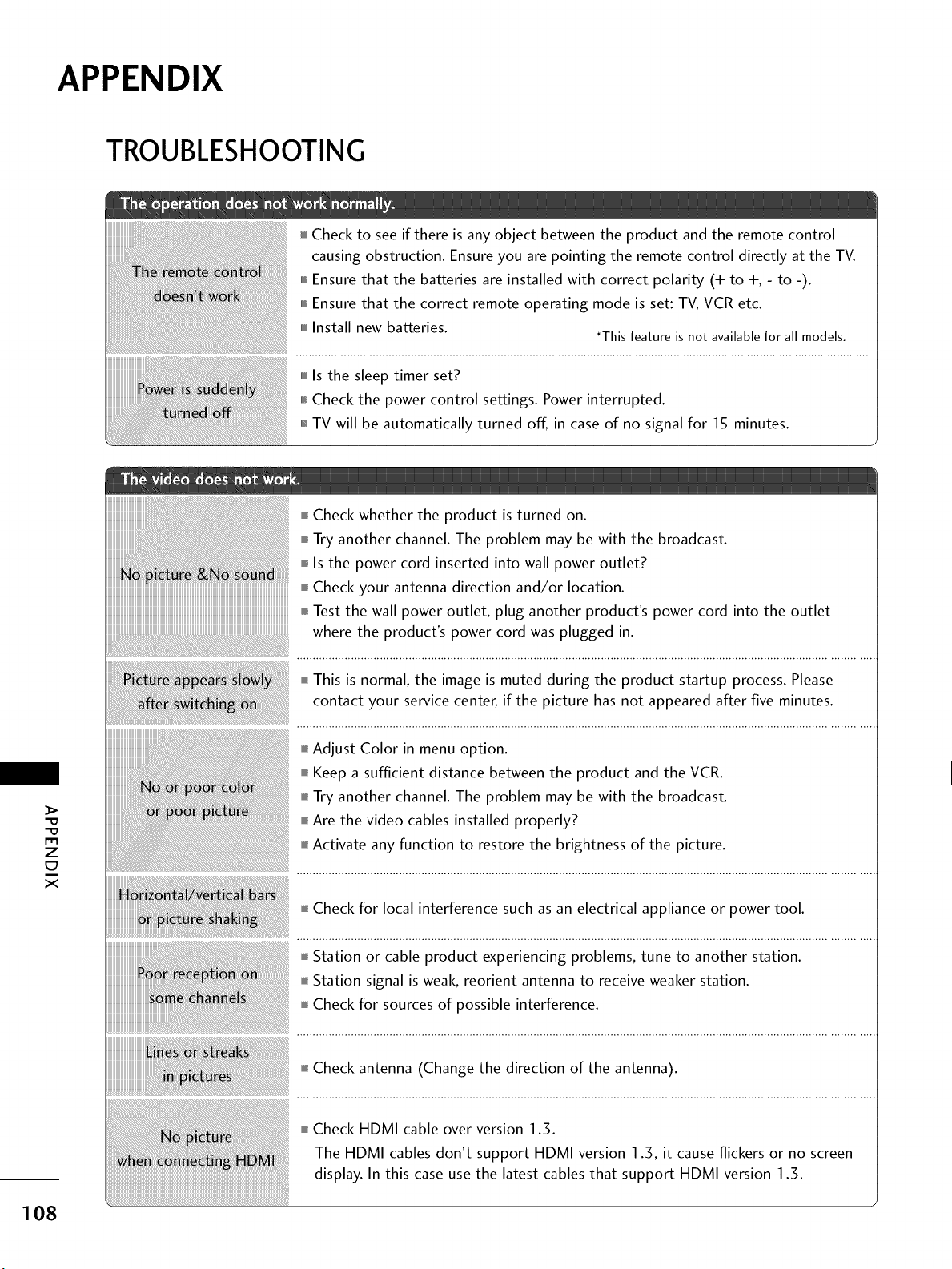
APPENDIX
TROUBLESHOOTING
Check to see if there is any object between the product and the remote control
causing obstruction. Ensure you are pointing the remote control directly at the TV.
IMMEnsure that the batteries are installed with correct polarity (+ to +, - to -).
,MMEnsure that the correct remote operating mode is set: TV, VCR etc.
mmffInstall new batteries.
*This feature is not available for all models.
m
z
c7
x
i,i,iCheck whether the product is turned on.
i,i,iTry another channel. The problem may be with the broadcast.
Is the power cord inserted into wall power outlet?
Check your antenna direction and/or location.
,f_Test the wall power outlet, plug another product's power cord into the outlet
where the product's power cord was plugged in.
i,i,ffThis is normal, the image is muted during the product startup process. Please
contact your service center, if the picture has not appeared after five minutes.
i,i,iAdjust Color in menu option.
i,i,iKeep a sufficient distance between the product and the VCR.
i,i,iTry another channel. The problem may be with the broadcast.
i,i,inAre the video cables installed properly?
i,i,iActivate any function to restore the brightness of the picture.
I,I,ICheck for local interference such as an electrical appliance or power tool.
i,i,iStation or cable product experiencing problems, tune to another station.
i,i,iStation signal is weak, reorient antenna to receive weaker station.
i,i,ffCheck for sources of possible interference.
i,i,iCheck antenna (Change the direction of the antenna).
i,i,iCheck HDMI cable over version 1.3.
The HDMI cables don't support HDMI version 1.3, it cause flickers or no screen
display. In this case use the latest cables that support HDMI version 1.3.
108
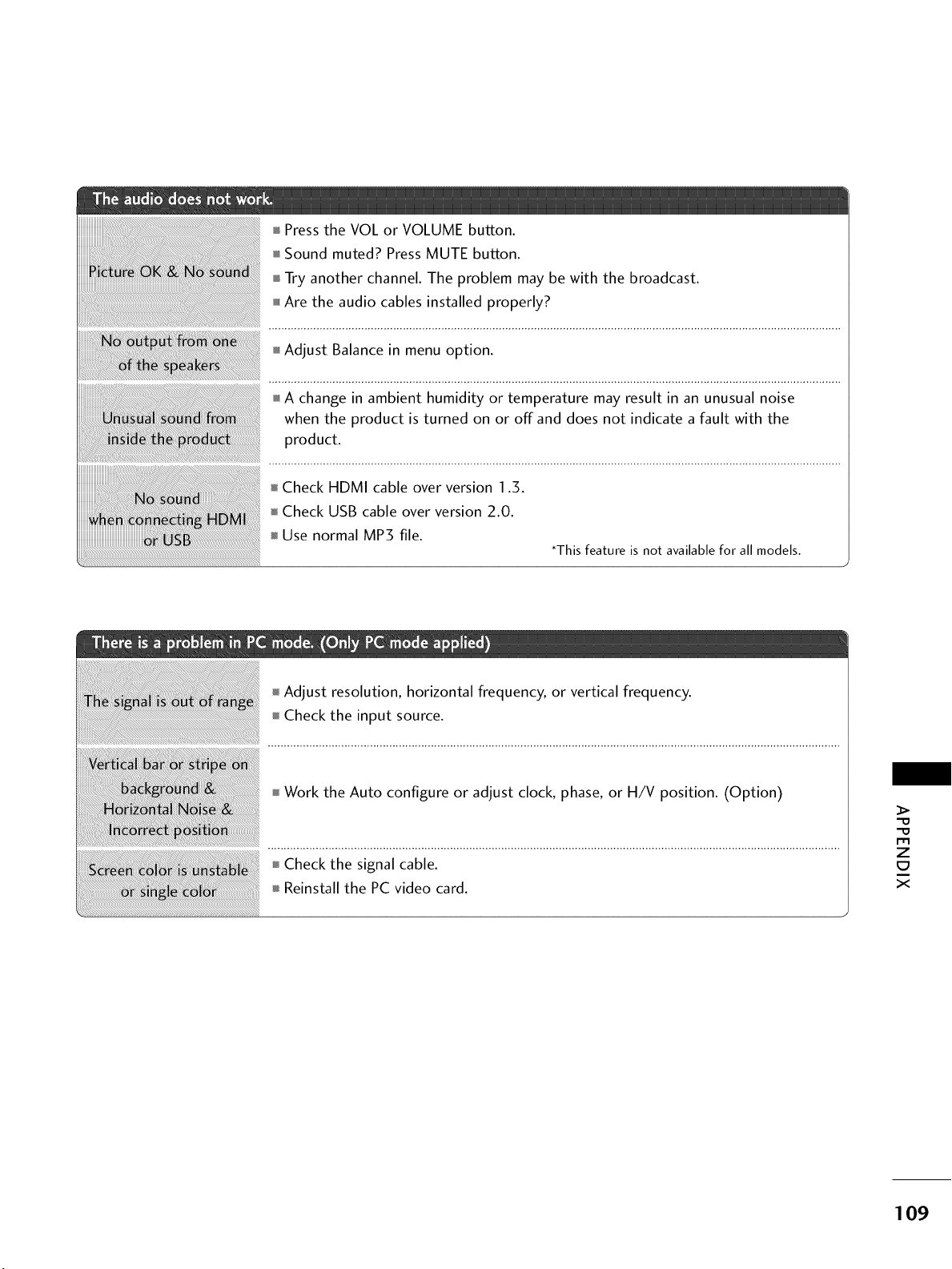
mm_Press the VOL or VOLUME button.
i,i,iSound muted? Press MUTE button.
miniTry another channel. The problem may be with the broadcast.
i,i,iAre the audio cables installed properly?
i,i,iAdjust Balance in menu option.
i,i,iA change in ambient humidity or temperature may result in an unusual noise
when the product is turned on or off and does not indicate a fault with the
product.
Check HDMI cable over version 1.3.
Check USB cable over version 2.0.
Use normal MP3 file.
*This feature is not available for all models.
Adjust resolution, horizontal frequency, or vertical frequency.
Check the input source.
Work the Auto configure or adjust clock, phase, or H/V position. (Option)
Check the signal cable.
Reinstall the PC video card.
m
z
x
109
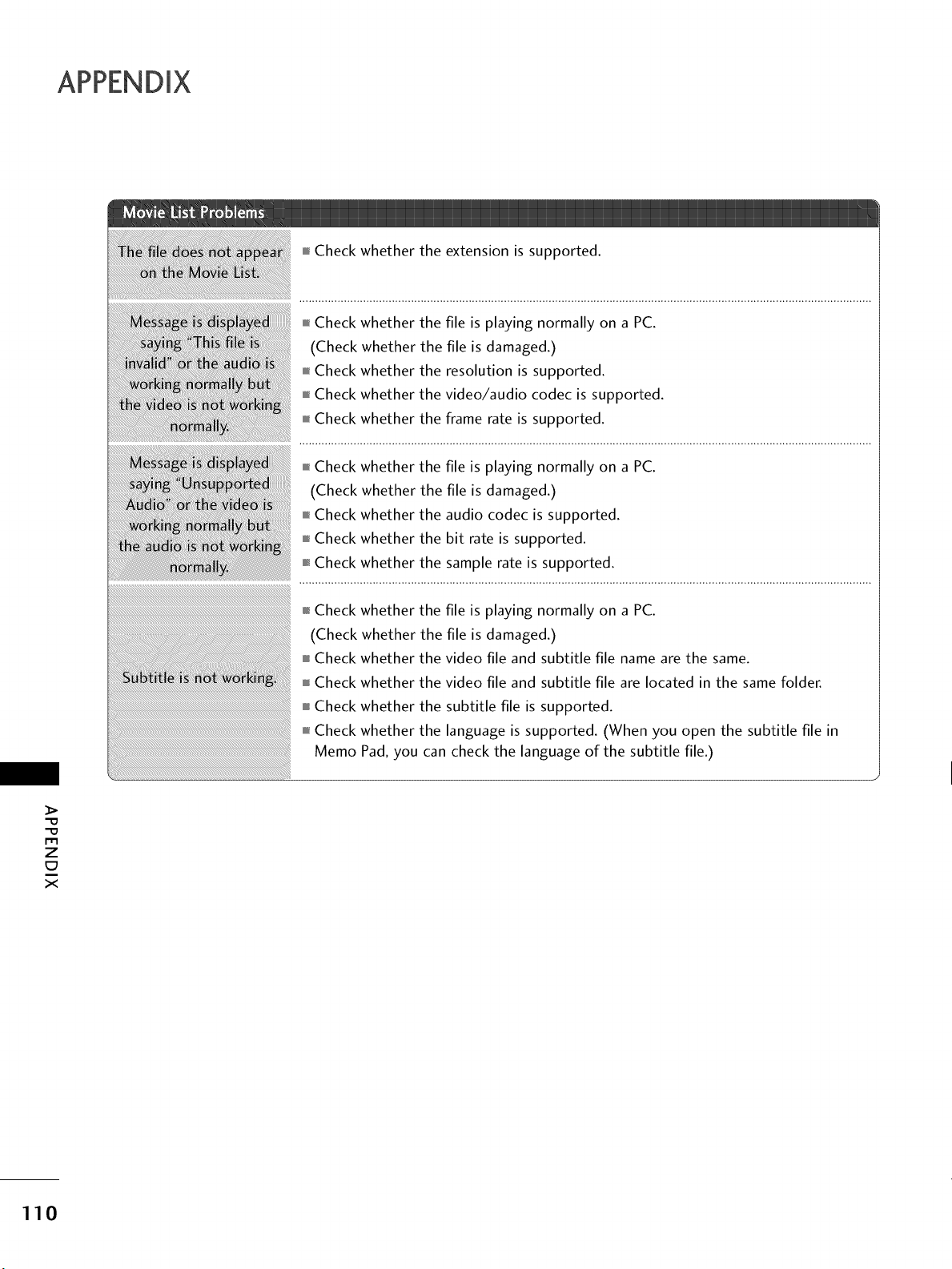
-0
-0
m
z
x
i,i,iCheck whether the extension is supported.
i,i,iCheck whether the file is playing normally on a PC.
(Check whether the file is damaged.)
i,i,iCheck whether the resolution is supported.
i,i,iCheck whether the video/audio codec is supported.
ram,Check whether the frame rate is supported.
i,i,iCheck whether the file is playing normally on a PC.
(Check whether the file is damaged.)
i,i,iCheck whether the audio codec is supported.
i,i,iCheck whether the bit rate is supported.
m,_Check whether the sample rate is supported.
mm_Check whether the
(Check whether the
ram,Check whether the
ImH
file is playing normally on a PC.
file is damaged.)
video file and subtitle file name are the same.
Check whether the video file and subtitle file are located in the same folder.
Check whether the subtitle file is supported.
Check whether the language is supported. (When you open the subtitle file in
Memo Pad, you can check the language of the subtitle file.)
110
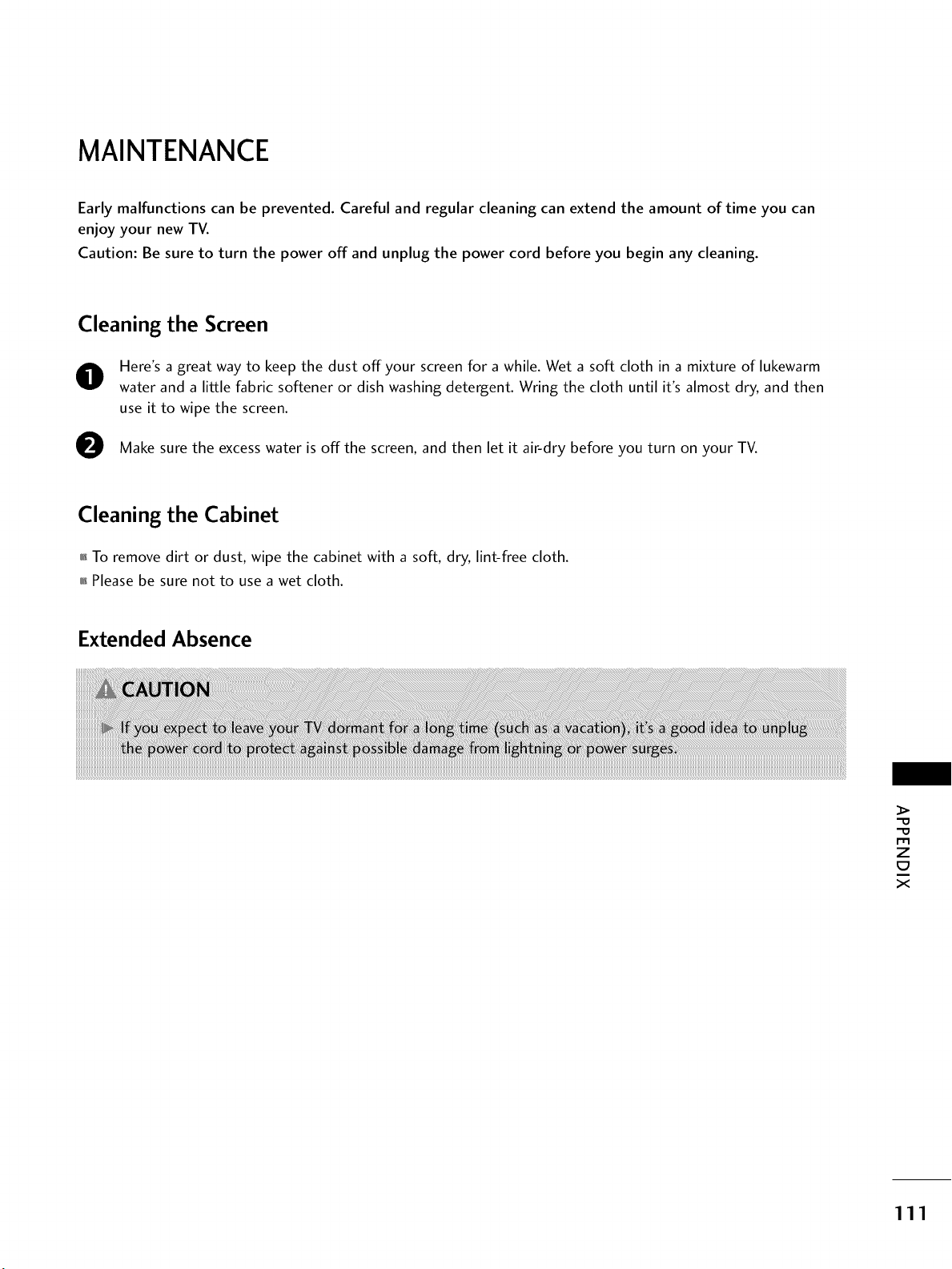
MAINTENANCE
Early malfunctions can be prevented. Careful and regular cleaning can extend the amount of time you can
enjoy your new TV.
Caution: Be sure to turn the power off and unplug the power cord before you begin any cleaning.
Cleaning the Screen
0
0
Here's a great way to keep the dust offyour screen for a while. Wet a soft cloth in a mixture of lukewarm
water and a little fabric softener or dish washing detergent. Wring the cloth until it's almost dry, and then
use it to wipe the screen.
Make sure the excess water is off the screen, and then let it air-dry before you turn on your TV.
Cleaning the Cabinet
0i_To remove dirt or dust, wipe the cabinet with a soft, dry, lint-free cloth.
0i_Please be sure not to use a wet cloth.
Extended Absence
_>
"O
"O
z
E:I
X
111
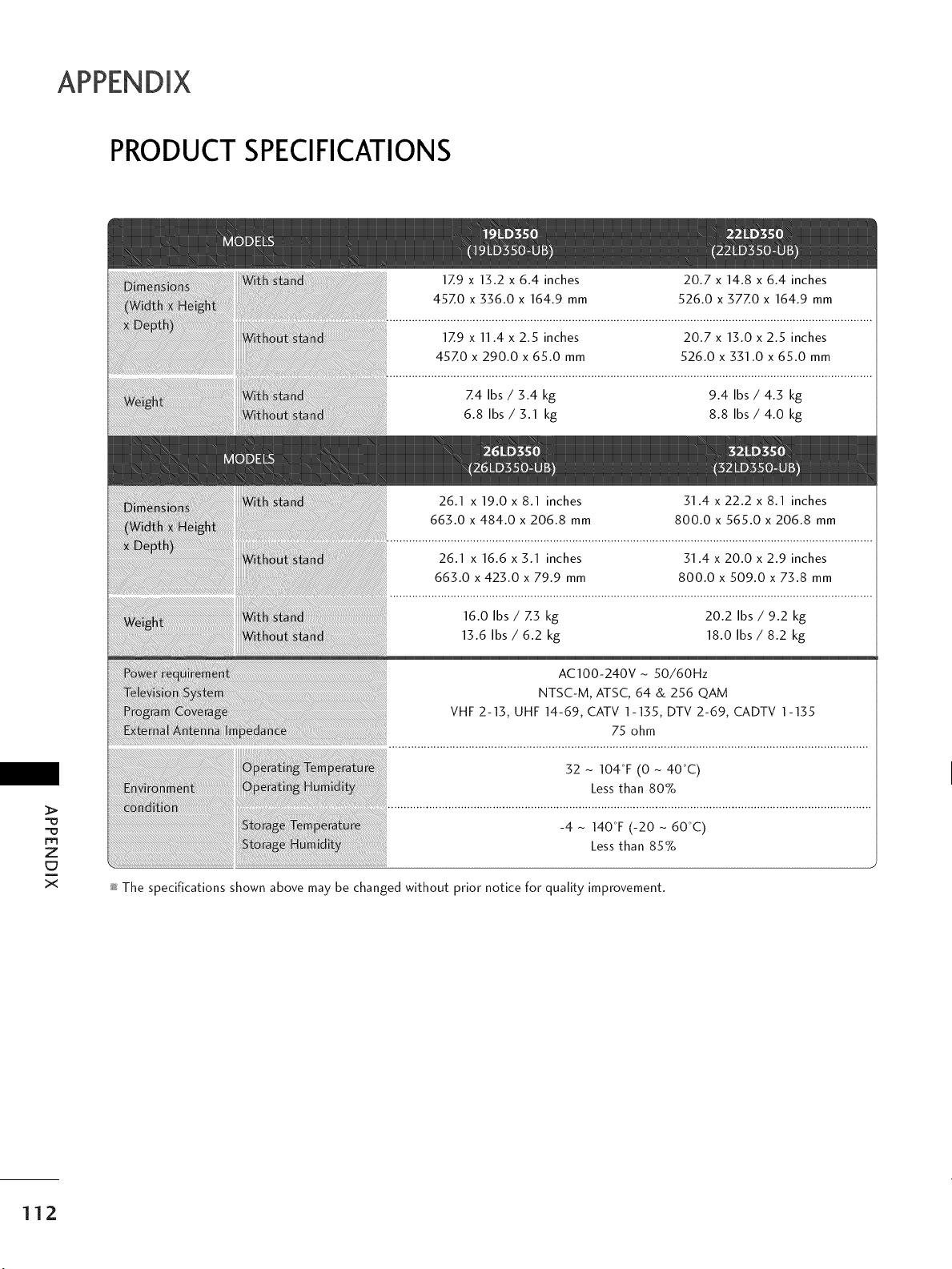
PRODUCT SPECIFICATIONS
m
Z
X
1Z9 x 13.2 x 6.4 inches
45Z0 x 336.0 x 164.9 mm
1Z9 x 11.4 x 2.5 inches
45Z0 x 290.0 x 65.0 mm
Z4 Ibs / 3.4 kg
6.8 Ibs / 3.1 kg
20.7 x 14.8 x 6.4 inches
526.0 x 37Z0 x 164.9 mm
20.7 x 13.0 x 2.5 inches
526.0 x 331.0 x 65.0 mm
9.4 Ibs / 4.3 kg
8.8 Ibs / 4.0 kg
16.0 Ibs / Z3 kg
13.6 Ibs / 6.2 kg
20.2 Ibs / 9.2 kg
18.0 Ibs / 8.2 kg
AC100-240V- 50/60Hz
NTSC-M, ATSC, 64 & 256 QAM
VHF 2-13, UHF 14-69, CATV 1-135, DTV 2-69, CADTV 1-135
75 ohm
32 - 104°F (0 - 40°C)
Less than 80%
The specifications shown above may be changed without prior notice for quality improvement.
112
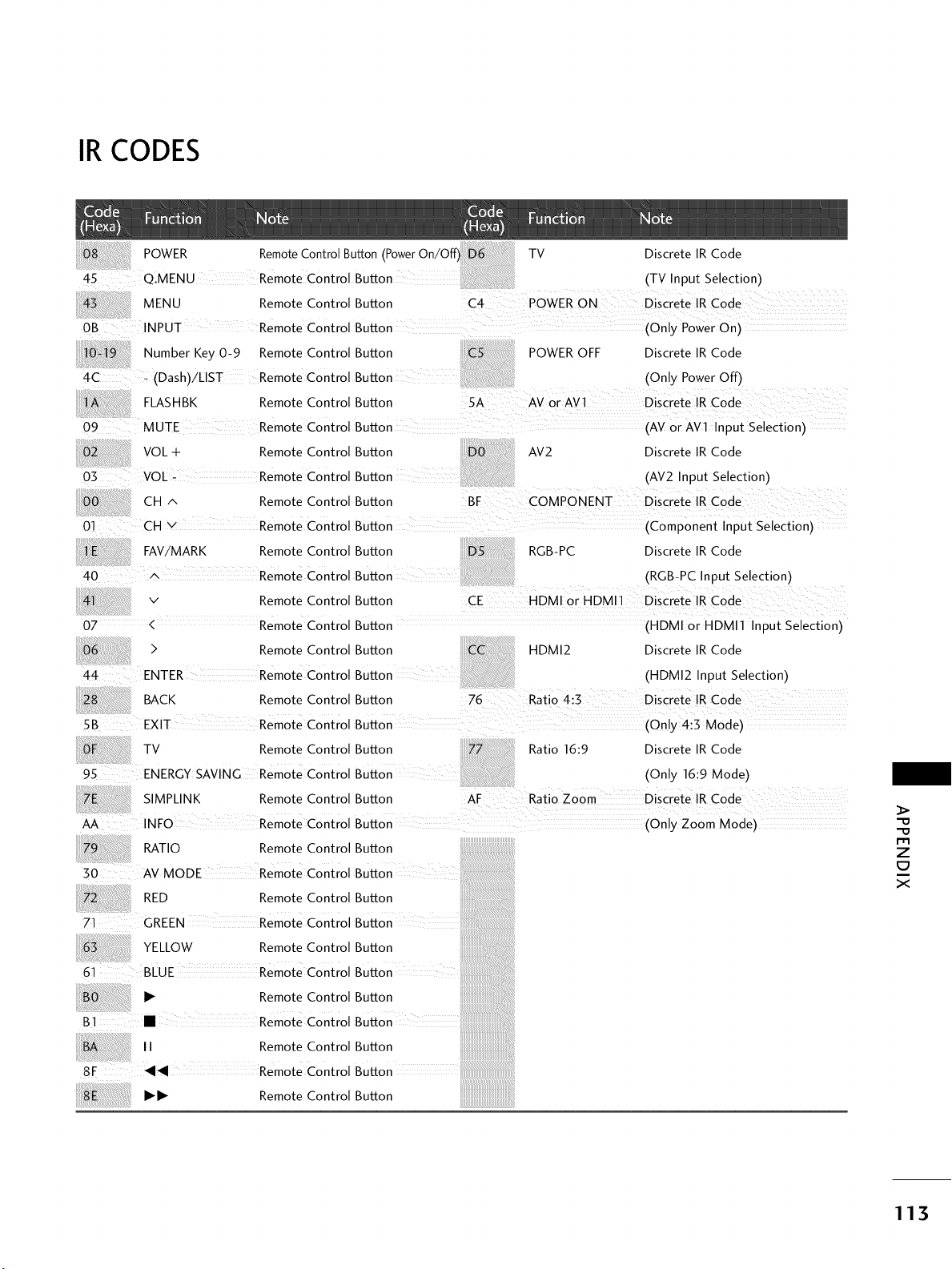
IR CODES
POWER RemoteControlButton(PowerOn/Off) TV
...... Q.MENU RemoteControl Button (TVInputSelection)
MENU RemoteControl Button C4 POWERON Discrete IRCode
Discrete IR Code
Number Key 0-9 Remote Control Button POWER OFF Discrete IR Code
.... _ (Dash)/LIST Remote Control Button (Only Power Off)
FLASHBK Remote Control Button
09 MUTE Remote Control Button (AV orAV1 Input Selection)
AV2 Discrete IR Code
(AV2 Input Selection)
FAV/MARK Remote Control Button RGB-PC Discrete IRCode
40 Remote Control Button (RGB-PC Input Selection)
41 v Remote Control Button CE ......... HDMI or HDMI1 Discrete IR Code
07 .... < Remote Control Button (HDMI or HDMI1 Input Selection)
5B EXIT Rem0te control
TV Remote Control
ENERGY SAVING Rem0te control
SIMPLINK Remote Control
AA iNFO Rem0te control
RATIO Remote Control
30 AV MODE Rem0te control
RED Remote Control
...... GREEN Remote control
:_ YELLOW Remote Control
6i BLuE Rem0te control
Button (On!y 4:3 Mode)
Button Ratio 16:9 Discrete IRCode
Button (Only 16:9 Mode)
Button AF Ratio Zoom Discrete IR Cede
Button zoom Mode)
iiiiiiiiiiiiiiiiiiiiiiiiiiiiiiiiiiiiiiiiiiiiii_
Button
Button
Button
Button
Button
Button
r'_
Z
C7
X
I_1_ Remote Control Button
iiiiiiiiiiiiiiiiiiiiiiiiiiiiiiiiiiiiiiiiiii_
113
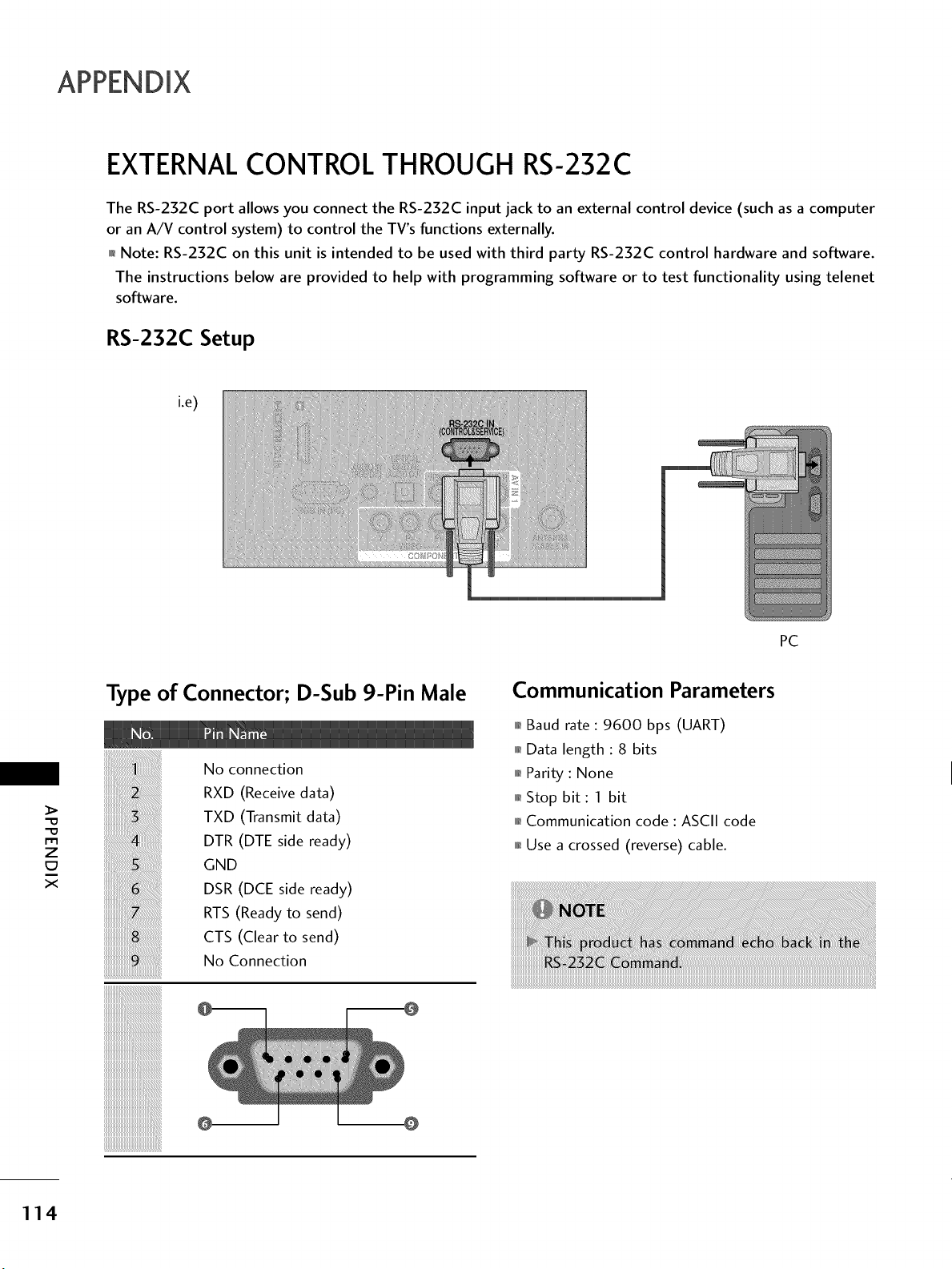
EXTERNAL CONTROL THROUGH RS-232C
The RS-232C port allows you connect the RS-232C input jack to an external control device (such as a computer
or an A/V control system) to control the TV's functions externally.
01_Note: RS-232C on this unit is intended to be used with third party RS-232C control hardware and software.
The instructions below are provided to help with programming software or to test functionality using telenet
software.
RS-232C Setup
i.e)
PC
m
z
E_
X
Type of Connector; D-Sub 9-Pin Male
No connection
RXD (Receive data)
TXD (Transmit data)
DTR (DTE side ready)
GND
DSR (DCE side ready)
RTS (Ready to send)
CTS (Clear to send)
No Connection
Communication Parameters
,l_Baud rate : 9600 bps (UART)
01_Data length : 8 bits
,l_Parity : None
,l_Stop bit : 1 bit
,l_Communication code : ASCII code
01_Use a crossed (reverse) cable.
@ @
114
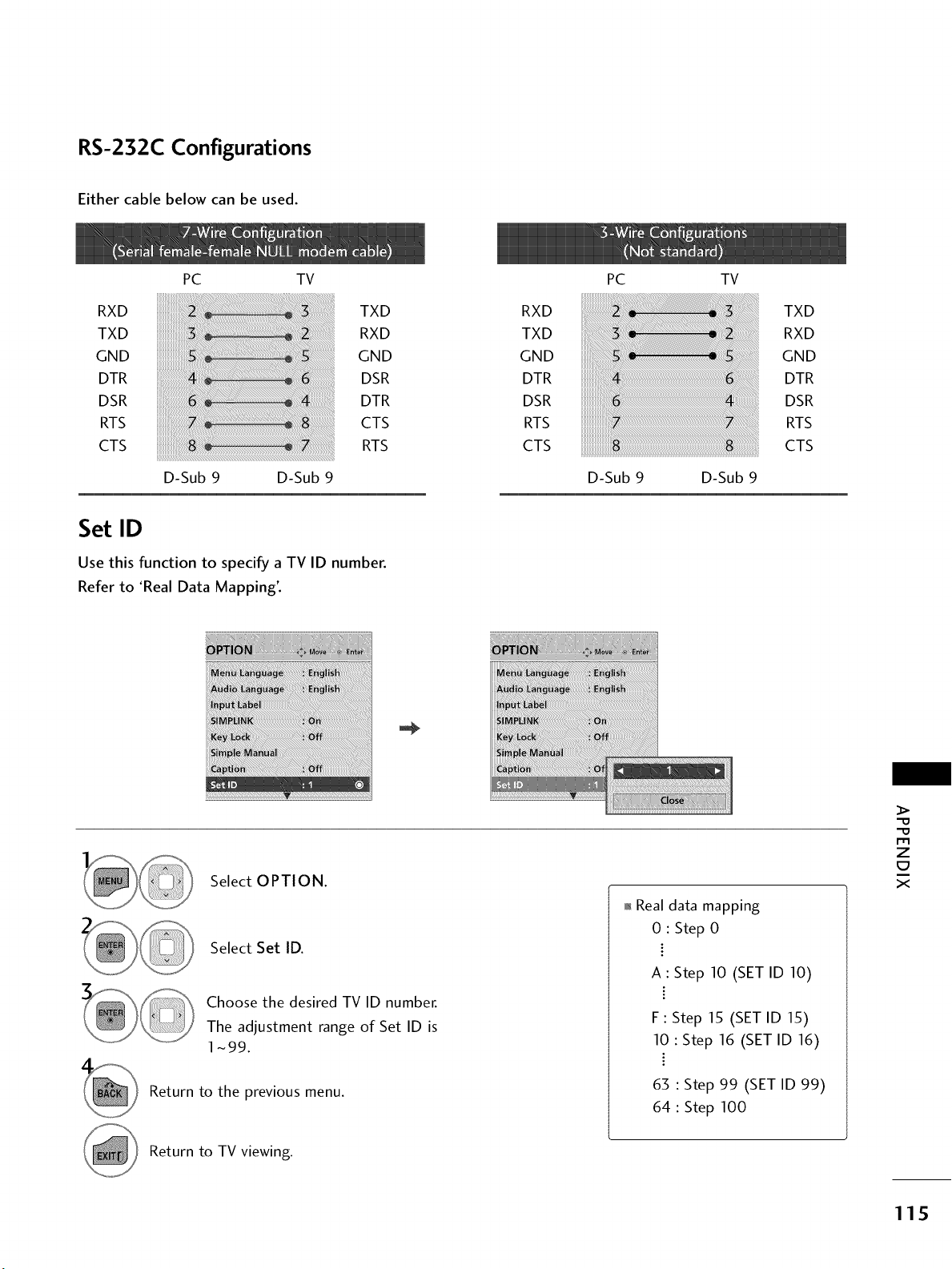
RS-232C Configurations
Either cable below can be used.
RXD
TXD
GND
DTR
DSR
RTS
CTS
PC TV
D-Sub 9 D-Sub 9
TXD
RXD
GND
DSR
DTR
CTS
RTS
Set ID
Use this function to specify a TV ID number.
Refer to 'Real Data Mapping'.
Select OPTION.
Select Set ID.
Choose the desired TV ID number.
The adjustment range of Set ID is
1-99.
Return to the previous menu.
01_Real data mapping
0 : Step 0
A : Step 10 (SET ID 10)
F : Step 15 (SET ID 15)
10 : Step 16 (SET ID 16)
63 : Step 99 (SET ID 99)
64 : Step 100
m
z
c7
X
Return to TV viewing.
115
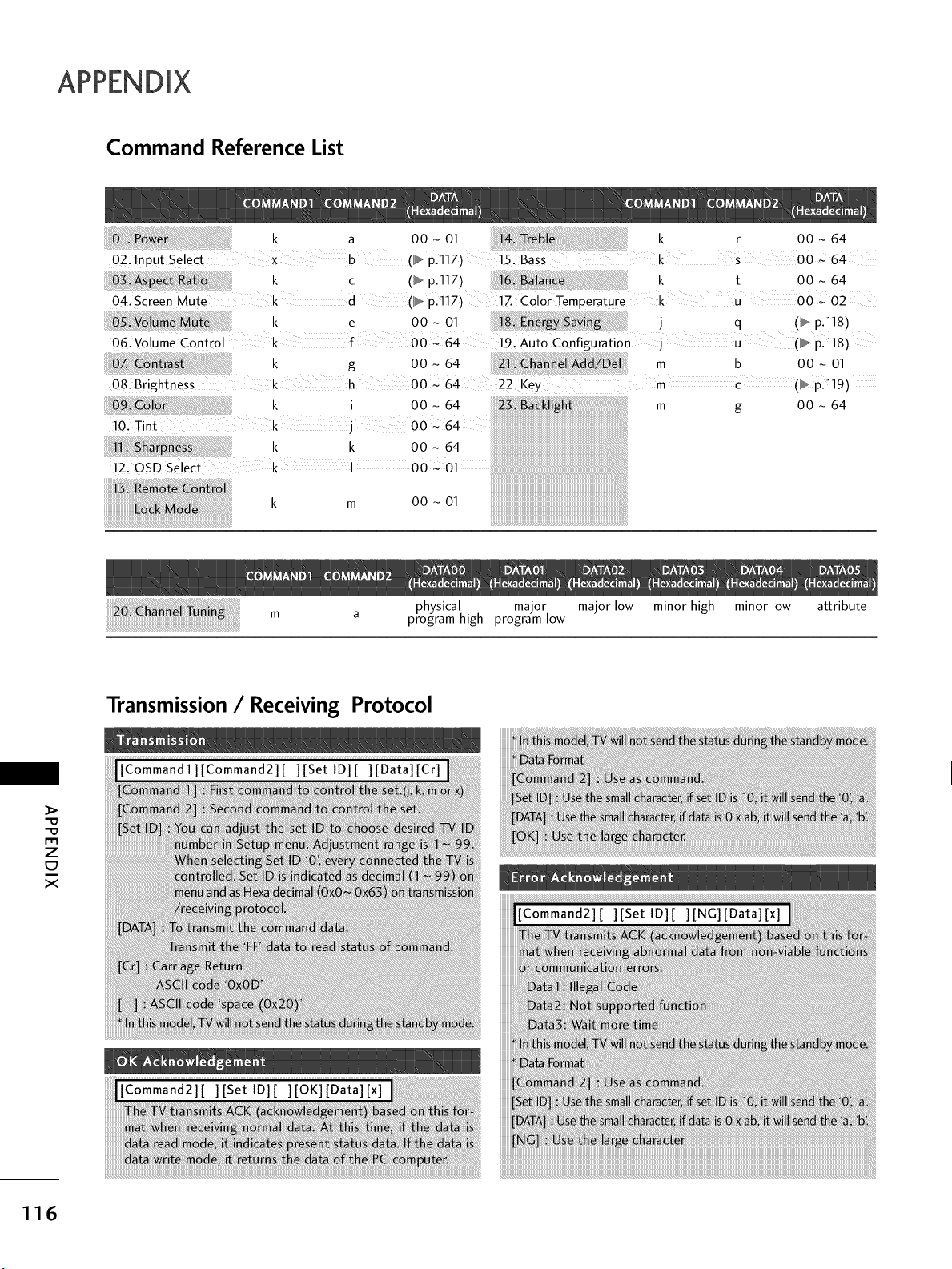
Command Reference List
01 Power k a
02. Input Select x b
k c
04. Screen Mute k d
ume k e
06. Volume Control k f
07. k g
08. Brightness k h
09 or k i
10. Tint k j
11 k k
12. OSD Select k I
O0 - 01
(_ p.117)
(p.117)
( . p.117)
O0 - 01
O0 ~ 64
O0 - 64
O0 ~ 64
O0 - 64
O0 ~ 64
O0 _ 64
O0 ~ 01
k m 00 - 01
1 ble k r 00 ~ 64
15. Bass k s O0 ~ 64
1 ance k t 00 - 64
1Z Color Temperature k u 00 ~ 02
1 j q (p.118)
19. Auto Configuration j u l__,,p.118)
21 Add m b O0 - 01
22. Key rn c ( ,. p.119)
m g 00 - 64
_#########################################################__
physical major major low minor high minor low attribute
program high program low
Transmission / Receiving Protocol
-0
-0
m
Z
X
'Commandl][Command2][ ][Set ID][ ][Data][Cr]
116
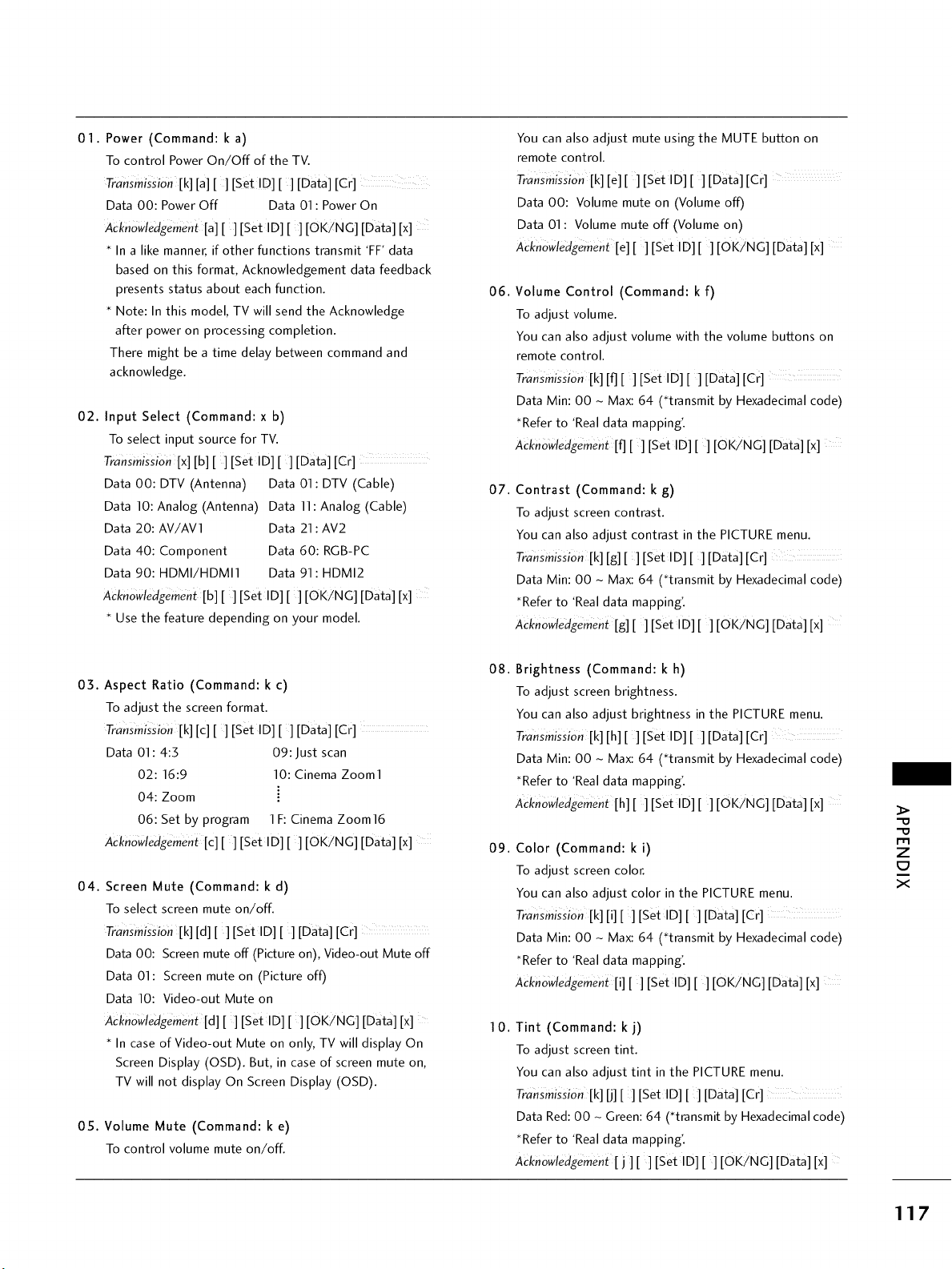
01. Power (Command: k a)
To control Power On/Off of the TV.
Transmission[k][a][] [Set!D][ ] [Data][Cr]
Data 00: Power Off Data 01 :Power On
AcknOwledgement [a][ ] [Set ID] [ ] [OK/NG] [Data] [x]
* In a like manner, if other functions transmit 'FF' data
based on this format, Acknowledgement data feedback
presents status about each function.
* Note: In this model, TV will send the Acknowledge
after power on processing completion.
There might be a time delay between command and
acknowledge.
02. Input Select (Command: x b)
To select input source for TV.
Transmission[x][b][][SetlD][ ] [Data] [Cr]
Data 00: DTV (Antenna) Data 01 : DTV (Cable)
Data 10: Analog (Antenna) Data 11: Analog (Cable)
Data 20:AV/AV1 Data 21 : AV2
Data 40: Component Data 60: RGB-PC
Data 90:HDMI/HDMI1 Data 91 : HDMI2
AcknOWledgement [b][] [Set ID][] [OK_NG] [Data] [x]
* Use the feature depending on your model.
03. Aspect Ratio (Command: k c)
To adjust the screen format.
TransmissiOn [k] [c] [] [Set ID] [] [Data] [Cr]
Data 01 : 4:3 09: Just scan
02:16:9 10: Cinema Zoom1
04: Zoom
06: Set by program 1 F: Cinema Zoom16
Acknowledgement[c][ ][Set ID][ ][OK/NG] [Data] [x]
04. Screen Mute (Command: k d)
To select screen mute on/off.
Transmission [k] [d][] [Set ID] [] [Data] [Cr]
Data 00: Screen mute off (Picture on), Video-out Mute off
Data 01 : Screen mute on (Picture off)
Data 10: Video-out Mute on
Acknowledgement[d][] [set ID] [ ] [OK/NG] [Data] [x]
* In case of Video-out Mute on only, TV will display On
Screen Display (OSD). But, in case of screen mute on,
TV will not display On Screen Display (OSD).
0S. Volume Mute (Command: k e)
To control volume mute on/off.
You can also adjust mute using the MUTE button on
remote control.
TransmisSion [k] [el[ ][Set ID][ ][Data] [Cr]
Data 00: Volume mute on (Volume off)
Data 01: Volume mute off (Volume on)
AcknowledgemenL [e][ ][set ID][ ][OK?NG] [Data] [x]
06.
Volume Control (Command: k f)
To adjust volume.
You can also adjust volume with the volume buttons on
remote control.
Transmission [k] [f] [][Set I D][] [Data] [Cr]
Data Min: 00 - Max: 64 (*transmit by Hexadecimal code)
*Refer to 'Real data mapping'.
Acknowledgement[f] [] [Set ID][] [OK/NG] [Data] [x]
07.
Contrast (Command: k g)
To adjust screen contrast.
You can also adjust contrast in the PICTURE menu.
TransmissiOn[k] [g] [] [Set ID] [] [Data] [Cr]
Data Min: 00 - Max: 64 (*transmit by Hexadecimal code)
*Refer to 'Real data mapping'.
Acknowledgement [g] [ ] [Set ID][ ] [OKiNG] [Data] [x]
08.
Brightness (Command: k h)
To adjust screen brightness.
You can also adjust brightness in the PICTURE menu.
TransmissiOn[k] [h][] [Set ID] [] [Data] [Cr]
Data Min: 00 _ Max: 64 (*transmit by Hexadecimal code)
*Refer to 'Real data mapping'.
AcknowledgemenL [h][ ][Set ID][ ] [OKiNC] [Data] [x]
09.
Color (Command: k i)
To adjust screen color.
You can also adjust color in the PICTURE menu.
Transmission[k] [i][] [Set ID][] [Data] [Cr]
Data Min: 00 _ Max: 64 (*transmit by Hexadecimal code)
*Refer to 'Real data mapping'.
ACknowledgement[i] [] [Set ID] [] [OK/NG] [Data] [x]
10.
Tint (Command: k j)
To adjust screen tint.
You can also adjust tint in the PICTURE menu.
Trahsmission [k] [j] [ ] [Set lD] [ ] [Data] [Cr]
Data Red: 00 _ Green: 64 (*transmit by Hexadecimal code)
*Refer to 'Real data mapping'.
ACknowledgemen_[j ][] [Set ID] [ ] [OK/NG] [Data] [x]
-O
-O
m
Z
E3
X
117
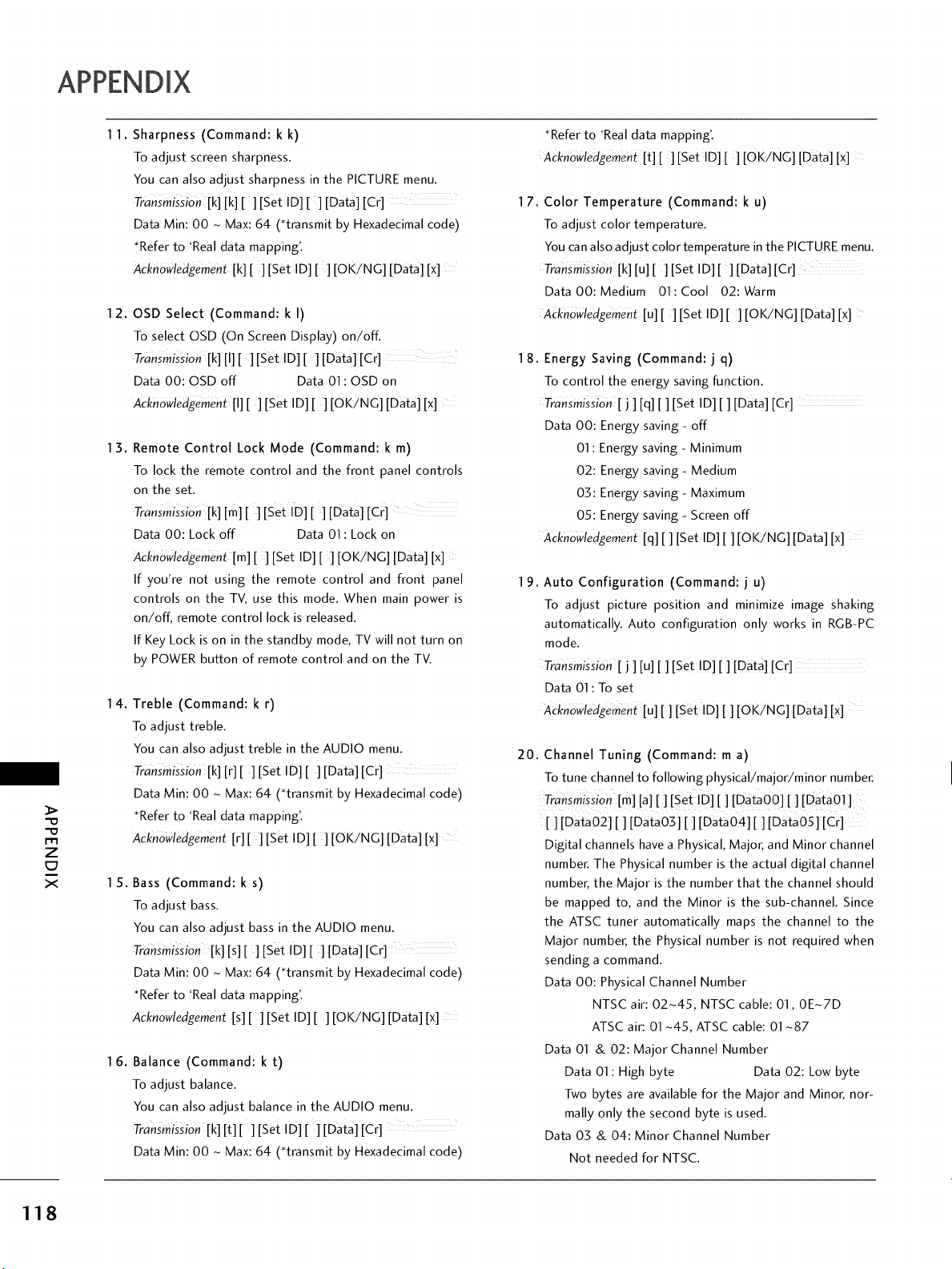
-O
-O
I"11
Z
E3
X
118
11.
12.
13.
14.
15.
16.
Sharpness (Command: k k)
To adjust screen sharpness.
You can also adjust sharpness in the PICTURE menu.
TransmisSion [k] [k][] [set ID][] [Data] [Cr]
Data Min: O0 - Max: 64 (*transmit by Hexadecimal code)
_Refer to 'Real data mapping'.
Acknowledgement [k] [ ][Set ID] [] [OK/NG] [Data] [x]
OSD Select (Command: k I)
To select OSD (On Screen Display) on/off.
TransmisSion [k] [I] [ ][Set ID][] [Data] [Cr]
Data 00: OSD off Data 01 : OSD on
ACknoWledgement [I][ ][set ID][ ][OKiNG] [Data] [x]
Remote Control Lock Mode (Command: k m)
To lock the remote control and the front panel controls
on the set.
Transmission[k] [m][] [set ID] [ ][Data] [Cr]
Data 00: Lock off Data 01 : Lock on
ACknowledgement[m][] [set ID] [ ] [OKiNG] [Data] [x]
If you're not using the remote control and front panel
controls on the TV, use this mode. When main power is
on/off, remote control lock is released.
If Key Lock is on in the standby mode, TV will not turn on
by POWER button of remote control and on the TV.
Treble (Command: k r)
To adjust treble.
You can also adjust treble in the AUDIO menu.
Transmission [k] [r] [ ] [Set ID] [ ] [Data] [Cr]
Data Min: O0 - Max: 64 (*transmit by Hexadecimal code)
_Refer to 'Real data mapping'.
Acknowledgement [r][] [set ID] [] [OKiNG] [Data] [x]
Bass (Command: k s)
To adjust bass.
You can also adjust bass in the AUDIO menu.
TransmissiOn [k] [s][] [set ID] [] [Data] [Cr]
Data Min: O0 - Max: 64 (*transmit by Hexadecimal code)
*Refer to 'Real data mapping'.
Acknowledgement[s][] [Set ID] [ ] [OK/NG] [Data] [x]
Balance (Command: k t)
To adjust balance.
You can also adjust balance in the AUDIO menu.
TransmissiOn [k] [t][ ] [Set ID] [ ] [Data] [Cr]
Data Min: 00 - Max: 64 (*transmit by Hexadecimal code)
*Refer to 'Real data mapping'.
Acknowledgement[t][ ][set ID][ ][OK/NG] [Data] [x]
1 7. Color Temperature (Command: k u)
To adjust color temperature.
You can also adjust color temperature in the PICTURE menu.
Transmission[k] [u][] [Set ID] [ ] [Data] [Cr]
Data 00: Medium 01: Cool 02: Warm
Acknowledgement[u][] [Set ID] [ ] [OK/NG] [Data] [x]
1 8. Energy Saving (Command: j q)
To control the energy saving function.
TransmisSion [j ] [q] [ ] [Set ID][] [Data] [Cr]
Data 00: Energy saving - off
01 : Energy saving - Minimum
02: Energy saving- Medium
03: Energy saving - Maximum
05: Energy saving - Screen off
Acknowledgement[q][] [Set ID] [ ] [OK/NG] [Data] [x]
19. Auto Configuration (Command: j u)
To adjust picture position and minimize image shaking
automatically. Auto configuration only works in RGB-PC
mode.
Transmission [j ] [u][] [Set !D] [ ] [Data] [Cr]
Data 01 : To set
Acknowledgement [u][] [Set ID][] [OK/NG] [Data] [x]
20. Channel Tuning (Command: m a)
To tune channel to following physical/major/minor number.
TransmisSion [m] [a] [ ] [set ID] [ ] [Data00] [] [Data01]
[] [Data02] [] [Data03] [] [Data04] [ ] [Data05] [Cr]
Digital channels have a Physical, Major, and Minor channel
number. The Physical number is the actual digital channel
number, the Major is the number that the channel should
be mapped to, and the Minor is the sub-channel. Since
the ATSC tuner automatically maps the channel to the
Major number, the Physical number is not required when
sending a command.
Data 00: Physical Channel Number
NTSC air: 02-45, NTSC cable: 01,0E-7D
ATSC air: 01-45, ATSC cable: 01-87
Data 01 & 02: Major Channel Number
Data 01 : High byte Data 02: Low byte
Two bytes are available for the Major and Minor, nor-
mally only the second byte is used.
Data 03 & 04: Minor Channel Number
Not needed for NTSC.
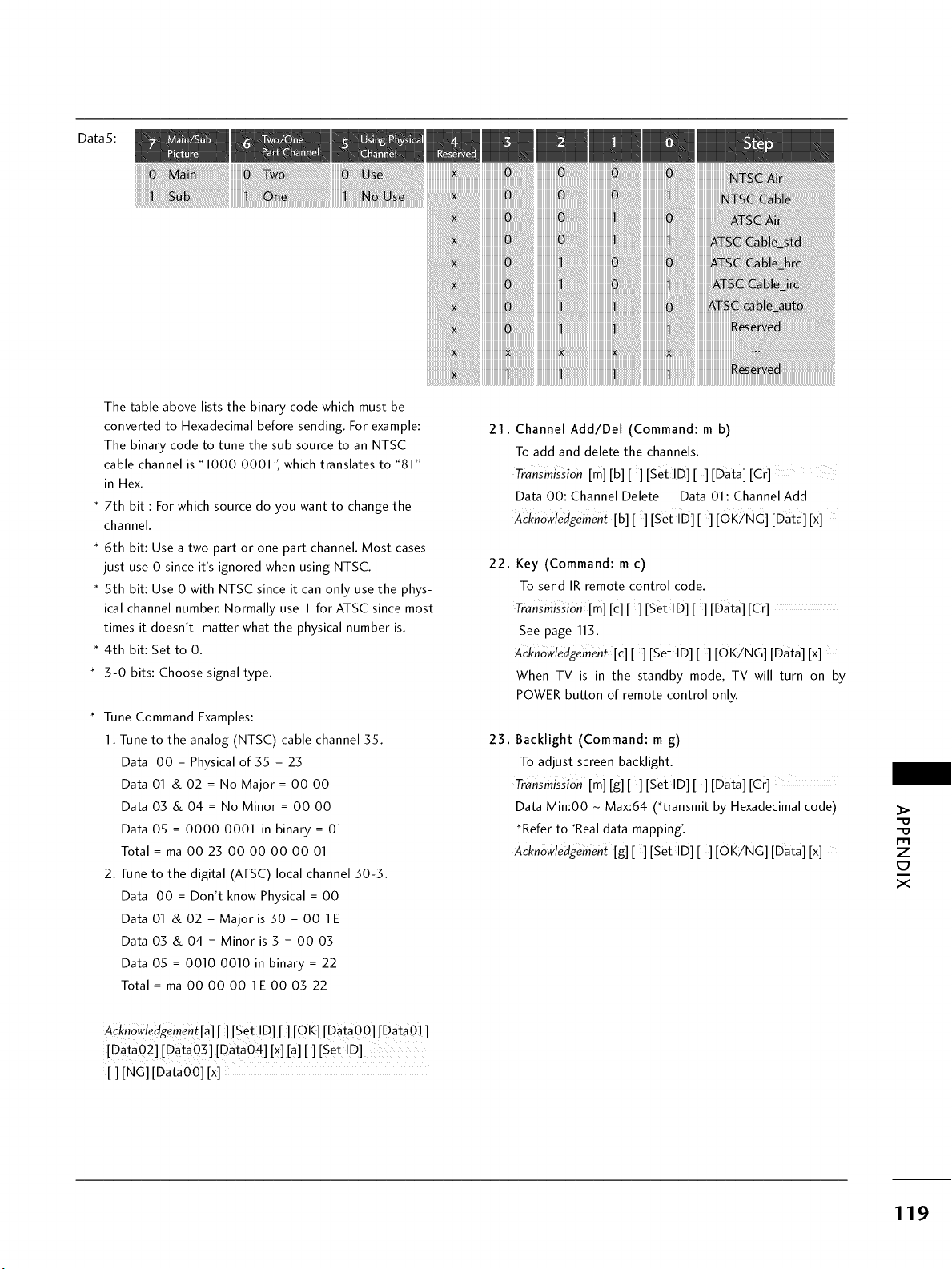
Data5:
Thetableaboveliststhebinarycodewhichmustbe
convertedtoHexadecimalbeforesending.Forexample:
ThebinarycodetotunethesubsourcetoanNTSC
cablechannelis"10000001",whichtranslatesto"81"
inHex.
*7th bit : For which source do you want to change the
channel.
* 6th bit: Use a two part or one part channel. Most cases
just use 0 since it's ignored when using NTSC.
* 5th bit: Use 0 with NTSC since it can only use the phys-
ical channel number. Normally use 1 for ATSC since most
times it doesn't matter what the physical number is.
* 4th bit: Set to 0.
* 3-0 bits: Choose signal type.
* Tune Command Examples:
1. Tune to the analog (NTSC) cable channel 35.
Data 00 = Physical of 35 = 23
Data 01 & 02 = No Major = 00 00
Data 03 & 04 = No Minor = 00 00
Data 05 = 0000 0001 in binary = 01
Total = ma 00 23 00 00 00 00 01
2. Tune to the digital (ATSC) local channel 30-3.
Data 00 = Don't know Physical = 00
Data 01 & 02 = Major is 30 = 00 1 E
Data 03 & 04 = Minor is 3 = 00 03
Data 05 = 0010 0010 in binary = 22
Total = ma 00 00 00 1E 00 03 22
21. Channel Add/Del (Command: m b)
To add and delete the channels.
Transmission [m] [b] [ ] [Set ID] [ ] [Data] [Cr]
Data 00: Channel Delete Data 01 : Channel Add
A_knoWiedgernenL [b][ ][Set ID][ ][0K/NG] [Data] [x]
22. Key (Command: m c)
To send IR remote control code.
Transmission[m] [€][] [Set ID][] [Data] [Cr]
See page 113.
Acknowledgement[c][] [Set ID][] [OK/NG] [Data] [x]
When TV is in the standby mode, TV will turn on by
POWER button of remote control only.
23. Backlight (Command: m g)
To adjust screen backlight.
Transmission[m] [g] [ ] [Set I D] [ ] [Data] [Cr]
Data Min:00 - Max:64 (*transmit by Hexadecimal code)
*Refer to 'Real data mapping'.
Acknowledgement[g][][SetlD][] [OK/NG] [Data] [x]
-O
-O
Z
X
ACknoWledg_rnen![a][ ] [Set !D][] [O K] [DataO0] [DataO] ]
[Data02] [DataOS] [Data04] [x] [a][] [Set !D] ...........
[ ] [NG] [DataO0] [x]
119
OPEN SOURCE LICENSE- This feature is not available for all models.
GNU GENERAL PUBLIC LICENSE
Version 2, June 1991
-O
-O
Z
X
Copyright (C) 1989, 1991 Free Software Foundation, Inc., 51
Franklin Street, Fifth Floor, Boston, MA 02110-1301 USA
Everyone is permitted to copy and distribute verbatim copies of
this license document, but changing it is not allowed.
Preamble
The licenses for most software are designed to take away your
freedom to share and change it. By contrast, the GNU General
Public License is intended to guarantee your freedom to share
and change free software - to make sure the software is free for
all its users. This General Public License applies to most of the
Free Software Foundation's software and to any other program
whose authors commit to using it. (Some other free software
foundation software is covered by the GNU Lesser General Public
License instead.) You can apply it to your programs, too.
When we speak of free software, we are referring to freedom, not
price. Our General Public Licenses are designed to make sure that
you have the freedom to distribute copies of free software (and
charge for this service if you wish), that you receive source code
or can get it if you want it, that you can change the software or
use pieces of it in new free programs; and that you know you can
do these things.
To protect your rights, we need to make restrictions that forbid
anyone to deny you these rights or to ask you to surrender the
rights. These restrictions translate to certain responsibilities for
you if you distribute copies of the software, or if you modify it.
For example, if you distribute copies of such a program, whether
gratis or for a fee, you must give the recipients all the rights that
you have. You must make sure that they, too, receive or can get
the source code. And you must show them these terms so they
know their rights.
We protect your rights with two steps: (1) copyright the soft-
ware, and (2) offer you this license which gives you legal permis-
sion to copy, distribute and/or modify the software.
Also, for each author's protection and ours, we want to make cer-
tain that everyone understands that there is no warranty for this
free software. If the software is modified by someone else and
passed on, we want its recipients to know that what they have is
not the original, so that any problems introduced by others will
not reflect on the original authors' reputations.
Finally, any free program is threatened constantly by software
patents. We wish to avoid the danger that redistributors of a free
program will individually obtain patent licenses, in effect making
the program proprietary. To prevent this, we have made it clear
that any patent must be licensed for everyone's free use or not
licensed at all.
The precise terms and conditions for copying, distribution and
modification follow.
GNU GENERAL PUBLIC LICENSE
TERMS AND CONDITIONS FOR COPYING, DISTRIBUTION
AND MODIFICATION
0.
This license applies to any program or other work which con-
tains a notice placed by the copyright holder saying it may be
distributed under the terms of this General Public License. The
"Program", below, refers to any such program or work, and a
"work based on the Program" means either the Program orany
derivative work under copyright law: that is to say, a work con-
taining the Program or a portion of it, either verbatim or with
modifications and/or translated into another language.
(Hereinafter, translation is included without limitation in the
term "modification".) Each licensee is addressed as "you".
Activities other than copying, distribution and modification
are not covered by this license; they are outside its scope.
The act of running the Program is not restricted, and the out-
put from the program is covered only if its contents constitute
a work based on the program (independent of having been
made by running the program). Whether that is true depends
on what the program does.
1.
You may copy and distribute verbatim copies of the program's
source code as you receive it, in any medium, provided that
you conspicuously and appropriately publish on each copy an
appropriate copyright notice and disclaimer of warranty; keep
intact all the notices that refer to this license and to the
absence of any warranty; and give any other recipients of the
program a copy of this license along with the Program.
You may charge a fee for the physical act of transferring a
copy, and you may at your option offer warranty protection in
exchange for a fee.
2.
You may modify your copy or copies of the program or any
portion of it, thus forming a work based on the Program, and
copy and distribute such modifications or work under the
terms of section 1 above, provided that you also meet all of
these conditions:
a) You must cause the modified files to carry prominent
notices stating that you changed the files and the date of
any change.
120
b) You must cause any work that you distribute or publish,
that in whole or in part contains or is derived from the
Program or any part there of, to be licensed as a whole at
no charge to all third parties under the terms of this
license.
c) If the modified program normally reads commands interac-
tively when run, you must cause it, when started running
for such interactive use in the most ordinary way, to print
or display an announcement including an appropriate
copyright notice and a notice that there is no warranty (or
else, saying that you provide a warranty) and that users
may redistribute the program under these conditions, and
telling the user how to view a copy of this license.
(Exception: if the Program itself is interactive but does not
normally print such an announcement, your work based on
the Program is not required to print an announcement.)
These requirements apply to the modified work as a whole. If
identifiable sections of that work are not derived from the
Program, and can be reasonably considered independent and
separate works in themselves, then this license, and its terms,
do not apply to those sections when you distribute them as
separate works. But when you distribute the same sections as
part of a whole which is a work based on the Program, the dis-
tribution of the whole must be on the terms of this license,
whose permissions for other licensees extend to the entire
whole, and thus to each and every part regardless of who
wrote it.
Thus, it is not the intent of this section to claim rights or con-
test your rights to work written entirely by you; rather, the
intent is to exercise the right to control the distribution of
derivative or collective works based on the program.
In addition, mere aggregation of another work not based on
the program with the Program (or with a work based on the
program) on a volume of a storage or distribution medium
does not bring the other work under the scope of this license.
3. You may copy and distribute the program (or a work based on
it, under section 2) in object code or executable form under
the terms of sections 1 and 2 above provided that you also
do one of the following:
a) Accompany it with the complete corresponding machine-
readable source code, which must be distributed under the
terms of sections 1 and 2 above on a medium customarily
used for software interchange; or,
b) Accompany it with a written offer, valid for at least three
years, to give any third party, for a charge no more than
your cost of physically performing source distribution, a
complete machine-readable copy of the corresponding
source code, to be distributed under the terms of sections
1 and 2 above on a medium customarily used for software
interchange; or,
c) Accompany it with the information you received as to the
offer to distribute corresponding source code. (This alter-
native is allowed only for noncommercial distribution and
only if you received the program in object code or exe-
cutable form with such an offer, in accord with Subsection
b above.)
The source code for a work means the preferred form of the
work for making modifications to it. For an executable work,
complete source code means all the source code for all mod-
ules it contains, plus any associated interface definition files,
plus the scripts used to control compilation and installation
of the executable. However, as a special exception, the source
code distributed need not include anything that is normally
distributed (in either source or binary form) with the major
components (compiler, kernel, and so on) of the operating
system on which the executable runs, unless that component
itself accompanies the executable.
If distribution of executable or object code is made by offer-
ing access to copy from a designated place, then offering
equivalent access to copy the source code from the same
place counts as distribution of the source code, even though
third parties are not compelled to copy the source along with
the object code.
4.
You may not copy, modify, sublicense, or distribute the Program
except as expressly provided under this license. Any attempt
otherwise to copy, modify, sublicense or distribute the
Program is void, and will automatically terminate your rights
under this license. However, parties who have received copies,
or rights, from you under this license will not have their licens-
es terminated so long as such parties remain in full compli-
ance.
5.
You are not required to accept this license, since you have not
signed it. However, nothing else grants you permission to
modify or distribute the Program or its derivative works.
These actions are prohibited by law if you do not accept this
license. Therefore, by modifying or distributing the program
(or any work based on the program), you indicate your accep-
tance of this license to do so, and all its terms and conditions
for copying, distributing or modifying the program or works
based on it.
6.
Each time you redistribute the program (or any work based on
the Program), the recipient automatically receives a license
from the original licensor to copy, distribute or modify the
Program subject to these terms and conditions. You may not
impose any further restrictions on the recipients' exercise of
the rights granted herein. You are not responsible for enforc-
ing compliance by third parties to this license.
Z
C7
X
121
Z
C7
X
8.
9.
If, as a consequence of a court judgment or allegation of
patent infringement or for any other reason (not limited to
patent issues), conditions are imposed on you (whether by
court order, agreement or otherwise) that contradict the con-
ditions of this license, they do not excuse you from the con-
ditions of this license. If you cannot distribute so as to satis-
fy simultaneously your obligations under this license and any
other pertinent obligations, then as a consequence you may
not distribute the program at all. For example, if a patent
license would not permit royalty-free redistribution of the
program by all those who receive copies directly or indirectly
through you, then the only way you could satisfy both it and
this license would be to refrain entirely from distribution of
the program.
If any portion of this section is held invalid or unenforceable
under any particular circumstance, the balance of the section
is intended to apply and the section as a whole is intended to
apply in other circumstances.
It is not the purpose of this section to induce you to infringe
any patents or other property right claims or to contest valid-
ity of any such claims; this section has the sole purpose of
protecting the integrity of the free software distribution sys-
tem, which is implemented by public license practices. Many
people have made generous contributions to the wide range
of software distributed through that system in reliance on
consistent application of that system; it is up to the
author/donor to decide if he or she is willing to distribute
software through any other system and a licensee cannot
impose that choice.
This section is intended to make thoroughly clear what is
believed to be a consequence of the rest of this license.
If the distribution and/or use of the program is restricted in
certain countries either by patents or by copyrighted inter-
faces, the original copyright holder who places the program
under this license may add an explicit geographical distribution
limitation excluding those countries, so that distribution is
permitted only in or among countries not thus excluded. In
such case, this license incorporates the limitation as if written
in the body of this license.
The Free Software Foundation may publish revised and/or
new versions of the General Public License from time to time.
Such new versions will be similar in spirit to the present ver-
sion, but may differ in detail to address new problems or con-
cerns.
Each version is given a distinguishing version number. If the
program specifies a version number of this license which
applies to it and "any later version", you have the option of
following the terms and conditions either of that version or of
any later version published by the Free Software Foundation.
If the program does not specify a version number of this
license, you may choose any version ever published by the
Free Software Foundation.
lO.If you wish to incorporate parts of the program into other free
programs whose distribution conditions are different, write to
the author to ask for permission. For software which is copy-
righted by the Free Software Foundation, write to the Free
Software Foundatiom we sometimes make exceptions for this.
Our decision will be guided by the two goals of preserving the
free status of all derivatives of our free software and of pro-
moting the sharing and reuse of software generally.
NO WARRANTY
11. BECAUSE THE PROGRAM IS LICENSED FREE OF CHARGE,
THERE IS NO WARRANTY FOR THE PROGRAM, TO THE
EXTENT PERMITTED BY APPLICABLE LAW. EXCEPT WHEN
OTHERWISE STATED IN WRITING THE COPYRIGHT HOLD-
ERS AND/OR OTHER PARTIES PROVIDE THE PROGRAM "AS
IS" WITHOUT WARRANTY OF ANY KIND, EITHER
EXPRESSED OR IMPLIED, INCLUDING, BUT NOT LIMITED
TO, THE IMPLIED WARRANTIES OF MERCHANTABILITY
AND FITNESS FOR A PARTICULAR PURPOSE. THE ENTIRE
RISK AS TO THE QUALITY AND PERFORMANCE OF THE
PROGRAM IS WITH YOU. SHOULD THE PROGRAM PROVE
DEFECTIVE, YOU ASSUME THE COST OF ALL NECESSARY
SERVICING, REPAIR OR CORRECTION.
12.1N NO EVENT UNLESS REQUIRED BY APPLICABLE LAW OR
AGREED TO IN WRITING WILL ANY COPYRIGHT HOLDER,
OR ANY OTHER PARTY WHO MAY MODIFY AND/OR
REDISTRIBUTE THE PROGRAM AS PERMITTED ABOVE, BE
LIABLE TO YOU FOR DAMAGES, INCLUDING ANY GENERAL,
SPECIAL, INCIDENTAL OR CONSEQUENTIAL DAMAGES
ARISING OUT OF THE USE OR INABILITY TO USE THE PRO-
GRAM (INCLUDING BUT NOT LIMITED TO LOSS OF DATA
OR DATA BEING RENDERED INACCURATE OR LOSSES SUS-
TAINED BY YOU OR THIRD PARTIES OR A FAILURE OF THE
PROGRAM TO OPERATE WITH ANY OTHER PROGRAMS),
EVEN IF SUCH HOLDER OR OTHER PARTY HAS BEEN
ADVISED OF THE POSSIBILITY OF SUCH DAMAGES.
122
END OF TERMS AND CONDITIONS
How to apply these terms to your new programs
If you develop a new program, and you want it to be of the great-
est possible use to the public, the best way to achieve this is to
make it free software which everyone can redistribute and change
under these terms.
To do so, attach the following notices to the program. It is safest
to attach them to the start of each source file to most effective-
ly convey the exclusion of warranty; and each file should have at
least the "copyright" line and a pointer to where the full notice is
found.
one line to give the program's name and a brief idea of what it
does.
Copyright (C) <year> <name of author>
This program is free software; you can redistribute it and/or
modify it under the terms of the GNU General Public License as
published by the Free Software Foundatiom either version 2 of
the license, or (at your option) any later version.
This program is distributed in the hope that it will be useful, but
WITHOUT ANY WARRANTY; without even the implied warranty
of MERCHANTABILITY or FITNESS FOR A PARTICULAR PUR-
POSE. See the GNU General Public License for more details.
You should have received a copy of the GNU General Public
License along with this program; if not, write to the Free Software
Foundation, Inc., 51 Franklin Street, Fifth Floor, Boston, MA
02110-1301 USA.
Also add information on how to contact you by electronic and
paper mail.
If the program is interactive, make it output a short notice like
this when it starts in an interactive mode:
Gnomovision version 69, Copyright (C) year name of author
Gnomovision comes with ABSOLUTELY NO WARRANTY; for
details type 'show w'. This is free software, and you are welcome
to redistribute it under certain conditions; type 'show c' for
details.
The hypothetical commands 'show w' and 'show c' should show
the appropriate parts of the General Public License. Of course,
the commands you use may be called something other than
'show w' and 'show c'; they could even be mouse-clicks or menu
items-whatever suits your program.
You should also get your employer (if you work as a programmer)
or your school, if any, to sign a "copyright disclaimer" for the pro-
gram, if necessary. Here is a sample; alter the names:
Yoyodyne, Inc., hereby disclaims all copyright interest in the pro-
gram 'Gnomovision' (which makes passes at compilers) written by
James Hacker.
signature of Ty Coon, 1 April 1989
Ty Coon, President of Vice
This General Public License does not permit incorporating your
program into proprietary programs. If your program is a subrou-
tine library, you may consider it more useful to permit linking pro-
prietary applications with the library. If this is what you want to
do, use the GNU Lesser General Public License instead of this
license.
Z
C7
X
123
GNU LESSER GENERAL PUBLIC LICENSE
Version 2.1, February 1999
-O
-O
m
Z
C7
X
Copyright (C) 1991, 1999 Free Software Foundation, Inc. 51
Franklin Street, Fifth Floor, Boston, MA 02110-1301 USA
Everyone is permitted to copy and distribute verbatim copies of
this license document, but changing it is not allowed.
[This is the first released version of the Lesser GPL. It also
counts as the successor of the GNU Library Public License, ver-
sion 2, hence the version number 2.1.]
Preamble
The licenses for most software are designed to take away your
freedom to share and change it. By contrast, the GNU General
Public Licenses are intended to guarantee your freedom to share
and change free software - to make sure the software is free for
all its users.
This license, the Lesser General Public License, applies to some
specially designated software packages - typically libraries - of
the Free Software Foundation and other authors who decide to
use it. You can use it too, but we suggest you first think careful-
ly about whether this license or the ordinary General Public
License is the better strategy to use in any particular case, based
on the explanations below.
When we speak of free software, we are referring to freedom of
use, not price. Our General Public Licenses are designed to make
sure that you have the freedom to distribute copies of free soft-
ware (and charge for this service if you wish); that you receive
source code or can get it if you want it; that you can change the
software and use pieces of it in new free programs; and that you
are informed that you can do these things.
To protect your rights, we need to make restrictions that forbid
distributors to deny you these rights or to ask you to surrender
these rights. These restrictions translate to certain responsibilities
for you if you distribute copies of the library or if you modify it.
For example, if you distribute copies of the library, whether gratis
or for a fee, you must give the recipients all the rights that we
gave you. You must make sure that they, too, receive or can get
the source code. If you link other code with the library, you must
provide complete object files to the recipients, so that they can
relink them with the library after making changes to the library
and recompiling it. And you must show them these terms so they
know their rights.
We protect your rights with a two-step method: (1) we copyright
the library, and (2) we offer you this license, which gives you legal
permission to copy, distribute and/or modify the library.
To protect each distributor, we want to make it very clear that
there is no warranty for the free library. Also, if the library is mod-
ified by someone else and passed on, the recipients should know
that what they have is not the original version, so that the origi-
nal author's reputation will not be affected by problems that
might be introduced by others.
Finally, software patents pose a constant threat to the existence
of any free program. We wish to make sure that a company can-
not effectively restrict the users of a free program by obtaining a
restrictive license from a patent holder. Therefore, we insist that
any patent license obtained for a version of the library must be
consistent with the full freedom of use specified in this license.
Most GNU software, including some libraries, is covered by the
ordinary GNU General Public License. This license, the GNU
Lesser General Public License, applies to certain designated
libraries, and is quite different from the ordinary General Public
License. We use this license for certain libraries in order to per-
mit linking those libraries into non-free programs.
When a program is linked with a library, whether statically or
using a shared library, the combination of the two is legally
speaking a combined work, a derivative of the original library. The
ordinary General Public License therefore permits such linking
only if the entire combination fits its criteria of freedom. The
Lesser General Public License permits more lax criteria for linking
other code with the library.
We call this license the "Lesser" General Public License because
it does Less to protect the user's freedom than the ordinary
General Public License. It also provides other free software devel-
opers Less of an advantage over competing non-free programs.
These disadvantages are the reason we use the ordinary General
Public License for many libraries. However, the Lesser license pro-
vides advantages in certain special circumstances.
For example, on rare occasions, there may be a special need to
encourage the widest possible use of a certain library, so that it
becomes a de-facto standard. To achieve this, non-free programs
must be allowed to use the library. A more frequent case is that
a free library does the same job as widely used non-free libraries.
In this case, there is little to gain by limiting the free library to free
software only, so we use the Lesser General Public License.
In other cases_ permission to use a particular library in non-free
programs enables a greater number of people to use a large body
of free software. For example, permission to use the GNU C
Library in non-free programs enables many more people to use
the whole GNU operating system, as well as its variant, the
GNU/Linux operating system.
124
Although the Lesser General Public License is Less protective of
the users' freedom, it does ensure that the user of a program that
is linked with the Library has the freedom and the wherewithal to
run that program using a modified version of the Library.
The precise terms and conditions for copying, distribution and
modification follow. Pay close attention to the difference between
a "work based on the library" and a "work that uses the library".
The former contains code derived from the library, whereas the
latter must be combined with the library in order to run.
GNU LESSER GENERAL PUBLIC LICENSE
TERMS AND CONDITIONS FOR COPYING, DISTRIBUTION
AND MODIFICATION
0. This license agreement applies to any software library or other
program which contains a notice placed by the copyright hold-
er or other authorized party saying it may be distributed
under the terms of this Lesser General Public License (also
called "this license"). Each license is addressed as "you".
A "library" means a collection of software functions and/or
data prepared so as to be conveniently linked with application
programs (which use some of those functions and data) to
form executables.
The "Library", below, refers to any such software library or work
which has been distributed under these terms. A "work based
on the Library" means either the Library or any derivative work
under copyright law: that is to say, a work containing the
library or a portion of it, either verbatim or with modifications
and/or translated straightforwardly into another language.
(Hereinafter, translation is included without limitation in the
term "modification".)
"Source code" for a work means the preferred form of the
work for making modifications to it. For a library, complete
source code means all the source code for all modules it con-
tains, plus any associated interface definition files, plus the
scripts used to control compilation and installation of the
library.
Activities other than copying, distribution and modification
are not covered by this license; they are outside its scope.
The act of running a program using the Library is not restrict-
ed, and output from such a program is covered only if its con-
tents constitute a work based on the library (independent of
the use of the Library in a tool for writing it). Whether that is
true depends on what the library does and what the program
that uses the library does.
1. You may copy and distribute verbatim copies of the library's
complete source code as you receive it, in any medium, pro-
vided that you conspicuously and appropriately publish on
each copy an appropriate copyright notice and disclaimer of
warranty; keep intact all the notices that refer to this license
and to the absence of any warranty; and distribute a copy of
this license along with the Library.
You may charge a fee for the physical act of transferring a
copy, and you may at your option offer warranty protection in
exchange for a fee.
2.
You may modify your copy or copies of the Library or any
portion of it, thus forming a work based on the Library, and
copy and distribute such modifications or work under the
terms of section 1 above, provided that you also meet all of
these conditions:
a) The modified work must itself be a software library.
b) You must cause the files modified to carry prominent
notices stating that you changed the files and the date of
any change.
c) You must cause the whole of the work to be licensed at no
charge to all third parties under the terms of this license.
d) If a facility in the modified Library refers to a function or a
table of data to be supplied by an application program that
uses the facility, other than as an argument passed when
the facility is invoked, then you must make a good faith
effort to ensure that, in the event an application does not
supply such function or table, the facility still operates, and
performs whatever part of its purpose remains meaningful.
(For example, a function in a library to compute square roots
has a purpose that is entirely well-defined independent of the
application. Therefore, Subsection 2d requires that any appli-
cation-supplied function or table used by this function must be
optional: if the application does not supply it, the square root
function must still compute square roots.)
These requirements apply to the modified work as a whole. If
identifiable sections of that work are not derived from the
library, and can be reasonably considered independent and
separate works in themselves, then this license, and its terms,
do not apply to those sections when you distribute them as
separate works. But when you distribute the same sections as
part of a whole which is a work based on the library, the dis-
tribution of the whole must be on the terms of this license,
whose permissions for other licenses extend to the entire
whole, and thus to each and every part regardless of who
wrote it.
Thus, it is not the intent of this section to claim rights or con-
test your rights to work written entirely by you; rather, the
intent is to exercise the right to control the distribution of
derivative or collective works based on the library.
In addition, mere aggregation of another work not based on
the library with the library (or with a work based on the
library) on a volume of a storage or distribution medium does
not bring the other work under the scope of this license.
m
Z
X
125
>
Z
C7
X
3.
4.
5.
You may opt to apply the terms of the ordinary GNU General
Public License instead of this License to a given copy of the
Library. To do this, you must alter all the notices that refer to
this License, so that they refer to the ordinary GNU General
Public License, version 2, instead of to this License. (Ifa newer
version than version 2 of the ordinary GNU General Public
License has appeared, then you can specify that version
instead if you wish.) Do not make any other change in these
notices.
Once this change is made in a given copy, it is irreversible for
that copy, so the ordinary GNU General Public License applies
to all subsequent copies and derivative works made from that
copy.
This option is useful when you wish to copy part of the code
of the library into a program that is not a library.
You may copy and distribute the library (or a portion or deriv-
ative of it, under Section 2) in object code or executable form
under the terms of Sections 1 and 2 above provided that you
accompany it with the complete corresponding machine-
readable source code, which must be distributed under the
terms of sections 1 and 2 above on a medium customarily
used for software interchange.
If distribution of object code is made by offering access to
copy from a designated place, then offering equivalent access
to copy the source code from the same place satisfies the
requirement to distribute the source code, even though third
parties are not compelled to copy the source along with the
object code.
A program that contains no derivative of any portion of the
Library, but is designed to work with the Library by being
compiled or linked with it, is called a "work that uses the
Library". Such a work, in isolation, is not a derivative work of
the Library, and therefore falls outside the scope of this
license.
However, linking a "work that uses the library" with the Library
creates an executable that is a derivative of the Library
(because it contains portions of the library), rather than a
"work that uses the library". The executable is therefore cov-
ered by this license. Section 6 states terms for distribution of
such executable.
When a "work that uses the library" uses material from a head-
er file that is part of the library, the object code for the work
may be a derivative work of the library even though the source
code is not.
Whether this is true is especially significant if the work can be
linked without the library, or if the work is itself a library. The
threshold for this to be true is not precisely defined by law.
If such an object file uses only numerical parameters, data
structure layouts and accessories, and small macros and small
inline functions (ten lines or less in length), then the use of
the object file is unrestricted, regardless of whether it is legal-
ly a derivative work. (Executable containing this object code
plus portions of the library will still fall under Section 6.)
Otherwise, if the work is a derivative of the library, you may
distribute the object code for the work under the terms of
Section 6. Any executable containing that work also fall under
Section 6, whether or not they are linked directly with the
library itself.
6.
As an exception to the sections above, you may also combine
or link a "work that uses the library" with the library to pro-
duce a work containing portions of the library, and distribute
that work under terms of your choice, provided that the terms
permit modification of the work for the customer's own use
and reverse engineering for debugging such modifications.
You must give prominent notice with each copy of the work
that the library is used in it and that the Library and its use
are covered by this license. You must supply a copy of this
license. If the work during execution displays copyright
notices, you must include the copyright notice for the library
among them, as well as a reference directing the user to the
copy of this license. Also, you must do one of these things:
a) Accompany the work with the complete corresponding
machine-readable source code for the library including
whatever changes were used in the work (which must be
distributed under Sections 1 and 2 above); and, if the work
is an executable linked with the Library, with the complete
machine-readable "work that uses the Library", as object
code and/or source code, so that the user can modify the
library and then relink to produce a modified executable
containing the modified library. (It is understood that the
user who changes the contents of definitions files in the
library will not necessarily be able to recompile the appli-
cation to use the modified definitions.)
b) Use a suitable shared library mechanism for linking with the
library. A suitable mechanism is one that (1) uses at run time
a copy of the library already present on the user's computer
system, rather than copying library functions into the exe-
cutable, and (2) will operate properly with a modified version
of the library, if the user installs one, as long as the modified
version is interface-compatible with the version that the
work was made with.
c) Accompany the work with a written offer, valid for at least
three years, to give the same user the materials specified in
Subsection 6, above, fora charge no more than the cost of
performing this distribution.
d) If distribution of the work is made by offering access to
copy from a designated place, offer equivalent access to
copy the above specified materials from the same place.
e) Verify that the user has already received a copy of these
materials or that you have already sent this user a copy.
126
For an executable, the required form of the "work that uses
the library" must include any data and utility programs need-
ed for reproducing the executable from it. However, as a spe-
cial exception, the materials to be distributed need not
include anything that is normally distributed (in either source
or binary form) with the major components (compiler, kernel,
and so on) of the operating system on which the executable
runs, unless that component itself accompanies the exe-
cutable.
It may happen that this requirement contradicts the license
restrictions of other proprietary libraries that do not normal-
ly accompany the operating system. Such a contradiction
means you cannot use both them and the library together in
an executable that you distribute.
You may place library facilities that are a work based on the
library side-by-side in a single library together with other
library facilities not covered by this license, and distribute
such a combined library, provided that the separate distribu-
tion of the work based on the Library and of the other library
facilities is otherwise permitted, and provided that you do
these two things:
a) Accompany the combined library with a copy of the same
work based on the Library, uncombined with any other
library facilities. This must be distributed under the terms
of the sections above.
b) Give prominent notice with the combined library of the
fact that part of it is a work based on the library, and
explaining where to find the accompanying uncombined
form of the same work.
8. You may not copy, modify, sublicense, link with, or distribute
the library except as expressly provided under this license.
Any attempt otherwise to copy, modify, sublicense, link with,
or distribute the library is void, and will automatically termi-
nate your rights under this license. However, parties who have
received copies, or rights, from you under this license will not
have their licenses terminated so long as such parties remain
in full compliance.
9. You are not required to accept this license, since you have not
signed it. However, nothing else grants you permission to mod-
ify or distribute the library or its derivative works. These
actions are prohibited by law if you do not accept this license.
Therefore, by modifying or distributing the library (or any work
based on the library), you indicate your acceptance of this
license to do so, and all its terms and conditions for copying,
distributing or modifying the library or works based on it.
lO.Each time you redistribute the library (or any work based on
the Library), the recipient automatically receives a license
from the original licensor to copy, distribute, link with or mod-
ify the library subject to these terms and conditions. You may
not impose any further restrictions on the recipients' exercise
of the rights granted herein.
You are not responsible for enforcing compliance by third
parties with this license.
11. If, as a consequence of a court judgment or allegation of
patent infringement or for any other reason (not limited to
patent issues), conditions are imposed on you (whether by
court order, agreement or otherwise) that contradict the con-
ditions of this license, they do not excuse you from the con-
ditions of this license. If you cannot distribute so as to satis-
fy simultaneously your obligations under this license and any
other pertinent obligations, then as a consequence you may
not distribute the library at all. For example, ifa patent license
would not permit royalty-free redistribution of the library by
all those who receive copies directly or indirectly through
you, then the only way you could satisfy both it and this
license would be to refrain entirely from distribution of the
library.
If any portion of this section is held invalid or unenforceable
under any particular circumstance, the balance of the section
is intended to apply, and the section as a whole is intended to
apply in other circumstances.
It is not the purpose of this section to induce you to infringe
any patents or other property right claims or to contest valid-
ity of any such claims; this section has the sole purpose of
protecting the integrity of the free software distribution sys-
tem which is implemented by public license practices. Many
people have made generous contributions to the wide range
of software distributed through that system in reliance on
consistent application of that system; it is up to the
author/donor to decide if he or she is willing to distribute
software through any other system and a license cannot
impose that choice.
This section is intended to make thoroughly clear what is
believed to be a consequence of the rest of this license.
12. If the distribution and/or use of the library is restricted in cer-
tain countries either by patents or by copyrighted interfaces,
the original copyright holder who places the library under this
license may add an explicit geographical distribution limitation
excluding those countries, so that distribution is permitted
only in or among countries not thus excluded. In such case,
this license incorporates the limitation as if written in the body
of this license.
13.The Free Software Foundation may publish revised and/or
new versions of the Lesser General Public License from time to
time. Such new versions will be similar in spirit to the present
version, but may differ in detail to address new problems or
concerns.
Each version is given a distinguishing version number. If the
library specifies a version number of this license which applies
to it and "any later version", you have the option of following
the terms and conditions either of that version or of any later
version published by the Free Software Foundation.
Z
C7
X
127
Z
C7
X
If the library does not specify a license version number_ you
may choose any version ever published by the Free Software
Foundation.
14.1f you wish to incorporate parts of the library into other free
programs whose distribution conditions are incompatible with
these, write to the author to ask for permission. For software
which is copyrighted by the Free Software Foundation, write
to the Free Software Foundation; we sometimes make excep-
tions for this. Our decision will be guided by the two goals of
preserving the free status of all derivatives of our free software
and of promoting the sharing and reuse of software generally.
NO WARRANTY
15.BECAUSE THE LIBRARY IS LICENSED FREE OF CHARGE,
THERE IS NO WARRANTY FOR THE LIBRARY, TO THE
EXTENT PERMITTED BY APPLICABLE LAW. EXCEPT WHEN
OTHERWISE STATED IN WRITING THE COPYRIGHT HOLD-
ERS AND/OR OTHER PARTIES PROVIDE THE LIBRARY "AS
IS" WITHOUT WARRANTY OF ANY KIND, EITHER
EXPRESSED OR IMPLIED, INCLUDING, BUT NOT LIMITED
TO, THE IMPLIED WARRANTIES OF MERCHANTABILITY
AND FITNESS FOR A PARTICULAR PURPOSE. THE ENTIRE
RISK AS TO THE QUALITY AND PERFORMANCE OF THE
LIBRARY IS WITH YOU. SHOULD THE LIBRARY PROVE
DEFECTIVE, YOU ASSUME THE COST OF ALL NECESSARY
SERVICING, REPAIR OR CORRECTION.
16.1N NO EVENT UNLESS REQUIRED BY APPLICABLE LAW OR
AGREED TO IN WRITING WILL ANY COPYRIGHT HOLDER,
OR ANY OTHER PARTY WHO MAY MODIFY AND/OR
REDISTRIBUTE THE LIBRARY AS PERMITTED ABOVE, BE
LIABLE TO YOU FOR DAMAGES, INCLUDING ANY GENERAL,
SPECIAL, INCIDENTAL OR CONSEQUENTIAL DAMAGES
ARISING OUT OF THE USE OR INABILITY TO USE THE
LIBRARY (INCLUDING BUT NOT LIMITED TO LOSS OF DATA
OR DATA BEING RENDERED INACCURATE OR LOSSES SUS-
TAINED BY YOU OR THIRD PARTIES OR A FAILURE OF THE
LIBRARY TO OPERATE WITH ANY OTHER SOFTWARE),
EVEN IF SUCH HOLDER OR OTHER PARTY HAS BEEN
ADVISED OF THE POSSIBILITY OF SUCH DAMAGES.
END OF TERMS AND CONDITIONS
How to apply these terms to your new libraries
If you develop a new library, and you want it to be of the great-
est possible use to the public, we recommend making it free soft-
ware that everyone can redistribute and change. You can do so
by permitting redistribution under these terms (or, alternatively,
under the terms of the ordinary General Public License).
To apply these terms, attach the following notices to the library.
It is safest to attach them to the start of each source file to most
effectively convey the exclusion of warranty; and each file should
have at least the "copyright" line and a pointer to where the full
notice is found.
one line to give the library's name and a brief idea of what it does.
Copyright (C) <year> <name of author>
This library is free software; you can redistribute it and/or modify
it under the terms of the GNU Lesser General Public License as
published by the Free Software Foundatiom either version 2.1 of
the license, or (at your option) any later version.
This library is distributed in the hope that it will be useful, but
WITHOUT ANY WARRANTY; without even the implied warranty
of MERCHANTABILITY or FITNESS FOR A PARTICULAR PUR-
POSE. See the GNU Lesser General Public License for more
details.
You should have received a copy of the GNU Lesser General
Public License along with this library; if not, write to the Free
Software Foundation, Inc., 51 Franklin Street, Fifth Floor, Boston,
MA 02110-1301 USA
Also add information on how to contact you by electronic and
paper mail.
You should also get your employer (if you work as a programmer)
or your school, if any, to sign a "copyright disclaimer" for the
library, if necessary. Here is a sample; alter the names:
Yoyodyne, Inc., hereby disclaims all copyright interest in the
library 'Frob' (a library for tweaking knobs) written by James
Random Hacker.
signature of Ty Coon, 1 April 1990
Ty Coon, President of Vice
128
MOZILLA PUBLIC LICENSE
Version 1.1
1 •Definitions•
1.0.1. "Commercial use" means distribution or otherwise making
the covered code available to a third party.
1.1. "Contributor" means each entity that creates or con-
tributes to the creation of modifications•
1.2. "Contributor version" means the combination of the orig-
inal code, prior modifications used by a contributor, and
the modifications made by that particular contributor.
1.3. "Covered code" means the original code or modifications
or the combination of the original code and modifications,
in each case including portions thereof.
1.4. "Electronic distribution mechanism" means a mechanism
generally accepted in the software development communi-
ty for the electronic transfer of data.
1.5. "Executable" means covered code in any form other than
source code.
1.6. "Initial developer" means the individual or entity identified
as the initial Developer in the Source Code notice required
by exhibit A.
1 .Z "Larger work" means a work which combines covered code
or portions thereof with code not governed by the terms
of this License.
1.8. "License" means this document•
1 •8•1
•"Licensable" means having the right to grant, to the maxi-
mum extent possible, whether at the time of the initial
grant or subsequently acquired, any and all of the rights
conveyed herein.
1.9.
"Modifications" means any addition to or deletion from
the substance or structure of either the original code or
any previous modifications• When covered code is
released as a series of files, a modification is:
A. Any addition to or deletion from the contents of a file
containing original code or previous modifications•
B. Any new file that contains any part of the original code
or previous modifications.
1.10. "Original code" means source code of computer software
code which is described in the source code notice
required by exhibit as original code, and which, at the time
of its release under this license is not already covered
code governed by this license.
1.lO.l ."Patent claims" means any patent claim(s), now owned or
hereafter acquired, including without limitation, method,
process, and apparatus claims, in any patent licensable by
grantor.
1.11.
"Source code" means the preferred form of the covered
code for making modifications to it, including all modules
it contains, plus any associated interface definition files,
scripts used to control compilation and installation of an
executable, or source code differential comparisons
against either the original code or another well known,
available covered code of the contributor's choice. The
source code can be in a compressed or archival form, pro-
vided the appropriate decompression or de-archiving soft-
ware is widely available for no charge.
1.12.
"You" (or "Your") means an individual or a legal entity
exercising rights under, and complying with all of the terms
of, this license or a future version of this license issued
under section 6.1.
For legal entities, "You" includes any entity which controls,
is controlled by, or is under common control with You. For
purposes of this definition, "control" means (a) the power,
direct or indirect, to cause the direction or management of
such entity, whether by contract or otherwise, or (b) own-
ership of more than fifty percent (50%) of the outstand-
ing shares or beneficial ownership of such entity.
2. Source Code License.
2.1.
The initial developer grant.
The initial developer hereby grants You a world-wide, roy-
alty-free, non-exclusive license, subject to third party intel-
lectual property claims:
a) under intellectual property rights (other than patent or
trademark) licensable by initial developer to use, repro-
duce, modify, display, perform, sublicense and distrib-
ute the original code (or portions thereof) with or with-
out modifications, and/or as part of a larger work; and
(b) under patents claims infringed by the making, using or
selling of original code, to make, have made, use, prac-
tice, sell, and offer for sale, and/or otherwise dispose
of the original code (or portions there of).
>
Z
C7
X
129
Z
C7
X
(c) the licenses granted in this section 2.1 (a) and (b) are
effective on the date Initial developer first distributes
original code under the terms of this license.
(d) Notwithstanding section 2.1(b) above, no patent
license is granted: 1 ) for code that You delete from the
original Code; 2) separate from the original code; or
3) for infringements caused by: i) the modification of
the original code or ii) the combination of the original
code with other software or devices.
2.2. Contributor Grant.
Subject to third party intellectual property claims, each
contributor hereby grants You a world-wide, royalty-free,
non-exclusive license
(a) under intellectual property rights (other than patent
or trademark) licensable by contributor, to use,
reproduce, modify, display, perform, sublicense and
distribute the modifications created by such contribu-
tor (or portions thereof) either on an unmodified
basis, with other modifications, as covered code
and/or as part of a larger work; and
(b) under patent claims infringed by the making, using, or
selling of modifications made by that contributor
either alone and/or in combination with its contributor
version (or portions of such combination), to make,
use, sell, offer for sale, have made, and/or otherwise
dispose off 1) modifications made by that contributor
(or portions thereof); and 2) the combination of mod-
ifications made by that contributor with its contributor
version (or portions of such combination).
(c) the licenses granted in sections 2.2(a) and 2.2(b) are
effective on the date contributor first makes commer-
cial use of the covered code.
(d) Notwithstanding section 2.2(b) above, no patent
license is granted: 1 ) for any code that contributor has
deleted from the contributor versiom 2) separate from
the contributor version; 3) for infringements caused
by: i) third party modifications of contributor version
or ii) the combination of modifications made by that
contributor with other software (except as part of the
contributor version) or other devices; or 4) under
patent claims infringed by covered code in the
absence of modifications made by that contributor.
3. Distribution Obligations.
3.1.
Application of license.
The modifications which You create or to which you con-
tribute are governed by the terms of this license, including
without limitation section 2.2. The source code version of
covered code may be distributed only under the terms of
this license or a future version of this license released
under section 6.1, and you must include a copy of this
license with every copy of the source code you distribute.
You may not offer or impose any terms on any source code
version that alters or restricts the applicable version of
this license or the recipients' rights hereunder. However_
you may include an additional document offering the
additional rights described in section 3.5.
3.2.
Availability of source code.
Any modification which you create or to which you con-
tribute must be made available in source code form under
the terms of this license either on the same media as an
executable version or via an accepted electronic distribu-
tion mechanism to anyone to whom you made an exe-
cutable version available; and if made available via elec-
tronic distribution mechanism, must remain available forat
least twelve (12) months after the date it initially became
available, or at least six (6) months after a subsequent
version of that particular modification has been made
available to such recipients. You are responsible for ensur-
ing that the source code version remains available even if
the electronic distribution mechanism is maintained by a
third party.
3.3.
Description of modifications.
You must cause all covered code to which you contribute to
contain a file documenting the changes You made to create
that covered code and the date of any change. You must
include a prominent statement that the modification is
derived, directly or indirectly, from original code provided by
the initial developer and including the name of the initial
developer in (a) the source code, and (b) in any notice in an
executable version or related documentation in which you
describe the origin or ownership of the covered code.
3.4.
Intellectual property matters
(a) Third party claims.
If contributor has knowledge that a license under a third
party's intellectual property rights is required to exercise
the rights granted by such contributor under sections 2.1
or 2.2, contributor must include a text file with the source
code distribution titled "LEGAL" which describes the claim
and the party making the claim in sufficient detail that a
recipient will know whom to contact. If contributor obtains
such knowledge after the modification is made available as
described in section 3.2, contributor shall promptly modi-
fy the LEGAL file in all copies contributor makes available
thereafter and shall take other steps (such as notifying
appropriate mailing lists or newsgroups) reasonably calcu-
lated to inform those who received the covered code that
new knowledge has been obtained.
(b) Contributor APIs.
If contributor's modifications include an application
programming interface and contributor has knowledge of
patent licenses which are reasonably necessary to implement
that API, contributor must also include this information in
the LEGAL file.
130
(c) Representations.
contributor represents that, except as disclosed pursuant
to section 3.4(a) above, contributor believes that contributor's
modifications are contributor's original creation(s)
and/or contributor has sufficient rights to grant the rights
conveyed by this license.
3.Z
Larger works.
You may create a larger work by combining covered code
with other code not governed by the terms of this license
and distribute the larger work as a single product. In such
a case, you must make sure the requirements of this
license are fulfilled for the covered code.
3.5.
3.6.
Required notices.
You must duplicate the notice in exhibit A in each file of
the source code. If it is not possible to put such notice in
a particular source code file due to its structure, then You
must include such notice in a location (such as a relevant
directory) where a user would be likely to look for such a
notice. If You created one or more modification(s), you
may add your name as a contributor to the notice
described in exhibit A. you must also duplicate this license
in any documentation for the source code where You
describe recipients' rights or ownership rights relating to
covered code. You may choose to offer, and to charge a
fee for, warranty, support, indemnity or liability obligations
to one or more recipients of covered code. However, you
may do so only on your own behalf, and not on behalf of
the Initial developer or any contributor. You must make it
absolutely clear than any such warranty, support, indemni-
ty or liability obligation is offered by you alone, and You
hereby agree to indemnify the Initial developer and every
contributor for any liability incurred by the Initial develop-
er or such contributor as a result of warranty, support,
indemnity or liability terms you offer.
Distribution of executable versions.
You may distribute covered code in executable form only if
the requirements of section 5.1-5.5 have been met for
that covered code, and if you include a notice stating that
the source code version of the covered code is available
under the terms of this license, including a description of
how and where you have fulfilled the obligations of section
3.2. The notice must be conspicuously included in any
notice in an executable version, related documentation or
collateral in which you describe recipients' rights relating
to the covered code. You may distribute the executable
version of covered code or ownership rights under a
license of your choice, which may contain terms different
from this license, provided that you are in compliance with
the terms of this license and that the license for the exe-
cutable version does not attempt to limit or alter the recip-
ient's rights in the source code version from the rights set
forth in this license. If you distribute the executable ver-
sion under a different license you must make it absolutely
clear that any terms which differ from this license are
offered by you alone, not by the Initial developer or any
contributor. You hereby agree to indemnify the initial
developer and every contributor for any liability incurred
by the initial developer or such contributor as a result of
any such terms You offer.
4. Inability to comply due to statute or regulation.
If it is impossible for you to comply with any of the terms
of this license with respect to some or all of the covered
code due to statute, judicial order, or regulation then you
must: (a) comply with the terms of this license to the max-
imum extent possible; and (b) describe the limitations and
the code they affect. Such description must be included in
the LEGAL file described in section 3.4 and must be
included with all distributions of the source code. Except
to the extent prohibited by statute or regulation, such
description must be sufficiently detailed for a recipient of
ordinary skill to be able to understand it.
5. Application of this license.
This license applies to code to which the initial developer has
attached the notice in exhibit A and to related covered code.
6. Versions of the license.
6.1. New versions.
Netscape communications corporation ("Netscape") may
publish revised and/or new versions of the license from
time to time. Each version will be given a distinguishing
version number.
6.2. Effect of new versions.
Once covered code has been published under a particular
version of the license, you may always continue to use it
under the terms of that version. You may also choose to
use such covered code under the terms of any subsequent
version of the license published by netscape. No one
other than netscape has the right to modify the terms
applicable to covered code created under this license.
6.3. Derivative works.
If You create or use a modified version of this license
(which you may only do in order to apply it to code which
is not already covered code governed by this license), You
must (a) rename Your license so that the phrases
"Mozilla", "MOZILLAPL", "MOZPL", "Netscape", "MPL",
"NPL" or any confusingly similar phrase do not appear in
your license (except to note that your license differs from
this license) and (b) otherwise make it clear that Your
version of the license contains terms which differ from the
Mozilla Public license and netscape Public License. (Filling
in the name of the initial developer, original code or con-
tributor in the notice described in exhibit A shall not of
themselves be deemed to be modifications of this license.)
Z
C7
X
131
-O
-O
Z
C7
X
Z DISCLAIMER OF WARRANTY.
COVERED CODE IS PROVIDED UNDER THIS LICENSE
ON AN "AS IS" BASIS, WITHOUT WARRANTY OF ANY
KIND, EITHER EXPRESSED OR IMPLIED, INCLUDING,
WITHOUT LIMITATION, WARRANTIES THAT THE COV-
ERED CODE IS FREE OF DEFECTS, MERCHANTABLE, FIT 8.3.
FOR A PARTICULAR PURPOSE OR NON-INFRINGING.
THE ENTIRE RISK AS TO THE QUALITY AND PERFOR-
MANCE OF THE COVERED CODE IS WITH YOU.
SHOULD ANY COVERED CODE PROVE DEFECTIVE IN
ANY RESPECT, YOU (NOT THE INITIAL DEVELOPER OR
ANY OTHER CONTRIBUTOR) ASSUME THE COST OF
ANY NECESSARY SERVICING, REPAIR OR CORRECTION.
THIS DISCLAIMER OF WARRANTY CONSTITUTES AN
ESSENTIAL PART OF THIS LICENSE. NO USE OF ANY
COVERED CODE IS AUTHORIZED HEREUNDER EXCEPT 8.4.
UNDER THIS DISCLAIMER.
8. TERMINATION.
8.1.
This license and the rights granted hereunder will terminate
automatically if you fail to comply with terms herein and
fail to cure such breach within 30 days of becoming aware
of the breach. All sublicenses to the covered code which
are properly granted shall survive any termination of this
license. Provisions which, by their nature, must remain in
effect beyond the termination of this license shall survive.
8.2.
If you initiate litigation by asserting a patent infringement
claim (excluding declatory judgment actions) against ini-
tial developer or a contributor (the initial developer or
contributor against whom you file such action is referred
to as "Participant") alleging that:
(a) such participant's contributor version directly or indi-
rectly infringes any patent, then any and all rights
granted by such participant to you under sections 2.1
and/or 2.2 of this license shall, upon 60 days notice
from Participant terminate prospectively, unless if within
60 days after receipt of notice you either: (i) agree in
writingto pay participant a mutually agreeable reasonable
royalty for your past and future use of modifications
made by such participant, or (ii) withdraw your litigation
claim with respect to the contributor version against
such participant. If within 60 days of notice, a reasonable
royalty and payment arrangement are not mutually
agreed upon in writing by the parties or the litigation
claim is not withdrawn, the rights granted by partici-
pant to you under sections 2.1 and/or 2.2 automati-
cally terminate at the expiration of the 60 day notice
period specified above.
(b) any software, hardware, or device, other than such par-
ticipant's contributor Version, directly or indirectly
infringes any patent, then any rights granted to You by
such participant under sections 2.1 (b) and 2.2(b) are
revoked effective as of the date you first made, used,
sold, distributed, or had made, modifications made by
that participant.
If you assert a patent infringement claim against partici-
pant alleging that such participant's contributor version
directly or indirectly infringes any patent where such claim
is resolved (such as by license or settlement) prior to the
initiation of patent infringement litigation, then the rea-
sonable value of the licenses granted by such participant
under sections 2.1 or 2.2 shall be taken into account in
determining the amount or value of any payment or
license.
In the event of termination under sections 8.1 or 8.2
above, all end user license agreements (excluding distributors
and resellers) which have been validly granted by you or
any distributor hereunder prior to termination shall survive
termination.
9. LIMITATION OF LIABILITY.
UNDER NO CIRCUMSTANCES AND UNDER NO LEGAL
THEORY, WHETHER TORT (INCLUDING NEGLIGENCE),
CONTRACT, OR OTHERWISE, SHALL YOU, THE INITIAL
DEVELOPER, ANY OTHER CONTRIBUTOR, OR ANY DIS-
TRIBUTOR OF COVERED CODE,OR ANY SUPPLIER OF
ANY OF SUCH PARTIES, BE LIABLE TO ANY PERSON FOR
ANY INDIRECT, SPECIAL, INCIDENTAL, OR CONSEQUEN-
TIAL DAMAGES OF ANY CHARACTER INCLUDING, WITH-
OUT LIMITATION, DAMAGES FOR LOSS OF GOODWILL,
WORK STOPPAGE, COMPUTER FAILURE OR MALFUNC-
TION, OR ANY AND ALL OTHER COMMERCIAL DAM-
AGES OR LOSSES, EVEN IF SUCH PARTY SHALL HAVE
BEEN INFORMED OF THE POSSIBILITY OF SUCH DAM-
AGES. THIS LIMITATION OF LIABILITY SHALL NOT APPLY
TO LIABILITY FOR DEATH OR PERSONAL INJURY RESULT-
ING FROM SUCH PARTY'S NEGLIGENCE TO THE EXTENT
APPLICABLE LAW PROHIBITS SUCH LIMITATION. SOME
JURISDICTIONS DO NOT ALLOW THE EXCLUSION OR
LIMITATION OF INCIDENTAL OR CONSEQUENTIAL DAM-
AGES, SO THIS EXCLUSION AND LIMITATION MAY NOT
APPLY TO YOU.
10. U.S. GOVERNMENT END USERS.
The covered code is a "commercial item," as that term is
defined in 48 C.ER. 2.101 (Oct. 1995), consisting of
"commercial computer software" and "commercial computer
software documentation," as such terms are used in 48
C.ER. 12.212 (Sept. 1995). Consistent with 48 C.ER.
12.212 and 48 C.ER. 22Z7202-1 through 22Z7202-4
(June 1995), all U.S. Government end users acquire cov-
ered code with only those rights set forth herein.
132
11. MISCELLANEOUS•
This license represents the complete agreement concerning
subject matter hereof. If any provision of this license is
held to be unenforceable, such provision shall be reformed
only to the extent necessary to make it enforceable• This
License shall be governed by California law provisions
(except to the extent applicable law, if any, provides oth-
erwise), excluding its conflict-of-law provisions• With
respect to disputes in which at least one party is a citizen
of, or an entity chartered or registered to do business in
the united states of america, any litigation relating to this
License shall be subject to the jurisdiction of the federal
courts of the northern district of california, with venue
lying in santa clara county, california, with the losing party
responsible for costs, including without limitation, court
costs and reasonable attorneys' fees and expenses• The
application of the united nations convention on contracts
for the International sale of goods is expressly excluded•
Any law or regulation which provides that the language of
a contract shall be construed against the drafter shall not
apply to this license•
12. RESPONSIBILITY FOR CLAIMS•
As between initial developer and the contributors, each
party is responsible for claims and damages arising, directly
or indirectly, out of its utilization of rights under this
license and you agree to work with initial developer and
contributors to distribute such responsibility on an equitable
basis• Nothing herein is intended or shall be deemed to
constitute any admission of liability•
13. MULTIPLE-LICENSED CODE.
Initial developer may designate portions of the covered
code as "Multiple-Licensed". "Multiple-Licensed" means
that the initial developer permits you to utilize portions of
the covered code under your choice of the NPL or the
alternative licenses, if any, specified by the initial developer
in the file described in exhibit A.
EXHIBIT A -Mozilla Public License•
The contents of this file are subject to the Mozilla Public License
Version 1.1 (the "license"); you may not use this file except in
compliance with the License• You may obtain a copy of the
license at http://www.mozilla.org/MPL/
Software distributed under the license is distributed on an "AS
IS" basis, WITHOUT WARRANTY OF ANY KIND, either express
or implied• See the license for the specific language governing
rights and limitations under the License•
The Original Code is
The Initial Developer of the Original Code
is
Portions created by are Copyright (C)
• All Rights Reserved•
Contributor(s):
Alternatively, the contents of this file may be used under the
terms of the ___ license (the "[__] License"), in which case
the provisions of [.... ] license are applicable instead of those
above. If you wish to allow use of your version of this file only
under the terms of the [__] license and not to allow others to
use your version of this file under the MPL, indicate your decision
by deleting the provisions above and replace them with the
notice and other provisions required by the [__] license. If you
do not delete the provisions above, a recipient may use your version
of this file under either the MPL or the [__] license."
NOTE: The text of this exhibit A may differ slightly from the text
of the notices in the source code files of the original code. You
should use the text of this exhibit A rather than the text found in
the original code/source code for Your modifications•
Z
C7
X
133

Lifds Good
The model a"_d serial number of the TV is Iocal-ed
o"_ fhe b_ck and one side of the TV_
Record it beow should you ever need setvice
MODEL
SERIAL