USI- R'b
GUIDE
VIDEO CASSETTE
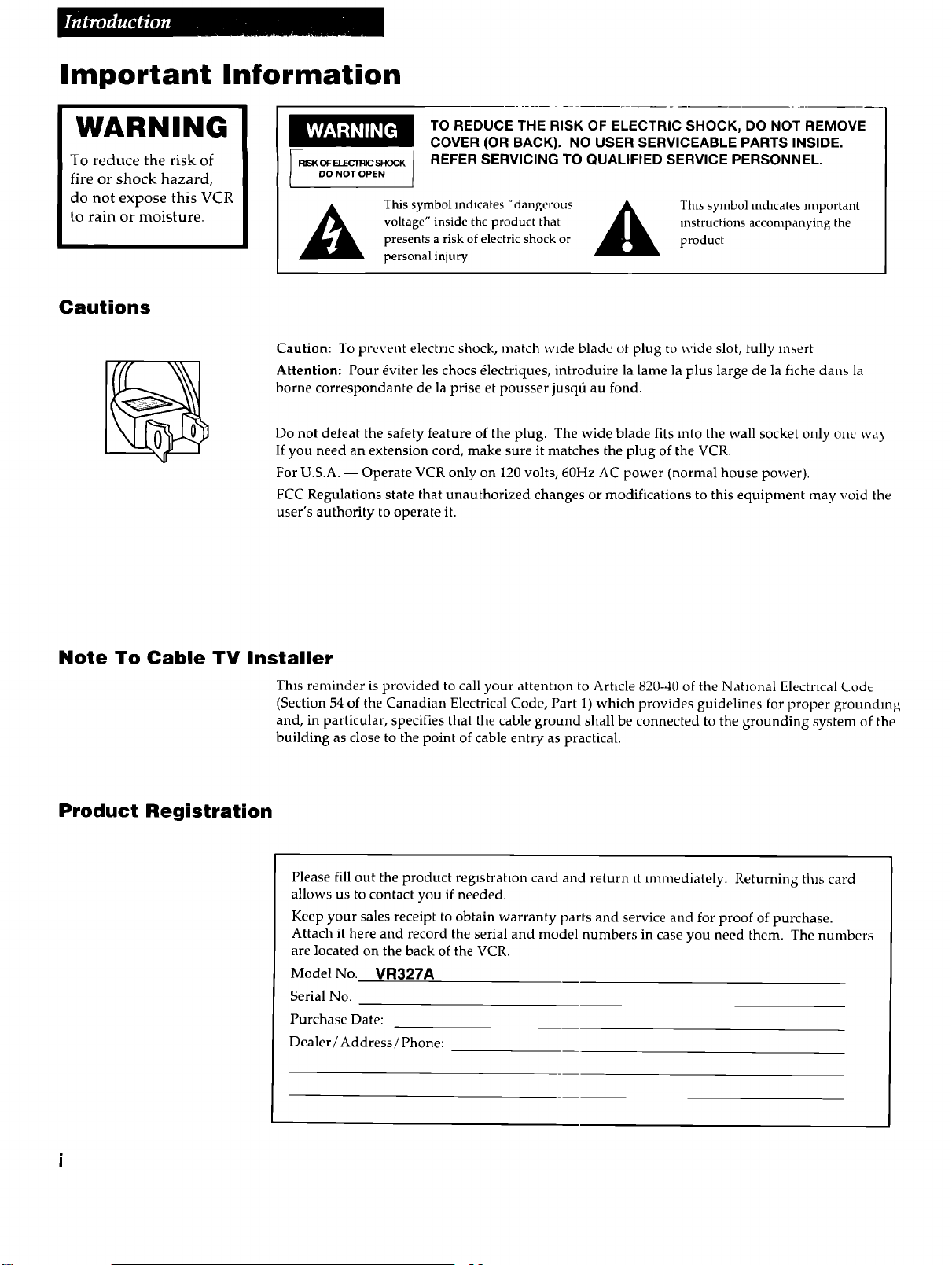
Important Information
WARNING
To reduce the risk of
fire or shock hazard,
do not expose this VCR
to rain or moisture.
RISK F ELECIP, IC SHOCK
DO NOT OPEN
TO REDUCE THE RISK OF ELECTRIC SHOCK, DO NOT REMOVE
COVER (OR BACK). NO USER SERVICEABLE PARTS INSIDE.
REFER SERVICING TO QUALIFIED SERVICE PERSONNEL.
This symbol indicates "dangerous
voltage" inside the product that
presents a risk of electric shock or
personal injury
Thts symbol indicates lmpot'tant
instructions accompanying the
product,
Cautions
Caution: 1o prevent electric shock, match wide blade ot plug tu wide slot, tully insert
Attention: Pour _viter les chocs _lectriques, introduire la lame la plus large de la fiche dans la
borne correspondante de la prise et pousser jusqfi au fond.
Do not defeat the safety feature of the plug. The wide blade fits into the wall socket only one wa)
If you need an extension cord, make sure it matches the plug of the VCR.
For U.S.A. -- Operate VCR only on 120 volts, 60Hz AC power (normal house power).
FCC Regulations state that unauthorized changes or modifications to this equipment may void the
user's authority to operate it.
Note To Cable TV Installer
This reminder is provided to call your attention to Article 820-40 of the National Electrical L_ode
(Section 54 of the Canadian Electrical Code, Part 1) which provides guidelines for proper grounding
and, in particular, specifies that the cable ground shall be connected to the grounding system of the
building as close to the point of cable entry as practical.
Product Registration
Please fill out the product registration card and return it unmediately. Returning this card
allows us to contact you if needed.
Keep your sales receipt to obtain warranty parts and service and for proof of purchase.
Attach it here and record the serial and model numbers in case you need them. The numbers
are located on the back of the VCR.
Model No. VR327A
Serial No.
Purchase Date:
Dealer/Address / Phone:
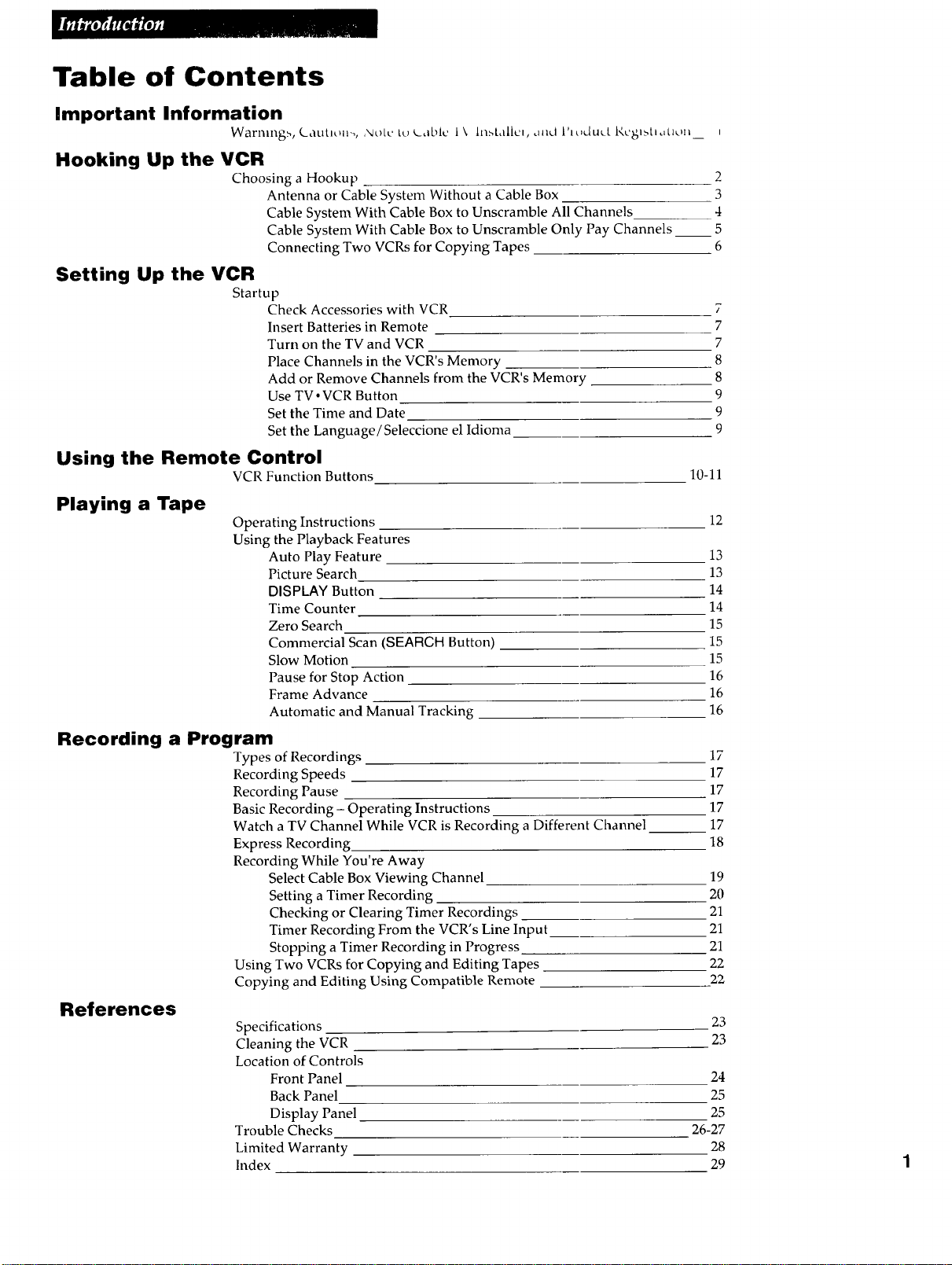
Table of Contents
important Information
Warr.ng_., _aut_on-,, ,_,._tc tu k_aL,lc I \ haMallct, .m,...I l'tL,._lu,_l, l'4,..:gl_tt,_tlon I
Hooking Up the VCR
Choosing a Hookup 2
Antenna or Cable System Without a Cable Box 3
Cable System With Cable Box to Unscramble All Channels 4
Cable System With Cable Box to Unscramble Only Pay Channels __ 5
Connecting Two VCRs for Copying Tapes 6
Setting Up the VCR
Startup
Check Accessories with VCR 7
Insert Batteries in Remote 7
Turn on the TV and VCR 7
Place Channels in the VCR's Memory 8
Add or Remove Channels from the VCR's Memory 8
Use TV •VCR Button 9
Set the Time and Date 9
Set the Language/Seleccione el Idioma 9
Using the Remote Control
VCR Function Buttons
10-11
Playing a Tape
Operating Instructions 12
Using the Playback Features
Auto Play Feature 13
Picture Search 13
DISPLAY Button 14
Time Counter 14
Zero Search 15
Commercial Scan ($EAFIGH Button) 15
Slow Motion 15
Pause for Stop Action 16
Frame Advance 16
Automatic and Manual Tracking 16
Recording a Program
Types of Recordings
Recording Speeds
Recording Pause
Basic Recording - Operating Instructions
Watch a TV Channel While VCR is Recording a Different Channel
Express Recording
Recording While You're Away
Select Cable Box Viewing Channel
Setting a Timer Recording
Checking or Clearing Timer Recordings
Timer Recording From the VCR's Line Input
Stopping a Timer Recording in Progress
Using Two VCRs for Copying and Editing Tapes
Copying and Editing Using Compatible Remote
17
17
17
17
17
18
19
2O
21
21
21
22
22
References
Specifications
Cleaning the VCR
Location of Controls
Front Panel
Back Panel
Display Panel
Trouble Checks
Limited Warranty
Index
23
23
24
25
25
26-27
28
29
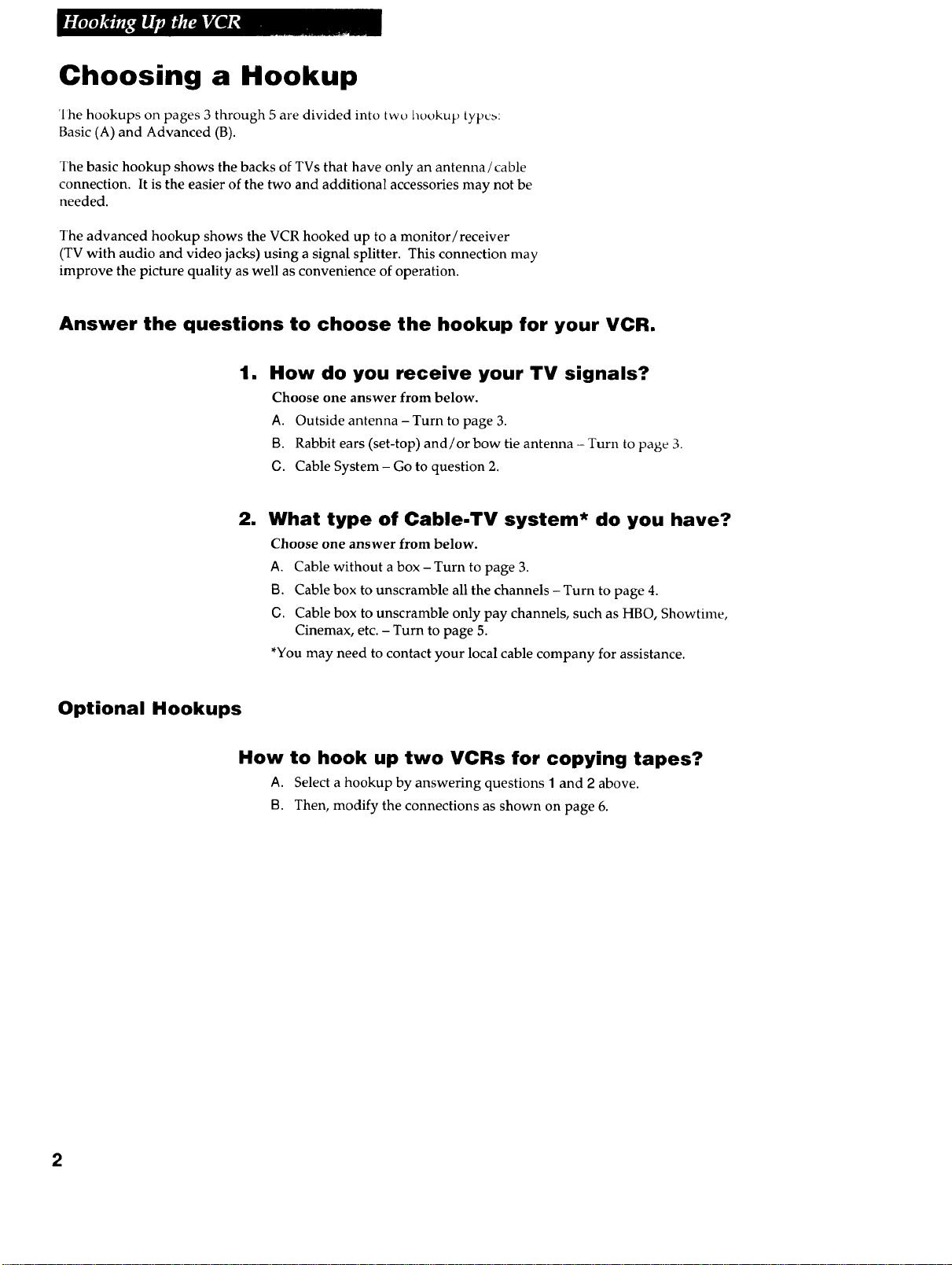
Choosing a Hookup
The hookups on pages 3 through 5 are divided into two hookup typca:
Basic (A) and Advanced (B).
The basic hookup shows the backs of TVs that have only an antenna/cable
connection. It is the easier of the two and additional accessories may not be
needed.
The advanced hookup shows the VCR hooked up to a monitor/receiver
(TV with audio and video jacks) using a signal splitter. This connection may
improve the picture quality as well as convenience of operation.
Answer the questions to choose the hookup for your VCR.
lm
How do you receive your TV signals?
Choose one answer from below.
A. Outside antenna- Turn to page 3.
B. Rabbit ears (set-top) and/or bow tie antenna - Turn to page 3.
G. Cable System - Go to question 2.
2. What type of Cable.TV system* do you have?
Choose one answer from below.
A. Cable without a box- Turn to page 3.
B. Cable box to unscramble all the channels - Turn to page 4.
G. Cable box to unscramble only pay channels, such as HBO, Showtime,
Cinemax, etc. - Turn to page 5.
*You may need to contact your local cable company for assistance.
Optional Hookups
How to hook up two VCRs for copying tapes?
A. Select a hookup by answering questions 1 and 2 above.
B. Then, modify the connections as shown on page 6.
2

Antenna or Cable System W'dhout a Cable Box
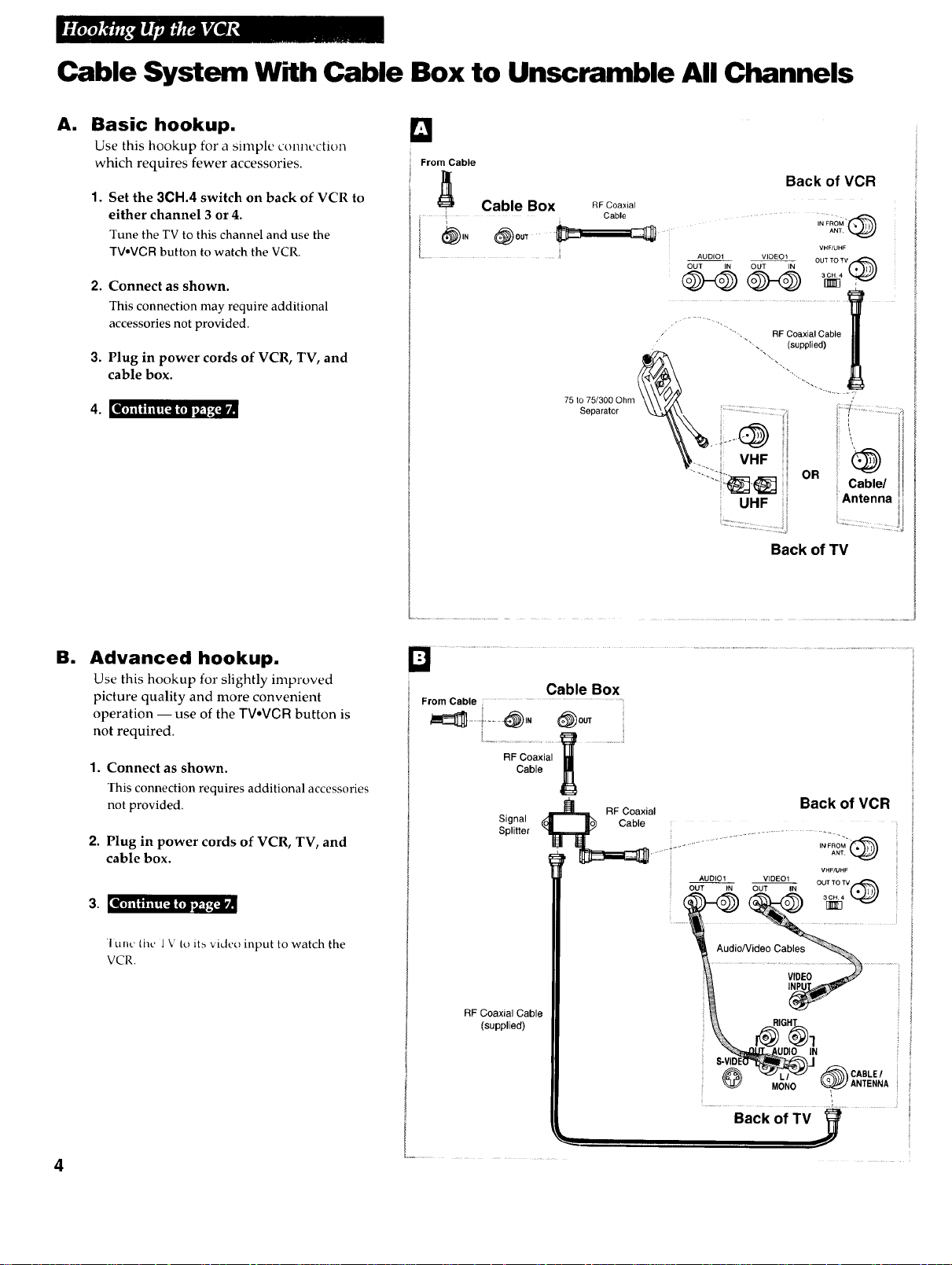
A. Basic hookup. [_
Use this hookup for a simple connection
which requires fewer accessories.
1,
Set the 3CH.4 switch on back of VCR to
either channel 3 or 4.
Tune the TV to this channel and use the
TV,VCRbutton to watch the VCR.
2. Connect as shown.
This connection may require additional
accessories not provided.
3. Plug in power cords of VCR and TV.
I[,}*iilii![; i (1] bi_'._IP
Back of TV
Ell
Advanced hookup.
Use this hookup for slightly improved
picture quality and more convenient
operation -- use of the TVoVCR button is
not required.
1. Connect as shown.
This connection requires additional accessories
not provided.
2. Plug in power cords of VCR and TV.
3. [|1] ii i nii | [_ii ( oi i_..i.,x_lr_
Tulle the 1Vto its video input to watch the
VCR.
From Antenna
or Cable
/
/ Back of VCR
\ /" Signal
\ / Splitter
RF Coaxial Cable
(supplied)
_ ,_AU_diONideO Cabl-e.s --
S-VID_%J
_ ,,_--_ CABLE /
MONO _} ANTENNA
..............Baci( Of TV _ ..................
J
Cable System With Cable Box to Unscramble All Channels
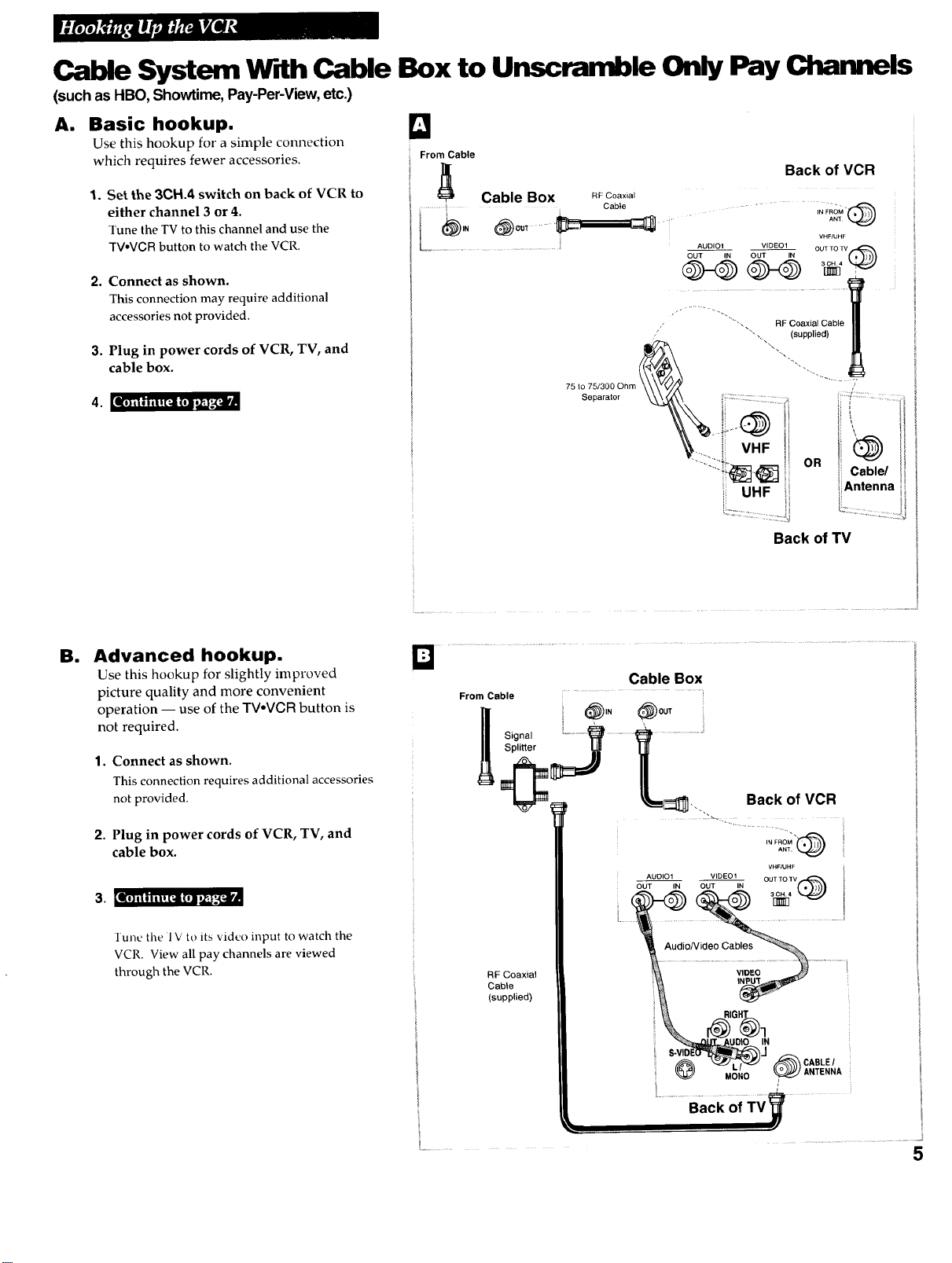
A. Basic hookup. [_
Use this hookup for a simple connection
which requires fewer accessories.
Be
4
1. Set the 3CH.4 switch on back of VCR to
either channel 3 or 4.
Tune the TVto this channel and use the
TV,VCR button to watch the VCR.
2. Connect as shown.
This connection may require additional
accessories not provided.
3.
Plug in power cords of VCR, TV, and
cable box.
Advanced hookup.
Use this hookup for slightly improved
picture quality and more convenient
operation -- use of the TVoVCR button is
not required.
I. Connect as shown.
This connection requires additional accessories
not provided.
2. Plug in power cords of VCR, TV, and
cable box.
3.
'1un_, tile 1 V to its video input to watch the
VCR.
From Cable
J_ Cable Box nFCoaxial
i Cable
Back of VCR
................ IN FROMANT,"(_
VHF/LIHF
AUDIO1 VIDEO1 OUT TO TV
75 to 75/300 Ohm
Separator
, .... , RF Coaxial Cable
• . (supplied)
• i WF
......i_'(_ - Cable/
UHF Antenna
i..........
Back of TV
Cable Box
From Cable ...................
J_ i.__@,. _o°,
RF Coaxial
Cable
Signal
Splitter
RF Coaxial Cable
(supplied)
Cable System W dh Cable Box to Unscramble Only Pay Channels
(such as HBO, Showtime, Pay-Per-View,etc.)
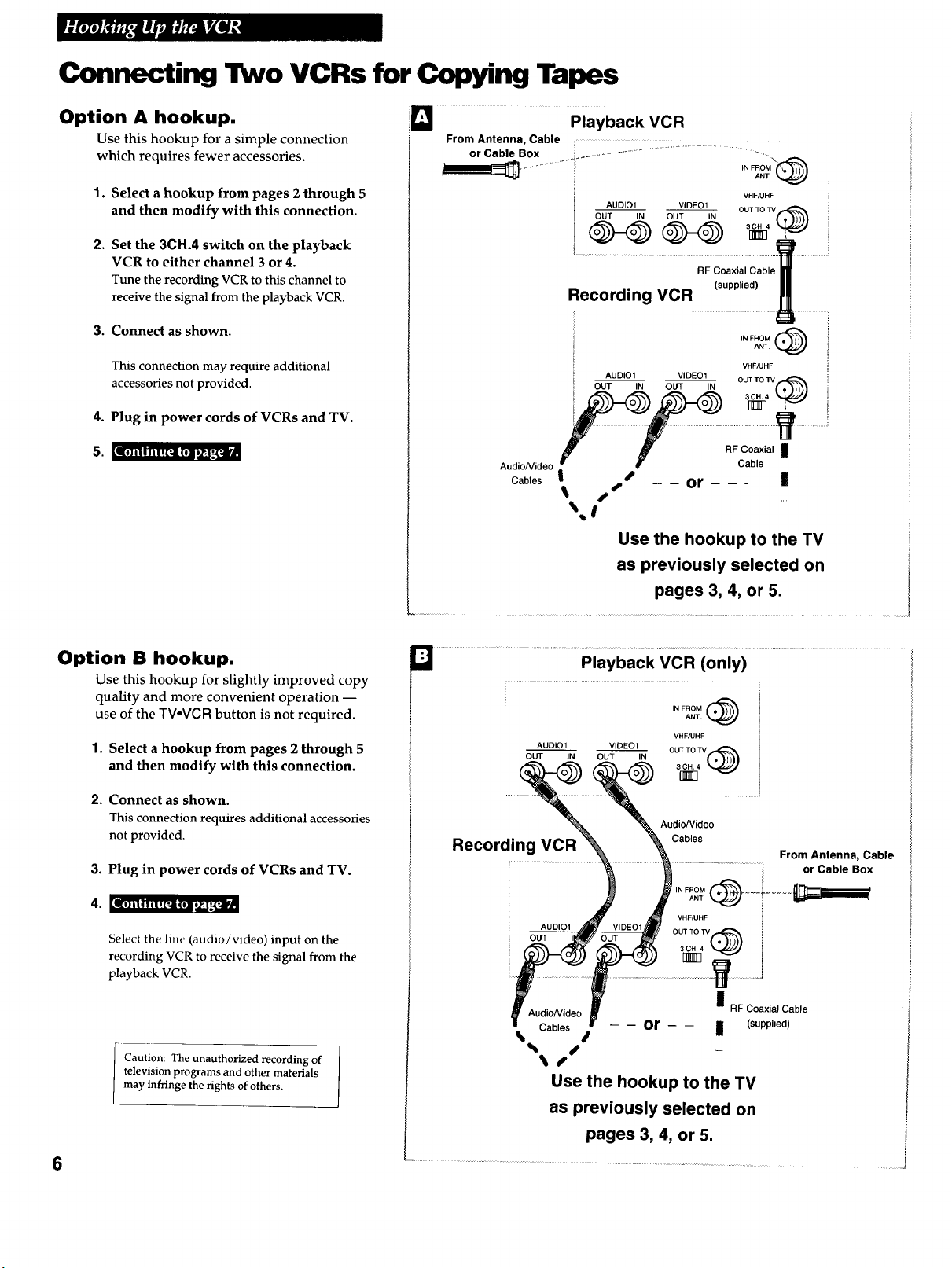
A. Basic hookup.
Use this hookup for a simple connection
which requires fewer accessories.
Set the 3CH.4 switch on back of VCR to
either channel 3 or 4.
Tune the TV to this channel and use the
TV.VCR button to watch the VCR.
2. Connect as shown.
This connection may require additional
accessories not provided.
Plug in power cords of VCR, TV, and
cable box.
3.
4 [lllii i I i l! (t (ll l'._lDI
;]
From Cable
Cable Box RFc0a×,a,
............i Cable
Back of VCR
• IN FROM"
ANT
VHF/UHF
AUDIO1 VIDEO1
OUT TO TV
/ '"'. RF Coaxial Cable
""" (supplied)
75 to 75/300 Ohm .......... _'"
Separator \\'V_\\ : _
..........!;_._ Cable/
_ Antenna
i UHF ii
Back of TV
all
Advanced hookup.
Use this hookup for slightly improved
picture quality and more convenient
operation -- use of the TVoVCR button is
not required.
1. Connect as shown.
This connection requires additional accessories
not provided.
2. Plug in power cords of VCR, TV, and
cable box.
3 tllll ii i Iil ! ll(il !_,!',_ _iiWll
Tune the 1 V to its video input to watch the
VCR. View all pay channels are viewed
through the VCR.
Cable Box
From Cable .............
i _)IN (_OUT
__sS'PglP_/r _......... _ L_....._.............
RF Coaxial
Cable
(supplied)
1|
Back of VCR
IN FROM
ANT.
VHF/UHF
AUDIO1 VIDEO1 3r_]4 (_
OUT TO TV
OUT IN OUT IN
AudioNideo Cables
VlO_:O
INPUT
I
IN
_ CABLE/ANTENNA
MONO [
................Back OfTv v ........
5
Connecting Two VCRs for Copying Tapes
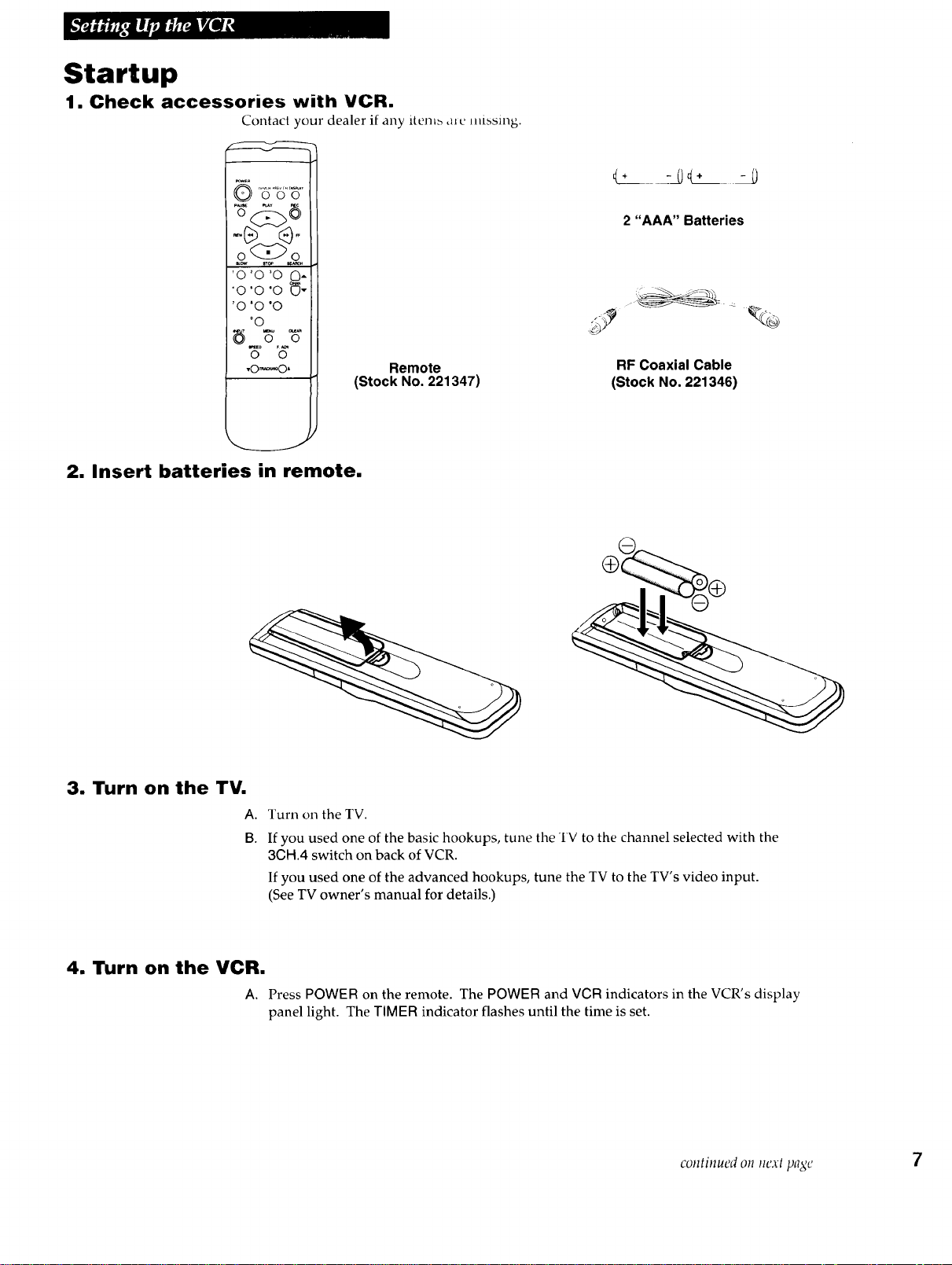
Option A hookup.
Use this hookup for a simple connection
which requires fewer accessories.
1°
2.
Select a hookup from pages 2 through 5
and then modify with this connection.
Set the 3CH.4 switch on the playback
VCR to either channel 3 or 4.
Tune the recording VCR to this channel to
receive the signal from the playback VCR.
3. Connect as shown.
4.
5.
This connection may require additional
accessories not provided.
Plug in power cords of VCRs and TV.
[Iko]ilII||I[:,I(OIEb_._".,NP'dUl
Playback VCR
From Antenna, Cable
or Cable Box j ......................................................... --,
...............i ,NFROM"K_'_
VHF/UHF
AUDIO1 VIDEO1
OUT IN OUT I1_ i
'
p .i
RF Coaxial Cable
(supplied)
Recording VCR
IN FROM (_
ANT.
VHF/UHF
AUDIO1 VIDEO1
OUT IN OUT IN OUT TO TV_
3CH. 4
AudioNideo
Cables |
#,
s
RF Coaxial I
Cable
- - or - -- I
i
Use the hookup to the TV
as previously selected on
pages 3, 4, or 5.
Option B hookup.
Use this hookup for slightly improved copy
quality and more convenient operation --
use of the TV-VCR button is not required.
1. Select a hookup from pages 2 through 5
and then modify with this connection.
2. Connect as shown.
This connection requires additional accessories
not provided.
3. Plug in power cords of VCRs and TV.
Select the line (audio/video) input on the
recording VCR to receive the signal from the
playback VCR.
Caution: The unauthorized recording of
television programs and other materials
may infringe the rights of others.
El ....................................................Playback VCR ...........................................(only);i
IN FROM (_ ]
ANT. !
AUDIO1 VIDEO1 oV_ FTA_T_F.,-K_% 1
0 U'T'_IN OUT"-'--IN { • _'_'_ 1
Audio/Video
Recording"VCR "%%, Cables
-- _ From Antenna, Cable
............................ __ ___" " _ ............................ i orCableBox
IN FROM ..........
VHF/UHF
i OUT I_ UT _-_ (. _';h\ /
l....
...............i ..................................................! .......
fAudio/Video j RF Coaxial Cable
I Cables /' or I (supplied)
% S
%s
Use the hookup to the TV
as previously selected on
pages 3, 4, or 5.
Startup
1. Check accessories with VCR.
Contact your dealer if any item_ ,n c missing.
o@o
'0 '0 _0 _-
'0 '0 'O O"
'O '0 "0
°0
o o
*O_O" Remote
(Stock No. 221347)
2 "AAA" Batteries
RF Coaxial Cable
(Stock No. 221346)
2. Insert batteries in remote.
3. Turn on the TV.
A.
B.
Turn on the TV.
If you used one of the basic hookups, tune the TV to the channel selected with the
3GH.4 switch on back of VCR.
If you used one of the advanced hookups, tune the TV to the TV's video input.
(See TV owner's manual for details.)
4. Turn on the VCR.
A. Press POWER on the remote. The POWER and VCR indicators in the VCR's display
panel light. The TIMER indicator flashes until the time is set.
continued on next page 7
Startup
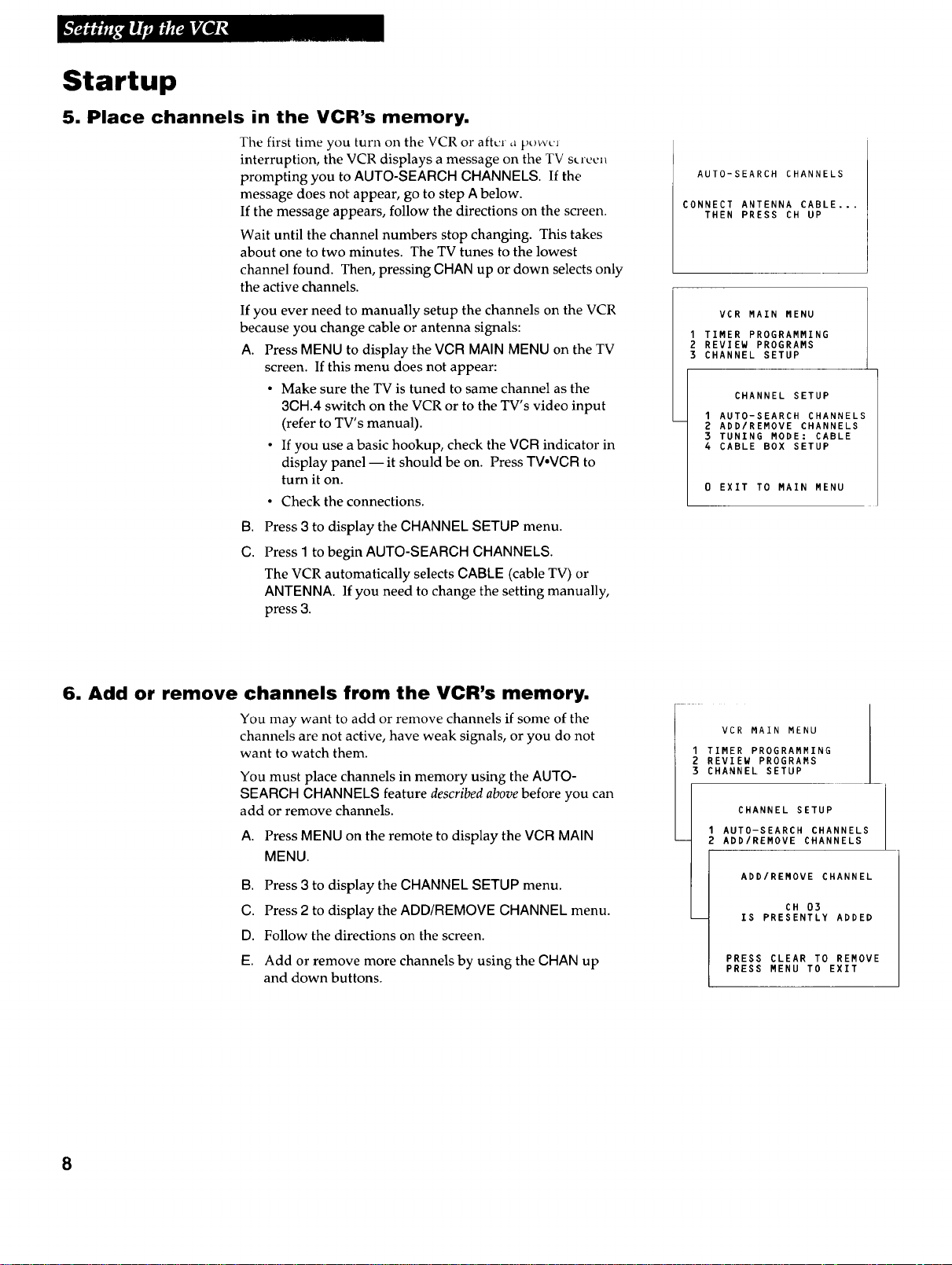
5. Place channels in the VCR's memory•
The first time you turn ou the VCR or after a powc_
interruption, the VCR displays a message on the TV slrecn
prompting you to AUTO-SEARCH CHANNELS. If the
message does not appear, go to step A below.
If the message appears, follow the directions on the screen.
Wait until the channel numbers stop changing. This takes
about one to two minutes. The TV tunes to the lowest
channel found. Then, pressing CHAN up or down selects only
the active channels.
If you ever need to manually setup the channels on the VCR
because you change cable or antenna signals:
A. Press MENU to display the VCR MAIN MENU on the TV
screen. If this menu does not appear:
• Make sure the TV is tuned to same channel as the
3CH.4 switch on the VCR or to the TV's video input
(refer to TV's manual).
• If you use a basic hookup, check the VCR indicator in
display panel -- it should be on. Press TV.VCR to
turn it on.
• Check the connections.
B,
C.
Press 3 to display the CHANNEL SETUP menu.
Press I to begin AUTO-SEARCH CHANNELS.
The VCR automatically selects CABLE (cable TV) or
ANTENNA. If you need to change the setting manually,
press 3.
AUTO-SEARCH CHANNELS
CONNECT ANTENNA CABLE...
THEN PRESS CH UP
VCR MAIN MENU
I TIMER PROGRAMMING
2 REVIEW PROGRAMS
3 CHANNEL SETUP
CHANNEL SETUP
I AUTO-SEARCH CHANNELS
2 ADD/REMOVE CHANNELS
3 TUNING MODE: CABLE
4 CABLE BOX SETUP
0 EXIT TO MAIN MENU
6. Add or remove channels from the VCR's memory.
You may want to add or remove channels if some of the
channels are not active, have weak signals, or you do not
want to watch them.
You must place channels in memory using the AUTO-
SEARCH CHANNELS feature described above before you can
add or remove channels.
A. Press MENU on the remote to display the VCR MAIN
MENU.
B. Press 3 to display the CHANNEL SETUP menu.
C. Press 2 to display the ADD/REMOVE CHANNEL menu.
D. Follow the directions on the screen.
E. Add or remove more channels by using the CHAN up
and down buttons.
/
VCR MAIN MENU |
TIMER PROGRAMMING
REVIEW PROGRAMS
CHANNEL SETUP
CHANNEL SETUP
I AUTO-SEARCH CHANNELS
2 ADD/REMOVE CHANNELS
ADD/REMOVE CHANNEL
CH 03
IS PRESENTLY ADDED
PRESS CLEAR TO REMOVE
PRESS MENU TO EXIT
8
Startup
7. Use TV°VCR button•
Skip this step it yt, u u,_cd o,c ot the advanced llookups.
When using one of the basic hookups, the TV-VCR button lets you
switch between the picture coming from the VCR or television
channels. This button lets you record a program on the VCR while
watching another channel on the TV. Details are on page 17.
A. Press TV,VCR to see the picture from the VCR.
The VCR indicator lights in the display panel.
B. Press CHAN up or clown to change channels on the VCR.
The channel number changes on the TV screen.
C. Press TV°VCR to see the TV channels.
The VCR indicator does not light in the display panel. Change
channels using the TV's remote.
D. Return the TV to the VCR viewing channel -- CH3 or CH4.
E. Press TV°VCR to switch back to the picture from the VCR.
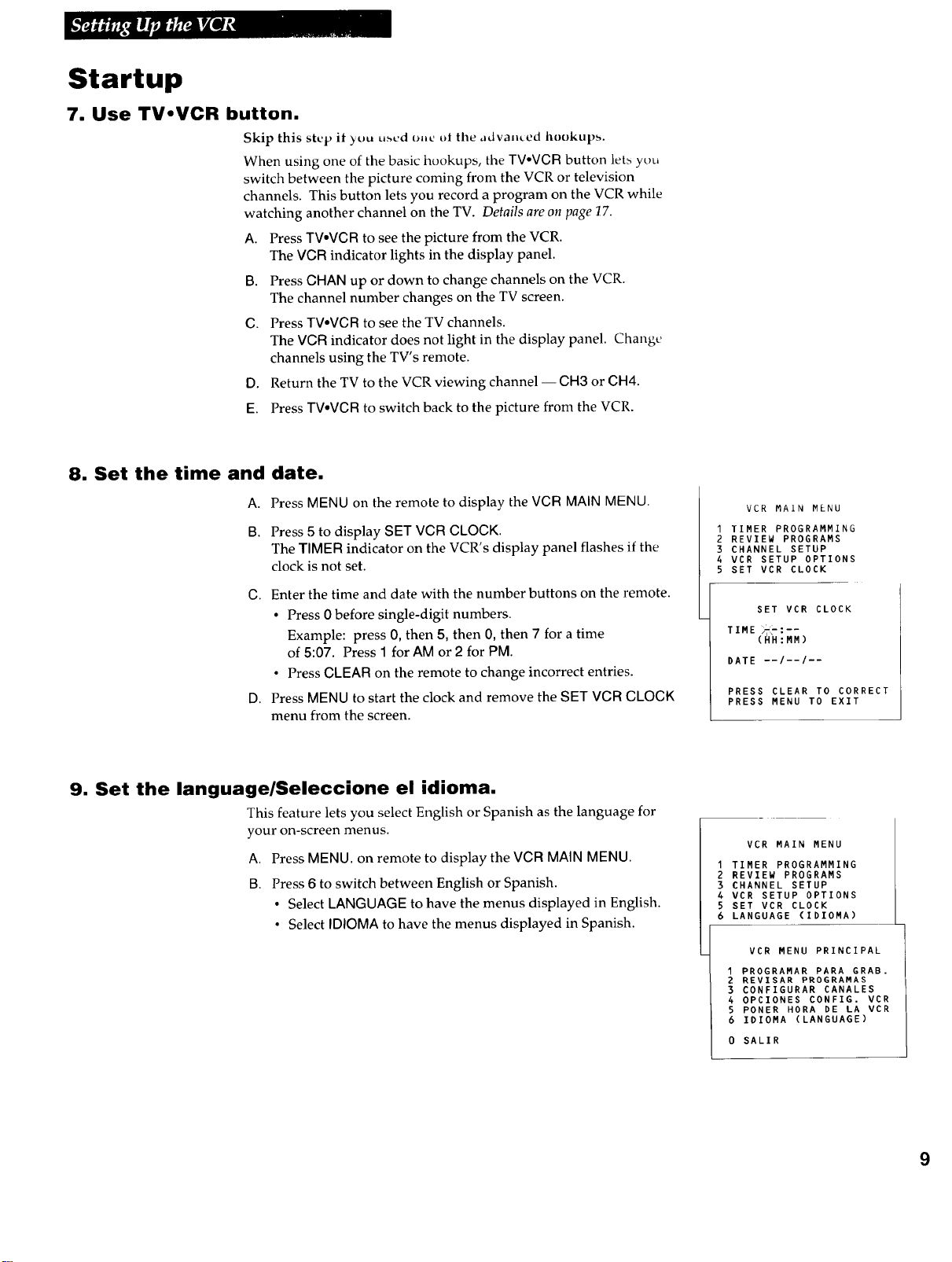
8. Set the time and date.
A. Press MENU on the remote to display the VCR MAIN MENU.
B. Press 5 to display SET VCR CLOCK.
The TIMER indicator on the VCR's display panel flashes if the
clock is not set.
C. Enter the time and date with the number buttons on the remote.
• Press 0 before single-digit numbers.
Example: press O, then 5, then O, then 7 for a time
of 5:07. Press 1 for AM or 2 for PM.
• Press CLEAR on the remote to change incorrect entries.
D. Press MENU to start the clock and remove the SET VCR CLOCK
menu from the screen.
VCR MAIN MENU
I TIMER PROGRAMMING
2 REVIEW PROGRAMS
3 CHANNEL SETUP
4 VCR SETUP OPTIONS
5 SET VCR CLOCK
SET VCR CLOCK
TIME "-''--
(_H_MM)
DATE --/--/--
PRESS CLEAR TO CORRECT
PRESS MENU TO EXIT
9• Set the language/Seleccione el idioma.
This feature lets you select English or Spanish as the language for
your on-screen menus.
A. Press MENU. on remote to display the VCR MAIN MENU.
B. Press 6 to switch between English or Spanish.
• Select LANGUAGE to have the menus displayed in English.
• Select IDIOMA to have the menus displayed in Spanish.
VCR MAIN MENU
I TIMER PROGRAMMING
2 REVIEW PROGRAMS
3 CHANNEL SETUP
4 VCR SETUP OPTIONS
5 SET VCR CLOCK
6 LANGUAGE (IDIOMA)
VCR MENU PRINCIPAL
I PROGRAMAR PARA GRAB.
2 REVISAR PROGRAMAS
3 CONFIGURAR CANALES
4 OPCIONES CONFIG. VCR
5 PONER HORA DE LA VCR
6 IDIOMA (LANGUAGE)
0 SALIR
9
VCR Function Buttons
f
POWER
O TV°VCR PREV CH DISPLAY©©©
PAUSE PLAY REC
o@0
o@o
SLOW STOP SEARCH
'o o ©.
CHAN
'o o °o 0-
'0 _0 °0
°0
INPUT MENU CLEAR
© o o
SPEED F. ADV
0 ©
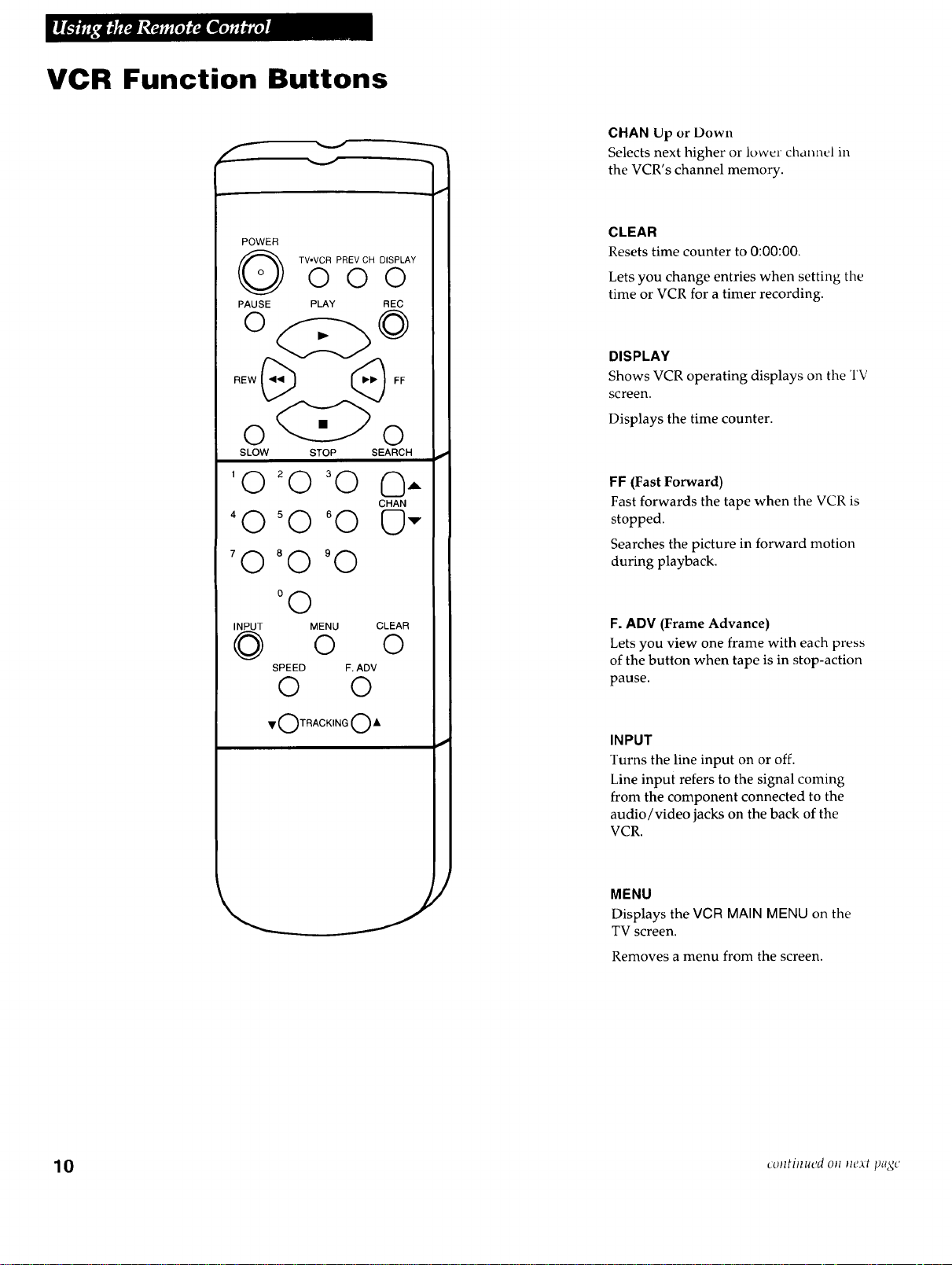
CHAN Up or Down
Selects next higher or lower channel in
the VCR's channel memory.
CLEAR
Resets time counter to 0:00:00.
Lets you change entries when setting the
time or VCR for a timer recording.
DISPLAY
Shows VCR operating displays on the TV
screen.
Displays the time counter.
FF (Fast Forward)
Fast forwards the tape when the VCR is
stopped.
Searches the picture in forward motion
during playback.
F. ADV (Frame Advance)
Lets you view one frame with each press
of the button when tape is in stop-action
pause.
INPUT
Turns the line input on or off.
Line input refers to the signal coming
from the component connected to the
audio/video jacks on the back of the
VCR.
MENU
Displays the VCR MAIN MENU on tile
TV screen.
Removes a menu from the screen,
10 cvntinued oJz Jlext p_gc
VCR Function Buttons
(continued)
Numbers (0 through 9)
Select a channel up to 99 by pr_sing
two numbers.
Select a cable channel over 99 by
pressing and holding 1 until 1-- appears
on the screen. Then press the other two
numbers.
PAUSE
Pauses action for viewing during
playback.
Pauses recording to prevent recording
of unwanted scenes.
SEARCH
Displays ZERO SEARCH menu on rlv.
Advances tape 60 seconds during
playback.
SLOW
Used for slow-motion playback.
SPEED (Tape Speed)
Selects a recording speed
(SP, LP, SLP).
PLAY
Plays a tape.
POWER
Turns VCR on and off.
PREV CH (Previous Channel)
Switches between two channels.
Select one channel and then select
another. Press PREV CH to switch
between the two channels.
RECORD
Starts VCR recording.
Used for Express recording.
See page 18.
STOP
Stops the VCR's normal functions such
as record, playback, rewind, fast
forward, and pause.
TRACKING Up or Down
Lets you manually reduce the streaks
that may appear on the picture during
play or pause.
TV.VCR
Switches the picture signal so
that it either comes from the VCR or the
TV channel. See page 9.
REW (Rewind)
Rewinds the tape when the VCR is
stopped.
Searches the picture in reverse motion
during playback.
11
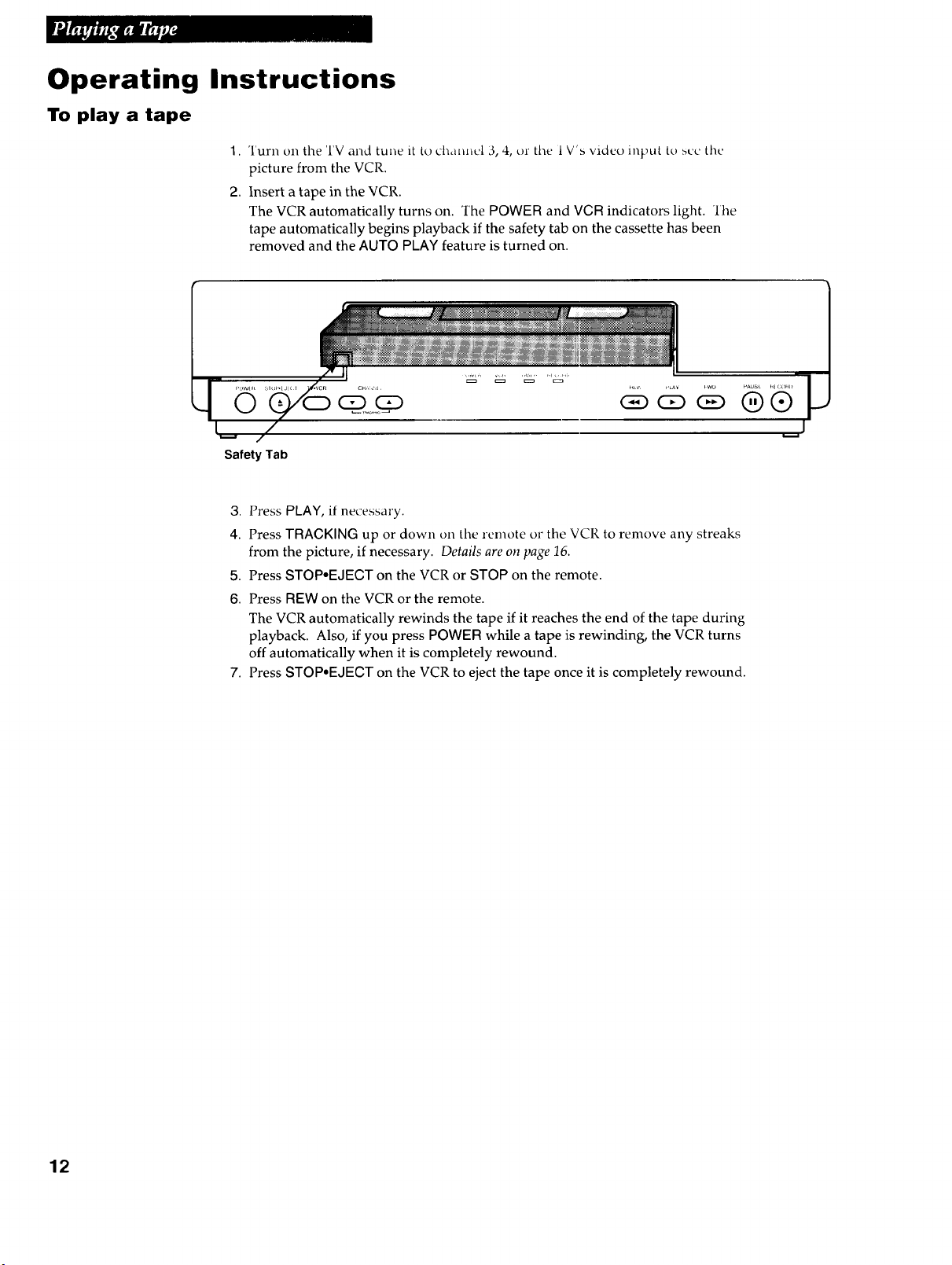
Operating Instructions
To play a tape
1. Turn on the TV and tulle it to channel 3, 4, or tl_e 1V's video input to sue tile
picture from the VCR.
2. Insert a tape in the VCR.
The VCR automatically turns on. The POWER and VCR indicators light. "lhe
tape automatically begins playback if the safety tab on the cassette has been
removed and the AUTO PLAY feature is turned on.
0 ®®
Safety Tab
3,
4.
5.
6.
7.
Press PLAY, if necessary.
Press TRACKING up or down on tile remote or the VCR to remove any streaks
from the picture, if necessary. Details are on page 16.
Press STOP-EJECT on the VCR or STOP on the remote.
Press REW on the VCR or the remote.
The VCR automatically rewinds the tape if it reaches the end of the tape during
playback. Also, if you press POWER while a tape is rewinding, the VCR turns
off automatically when it is completely rewound.
Press STOP*EJECT on the VCR to eject the tape once it is completely rewound.
12
Using the Playback Features
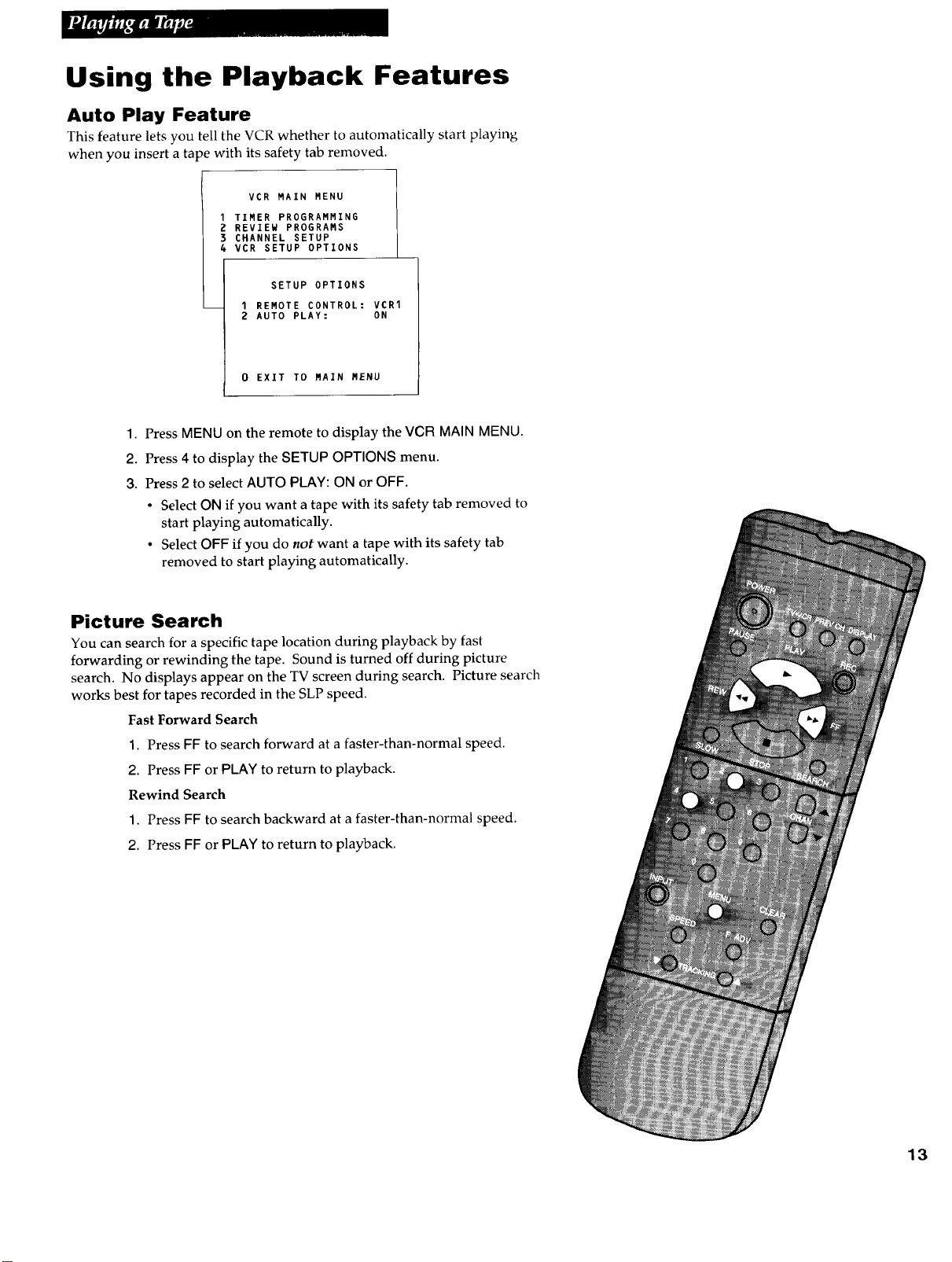
Auto Play Feature
This feature lets you tell the VCR whether to automatically start playing
when you insert a ta _e with its safety tab removed.
VCR MAIN MENU
TIMER PROGRAMMING
REVIEW PROGRAMS
CHANNEL SETUP
VCR SETUP OPTIONS
SETUP OPTIONS
-- 1 REMOTE CONTROL: VCR1
2 AUTO PLAY: ON
0 EXIT TO MAIN MENU
1. Press MENU on the remote to display the VCB MAIN MENU.
2. Press 4 to display the SETUP OPTIONS menu.
3. Press 2 to select AUTO PLAY: ON or OFF.
• Select ON if you want a tape with its safety tab removed to
start playing automatically.
• Select OFF if you do not want a tape with its safety tab
removed to start playing automatically.
Picture Search
You can search for a specific tape location during playback by fast
forwarding or rewinding the tape. Sound is turned off during picture
search. No displays appear on the TV screen during search. Picture search
works best for tapes recorded in the SLP speed.
Fast Forward Search
1. Press FF to search forward at a faster-than-normal speed.
2. Press FF or PLAY to return to playback.
Rewind Search
1. Press FF to search backward at a faster-than-normal speed.
2. Press FF or PLAY to return to playback.
13
Using the Playback Features
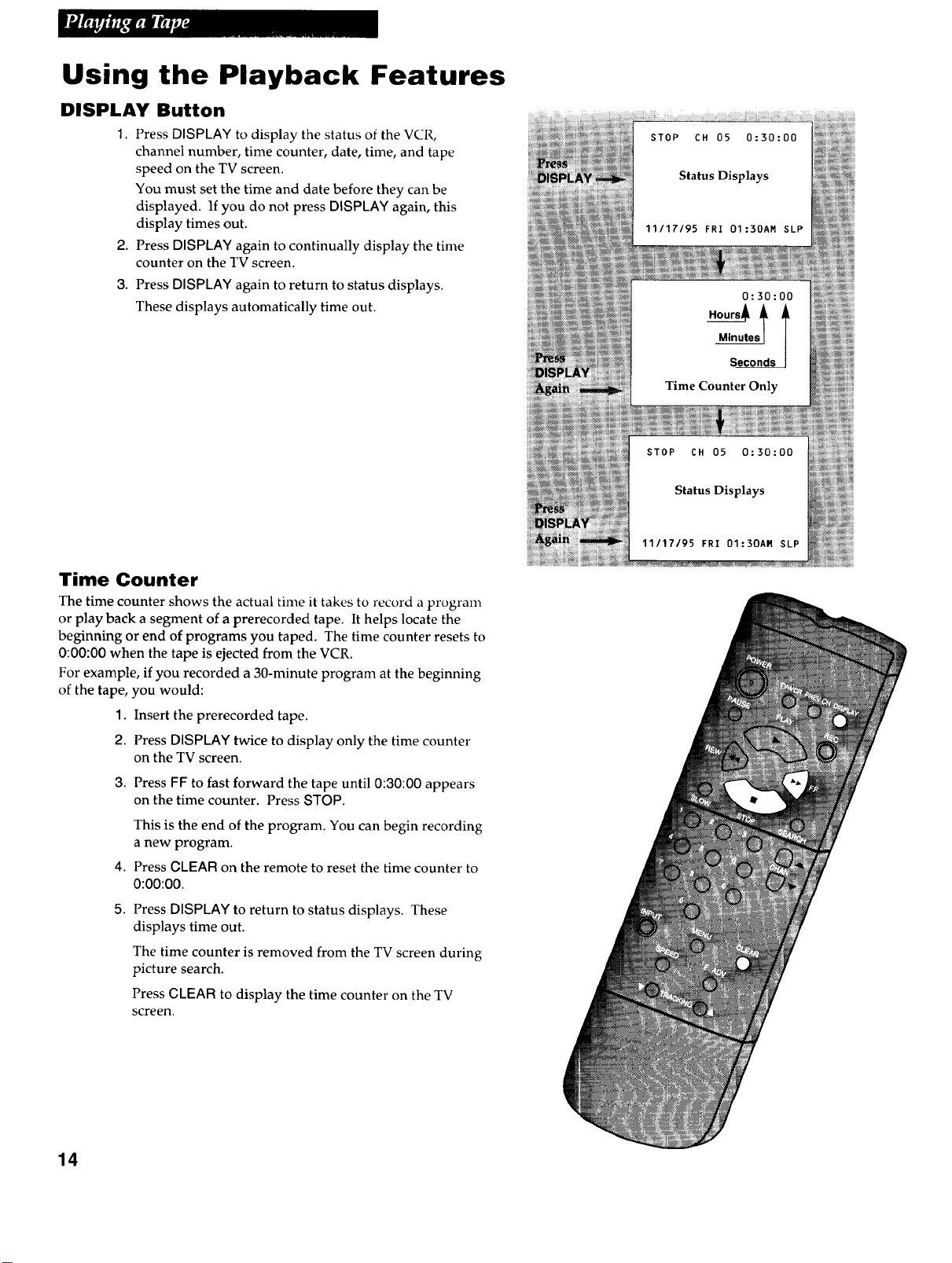
DISPLAY Button
2,
3.
Press DISPLAY to display the status of the VCR,
channel number, time counter, date, time, and tape
speed on the TV screen.
You must set the time and date before they can be
displayed. If you do not press DISPLAY again, this
display times out.
Press DISPLAY again to continually display the time
counter on the TV screen.
Press DISPLAY again to return to status displays.
These displays automatically time out.
Time Counter
The time counter shows the actual time it takes to record a program
or play back a segment of a prerecorded tape. It helps locate the
beginning or end of programs you taped. The time counter resets to
0:00:00 when the tape is ejected from the VCR.
For example, if you recorded a 30-minute program at the beginning
of the tape, you would:
1. Insert the prerecorded tape.
2. Press DISPLAY twice to display only the time counter
on the TV screen.
3. Press FF to fast forward the tape until 0:30:00 appears
on the time counter. Press STOP.
4,
This is the end of the program. You can begin recording
a new program.
Press CLEAR on the remote to reset the time counter to
0:00:00.
5.
Press DISPLAY to return to status displays. These
displays time out.
The time counter is removed from the TV screen during
picture search.
Press CLEAR to display the time counter on the TV
screen.
14
Using the Playback Features
Zero Search
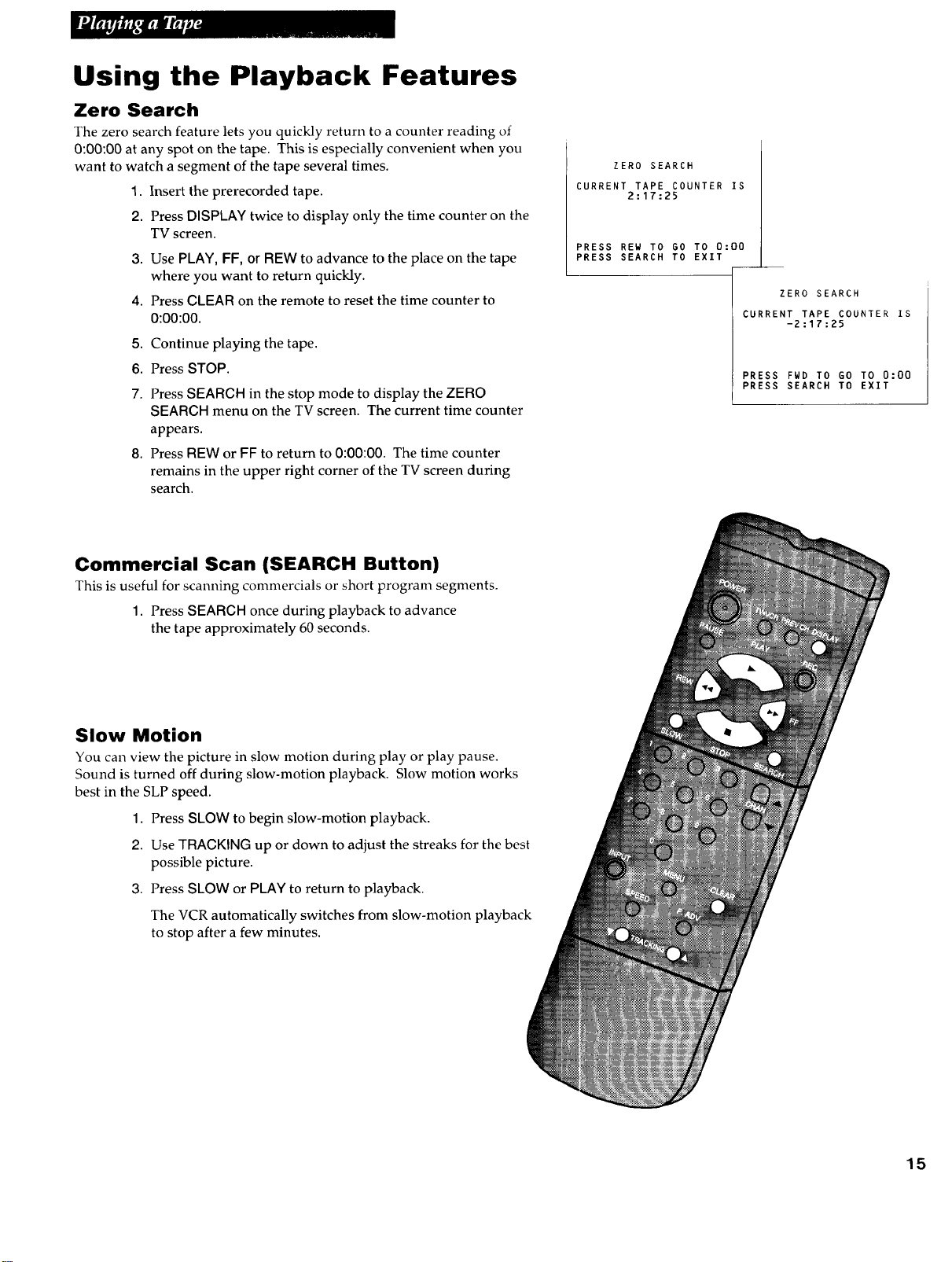
The zero search feature lets you quickly return to a counter reading of
0:00:00 at any spot on the tape. This is especially convenient when you
want to watch a segment of the tape several times.
1. Insert the prerecorded tape.
2. Press DISPLAY twice to display only the time counter on the
TV screen.
3. Use PLAY, FF, or REW to advance to the place on the tape
where you want to return quickly.
4. Press CLEAR on the remote to reset the time counter to
0:00:00.
5. Continue playing the tape.
6. Press STOP.
7. Press SEARCH in the stop mode to display the ZERO
SEARCH menu on the TV screen. The current time counter
appears.
8. Press REW or FF to return to 0:00:00. The time counter
remains in the upper right corner of the TV screen during
search.
ZERO SEARCH
CURRENT TAPE COUNTER IS
2:17:25
PRESS REW TO GO TO 0:00
PRESS SEARCH TO EXIT
ZERO SEARCH
CURRENT TAPE COUNTER
-2:17:25
IS
PRESS FWD TO GO TO 0:00
PRESS SEARCH TO EXIT
Commercial Scan (SEARCH Button)
This is useful for scanning commercials or short program segments.
1. Press SEARCH once during playback to advance
the tape approximately 60 seconds.
Slow Motion
You call view the picture in slow motion during play or play pause.
Sound is turned off during slow-motion playback. Slow motion works
best in the SLP speed.
1. Press SLOW to begin slow-motion playback.
2. Use TRACKING up or down to adjust the streaks for the best
possible picture.
3. Press SLOW or PLAY to return to playback.
The VCR automatically switches from slow-motion playback
to stop after a few minutes.
15
Using the Playback Features
Pause for Stop Action
This feature stops the tape in action and lets you examine the
details of the scene on the screen. Stop action works best for tapes
recorded in the SLP speed.
1. Press PAUSE during playback to stop the action.
2. Press PAUSE or PLAY to return to playback.
The VCR automatically switches from stop-action
playback to stop after a few minutes.
Frame Advance (F. ADV Button)
Frame advance lets you view one stop-action frame after another.
Frame advance works best for tapes recorded in the SLP speed.
1. Press PAUSE to stop the action.
2. Press F. ADV each time you want to view a frame of
the scene.
3. Press PAUSE or PLAY to resume normal playback.
Automatic Tracking
The VCR has automatic tracking which adjusts the picture when
you are playing back a tape recorded on another VCR. Automatic
tracking is turned on when a tape is inserted or the VCR's power is
turned on.
Manual Tracking
Occasionally, you may need to manually adjust tracking on a tape
recorded on a different VCR or camcorder. Tracking is used when
playing a tape. It has no effect during recording.
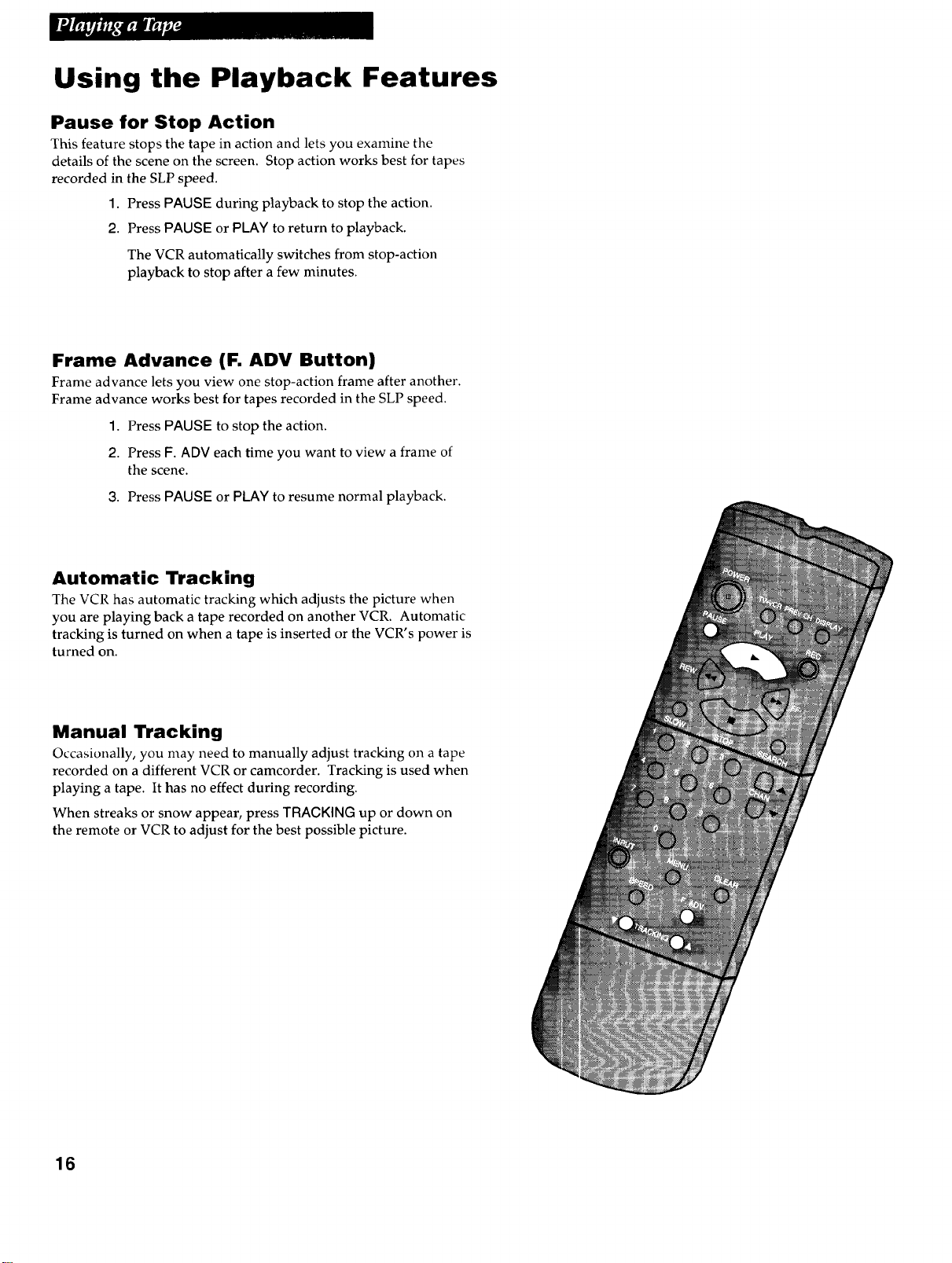
When streaks or snow appear, press TRACKING up or down on
the remote or VCR to adjust for the best possible picture.
16
Types of Recordings
Your VCR provides different recording features. The tollo_ing _'ctions describe these l_:aturc_.
Recording Speeds
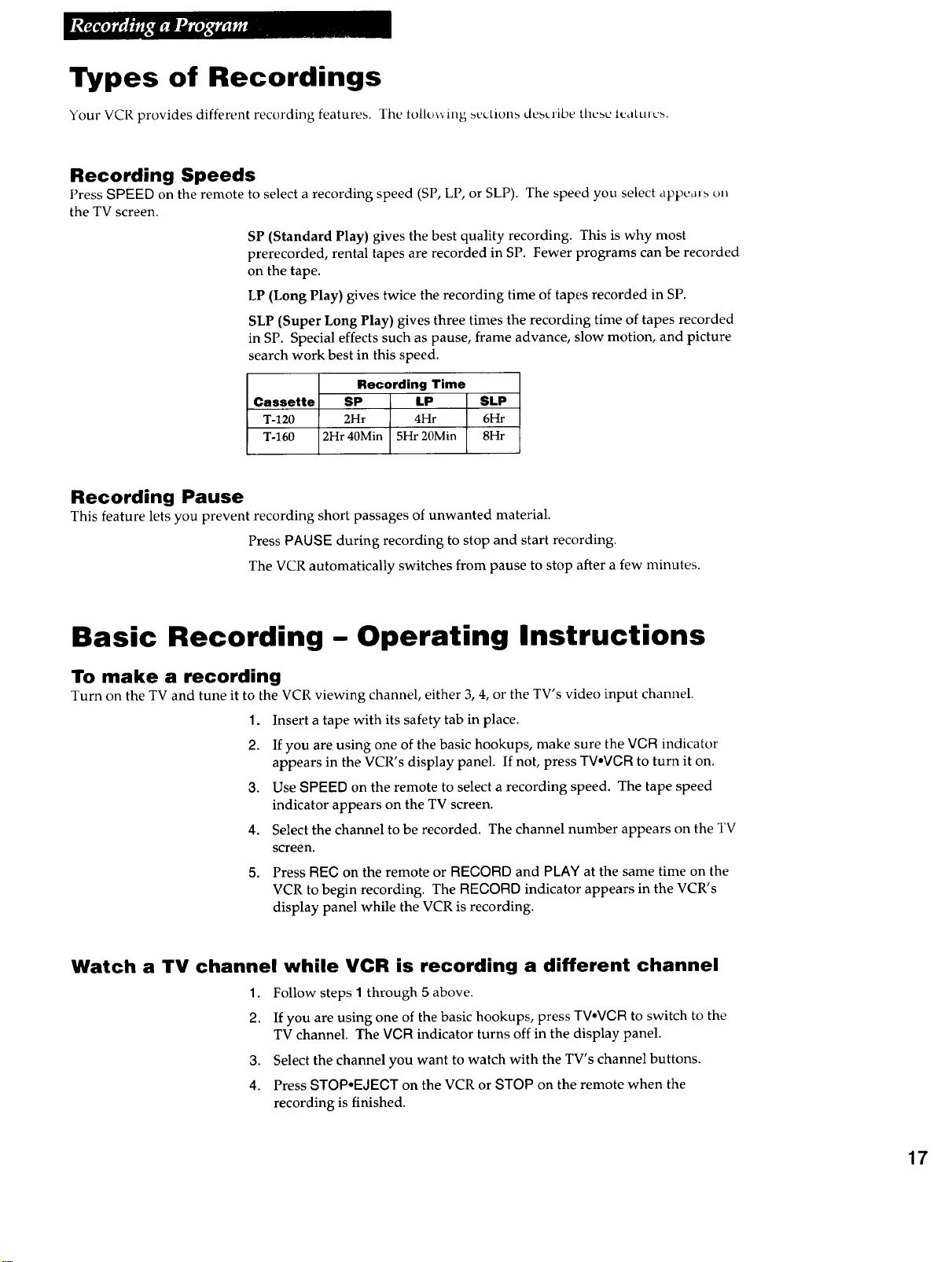
Press SPEED on the remote to select a recording speed (SP, LP, or SLP). The speed you select appears on
the TV screen.
SP (Standard Play) gives the best quality recording. This is why most
prerecorded, rental tapes are recorded in SP. Fewer programs can be recorded
on the tape.
LP (Long Play) gives twice the recording time of tapes recorded in SP.
SLP (Super Long Play) gives three times the recording time of tapes recorded
in SP. Special effects such as pause, frame advance, slow motion, and picture
search work best in this speed.
Recording Time
Cassette SP LP SLP
T-120 2Hr 4Hr 6Hr
T-160 2Hr 40Min 5Hr 20Min 8Hr
Recording Pause
This feature lets you prevent recording short passages of unwanted material.
Press PAUSE during recording to stop and start recording.
The VCR automatically switches from pause to stop after a few minutes.
Basic Recording- Operating Instructions
To make a recording
Turn on the TV and tune it to the VCR viewing channel, either 3, 4, or the TV's video input channel.
1. Insert a tape with its safety tab in place.
2. If you are using one of the basic hookups, make sure the VCR indicator
appears in the VCR's display panel. If not, press TV°VCR to turn it on.
3. Use SPEED on the remote to select a recording speed. The tape speed
indicator appears on the TV screen.
4. Select the channel to be recorded. The channel number appears on the TV
screen.
5. Press REC on the remote or RECORD and PLAY at the same time on the
VCR to begin recording. The RECORD indicator appears in the VCR's
display panel while the VCR is recording.
Watch a TV channel while VCR is recording a different channel
1. Follow steps 1 through 5 above.
2. If you are using one of the basic hookups, press TV.VCR to switch to the
TV channel. The VGR indicator turns off in the display panel.
3. Select the channel you want to watch with the TV's channel buttons.
4. Press STOP°EJECT on the VCR or STOP on the remote when the
recording is finished.
17
Express Recording
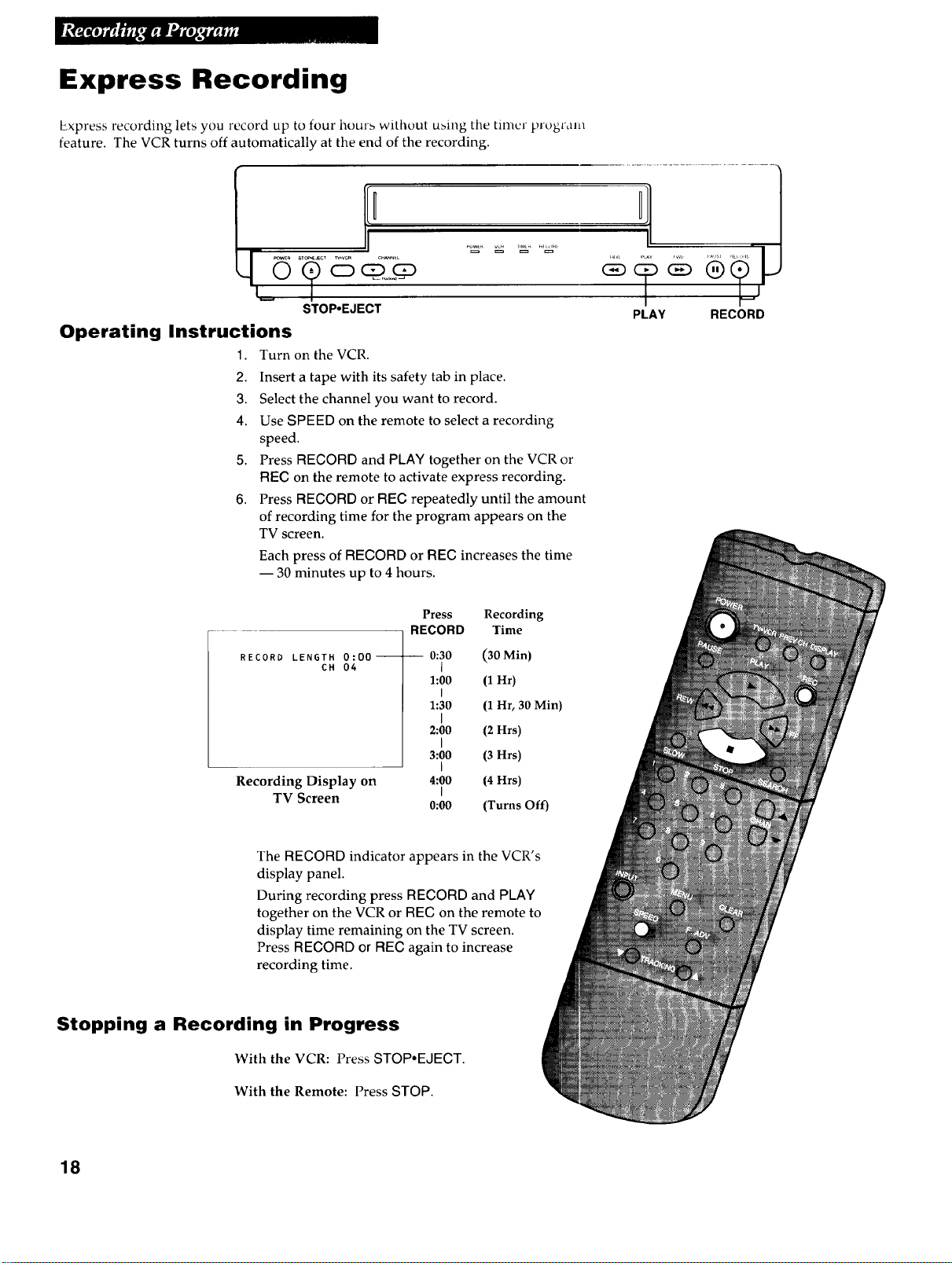
Express recording lets you record up to four hourb without ubing the timer program
feature. The VCR turns off automatically at the end of the recording.
STOP,EJECT
Operating Instructions
1. Turn on the VCR.
2. Insert a tape with its safety tab in place.
3. Select the channel you want to record.
4. Use SPEED on the remote to select a recording
speed.
5. Press RECORD and PLAY together on the VCR or
REG on the remote to activate express recording.
6. Press RECORD or REC repeatedly until the amount
of recording time for the program appears on the
TV screen.
Each press of RECORD or REC increases the time
-- 30 minutes up to 4 hours.
PLAY RECORD
RECORD LENGTH O:O0--
CH 04
Recording Display on
TV Screen
Press Recording
RECORD Time
0:30 (30 Min)
I
1:00 (1Hr)
I
1:30 (1Hr, 30 Min)
I
2:00 (2Hrs)
I
3:00 (3Hrs)
I
4:00 (4Hrs)
I
0:00 (Turns Off)
The RECORD indicator appears in the VCR's
display panel.
During recording press RECORD and PLAY
together on the VCR or REC on the remote to
display time remaining on the TV screen.
Press RECORD or REO again to increase
recording time.
Stopping a Recording in Progress
With the VCR: Press STOP.EJECT.
With the Remote: Press STOP.
18
Recording While You're Away (Timer Recording)
Select cable box viewing channel (Required only if all channels
are received from a cable box.)
1.
2,
3,
4.
5.
6,
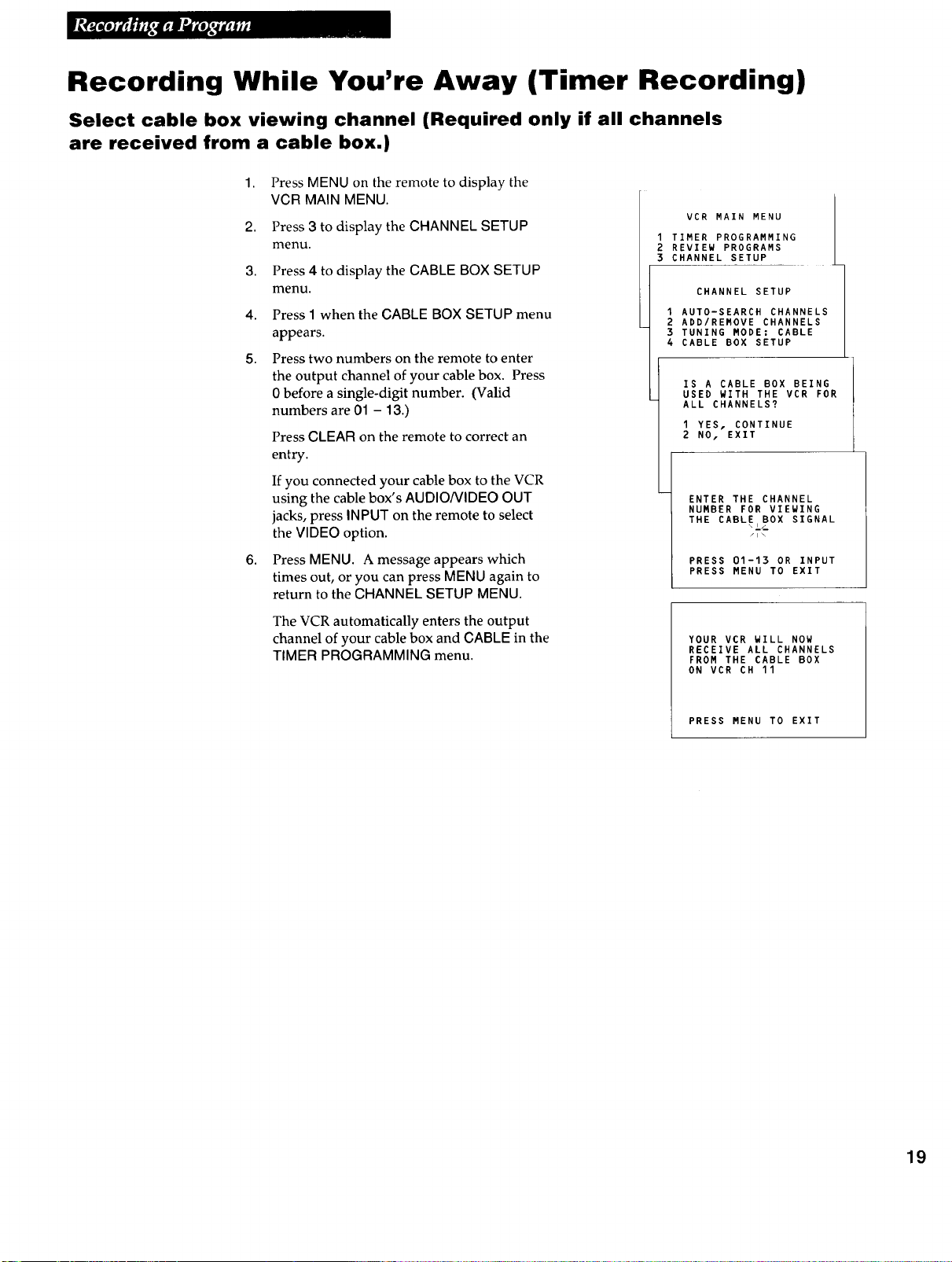
Press MENU on the remote to display the
VCR MAIN MENU.
Press 3 to display the CHANNEL SETUP
menu.
Press 4 to display the CABLE BOX SETUP
menu.
Press 1 when the CABLE BOX SETUP menu
appears.
Press two numbers on the remote to enter
the output channel of your cable box. Press
0 before a single-digit number. (Valid
numbers are 01 - 13.)
Press CLEAR on the remote to correct an
entry.
If you connected your cable box to the VCR
using the cable box's AUDIO/VIDEO OUT
jacks, press INPUT on the remote to select
the VIDEO option.
Press MENU. A message appears which
times out, or you can press MENU again to
return to the CHANNEL SETUP MENU.
/
VCR MAIN MENU |
I
I TIMER PROGRAMMING
2 REVIEW PROGRAMS
3 CHANNEL SETUP
CHANNEL SETUP 1
1 AUTO-SEARCH CHANNELS
2 ADD/REMOVE CHANNELS
3 TUNING MODE: CABLE
4 CABLE BOX SETUP
IS A CABLE BOX BEING
USED WITH THE VCR FOR
ALL CHANNELS?
I YES, CONTINUE
2 NO, EXIT
ENTER THE CHANNEL
NUMBER FOR VIEWING
THE CABLE BOX SIGNAL
\ ../_
/i\
PRESS 01-13 OR INPUT
PRESS MENU TO EXIT
The VCR automatically enters the output
channel of your cable box and CABLE in the
TIMER PROGRAMMING menu.
YOUR VCR WILL NOW
RECEIVE ALL CHANNELS
FROM THE CABLE BOX
ON VCR CH 11
PRESS MENU TO EXIT
19
Recording While You're Away (Timer Recording)
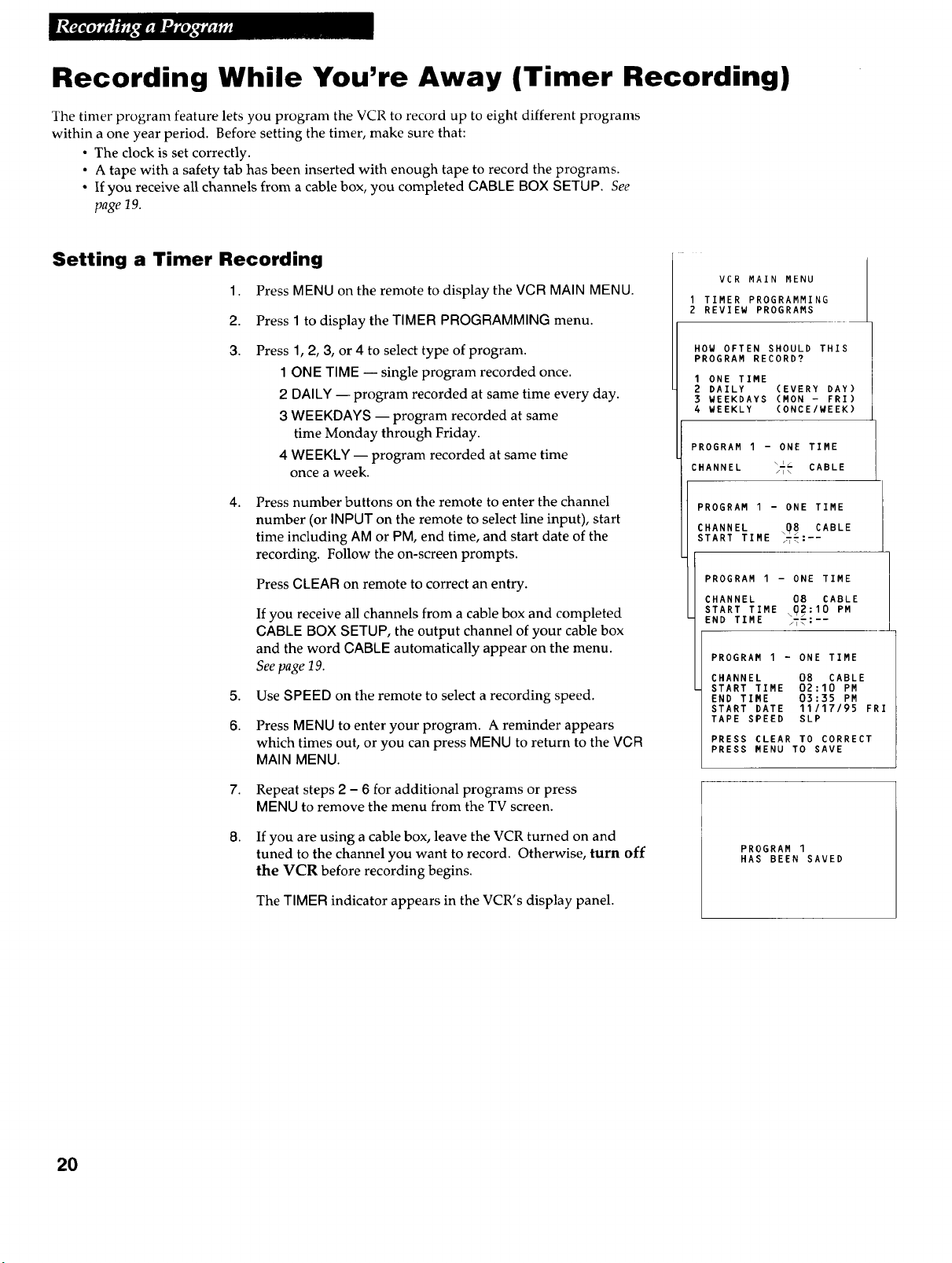
The timer program feature lets you program the VCR to record up to eight different programs
within a one year period. Before setting the timer, make sure that:
• The clock is set correctly.
• A tape with a safety tab has been inserted with enough tape to record the programs.
• If you receive all channels from a cable box, you completed GABLE BOX SETUP. See
page 19.
Setting a Timer Recording
1. Press MENU on the remote to display the VCR MAIN MENU.
2. Press 1 to display the TIMER PROGRAMMING menu.
3,
Press 1, 2, 3, or 4 to select type of program.
1 ONE TIME -- single program recorded once.
2 DALLY-- program recorded at same time every day.
3 WEEKDAYS -- program recorded at same
time Monday through Friday.
4 WEEKLY -- program recorded at same time
once a week.
4.
5,
6.
Press number buttons on the remote to enter the channel
number (or INPUT on the remote to select line input), start
time including AM or PM, end time, and start date of the
recording. Follow the on-screen prompts.
Press CLEAR on remote to correct an entry.
If you receive all channels from a cable box and completed
GABLE BOX SETUP, the output channel of your cable box
and the word GABLE automatically appear on the menu.
See page 19.
Use SPEED on the remote to select a recording speed.
Press MENU to enter your program. A reminder appears
which times out, or you can press MENU to return to the VCR
MAIN MENU.
7. Repeat steps 2 - 6 for additional programs or press
MENU to remove the menu from the TV screen.
8.
If you are using a cable box, leave the VCR turned on and
tuned to the channel you want to record. Otherwise, turn off
the VCR before recording begins.
The TIMER indicator appears in the VCR's display panel.
VCR MAIN MENU
I TIMER PROGRAMMING
2 REVIEW PROGRAMS
HOW OFTEN SHOULD THIS
PROGRAM RECORD?
I ONE TIME
2 DAILY (EVERY DAY)
3 WEEKDAYS (MON - FRI)
4 WEEKLY (ONCE/WEEK)
PROGRAM I - ONE TIME
CHANNEL \_ CABLE
/i\
PROGRAM I - ONE TIME
CHANNEL \O8 CABLE
START TIME _,\.
PROGRAM I - ONE TIME
CHANNEL 08 CABLE
START TIME \Q2:10 PM
END TIME i,\.
PROGRAM I - ONE TIME
CHANNEL 08 CABLE
START TIME 02:10 PM
END TIME 03:35 PM
START DATE 11/17/95 FRI
TAPE SPEED SLP
PRESS CLEAR TO CORRECT
PRESS MENU TO SAVE
PROGRAM 1
HAS BEEN SAVED
2O
Recording While You're Away (Timer Recording)
Checking or Clearing Timer Recordings
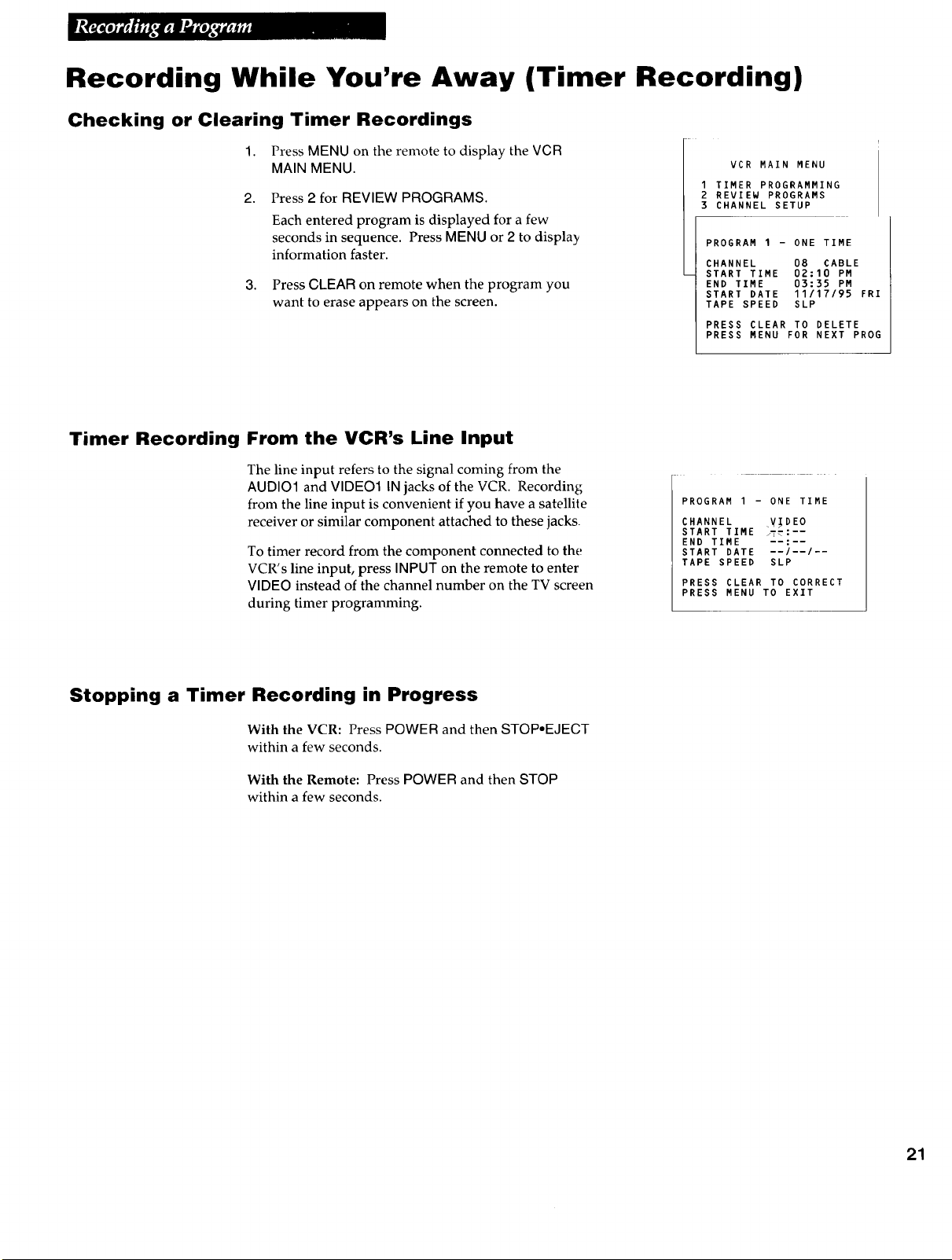
1. Press MENU on the remote to display the VCR
MAIN MENU.
2, Press 2 for REVIEW PROGRAMS.
Each entered program is displayed for a few
seconds in sequence. Press MENU or 2 to display
information faster.
3. Press CLEAR on remote when the program you
want to erase appears on the screen.
VCR MAIN MENU
I TIMER PROGRAMMING
2 REVIEW PROGRAMS
3 CHANNEL SETUP
PROGRAM I - ONE TIME
CHANNEL 08 CABLE
START TIME 02:10 PM
END TIME 03:35 PM
START DATE 11/17/95 FRI
TAPE SPEED SLP
PRESS CLEAR TO DELETE
PRESS MENU FOR NEXT PROG
Timer Recording From the VCR's Line Input
The line input refers to the signal coming from the
AUDIO1 and VIDEO1 IN jacks of the VCR. Recording
from the line input is convenient if you have a satellite
receiver or similar component attached to these jacks
To timer record from the component connected to the
VCR's line input, press INPUT on the remote to enter
VIDEO instead of the channel number on the TV screen
during timer programming.
PROGRAM I - ONE TIME
CHANNEL .V_DEO
START TIME _L\-
END TIME
START DATE --/--/--
TAPE SPEED SLP
PRESS CLEAR TO CORRECT
PRESS MENU TO EXIT
Stopping a Timer Recording in Progress
With the VCR: Press POWER and then STOP.EJECT
within a few seconds.
With the Remote: Press POWER and then STOP
within a few seconds.
21

Using Two VCRs for Copying and Editing Tapes
Operating Instructions (Refer to hookup on page 6.)
Use one VCR as the playback VCR and the other as the recording VCR.
1. Turn on the TV and VCRs.
Caution: The unauthorized
recording of television
programs and other
materials may infringe the
rights of others.
2. Tune the TV to the VCR viewing channel, either 3, 4, or the TV's
video input.
3. If you connected your VCR using Option A, (page 6), tune recording
VCR to channel 3 or 4 - the one you selected on the back of the
playback VCR.
If yon connected your VCR using Option B, (page 6), press INPUT on
the recording VCR's remote to select the line input.
4. Insert the tape yon want to copy into the playback VCR. Insert a blank
tape with its safety tab in place into the recording VCR.
5.
Press PLAY, then PAUSE on the playback VCR when you reach the
point on the tape or program where you want to begin copying. If the
tape was not recorded on the playback VCR, streaks may appear and
you may need to adjust tracking.
6. Press RECORD and PLAY together on the recording VCR or REC on
the remote. Then, press PAUSE on recording VCR.
7. Press PAUSE on both VCR at the same time to begin copying the tape.*
8,
Edit out segments that you do not want to copy by pressing PAUSE on
the recording VCR to stop copying the tape. Then, locate the next
segment you want to copy on the playback VCR by using FWD, REW,
and PLAY. Press PAUSE on the playback VCR. Press PAUSE at the
same time on both VCRs to resume copying.
9. Press STOP.EJECT on both VCRs when you are finished.
* You may turn off the TV after the recording has started as it does not have
to be on to copy a tape.
Copying and editing using compatible remote
If you have a compatible RCA or ProScan remote with VCR1 and VCR2 buttons you
can program this VCR to respond to VCR1 (VCR2). This lets you control both VCRs
with one remote for easier copying and editing.
Set the REMOTE CONTROL feature of this VCR to the VCR1 or VCR2 position. Then,
the compatible remote controls the VCR with either the VCR1 or VCR2 button --
depending on the position you select in the menu.
1. Press MENU to display the VCR MAIN MENU.
2. Press 4 to display SETUP OPTIONS.
3. Press 1 to activate the REMOTE CONTROL: VCR1 or
VCR2 feature.
4. Press VCR1 or VCR2 on your compatible VCR's
remote to change the setting and program the VCR to
respond to VCR1 or VCR2 -- depending on the
position you selected in step 3.
VCR MAIN MENU
TIMER PROGRAMMING
REVIEW PROGRAMS
CHANNEL SETUP
VCR SETUP OPTIONS
SETUP OPTIONS
I REMOTE CONTROL: VCRI
2 AUTO PLAY: ON
PRESS VCR2 TO CHANGE
SETUP OPTIONS
1 REMOTE CONTROL: VCR2
2 AUTO PLAY: ON
0 EXIT TO MAIN MENU
22
Specifications
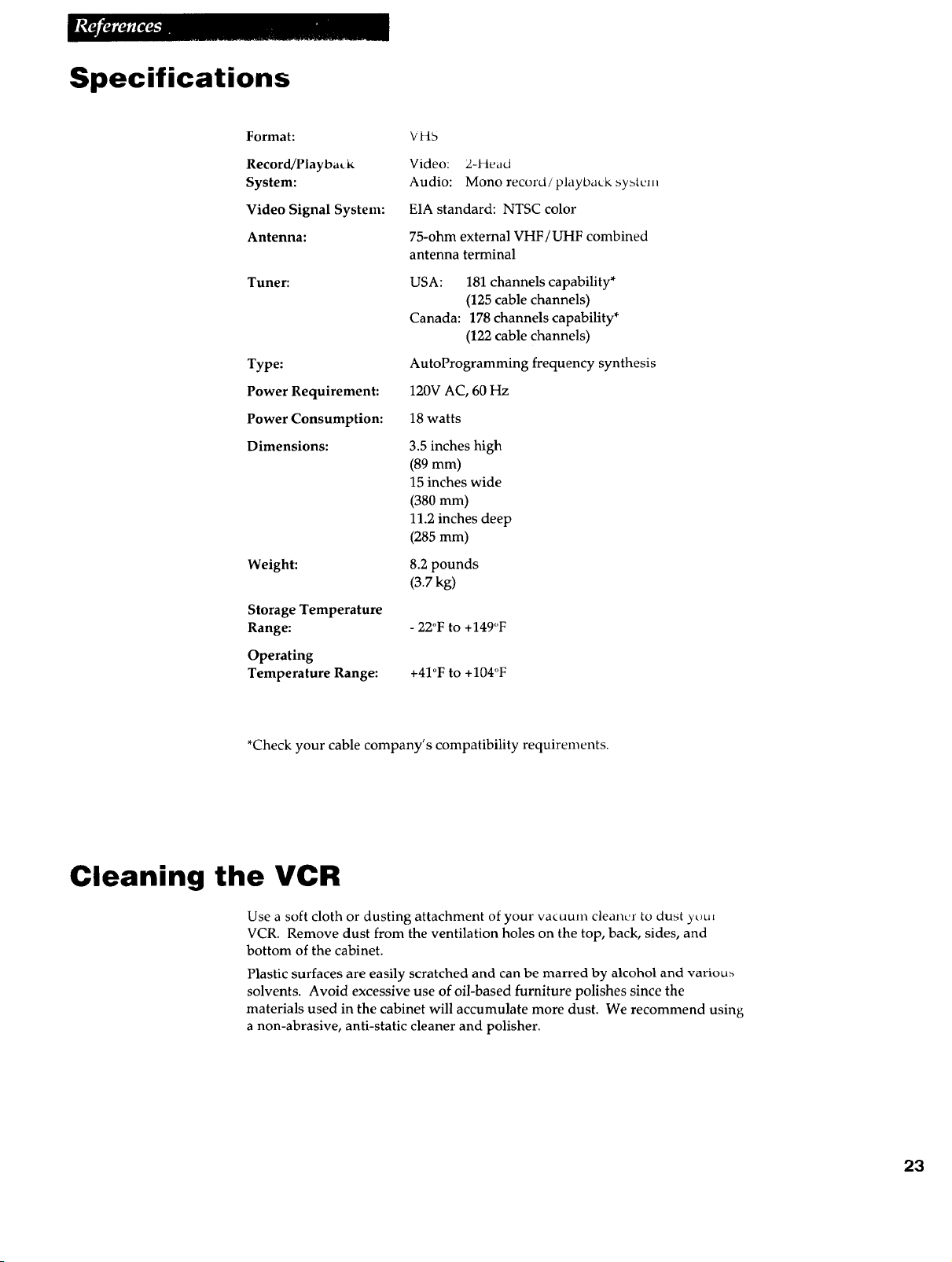
Format:
Record/Playback
System:
Video Signal System:
Antenna:
Tuner:
Type:
Power Requirement:
Power Consumption:
Dimensions:
VI:t5
Video: 2-Head
Audio: Mono record/playbaLk system
EIA standard: NTSC color
75-ohm external VHF/UHF combined
antenna terminal
USA: 181 channels capability*
(125 cable channels)
Canada: 178 channels capability*
(122 cable channels)
AutoProgramming frequency synthesis
120V AC, 60 Hz
18 watts
3.5 inches high
(89 ram)
15 inches wide
(380 mm)
11.2 inches deep
(285 mm)
Weight: 8.2 pounds
(3.7 kg)
Storage Temperature
Range:
Operating
Temperature Range:
- 22°F to +149°F
+41°F to +104°F
*Check your cable company's compatibility requirements.
Cleaning the VCR
Use a soft cloth or dusting attachment of your vacuum cleaner to dust ),¢_ut
VCR. Remove dust from the ventilation holes on the top, back, sides, and
bottom of the cabinet.
Plastic surfaces are easily scratched and can be marred by alcohol and variou_
solvents. Avoid excessive use of oil-based furniture polishes since the
materials used in the cabinet will accumulate more dust. We recommend using
a non-abrasive, anti-static cleaner and polisher.
23
Location of Controls
Front Panel
_,r oi,.[ j[ {:1 r V.VCH (;[IANNI I
®
/
Remote Sensor
Tape Compartment
HLW PLAY
_(SD
FW[)
GE)
/
f,Aut+t a+t{:oF_[, /
®(9
I---
,......,J
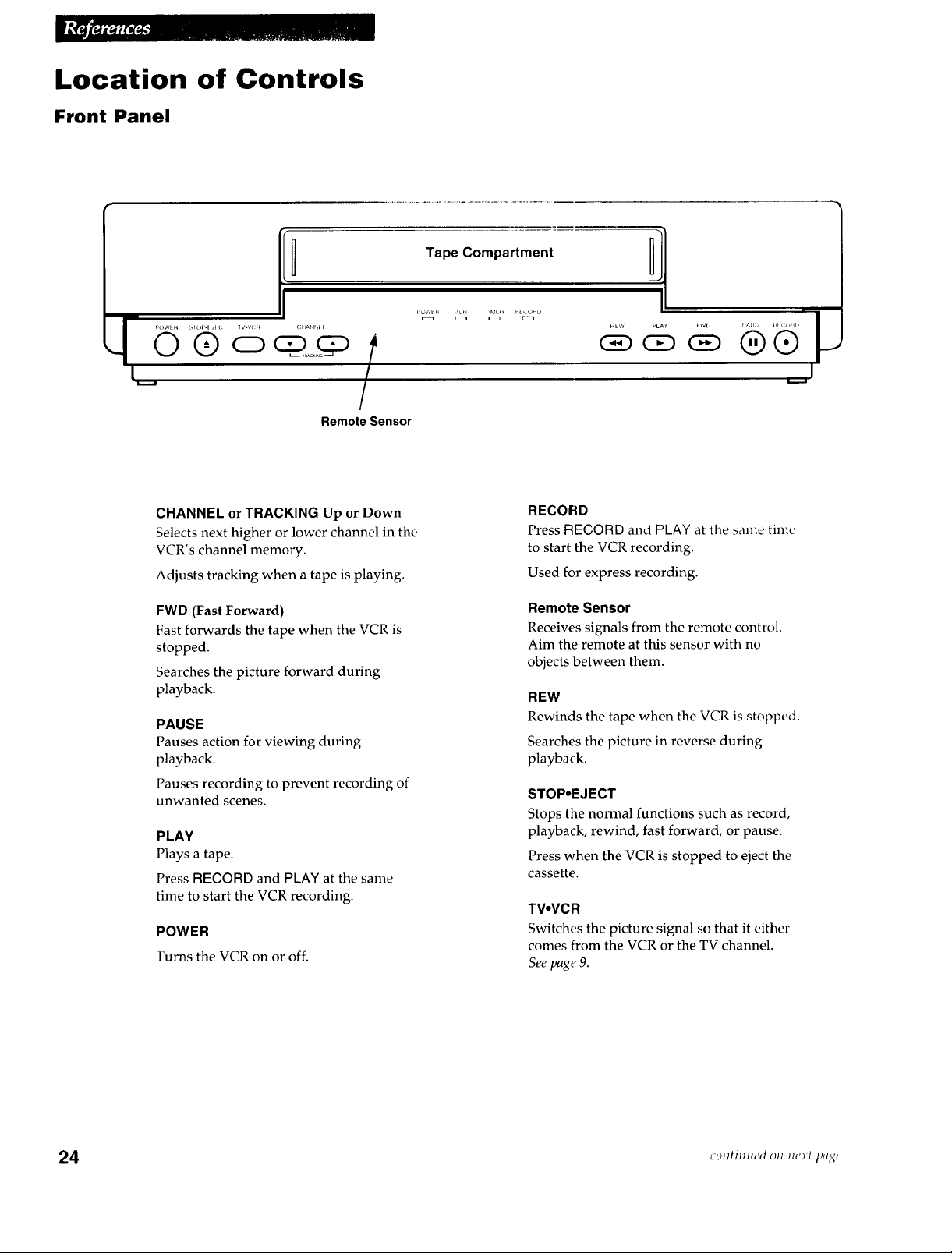
CHANNEL or TRACKING Up or Down
Selects next higher or lower channel in the
VCR's channel memory.
Adjusts tracking when a tape is playing,
FWD (Fast Forward)
Fast forwards the tape when the VCR is
stopped.
Searches the picture forward during
playback.
PAUSE
Pauses action for viewing during
playback.
Pauses recording to prevent recording of
unwanted scenes.
PLAY
Plays a tape.
Press RECORD and PLAY at the same
time to start the VCR recording.
POWER
Turns the VCR on or off.
RECORD
Press RECORD and PLAY at tile _ame time
to start the VCR recording.
Used for express recording.
Remote Sensor
Receives signals from the remote control.
Aim the remote at this sensor with no
objects between them.
REW
Rewinds the tape when the VCR is stopped.
Searches the picture in reverse during
playback.
STOP,EJECT
Stops the normal functions such as record,
playback, rewind, fast forward, or pause.
Press when the VCR is stopped to eject the
cassette.
TVoVCR
Switches the picture signal so that it either
comes from the VCR or the TV channel.
See page 9.
24 coutinm'd oH nc_l t)_gt '
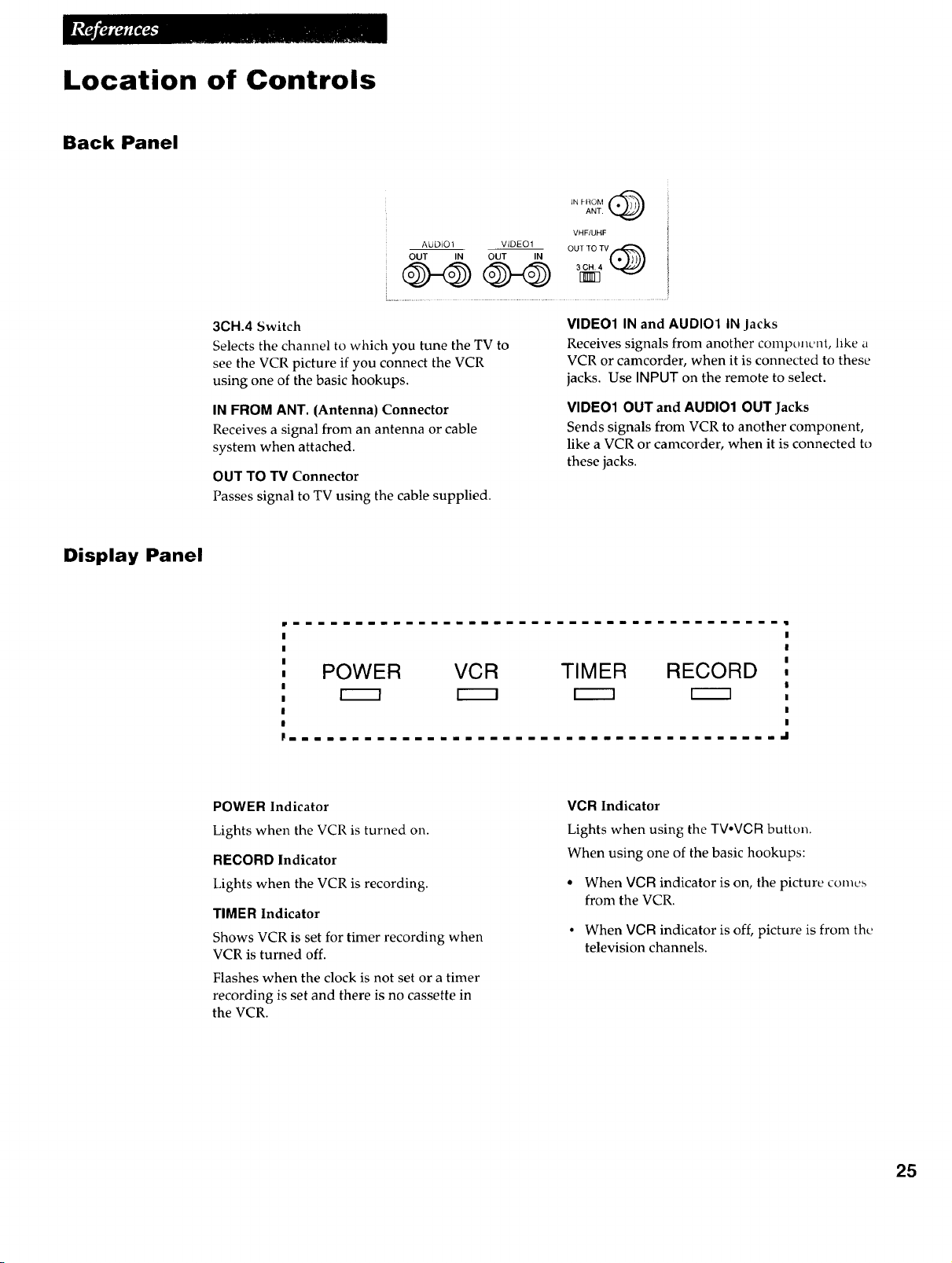
Location of Controls
Back Panel
IN FHOM (_
ANT.
VHF/UHF
AUDIO 1 VIDEO 1 OUT "fO TV .,,.-_:_
OUT IN OUT IN
3CH.4 Switch
Selects the channel to which you tune the TV to
see the VCR picture if you connect the VCR
using one of the basic hookups.
IN FROM ANT. (Antenna) Connector
Receives a signal from an antenna or cable
system when attached.
OUT TO TV Connector
Passes signal to TV using the cable supplied.
VIDEO1 IN and AUDIOI IN Jacks
Receives signals from another compo,cnt, like a
VCR or camcorder, when it is connected to these
jacks. Use INPUT on the remote to select.
VIDE01 OUT and AUDIO1 OUT Jacks
Sends signals from VCR to another component,
like a VCR or camcorder, when it is connected to
these jacks.
Display Panel
POWER VCR TIMER RECORD
Fmmmmmmmmmmmmmmmm
POWER Indicator
Lights when the VCR is turned on.
RECORD Indicator
Lights when the VCR is recording.
TIMER Indicator
Shows VCR is set for timer recording when
VCR is turned off.
Flashes when the clock is not set or a timer
recording is set and there is no cassette in
the VCR.
VCR Indicator
Lights when using the TVoVCR button.
When using one of the basic hookups:
• When VCR indicator is on, the picture comes
from the VCR.
• When VCR indicator is off, picture is from the
television channels.
25
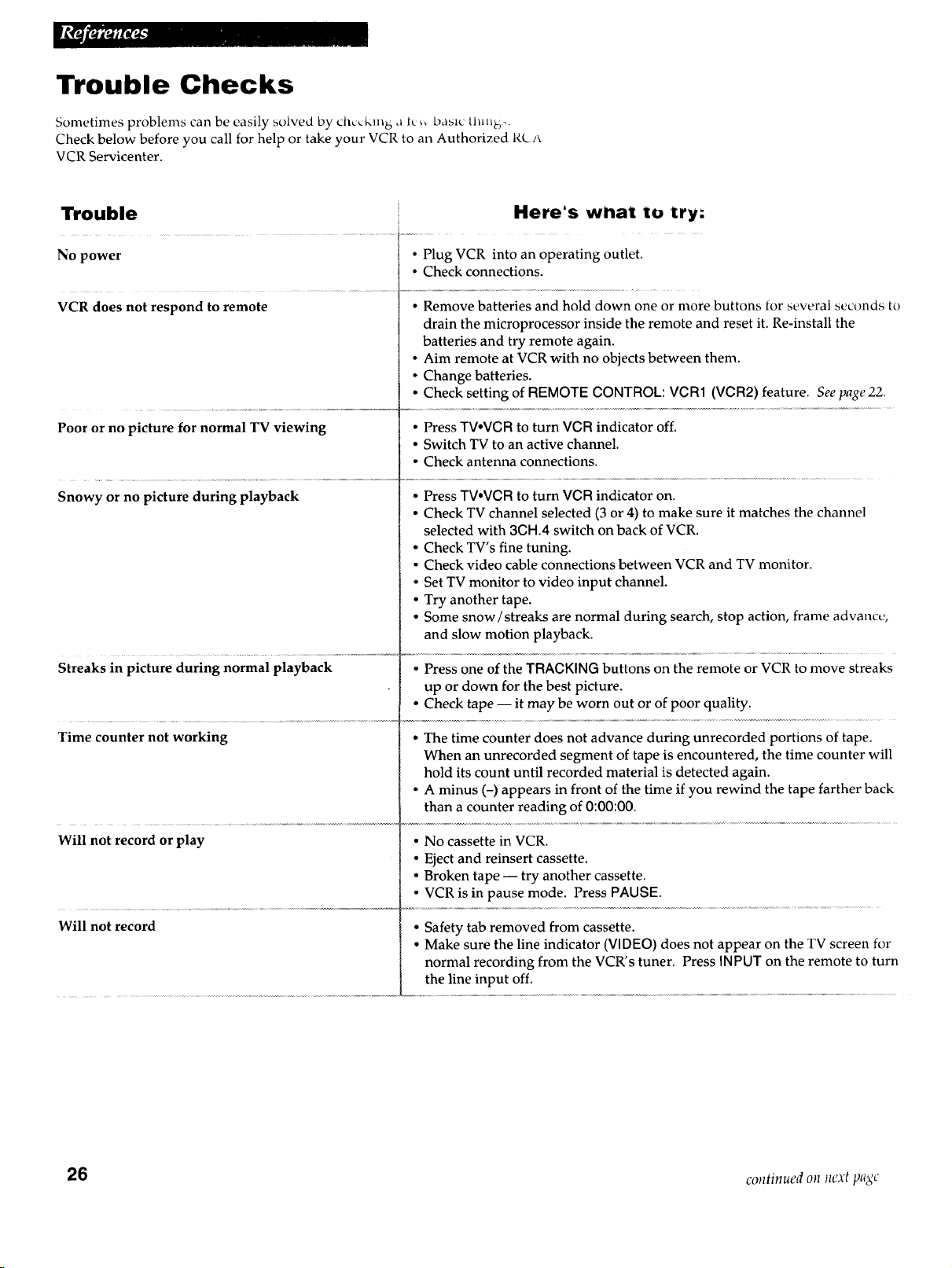
Trouble Checks
Sometimes problems can be easily solved by chv, km b att ,, basic throb:,.
Check below before you call for help or take your VCR to an Authorized RC_*
VCR Servicenter.
Trouble
No power
VCR does not respond to remote
Here's w/lat to try.
• Plug VCR into an operating outlet.
• Check connections.
• Remove batteries and hold down one or more buttons for several seconds to
drain the microprocessor inside the remote and reset it. Re-install the
batteries and try remote again.
• Aim remote at VCR with no objects between them.
• Change batteries.
• Check setting of REMOTE CONTROL: VCR1 (VCR2) feature. See page 22.
Poor or no picture for normal TV viewing • Press TV,VCR to turn VCR indicator off.
• Switch TV to an active channel.
• Check antenna connections.
Snowy or no picture during playback • Press TV.VCR to turn VCR indicator on.
• Check TV channel selected (3 or 4) to make sure it matches the channel
selected with 3CH.4 switch on back of VCR.
• Check TV's fine tuning.
• Check video cable connections between VCR and TV monitor.
• Set TV monitor to video input channel.
• Try another tape.
• Some snow/streaks are normal during search, stop action, frame advance,
and slow motion playback.
Streaks in picture during normal playback • Press one of the TRACKING buttons on the remote or VCR to move streaks
up or down for the best picture.
• Check tape -- it may be worn out or of poor quality.
Time counter not working • The time counter does not advance during unrecorded portions of tape.
When an unrecorded segment of tape is encountered, the time counter will
hold its count until recorded material is detected again.
• A minus (-) appears in front of the time if you rewind the tape farther back
than a counter reading of 0:00:00.
Will not record or play • No cassette in VCR.
• Eject and reinsert cassette.
• Broken tape -- try another cassette.
• VCR is in pause mode. Press PAUSE.
Will not record • Safety tab removed from cassette.
• Make sure the line indicator (VIDEO) does not appear on the TV screen for
normal recording from the VCR's tuner. Press INPUT on the remote to turn
the line input off.
26 continued on next page
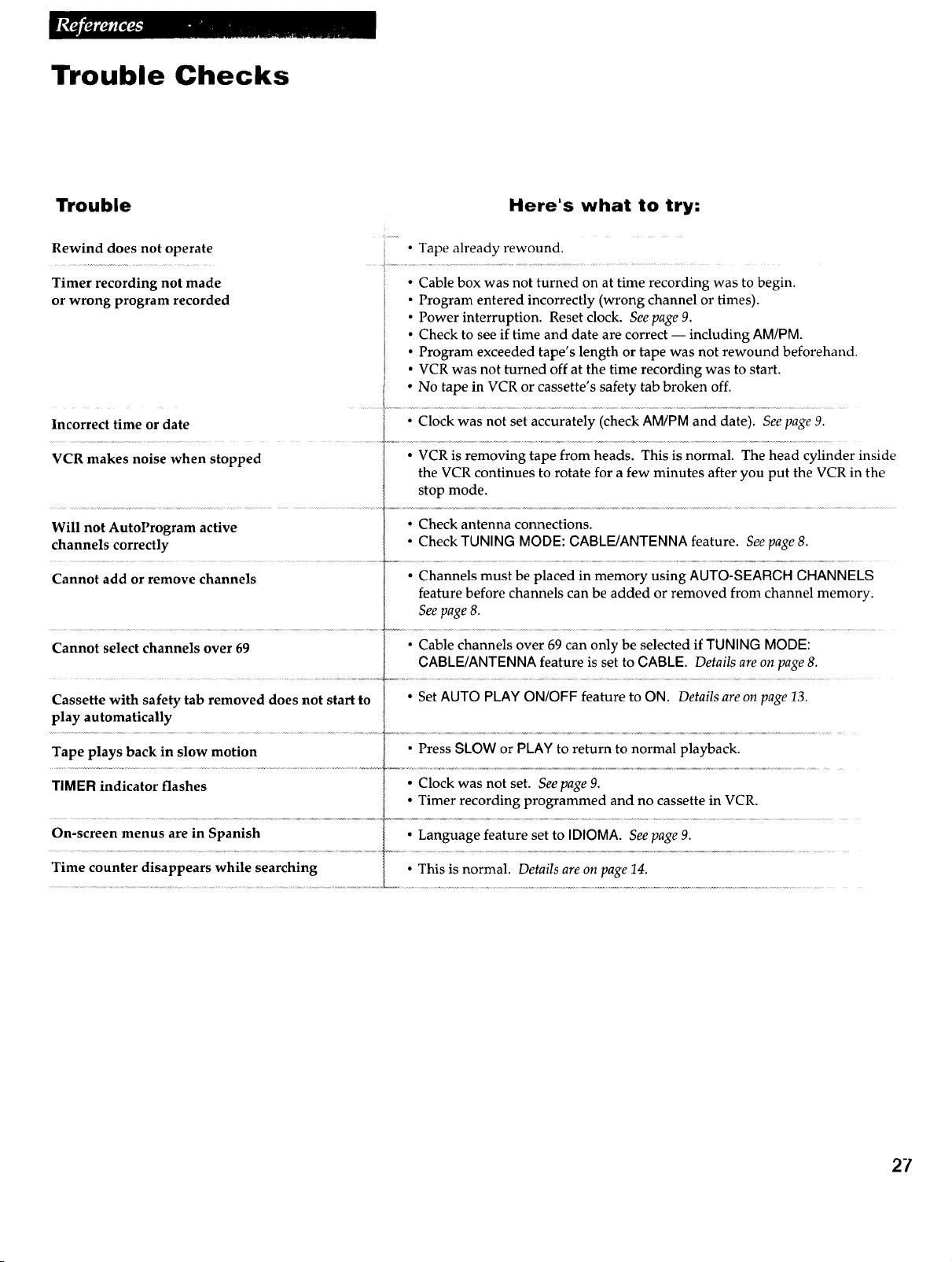
Trouble Checks
Trouble
Here's what to try:
Rewind does not operate
Timer recording not made
or wrong program recorded
• Tape already rewound.
• Cable box was not turned on at time recording was to begin.
• Program entered incorrectly (wrong channel or times).
• Power interruption. Reset clock. See page 9.
• Check to see if time and date are correct -- including AM/PM.
• Program exceeded tape's length or tape was not rewound beforehand.
• VCR was not turned off at the time recording was to start.
• No tape in VCR or cassette's safety tab broken off.
Incorrect time or date t • Clock was not set accurately (check AM/PM and date). See page 9.
VCR makes noise when stopped • VCR is removing tape from heads. This is normal. The head cylinder inside
the VCR continues to rotate for a few minutes after you put the VCR in the
stop mode.
Will not AutoProgram active • Check antenna connections.
channels correctly • Check TUNING MODE: CABLE/ANTENNA feature. See page 8.
Cannot add or remove channels • Channels must be placed in memory using AUTO-SEARCH CHANNELS
feature before channels can be added or removed from channel memory.
See page 8.
Cannot select channels over 69 • Cable channels over 69 can only be selected if TUNING MODE:
CABLE/ANTENNA feature is set to GABLE. Details are on page 8.
Cassette with safety tab removed does not start to • Set AUTO PLAY ON/OFF feature to ON. Details are on page 13.
play automatically
Tape plays back in slow motion • Press SLOW or PLAY to return to normal playback.
TIMER indicator flashes • Clock was not set. See page 9.
• Timer recording programmed and no cassette in VCR.
On-screen menus are in Spanish • Language feature set to IDIOMA. See page 9.
Time counter disappears while searching • This is normal. Details are on page 14.
27

Limited Warranty
What your warranty covers:
• Any defect in mdtt'ridl ol _,_,oikm,mship.
For how long after your purchase:
• Ninety days for labor charges.
• One year for parts.
The warranty period for rental units begins with the first rental.
What we will do:
Pay any Authorized RCA VCR Servicenter the labor charges to _cpair
your VCR.
Pay any Authorized RCA VCR Servicenter for the new or, at our option,
refurbished replacement parts required to repair your VCR.
How you get service:
• Take your VCR to any Authorized RCA VCR Servicenter. To identify
your nearest Authorized RCA VCR Servicenter, ask your dealer, look ill
the Yellow Pages, or call 1-800-336-1900.
• Show the service technician your evidence of purchase date.
• Pick up your VCR when repairs are completed.
What your warranty does not cover:
• Customer instruction. (Your Owner's Manual clearly describes how to
install, adjust, and operate your VCR. Any additional information should
be obtained from your Dealer.)
• Installation and related adjustments.
• Signal reception problems not caused by your VCR.
• Damage from misuse or neglect.
• Cleaning of video/audio heads.
• Remote controlbatteries.
• A VCR that has been modified or incorporated into other products or is
used for institutional or other commercial purposes.
• A VCR purchased or serviced outside the USA.
• Acts of God, such as but not limited to lightning charge.
Product Registration:
• Please complete and mail the Product Registration Card packed with
your VCR. It will make it easier to contact you should it ever be
necessary. The return of the card is not required for warranty coverage.
How state law relates to this warranty:
• This warranty gives you specific legal rights, and you also may have
other rights that vary from state to state.
If you purchased your VCR outside the United States:
• This warranty does not apply. Contact your dealer for warranty
information.
28
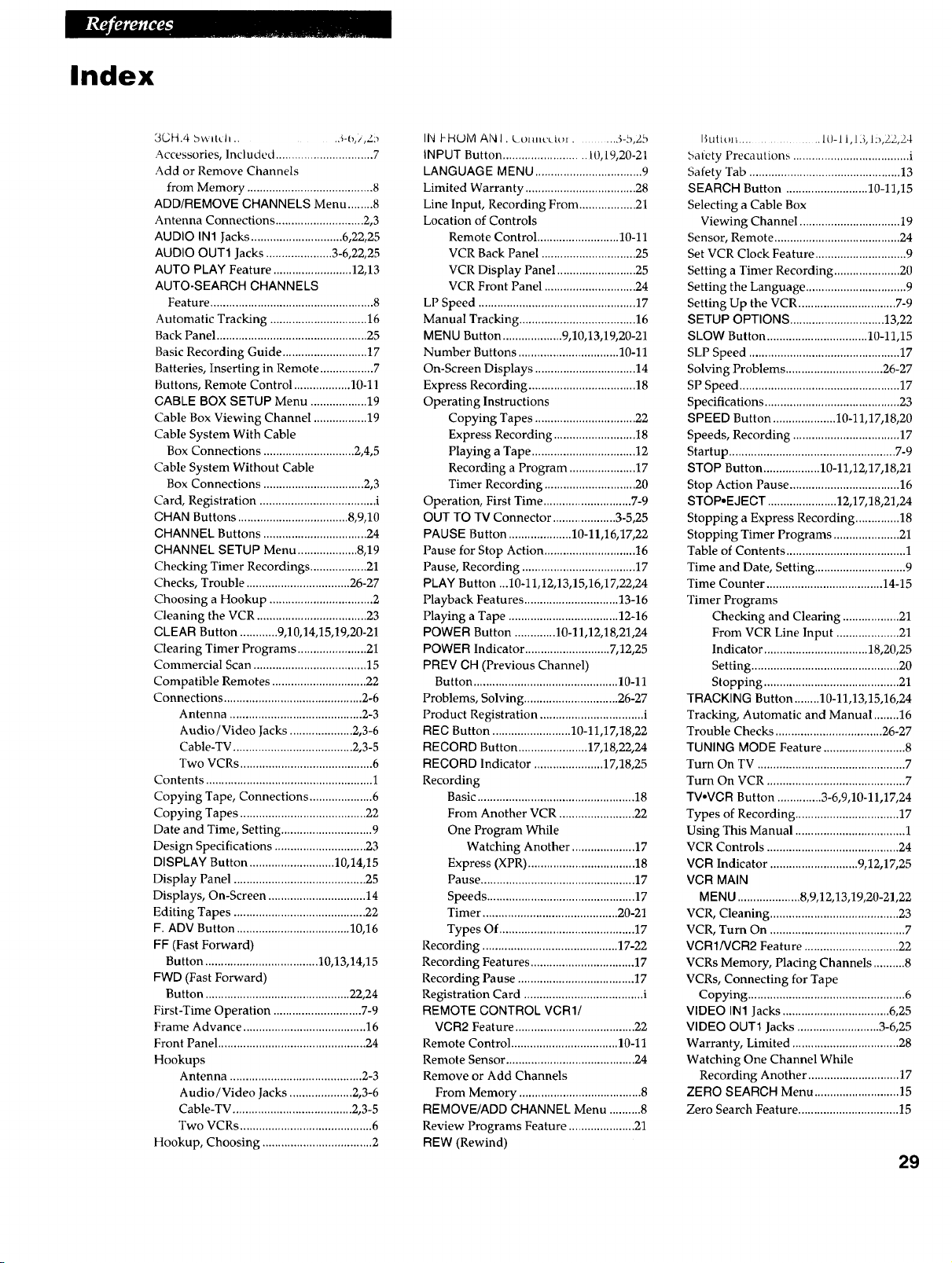
Index
3GH.4 b'a lt_ h ........ :_-0,/,7_
Accessories, Included ............................... 7
Add or Remove Channels
from Memory ........................................ 8
ADDIREMOVE CHANNELS Menu ........8
Antenna Connections ............................ 2,3
AUDIO IN1 Jacks ............................. 6,22,25
AUDIO OUT1 Jacks ..................... 3-6,22,25
AUTO PLAY Feature ......................... 12,13
AUTO-SEARCH CHANNELS
Feature .................................................... 8
Automatic Tracking ...............................16
Back Pane] ................................................ 25
Basic Recording Guide ...........................17
Batteries, Inserting in Remote ................. 7
Buttons, Remote Control .................. 10-11
CABLE BOX SETUP Menu .................. 19
Cable Box Viewing Channel ................. 19
Cable System With Cable
Box Connections ............................. 2,4,5
Cable System Without Cable
Box Connections ................................ 2,3
Card, Registration ..................................... i
CHAN Buttons ................................... 8,9,10
CHANNEL Buttons ................................. 24
CHANNEL SETUP Menu ................... 8,19
Checking Timer Recordings .................. 21
Checks, Trouble ................................. 26-27
Choosing a Hookup ................................. 2
Cleaning the VCR ................................... 23
CLEAR Button ............ 9,10,14,15,19,20-21
Clearing Timer Programs ...................... 21
Commercial Scan .................................... 15
Compatible Remotes .............................. 22
Connections ............................................ 2-6
Antenna .......................................... 2-3
Audio / Video Jacks .................... 2,3-6
Cable-TV ...................................... 2,3-5
Two VCRs .......................................... 6
Contents ..................................................... 1
Copying Tape, Connections .................... 6
Copying Tapes ........................................ 22
Date and Time, Setting ............................. 9
Design Specifications ............................. 23
DISPLAY Button ........................... 10,14,15
Display Panel .......................................... 25
Displays, On-Screen ............................... 14
Editing Tapes .......................................... 22
F. ADV Button .................................... 10,16
FF (Fast Forward)
Button .................................... 10,13,14,15
FWD (Fast Forward)
Button .............................................. 22,24
First-Time Operation ............................ 7-9
Frame Advance ....................................... 16
Front Panel ............................................... 24
Hookups
Antenna .......................................... 2-3
Audio / Video Jacks .................... 2,3-6
Cable-TV ...................................... 2,3-5
Two VCRs .......................................... 6
Hookup, Choosing ................................... 2
IN }-HUM AN I. Lo_u_ccl{}_ ........... 3-b,Z5
INPUT Button .......................... It),19,20-21
LANGUAGE MENU .................................. 9
Limited Warranty ................................... 28
Line Input, Recording From .................. 21
Location of Controls
Remote Control .......................... 10-11
VCR Back Panel .............................. 25
VCR Display Panel ......................... 25
VCR Front Panel ............................. 24
LP Speed .................................................. 17
Manual Tracking ..................................... 16
MENU Button ................... 9,10,13,19,20-21
Number Buttons ................................ 10-11
On-Screen Displays ................................ 14
Express Recording .................................. 18
Operating Instructions
Copying Tapes ................................ 22
Express Recording .......................... 18
Playing a Tape ................................. 12
Recording a Program ..................... 17
Timer Recording ............................. 20
Operation, First Time ............................ 7-9
OUT TO TV Connector .................... 3-5,25
PAUSE Button .................... 10-11,16,17,22
Pause for Stop Action ............................. 16
Pause, Recording .................................... 17
PLAY Button ...10-11,12,13,15,16,17,22,24
Playback Features .............................. 13-16
Playing a Tape ................................... 12-16
POWER Button ............. 10-11,12,18,21,24
POWER Indicator ........................... 7,12,25
PREV CH (Previous Channel)
Button .............................................. 10-11
Problems, Solving .............................. 26-27
Product Registration ................................. i
REC Button ......................... 10-11,17,18,22
RECORD Button ...................... 17,18,22,24
RECORD Indicator ...................... 17,18,25
Recording
Basic .................................................. 18
From Another VCR ........................ 22
One Program While
Watching Another .................... 17
Express (XPR) .................................. 18
Pause ................................................. 17
Speeds ............................................... 17
Timer ........................................... 20-21
Types Of ........................................... 17
Recording ........................................... 17-22
Recording Features ................................. 17
Recording Pause ..................................... 17
Registration Card ...................................... i
REMOTE CONTROL VCR1/
VCR2 Feature ...................................... 22
Remote Control .................................. 10-11
Remote Sensor ......................................... 24
Remove or Add Channels
From Memory ....................................... 8
REMOVE/ADD CHANNEL Menu ..........8
Review Programs Feature .....................21
REW (Rewind)
Button ................ 10-i l,i 3, IL_,22,24
Safety Precautions ..................................... i
Safety Tab ................................................ 13
SEARCH Button .......................... 10-11,15
Selecting a Cable Box
Viewing Channel ................................ 19
Sensor, Remote ........................................ 24
Set VCR Clock Feature ............................. 9
Setting a Timer Recording ..................... 20
Setting the Language ................................ 9
Setting Up the VCR ............................... 7-9
SETUP OPTIONS .............................. 13,22
SLOW Button ................................ 10-11,15
SLP Speed ................................................ 17
Solving Problems ............................... 26-27
SP Speed ................................................... 17
Specifications ........................................... 23
SPEED Button .................... 10-11,17,18,20
Speeds, Recording .................................. 17
Startup ..................................................... 7-9
STOP Button .................. 10-11,12,17,18,21
Stop Action Pause ................................... 16
STOP.EJECT ...................... 12,17,18,21,24
Stopping a Express Recording .............. 18
Stopping Timer Programs ..................... 21
Table of Contents ...................................... 1
Time and Date, Setting ............................. 9
Time Counter ..................................... 14-15
Timer Programs
Checking and Clearing .................. 21
From VCR Line Input .................... 21
Indicator ................................. 18,20,25
Setting ............................................... 20
Stopping ........................................... 21
TRACKING Button ........ 10-11,13,15,16,24
Tracking, Automatic and Manual ........ 16
Trouble Checks .................................. 26-27
TUNING MODE Feature .......................... 8
Turn On TV ............................................... 7
Turn On VCR ............................................ 7
TV.VCR Button .............. 3-6,9,10-11,17,24
Types of Recording ................................. 17
Using This Manual ................................... 1
VCR Controls .......................................... 24
VGR Indicator ............................ 9,12,17,25
VCR MAIN
MENU ....................8,9,12,13,19,20-21,22
VCR, Cleaning ......................................... 23
VCR, Turn On ........................................... 7
VCR1/VCR2 Feature .............................. 22
VCRs Memory, Placing Channels .......... 8
VCRs, Connecting for Tape
Copying .................................................. 6
VIDEO IN1 Jacks .................................. 6,25
VIDEO OUT1 Jacks ..........................3-6,25
Warranty, Limited ..................................28
Watching One Channel While
Recording Another ............................. 17
ZERO SEARCH Menu ........................... 15
Zero Search Feature ................................ 15
29
_of youl- llCalCS[ l-lonle
Entertainment Dealer
or Authorized Servicenter
call toll-free in the U.S.A.
1-800-336-1900
Canadian Consumers -
Your toll free numbers are:
English: 1-800-522-0338
French: 1-800-522-0445
If you would like a copy of this manual ill French, please follow the
instructions below:
Si un livret d'instructions en frangais n'est pas inclus avec votre
appareil, vous pouvez en obtenir un (indiquer le numOro de modOle,
votre nora, et votre adresse) en vous adressant a:
Thomson Consumer Electronics
Attention: Canadian Operations
P.O. Box 0944
Indianapolis, IN 46206-0944
If your VCR needs service, please contact your dealer or the nearest
Servicenter from the yellow pages. Please do not send any products
to the Indianapolis address listed in this manual or on the carton.
This will only add delays in service for your product.
to_ THOMSON CONSUMER ELECTRONICS
10330 North Meridian Street
Indianapolis, IN 46290-1024
©1995 Thomson Consumer Electronics, Inc.
Trademark(s) ® Registered
Marca(s) Registrada(s)
Printed in Japan
Part Number 95-VR327A-1
VQTS3128 (_)

