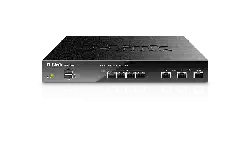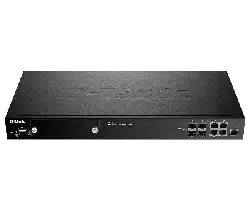
Wireless Controller
User Manual
DWC-2000
Version 1.00
BUSINESS WIRELESS SOLUTION

D-Link DWC-2000 User Manual 2
D-Link reserves the right to revise this publication and to make changes in the content hereof without obligation to
notify any person or organization of such revisions or changes. Information in this document may become obsolete
as our services and websites develop and change.
Manual Revisions
Revision Date Description
1.00 April 28, 2014 • DWC-2000 revision A1 initial release
Trademarks
D-Link and the D-Link logo are trademarks or registered trademarks of D-Link Corporation or its subsidiaries in
the United States or other countries. All other company or product names mentioned herein are trademarks or
registered trademarks of their respective companies.
© 2014 D-Link Corporation.
All rights reserved. This publication may not be reproduced, in whole or in part, without prior expressed written
permission from D-Link Corporation.
Preface

D-Link DWC-2000 User Manual 3
Use the following safety guidelines to ensure your own personal safety and to help protect your system from
potential damage.
Safety Cautions
To reduce the risk of bodily injury, electrical shock, re, and damage to the equipment, observe the following
precautions:
• Observe and follow service markings.
• Do not service any product except as explained in your system documentation.
• Opening or removing covers that are marked with the triangular symbol with a lightning bolt
may expose you to electrical shock.
• Only a trained service technician should service components inside these compartments.
• If any of the following conditions occur, unplug the product from the electrical outlet and replace the
part or contact your trained service provider:
• The power cable, extension cable, or plug is damaged.
• An object has fallen into the product.
• The product has been exposed to water.
• The product has been dropped or damaged.
• The product does not operate correctly when you follow the operating instructions.
• Keep your system away from radiators and heat sources. Also, do not block cooling vents.
• Do not spill food or liquids on your system components, and never operate the product in a wet
environment. If the system gets wet, see the appropriate section in your troubleshooting guide or
contact your trained service provider.
• Do not push any objects into the openings of your system. Doing so can cause re or electric shock by
shorting out interior components.
• Use the product only with approved equipment.
• Allow the product to cool before removing covers or touching internal components.
• Operate the product only from the type of external power source indicated on the electrical ratings
label. If you are not sure of the type of power source required, consult your service provider or local
power company.
• Also, be sure that attached devices are electrically rated to operate with the power available in your
location.
• Use only approved power cable(s). If you have not been provided with a power cable for your system or
for any AC powered option intended for your system, purchase a power cable that is approved for use
in your country. The power cable must be rated for the product and for the voltage and current marked
on the product’s electrical ratings label. The voltage and current rating of the cable should be greater
than the ratings marked on the product.
• To help prevent electric shock, plug the system and peripheral power cables into properly grounded
electrical outlets.
Safety Instructions

D-Link DWC-2000 User Manual 4
• These cables are equipped with three-prong plugs to help ensure proper grounding. Do not use
adapter plugs or remove the grounding prong from a cable. If you must use an extension cable, use a
3-wire cable with properly grounded plugs.
• Observe extension cable and power strip ratings. Make sure that the total ampere rating of all products
plugged into the extension cable or power strip does not exceed 80 percent of the ampere ratings limit
for the extension cable or power strip.
• To help protect your system from sudden, transient increases and decreases in electrical power, use a
surge suppressor, line conditioner, or uninterruptible power supply (UPS).
• Position system cables and power cables carefully; route cables so that they cannot be stepped on or
tripped over. Be sure that nothing rests on any cables.
• Do not modify power cables or plugs. Consult a licensed electrician or your power company for site
modications.
• Always follow your local/national wiring rules.
• When connecting or disconnecting power to hot-pluggable power supplies, if oered with your system,
observe the following guidelines:
• Install the power supply before connecting the power cable to the power supply.
• Unplug the power cable before removing the power supply.
• If the system has multiple sources of power, disconnect power from the system by unplugging all
power cables from the power supplies.
• Move products with care; ensure that all casters and/or stabilizers are rmly connected to the system.
Avoid sudden stops and uneven surfaces.

D-Link DWC-2000 User Manual 5
Static electricity can harm delicate components inside your system. To prevent static damage, discharge static
electricity from your body before you touch any of the electronic components, such as the microprocessor. You can
do so by periodically touching an unpainted metal surface on the chassis.
You can also take the following steps to prevent damage from electrostatic discharge (ESD):
1. When unpacking a static-sensitive component from its shipping carton, do not remove the
component from the antistatic packing material until you are ready to install the component
in your system. Just before unwrapping the antistatic packaging, be sure to discharge static
electricity from your body.
2. When transporting a sensitive component, rst place it in an antistatic container or package.
3. Handle all sensitive components in a static-safe area. If possible, use antistatic oor pads,
workbench pads and an antistatic grounding strap.
Protecting Against Electrostatic Discharge

D-Link DWC-2000 User Manual 6
Table of Contents
Preface .......................................................................................................................................................... 2
Manual Revisions ...................................................................................................................................................................... 2
Trademarks ................................................................................................................................................................................. 2
Safety Instructions ................................................................................................................................................................... 3
Safety Cautions ................................................................................................................................................................ 3
Protecting Against Electrostatic Discharge ........................................................................................................... 5
Product Overview ...................................................................................................................................... 12
Introduction ............................................................................................................................................................................. 12
Features and Benets ...........................................................................................................................................................13
Package Contents .................................................................................................................................................................14
Required Tools and Information .......................................................................................................................................14
Front Panel ................................................................................................................................................................................15
Rear Panel .................................................................................................................................................................................15
Installation ................................................................................................................................................. 16
Unpacking.................................................................................................................................................................................16
Selecting a Location .............................................................................................................................................................. 16
Rack Mount ..............................................................................................................................................................................17
Connecting the Wireless Controller .................................................................................................................................18
Basic Conguration ................................................................................................................................... 19
Log in to the Web Management Interface .................................................................................................................... 20
Web Management Interface Layout ................................................................................................................................22
Standard Web Management Interface Features .........................................................................................................23
Basic Conguration Procedures ........................................................................................................................................24
Step #1: Enable DHCP Server (Optional) ...............................................................................................................25
Step #2: Congure Country Code ..........................................................................................................................26
Step #3: Select APs to be Managed ........................................................................................................................27
Step #4: Change the SSID and Set Up Security ..................................................................................................29
Step #5: Select MAC Authentication Mode .........................................................................................................34
Step #6: Conrm Access Point Prole is Associated .........................................................................................36
Step #7: Congure Captive Portal Settings ..........................................................................................................37
Step #8: Use SSID with RADIUS Sever as Authenticator .................................................................................. 45
Step #9: Congure Guest Management ...............................................................................................................46
Step #10: Congure a BYOD Environment ...........................................................................................................53
Where to Go from Here ........................................................................................................................................................59
Advanced WLAN Conguration ................................................................................................................ 60
WLAN General Settings ........................................................................................................................................................61
Channel Plan and Power Settings .................................................................................................................................... 64

D-Link DWC-2000 User Manual 7
Congure Channel Plan ..............................................................................................................................................64
Congure Power Settings ..........................................................................................................................................66
WIDS ............................................................................................................................................................................................67
Congure AP WIDS Settings ......................................................................................................................................67
Congure Client WIDS Settings ...............................................................................................................................70
Distributed Tunnel ................................................................................................................................................................. 72
Congure Distributed Tunnel ................................................................................................................................... 72
WLAN Visualization ................................................................................................................................................................73
Upload Images ............................................................................................................................................................... 73
Deleting Images ............................................................................................................................................................73
Launch .............................................................................................................................................................................74
AP Discovery Methods .........................................................................................................................................................75
L2/ VLAN Discovery ......................................................................................................................................................75
Congure L2/ VLAN Discovery .............................................................................................................................76
L3/ IP Discovery .............................................................................................................................................................77
Congure L3/ IP Discovery ....................................................................................................................................77
Managed APs ........................................................................................................................................................................... 78
Add a Valid AP ................................................................................................................................................................78
Add a AP from Discovered AP List ..........................................................................................................................80
Manual Change Channel and Power of Managed AP ......................................................................................81
Congure AP Debug Mode .......................................................................................................................................82
Congure AP Provisioning .........................................................................................................................................83
AP Proles .................................................................................................................................................................................85
Congure AP Prole ..................................................................................................................................................... 85
Congure AP Prole Radio ........................................................................................................................................87
Congure AP Prole SSID ...........................................................................................................................................93
Congure AP Prole QoS ............................................................................................................................................94
SSID Proles ..............................................................................................................................................................................98
Congure SSID Proles ...............................................................................................................................................98
Wireless Distribution System (WDS) ..............................................................................................................................102
Congure WDS Managed AP Group ....................................................................................................................104
Congure WDS Managed AP ..................................................................................................................................105
Congure WDS AP Link .............................................................................................................................................107
Peer Group ..............................................................................................................................................................................108
Congure Peer Group ................................................................................................................................................108
Synchronize Peer Group ...........................................................................................................................................109
AP Firmware Download .....................................................................................................................................................110
Advanced Network Conguration ......................................................................................................... 114
IP Mode ....................................................................................................................................................................................115
LAN Conguration ...............................................................................................................................................................116
IPv4 LAN Settings ........................................................................................................................................................116
IPv6 LAN Settings ........................................................................................................................................................118

D-Link DWC-2000 User Manual 8
IPv6 Address Pools ......................................................................................................................................................120
IPv6 Router Advertisement .....................................................................................................................................122
IPv6 Advertisement Prexes ...................................................................................................................................124
LAN DHCP Reserved IPs ............................................................................................................................................126
Congure IGMP Setup ...............................................................................................................................................127
Congure Jumbo Frames .........................................................................................................................................128
Link Aggregation .........................................................................................................................................................129
VLANs .......................................................................................................................................................................................130
Creating VLANs ............................................................................................................................................................130
Editing VLANs...........................................................................................................................................................132
Deleting VLANs........................................................................................................................................................132
MultiVLAN Subnets ................................................................................................................................................133
Port VLANs .....................................................................................................................................................................135
MAC Based VLANs ..................................................................................................................................................136
Voice VLANs ..............................................................................................................................................................138
Protocol Based VLANs ...........................................................................................................................................139
Double VLANs ..........................................................................................................................................................140
GVRP ................................................................................................................................................................................141
Routing ....................................................................................................................................................................................142
Congure IPv4 Static Routing.................................................................................................................................142
Congure IPv6 Static Routing.................................................................................................................................144
Editing/Deleting Static Routes ..........................................................................................................................146
QoS Conguration ...............................................................................................................................................................147
QoS Priority ...................................................................................................................................................................147
Enabling QoS Mode ...............................................................................................................................................148
Dening DSCP and CoS on each port .............................................................................................................150
Conguring 802.1p Priority ................................................................................................................................151
Conguring DSCP Priority ...................................................................................................................................152
Port Shaping Rate ...................................................................................................................................................153
QoS Policy ......................................................................................................................................................................154
Congure Policy Based QoS ...............................................................................................................................154
Congure Flow-based Control ...........................................................................................................................156
Congure Auto VoIP QoS .....................................................................................................................................157
Congure Queue Scheduler ...............................................................................................................................158
Queue Management .............................................................................................................................................159
Setup CoS and DSCP Marking ............................................................................................................................160
Securing Your Network ........................................................................................................................... 161
Client Management .............................................................................................................................................................162
Viewing/Adding Wireless Known Clients ...........................................................................................................162
Editing/Deleting Clients ...........................................................................................................................................164
Group Management ............................................................................................................................................................165
Adding User Groups ...................................................................................................................................................165
Editing User Groups ...............................................................................................................................................167

D-Link DWC-2000 User Manual 9
Deleting User Groups ............................................................................................................................................168
Conguring Login Policies .......................................................................................................................................169
Conguring Browser Policies ..................................................................................................................................170
Conguring IP Policies ..............................................................................................................................................171
User Management ...............................................................................................................................................................172
Adding Users Manually .............................................................................................................................................172
Importing Users ......................................................................................................................................................173
Editing Users ............................................................................................................................................................174
Deleting Users .........................................................................................................................................................175
Password Rules ......................................................................................................................................................................176
Guest Account Usage Management .............................................................................................................................177
Payment Gateway .......................................................................................................................................................181
Login Proles ................................................................................................................................................................182
Customize the Captive Portal Login Page .....................................................................................................182
Customize the SLA of the Captive Portal ............................................................................................................185
External Authentication .....................................................................................................................................................186
Congure RADIUS Server .........................................................................................................................................186
Congure POP3 Server ..............................................................................................................................................188
Congure POP3 Trusted CA .....................................................................................................................................189
Congure LDAP Server ..............................................................................................................................................190
Blocked Clients ......................................................................................................................................................................192
Status and Statistics ................................................................................................................................ 193
Viewing Statistic and Utilization .....................................................................................................................................195
Manage Dashboard ............................................................................................................................................................196
Viewing System Status ..............................................................................................................................................198
Viewing USB Status ................................................................................................................................................199
Viewing DHCP Clients ...........................................................................................................................................200
Viewing Captive Portal Sessions .......................................................................................................................201
Viewing Trac on Interfaces ............................................................................................................................................202
Viewing Link Aggregation .......................................................................................................................................204
Viewing Controller Status and Statistics .............................................................................................................205
Controller Associated Clients .............................................................................................................................206
Distributed Tunnel .................................................................................................................................................207
Peer Controller Receive Status ...........................................................................................................................208
Peer Controller Sent Status .................................................................................................................................210
Viewing Access Point Information ........................................................................................................................211
Global Status ............................................................................................................................................................211
All APs .........................................................................................................................................................................213
Managed ....................................................................................................................................................................214
Peer Managed ..........................................................................................................................................................216
Authentication Failed ............................................................................................................................................217
RF Scan .......................................................................................................................................................................218
De-Authentication Attacks .................................................................................................................................219

D-Link DWC-2000 User Manual 10
Hardware Capability ..............................................................................................................................................221
Associated Clients Global Status ...........................................................................................................................223
Associated Clients ..................................................................................................................................................224
Ad Hoc Clients .........................................................................................................................................................228
Detected Clients .....................................................................................................................................................229
Viewing Cluster Information ...................................................................................................................................231
Viewing WDS Group Status .................................................................................................................................232
WDS Group AP Status ...........................................................................................................................................233
Viewing WDS AP Status ........................................................................................................................................235
Viewing WDS Link Status .....................................................................................................................................236
Viewing WDS Link Statistics ................................................................................................................................237
Maintenance ............................................................................................................................................238
System Settings ....................................................................................................................................................................239
Set System Name .......................................................................................................................................................239
Set System Date and Time ......................................................................................................................................239
Set Login Session Timeout .......................................................................................................................................240
Set USB Share Ports ....................................................................................................................................................240
Activating Licenses ..............................................................................................................................................................241
Remote Management .........................................................................................................................................................242
Using SNMP ............................................................................................................................................................................243
Congure SNMP v3 User List...................................................................................................................................243
Congure SNMP Trap List .........................................................................................................................................244
Congure SNMP Access Control List ....................................................................................................................245
Congure SNMP System Info ..................................................................................................................................246
Congure Wireless SNMP Info ................................................................................................................................246
Backup Conguration Settings .......................................................................................................................................249
Restoring Conguration Settings ...................................................................................................................................250
Restoring Factory Default Settings ................................................................................................................................251
Rebooting the Wireless Controller .................................................................................................................................252
Upgrading Firmware ...........................................................................................................................................................253
Wireless Controller Firmware Upgrade ...............................................................................................................253
Using the Command Line Interface...............................................................................................................................255
Troubleshooting ...................................................................................................................................... 256
LED Troubleshooting ..........................................................................................................................................................257
Power LED is OFF .........................................................................................................................................................257
LAN Port LEDs Not ON ...............................................................................................................................................257
Web Management Interface ............................................................................................................................................257
Using the Reset Button to Restore Default Settings ................................................................................................258
Problems with Date and Time .........................................................................................................................................258
Discovery Problems with Access Points .......................................................................................................................258
Connection Problems .........................................................................................................................................................259

D-Link DWC-2000 User Manual 11
Network Performance and Rogue Access Point Detection ...................................................................................259
Using Diagnostic Tools on the Wireless Controller ..................................................................................................260
Ping an IP Address ......................................................................................................................................................260
Using Traceroute .........................................................................................................................................................261
Performing DNS Lookups .........................................................................................................................................262
Capturing Log Packets ..............................................................................................................................................263
Conducting a System Check ...................................................................................................................................264
Log Settings ...........................................................................................................................................................................265
Dening What to Log .................................................................................................................................................265
Tracking Trac/Routing Logs .................................................................................................................................267
System Logging ......................................................................................................................................................268
Remote Logging .....................................................................................................................................................269
Syslog Server Conguration....................................................................................................................................271
Event Log .......................................................................................................................................................................272
Current Logs .............................................................................................................................................................273
WLAN Logs ................................................................................................................................................................274
LAN Logs ....................................................................................................................................................................275
Appendix A - Basic Planning Worksheet ................................................................................................ 276
Appendix B - Factory Default Settings ................................................................................................... 279
Appendix C - Glossary ............................................................................................................................. 280
Appendix D - Technical Specications ................................................................................................... 282

D-Link DWC-2000 User Manual 12
Section 1 - Product Overview
Product Overview
Introduction
The DWC-2000 Wireless Controller is intended to provide medium-to-large-sized businesses with a solution for
conguring, managing, and monitoring up to 256 D-Link DWL-2600AP, DWL-3600AP, DWL-6600AP, DWL-8600AP,
and/or DWL-8610AP access points from a central location.
Using the wireless controller and the access points with which it is associated lets you:
• Discover and congure D-Link access points on the WLAN
• Optimize wireless access point performance with centralized RF management, security, Quality of Service
(QoS), and other conguration features
• Streamline security conguration tasks and set up guest access
• Monitor network status and statistics
• Perform maintenance tasks and rmware updates for the wireless management system and for D-Link
access points on your wireless network
• Conduct troubleshooting procedures
Conguration is performed using conguration proles. A conguration prole allows a wireless controller to
distribute a set of radio, Service Set Identier (SSID), and QoS parameters to the access points associated with
that prole.
The wireless controller comes with one prole predened. You can use this prole as is, edit it to suit your
requirements, or create new conguration proles as necessary. For example:
• An oce building may have one conguration prole for access points located in one area of a facility
(such as a general work area) and a dierent prole for access points in another area of the facility (for
example, in the Human Resources department).
• A shopping mall may need several conguration proles if several businesses share a WLAN, but each
business has its own network.
• Large networks that need dierent policies per building or department could have access points
congured for security policies for each building and department (for example, one for guests, one for
management, one for sales, and so on).

D-Link DWC-2000 User Manual 13
Section 1 - Product Overview
The DWC-2000 Wireless Controller is intended for campuses, hospitality, and medium-to-large businesses. In a
stacked conguration with the appropriate licenses, a wireless controller can support up to 256 access points.
The wireless controller allows you to manage your wireless network from a central point, implement security and
QoS features centrally, congure a guest access captive portal, and support Voice over Wi-Fi.
Scalable Architecture with Stacking and Redundancy
• Supports for 64 access points on a single wireless controller with no additional license.
• Purchased license packs (DWC-2000-AP32 / DWC-2000-AP32-LIC / DWC-2000-AP64 / DWC-2000-AP64-
LIC / DWC-2000-AP128/ DWC-2000-AP128-LIC) in increments of 32/64/128 access points which allows
for support of up to 256 access points on a single wireless controller.
• Up to 1,024 access point in a clustering group network.
• Maximum of 8 wireless controllers and support auto-failover redundancy while access points in full
capacity.
• Supports IEEE 802.11a, 802.11b, 802.11g, 802.11n, and 802.11ac protocols.
Centralized Management and Conguration
• Auto-discovery of access points in L2 and L3 domains.
• Single point of management for the entire wireless network.
• Simplied prole-based conguration.
• DHCP server for dynamic IP address provisioning.
• Congurable management VLAN.
• Real-time monitoring of access points and associated client stations.
• System alarms and statistics reports on managed access points for managing, controlling, and optimizing
network performance.
Security
• Identity-based security authentication with an external RADIUS server or an internal authentication
server.
• Rogue access point detection, classication, and mitigation.
• Captive Portal for user authentication.
• Guest Management and ticket generation.
Features and Benets

D-Link DWC-2000 User Manual 14
Section 1 - Product Overview
After the site survey is complete, use the collected data to set up an RF plan using the Basic Planning Worksheet
in Appendix A.
After you complete the Basic Planning Worksheet, select a location for the wireless controller. The ideal location
should:
• Be at and clean, with no dust, water, moisture, or exposure to direct sunlight or vibrations.
• Be fairly cool and dry, and does not exceed 104° F (40° C).
• Not be prone to variations in temperature and humidity, or close to strong magnetic elds or a device
that generates electric noise.
• Not place the wireless controller next to, on top o, or below any device that generates heat or will block
the free ow of air through the wireless controller’s ventilation slots. Leave at least 3 feet (91.4 cm) clear
on both sides and rear of the controller.
• Allow you to reach the wireless controller and all cables attached to it.
• Have a working AC power outlet that is not controlled by a wall switch that can accidentally remove
power to the outlet.
Package Contents
Each wireless controller package contains the following items:
• One D-Link DWC-2000 Wireless Controller
• One power cord
• One RJ-45 to DB-9 console cable
• One 3-foot Ethernet Category 5 UTP/straight-through cable
• One Reference CD-ROM containing product documentation in PDF format
• Two rack-mounting brackets
• Quick Installation Guide
Required Tools and Information
You will need the following additional items to install your wireless controller:
• D-Link DWL-2600AP, DWL-3600AP, DWL-6600AP, DWL-8600AP, and/or DWL-8610AP access points.
• A computer with a supported web browser for conguration (refer to page 20).
D-Link DWC-2000 User Manual 15
Section 1 - Product Overview
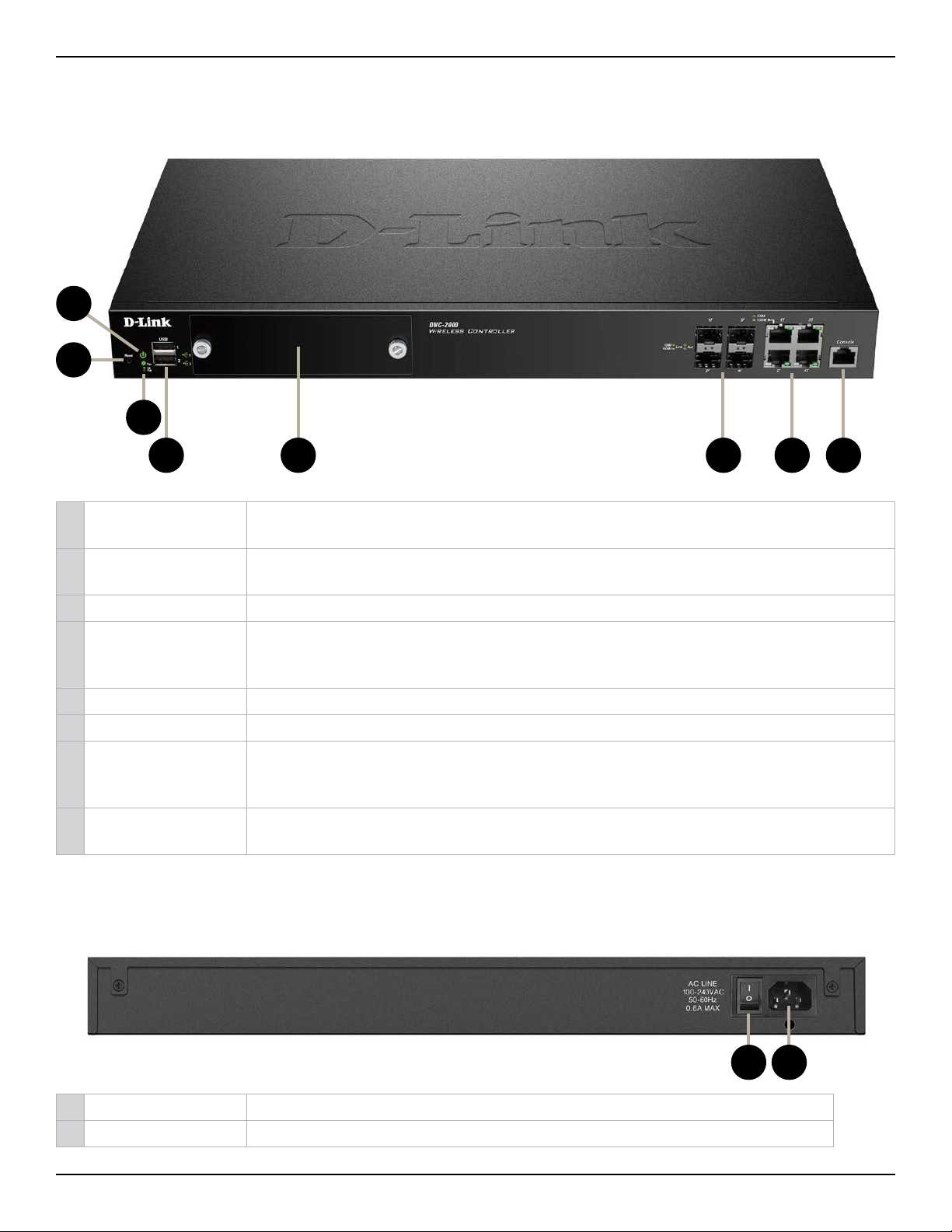
Front Panel
1 Power LED
A solid green light indicates a good connect to a power source. This LED will be
orange during bootup.
2 Reset Button
Press and hold for 10 seconds to reset the wireless controller back to the factory
default settings.
3 Fan LED Indicates the fan status on the wireless controller.
4 USB Ports
Two Universal Serial Bus (USB) 2.0 ports are provided for connecting USB ash drives,
hard drives, and printers. A solid LED indicates the USB device is attached. This LED will
blink during data transmission.
5 Module Bay Slot for the hard disk drive module.
6 Fiber Ports (1-4) Four 100/1000 SFP combo ports labeled 1 through 4
7 LAN Ports (1-4)
Four Gigabit Ethernet ports labeled 1 through 4 let you connect Ethernet devices such
as computers, switches, and network storage (NAS) devices. Each port has an Activity
LED (left) and Link LED (right).
8 Console Port
The RJ-45 console cable lets you connect a PC to access the wireless controller’s
command-line interface.
3
6 7 8
2
1
4 5
Rear Panel
1
1 On/O Switch Press to turn the wireless controller on and o.
2 Power Port Connect the supplied power cord to a power outlet or surge protector.
2

D-Link DWC-2000 User Manual 16
Section 2 - Installation
Unpacking
Follow these steps to unpack the wireless controller and prepare it for operation:
1. Open the shipping container and carefully remove the contents.
2. Return all packing materials to the shipping container and save it.
3. Conrm that all items listed on page 14 are included in the shipment. Check each item for damage. If
any item is damaged or missing, notify your authorized D-Link representative.
Selecting a Location
Selecting the proper location for the wireless controller is essential for its successful operation. To ensure optimum
performance, D-Link recommends that you perform a site survey. A site survey should enable you to:
• Identify how Wi-Fi coverage should be provided.
• Determine access point placement locations, and identify areas with weak signal or dead spots that
require additional access points.
• Determine areas of heavier usage that might require dense access point coverage.
• Determine the indoor propagation of RF signals.
• Identify potential RF obstructions and interference sources.
• Run a spectrum analysis of channels of the site to ascertain current RF behavior, and detect both 802.11
and non-802.11 noise.
• Run an access point-to-client connectivity test to determine maximum throughput achievable on the
client.
After the site survey is complete, use the collected data to set up an RF plan using the Basic Planning Worksheet
in Appendix A. After you complete the Basic Planning Worksheet, select a location for the wireless controller. The
ideal location should:
• Be at and clean, with no dust, water, moisture, or exposure to direct sunlight or vibrations.
• Be fairly cool and dry, and does not exceed 104
0
F (40
0
C).
• Not be prone to variations in temperature and humidity, or close to strong magnetic elds or a device
that generates electric noise.
• Not place the wireless controller next to, on top o, or below any device that generates heat or will block
the free ow of air through the wireless controller’s ventilation slots. Leave at least 3 feet (91.4 cm) clear
on both sides and rear of the controller.
• Allow you to reach the wireless controller and all cables attached to it.
• Have a working AC power outlet that is not controlled by a wall switch that can accidentally remove
power to the outlet.
Installation
A DWC-2000 wireless controller system consists of one or more wireless controllers and a collection of DWL-
2600AP, DWL-3600AP, DWL-6600AP, DWL-8600AP, and/or DWL-8610AP access points that are organized into
groups based on location or network access. This section describes how to unpack and install the wireless
controller system.
D-Link DWC-2000 User Manual 17
Section 2 - Installation
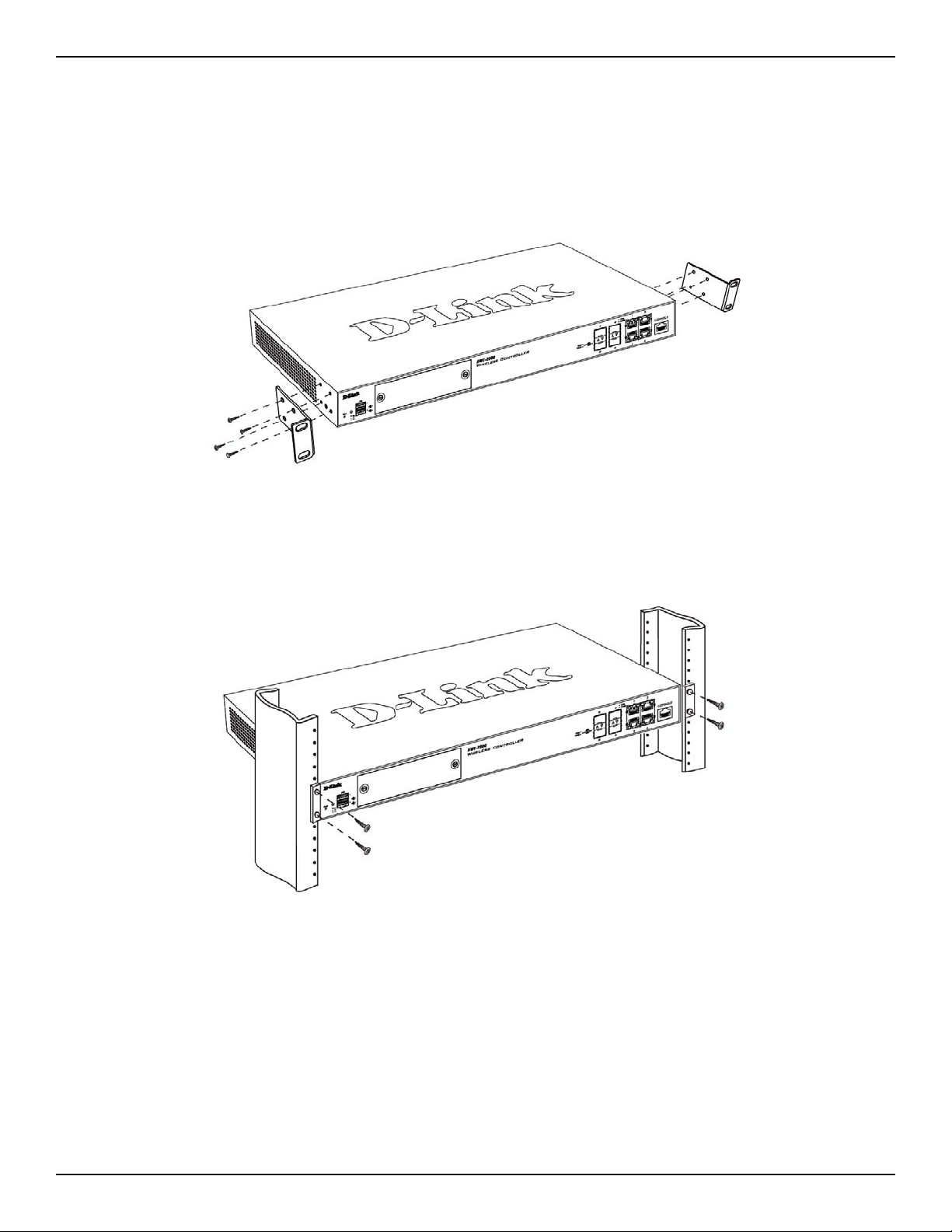
Rack Mount
The wireless controller can be mounted in a standard 19-inch equipment rack.
1. Attach the mounting brackets to each side of the chassis and secure them with the supplied screws.
2. Use the screws provided with the equipment rack to mount the wireless controller into the rack.
D-Link DWC-2000 User Manual 18
Section 2 - Installation
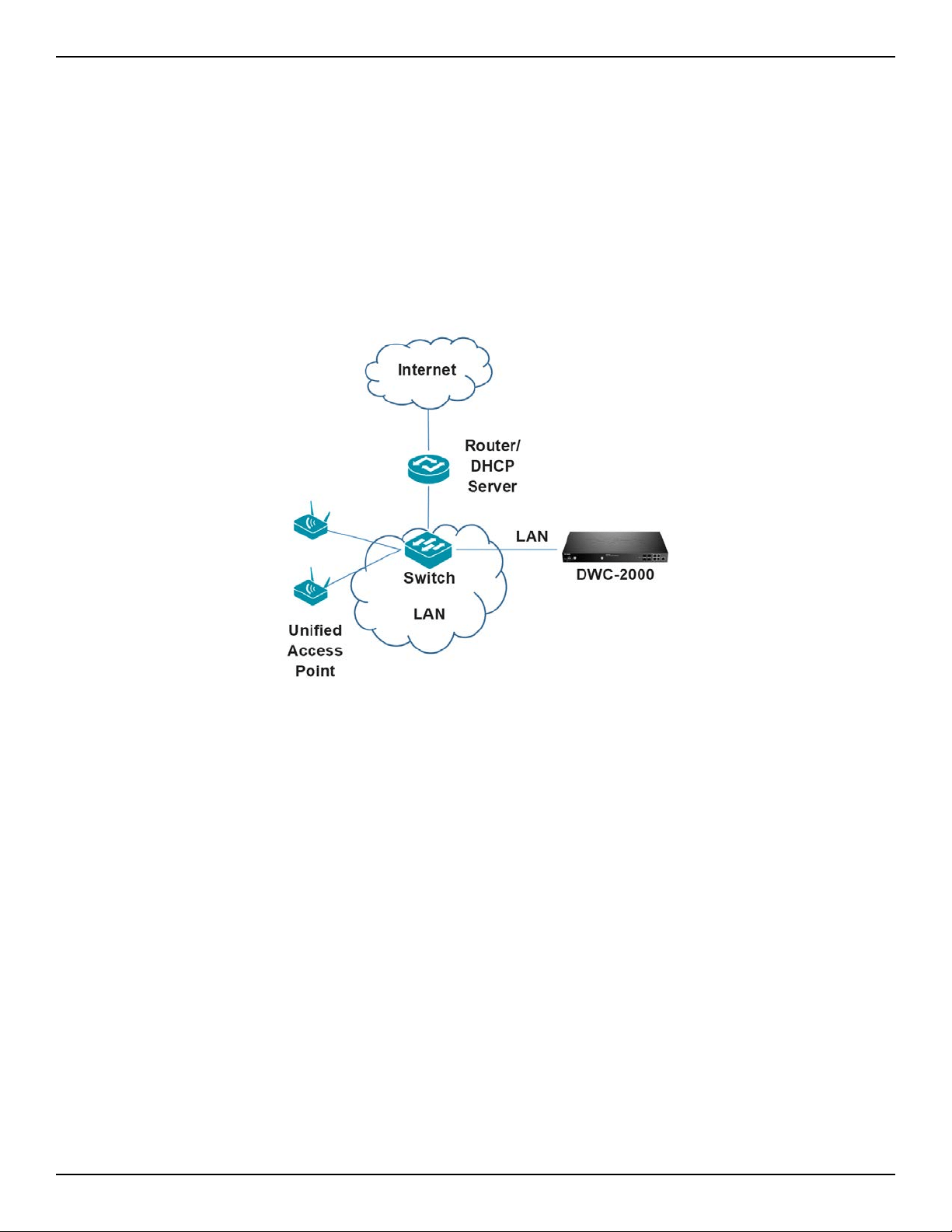
Connecting the Wireless Controller
To install the wireless controller, perform the following procedure:
1. Install the switch and access points according to the instructions in their documentation.
2. Connect one end of an Ethernet LAN cable to one of the ports labeled LAN (1-4) on the front of the
wireless controller. Connect the other end of the cable to an available RJ-45 port on a switch in the LAN
network segment.
3. Connect one of the wireless controller ports labeled LAN (1-4) to the network or directly to a PC.
4. Using the supplied power cord, connect the wireless controller to a working AC outlet.
5. The Power LED will illuminate orange during boot up. The LED will turn green once the wireless controller
has booted.

D-Link DWC-2000 User Manual 19
Section 3 - Basic Conguration
Basic Conguration
After you install the wireless controller, perform the basic conguration instructions described in this section
which includes:
• “Log in to the Web Management Interface” on page 20
• “Web Management Interface Layout” on page 22
• “Standard Web Management Interface Features” on page 23
• “Basic Conguration Procedures” on page 24
Using the information in this chapter, you can perform the basic information and get your wireless controller up
and running in a short period of time.
D-Link DWC-2000 User Manual 20
Section 3 - Basic Conguration
Log in to the Web Management Interface
Conguration procedures using the wireless controller’s web management interface are performed using one of
the following supported web browsers:
• Microsoft Internet Explorer 9.0 or higher
• Mozilla Firefox 23 or higher
• Apple Safari 5.1.7 or higher (Windows)
• Apple Safari 6.1.3 or higher (iOS)
• Google Chrome 26 or higher
Before you perform the following procedure:
• Congure your PC running the web browser to use an IP address on the 192.168.10.x network, with a
subnet mask of 255.255.255.0.
• Congure your web browser to accept cookies, prompt for pop-ups, and allow sites to run JavaScript.
• Upgrade the rmware for your wireless controller (see “Upgrading Firmware” on page 20).
• Upgrade the rmware for your access points after you upgrade the wireless controller rmware (refer to
the documentation for your access points).
To log in to the web management interface:
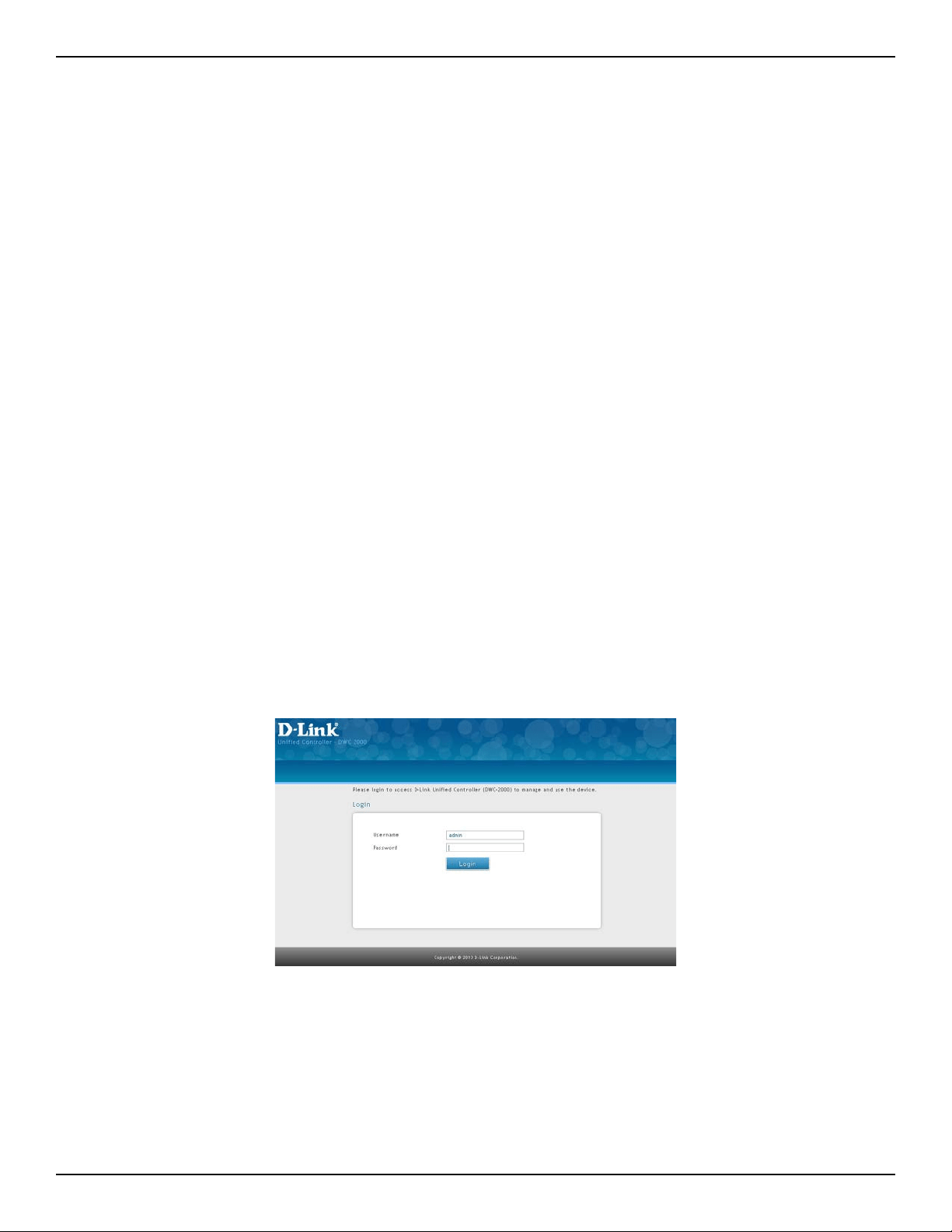
1. Launch a web browser on the PC.
2. In the address eld of your web browser, type the IP address for the wireless controller web
management interface. The default IP address is http://192.168.10.1. A login prompt will appear. If
the login prompt does not appear, see “Web Management Interface” on page 257.
3. If you are logging in for the rst time, the default user name is admin and the default password is
admin. Both the user name and password are case-sensitive.
Note: We recommend that you change the password to a new, more secure password (see “Editing Users” on
page 174) and record it in Appendix A.
D-Link DWC-2000 User Manual 21
Section 3 - Basic Conguration
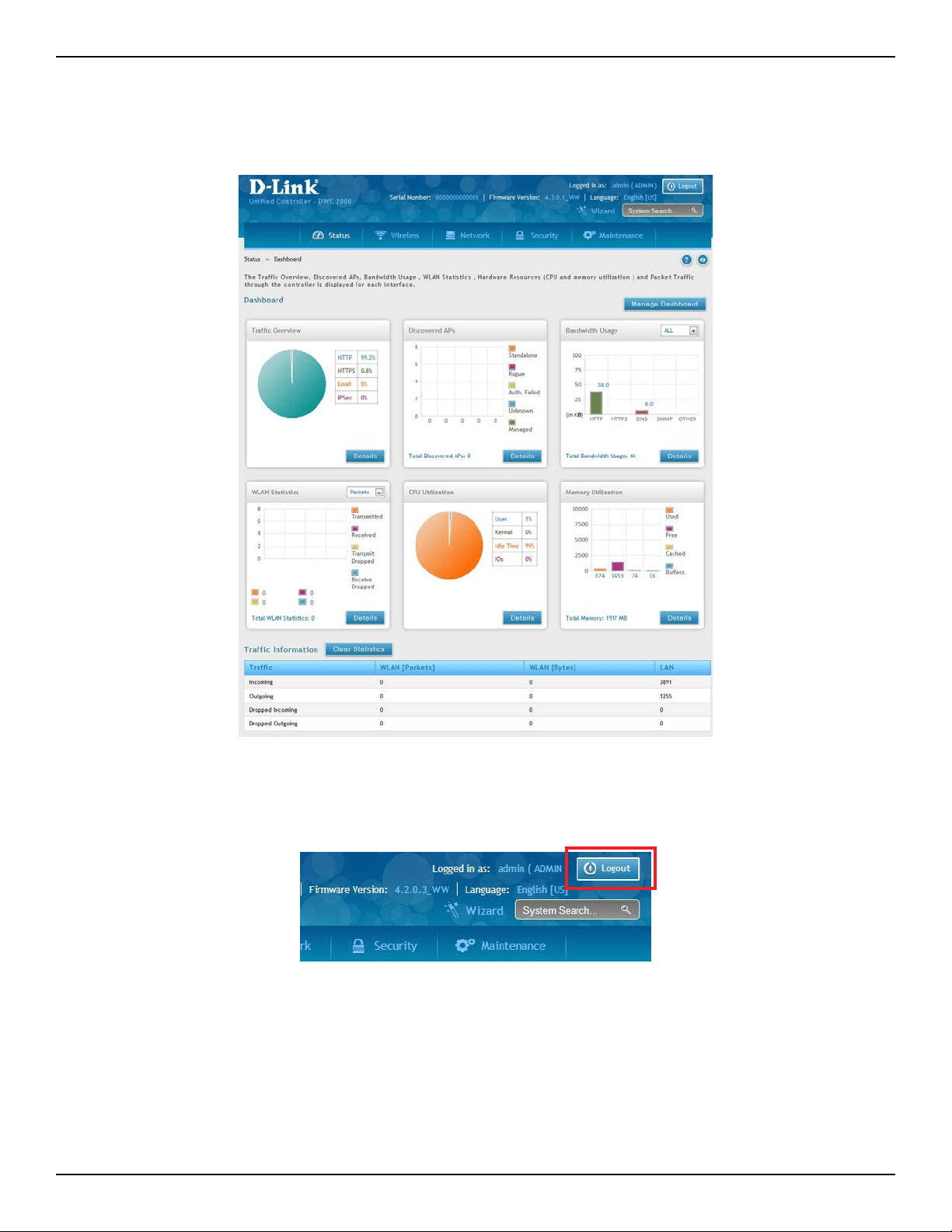
4. Click Login. The web management interface opens with the System Status page. This page displays
general, LAN, and WLAN status information. You can return to this page at any time by clicking Status >
Dashboard.
5. To log out of the web management interface, click the Logout icon, which is in the top-right corner of
the page in the System Menu area.

D-Link DWC-2000 User Manual 22
Section 3 - Basic Conguration
Web Management Interface Layout
A web management interface screen can include the following components:
• 1st level: Main navigation menu tab. The main navigation menu tabs appear across the top of the web
management interface. These tabs provide access to all conguration menus and remain constant.
• 2nd level: Main navigation submenu tab. The main navigation submenu tabs appear on drop-down
menus when you move your mouse over the main navigation menu tabs.
• 3rd level: Middle menu tabs. Some pages have menu tabs below the main navigation menu tab which
lead to other pages when you click on them.
• 4th level: Workspace. The workspace shows the parameters associated with the selected menu and
submenu.
• Action buttons: Action buttons change the conguration or allow you to make changes to the
conguration. Common action buttons are:
– Save: Saves all conguration changes made on the current screen. Saved settings are retained
when the wireless controller is powered o or rebooted, while unsaved conguration changes are
lost.
– Cancel: Resets options on the current screen to the last-applied or last-saved settings.
– Add: Adds a new item to the current screen.
– Right-click: Right-clicking list table items allow you to do more action for the existing items.
o Edit: Modify the conguration of this item.
o Delete: Delete this item.
o Move: Move this item to specic position.
o Enable: Enable this item.
o Disable: Disable this item.
o Apply: Apply this change to existing conguration.
o Copy: Copy the conguration value of this item and create a new item.
o Manage: Manage the discovered access point.
o View Information: The information would be various depending on the items.
D-Link DWC-2000 User Manual 23
Section 3 - Basic Conguration
Standard Web Management Interface Features
There are several standard features in the web management interface.
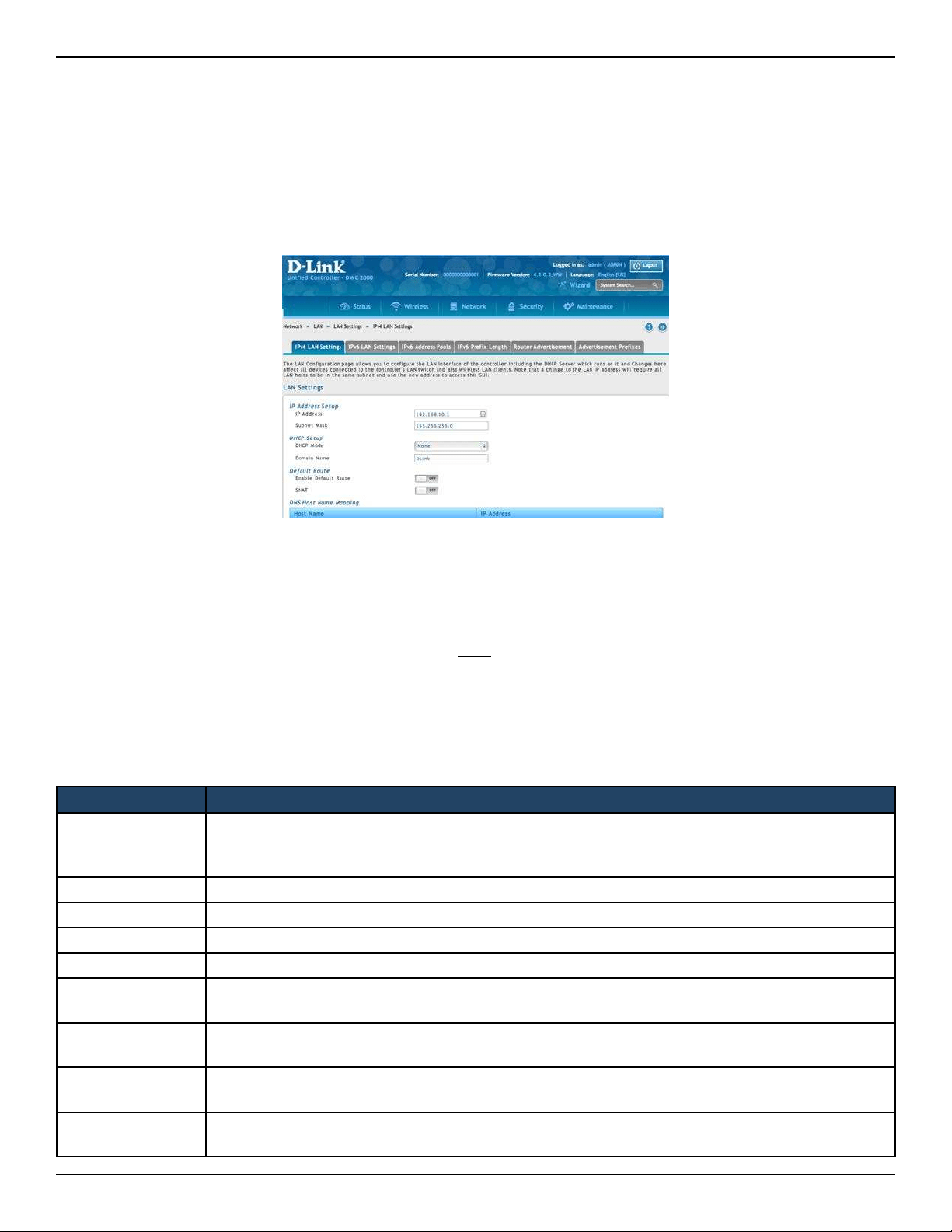
The Help feature has explanations for the various functions and settings on the interface. Click
on the question mark icon to bring up the Help menu. It is always located near the top right
corner of the screen.
System Search allows you to search for a function or feature by typing in a word into the search
box. The search box is always located near the top-right corner of the screen.
The Wizard feature provides a number of helpful guides to common conguration task such as
setting up the device, connecting to the internet, conguring wired and wireless networking,
setting security options, and creating new users. Click on the Wizard wand icon to bring up the
wizard. It is always located near the top-right corner of the screen, on the left of the System
Search box.
Refresh allows you to refresh the interface in order for changes to take eect immediately. Click
on the refresh icon near the top-right corner of the screen, to the right of the Help icon.
Logout allows you to log out of the interface securely after you have nished. Click on the
Logout icon at the top-right corner of the screen.
Search bar (on table)
Table content search allows you to search information in the table by typing
in a word into the search box. The search box is always located near the top
right corner of the table.
Menu Navigation Route - Displays the menu route for the current page.
Displays the number of items on the table in one page. The system can list 10, 25, 50, 100
entries in one page.
First/ Previous/ Next/ Last (on table)
Information would be shown in multiple pages. Use First/ Previous/ Next/
Last to switch pages. The page change function is always located near the
bottom right corner of the table
Ranking/sort (on table)
Rank/sort the relative order of value and information on the table by clicking table header.

D-Link DWC-2000 User Manual 24
Section 3 - Basic Conguration
Basic Conguration Procedures
To perform common basic conguration procedures, follow the steps below:
• “Step #1: Enable DHCP Server (Optional)” on page 25
• “Step #2: Congure Country Code” on page 26
• “Step #3: Select APs to be Managed” on page 27
• “Step #4: Change the SSID and Set Up Security” on page 29
• “Step #5: Select MAC Authentication Mode” on page 34
• “Step #6: Conrm Access Point Prole is Associated” on page 36
• “Step #7: Congure Captive Portal Settings” on page 37
• “Step #8: Use SSID with RADIUS Sever as Authenticator” on page 45
• “Step #9: Congure Guest Management” on page 46
• “Step #10: Congure a BYOD Environment” on page 53
D-Link DWC-2000 User Manual 25
Section 3 - Basic Conguration
Step #1: Enable DHCP Server (Optional)
By default, Dynamic Host Conguration Protocol (DHCP) is disabled on the wireless controller. If you are not
conguring your access points with static IP addresses, set up a DHCP server, or DHCP server relay on the network.
If desired, perform the following procedure to congure your wireless controller to act as a DHCP server.
1. Click Network > LAN > LAN Settings > IPv4 LAN Settings. The LAN Settings page will appear.
Field Description
Starting IP
Address
Enter the starting IP address in the IP address pool. Any new DHCP client joining the LAN is assigned
an IP address within the starting and ending IP address range. Starting and ending IP addresses
should be in the same IP address subnet as the wireless controller’s LAN IP address.
Ending IP Address Enter the ending IP address in the IP address pool.
Default Gateway Enter the IP address of the gateway for your LAN.
Domain Name Enter the domain name.
Lease Time Enter the lease time of the assigned IP addresses.
Congure DNS/
WINS
Turn this on to enter the IP address of the DNS or WINS server.
Primary DNS
Server
If congured Domain Name System (DNS) servers are available on the LAN, enter the IP address of
the primary DNS server.
Secondary DNS
Server
If congured domain name system (DNS) servers are available on the LAN, enter the IP address of
the secondary DNS server.
WINS Server
If Windows Internet Name Service (DNS) servers are available on the LAN, enter the IP address of
the WINS server.
2. Under IP Address Setup, change the IP Address and Subnet Mask to values used within your network.
Record the settings; you will refer to them later in this procedure.
3. Click Save.
4. Wait 60 seconds and then relaunch your web browser.
5. In the web browser’s address eld, enter the new IP address you recorded in step 2.
6. Click Network > LAN > LAN Settings >IPv4 LAN Settings.
7. In the LAN Settings page, change DHCP Mode to DHCP Server. This will bring up several new elds
below DHCP Mode.
8. Complete the elds below and click Save.
D-Link DWC-2000 User Manual 26
Section 3 - Basic Conguration
Step #2: Congure Country Code
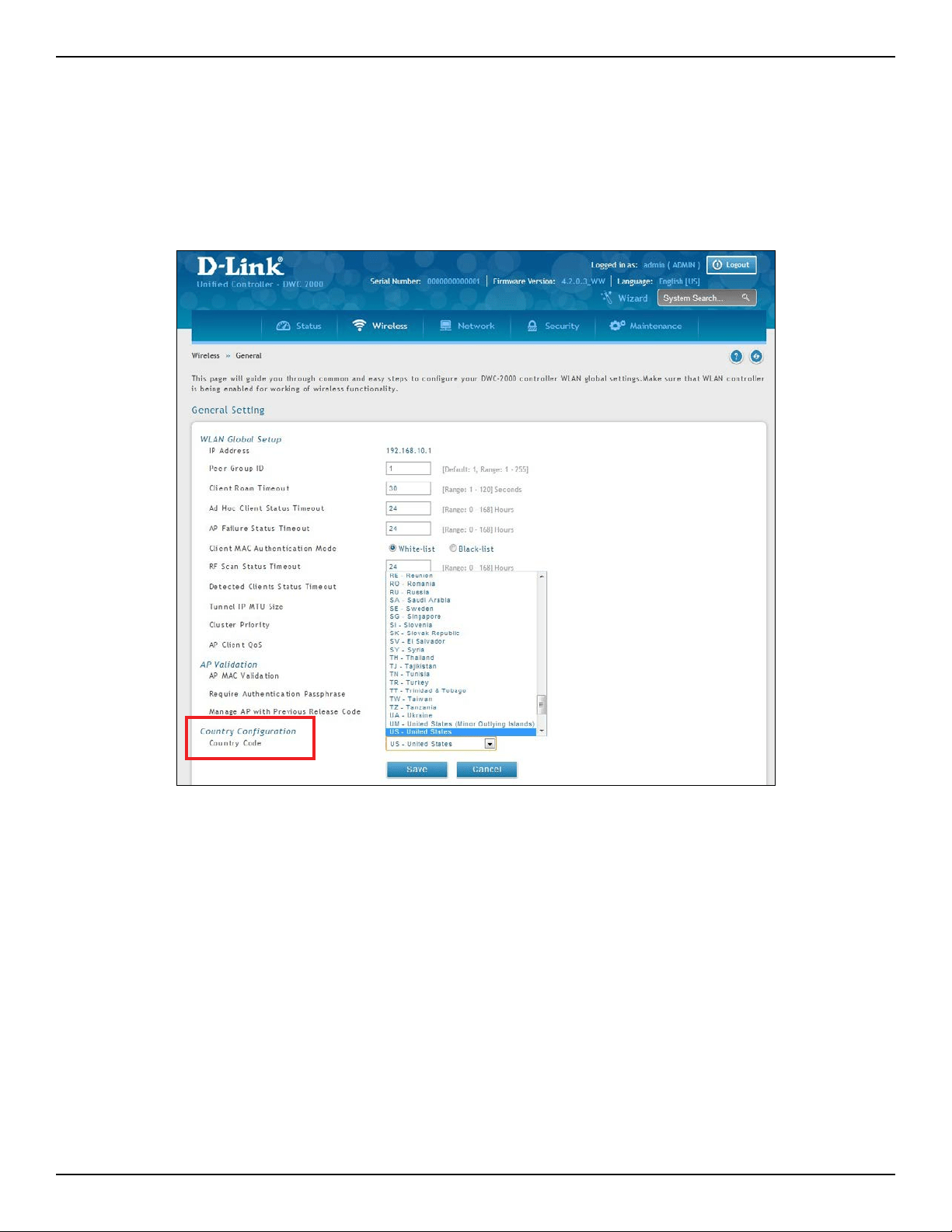
Each country has its regulation for the radio usage. Use the following procedure to select the country where the
wireless networks are.
1. Click Wireless > General > General. The General Setting page will appear.
2. At the bottom, select the Country Code from the drop-down menu and click Save.
D-Link DWC-2000 User Manual 27
Section 3 - Basic Conguration
Step #3: Select APs to be Managed
The wireless controller automatically discovers managed and unmanaged access points on the WLAN that are
in the same IP subnet. Use the following procedure to select the access points that the wireless controller will
manage.
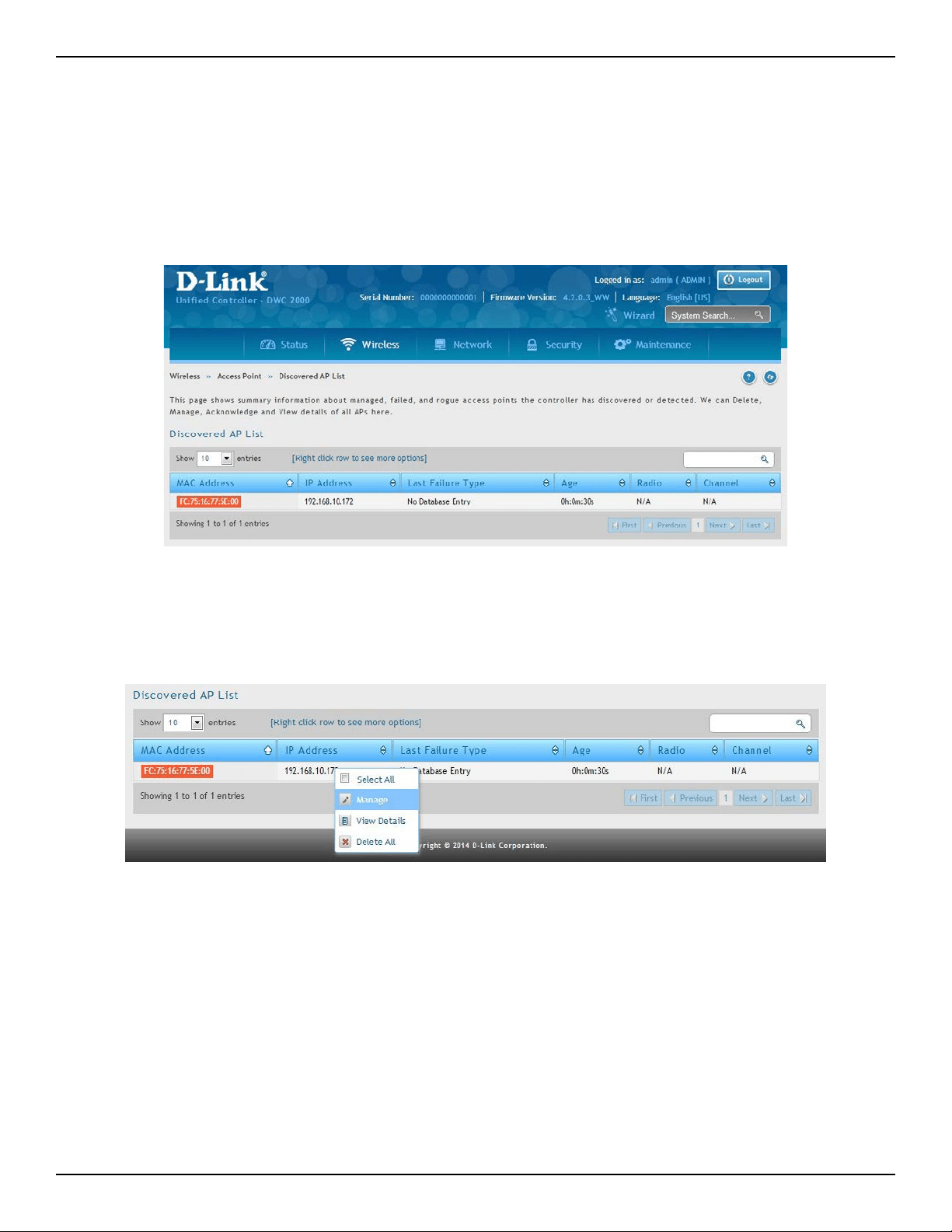
1. Click Wireless > Access Point > Discovered AP List. The Discovered AP List page will appear with a list
of access points that the wireless controller has discovered.
2. Under Discovered AP List, right-click on the access point you want the wireless controller to manage
and select Manage.
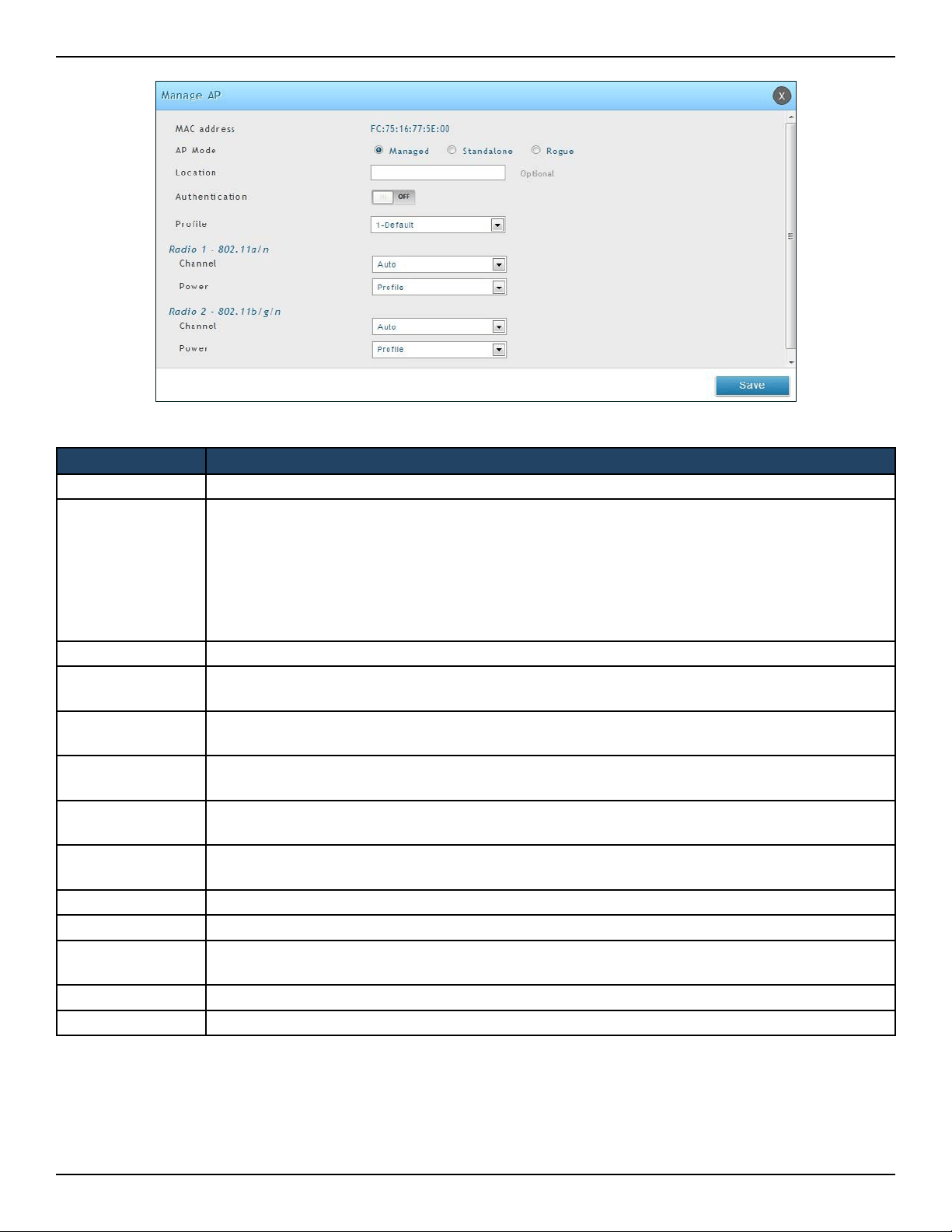
3. Complete the elds in the Manage AP page (refer to the next page) and click Save. When the
conrmation appears, click OK.
D-Link DWC-2000 User Manual 28
Section 3 - Basic Conguration
Field Description
MAC Address MAC address of the access point.
AP Mode
Select standalone, managed, or rogue. Selecting standalone will require you to ll out the elds
below from Location to Expected Wired Network Mode.
• Standalone
• Managed = Access point prole conguration has been applied to the access point and the
access point operating in managed mode.
• Rogue = Access point has not tried to contact the wireless controller and the access point’s
MAC address is not in the Valid AP database.
Location Optional eld to identify location of the access point being managed.
Expected SSID
If AP Mode = Standalone, the SSID that the access point should be set to is displayed. This is for
reference only.
Expected Channel
If AP Mode = Standalone, the channel to be used for wireless communication is displayed. This
is for reference only.
Expected WDS
Mode
If AP Mode = Standalone, the WDS (Wireless Distributed System) mode to be used if you intend
to use WDS. This is for reference only.
Expected Security
Mode
If AP Mode = Standalone, the security mode to be used is displayed. This is for reference only.
Expected Wired
Network Mode
If AP Mode = Standalone, select whether wired networking is going to be allowed. This is for
reference only.
Authentication If AP Mode = Managed, turn on to require a password for authentication.
Prole If AP Mode = Managed, select a prole to apply for AP conguration.
Radio
If AP Mode = Managed, this is Wireless radio mode that the access point is using is displayed. The
elds below appear after you have selected Managed AP Mode.
Channel If AP Mode = Managed, this is operating channel for the radio.
Power If AP Mode = Managed, this is percentage of power to use for the radio.
4. Repeat steps 2 and 3 for each additional access point you want the wireless controller to manage.
D-Link DWC-2000 User Manual 29
Section 3 - Basic Conguration
Step #4: Change the SSID and Set Up Security
You can congure up to 50 separate networks on the wireless controller and apply them across multiple radio
and virtual access point interfaces. By default, 16 networks are pre-congured and applied in order to the access
points on each radio. In this procedure, you will edit one of the pre-congured networks and change its SSID and
security settings to suit your requirements.
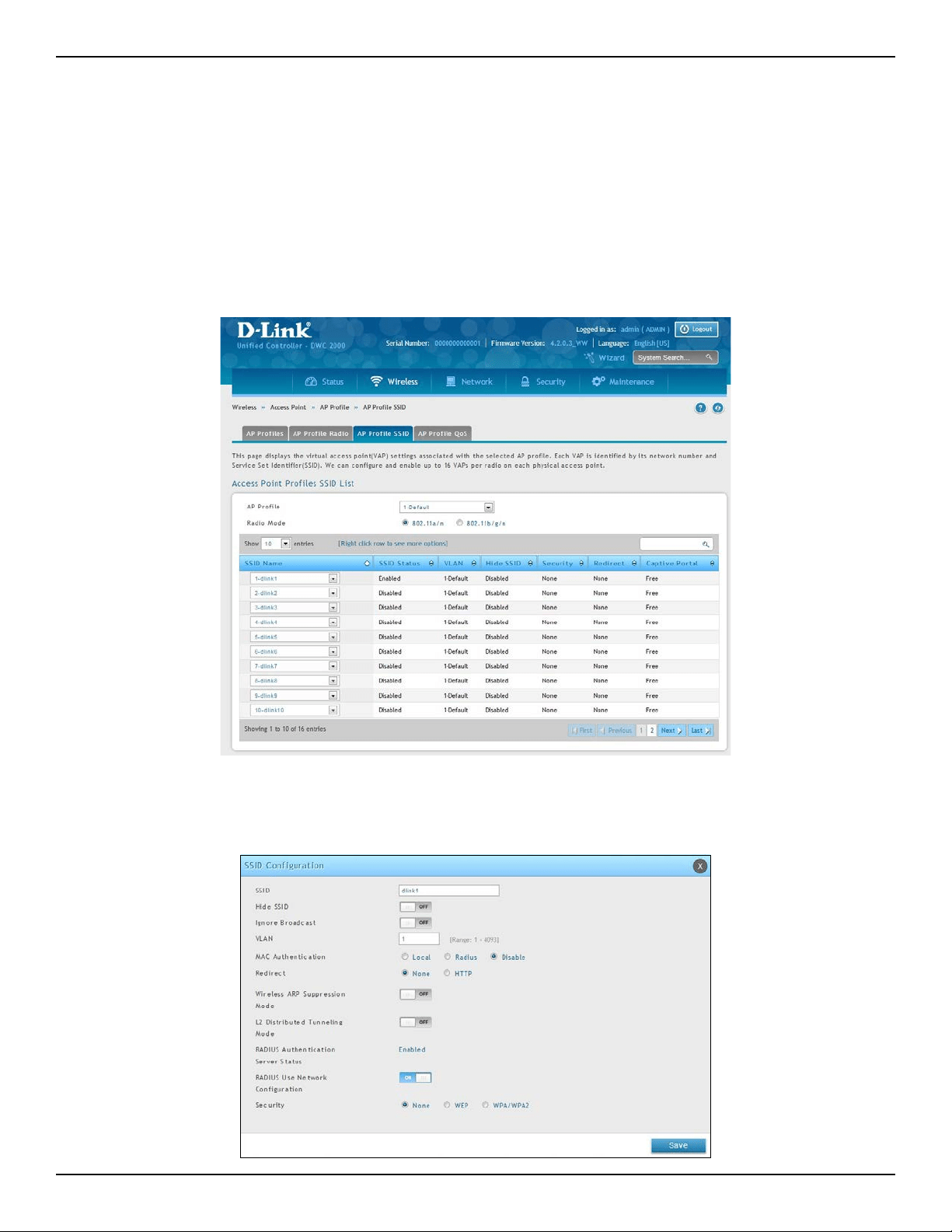
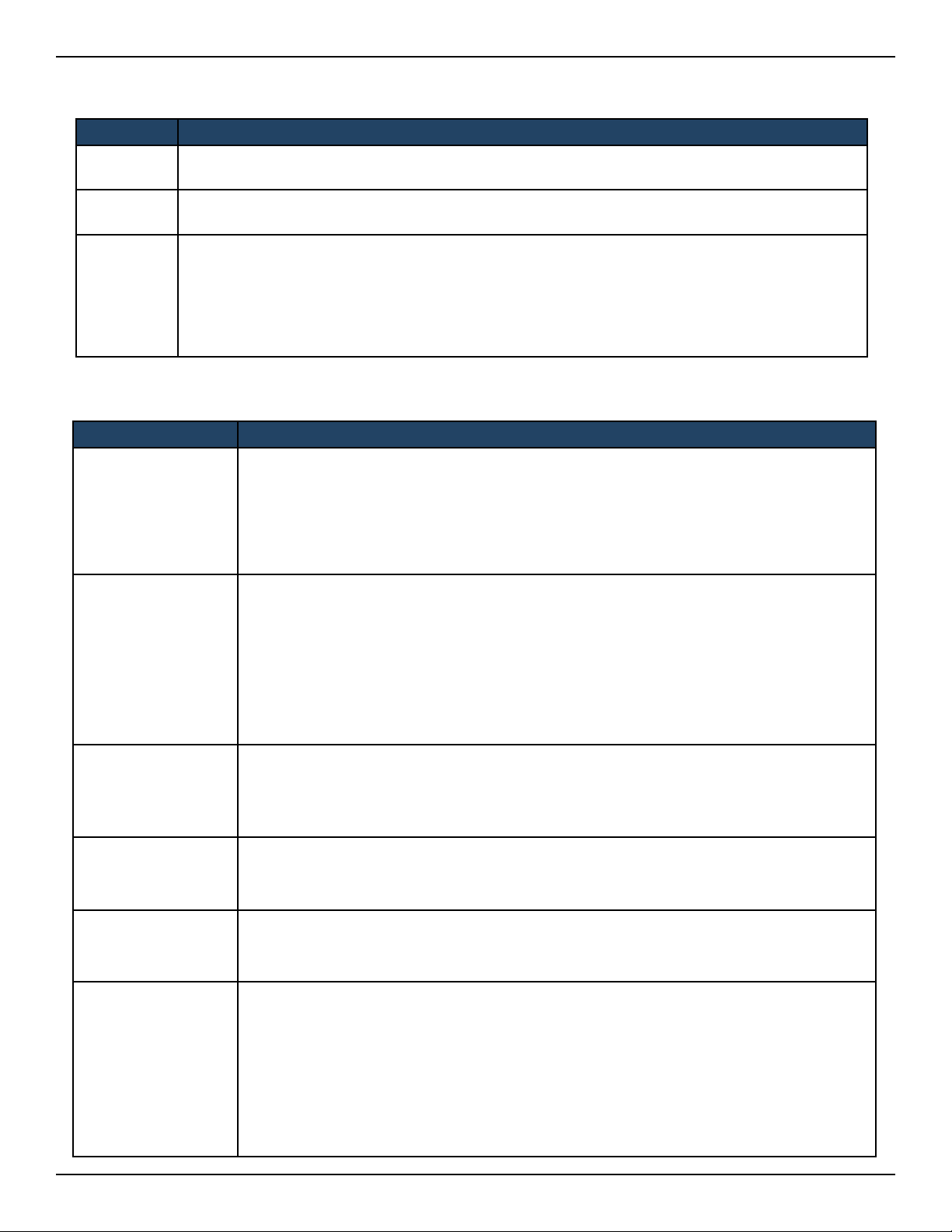
1. Click Wireless > Access Point > AP Prole > AP Prole SSID. The following page will appear with a list
of the wireless networks congured on the wireless controller.
2. Under the SSID Status column, select an SSID by right-clicking on it and clicking Edit. The following page
will appear.
D-Link DWC-2000 User Manual 30
Section 3 - Basic Conguration
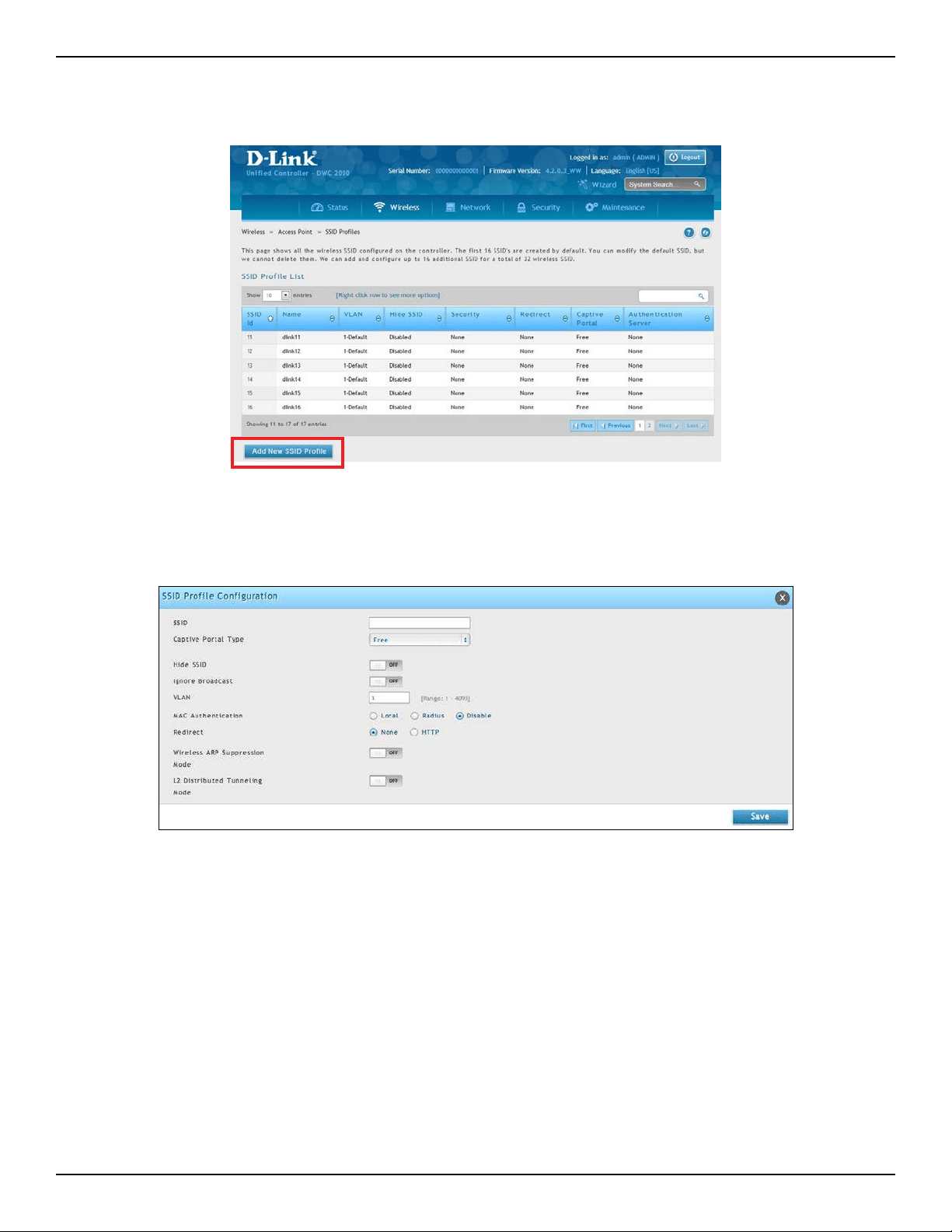
3. Complete the Security elds on the SSID Prole Conguration page.
Field Description
SSID
Enter the case-sensitive name of the wireless network. Be sure the SSID is the same for all device in
your wireless network.
VLAN
Enter a VLAN ID. Be sure this VLAN ID had been created on VLAN Setting (Network > VLAN > VLAN
Setting).
Security
The default access point prole does not use any security mechanism. To protect your network,
we recommend you select a security mechanism to prevent unauthorized wireless clients from
gaining access to your network. Choices are:
• None = no security mechanism is used.
• WEP = enable WEP security. Complete the options in Table 3-1.
• WPA/WPA2 = enable WPA/WPA2 security. Complete the options in Table 3-2.
Field Description
Security
• Static WEP = uses static key management. You manually congure the same keys to
encrypt data on both the wireless client and the access point. Dynamic WEP (WEP IEEE
802.1x) uses dynamically generated keys to encrypt client-to- access point trac.
• WEP IEEE 802.1X = screen refreshes, and there are no more elds to congure. The access
point uses the global RADIUS server or the RADIUS server you specied for the wireless
network.
Authentication
Select the authentication type. Choices are:
• Open System = any wireless station can request authentication. The station that needs to
authenticate with another wireless station sends an authentication management frame
that contains the identity of the sending station. The receiving station returns a frame that
indicates whether it recognizes the sending station.
• Shared Key = each wireless station is assumed to have received a secret shared key over
a secure channel that is independent from the 802.11 wireless network communications
channel.
WEP Key
Select the key type. Choices are:
• ASCII = upper- and lower-case alphabetic letters, numeric digits, and special symbols
such as @ and #.
• HEX = digits 0 to 9 and letters A to F.
WEP Key
Length (bits)
Select the length of the WEP key. Choices are:
• 64 = 64 bits
• 128 = 128 bits
Tx
Transfer Key Index. Indicates which WEP key the access point uses to encrypt the data it
transmits. To select a transfer key, click the button in front of the key number and the eld
where you enter the key.
WEP Keys
You can specify four WEP keys. In each text box, enter a string of characters for each of the
RC4 WEP keys shared with the stations using the access point. Use the same number of
characters for each key. The number of keys you enter depends on the WEP Key Type and
WEP Key Length selections. The following list shows the number of keys to enter in the eld:
• 64 bit = ASCII: 5 characters; Hex: 10 characters
• 128 bit = ASCII: 13 characters; Hex: 26 characters
Each client station must be congured to use one of these WEP keys in the same slot as
specied here.
Table 3-1 WEP Page Settings

D-Link DWC-2000 User Manual 31
Section 3 - Basic Conguration
Field Description
Security
If you select WPA for Security, the following two additional security options are displayed.
• WPA Personal = uses static key management. You manually congure the same keys to
encrypt data on both the wireless client and the access point. WPA Enterprise uses a RADIUS
server and dynamically generated keys to encrypt client-to- access point trac. WPA
Enterprise is more secure than WPA Personal, but you need a RADIUS server to manage the
keys.
• WPA Enterprise = more secure than WPA Personal, but you need a RADIUS server to manage
the keys. If you click this option, the screen refreshes and the WPA Key Type and WPA Key
elds are hidden. The access point uses the global RADIUS server or the RADIUS server you
specied for the wireless network.
WPA Versions
Select the types of client stations you want to support. Choices are:
WPA = if all client stations on the network support the original WPA but none supports WPA2,
select WPA.
WPA2 = if all client stations on the network support WPA2, use WPA2, which provides the best
security per the IEEE 802.11i standard.
WPA and WPA2 = if you have a mix of clients that support WPA2 or WPA, select both boxes. This
lets both WPA and WPA2 client stations associate and authenticate, but uses the more robust
WPA2 for clients who support it. This WPA conguration allows more interoperability, at the
expense of some security.
WPA Ciphers
Select the cipher suite you want to use. Choices are:
• TKIP
• CCMP (AES)
• TKIP and CCMP (AES)
Both TKIP and AES clients can associate with the access point. WPA clients must have a valid TKIP
key or AES-CCMP key to associate with the access point.
802.11n clients cannot use the TKIP cipher. If you enable TKIP only, 802.11 clients cannot
authenticate with the network.
WPA Key Type
Enter a WPA key type.
Range: ASCII, including upper- and lower-case alphabetic letters, numeric digits, and special
symbols such as @ and #
WPA Key
Enter the shared secret key for WPA Personal.
Range: 8 – 62 characters, including upper- and lower-case alphabetic letters, numeric digits, and
special symbols such as @ and #
Bcast Key Refresh
Rate (seconds)
Enter a value to set the interval at which the broadcast (group) key is refreshed for clients
associated to this VAP.
Range: 0 - 86400 seconds (0 = broadcast key is not refreshed)
Pre-Authentication If Security= WPA Enterprise, turn on to enable pre-authentication.
Pre-Authentication
Limit
If Security= WPA Enterprise, the Pre-Authentication Limit eld will appear below for you to enter
a value between 0 and 192.
Key Caching Hold
Time
If Security= WPA Enterprise, enter the amount of minutes a PMK will be held by the AP. This applies
to Pairwise Master Keys (PMKs) generated by RADIUS, those that come from pre‐authentication,
and those that are forwarded to the AP. Note that this time limit can be overridden by RADIUS
if the RADIUS server returns a longer time in the Session‐Timeout attribute for a particular user.
The valid values of this are from 1 – 1440 minutes. If you do not enter a value, APs will not forward
the PMK for the wireless client to other APs in case the client roams to another AP.
Session Key Refresh
Rate
If Security= WPA Enterprise, enter a value to set the interval at which the AP will refresh session
(unicast) keys for each client associated to the VAP.
The valid range is 0-86400 seconds. A value of 0 indicates that the broadcast key is not refresh.
Table 3-2 WPA/WPA2 Page Settings
D-Link DWC-2000 User Manual 32
Section 3 - Basic Conguration
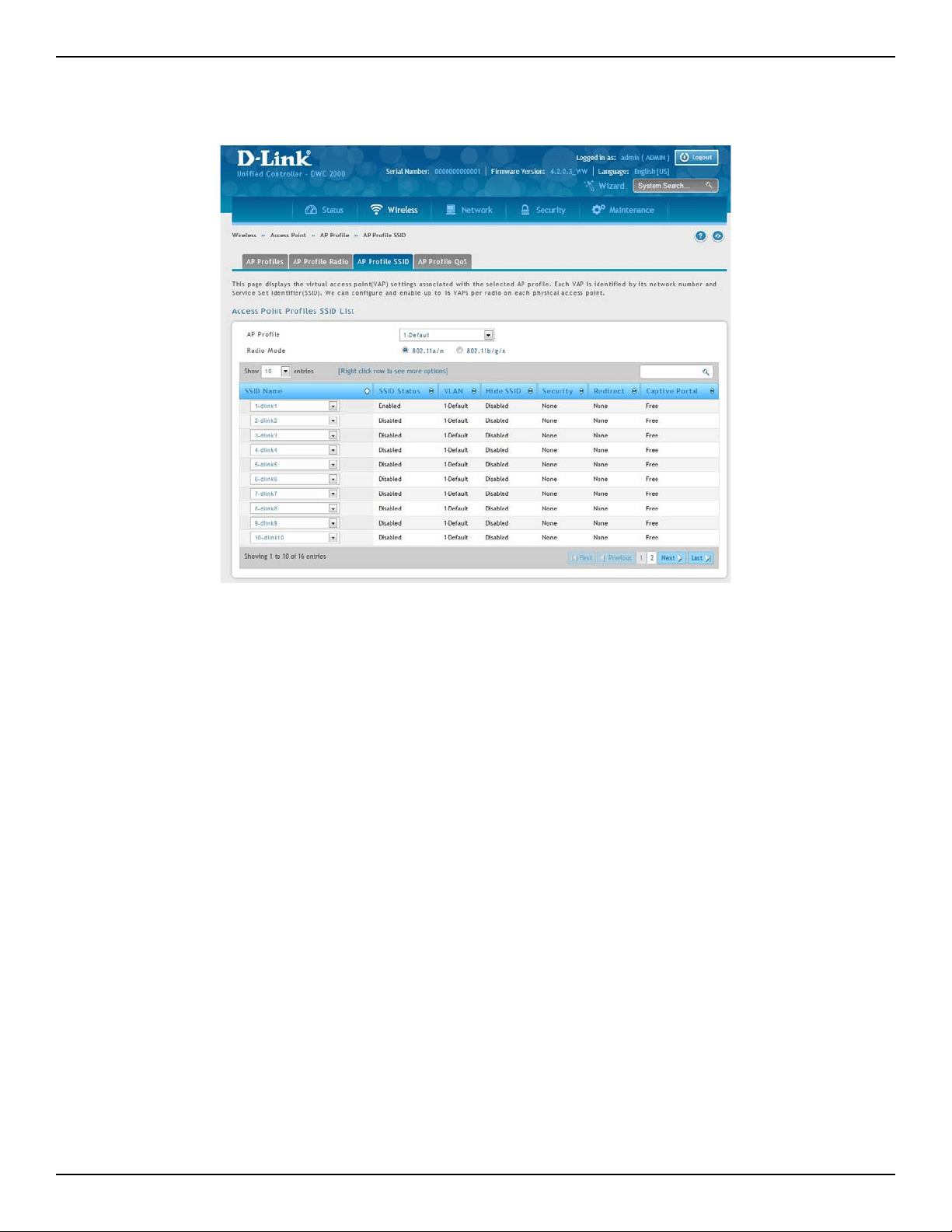
4. To add a new SSID, go to at Wireless > Access Point > SSID Prole and click the Add New SSID Prole
button.
5. Fill out the elds below and click Save.
D-Link DWC-2000 User Manual 33
Section 3 - Basic Conguration
7. Select the SSID you wish to edit from the AP Prole drop-down menu.
8. Click the radio button next to the Radio Mode you prefer.
9. Select the SSID you wish to congure on the radio from SSID Name drop-down menu or right-click the
SSID network you want to enable and click Enable on the AP Prole SSID List.
Note: SSID ID 1 is always enabled. If you do not want to have the rst SSID enabled, you must
create a new SSID to be able to swap another SSID in the rst slot.
6. Click Wireless > Access Point > AP Prole. Click on the AP Prole SSID tab on the middle menu. The
Access Point Proles SSID List will appear.
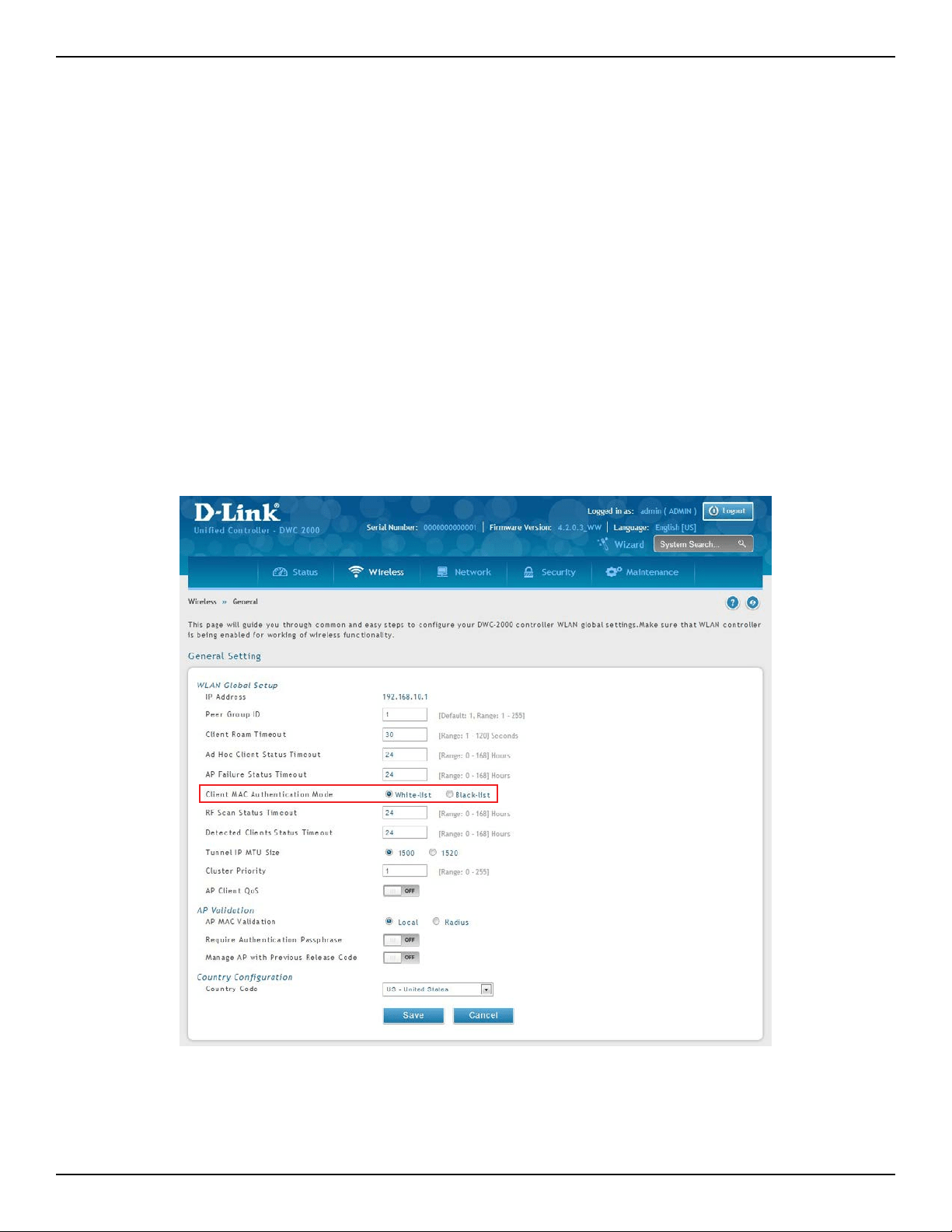
D-Link DWC-2000 User Manual 34
Section 3 - Basic Conguration
Step #5: Select MAC Authentication Mode
MAC authentication is useful in networks that operate in Open mode to grant and deny access to clients with
specic MAC addresses. MAC Authentication can also be used in conjunction with 802.1X security methods, in
which case MAC Authentication is done prior to 802.1X authentication. To enable MAC authentication, wireless
clients must rst be authenticated by the Unied Access Point (UAP) in order to connect to the network.
The wireless controller provides two MAC Authentication Mode, the white-list or the black-list.
White-list: Select this option to grant access to any wireless clients with MAC addresses that are specied
in the MAC Authentication database or RADIUS server, and are not explicitly denied access. If the MAC
address is not in the database, then access will be denied to the client.
Black-list: Select this option to deny access to any wireless clients with MAC addresses that are specied
in the MAC Authentication database or RADIUS server, and are not explicitly granted access. If the MAC
address is not in the database, then access will be granted to the client.
1. Click Wireless > General > General.
2. Next to Client MAC Authentication Mode, select Black-list or White-list. Click Save.
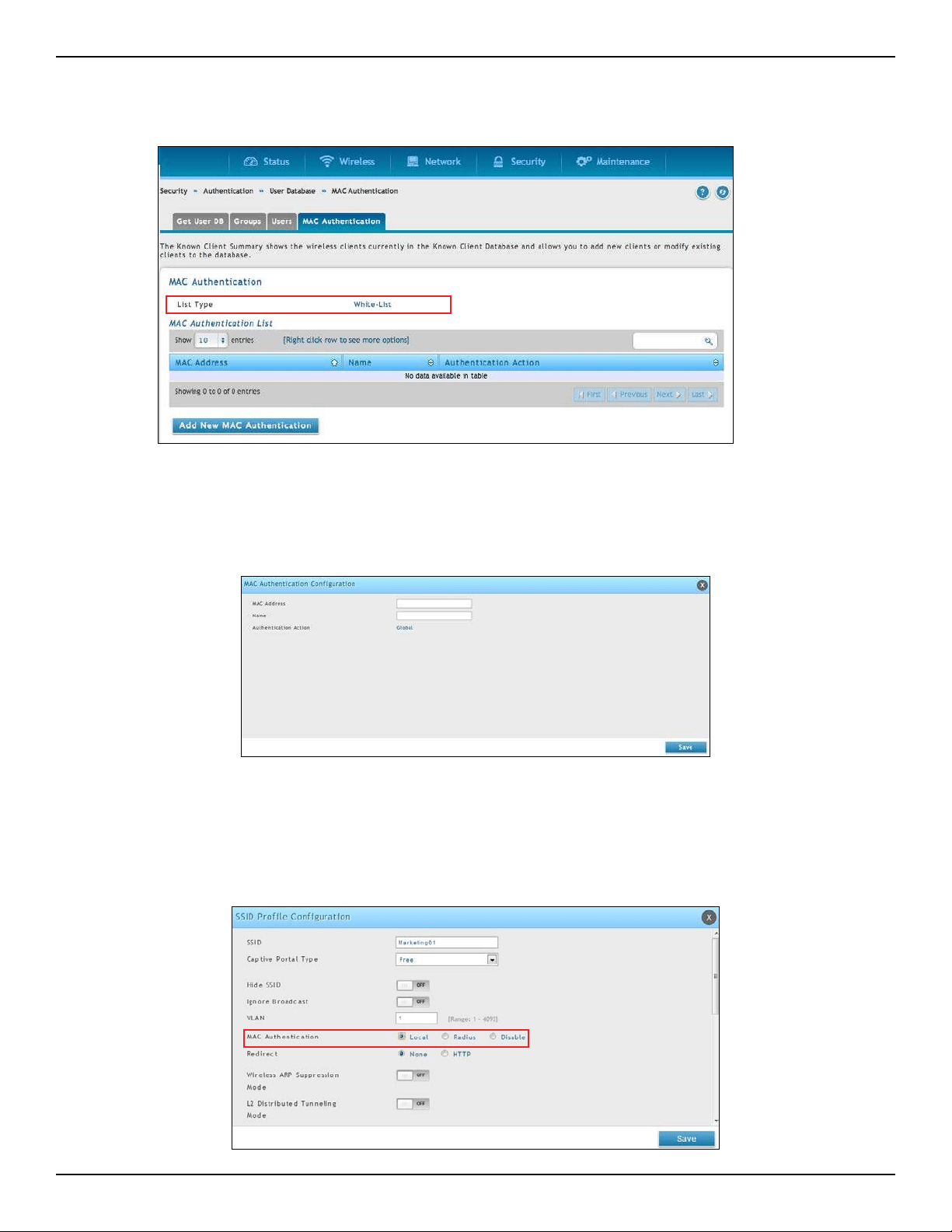
D-Link DWC-2000 User Manual 35
Section 3 - Basic Conguration
5. Click Wireless > Access Point > SSID Proles.
6. Select an SSID by right-clicking on it and clicking Edit. The following pop-up page will appear. Select
Local and click Save.
4. Click Add New MAC Authentication. Fill in the client’s MAC address and name, and then click Save.
3. Click Security > Authentication > User Database > MAC Authentication. The MAC Authentication
setting page will appear. The List Type will display what your selection was in Step 2.
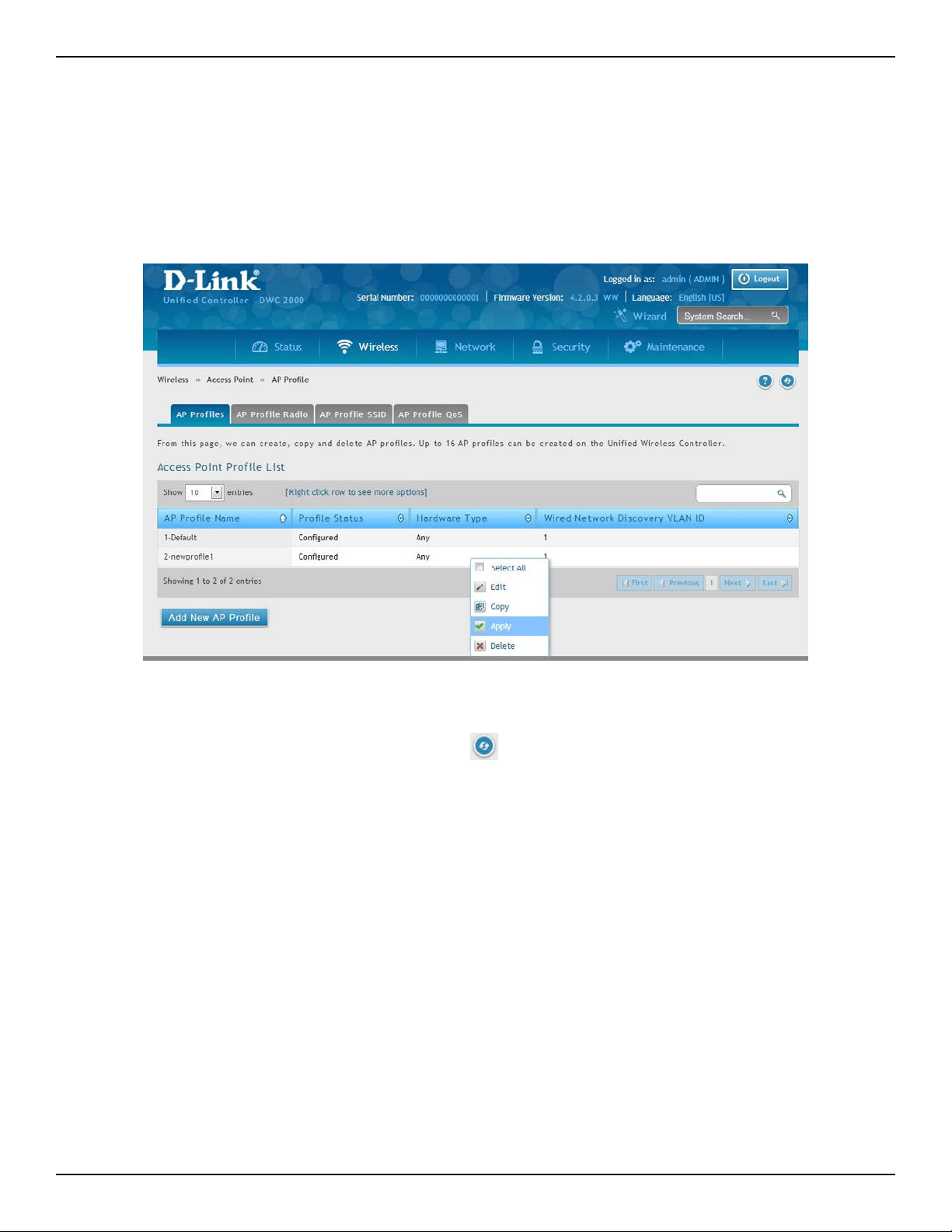
D-Link DWC-2000 User Manual 36
Section 3 - Basic Conguration
Step #6: Conrm Access Point Prole is Associated
Use the following procedure to conrm that the access point prole is associated with the wireless controller.
Note: Each time you change conguration settings, perform this procedure to apply the changes to the access point.
1. Go to Wireless > Access Point > AP Prole.
2. Under Access Point Prole List, right-click on the AP prole you want to update and click Apply.
3. Wait 30 seconds and then click the refresh icon to verify that the prole is associated. Your associated
access point is congured and ready to authenticate wireless users.
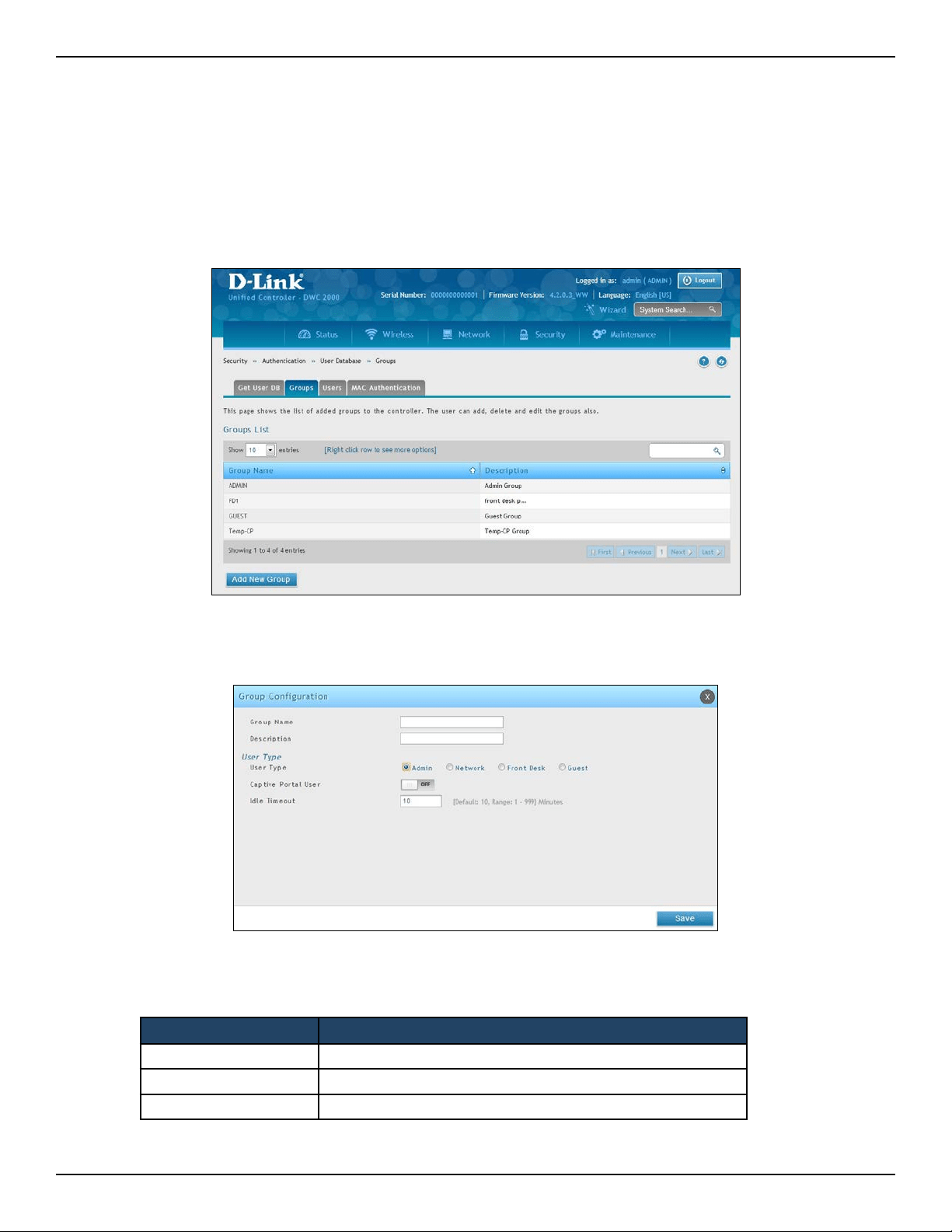
D-Link DWC-2000 User Manual 37
Section 3 - Basic Conguration
Step #7: Congure Captive Portal Settings
Conguring the wireless controller’s captive portal settings with local database is a 4-step process:
1. Create a captive portal group
a. Go to Security > Authentication > User Database > Groups. The Groups List page will appear.
b. Click Add New Group. The Group Conguration page will appear.
c. Complete the elds in the table below and click Save.
Field Description
Group Name Enter a name for the group.
Description Enter a description of the group.
Captive Portal User Enable this option under User Type.
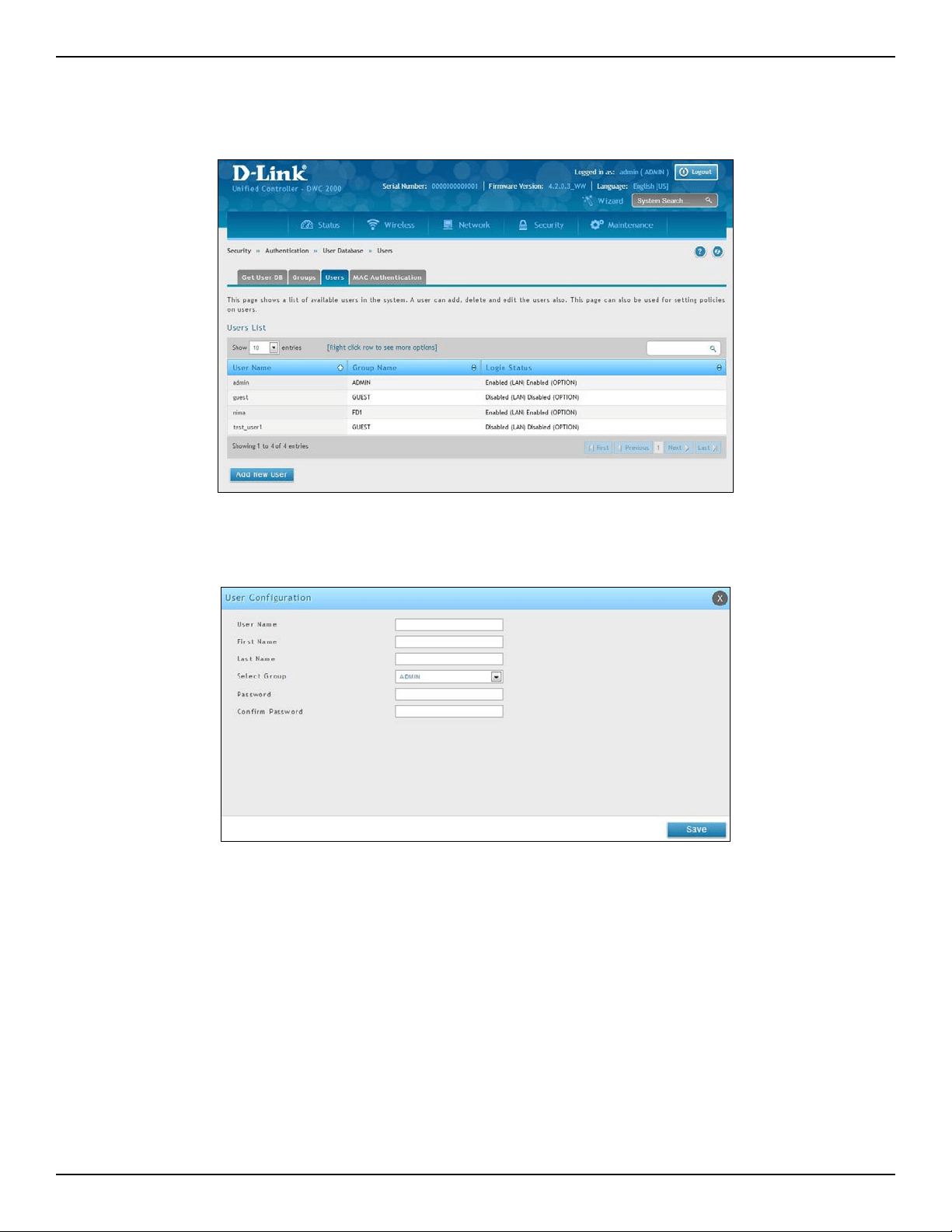
D-Link DWC-2000 User Manual 38
Section 3 - Basic Conguration
2. Add captive portal users
a. Go to Security > Authentication > User Database > Users. The Users List will appear.
b. Click Add New User. The User Conguration page will appear.
D-Link DWC-2000 User Manual 39
Section 3 - Basic Conguration
c. Complete the elds in the table below and click Save.
Field Description
User Name
Enter a unique name for this user. The name should allow you to
easily identify this user from others you may add.
First Name
Enter the rst name of the user. This is useful when the authentication
domain is an external server, such as RADIUS.
Last Name
Enter the last name of the user. This is useful when the authentication
domain is an external server, such as RADIUS.
Select Group Select the captive portal group to which this user will belong.
Enable Password Change
This is the option for administrator to enable/ disable “change
Password” link in Captive Portal page.
MultiLogin More than one device can login with the same username/ password.
Password
Enter a case-sensitive password that the user must specify before
gaining access to the Internet. For security, each typed password
character is masked with a dot (•).
Conrm Password
Enter the same case-sensitive password entered in the Password
eld. For security, each typed password character is masked with a
dot (•).
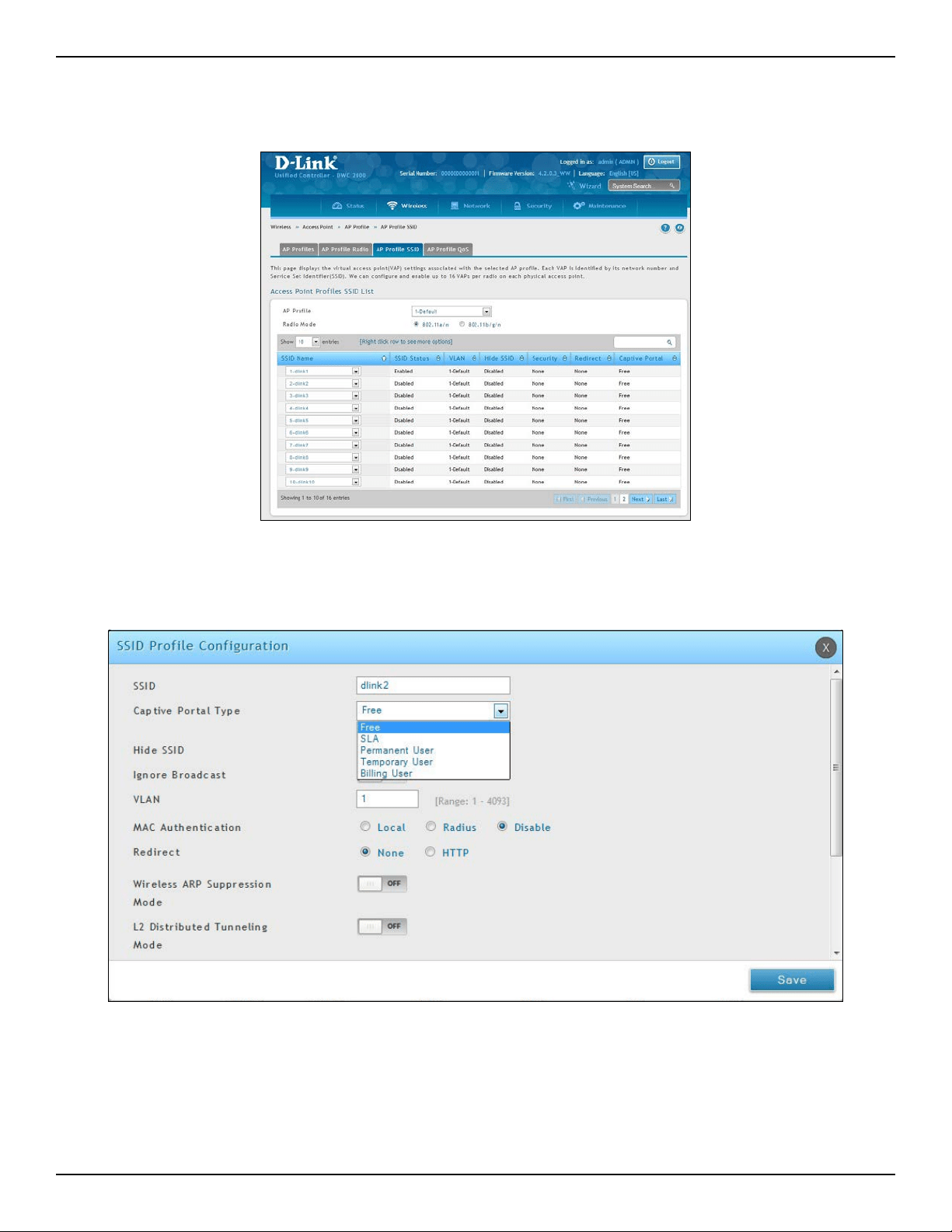
D-Link DWC-2000 User Manual 40
Section 3 - Basic Conguration
3. Associate the captive portal group to a SSID Prole
a. Click Wireless > Access Point > AP Prole > AP Prole SSID.
b. Under the SSID column, select an SSID that will use the Captive Portal function by right-clicking
on it and clicking Edit. The following pop-up page will appear.
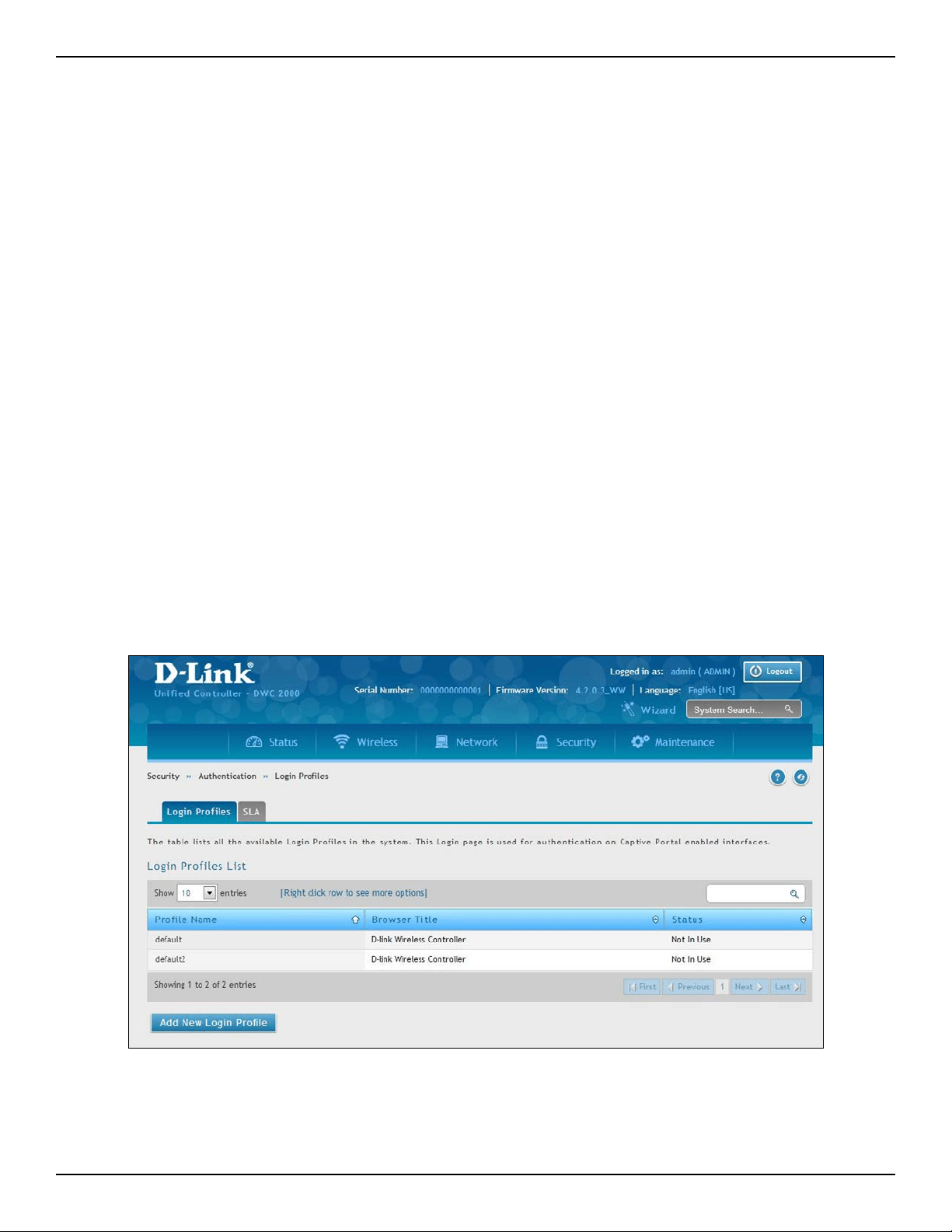
D-Link DWC-2000 User Manual 41
Section 3 - Basic Conguration
c. Select a user type from the drop-down menu next to Captive Portal Type. Choosing Free will allow
immediate access through the Captive Portal; choosing SLA will require the end user to agree to
a service level agreement before being allowed access. Choosing Permanent User will allow for
selecting an authentication method such as local user database, RADIUS, LDAP, or POP3. Choosing
Temporary User or Billing User the authentication method is local user database.
In this case, the user account in the local database is a permanent user account. Select Permanent
User on Captive Portal Type and select Local User Database on Authentication Server.
d. Select the customized login page from the Login Prole Name drop-down menu.
e. Click Save.
The captive portal is now associated to the selected SSID. To test your conguration from a client, connect to the
captive portal SSID to log in to the captive portal. Enter an IP address on the captive portal network to see the
controller redirect request to the captive portal page.
If the authentication database is using the RADIUS server, on step c above choose Permanent User on Captive
Portal Type and select RADIUS Server on Authentication Server.
4. Customize the captive portal login page.
a. Go to Security > Authentication > Login Proles. The Login Proles page will appear.
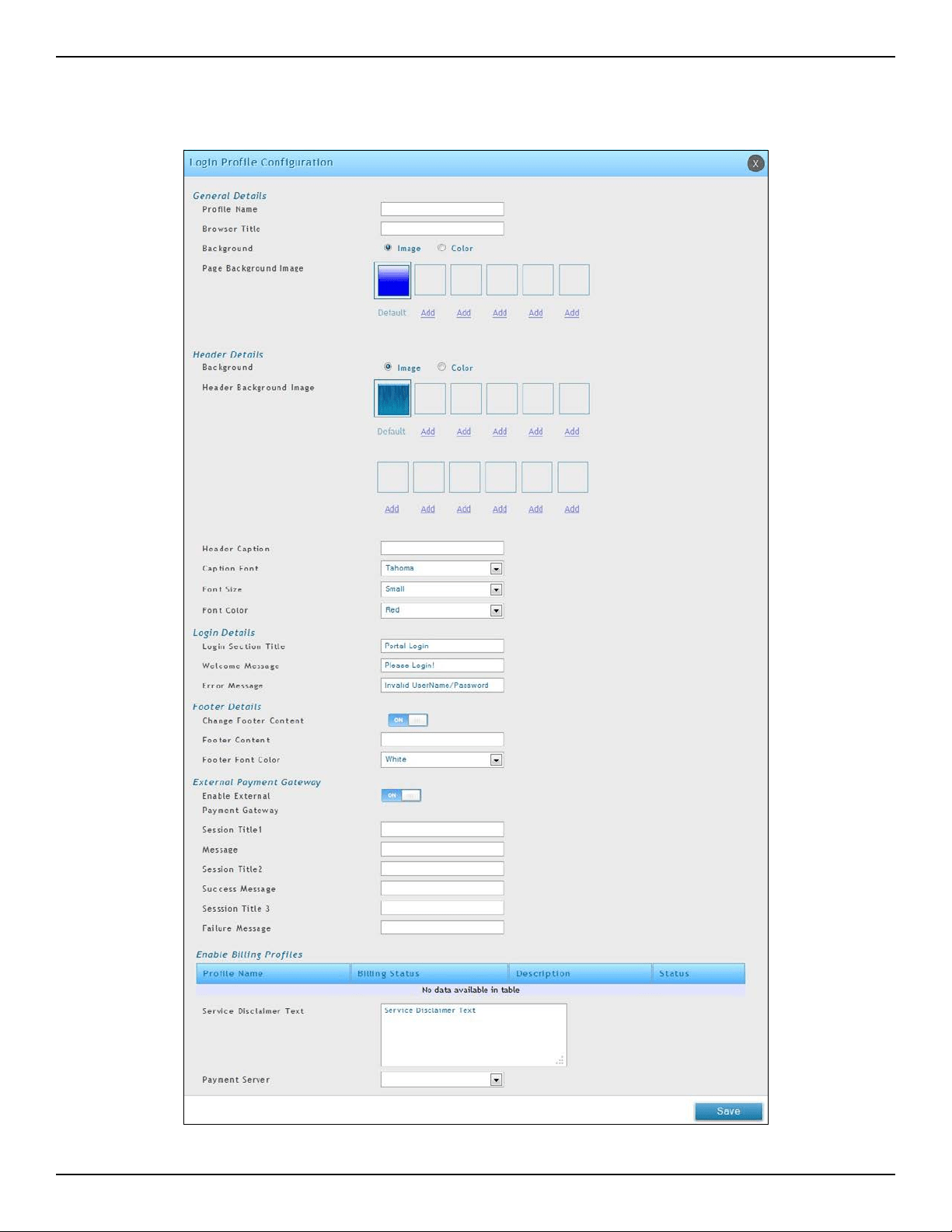
D-Link DWC-2000 User Manual 42
Section 3 - Basic Conguration
b. Under the Login Proles List, click Add New Login Prole to add a new prole or right-click an
existing prole and click Edit to edit the prole. The Login Prole Conguration page will appear.
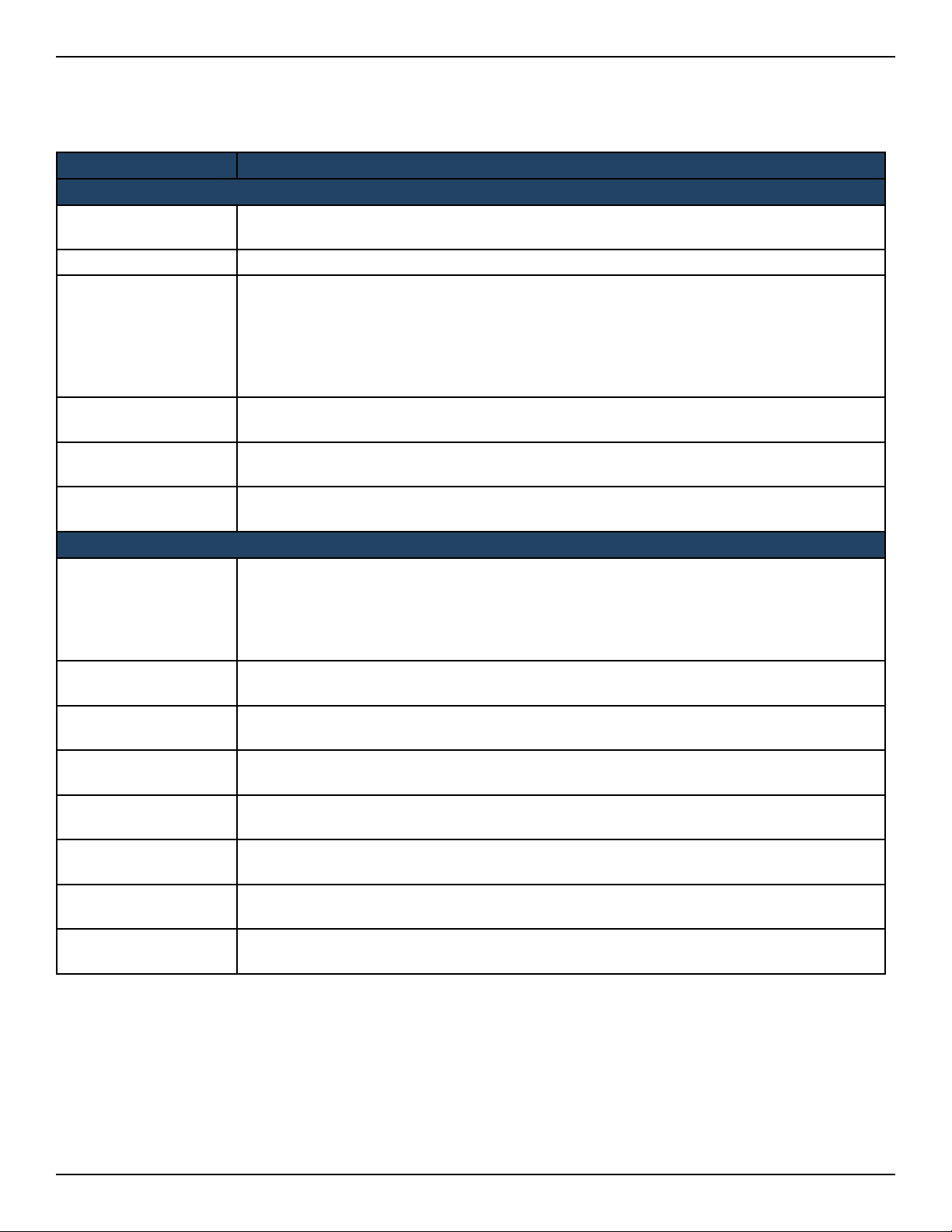
D-Link DWC-2000 User Manual 43
Section 3 - Basic Conguration
c. Complete the elds in the table below and click Save. The message Operation Succeeded will
appear.
Field Description
General Details
Prole Name
Enter a name for this captive portal prole. The name should allow you to dierentiate this
captive prole from others you may set up.
Browser Title Enter the text that will appear in the title of the browser during the captive portal session.
Background
Select whether the login page displayed during the captive portal session will show an image
or color. Choices are:
• Image = displays an image as the background on the page. Use the Page Background
Image eld to select a background image.
• Color = sets the background color on the page. Select the color from the drop-down
menu
Page Background
Image
If you set Background to Image, upload the image le by clicking Add > Browse. Select an
image, click Open and then click the Upload button. The maximum size of the image is 100 kb.
Page Background
Color
If you set Background to Color, select the background color of the page that will appear
during the captive portal session from the drop-down menu.
Custom Color If you choose Custom on Page Background Color, enter the HTML color code.
Header Details
Background
Select whether the login page displayed during the captive portal session will show an image
or color. Choices are:
• Image = show image on the page. Use the Header Background Color eld to select a
background color. The maximum size of the image is 100 kb.
• Color = show background color on the page. Use the radio buttons to select an image.
Header Background
Image
If you set Background to Image, upload the image le by clicking Add > Browse. Select an
image, click Open and then click the Upload button. The maximum size of the image is 100 kb.
Header Background
Color
If you set Background to Color, select the header color from the drop-down menu.
Custom Color
If you choose Custom on Page Background Color, you can choose particular color by lling
in the HTML color code.
Header Caption Enter the text that appears in the header of the login page during the captive portal session.
Caption Font Select the font for the header text.
Font Size Select the font size for the header text.
Font Color Select the font color for the header text.
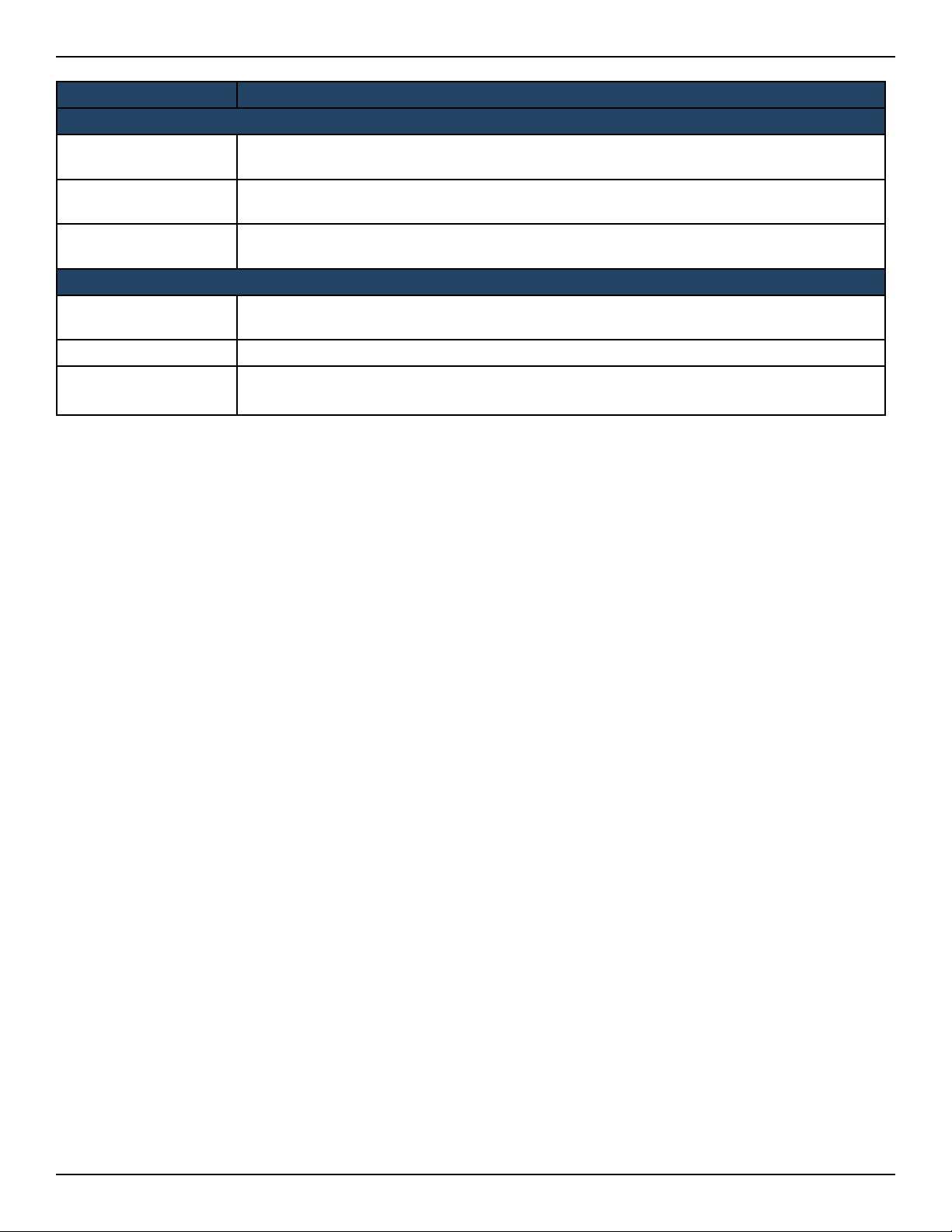
D-Link DWC-2000 User Manual 44
Section 3 - Basic Conguration
d. Under Login Proles List, right-click the prole and click Show Preview to view the prole you just
congured. Conrm that the appearance of the login page suits your requirements. If not, repeat
steps 4b and 4c as necessary.
Field Description
Login Details
Login Section Title
Enter the text that appears in the title of the login box when the user logs in to the captive
portal session. This eld is optional.
Welcome Message
Enter the welcome message that appears when users log in to the captive session successfully.
This eld is optional.
Error Message
Enter the error message that appears when users fail to log in to the captive session
successfully. This eld is optional.
Footer Details
Change Footer
Content
Enables or disables changes to the footer content on the login page.
Footer Content If Change Footer Content is checked, enter the text that appears in the footer.
Footer Font Color
If Change Footer Content is checked, select the color of the text that appears in the
footer.
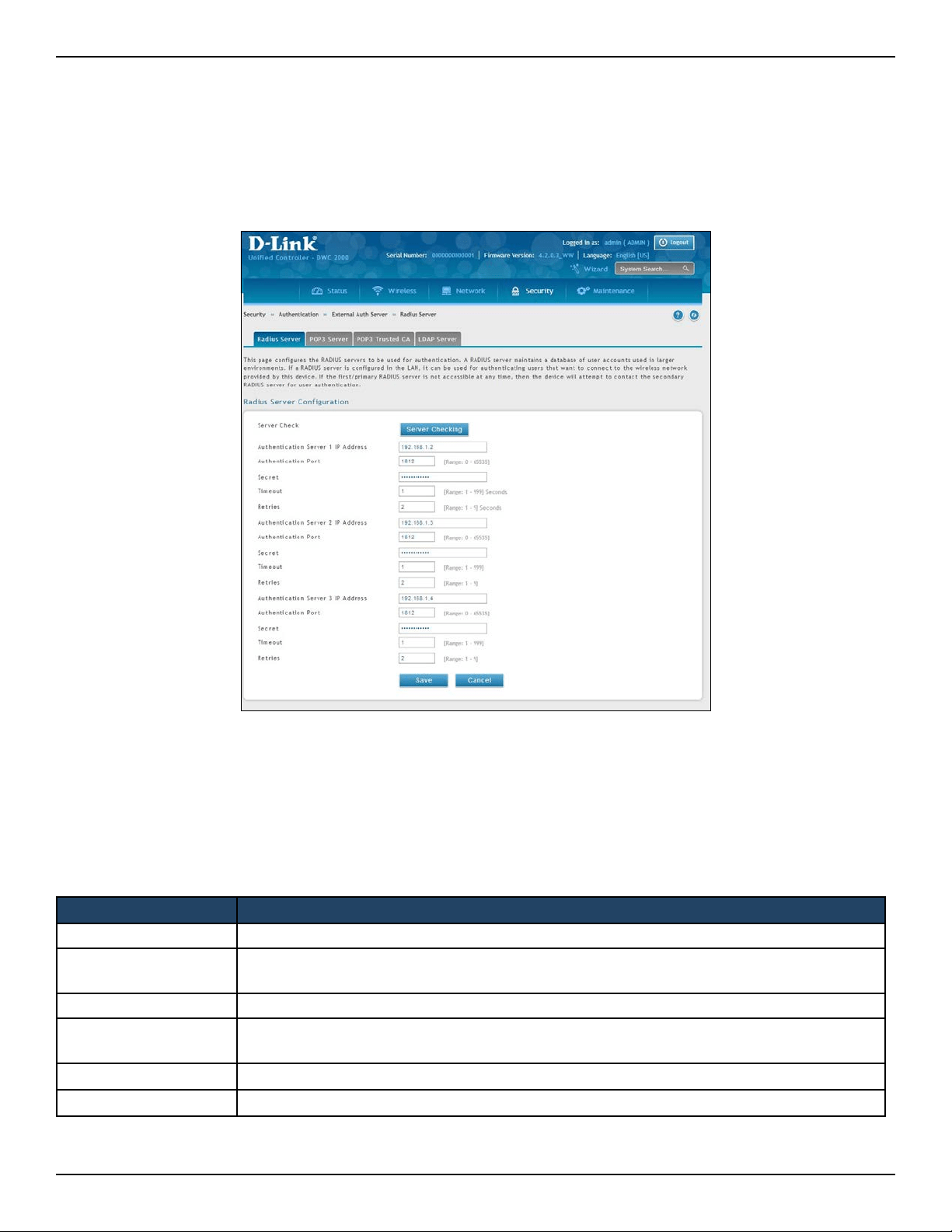
D-Link DWC-2000 User Manual 45
Section 3 - Basic Conguration
Step #8: Use SSID with RADIUS Sever as Authenticator
To use SSID with RADIUS authentication, perform the following procedure.
1. Go to Security > External Auth Server > RADIUS Server.
Field Description
Server Checking Click to test the connection between the controller and your RADIUS server.
Authentication Server
IP Address
IP address of your RADIUS authentication server.
Authentication Port RADIUS authentication port number to send RADIUS messages.
Secret
Enter the secret key that allows the device to log into the congured RADIUS server. It must
match the secret on RADIUS server.
Timeout Set the timeout in seconds. The controller should wait for a response from the RADIUS server.
Retries The number of tries the controller will make to the RADIUS server before giving up.
2. Complete the elds below and click Save. Your access point will be congured to use RADIUS
authentication server.
3. Click Server Checking to test the connection between the DWC-2000 and your RADIUS server.

D-Link DWC-2000 User Manual 46
Section 3 - Basic Conguration
Step #9: Congure Guest Management
The wireless controller can generate temporary guest accounts from front desk manage accounts. To congure
guest management, perform the following procedure.
1. Create a front desk group.
a. Go to Security > Authentication > User Database > Groups. The Groups List page will appear.
b. Click Add New Group. The Group Conguration page will appear.
c. Fill in group name and description, and select Front Desk on User Type.
2. Add front desk users.
a. Go to Security > Authentication > User Database > Users. The Users List will appear.
b. Click Add New User. The User Conguration page will appear.
c. Complete the elds and select the front desk group you created in the previous step on Selected
Group.
3. Create a billing prole.
a. Go to Security > Authentication > Billing Prole. Click Add New Billing Prole.
b. The billing prole settings include four milestones by timeline:
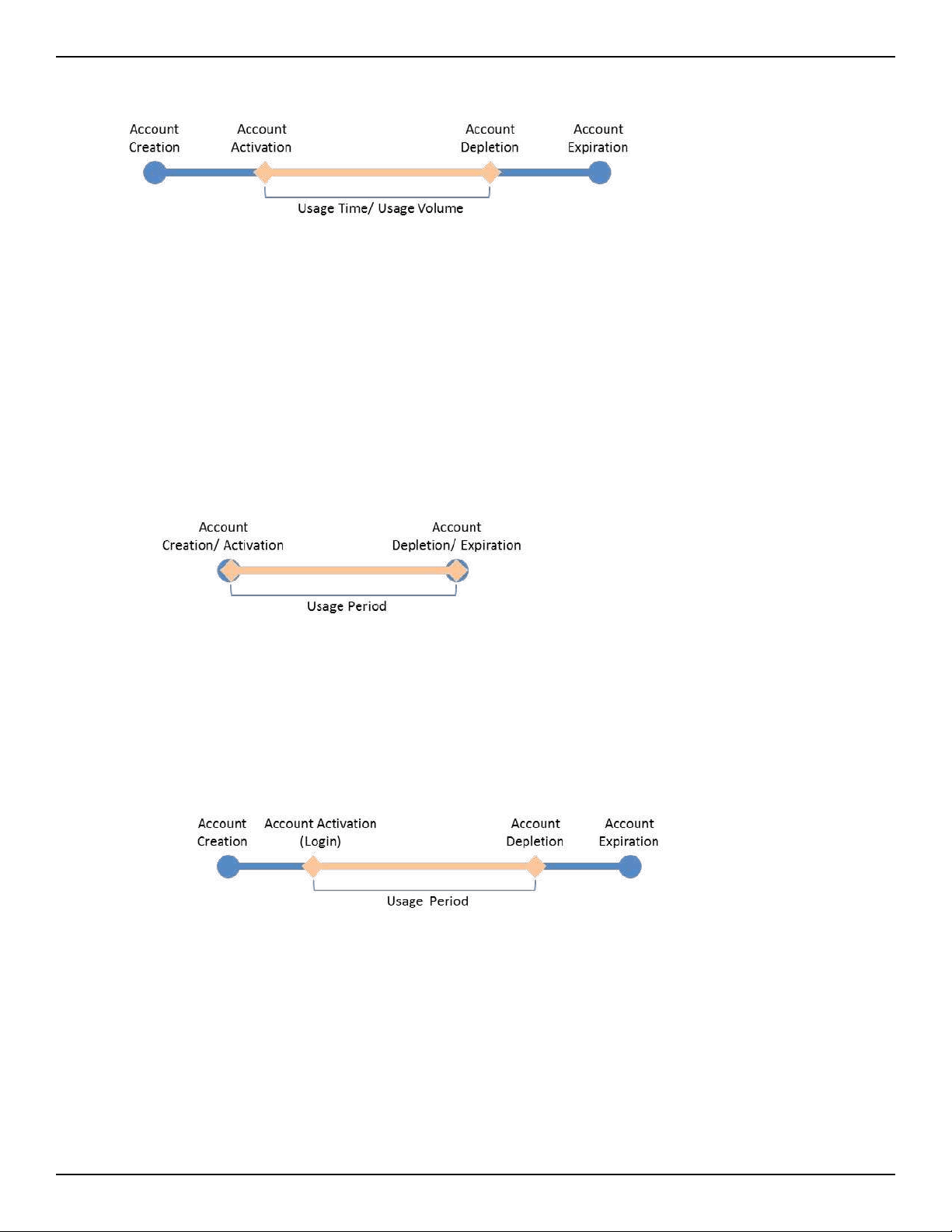
D-Link DWC-2000 User Manual 47
Section 3 - Basic Conguration
This billing prole is suitable for the scenario in Hotel. The temporary account is created and valid while
customers check-in.
II. The temporary account usage time is limited by duration. The account has the expiration time. The
account is valid while the account rst logs in.
This billing prole is suitable for the scenario in Coee Shop, Airport, etc. The customer can use wireless
internet service for a period of time counting from rst time logs in.
Below are ve most common types of billing proles:
I. The temporary account usage time is limited by duration. The account has the expiration time. The
account is valid while the account is created.
• Account Creation: the temporary account is generated by front desk account in the local database.
• Account Activation: the temporary account is activated and it is valid for use.
• Account Depletion: the temporary account is run out usage time or usage volume.
• Account Expiration: the temporary account is expired no matter usage time/ volume running out or
not, and it is removed from the local database.
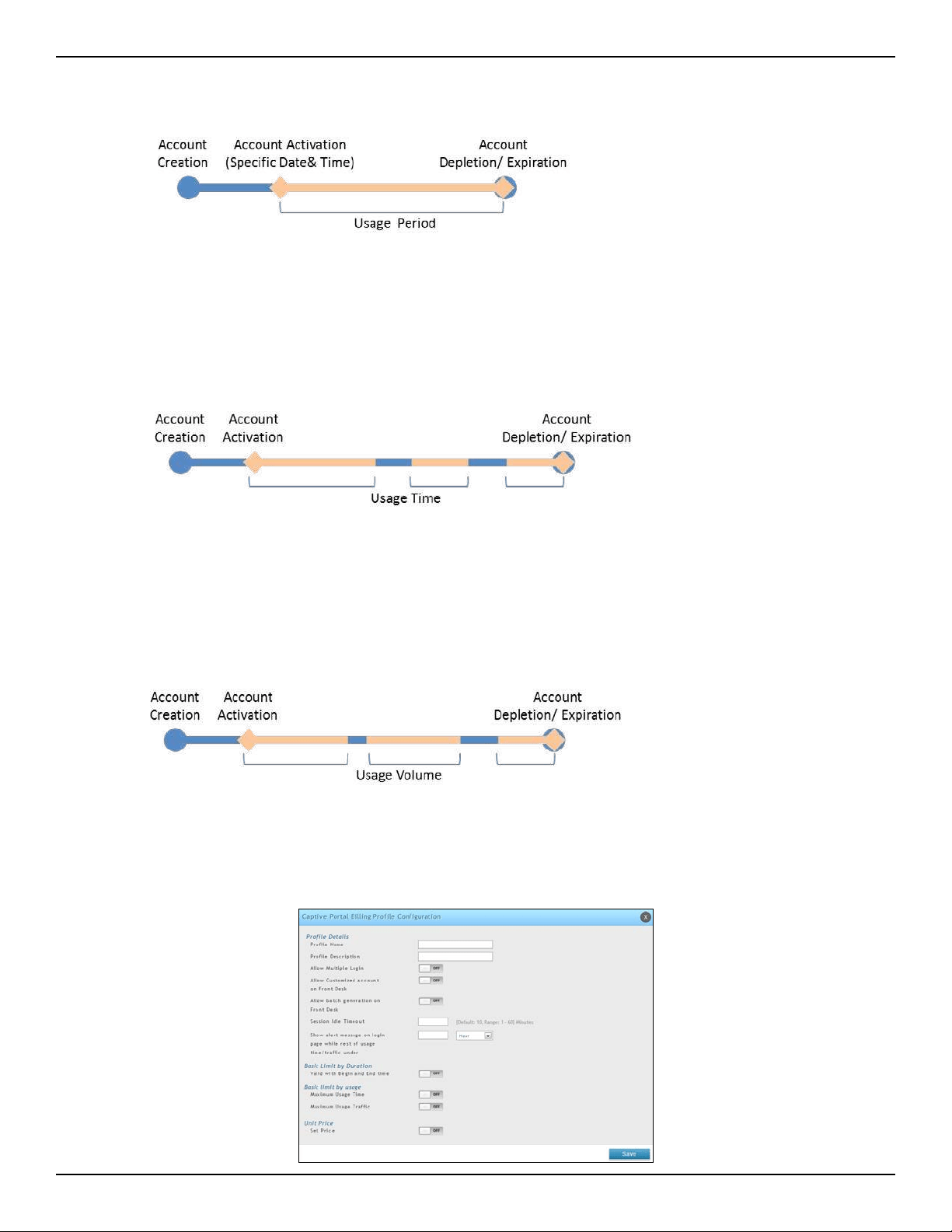
D-Link DWC-2000 User Manual 48
Section 3 - Basic Conguration
V. The temporary account has limited usage trac. The account doesn’t have the expiration time until the
usage is run out.
This billing prole is suitable for a Hotspot scenario. The service provider charge the wireless service
based on usage volume.
III. The temporary account is valid with specic date and time. The account has the expiration time.
This billing prole is suitable for the scenario in Press Conference. The organizer generates accounts
before the event and delivery account information to participator in advanced if necessary. The
temporary account would be only valid from specic date and time.
IV. The temporary account has limited time usage. The account doesn’t have the expiration time until the
usage is run out.
This billing prole is suitable for the scenario in Hotspot. The service provider charge the wireless service
based on usage time. This account allows multiple devices log in at the same time.
c. Complete the elds below:
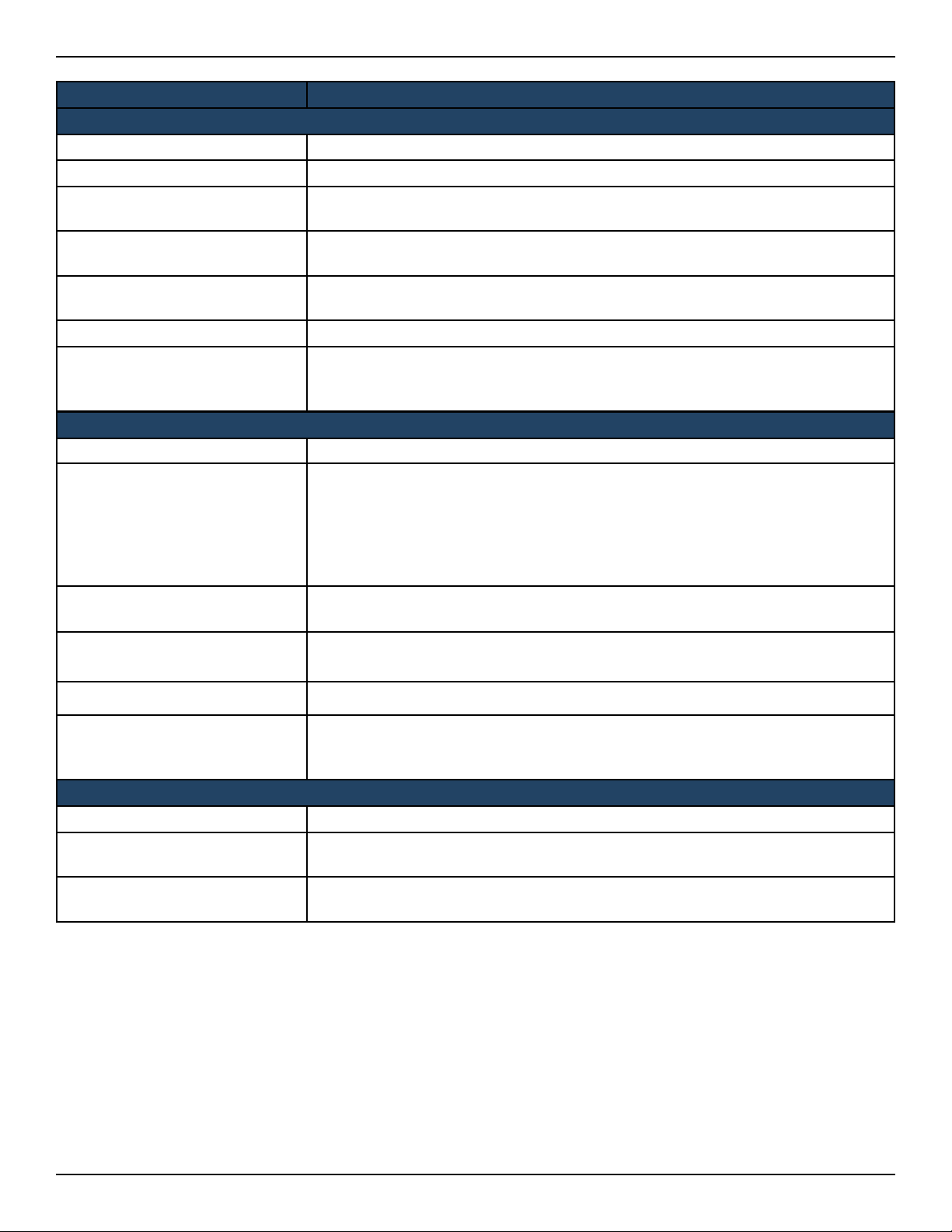
D-Link DWC-2000 User Manual 49
Section 3 - Basic Conguration
Basic Limit by Duration
Valid with Begin and End Time Limitations on Duration basis
Valid Begin
If you enable Valid with Begin and End Time, There are 3 types of limiting user access
by duration:
1. Start While Account Created: Activate account when user is created
2. Start While Account Login: Activate account when user rst login using his
credentials.
3. Begin From: Activate account from this date
Start While Account Created
If you select Start While Account Created, enter a value in Hours/Days to set duration
of usage time.
Start While Account Login
If you select Start While Account Login, enter a value in Hours/Days to set duration of
usage time.
Begin From If you choose Begin From, select a specic time and date for the account valid begin.
Allow Front Desk to Modify
Duration
If you enable Valid with Begin and End Time, checking this option enables the front
desk user to modify duration limits.
Basic Limit by Usage
Maximum Usage Time Maximum time user can stay login before his account expires.
Maximum Usage Trac
Maximum trac user can use before his account expires. Only inbound trac shall
be considered towards bandwidth usage.
Allow Front Desk to Modify
Usage
If you enable Maximum Usage Time or Maximum Usage Trac, checking this option
enables the front desk user to modify usage limits.
Field Description
Prole Details
Prole Name Each prole will be having a prole Name to identify itself.
Prole Description This is the description of the prole
Allow Multiple Login
Checking this option will allow multiple users to use same captive portal login
credentials created for this prole to login simultaneously.
Allow Customized Account on
Front Desk
Checking this option enables front desk user to give customized account name to
the captive portal users being created on this prole.
Allow Batch Generation on
Front Desk
Checking this option enables front desk user to generate a batch of temporary
captive portal users at one click.
Session Idle Timeout Idle timeout for CP users generated for this prole.
Show Alert Message on Login
Page while Rest of Usage Time/
Trac Under
Enter a value here in Hours/Days/MB/GB to get an alert message when usage time/
trac left reaches the desired limit. By default if 0 is entered it implies no alert
message is required.
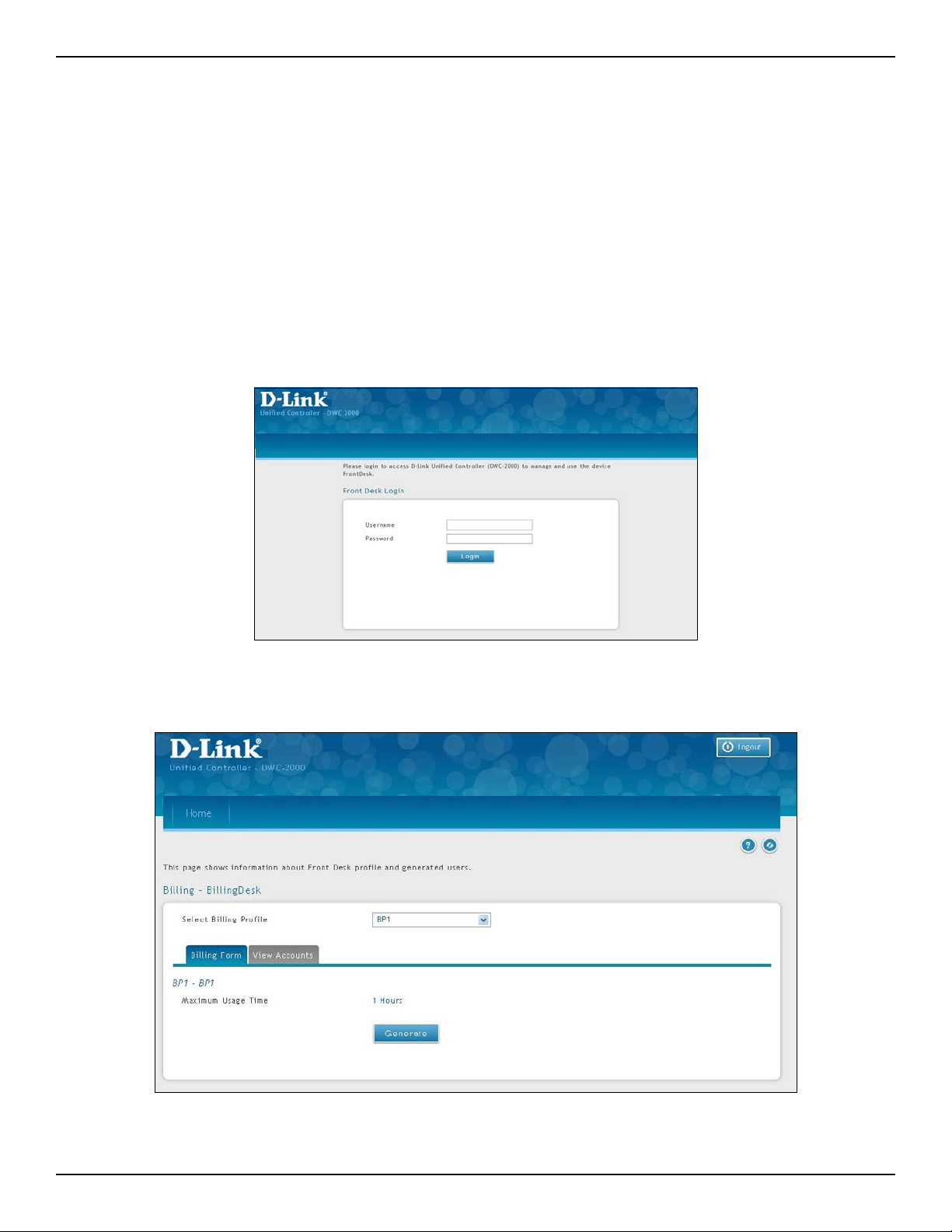
D-Link DWC-2000 User Manual 50
Section 3 - Basic Conguration
4. Select an Interface for the guest captive portal.
a. Click Wireless > Access Point > SSID Proles. The SSID Prole List page will appear.
b. Under the SSID column, select an SSID that will use the Captive Portal function by right-clicking
on it and clicking Edit.
c. Select a Captive Portal Type from the drop-down menu.
d. Click Save.
Note: Apply AP Prole from Wireless > Access Point > AP Proles if the SSID have been associated with
a used AP Prole to change the conguration.
5. Generate guest accounts.
a. Log in the Front Desk page by entering http://<ip_address>/frontdesk (e.g., http://192.168.10.1/
frontdesk). Enter the username and password of a user you created in a “Front Desk” group.
b. Select a billing prole. Modify the usage if you want. Click Generate.
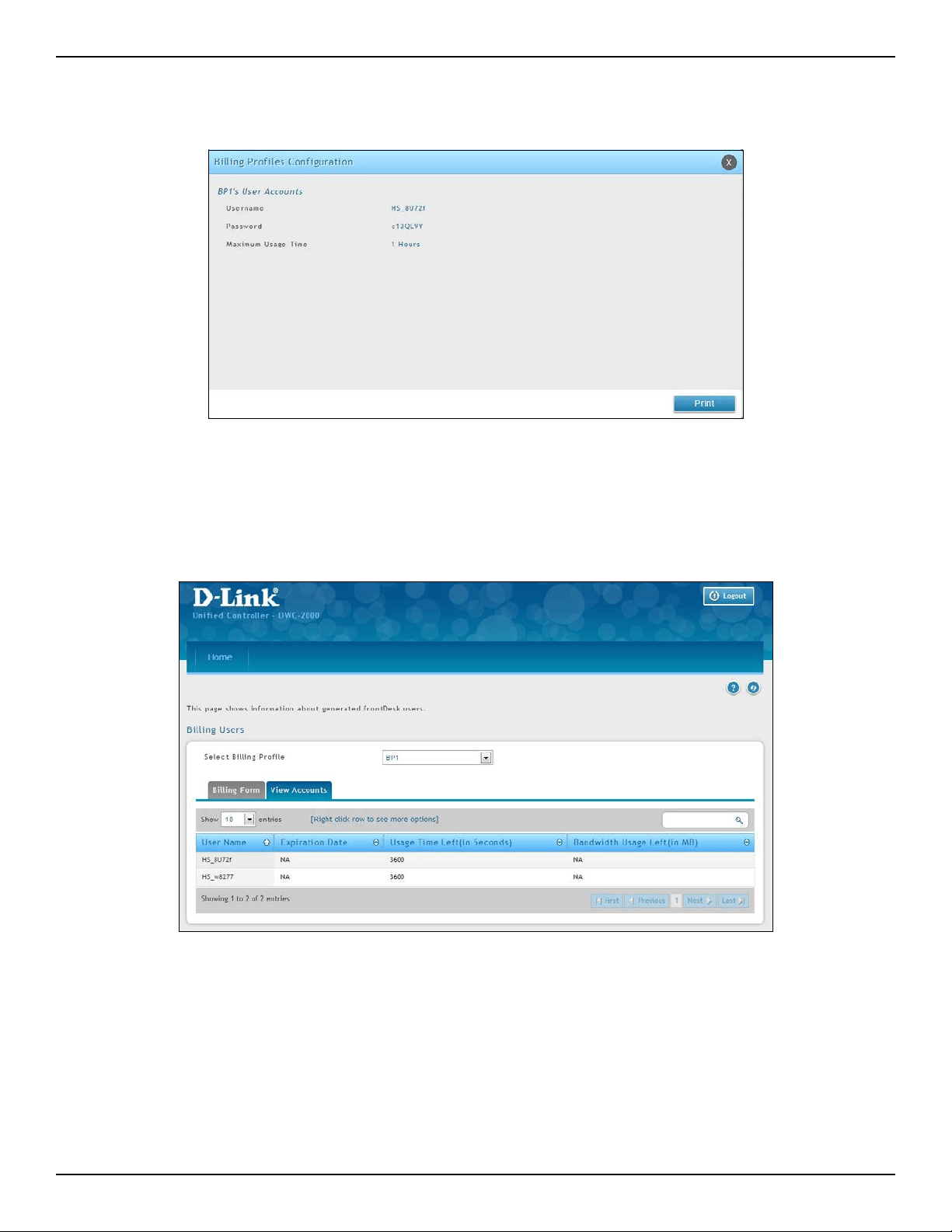
D-Link DWC-2000 User Manual 51
Section 3 - Basic Conguration
c. Print out the account information by clicking Print. The information would send to the internet
printer. Only one user account can be created at a time.
6. Monitor user account status.
a. Monitor temporary account status and extend account usage duration or volume. Click View
Account for reviewing generated temporary status.
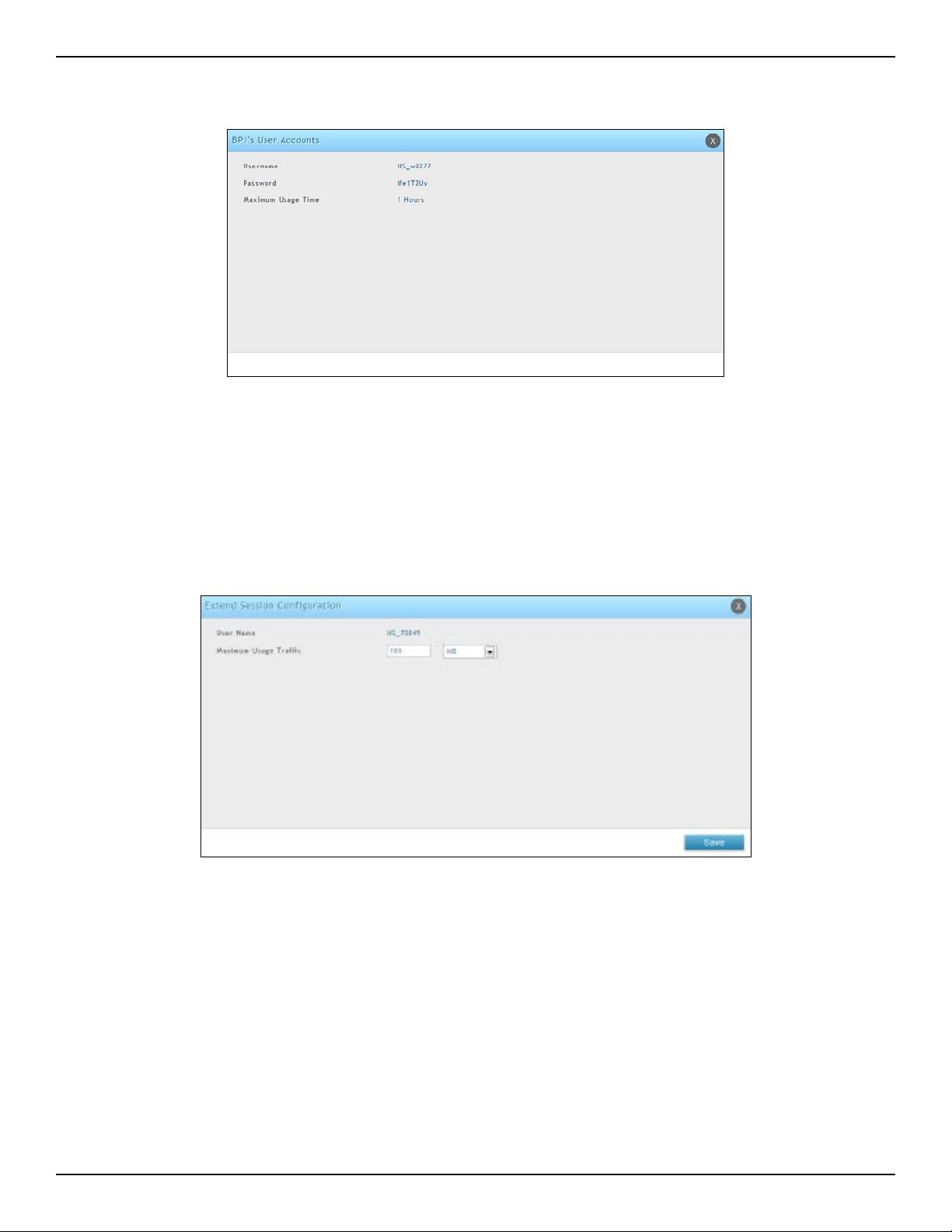
D-Link DWC-2000 User Manual 52
Section 3 - Basic Conguration
b. Select an account and right-click View Details to view more information.
7. Extend user account usage.
a. Select an account and right-click Extend Session. Manually change the usage time/trac.
Note: Make sure that Allow Front Desk to Modify Usage is turned on in the “Captive Portal Billing Prole
Conguration” page.
b. Click Save.
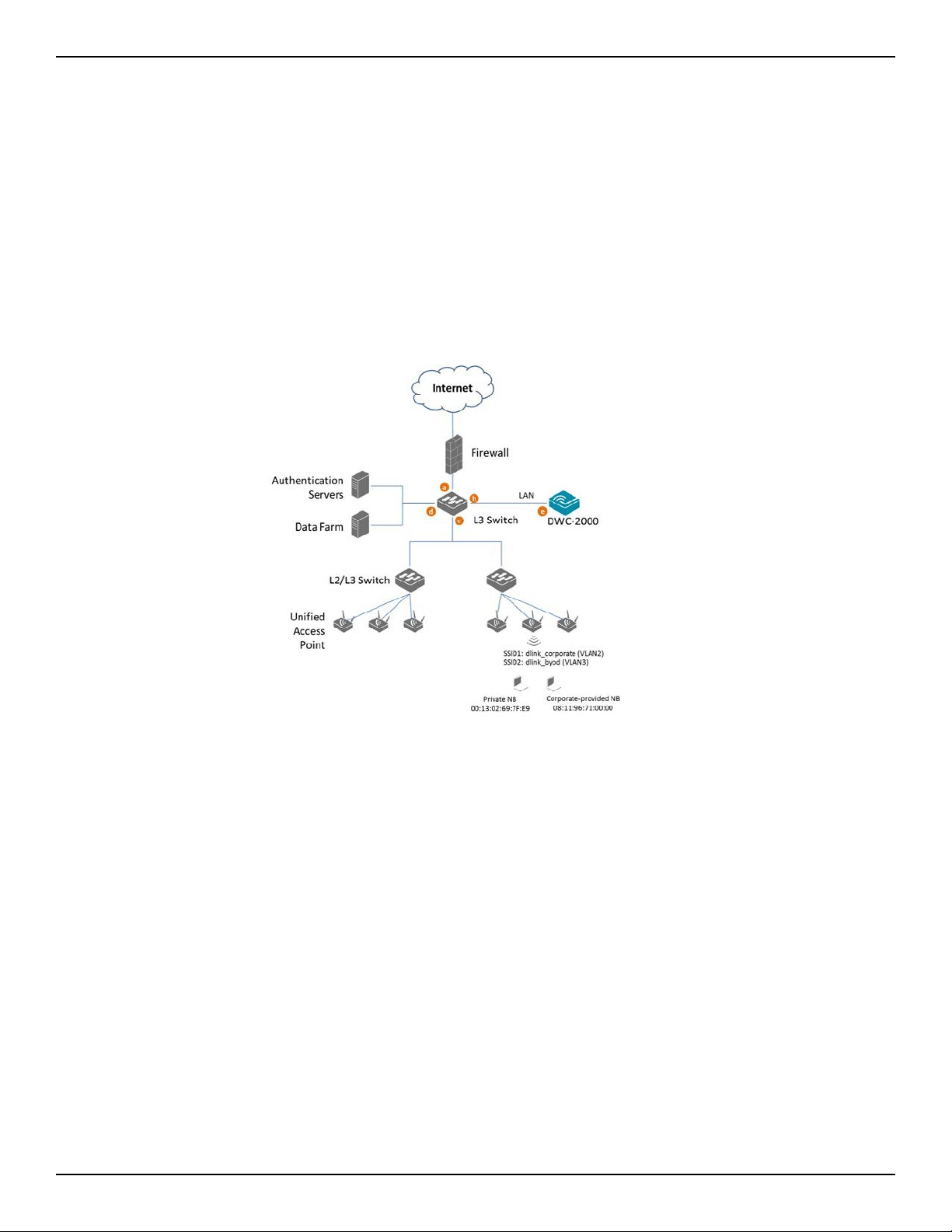
D-Link DWC-2000 User Manual 53
Section 3 - Basic Conguration
Step #10: Congure a BYOD Environment
The trend of Bring Your Own Device (BYOD) in the work place is a new challenge on network security and
management. Many corporations that allow employees to use their own devices at work expect to have better
performance and productivity; however, on the downside, corporations also are concerned with network security
and information leakage by using private devices. How to distinguish between corporate-provided devices and
private devices (BYOD device) is a major task for IT teams.
Use device MAC authentication to enforce client associating specic SSIDs based on the device which is corporate-
provided or private. All connectivity from SSIDs required performing authentication before granted authority. To
congure a BYOD environment, perform the following procedures:
The authentication methods on each SSID are dierence:
• dlink_corporate SSID: This SSID is for D-Link employees who works with cooperate-provided drives. It
requires device MAC authentication and Captive Portal to complete the authentication process.
• dlink_byod SSID: This SSID is for D-Link employees who work with his/her private drive (BYOD device).
It requires Captive Portal to complete the authentication process.
1. Set up VLANs based on the network architecture. Create three VLANs. VLAN1 is the default VLAN for AP
management, VLAN2 is for the trac associated from SSID dlink_corporate, and VLAN3 is for the trac
associated from SSID dlink_byod. Associate VLAN 1 to 3 memberships on Port1.
a. Go to Network > VLAN > VLAN Settings. The VLAN List will appear.
b. Click Add New VLAN. The VLAN Conguration page will appear.
c. Enter a VLAN ID and name.
d. Enter the IP range for your VLAN.
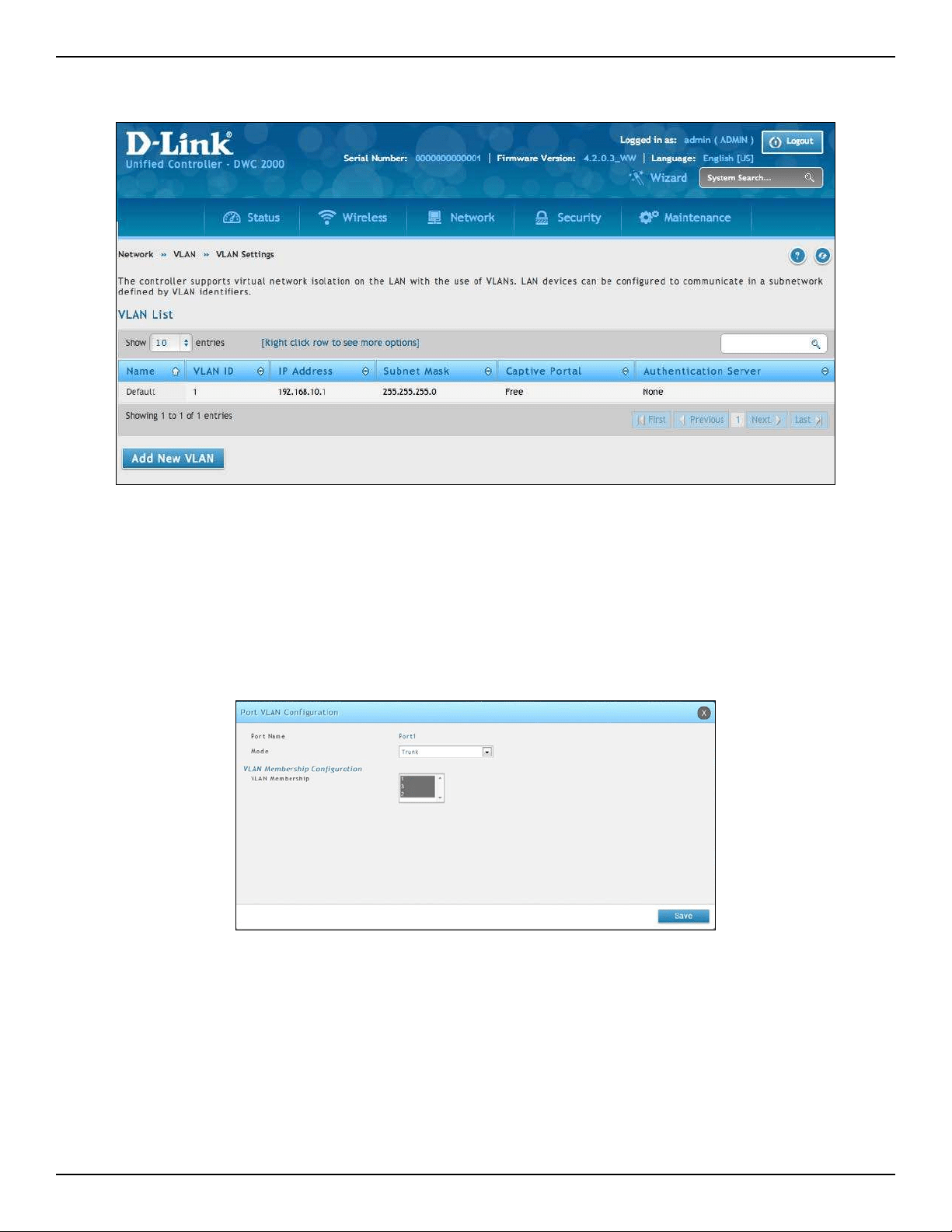
D-Link DWC-2000 User Manual 54
Section 3 - Basic Conguration
2. Associate VLAN 1 to three memberships in Trunk mode on Port1.
a. Go to Network > VLAN > Port VLAN.
b. Right-click port 1 and click Edit. Select Trunk from the Mode drop-down menu and then select
VLAN1 to VLAN3 (hold CRTL and click 1, 2, and 3) next to VLAN Membership.
c. Click Save.
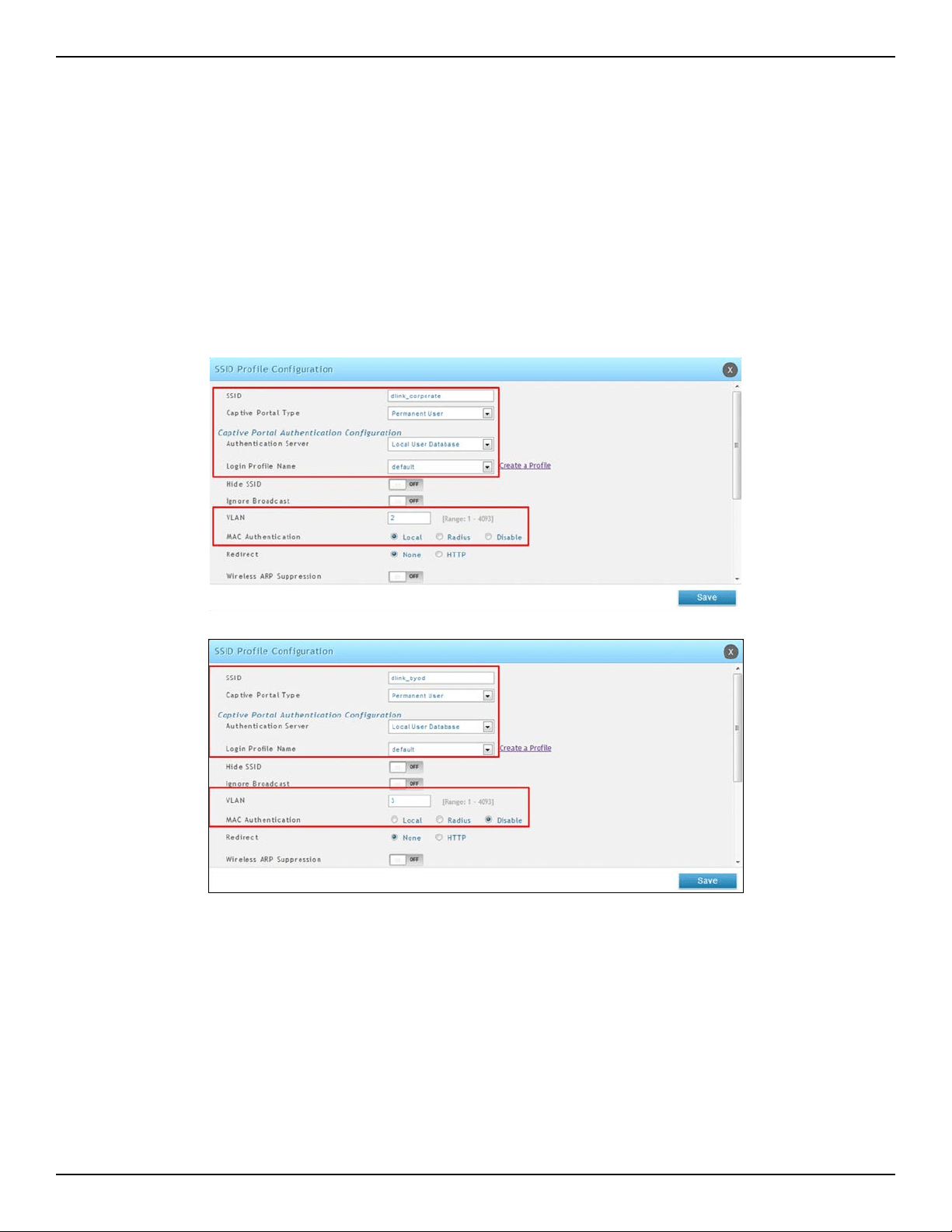
D-Link DWC-2000 User Manual 55
Section 3 - Basic Conguration
3. Create two SSIDs: dlink_corporate and dlink_byod, and assign VLAN 2 and 3 on these two SSIDs
respectively. Enable MAC authentication on SSID dlink_corporate.
a. Go to Wireless > Access Point > SSID Proles. The SSID Prole List will appear.
b. Click Add New SSID Prole. Create “SSID dlink_corporate” and “dlink byod”.
c. Enable Captive Portal on both SSIDs and select the Captive Portal Type as Permanent User.
d. Select the Authentication Server. The authentication server can be either local database or
external authentication sever (i.e., RADIUS).
e. Assign VLAN2 and VLAN3 to “dlink_corporate” and “dlink_byod” respectively.
f. Enable MAC authentication on “dlink_corporate”.
g. Click Save.
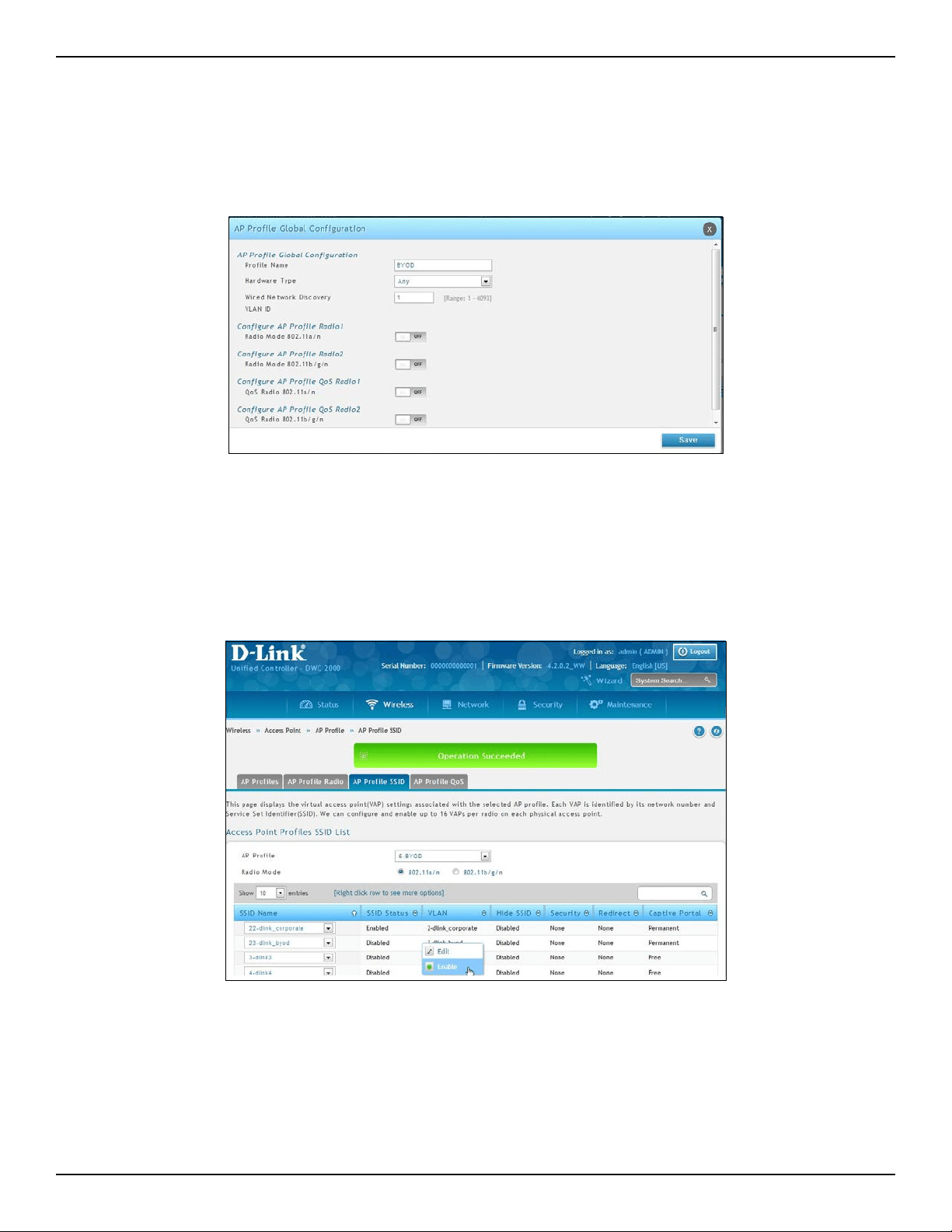
D-Link DWC-2000 User Manual 56
Section 3 - Basic Conguration
4. Create an AP Prole “BYOD”. Associate SSIDs on this prole.
a. Go to Wireless > Access Point > AP Prole.
b. Click Add New AP Prole. Create a prole called BYOD.
c. Click Save.
d. Click the AP Prole SSID tab. Next to AP Prole, make sure BYOD is selected.
e. In the SSID list, right-click the dlink_corporate row and select Enable.
f. Right-click the dlink_byod row and select Enable.
g. Both SSIDs are now associated with the BYOD SSID prole.
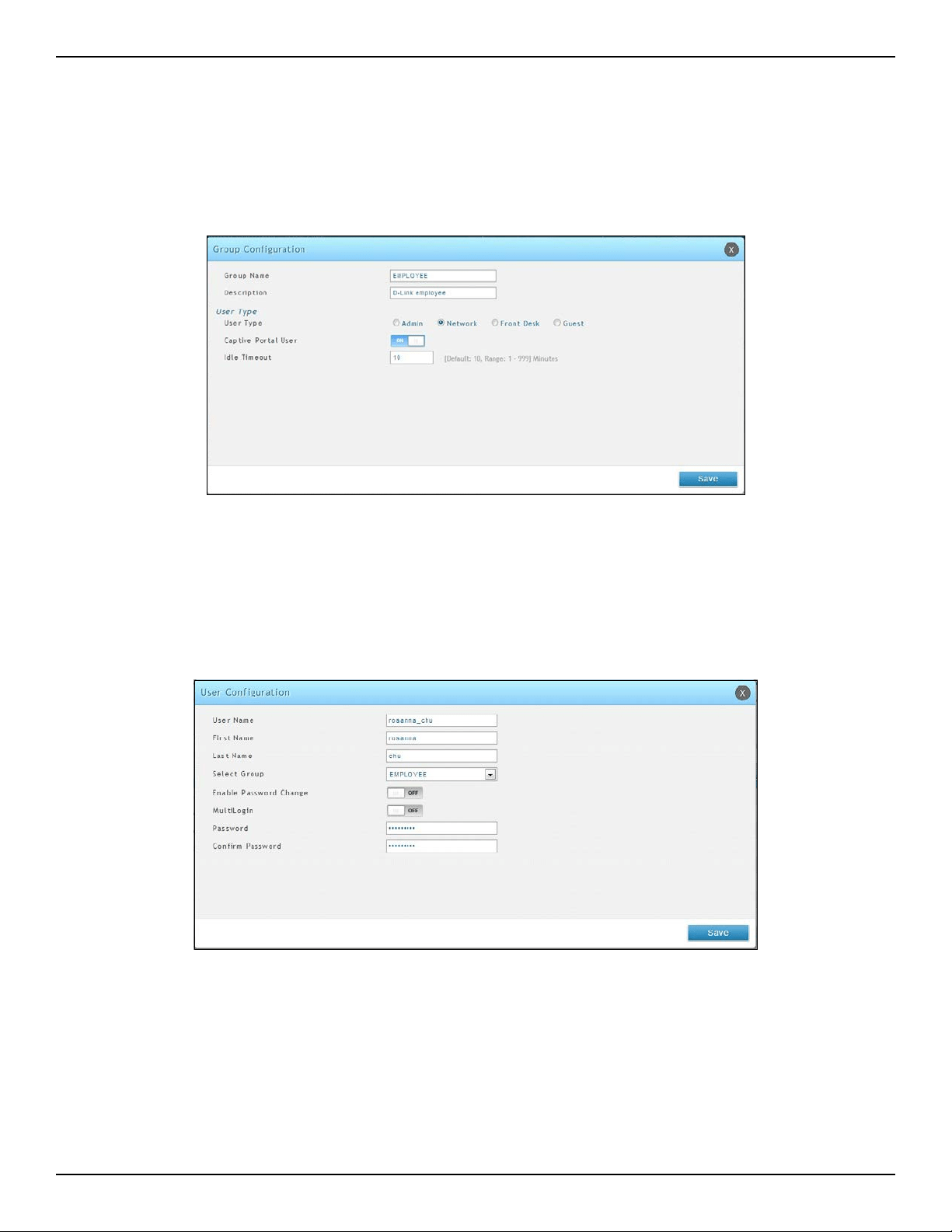
D-Link DWC-2000 User Manual 57
Section 3 - Basic Conguration
5. Create Captive Portal accounts on the local database.
a. To create a user group, go to Security > Authentication > User Database > Group tab.
b. Click Add New Group. Create a group called “EMPLOYEE”. Next to User Type select Network,
and toggle Captive Portal User to On. Enter an Idle Timeout value (in minutes).
c. Click Save.
d. Create user accounts. Go to Security > Authentication > User Database > Users tab.
e. Click Add New User to create user accounts. Fill in the elds and select EMPLOYEE next to
Select Group.
f. Click Save.
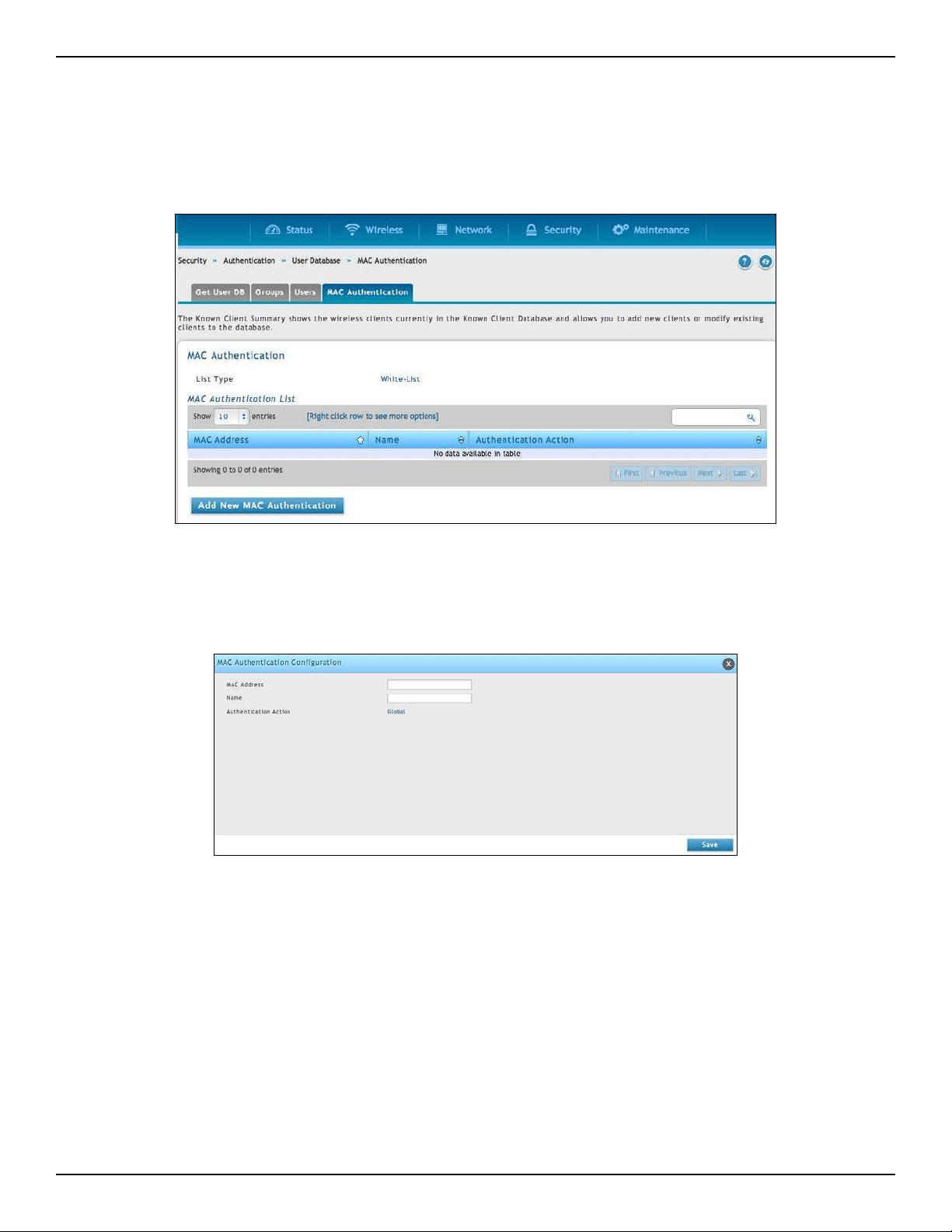
D-Link DWC-2000 User Manual 58
Section 3 - Basic Conguration
6. Create device MAC authentication database on local database.
a. Go to Security > Authentication > User Database > MAC Authentication tab.
b. Next to List Type, the current type is displayed. To change the setting, refer to “Step #5: Select
MAC Authentication Mode” on page 34.
c. Click Add New MAC Authentication. Enter the MAC address of the device and a name.
d. Click Save.
Note: If the user authentication and MAC authentication database is external authentication server
(i.e., RADIUS), please refer to “Step #8: Use SSID with RADIUS Sever as Authenticator” on page 45.
7. Discover and manage an access point from the network. Please refer to “Step #3: Select APs to be
Managed” on page 27.

D-Link DWC-2000 User Manual 59
Section 3 - Basic Conguration
Where to Go from Here
After installing the basic conguration procedures, the wireless controller is ready for operation using the factory
default settings in Appendix B. These settings should be suitable for most users and most situations.
The wireless controller also provides advanced conguration settings for users who want to take advantage
of the more advanced features of the wireless controller. The following sections list the wireless controller’s
advanced settings. Users who do not understand these features should not attempt to recongure their wireless
controller, unless advised to do so by the technical support sta.

D-Link DWC-2000 User Manual 60
Section 4 - Advanced WLAN Conguration
Advanced WLAN Conguration
While the basic conguration described in the previous chapter is satisfactory for most users, large wireless networks
or a complex setup may require the wireless controller’s advanced conguration settings to be congured.
This chapter covers the following commonly used advanced wireless conguration settings.
• “WLAN General Settings” on page 61
• “Channel Plan and Power Settings” on page 64
• “WIDS” on page 67
• “Distributed Tunnel” on page 72
• “WLAN Visualization” on page 73
• “AP Discovery Methods” on page 75
• “Managed APs” on page 78
• “AP Proles” on page 85
• “SSID Proles” on page 98
• “Wireless Distribution System (WDS)” on page 102
• “Peer Group” on page 108
• “AP Firmware Download” on page 110
Note: The procedures in this chapter should only be performed by expert users who understand networking concepts
and terminology.
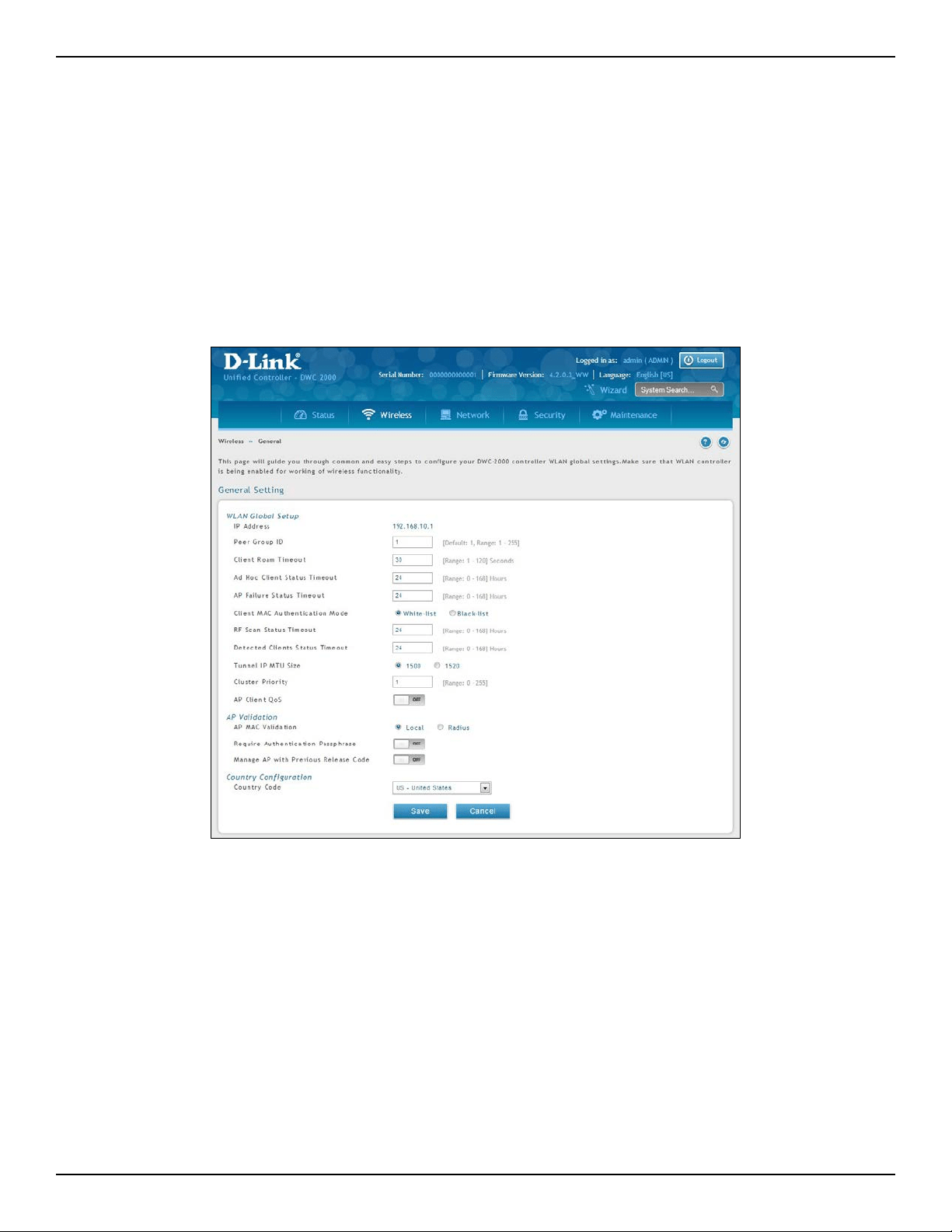
D-Link DWC-2000 User Manual 61
Section 4 - Advanced WLAN Conguration
WLAN General Settings
The WLAN General Conguration page contains the global conguration settings for all managed APs and the
wireless controller including WLAN Global Setup, AP Validation, and Country Conguration.
Path: Wireless > General > General
To congure the WLAN general settings:
1. Click Wireless > General > General. The WLAN General Settings page will appear.
2. Complete the elds in the table on the next page.
3. Click Save.
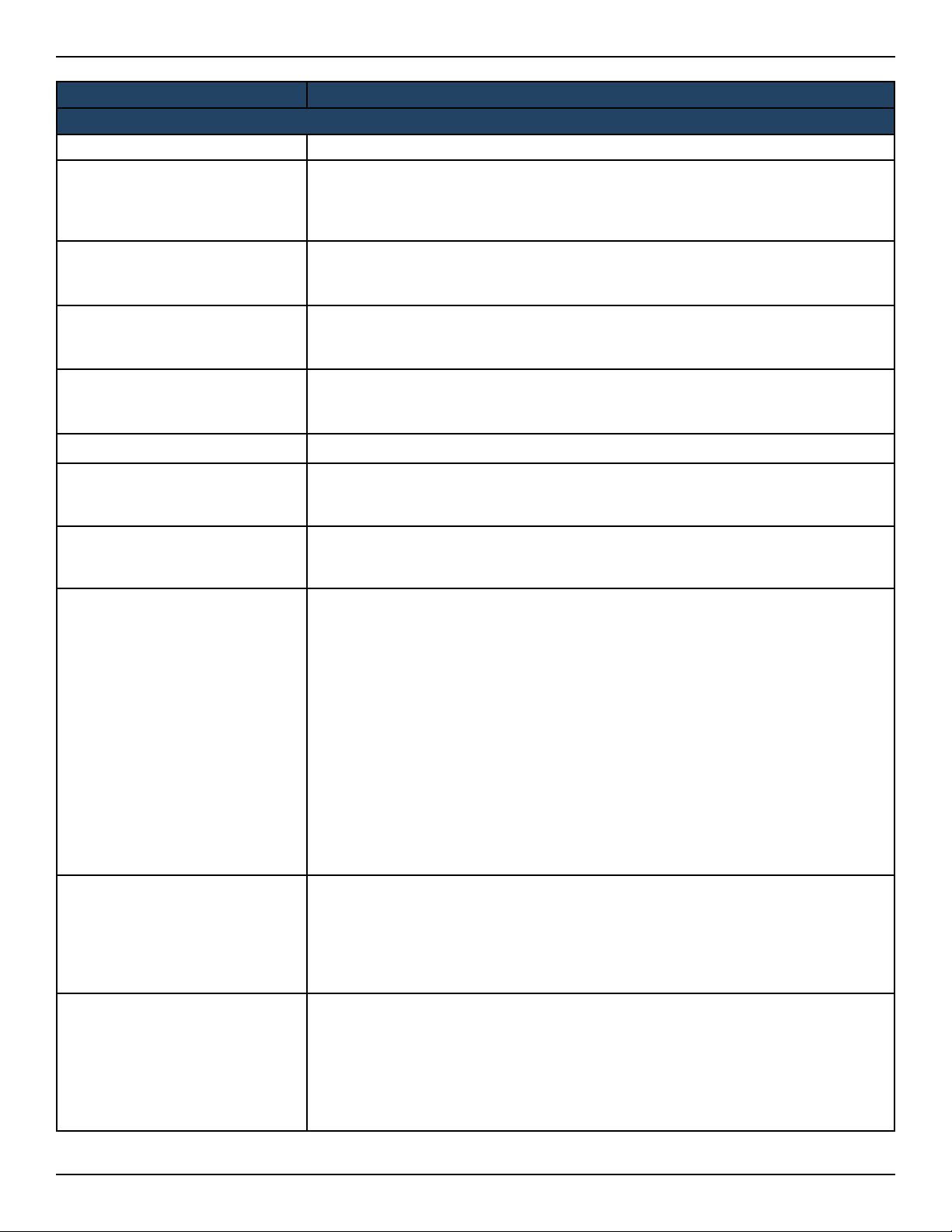
D-Link DWC-2000 User Manual 62
Section 4 - Advanced WLAN Conguration
Field Description
WLAN Global Setup
IP Address Displays the current IP address of the wireless controller.
Peer Group ID
In order to support larger networks, you can congure wireless controllers as peers,
with up to eight controllers in a cluster (peer group). Peer controllers share some
information about APs and allow L3 roaming among them. Peers are grouped
according to the group ID.
Client Roam Timeout
This value determines how long to keep an entry in the Associated Client Status list
after a client has disassociated. Each entry in the status list shows an age, and when
the age reaches the value you congure in the timeout eld, the entry is deleted.
Ad Hoc Client Status Timeout
This value determines how long to keep an entry in the Ad Hoc Client Status list.
Each entry in the status list shows an age, and when the age reaches the value you
congure in the timeout eld, the entry is deleted.
AP Failure Status Timeout
This value determines how long to keep an entry in the Ad Failure Client Status list.
Each entry in the status list shows an age, and when the age reaches the value you
congure in the timeout eld, the entry is deleted.
Client MAC Authentication Select either White-list or Black-list.
RF Scan Status Timeout
This value determines how long to keep an entry in the RF Scan Status list. Each entry
in the status list shows an age, and when the age reaches the value you congure in
the timeout eld, the entry is deleted.
Detected Clients Status Timeout
This value determines how long to keep an entry in the Detected Client Status list.
Each entry in the status list shows an age, and when the age reaches the value you
congure in the timeout eld, the entry is deleted.
Tunnel IP MTU Size
Select the maximum size of an IP packet handled by the network. The MTU is
enforced only on tunneled VAPs. When IP packets are tunneled between the APs and
the wireless controller, the packet size is increased by 20 bytes during transit. This
means that clients congured for 1500 byte IP MTU size may exceed the maximum
MTU size of existing network infrastructure which is set up to switch and route 1518
(1522‐tagged) byte frames. If you increase the tunnel IP MTU size, you must also
increase the physical MTU of the ports on which the trac ows.
Note: if any of the following conditions are true, you do not need to increase the
tunnel IP MTU size:
• The wireless network does not use L3 tunneling.
• The tunneling mode is used only for voice trac, which typically has small
packets.
• The tunneling mode is used only for TCP based protocols, such as HTTP. This is
because the AP automatically reduces the maximum segment size for all TCP
connections to t within the tunnel.
Cluster Priority
Specify the priority of this controller for the Cluster Controller election.
The wireless controller with highest priority in a cluster becomes the Cluster
Controller. If the priority is the same for all wireless controllers, then the wireless
controller with lowest IP address becomes the Cluster Controller. A priority of
0 means that the wireless controller cannot become the Cluster Controller. The
highest possible priority is 255.
AP Client QoS
Enable or disable the client QoS feature. If AP Client QoS is disabled, the Client QoS
conguration remains in place, but any ACLs or DiServ policies applied to wireless
trac are not enforced.
The Client QoS feature extends the primary QoS capabilities of the wireless
controller to the wireless domain. More specically, access control lists (ACLs) and
dierentiated service (DiServ) policies are applied to wireless clients associated to
the AP
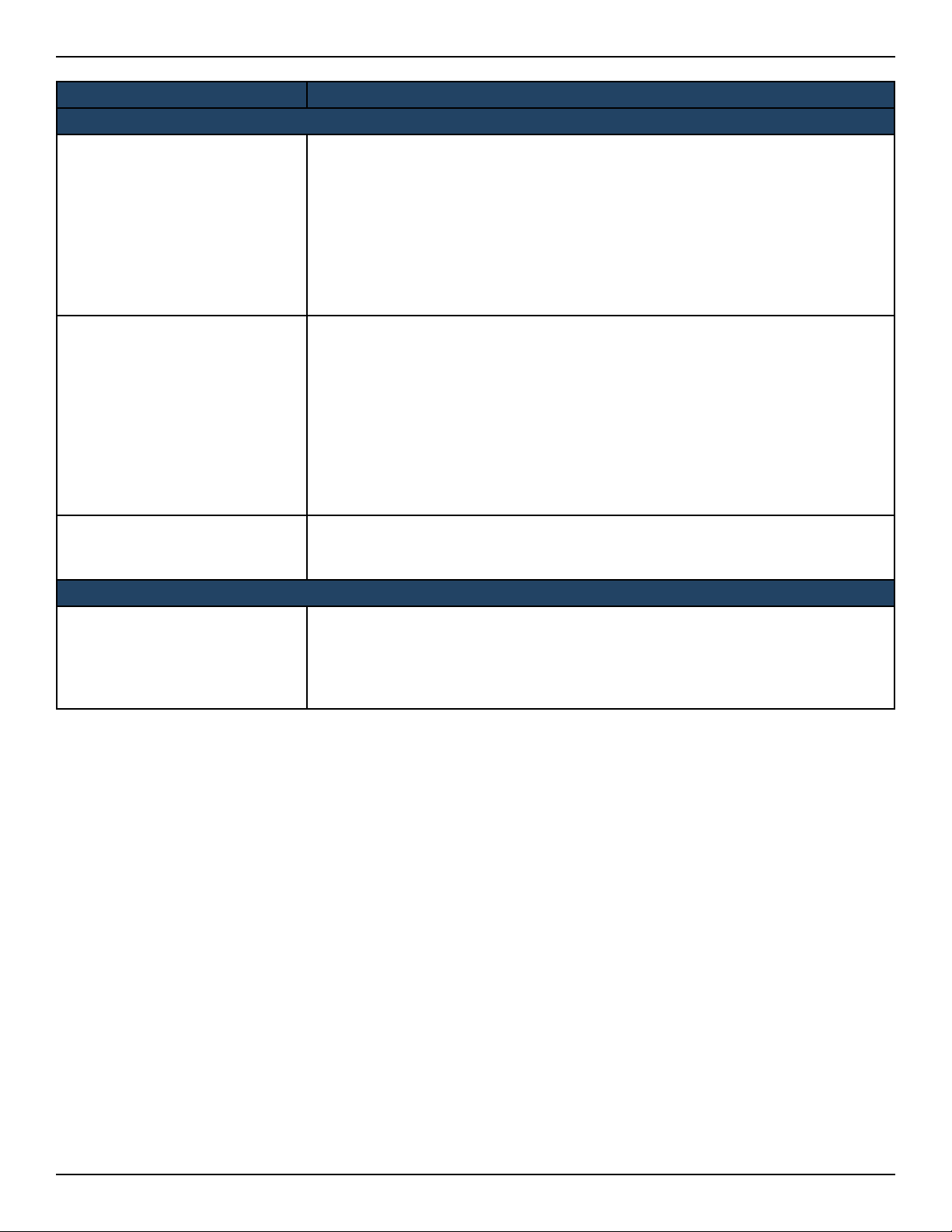
D-Link DWC-2000 User Manual 63
Section 4 - Advanced WLAN Conguration
Field Description
AP Validation
AP MAC Validation
For a wireless controller to manage an AP, you must add the MAC address of the
AP to the Valid AP database, which can be kept locally on the controller or in an
external RADIUS server. When the controller discovers an AP that is not managed
by another wireless controller, it looks up the MAC address of the AP in the Valid AP
database. If it nds the MAC address in the database, the controller validates the AP
and assumes management.
Select the database to use for AP validation. Choices are:
• Local: Add the MAC address of each AP to the local Valid AP database.
• RADIUS: Congure the MAC address of each AP in an external RADIUS server.
Require Authentication
Passphrase
Select this option to require APs to be authenticated before they can associate with
the controller. If you select this option, you must congure the passphrase on the AP
while it is in standalone mode as well as in the Valid AP database. To congure the
pass phrase on a standalone AP, log onto the AP Administration Web UI and go to
the Managed Access Point page, or log onto the AP CLI and use the set managed-ap
pass-phrase command.
To congure the passphrase for an AP in the local Valid AP database, click the Valid
AP page from the Basic Setup page. Then, click the MAC address of the AP and enter
the passphrase in the Authentication Password eld. If you enable authentication, it
takes place immediately after the controller validates the AP.
Manage AP with Previous
Release Code
Discover and manage APs with older rmware.
Country Conguration
Country Code
Select the country code that represents the country where your controller and APs
operate. When you click Submit, a pop-up message asks you to conrm the change.
Wireless regulations vary from country to country. Make sure you select the correct
country code so that your WLAN system complies with the regulations in your
country.
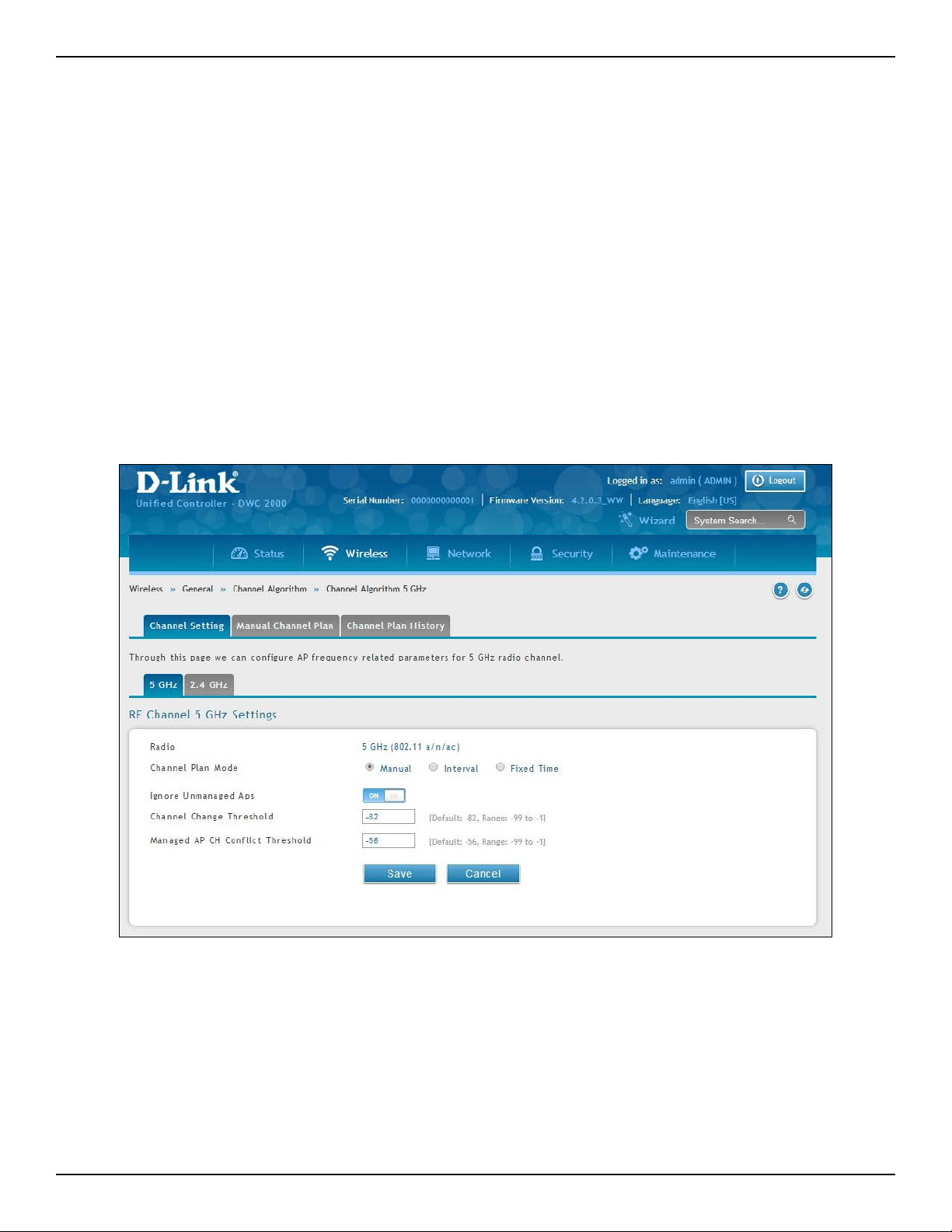
D-Link DWC-2000 User Manual 64
Section 4 - Advanced WLAN Conguration
Channel Plan and Power Settings
The wireless controller software contains a channel plan algorithm that automatically determines which RF
channels each AP should use to minimize RF interference. When you enable the channel plan algorithm, the
wireless controller periodically evaluates the operational channel on every AP it manages and changes the
channel if the current channel is noisy.
Congure Channel Plan
Path: Wireless > General > Channel Algorithm
To congure Channel Algorithm setting:
1. Click Wireless > General > Channel Algorithm > Channel Setting tab. The Channel Setting page will
appear.
2. Each AP is dual‐band capable of operating in the 2.4GHz and 5GHz frequencies. The 802.11a/n and
802.11b/g/n modes use dierent channel plans. Before you congure channel plan settings, select the
mode to congure. Click either the 5GHz or 2.4GHz tab.

D-Link DWC-2000 User Manual 65
Section 4 - Advanced WLAN Conguration
3. Select Channel Plan Mode. There are three type of modes:
• Manual - With the manual channel plan mode, you control and initiate the calculation and
assignment of the channel plan. You must manually run the channel plan algorithm and apply
the channel plan to the APs.
• Interval - In the interval channel plan mode, the controller periodically calculates and applies the
channel plan. You can congure the interval to be from every 6 to every 24 hours. The interval
period begins when you click Submit.
• Fixed Time - If you select the xed time channel plan mode, you specify the time for the channel
plan and channel assignment. In this mode the plan is applied once every 24 hours at the specied
time.
4. Channel Plan Interval: If you select the Interval channel plan mode, you can specify the frequency at
which the channel plan calculation and assignment occurs. The interval time is in hours, and you can
specify an interval that ranges between every 6 hours to every 24 hours.
5. Channel Plan Fixed Time: If you select the Fixed Time channel plan mode, you can specify the time
at which the channel plan calculation and assignment occurs. The channel plan calculation will occur
once every 24 hours at the time you specify.
6. Ignore Unmanaged APs: This function indicates whether the controller should pay attention only to
APs managed by the cluster or all detected APs when deciding what channel select for the radio. The
setting is enabled by default.
7. Channel Change Threshold: Congure the detected neighbor signal strength that triggers the
channel plan to re-evaluate the current operation channel. If the operating channel detects neighbor
APs operating on the same channel with signal below this threshold then the AP does not try to select
a new channel for the radio. The default value for this threshold is -82dBm. The range is -99dBm to
-1dBm.
8. Managed AP CH Conict Threshold: Once the controller channel interference calculation has done,
AP will prepare to change the radio to the less interference channel. To avoid two or more nearing
APs change to the same channel at the same time. AP will cancel the channel changing if there have
any nearing AP which the signal strength is above the “Managed AP CH conict Threshold” are also
attempt change to the same channel.
9. Manual Channel Plan: If you select Manual, click on the Manual Channel Plan tab. Here you can apply
and start the channel algorithm on selected access points.
10. Channel Plan History: This eld shows whether the controller is using the automatic channel
adjustment algorithm on the AP 2.4GHz and 5GHz radio.
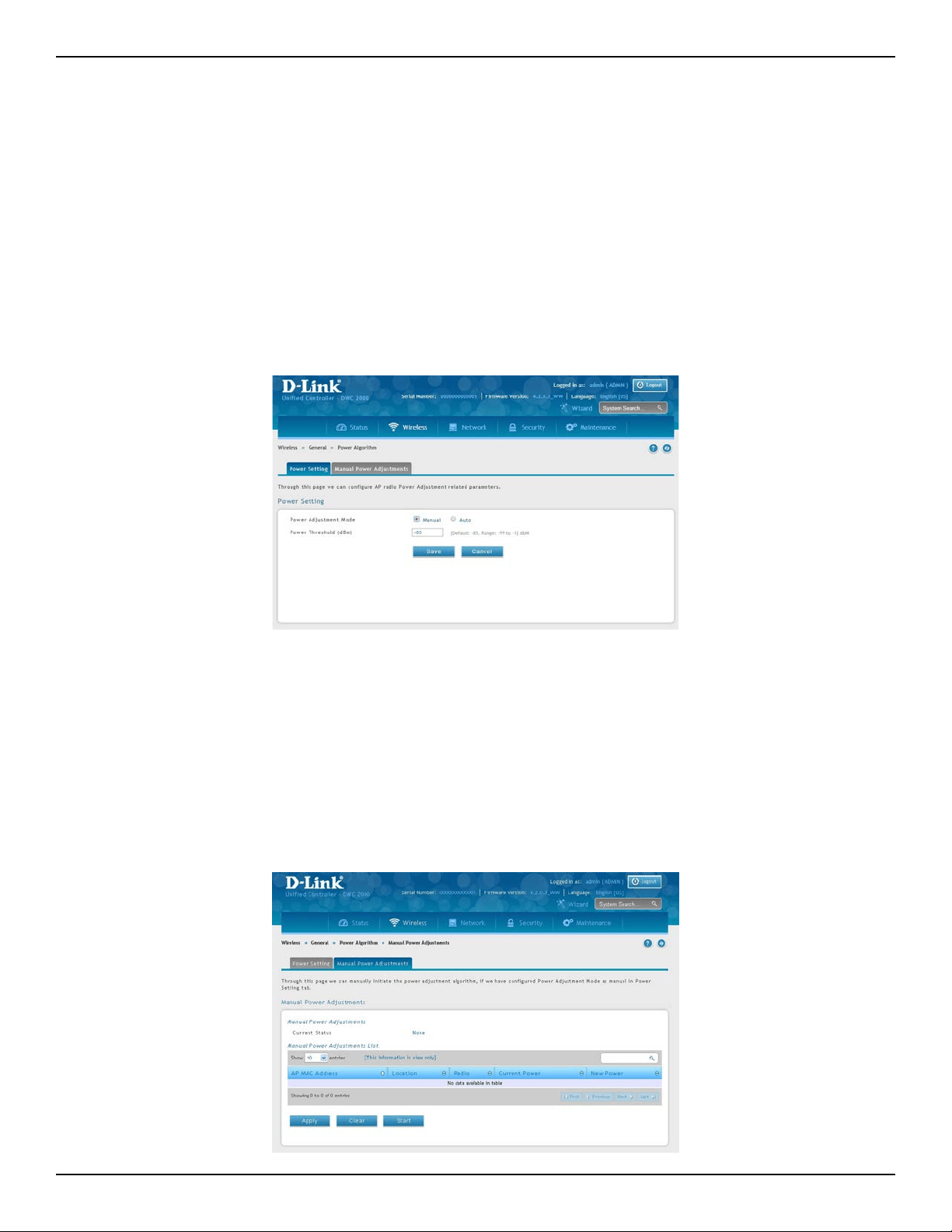
D-Link DWC-2000 User Manual 66
Section 4 - Advanced WLAN Conguration
To congure Channel Algorithm setting:
1. Click Wireless > General > Power Algorithm > Power Setting tab.
2. You can congure the power as a percentage of maximum power, where the maximum power is the
minimum of power level allowed for the channel by the regulatory domain or the hardware capability.
Select Manual or Auto Mode.
3. Enter the power change threshold. The default value is -85dBm. The power changes are initiated only if
the neighbor radio hears the transmitting radio with the signal strength equal or above the threshold.
The signal detected below the threshold is ignored.
4. If you select Manual, click on the Manual Power Adjustments tab. Here you can apply and start the
power algorithm on selected access points.
Congure Power Settings
Path: Wireless > General > Power Algorithm
You can set the power of the AP radio frequency transmission in the AP prole, the local database or in the
RADIUS server. The power level in the AP prole is the default level for the AP, and the power will not be adjusted
below the value in the AP prole. The settings in the local database and RADIUS server always override power
set in the prole setting. If you manually set the power, the level is xed and the AP will not use the automatic
power adjustment algorithm.
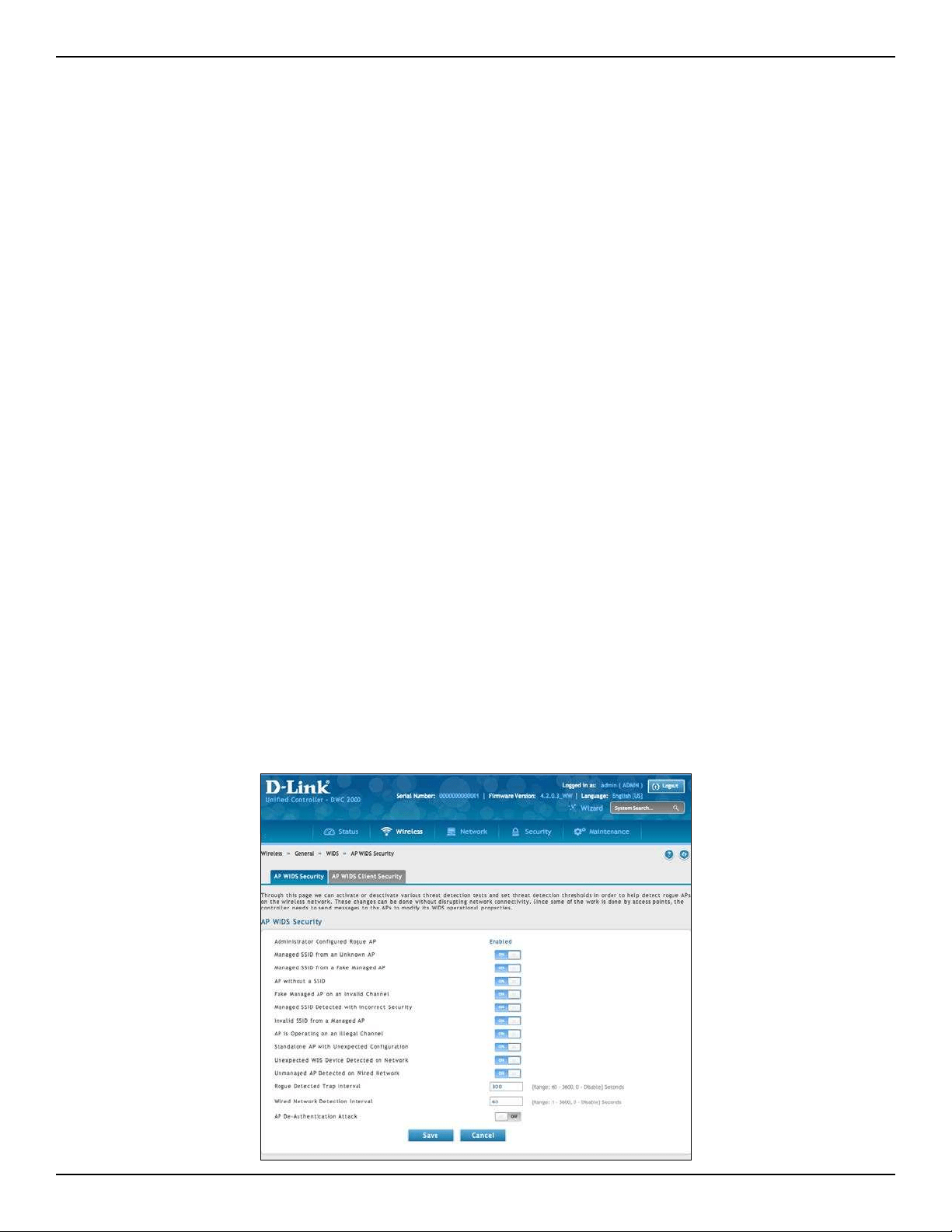
D-Link DWC-2000 User Manual 67
Section 6 - Securing Your Network
WIDS
The Wireless Intrusion Detection System (WIDS) can help detect intrusion attempts into the wireless network
and take automatic actions to protect the network.
Congure AP WIDS Settings
Path: Wireless > General > WIDS > AP WIDS Security
The WIDS AP Conguration page allows you to activate or deactivate various threat detection tests and set threat
detection thresholds in order to help detect rogue APs on the wireless network. These changes can be done
without disrupting network connectivity. Since some of the work is done by access points, the controller needs
to send messages to the APs to modify its WIDS operational properties.
Note: The classication settings on the WIDS AP Conguration page are part of the global conguration on the
controller and must be manually pushed to other controllers in order to synchronize that conguration.
Many of the tests are focused on identifying APs that are advertising managed SSIDs, but are not in fact managed
APs. Detecting such an AP means that a network is either miss‐congured or that a hacker set up a honeypot AP
in the attempt to collect passwords or other secure information.
Although operational mode radios can detect most threats, the sentry radios detect the threats faster, especially
when a potential rogue is operating on a dierent channel from any of the managed AP radios. The number
of deployed sentry radios should be sucient to provide coverage by one sentry radio in every geographical
location within the network. A denser sentry deployment may be desirable in order to improve rogue or interferer
signal triangulation.
To congure WIDS AP:
1. Go to Wireless > General > WIDS > AP WIDS Security tab.
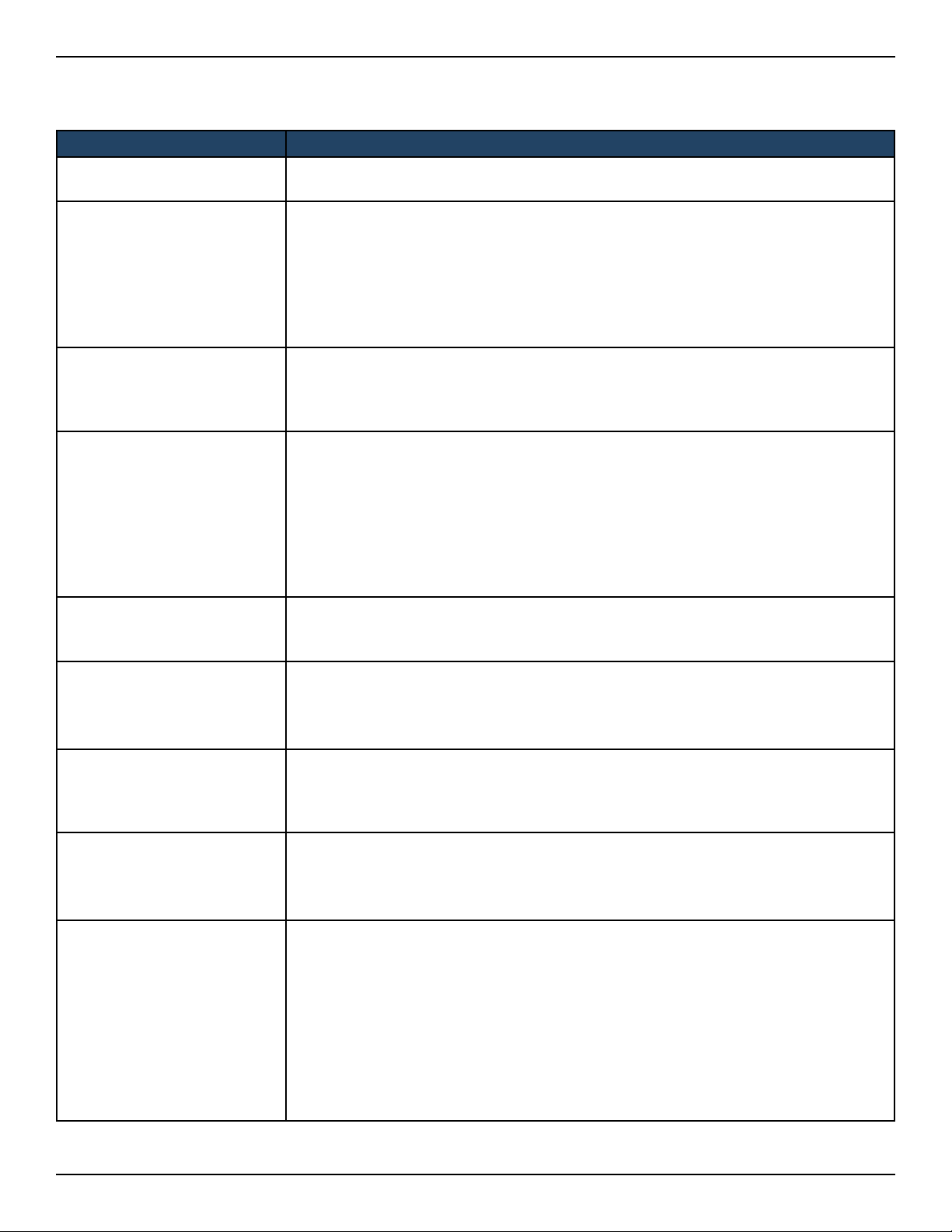
D-Link DWC-2000 User Manual 68
Section 6 - Securing Your Network
2. Enable or disable the security options as desired (refer to the table below) and click Save.
Field Description
Administrator Congured
Rogue AP
If the source MAC address is in the valid‐AP database on the controller or on the RADIUS
server, and the AP type is marked as Rogue, then the AP state is Rogue.
Managed SSID from an
Unknown AP
This test checks whether an unknown AP is using the managed network SSID. A hacker
may set up an AP with managed SSID to fool users into associating with the AP and
revealing password and other secure information.
Administrators with large networks who are using multiple clusters should either use
dierent network names in each cluster or disable this test. Otherwise, if an AP in the
rst cluster detects APs in the second cluster transmitting the same SSID as APs in the
rst cluster then these APs are reported as rogues.
Managed SSID from a Fake
Managed AP
A hacker may set up an AP with the same MAC address as one of the managed APs and
congure it to send one of the managed SSIDs. This test checks for a vendor eld in the
beacons which is always transmitted by managed APs. If the vendor eld is not present,
then the AP is identied as a fake AP.
AP without a SSID
SSID is an optional eld in beacon frames. To avoid detection a hacker may set up an AP
with the managed network SSID, but disable SSID transmission in the beacon frames.
The AP would still send probe responses to clients that send probe requests for the
managed SSID fooling the clients into associating with the hacker’s AP.
This test detects and ags APs that transmit beacons without the SSID eld. The test
is automatically disabled if any of the radios in the proles are congured not to send
SSID eld, which is not recommended because it does not provide any real security and
disables this test.
Fake Managed AP on an
Invalid Channel
This test detects rogue APs that transmit beacons from the source MAC address of one
of the managed APs, but on dierent channel from which the AP is supposed to be
operating.
Managed SSID Detection with
Incorrect Security
During RF Scan the AP examines beacon frames received from other APs and determines
whether the detected AP is advertising an open network, WEP, or WPA.
If the SSID reported in the RF Scan is one of the managed networks and its congured
security not match the detected security then this test marks the AP as rogue.
Invalid SSID from a Managed
AP
This test checks whether a known managed AP is sending an unexpected SSID. The
SSID reported in the RF Scan is compared to the list of all congured SSIDs that are
used by the prole assigned to the managed AP. If the detected SSID doesn’t match any
congured SSID then the AP is marked as rogue.
AP is Operating on an Illegal
Channel
The purpose of this test is to detect hackers or incorrectly congured devices that are
operating on channels that are not legal in the country where the wireless system is set up.
Note: In order for the wireless system to detect this threat, the wireless network must contain
one or more radios that operate in sentry mode.
Standalone AP with
Unexpected Conguration
If the AP is classied as a known standalone AP, then the controller checks whether
the AP is operating with the expected conguration parameters. You congure the
expected parameters for the standalone AP in the local or RADIUS Valid AP database.
This test may detect network misconguration as well as potential intrusion attempts.
The following parameters are checked:
• Channel Number
• SSID
• Security Mode
• WDS Mode
• Presence on a wired network
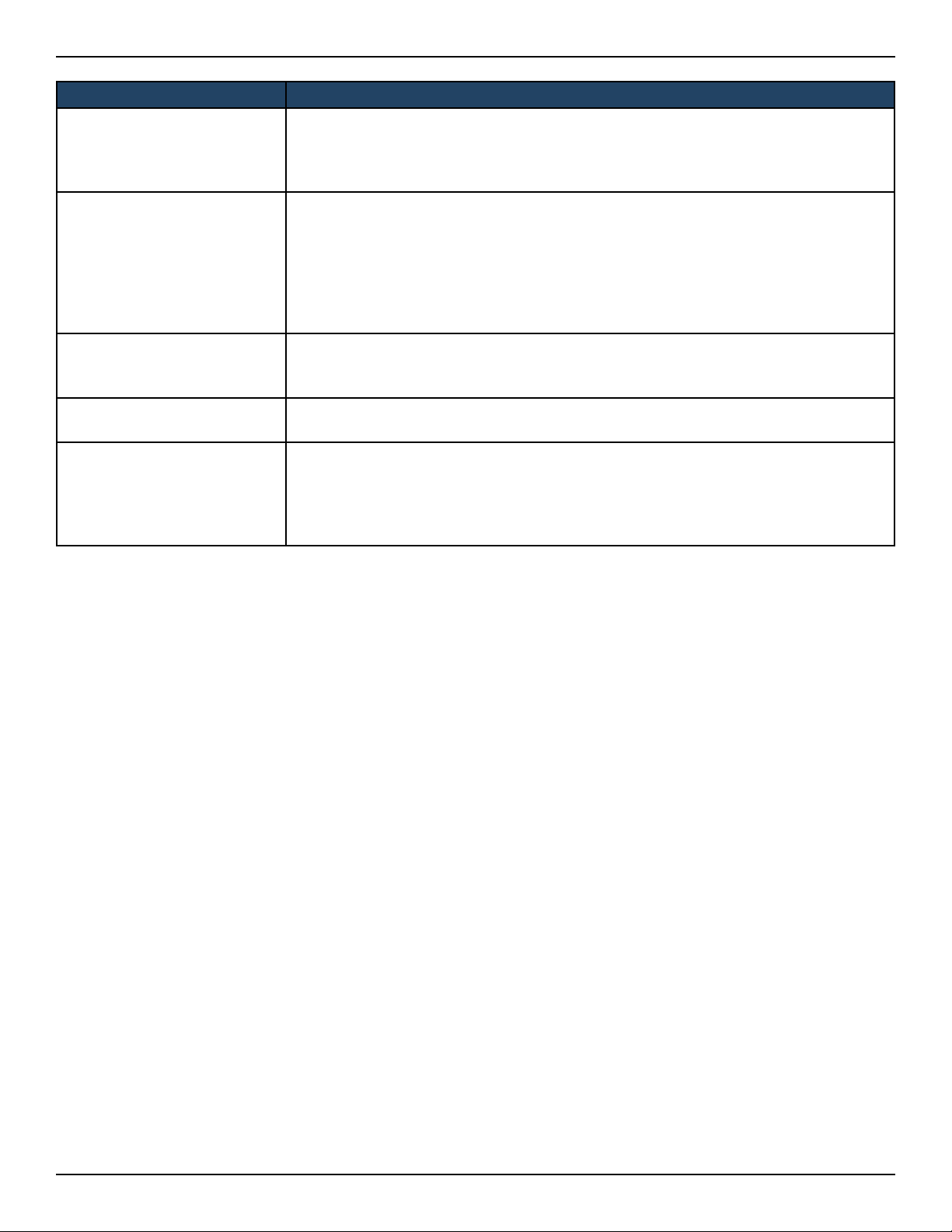
D-Link DWC-2000 User Manual 69
Section 6 - Securing Your Network
Field Description
Unexpected WDS Device
Detection on Network
If the AP is classied as a Managed or Unknown AP and wireless distribution system
(WDS) trac is detected on the AP, then the AP is considered to be Rogue. Only stand‐
alone APs that are explicitly allowed to operate in WDS mode are not reported as
rogues by this test.
Unmanaged AP Detection on
Wired Network
This test checks whether the AP is detected on the wired network. If the AP state is
Unknown, then the test changes the AP state to Rogue. The ag indicating whether
AP is detected on the wired network is reported as part of the RF Scan report. If AP is
managed and is detected on the network then the controller simply reports this fact
and doesn’t change the AP state to Rogue. In order for the wireless system to detect
this threat, the wireless network must contain one or more radios that operate in sentry
mode.
Rogue Detected Trap Interval
Specify the interval, in seconds, between transmissions of the SNMP trap telling the
administrator that rogue APs are present in the RF Scan database. If you set the value
to 0, the trap is never sent.
Wired Network Detection
Interval
Specify the number of seconds that the AP waits before starting a new wired network
detection cycle. If you set the value to 0, wired network detection is disabled.
AP De-Authentication Attack
Enable or disable the AP de‐authentication attack. The wireless controller can protect
against rogue APs by sending de‐authentication messages to the rogue AP. The de‐
authentication attack feature must be globally enabled in order for the wireless system
to do this function. Make sure that no legitimate APs are classied as rogues before
enabling the attack feature. This feature is disabled by default.
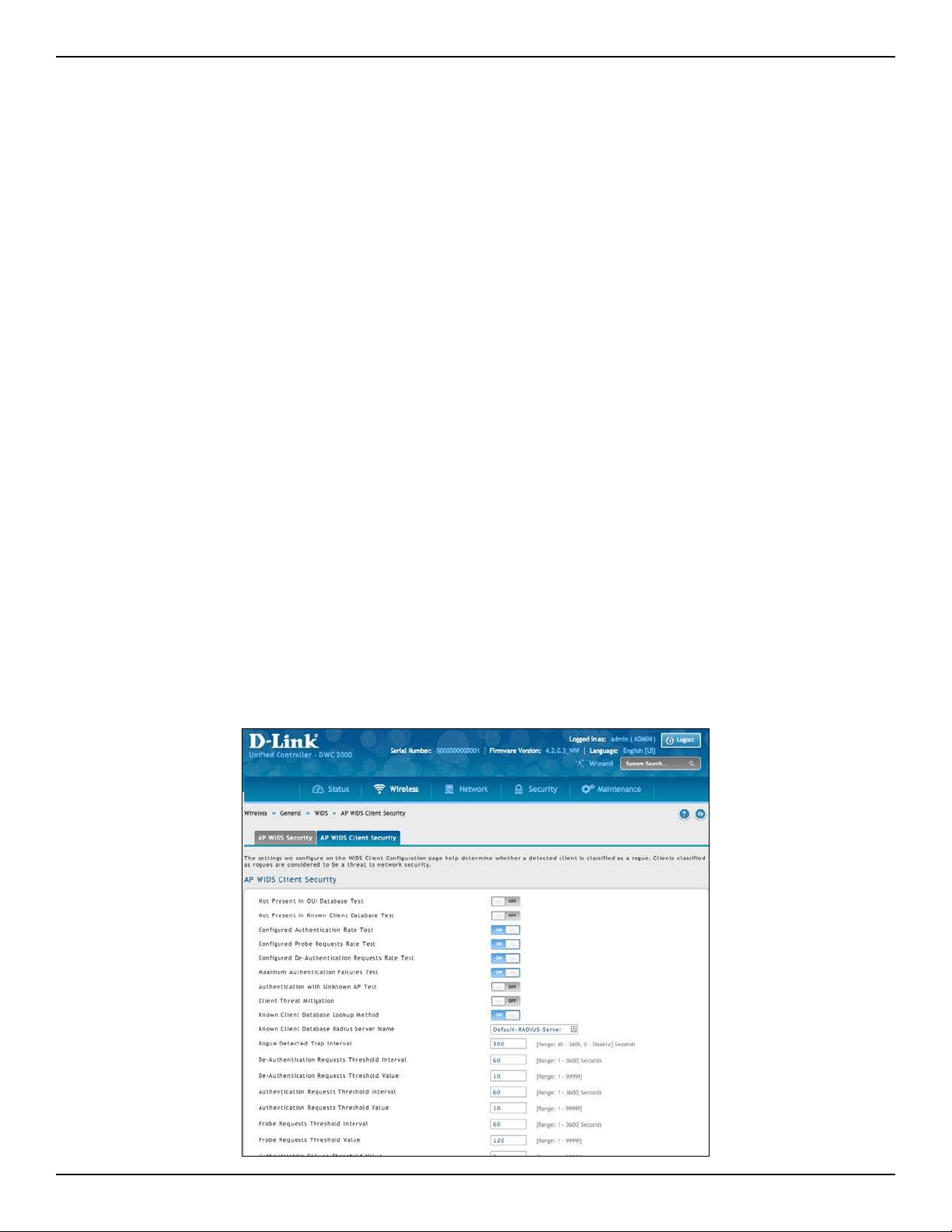
D-Link DWC-2000 User Manual 70
Section 6 - Securing Your Network
Congure Client WIDS Settings
Path: Wireless > General > WIDS > AP WIDS Client Security
The Wireless Intrusion Detection System (WIDS) can help detect intrusion attempts into the wireless network
and take automatic actions to protect the network. The settings you congure on the WIDS Client Conguration
page help determine whether a detected client is classied as a rogue. Clients classied as rogues are considered
to be a threat to network security.
Note: The classication settings on the WIDS Client Conguration page are part of the global conguration on the
controller and must be manually pushed to other controllers in order to synchronize that conguration.
As part of the general association and authentication process, wireless clients send 802.11 management messages
to APs. The WIDS feature tracks the following types of management messages that each detected client sends:
• Probe Requests
• 802.11 Authentication Requests.
• 802.11 De‐Authentication Requests.
In order to help determine whether a client is posing a threat to the network by ooding the network with
management trac, the system keeps track of the number of times the AP received each message type and the
highest message rate detected in a single RF Scan report. On the WIDS Client Conguration page, you can set
thresholds for each type of message sent, and the APs monitor whether any clients exceed those thresholds or
tests.
To congure WIDS Client:
1. Go to Wireless > General > WIDS > AP WIDS Client Security tab.
D-Link DWC-2000 User Manual 71
Section 6 - Securing Your Network
2. Enable or disable the security options as desired (refer to the table below) and click Save.
Field Description
Not Present in OUI Database
Test
This test checks whether the MAC address of the client is from a registered
manufacturer identied in the OUI database.
Not Present in Known Client
Database Test
This test checks whether the client, which is identied by its MAC address, is listed
in the Known Client Database and is allowed access to the AP either through the
Authentication Action of Grant or through the White List global action.
If the client is in the Known Client Database and has an action of Deny, or if the
action is Global Action and it is globally set to Black List, the client fails this test.
Congured Authentication Rate
Test
This test checks whether the client has exceeded the congured rate for transmitting
802.11 authentication requests.
Congured Probe Requests
Rate Test
This test checks whether the client has exceeded the congured rate for transmitting
probe requests.
Congured De-Authentication
Requests Rate Test
This test checks whether the client has exceeded the congured rate for transmitting
de‐authentication requests.
Maximum Authentication
Failures Test
This test checks whether the client has exceeded the maximum number of failed
authentications.
Authentication with Unknown
AP Test
This test checks whether a client in the Known Client database is authenticated with
an unknown AP.
Client Threat Mitigation
Select enable to send de‐authentication messages to clients that are in the Known
Clients database but are associated with unknown APs. The Authentication with
Unknown AP Test must also be enabled in order for the mitigation to take place.
Select disable to allow clients in the Known Clients database to remain authenticated
with an unknown AP.
Known Client Database Lookup
Method
When the controller detects a client on the network it performs a lookup in the
Known Client database. Specify whether the controller should use the local or
RADIUS database for these lookups.
Known Client Database Radius
Server Name
If the known client database lookup method is RADIUS then this eld species the
RADIUS server name.
Rogue Detected Trap Interval
Specify the interval, in seconds, between transmissions of the SNMP trap telling the
administrator that rogue APs are present in the RF Scan database. If you set the
value to 0, the trap is never sent.
De-Authentication Requests
Threshold Interval
Specify the number of seconds an AP should spend counting the de‐authentication
messages sent by wireless clients.
De-Authentication Requests
Threshold Value
If the controller receives more than specied messages during the threshold interval
the test triggers.
Authentication Requests
Threshold Interval
Specify the number of seconds an AP should spend counting the authentication
messages sent by wireless clients.
Authentication Requests
Threshold Value
If the controller receives more than specied messages during the threshold interval
the test triggers.
Probe Requests Threshold
Interval
Specify the number of seconds an AP should spend counting the probe messages
sent by wireless clients.
Probe Requests Threshold Value
Specify the number of probe requests a wireless client is allowed to send during the
threshold interval before the event is reported as a threat.
Authentication Failure
Threshold Value
Specify the number of 802.1X authentication failures a client is allowed to have
before the event is reported as a threat.
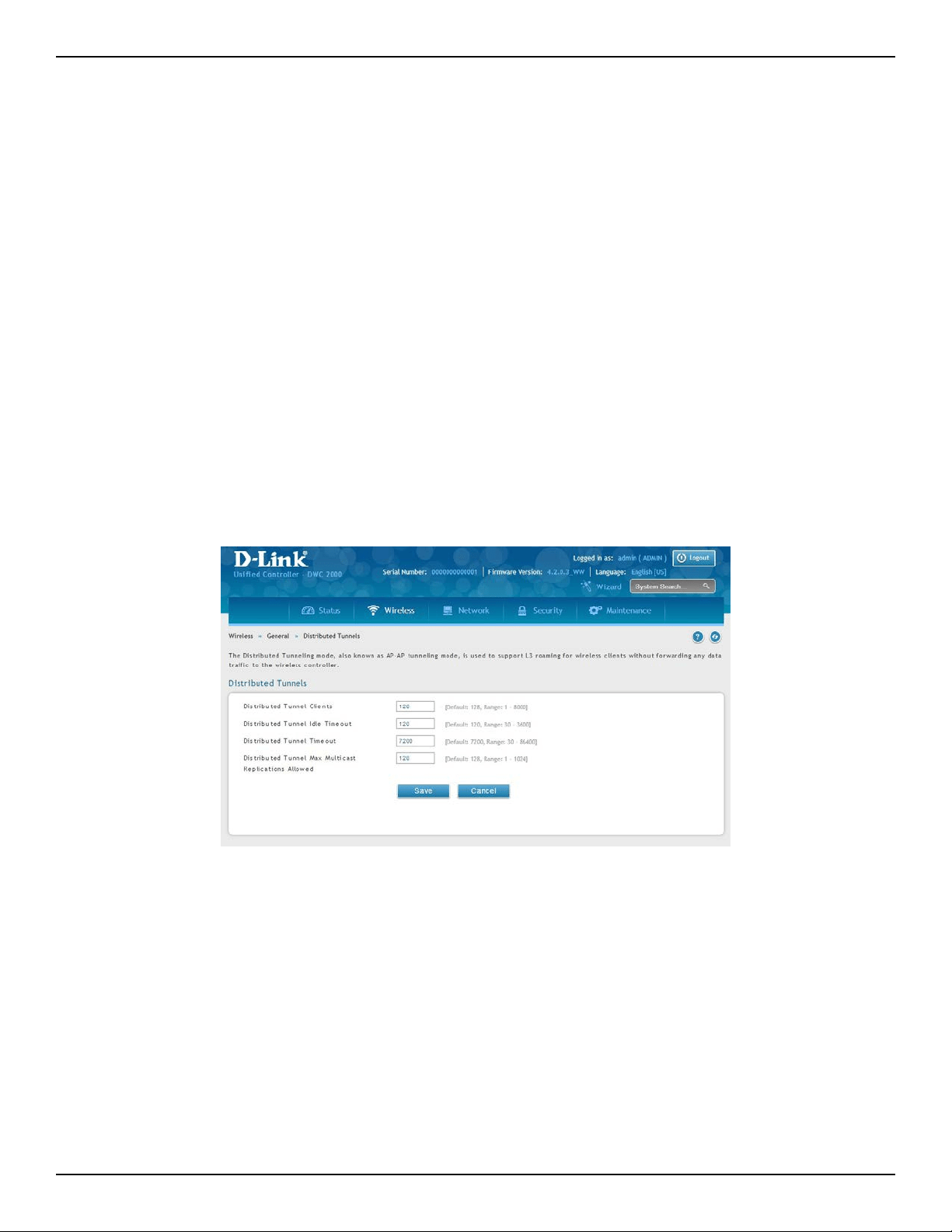
D-Link DWC-2000 User Manual 72
Section 4 - Advanced WLAN Conguration
Distributed Tunnel
The Distributed Tunneling mode, also known as AP‐AP tunneling mode, is used to support L3 roaming for
wireless clients without forwarding any data trac to the wireless controller.
In the AP‐AP tunneling mode, when a client rst associates with an AP in the wireless system, the AP forwards its
data using the VLAN forwarding mode. The AP to which the client initially associates is the Home AP. The AP to
which the client roams is the Association AP.
When a client roams to another AP in a dierent subnet the Association AP tunnels all trac from the client to
the Home AP using a CAPWAP L2 tunnel. The Home AP injects the trac received over the tunnel into the wired
network. If a client roams to another AP in the same subnet then the tunnel is not created, and the new AP
becomes the Home AP for the client.
Congure Distributed Tunnel
Path: Wireless > General > Distributed Tunnel
1. Click Wireless > General > Distributed Tunnel.
2. Congure the following settings:
• Distributed Tunnel Clients - Specify the maximum number of distributed tunneling clients that
can roam away from the Home AP at the same time.
• Distributed Tunnel Idle Timeout - Specify the number of seconds of no activity by the client
before the tunnel to that client is terminated and the client is forced to change its IP address.
• Distributed Tunnel Timeout - Specify the number of seconds before the tunnel to the roamed
client is terminated and the client is forced to change its IP address.
• Distributed Tunnel Max Multicast Replications Allowed - Specify the maximum number of
tunnels to which a multicast frame is copied on the Home AP.
3. Click Save.
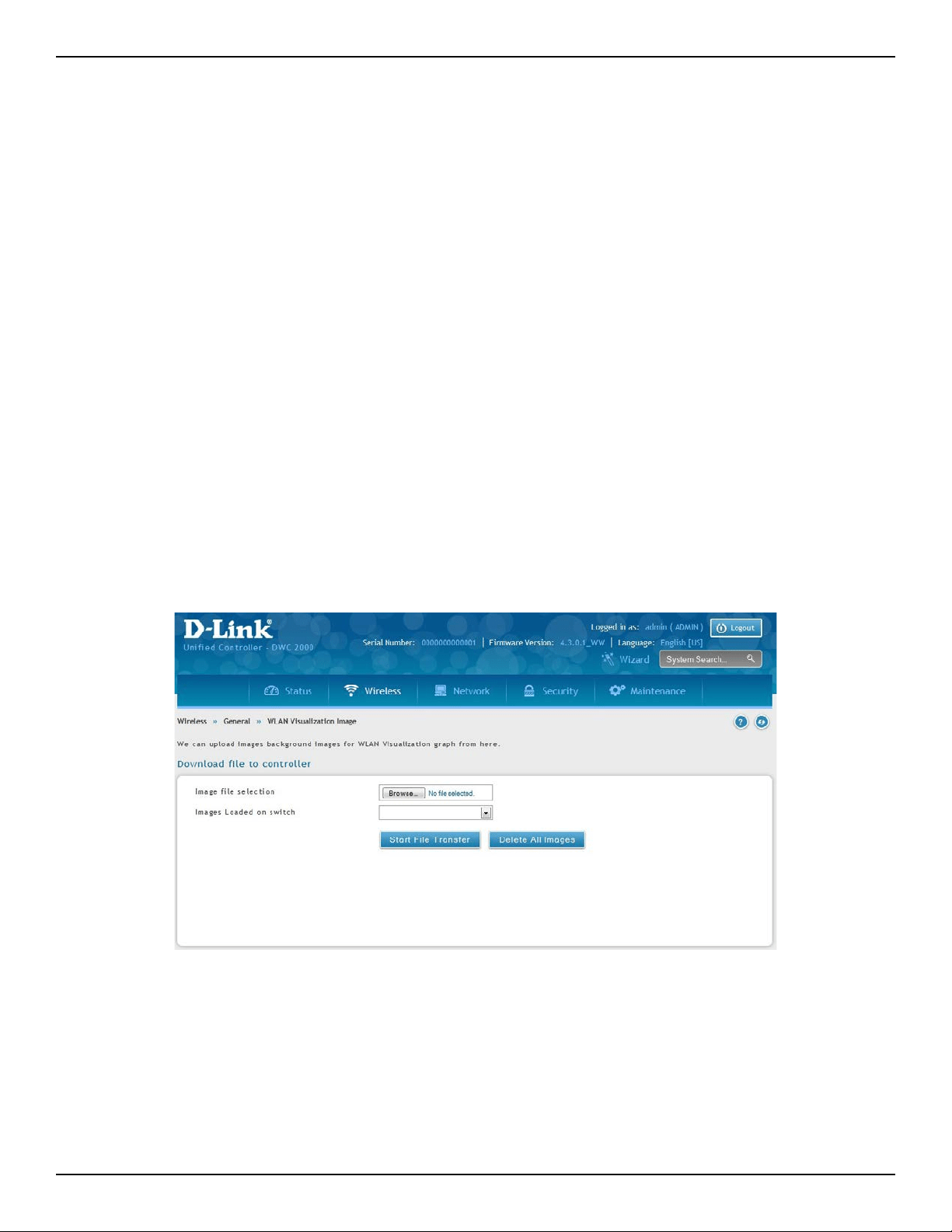
D-Link DWC-2000 User Manual 73
Section 4 - Advanced WLAN Conguration
WLAN Visualization
WLAN Visualization is a tool that provides a graphical representation of the wireless network through a Web
browser. The WLAN Visualization graph does not have a background image of its own, and so the administrator
can upload a static graphic image that provides the wireless topology of the APs and controllers in the wireless
network.
Upload Images
General > WLAN Visualization Image
User can upload one or more images, such as your oce oor plan, to provide customized information for
the WLAN Visualization feature. Images le formats that are recommended to upload should be in one of the
following formats:
• GIF (Graphics Interchange Format)
• JPG (Joint Photographic Experts Group)
It is also recommended that you do not use color images since the WLAN components might not show up well.
Once user uploads an image le and save the running conguration, the image remains on the controller and
you can assign it to an existing graph using the WLAN Deployment application.
Deleting Images
This option is available only if images are already loaded onto the controller. To delete all images loaded onto the
controller, click Delete All Images. Deleting background images is not recommended. However, if user uses has
to delete the images user will need to refresh the WLAN Visualization tool after deleting images.
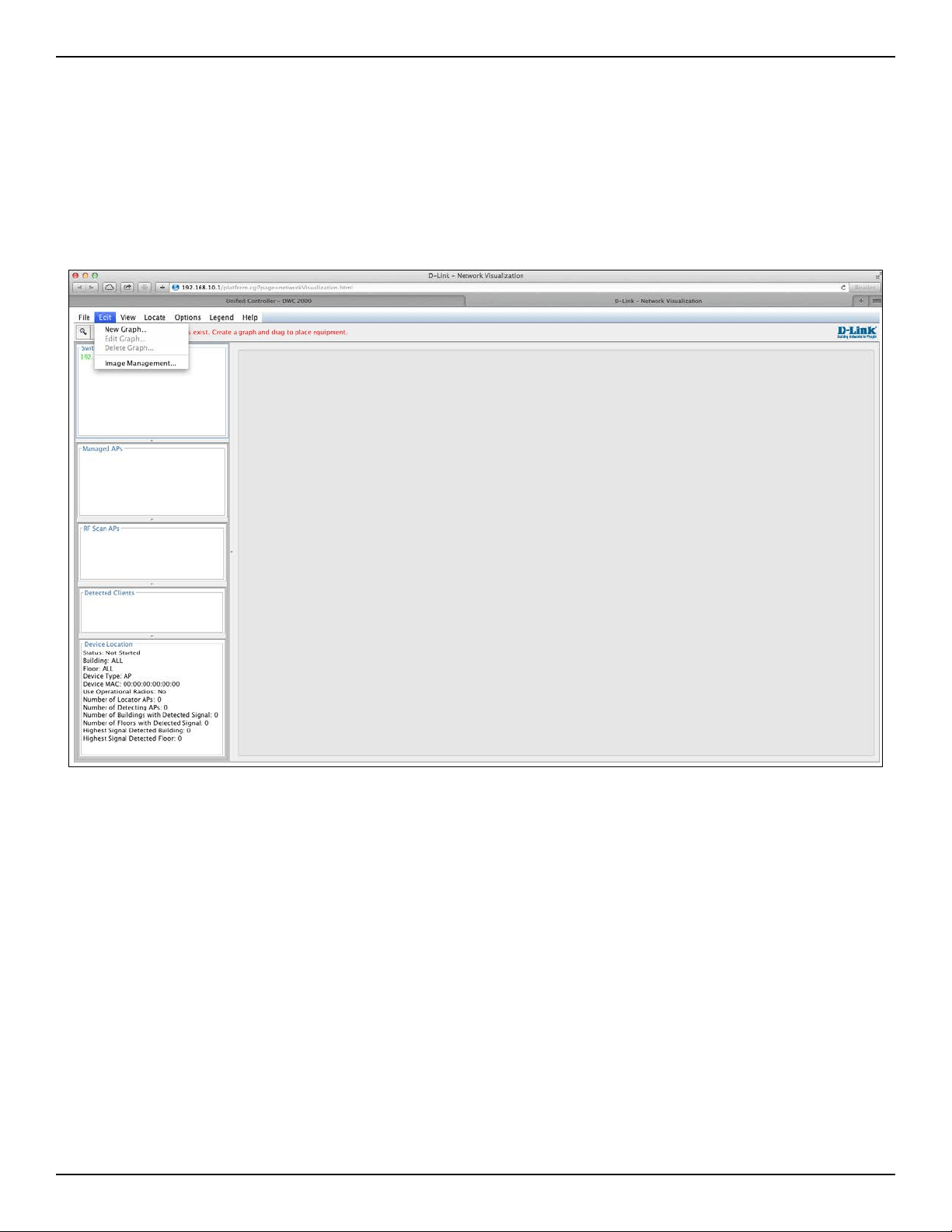
D-Link DWC-2000 User Manual 74
Section 4 - Advanced WLAN Conguration
Launch
Path: Wireless > General > WLAN Visualization
To launch the WLAN Visulization tool, click Wireless > General > WLAN Visualization. This will open a new browser
window and starts the Java applet that allows the AP and WLAN controller network to be presented as a topology
diagram (with or without a custom background image).
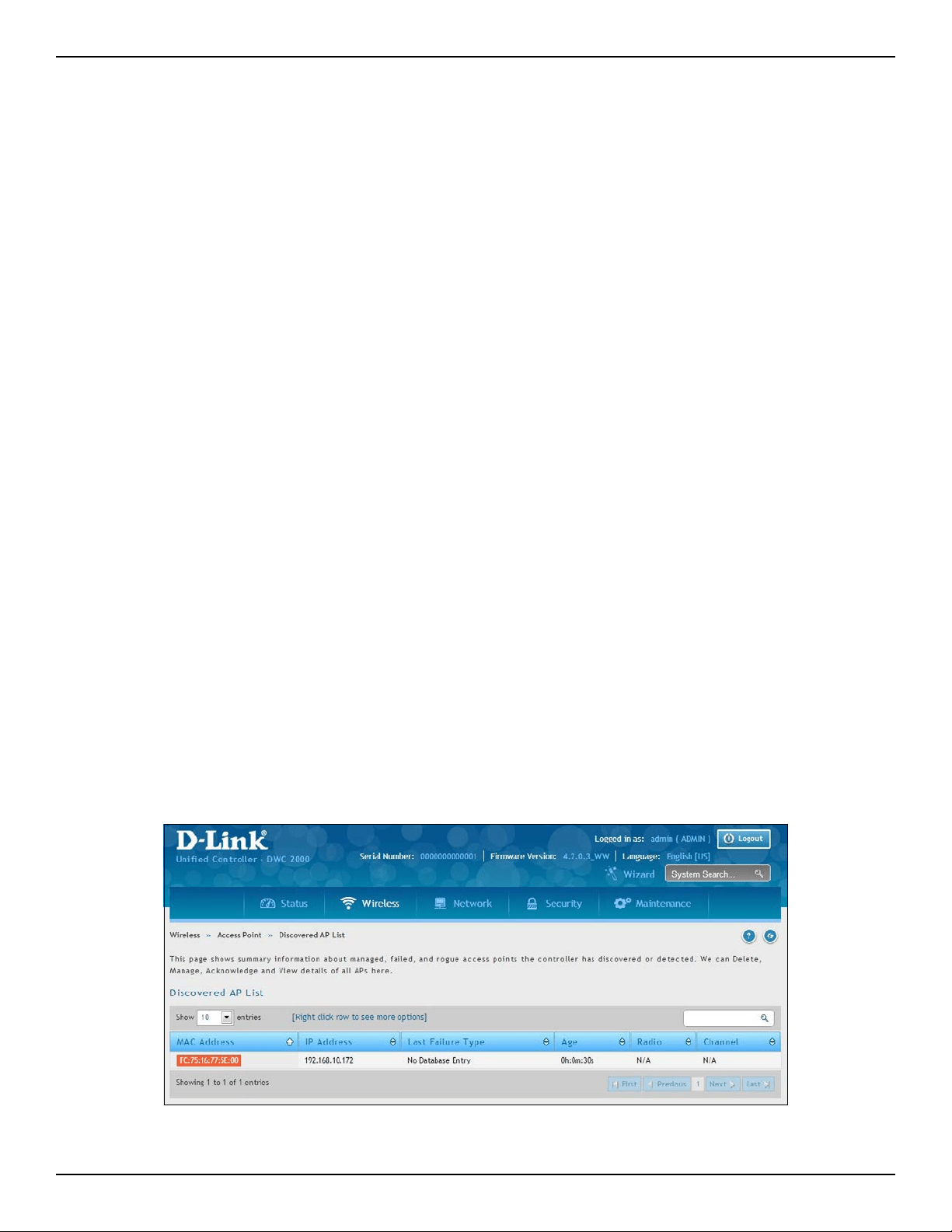
D-Link DWC-2000 User Manual 75
Section 4 - Advanced WLAN Conguration
AP Discovery Methods
The wireless controller and AP can use the following methods to discover each other:
• L2 Discovery
• IP Address of AP Congured in the wireless controller
• IP Address of the wireless controller Congured in the AP
L2/ VLAN Discovery
When the AP and the wireless controller are directly connected or in the same layer 2 broadcast domain and use
the default VLAN settings, the wireless controller automatically discovers the AP through its broadcast of a L2
discovery message. The L2 discovery works automatically when the devices are directly connected or connected
by using a layer 2 bridge. You can enable the discovery protocol on up to 16 VLANs.
By default, VLAN 1 is enabled on the AP, and VLAN 1 is enabled for discovery on the wireless controller. If the
wireless controller and AP are in the same Layer 2 multicast domain, you might not need to take any action to
enable AP discovery. The wireless controller also uses L2/VLAN discovery to nd peer controllers within the L2
multicast domain.
The APs process the discovery message only when it comes in on the management VLAN. The APs do not forward
the L2 discovery messages onto the wireless media.
From the wireless controller, you can check the discovery status of APs and peer controllers. To view information
about whether the controller discovered any APs, navigate to the Wireless > Access Point > Discovered AP List
page. The color of MAC address of the Discovered AP List indicating the AP is:
• Green = Managed AP
• Red = Connected Fail AP or AP (D-Link UAP) which is not in local or RADIUS Valid AP Database
• Gray = Unknown AP or Rogue AP
• Orange = Managed AP by peer controller
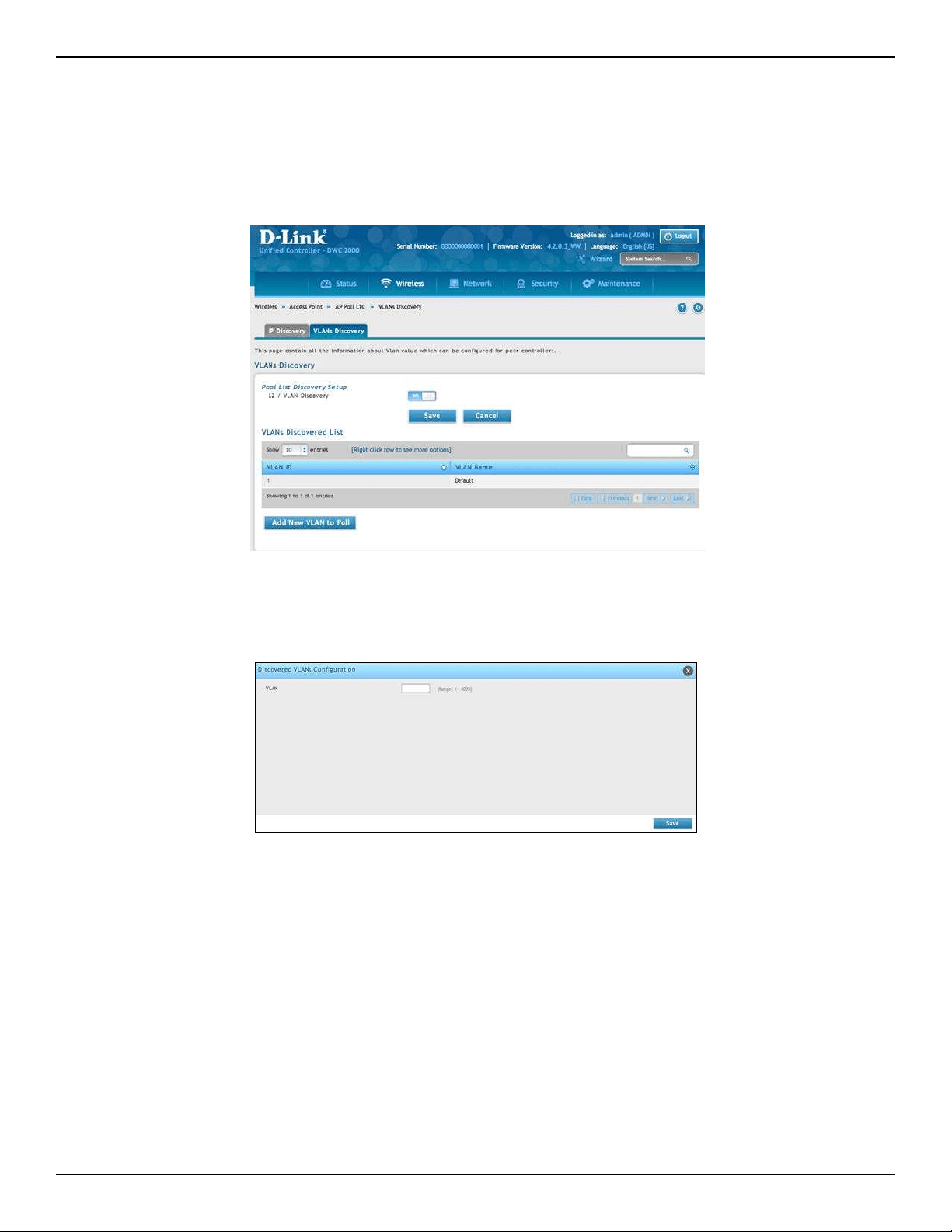
D-Link DWC-2000 User Manual 76
Section 4 - Advanced WLAN Conguration
Congure L2/ VLAN Discovery
Path: Wireless > Access Point > AP Poll List
1. Click Wireless > Access Point > AP Poll List > VLAN Discovery tab.
4. Click Save.
2. Switch L2/ VLAN Discovery to ON and click Save.
3. Click Add New VLAN to Poll. Enter a VLAN number.
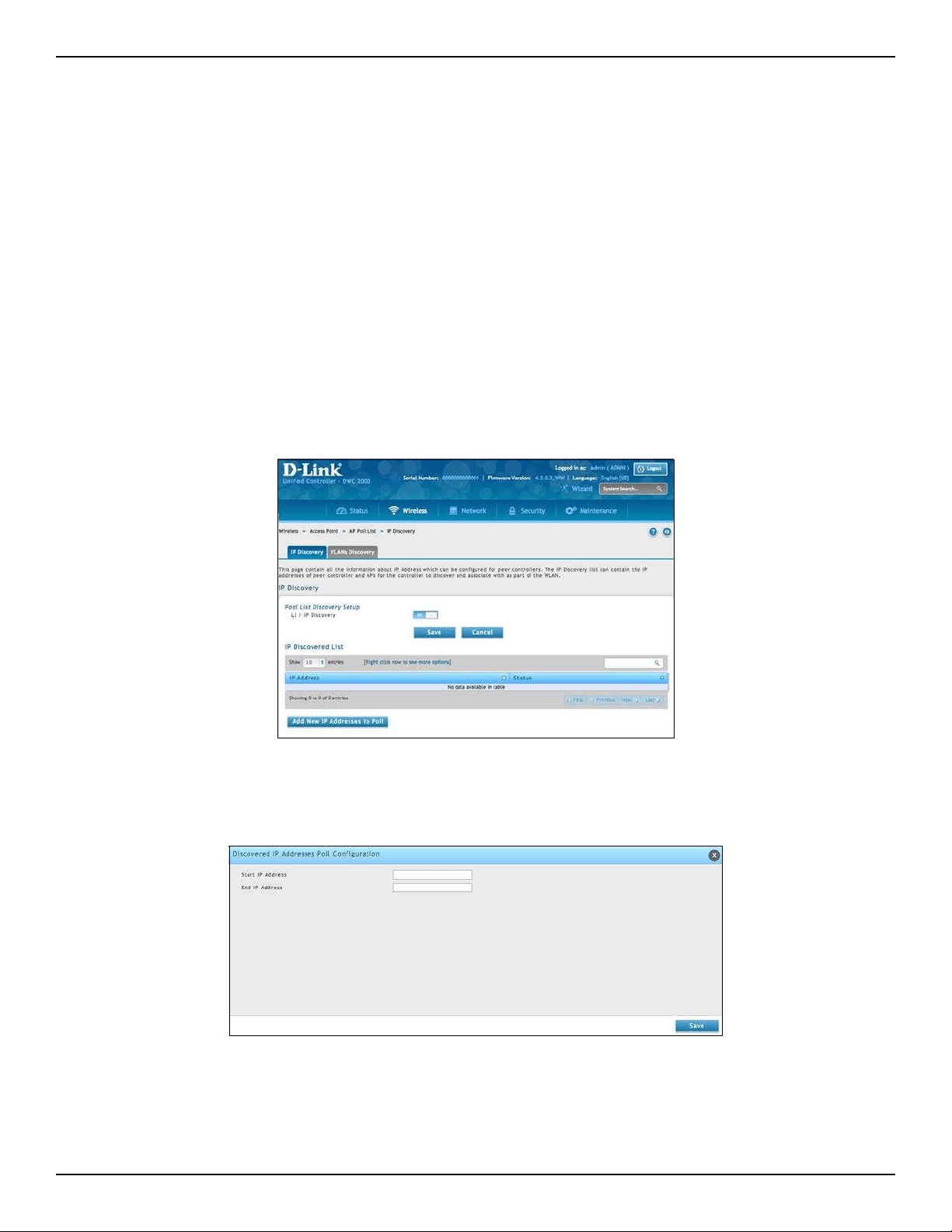
D-Link DWC-2000 User Manual 77
Section 4 - Advanced WLAN Conguration
L3/ IP Discovery
You can congure up to 256 IP addresses in the wireless controller for potential peer controllers and APs. The
wireless controller sends association invitations to all IP addresses in this list. If the device accepts the invitation
and is successfully validated by the controller, the controller and the AP or peer wireless controller are associated.
This discovery method mechanism is useful for peer wireless controller discovery and AP discovery when the
devices are in dierent IP subnets. In fact, for a wireless controller to recognize a peer that is not on the same
subnet, you must congure the IP addresses of each controller in the peer’s L3 discovery list.
Congure L3/ IP Discovery
Path: Wireless > Access Point > AP Poll List
1. Click Wireless > Access Point > AP Poll List > IP Discovery tab.
4. Click Save.
5. Navigate to Wireless > Access Point > Discovered AP List. Check the discovered AP via L3/ IP
discovery.
2. Switch L3/ IP Discovery to On and click Save.
3. Click Add New IP Addresses to Poll. Enter the IP range.
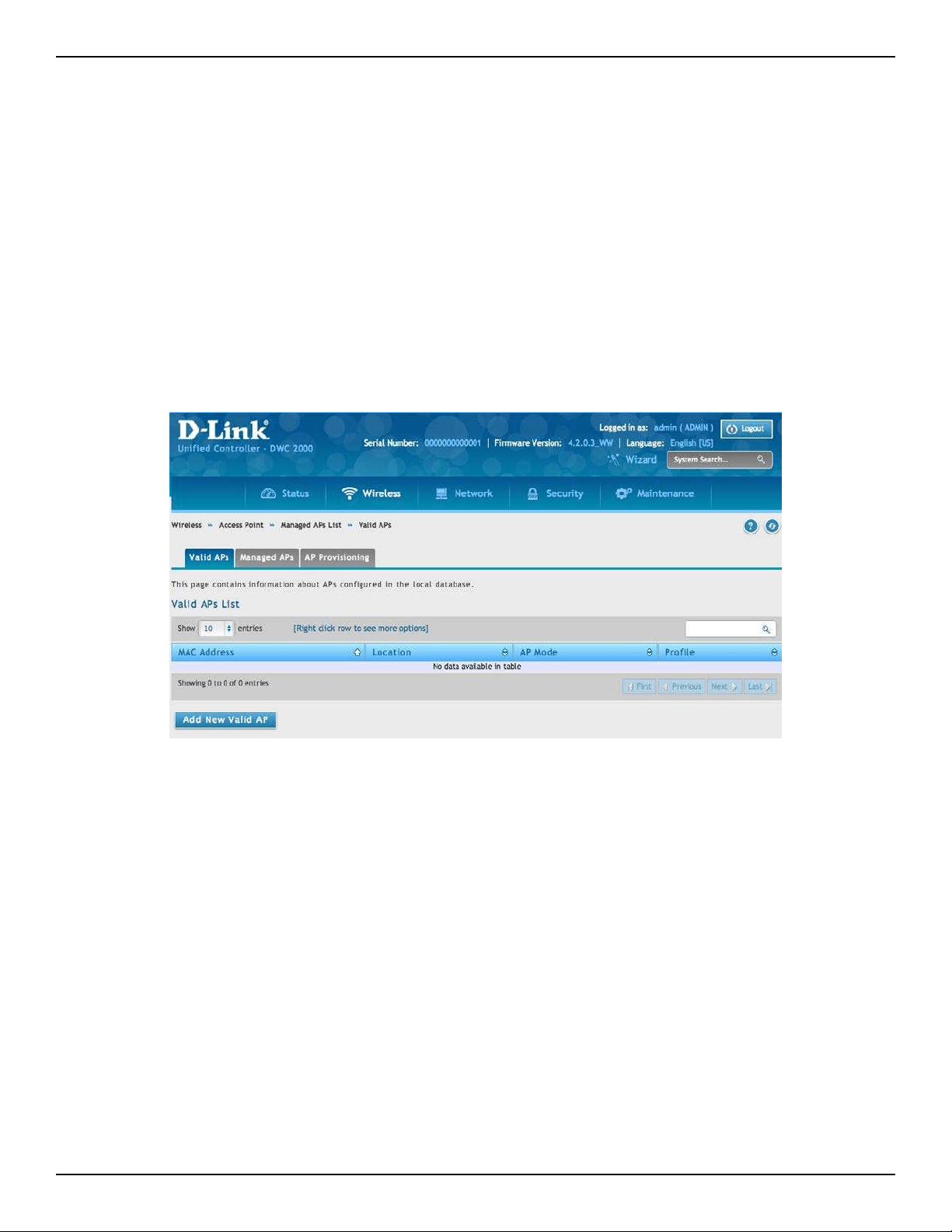
D-Link DWC-2000 User Manual 78
Section 4 - Advanced WLAN Conguration
Managed APs
The managed AP information stores in controller local database. You can add/delete, change power/channel, or
change the AP prole individually.
The Wireless Global Conguration page contains a eld to select whether to use a local or RADIUS database for
AP Validation. The Valid Access Point List page contains information about APs congured in the local database.
If the AP Validation is set to RADIUS, information about the APs to be managed by the controller must be added
to the external RADIUS database.
Add a Valid AP
1. Click Wireless > Access Point > Managed APs List > Valid AP tab.
2. Click Add New Valid AP.
3. Complete the elds on the next page and click Save.
Note: To add or delete an AP from the valid AP list, right-click the access point and select Edit or Delete.
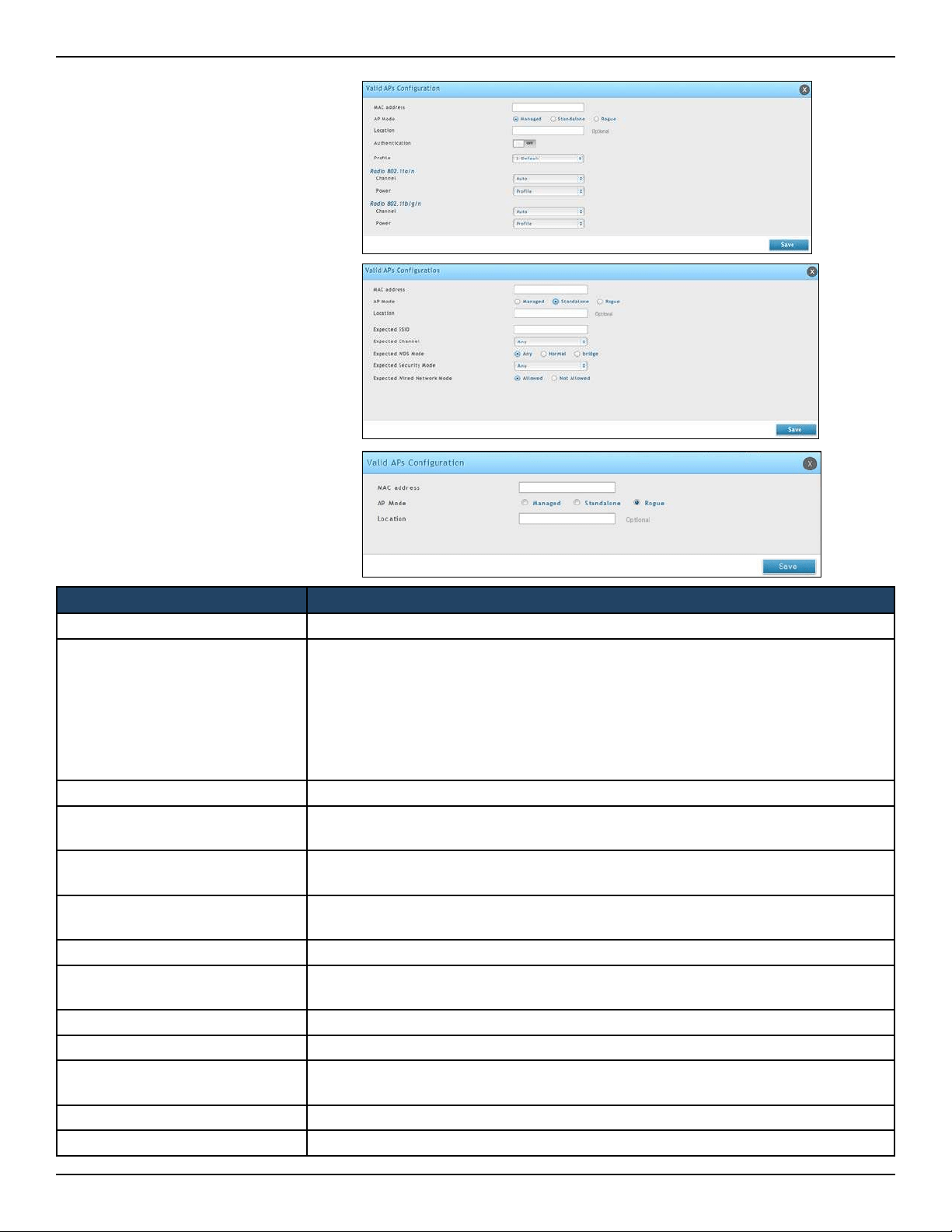
D-Link DWC-2000 User Manual 79
Section 4 - Advanced WLAN Conguration
Field Description
MAC Address MAC address of the access point.
AP Mode
Select standalone, managed, or rogue. Selecting standalone or managed will require
you to ll out the elds (refer to the next page).
• Standalone
• Managed = access point prole conguration has been applied to the access
point and the access point operating in managed mode.
• Rogue = access point has not tried to contact the wireless controller and the
access point’s MAC address is not in the Valid AP database.
Location Optional eld to identify location of the access point being managed.
Expected SSID
If AP Mode= Standalone, the SSID that the access point should be set to. This is for
reference only.
Expected Channel
If AP Mode= Standalone, the channel to be used for wireless communication. This is
for reference only.
Expected WDS Mode
If AP Mode= Standalone, the WDS (Wireless Distributed System) mode to be used if
you intend to use WDS. This is for reference only.
Expected Security Mode If AP Mode= Standalone, the security mode to be used. This is for reference only.
Expected Wired Network Mode
If AP Mode= Standalone, select whether wired networking is going to be allowed.
This is for reference only.
Authentication Password If AP Mode= Managed, turn on to require a password for authentication.
Prole If AP Mode= Managed, select a prole to apply for AP conguration.
Radio
If AP Mode= Managed, this is Wireless radio mode that the access point is using. The
elds below appear after you have selected Managed AP Mode.
Channel If AP Mode= Managed, this is operating channel for the radio.
Power If AP Mode= Managed, this is percentage of power to use for the radio.
Managed Mode
Standalone Mode
Rogue Mode
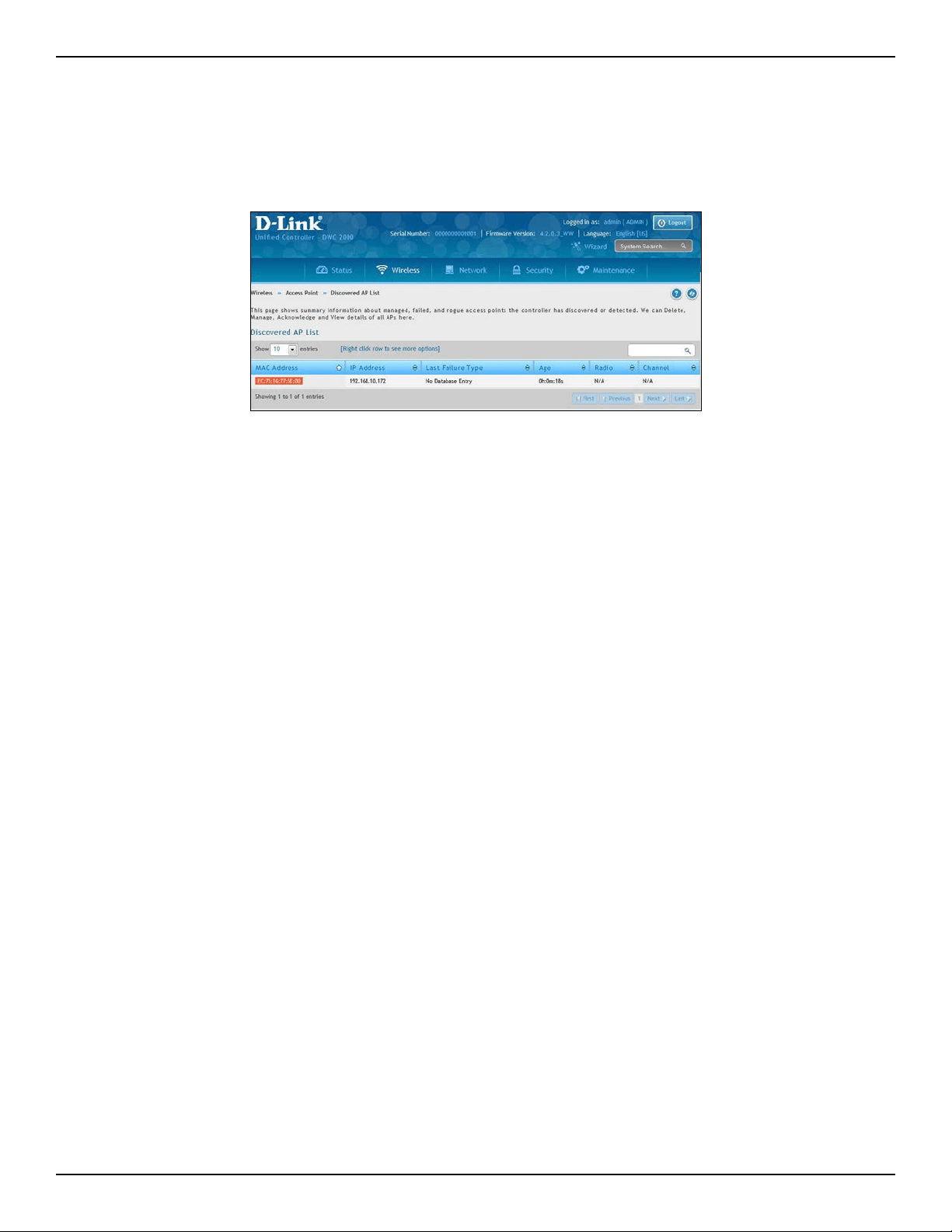
D-Link DWC-2000 User Manual 80
Section 4 - Advanced WLAN Conguration
Add a AP from Discovered AP List
Path: Wireless > Access Point > Discovered AP List
1. Click Wireless > Access Point > Discovered AP List.
2. Right-click an AP and select Manage.
3. Select an AP Mode and Prole (refer to the previous page) and then click Save.
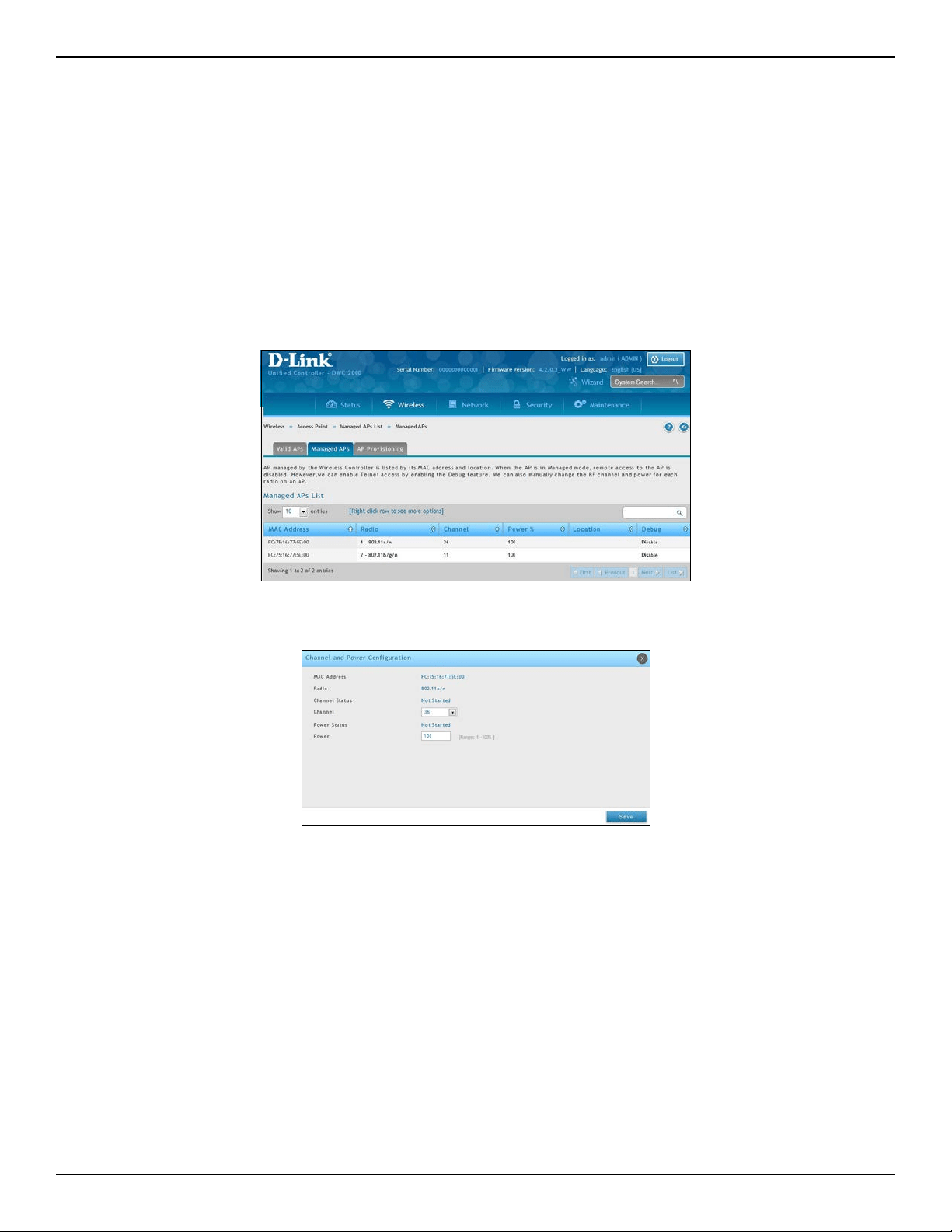
D-Link DWC-2000 User Manual 81
Section 4 - Advanced WLAN Conguration
Manual Change Channel and Power of Managed AP
Path: Wireless > Access Point > Managed APs List > Managed APs
From the Managed AP page, you can also manually change the RF channel and power for each radio on an AP.
The manual power and channel changes override the settings congured in the AP prole (including automatic
channel selection) and take eect immediately. The manual channel and power assignments are not retained
when the AP is reset or if the prole is reapplied to the AP, such as when the AP disassociates and re-associates
with the controller.
1. Click Wireless > Access Point > Managed APs List > Managed APs tab.
3. Select the channel as your desired. The available channels depend on the radio mode and country in
which the APs operate. The manual channel change overrides the channel congured in the AP prole
and is not retained when the AP reboots or when the AP prole is reapplied.
4. Change the power as your desired. You can set a new power level for the AP. The manual power change
overrides the power setting congured in the AP prole and is not retained when the AP reboots or
when the AP prole is reapplied.
5. Click Save.
2. Right-click on one of the entries and select Channel and Power.
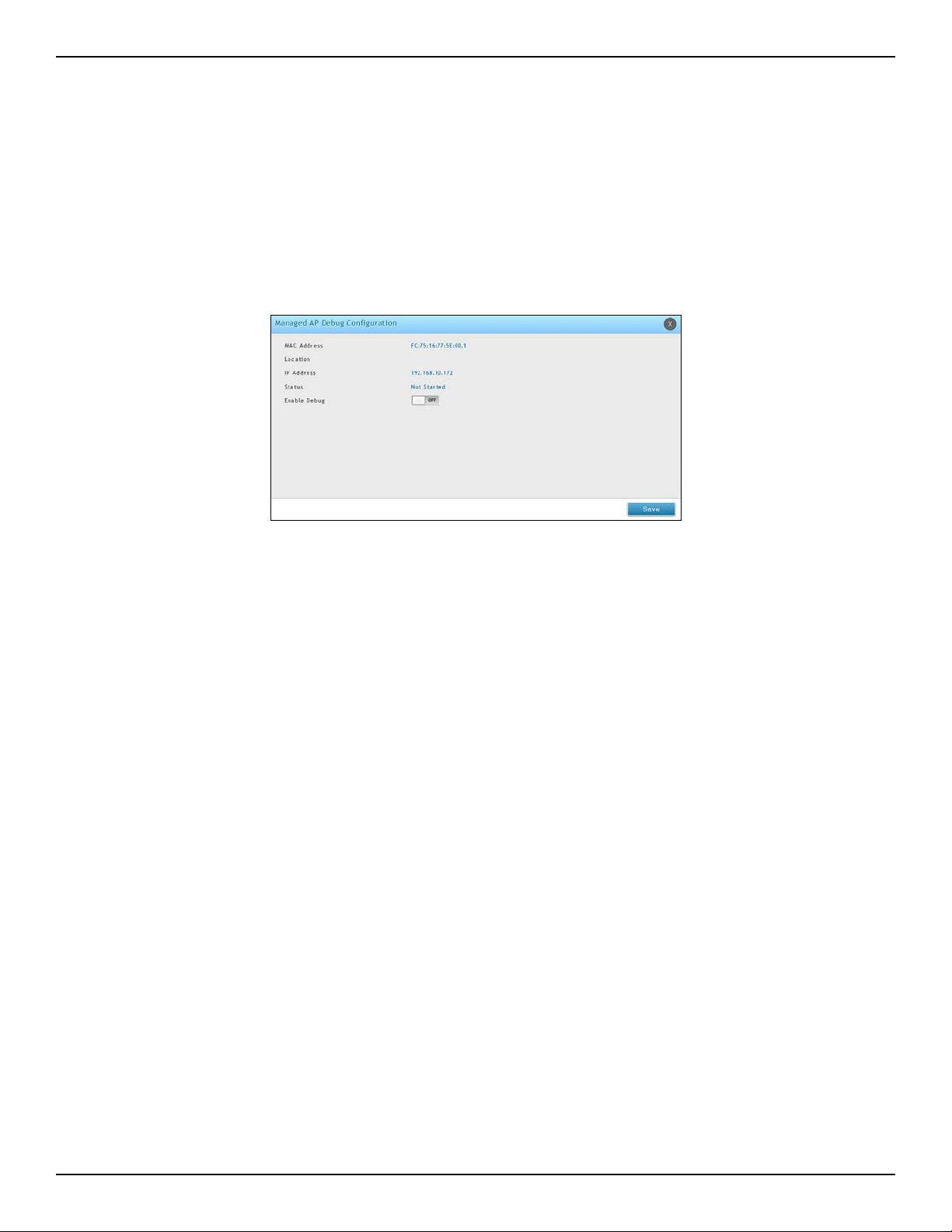
D-Link DWC-2000 User Manual 82
Section 4 - Advanced WLAN Conguration
Congure AP Debug Mode
Path: Wireless > Access Point > Managed APs List > Managed APs
When the AP is in Managed mode, remote access to the AP is disabled. However, you can enable Telnet access by
enabling the Debug feature on the Managed APs page.
1. Click Wireless > Access Point > Managed APs List > Managed APs tab
2. Right-click on one of the entries and select Debug.
3. Toggle Enable Debug to On.
4. Click Save.
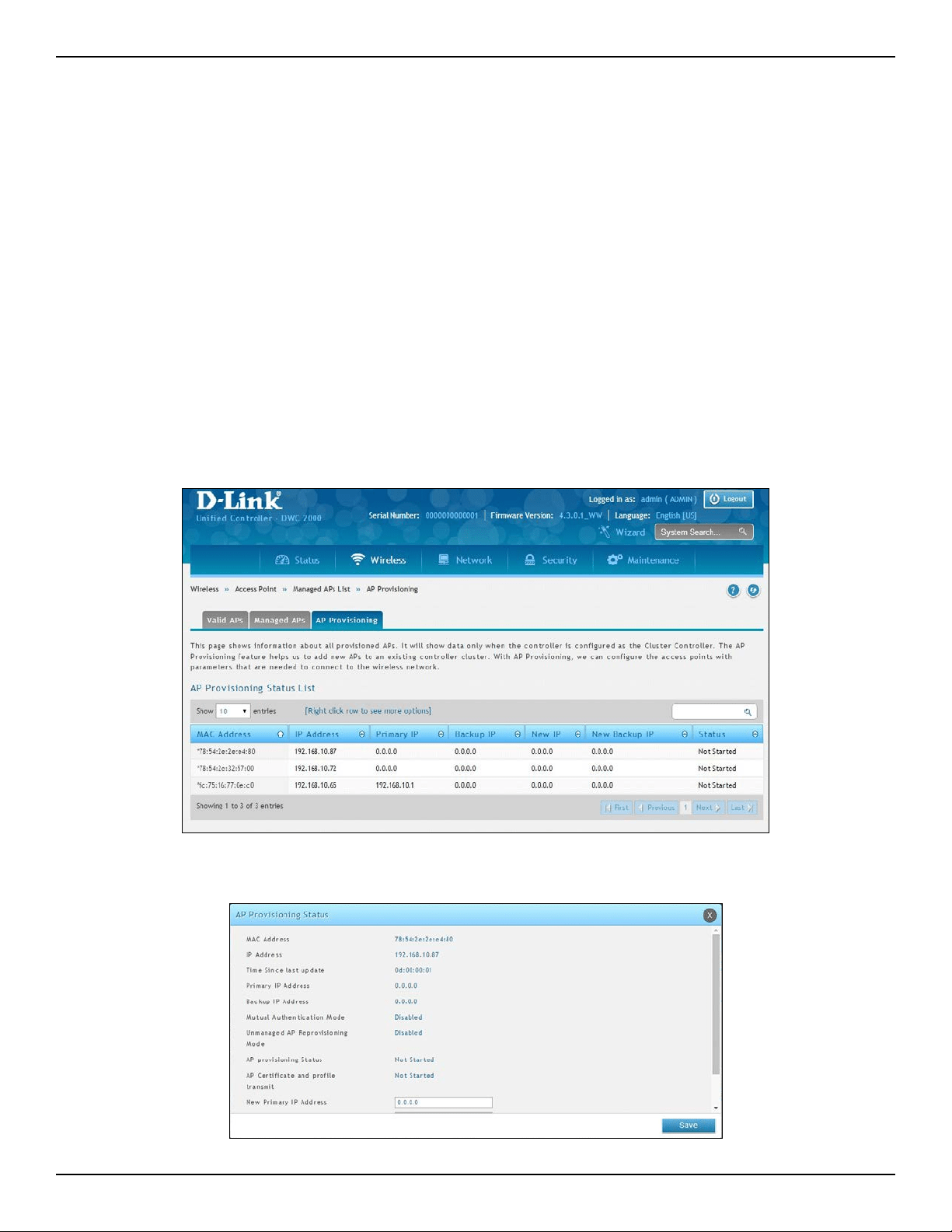
D-Link DWC-2000 User Manual 83
Section 4 - Advanced WLAN Conguration
Congure AP Provisioning
Path: Wireless > Access Point > Managed AP List > AP Provisioning
The AP Provisioning feature helps you add new APs to an existing switch cluster. With AP Provisioning, you can
congure the access points with parameters that are needed to connect to the wireless network.
Use AP Provisioning to connect devices to a network enabled for mutual authentication (Wireless > Peer Group
> Peer Conguration). If a network is not enabled for mutual authentication then APs can be attached to the
network by properly conguring the local Valid AP database or RADIUS AP database and discovery options. The
provisioning feature can optionally be used on networks not enabled for mutual authentication to simplify AP
attachment to the cluster.
Use the AP Provisioning page to view detailed provisioning information about an AP and use Edit by right-click
to specify the IP address of the primary or backup switch that provides provisioning information for the AP.
1. Click Wireless > Access Point > Managed AP List > AP Provisioning tab.
2. Right-click a managed AP and select Edit.
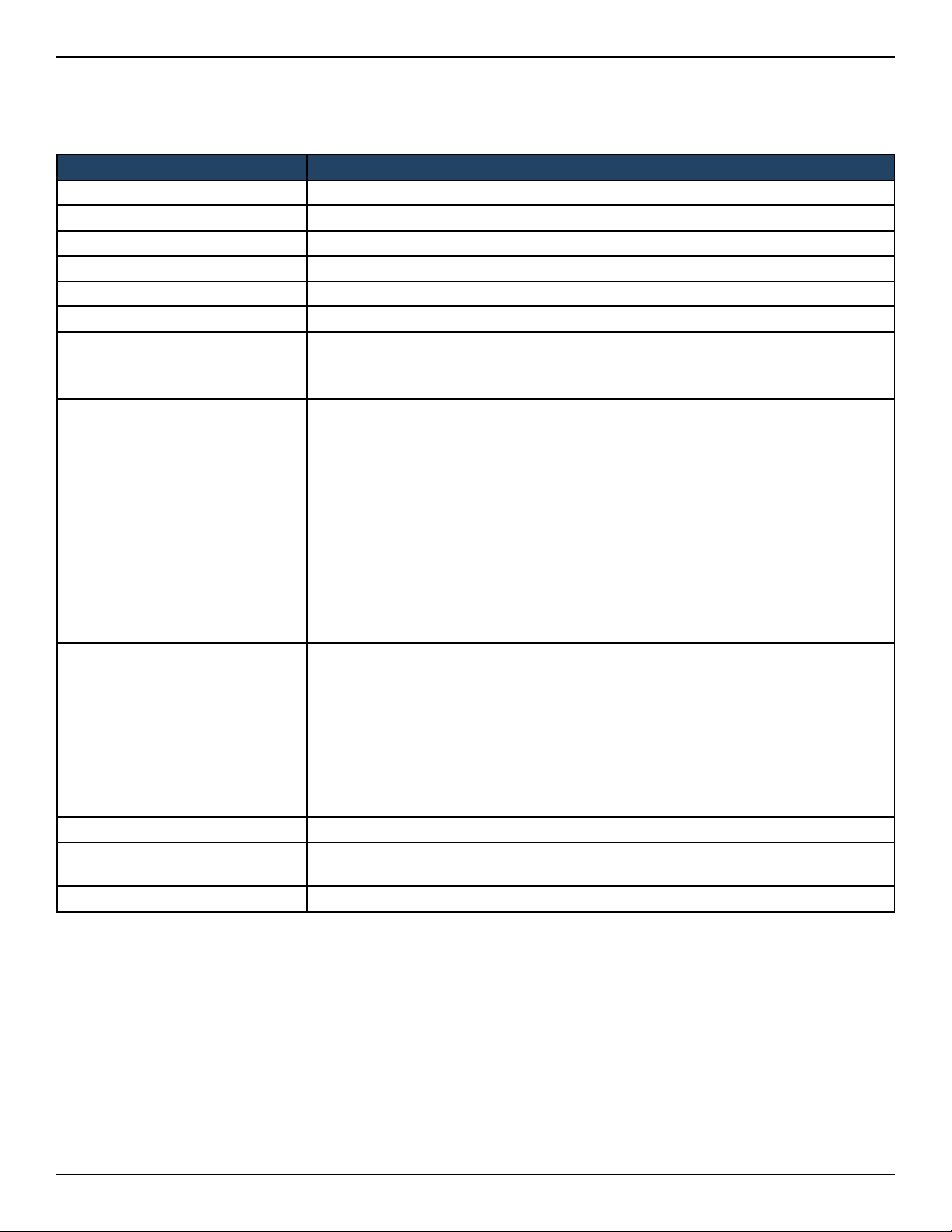
D-Link DWC-2000 User Manual 84
Section 4 - Advanced WLAN Conguration
3. Enter the new primary address, new backup address and AP Prole.
4. Click Save.
Field Description
MAC Address MAC address of the access point.
IP Address IP address of the access point.
Time Since Last Update Time since any information has been received from this access point.
Primary IP Address The IP address of the primary provisioned switch as reported by the AP.
Backup IP Address The IP address of the backup provisioned switch as reported by the AP.
Mutual Authentication Mode Shows whether the Mutual Authentication mode is currently enabled.
Unmanaged AP Reprovisioning
Mode
The congured re‐provisioning mode in the AP, which is one of the following:
• Enable - The AP can be reprovisioned when it is not managed.
• Disable - The AP cannot be reprovisioned when it is not managed.
AP Provisioning Status
Status of the most recently issued AP provisioning command, which is
one of the following:
• Not Started - Provisioning has not been done for this AP.
• Success - Provisioning nished successfully for this wireless controller. The AP
Provisioning Status Table should reect the latest provisioning conguration.
• In Progress - Provisioning is executing for this AP.
• Invalid Switch IP Address - Either primary or backup wireless controller IP
address is not in the cluster or the mutual authentication mode is enabled and
the primary wireless controller IP address is not specied.
• Provisioning Rejected - AP is not managed and is congured not to accept
provisioning data in unmanaged mode.
• Timed Out - The last provisioning request timed out.
AP Certicate and Prole Transmit
Status
Status of the last AP prole and X.509 Certicate distribution to the Primary and
Backup switches. This status is changed as a result of the AP provisioning command.
The X.509 certicate is sent to the primary and backup switches only if mutual
authentication is enabled. The status is one of the following:
• Not Started - No information for this AP has been sent to the primary and
backup switch.
• Success - AP Prole and X.509 Certicate is sent to Primary and Backup Switches.
• Failed - The primary or backup switch wasn’t in the cluster when this switch
attempted to send the information.
New Primary IP Address Enter the IP address of the wireless controller that should manage the AP.
New Backup IP Address
Enter the IP address of switch to which the AP should try to connect if it is unable to
connect to the primary wireless controller.
Prole Select an AP prole you want to use.
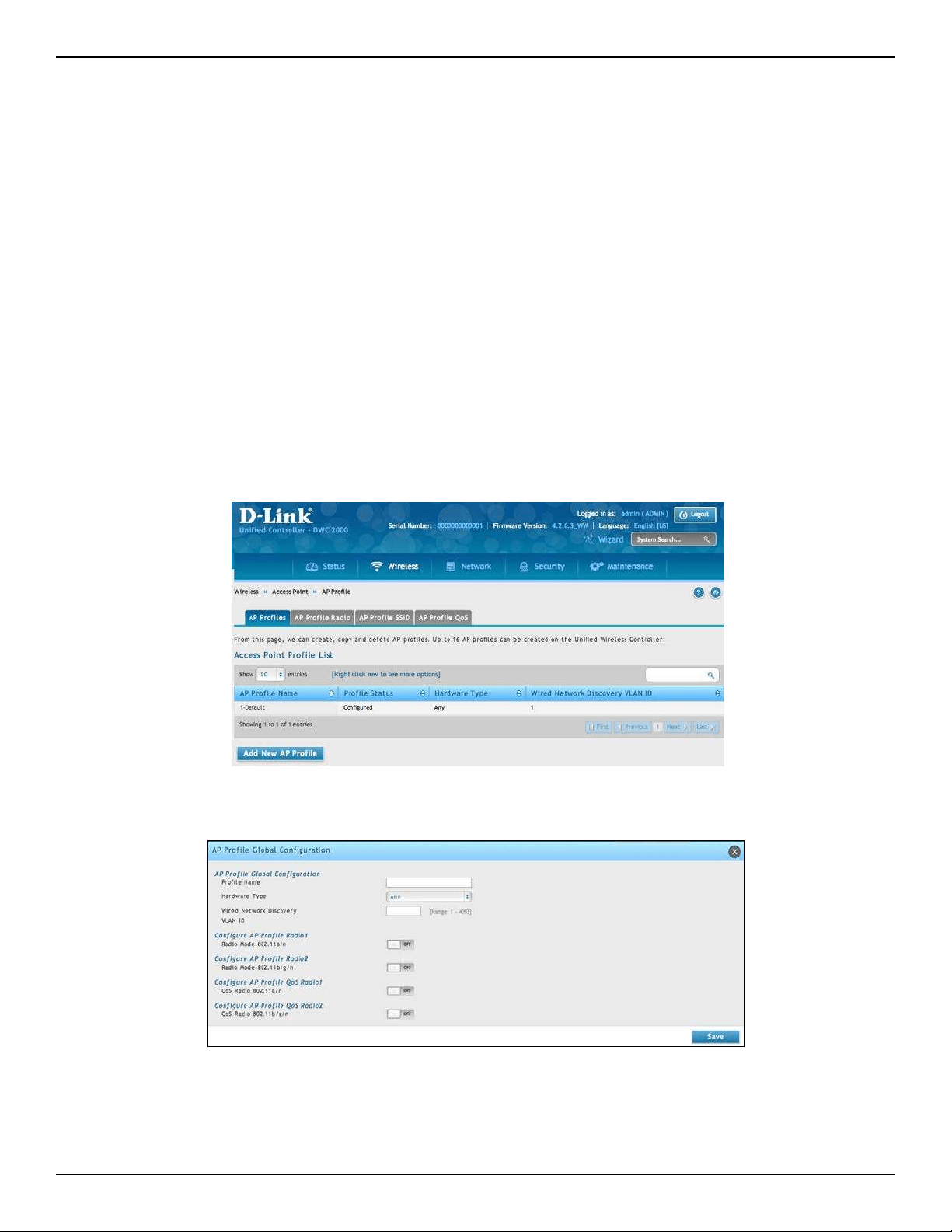
D-Link DWC-2000 User Manual 85
Section 4 - Advanced WLAN Conguration
AP Proles
Access point conguration proles are a useful feature for large wireless networks with APs that serve a variety of
dierent users. You can create multiple AP proles on the wireless controller to customize APs based on location,
function, or other criteria. Proles are like templates, and once you create an AP prole, you can apply that prole
to any AP that the wireless controller manages. For each AP prole, you can congure the following features:
• Prole Settings (Name, Hardware Type ID, Wired Network Discovery VLAN ID)
• Radio Settings
• SSID Settings
• QoS Conguration
Congure AP Prole
Path: Wireless > Access Point > AP Prole > AP Proles
1. Click Wireless > Access Point > AP Proles > AP Proles tab.
2. Click Add New AP Prole.

D-Link DWC-2000 User Manual 86
Section 4 - Advanced WLAN Conguration
3. Complete the elds in the table below and click Save.
Field Description
AP Prole Global Conguration
Prole Name Identies the name of the congured prole.
Hardware Type
Hardware type for the APs that use this prole. The hardware type is determined,
in part, by the number of radios the AP supports (single or dual) and the IEEE
802.11 modes that the radio supports (a/b/g or a/b/g/n). The available options
are:
• Any.
• DWL-8600AP Dual Radio a/b/g/n.
• DWL-6600AP Dual Radio a/b/g/n.
• DWL-3600AP Single Radio b/g/n.
• DWL-2600AP Single Radio b/g/n.
• DWL-8610AP Dual Radio a/b/g/n/ac
Wired network Discovery VLAN ID
LAN ID that the controller uses to send tracer packets in order to detect APs
connected to the wired network.
Congure AP Prole Radio 1
Radio Mode 802.11a/n
In a new AP Prole, you can edit the radio 802.11a/n from here. You can also edit
it from AP Prole Radio.
Congure AP Prole Radio 2
Radio Mode 802.11b/g/n
In a new AP Prole, you can edit the radio 802.11b/g/n from here. You can also
edit it from AP Prole Radio.
Congure AP Prole QoS Radio 1
QoS Radio Mode 802.11a/n
In a new AP Prole, you can edit the QoS on radio 802.11a/n from here. You can
also edit it from AP Prole Radio.
Congure AP Prole QoS Radio 2
QoS Radio Mode 802.11b/g/n
In a new AP Prole, you can edit the QoS on radio 802.11b/g/n from here. You can
also edit it from AP Prole Radio.
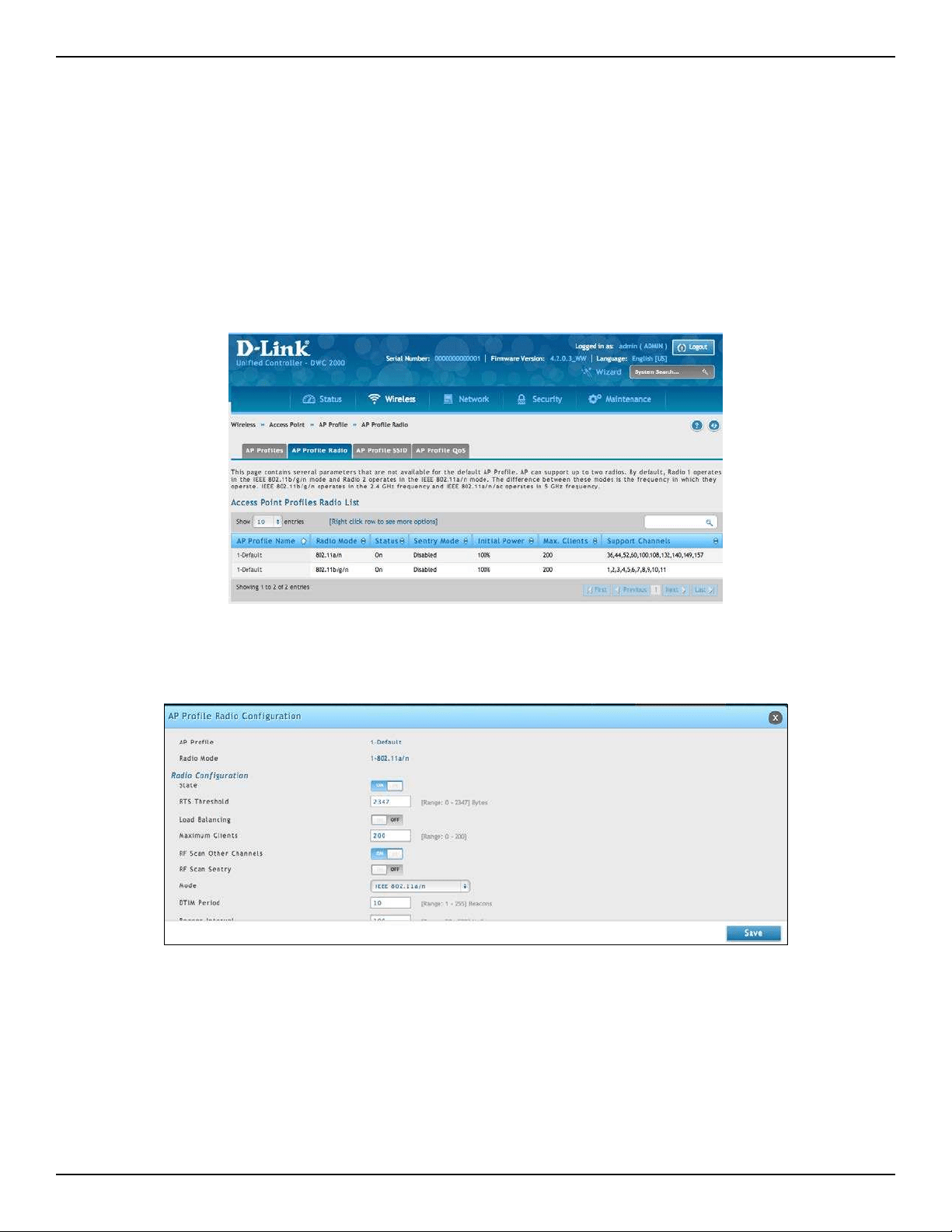
D-Link DWC-2000 User Manual 87
Section 4 - Advanced WLAN Conguration
Congure AP Prole Radio
Path: Wireless > Access Point >AP Prole> AP Prole Radio
To accommodate a broad range of wireless clients and wireless network requirements, the AP can support up to
two radios. By default, Radio 1 operates in the IEEE 802.11a/n mode, and Radio 2 operates in the IEEE 802.11b/g/n
mode. The dierence between these modes is the frequency in which they operate. IEEE 802.11b/g/n operates in
the 2.4 GHz frequency, and IEEE 802.11a/n operates in the 5 GHz frequency of the radio spectrum.
1. Click Wireless > Access Point > AP Proles > AP Proles Radio tab.
2. Select the radio you want to change and right-click the row to edit.

D-Link DWC-2000 User Manual 88
Section 4 - Advanced WLAN Conguration
3. Complete the elds in the table below and click Save.
Field Description
AP Prole The name of AP Prole
Radio Mode The radio mode. 802.11a/n or 802.b/g/n
Radio Conguration
State
Specify whether you want the radio on or o by clicking On or O.
If you turn o a radio, the AP sends disassociation frames to all the wireless clients it is
currently supporting so that the radio can be gracefully shutdown and the clients can start
the association process with other available APs.
ON= Radio ON
OFF= Radio OFF
Mode
The Mode denes the Physical Layer (PHY) standard the radio uses.
Select one of the following modes for each radio interface:
• IEEE 802.11a is a PHY standard that species operating in the 5 GHz U‐NII band using
orthogonal frequency division multiplexing (OFDM). It supports data rates ranging from
6 to 54 Mbps.
• IEEE 802.11b/g operates in the 2.4 GHz ISM band. IEEE 802.11b is an enhancement of the
initial 802.11 PHY to include 5.5 Mbps and 11 Mbps data rates. It uses direct sequence
spread spectrum (DSSS) or frequency hopping spread spectrum (FHSS) as well as
complementary code keying (CCK) to provide the higher data rates. It supports data rates
ranging from 1 to 11 Mbps. IEEE 802.11g is a higher speed extension (up to 54 Mbps) to
the 802.11b PHY. It uses orthogonal frequency division multiplexing (OFDM). It supports
data rates ranging from 1 to 54 Mbps.
• IEEE 802.11a/n operates in the 5 GHz ISM band and includes support for both 802.11a
and 802.11n devices. IEEE 802.11n is an extension of the 802.11 standard that includes
multiple‐input multiple‐output (MIMO) technology. IEEE 802.11n supports data ranges
of up to 248 Mbps and nearly twice the indoor range of 802.11 b, 802.11g, and 802.11a.
• IEEE 802.11b/g/n operates in the 2.4 GHz ISM band and includes support for 802.11b,
802.11g, and 802.11n devices.
• 5 GHz IEEE 802.11n is the recommended mode for networks with 802.11n devices that
operate in the 5 GHz frequency that do not need to support 802.11a or 802.11b/g devices.
IEEE 802.11n can achieve a higher throughput when it does not need to be compatible
with legacy devices (802.11b/g or 802.11a).
• 2.4 GHz IEEE 802.11n is the recommended mode for networks with 802.11n devices
that operate in the 2.4 GHz frequency that do not need to support 802.11a or 802.11b/g
devices. IEEE 802.11n can achieve a higher throughput when it does not need to be
compatible with legacy devices (802.11b/g or 802.11a).
• IEEE 802.11n/ac operates in 5GHz ISM band and includes support both 11n and 11ac
devices.
RTS Threshold
Specify a Request to Send (RTS) Threshold value between 0 and 2347.
The RTS threshold indicates the number of octets in an MPDU, below which an RTS/CTS
handshake is not performed.
Changing the RTS threshold can help control trac ow through the AP, especially one with a
lot of clients. If you specify a low threshold value, RTS packets will be sent more frequently. This
will consume more bandwidth and reduce the throughput of the packet. On the other hand,
sending more RTS packets can help the network recover from interference or collisions which
might occur on a busy network, or on a network experiencing electromagnetic interference.

D-Link DWC-2000 User Manual 89
Section 4 - Advanced WLAN Conguration
Field Description
Load Balancing
If you enable load balancing, you can control the amount of trac that is allowed
on the AP.
Load Utilization
If Load Balancing is set to ON, this eld allows you to set a threshold for the
percentage of network bandwidth utilization allowed on the radio. Once the
level you specify is reached, the AP stops accepting new client associations. Enter
a percentage of utilization from 1 to 100.
Maximum Clients
Specify the maximum number of stations allowed to associate with this access
point at any one time. You can enter a value between 0 and 200.
RF Scan Other Channels
The access point can perform RF scans to collect information about other wireless
devices within range and then report this information to the wireless controller.
If Scan Other Channels is set to ON, the radio periodically moves away from
the operational channel to scan other channels. Enabling this mode causes the
radio to interrupt user trac, which may be noticeable with voice connections.
When the Scan Other Channels= OFF is cleared, the AP scans only the operating
channel.
RF Scan Sentry
Select this option to allow the radio to operate in sentry mode. When the RF
Scan Sentry option= ON, the radio primarily performs dedicated RF scanning.
The radio passively listens for beacons and trac exchange between clients and
other access points but does not accept connections from wireless clients.
In sentry mode, all VAPs are disabled. Networks that deploy sentry APs or radios
can detect devices on the network quicker and perform more thorough security
analysis. In this mode, the radio switches from one channel to the next. The
length of time spent on each channel is controlled by the scan duration. The
default scan duration is 10 milliseconds.
RF Scan Interval
This eld controls the length of time between channel changes during the RF
Scan.
RF Scan Sentry Channels
The radio can scan channels in the radio frequency used by the 802.11b/g band
(2.4 GHz), the 802.11a band (5 GHz), or both bands. Select the channel band for
the radio to scan.
Note: The band selection applies only to radios in sentry mode and is dependent
upon the capabilities of the radio.
RF Scan Duration
This eld controls the amount of time the radio spends scanning the other
channel (in milliseconds) during an RF scan.
Rate Limiting
Enabling multicast and broadcast rate limiting can improve overall network
performance by limiting the number of packets transmitted across the network.
This feature is disabled by default.
Note: The available rate limit values are very low for most environments, so
enabling this feature is not recommended.
• To enable Multicast and Broadcast Rate Limiting, switch ON.
• To disable Multicast and Broadcast Rate Disabled, switch OFF.
Rate Limit
Enter the rate limit you want to set for multicast and broadcast trac. The limit
should be greater than 1, but less than 50 packets per second. Any trac that falls
below this rate limit will always conform to and be transmitted to the appropriate
destination. The default and maximum rate limit setting is 50 packets per second.
This eld is disabled if Rate Limiting is disabled.
Rate Limit Burst
Setting a rate limit burst determines how much trac bursts can be before all
trac exceeds the rate limit. This burst limit allows intermittent bursts of trac
on a network above the set rate limit.
The default and maximum rate limit burst setting is 75 packets per second. This
eld is disabled if Rate Limiting is disabled.

D-Link DWC-2000 User Manual 90
Section 4 - Advanced WLAN Conguration
Field Description
Load Balancing
If you enable load balancing, you can control the amount of trac that is allowed on the
A P.
Channel Bandwidth
The 802.11n specication allows the use of a 40‐MHz‐wide channel in addition to the
legacy 20‐MHz channel available with other modes. The 40‐MHz channel enables
higher data rates but leaves fewer channels available for use by other 2.4 GHz and 5 GHz
devices. The 40‐MHz option is enabled by default for 802.11a/n modes and 20 MHz for
802.11b/g/n modes. You can use this setting to restrict the use of the channel bandwidth
to a 20‐MHz channel.
Protection
The protection feature contains rules to guarantee that 802.11 transmissions do not
cause interference with legacy stations or applications. By default, these protection
mechanisms are enabled (Auto). With protection enabled, protection mechanisms will be
invoked if legacy devices are within range of the AP. You can disable (O ) these protection
mechanisms; however, when 802.11n protection is o, legacy clients or APs within range
can be aected by 802.11n transmissions. 802.11 protection is also available when the
mode is 802.11b/g. When protection is enabled in this mode, it protects 802.11b clients
and APs from 802.11g transmissions.
Space Time Block Code
Space Time Block Coding (STBC) is an 802.11n technique intended to improve the
reliability of data transmissions. The data stream is transmitted on multiple antennas so
the receiving system has a better chance of detecting at least one of the data streams.
Select one of the following options:
• ON=The AP transmits the same data stream on multiple antennas at the same time.
• OFF=The AP does not transmits the same data on multiple antennas.
No Ack
Select Enable to specify that the AP should not acknowledge frames with QosNoAck as
the service class value.
DTIM Period
The Delivery Trac Information Map (DTIM) message is an element included in some
Beacon frames. It indicates which client stations, currently sleeping in low‐power mode,
have data buered on the access point awaiting pick‐up.
The DTIM period you specify indicates how often the clients served by this access point
should check for buered data still on the AP awaiting pickup.
Specify a DTIM period within the given range (1–255).
The measurement is in beacons. For example, if you set this eld to 1, clients will check
for buered data on the AP at every beacon. If you set this eld to 10, clients will check
on every 10th beacon.
Beacon Interval
Beacon frames are transmitted by an access point at regular intervals to announce the
existence of the wireless network. The default behavior is to send a beacon frame once
every 100 milliseconds (or 10 per second). The Beacon Interval value is set in milliseconds.
Enter a value from 20 to 2000.
Automatic Channel
The channel denes the portion of the radio spectrum that the radio uses for transmitting
and receiving. The range of channels and the default channel are determined by the
Mode of the radio interface. When the AP boots, the AP scans the RF area for occupied
channels and selects a channel from the available non‐interfering or clear channels.
However, channel conditions can change during operation.
Enabling the Automatic Channel makes APs assigned to this prole eligible for auto‐
channel selection. You can automatically or manually run the auto‐channel selection
algorithm to allow the controller to adjust the channel on APs as WLAN conditions
change.
By default, the global auto‐channel mode is set to manual. To enable the automatic
channel selection mode, go to the AP Management > RF Management page and select
Fixed or Interval for the Channel Plan mode. You can also run the automatic channel
selection algorithm manually from the Manual Channel Plan page.
Note: If you assign a static channel to an AP in the Valid AP database or on the Advanced
AP Management page, the AP will not participate in the auto‐channel selection.

D-Link DWC-2000 User Manual 91
Section 4 - Advanced WLAN Conguration
Field Description
Automatic Power
The power level aects how far an AP broadcasts its RF signal. If the power level is too
low, wireless clients will not detect the signal or experience poor WLAN performance. If
the power level is too high, the RF signal might interfere with other
APs within range.
Automatic power uses a proprietary algorithm to automatically adjust the RF signal to
broadcast far enough to reach wireless clients, but not so far that it interferes with RF
signals broadcast by other APs. The power level algorithm increases or decreases the
power level in 10% increments based on presence or absence of packet retransmission
errors.
Default Power
The automatic power algorithm will not reduce the power below the number you set in
the default power eld. By default, the power level is 100%. Therefore, even if you enable
the automatic power, the power of the RF signal will not decrease. The power level is a
percentage of the maximum transmission power for the RF signal.
APSD Mode
Select Enable to enable Automatic Power Save Delivery (APSD), which is a power
management method. APSD is recommended if VoIP phones access the network through
the AP.
Frag Threshold
The fragmentation threshold limits the size of packets transmitted over the network.
Acceptable values are even numbers from 256‐2345. Packets that are under the congured
size are not fragmented. A value of 2346 means that packets are not fragmented.
Short Retries
The value in this eld indicates the maximum number of transmission attempts on frame
sizes less than or equal to the RTS Threshold. The range is 1‐255.
Long Retries
The value in this eld indicates the maximum number of transmission attempts on frame
sizes greater than the RTS Threshold. The range is 1‐255.
Transmit Lifetime
Shows the number of milliseconds to wait before terminating attempts to transmit the
MSDU after the initial transmission.
Receive Lifetime
Shows the number of milliseconds to wait before terminating attempts to reassemble
the MMPDU or MSDU after the initial reception of a fragmented MMPDU or MSDU.
Station Isolation
When this option is selected, the AP blocks communication between wireless clients. It
still allows data trac between its wireless clients and wired devices on the network, but
not among wireless clients. This feature is disabled by default.
• To enable Multicast and Broadcast Rate Limiting, click ON.
• To disable Multicast and Broadcast Rate Disabled, click OFF.
Primary Channel
This setting is editable only when a channel is selected and the channel bandwidth is set
to 40 MHz. A 40‐MHz channel can be considered to consist of two 20‐MHz channels that
are contiguous in the frequency domain. These two 20‐MHz channels are often referred
to as the Primary and Secondary channels. The Primary Channel is used for 802.11n clients
that support only a 20‐MHz channel bandwidth and for legacy clients. Use this setting to
set the Primary Channel as the upper or lower 20‐MHz channel in the 40‐MHz band.
Short Guard Interval
The guard interval is the dead time, in nanoseconds, between OFDM symbols. The guard
interval prevents Inter‐Symbol and Inter‐Carrier Interference (ISI, ICI). The 802.11n mode
allows for a reduction in this guard interval from the a and g denition of 800 nanoseconds
to 400 nanoseconds. Reducing the guard interval can yield a 10% improvement in data
throughput.
Select one of the following options:
• ON= The AP transmits data using a 400 ns guard Interval when communicating with
clients that also support the 400 ns guard interval.
• OFF= The AP transmits data using an 800 ns guard interval.
Radio Resource
Management
Radio Resource Measurement (RRM) mode requires the Wireless System to send
additional information in beacons, probe responses, and association responses.Enable or
disable the support for radio resource measurement feature in the AP prole. The feature
is set independently for each radio and is enabled by default.

D-Link DWC-2000 User Manual 92
Section 4 - Advanced WLAN Conguration
Field Description
Multicast Tx Rate (Mbps)
Select the 802.11 rate at which the radio transmits multicast frames. The rate is in Mbps.
The lowest rate in the 5 GHz band is 6 Mbps.
Channel
Auto Eligible Channels
This eld displays the channels that are supported for the radio mode currently selected
on the page and for the country congured on the General Settings page. Press Crtl to
select multiple channels.
Basic Rate Set (Mbps)
These numbers indicate the data rates that all stations associating with the AP must
support.
Supported Rate Set (Mbps)
These numbers indicate rates that the access point supports. You can select multiple
rates. The AP automatically chooses the most ecient rate based on factors like error
rates and distance of client stations from the AP.
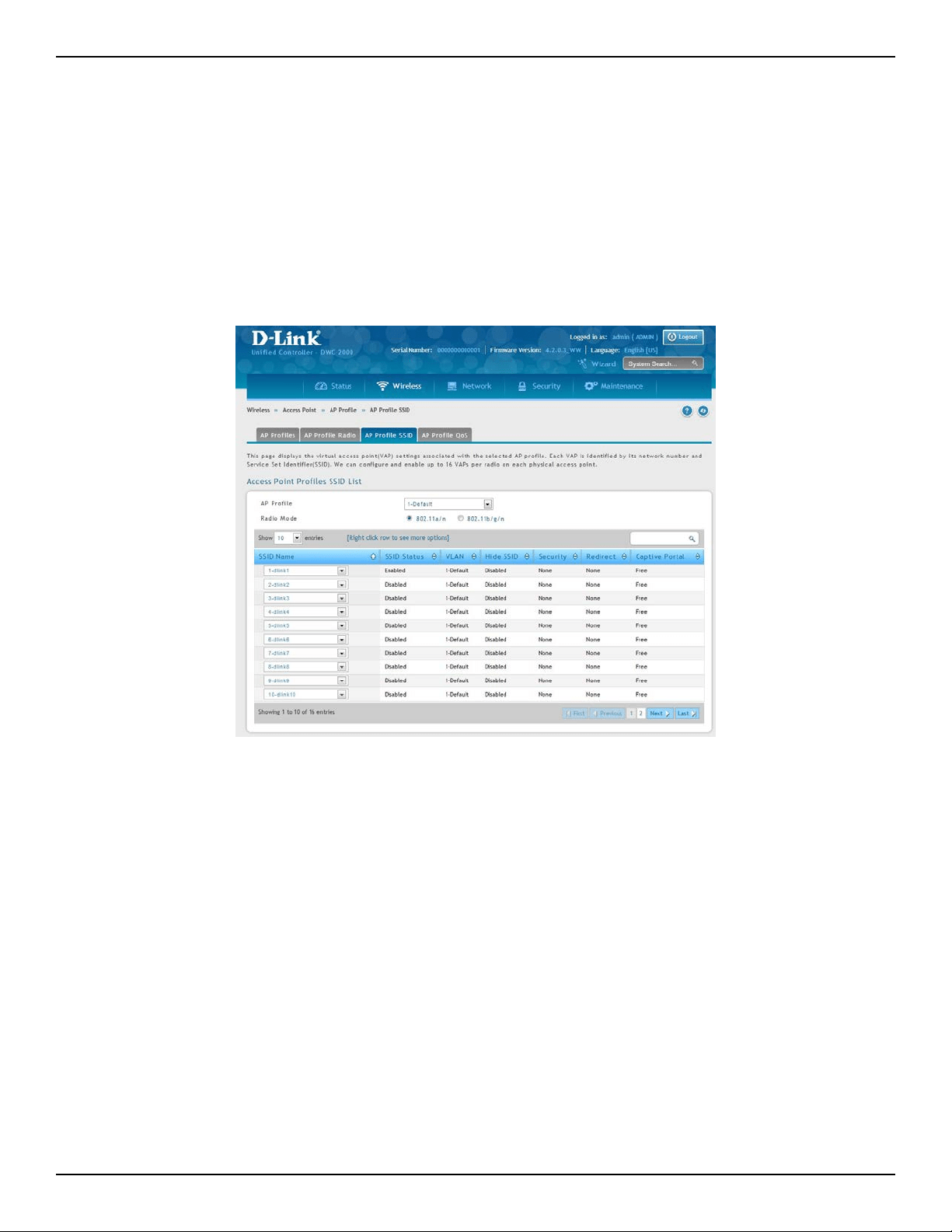
D-Link DWC-2000 User Manual 93
Section 4 - Advanced WLAN Conguration
Congure AP Prole SSID
Path: Wireless > Access Point > AP Prole> AP Prole SSID
The AP Prole SSID List page displays the virtual access point (VAP) settings associated with the selected AP
prole. Each VAP is identied by its network number and Service Set Identier (SSID). You can congure and
enable up to 16 VAPs per radio on each physical access point.
1. Click Wireless > Access Point > AP Proles > AP Proles SSID tab.
2. Select the AP Prole from the drop-down menu.
3. Select the Radio Mode (either 802.11a/n or 802.11b/g/n).
4. Select the SSID name from the drop-down menu.
5. Enable/disable the SSID by right-clicking Enable or Disable.
Note: SSID ID 1 is always enabled. If you do not want to have the rst SSID enabled, you must
create a new SSID to be able to swap another SSID in the rst slot.
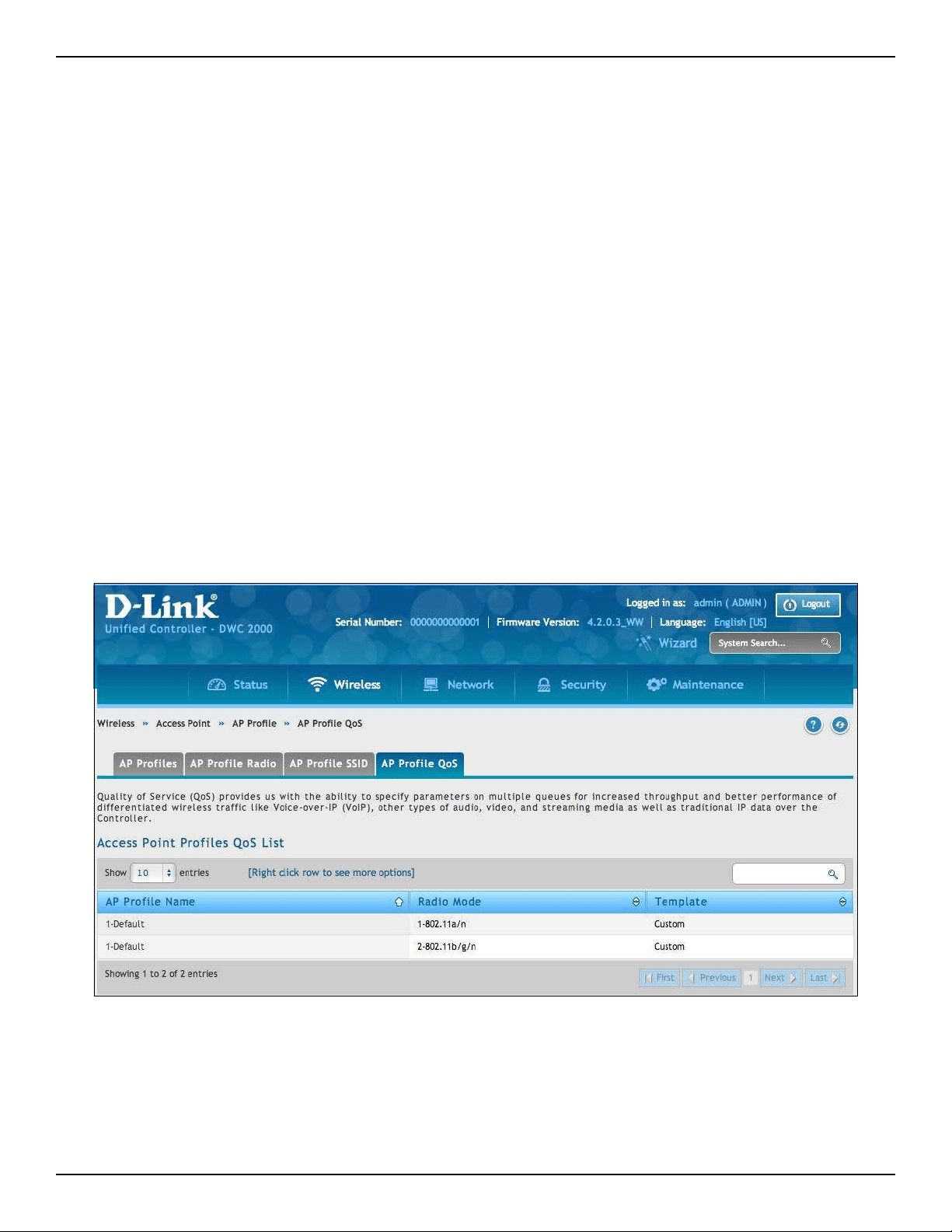
D-Link DWC-2000 User Manual 94
Section 4 - Advanced WLAN Conguration
Congure AP Prole QoS
Path: Wireless > Access Point > AP Prole > AP Prole QoS
Quality of Service (QoS) provides you with the ability to specify parameters on multiple queues for increased
throughput and better performance of dierentiated wireless trac like Voice‐over‐IP (VoIP), other types of
audio, video, and streaming media as well as traditional IP data over the wireless controller.
Conguring Quality of Service (QoS) on the wireless controller consists of setting parameters on existing queues
for dierent types of wireless trac, and eectively specifying minimum and maximum wait times (through
Contention Windows) for transmission. The settings described here apply to data transmission behavior on the
access point only, not to that of the client stations.
AP Enhanced Distributed Channel Access (EDCA) Parameters aect trac owing from the access point to the
client station. Station Enhanced Distributed Channel Access (EDCA) Parameters aect trac owing from the
client station to the access point.
You can specify custom QoS settings, or you can select a template that congures the AP prole with pre‐dened
settings that are optimized for data trac or voice trac.
1. Click Wireless > Access Point > AP Proles > AP Proles QoS tab.
2. Right-click the AP Prole and select Edit.
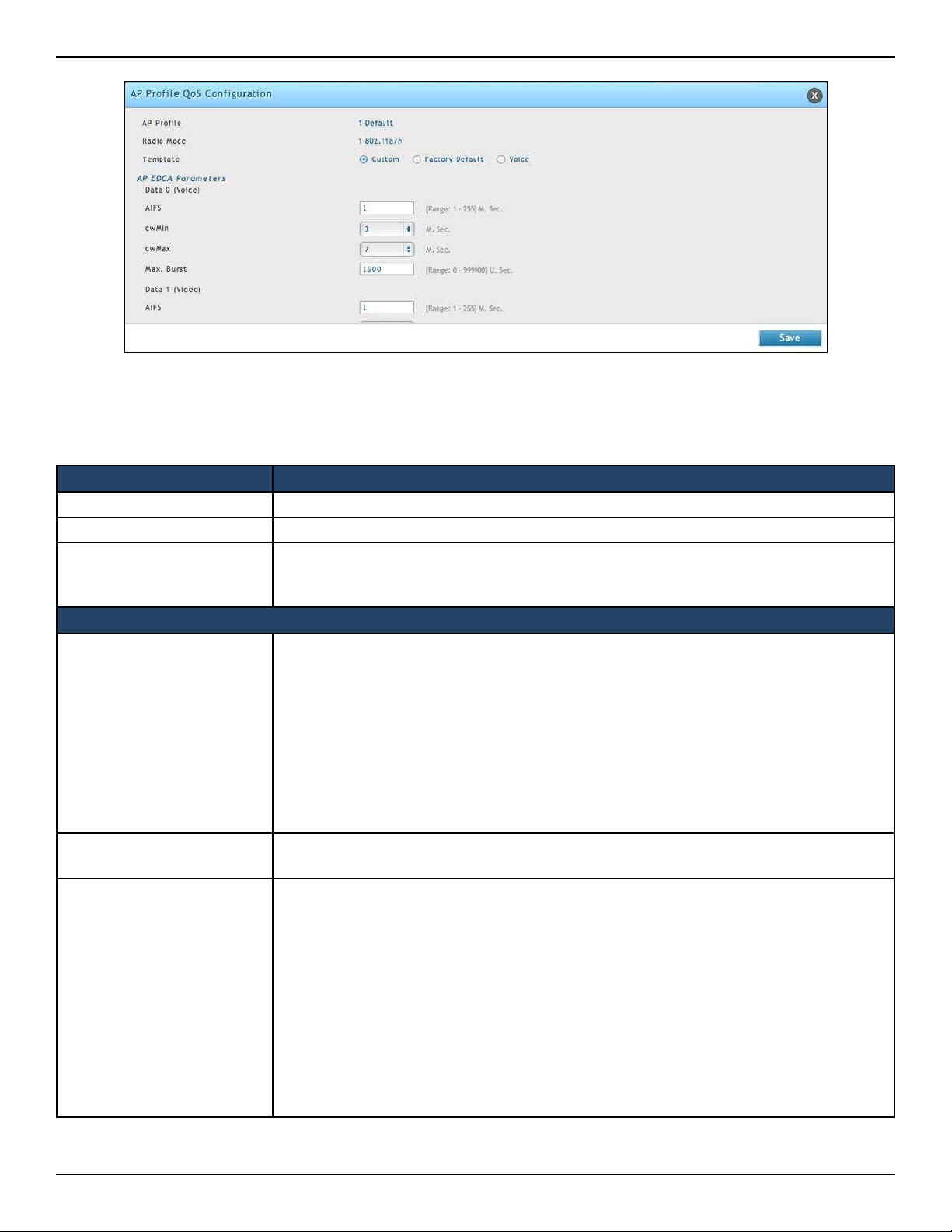
D-Link DWC-2000 User Manual 95
Section 4 - Advanced WLAN Conguration
3. Complete the elds below and click Save.
Field Description
AP Prole The name of AP Prole
Radio Mode The radio mode. 802.11a/n or 802.b/g/n
Template
Select the QoS template to apply to the AP prole. If you select Custom, you can change
the AP and station parameters. If you select Voice or Factory Defaults, the wireless
controller will use the pre‐dened settings for the template you select.
AP EDCA Parameters
Queue
Queues are dened for dierent types of data transmitted from AP‐to‐station:
• Data 0 (Voice)—High priority queue, minimum delay. Time‐sensitive data such as
VoIP and streaming media are automatically sent to this queue.
• Data 1(Video)—High priority queue, minimum delay. Time‐sensitive video data is
automatically sent to this queue.
• Data 2 (best eort)—Medium priority queue, medium throughput and delay. Most
traditional IP data is sent to this queue.
• Data 3 (Background)—Lowest priority queue, high throughput. Bulk data that
requires maximum throughput and is not time‐sensitive is sent to this queue (FTP
data, for example).
AIFS (Inter-Frame Space)
The Arbitration Inter‐Frame Spacing (AIFS) species a wait time for data frames. The wait
time is measured in slots. Valid values for AIFS are 1 through 255.
cwMin (Minimum
Contention Window)
This parameter is input to the algorithm that determines the initial random backo
wait time (window) for retry of a transmission. The value specied here in the Minimum
Contention Window is the upper limit (in milliseconds) of a range from which the initial
random backo wait time is determined.
The rst random number generated will be a number between 0 and the number
specied here.
If the rst random backo wait time expires before the data frame is sent, a retry counter is
incremented and the random backo value (window) is doubled. Doubling will continue
until the size of the random backo value reaches the number dened in the Maximum
Contention Window.
Valid values for the cwmin are 1, 3, 7, 15, 31, 63, 127, 255, 511, or 1024. The value for
cwmin must be lower than the value for cwmax.

D-Link DWC-2000 User Manual 96
Section 4 - Advanced WLAN Conguration
Field Description
cwMan (Maximum
Contention Window)
The value specied here in the Maximum Contention Window is the upper limit (in
milliseconds) for the doubling of the random backo value. This doubling continues until
either the data frame is sent or the Maximum Contention Window size is reached.
Once the Maximum Contention Window size is reached, retries will continue until a
maximum number of retries allowed is reached.
Valid values for the cwmax are 1, 3, 7, 15, 31, 63, 127, 255, 511, or 1024. The value for
cwmax must be higher than the value for cwmin.
Max. Burst Length
AP EDCA Parameter Only (The Max. Burst Length applies only to trac owing from the
access point to the client station.) This value species (in milliseconds) the Maximum Burst
Length allowed for packet bursts on the wireless network. A packet burst is a collection
of multiple frames transmitted without header information. The decreased overhead
results in higher throughput and better performance. Valid values for maximum burst
length are 0.0 through 999.
General Parameters
WMM Mode
Wi‐Fi MultiMedia (WMM) is enabled by default. With WMM enabled, QoS prioritization
and coordination of wireless medium access is on. With WMM enabled, QoS settings on
the D‐Link controller control downstream trac owing from the access point to client
station (AP EDCA parameters) and the upstream trac owing from the station to the
access point (station EDCA parameters).
Disabling WMM deactivates QoS control of station EDCA parameters on upstream trac
owing from the station to the access point. With WMM disabled, you can still set some
parameters on the downstream trac owing from the access point to the client station
(AP EDCA parameters).
To disable WMM extensions, switch OFF.
To enable WMM extensions, switch ON.
Station EDCA Parameters
Queue
Queues are dened for dierent types of data transmitted from station‐to‐AP:
• Data 0 (Voice)—Highest priority queue, minimum delay. Time‐sensitive data such as
VoIP and streaming media are automatically sent to this queue.
• Data 1(Video)—Highest priority queue, minimum delay. Time‐sensitive video data is
automatically sent to this queue.
• Data 2 (best eort)—Medium priority queue, medium throughput and delay. Most
traditional IP data is sent to this queue.
• Data 3 (Background)—Lowest priority queue, high throughput. Bulk data that
requires maximum throughput and is not time‐sensitive is sent to this queue (FTP
data, for example).
AIDS (Inter-Frame Space)
The Arbitration Inter‐Frame Spacing (AIFS) species a wait time for data frames. The wait
time is measured in slots. Valid values for AIFS are 1 through 255.
cwMin (Minimum
Contention Window)
This parameter is used by the algorithm that determines the initial random backo wait
time (window) for data transmission during a period of contention.
The value specied in the Minimum Contention Window is the upper limit (in milliseconds)
of a range from which the initial random backo wait time is determined.
The rst random number generated will be a number between 0 and the number
specied here.
If the rst random backo wait time expires before the data frame is sent, a retry counter is
incremented and the random backo value (window) is doubled. Doubling will continue
until the size of the random backo value reaches the number dened in the Maximum
Contention Window.

D-Link DWC-2000 User Manual 97
Section 4 - Advanced WLAN Conguration
Field Description
cwMan (Maximum
Contention Window)
The value specied in the Maximum Contention Window is the upper limit (in milliseconds)
for the doubling of the random backo value. This doubling continues until either the
data frame is sent or the Maximum Contention Window size is reached.
Once the Maximum Contention Window size is reached, retries will continue until a
maximum number of retries allowed is reached.
TXOP Limit
Station EDCA Parameter Only (The TXOP Limit applies only to trac owing
from the client station to the access point.)
The Transmission Opportunity (TXOP) is an interval of time when a WME client station
has the right to initiate transmissions onto the wireless medium (WM).
This value species (in milliseconds) the Transmission Opportunity (TXOP) for client
stations; that is, the interval of time when a WMM client station has the right to initiate
transmissions on the wireless network.
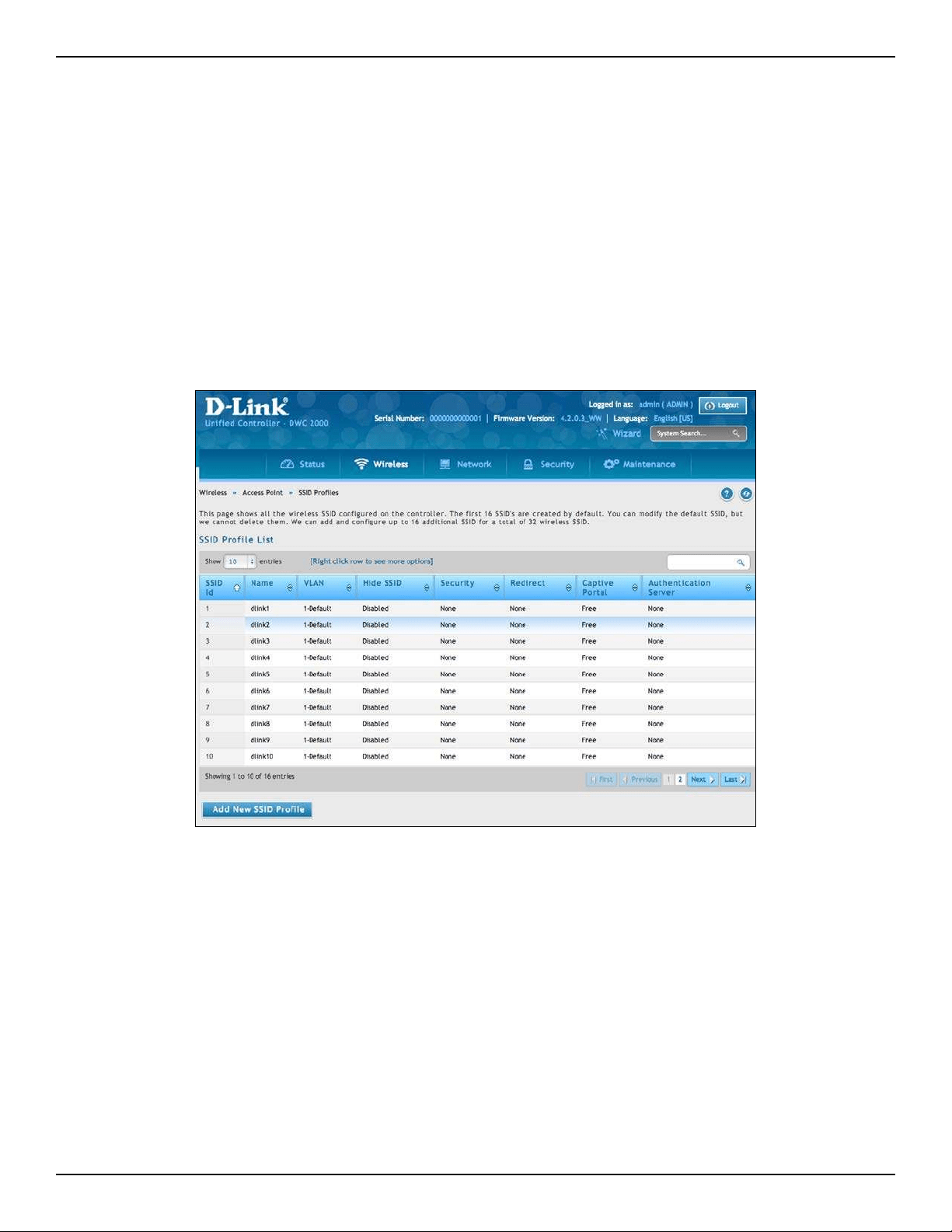
D-Link DWC-2000 User Manual 98
Section 4 - Advanced WLAN Conguration
SSID Proles
The SSID Prole list shows all the wireless networks congured on the controller. The rst 16 networks are cre-
ated by default. You can modify the default networks, but you cannot delete them. You can add and congure up
to 16 additional networks for a total of 50 wireless networks. Multiple networks can have the same SSID.
Congure SSID Proles
Path: Wireless > Access Point > SSID Proles
1. Click Wireless > Access Point > SSID Proles. The SSID Prole List page will appear.
2. To edit an existing SSID, right-click it and select Edit. To create a new SSID Prole, click the Add New
SSID Prole button.
Note: SSID ID 1 is always enabled. If you do not want to have the rst SSID enabled, you must
create a new SSID to be able to swap another SSID in the rst slot.
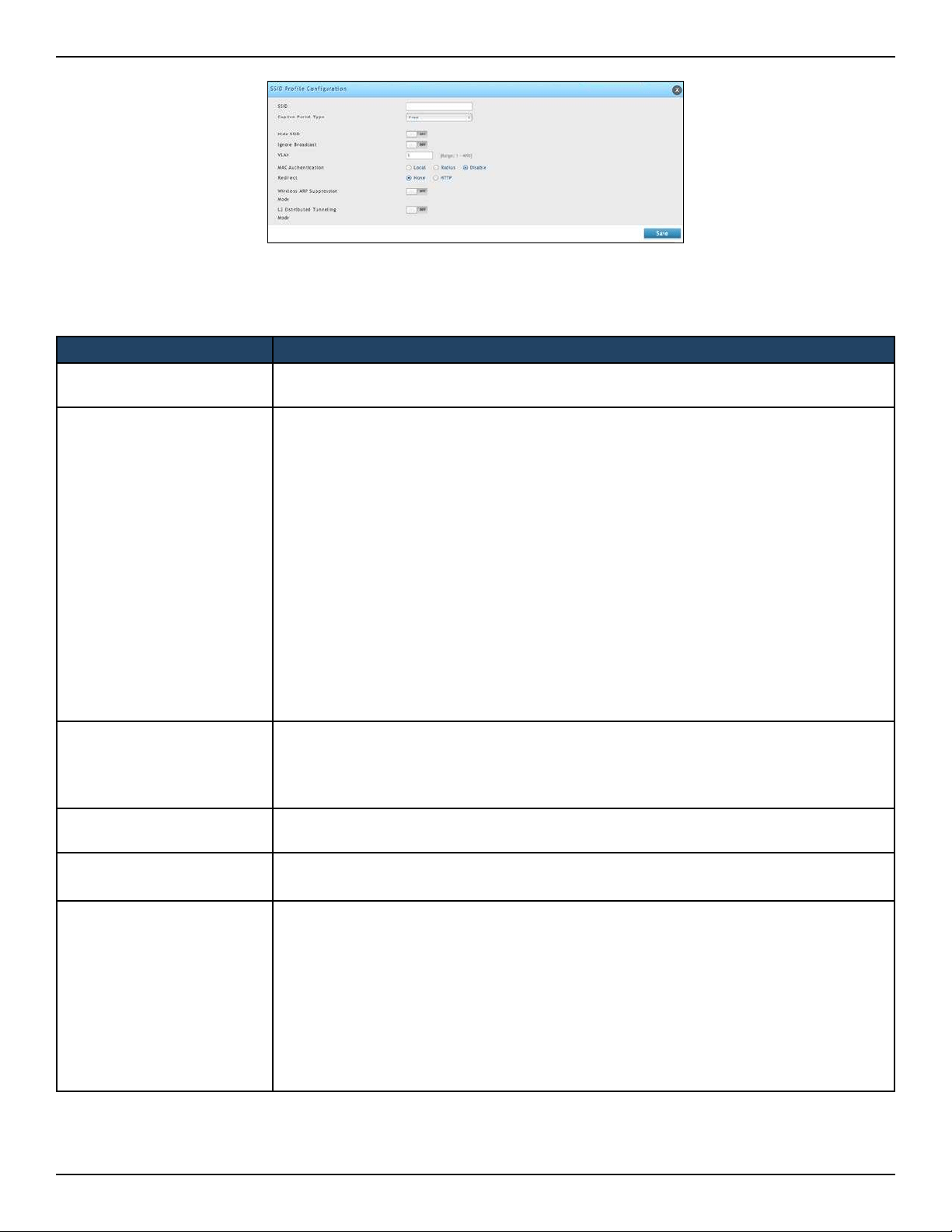
D-Link DWC-2000 User Manual 99
Section 4 - Advanced WLAN Conguration
3. Complete the elds in the table below and click Save.
Field Description
SSID
Enter a name of your wireless network. Be sure SSID is the same for all device in your
wireless network and is case-sensitive.
Captive Portal Type
Captive Portal type is selected per SSID basis. There are four types of access on a SSID:
• Free: No authentication is required for users connected to this SSID if this option is
selected.
• SLA (Service Level Agreement): If this is selected, users connected to this SSID needs
to accept Service Level Agreement before accessing anything outside this SSID.
• Permanent User: When this option is selected users need to get authenticated before
accessing data outside this SSID. Only permanent Captive Portal users can login from
this SSID.
• Temporary User: When this option is selected users need to get authenticated before
accessing data outside this SSID. Only temporary Captive Portal users created by
frontdesk user can login from this SSID.
• Billing User: When this option is selected users need to get authenticated before
accessing data outside this SSID. The temporary Captive Portal billing users created
via online wireless service purchasing. The wireless service packages are dened in
Login Prole.
Authentication Server
If Captive Portal Type = Permanent User, select the authentication server.
All users that log in to the captive portal for this SSID are authenticated through the
selected server. The available authentication servers are Local User Databass, Radius
Server, LDAP Server, or POP3.
Authentication Type
If Captive Portal Type = Permanent User and Authentication Server = RADIUS server,
select the authentication type: PAP, CHAP, MSCHAP, or MSCHAPV2.
Login Prole Name
If Captive Portal Type = Permanent User or Temporary User, select the Login Prole.
Any of the available proles can be used for this SSID.
Hide SSID
You can hide the SSID broadcast to discourage stations from automatically discovering
your access point(s). When the broadcast SSID of the AP is hidden, the SSID name is not
displayed in the list of available SSID on a client station. Instead, the client must have the
exact SSID name congured in the supplicant before it is able to connect.
Disabling the broadcast SSID is sucient to prevent clients from accidentally connecting
to your network, but it will not prevent even the simplest of attempts by a hacker to
connect or monitor unencrypted trac.
ON = SSID is hidden
OFF = SSID is broadcast

D-Link DWC-2000 User Manual 100
Section 4 - Advanced WLAN Conguration
Field Description
Ignore Broadcast
If a wireless client broadcasts probe requests to all available SSIDs, this option controls
whether the AP will respond to the probe request.
ON = Prohibits the AP from responding to client probe requests.
OFF = Allow the AP to respond to client probe requests.
VLAN Enter a VLAN ID. Be sure this VLAN ID has been created (Network > VLAN > VLAN Setting)
MAC Authentication
If enabled, wireless clients must be authenticated by the AP in order to connect to the
network. To use MAC authentication, congure the client MAC addresses in one of the
databases: Local or RADIUS. In the database, set a default action to either accept or deny
that client or use the global action congured.
MAC authentication is useful in networks that operate in Open mode to grant or deny
access to clients with specic MAC addresses. MAC Authentication can also be used in
conjunction with 802.1X security methods, in which the MAC Authentication is done
prior to the 802.1X authentication.
Authentication Type
If Captive Portal Type = Permanent User and Authentication Server = RADIUS server,
select the authentication type: PAP, CHAP, MSCHAP, or MSCHAPV2.
Redirect
Select the HTTP option in the Redirect eld to redirect wireless clients to a custom Web
page. When redirect mode is enabled, the user will be redirected to the URL you specify
after the wireless client associates with an AP and the user opens a web browser to access
the Internet. The custom Web page must be located on an external web server and might
contain information such as the company logo and network usage policy.
Note: The wireless client is redirected to the external Web server only once while it associated
with the AP.
Redirect functionality allows you to implement captive portal functionality; a captive
portal is often used at Wi-Fi hotspots to provide branding for the hotspot provider and/
or display a legal disclaimer, which the user can click-through to access the Internet.
HTTP=HTTP Redirect is enabled
None=HTTP Redirect is disabled
Redirect URL
If Redirect = HTTP, enter the URL where all initial HTTP accesses should be redirected to.
This eld is accessible only when HTTP is selected as the redirect type.
Wireless ARP
Suppression Mode
Enable the mode to allow APs to reduce the number of broadcasted ARP requests on the
wireless interfaces. Reducing broadcasts helps conserve power on the wireless clients.
The wireless clients that use power-save mode must wake up and use more power when
they detect broadcast frames.
Note: Enabling this feature slightly degrades AP packet forwarding performance due to extra
packet ltering to nd DHCP packets and extra processing for ARP request and reply packets.
Networks that do not use IPv4 should not enable this feature.
L2 Distributed
Tunneling Mode
The distributed L2 tunneling mode supports L3 roaming for wireless clients without
forwarding any data trac to the Unied Wireless controller. Use the menu to enable or
disable the mode.
L2 tunneling is recommended when the Unied Wireless controller does not support
hardware forwarding acceleration or hardware-based L2 tunnels.
Note:
1 - When there is only one controller managing all APs and that controller goes down, all APs shut
down their radios and the tunnel is terminated. After the controller recovers and the AP becomes
managed again, the client that was previously tunneling trac will re-associate and obtain an
IP address on the network where its currently located. This IP address will be dierent from the IP
address it was using when it was tunneling, and the trac will not be tunneled.
2 - If the network has peer controllers and the tunnel is established between the APs managed by the
peer controller then, when a controller managing the home AP fails, the controller managing the
association AP detects the failure and terminates the tunnel. At this point the client is disassociated.
When the client re-associates it obtains a new IP address.
3 - If the controller managing the association AP fails, then the scenario is the same as in item 1
above. The AP takes down all radios and the clients disassociate.

D-Link DWC-2000 User Manual 101
Section 4 - Advanced WLAN Conguration
Field Description
RADIUS Authentication
Server Status
Indicates whether the RADIUS authentication server is congured for the VAP.
Security
The default access point prole does not use any security mechanism. To protect your
network, we recommend you select a security mechanism to prevent unauthorized
wireless clients from gaining access to your network. Choices are:
• None = No security mechanism is used.
• WEP = Enable WEP security. Complete the options in Table 3 4.
• WPA/WPA2 = Enable WPA/WPA2 security. Complete the options in Table 3 5.

D-Link DWC-2000 User Manual 102
Section 4 - Advanced WLAN Conguration
Wireless Distribution System (WDS)
The Wireless Distribution System (WDS) - Managed AP feature allows you to add managed APs to the cluster using
over‐the‐air WDS links through other managed APs. This capability is critical in providing a seamless experience
for roaming clients and for managing multiple wireless networks. It can also simplify the network infrastructure
by reducing the amount of cabling required. With WDS, APs may be located outdoors where wired connection to
the data network is unavailable, or in remote buildings that are not connected to the main campus with a wired
network.
The WDS AP group consists of two types of APs: root APs and satellite APs. A root AP acts as a bridge or repeater
on the wireless medium and communicates with the controller via the wired link. A satellite AP communicates
with the controller via a WDS link to the root AP. The WDS links are secured using WPA2 Personal authentication
and AES encryption. When the AP is in Managed mode, remote access to the AP is disabled. However, you can
enable Telnet access by enabling the Debug feature on the Managed AP List Settings page.
Support for the WDS‐managed AP feature within the Unied Wired and Wireless Access System includes the
following:
• The wireless system can contain up to 12 WDS‐managed AP groups.
• Each WDS‐managed AP group can contain up to four APs.
• An AP can be a member of only one WDS AP group.
• Each satellite AP can have only one WDS link on the satellite APs. This means that a satellite AP must be
connected to a root AP. A satellite AP cannot be connected to another satellite AP.
By default, an AP is congured as a root AP. For an AP to be attached to the Wireless System as a satellite AP,
congure the following settings on the AP while it is in stand‐alone mode:
• Satellite AP mode. This setting enables the satellite AP to discover and establish WDS link with the root
AP. By default, the WDS Managed Mode is Root AP.
• Password for WPA2 Personal authentication used to establish the WDS links. Only the satellite APs need
this conguration. The root APs get the password from the controller when they become managed.
• Static Channel. The APs on each end of a WDS link must use the same radio and channel to communicate.
Congure the satellite AP to use a static channel. For a root AP, set the static channel when you add the
AP to the Valid AP database on the controller.
• Optionally, to allow the Ethernet port on a satellite AP to provide wired access to the LAN, you must set
the WDS Managed Ethernet Port to Enabled. It is disabled by default.

D-Link DWC-2000 User Manual 103
Section 4 - Advanced WLAN Conguration
To congure a WDS managed group and its links, use the following general steps:
1. Congure the satellite APs by connecting to the AP management interface while the AP is in stand‐alone
mode. Set the WDS Managed Mode to Satellite AP and congure the WDS Group Password.
2. From the controller CLI or web‐based interface, create a WDS group.
3. Congure the WDS group password. The password you congure on the controller should be the same as
the password you congure on each satellite AP.
4. Add the MAC address of each AP to the WDS group.
5. Congure the WDS links by specifying the MAC address and radio of the AP on each end of the link.
Keep the following considerations in mind when you congure and manage a WDS group:
• Make sure the radios that participate in the WDS link use the same channel. Use one of the following methods
to control the channel:
– When you congure the satellite AP in stand‐alone mode, use the Radio page to set a static channel.
– When you congure the AP in the Valid AP database, specify the channel that the radio must use. By
default, the channel is set to Auto.
– On the Radio page for the AP prole, select only one channel in the list of Auto Eligible channels. By
default, multiple channels are enabled.
• D‐Link recommends that satellite APs do not have wired connectivity to the wireless controller.
• A conguration push to WDS APs may take up to three minutes to complete.
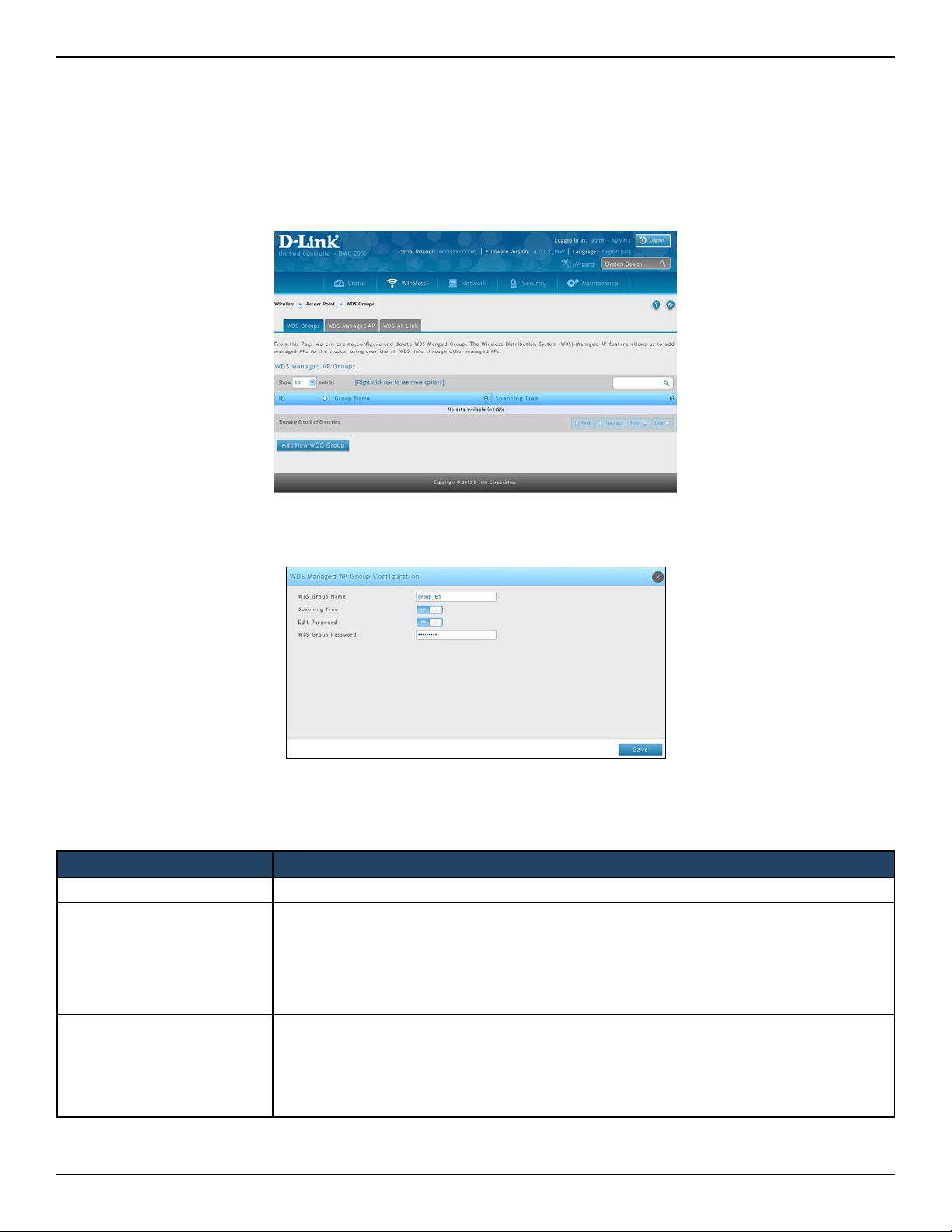
D-Link DWC-2000 User Manual 104
Section 4 - Advanced WLAN Conguration
Congure WDS Managed AP
Path: Wireless > Access Point > WDS Groups > WDS Groups
1. Click Wireless > Access Point > WDS Groups.
2. Click Add New WDS Group.
3. Complete the elds in the table on the next page and click Save.
Field Description
WDS Group Name A descriptive name of the WDS AP group, which can contain up to 32 characters.
Spanning Tree
Species whether to enable spanning tree on all APs in this WDS AP group.
Spanning tree must be enabled if there are any potential loops in the network. For
example if a satellite AP has links to two root APs then spanning tree must be enabled.
Note: The spanning tree protocol running on the APs interacts with the spanning tree
protocol running on the edge switches to which the APs are connected.
Edit Password
Password used for securing WPA2‐Personal security on the WDS Link. Range: 8 – 63
ASCII characters. To create or change the password, select the Edit checkbox and type a
password in the available eld.
This password must match the passwords set on the satellite APs in this group. By default,
the password is AP‐Group‐n, where n is the AP group ID.
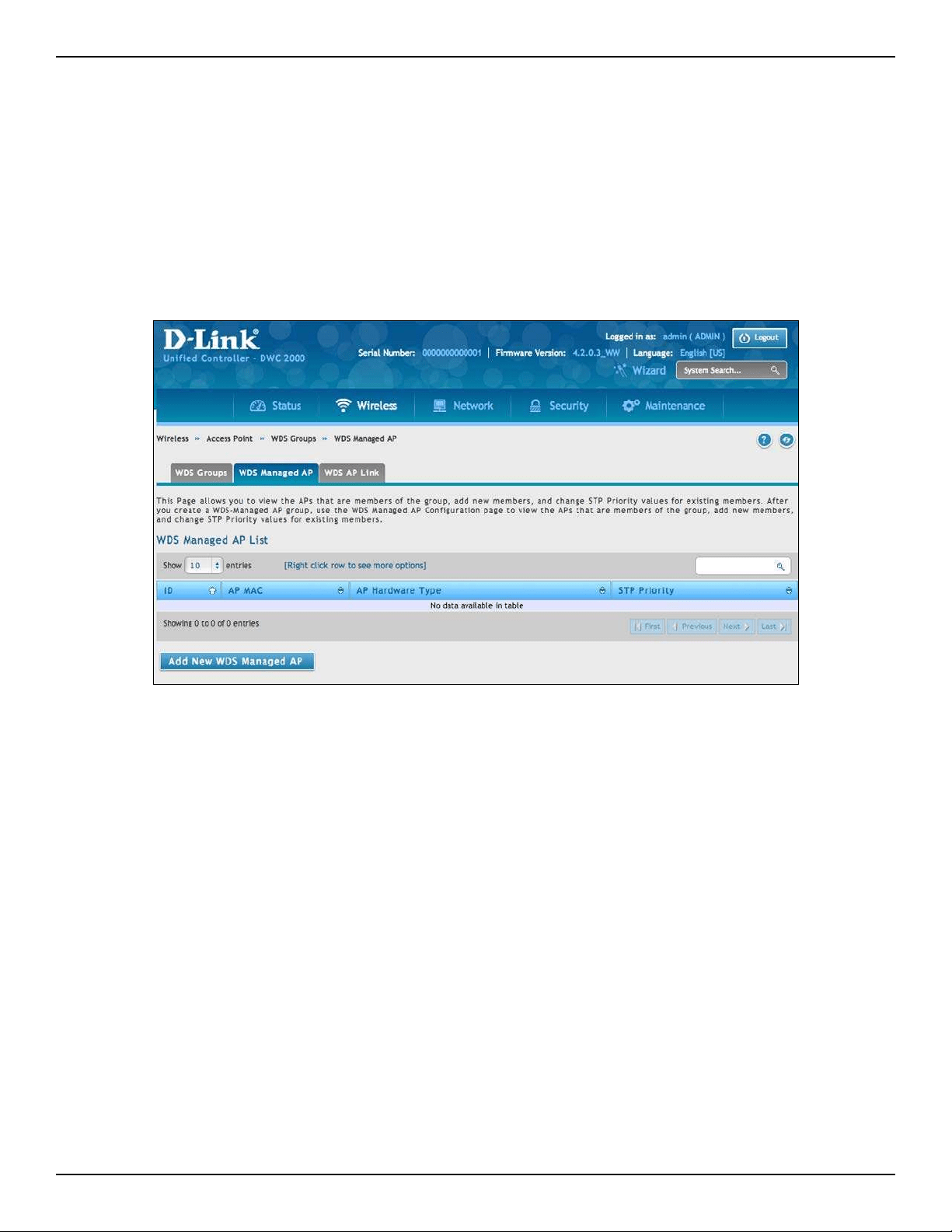
D-Link DWC-2000 User Manual 105
Section 4 - Advanced WLAN Conguration
Congure WDS Managed AP
Path: Wireless > Access Point > WDS Groups > WDS Managed AP
After you create a WDS‐Managed AP group, use the WDS Managed AP Conguration page to view the APs that
are members of the group, add new members, and change STP Priority values for existing members
1. Click Wireless > Access Point > WDS Groups > WDS Managed AP tab.
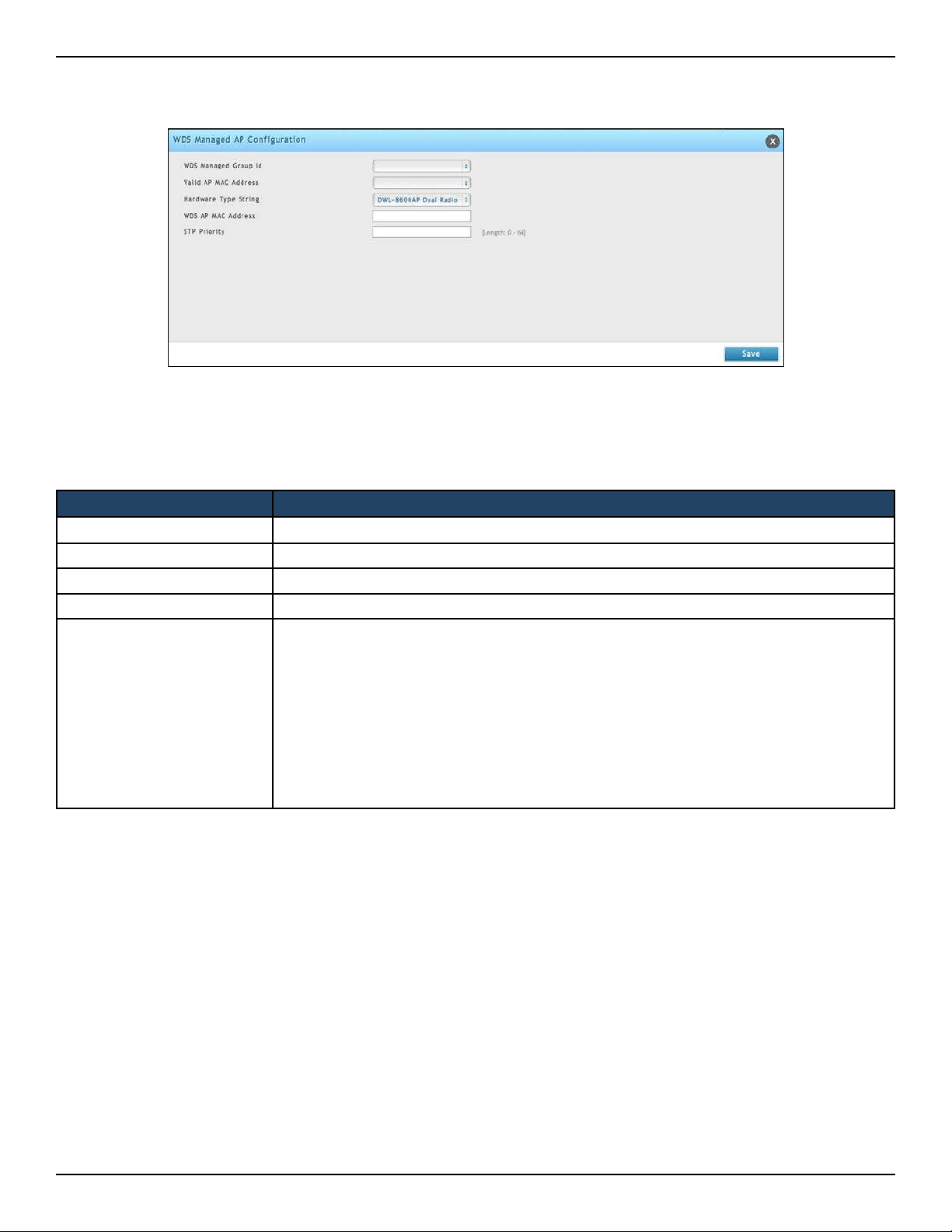
D-Link DWC-2000 User Manual 106
Section 4 - Advanced WLAN Conguration
2. Click Add New WDS Manage AP.
3. Complete the elds in the table below and click Save.
Field Description
WDS Managed Group ID
Select the ID associated with the group to congure.
Valid AP MAC Address MAC Address of the AP.
Hardware Type String Select the AP from the drop-down menu.
WDS AP MAC Address Enter the WDS AP MAC address.
STP Priority
Spanning Tree Priority for this AP. The STP priority is used only when spanning tree mode
is enabled.
The STP priority determines which AP is selected as the root of the spanning tree and
which AP has preference over another AP when multiple equal cost paths exist in the
topology. The lower value for the spanning tree priority means that the AP is more likely
to be used for bridging data into the campus network. You should assign a lower priority
to the APs connected to the wired network than to the satellite APs.
The STP priority value is rounded down to a multiple of 4096. The range is 0 – 61440, and
the default value is 36864.
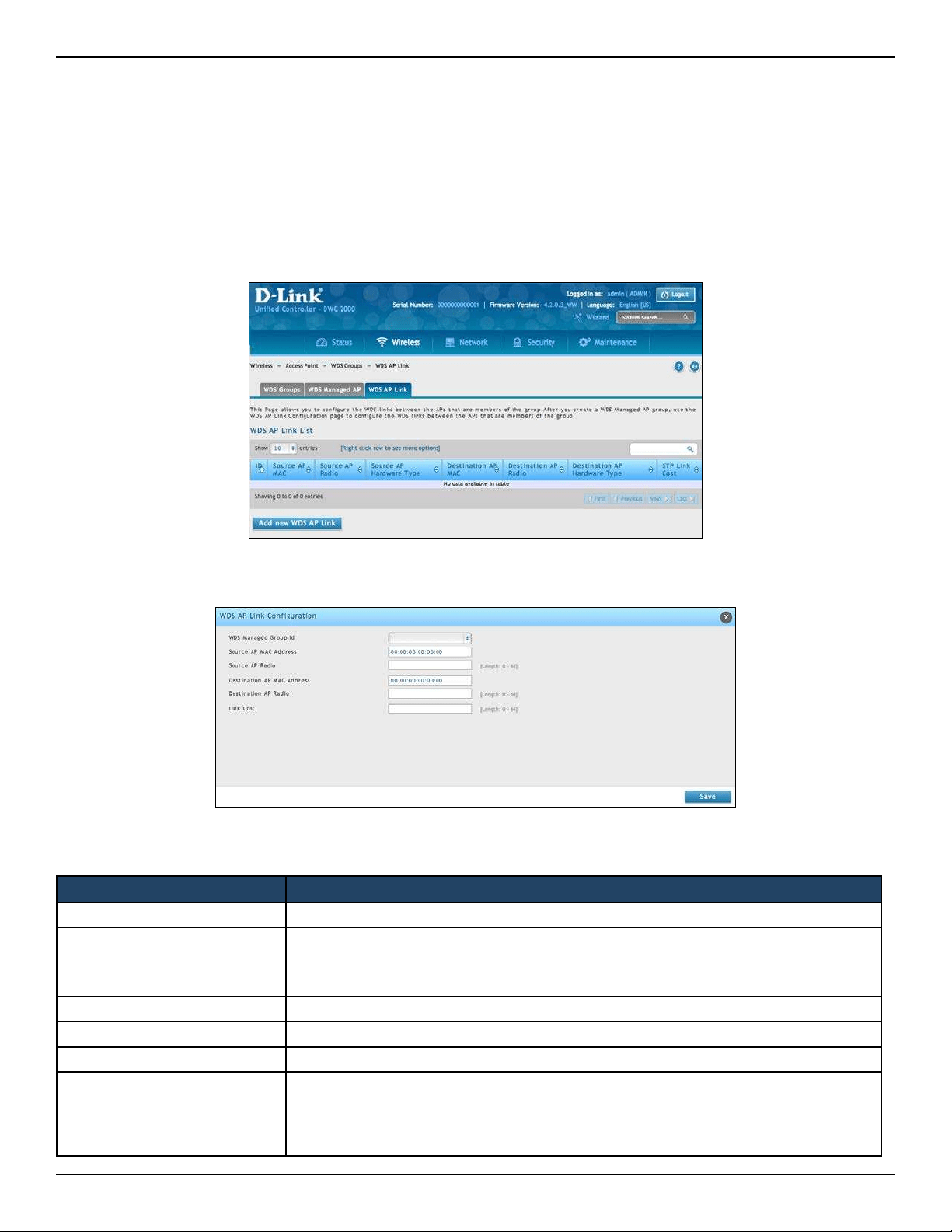
D-Link DWC-2000 User Manual 107
Section 4 - Advanced WLAN Conguration
Congure WDS AP Link
Path: Wireless > Access Point > WDS Groups > WDS AP Link
After you create a WDS‐Managed AP group, use the WDS AP Link Conguration page to congure the WDS links
between the APs that are members of the group.
1. Click Wireless > Access Point > WDS Groups > WDS AP Link tab.
2. Click Add New WDS AP Link.
3. Complete the elds in the table below and click Save.
Field Description
WDS Managed Group ID Select the ID associated with the group to congure.
Source AP MAC Address
MAC Address of the source AP.
Note: The WDS links are bidirectional. The terms Source and Destination simply help
to dierentiate between the WDS link endpoints.
Source AP Radio The radio number of the WDS link endpoint on the source AP.
Destination AP MAC Address The MAC address of the destination AP in the group.
Destination Radio The radio number of the WDS link endpoint on the destination AP.
Link Cost
Spanning Tree Path cost for the WDS link. The range is 0–255.
When multiple alternate paths are dened in the WDS group, the link cost is used to
indicate which links are the primary links and which links are the secondary links. The
spanning tree selects the path with the lowest link cost.
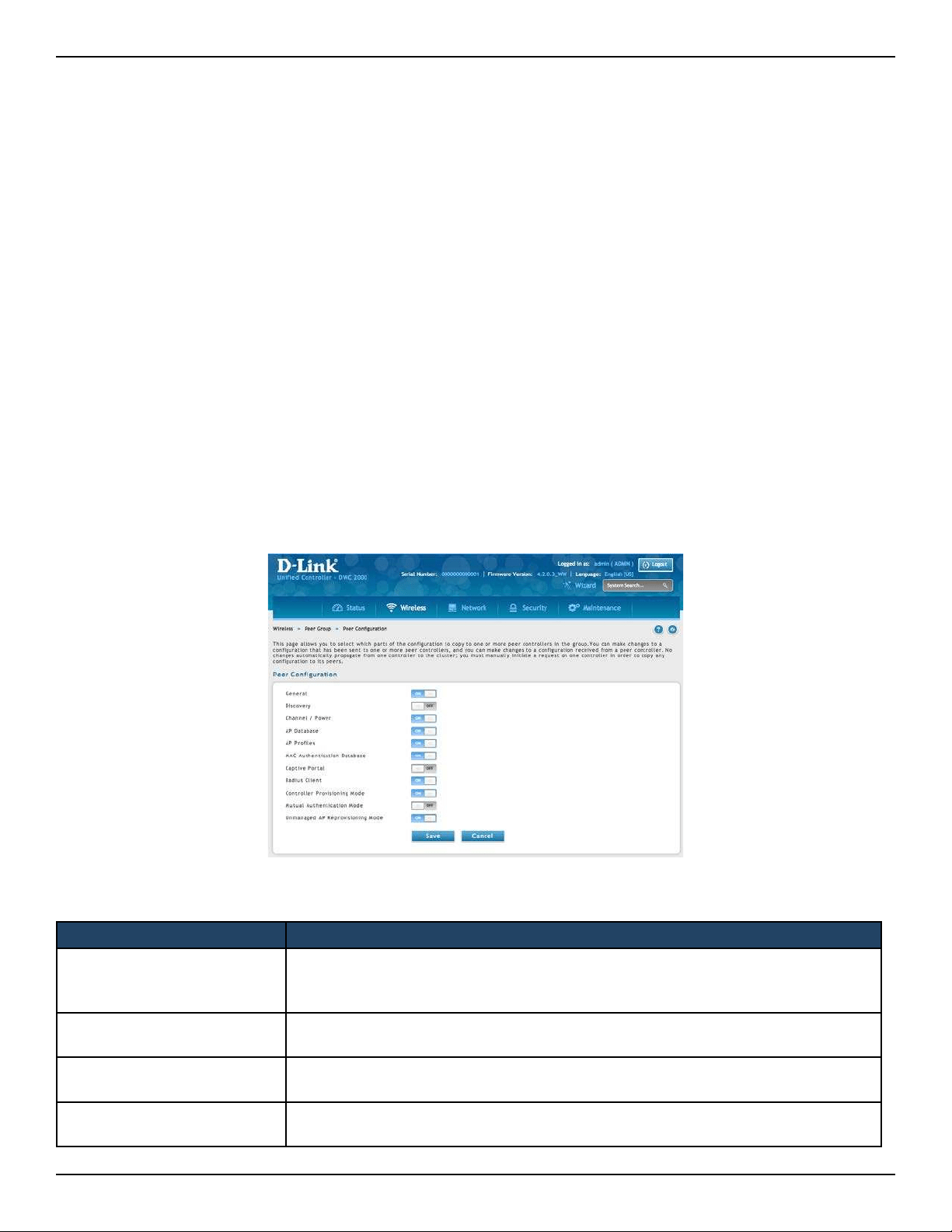
D-Link DWC-2000 User Manual 108
Section 4 - Advanced WLAN Conguration
Peer Group
The Peer Group Conguration feature allows you to send a variety of conguration information from one
wireless controller to all other wireless controllers. In addition to keeping the wireless controller synchronized,
this function allows you to manage all wireless controllers in the cluster from one controller.
Congure Peer Group
Path: Wireless > Peer Group > Peer Conguration
You can copy portions of the wireless controller conguration from one controller to another controller in the
cluster. The Peer Group Conguration Enable/Disable page allows you to select which parts of the conguration
to copy to one or more peer wireless controllers in the group.
You can make changes to a conguration that has been sent to one or more peer controllers, and you can make
changes to a conguration received from a peer controller. No changes automatically propagate from one
controller to the cluster; you must manually initiate a request on one controller in order to copy any conguration
to its peers.
1. Click Wireless > Peer Group > Peer Conguration.
2. Toggle each option to On or O, and then click Save. Refer to the table on the next page.
Field Description
General
Enable this eld to include the basic and advanced global settings in the conguration
that the controller pushes to its peers. The conguration does not include the
controller IP address since that is a unique setting.
Discovery
Enable this eld to include the L2 and L3 discovery information, including the VLAN
list and IP list, in the conguration that the controller pushes to its peers.
Channel / Power
Enable this eld to include the RF management information in the conguration that
the controller pushes to its peers.
AP Database
Enable this eld to include the AP Database (Valid AP) in the conguration that the
controller pushes to its peers.
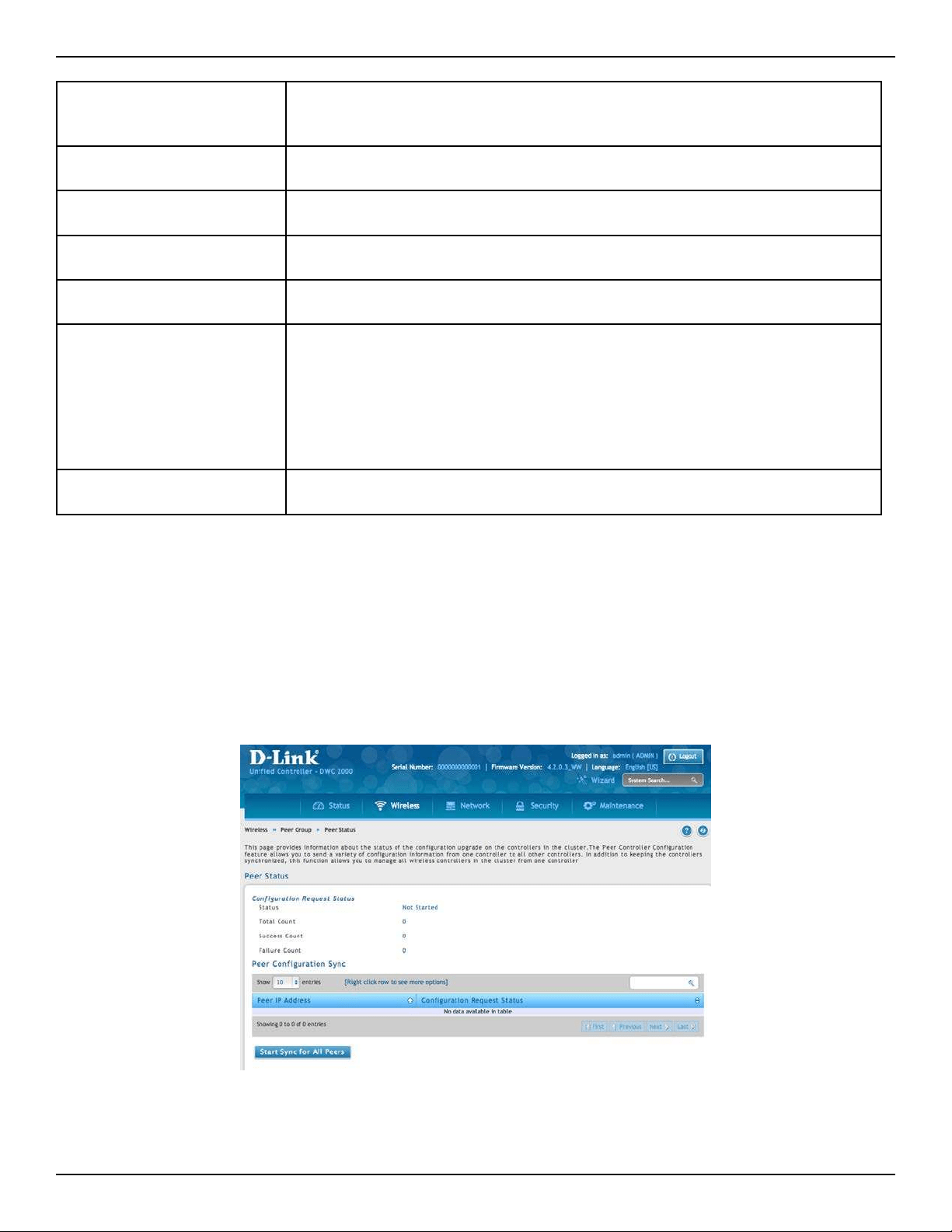
D-Link DWC-2000 User Manual 109
Section 4 - Advanced WLAN Conguration
Synchronize Peer Group
Path: Wireless > Peer Group > Peer Status
Synchronize the settings among the peer group.
1. Click Wireless > Peer Group > Peer Status. Peer Status List will appear
2. Click Start Sync for All Peers to synchronize the settings to all controllers, or synchronize one of the
peer group by right-clicking Start Sync.
AP Proles
Enable this eld to include all AP proles in the conguration that the controller
pushes to its peers. The AP prole includes the general AP settings, such as the
hardware type, Radio settings, SSID Proles, and QoS settings.
MAC Authentication DB
Enable this eld to include the MAC Authentication Database in the conguration
that the controller pushes to its peers.
Captive Portal
Enable this eld to include the Captive Portal information in the conguration that
the controller pushes to its peers.
RADIUS Client
Enable this eld to include the Client RADIUS information in the conguration that
the controller pushes to its peers.
Controller Provisioning Mode
Enable this eld to send and receive provisioning messages. As a security feature, you
can disable this option.
Mutual Authentication Mode
Select Enable to require mutual authentication on the wireless network. When
Disable is selected, mutual authentication is not required.
Changing this parameter on one controller automatically updates the conguration
on all other controllers in the cluster and all managed APs in the cluster.
When this eld is enabled, switch provisioning must be enabled in order for new
controllers to be added to the cluster. If controller provisioning is disabled, the cluster
will not accept certicates from a new controller.
Unmanaged AP
Reprovisioning Mode
Enable to allow access points to accept provisioning information when not managed
by a controller.
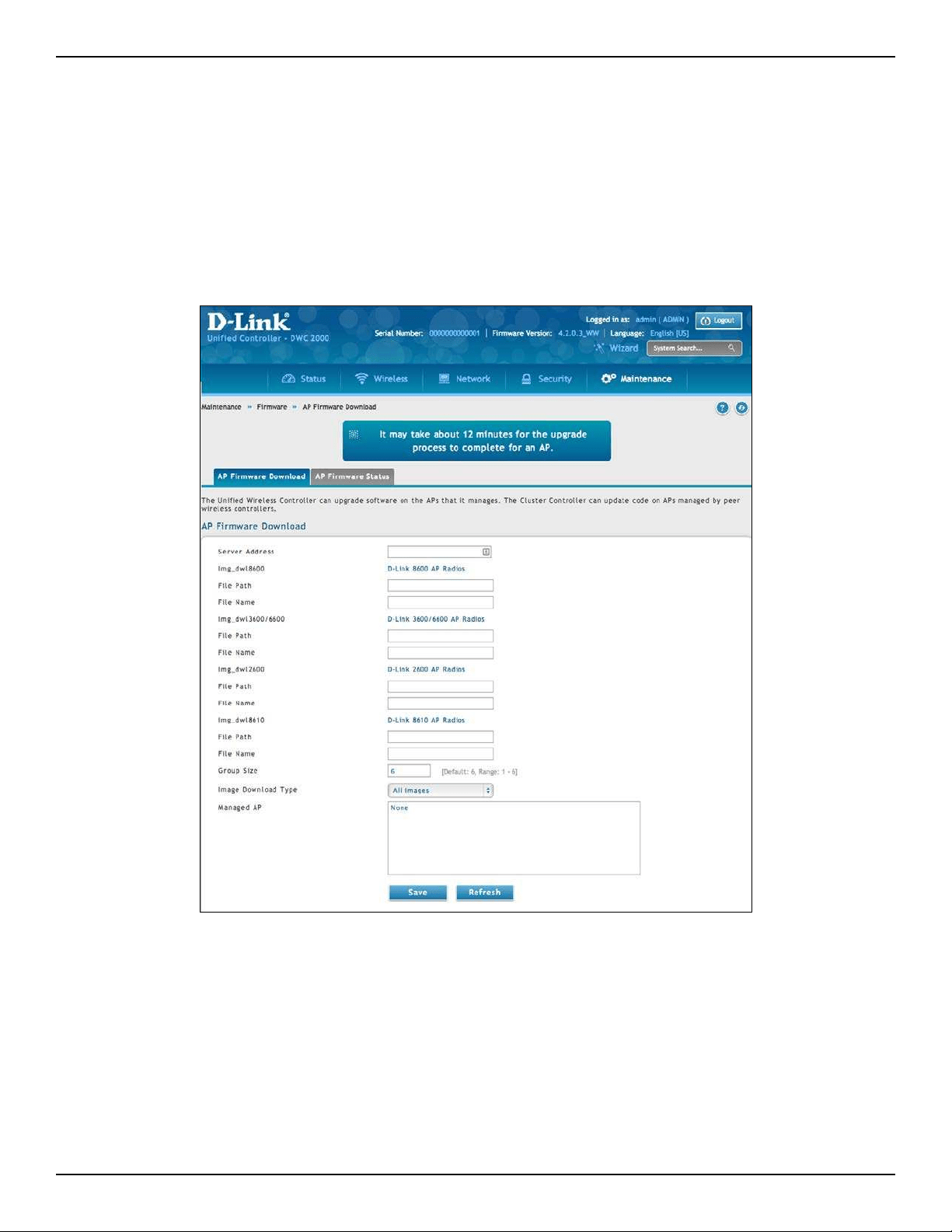
D-Link DWC-2000 User Manual 110
Section 4 - Advanced WLAN Conguration
AP Firmware Download
The Wireless Controller can upgrade software on the APs that it manages. The Cluster Controller can update code
on APs managed by peer wireless controllers.
Path: Maintenance > Firmware > AP Firmware Download
1. Click Maintenance > Firmware > AP Firmware Download > AP Firmware Download tab.
2. Complete the elds (refer to the table on the next page) and then select the AP(s) you want to upgrade. Use
CTRL + click to select multiple APs.
3. Click Save to begin the upgrade process.

D-Link DWC-2000 User Manual 111
Section 4 - Advanced WLAN Conguration
Field Description
Server Address
Enter the IP address of the host where the upgrade le is located. The host must have
a TFTP server installed and running.
File Path
Enter the le path on the TFTP server where the software is located. You may enter up
to 96 characters.
File Name
Enter the name of the upgrade le. You may enter up to 32 characters, and the le
extension .tar must be included.
Group Size
When you upgrade multiple APs, each AP contacts the TFTP server to download the
upgrade le. To prevent the TFTP server from being overloaded, you can limit the
number of APs to be upgraded at a time.
In the Group Size eld, enter the number of APs that can be upgraded at the same
time. When one group completes the upgrade, the next group begins the process.
Image Download Type
Type of the image to be downloaded, which can be one of the following:
• All Images
• DWL-8600AP
• DWL-3600AP/ DWL-6600AP
• DWL-2600AP
• DWL-8610AP
Note: To download all images, make sure you specify the le path and le name for
both images in the appropriate File Path and File Name elds.
Managed AP
The list shows all the APs that the controller manages. If the controller is the Cluster
Controller, then the list shows the APs managed by all controllers in the cluster.
Each AP is identied by its MAC address, IP address, and Location in the <MAC ‐ IP ‐
Location> format. To upgrade a single AP, select the AP MAC address from the drop
down list. To upgrade all APs, select All from the top of the list. If All is selected, the
Group Size eld will limit the number of simultaneous AP upgrades in order not to
overwhelm the TFTP server. To select multiple APs to upgrade, CTRL + click the APs
to upgrade.
Note: D‐Link recommends that you upgrade all managed APs at the same time.
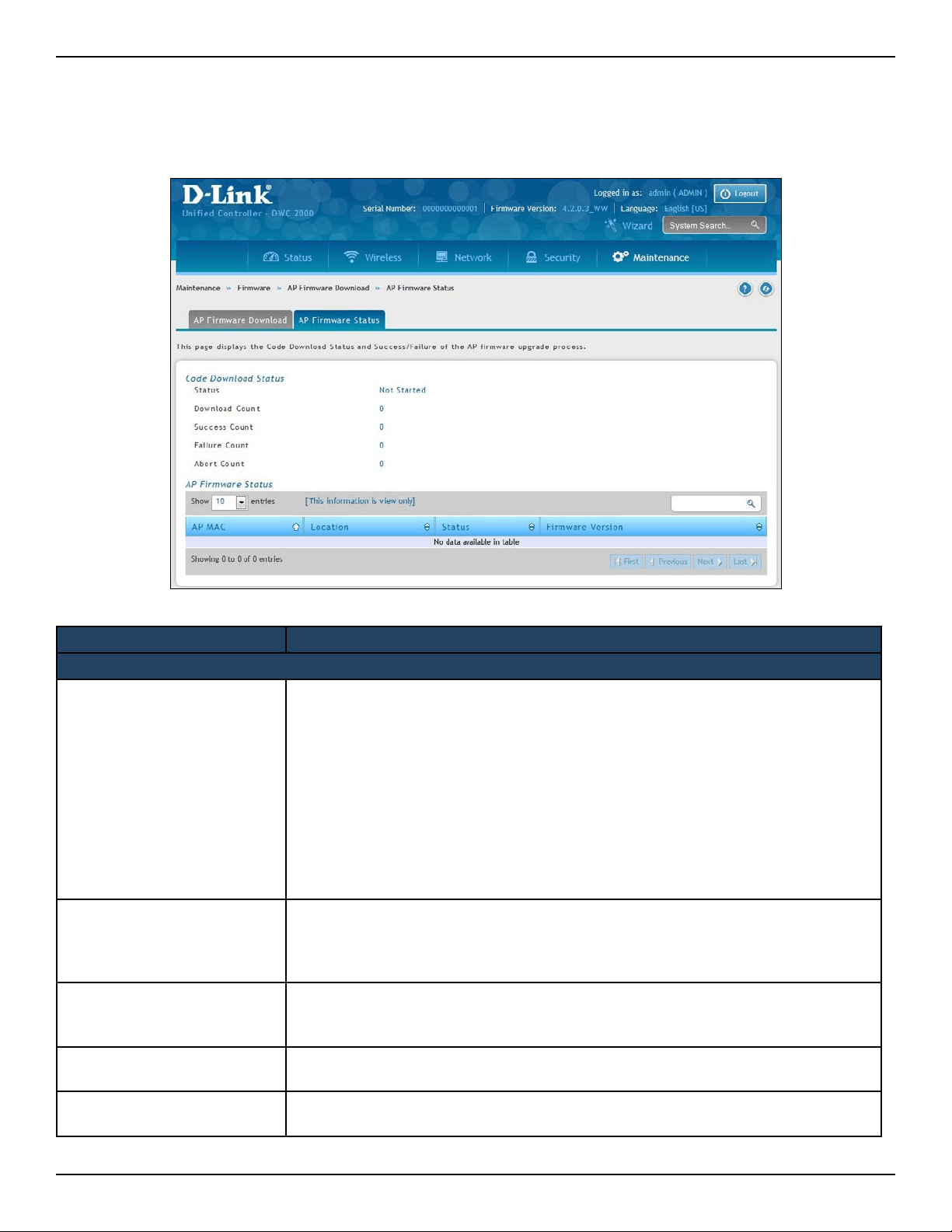
D-Link DWC-2000 User Manual 112
Section 4 - Advanced WLAN Conguration
After the download begins, the AP Firmware Status tab will display information about the upgrade. Refer to the
table below:
Field Description
Code Download Status
Status (Global)
The status of the upgrade process for all APs:
• Not Started: The wireless controller has not started the download process.
• Requested: A request to download AP software has been made, but the controller
has not done any downloads.
• Code Transfer in Progress: A download is in progress.
• Failure: Download failed on all APs.
• Aborted: Download was aborted before the AP loaded code from the TFTP
server.
• NVRAM‐Update‐in‐Progress: Download completed successfully. The reset
command has been sent to the AP.
• Success: All APs are connected to the wireless controller.
Download Count
The number of managed APs to download software in the current download request.
If you selected All for the managed APs to upgrade, the download count shows the
number of managed APs at the time the download request was started. The value is
1 if only one AP is being updated.
Success Count
The number of APs that have successfully downloaded the new code. This value
starts with 0 at the beginning of the download and increases by one for every AP that
successfully downloaded the code.
Failure Count
The number of APs that failed to download the new code starting at 0 and incremental
with each failure.
Abort Count
The number of APs for which the download was aborted, starting at 0 and incremental
each aborted download.
Path: Maintenance > Firmware > AP Firmware Download > AP Firmware Status

D-Link DWC-2000 User Manual 113
Section 4 - Advanced WLAN Conguration
AP Firmware Status
Status (per-AP)
A table also appears and lists each AP, its download status, and the software version it
is downloading. The status for an individual AP can have one of the following values:
• Requested: A download is planned for this AP, but the AP is not in the current
download group, so it hasn’t been told to start the download yet.
• Code‐Transfer‐In‐Progress: The AP has been told to download the code.
• Failure: The AP reported a failing code download.
• Aborted: The download was aborted before the AP loaded code from the TFTP
server.
• Waiting‐For‐APs‐To‐Download: A download nished on this AP, and it is waiting
for other APs to nish download. Reset command is not sent to the AP in this
state.
• NVRAM‐Update‐In‐Progress: Download completed successfully. The reset
command sent to the AP.
• Timed‐Out: The AP did not reconnect to the controller in the xed time interval.
AP MAC The managed AP MAC address.
Location The location of the managed AP.
Status Refer to Status (per-AP) above.
Firmware Version The current rmware version of the managed AP.

D-Link DWC-2000 User Manual 114
Section 5 - Advanced Network Conguration
Advanced Network Conguration
While the basic conguration described in the previous chapter is satisfactory for most users, large wireless
networks or a complex setup may require the wireless controller’s advanced conguration settings to be
congured.
This chapter covers the following commonly used advanced conguration settings.
• “IP Mode” on page 115
• “IPv4 LAN Settings” on page 116
• “IPv6 LAN Settings” on page 118
• “VLANs” on page 130
• “Congure IPv4 Static Routing” on page 142
• “Congure IPv6 Static Routing” on page 144
• “QoS Conguration” on page 147
Note: The procedures in this chapter should only be performed by expert users who understand networking concepts
and terminology.
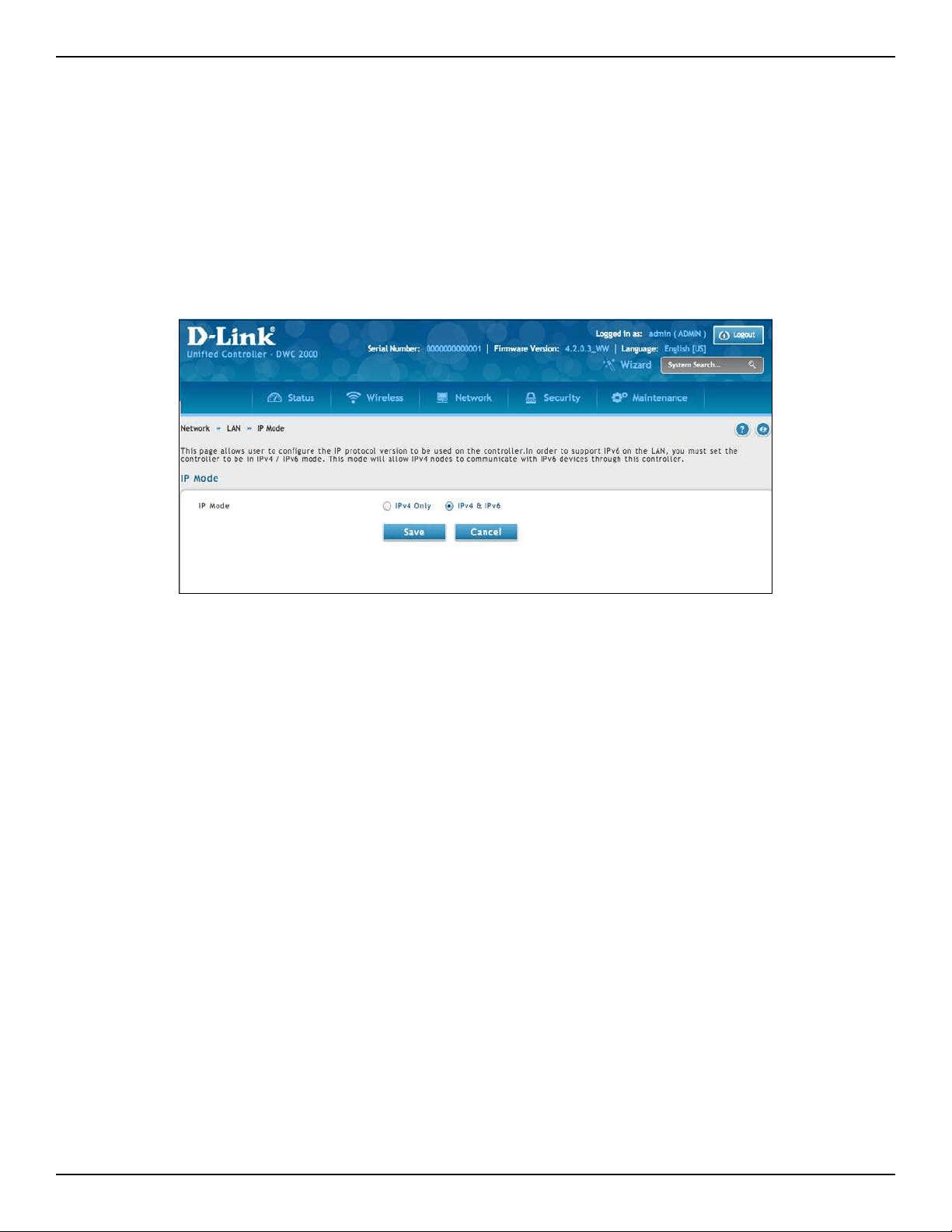
D-Link DWC-2000 User Manual 115
Section 5 - Advanced Network Conguration
IP Mode
Path: Network > LAN > IP Mode
This page allows user to congure the IP protocol version to be used on the controller. In order to support IPv6 on
the LAN, you must set the controller to be in IPv4 / IPv6 mode. This mode will allow IPv4 nodes to communicate
with IPv6 devices through this controller.
1. Go to Network > IPv6 > IP Mode.
2. Next to IP Mode, select either IPv4 only or IPv4 & IPv6.
3. Click Save.
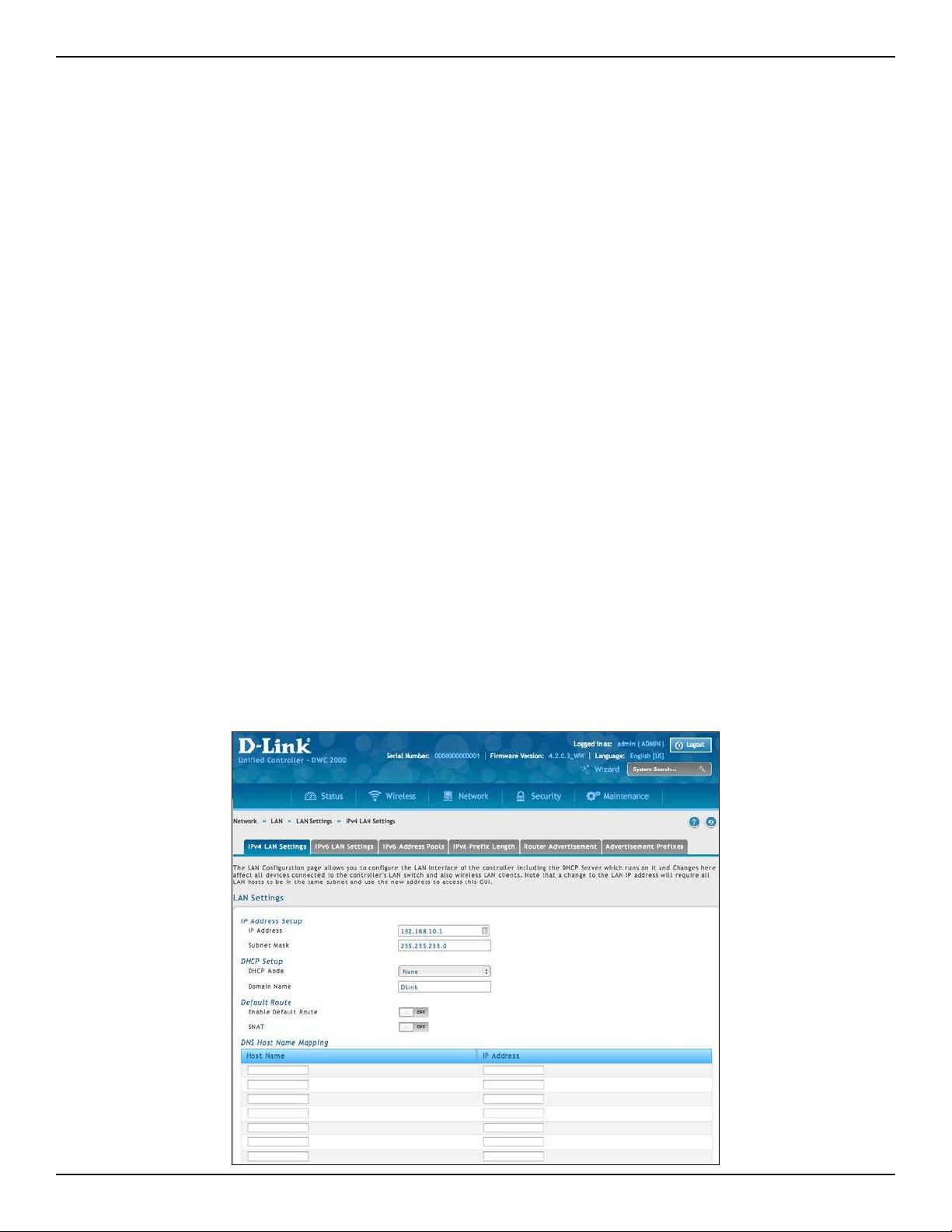
D-Link DWC-2000 User Manual 116
Section 5 - Advanced Network Conguration
LAN Conguration
IPv4 LAN Settings
Path: Network > LAN > LAN Settings > IPv4 LAN Settings
By default, the controller function the “Dynamic Conguration Protocol (DHCP)” mode is set to None. The DHCP
mode can be set as DHCP server or DHCP relay. When DHCP server mode is set as DHCP server, the controller
functions as SHCP server for assigning IP address leases to host on WLAN or LAN network. With DHCP, PCs and
other LAN devices can be assigned IP addresses as well as addresses for DNS servers, Windows Internet Name
Service (WINS) servers, and the default gateway. With the DHCP server enabled the controller’s IP address serves
as the gateway address for LAN and WLAN clients. The PCs in the LAN are assigned IP addresses from a pool
of addresses specied in this procedure. Each pool address is tested before it is assigned to avoid duplicate
addresses on the LAN.
For most applications the default DHCP and TCP/IP settings are satisfactory. If you want another PC on your
network to be the DHCP server or if you are manually conguring the network settings of all of your PCs, set the
DHCP mode to ‘none’. DHCP relay can be used to forward DHCP lease information from another LAN device that
is the network’s DHCP server; this is particularly useful for wireless clients.
Instead of using a DNS server, you can use a Windows Internet Naming Service (WINS) server. A WINS server is
the equivalent of a DNS server but uses the NetBIOS protocol to resolve host names. The controller includes the
WINS server IP address in the DHCP conguration when acknowledging a DHCP request from a DHCP client.
You can also enable DNS proxy for the LAN. When this is enabled the controller will act as a proxy for all DNS
requests and communicates with the ISP’s DNS servers. When disabled all DHCP clients receive the DNS IP
addresses of the ISP.
1. Click Network > LAN > LAN Settings > IPv4 LAN Settings.
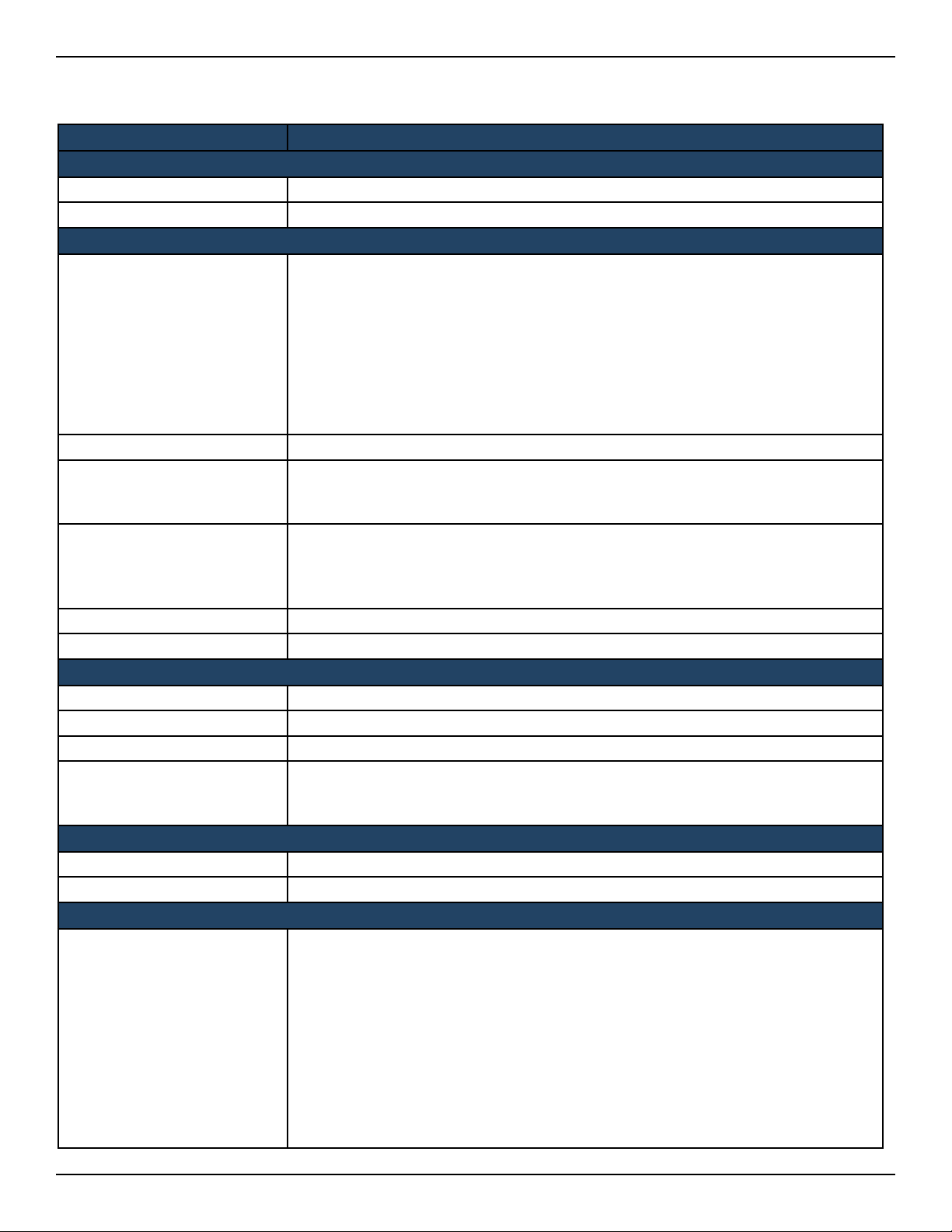
D-Link DWC-2000 User Manual 117
Section 5 - Advanced Network Conguration
2. Complete the elds in the table below and click Save.
Field Description
IP Address Setup
IP Address LAN interface IP address of the wireless controller.
Subnet Mask The factory default: 255.255.255.0.
DHCP Setup
DHCP Mode
There are three DHCP modes to choose from:
• None: the controller’s DHCP server is disabled for the LAN
• DHCP Server. With this option the controller assigns an IP address within the
specied range plus additional specied information to any LAN device that
requests DHCP served addresses.
• DHCP Relay: With this option enabled, DHCP clients on the LAN can receive IP
address leases and corresponding information from a DHCP server on a dierent
subnet. Specify the Relay Gateway, and when LAN clients make a DHCP request
it will be passed along to the server accessible via the Relay Gateway IP address.
Domain Name Enter a domain name.
Starting IP Address
If DHCP mode = DHCP Server:
Enter the rst IP address in the range. Any new DHCP client joining the LAN will be
assigned an IP address between this address and the Ending IP Address.
Ending IP Address
If DHCP mode = DHCP Server:
Enter the last IP address in the range of addresses to lease to LAN hosts. Any new
DHCP client joining the LAN will be assigned an IP address between the Starting IP
Address and this IP address.
Default Gateway If DHCP mode = DHCP Server: Enter the default gateway.
Gateway If DHCP mode= DHCP Relay. Enter the relay gateway address.
Default Route
Enable Default Route Enable or disable (ON=enabled) the default route function.
Gateway If Enable Default Route=ON, enter the Gateway IP address.
DNS Server If Enable Default Route= ON, enter the DNS Server IP address.
SNAT
Enable or disable SNAT (Source Network Address Translation). Enable SNAT if you
have set up VLANs on your LAN network and it needs NAT to translate the source and
origin address.
DNS Host Name Mapping
Host Name Enter a DNS host name.
IP Address Enter the IP address of the DNS host name.
LAN Proxy
Active DNS Proxy
Enable or disable DNS proxy on this LAN.
When this feature is enabled, the controller will act as a proxy for all DNS requests
and communicate with the ISP’s DNS servers (as congured in the Option settings
page). All DHCP clients will receive the Primary/Secondary DNS IP along with the IP
where the DNS Proxy is running, i.e. the box’s LAN IP. All DHCP clients will receive the
DNS IP addresses of the ISP excluding the DNS Proxy IP address when it is disabled.
The feature is particularly useful in Auto Rollover mode. For example, if the DNS
servers for each connection are dierent, then a link failure may render the DNS
servers inaccessible. However, when the DNS proxy is enabled, then clients can make
requests to the controller and in turn, sends those requests to the DNS servers of the
active connection.
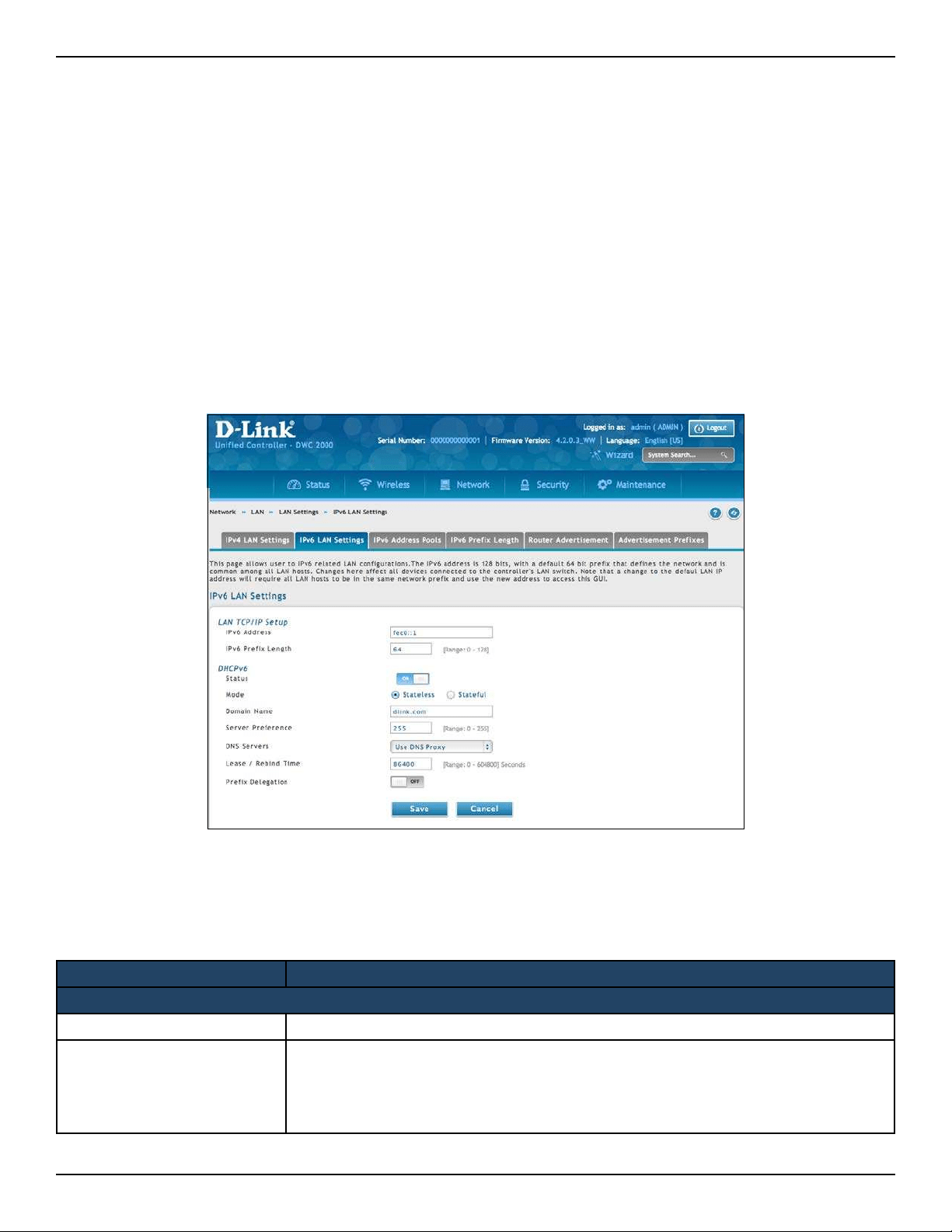
D-Link DWC-2000 User Manual 118
Section 5 - Advanced Network Conguration
IPv6 LAN Settings
Path: Network > IPv6> LAN Setting> IPv6 LAN Settings
In IPv6 mode, the LAN DHCP server is disabled by default (similar to IPv4 mode). The DHCPv6 server will serve
IPv6 addresses from congured address pools with the IPv6 Prex Length assigned to the LAN.
The default IPv6 LAN address for the controller is fec0::1. You can change this 128 bit IPv6 address based on your
network requirements. The other eld that denes the LAN settings for the controller is the prex length. The
IPv6 network (subnet) is identied by the initial bits of the address called the prex. By default this is 64 bits long.
All hosts in the network have common initial bits for their IPv6 address; the number of common initial bits in the
network’s addresses is set by the prex length eld.
1. Go to Network > IPv6 > LAN Settings > IPv6 LAN Settings tab.
2. Complete the elds in the table below and on the next page.
3. Click Save.
Field Description
LAN TCP/IP Setup
IPv6 Address
The Wireless Controller’s LAN IPv6 address.
IPv6 Prex Length
The IPv6 network (subnet) is identied by the initial bits of the address called
the prex. All hosts in the network have the identical initial bits for their IPv6
address; the number of common initial bits in the networks addresses is set by
the prex length eld.

D-Link DWC-2000 User Manual 119
Section 5 - Advanced Network Conguration
Field Description
DHCPv6
Status
Toggle On to enable DHCPv6. It is disable in default.
If DHCPv6 is Enabled (ON)
Mode
There are two ways to obtain an appropriate address for the gateway. You must select
one of the following:
• Stateless Address Auto Conguration: This option will use router advertisement
for address assignment. The IPv6 RADVD protocol will be enabled to advertise this
controller as a DHCPv6 client.
• Stateful Address Auto Conguration: Select this option to request an IPv6
address from any available DHCPv6 servers available on the ISP.
Domain Name Name of the domain (Optional) for this DHCPv6 server.
Server Preference
This is used by the stateless DHCP to indicate the preference level of this DHCP server.
DHCPv6 clients will pick up the DHCPv6 server which has highest preference value. The
preference value must be a decimal integer and be between 0 and 255 (inclusive).
DNS Servers
Select one of the following options for DNS servers for the DHCPv6 clients
• Use DNS Proxy: On button to enable DNS proxy on this LAN, or O this button to
disable this proxy. When this feature is enabled, the controller will act as a proxy for
all DNS requests and communicate with the ISP’s DNS servers (as congured in the
Option settings page)
• Use DNS from ISP: This option allows the ISP to dene the DNS servers (primary/
secondary) for the LAN DHCP client
• Use below: if selected, the below congured Primary and Secondary DNS servers
are used for DHCPv6 clients.
Primary DNS Server Enter the primary DNS server address.
Secondary DNS Server Enter the secondary DNS server address.
Lease/Rebind Time Duration (in seconds) for which IP addresses will be leased to clients.
Prex Delegation On/O button for Enable/Disable Prex Delegation.
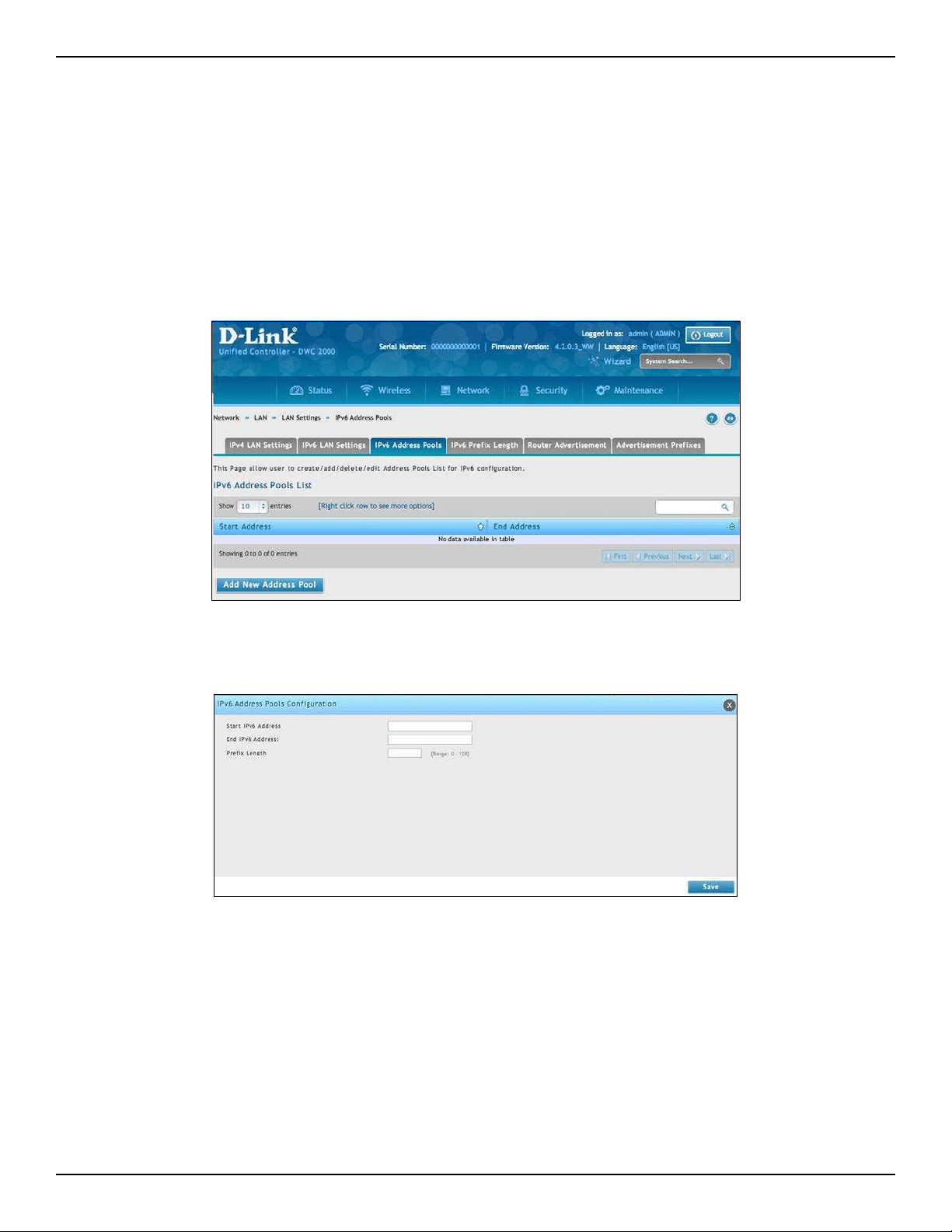
D-Link DWC-2000 User Manual 120
Section 5 - Advanced Network Conguration
Path: Network > IPv6> LAN Setting> IPv6 Address Pools/ Prex Delegation
This feature allows you to dene the IPv6 delegation prex for a range of IP addresses to be served by the
gateway’s DHCPv6 server. Using a delegation prex can automate the process of informing other networking
equipment on the LAN of DHCP information specic for the assigned prex.
1. Go to Network > LAN > LAN Settings > IPv6 Address Pools tab.
2. Click Add New Address Pool.
IPv6 Address Pools
3. Enter a starting IPv6 address, end IPv6 address, and the prex length.
4. Click Save.
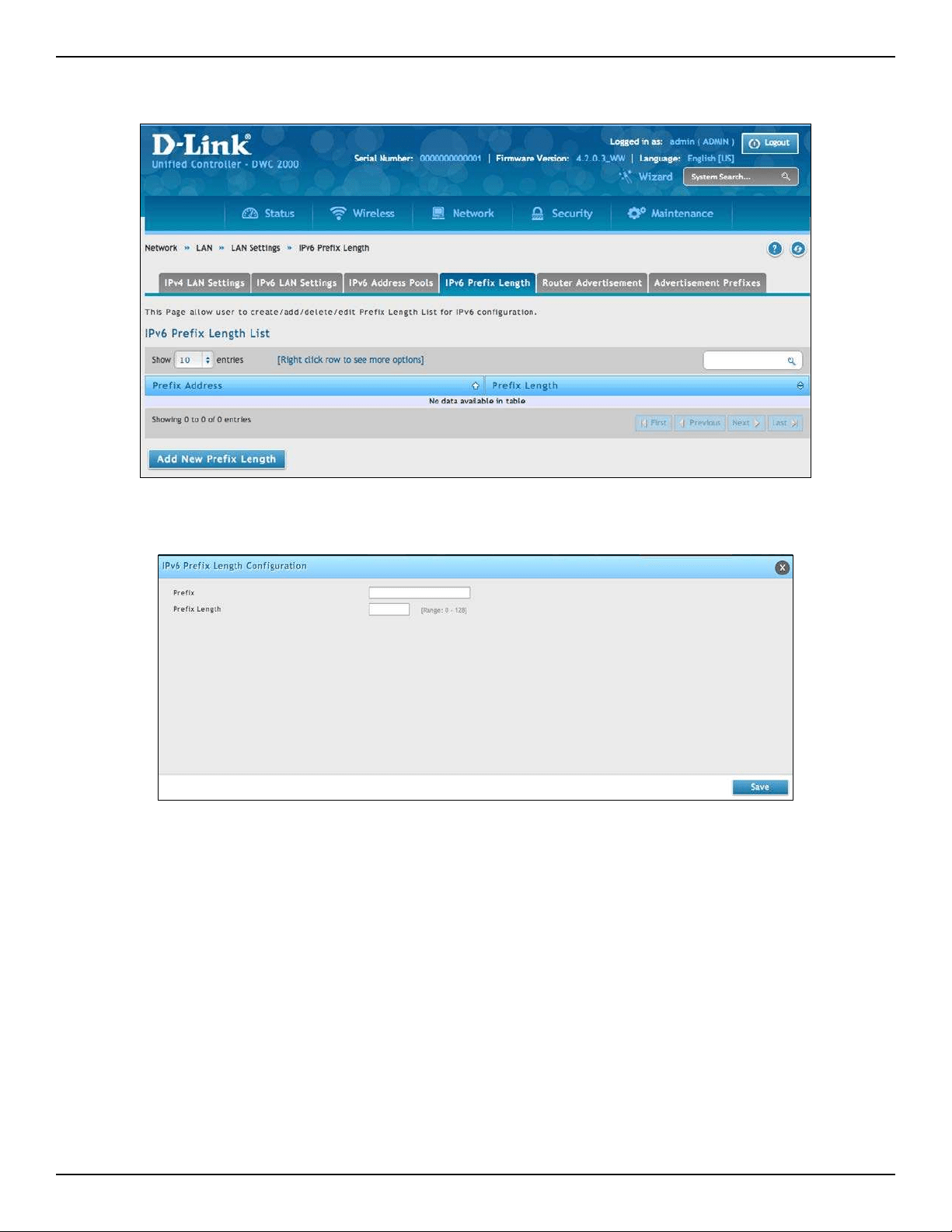
D-Link DWC-2000 User Manual 121
Section 5 - Advanced Network Conguration
6. Click Add New Prex Length.
7. Enter the IPv6 Prex and Prex Length. Click Save.
5. Go to Network > LAN > LAN Settings > IPv6 Prex Length tab.
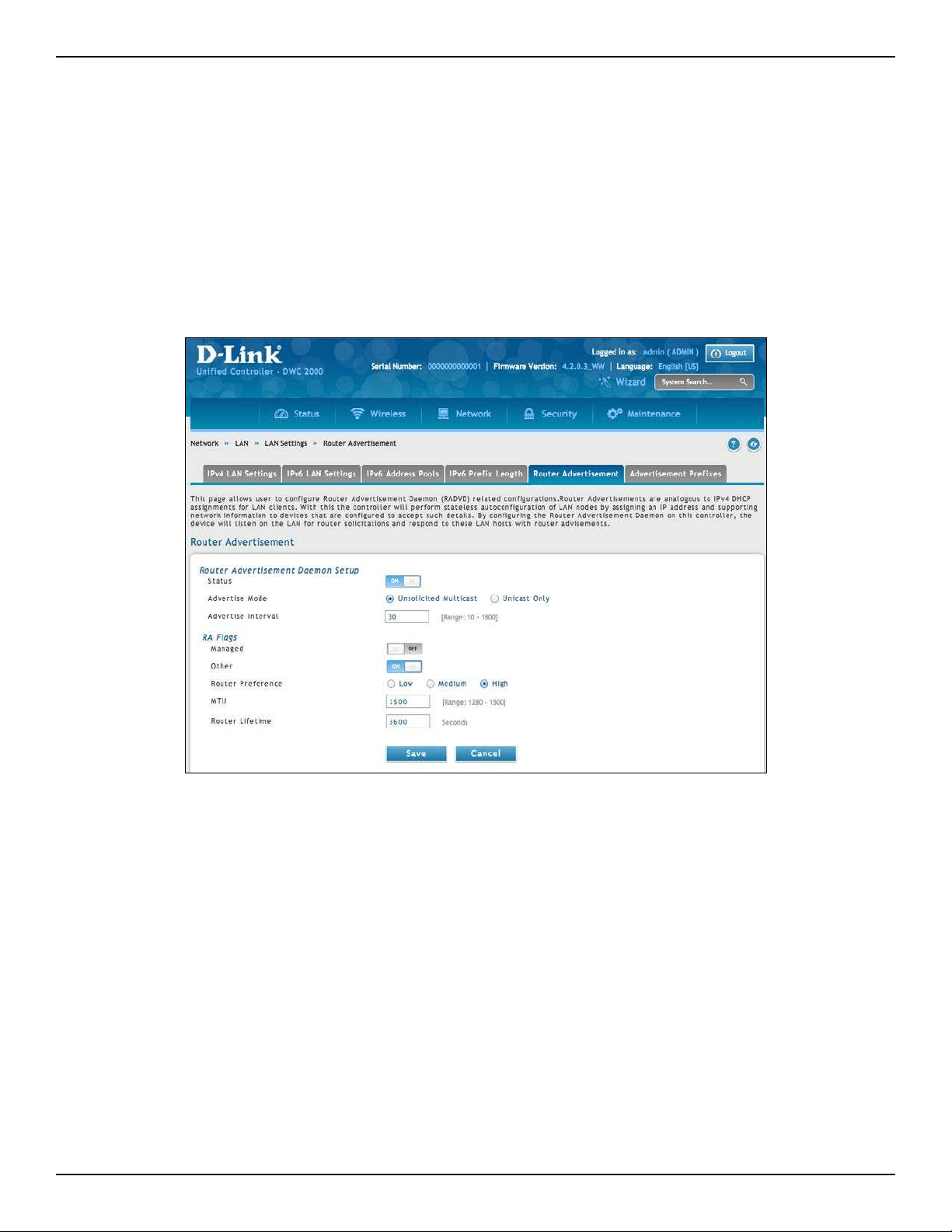
D-Link DWC-2000 User Manual 122
Section 5 - Advanced Network Conguration
Path: Network > LAN > LAN Settings > Router Advertisement
Router Advertisements are analogous to IPv4 DHCP assignments for LAN clients, in that the controller will assign
an IP address and supporting network information to devices that are congured to accept such details. Router
Advertisement is required in an IPv6 network is required for stateless auto conguration of the IPv6 LAN. By
conguring the Router Advertisement Daemon on this controller, the DWC will listen on the LAN for router
solicitations and respond to these LAN hosts with router advisements.
1. Go to Network > LAN > LAN Settings > Router Advertisement tab.
IPv6 Router Advertisement
2. Complete the elds from the table on the next page.
3. Click Save.
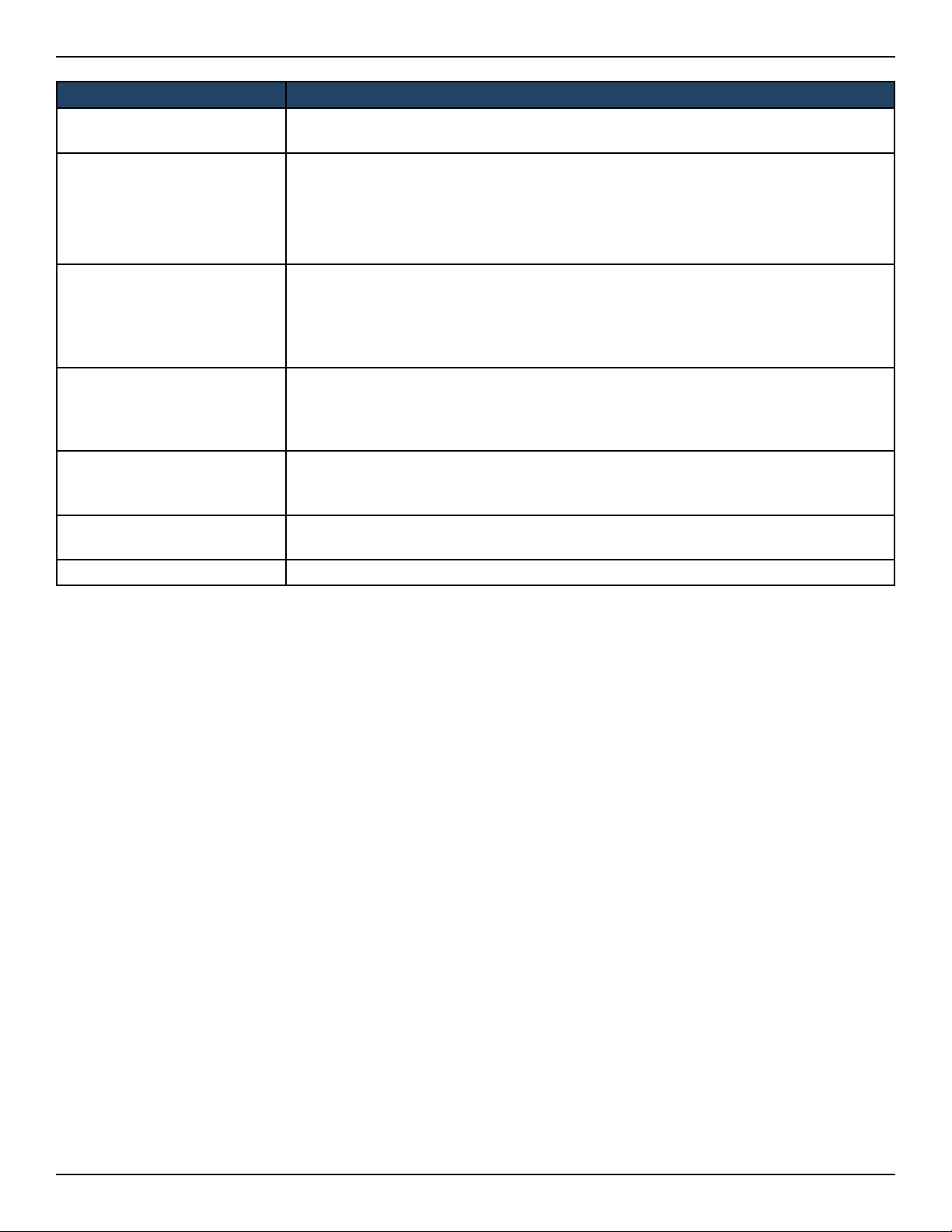
D-Link DWC-2000 User Manual 123
Section 5 - Advanced Network Conguration
Field Description
Status
Enable or disable the RADVD process here to allow stateless auto conguration of the
IPv6 LAN network.
Advertise Mode
Two Advertise Modes:
• Unsolicited Multicast: select to send router advertisements (RA’s) to all interfaces
belonging to the multicast group.
• Unicast Only: This option restricts advertisements to well known IPv6 addresses
only (RA’s are sent to the interface belonging to the known address only).
Advertise Interval
If Advertise Mode = Unsolicited Multicast, this sets the maximum advertise interval. The
advertise interval used when RADVD is enabled is a random value between Minimum
Router Advertisement Interval and Maximum Router Advertisement Interval. The
minimum router advertisement interval is 1/3 of this congured value, and the default
is 30 seconds.
RA Flags
The router advertisements (RA’s) can be sent with one or both of these ags: Managed
and Other.. Chose Managed to use the administered /stateful protocol for address auto
conguration. If the Other ag is selected the host uses administered/stateful protocol
for non-address auto conguration.
Router Preference
Choose between Low/Medium/High for the preference associated with the RADVD
process of the controller. This feature is useful if there are other RADVD enabled devices
on the LAN. The default is high.
MTU
This is used in RA’s to ensure all nodes on the network use the same MTU value in the
cases where the LAN MTU is not well known. The default is 1500
Router Lifetime The lifetime in seconds of the route. The default is 3600 seconds.
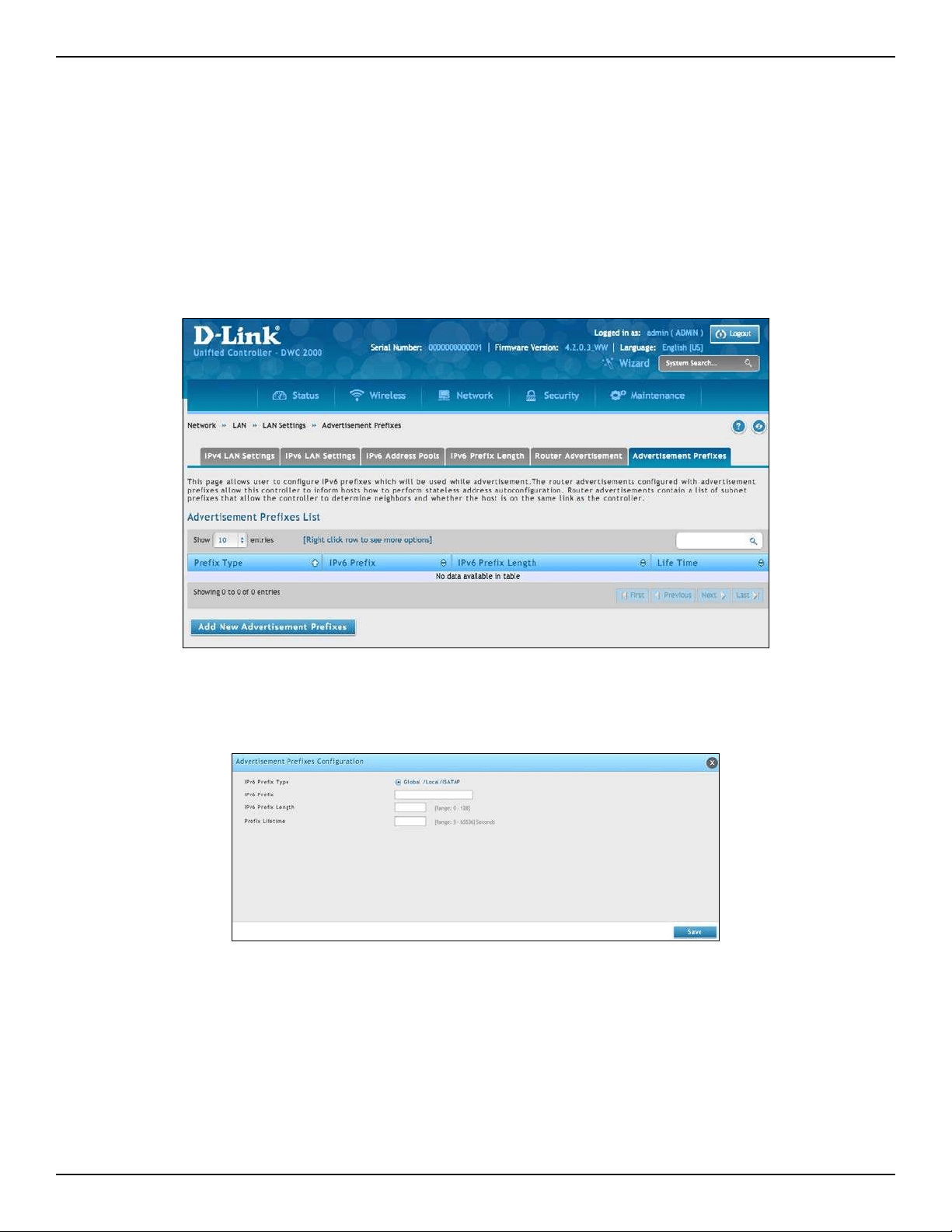
D-Link DWC-2000 User Manual 124
Section 5 - Advanced Network Conguration
2. Click Add New Advertisement Prexes.
Path: Network > LAN Setting > Advertisement Prexes
The router advertisements congured with advertisement prexes allow this controller to inform hosts how to
perform stateless address auto conguration. Router advertisements contain a list of subnet prexes that allow
the router to determine neighbors and whether the host is on the same link as the controller.
1. Go to Network > LAN Settings > Advertisement Prex tab.
IPv6 Advertisement Prexes
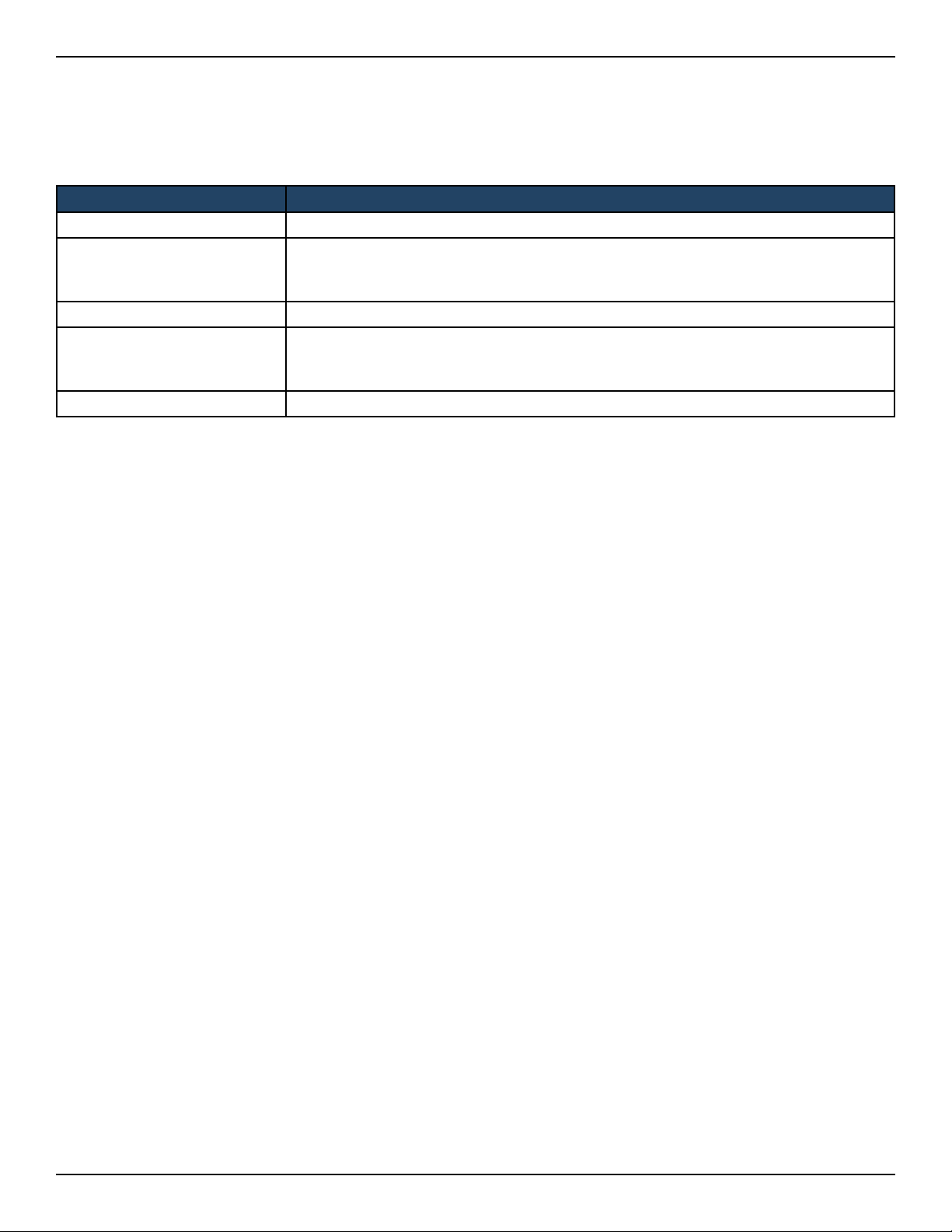
D-Link DWC-2000 User Manual 125
Section 5 - Advanced Network Conguration
3. Complete the elds from the table below.
4. Click Save.
Field Description
IPv6 Prex Type Select the prex type as 6to4 or Global/Local/ISATAP.
SLA ID
If Ipv6 Prex Type= 6to4, the SLA ID (Site-Level Aggregation Identier) in the 6to4
address prex is set to the interface ID of the interface on which the advertisements
are sent.
IPv6 Prex If IPv6 Prex Type= Global / Local / SATAP, then denes the IPv6 network address.
IPv6 Prex Length
If Ipv6 Prex Type= Global/ Local/ SATAP, and this is a numeric value that indicates the
number of contiguous, higher order bits of the address that make up the network
portion of the address.
Prex Lifetime The length of time over which the requesting controller is allowed to use the prex.
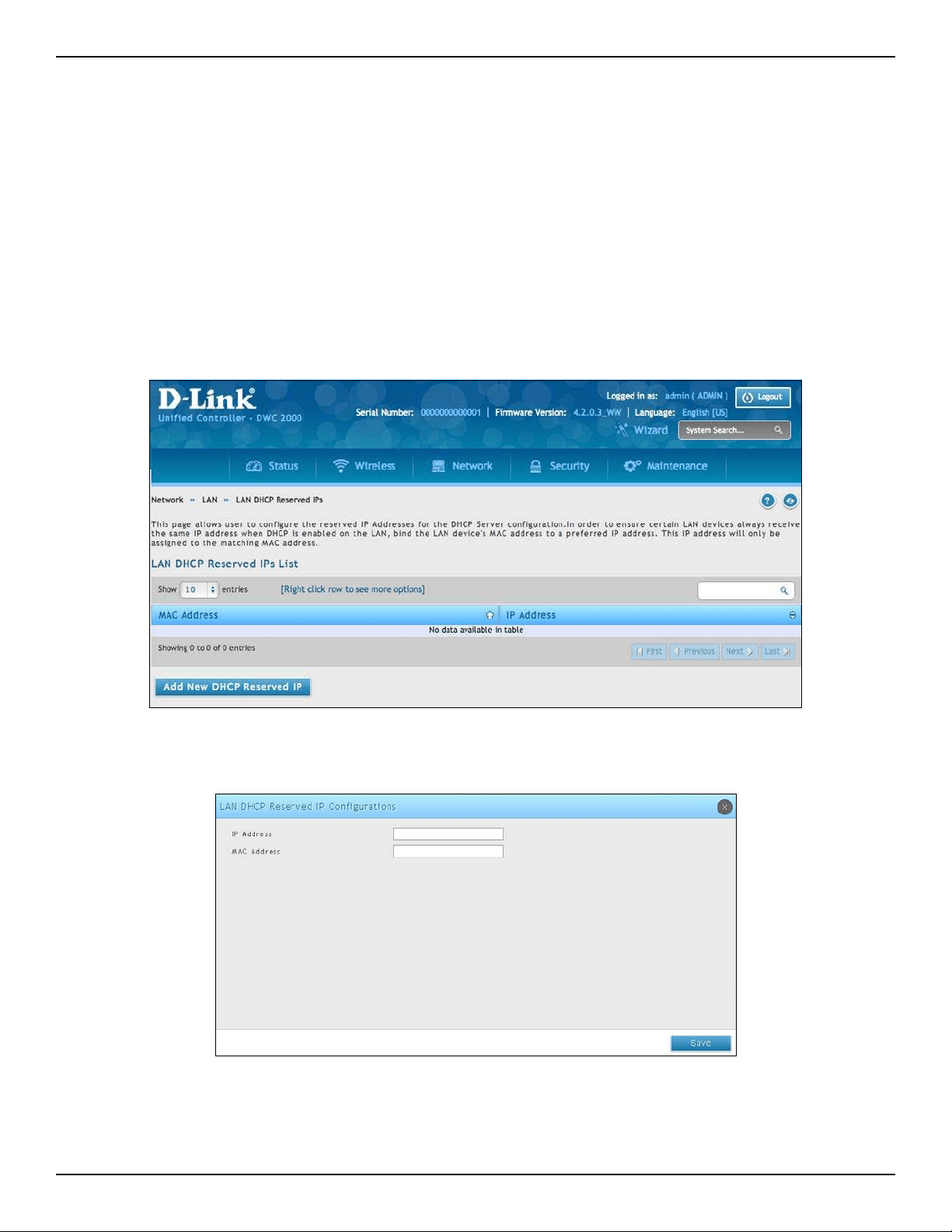
D-Link DWC-2000 User Manual 126
Section 5 - Advanced Network Conguration
LAN DHCP Reserved IPs
Path: Network > LAN > LAN DHCP Reserved IPs
The controller’s DHCP server can assign TCP/IP congurations to computers in the LAN explicitly by adding
client's network interface hardware address and the IP address to be assigned to that client in DHCP server's
database. Whenever DHCP server receives a request from client, hardware address of that client is compared
with the hardware address list present in the database, if an IP address is already assigned to that computer or
device in the database , the customized IP address is congured otherwise an IP address is assigned to the client
automatically from the DHCP pool.
1. Click Network > LAN > LAN DHCP Reserved IPs.
2. Click Add New DHCP Reserved IP.
3. Enter the IP address you want to reserve and the MAC Address of the client you want to assign the IP
address to.
4. Click Save
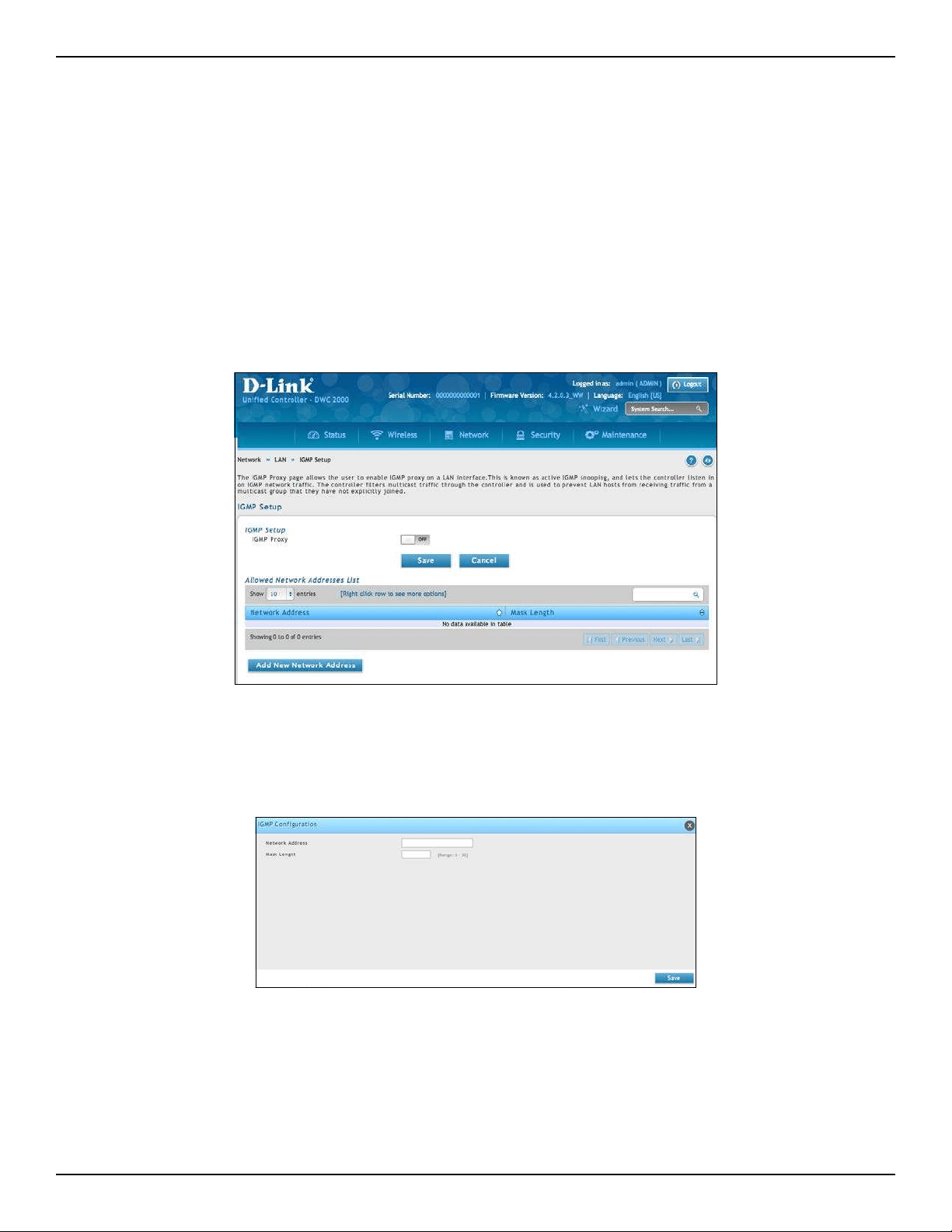
D-Link DWC-2000 User Manual 127
Section 5 - Advanced Network Conguration
Congure IGMP Setup
Path: Network > LAN > IGMP Setup
IGMP snooping allows the controller to ‘listen’ in on IGMP network trac through the controller. This then allows
the controller to lter multicast trac and direct this only to hosts that need this stream. This is helpful when
there is a lot of multicast trac on the network (say from an IPTV application) where all LAN hosts do not need to
receive this multicast trac. Enabling IGMP snooping allows the controller to regulate the amount of multicast
trac on the network, to prevent ooding all LAN hosts. Active IGMP snooping is referred to IGMP Proxy, and this
is available on your controller.
1. Click Network > LAN > IGMP Setup.
2. Next to IGMP Proxy, toggle to ON.
3. Click Save.
4. Click Add New Network Address to specify the IP network and host addresses of the multicast sources.
5. Enter the network address and mask length. Click Save.
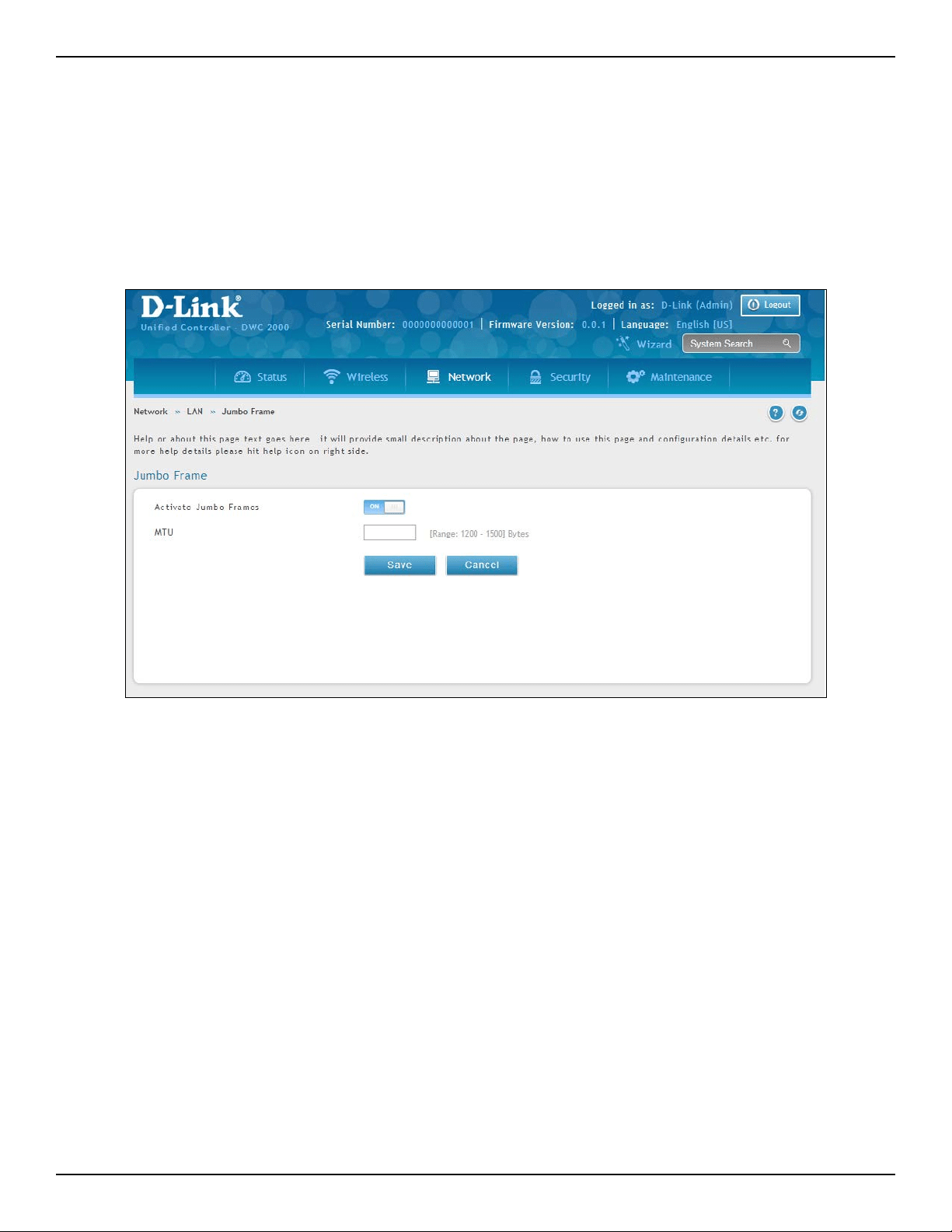
D-Link DWC-2000 User Manual 128
Section 5 - Advanced Network Conguration
Congure Jumbo Frames
Path: Network > LAN > Jumbo Frame
Jumbo frames are Ethernet frames with more than 1500 bytes of payload. When this option is enabled, the LAN
devices can exchange information at Jumbo frames rate.
1. Click Network > LAN > Jumbo Frame.
2. Toggle Activate Jumbo Frames to On and enter a MTU value.
3. Click Save.
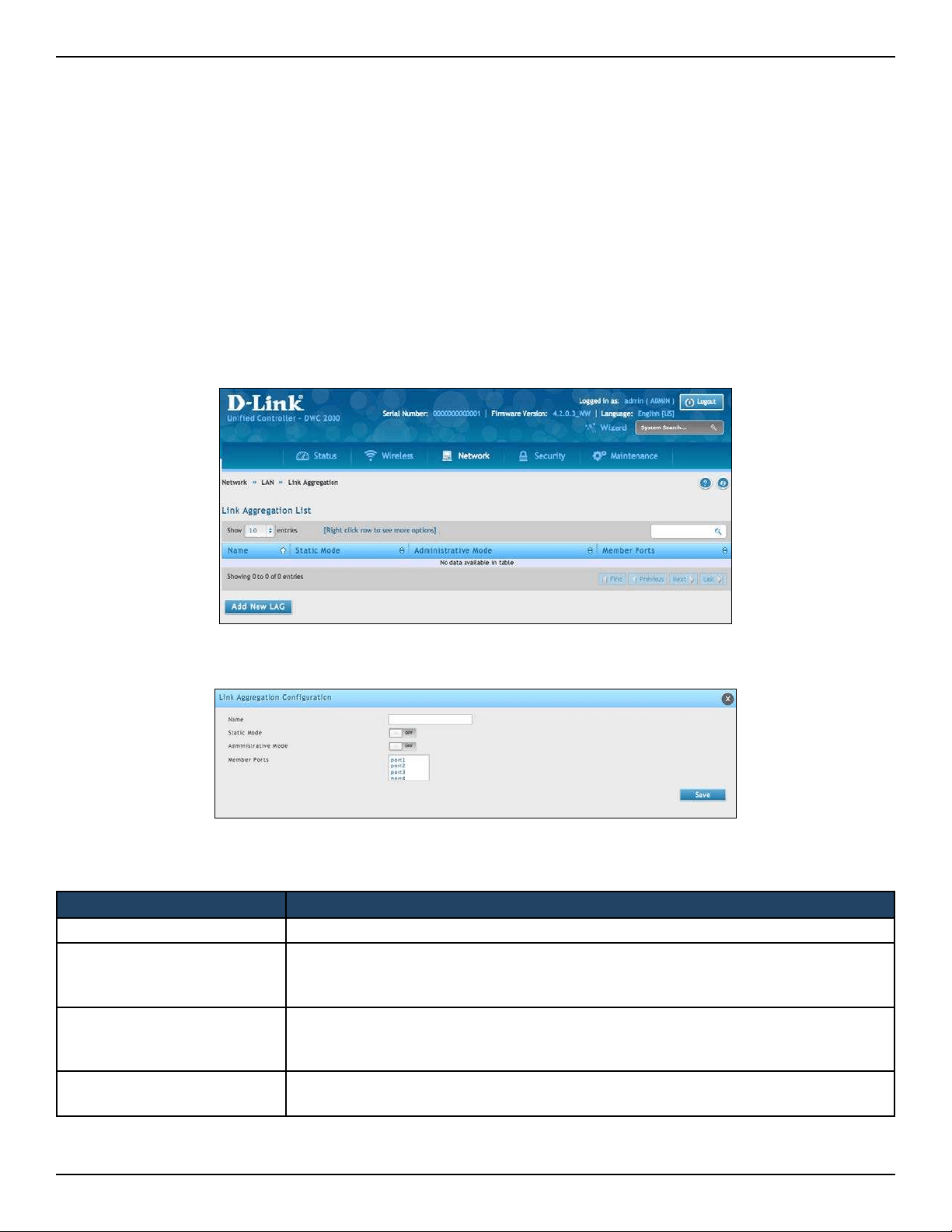
D-Link DWC-2000 User Manual 129
Section 5 - Advanced Network Conguration
Link Aggregation
Path: Network > LAN > Link Aggregation
Link aggregation is used to combine a number of ports together to make a single high-bandwidth data pipeline.
The controller treats all ports in a trunk group as a single port.
Link Aggregation Control Protocol (LACP) is used to negotiate a dynamic aggregated link between the controller
and another network device that supports 802.3ad. For this to work, the controllers must comply with LACP to
allow negotiation of the aggregated link.
2. Click Add New LAC. The following window will appear.
Field Description
Name Enter a name for this conguration.
Static Mode
Activates or deactivates the Static Mode. Choices are:
• ON = Use static mode.
• OFF = Use dynamic mode (LACP).
Administrative Mode
Enables or disables this conguration.
• ON = Enabled
• OFF = Disabled
Member Ports
Select the ports to add to the conguration (ports 1-4). Hold CTRL and click for multiple
ports.
3. Complete the elds in the table below and click Save.
1. Click Network > LAN > Link Aggregation.
* Maximum four interfaces aggregate into one logical interface.
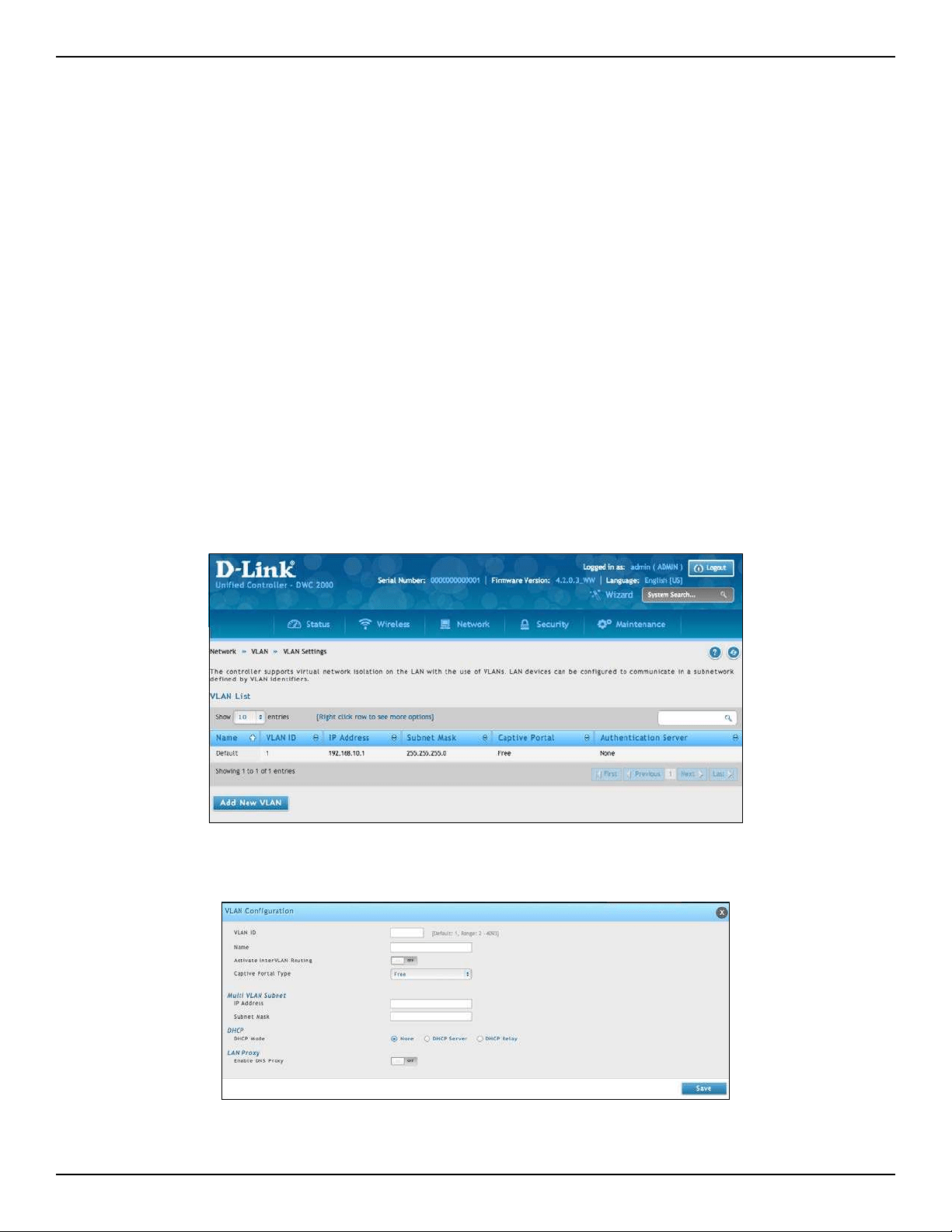
D-Link DWC-2000 User Manual 130
Section 5 - Advanced Network Conguration
VLANs
A virtual Local Area Network (VLAN) is a logical segment in a switched network. It allows independent logical
networks to be created within a single physical network. VLANs separate devices into dierent broadcast domains
and Layer 3 subnets. Devices within a VLAN can communicate without routing. The primary use of VLANs is to
split large switched networks, which are large broadcast domains.
The wireless controller provides VLAN functionality for assigning unique VLAN IDs to LAN ports so that trac
to and from that physical port can be isolated from the general LAN. VLAN ltering is particularly useful to limit
broadcast packets of a device in a large network.
Creating VLANs
Path: Network > VLAN > VLAN Settings
You can create VLANs on the VLAN Settings page. After you create VLANs, you can use the same page to view,
edit, and delete VLANs.
To create a VLAN:
1. Go to Network > VLAN > VLAN Settings.
2. Click Add New VLAN. The following pop-up box will appear.
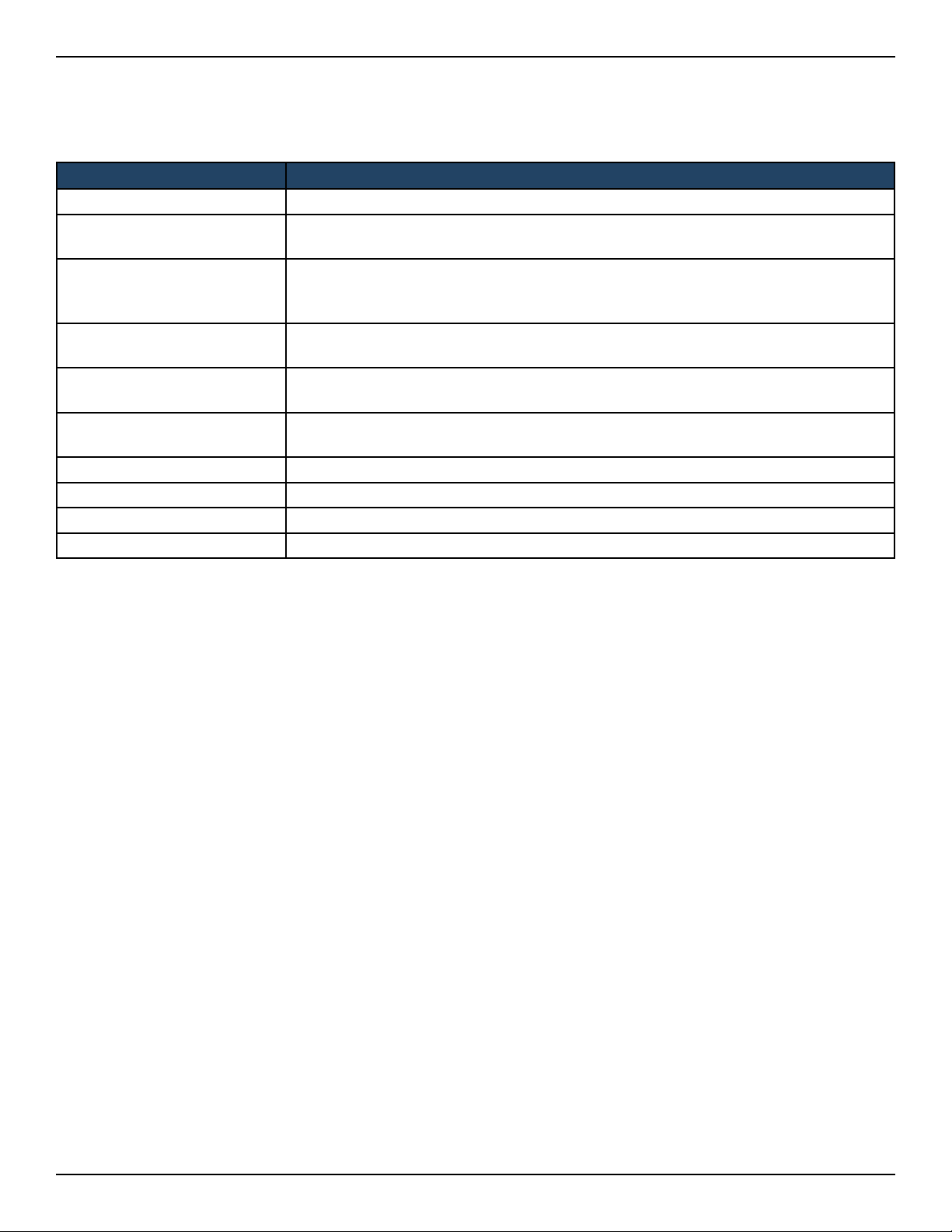
D-Link DWC-2000 User Manual 131
Section 5 - Advanced Network Conguration
3. Complete the elds in the table below and click Save.
Field Description
VLAN ID Enter a unique ID to this VLAN (2 - 4093).
Name
Enter a unique name for this VLAN. The name should allow you to easily identify this
VLAN from others you may add.
Activate InterVLAN Routing
Allows or denies communication between VLAN networks. Choices are:
• Checked = allow communications between dierent VLANs.
• Unchecked = deny communications between dierent VLANs.
Captive Portal Type
Select the type of captive portal from free, SLA, Permanent User, Temporary User, or
Billing User.
Authentication Server
Select the type of authentication server to authenticate captive portal for permanent,
temporary, or billing users.
Login Prole Name
Select a captive portal from the drop-down menu. Click Create a Prole to create a
new prole.
IP Address Enter an IP address for the Multi-VLAN subnet.
Subnet Mask Enter the subnet mask for the Multi-VLAN subnet.
DHCP Mode Select whether to enable DHCP Server or DHCP Relay.
LAN Proxy Click to enable DNS proxy.

D-Link DWC-2000 User Manual 132
Section 5 - Advanced Network Conguration
Editing VLANs
Path: Network > VLAN > VLAN Settings
To edit a VLAN:
1. Go to Network > VLAN > VLAN Settings.
2. Under VLAN List, right-click the VLAN you want to edit and click Edit. The following page will appear.
3. Edit the elds in the table on the previous page and click Save.
Deleting VLANs
Path: Network > VLAN > VLAN Settings
If you no longer need a VLAN, you can delete it.
Note: A precautionary message does not appear before you delete a VLAN. Therefore, be sure you do not need a VLAN
before you delete it.
To delete a VLAN:
1. Go to Network > VLAN > VLAN Settings.
2. In the VLAN List, right-click the VLAN you want to delete and click Delete. (Or right-click on a VLAN and
click Select All, then Delete to delete all VLANs.) The selected VLAN(s) will be deleted.
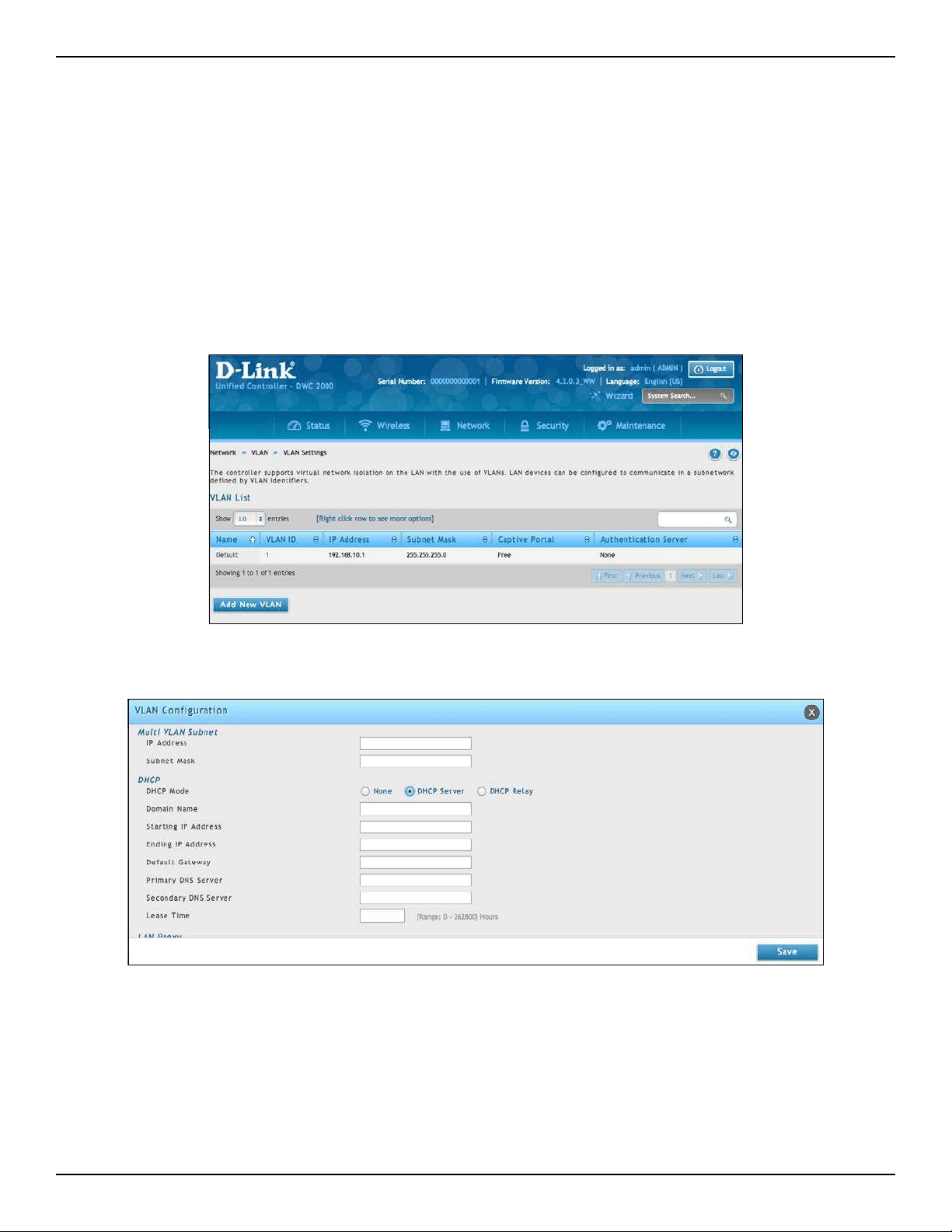
D-Link DWC-2000 User Manual 133
Section 5 - Advanced Network Conguration
MultiVLAN Subnets
Path: Network > VLAN > VLAN Settings
Each VLAN can be assigned a unique IP address and subnet mask for the virtually isolated network. Unless you
enabled inter-VLAN routing for the VLAN, the VLAN subnet determines the network address on the LAN that can
communicate with the devices that correspond to the VLAN.
To view and edit the available multi-VLAN subnets:
1. Go to Network > VLAN > VLAN Settings.
2. To edit a multi-subnet VLAN, right-click the VLAN and click Edit.
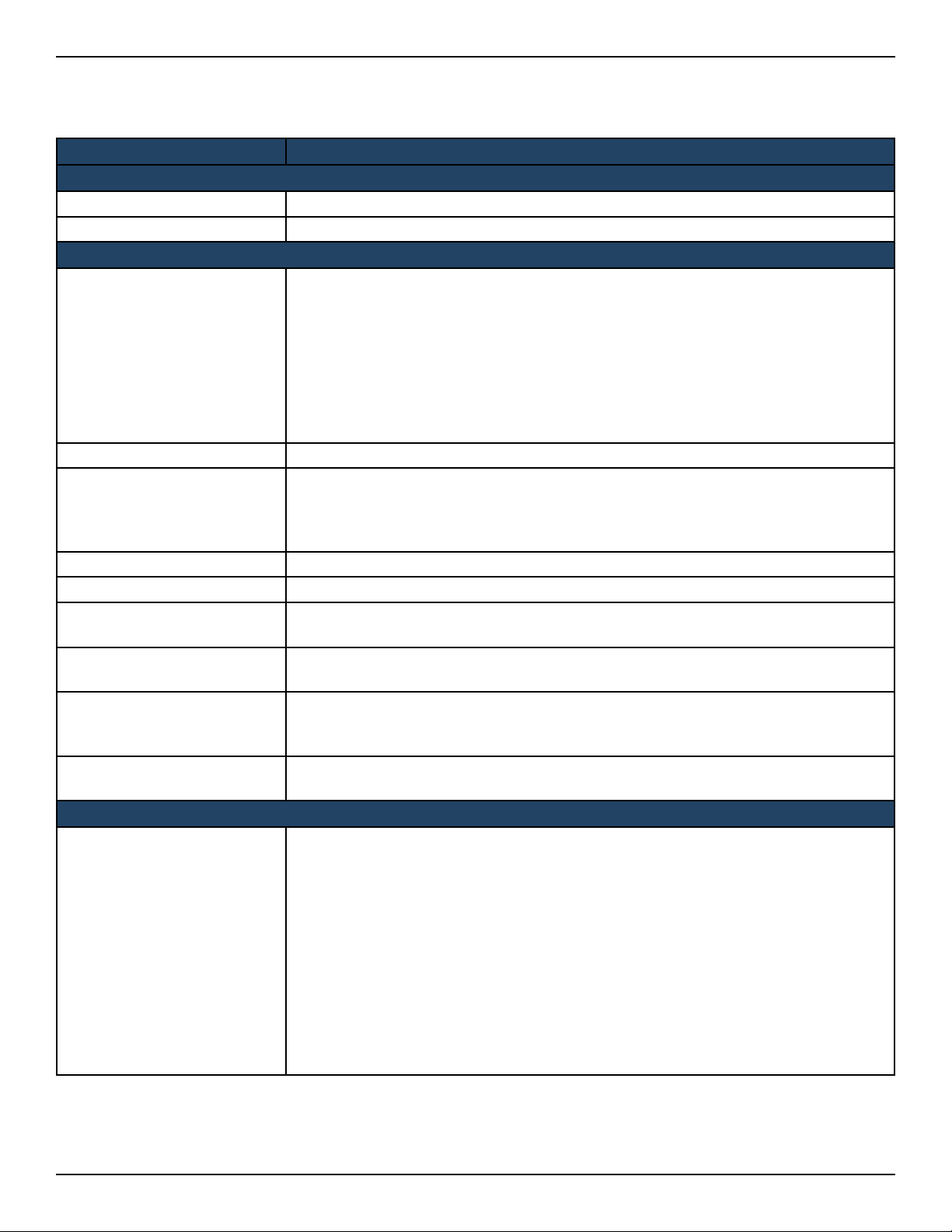
D-Link DWC-2000 User Manual 134
Section 5 - Advanced Network Conguration
2. Edit the settings as desired (refer to the table below) and click Save.
Field Description
MultiVLAN Subnet
IP Address Edit the IP address for the Multi-VLAN subnet.
Subnet Mask Edit the subnet mask for the Multi-VLAN subnet.
DHCP
DHCP Mode
Select a DHCP mode for the VLAN. Choices are:
• None: Select this setting if the computers on the LAN are congured with static
IP addresses or are congured to use another DHCP server. The remaining elds
become unavailable.
• DHCP Server: Select this setting to use the wireless controller as a DHCP server.
Complete the remaining settings on the page.
• DHCP Relay: If you select this setting, you need only enter the relay gateway
information.
Domain Name Enter the domain name for the VLAN.
Starting IP Address
Enter the starting IP address in the IP address pool. Any new DHCP client joining the
LAN is assigned an IP address within the starting and ending IP address range. Starting
and ending IP addresses should be in the same IP address subnet as the wireless
controller’s LAN IP address.
Ending IP Address Enter the ending IP address in the IP address pool.
Default Gateway (Optional) Enter the IP address of the gateway for your LAN.
Primary DNS Server
(Optional) If congured domain name system (DNS) servers are available on the VLAN,
enter the IP address of the primary DNS server.
Secondary DNS Server
(Optional) If congured domain name system (DNS) servers are available on the VLAN,
enter the IP address of the secondary DNS server.
Lease Time
Enter a time interval, in hours that a DHCP client can use the IP address that it receives
from the DHCP server. When the lease time is about to expire, the client sends a request
to the DHCP server to get a new lease.
Relay Gateway
Enter the gateway address. This is the only conguration parameter required in this
section when DHCP Mode = DHCP Relay.
LAN Proxy
Enable DNS Proxy
Enables or disables DNS proxy on this LAN. The feature is particularly useful in Auto
Rollover mode. For example, if the DNS servers for each connection are dierent, a
link failure can render the DNS servers inaccessible. However, when the DNS proxy is
enabled, clients can make requests to the wireless controller and the controller, in turn,
sends those requests to the DNS servers of the active connection. Choices are:
• Checked - The wireless controller acts as a proxy for all DNS requests and
communicates with the ISP’s DNS servers (as congured in the Option settings
page). All DHCP clients receive the primary and secondary DNS IP addresses, along
with the IP address where the DNS proxy is running (i.e., the wireless controller’s
LAN IP).
• Unchecked - All DHCP clients receive the DNS IP addresses of the ISP, excluding the
DNS proxy IP address.
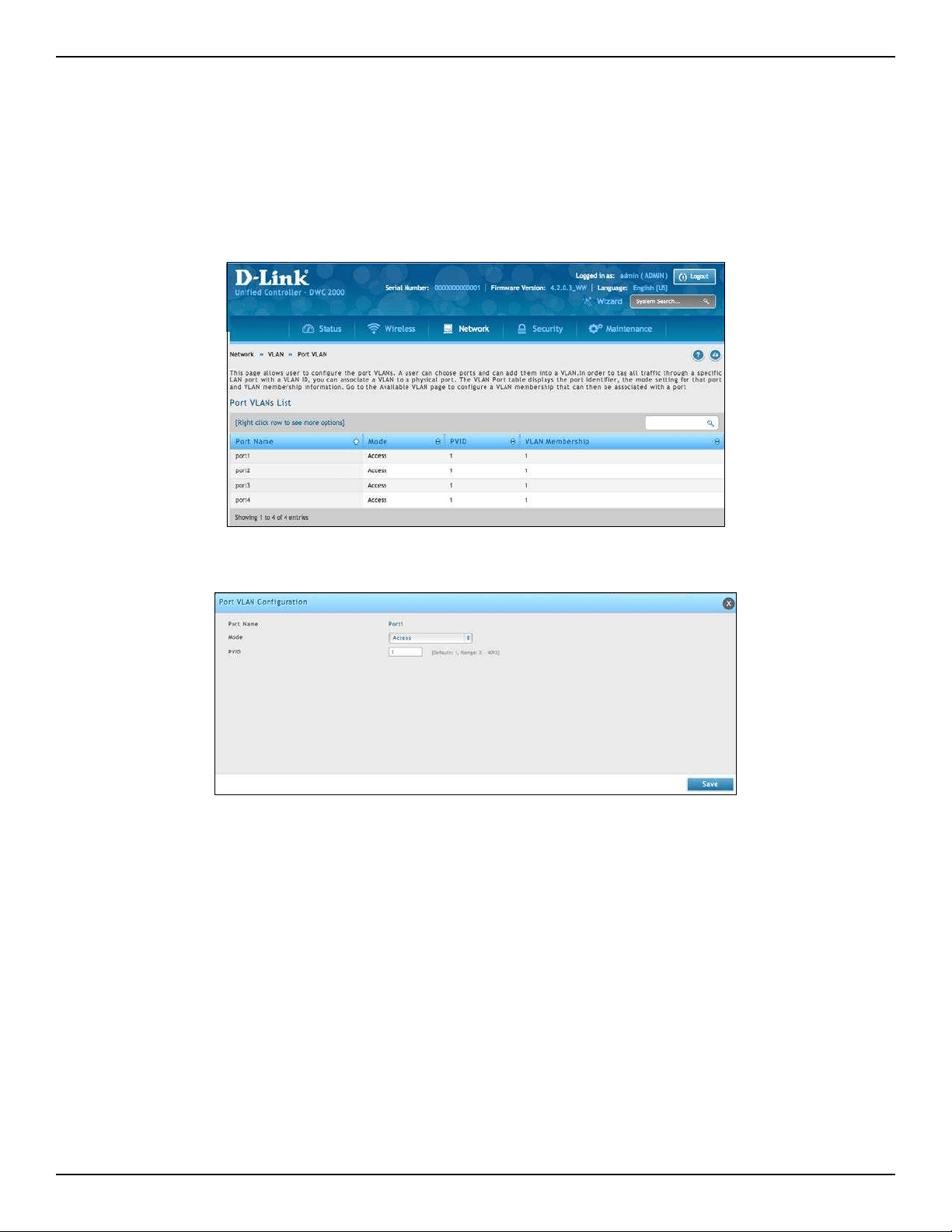
D-Link DWC-2000 User Manual 135
Section 5 - Advanced Network Conguration
Port VLANs
Path: Network > VLAN > Port VLAN
After you enable the wireless controller’s VLAN function, use the Port VLAN page to congure the ports
participating in the VLAN.
1. Go to Network > VLAN > Port VLAN.
2. Select the port and right-click Edit.
3. Change Mode and PVID. There are four modes:
• Access: Select to isolate this port from other VLANs. All data going into and out of the port is
untagged. Trac through a port in access mode looks like any other Ethernet frame.
• General: Select to allow the port to become a member of a user selectable set of VLANs. The port
sends and receives data that is tagged or untagged with a VLAN ID. If the data into the port is
untagged, it is assigned the dened PVID. All tagged data sent out of the port with the same PVID
will be untagged.
• Trunk: Select to multiplex trac for multiple VLANs over the same physical link. All data going
into and out of the port is tagged. Untagged coming into the port is not forwarded, except for the
default VLAN with PVID=1, which is untagged.
• Interface: Select to make it as a standalone interface. Manually dene the interface IP address,
subnet mask, and gateway.
4. Click Save.
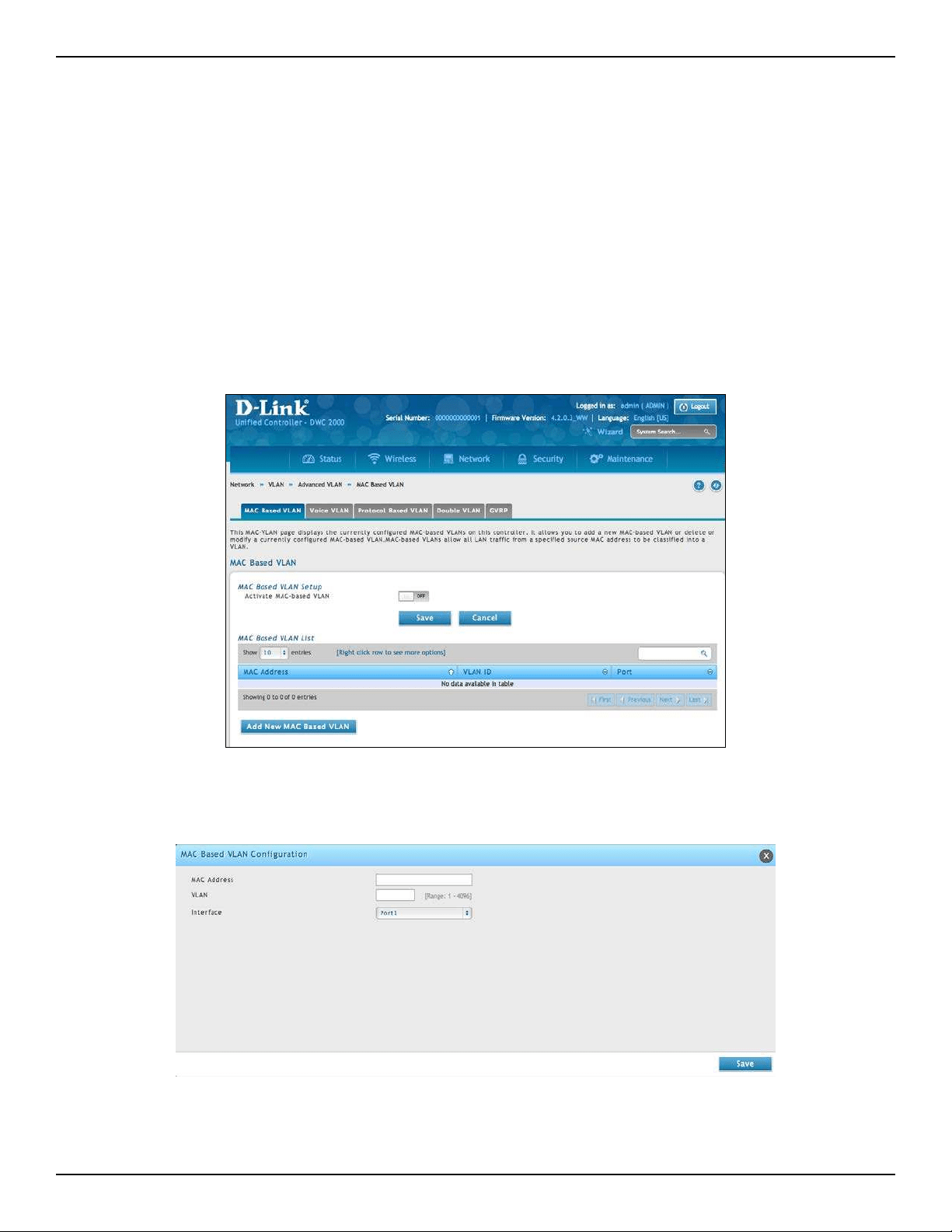
D-Link DWC-2000 User Manual 136
Section 5 - Advanced Network Conguration
MAC Based VLANs
Path: Network > VLAN > Advanced VLAN > MAC Based VLAN
If a packet is untagged or priority tagged, the device shall associate it with the VLAN which corresponds to the
source MAC address in its MAC‐based VLAN tables. If there is no matching entry in the table, then the packet is
subject to normal VLAN classication rules of the device.
Use the MAC‐based VLAN Conguration page to map a MAC entry to the VLAN table. After the source MAC address
and the VLAN ID are specied, the MAC‐to‐VLAN congurations are shared across all ports of the controller.
1. Go to Network > VLAN > Advanced VLAN > MAC Based VLAN tab.
2. Toggle Activate MAC-based VLAN to ON and click Save.
3. Click Add New MAC Based VLAN.

D-Link DWC-2000 User Manual 137
Section 5 - Advanced Network Conguration
4. Complete the elds in the table below and click Save.
Field Description
MAC Address Enter the MAC address of the client you want to add to a VLAN.
VLAN Enter the VLAN ID number.
Interface Select a port from the drop-down menu.
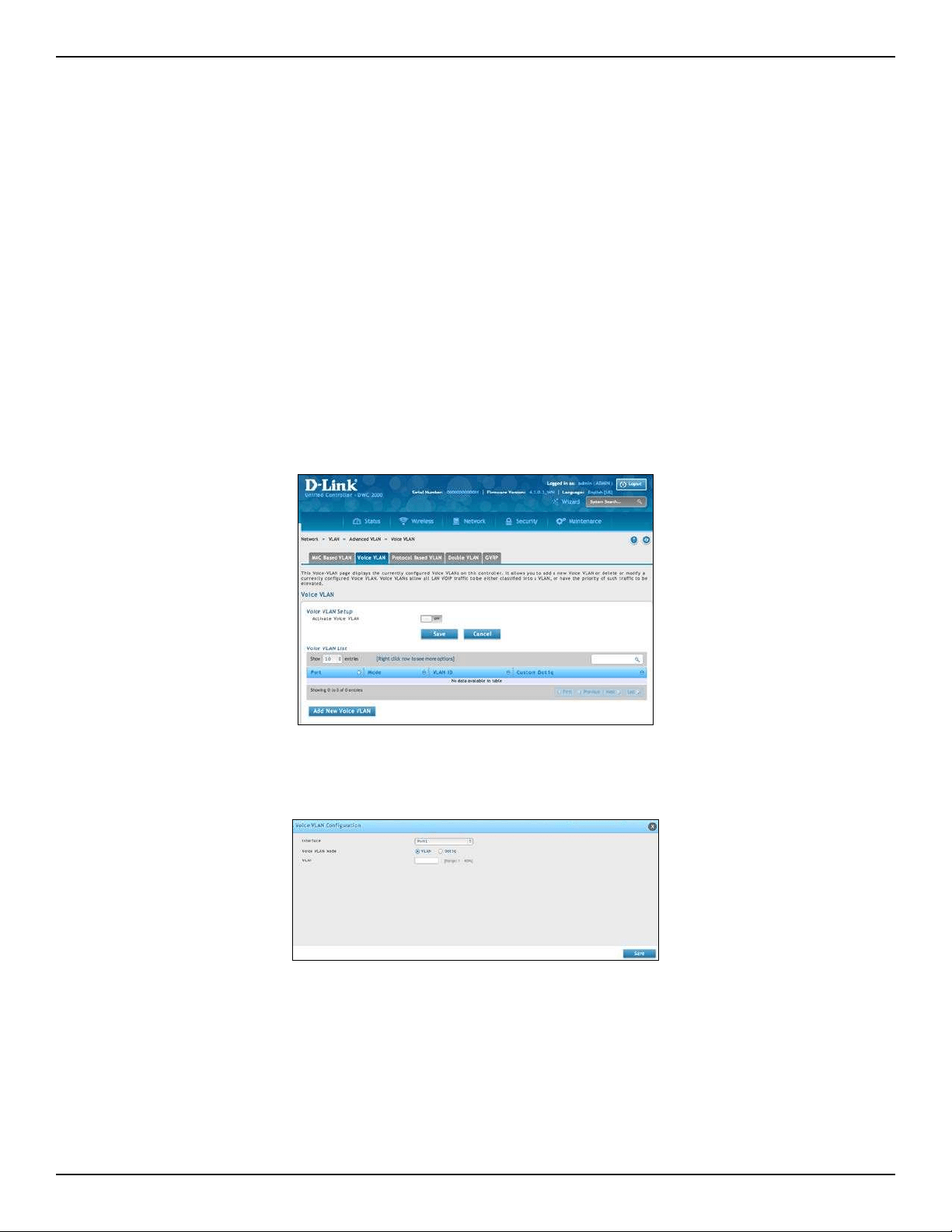
D-Link DWC-2000 User Manual 138
Section 5 - Advanced Network Conguration
Voice VLANs
Path: Network > VLAN > Advanced VLAN > Voice VLAN
The voice VLAN feature enables controller ports to carry voice trac with dened settings so that voice and data
trac are separated when coming onto the port. A voice VLAN ensures that the sound quality of an IP phone is
safeguarded from deterioration when data trac on the port is high.
The inherent isolation provided by VLANs ensures that inter‐VLAN trac is under management control and that
network‐attached clients cannot initiate a direct attack on voice components. A QoS protocol based on the
IEEE 802.1P class‐of‐service (CoS) protocol uses classication and scheduling to send network trac from the
controller in a predictable manner. The system uses the source MAC of the trac traveling through the port to
identify the IP phone data ow.
Voice VLAN is enabled per‐port basis. A port can participate only in one voice VLAN at a time. The Voice VLAN
feature is disabled by default.
1. Go to Network > VLAN > Advanced VLAN > Voice VLAN tab.
2. Toggle Activate Voice VLAN to ON and click Save.
3. Click Add New Voice VLAN.
4. Select the interface and Voice VLAN mode.
• VLAN: The voice VLAN packets are uniquely identied by a number you assign. All voice trac
carries this VLAN ID to distinguish it from other data trac which is assigned the port’s default
VLAN ID. However, voice trac is not prioritized dierently than other trac.
• Dot1q: This parameter is set by the VoIP device for all voice trac to distinguish voice data from
other trac. All other trac is assigned the port’s default priority.
5. Click Save.
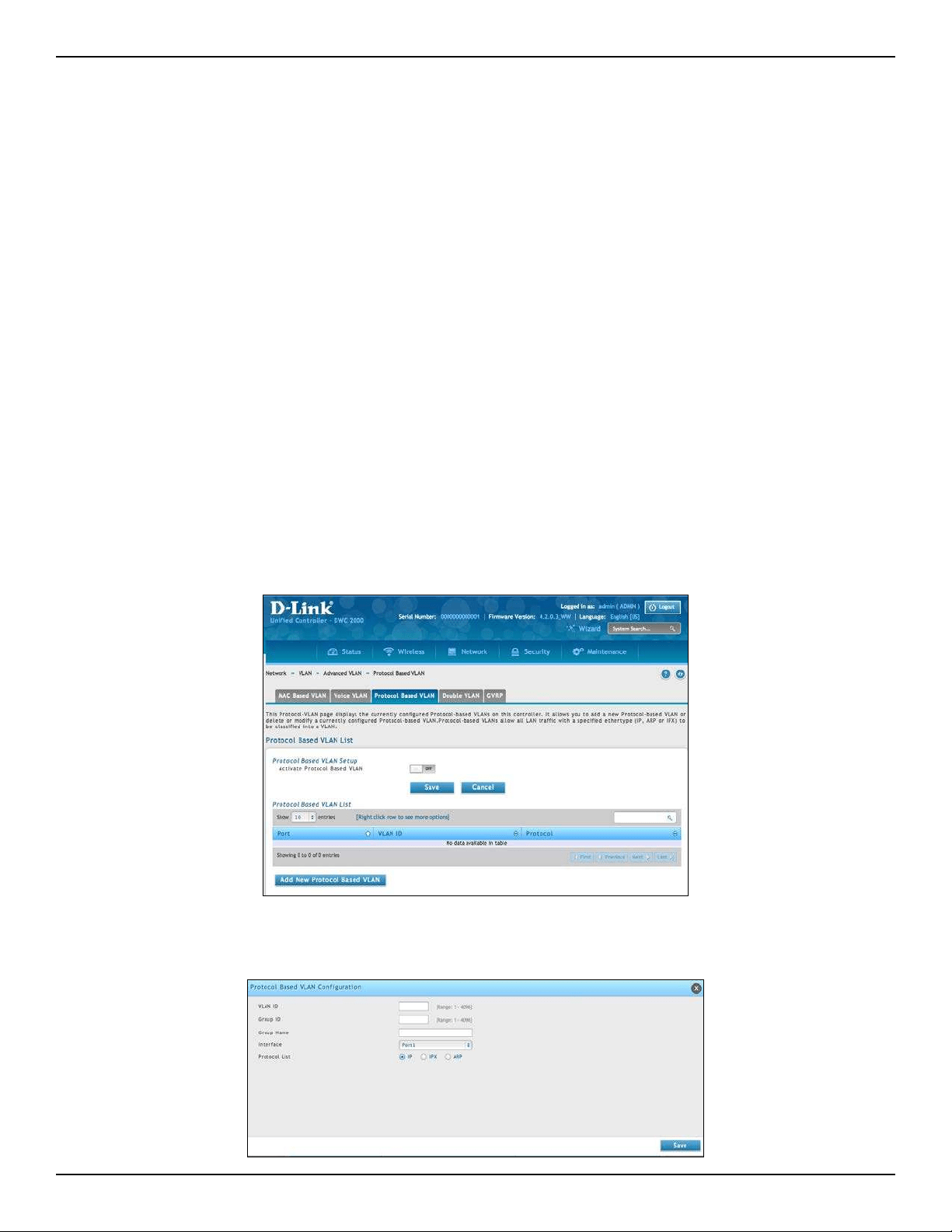
D-Link DWC-2000 User Manual 139
Section 5 - Advanced Network Conguration
Protocol Based VLANs
Path: Network > VLAN > Advanced VLAN > Protocol Based VLAN
In a protocol‐based VLAN, trac is bridged through specied ports based on the protocol associated with the
VLAN. User‐dened packet lters determine whether a particular packet belongs to a particular VLAN. Protocol‐
based VLANs are most often used in situations where network segments contain hosts running multiple protocols.
You can use a protocol‐based VLAN to dene ltering criteria for untagged packets. By default, if you do not
congure any port‐based (IEEE 802.1Q) or protocol‐based VLANs, untagged packets are assigned to VLAN 1. You
can override this behavior by dening either port‐based VLANs, protocol‐based VLANs, or both. Tagged packets
are always handled according to the IEEE 802.1Q standard and are not included in protocol‐based VLANs.
If you assign a port to a protocol‐based VLAN for a specic protocol, untagged frames received on that port for that
protocol will be assigned the protocol‐based VLAN ID. Untagged frames received on the port for other protocols
will be assigned the Port VLAN ID (PVID), which is either the default PVID (1) or a PVID you have specically
assigned to the port using the Port VLAN Conguration screen. Use the Protocol‐based VLAN Conguration
page to congure which protocols go to which VLANs, and then enable certain ports to use these settings.
You dene a protocol‐based VLAN by creating a group. Each group has a one‐to‐one relationship with a VLAN ID,
can include one or more protocol denitions, and can include multiple ports.
1. Go to Network > VLAN > Advanced VLAN > Protocol Based VLAN tab.
2. Toggle Activate Protocol Based VLAN to ON and click Save.
3. Click Add New Protocol Based VLAN.
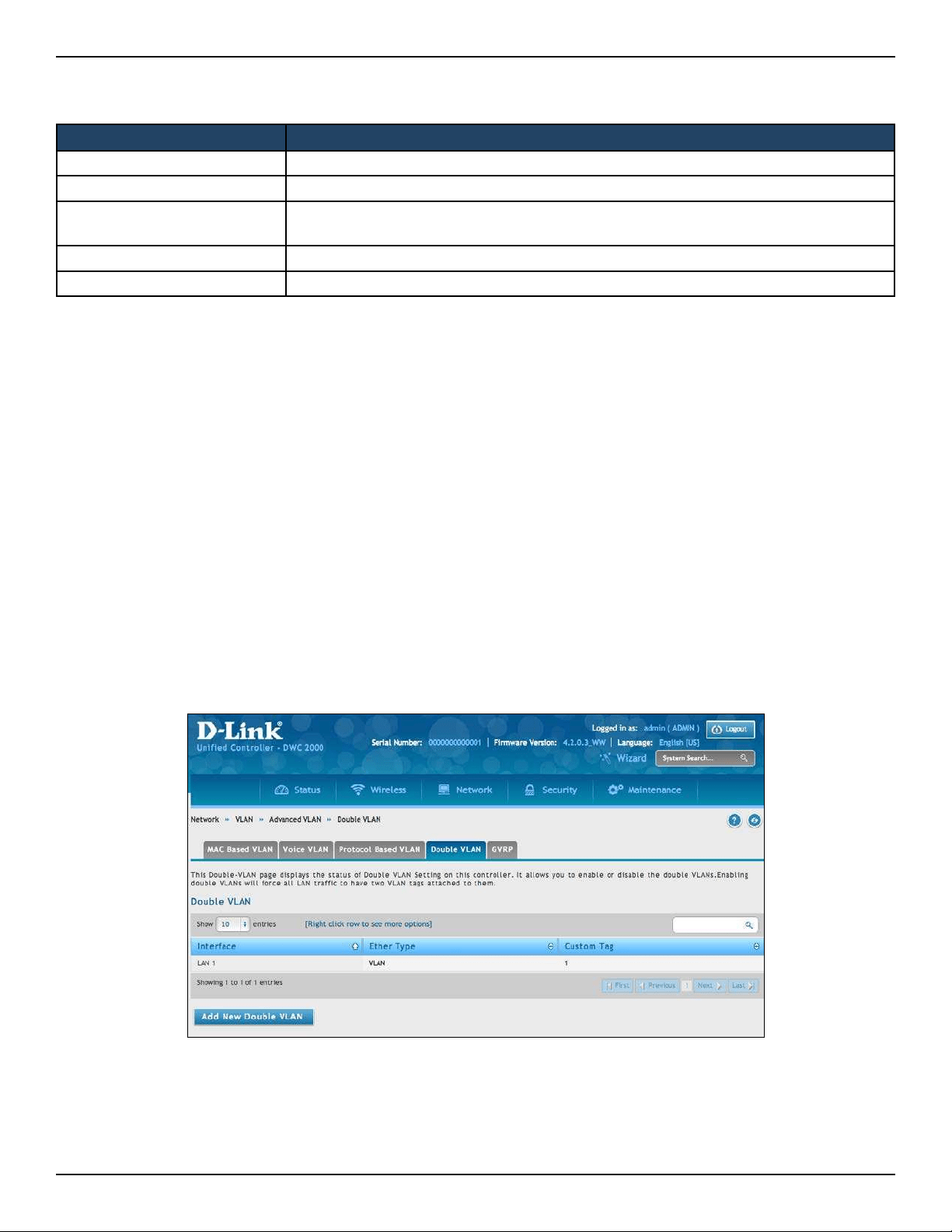
D-Link DWC-2000 User Manual 140
Section 5 - Advanced Network Conguration
Double VLANs
Path: Network > VLAN > Advanced VLAN > Double VLAN
Double VLAN Tunneling allows the use of a second tag on network trac. The additional tag helps dierentiate
between customers in the Metropolitan Area Networks (MAN) while preserving individual customer’s VLAN
identication when they enter their own 802.1Q domain.
With the introduction of this second tag, you do not need to divide the 4k VLAN ID space to send trac on an
Ethernet‐based MAN.
With Double VLAN Tunneling enabled, every frame that is transmitted from an interface has a DVlan Tag attached
while every packet that is received from an interface has a tag removed (if one or more tags are present).
Use the Double VLAN Tunneling page to congure Double VLAN frame tagging on one or more ports.
1. Go to Network > VLAN > Advanced VLAN > Double VLAN tab.
2. Click Add New Double VLAN.
3. Select the Ether Type: Dot1q, VLAN, or Custom Tag.
4. Click Save.
3. Complete the elds in the table below and click Save.
Field Description
VLAN ID Specify the VLAN ID to associate with this group. The range is 1‐3965.
Group ID Identies the group to congure.
Group Name
(Optional) Enter or modify a name to associate with protocol group ID. The name can
be up to 16 characters.
Interface Selects the interface(s) to add or remove from this group.
Protocol List Specify one or more protocols to associate with this group.
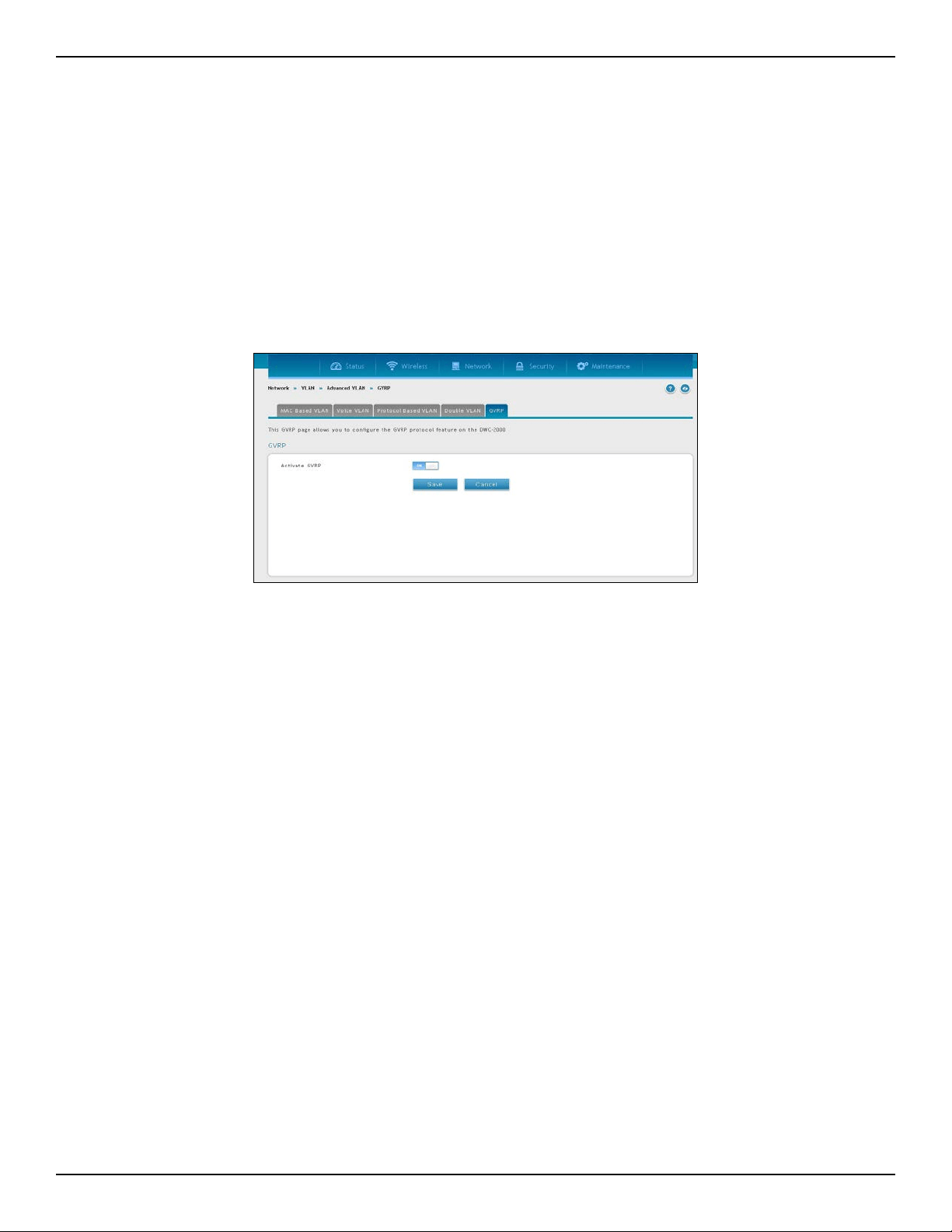
D-Link DWC-2000 User Manual 141
Section 5 - Advanced Network Conguration
GVRP
Path: Network > VLAN > Advanced VLAN > GVRP
The GARP VLAN Registration Protocol (GVRP) provides a mechanism that allows network controllers to
dynamically register (and de-register) VLAN membership information with the networking devices attached the
same segment, and for that information to be disseminated across all networking controllers in the bridged LAN
that support GMRP.
1. Go to Network > VLAN > Advanced VLAN > GVRP tab.
2. Toggle Activate GVRP to ON and click Save.
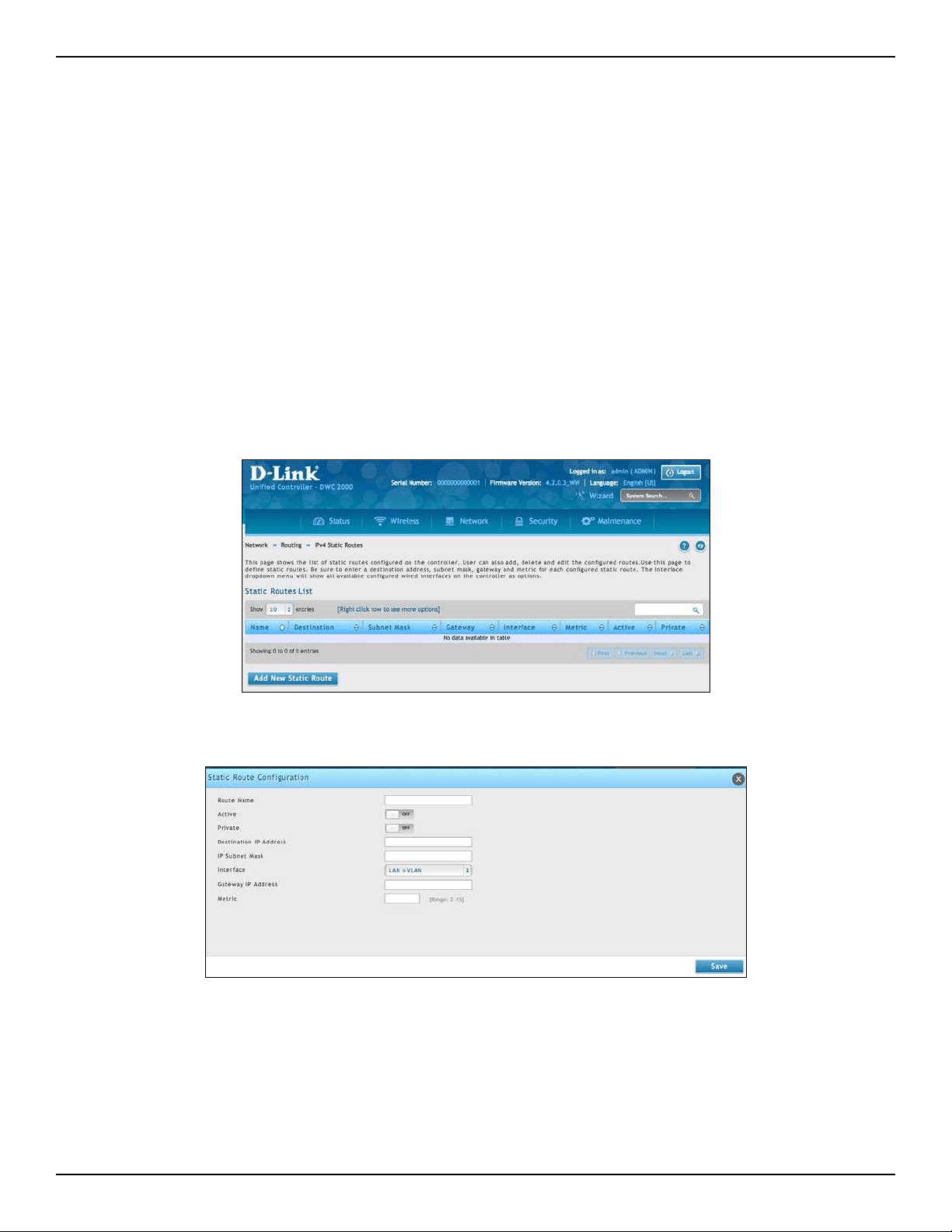
D-Link DWC-2000 User Manual 142
Section 5 - Advanced Network Conguration
Routing
A static route tells network devices about an exact, xed (hard-coded) destination. Static routes can work well
with small networks. There are two kinds of static routing: Static Route and Protocol-Binding. The Static Route
uses IP address to determined where is the next hop, whereas Protocol-Binding use protocol. Conguring your
wireless controller for static routing allows data transfers between it and a routing device without needing to
use dynamic routing protocols.
Congure IPv4 Static Routing
Path: Network > Routing > IPv4 Static Routes
To add a static route:
1. Click Network > Routing > IPv4 Static Routes.
2. Click Add New Static Route. The Static Route Conguration page will appear.
3. Complete the elds in the table on the next page and click Save.
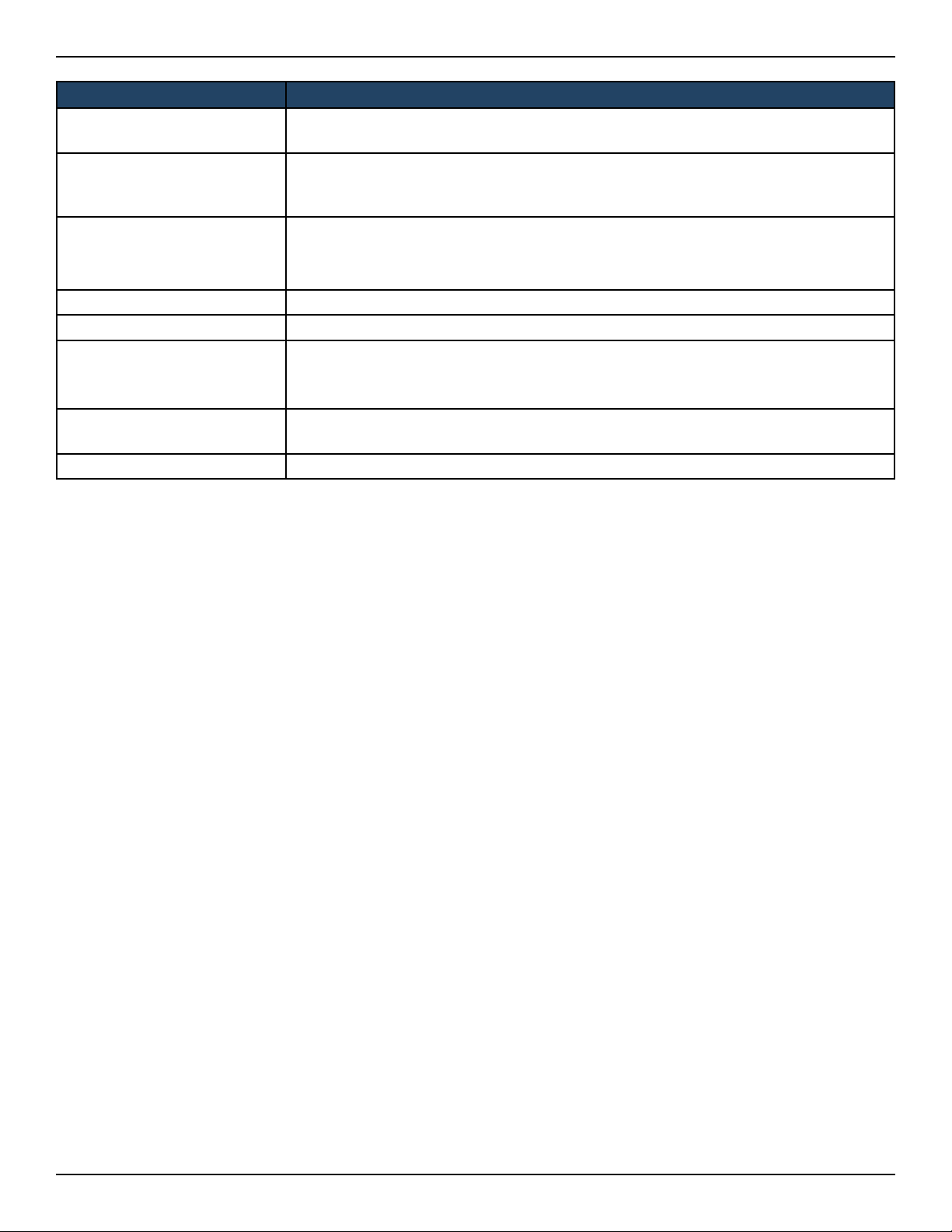
D-Link DWC-2000 User Manual 143
Section 5 - Advanced Network Conguration
Field Description
Route Name
Enter a unique name for this static route. The name should allow you to easily identify
this static route from others you may add.
Active
Activates or deactivates the status route. Choices are:
• ON = activate static route.
• OFF = deactivate static route.
Private
Designates the static route as private. Choices are:
• ON = static route is private.
• OFF = static route is not private.
Destination IP Address Enter the IP address of the static route’s destination.
IP Subnet Mask Enter the subnet mask of the static route.
Interface
Select the wireless controller interface that will interface to the static route. Choices are:
• LAN > VLAN: The wireless controller’s LAN or VLAN port will interface to the static
route.
Gateway IP Address
Enter the IP address of the gateway router, which is the next hop address for the wireless
controller.
Metric Enter the administrative distance of the route.
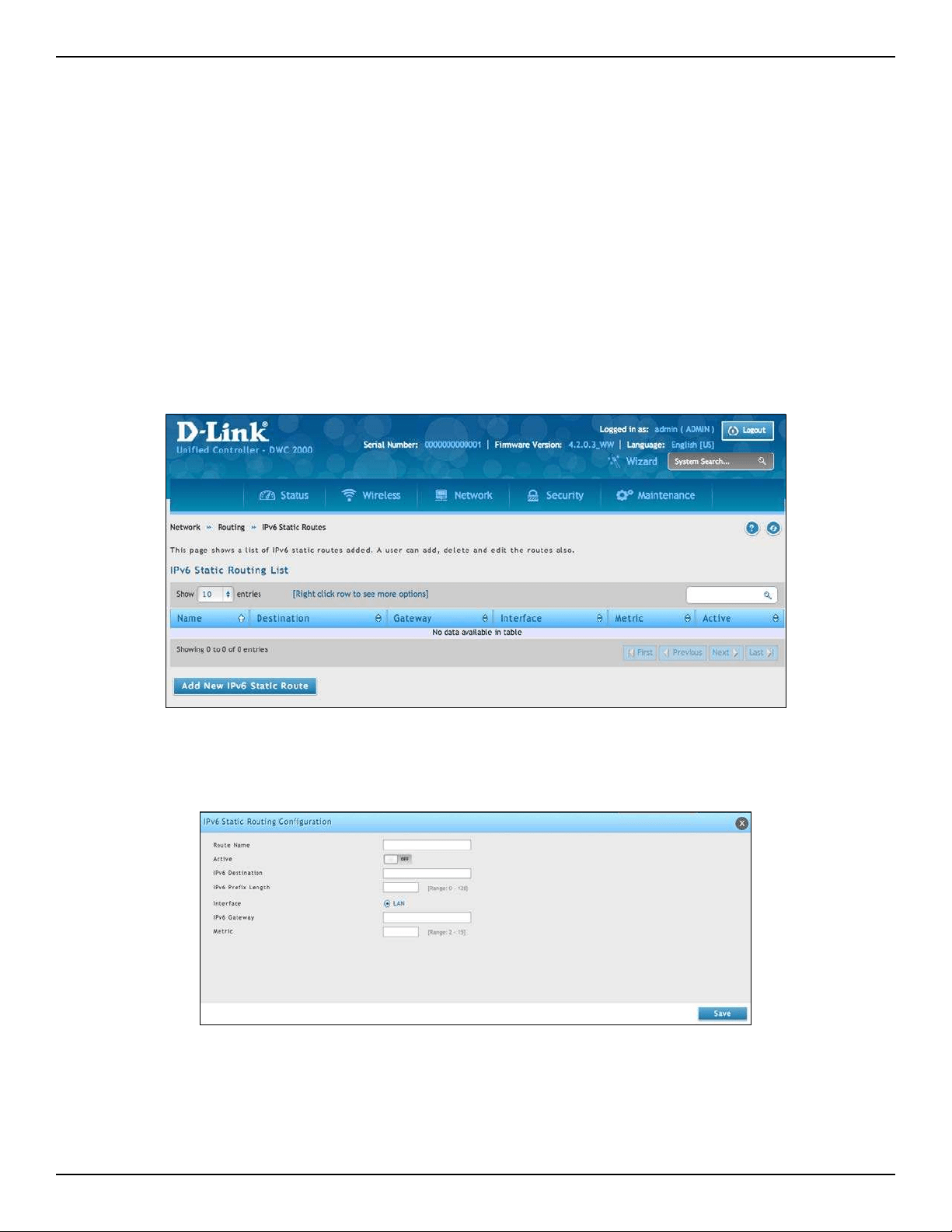
D-Link DWC-2000 User Manual 144
Section 5 - Advanced Network Conguration
Congure IPv6 Static Routing
Path: Network > Routing > IPv6 Static Routing
Manually adding static routes to this device allows you to dene the path selection of trac from one interface
to another. There is no communication between this controller and other devices to account for changes in the
path; once congured the static route will be active and eective until the network changes.
The List of Static Routes displays all routes that have been added manually by an administrator and allows several
operations on the static routes. The List of IPv4 Static Routes and List of IPv6 Static Routes share the same elds
(with one exception):
To congure IPv6 Static Routing:
1. Go to Network > Routing > IPv6 Static Routing.
2. Click Add New IPv6 Static Route.
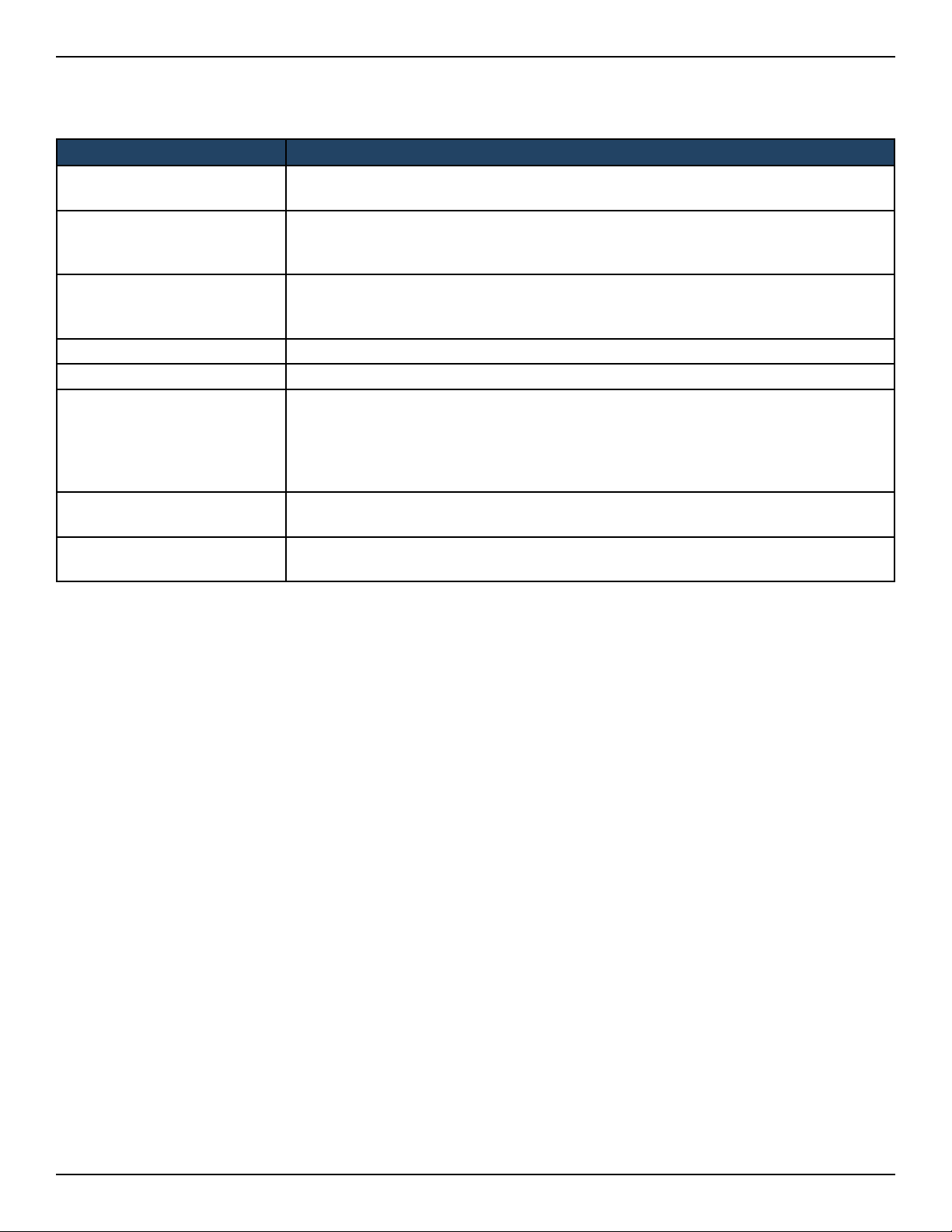
D-Link DWC-2000 User Manual 145
Section 5 - Advanced Network Conguration
3. Complete the elds in the table below and click Save.
Field Description
Route Name
Enter a unique name for this static route. The name should allow you to easily identify
this static route from others you may add.
Active
Activates or deactivates the status route. Choices are:
• ON = activate static route.
• OFF = deactivate static route.
Private
Designates the static route as private. Choices are:
• ON = static route is private.
• OFF = static route is not private.
IPv6 Destination The wireless controller will lead to this destination host or IP address.
IPv6 Prex Length The number of prex bits in the IPv6 address that dene the subnet.
Interface
Select the wireless controller interface that will interface to the static route. Choices are:
• Option 1/ Option 2 = the wireless controller’s Option port will interface to the static
route.
• LAN = the wireless controller’s LAN or VLAN port will interface to the static route.
• Sit0 Tunnel
IPv6 Gateway
IP Address of the gateway through which the destination host or network can be
reached.
Metric
Determines the priority of the route. If multiple routes to the same destination exist, the
route with the lowest metric is chosen.

D-Link DWC-2000 User Manual 146
Section 5 - Advanced Network Conguration
Editing/Deleting Static Routes
Path: Network > Routing > IPv4 Static Routes or IPv6 Static Routes
After you add static routes, you can edit it if you need to change settings. To edit a static route, right-click the
static route you want to edit and click Edit.
To delete a static route, right-click the static route you want to remove and click Delete.

D-Link DWC-2000 User Manual 147
Section 5 - Advanced Network Conguration
QoS Conguration
In a typical controller, each physical port consists of one or more queues for transmitting packets on the attached
network. Multiple queues per port are often provided to give preference to certain packets over others based on
user‐dened criteria. When a packet is queued for transmission in a port, the rate at which it is serviced depends
on how the queue is congured and possibly the amount of trac present in the other queues of the port. If a
delay is necessary, packets get held in the queue until the scheduler authorizes the queue for transmission. As
queues become full, packets have no place to be held for transmission and get dropped by the controller.
QoS is a means of providing consistent, predictable data delivery by distinguishing between packets that have
strict timing requirements from those that are more tolerant of delay. Packets with strict timing requirements
are given “special treatment” in a QoS capable network. With this in mind, all elements of the network must be
QoS‐capable. The presence of at least one node which is not QoS‐capable creates a deciency in the network
path and the performance of the entire packet ow is compromised.
QoS Priority
Conguring QoS Priority settings is a 3-step process:
1. Enable QoS mode (next page), and
2. Dene the Trust Mode on each port (refer to “Dening DSCP and CoS on each port” on page 150)
3. Dene the DHCP or COS settings (refer to “Conguring DSCP Priority” on page 152 or “Conguring
802.1p Priority” on page 151).
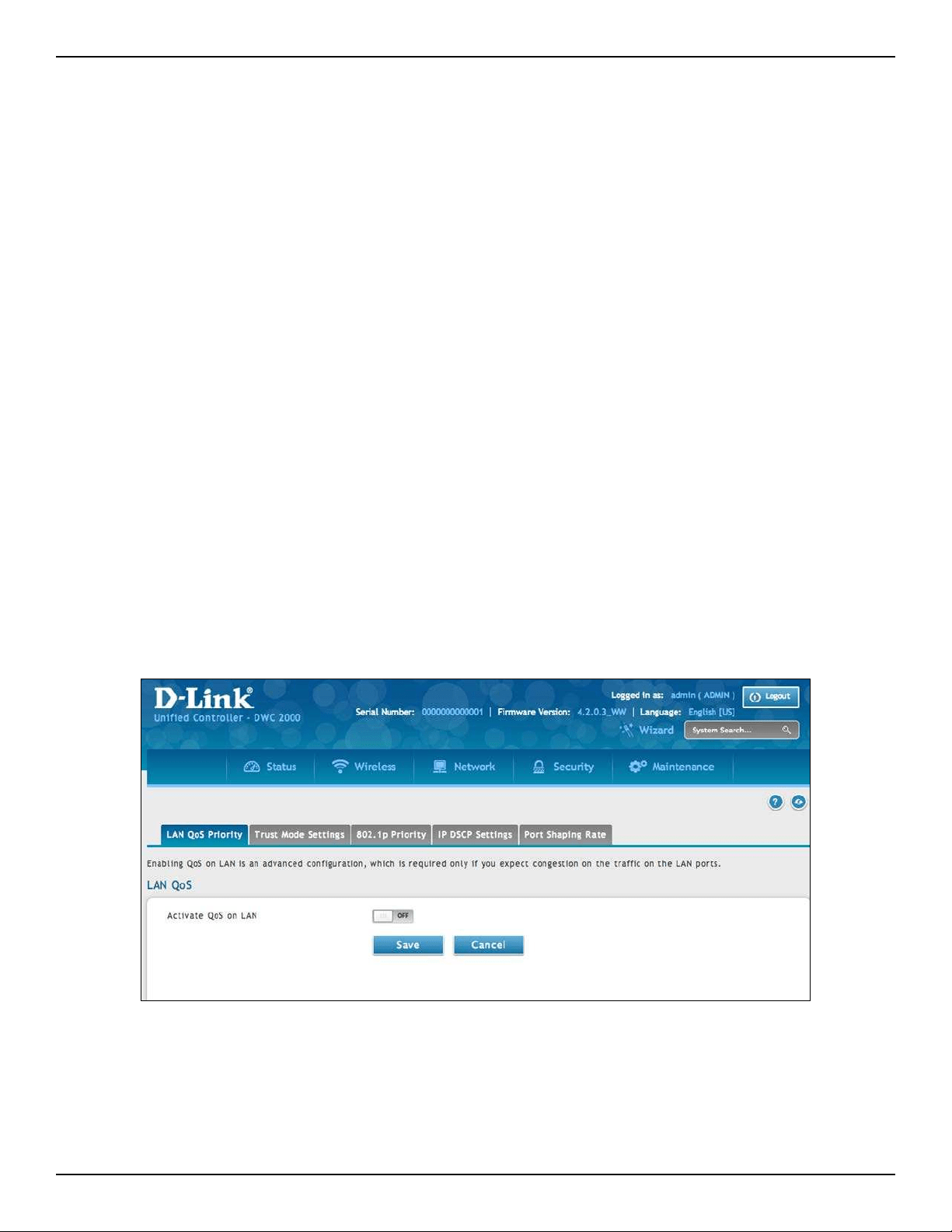
D-Link DWC-2000 User Manual 148
Section 5 - Advanced Network Conguration
Enabling QoS Mode
Path: Network > QoS > LAN QoS Priority
Using the QoS page, you can enable Quality of Service (QoS) on the wireless controller.
Typically, networks operate on a best-eort delivery basis, which means that all trac has equal priority and an
equal chance of being delivered in a timely manner. When congestion occurs, all trac has an equal chance of
being dropped.
When you congure the QoS feature, you can select specic network trac, prioritize it according to its relative
importance, and use congestion-management and congestion-avoidance techniques to provide preferential
treatment. Implementing QoS in your network makes network performance more predictable and bandwidth
utilization more eective. It is especially useful if you expect trac congestion on the wireless controller LAN
ports.
QoS classication can be applied in Layer 2 or Layer 3 frames. For this reason, you can congure the wireless
controller to use Layer 2 CoS settings or Layer 3 DSCP settings.
Note: The wireless controller also provides a CoS-to-DSCP map to map CoS values in incoming packets to a DSCP
value that QoS uses internally to represent the priority of the trac. To access this feature, click Network > QoS > QoS
Priority.
To congure QoS mode:
1. Click Network > QoS > LAN QoS Priority.

D-Link DWC-2000 User Manual 149
Section 5 - Advanced Network Conguration
2. Toggle Activate QoS on LAN to ON.
3. On the middle menu on the LAN QoS Priority page, click the Trust Mode Settings tab. In the Trust
Mode List, select a port by right-clicking it and clicking Edit. This brings up a pop-up box called Trust
Mode Conguration.
4. Type in the port number for LAN Port and select either CoS or DSCP next to Classify Using.
5. Click Save.
6. Proceed to “Conguring DSCP Priority” on page 152 or “Conguring 802.1p Priority” on page 151 to
congure values for DSCP and CoS and their priority.
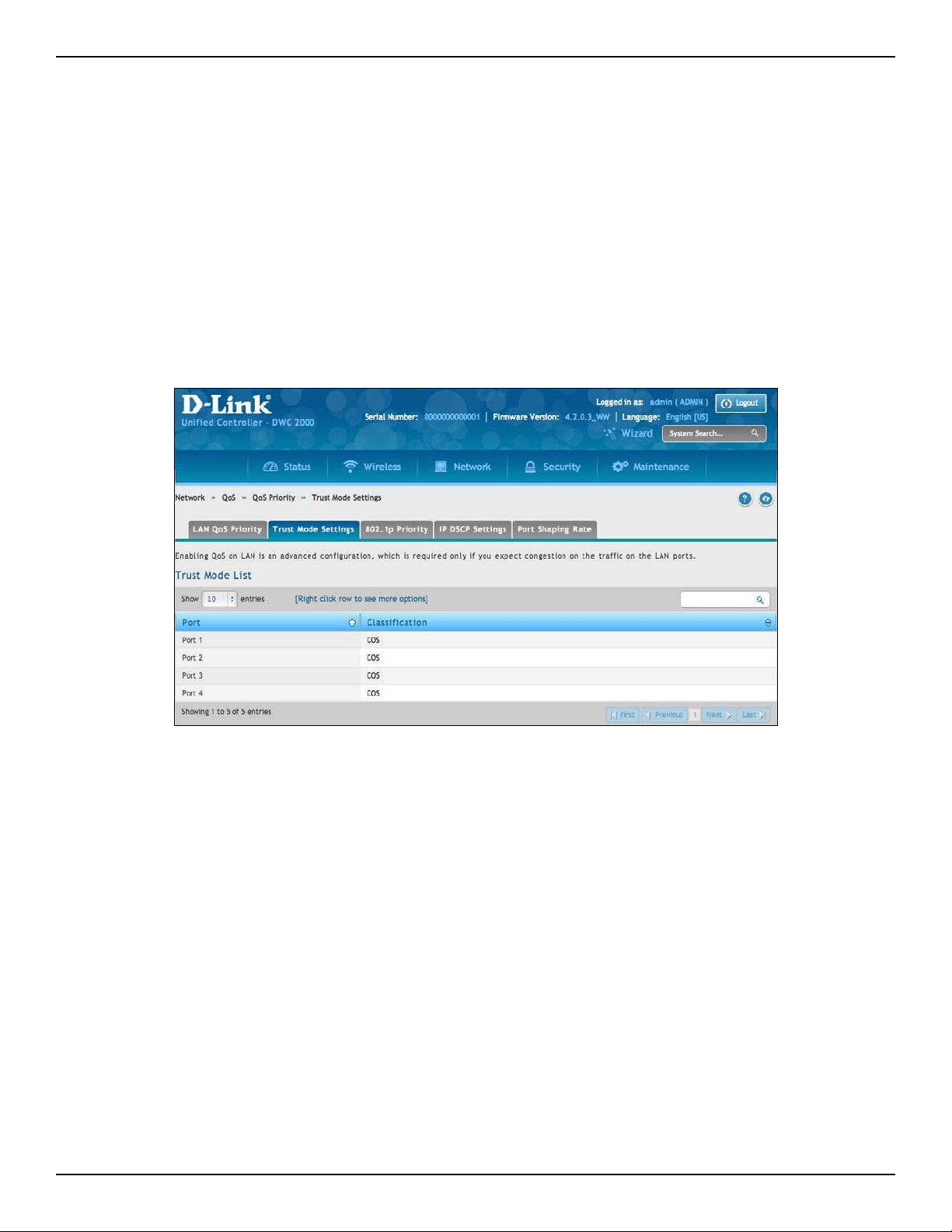
D-Link DWC-2000 User Manual 150
Section 5 - Advanced Network Conguration
Dening DSCP and CoS on each port
Path: Network > QoS > QoS Priority > Trust Mode Setting
Choose between CoS or DSCP for that port. When there is congestion on the port, the LAN port will check the
value of one these elds in the packet and make a decision on the priority for that packet. Individual values for
DSCP and CoS and the priority that they should be given are set by the Port Cos Mapping & Port DSCP Mapping
pages under QoS.
1. Go to Network > QoS > QoS Priority. On the middle menu on the LAN QoS Priority page, click the
Trust Mode Settings tab. In the Trust Mode List, select the mode by right-clicking it and clicking Edit.
This brings up a popup box called Trust Mode Conguration.
2. Select CoS or DSCP mode.
3. Click Save.
After you enable QoS mode, use the procedures in the following sections to congure the values and priorities
used by DSCP and CoS.
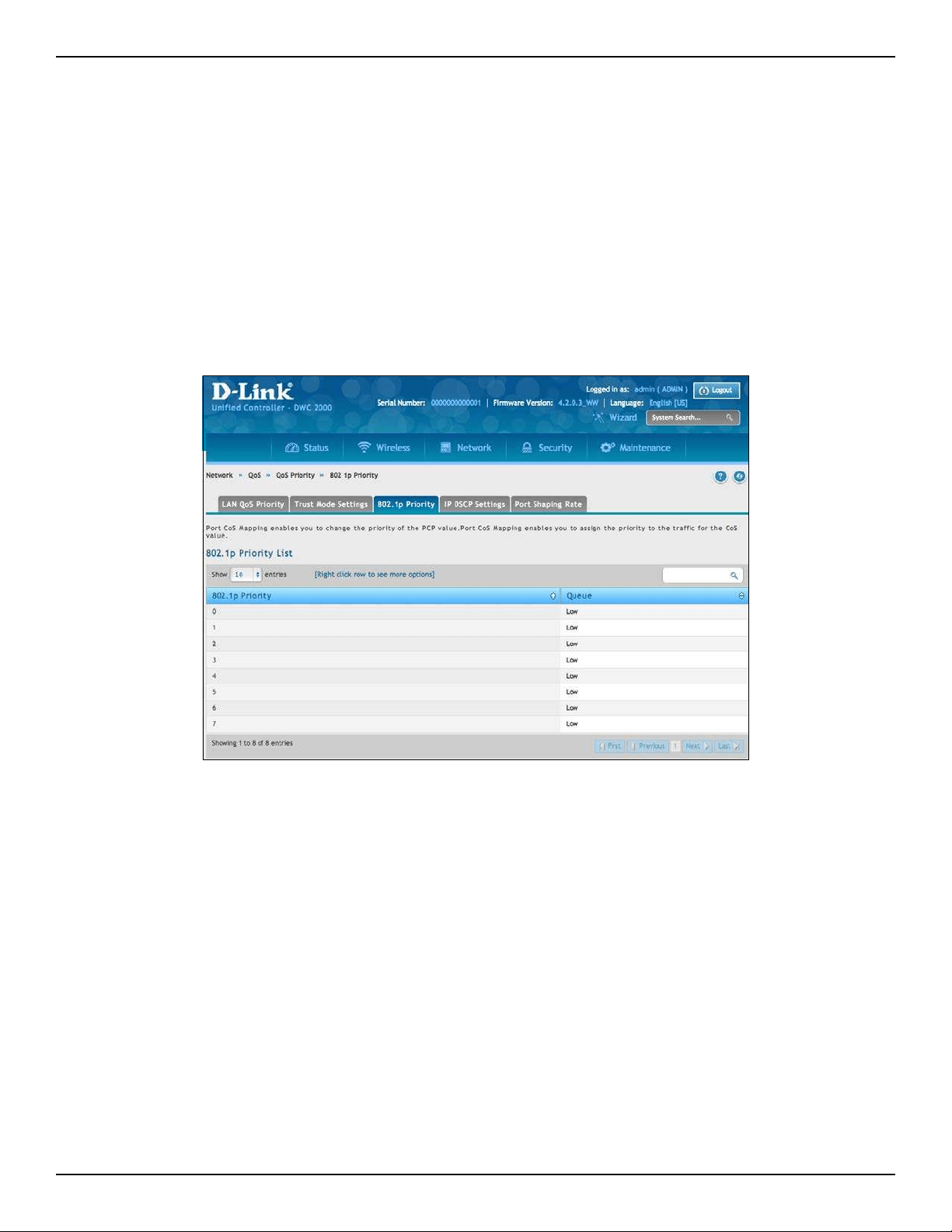
D-Link DWC-2000 User Manual 151
Section 5 - Advanced Network Conguration
Conguring 802.1p Priority
Path: Network > QoS > QoS Priority > 802.1P Priority
If you selected CoS for your QoS conguration, use the following procedure to congure and assign priority to
the CoS elds in the IP packets.
1. Go to Network > QoS > QoS Priority. On the middle menu on the QoS Priority page, click the 802.1P
Priority tab. In the 802.1p Priority List, each row corresponds to a CoS eld in an IP packet. Select a
CoS eld by right-clicking on it and clicking Edit. This brings up a popup box called 802.1P Priority
Conguration.
2. On the Queue drop-down list, select one of the following priorities:
– Highest
– Medium
– Low
– Lowest
3. Repeat step 2 for each additional CoS eld you want to prioritize.
4. When you nish, click Save.
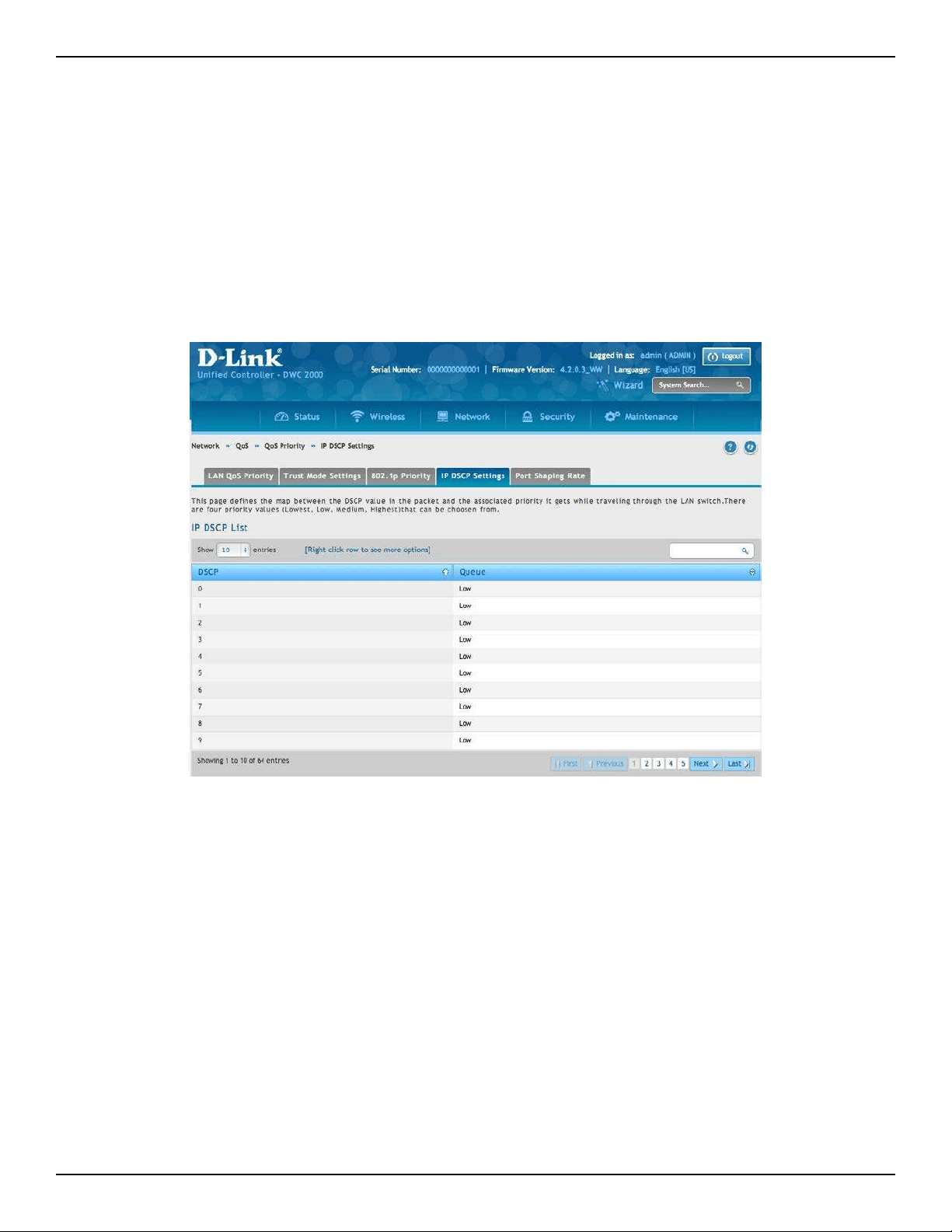
D-Link DWC-2000 User Manual 152
Section 5 - Advanced Network Conguration
Conguring DSCP Priority
Path: Network > QoS > QoS Priority > IP DSCP Settings
If you selected DSCP for your QoS conguration, use the following procedure to congure and assign priority to
the DSCP elds in IP packets.
1 Go to Network > QoS > QoS Priority. On the middle menu on the QoS Priority page, click the IP DSCP
Settings tab. In the IP DSCP List, select a DSCP by right-clicking it and clicking Edit. This brings up a
popup box called IP DSCP Conguration.
2. From the Queue drop-down list, select one of the following priorities:
– Highest
– Medium
– Low
– Lowest
3. Repeat step 2 for each additional DSCP eld you want to prioritize.
4. When you nish, click Save.
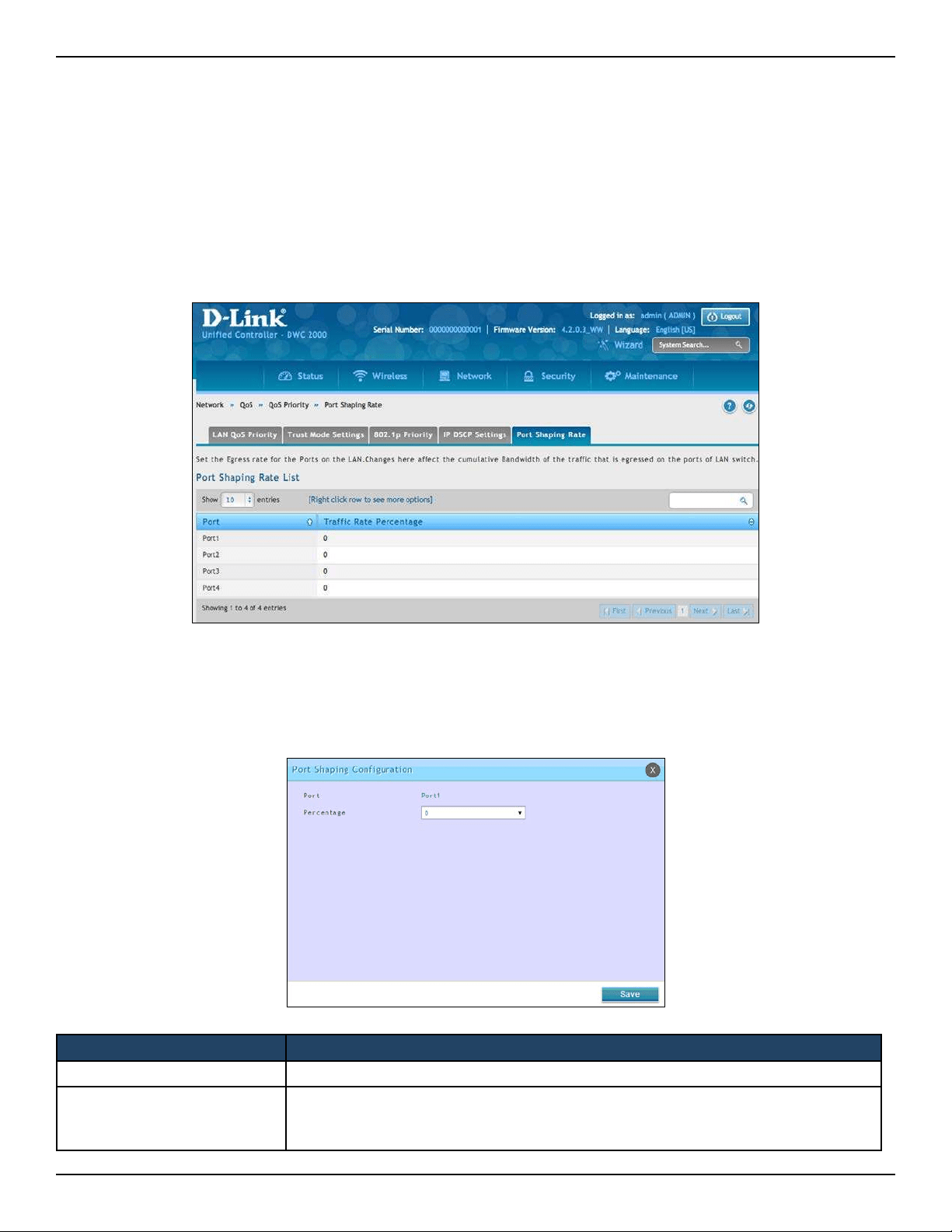
D-Link DWC-2000 User Manual 153
Section 5 - Advanced Network Conguration
Port Shaping Rate
Path: Network > QoS > QoS Priority > Port Shaping Rate
This page allows conguring an interface shaping rate to all ports or to a specic port. Right-click and edit the
percentage.
1. Go to Network > QoS > QoS Priority > Port Shaping Rate tab.
2. Right-click the port and select Edit.
3. Select the percentage you want to assign to the port from the drop-down menu and click Save.
Field Description
Port Port to be aected by the Port Shaping Rate
Percentage
Sets the limit on how much trac can leave a port. The limit on maximum transmission
bandwidth has the eect of smoothing temporary trac bursts over time so that the
transmitted trac rate is bounded.
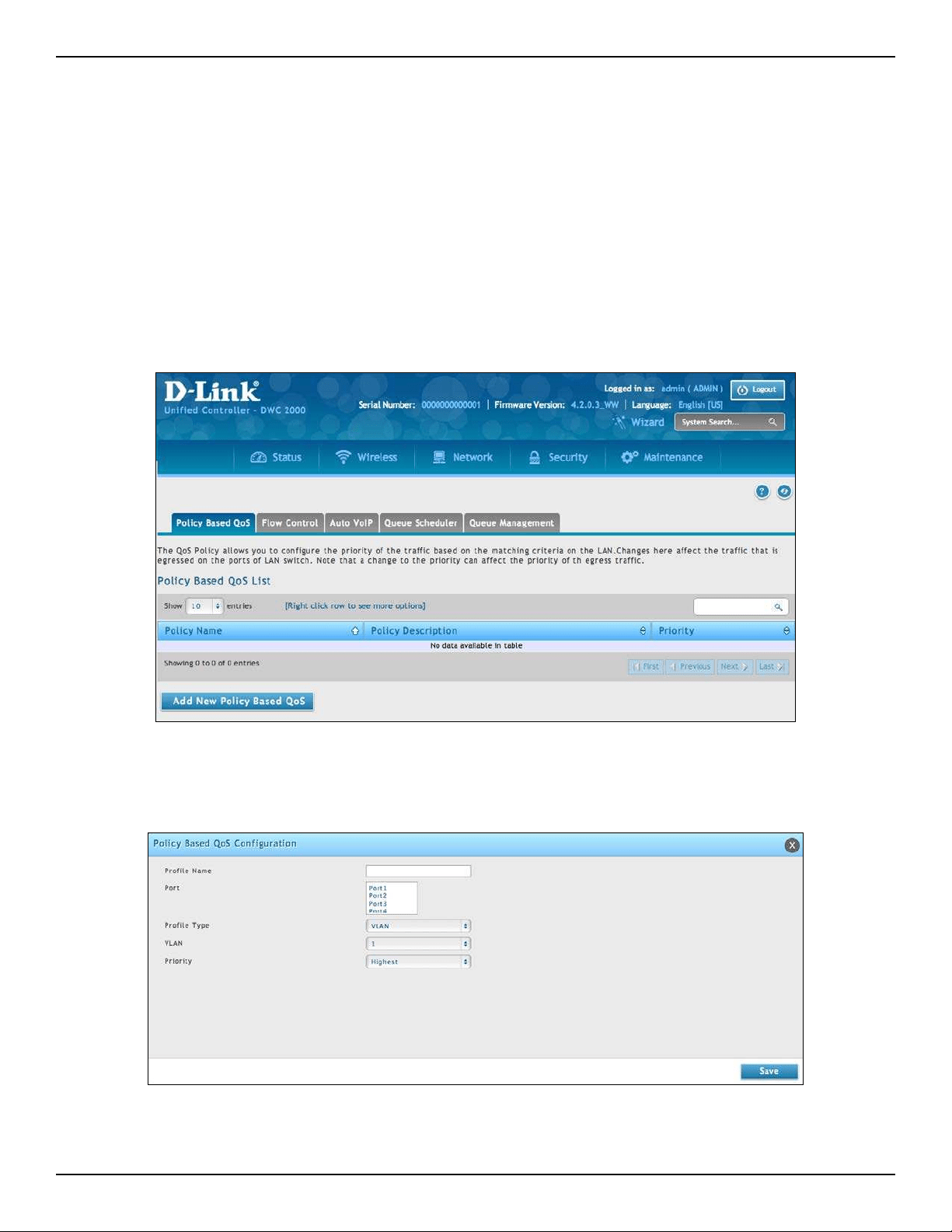
D-Link DWC-2000 User Manual 154
Section 5 - Advanced Network Conguration
QoS Policy
The QoS Policy allows you to congure the priority of the trac based on the matching criteria on the LAN.
Changes here aect the trac that is egressed on the ports. Note that a change to the priority can aect the
priority of the egress trac.
Congure Policy Based QoS
Path: Network > QoS > Policy Based QoS
1. Go to Network > QoS > QoS Policy > Policy Based QoS tab.
2. Click Add New Policy Based QoS.
3. Complete the elds in the table on the next page and click Save.
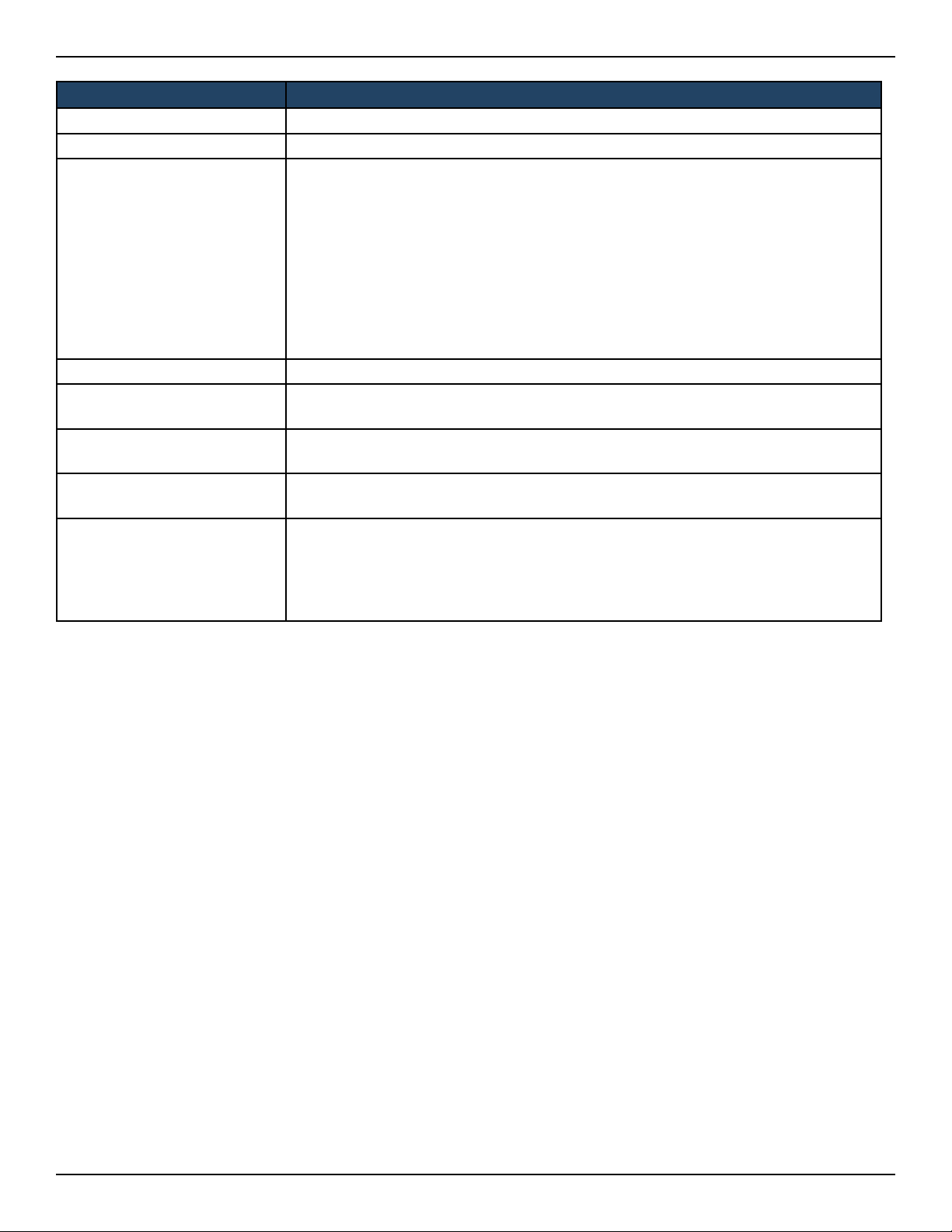
D-Link DWC-2000 User Manual 155
Section 5 - Advanced Network Conguration
Field Description
Prole Name The name of the prole.
Port Select a port or ports. Hold CTRL to select multiple ports.
Prole Type
Matching criteria of this prole. The criteria are:
• VLAN
• Destination MAC Address
• Source MAC Address
• Destination IP Address
• Source IP Address
• Source TCP Port
• Destination TCP Port
• Source UDP Address
• Destination UDP Address
VLAN If Prole Type = VLAN, enter a dened VLAN number.
MAC Address
If Prole Type = Destination MAC Address or Source MAC Address, enter a dened
MAC Address.
IP Address
If Prole Type = Destination IP Address or Source IP Address, enter a dened IP
Address.
L4 Port
If Prole Type= Source TCP Port, Destination TCP Port, Source UDP Port or Destination
UDP Address, enter a dened port number.
Priority
Priority of the QoS rule. The priority choices are:
• Highest
• High
• Low
• Lowest
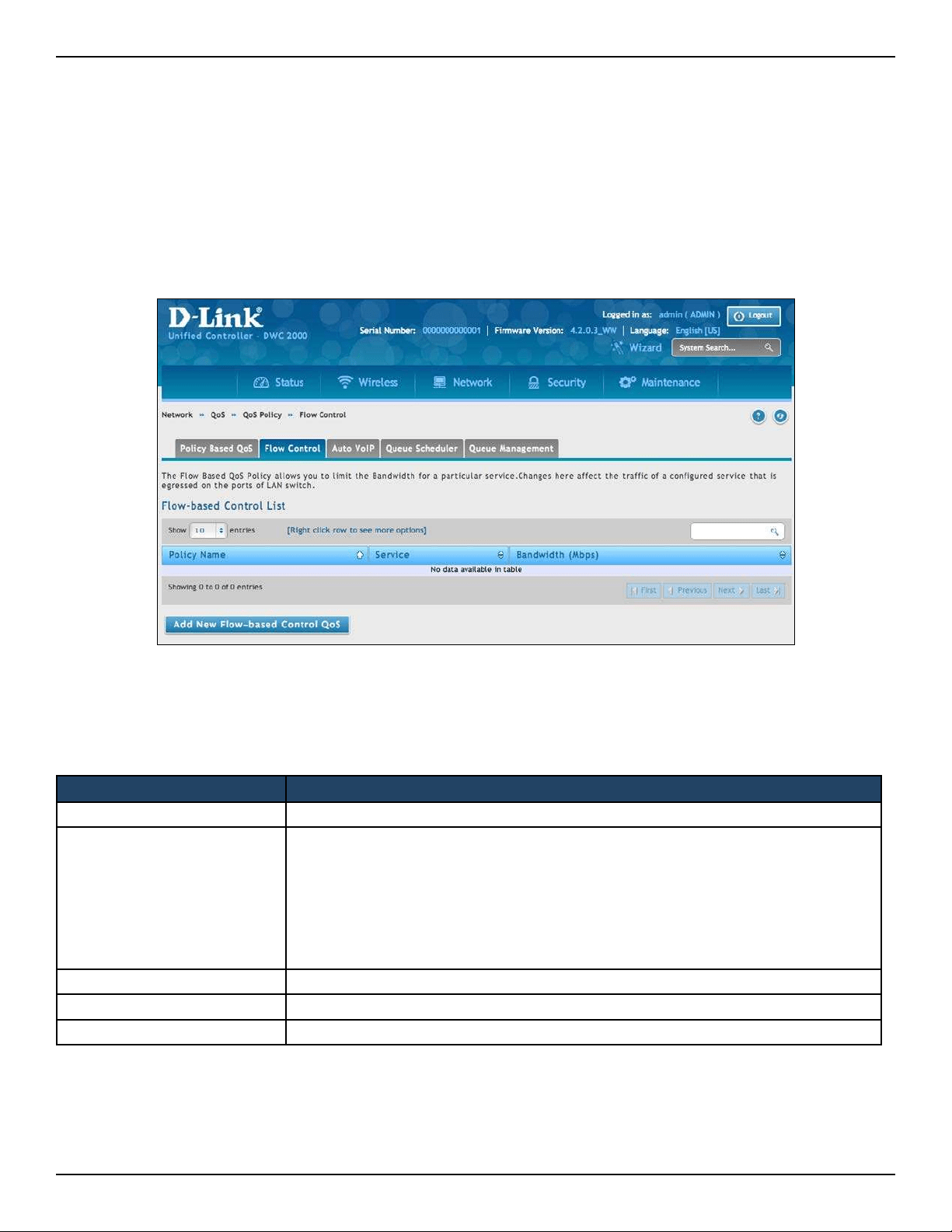
D-Link DWC-2000 User Manual 156
Section 5 - Advanced Network Conguration
Congure Flow-based Control
Path: Network > QoS > QoS Policy > Flow Control
The Flow-Based QoS Policy allows you to limit the Bandwidth for a particular service. Changes here aect the
trac of a congured service that is egressed on the ports.
1. Go to Network > QoS > QoS Policy > Flow Control tab.
2. Click Add New Flow-based Control QoS.
3. Complete the elds in the table below and click Save.
Field Description
Prole Name The name of the prole.
Service
Select the type of service you want to use. The choices are:
Any, aim, bgp, bootp_client, bootp_server, cu-seeme udp, cu-seeme tcp, dns udp,
dns tcp, nger, ftp, http, https, icmp, icq, imap2, imap3, irc, news, nfs, nntp, ping,
pop3, pptp, rcmd, rea-audio, rexec, rlogin, rtelnet, rtsp tcp, rtsp udp, sftp, smtp, snmp
tcp, snmp udp, snmp-traps tcp, snmp-traps udp, sql-net, ssh tcp, ssh udp, strmworks,
tacacs, telnet, tftp, rip, kie, shttpd, ipsec-udp-encap, ident, vddolive, ssh, sip-tcp, sip-
udp, or icmpv6.
Source IP Address The source IP address
Destination IP Address The destination IP address
Bandwidth Limit the Bandwidth for a particular service.
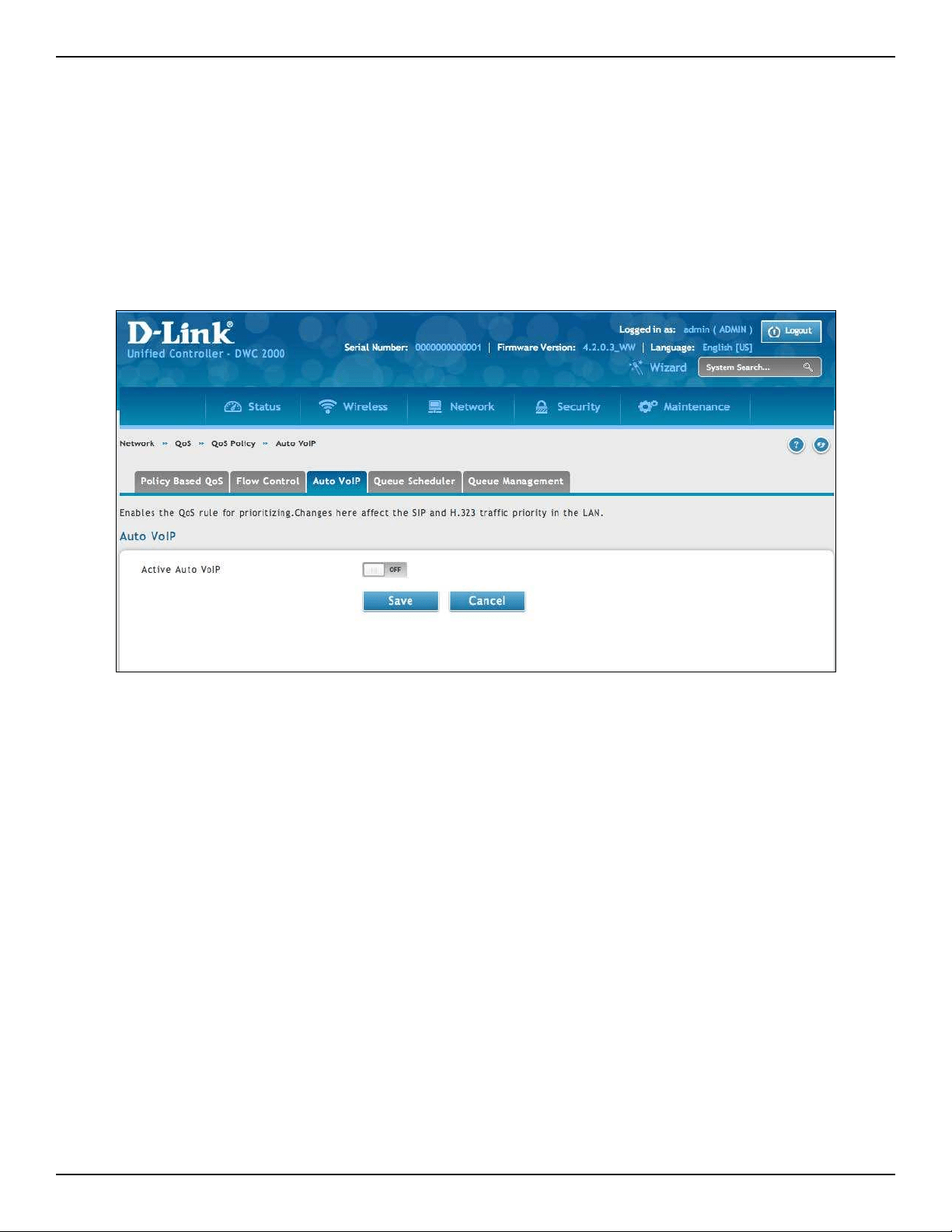
D-Link DWC-2000 User Manual 157
Section 5 - Advanced Network Conguration
Congure Auto VoIP QoS
Path: Network > QoS > QoS Policy > Auto VoIP
Enables the QoS rule for prioritizing. Changes here aect the SIP and H.323 trac priority in the LAN.
1. Go to Network > QoS > QoS Policy. > Auto VoIP tab.
2. Enable Active Auto VoIP and click Save.
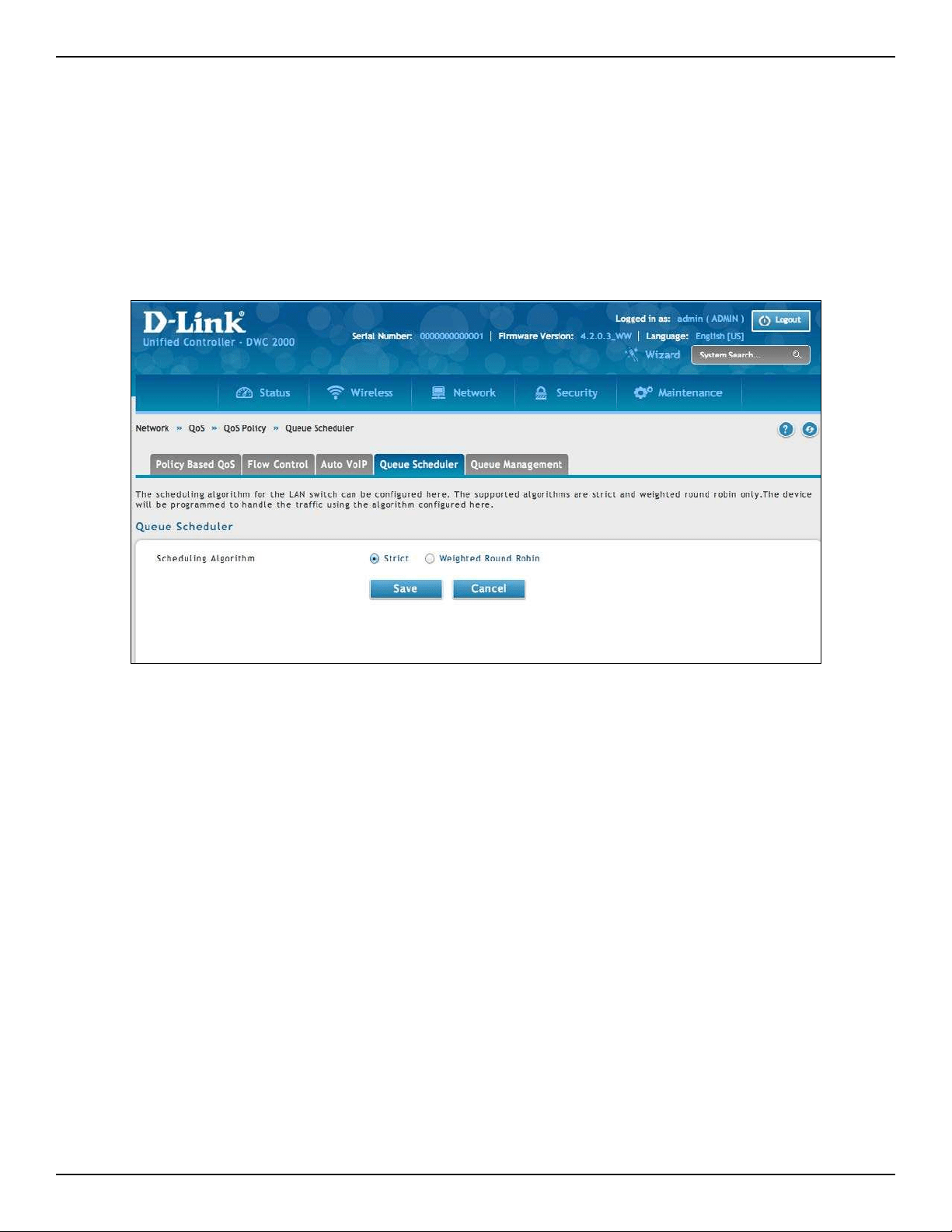
D-Link DWC-2000 User Manual 158
Section 5 - Advanced Network Conguration
Congure Queue Scheduler
Path: Network > QoS > QoS Policy > Queue Scheduler
The supported algorithms are strict and weighted round robin only. The device will be programmed to handle
the trac using the algorithm congured here.
1. Go to Network > QoS > QoS Policy > Queue Scheduler tab.
2. Select Scheduling Algorithm: Strict or Weighted Round Robin.
3. Click Save.
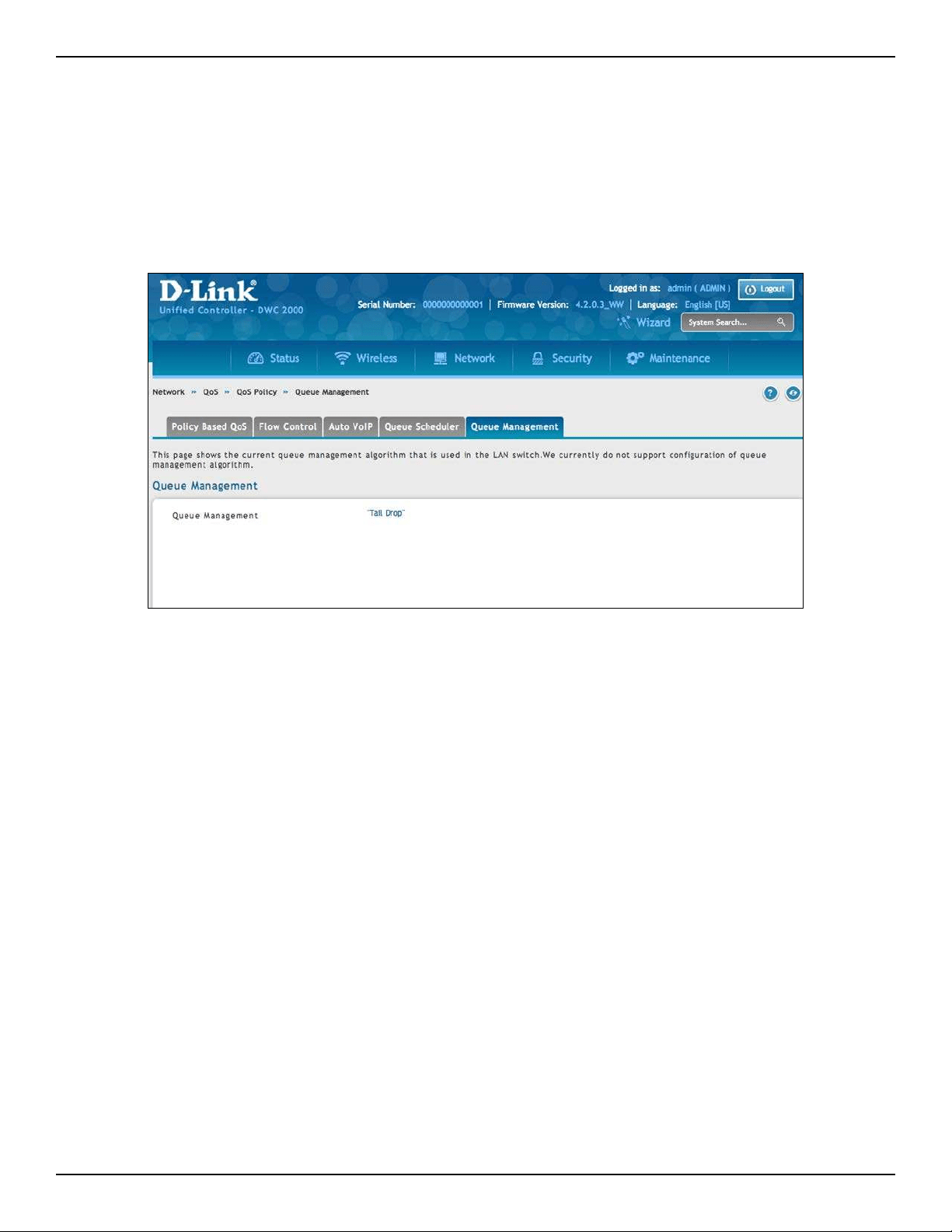
D-Link DWC-2000 User Manual 159
Section 5 - Advanced Network Conguration
Queue Management
Path: Network > QoS > QoS Policy > Queue Management
This page shows the current queue management algorithm that is used in the wireless controller.
1. Go to Network > QoS > Option QoS > Queue Management tab.
This page displays the current queue management algorithm that is used. We currently do not support
conguration of queue management algorithm.
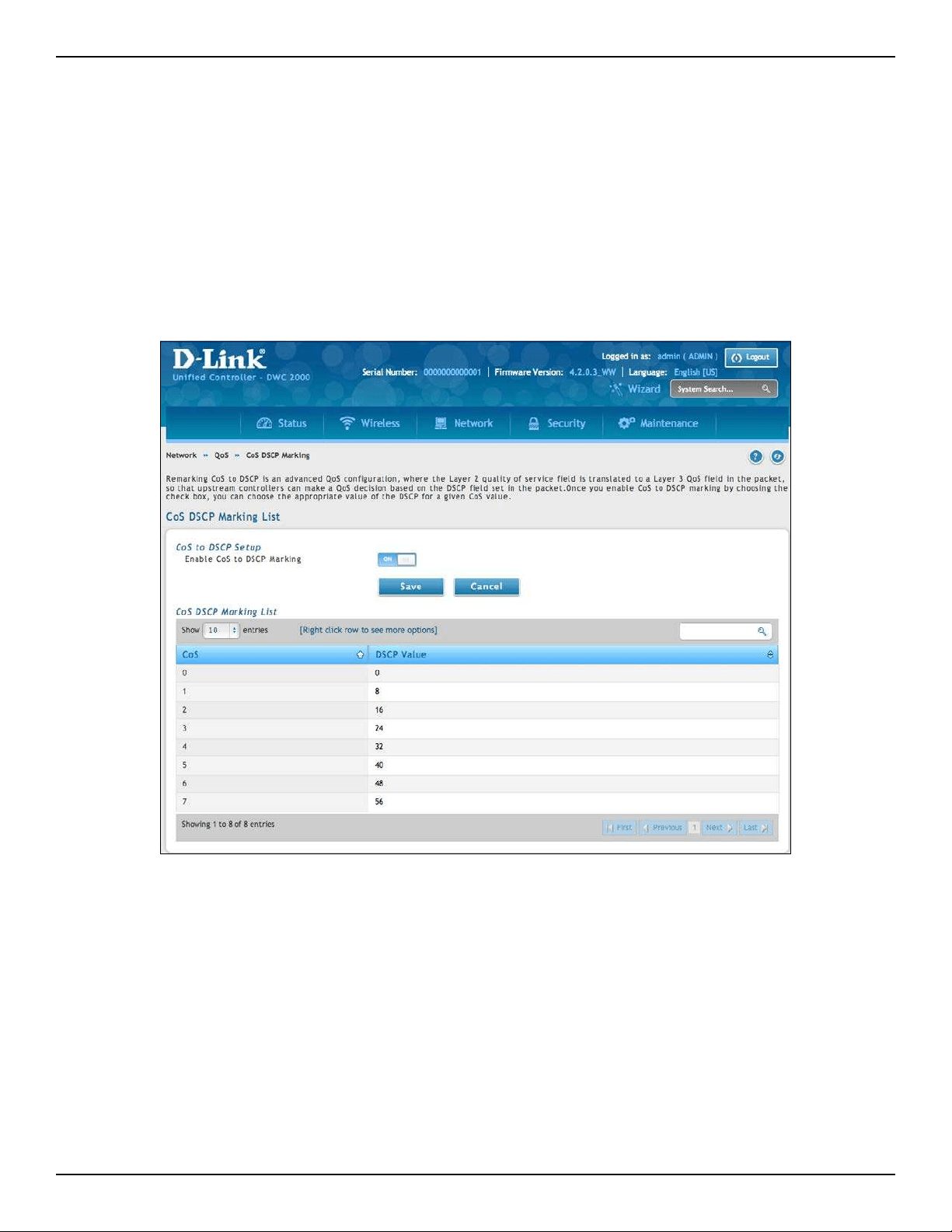
D-Link DWC-2000 User Manual 160
Section 5 - Advanced Network Conguration
Setup CoS and DSCP Marking
Path: Network > QoS > CoS DSCP Marking
Remarking CoS to DSCP is an advanced QoS conguration, where the Layer 2 quality of service eld is translated
to a Layer 3 QoS eld in the packet, so that upstream routers can make a QoS decision based on the DSCP
eld set in the packet. Once you enable CoS to DSCP marking by choosing the check box, you can choose the
appropriate value of the DSCP for a given CoS value.
1. Go to Network > QoS > CoS DSCP Marking.
2. Enable CoS and DSCP Marking and click Save.
3. Right-click on the CoS and select Edit. Change the mapping value between CoS and DSCP.
4. Click Save.

D-Link DWC-2000 User Manual 161
Section 6 - Securing Your Network
Securing Your Network
The wireless controller supports a number of features for securing your network. This chapter describes the
following commonly used security features:
• “Client Management” on page 162
• “Group Management” on page 165
• “User Management” on page 172
• “Guest Account Usage Management” on page 177
• “External Authentication” on page 186
• “Blocked Clients” on page 192
• “WIDS” on page 67
Note: The procedures in this chapter should only be performed by expert users who understand networking concepts
and terminology.
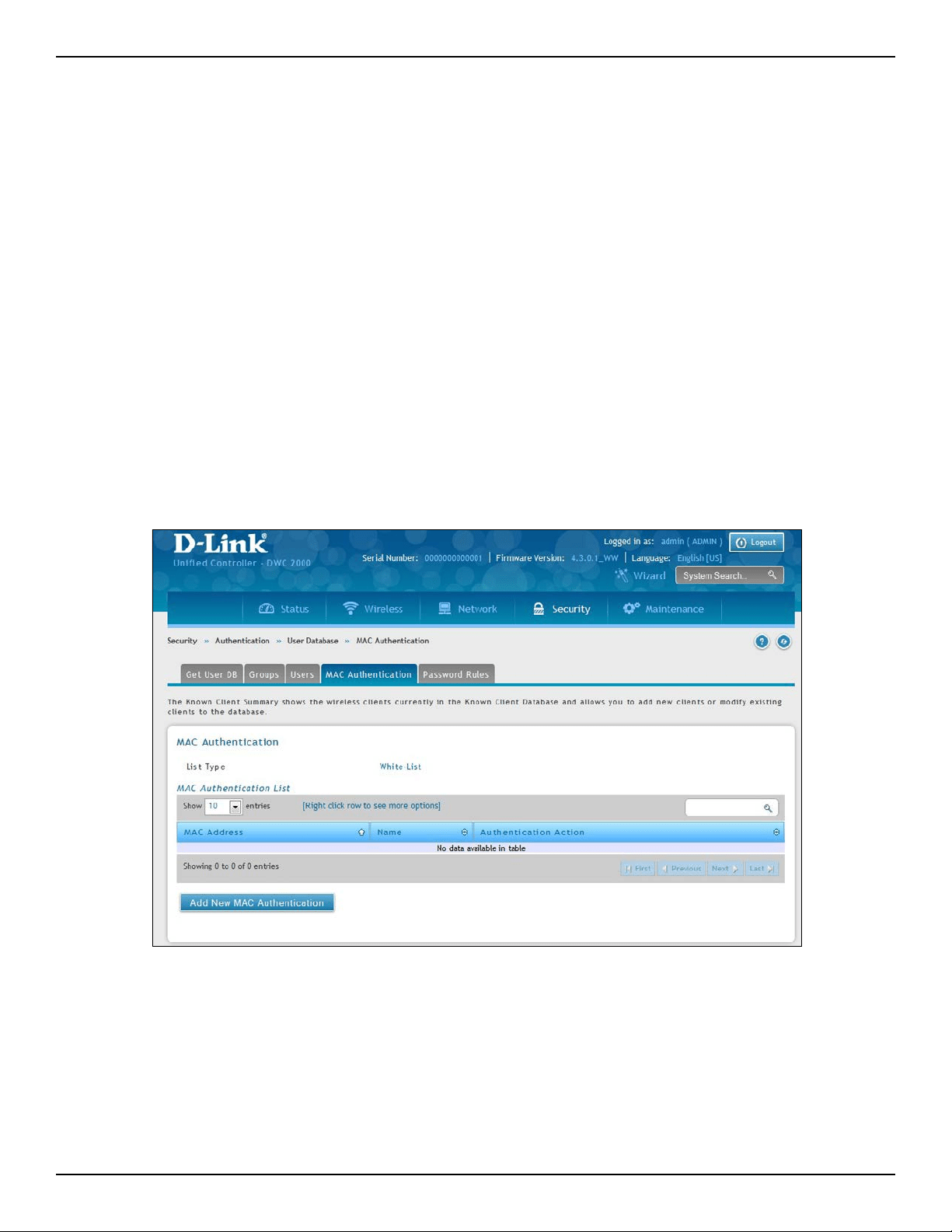
D-Link DWC-2000 User Manual 162
Section 6 - Securing Your Network
Client Management
Using the MAC Authentication page, you can view wireless clients in the MAC Authentication database. The
database contains wireless client MAC addresses and names. The database is used to retrieve descriptive client
names from the RADIUS server and implement MAC authentication.
The page also lets you add, edit, and delete clients.
Viewing/Adding Wireless Known Clients
Path: Security > Authentication > User Database > MAC Authentication
To view wireless known clients:
1. Go to Security > Authentication > User Database.
2. Click on the MAC Authentication tab in the middle menu. The MAC Authentication page will appear
displaying a list of the wireless clients in the MAC Authentication database.
3. Next to List Type the current global setting is displayed.
MAC authentication is a feature that grants or denies a client access to the network if the client’s MAC
address in the white-list or black-list. MAC Authentication is enable at the network level. The network
conguration also denes whether MAC addresses are looked up on the local database or on the
RADIUS server.
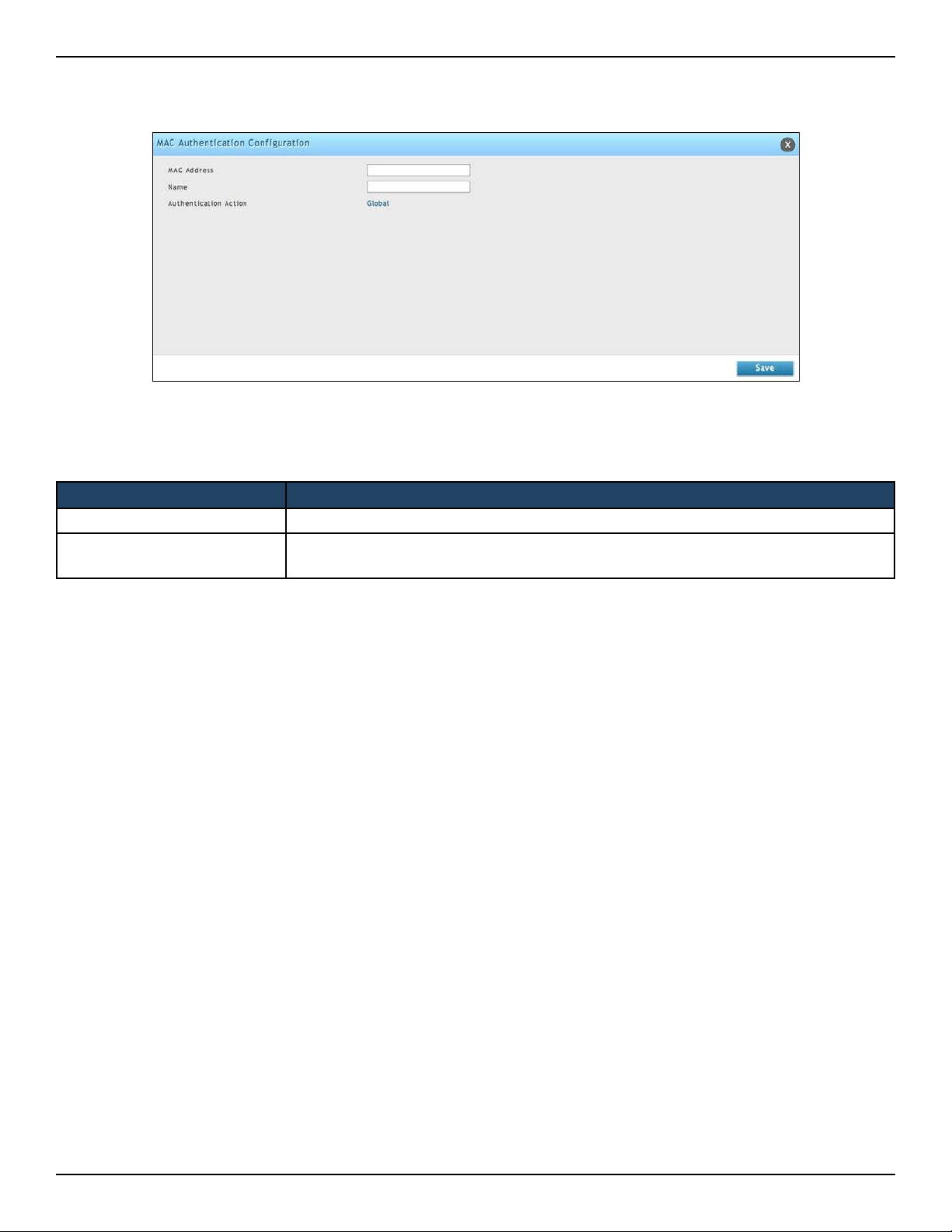
D-Link DWC-2000 User Manual 163
Section 6 - Securing Your Network
4. Click on Add New MAC Authentication. The MAC Authentication Conguration page will appear.
5. Complete the elds in the table below and click Save.
Field Description
MAC Address Enter the MAC address for the known client.
Name
Enter the name of the known client. The name should allow you to dierentiate this
known client from others you may add.

D-Link DWC-2000 User Manual 164
Section 6 - Securing Your Network
Editing/Deleting Clients
Path: Security > Authentication > User Database > MAC Authentication
After you add clients, you can edit or delete it if you need to change settings.
To edit or delete a client:
1. Go to Security > Authentication > User Database > MAC Authentication.
2. Under MAC Authentication List, right-click the client and select either Edit or Delete.
3. Change the desired settings (refer to the table on the previous page).
4. Click Save.
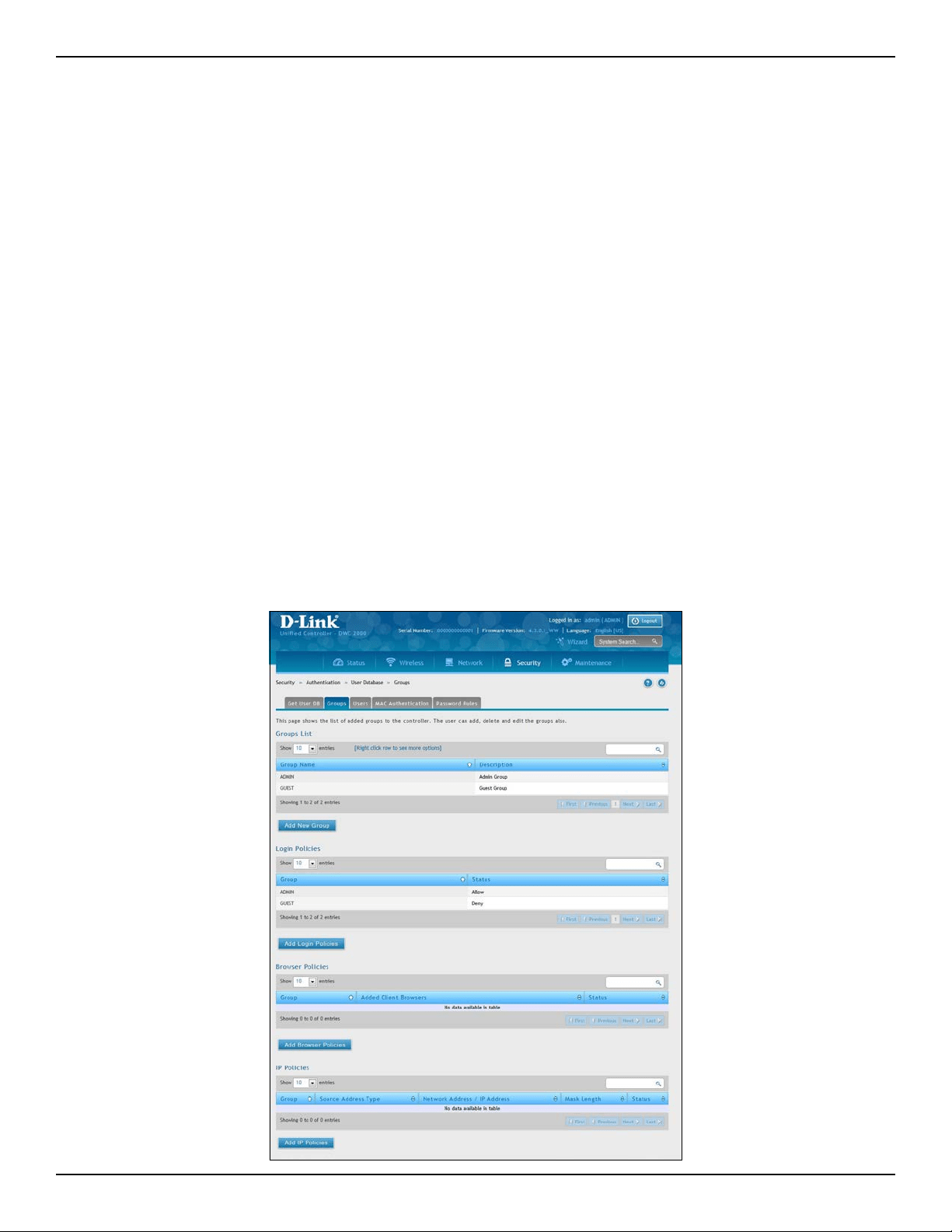
D-Link DWC-2000 User Manual 165
Section 6 - Securing Your Network
Group Management
A user group is a collection of users who share the same privileges. The following section describes how to add
user groups. After you add a user group, you can congure its login policies, policies for browsers, and policies by
IP. You can also edit user groups when changes are required and delete user groups you no longer need.
Adding User Groups
Path: Security > Authentication > User Database > Groups
When you add a user group, you assign:
• A name that identies the user group
• An optional user group description
• At least one privilege (or “user type”)
• An idle timeout value
After you dene user groups, you can use the procedure under “User Management” on page 172 to populate
the groups with users.
To add a user group:
1. Go to Security > Authentication > User Database > Groups.
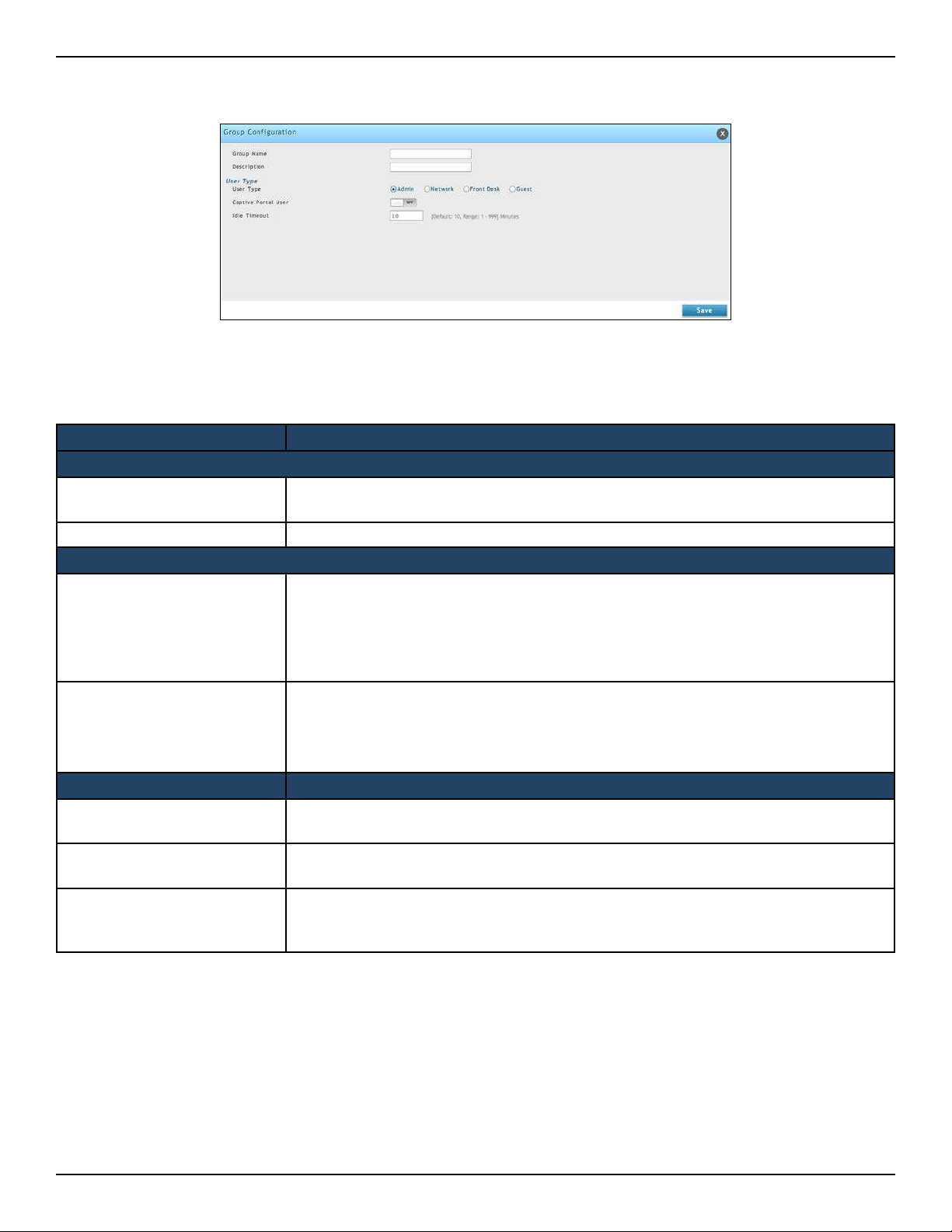
D-Link DWC-2000 User Manual 166
Section 6 - Securing Your Network
2. Click Add New Group. The Group Conguration pop-up page will appear.
3. Complete the elds in the table below and click Save.
Field Description
Group Conguration
Group Name
Enter a unique name for this group. The name should allow you to easily identify this
group from others you may add.
Description Enter a description for this user group.
User Type
Admin
Click this to grant all users in this group super-user privileges. By default, there is one
admin user. The group types for Admin users are:
• Captive Portal User - The users of the group having Captive Portal privilege
will have permissions to access the Internet/Networks through Captive Portal
authentication.
Network
Selecting Network enables an extra option, by default the group types for Network
users are:
• Captive Portal User - The users of the group having Captive Portal privilege will have
permissions to access the Internet/Networks through Captive Portal authentication.
Field Description
Front Desk
The users of the group having Front Desk User privilege will have permissions to create
temporary users who can access Internet/Network by using Hotspot.
Guest
The users of the group having Guest User privilege will only have view only permissions.
Such users cannot congure the device.
Idle Timeout
Enter the number of minutes of inactivity that must occur before the users in this user
group are logged out of their web management session automatically. Entering an Idle
Timeout value of 0 (zero) means never log out.
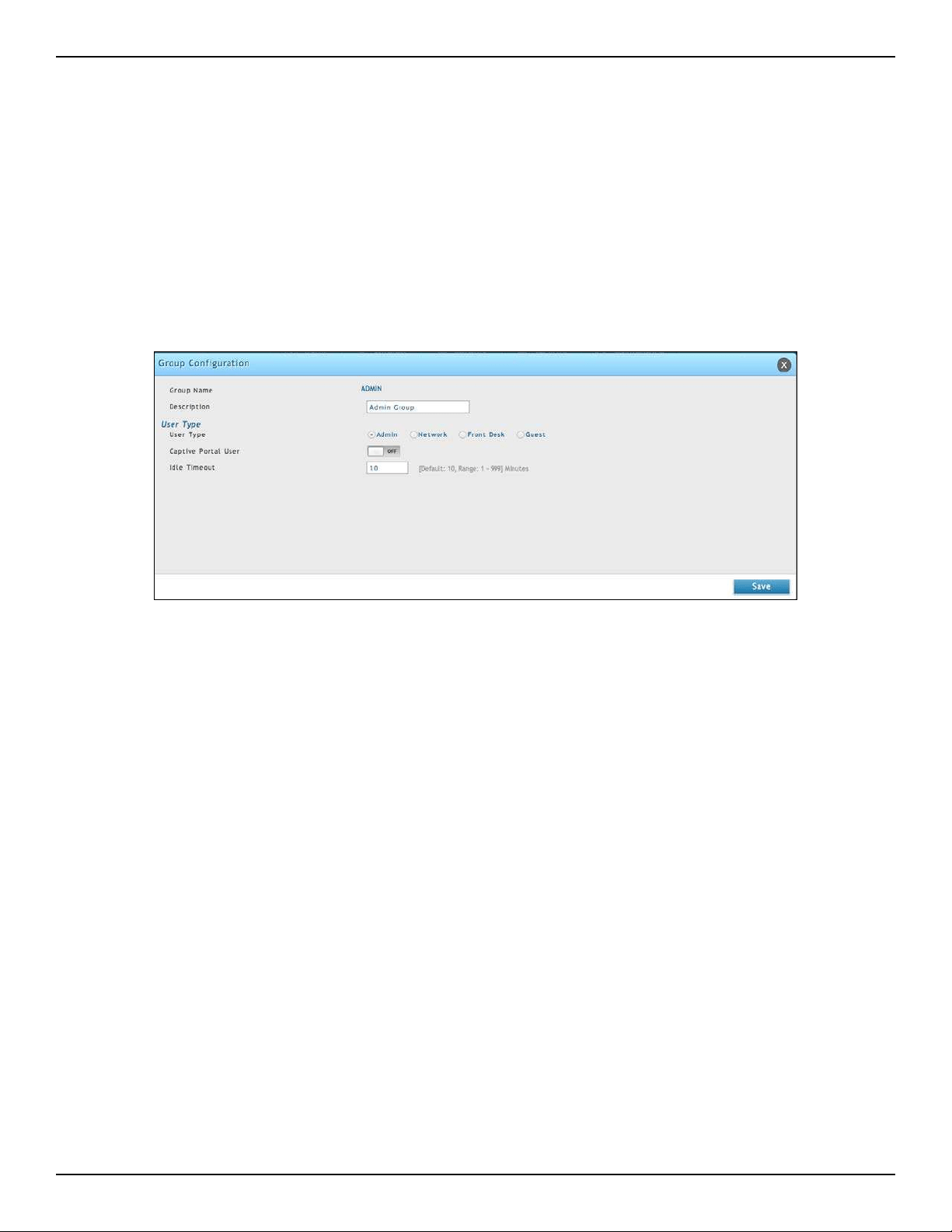
D-Link DWC-2000 User Manual 167
Section 6 - Securing Your Network
Editing User Groups
Path: Security > Authentication > User Database > Groups
There may be times when you need to edit a user group. For example, you might want to change the privileges
for the user group or idle timeout.
To edit a user group:
1. Go to Security > Authentication > User Database > Groups. The Groups List page will appear.
2. Right-click the user group you want to edit and click Edit. The Group Conguration pop-up page will
appear.
3. Complete the elds in the previous page and click Save.
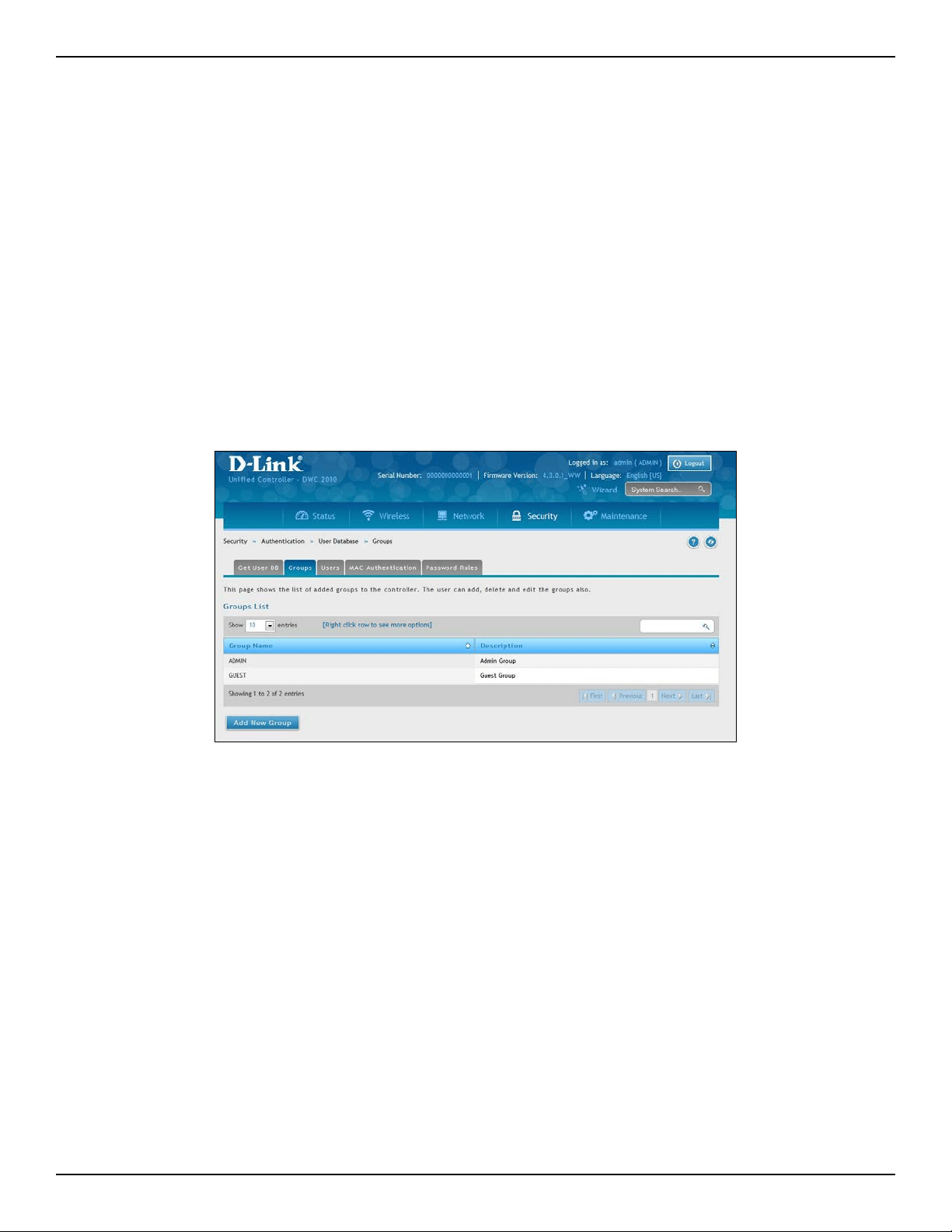
D-Link DWC-2000 User Manual 168
Section 6 - Securing Your Network
Deleting User Groups
Path: Security > Authentication > User Database > Groups
If you no longer need a user group, you can delete it. Before you delete a user group, you must delete all users in
it (see “Editing/Deleting Clients” on page 164).
Note: A precautionary message does not appear before you delete a user group. Therefore, be sure you do not need
a user group before you delete it.
To delete a user group:
1. Go to Security > Authentication > User Database > Groups. The Groups page will appear.
2. Right-click on the user group you want to delete and click Delete. To delete all groups, click Select All
and then Delete.
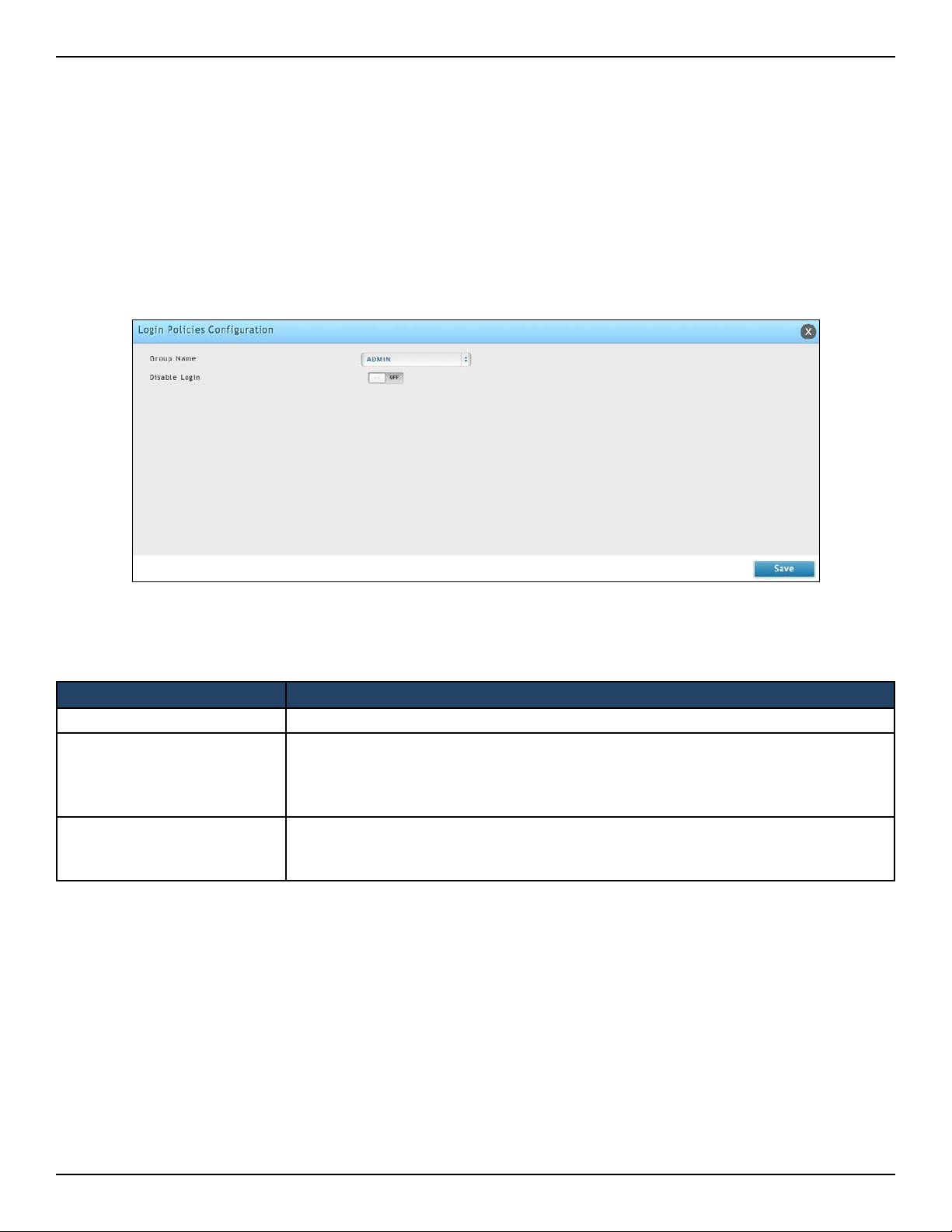
D-Link DWC-2000 User Manual 169
Section 6 - Securing Your Network
Conguring Login Policies
Path: Security > Authentication > User Database > Groups
Using the following procedure, you can grant or deny a user group login access to the web management interface.
1. Click Security > Authentication > User Database > Groups. The Groups page will appear.
2. Check the box next to a user group.
3. Click the Add Login Policies button. The Login Policies Conguration page will appear.
4. Complete the elds from the table below and click Save Settings.
Field Description
Group Name Name of the group.
Disable Login
Grants or denies login access to the web management interface for all users in this user
group. Choices are:
• On: Disable login access.
• O: Enable login access.
Deny login from Option
Interface
Grants or denies login access from the wireless controller’s Option port. Choices are:
• On: Disable login access.
• O: Enable login access.
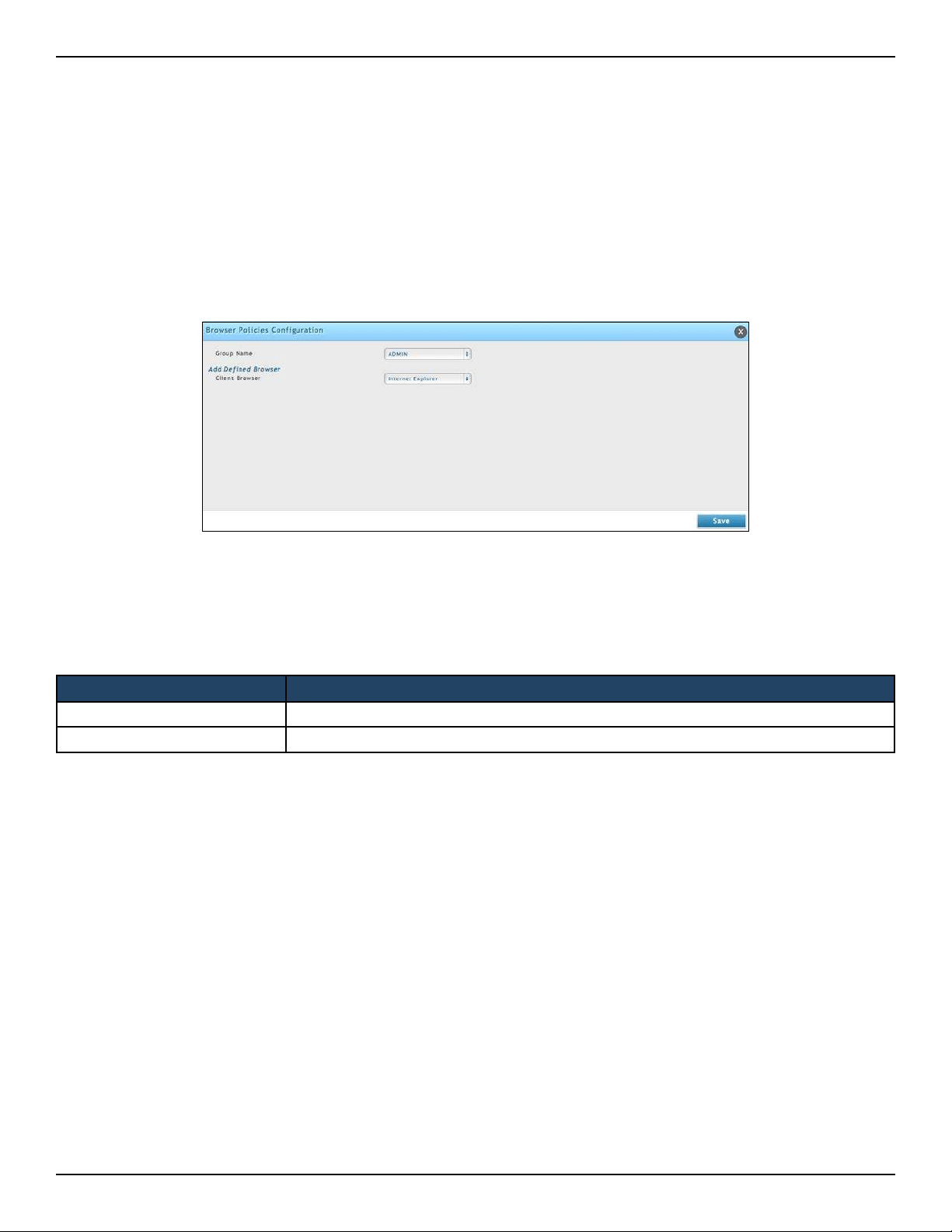
D-Link DWC-2000 User Manual 170
Section 6 - Securing Your Network
Conguring Browser Policies
Path: Security > Authentication > User Database > Groups
The following procedure describes how to congure browser-specic policies for user groups. Using this
procedure, you can allow or deny the users in a user group from using particular web browsers to log in to the
wireless controllers’ web management interface.
1. Click Security > Authentication > User Database > Groups.
2. Click the Add Browser Policies button.
3. Under Add Dened Browser, click a browser from the Client Browser drop-down list and click Add. The
selected browser will appear in the Dened Browsers area.
Field Description
Group Name Select the group name from the drop-down menu.
Client Browser Select a web browser from the drop-down menu.
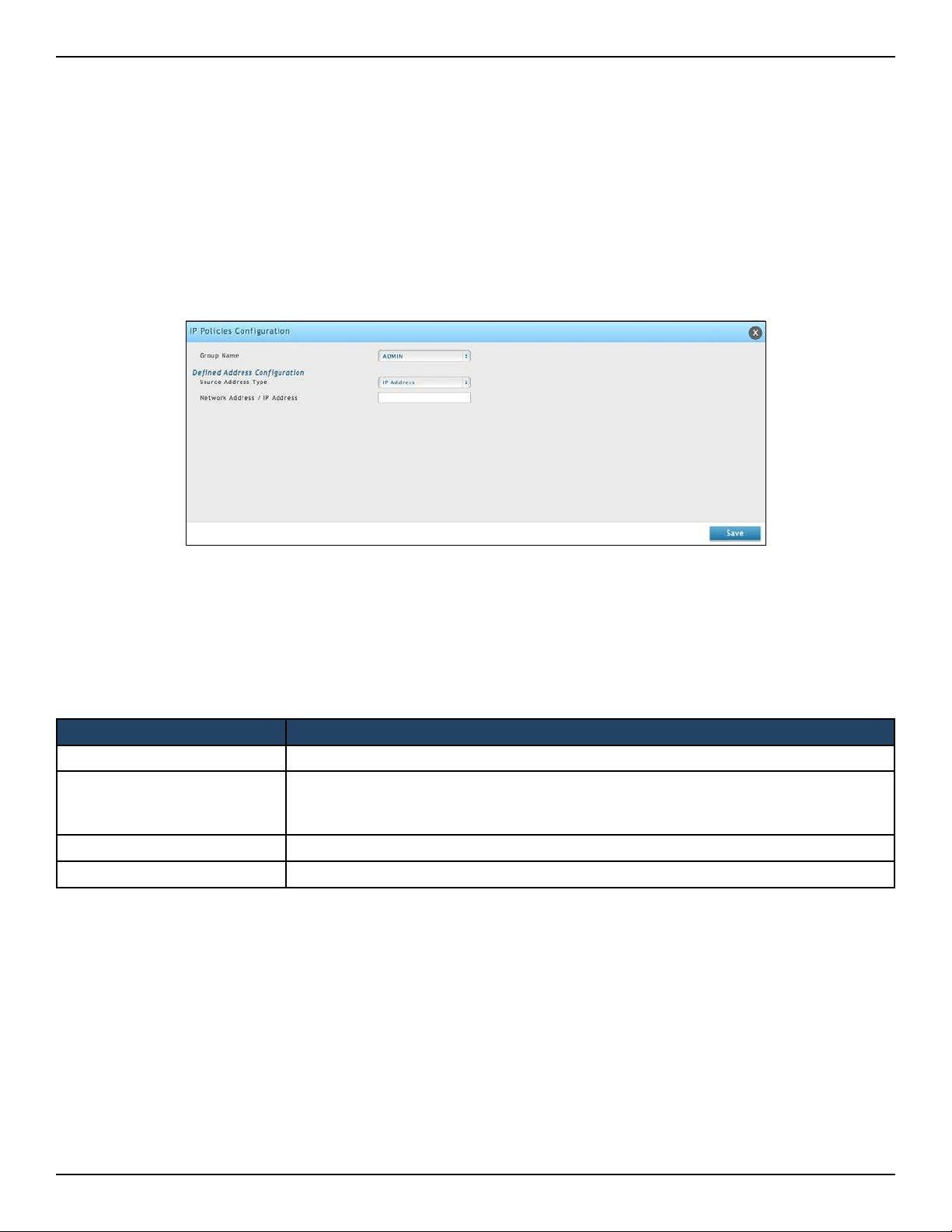
D-Link DWC-2000 User Manual 171
Section 6 - Securing Your Network
Conguring IP Policies
Path: Security > Authentication > User Database > Groups
The following procedure describes how to congure IP-specic policies for user groups. Using this procedure,
you can allow or deny the users in a user group to log in to the wireless controllers’ web management interface
from a particular network or IP address.
1. Click Security > Authentication > User Database > Groups.
2. Click the Add IP Policies button. The IP Policies Conguration page will appear.
3. Complete the elds in the table below and click Save. The address you dened will appear in the
Dened Addresses area.
Field Description
Group Name Select a group name from the drop-down menu.
Source Address Type
Choices are:
• IP Address = species a particular IP address.
• IP Network = species an entire IP network.
Network Address/IP Address
Enter the network or IP address.
Mask Length
Enter a subnet mask.
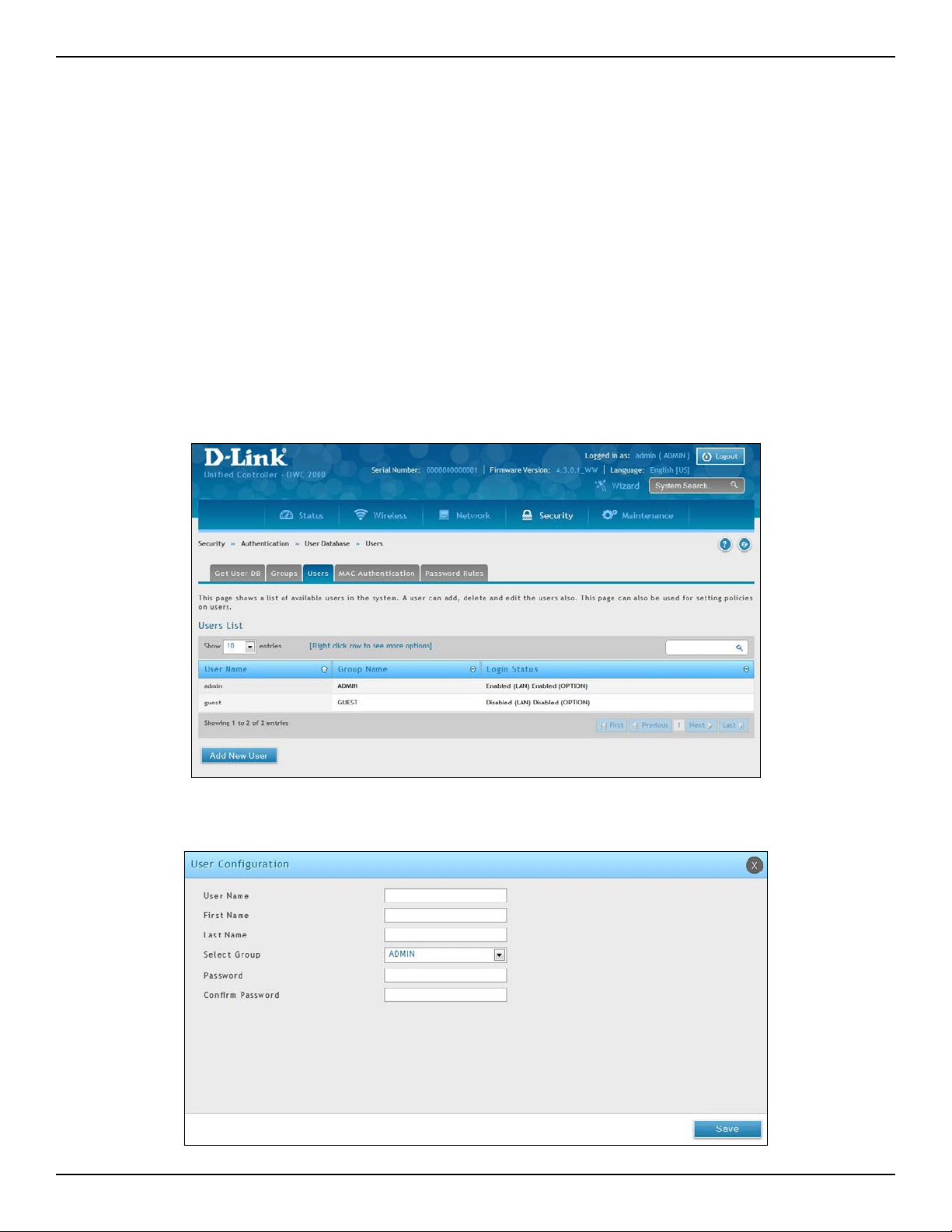
D-Link DWC-2000 User Manual 172
Section 6 - Securing Your Network
User Management
After you add user groups, you can add users to the user groups. Users can be added individually, or they can be
imported from a comma-separated-value (CSV) formatted le.
After you add users, you can edit them when changes are required and delete users when you no longer need
them.
Adding Users Manually
Path: Security > Authentication > User Database > Users
One way of adding users is to add users individually.
1. Go to Security > Authentication > User Database > Users.
2. Click Add New User. The User Conguration pop-up page will appear.
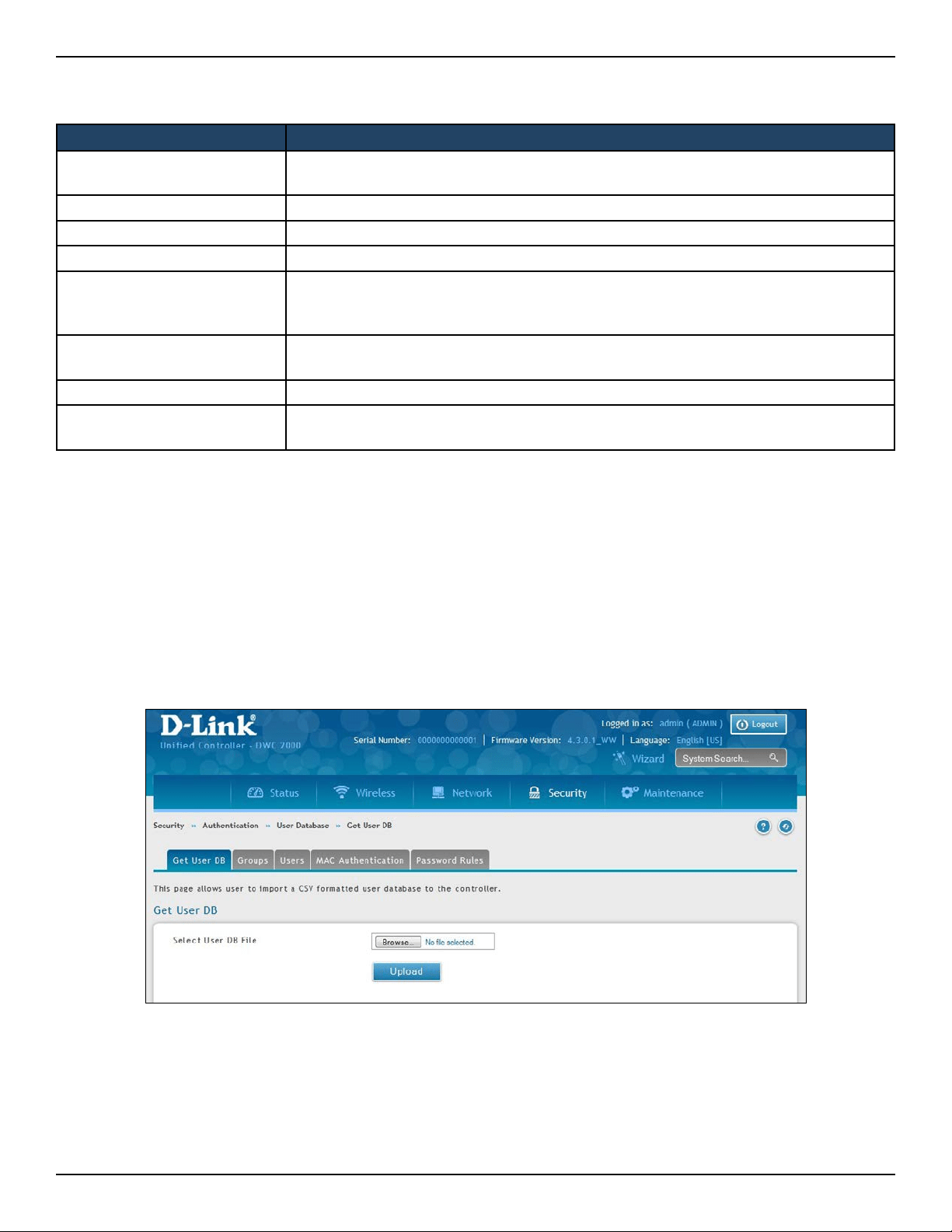
D-Link DWC-2000 User Manual 173
Section 6 - Securing Your Network
3. Complete the elds in the table below and click Save.
Importing Users
Path: Security > Authentication > User Database > Get User DB
A faster alternative to adding individual users is to import users from a CSV-formatted le.
1. Click Security > Authentication > User Database > Get User DB.
2. Click the Browse button.
3. In the Choose File dialog box, navigate to the location of the CSV le, and then click the le.
4. Click Open and then click Upload.
Field Description
User Name
Enter a unique name for this user. The name should allow you to easily identify this user
from others you may add.
First Name Enter the rst name of the user.
Last Name Enter the last name of the user.
Select Group Select the captive portal group to which this user will belong.
Password
Enter a case-sensitive login password that the user must specify at the login prompt to
access the web management interface. For security, each typed password character is
masked with a dot (•).
Conrm Password
Enter the same case-sensitive password entered in the Password eld. For security,
each typed password character is masked with a dot (•).
Enable Password Change If the group user type is Captive Portal, enable password changes by user if needed.
MultiLogin
If the group user type is Captive Portal, enable MultiLogin allowing user using the same
username/ password login via multiple devices at the same time.
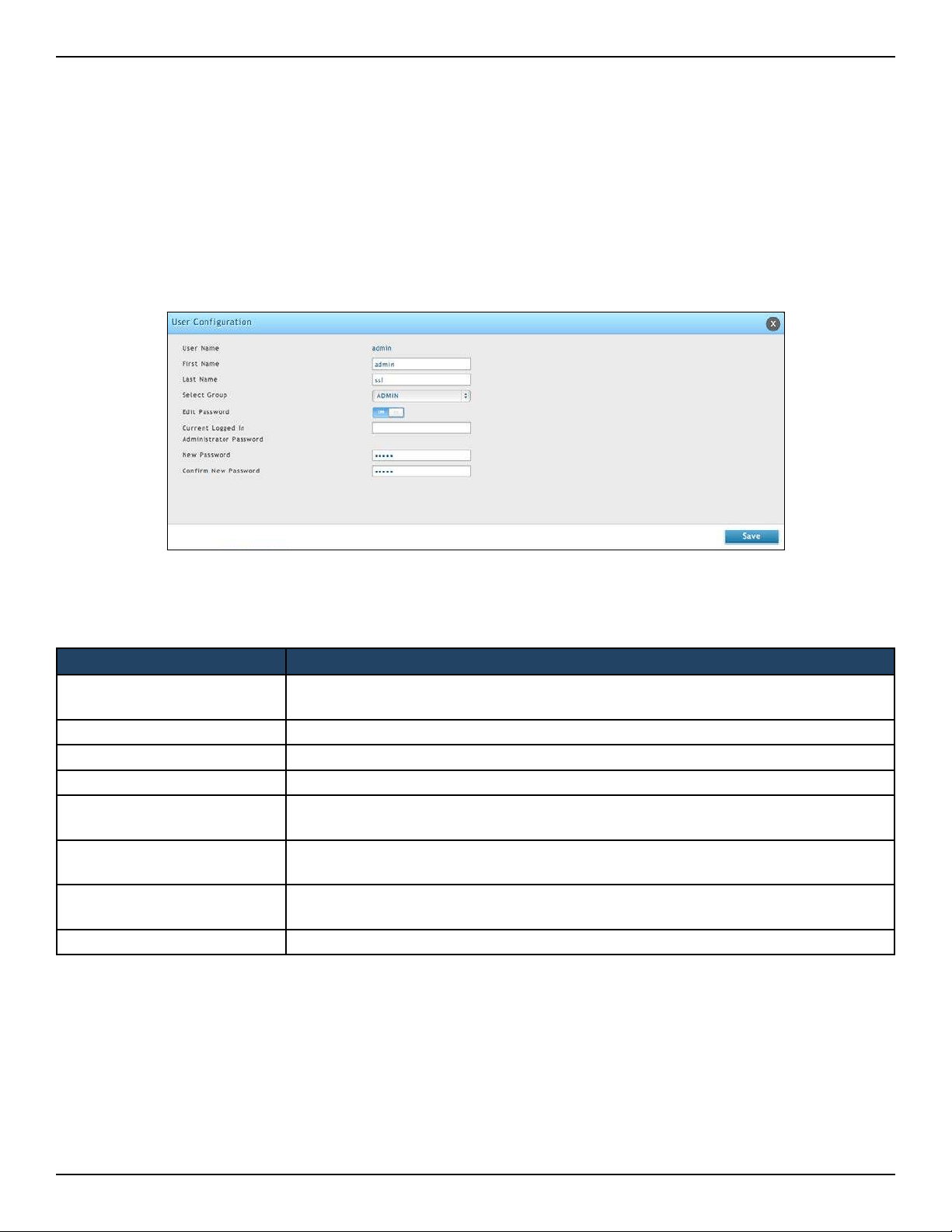
D-Link DWC-2000 User Manual 174
Section 6 - Securing Your Network
Editing Users
Path: Security > Authentication > User Database > Users
There may be times when you need to edit a user. For example, you might want to change the user’s login
password or idle timeout.
To edit a user:
1. Click Security > Authentication > User Database > Users. The Users List page will appear.
2. Right-click on the user you want to edit and click Edit.
3. Complete the elds in the table below and click Save.
Field Description
User Name
Enter a unique name for this user. The name should allow you to easily identify this user
from others you may add.
First Name Enter the rst name of the user.
Last Name Enter the last name of the user.
Select Group Select the group to which this user will belong.
Edit Password
Toggle this option to enter the password to be used by this user to log in to the web
management interface.
Enter Current Logged in
Administrator Password
Enter the current case-sensitive login password. For security, each typed password
character is masked with a dot (•).
New Password
Enter the new case-sensitive login password. For security, each typed password
character is masked with a dot (•). Record the new password in Appendix A.
Conrm Password Enter the new password again.

D-Link DWC-2000 User Manual 175
Section 6 - Securing Your Network
Deleting Users
Path: Security > Authentication > User Database > Users
If you no longer a user, you can delete the user.
Note: A precautionary message does not appear before you delete a user. Therefore, be sure you do not need a user
before you delete it.
To delete a user:
1. Click Security > Authentication > User Database > Users. The Users List page will appear.
2. Right-click on the user you want to delete and click Delete. To delete all users, click Select All and then
Delete.
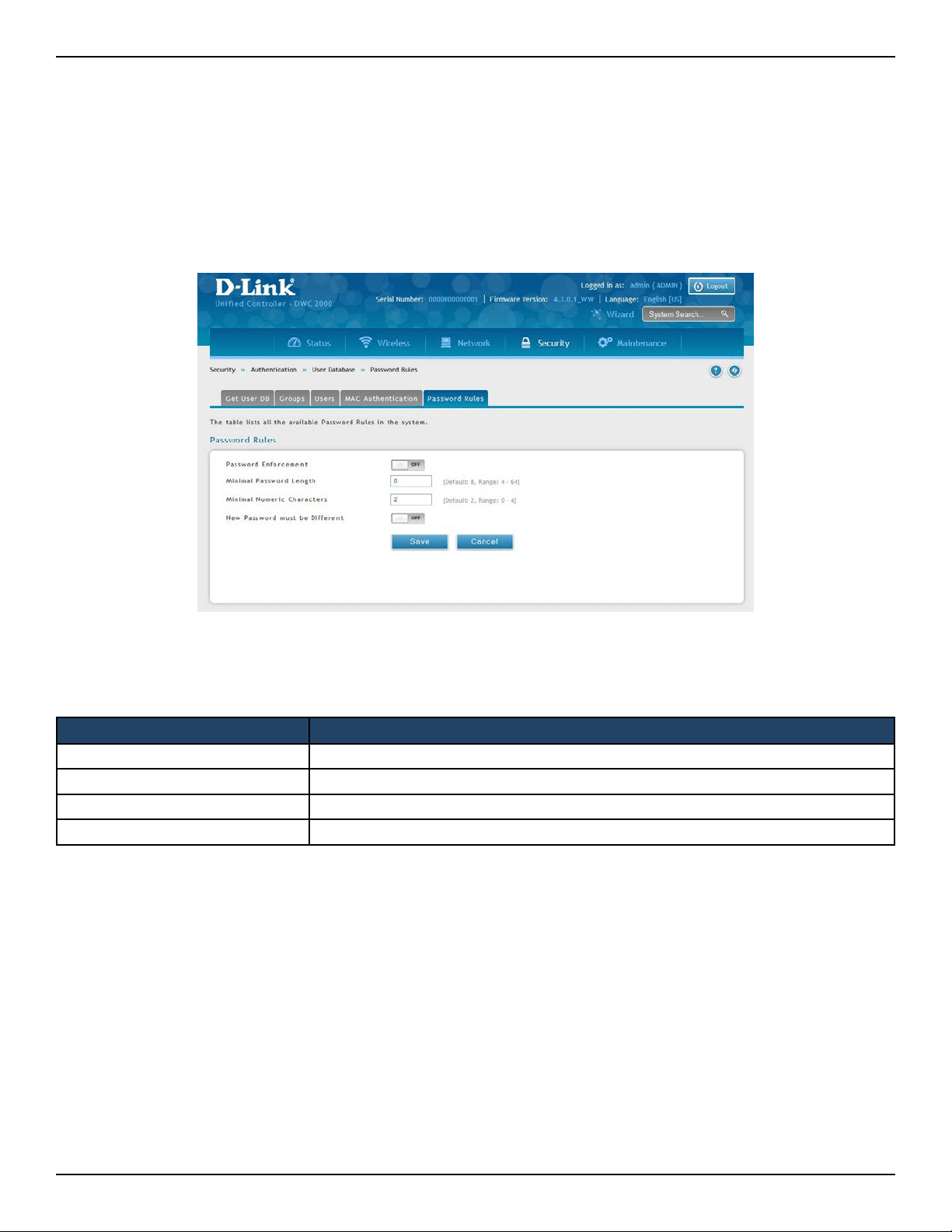
D-Link DWC-2000 User Manual 176
Section 6 - Securing Your Network
Path: Security > Authentication > User Database > Password Rules.
Rule the password length and characters to increase the security of Captive Portal user authentication.
1. Go to Security > Authentication > User Database > Password Rules.
Password Rules
Field Description
Password Enforcement Toggle on to turn on the following password rules.
Minimal Password Length Enter the minimum number of characters required.
Minimal Numeric Characters Enter the minimum number of numbers that users must use in their password.
New Password must be Dierent Your new password congured must be dierent than old password.
2. Complete the elds in the table below and click Save.
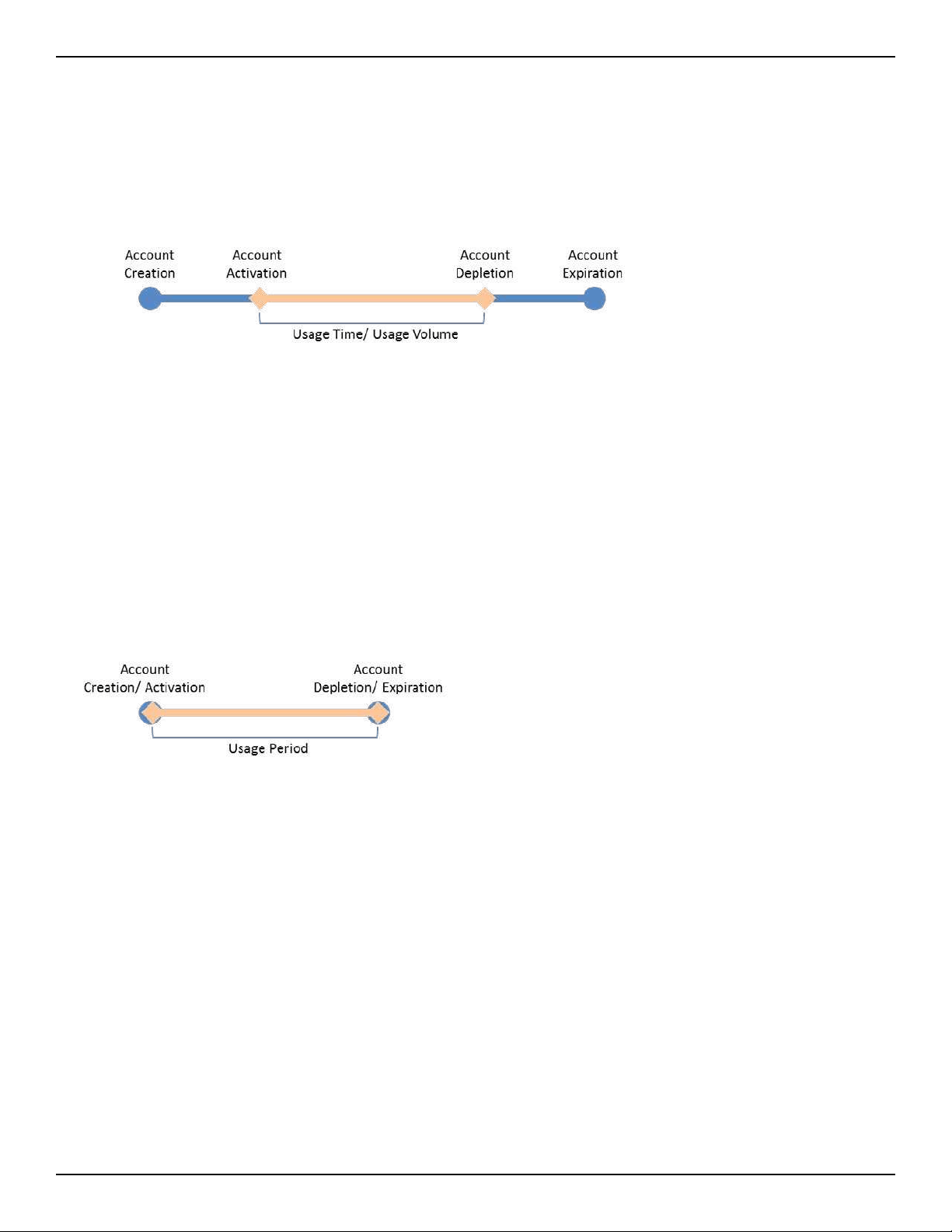
D-Link DWC-2000 User Manual 177
Section 6 - Securing Your Network
Guest Account Usage Management
Guest account is generated by the wireless controller. Set the relative billing proles to control guest internet
usage.
The billing prole settings include 4 milestones by timeline:
• Account Creation: the temporary account is generated by front desk account in the local database.
• Account Activation: the temporary account is activated and it is valid for use.
• Account Depletion: the temporary account is run out usage time or usage volume.
• Account Expiration: the temporary account is expired no matter usage time/ volume running out or not,
and it is removed from the local database.
The billing prole can be various depending on how to put the value in the settings. Below are ve most comment
types of billing proles:
1. The temporary account usage time is limited by duration. The account has the expiration time. The
account is valid while the account is created.
This billing prole is suitable for the scenario in Hotel. The temporary account is created and valid while cus-
tomers check-in.
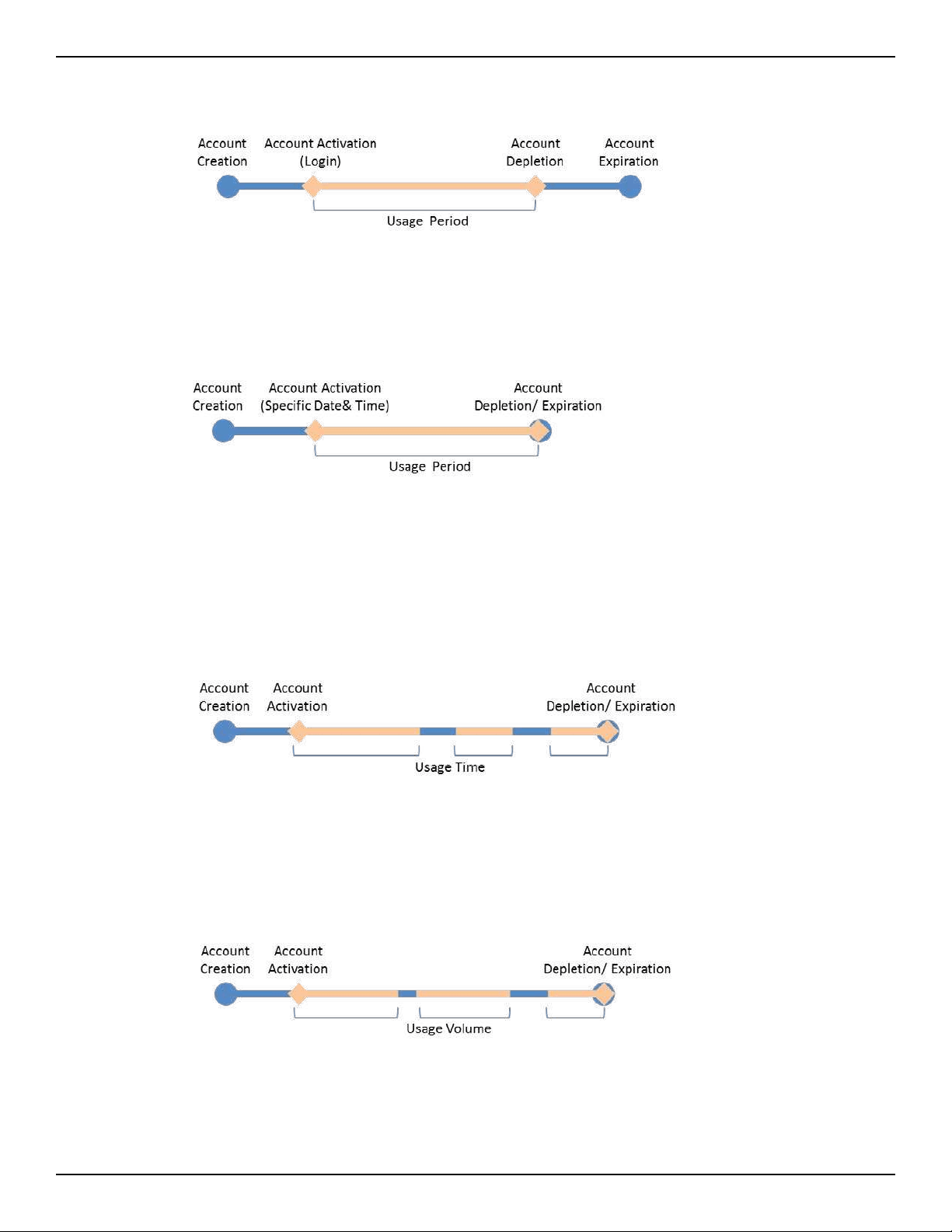
D-Link DWC-2000 User Manual 178
Section 6 - Securing Your Network
2. The temporary account usage time is limited by duration. The account has the expiration time. The
account is valid while the account rst logs in.
This billing prole is suitable for the scenario in Coee Shop, Airport, etc. The customer can use wireless internet
service for a period of time counting from rst time logs in.
3. The temporary account is valid with specic date and time. The account has the expiration time.
This billing prole is suitable for the scenario in Press Conference. The organizer generates accounts before the
event and delivery account information to participator in advanced if necessary. The temporary account would
be only valid from specic date and time.
4. The temporary account has limited time usage. The account doesn’t have the expiration time until the
usage is run out.
This billing prole is suitable for the scenario in Hotspot. The service provider charge the wireless service based
on usage time. This account allows multiple devices log in at the same time.
5. The temporary account has limited usage trac. The account doesn’t have the expiration time until
the usage is run out.
This billing prole is suitable for a Hotspot scenario. The service provider charge the wireless service based on
usage volume.
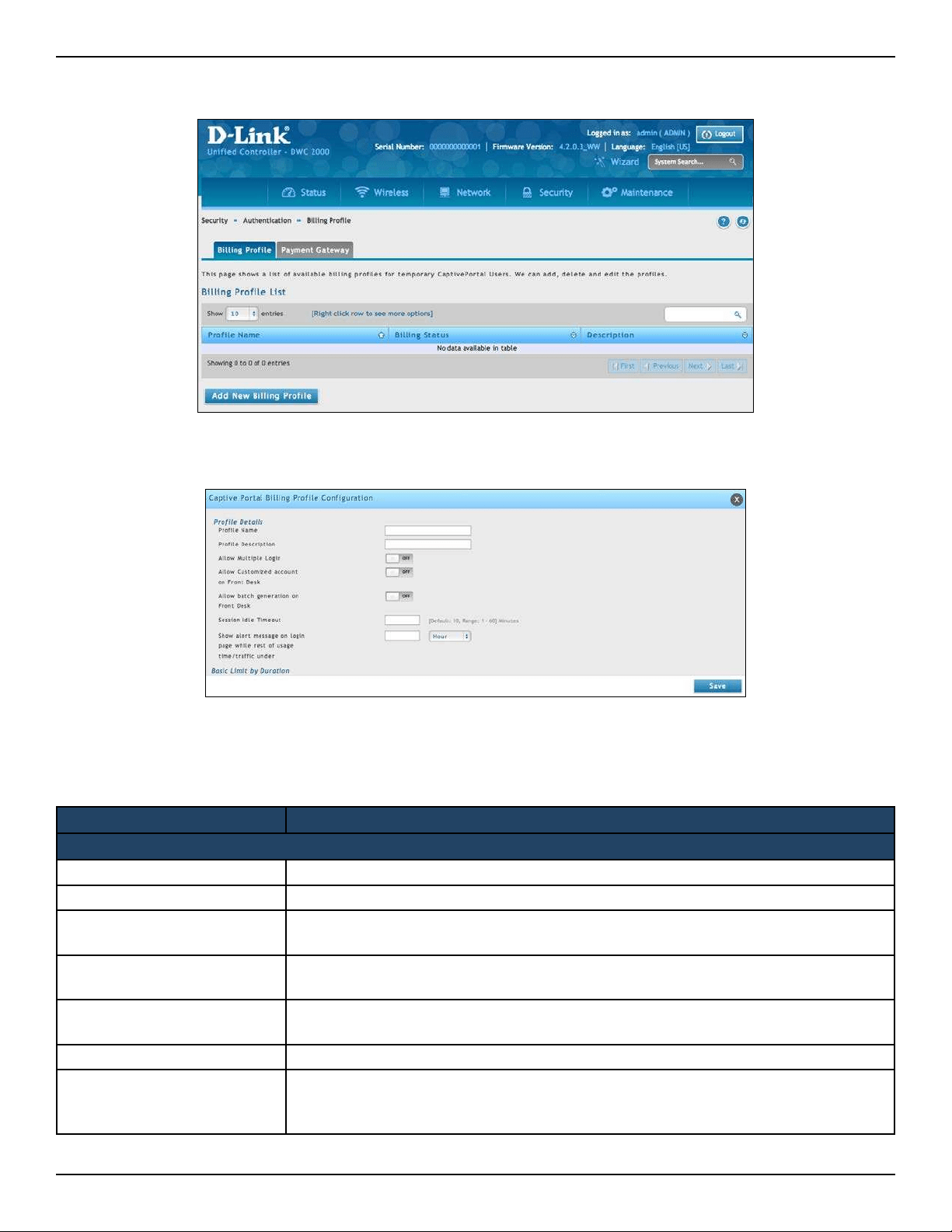
D-Link DWC-2000 User Manual 179
Section 6 - Securing Your Network
1. Click Security > Authentication > Billing Prole. The Billing Prole List page will be appear.
2. Click Add New Billing Prole.
3. Complete the elds in the table below and click Save.
Field Description
Prole Details
Prole Name Enter a name for this prole.
Prole Description Enter a description for this prole.
Allow Multiple Login
Checking this option will allow multiple users to use the same captive portal login
credentials created for this prole to login simultaneously.
Allow Customized Account on
Front Desk
Checking this option enables front desk user to give customized account name to the
captive portal users being created on this prole.
Allow Batch Generation on
Front Desk
Checking this option enables front desk user to generate a batch of temporary captive
portal users at one click.
Session Idle Timeout Idle timeout for CP users generated for this prole.
Show Alert Message on Login
Page while Rest of Usage
Time/ Trac Under
Enter a value here in Hours/Days/MB/GB to get an alert message when usage time/
trac left reaches the desired limit. By default if 0 is entered it implies no alert message
is required.
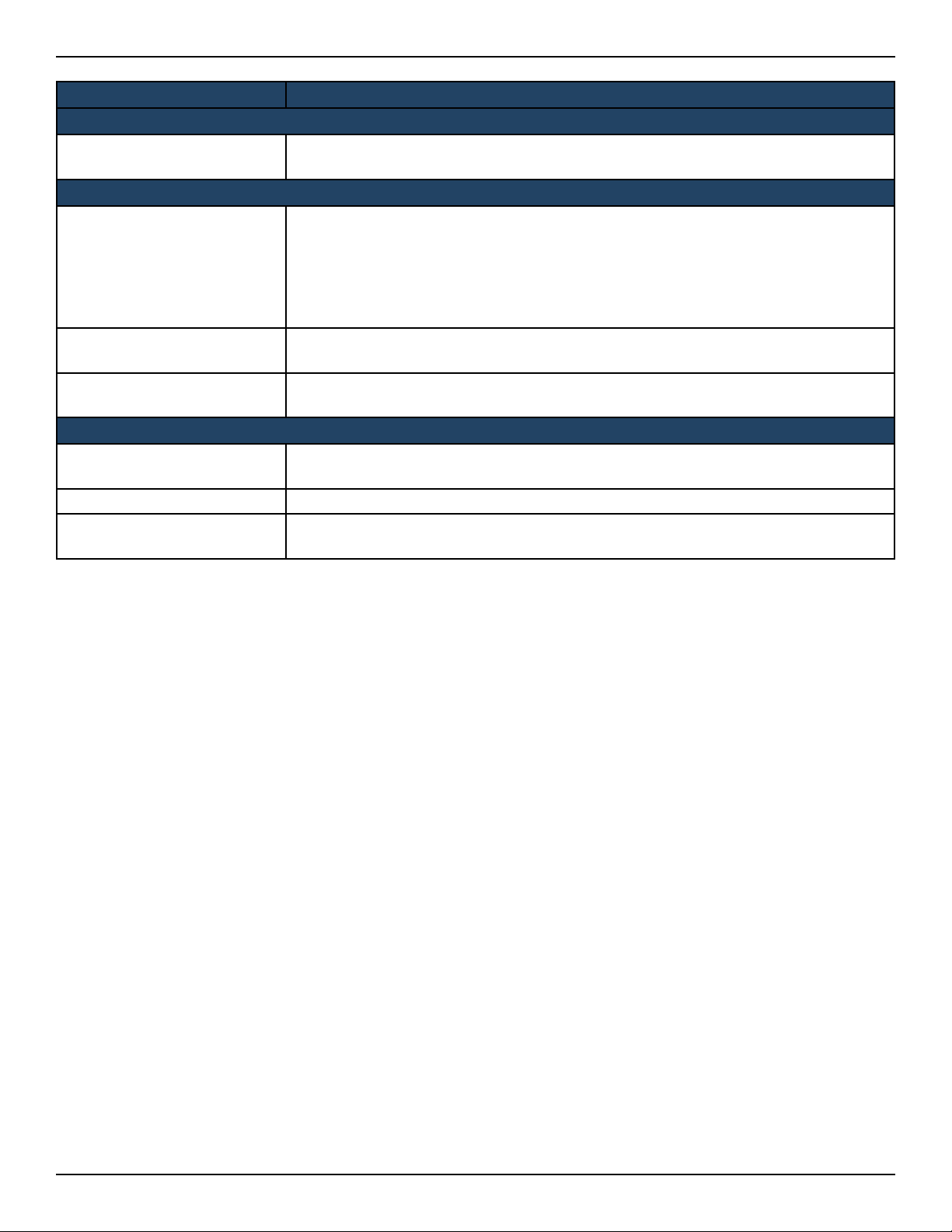
D-Link DWC-2000 User Manual 180
Section 6 - Securing Your Network
Field Description
Basic Limit by Duration
Valid with Begin and End
Time
Limitations on Duration basis
Basic Limit by Usage
Maximum Usage Time
When Basic Limit by Usage is toggled On, there will be three types of limiting users
access by duration:
• Start While Account Created: Activate account when user is created
• Start While Account Login: Activate account when user rst login using his
credentials.
• Begin From: Activate account from this date
Maximum Usage Trac
Maximum trac user can use before his account expires. Only inbound trac shall be
considered towards bandwidth usage.
Allow Front Desk to Modify
Usage
Checking this option enables front desk user to modify usage limits.
Unit Price
Set Price
Enable the option to set the price for this billing prole. The price will be shown on the
Captive Portal which is set the Captive Portal Type as Billing User
Price Enter a price.
Monetary Unit
Select the Monetary Unit from drop down menu. The available options are from the
Currency setting on Payment Gateway.
page 244
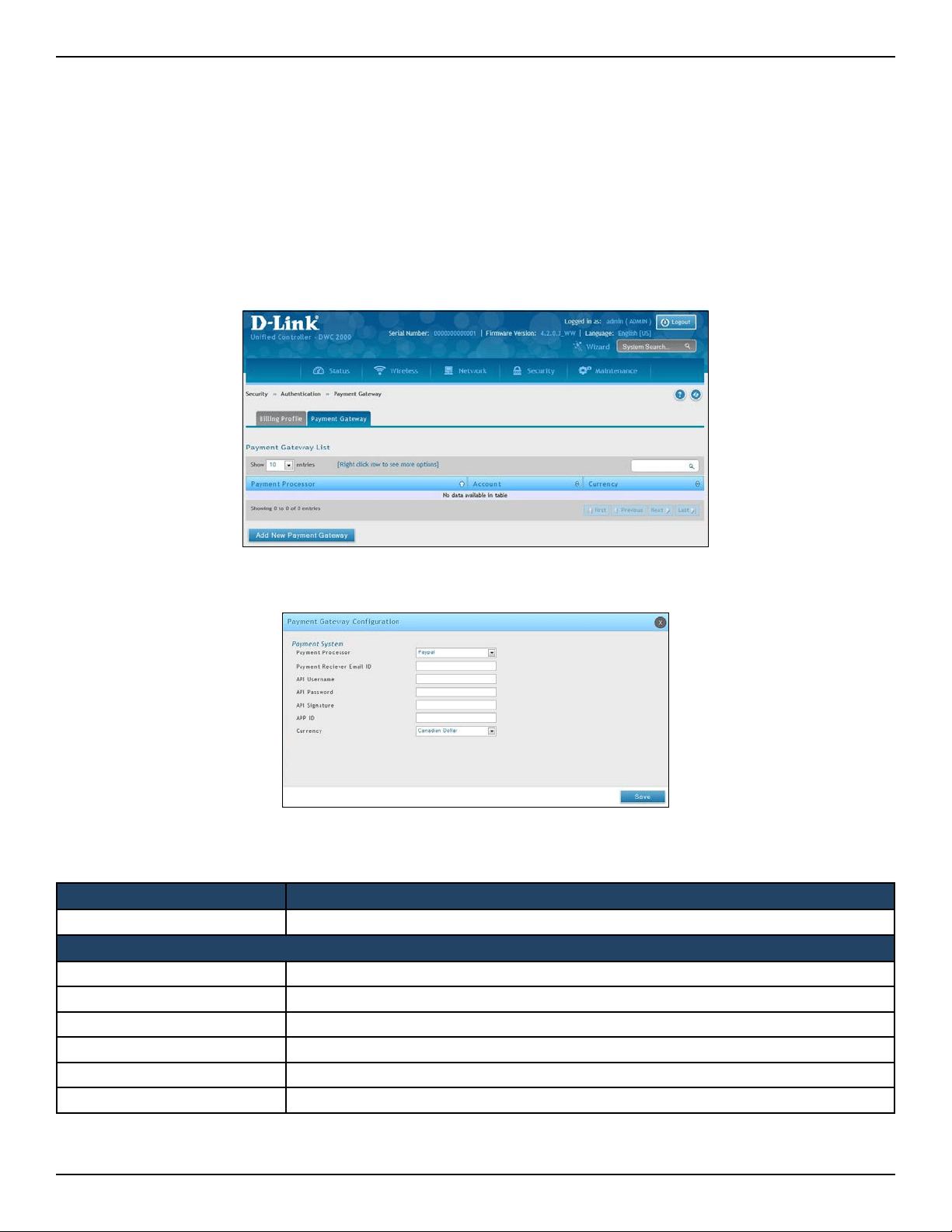
D-Link DWC-2000 User Manual 181
Section 6 - Securing Your Network
Payment Gateway
Path: Security > Authentication > Billing Prole > Payment Gateway
A payment gateway is an e-commerce application service provider service that authorizes payment and money
transfers to be made through the Internet. Congure payment gateway settings to allow user online purchasing
wireless service from Captive Portal.
1. Click Security > Authentication > Billing Prole > Payment Gateway tab.
2. Click Add New Payment Gateway.
3. Complete the elds in the table below and click Save.
Field Description
Payment Processor Select the payment agent.
Paypal
Payment Receiver Email ID The Paypal email account used for receiving payment.
API Username The API username of the Paypal Premier/Business/Website Payment Pro account.
API Password The API password of the Paypal account.
API Signature The API signature of the Paypal Premier/Business/Website Payment Pro account.
APP ID The APP ID which Paypal provided to you.
Currency The payment unit type.
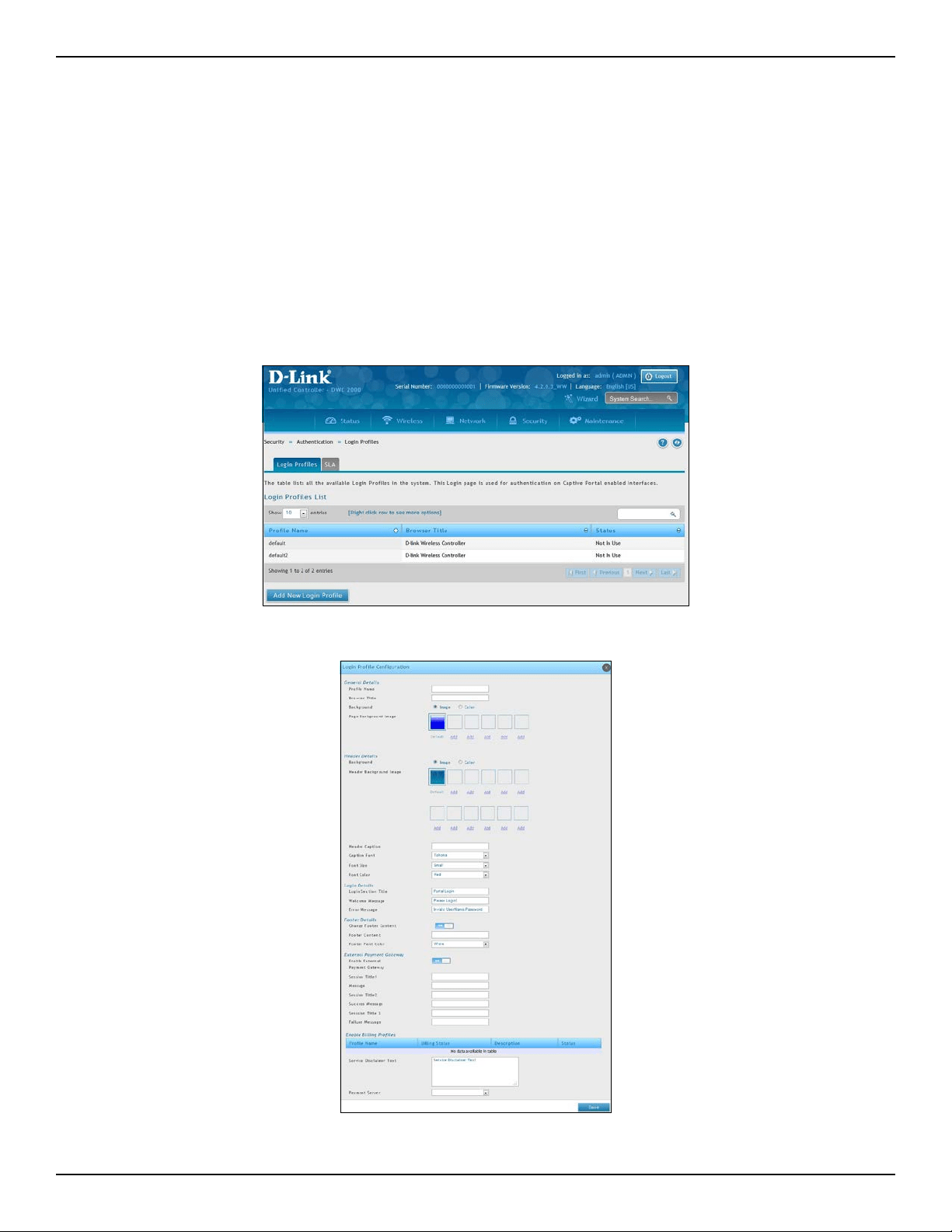
D-Link DWC-2000 User Manual 182
Section 6 - Securing Your Network
Login Proles
When a wireless client connects to the SSIDs of access point or VLANs, the user sees a login page. The Login Prole
and SLA page allows you to customize the appearance of that page with specic text and images. The wireless
controller supports multiple login and SLA pages. Associate login page or SLAs on SSIDs or VLANs separately.
Customize the Captive Portal Login Page
Path: Security> Authentication> Login Proles> Login Proles
1. Go to Security > Authentication > Login Proles > Login Proles tab.
3. Complete the elds in the table on the next page and click Save.
2. Click Add New Login Prole.
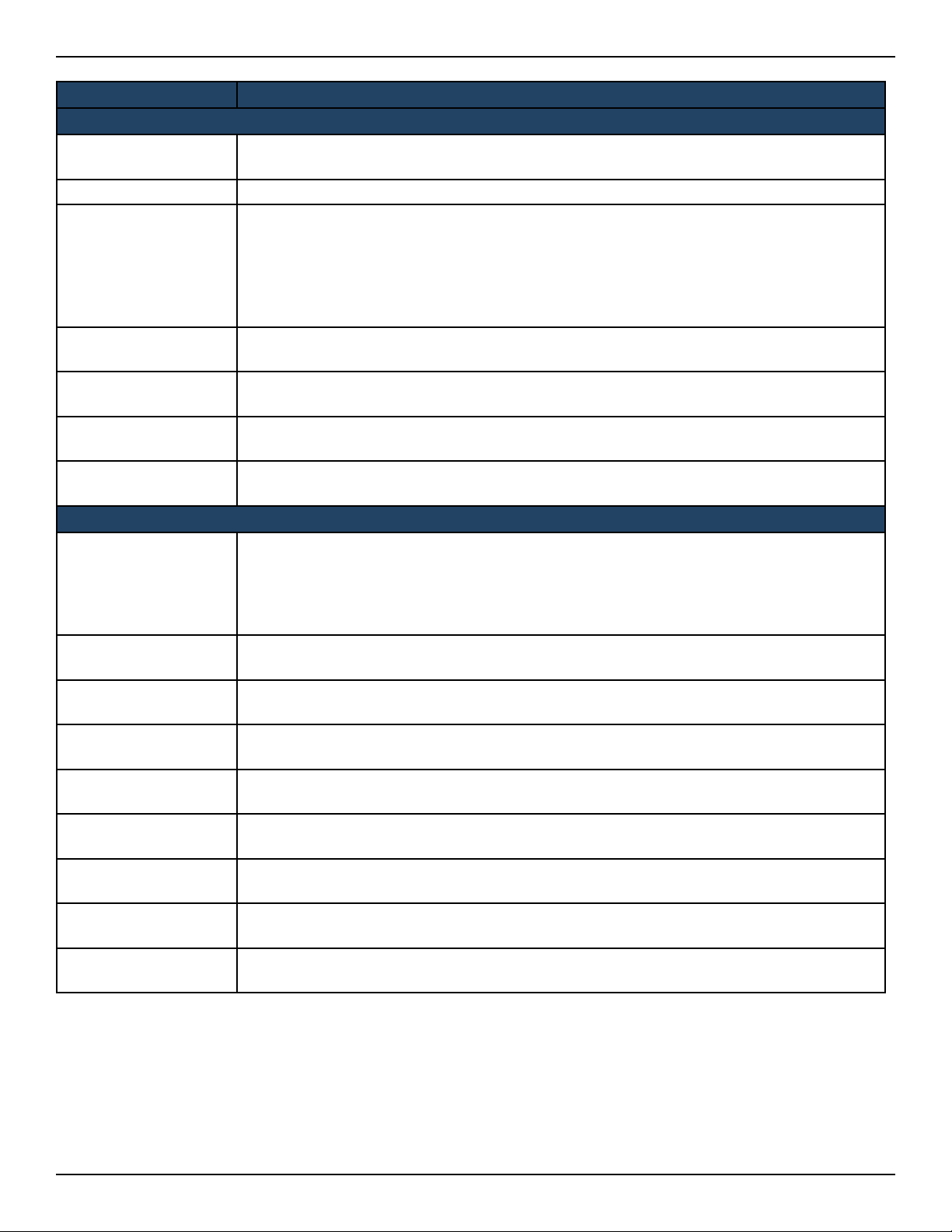
D-Link DWC-2000 User Manual 183
Section 6 - Securing Your Network
Field Description
General Details
Prole Name
Enter a name for this captive portal prole. The name should allow you to dierentiate this
captive prole from others you may set up.
Browser Title Enter the text that will appear in the title of the browser during the captive portal session.
Background
Select whether the login page displayed during the captive portal session will show an image
or color. Choices are:
• Image = displays an image as the background on the page. Use the Page Background
Image eld to select a background image.
• Color = sets the background color on the page. Select the color from the drop-down
menu
Page Background
Image
If you set Background to Image, upload the image le by clicking Add > Browse. Select an
image, click Open and then click the Upload button. The maximum size of the image is 100 kb.
Page Background
Upload
Choose the le you want to upload.
Page Background
Color
If you set Background to Color, select the background color of the page that will appear
during the captive portal session from the drop-down menu.
Custom Color If you choose Custom on Page Background Color, enter the HTML color code.
Header Details
Background
Select whether the login page displayed during the captive portal session will show an image
or color. Choices are:
• Image = show image on the page. Use the Header Background Color eld to select a
background color. The maximum size of the image is 100 kb.
• Color = show background color on the page. Use the radio buttons to select an image.
Header Background
Image
If you set Background to Image, upload the image le by clicking Add > Browse. Select an
image, click Open and then click the Upload button. The maximum size of the image is 100 kb.
Header Background
Upload
Choose the le you want to upload.
Header Background
Color
If you set Background to Color, select the header color from the drop-down menu.
Custom Color
If you choose Custom on Page Background Color, you can choose particular color by lling
in the HTML color code.
Header Caption Enter the text that appears in the header of the login page during the captive portal session.
Caption Font Select the font for the header text.
Font Size Select the font size for the header text.
Font Color Select the font color for the header text.
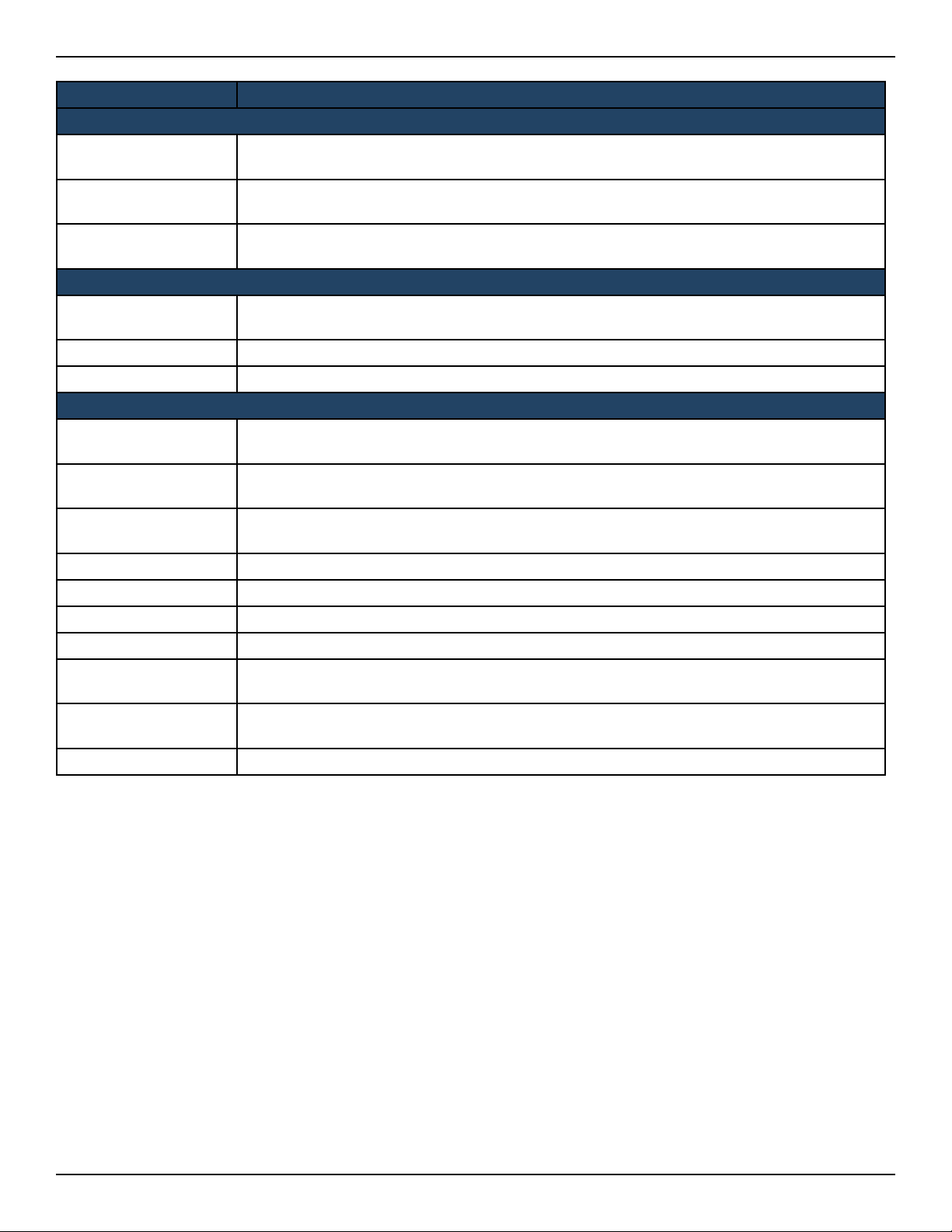
D-Link DWC-2000 User Manual 184
Section 6 - Securing Your Network
Field Description
Login Details
Login Section Title
Enter the text that appears in the title of the login box when the user logs in to the captive
portal session. This eld is optional.
Welcome Message
Enter the welcome message that appears when users log in to the captive session successfully.
This eld is optional.
Error Message
Enter the error message that appears when users fail to log in to the captive session
successfully. This eld is optional.
Footer Details
Change Footer
Content
Enables or disables changes to the footer content on the login page.
Footer Content If Change Footer Content is checked, enter the text that appears in the footer.
Footer Font Color If Change Footer Content is checked, select the color of the text that appears in the footer.
External Payment Gateway
Enable External
Payment Gateway
Enables or disables external payment gateway and online wireless service purchasing from
on the login page.
Session Title 1
Enter the text that appears in the title of the online purchasing login box when the user logs
in to the captive portal session.
Message
Enter the text appears in the online purchasing login box when the user logs in to the captive
portal session.
Session Title 2 Enter the text that appears in the title of the message box while online purchasing is complete.
Success Message Enter the text that appears in the message box while online purchasing is complete.
Session Title 3 Enter the text that appears in the title of the message box while online purchasing is fail.
Failure Message Enter the text that appears in the message box while online purchasing is fail.
Enable Billing Prole
Select the billing prole which will be shown on the login page. The table only listed the
billing proles which are set Unit Price. Enable the billing prole by switch ON on STATUS.
Service Disclaimer Text
Enter the service disclaimer text which is shown before user select and purchase wireless
service.
Payment Server Select the payment received account and its payment agent.
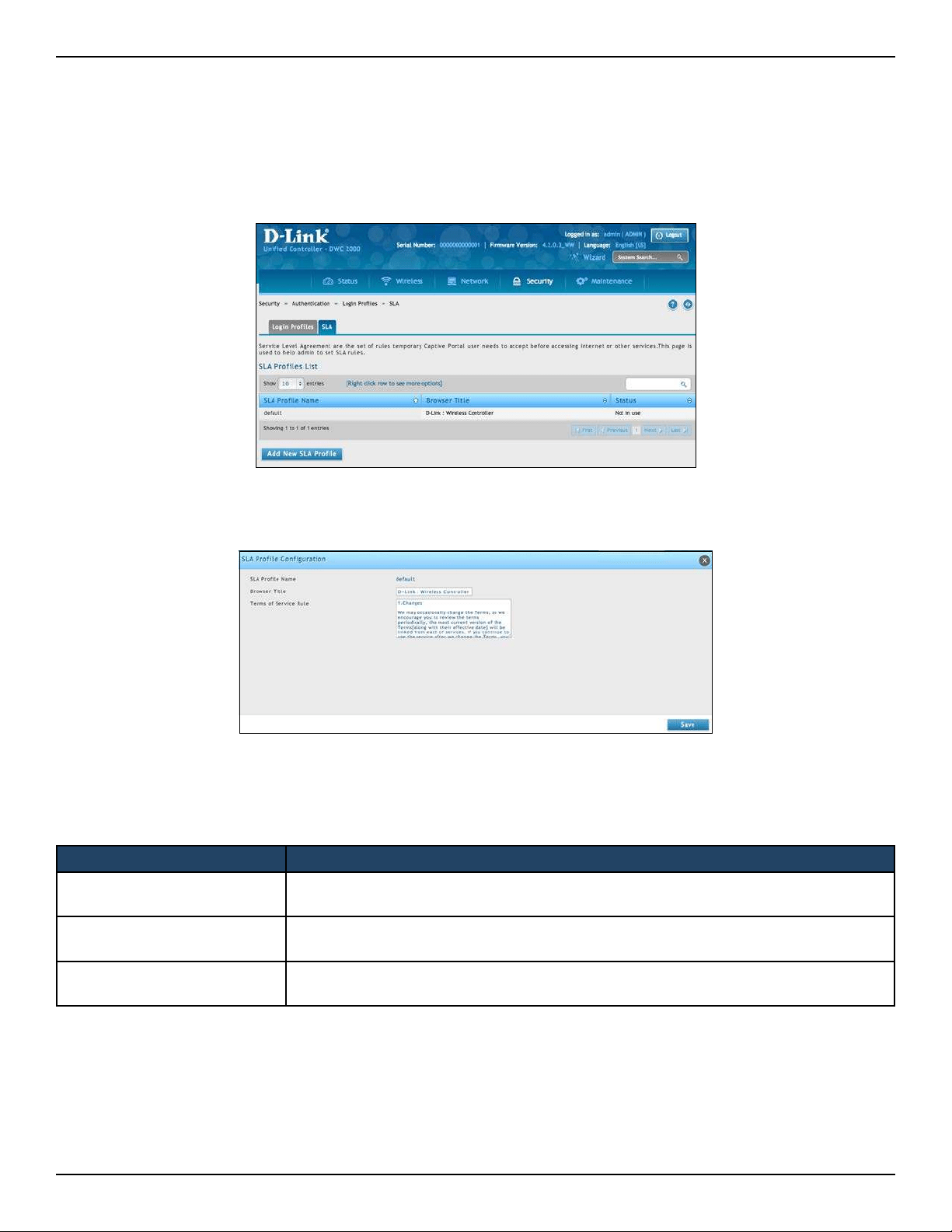
D-Link DWC-2000 User Manual 185
Section 6 - Securing Your Network
Customize the SLA of the Captive Portal
Path: Security > Authentication > Login Proles > SLA
1. Go to Security > Authentication > Login Proles > SLA tab.
2. Click Add New SLA Prole.
3. Complete the elds in the table below and click Save
Field Description
SLA Prole Name
Enter a name for this SLA prole. The name should allow you to dierentiate this SLA
from others you may set up.
Browser Title
Enter the text that will appear in the title of the browser during the captive portal
session.
Term of Service Rule
Shows the set of rules on Captive Portal which is set for temporary and SLA type users.
The user needs to accept before accessing internet.
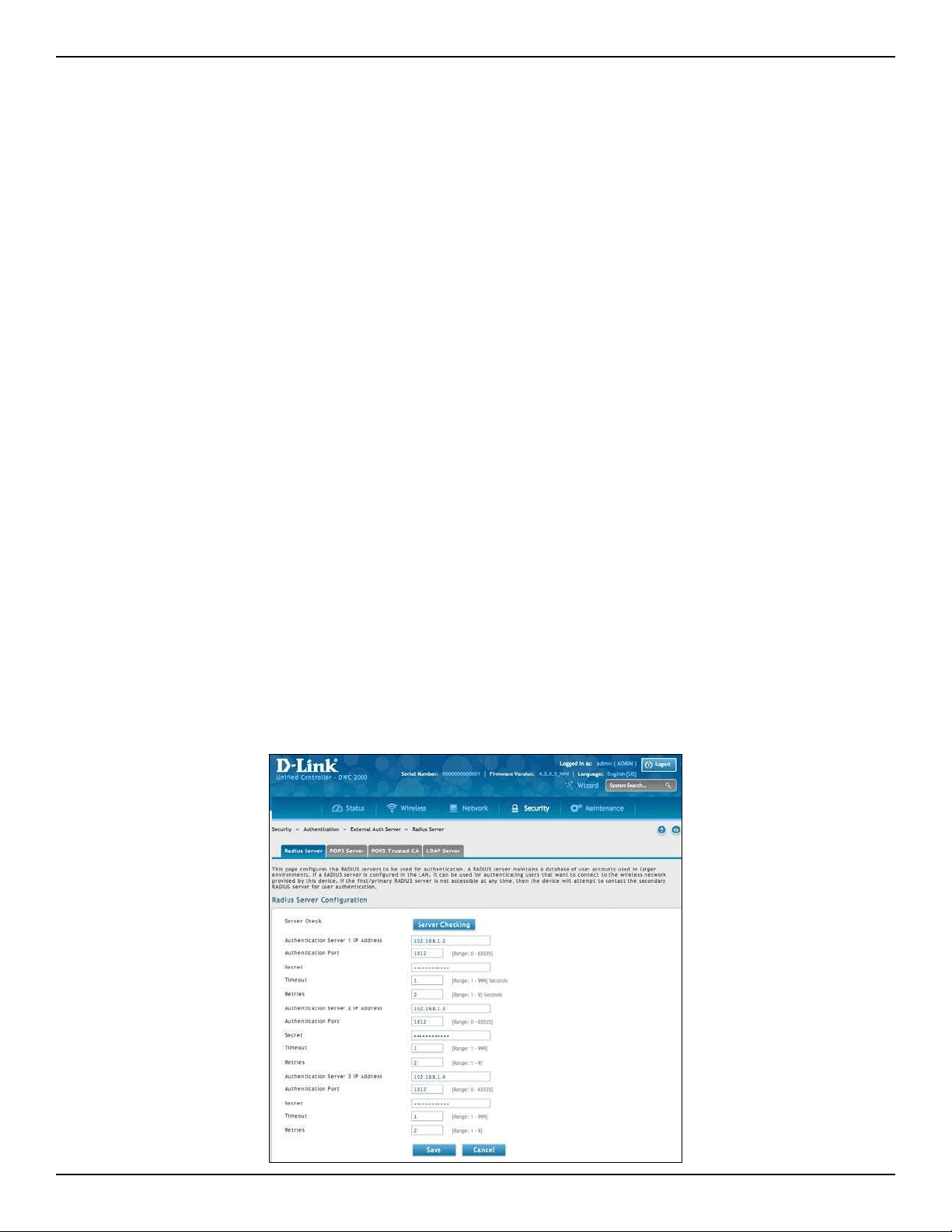
D-Link DWC-2000 User Manual 186
Section 6 - Securing Your Network
External Authentication
The local user database present in the controller itself is typically used for granting management access for the
GUI or CLI. External authentication servers are typically more secure, and can be used for allowing wireless AP
connections, authenticating IPsec endpoints, and even allowing access via a Captive Portal on the VLAN. This
section describes the available authentication servers on the controller, and also the conguration requirements.
In all cases, the “Server Checking” button is used to verify connectivity to the congured server(s).
Congure RADIUS Server
Path: Security > Authentication > External Auth Server > RADIUS Server
Enterprise Mode for wireless security uses a RADIUS Server for WPA and/or WPA2 security. A RADIUS server must
be congured and accessible by the controller to authenticate wireless client connections to an AP enabled with
a prole that uses RADIUS authentication.
• The Authentication IP Address is required to identify the server. A secondary RADIUS server provides
redundancy in the event that the primary server cannot be reached by the controller when needed.
• Authentication Port - The port for the RADIUS server connection
• Secret - Enter the shared secret that allows this controller to log into the specied RADIUS server(s). This
key must match the shared secret on the RADIUS Server.
• The Timeout and Retries elds are used to either move to a secondary server if the primary cannot
be reached, or to give up the RADIUS authentication attempt if communication with the server is not
possible.
To congure RADIUS Server:
1. Go to Security > Authentication > External Auth Server > RADIUS Server tab.
D-Link DWC-2000 User Manual 187
Section 6 - Securing Your Network
2. Complete the RADIUS server information from the table below and click Save.
Field Description
Authentication Server IP address of the RADIUS authentication server.
Authentication Port RADIUS authentication server port to send RADIUS messages.
Secret
Secret key that allows the device to log into the congured RADIUS server. It must
match the secret on RADIUS server.
Timeout
Set the amount of time in seconds, the controller should wait for a response from the
RADIUS server.
Retries
This determines the number of tries the controller will make to the RADIUS server
before giving up.
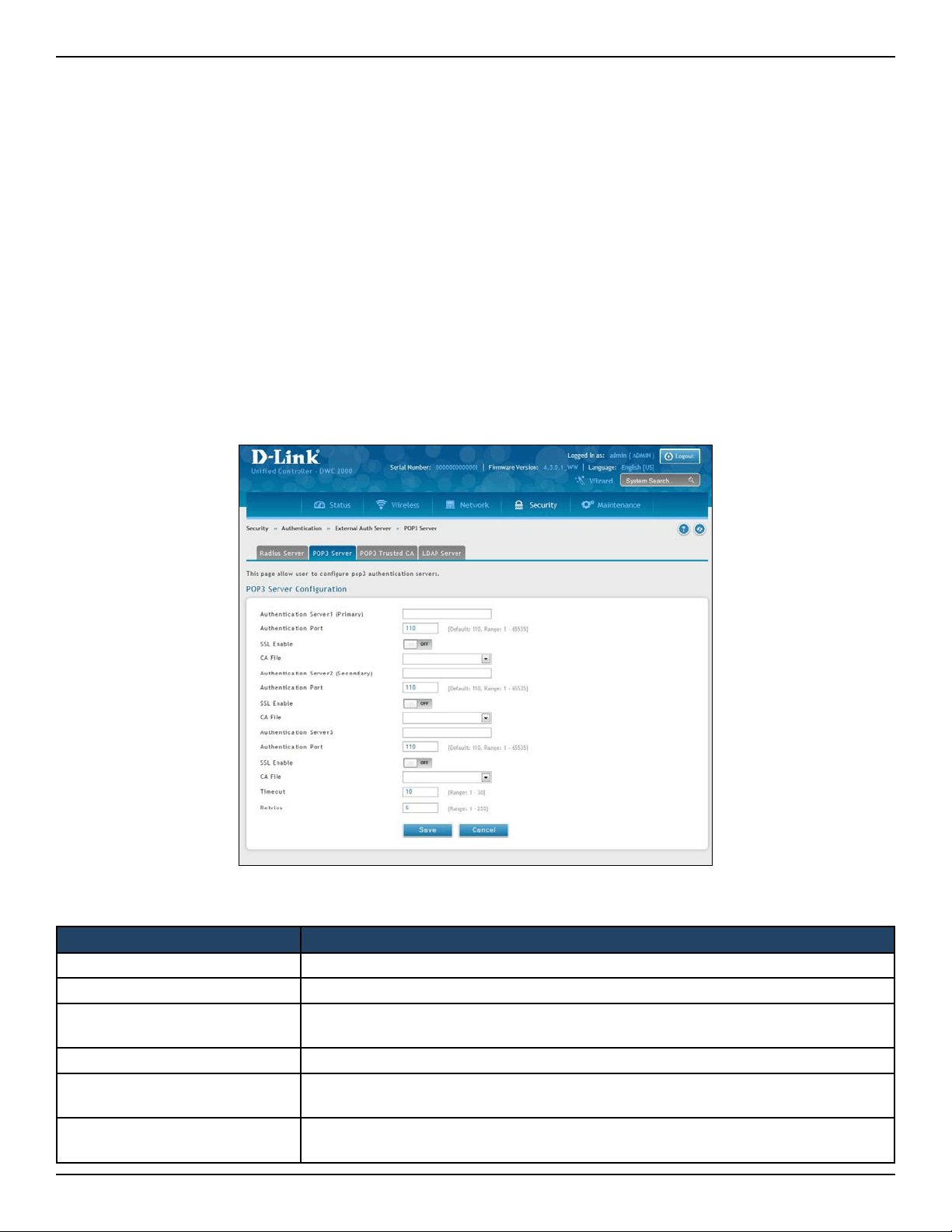
D-Link DWC-2000 User Manual 188
Section 6 - Securing Your Network
Congure POP3 Server
Path: Security > Authentication > External Auth Server > POP3 Server
POP3 is an application layer protocol most commonly used for e-mail over a TCP/IP connection. The authentication
server can be used with SSL encryption over port 995 to send encrypted trac to the POP3 server. The POP3
server’s certicate is veried by a user-uploaded CA certicate. If SSL encryption is not used, port 110 will be used
for the POP3 authentication trac.
The wireless controller acts only as a POP3 client to authenticate a user by contacting an external POP3 server.
This authentication option is available for IPsec, PPTP/L2TP Server and Captive Portal users. Note that POP3 for
PPTP / L2TP servers is supported only with PAP and not with CHAP / MSCHAP / MSCHAPv2 encryption.
To congure POP3 Server:
1. Go to Security > Authentication > External Auth Server > POP3 Server tab.
2. Complete the elds in the table below and click Save.
Field Description
Authentication Server IP address of the POP3 authentication server.
Authentication Port RADIUS authentication server port to send POP3 messages.
SSL Enable
Enable SSL support for POP3. If this option is enabled, it is mandatory to select a
certicate authority for it.
CA File Certicate Authority to verify POP3 server’s certicate.
Timeout
Set the amount of time in seconds, the controller should wait for a response from
the POP3 server.
Retries
This determines the number of tries the controller will make to the POP3 server
before giving up.
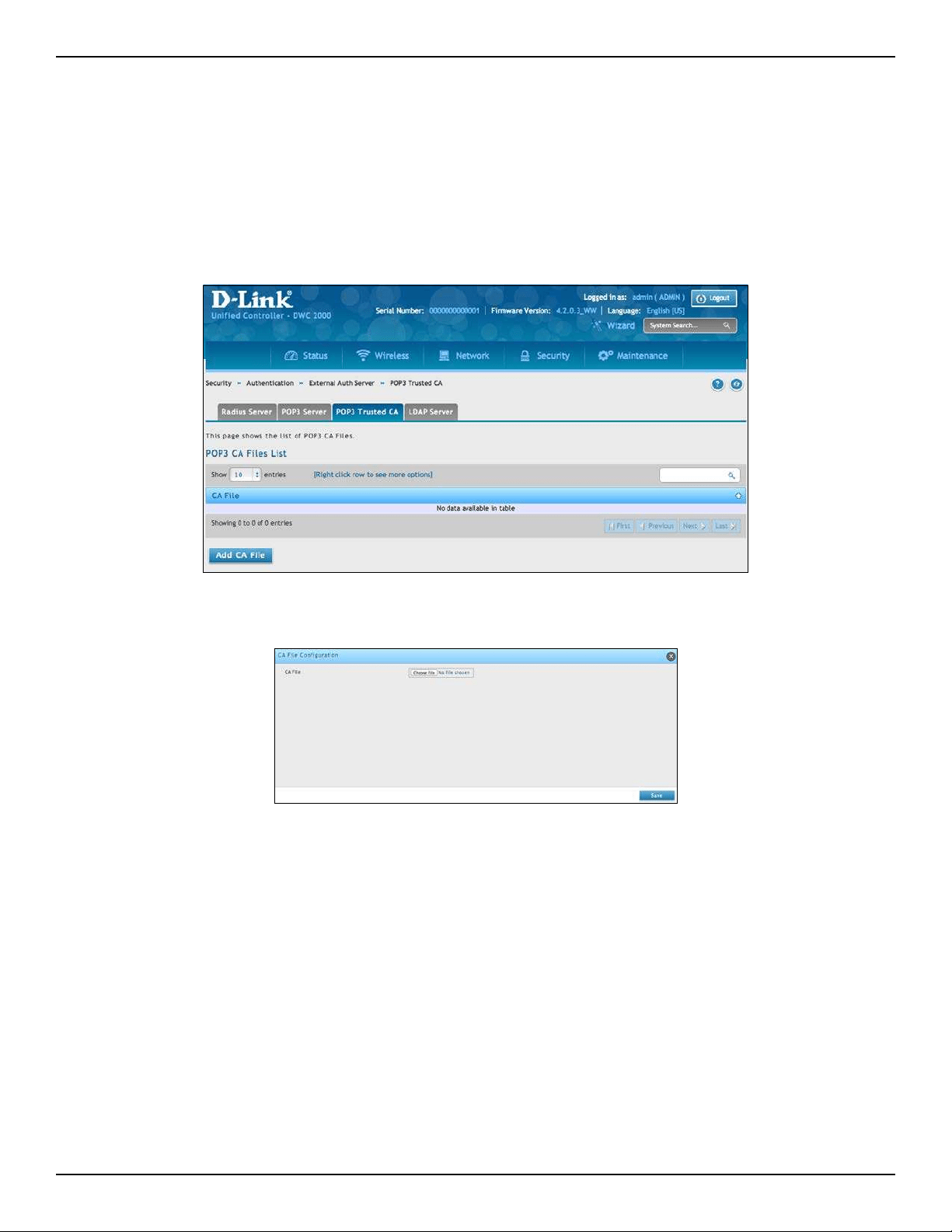
D-Link DWC-2000 User Manual 189
Section 6 - Securing Your Network
Congure POP3 Trusted CA
Path: Security > Authentication > External Auth Server > POP3 Trusted CA
A CA le is used as part of the POP3 negotiation to verify the congured authentication server identity. Each
of the three congured servers can have a unique CA used for authentication.
1. Go to Security > Authentication > External Auth Server > POP3 Trusted CA tab.
2. Add the CA le by click Add CA File.
3. Click Choose File and browse to the CA le. Once selected, click Save.
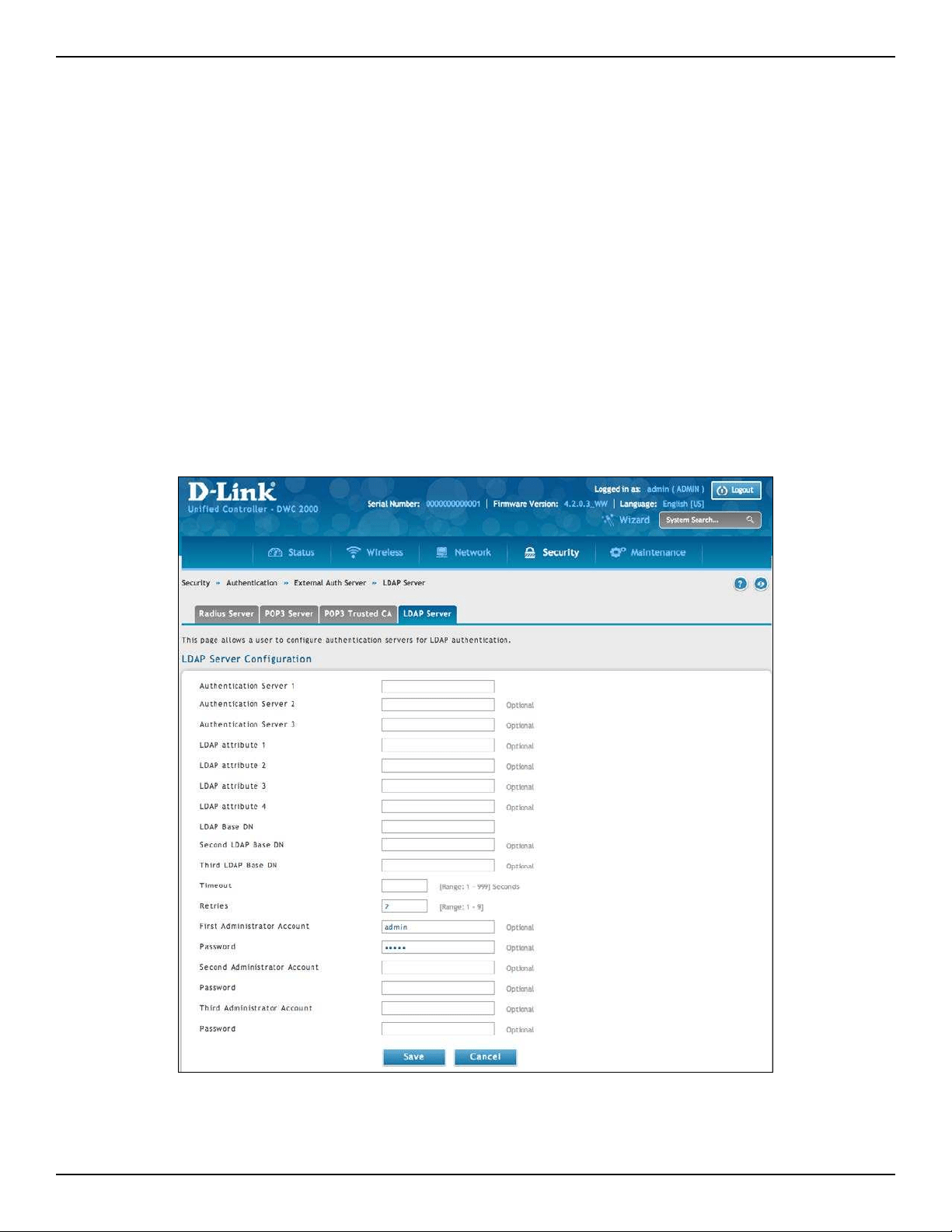
D-Link DWC-2000 User Manual 190
Section 6 - Securing Your Network
Congure LDAP Server
Path: Security > Authentication > External Auth Server > LDAP Server
The LDAP authentication method uses LDAP to exchange authentication credentials between the controller and
external server. The LDAP server maintains a large database of users in a directory structure, so users with the
same username but belonging to dierent groups can be authenticated since the user information is stored in
a hierarchal manner. Also of note is that conguring a LDAP server on Windows or Linux servers is considerably
less complex than setting up NT Domain or Active Directory servers for user authentication.
The details congured on the controller will be passed for authenticating the controller and its hosts. The LDAP
attributes, domain name (DN), and in some cases the administrator account & password are key elds in allowing
the LDAP server to authenticate the controller.
To congure LDAP Server:
1. Go to Security > Authentication > External Auth Server > LDAP Server tab.
2. Complete the elds in the table on the next page and click Save.
D-Link DWC-2000 User Manual 191
Section 6 - Securing Your Network
Field Description
Authentication Server (1-3) IP address of the LDAP authentication server.
LDAP Attribute
These are attributes related to LDAP users congured in LDAP server. These may
include attributes like SAM account name, Associated domain name etc. These can
be used to distinguish between dierent users having same user name.
LDAP Base DN
LDAP authentication requires the base domain name; contact your administrator for
the Base DN to use LDAP authentication for this domain.
Timeout
Set the amount of time in seconds, the controller should wait for a response from the
LDAP server.
Retries
This determines the number of tries the controller will make to the LDAP server
before giving up.
Administrator Account
Admin account in LDAP server that will be used when LDAP authentication is required
for PPTP/L2TP connection.
Password Enter the admin password.
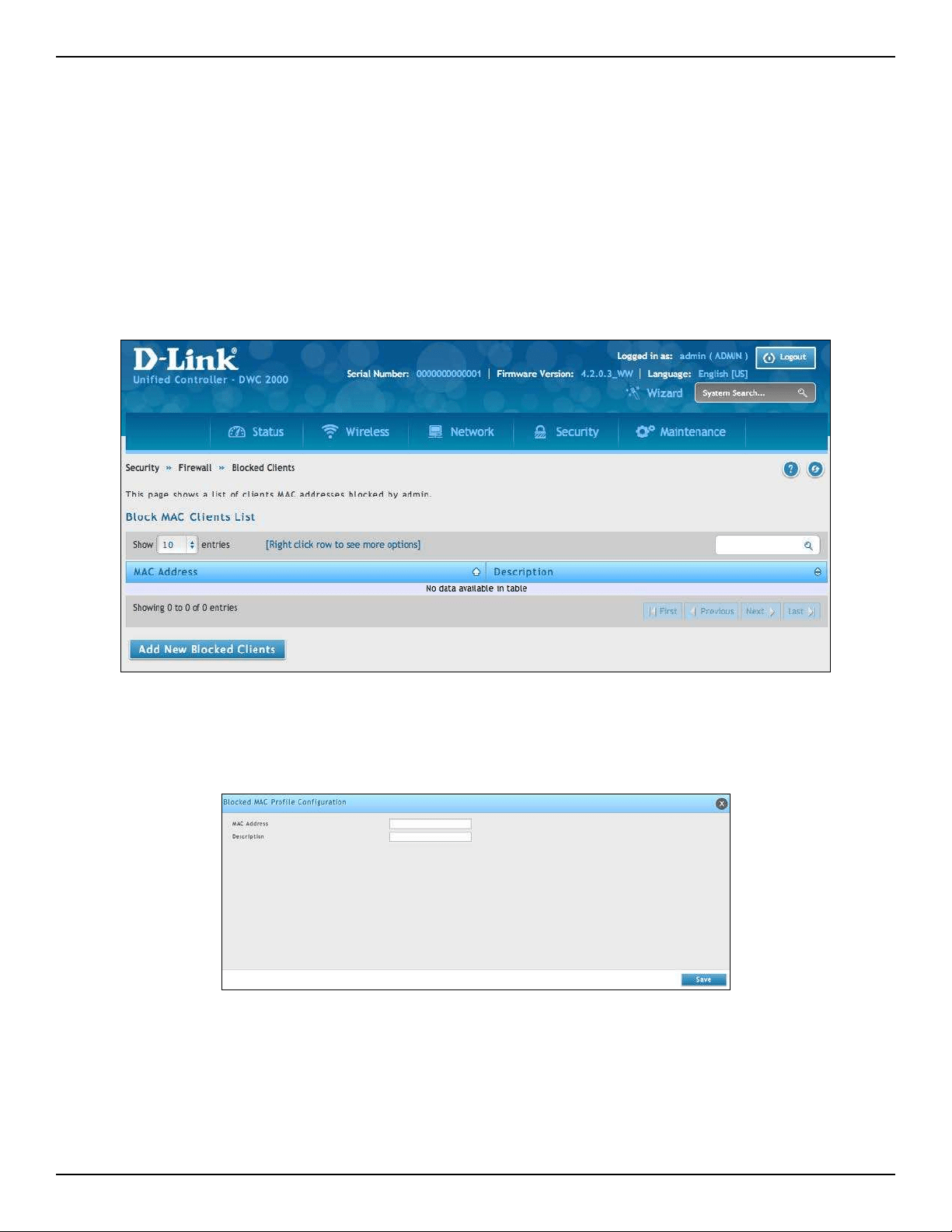
D-Link DWC-2000 User Manual 192
Section 6 - Securing Your Network
Blocked Clients
Path: Security > Firewall > Blocked Clients
If trac passes through the DCS-2000 directly, the controller will block the trac from blocked clients (MAC
address).
To add clients to block:
1. Go to Security > Firewall > Blocked Clients.
2. Click Add New Blocked Clients. Enter the client’s MAC address and a description.
3. Click Save.
D-Link DWC-2000 User Manual 193
Section 7 - Viewing Status and Statistics
Status and Statistics
This chapter describes the following pages, which display wireless controller and access point status information
and statistics.
Path Description Page
Status > Dashboard
Shows device status, wireless/ wired trac statistic, tunnels, associated
client, and utilization.
195
Status > Dashboard > Trac
Overview
Shows information about network services trac on the access point’s
wired and wireless interfaces.
197
Status > System Information >
Device
Summarizes the wireless controller conguration settings. 198
Status > System Information > All
Logs
Shows log messages of controller activities (Current, WLAN, and LAN) 274
Status > System Information > USB
Status
Shows information about the USB devices connected to the USB port(s) 199
Status > Network Information >
DHCP Clients > LAN Leased Clients
Shows the list of DHCP clients connected to the LAN DHCP Server and to
whom DHCP Server has given leases.
200
Status > Network Information >
DHCP Clients >IPv6 Leased Clients
Shows the list of DHCPv6 clients connected to the LAN DHCPv6 Server
and to whom DHCPv6 Server has given leases.
200
Status > Network Information >
Captive Portal Session
Shows the runtime authentication sessions that are active on the controller. 201
Status > Network Information >
Interfaces
Shows detailed transmit and receive statistics for each physical port. 202
Status> Network Information>
Link Aggregation
Shows the link aggregation status. 204
Status > Wireless Information >
Controller Status
Shows status and priority about the Controller. 205
Status > Wireless Information
> Controller Status > Controller
Associated Clients
Shows information about the controller that manages the access point to
which the client is associated.
206
Status > Wireless Information >
Controller Status > Distributed
Tunnel
Shows information about all the distributed tunnel clients. 207
Status > Wireless Information >
Controller Status > Peer Controller
Receive Status
Shows information about the conguration a controller receives from a
peer.
208
Status > Wireless Information >
Controller Status > Peer Controller
Sent Status
Shows information about the conguration a controller sends to a peer. 210
Status> Wireless Information>
Access Point > Global Status
This page shows status and statistics about the Controller and all of the
objects associated with it.
211
D-Link DWC-2000 User Manual 194
Section 7 - Viewing Status and Statistics
Path Description Page
Status> Wireless Information> Access
Point > > All APs
Shows summary information about managed, failed, and rogue
access points the wireless controller has discovered or detected.
213
Status > Wireless Information > Access
Point > Managed
Shows details about the managed access points. 214
Status > Wireless Information > Access
Point > Peer Managed
Shows information about the access points that each peer controller
in the cluster manages.
216
Status > Wireless Information > Access
Point > Authentication Failed
Shows information about access points that failed to establish
communication with the wireless controller.
217
Status > Wireless Information > Access
Point > RF Scan
Shows information about other access points and wireless clients
that the managed AP has detected.
218
Status > Wireless Information > Access
Point > De-Authentication Attacks
Shows information about rogue APs that the Cluster Controller has
attacked by using the de-authentication attack feature.
219
Status > Wireless Information > Access
Point > Hardware Capability
Shows information about radio hardware and IEEE mode supported
by access points, along with software images available for
downloading to access points.
221
Status > Wireless Information >
Associated Clients > Global Status
Shows statistics about all the clients’ trac while the clients are
associated with managed access points as well as throughout the
roaming session.
223
Status > Wireless Information >
Associated Clients > Associated Clients
Shows information about all the clients connected through managed
access points.
224
Status > Wireless Information >
Associated Clients > Ad Hoc Clients
Shows information about all ad-hoc clients. 228
Status > Wireless Information >
Associated Clients > Detected Clients
Shows information about clients that have authenticated with
an access point, and clients that disassociate and are no longer
connected to the system.
229
Status > Wireless Information >
Clustering
Shows information about other wireless controllers in the network. 231
Status > Wireless Information> WDS
Groups Status
Shows the summary information about congured WDS links 232
Status> Wireless Information> WDS
Group Status > WDS Group AP Status
Shows WDS group AP status congured APs and links in the WDS
Group.
233
Status > Wireless Information> WDS
Group Status> WDS AP Status
Shows the status of congured APs and links in the WDS Group. 235
Status > Wireless Information> WDS
Group Status> WDS Link Status
Shows WDS links in the WDS Group. 236
Status > Wireless Information> WDS
Group Status> WDS Link Statistics
Shows the statistic WDS links in the WDS Group. 237
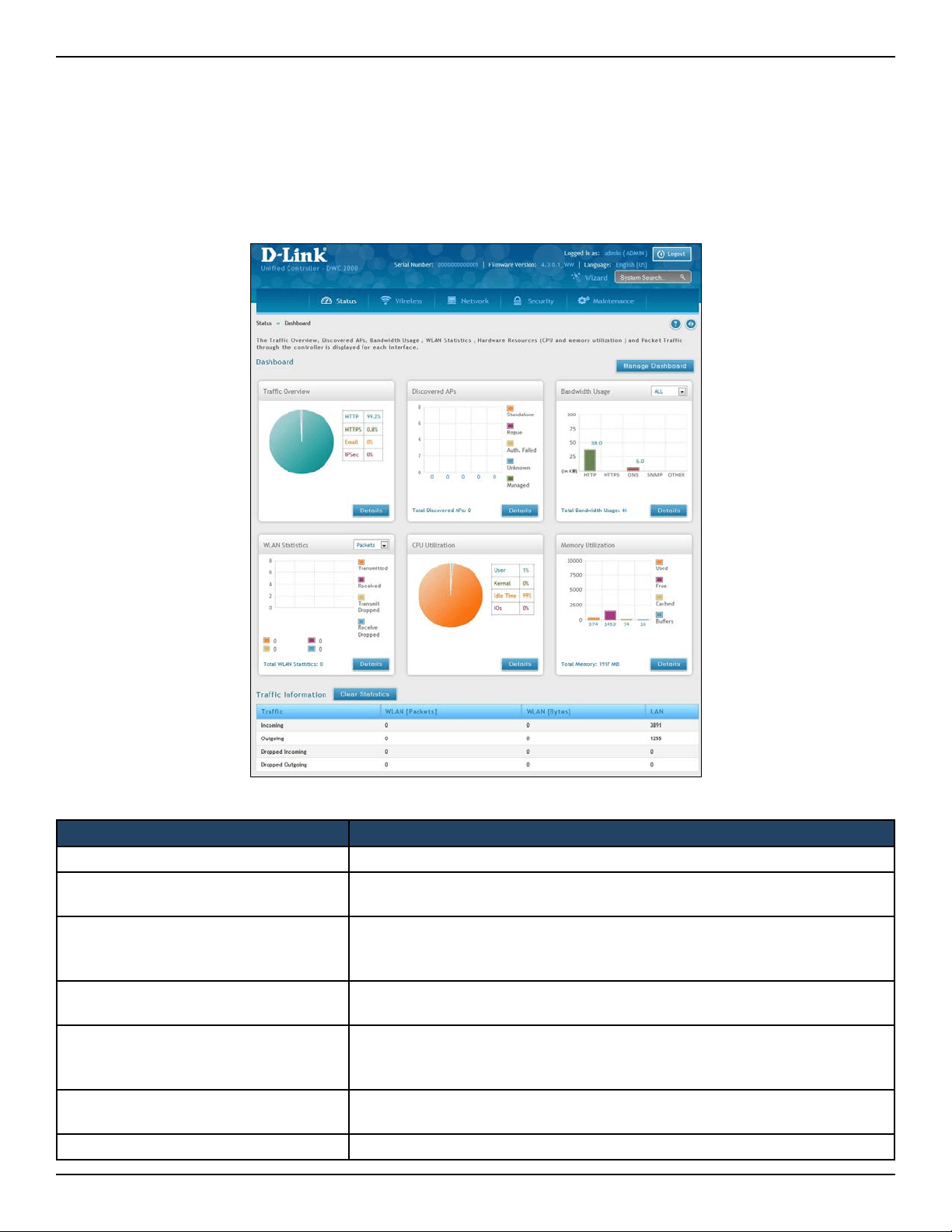
D-Link DWC-2000 User Manual 195
Section 7 - Viewing Status and Statistics
Viewing Statistic and Utilization
Path: Status > Dashboard
The wireless controller provides a dashboard that displays about the resources the system is using . The dashboard
page is organized into the following sections:
Section Description
Trac Overview Displays a chart of trac overview by service for each interface.
Discovered APs
Displays a chart of discovered Apps by their current status as detected by the
DWC-2000.
Bandwidth Usage
Displays bandwidth usage by network segment such as WLAN or LAN. The
data is broken into by applications service such as HTTP, HTTPS, DNS, SNMP,
and others.
WLAN Statistics
Displays a chart of trac overview by bandwidth and packet information for
WLAN trac captured by all of the managed APs currently associated.
CPU Utilization
Percent of the CPU utilization currently consumed by the device. The CPU
utilization is broken down into specics such as all user space processes, such
as management operations, kernel space processes, and CPU idle time or IO.
Memory Utilization
Displays a breakdown of memory usage by the amount used, free, cached,
and currently in the system buer.
Trac Information Displays a grid of trac statistics for each interface.
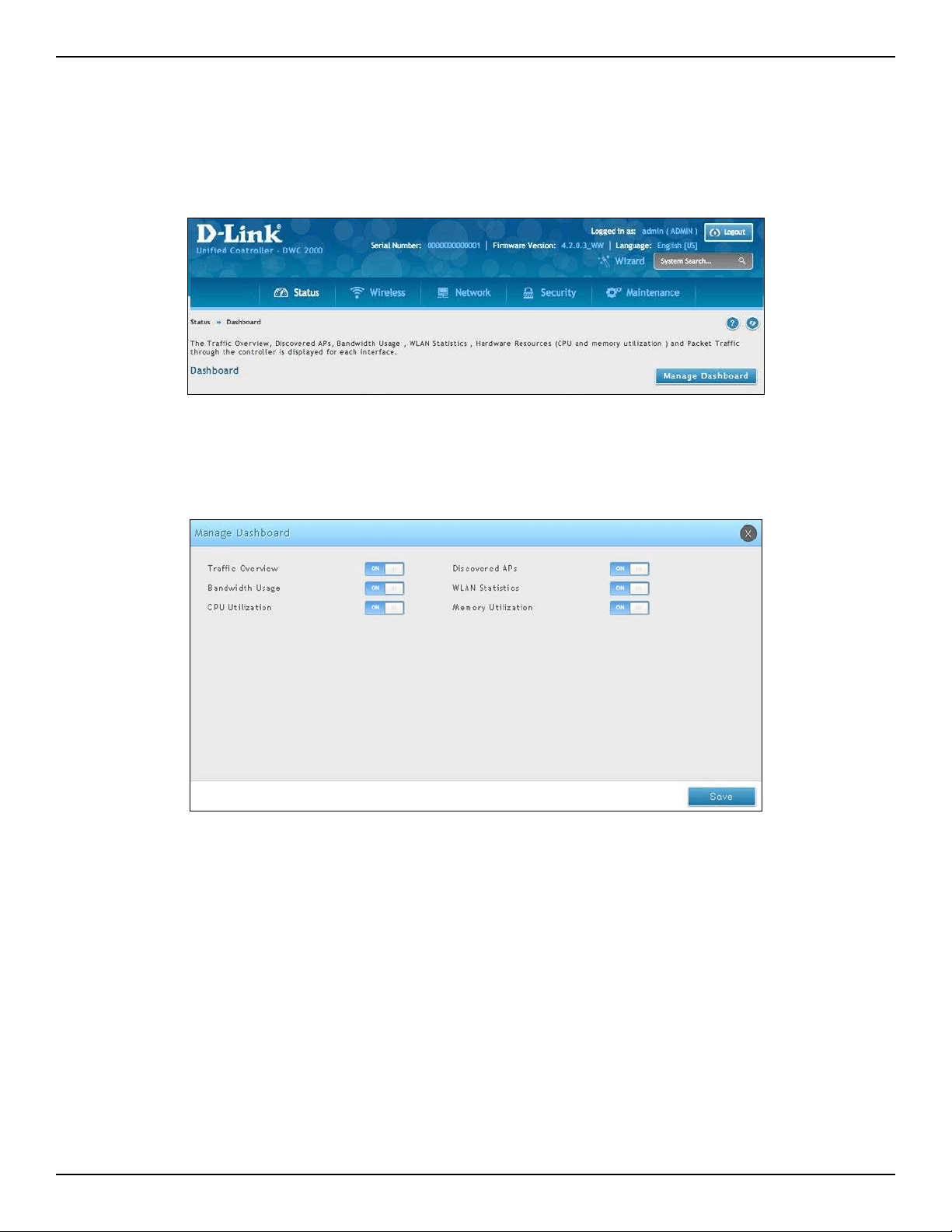
D-Link DWC-2000 User Manual 196
Section 7 - Viewing Status and Statistics
Manage Dashboard
To manage the dashboard:
1. Click on the Manage Dashboard button.
2. The following window will pop out and allow you to enable or disable the overview panels shown on
the dashboard. Toggle the panel to On or O and click Save.
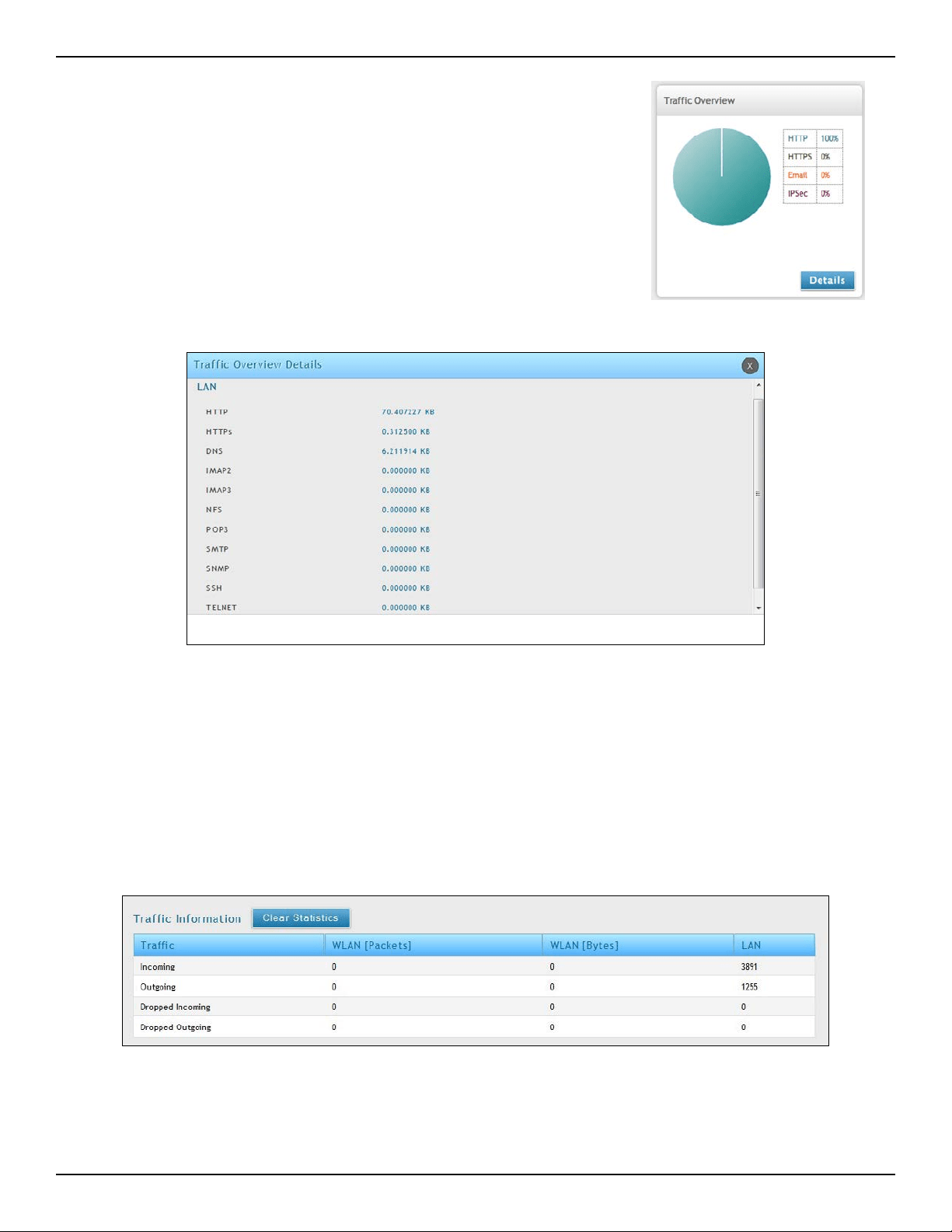
D-Link DWC-2000 User Manual 197
Section 7 - Viewing Status and Statistics
The Trac Information table shows detailed transmit and receive statistics for each physical port. This includes:
• Port-specic packet-level information for each interface (LAN and VLANs)
• Transmitted and received packets
• Cumulating bytes/sec for transmit/receive directions for each interface
If you suspect issues with any of the wired ports, use this table to identify uptime or transmit level issues with the
port. The statistics table has an auto-refresh control for displaying the most current port level data at each page
refresh. The default auto-refresh for this page is 10 seconds. Click Clear Statistics to reset the trac information.
Detail Information
You can review detail information or statistic by click Detail on each
widget.
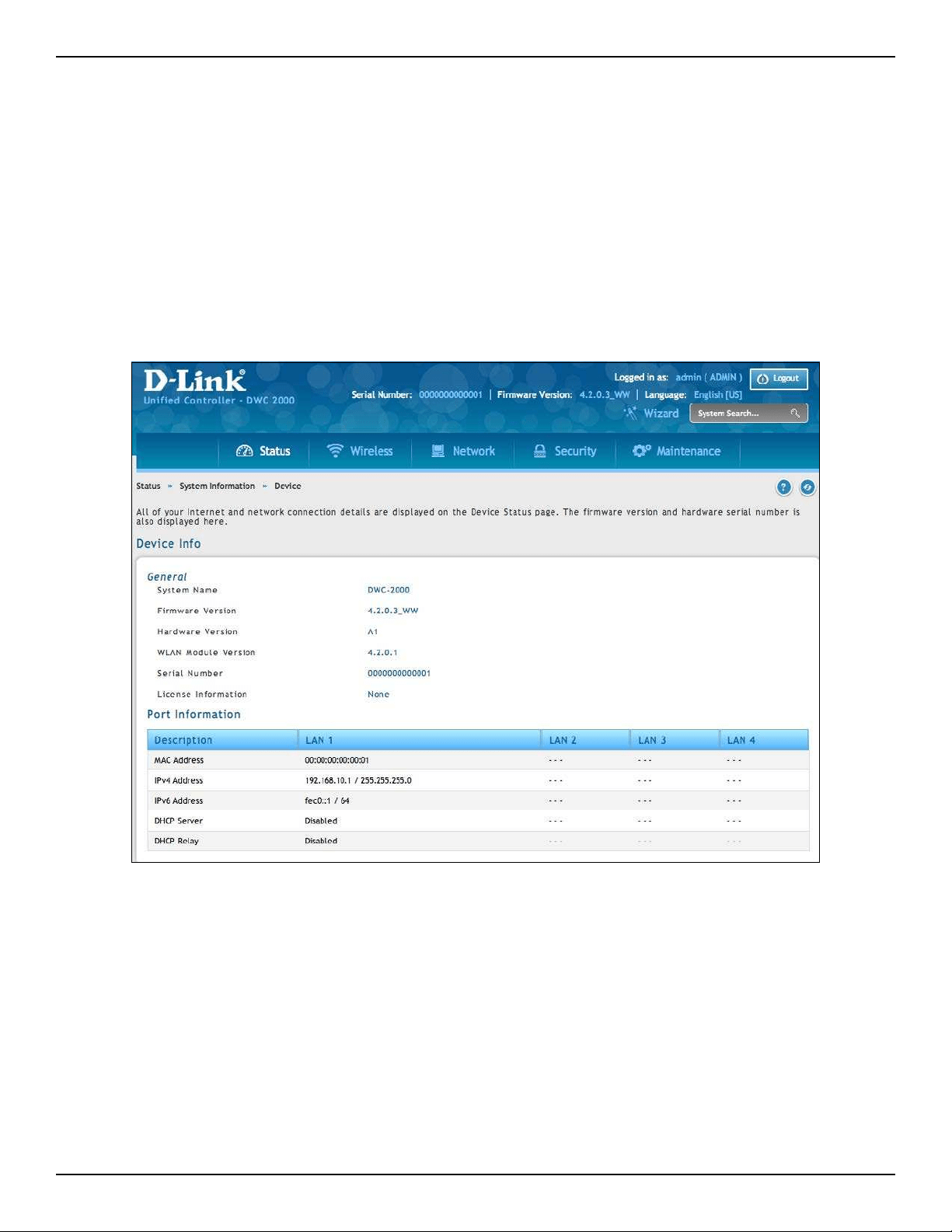
D-Link DWC-2000 User Manual 198
Section 7 - Viewing Status and Statistics
Viewing System Status
Path: Status > System Information > Device
The Device Info page summarizes the wireless controller conguration settings congured in the Setup and
Advanced menus. This page is organized into the following sections:
• General - Shows system name, rmware version, WLAN module version, and serial number.
• Port Information – Shows information based on the administrator conguration parameters. Note that
LAN1 will display the local interface of the controller. If you set any of the LAN ports to Standalone,
information will be displayed under the corresponding LAN heading.
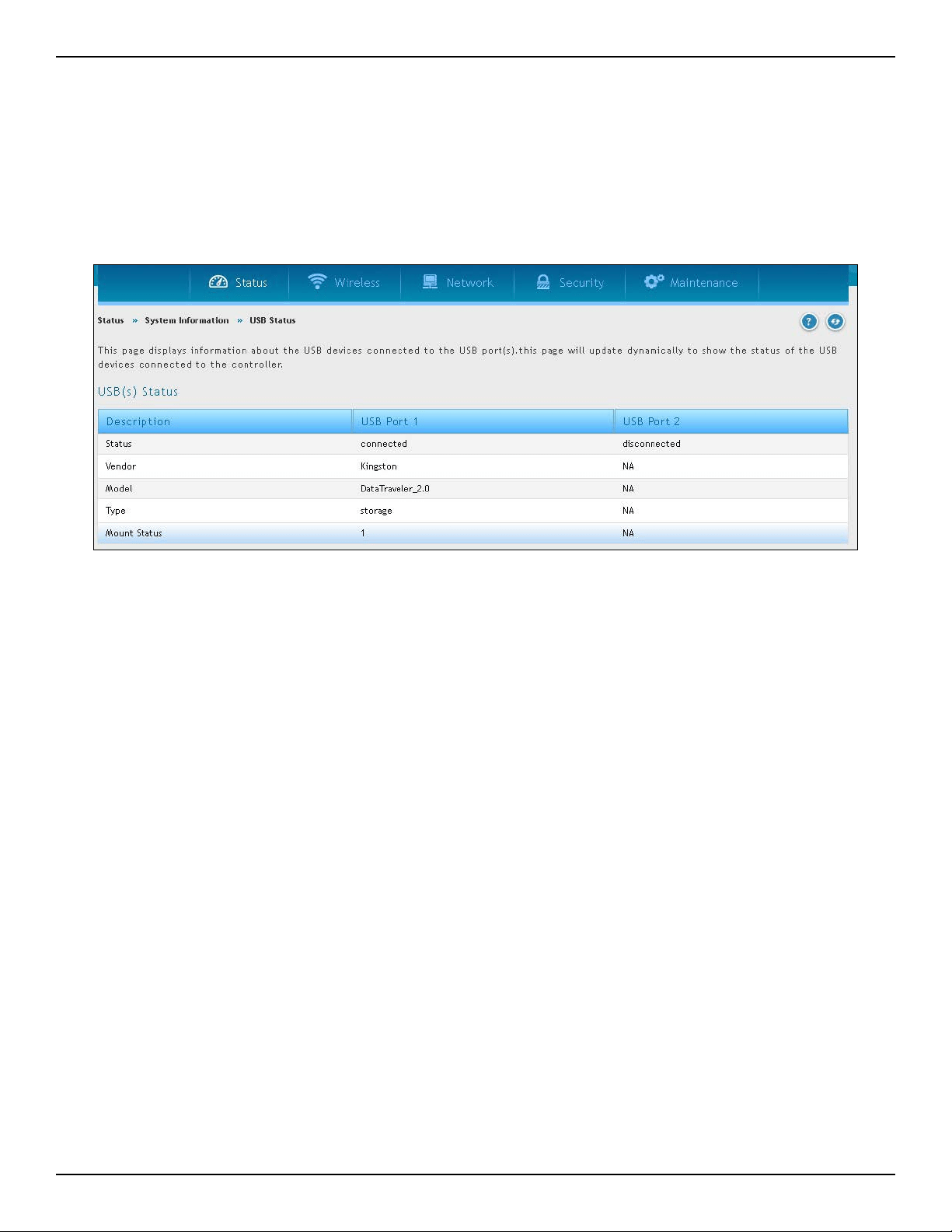
D-Link DWC-2000 User Manual 199
Section 7 - Viewing Status and Statistics
Viewing USB Status
Path: Status > System Information > USB Status
The USB Status page summarizes the USB devices connected to the wireless controller . The wireless controller
allows to connect USB printer and USB disk (for rmware upgrade only) directly. There are two USB ports.
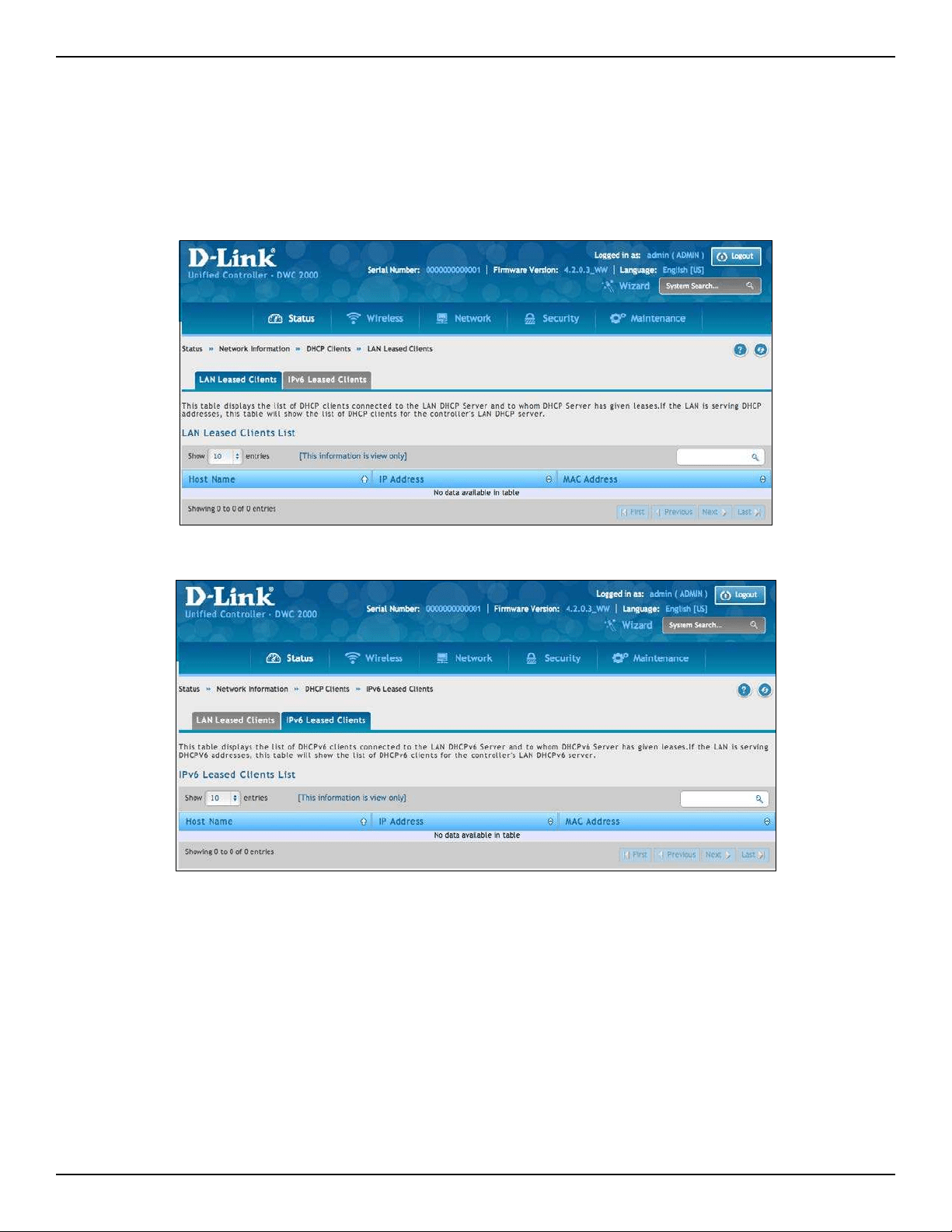
D-Link DWC-2000 User Manual 200
Section 7 - Viewing Status and Statistics
Viewing DHCP Clients
Path: Status > Network Information > DHCP Clients
Two separated tabs shows a list of clients whom get IP leased from the wireless controller: LAN leased clients and
LAN IPv6 leased clients.
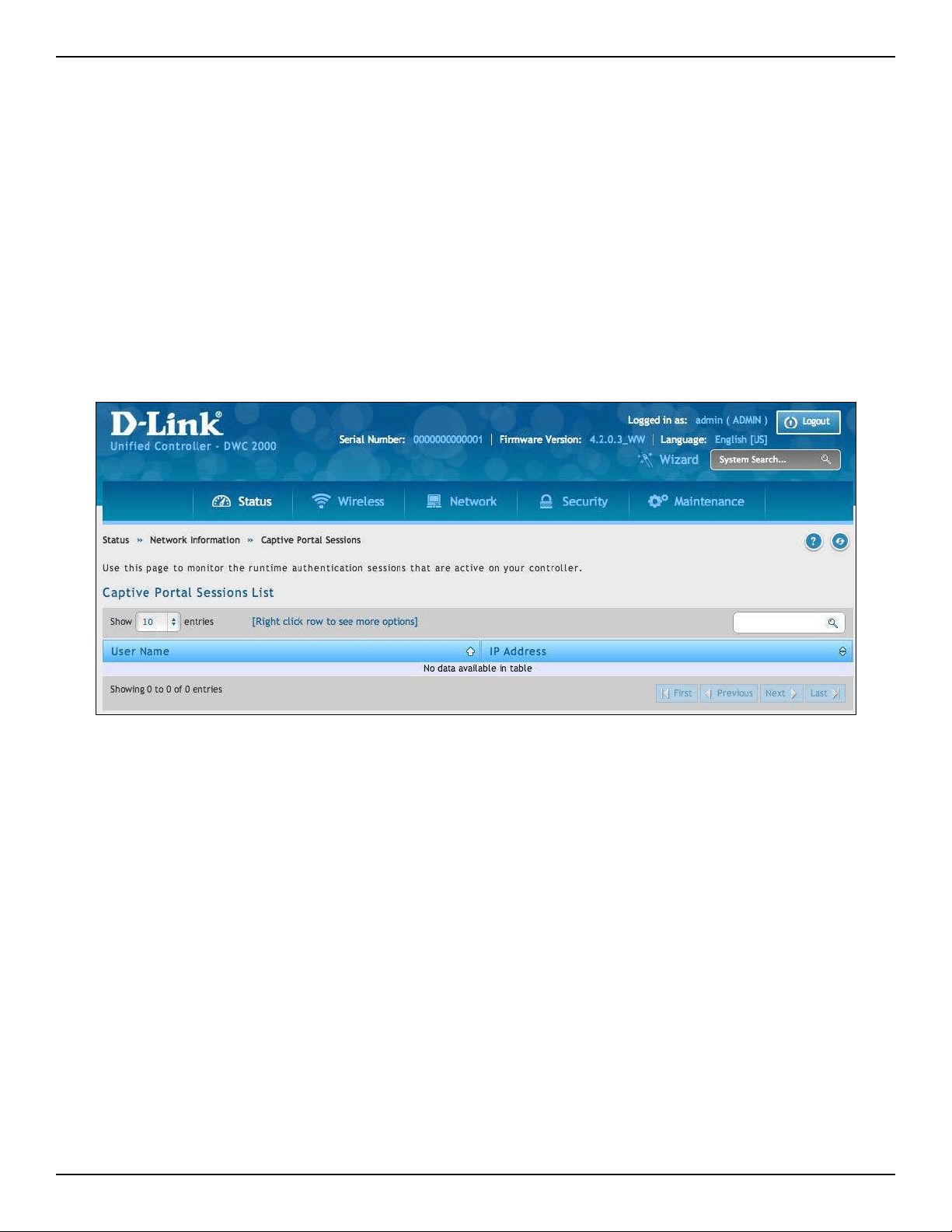
D-Link DWC-2000 User Manual 201
Section 7 - Viewing Status and Statistics
Viewing Captive Portal Sessions
Path: Status > Network Information > Captive Portal Sessions
The active run time internet sessions through the controller’s managed AP’s is listed in the below table. These
users are present in the local or external user database and have had their login credentials approved for internet
access.
If Internet session passthrough is enabled, select the session and right-click Disconnect allowing the admin to
selectively drop an authenticated user.
Select the session and right-click Block device. The “Block Device” button will result in the selected client being
added to the blocked list (Security > Firewall > Blocked Clients), and the current and future sessions from this
client will be prevented.
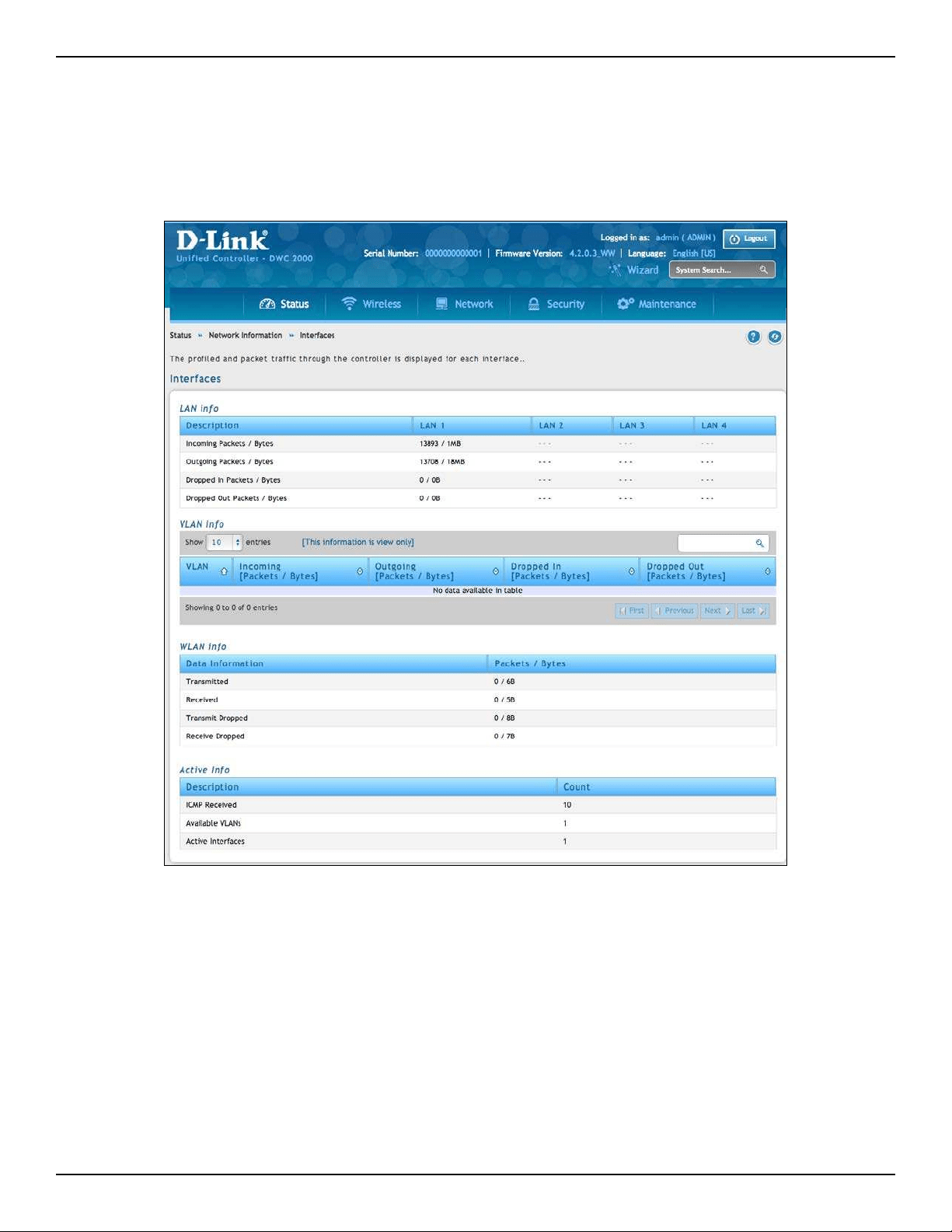
D-Link DWC-2000 User Manual 202
Section 7 - Viewing Status and Statistics
Viewing Trac on Interfaces
Path: Status > Network Information > Interfaces
This page shows the incoming/outgoing packets on each interface. Table elds are shown on the next page.
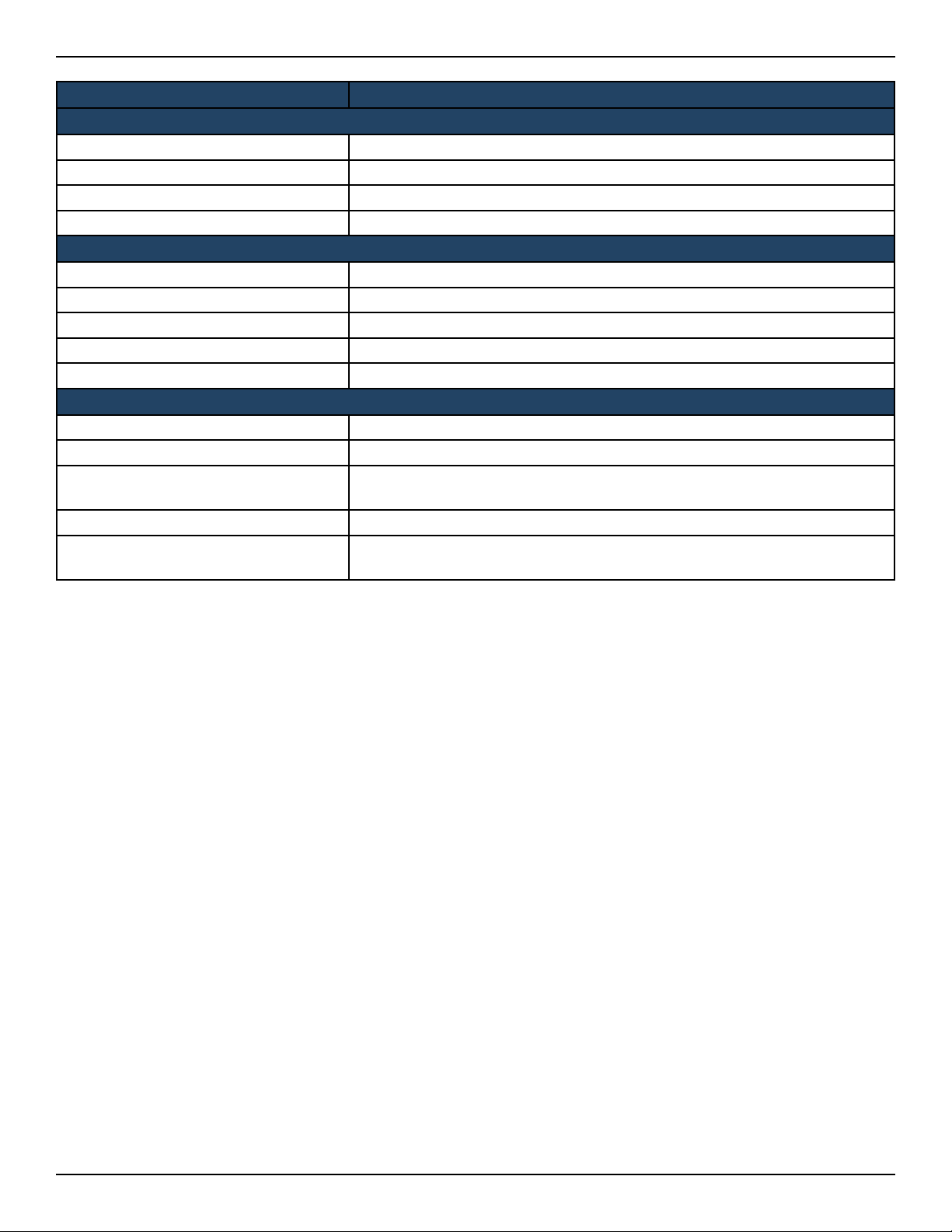
D-Link DWC-2000 User Manual 203
Section 7 - Viewing Status and Statistics
Section Description
LAN Info (LAN 1-4)
Incoming Packets The number of IP packets entering the port.
Outgoing Packets The number of packets leaving the port.
Dropped In Packets Packets dropped on the inbound path of the interface.
Dropped Out Packets Packets dropped on the outbound path of the interface.
VLAN Info
Port The port that the VLAN is associated with.
Incoming Packets The number of IP packets entering the port.
Outgoing Packets The number of packets leaving the port.
Dropped In Packets Packets dropped on the inbound path of the interface.
Dropped Out Packets Packets dropped on the outbound path of the interface.
WLAN Info
Transmitted Total packets transmitted across all APs managed by the controller.
Received Total packets received across all APs managed by the controller.
Transmit Dropped
Total packets transmitted across all APs managed by the controller that were
dropped.
Receive Dropped Packets dropped on the inbound path of the interface.
Dropped Out Packets
Total packets received across all APs managed by the controller that were
dropped.
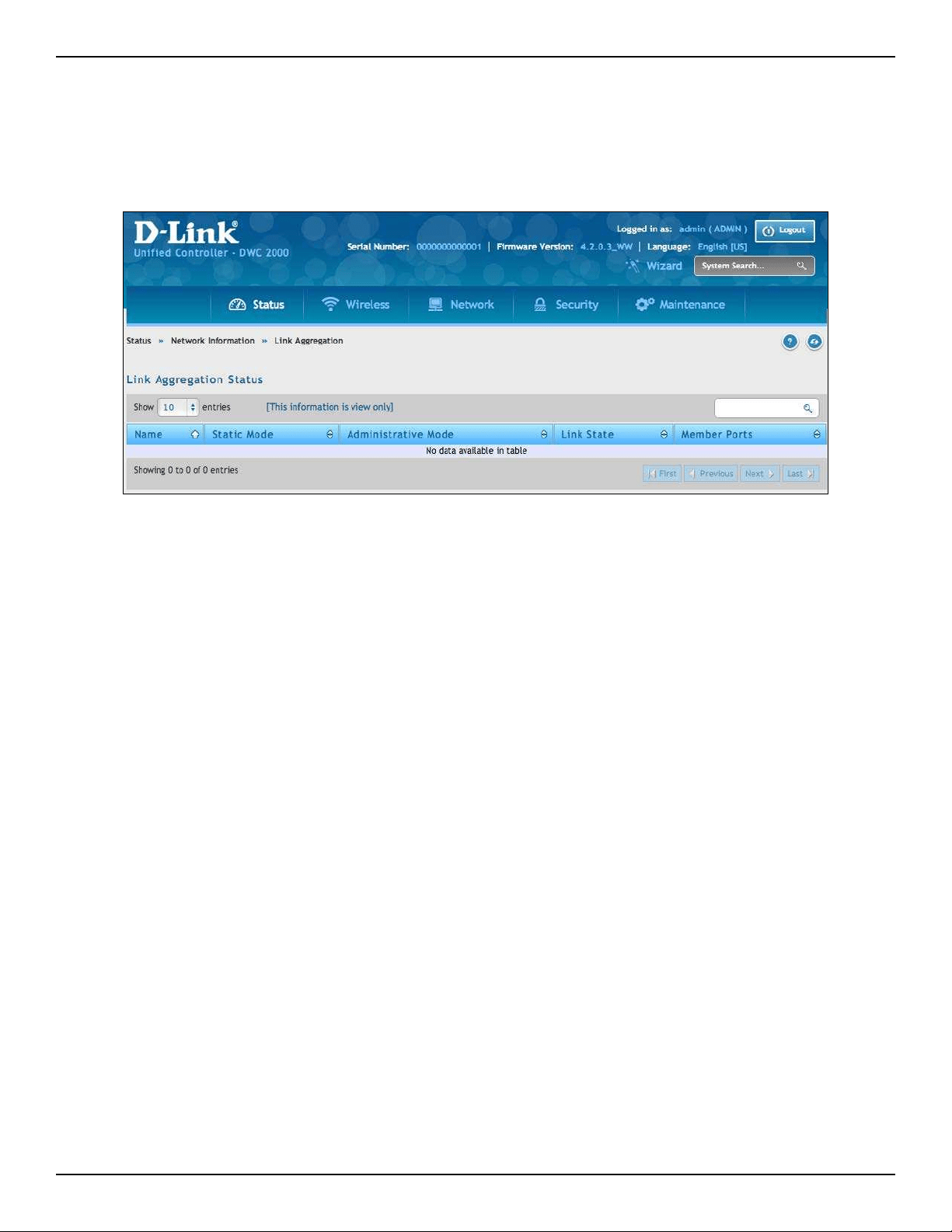
D-Link DWC-2000 User Manual 204
Section 7 - Viewing Status and Statistics
Viewing Link Aggregation
Path: Status > Wireless Information > Controller Status > Link Aggregation
This page shows the link aggregation status.
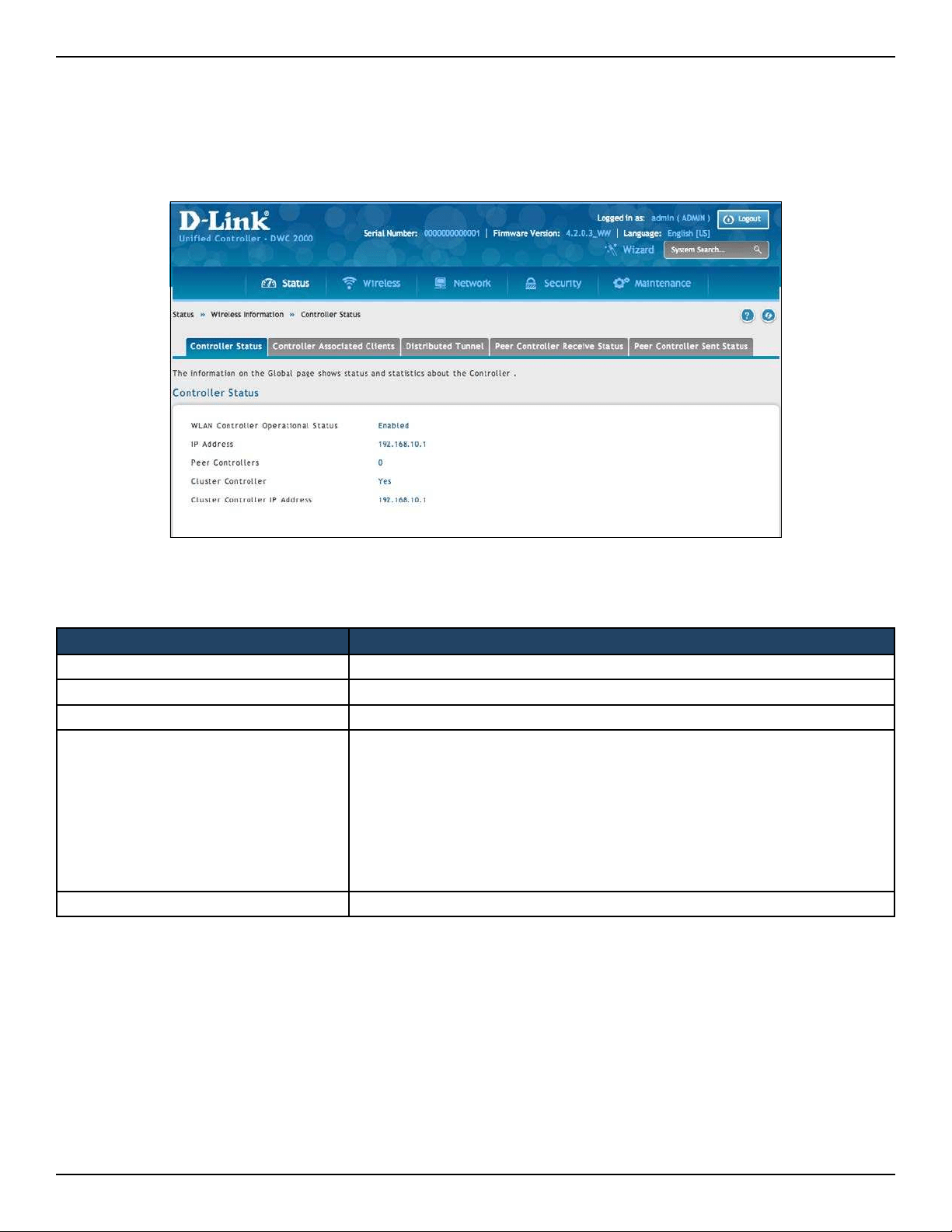
D-Link DWC-2000 User Manual 205
Section 7 - Viewing Status and Statistics
Viewing Controller Status and Statistics
Path: Status > Wireless Information > Controller Status > Controller Status
This page shows the controller status and information.
Field Description
WLAN Controller Operational Status This status eld displays the operational status of the WLAN controller.
IP Address The IP address of the wireless controller.
Peer Controllers The number of peer WLAN controllers detected on the network.
Cluster Controller
Indicates whether this controller is the Cluster Controller for the cluster. Among
a group of peer Controllers, one of the Controllers is automatically elected or
congured to be the Cluster Controller. The Cluster Controller gathers status
and statistics about all APs and clients in the peer group.
Note: Only the Cluster Controller controller can display managed APs, clients,
statistics, and RF Scan databases for the whole cluster. The Controllers that are not
Cluster Controllers can display information only about locally attached devices.
Cluster Controller IP Address The IP address of the peer controller that is the Cluster Controller.
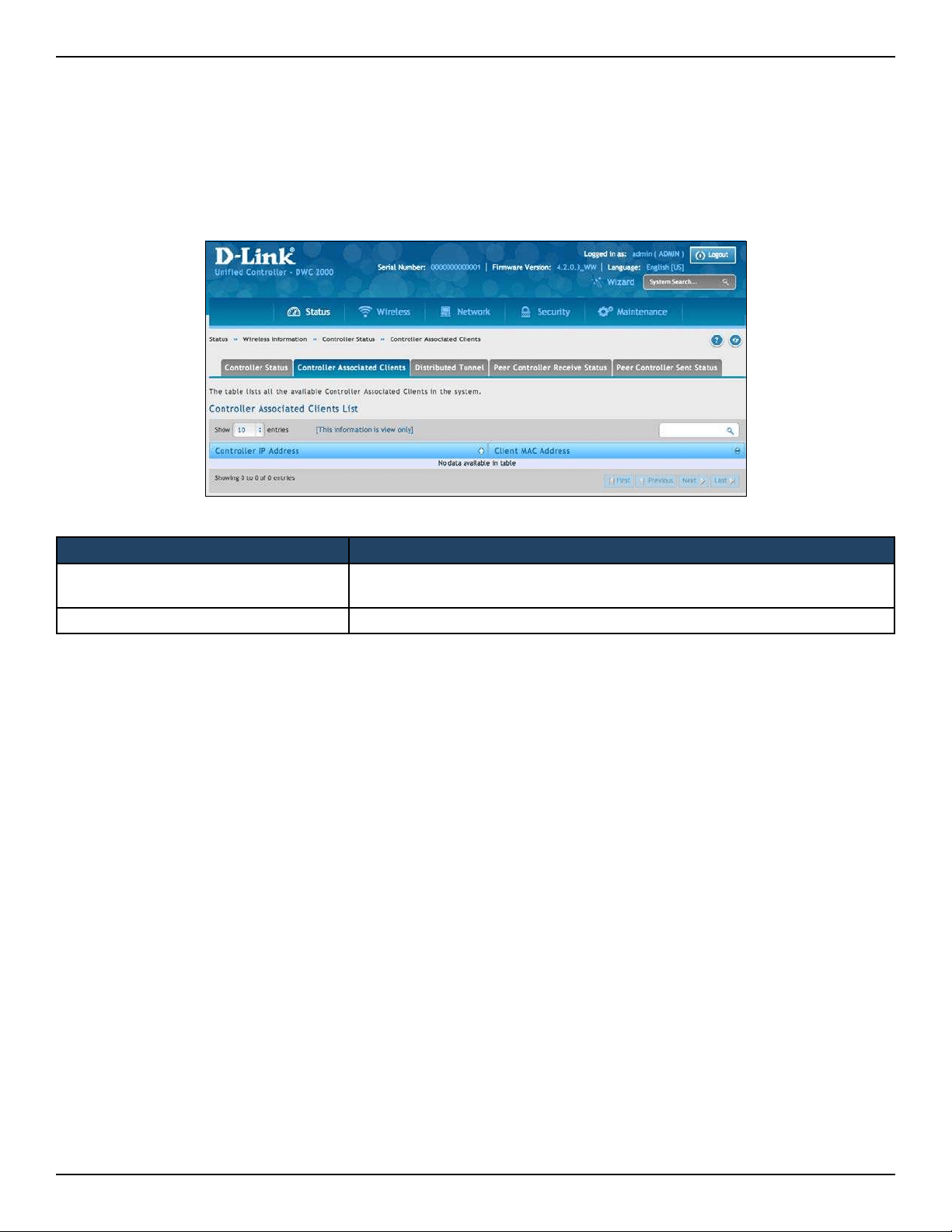
D-Link DWC-2000 User Manual 206
Section 7 - Viewing Status and Statistics
Path: Status > Wireless Information > Controller Status > Controller Associated Clients
This page shows the controller and its associated clients. If this controller is the Cluster Controller, it will also
show the associated clients whom is managed with other peer controllers.
Controller Associated Clients
Field Description
Controller IP Address
Shows the IP address of the Controller that manages the AP to which the
client is associated.
Client MAC Address Shows the MAC address of the associated client.
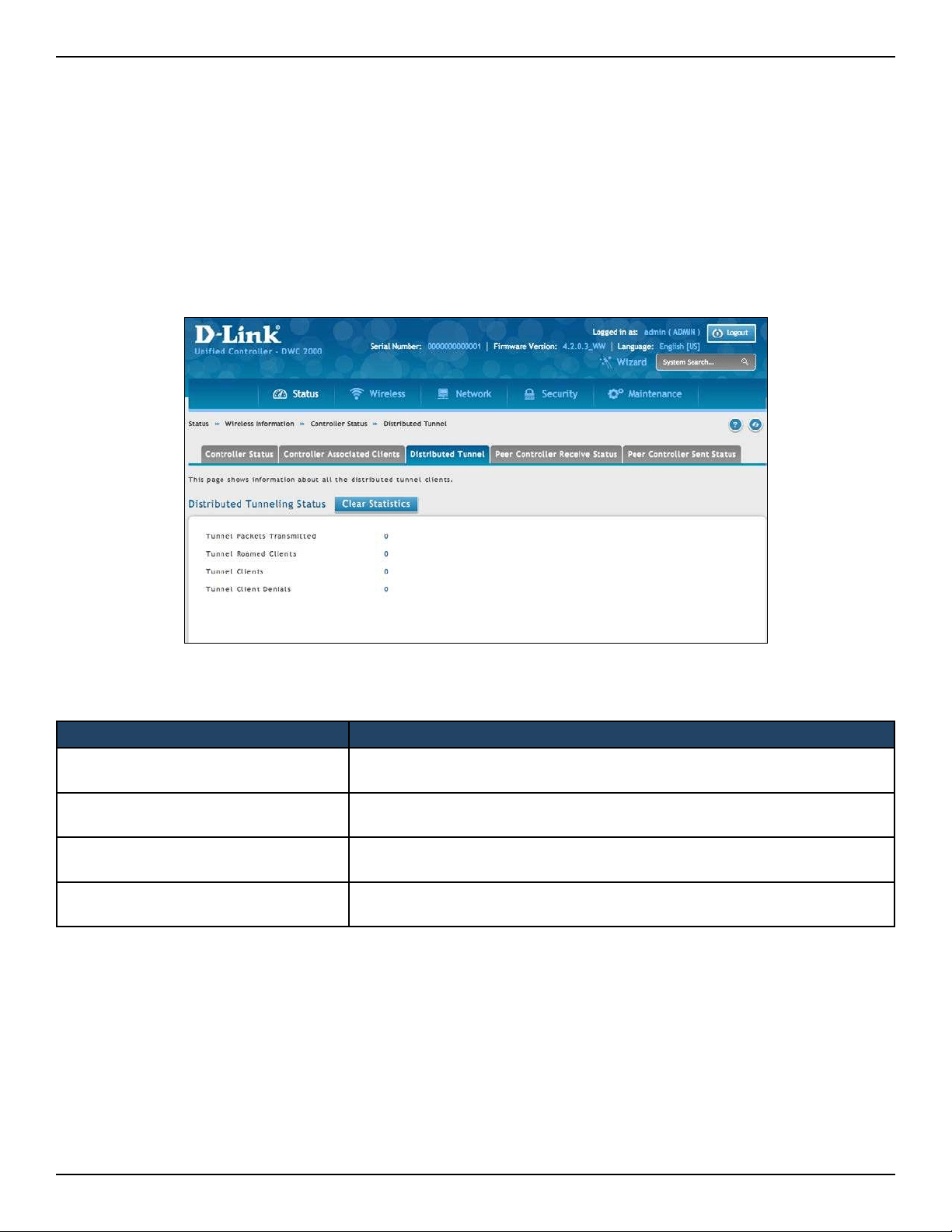
D-Link DWC-2000 User Manual 207
Section 7 - Viewing Status and Statistics
Path: Status > Wireless Information > Controller Status > Distributed Tunnel
The AP‐AP tunneling mode is used to support L3 roaming for wireless clients without forwarding any data trac
to the wireless controller.
In the AP‐AP tunneling mode, when a client rst associates with an AP in the wireless system, the AP forwards the
wireless client’s data using VLAN forwarding mode. The AP the client initially associates with is called the Home
AP. The AP the client roams to is called the Association AP.
Distributed Tunnel
Field Description
Distributed Tunnel Packets
Transmitted
Total number of packets sent by all APs via distributed tunnels.
Distributed Tunnel Roamed Clients
Total number of client that successfully roamed away from Home AP using
distributed tunneling.
Tunnel Clients
Total number of clients that are associated with an AP that are using distributed
tunneling.
Tunnel Client Denials
Total number of clients for which the system was unable to setup a distributed
tunnel when client roamed.
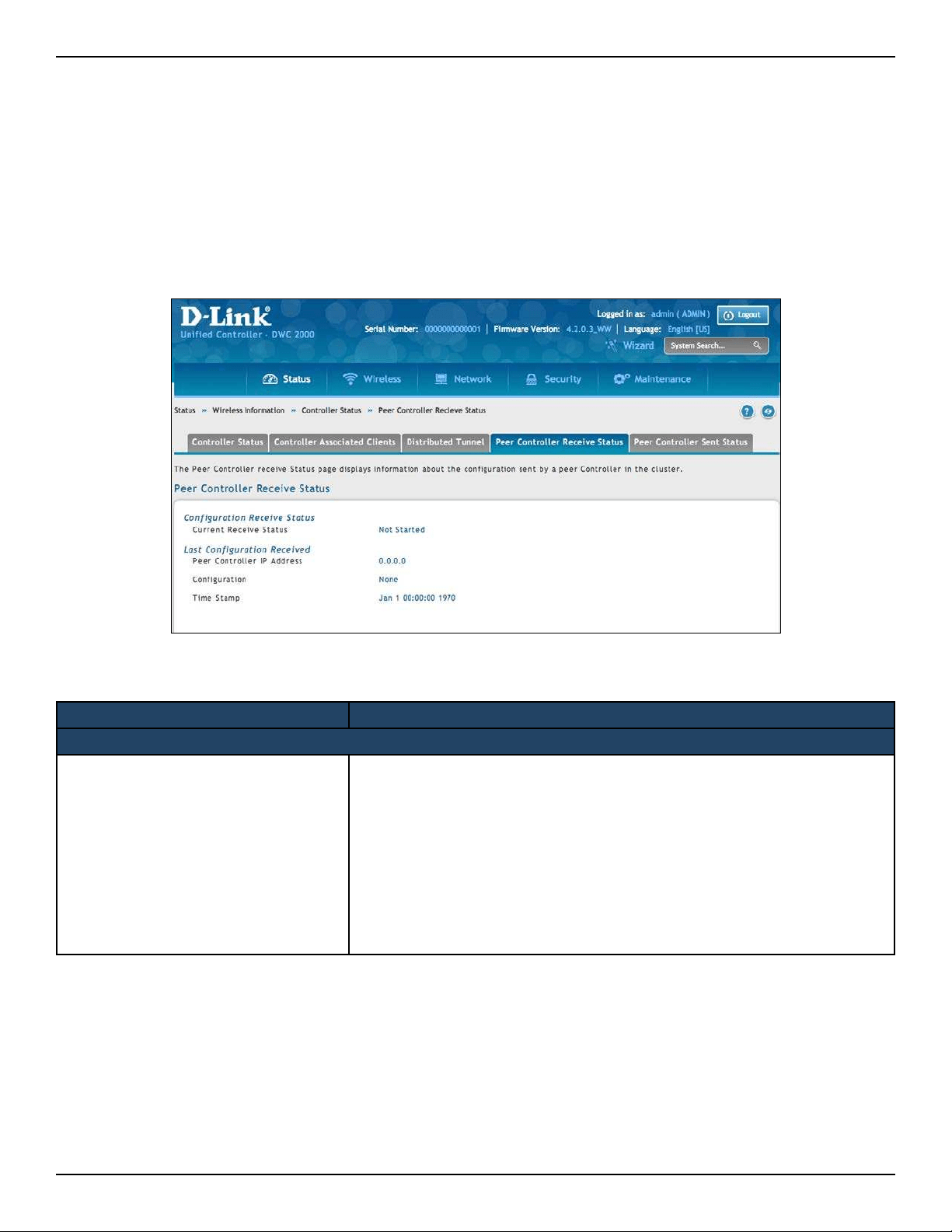
D-Link DWC-2000 User Manual 208
Section 7 - Viewing Status and Statistics
Path: Status > Wireless Information > Controller Status > Peer Controller Receive Status
The Peer Controller Conguration feature lets you send a wireless conguration from one wireless controller to all
other controllers. In addition to keeping the controllers synchronized, this function lets you manage all wireless
controllers in the cluster from one controller. The Conguration Receive Status page provides information about
the conguration a controller has received from one of its peers.
Peer Controller Receive Status
Field Description
Current Receive Status
Current Receive Status
Global status when wireless conguration is received from a peer controller.
Possible status values are:
• Not Started
• Receiving Conguration
• Saving Conguration
• Applying AP Prole Conguration
• Success
• Failure - Invalid Code Version
• Failure - Invalid Hardware Version
• Failure - Invalid Conguration

D-Link DWC-2000 User Manual 209
Section 7 - Viewing Status and Statistics
Last Conguration Received
Peer Controller IP Address
Peer controller IP address of the last wireless controller from which this
controller received any wireless conguration data.
Conguration
Shows which portions of conguration were last received from a peer
controller. Possible values are:
• Global
• Discovery
• Channel/Power
• AP Database
• AP Proles
• Known Client
• Captive Portal
• RADIUS Client
• QoS ACL
• QoS DiServ
• None = wireless controller has not received any conguration for another
controller
Timestamp
Shows the last time this wireless controller received any conguration data
from a peer controller. The Peer Controller Managed AP Status page shows
information about the access points that each peer controller in the cluster
manages. Use the drop-down list at the top of this page to select a peer
controller whose access point information you want to view. Each peer
controller is identied by its IP address.
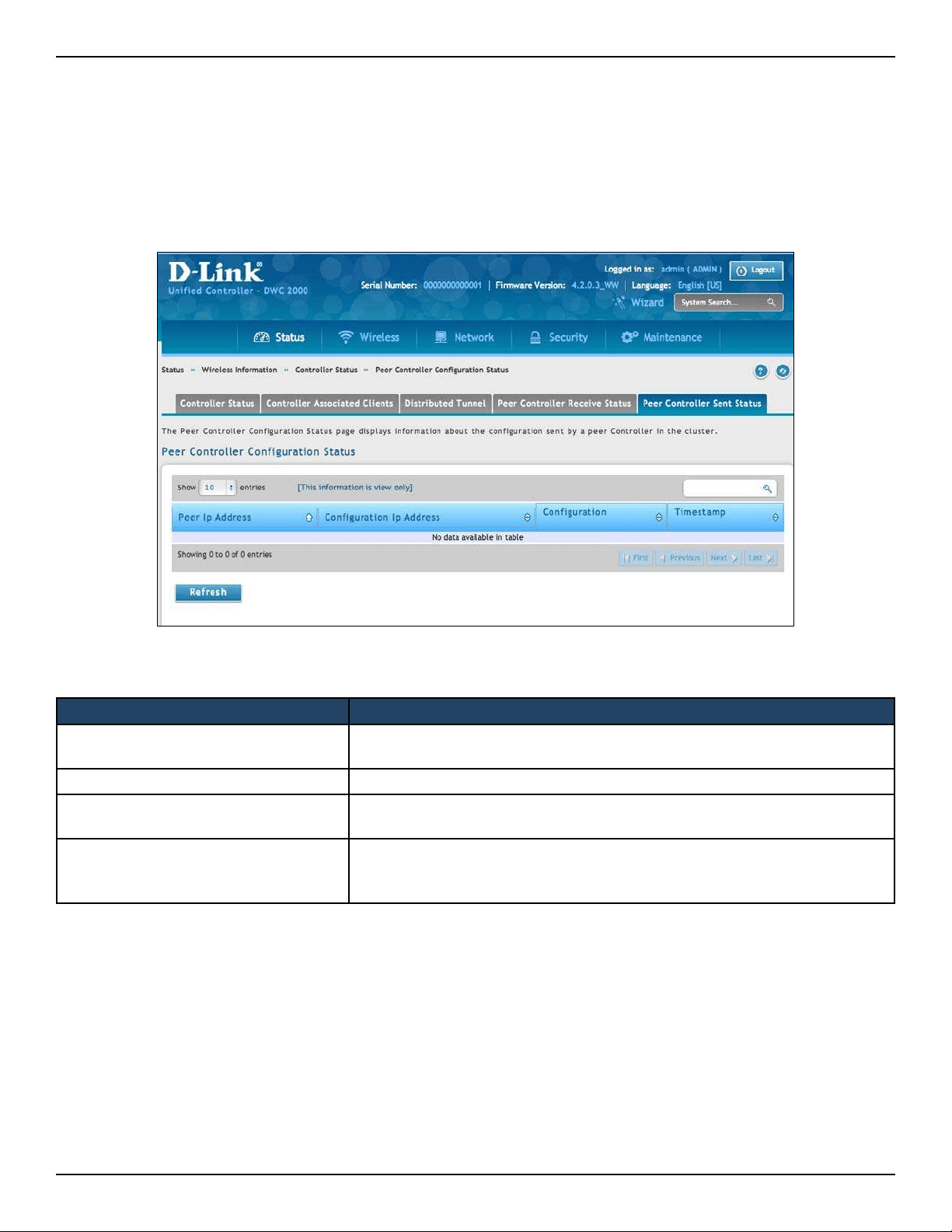
D-Link DWC-2000 User Manual 210
Section 7 - Viewing Status and Statistics
Path: Status > Wireless Information > Controller Status > Peer Controller Sent Status
You can push portion of the controller conguration from one controller to another controller in the cluster. The
Peer Controller Sent Status page display information about the conguration sent by a peer controller in the
cluster. It also identies the IP address of each peer controller that receive the conguration information.
Peer Controller Sent Status
Field Description
Peer Controller IP Address
Shows the IP address of each peer wireless controller in the cluster that
received conguration information.
Conguration Controller IP Address Shows the IP Address of the controller that sent the conguration information.
Conguration
Identies which parts of the conguration the controller received from the
peer controller.
Timestamp
Shows when the conguration was applied to the controller. The time is
displayed as UTC time and therefore only useful if the administrator has
congured each peer controller to use NTP.
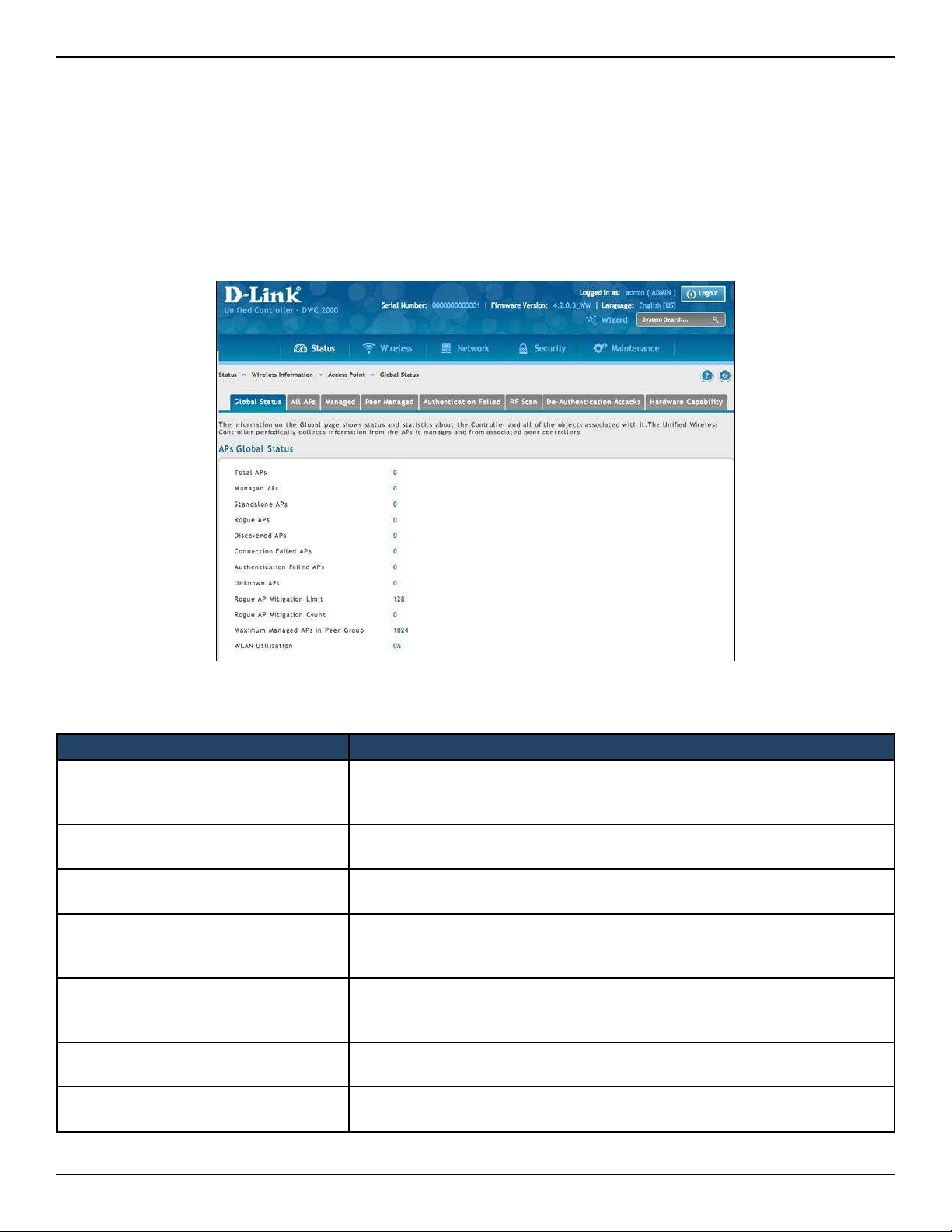
D-Link DWC-2000 User Manual 211
Section 7 - Viewing Status and Statistics
Global Status
Path: Status > Wireless Information > Access Point > Global Status
The AP Global Status page shows summary information about managed, failed, and rogue access points the
wireless controller has discovered or detected.
Viewing Access Point Information
Field Description
Total APs
Total number of Managed APs in the database. This value is always equal to
the sum of Managed Access Points, Connection Failed Access Points, and
Discovered Access Points.
Managed APs
Number of APs in the managed AP database that are authenticated,
congured, and have an active connection with the Wireless controller.
Standalone APs
Number of trusted APs in Standalone mode. APs in Standalone mode are not
managed by a controller.
Rogue APs
Number of Rogue APs currently detected on the WLAN. When an AP performs
an RF scan, it might detect access points that have not been validated. It
reports these APs as rogues.
Discovered APs
APs that have a connection with the controller, but haven’t been completely
congured. This value includes all managed APs with a Discovered or
Authenticated status.
Connection Failed APs
Number of APs that were previously authenticated and managed, but
currently don’t have connection with the Wireless controller.
Authentication Failed APs
Number of APs that failed to establish communication with the FASTPATH
Unied Wireless controller.

D-Link DWC-2000 User Manual 212
Section 7 - Viewing Status and Statistics
Unknown APs
Number of Unknown APs currently detected on the WLAN. If an AP congured
to be managed by the Wireless controller is detected through an RF scan at
any time that it is not actively managed it is classied as an Unknown AP.
Rogue AP Mitigation Limit
Maximum number of APs for which the system can send de-authentication
frames.
Rogue AP Mitigation Count
Number of APs to which the wireless system is currently sending de-
authentication messages to mitigate against rogue APs. A value of 0 indicates
that mitigation is not in progress.
Maximum Managed APs in Peer Group Maximum number of access points that can be managed by the cluster.
WLAN Utilization
Total network utilization across all APs managed by this controller. This is
based on global statistics.
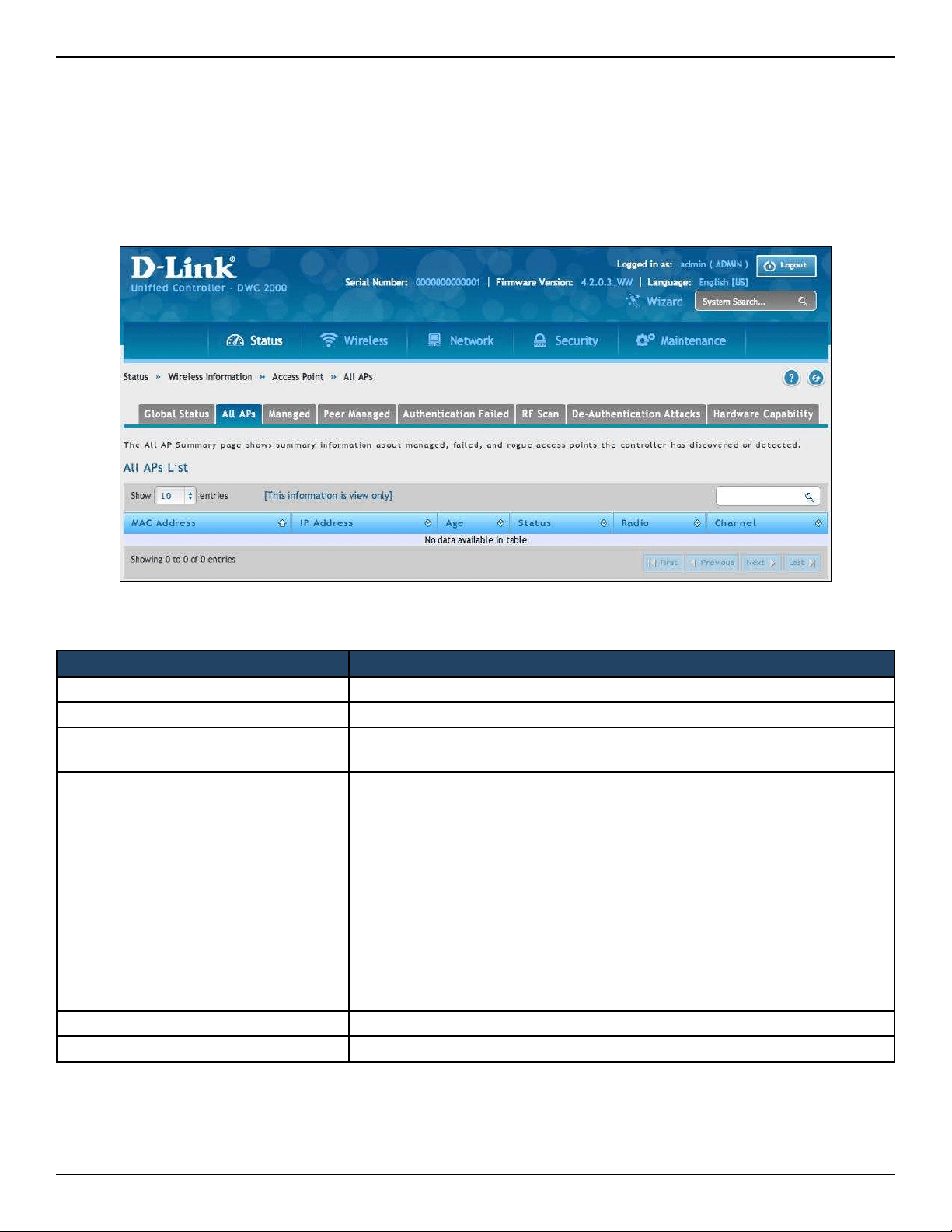
D-Link DWC-2000 User Manual 213
Section 7 - Viewing Status and Statistics
Path: Status > Wireless Information > Access Point > All APs
The All APs List page shows summary information about managed, failed, and rogue access points the wireless
controller has discovered or detected. Status entries can be deleted manually.
All APs
Field Description
MAC Address MAC address of the access point.
IP Address IP address of the access point.
Age
Amount of time that has passed since the access point was last detected and
the information was last updated.
Status
Access point status. Possible values are:
• Managed = access point prole conguration has been applied to the
access point and the access point is operating in managed mode.
• No Database Entry = access point’s MAC address does not appear in the
local or RADIUS Valid AP database.
• Authentication (Failed AP) = access point failed to be authenticated by
the wireless controller or RADIUS server.
• Failed = wireless controller lost contact with the access point. A failed
entry will remain in the Managed AP database unless you remove it. Note:
a managed access point shows a failed status temporarily during a reset.
• Rogue = access point has not tried to contact the wireless controller and
the access point’s MAC address is not in the Valid AP database.
Radio Wireless radio mode the access point is using.
Channel Operating channel for the radio.
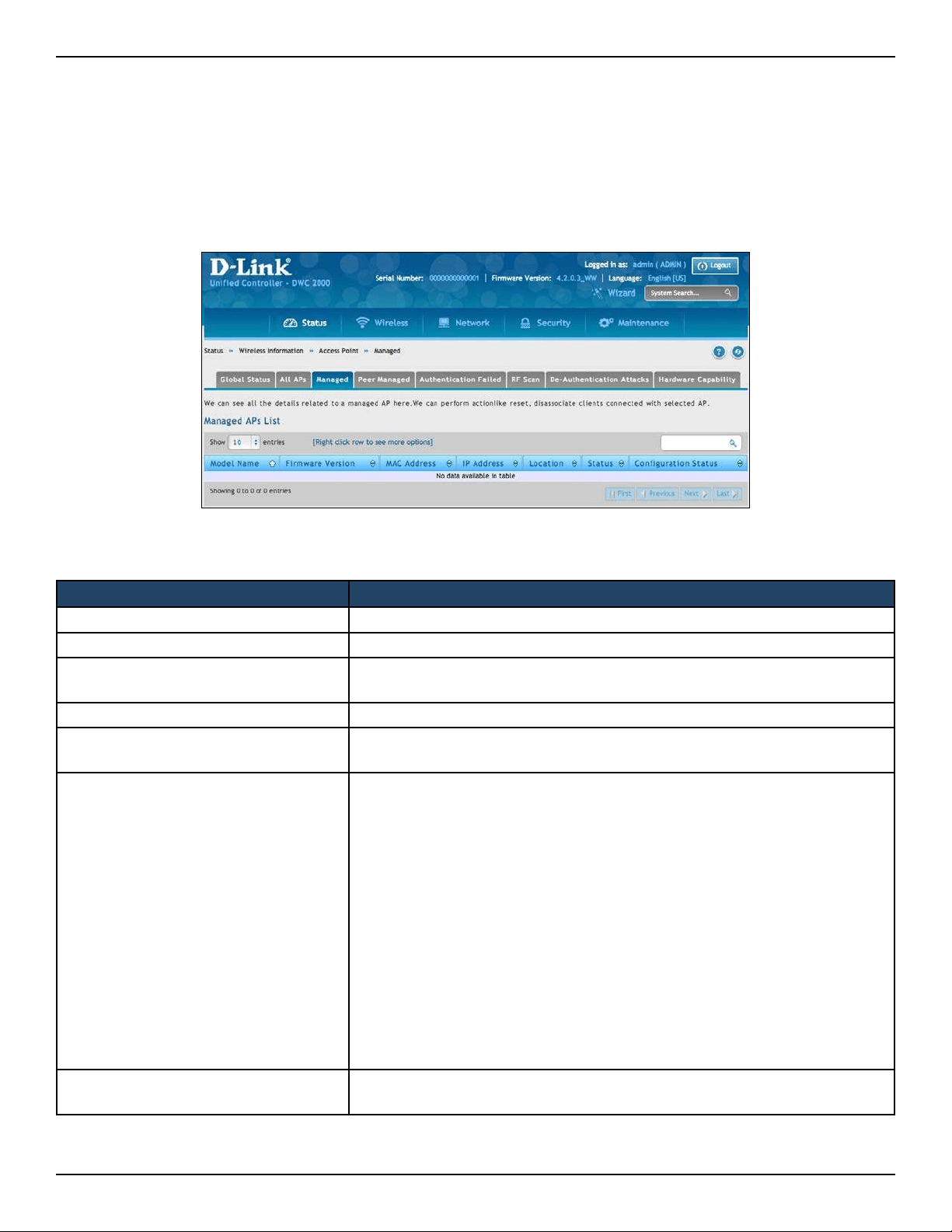
D-Link DWC-2000 User Manual 214
Section 7 - Viewing Status and Statistics
Field Description
Model Name The model of the managed AP.
Firmware Version The rmware version of the managed AP.
MAC Address (*) Peer Managed
Ethernet address of the managed access point. If an asterisk (*) follows the
MAC address, the access point is managed by a peer controller.
IP Address Network IP address of the managed access point.
Location
An optional description of where the AP is physically located. Congured
through the AP management section.
Status
Current managed state of the access point. Possible values are:
• Discovered = access point is discovered by the wireless controller, but not
authenticated.
• Authenticated = access point has been validated and authenticated (if
authentication is enabled), but it is not congured.
• Managed = prole conguration has been applied to the access point
and the access point is operating in managed mode.
• Failed = wireless controller lost contact with the access point. A failed
entry remains in the Managed AP database, unless you remove it. Note
that a managed access point shows a failed status temporarily during a
reset.
If management connectivity is lost for a managed access point, both of
its radios are turned down and all clients associated with the access point
are disassociated. The radios resume operation when that access point is
managed again by a wireless controller.
Conguration Status
Shows whether the conguration prole applied to the managed access point
is successful or not.
Managed
Path: Status > Wireless Information > Access Point > Managed
The Managed AP List page shows details about the managed access point. right clicking a managed access point
enables more options.
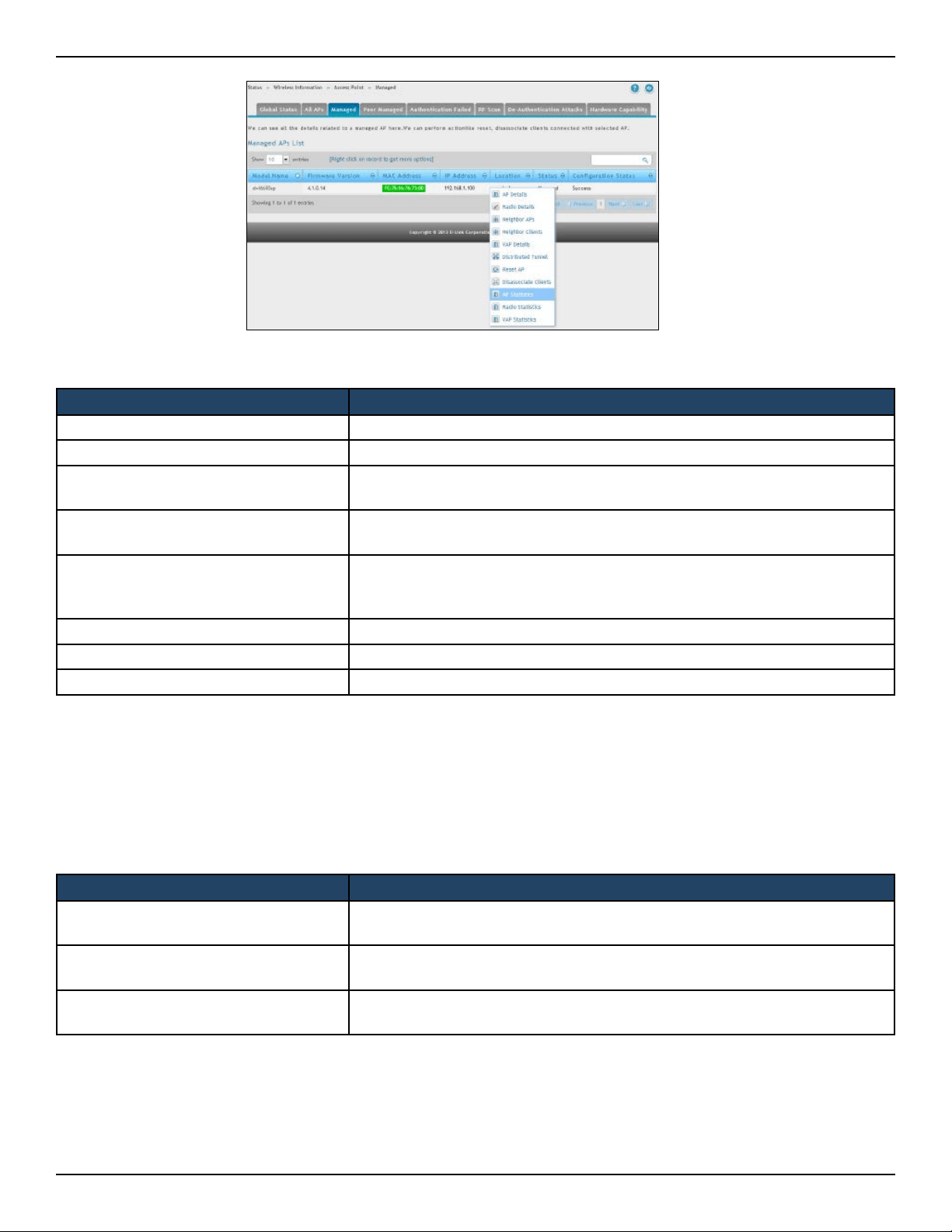
D-Link DWC-2000 User Manual 215
Section 7 - Viewing Status and Statistics
Button Description
AP Details Shows detailed status information collected from the access point.
Radio Details Shows detailed status for a radio interface.
Neighbor APs
Shows the neighbor APs that the specied AP has discovered through periodic
RF scans on the selected radio interface.
Neighbor Clients
Shows information about wireless clients associated with an access point or
detected by the access point radio.
VAP Details
Shows summary information about the virtual access points (VAPs) for the
selected access point and the access point radio interface that the wireless
controller manages.
Distributed Tunnel Shows information about the L2 tunnels currently in use on the access point.
Reset AP Reset the managed AP back to the factory default settings.
Disassociate Clients View disassociate clients with the selected AP.
The Managed AP Statistics page shows information about trac on the access point’s wired and wireless
interfaces. This information can help diagnose network issues, such as throughput problems. To view the
statistics for a managed access point, right-click on its entry in the Managed AP List and select AP Statistics,
Radio Statistics, and VAP Statistics.
Button Description
AP Statistics
Shows the number and type of packets transmitted and received on a specic
access point.
Radio Statistics
Shows per-radio information about the number and type of packets
transmitted and received for a specic access point.
VAP Statistics
Shows per-VAP information about the number of packets transmitted and
received and the number of wireless client failures for a specic access point.
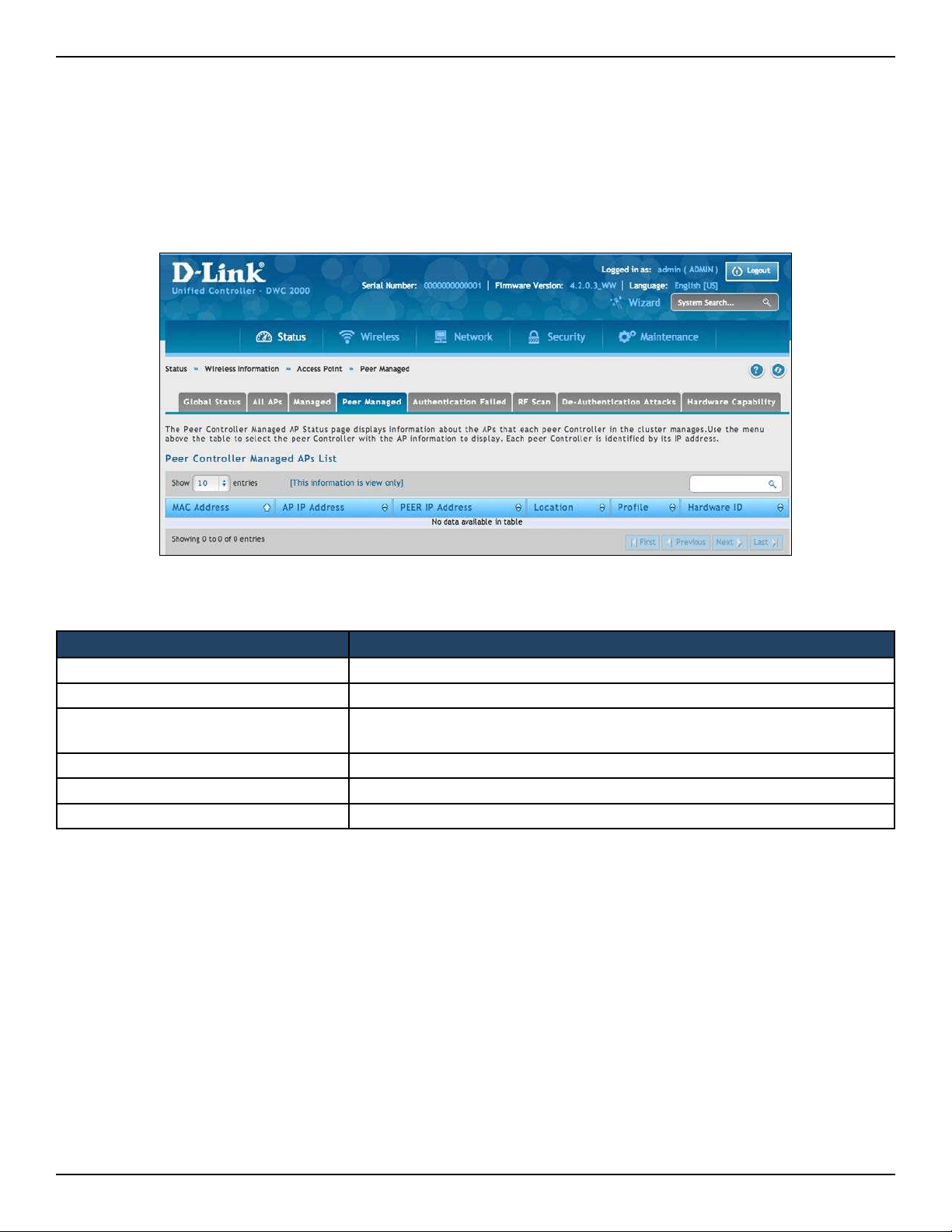
D-Link DWC-2000 User Manual 216
Section 7 - Viewing Status and Statistics
Path: Status > Wireless Information > Access Point > Peer Managed
The Peer Controller Managed APs List page provides information about the access points that each peer controller
in the cluster manages. Each peer controller is identied by its IP address.
Peer Managed
Field Description
MAC Address MAC address of each access point managed by the peer controller.
AP IP Address IP address of the access point.
Peer IP Address
IP address of the peer controller that manages the access point. This eld
appears when All is selected from the drop-down menu.
Location Descriptive location congured for the managed access point.
Prole Access point prole that the wireless controller applies to the access point.
Hardware ID Hardware ID associated with the access point hardware platform.
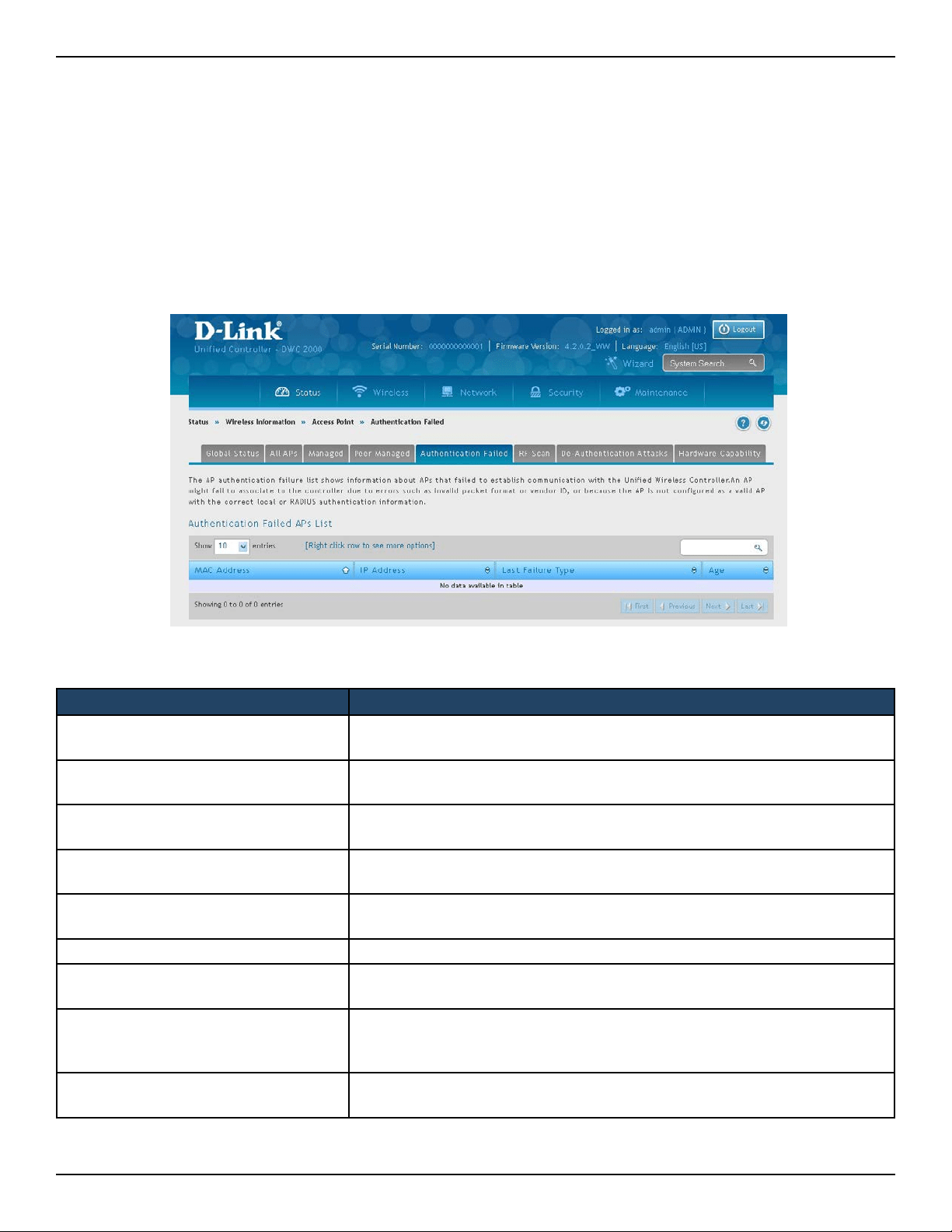
D-Link DWC-2000 User Manual 217
Section 7 - Viewing Status and Statistics
Path: Status > Wireless Information > Access Point > Authentication Failed
An access point might fail to associate to the wireless controller due to errors such as invalid packet format
or vendor ID, or because the access point is not congured as a valid access point with the correct local or
RADIUS authentication information. The Authentication Failed APs List page shows information about access
points that failed to establish communication with the wireless controller. Right-click on an AP to bring up
options to manage, or to view details.
Authentication Failed
Failure Description
No Database Entry
MAC address of the access point is not in the local Valid AP database or the
external RADIUS server database, so the access point has not been validated.
Local Authorization
Authentication password congured in the access point did not match the
password congured in the local database.
Not Managed
Access point is in the Valid AP database, but the access point Mode in the local
database is not set to Managed.
RADIUS Authentication
The password congured in the RADIUS client for the RADIUS server was
rejected by the server.
RADIUS Challenged
The RADIUS server is congured to use the Challenge-Response authentication
mode, which is incompatible with the access point.
RADIUS Unreachable The RADIUS server that the access point is congured to use is unreachable.
Invalid RADIUS Response
The access point received a response packet from the RADIUS server that was
not recognized or invalid.
Invalid Prole ID
The prole ID specied in the RADIUS database may not exist on the controller.
This can also happen with the local database when the conguration has
been received from a peer controller.
Prole Mismatch
Hardware Type: The access point hardware type specied in the access point
Prole is not compatible with the actual access point hardware.
An access point can fail due to any of the reasons:
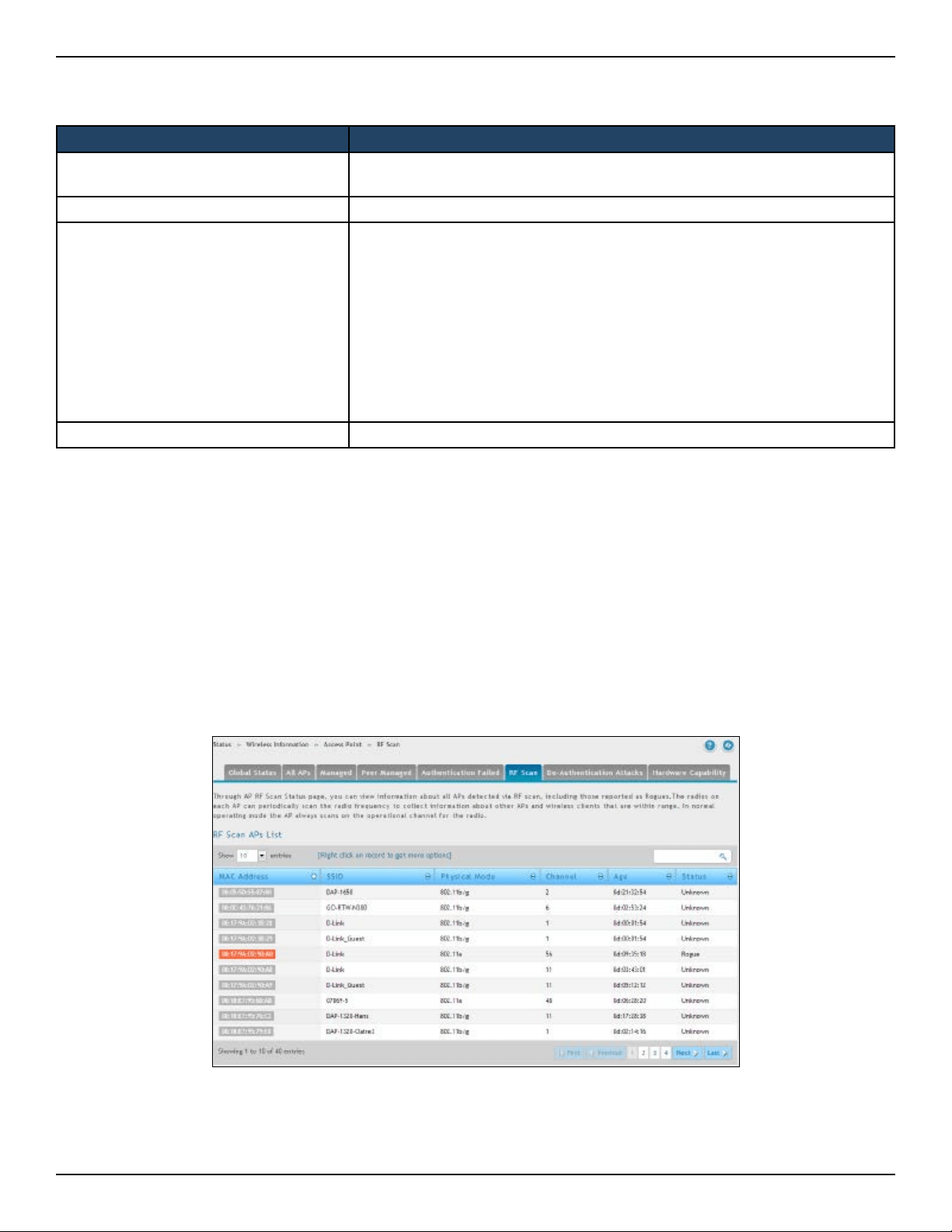
D-Link DWC-2000 User Manual 218
Section 7 - Viewing Status and Statistics
Path: Status > Wireless Information > Access Point > RF Scan
The radio(s) on each access point can scan the radio frequency periodically to collect information about
other access points and wireless clients that are within range. In normal operating mode, the access point
always scans on the operational channel for the radio. The RF Scan page shows information about other
access points and wireless clients that the wireless controller has detected. Right-click on an AP or client to
bring up options to view details.
Fields on the AP Authentication Failure Status Page:
Field Description
MAC Address
Ethernet address of the AP. If the MAC address of the access point is followed
by an asterisk (*), it was reported by a peer controller.
IP Address IP address of the access point.
Last Failure Type
Last type of failure that occurred. Possible values are:
• Local Authentication
• No Database Entry
• Not Managed
• RADIUS Authentication
• RADIUS Challenged
• RADIUS Unreachable
• Invalid RADIUS Response
• Invalid Prole ID
• Prole Mismatch-Hardware Type
Age Time since failure occurred.
RF Scan
D-Link DWC-2000 User Manual 219
Section 7 - Viewing Status and Statistics
Path: Status > Wireless Information > Access Point > De-Authentication Attacks
The AP De-Authentication Attack page contains information about rogue APs that the Cluster Controller has
attacked by using the de‐authentication attack feature. The wireless controller can protect against rogue APs
by sending de‐authentication messages to the rogue AP. The de‐authentication attack feature must be globally
enabled in order for the wireless system to do this function. Make sure that no legitimate APs are classied as
rogues before enabling the attack feature. This feature is disabled by default.
The wireless system can conduct the de‐authentication attack against 16 APs at the same time. The intent of this
attack is to serve as a temporary measure until the rogue AP is located and disabled.
The de‐authentication attack is not eective for all rogue types, and therefore is not used on every detected
rogue. The following rogues are not subjected to the attack:
• If the detected rogue is spoong the BSSID of the valid managed AP then the wireless system does not
attempt to use the attack because that attack may deny service to a legitimate AP and provide another
avenue for a hacker to attack the system.
• The de-authentication attack is not eective against Ad hoc networks because these networks do not
use authentication.
• The APs operating on channels outside of the country domain are not attacked because sending any
trac on illegal channels is against the law.
The wireless controller maintains a list of BSSIDs against which it is conducting a de‐authentication attack. The
controller sends the list of BSSIDs and channels on which the rogue APs are operating to every managed AP.
Field Description
MAC Address
Ethernet MAC address of the detected access point. This could be a physical
radio interface or VAP MAC.
SSID
The wireless name (Service Set Identier) of the network, which is broadcast
in the detected beacon frame.
Physical Mode The 802.11 mode used on the access point.
Channel Transmit channel of the access point.
Age
Time since this access point was last detected in an RF scan. Status entries for
this page are collected at a point in time and eventually age out. The age value
for each entry shows how long ago the wireless controller recorded the entry.
Status
Managed status of the access point. The valid values are:
• Managed = Neighbor access point is managed by the wireless system.
• Standalone = Access point is managed in standalone mode and
congured as a valid AP entry (local or RADIUS).
• Rogue = Access point is classied as a threat by one of the threat detection
algorithms.
• Unknown = Access point is detected in the network but is not classied
as a threat by the threat detection algorithms.
De-Authentication Attacks
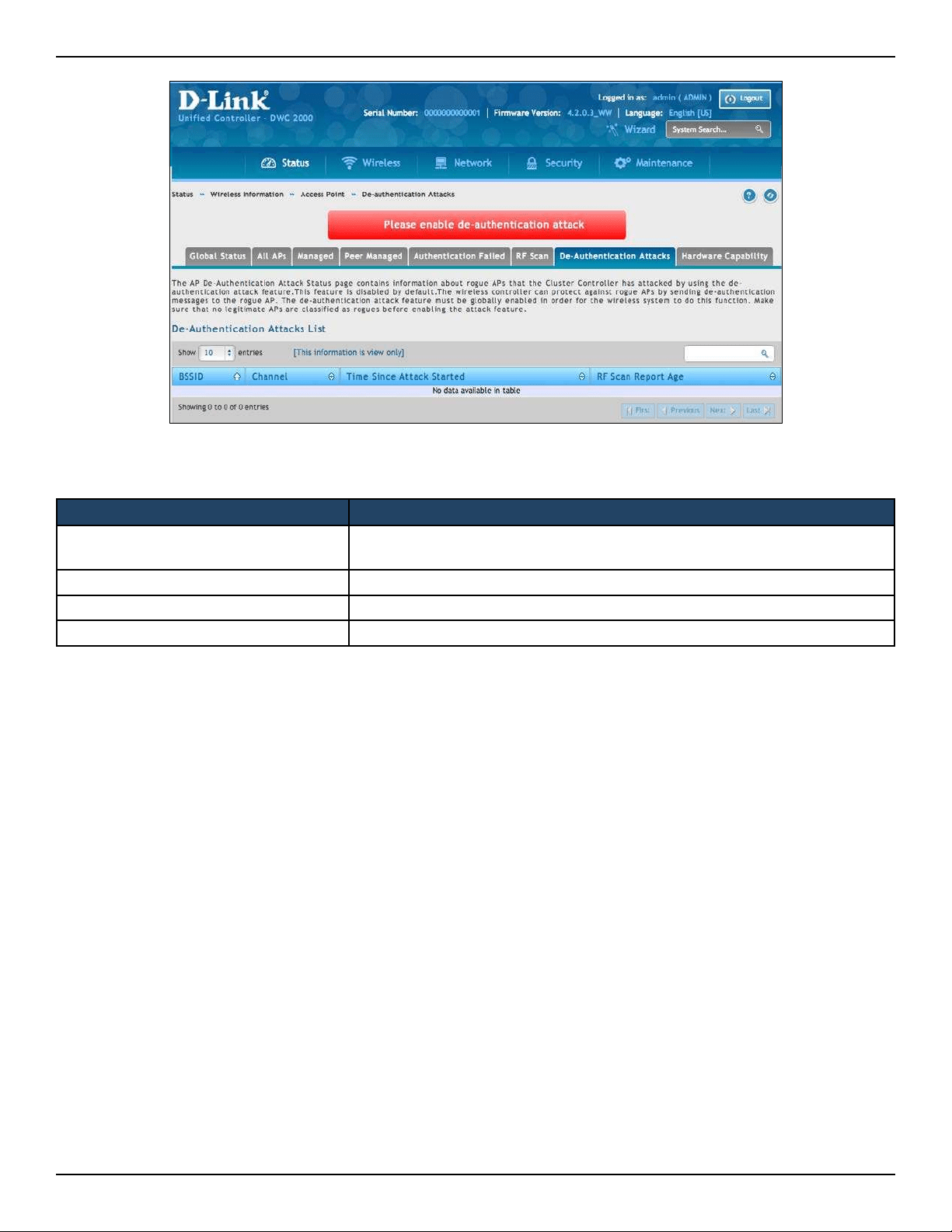
D-Link DWC-2000 User Manual 220
Section 7 - Viewing Status and Statistics
Field Description
BSSID
Shows the BSSID of the AP against which the attack is launched. The BSSID is a
MAC address.
Channel Identies the channel on which the rogue AP is operating.
Time Since Attack Started Shows the amount of time that has passed since the attack started on the AP.
RF Scan Report Age Shows the amount of time that has passed since the RF Scan reported this AP.
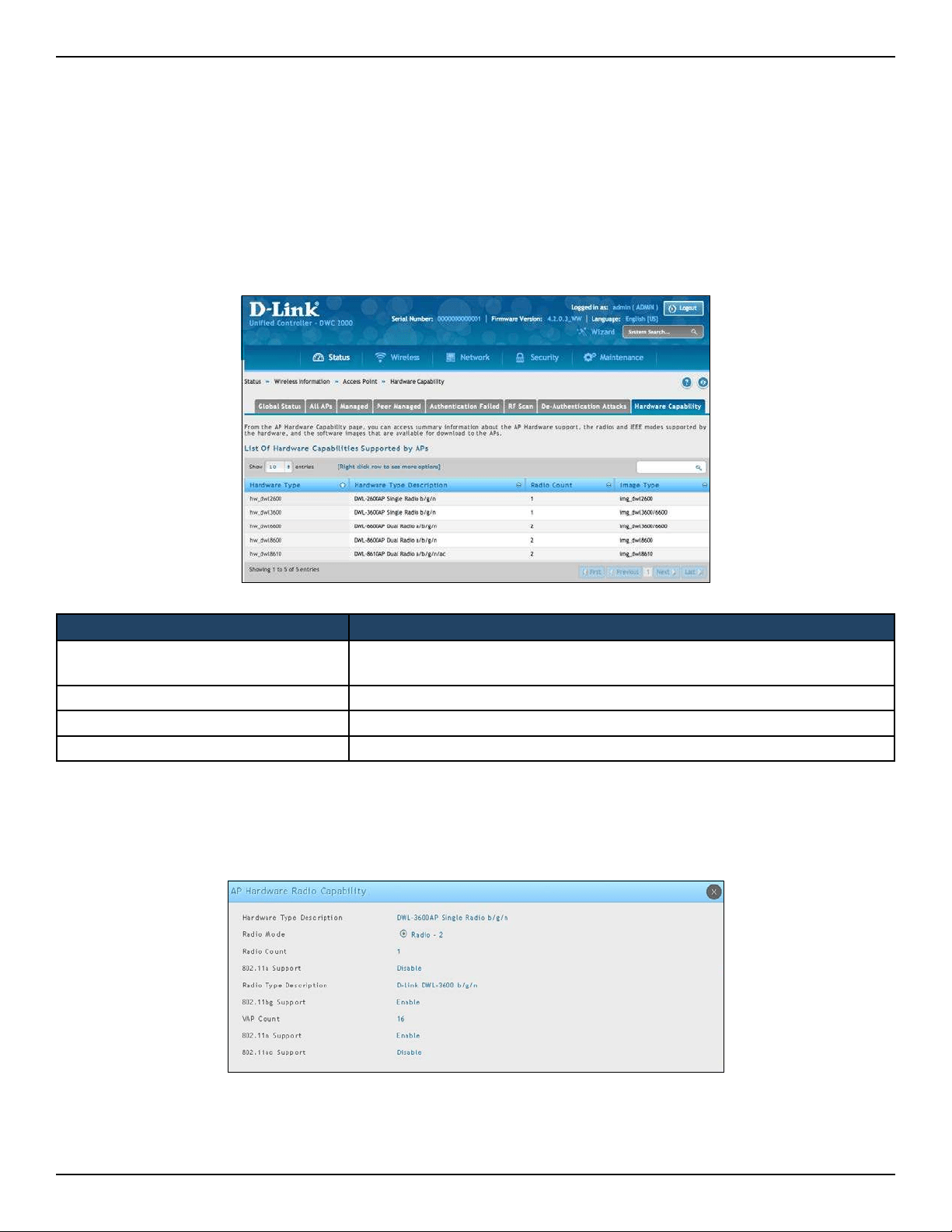
D-Link DWC-2000 User Manual 221
Section 7 - Viewing Status and Statistics
Path: Status > Wireless Information > Access Point > Hardware Capability
The wireless controller supports access points that have dierent hardware capabilities, such as number of
radios, supported IEEE 802.11 modes, and software images. Using the AP Hardware Capability page, you view
information about the radio hardware and IEEE modes supported by access points, as well as software images
that are available for download to the access point.
The right-click option will display the radio Information for the selected hardware type.
Field Description
Hardware Type
Shows the ID number assigned to each access point hardware type. The
wireless controller supports six dierent types of access point hardware.
Hardware Type Description Describes the platform and the supported IEEE 802.11 modes.
Radio Count Shows whether the hardware supports one radio or two radios.
Image Type Shows the type of software the hardware requires.
Hardware Capability
D-Link DWC-2000 User Manual 222
Section 7 - Viewing Status and Statistics
Field Description
Hardware Type Description
Shows the ID number assigned to each access point hardware type. The
wireless controller supports six dierent types of access point hardware.
Radio Mode Describes the platform and the supported IEEE 802.11 modes.
Radio Count Shows whether the hardware supports one radio or two radios.
802.11a Support Shows whether support for IEEE 802.11a mode is enabled.
Radio Type Description
Displays the type of radio, which might contain information such as the
manufacturer name and supported IEEE 802.11 modes.
802.11bg Support Shows whether support for IEEE 802.11bg mode is enabled.
VAP Count Displays the number of VAPs the radio supports.
802.11n Support Shows whether support for IEEE 802.11n mode is enabled.
802.11ac Support Shows whether support for IEEE 802.11ac mode is enabled.
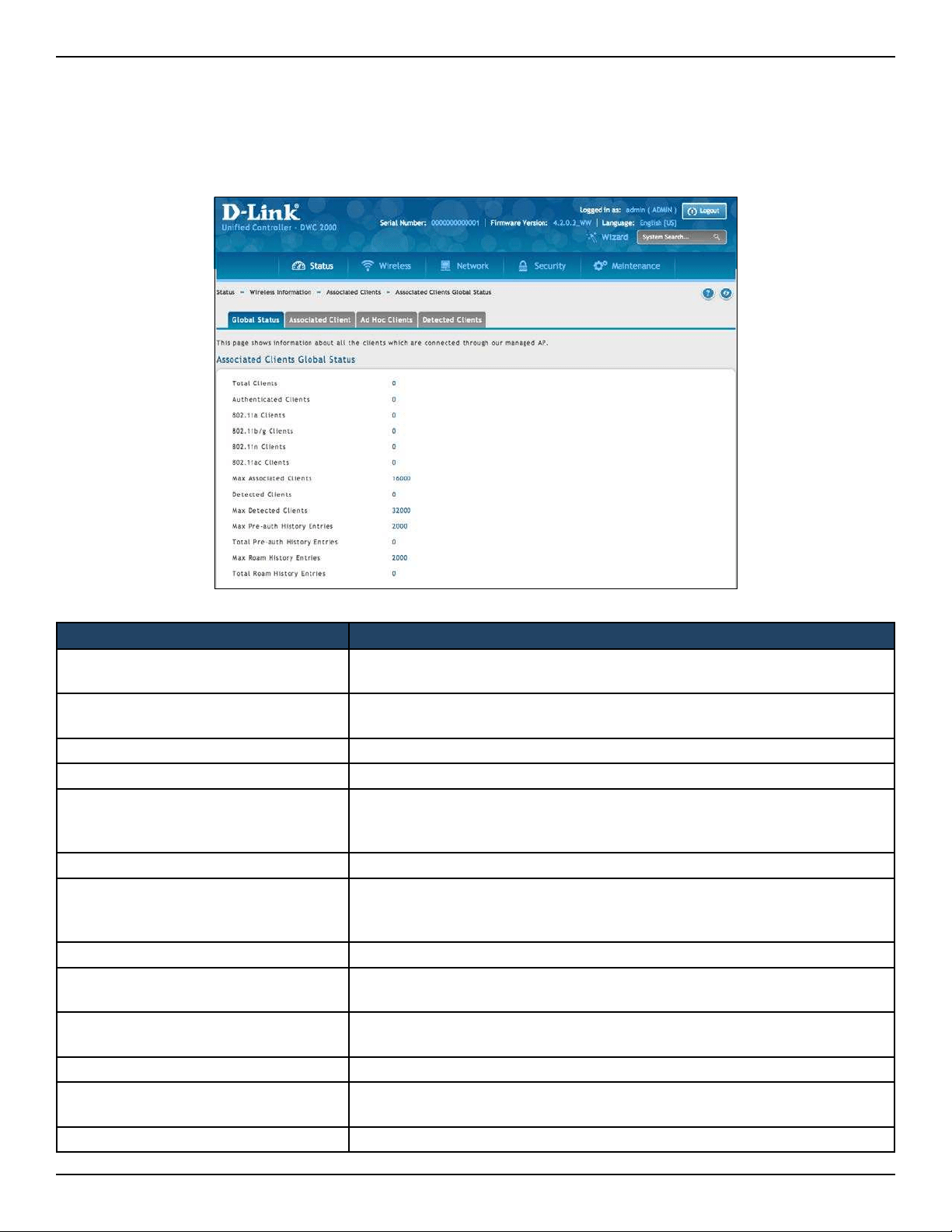
D-Link DWC-2000 User Manual 223
Section 7 - Viewing Status and Statistics
Associated Clients Global Status
Path: Status > Wireless Information > Associated Clients > Global Status
This page shows statistic information about all the clients which are connected through managed AP.
Field Description
Total Clients
Total number of clients in the database. This total includes clients with an
Associated, Authenticated, or Disassociated status.
Authenticated Clients
Total number of clients in the associated client database with an Authenticated
status.
802.11a Clients Total number of IEEE 802.11a-only clients that are authenticated.
802.11b/g Clients Total number of IEEE 802.11b/g-only clients that are authenticated.
802.11n Clients
Total number of clients that are IEEE 802.11n capable and are authenticated.
These include IEEE 802.11a/n, IEEE 802.11b/g/n, 5 GHz IEEE 802.11n, 2.4GHz
IEEE 802.11n.
802.11ac Clients Total number of IEEE 802.11ac-only clients that are authenticated.
Max Associated Clients
Maximum number of clients that can associate with the wireless system.
This is the maximum number of entries allowed in the Associated Client
database.
Detected Clients Number of wireless clients detected in the WLAN.
Max Detected Clients
Maximum number of clients that can be detected by the controller. The
number is limited by the size of the Detected Client Database.
Max Pre-auth History Entries
Maximum number of Client Pre-Authentication events that can be recorded
by the system.
Total Pre-auth History Entries Current number of pre-authentication history entries in use by the system.
Maximum Roam History Entries
Maximum number of entries that can be recorded in the roam history for all
detected clients.
Total Roam History Entries Current number of pre-authentication history entries in use by the system.
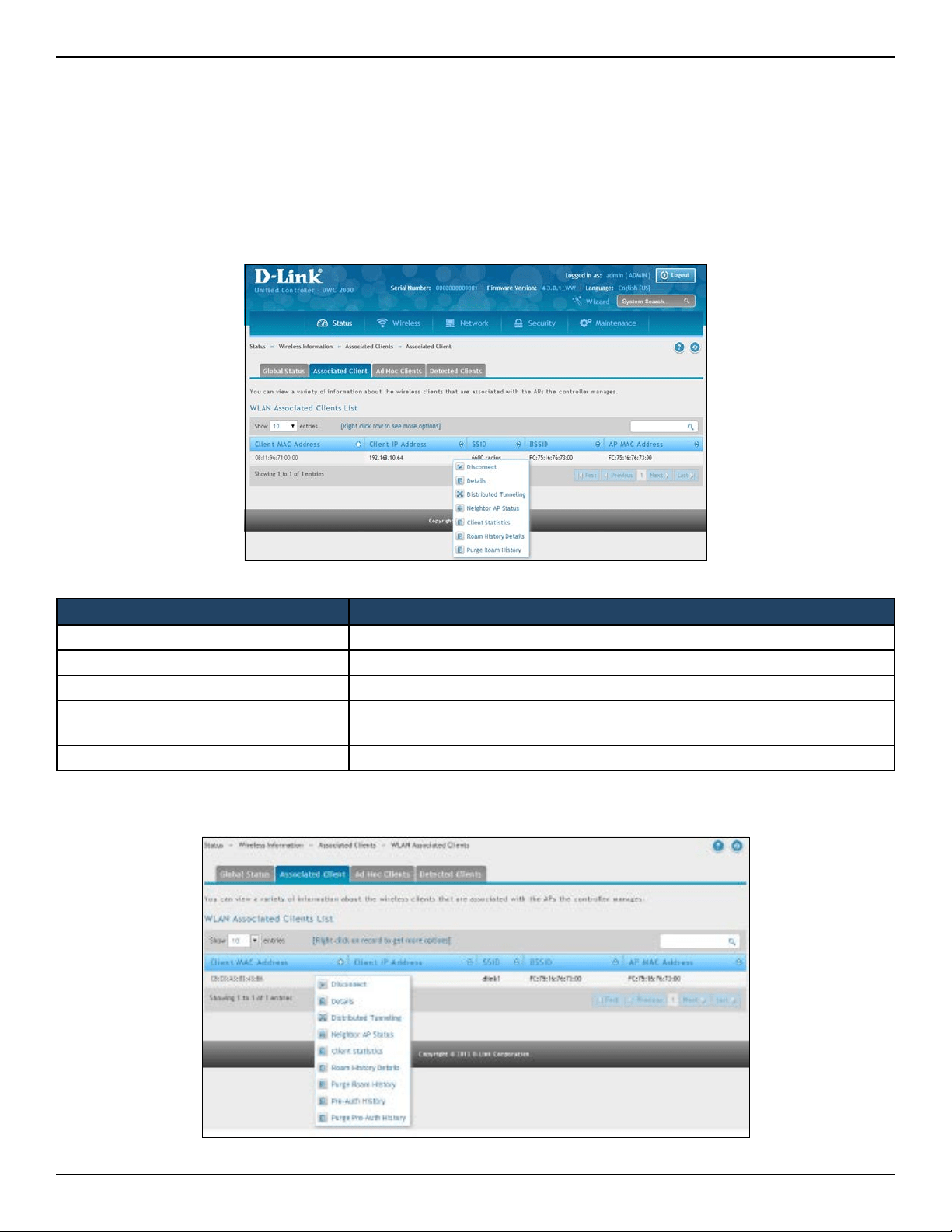
D-Link DWC-2000 User Manual 224
Section 7 - Viewing Status and Statistics
Path: Status > Wireless Information > Associated Clients > Associated Clients
The WLAN Associated Clients page tracks the trac associated with the client connected to the wireless controller.
Right-clicking on a client and clicking the View Details button displays detailed information about the selected
client.
Field Description
Client MAC Address Ethernet MAC address of the client station.
Client IP Address The IP address of the client station.
SSID Name of the wireless network on which the client is connected.
BSSID
MAC address for the managed access point/virtual access point where this
client is associated.
AP MAC Address Ethernet MAC address of the access point.
Associated Clients
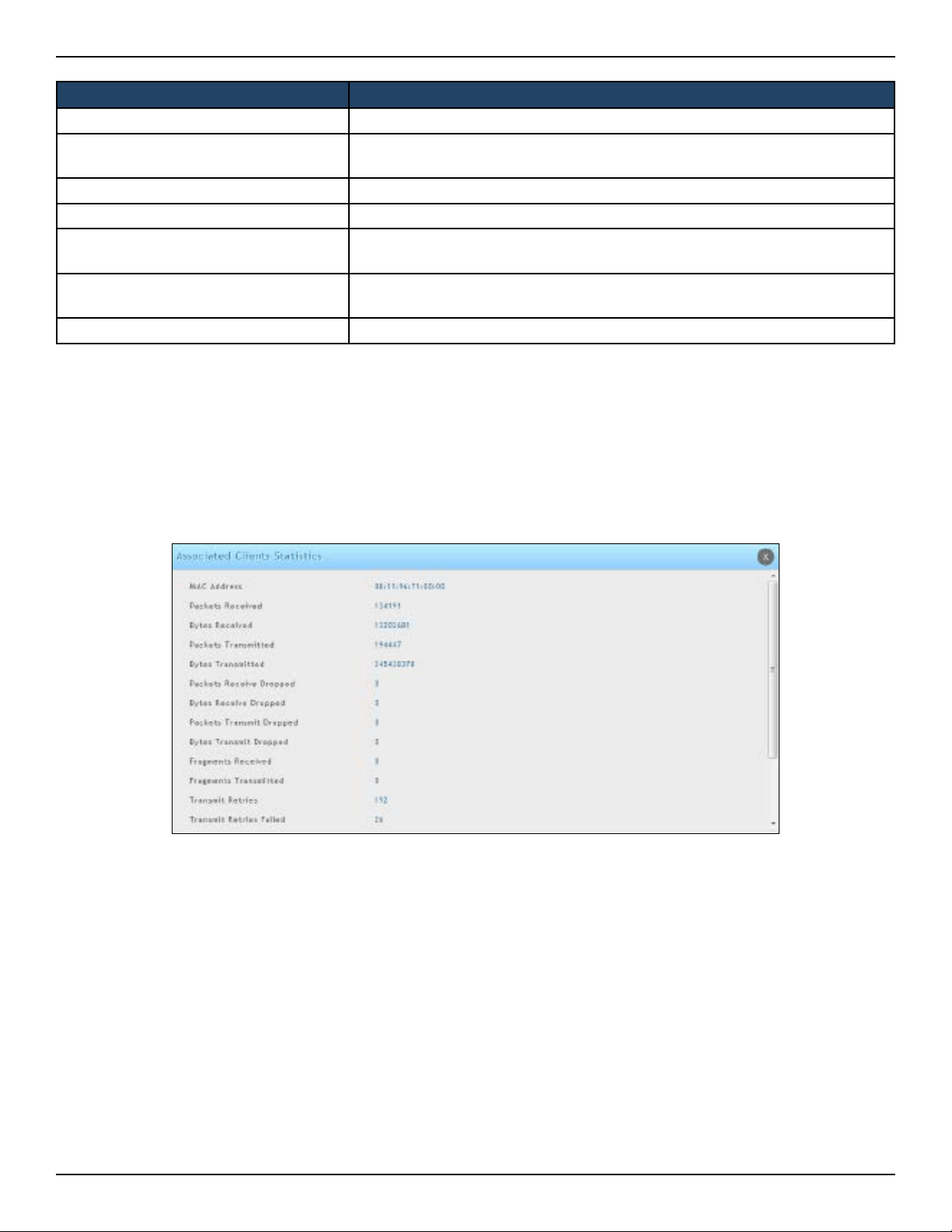
D-Link DWC-2000 User Manual 225
Section 7 - Viewing Status and Statistics
After right-clicking next to the MAC address, the Client Statistic page shows the elds in the table on the next
page. This page shows information about the trac a wireless client receives and transmits while it is associated
with a single access point. Use the table to view details about an associated client. Each client is identied by its
MAC address.
Field Description
Disconnect Disconnects the associated client.
Details
Shows detailed information about the associated client and the AP it is
connected to.
Distributed Tunneling Shows information about distributed tunneling status.
Neighbor AP Status Shows information about the neighbor AP status.
Client Statistics
Shows detailed statistic information about the associated client and its
bandwidth usage.
Roam History Details
Shows a history of the dierent APs the client has been connected to that are
managed by the DWC-2000.
Purge Roam History Will purge the roam history for the selected client.
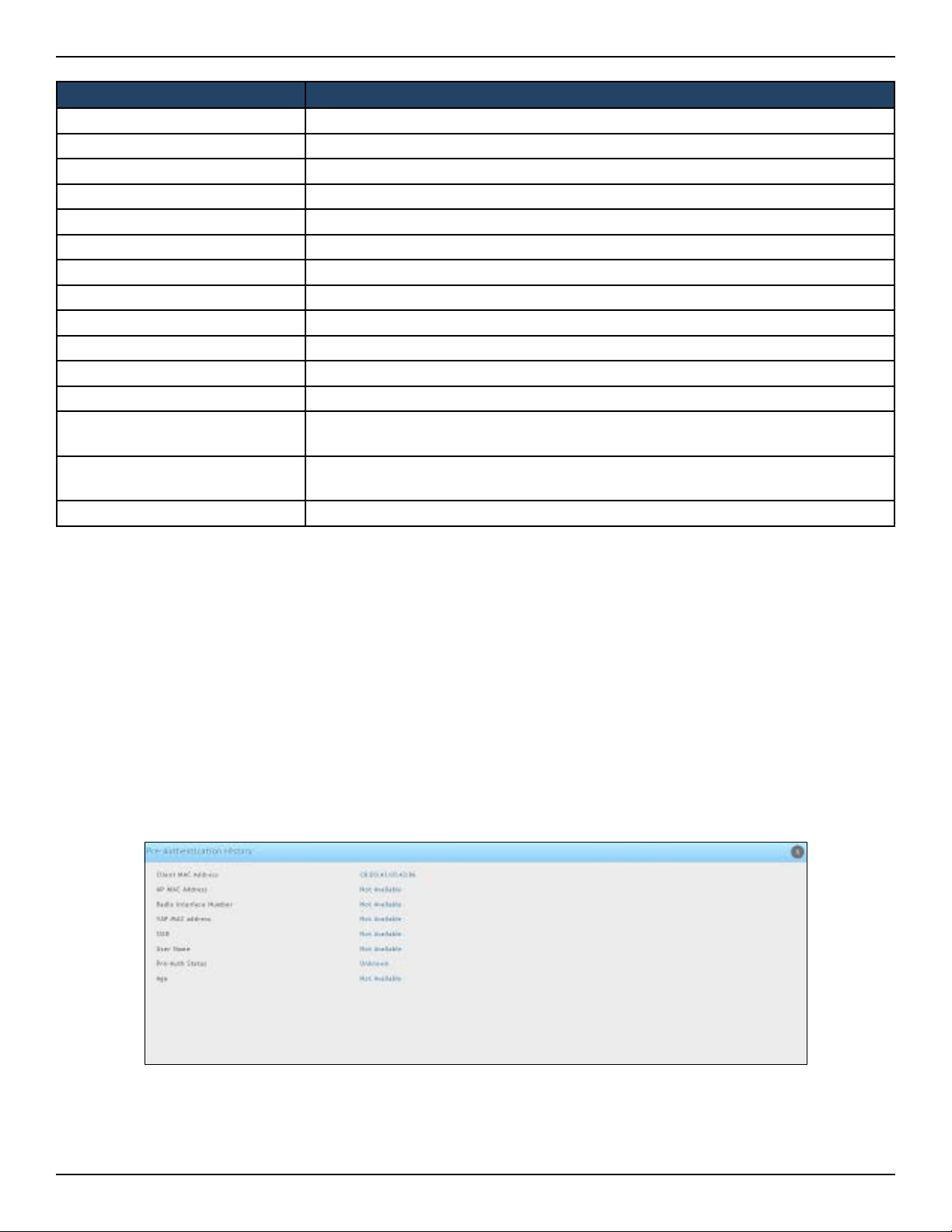
D-Link DWC-2000 User Manual 226
Section 7 - Viewing Status and Statistics
To help authenticated clients roam without losing sessions and needing to re-authenticate, wireless clients can
try to authenticate to other access points within range of the client. For successful pre-authentication, the target
access point must have a VAP with an SSID and security conguration that match the client, including MAC
authentication, encryption method, and pre-shared key or RADIUS parameters. The access point that the client
is associated with captures all pre-authentication requests and sends them to the controller.
The WLAN Associated Detected Clients Pre-Authentication History List page shows detected clients that have
made pre-authentication requests and identies the access points that received the requests.
Right-clicking next to the MAC address, the Pre-Auth History page shows the elds in the table on the next page.
Field Description
Packets Received Total number of packets received from the client station.
Bytes Received Total number of bytes received from the client station.
Packets Transmitted Total number of packets transmitted to the client station.
Bytes Transmitted Total number of bytes transmitted to the client station.
Packets Receive Dropped Number of packets received from the client stations that were dropped.
Bytes Receive Dropped Number of bytes received from the client stations that were dropped.
Packets Transmit Dropped Number of packets transmitted to the client stations that were dropped.
Bytes Transmit Dropped Number of bytes transmitted to the client stations that were dropped.
Fragments Received Total number of fragmented packets received from the client station.
Fragments Transmitted Total number of fragmented packets transmitted to the client station.
Transmit Retries Number of times transmits to client station succeeded after one or more retries.
Transmit Retries Failed Number of times transmits to client station failed after one or more retries.
TS Violate Packets Received
Count of packets received by an access point from a wireless client for the specied
access category.
TS Violate Packets Transmitted
Count of packets transmitted by an access point to a wireless client for the specied
access category.
Duplicates Received Total number of duplicate packets received from the client station.
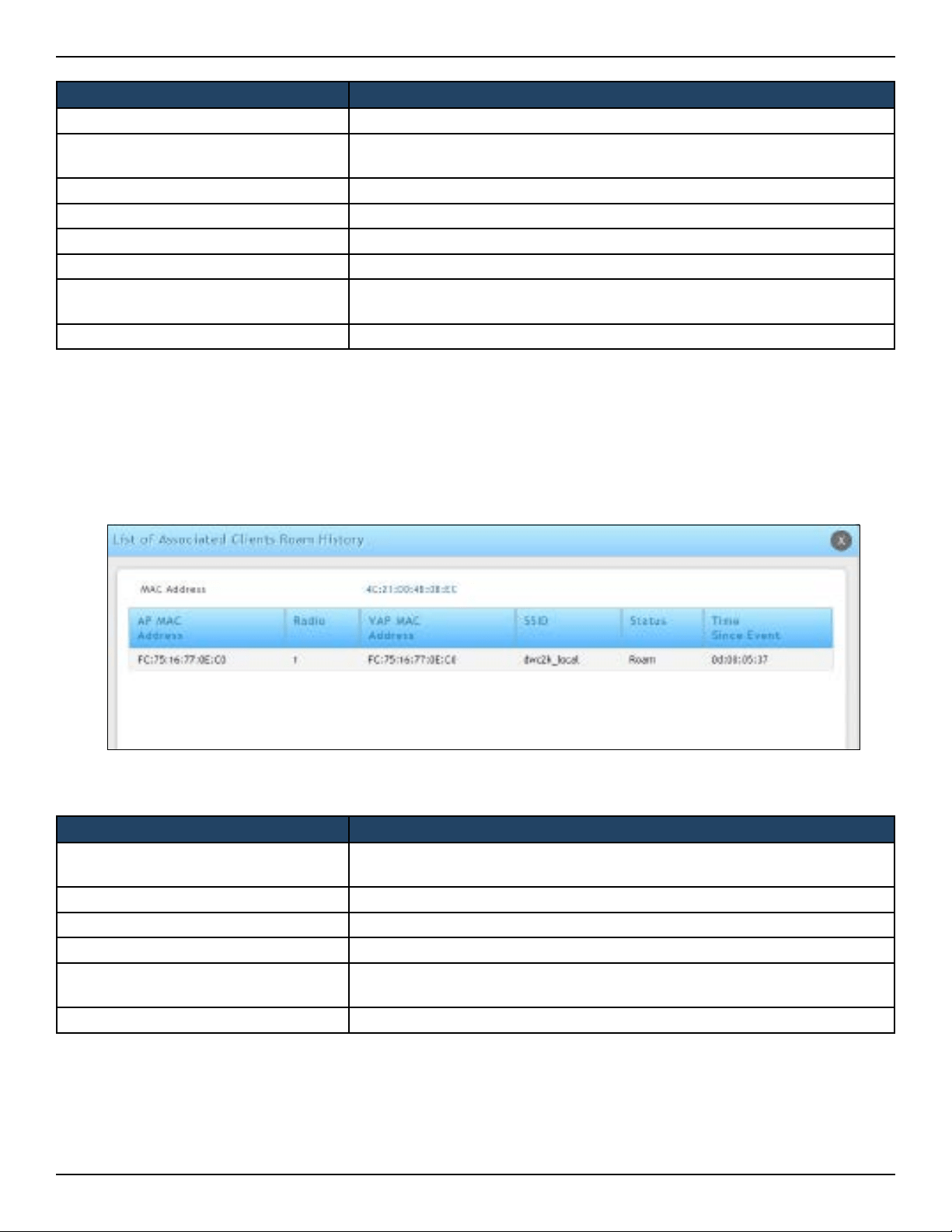
D-Link DWC-2000 User Manual 227
Section 7 - Viewing Status and Statistics
The wireless system keeps a record of clients as they roam from one managed access point to another, and
displays this information on the WLAN Associated Detected Clients Roam History List.
Right-clicking next to the MAC address, the Roam History page shows the elds in the table below.
Field Description
MAC Address MAC address of the client.
AP MAC Address
MAC address of the managed access point to which the client has pre-
authenticated.
Radio Interface Number Radio number to which the client is authenticated (Radio 1 or Radio 2).
VAP MAC Address VAP MAC address to which the client roamed.
SSID SSID name used by the VAP.
User Name User name of client that authenticated via 802.1X.
Pre-Authorization Status
Indicates whether the client successfully authenticated. Shows a status of
Success or Failure.
Age Time since the history entry was added.
Field Description
AP MAC Address
MAC address of the managed access point to which the client has pre-
authenticated.
Radio Radio number to which the client is authenticated.
VAP MAC Address VAP MAC address to which the client roamed.
SSID SSID name used by the VAP.
Status
A ag indicating whether the history entry represents a new authentication
or a roam event.
Time Since Event Time since the history entry was added.
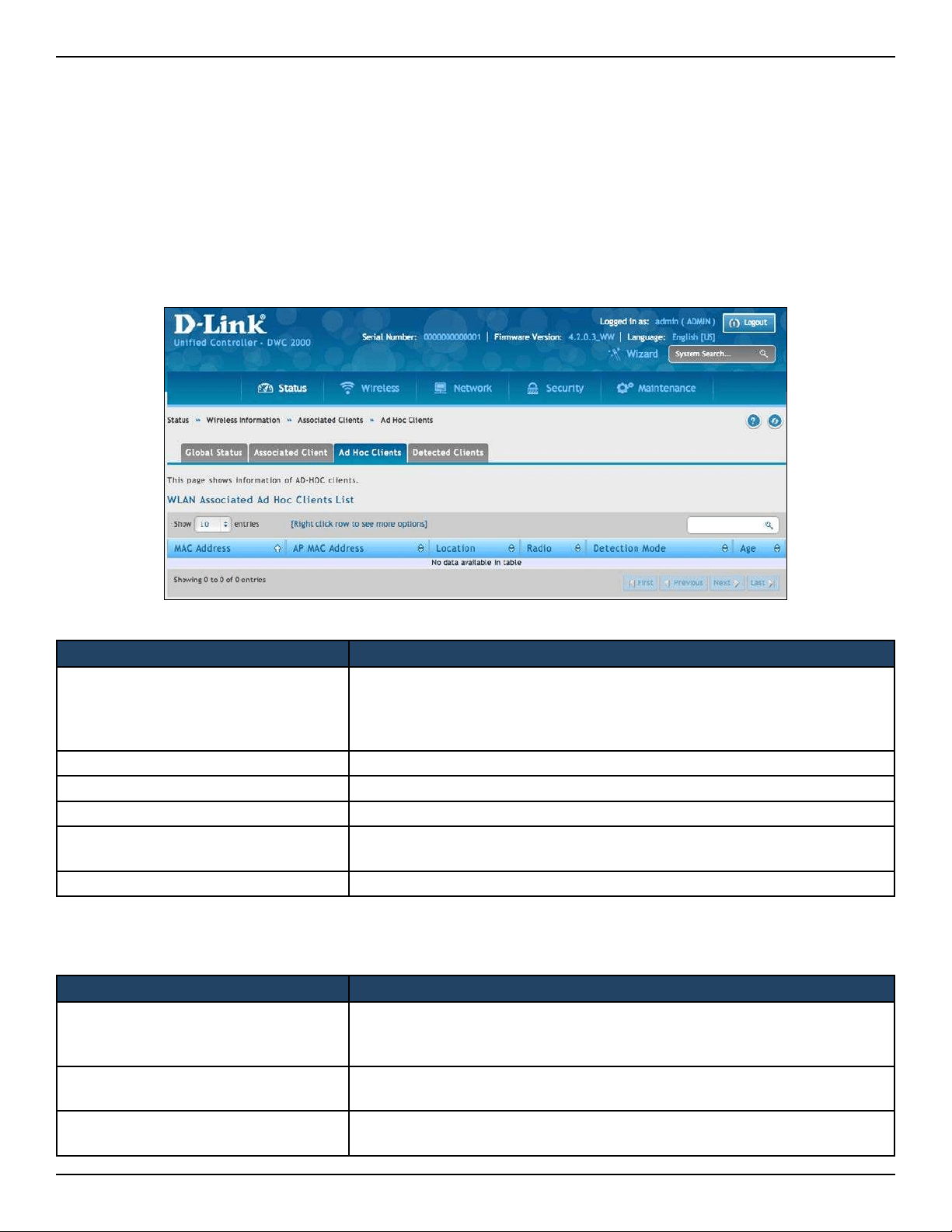
D-Link DWC-2000 User Manual 228
Section 7 - Viewing Status and Statistics
Path: Status > Wireless Information > Associated Clients > Ad Hoc Clients
An ad hoc client is a wireless client that gains access to the WLAN through a wireless client that is associated with
an access point. The ad hoc client does not communicate directly with the AP. Ad hoc networks are a particular
concern because they consume RF bandwidth and can present a security risk.
Right-click Commands on the WLAN Associated Ad Hoc Clients List
Field Description
MAC Address
The Ethernet address of the client. If the Detection Mode is Beacon then the
client is represented as an AP in the RF Scan database and the Neighbor AP
List. If the Detection Mode is Data Frame then the client information is in the
Neighbor Client List.
AP MAC Address The base Ethernet MAC Address of the managed AP which detected the client.
Location The congured descriptive location for the managed AP.
Radio The radio interface and its congured mode that detected the ad hoc device.
Detection Mode
The mechanism of detecting this Ad Hoc device. The possible values are
Beacon Frame or Data Frame.
Age Time since last detection of the ad hoc network.
Field Description
Delete All
Deletes all ad hoc client entries from the list. Clearing the list does not
disassociate any of the ad hoc clients, and the clients might still be involved in
the ad hoc network.
Deny
Blocks an ad hoc client from WLAN access. The MAC address is added to the
Known Client database where the default action is Deny.
Allow
Allows an ad hoc client access to the WLAN. The MAC address is added to the
Known Client database where the default action is Allow.
Ad Hoc Clients
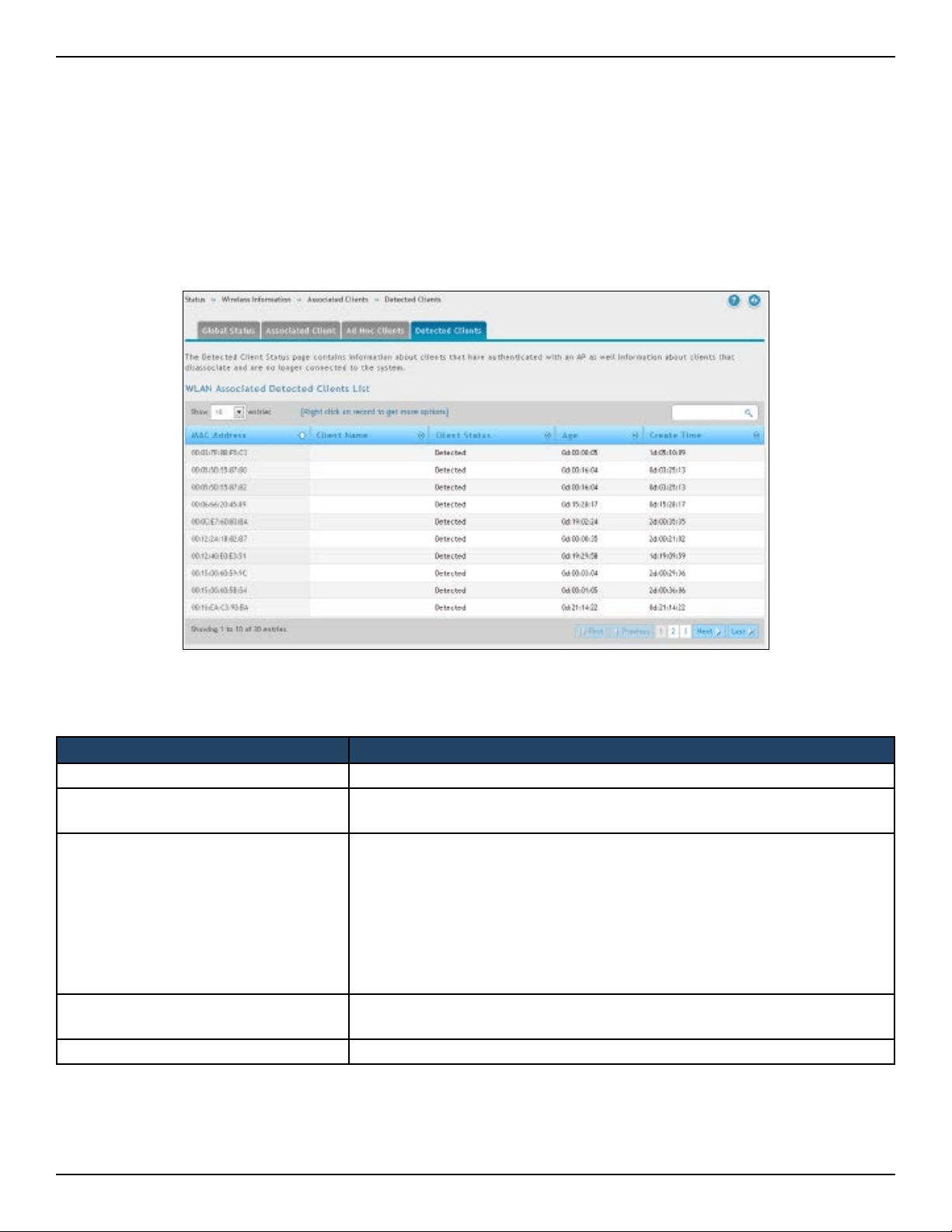
D-Link DWC-2000 User Manual 229
Section 7 - Viewing Status and Statistics
Path: Status > Wireless Information > Associated Clients > Detected Clients
Wireless clients are detected by the wireless system either when the clients attempt to interact with the system
or when the system detects trac from the clients. The Detected Client Status page shows information about
clients that have authenticated with an access point as well information about clients that disassociate and are
no longer connected to the system.
Fields on the Detected Client Status Page are shown in the table below:
Field Description
MAC Address Ethernet MAC address of the client.
Client Name
Name of the client, if available, from the Known Client Database. If the client is
not in the database, the eld is blank.
Client Status
Client status, which can be one of the following values:
• Authenticated = wireless client is authenticated with the wireless system.
• Detected = wireless client is detected by the wireless system, but is not a
security threat.
• Black-Listed = client with this MAC address is specically denied access
via MAC authentication.
• Rogue = client is classied as a threat by one of the threat-detection
algorithms.
Age
Time since any event has been received for this client that updated the
detected client database entry.
Create Time Time since this entry was rst added to the detected client database.
Detected Clients

D-Link DWC-2000 User Manual 230
Section 7 - Viewing Status and Statistics
Field Description
Details Show detail information about the selected client.
Pre-Auth History
The Detected Client Pre-Authentication History page shows information
about the pre-authentication requests that the detected client has made.
Roam History Details
A record of clients as they roam from one managed AP to another managed
AP. A history of up to 10 APs is kept for each client.
Purge Roam History Clears current roam history data from Roam History section.
Triangulation Detail
The Detected Client Triangulation page lists up to three non-sentry and three
sentry managed APs that have detected the client.
Rogue Classication
The Wireless Intrusion Detection System (WIDS) can help detect intrusion
attempts into the wireless network and take automatic actions to protect the
network. The Unied Wireless controller allows you to activate or deactivate
various threat detection tests and set threat detection thresholds. The WIDS
Client Rogue Classication page provides information about the results
of these tests. If a client has been classied as a rogue, this page provides
information about which tests the client might have failed to trigger the
classication.
Purge Pre-auth HIstory Clears pre auth data from Pre-Auth History section.
Right-click commands on the WLAN Detected Clients List are listed below:
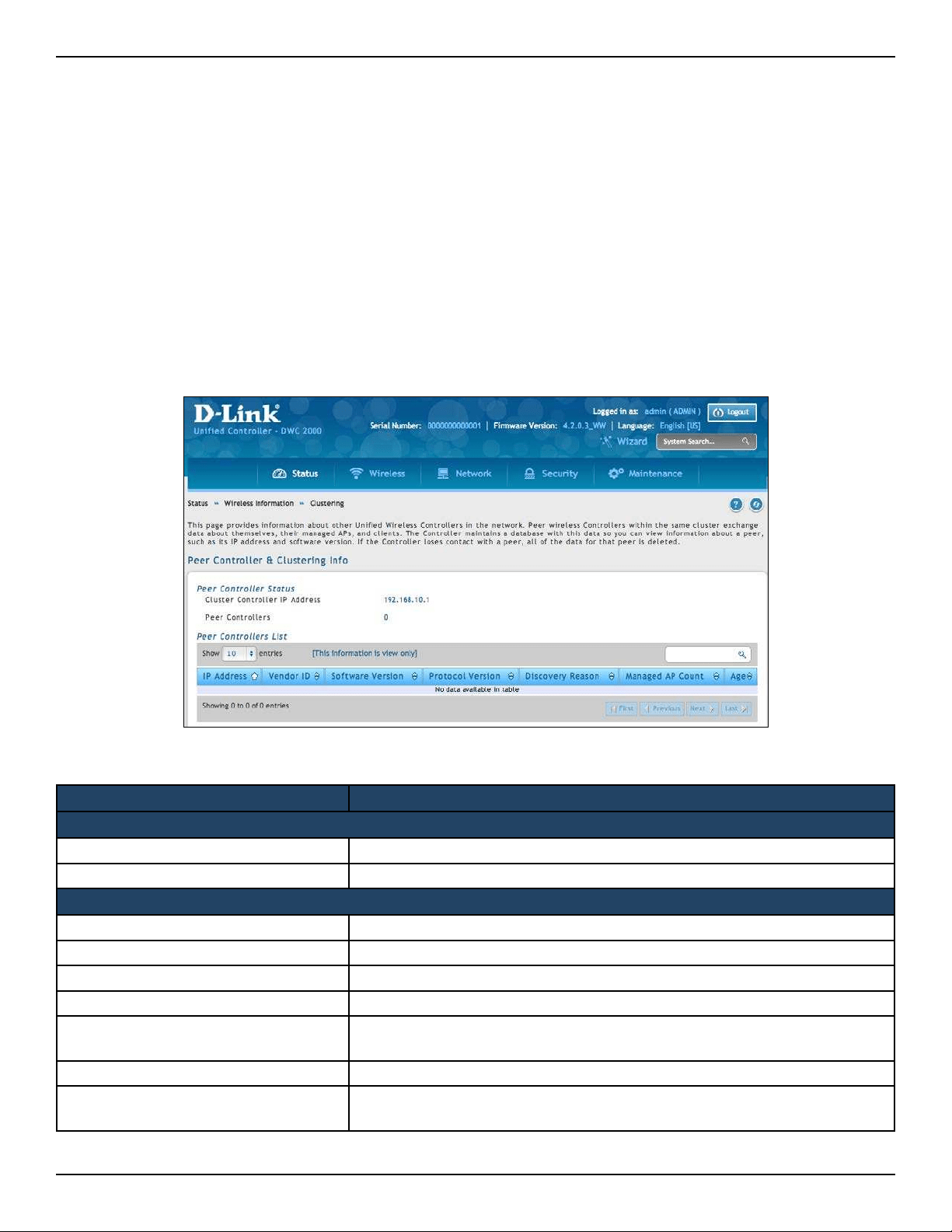
D-Link DWC-2000 User Manual 231
Section 7 - Viewing Status and Statistics
Viewing Cluster Information
Path: Status > Wireless Information > Clustering
The Cluster Information page shows information about other wireless controllers in the network. Peer wireless
controllers within the same cluster exchange data about themselves, their managed access points, and their
clients. The wireless controller maintains a database with this data, so you can view information about a peer,
such as its IP address and software version. If the wireless controller loses contact with a peer, all of the data for
that peer is deleted.
One wireless controller in a cluster is elected as a Cluster Controller. The Cluster Controller collects status and
statistics from the other controllers in the cluster, including information about the access point’s peer controller
and the clients associated to those access points.
Field Description
Cluster Information
Cluster Controller IP Address IP address of the controller that controls the cluster.
Peer Controllers Number of peer controllers.
Connected Peer Controllers
IP Address IP address of the peer wireless controller in the cluster.
Vendor ID Vendor ID of the peer controller software.
Software Version Software version for the given peer controllers.
Protocol Version Protocol version supported by the software on the peer wireless controllers.
Discovery Reason
Discovery method of the given peer wireless controller, either through an L2
Poll or IP Poll.
Managed AP Count Number of access points that the wireless controller manages currently.
Age
Time since last communication with the wireless controller, in hours, minutes,
and seconds.
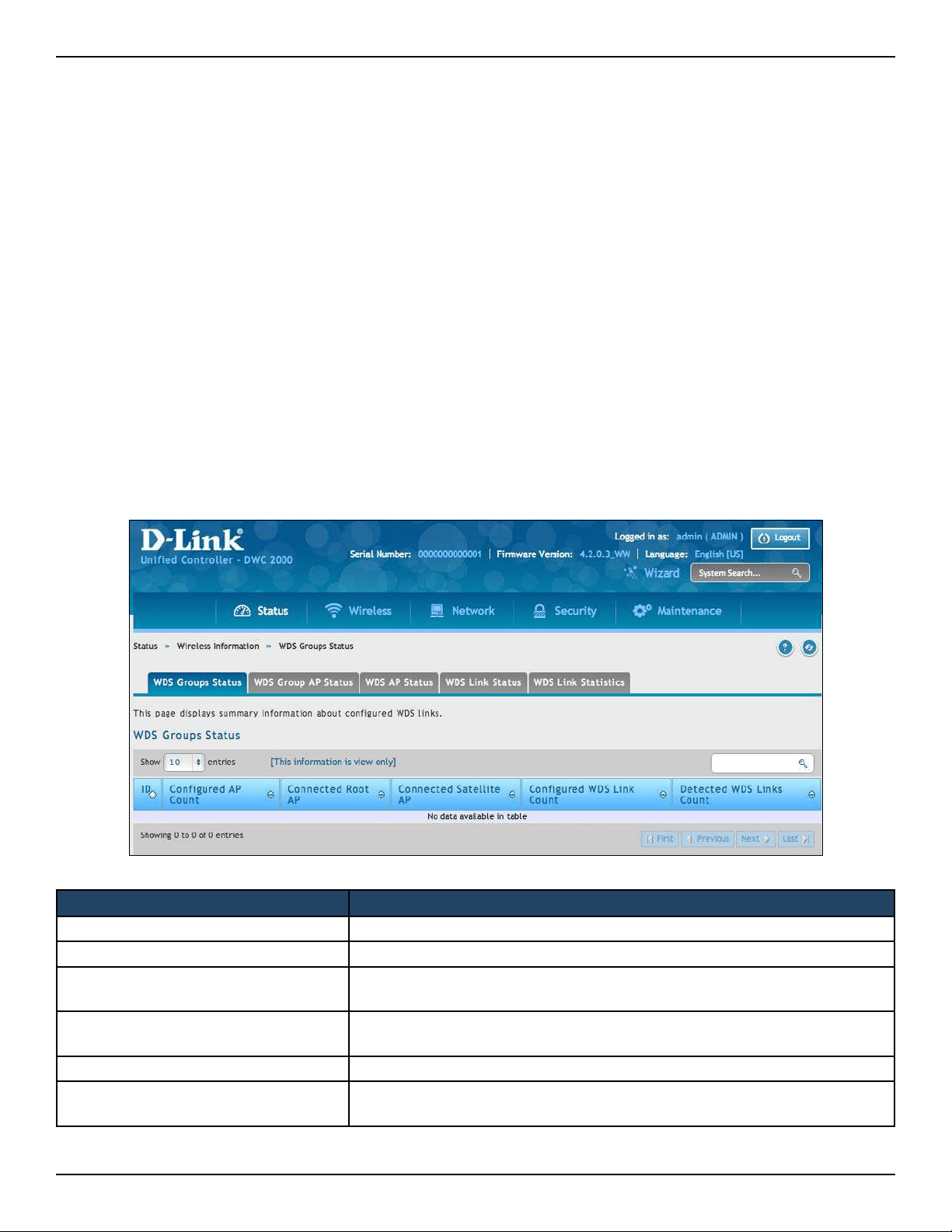
D-Link DWC-2000 User Manual 232
Section 7 - Viewing Status and Statistics
Viewing WDS Group Status
Path: Status > Wireless Information > WDS Groups Status > WDS Groups Status
The Wireless Distribution System (WDS)-Managed AP feature allows you to add managed APs to the cluster
using over-the-air WDS links through other managed APs. With WDS, APs may be located outdoors where wired
connection to the data network is unavailable, or in remote buildings that are not connected to the main campus
with a wired network.
The WDS AP group consists of the following managed APs:
• Root AP: Acts as a bridge or repeater on the wireless medium and communicates with the controller
via the wired link
• Satellite AP: Communicates with the controller via a WDS link to the Root AP
The WDS links are secured using WPA2 Personal authentication and AES encryption.
This page displays summary information about congured WDS links. At least one group must be congured for
the elds to display. To congure a WDS AP group, use the pages from Wireless > Access Point > WDS Groups.
Field Description
ID Unique number that identies the WDS AP group.
Congured AP Count Number of APs congured in this WDS AP group.
Connected Root AP
Number of Root APs currently being managed by the controller that are
members of this WDS AP Group.
Connected Satellite AP
Number of Satellite APs currently being managed by the controller that are
members of this WDS AP Group.
Congured WDS Link Count Number of congured bidirectional links in the WDS AP Group.
Detected WDS Links Count
Number of WDS links detected in the system.APs on both sides of the link
must detect each other in order for the link to be counted.
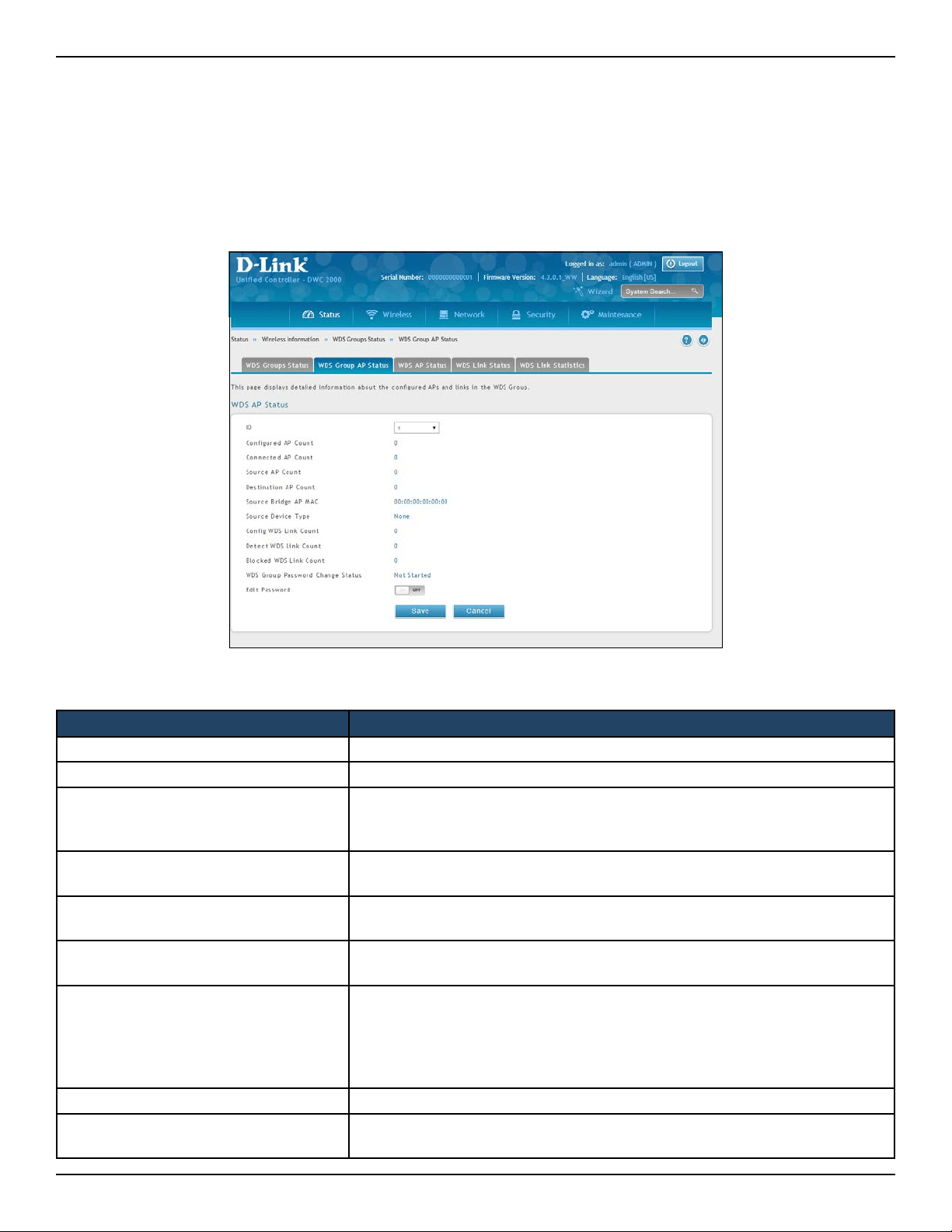
D-Link DWC-2000 User Manual 233
Section 7 - Viewing Status and Statistics
Path: Status > Wireless Information > WDS Groups Status > WDS Group AP Status
The WDS AP Group Status page displays detailed information about the congured APs and links in the WDS
Group. From this page, you can also send a new password to group members.
Field Description
ID Unique number that identies the WDS AP group.
Congured AP Count Number of APs congured in this WDS AP group.
Connected AP Count
Number of APs managed by the controller that are members of this WDS AP
Group. This number is the sum of the Connected Root APs and Connected
Satellite APs.
Source AP Count
Number of Root APs currently being managed by the controller that are
members of this WDS AP Group.
Destination AP Count
Number of Satellite APs currently being managed by the controller that are
members of this WDS AP Group.
Source Bridge AP MAC
MAC Address of the device elected as the Spanning Tree Root Bridge. If
spanning tree is disabled this value is 00:00:00:00:00:00.
Source Device Type
The type of device elected as the Spanning Tree Root bridge:
• None (STP is disabled)
• Root AP
• Satellite AP
• External Device (STP Root is not one of the APs)
Cong WDS Link Count Number of congured bidirectional links in the WDS AP Group.
Detect WDS Links Count
Number of WDS links detected in the system. APs on both sides of the link
must detect each other in order for the link to be counted.
WDS Group AP Status

D-Link DWC-2000 User Manual 234
Section 7 - Viewing Status and Statistics
Blocked WDS Link Count
Number of WDS links blocked by the spanning tree protocol. If the AP on
one side of the link reports the link as blocking then the link is counted by
this status parameter.
WDS Group Password Change Status
Status of the last attempt to congure the password for the WDS Group:
• Not Started
• Success
• Invalid Password
• Requested
• Timed Out
Edit Password
To change the password for all controllers and APs in this WDS Group, select
the Edit checkbox, type the new password, and then click Apply Password.
Password must be minimum of 8 characters and can be up to 63 characters
in length.
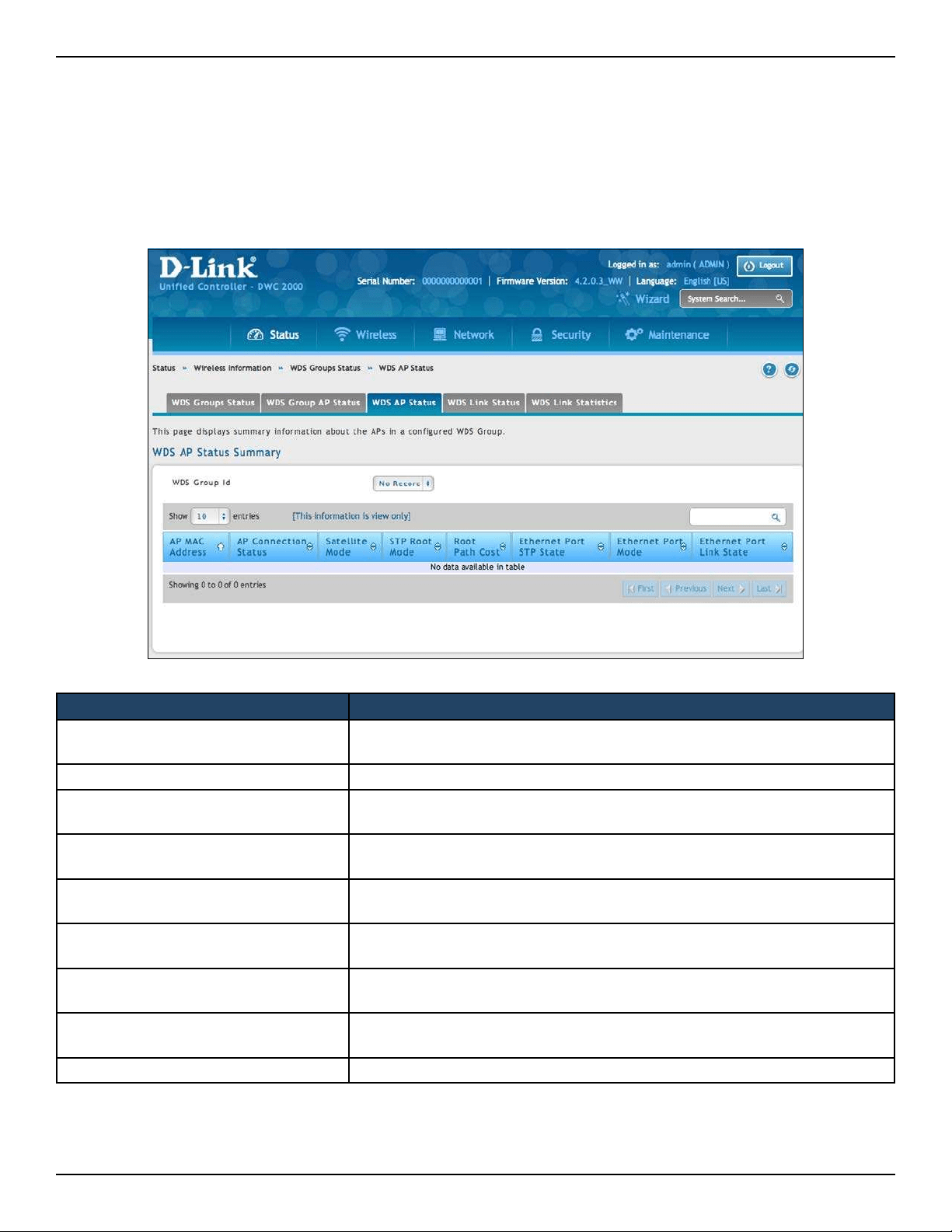
D-Link DWC-2000 User Manual 235
Section 7 - Viewing Status and Statistics
Path: Status > Wireless Information > WDS Groups Status > WDS AP Status
The WDS AP Group Status page displays summary information about the APs in a congured WDS group.
Field Description
Group ID
Use the drop-down menu above the elds to select the group number that
identies the congured WDS AP group.
AP MAC Address Identies the AP in the group by its MAC address.
AP Connection Status
Indicates whether the AP is currently being managed by one of the controllers
in the cluster.
Satellite Mode
Indicates whether the AP is a Satellite AP connected to the network via a WDS
link or a Root AP connected to the network via a wired link.
STP Root Mode
Indicates whether this AP is the root of the spanning tree. If spanning tree is
disabled then the AP is always reported as Not STP Root.
Root Path Cost
Spanning Tree Path Cost to the root. The root AP always reports this value as 0.
If spanning tree is disabled the value is also 0.
Ethernet Port STP State
When spanning tree is enabled on the APs in the WDS group this status
parameter reports the spanning tree status of the Ethernet port.
Ethernet Port Mode
On Satellite APs the Ethernet port can be manually disabled. On root APs the
port is always enabled.
Ethernet Port Link State When the Ethernet port is enabled, this status reports the link state of the port.
Viewing WDS AP Status
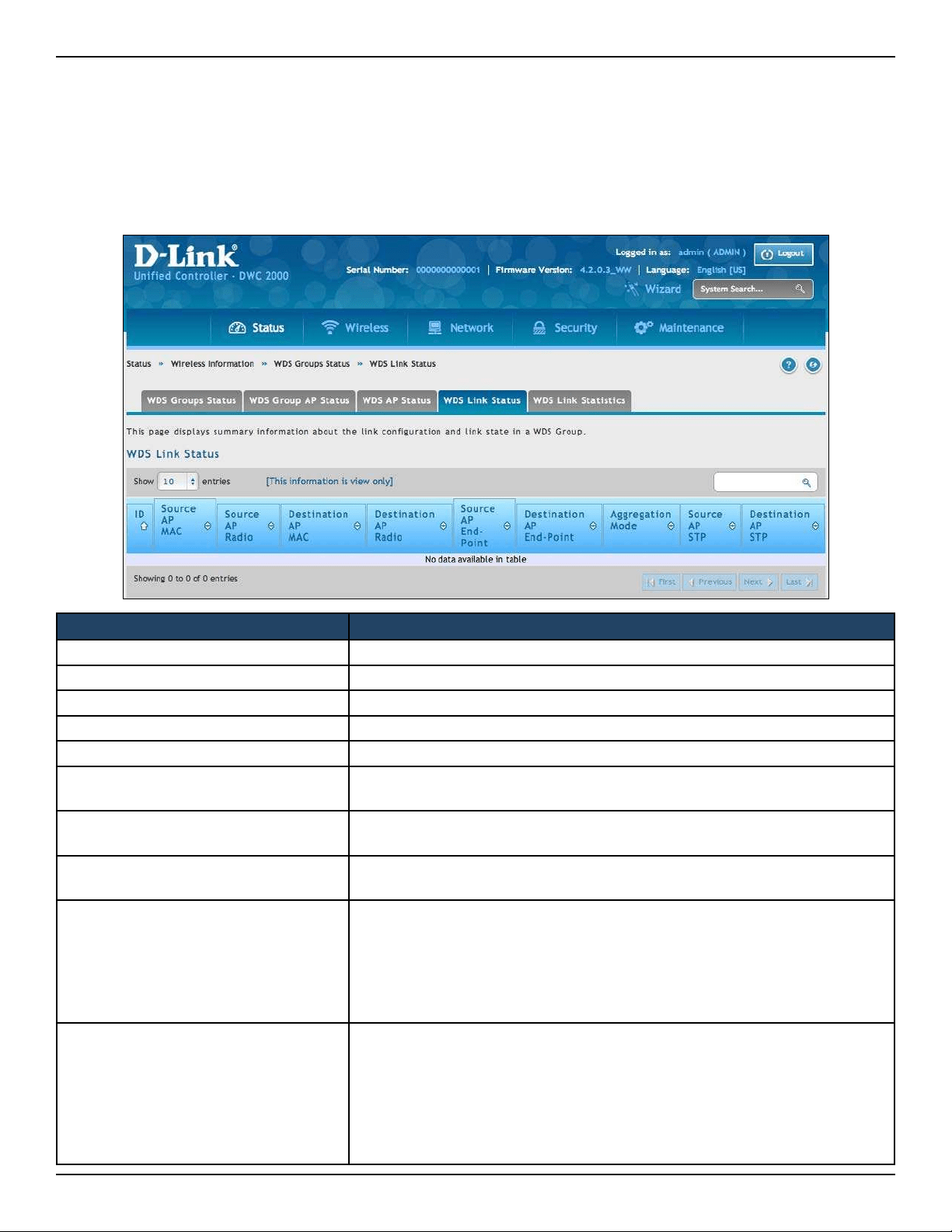
D-Link DWC-2000 User Manual 236
Section 7 - Viewing Status and Statistics
Path: Status > Wireless Information > WDS Groups Status> WDS Link Status
The WDS AP Link Status page displays summary information about the link conguration and link state in a WDS
group.
Field Description
ID The group number that identies the congured WDS AP group.
Source AP MAC The MAC address of one end-point of the WDS link.
Source AP Radio The radio number of the WDS link endpoint on the source AP.
Destination AP MAC The MAC address of the Source AP in the group.
Destination AP Radio The radio number of the WDS link endpoint on the destination AP.
Source AP End-Point
Indicates whether the AP specied by the destination MAC detected the AP
specied by the source MAC.
Destination AP End-Point
Indicates whether the AP specied by the source MAC detected the AP
specied by the destination MAC.
Aggregation Mode
When parallel links are dened between two APs, this eld indicates whether
this link is part of the aggregation link pair.
Source AP STP
Spanning Tree State of the link on the source AP, which is one of the following:
• Disabled (STP is disable or Link is down)
• Forwarding
• Learning
• Listening
• Blocking
Destination AP STP
Spanning Tree State of the link on the destination AP, which is one of the
following:
• Disabled (STP is disable or Link is down)
• Forwarding
• Learning
• Listening
• Blocking
Viewing WDS Link Status
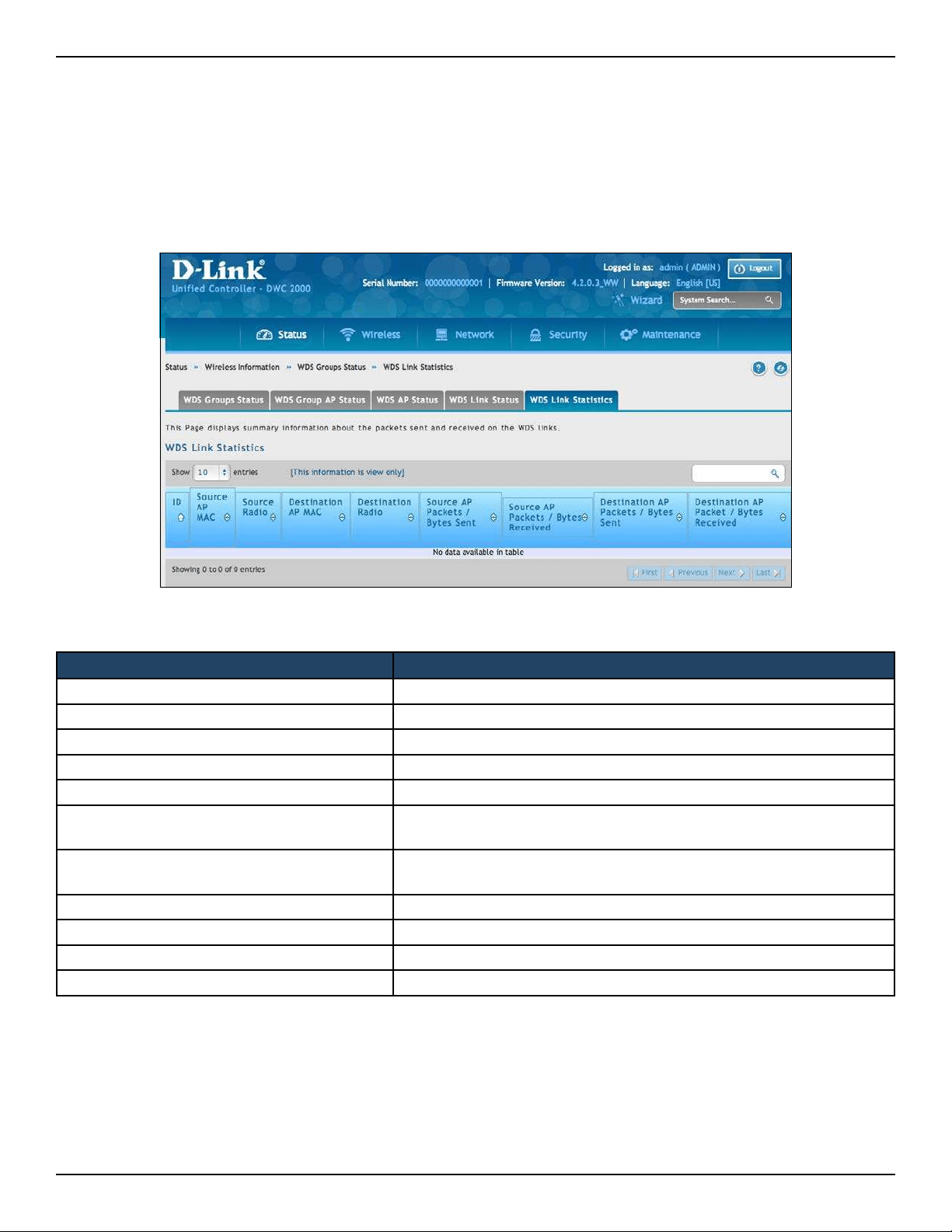
D-Link DWC-2000 User Manual 237
Section 7 - Viewing Status and Statistics
Path: Status > Wireless Information > WDS Groups Status > WDS Link Statistics
The WDS Group Link Statistics page displays summary information about the packets sent and received on the
WDS links.
Field Description
ID The group number that identies the congured WDS AP group.
Source AP MAC The MAC address of one end-point of the WDS link.
Source AP Radio The radio number of the WDS link endpoint on the source AP.
Destination AP MAC The MAC address of the Source AP in the group.
Destination AP Radio The radio number of the WDS link endpoint on the destination AP.
Source AP End-Point
Indicates whether the AP specied by the destination MAC detected
the AP specied by the source MAC.
Destination AP End-Point
Indicates whether the AP specied by the source MAC detected the AP
specied by the destination MAC.
Source AP Packets/ Bytes Sent Number of packets/bytes sent by the source AP.
Source AP Packets/Bytes Received Number of packets/bytes received by the source AP.
Destination AP Packets/Bytes Sent Number of packets/bytes sent by the destination AP.
Destination AP Packets/Bytes Received Number of packets/bytes received by the destination AP.
Viewing WDS Link Statistics

D-Link DWC-2000 User Manual 238
Section 8 - Maintenance
Maintenance
This chapter describes the following maintenance activities:
• “System Settings” on page 239
• “Activating Licenses” on page 241
• “Remote Management” on page 242
• “Using SNMP” on page 243
• “Backup Conguration Settings” on page 249
• “Restoring Conguration Settings” on page 250
• “Restoring Factory Default Settings” on page 251
• “Rebooting the Wireless Controller” on page 252
• “Wireless Controller Firmware Upgrade” on page 253
• “Using the Command Line Interface” on page 255
• “Log Settings” on page 265
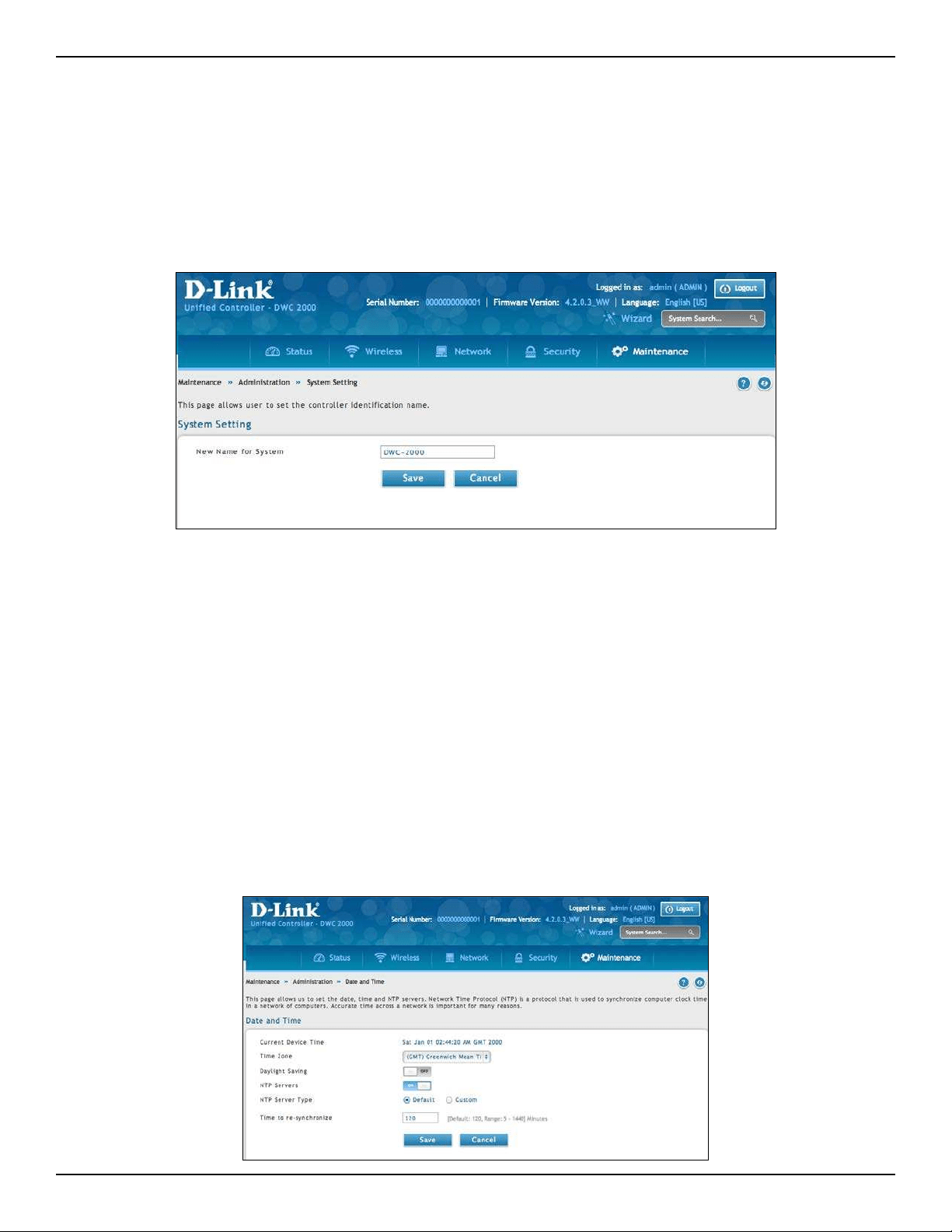
D-Link DWC-2000 User Manual 239
Section 8 - Maintenance
System Settings
Set System Name
Path: Maintenance > Administration > System Setting
Enter a name for the system and click Save.
Set System Date and Time
Path: Maintenance > Administration > Date and Time
You can congure your time zone, whether or not to adjust for Daylight Savings Time, and with which Network
Time Protocol (NTP) server to synchronize the date and time. You can choose to set Date and Time manually,
which will store the information on the controller’s real time clock (RTC). If the controller has access to the internet,
the most accurate mechanism to set the controller time is to enable NTP server communication.
To congure the date and time, following below steps:
1. Select the controller’s time zone, relative to Greenwich Mean Time (GMT).
2. If supported for your region, click to Enable Daylight Savings.
3. Determine whether to use default or custom Network Time Protocol (NTP) servers. If custom, enter the
server addresses or FQDN.
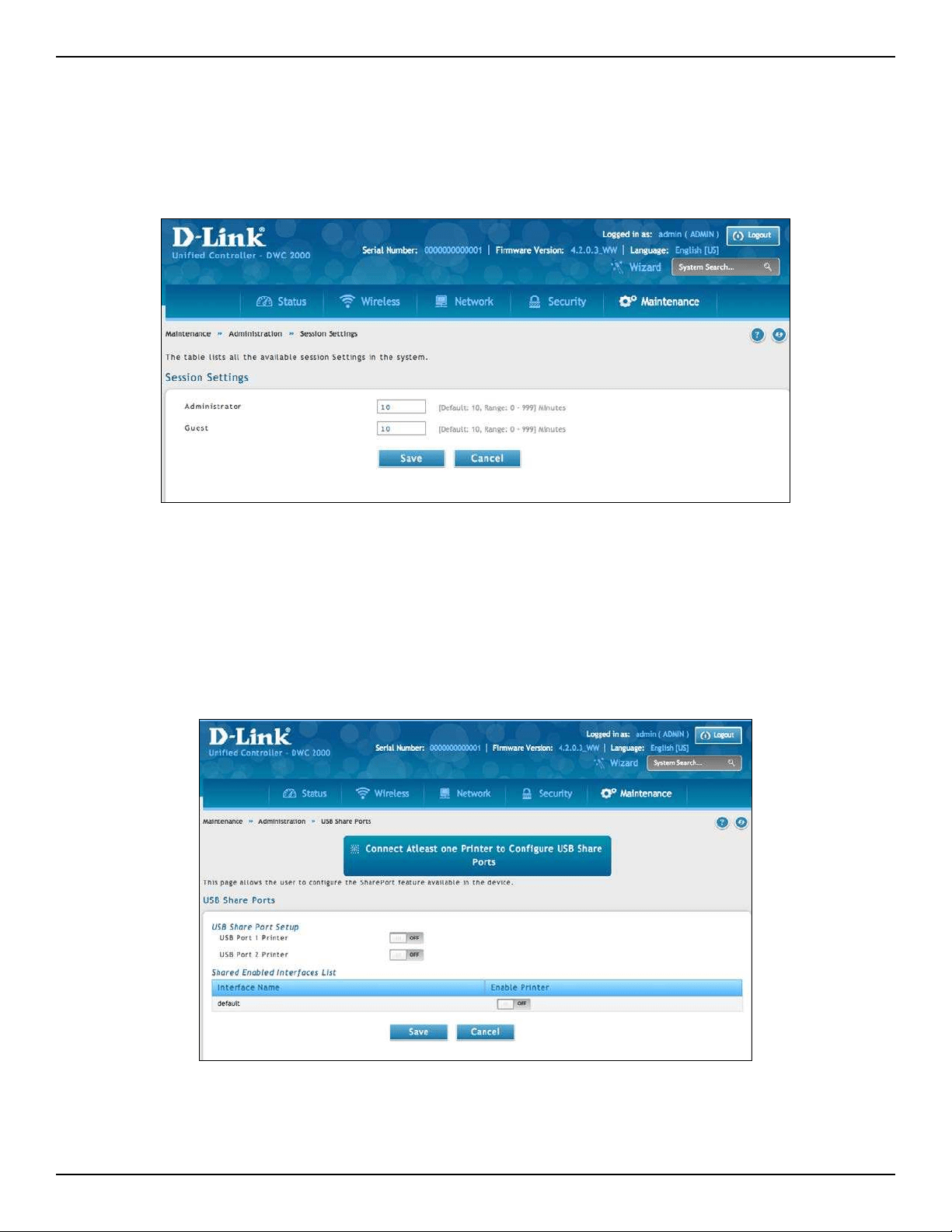
D-Link DWC-2000 User Manual 240
Section 8 - Maintenance
Set Login Session Timeout
Path: Maintenance > Administration > Session Settings
Enter the session timeout value for administrator and guest users and then click Save.
Set USB Share Ports
Path: Maintenance > Administration > USB Share Ports
Enable USB port sharing on USB port 1, 2, or both and click Save.
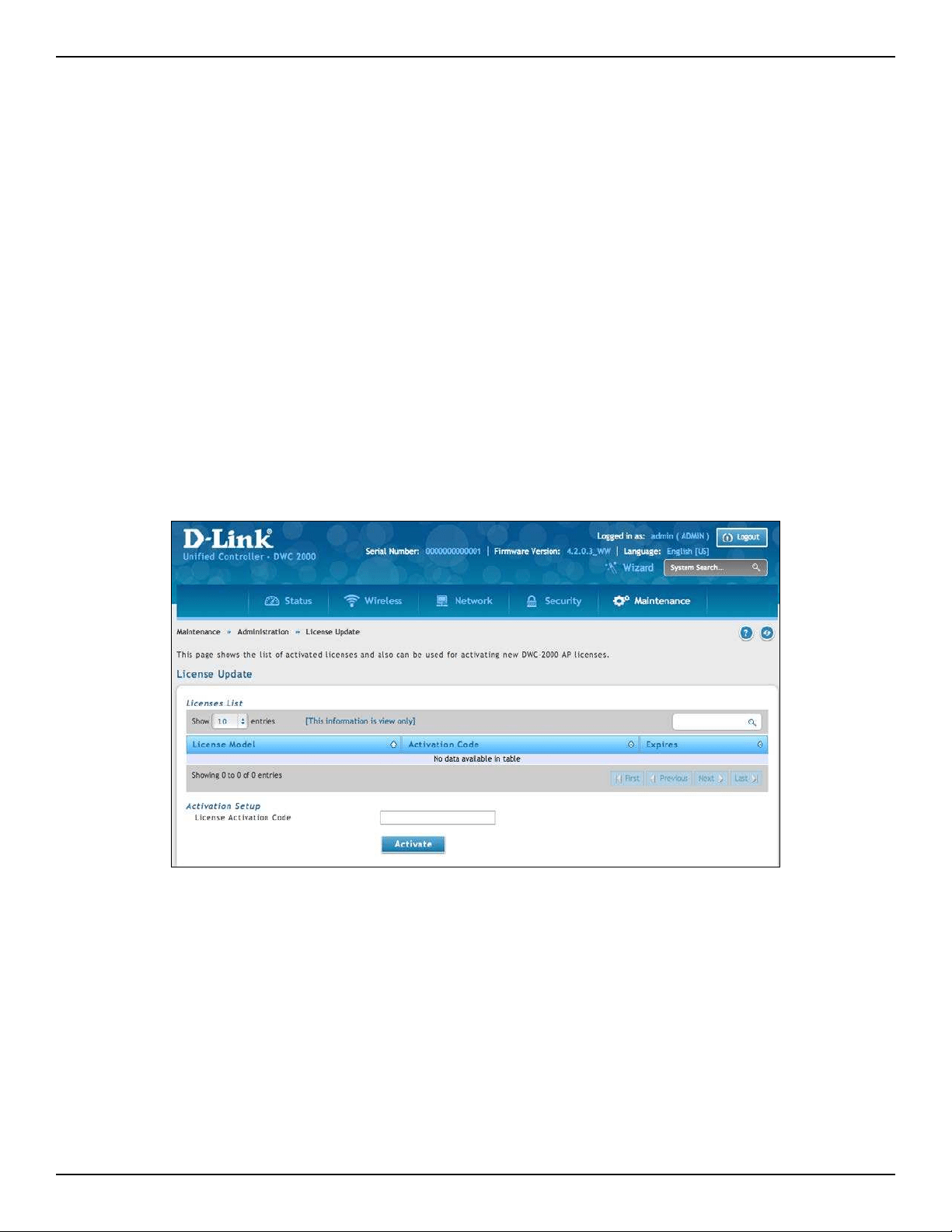
D-Link DWC-2000 User Manual 241
Section 8 - Maintenance
Activating Licenses
Path: Maintenance > Administration > License Update
The License Update page lets you activate licenses for additional access points on the wireless controller.
1. Obtain an Activation Key from D-Link:
a. Find the wireless controller serial number on the bottom of the device.
b. Obtain a license key from D-Link after purchasing the license.
c. Open a web browser and go to https://register.dlink.com to register with D-Link.
d. If you do not have an account, register for a new account.
e. Log in with your username and password.
f. Click License Key Activation on the D-Link Global Registration Portal website.
g. Follow the directions to receive an activation code.
2. After obtaining the Activation Key, go to Maintenance > Administration > License Update. The
License Update page will appear.
3. Under Activation Setup, enter the D-Link-supplied code for the license you want to activate in the
Activation Code eld.
4. Click Activate. The activation code will appear under List of Available Licenses.
5. Reboot the wireless controller to have the license take eect (refer to “Rebooting the Wireless Controller”
on page 252).
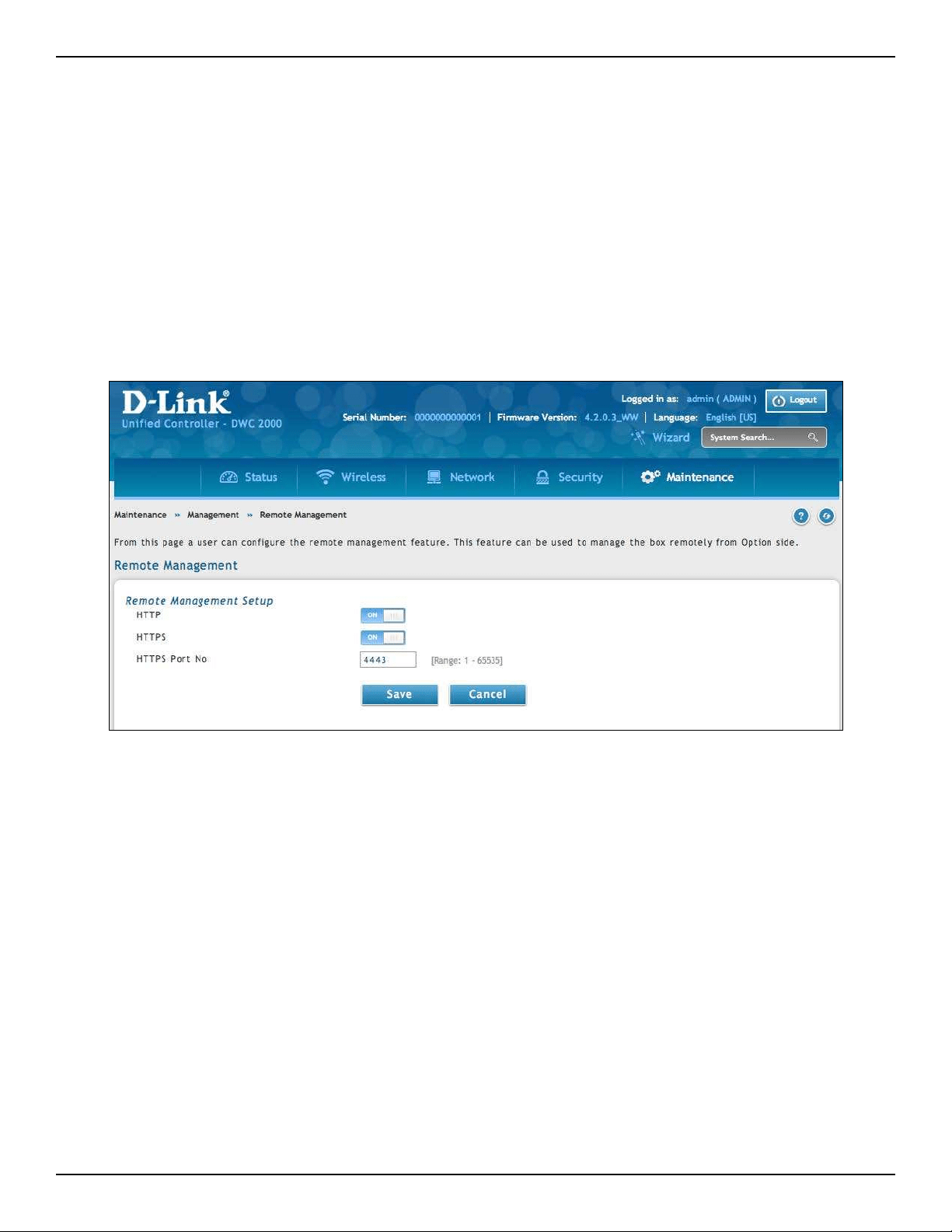
D-Link DWC-2000 User Manual 242
Section 8 - Maintenance
Remote Management
Path: Maintenance > Administration > Remote Management
The Remote Access page allows you to enable remote management from outside your local network to congure
your wireless controller. Select HTTP and/or HTTPS.
Note: When remote management is enabled, the controller is accessible to anyone who knows its IP address. It
is HIGHLY RECOMMENDED that you change the default administrator and guest passwords before continuing.
1. Go to Maintenance > Management > Remote Management.
2. Set HTTP and/or HTTPS to On. If you select HTTPS, you may enter a port (4443 is the default setting).
3. Click Save.
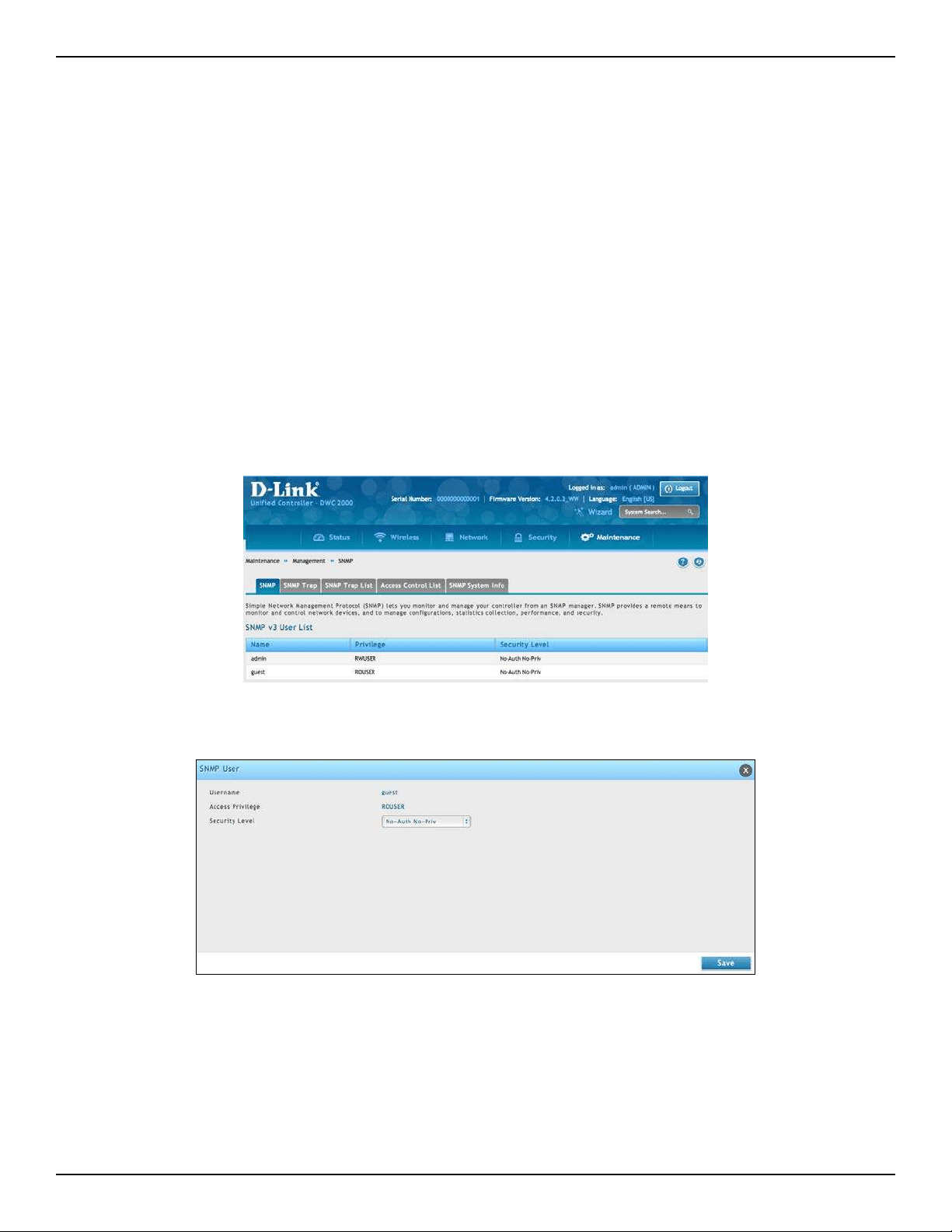
D-Link DWC-2000 User Manual 243
Section 8 - Maintenance
Using SNMP
Path: Maintenance > Management > SNMP
SNMP is an additional management tool that is useful when multiple routers in a network are being managed
by a central Master system. When an external SNMP manager is provided with this controller’s Management
Information Base (MIB) le, the manager can update the controller’s hierarchal variables to view or update
conguration parameters. The controller as a managed device has an SNMP agent that allows the MIB conguration
variables to be accessed by the Master (the SNMP manager). The Access Control List on the controller identies
managers in the network that have read-only or read-write SNMP credentials. The Traps List outlines the port
over which notications from this controller are provided to the SNMP community (managers) and also the
SNMP version (v1, v2c, v3) for the trap.
Congure SNMP v3 User List
Go to Maintenance > Management > SNMP > SNMP tab.
1. Right-click either admin or guest and select Edit.
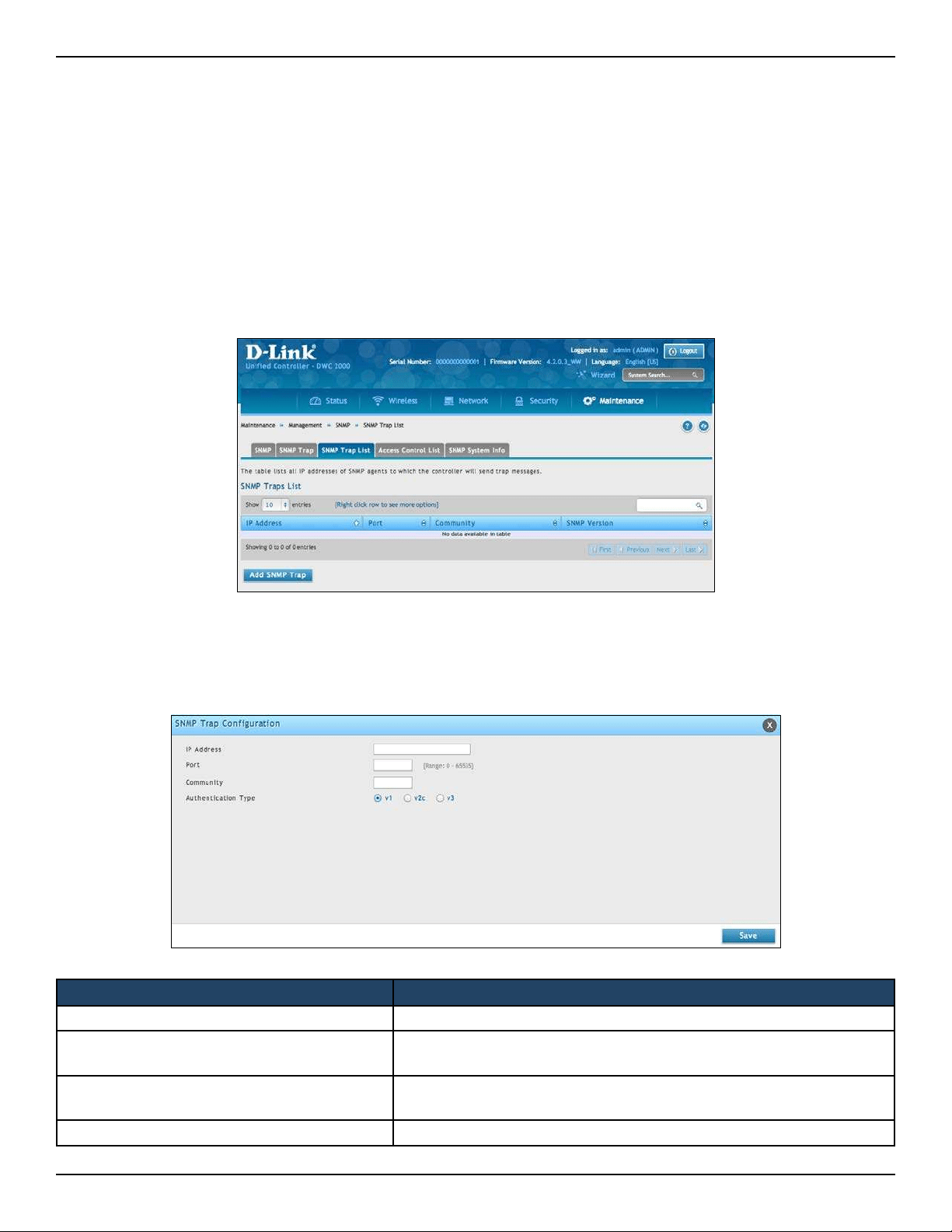
D-Link DWC-2000 User Manual 244
Section 8 - Maintenance
2. Set the security level.
• noAuthnoPriv: only requires a username match for authentication
• authNoPriv: Provides authentication based on the MD5 or SHA algorithms.
• authPriv: Provides authentication based on the MD5 or SHA algorithms as well as encryption
privacy with the DES 256-bit standard.
3. Click Save.
2. Click Add SNMP Trap.
3. Complete the information on elds (refer to the table below).
4. Click Save.
Congure SNMP Trap List
1. Go to Maintenance > Management > SNMP > SNMP Trap List tab.
Field Description
IP Address The IP Address of the SNMP trap agent.
Port
The SNMP trap port of the IP address to which the trap messages will
be sent.
Community
The community string to which the agent belongs. Most agents are
congured to listen for traps in the Public community.
Authentication Type The SNMP version used by the trap agent. The choices are v1, v2c, or v3.

D-Link DWC-2000 User Manual 245
Section 8 - Maintenance
Congure SNMP Access Control List
1. Go to Maintenance > Management > SNMP > Access Control List tab.
2. Click Add Access Control.
3. Complete the information on elds (refer to the table below).
4. Click Save.
Field Description
IP Address The IP Address of the SNMP trap agent.
Subnet Mask The network mask used to determine the list of allowed SNMP managers.
Community The community string to which the agent belongs.
Access Type Access will be either read only (ROcommunity) or read-write (RWcommunity).
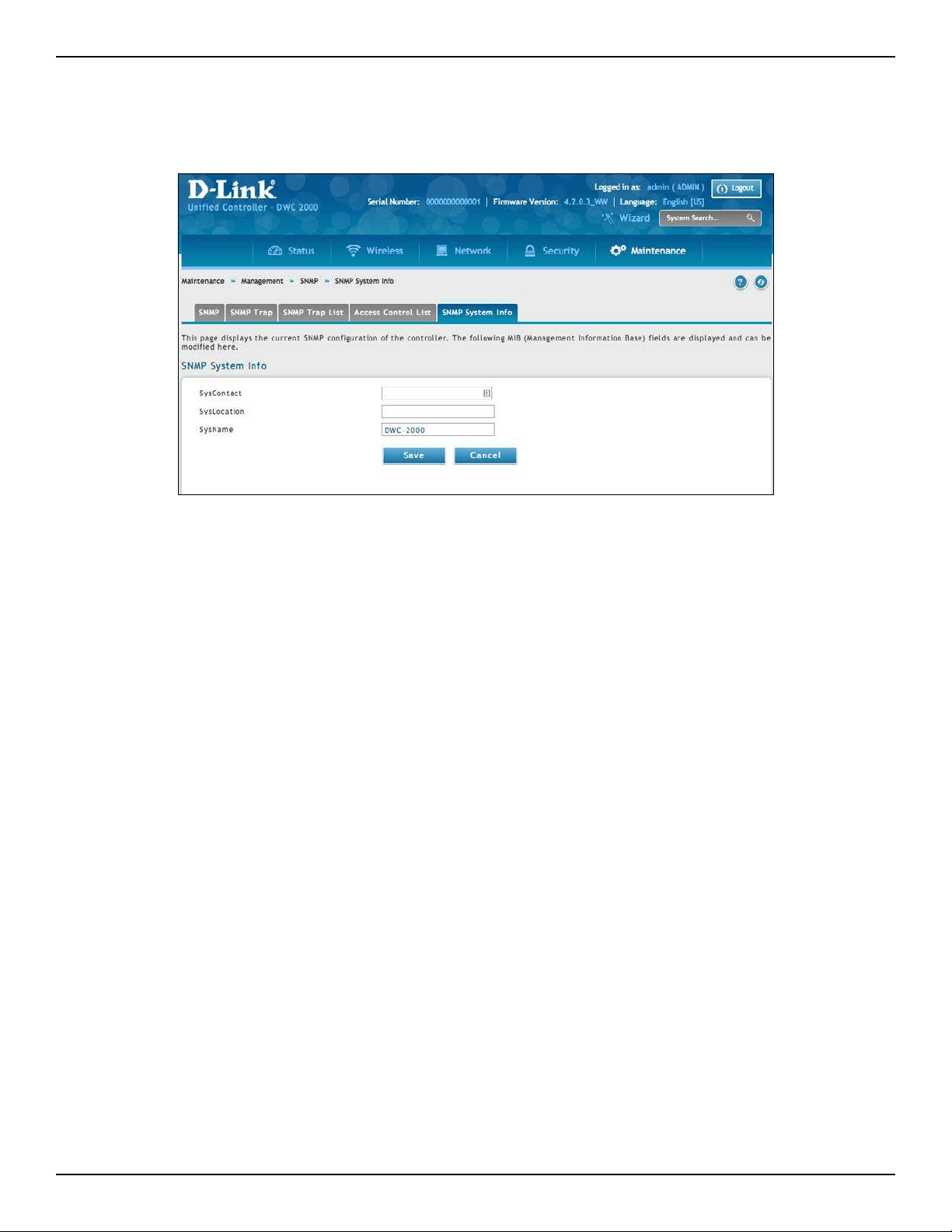
D-Link DWC-2000 User Manual 246
Section 8 - Maintenance
Congure SNMP System Info
1. Go to Maintenance > Management > SNMP> SNMP System Info tab.
2. Enter the information as desired.
• SysContact: The name of the contact person for this controller. Examples: admin, John Doe.
• SysLocation: The physical location of the controller: Example: Rack #2, 4th Floor.
• SysName: A name given for easy identication of the controller.
3. Click Save.
Congure Wireless SNMP Info
If you use Simple Network Management Protocol (SNMP) to manage the controller, you can congure the SNMP
agent on the controller to send traps to the SNMP manager on your network from this page.
When an AP is managed by a controller, it does not send out any traps. The controller generates all SNMP traps
based on its own events and the events it learns about through updates from the APs it manages.
All Wireless SNMP traps are disabled by default.
1. Go to Maintenance > Management > SNMP > SNMP Trap tab.
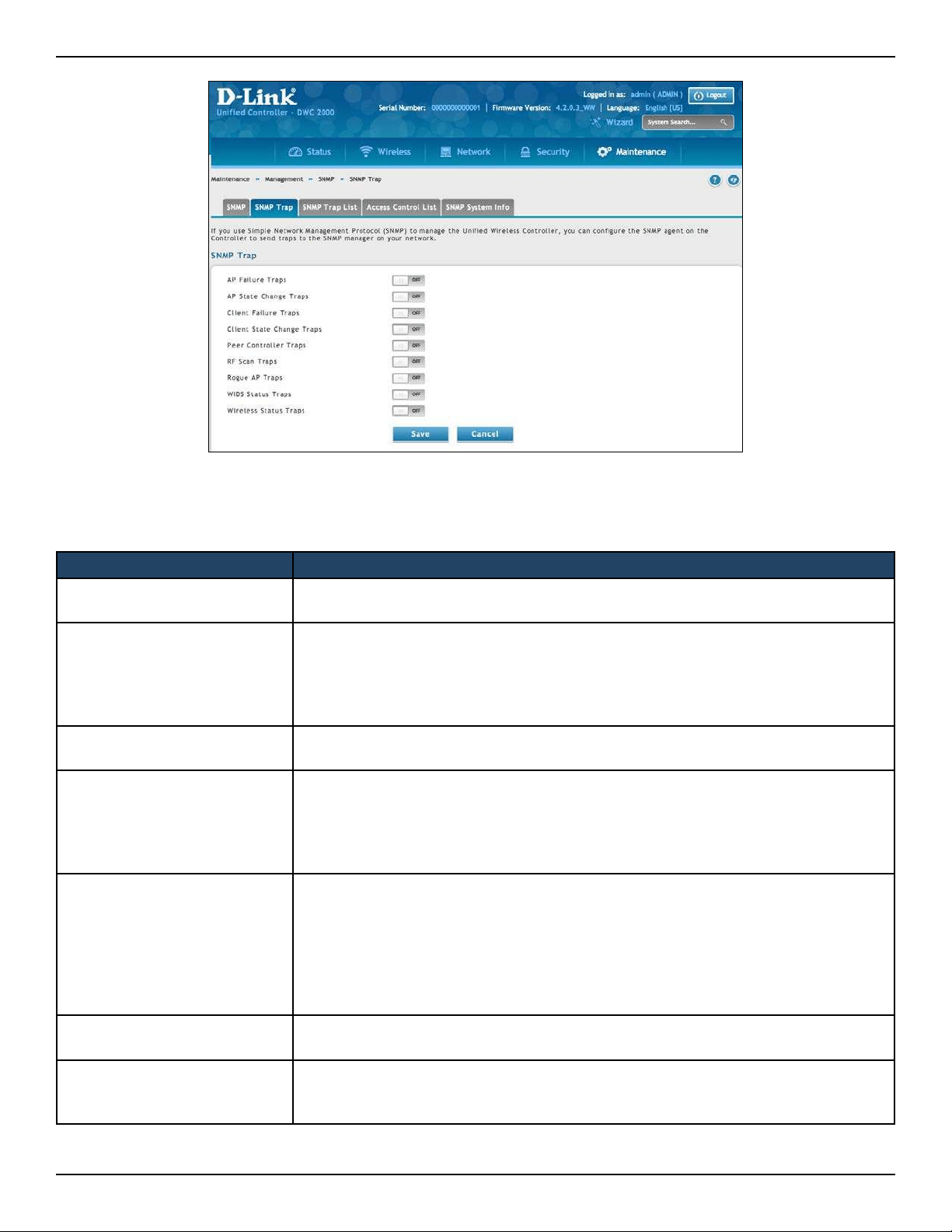
D-Link DWC-2000 User Manual 247
Section 8 - Maintenance
2. Enable the trap as desired (refer to the table below).
3. Click Save.
Field Description
AP Failure Traps
If you enable this eld, the SNMP agent sends a trap if an AP fails to associate or
authenticate with the controller
AP State Change Traps
If you enable this eld, the SNMP agent sends a trap for one of the following reasons:
• Managed AP Discovered
• Managed AP Failed
• Managed AP Unknown Protocol Discovered
• Managed AP Load Balancing Utilization Exceeded
Client Failure Traps
If you enable this eld, the SNMP agent sends a trap if a wireless client fails to associate
or authenticate with an AP that is managed by the controller.
Client State Change Traps
If you enable this eld, the SNMP agent sends a trap for one of the following reasons
associated with the wireless client:
• Client Association Detected
• Client Disassociation Detected
• Client Roam Detected
Peer Controller Traps
If you enable this eld, the SNMP agent sends a trap for one of the following reasons
associated with a peer controller
• Peer Controller Discovered
• Peer Controller Failed
• Peer Controller Unknown Protocol Discovered
• Conguration command received from peer controller. (The controller does not
need to be Cluster Controller for generating this trap.)
RF Scan Traps
If you enable this eld, the SNMP agent sends a trap when the RF scan detects a new
AP, wireless client, or ad‐hoc client.
Rogue AP Traps
If you enable this eld, the SNMP agent sends a trap when the controller discovers a
rogue AP. The agent also sends a trap every Rogue Detected Trap Interval seconds if
any rogue AP continues to be present in the network.

D-Link DWC-2000 User Manual 248
Section 8 - Maintenance
Field Description
TSPEC Traps
If you enable this eld, the SNMP agent sends a trap when the following TSPEC‐
related events occur:
• An authorized WMM client is repeatedly using more bandwidth than was
allocated for its trac stream.
• A WMM‐enabled client is sending prioritized trac without authorization to use
admission controlled resources.
WIDS Status Traps
If you enable this eld, the SNMP agent sends a trap for one of the following reasons:
• This controller has become Cluster Controller
• Rogue Client detected
• Rogue Client(s) continue to exist, after every Rogue Detected Trap Interval
seconds
• Maximum number of Managed APs in the peer group exceeded.
Wireless Status Traps
If you enable this eld, the SNMP agent sends a trap if the operational status of the
controller (it need not be Cluster Controller for this trap) changes. It sends a trap if
the Channel Algorithm is complete or the Power Algorithm is complete. It also sends
a trap if any of the following databases or lists has reached the maximum number
of entries:
• Managed AP database
• AP Neighbor List
• Client Neighbor List
• AP Authentication Failure List
• RF Scan AP List
• Client Association Database
• Ad Hoc Clients List
• Detected Clients List
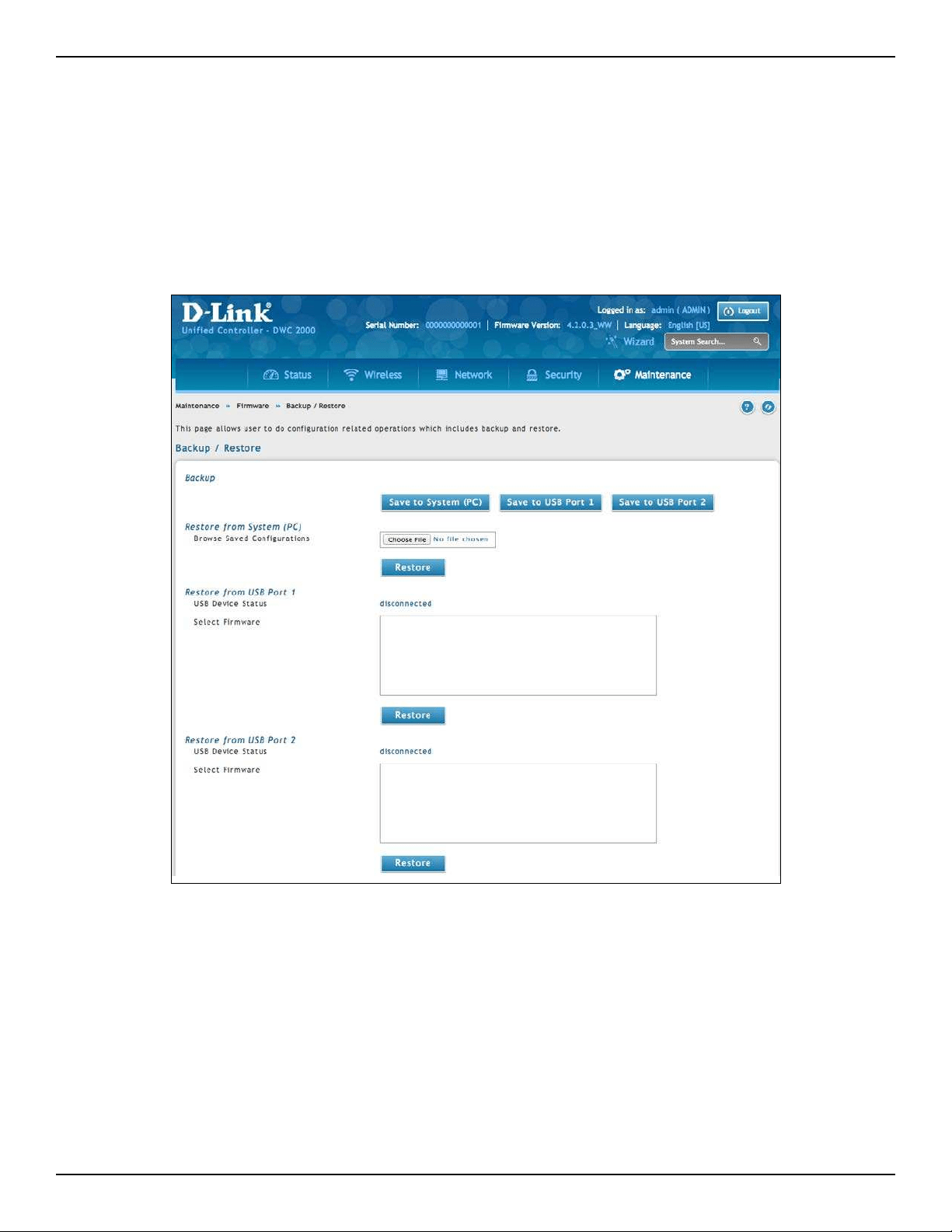
D-Link DWC-2000 User Manual 249
Section 8 - Maintenance
Backup Conguration Settings
Path: Maintenance > Firmware > Backup/Restore
After you congure the wireless controller as desired, back up the conguration settings. When you back up the
settings, they are saved as a le. You can then use the le to restore the settings on the same wireless controller if
something goes wrong or on a dierent wireless controller that will replace or work with other wireless controllers.
1. Click Maintenance > Firmware > Backup/Restore.
2. Click Save from System (PC), Save from USB Port 1, or Save from USB Port 2, depending on the
location the backup should be saved to.
A. If Save from System (PC) is chosen, a dialog box message will appear. Afterwards the browser will
automatically begin the download to the default download location.
B. If Save from USB Port 1, or Save from USB Port 2 is chosen, the le will immediately be backed up
to the corresponding USB ash drive without further prompts. If no USB ash medium is present,
these options will do nothing.
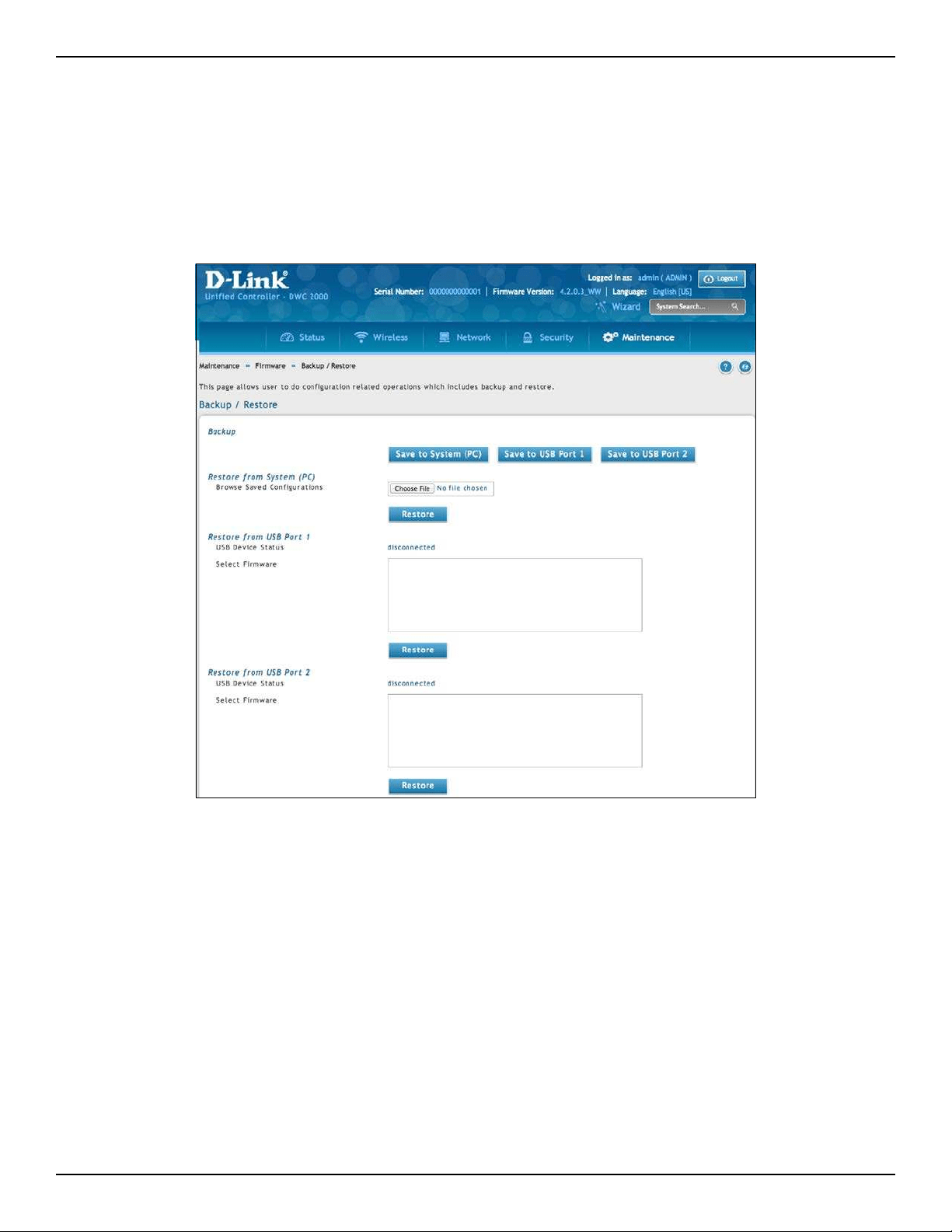
D-Link DWC-2000 User Manual 250
Section 8 - Maintenance
Restoring Conguration Settings
Path: Maintenance > Firmware > Backup/Restore
After you use the procedure on the previous page to back up a wireless controller’s conguration settings, you
can restore the settings using the following procedure.
1. Click Maintenance > Firmware > Backup/Restore.
2. In the Restore to System (PC) section, click the Choose File button. Use the Choose le dialog box to
nd the backup le, then click the le and click Open.
3. Click Restore. A message will appear.
4. Click OK to close the message and restore the conguration settings from the selected le.
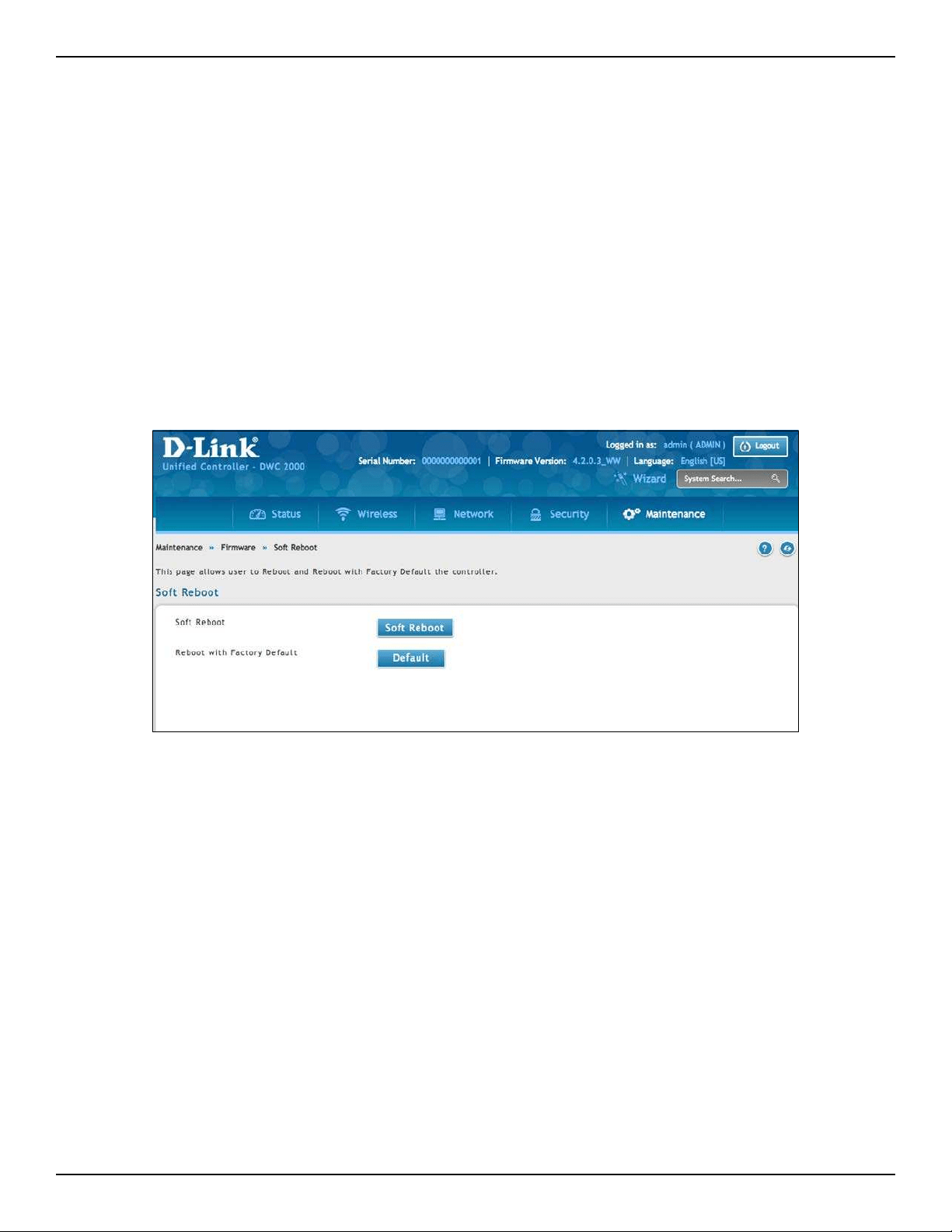
D-Link DWC-2000 User Manual 251
Section 8 - Maintenance
Restoring Factory Default Settings
Path: Maintenance > Firmware > Soft Reboot
If you reset a wireless controller to its factory default settings, it returns to the state when it was new — all
changes you made to the default conguration are lost. Examples of settings that get restored include critical
things you need to get online, such as login password, SSID, IP addresses, and wireless security keys.
There are two ways to restore a wireless controller to its original factory default settings:
• Use the reset button on the back of the wireless controller (see “Using the Reset Button to Restore
Default Settings” on page 258).
• Use the web management interface instructions below.
1. Click Maintenance > Firmware > Soft Reboot.
2. Next to Factory Default settings, click the Default button.
3. At the conrmation message, click OK to restore factory default settings; or click Cancel to retain your
current settings.
Note: After restoring the factory default conguration, the wireless controller’s default LAN IP address is 192.168.10.1,
the default login user name is admin, and the default login password is admin.
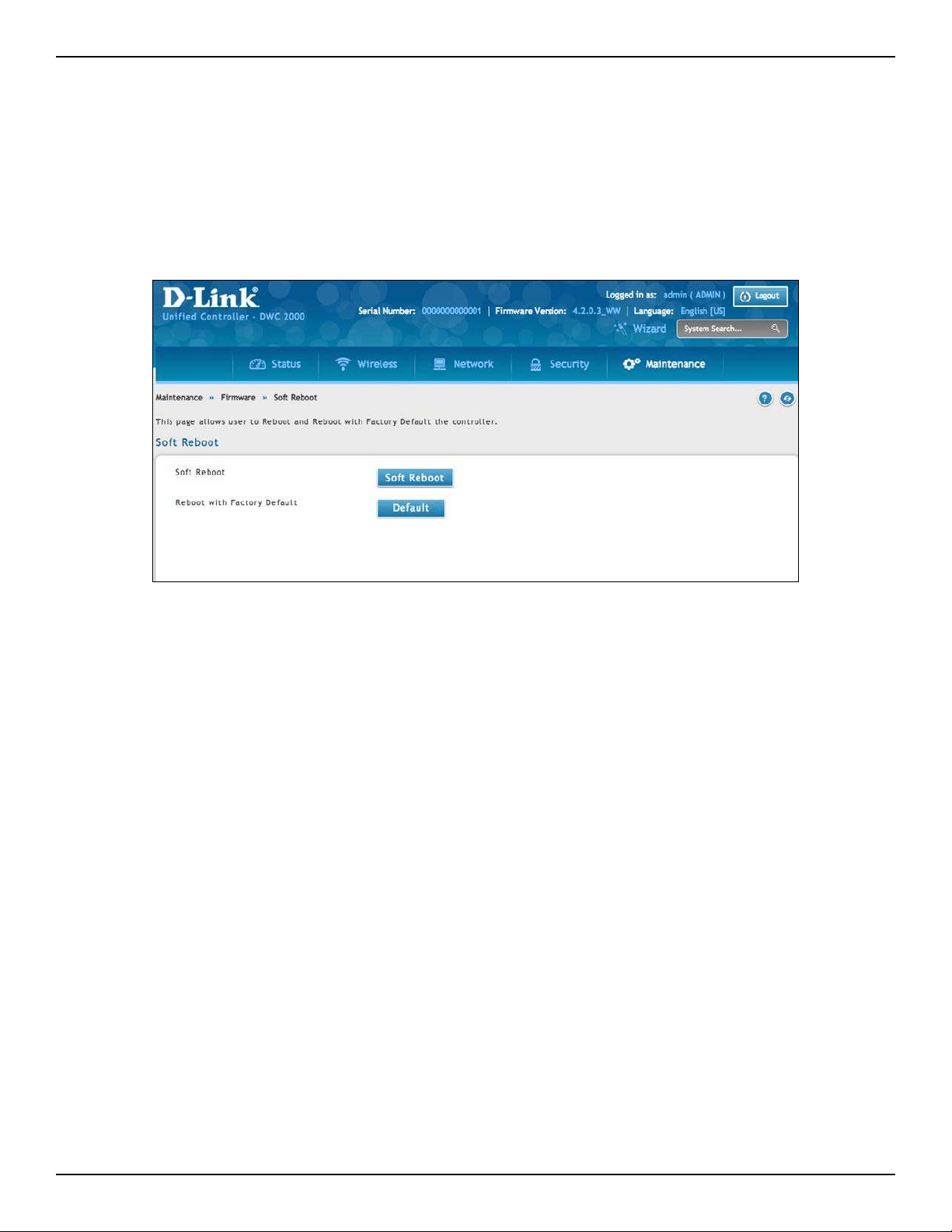
D-Link DWC-2000 User Manual 252
Section 8 - Maintenance
Rebooting the Wireless Controller
Path: Maintenance > Firmware > Soft Reboot
You can reboot the wireless controller. Rebooting performs a power cycle and keeps any customized overrides
you made to the default settings.
1. Go to Maintenance > Firmware > Soft Reboot.
2. Next to Soft Reboot, click Soft Reboot. To reboot to the original factory default, click Default.
3. At the conrmation message, click OK to reboot the wireless controller or click Cancel to not reboot.
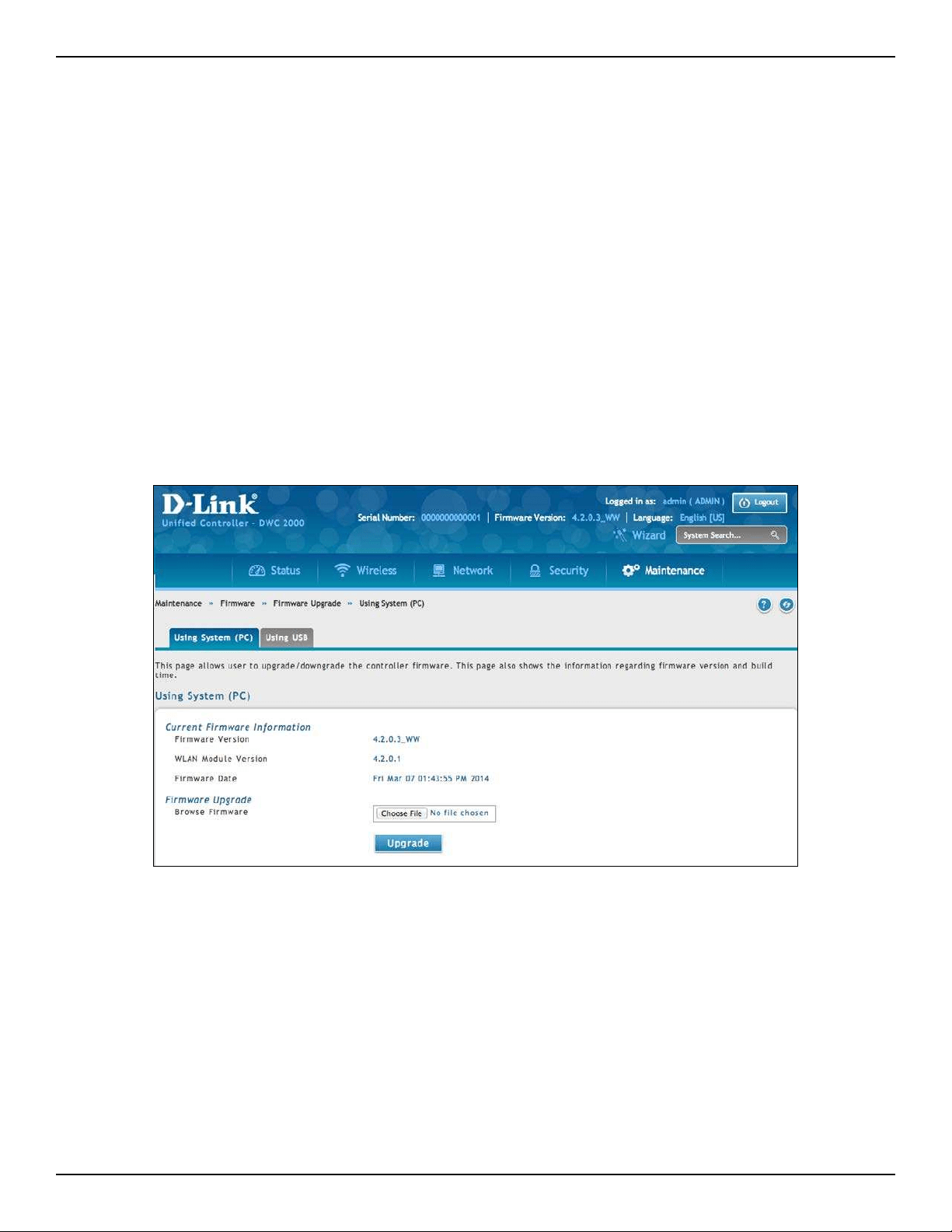
D-Link DWC-2000 User Manual 253
Section 8 - Maintenance
Wireless Controller Firmware Upgrade
Path: Maintenance > Firmware > Firmware Upgrade > Using System (PC)
D-Link is constantly improving the operation and performance of the wireless controller. When improvements
are available, they are oered to customers as rmware upgrade releases.
After you install the wireless controller, check that it has the latest rmware. Thereafter, check for rmware
releases and install them as they become available.
1. In the wireless controller web management interface, click Maintenance > Firmware > Firmware
Upgrade. The Using System (PC) page will appear.
Upgrading Firmware
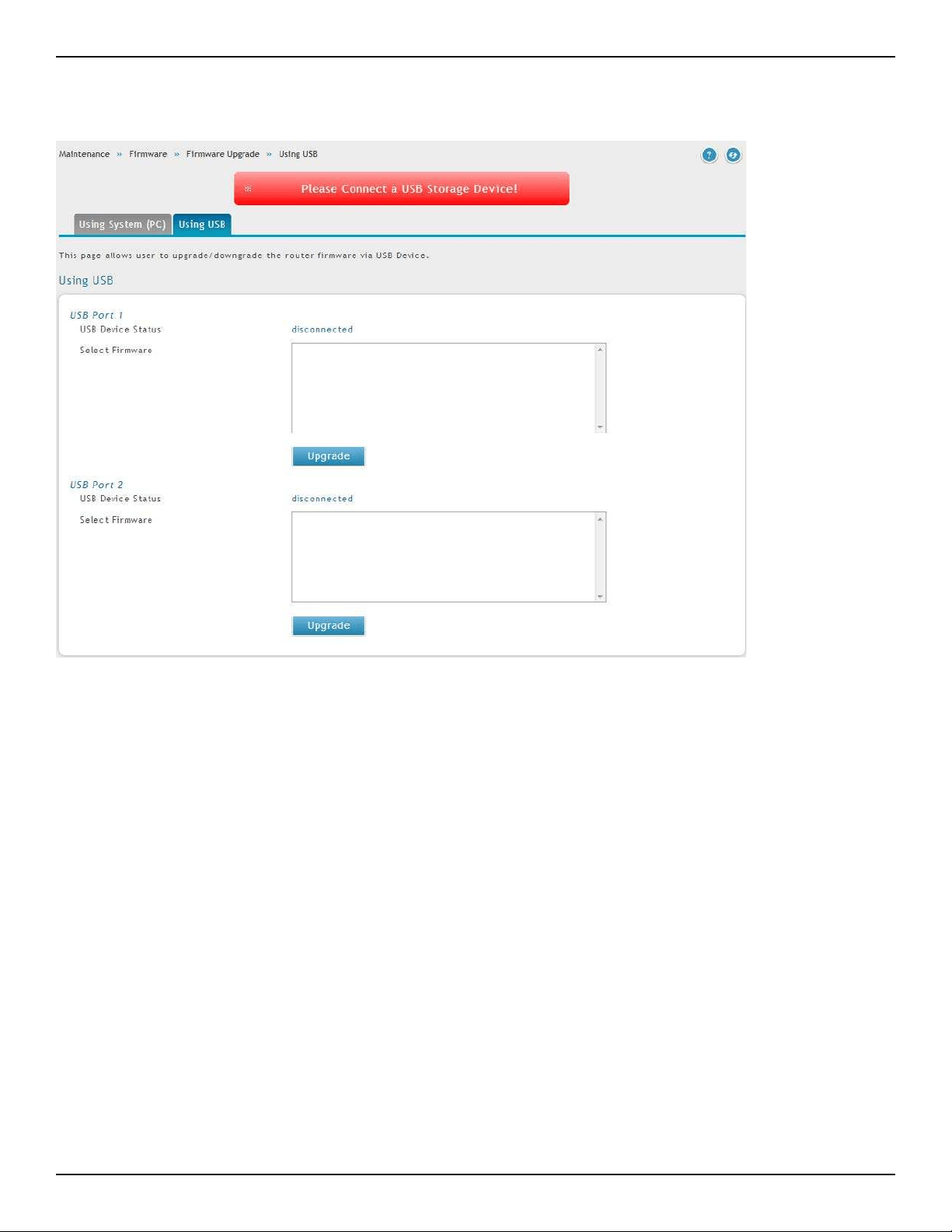
D-Link DWC-2000 User Manual 254
Section 8 - Maintenance
To use a USB drive to update the rmware, click the Using USB tab.

D-Link DWC-2000 User Manual 255
Section 8 - Maintenance
Using the Command Line Interface
The wireless controller supports a command-line interface (CLI). The CLI lets you use a VT-100 terminal-emulation
program to locally or remotely congure, monitor, and control the wireless controller and its managed access
points via a simple text-based, tree-structured interface. The wireless controller supports SSH and Telnet
management for command-line interaction.
The following procedure describes how to access the CLI:
Note: A separately purchased USB-to-DB9Fserial adapter will be helpful when connecting a PC or Linux workstation
to the console. An RJ-45-to-DB9M cable is included with the wireless controller.
1. Connect a PC with a VT-100 terminal-emulation program to the Console port on the front panel of the
wireless controller.
2. CLI login credentials are shared with the GUI for administrator users. When prompted, type cli in the
SSH or console prompt and login with administrator user credentials.
For more information, refer to the Wireless Controller CLI Reference Guide: DWC-2000.
2. If the rmware version on the D-Link support website has a higher number than the rmware version
shown under Firmware Information, continue with this procedure.
3. Download the new rmware from the D-Link website.
4. Under Firmware Upgrade, click the Choose File button.
5. In the Choose File dialog box, navigate to the rmware le, and then click the le and click Open. If you
want to upgrade using a le from a USB drive, click the Using USB tab near the top of this page.
6. Click Upgrade.
7. At the conrmation message, click OK to start the rmware upgrade. A progress bar shows the progress
of the upgrade.
Note: The upgrade process takes a few minutes. Do not interrupt the upgrade or turn o the system;
otherwise, you can damage the rmware. Wait for the upgrade to complete before browsing any sites from
your browser.
8. When the upgrade completes, log in to the wireless controller web management interface, click
Maintenance > Firmware > Firmware Upgrade, and conrm that the new rmware appears next to
Firmware on the Using System (PC) page.
9. Record the rmware level in Appendix A.

D-Link DWC-2000 User Manual 256
Section 10 - Troubleshooting
Troubleshooting
In the unlikely event you encounter a problem using the wireless controller, refer to the troubleshooting
suggestions in this chapter to identify and resolve the problem.
The topics covered in this chapter are:
• “LED Troubleshooting” on page 257
• “Web Management Interface” on page 257
• “Using the Reset Button to Restore Default Settings” on page 258
• “Problems with Date and Time” on page 258
• “Discovery Problems with Access Points” on page 258
• “Connection Problems” on page 259
• “Network Performance and Rogue Access Point Detection” on page 259
• “Using Diagnostic Tools on the Wireless Controller” on page 260

D-Link DWC-2000 User Manual 257
Section 10 - Troubleshooting
LED Troubleshooting
After you apply power and turn on the wireless controller, the following sequence of events should occur:
1. When power is rst applied, verify that the front panel (green) Power LED to the left of the USB ports is
ON.
2. After approximately 2 minutes, verify that the right LAN port LED is ON for any local ports that are
connected. This indicates that a link has been established to the connected device.
3. If a RJ-45 port is connected to a 1000Mbps device, verify that the port’s left LED is orange. If a port
is connected to a 100Mbps device, verify that the port’s left LED is green. If a port is connected to a
10Mbps device, verify that the port’s right LED is OFF.
4. If a SFP port is connected a 1000Mbps device, verify that the port’s LED is orange. If a port is connected
to a 100Mbps device, verify that the port’s LED is green.
If any of these conditions do not occur, see the appropriate section below.
Power LED is OFF
If the Power and other LEDs are o when your wireless controller is turned on, conrm that the power cord is
connected properly to the wireless controller and that the power cord is connected to a functioning power
outlet that is not controlled by a wall switch.
If the error persists, please contact D-Link technical support.
LAN Port LEDs Not ON
If the LAN LEDs do not go ON when the Ethernet connection is made:
1. Check that the Ethernet cable connections are secure at the wireless controller and at the switch.
2. Be sure power is applied to the connected switch and that the switch is turned on.
3. Be sure you are using the correct cables (straight-through or crossover).
Web Management Interface
If you cannot access the wireless controller’s web management interface from a PC on your local network:
• Check the Ethernet connection between the PC and the wireless controller.
• Be sure your PC’s IP address is on the same subnet as the wireless controller. If you are using the
recommended addressing scheme, be sure your PC is congured to use a static IPv4 address of
192.168.10.nnn (where nnn is the number 0 or a number from 2 to 255) and a subnet of 255.255.255.0.
• If the wireless controller’s IP address has been changed and you do not know the current IP address,
reset the wireless controller’s conguration to factory default settings. This sets the wireless controller’s
IP address to 192.168.10.1 (refer to “Restoring Factory Default Settings” on page 251), but it also loses
any changes you made to the factory default settings.
• If you do not want to revert to the factory default settings and lose your conguration settings, you can
reboot the wireless controller and use a snier to capture packets sent during the reboot. Look at the
ARP packets to nd the wireless controller’s LAN interface address.

D-Link DWC-2000 User Manual 258
Section 10 - Troubleshooting
Using the Reset Button to Restore Default Settings
If you cannot access the wireless controller’s management interface for some reason, press the reset button on
the front panel to restore the factory default settings.
To clear all settings and restore the factory default values:
1. Press and hold the reset button for at least 15 seconds.
2. Release the reset button. The reboot process is complete after several minutes.
Note: After restoring the factory default conguration, the wireless controller’s default LAN IP address is 192.168.10.1,
the default login user name is admin, and the default login password is admin.
Problems with Date and Time
The Date and Time page shows the current date and time of day. The wireless controller uses the Network Time
Protocol (NTP) to obtain the current time from one of several network time servers on the Internet. Each entry in
the log is stamped with the date and time of day.
If you nd that the date and time stamps are not accurate, conrm that the wireless controller can reach the
Internet.
Discovery Problems with Access Points
If the wireless controller does not discover any or all access points:
• Be sure the wireless controller is connected to the LAN (see “LAN Port LEDs Not ON” on page 257).
• Be sure you entered the appropriate IP address range if the access points operate in dierent VLANs,
reside behind an IP subnet, or operate in standalone mode (see “Step #1: Enable DHCP Server (Optional)”
on page 25).
• If you are using a rewall, unblock the UDP port number for each access port in the rewall.
• Be sure each access point is using a unique IP address (see “AP Discovery Methods” on page 75). If
more than one access point has the same IP address, only one of them is discovered. In this case, add
the access point to the managed list, change its IP address, and then run discovery again to discover the
next access point with that IP address (see “Step #3: Select APs to be Managed” on page 27).

D-Link DWC-2000 User Manual 259
Section 10 - Troubleshooting
Connection Problems
When an access point is converted from standalone mode to managed mode, its static IP address changes to an
IP address that is issued by the DHCP server, either one in the network or one that is congured on the wireless
controller. This occurs to ensure that each managed access point has a unique IP address.
If there is no DHCP server or if the access point cannot reach the DHCP server, the access point remains in the
Connecting state as it tries to obtain an IP address. If there is no DHCP server in the network, congure one on the
wireless controller (see “Step #1: Enable DHCP Server (Optional)” on page 25). When a DHCP server becomes
available, the access point can transition from the Connecting state to the Connected state.
If you added a new SSID, but the SSID does not appear under Wi-Fi Networks within 5 minutes, use the following
procedure to reboot the Wireless Controller.
1. Click Maintenance > Firmware > Soft Reboot.
2. Click Soft Reboot.
Network Performance and Rogue Access Point
Detection
When rogue access point detection is enabled, access points intermittently go o channel for short periods,
which can aect network performance. If security concerns are more important than network performance, you
can enable rogue access point detection. If network performance is more important than security concerns, you
can temporarily disable rogue access point detection.
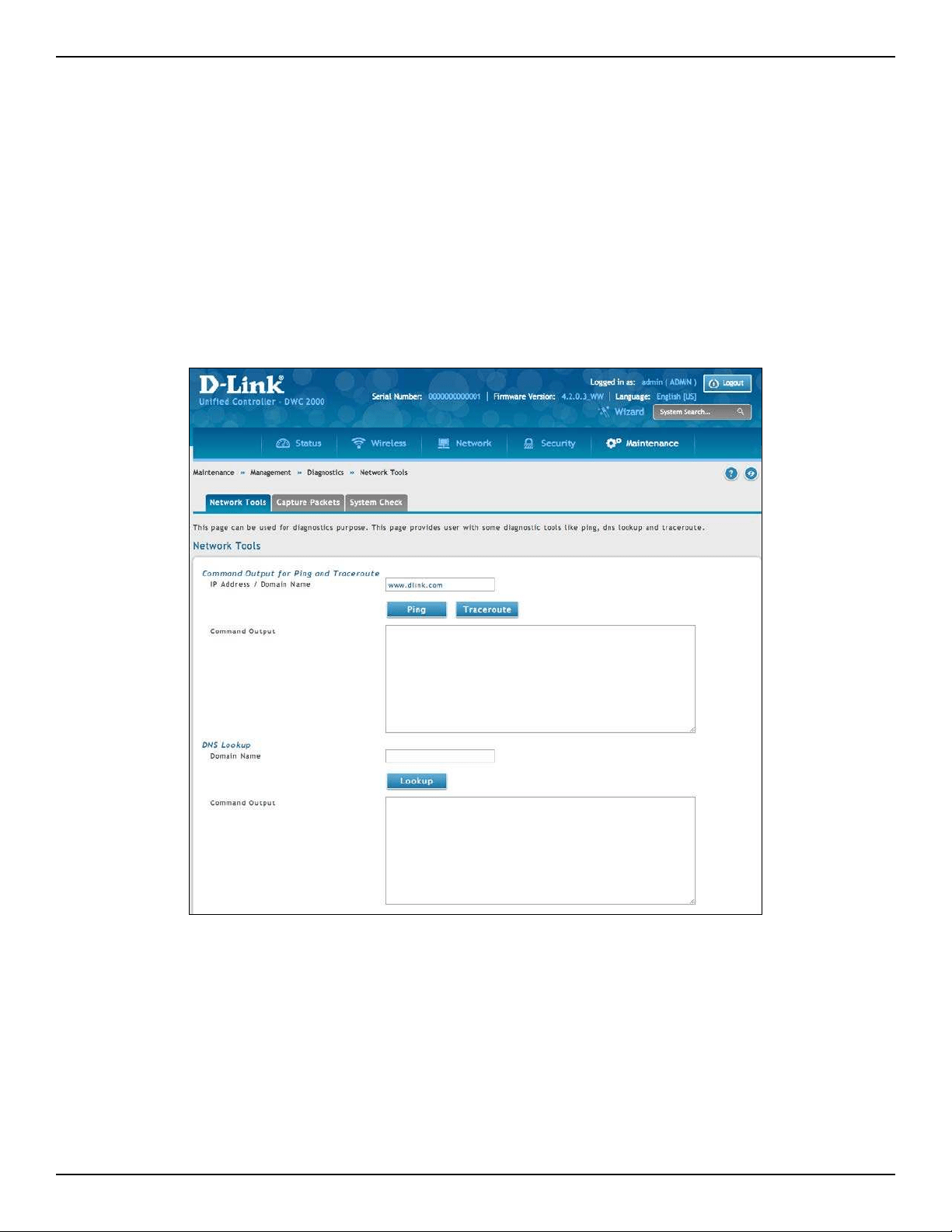
D-Link DWC-2000 User Manual 260
Section 10 - Troubleshooting
Using Diagnostic Tools on the Wireless Controller
Ping an IP Address
Path: Maintenance > Management > Diagnostics > Network Tools
As part of the diagnostics functions on the wireless controller, you can ping an IP address. You can use this
function to test connectivity between the wireless controller and another device on the network connected to
the wireless controller.
1. Go to Maintenance > Management > Diagnostics > Network Tools.
2. Under Command Output for Ping and Traceroute, in the IP Address / Domain Name eld, enter an IP
address or domain name.
3. Click Ping. The results will appear in the Command Output display below.
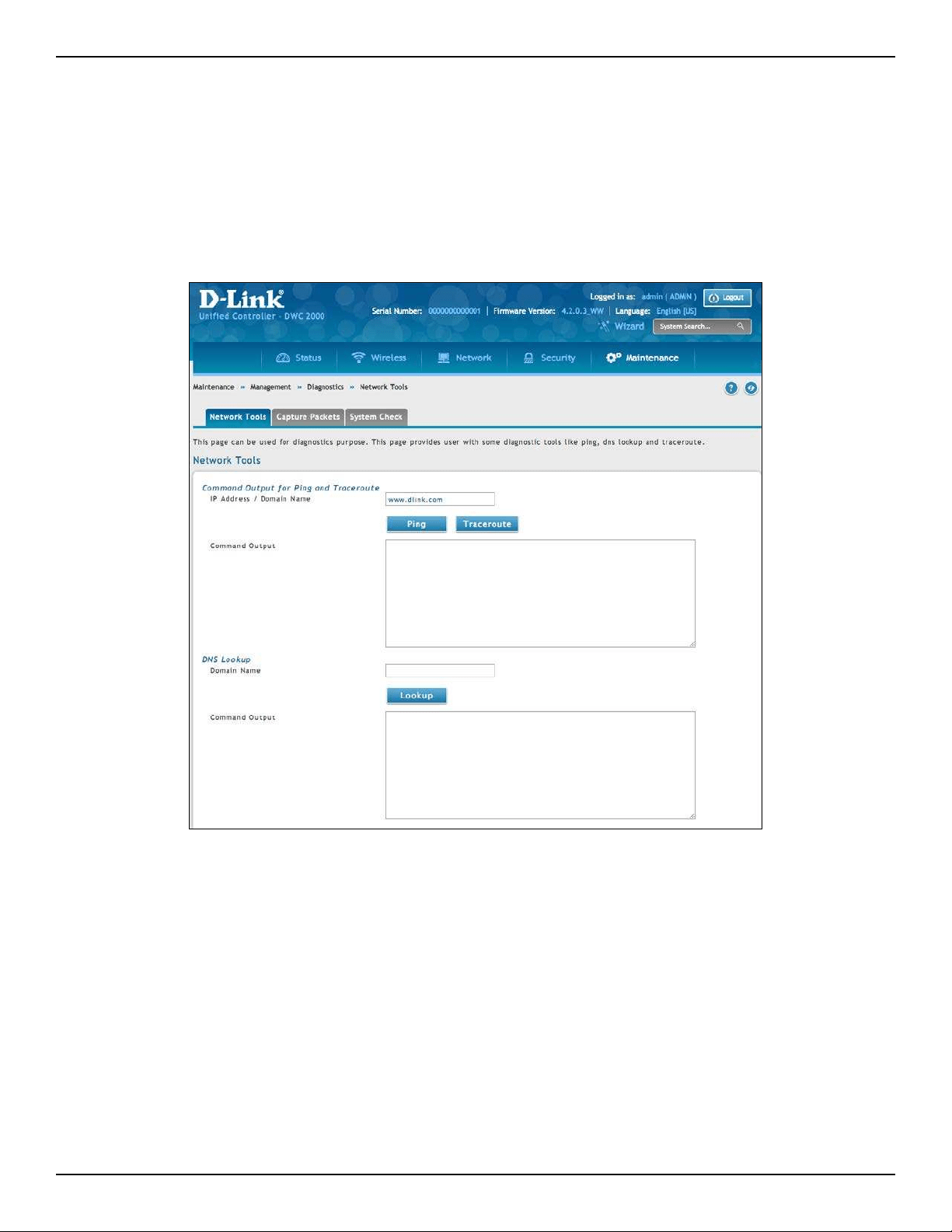
D-Link DWC-2000 User Manual 261
Section 10 - Troubleshooting
Using Traceroute
Path: Maintenance > Management > Diagnostics > Network Tools
The wireless controller provides a Traceroute function that lets you map the network path to a public host. Up
to 30 intermediate controllers (or “hops”) between this wireless controller and the destination will be displayed.
1. Go to Maintenance > Management > Diagnostics > Network Tools.
2. Under Command Output for Ping and Traceroute, in the IP Address / Domain Name eld, enter an IP
address or domain name.
3. Click Traceroute. The results will appear in the Command Output display below.
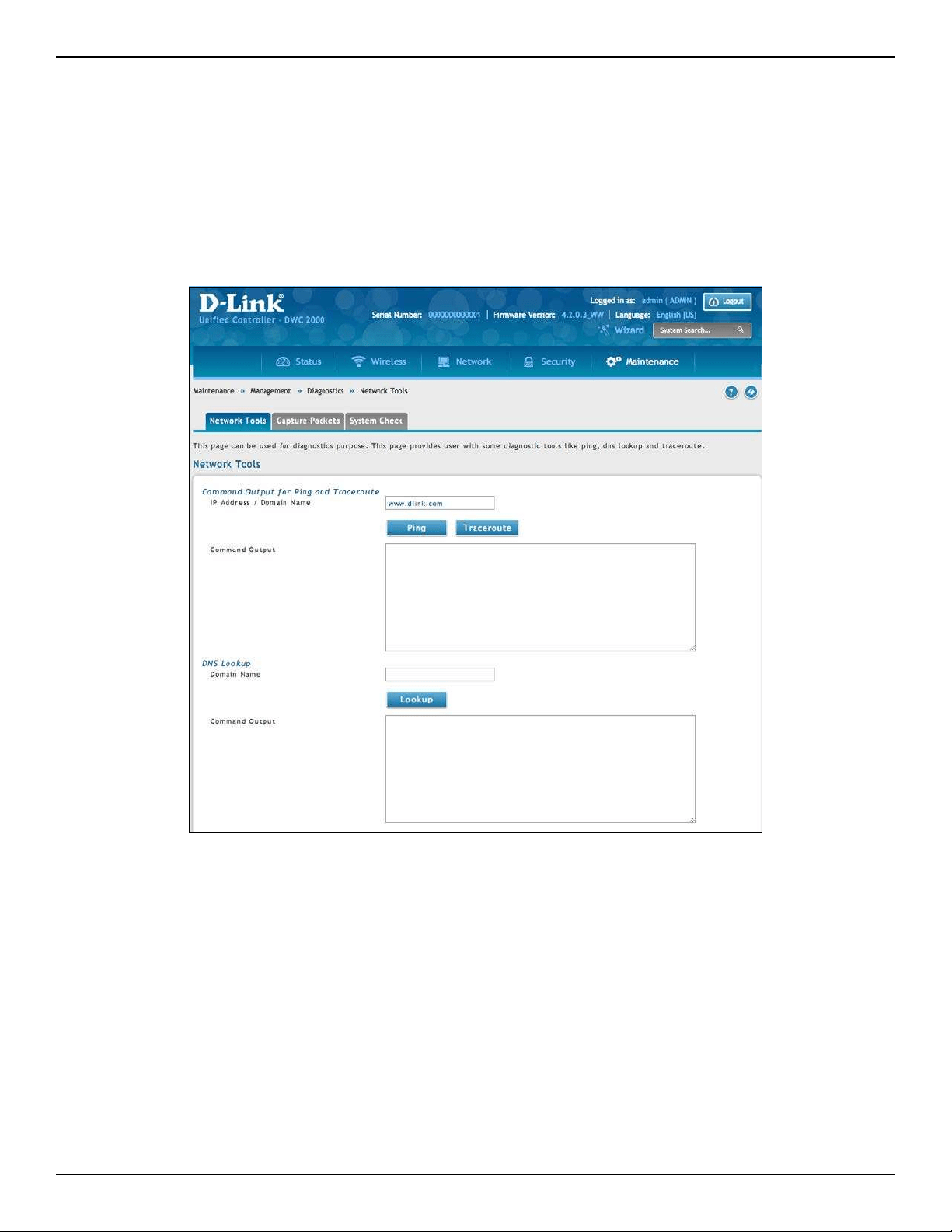
D-Link DWC-2000 User Manual 262
Section 10 - Troubleshooting
Performing DNS Lookups
Path: Maintenance > Management > Diagnostics > Network Tools
The wireless controller provides a DNS lookup function that lets you retrieve the IP address of a Web, FTP, Mail, or
any other server on the Internet.
1. Go to Maintenance > Management > Diagnostics > Network Tools.
2. Under DNS Lookup, in the Domain Name eld, enter an Internet name.
3. Click Lookup. The results will appear in the Command Output display below. If the host or domain
entry exists, a response will appear with the IP address. If the message Host Unknown appears, the
Internet name does not exist.

D-Link DWC-2000 User Manual 263
Section 10 - Troubleshooting
Capturing Log Packets
Path: Maintenance > Management > Management > Diagnostics > Capture Packets
The wireless controller lets you capture all packets that pass through the LAN or Option interface. The packet
trace is limited to 1 MB of data per capture session. If the capture le size exceeds 1MB, it is deleted automatically
and a new capture le is created.
To capture packets:
1. Go to Maintenance > Management > Diagnostics > Capture Packets.
2. Select an interface from the drop-down menu.
3. Click Start Trace. The results are shown in the Command Output page. The trace can be downloaded
by clicking the Download button, which will immediately begin the download to the browsers default
download location.
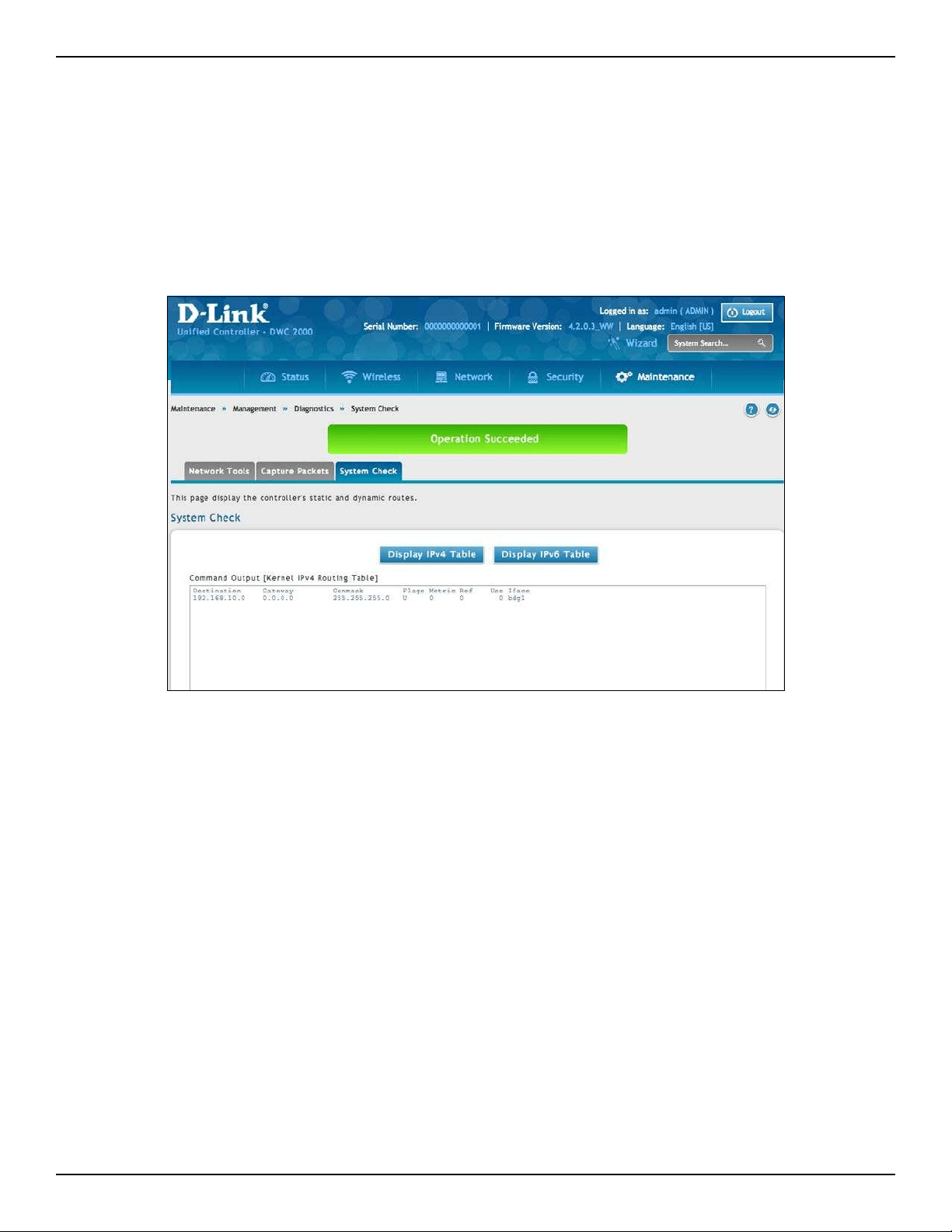
D-Link DWC-2000 User Manual 264
Section 10 - Troubleshooting
Conducting a System Check
Path: Maintenance > Management > Diagnostics > System Check
As part of the diagnostics functions on the wireless controller, you can ping an IP address. You can use this
function to test connectivity between the wireless controller and another device on the network connected to
the wireless controller.
1. Go to Maintenance > Management > Diagnostics > System Check.
2. Click Display IPv4 Table or Display IPv6 Table. The results will appear in the Command Output display
below.
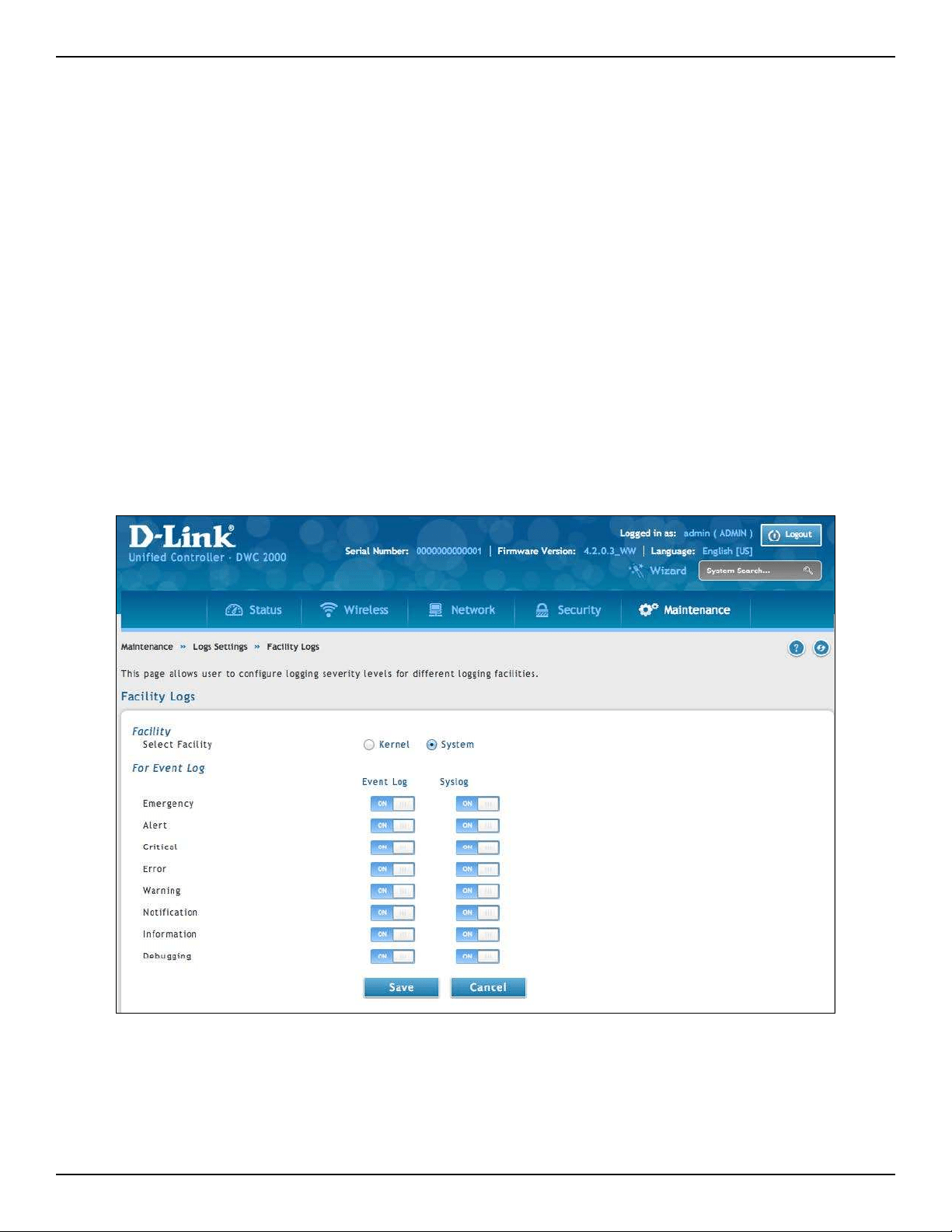
D-Link DWC-2000 User Manual 265
Section 10 - Troubleshooting
Log Settings
The wireless controller lets you capture log messages. You can monitor the type of trac that goes through the
wireless controller and be notied of potential attacks or errors when they are detected by the controller. The
following sections describe the log conguration settings and the ways you can access these logs.
Dening What to Log
Path: Maintenance > Logs Settings > Facility Logs
The Facility Logs page lets you determine the granularity of logs to receive from the wireless controller. Select
one of the following facilities:
• Kernel = the Linux kernel. Log messages that correspond to this facility would correspond to trac
through the rewall or network stack.
• System = application and management-level features available on this wireless controller for managing
the unit.
D-Link DWC-2000 User Manual 266
Section 10 - Troubleshooting
For each facility, the following events (in order of severity) can be logged:
The display for logging can be customized based on whether the logs are sent to the Event Log viewer in the
web management interface (the Event Log viewer is in the Status > System Information > All Logs > Current
Logs) or a remote Syslog server for later review. E-mail logs, discussed in a subsequent section, follow the same
conguration as logs congured for a Syslog server.
Severity Description
Emergency System is unusable
Alert Action must be taken immediately
Critical Critical conditions
Error Error conditions
Warning Warning conditions
Notication Normal but signicant condition
Information Informational
Debugging Debug-level messages
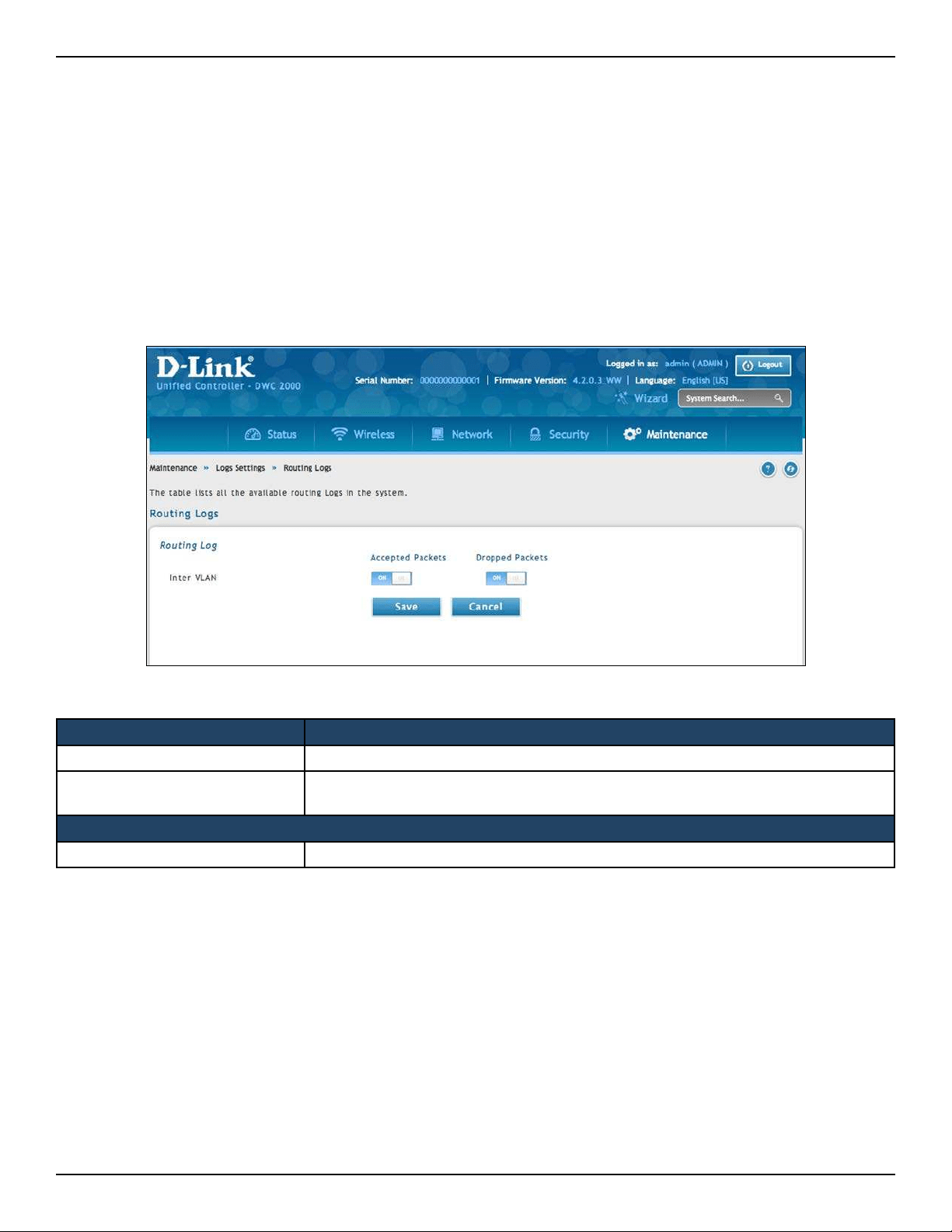
D-Link DWC-2000 User Manual 267
Section 10 - Troubleshooting
Option Description
Accepted Packets If enabled, tracks packets that were transferred through the segment successfully.
Dropped Packets
If enabled, tracks packets that were blocked from being transferred through the
segment.
Routing Logs
Inter VLAN: If enable, tracks trac from inter VLAN routing logs.
Tracking Trac/Routing Logs
Maintenance > Logs Settings > Routing Logs
Trac can be tracked based on whether the packet was accepted or dropped by the rewall. Denial of service
attacks, general attack information, login attempts, dropped packets, and similar events can be captured for
review by the IT administrator.
Note: Enabling logging options may generate a signicant volume of log messages and is recommended for
debugging purposes only.
After making your selections on this page, click Save to save your changes or click Cancel to revert to the previous
settings.
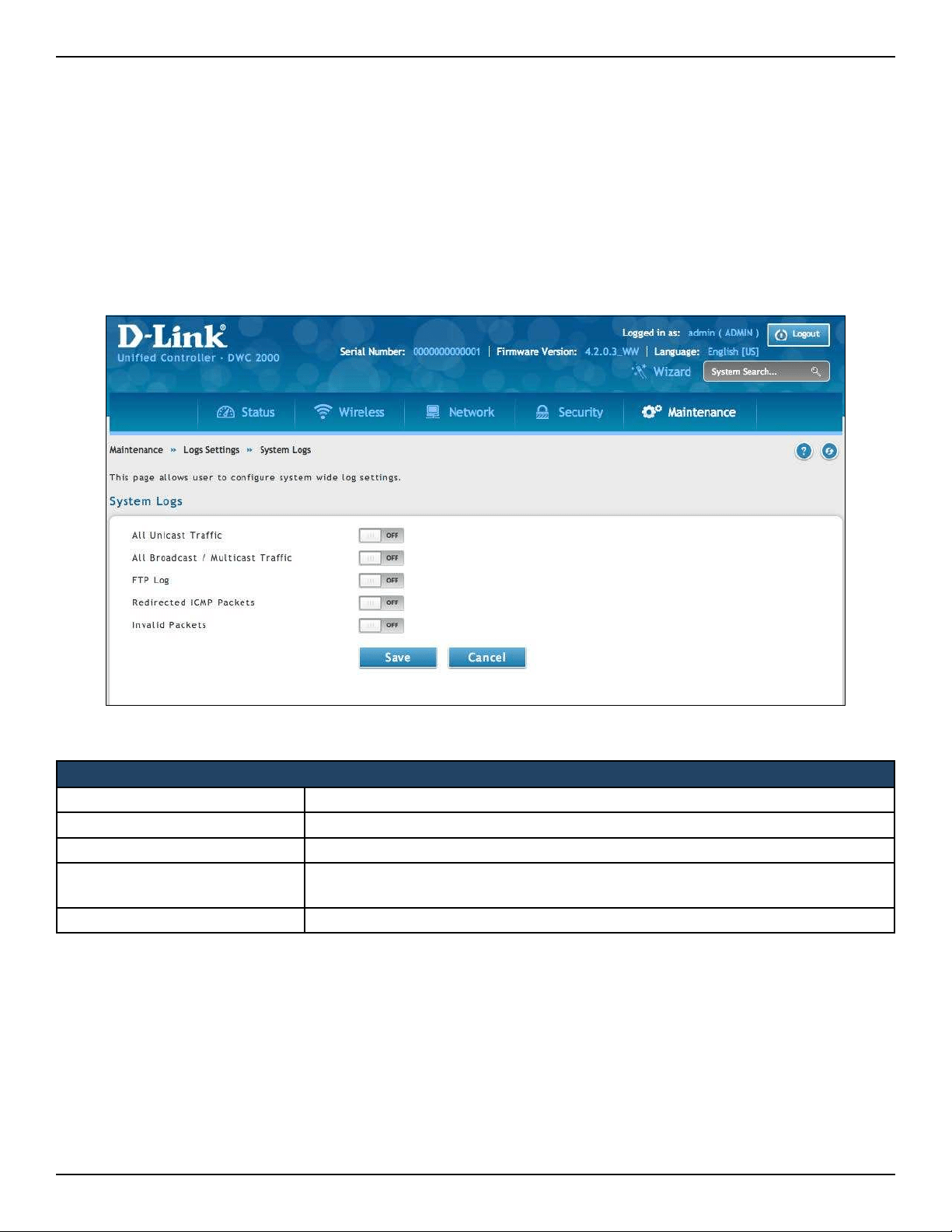
D-Link DWC-2000 User Manual 268
Section 10 - Troubleshooting
System Logging
Path: Maintenance > Logs Settings > System Logs
The System Logs page lets you select the type of trac passing through the wireless controller that you want to
log for display in Syslog, E-mailed logs, or the Event Viewer. This page helps you capture suspicious activity such
as denial-of-service attacks, general attack information, login attempts, dropped packets, and similar events.
Trac can be tracked based on whether the packet was accepted or dropped by the rewall.
Routing Logs
All Unicast Trac If enabled, tracks packets directed to the wireless controller.
All Broadcast / Multicast Trac If enabled, tracks all broadcast or multicast packets directed to the wireless controller.
FTP Logs If checked, logged information is sent to FTP logs.
Redirected ICMP Packets
If checked, tracks the number of redirected Internet Control Message Protocol (ICMP)
packets.
Invalid Packets If checked, tracks the number of invalid packets received.
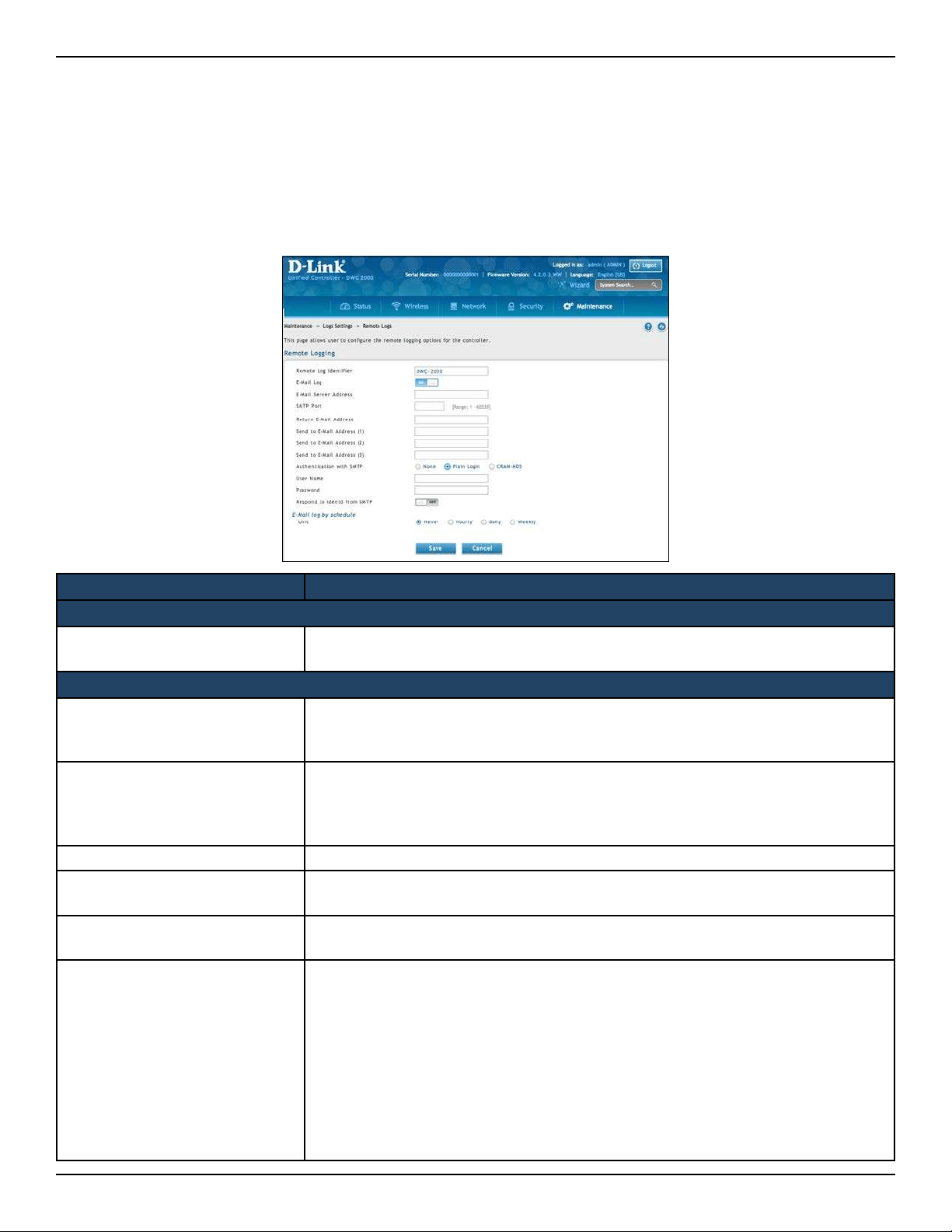
D-Link DWC-2000 User Manual 269
Section 10 - Troubleshooting
Remote Logging
Path: Maintenance > Logs Settings > Remote Logs
The wireless controller can be congured to send logs to an email address. Email logs can be sent out based on
a dened schedule by rst choosing the frequency: hourly, daily, or weekly. The wireless controller lets you send
conguration logs to three email recipients.
Option Description
Log Options
Remote Log Identier
Enter a prex used to identify the source of the message. This identier is prexed to
both e-mail and Syslog messages.
Routing Logs
Enable E-Mail Logs
Enables or disables email logs. Choices are:
• ON = enable email logs. Complete the remaining elds on this page.
• OFF = disable email logs. The remaining elds on this page are unavailable.
E-Mail Server Address
If Enable E-Mail Logs is enabled, enter the IP address or Internet Name of a Simple
Mail Transfer Protocol (SMTP) server. The wireless controller will connect to this
server to send e-mail logs when required. The SMTP server must be operational for
email notications to be received.
SMTP Port If Enable E-Mail Logs is enabled, enter the SMTP port of the e-mail server.
Return E-Mail Address
If Enable E-Mail Logs is enabled, enter the e-mail address where replies from the
SMTP server are to be sent (required for failure messages).
Send to E-mail Address(1-3)
If Enable E-Mail Logs is enabled, enter up to three email addresses where logs and
alerts are to be sent.
Authentication with SMTP
Server
If Enable E-Mail Logs is enabled, select an authentication if the SMTP server requires
authentication before accepting connections. Choices are:
• None = no authentication is used. The User Name and Password elds are not
available.
• Login Plain = authentication used to log in using Base64-encoded passwords
over non-encrypted communication session. Base64-encoded passwords oer
no cryptographic protection, making them vulnerable.
• CRAM-MD5 = a challenge-response authentication mechanism dened in RFC
2195 based on the HMAC-MD5 MAC algorithm. CRAM-MD5 oers a higher level
of authentication than Login Plain.
D-Link DWC-2000 User Manual 270
Section 10 - Troubleshooting
Option Description
User Name
If Authentication with SMTP Server is set to Login Plain or CRAM-MD5, enter the user
name to be used for authentication.
Password
If Authentication with SMTP Server is set to Login Plain or CRAM-MD5, enter the
case-sensitive password to be used for authentication.
Respond to Identd from SMTP
Server
If Enable E-Mail Logs is checked, this option determines whether the wireless
controller responds to IDENT requests from the SMTP server. Choices are:
• ON = wireless controller responds to an IDENT request from the SMTP server.
• OFF = wireless controller ignores IDENT requests from the SMTP server.
Send E-Mail Logs by Schedule
To receive e-mail logs according to a schedule, congure the appropriate schedule settings. Scheduling options are
enabled when the Enable E-Mail Logs option is checked.
Unit
Select the period of time that you need to send the log. This option is useful when you
do not want to receive logs by e-mail, but want to keep e-mail options congured,
so you can use the Send Log function Event Log viewer pages. Choices are:
• Never = disable sending of logs.
• Hourly = send logs every hour.
• Daily = send logs every day at the Time specied.
• Weekly = send logs weekly, at the Day and Time specied.
Day If Unit is set to Weekly, select the day when logs will be sent.
Time If Unit is set to Daily or Weekly, select the time when logs will be sent.
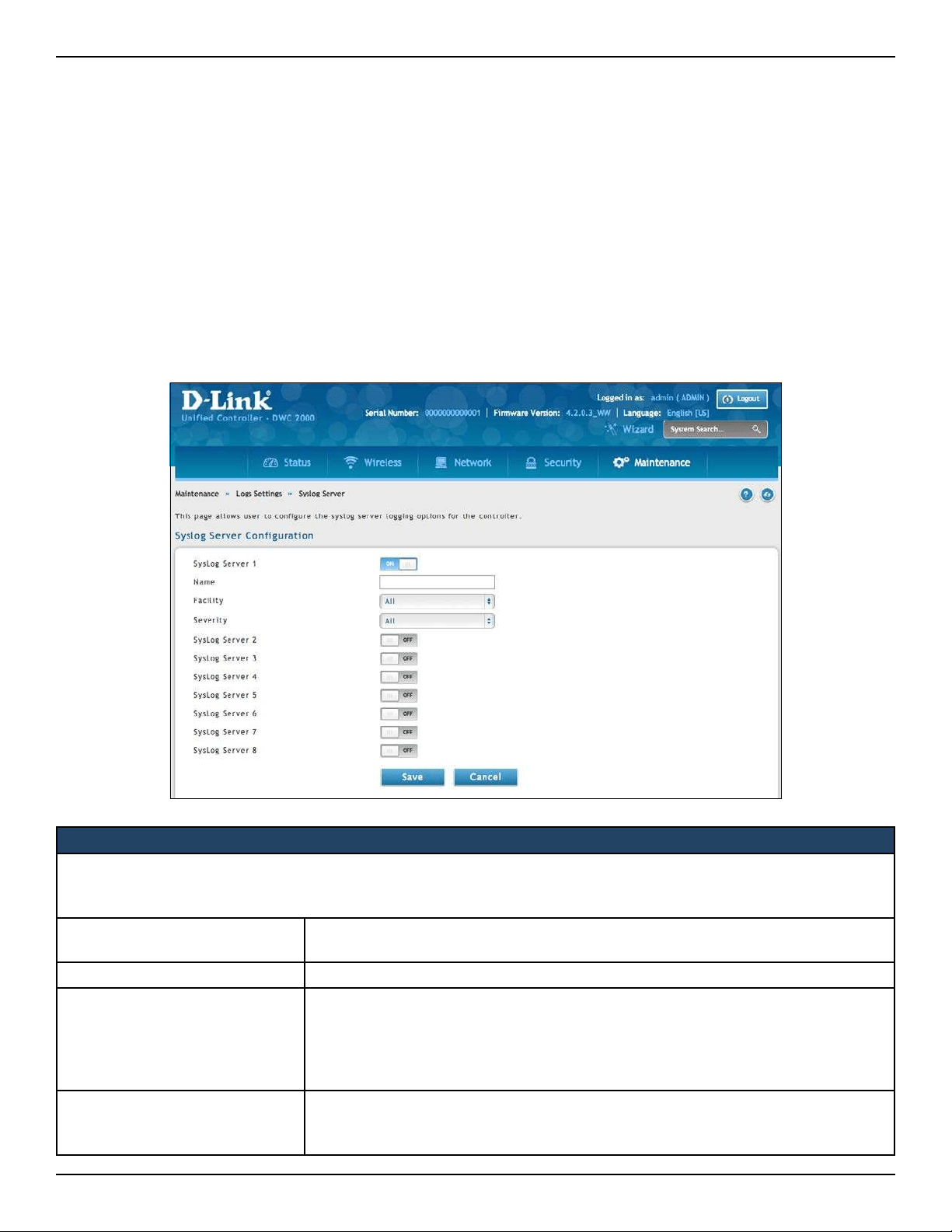
D-Link DWC-2000 User Manual 271
Section 10 - Troubleshooting
Syslog Server Conguration
Path: Maintenance > Logs Settings > Syslog Server
An external Syslog server is often used by network administrator to collect and store logs from the wireless
controller. This remote device typically has less memory constraints than the local Event Viewer on the wireless
controller’s web management interface. Therefore, a number of logs can be collected over a sustained period.
This is useful for debugging network issues or to monitor controller trac over a long duration.
The wireless controller supports 8 concurrent Syslog servers. Each server can be congured to receive dierent log
facility messages of varying severity using the Remote Logging page. This page also lets you send conguration
logs to three email recipients.
Syslog Server Conguration
To enable a Syslog server, click the ON/OFF switch next to an empty Syslog server eld and enter an IP address or FQDN
in the Name eld. The selected facility and severity level messages are sent to the congured (and enabled) Syslog server
after you save the settings on this page.
Switch
To have the wireless controller send logs to a Syslog server, check one or more boxes.
You can check up to 8 Syslog servers and use them concurrently.
FQDN/IP Address Enter the IP address or Internet Name of the Syslog server.
Facility
For each syslog server, select a unique facility for logging. Facility values are dened
in RFC 3164. Choices are:
• All
• Kernel
• System
Syslog Severity
Select the appropriate Syslog severity. When a severity is selected, all Syslogs with
severity equal to or greater than the chosen severity are logged on the congured
Syslog Server.
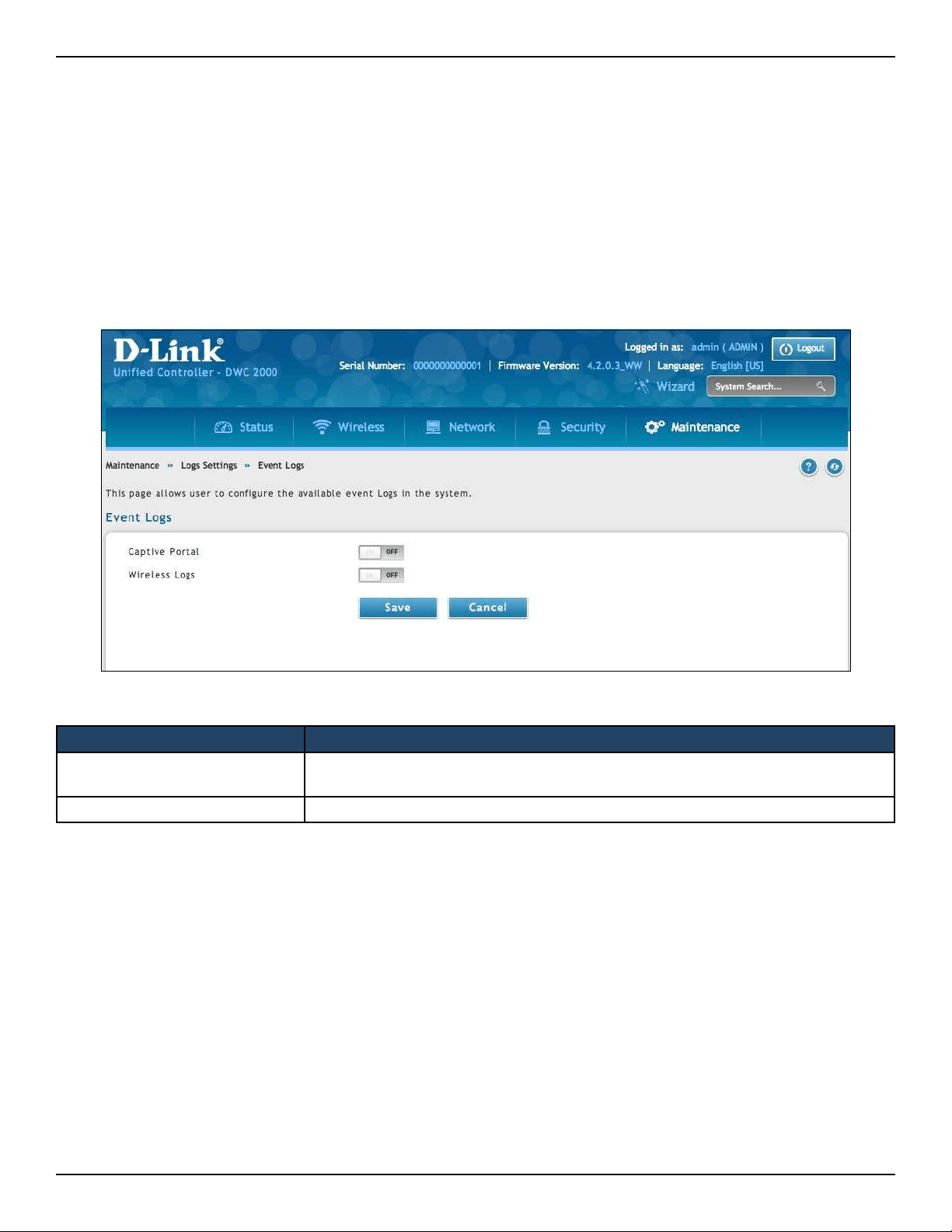
D-Link DWC-2000 User Manual 272
Section 10 - Troubleshooting
Event Log
Path: Maintenance > Logs Settings > Event Log
The wireless controller’s web management interface displays congured log messages from the Status menu.
When trac through or to the wireless controller matches the settings in the Maintenance > Log Settings >
Facility Logs page (see “Log Settings” on page 265) or Maintenance > Log Settings > Routing Logs page (see
“Tracking Trac/Routing Logs” on page 267), the corresponding log message will appear in this window with
a timestamp:
Option Description
Captive Portal
If enabled, the controller will log information related to wireless client logs in and log
out via Captive Portal.
Wireless Logs If enabled, the controller will log information relative to wireless activities.
Note: To understand log messages, it is very important to have accurate system time that has been set manually or
from a NTP server.
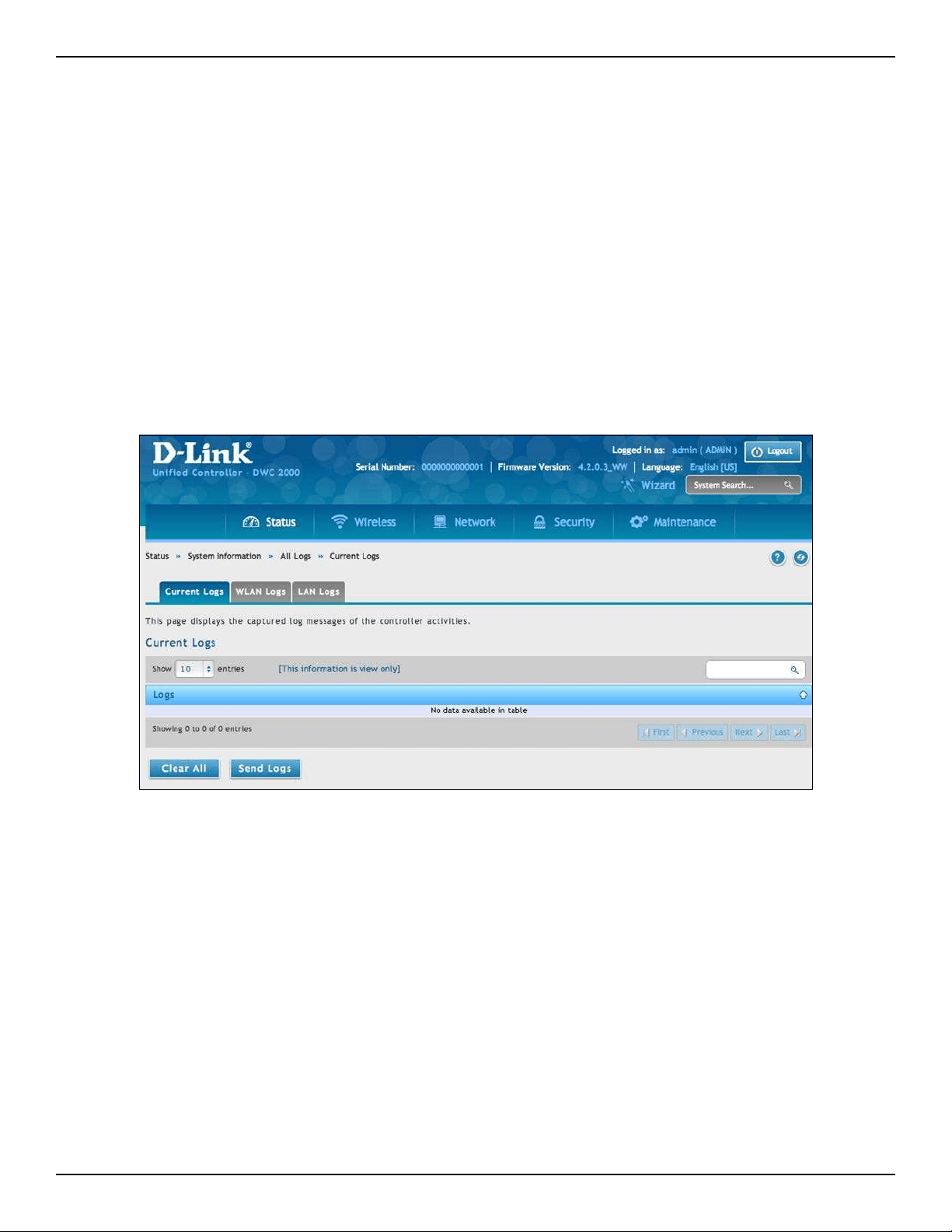
D-Link DWC-2000 User Manual 273
Section 10 - Troubleshooting
Current Logs
Path: Status > System Information > All Logs > Current Logs
The Display Logs window allows you to view congured log messages from the controller as they appear. Each
log will appear with a timestamp as determined by the controller's congured time. If remote logging such
as a Syslog server or e-mail logging is congured, the same logs are sent to the remote interface while being
displayed here.
Click Refresh (Right side on the page) for refresh logs or reload page again.
Click Clear All to remove all entries in the Display Logs screen.
Click Send Logs to send all logs in the Display Logs screen to precongured e-mail recipients.
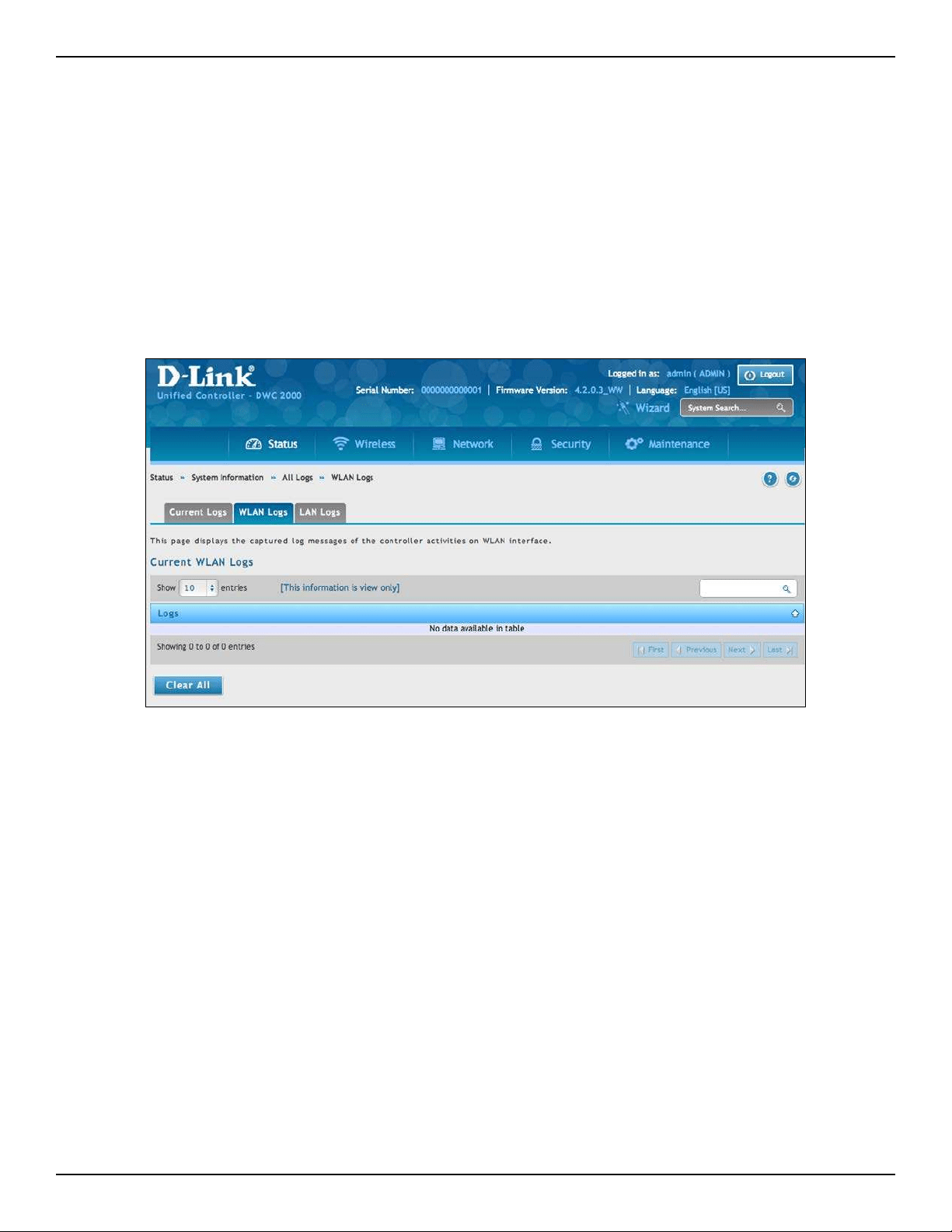
D-Link DWC-2000 User Manual 274
Section 10 - Troubleshooting
WLAN Logs
Path: Status > System Information > All Logs > WLAN Logs
The Display Logs window allows you to view congured log messages from the controller on WLAN interface as
they appear. Each log will appear with a timestamp as determined by the controller's congured time. The same
logs are sent to the WLAN interface while being displayed here.
Click Refresh (Right side on the page) for refresh logs or reload page again.
Click Clear All to remove all entries in the Display Logs screen.
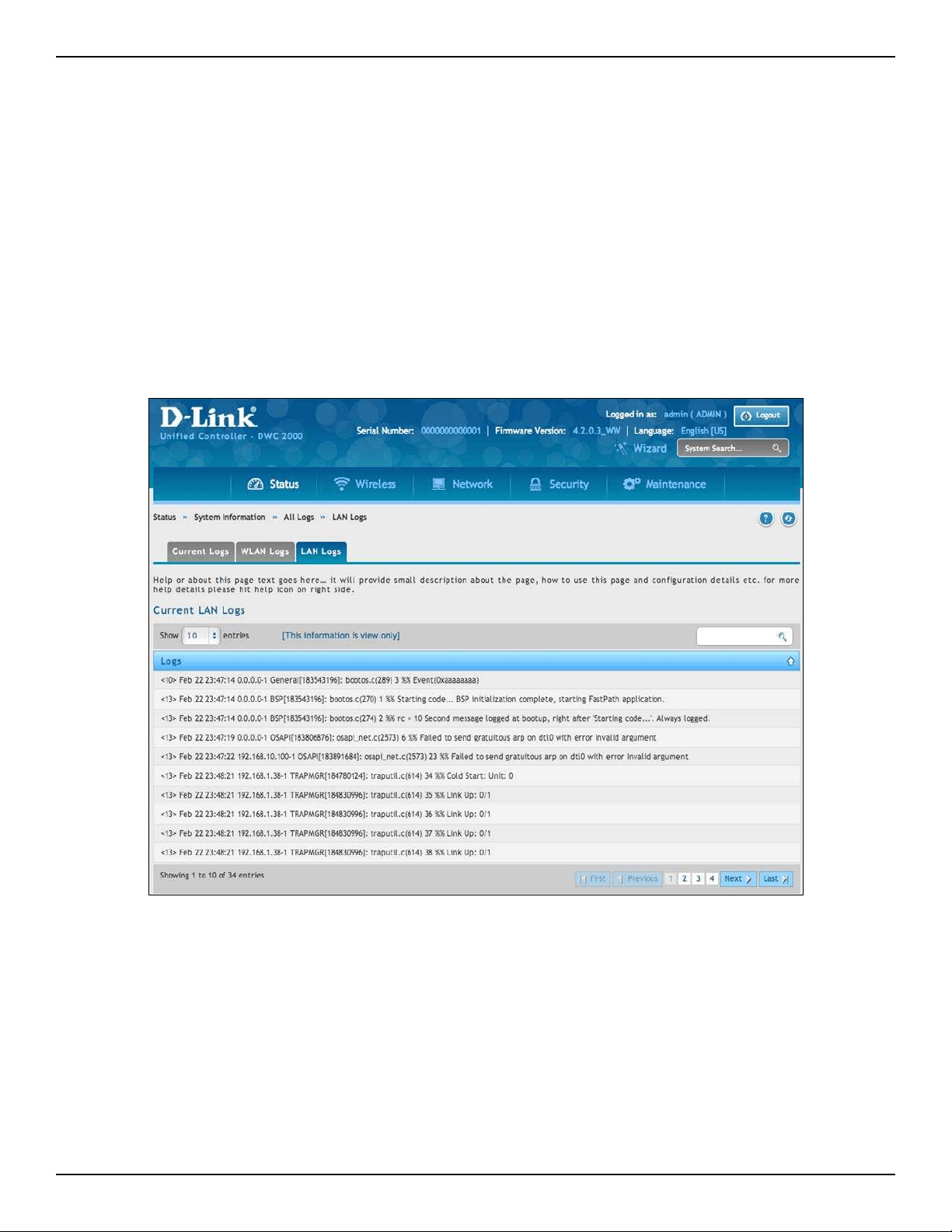
D-Link DWC-2000 User Manual 275
Section 10 - Troubleshooting
LAN Logs
Path: Status > System Information > All Logs > LAN Logs
The Display Logs window allows you to view congured log messages from the controller on LAN interface as
they appear. Each log will appear with a timestamp as determined by the controller’s congured time. The same
logs are sent to the WLAN interface while being displayed here.
Click Refresh (Right side on the page) for refresh logs or reload page again.
Click Clear All to remove all entries in the Display Logs screen.

D-Link DWC-2000 User Manual 276
Appendix A - Basic Planning Worksheet
Appendix A - Basic Planning Worksheet
RF planning enables you to specify how Wi-Fi coverage will be provided. It provides coverage maps and locations
prone to weak signals or dead spots that might require additional access points to provide adequate Wi-Fi
coverage.
A Basic Planning Worksheet similar to the one in this appendix allows you to collect the following critical
information to expedite your planning eorts.
• Building dimensions
• Walls and possible obstructions to wireless coverage
• Number of oors
• Distance between oors
• Total number of users and number of users per access point
• Radio type(s)
• Desired access point data rates
• Areas where you want to deploy access points
• Areas where you cannot deploy an access point
• Areas where you do not want coverage
D-Link DWC-2000 User Manual 277
Appendix A - Basic Planning Worksheet
Step Task Completed?
Site Planning
1 Height of building
2 Width of building
3 Number of oors
4 Floor dimensions
5 Distance between oors
6 Visual obstructions
7 Possible causes of interference
Access Point Planning
1 Frequency band
2 Expected signal quality
3 Number of clients per access point
4 Total number of clients per oor
5 Desired access point data rate
Wireless Controller Planning
1
Change the wireless controller default password and record it here:
2
Congure your time zone and record it here___________________
3
Use default radio conguration?
Prole Name: ___________________________________________
Clients ________________________________________________
Modes Available:
802.11 b/g:
802.11 n:
802.11 b/g/n:
802.11 a – 5 GHz Only:
802.11 a/n – 5 GHz Only:
802.11 a/n/ac - 5 GHz Only:
4
SSID information
Service Set Identier (SSID) name:_________________________________
Security (none, WEP, WPA, or WPA2):________________________________
5
Use wireless controller as a DHCP server?
Yes = host name and IP address should be assigned dynamically.
No = use DHCP relay or congure static IP addresses and record them below.
IP address:
IP subnet mask:
Gateway IP address:
Primary DNS server:
Secondary DNS server:

D-Link DWC-2000 User Manual 278
Appendix A - Basic Planning Worksheet
6 LAN IP address:
7 Subnet Mask:
8
IP address range:
Starting IP address range:
Ending IP address range:
9 Default gateway (optional):
10
DNS server:
Primary DNS server:
Secondary DNS server:
11 Domain:
12 WINS server:
13
Are you connected to the Internet?
Yes
No
14
Conrm and record rmware levels for the wireless controller and all access
points:
DWC-2000 wireless controller:
DWL-2600AP access point:
DWL-3600AP access point:
DWL-6600AP access point:
DWL-8600AP access point:
DWL-8610AP access point:
15
Record MAC addresses for the wireless controller and all access points:
DWC-2000 wireless controller:
DWL-2600AP access point(s):
DWL-3600AP access point(s):
DWL-6600AP access point(s):
DWL-8600AP access point(s):
DWL-8610AP access point(s):

D-Link DWC-2000 User Manual 279
Appendix B - Factory Default Settings
Appendix B - Factory Default Settings
Feature Description Default Setting
Device Login
User login URL http://192.168.10.1
User name (case sensitive)
admin
Login password (case sensitive)
admin
Local area network
(LAN)
IP address 192.168.10.1
IPv4 subnet mask 255.255.255.0
DHCP server Disabled
DHCP starting IP address 192.168.10.100
DHCP ending IP address 192.168.10.254
Time zone GMT
Time zone adjusted for Daylight Savings Time
Disabled
SNMP Disabled
Remote management Disabled

D-Link DWC-2000 User Manual 280
Appendix C - Glossary
Appendix C - Glossary
Access Point - A device that provides network access to wireless devices.
ARP - Address Resolution Protocol. Broadcast protocol for mapping IP addresses to MAC addresses.
CHAP - Challenge-Handshake Authentication Protocol. Protocol for authenticating users to an ISP.
DDNS - Dynamic DNS. System for updating domain names in real time. Allows a domain name to be assigned to
a device with a dynamic IP address.
DHCP - Dynamic Host Conguration Protocol. Protocol for allocating IP addresses dynamically so that addresses
can be reused when hosts no longer need them.
DNS - Domain Name System. A hierarchical distributed naming system for computers, services, or any resource
connected to the Internet or a private network.
FQDN - Fully qualied domain name. Complete domain name, including the host portion. Example: serverA.
companyA.com.
FTP - File Transfer Protocol. Protocol for transferring les between network nodes.
HTTP - Hypertext Transfer Protocol. Protocol used by web browsers and web servers to transfer les.
IKE - Internet Key Exchange. Mode for securely exchanging encryption keys in ISAKMP as part of building a VPN
tunnel.
IP - Internet Protocol. The principal communications protocol used for relaying datagrams known as network
packets across an internetwork using the Internet Protocol Suite. IP is responsible for routing packets across
network boundaries. It is the primary protocol that establishes the Internet.
IPsec - IP security. Suite of protocols for securing VPN tunnels by authenticating or encrypting IP packets in a
data stream. IPsec operates in either transport mode (encrypts payload but not packet headers) or tunnel mode
(encrypts both payload and packet headers).
ISAKMP - Internet Key Exchange Security Protocol. Protocol for establishing security associations and
cryptographic keys on the Internet.
ISP - Internet service provider.
MAC Address - Media-access-control address. Unique physical-address identier attached to a network adapter.
MTU - Maximum transmission unit. Size, in bytes, of the largest packet that can be passed on. The MTU for
Ethernet is a 1500-byte packet.
NAT - Network Address Translation. Process of rewriting IP addresses as a packet passes through a controller
or rewall. NAT enables multiple hosts on a LAN to access the Internet using the single public IP address of the
LAN’s gateway controller.

D-Link DWC-2000 User Manual 281
Appendix C - Glossary
NetBIOS - Microsoft Windows protocol for le sharing, printer sharing, messaging, authentication, and name
resolution.
NTP - Network Time Protocol. Protocol for synchronizing a controller to a single clock on the network, known as
the clock master.
PAP - Password Authentication Protocol. Protocol for authenticating users to a remote access server or ISP.
PPPoE - Point-to-Point Protocol over Ethernet. Protocol for connecting a network of hosts to an ISP without the
ISP having to manage the allocation of IP addresses.
PPTP - Point-to-Point Tunneling Protocol. Protocol for creation of VPNs for the secure transfer of data from remote
clients to private servers over the Internet.
RADIUS - Remote Authentication Dial-In User Service. Protocol for remote user authentication and accounting.
Provides centralized management of usernames and passwords.
RSA - Rivest-Shamir-Adleman. Public key encryption algorithm.
SSID - Service Set Identier. A case-sensitive, 32-alphanumeric character unique identier used for naming
wireless networks. The SSID dierentiates one wireless network from another. All access points and devices
trying to connect to a specic wireless network must use the same SSID to enable eective roaming.
Subnet - A portion of a network that shares a common address component. On TCP/IP networks, subnets are
dened as all devices whose IP addresses have the same prex. For example, all devices with IP addresses that
start with 100.100.100 belong to the same subnet.
TCP - Transmission Control Protocol. Protocol for transmitting data over the Internet with guaranteed reliability
and in-order delivery.
UDP - User Data Protocol. Protocol for transmitting data over the Internet quickly but with no guarantee of
reliability or in-order delivery.
VPN - Virtual private network. Network that enables IP trac to travel securely over a public TCP/IP network by
encrypting all trac from one network to another. Uses tunneling to encrypt all information at the IP level.
WINS - Windows Internet Name Service. Service for name resolution. Allows clients on dierent IP subnets to
dynamically resolve addresses, register themselves, and browse the network without sending broadcasts.
Wireless Controller - D-Link device that centralizes and simplies network management of a wireless LAN by
consolidating individually managed access points into a single, unied solution.

D-Link DWC-2000 User Manual 282
Appendix D - Technical Specications
Appendix D - Technical Specications
Capacity
Max. APs per device Default: 64 Upgradable to 256
Max. APs per clustering group 1024
Max. clustering controllers 8
Compatibility
Unied Access Point Model
• DWL-2600AP
• DWL-3600AP
• DWL-6600AP
• DWL-8600AP
• DWL-8610AP
SFP Transceiver Model
• DEM-210 (B1/C1/D1/E1)
• DEM-211 (B1/C1/D1/E1)
• DEM-220T (B1/C1/D1/E1)
• DEM-302S-BXD (A1)
• DEM-302S-BXU (A1)
• DEM-302S-LX (A1)
• DEM-310GT (F1/G1/H1/I1)
• DEM-311GT (F1/G1/H1/I1)
• DEM-312GT2 (D1/E1)
• DEM-314GT (E1/F1/G1/H1)
• DEM-315GT (E1/F1/G1/H1)
• DEM-330T (B1/B2/C1/D1)
• DEM-330R (B1/B2/C1/D1)
• DEM-331T (B1/B2/C1/D1)
• DEM-331R (B1/B2/C1/D1)
• DGS-712 (C1)
Upgrade License
• DWC-2000-AP32 / DWC-2000-AP32-LIC:
additional 32 managed AP Licenses
• DWC-2000-AP64 / DWC-2000-AP64-LIC:
additional 64 managed AP licenses
• DWC-2000-AP128 / DWC-2000-AP128-LIC:
additional 128 managed AP licenses