
1
| Hauppauge Computer Works 2020
WinTV 10 US Help
2
The WinTV10 Main Window | Hauppauge Computer Works 2020
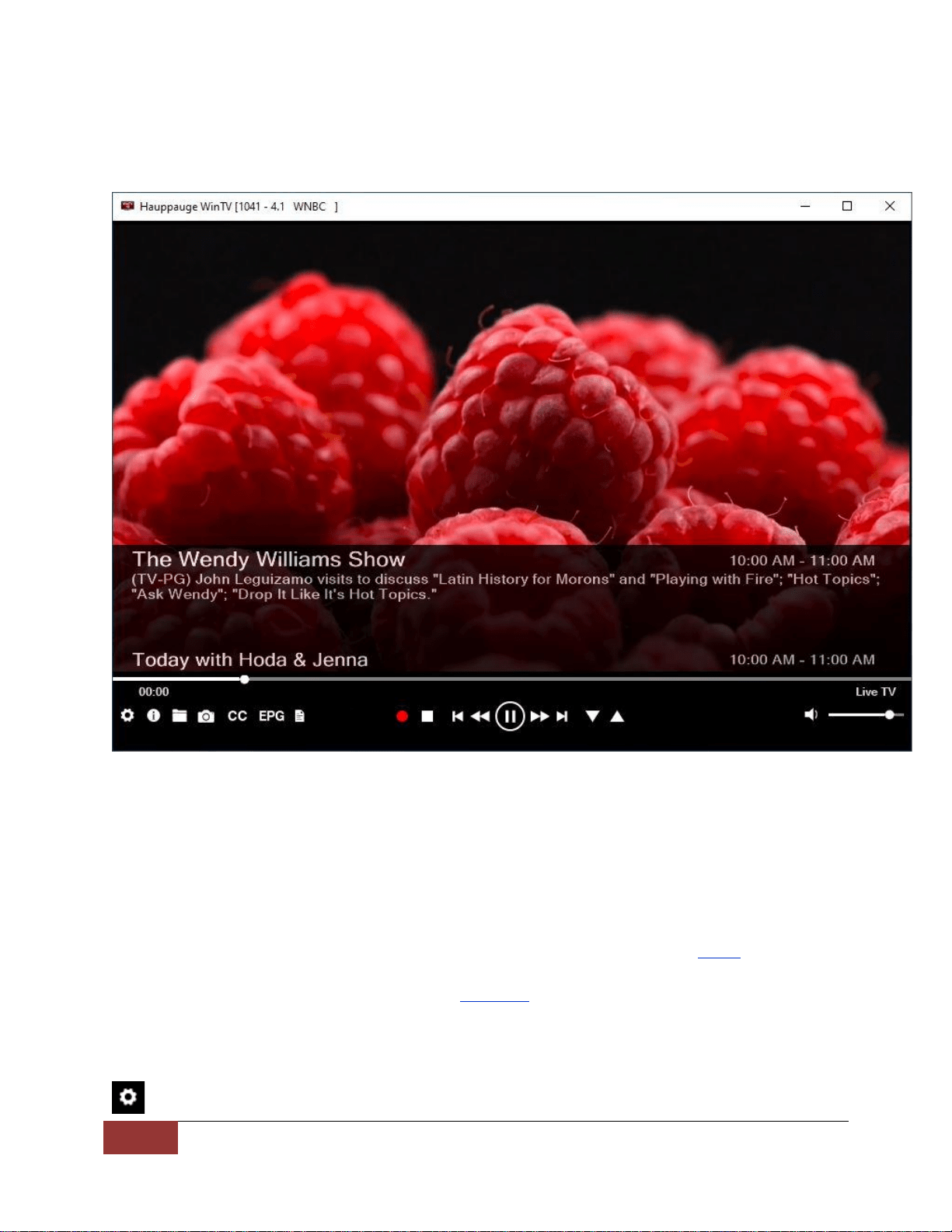
The WinTV10 Main Window
Fundamental Operation
The majority of options can be selected by clicking on the left hand mouse button.
Double-click the left hand mouse button inside the TV window to change window mode (normal
view, TV window only, full screen).
Click the right hand mouse button inside the TV window to open the context Menu.
Nearly all functions can be accessed using the keyboard.
Control Buttons
WinTV Settings

3
The WinTV10 Main Window | Hauppauge Computer Works 2020
Clicking this button will open the WinTV Settings dialog.
On Screen Display
Clicking this button will display channel information.
Open File for Playback
Click this button to open a previously recorded file for playback.
Snapshot
Click the Snapshot button to save a still image of the currently displayed TV / video.
Start Live TV
Click the TV button to watch Live TV.
Closed Caption
Click to toggle closed caption on or off.
TV Guide
Click to open the TV Guide Menu (Only available for ATSC signals in North America)
Context Menu
Click to open the open the Menu
Start Recording
Starts recording the currently watched channel.
Terminate Recording / Exit Live TV
Click this button to exit a recording, or to exit Live TV mode.
4
The WinTV10 Main Window | Hauppauge Computer Works 2020
Pause Live TV / Change Playback Position
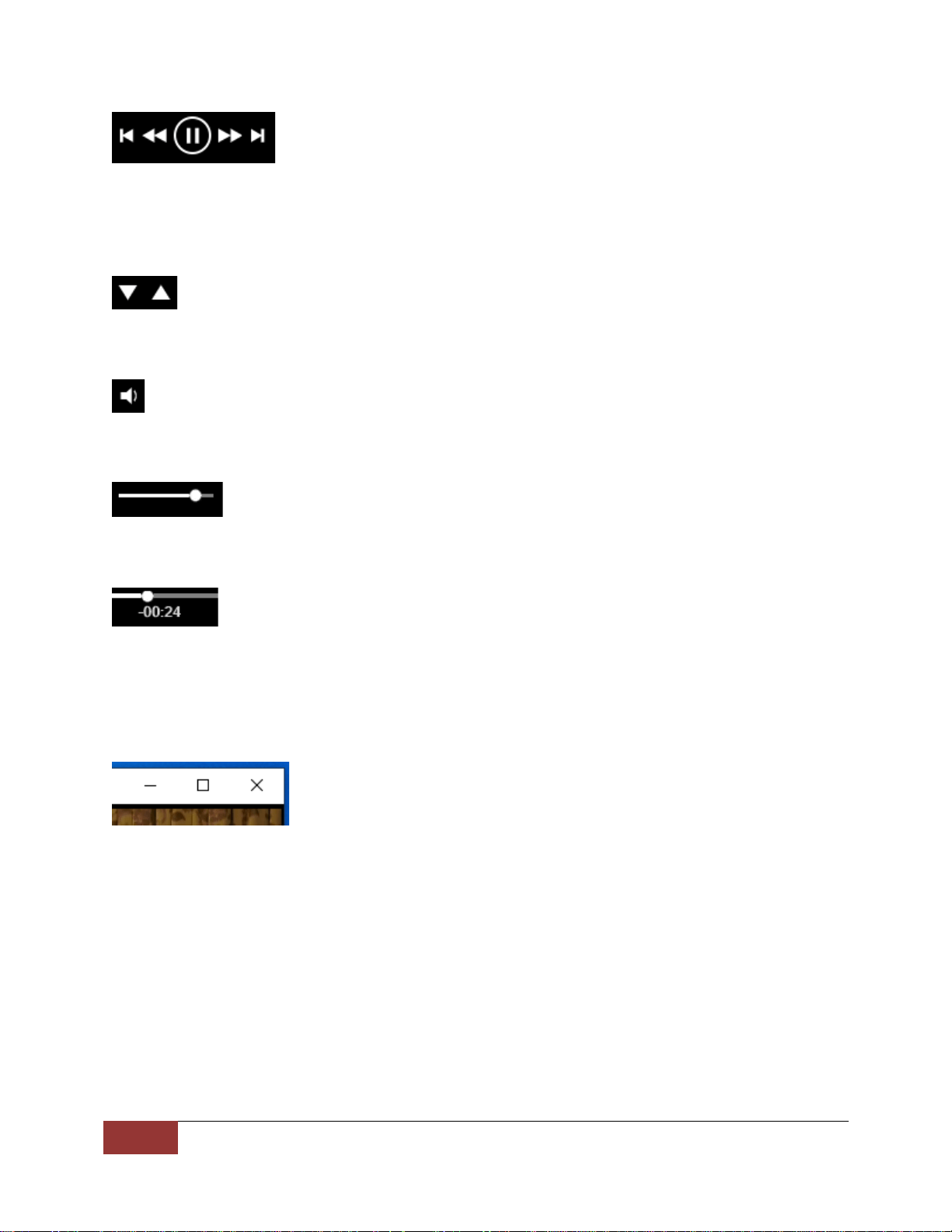
The big button in the middle pauses Live TV. Click the same button again to continue Live TV.
The other buttons do: Skip back 60 seconds, skip back 30 seconds, skip forward 10 seconds, and
skip forward 60 seconds.
Change Channel
Click the Channel Up or Channel Down button to change channel.
Mute Audio
This button allows you to turn the sound on or off.
Change Audio Volume
Use this slider bar to change the audio volume.
Pause Buffer Indicator
The white bar below the TV window shows how much the pause buffer is filled with content.
The bar grows with time. You can click your mouse button on the white bar to directly jump to a
certain position in the pause buffer. The timer will show how far back the video is from Live
TV.
Minimize Application Window, Enter Full Screen
Mode, Exit Application
• Click on the minimize button to minimize the WinTV application to the task bar. (Click
on the WinTV icon in the task bar to maximize.)
• Click the maximize button to watch the TV in full screen. To return to windowed mode,
double click the left hand mouse button or press the <Esc> key.
• Click the X button to close the WinTV application.
Resize Application Window

5
WinTV Settings | Hauppauge Computer Works 2020
To set the WinTV window size, hold down the left mouse button when it's over the lower right
corner of the WinTV window, drag it to the preferred size, and then release the mouse button.
You can set different sizes for the normal view and No-Title mode.
WinTV Settings
Click the WinTV Settings button or Configuration under the Options Menu in the main TV
window to open Settings.
Settings is separated into several tabs.
"General" - General settings.
"Capture" - To specify the locations for recordings, timeshift buffer file and snapshots.
"Devices" - Tuner setup for channel search and configuration of external video inputs.
"All Channels" - To manage your channels.
"Favorites" - To define your favorite channels.
"Parental Control" - To enable parental control (North America only).
"Advanced Options" - Advanced options.
"WinTV Extend" - To Configure Wintv Extend (optional)
6
Settings / "General" | Hauppauge Computer Works 2020
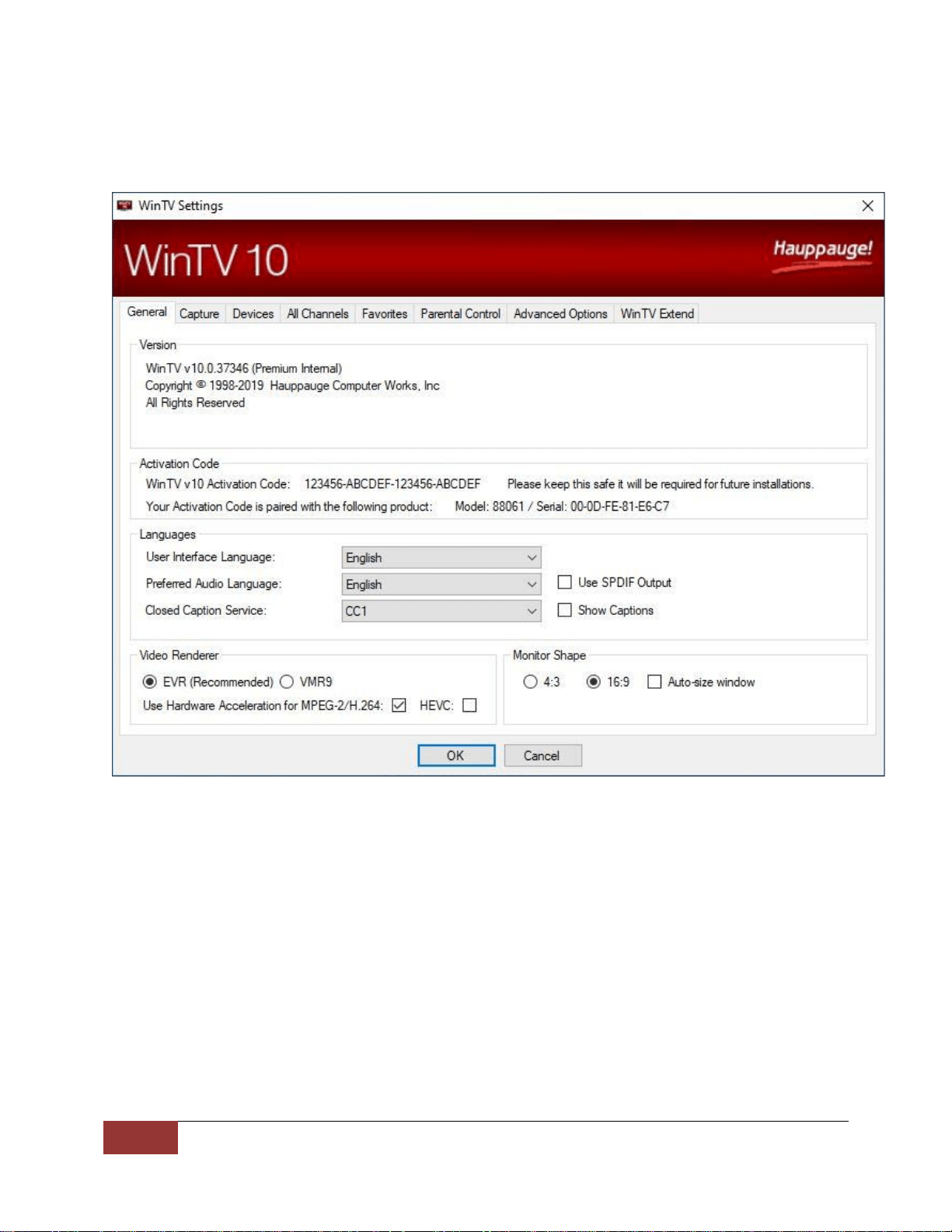
Settings / "General"
Section "Version"
Version : The current version of WinTV 10 installed is displayed.
Section "Activation Code"
WinTV v10 Activation Code : The activation code used to activate will be displayed. As well
the product the code was paired with.
Section "Languages"
User Interface Language: Select the language of the application user interface here. Changes
take effect after restarting the application.

7
Settings / "General" | Hauppauge Computer Works 2020
Preferred Audio Language: Specifies the preferred audio language for multi language-
broadcasts.
Closed Caption Service: Specifies the preferred subtitles language for broadcasts with multi
lingual subtitles
Use SPDIF Output: If this option is enabled, audio will be routed to the S/PDIF output of your
soundcard.
Show Captions: If enabled, subtitles are displayed (when available).
Section "Video Renderer"
EVR or VMR9: Specifies the video renderer to be used. The video renderer is a software
interface to your display adapter. Changes take effect after restarting the application.
Use hardware acceleration MPEG-2/H.264 and HEVC: If enabled, the hardware acceleration,
that newer display adapters offer, is used. This may improve system performance when
displaying video. Changes take effect after restarting the application. MPEG-2/H.264 is most
common used signal type. HEVC also know as h.265 is newer signal type in some European
countries.
Section "Monitor Shape"
4:3 or 16:9: Select the aspect ratio of the connected computer monitor here.
Auto-size window: If this option is enabled, the aspect ratio of the application window is always
kept constant when resizing the window.
8
Settings / "Capture" | Hauppauge Computer Works 2020
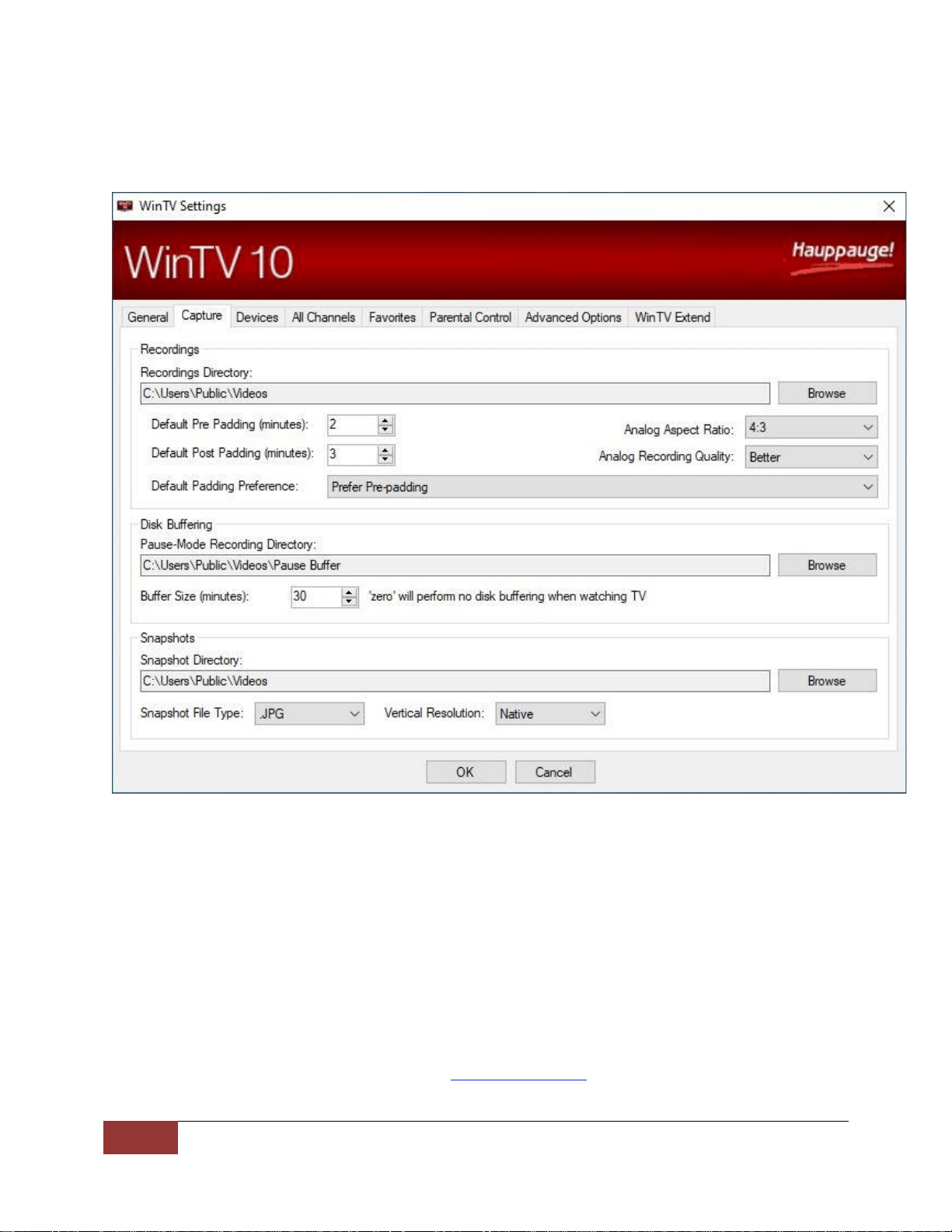
Settings / "Capture"
Section "Recordings"
Recordings Directory: Specifies the folder where recordings are saved. You can click on
Browse to select a different folder. Also snapshots are placed here.
Default Pre Padding (minutes): Specify how many extra minutes a recordings should start
using pre-padding.
Default Post Padding (minutes) : Specify how many extra minutes a recordings should
continue recording using post-padding.
Default Padding Preference: Please look at WinTV Scheduler for information.

9
Settings / "Capture" | Hauppauge Computer Works 2020
Analog Aspect Ratio: Select the aspect ratio for recordings from analog TV /video (Only for
products with analog TV tuner / video inputs.)
Default Analog Recording Quality: Select the quality for recordings from analog TV / video
here. (Only for products with analog TV tuner / video inputs.)
Section "Disk Buffering"
Disk Buffering is used to enable time-shift, where the TV content is continuously buffered to
your hard disk.
Pause-Mode Recording Directory: Specifies the folder where the temporary disk buffer file is
placed. You can click on Browse to select a different folder.
Buffer Size (minutes): Sets the duration in minutes for which the TV content is buffered to hard
disk. Enter 0 minutes to disable disk buffering. Changes take effect after restarting the
application.
Section "Snapshots"
The following settings refer to snapshots, i.e. still images of the currently displayed TV / video.
Snapshots are generated by pressing the space bar or Snapshot button .
Snapshot Directory: Specifies the folder where snapshots are saved. You can click on Browse
to select a different folder.
Snapshots File Type: Specifies the file type of the saved snapshot file JPG or BMP.
Vertical Resolution: Specifies the vertical resolution of the image, i.e. the number of lines. You
can select between:
• Native: The image is saved in the currently displayed size.
• 480 - 1080: The image is zoomed to the selected number of lines, before it is saved.
Please note: Image quality directly depends on the size of the displayed TV / video image. The
larger the TV / video image is the better is the quality of the snapshot.
10
Settings / "Devices" | Hauppauge Computer Works 2020
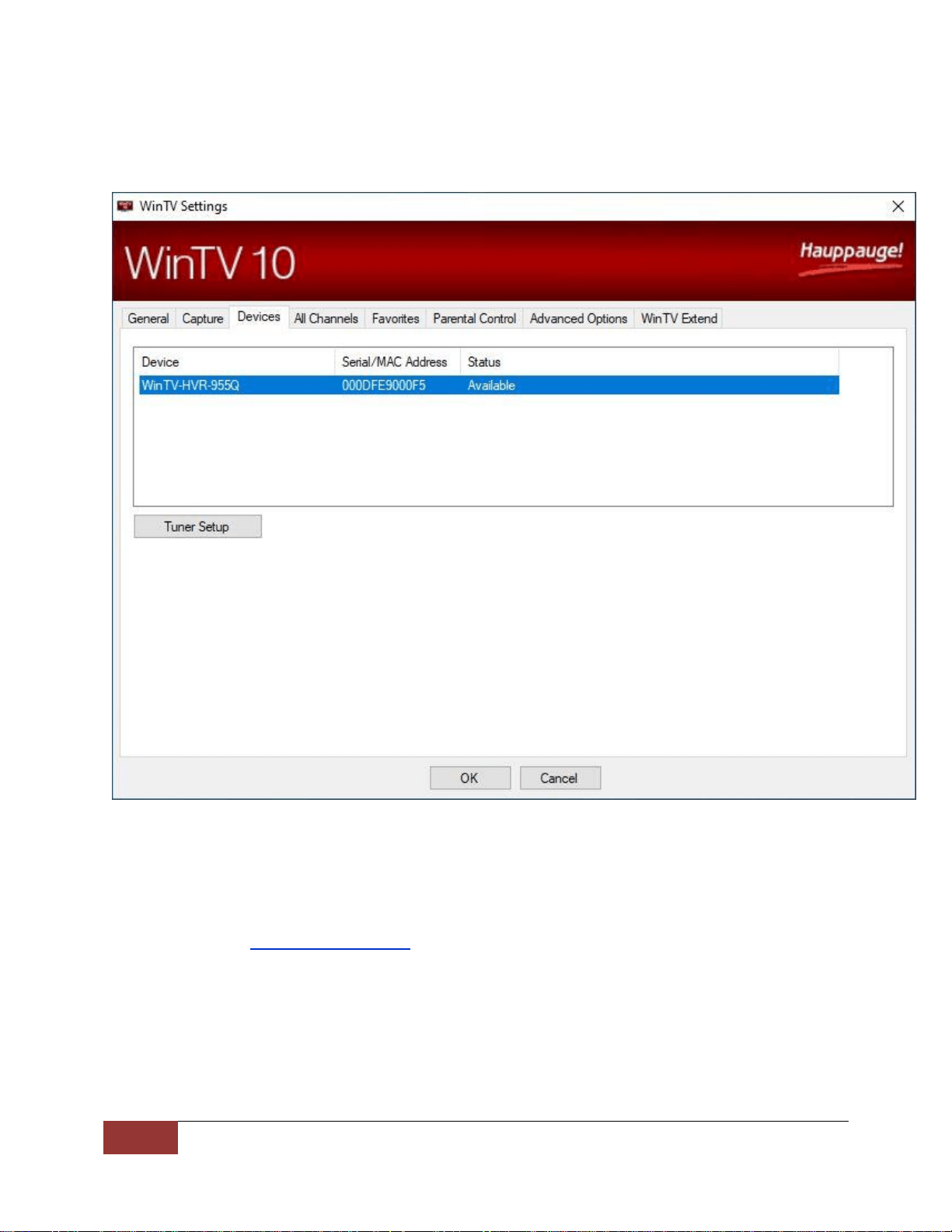
Settings / "Devices"
To set up the TV tuner and scan for channels, select the device from the list and click on "Tuner
Setup". The Device Setup Wizard will open.
If Tuner Setup is grayed out, the product is not selected.
Please refer to the Device Setup Wizard section for the available options
11
Settings / "All Channels" | Hauppauge Computer Works 2020
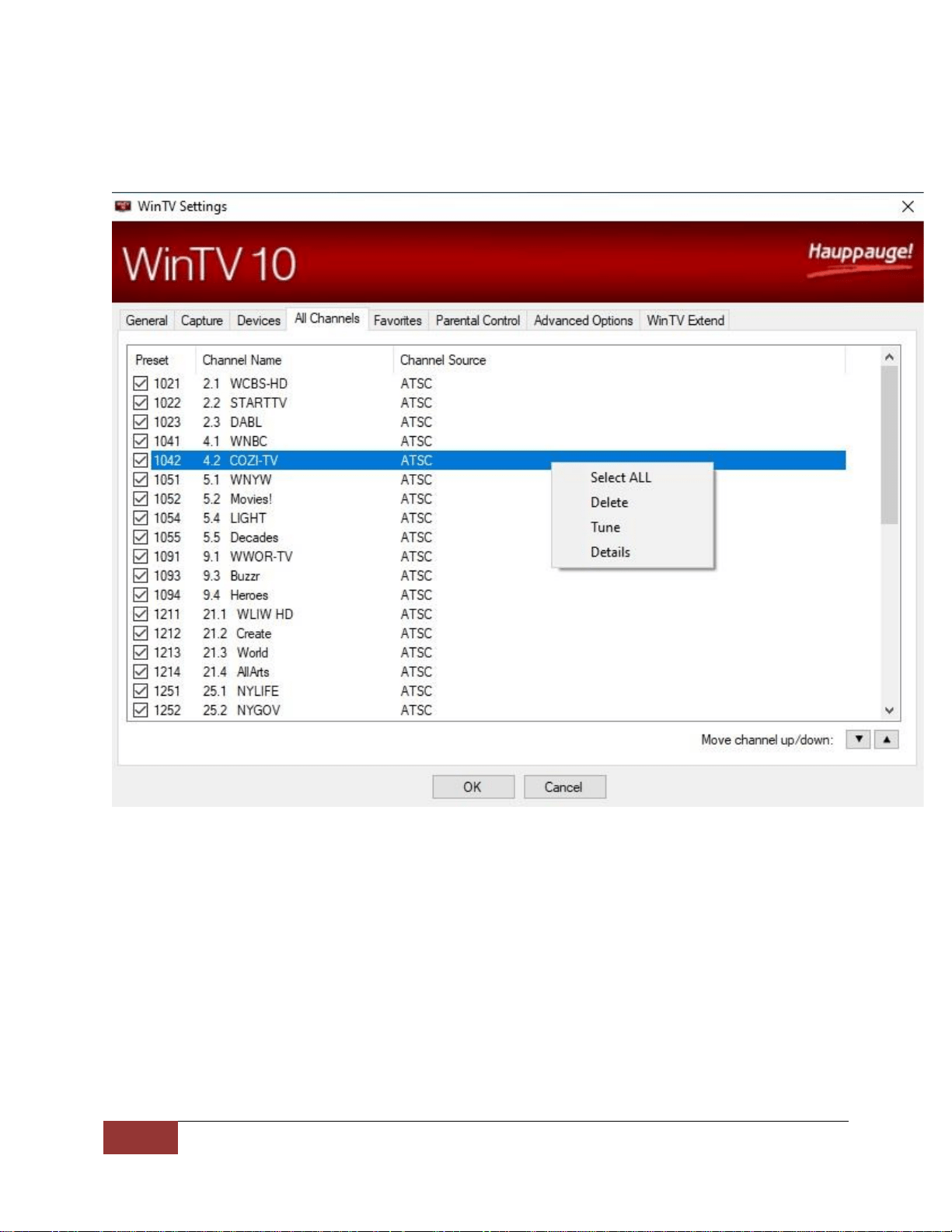
Settings / "All Channels"
All channels from the channel database are listed.
With the checkmark in the first column, channels can be enabled or disabled. Unchecked
channels will be hidden from the channel list in the main menu window.
Channels are sorted only based on the Preset number
Right click on a channel to open a context menu:
Menu option "Select All": Selects all channels in the list.
Menu option "Delete": Deletes the selected channel(s) permanently from the database.
12
Settings / "All Channels" | Hauppauge Computer Works 2020
Menu option "Tune": Tunes to the selected channel for watching / listening.
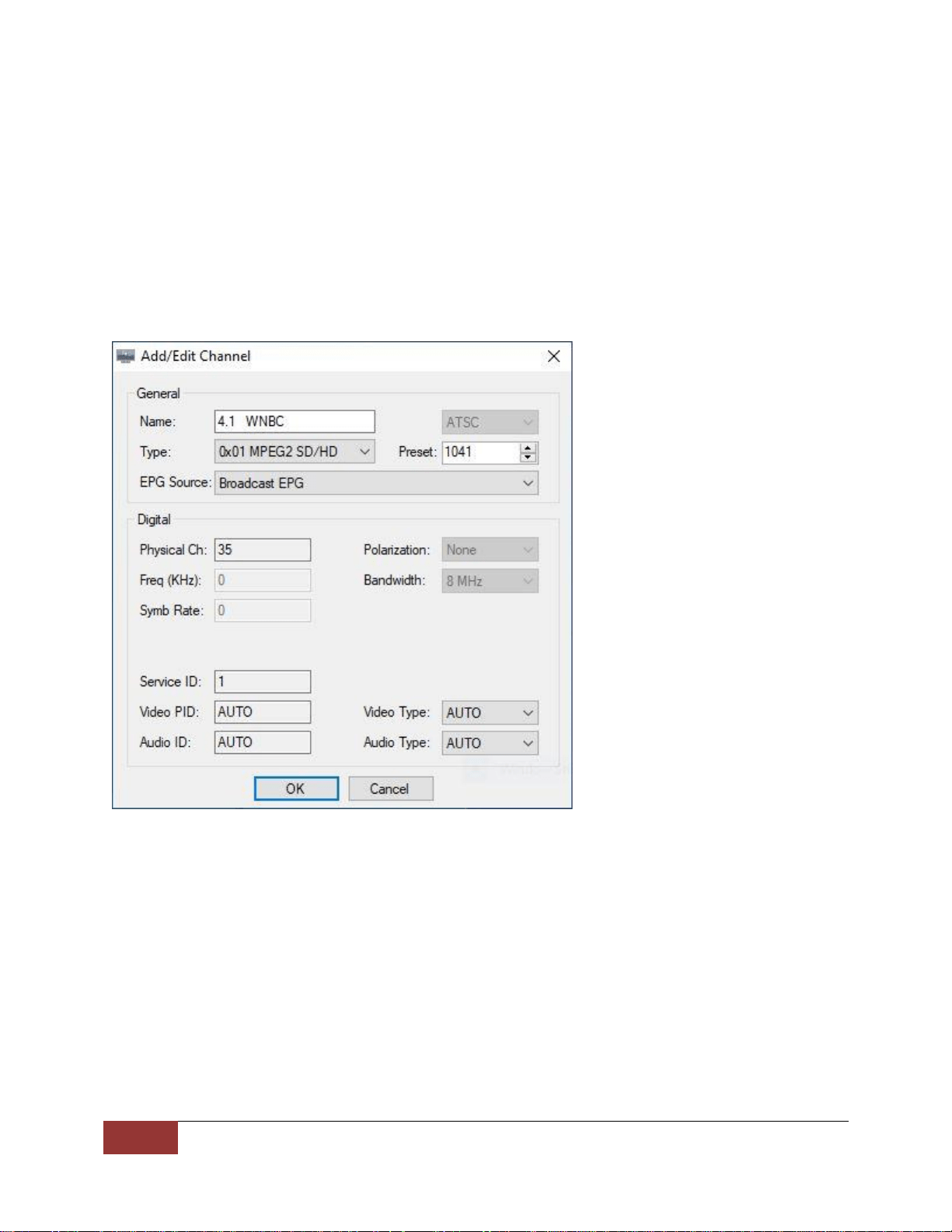
Menu option "Details": Opens a dialog window with details about the channel.
View and Edit Details about a Channel
When selecting "Details" from the menu, the Edit Channel window is opened.
Section "General"
Name: You can edit the name of the channel in the "Name" field.
Type: Type of signal can be selected manually if needed.
Preset: You can change the position of a channel in the list by changing the number in the
"Preset" field. Note: If the new position is in use by another channel already, the other channel is
moved to the end of the list.
The other options in this dialog are for the purpose of information only, and cannot be edited.

13
Settings / "All Channels" | Hauppauge Computer Works 2020
Moving a Channel up or down
You can move the selected channel up or down using the arrow buttons . This would
change the channel numeric number.
14
Settings / "Favorites" | Hauppauge Computer Works 2020
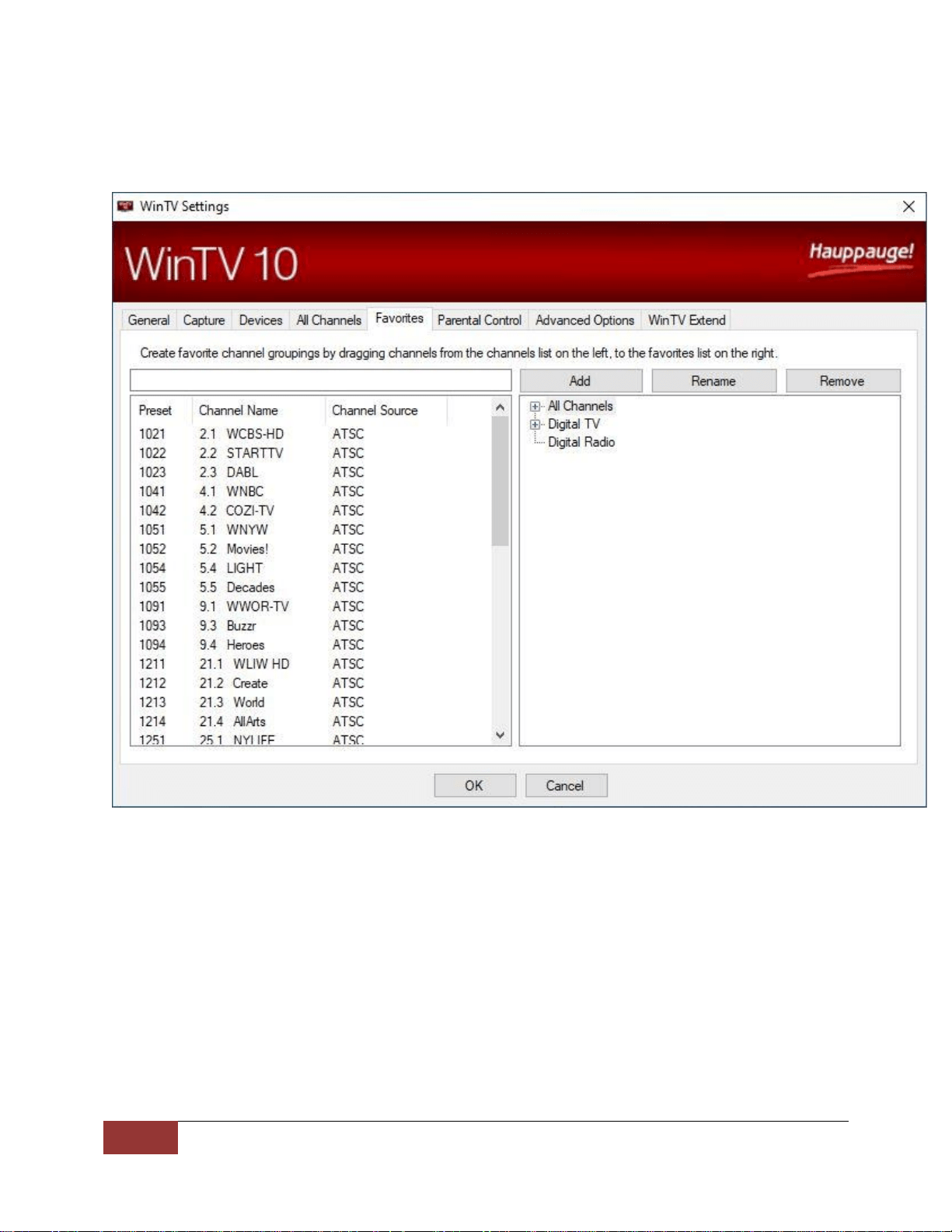
Settings / "Favorites"
Defining Favorites
On the left side all existing channels are listed. The right side shows the pre-defined and user
defined channel groups and some buttons.
Add: Creates a new channel group named "New Group", which can then be renamed.
Rename: Used to rename the selected channel group.
Remove: Deletes the user defined channel group or a channel from a group. (This does not
actually remove the channel from the database.)
15
Settings / "Favorites" | Hauppauge Computer Works 2020
To create a new group with your favorites:
1. Click on Add, to create a new group.
2. Rename this group to "My Channels" (for example).
3. Click on a channel in the left list, drag this channel over to your channel group while
holding down the mouse button, then release the mouse button. The selected channel is
placed in the channel group. Repeat this procedure with all desired channels.
Note: The "Favorites" tab is not designed to sort, rename or delete channels from the database.
Use the "All Channels" tab for these tasks.
Using Favorites
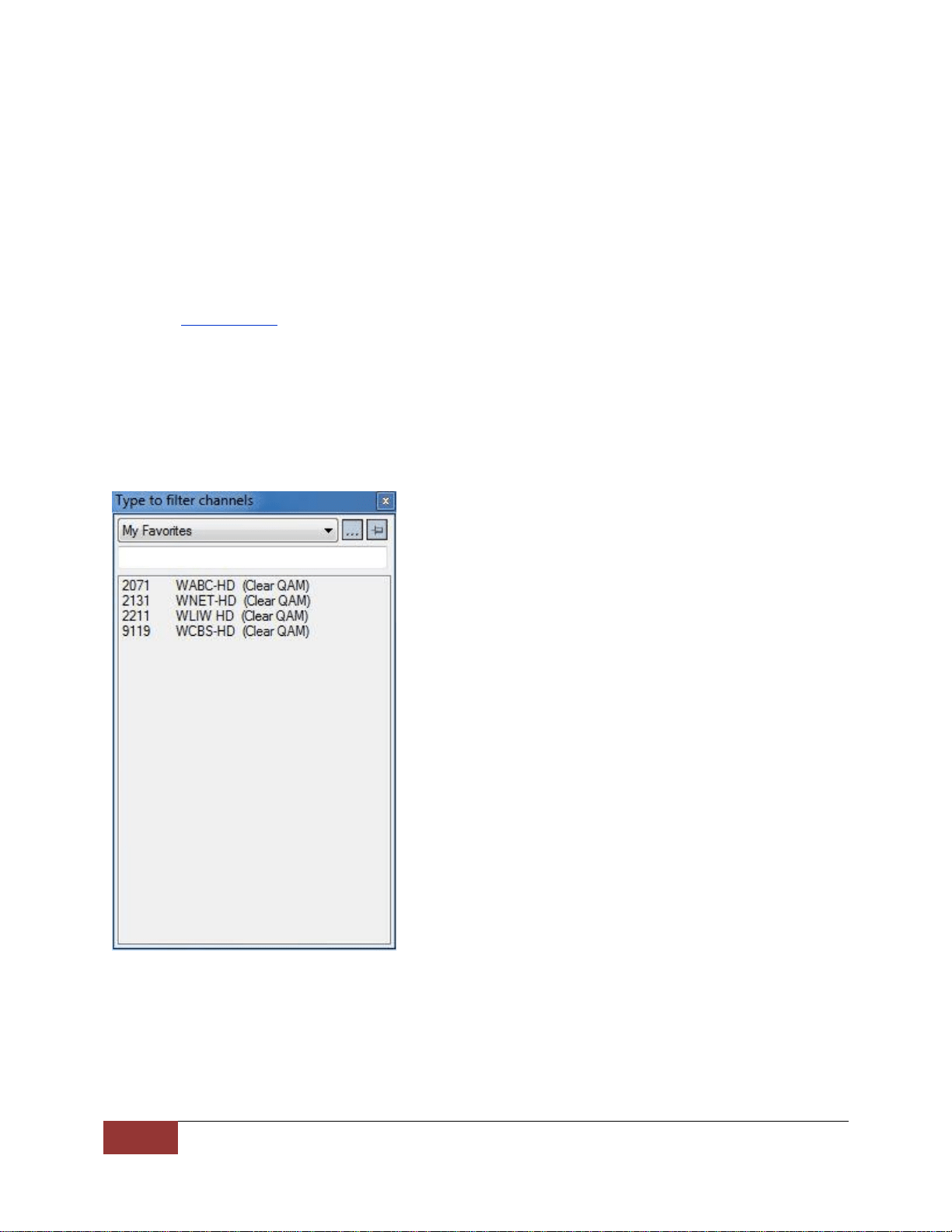
After a new group has been defined, it will be shown in the drop down list under the Find
Channels menu on the main TV window. When selecting this channel group, only channels from
the group will be displayed.
16
Settings / "Parental Control" | Hauppauge Computer Works 2020
Settings / "Parental Control"
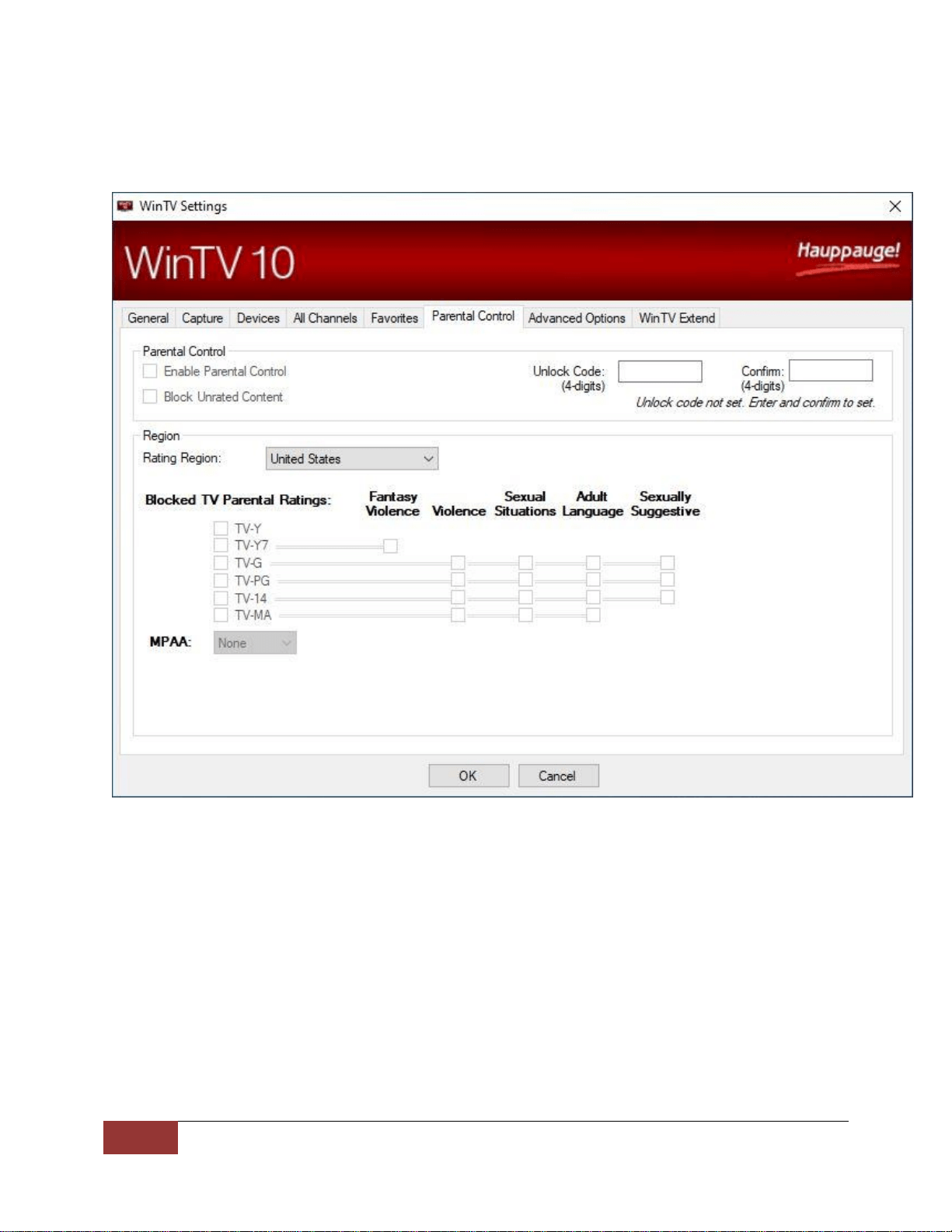
This dialog allows you to enable Parental Control on digital TV programs, and is available on
products for North America only.
Section "Parental Control"
Enable Parental Control: Once you have set the 'Unlock Code', you can select this option to
enable parental control.
Block Unrated Content: If this option is enabled, unrated TV content will not be displayed.
Unlock Code: The Unlock Code is a password chosen by yourself. Enter the password into the
'Unlock Code' field and retype the same password in the 'Confirm' field. After the Unlock Code

17
Settings / "Parental Control" | Hauppauge Computer Works 2020
has been set, the Parental Control option can be enabled. If you want to disable parental control,
or change settings later, you will have to enter the Unlock Code again.
Section "Region"
Rating Region: Specifies the rating region.
Blocked TV Parental Ratings: Select the parental rating (and eventually sub-rating) for which
TV content is to be blocked.
TV-Y: For all children, including very young children.
TV-Y7: For children age 7 and above.
TV-G: General audience; suitable for all children.
TV-PG: Parental Guidance; suggests parents to watch with their children.
TV-14: Unsuitable for children under age 14.
TV-MA: Mature Audience only.
MPAA: Specifies the film rating according to the Motion Picture Association of America.
G: General Audience. All ages admitted.
PG: Parental Guidance Suggested. Some material may not be suitable for children.
PG-13: Parents Strongly Cautioned. Some material may be inappropriate for children under 13.
R: Restricted. Under 17 requires accompanying parent or adult guardian.
NC-17: No one of age 17 and under admitted.
X: Same as NC-17.
18
Settings / "Advanced Options" | Hauppauge Computer Works 2020
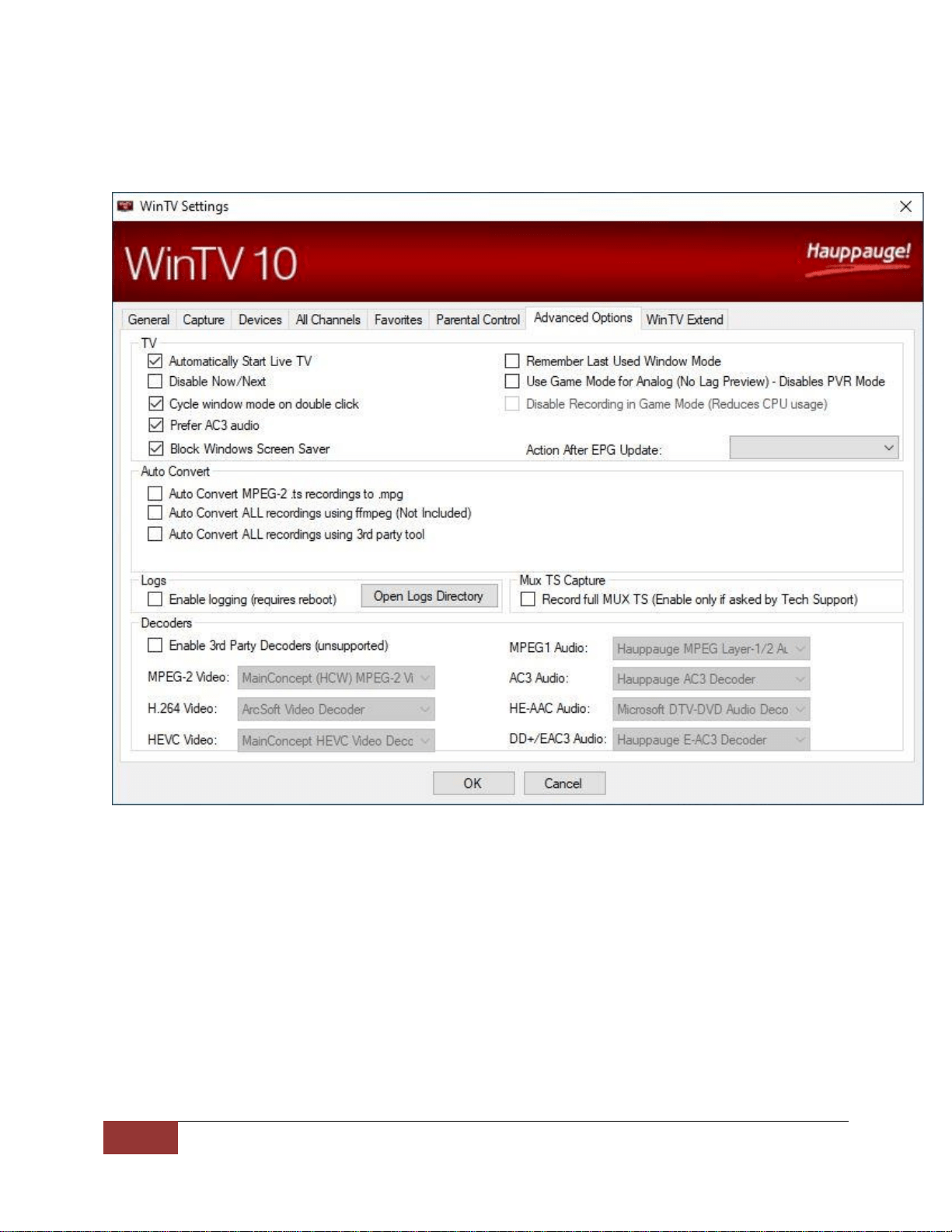
Settings / "Advanced Options"
Section "TV"
Automatically start Live TV: If enabled (default), on startup of the WinTV application, live TV
is started automatically.
Disable Now/Next: If this option is checked, the Now/Next electronic program guide
information is not shown when changing channels.
Disable OSD Graphics: If this option is checked, the On Screen Display annunciators are not
displayed (for example "Mute" or the channel number).
Cycle window mode on double click: If enabled (default), on double click inside the TV image
the application view mode cycles through "Normal ", "No Title" and "Full Screen". If not

19
Settings / "Advanced Options" | Hauppauge Computer Works 2020
enabled, a double click switches between the current view and "Full Screen", where the current
view may be "Normal" or "No Title". (You can also change the application view in the WinTV
menu).
Prefer AC3 audio: If enabled (default), AC3 audio is preferred over MPEG audio, if a channel
offers MPEG audio and AC3 audio.
Block Windows Screen Saver: If enabled (default), it will stop screen saver from running while
WinTV is active.
Remember Last Used Window Mode: If enabled WinTV will remember the window mode
(Title, No title, Full screen) when closing and will open in that mode the next time it is run.
Use Game Mode for analog (No Lag Preview) - Disables PVR Mode: In normal mode the TV
/ video displayed in WinTV is delayed for a few seconds, because it is buffered on hard drive or
in memory. In Game Mode the analog TV / Video is displayed without delay. You should enable
Game Mode if you intend to connect a game console to the video input of WinTV. In Game
Mode these functions are disabled: Pausing TV (TimeShift) (You can still record and make
snapshots in Game Mode.) After changing the Game Mode setting, you need to reboot Windows.
If you have a slower PC game mode can help smooth out analog video if the CPU is running at
near maximum.
Please note: The Game Mode option is available on certain WinTV products only.
Disable Recording in Game Mode (Reduces CPU usage): On systems with low CPU
performance (some netbooks for example) it is recommended to check this option, if you do not
intend to record live TV / video. This will reduce CPU load when displaying live TV / video. In
this mode the following functions are disabled: Pausing TV (TimeShift), recording and teletext.
Action After EPG Update:
Section "Auto Convert"
Auto Convert MPEG-2 .ts recordings to .mpg: In general all recordings are made in the
Transport Stream (TS) format (file extension .ts). If this option is enabled, the transport stream
file is converted into the Program Stream (PS) format (file extension .mpg), after the recording is
completed. This only applies to TV channels using the MPEG-2 video encoding.
Recordings from TV channels broadcast according to the H.264 standard (usually HD quality)
and also DVB radio recordings are not converted into the program stream format.
The differences between PS format and TS format are file size and the type of information that
can be included in the stream. TS files are bigger than PS files, but can also contain subtitles,
teletext data or several audio streams. PS files are smaller, but only contain one video stream and
one audio stream.
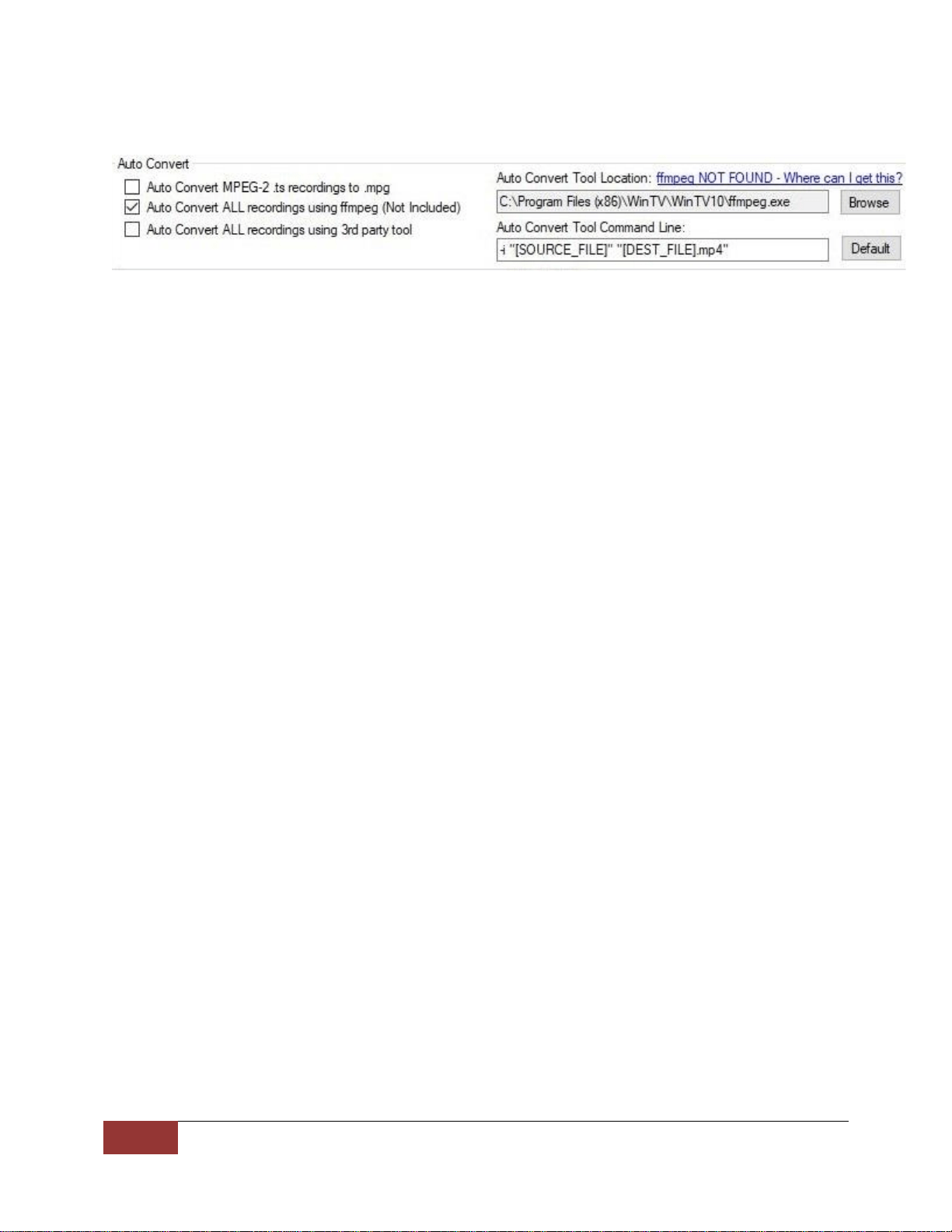
Auto Convert all recordings using ffmpeg (Not Included) : You can acquire FFmpeg for
windows at the following link https://ffmpeg.zeranoe.com/builds/.
20
Settings / "Advanced Options" | Hauppauge Computer Works 2020
You need to point WinTV to the ffmpeg.exe by clicking the browse button to use that tool.
Auto Convert all recordings using 3rd party tool: You would also have to point WinTV to the
third party tool executable file to convert files and add your command line parameters.
Section "Logs"
Log files are used for troubleshooting.
Enable logging (requires reboot): If enabled, extended information from the
HauppaugeTVServer and Capture Modules is logged. Changes take effect after the system is
rebooted.
Open Logs Directory: Opens the 'Logs' folder in Windows Explorer, where all log files
generated by WinTV are located.
Section "Mux TS Capture
Record full Mux TS (Enable only if asked by Tech Support): This will record a full channel
mux stream that our engineers can use for solving issues.
Section "Decoders"
Enable 3rd Party Decoders: This option allows to use 3rd Party Decoders in addition to, or as a
replacement for the decoders that are installed by the WinTV software. Unsupported feature,
only make changes for troubleshooting purposes.
21
Settings / "WinTV Extend" | Hauppauge Computer Works 2020
Settings / "WinTV Extend"
WinTV Extend
WinTV Extend is an optional purchase which lets you stream your Channel lineup to another
computer, your mobile phone and handheld devices.
Please refer to the Quick Installation Guide for setup instructions at this link: Extend QI (PDF
format)
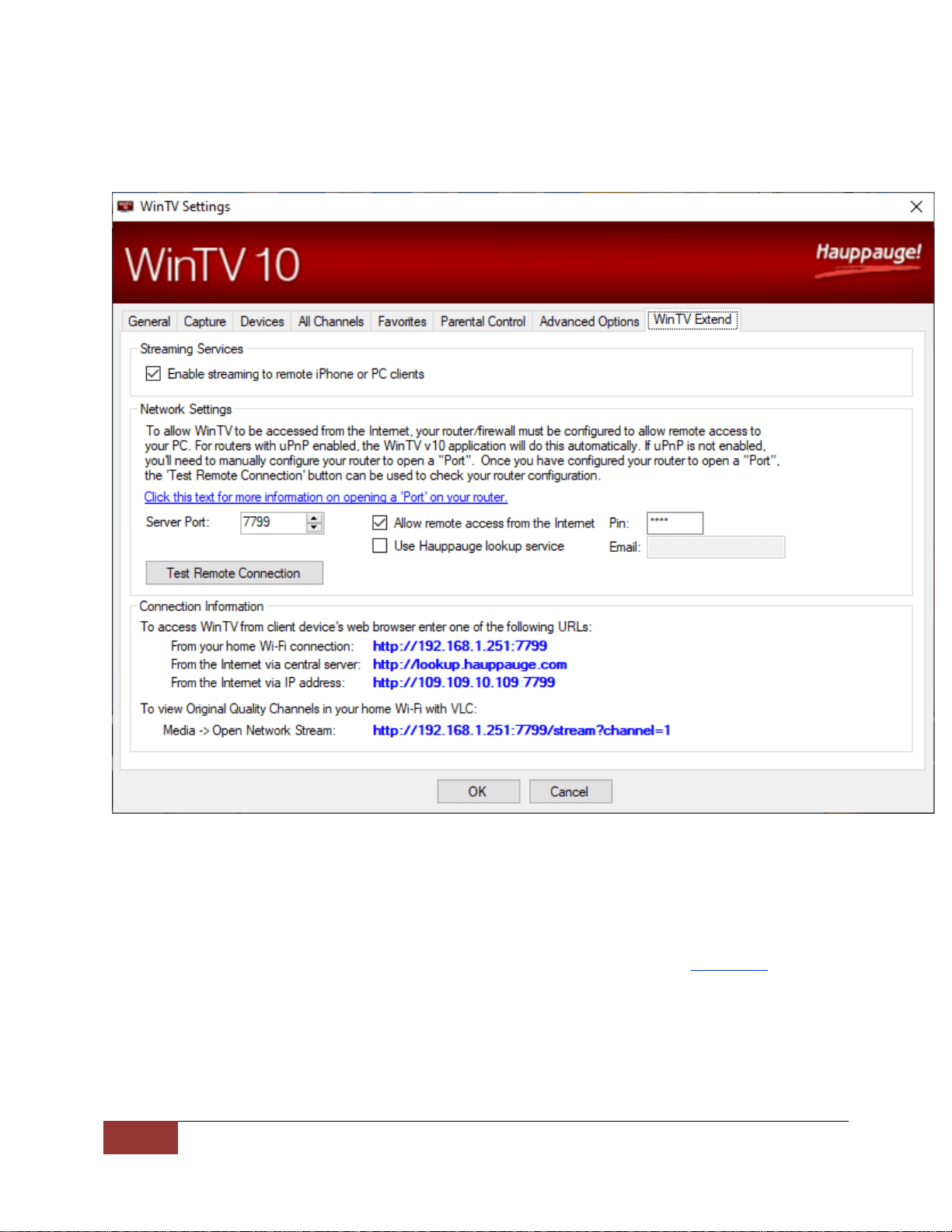
Section "Streaming Services"
Enable streaming to remote iPhone or PC Clients: By default after installation WinTV Extend
will be activated. Uncheck this to disable WinTV Extend.

22
Settings / "WinTV Extend" | Hauppauge Computer Works 2020
Section "Network Settings"
Server Port: By default WinTV Extend uses port 7799. It can be changed in this menu. WinTV
Extend Server must be restart to take effect.
Allow remote access from the internet: Uncheck if only want extend available in local
network.
Pin: Pin to access extend remotely. By default the pin is 0000.
Use Hauppauge lookup service: This will tell our server the real IP for extend on random
intervals. You can ten access it by going to http://lookup.hauppauge.com
Email: Type email to access Hauppauge Lookup Service.
Section "Connection Information"
The WinTV Extend links are provided in this section to access WinTV Extend
23
Device Setup Wizard | Hauppauge Computer Works 2020
Device Setup Wizard
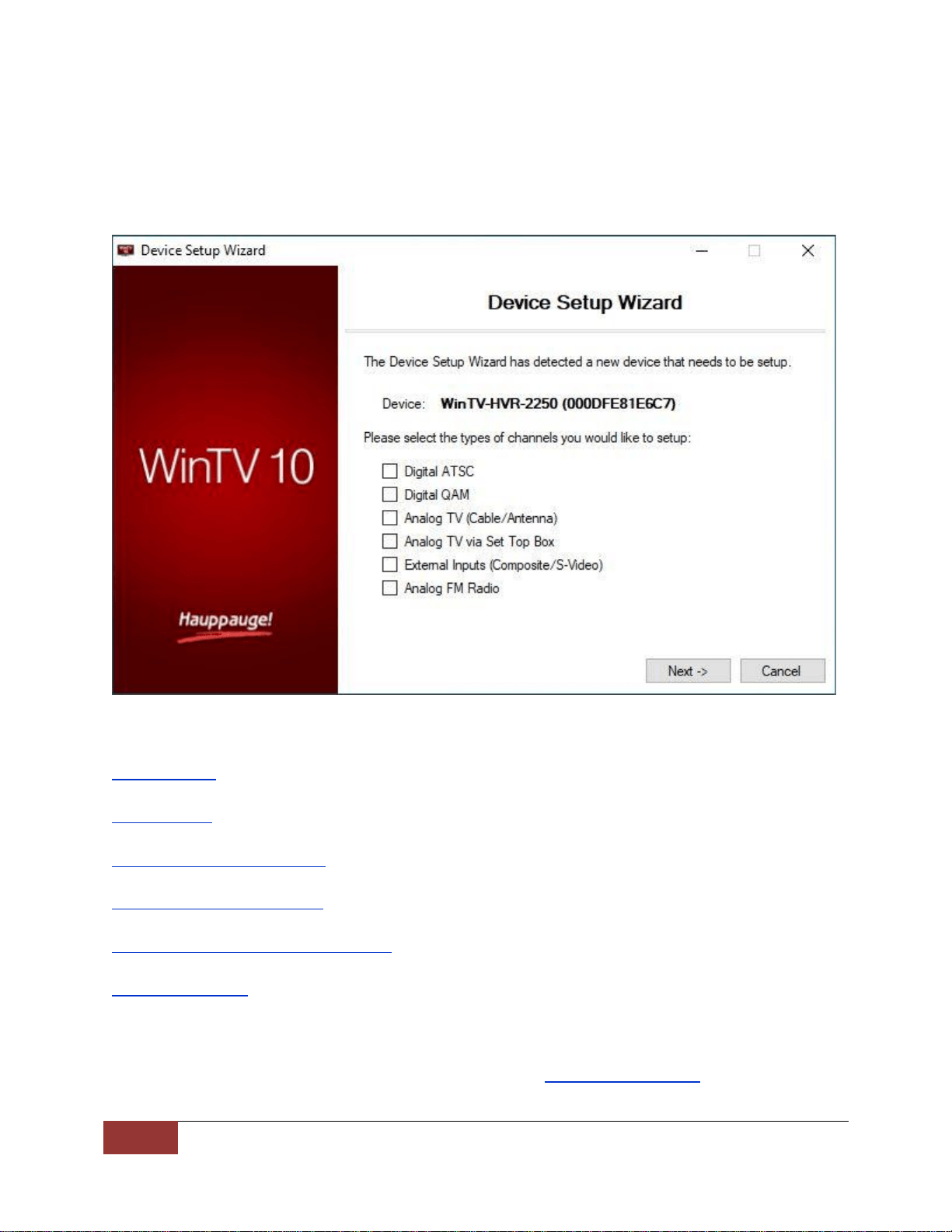
The Device Setup Wizard will launch the first time you open WinTV 10.
The available options are dependent on the WinTV product.
Digital ATSC - Digital terrestrial TV using an antenna (North America only)
Digital QAM - Digital cable TV (Clear QAM, North America only)
Analog TV (Antenna/Cable) - Analog TV over antenna or cable
Analog TV via Set Top Box - Analog TV using a cable or satellite box
External Inputs (Composite/S-Video) - For configuration of the analog video inputs
Analog FM Radio - Analog FM radio
You can select one or multiple selections if your product is capable of multiple inputs.
If you have a HD PVR 2 or Colossus device, please go to HD Capture Devices.
24
Scanning for ATSC Channels (Digital over-the-air TV, North America) | Hauppauge
Computer Works 2020
If you need to re-run the Device Setup Wizard please go to the Devices menu in WinTV
Settings.
Scanning for ATSC Channels (Digital over-
the-air TV, North America)
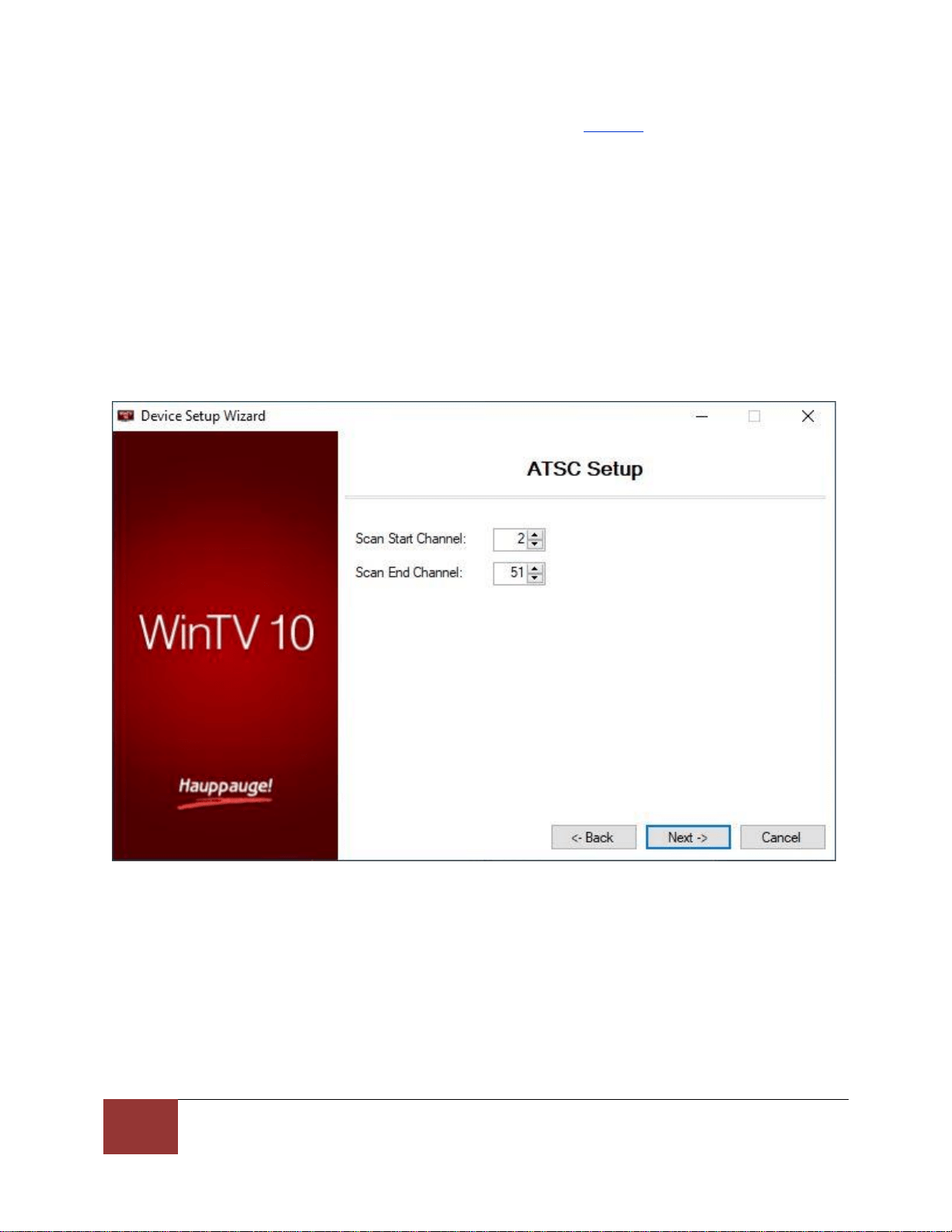
This section refers to WinTV models with an ATSC tuner or hybrid NTSC/ATSC tuner.
Before scanning, you should make sure that your terrestrial antenna is connected to the TV tuner.
If you know the range of possible ATSC channels in your area, you can reduce the scanning time
by editing the fields "Scan Start Channel" and "Scan End Channel".
Click Next to start the channel search.
25
Scanning for Clear QAM Digital Cable TV Channels (North America) | Hauppauge
Computer Works 2020
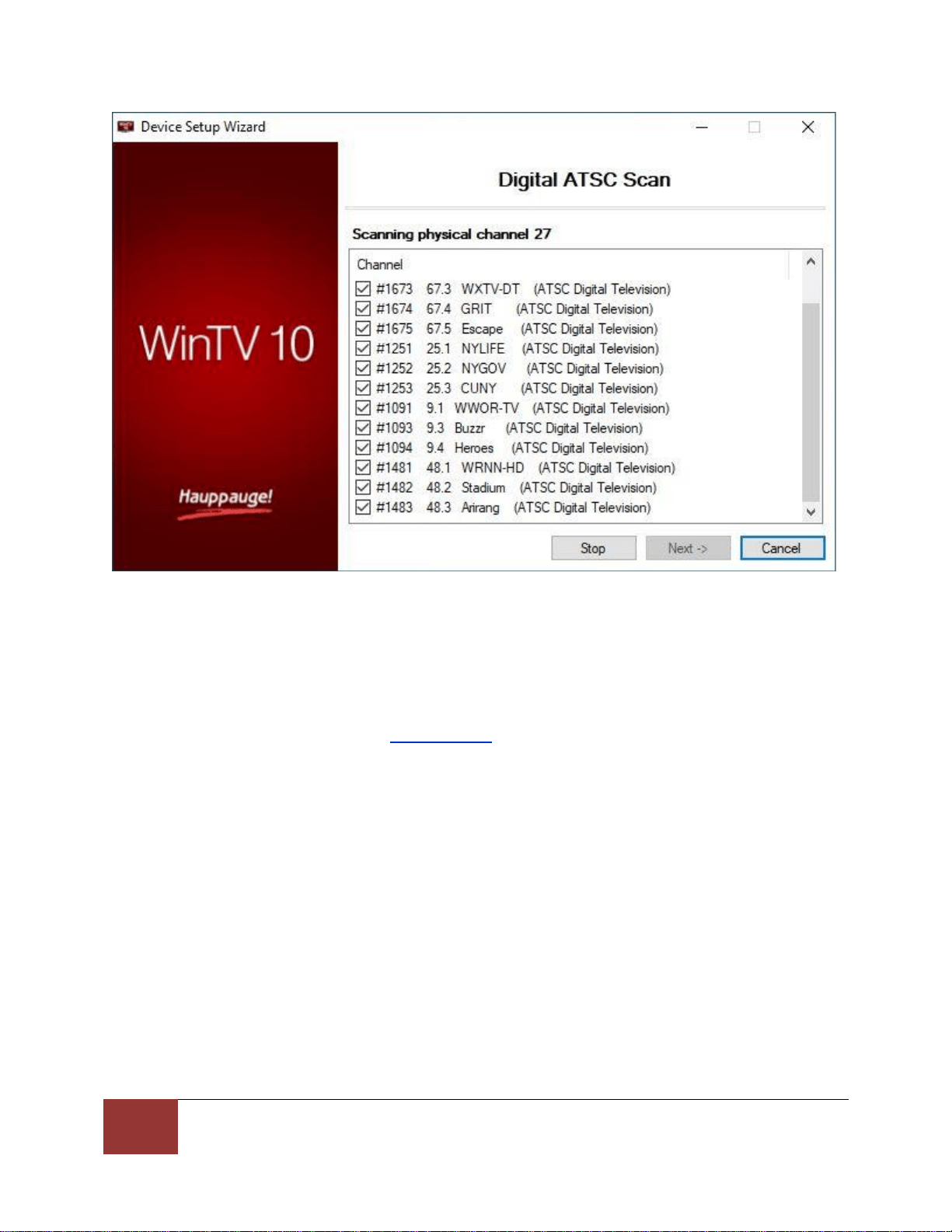
As TV channels are found, they will appear in the Channel box. When complete, click Next to
save the channels to the database.
In case not all channels are found, you can try the following and rescan for channels:
• If you are using an indoor antenna, position it near to a window. Use a signal reception
map to find the best location. www.dtv.gov
• Use an antenna signal booster.
Scanning for Clear QAM Digital Cable TV
Channels (North America)
This section refers to WinTV models with a digital cable (QAM) tuner.
Before scanning, you should make sure that your digital cable TV feed is connected to the TV
tuner.
Clear QAM digital cable TV channels are those TV channels broadcast on a digital cable
network which are unencrypted (‘free to view’).
26
Scanning for Clear QAM Digital Cable TV Channels (North America) | Hauppauge
Computer Works 2020
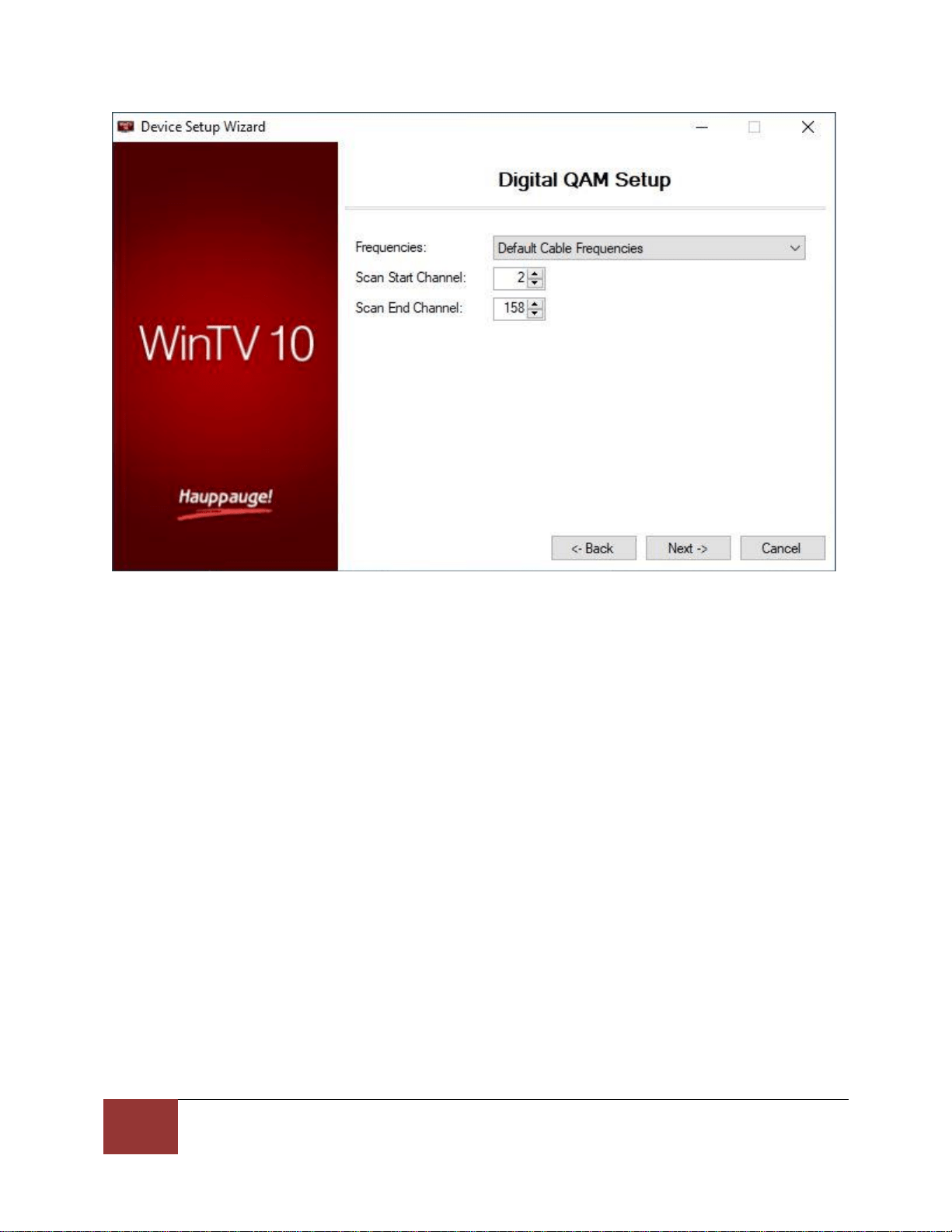
For most cable TV providers the "Frequencies" option should be set to "Default Cable
Frequencies" (as is by default).
If you know the range of possible QAM channels at your location, you can reduce the scanning
time by editing the fields "Scan Start Channel" and "Scan End Channel".
Click Next to start the channel search.
27
Channel Scan for Analog TV (Cable or Antenna) | Hauppauge Computer Works 2020
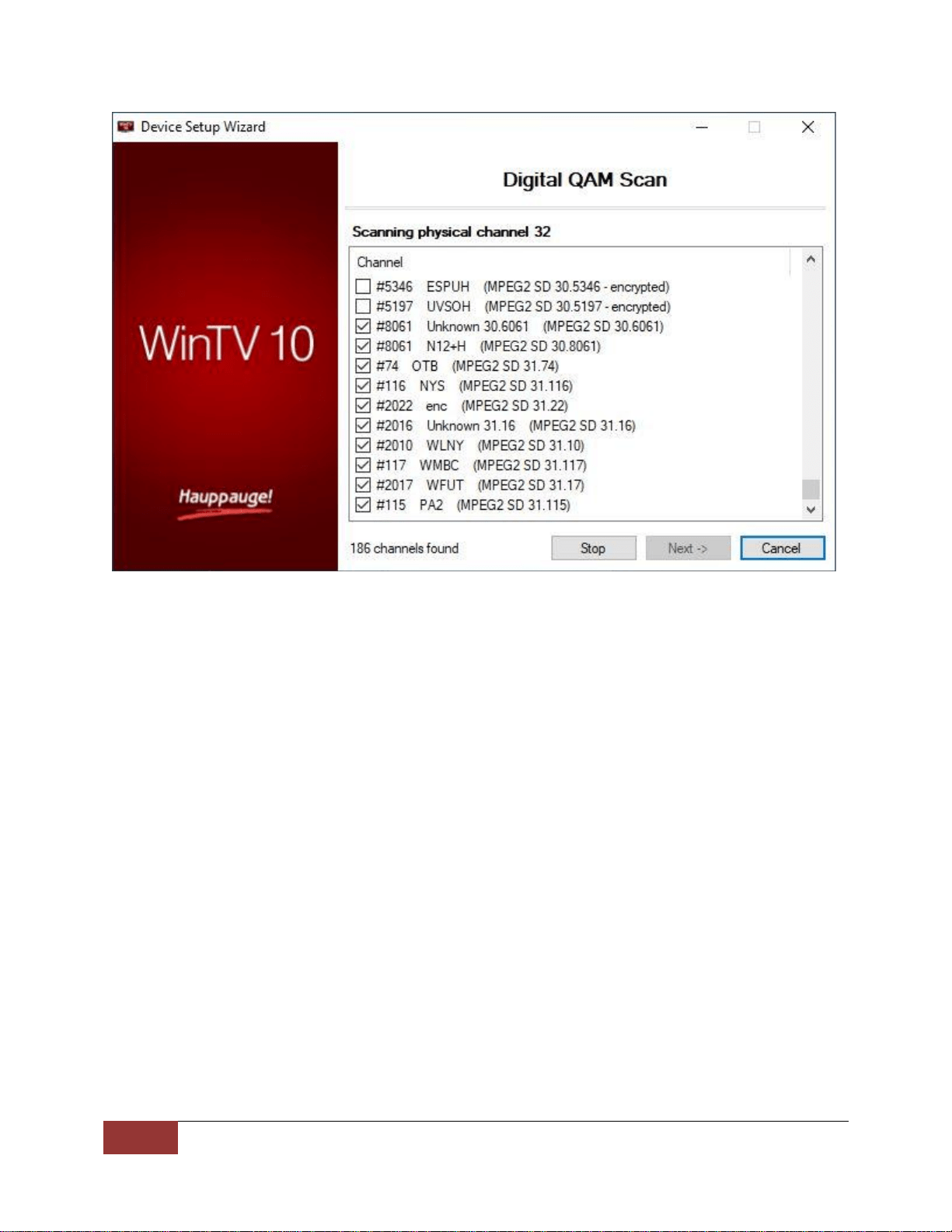
As TV channels are found, they will appear in the Channel box. QAM channels which are
detected but are encrypted are automatically not selected.
When complete, click Next to save the channels to the database.
In case not all channels are found, you can try the following:
• From the "Frequencies" drop down list select "HRC Cable Frequencies" and rescan for
channels.
Channel Scan for Analog TV (Cable or
Antenna)
This section refers to products with a TV tuner for analog TV.
Before scanning you should make sure that the cable TV or the antenna is connected to the TV
tuner.
28
Channel Scan for Analog TV (Cable or Antenna) | Hauppauge Computer Works 2020
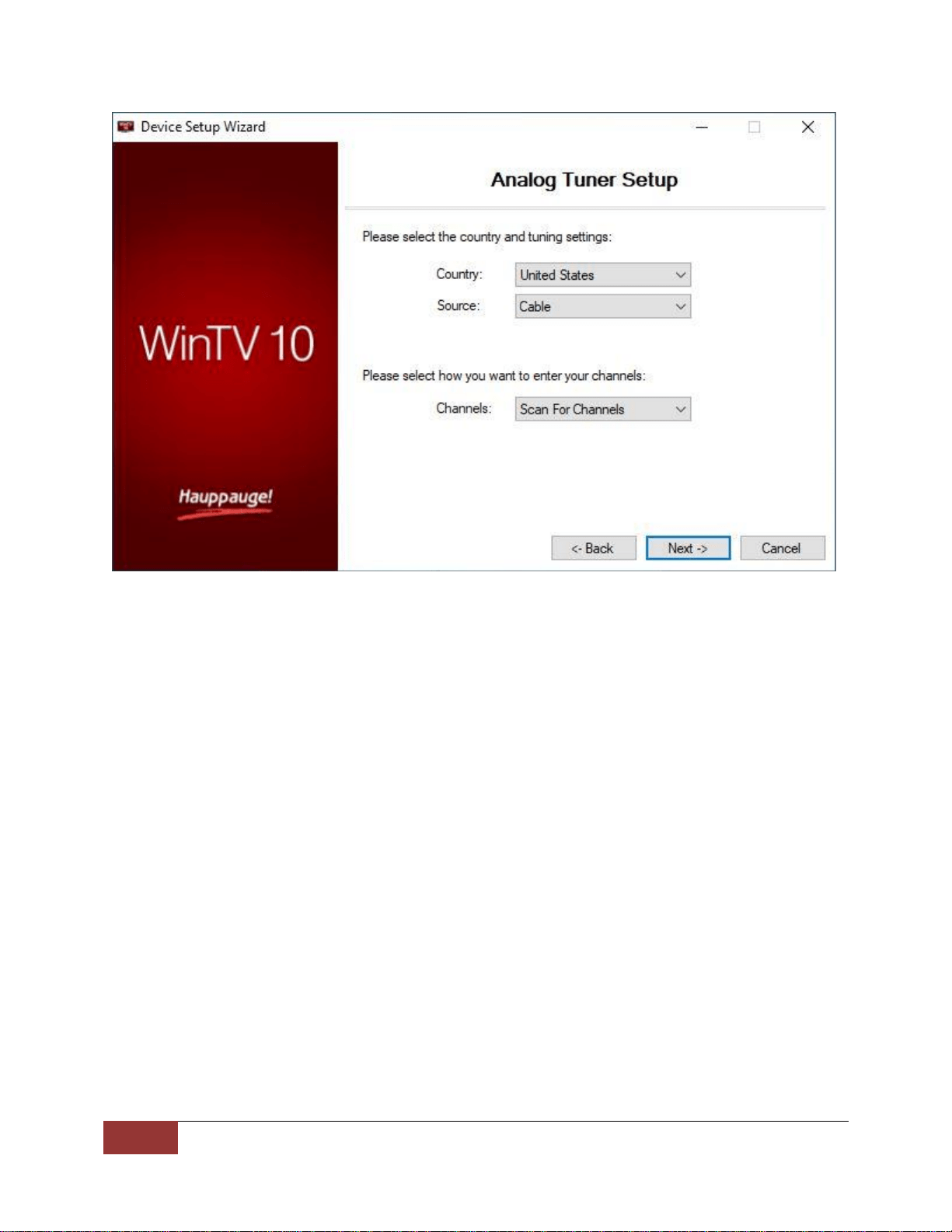
Please select the country and tuning settings
Country: Please specify the country
Source:
Cable if a cable TV feed is connected directly from the wall. You should also select Cable if
you are connecting a set top box from your TV provider. This can be from cable company or
satellite company.
Antenna you should only be selected if you know there is a specific analog signal in your area or
personal modulator. Analog antenna signals have been turned off in North America for several
years now.
Please select how you want to enter your channels
Channels:
Scan For Channels
Select scan for channels to automatically finds channels.
29
Channel Scan for Analog TV (Cable or Antenna) | Hauppauge Computer Works 2020
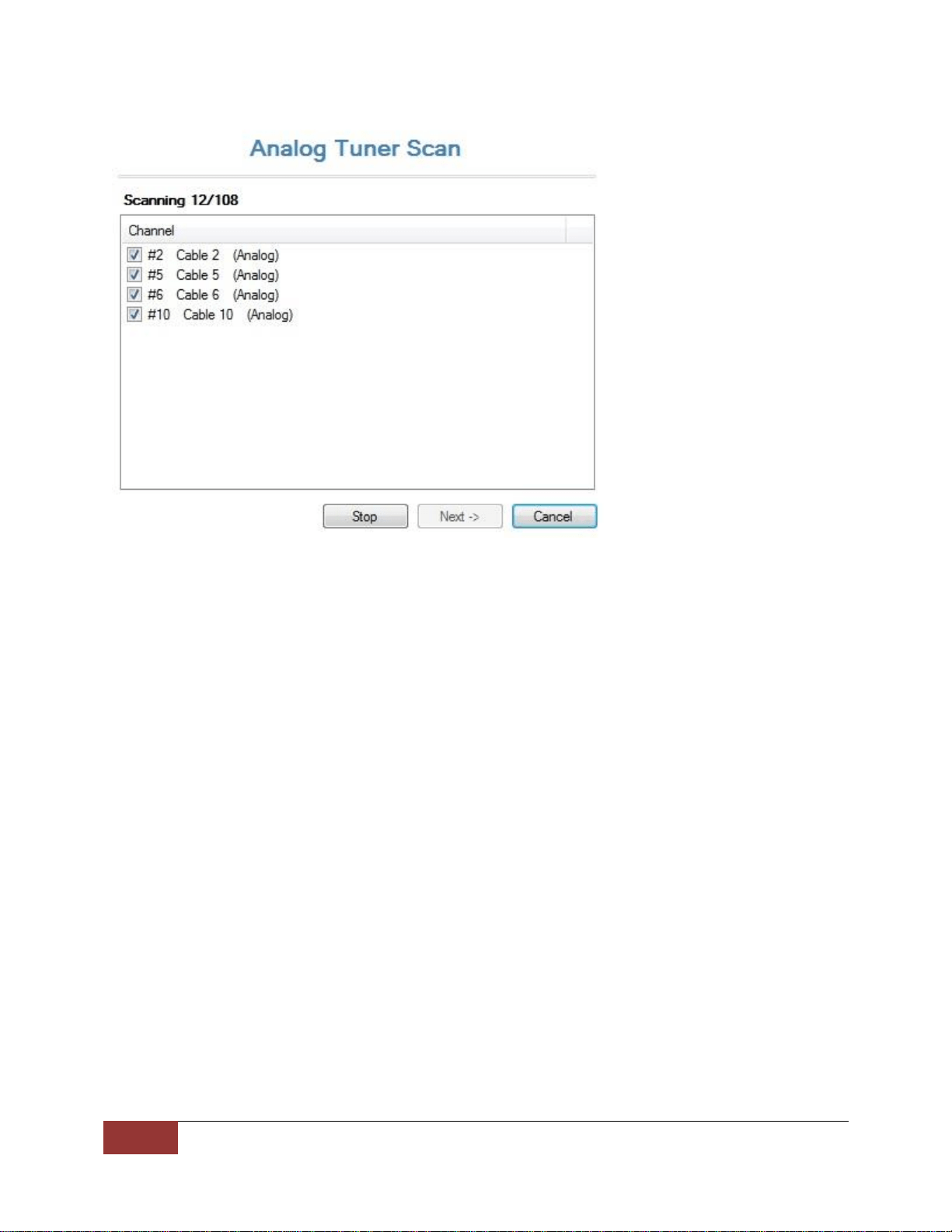
As TV channels are found, they will appear in the Channel box. When finished, click Next to
save the channels to the database.
If you are using a set top box or dta box from a cable or satellite company, you need the
broadcast channel. Normally this is Cable 3 or 4. Once found you can stop the scan and click
next to finish the setup.
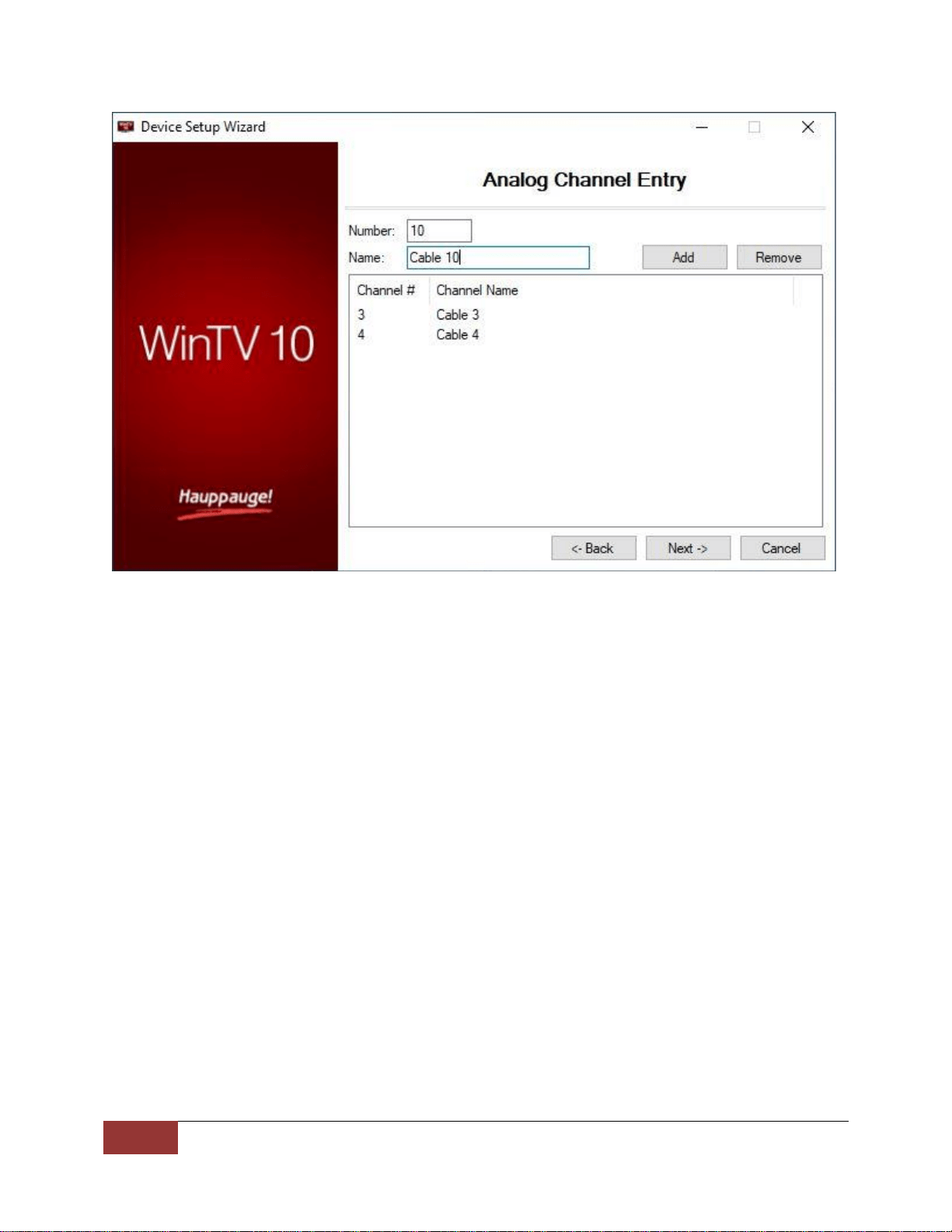
Manual Entry
Select Manual Entry to manually enter analog channels. You can shorten the channel scan if you
know the channel numbers for your local station.
Enter the channel number into the "Number" field, and a channel name into the "Name" field.
Then click on Add. The channel is added to the list. You can repeat this procedure with other
channels.
When done, click Next to save the channels to the database.
30
Channel Search for Analog TV via Set Top Box | Hauppauge Computer Works 2020
Channel Search for Analog TV via Set Top
Box
This section refers to WinTV models with Set Top Box IR blaster support.
Before scanning you should make sure that your Set Top Box is connected to TV Tuner or A/V
connector of your WinTV product.
31
Channel Search for Analog TV via Set Top Box | Hauppauge Computer Works 2020
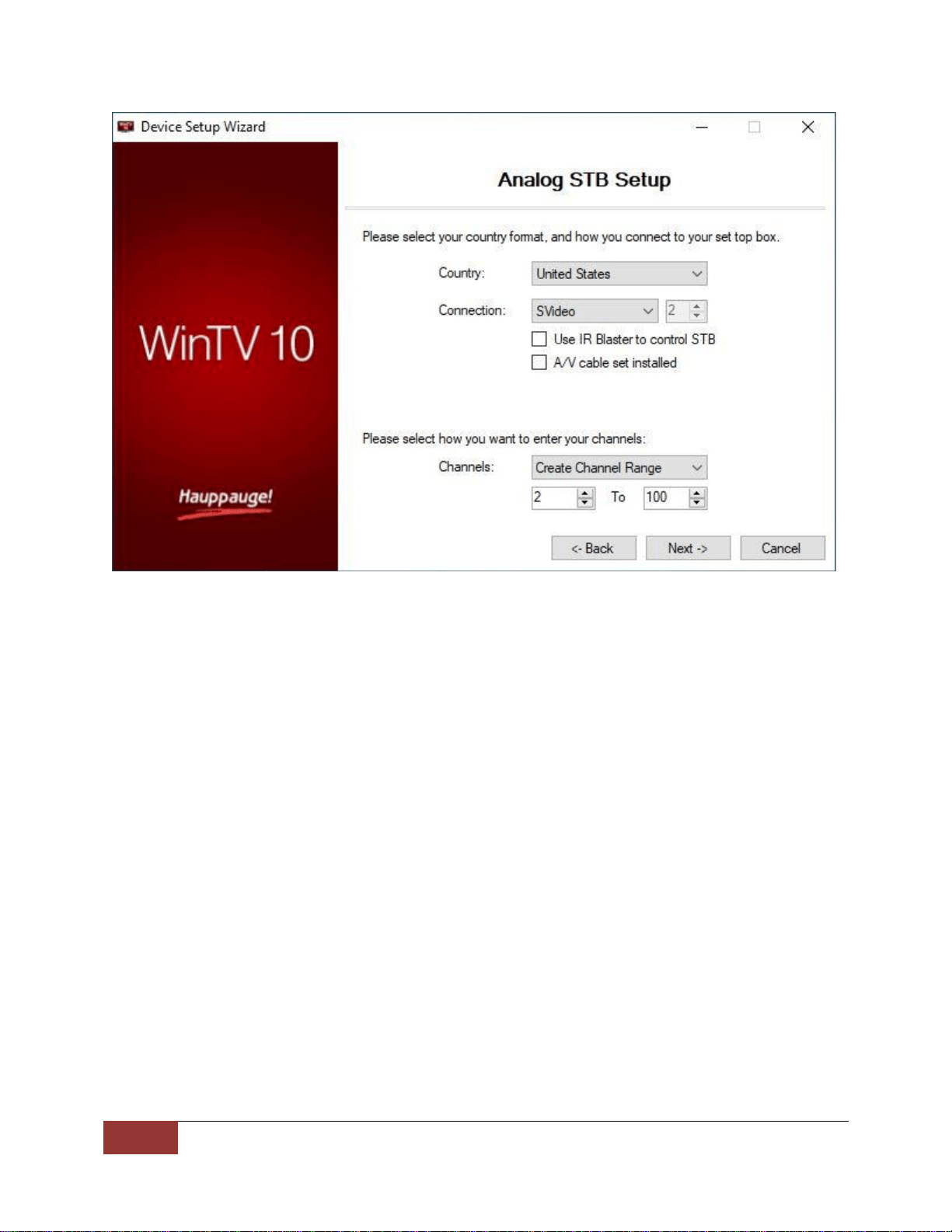
Country: Select your country.
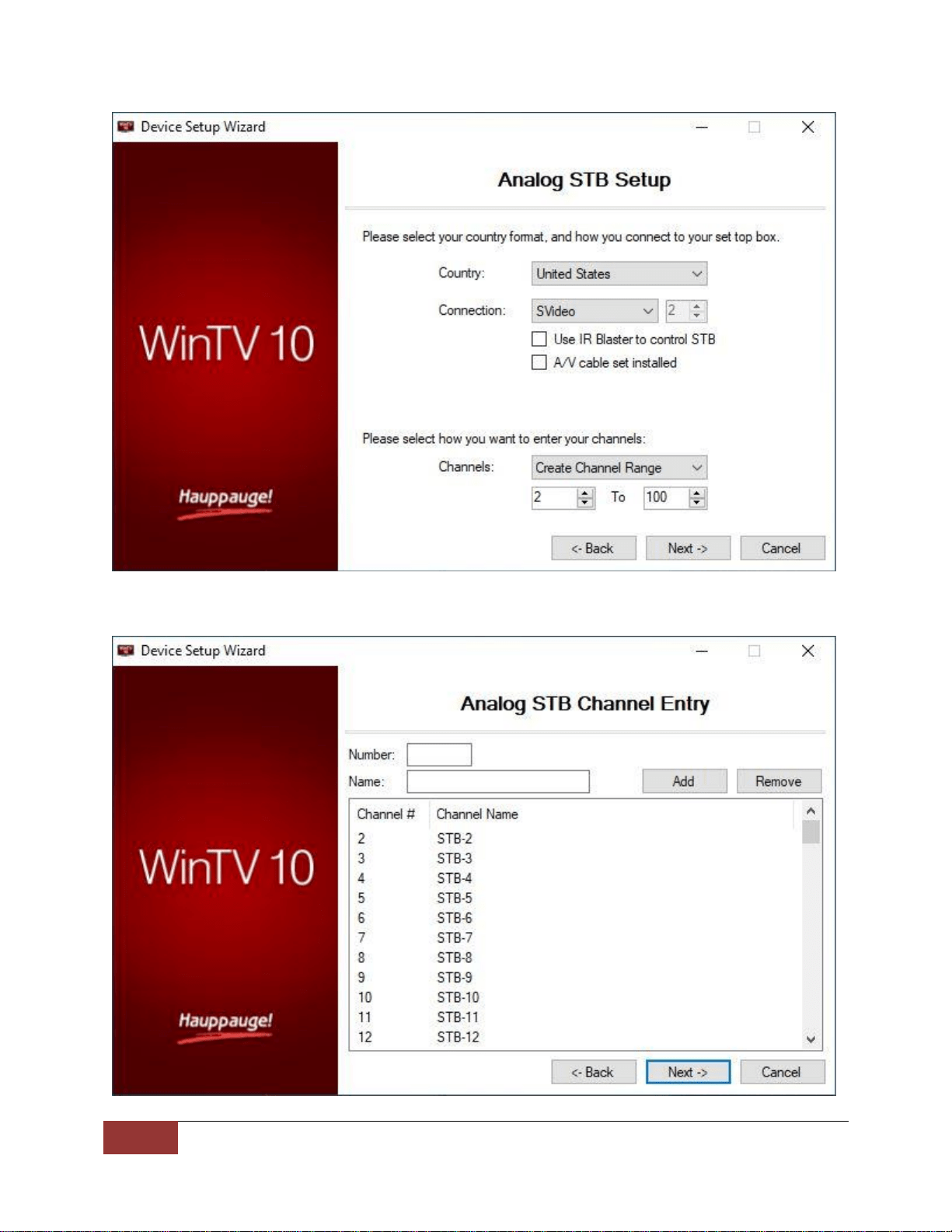
Connection: Select the Set Top Box connection. Usually S-Video, Composite, or Tuner
If you select Tuner, you must select the incoming channel. Most common channels used are 3 or
4.
Use IR Blaster to control STB: Check this if you wish to use the supplied IR Blaster.
A/V cable set installed: Only available with internal products that have an auxiliary internal
A/V connector.
Channels: Select between 'Manual Entry' or 'Create Channel Range'.
Click Next.
Create Channel Range
Useful when not in the USA. You can add a range of channels to match with your Set Top Box.
32
Channel Search for Analog TV via Set Top Box | Hauppauge Computer Works 2020
In this example channels 2-100 will be added. Click Next.
33
Configuring External Video Inputs | Hauppauge Computer Works 2020
Channels will be added automatically, click Next to save the channels to the database.
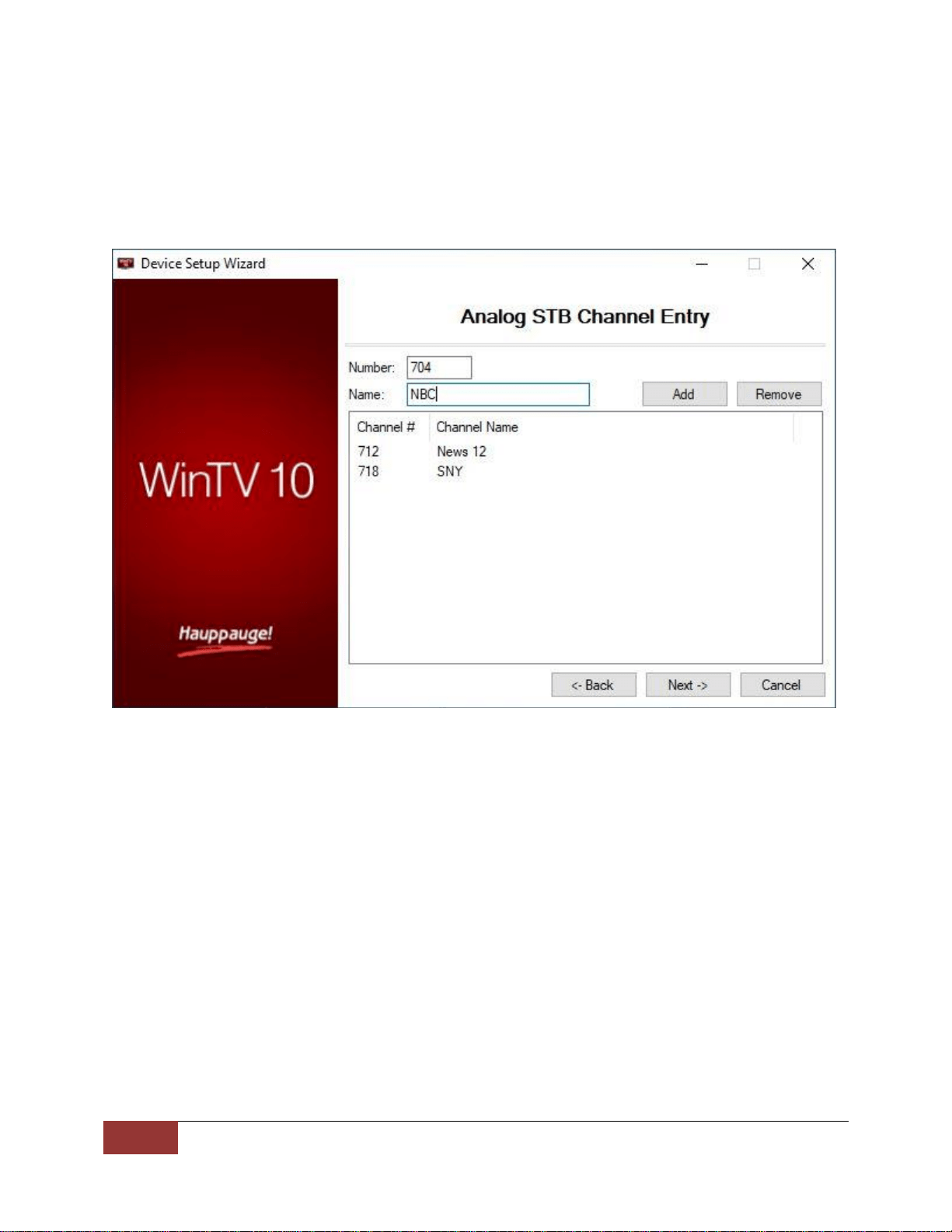
Manual Entry
If you know the specific channels you want to add, add them manually. Type the number and
name and click add. Click Next to save the channels to the database.
Configuring External Video Inputs
This section refers to WinTV products with external video inputs for analog video.
When connecting external video sources to the WinTV product, you must use the correct cables
that send the signal from the video device to the WinTV product, and in addition you must
configure the WinTV software for use with the video devices.
34
Configuring External Video Inputs | Hauppauge Computer Works 2020
Connecting a Video Recorder (VCR), DVD Player, or Video
Game System
Using Composite Video
Connect the yellow RCA "Video Out" jack from your device to the Composite Video input on
the WinTV product.
Using S-Video
Connect the black four-pin mini-DIN connector "Video Out" jack from your device to the S-
Video input on the WinTV product.
Audio Connection
Be aware that the yellow RCA composite and S-Video connectors do not carry audio. You will
also need to connect the red & white (left and right) RCA audio output to the audio input
connector on the WinTV. Depending on your WinTV model you may need to use an adapter to
convert the red & white RCA connectors to a 3.5 mm stereo mini jack connection.
Configuring the Video Inputs in Software
35
Channel Search for FM Radio Stations | Hauppauge Computer Works 2020
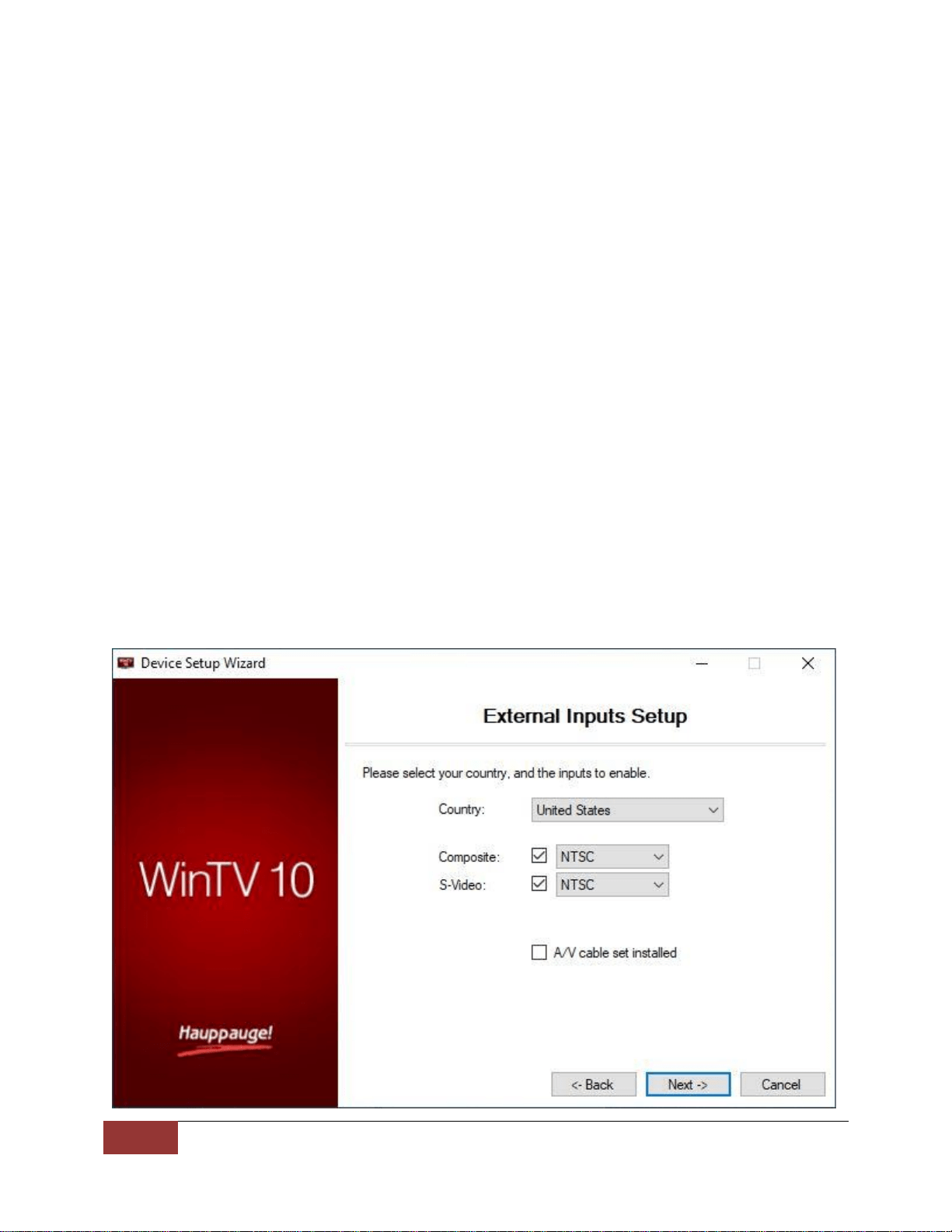
Country: Select the country.
Composite: Leave it check if you are using Composite. AUTO Selects the appropriate type of
signal format for current region.
S-Video: Leave it check if you are using S-Video. AUTO Selects the appropriate type of signal
format for current region.
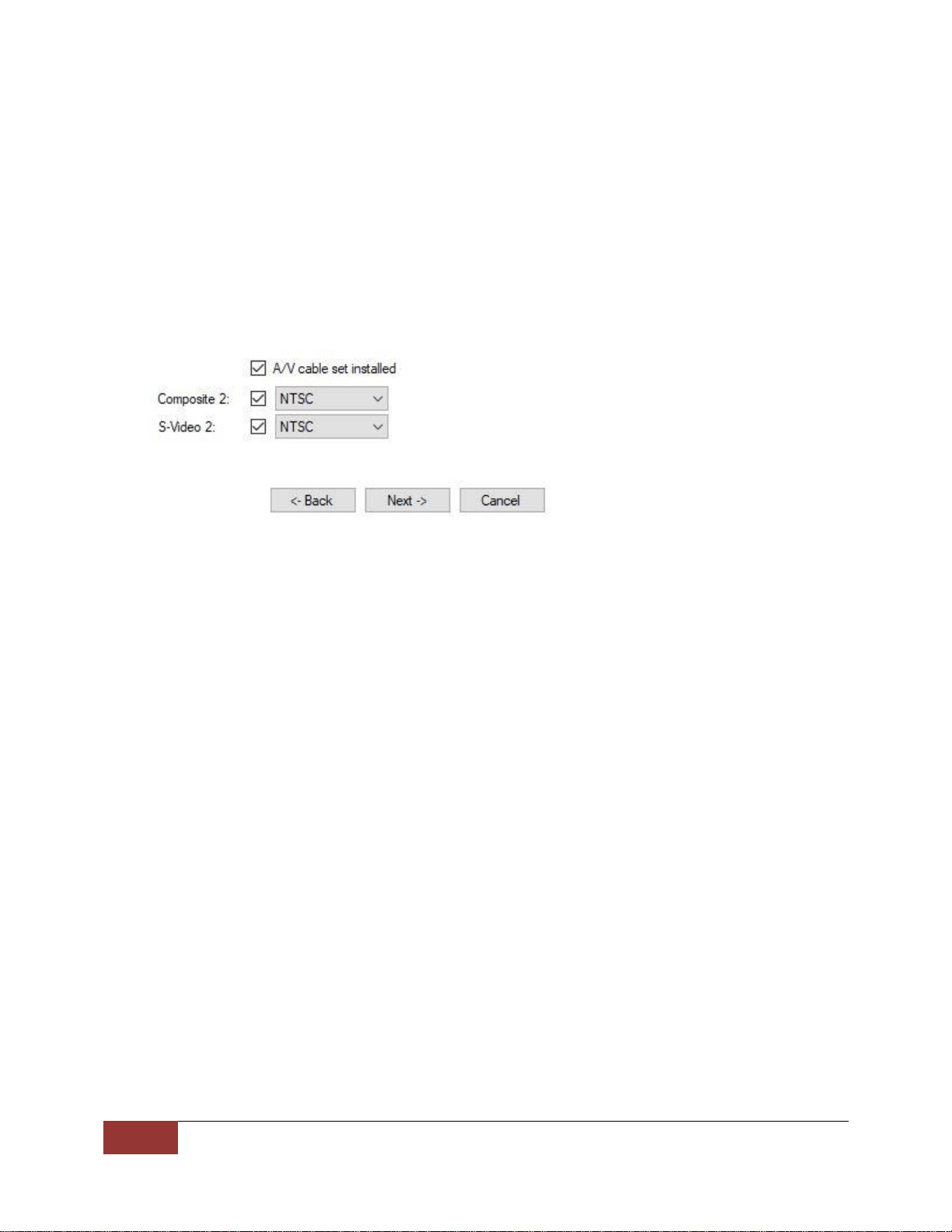
A/V Cable Set Installed: If checked you can a secondary video source to an internal auxiliary
A/V adapter if available and installed.
Click Next to finish the configuration. This adds the selected video inputs as "Composite" or "S-
Video" channels to the channel list.
A second set of "Composite 2" or "S-Video 2" will be added if A/V Cable Set Installed is used.
Selecting the Video Channel in the Channel List
To view the signal from your video source in the main WinTV window, select the corresponding
"Composite" or "S-Video" entry from the channel list.
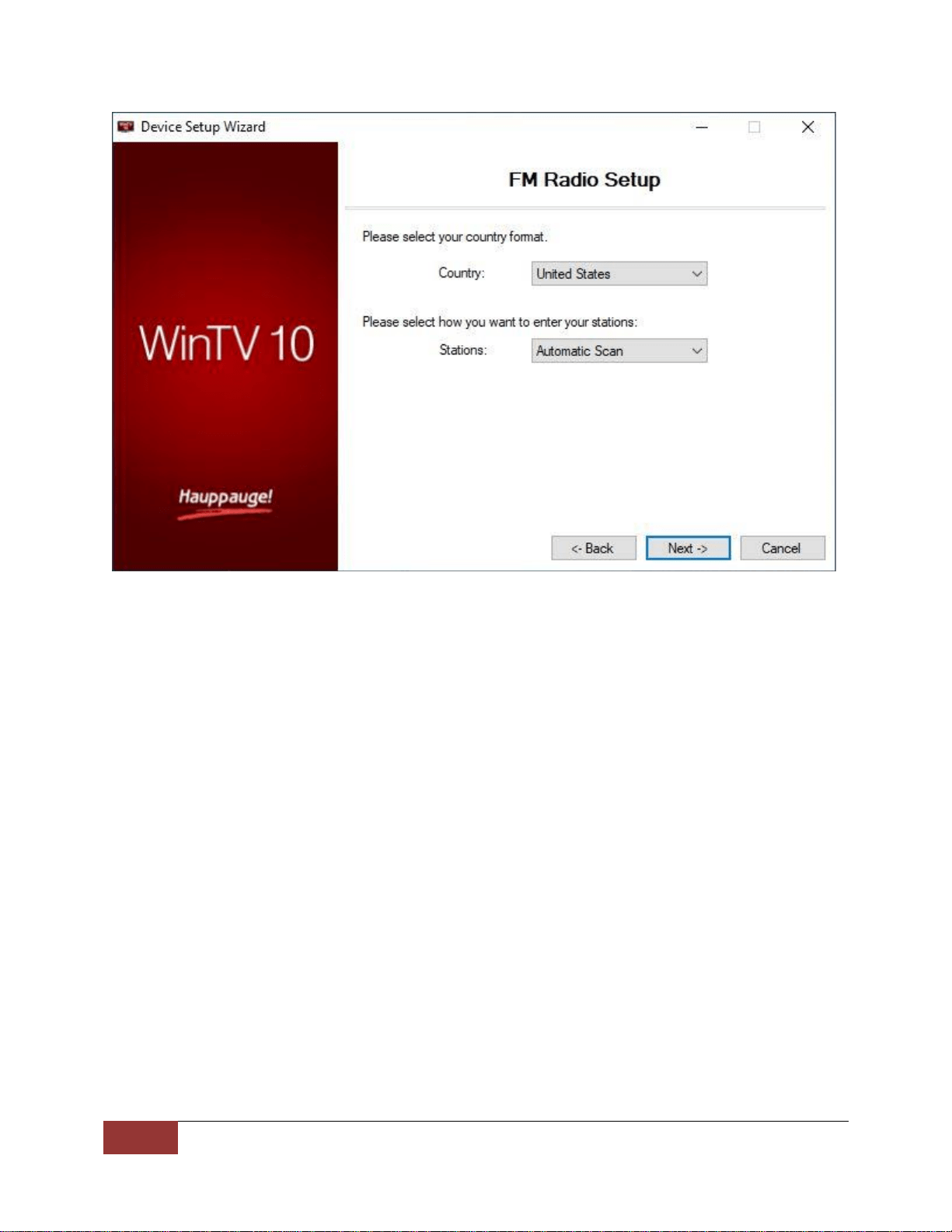
Channel Search for FM Radio Stations
This section refers to WinTV models with FM radio tuner.
Before scanning you should make sure that your FM radio antenna is connected to the 'FM'
connector of your WinTV product.
36
Channel Search for FM Radio Stations | Hauppauge Computer Works 2020
Country: Select your country.
Stations: Select between 'Automatic Scan' or 'Manual Entry'.
Click Next.
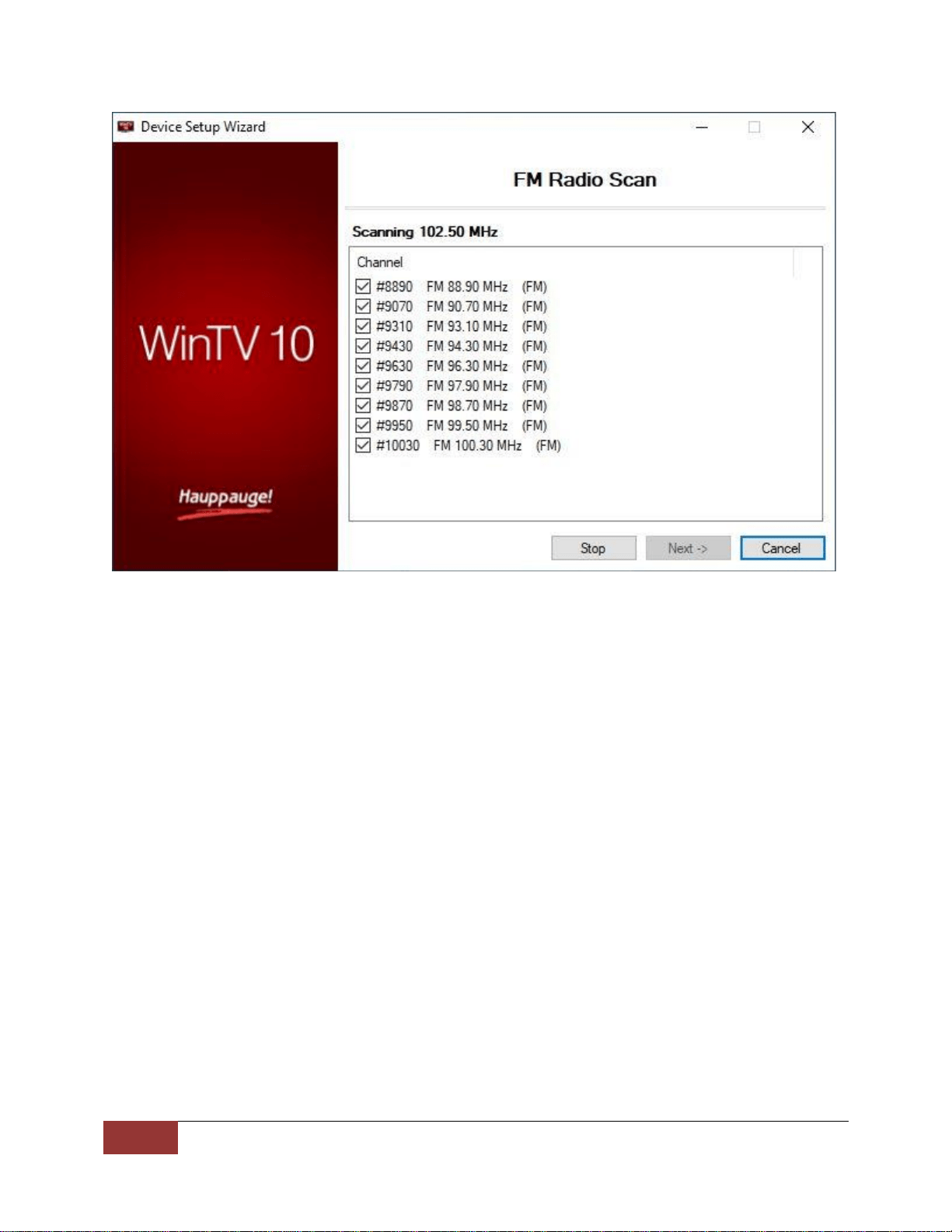
Automatic Scan
37
Channel Search for FM Radio Stations | Hauppauge Computer Works 2020
As FM radio channels are found, they will appear in the Channel box. When complete, click
Next to save the channels to the database.
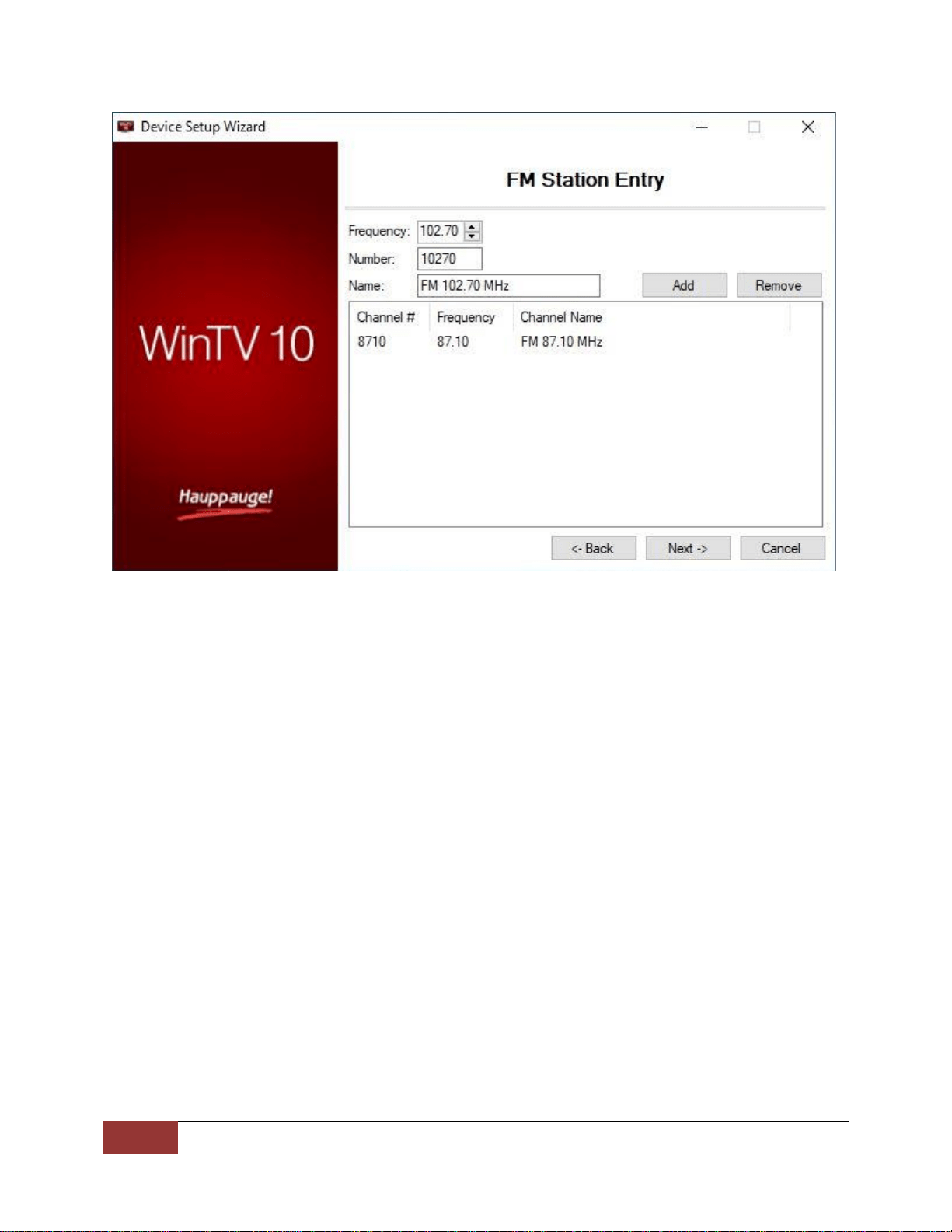
Manual Entry
If you know the local FM radio frequencies, you can also enter them manually.
38
HD PVR 2 and Colossus 2 | Hauppauge Computer Works 2020
Enter the frequency into the field "Frequency". Alternative you can increase / decrease the
frequency in 0.1 MHz steps using the arrows. You can also enter a name into the field "Name".
Click on Add to add the station.
You can repeat this procedure with further frequencies.
When finished, click Next to save the channels to the database.
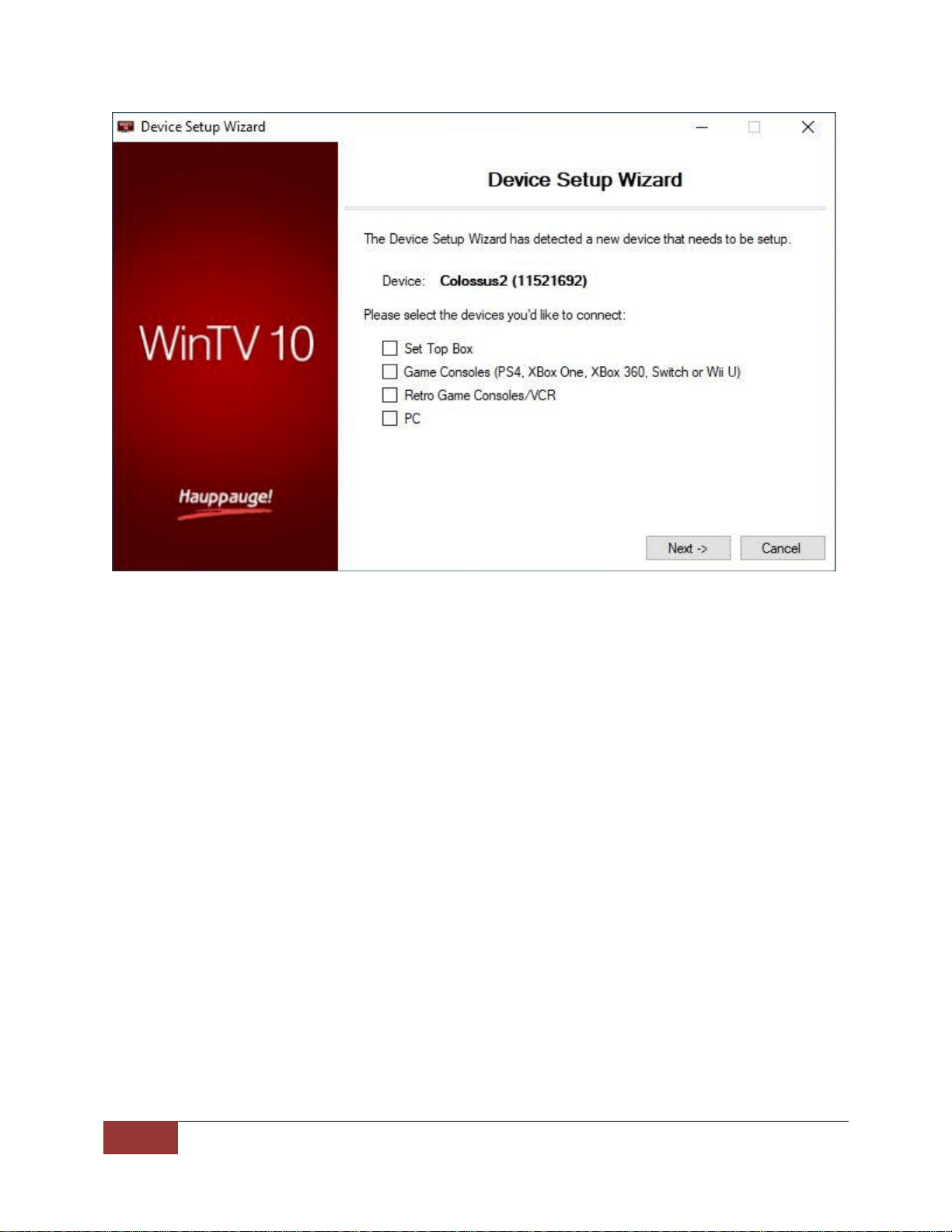
HD PVR 2 and Colossus 2
This section refers to HD PVR 2 and Colossus 2 setup with WinTV 10.
The following is the typical Device Setup Wizard for both the HD PVR 2 and Colossus 2.
39
HD PVR 2 and Colossus 2 | Hauppauge Computer Works 2020
Below are brief explanations of each setup and what they are good for.
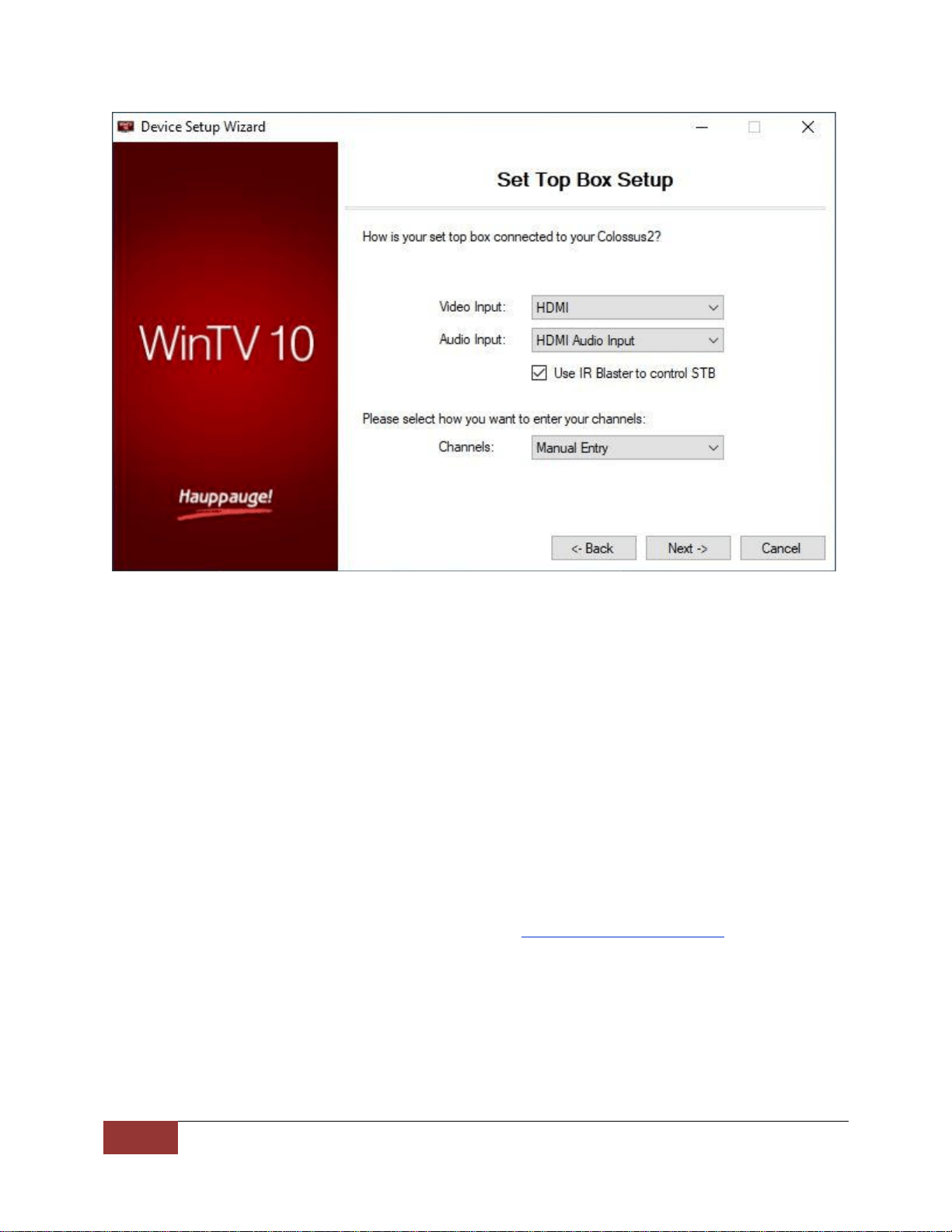
Set Top Box
If you have a cable box or satellite box you can select Set Top Box.
40
HD PVR 2 and Colossus 2 | Hauppauge Computer Works 2020
Video Input: Select between HDMI, Component, or Composite
Note that HDMI on most set top boxes is an encrypted signal and we won't be able to receive a
signal. It is preffered that you use Component to get HD signals.
Audio Input: Select between HDMI Audio Input or RCA Audio.
Use IR Blaster to control STB: Check this if you wish to use the supplied IR Blaster to control
channel changing.
Channels: Select between 'Manual Entry', ' Internet Lookup (USA only)', or 'Create Channel
Range'.
Note: this option only available if Use IR blaster box is checked
More information available about these options under Analog TV via Set Top Box.
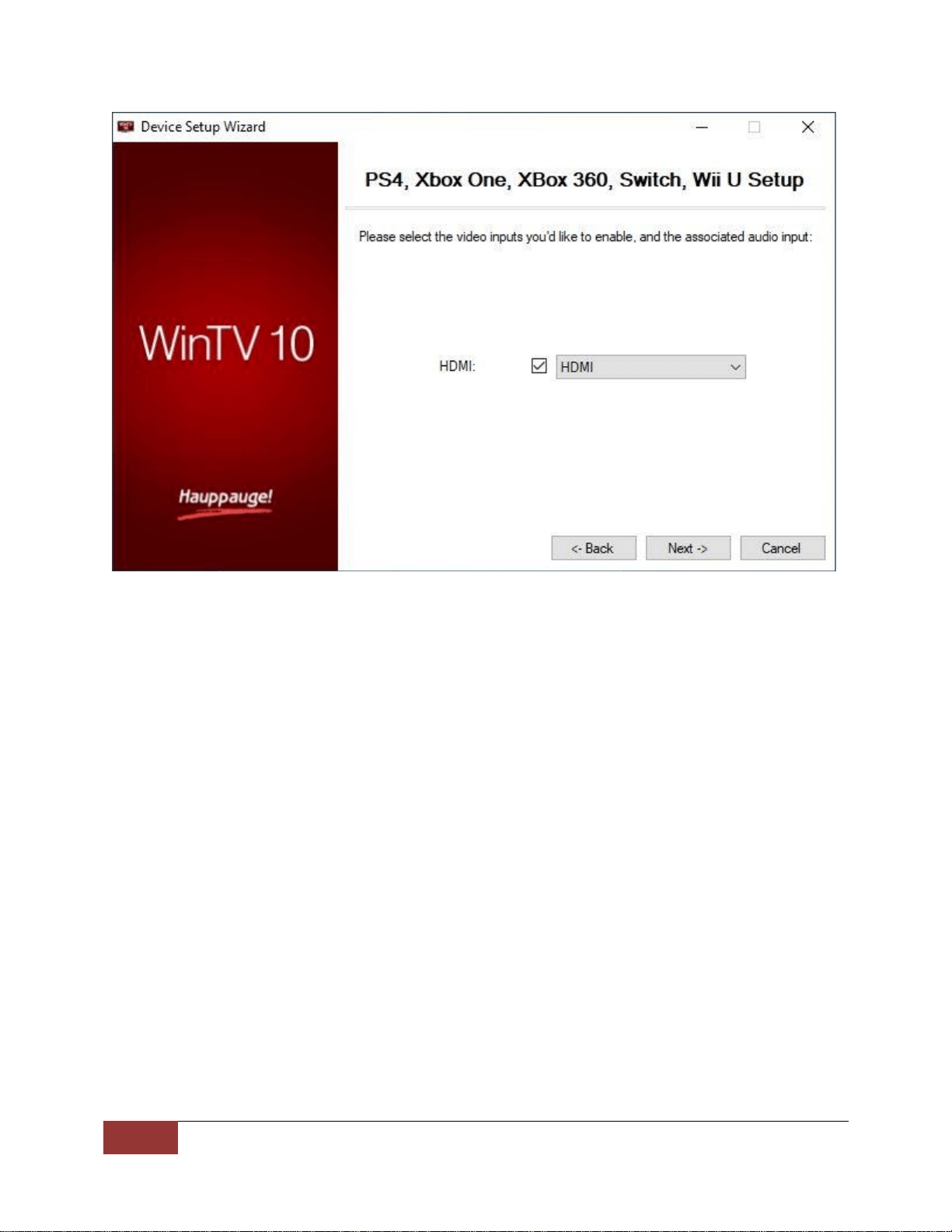
Game Console
Select Game Console if you have a PS4, Xbox One, Xbox 360, Nintendo Switch or Wii U.
41
HD PVR 2 and Colossus 2 | Hauppauge Computer Works 2020
HDMI is the only option. The software will automatically add a channel for that source.
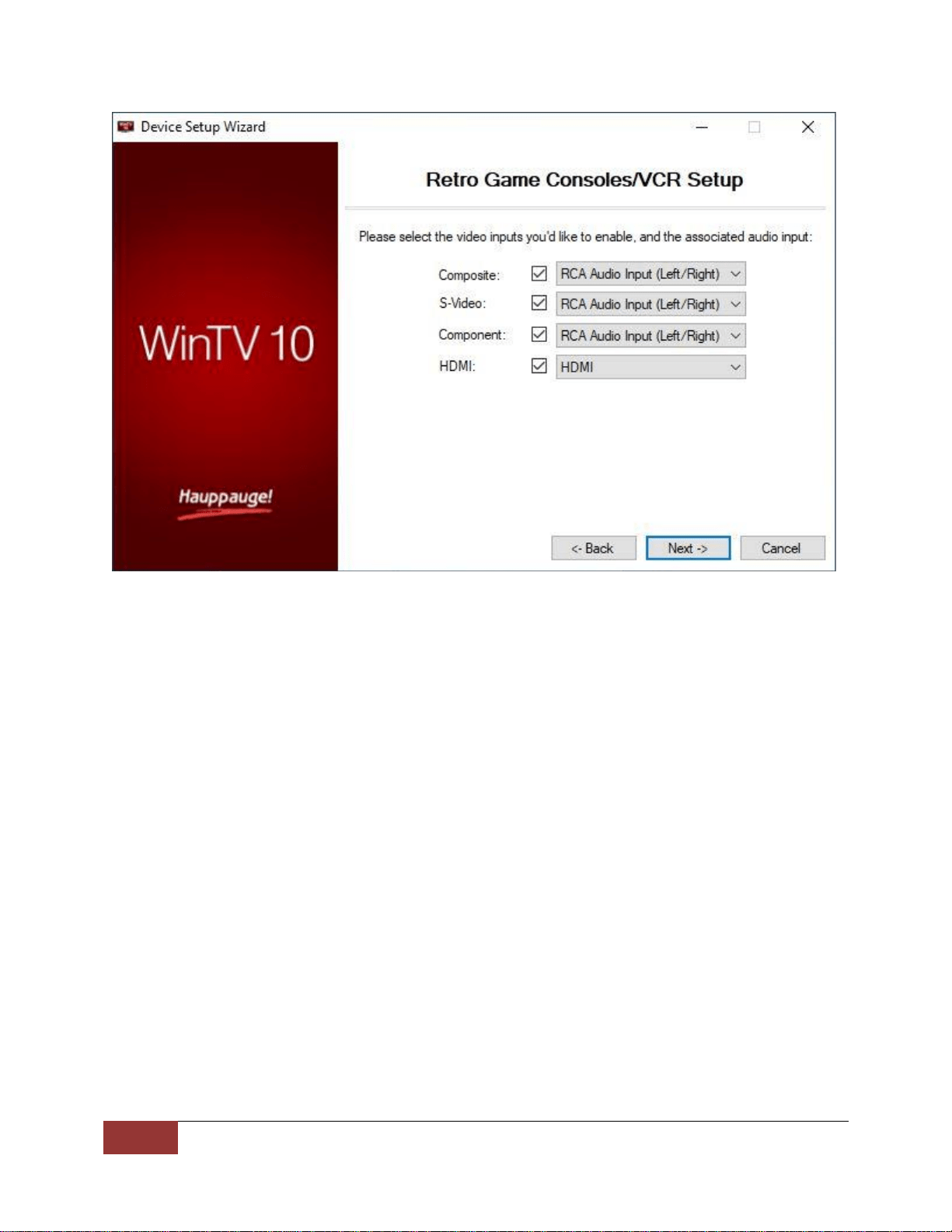
Retro Game Console/VCR
Select Retro Game Console/VCR for any older devices with no HDMI input.
42
HD PVR 2 and Colossus 2 | Hauppauge Computer Works 2020
Please select the input that you want Composite, S-Video, Component, or HDMI. Also select the
audio type. If you don't need an input, please uncheck it.
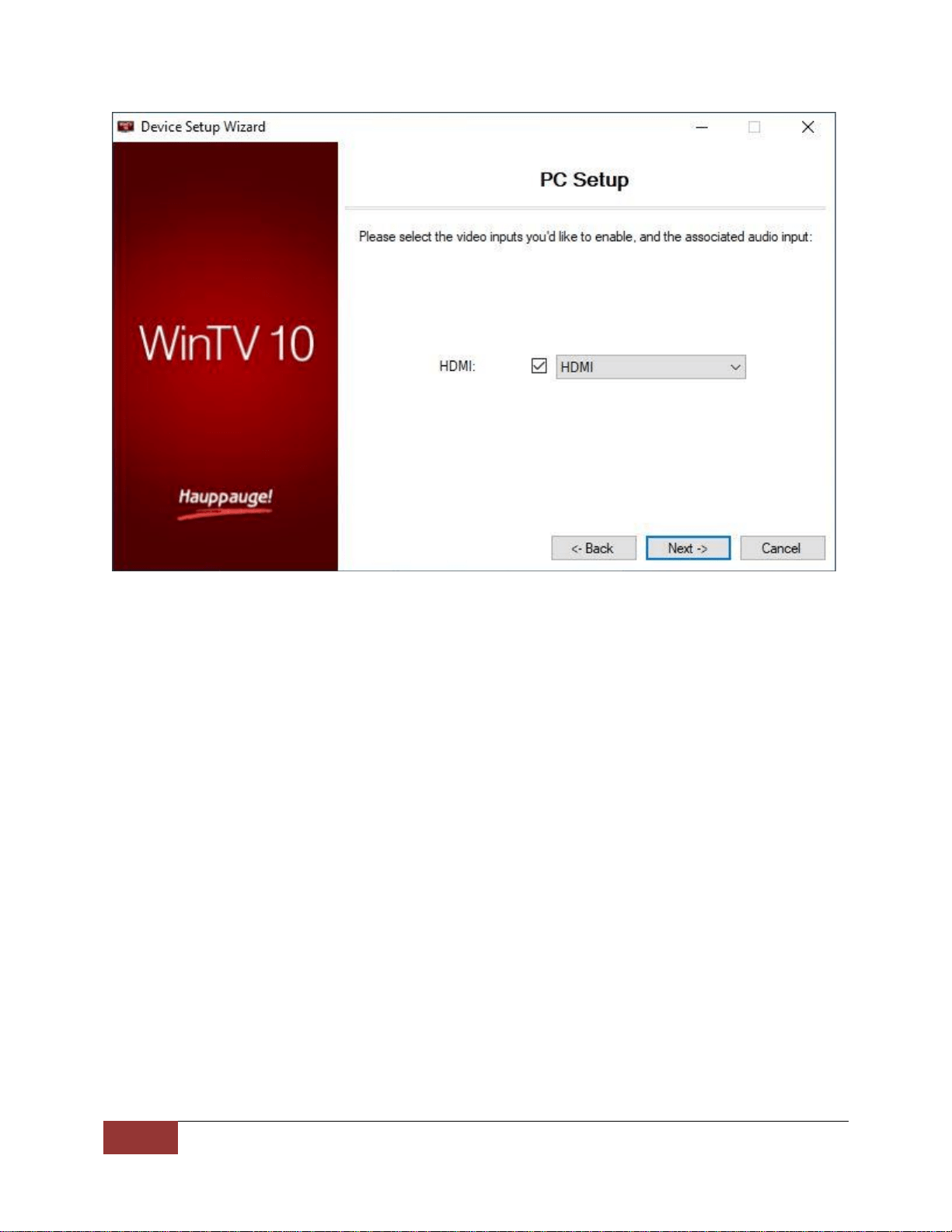
PC
Select PC if you want to capture from your computer
43
HD PVR 2 and Colossus 2 | Hauppauge Computer Works 2020
HDMI is the only option to capture from a computer. The software will automatically add a
channel for that source.
Click Next on any of the windows to finish the setup.
44
Context Menu | Hauppauge Computer Works 2020
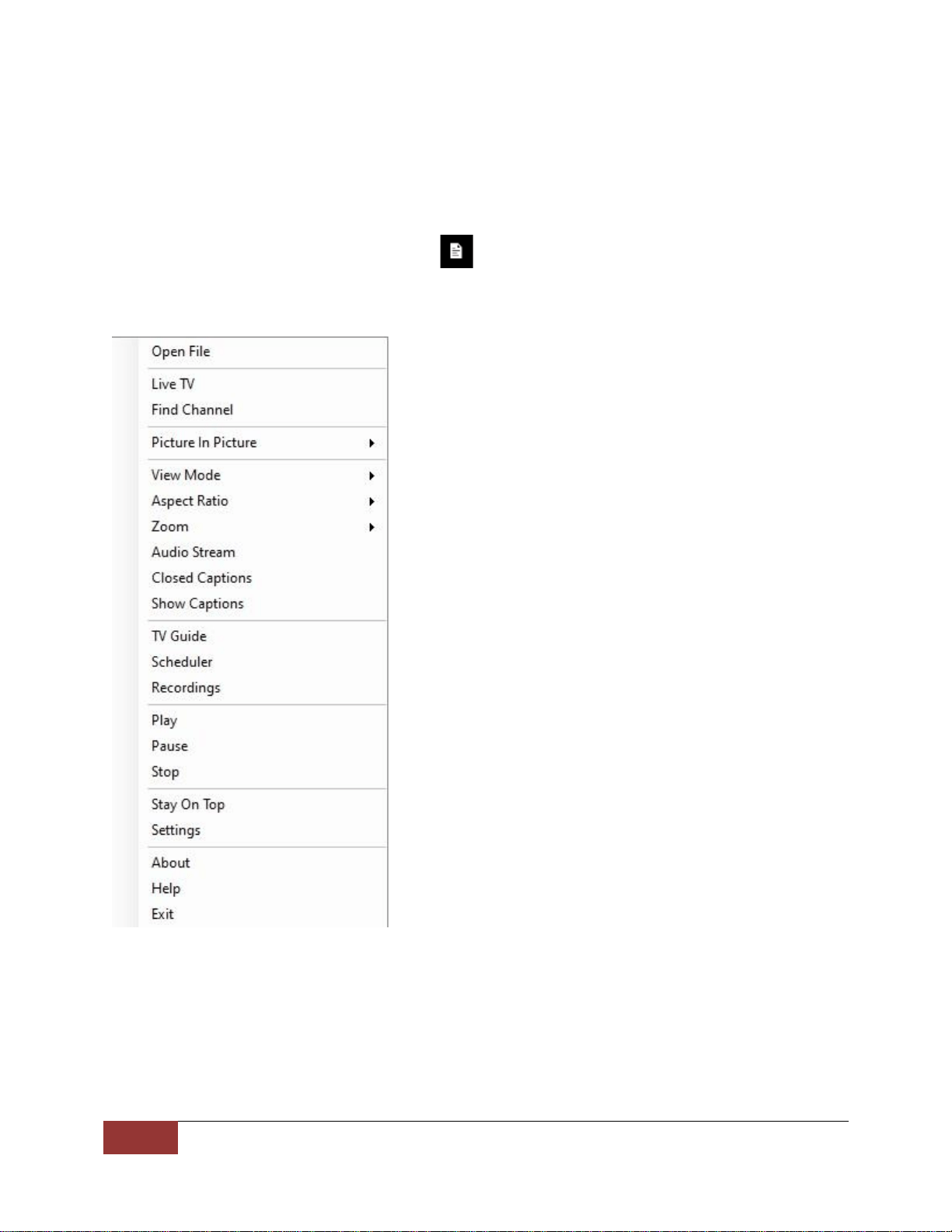
Context Menu
To bring up the Context Menu Options, click your right mouse button inside the TV window.
You can also click the context menu button at the bottom of the WinTV main window.
The following Context Menu options are available:
Option "Open File"
Click to open "recorded video files" directory to playback a file.
Option "Live TV"
45
Context Menu | Hauppauge Computer Works 2020
Click to start Live TV.
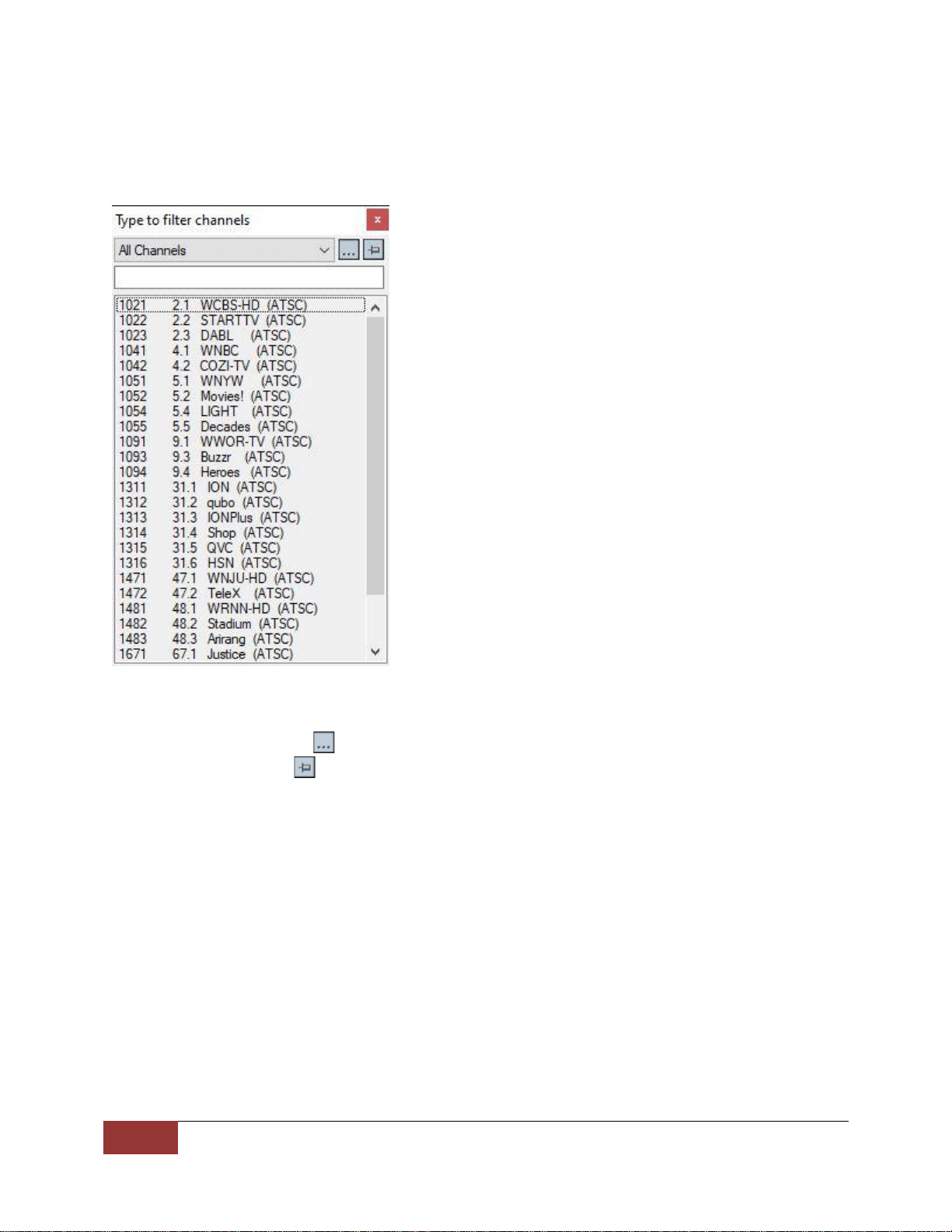
Option "Find Channel"
Shows the channel list. Click on a channel entry to select this channel for watching. To filter the
channel list, you can type in a channel name (or a part of the name).
The button with three dots opens the dialog to manage your favorites.
Click on the Pin-Button to permanently show the channel list.
The channel list will also be displayed if you enter any character (a - z) in live TV mode.
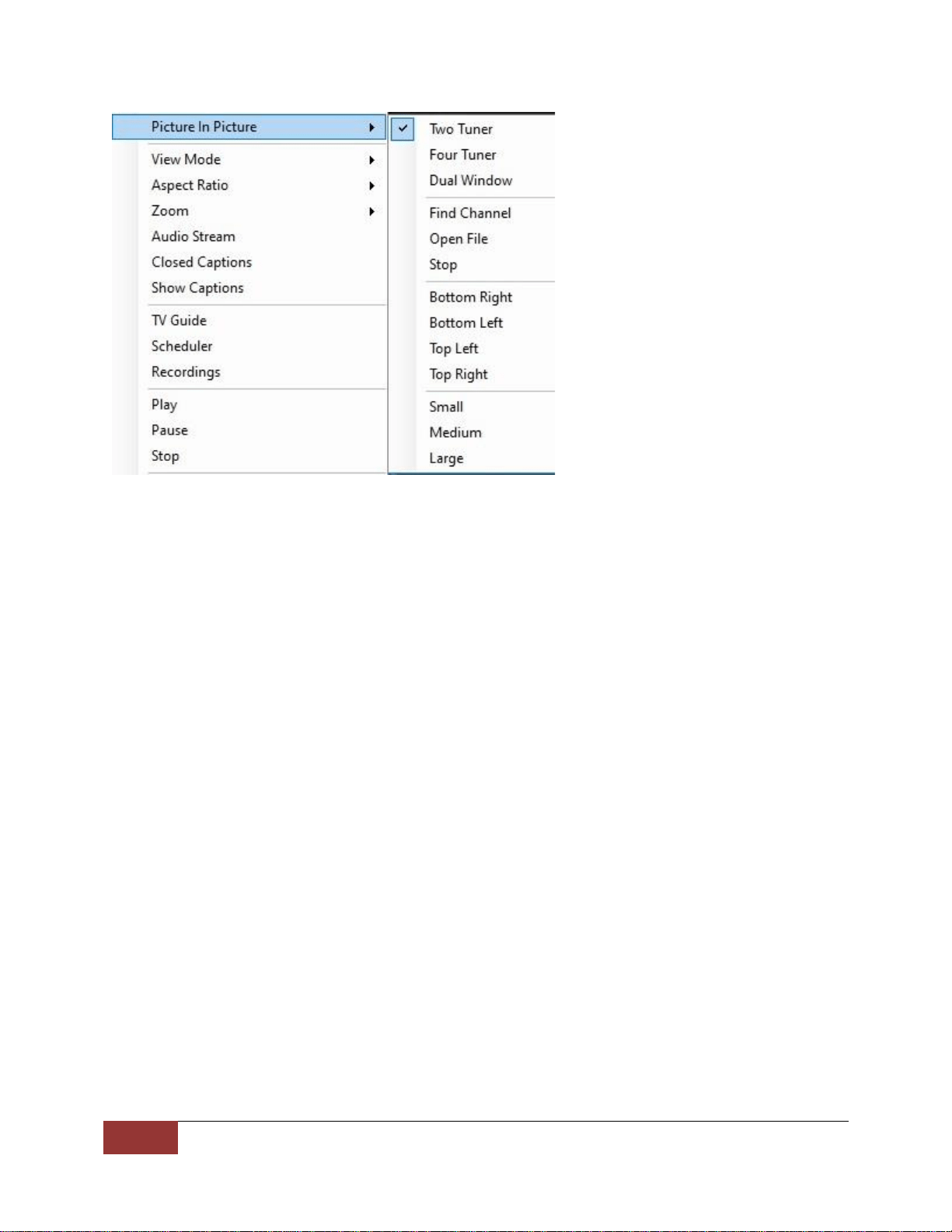
Option "Picture in Picture
46
Context Menu | Hauppauge Computer Works 2020
<
Picture in Picture is only available on products that have multiple tuners.
Option "View Mode"
The sub options Normal, No Title and Full Screen are available. In the Normal view all control
elements and buttons are visible. In the No Title view only the TV image is shown. In the Full
Screen view the TV image fills the whole screen. You can also switch between these views by
double clicking inside the TV window, or by pressing ctrl W. Position and size of the
application window for the Normal and TV window only views are saved separately.
Option "Aspect Ratio"
Selecting Auto will maintain the correct aspect ratio (4:3 or 16:9) of the TV image
(recommended). Selecting Fill will make the TV image always fill out the complete video
window, regardless of the dimension of the application window.
Option "Zoom"
Use this feature to "zoom" the live video a small percentage to eliminate unwanted lines at the
very top or bottom of the Live TV image.
Option "Audio Stream"
If the current TV broadcast offers more than one audio language, you can select the language
here.
Option "Closed Captions"

47
Context Menu | Hauppauge Computer Works 2020
Choose closed caption or second language subtitles if available from TV broadcast.
Option "Show Captions"
Turn on and off close caption on the tv screen.
Option "TV Guide"
Opens the TV Guide menu
Option "Scheduler"
The Scheduler allows you to record a TV program at a certain date and time on a specified
channel.
Option "Recordings"
Opens recorded files list from Scheduler.
Options "Play", "Pause" and "Stop"
Use to pause video stream, play to restart or stop video stream.
Option "Stay On Top"
If enabled, the WinTV application window will remain in view over any other applications even
if it is not selected. To turn on, select "Stay On Top". To turn off, select this option again.
Option "Settings"
Opens the settings dialog in WinTV.
Option "About"
This will tell you the version of WinTV 8 installed.
Option "Help"
This will open this help manual
Option "Exit"
This will close the WinTV Application.
48
WinTV TV Guide | Hauppauge Computer Works 2020
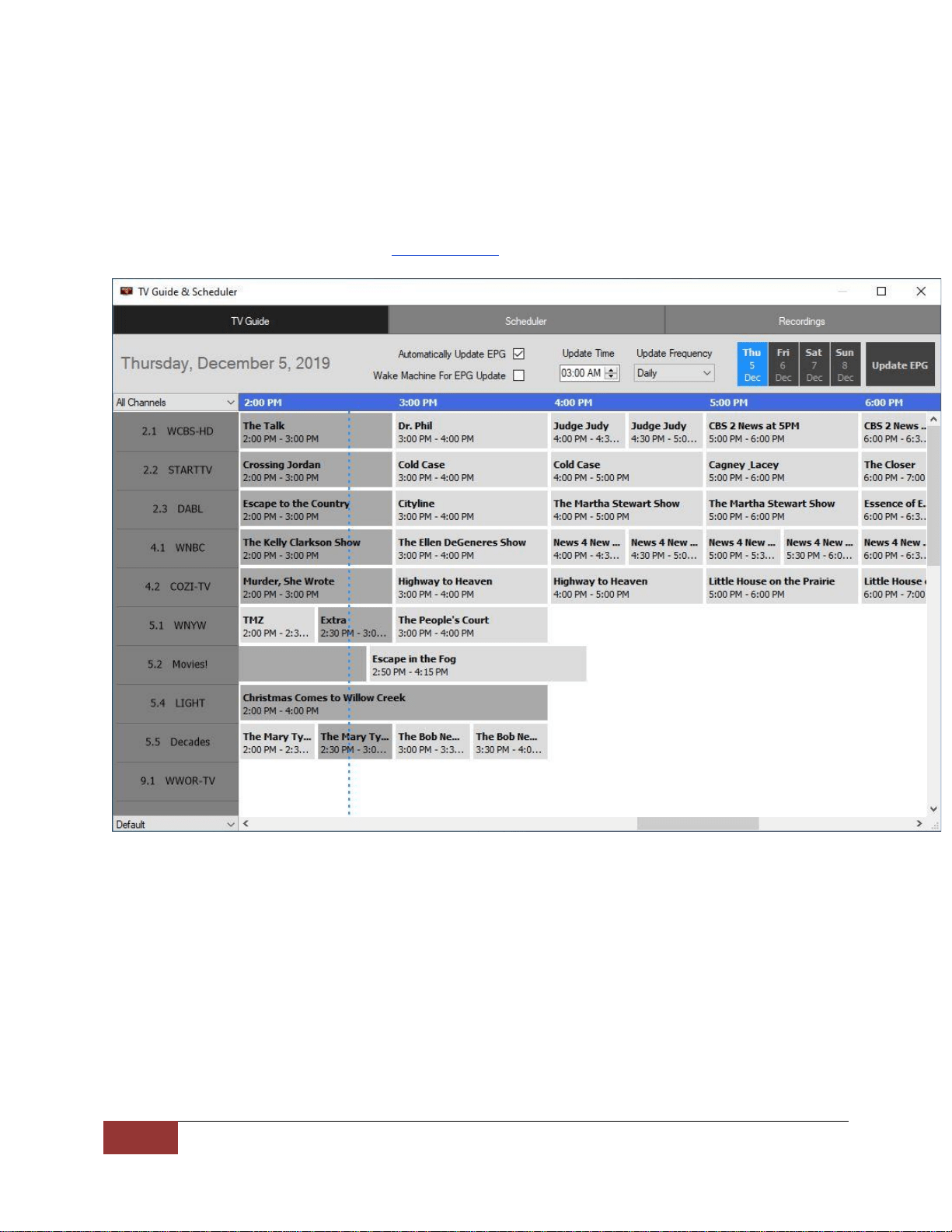
WinTV TV Guide
WinTV 10 introduces a TV Guide available only for over-the-air ATSC signals.
The TV Guide can be open from the Context Menu
Updating EPG
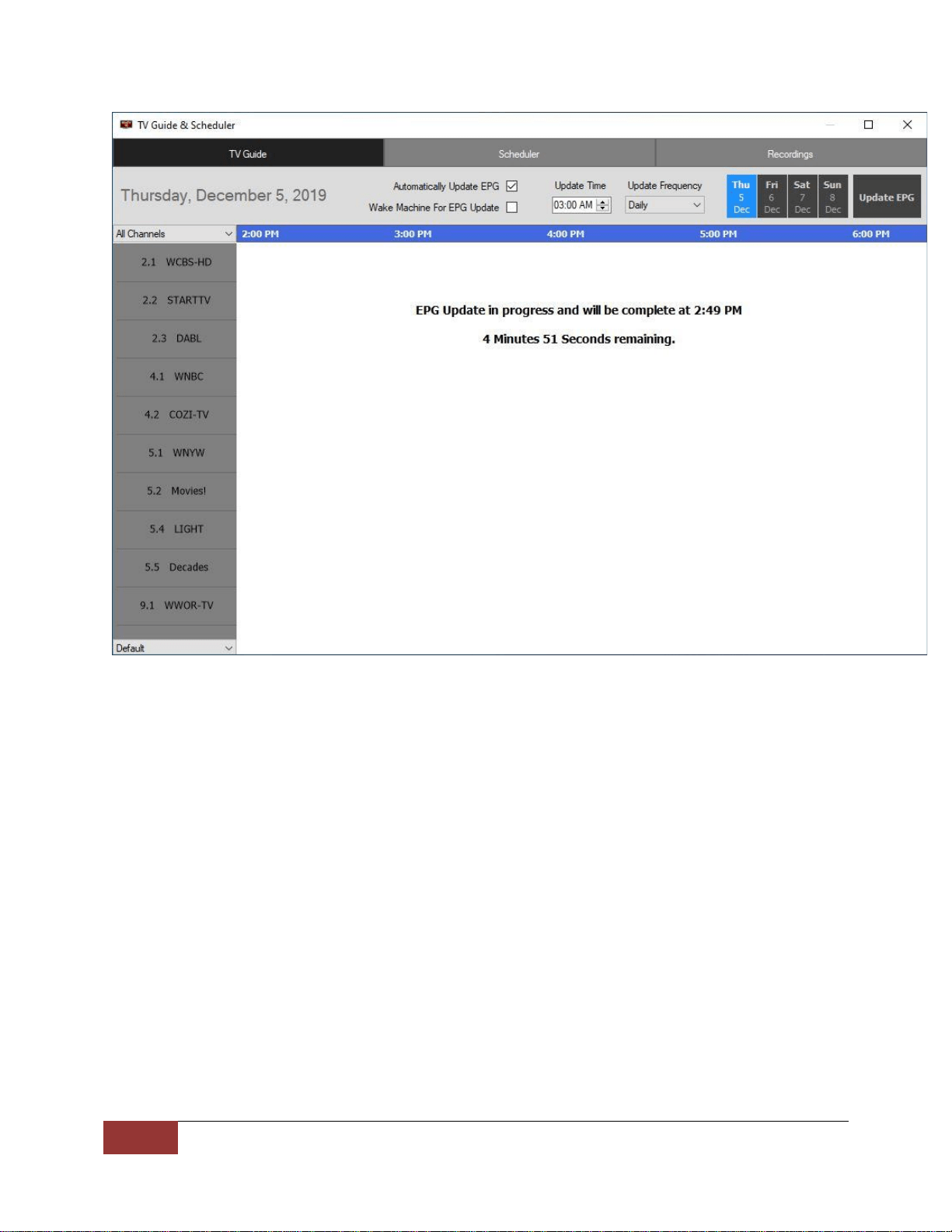
As you watch TV and change to different channels, the software will grab the TV guide data
from the over-the-air signal and update those channels.
But you can also click on Update EPG to update all channels.
You will get an estimated amount of time until the EPG finishes updating. You can close the TV
Guide window during this time. The update will continue in the background.
49
WinTV TV Guide | Hauppauge Computer Works 2020
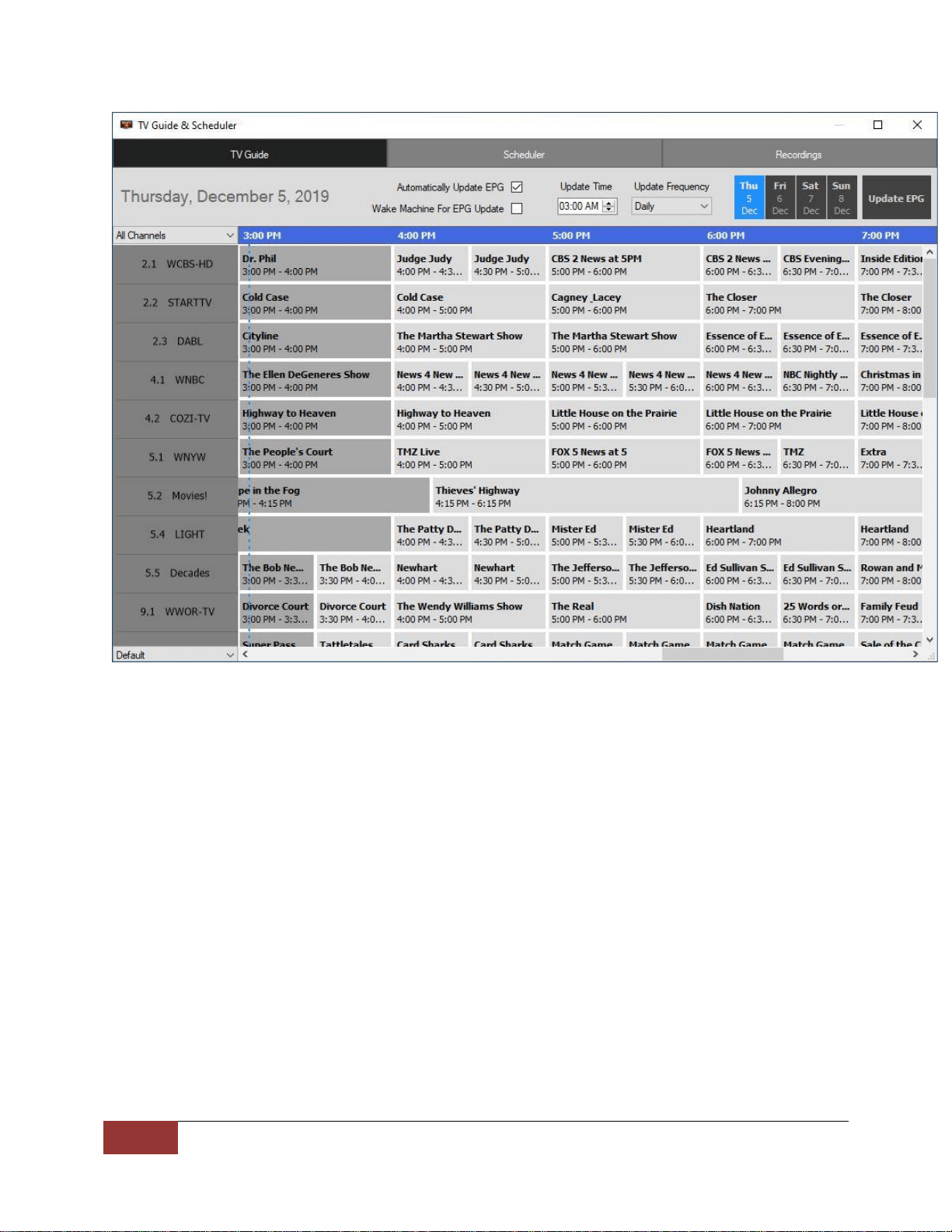
TV Guide Options
Once it has finish updating the EPG you should have a much filled EPG
50
WinTV TV Guide | Hauppauge Computer Works 2020
The TV Guide window has the following additional options.
Automatically Update EPG: Check this box to have the EPG update at the time specified under
Update Time
Wake Machine For EPG Update: The computer will wake up at the time specified if in
sleep/standby.
Update Frequency: The options are Daily, 12 hour or 6 hours. This can be useful if some
channels only provide limited amount of hours of data.
Season Recording
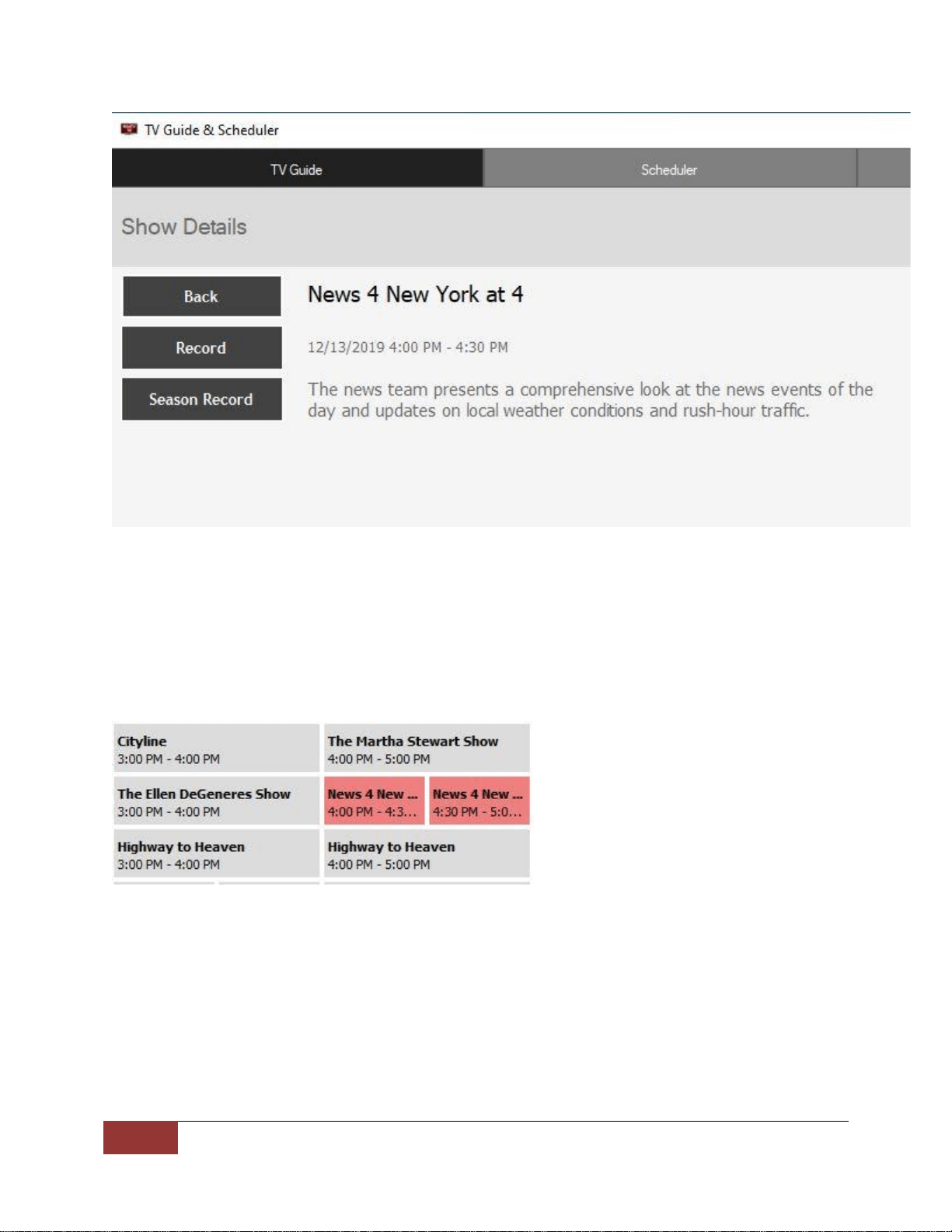
A new feature in WinTV10 is the ability to season record TV show using the TV Guide.
51
WinTV TV Guide | Hauppauge Computer Works 2020
Clicking on a TV show on the guide will bring up information about the program. It will also
allow you to click Back to return to the TV guide. You can click Record to scheduled a regular
recording. You can also click on Season Record to scheduled all recordings for the program in
the future. This is usefull if you like to record your favorite TV show and if time changes it will
self adjust.
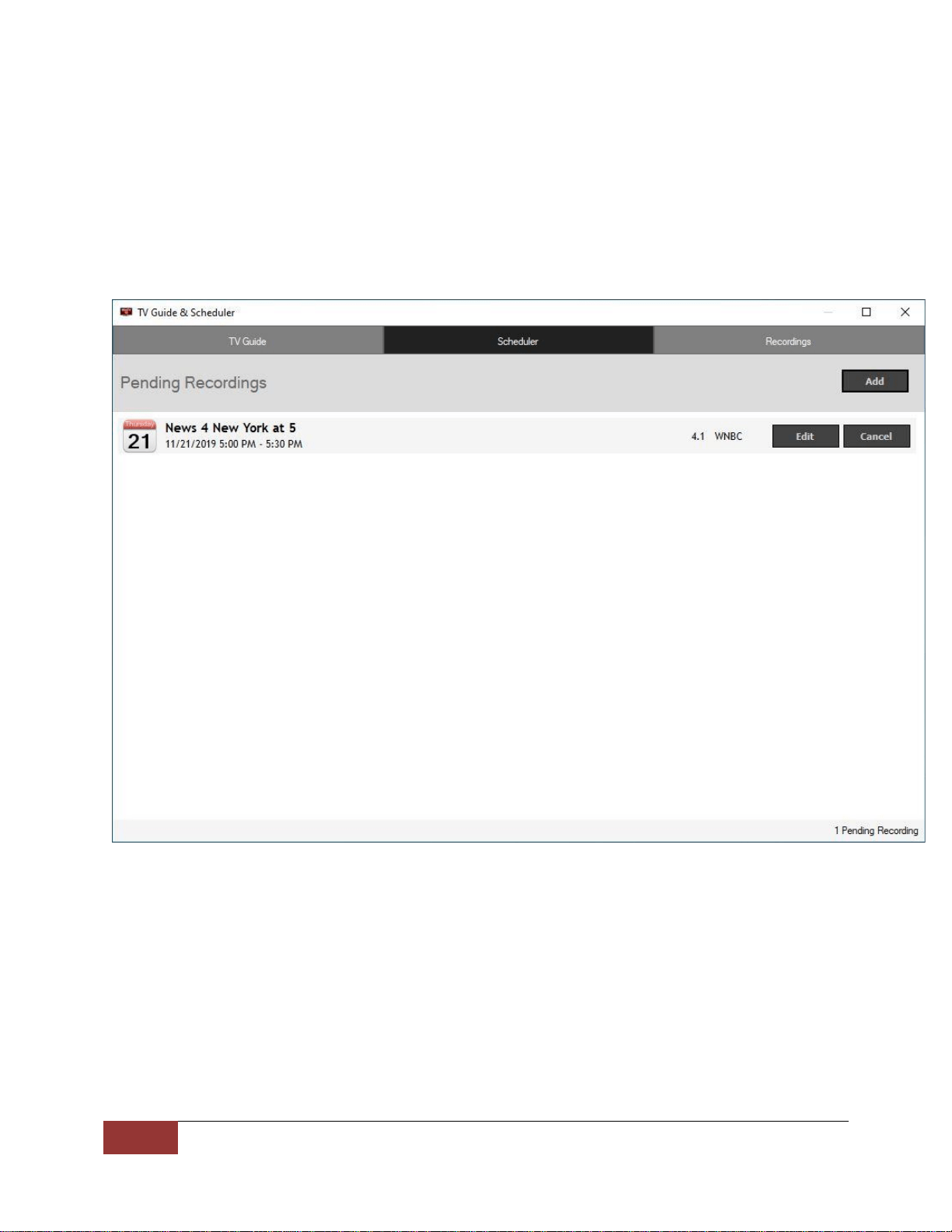
Once a show is scheduled to be recorded, it will show a red higlight around it.
52
WinTV Scheduler | Hauppauge Computer Works 2020
WinTV Scheduler
Select Scheduler from the Options Menu, to open the scheduler window.
The Scheduler allows you to record a TV program at a certain date and time on a specified
channel. It will list all scheduled recordings that have been set.
From here you can manually Add, Edit a previous scheduled recording or Cancel a recording.
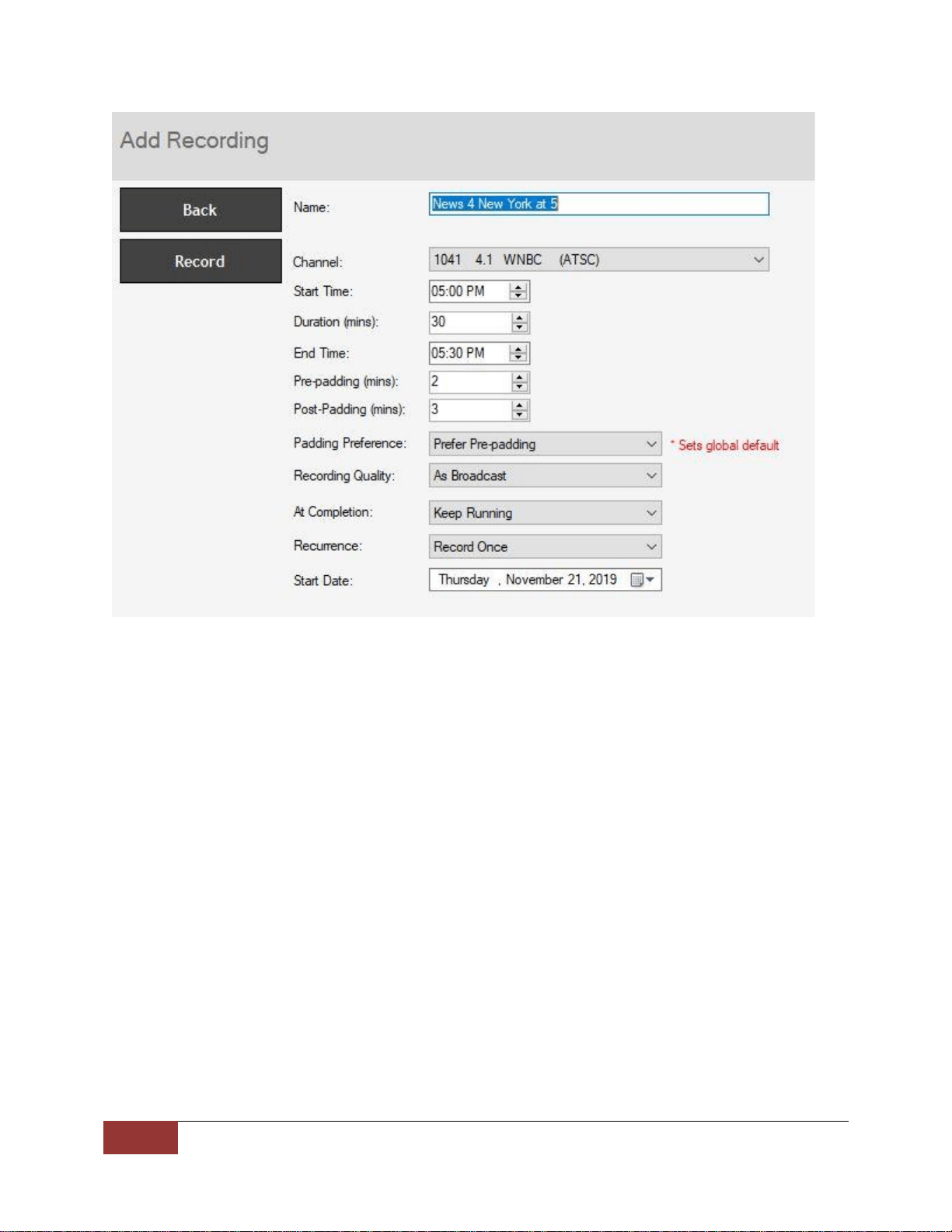
To schedule a recording, click on the Add button. You will need to set the following
information:
53
WinTV Scheduler | Hauppauge Computer Works 2020
Name: The file name of your recording task. If you keep the name Default, the recording will
use the name of the TV channel.
Channel: Choose the channel to record.
Start Time: Set to the desired start time.
Duration (Minutes): Set the length of the recording, using the arrows (steps of 5 minutes) or
directly with the keyboard.
End Time: Alternative to the duration you can set the end time here. It will automatically adjust
the duration
Pre-padding (mins): Specify how many extra minutes a recordings should start using pre-
padding.
Post-padding (mins): Specify how many extra minutes a recordings should continue recording
using post-padding.
Padding Preference: This option tells the application how to handle padding when two
recodings are close together.
54
WinTV Scheduler | Hauppauge Computer Works 2020
Prefer Pre-padding: Pre-padding will take preference with back to back recordings and one
tuner.
Prefer Post-padding: Post-padding will take preference with back to back recordings and one
tuner.
Split available padding equality: Padding with split between recordings.
Force Pre-padding - miss end of previous recording: Preference to pre-padding, first
recording will miss end of recording to allow next recording to have pre-padding.
Force Post-padding - miss start of next recording: Preference to post-padding, second
recording will miss begging of recording to allow first recording to have post-padding.
Recording Quality: Specify the recording quality (analog TV only). On digital TV recordings
the recording quality is always as broadcast.
At Completion: Select the action that should be performed with the computer after the recording
has finished. Choices are "Keep Running", "Shutdown", "Standby" and "Hibernate".
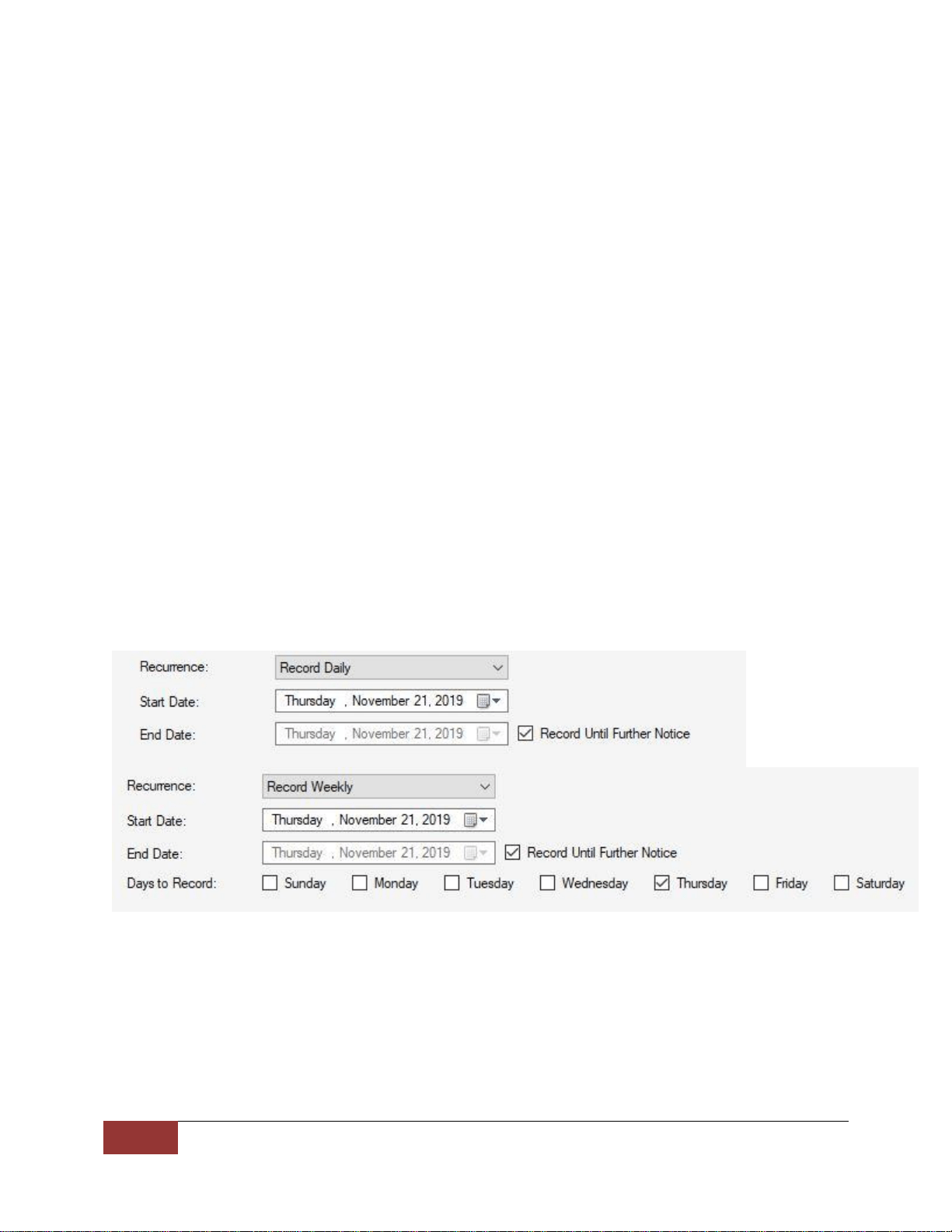
Recurrence: Record Once, Record Daily or Record Weekly: You can choose to have the
recording repeat Once, Daily or Weekly.
The options will change depending on which recurrence you select
Start Date: Select the start date for the recording.
End Date: By default Record Until Further Notice will be checked and option will be grayed
out. Uncheck this to specify a specific end date.
Days to Record: If you select the Weekly option, select the week day you wish to have the show
recorded on.
55
WinTV Scheduler | Hauppauge Computer Works 2020
Once all the information is set, click Record to confirm. Click Update if editing a previously
scheduled recording. You can add more events by clicking Add after each event is set.
When you are finished, click X on top right corner to exit the scheduler.
Performing the Recording
The WinTV application does not have to be running for a Scheduled Recording to work, but
your PC will need to be either turned ON or in Standby Mode. All scheduled recordings are
performed in the background by a task called “WinTVRec.exe”.
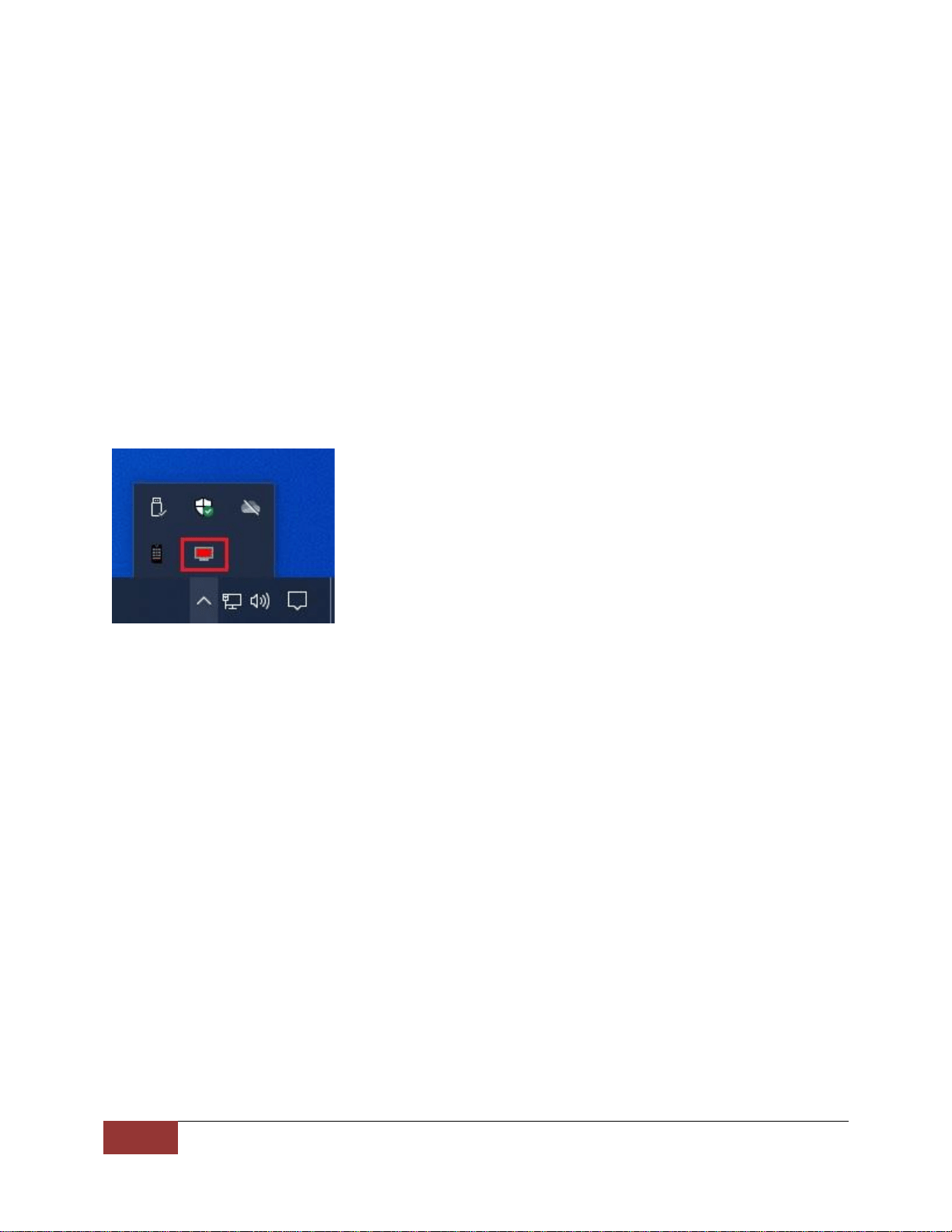
When a recording takes place, this is indicated by a red TV icon in the system tray.
Right click on this icon to see the following options:
"Watch <file name>" - Opens the WinTV application to play the current recording.
"Cancel Recording" - Terminates the recording.
Note: If you start the WinTV application while a recording is taking place on a single tuner
product, it will play the current recording. Live TV will not be available.
56
WinTV Recordings | Hauppauge Computer Works 2020
WinTV Recordings
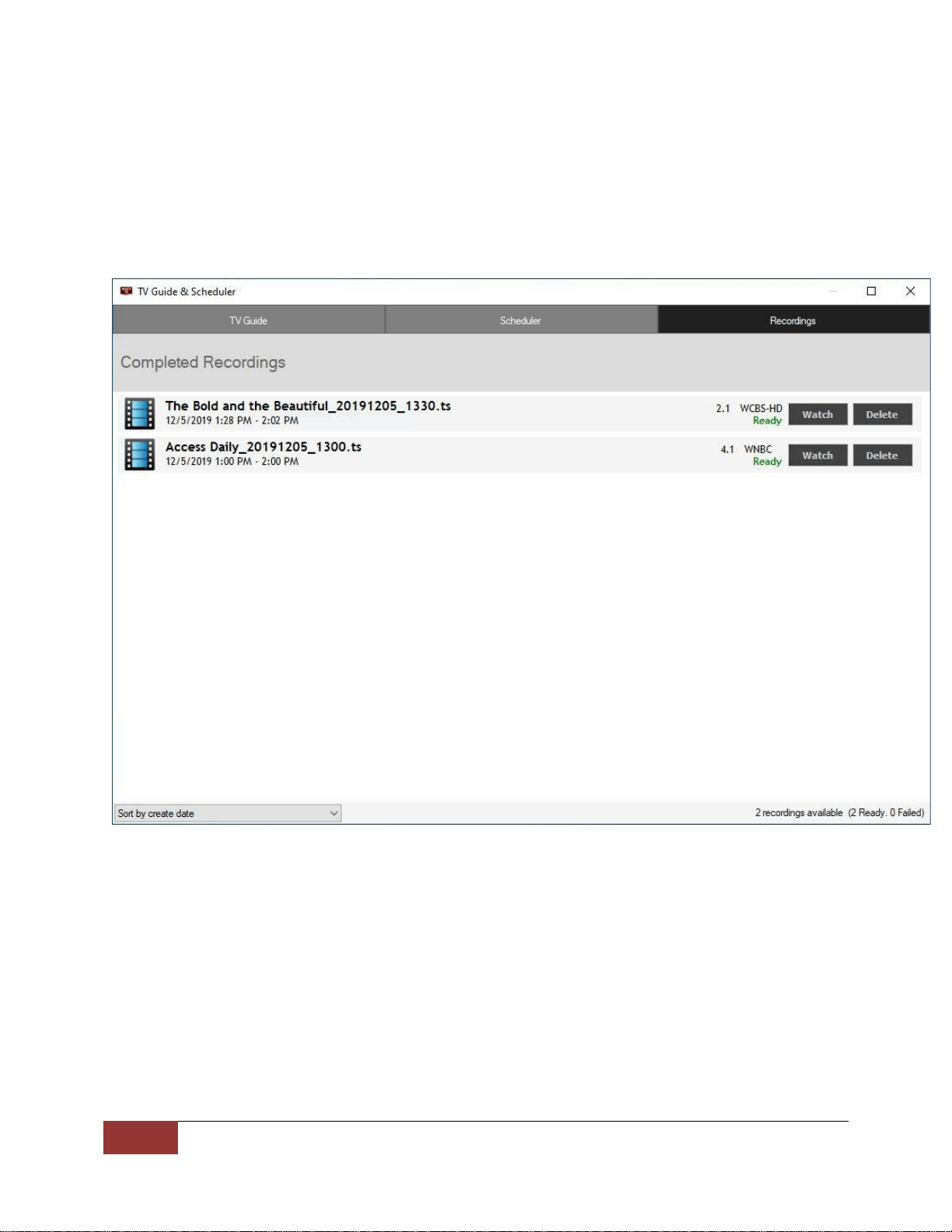
Select Recordings from the Options Menu, to open the recordings window.
The Recordings menu allows you see what has been recorded.
Watch will let you watch a recording through WinTV 10.
Delete will delete the recordings from WinTV and the computer.
Note: If you delete a recording from within WinTV Recordings, it will be moved to the Recycle
Bin.
Sort By will let you sort recordings by date or name.
57
TitanTV | Hauppauge Computer Works 2020
TitanTV
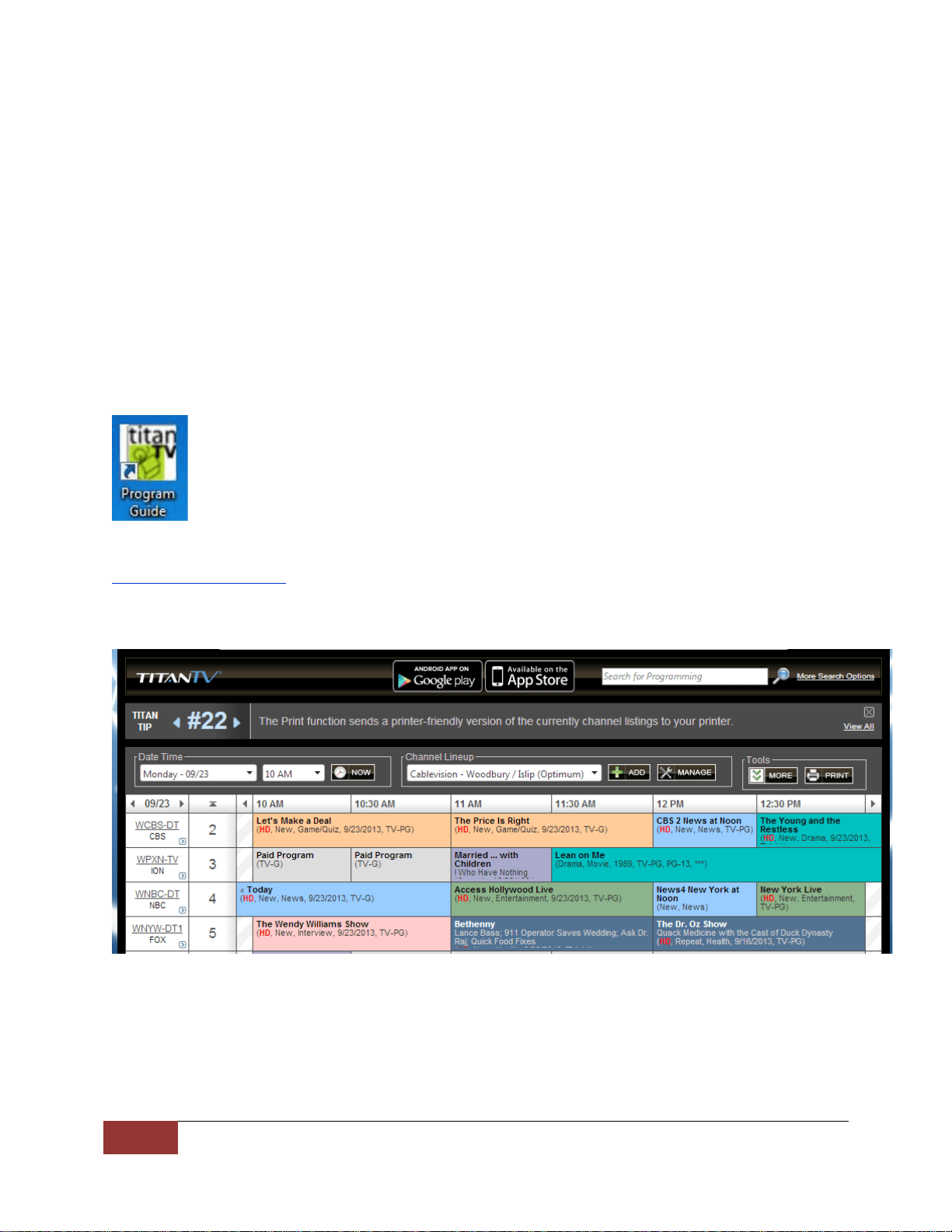
TitanTV is a free online TV Guide available for U.S. TV providers only.
TitanTV can make it easier to add scheduling recordings to WinTV Scheduler.
TitanTV Website
When WinTV 10 is installed the following shortcut icon is placed on the desktop.
You can double click it to go to the TitanTV website or manually type on your browser
http://www.titantv.com
Under Channel Lineup you can select your provider or click Add to add your provider lineup.
No account is required with TitanTV, but you can make a free one so it remembers your
preferences
Scheduled a Recording
58
TitanTV | Hauppauge Computer Works 2020
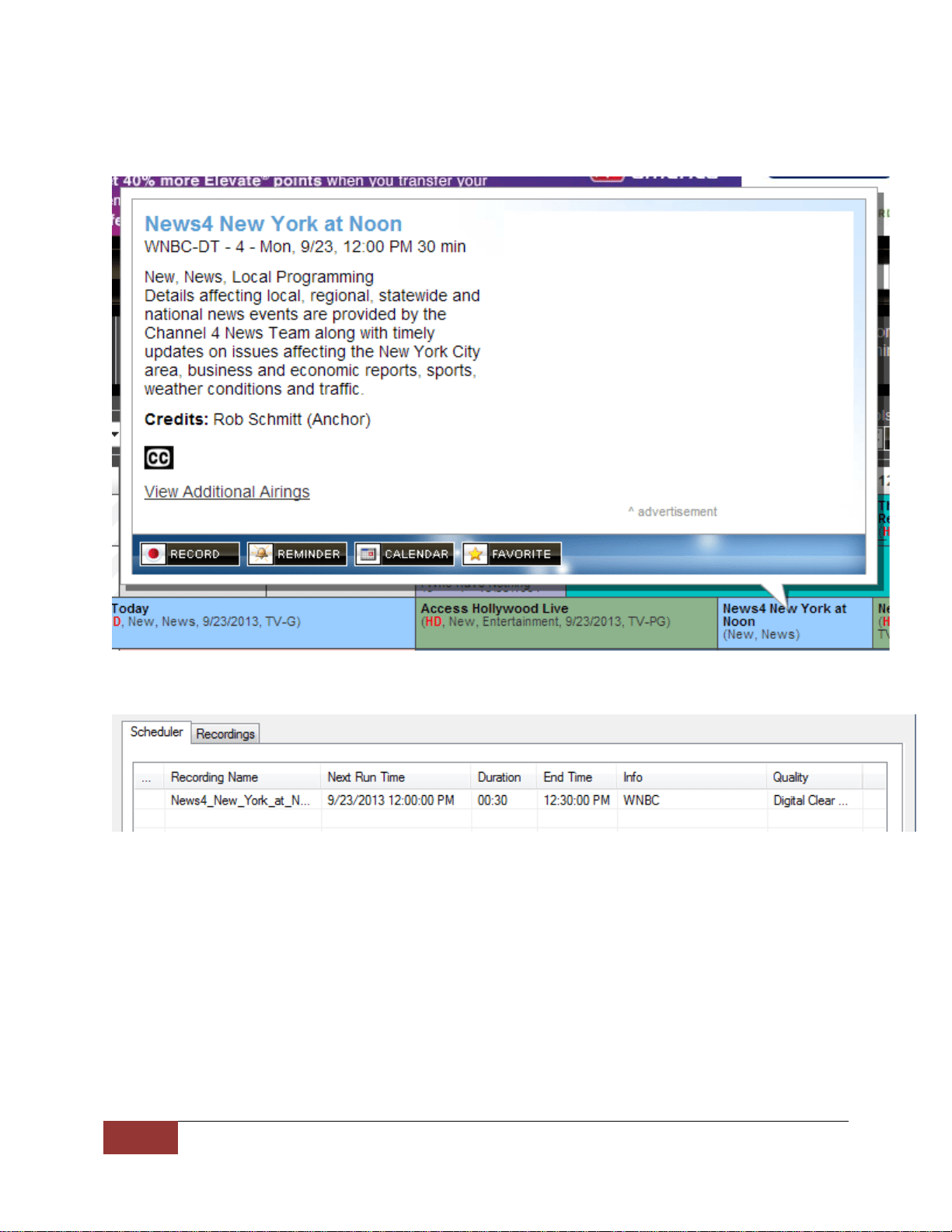
To schedule a recordings with TitanTV, click on a TV show upcoming and on the window that
opens click on Record.
The TV show selected will be added to the WinTV Scheduler.
Note: In order to schedule a recording the channel number in the TitanTV must correspond to a
channel in the WinTV 10 channel list. For example if you want to record WNBC and the channel
number in TitanTV is 702 then you must edit the channels number in WinTV. All QAM channels
are in the 2xxx range. All ATSC channels are in the 1xxx range.
Browser Differences
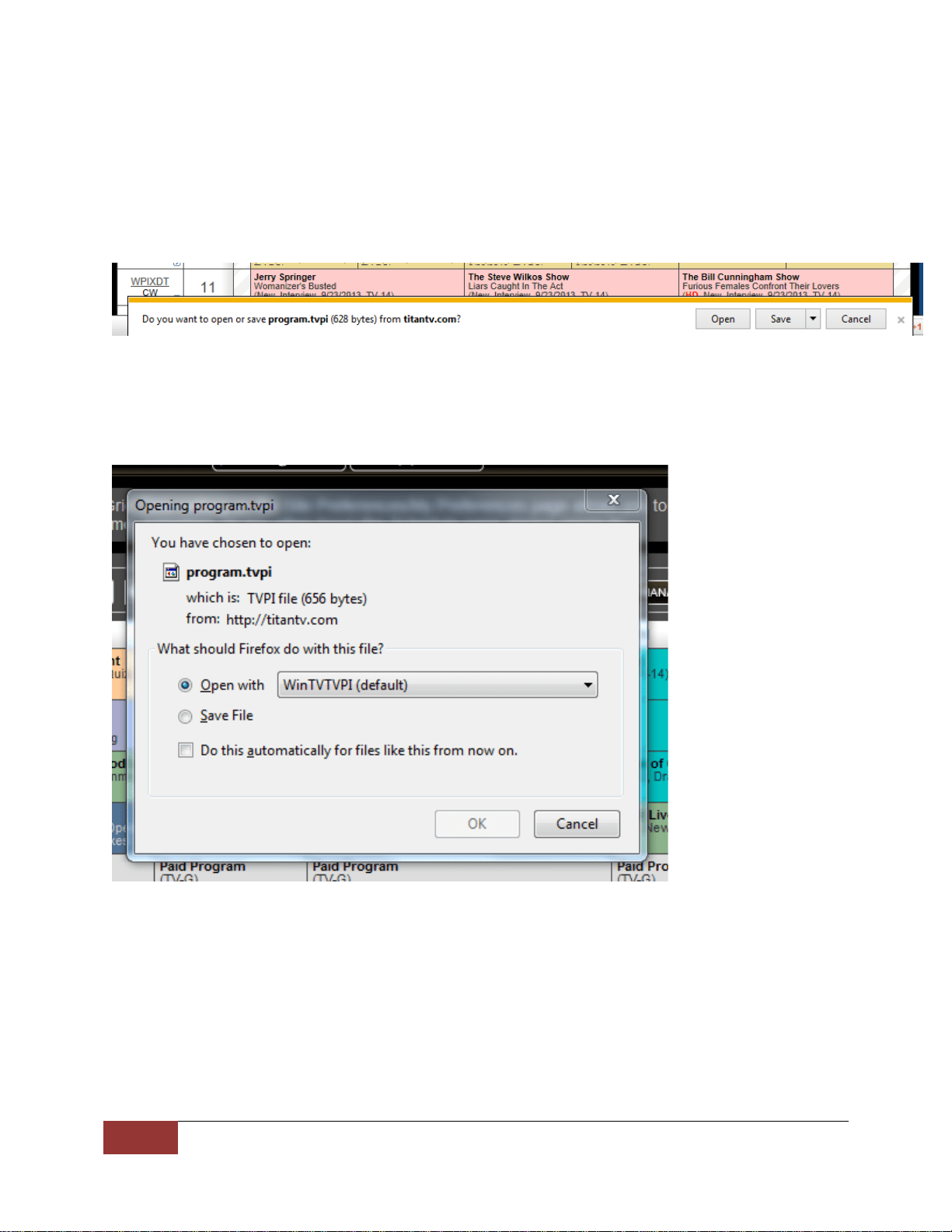
When record is clicked a file ‘program.tvpi’ needs to be opened by our WinTV 10 software to
schedule the recording. This file holds the information about the program that will be scheduled.
59
TitanTV | Hauppauge Computer Works 2020
But different browsers handle the file differently, some ask you to open or save it. In general you
want to select open.
Internet Explorer: Internet Explorer will ask you on the bottom, please click Open.
Mozilla Firefox: Firefox will ask you in a window, please make sure Open with is selected and
click OK.
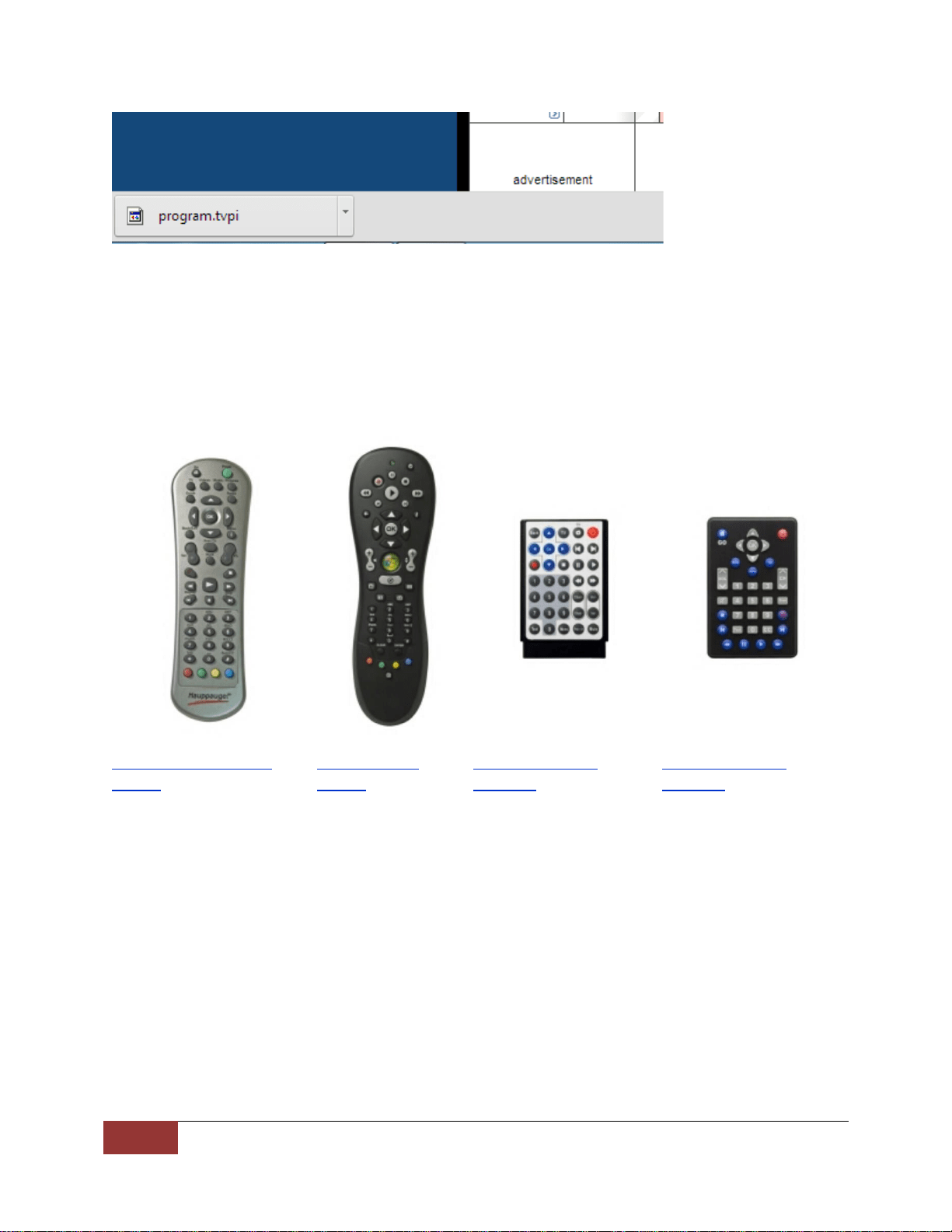
Google Chrome: Goggle Chrome automatically saves the file. Please click the file on the bottom
left corner to open.
61
Remote Control Buttons in WinTV 10 | Hauppauge Computer Works 2020
Remote Control Tray Icon
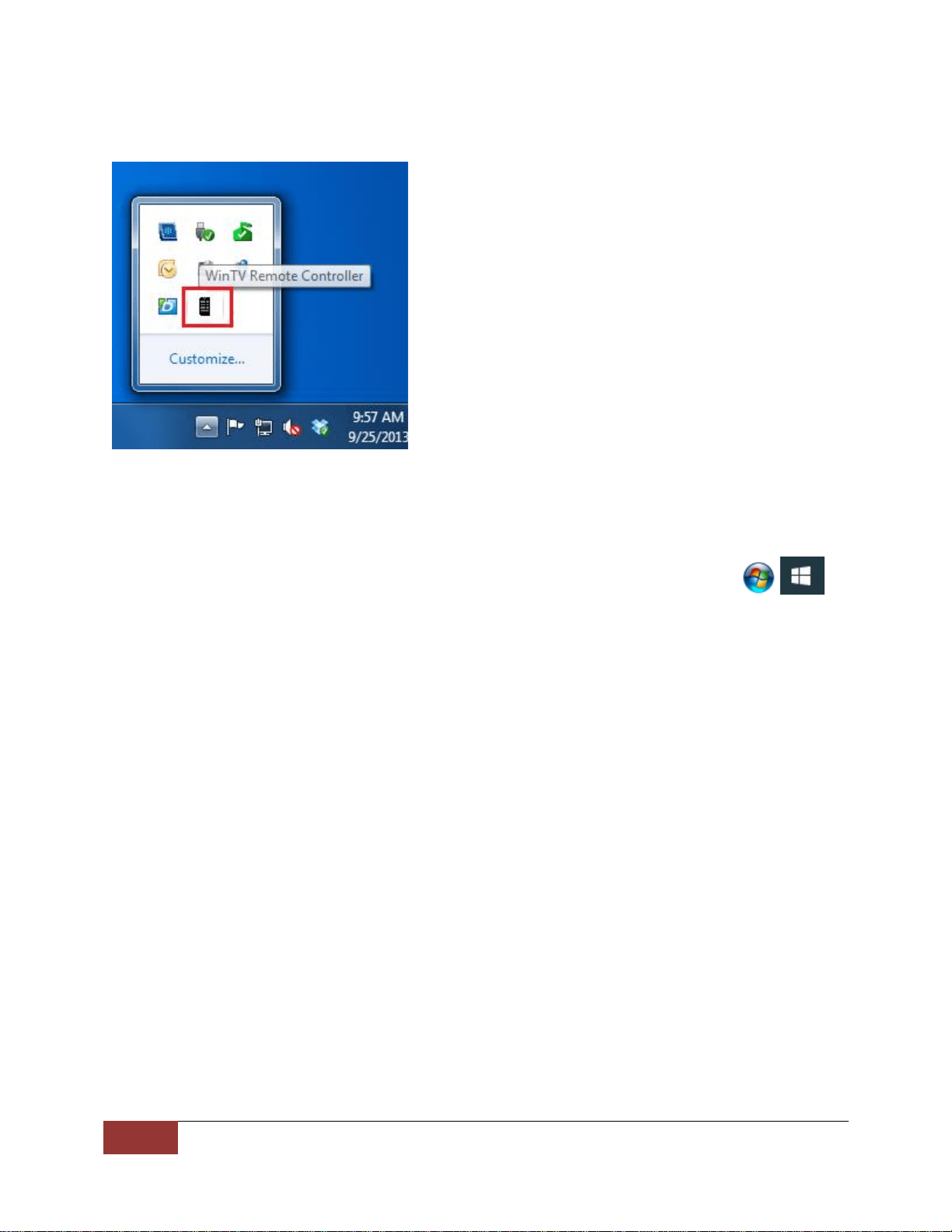
In order for the remote control to work, a WinTV Remote Controller application is installed
during the WinTV 10 installation. This application needs to be running in the system tray in
order for the remote control to work.
If the icon is not running, you can restart it by clicking on the Windows Start button
Start button. Then navigate to Hauppauge WinTV programs folder, and click on Restart IR.

62
Remote Control Buttons in WinTV 10 | Hauppauge Computer Works 2020
Remote Control Buttons in WinTV 10
Hauppauge Model
Button
Function
Go
Start WinTV
Power
Exit WinTV
TV
Start Live TV
Videos
Show stream details
Music
(no function)
Pictures
Change aspect ratio between fill and auto
Guide
Show Now/Next info
Radio
(no function)
Arrow left/right
Change audio volume /
Teletext: select next / previous subpage
Arrow up/down
Change channel /
Teletext: select next / previous page
OK
Confirm selection (in channel list)
Back/Exit
Exit full screen /
Close channel list
i (Menu)
Open channel list
Vol
Change audio volume
Prev.Ch
Select last channel
Mute
Mute / unmute audio
Ch
Change channel
Start recording
Stop recording /
Exit Live TV
Skip back 30 seconds
Continue Live TV or play back
Skip forward 30 seconds
Skip back 60 seconds
Pause Live TV
Skip forward 60 seconds
0 - 9
Enter channel preset number
* (Text)
Display teletext (if available)

63
| Hauppauge Computer Works 2020
# (Sub/CC)
Display subtitles (if available)
Red button
Start WinTV /
Switch to full screen
Green button
(no function)
Yellow button
(no function)
Blue button
Make snapshot

64
Remote Control Buttons in WinTV 10 | Hauppauge Computer Works 2020
Remote Control Buttons in WinTV 10
Media Center Model
Button
Function
Power
Exit WinTV /
Start Windows Media Center
Start recording
Pause Live TV
Stop recording /
Exit Live TV mode
Skip back 30 seconds
Continue Live TV or play back
Skip forward 30 seconds
Skip back 60 seconds
Skip forward 60 seconds
Exit full screen mode /
Close channel list
i
Open channel list
Arrow left / right
Change audio volume /
Teletext: select next / previous subpage
Arrow up / down
Change channel /
Teletext: select next / previous page
OK
Confirm selection (in channel list)
+ / - bar left
Change audio volume
+ / - bar right
Change channel
Loudspeaker
Mute / unmute audio
TV rec
Open Recordings window
TV guide
Show Now/Next info
TV play
Start WinTV
DVD
Change aspect ratio between fill and auto
0 - 9
Enter channel preset number
*
(no function)
CLEAR
(no function)
ENTER
(no function)
#
(no function)

65
Remote Control Buttons in WinTV 10 | Hauppauge Computer Works 2020
Red button
Start WinTV /
Switch to full screen mode
Green button
(no function)
Yellow button
(no function)
Blue button
Make snapshot
T
Display teletext (if available)
Remote Control Buttons in WinTV 10
Credit Card Size Remote Control 1
Button
Function
Back
Exit full screen mode /
Close channel list
TV
Start Live TV
Go
Start WinTV
Power
Exit WinTV
Arrow left / right
Change audio volume /
Teletext: select next / previous subpage
Arrow up / down
Change channel /
Teletext: select next / previous page
OK
Confirm selection (in channel list)
Skip back 60 seconds
Skip forward 60 seconds
Start recording
Stop recording /
Exit Live TV mode
Pause Live TV
Continue Live TV or play back
Skip back 30 seconds
Skip forward 30 seconds
0 - 9
Enter channel preset number
Chan+ / Chan-
Change channel
Vol+ / Vol-
Change audio volume
Text
Display teletext (if available)
Menu
Open channel list

66
Remote Control Buttons in WinTV 10 | Hauppauge Computer Works 2020
Prev. ch
Select last channel
Mute
Mute / unmute audio
Remote Control Buttons in WinTV 10
Credit Card Size Remote Control 2
Button
Function
GO
Start WinTV
Power
Exit WinTV
Arrow left / right
Change audio volume /
Teletext: select next / previous subpage
Arrow up / down
Change channel /
Teletext: select next / previous page
OK
Confirm selection (in channel list)
Back
Exit full screen mode /
Close channel list
Menu
Open channel list
TV
Start Live TV
VOL
Change audio volume
CH
Change channel
Loudspeaker
Mute / unmute audio
Prev
Select last channel
0 - 9
Enter channel preset number
Text
Display teletext (if available)
CC
Display subtitles (if available)
Stop recording /
Exit Live TV mode
Start recording
Skip back 60 seconds
Skip forward 60 seconds
Skip back 30 seconds
Pause Live TV
Continue Live TV or play back
Skip forward 30 seconds

67
Keyboard Shortcuts in WinTV | Hauppauge Computer Works 2020
Keyboard Shortcuts in WinTV
Function
Key
Next Channel
Plus (+)
Previous Channel
Minus (-)
Increase Audio Volume
Page Up
Decrease Audio Volume
Page Down
Mute
Ctrl + M
Enter Preset Number
0 - 9
Jump to relative position
during play back
0 - 9
Show Channel List
Ctrl + L
Make Snapshot
Space Bar
Show Now/Next
Ctrl + O
Display Stream Details
Ctrl + D
Subtitles on / off
Ctrl + S
Change Aspect Ratio
Ctrl + A
Zoom TV image
Alt + D
Pause Live TV
Ctrl + Q
Continue Live TV
Ctrl + P
Skip Ahead
Ctrl + F
Skip Back
Ctrl + R
Jump to Live Position
Ctrl + C
Full Screen
Ctrl + W
Exit Full Screen
Esc
Start TV
Alt + T
Start Recording
Alt + R
Stop Recording / Playback
Alt + S
Open File for Playback
Alt + F
Open WinTV Settings Dialog
Ctrl + I
Quick Channel Selection
a - z
Exit Application
Alt + F4

68
| Hauppauge Computer Works 2020

69
Advanced Information | Hauppauge Computer Works 2020
Advanced Information
Folders used by WinTV v10
On installation the following three folders are specified.
Program Folder
The executable files by default are stored into this folder:
C:\Program Files (x86)\WinTV
Data Directory
Configuration settings, scanning tables and log files are stored in the data directory.
C:\Users\Public\WinTV
Recordings Directory
TV recordings and snapshots are saved into the recordings directory.
C:\Users\Public\Videos
Channel Database
The channel database is stored in the subfolder "Channel Database" in the Data Directory.
C:\Users\Public\WinTV\Channel Database
Filename: hcwChanDB_5.mdb
The channel database holds the channel list, favorites and scheduled recordings.
Backup Database
A backup channel database is also created in case WinTV 10 is reinstalled.
It is located at C:\ProgramData\Hauppauge
Note: These are windows hidden folders, you will have to display hidden files and folders to view
them.
Command Line Parameters for WinTV10.exe
WinTV10.exe can be run with several command line parameters to enable certain functions.
Some of these functions are already added to the Start menu under "Hauppauge WinTV" /
"Advanced Options". Also on the Desktop shortcut "WinTV Advance Options"

70
Advanced Information | Hauppauge Computer Works 2020
Program call with
parameter
Name of
shortcut in
Start menu
Function
WinTV10.exe -channel:4
-
Starts WinTV10 on the channel with number 4
(example).
WinTV10.exe -emptydb
Empty
Channel
Database
Deletes all data in the channel database: scanned
channels, defined favorites, scheduled recordings,
device information.
Note: Removal of this data happens without further
confirmation.
WinTV10.exe -multi
-
Opens another instance of WinTV10. To explain: If
WinTV10 is already running, and you double-click
on the WinTV10 icon again, normally the already
running program is just brought into foreground.
But if WinTV8.exe is run with the parameter "-
multi", another WinTV10 window is opened. So
you could watch live TV in one window and play a
recording in a second window. On a dual tuner
product you can watch live TV in two WinTV10
windows.
WinTV10.exe -recordings
Open
Recordings
(only)
Only opens the Recordings tab of the scheduler.
WinTV10.exe -scheduler
Open
Scheduler
(only)
Only opens the Scheduler tab of the scheduler.
It is recommended to create a new WinTV10 icon and add the command line parameter under its
properties. Following an example with the parameter "-multi":
1. Create a copy of the WinTV10-Icon on your desktop, by selecting the icon and pressing
<Ctrl> C ("Copy"), and then <Ctrl> V ("Paste").
2. Right-click on the new icon and select "Properties" from the context menu.
3. Select the "Shortcut" tab. In the "Target:" field, after the program call add a space, and
then the parameter, like this:
"C:\Program Files\WinTV\WinTV10\WinTV10.exe" -multi
Now, each time you double click on the new icon, a new WinTV10 window will be opened.