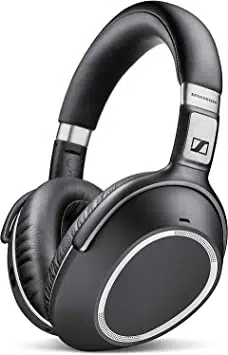

PXC 550
Wireless headphones
Instruction Manual

2 | PXC 550

PXC 550 | 1
Contents
Contents
Important safety instructions ...................................................................................2
The PXC 550 Wireless headphones ...........................................................................4
Package includes ..........................................................................................................6
Product overview .........................................................................................................7
Overview of the headphones .................................................................................... 7
Overview of LED indicators ........................................................................................ 9
Overview of buttons and switches ........................................................................10
Overview of gesture controls ..................................................................................11
Overview of CapTune ................................................................................................12
Getting started ......................................................................................................... 14
Charging basics ..........................................................................................................14
Installing CapTune .....................................................................................................16
Pairing the headphones ...........................................................................................17
Adjusting the headband ..........................................................................................21
Using the headphones ............................................................................................. 22
Switching the headphones on ................................................................................22
Switching the headphones off ................................................................................ 23
Adjusting the volume ...............................................................................................24
Using NoiseGard .......................................................................................................25
Switching TalkThrough on/off ................................................................................26
Changing the sound effect ......................................................................................27
Activating/deactivating Call Enhancement .........................................................28
Checking the battery life of the headphones ......................................................29
Playing music ............................................................................................................ 30
Playing music wirelessly ..........................................................................................30
Playing music using the USB cable ........................................................................31
Controlling music playback ......................................................................................32
Making calls on the headphones ........................................................................... 34
Voice control function ............................................................................................... 37
Setting the headphones to flight mode ................................................................ 38
Activating/deactivating Bluetooth ........................................................................38
Using the audio cable ...............................................................................................39
Care and maintenance ............................................................................................. 41
Replacing the ear pads .............................................................................................41
Storage and handling ...............................................................................................42
Removing the rechargeable battery ......................................................................43
Troubleshooting ........................................................................................................ 44
Leaving the Bluetooth transmission range .......................................................... 46
Resetting the headphones ......................................................................................46
Clearing previously paired devices .........................................................................47
Specifications ............................................................................................................ 48
Trademarks ................................................................................................................ 49

2 | PXC 550
Important safety instructions
Important safety instructions
X Read this instruction manual carefully and completely before using the
product.
X Always include this instruction manual when passing the product on to third
parties.
X Do not use an obviously defective product.
Preventing damage to health and accidents
X
Protect your hearing from high volume levels. Permanent hearing
damage may occur when headphones are used at high volume
levels for long periods of time. Sennheiser headphones sound exceptionally
good at low and medium volume levels.
X Keep the headphones at least 10 cm/3.94” from cardiac pacemakers or
implanted defibrillators. The headphones contain magnets that generate a
magnetic field which could cause interference with cardiac pacemakers and
implanted defibrillators.
X Keep the product, accessories and packaging parts out of reach of children
and pets to prevent accidents and choking hazards.
X Do not use the product in situations which require special attention (e.g. in
traffic or when performing skilled jobs).
X Unplug the power supply unit from the wall socket during lightning storms or
when it is unused for long periods of time.
Preventing damage to the product and malfunctions
X
Always keep the product dry and do not expose it to extreme temperatures
to avoid corrosion or deformation. The normal operating temperature is from
10 to 40°C/50 to 104°F.
X Only use attachments/accessories/spare parts supplied or recommended by
Sennheiser.
X Clean the product only with a soft, dry cloth.
X Only use the product in environments where Bluetooth® wireless transmission
is permitted.
X Use the product with care and store it in a clean, dust-free environment.
PXC 550 | 3
Important safety instructions
Intended use/Liability
These wireless headphones are designed for use with mobile devices (e. g. mobile
music players, mobile phones, tablets) that support wireless communication
via Bluetooth. Compatible Bluetooth devices include those that support the
following profiles: Hands Free Profile (HFP), Headset Profile (HSP), Advanced
Audio Distribution Profile (A2DP), Audio/Video Remote Control Profile (AVRCP),
and Device ID profile (DIP).
It is considered improper use when this product is used for any application not
named in the associated instruction manuals and product guides.
Sennheiser does not accept liability for damage arising from abuse or misuse of
this product and its attachments/accessories.
Safety instructions for the Lithium-Polymer battery pack
WARNING
In extreme cases, abuse or misuse of the Lithium-Polymer battery pack can lead
to:
• explosion
• fire development
• heat generation or
• smoke or gas development
Dispose of products with built-in rechargeable batteries at special
collection points or return them to your specialist dealer.
Only use rechargeable batteries and chargers recommended by
Sennheiser.
Charge products with built-in rechargeable batteries at ambient
temperatures between 10 and 40°C (+/-5°C)/
50 and 104°F (+/-41°F).
Switch battery-powered products off after use.
When not using the product for extended periods of time, charge its
built-in rechargeable batteries regularly (about every 3 months).
Do not heat above 70°C/158°F, e.g. do not expose to sunlight or
throw into fire.
Do not charge a product with built-in rechargeable batteries if the
product is obviously defective.

4 | PXC 550
The PXC 550 Wireless headphones
The PXC 550 Wireless headphones
The PXC 550 Wireless headphones lead the next generation of business and
travel headphones from Sennheiser. Utilizing the fastest and energy-efficient
Bluetooth 4.2 wireless standard, the PXC 550 Wireless headphones are packed
with innovative features. One such feature is Adaptive NoiseGard™ active noise
cancellation (ANC), which is a NoiseGard option that varies in strength according
to the ambient noise level.
And with CapTune, the possibilities get even wider. There is so much more
you can do now to improve your listening experience with just a tap on your
smartphone.
The PXC 550 Wireless - swiping through music and calls has never been this fun
and exciting.
Features
• NoiseGard™ hybrid ANC for optimum isolation from background noise and
outstanding audio performance
• Adaptive NoiseGard™ ANC system for sensitive ears
• Touch pad on the right ear cup allows you to control music and calls with taps
and swipes
• App controllability through CapTune. Customize your listening experience
with CapTune and get the most out of your headphones
• Smart Pause allows you to play or pause music by putting on or taking off the
headphones. This feature must be activated in CapTune
• Improve call quality further with Call Enhancement. This feature reproduces
voice from the other end of the line naturally, giving the impression that you
are talking to the person from within the same room
• Closed circumaural design featuring the latest, energy-efficient Bluetooth®
4.2 wireless technology
• Immediate pairing with smart devices using NFC
• VoiceMax™ technology utilizing 3 built-in microphones for voice
communication to emphasize speech quality and attenuate external noise
• 20 hours of battery life with both Bluetooth® and NoiseGard™ activated.
30 hours if the headphones are connected using the audio cable and only
NoiseGard™ is activated
• Compact, yet extremely comfortable, over-ear headphones
PXC 550 | 5
The PXC 550 Wireless headphones
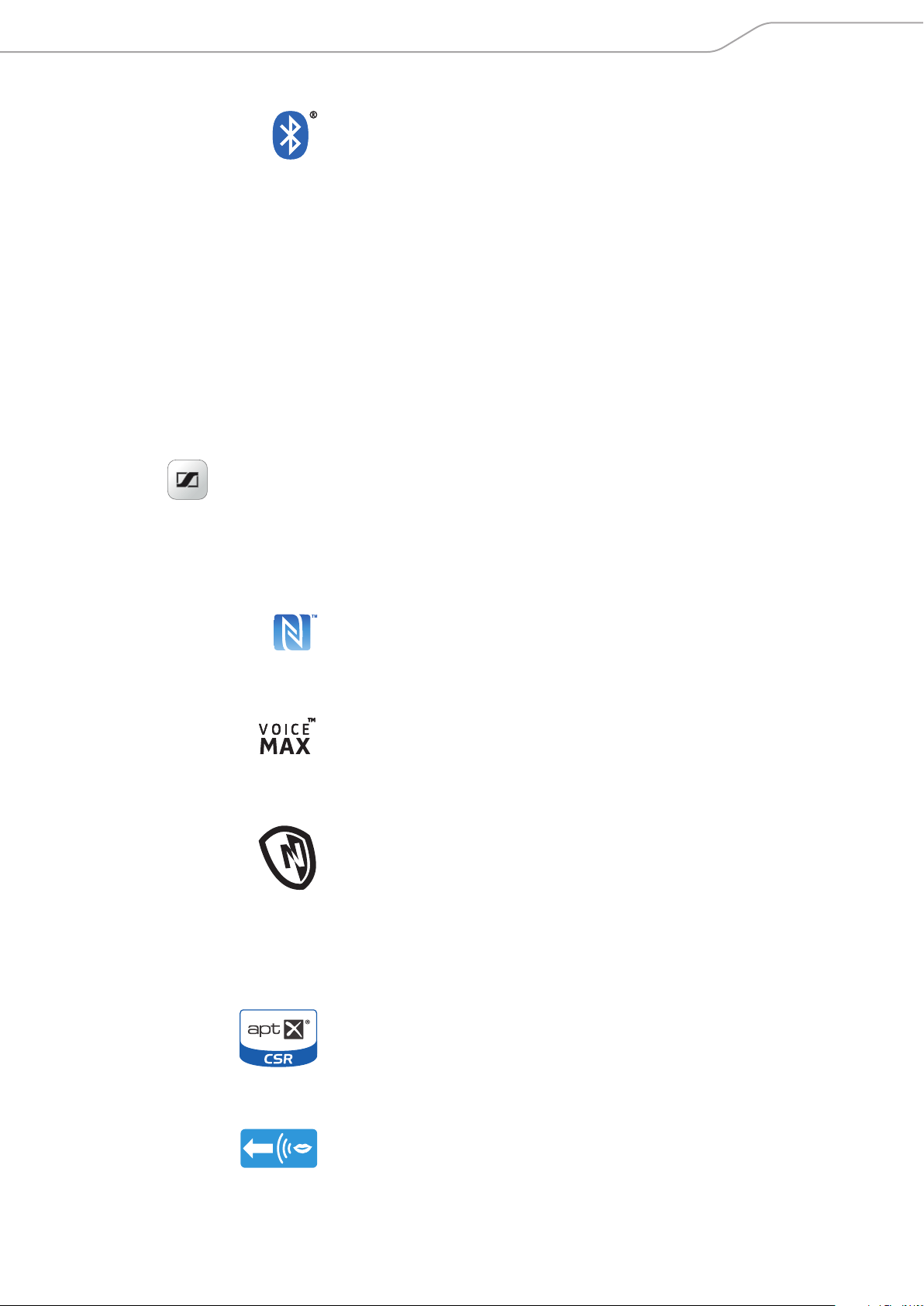
Bluetooth
The PXC 550 Wireless headphones comply with the Bluetooth technology 4.2
standard and are compatible with all Bluetooth 1.1, 1.2, 2.0, 2.1, 3.0, 4.0, 4.1
and 4.2 devices with the following profiles:
• Headset Profile (HSP) 1.2 – provides the basic functionalities used by the
headphones to interact with a Bluetooth smartphone.
• Hands-Free Profile (HFP) 1.6 – provides extra functionalities as compared
to the HSP. If a function, such as voice control, is not supported by the HSP
profile, the HFP takes place.
• Audio/Video Remote Control Profile (AVRCP) 1.5 – used to control music on
the Bluetooth device from the headphones (play, pause, skip music track,
etc.).
• Advanced Audio Distribution Profile (A2DP) 1.3 – used by a Bluetooth device
to stream high-quality stereo music to the headphones.
• Device ID Profile (DIP) 1.3 – used by the headphones to be identified, such as
by its manufacturer, product ID, product version, etc.
CapTune
CapTune is a music and device customization app designed to optimize the
performance of your PXC 550 Wireless headphones. Install CapTune to make
full use of the features of your headphones. Through CapTune, you can change
the sound mode to put emphasis on speech or music clarity, or to further
improve your call experience, among others. You can download CapTune for your
smartphone from the App Store or Google Play.
NFC
Near Field Communication (NFC) is a short-range wireless technology that
enables connection and communication between NFC-capable electronic devices
by placing them near one another or with a single touch.
VoiceMax
VoiceMax™ multi microphone technology filters away background noise.
3 microphones work in synergy; one to emphasize your voice, and the others to
remove the ambient noise.
NoiseGard
The NoiseGard™ hybrid Active Noise Cancellation system is a combination
of 2 noise-cancellation systems composed of a total of 4 microphones. Two
microphones with openings to the outside of the headphones work as a
Feed-Forward active noise cancellation system that reduces noise in the high-
frequency band, while the other two microphones inside the headphones work
as a Feed-Back active noise cancellation system that reduces noise in the low-
frequency band. The combination of these 2 microphone systems results in a
broad reduction in noise covering a wider band of frequencies.
aptX®
With aptX® audio coding, you can be assured of crisp, pure and full stereo
sound. It allows you to not only hear, but experience and feel the audio as it was
intended. Utilizing aptX®, Bluetooth technology can now offer wireless audio
quality that is indistinguishable from the highest quality wired connection.
TalkThrough
The TalkThrough function on the PXC 550 Wireless allows you to communicate
with other people without having to remove the headphones. When TalkThrough
is activated, professional quality microphones mounted on the outside of the
headphones pick up acoustic signals in the immediate vicinity, allowing the
voice of the other person to pass through the headphones.
CapTune
6 | PXC 550
Package includes
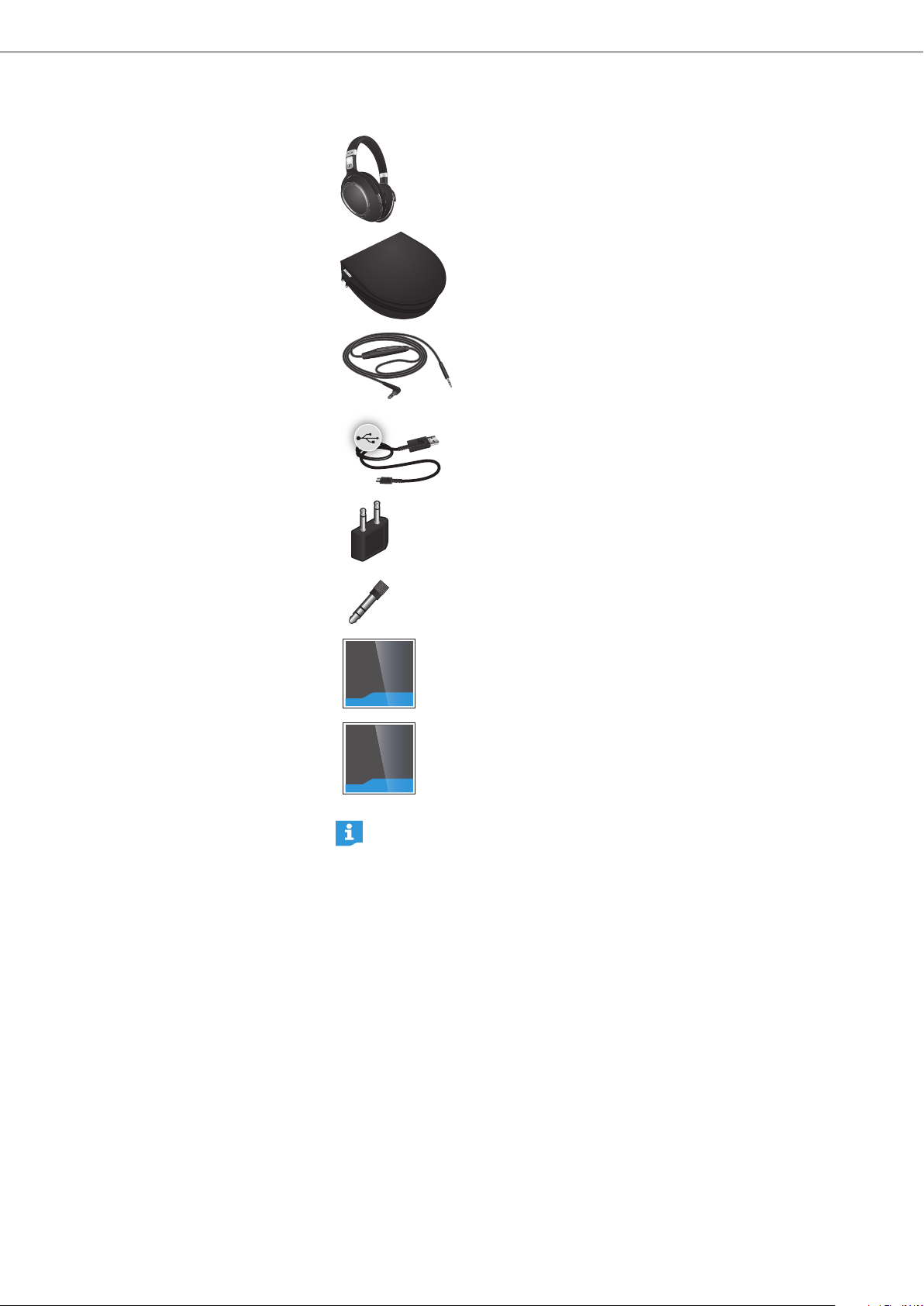
Package includes
Headphones
Carry case
Audio cable with answer/end button
(2.5 mm and 3.5 mm jack plug)
USB cable with micro-USB connector
In-flight adapter
3.5 mm to 6.3 mm adapter
Quick guide
Quick guide
Safety guide
Safety guide (with Compliance Information sheet)
A list of accessories can be found at www.sennheiser.com. For information
on suppliers, contact your local Sennheiser partner: www.sennheiser.com>
“Sales Partner“.
PXC 550 | 7
Product overview
Product overview
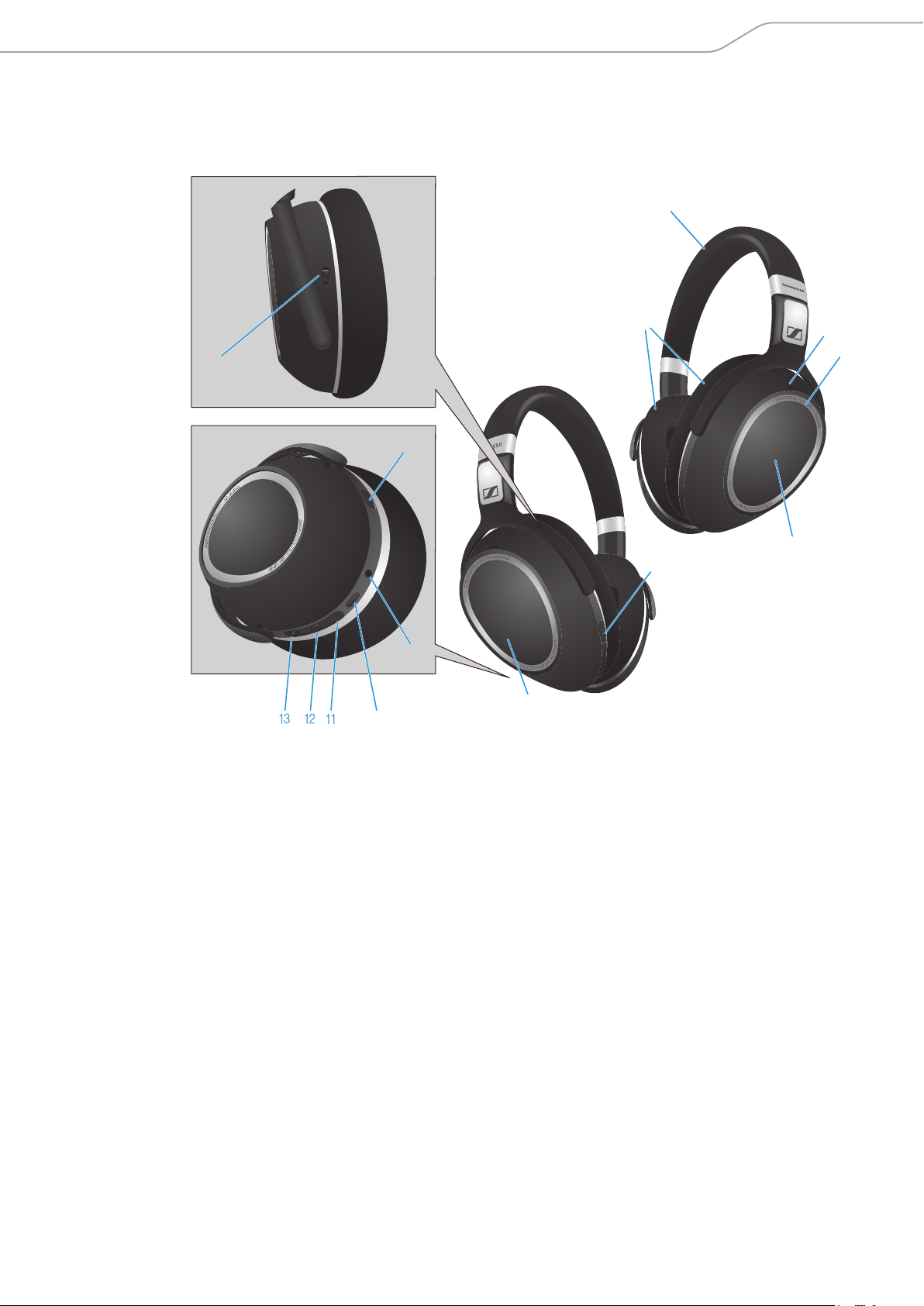
Overview of the headphones
1 Headband 7 Bluetooth on/off switch
2 Ear pads 8 Touch pad (right ear cup)
3 Ear cups 9 Audio input
4 ANC microphones (4 qty) 0 Micro-USB input
5 NFC panel
A LED display
6 Speech microphones (3 qty)
B Effect Mode Control button
C NoiseGard/ANC control switch
2
1
Left
L
4
8
Right
R
Right
R
3
0
6
0
0
see
9
5
6
0
7
Right
R
8 | PXC 550
Product overview
Overview of pictograms
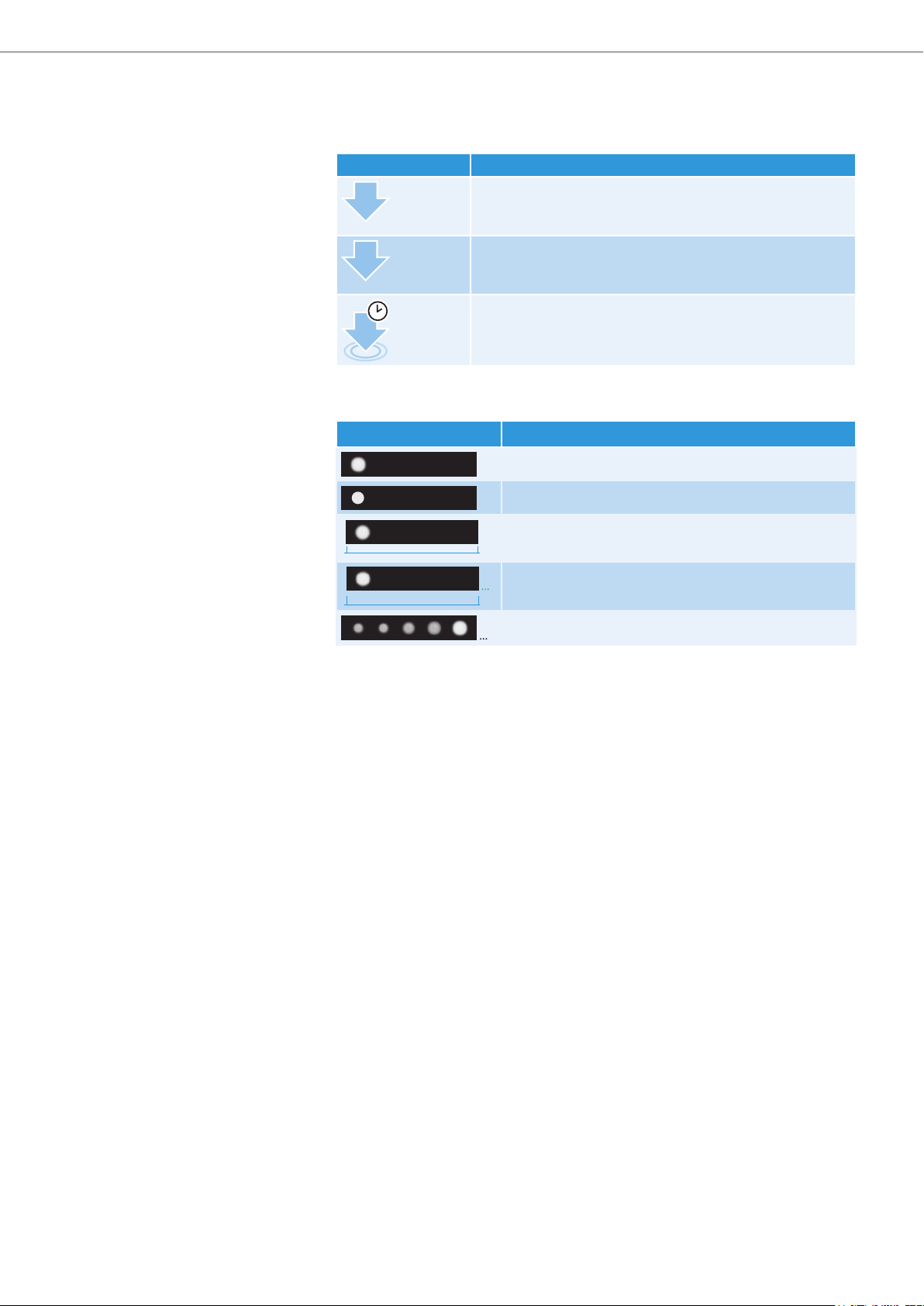
Pictograms for tapping the touch pad
Pictogram Meaning
1x
Tap once and immediately release your finger
2x
Tap twice and immediately release your finger
2s
Tap and hold for 2 seconds
Pictograms for the LEDs
Pictogram Meaning
Blurred light indicates that the LED is flashing
Clear light indicates that the LED is lit steadily
3x
2s
The LED flashes x times in x seconds
Example: The LED flashes 3 times in 2 seconds
5s
The LED flashes continuously for x seconds
Example: The LED flashes continuously for 5 seconds
The LEDs flash in sequence continuously
PXC 550 | 9
Product overview
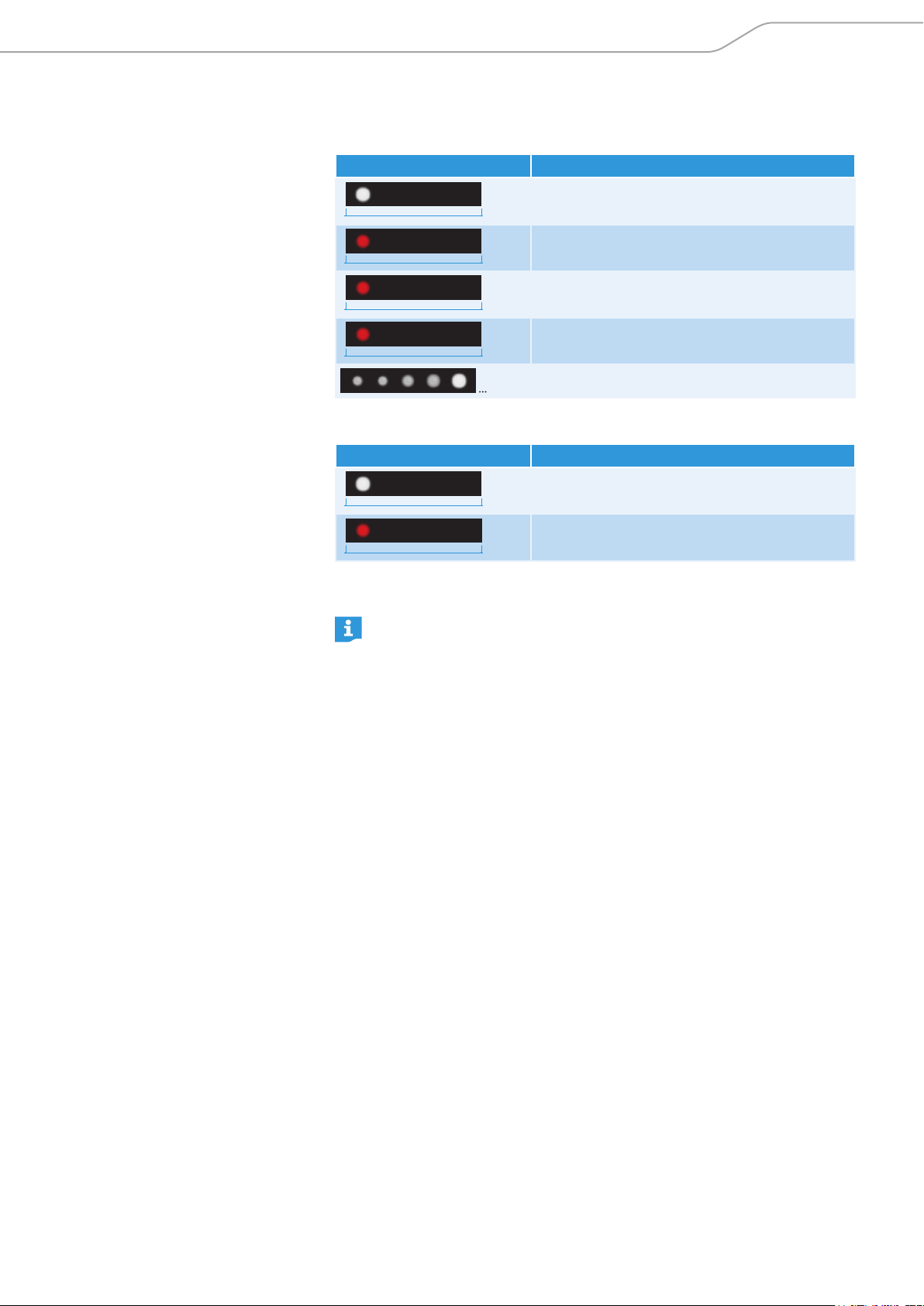
Overview of LED indicators
LED indications during operation
LED Meaning
3x
0.55s
The headphones switch on
Pairing with a device is successful
3x
0.55s
The headphones switch off
3x
0.55s
The headphones are disconnected from the
device
3x
0.55s
The paired devices are permanently removed
from the headphones
The headphones are in pairing mode
LED indications during calls
LED Meaning
2s
3x
Incoming call
2s
3x
Incoming call with an almost empty battery
The pictogram “i“
Notes marked with the pictogram “i” provide useful information on the use
of the headphones.
10 | PXC 550
Product overview
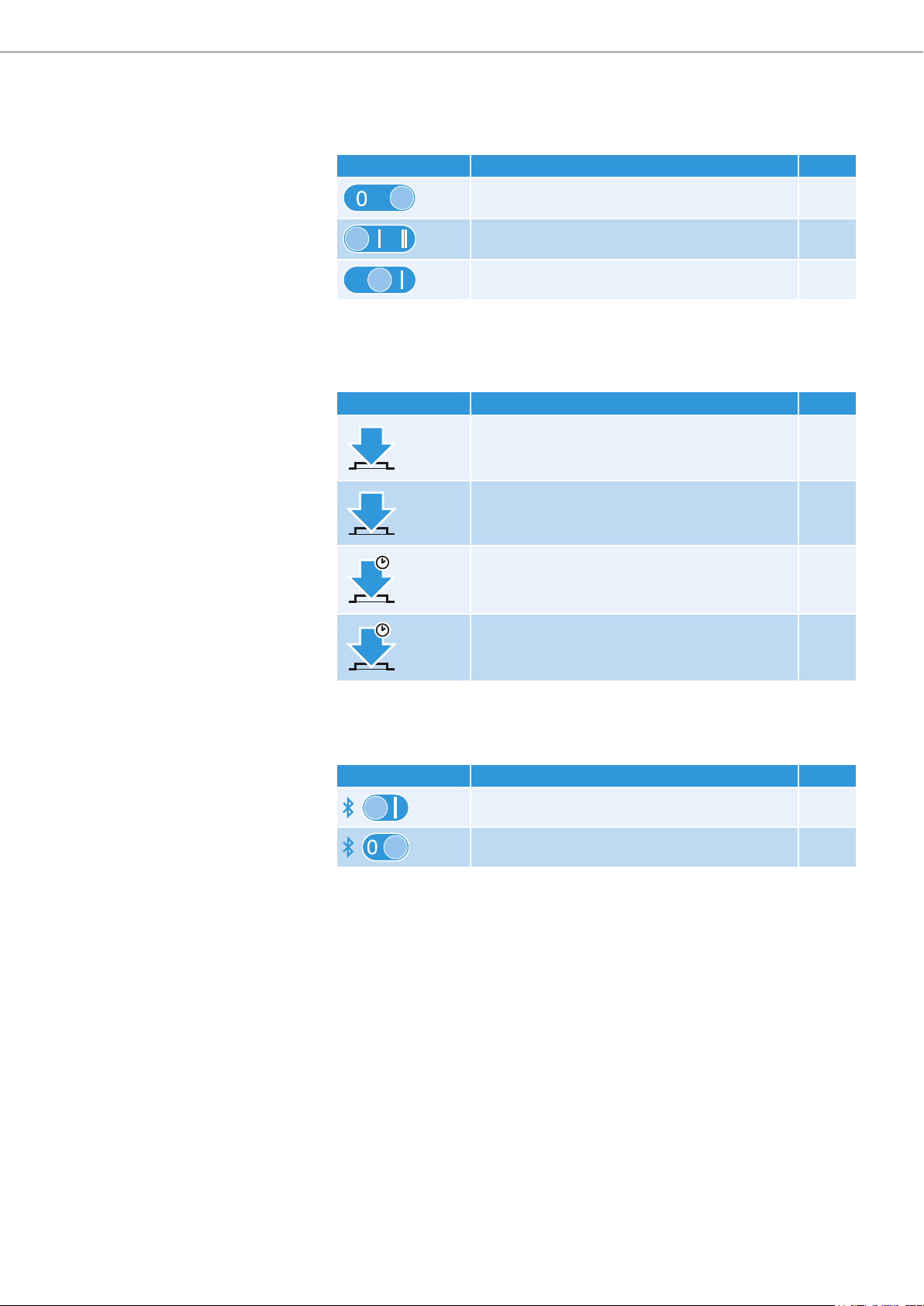
Overview of buttons and switches
NoiseGard/ANC control switch
Position Function Page
NoiseGard is off 25
NoiseGard is on 25
NoiseGard is in Adaptive mode 25
Effect Mode Control button
Press Function Page
1x
Toggles you to the next sound effect
(except when making calls)
27
1x
Activates/deactivates the Call Enhancement
feature for more comfortable calls
28
4s
Advises you of the active sound effect mode
(while playing/streaming audio)
27
4s
Activates the manual Bluetooth pairing mode 19
Bluetooth on/off switch
Position Function Page
Bluetooth is active 38
Bluetooth is inactive 38
PXC 550 | 11
Product overview
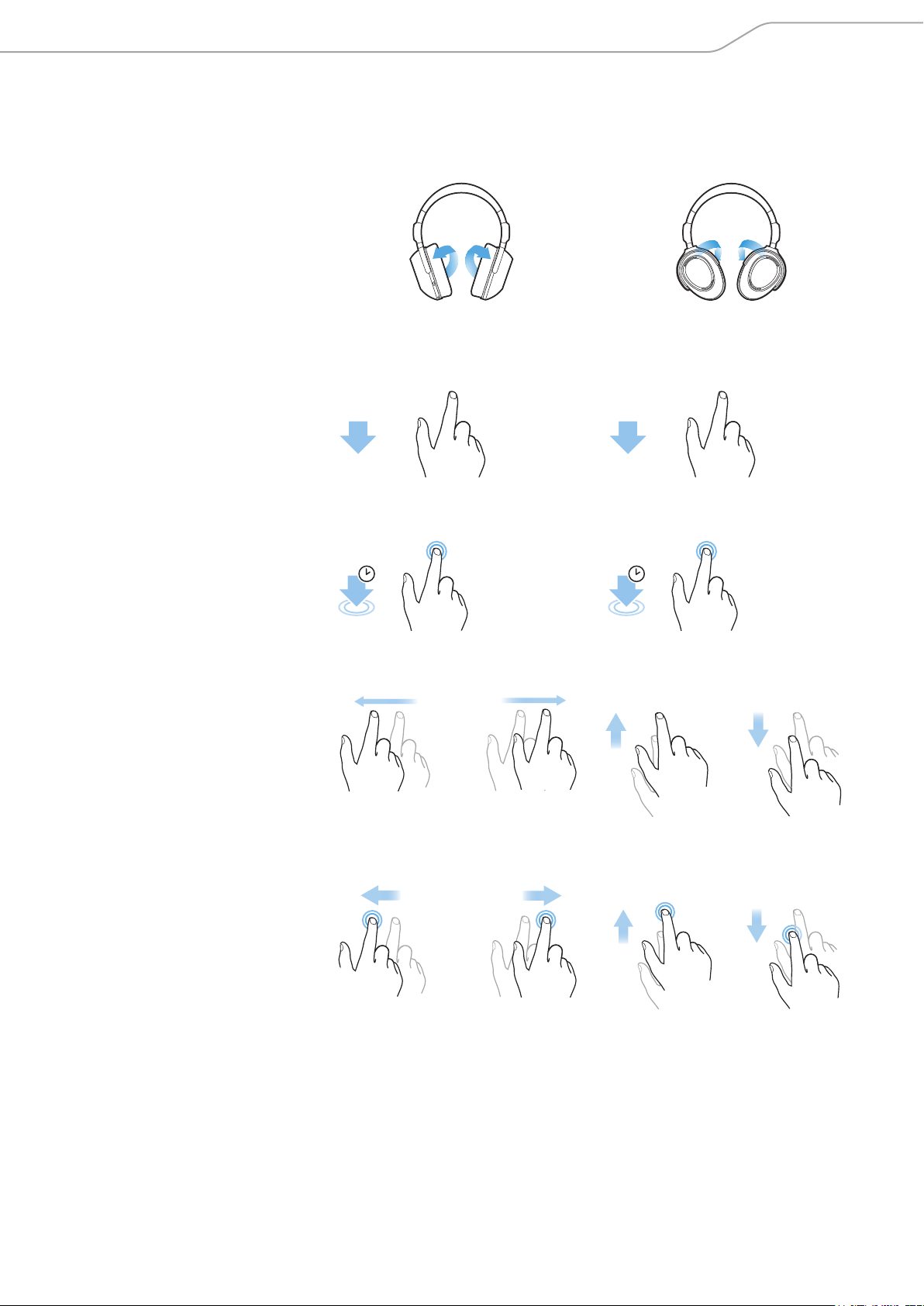
Overview of gesture controls
Basic gesture controls
Switch on Switch off
Gesture controls on the touch pad
Tap once on the touch pad Tap twice on the touch pad
1x 2x
Tap and hold for 2 seconds Tap and hold for 3 seconds
2s 3s
Horizontal swipes Vertical swipes
Horizontal swipes and hold Vertical swipes and hold
+ HOLD
+ HOLD
+ HOLD
+ HOLD
12 | PXC 550
Product overview
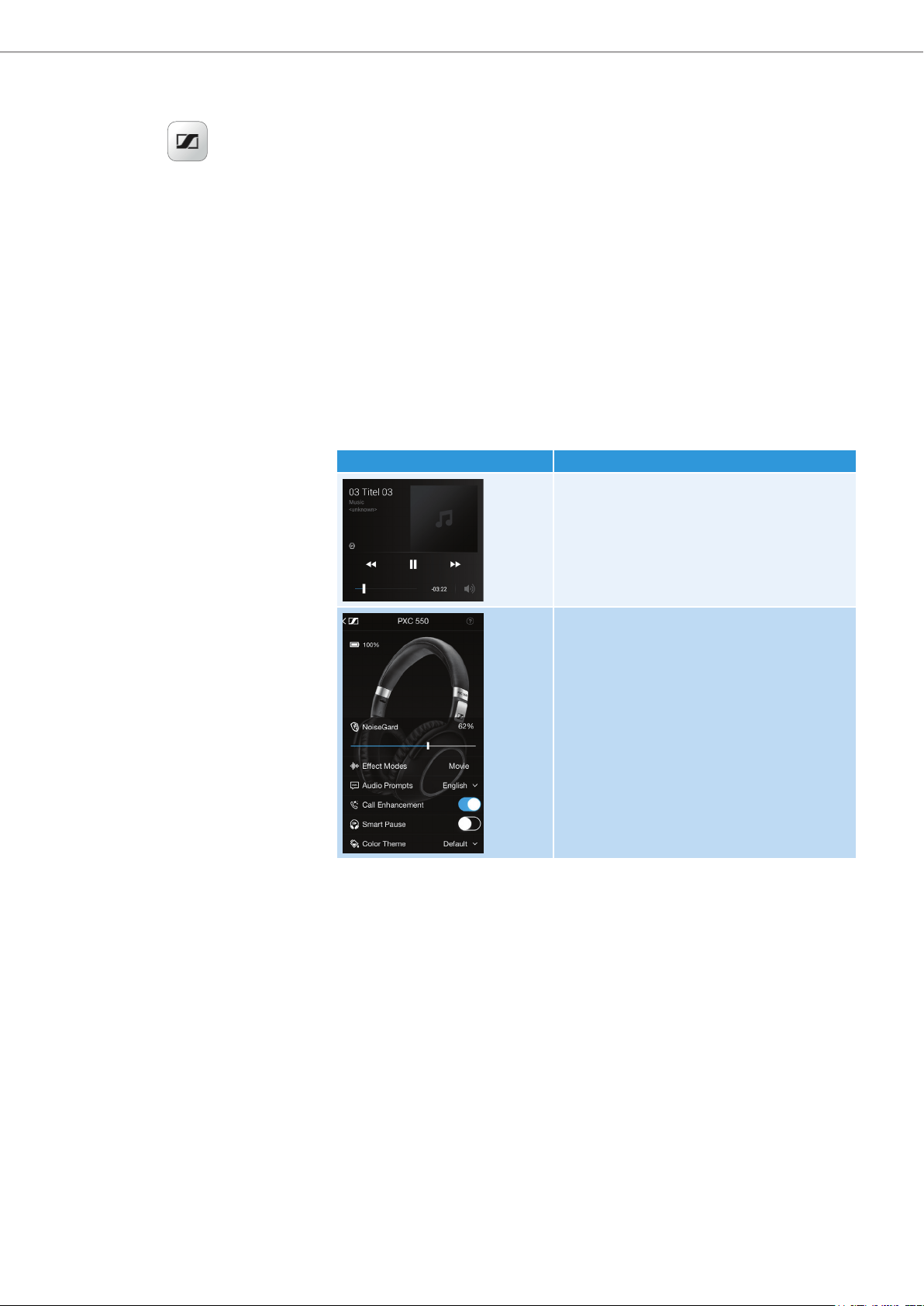
Overview of CapTune
CapTune is a music and device customization app designed to optimize the
performance of your PXC 550 Wireless headphones. Using the app allows you to
control the features and the sound of the headphones from your smartphone.
Using CapTune, you can perform the following operations among others:
• Control and display supported media content
• Play music streaming services, such as TIDAL, directly within CapTune
• Personalize and optimize the sound of your headphones with different sound
effect modes
• Adjust NoiseGard according to your comfort level
• Change Audio Prompts
• Activate Call Enhancement for clearer and more comfortable calls
• Play/pause music or accept/end calls instantly with Smart Pause
• View the remaining battery life of the headphones
The appearance of the app may vary depending on the device and operating
system used.
Sample screen Functions
Music Player
• Local media content
• Streaming services
• Playlists
Special features of PXC 550 Wireless
• Adjustable NoiseGard parameters
• Call Enhancement
• Smart Pause
• Change Audio Prompts
CapTune
PXC 550 | 13
Product overview
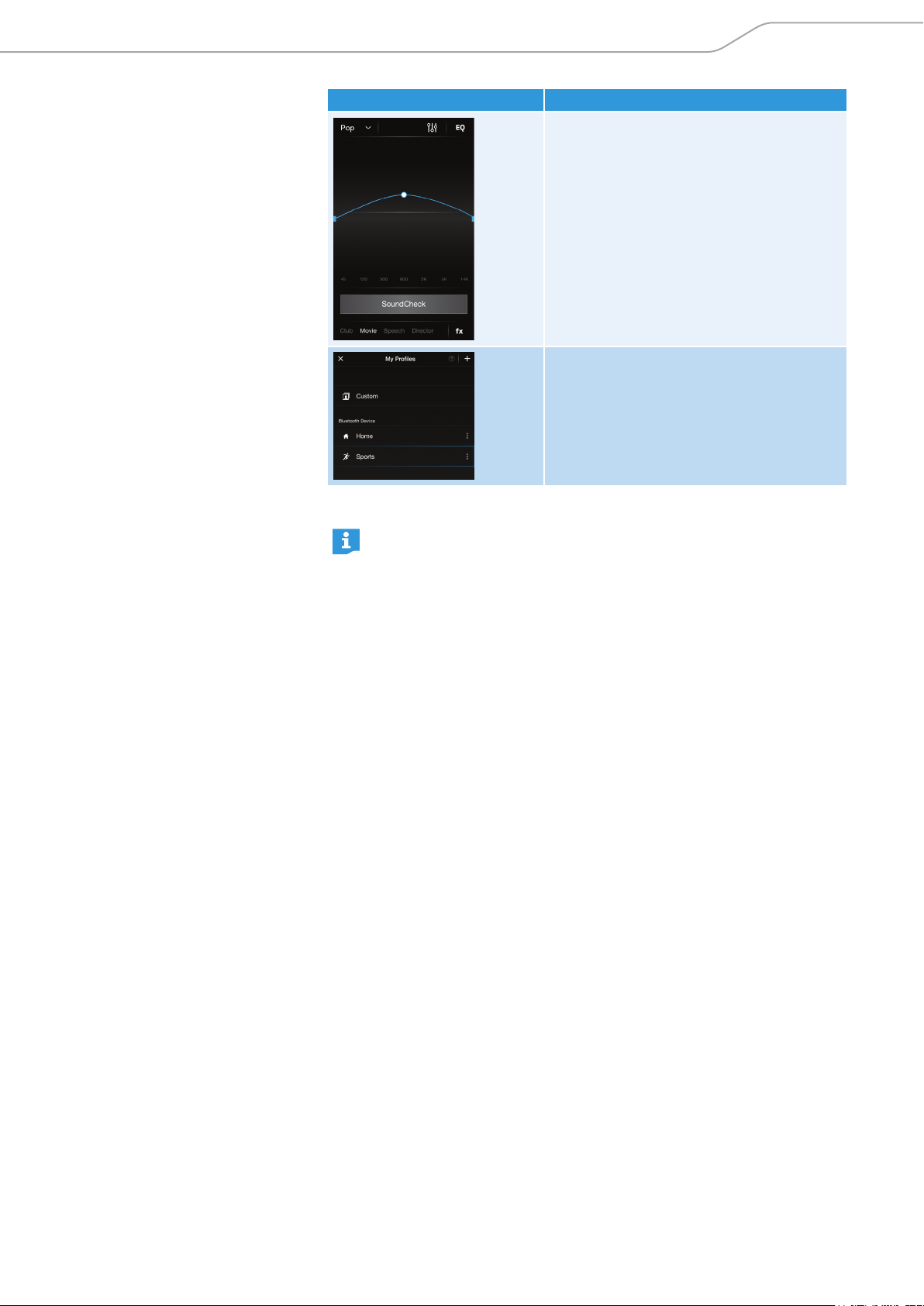
Sample screen Functions
Sound adjustments
• Equalizer
• Presets
• SoundCheck
• Select and configure sound effect modes
(PXC 550 Wireless only)
Profiles
• Customize profile settings
• One-click reload of previously configured
playlists and sound settings tailored for
specific applications such as sports
While the PXC 550 Wireless is optimized for use with CapTune, you can
still play content from other music players/streaming apps as usual. If
you use other music players or apps, CapTune simply turns into a sound
setting and remote control for the PXC 550 Wireless headphones.
Overview of Audio Prompts
By factory default, voice prompts are activated in English.
With CapTune, you can use voice and/or tones as response prompts when
performing an action. If voice prompts are activated, you can replace the default
language with any of the following supported languages:
– German
– French
– Spanish
– Chinese (Mandarin)
– Japanese
– Russian
– Korean
14 | PXC 550
Getting started
Getting started
The following steps assume that the headphones are straight out of the
packaging, or that the features of the headphones have not been enhanced
using CapTune.
The response of the headphones on the procedures specified in this instruction
manual may change if some features have been activated or deactivated in
CapTune.
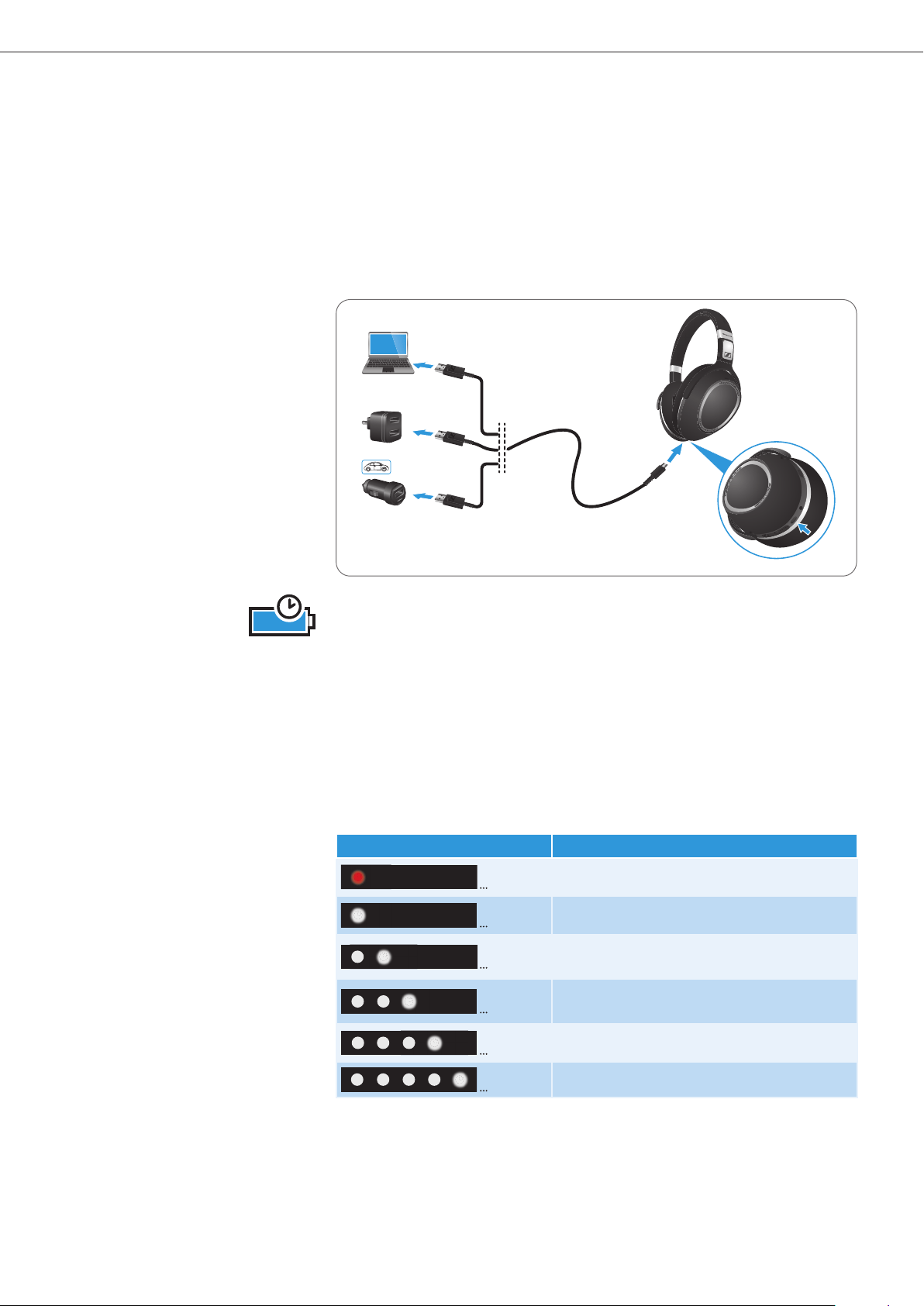
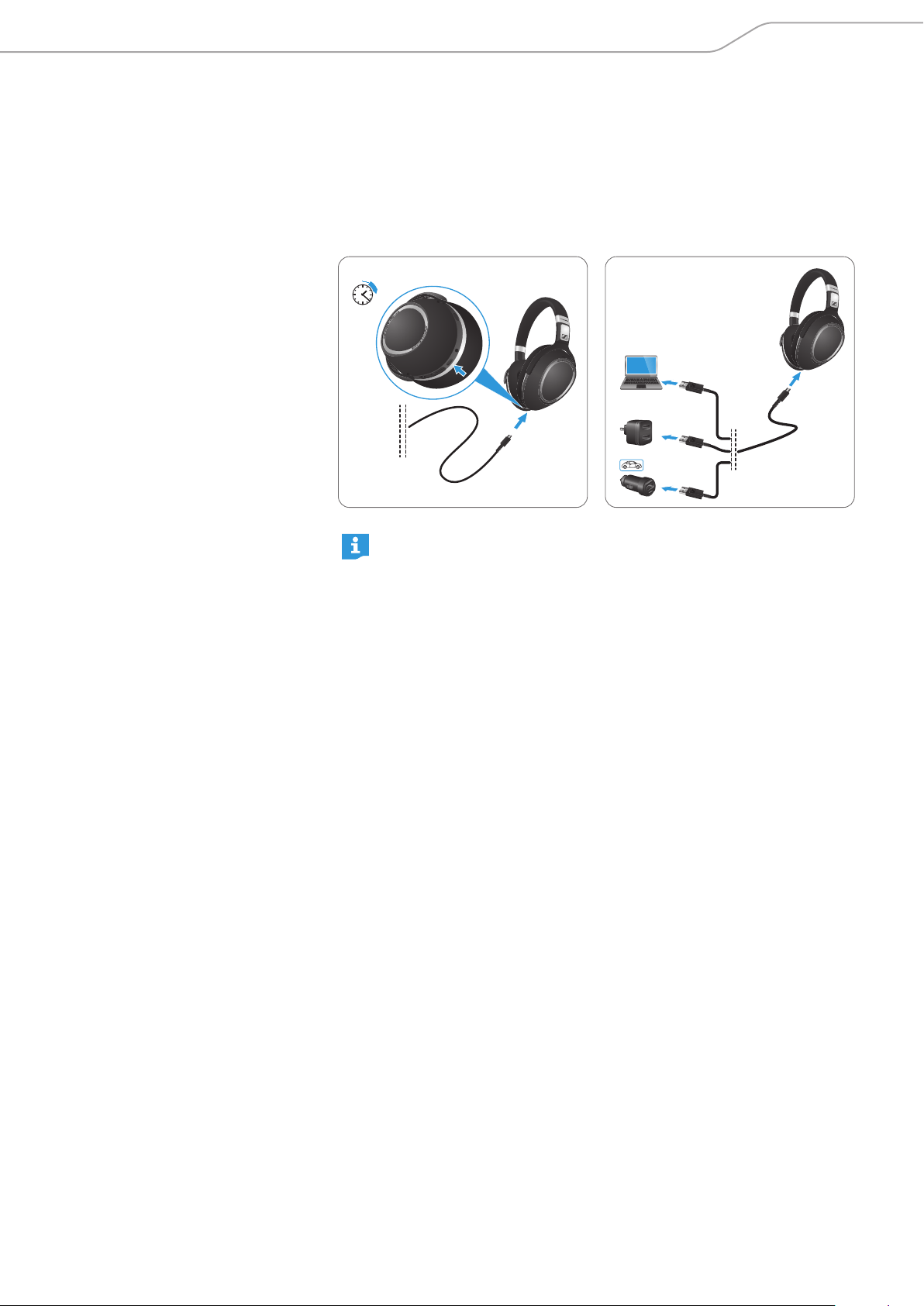
Charging basics
*
Accessories not included.
*
*
*
A complete charging cycle takes about 3 hours. Before using the headphones
for the first time, charge the headphones for a complete charging cycle without
interruption.
When being charged, the LED display lights up as indicated in the following
table. When the battery charge drops to a low level, a voice prompt asks you to
recharge the headphones.
It is recommended to charge the headphones using only the supplied USB
cable. If you charge the headphones using an external USB power adapter, it
is recommended to use an adapter with an output rating of 500 mA or higher.
You can continue playing music or making calls on your smartphone using
Bluetooth while the headphones are being charged.
3h
LED display Meaning
Battery is almost empty
(less than 2% charged)
Battery is about 2-20% charged
Battery is about 20-40% charged
Battery is about 40-60% charged
Battery is about 60-80% charged
Battery is more than 80% charged
PXC 550 | 15
Getting started
Charging the headphones
You can charge the headphones regardless of their power state (on or off).
1. Connect the micro-USB plug of the charging cable to the micro-USB input of
the headphones.
2. Connect the USB plug to the USB port of your computer. If you are using an
external power adapter, connect the USB plug to the power adapter or to the
USB car charger adapter, and connect to the power source.
The LEDs flash/light up depending on the battery life of the headphones.
3 h
CHARGING TIME
*
*
*
Accessories not included.
*
For faster charging, charge the headphones while they are switched
off. For more information on playing music using the USB cable,
see page 31.
16 | PXC 550
Getting started
Installing CapTune
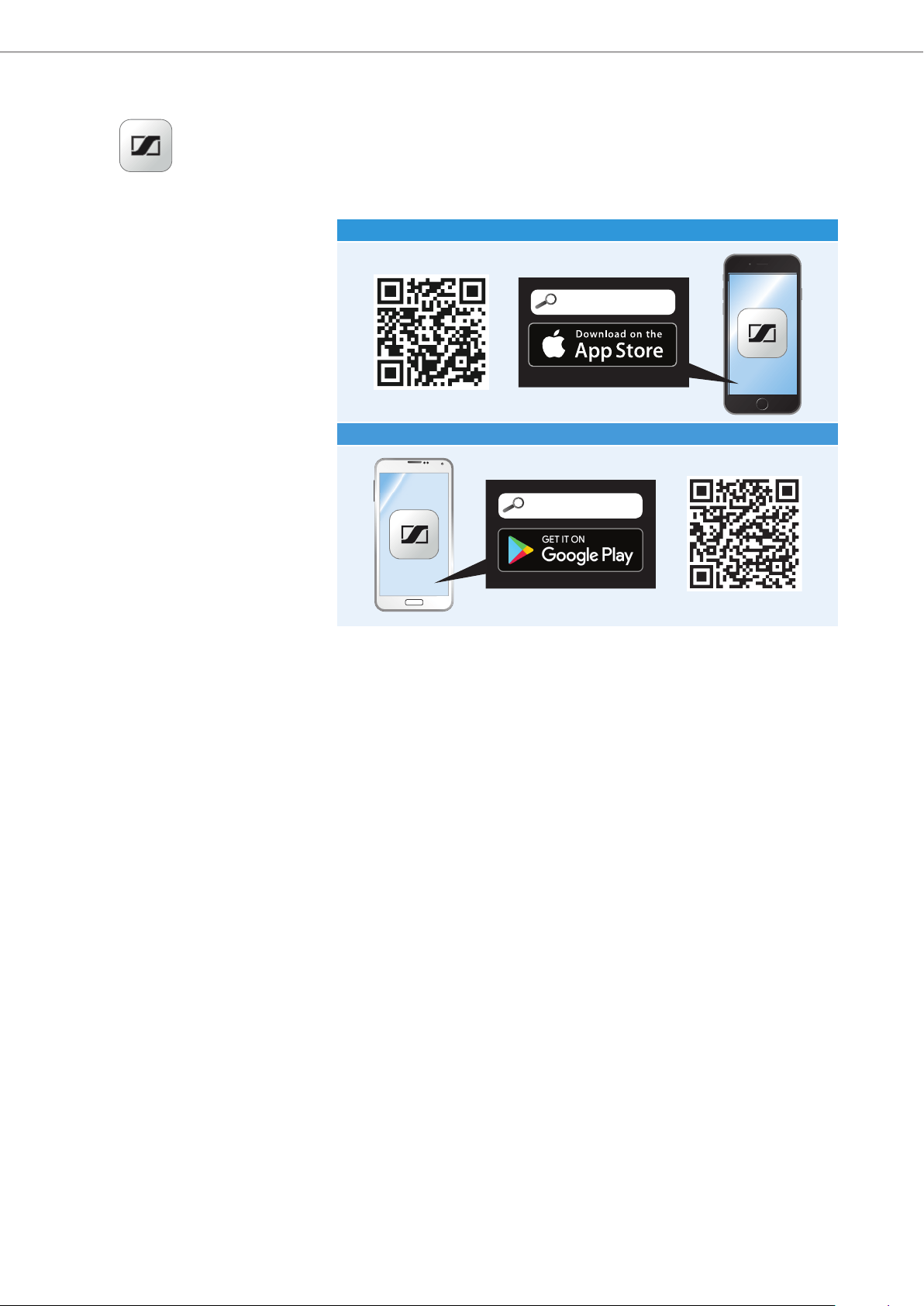
To make full use of all the features of your PXC 550 Wireless headphones, install
the free CapTune app from the App Store or Google Play.
X Download the app from the App Store or Google Play. Optionally, depending
on your smartphone, you can scan the following QR code.
iPhone
CapTune
Android
CapTune
X Connect your smartphone to the PXC 550 Wireless headphones using
Bluetooth (see page 17).
X Start CapTune.
CapTune recognizes the PXC 550 Wireless and activates the features that are
compatible with your headphones.
CapTune
PXC 550 | 17
Getting started
Pairing the headphones
CAUTION
Danger of malfunction!
The transmitted radio waves of mobile phones can impair the
operation of sensitive and unprotected devices.
X Only make calls with the headphones in locations where Bluetooth
is permitted.
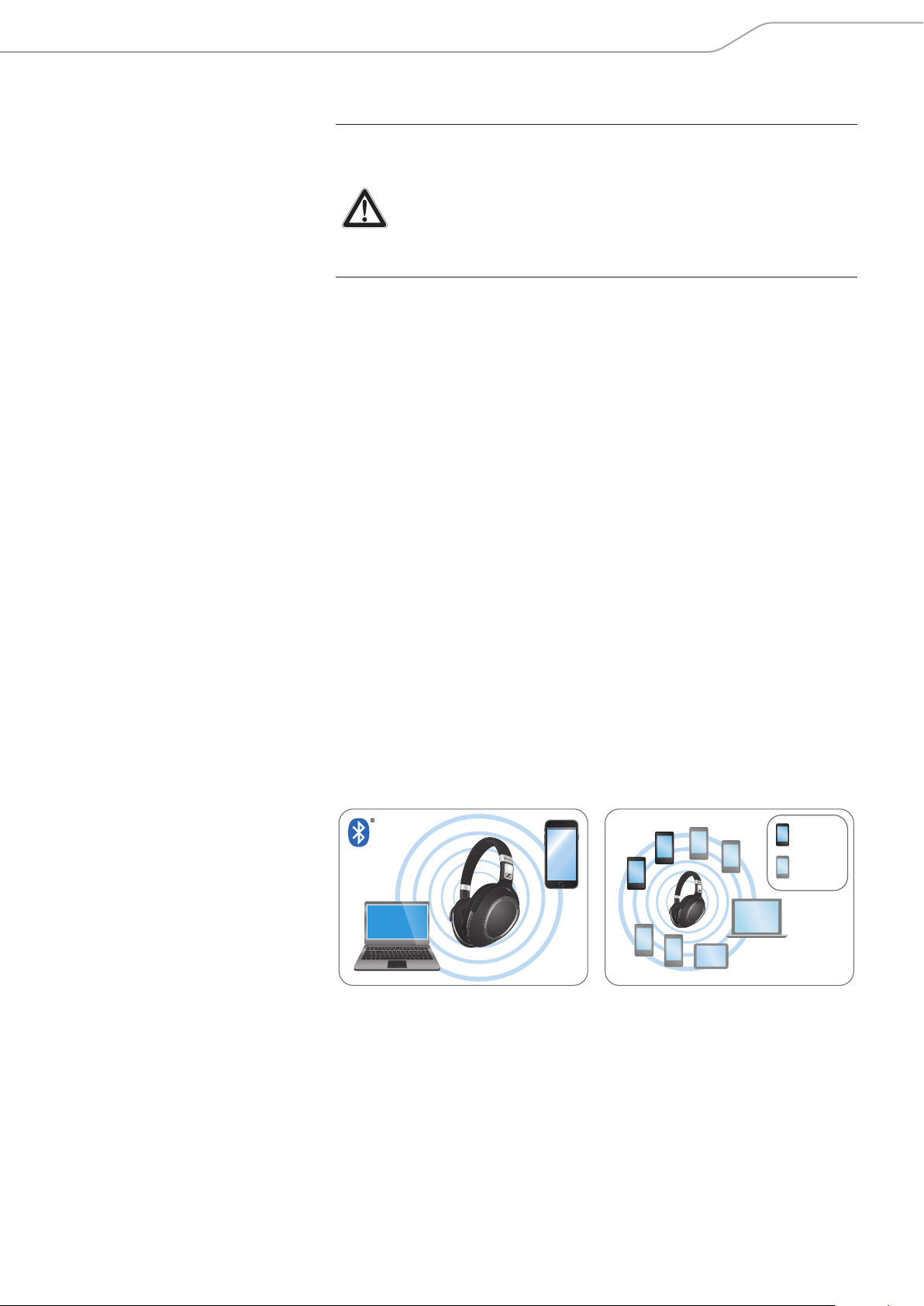
To pair your headphones with a Bluetooth device, you can use NFC or the
Bluetooth search function. In order that a connection between the headphones
and a Bluetooth device can be established, Bluetooth must be activated on both
your headphones and the device.
The PXC 550 Wireless headphones comply with the Bluetooth 4.2 standard.
In order that data can be transmitted wirelessly using Bluetooth, you have to
pair your headphones with a compatible Bluetooth device that supports the
following profiles:
X Hands Free Profile (HFP)
X Headset Profile (HSP)
X Audio/Video Remote Control Profile (AVRCP)
X Advanced Audio Distribution Profile (A2DP)
X Device ID Profile (DIP)
When you switch the headphones on for the first time, they automatically go to
pairing mode. If the headphones have already been paired with a few devices,
they automatically try to connect to the last two connected Bluetooth devices
when switched on.
The headphones can save the connection profiles of up to
eight Bluetooth devices with which they have been paired.
If you pair the headphones with the ninth Bluetooth device, the saved connection
profile of the least used Bluetooth device will be overwritten. If you want to re-
establish a connection with the overwritten Bluetooth device, you have to pair
that device back with the headphones.
You can instantly pair the headphones with your device if the device supports
NFC.
paired
paired +
connected
18 | PXC 550
Getting started
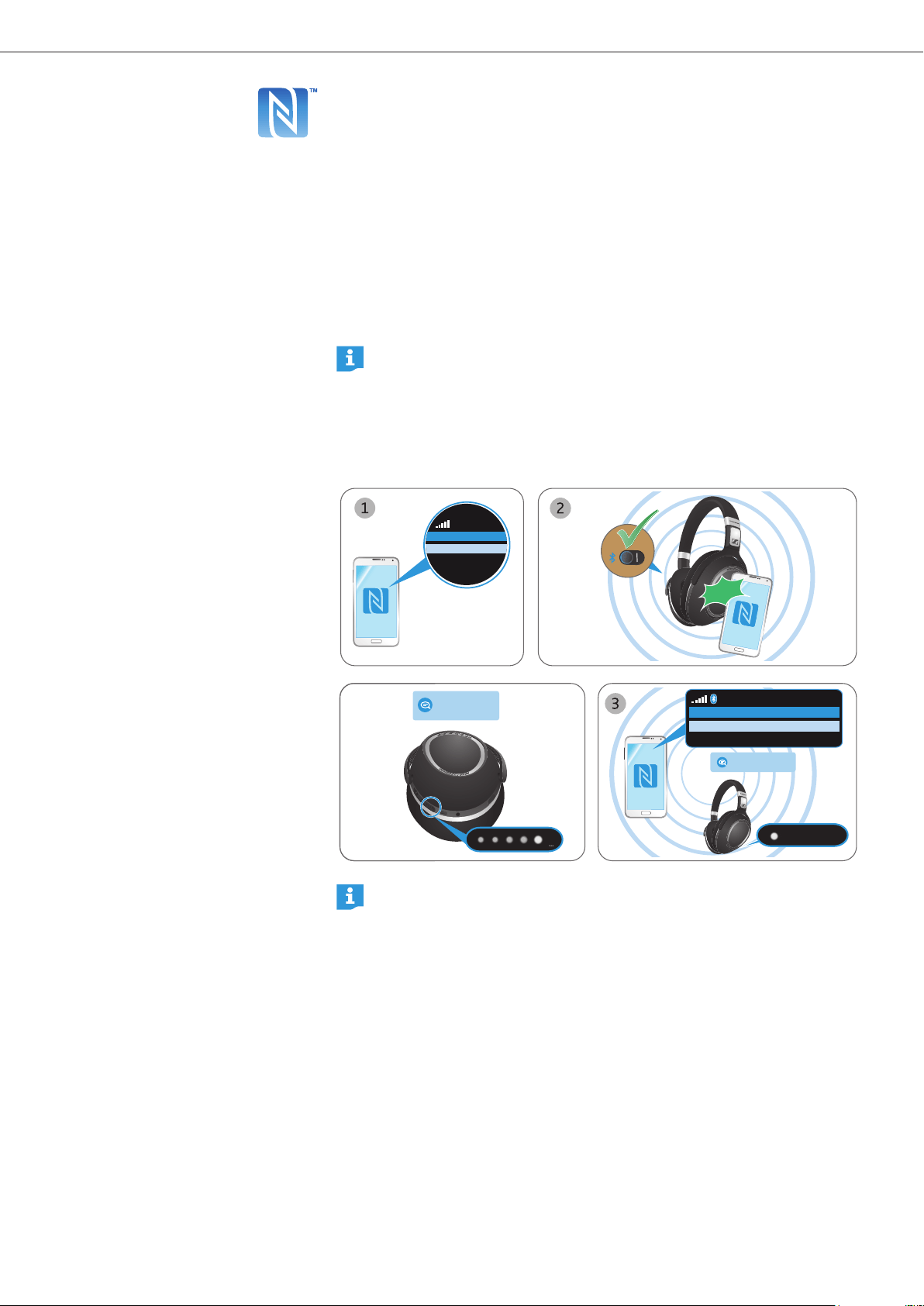
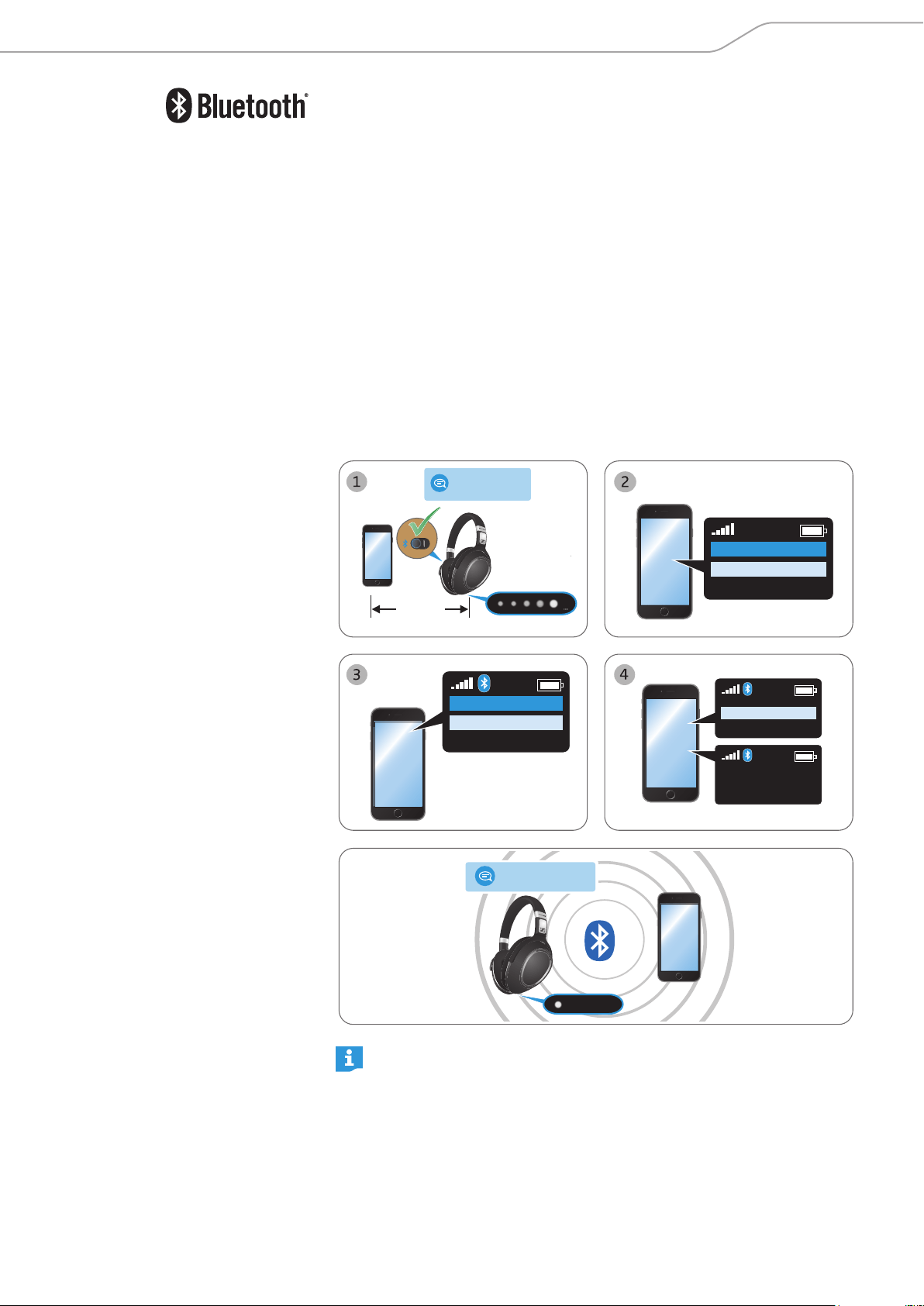
Pairing the headphones with a Bluetooth device using NFC
The following sections describe, using a smartphone as an example, how to pair
your PXC 550 Wireless headphones with a Bluetooth device using NFC. If the
instructions provided do not work on your device, proceed as described in the
instruction manual of the device.
Switch the headphones on and ensure that Bluetooth is activated on the
headphones when performing this procedure.
1. Activate NFC on your smartphone.
2. Scan the smartphone to the NFC panel on the left ear cup of the
headphones.
The LEDs flash white in sequence and you hear the voice prompt “pairing”.
The headphones are in pairing mode.
At this point, if you decide to cancel pairing, press the Effect Mode Control
button once. You hear the voice prompt “pairing cancelled” after a few
seconds.
3. Click “Yes” if the pairing confirmation dialog appears on the screen of your
smartphone (this step may vary depending on your smartphone).
If pairing was successful, you hear the voice prompt “connected”. The LED
flashes white 3 times.
Menu
NFC off
› power on ‹
› pairing ‹
Menu
NFC on
NFC off
Connect to Bluetooth device?
Yes
No
› connected ‹
Left
L
3X
scan
If no connection is established, you hear the voice prompt “no device
found”. After trying to connect for 5 minutes, pairing mode is terminated
and the headphones return to the disconnected state. Restart the
headphones by switching them off and on again, and repeat the pairing
procedure.
PXC 550 | 19
Getting started
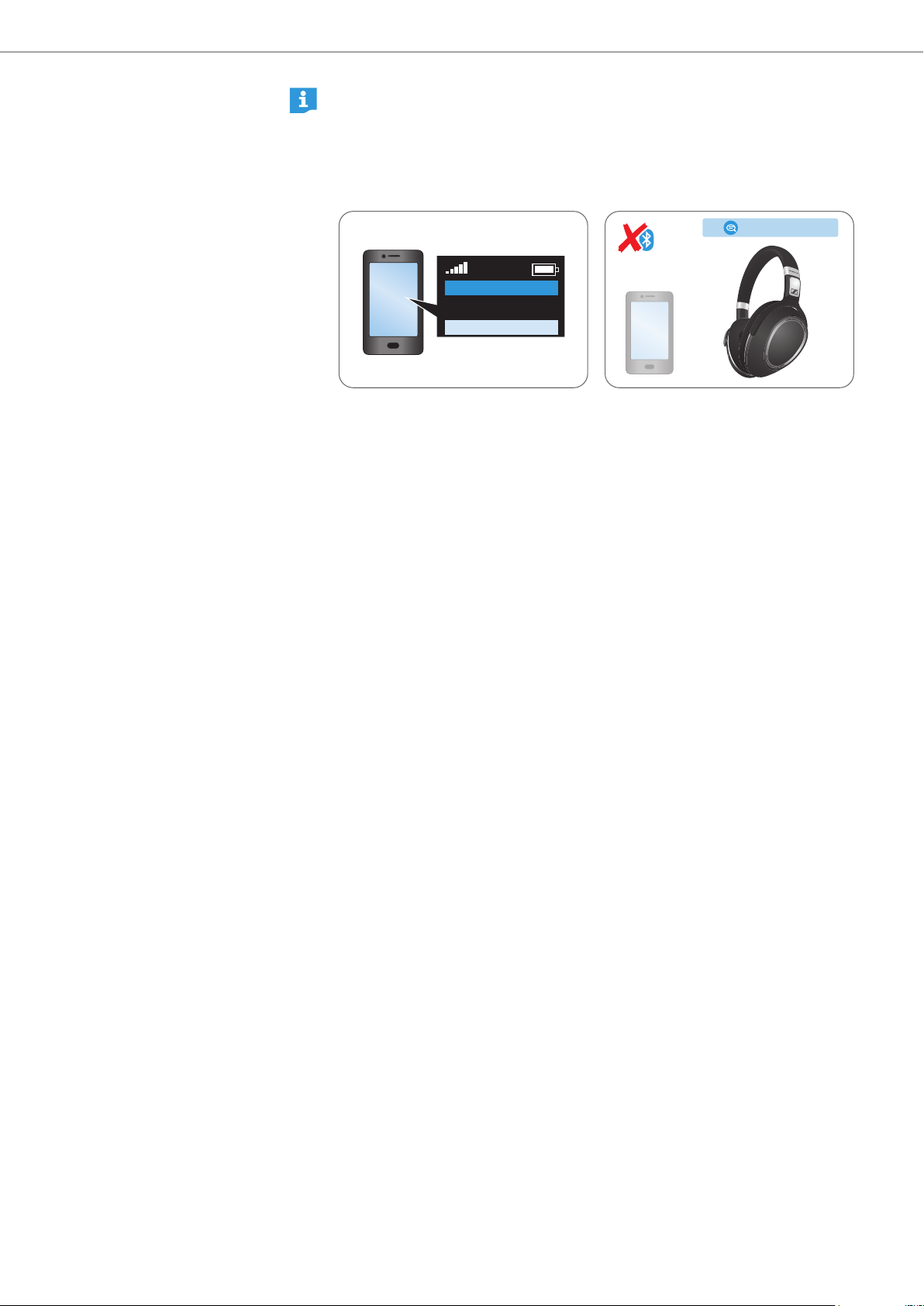
Pairing the headphones with a Bluetooth device
Ensure that the headphones are within the 20 cm range of your smartphone and
that Bluetooth is activated on the headphones when performing this procedure.
1. Switch the headphones on (see page 22).
– If you pair the headphones to the device for the first time, they automatically
go to the pairing mode.
– If the headphones don’t automatically go to pairing mode, press the Effect
Mode Control button for 4 seconds or until you hear tones and the voice
prompt “pairing”.
The LEDs flash white in sequence. The headphones are in pairing mode.
2. Activate Bluetooth on your smartphone.
3. On your smartphone, start a search for Bluetooth devices.
All active Bluetooth devices in the proximity of your smartphone are
displayed.
4. From the list of found Bluetooth devices, select “PXC 550”. If necessary, enter
the default PIN code “0000”.
If pairing was successful, you hear the voice prompts “pairing successful” and
“phone x connected”. The LED flashes white 3 times.
20 cm
› power on ‹
› pairing ‹
Menu
Bluetooth on
Bluetooth off
Menu
Add device
PXC 550
Keyword: 0000
PXC 550
› connected ‹
3X
If no connection is established, you hear the voice prompt “no device
found”. After trying to connect for 5 minutes, pairing mode is terminated
and the headphones return to the disconnected state. Restart the
headphones by switching them off and on again, and repeat the pairing
procedure.
20 | PXC 550
Getting started
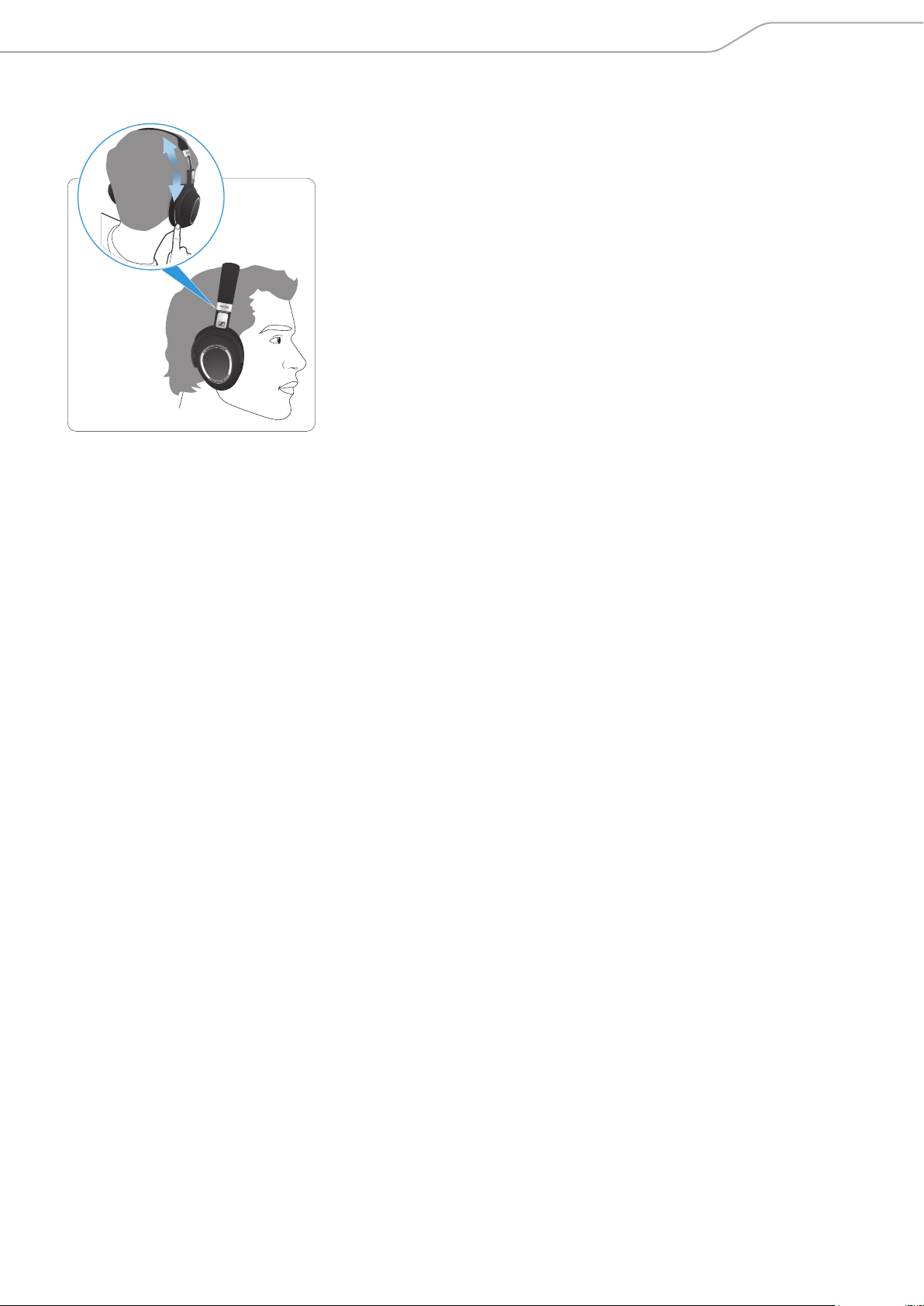
Disconnecting the headphones from your Bluetooth device
X
Deactivate Bluetooth on your smartphone.
The headphones are disconnected from the smartphone, and you hear the
voice prompt “phone x disconnected”. The headphones then search for
previously paired devices. If no device is found, you hear the voice prompt
“no device found” after a few minutes.
› disconnected ‹
Menu
Bluetooth on
Bluetooth off
PXC 550 | 21
Getting started
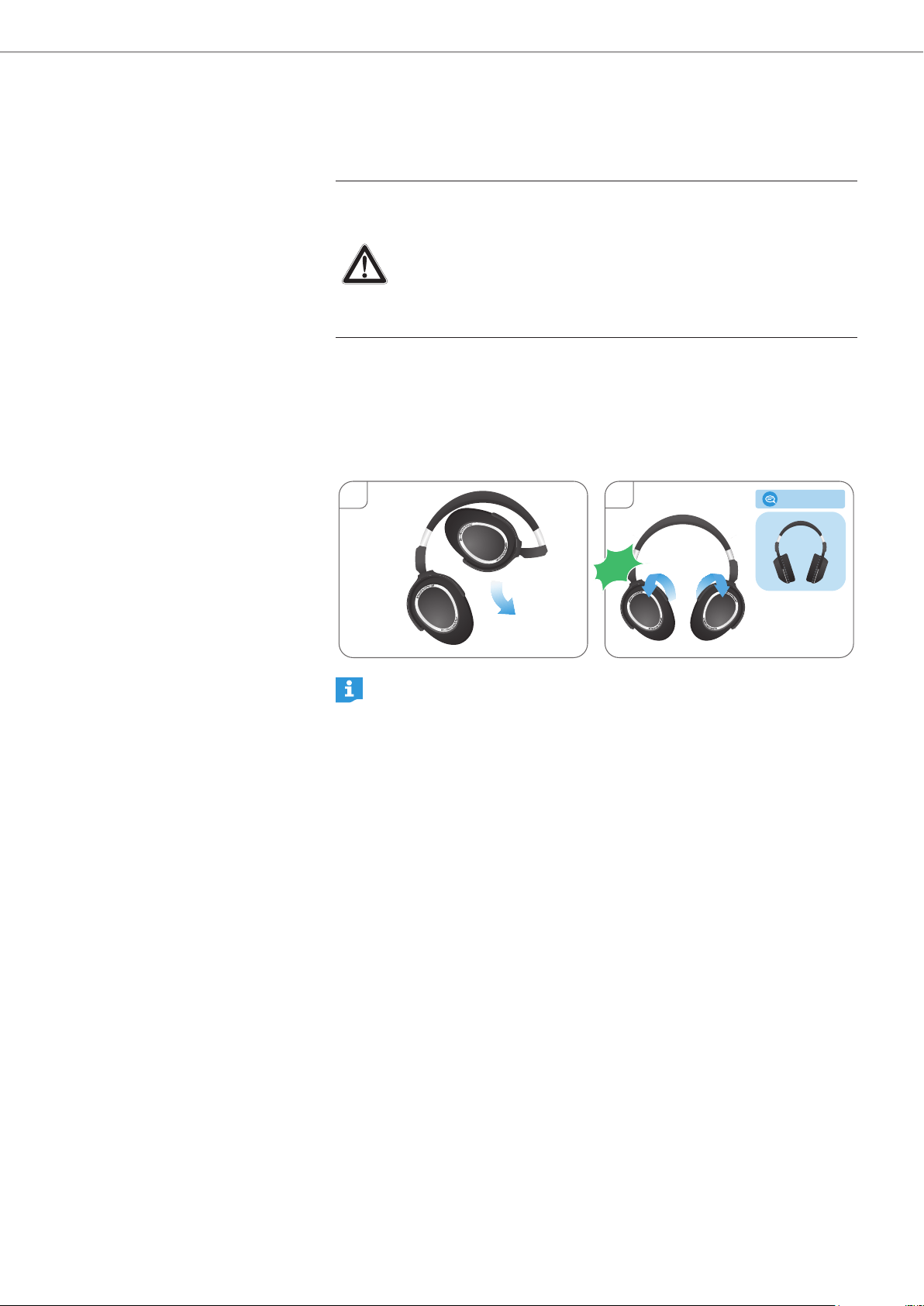
Adjusting the headband
For good sound quality and best possible wearing comfort, you can adjust the
ear pad location on the headband to properly match the size of your head.
X Wear the headphones so that the headband runs over the top of your head.
X Adjust the location of the ear pads by moving the ear cups up and down the
headband slider until:
– your ears are comfortably covered by the ear pads,
– you feel even, gentle pressure around your ears,
– a snug fit of the headband on the head is ensured.
22 | PXC 550
Using the headphones
Using the headphones
Switching the headphones on
WARNING
Danger due to high volume levels!
Listening at high volume levels for long periods of time can lead to
permanent hearing defects.
X Before putting the headphones on, set the volume to a low level.
X Do not continuously expose yourself to high volume levels.
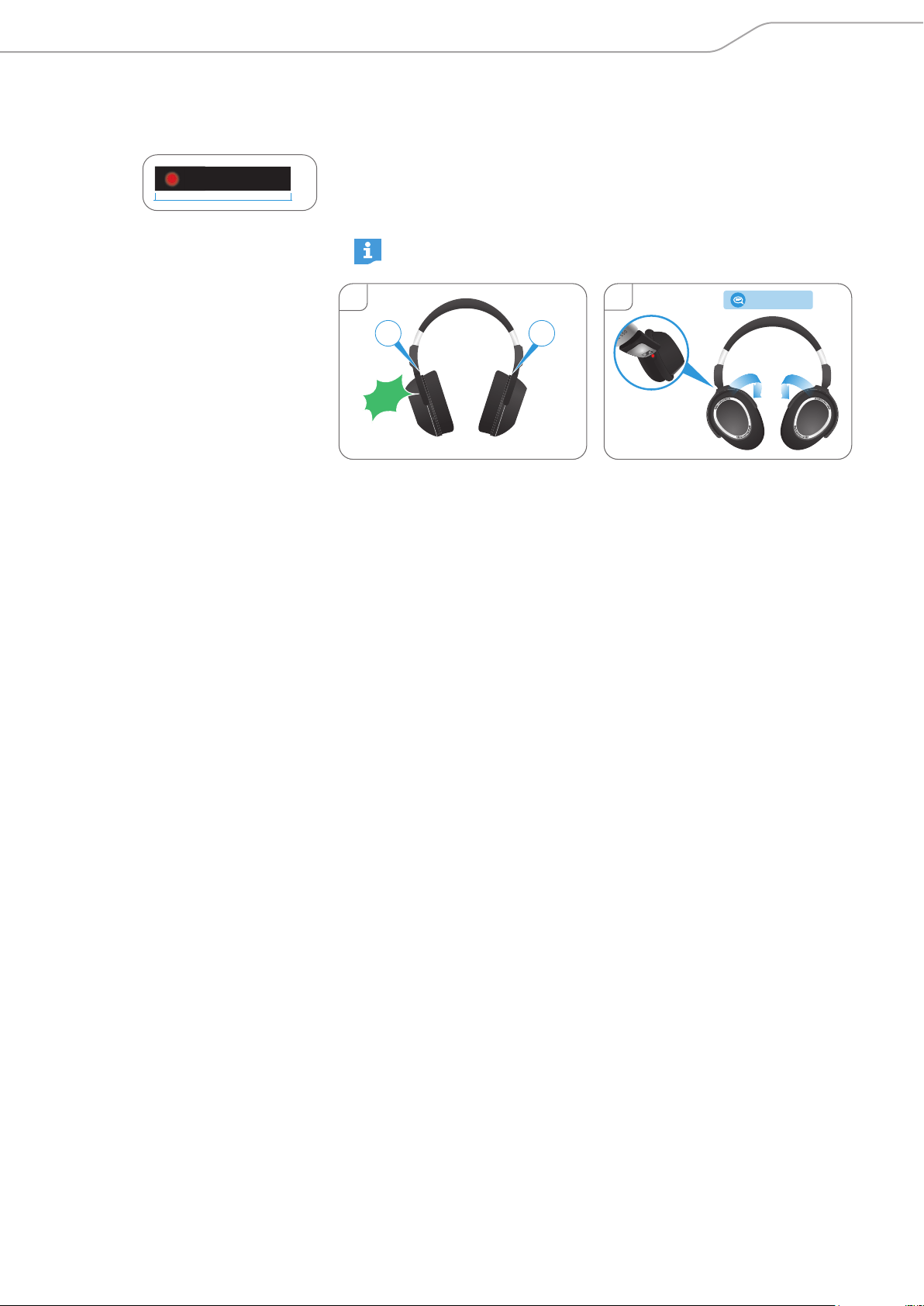
1. Unfold the ear cups away from the headband.
2. Twist the ear cups outward until you hear a click sound from both hinges.
– If Bluetooth is activated on the headphones, you hear the voice prompts
“power on” and “phone x connected” after a few seconds.
– If Bluetooth is deactivated on the headphones, you hear the voice prompt
“power on”. Insert the USB or audio cable if necessary.
2
1
› power on ‹
Click!
If Bluetooth is activated and the headphones cannot find a paired
smartphone within a few minutes, you hear the voice prompt “no device
found”. The first LED flashes white.
PXC 550 | 23
Using the headphones
Switching the headphones off
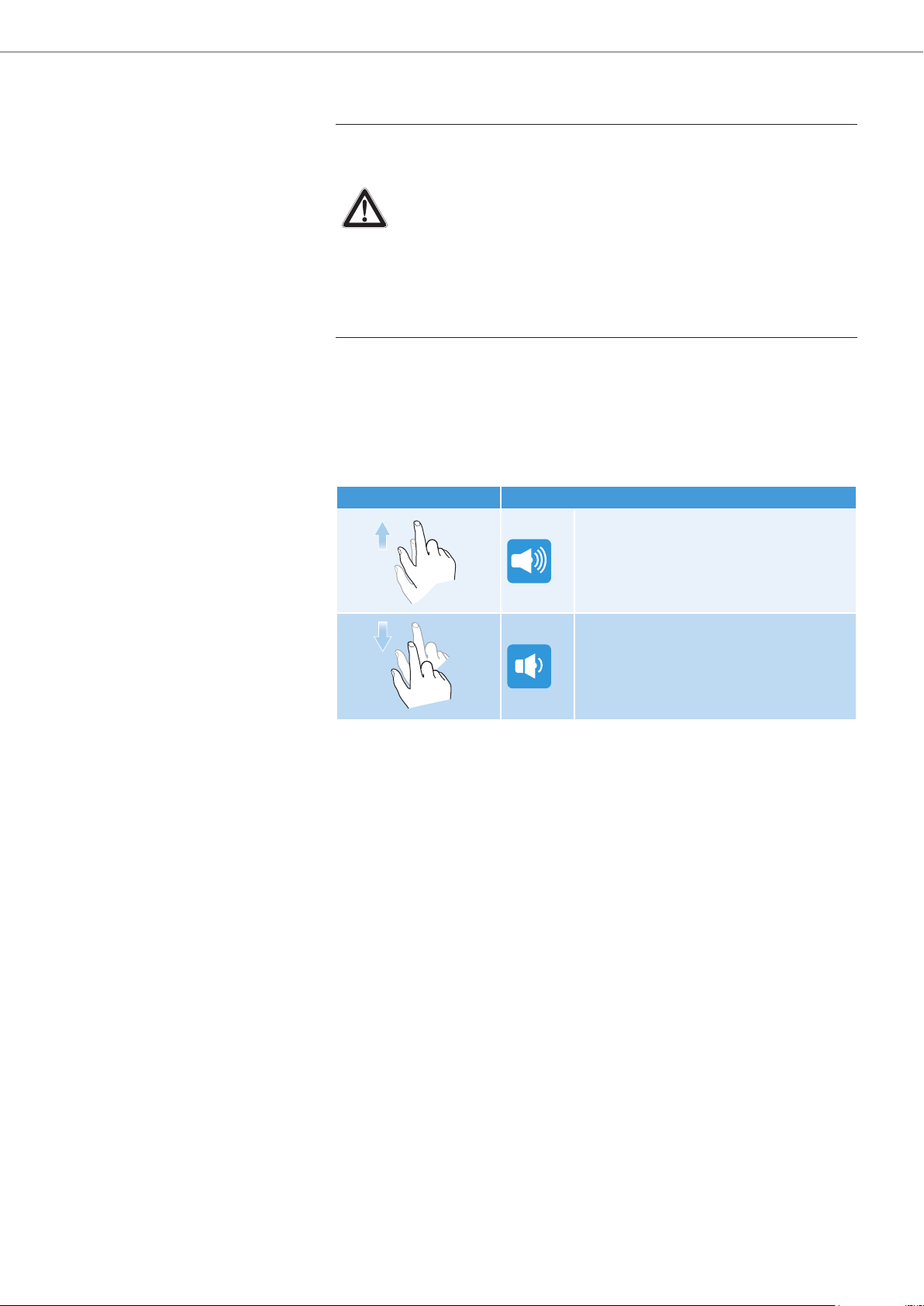
1. Hold the headphones so that the left hand holds the right ear cup and the
right hand holds the left ear cup.
2. Twist the ear cups inward until you hear a click sound from both hinges and
the touch pad faces toward you.
You hear the voice prompt “power off” after a few seconds. The first LED
flashes red 3 times.
The red dot displayed on the hinge of the right ear cup also indicates
that the headphones are switched off.
2
1
R L
› power off ‹
Click!
3x
0.55s
24 | PXC 550
Using the headphones
Adjusting the volume
WARNING
Danger due to high volume levels!
Listening at high volume levels for long periods of time can lead to
permanent hearing defects. Switching between audio sources may
cause enormous volume jumps that can permanently damage your
hearing.
X Before putting the headphones on and before switching between
audio sources, adjust the volume to a low level.
X Do not continuously expose yourself to high volume levels.
You can adjust the volume for music, voice prompts, tones, and phone calls.
X If you are playing music or are on a call, swipe vertically up or down on the
touch pad to increase or decrease the volume for music or calls.
X If you are in idle mode, i.e. if you are not playing music/making calls, swipe
vertically up or down on the touch pad to increase or decrease the volume for
voice prompts and tones.
Gesture Function
Increases the volume
Decreases the volume
Depending on the length of the swipe, you can adjust the volume in smaller
increments by doing a short swipe on the touch pad. To adjust the volume in
larger increments, do a longer swipe on the touch pad. When the maximum
or minimum volume is reached, you hear the voice prompt “volume max” or
“volume min” accordingly.
When switching the headphones off, very high volume levels are reset to a
moderate level to protect your hearing when you switch the headphones back on.

PXC 550 | 25
Using the headphones
Using NoiseGard
You can activate or deactivate NoiseGard if your headphones are connected to
the smartphone using Bluetooth, a USB cable, or an audio cable (provided that
the battery is sufficiently charged). If you are in a noisy environment but would
like to have your own quiet space, you can use the headphones by themselves,
without cable and disconnected from any device, and simply benefit from
NoiseGard.
The PXC 550 Wireless provides excellent attenuation of ambient noise using
Sennheiser’s proprietary NoiseGard technology. The PXC 550 Wireless also
features Adaptive NoiseGard; when Adaptive NoiseGard is selected, active
noise cancellation depends on the intensity of ambient noise. With Adaptive
NoiseGard, active noise cancellation can be strong if the ambient noise is high,
or weak if the ambient noise is low.
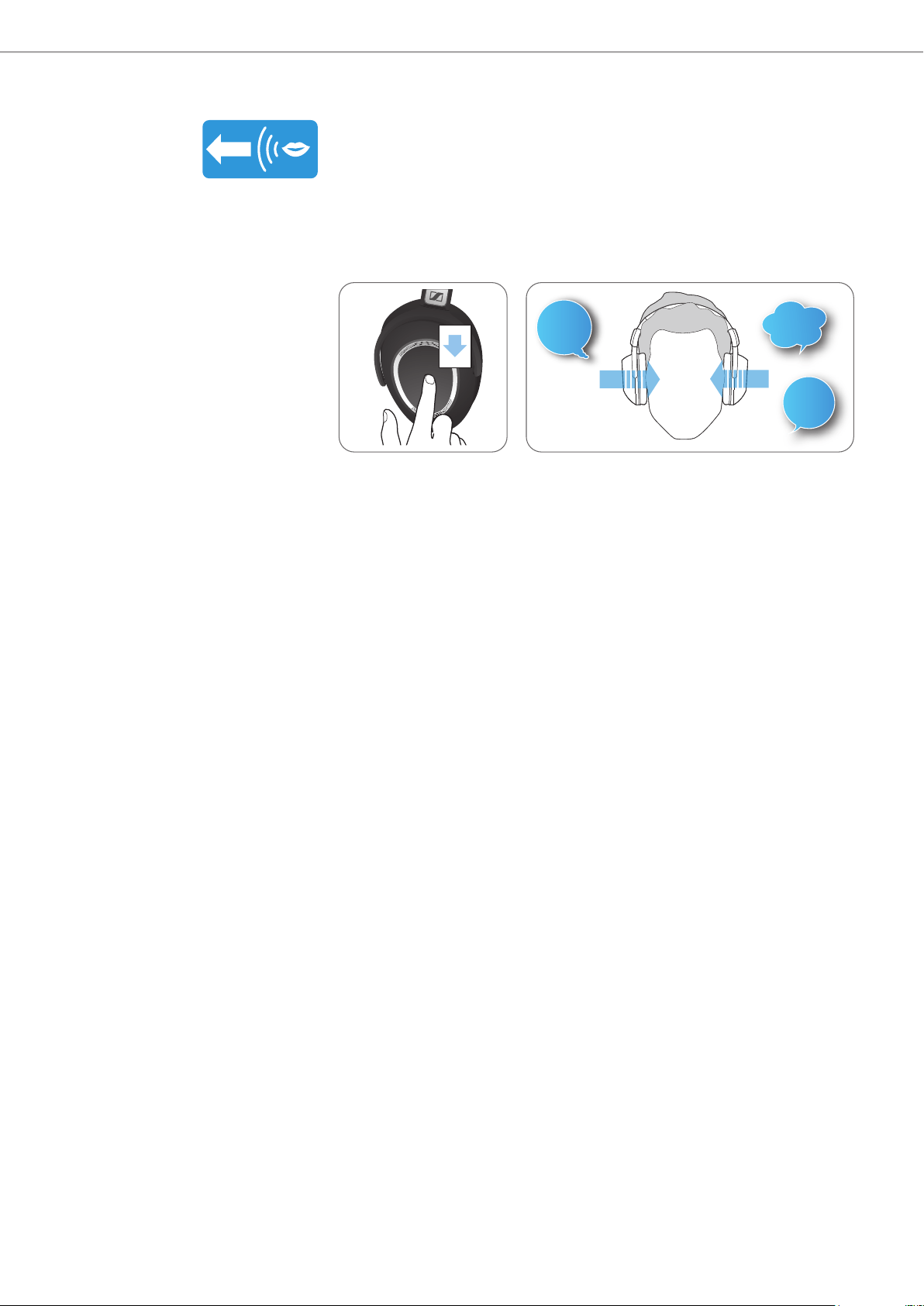
Switching NoiseGard to different modes
X
Indicates that NoiseGard is switched off.
X Indicates that NoiseGard is switched on.
NoiseGard attenuates the ambient noise to the maximum extent.
X Indicates that NoiseGard is switched to Adaptive mode.
NoiseGard attenuates ambient noise depending on the noise intensity.
If you set NoiseGard to Adaptive mode, you can control the extent of
NoiseGard noise cancellation in CapTune.
26 | PXC 550
Using the headphones
Switching TalkThrough on/off
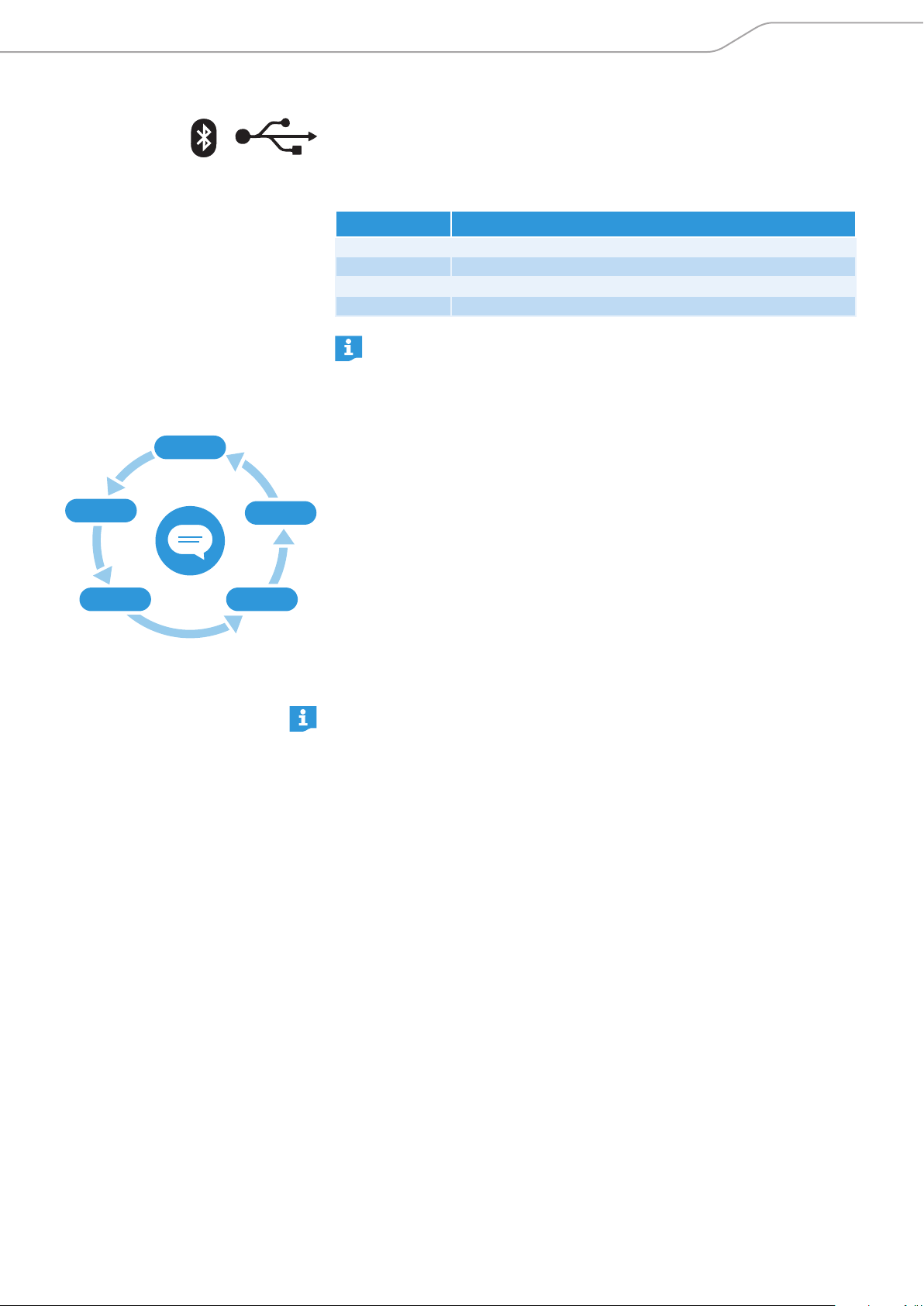
TalkThrough allows you to communicate with other people without having to
remove the headphones, even when NoiseGard is switched on.
To switch TalkThrough on and off while playing music:
X Quickly tap the touch pad twice.
TalkThrough is activated.
– If you are playing music using Bluetooth or the USB cable, the music pauses.
– If you are playing music using the audio cable, the music is muted.
2x
hey!
hi!
hello!
PXC 550 | 27
Using the headphones
Changing the sound effect
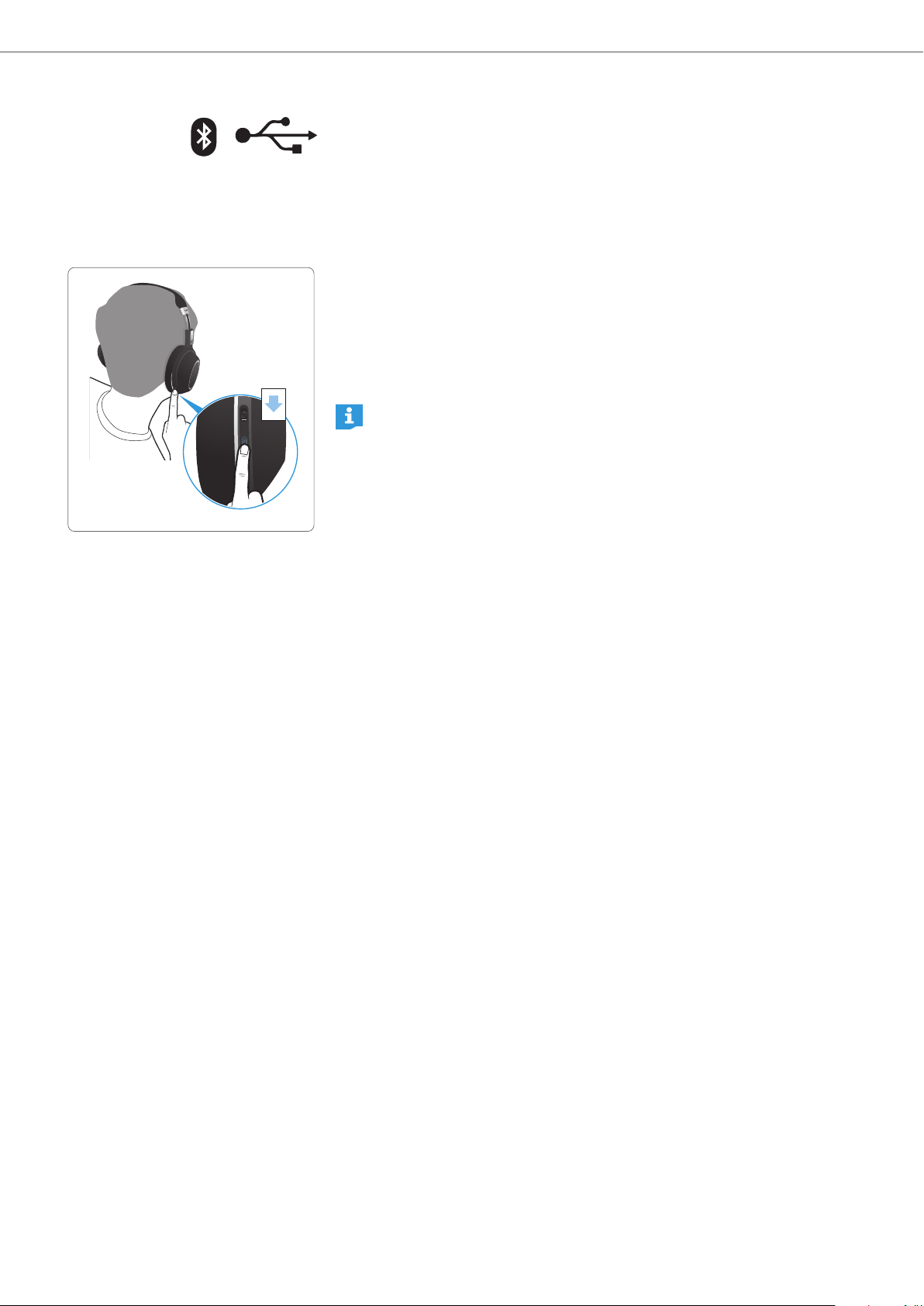
The sound effect mode function is automatically activated when the headphones
and the smartphone are connected using Bluetooth or the USB cable.
You can use the Effect Mode Control button to enhance the quality of your audio
according to its genre or category.
Sound effect Meaning
Off Effect mode is switched off.
Movie For more exciting entertainment. Best for movies.
Club For more room impression. Best for music.
Speech For higher intelligibility. Best for podcasts or audiobooks.
There is another sound effect that is not available from the selection by
default. The customizable “Director” mode needs to be configured in
CapTune in order to be available from the selection next time you use the
headphones.
Changing or checking the sound effect
To change or check the sound effect:
X Press the Effect Mode Control button.
This toggles you to the next sound effect. You hear the voice prompt stating
the activated sound effect.
– “Effect Mode Club”
– “Effect Mode Movie”
– “Effect Mode Speech”
– “Effect Mode Off”
X Press and hold the Effect Mode Control button for about 4 seconds.
You hear tones and the voice prompt for the activated sound effect.
Customizing a sound effect (Director mode)
The “Director” mode is an additional sound effect that can be activated only from
CapTune. This mode allows you to create a custom sound effect by changing the
sound enhancements such as Boost, Spatial, Reverberation, and DLC.
› Club ‹ › Speech ‹
› Director ‹
› Off ‹
› Movie ‹
28 | PXC 550
Using the headphones
Activating/deactivating Call Enhancement
Call Enhancement is a voice-enhancing feature that utilizes Sennheiser’s
VoiceMax™ technology. Call Enhancement reproduces voice calls naturally,
giving you the impression that you are talking to another person from within
the same room rather than on the other side of the line.
You can activate or deactivate Call Enhancement during calls when the
headphones and the smartphone are connected using Bluetooth or the USB
cable.
X During a call, press the Effect Mode Control button.
Call enhancement toggles between on and off.
X During a call, press and hold the Effect Mode Control button for about
4 seconds.
You hear the voice prompt for the current Call Enhancement status.
You can also activate or deactivate Call Enhancement in CapTune.
1x
PXC 550 | 29
Using the headphones
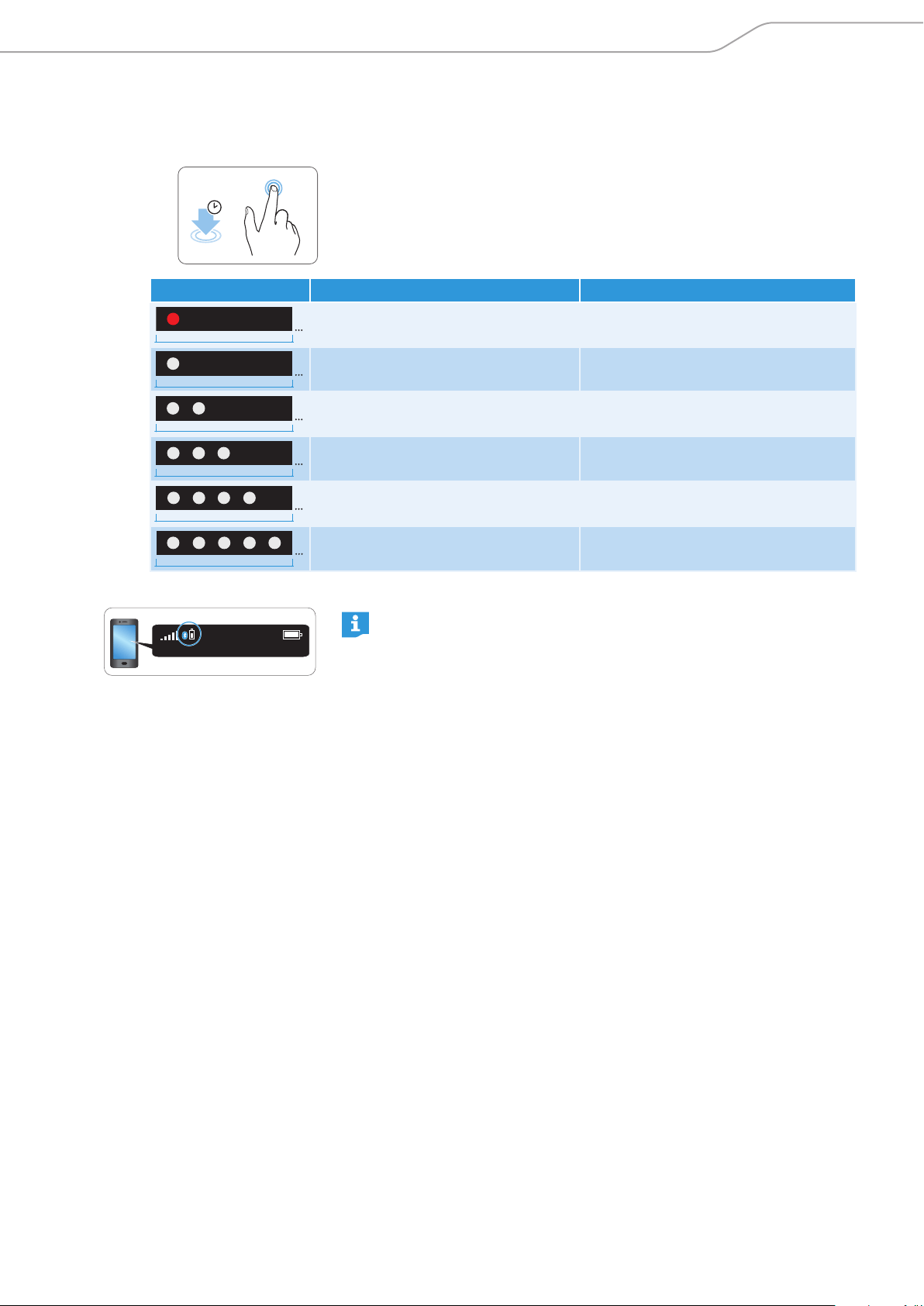
Checking the battery life of the headphones
You can check the remaining battery life at any given time except when playing
music or making calls.
X Tap and hold the touch pad for about 4 seconds.
You hear tones and the voice prompt stating the remaining battery life. The
LEDs flash/light up depending on the battery level.
You may also check the battery life of the headphones in CapTune or
directly on the home screen of your smartphone.
4s
LEDs Meaning Voice prompt
5s
Battery is almost empty
(less than 2% charged)
“Recharge headset“
5s
Battery is about 2-20% charged “Less than 20% battery left”
5s
Battery is about 20-40% charged “More than 20% battery left”
5s
Battery is about 40-60% charged “More than 40% battery left”
5s
Battery is about 60-80% charged “More than 60% battery left”
5s
Battery is more than 80% charged
“More than 80% battery left”

30 | PXC 550
Playing music
Playing music
You can play music using Bluetooth or using the USB or audio cable.
Playing music wirelessly
If your audio source supports the aptX® audio codec, the PXC 550 Wireless
automatically plays your music wirelessly in stunning aptX® audio quality. If
your audio source does not support aptX®, PXC 550 Wireless plays your music
in normal audio quality.
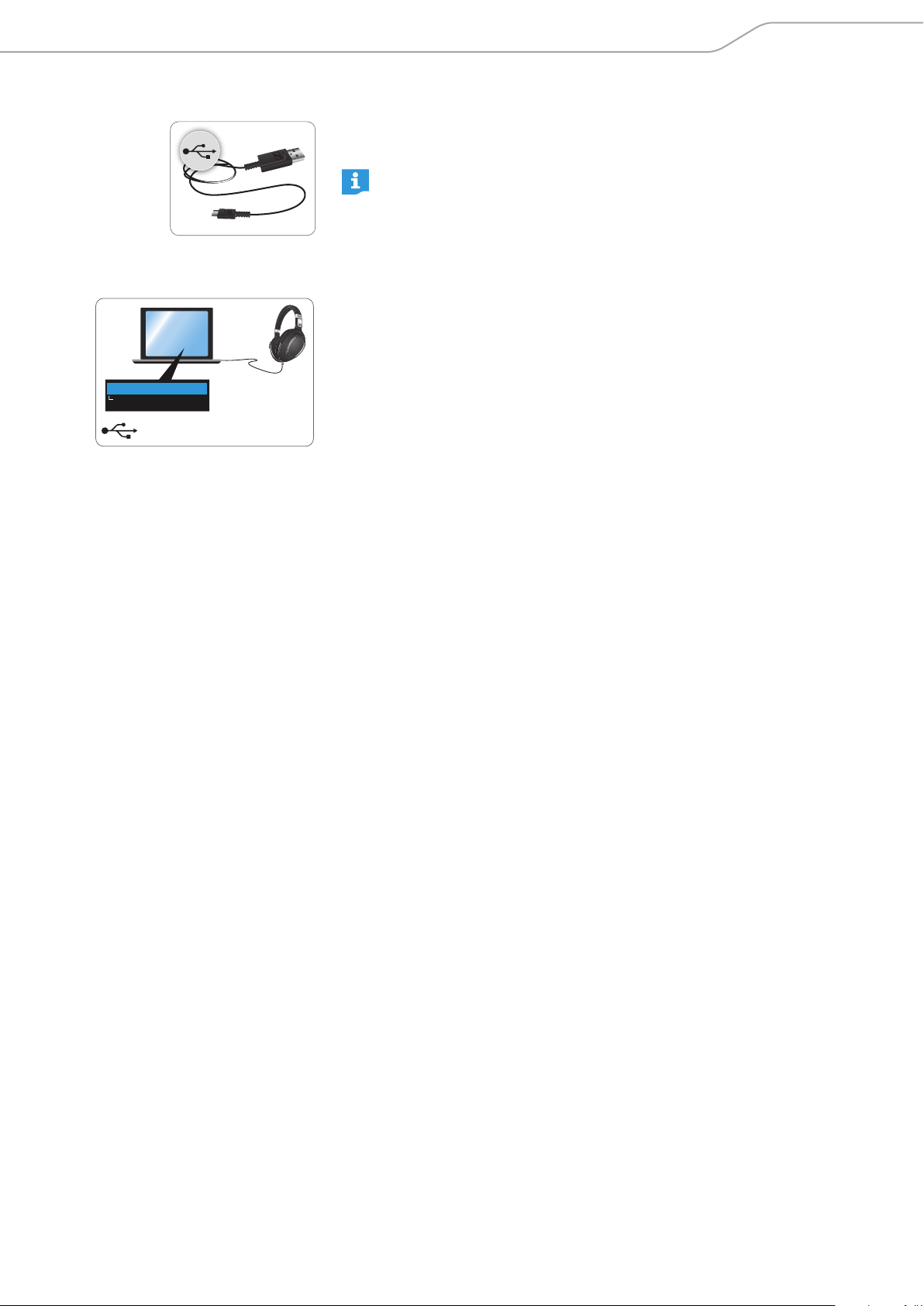
X Pair your headphones with the smartphone, see page 17.
X Play music on your smartphone.
The music plays through the PXC 550 Wireless headphones.
PXC 550 | 31
Playing music
Playing music using the USB cable
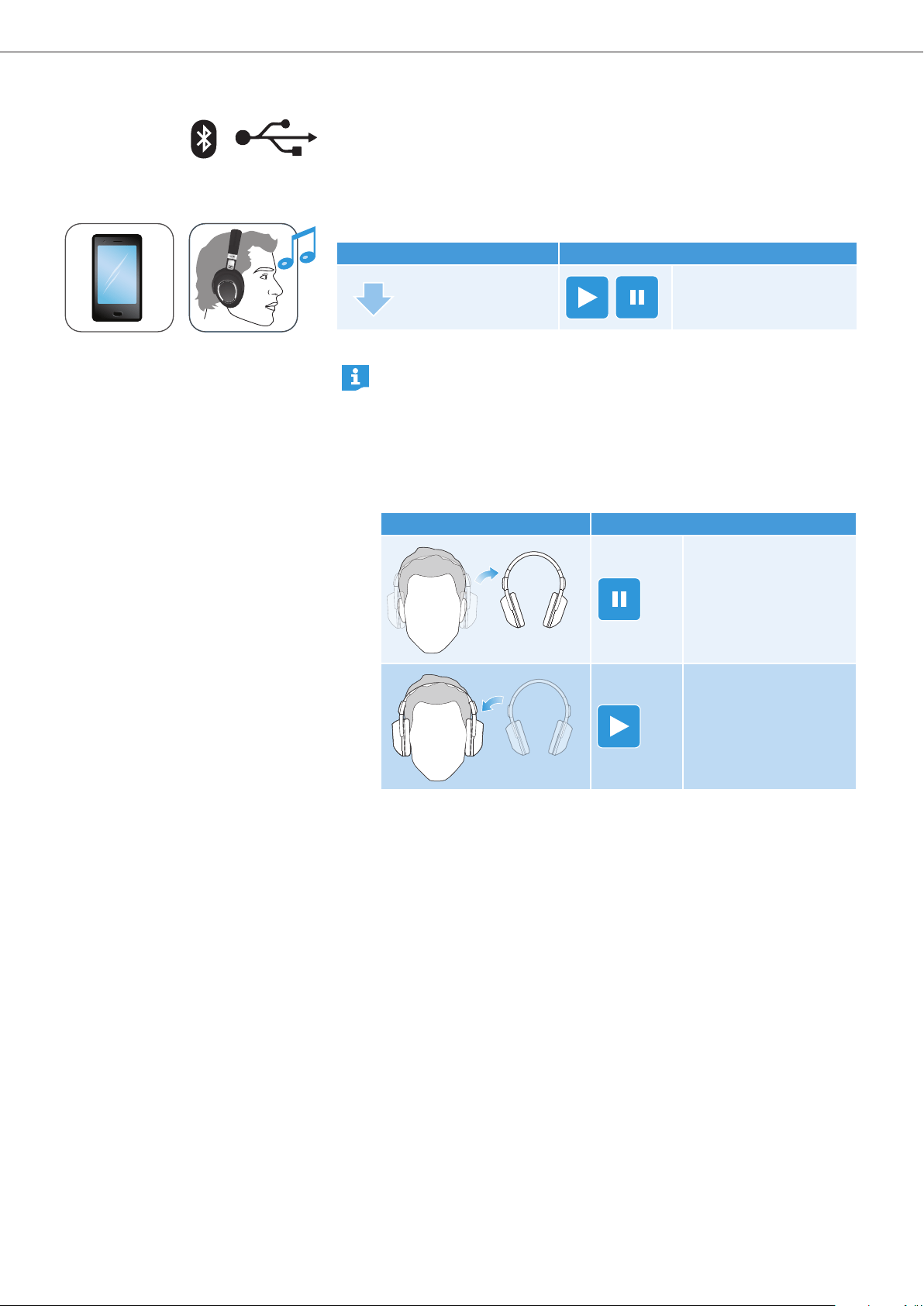
With the supplied USB cable connected, you can play audio content from your
computer directly through the PXC 550 Wireless headphones.
The battery gets charged automatically when you connect the
headphones to a computer using the USB cable.
If you want to connect the USB cable and deactivate all wireless
connections, deactivate Bluetooth on your headphones, see page 38.
Using the headphones as the default audio device of your computer
X
Make sure that the PXC 550 Wireless is connected to the computer using the
USB cable.
X From the Systems Preferences or Control Panel of your computer, select
“Sennheiser PXC 550” as the default audio (input and output) device.
X Start music playback from the computer.
The music plays through the PXC 550 Wireless headphones.
Sennheiser PXC 550
Default Audio Device
32 | PXC 550
Playing music
Controlling music playback
The following music functions are only available when the headphones and your
device are connected using Bluetooth or the USB cable. Some smartphones or
music players may not support all functions.
Playing/pausing music
X
Quickly tap on the touch pad.
Gesture Function
1x
Plays or pauses music
Smart Pause is a feature that enables the headphones to respond to
gestures. These gestures include taking the headphones off to pause
music and putting them back on to resume music playback.
By factory default, Smart Pause is inactive. For the headphones to
respond to these gestures, ensure that Smart Pause is activated in
CapTune. Some smartphones or music players may not support this
feature.
Gesture Function
Pauses the music
Plays back the music
PXC 550 | 33
Playing music
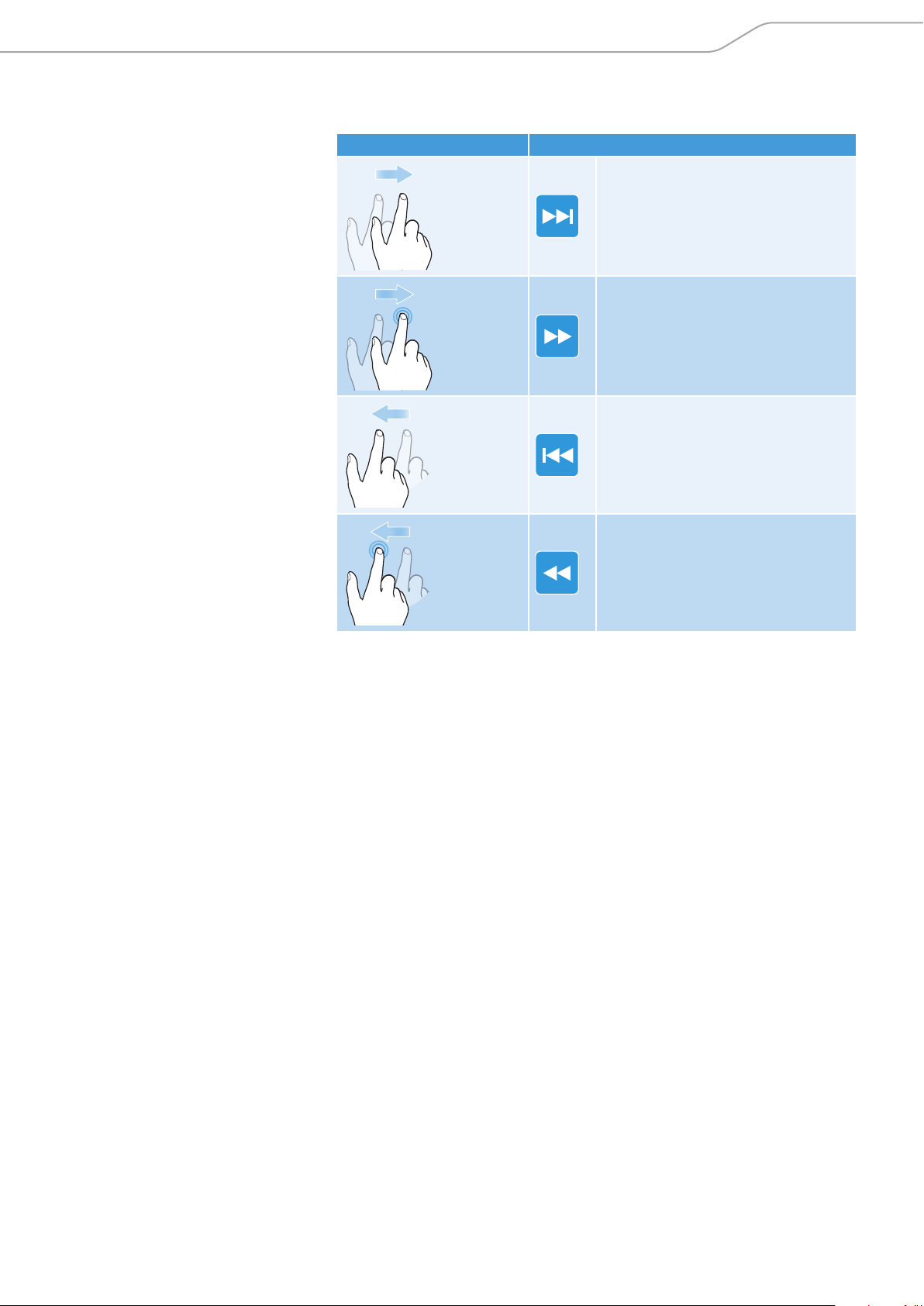
Playing the next/previous track
X
Quickly swipe the touch pad horizontally.
Gesture Function
Plays the next track in the playlist
+ HOLD
Fast-forwards the track
Plays the previous track in the playlist
+ HOLD
Rewinds the track
34 | PXC 550
Making calls on the headphones
Making calls on the headphones
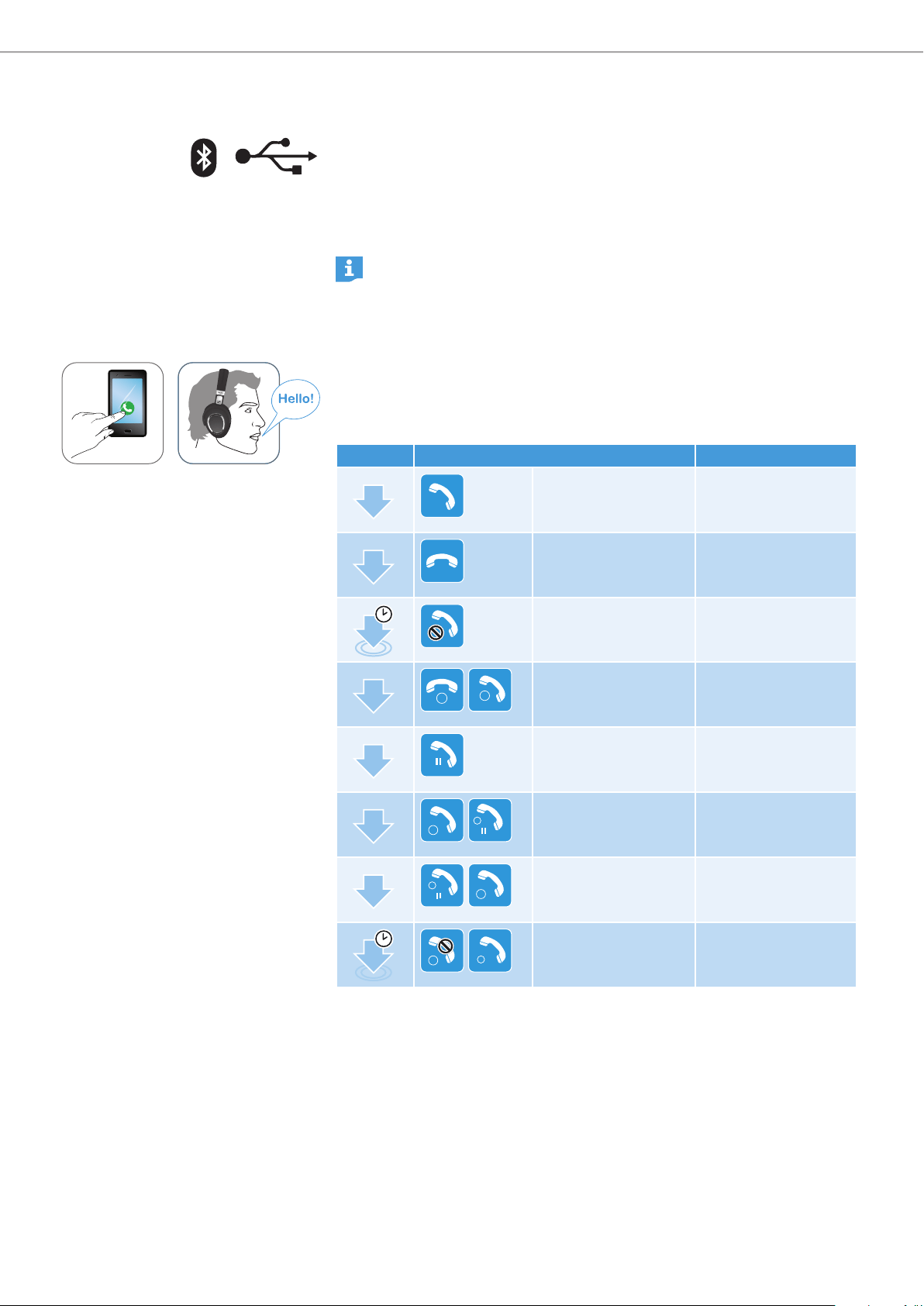
The following call functions are only available when the headphones and the
smartphone are connected using Bluetooth or the USB cable. Some smartphones
may not support all functions.
Making a call
X
Dial the desired number on your smartphone.
If your smartphone does not automatically transfer the call to the
headphones, select the PXC 550 Wireless as the audio source on your
smartphone (see the instruction manual of your smartphone if necessary).
Accepting/rejecting/ending a call
When you receive a call, you hear the ring tone in the PXC 550 Wireless and the
LED flashes white rapidly. If you are playing music when you receive a call, the
music pauses until you end the call.
X Tap the touch pad accordingly:
Press Function Signal
1x
Accepts a call
1x
Ends a call “Call ended”
1s
Rejects a call “Call rejected”
1x
1
2
Accepts an incoming
call and ends the
active call
2x
HOLD
Puts the call on hold
2x
2
HOLD
1
Accepts an incoming
call and puts an active
call on hold
2x
HOLD
2
1
Toggles between 2
active calls
1s
2
1
Rejects an incoming
call and continues the
active call
PXC 550 | 35
Making calls on the headphones
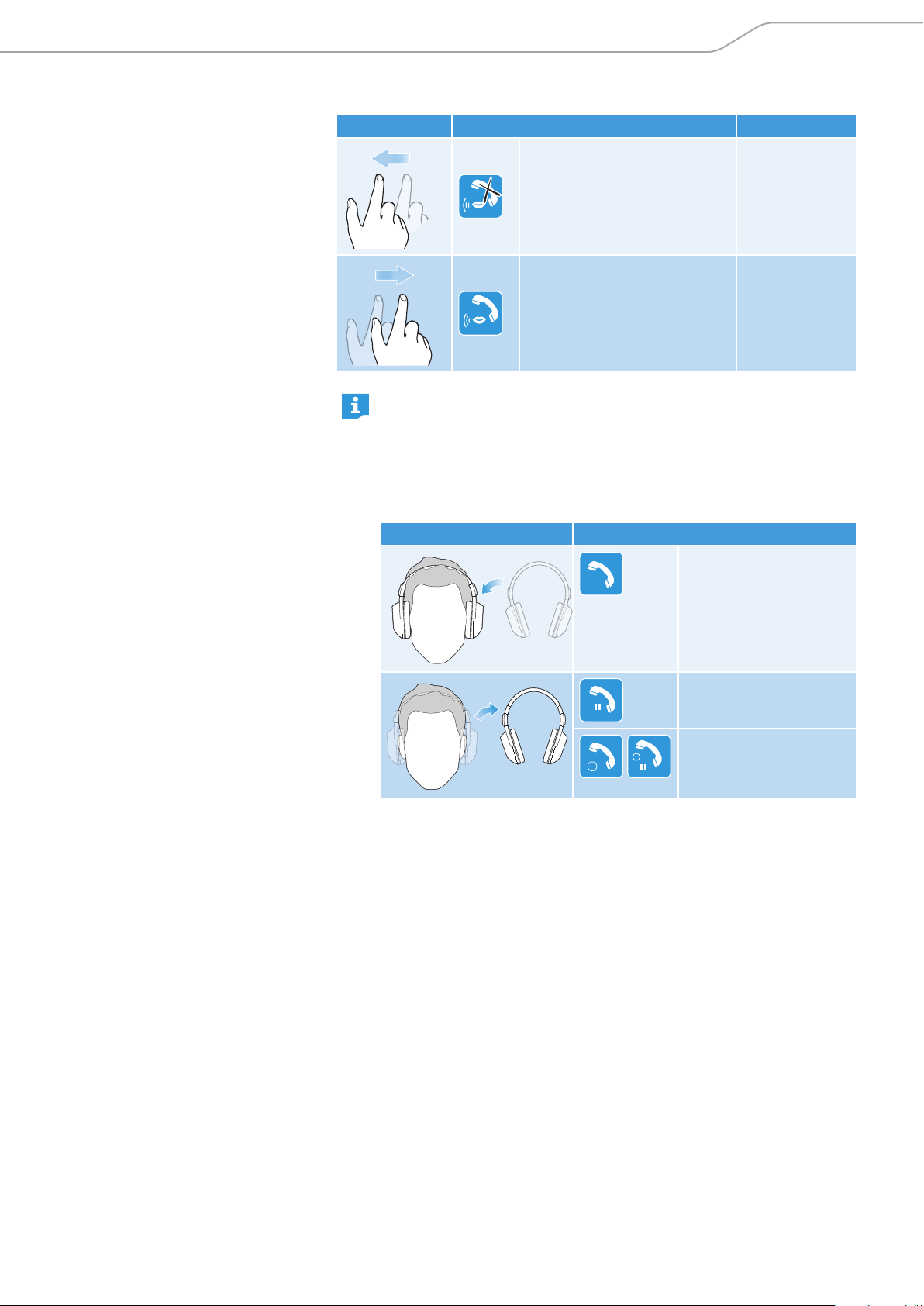
While on a call, you can mute or unmute the microphone using these swipes.
Gesture Function Voice prompt
Mutes the microphone “Mute on”
Unmutes the microphone “Mute off”
Smart Pause is a feature that enables the headphones to respond to
gestures. These gestures include taking the headphones off to put a call
on hold and putting them back on to resume the call.
By factory default, Smart Pause is inactive. For the headphones to
respond to these gestures, ensure that Smart Pause is activated in
CapTune. Some smartphones or softphones may not support this feature.
Gesture Function
Accepts a call
Resumes a hold call
HOLD
Puts the call on hold
2
HOLD
1
Rejects an incoming call
and holds the active call

36 | PXC 550
Making calls on the headphones
Transferring a call to/from the headphones
When a call has been established, you can transfer the call between the
headphones and the smartphone.
X Tap and hold the touch pad for a second.
Press Function
1s
Transfers a call from the headphones to the
smartphone
1s
Transfers a call from the smartphone to the
headphones
PXC 550 | 37
Making calls on the headphones
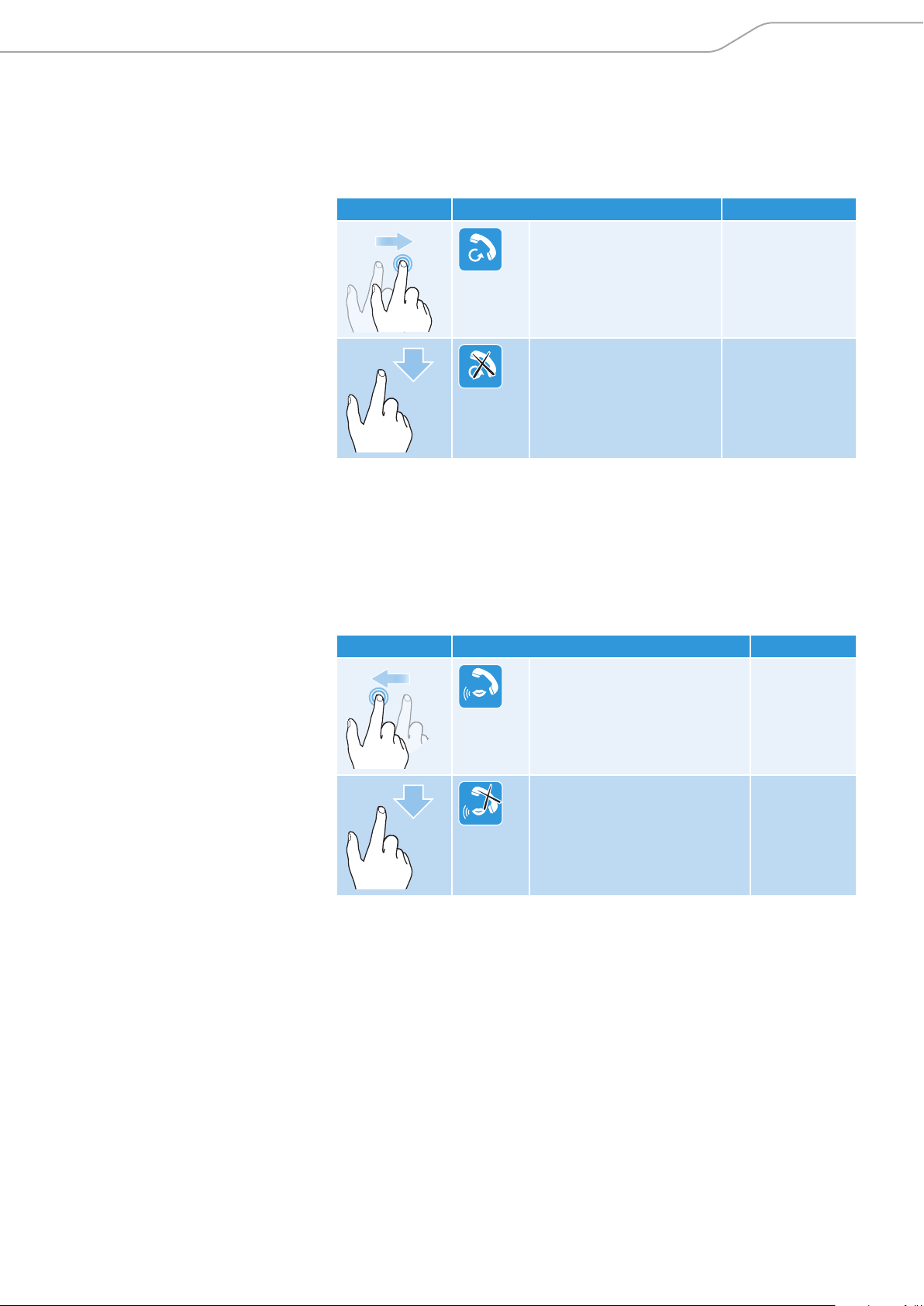
Redialing
The redialing function must be supported by your smartphone or Bluetooth
device (with HFP profile). This function may be required to be activated on your
smartphone.
X Swipe forward on the touch pad and hold.
Press Function Voice prompt
+ HOLD
Redials the last number
called
“redial”
1x
Cancels redialing “redial cancelled”
Voice control function
The voice control function is only supported by Bluetooth smartphones with
HFP profile.
You can use the voice control function at any given time except when playing
music or making calls.
1. Swipe backward on the touch pad and hold.
Press Function Voice prompt
+ HOLD
Starts voice dialing “voice dial“
1x
Cancels voice dialing
2. Say your voice command, such as “Call Jane“.
The Bluetooth smartphone dials the phone number of Jane.
38 | PXC 550
Setting the headphones to flight mode
Setting the headphones to flight mode
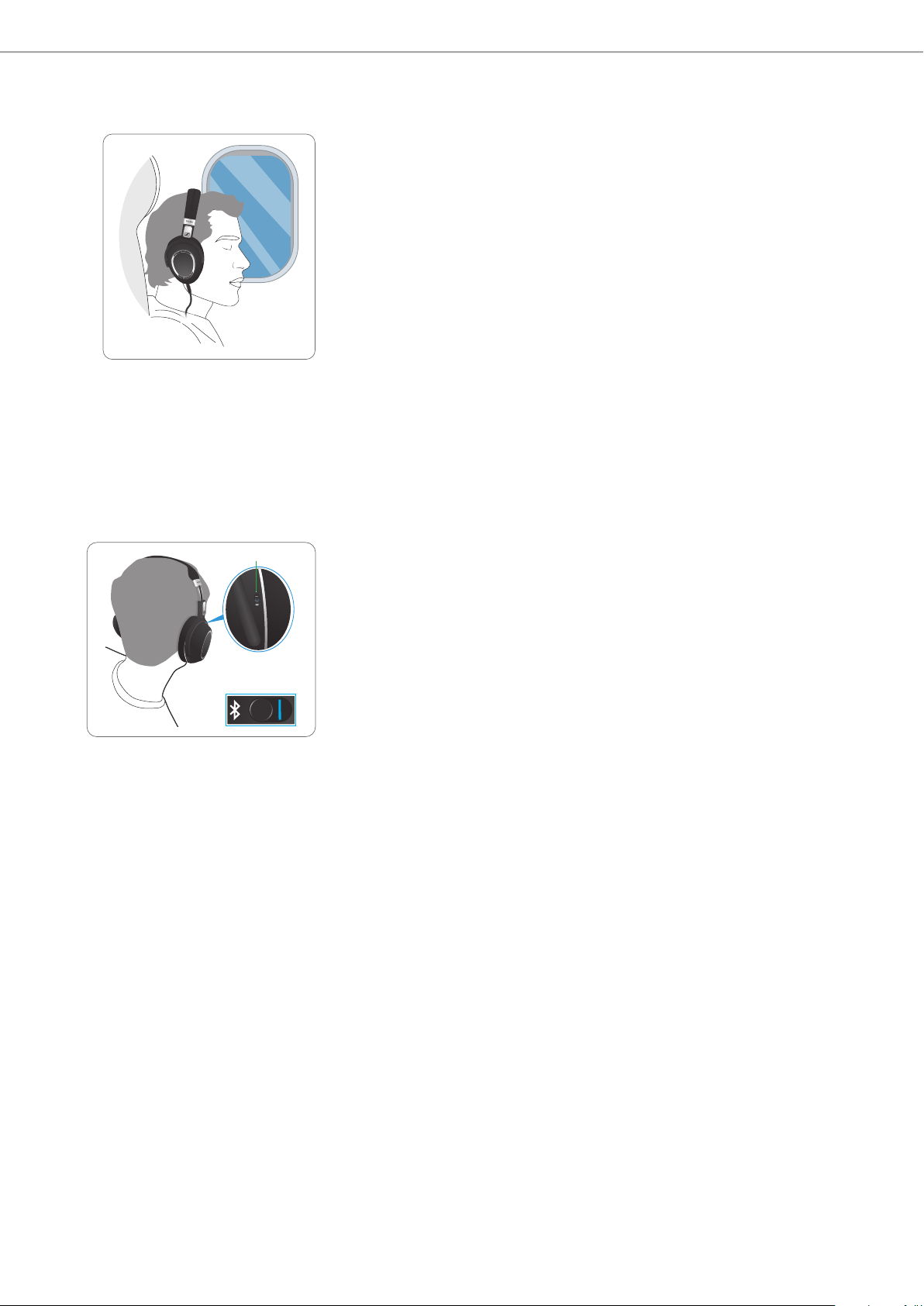
During taxi, take-off, and landing, the use of portable electronic devices is
allowed, provided that they are set to flight mode. You can use your headphones
without violating civil aviation regulations by deactivating Bluetooth wireless
transmission.
There are 2 ways to set the headphones to flight mode:
– Deactivate Bluetooth on the headphones.
– Use the audio cable to listen to music.
Activating/deactivating Bluetooth
In instances where you just want to block out aircraft/ambient noise during a
flight, ensure that Bluetooth is deactivated and NoiseGard is switched on. To
switch NoiseGard on in full or set it to Adaptive Mode, see page 25.
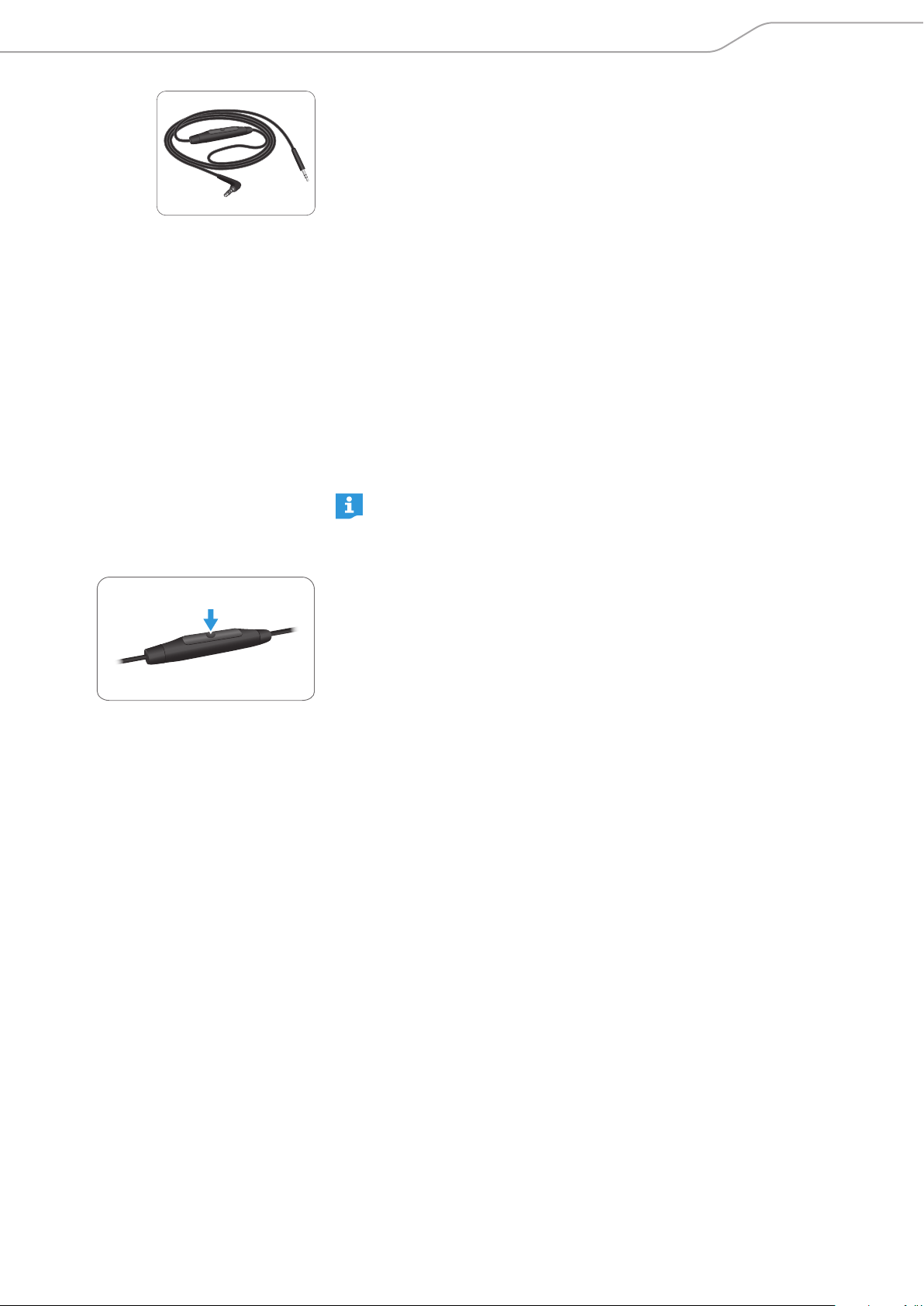
X Use the Bluetooth switch to activate or deactivate Bluetooth on the
headphones:
– Activate Bluetooth “I” if you want to use the wireless features of the
headphones, such as pairing another device with the headphones or
playing music wirelessly.
– Deactivate Bluetooth “
0” if wireless transmission is restricted, such as
during aircraft taxi, take-off, and landing.
Bluetooth switch
PXC 550 | 39
Setting the headphones to flight mode
Using the audio cable
There are 2 connection modes when you use the audio cable:
– Active mode - the connection mode when the audio cable is used on the
headphones with sufficient battery life.
– Passive mode - the connection mode when the audio cable is used on the
headphones with empty battery. NoiseGard is inactive.
Regardless of the position of the Bluetooth switch, Bluetooth is deactivated
when the audio cable is plugged into the audio input of the headphones. If the
USB cable is being used, the transmission via USB is disabled and the headphones
go to flight mode when the audio cable is plugged in.
When you are using the in-flight entertainment (IFE) system of your airline, the
audio from the IFE may be interrupted by important announcements from the
public address (PA) system. In most cases, the announcements are much louder
than the audio of the IFE. The PXC 550 Wireless headphones recognize this and
eliminate the volume jump when the sound source switches between PA and IFE
system.
After the announcement from the PA system, the volume of the headphones
stays low. If you want to increase the volume of your audio, adjust the volume
on the IFE system.
If you want to increase the volume on the headphones and the volume
does not increase as usual, restart the headphones by switching them off
and on again.
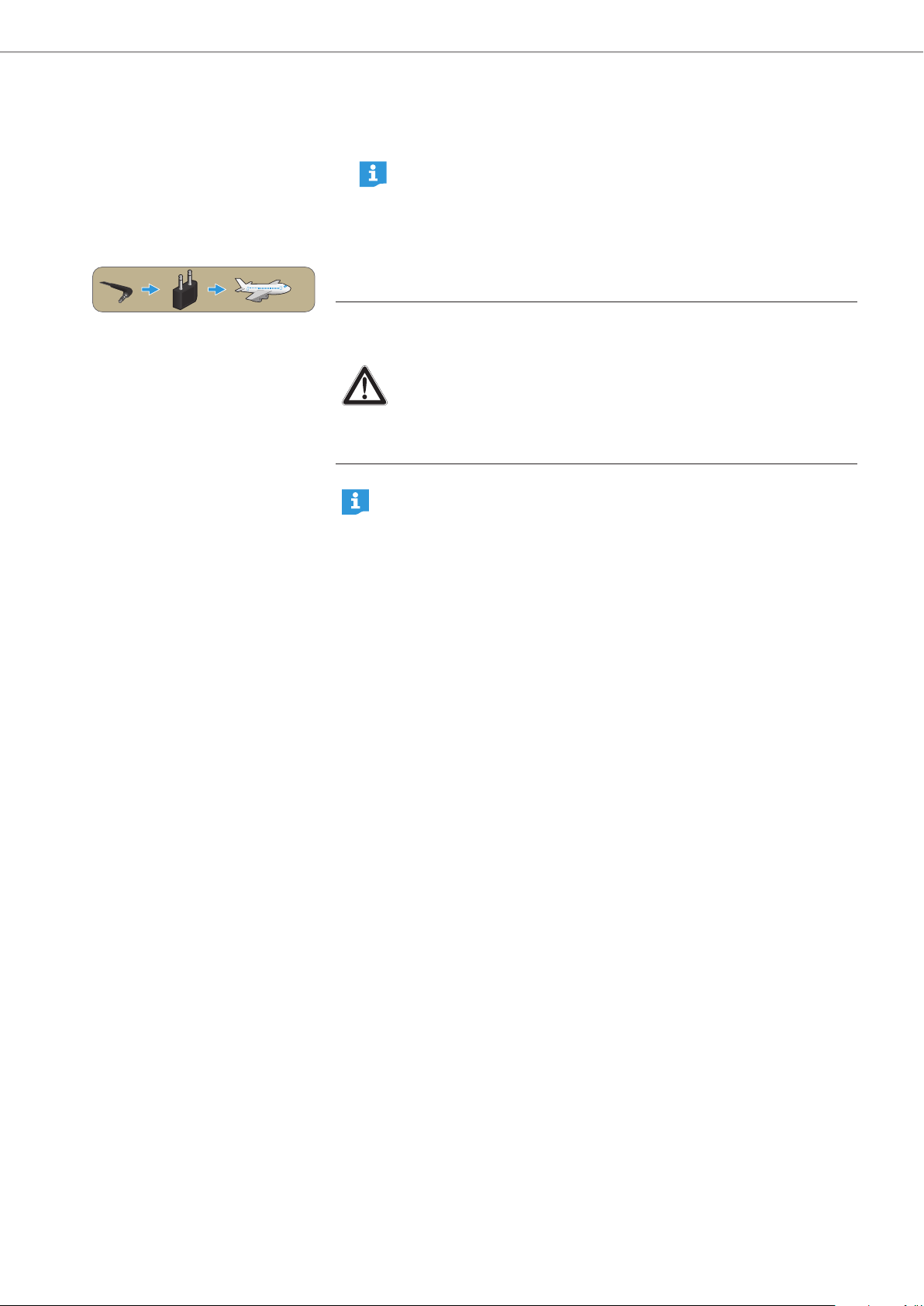
Using the answer/end button of the audio cable
Optionally, you can play or pause music by pressing the answer/end button of the
supplied audio cable. You can also make, accept, and end calls using the button.
40 | PXC 550
Setting the headphones to flight mode
Using the headphones in flight mode
1.
Insert the 2.5 mm jack plug into the audio input of the headphones.
Bluetooth is deactivated.
If you are playing music on the headphones using Bluetooth and the
audio cable is plugged in, Bluetooth is deactivated and the music
stops.
2. Connect the 3.5 mm jack plug to:
– the audio output of your smartphone
– the in-flight adapter if you want to use the headphones with an IFE system
CAUTION
Bluetooth may transmit radio waves when the audio cable is pulled off!
Only use the product in environments where Bluetooth wireless
transmission is permitted. To ensure that Bluetooth headphones
do not transmit radio waves when the audio cable is unplugged,
deactivate Bluetooth on the headphones. To deactivate Bluetooth,
see page 38.
You can also play higher resolution music when in flight mode by
connecting your headphones to your computer using the supplied USB
cable. If you use the USB cable to listen to music in environments where
Bluetooth wireless transmission is restricted, you have to deactivate
Bluetooth on all devices.

PXC 550 | 41
Care and maintenance
Care and maintenance
CAUTION
Liquids can damage the electronics of the product!
Liquids entering the housing of the product can cause a short-circuit
and damage the electronics.
X Keep all liquids away from this product.
X Do not use any solvents or cleaning agents.
Replacing the ear pads
For reasons of hygiene, you should replace the ear pads from time to time. Spare
ear pads are available from your local Sennheiser partner.
1. Lightly pull the ear pad away until it is detached from the ear cup hooks.
2. Secure the new ear pad by inserting the plastic base of the ear pad to the
hooks on the ear cup.
3. Lightly pull the ear pad evenly on all sides to ensure that the base of the ear
pad is securely hooked to all corners of the ear cup.
42 | PXC 550
Care and maintenance
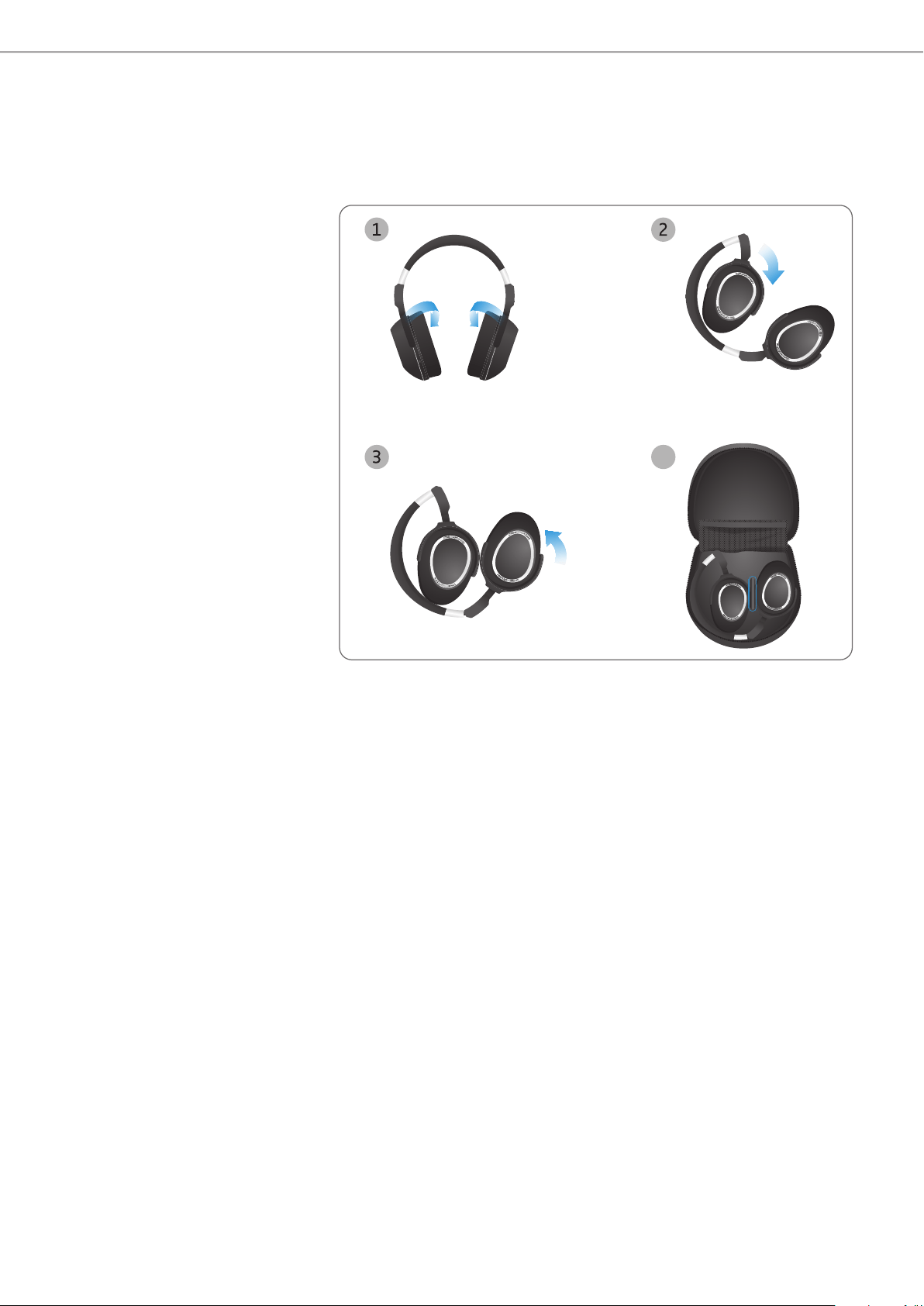
Storage and handling
To keep the headphones in good condition and to avoid nicks and scratches,
store the headphones in a carry case when not in use or when carrying them
around.
X Follow the illustrations below to fold and store your headphones.
4

PXC 550 | 43
Care and maintenance
Removing the rechargeable battery
CAUTION
Danger of damage to the product!
During the warranty period, the rechargeable battery must only be replaced
by an authorized Sennheiser service center, otherwise the warranty will be
null and void.
X Contact your Sennheiser service center if the rechargeable battery needs
to be replaced or removed. To find a Sennheiser service partner in your
country, visit www.sennheiser.com.
Outside the warranty period, the rechargeable batteries may be removed by
any qualified service center in an appropriate manner. Instructions for qualified
service centers on how to remove the batteries are available from the Sennheiser
service partner.

44 | PXC 550
Troubleshooting
Troubleshooting
Problem Possible cause Possible solution Page
Headphones
cannot be
switched on
Battery is empty Charge the headphones 15
Battery is completely
exhausted/worn out
Visit an authorized
Sennheiser service center
for battery replacement
43
No audio signal Headphones are
not paired with the
smartphone
Check if the headphones
are paired. If necessary,
pair the headphones with
the smartphone again
17
Volume too low Increase the volume 24
Headphones are in
pairing mode
Ensure that the
headphones and
smartphone are paired
successfully
17
Headphones
cannot connect
Bluetooth is
deactivated on your
smartphone
Activate Bluetooth on your
smartphone
38
Smartphone is
switched off
Switch your smartphone
on
Pairing does not work Check if your smartphone
supports the HFP or HSP
Bluetooth profile
Headphones
do not respond
to any button
press
Headphones are not
functioning properly
Restart the headphones
by switching them off and
on again. If necessary, do
a reset
46
The LED
flashes
red while
connecting
The connection is not
established
Ensure that the distance
between headphones and
smartphone is less than
20 cm
Ensure that Bluetooth
is activated on both the
headphones and the
smartphone
Smartphone
cannot
detect the
headphones
Bluetooth is
deactivated on the
headphones
Activate Bluetooth on the
headphones
38
Audio cable is plugged
into the audio input
(the headphones are in
flight mode)
Unplug the audio cable
Voice prompts
specified in
this instruction
manual cannot
be heard
Voice Prompt is
deactivated in CapTune
Activate Voice Prompt in
CapTune
Headphones
do not respond
to Smart Pause
gestures
Smart Pause is
deactivated by factory
default
Activate Smart Pause in
CapTune
Smart Pause may not
be compatible with
your music player
Try another music player or
streaming app

PXC 550 | 45
Troubleshooting
Problem Possible cause Possible solution Page
Headphones
and
smartphone
cannot
connect using
Bluetooth/NFC
Headphones are
switched off
Ensure that the
headphones are switched
on during pairing
17
Smartphone does not
support NFC pairing
Pair the headphones and
the smartphone manually
using Bluetooth
19
Headphones are in
flight mode or the
audio cable is plugged
into the audio input
Activate Bluetooth on the
headphones and/or unplug
the audio cable from the
audio input
38,
39
Bluetooth is
deactivated on the
headphones
Activate Bluetooth on the
headphones
38
Headphones
do not
automatically
go to pairing
mode
Bluetooth is
deactivated on the
headphones
Activate Bluetooth on the
headphones
38
Headphones must have
been paired previously
to some devices
Press the Effect Mode
Control button for
4 seconds
19
Headphones
do not go to
pairing mode
after the
4-second press
of the Effect
Mode Control
button
Bluetooth is
deactivated on the
headphones
Activate Bluetooth on the
headphones
38
Music is playing
through the
headphones or a call is
in progress
Restart the headphones
by switching them off and
on again. The headphones
cannot go to pairing mode
when music is being played
or calls are being made
Headphones
do not
attenuate the
ambient noise
even though
NoiseGard is
active
Ear pads are not
attached properly after
replacement/removal
Ensure that ear pads are
securely hooked to all
corners of the ear cups
41
Audio
stops when
adjusting the
headphones
Smart Pause is active
and adjusting or
taking the headphones
off triggers a pause
command
Ensure that the
headphones fit
comfortably around the
ears with gentle pressure
Deactivate Smart Pause in
CapTune if necessary
21
If you encounter a problem that is not listed in the table, or if the solutions
provided do not work, please contact an authorized Sennheiser service partner
for assistance.
To find a Sennheiser service partner in your country, visit www.sennheiser.com.

46 | PXC 550
Troubleshooting
Leaving the Bluetooth transmission range
Wireless calling and streaming are only possible within the Bluetooth
transmission range of your smartphone. The transmission range largely depends
on environmental conditions such as wall thickness, wall composition etc. With
a free line of sight, the transmission range of most smartphones and Bluetooth
devices is up to 10 meters.
If the headphones leave the Bluetooth transmission range of the smartphone,
the sound quality deteriorates until you hear the voice prompt “lost connection...
phone x disconnected”. At this point, the connection breaks down completely. If
you immediately return to the Bluetooth transmission range, the connection is
automatically re-established and you hear the voice prompt ”connected”.
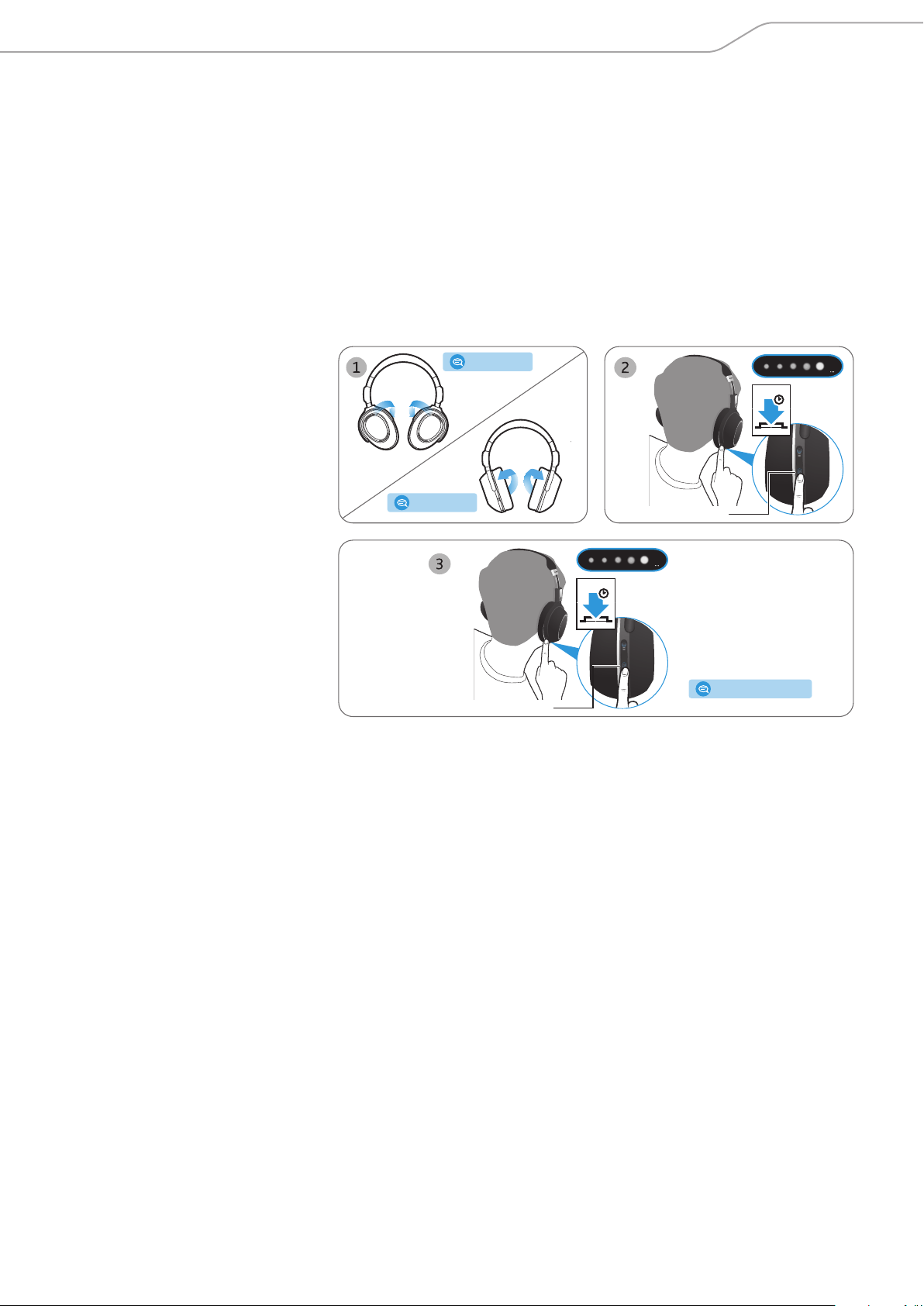
Resetting the headphones
If the headphones are not functioning properly, reset the headphones.
1. Switch the headphones off. See page 23.
2. Press the Effect Mode Control button for 4 seconds.
You can restore the headphones to its factory default settings using
CapTune.
PXC 550 | 47
Troubleshooting
Clearing previously paired devices
Ensure that Bluetooth is activated on the headphones when performing this
procedure.
1. Restart the headphones by switching them off and on again (see pages 22
and 23).
2. Press the Effect Mode Control button for 4 seconds.
You hear tones and the voice prompts “phone x disconnected” and “pairing”
and the LEDs flash white in sequence.
3. Press the Effect Mode Control button again for 4 seconds until you hear tones
and the voice prompt “pairing list cleared”.
The LEDs flash white in sequence. The headphones are permanently
disconnected from all devices and go into pairing mode.
Effect Mode Control
› power on ‹
› power off ‹
4s
Effect Mode Control
4s
› pairing list cleared ‹

48 | PXC 550
Specifications
Specifications
PXC 550 Wireless
Ear coupling around ear
Frequency response
17 Hz - 23 kHz
Transducer principle dynamic, closed
Sound pressure level (SPL) 110 dB (passive: 1 kHz/ 1 V
rms
)
Impedance active mode: 490 Ω
passive mode: 46 Ω
THD (1 kHz, 100 dB SPL) < 0.5 %
Pick-up pattern (speech audio) 3-mic beamforming array
Noise cancellation NoiseGard™ hybrid technology with
4 pick-up microphones
Total noise attenuation up to 30 dB
Input power 3.7 VDC, 700 mAh: built-in rechargeable
Lithium-Polymer battery
5 VDC, 345 mA: USB charging
Operating time 20 hours (Bluetooth and NoiseGard on)
30 hours (only NoiseGard on, with or
without audio cable for flight mode)
Temperature range operation: 0 to 40°C/32 to 104°F
Sstorage: -20 to 60°C/-4 to 140°F
Relative humidity operation: 10 to 80%, non condensing
storage: 10 to 90%
Charging time approx. 3 hours
Weight (headphones) 227 g
Bluetooth
Version 4.2, class 1
Transmission frequency 2402 MHz to 2480 MHz
Modulation type
GFSK, π/4 DQPSK / 8DPSK
Profiles HSP, HFP, AVRCP, A2DP, DIP
Output power 10 mW (max)
Codec aptX®
NFC
Frequency 13.56 MHz
Modulation type ASK
Output power within 500 µV/m

PXC 550 | 49
Trademarks
Trademarks
Sennheiser and NoiseGard™ are trademarks of Sennheiser electronic GmbH &
Co. KG.
Adobe, the Adobe logo, and Reader are either registered trademarks or
trademarks of Adobe Systems Incorporated in the United States and/or other
countries.
Apple, iPhone, iPod, iPod touch, iPad, and Siri are trademarks of Apple Inc.,
registered in the U.S. and other countries. App Store is a service mark of Apple
Inc. The trademark “iPhone” is used with a license from Aiphone K.K.
TIDAL is a service from Aspiro AB.
The Bluetooth name and the Bluetooth trademarks are owned by Bluetooth SIG,
Inc. Sennheiser electronic GmbH & Co. KG uses this brand under license.
The aptX mark and the aptX logo are trademarks of CSR plc or one of its group
companies and may be registered in one or more jurisdictions.
Android and Google Play are registered trademarks of Google Inc.
The N-Mark is a trademark or registered trademark of NFC Forum, Inc. in the
United States and in other countries.
Other product and company names mentioned in this instruction manual/safety
guide may be the trademarks or registered trademarks of their respective
holders.

Sennheiser Communications, A/S
Industriparken 27, DK-2750 Ballerup, Denmark
www.sennheiser.com
Publ. 09/16, A02