
2
Table of Contents
1. Introduction ...............................................................................................................................4
2. General Information ................................................................................................................. 5
2.1 Reading and Storing the User Manual ...................................................................................................................... 5
2.2 Signal symbol/word denitions ......................................................................................................................................5
3. Safety ............................................................................................................................................ 6
3.1 Proper Use ...................................................................................................................................................................................6
3.2 Safety Instructions ..................................................................................................................................................................6
3.2.1 Notes on Electrical Safety ........................................................................................................................................ 6
3.2.2 Battery Notes ...................................................................................................................................................................7
3.2.3 General Safety Notes ..................................................................................................................................................8
3.2.4 Electromagnetic Interference ................................................................................................................................9
3.2.5 FCC Statement ................................................................................................................................................................. 9
3.2.6 FCC Radiation Exposure Statement .............................................................................................................10
3.2.7 IC Statement ................................................................................................................................................................... 10
3.2.8 IC Radiation Exposure Statement ................................................................................................................... 10
4. In the Box and Unpacking ..................................................................................................... 11
5. Controls and Connections ...................................................................................................12
5.1 Front Panel ................................................................................................................................................................................ 12
5.2 Back Panel .................................................................................................................................................................................. 13
5.3 Remote Control ....................................................................................................................................................................14
6. Status Indication (LED indicator) ........................................................................................15
7. Setting Up the LSX ................................................................................................................. 16
7.1 Installing the Speakers ....................................................................................................................................................... 16
7.2 Speaker Placement ............................................................................................................................................................16
7.3 Installing the KEF Apps ................................................................................................................................................... 17
7.4 Setting Up with Wi-Fi ....................................................................................................................................................... 17
7.4.1 Internet Network Requirements ..................................................................................................................... 17
7.4.2 Android and iOS (Non Airplay 2) Method .............................................................................................. 18
7.4.3 iOS (Airplay 2) Method ..........................................................................................................................................20
7.5 Over the Air Firmware Update .................................................................................................................................21
7.5.1 Automatic Update Alert ........................................................................................................................................21
7.5.2 Checking for Update Manually ..........................................................................................................................22
7.6 Setting Up Without Wi-Fi .............................................................................................................................................23
8. Control Interface ....................................................................................................................24
8.1 Using KEF Control App ................................................................................................................................................... 24
8.1.1 Home Screen .................................................................................................................................................................24
8.1.2 Sound Optimization: EQ Settings ....................................................................................................................25
8.1.3 Adjusting the Settings of the Speakers ........................................................................................................31
8.2 Using the Remote Control ............................................................................................................................................ 35
8.2.1 Replacing the Battery ...............................................................................................................................................35
9. Playback and Streaming ........................................................................................................ 36
9.1 Playback with Wi-Fi ............................................................................................................................................................36
9.1.1 Using the KEF Stream App ...................................................................................................................................36
9.1.1.1 Home Screen .....................................................................................................................................................36
9.1.1.2 Main Menu ............................................................................................................................................................ 37
9.1.1.3 Playback Screen ................................................................................................................................................38

3
9.1.1.4 Playing Music from Connected Device (Library) .....................................................................39
9.1.1.5 Playing Music from Media Servers ......................................................................................................39
9.1.1.6 Playing Music from TIDAL ........................................................................................................................ 39
9.1.1.7 Playing Music from Spotify ...................................................................................................................... 40
9.1.1.8 Favourites ............................................................................................................................................................. 40
9.1.1.9 Recent ..................................................................................................................................................................... 40
9.1.1.10 Queue ...................................................................................................................................................................... 41
9.1.1.11 Playlists ....................................................................................................................................................................43
9.1.1.12 Settings ....................................................................................................................................................................46
9.1.2 Streaming with AirPlay 2........................................................................................................................................47
9.1.3 Streaming with Spotify Connect ......................................................................................................................48
9.1.4 Streaming with Qplay ...............................................................................................................................................49
9.1.5 Streaming with Roon ................................................................................................................................................50
9.1.6 Streaming with DLNA .............................................................................................................................................50
9.2 Playback with Bluetooth .................................................................................................................................................. 51
9.2.1 Selecting Bluetooth Mode .....................................................................................................................................51
9.2.2 Bluetooth Pairing .........................................................................................................................................................51
9.2.3 Playback Controls ........................................................................................................................................................51
9.3 Playback with Optical Input .......................................................................................................................................... 52
9.3.1 Optical Cable Connection .................................................................................................................................... 52
9.3.2 Selecting Optical Mode ...........................................................................................................................................52
9.4 Playback with Auxiliary Input .......................................................................................................................................52
9.4.1 Auxiliary Cable Connection ................................................................................................................................52
9.4.2 Selecting Auxiliary Mode .......................................................................................................................................52
10. Cleaning and Maintenance ....................................................................................................53
11. Storage .......................................................................................................................................53
12. FAQ and Troubleshooting ................................................................................................... 54
12.1 Setup and Network Connection .............................................................................................................................. 54
12.2 Operation ..................................................................................................................................................................................58
12.3 KEF Control App and KEF Stream App ............................................................................................................... 61
12.4 Maintenance .............................................................................................................................................................................62
12.5 Comments and Requests ............................................................................................................................................... 63
12.6 Troubleshooting ....................................................................................................................................................................63
12.7 Resetting to Factory Default ........................................................................................................................................ 66
12.8 LED Indicators ........................................................................................................................................................................ 67
13. Specications ............................................................................................................................70
14. Disposal .................................................................................................................................... 72
14.1 Disposing of the Packaging ............................................................................................................................................72
14.2 Disposing of the Speakers ..............................................................................................................................................72
14.3 Disposing of the Battery .................................................................................................................................................72
15. Appendix .................................................................................................................................. 73
15.1 Explanation of symbols ....................................................................................................................................................73
15.1.1 Warning Symbols ........................................................................................................................................................73
15.1.2 Regional Symbols .........................................................................................................................................................73
15.2 Integration with Home Automation Control System ...............................................................................75
15.3 IR Command Codes ..........................................................................................................................................................76

4
Table of ContentsSetting Up the LSXUsing the KEF Control AppPlayback and StreamingFAQ and Troubleshooting
1. Introduction
Thank you for choosing KEF wireless high-resolution speaker system – LSX.
Innovation is what sets KEF apart from its competitors. For over 50 years KEF has
been at the forefront of loudspeaker research and development, designing class-leading
speakers that have dealt with the challenges of reproducing the latest musical formats,
and reproducing them to the highest possible quality. This legacy continues today with
the LSX, our compact, yet powerful speaker system for the digital music era.
Please read and follow this user manual carefully before using the speaker system.
5
Table of ContentsSetting Up the LSXUsing the KEF Control AppPlayback and StreamingFAQ and Troubleshooting
2. General Information
2.1 Reading and Storing the User Manual
This user manual accompanies the LSX speaker system (hereafter referred
to as the “speakers”), and contains important information on setup and
handling.
Before using your speakers, read the user manual carefully. This particularly applies to
the safety instructions. Failure to do so may result in personal injury or damage to the
speakers.
Retain the user manual for further use. Make sure to include this user manual when
passing the speakers on to third parties.
2.2 Signal symbol/word definitions
The following symbols and signal words are used in this user manual.
WARNING!
This signal symbol/word designates a hazard with moderate
risk, which may result in death or severe injury if not avoided.
NOTICE!
This signal word warns of possible damage to property.
This signal word provides you with useful additional
information on handling and use.
6
Table of ContentsSetting Up the LSXUsing the KEF Control AppPlayback and StreamingFAQ and Troubleshooting
3. Safety
3.1 Proper Use
The speakers are exclusively intended for private indoor use and are not suitable for
commercial purposes.
Use the speakers only as described in this user manual. Any other use is deemed
improper and may result in damage to property or even personal injury. The speakers
are not a toy.
The manufacturer or vendor accepts no liability for damage caused by improper or
incorrect use.
3.2 Safety Instructions
3.2.1 Notes on Electrical Safety
WARNING!
Risk of electric shock!
Improper handling of the speakers may result in electric shock.
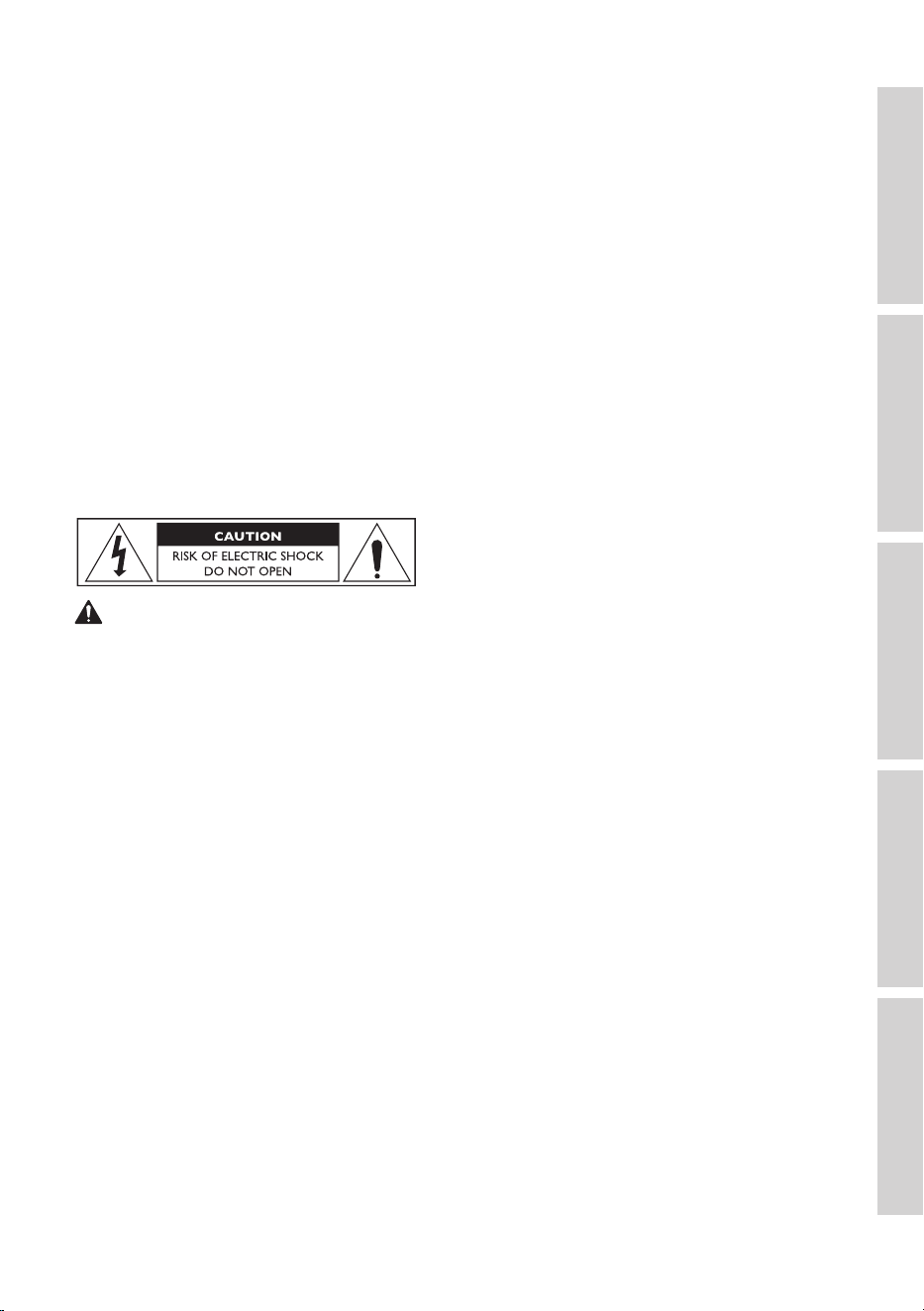
• WARNING: TO REDUCE THE RISK OF FIRE OR ELECTRICAL SHOCK, DO NOT
EXPOSE THIS APPLIANCE TO RAIN OR MOISTURE.
• CAUTION: TO REDUCE THE RISK OF ELECTRIC SHOCK, DO NOT REMOVE
COVER (OR BACK). NO USER-SERVICEABLE PARTS INSIDE. REFER SERVICING
TO QUALIFIED SERVICE PERSONNEL.
• A combined power input lead and country specific power plug is provided.
• Check before connecting to your local power supply that the local supply voltage is
the same as that marked on the underside of the device. If it is not, check with your
supplier before proceeding.
• The device should be connected to a power socket/outlet with a protective earthing
connection.
• Refer to the information on the underside of the enclosure for electrical and safety
information before installing or operating the speakers.
• Only connect the speakers to an easily accessible socket/outlet so that you can quickly
disconnect them from the power supply in the event of a problem.

7
Table of ContentsSetting Up the LSXUsing the KEF Control AppPlayback and StreamingFAQ and Troubleshooting
• Do not use the speakers if they are damaged or if the power cable or plug is defective.
• Never touch the power plug with wet or damp hands.
• Do not pull the power plug out of the socket/outlet by the cable; instead, always pull it
out by the plug itself.
• Never move, pull, or carry the speakers by their power cables.
• Lay the power cables so that they do not pose a tripping hazard.
• Do not kink the power cables and do not lay them over sharp edges.
• Only use the speakers indoors. Do not use the speakers in damp rooms or in the rain.
3.2.2 Battery Notes
WARNING!
Risk of explosion, injury and damage!
Improper handling of the battery increases the risk of explosion, leakage, serious injury
and property damage.
• The remote control supplied with this product contains a coin/button cell battery.
If the coin/button cell battery is swallowed, it can cause severe internal burns in just
2hours and can lead to death.
• Danger of explosion if the battery is incorrectly replaced. Replace only with the same
or equivalent type.
• Do not ingest the battery. Chemical burn hazard!
• Keep new and used batteries away from children.
• If the battery compartment does not close securely, stop using the remote control
and keep it away from children.
• If you think batteries might have been swallowed or placed inside any part of the body,
seek immediate medical attention.
• Dispose of used battery immediately.
• Battery must not be exposed to excessive heat such as direct sunlight, fire or the like.
8
Table of ContentsSetting Up the LSXUsing the KEF Control AppPlayback and StreamingFAQ and Troubleshooting
3.2.3 General Safety Notes
WARNING!
Risk of injury and damage!
Improper handling of the speakers may increase the risk of injury and damage.
• Read these instructions.
• Keep these instructions - for future reference.
• Heed all warnings - on the speakers and in all product documentation.
• Follow all instructions.
• Do not use the speakers near water.
• The speakers shall not be exposed to dripping or splashing and no objects filled with
liquids such as vases, shall be placed on the speakers.
• Clean only with dry cloth.
• Do not block any ventilation openings. Install in accordance with the manufacturer‘s
instructions. To ensure reliable operation of the speakers and to protect them from
overheating put the speakers in a position and location that will not interfere with their
proper ventilation.
• Do not install near any heat sources such as radiators, heat registers, stoves, or other
apparatus (including amplifiers) that produce heat.
• Avoid damp, temperature extremes and direct sunlight.
• Trailing cables are dangerous, secure all cables.
• No naked flame sources, such as lighted candles, should be placed on the speakers.
• (For specific markets only) Do not defeat the safety purpose of the polarized or
grounding-type plug. A polarized plug has two blades with one wider than the other.
A grounding-type plug has two blades and a third grounding prong. The wide blade or
the third prong are provided for your safety. If the provided plug does not fit into your
outlet, consult an electrician for replacement of the obsolete outlet.
• Protect the power cables from being walked on or pinched particularly at plugs,
convenience receptacles, and the point where they exit from the speakers.
• The power plugs or the appliance coupler shall be readily accessible to completely
disconnect the speakers from power.
• Only use attachments/accessories specified by the manufacturer.
9
Table of ContentsSetting Up the LSXUsing the KEF Control AppPlayback and StreamingFAQ and Troubleshooting
• Use only with the cart, stand, tripod, bracket, or table specified by the
manufacturer, or sold with the speakers. When a cart is used, use caution
when moving the cart/speakers combination to avoid injury from tip-over.
• Unplug the speakers during lightning storms or when unused for long periods of time
to prevent damage to these speakers.
• Refer all servicing to qualified service personnel. Servicing is required when the
speakers have been damaged in any way, such as power cables or plugs are damaged,
liquid has been spilled or objects have fallen into the speakers, the speakers have been
exposed to rain or moisture, do not operate normally, or have been dropped. Do not
attempt to service this product yourself. Opening or removing covers may expose
you to dangerous voltages or other hazards. Please contact KEF to be referred to an
authorized service center near you.
3.2.4 Electromagnetic Interference
The normal function of the product may be disturbed by strong electromagnetic
interference. If so, simply reset the product to resume normal operation by following
the user manual. In case the function could not resume, please use the product in other
location.
3.2.5 FCC Statement
This equipment has been tested and found to comply with the limits for a Class B digital
device, pursuant to Part 15 of the FCC Rules. These limits are designed to provide
reasonable protection against harmful interference in a residential installation. This
equipment generates, uses and can radiate radio frequency energy and, if not installed
and used in accordance with the instructions, may cause harmful interference to radio
communications. However, there is no guarantee that interference will not occur in
a particular installation. If this equipment does cause harmful interference to radio or
television reception, which can be determined by turning the equipment off and on, the
user is encouraged to try to correct the interference by one of the following measures:
• Reorient or relocate the receiving antenna.
• Increase the separation between the equipment and receiver.
• Connect the equipment into an outlet on a circuit different from that to which the
receiver is connected.
• Consult the dealer or an experienced radio/TV technician for help.
This device complies with Part 15 of the FCC Rules. Operation is subject to the following
two conditions:
1. This device may not cause harmful interference, and
2. This device must accept any interference received, including interference that may
cause undesired operation.

10
Table of ContentsSetting Up the LSXUsing the KEF Control AppPlayback and StreamingFAQ and Troubleshooting
3.2.6 FCC Radiation Exposure Statement
This device complies with FCC radiation exposure limits set forth for an uncontrolled
environment and it also complies with Part 15 of the FCC RF Rules. This equipment must
be installed and operated in accordance with provided instructions and the antenna(s)
used for this transmitter must be installed to provide a separation distance of at least
20cm from all persons and must not be co-located or operating in conjunction with any
other antenna or transmitter. End-users and installers must be provided with antenna
installation instructions and consider removing the no-collocation statement.
The device meets the exemption from the routine evaluation limits in section 2.5
of RSS102 and compliance with RSS-102 RF exposure, users can obtain Canadian
information on RF exposure and compliance.
The device for operation in the band 5150-5250 MHz is only for indoor use to reduce
the potential harmful interference to co-channel mobile satellite systems.
For devices with detachable antenna(s), the maximum antenna gain permitted for devices
in the band 5725-5850 MHz shall be such that the equipment still complies with the
e.i.r.p. limits specified for point-to-point and non-point-to-point operation as appropriate.
CAUTION! Any changes or modifications not expressly approved by the party
responsible for compliance could void the user’s authority to operate the equipment.
3.2.7 IC Statement
This device complies with Industry Canada’s licence-exempt RSSs. Operation is subject to
the following two conditions:
1. This device may not cause interference; and
2. This device must accept any interference, including interference that may cause
undesired operation of the device.
This transmitter must not be co-located or operating in conjunction with any other
antenna or transmitter. This equipment should be installed and operated with a minimum
distance of 20 centimeters between the radiator and your body.
3.2.8 IC Radiation Exposure Statement
This equipment complies with IC RSS-102 radiation exposure limits set forth for an
uncontrolled environment. This equipment should be installed and operated with a
minimum distance of 20 cm between the radiator and any part of your body.
11
Table of ContentsSetting Up the LSXUsing the KEF Control AppPlayback and StreamingFAQ and Troubleshooting
4. In the Box and Unpacking
NOTICE!
Risk of damage!
Using a sharp knife or other pointed object to open the packaging may damage the
speakers.
• Be very careful when opening the packaging. Follow the instructions on the packaging
to lift up the speakers from the sides to avoid damaging the Uni-Q drivers (speaker
cones).
×2
×1 ×1 ×2 ×5
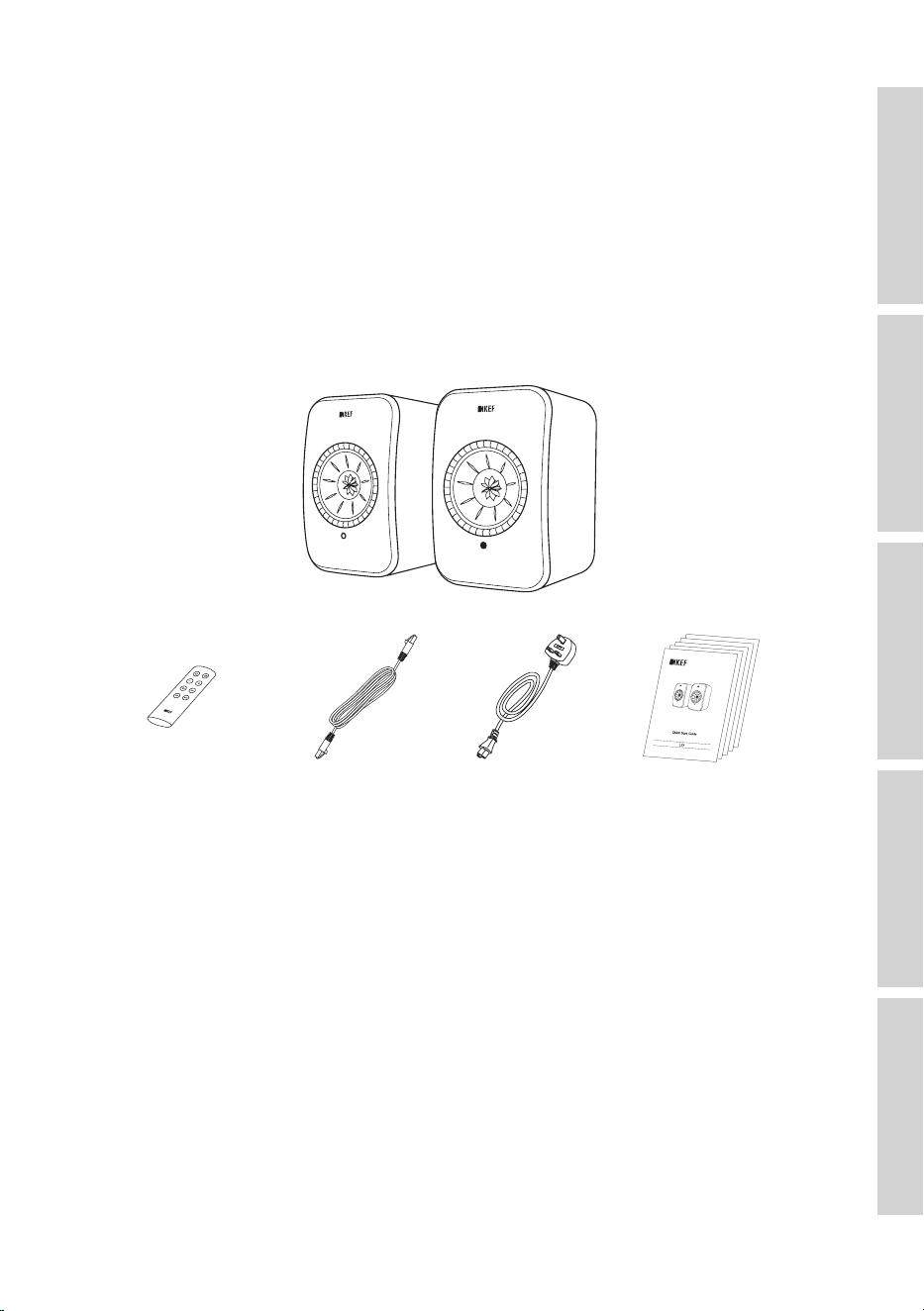
1. Take the speakers out of the packaging.
2. Check to make sure that all parts are included, including:
• Speaker ×2 (Master Speaker ×1, Slave Speaker ×1)
• Remote control* ×1
• Inter-speaker cable ×1 (length: 3 m)
• Power cable ×2 (length: 2 m, with country-specific power plugs)
• Printed materials: Quick start guide, important safety information, specifications,
warranty information, and maintenance guide for Kvadrat fabrics
3. Check whether the speakers or individual parts are damaged. If this is the case, do not
use the speakers. Contact your retailer via the contact information indicated on the
warranty information.
*Remove the insulation tab from the battery compartment before use.
12
Table of ContentsSetting Up the LSXUsing the KEF Control AppPlayback and StreamingFAQ and Troubleshooting
5. Controls and Connections
5.1 Front Panel
Master SpeakerSlave Speaker
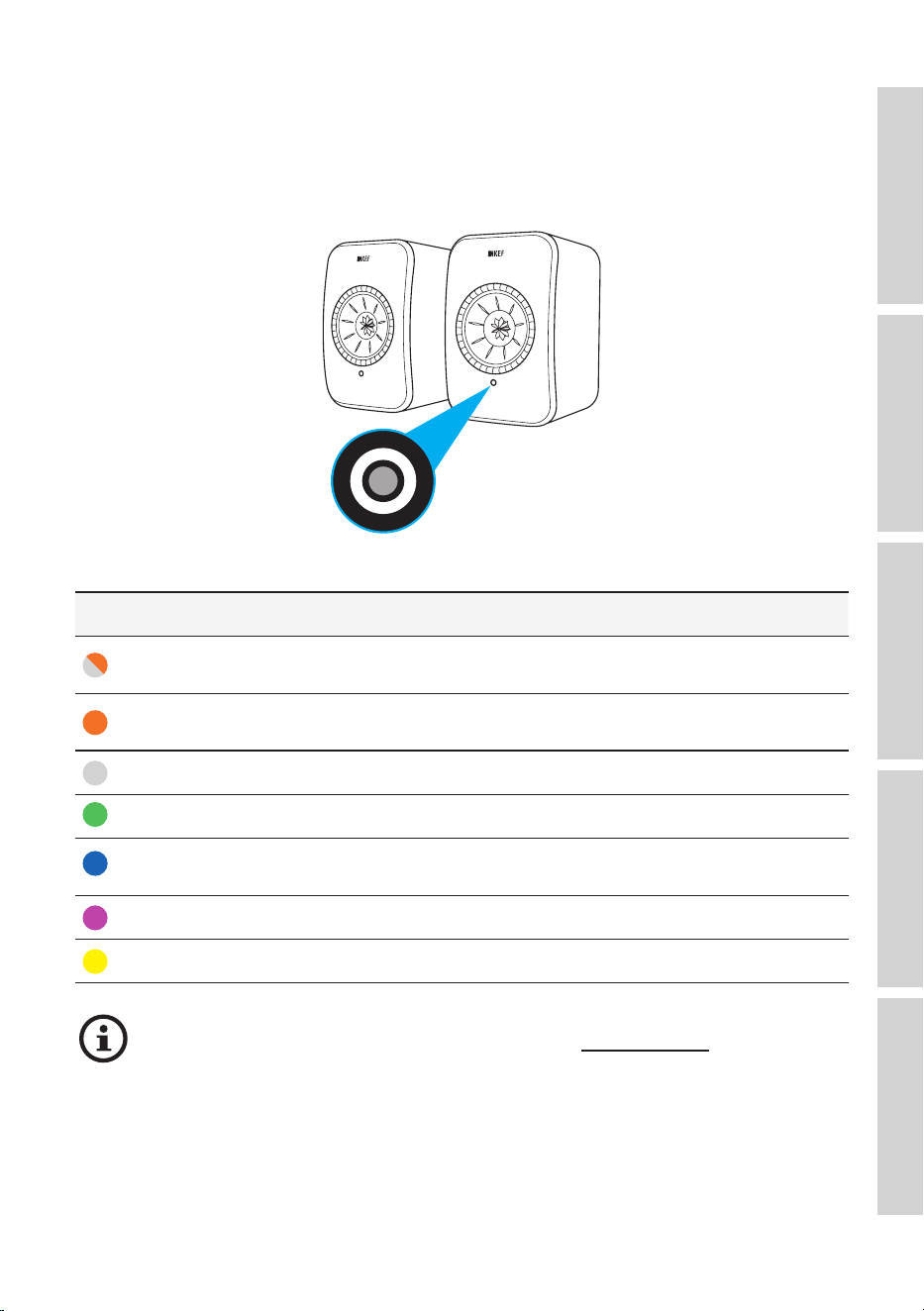
• An LED indicator can be found on each speaker, below the Uni-Q driver (speaker
cone).
• The IR (infrared) receiver for the remote control can be found on the Master Speaker
where the LED indicator is located.
The LED indicator of the Slave Speaker only comes on when:
• The Slave Speaker is initially connected to power and is working properly. The
LED indicator will briefly come on orange and then go out.
• An error occurs.
During normal operation the LED indicator on the Slave Speaker will not
illuminate.
13
Table of ContentsSetting Up the LSXUsing the KEF Control AppPlayback and StreamingFAQ and Troubleshooting
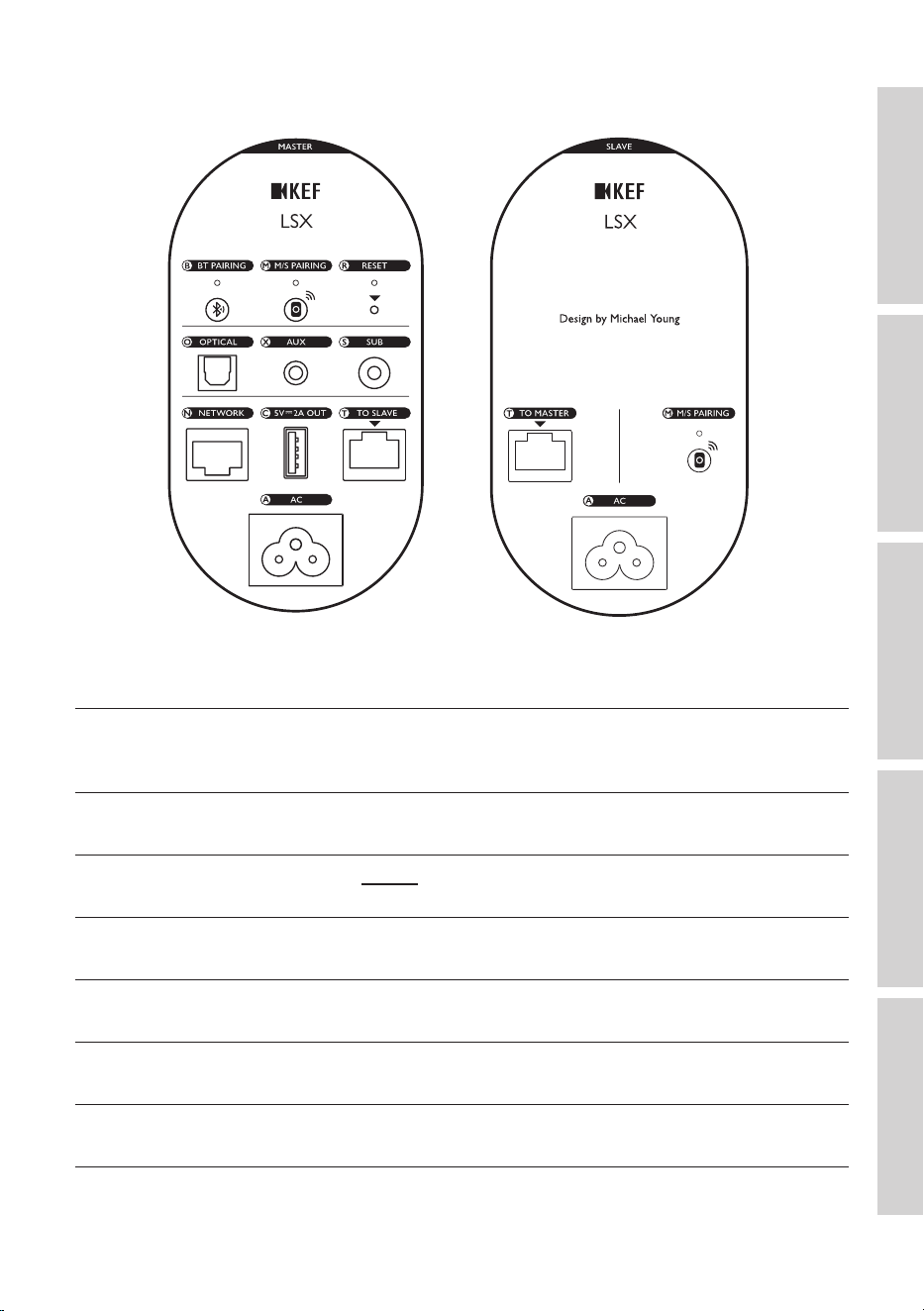
5.2 Back Panel
Controls and connections are found on the back panel of each speaker, marked as
shown.
B Bluetooth pairing button Enables Bluetooth pairing. The speakers will be ready
to pair a new device. Any Bluetooth connected device
will be disconnected.
M Master-Slave pairing
button
Re-establishes the connection between the Master and
Slave Speakers if the connection is lost.
R Factory reset button
(inside the small hole)
Resets the speakers to the factory defaults.
O Optical input port Plays audio input from a source (e.g. television*, game
console) through an optical cable (not provided).
X Auxiliary input jack Plays audio input from a source (e.g. phono stage)
through a 3.5 mm audio cable (not provided).
S Subwoofer output jack Connects a subwoofer with the speakers through an
RCA cable (not provided).
N Network port Connects the speakers to a router with a LAN cable
(not provided).
14
Table of ContentsSetting Up the LSXUsing the KEF Control AppPlayback and StreamingFAQ and Troubleshooting
C USB power port
(5 V 2 A)
Charges Compatible Personal Assistant Devices and
mobile devices. Charging is not available when the
speakers are in Standby Mode.
T To Master/Slave
connection port
Connects to the Master/Slave Speaker with the inter-
speaker cable.
A AC input connector Connects the speakers to the power source with the
power cables.
*Make sure your television is set to output digital audio in PCM format. Refer to the user manual of your
television for details.
A threaded hole (¼–20 UNC) can be found on the underside of each speaker
for stands or wall mounting. See chapter “Installing the Speakers”.
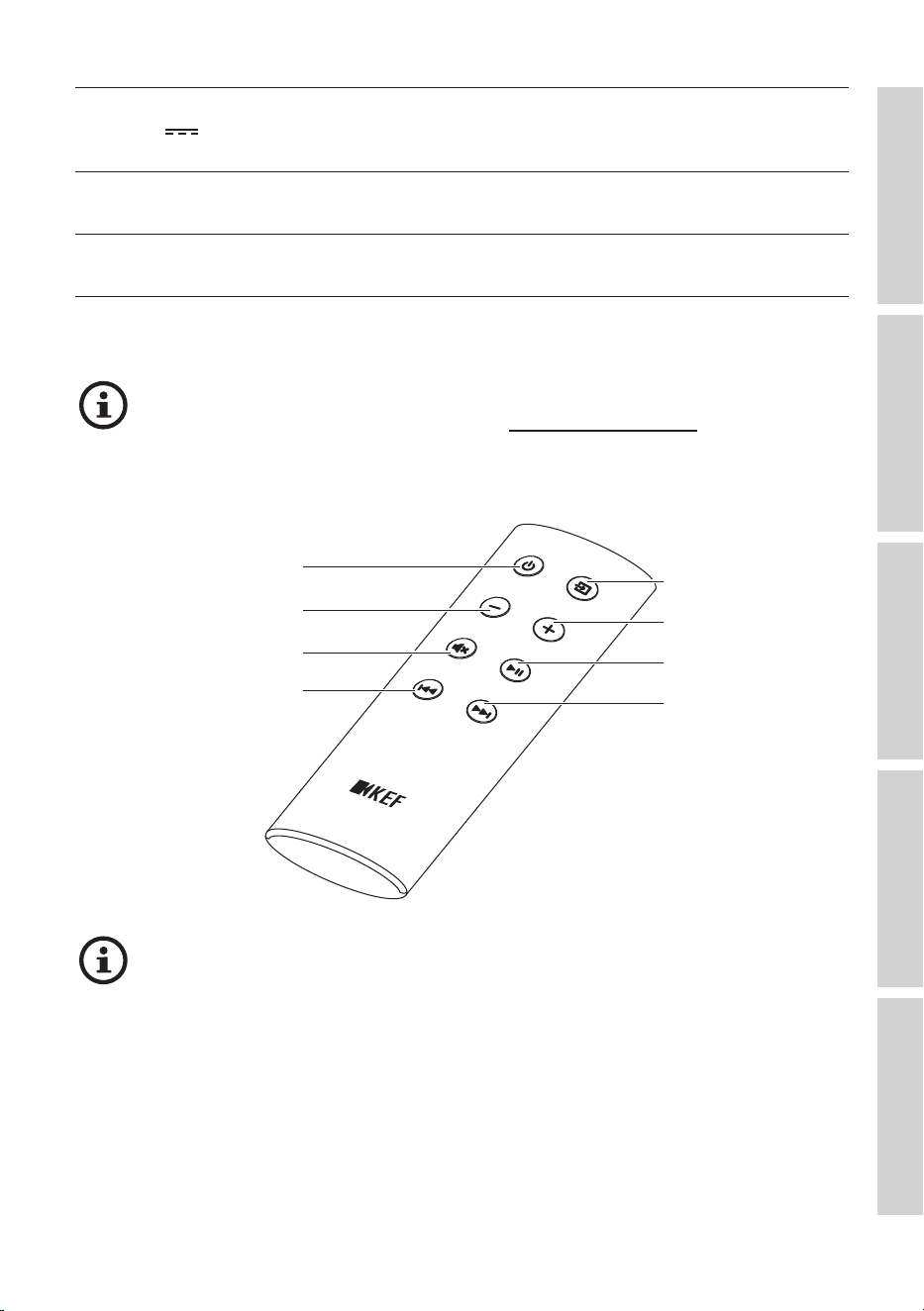
5.3 Remote Control
Source button
Volume up button
Play/pause button
Next button
On/off button
Volume down button
Mute button
Previous button
Remove the insulation tab from the battery compartment before use.
15
Table of ContentsSetting Up the LSXUsing the KEF Control AppPlayback and StreamingFAQ and Troubleshooting
6. Status Indication (LED indicator)
The connection and operation status can be easily checked through the colours and
patterns of the LED indicator on the Master Speaker.
Pattern Status
Alternating between
white and orange
The speakers are ready to connect to a Wi-Fi network.
Launch the KEF Control app to set up the speakers.
Solid orange
The speakers are in Standby Mode and connected to a
Wi-Fi network.
Solid white The speakers are operating in Wi-Fi Mode.
Solid green The speakers are operating in Spotify Connect Mode.
Solid blue
The speakers are operating in Bluetooth Mode and a device
is already paired with the speakers.
Solid purple The speakers are operating in Optical Mode.
Solid yellow The speakers are operating in AUX Mode.
For a full list of colours and patterns, see chapter “LED Indicators”.
16
Table of ContentsSetting Up the LSXUsing the KEF Control AppPlayback and StreamingFAQ and Troubleshooting
7. Setting Up the LSX
7.1 Installing the Speakers
• The speakers should be placed on a flat and level surface that is free from vibration.
• The speakers can be mounted on stands or on the wall. A threaded hole
(¼–20UNC) can be found on the underside of each speaker.
WARNING: Be aware of the potential hazards from tipping or knocking the speakers
off the stands which may result in personal injury, or properly damage.
7.2 Speaker Placement
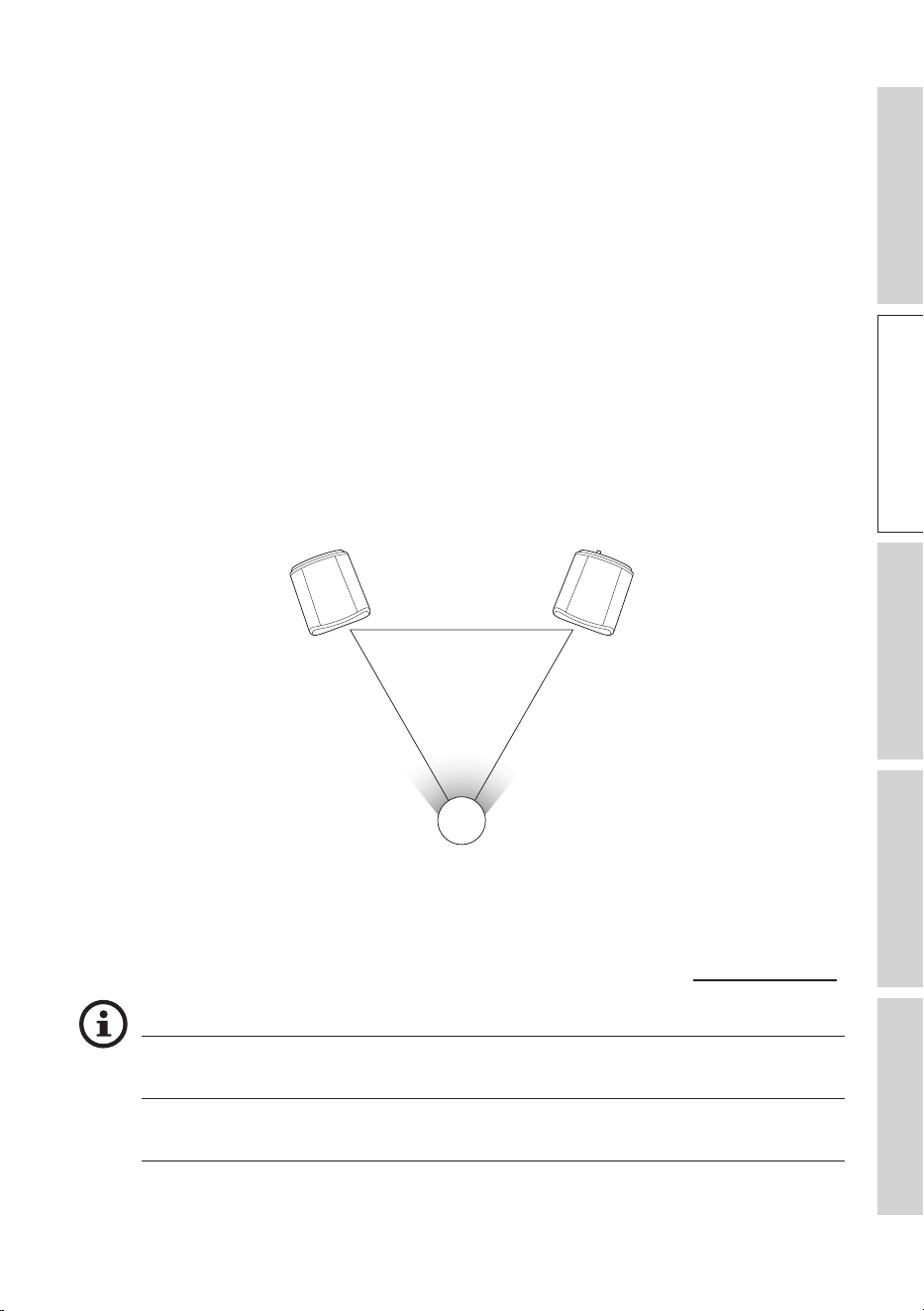
The two speakers are distinguished between the Master and Slave Speakers. By default,
the Master Speaker is the right channel* and should be placed on your right hand side as
you face the speakers. For the best stereo experience or soundstage, place the speakers
around 1 to 3 meters apart.
A
B C
A = B = C
The optimum distance between the speakers and the listener will depend on how far the
Master and Slave Speakers are separated. Try to keep the same distance to the listener to
form an equilateral triangle.
*The left and right channels can be swapped through the KEF Control app. See chapter “Inverse L/R Speakers”.
Maximum Distance between the Two Speakers
Wireless Mode Up to 5 meters. Note that RF interference, including Wi-Fi
and Bluetooth may reduce this distance.
Cable Mode Connect with a shielded Cat-6 Ethernet cable.
The maximum cable length is 8 metres.
17
Table of ContentsSetting Up the LSXUsing the KEF Control AppPlayback and StreamingFAQ and Troubleshooting
7.3 Installing the KEF Apps
For comprehensive control and to enjoy streaming muisc, install the KEFControl app
and KEFStream app on your iOS* or Android** devices. Search “KEF Control” and “KEF
Stream” in the App Store or Google Play Store to download and install the apps.
The KEF Control app allows you to set up the speakers, apply sound settings,
turn on/off the speakers and switch sound sources.
The KEF Stream app allows you to access to and play back your locally or
network stored music.
*Requires iOS 10 or above. **Requires Android 4.4 or above.
7.4 Setting Up with Wi-Fi
For the best sound quality, comprehensive control and full functionality, the speakers
should be “onboarded” to your personal Wi-Fi network.
7.4.1 Internet Network Requirements
For better streaming stability, especially for hi-res music streaming, a 5 GHz Wi-Fi
network with a router transmission speed of at least 1,300 Mbps is recommended.
• Technical Requirements
Support IEEE 802.11a/b/g/n
Using security protocol WPA2
• Open networks are not recommended for security reasons.
• WEP is an old encryption method and may lead to setup and streaming
problems.
• Refer to the user manual of your router to select the encryption method.
Connecting to an office network: The speakers are designed to work
with a personal Wi-Fi network. In office networks, additional security or
authentication methods are commonly introduced which may prevent
the speakers from connecting. You may need the help of the network
administrator to configure the network if the speakers are to be connected
to an office network.
18
Table of ContentsSetting Up the LSXUsing the KEF Control AppPlayback and StreamingFAQ and Troubleshooting
7.4.2 Android and iOS (Non Airplay 2) Method
Airplay 2 is available from firmware version 4.0. After firmware upgrade, iOS
users should follow the chapter "iOS (Airplay 2) Method" to perform the setup.
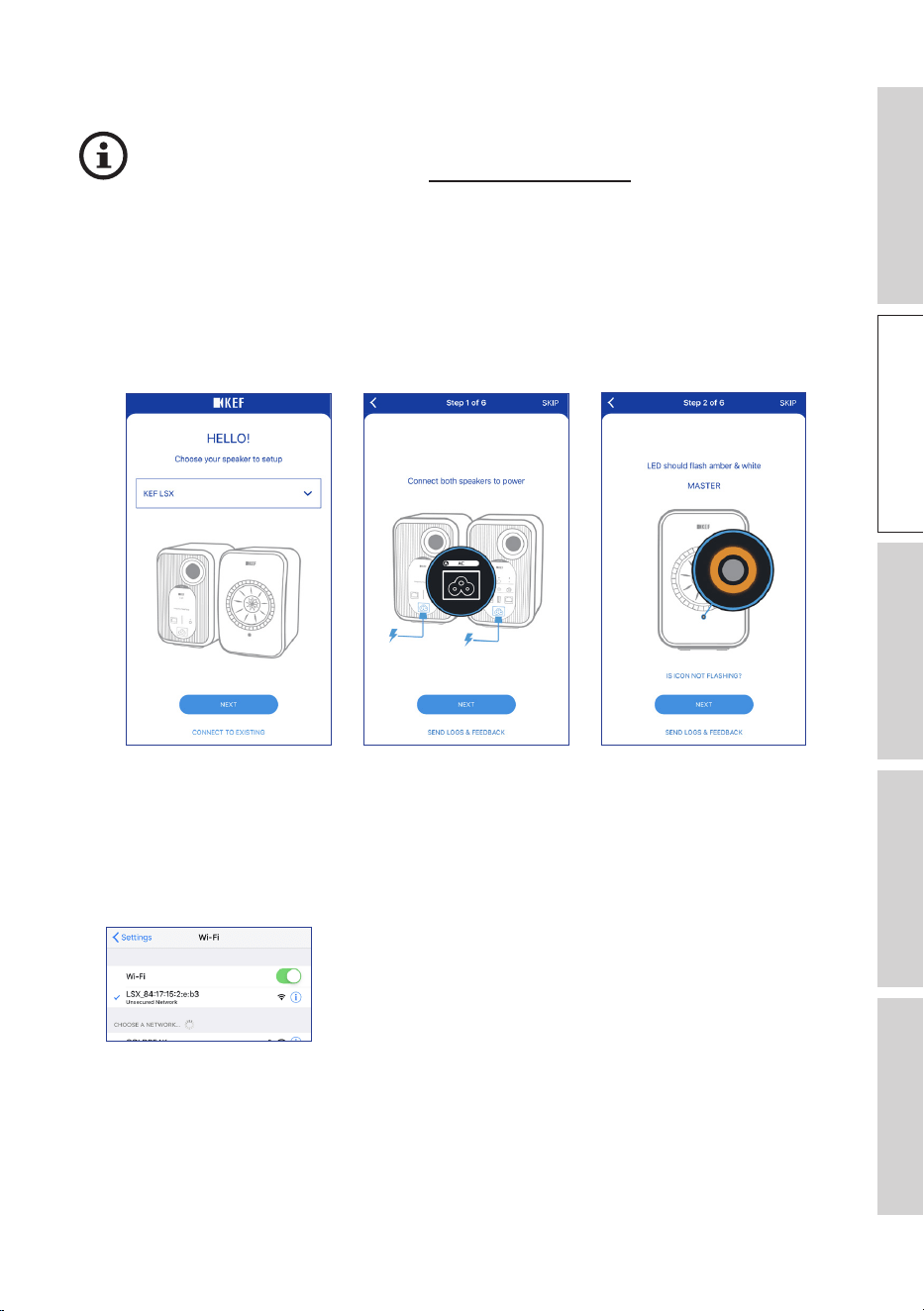
1. To connect LSX to your network, open the KEF Control app on your device. Select
“KEF LSX” from the selection menu and then tap “Next”.
2. Connect the power cables to the AC input connectors at the back of the speakers.
Then tap “Next”.
3. The LED indicator on the Master Speaker will ash orange and white, indicating that
the speakers are ready for connection. Tap “Next”.
1. 2. 3.
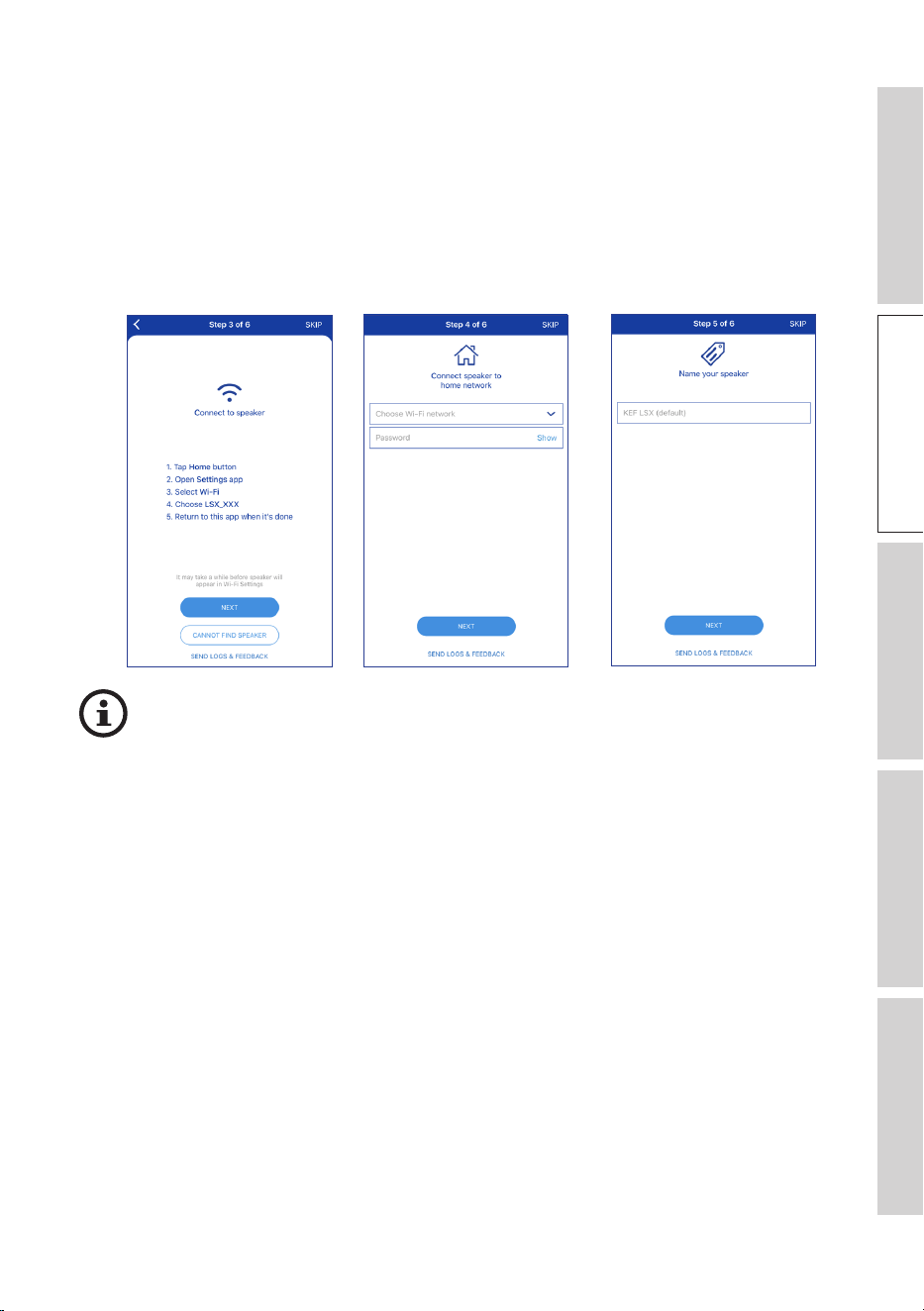
4. Tap the Home button of your device.
5. Open the “Settings” app of your device.
6. Select “Wi-Fi”.
7. Select “LSX_XXX” from the available networks.
19
Table of ContentsSetting Up the LSXUsing the KEF Control AppPlayback and StreamingFAQ and Troubleshooting
8. Return to the KEF Control app and then tap “Next”.
9. Select your Wi-Fi network from the list, enter the password of your Wi-Fi network
and then tap “Next”.
10. Create a name for the speakers (optional) and then tap “Next”.
The onboarding process will be automatically completed. The LED indicator on the
Master Speaker will light solid white when the connection is successful. The Slave
Speaker will be automatically and wirelessly connected to the Master Speaker.
8. 9. 10.
The above process is slightly different between iOS and Android devices. In this
case, follow the instructions on the screen to complete the connection.
20
Table of ContentsSetting Up the LSXUsing the KEF Control AppPlayback and StreamingFAQ and Troubleshooting
7.4. 3 iOS (Airplay 2) Method
Once your speakers are upgraded with Airplay 2, iOS users can use this method to
connect the speakers to your network.
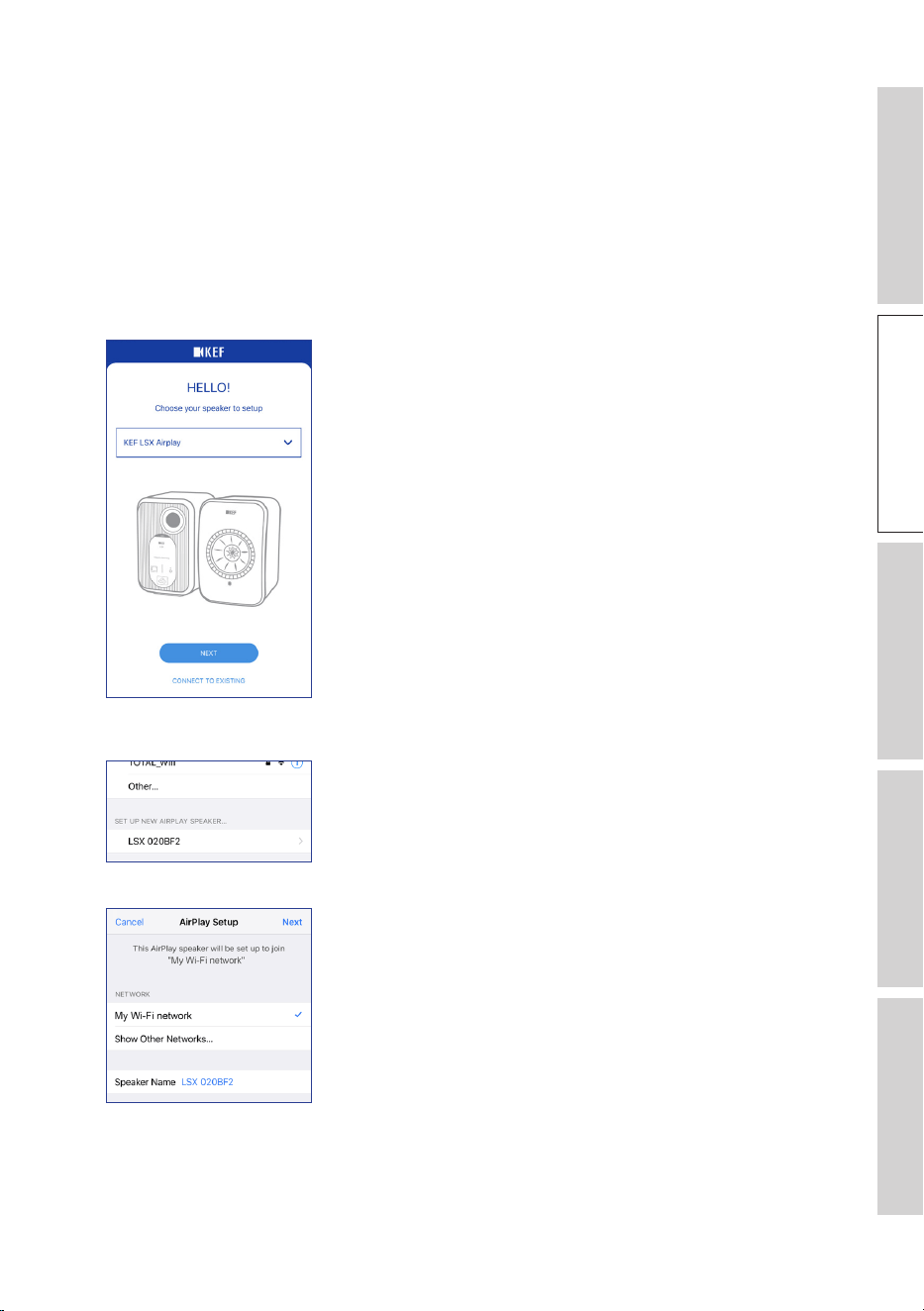
1. To get the speakers connected to a network, connect the power cables to the AC
input connectors at the back of the speakers. The LED indicator on the Master
Speaker will ash orange and white.
2. Open the KEF Control app on your device. Select “KEF LSX Airplay” from the
selection menu and then tap “Next”.
3. Select “LSX_XXX” under “Set up new airplay speaker...”.
4. Select the network to join and then tap “Next”.
The onboarding process will be automatically completed. The LED indicator on the
Master Speaker will light solid white when the connection is successful. The Slave
Speaker will be automatically and wirelessly connected to the Master Speaker.
21
Table of ContentsSetting Up the LSXUsing the KEF Control AppPlayback and StreamingFAQ and Troubleshooting
7.5 Over the Air Firmware Update
7.5.1 Automatic Update Alert
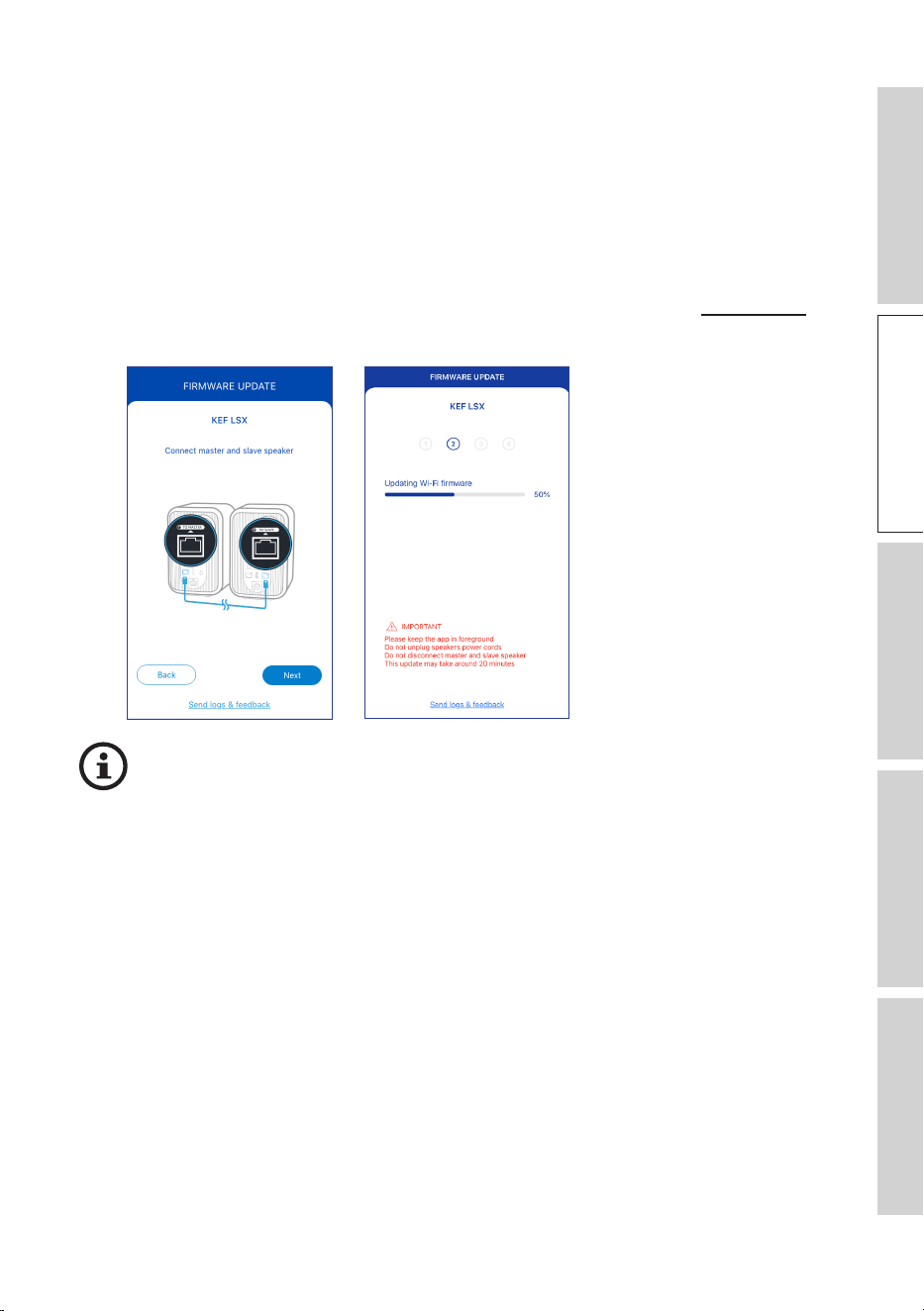
1. You will be reminded to update the rmware if a newer version is available. Tap
“Update” to continue.
2. Connect the Master and Slave Speakers with the provided inter-speaker cable through
the “To Master/Slave” connection ports on the back of the speakers and then tap
“Next”. Cable Mode will also be automatically activated (see chapter “Cable Mode”).
3. Wait until the rmware is downloaded and updated.
2. 3.
The entire process may take around 20 minutes. The KEF Control app must
be KEPT IN THE FOREGROUND. DO NOT unplug the power cables,
DO NOT disconnect the inter-speaker cable and DO NOT reset speakers
during the upgrade.
22
Table of ContentsSetting Up the LSXUsing the KEF Control AppPlayback and StreamingFAQ and Troubleshooting
7.5.2 Checking for Update Manually
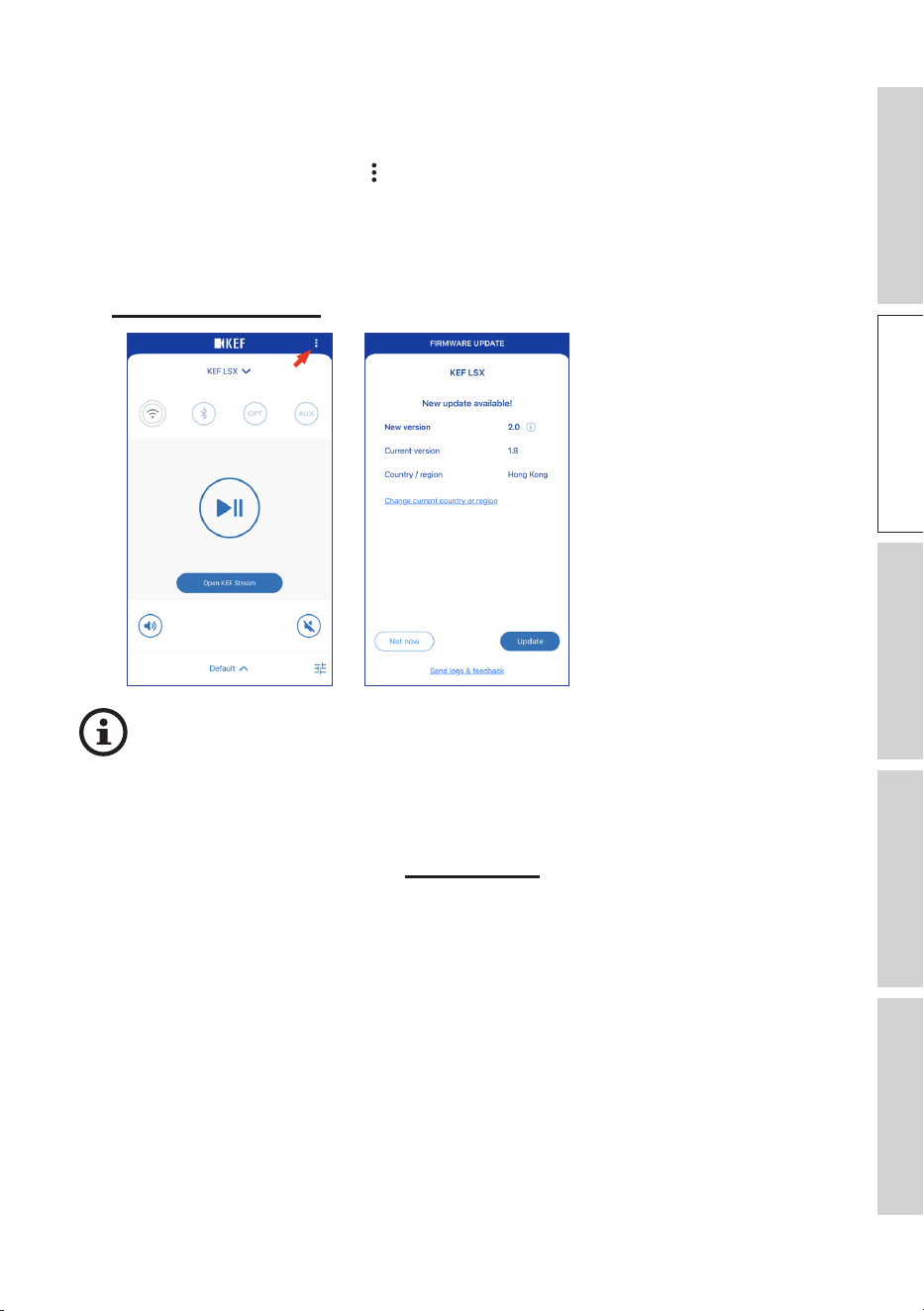
1. To check whether a rmware update is available, launch the KEF Control app.
2. Tap the speaker settings icon ( ) at the top right corner to access the settings menu.
3. Tap “Firmware Update”.
4. If a new rmware is available, tap “Update”.
5. Follow the instructions on the KEF Control app to complete the update (see chapter
“Automatic Update Alert”).
2. 4.
• When the firmware update is completed, you may disconnect the inter-
speaker cable. Cable Mode will automatically be disabled if already done so
before the update.
• If for any reason there is a failure during the firmware update process, you
may recover your speakers through the Recovery Mode feature in the KEF
Control app. See chapter “Recovery Mode”.
23
Table of ContentsSetting Up the LSXUsing the KEF Control AppPlayback and StreamingFAQ and Troubleshooting
7.6 Setting Up Without Wi-Fi
You can still set up the speakers without a Wi-Fi network. However, this will limit the
controls and functionality of the speakers. In addition, important updates and bug fixes
will be missed without Wi-Fi connection.
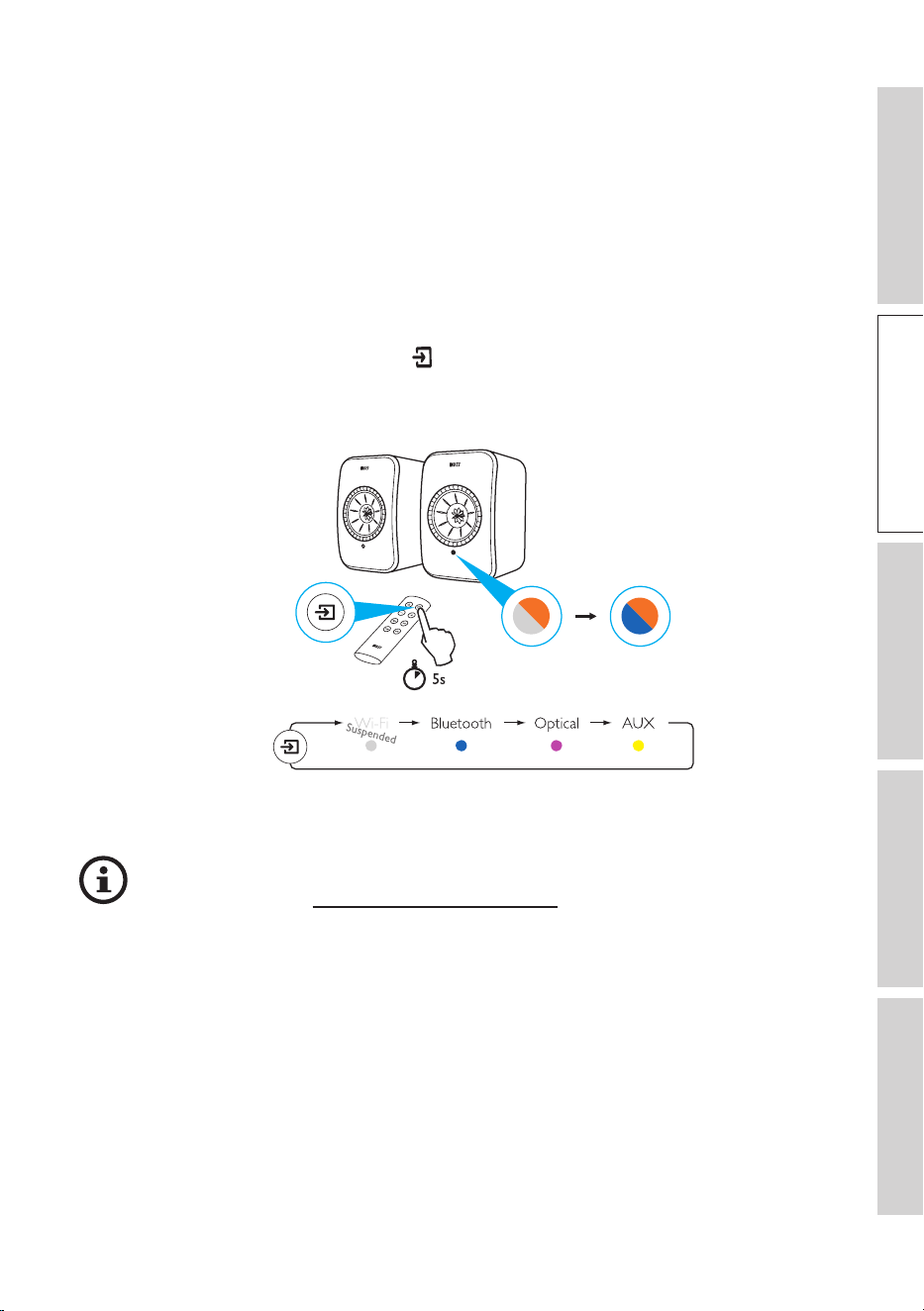
1. To set up without Wi-Fi connection, connect the power cables to the AC input
connectors at the back of the speakers. The LED indicator on the Master Speaker will
ash orange and white.
2. Point the remote control toward the Master Speaker.
3. Press and hold the source button ( ) on the remote control for 5 seconds until the
LED indicator on the Master Speaker ashes blue and orange. This indicates that Wi-Fi
Mode is disabled.
4. In this mode you will have access to Bluetooth, Optical and AUX Modes.
To resume using the speakers with a Wi-Fi connection, the speakers must be
reset. See chapter "Resetting to Factory Default".
24
Table of ContentsSetting Up the LSXUsing the KEF Control AppPlayback and StreamingFAQ and Troubleshooting
8. Control Interface
8.1 Using KEF Control App
The KEF Control app lets you set up the speakers, apply sound settings, turn the
speakers on and off and switch sound sources.
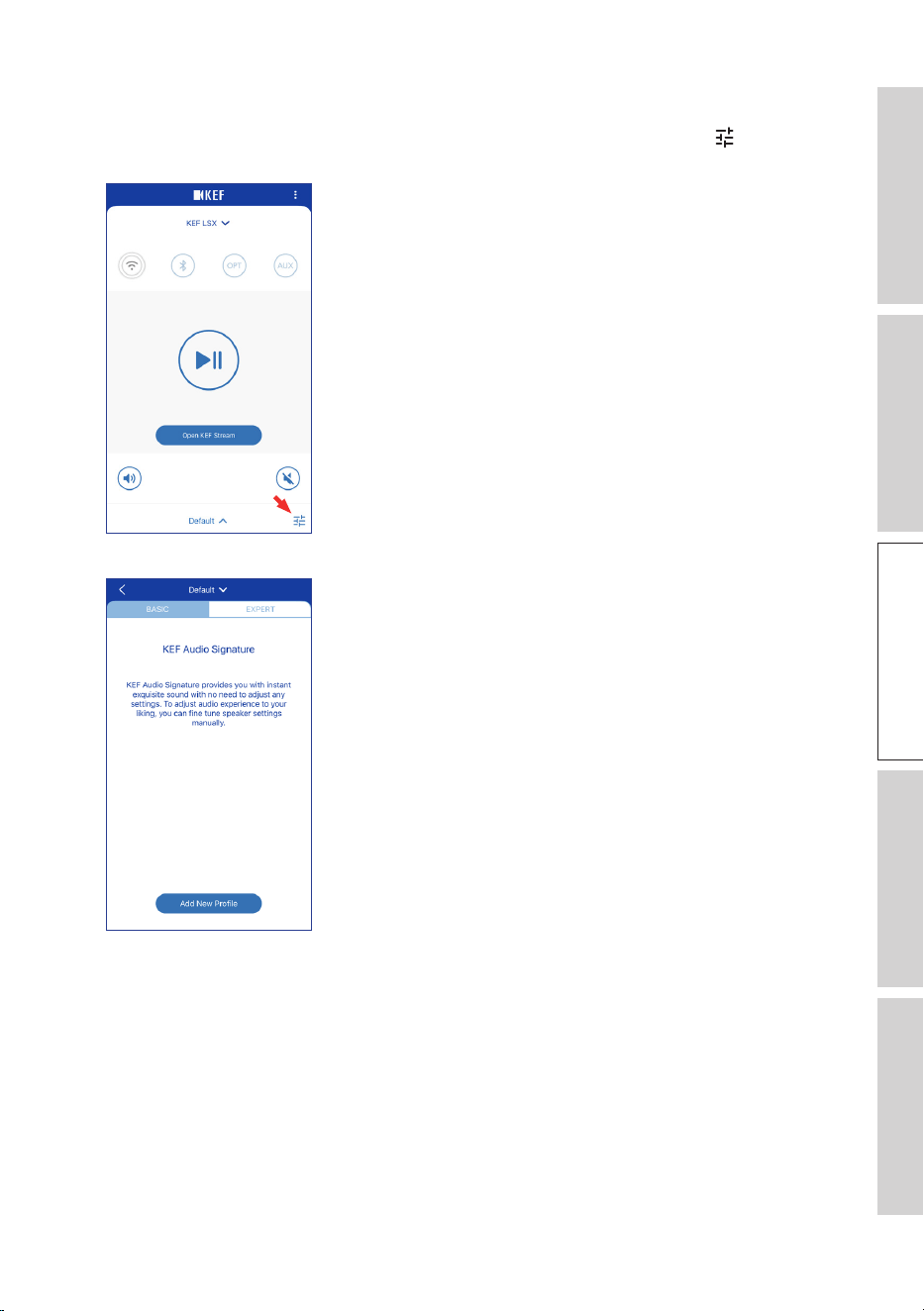
8.1.1 Home Screen
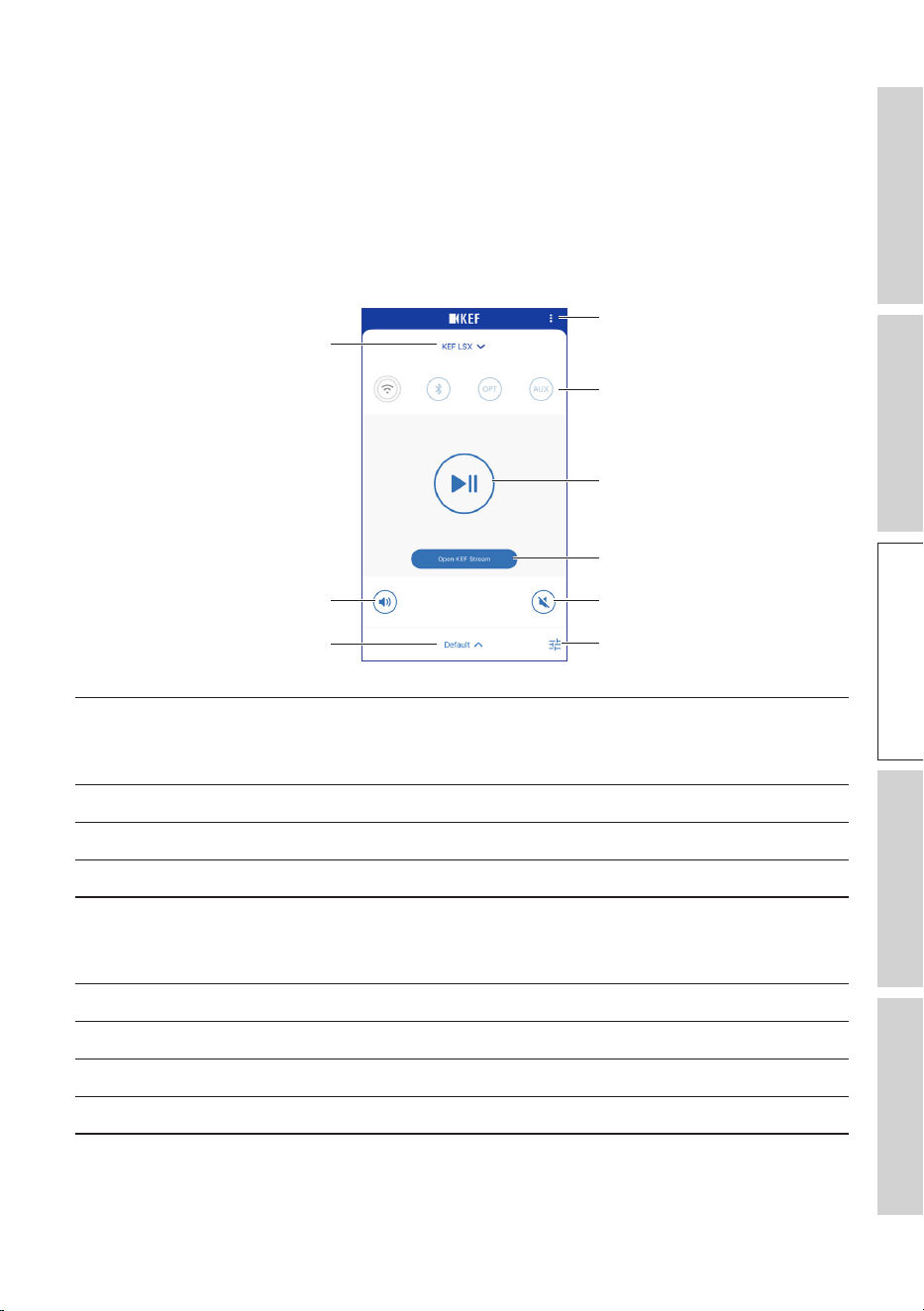
Speaker settings
Source
Play/pause
KEF Stream app
Mute
EQ settings
Speaker selection
Volume control
Sound profile
Speaker selection Selects a pair of speakers available for control through the KEF
Control app. You can also add a new pair of compatible speakers
by selecting “Add new speaker”.
Volume control
Tap once and then use the volume slider to adjust the volume.
Sound profile
Selects a sound profile created in the EQ settings menu.
Speaker settings
Accesses the speaker settings menu.
Source Tap one of the source buttons (W-Fi, Bluetooth, Optical and AUX)
to select a sound source, or to turn on or off the speakers to or
from the selected source.
Play/pause
Plays or pauses the playback.
KEF Stream app
Prompts to the KEF Stream app.
Mute
Mutes or restores the sound output.
EQ settings
Accesses the sound settings menu.
25
Table of ContentsSetting Up the LSXUsing the KEF Control AppPlayback and StreamingFAQ and Troubleshooting
8.1.2 Sound Optimization: EQ Settings
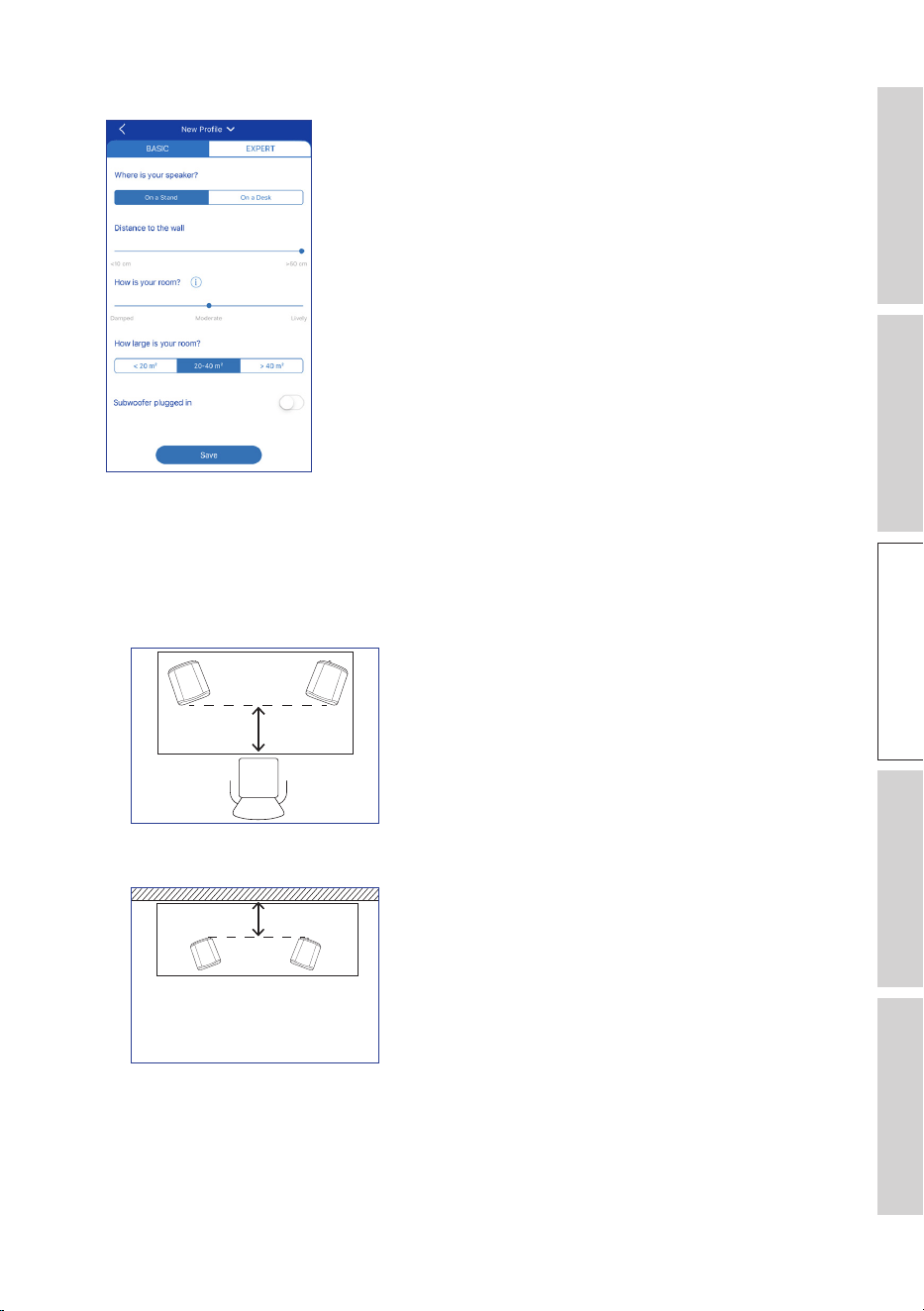
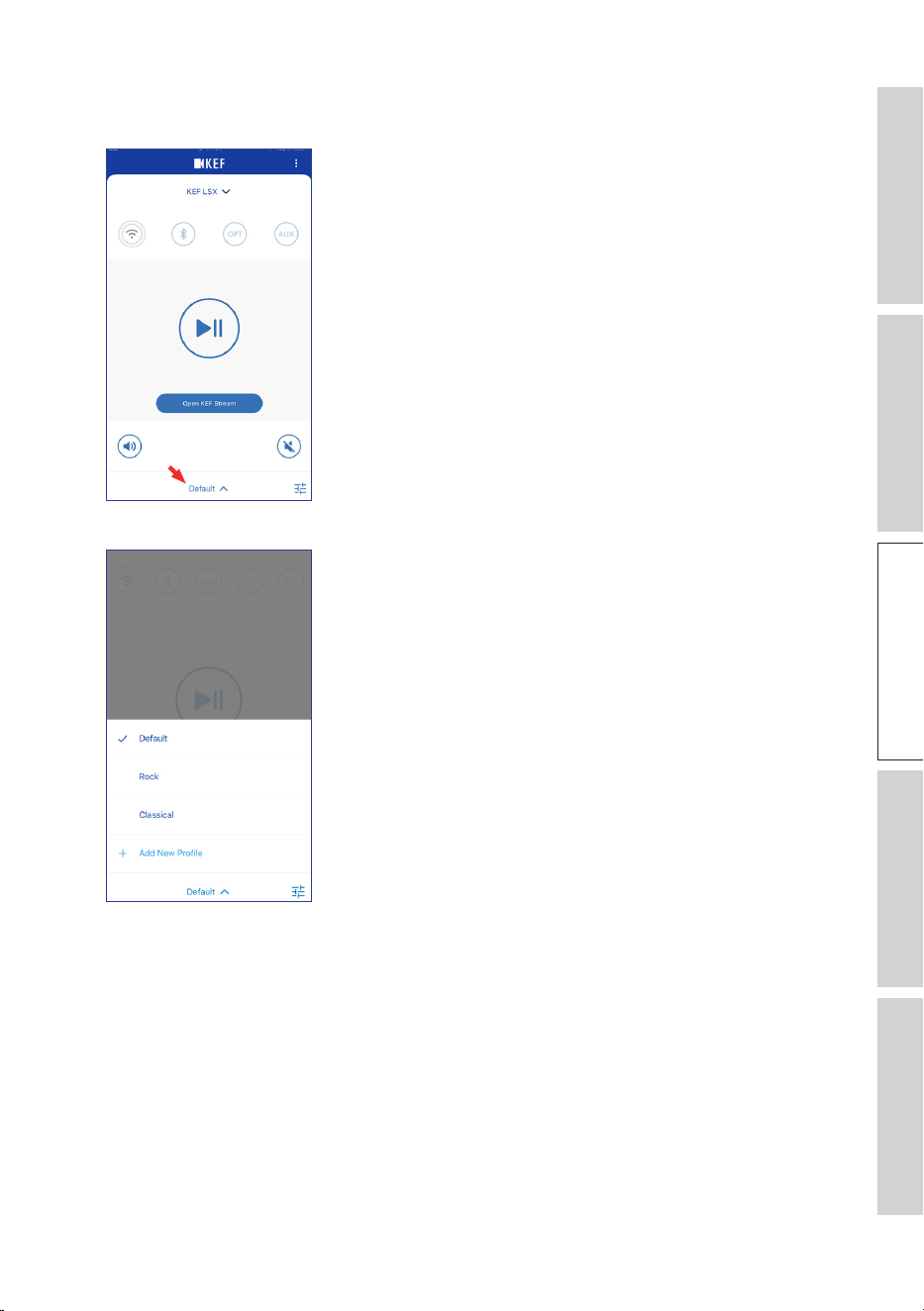
1. To adjust the sound settings of the speakers, tap the EQ settings icon ( ) at the
lower right corner in the home screen.
2. Then tap “Add New Prole” to proceed.
You can then select between Basic and Expert Modes. The sound adjustments you have
configured in Basic or Expert Mode are the same.
26
Table of ContentsSetting Up the LSXUsing the KEF Control AppPlayback and StreamingFAQ and Troubleshooting
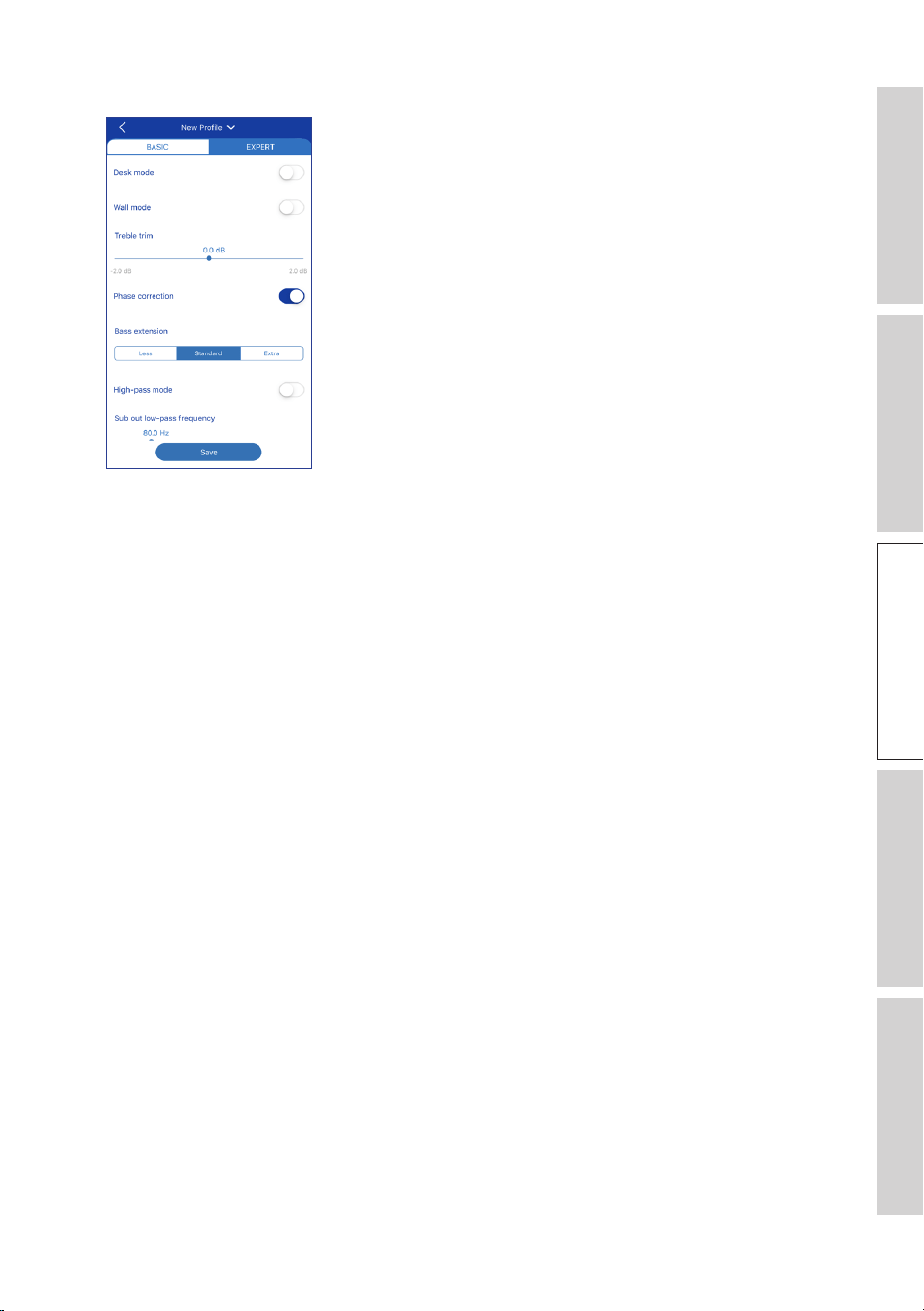
• Basic Mode
Basic Mode lets you configure the EQ settings according to your listening area. They
include:
• Installation location: On a stand or on a desk
• Distance from front edge of the table (on a desk only) (> 50 cm to 0 cm)
• Distance to the wall (< 10 cm to > 50 cm)

27
Table of ContentsSetting Up the LSXUsing the KEF Control AppPlayback and StreamingFAQ and Troubleshooting
• How is your room? (Damped / Moderate / Lively)
Damped: Large furniture, thick carpet and heavy curtains
Moderate: Medium furniture, thinner carpet or rug, some curtains and features on
walls
Lively: Hard floor, less furniture, large windows and no curtains
• How large is the room? (< 20 m
2
/ 20–40 m
2
/ > 40 m
2
)
• A subwoofer is plugged in (On / Off).
If a subwoofer is plugged in, set up the subwoofer volume and speaker/subwoofer
balance.
When the settings are done, tap “Save” at the bottom of the screen and create a name
for saving your sound profile.
28
Table of ContentsSetting Up the LSXUsing the KEF Control AppPlayback and StreamingFAQ and Troubleshooting
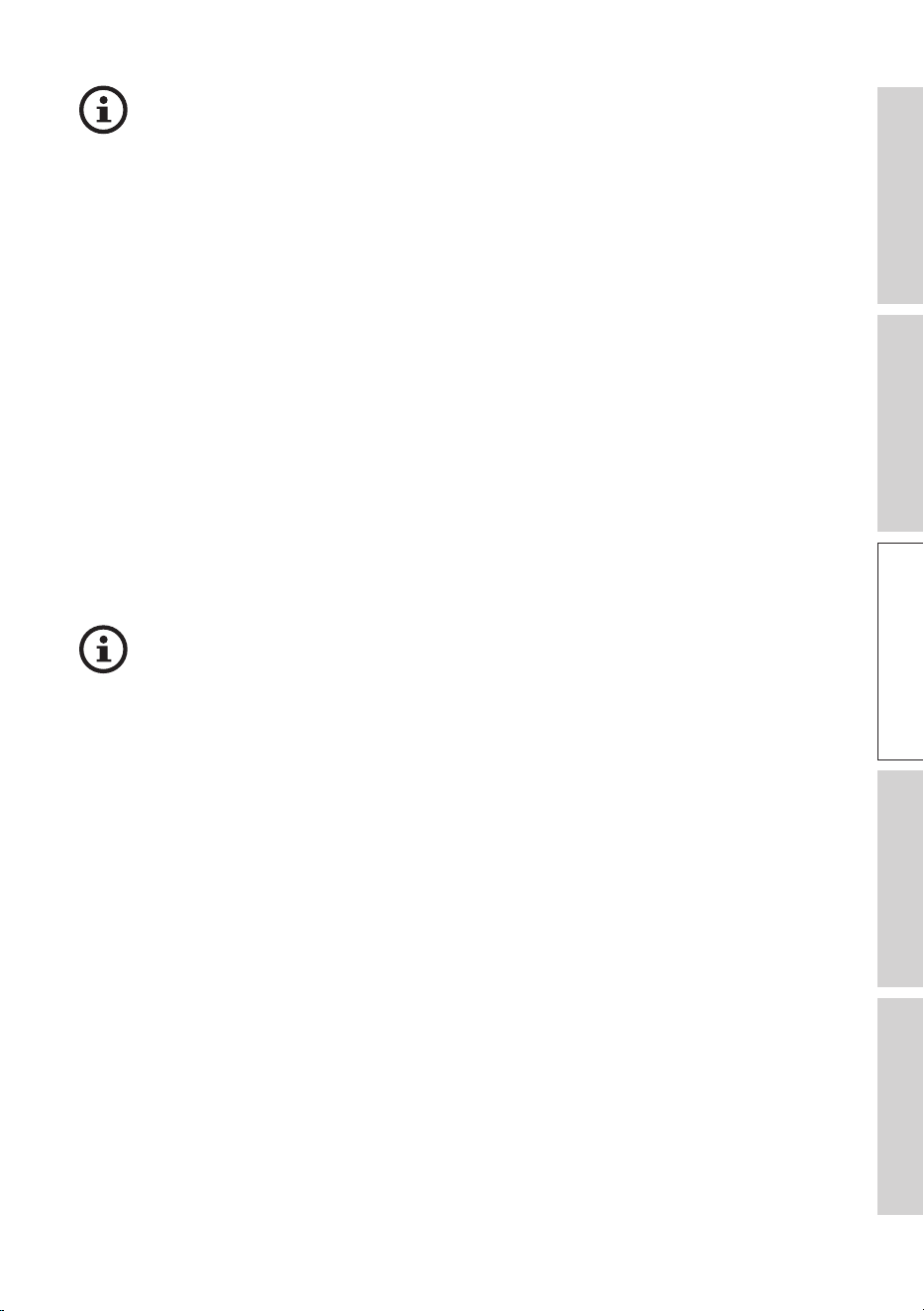
• Expert Mode
The Expert Mode lets you configure the EQ preferences in greater precision.
They include:
• Desk Mode (On / Off, -6.0 dB to 0.0 dB)
• Wall Mode (On / Off, -6.0 dB to 0.0 dB)
• Treble Trim (-2.0 dB to 2.0 dB)
• Phase Correction (On / Off)
• Bass Extension (Less / Standard / Extra)
• High-Pass Mode (On / Off, 50 Hz to 120 Hz)
• Sub Out Low-Pass Frequency (40 Hz to 250 Hz)
• Sub Gain (-10 dB to 10 dB)
• Sub Polarity (+ / –)
When the settings are done, tap “Save” at the bottom of the screen and create a name
for saving your sound profile.
29
Table of ContentsSetting Up the LSXUsing the KEF Control AppPlayback and StreamingFAQ and Troubleshooting
Understanding the EQ Settings
On a desk/distance from front edge of the table (Expert Mode: Desk Mode):
This setting adjusts the “presence” region (170 Hz +/- 1 octave). Too much
causes a muddy sound, while a lack of presence makes the sound distant and
empty.
Distance to the wall (Expert Mode: Wall Mode): This setting adjusts all
frequencies from around 500 Hz downwards, causing broader changes than
Desk Mode. A dip in these frequencies causes a tinny sound, while too much
of these frequencies can overwhelm the overall presentation with lower
frequencies.
How is your room? (Expert Mode: Treble Trim): This adjusts the frequencies
above 500 Hz. A damped room can make sound seem muted, while a lively
room can make it sound harsh. Move towards damped to reduce the muting
effect, or move towards lively to tame harshness.
How large is your room (Expert Mode: Bass Extension): This setting adjusts
the bass extension of the speakers. The larger the room selected, the lower the
roll-off point is.
Understanding the Subwoofer Settings
Subwoofer/Speaker Balance (Basic Mode): This controls the bass output
between the subwoofer and the speakers. If the slider is moved more to
“Subwoofer”, most of the bass output will be handled by the subwoofer.
High-Pass Mode: Frequencies above the set point will be played by the
speakers.
Sub Out Low-Pass Frequency: Frequencies below the set point will be handled
by the subwoofer. This can overlap with the high-pass frequency to help
integrate the speaker/subwoofer more effectively with no dip or peak in overall
response.
Sub Gain: This changes the signal level output to the subwoofer.
Sub Polarity: Ideally, the speakers and subwoofer should be moving in the
same direction at the same time, otherwise frequencies can be cancelled out.
Switching the polarity of the subwoofer can remedy a perceived lack of bass
response.
31
Table of ContentsSetting Up the LSXUsing the KEF Control AppPlayback and StreamingFAQ and Troubleshooting
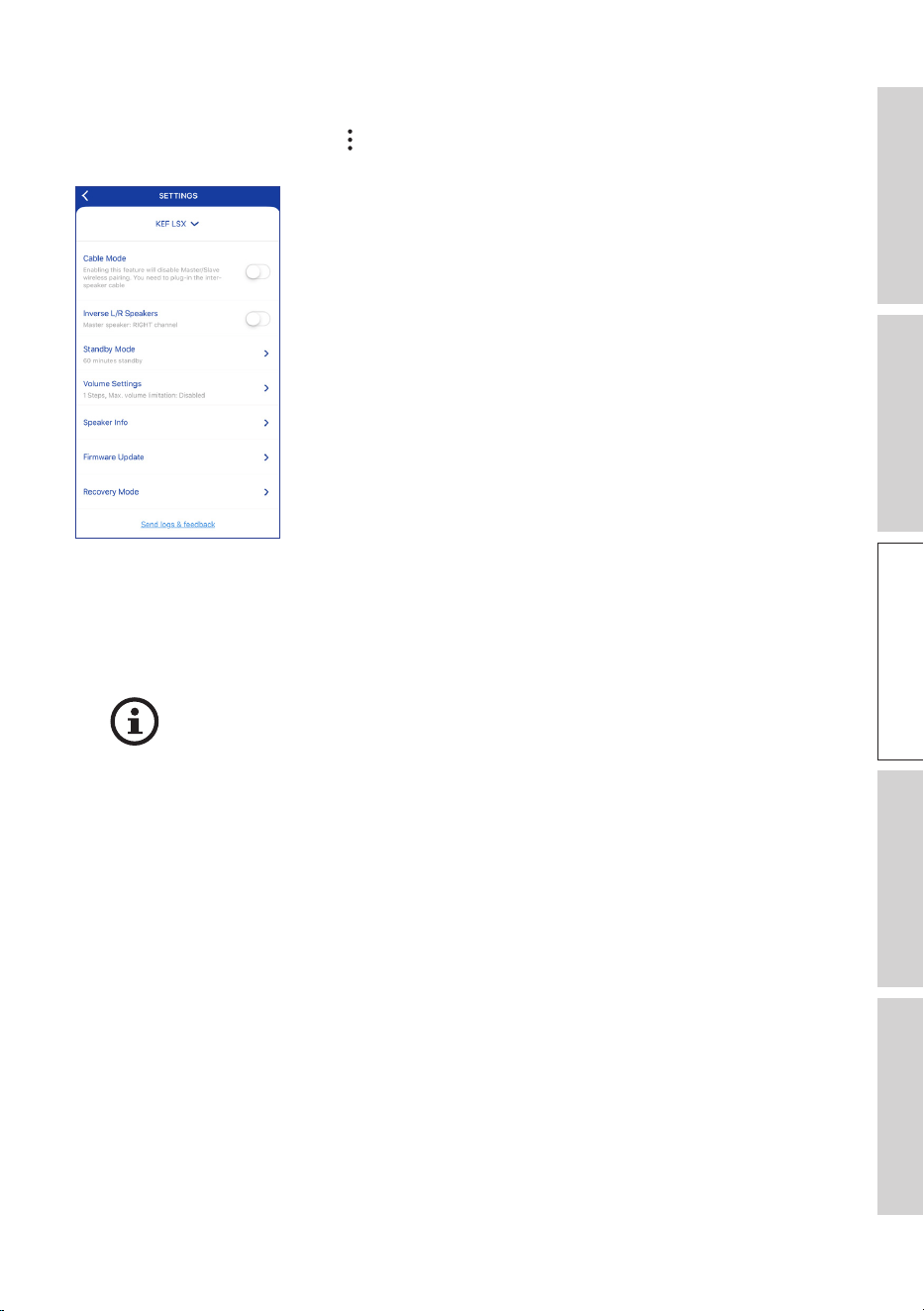
8.1.3 Adjusting the Settings of the Speakers
Tap the Speaker Settings icon ( ) at the top right corner on the home screen to access
the settings menu for more configurations.
• Cable Mode
You can connect the Master and Slave Speakers with the provided inter-speaker cable
through the “To Master/Slave” connection ports on the back of the speakers.
Once the cable is connected, enable Cable Mode to disable the wireless connection.
Cable Mode is required/recommended when:
• You are performing a firmware update.
• You prefer a better resolution at 96 kHz/24 bit (wireless: 48 kHz/24 bit).
• You are experiencing audio dropouts due to interference.
• Inverse L/R Speakers
Enable this setting to change the master channel to the left (L) channel.
• Standby Mode
This determines how long (20 or 60 min) the speakers will remain idle before
automatically entering Standby Mode. If “never” is selected, the speakers must be
manually turned off.

32
Table of ContentsSetting Up the LSXUsing the KEF Control AppPlayback and StreamingFAQ and Troubleshooting
• Volume Settings
This lets you configure the following:
• Hardware Volume Buttons
This feature is only available on iOS devices. The hardware volume buttons refer
to the physical volume buttons on your device. Disable this feature when you are
experiencing conflicts with other music streaming apps over Wi-Fi.
• Volume Button Sensitivity
This feature lets you configure the volume steps for each single press of the physical
volume buttons of your device.
• Enable Limitation
This feature lets you set the maximum limit when adjusting the volume.
• Speaker Info
This lets you:
• Rename the speakers
• Find out:
MAC address
IP address
Speaker serial number
Firmware version
• Forget Speaker: To remove the speakers from KEF Control app.
• Firmware Update
This setting checks if a new firmware is available for update. See chapter “Over the Air
Firmware Update”.
• Recovery Mode
This mode recovers the speakers when there is a failure during the firmware update.
1. Make sure all other KEF wireless speakers, if any, are removed from the network
(including LS50 Wireless speakers) and only keep the LSX speakers that require
recovery on the network.
2. Disconnect the power cable from the Master Speaker.
33
Table of ContentsSetting Up the LSXUsing the KEF Control AppPlayback and StreamingFAQ and Troubleshooting
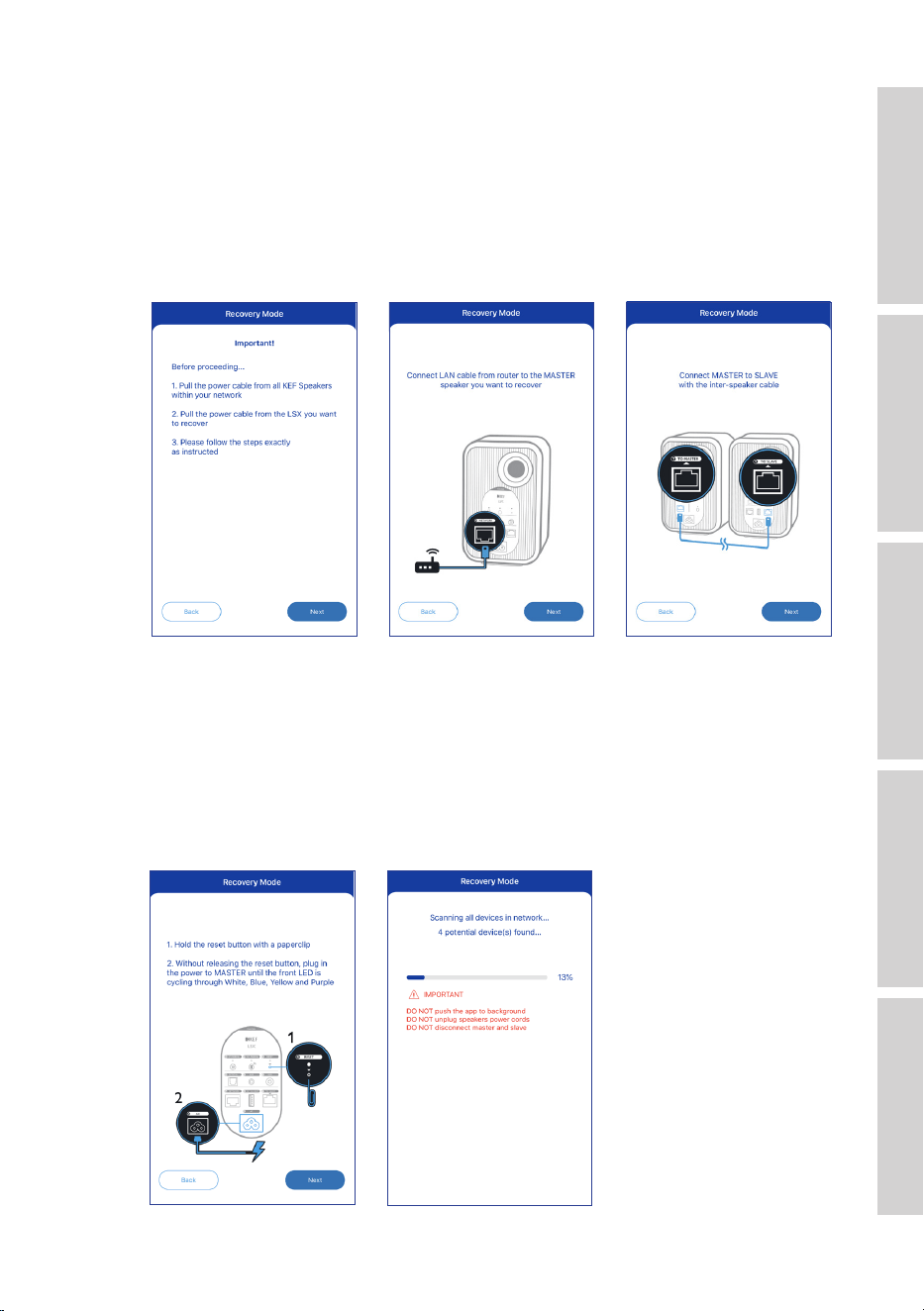
3. Launch the KEF Control app. Go to “Recovery Mode” in “Settings”. Closely follow
the instructions before tapping “Next”.
4. Connect the LAN cable from your router to the network port [N] of the Master
Speaker. Then tap “Next”.
5. Connect the Master and Slave Speakers with the provided inter-speaker cable
through the “To Master/Slave” connection ports on the back of the speakers. Then
tap “Next”.
3. 4. 5.
6. Using a paperclip/pin, press and hold the factory reset button [R] on the back of
the Master Speaker.
7. Without releasing the factory reset button, connect the power cable to AC input
connector [A] of the Master Speaker until the LED indicators at the front of the
Master and Slave Speakers ash white, blue, purple and yellow. Then tap “Next”.
8. The KEF Control app will start searching for your speakers to resume the rmware
update process.
7. 8.
34
Table of ContentsSetting Up the LSXUsing the KEF Control AppPlayback and StreamingFAQ and Troubleshooting
Depending on the nature of failure, you may see an alert with a “Start recovery”
button in the KEF Control app during the firmware update. In this case, closely
follow the instructions in the app to carry out the recovery.
• Advanced Settings
This lets you configure the following:
• My Speakers
This lets you register a new pair of speakers with the KEF Control app.
• Analytics
This allows the KEF Control app to send crash reports and improvement analytics
to the manufacturer. We recommend to enable both items.
• About
This lets you:
• Find out the current version of the KEF Control app.
• Visit the KEF website.
• Register the product.
• Read the licenses agreement.
• Read the privacy policy.
• Read the FAQ for help and support.
Make use of the “Send logs and feedback” feature at the bottom of the settings
menu if you experience problems or want to send us feedback or suggestions.
35
Table of ContentsSetting Up the LSXUsing the KEF Control AppPlayback and StreamingFAQ and Troubleshooting
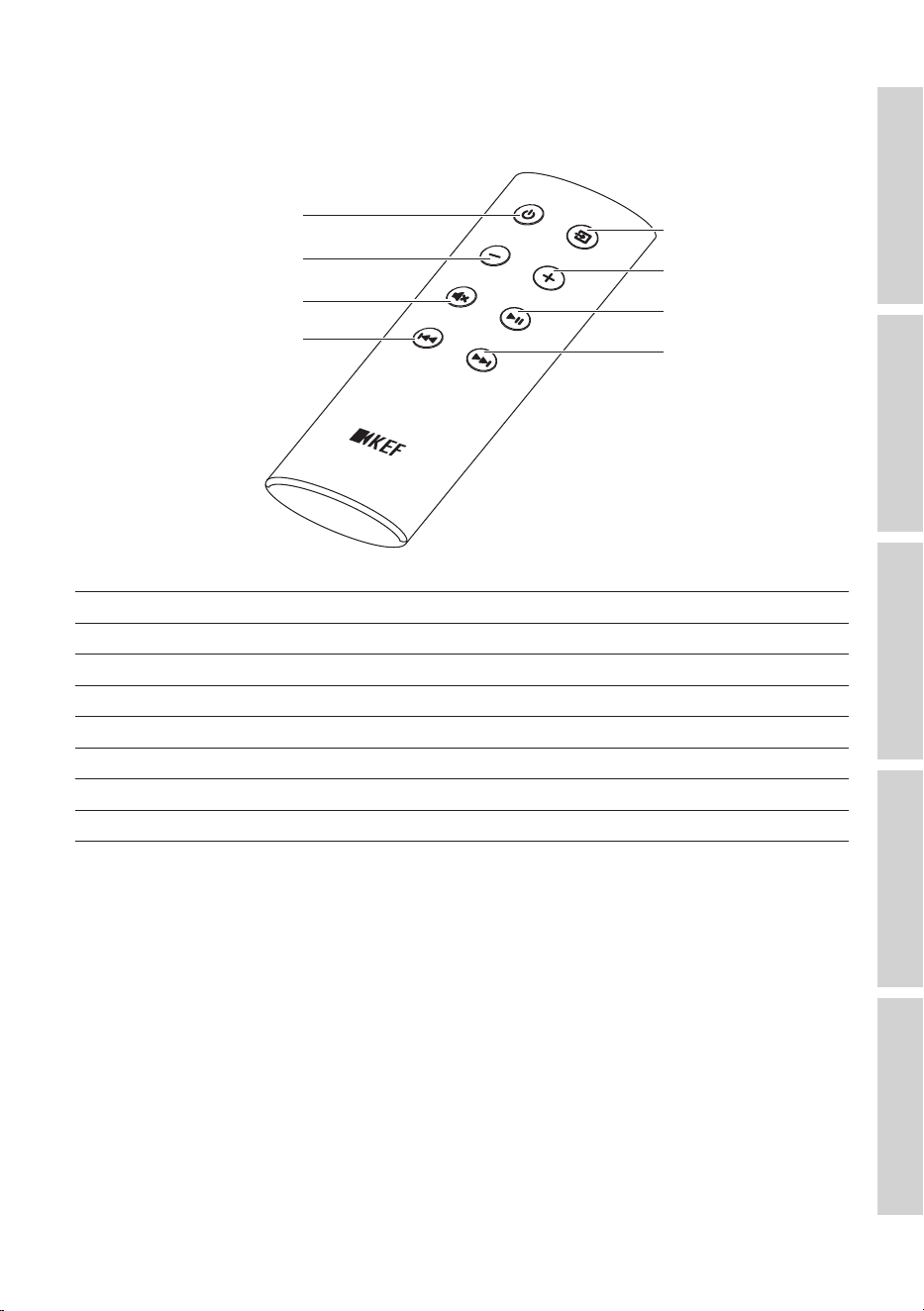
8.2 Using the Remote Control
The remote control lets you perform basic controls of the speakers.
Source button
Volume up button
Play/pause button
Next button
On/off button
Volume down button
Mute button
Previous button
On/off button Turns on or off the speakers.
Volume down button Decreases the volume.
Mute button Mutes or restores the sound output.
Previous button Skips to the previous track.
Source button Selects a sound source (Wi-Fi, Bluetooth, Optical and AUX).
Volume up button Increases the volume.
Play/pause button Plays or pauses the playback.
Next button Skips to the next track.
8.2.1 Replacing the Battery
If the remote control is less responsive or not working, the battery power may be low.
Replace the battery (CR2023, 3 V) with a new one.
1. Slide open the battery compartment door on the back.
2. Remove the old battery from the battery compartment.
3. Properly dispose of the old battery and keep it away from children and pets.
4. Insert the new battery. Make sure the positive (+) side is facing upward.
5. Replace the battery compartment door.
36
Table of ContentsSetting Up the LSXUsing the KEF Control AppPlayback and StreamingFAQ and Troubleshooting
9. Playback and Streaming
9.1 Playback with Wi-Fi
9.1.1 Using the KEF Stream App
The KEF Stream app allows you to access to and play back your locally or network
stored music as well as music from streaming services (Spotify and Tidal).
9.1.1.1 Home Screen
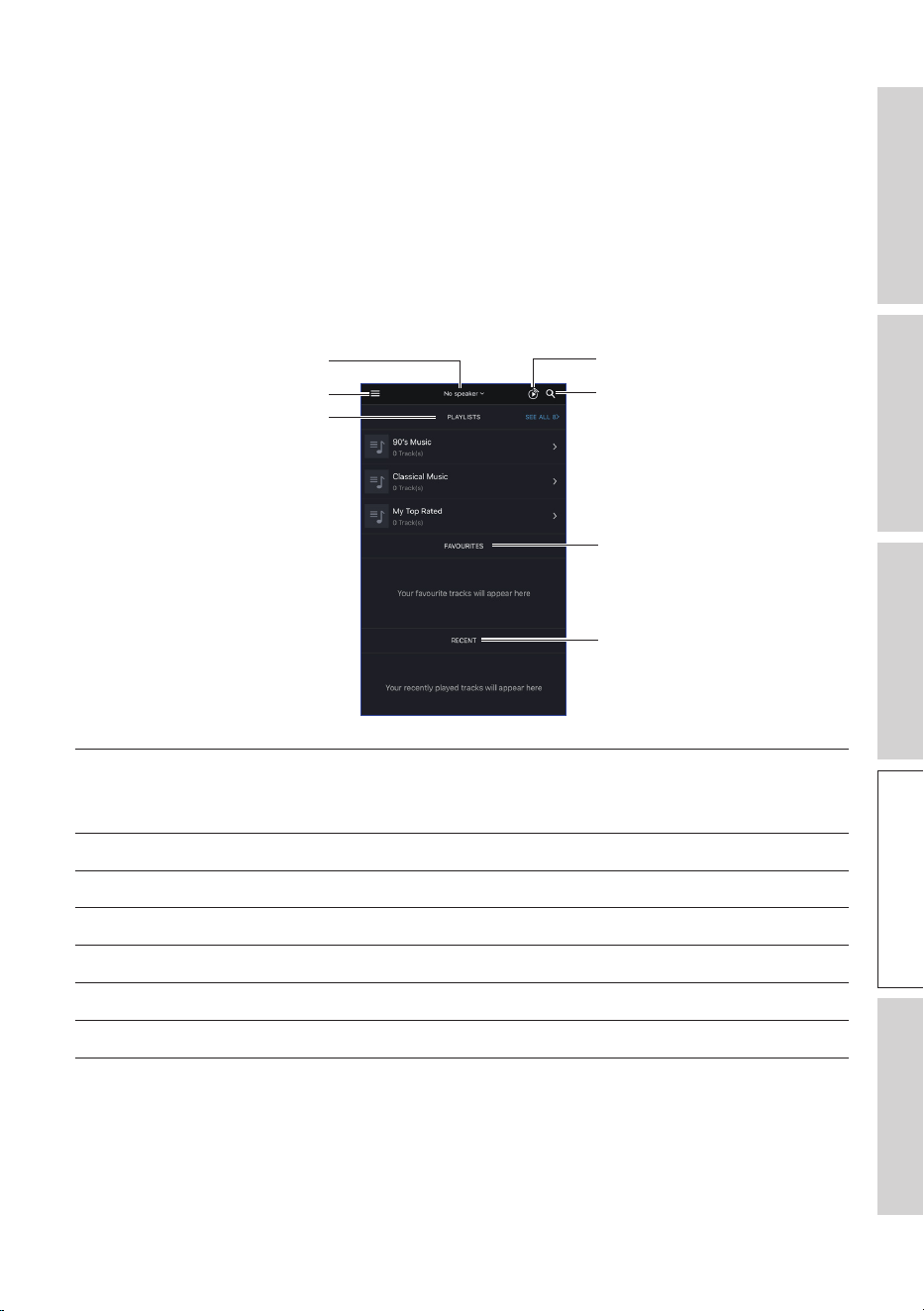
Search
KEF Control app
Favourites
Recent
Playlists
Main menu
Speaker selection
Speaker selection Shows the list of speakers available for streaming through the
KEF Stream app. You can also add a new pair of compatible
speakers by selecting “Add new speaker”.
Main menu Accesses the main menu.
Playlists Shows the playlists you have recently played.
KEF Control app Prompts to the KEF Control app.
Search Looks for a particular track from the local library.
Favourites Shows the tracks you have added as favourites.
Recent Shows the tracks you have recently played.
37
Table of ContentsSetting Up the LSXUsing the KEF Control AppPlayback and StreamingFAQ and Troubleshooting
9.1.1.2 Main Menu
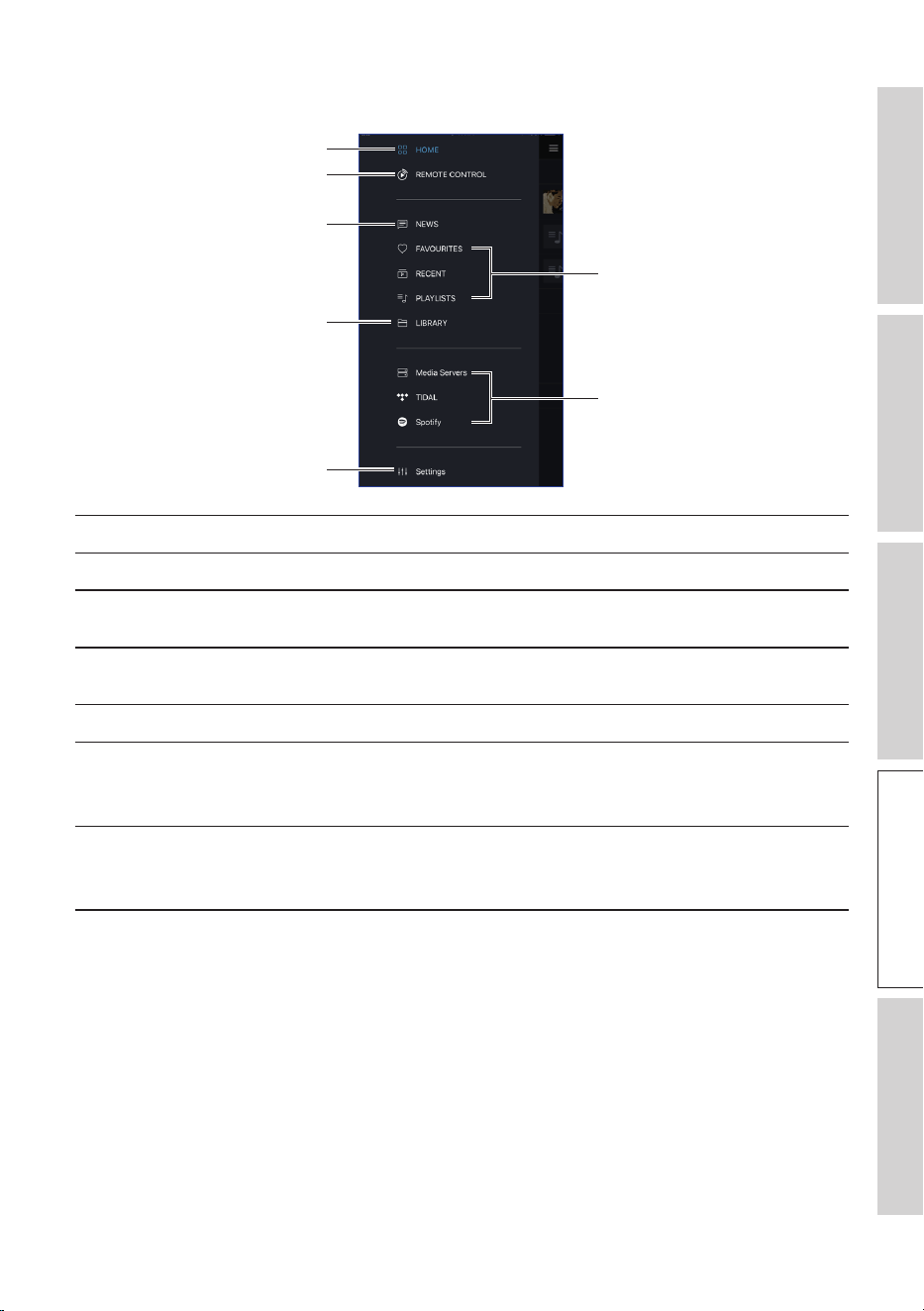
Local music
Network music
Remote control
Home
News
Library
Settings
Home Accesses Home Screen.
Remote control Prompts to the KEF Control app.
News Checks out the latest updates on new features, firmware
update and other useful information.
Library Accesses the local library. Displays compatible music files saved
on device.
Settings Accesses the settings menu.
Local music Tap the corresponding option to show the favourites and
playlists in the local library, and the recently played tracks from
the local library.
Network music Tap the corresponding option for playback from NAS drives or
from compatible streaming services (TIDAL and Spotify) over
the network.
38
Table of ContentsSetting Up the LSXUsing the KEF Control AppPlayback and StreamingFAQ and Troubleshooting
9.1.1.3 Playback Screen
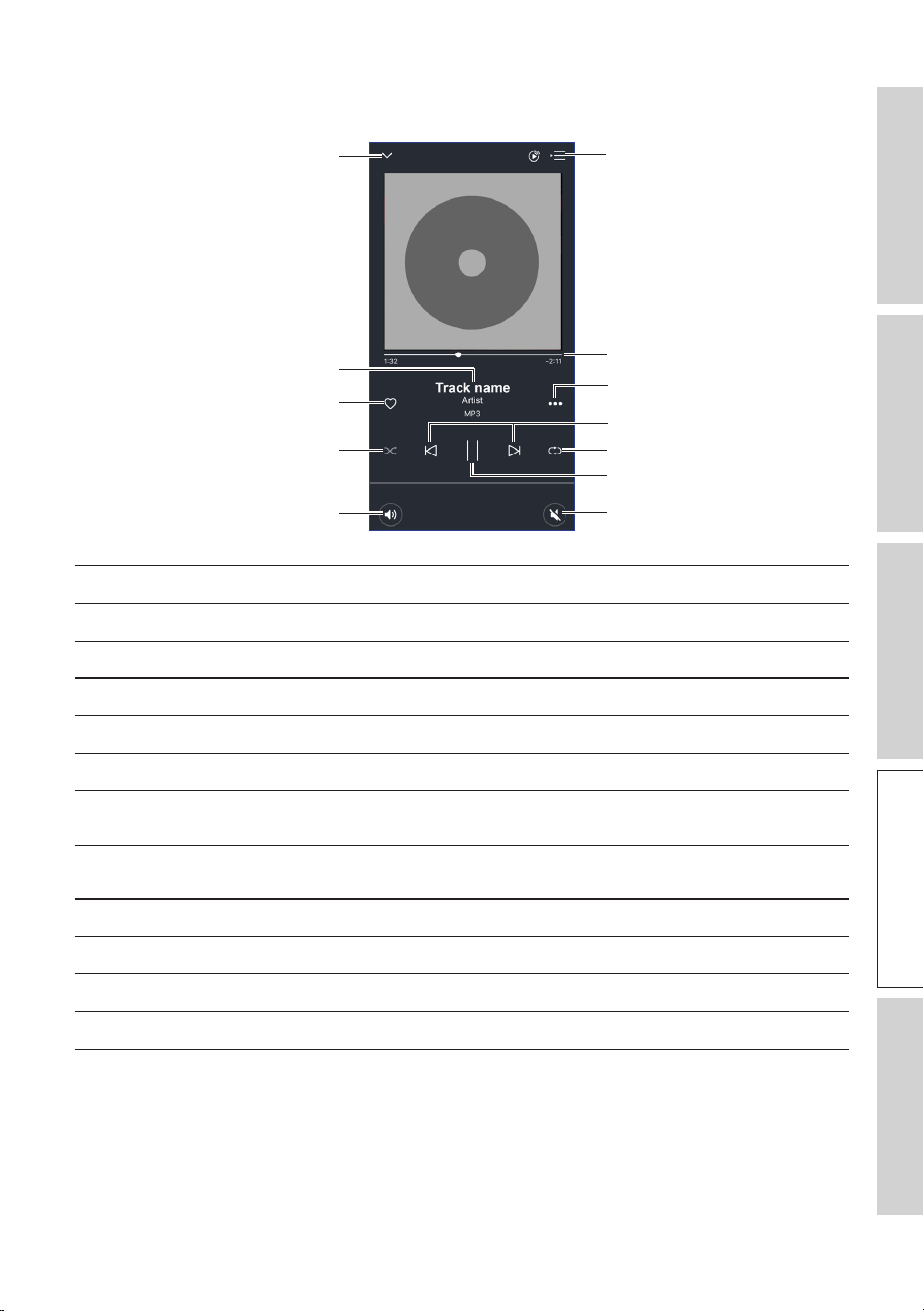
Previous/next
Play/pause
Track scroll
Option
Repeat
Mute
Hide playback screen
Shuffle
Volume control
Favourites
Track metadata
Queue
Hide playback screen Hides the playback screen.
Track metadata Shows the metadata (e.g. song name) of the track.
Favourites Adds the track to favourites.
Shuffle Activates/deactivates the random playback of tracks.
Volume control Tap once and then use the volume slider to adjust the volume.
Queue Accesses the queue.
Track scroll Shows the playback progress. Drag the dot along the bar to
skip to a particular point of the track.
Option Adds/removes the track as favourites, adds the track to a
playlist, or goes to the album/artist of the track.
Previous/next Goes the previous or next track.
Repeat Selects a repeat mode (repeat 1, repeat all) for playback.
Play/pause Starts or pauses the playback.
Mute Mutes or restores the sound output.
39
Table of ContentsSetting Up the LSXUsing the KEF Control AppPlayback and StreamingFAQ and Troubleshooting
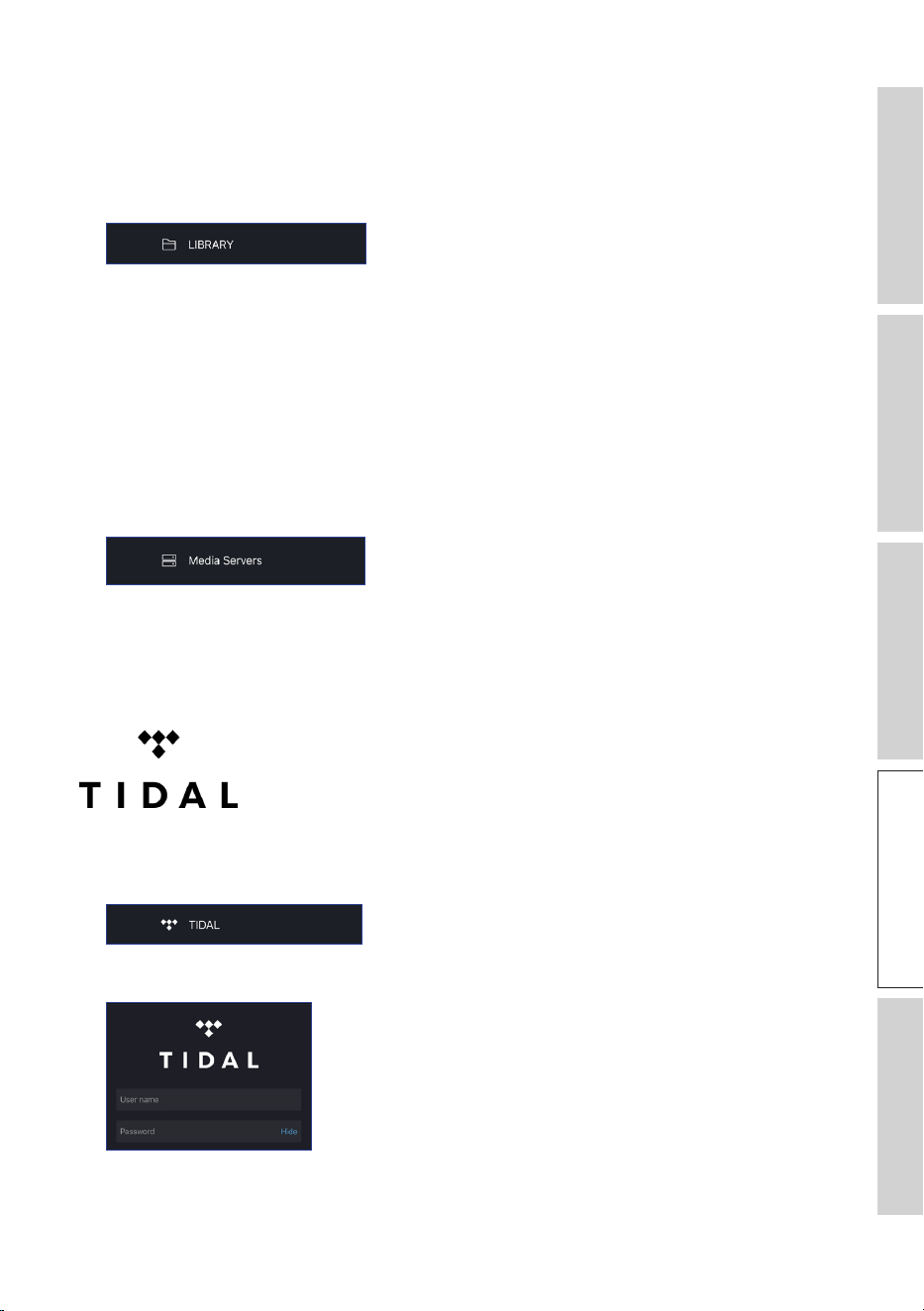
9.1.1.4 Playing Music from Connected Device (Library)
This lets you play compatible music files stored in the connected device
(e.g. mobile phone).
1. Tap “Library” to show the music les stored in the device.
2. Browse and select a track to play.
Music files are categorized according to artists, tracks and album.
9.1.1.5 Playing Music from Media Servers
This lets you play compatible music files stored in the music library of a connected media
server (e.g. NAS drive via DLAN/uPnP). The media server must be on the same network
as the speakers.
1. Tap “Media Servers” from the main menu.
2. Tap the name of an available media server.
3. Browse and select a track to play.
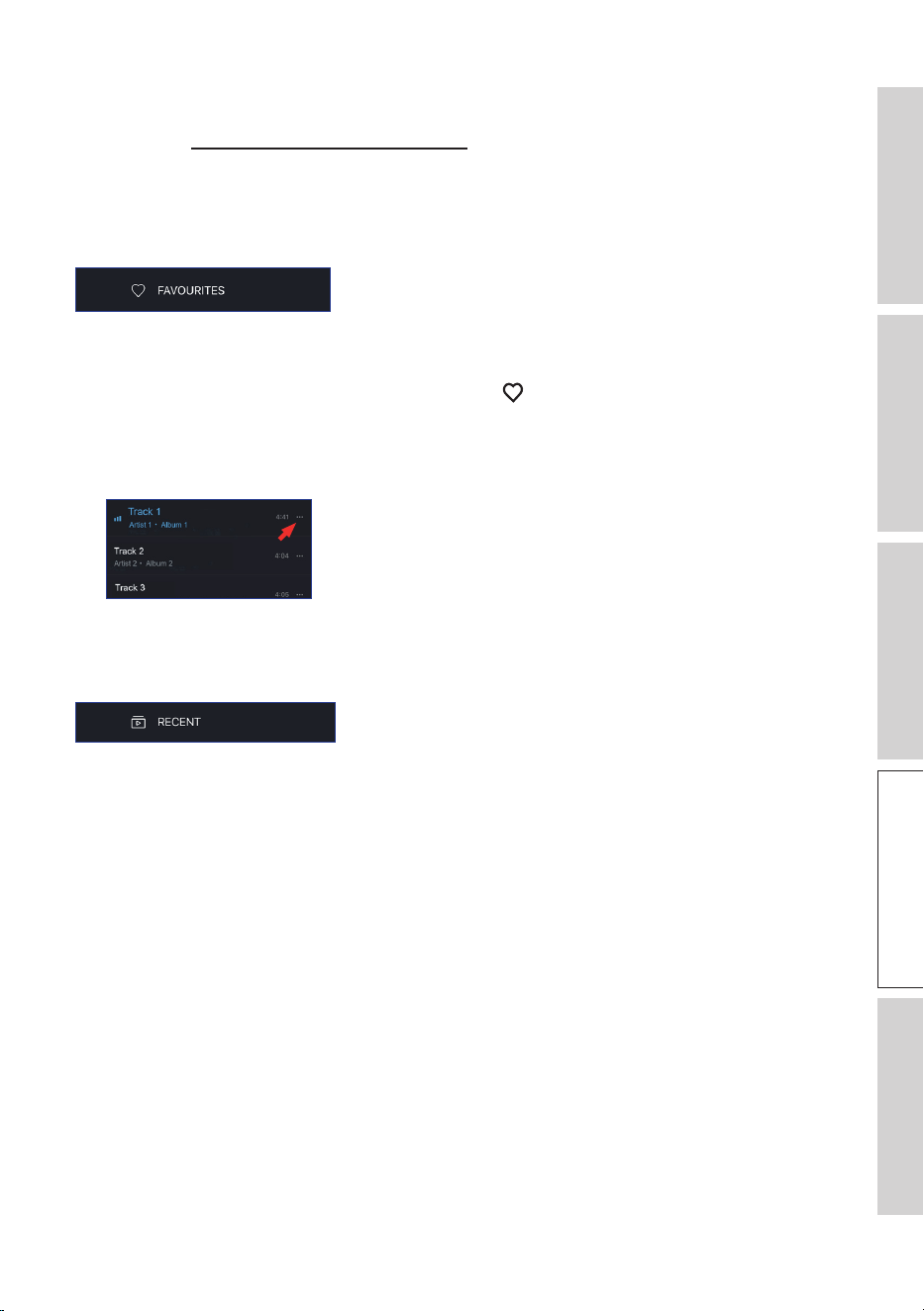
9.1.1.6 Playing Music from TIDAL
TIDAL is a subscription-based music, podcast and video streaming
service that combines lossless audio and high-definition music videos
with exclusive content and special features on music. You can access
your TIDAL account through the app to play high resolution audio.
A valid Hi-Fi tier subscription is required.
1. Tap “TIDAL” from the main menu.
2. Login to your TIDAL account.
3. Browse and select a track to play.
40
Table of ContentsSetting Up the LSXUsing the KEF Control AppPlayback and StreamingFAQ and Troubleshooting
9.1.1.7 Playing Music from Spotify
See chapter “Streaming with Spotify Connect”.
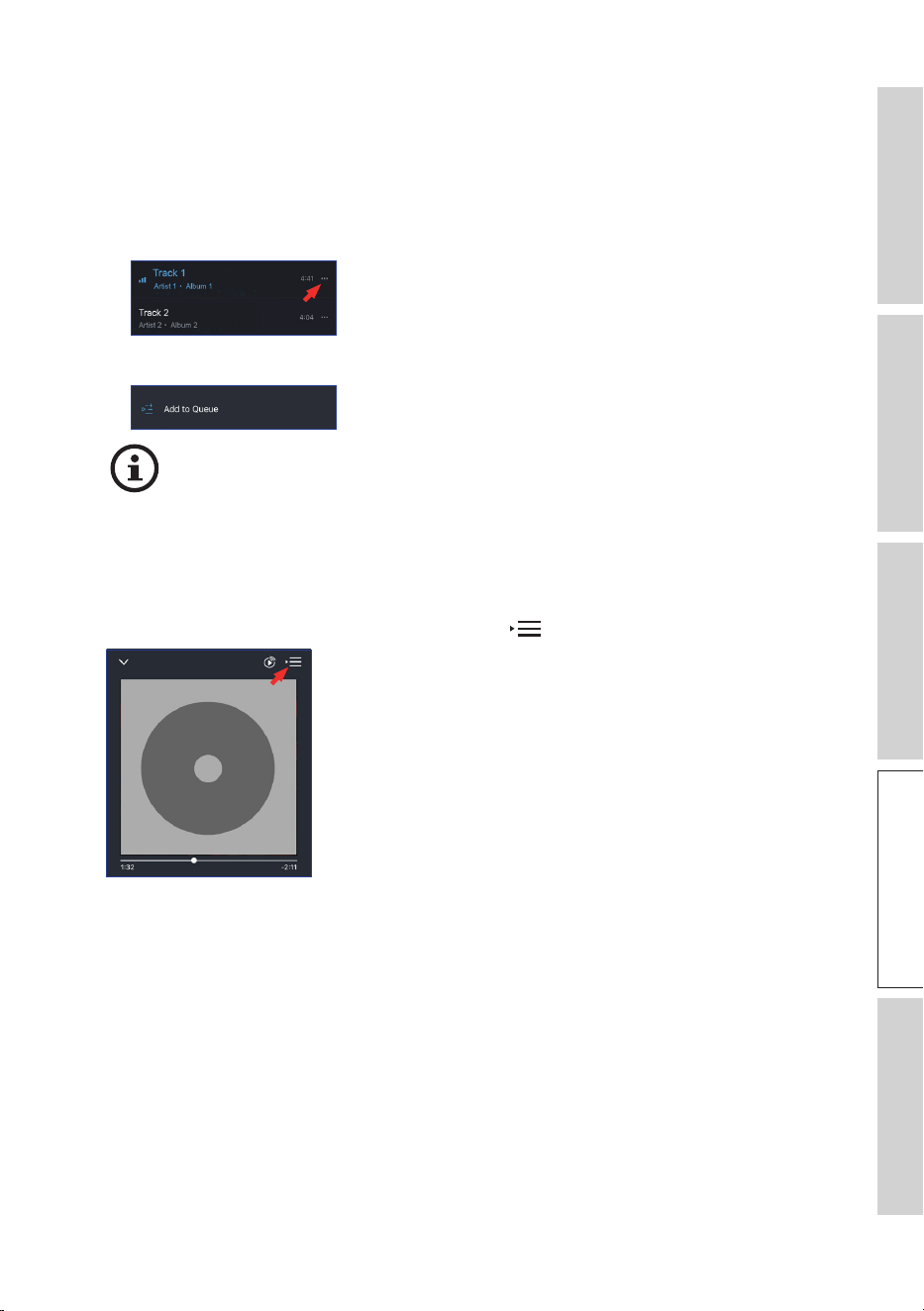
9.1.1.8 Favourites
To show the favourites in your local library, tap “Favourites” from the main menu. The
recently added favorites can be found on the home screen.
• Selecting or Deselecting a Track as Favourites
From the playback screen, tap the heart icon ( ) to select or deselect the track as
favorites, or
From a list of tracks, tap the option icon (
…
) on the right hand side and then select
“Add to Favorites” or “Remove from Favourites”.
9.1.1.9 Recent
Tap “Recent” from the main menu to show the most recently played tracks from your
local library. The most recently played tracks can also be found on the home screen.
41
Table of ContentsSetting Up the LSXUsing the KEF Control AppPlayback and StreamingFAQ and Troubleshooting
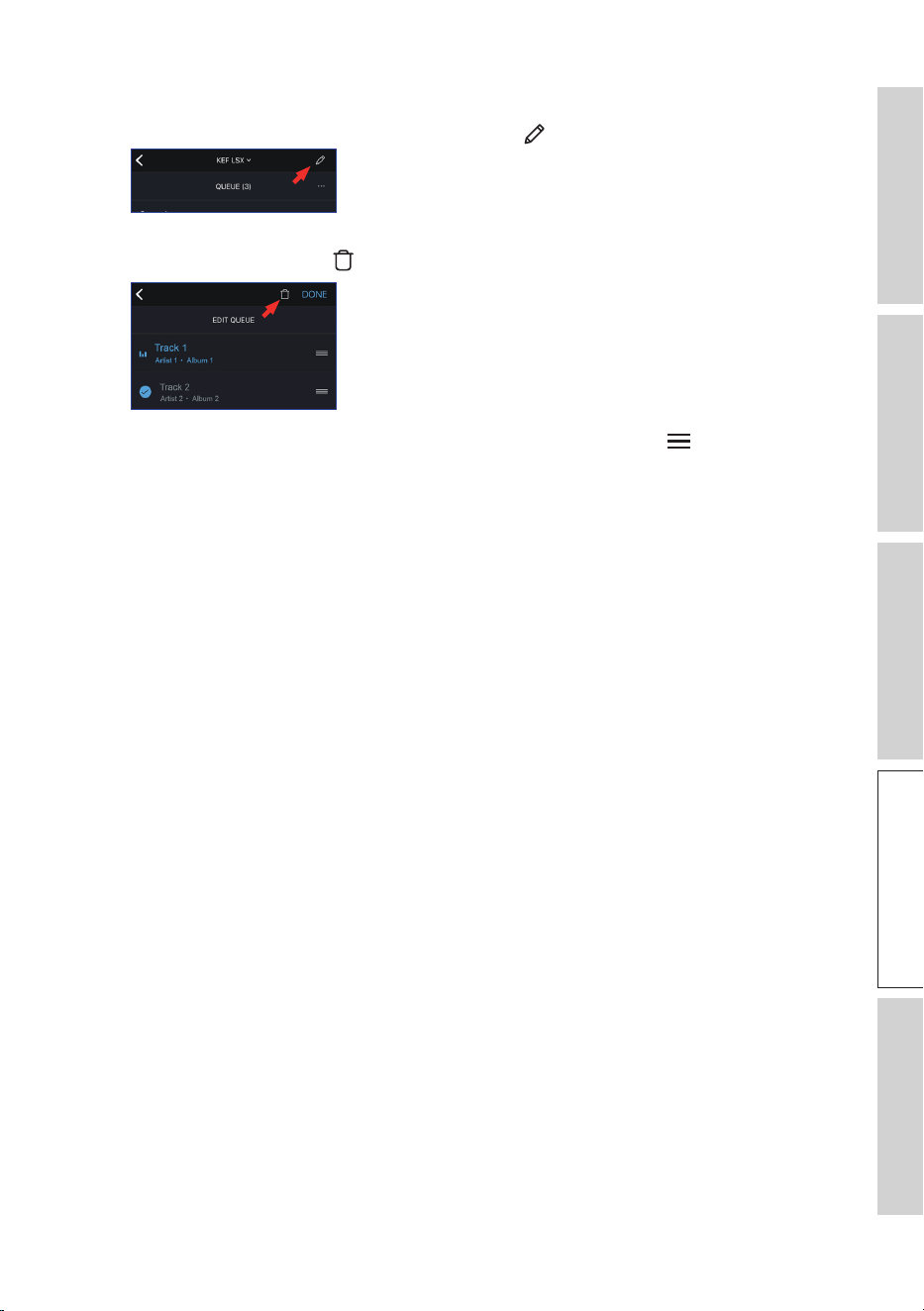
9.1.1.10 Queue
Adding a track to the queue means the track will be played after the current playing
track. The queue is not permanent and cannot be saved.
• Adding a Track in the Queue
1. From a list of tracks, tap the option icon (
…
) on the right hand side.
2. Select “Add to Queue”.
Depending on your selections, you can also add all tracks from an artist,
all tracks from an album, or all tracks from a playlist in the queue. You can
also replace all tracks in the current queue with the new tracks by selecting
“Replace the queue”.
• Showing the Current Queue
From the playback screen, tap the queue icon ( ) at the top right corner.
42
Table of ContentsSetting Up the LSXUsing the KEF Control AppPlayback and StreamingFAQ and Troubleshooting
• Editing the Queue
1. From the current queue, tap the pencil icon ( ) at the top right corner.
2. To remove a track from the queue, select the track by tapping in the circle and then
tap the trash bin icon ( ).
3. To edit the playback sequence, press and hold the three bars ( ) on the right
hand side and then drag the track up or down the queue.
43
Table of ContentsSetting Up the LSXUsing the KEF Control AppPlayback and StreamingFAQ and Troubleshooting
9.1.1.11 Playlists
A playlist is a list of tracks that can be played back in the preferred sequential order.
Playlists can be saved for future listening.
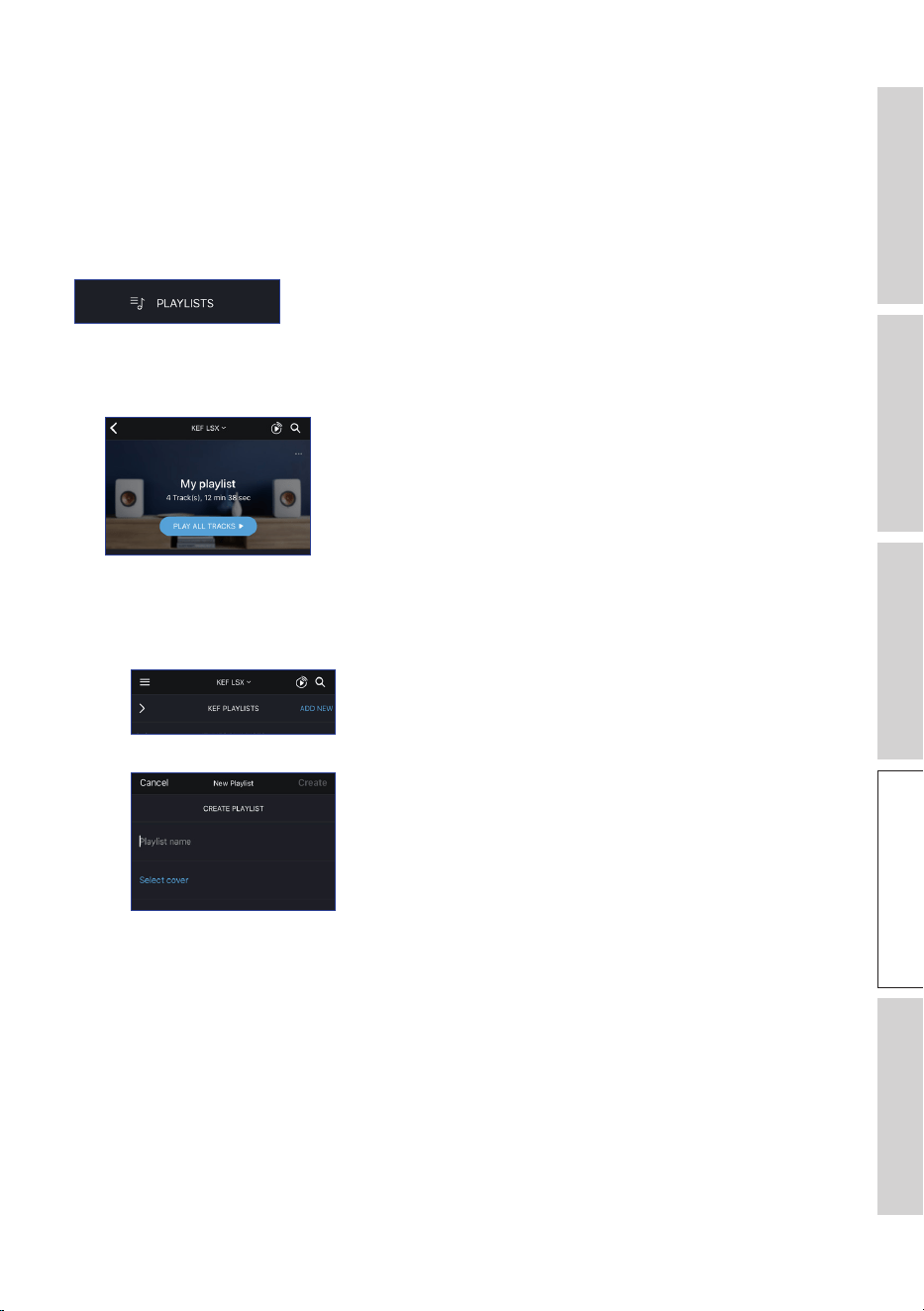
Tap “Playlists” from the main menu to show the playlists created in the KEF Stream app
and from your local library. The recently played playlists can also be found on the home
screen.
• Playing Back a Playlist
Select a playlist and then tap “Play all tracks” to start playback of the playlist.
• Creating a Playlist
1. Tap “Playlists” from the main menu.
2. Tap “Add New”.
3. Create a name for the playlist and select an image as cover (optional).
4. Tap “Create”
44
Table of ContentsSetting Up the LSXUsing the KEF Control AppPlayback and StreamingFAQ and Troubleshooting
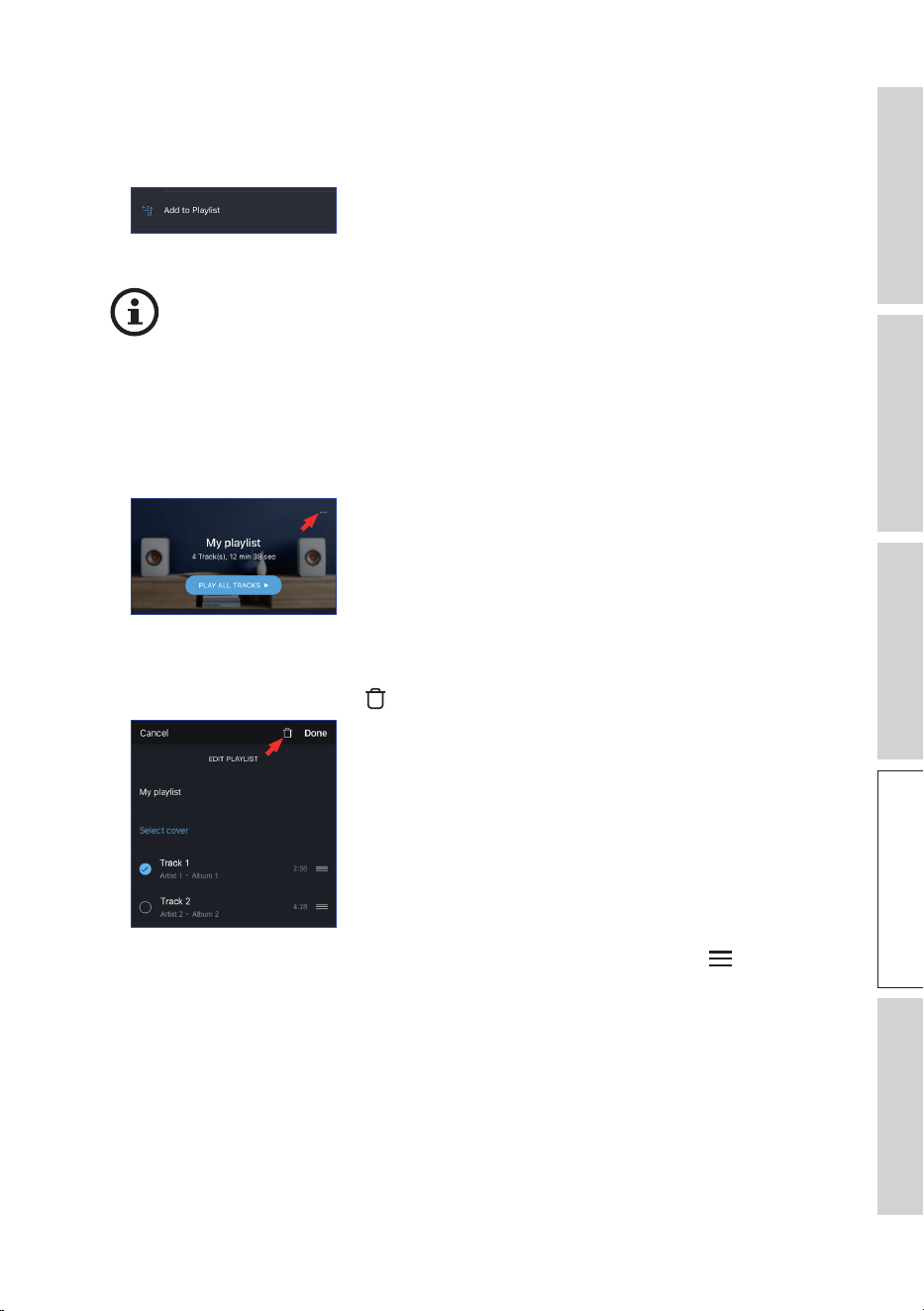
• Adding Tracks to a Playlist
1. From a list of tracks or from the playback screen, tap the option icon (
…
) on the
right and then select “Add to Playlist”.
2. Select the playlist you want the track to add to.
Depending on your selections, you can also add all tracks from an artist or all
tracks from an album to the playlist.
• Editing a Playlist
1. Tap “Playlists” from the main menu.
2. Tap the playlist to be edited.
3. Tap the option icon (
…
) at the top right corner.
4. Tap “Edit”.
5. To remove a track from the playlist, select the track by tapping in the circle and
then tap the dustbin icon ( ).
6. To edit the playback sequence, press and hold the three bars icon ( ) on the
right hand side and then drag the track up or down the playlist.

46
Table of ContentsSetting Up the LSXUsing the KEF Control AppPlayback and StreamingFAQ and Troubleshooting
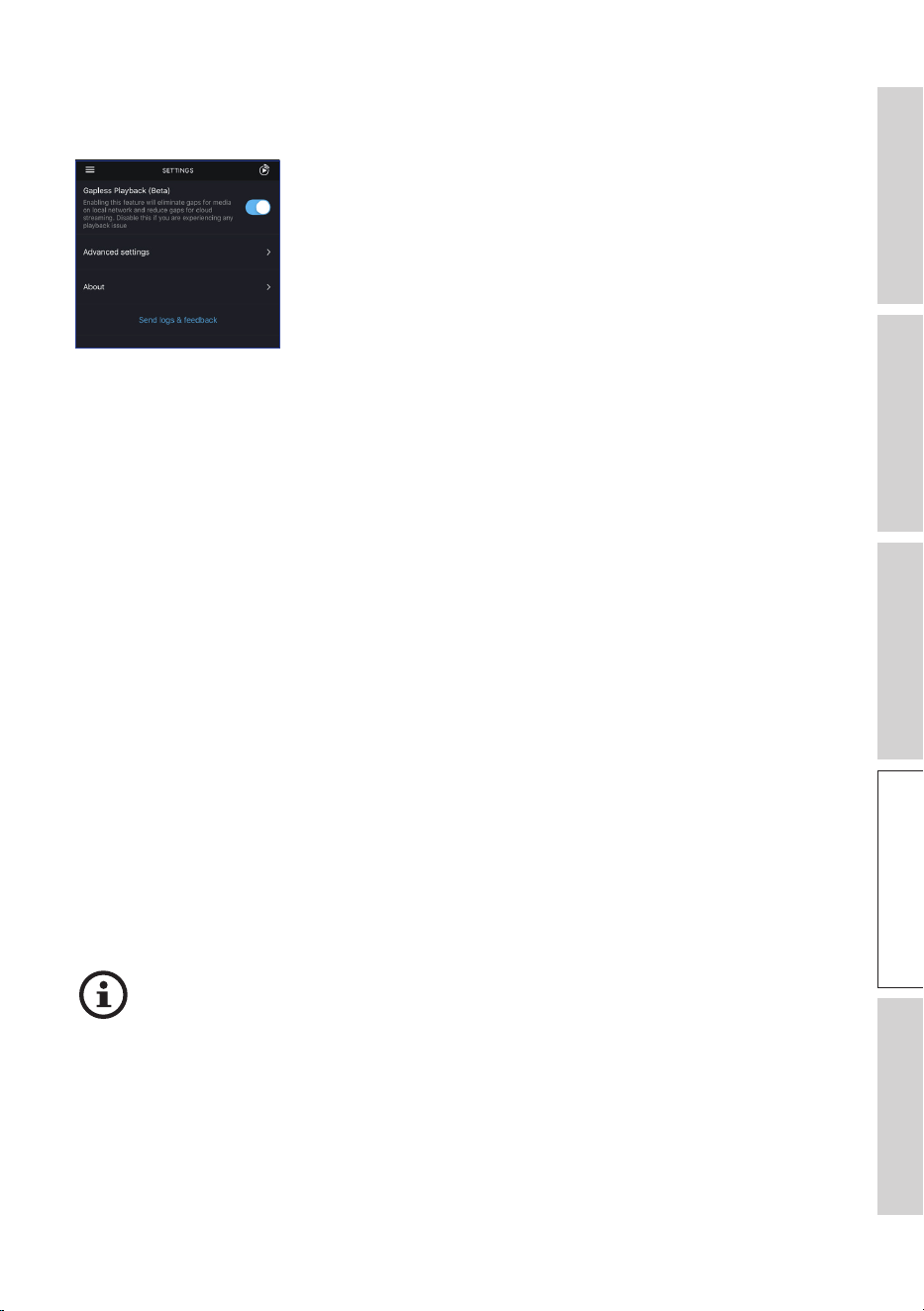
9.1.1.12 Settings
Tap “Settings” from the main menu to show the settings menu.
• Gapless Playback
Enable this feature to eliminate gaps for media on the local network and reduce gaps
for cloud streaming. Disable this feature if you are experiencing any playback issue.
• Advanced Settings
• My Speakers
This allows you to register a new pair of speakers with the KEF Control app.
• Analytics
This allows the KEF Control app to send crash reports and improvement analytics
to the manufacturer. We recommend to enable both items.
• About
This allows you to:
• Find out current version of the KEF Stream app.
• Visit the KEF website.
• Read the licenses agreement.
• Read the privacy policy.
• Read the FAQ for help and support.
Make use of the “Send logs and feedback” feature at the bottom of the settings
menu if you experience problems or want to send us feedback or suggestions.

47
Table of ContentsSetting Up the LSXUsing the KEF Control AppPlayback and StreamingFAQ and Troubleshooting
9.1.2 Streaming with AirPlay 2
The speakers are ready for AirPlay 2* (Firmware 4.0 or later).
1. To stream audio through AirPlay 2, start playback on your iOS device.
2. Tap the AirPlay 2 icon ( ) at the bottom of the playback screen.
3. Select the “KEF LSX” speakers (or the name you have created for the speakers) from
the selection menu. The audio output will be played from the selected speakers.
Apple Airplay 2 also extends the speakers to become part of a multi-room wireless
music system which can be controlled with iOS devices. If you have more than one pair
of speakers connected to the same network, select the pairs for playback of the same
audio output at the same time.
*AirPlay 2 is available in:
• iPhone, iPad or iPod touch with iOS 11.4 or later
• Apple TV 4K or Apple TV (4th generation) with tvOS 11.4 or later
• Mac or PC with iTunes 12.8 or later
48
Table of ContentsSetting Up the LSXUsing the KEF Control AppPlayback and StreamingFAQ and Troubleshooting
9.1.3 Streaming with Spotify Connect
Spotify is a digital music, podcast, and video streaming service that
gives you access to millions of songs and other content from artists
all over the world. The speakers are ready for the Spotify Connect
feature (Firmware 3.0 or later).
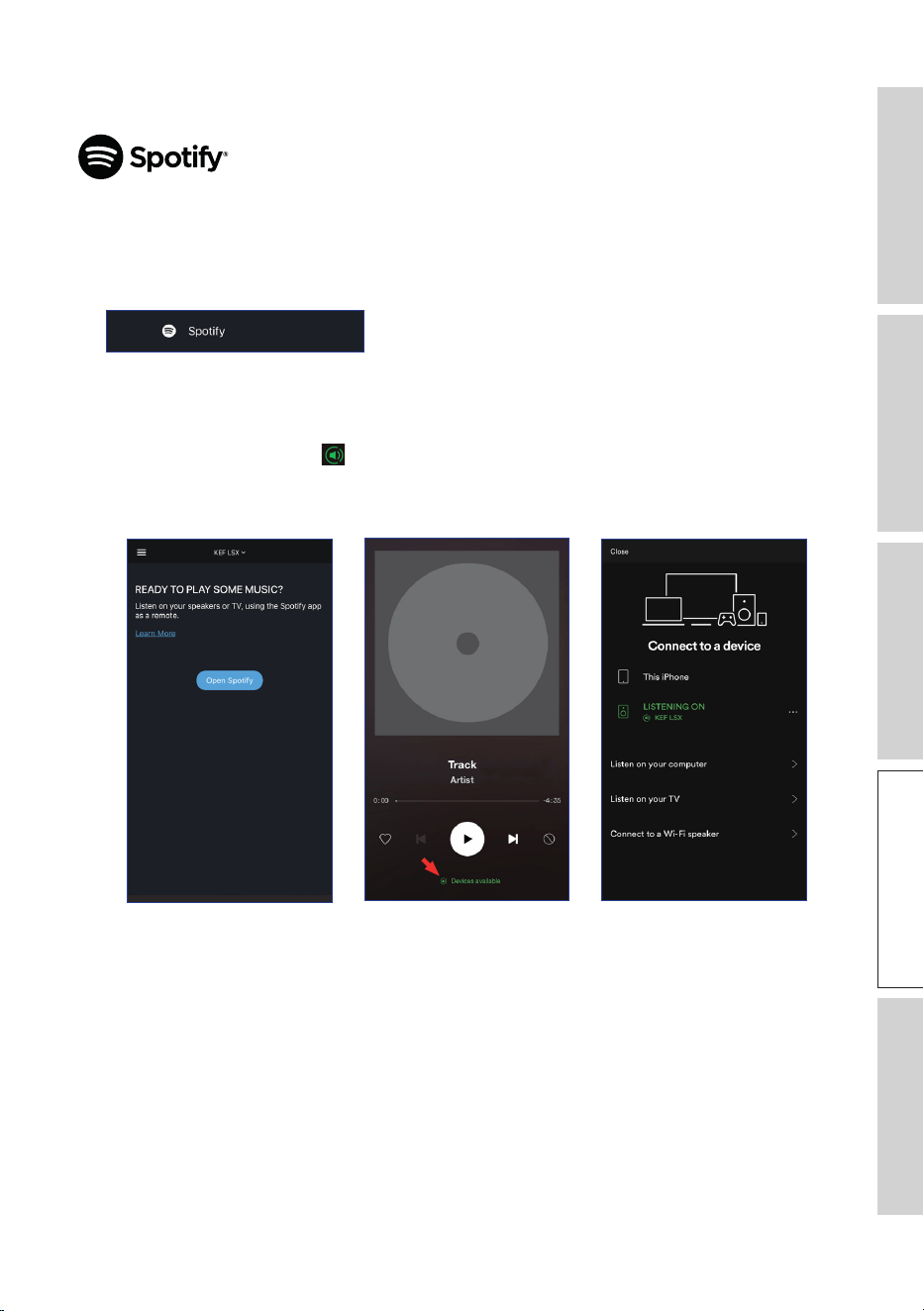
1. To stream music through Spotify Connect, tap “Spotify” from the main menu of the
KEF Stream app.
2. Tap “Open Spotify”. You will be prompted to the Spotify app.
3. Browse and select a track to play in the Spotify app.
4. Select the speaker icon ( ) at the bottom of the playback screen.
5. Select the “KEF LSX” speakers (or the name you have created for the speakers) from
the selection menu. The music will be played from the speakers.
2. 4. 5.
49
Table of ContentsSetting Up the LSXUsing the KEF Control AppPlayback and StreamingFAQ and Troubleshooting
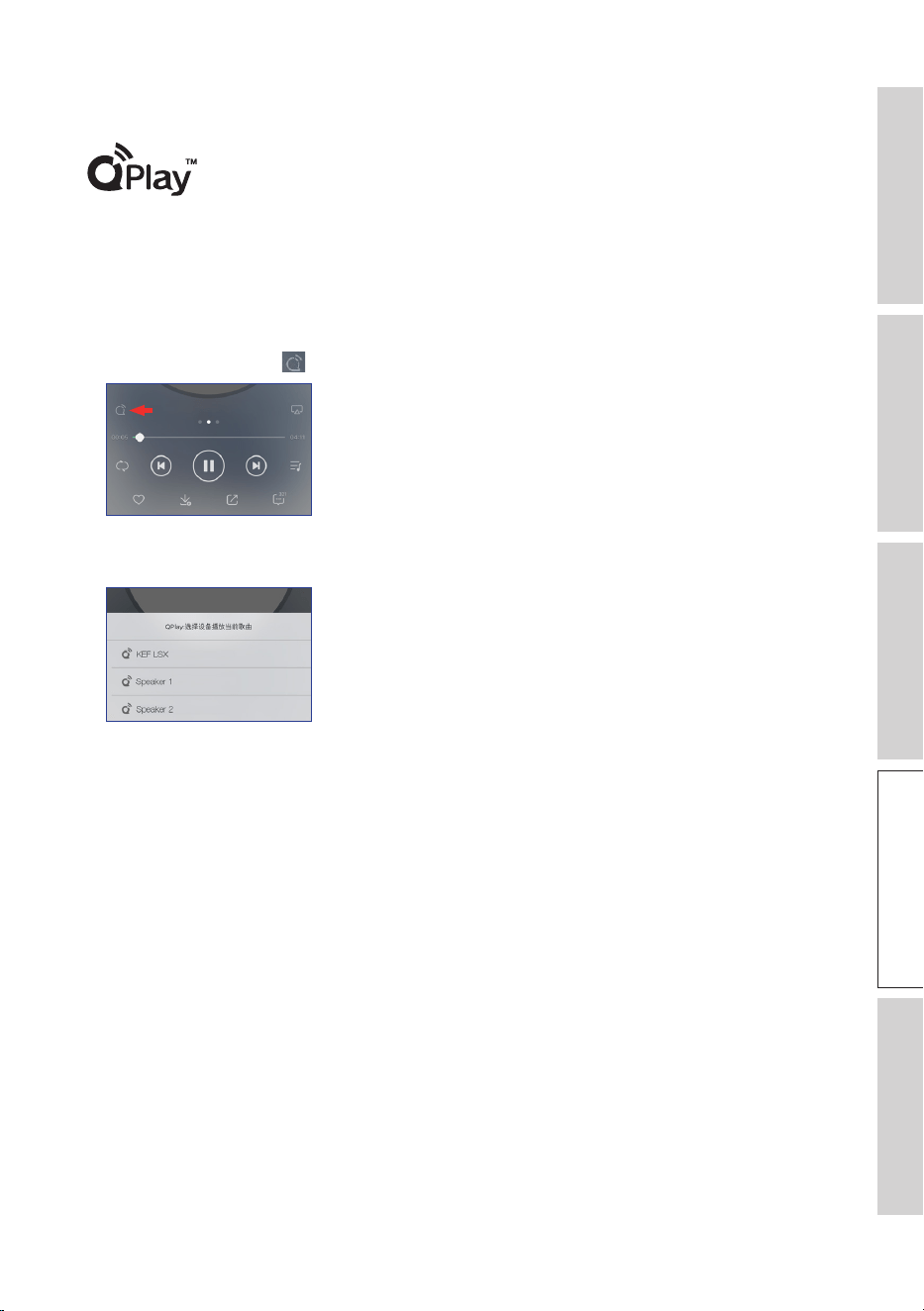
9.1.4 Streaming with Qplay
QQ Music is one of China’s most popular online music streaming
services. QPlay lets you stream music directly from the QQ Music app.
The speakers are ready for the QPlay feature (Firmware 3.0 or later).
1. To stream music from QPlay, make sure your iOS/Android device and the speakers
are on the same network.
2. Launch the QQ Music app and enable QPlay in the settings.
3. Browse and play a track.
4. Tap the QPlay icon ( ) on the playback screen.
5. Select the “KEF LSX” speakers (or the name you have created for the speakers) from
the device list.
50
Table of ContentsSetting Up the LSXUsing the KEF Control AppPlayback and StreamingFAQ and Troubleshooting
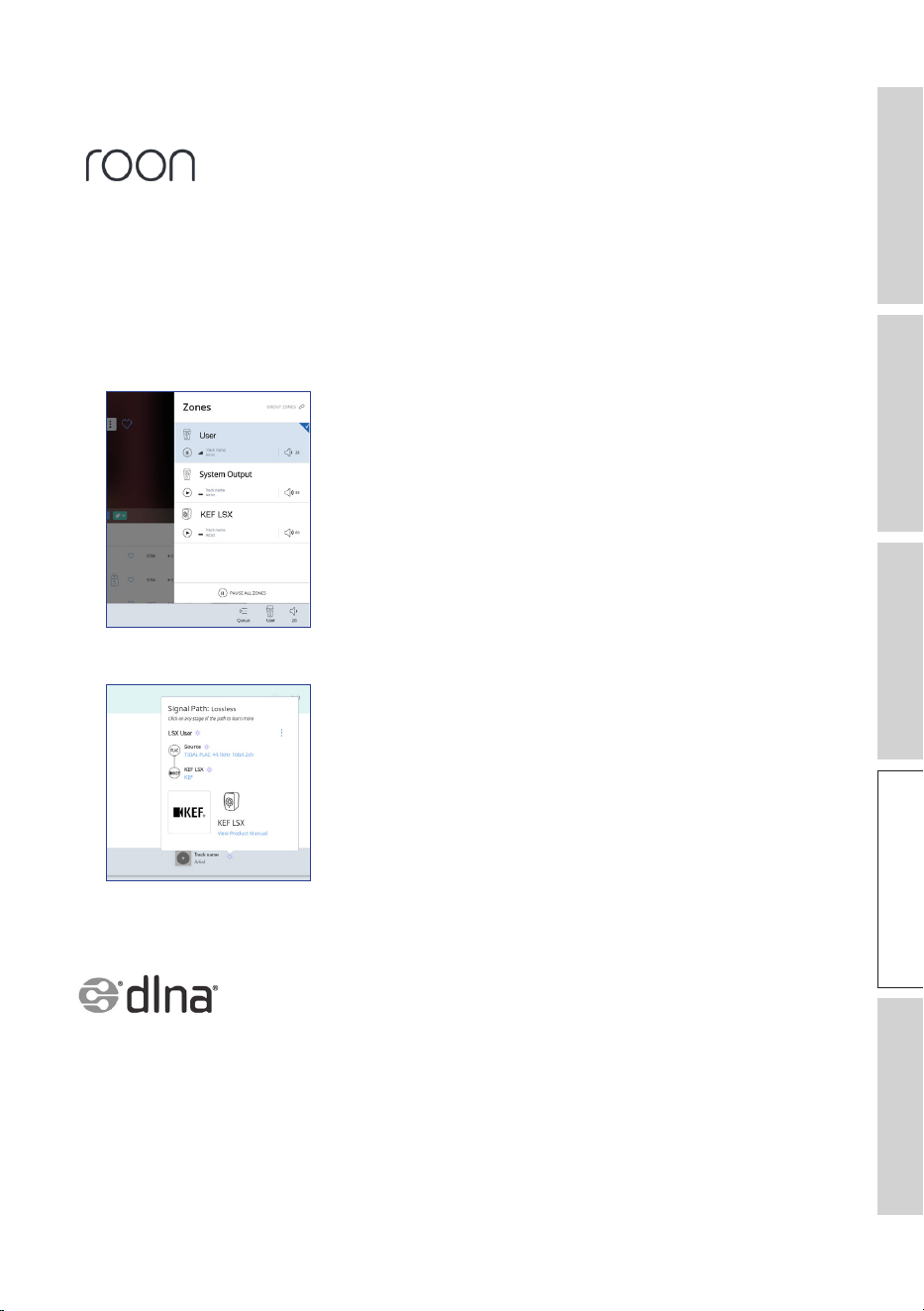
9.1.5 Streaming with Roon
Roon is a high quality music management system that pulls together
music from NAS driver, locally stored music (i.e. on your computer),
compatible streaming services and Dropbox to create a searchable,
surfable magazine about your music. The speakers are compatible with most of Roon’s
features (Firmware 3.0 or later).
1. To stream music from Roon, make sure your computer and the speakers are on the
same network.
2. At the footer of Roon, click the “Zone Picker” next to volume and then select “KEF
LSX” speakers (or the name you have created for the speakers) from the device list.
3. The signal path can be found by clicking the little coloured light in the footer.
9.1.6 Streaming with DLNA
The speakers are compatible with common DLNA* streaming
software (e.g. Windows Media Player and foobar2000) and apps (e.g.
BubbleUPnP and MConnect Control).
In the settings or setup menu of a DLNA software or app, select “KEF LSX” as the
output speakers for audio streaming.
*Digital Living Network Alliance (DLNA)
51
Table of ContentsSetting Up the LSXUsing the KEF Control AppPlayback and StreamingFAQ and Troubleshooting
9.2 Playback with Bluetooth
You can pair your Bluetooth devices (e.g. computers) with the speakers through
Bluetooth connection.
9.2.1 Selecting Bluetooth Mode
In the KEF Control app, press the Bluetooth button ( ) to switch to Bluetooth Mode.
Or press the source button on the remote control to switch to Bluetooth Mode.
9.2.2 Bluetooth Pairing
1. In Bluetooth Mode, check the LED indicator on the Master Speaker.
When the LED indicator slowly flashes blue, the speakers are in the discovery mode
and ready to pair with a Bluetooth device.
If the LED indicator is in solid blue, the speakers are already paired with a Bluetooth
device. To disconnect the connected Bluetooth device, press and hold the Bluetooth
pairing button (B) on the back of the Master Speaker until the LED indicator flashes
blue slowly.
2. Turn on the Bluetooth feature of your device and select “KEF LSX” from the list of
available devices to pair.
When Bluetooth pairing is done, you will hear an indicator tone from the speakers. The
LED indicator will turn solid blue.
The speakers remember your paired device. Once Bluetooth Mode is selected, the
speakers will automatically connect with your paired device if it is around.
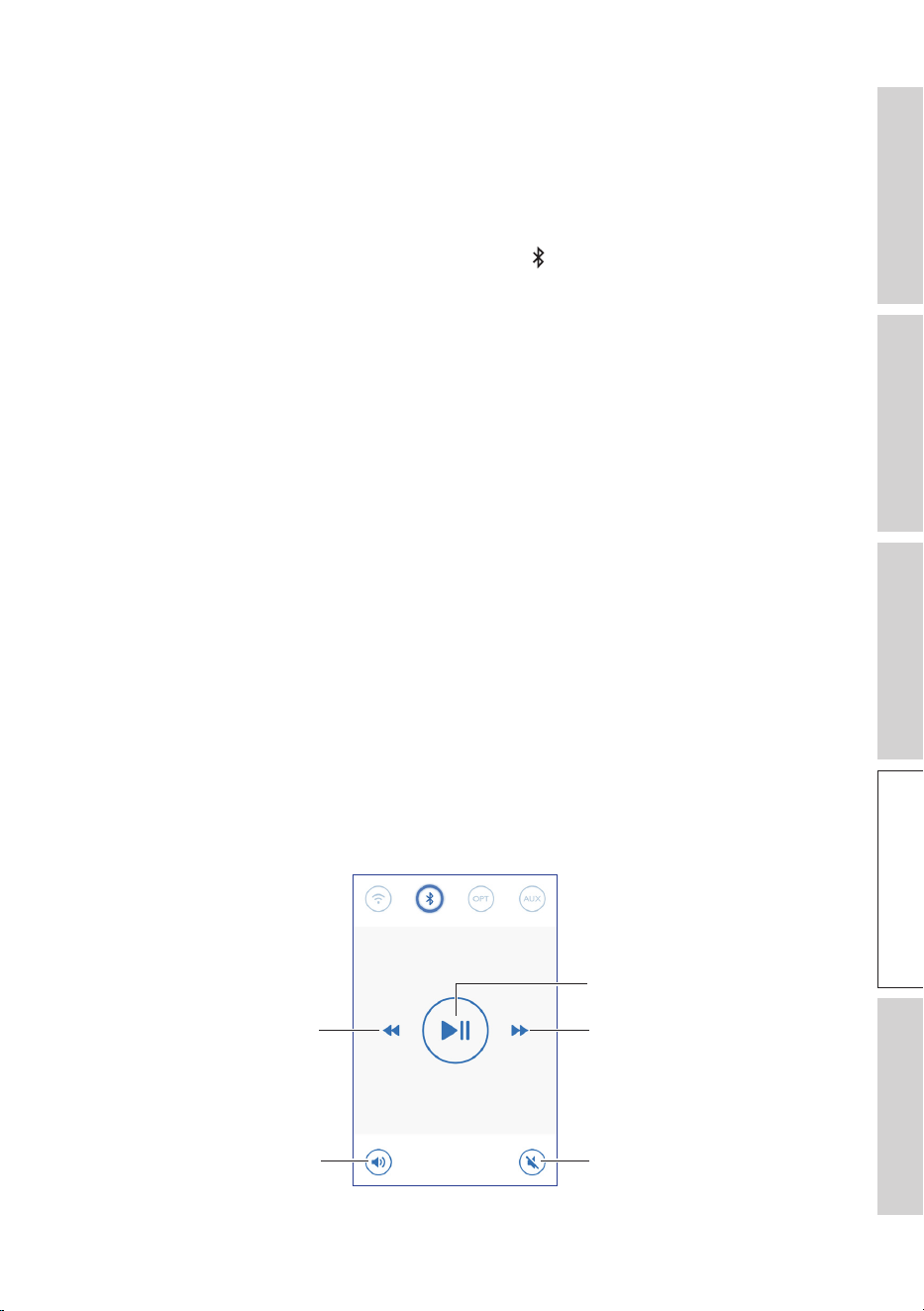
9.2.3 Playback Controls
Use the buttons below for playback controls.
Play/pause
Next track
Mute/restore
sound output
Volume control
Previous track

52
Table of ContentsSetting Up the LSXUsing the KEF Control AppPlayback and StreamingFAQ and Troubleshooting
9.3 Playback with Optical Input
You can connect your devices with optical output (e.g. TV and game consoles) to the
speakers through an optical cable. All playback controls (except adjusting volume) must
be done on the connected device.
9.3.1 Optical Cable Connection
Connect an optical cable between the optical output port of your device and the optical
input port (O) on the back of the Master Speaker.
9.3.2 Selecting Optical Mode
In the KEF Control app, press the Optical Mode button (OPT) to switch to Optical
Mode.
Or press the source button on the remote control to switch to Optical Mode.
The speakers contain a very high quality optical input which works with most of
the televisions via a standard TOSLINK cable. Make sure your television is set to
output digital audio in PCM format. Refer to the user manual of your television
for details.
9.4 Playback with Auxiliary Input
You can connect your devices with 3.5 mm audio output (e.g. turntables, computers,
DVD players and CD players) to the speakers through an audio cable. All playback
controls (except adjusting volume) must be done on the connected device.
9.4.1 Auxiliary Cable Connection
Connect a 3.5 mm audio cable between the audio output jack of your device and the
auxiliary input jack (X) on the back of the Master Speaker.
9.4.2 Selecting Auxiliary Mode
In the KEF Control app, press the Auxiliary Mode button (AUX) to switch to Auxiliary
Mode.
Or press the source button on the remote control to switch to Auxiliary Mode.
53
Table of ContentsSetting Up the LSXUsing the KEF Control AppPlayback and StreamingFAQ and Troubleshooting
10. Cleaning and Maintenance
WARNING!
Risk of electric shock!
Improper cleaning of the speakers may result in injury.
• Always unplug the power cables from the power socket/outlet before cleaning the
speakers.
NOTICE!
Risk of short circuit!
Water and other liquids that have penetrated the housing may cause a short circuit.
• Make sure that no water or other liquids penetrate the housing of the speakers.
• Never immerse the speakers in water or other liquids.
NOTICE!
Risk of damage!
Improper handling of the speakers may result in damage.
• Do not use any aggressive cleaners, brushes with metal or nylon bristles, or sharp
or metallic cleaning utensils such as knives, hard scrapers and the like. They could
damage the surfaces.
1. Disconnect the power cables of the speakers from the power socket/outlet before
cleaning.
2. Clean the front and rear surfaces of the speakers with a damp cloth and wipe dry with
a clean dry cloth.
3. Use an anti-static cleaner to carefully clean the Uni-Q drivers (speaker cones) with a
soft sponge.
11. Storage
All parts must be completely dry before being stored.
• Always store the speakers in a dry area.
• Protect the speakers from direct sunlight.
• Store the speakers so that they are not accessible to children.

54
Table of ContentsSetting Up the LSXUsing the KEF Control AppPlayback and StreamingFAQ and Troubleshooting
12. FAQ and Troubleshooting
12.1 Setup and Network Connection
1. I don’t have a home network and/or a smartphone for set-up. It is possible to use
LSX without a Wi-Fi network?
Yes you can. However it is highly recommended you connect the LSX to a home
network with a live internet connection, as most of the important features (TIDAL,
Spotify Connect) and the KEF Control/Stream apps rely on these.
In addition, without an internet connection you will miss out on important updates
including bug fixes and new features.
Please refer to “Setting up without Wi-Fi” for more details on how to disable the
network functionality so you can use the LSX without a Wi-Fi network.
2. How do I turn on the Slave Speaker?
The Slave Speaker does not need be turned on. When you plug the Slave in to the AC,
the Slave LED indicator will briefly light up orange and will then go off. This indicates
that the Slave is working.
The Master Speaker will automatically find the Slave when powered on.
3. How do I connect the Master and Slave speakers wirelessly?
The Master and Slave Speakers will wirelessly connect to each other automatically after
you plug in the power cables and turn on the LSX.
4. When do I need to connect the Master and Slave speakers together with the
inter-speaker cable?
A. When you are performing a speaker firmware update.
B. When you prefer listening to music at 96kHz/24bit.
• Wireless Mode: 48kHz/24bit
• Cable Mode: 96kHz/24bit
C. When you are experiencing audio dropouts due to interference.
Cable Mode can be initiated in the KEF Control app. Please refer to What is Cable
Mode? for more details.

55
Table of ContentsSetting Up the LSXUsing the KEF Control AppPlayback and StreamingFAQ and Troubleshooting
5. How can I distinguish between the Left and Right speakers?
By default the Master will be the Right channel. It should be placed on the right hand
side of the speaker as you face it.
The Slave or Left channel should be placed on the left hand side of the speaker.
You can swap the channels inside the KEF Control app: Settings > Inverse L/R Speakers.
6. How far should I separate the Master and Slave speakers?
For the best stereo experience/soundstage, place the speakers 1 to 3 meters apart.
Maximum distances between the Master and Slave Speakers:
• Wireless Mode: Up to 5 meters, although interference from Wi-Fi and Bluetooth
can reduce this distance.
• Cable Mode: Up to 8 meters using a shielded Cat-6 Ethernet cable
7. What router should I use?
The default router from your Internet Service Provider usually comes with poor speed
and range. They are not recommended.
For better streaming stability, especially on Hi-Res music files, a 5GHz Wi-Fi network
with a router transmission speed of at least 1300Mbps is recommended.
Below are detailed technical requirements:
• Support IEEE 802.11a/b/g/n
• Use security protocol WPA2
Open networks are not recommended for security reasons.
WEP is an old encryption and may lead to setup and streaming problems.
Refer to the user guide of your router to select the encryption method.
56
Table of ContentsSetting Up the LSXUsing the KEF Control AppPlayback and StreamingFAQ and Troubleshooting
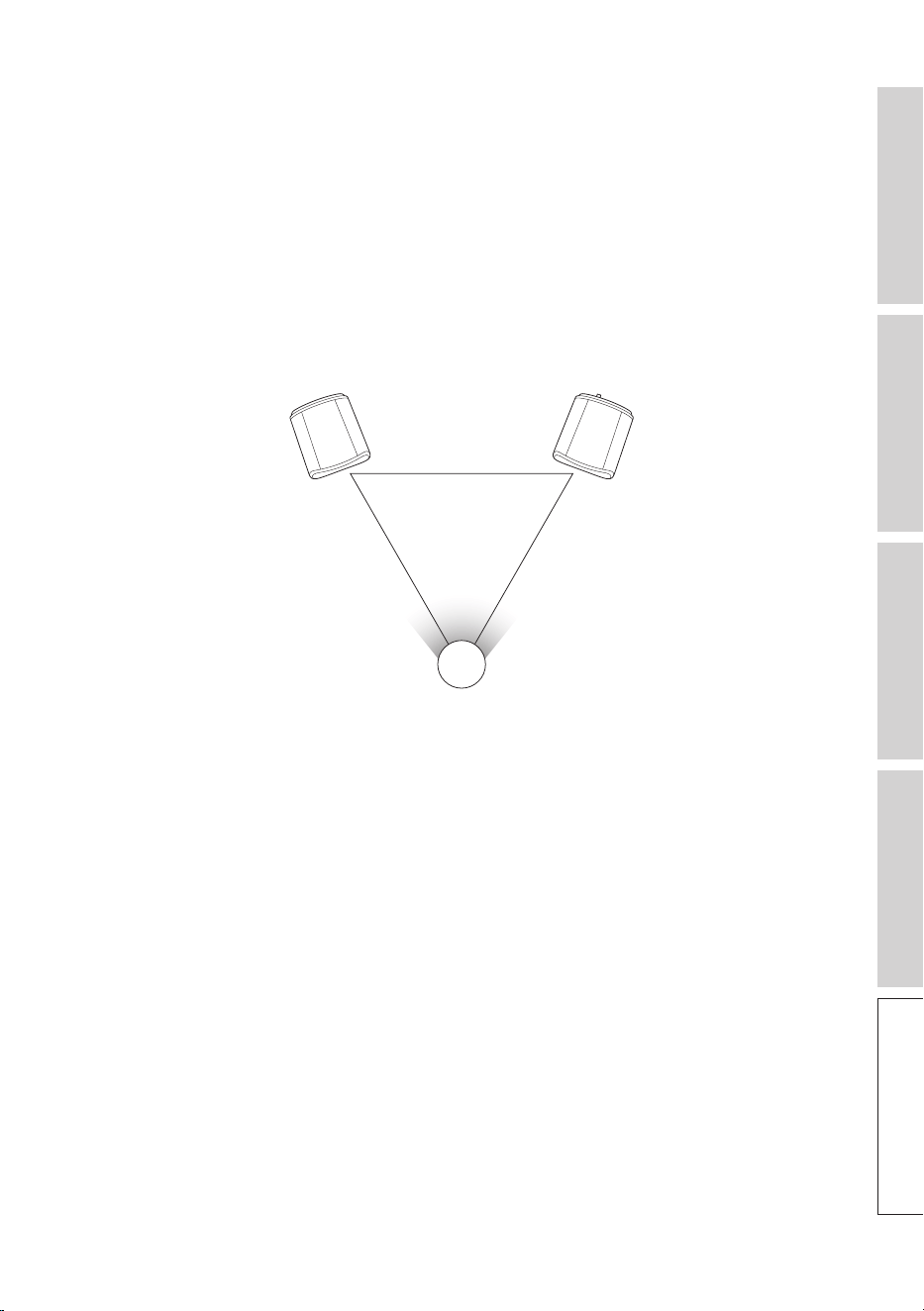
8. What is the optimal listening position?
For the best sound experience separate the Master and Slave Speaker by 1 to 3 meters.
Optimal distance between the speakers and the listener will depend on the Master
and Slave Speaker separation. Try to aim for approximately the same distance to the
listener (i.e. form an equilateral triangle).
In other words, the speaker distance between the Master and Slave Speakers (A)
should be the same as the distance between the Slave Speaker and the Listener (B) and
the distance between the Master Speaker and the Listener (C).
Also, try angling the speakers inwards towards the listener.
A
B C
A = B = C
57
Table of ContentsSetting Up the LSXUsing the KEF Control AppPlayback and StreamingFAQ and Troubleshooting
9. How to setup the speaker without Wi-Fi network?
Using the LSX without a Wi-Fi network is not recommended and severely limits the
usability of the speaker.
In addition, you will miss out important updates including bug fixes and new features.
To set up the speaker without a Wi-Fi network
1. The speaker must be in Setup Mode. The Master Speaker’s LED should be
alternating between white and orange. If it is not, you will have to factory reset into
Setup Mode. Please refer to "Resetting to Factory Default" for details.
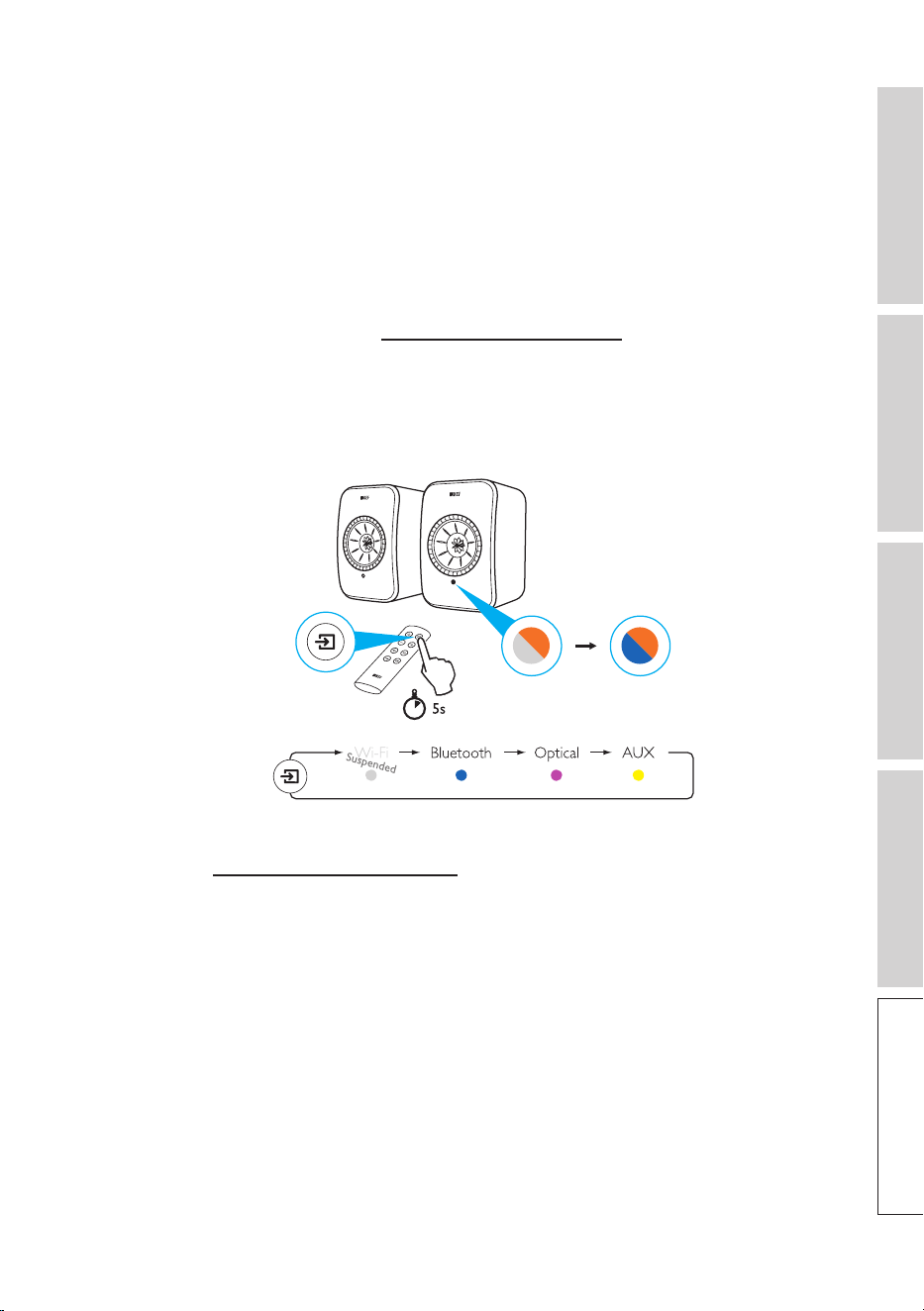
2. Point the physical remote control at the Master Speaker and then hold the "source"
button for 5 seconds until the LED alternates between blue and orange. This
indicates that Wi-Fi Mode has been disabled. In this mode the Wi-Fi source is
disabled.
To resume using the LSX with a Wi-Fi connection, reset the speaker to Setup Mode.
Please refer to "Resetting to Factory Default" for factory reset into Setup Mode.

58
Table of ContentsSetting Up the LSXUsing the KEF Control AppPlayback and StreamingFAQ and Troubleshooting
12.2 Operation
1. How can I turn on and turn o the speakers?
You can either use the physical remote control or the KEF Control app to power the
speakers ON or OFF.
On the physical remote control press the power button once to toggle between ON
and OFF.
On the KEF Control app from Standby press the desired source to power ON the
speaker. Press the active source icon to power OFF the speaker.
Note: Direct playback from Spotify Connect can also wake up the speaker.
2. How can I change input sources?
You can either use the physical remote control or the KEF Control app to switch
sources.
On the physical remote control press the source button once to toggle between
inputs.
On the KEF Control app press the source icon once to switch to a particular input. The
colour of each source corresponds to the colour of the LED on the Master Speaker.
3. How can I inverse the left and right speakers?
In the KEF Control app: navigate to Settings > Enable/disable Inverse L/R Speaker.
The status of the Master Speaker will change from RIGHT Channel (disabled) to LEFT
Channel (enabled).
4. What is Cable Mode?
Cable Mode disables the wireless pairing between Master and Slave Speakers.
Cable Mode is needed when:
1. You are performing a speaker firmware update.
2. You prefer listening to music at 96kHz/24bit.
• Wireless Mode: 48kHz/24bit
• Cable Mode: 96kHz/24bit
3. You are experiencing audio dropouts due to interference.

59
Table of ContentsSetting Up the LSXUsing the KEF Control AppPlayback and StreamingFAQ and Troubleshooting
5. How do I enable/disable Cable Mode?
In the KEF Control app: navigate to Settings > enable/disable Cable Mode
To turn on/off this feature you need to have the inter-speaker cable connected
between the Master and Slave Speakers.
If Cable Mode is enabled without the inter-speaker cable being connected, the LEDs
on the Master and Slave Speakers will alternate between light blue and yellow. This
indicates that the speakers cannot find each other.
If Cable Mode is disabled while the inter-speaker cable is not connected, the Slave
Speaker will not receive the signal to switch back to Wireless Pairing Mode. The LED of
the Slave Speaker will alternate between yellow and blue. Press the M/S pairing button
on the back of the Slave once. The Slave will start looking for the Master. Once found
the LED will go off, indicating normal operation.
6. How can I adjust the auto-standby time?
In the KEF Control app: navigate to Settings > Standby Mode > set to "Never" or "60
minutes"
Please note that if you set to "Never" the speaker will not power OFF automatically.
Remember to power OFF the speaker manually.
7. What does “Enable limitation” do?
Enable limitation in the volume settings refers to adjusting the maximum volume of the
speaker to a preferred level. For example if you Enable limitation and set the volume
limitation to 50, you will not be able to adjust the volume over 50.
8. How can I enable maximum volume limitation?
In the KEF Control app: Navigate to Settings > Volume Settings > Enable Limitation
9. What do the Hardware Volume Buttons do (iOS only)?
The Hardware Volume Buttons refer to the physical volume buttons on your device.
Disable this feature on iOS devices when you are experiencing conflicts with other
music apps streaming over Wi-Fi.
10. How can I adjust volume button sensitivity?
In the KEF Control app: Settings > Volume Settings > Volume Button Sensitivity
Adjust the volume steps for each single press of the hardware volume buttons of your
device.
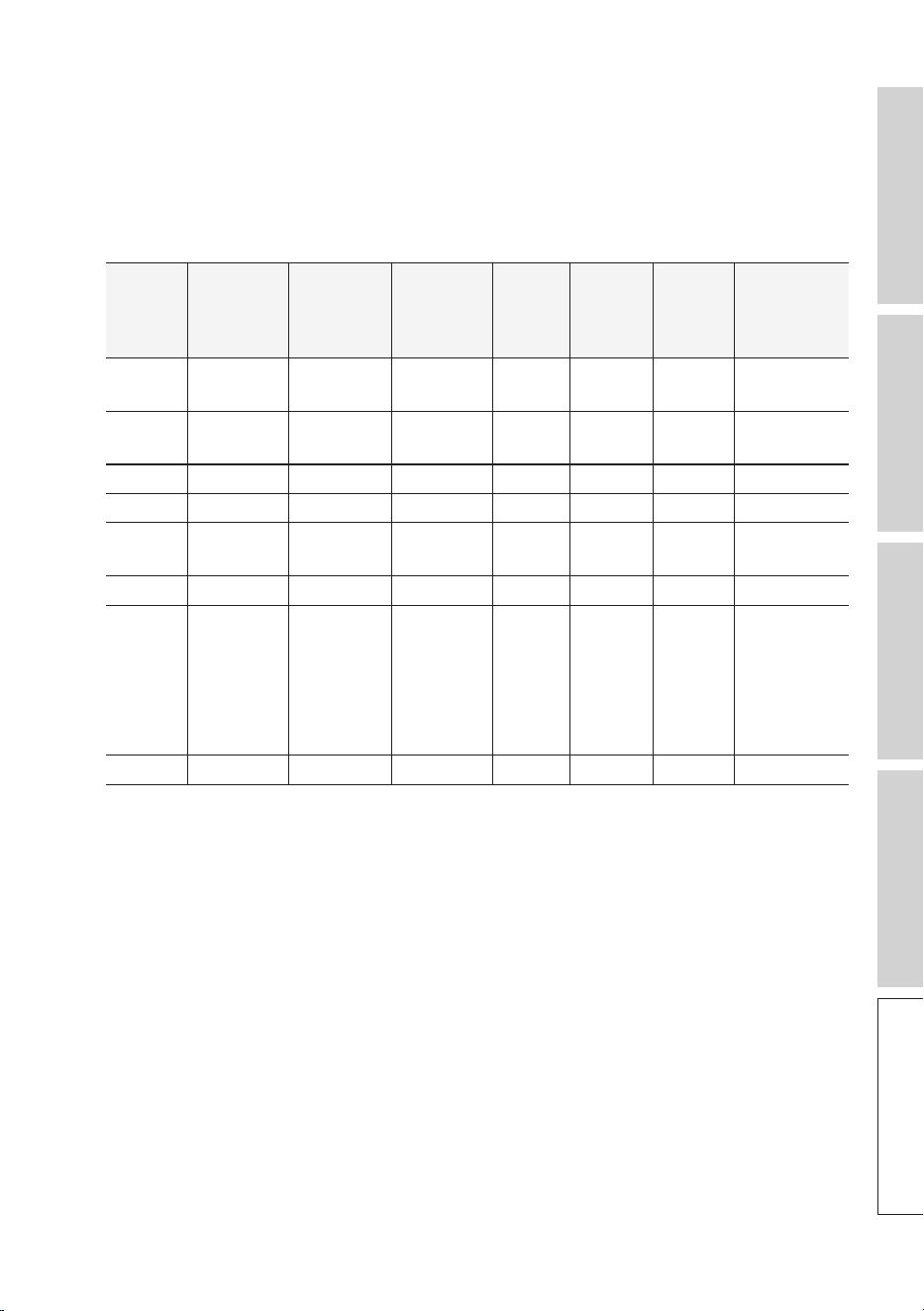
60
Table of ContentsSetting Up the LSXUsing the KEF Control AppPlayback and StreamingFAQ and Troubleshooting
11. Can I stream Apple Music contents using the KEF Stream app?
Apple Music streaming subscription is not supported.
Purchased or imported music must be downloaded into the local iTunes library for
offline listening before it can be streamed to the speaker.
12. What le formats do the speakers support?
Format
File
extension
Stream
type
Sample
frequency
(KHz)
Audio
word
size
(bits)
Audio
channel
Bit rate
(kbps)
VBR/CBR
MP3 mp3
MPEG-1/2
Layer-III
8–48 16 2 8–320 Supported
WMA asf, wma
WMA
2/7/8/9/10
8–48 16 2 5–320 Supported
LPCM wav LPCM 8–192 16, 24 2 – –
FLAC flac FLAC 8–192 16, 24 2 – –
Ogg
Vorbis
ogg Ogg 8–192 16, 24 2 16 –128 Supported
AIFF aiff or aif AIFF 32–192 16, 24 2 – –
AAC
m4a
aac
3gp
3g2
MPEG-4
AAC
MPEG-4 HE
AAC
(AAC Plus
v1/2)
32–96 16 2 16–320 Supported
ALAC m4a ALAC 32–192 16, 24 2 – –
13. Can I use the LSX with my TV?
Yes. The LSX contains a very high-quality optical input that will work with the vast
majority of televisions via a standard optical TOSLINK cable. Ensure that your television
is set to output digital audio in PCM format (please see your television manual for
details).
The LSX Aux input also works with an RCA/ 3.5mm analog output on common
televisions.
14. At what resolution does my speaker play?
Playback resolution depends on the connection between Master and Slave.
In Wireless Mmode, the resolution is at 48kHz/24bit. Media above 48kHz/24bit will be
downsampled. Media below 48/kHz/24 bit will be upsampled.
In Cable Mode, the resolution is at 96kHz/24bit. Media above 96kHz/24bit will be
downsampled. Media below 96/kHz/24 bit will be upsampled.

61
Table of ContentsSetting Up the LSXUsing the KEF Control AppPlayback and StreamingFAQ and Troubleshooting
15. How do I stream music using Spotify Connect?
Spotify Connect allows you to stream music directly from Spotify app.
1. Connect your speaker to your Wi-Fi network.
2. Open up the Spotify app on your phone, tablet or laptop whilst connected to the
same Wi-Fi network.
3. Play a song and select Devices Available.
4. Select your speaker and start listening.
For more information on how to use Spotify connect and country compatibility, please
look at the following webpage (http://www.spotify.com/connect).
16. How do I stream music using Qplay?
QQ Music is one of China’s most popular online music streaming services. QPlay allows
you to stream music directly from the QQ Music app.
How to use QPlay
1. Connect your iOS/Android device and speaker to the same network.
2. Open the QQ Music app and enable QPlay in Settings.
3. Play a song.
4. Press the QPlay icon ‘Q’ on the playing page then choose your speaker from the
device list.
For more information on QQ Music, please see https://y.qq.com.
12.3 KEF Control App and KEF Stream App
1. What is the minimal supported Android version for KEF Control app and KEF
Stream app?
The KEF Control app supports Android 4.4 and above.
2. What is the minimal supported iOS version for KEF Control app and KEF Stream
app?
The KEF Control app supports iOS10 and above.
3. What are the dierences between the KEF Control app and the KEF Stream app?
The KEF Control app provides set-up and comprehensive remote control functionality
for LS50 Wireless and the LSX.
The KEF Stream app allows you to stream music from your local library, media servers,
TIDAL and Spotify Connect to LS50 Wireless and the LSX.

62
Table of ContentsSetting Up the LSXUsing the KEF Control AppPlayback and StreamingFAQ and Troubleshooting
12.4 Maintenance
1. How do I clean the speaker cone?
Regular cleaning is important in order to keep the driver free from dirt and ensure
optimal acoustic performance. Use an anti–static cleaner to clean the Uni-Q driver
carefully with a soft sponge.
2. How do I clean the fabric areas of the LSX?
Normal cleaning
Regular cleaning is important in order to keep the fabric looking its best and to prolong
its life. Vacuum frequently, ideally every week. May also be vacuum cleaned with a soft
brush.
Stain removal
Scrape off any liquids or hardened residues with a spoon or a scoop. Any loose
particles must be vacuum cleaned before further cleaning.
Liquids must be soaked up with an absorbent napkin or cloth.
Remove non-greasy stains by carefully dabbing with a lint-free cloth or sponge wrung
out in warm water. Edge marks can be avoided by dabbing gently in circular motions
towards the center of the stain with a clean lint-free cloth. Remove greasy stains by
using appropriate detergents or solvents. In all cases, we recommend you test stain
removal agents on an inconspicuous area first to see if there is any effect on the fabric.
Warning
1) Do not rub the material hard because this could result in loss of colour or potentially
damage the nap.
2) Never use unconcentrated detergents or bleach, ammonia or soap intended for
hard surfaces.

63
Table of ContentsSetting Up the LSXUsing the KEF Control AppPlayback and StreamingFAQ and Troubleshooting
12.5 Comments and Requests
1. I have a feature request, where can I submit a request?
Please send your requests to [email protected].
12.6 Troubleshooting
1. The LED on the Slave speaker doesn't show up. Is there something wrong?
In normal operation the LED on the Slave Speaker will not light up. The LED on the
Slave Speaker will only light up if there is a problem.
2. I cannot nd my LSX in the Wi-Fi list during set-up (Step 3), what should I do?
It may take up to a minute for the LSX to become discoverable after the power is
turned on. If you are still unable to find the LSX after a minute please perform a
Factory Reset.
1. Use a paperclip/pin to hold the reset button (marked with a triangle) on the back of
the Master Speaker for approximately 5 seconds until the back LED ashes orange.
Wait until the back LED stops ashing.
2. Close down the app completely.
3. Unplug the power cable from the Master Speaker.
4. Wait approximately 60 seconds.
5. Reinsert the power cable.
6. The Master Speaker LED should be alternating between white and orange. It may
take up to 1 minute for the LSX to become discoverable.
7. Run the KEF Control app, choose ‘Setup New Speaker’ and follow the instructions.
If the problem persists please check the following:
The LSX broadcasts at 2.4G on channel 1. If your router is also broadcasting at 2.4G
on channel 1, you may not be able to see your LSX. Try to change your router to
another channel (please see your router manual for details).
Disable any VPN apps on your phone as they may interfere with Wi-Fi detection.
If the problem persists, please send a log with a description of the problem from inside
the KEF Control app (Settings > Send Logs & Feedback) or contact [email protected]om.
64
Table of ContentsSetting Up the LSXUsing the KEF Control AppPlayback and StreamingFAQ and Troubleshooting
3. I cannot see my Wi-Fi network in the KEF Control app during set-up (Step 4),
what should I do?
The app checks with the speaker which Wi-Fi networks are visible. If the speaker
can't see your network, move the Master speaker closer to the router. If the problem
persists, connect a LAN cable directly from the Master Speaker to the router.
If the app still can't see your Wi-Fi network during setup, please send a log from inside
the KEF Control app (Settings > Send Logs & Feedback) or contact [email protected]om.
4. I am unable to see my LSX inside the network, what should I do?
Make sure the speaker is powered on and already onboarded to your network. The
LED of the Master Speaker should have a solid colour.
1. Make sure you are connected to the network where the speaker is onboarded
2. Select your speaker and press "Connect"
3. In the KEF Control app: Navigate to "Add new speaker" > "Connect to existing" >
"Search again"
4. If the speaker does not show up in your network:
• Pull the power plug from both the Master and Slave Speakers
• Wait approximately 60 seconds
• Plug both speakers back into the power
• Run the KEF Control app
• Select your speaker from the speaker drop down menu
If the problem persists, please send a log with a description of the problem from inside
KEF Control app: Settings > Send Logs & Feedback to [email protected].
5. There is a bug or an issue with the KEF Control app, how do I report this issue?
KEF strives to deliver the best user experience and it is our wish to deliver you a bug
free app. Unfortunately, due to many factors (e.g. device, firmware, network setup, etc)
this may not always be the case. In these cases, we rely on our KEF users to help us
out.
Please use the "Send logs & feedback" option inside the corresponding app. If you find
an issue inside the KEF Stream app use KEF Stream app to send a log, and if you find an
issue with KEF Control app use KEF Control to send a log.
It is important to add a description about the issue you encountered, the steps to
reproduce it, a video, screenshots, etc. The more information we have the easier it will
be for our developers to identify the root cause of the issue and develop a fix.

65
Table of ContentsSetting Up the LSXUsing the KEF Control AppPlayback and StreamingFAQ and Troubleshooting
6. There is no sound from either speaker.
1. Please make sure that the power cable is plugged in securely both to the speaker
and the AC socket. When it is correctly plugged in, the LED on the Master
Speaker should light up.
2. Please make sure the volume is not muted (the source LED will be blinking).
3. Try adjusting the volume on the KEF Control app or physical remote control.
If the problem persists please contact your local KEF representative or send an email to
support@kef.com.
7. There is no sound from my Slave Speaker.
1. Please make sure that the power cable is plugged in securely both to the speaker
and the AC socket. When it is correctly plugged in, the LED on the Slave Speaker
should light up briey orange and then go o.
2. Please make sure the volume is not muted (the source LED on the Master Speaker
will be blinking)
3. Try adjusting the volume on the KEF Control app or the physical remote control
If the problem persists please contact your local KEF representative or send an email to
support@kef.com.
8. I am experiencing dropouts in my music listening.
If the speakers are experiencing dropouts this may be caused by poor network
connection.
1. It is recommended you connect over 5G.
2. It is recommended you keep the router in line of sight.
3. If the problem persists, try connecting the speaker via the LAN cable directly from
router to speaker ((N) network port).
9. I am experiencing dropouts on my Slave Speaker.
The wireless pairing technology works over a 2.4 GHz frequency. It is recommended
you onboard the speaker to a 5G network rather than a 2.4 G network.
Devices such as microwaves, cordless phones, Bluetooth, mouse or Wi-Fi devices
connected to 2.4GHz that run on the same frequency may cause interference and
result in dropouts. Try to remove this type of device from the vicinity. You can also
make use of network analyzer apps available on the market to check the network and
interference status.
If the problem persists due to heavy interference, please use Cable Mode by plugging in
the inter-speaker cable to the Master and Slave Speakers. Enable Cable Mode inside the
KEF Control app: Settings > Enable Cable Mode.

66
Table of ContentsSetting Up the LSXUsing the KEF Control AppPlayback and StreamingFAQ and Troubleshooting
10. I notice a delay between video and audio output.
There is a 40 millisecond delay in audio when the speaker is paired wirelessly. This is to
make sure the audio between the Master and Right Speakers is synchronised.
There are some TV or video player apps (e.g VLC) that can compensate for this audio
delay. Alternatively, you can use Cable Mode by plugging in the inter-speaker cable to
the Master and Slave Speakers. Enable Cable Mode inside the KEF Control app: Settings
> Enable Cable Mode.
12.7 Resetting to Factory Default
1. Use a paperclip/pin to press and hold the reset button (marked with a triangle) on
the back of the Master Speaker for approximately 5 seconds until the LED light
above the button ashes orange. Wait until the LED light stops ashing.
2. The LED indicator of the Master Speaker should ash white and orange.
3. Launch the KEF Control app and follow the instructions to set up the speakers.
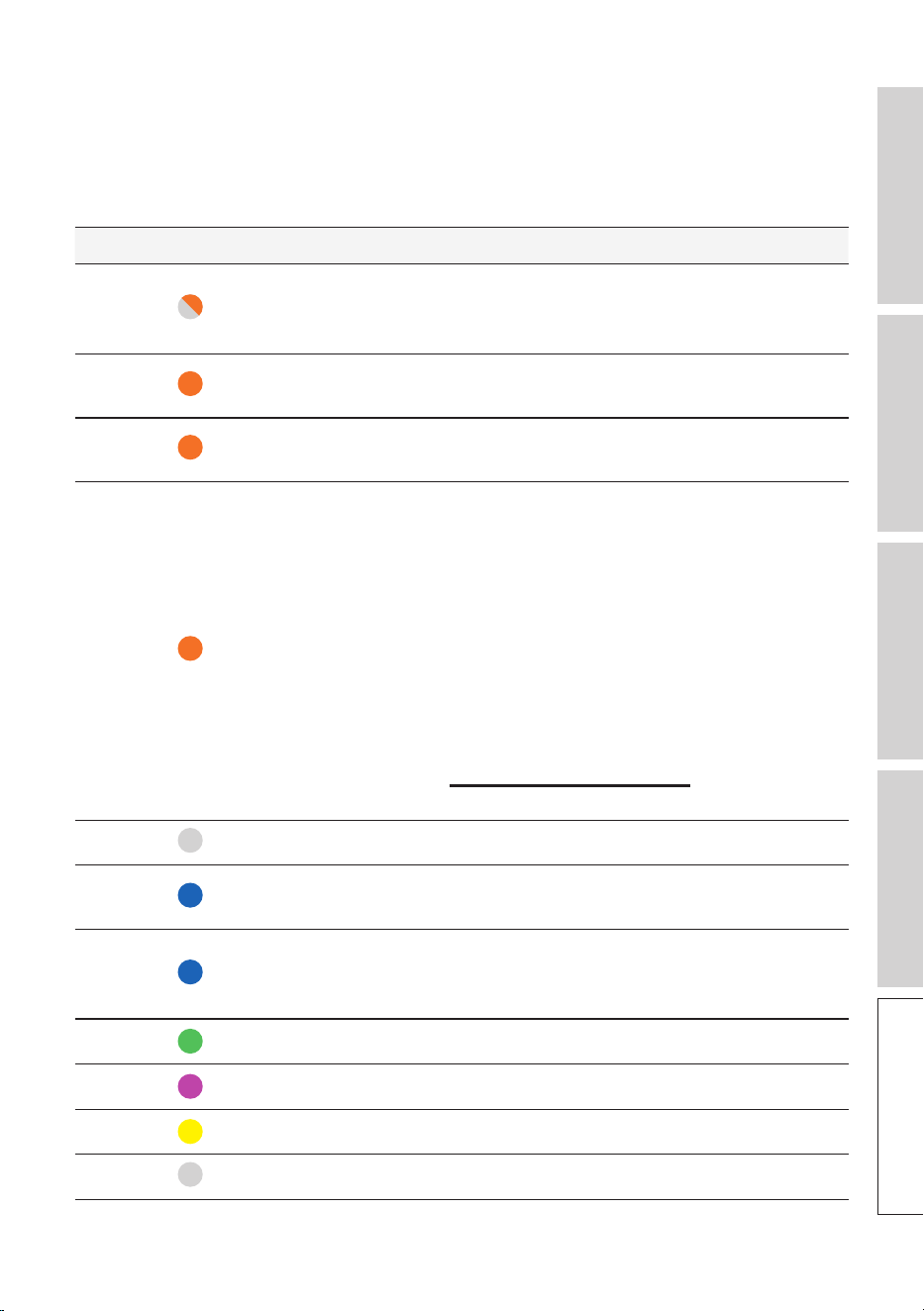
67
Table of ContentsSetting Up the LSXUsing the KEF Control AppPlayback and StreamingFAQ and Troubleshooting
12.8 LED Indicators
The connection and operation status can be easily checked through the colours and
patterns of the LED indicators on the Master and Slave Speakers. Refer to the table
below.
Speaker Pattern Status
Master
Flashing white and
orange
LSX is ready to connect to a Wi-Fi network.
Launch the KEF Control app to set up the
speakers.
Master
Flashing orange
slowly
The speakers are in Standby Mode and trying to
connect to a Wi-Fi network.
Master Solid orange
The speakers are in Standby Mode and connected
to the Wi-Fi network.
Master
Flashing orange
quickly
The speakers are unable to connect to a Wi-Fi
network.
• Make sure your router is turned on.
• Move the Master Speaker closer to the router.
If the problem persists, connect the Master
Speaker to your router by a LAN cable.
• If this happens right after the network
connection, it is likely that the Wi-Fi password
is incorrect. Perform factory reset (see chapter
“Resetting to Factory Default”) and try the
connection process again.
Master Solid white The speakers are operating in Wi-Fi mode.
Master Solid blue
The speakers are operating in Bluetooth Mode
and a device is already paired with the speakers.
Master Slowly flashing blue
The speakers are in the Bluetooth discovery
mode and are ready to pair with a Bluetooth
device.
Master Solid green The speakers are in Spotify Connect Mode.
Master Solid purple The speakers are operating in Optical Mode.
Master Solid yellow The speakers are operating in AUX Mode.
Master Flashing white The speakers are muted in Wi-Fi Mode.
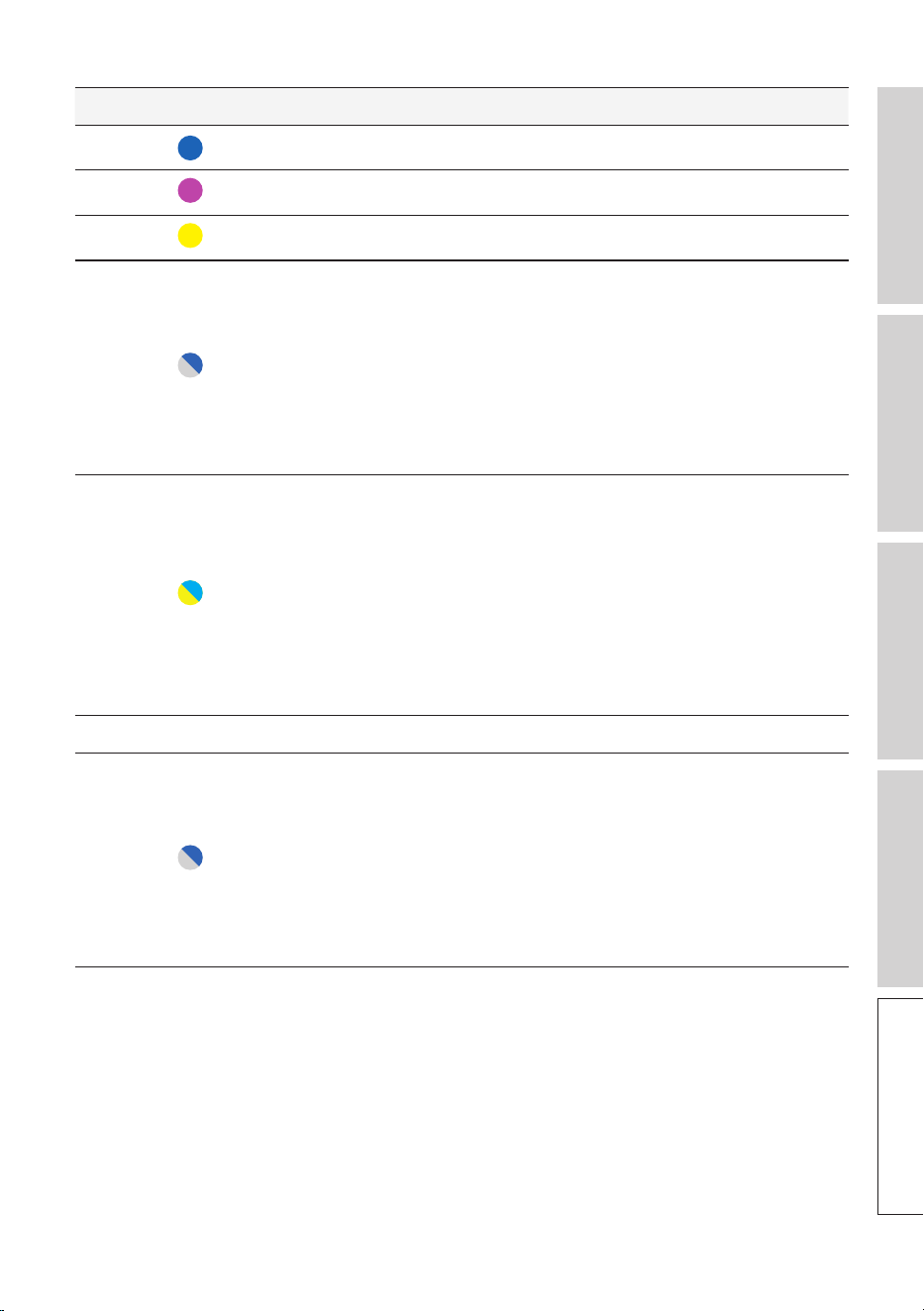
68
Table of ContentsSetting Up the LSXUsing the KEF Control AppPlayback and StreamingFAQ and Troubleshooting
Speaker Pattern Status
Master Flashing blue The speakers are muted in Bluetooth mode.
Master Flashing purple The speakers are muted in Optical Mode.
Master Flashing yellow The speakers are muted in AUX Mode.
Master
Flashing white and
blue
The Master Speaker is in wireless pairing mode
searching for the Slave Speaker.
1. Make sure Cable Mode is disabled on the KEF
Control app (Settings > Cable Mode).
2. On the Slave Speaker, press the (M) M/S Pairing
button once. The Slave Speaker will search for
the Master Speaker for reconnection.
Master
and slave
Flashing light blue and
yellow
Cable Mode is enabled and the connection
between the speakers is interrupted.
1. Make sure the inter-speaker cable is connected
between the Master and the Slave Speakers.
2. Make sure the inter-speaker cable is inserted in
the correct connection ports:
“(T) To Slave” on the Master Speaker and “(T)
To Master” on the Slave Speaker.
Slave No LED light The Slave Speaker is operating normally.
Slave
Flashing white and
blue
The Slave Speaker is in the wireless pairing mode
searching for the Master Speaker.
1. Make sure Cable Mode is disabled on the KEF
Control app (Settings > Cable Mode)
2. On the Master Speaker, press the (M) M/S
Pairing button once. The Master Speaker will
search for the Slave Speaker for reconnection.
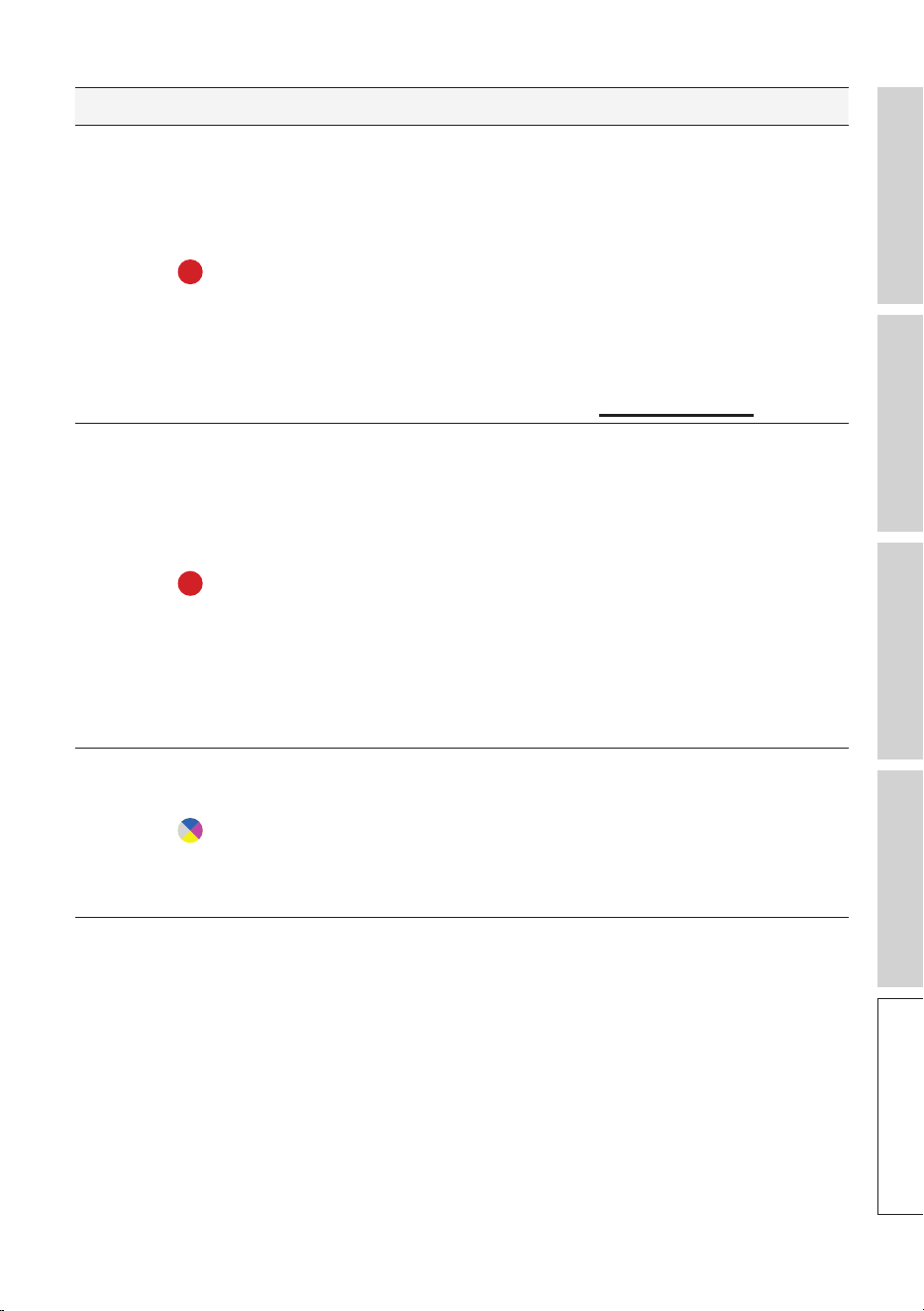
69
Table of ContentsSetting Up the LSXUsing the KEF Control AppPlayback and StreamingFAQ and Troubleshooting
Speaker Pattern Status
Master
and Slave
Flashing red slowly
The firmware update process failed.
1. Unplug the power cables from both speakers.
2. Wait approximately 60 seconds.
3. Plug the power cables back to both speakers.
4. Perform the rmware update again on the KEF
Control app.
If the problem persists, please send a log from
the KEF Control app (Settings > Send Logs &
Feedback) or contact support@kef.com.
Master
and Slave
Flashing red quickly
System error.
1. Pull the power cables from both speakers.
2. Wait approximately 60 seconds.
3. Plug the power cables back to both speakers.
4. The LED indicator of the Master Speaker
should be slowly ashing orange, indicating that
the speakers are attempting to connect to the
network.
If the problem persists, please contact your KEF
dealer.
Master
and Slave
Flashing white, blue,
purple and yellow
The firmware is being updated. Do not unplug
the power cables until the firmware update is
completed. If you encounter any issues during the
firmware update, do not interrupt the process
and contact your local representative or contact
your local KEF dealer.

70
Table of ContentsSetting Up the LSXUsing the KEF Control AppPlayback and StreamingFAQ and Troubleshooting
13. Specifications
Model LSX
Type Wireless speaker
Drive units Uni-Q driver array:
HF: 19 mm (0.75 in.) aluminium dome
LF/MF: 115 mm (4.5 in.) magnesium/aluminium alloy cone
Frequency range (-6 dB)
measured at 85 dB/1 m
49 Hz–47 kHz (More bass extension)
52 Hz–47 kHz (Standard)
55 Hz–47 kHz (Less bass extension)
Depending on speaker settings
Frequency response (±3 dB)
measured at 85 dB/1 m
54 Hz–28 kHz (More bass extension)
59 Hz–28 kHz (Standard)
69 Hz–28 kHz (Less bass extension)
Depending on speaker settings
Power input 100–240 VAC 50/60 Hz
Amplifier output power LF: 70 W HF: 30 W
Max SPL 102 dB
Dimension (H × W × D) 240 × 155 × 180 mm (9.5 × 6.1 × 7.1 in.)
Resolution Support up to 192 kHz / 24 bit
Depending on source resolution
Master and Slave Speaker
connection:
Wireless: Propriety 2.4 GHz
Wired: Proprietary RJ45 connection
Depending on connection settings
Master Speaker Slave Speaker
Inputs 2.4 GHz/5 GHz Dual-band Wi-Fi
network
Bluetooth 4.2 with aptX® codec
TOSLINK Optical
3.5 mm Auxiliary Input
RJ45 10/100 Mbps Ethernet (for
network)
Not applicable
Output Subwoofer output
5 V, 2 A DC output
Not applicable
Wi-Fi network standard IEEE 802.11a/b/g/n Not applicable
71
Table of ContentsSetting Up the LSXUsing the KEF Control AppPlayback and StreamingFAQ and Troubleshooting
Wi-Fi network frequency
band
Dual-band 2.4 GHz/5 GHz Not applicable
Bluetooth range 10 m Not applicable
Bluetooth memory 8 devices Not applicable
Bluetooth frequency 2.402 GHz–2.48 GHz Not applicable
Bluetooth power 2.5 mW (Bluetooth Class 2 Device) Not applicable
Weight 3.6 kg (7.9 lbs) 3.5 kg (7.7 lbs)
Wireless performance depends on many factors, including network traffic, distance from
access point, room materials and construction, interference and other adverse conditions.
For further information and troubleshooting, please visit the KEF website: KEF.COM
KEF reserves the right, in line with continuous research and development, to amend or
change specifications without prior notice. E. & O.E
The Bluetooth
®
word mark and logos are registered trademarks owned by Bluetooth SIG, Inc. Other
trademarks and trade names are those of their respective owners.
Qualcomm aptX is a product of Qualcomm Technologies International, Ltd.
Qualcomm is a trademark of Qualcomm Incorporated, registered in the United States and other countries,
used with permission. aptX is a trademark of Qualcomm Technologies International, Ltd., registered in the
United States and other countries, used with permission.

72
Table of ContentsSetting Up the LSXUsing the KEF Control AppPlayback and StreamingFAQ and Troubleshooting
14. Disposal
14.1 Disposing of the Packaging
Sort the packaging before you dispose of it. Dispose of paperboard and cardboard with
the recycled paper service and wrappings with the appropriate collection service.
14.2 Disposing of the Speakers
Old appliances may not be disposed of in the household waste!
Should the speakers no longer be capable of being used at some point in time, dispose
of them in accordance with the regulations in force in your city or county. This ensures
that old appliances are recycled in a professional manner and also rules out negative
consequences for the environment.
14.3 Disposing of the Battery
Batteries may not be disposed of with household waste!
As the end user you are required by law to bring all batteries, regardless whether they
contain harmful substances* or not, to a collection point run by the communal authority
or to a retailer, so that they can be disposed of in an environmentally friendly manner.
* labeled with: Cd = cadmium, Hg = mercury, Pb = lead
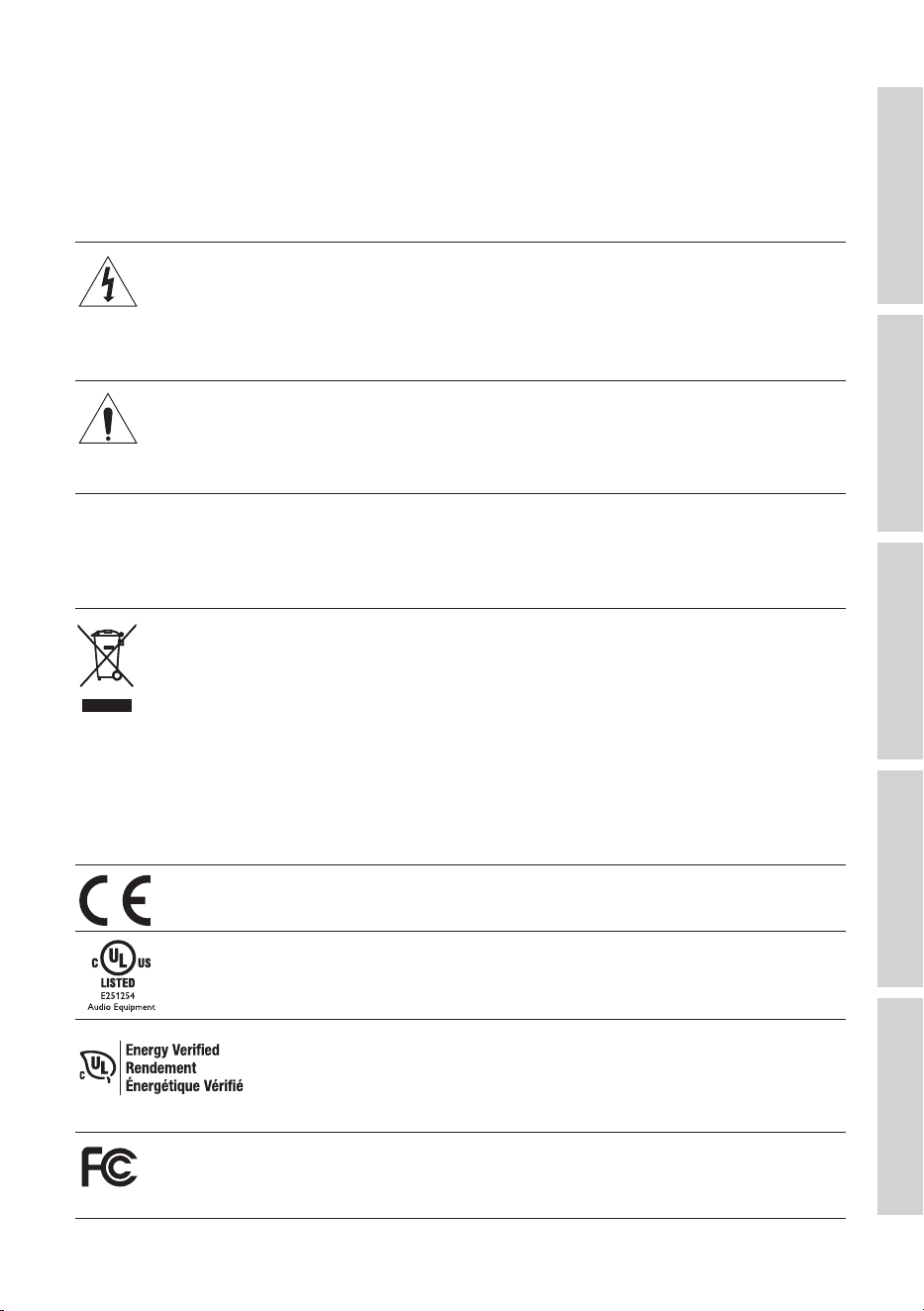
73
Table of ContentsSetting Up the LSXUsing the KEF Control AppPlayback and StreamingFAQ and Troubleshooting
15. Appendix
15.1 Explanation of symbols
15.1.1 Warning Symbols
The lightning flash with arrowhead symbol, within an equilateral
triangle, is intended to alert the user to the presence of
uninsulated “dangerous voltage” within the products enclosure
that may be of a sufficient magnitude to constitute a risk of
electrical shock to persons.
The exclamation mark within an equilateral triangle is intended
to alert the user to the presence of important operating
and maintenance (servicing) instructions in the literature
accompanying the appliance.
15.1.2 Regional Symbols
Europe and North America
This marking indicates that this product should not be disposed
with other household wastes throughout the EU. To prevent
possible harm to the environment or human health from
uncontrolled waste disposal, recycle it responsibly to promote
the sustainable reuse of material resources.
To dispose of your used device, please use the proper
collection system or contact the retailer where the product
was purchased, they may be able to take the product for
environmentally safe recycling.
Products marked with this symbol meet all applicable
Community regulations for the European Economic Area.
This UL symbol means UL found that representative product
samples met UL’s requirements (Canada, United States).
This UL Energy Certification Mark symbol means UL has
certified that the product meets the requirements for energy
efficiency and is consistent with technical and legal requirements
of the United States and Canadian markets.
This FCC mark certifies that the electromagnetic interference
from the device is under the limits approved by the Federal
Communications Commission in the US.
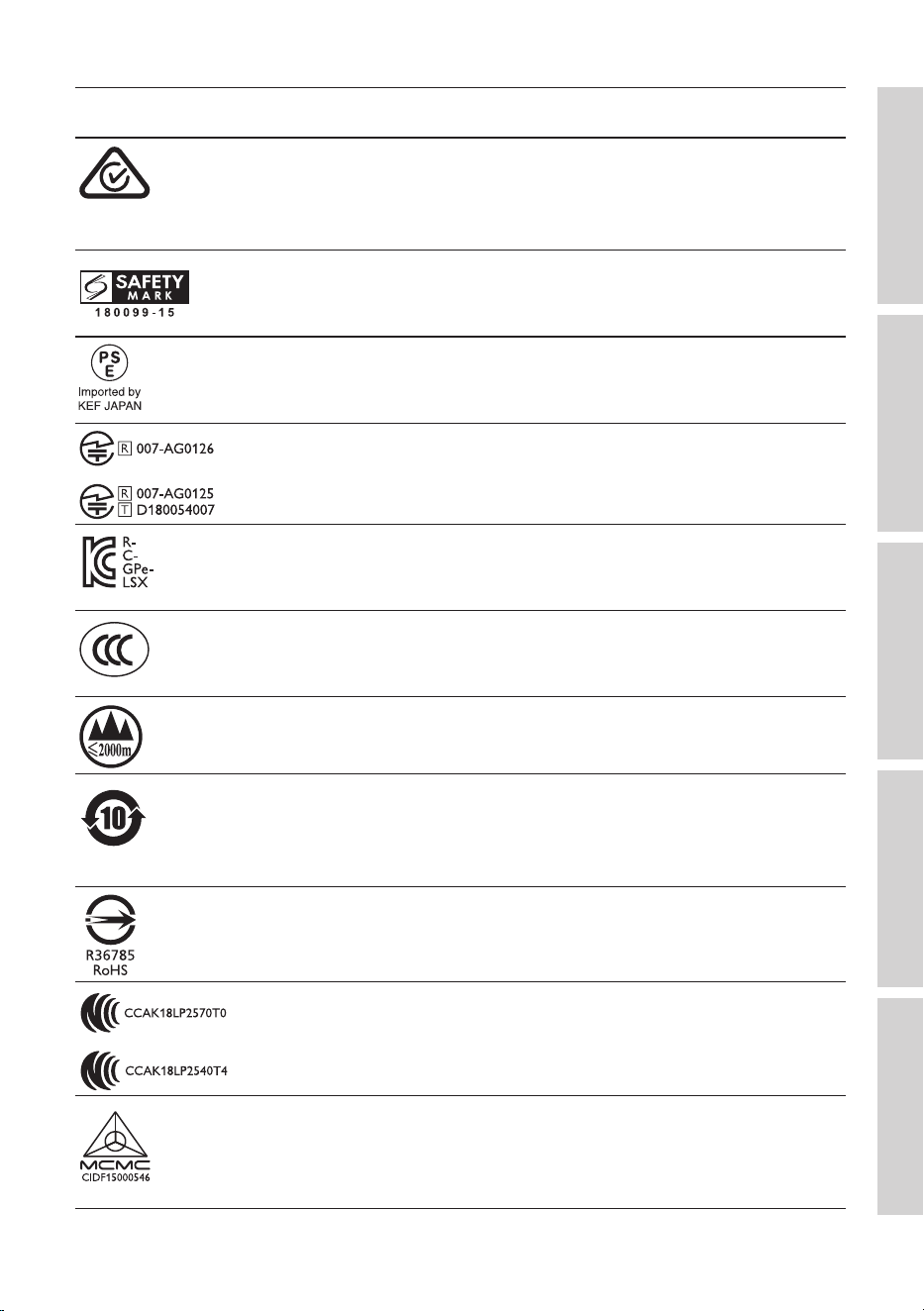
74
Table of ContentsSetting Up the LSXUsing the KEF Control AppPlayback and StreamingFAQ and Troubleshooting
Asia-Pacific
The Regulatory Compliance Mark (Australia, New Zealand)
indicates that the product complies with the relevant
guidelines of the ACMA as well as corresponding government
requirements for the safety of electrical devices.
The symbol indicates that the product meets the specified safety
requirements of Singapore Consumer Protection Registration
Scheme.
The Japan PSE Mark Certification indicates that the product
meets the technical requirements of the Electrical Appliance and
Material Safety Law (DENAN).
These marks indicate compliance with technical and design
requirements for telecommunication terminal equipment in
Japan.
The Korean Certification mark indicates that the product
complies with Korea’s product safety requirements for electrical
and electronic equipment.
The China Compulsory Certificate mark indicates that the
product meets the safety requirements of the Chinese national
standards (Guobiao).
The product is only suitable for use in areas under 2,000 m
above sea level (China).
RoHS (China): This product contains certain hazardous
substances and can be used safely during its environmental
friendly use period (10 years). The product should enter into the
recycling system after its environmental friendly use period.
RoHS (Taiwan): This symbol means that the product does not
exceed the specified concentration limits for specific hazardous
substances.
The product obtained the certification from the Taiwan National
Communications Commission (NCC) for low-power radio
frequency appliances.
This MCMC certification mark indicates that a communications
device is certified for compliance to standards according to
the Communications and Multimedia (Technical Standards)
Regulations 2000 in Malaysia.
75
Table of ContentsSetting Up the LSXUsing the KEF Control AppPlayback and StreamingFAQ and Troubleshooting
15.2 Integration with Home Automation Control System
Drivers for integrating LSX to the most common Home Automation Control System are
available for download.
Control 4 https://www.intrinsicdev.co.uk/downloads/kef_ls50w_c4/
Crestron https://www.intrinsicdev.co.uk/downloads/kef-ls50w-for-crestron/
Elan https://www.intrinsicdev.co.uk/downloads/kef_ls50w_elan/
RTi https://www.intrinsicdev.co.uk/downloads/kef-ls50w-for-rti/
For support and information on the above drivers, please contact our
development partner Intrinsic(DEV) directly: https://www.intrinsicdev.co.uk/
Savant: Drivers for the Savant platform are embedded and downloaded as part
of the Savant software suite. Please contact your authorized Savant dealer for
information regarding integration with the Savant control platform.
Important information for integrators and developers:
• These drivers do not control streaming (handled by the app).
• LSX supports Wake On LAN (WOL)
• The following commands are available via IP Control:
1. Input Select
2. Volume +/–
3. Mute toggle
76
Table of ContentsSetting Up the LSXUsing the KEF Control AppPlayback and StreamingFAQ and Troubleshooting
15.3 IR Command Codes
LSX works with universal programmable remote control provided that the remote
control manufacturers have implemented KEF IR command codes in their remote
controls.
The following table lists the command codes required.
Code Format: NEC
Factory Code: 0x01
Functions Function codes
1 Power On/Off Toggle 0x40
2 Mute/ Unmute Toggle 0x20
3 Play/Pause 0x18
4 Next 0x52
5 Source toggle 0x58
6 Volume Up 0x60
7 Volume Down 0xA0
8 Previous 0xD2
9 Power ON 0x38
10 Power OFF 0x3A
11 Mute 0x48
12 Un-Mute 0x4A
13 Source: Wi-Fi 0x30
14 Source: Bluetooth 0x2A
15 Bluetooth Pairing 0x98
16 Source: AUX 0x02
17 Source: Optical 0x0A
18 Source: USB 0x1A
19 Preset Volume (30%) 0x78

www.kef.com
Contact KEF
Country Customer Support Number Customer Support Email
Germany 0201-17039-0 Info.de@kef.com
Belgium +32(0)2/468 30 33 Info.be@kef.com
Cyprus +357 2275 7738 michael.pk@cytanet.com.cy
Czech Republic +420 272 658 390 ludvik.zabak@perfectsoundgroup.cz
Finland +358(0)40 561 4597 nfo@highendstudio.
Greece +30 210 6741363 info@etyt.gr
Portugal +351 213162048 joao.cunha@inniteconnections.pt
Ukraine +38 044 53 197 30 stepin@compass.ua
Argentina +54 114-796-696/ +54 11 4583 5235
Chile
Comunicaciones Ak-Itec: +56 2-735-2765 akitec@akitec.cl
Music World : +56 2-334-2300 [email protected]
Colombia
SchallerTech (5)3681516 / (1)7435600 [email protected]
LFL Audio (571)6220668 [email protected]
Saudi Arabia TBD ctuck@paragonarabia.com
China +86 (21) 6475 2292 info.cn@kef.com
India + 91 80 65686722 support@profx.com
Macao suppor[email protected]
Malaysia 603-5882 1693 info@perfecthi.com.my
New Zealand +64 9 582 0910 info@avalon.co.nz
Thailand +66 02 448 5489 / +66 02 448 5465 6 home_hi@hotmail.com