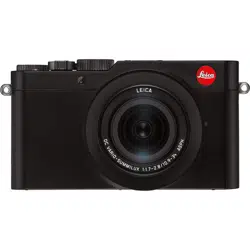

LEICA D-LUX 7
INSTRUCTIONS

2
Finding the information you need
In these instructions, you can find the information you need on the following pages.
“Contents” 4
List of Function Names 9
List of Buttons and Dials 16
Search from the List of Screens and Icons 264
“Message Displays” 270
“Menu List” 166
“Troubleshooting” 272
For details on how to use these instructions, see the next page.
3
How to use these instructions
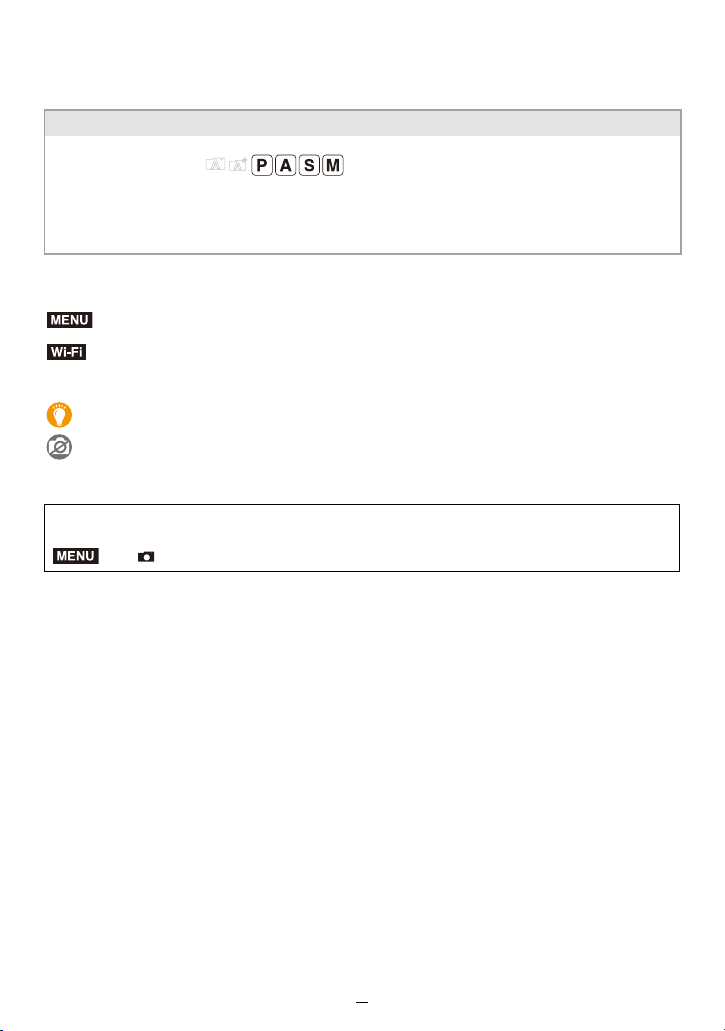
∫ About the symbols in the text
[AE/AF], [DISP], [(], etc. indicate the respectively labeled buttons.
(#00) Indicates the reference page.
• These instructions indicate the up, down, left, and right cursor buttons as 3/4/2/1.
About the indication of the applicable mode
Applicable modes:
The icons indicate the modes available for a function.
• Black icons: Applicable modes
• Gray icons: Unavailable modes
: Indicates that the menu can be set by pressing [MENU/SET].
: Indicates that the Wi-Fi settings can be made by pressing [Wi-Fi].
: Tips for skillful use and points for recording.
: Conditions in which a particular function cannot be used.
In these instructions, steps for setting a menu item are described as follows:
> [Rec] > [Quality] > [›]
MENU
Wi-Fi
MENU

4
Contents
Finding the information you need..............................................................................2
How to use these instructions ...................................................................................3
Contents by Function ................................................................................................9
1. Before Use
Care of the Camera.................................................................................................12
Scope of Delivery....................................................................................................14
Accessories.............................................................................................................15
Names and Functions of the Main Parts .................................................................16
2. Getting Started/Basic Operations
Attaching the Lens Cap/Shoulder Strap ..................................................................18
Charging the Battery ...............................................................................................20
• Inserting the battery........................................................................................21
• Charging.........................................................................................................22
• Approximate operating time and number of recordable pictures....................25
Inserting and Removing the Card ...........................................................................26
Card Information .....................................................................................................27
• Formatting the Card (initialization) .................................................................28
• Approximate number of recordable pictures and available recording time.....29
Setting Date/Time (Clock Set).................................................................................31
Basic Operations.....................................................................................................33
• How to hold the camera .................................................................................33
• Using the Viewfinder.......................................................................................34
• Zooming (changing the lens' focal length)......................................................35
• Taking pictures ...............................................................................................36
• Recording videos............................................................................................37
• Selecting the exposure control mode .............................................................37
• Control dial .....................................................................................................39
• Cursor/[MENU/SET] buttons ..........................................................................39
• [DISP] button ..................................................................................................39
• Touch screen operations ................................................................................42
• Taking pictures using the touch function ........................................................43
Setting menu items .................................................................................................45
Quick Menu.............................................................................................................47
• Customizing the Quick Menu settings ............................................................48
Assigning Frequently-Used Functions to Function Buttons ....................................49
Changing Settings using the Control Ring ..............................................................53
• Changing the function assigned to the Control Ring ......................................54
Entering Text ...........................................................................................................55

5
Contents
3. Exposure Control Modes
The Snapshot Modes ..............................................................................................56
• [Snapshot Mode] menu ..................................................................................59
• Taking pictures with customized color, defocus control, and
brightness settings .........................................................................................60
Program Mode ........................................................................................................61
Setting Aperture and/or Shutter Speed ...................................................................63
• Confirming the effects of the aperture and shutter speed settings
(Preview Mode) ..............................................................................................69
Registering your preferred settings (Custom Set)...................................................70
• Registering personal menu settings (Registering custom settings)................70
• Calling up a registered set of custom settings................................................70
4. Focus, Exposure Compensation and Color tone Settings
Automatic Focusing.................................................................................................72
• Setting the focusing mode (AFS/AFF/AFC) ...................................................74
• Setting the Autofocus mode ...........................................................................75
• Changing the position and size of the AF area ..............................................81
• Moving the AF area by Touch Control ............................................................84
• Optimizing brightness using Touch Control ....................................................85
Taking Close-up Pictures ........................................................................................86
Manual Focusing.....................................................................................................87
Focus and Exposure Memory Lock (AF/AE Lock) ..................................................89
Exposure Compensation.........................................................................................90
Setting the ISO Sensitivity.......................................................................................92
Adjusting the White Balance ...................................................................................94
• Finely adjusting the White Balance ................................................................96
5. 4K Photo and Shutter Release Settings
Selecting a Shutter Release Mode..........................................................................97
Using Continuous Mode..........................................................................................98
Recording 4K Pictures ..........................................................................................100
• Notes on the 4K Photo function....................................................................102
Selecting Pictures from 4K Picture Series Files and Saving them........................105
• Operations during selecting pictures ............................................................106
Selecting the Focusing Plane After Recording (Post Focus/Focus Stacking).......110
• Selecting the pictures with the desired focus settings and saving a picture
([Post Focus])............................................................................................... 112
• Merging multiple pictures to expand the area rendered sharply
(Focus Stacking) ..........................................................................................113
Taking Pictures with the Self-timer........................................................................ 115
Recording panorama pictures ...............................................................................117

6
Contents
6. Recording Images that Suit Your Subjects and Purposes
Changing the Aspect Ratio ...................................................................................121
Taking Pictures with Different Image Effects (Filter)..............................................122
• Types of image effects..................................................................................124
• Taking a picture with and without an image effect simultaneously
([Simultaneous Record w/o Filter])...............................................................128
Taking Picture Series with Automatically Changing Settings
(Bracket Recording) ..............................................................................................129
• Exposure Bracketing ....................................................................................131
• Aperture Bracketing......................................................................................131
• Focus Bracketing..........................................................................................132
• White Balance Bracketing ............................................................................132
Taking Pictures Automatically at Set Intervals ([Time Lapse Shot]) ......................133
Creating Stop Motion Pictures ([Stop Motion Animation]) .....................................136
7. Stabilizer, Zoom and Flash
Compensating Camera Shake..............................................................................139
Using the Lens’ Zoom Function ............................................................................141
• Zoom types and use .....................................................................................141
• Zooming using touch operations (Touch zoom) ...........................................145
Using the Supplied Flash Unit...............................................................................146
• Attaching the flash unit .................................................................................146
Setting the Flash Functions...................................................................................148
• Changing the flash control mode..................................................................148
• Changing the flash modes............................................................................149
• Setting 2nd Curtain Sync..............................................................................150
• Flash exposure compensation .....................................................................151
• Synchronizing the output of the flash to the exposure compensation
set for the ambient light................................................................................151
8. Recording Videos
Recording Videos..................................................................................................152
• Setting the resolution/frame rate combination..............................................154
• How to set the focusing mode when recording a video ([Continuous AF])...155
• Recording pictures while recording videos ...................................................156
• Displaying/setting the sound recording level ................................................157

7
Contents
9. Playing Back and Editing Images
Playing Back Pictures ...........................................................................................158
Playing Back Videos .............................................................................................159
• Creating pictures from a video .....................................................................160
Switching the Playback Method ............................................................................161
• Using the playback zoom .............................................................................161
• Displaying multiple screens (Multi Playback) ...............................................162
• Displaying pictures by recording date (Calendar Playback) .........................162
Playing Back Group Pictures ................................................................................163
Deleting Pictures...................................................................................................165
10. Using Menu Functions
Menu List...............................................................................................................166
• [Snapshot Mode] menu ................................................................................166
• [Rec] menu ...................................................................................................166
• [Motion Picture] menu ..................................................................................179
• [Custom] menu .............................................................................................180
• [Setup] menu ................................................................................................195
• [My Menu] menu...........................................................................................204
• [Playback] menu...........................................................................................205
11. Using the Wi-Fi/Bluetooth function
What You Can Do with the Wi-Fi
®
/Bluetooth
®
Function ........................................222
Wi-Fi function/Bluetooth function ..........................................................................223
Connecting to a smartphone .................................................................................225
• Installing the smartphone/tablet “Leica FOTOS” app ...................................225
• Connecting the camera to a smartphone compatible with
Bluetooth Low Energy ..................................................................................226
• Connecting the camera to a smartphone that does not support for
Bluetooth Low Energy ..................................................................................228
• Changing the Wi-Fi connection method .......................................................231
• Terminating the Wi-Fi connection .................................................................232
Operating the Camera with a Smartphone............................................................233
• Turning on/off the camera with a smartphone ..............................................233
• Taking images via a smartphone (remote recording) ...................................234
• Operating the shutter button with a smartphone via
a Bluetooth connection alone.......................................................................236
• Playing back/saving images stored on the camera, or uploading them on
social media sites.........................................................................................238
• Transferring recorded images to a smartphone automatically .....................239
• Writing location information of a smartphone on a recorded image .............241
• Synchronizing the camera’s clock with a smartphone..................................242
Sending Images ....................................................................................................243

8
Contents
About Wi-Fi Connections ......................................................................................247
• Connecting via a wireless access point ([Via Network]) ...............................248
• Connecting the camera and another device directly ([Direct]) .....................250
• Connecting quickly with the same settings as the previous ones
([Select a destination from History]/[Select a destination from Favorite]) ....251
[Wi-Fi Setup] Menu ...............................................................................................253
12. Connecting to other equipment
Watching/Saving 4K Videos on an External Device..............................................254
• Watching videos in 4K ..................................................................................254
• Storing 4K videos .........................................................................................254
Playing Back on a TV............................................................................................255
• Using HDTV Link (HDMI) .............................................................................256
Copying the Recorded Image Data to a Computer ...............................................257
• Transferring images to a computer...............................................................258
Saving Pictures and Videos on a Recorder ..........................................................260
Printing Pictures ....................................................................................................261
• Adding date and text to pictures...................................................................263
13. Others
Monitor Display/Viewfinder Display.......................................................................264
Message Displays .................................................................................................270
Troubleshooting ....................................................................................................272
Usage Cautions and Notes ...................................................................................281
Leica Service Addresses.......................................................................................289

9
Contents by Function
Recording
Recording Mode ................................ 37
[Preview]............................................ 69
Macro recording ................................ 86
Bracket Recording........................... 129
[Time Lapse Shot] ........................... 133
[Stop Motion Animation] .................. 136
[Silent Mode] ................................... 175
[Multi Exp.]....................................... 178
4K photo
[4K PHOTO] .................................... 100
[Post Focus] .................................... 110
Focus (AF/MF)
Autofocus .......................................... 72
[AF Mode].......................................... 75
Adjusting the AF area position .......... 81
Manual Focus .................................... 87
[AF/AE Lock] ..................................... 89
Drive
[Drive Mode] ...................................... 97
[Burst] ................................................ 98
[Self Timer] ...................................... 115
Panorama ........................................ 117
Picture Quality and Color Tone
[Sensitivity].........................................92
[White Balance]..................................94
[Filter Settings].................................122
[Picture Size]....................................167
[Quality]............................................168
[Photo Style] ....................................169
[Color Space] ...................................171
[Highlight Shadow]...........................172
[i.Dynamic] .......................................173
[i.Resolution] ....................................173
[Long Shtr NR] .................................174
[Diffraction Compensation] ..............175
[HDR] ...............................................177
Exposure
[Touch AE] .........................................44
[AF/AE Lock]......................................89
Exposure Compensation ...................90
Exposure Bracket ............................131
[Metering Mode]...............................171
Flash
[Flash Mode] ....................................149
2nd curtain synchro .........................150
[Flash Adjust.] ..................................151
Recording
10
Contents by Function
Motion Picture
[Rec Quality].................................... 154
Recording pictures while
recording videos .............................. 156
Audio
[Sound Rec Level Adj.].................... 157
[Wind Noise Canceller].................... 179
Screen settings
[Sound Rec Level Disp.] ..................157
[Monochrome Live View] .................187
[Center Marker]................................189
[Zebra Pattern].................................190
Basic settings
[Format] ............................................. 28
[Clock Set] ......................................... 31
Diopter adjustment ............................ 34
[Q.MENU] .......................................... 47
[Beep] .............................................. 197
[Economy] ....................................... 198
[Reset] (initialization) ....................... 203
Customization
Function buttons ................................ 49
Custom Set ........................................70
[Custom] menu ................................180
Playback
Picture playback .............................. 158
Video playback ................................ 159
Playback Zoom................................ 161
Multi Playback ................................. 162
Delete .............................................. 165
[Auto Review] .................................. 186
[Slide Show] .................................... 206
[Rotate]/[Rotate Disp.] ............. 219, 220
Edit
Post Focus.......................................112
Focus Stacking ................................113
[Title Edit].........................................209
[RAW Processing]............................ 210
[4K PHOTO Bulk Saving].................212
[Light Composition] .......................... 213
[Sequence Composition]..................214
[Clear Retouch]................................215
[Text Stamp] ....................................216
[Resize]............................................217
[Cropping] ........................................218
Image settings
[Protect] ...........................................208
[Rating] ............................................208
Motion Picture
Setup/Custom
Playback

11
Contents by Function
Smartphone/tablet app “Leica FOTOS”
“Leica FOTOS” app......................... 225
[Remote Wakeup]........................... 233
Remote recording ............................ 234
[Auto Transfer] ................................ 239
PC
Copying the Recorded Image Data
to a Computer.................................. 257
TV
Playing Back Pictures on a
TV Screen ....................................... 255
[HDTV Link] ..................................... 256
Recorder
Dubbing ...........................................260
Printer
PictBridge ........................................261
Wi-Fi/Bluetooth
Connections with other devices

12
1. Before Use
Care of the Camera
∫ Handling of the camera
Do not subject it to strong vibration, shock, or pressure.
Avoid using the camera under the following conditions, which may damage the lens, the
monitor, the viewfinder, or the external casing.
This may also cause the camera to malfunction or prevent recording.
– Dropping or hitting the camera.
– Sitting down with the camera in your pants pocket or forcing it into a full bag.
– Press hard on the lens or the monitor.
The camera is not dust resistant, splash resistant, or waterproof.
Avoid using the camera in places with excessive dust or sand, or where water can
come into contact with the camera.
• Avoid using the camera under the following conditions, which present a risk that sand, water, or
foreign material may enter the camera through the lens or the gaps around buttons. Be
especially careful because these conditions may damage the camera, and such damage may
not be repairable.
– In extremely dusty or sandy places.
– In the rain or by the shore, where the camera may be exposed to water.
∫ About Condensation (When the lens, the viewfinder or monitor is fogged up)
• Condensation occurs when the ambient temperature or humidity changes. Be careful of
condensation since it may cause stains on the lens, the viewfinder and the monitor, fungus and
camera malfunction.
• If condensation occurs, turn the camera off and leave it for about 2 hours. The fog will
disappear naturally when the temperature of the camera becomes close to the ambient
temperature.

1. Before Use
13
∫ Always record a test image first
Before important events when you intend to use the camera (at weddings, for example),
always record a test image to ensure that images and sound record correctly.
∫ No compensation for missed shots
Leica Camera AG cannot compensate for missed shots if technical problems with the
camera or memory card prevent images and/or sound from being recorded.
∫ Carefully observe copyright laws
Unauthorized use of recorded images and sound that contain works with copyright for
purposes other than personal use is prohibited under copyright law. Recording of certain
material may be restricted even for the purpose of personal use.
∫ Please also refer to “Usage Cautions and Notes” (>281)
14
1. Before Use
Scope of Delivery
¢ This is attached/inserted to the camera at the time of purchase.
Order No.
Rechargeable battery pack
BP-DC15-E
BP-DC15-U
BP-DC15-TK
423-109.001-008
423-109.002-008
423-109.003-008
Battery charger/AC adapter
ACA-DC16-E
ACA-DC16-C
ACA-DC16-K
ACA-DC16-B
ACA-DC16-N
ACA-DC16-A
ACA-DC16-U
423-118.001-005
423-118.001-006
423-118.001-007
423-118.001-008
423-118.001-009
423-118.001-010
423-106.001-012
USB Cable Micro-B 423-118.001-014
Shoulder strap 423-109.001-020
Lens cap
¢
423-109.001-018
Lens cap string 423-109.001-019
Hot shoe cover
¢
423-110.001-015
Flash unit CF D 423-109.001-030
Button template 19542
Short instructions (delivery differs depending on markets)
Guarantee Card 439-399.100-026

1. Before Use
15
Accessories
Please visit the Leica Camera AG website for information on the extensive range of
Leica D-Lux 7 accessories:
www.leica-camera.com
Notes:
• Memory cards are optional.
• The battery charger/AC adapter is indicated as charger in the text.
• SD/SDHC/SDXC memory cards are referred to as cards in these instructions.
• Check that all items belonging to the scope of delivery are included before using the camera.
• Depending on the country or area where the camera was purchased, the items and their shape
may differ from the descriptions and illustrations in these instructions.
• Keep the lens cap string and the hot shoe cover out of reach of children to prevent swallowing.
• Always keep small parts in a safe place out of the reach of children.
• Please dispose of all packaging appropriately.
16
1. Before Use
Names and Functions of the Main Parts
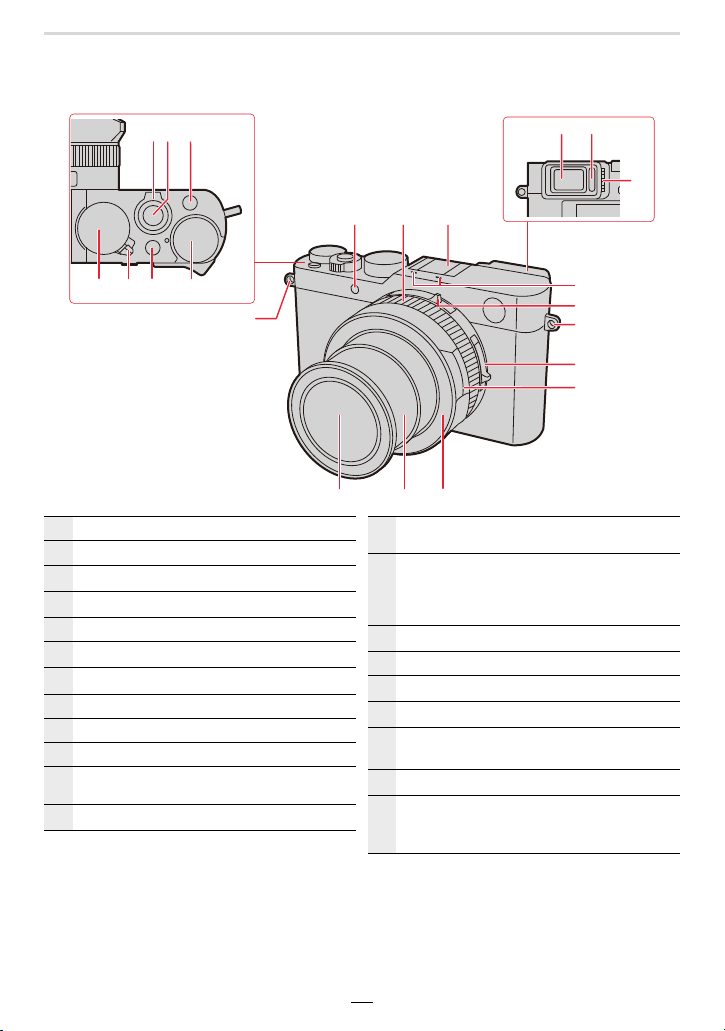
12
4 75 6
3
8 9
10
13
11
12
15
14
17
16
18
19 20 21
16
1
Zoom lever (>35)
2
Shutter button (>36)
3
[4K] button (>100)/[Fn1] button (>49)
4
Shutter speed dial (>37, 63)
5
Camera ON/OFF switch (>31)
6
[A] button (>38, 56)
7
Exposure compensation dial (>90)
8
Viewfinder (>34)
9
Eye sensor (>34)
10
Diopter adjustment dial (>34)
11
Self-timer indicator (>115)/
AF Assist Lamp (>33, 182)
12
Control ring (>53)
13
Hot shoe (The hot shoe cover is inserted at the
time of purchase.) (>146)
14
Stereo microphones (>33, 157)
• Be careful not to cover the microphones with
your fingers. Doing so may impair sound
recording.
15
Aspect ratio selector switch (>121)
16
Strap eyelets (>18)
17
Focus mode selector switch (>72, 86, 87)
18
Aperture ring (>37, 63)
19
Front lens element
(Filter diameter: ‰43mm)
20
Lens barrel
21
Lens front ring
• To attach the auto lens cap (optional), first
remove this front ring.
1. Before Use
17
• Function buttons [Fn6] to [Fn10] are touch
icons.
They can be called up by touching the [ ] tab
on the monitor screen.
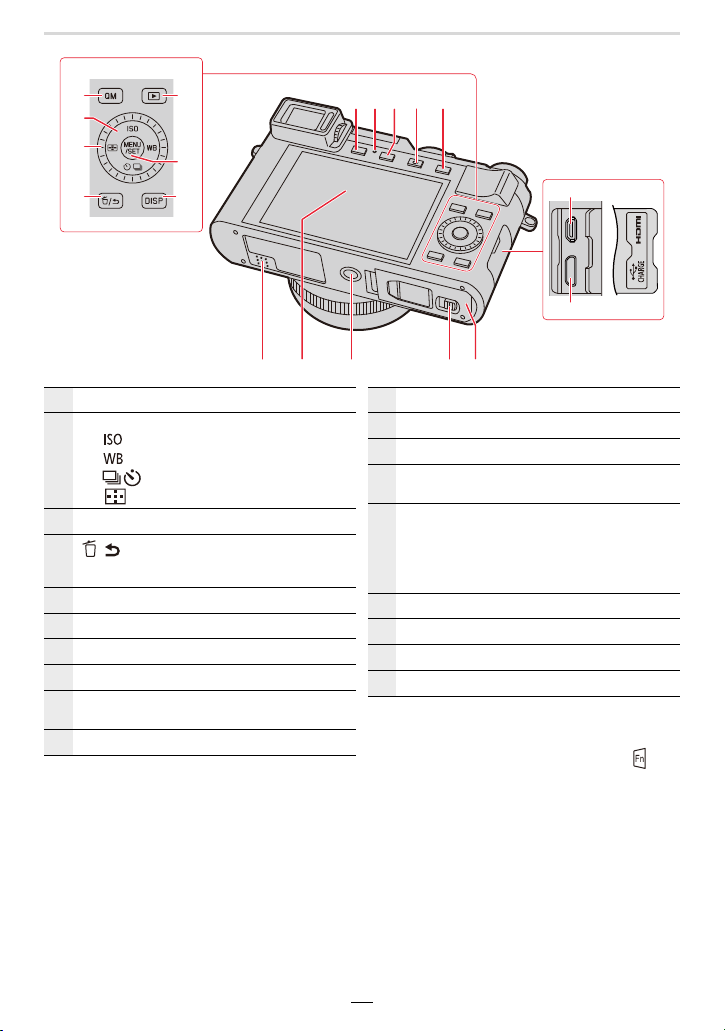
29 3130 32 33
22 26
28
27
25
23
24
34 36 37
40
39
3835
22
[QM] button (>47)/[Fn2] button (>49)
23
Cursor buttons (>39)
3: [ ] (ISO sensitivity) button (>92)
1: [ ] (White Balance) button (>94)
4: [ ] (Drive Mode) (>97)
2: [ ] (Autofocus mode) button (>72)
24
Control dial (>39)
25
[ / ] (Delete/Cancel) button (>46, 165)/
[Fn3] button (>49, 69)
26
[(] (Playback) button (>158)
27
[MENU/SET] button (>39, 45)
28
[DISP] button (>39)
29
[EVF] button (>34)/[Fn5] button (>49)
30
Charging lamp (>22)/
WIRELESS connection lamp (>223)
31
[PF] button (>110)/[Fn4] button (>49)
32
[¥] (Video) button (>152)
33
[AE/AF] button (>89)
34
Speaker (>33, 197)
35
Monitor (>264)/ with touch control options
(>42)
36
Tripod thread (>284)
• It may not be possible to attach and securely
fasten a tripod with a screw length of 5.5mm
(
7
/
32
q ) or more to the camera. Doing so may
also damage the camera.
37
Release slider (>21, 26)
38
Card/Battery door (>21, 26)
39
[HDMI] socket (>255)
40
[USB/CHARGE] socket (>258, 261)
18
2. Getting Started/Basic Operations
Attaching the Lens Cap/Shoulder Strap
When the camera is not in use, always attach the lens cap to protect the lens.
• We recommend attaching the lens cap to the camera using the lens cap string to prevent loss
of the lens cap.
• Attach the shoulder strap when using the camera to prevent it from dropping.
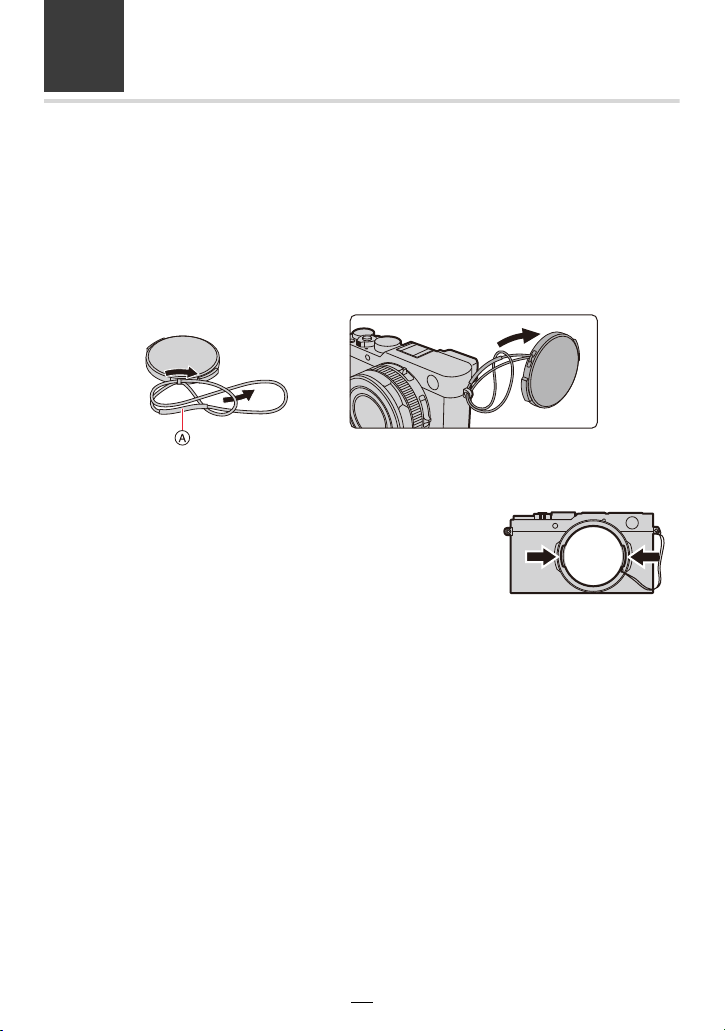
1
Use the lens cap string to attach the lens cap to the camera.
A: Make sure that the thicker section of the string is not hanging over the lens cap
or the strap eyelet.
2
Attach the lens cap.
• To attach and remove the lens cap, press the tabs shown
by arrows in the illustration.
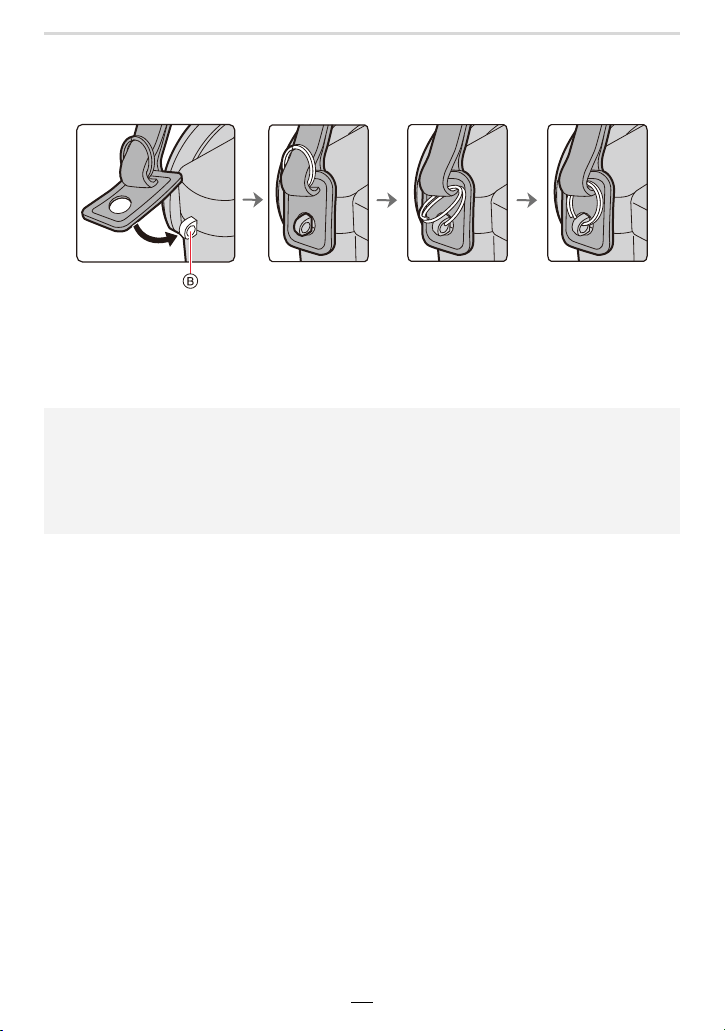
2. Getting Started/Basic Operations
19
3
Attach the shoulder strap.
B: Strap eyelet
• In addition, attach the other side of the shoulder strap in the same manner.
• Make sure the shoulder strap does not come loose.
• Use the shoulder strap around your shoulder.
– Do not wrap the strap around your neck.
It may result in injury or accident.
• Do not leave the shoulder strap where small children can reach it.
– It may result in an accidental suffocation.
– Keep the lens cap string out of reach of children to prevent swallowing.
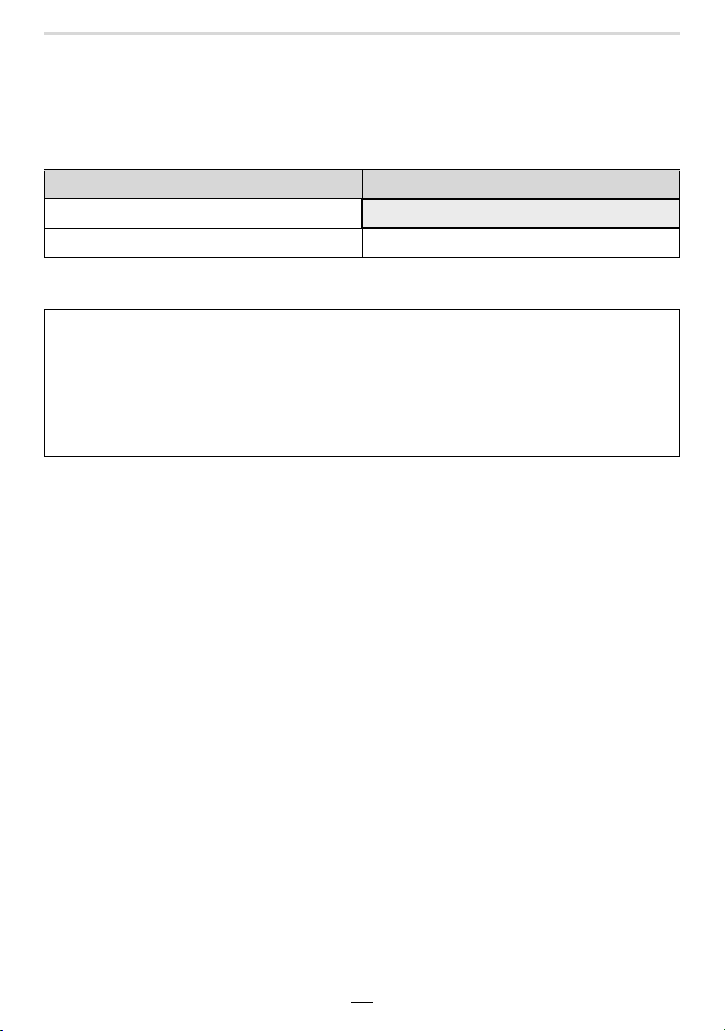
20
2. Getting Started/Basic Operations
Charging the Battery
• Use the dedicated charger, USB cable and battery.
• The battery is not charged when the camera is shipped. Charge the battery before use.
• The battery can only be charged when it is inserted in the camera.
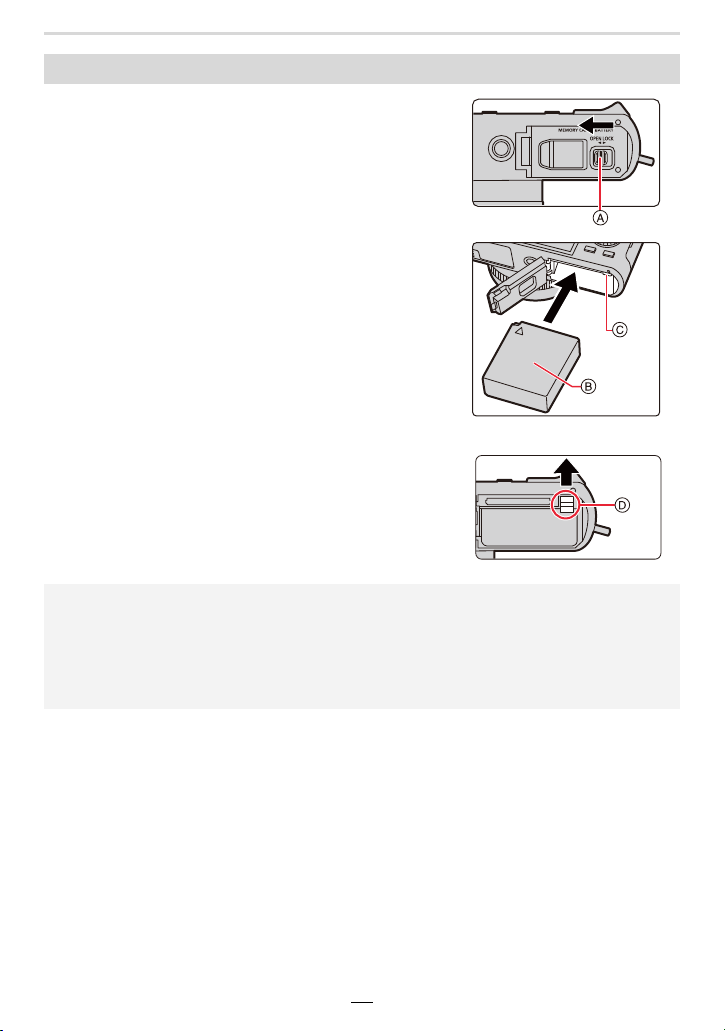
∫ About batteries that you can use with this camera
Camera conditions Charging process
Turned off
±
Turned on —
It has been found that counterfeit batteries which look very similar to the
genuine product are available in some markets. Some of these batteries are not
adequately equipped with internal protection to meet the requirements of
appropriate safety standards. Using such batteries may lead to fire or explosion.
Please be advised that Leica Camera AG is not liable for any accident or failure
occurring as a result of use of a counterfeit battery. To ensure that safe products
are used we urgently recommend to use only the Leica battery BP-DC15 (>14).
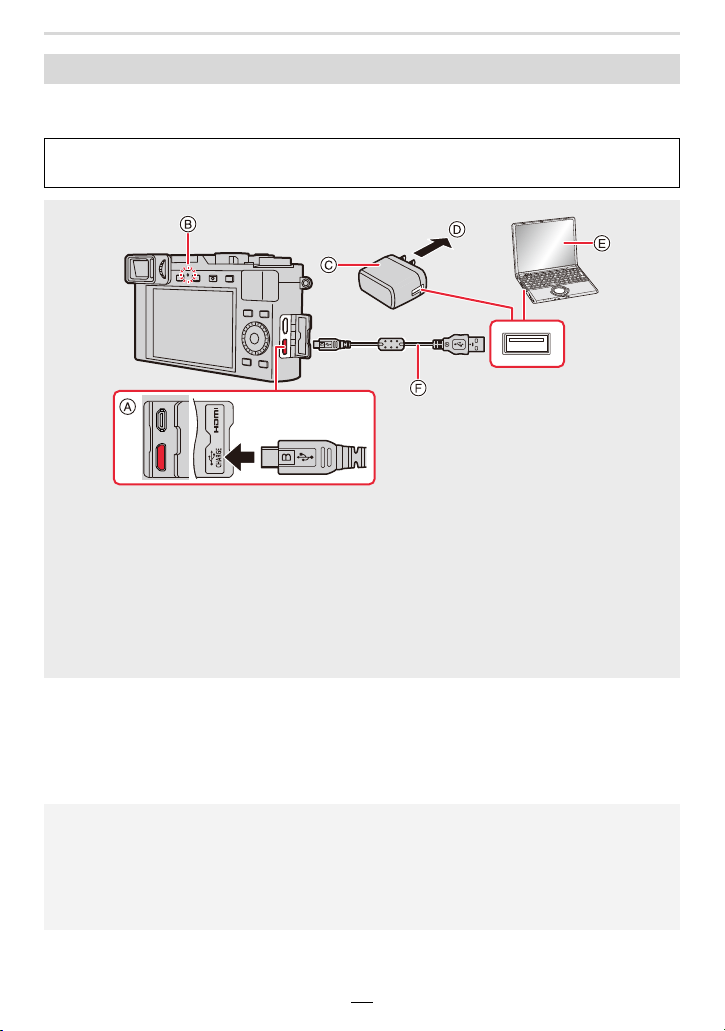
2. Getting Started/Basic Operations
21
1
Move the release slider A to the [OPEN]
position and open the card/battery door.
2
Insert the battery B all the way in until
you hear a clicking sound, and then
confirm that it is locked by the latch C.
• Check the orientation of the battery.
3
Close the card/battery door and move
the release slider to the [LOCK] position.
∫ To remove
Pull the latch D in the direction of the arrow.
Inserting the battery
• Use only the Leica battery BP-DC15 (>14).
• Leica Camera AG cannot guarantee the quality of any other type of battery.
• Turn the camera off and wait for the Leica logo on the monitor to disappear before removing
the battery. (Otherwise, this camera may no longer operate normally and the card itself may
be damaged or the recordings may be lost.)
• Remove the battery after use.
22
2. Getting Started/Basic Operations
We recommend to charge the battery in areas with an ambient temperature, between 10oC
and 30oC (50oF and 86oF) (same as the battery temperature).
(Charging from the power outlet)
Connect the charger and the camera with the USB cable, and insert the charger into
the power outlet.
(Charging from a computer)
Connect the computer and this camera with the USB cable.
Charging
Insert the battery into the camera. (>21)
Check that the camera on/off switch is set to [OFF].
A Connect the USB cable to the [USB/
CHARGE] socket.
• Place the camera in an upright position;
use the lower of the two terminals.
B Charging lamp
C Charger
D To power outlet
E Computer (Turned on)
F USB cable
• Make sure that the plugs are aligned
correctly and that they are inserted
straight. (Otherwise their pins may be bent
which may cause malfunction or even the
camera to be damaged.)
• If the computer enters a suspended state while charging the battery, charging will stop.
• Connecting the camera to a notebook computer that is not connected to a power outlet will
cause the notebook computer battery to drain faster. Do not leave the camera connected for
extended periods of time.
• Be sure to always connect the camera to a computer USB terminal.
Do not connect the camera to a monitor, keyboard or printer USB terminal, or a USB hub.
2. Getting Started/Basic Operations
23
∫ Charging lamp
• When the charging lamp flashes
– This occurs when charging is performed in an extremely hot or cold location.
Reconnect the USB cable in a location where the ambient temperature (and the temperature
of battery) is in a 10oC to 30oC (50oF to 86oF) range, and try charging again.
– If your computer is not capable of supplying sufficient power, charging is not possible.
∫ Charging time
When using the charger
• The indicated charging time is for when the battery has been discharged completely.
The charging time may vary depending on how the battery has been used.
The charging time for the battery in hot/cold environments or one that has not been
used for a long time may be longer than normal.
• When power is supplied from a computer, the power supply capacity of the computer
determines the charging time.
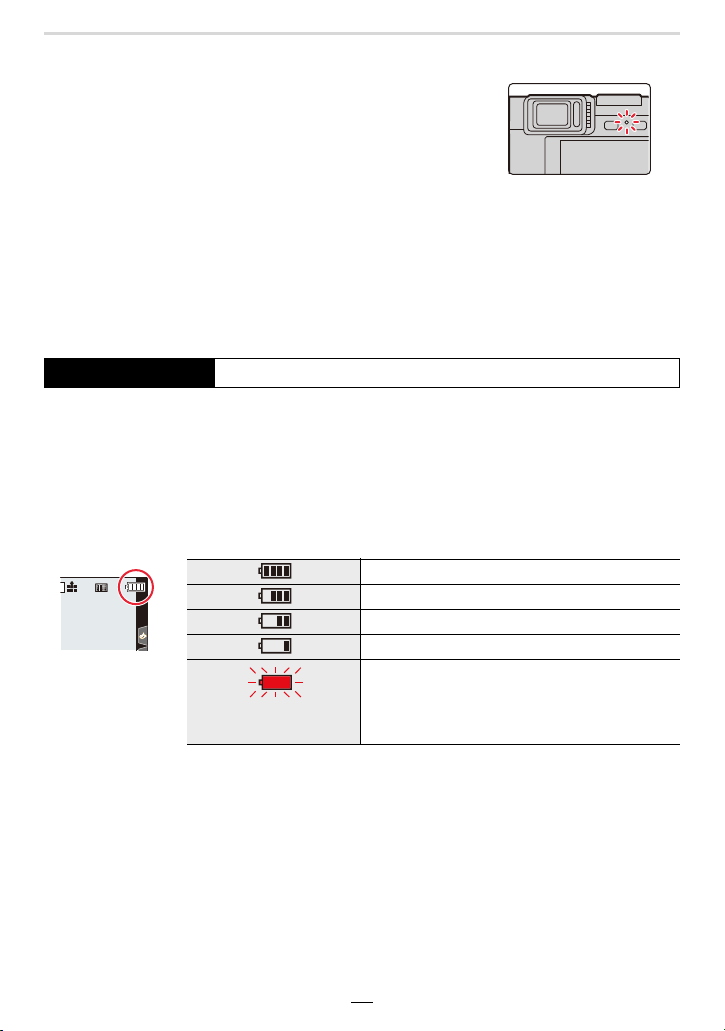
∫ Battery indication
• The battery level indicated on the monitor screen is approximate. The exact level varies
depending on the environment and the operating conditions.
Lit red: Charging.
Off: Charging has completed.
(When charging is complete, disconnect
the camera from the power outlet or
computer.)
Charging time Approx. 190min
75% or higher
74% to 50%
49% to 25%
24% or below
Low battery
• Recharge the battery or replace it with a fully
charged battery.
Flashing red
AFSAFS
L

24
2. Getting Started/Basic Operations
• Do not leave any metal items (such as clips) near the power plug pins.
Otherwise, a fire and/or electric shocks may be caused by short-circuiting or the
resulting heat generated.
• Do not use any other USB cables except the supplied one.
This may cause malfunction.
• Do not use any other chargers except the supplied one.
This may cause malfunction.
• Do not use a USB extension cable.
• Do not use the charger and the USB cable for other devices. Doing so may cause
malfunction.
• Remove the battery after use. (The battery will be exhausted if left for a long period of time
after being charged.)
• The battery gets warm after using and during and after charging. The camera also gets
warm during use. This is not a malfunction.
• The battery can be recharged even when it still has some charge left, but it is not
recommended that the battery charge be frequently topped up while the battery is fully
charged. (Since characteristic swelling may occur.)
• If a problem occurs in the power outlet, such as a power outage, charging may not be
completed normally. If this happens, disconnect the USB cable and connect it again.
• The charger is in the standby condition when the mains plug is connected. The primary circuit
is always “live” as long as the mains plug is connected to an electrical outlet.
2. Getting Started/Basic Operations
25
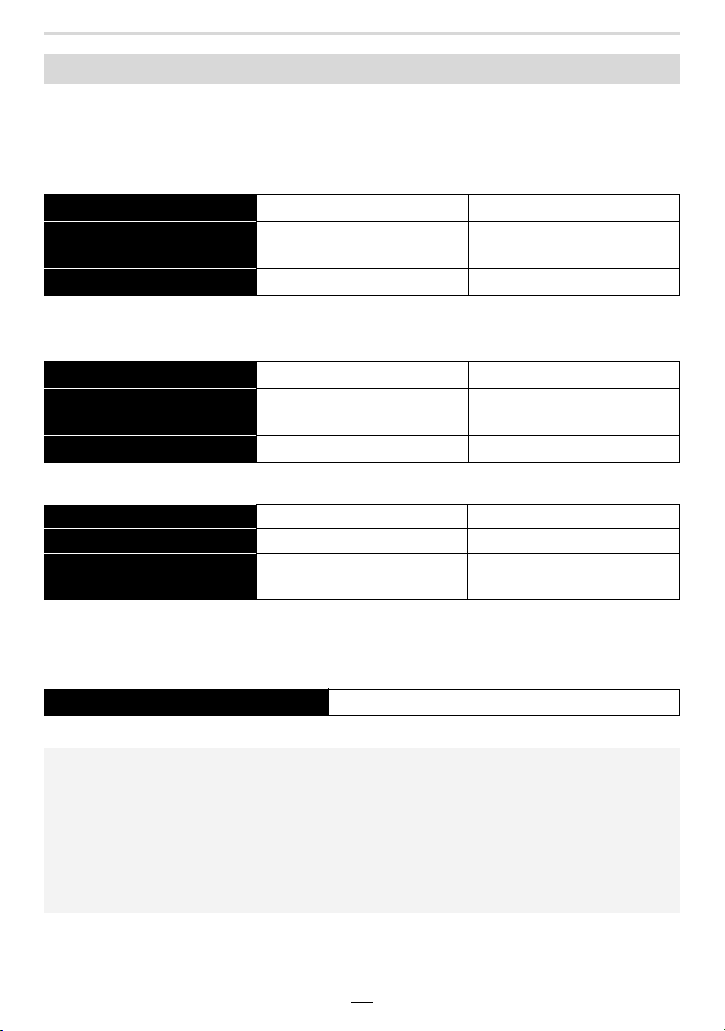
• The numbers of recordable pictures listed here are based on the CIPA (Camera & Imaging
Products Association) standard.
• When a SDHC memory card and the supplied battery are used.
∫ Recording pictures (when using the Monitor)
∫ Recording pictures (when using the viewfinder)
The values inside the parentheses apply when [EVF Display Speed] is set to [ECO30fps].
∫ Recording videos (when using the monitor)
• The actual recordable time is the time available for recording when repeating actions such as
turning the camera on and off, starting/stopping recording, etc.
∫ Playback (when using the monitor)
Approximate operating time and number of recordable pictures
Supplied flash unit attached Not used Used
Number of recordable
pictures
Approx. 340 Approx. 300
Recording time Approx. 170 min Approx. 150 min
Supplied flash unit attached Not used Used
Number of recordable
pictures
Approx. 270
(Approx. 320)
Approx. 240
(Approx. 280)
Recording time Approx. 135 min Approx. 120 min
[Rec Quality] [FHD/28M/60p] [4K/100M/30p]
Available recording time Approx. 80 min Approx. 70 min
Actual available recording
time
Approx. 40 min Approx. 35 min
Playback time Approx. 240 min
• The operating times and number of recordable pictures will differ according to the
environment and the operating conditions.
For example, in the following cases, the operating times are shorter and the number of
recordable pictures is reduced.
– In low-temperature environments, such as in winter.
– When a function such as the use of flash or the zoom is used repeatedly.
• When the operating time of the camera becomes extremely short even immediately after
charging, the life of the battery has expired. Buy a new battery.
26
2. Getting Started/Basic Operations
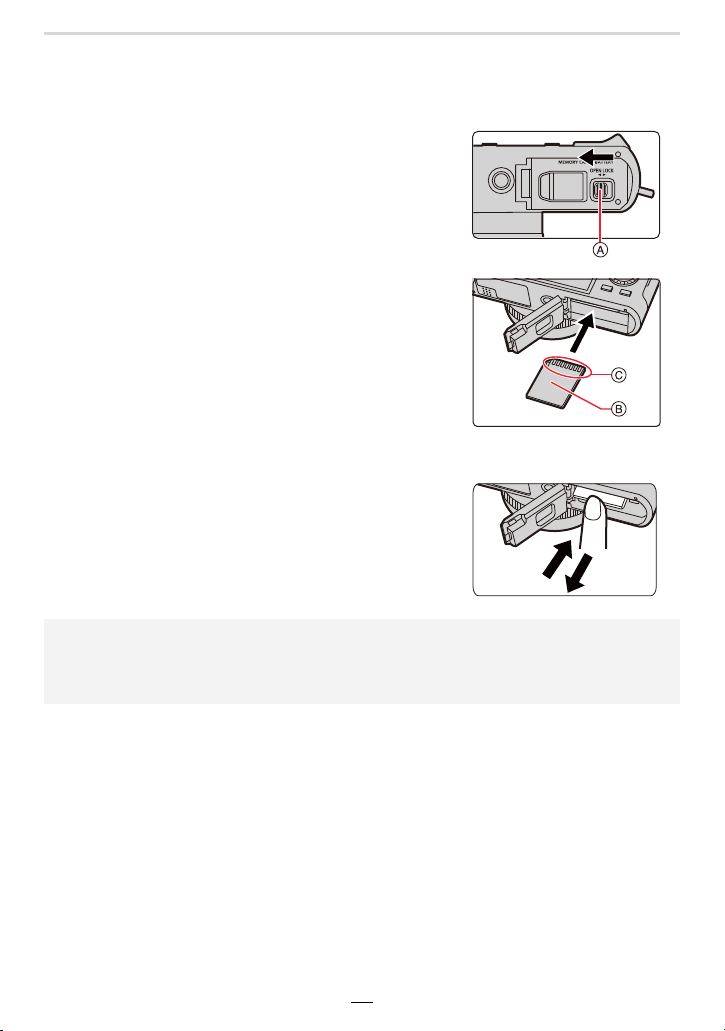
Inserting and Removing the Card
• Check that the camera on/off switch is set to [OFF].
1
Move the release slider A to the [OPEN]
position and open the card/battery door.
2
Insert the card B all the way in until you
hear a clicking sound.
• Check the orientation of the card.
• Do not touch the card terminals C.
3
Close the card/battery door and move
the release slider to the [LOCK] position.
∫ To remove the card
Push it down until it clicks and then pull it straight
out.
• Keep cards out of reach of children to prevent swallowing.
• Turn the camera off and wait for the Leica logo on the monitor to disappear before removing
the card. (Otherwise, the camera may no longer operate normally and the card itself may be
damaged or the recordings may be lost.)
2. Getting Started/Basic Operations
27
Card Information
The following cards which conform to the SD standard can be used with this camera.
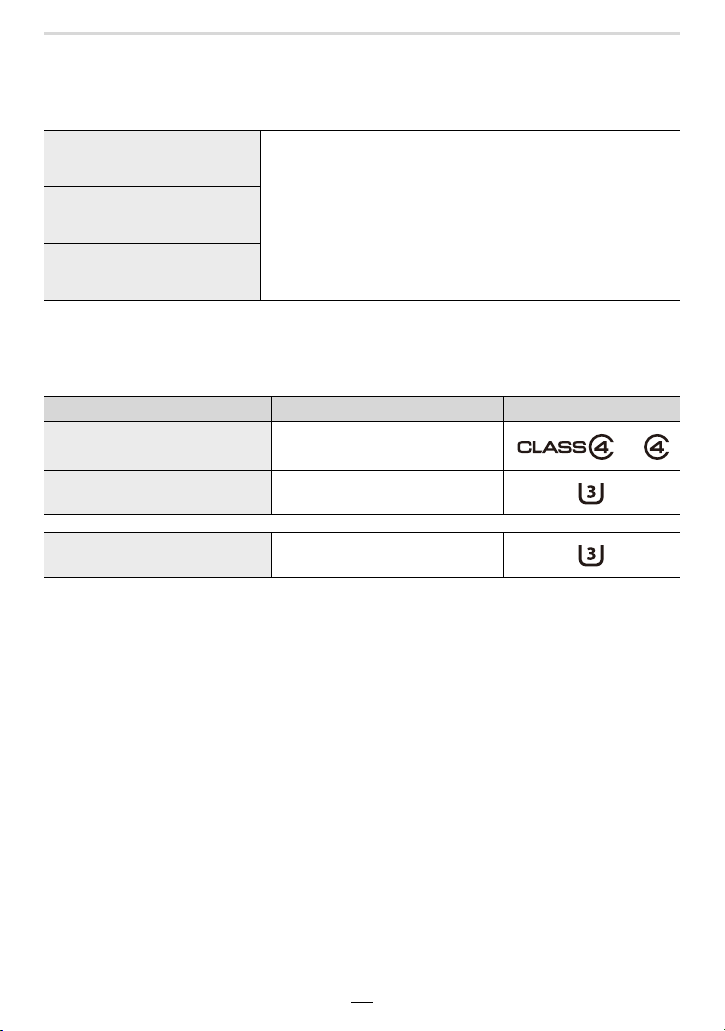
∫ Recording of videos/4K pictures and speed class ratings
Use a card that meets the following ratings of the SD Speed Class or UHS Speed Class.
• SD Speed Class and UHS Speed Class are the speed standards regarding continuous writing.
To check the class, see the labeled side, etc. of the card.
SD Memory Card
(512 MB to 2 GB)
• This camera is compatible with UHS-I UHS Speed Class 3
standard SDHC/SDXC memory cards.
SDHC Memory Card
(4 GB to 32 GB)
SDXC Memory Card
(48 GB to 128 GB)
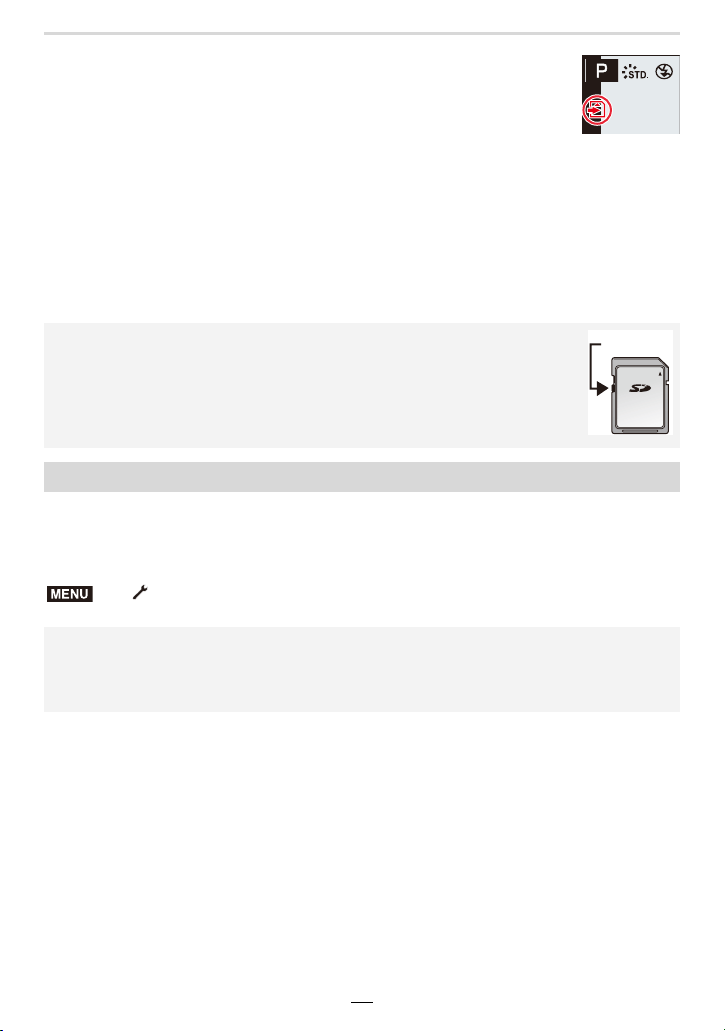
[Rec Quality] Speed class Label example
FHD/HD Class 4 or higher
4K UHS Speed Class 3
When recording in 4K Photo/
[Post Focus]
UHS Speed Class 3
28
2. Getting Started/Basic Operations
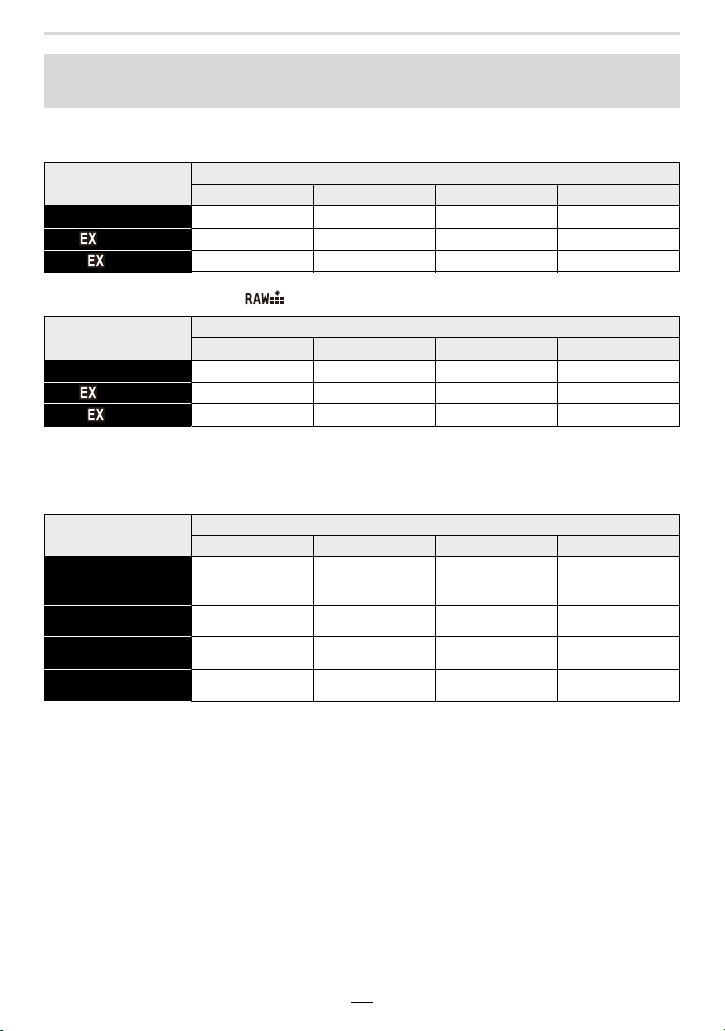
Access to the card
The access indication is displayed in red when image data is being written
to the card.
• Do not perform the operations below while the card is being accessed (while image data
is being written or read or deletion or formatting is in progress, for example). These
operations may damage the card or recorded data or cause the camera to stop
functioning correctly.
– Turning off the camera
– Removing the battery or card, or disconnecting the charger
– Exposing the camera to vibration, impact or static electricity
• If an operation fails due to vibration, impact or static electricity, perform it again.
Format the card before recording with this camera.
After formatting, all data stored on the card will be deleted and cannot be recovered.
Back up necessary data on a computer or similar device first, and then format the
card.
• If you set the Write-Protect switch A to “LOCK”, you may not be able to write,
delete or format the data or display it by recording date.
• The data on the card may be damaged or lost due to electromagnetic fields,
static electricity or breakdown of the camera or the card. We recommend storing
important data on a PC etc.
• Keep memory cards out of reach of children to prevent swallowing.
Formatting the Card (initialization)
> [Setup] > [Format]
• This requires a sufficiently charged battery, or the charger.
• Do not turn off the camera or perform other operations during formatting.
• Always format cards with this camera. Please reformat the card with this camera if it has
already been formatted with a computer or another device.
MENU
2. Getting Started/Basic Operations
29
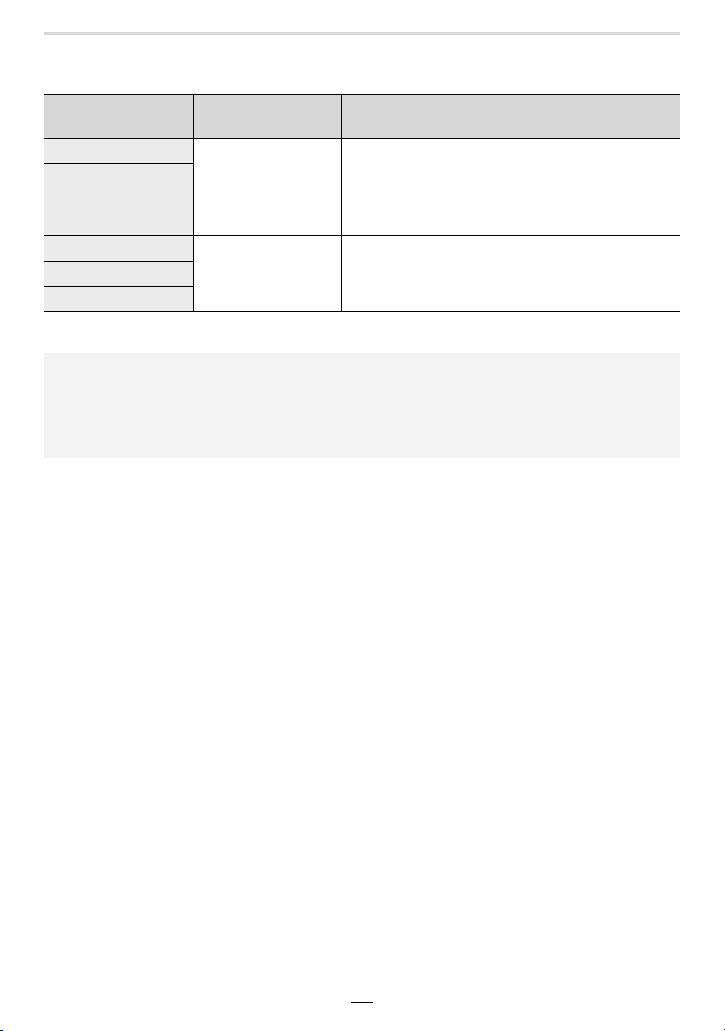
∫ Number of recordable pictures
• Aspect ratio [4:3], Quality [A]
• Aspect ratio [4:3], Quality [ ]
∫ Available recording time (when recording videos)
• “h” is an abbreviation for hour, “m” for minute and “s” for second.
• The recordable time is the total time of all the videos which have been recorded.
Approximate number of recordable pictures and available recording
time
[Picture Size]
Card capacity
16 GB 32 GB 64 GB 128 GB
L (17M) 1710 3430 6860 13580
M (8.5M) 3120 6260 12350 24460
S (4M) 5350 10730 20590 40760
[Picture Size]
Card capacity
16 GB 32 GB 64 GB 128 GB
L (17M) 530 1070 2150 4270
M (8.5M) 620 1250 2500 4960
S (4M) 680 1360 2720 5400
[Rec Quality]
Card capacity
16 GB 32 GB 64 GB 128 GB
[4K/100M/30p]
[4K/100M/24p]
20m00s 41m00s 1h25m 2h50m
[FHD/28M/60p]
1h10m 2h25m 5h00m 9h55m
[FHD/20M/30p]
1h35m 3h15m 6h40m 13h15m
[HD/10M/30p]
3h05m 6h20m 12h45m 25h20m
30
2. Getting Started/Basic Operations
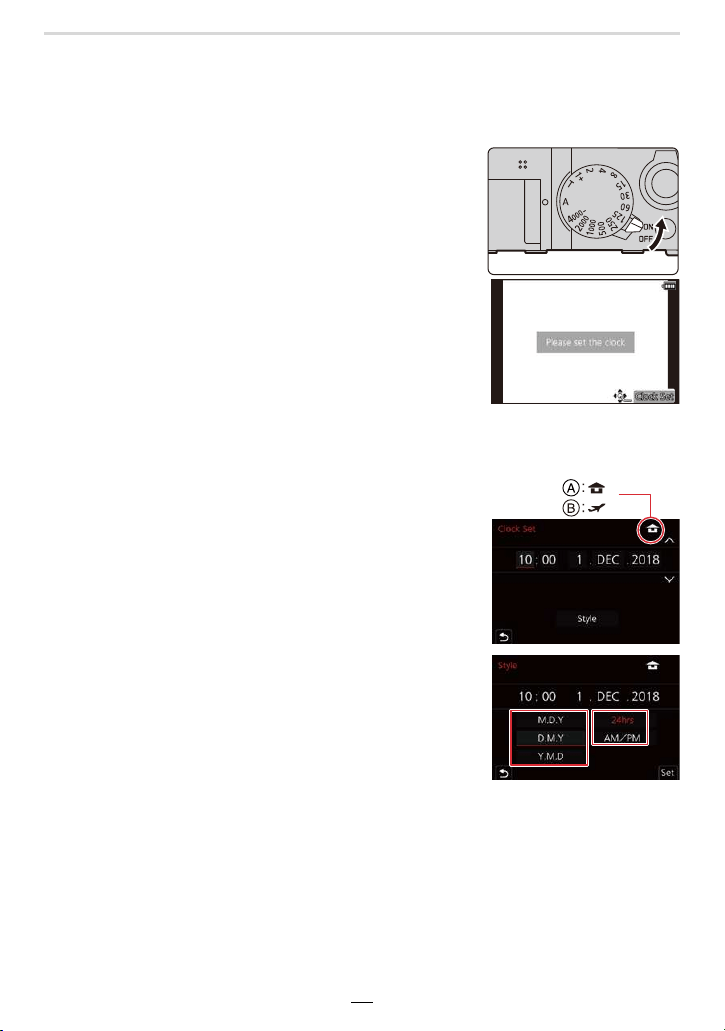
• Continuous motion picture recordable times
Motion picture recording stops when the continuous recordable times below have elapsed.
¢Even so, you can continue recording without interruption.
[Rec Quality]
Continuous
recordable time
Size interval for dividing files
[4K/100M/30p]
15 minutes
When an SDHC card is used: Files exceeding
4 GB in size will be divided into smaller files for
recording and playback.
¢
When an SDXC card is used: Files are not
divided for recording.
[4K/100M/24p]
[FHD/28M/60p]
29 minutes
Files exceeding 4 GB in size will be divided into
smaller files for recording and playback.
¢
[FHD/20M/30p]
[HD/10M/30p]
• Depending on the recording conditions and the type of card, the number of recordable
pictures and available recording time vary.
• The maximum available continuous recording time is displayed on the screen.
• [9999i] is displayed on the recording screen if there are 10000 or more recordable pictures
remaining.
2. Getting Started/Basic Operations
31
Setting Date/Time (Clock Set)
• The clock is not set when the camera is shipped.
1
Turn the camera on.
• If the language select screen is not displayed, proceed
to step
4.
2
Press [MENU/SET] while the message is
displayed.
3
Press 3/4 to select the language, and then
[MENU/SET].
• The [Please set the clock] message appears.
4
Press [MENU/SET].
5
Press 2/1 to select the items (year, month,
day, hour, minute), and then 3/4 to set.
A: Time at the home area
B: Time at the travel destination
To set the display order and the time display
format.
• To display the setting screen of the order/time, select
[Style] and then press [MENU/SET].
6
Press [MENU/SET] to set.
7
When [The clock setting has been completed.] is displayed, press
[MENU/SET].
8
When [Please set the home area] is displayed, press [MENU/SET].
32
2. Getting Started/Basic Operations
9
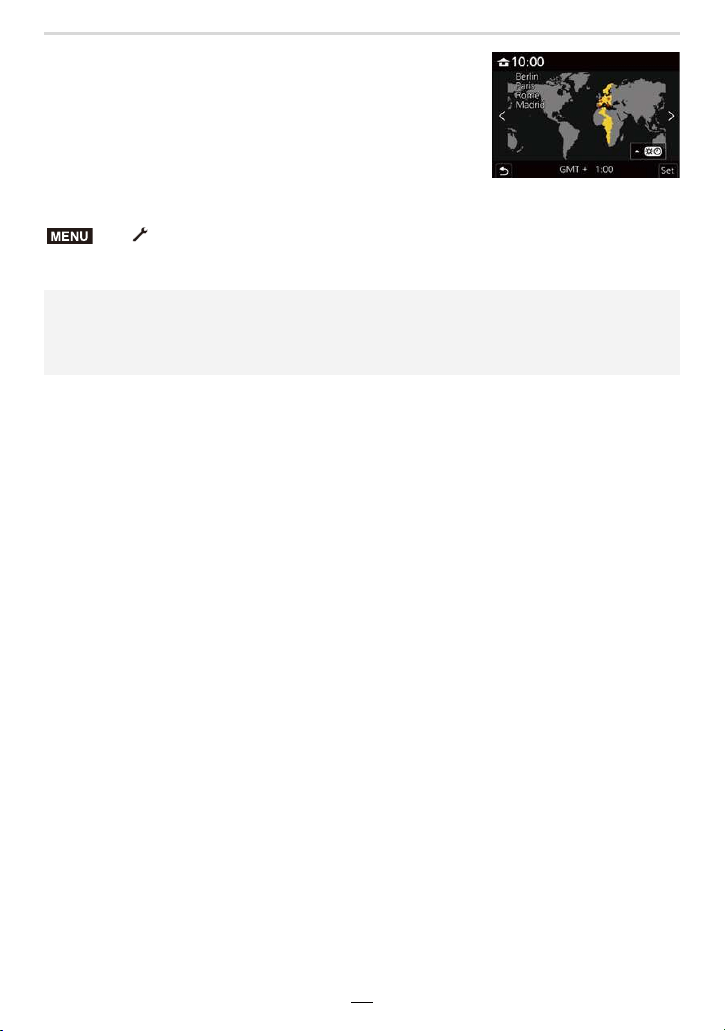
Press 2/1 to select the home area, and then
press [MENU/SET].
∫ Re-adjusting the clock
• The same screen as in step
5 on (>31) is displayed.
> [Setup] > [Clock Set]
• The clock setting is maintained for 3 months using the built-in clock battery even
without the battery.
(Leave the charged battery in the camera for 24 hours to charge the built-in battery.)
• To place the correct date on pictures, set the clock before recording.
MENU
2. Getting Started/Basic Operations
33
Basic Operations
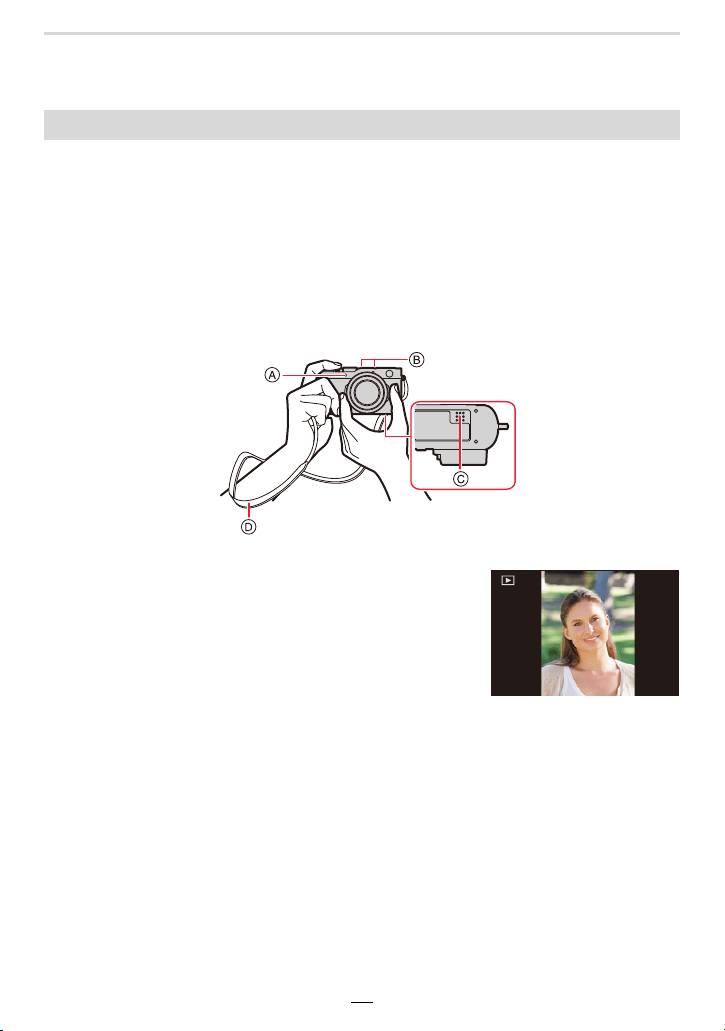
Hold the camera firmly with both hands, keep your arms still at your side and stand
with your feet slightly apart.
• We recommend using the supplied shoulder strap D to avoid dropping the camera.
• Do not cover the flash screen when a flash unit is attached and switched on (>146), the
AF assist lamp A, the microphones B, or the speaker C with your fingers or other
objects.
• Make sure you hold the camera completely still when you press the shutter button.
• Make sure your footing is stable and there is no danger of colliding with another person or
object in the vicinity while taking pictures.
∫ Detection of the orientation of the camera (Direction Detection Function)
This function detects the vertical orientation when you record
with the camera held vertically.
When you play back the recording, it is automatically
displayed in vertical orientation.
(Only available when [Rotate Disp.] is set to [ON].)
• When the camera is held vertically and tilted significantly up or down to record, the Direction
Detection Function may not work correctly.
• Videos, 4K picture series files, and images recorded with the Post Focus function cannot be
displayed vertically.
How to hold the camera
34
2. Getting Started/Basic Operations
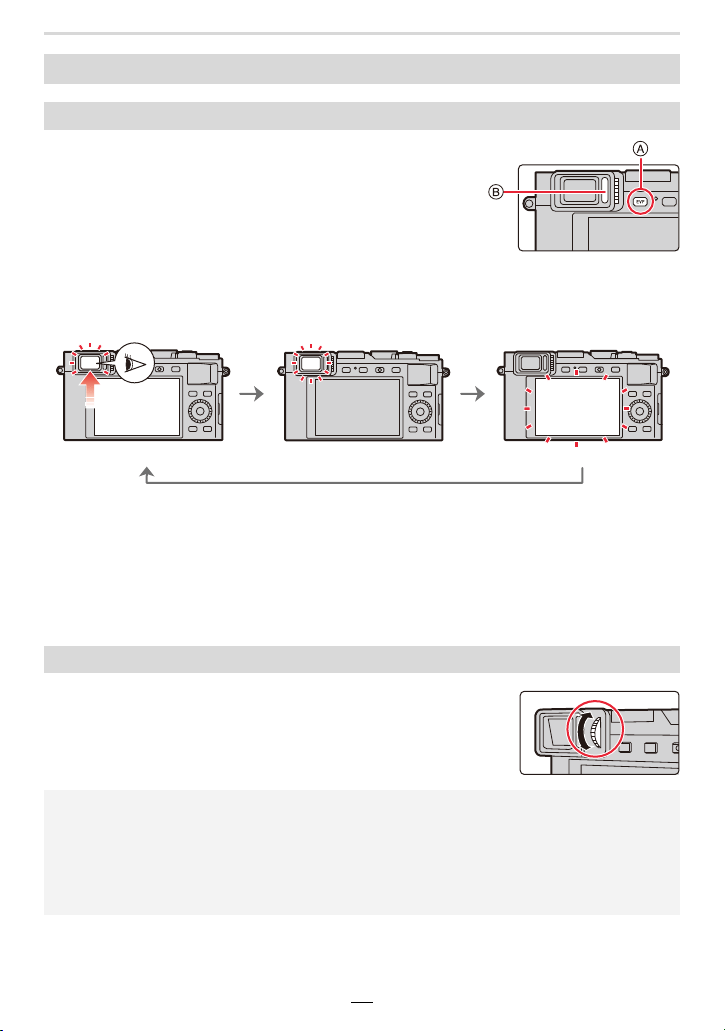
Press [EVF].
A [EVF] button
B Eye sensor
¢ If [Eye Sensor AF] in the [Custom] ([Focus / Release Shutter]) menu is set to [ON], the
camera automatically focuses as the eye sensor is activated. The camera does not beep
when focus is successfully achieved with [Eye Sensor AF].
∫ Notes on automatic viewfinder/monitor display switching
Bring your eye or an object near the viewfinder to automatically switch to the viewfinder
display using the eye sensor.
Rotate the diopter adjustment dial until you can see the
characters displayed in the viewfinder clearly.
Using the Viewfinder
Switching between viewfinder and monitor displays
Automatic viewfinder/
monitor display
switching
¢
Viewfinder display
¢
Monitor display
Diopter adjustment
• If [EVF Display Speed] is set to [ECO30fps] when the viewfinder is used, the camera
can be operated for a longer period since battery drainage is reduced.
• The eye sensor might not work properly depending on the shape of your eyeglasses, the way
you hold the camera, or bright light shining into the eyepiece.
• Automatic viewfinder/monitor switching does not work during motion picture playback and
slide shows.
2. Getting Started/Basic Operations
35
You can determine how much of a subject is to be captured / how large a subject is to be
rendered by selecting the appropriate focal length, i.e. by zooming.
• You can also use the zoom function from the touch panel. (>145)
• For details about zoom types and use, refer to (>141).
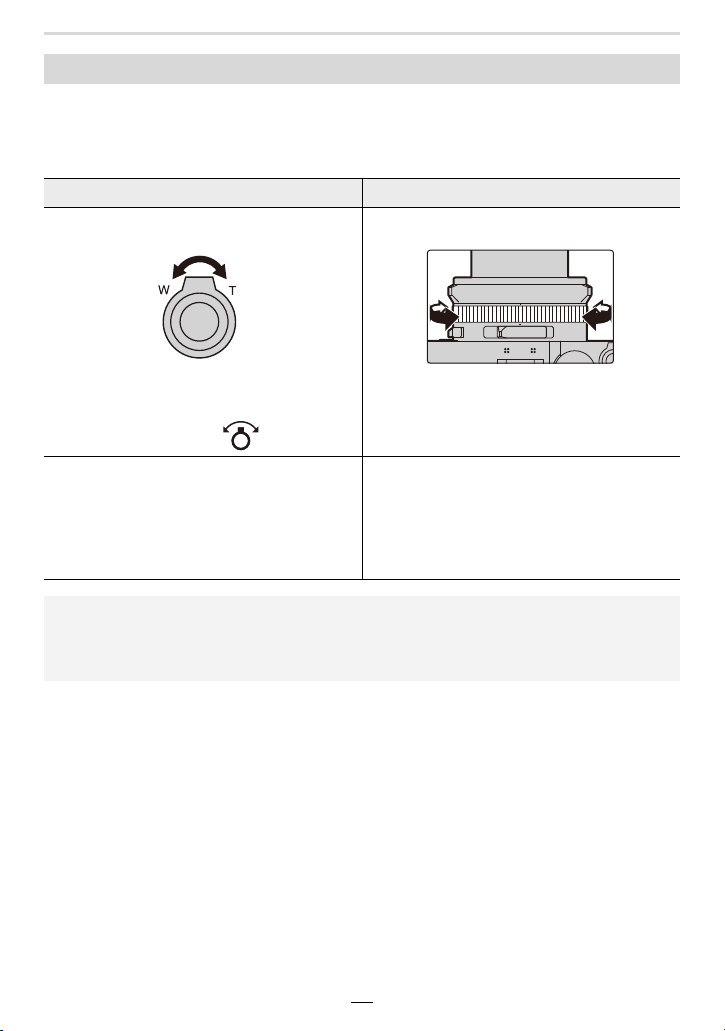
Zooming (changing the lens' focal length)
Zoom lever Control ring
Turn the zoom lever
• The operation of the zoom lever is indicated
as shown below in these instructions.
Rotate the zoom lever:
Turn the control ring
¢
¢ You can perform zoom operation by
assigning the [Zoom] setting to the control
ring. (>54)
[T] side:
Telephoto, Enlarges the subject, reduces the
captured area
[W] side:
Wide-angle, Captures a larger area, reduces
the captured subjects' sizes
Clockwise:
Telephoto, Enlarges the subject, reduces the
captured area
Counterclockwise:
Wide-angle, Captures a larger area, reduces
the captured subjects' sizes
• Do not touch the lens barrel during zooming.
• Adjust the focus setting after zooming.
• The camera may make a rattling noise and vibrate when the zoom lever or control ring is
operated. This is not a malfunction.
36
2. Getting Started/Basic Operations
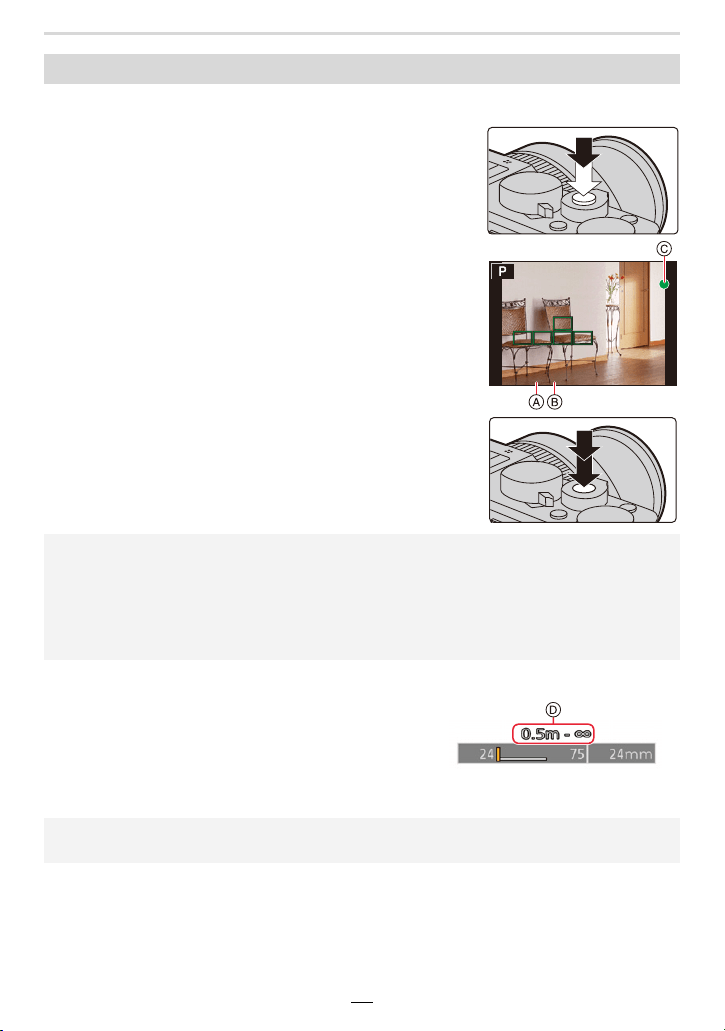
The shutter button works in two steps.
1 Press the shutter button halfway to let the camera
set exposure and focus.
A Aperture value
B Shutter speed
C Focus confirmation
• Aperture value and shutter speed will turn red and flash if
the exposure is not correct.
• Once the subject is in focus, the focus confirmation is
displayed. (When the subject is not in focus, the
confirmation flashes.)
2 Press the shutter button fully down to take the
picture.
∫ Distance setting range
The possible distance setting range is displayed
when zooming.
The distance setting range may change gradually
depending on the zoom position.
D Setting range indication
Taking pictures
• Pictures cannot be taken until focus is achieved when [Focus/Release Priority] is set to
[FOCUS].
• When [Monitor Display Speed] or [EVF Display Speed] (or both) is set to [ECO30fps],
Digital Zoom is not available.
• Even during menu operation or image playback, if you press the shutter button halfway, you
can instantly set the camera ready for recording.
• The focusing range is displayed in red when it is not focused after pressing the shutter button
halfway.
2. Getting Started/Basic Operations
37
1 Start recording by pressing the video button.
• Immediately release the video button.
2 Stop the recording by pressing the video button
again.
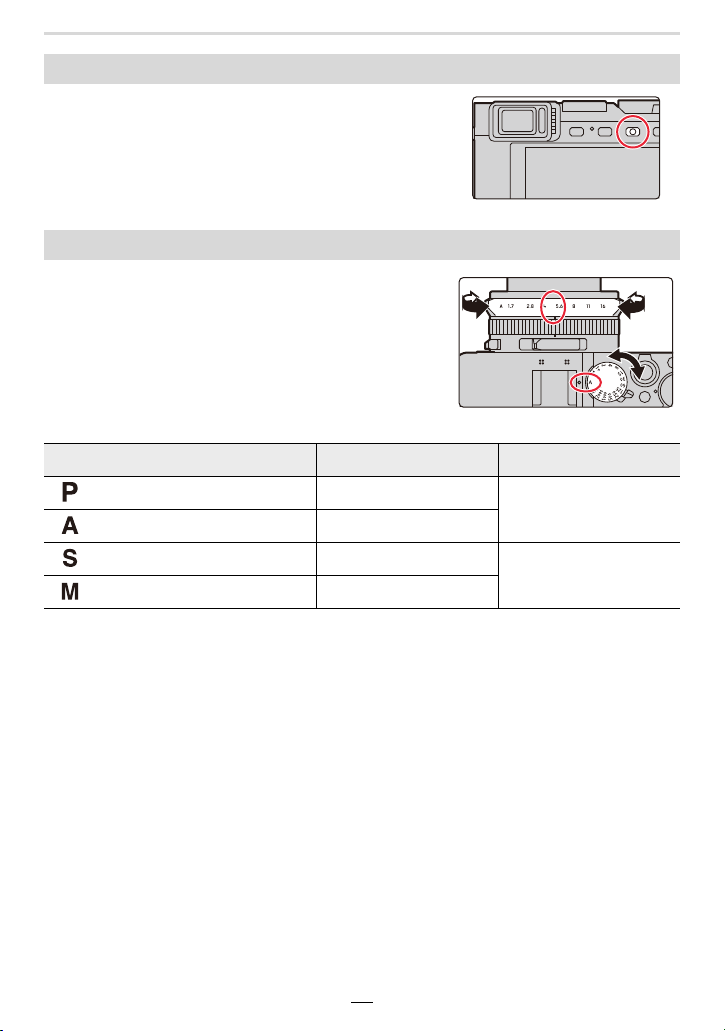
Turn the aperture ring (A) and/or the shutter speed
dial (B).
• Be sure to set both only to their click-stop positions.
• The exposure control mode will change according to the
aperture ring and shutter speed dial settings.
Recording videos
Selecting the exposure control mode
Exposure control mode Aperture ring Shutter speed dial
Program mode [A] (AUTO)
[A] (AUTO)
Aperture-Priority mode You set the desired value
Shutter-Priority mode [A] (AUTO)
You set the desired value
Manual Exposure mode You set the desired value
38
2. Getting Started/Basic Operations
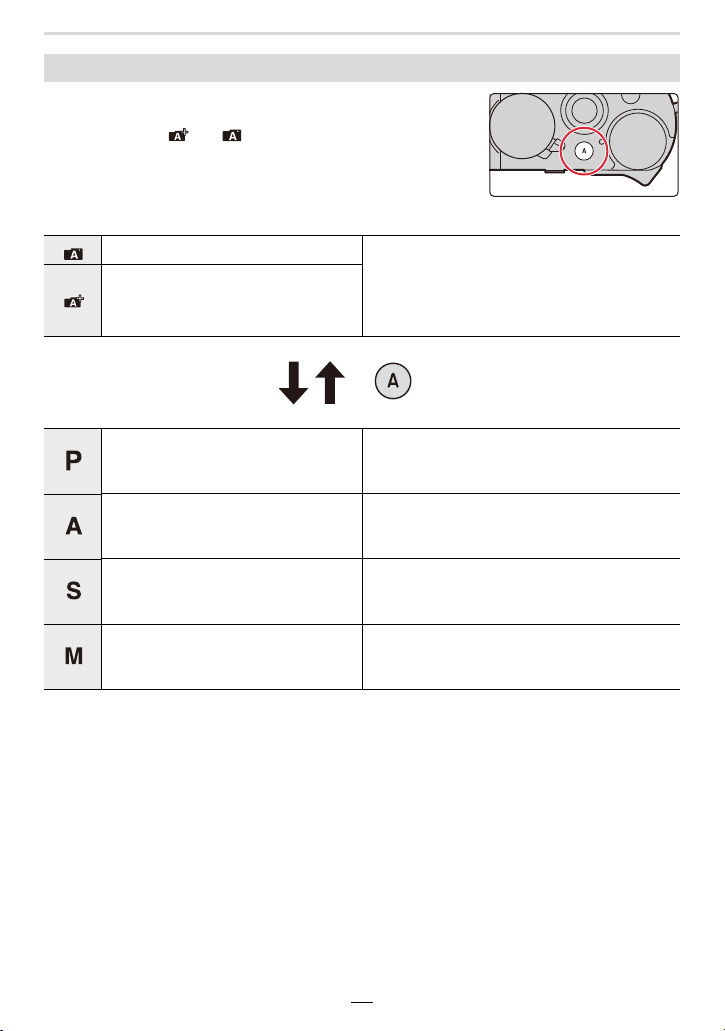
Press [A].
• When the Snapshot modes are set, the exposure control mode
icon changes to [ ] or [ ].
• When you press [A] again, the exposure control mode is
switched back to one that enables settings to be made using the
aperture ring and shutter speed dial, i.e. one of the four
described above.
To switch to the Snapshot modes
Snapshot mode (>56) The camera chooses the optimal settings to
match the subject and the recording
conditions. We recommend these modes
when you want to leave the settings to the
camera and take pictures with ease.
Snapshot Plus mode (>57)
Program mode (>61)
The camera automatically sets the shutter
speed and the aperture value according to the
brightness of the subject.
Aperture-Priority mode (>64)
The camera automatically sets the shutter
speed according to the brightness of the
subject and the aperture value you set.
Shutter-Priority mode (>65)
The camera automatically sets the aperture
value according to the brightness of the
subject and the shutter speed you set.
Manual Exposure mode (>66)
You determine the exposure by manually
setting the aperture value and the shutter
speed.
2. Getting Started/Basic Operations
39
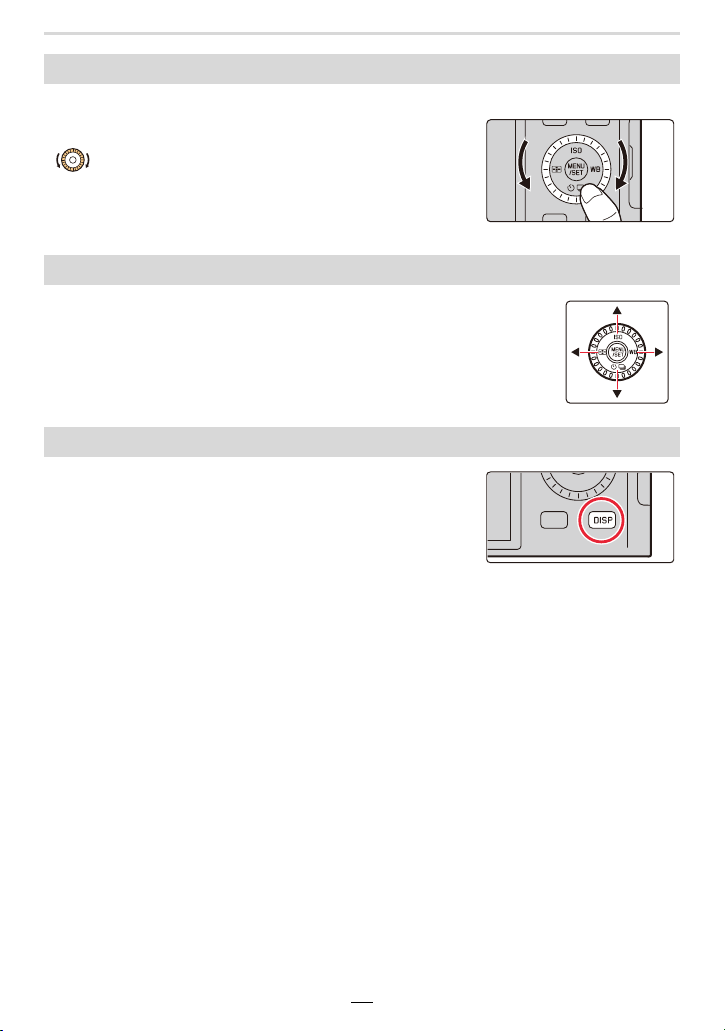
Rotate the dial to select items or set values etc.
• The operation of rotating the control dial to the left or right is
illustrated as below in these instructions.
Press the cursor buttons to select items or values etc.
• In these instructions, the cursor button to be used is indicated by
3/4/2/1.
Pressing [MENU/SET] to confirm set contents, etc.
Pressing [DISP] switches the display method.
Control dial
Cursor/[MENU/SET] buttons
[DISP] button
40
2. Getting Started/Basic Operations
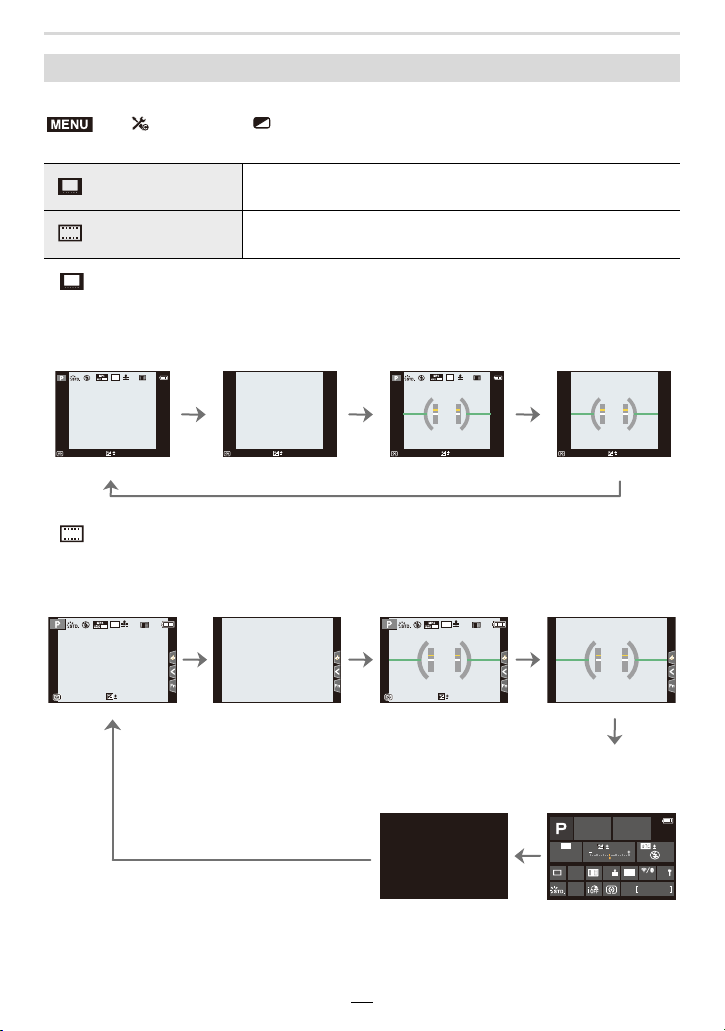
You can switch the viewfinder/monitor display method.
• [ ] Viewfinder style (viewfinder display shown as example)
• [ ] Monitor style (monitor display shown as example)
¢ Displayed when [Monitor Info. Disp.] in the [Custom] ([Monitor / Display]) is set to [ON]. You
can touch the desired item and change its setting directly.
In recording mode
> [Custom] > [Monitor / Display] > [EVF/Monitor Disp. Set] >
[EVF Disp. Set]/[Monitor Disp. Set]
[] (viewfinder style)
Scales down images slightly so that you can better review the
composition of the images.
[] (monitor style)
Scales images to fill the entire screen so that you can see their
details.
With information
Without
information
With information
(including tilt
indication)
Without information
(including tilt
indication)
With information
Without
information
With information
(including tilt
indication)
Without information
(including tilt
indication)
Turned off
On-monitor
recording
information
¢
MENU
98
0
AFSAFS
L
4:3
60
p
98
0
98
0
AFS
AFS
L
4:3
60
p
98
0
98
98
98
AFS
AFS
L
4:3
0
60
p
989898
AFSAFS
L
4:3
0
60
p
98
AWB
0 0
0
Fn
ISO
AUTO
OFF
L
4:3
AFS
AFS
2. Getting Started/Basic Operations
41
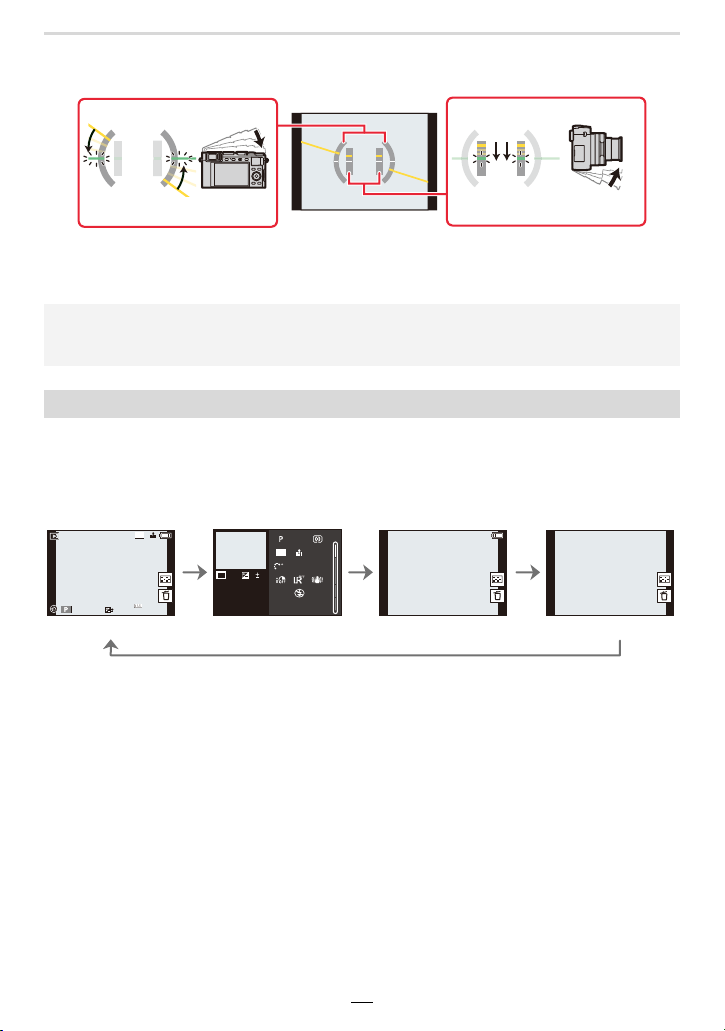
∫ About the tilt indication display
With the tilt indication displayed, it is easy to correct the tilt of the camera etc.
• When the camera is tilted very little or not at all, the level gauge will turn green.
¢1 Press 3/4 to switch between the following display modes:
– Detailed information display
– Histogram display
– Photo style, Highlight shadow display
– White balance display
– Lens information display
¢2 Displayed if [Highlight] in the [Custom] ([Monitor / Display]) menu is set to [ON].
A Horizontal direction: Correcting tilt to the left
B Vertical direction: Correcting downward tilt
• Even after correcting the tilt, there may still be an error of approximately n1°.
• When the camera is tilted significantly upwards or downwards, the tilt indication may not work
correctly.
In playback mode
With information
Detailed
information
display
¢1
Without
information
(Highlight
display)
¢2
Without
information
60F1.7
0
AWBAWB
1/98981/98
2
00
L
4:3
s
RGB
1/5
AFS
200
L
4:3
100-0001
AWB
STD.
ISOISO
0
F1.7
60
10:00 1.DEC.2018
42
2. Getting Started/Basic Operations
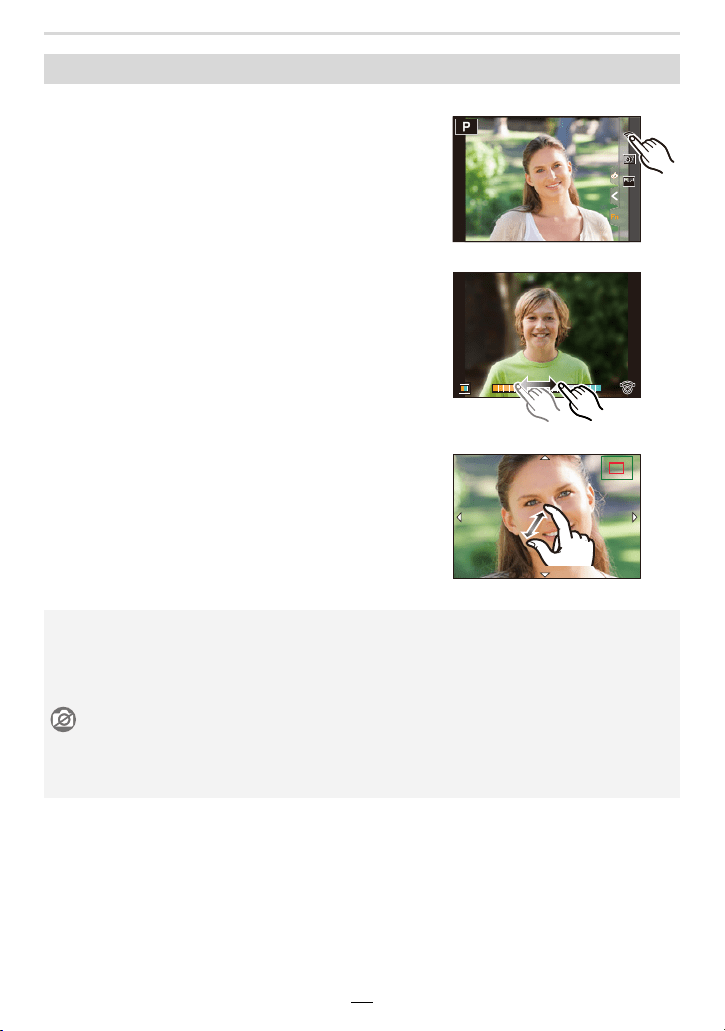
∫ Touch:
Briefly touch the monitor screen at the desired place/
icon to switch a function on or off.
∫ Drag:
Touch the monitor screen at the desired place/icon and
swipe to the desired level to set a function.
∫ Pinch/Spread:
Touching the monitor screen with two fingers, move
them apart to enlarge the image, move them together to
reduce it.
Touch screen operations
• Touch the screen with a clean and dry finger.
• If you use a commercially available monitor protection foil, please follow the instructions that
accompany it.
(Some monitor protection foils may impair visibility or operability.)
Not available in these cases:
• The touch screen operations may not function normally in the following cases.
– When wearing gloves
– When the monitor screen is wet
Fn10Fn10Fn10
Fn7Fn7Fn7
Fn6
Fn6Fn6
OFFOFFOFF
Fn9Fn9Fn9
OFFOFFOFF
Fn8Fn8Fn8
AABBB
2.0X2.0X2.0X2.0X
2. Getting Started/Basic Operations
43
Available in the following modes:
¢ When [Touch AF] in [Touch Settings] of the [Custom] ([Operation]) menu is set to
[AF+AE], the focus and brightness settings are optimized for the touched position.
(>85)
Taking pictures using the touch function
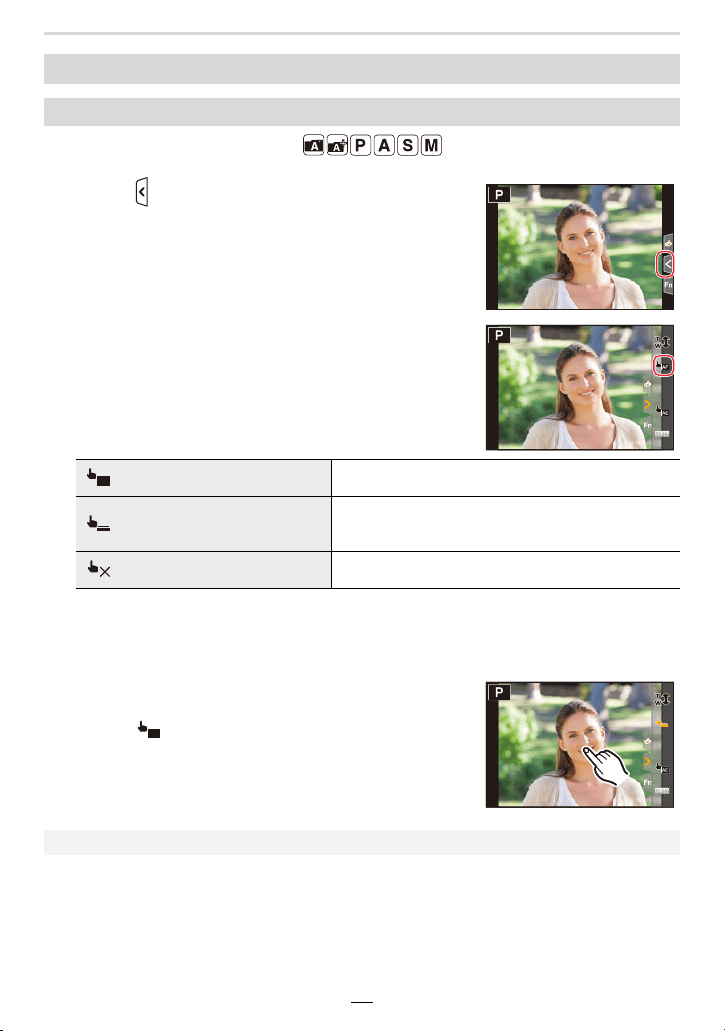
Touch AF/Touch Shutter
1 Touch [ ].
2 Touch an icon.
• The icon switches every time you touch it.
[](Touch AF) Focuses on the position you touch.
¢
[](Touch shutter)
Focuses on the touched position before recording
takes place.
¢
[](OFF) Touch AF and Touch Shutter are disabled.
3 (When settings other than OFF are selected)
Touch the subject.
• When [ ] (Touch AF) is set, refer to (>81) for
information about the operation to change the size and
position of the AF area.
• If shooting with the touch shutter fails, the AF frame turns red and disappears.
AF
AF
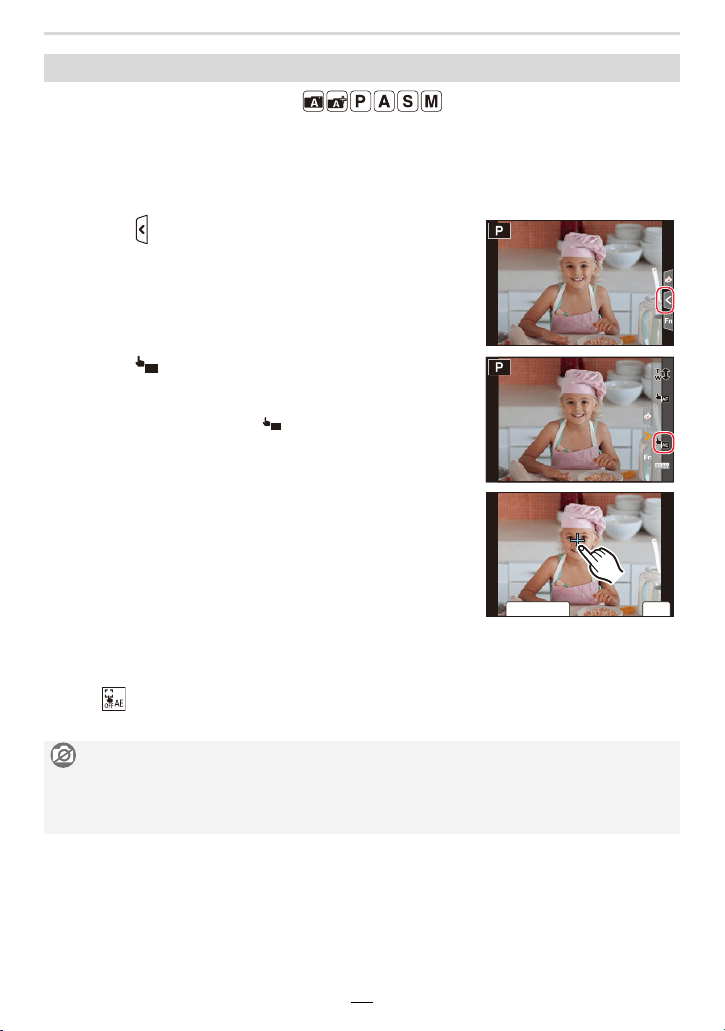
44
2. Getting Started/Basic Operations
Available in the following modes:
You can easily optimize the brightness for a touched position. E.g., when the face of the
subject appears dark, you can brighten the exposure to achieve a brighter rendering of the
face.
∫ Canceling the Touch AE function:
Touch [ ].
Touch AE
1 Touch [ ].
2 Touch [ ].
• The setting screen for the brightness optimization position
is displayed.
• [Metering Mode] is set to [ ], which is used exclusively
for the Touch AE.
3 Touch the subject you want to optimize the
brightness for.
• Touch [Reset] to bring the brightness optimization position
back to the center.
4 Touch [Set].
Not available in these cases:
– When using Digital Zoom
– When [Touch AF] in [Touch Settings] of the [Custom] ([Operation]) menu has been set to
[AF+AE]
AE
AE
ュリヴヱハ
6HW
5HVHW
2. Getting Started/Basic Operations
45
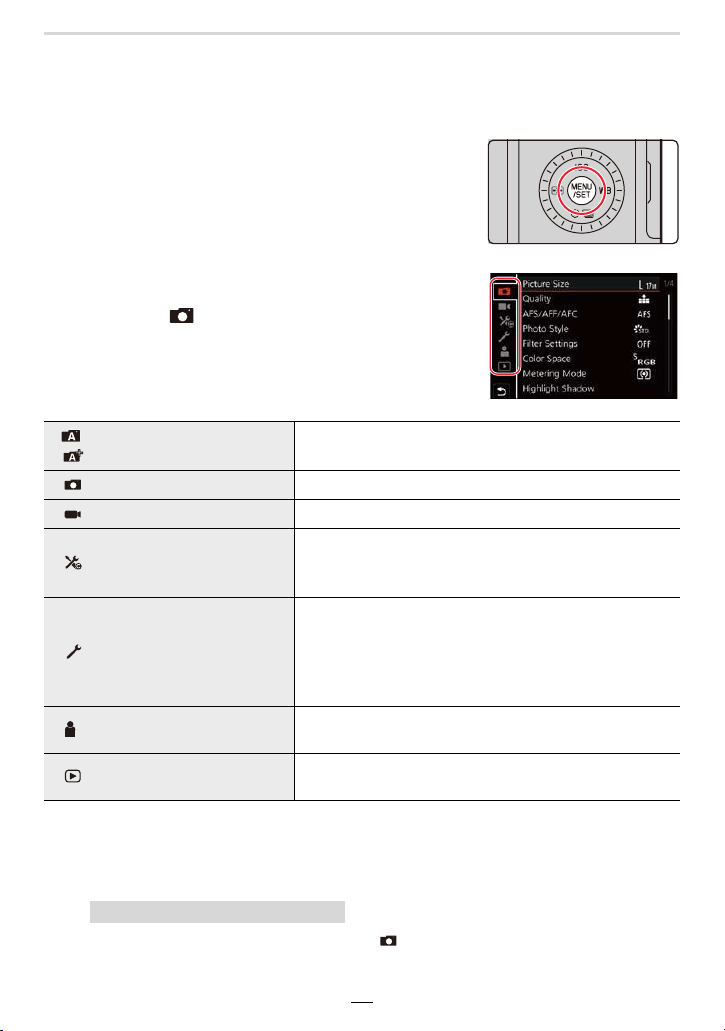
Setting menu items
You can set menu items either by using the cursor buttons or with touch operations.
1
Press [MENU/SET] to display the menu.
2
Press 2.
• The [Setup] menu contains some important settings relating to the camera’s clock and power use.
Check the settings of this menu section before proceeding to use the camera.
4
Press [MENU/SET].
Touch a menu selector icon, such as [ ].
3
Press 3/4 to select a menu section icon,
such as [ ].
/
[Snapshot Mode] (>59)
This menu section is for setting the functions available in
the Snapshot modes.
[Rec] (>166) This menu section is for picture settings.
[Motion Picture] (>179) This menu section is for video settings.
[Custom] (>180)
This menu section is for setting camera operations, such
as displaying of the screen and button operations, it can
be set up according to your preferences.
[Setup] (>195)
This menu section is for setting the clock, selecting the
operating beep tone settings and other settings which
make it easier for you to operate the camera.
You can also configure the settings of Wi-Fi/Bluetooth
related functions.
[My Menu] (>204)
This menu section is for registering frequently-used
menu items.
[Playback] (>205)
This menu section is for the playback and editing settings
for images.
Touch operation
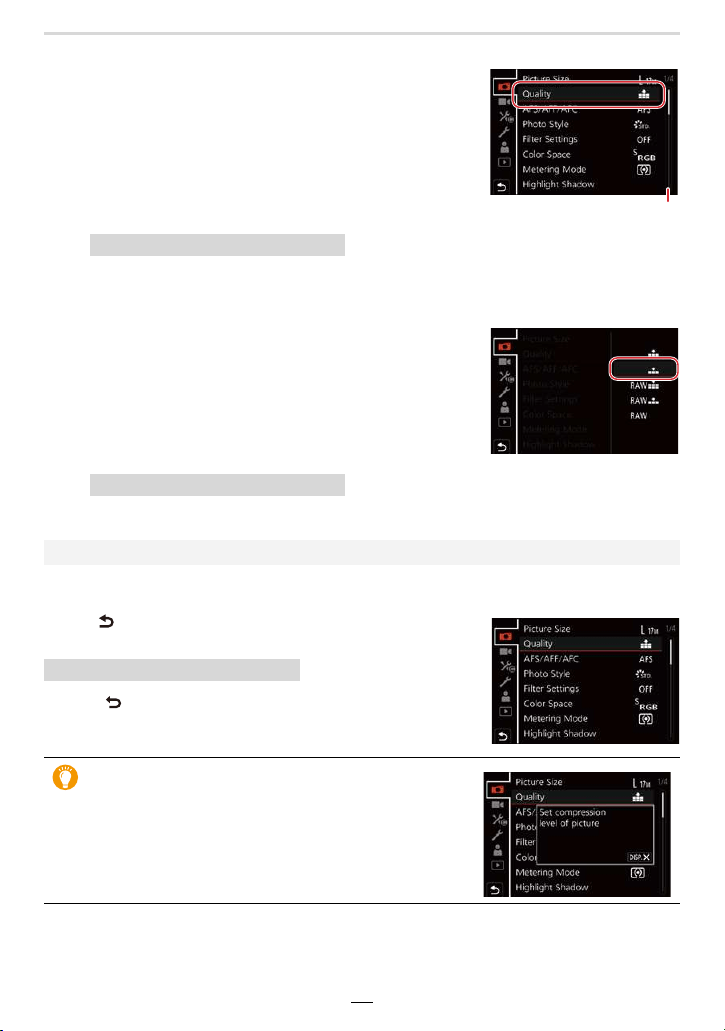
46
2. Getting Started/Basic Operations
Touch the menu item.
• You can switch the page by touching the bar (A) on the right side of the screen.
Touch the Setting to set.
∫ Close the menu
Press [ ] or the shutter button halfway.
Touch [ ].
5
Press 3/4 to select the menu item and
then [MENU/SET].
Touch operation
6
Press 3/4 to select the setting and then
[MENU/SET].
• Depending on the menu item, its setting may not
appear or it may be displayed in a different way.
Touch operation
• You can also rotate the control dial to select the menu selector icon, menu item, or setting.
Touch operation
• Press [DISP] to display the menu description.
• Menu items that are not available are displayed in gray.
If you press [MENU/SET] while a gray item is selected,
the reason why it cannot be set is displayed in some
setting situations.
2. Getting Started/Basic Operations
47
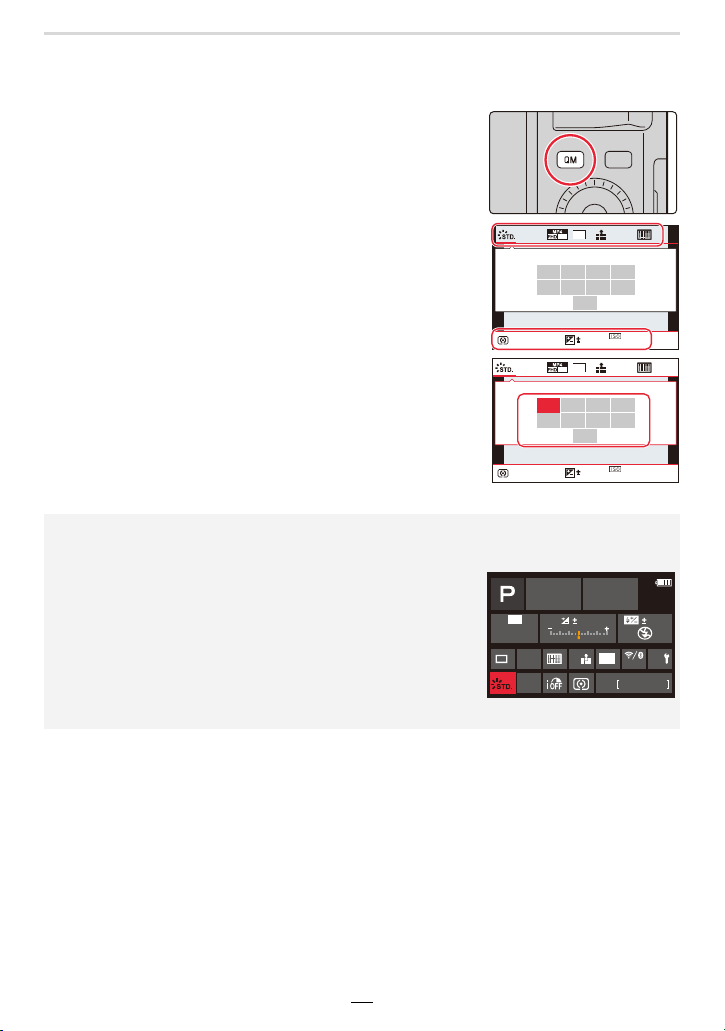
Quick Menu
1
Press [QM] to display the Quick Menu.
2
Turn the control dial to select the item, and
press 4 or 3.
3
Rotate the control dial to select the setting.
4
Press [QM] to exit the Quick Menu once the
setting is complete.
• You can also press 2/1 to select the item or setting.
• The features that can be adjusted using Quick Menu are determined by the mode or a display
style the camera is in.
When using the on-monitor recording information
screen (>40)
1 Press [QM].
2 Rotate the control dial to select the item and then press
[MENU/SET].
3 Rotate the control dial to select the setting.
4 Press [QM] to finish.
• You can also set with 3/4/2/1 and [MENU/SET].
AFS
AFS
AU
TO
601.7
AWB
L
4:3
0
60
p
AFS
AFS
AU
TO
601.7
AWB
L
4:3
0
60
p
AWB
0 0
0
Fn
98
ISO
AUTO
OFF
L
4:3
AFSAFS
48
2. Getting Started/Basic Operations
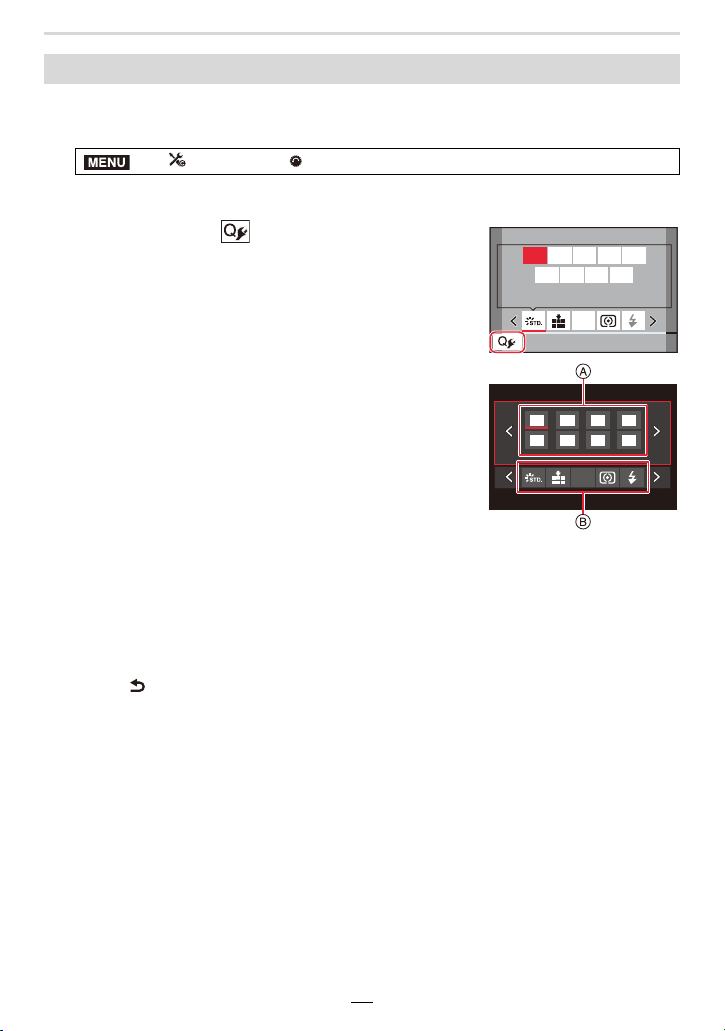
You can add a maximum of 15 preferred settings to the Quick Menu.
1 Select the menu item.
2 Press the shutter button halfway to close the menu.
3 Press [QM] to display the Quick Menu.
4 Press 4 to select [ ] and then [MENU/SET].
5 Press 3/4/2/1 to select the menu item in the top
row and then [MENU/SET].
• Items that have already been set in the top row are
displayed in light gray.
6 Press 2/1 to select the empty space in the bottom
row and then [MENU/SET].
A Items that can be set
B Set items
• You can also perform the same operation by dragging the
item from the top row to the bottom row.
• If there is no empty space in the bottom row, you can replace an existing item with a newly
selected item by selecting the existing item.
• You can follow the steps below to cancel the setting.
1 Press 4 to move to the bottom row.
2 Press 2/1 to select the item to be canceled and then [MENU/SET].
7 Press [ ].
• This will return to the screen of step
4.
Press [MENU/SET] to switch to the recording screen.
Customizing the Quick Menu settings
> [Custom] > [Operation] > [Q.MENU] > [CUSTOM]
MENU
AFS
1/5
AFS
2. Getting Started/Basic Operations
49
Assigning Frequently-Used Functions to
Function Buttons
1
Select the menu item.
2
Press 3/4 to select the function button you
want to assign a function to and then [MENU/
SET].
3
Press 3/4 to select the function you want to
assign and then [MENU/SET].
• For details on the functions that can be assigned in [Setting in REC mode], refer to (>50).
• For details on the functions that can be assigned in [Setting in PLAY mode], refer to
(>52).
• To restore the default function button settings, select [Restore to Default].
∫ Setting function buttons from the on-monitor recording information screen
You can also display the screen in step
2 by touching [Fn] on the on-monitor recording
information screen (>40).
∫ Assigning functions quickly
You can display the screen in step
3 by pressing and holding a function button ([Fn1] to
[Fn5]) (2 seconds).
Press the function button to use the assigned function.
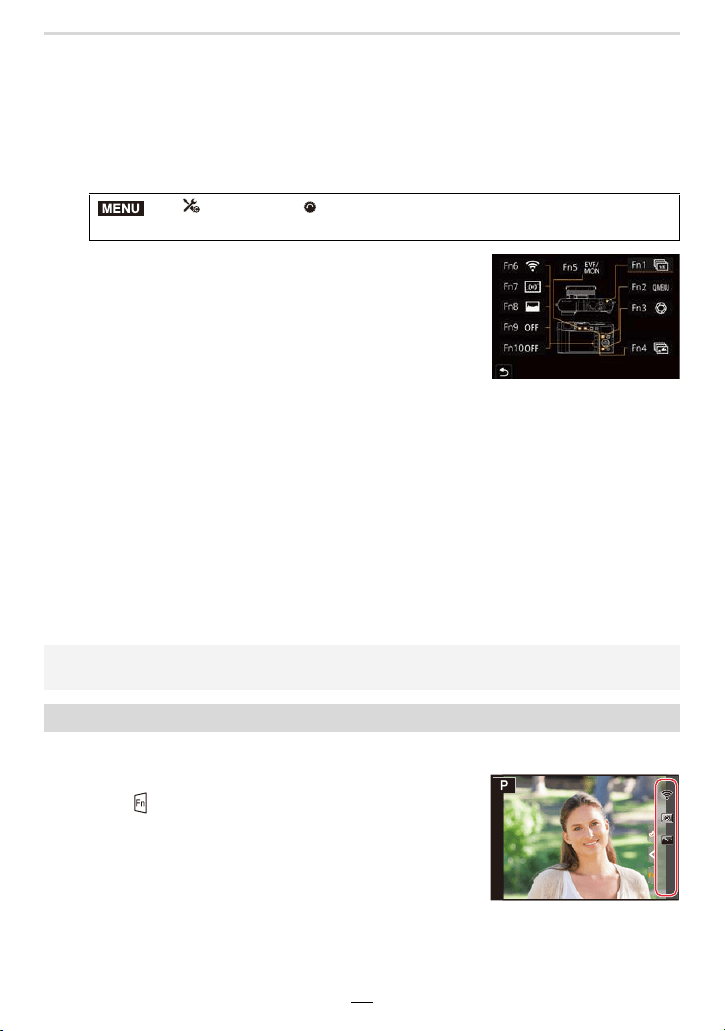
∫ Using function buttons with touch operations
1 Touch [ ].
2 Touch [Fn6], [Fn7], [Fn8], [Fn9] or [Fn10].
> [Custom] > [Operation] > [Fn Button Set]>
[Setting in REC mode]/[Setting in PLAY mode]
• Some functions may not be available depending on the mode or the displayed screen.
• Some functions cannot be assigned depending on the function button.
Using the function buttons during recording
MENU
Fn10Fn10Fn10
Fn8Fn8Fn8
Fn6
Fn6Fn6
OFFOFFOFF
Fn9Fn9Fn9
OFFOFFOFF
Fn7Fn7Fn7
50
2. Getting Started/Basic Operations
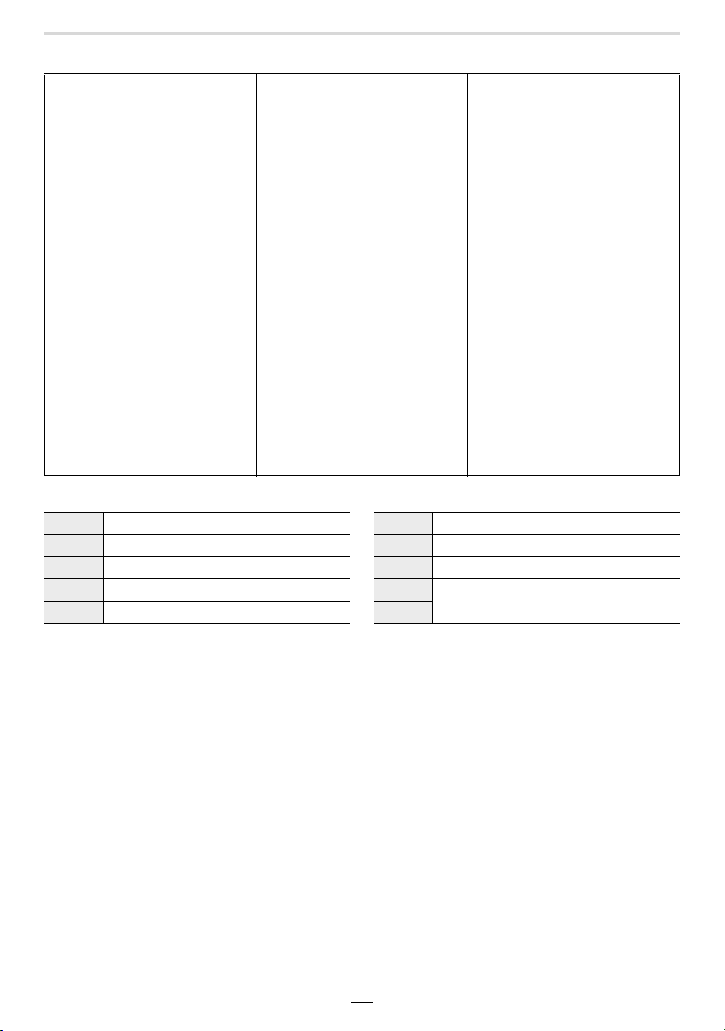
∫ Functions that can be assigned in [Setting in REC mode]
• Function button settings at the time of purchase.
– [4K Photo Mode] (>100)
– [Post Focus] (>110)
– [Exposure Comp.] (>90)
– [Wi-Fi] (>223)
–[Q.MENU] (>47)
– [Video Record] (>152)
– [EVF/Monitor Switch]
(>34)
– [EVF/Monitor Disp. Style]
(>40)
– [AF/AE LOCK] (>89)
–[AF-ON] (>89)
– [Preview] (>69)
– [Touch AE] (>44)
– [Level Gauge] (>41)
– [Focus Area Set]
– [Operation Lock]
– [Photo Style] (>169)
– [Filter Effect] (>122)
– [Picture Size] (>167)
– [Quality] (>168)
– [AFS/AFF/AFC] (>74)
– [Metering Mode] (>171)
– [Bracket] (>129)
– [Highlight Shadow] (>172)
– [i.Dynamic] (>173)
– [i.Resolution] (>173)
– [Min. Shtr Speed] (>174)
– [HDR] (>177)
– [Shutter Type] (>176)
– [Flash Mode] (>149)
– [Flash Adjust.] (>151)
– [i.Zoom] (>142)
– [Digital Zoom] (>143)
– [Stabilizer] (>139)
– [Motion Pic. Rec Quality]
(>154)
– [Picture Mode in Rec.] (
>
156)
– [Sound Rec Level Adj.]
(>157)
– [Utilize Custom Set feature]
(>70)
– [Silent Mode] (>175)
– [Peaking] (>188)
– [Histogram] (>188)
– [Guide Line] (>189)
– [Zebra Pattern] (>190)
– [Monochrome Live View]
(>187)
– [Constant Preview] (>187)
– [Live View Boost] (>187)
– [Rec Area] (>191)
– [Zoom lever] (>186)
– [Sensitivity] (>92)
– [White Balance] (>94)
– [AF Mode/MF] (>75)
– [Drive Mode] (>97)
– [Rec / Playback Switch]
– [Restore to Default]
Fn1 [4K Photo Mode] Fn6 [Wi-Fi]
Fn2 [Q.MENU] Fn7 [Level Gauge]
Fn3 [Preview] Fn8 [Histogram]
Fn4 [Post Focus] Fn9
No function
Fn5 [EVF/Monitor Switch] Fn10
2. Getting Started/Basic Operations
51
• With [Video Record], you can start/stop recording a motion picture in the same way as with the
video button.
• When set to [Focus Area Set], it is possible to display the position setting screen of either AF
area or MF Assist.
• When [Operation Lock] is set, a certain type of operation is disabled. Set the type of operation
to be disabled in [Operation Lock Setting] in the [Custom] ([Operation]) menu. (>185)
• If you assign [Rec / Playback Switch], you can switch between recording and playback
modes.
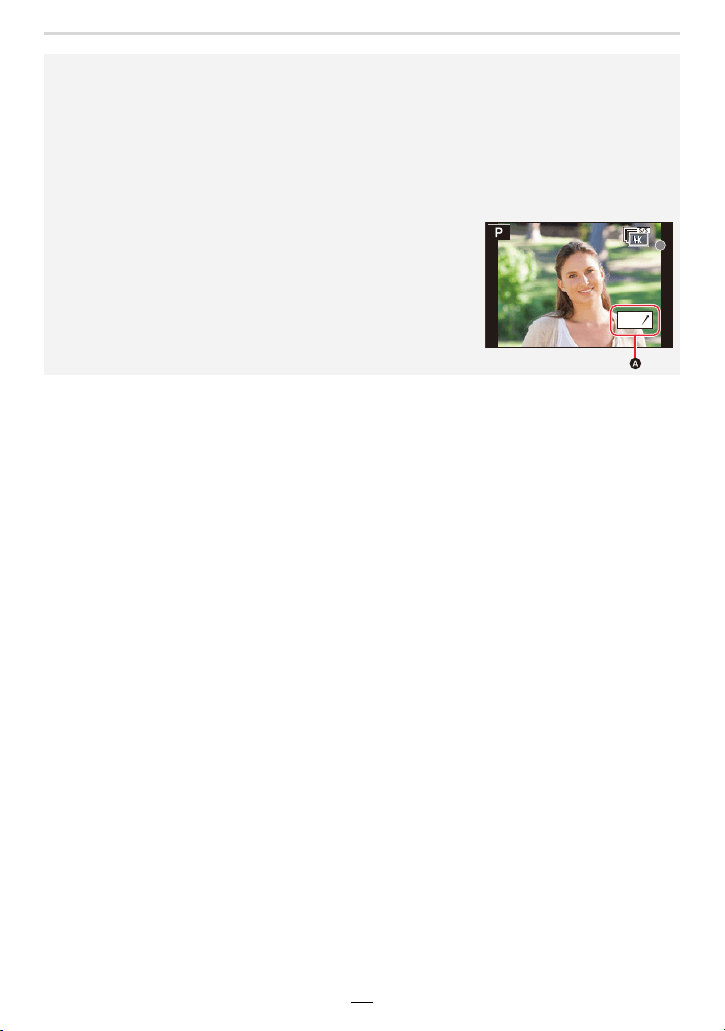
• If the screen displays A or similar, the displayed operation will
be performed instead of the function assigned to that function
button by [Fn Button Set].
Fn2
52
2. Getting Started/Basic Operations
You can use an assigned function by pressing the appropriate function button.
• Depending on the function, you can directly use it for the image being played back.
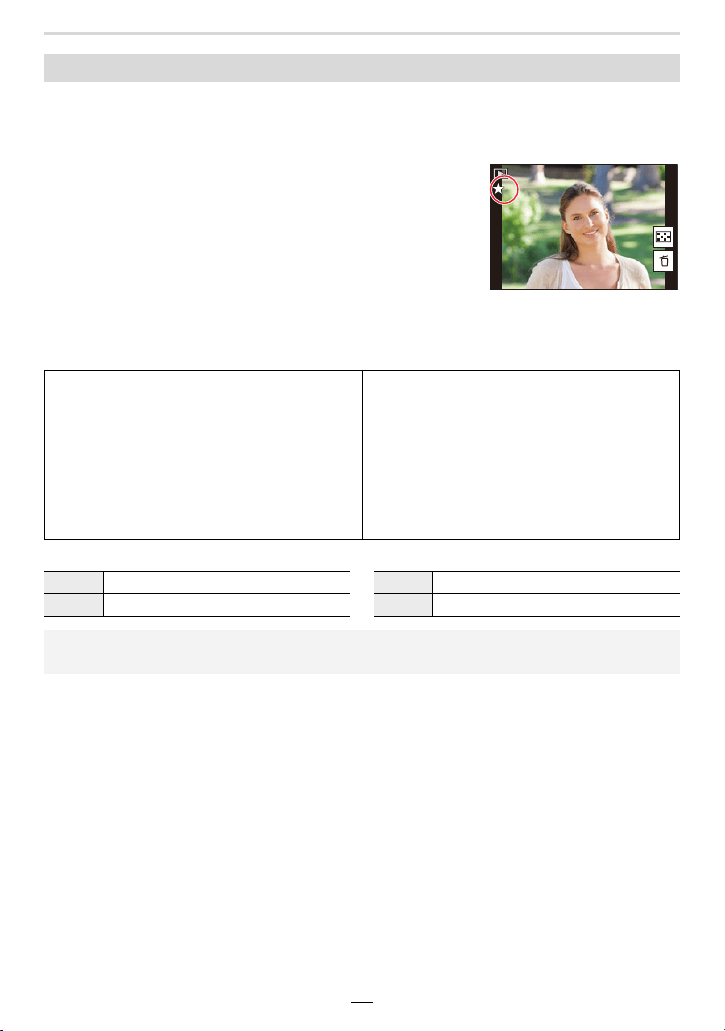
Example: When [Fn2] is set to [Rating¿3]
1 Press 2/1 to select the image.
2 Press [QM] / ([Fn2]), and then set the image as
[Rating¿3].
∫ Functions that can be assigned in [Setting in PLAY mode]
• The following functions can be assigned to the buttons [Fn1], [Fn2], [Fn4] or [Fn5].
• Function button settings at the time of purchase.
Using the function buttons during playback
– [Wi-Fi] (>223)
– [EVF/Monitor Switch] (>34)
– [Rec / Playback Switch]
– [4K PHOTO Play]
– [Delete Single] (>165)
– [Protect] (>208)
–[Rating¿1] (>208)
–[Rating¿2] (>208)
–[Rating¿3] (>208)
–[Rating¿4] (>208)
–[Rating¿5] (>208)
– [RAW Processing] (>210)
– [4K PHOTO Bulk Saving] (>212)
– [Restore to Default]
Fn1 [Wi-Fi] Fn4 No function
Fn2 [Rating¿3] Fn5 [EVF/Monitor Switch]
• If you assign [4K PHOTO Play], a screen will be displayed, allowing you to select the pictures
to be extracted from a 4K picture series file and saved.
333
1/981/981/981/98
2. Getting Started/Basic Operations
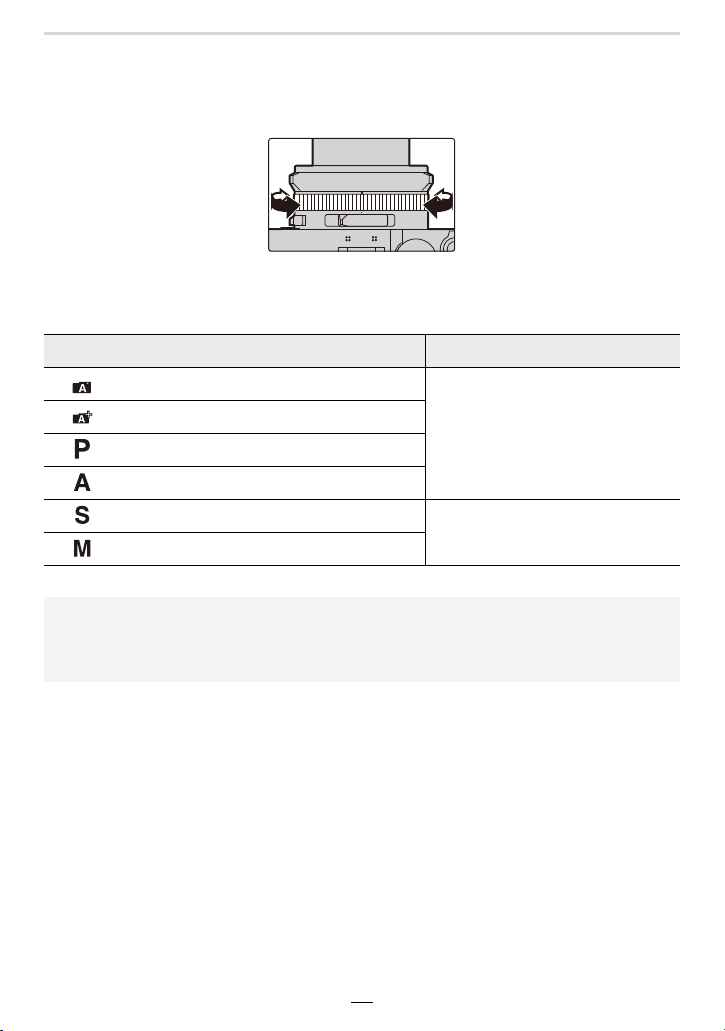
53
Changing Settings using the Control Ring
You can use the control ring to change settings.
The functions that can be set with the control ring vary depending on the exposure control
mode.
Listed below are the default ([Normal]) settings.
¢ You can set shutter speeds that are not indicated on the shutter speed dial. (>67)
Exposure control mode Setting
Snapshot mode
Step Zoom (>144)
Snapshot Plus mode
Program mode
Aperture-Priority mode
Shutter-Priority mode
Shutter speed adjustment
¢
(>65, 66)
Manual Exposure mode
• Rotating the control ring during panorama recording will change the selected image effect
(filter). (>118)
• Rotating the control ring during manual focusing will adjust the focus setting. (>87)
• The control ring can be used to change to your preferred settings. (>54)
54
2. Getting Started/Basic Operations
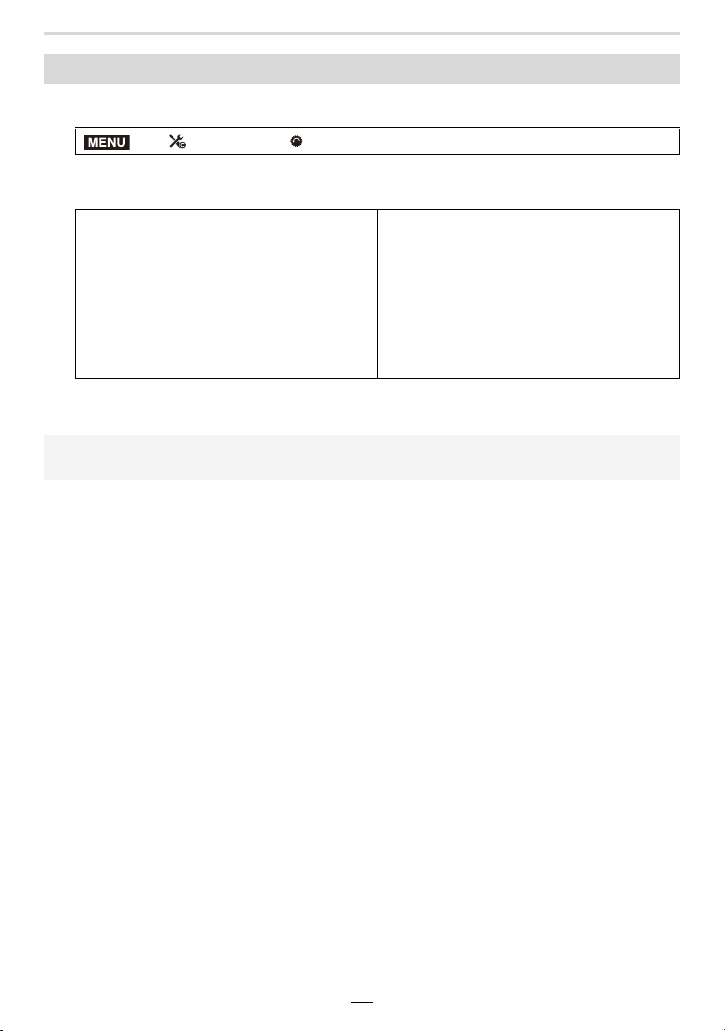
1 Set the menu item.
2 Use 3/4 to select the setting and press [MENU/SET].
• You can assign the following functions:
• To return to the default setting, select [Normal].
• If you do not want to use the control ring, select [OFF] ([Not Set]).
Changing the function assigned to the Control Ring
> [Custom] > [Operation] > [Control Ring]
–[Normal] (>53)
– [Zoom] (>35)
– [Step Zoom] (>144)
– [Exposure Comp.] (>90)
– [Sensitivity] (>92)
– [White Balance] (>94)
– [AF Mode] (>72)
– [Drive Mode] (>97)
– [Photo Style] (>169)
– [Filter Effect] (>122)
– [Highlight Shadow] (>172)
– [i.Dynamic] (>173)
– [i.Resolution] (>173)
– [Flash Mode] (>149)
– [Flash Adjust.] (>151)
• The assigned function setting will be applied to all exposure control modes.
• Some functions may not be available depending on the mode or the displayed screen.
MENU

2. Getting Started/Basic Operations
55
Entering Text
Follow the steps below when the text entry screen is displayed.
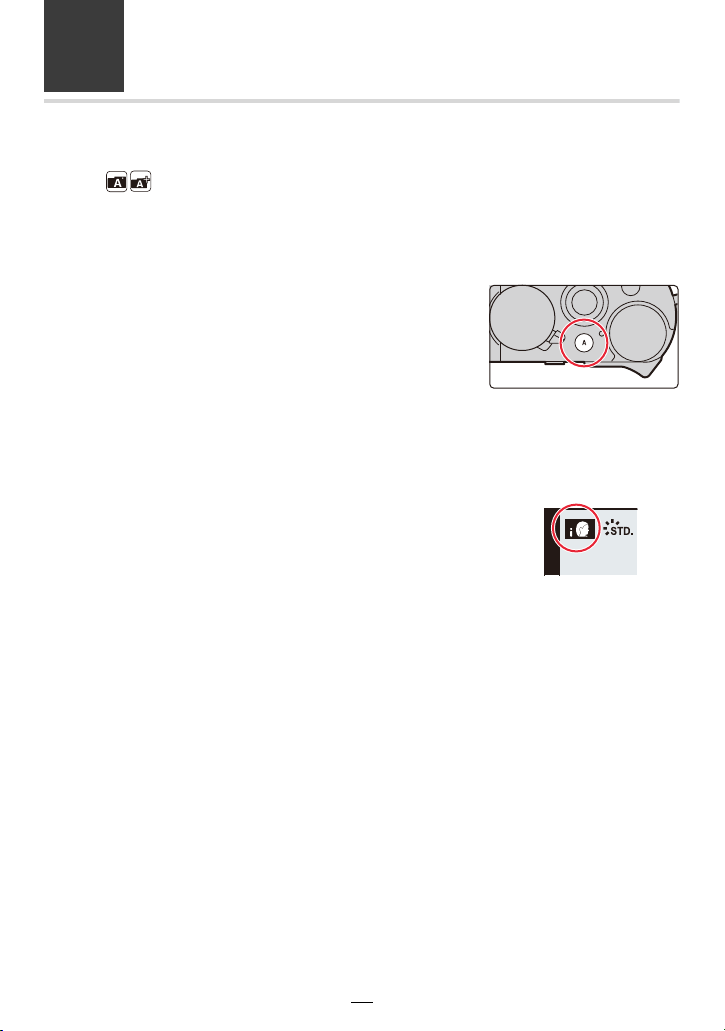
1
Press 3/4/2/1 to select a character and
then [MENU/SET] to set.
• To enter the same character again, perform either of the
following operations to move the cursor.
– Rotate the control dial to the right.
– Rotate the zoom lever to the [T] side.
• Operations when the items below are selected
¢1 You can also switch between character modes by pressing [DISP].
¢2 You can also move the entry position with the zoom lever or control dial.
• A maximum of 30 characters can be entered.
(Maximum of 9 characters when setting names in [Face Recog.])
• A maximum of 15 characters can be entered for [ ], [ ], [ ], [ ] and [ ].
(Maximum of 6 characters when setting names in [Face Recog.])
2
Press 3/4/2/1 to select [Set], and then [MENU/SET] to end the
entry.
– [ ]: Switch between [A] (upper case characters), [a] (lower case characters),
[1] (numbers), and [&] (special characters)
¢1
–[]]: Enter a blank
– [Delete]: Delete a character
– [ ]: Move the entry position cursor to the left
¢2
– [ ]: Move the entry position cursor to the right
¢2
56
3. Exposure Control Modes
The Snapshot Modes
Modes:
These modes are recommended for those who prefer a point and shoot style, while relying
on the camera to automatically select settings to match the subject and recording
environment.
1
Press [A].
• The camera switches to Snapshot modes.
• When you press [A] again, the exposure control mode is
switched to one set using the aperture ring and shutter
speed dial (described on previous page).
• At the time of purchase, the mode is set to Snapshot
Plus Mode.
2
Point the camera at the subject.
• When the camera identifies the optimum scene mode, the
respective icon will be displayed.
(Automatic Scene Detection)
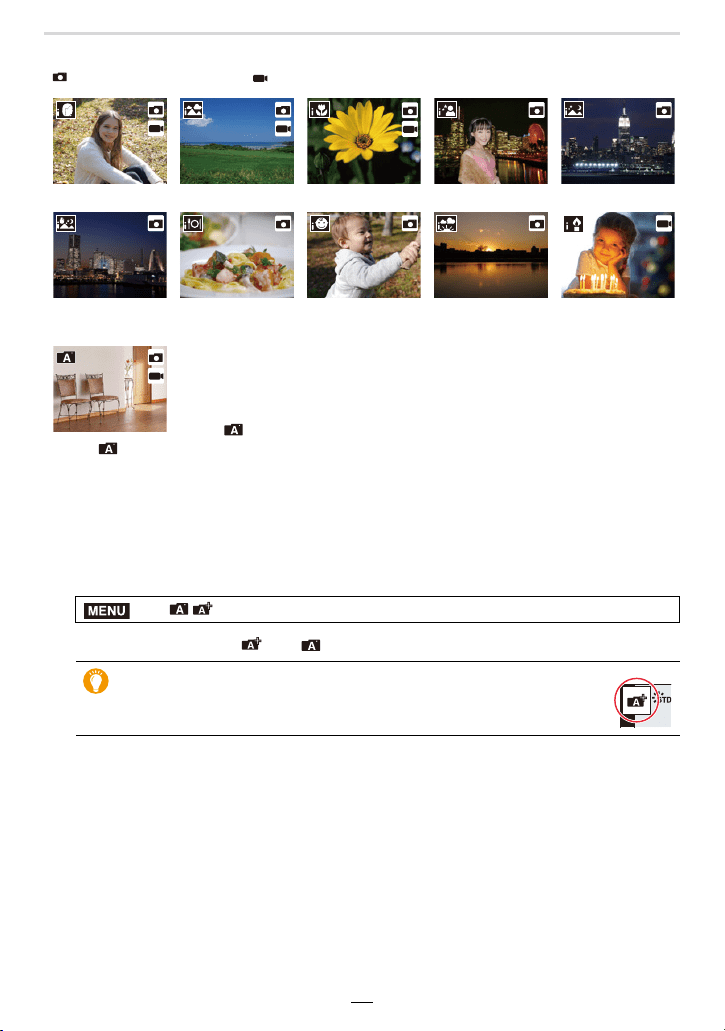
3. Exposure Control Modes
57
The camera detects scenes automatically (Scene Detection)
( : When taking pictures, : When recording videos)
∫ Switching between Snapshot Plus Mode and Snapshot Mode
1 Select the menu item.
2 Press 3/4 to select [ ] or [ ] and then [MENU/SET].
[i-Portrait] [i-Scenery] [i-Macro] [i-Night Portrait]
¢1
[i-Night Scenery]
[iHandheld Night
Shot]
¢2
[i-Food] [i-Baby]
¢3
[i-Sunset] [i-Low Light]
¢1 Displayed when an external flash is used.
¢2 Only displayed when [iHandheld Night Shot] is set to [ON].
¢3 Displayed when children under 3 years old registered in the
camera with the Face Recognition function are detected.
• [ ] is set if none of the scenes are applicable, and the standard
settings are set.
• When recording is performed with the 4K Photo or Post Focus
function, Scene Detection works in the same way as when motion
picture is recorded.
> [Snapshot Mode] > [Snapshot Mode]
It is also possible to display the selection screen by touching the
Recording Mode icon in recording screen.
MENU
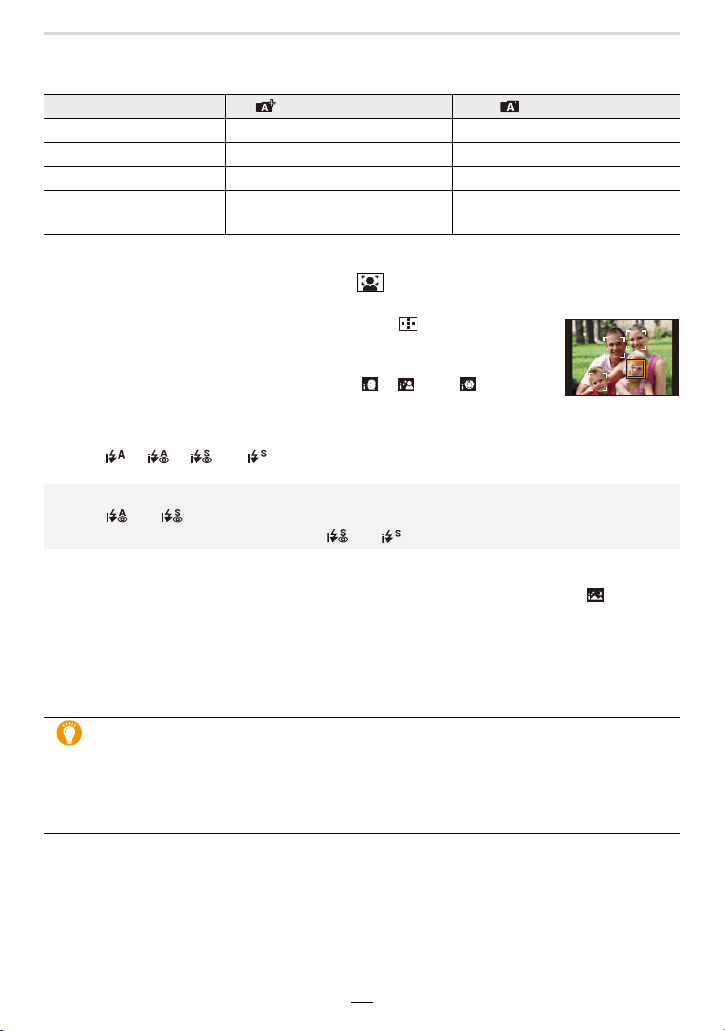
58
3. Exposure Control Modes
Snapshot Plus mode allows you to adjust more settings yourself (see below) as opposed
to Snapshot mode.
∫ Autofocus, Face/Eye Detection, and Face Recognition
The Autofocus mode is automatically set to [ ]. If you touch the subject, the AF tracking
function will work.
• The AF tracking function will also work if you press [ ] and then the
shutter button halfway.
• When [Face Recog.] is set to [ON], and a face similar to the registered one
is detected, [R] is displayed in the top right of [ ], [ ] and [ ].
∫ About flash photography
When using the flash unit included in the scope of delivery, the camera automatically
selects [ ], [ ], [ ] or [ ] according to the type and brightness of the subject.
∫ Scene Detection
• Use a tripod or similar support when the scene detection has been identified as [ ].
When the camera has judged that camera shake is minimal, the shutter speed becomes slower
than normal.
Take care not to move the camera while taking pictures.
• Depending on recording conditions, different scene types may be selected for the same
subject.
Snapshot Plus mode Snapshot mode
Setting the brightness ± —
Setting the color tone ± —
Defocus Control ± —
Menu items that can be
set
Many Few
• Refer to (>146) for details about using external flash units.
• When [ ] or [ ] is set, Red-Eye Removal is enabled.
• The shutter speed will be slower during [ ] or [ ].
The Backlight Compensation
When there is a backlight situation in which the main subject would appear darker, the
camera will automatically attempt to correct it by increasing the brightness of the
picture.
Backlight Compensation works automatically in Snapshot Plus and Snapshot modes.
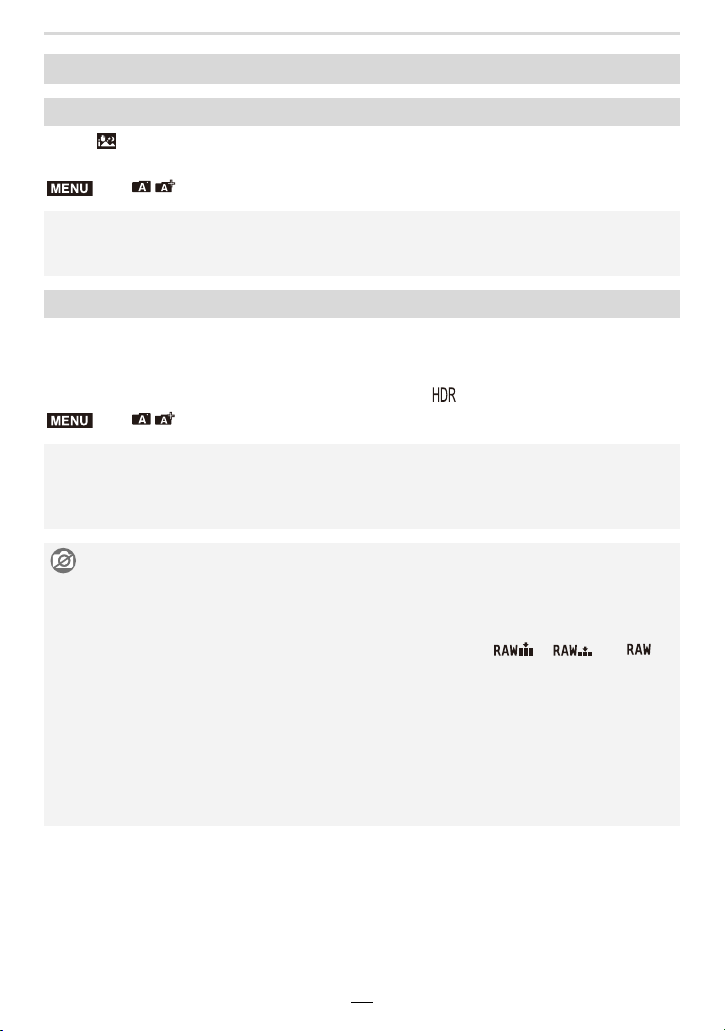
3. Exposure Control Modes
59
When [ ] is detected while taking handheld night shots, pictures of the night scenery will
be taken at a high frame rate and composed into a single picture.
When there is, for example, strong contrast between the background and the subject,
multiple pictures are recorded with differing exposures and combined to create a single
picture rich in gradation.
[iHDR] works automatically as needed. When it does, [ ] is displayed on the screen.
[Snapshot Mode] menu
Taking handheld shots of night scenes ([iHandheld Night Shot])
> [Snapshot Mode] > [iHandheld Night Shot] > [ON]/[OFF]
• The captured image area will be slightly smaller.
• Do not move the camera during the continuous shooting after pressing the shutter button.
• Flash is fixed to [Œ] ([Forced Flash Off]).
Combining pictures into a single picture with rich gradation ([iHDR])
> [Snapshot Mode] > [iHDR] > [ON]/[OFF]
• The captured image area will be slightly smaller.
• Do not move the camera during the continuous shooting after pressing the shutter button.
• You cannot take the next picture until the combination of pictures is complete.
• A moving subject may be recorded with unnatural blurs.
Not available in these cases:
• [iHandheld Night Shot]/[iHDR] do not work for the pictures taken during a motion picture
recording.
• [iHandheld Night Shot]/[iHDR] are not available in the following cases:
– When recording in Continuous
Mode
– When recording 4K pictures
– When recording with the Post
Focus function
– When recording with the Bracket
function
– When [Quality] is set to [ ], [ ] or [ ]
– When using [Time Lapse Shot]
– When using [Stop Motion Animation] (only when
[Auto Shooting] is set)
• [iHDR] is not available in the following case:
– When recording using the flash
MENU
MENU
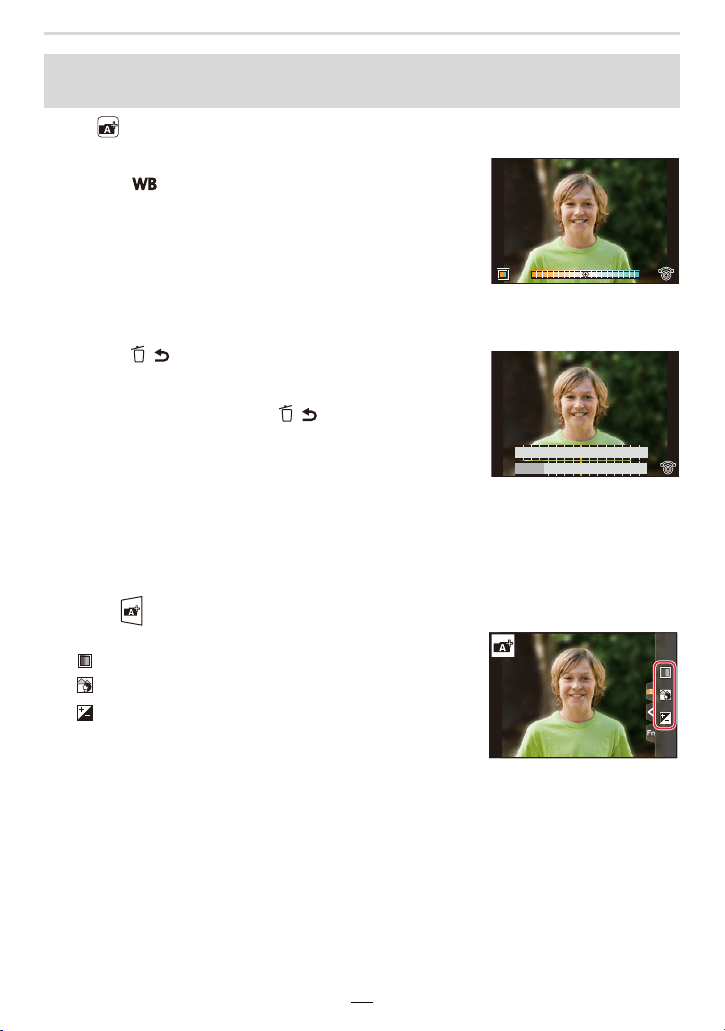
60
3. Exposure Control Modes
Mode:
∫ Setting color
1 Press [ ] (1).
2 Rotate the control dial to adjust color.
• To return to the recording screen, press [MENU/SET].
• The color setting will return to the default level (center
point) when the camera is turned off or the camera is
switched to another exposure control mode.
∫ Taking a picture with a blurred background (Defocus
Control)
1 Press [ / ] / ([Fn3]) to display the setting screen.
2 Set the blurriness by rotating the control dial.
• To return to the recording screen, press [MENU/SET].
• To cancel the setting, press [ / ] / ([Fn3]).
• Autofocus mode is set to [Ø].
The position of the AF area can be determined by touching
the screen at the desired subject area. (Its size cannot be
changed)
∫ Setting brightness
• You can rotate the exposure compensation dial to adjust the brightness. (>90)
To change the settings by using the monitor screen
1 Touch [ ].
2 Touch the item you want to set.
[ ]: Color tone
[ ]: Defocus control
[ ]: Brightness
¢
¢ Displayed when [Exposure Comp.] is set in a function button.
(>49)
3 Drag the slide bar to set.
• To return to the recording screen, press [MENU/SET].
Taking pictures with customized color, defocus control, and brightness
settings
A
AB
B
B
SS
SS
SS
250 125 60 30 15
F
F
2.82.0 4.0 5.6
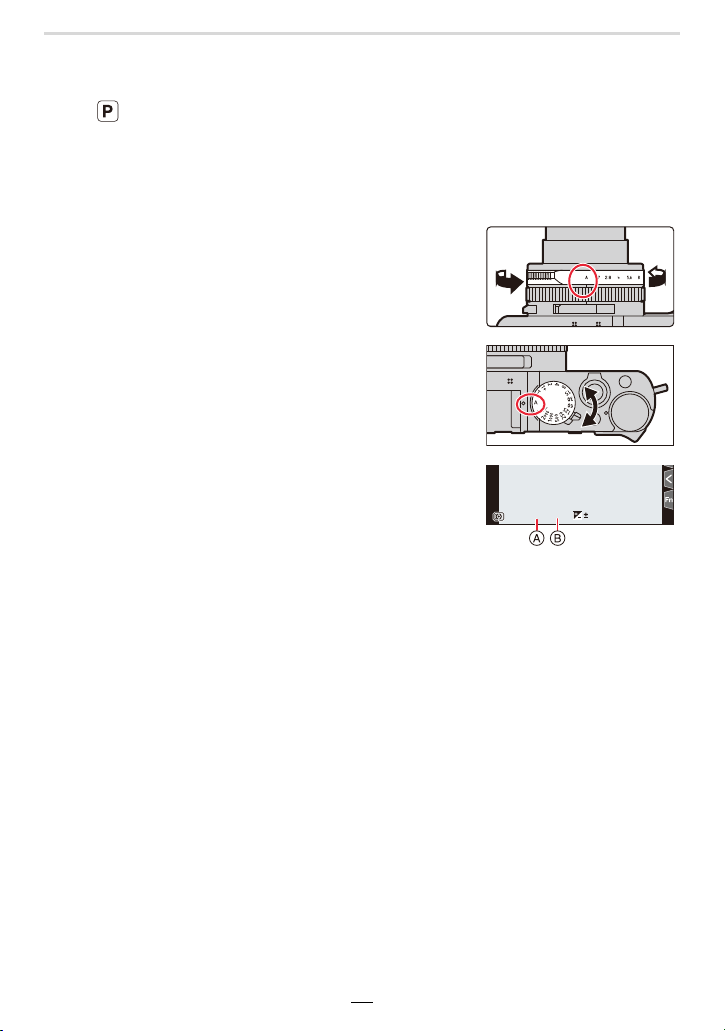
3. Exposure Control Modes
61
Program Mode
Mode:
The camera automatically sets the shutter speed and the aperture value according to the
brightness of the subject.
You can change various settings in the [Rec] menu.
1
Turn the aperture ring to select [A] (AUTO).
2
Turn the shutter speed dial to select [A]
(AUTO).
• Program mode is set and the recording mode icon
changes to [P].
3
Press the shutter button halfway to display
the aperture value and shutter speed value
on the screen.
A Aperture value
B Shutter speed
• If the exposure is not adequate, the aperture value and shutter speed turn red and flash.
0
98
98
98
60
60
1.7
1.7
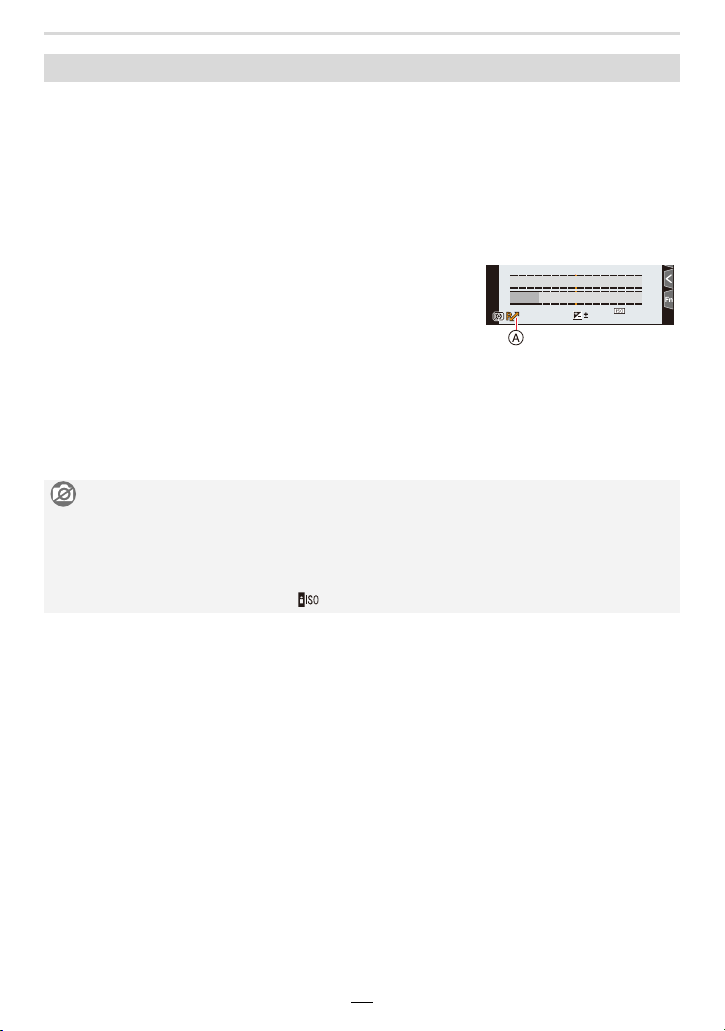
62
3. Exposure Control Modes
∫ Program Shift
Even in Program mode, you can change the aperture value and shutter speed
combination to achieve the desired effects while maintaining the same exposure.
This function is called “Program Shift”.
It enables you to, for example, reduce the area rendered sharply by decreasing the
aperture value or capture a moving subject more dynamically by slowing the shutter
speed.
1 While the numeric values are displayed
(approximately 10 seconds), turn the control dial to
change the value combinations.
A Program Shift indication
• To cancel Program Shift, perform either of the following
operations:
– Set the camera on/off switch to [OFF].
– Rotate the control dial until the Program Shift indication disappears.
• To compensate the exposure, adjust it with the exposure compensation dial. (>90)
Changing the aperture value and shutter speed combination
Not available in these cases:
• Program Shift is not available in the following cases:
– When recording using flash
– When recording 4K pictures
– When recording with the Post Focus function
– When the ISO sensitivity is set to [ ]
2
00
0
60
60
2.8
2.8
98
98
98
SS
SS
SS
F
F
250 125 60 30 15
2.82.0 4.0 5.6
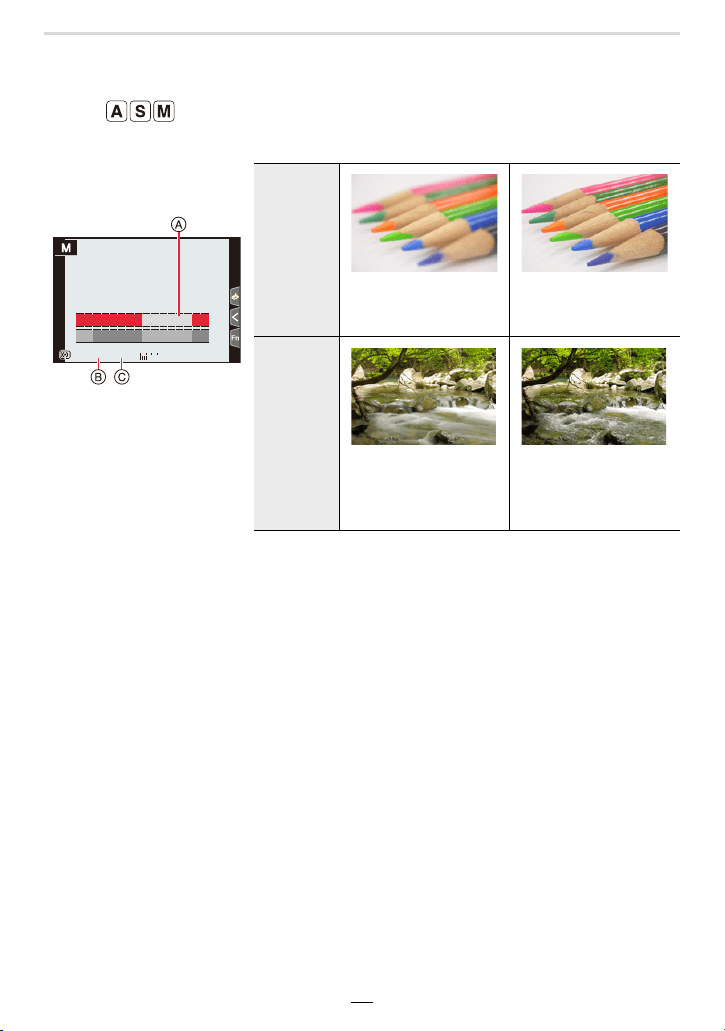
3. Exposure Control Modes
63
Setting Aperture and/or Shutter Speed
Modes:
You can set the exposure using the aperture ring and/or shutter speed dial.
• The effects of the set aperture value and shutter speed are not visible on the monitor image. To
check the effects, please use [Preview]. (>69)
• The brightness of the screen and the recorded pictures may differ. Check the pictures on the
playback screen.
• When you turn the aperture ring or shutter speed dial, an exposure setting balance is
displayed. Unsuitable areas of the range are displayed in red.
• If the exposure is not adequate, the aperture value and the shutter speed turn red and flash
when the shutter button is pressed halfway.
• A faster shutter speed than the one set may be used when you record a video.
(Example: In Manual
Exposure mode)
A Exposure setting balance
B Aperture value
C Shutter speed
Aperture
value
Smaller
The area rendered
sharply is reduced.
Larger
The area rendered
sharply is expanded.
Shutter
speed
Slower
Moving subjects are
rendered increasingly
blurred.
Faster
Moving subjects are
rendered increasingly
sharp.
00
+3
30305.6
SSSSSS
FF
8 15 30 60 125
5.64.02.8 8.0 11
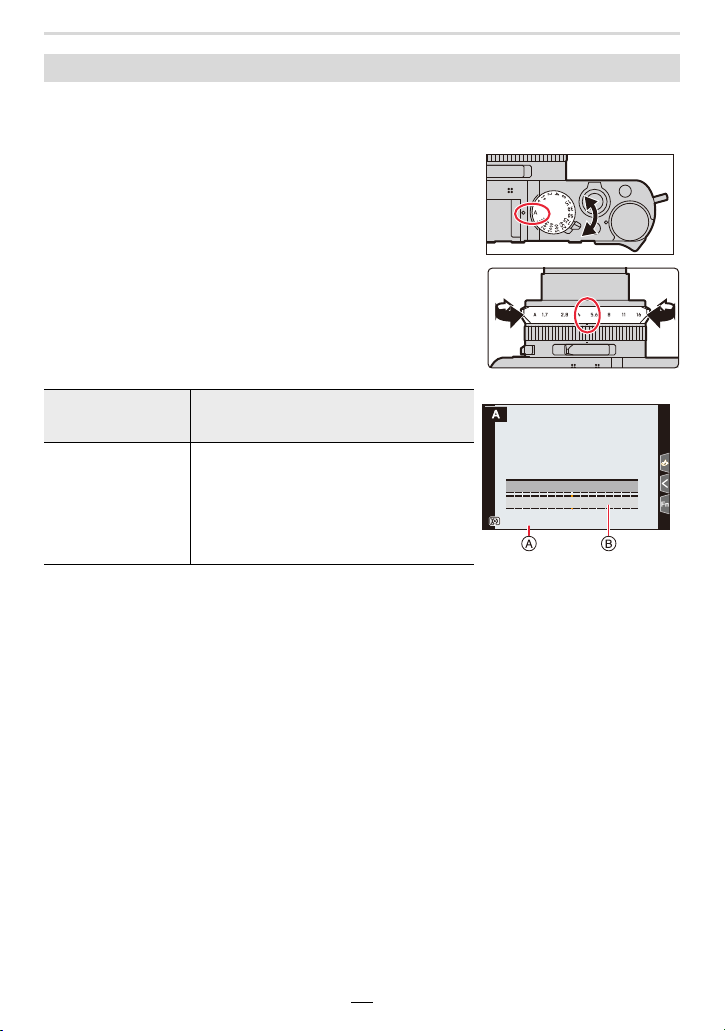
64
3. Exposure Control Modes
Set the aperture value to a higher number if you want a larger in-focus area (in front of and
behind the focused subject), or to a lower number for the opposite.
1 Turn the shutter speed dial to select [A] (AUTO).
2 Turn the aperture ring to select the aperture value.
• Aperture-Priority mode is set and the recording mode icon
changes to [A].
• To compensate the exposure, use the exposure
compensation dial. (>90)
¢ You may not be able to select some values depending on the zoom lens position.
Aperture-Priority mode
Available aperture
values
¢
Shutter speed set
F1.7 to F16
60s to 1/4000s
(When the mechanical shutter is used)
1s to 1/16000s
(When the electronic shutter function is
used)
A Aperture value
B Exposure setting
balance
8.08.08.0
SSSSSS
FF
250 125 60 30 15
8.05.64.0 11 16
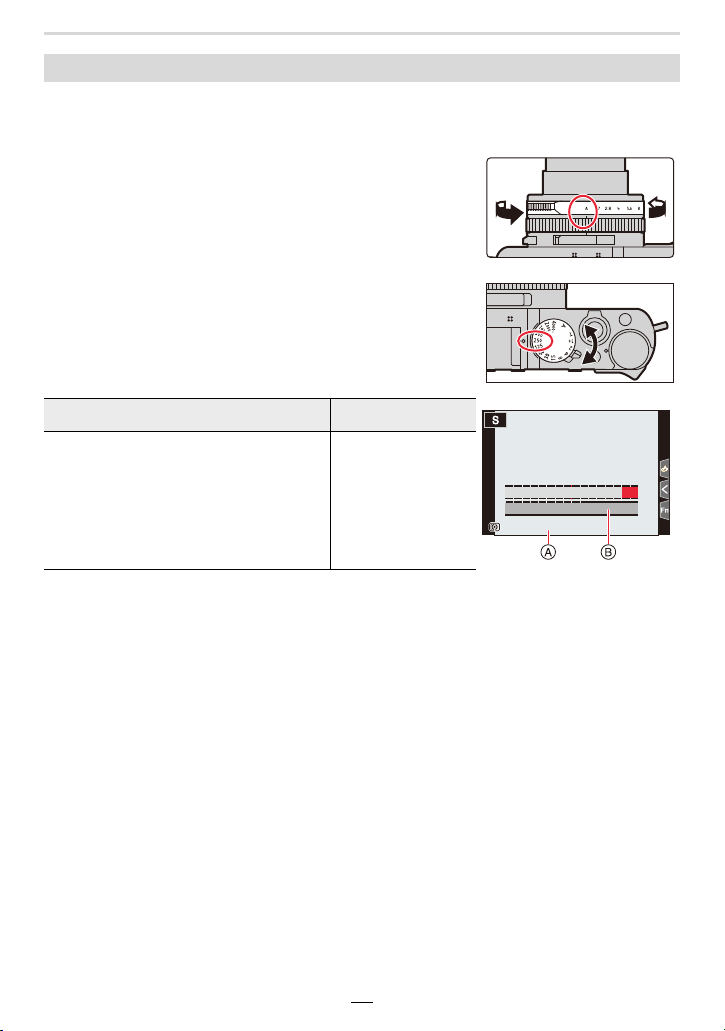
3. Exposure Control Modes
65
Set a faster shutter speed if you want to take a sharp photo of a moving subject, or a
slower speed if you want to create e.g. subject blur to emphasize a movement.
1 Turn the aperture ring to select [A] (AUTO).
2 Turn the shutter speed dial to select the shutter
speed.
• Shutter-Priority mode is set and the recording mode icon
changes to [S].
• To compensate the exposure, use the exposure
compensation dial. (>90)
Shutter-Priority mode
Available Shutter Speed Aperture value set
60s to 1/4000s
(When the mechanical shutter is used)
1s to 1/16000s
(When the electronic shutter function is
used)
F1.7 to F16
A Shutter speed
B Exposure setting
balance
250250250
SSSSSS
FF
60 125 250 500 1000
2.02.84.0
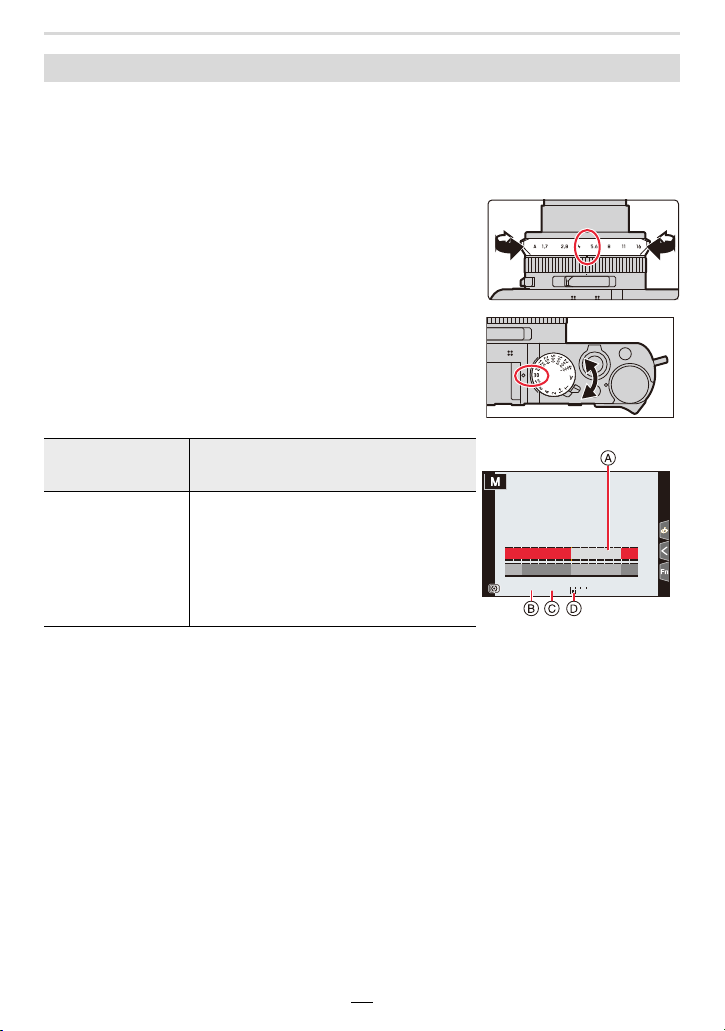
66
3. Exposure Control Modes
This mode allows you to determine the exposure by manually setting both shutter speed
and aperture value. The manual exposure assistance scale appears at the bottom of the
screen to indicate the over-/under-/ correct exposure resulting from the respective
settings.
1 Turn the aperture ring to select the aperture value.
2 Turn the shutter speed dial to select the shutter
speed.
• Manual Exposure mode is set and the recording mode
icon changes to [M].
Manual Exposure mode
Available aperture
values
¢1
Shutter speed set
¢2
F1.7 to F16
[T] (Time)
60s to 1/4000s
(When the mechanical shutter is used)
1s to 1/16000s
(When the electronic shutter is used)
¢1 You may not be able to select some values depending on
the zoom lens position.
¢2 You may not be able to select some shutter speeds
depending on the aperture value.
A Exposure setting
balance
B Aperture value
C Shutter speed
D Manual Exposure
Assistance
00
+3
3030305.6
SSSSSS
FF
8 15 30 60 125
5.64.02.8 8.0 11
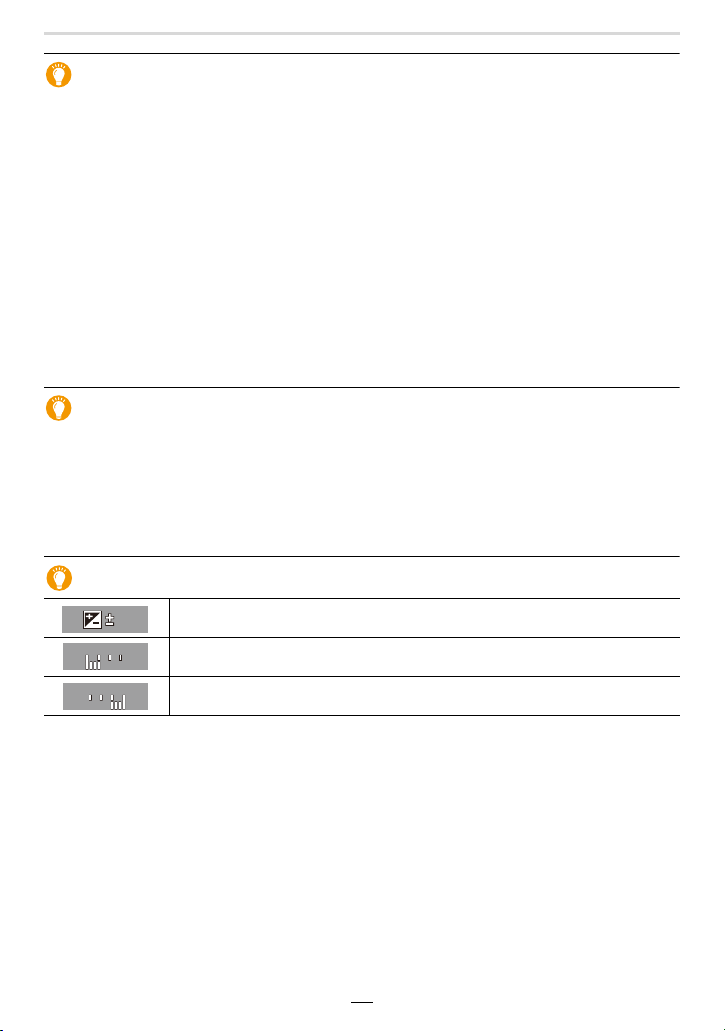
3. Exposure Control Modes
67
Setting the shutter speed to values not available on the shutter speed dial
Turn the control ring or control dial to set the following shutter speeds. Check the shutter
speed on the screen.
The available shutter speeds vary depending on the [Shutter Type] setting. Refer to
(>176) for information on how to change the setting.
Higher shutter speeds than 1/4000s or slower shutter speeds than 1s
1 Set the [Shutter Type] in the [Rec] menu (>176)
2 Turn the shutter speed dial to select [4000j] or [1i]
3 Turn the control ring or control dial to select the shutter speed
Shutter speed setting in 1/3 EV steps
• You can adjust the shutter speed set with the dial in the range of n 2/3 steps.
Example: To set the shutter speed to 1/400s
1 Turn the shutter speed dial to select [500]
2 Turn the control ring or control dial to select [400]
Adjusting the ISO sensitivity based on the set shutter speed and aperture
values
When the [ISO] sensitivity is set to [AUTO], the camera sets the ISO sensitivity
automatically so that the exposure will be appropriate for the set shutter speed and
aperture value.
• Depending on recording conditions, an appropriate exposure may not be possible or the ISO
sensitivity may become higher.
Manual Exposure Assistance
• The Manual Exposure Assistance is an approximation. We recommend checking the pictures
on the playback screen.
The exposure is appropriate.
Set to a faster shutter speed and/or a larger aperture value.
Set to a slower shutter speed and/or a smaller aperture value.
000
++
30
+
30
000
−
3
−
3
68
3. Exposure Control Modes
∫ About [T] (Time)
When you set the shutter speed to [T] (Time), the shutter stays open when the shutter
button is pressed fully (up to approximately 29 minutes).
The shutter will close when the shutter button is pressed again.
Use this function when you want to keep the shutter open for a long time to take pictures of
fireworks, a night scene etc.
• It can only be used with Manual Exposure Mode.
• When the shutter speed is set to [T] (Time), we recommend using a tripod and
releasing the shutter remotely by connecting the camera to a smartphone via Wi-Fi
connection to prevent camera shake. [B] (Bulb) is also available when connected via
Bluetooth. (>234, 236)
• When you take pictures with the shutter speed set to [T] (Time), the pictures may have
higher noise levels. If you want to suppress noise, we recommend setting [Long Shtr
NR] to [ON] in the [Rec] menu. (>174)
Not available in these cases:
– When recording using flash (only when [Flash Synchro] is set to [2ND])
– When recording 4K pictures
– When recording with the Post Focus function
– When recording with the Bracket function
– When [Silent Mode] is set to [ON]
– When using the electronic shutter function
– When [HDR] is set to [ON]
– When using [Time Lapse Shot]
– When using [Stop Motion Animation] (only when [Auto Shooting] is set)
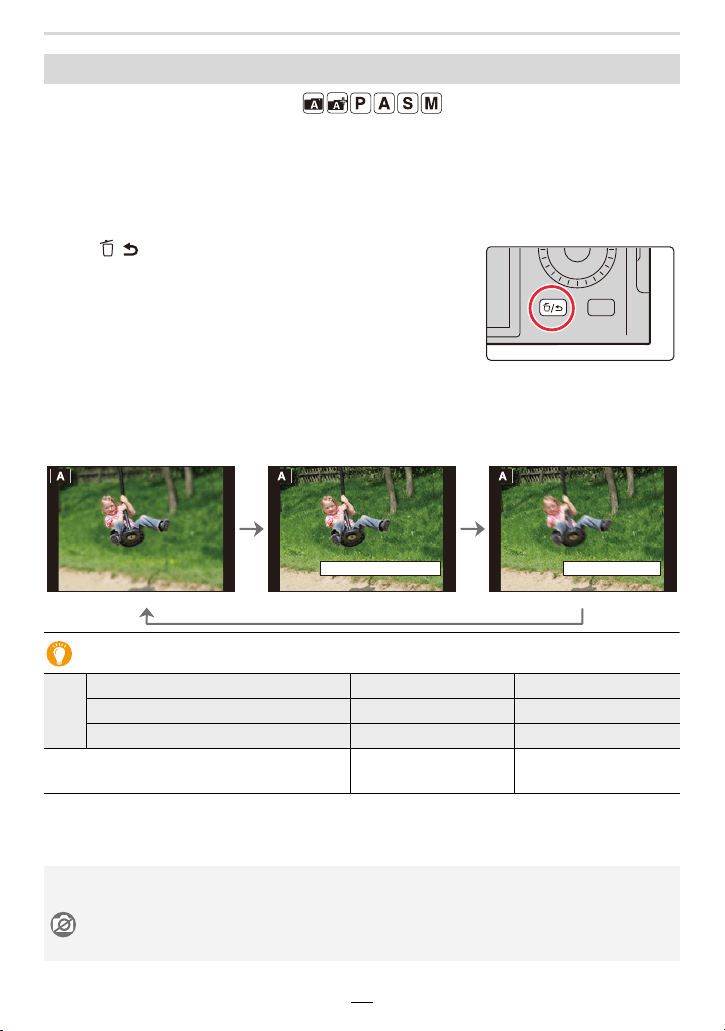
3. Exposure Control Modes
69
Available in the following modes:
•
To confirm the effects of the aperture setting:
You can preview the depth of field (how much of the fore-
and background will be rendered sharply) before taking a picture by selecting different aperture values.
• To confirm the effects of the shutter speed setting: Movement can be confirmed (You can
preview how sharp (unsharp) a moving subject will be rendered) by displaying the actual
picture that will be taken with that shutter speed.
Press [ / ] / ([Fn3]) to switch between different
preview screens.
• [Preview] is assigned to [Fn3] by default. (>49)
Depth of field properties
¢1 Recording conditions
¢2 Example: When you want to take a picture with a blurred background etc.
¢3
Example: When you want to take a picture with as much as possible of the fore- and background rendered sharply.
Confirming the effects of the aperture and shutter speed settings (Preview Mode)
Normal recording screen
Aperture effect preview
screen
Aperture effect: ON
Shutter speed effect: OFF
Shutter speed effect
preview screen
Aperture effect: ON
Shutter speed effect: ON
¢1
Aperture value Smaller Larger
Focal length Longer Shorter
Distance to the subject Closer Farther away
Depth of field (sharply rendered fore- and
background)
Shallower
¢2
Deeper
¢3
• It is possible to record while in Preview mode.
• Range for shutter speed effect check is 8s to 1/16000s.
Not available in these cases:
• Preview mode is not available when recording with [4K Pre-Burst].
6KWU6SHHG(IIHFW2Q
Fn3
([LW3UHYLHZ
Fn3
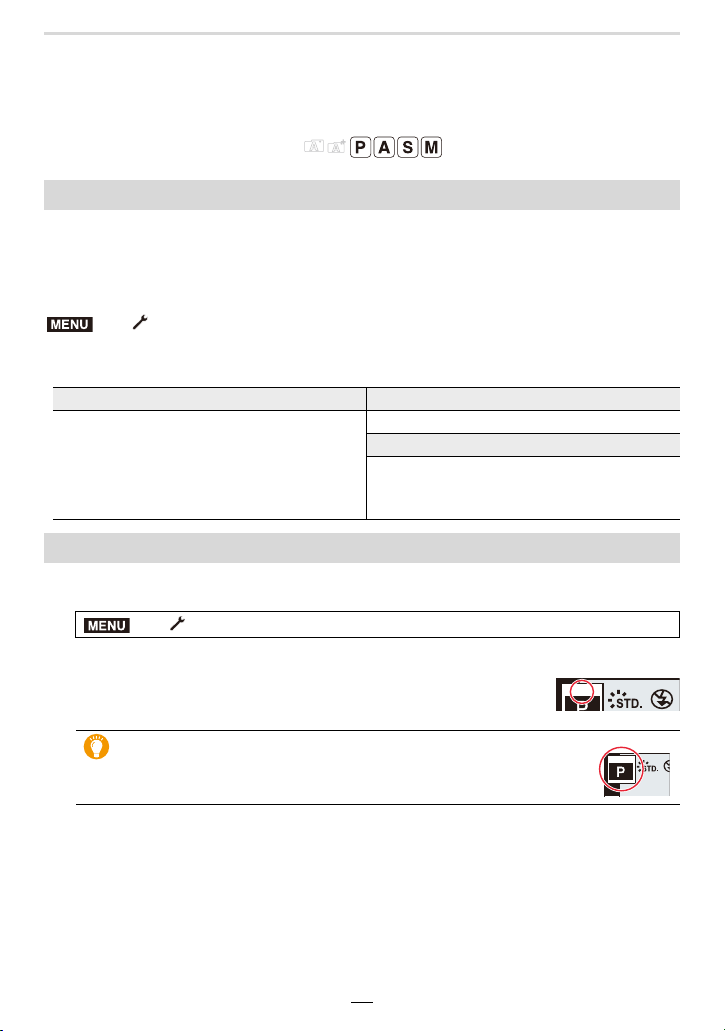
70
3. Exposure Control Modes
Registering your preferred settings (Custom
Set)
Available in the following modes:
You can register up to 3 combinations of your preferred menu settings.
Preparations:
Change the settings of menus such as [Rec], [Motion Picture], and [Custom] to your
preferred settings.
• The following menu items are not registered as custom settings.
1 Select the menu item.
2 Press 3/4 to select the custom setting you want to use, and then [MENU/SET].
• The settings are switched to those settings you selected for the
custom set.
Registering personal menu settings (Registering custom settings)
> [Setup] > [Cust.Set Mem.] >
Custom set where you want to register settings
[Custom] menu [Setup] menu
– Data registered with [Face Recog.]
– The [Profile Setup] setting
– All menus
[Playback] menu
– [Rotate Disp.]
– [Picture Sort]
– [Delete Confirmation]
Calling up a registered set of custom settings
> [Setup] > [Utilize Custom Set feature]
You can also display the selection screen by touching the
recording mode icon on the recording screen.
MENU
MENU
C1C 1C1
C1
C1
C1

3. Exposure Control Modes
71
∫ Changing registered settings
Even if the menu settings are changed temporarily while any one of the custom settings is
selected, the currently registered settings will remain unchanged.
To change the currently registered settings, overwrite the registered data using [Cust.Set
Mem.] in the [Setup] menu.
Quickly calling up custom sets
Setting a function button to [Utilize Custom Set feature] allows you to switch quickly to
your preferred settings by pressing that function button.
1 Use [Fn Button Set] in the [Custom] ([Operation]) menu to set the [Utilize Custom
Set feature] in the desired function button. (>49)
2 Press the function button.
3 Use 2/1 to select custom set and press [MENU/SET].
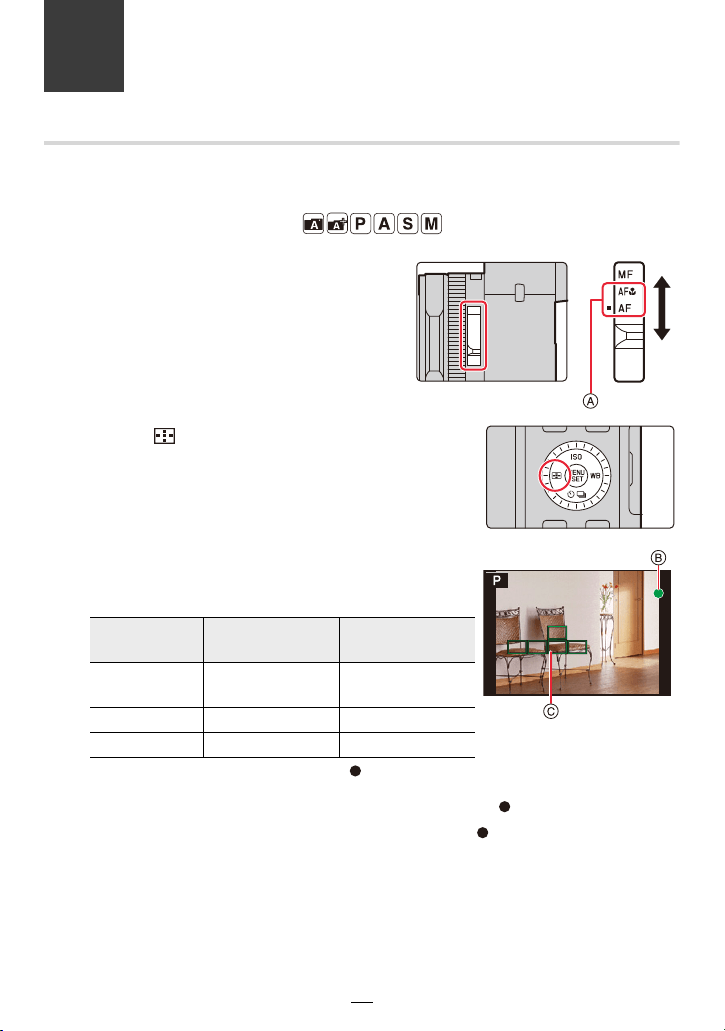
72
4. Focus, Exposure Compensation and
Color tone Settings
Automatic Focusing
Available in the following modes:
1
Move the focus mode selector
switch to [AF] or [AF#].
• The focus mode will be set. (>74)
A: Align the setting with the index mark
2
Press [ ] (2).
3
Press 2/1 to select the AF mode and then
[MENU/SET].
• The Autofocus mode will be set. (>75)
4
Press the shutter button halfway.
• Autofocus will be activated.
• The focus indication is displayed as [ ] in a dark
environment, and focusing may take longer than usual.
• If the camera detects stars in the night sky after displaying [ ], Starlight AF will be
activated. When focus is achieved, the focus indication [ ] and AF areas in focus are
displayed. (Starlight AF cannot perform detection on the edges of the image area.)
Focusing
When the subject
is focused
When the subject
is not focused
Focus
indication B
On Flashes
AF area C Green —
Sound Beeps 2 times Beeps 4 times
LOW
LOW
STAR
4. Focus, Exposure Compensation and Color tone Settings
73
• In the Snapshot modes, the camera performs the same operation as [AF] even if you set the
focus mode selector switch to [AF#] (AF Macro).
• If you zoom in/out after focusing on a subject, the focus setting may no longer be correct for
that subject. In that case, re-focus.
• When the lighting is low making it difficult for Autofocus, set [Monitor Display Speed] or [EVF
Display Speed] to [60fps].
Subjects and recording conditions which make it difficult for Autofocusing
• Fast-moving subjects, extremely bright subjects or subjects without contrast.
• When recording subjects through windows or near shiny objects.
• When it is dark or when the camera is not held still.
• When the camera is too close to the subject or when taking a picture of both distant and near
subjects.
How to adjust the composition while maintaining the Autofocus setting
When recording with [Ø], follow the steps below if you want to take a picture with an
off-center subject. (When [AFS/AFF/AFC] is set to [AFS])
1 Aim the AF area at the subject.
2 Press the shutter button halfway.
• This will lock the focus and exposure settings.
3 While continuing to press and hold the shutter button halfway, move the camera to
compose the picture you want to take.
4 Press the shutter button to take the picture.
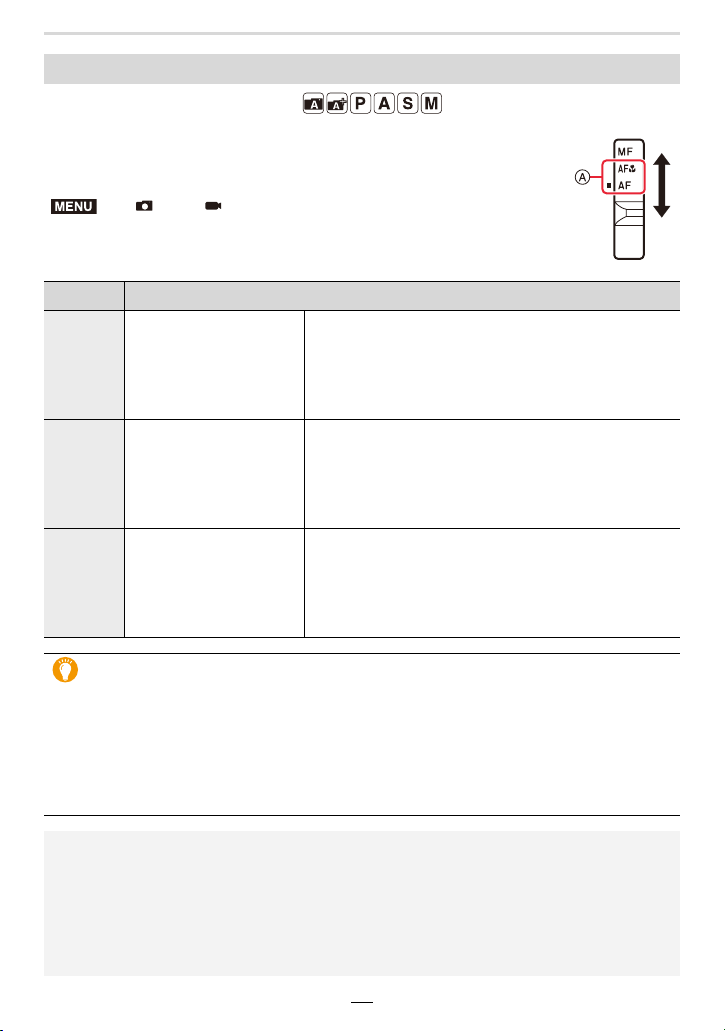
74
4. Focus, Exposure Compensation and Color tone Settings
Available in the following modes:
Three automatic focusing modes are available.
Preparation:
Set the focus mode selector switch to [AF] or [AF#].
A:Align the setting with the index mark
Setting the focusing mode (AFS/AFF/AFC)
> [Rec]/ [Motion Picture] > [AFS/AFF/AFC]
Mode Recommended scenes
[AFS]
The subject is still
(Scenery, anniversary
photograph, etc.)
“AFS” is an abbreviation of “Autofocus Single”.
The focus setting stays locked while the shutter button
is pressed halfway, so you can change the composition
with the same focus setting. The shutter button is
locked until focusing is successful.
[AFF]
The subject's movement
cannot be predicted
(Children, pets, etc.)
“AFF” is an abbreviation of “Autofocus Flexible”.
Whenever the subject moves while the shutter button is
pressed halfway, the focus setting is readjusted
automatically accordingly. The shutter can be released
at any time.
[AFC]
The subject is moving
(Sport, trains, etc.)
“AFC” is an abbreviation of “Autofocus Continuous”.
In this mode, while the shutter button is pressed
halfway, focusing is constantly performed to match the
movement of the subject. The shutter can be released
at any time.
When using [AFF], [AFC]
• When the subject is moving, focusing is performed by predicting the subject position at the
time of recording. (Movement prediction)
• It may take time to focus on the subject when you zoom from Wide to Tele or suddenly
change the subject from a distant one to a nearby one.
• Press the shutter button halfway again when it is difficult to focus on the subject.
• While the shutter button is pressed and held halfway, shake may be seen on the screen.
• In the following cases, [AFF] or [AFC] operates in the same way as [AFS]:
– When recording with [4K Burst(S/S)]
– In low light situations
• The Autofocus mode is fixed to [AFS] when Panorama Shot mode is set.
• [AFF] is not available when recording 4K pictures. [Continuous AF] works during recording.
• The focus mode setting cannot be changed when recording is performed with the Post Focus
function.
MENU
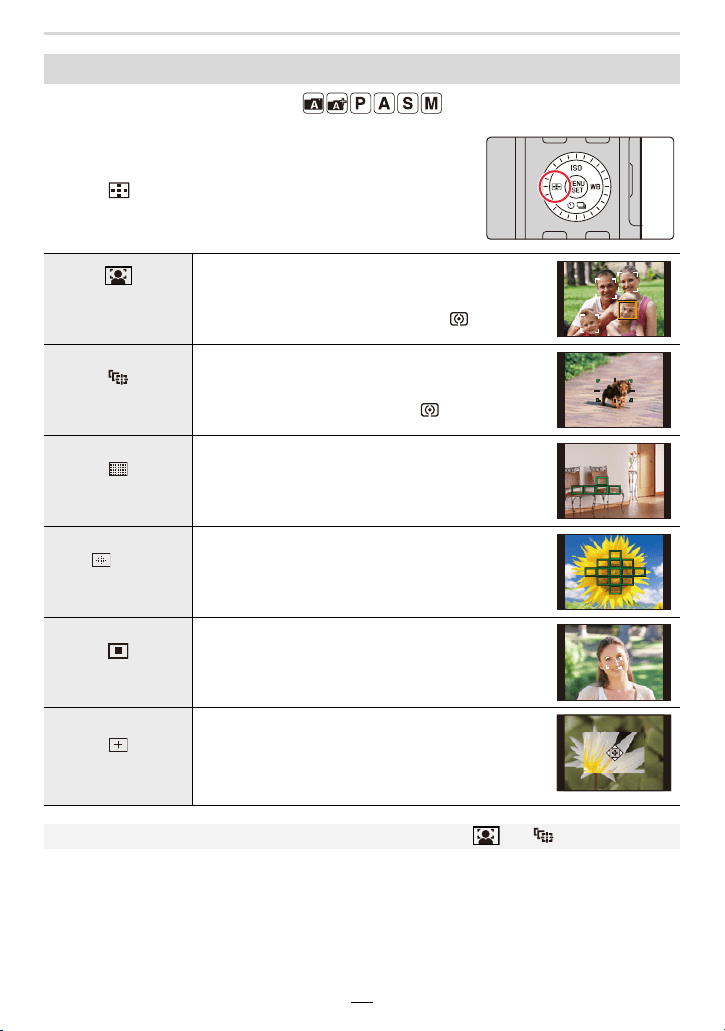
4. Focus, Exposure Compensation and Color tone Settings
75
Available in the following modes:
You can select the Autofocus metering method that suits the
positions and number of the subjects in the picture.
Press [ ] (2).
Setting the Autofocus mode
([Face/Eye
Detection])
The camera automatically detects the faces and
eyes of subjects. It sets the focus on the eye that is
closer to the camera and the exposure based on the
face (when [Metering Mode] is set to [ ]). (>76)
([Tracking])
The camera keeps focusing and adjusting the
exposure automatically to the specified moving
object. (Dynamic Tracking)
(When [Metering Mode] is set to [ ]) (>77)
([49-Area])
Subjects in up to 49 AF areas can be focused.
This is effective when a subject is not in the center
of the screen.
, etc.
([Custom Multi])
You can freely combine any number of the 49 AF
areas for an optimum shape of the total AF area for
the subject. (>78)
([1-Area])
The camera focuses on the subject in the single AF
area.
([Pinpoint])
You can achieve a more precise focus setting on a
subject detail that is smaller than [Ø].
If you press the shutter button halfway, the monitor
image will be enlarged to make it easier for you to
check the focus setting.
• In Snapshot and Snapshot Plus modes, you can select either [ ] or [ ].
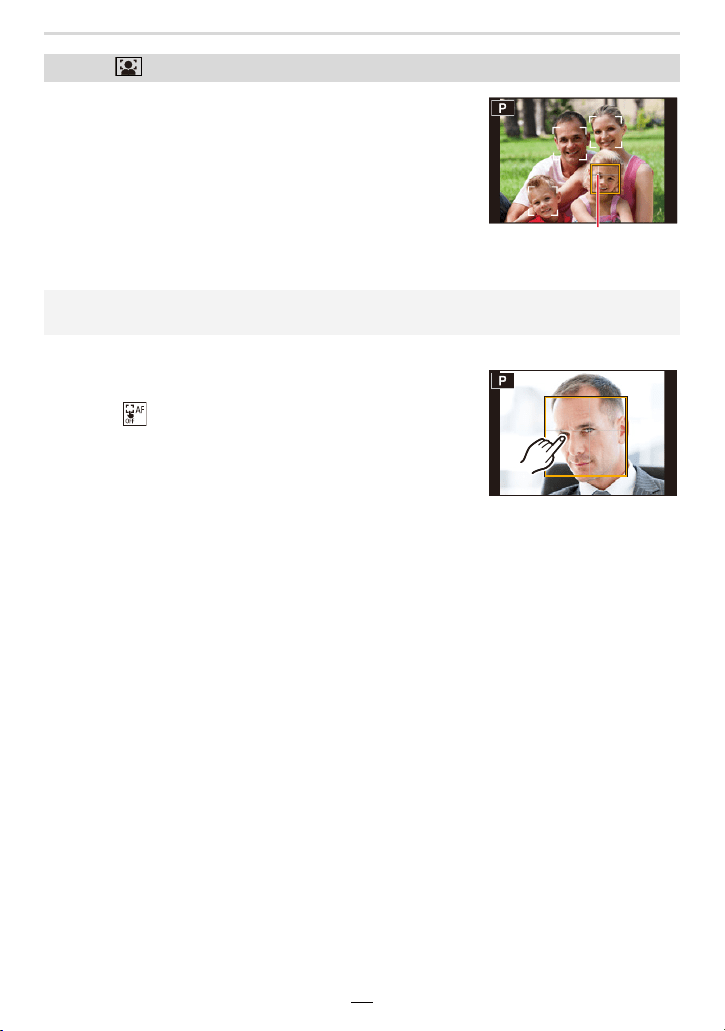
76
4. Focus, Exposure Compensation and Color tone Settings
When the camera detects faces, AF areas are displayed and
the eye that will be focused on are indicated.
A: Eye used for focusing
∫ Changing the eye to be focused on
Touch the eye to be focused on.
• Touching [ ] or pressing [MENU/SET] will cancel the setting
of the eye that has been focused on.
About [ ] ([Face/Eye Detection])
Yellow: The color changes to green when the shutter button
is pressed halfway and focusing is successful.
White: This is displayed when more than one face is
detected. Faces that are at the same distance as the
face inside the yellow AF area will also be rendered
sharply.
• The camera can detect the faces of up to 15 persons.
Only the eyes of a face that is focused on can be detected.
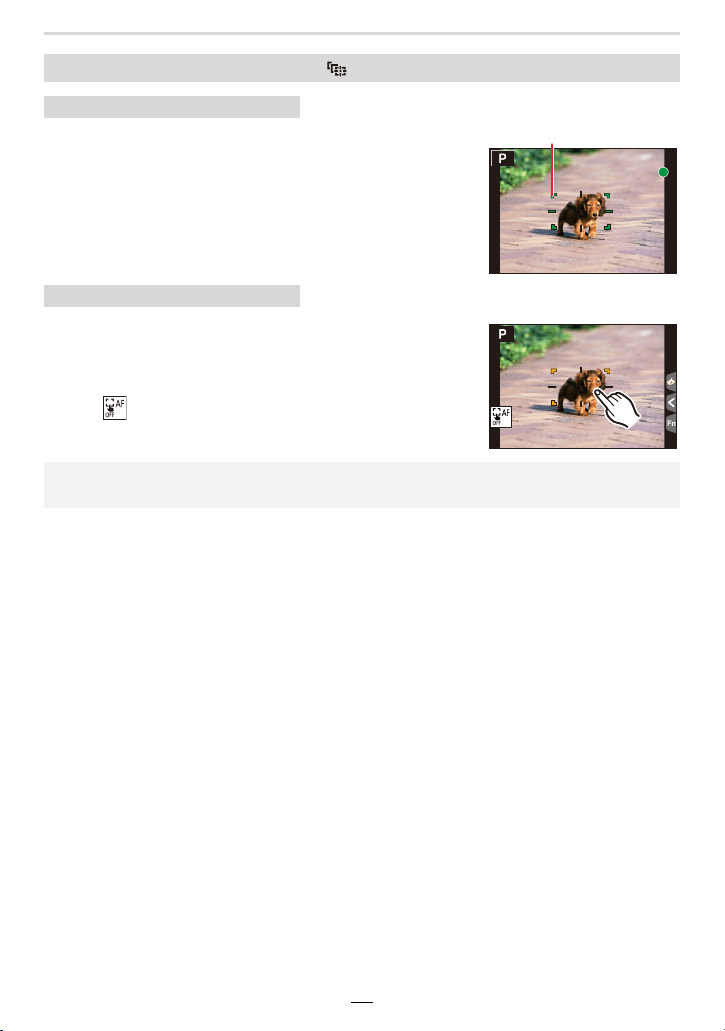
4. Focus, Exposure Compensation and Color tone Settings
77
Aim the AF Tracking area/frame B at the subject
and then press the shutter button halfway.
• The AF frame turns green when the subject is detected.
• The AF frame turns yellow when you release the shutter button.
• Press [MENU/SET] to clear the lock.
Touch the subject.
• Perform this operation with the Touch Shutter function canceled.
• The AF Tracking frame turns yellow while the subject is locked.
• Touch [ ] to clear the lock.
Locking the subject to be tracked ([ ] ([Tracking]))
Button operation
Touch operation
• The focusing range will be the same as that of [AF#] (AF Macro). (>86)
• The AF Tracking frame will flash in red and then disappear if the lock fails.
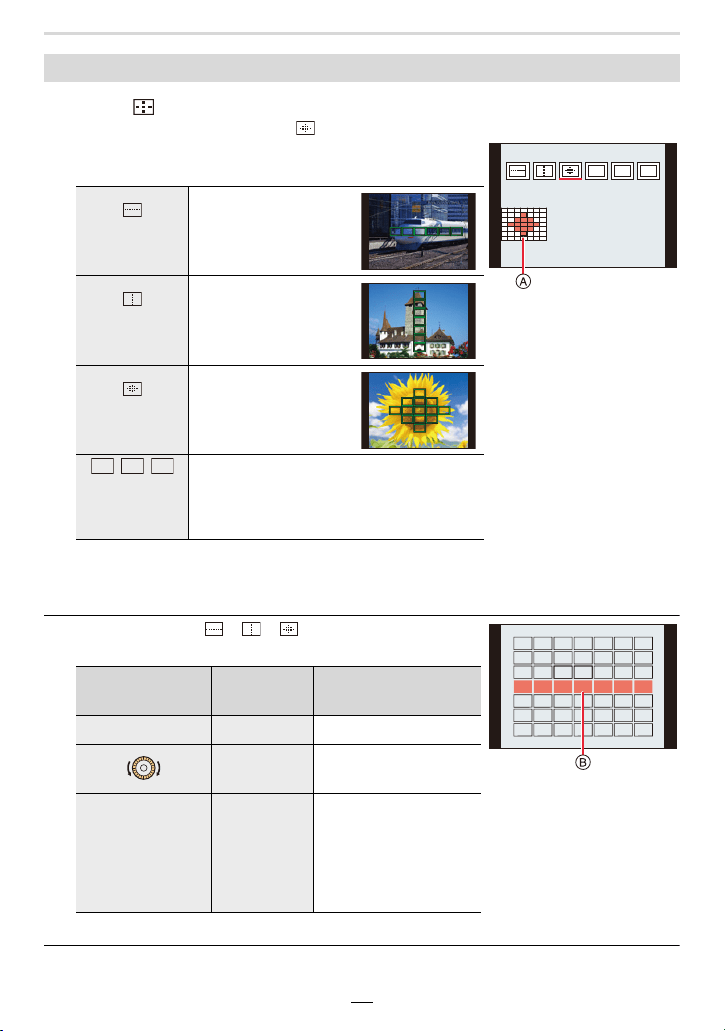
78
4. Focus, Exposure Compensation and Color tone Settings
1 Press [ ] (2).
2 Select a Custom Multi icon ([ ], etc.), and press 3.
3 Press 2/1 to select a setting and then 4.
A The current shape of the AF area group
• The AF area setting screen is displayed.
4 Select AF areas.
B The selected AF areas
When selecting [ ]/[ ]/[ ]
1 Changing the shape of the AF area group.
2 Press [MENU/SET] to set.
Setting the shape of an AF area group ([Custom Multi])
([Horizontal
Pattern])
This shape is
convenient for taking
panning or similar
shots.
([Vertical
Pattern])
This shape is
convenient for
recording objects,
such as buildings.
([Central
Pattern])
This shape is
convenient when you
want to bring the
central area into focus.
//
([Custom1]/
[Custom2]/
[Custom3])
You can select a customized setting.
Button operation
Touch
operation
Description of
operation
3/4/2/1 Touching Moves the position
Pinching
out/in
Changes the size
[DISP] [Reset]
First time:
The position is reset to
the center
Second time:
The size is reset to the
default setting
ヤピヤビヤヒ
ヤヒ
ヤビ
ヤピ
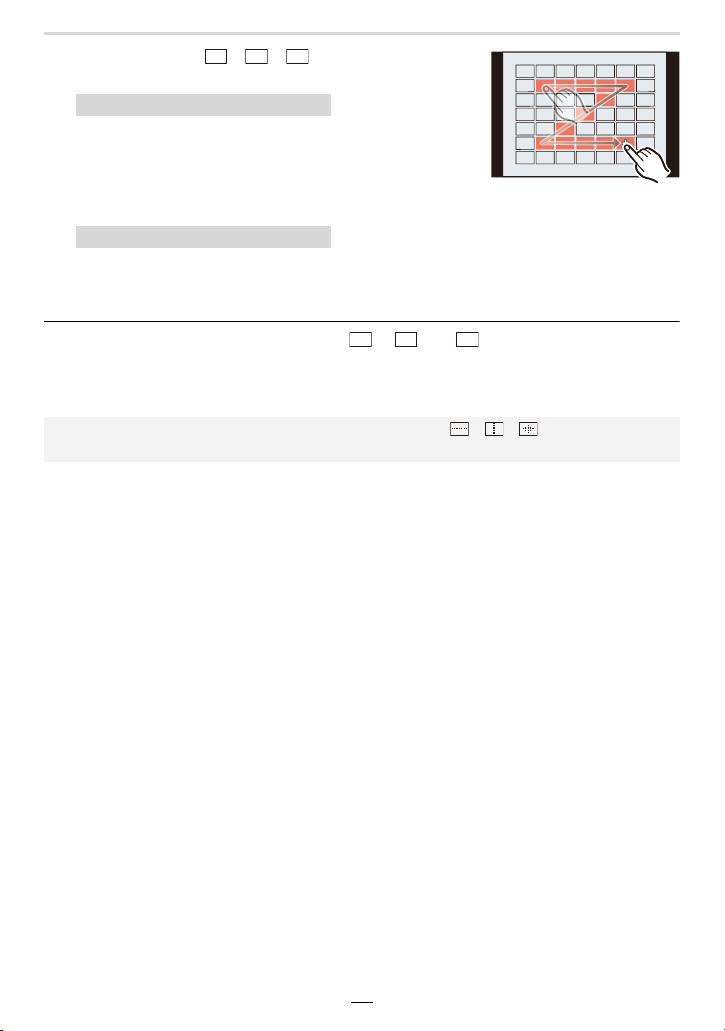
4. Focus, Exposure Compensation and Color tone Settings
79
When selecting [ ]/[ ]/[ ]
1 Changing the shape of an AF area group.
Press 3/4/2/1 to select the AF area, and then
[MENU/SET] to set (repeat).
• The setting is canceled when [MENU/SET] is pressed
again.
• To cancel all selections, press [DISP].
Touch or drag to select AF areas.
• To cancel the selection of a particular AF area, touch it again.
2 Press [QM] / ([Fn2]) to set.
∫ Registering the set AF area group to [ ], [ ] or [ ]
1 On the screen in step
3 on (>78), press 3.
2 Press 3/4 to select to which of the custom slots the setting will be registered, and
then [MENU/SET].
Button operation
Touch operation
• Turning off the camera will return the setting adjusted with [ ]/[ ]/[ ] back to the default
setting.
ヤヒ
ヤビ
ヤピ
ヤヒ
ヤビ
ヤピ

80
4. Focus, Exposure Compensation and Color tone Settings
• Autofocus mode cannot be set in the following case.
– When recording with the Post Focus function
• The AF metering method is fixed to [Ø] in the following cases.
– When using Digital Zoom
– When using [Miniature Effect] in [Filter Settings]
([Face/Eye Detection])
• The camera may not detect faces in certain situations, such as when they are moving fast. In
such situations, the camera switches to [ ].
([Tracking])
• In situations where AF Tracking does not work correctly due to certain recording conditions,
such as when the subject is small or the location is dark, [Ø] is performed.
• [ ] cannot be used with [Time Lapse Shot].
• In the following cases, [ ] operates as [Ø].
– When using [Sepia]/[Monochrome]/[Dynamic Monochrome]/[Rough Monochrome]/[Silky
Monochrome]/[Soft Focus]/[Star Filter]/[Sunshine] in [Filter Settings]
– When using [Monochrome]/[Monochrome HC]/[Monochrome HC+] in [Photo Style]
([Custom Multi])
• AF areas at the center are brought into focus during 4K photo recording or video recording
using [Continuous AF].
([Pinpoint])
• In the following cases, [ ] operates as [Ø]:
– When recording videos
– When recording 4K pictures
• [ ] cannot be set in the following case:
– When [AFS/AFF/AFC] in the [Rec] menu is set to [AFF]/[AFC]
Restrictions concerning Autofocus mode
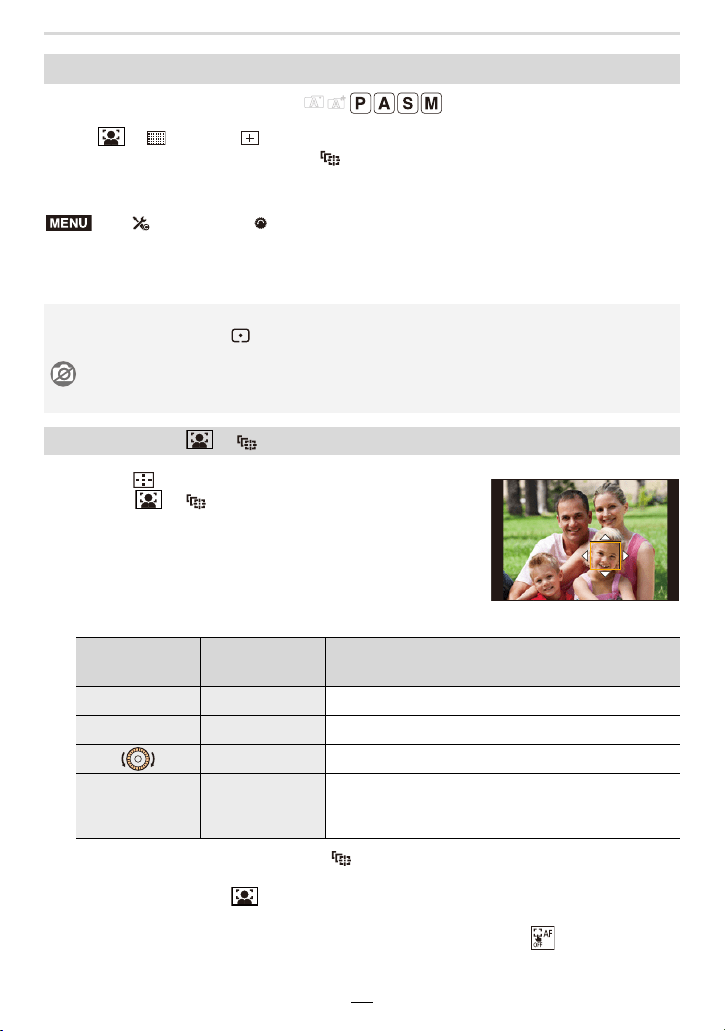
4. Focus, Exposure Compensation and Color tone Settings
81
Available in the following modes:
When [ ], [ ], [Ø] or [ ] in Autofocus mode are selected, you can change the
position and size of the AF area. With [ ], you can set the lock-on position.
• Perform these operations with the touch shutter function activated.
• You can also display the AF area setting screen by touching the recording screen.
• You can use the [Custom] ([Focus / Release Shutter]) menu to set the display method for the
AF area according to your preference. (>180)
1 Press [ ] (2).
2 Select [ ], [ ] or [Ø] and press 4.
• The AF area setting screen appears.
3 Change the position and size of the AF area.
¢ This operation is not available for [ ].
4 Press [MENU/SET] to set.
• If you have selected [ ], an AF area with the same function as [Ø] will be set in the
set position.
Setting of the AF area is cleared when [MENU/SET] is pressed or [ ] is touched.
Changing the position and size of the AF area
> [Custom] > [Operation] > [Touch Settings] > [Touch AF] >
[AF]
• The spot metering target can also be moved to match the AF area when the exposure
[Metering Mode] is set to [ ].
Not available in this case:
– When using Digital Zoom
When selecting [ ], [ ], [Ø]
Button
operation
Touch
operation
Description of operation
3/4/2/1 Touching Moves the position
s Pinching out/in Changes the size (in small steps)
¢
s Changes the size
¢
[DISP] [Reset]
First time: The position is reset to the center
Second time: The size is reset to the default
setting
¢
MENU
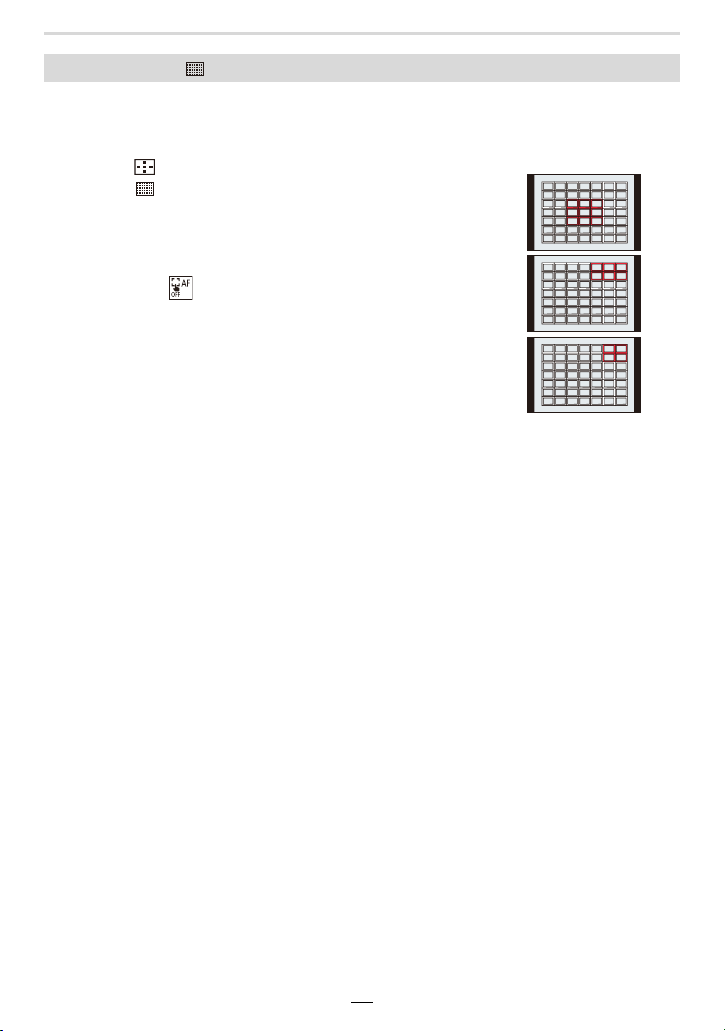
82
4. Focus, Exposure Compensation and Color tone Settings
When selecting [ ]
You can set the focus position by selecting an AF area group. The total AF area, which is
divided into 49 boxes, is divided into groups consisting of 9 boxes each (6 or 4 boxes for
the groups located at the edges of the screen).
1 Press [ ] (2).
2 Select [ ] and press 4.
• The AF area setting screen appears.
3 Press 3/4/2/1 to select an AF area group.
4 Press [MENU/SET] to set.
• Setting of the AF area is cleared when [MENU/SET] is
pressed or [ ] is touched.
Examples of group
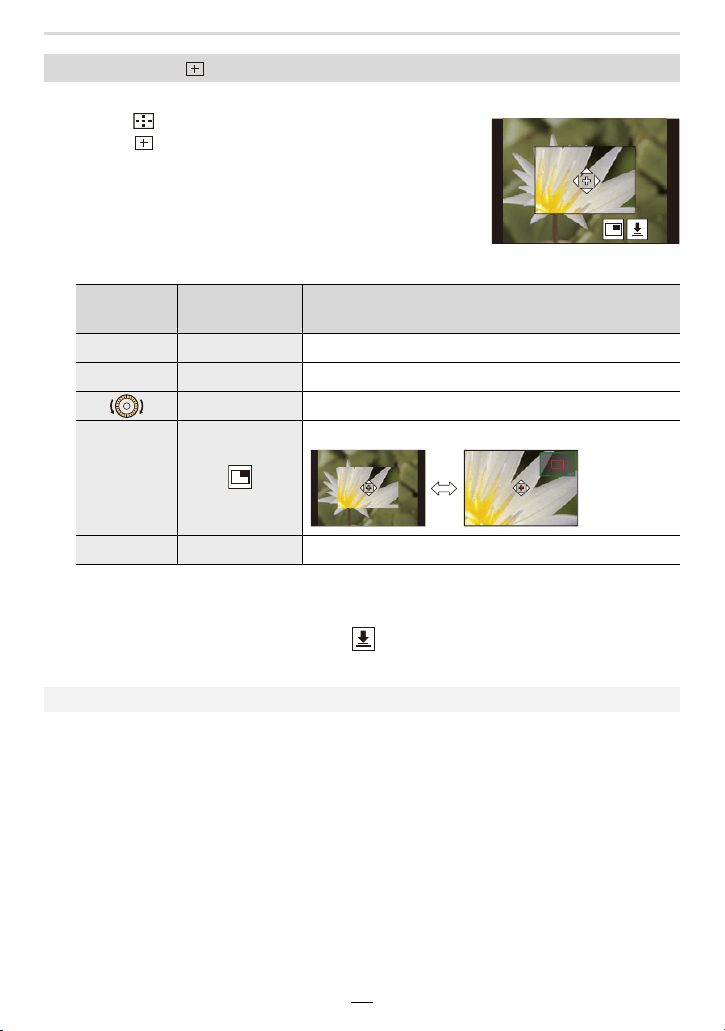
4. Focus, Exposure Compensation and Color tone Settings
83
You can set the focusing position precisely by enlarging the monitor image.
1 Press [ ] (2).
2 Select [ ] and press 4.
3 Press 3/4/2/1 to set the focusing position and
then press [MENU/SET].
• The enlarged display appears.
4 Move [+] to the position to be in focus.
• When the picture is displayed in windowed mode, you can enlarge the picture by
approximately 3k to 6k; when the picture is displayed in full screen, you can enlarge the
picture by approximately 3k to 10k.
• You can also take pictures by touching [ ].
5 Press [MENU/SET] to set.
When selecting [ ]
Button
operation
Touch operation Description of operation
3/4/2/1 Touching Moves [+].
s Pinching out/in Enlarges/reduces the image in small steps.
s Enlarges/reduces the image.
s
Switches the enlarged display (windowed/full screen).
[DISP] [Reset] Returns you to the screen in step 3.
• You cannot set the focusing position at the edges of the screen.
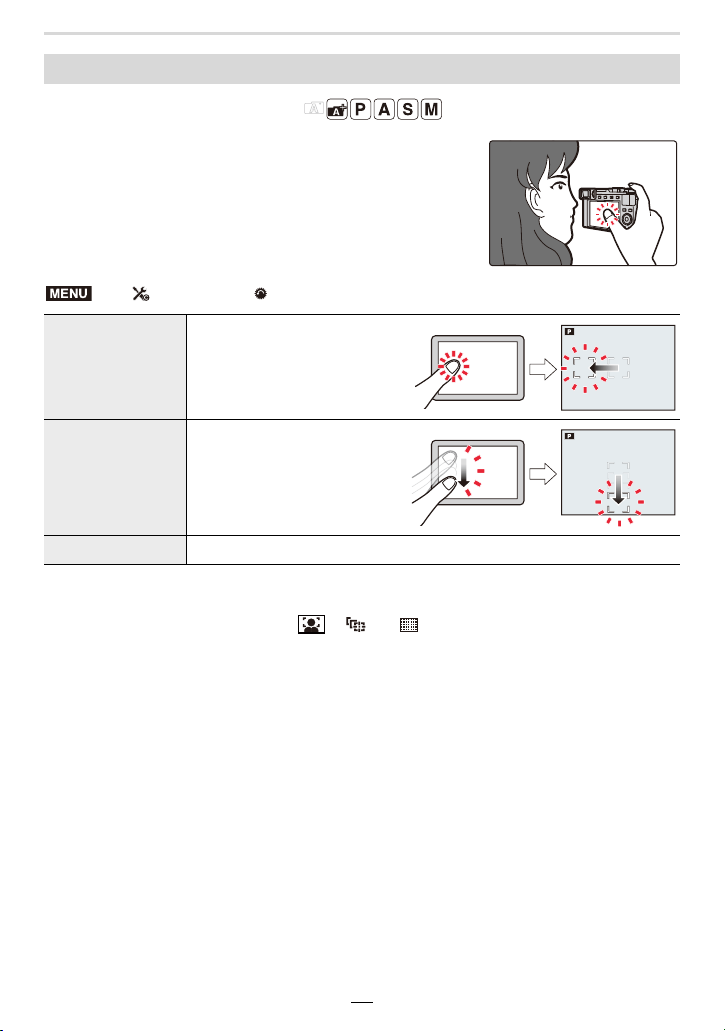
84
4. Focus, Exposure Compensation and Color tone Settings
Available in the following modes:
When you use the viewfinder, you can move the AF area by
touch operations on the monitor.
• Press the shutter button halfway to display the focusing position.
To return the focusing position to the center, press [DISP] before displaying the position.
• To cancel the AF area setting when [ ], [ ] or [ ] is selected, press [MENU/SET].
Moving the AF area by Touch Control
> [Custom] > [Operation] > [Touch Settings] > [Touch Pad AF]
[EXACT]
Moves the AF area by touching
a desired position on the
monitor.
[OFFSET]
Moves the AF area according
to where you drag it to on the
monitor.
[OFF] —
MENU
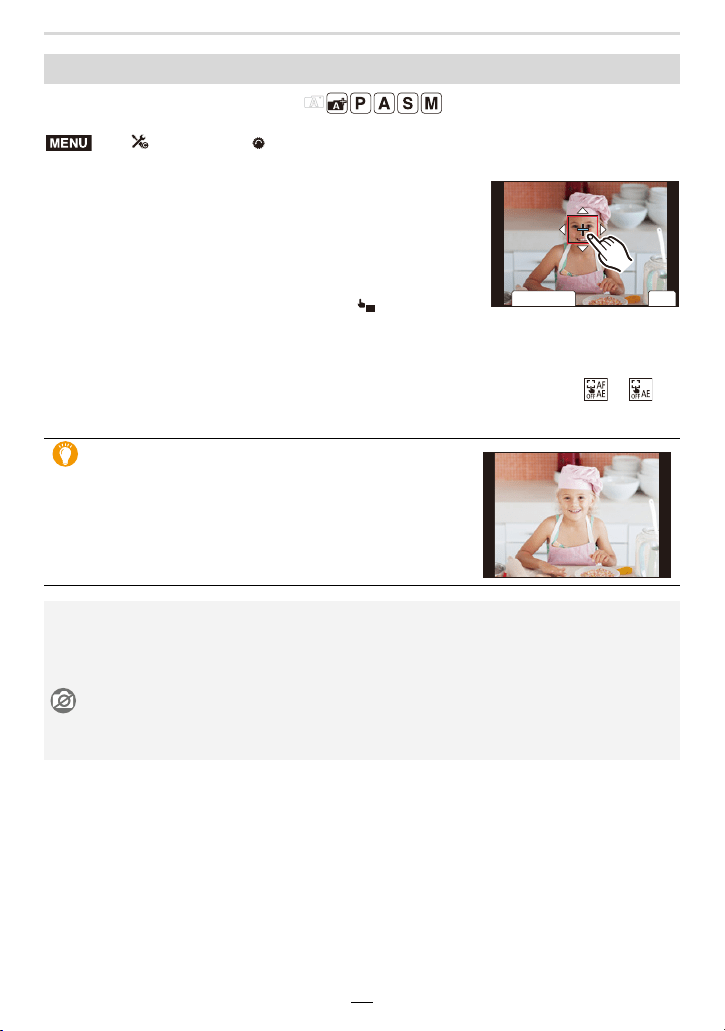
4. Focus, Exposure Compensation and Color tone Settings
85
Available in the following modes:
1 Touch the subject you want to optimize the
brightness for.
• The AF area setting screen appears. (>81)
• The brightness optimization position is displayed in the
center of the AF area. The position follows the movement
of the AF area.
• The exposure [Metering Mode] is set to [ ], which is
used exclusively for the Touch AE.
2 Touch [Set].
• The touched position will be set as an AF area with the same function as [Ø].
• To cancel the focus and brightness settings achieved with [AF+AE], touch [ ] ([ ]
when [Ø] is selected).
Optimizing brightness using Touch Control
> [Custom] > [Operation] > [Touch Settings] > [Touch AF] >
[AF+AE]
When the background has become too bright, etc.,
the brightness contrast with the background can be
adjusted by compensating the exposure.
• When recording with Touch Shutter, the focus and brightness settings are optimized for the
touched position before recording takes place.
• At the edge of the screen, the metering may be affected by the brightness around the touched
location.
Not available in these cases:
• The [AF+AE] function is not available in the following case:
– When using Digital Zoom
MENU
ュリヴヱハ
5HVHW
6HW
AE
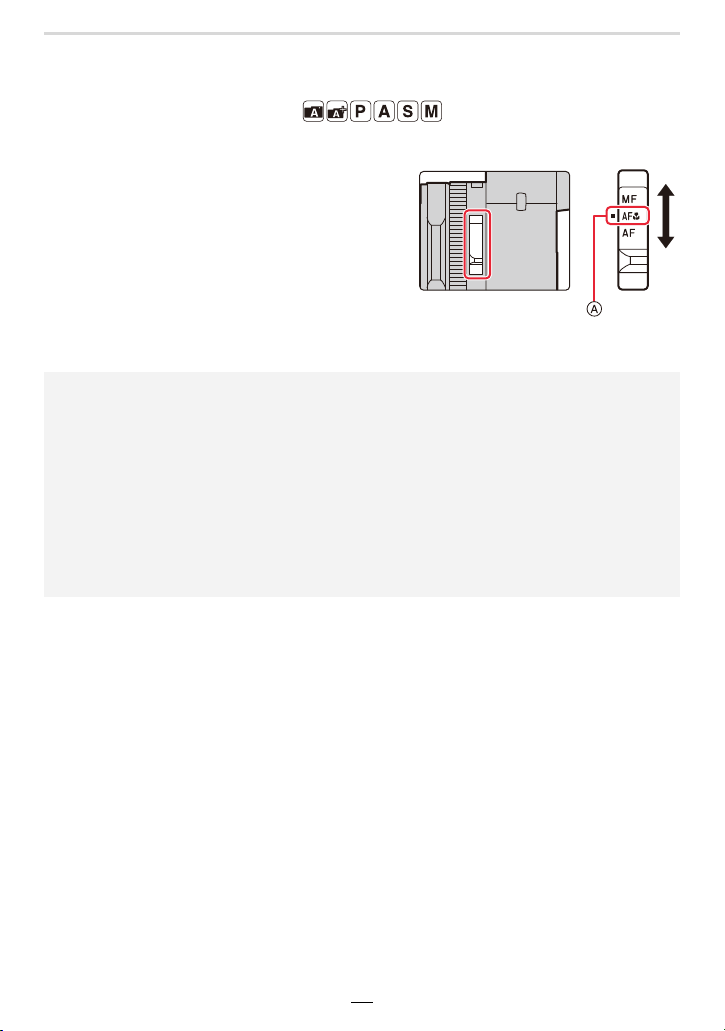
86
4. Focus, Exposure Compensation and Color tone Settings
Taking Close-up Pictures
Available in the following modes:
This mode allows you to take close-up pictures of a subject, e.g. of flowers.
Move the focus mode selector switch to
[AF#].
• You can take pictures of a subject as close as 3 cm
(1
3
/
16
q) from the lens by setting the lens' shortest
focal length.
• The focusing range is displayed when you change
the focal length, for example. (>36)
A Align the setting with the index mark
• In the Snapshot modes, the shortest focusing distance will be the same as that for [AF#],
regardless of the focus mode selector switch setting.
• Keep the following points in mind when taking close-up pictures:
– A picture may be out of focus when the subject is outside the setting range, even if the focus
display is lit.
– Using a tripod and [Self Timer] is recommended.
– We recommend not to use a flash unit.
– The effective depth of field (the area rendered sharp) is significantly smaller. Therefore, if
the distance between the camera and the subject is changed after focusing on the subject, it
may become difficult to focus on it again.
– The resolution may be slightly reduced at the edges of the picture. This is not a malfunction.
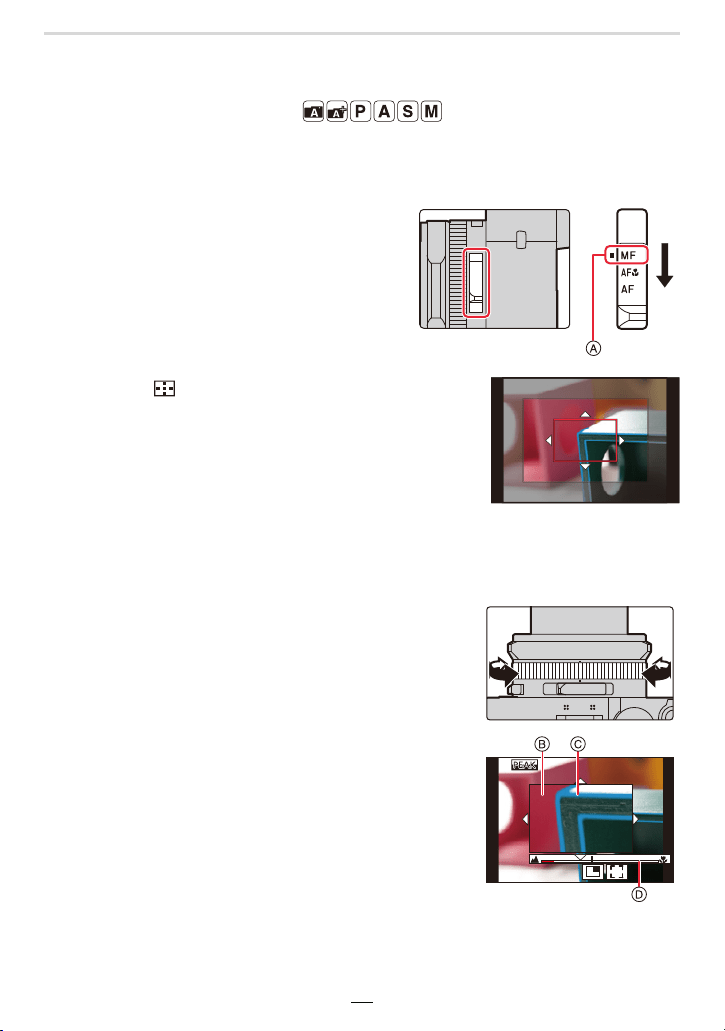
4. Focus, Exposure Compensation and Color tone Settings
87
Manual Focusing
Available in the following modes:
Use this function when you want to determine the focus setting yourself or when the
distance between the lens and the subject remains unchanged for several shots and you
do not want to activate Auto focus.
1
Move the focus mode selector
switch to [MF].
A Align the setting with the index mark
2
Press [ ] (2).
3
Press 3/4/2/1 to determine the area to be
enlarged, and then [MENU/SET].
• The assist screen with an enlarged section is displayed
(MF Assist).
• You can also move the focus position by dragging it on
the monitor.
• You can also enlarge the image by pinching out or
touching the screen twice.
4
Turn the control ring to focus.
Clockwise:
For focusing on closer subjects
Counter-clockwise:
For focusing on more distant subjects
B MF Assist (enlarged image)
C Peaking
D MF Guide
• The outlines of in-focus subjects are highlighted with
color. ([Peaking])
• You can check whether the present setting is shorter or
longer than for the targeted subject (MF Guide).
AF
+
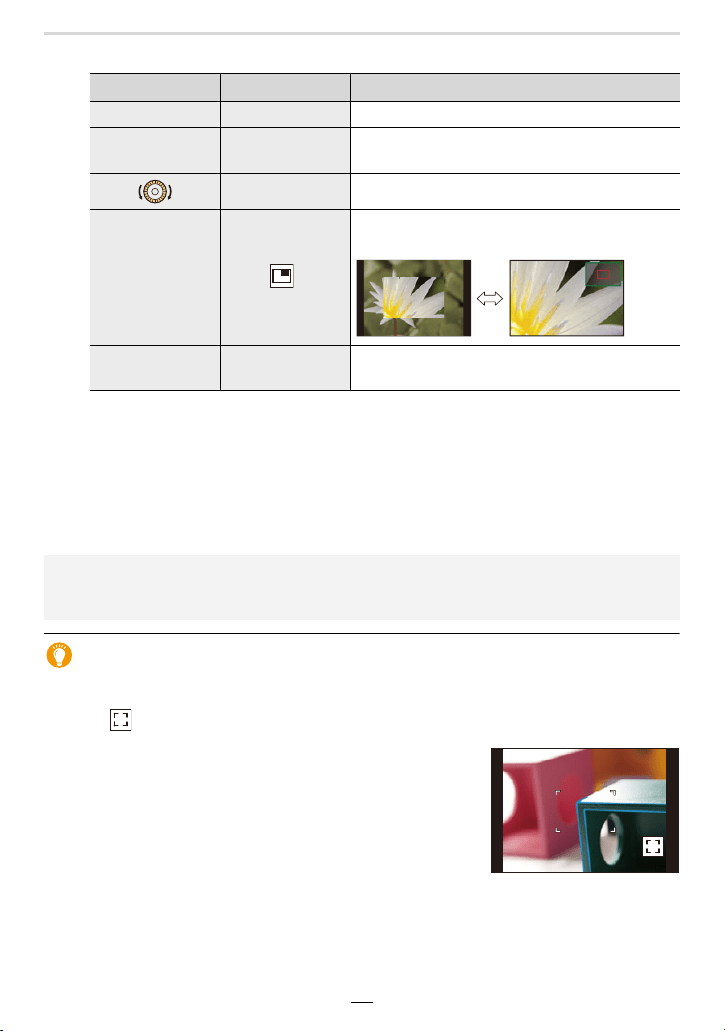
88
4. Focus, Exposure Compensation and Color tone Settings
You can perform the following operations:
¢ Cannot be set in Snapshot modes.
• When the picture is displayed in windowed mode, you can enlarge it by approximately
3k to 6k; when the picture is displayed in full screen, by approximately 3k to 20k.
5
Press the shutter button halfway.
• The recording screen will be displayed.
• You can also perform the same operation by pressing [MENU/SET].
Using Autofocus when in Manual Focus mode
Even during manual focusing, Autofocus operation can be initiated at any time.
Touch [ ].
• Autofocus works at the center of the frame.
• Autofocus also works with the following operations.
– Pressing [AE/AF] when [AF-ON] is assigned to it (>89)
– Pressing the function button to which [AF-ON] is assigned
(>49)
– Dragging and releasing your finger on the monitor at the
position you want to focus on
Button operation Touch operation Description of operation
3/4/2/1 Dragging Moves the enlarged area.
s Pinching out/in
Enlarges/reduces the monitor image in small
steps.
s Enlarges/reduces the monitor image.
s
¢
Switches the enlarged display (windowed/full
screen).
[DISP] [Reset]
The position of the enlarged area is reset to the
center.
• When [Focus Switching for Vert / Hor] in the [Custom] ([Focus / Release Shutter]) menu is
enabled, you can set the position of the enlarged MF Assist display for each orientation of the
camera.
AF
AF
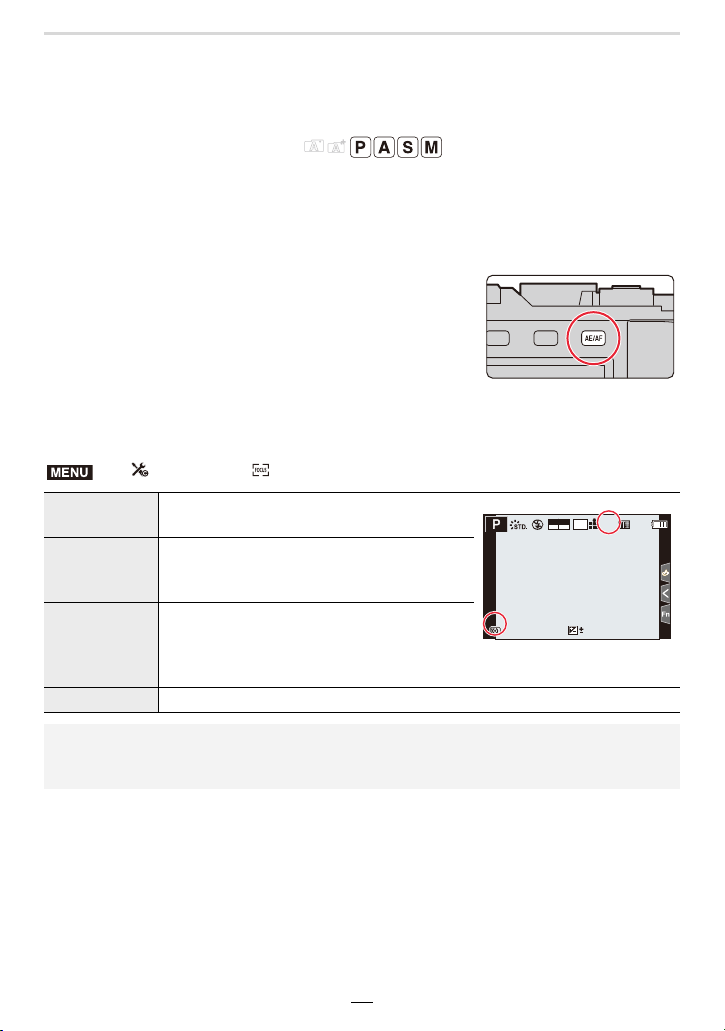
4. Focus, Exposure Compensation and Color tone Settings
89
Focus and Exposure Memory Lock (AF/AE
Lock)
Available in the following modes:
This function is useful when you want to take a picture of a subject outside the AF area
(AF Lock) and/or for subjects whose brightness is above or below average (AE Lock).
1
Aim the AF area at the subject.
2
Press and hold [AE/AF] to lock the focus or
exposure settings.
• If you release [AE/AF], AF/AE Lock is canceled.
3
While pressing [AE/AF], move the camera
for your final composition and then press the shutter button fully.
∫ Setting the functions of [AF/AE LOCK]
> [Custom] > [Focus / Release Shutter] > [AF/AE Lock]
[AE LOCK]
Only the exposure setting is locked.
• When the exposure is set, [AEL] is displayed.
[AF LOCK]
Only the focus setting is locked.
• When the subject is focused, [AFL] is
displayed.
[AF/AE LOCK]
Both focus and exposure settings are locked.
• [AFL] and [AEL] are displayed when the
focus and the exposure settings are
optimized.
[AF-ON] Autofocus is performed.
• AF Lock only is effective when taking pictures in manual exposure mode.
• AE Lock only is effective when taking pictures with manual focusing mode.
• Program Shift can be set even when AE is locked.
MENU
60
p
FHD
MP4
98
98
98
AFL
AFL
L
4:3
0
60
1.7
AEL
AELAEL
AEL
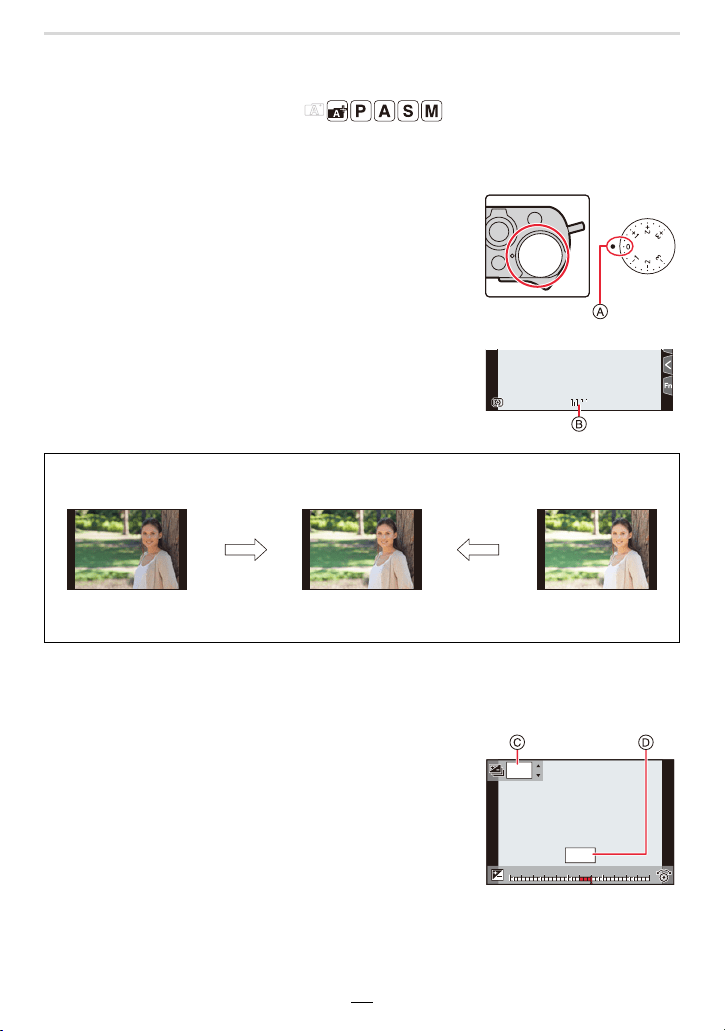
90
4. Focus, Exposure Compensation and Color tone Settings
Exposure Compensation
Available in the following modes:
Use this function when you wish to modify the exposure settings the camera delivers, e.g.
when your main subject would otherwise be rendered brighter/darker than you want.
Turn the exposure compensation dial to select
the compensation value.
• With the exposure compensation dial, you can set a value in
the j3 EV to i3 EV range with the dial.
A Align the setting with the index mark
B Exposure compensation value
∫ Compensating the exposure over a wider range than possible with the dial
1 Set the menu to assign [Exposure Comp.] to a function button. (>49)
2 Press that function button in the recording screen.
3 Rotate the control dial to compensate the exposure.
C Exposure compensation scale
D Exposure compensation value
• When exposure is compensated with a function button,
you can set a value in the j5 EV to i5 EV range.
• You can set Exposure Bracketing values by pressing 3/
4. (>131)
4 Press [MENU/SET] to set.
• You can also press the shutter button halfway to set.
Main subject
underexposed
Properly exposed
Main subject
overexposed
Select a positive
compensation value
Select a negative
compensation value
98
98
98
60
1.7
+
30
+
30
+3+3+1+1 +2+2 +3+3
-
5
-
5
-
4
-
4
-
3
-
3
-
2
-
2
-
1
-
100
+5+5+4+4
+1+1
OFFOFF

4. Focus, Exposure Compensation and Color tone Settings
91
• In manual exposure mode, you can compensate the exposure only when the ISO sensitivity is
set to [AUTO].
• Depending on the brightness, this may not be possible in some cases.
• When [Auto Exposure Comp.] in [Flash] in the [Rec] menu is set to [ON], the brightness of the
flash illumination will automatically be set to the level appropriate to the selected exposure
compensation.
(This applies if the exposure is set with a function button)
• If you assign [Exposure Comp.] to a function button, the exposure compensation dial will be
disabled.
• You can set a value between
j3 EV and i3 EV while recording motion picture or performing
recording with the 4K Photo or Post Focus function.
• When the exposure compensation value is out of the j3 EV to i3 EV range, the brightness
of the recording screen will no longer change. It is recommended to check the actual
brightness of the recorded image in the Auto Review or playback screen.
• The exposure compensation value set with a function button is stored even if you set the
camera on/off switch to [OFF]. (When [Exposure Comp. Reset] is set to [OFF])
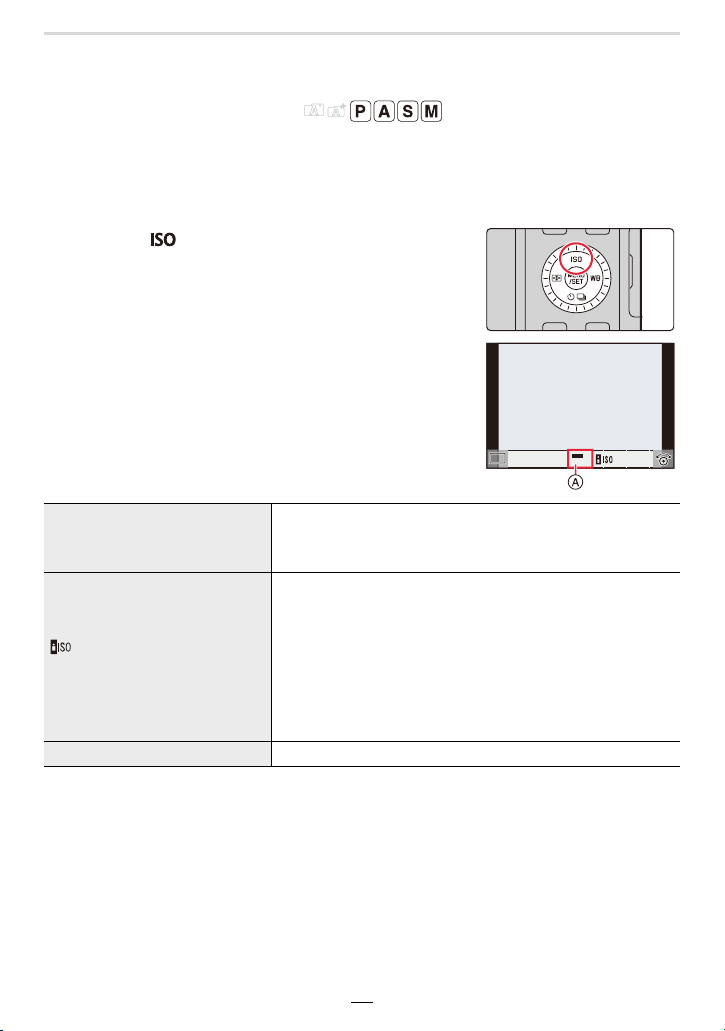
92
4. Focus, Exposure Compensation and Color tone Settings
Setting the ISO Sensitivity
Available in the following modes:
This allows the sensitivity to light (ISO sensitivity) to be set. Higher values allow using
faster shutter speeds e.g. for unblurred hand-held shots and/or higher aperture values e.g.
for more depth of field.
1
Press [ ] (3).
2
Select the ISO sensitivity by rotating the
control dial.
A ISO sensitivity
¢1 When [ISO Auto Upper Limit (Photo)] in the [Rec] menu is set to [AUTO].
¢2 When [Extended ISO] in the [Custom] ([Exposure]) menu is set to [ON].
3
Press [MENU/SET] to set.
• You can also press the shutter button halfway to set.
AUTO
The ISO sensitivity is automatically adjusted according to the
brightness.
• Up to [ISO3200]
¢1
(Intelligent ISO)
The camera automatically sets the optimum ISO sensitivity
and shutter speed to suit the movement of the subject and
brightness of the scene to minimize subject blur.
• Up to [ISO3200]
¢1
• The shutter speed is not fixed when the shutter button is
pressed halfway. It is continuously changed to match the
movement of the subject until the shutter button is pressed
fully.
L.100
¢2
, from 200 to 25000 The ISO sensitivity is fixed to various settings.
2
00
2
00
4040
ISO
ISOISOISOISOISOISOISOISOISOISOISO
AUTOAUTO
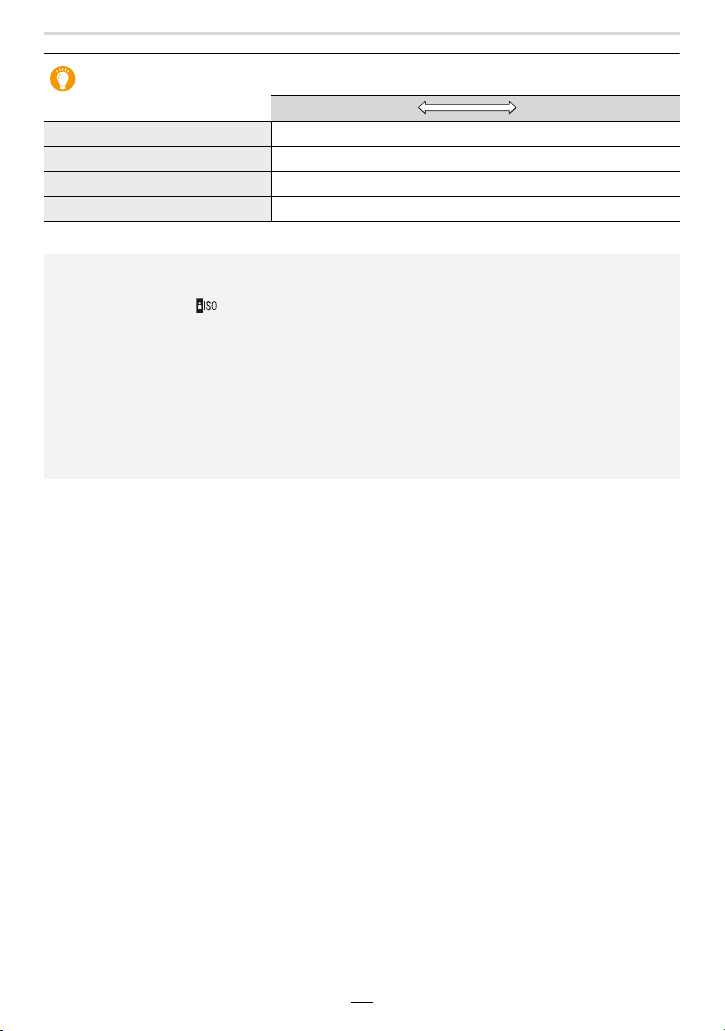
4. Focus, Exposure Compensation and Color tone Settings
93
Characteristics of the ISO sensitivity
200 25000
Recording location When it is light (outdoors) When it is dark
Shutter speed Slower Faster
Noise Less Increased
Shaking of the subject Increased Less
• For details on the available flash range used when the ISO sensitivity is set to [AUTO], refer to
(>147).
• Cannot be selected [ ] in the following cases:
– Shutter-Priority mode
– Manual exposure mode
• Use the Quick menu (>47) to change the setting when [Direct Focus Area] (>182) is set to
[ON], as the AF area is moved with the cursor buttons in this case.
• When [Multi Exp.] is set, the maximum setting is [ISO3200].
• When recording videos or recording with the 4K Photo or Post Focus function, the setting
items change to the following:
– [AUTO], [200] to [6400] ([L.100] to [6400] if [Extended ISO] is set to [ON])
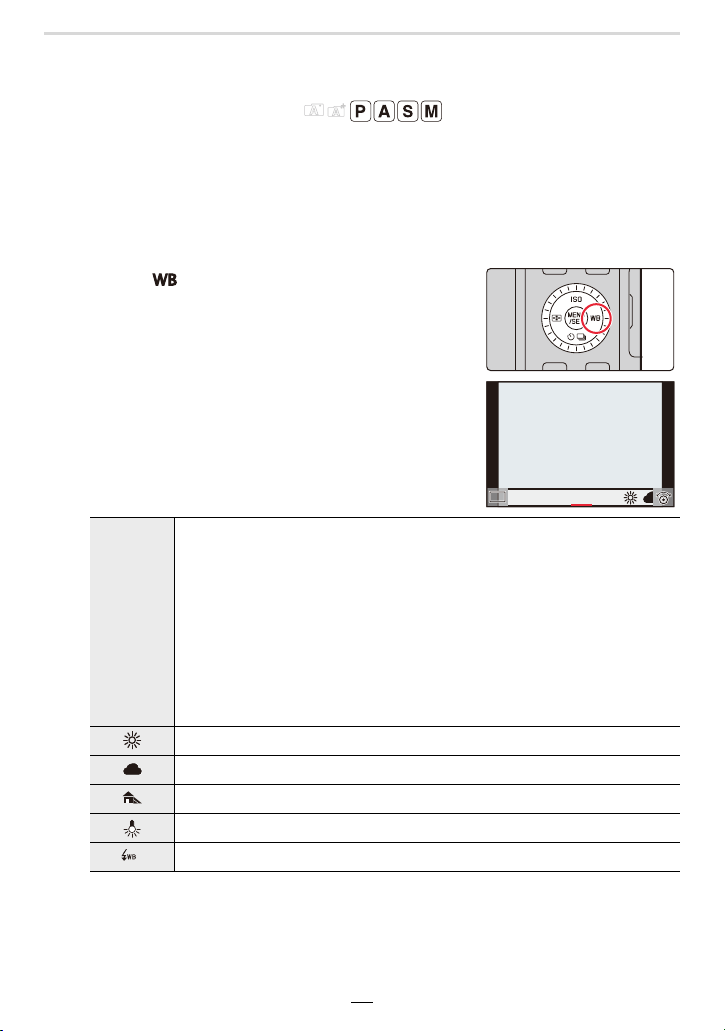
94
4. Focus, Exposure Compensation and Color tone Settings
Adjusting the White Balance
Available in the following modes:
In digital photography, white balance ensures neutral, i.e. natural color reproduction in any
light. White balance is based on the camera being preset to reproduce a particular color as
white.
You can choose between automatic white balance, various presets, one custom setting
based on specific measurements, and a direct setting of the color temperature.
1
Press [ ] (1).
2
Rotate the control dial to select the White
Balance setting.
¢ [AWB] is applied when you record motion picture or perform recording with the 4K
Photo or Post Focus function.
[AWB]/
[AWBc]
Automatic adjustment
• Under lighting such as incandescent lighting where reddish tones may
occur:
– With [AWB], reddish tones are maintained to reproduce the ambience of
the scene more accurately.
– With [AWBc], reddish tones are suppressed to reproduce the original
colors of the subject more accurately. The same tones as [AWB] may be
applied in a bright environment.
• [AWB] and [AWBc] apply the same tones under light sources where
reddish tones may not occur.
[] When taking pictures outdoors under a clear sky
[]When taking pictures outdoors under a cloudy sky
[]When taking pictures outdoors in the shade
[] When taking pictures under incandescent lights
[]
¢
When taking pictures with the flash only
AWBc
AWBc
WBWBWBWBWBWBWBWBWBWBWB
AWBAWB
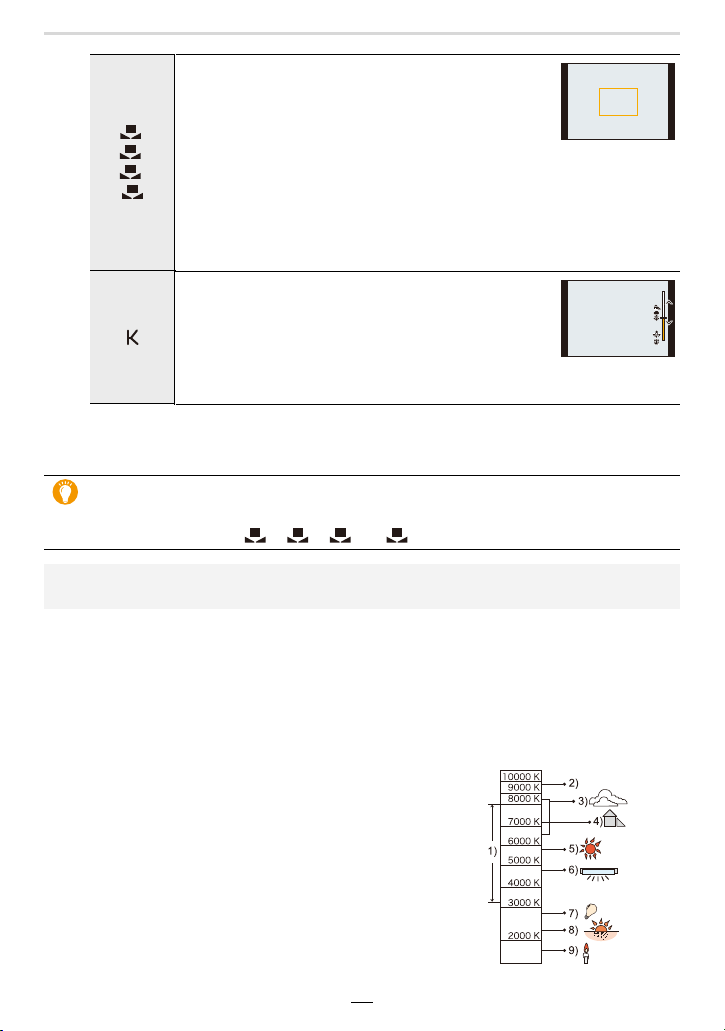
4. Focus, Exposure Compensation and Color tone Settings
95
3
Press [MENU/SET] to set.
• You can also press the shutter button halfway to set.
∫ Auto White Balance
Depending on the conditions prevailing when pictures are taken, the pictures may take on
a reddish or bluish tinge.
Please note that the White Balance may not work correctly in the cases below. In these
cases, adjust the White Balance to anything other than [AWB] or [AWBc].
– When there are multiple light sources
– When there are no colors close to white
1 [AWB] will work within this range.
2 Blue sky
3 Cloudy sky (Rain)
4 Shade
5 Sunlight
6 White fluorescent light
7 Incandescent light bulb
8 Sunrise and sunset
9 Candlelight
KlKelvin Color Temperature
[]/
[]/
[]/
[]
When you wish to manually meter the light and use
the resulting setting, e.g. to achieve a white balance
precisely matching the prevailing lighting situation.
1 Press
3.
2 Place a white object such as a piece of paper
within the frame at the center of the screen, and press [MENU/
SET].
• This will set the White Balance and return you to the recording screen.
• White Balance may not be set when the subject is too bright or too dark.
Set the White Balance again after adjusting to appropriate brightness.
[]
For using a preset color temperature setting.
1 Press 3.
2 Press 3/4 to select the color temperature and
then [MENU/SET].
• You can set a color temperature from [2500K] to
[10000K].
Under fluorescent lighting, LED lighting fixture etc., the appropriate White Balance
will vary depending on the lighting type.
Use [AWB], [AWBc], [ ], [ ], [ ] or [ ].
• The White Balance may not operate correctly if you take pictures using flash and the subject
is recorded outside of the effective flash range.
1
2
3
4
5500K5500K5500K
1
2
3 4

96
4. Focus, Exposure Compensation and Color tone Settings
You can finely adjust the White Balance when you cannot acquire the desired hue with the
available fixed settings.
1 Select the White Balance setting and then press 4.
2 Press 3/4/2/1 to perform White Balance fine
adjustments.
• You can also make fine adjustments by touching the White
Balance graph.
• To reset the position to the center, press [DISP].
• You can set the White Balance Bracket by rotating the control dial. (>132)
3 Press [MENU/SET].
• Press the shutter button halfway to return to the recording screen.
Finely adjusting the White Balance
2 : [A] (AMBER: ORANGE)
1 : [B] (BLUE: BLUISH)
3 : [G] (GREEN: GREENISH)
4 : [M] (MAGENTA: REDDISH)
• If you finely adjust the White Balance to [A] (amber), the White Balance icon on the screen will
change to orange.
If you finely adjust the White Balance to [B] (blue), the White Balance icon on the screen will
change to blue.
• If you finely adjust the White Balance to [G] (green) or [M] (magenta), [_] or [`] appears
beside the White Balance icon on the screen.
GGG
GGG
AAA
AAAB
BBB
BBB
MMM
MMM
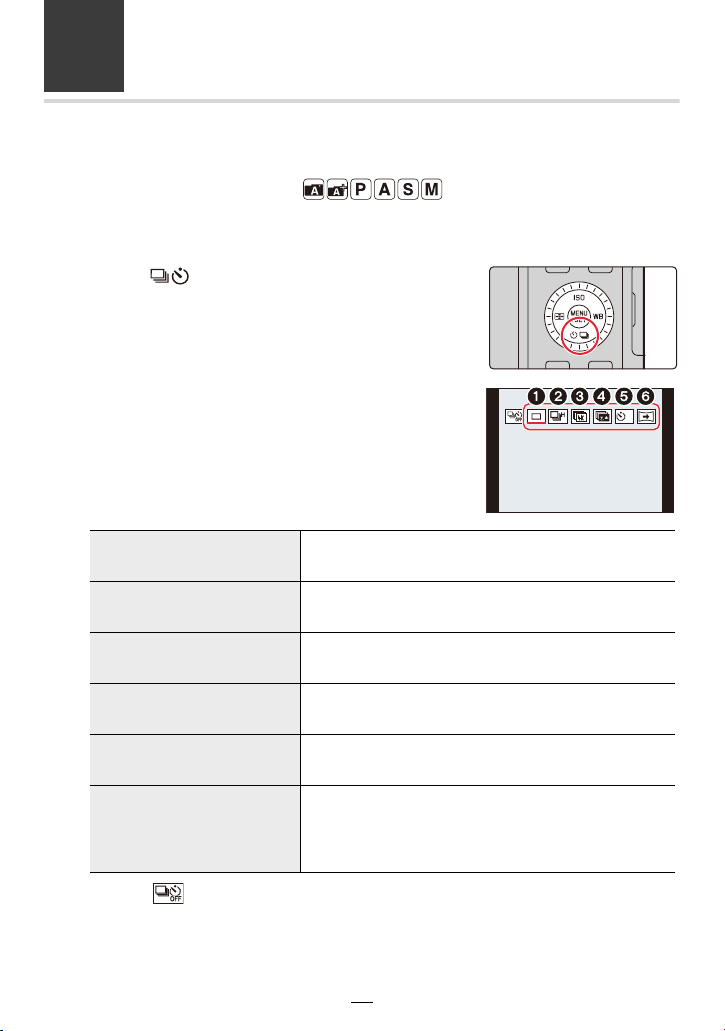
97
5. 4K Photo and Shutter Release Settings
Selecting a Shutter Release Mode
Available in the following modes:
You can change what the camera will do when you press the shutter button.
1
Press [ ] (4).
2
Press 2/1 to select the shutter release
mode, and then [MENU/SET].
• Select [ ] to return to [Single] (default setting).
1 [Single]
When the shutter button is pressed, only one picture is
taken.
2 [Burst] (>98)
Pictures are taken in succession as long as the shutter
button is pressed.
3 [4K PHOTO] (>100)
When the shutter button is pressed, a 4K photo is
taken.
4 [Post Focus] (>110)
When the shutter button is pressed, Post Focus
recording is performed.
5 [Self Timer] (>115)
When the shutter button is pressed, the picture is taken
after the set time has elapsed.
6
[Panorama Shot]
(>117)
Exposures are recorded in succession while you press
the shutter button and move the camera horizontally or
vertically. After that the camera combines the pictures
into a single panorama picture.
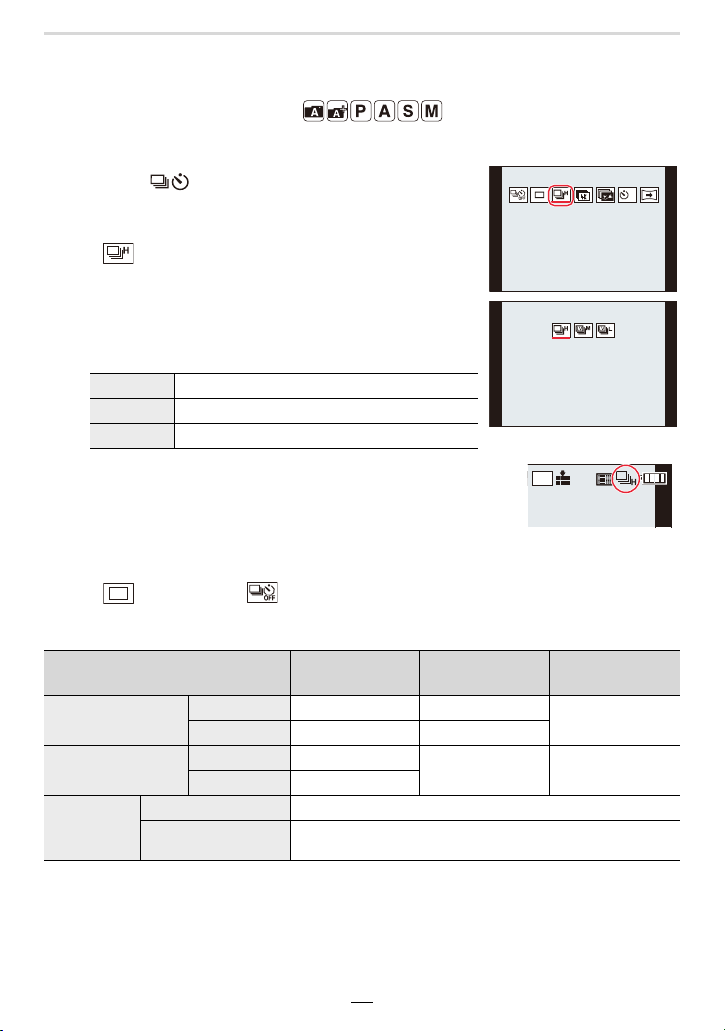
98
5. 4K Photo and Shutter Release Settings
Using Continuous Mode
Available in the following modes:
Pictures are taken in succession as long as the shutter button is pressed.
1
Press [ ] (4).
2
Press 2/1 to select the continuous icon
([ ], etc.), and then 3.
3
Select the frame rate with 2/1, and then
press [MENU/SET].
4
Focus on the subject and take a picture.
• Hold down the shutter button fully to activate Continuous
mode.
∫ Canceling Continuous mode
Select [ ] ([Single]) or [ ] from among the shutter release modes. (>97)
∫ Notes on Continuous mode settings
¢ When recording is performed under the test conditions specified by Leica Camera AG.
Pictures can be taken until the card is full. However, the frame rate will get slower halfway
through the recording. The number of serial pictures is limited by the picture-taking
conditions and the type and/or status of the card used.
[H] Performs high-speed serial recording.
[M] Performs medium-speed serial recording.
[L] Performs low-speed serial recording.
[H]
(High speed)
[M]
(Medium speed)
[L]
(Low speed)
Frame rate
(pictures/second)
AFS/MF 11 7
2
AFF/AFC 5.5 5.5
Image display during
Continuous mode
AFS/MF None
Available Available
AFF/AFC Available
Number of
recordable
pictures
¢
With RAW files 32 or more
Without RAW files 100 or more
L
4:3
AFS
AFS
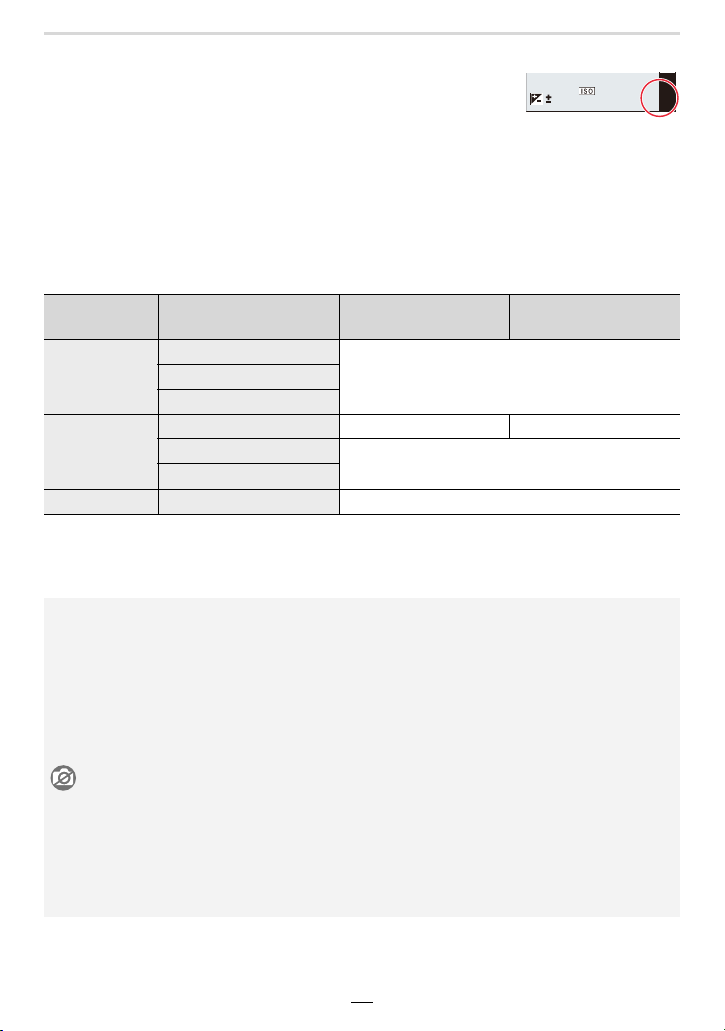
5. 4K Photo and Shutter Release Settings
99
∫ About the maximum number of pictures that can be taken continuously
When you press the shutter button halfway, the maximum number
of pictures you can take continuously will appear.
Example: When 20 pictures can be taken: [r20]
• Once recording starts, the maximum number of pictures that can be
taken continuously decreases.
The frame rate slows down when [r0] appears.
• When [r99+] is displayed, you can take 100 or more pictures continuously.
∫ Notes on focus in Continuous mode
The way the focus setting is achieved varies according to the focus mode setting and the
[Focus/Release Priority] setting in the [Custom] ([Focus / Release Shutter]) menu.
¢1 When the subject is dark, the focus setting is locked to the one set for the first picture.
¢2 Frame rate takes priority, and the focus setting is estimated within the possible range.
¢3 The frame rate may become slower.
AF mode
settings
[Focus/Release Priority] [H] [M]/[L]
[AFS]
[FOCUS]
At the first picture
[BALANCE]
[RELEASE]
[AFF]/[AFC]
¢1
[FOCUS] Predicted focusing
¢2
Normal focusing
¢3
[BALANCE]
Predicted focusing
¢2
[RELEASE]
[MF] — Manual focusing
• The frame rate may become slower depending on the following settings:
– [Sensitivity]/[Picture Size]/[Quality]/[AFS/AFF/AFC]/[Focus/Release Priority]
• When the frame rate is set to [H] (when the focus setting is [AFS] or [MF]), the exposure will
be set to that of the first picture. In other cases, the exposure will be adjusted for each picture.
• It may take time to save pictures taken in Continuous mode on the card. If you take
pictures continuously while saving, the maximum number of recordable pictures
decreases. For continuous shooting, use of a high speed memory card is
recommended.
Continuous mode is not available in these cases:
– When using [Rough Monochrome]/[Silky Monochrome]/[Miniature Effect]/[Soft Focus]/[Star
Filter]/[Sunshine] in [Filter Settings]
– When using [Multi Exp.]
– When recording with flash
– When using [Time Lapse Shot]
– When using [Stop Motion Animation] (only when [Auto Shooting] is set)
20
20
r20
0
2
00
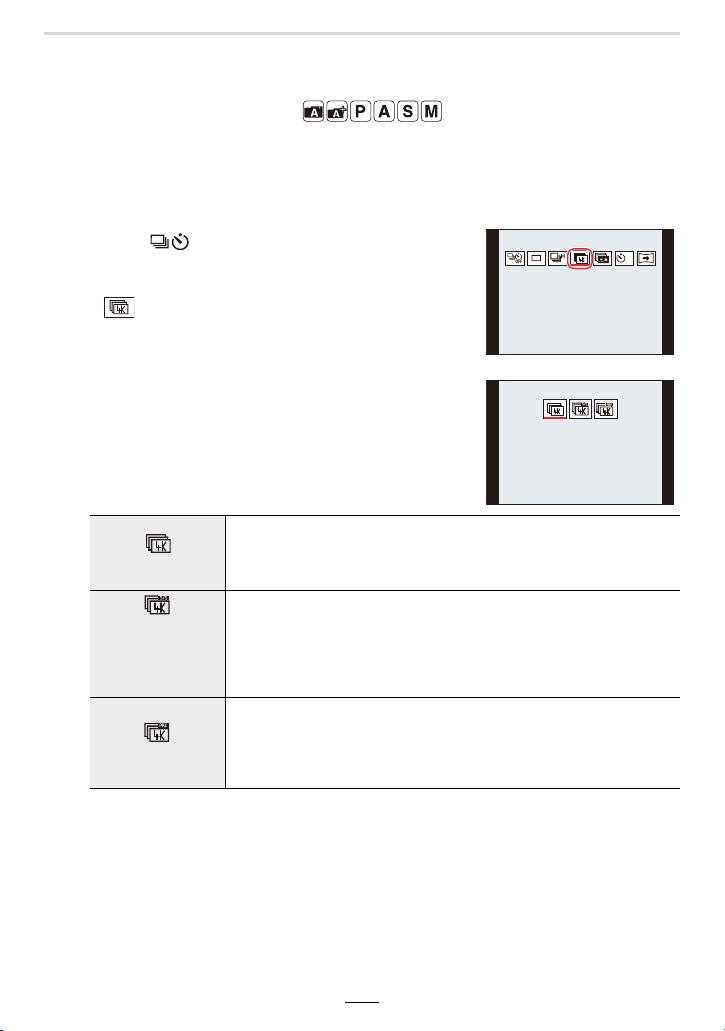
100
5. 4K Photo and Shutter Release Settings
Recording 4K Pictures
Available in the following modes:
The camera allows you to take serial pictures with a resolution of 8 million pixels (approx.)
at 30 frames/second. After taking these pictures, you can save the desired moment
extracted from their picture series file.
• Use a UHS Speed Class 3 card.
1
Press [ ] (4).
2
Press 2/1 to select a 4K picture icon
([ ], etc,), and then 3.
• By default, you can also perform the same operations
as steps
1 and 2 by pressing [4K] / ([Fn1]).
3
Select the recording method with 2/1, and
then [MENU/SET].
• You can also set the recording method in [4K PHOTO]
in the [Rec] menu.
¢ Audio is not played back when you perform playback with the camera.
4
Record a 4K photo.
• If you are using Autofocus, [Continuous AF] will work during recording. The focus
setting will be adjusted continuously.
[4K Burst]
For capturing the best shot of a fast-moving subject
(e.g., sports, airplanes, trains)
Audio recording: Not available
[4K Burst(S/S)]
“S/S” is an
abbreviation of
Start/Stop.
For capturing unpredictable photo opportunities
(e.g., plants, animals, children)
Audio recording: Available
¢
[4K Pre-Burst]
For recording as needed whenever a photo opportunity
arises
(e.g., the moment when a ball is thrown)
Audio recording: Not available
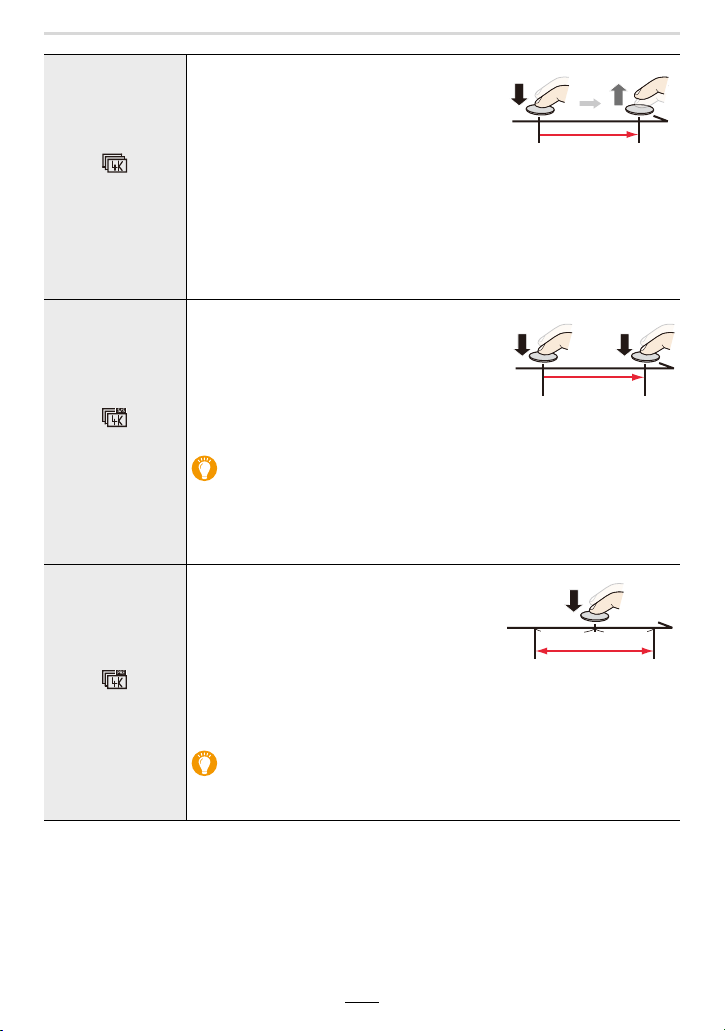
5. 4K Photo and Shutter Release Settings
101
• The camera saves a 4K picture series files in the MP4 format.
• When [Auto Review] is enabled, the picture selection screen will be displayed automatically. To
continue recording, press the shutter button halfway to display the recording screen.
• For information on how to select and save pictures from recorded 4K picture series files, refer
to (>105).
[]
[4K Burst]
1 Press the shutter button halfway.
2 Press and hold the shutter button
fully for as long as you want to
perform recording.
A Press and hold
B Recording is performed
• Press the button fully slightly in advance. Recording starts
approximately 0.5 seconds after it has been pressed fully.
• If you remove your finger from the shutter button immediately after
the start of recording, up to a period of approximately 1.5 seconds
after the moment that the finger has been removed may be
recorded.
[]
[4K Burst(S/S)]
1 Press the shutter button fully to
start recording.
2 Press the shutter button fully again
to stop recording.
C Start (First)
D Stop (Second)
E Recording is performed
Setting markers manually
You can add markers if you press [QM] / ([Fn2]) during recording. (Up to
40 markers per recording) When selecting and saving pictures from a 4K
picture series file, you can skip to the positions where you added
markers.
[]
[4K Pre-Burst]
Press the shutter button fully.
F Approximately 1 second
G Recording is performed
• Autofocus adjusts the focus setting
continuously, and except in manual
exposure mode, it also adjusts the
exposure continuously.
• Images may not be displayed as smoothly as when recording with the
normal recording screen.
Recording tips
In situations where you want to lock the focus and exposure settings,
such as when the subject is off-center, use [AF/AE LOCK]. (>89)
102
5. 4K Photo and Shutter Release Settings
∫ Canceling 4K Picture mode
In step
2, select [ ] ([Single]) or [ ]. (>100)
∫ To change the aspect ratio
You can use the aspect ratio selector switch to select the aspect ratio of 4K pictures.
∫ To record the subject with reduced blur
You can reduce the blur of the subject by setting a faster shutter speed.
1 Change the exposure control mode to [S] (Shutter-Priority mode). (>65)
2 Set the shutter speed by rotating the shutter speed dial.
∫ Preventing camera shake when taking pictures
When you perform [Light Composition] or [Sequence Composition], we recommend using
a tripod and taking pictures remotely by connecting the camera to a smartphone to prevent
camera shake. (>234)
∫ Shutter sound for photographing
• When using [4K Burst] or [4K Pre-Burst], you can change the electronic shutter sound settings
in [Shutter Vol.] and [Shutter Tone]. (>197)
• When recording with [4K Burst(S/S)], you can set the start/stop tone volume in [Beep Volume].
• High-speed serial recording can be used quietly when used in combination with [Silent Mode].
Battery drainage and camera temperature
• If the ambient temperature is high or 4K photo recording is performed continuously,
[ ] may be displayed and then recording may stop. Wait until the camera cools
down.
• When [ ] ([4K Pre-Burst]) is set, the battery drains faster and the camera
temperature rises. (The setting may switch to [ ] ([4K Burst]) to protect the camera.)
Set [ ] ([4K Pre-Burst]) only when recording.
Notes on the 4K Photo function
• Suggested shutter speed for outdoor recording in fine weather conditions:
1/1000s or faster.
• If you increase the shutter speed, the ISO sensitivity becomes higher, which may
increase the noise on the screen and the picture.
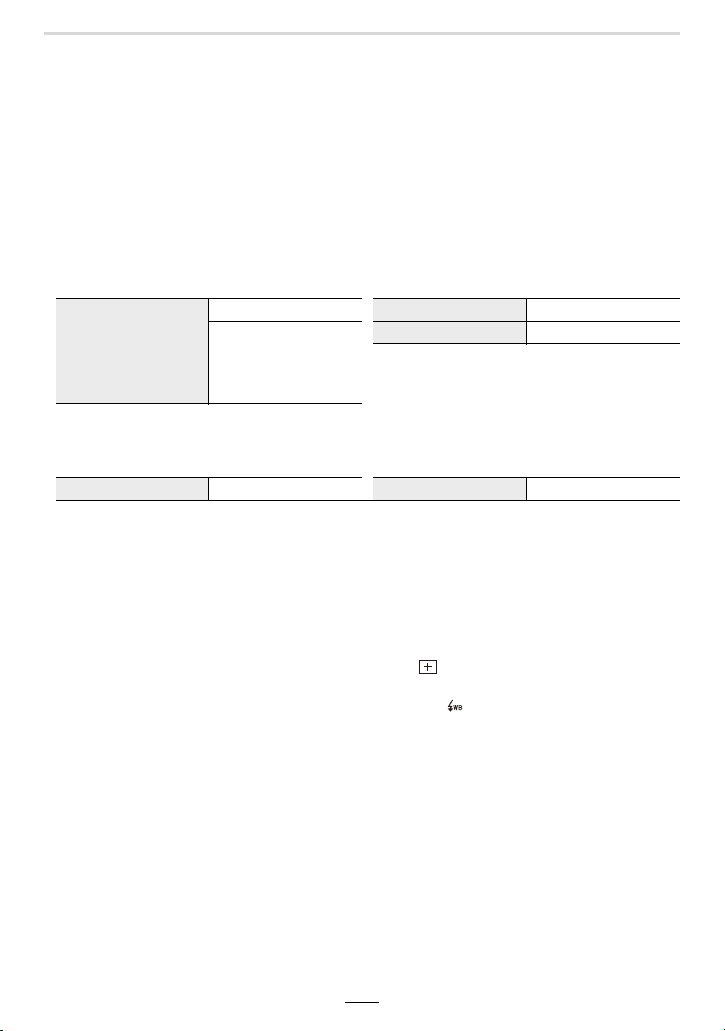
5. 4K Photo and Shutter Release Settings
103
∫ Unsuitable subjects
Recording in extremely bright locations or indoors
When subjects are photographed in an extremely bright place or under fluorescent/LED
lighting, the color tone or brightness of the image may change, or horizontal stripes may
appear on the screen.
Lowering the shutter speed may reduce the effect of the horizontal stripes.
Subjects that are moving fast
If you record a subject moving fast, it may appear distorted in the resulting picture.
∫ The camera’s setup for the 4K Photo function
The camera’s setup is automatically optimized for 4K photo recording.
• The following [Rec] menu items are fixed to the settings below:
¢ Changes according to the aspect ratio.
• 4K picture series files are recorded with the settings indicated below:
Settings in the [Motion Picture] menu are not applied to 4K picture series files.
• When recording with the 4K Photo function, the ranges for the following functions differ from
the ones available for taking pictures in other modes:
– Shutter speed: 1/30s to 1/16000s
– [Min. Shtr Speed]: [1/1000] to [1/30]
– Exposure Compensation: j3EV to
i3EV
– ISO sensitivity: [AUTO], [200] to [6400] ([L.100] to [6400] when [Extended ISO] is set)
[Picture Size]
¢
[4K] (8M)
[Quality] [A]
[4:3]: 3328k2496
[1:1]: 2880k2880
[16:9]: 3840k2160
[3:2]: 3504k2336
[Shutter Type] [ESHTR]
[Rec Quality] [4K/100M/30p] [Continuous AF] [ON]
• When using the 4K Photo function, the following functions are disabled:
–Flash
– Bracket Recording
– Program Shift
– [AF Mode] ( )
– [MF Assist] ([4K Pre-Burst] only)
– White Balance ( )
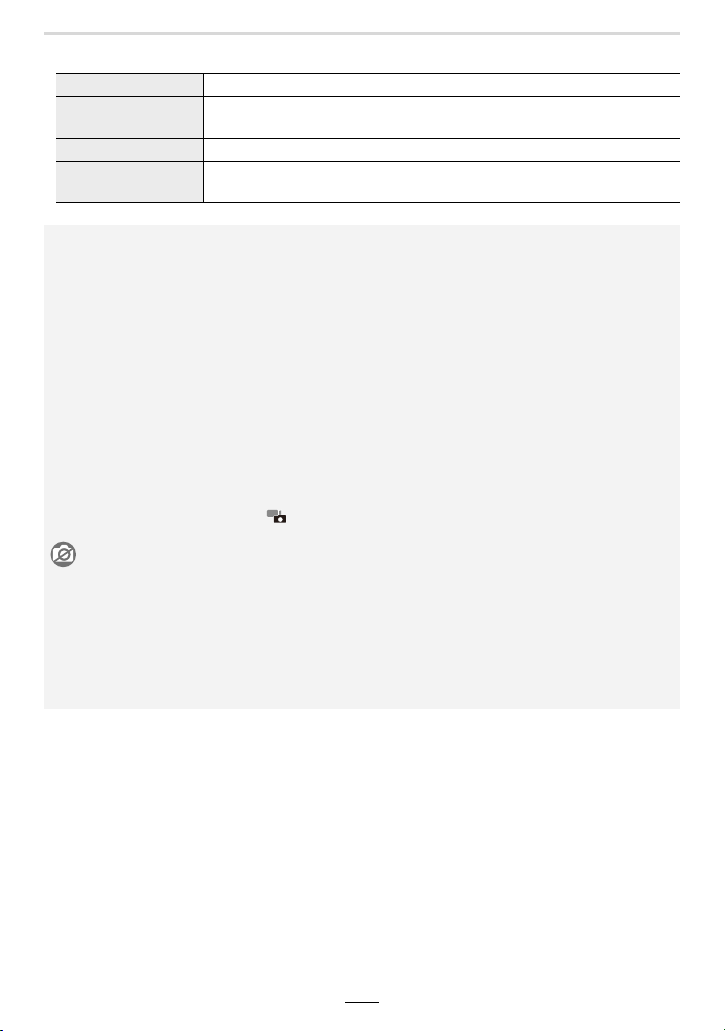
104
5. 4K Photo and Shutter Release Settings
• The following menu items are disabled:
[Snapshot Mode] [iHandheld Night Shot]/[iHDR]
[Rec]
[Picture Size]/[Quality]/[Color Space]/[Flash]/[Long Shtr NR]/[Shutter
Type]/[Bracket]/[HDR]
[Custom] [Rec Area]/[Face Recog.]/[Profile Setup]
[Setup]
[Economy] ([4K Pre-Burst] only)/[Monitor Display Speed]/[EVF Display
Speed]
• Recording stops when the continuous recording time exceeds 15 minutes.
When using an SDHC memory card, you can continue the recording of a 4K picture series
without interruption even if the file size exceeds 4 GB, but the resulting file will be divided into
smaller ones for recording and playback.
With an SDXC memory card, even picture series file sizes exceeding 4 GB as a single file.
• The following changes occur when recording 4K pictures:
– The image area used for 4K picture series is smaller than when shooting with 'normal'
resolutions.
– [Location] in [Travel Date] cannot be recorded.
– [AFF] in [AFS/AFF/AFC] cannot be set.
– [Simultaneous Record w/o Filter] in [Filter Settings] is not available.
– [Step Zoom] does not work during [4K Pre-Burst] recording.
• Scene Detection in the Snapshot modes works the same way as when recording videos.
• When the shutter release mode is set to 4K Photo, it is not possible to take pictures while
recording a video. (Only when [ ] ([Photo Priority]) is set)
Not available in these cases:
• The 4K Photo function is disabled when using the following settings:
– When using [Rough Monochrome]/[Silky Monochrome]/[Miniature Effect]/[Soft Focus]/[Star
Filter]/[Sunshine] in [Filter Settings]
– When recording videos
– When using [Multi Exp.]
– When using [Time Lapse Shot]
– When using [Stop Motion Animation]
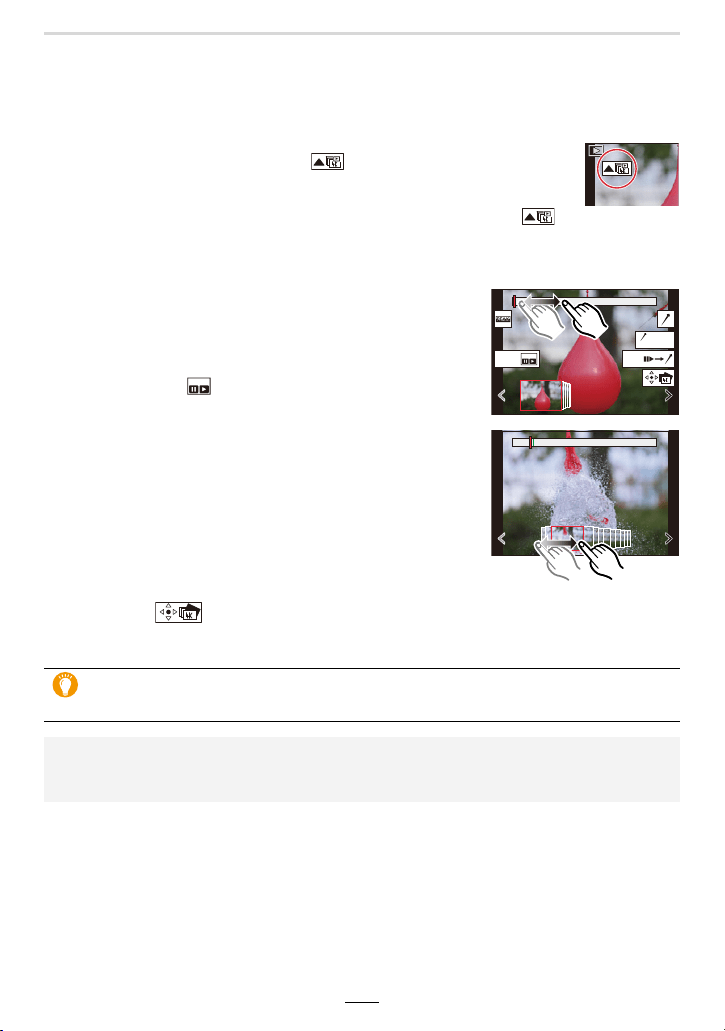
5. 4K Photo and Shutter Release Settings
105
Selecting Pictures from 4K Picture Series Files
and Saving them
1
Select an image with the [ ] icon on the playback
screen, and press 3.
• You can also perform the same operation by touching the icon [ ].
• If the image was recorded with [4K Pre-Burst], proceed to step
3.
3
Drag the pictures to select the one you want
to save as a picture.
• You can also perform the same operation by pressing
2/1.
4
Touch [ ] to save the picture.
• The picture will be saved in JPEG format.
2
Drag the slide bar to make a rough selection
of pictures.
• For information on how to use the slide view screen, refer
to (>106).
• You can select scenes on the 4K serial playback screen
by touching [ ] ([4K] / ([Fn1])). (>107)
Slide view screen
If you use [4K PHOTO Bulk Saving] in the [Playback] menu, you can bulk save
5 seconds’worth of 4K recording. (>212)
• The picture will be saved with recording information (Exif information), including its shutter
speed, aperture and ISO sensitivity information.
• 4K picture series files saved on a PC will be treated as MP4 videos.
Fn1 Fn2
AUTO
MODE
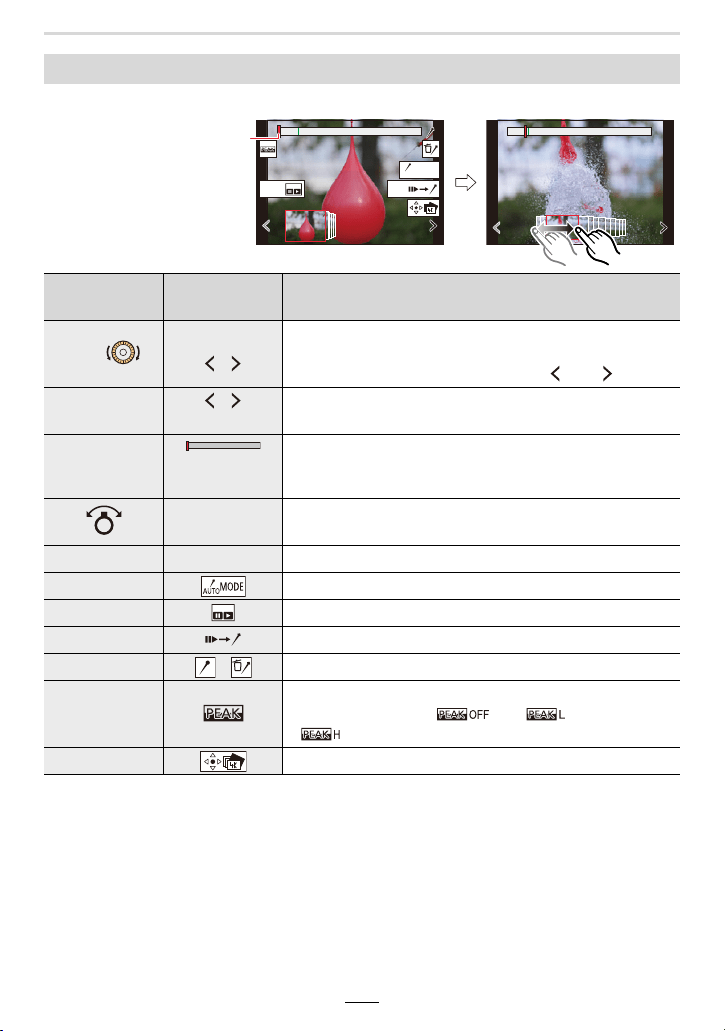
106
5. 4K Photo and Shutter Release Settings
∫ Navigating the slide view screen
Operations during selecting pictures
Button
operation
Touch
operation
Description of operation
2/1/
Dragging/
/
Selects a frame.
• To change the frames displayed in slide view, select the
frame at the left/right end, and touch [ ] or [ ].
2/1
Press and hold
/
Touch and hold
Continuously rewinds/forwards frame-by-frame.
s
Touching/
Dragging
Selects the frame to be displayed.
• The previous or next frame is displayed in slide view.
Pinching out/in
Enlarges/reduces the display.
3/4/2/1 Dragging Moves the enlarged area (during enlarged display).
s Switches a marker to be displayed. (>108)
[4K] / ([Fn1]) Displays the 4K serial playback screen.
[QM] / ([Fn2]) Switches to marker operation. (>108)
s / Adds/deletes a marker.
s
In-focus sections are highlighted with color. ([Peaking])
• Switches in order of [ ] > [ ] ([LOW]) >
[ ] ([HIGH]).
[MENU/SET] Saves the picture
Fn1 Fn2
AUTO
MODE
Position of the displayed
frame
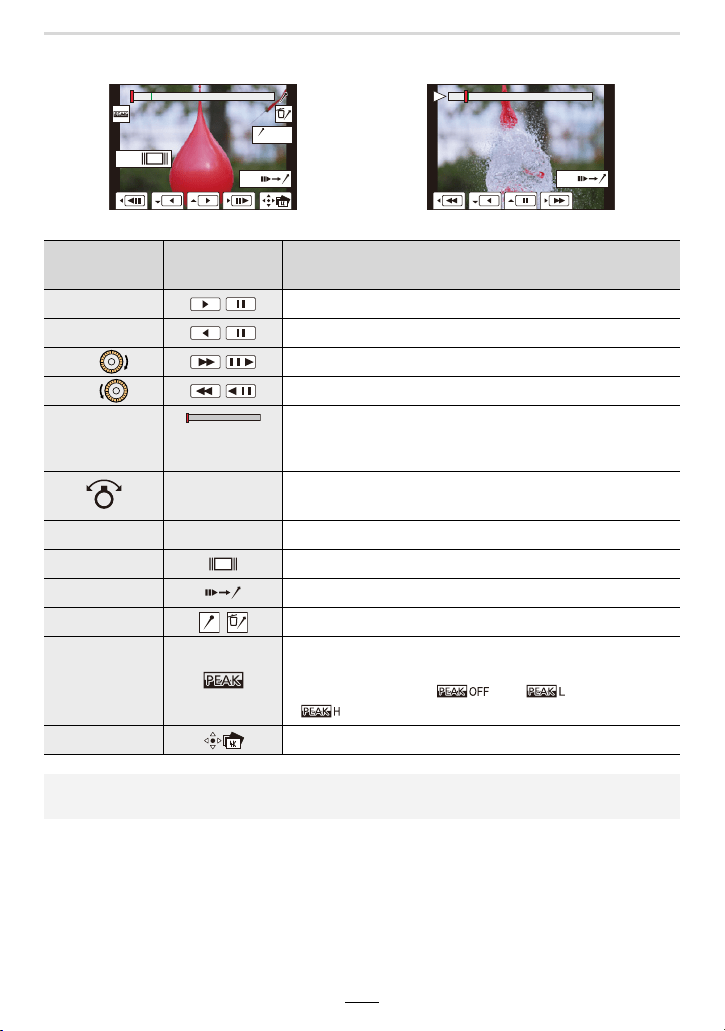
5. 4K Photo and Shutter Release Settings
107
∫ Navigating the 4K serial playback screen
During pause During continuous playback
Button
operation
Touch
operation
Description of operation
3 / Continuous playback/Pause (during continuous playback).
4 / Continuous rewind/Pause (during continuous rewind).
1/ / Fast forward/Picture-by-picture forward (during pause).
2/ / Fast rewind/Picture-by-picture rewind (during pause).
s
Touching/
Dragging
Selects the pictures to be displayed (during pause).
Pinching out/in
Enlarges/reduces the image (during pause).
3/4/2/1 Dragging Moves the enlarged area (during enlarged display).
[4K] / ([Fn1]) Displays the slide view screen (during pause).
[QM] / ([Fn2]) Switches to marker operation.
s / Adds/deletes a marker.
s
The outlines of in-focus subjects are highlighted with color.
([Peaking])
• Switches in order of [ ] > [ ] ([LOW]) >
[ ] ([HIGH]).
[MENU/SET] Saves the picture (during pause).
• Each time you touch the screen twice, the display switches between enlarged and normal
view.
Fn1
AUTO
MODE
Fn2
Fn2
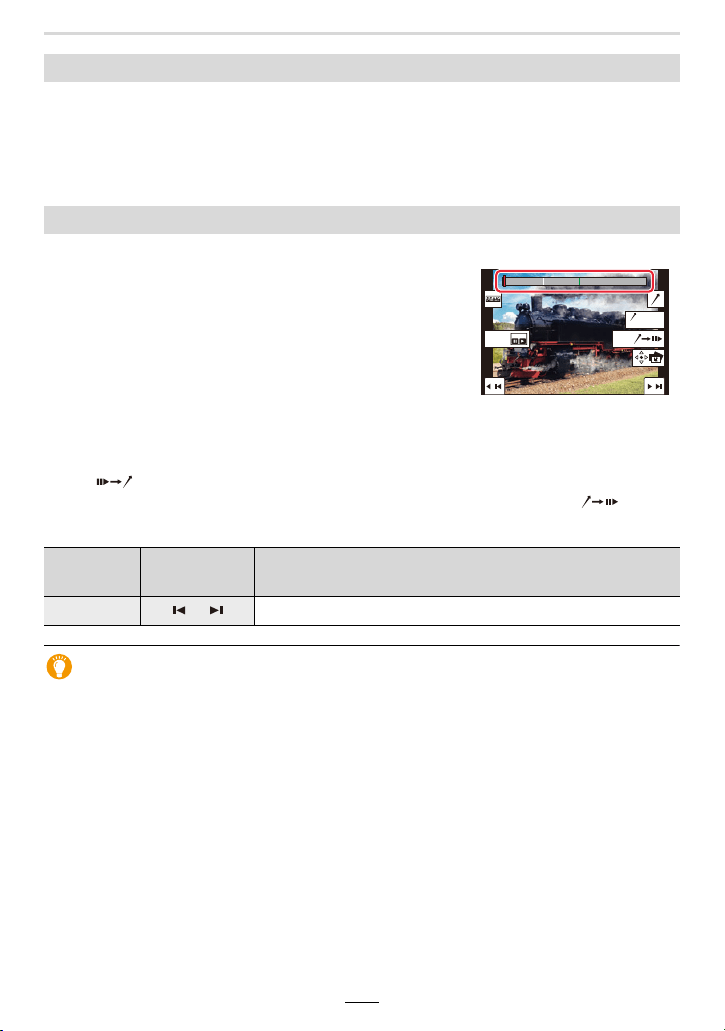
108
5. 4K Photo and Shutter Release Settings
• Set [HDMI Mode (Play)] to either [AUTO] or a setting with a resolution of [4K/30p].
When connecting to a TV that does not support 4K video, select [AUTO].
• If you display 4K picture series files on a TV connected to the camera, they will be displayed
only on the 4K serial playback screen.
• Depending on the TV to be connected, 4K picture series files may not be played back correctly.
∫ Jumping to the marked pictures
When [ ] is touched on the slide view screen or 4K serial playback screen, the marker
operation screen appears and you can jump to the marked pictures. Touch [ ] to
return to the original operation.
Auto Marking function
The camera automatically sets markers on pictures in which a face or the movement of a
subject is detected.
(Example: In a picture when a vehicle passes by, a balloon bursts, or a person turns
around)
• Up to 10 markers are displayed for each file.
• In the following cases, markers may not be set by the Auto Marking function depending on the
recording conditions and the status of subjects.
– The camera is moving because of panning or shaking
– The movement of a subject is slow/small
– The subject is small
– A face is not facing the camera
Selecting and saving pictures on the TV screen
Marking Pictures from 4K Picture Series
When selecting and saving pictures from a 4K picture
series file, you can select pictures easily by jumping
between marked ones.
Two types of markers are available.
White marker:
This is manually set during recording or playback.
Green marker:
This is automatically set by the camera during recording.
(Auto Marking function)
Marker operation screen
Button
operation
Touch
operation
Description of operation
2/1 / Moves to the previous/next marker.
Fn1 Fn2
AUTO
MODE
5. 4K Photo and Shutter Release Settings
109
∫ Switching a marker to be displayed
Touch [ ] on the slide view screen, 4K serial playback screen, or marker
operation screen.
[Auto]
Displays a marker in a picture in which a face or the movement of a
subject is detected.
[Face Priority]
Displays a marker with preference given to a picture in which a face is
detected.
[Motion Priority]
Displays a marker with preference given to a picture in which the
movement of a subject is detected.
[Off] Displays manually set markers only.
• You cannot delete markers set by the Auto Marking function.
• The markers set by the Auto Marking function may not be displayed correctly if you split the
4K picture series file on another device and then play it back on the camera.
• In the following case, markers set by the Auto Marking function are not displayed.
– 4K picture series files recorded with [4K Pre-Burst]
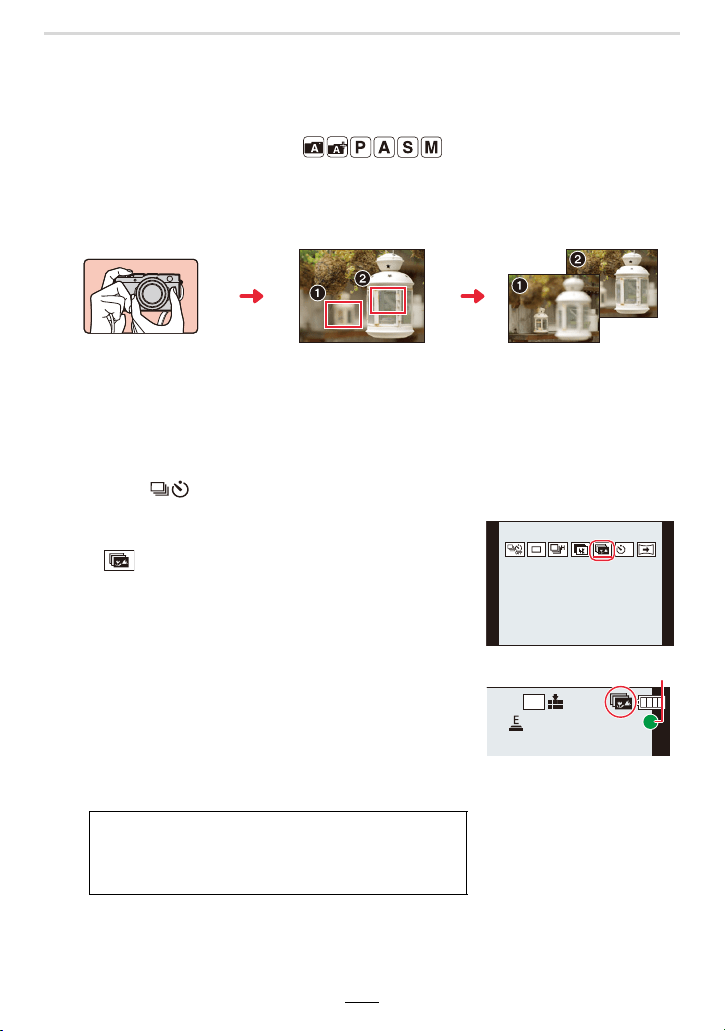
110
5. 4K Photo and Shutter Release Settings
Selecting the Focusing Plane After Recording
(Post Focus/Focus Stacking)
Available in the following modes:
This mode allows you to shift the focus setting while taking 4K serial pictures. After taking
these pictures, you can select the desired focused areas.
This function is only suited for recording static objects.
• Use a UHS Speed Class 3 card.
• We recommend that you use a tripod when recording images to be used for Focus Stacking.
1
Press [ ] (4).
2
Press 2/1 to select the Post Focus icon
([ ]), and then [MENU/SET].
• By default, you can also perform the same operations
as steps
1 and 2 by pressing [PF] / ([Fn4]) and then
selecting [ON].
3
Decide on the composition, and press the
shutter button halfway.
• Autofocus will detect the subjects within the monitor
screen that can be focused on.
• If no areas on the screen can be brought into focus, the
focus display (
A
) will flash. Recording is not possible in this case.
4K serial recording while
automatically shifting the
focus setting.
Touch the subject to be
focused on.
A picture with the desired
focus setting is made.
From the time you press the shutter button halfway
until the end of recording:
• Maintain the same distance to the subject and the
same composition.
4K
4:3
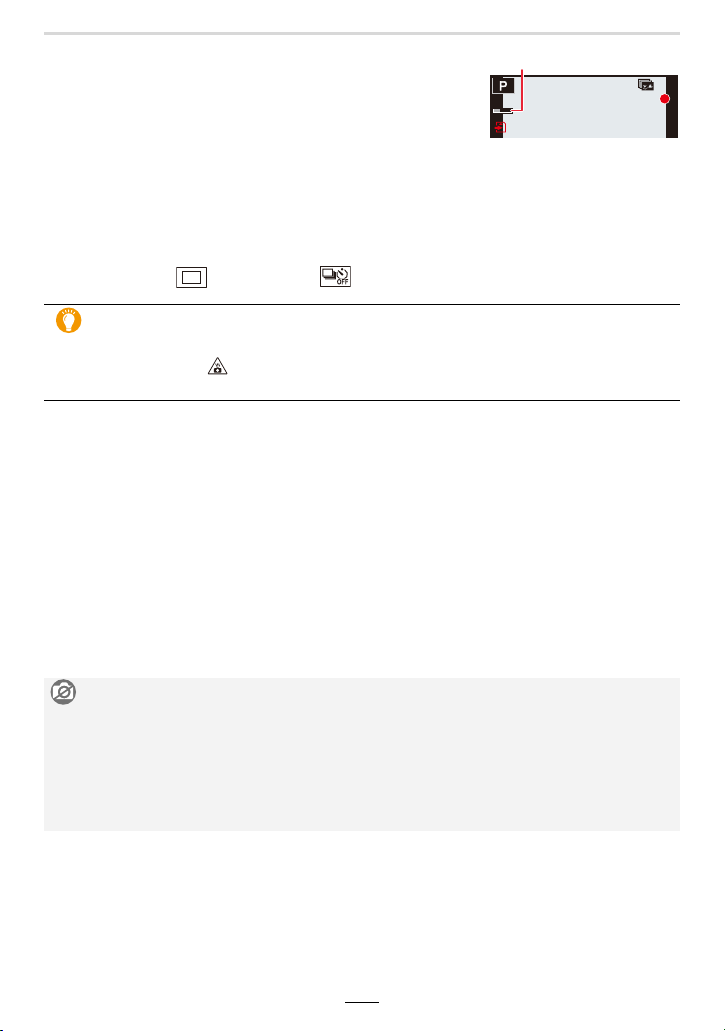
5. 4K Photo and Shutter Release Settings
111
4
Press the shutter button fully to start
recording.
• The focus setting changes automatically while recording.
When the icon (
B
) disappears, recording automatically
ends.
• A video will be recorded in the [MP4] recording format. (Audio will not be recorded.)
• When [Auto Review] is enabled, a screen that lets you select the desired focus settings
will be displayed. (>112)
∫ To cancel the [Post Focus] recording
In step
2, select [ ] ([Single]) or [ ]. (>110)
∫ Limitations on the Post Focus function
• Since recording is performed in the same image quality as 4K pictures, certain limitations apply
to recording functions and menu settings. For details, refer to “The camera’s setup for the 4K
Photo function” on (>103).
• In addition to the limitations of the 4K Photo function, the following limitations apply to the Post
Focus function:
– Manual focus operation is disabled.
– Autofocus mode and [AFS/AFF/AFC] are not available.
– Videos cannot be recorded.
– [Digital Zoom] is disabled.
– The following [Custom] menu items are disabled:
[Shutter AF]
About camera temperature
• When the ambient temperature is high or Post Focus recording is performed repeatedly, the
camera may display [ ] and recording may stop.
Wait until the camera cools down.
Not available in these cases:
• The Post Focus function is disabled when using the following settings:
– When using [Rough Monochrome]/[Silky Monochrome]/[Miniature Effect]/[Soft Focus]/[Star
Filter]/[Sunshine] in [Filter Settings]
– When [Multi Exp.] is set
– When using [Time Lapse Shot]
– When using [Stop Motion Animation]
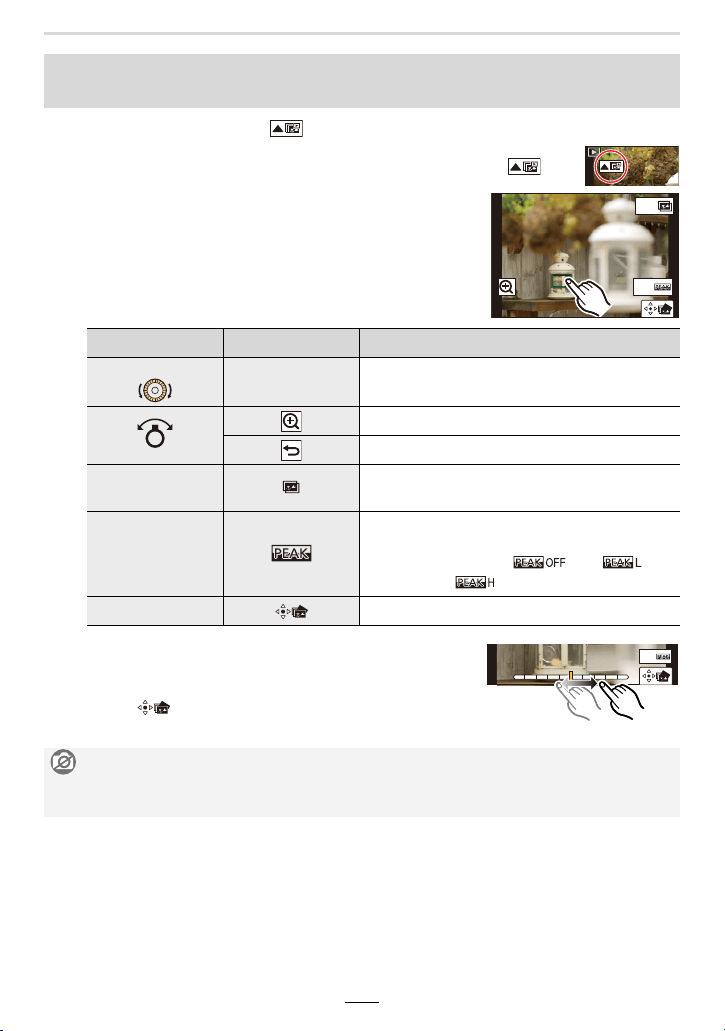
112
5. 4K Photo and Shutter Release Settings
1 Select a picture with the [ ] icon on the playback screen, and
press 3.
• You can also perform the same operation by touching the icon [ ].
2 Touch the desired subject.
• If the selected area cannot be focused, a red frame will be
displayed. You cannot save a picture in this case.
• You cannot select subjects at the edges of the screen.
• You can fine-adjust the focus setting by dragging the
slide bar during enlarged display. (You can also perform
the same operation by pressing 2/1.)
3 Touch [ ] to save the picture.
• The picture will be saved in JPEG format.
Selecting the pictures with the desired focus settings and saving a
picture ([Post Focus])
Button operation Touch operation Description of operation
3/4/2/1/
Touching
Selects a focus setting.
• Not possible during enlarged display.
Enlarges the display.
Reduces the display (during enlarged display).
[4K] / ([Fn1])
Switches to the Focus Stacking function.
(>113)
[QM] / ([Fn2])
The edges of in-focus sections are highlighted
with color. ([Peaking])
• Switches in order of [ ] > []
([LOW]) > [ ] ([HIGH]).
[MENU/SET] Saves the picture.
Not available in these cases:
• The Post Focus function cannot be set when the camera and a TV are connected with an
HDMI micro cable.
Fn1
Fn2
Fn2
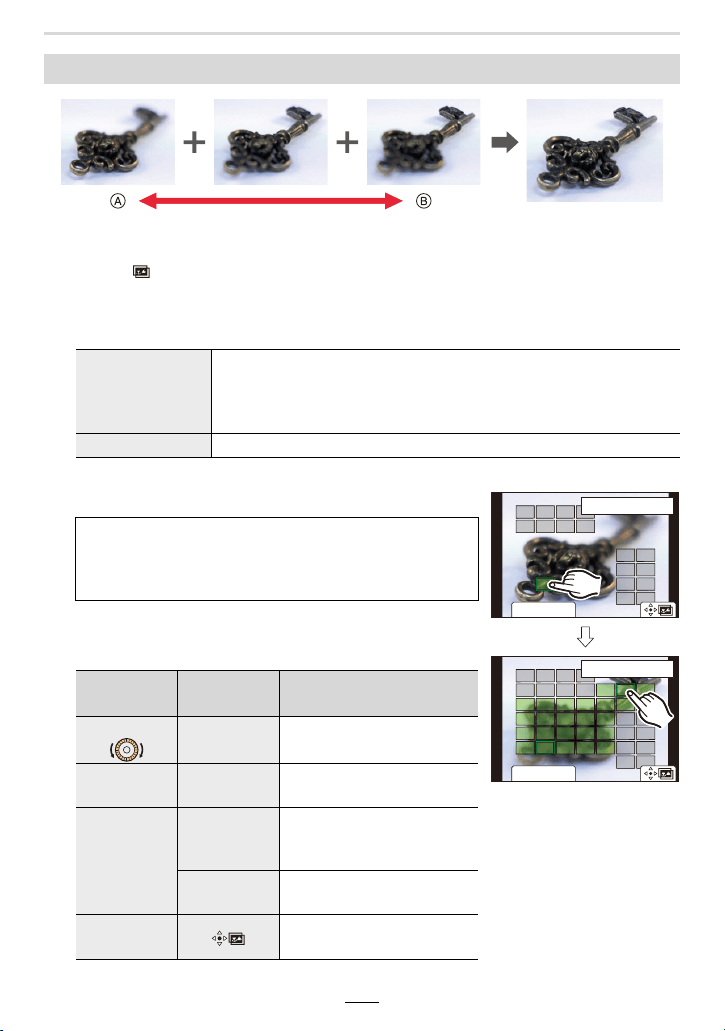
5. 4K Photo and Shutter Release Settings
113
A Focus setting: closer
B Focus setting: farther away
1 Touch [ ] in step 2 of “Selecting the pictures with the desired focus settings
and saving a picture ([Post Focus])” (>112).
• You can also perform the same operation by pressing [4K] / ([Fn1]).
2 Touch the merging method.
(When [Range Merging] is selected)
3 Touch the desired focus area.
• To cancel the selection, touch the area intended to be in
focus again.
• To select multiple areas, drag the screen.
Merging multiple pictures to expand the area rendered sharply (Focus Stacking)
[Auto Merging]
Automatically selects pictures that are suited to be merged, and
merges them into a single one.
• Priority will be given to pictures with closer focus.
• Perform the focus stacking and save the picture.
[Range Merging] Merges pictures with the selected areas in focus into a single one.
• Select at least two areas.
• In-focus areas between the selected two areas are
indicated.
• Parts that cannot be selected are indicated in gray.
Button
operation
Touch
operation
Description of operation
3/4/2/1/
Touching Selects areas to be in focus.
[QM] / ([Fn2])
[Set/Cancel]
Specifies/cancels areas to
be in focus.
[DISP]
[All]
Selects all focus areas.
(Before selecting focus
areas)
[Reset]
Cancels all selections.
(After selecting focus areas)
[MENU/SET]
Merges pictures and saves
the resulting picture.
Fn2
ュリヴヱハ
5HVHW
6HW&DQFHO
ュリヴヱハ
5HVHW
Fn2
6HW&DQFHO
114
5. 4K Photo and Shutter Release Settings
4 Touch [ ] to merge the pictures and save the resulting one.
• The picture will be saved in JPEG format. Recording information (Exif information) of the
original picture with the closest focus distance, including the shutter speed, aperture, and ISO
sensitivity, will also be recorded to the new picture.
• The camera can automatically correct the misalignments of pictures caused by camera shake.
If they are corrected, the captured image size becomes slightly smaller when pictures are
merged.
• Pictures may be merged into an unnatural-looking one in the following cases:
– When the subject moves during recording
– When the distance between subjects is great
– When pictures are too defocused (If you take pictures with a larger aperture value, the
resulting picture may look less unnatural.)
• You may not be able to use Focus Stacking for images recorded with other devices.
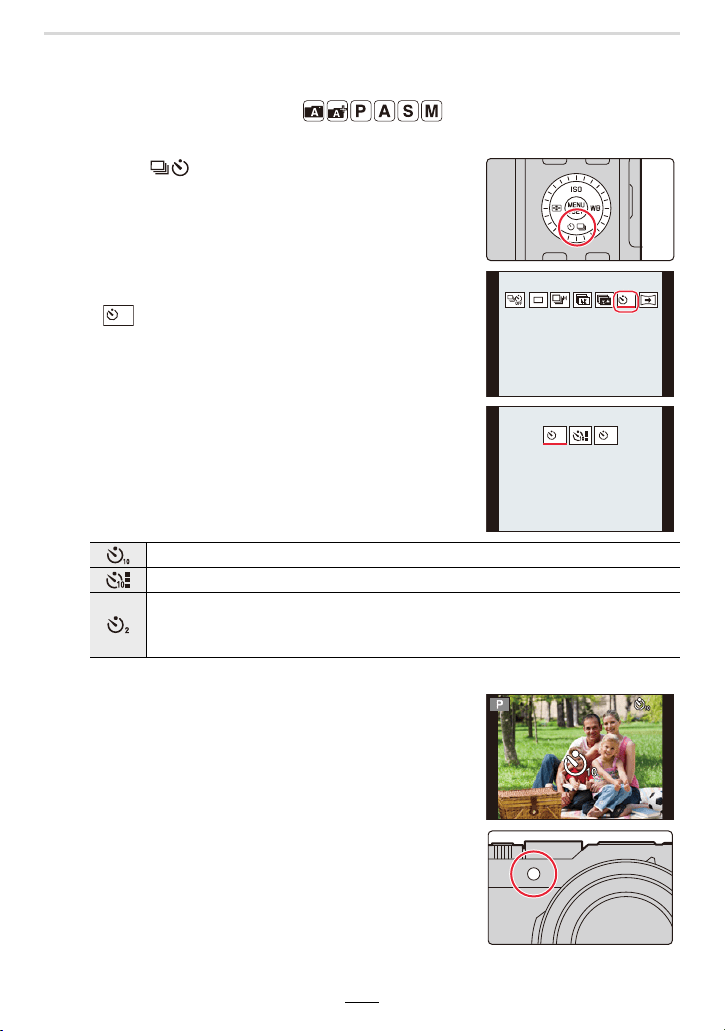
5. 4K Photo and Shutter Release Settings
115
Taking Pictures with the Self-timer
Available in the following modes:
1
Press [ ] (4).
2
Press 2/1 to select the self-timer icon
([ ], etc.), and then 3.
3
Press 2/1 to select the operation setting,
and then [MENU/SET].
• Time setting for the self timer can also be set by [Self Timer] in the [Rec] menu.
4
Press the shutter button halfway to focus
and then fully to take the picture.
• The focus and exposure settings will be performed
when the shutter button is pressed halfway.
• After the self-timer indicator flashes, recording starts.
One picture is taken 10 seconds after the shutter button is pressed.
After 10 seconds the camera takes 3 pictures at about 2 seconds intervals.
One picture is taken 2 seconds after the shutter button is pressed.
• When using a tripod, etc., this setting is a convenient way to avoid the shaking
caused by pressing the shutter button.
10
116
5. 4K Photo and Shutter Release Settings
∫ Canceling the self-timer
Select [ ] ([Single]) or [ ] from among the shutter release modes. (>97)
• The self-timer can also be canceled by turning off the camera. (When [Self Timer Auto Off]
(>191) is set to [ON])
• We recommend using a tripod when recording with the self-timer.
Not available in these cases:
• Cannot be set to [ ] in the following cases:
– When [Simultaneous Record w/o Filter] of [Filter Settings] is set to [ON]
– When recording with the Bracket function
– When using [Multi Exp.]
• The self-timer is disabled in the following cases.
– When recording videos
– When using [Time Lapse Shot]
– When using [Stop Motion Animation] (only when [Auto Shooting] is set)
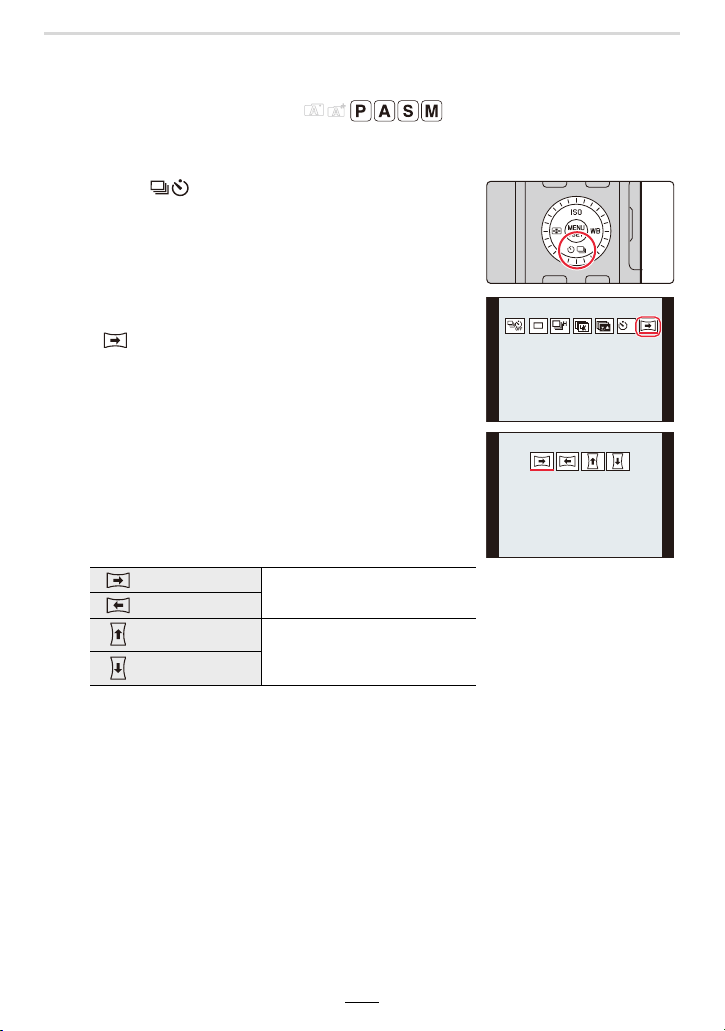
5. 4K Photo and Shutter Release Settings
117
Recording panorama pictures
Available in the following modes:
Consecutive photos taken while the camera is moved are combined to form a panorama.
1
Press [ ] (4).
2
Press 2/1 to select the panorama icon
([ ], etc.), and then 3.
3
Press 2/1 to select the recording direction
and then [MENU/SET].
4
Press the shutter button halfway to focus.
Left > Right
A horizontal guide line is
displayed.
Right > Left
Down > Up
A vertical guide line is
displayed.
Up > Down
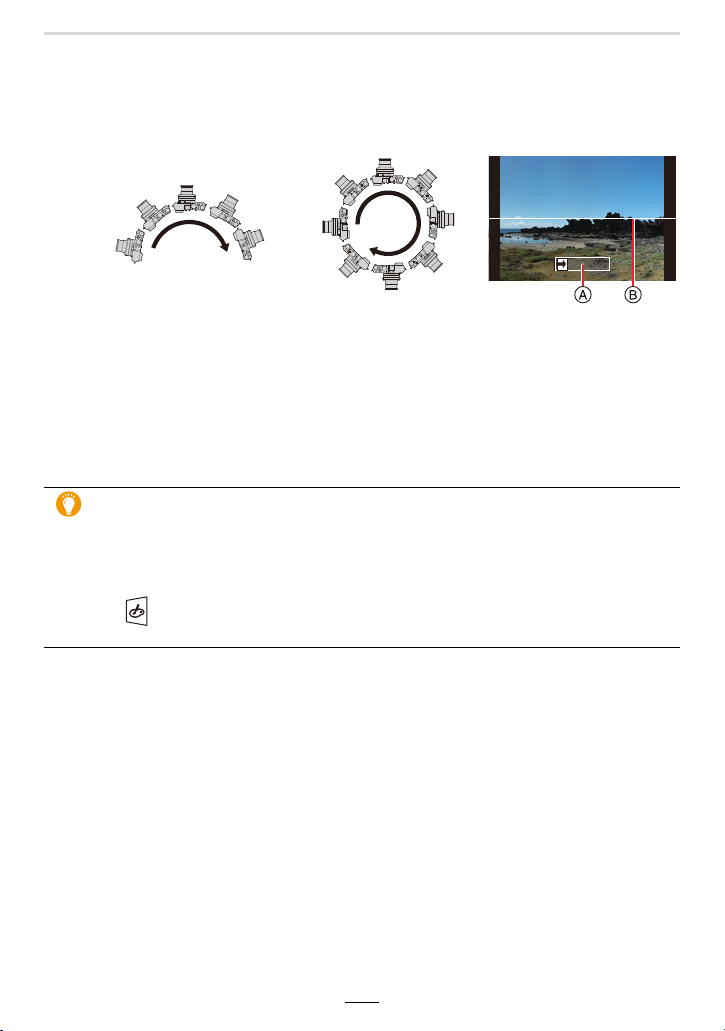
118
5. 4K Photo and Shutter Release Settings
5
Press the shutter button fully and move the camera in a small arc in
the direction of the arrow on the screen.
6
Press the shutter button again to end the picture recording.
• Recording can also be ended by stopping the camera movement while recording.
• Recording can also be ended by moving the camera to the end of the guide.
Recording from left to right
Picture size: [STANDARD] Picture size: [WIDE]
• Move the camera at a constant speed.
Pictures may not be able to be recorded properly if the
camera is moved too fast or slow.
A Recording direction and
progress (Guide)
B Horizontal/vertical guide
To add image effects (filters)
By default you can set the image effect by rotating the control ring.
1 Rotate the control ring to select the image effect.
2 Press [MENU/SET].
• You can also set the effect by touching [Filter Settings] (>122) in the [Rec] menu or
touching (>128) on the touch panel.
• Refer to (>122 to 128) for details about the adjustment and limitations of image effects.
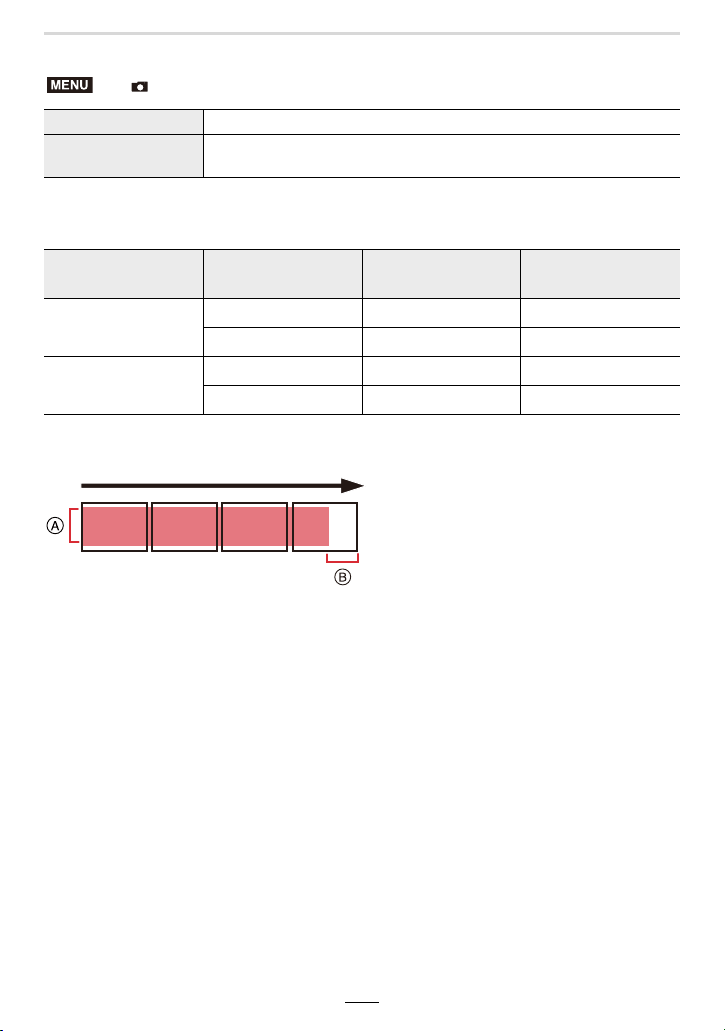
5. 4K Photo and Shutter Release Settings
119
∫ Changing panorama picture settings
• The resolution in the horizontal and vertical directions of the panorama picture varies
depending on the image size, the recording direction and the number of combined pictures.
The maximum resolution is shown below.
∫ Technique for Panorama Shot mode
> [Rec] > [Panorama Settings]
[Direction] Sets the recording direction.
[Picture Size]
Sets the angle of view (image size).
[STANDARD]/[WIDE]
Image size Recording direction
Horizontal
Resolution
Vertical Resolution
[STANDARD]
Horizontal 8176 pixels 1920 pixels
Vertical 2560 pixels 7680 pixels
[WIDE]
Horizontal 8176 pixels 960 pixels
Vertical 1280 pixels 7680 pixels
A Move the camera in the recording
direction without shaking it.
(If the camera shakes too much,
pictures may not be recorded, or the
created panorama picture may become
narrower (smaller).)
B Move the camera towards the edge of
the range you wish to record.
(However, the last frame is not recorded
to the end.)
MENU
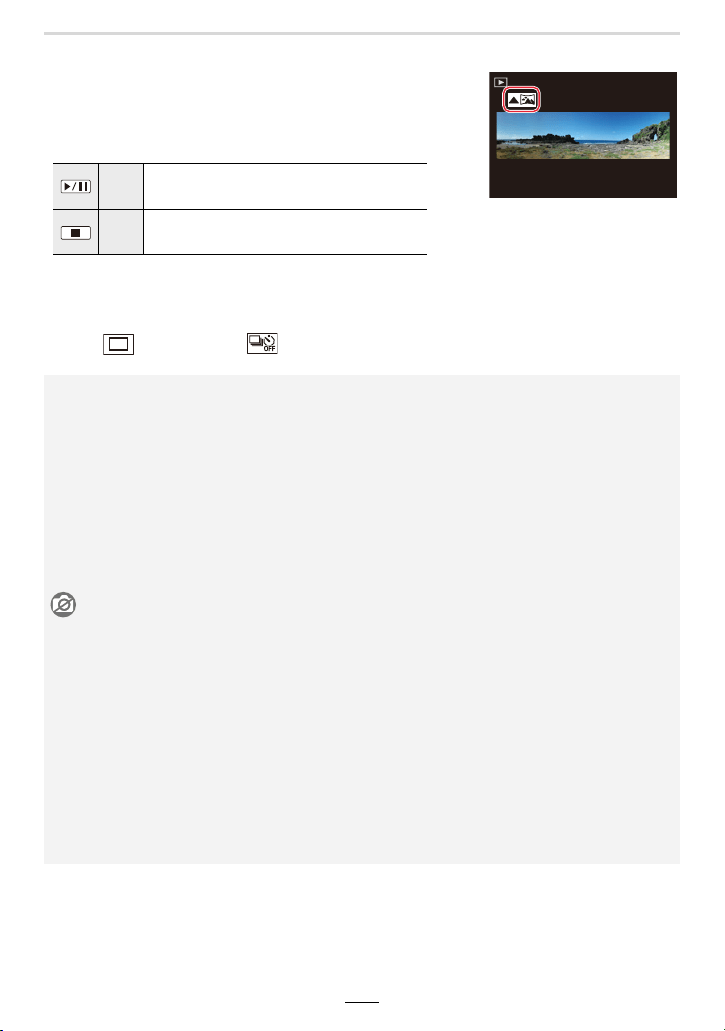
120
5. 4K Photo and Shutter Release Settings
∫ About playback
Pressing 3 will start scrolling playback automatically in the
same direction as the recording.
• The following operations can be performed during scrolling
playback.
¢ While paused, you can drag the screen to scroll forwards or backwards. If you touch the
scroll bar, the playback position jumps to the touched position.
∫ To cancel the panorama function
Select [ ] ([Single]) or [ ] from the shutter release mode (>97).
3 Start panorama playback/Pause
¢
4 Stop
• The zoom lens' setting is fixed to its shortest focal length/maximum wide angle.
• The shutter type is fixed to the electronic shutter function.
• The camera automatically sets the aperture value and shutter speed during panorama
recording. The settings of the aperture ring and shutter speed dial are disabled.
• The focus, White Balance, and exposure settings are fixed at the optimum values for the first
picture.
As a result, if the subject's depth or brightness changes substantially during recording, the
entire panorama picture may not have the suitable sharpness or brightness.
• When multiple pictures are combined to create a single panorama picture, the subject may
appear distorted or the connection points may be noticeable in some cases.
Not available in these cases:
• Panorama recording is disabled in the following cases:
– When using [Multi Exp.]
– When using [Time Lapse Shot]
– When using [Stop Motion Animation]
• A panorama picture may not be able to be created, or the pictures may not be combined
properly when recording the following subjects or under the recording conditions below.
– Subjects with a single, uniform color or repetitive pattern (such as the sky or a beach)
– Moving subjects (persons, pets, cars, waves, flowers blowing in the breeze, etc.)
– Subjects where the color or patterns change in a short time (such as an image appearing on
a display)
– Dark places
– Locations with flickering light sources such as fluorescent lights or candles
1/981/981/981/98
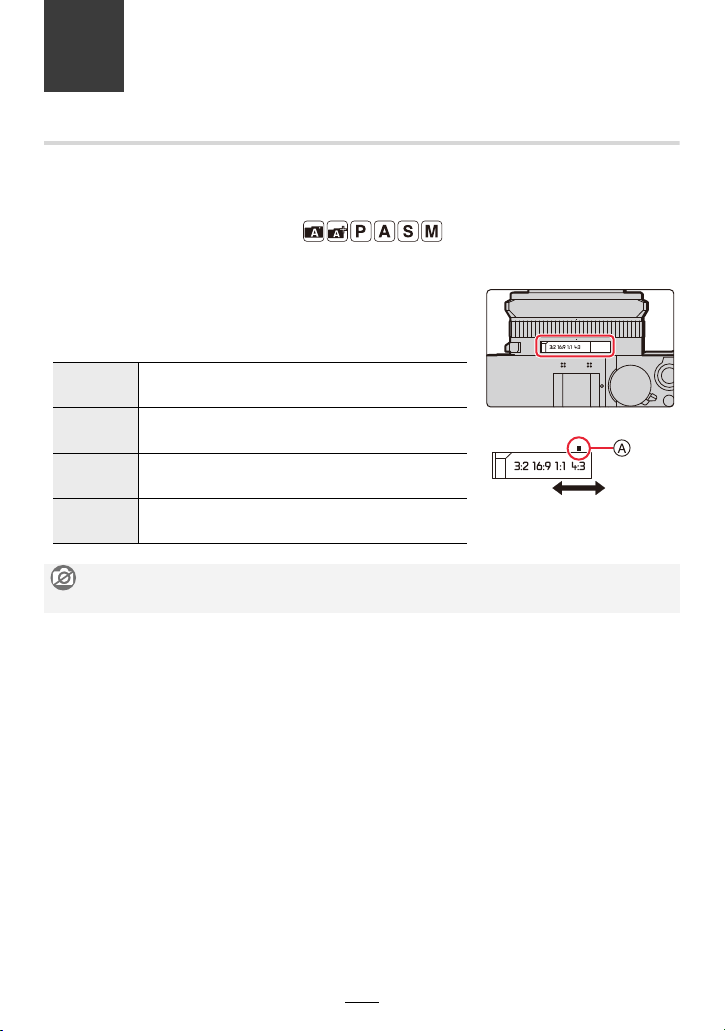
121
6. Recording Images that Suit Your
Subjects and Purposes
Changing the Aspect Ratio
Available in the following modes:
You can easily switch the aspect ratio of pictures using the aspect ratio selector switch.
Switching the aspect ratio selector switch
A Align the setting with the index mark
[4:3] Aspect ratio of a 4:3 TV
[1:1] Aspect ratio of a square image
[16:9] Aspect ratio of high-definition TV, etc.
[3:2] Aspect ratio of standard 35mm film cameras
Not available in these cases:
• The setting of the aspect ratio selector switch is disabled during panorama recording.
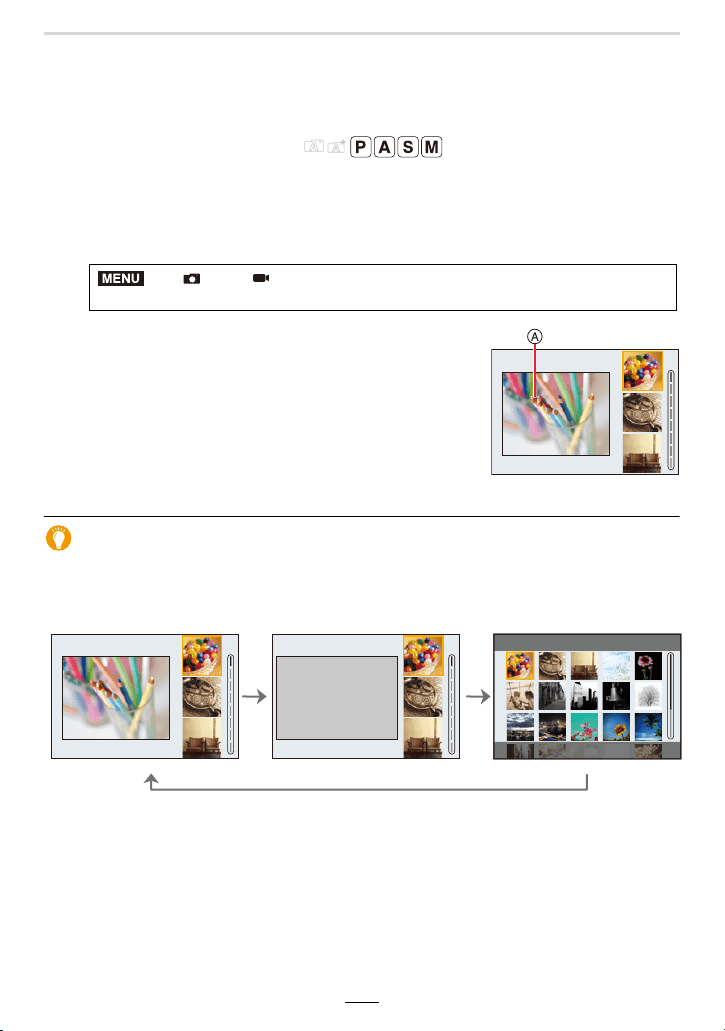
122
6. Recording Images that Suit Your Subjects and Purposes
Taking Pictures with Different Image Effects
(Filter)
Available in the following modes:
You can employ additional image effects even when you take panorama pictures.
1
Select the menu item.
2
Press 3/4 to select the image effects
(filters).
A Preview display
• You can also select the image effects (filters) by touching
the example images.
3
Press [MENU/SET].
Displaying the description of each image effect
Press [DISP] while the image effect selection screen is displayed.
• When it is set to the guide display, explanations for each picture effect are displayed.
> [Rec]/ [Motion Picture] > [Filter Settings] >
[Filter Effect] > [SET]
Normal display Guide display List display
MENU
1/8
1/8
1/8

6. Recording Images that Suit Your Subjects and Purposes
123
• The following items are fixed to the settings below when you set the image effect:
– [White Balance]: [AWB]
– [Photo Style]: [Standard]
– [Color Space]: [sRGB]
– [Highlight Shadow]: [Standard]
– [i.Dynamic]: [OFF]
– [HDR]: [OFF]
• Depending on the image effect, the recording screen may seem as if frames are missed.
• [Rough Monochrome]/[Silky Monochrome]/[Soft Focus]/[Star Filter]/[Sunshine] are not
available in the following case.
– When recording videos
• The available ISO sensitivity settings will be limited up to [ISO3200].
• The ISO sensitivity for [High Dynamic] will be fixed to [AUTO].
• The following limitations apply when Panorama Shot mode is set:
– [Toy Effect]/[Toy Pop]/[Miniature Effect]/[Sunshine] are not available.
– The image effects of [Rough Monochrome]/[Silky Monochrome]/[Soft Focus]/[Star Filter] will
not be applied to the screen during recording.
– When [High Key] is set, its effect may not appear clearly in scenes that are not bright
enough.
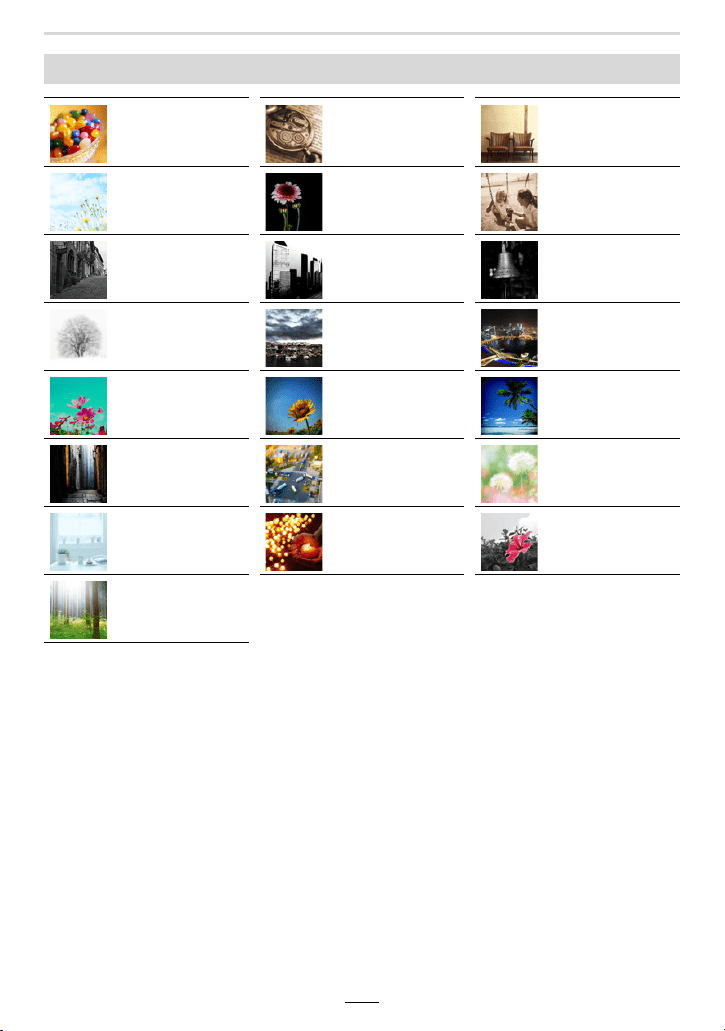
124
6. Recording Images that Suit Your Subjects and Purposes
Types of image effects
[Expressive] [Retro] [Old Days]
[High Key] [Low Key] [Sepia]
[Monochrome] [Dynamic
Monochrome]
[Rough
Monochrome]
[Silky
Monochrome]
[Impressive Art] [High Dynamic]
[Cross Process] [Toy Effect] [Toy Pop]
[Bleach Bypass] [Miniature Effect] [Soft Focus]
[Fantasy] [Star Filter] [One Point Color]
[Sunshine]
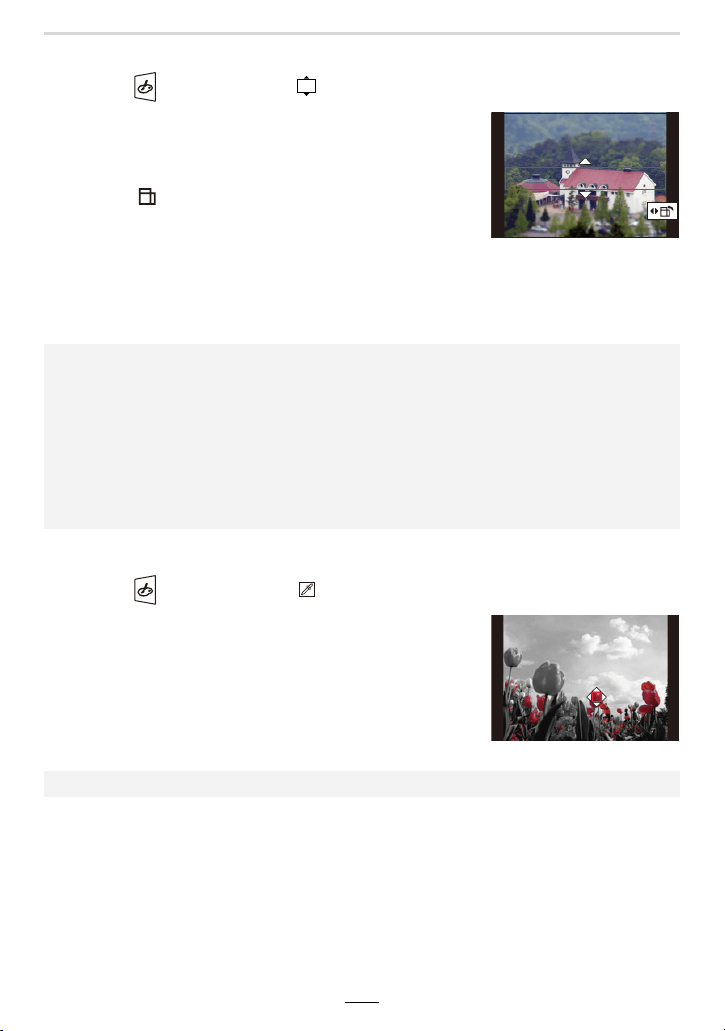
6. Recording Images that Suit Your Subjects and Purposes
125
∫ Setting the type of defocus ([Miniature Effect])
1 Touch [ ] and then select [ ].
2 Press 3/4 or 2/1 to move the in-focus section.
• You can also move the in-focus section by touching the
recording screen.
• To set the recording orientation (defocus orientation),
touch [ ].
3 Rotate the control dial to change the size of the
in-focus section.
• The section can also be enlarged/reduced by pinching out/
pinching in the screen.
• To reset the in-focus section setting to the default, press [DISP].
4 Press [MENU/SET] to set.
∫ Set the color to leave in ([One Point Color])
1 Touch [ ] and then select [ ].
2 Select the color you want to leave by moving the
frame with 3/4/2/1.
• You can also select the color you want to leave by touching
the screen.
• To return the frame back to the center, press [DISP].
3 Press [MENU/SET] to set.
• No sound is recorded in videos.
• When a video is recorded, the finished recording will be approximately 1/10th of the actual
recorded time period. (e.g. in case of an 10-minute recording, the resulting video will be
approximately 1 minute long.) The recordable time displayed on the camera is approx.
10 times of the actual recording time.
Depending on the recording frame rate of the video, its recording time and the available
recording time may differ from the values above.
• If you end video recording after a short time, the camera may go on recording for a certain
period.
• Depending on the subject, the set color may not be left in.
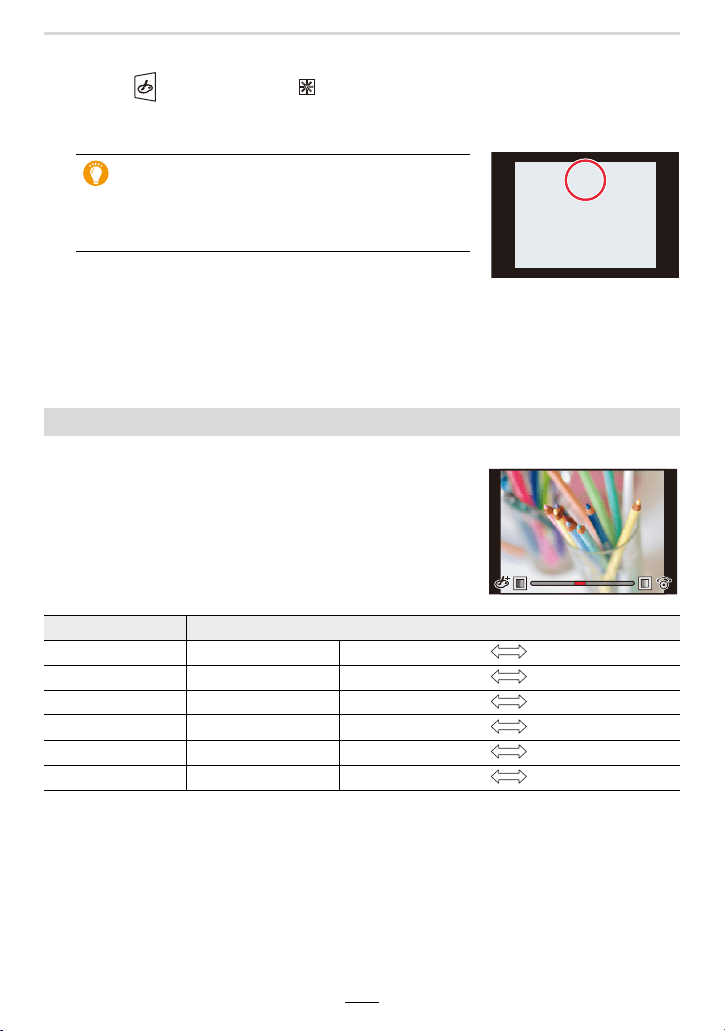
126
6. Recording Images that Suit Your Subjects and Purposes
∫ Setting the position and size of the light source ([Sunshine])
1 Touch [ ] and then select [ ].
2 Press 3/4/2/1 to move the center position of the light source.
• The position of the light source can also be moved by touching the screen.
3 Adjust the size of the light source by rotating the
control dial.
• The display can also be enlarged/reduced by pinching out/pinching in.
• To reset the light source setting to the default, press [DISP].
4 Press [MENU/SET] to set.
1 Press 1.
2 Rotate the control dial to adjust the setting.
• Press [MENU/SET] to return to the recording screen.
Tip on positioning the center of the light
source
A more natural appearance can be created by placing
the center of the light source outside the image.
Adjusting the effect to fit your preferences
Image effect Items that can be set
[Expressive] Freshness Understated colors Pop colors
[Retro] Color Yellowish tinge Reddish tinge
[Old Days] Contrast Lower Higher
[High Key] Color Pinkish tinge Aquamarinish tinge
[Low Key] Color Reddish tinge Bluish tinge
[Sepia] Contrast Lower Higher
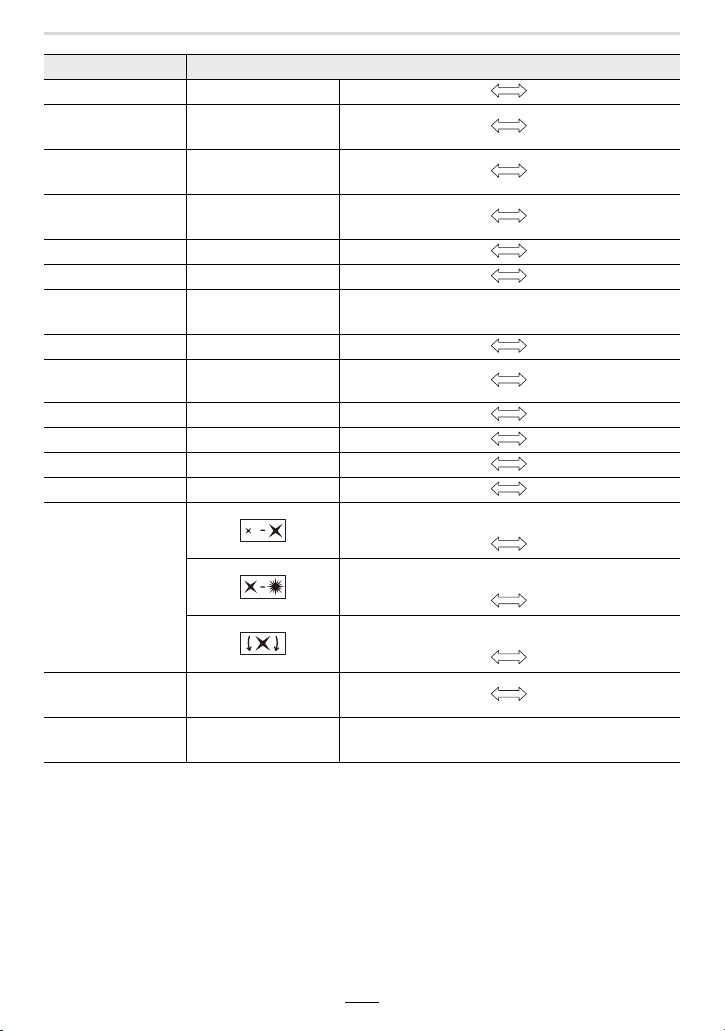
6. Recording Images that Suit Your Subjects and Purposes
127
Image effect Items that can be set
[Monochrome] Color Yellowish tinge Bluish tinge
[Dynamic
Monochrome]
Contrast Low contrast High contrast
[Rough
Monochrome]
Grittiness Less gritty Grittier
[Silky
Monochrome]
Extent of defocus Weaker defocus Stronger defocus
[Impressive Art] Freshness Black and white Pop colors
[High Dynamic] Freshness Black and white Pop colors
[Cross Process] Color
Greenish tinge/Bluish tinge/Yellowish tinge/
Reddish tinge
[Toy Effect] Color Orangish tinge Bluish tinge
[Toy Pop]
Area with reduced
peripheral brightness
Smaller Larger
[Bleach Bypass] Contrast Low contrast High contrast
[Miniature Effect] Freshness Understated colors Pop colors
[Soft Focus] Extent of defocus Weaker defocus Stronger defocus
[Fantasy] Freshness Understated colors Pop colors
[Star Filter]
Length of the rays of light
Shorter Longer
Number of the rays of light
Smaller Larger
Angle of the rays of light
Rotate to the left Rotate to the right
[One Point Color] Amount of color left
Smaller amount of
color
Larger amount of
color
[Sunshine] Color
Yellowish tinge/Reddish tinge/Bluish tinge/Whitish
tinge
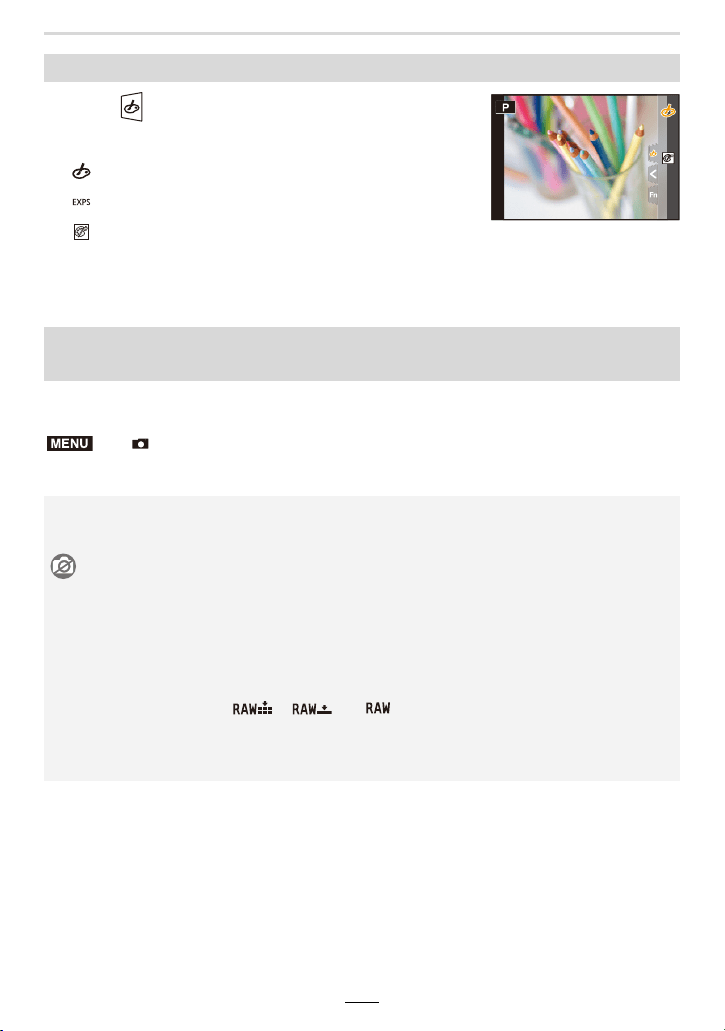
128
6. Recording Images that Suit Your Subjects and Purposes
1 Touch [ ].
2 Touch the item you want to set.
3 Drag the slide bar to adjust the setting.
• Press [MENU/SET] to return to the recording screen.
You can press the shutter button once and take two pictures simultaneously, one with an
image effect and the other one without it.
Settings: [ON]/[OFF]
Changing the settings by using the monitor screen
[]:Image effect ON/OFF
[]:Selects an image effect (filter)
[]:Adjusts an image effect
Taking a picture with and without an image effect simultaneously
([Simultaneous Record w/o Filter])
> [Rec] > [Filter Settings] > [Simultaneous Record w/o Filter]
• A picture with an image effect will be taken first, followed by one without it.
• Only an image with an image effect is displayed for Auto Review.
Not available in these cases:
• In the following cases, [Simultaneous Record w/o Filter] does not work:
– Recording pictures while recording a video
– When recording 4K pictures
– When recording with the Post Focus function
– When recording in Continuous mode
– When using [Panorama Shot]
– When [Quality] is set to [ ], [ ] or [ ]
– When recording with the Bracket function
– When using [Time Lapse Shot]
– When using [Stop Motion Animation]
EXPS
EXPS
EXPS
EXPS
EXPS
EXPS
MENU
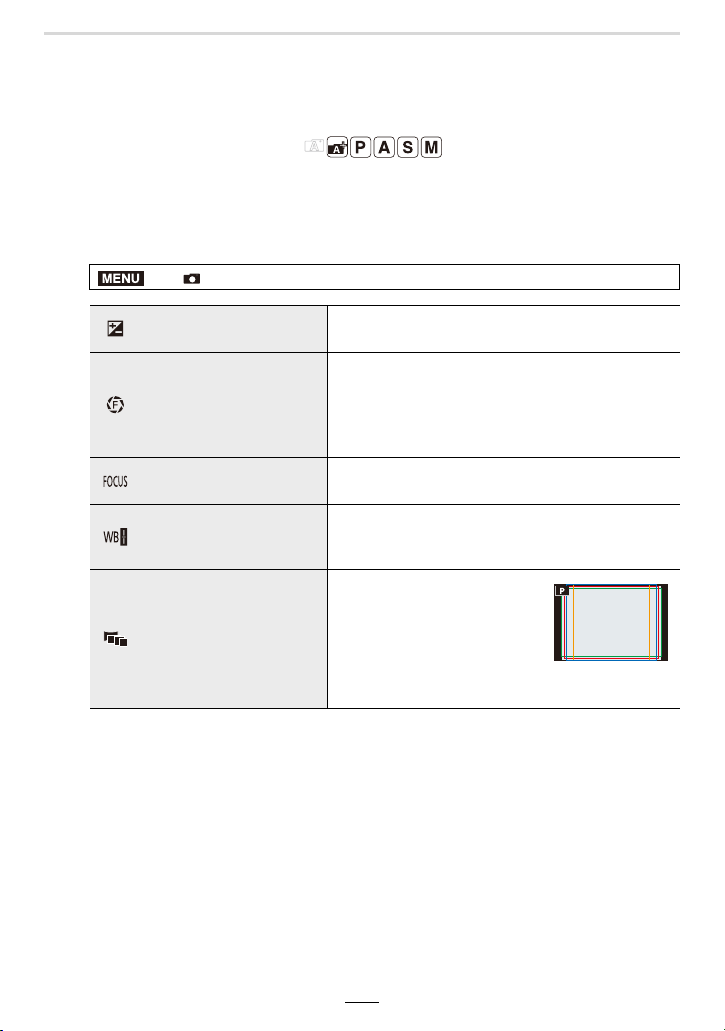
6. Recording Images that Suit Your Subjects and Purposes
129
Taking Picture Series with Automatically
Changing Settings (Bracket Recording)
Available in the following modes:
You can create a series of pictures in which a range of preset setting changes is applied
automatically after pressing the shutter button.
1
Select the menu item.
2
Press 3/4 to select [More Settings] and then [MENU/SET].
• For information on [More Settings], refer to the page that describes each function.
Aspect Bracket does not have [More Settings].
• Press the shutter button halfway to exit the menu.
> [Rec] > [Bracket] > [Bracket Type]
Exposure Bracketing
Pressing the shutter button creates a series of
pictures with differing exposure. (>131)
Aperture Bracketing
Pressing the shutter button creates a series of
pictures with differing aperture settings. (>131)
• Available in Aperture-Priority mode or when the
ISO sensitivity is set to [AUTO] in manual
exposure mode.
Focus Bracketing
Pressing the shutter button creates a series of
pictures with differing focus settings. (>132)
White Balance
Bracketing
Pressing the shutter button creates a series of 3
pictures with differing White Balance settings.
(>132)
Aspect Bracketing
Pressing the shutter button
creates a series of 4 pictures
with differing aspect ratios
(4:3, 3:2, 16:9, and 1:1). (The
shutter sounds only once.)
• The area recorded for each
aspect ratio is displayed.
MENU
130
6. Recording Images that Suit Your Subjects and Purposes
3
Focus on the subject and take a picture.
• When Exposure Bracket is selected, the bracket display flashes until all of the pictures
you have set are taken. If you change the bracket settings or turn off the camera before
all of the pictures you have set are taken, the camera restarts recording from the first
picture.
∫ To cancel [Bracket Type]
Select [OFF] in step
1.
• The following changes occur when Aspect Bracket is set:
– When [Picture Size] is set to [S], the setting is automatically changed to [M].
– The same shutter speed, aperture value, focus, [Sensitivity], [Exposure Comp.] and [White
Balance] settings are used for all four pictures.
Not available in these cases:
• Bracket recording is disabled in the following cases:
– When using [Rough Monochrome]/[Silky Monochrome]/[Miniature Effect]/[Soft Focus]/[Star
Filter]/[Sunshine] in [Filter Settings]
– When recording videos
– When recording 4K pictures
– When recording with the Post Focus function
– When using [Panorama Shot]
– When using [Multi Exp.]
– When using [Time Lapse Shot]
– When using [Stop Motion Animation] (only when [Auto Shooting] is set)
– When recording with the flash (except for when using White Balance Bracket or Aspect
Bracket)
• White Balance Bracket is disabled in the following cases:
– Snapshot Plus mode
– When using [Filter Settings]
– When recording in Continuous mode
– When [Quality] is set to [ ], [ ] or [ ]
• Aspect Bracket is disabled in the following cases:
– When [Toy Effect]/[Toy Pop] in [Filter Settings] is used
– When recording in Continuous mode
– When [Quality] is set to [ ], [ ] or [ ]
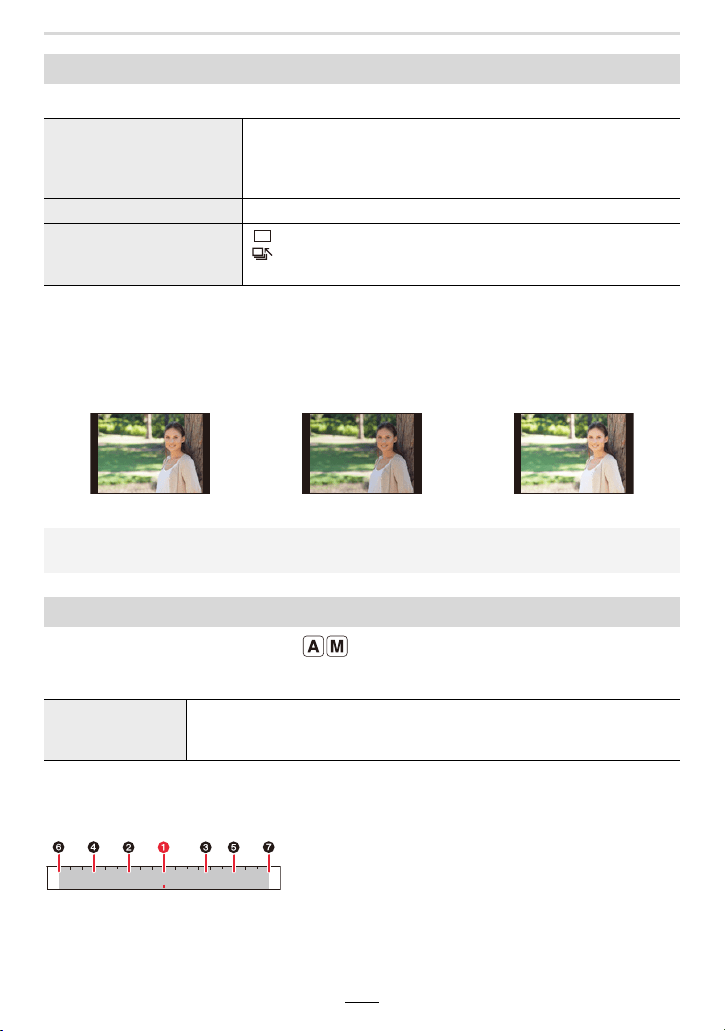
6. Recording Images that Suit Your Subjects and Purposes
131
∫ About [More Settings] (step 2 in (>129))
¢ Not available for serial recording. When using serial recording, if you press and hold the
shutter button, recording will be performed continuously until a specified number of pictures
are taken.
[Step]: [3•1/3], [Sequence]: [0/s/r]
Available in the following modes:
∫ About [More Settings] (step
2 in (>129))
• When using serial recording, if you press and hold the shutter button, recording will be
performed until a specified number of pictures are taken.
Example:
When the initial position is set to F5.6:
1 first picture, 2 second picture, 3 third picture... 7 seventh picture
Exposure Bracketing
[Step]
Sets the number of pictures to be taken and the exposure
bracket range.
[3•1/3] (Takes three pictures with an interval of 1/3 EV) to [7•1]
(Takes seven pictures with an interval of 1 EV)
[Sequence] Sets the order in which pictures are taken.
[Single Shot Setting]
¢
[ ]: Takes one picture each time you press the shutter button.
[ ]: Takes all the pictures set to be taken when you press the
shutter button once.
1st picture 2nd picture 3rd picture
d0EV j1/3 EV i1/3 EV
• When taking pictures using Exposure Bracketing after setting an Exposure Compensation
value, the pictures taken are based on the selected Exposure Compensation value.
Aperture Bracketing
[Image Count]
[3], [5]: Takes the specified number of pictures with different aperture
values within the range based on the initial aperture value.
[ALL]: Takes pictures using all aperture values.
2.82.0 4.0 5.6 8.0 11 16
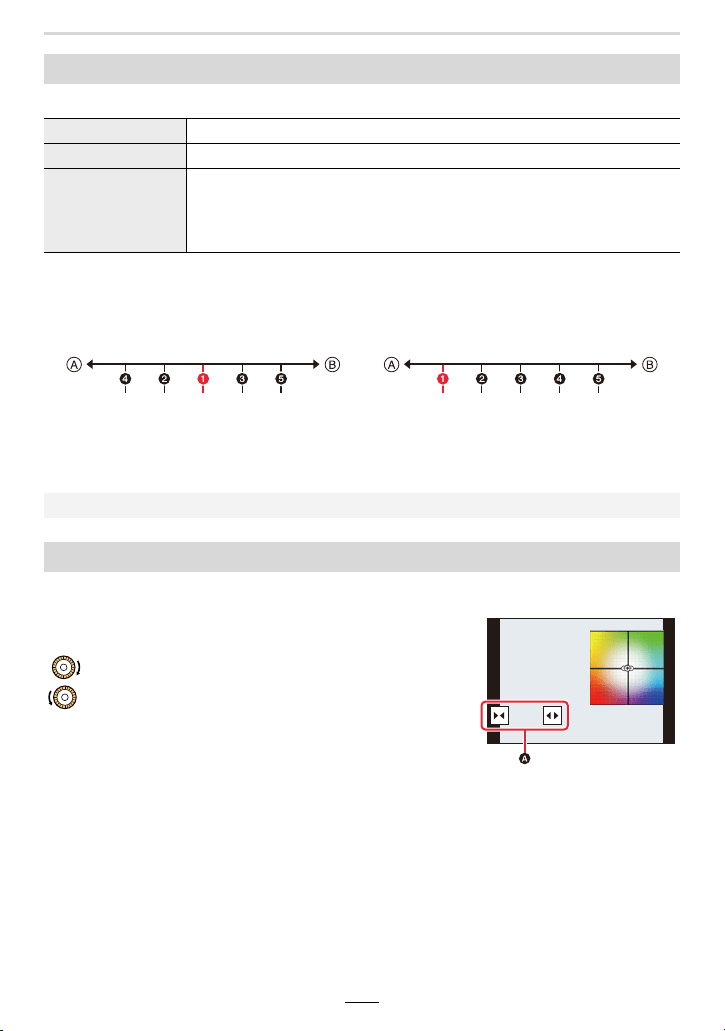
132
6. Recording Images that Suit Your Subjects and Purposes
∫ About [More Settings] (step 2 in (>129))
¢ Not available for serial recording. When using serial recording, if you press and hold the
shutter button, recording will be performed continuously until a specified number of pictures
are taken.
A Focus: closer
B Focus: farther away
1 first picture, 2 second picture... 5 fifth picture...
∫ About [More Settings] (step
2 in (>129))
Rotate the control dial to adjust the correction range,
and press [MENU/SET].
: Horizontal ([A] to [B])
: Vertical ([G] to [M])
• You can also set the correction range by touching A.
Focus Bracketing
[Step] Sets the interval between focus settings.
[Image Count]
¢
Sets the number of pictures to be taken.
[Sequence]
[0/s/r]: Alternately moves the focus setting closer and farther away
within the range centered on the initial setting as you take pictures.
[0/r]: Moves the focus setting farther away from the initial one as you
take pictures.
[Sequence]: [0/s/r] [Sequence]: [0/r]
• Pictures taken with Focus Bracketing are displayed as group images.
White Balance Bracketing
・・・・・・
・・・
GGGGGG
AAAAAABBBBBBB
MMMMMM
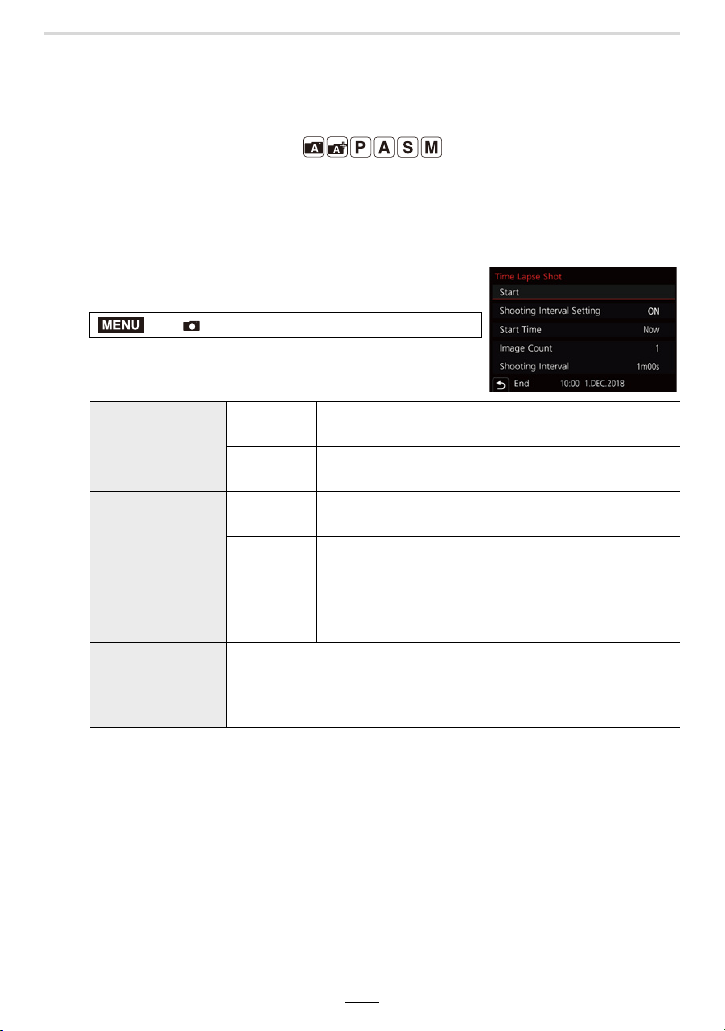
6. Recording Images that Suit Your Subjects and Purposes
133
Taking Pictures Automatically at Set Intervals
([Time Lapse Shot])
Available in the following modes:
The camera can automatically take pictures of subjects such as animals or plants as time
elapses and create a video.
• Set the date and time settings in advance. (>31)
• Recorded pictures are displayed as group pictures.
1
Select the menu item.
¢1 Can be set only when [Shooting Interval Setting] is set to [ON].
• The estimated recording ending time is displayed on the setting screen.
It is displayed under the following conditions when [Shooting Interval Setting] is set to
[OFF]:
– Recording Mode: Shutter-Priority mode or manual exposure mode
– Focus Mode: [MF]
• The camera may not be able to record using the pre-set interval and number of pictures
to be recorded or may not finish recording at the estimated recording ending time under
some recording conditions.
2
Press 3/4 to select [Start] and then [MENU/SET].
> [Rec] > [Time Lapse Shot]
[Shooting Interval
Setting]
[ON]
Sets the time from recording start time to the next
recording start time.
[OFF]
After recording is finished, the next recording is
started without any interval.
[Start Time]
[Now]
Starts the recording by fully-pressing the shutter
button.
[Start Time
Set]
Any time up to 23 hours 59 minutes ahead can be
set.
Select the item (hour or minute) by pressing
2/1, set the start time by pressing 3/4, and
then press [MENU/SET].
[Image Count]/
[Shooting
Interval]
¢1
The number of pictures and the recording interval can be set.
2/1: Select the item (number of pictures/minute/second)
3/4: Setting
[MENU/SET]: Set
MENU
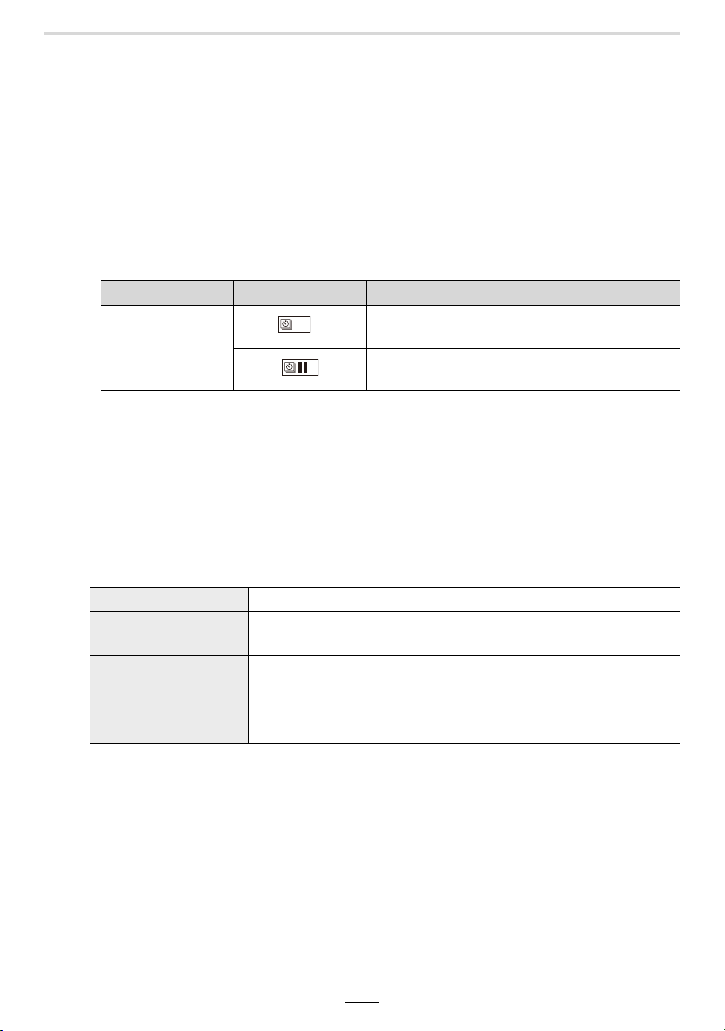
134
6. Recording Images that Suit Your Subjects and Purposes
3
Press the shutter button halfway to focus.
4
Press the shutter button fully.
• The recording starts automatically.
• During recording standby, the camera will turn off automatically if no operation is
performed for a certain period. The Time Lapse series is continued even with the
camera turned off. When the recording start time arrives, the camera turns on
automatically.
To turn on the camera manually, press the shutter button halfway.
• Operations during recording standby (The camera is turned on)
¢2 When you record pictures by setting [Shooting Interval Setting] to [OFF], you can
press [4K] / ([Fn1]) even while recording is in progress. After recording (exposure) of
a picture taken at the time when you pressed [4K] / ([Fn1]) is finished, a selection
screen is displayed.
¢3 When you record pictures by setting [Shooting Interval Setting] to [OFF], you cannot
perform touch operation.
5
Select the methods for creating a video.
• The recording format is set to [MP4].
6
Press 3/4 to select [OK] and then [MENU/SET].
• Videos can also be created from [Time Lapse Video] in the [Playback] menu. (>220)
Button operation Touch operation Description of operation
[4K] / ([Fn1])
¢2
¢3
Displays a selection screen that lets you
pause or stop the recording
Displays a selection screen that lets you
resume or stop the recording (during pause)
[Rec Quality] For setting the quality of the video.
[Frame Rate]
For setting the number of frames per second.
The larger the number is, the smoother the video will look.
[Sequence]
[NORMAL]:
Splices pictures together in recording order.
[REVERSE]:
Splices pictures together in reverse recording order.
6. Recording Images that Suit Your Subjects and Purposes
135
• This function is not for use as a security camera.
• When the lens' zoom function is used, the camera could tilt when the lens barrel extends.
Make sure to secure the camera in place with a tripod or by other means.
• [Time Lapse Shot] is paused in the following cases.
– When the battery capacity runs out
– When the camera on/off switch is set to [OFF]
(When [Shooting Interval] is set to 31 seconds or longer)
During [Time Lapse Shot], you can replace the battery and the card, and then restart by
turning on the camera. (Note that the pictures taken after replacing the card will be saved as a
separate set of group pictures.)
Set the camera on/off switch to [OFF] when replacing the battery or card.
• We recommend using Autofocus for time lapse recording in cases where a long [Shooting
Interval] is set and the camera will turn off automatically between shots.
• When creating videos with a [Rec Quality] setting of [4K], recording times are limited to
29 minutes.
– In addition, when using an SDHC memory card, you cannot create videos with a file size
exceeding 4 GB.
– When using an SDXC memory card, you can create videos with a file size exceeding 4 GB.
• A video with a [Rec Quality] setting of [FHD] or [HD] cannot be created if the recording time
exceeds 29 minutes or the file size exceeds 4 GB.
Not available in these cases:
• This function is not available in the following cases:
– When using [Panorama Shot]
– When using [Multi Exp.]
– When using [Stop Motion Animation]
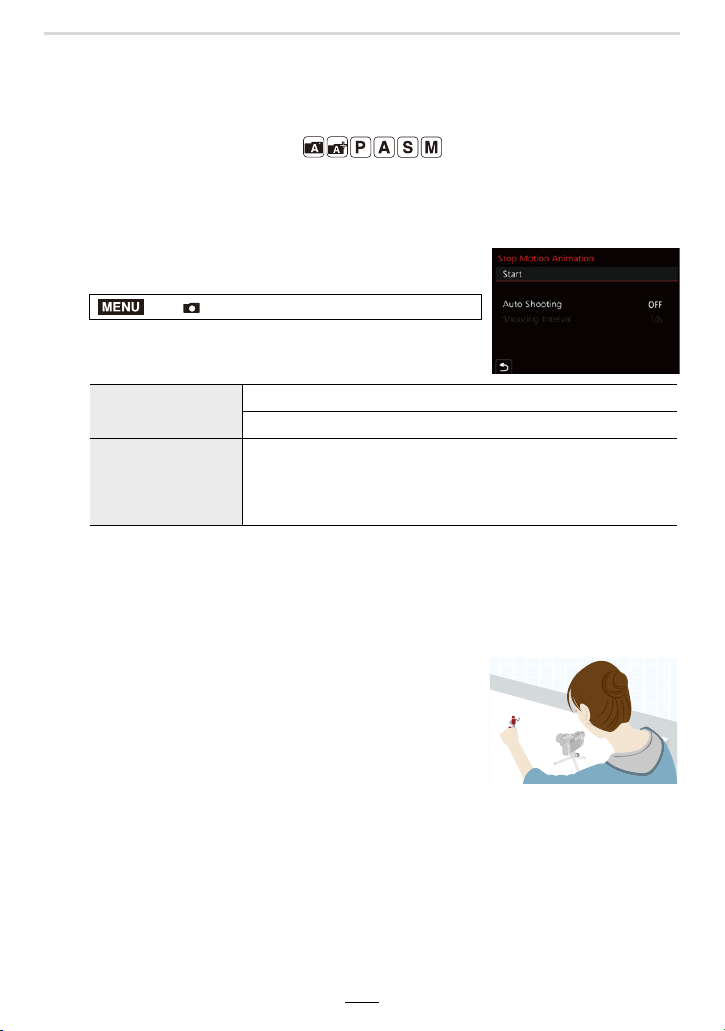
136
6. Recording Images that Suit Your Subjects and Purposes
Creating Stop Motion Pictures ([Stop Motion
Animation])
Available in the following modes:
A stop video is created by splicing pictures together.
• Set the date and time settings in advance. (>31)
• Recorded pictures are displayed as group pictures.
1
Select the menu item.
2
Press 3/4 to select [Start] and then [MENU/SET].
3
Press 3/4 to select [New] and then [MENU/SET].
4
Press the shutter button halfway to focus.
5
Press the shutter button fully.
6
(When taking the second and subsequent
pictures)
Move the subject according to the intended
composition and then take the picture.
• Repeat recording for all other pictures in the same way.
• If the camera is turned off while recording, a message for resuming the recording is
displayed when the camera is turned on. Selecting [Yes] allows you to continue the
recording from the interruption point.
• Up to 9999 frames can be recorded.
> [Rec] > [Stop Motion Animation]
[Auto Shooting]
[ON]: Takes pictures automatically at a set recording interval.
[OFF]: This is for taking pictures manually, frame by frame.
[Shooting Interval]
(Only when [Auto Shooting] is set to [ON])
2/1: Select the item (second)
3/4: Setting
[MENU/SET]: Set
MENU
6. Recording Images that Suit Your Subjects and Purposes
137
7
Touch [ ] to end the recording.
• It can also be ended by selecting [Stop Motion Animation]
from the [Rec] menu and then pressing [MENU/SET].
• When [Auto Shooting] is set to [ON], select [End] on the
confirmation screen.
(If [Pause] has been selected, press the shutter button fully
to resume the recording.)
• After the recording stops, a confirmation screen will be displayed, asking whether to
proceed to create a video.
To create a video, select [Yes].
8
Select the methods for creating a video.
• The recording format is set to [MP4].
9
Press 3/4 to select [OK] and then [MENU/SET].
• You can also create videos using [Stop Motion Video] in the [Playback] menu. (>220)
∫ Adding pictures to the Stop Motion Animation group
Selecting [Additional] in step
3 will display group pictures recorded with [Stop Motion
Animation].
Select a set of group pictures, and then press [MENU/SET].
Recording assistance
• The recording screen displays up to two pictures taken previously. Use them as
reference for the amount of movement.
• To check the recorded pictures, press [(].
Unnecessary pictures can be deleted by pressing [ ].
To return to the recording screen, press [(] again.
[Rec Quality] For setting the quality of the video.
[Frame Rate]
For setting the number of frames per second.
The larger the number is, the smoother the video will look.
[Sequence]
[NORMAL]:
Splices pictures together in recording order.
[REVERSE]:
Splices pictures together in reverse recording order.
30

138
6. Recording Images that Suit Your Subjects and Purposes
• Recording takes time under certain recording conditions, such as when flash is used.
Automatic recording, as a result, may not take place at set intervals.
• When creating videos with a [Rec Quality] setting of [4K], recording times are limited to
29 minutes.
– When using an SDHC Memory Card, you cannot create videos with a file size exceeding
4GB.
– When using an SDXC Memory Card, you can create videos with a file size exceeding 4 GB.
• A video with a [Rec Quality] setting of [FHD] or [HD] cannot be created if the recording time
exceeds 29 minutes or the file size exceeds 4 GB.
• A picture cannot be selected from [Additional] when it is the only one that was taken.
Not available in these cases:
• This function is not available in the following cases:
– When using [Panorama Shot]
– When using [Multi Exp.]
– When using [Time Lapse Shot]
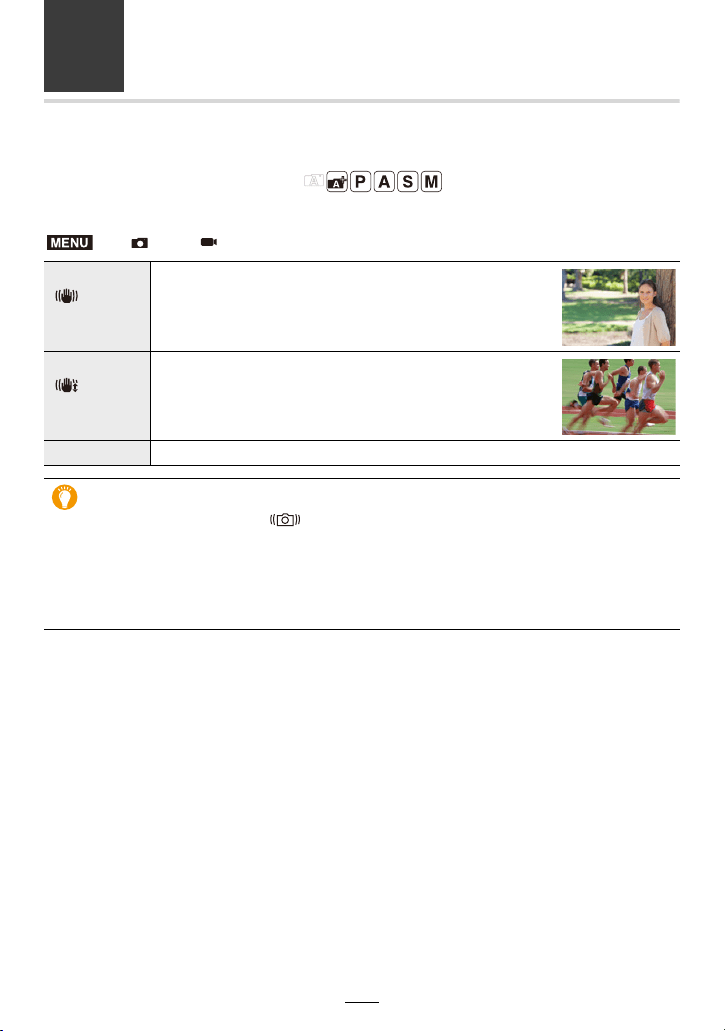
139
7. Stabilizer, Zoom and Flash
Compensating Camera Shake
Available in the following modes:
This function automatically detects and compensates camera shake.
> [Rec]/ [Motion Picture] > [Stabilizer]
[]
([Normal])
Corrects vertical and horizontal camera shake.
[]
([Panning])
Corrects vertical camera shake. This setting is ideal for
panning (technique of recording a subject by matching the
camera movement with the movement of a subject going in
a specific direction).
[OFF] [Stabilizer] does not work.
To prevent camera shake
When the camera shake alert [ ] appears, use [Stabilizer], a tripod or the self-timer.
• The shutter speed will be slower particularly in the following cases. Keep the camera still from
the moment the shutter button is pressed until the picture appears on the screen.
We recommend using a tripod.
– Slow Sync. – Slow Sync./Red-Eye Reduction
– When you set to a slow shutter speed
MENU
140
7. Stabilizer, Zoom and Flash
• It is recommended to disable the Image Stabilizer when using a tripod.
• The stabilizer function may not be effective in the following cases:
Be careful of camera shake when you press the shutter button.
– When there is a lot of shaking
– When the focal length is long (Tele)
– When using Digital Zoom
– When taking pictures while following a moving subject
– When the shutter speed becomes slower to take pictures indoors or in dark places
• The panning effect in [ ] is more difficult to achieve in the following cases.
– In brightly lit places such as in broad daylight on a summer’s day
– When the shutter speed is faster than 1/100s
– When you move the camera too slowly because the subject is moving slowly (The
background will not become a blur)
– When the camera does not keep up with the subject satisfactorily
Not available in these cases:
• In Panorama Shot Mode, the [Stabilizer] setting will switch to [ ] ([Panning]) even if it is set
to [ ] ([Normal]).
• In the following cases, the [Stabilizer] will switch to [ ] ([Normal]), even if it is set to [ ]
([Panning]):
– During video recording
– When recording 4K pictures
– When recording using [Post Focus]
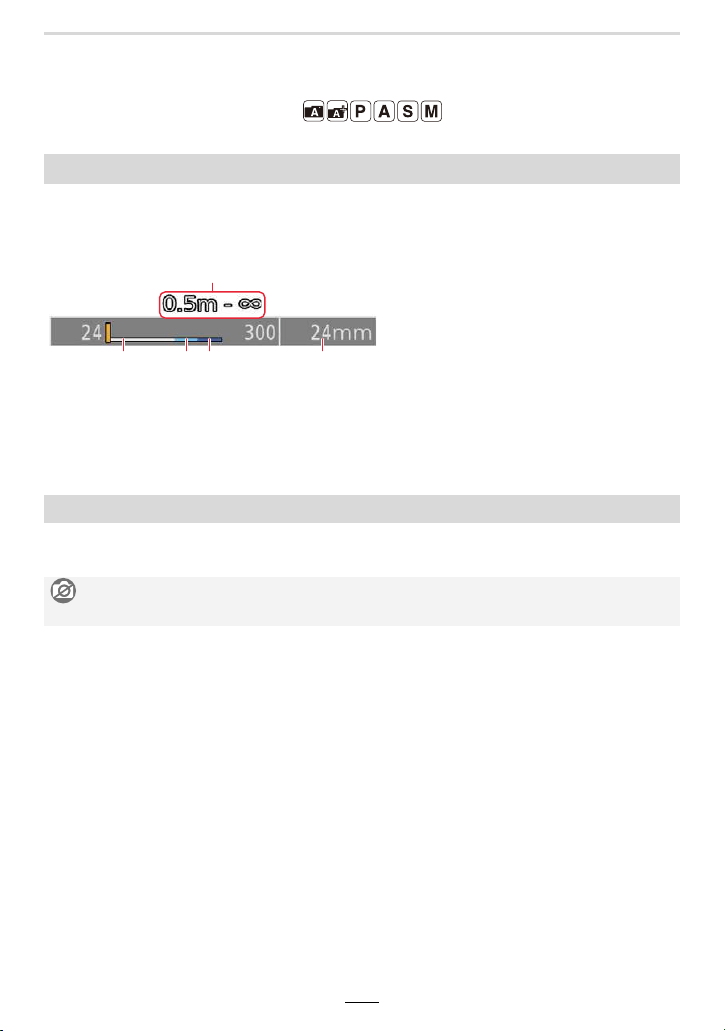
7. Stabilizer, Zoom and Flash
141
Using the Lens’ Zoom Function
Available in the following modes:
∫ Screen display
The illustration is an example of when using Optical Zoom, [i.Zoom], and [Digital Zoom] in
Program Mode.
A Focusing range indication
B Optical Zoom range
C i.Zoom range
D Digital Zoom range
E Current zoom position (Focal lengths displayed are 35mm film camera equivalent values)
You can zoom in without degrading the picture quality.
Maximum magnification: 3.1k
Zoom types and use
Optical zoom
Not available in these cases:
• i.Zoom is not available during panorama recording.
142
7. Stabilizer, Zoom and Flash
This function works when any of the resolution settings (>167) indicated with is
selected.
You can zoom in further than you can with the Optical Zoom without deteriorating the
image quality.
Maximum magnification: 6.2k
(This includes the optical zoom magnification. The magnification level differs
depending on [Picture Size] setting.)
You can zoom in up to twice the original zoom magnification while minimizing the
deterioration of the image quality.
Settings: [ON]/[OFF]
Extra Optical Zoom
Not available in these cases:
– When using [Toy Effect]/[Toy Pop] in [Filter Settings]
– When recording 4K pictures
– When recording with [Post Focus]
– When using [Panorama Shot]
– When [HDR] is set to [ON]
– When using [Multi Exp.]
– When [iHandheld Night Shot] is set to [ON]
– When [iHDR] is set to [ON]
– When [Quality] is set to [ ]
– When [Rec Area] is set to [ ]
– When recording videos
Intelligent Zoom
> [Rec]/ [Motion Picture] > [i.Zoom]
• This function works automatically in the Snapshot modes.
• If you set the [Picture Size] to [S], you can zoom in up to 1.5k the original zoom.
Not available in these cases:
– When using [Impressive Art]/[Toy Effect]/[Toy Pop] in [Filter Settings]
– When using [Panorama Shot]
– When [HDR] is set to [ON]
– When using [Multi Exp.]
– When [iHandheld Night Shot] is set to [ON]
– When [iHDR] is set to [ON]
– When [Quality] is set to [ ], [ ] or [ ]
MENU
7. Stabilizer, Zoom and Flash
143
Available in the following modes:
Although the image quality deteriorates every time you zoom in further, you can zoom in
up to four times the original zoom magnification.
Settings: [ON]/[OFF]
[Digital Zoom]
> [Rec]/ [Motion Picture] > [Digital Zoom]
• When using the [i.Zoom], the maximum magnification of Digital Zoom is limited to 2k.
• When using Digital Zoom, we recommend using a tripod and the self-timer for taking pictures.
• In the Digital Zoom range, the AF area is displayed at the center in a larger size.
Not available in these cases:
– When [Monitor Display Speed] is set to [ECO30fps] (setting at the time of purchase)
– When [EVF Display Speed] is set to [ECO30fps]
– When using [Impressive Art]/[Toy Effect]/[Toy Pop]/[Miniature Effect] in [Filter Settings]
– When [Quality] is set to [ ], [ ] or [ ]
– When recording with the Post Focus function
– When using [Panorama Shot]
– When [HDR] is set to [ON]
– When using [Multi Exp.]
MENU
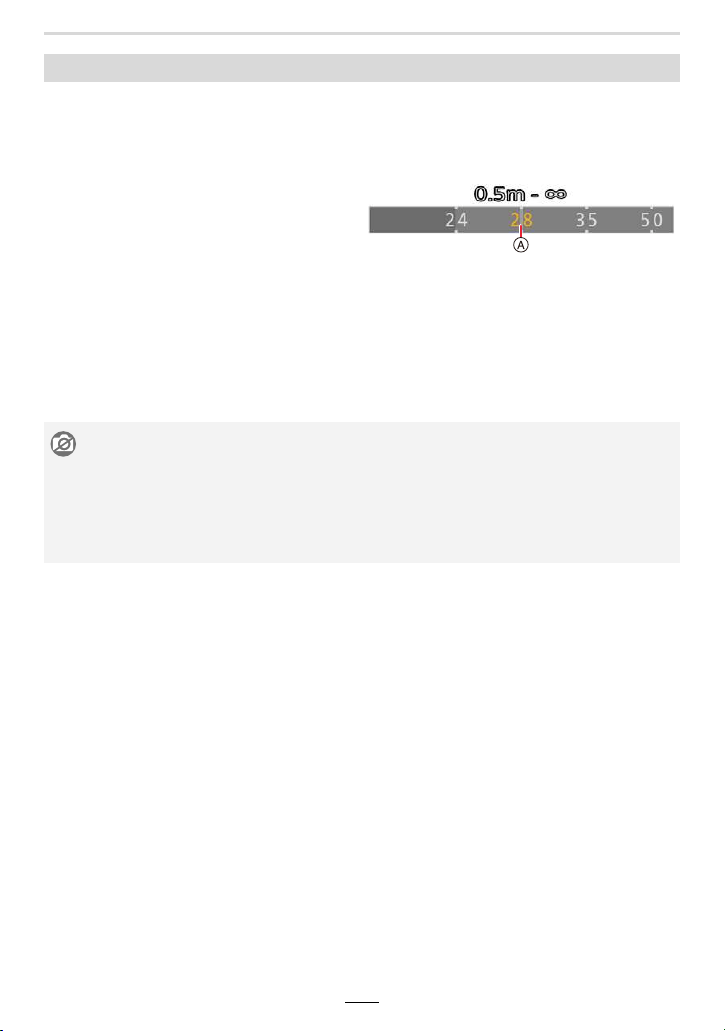
144
7. Stabilizer, Zoom and Flash
You can set that zooming operates in steps, stopping at (equivalent) focal lengths familiar
from 35mm film cameras. Using [Step Zoom] is as easy as normal zoom operation.
• By default you can use Step Zoom by rotating the control ring in the following exposure control
modes:
– Snapshot mode
– Program mode
– Aperture-Priority mode
A Current zoom position (focal lengths
displayed are the equivalents of 35mm film
cameras)
• If you change the [Control Ring] setting in the
[Custom] ([Operation]) menu to [Step Zoom],
Step Zoom becomes available for other modes as well. (>54)
∫ Using the zoom lever for [Step Zoom]
You can use Step Zoom by setting [Zoom lever] in the [Custom] ([Operation]) menu to
[Step Zoom]. (>186)
[Step Zoom]
Not available in these cases:
• Step Zoom cannot be operated with the control ring when using Manual Focus mode.
• This function is not available in the following cases:
– During video recording
– When recording with [4K Pre-Burst]
– When using [Panorama Shot]
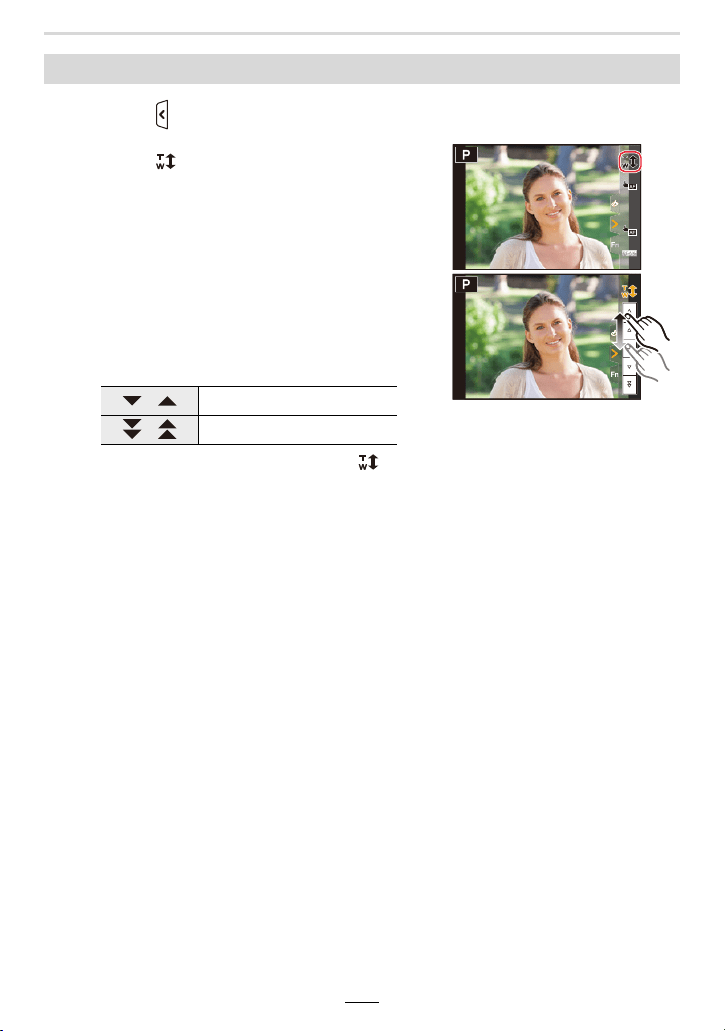
7. Stabilizer, Zoom and Flash
145
1
Touch [ ].
2
Touch [ ].
• The slide bar is displayed.
3
Perform zoom operations by dragging
the slide bar.
• The zoom speed varies depending on the touched
position.
• To end touch zoom operations, touch [ ] again.
Zooming using touch operations (Touch zoom)
[ ]/[ ] Zooms slowly
[ ]/[ ] Zooms quickly
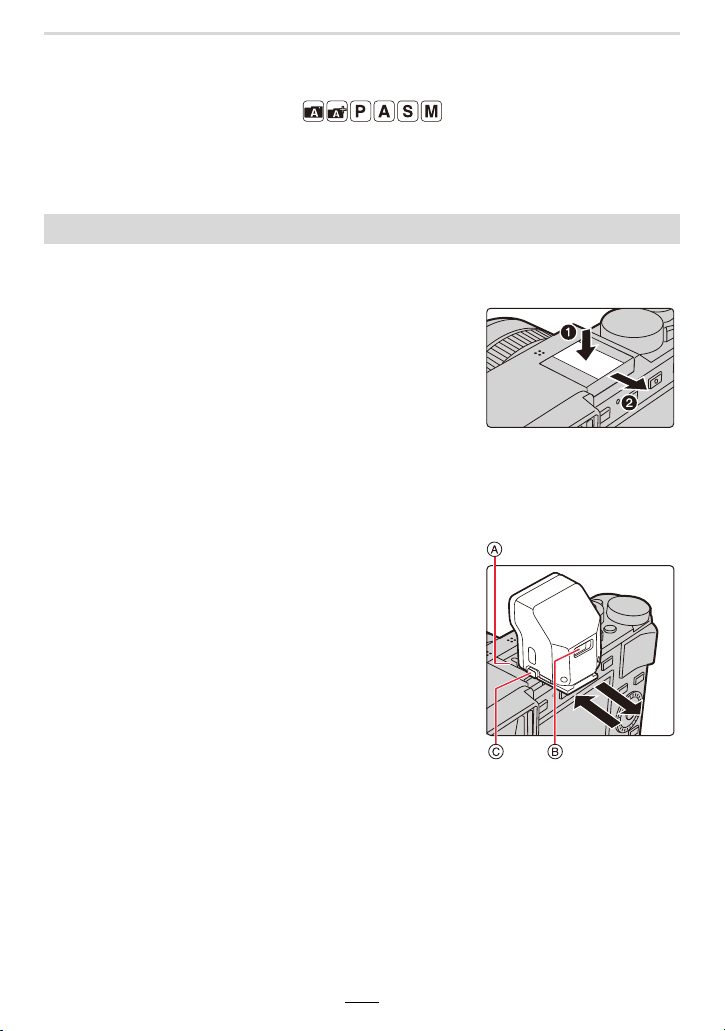
146
7. Stabilizer, Zoom and Flash
Using the Supplied Flash Unit
Available in the following modes:
• This section uses the flash to provide instructions.
• For details about how to attach other flash units than the supplied one, refer to their
instructions.
∫ Removing the hot shoe cover
The camera comes with a hot shoe cover inserted into the hot shoe.
Remove the hot shoe cover by pulling it in the
direction indicated by arrow
2
while pressing it
in the direction indicated by arrow
1
.
• Be sure to insert the hot shoe cover when the hot shoe is not in
use.
• Keep the hot shoe cover in a safe place after removing it so
that you do not lose it.
• Keep the hot shoe cover out of reach of children to prevent swallowing.
∫ Attaching the flash unit
1 Set the on/off switches of the camera and flash unit
to [OFF].
2 Firmly insert the flash unit into the hot shoe of the
camera until it clicks. (A)
• When recording, set the on/off switches of the camera
and flash to [ON].
A Hot shoe
B Flash [ON/OFF] switch
C Lock release button
∫ Removing the flash unit
1 Turn off the camera and the flash unit.
2 Press and hold the lock release button and pull the
flash unit in the direction indicated by the arrow. (B)
• When detaching the flash, do so slowly and carefully.
• Insert the hot shoe cover into the hot shoe of the camera.
• Store the detached flash unit in its soft case.
Attaching the flash unit
7. Stabilizer, Zoom and Flash
147
∫ The available flash range when the [Sensitivity] setting is [AUTO]
The edges of the picture may become slightly dark if using flash at short distances with the
lens set near its shortest focal length (close to max. W). This may be remedied by setting a
slightly longer focal length.
¢ When the flash unit is attached, [Sensitivity] is set to [AUTO], and [ISO Auto Upper Limit
(Photo)] is set to [AUTO]
In the following cases, the flash mode is fixed to [Œ] ([Forced Flash Off]).
• When recording videos
• When recording 4K pictures
• When recording with the Post Focus function
• When using [Panorama Shot]
• When using the electronic shutter function
• When an image effect in [Filter Effect] of [Filter Settings] is set
• When [Silent Mode] is set to [ON]
• When [HDR] is set to [ON]
When using other commercially available flash units without communication
functions with the camera
• Set the exposure on the flash unit.
• Set the exposure control mode to Aperture-Priority mode or manual exposure mode. Set the
same aperture value and ISO sensitivity setting on the camera and the flash unit.
Max. Wide Max. Tele
Approx. 60cm (2 feet) to 14.1m (46 feet)
¢
Approx. 30cm (1 foot) to 8.5m (28 feet)
¢
• You can set the aperture value, the shutter speed and the ISO sensitivity on the camera even
when attaching a flash unit.
• If you record at close range with a short focal length/wide angle setting, light from the flash
may be blocked by the lens body, darkening the lower part of the image.
• It may take time to recharge the flash unit if you repeatedly take pictures. You must wait a
moment to take the next picture while the flash icon is flashing red indicating the flash is
charging.
• Do not bring any objects near the flash unit. The heat and light from the flash may cause the
objects to deform or discolor.
• Do not use commercially available flash units with high-voltage synchro terminals, reverse
polarity or functions that enable them to communicate with the camera. Doing so may cause
the camera to malfunction or operate incorrectly.
• With an attached flash unit, do not hold the camera/flash unit combination by the latter alone
because it may detach from the camera.
• Read the instructions of the flash unit for details.
148
7. Stabilizer, Zoom and Flash
Setting the Flash Functions
• [Flash] in the [Rec] menu is available only when a flash unit is attached.
Available in the following modes:
You can select whether flash output is controlled automatically or manually.
1 Select the menu item.
2 (When [MANUAL] is selected)
Select the menu item.
3 Press 2/1 to set the output level and then [MENU/SET].
Changing the flash control mode
> [Rec] > [Flash] > [Firing Mode]
[TTL] The camera automatically controls the flash output.
[MANUAL]
You can set the flash output manually. Using [TTL] allows you to take a
picture as intended, even for dark scenes where the flash output tends to
be higher.
• When [MANUAL] is set, the output level ([1/1], etc.) is displayed on the
flash icon on the screen.
> [Rec] > [Flash] > [Manual Flash Adjust.]
MENU
MENU
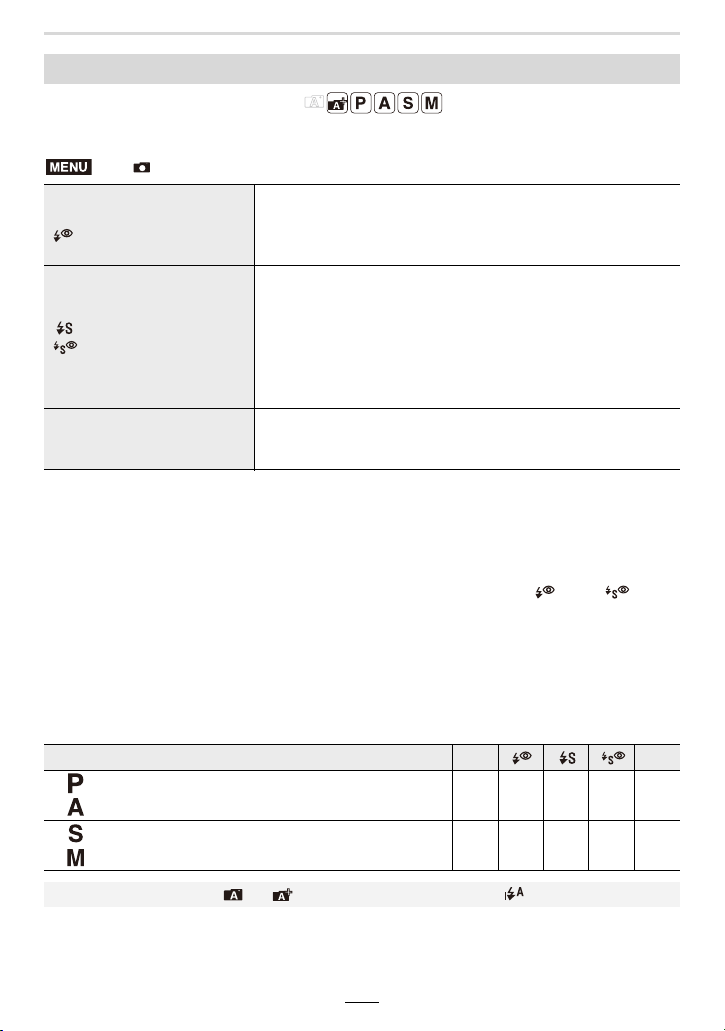
7. Stabilizer, Zoom and Flash
149
Available in the following modes:
This function allows you to select the flash mode to match the situation.
¢ Set [Flash] to the following settings:
– [Firing Mode]: [TTL]
• In Snapshot Plus mode, [‰A] or [Œ] can be set.
• Some flash modes may not be available depending on the flash unit’s settings.
When the flash is fired twice.
The interval between the first and second flash is longer when [] or [] is
set. The subject should not move until the second flash is fired.
• The Red-Eye Reduction effect differs between people. Also, if the subject was far away from
the camera or was not looking at the first flash, the effect may not be evident.
∫ Available flash settings in the exposure control modes
The available flash settings depend on the exposure control mode.
(±: Available, —: Not available)
Changing the flash modes
> [Rec] > [Flash] > [Flash Mode]
‰
([Forced Flash On])
([Forced On/Red-Eye])
¢
The flash is fired every time regardless of the recording
conditions.
• Use these modes when your subject is back-lit or under
fluorescent light.
([Slow Sync.])
([Slow Sync./Red-Eye])
¢
When taking pictures of dark subjects, these modes will use
slower shutter speeds when the flash is fired, so dark
backgrounds will appear brighter.
• Use these modes when you take pictures of people in
front of a dark background.
• Using a slower speed can cause motion blur. Using a
tripod can counteract this.
Π([Forced Flash Off])
The flash is not fired in any recording conditions.
• Use this when you take pictures in places where the use
of flash is not permitted.
Recording mode ‰ Œ
Program mode
Aperture-Priority mode
±±±±±
Shutter-Priority mode
Manual Exposure mode
±±——±
• In the Snapshot modes ( or ), the flash mode will be set to [ ] or [Œ].
MENU
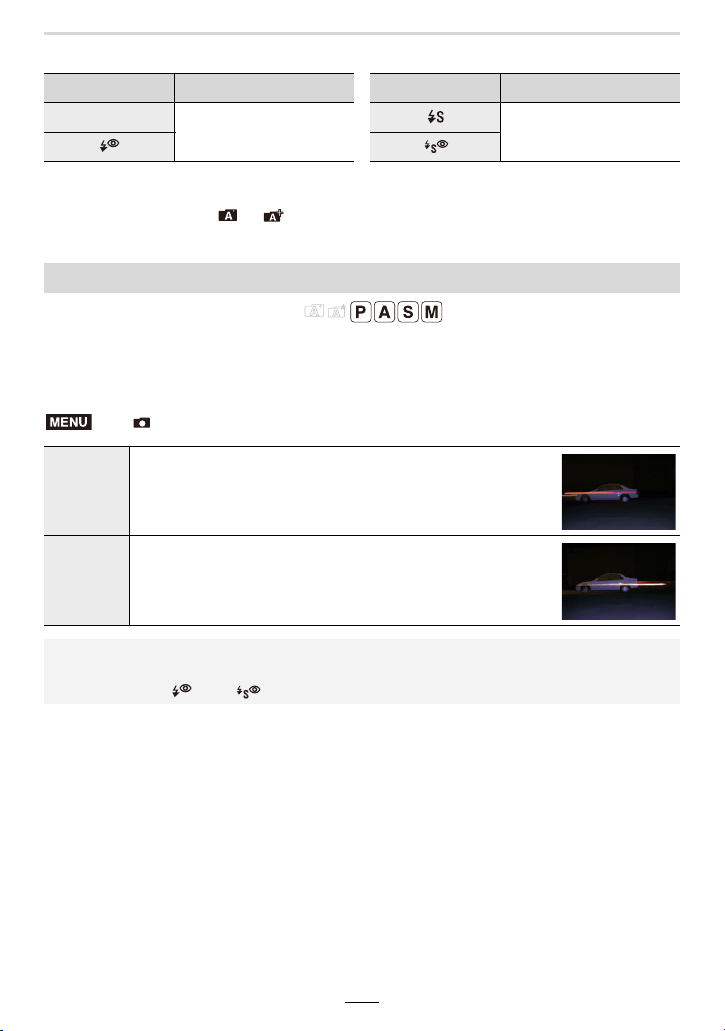
150
7. Stabilizer, Zoom and Flash
∫ Shutter speed for each flash mode
¢ This becomes 60 seconds in Shutter-Priority mode and [T] (Time) in the manual exposure
mode.
• In the Snapshot modes ( or ), the shutter speed changes depending on the identified
scene.
Available in the following modes:
2nd curtain sync fires the flash at the end of the exposure as opposed to the normal firing
time (at the beginning of the exposure). This can be utilized to create a certain effect (see
below).
Flash mode Shutter speed Flash mode Shutter speed
‰
1/60s
¢
to 1/4000s
1s to 1/4000s
Setting 2nd Curtain Sync
> [Rec] > [Flash] > [Flash Synchro]
[1ST]
1st curtain sync is the normal method when using flash.
[2ND]
2nd curtain synchro
The light source appears behind the subject, making the
picture appear more logical.
• [2nd] is displayed in the flash icon on the screen if you set [Flash Synchro] to [2ND].
• When a fast shutter speed is set, the effect of [Flash Synchro] may deteriorate.
• You cannot set [ ] or [ ] when [Flash Synchro] is set to [2ND].
MENU
7. Stabilizer, Zoom and Flash
151
Available in the following modes:
You can adjust the flash exposure to compensate for pictures in which the parts mainly
illuminated by the flash would otherwise appear too dark or bright.
1 Select the menu item.
2 Press 2/1 to set the compensation value and then [MENU/SET].
• You can adjust from [j3 EV] to [i3 EV] in steps of 1/3 EV.
•Select [n0] to return to the original flash output.
Available in the following modes:
When [Auto Exposure Comp.] is set to [ON], the flash output level will automatically be
controlled to match the exposure compensation set for the exposure of the ambient light.
Settings: [ON]/[OFF]
Flash exposure compensation
> [Rec] > [Flash] > [Flash Adjust.]
•[i] or [j] is displayed on the flash icon in the screen when the flash level is adjusted.
Synchronizing the output of the flash to the exposure compensation set
for the ambient light
> [Rec] > [Flash] > [Auto Exposure Comp.]
• For details on Exposure Compensation, refer to (>90).
MENU
MENU
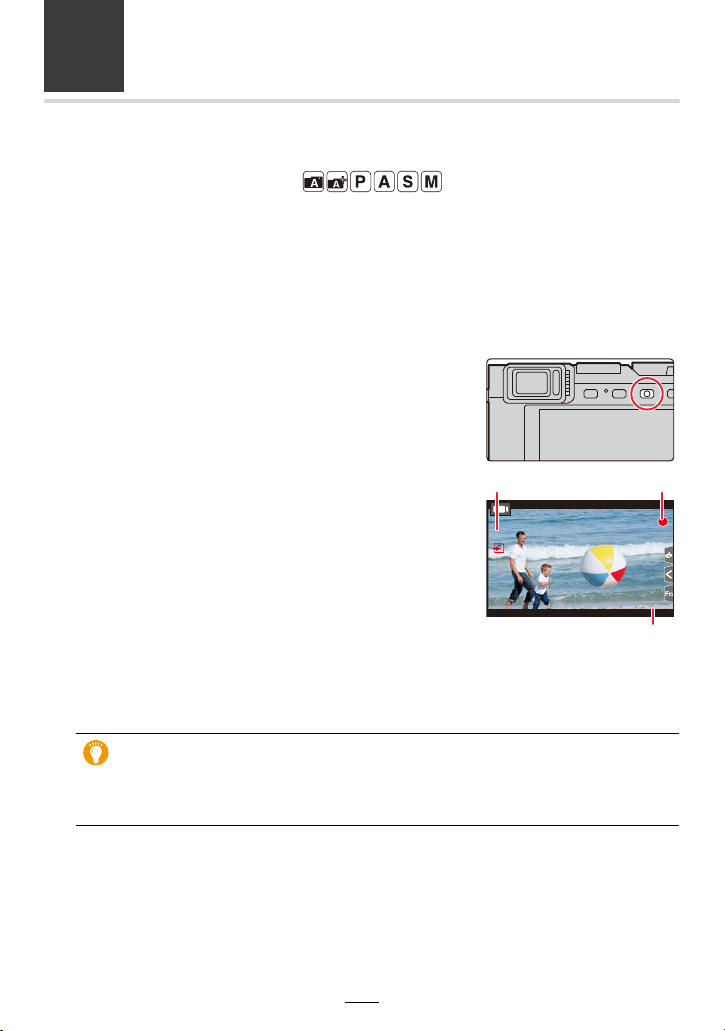
152
8. Recording Videos
Recording Videos
Available in the following modes:
This camera can record videos in different resolutions, including 4K in the MP4-format.
(>154).
Audio will be recorded in stereo.
• You can record videos by manually setting the aperture value and shutter speed. (>63)
• The camera automatically sets the aperture value and shutter speed and identifies the optimal
scene mode to record videos in the Snapshot modes. (>56)
1
Start recording by pressing the video
button.
A Elapsed recording time
B Available recording time
• The recording state indicator (red) C will flash while
recording videos.
• Release the video button right after you press it.
• m: minute, s: second
2
Stop the recording by pressing the video
button again.
• When recording in a quiet environment, the sound
of aperture and focus operation may be recorded in
videos.
This is not a malfunction. The focus operation during recording of videos can be set to
[OFF] in [Continuous AF] (>155).
• If the operation sound of the video button pressed to end recording bothers you,
try the following:
– Record the video about three seconds longer, and then cut off the last part of the
video using [Video Divide] in the [Playback] menu.
R
1
m
3737
s
R
1
m
37
s
3
s
3
s
3
s
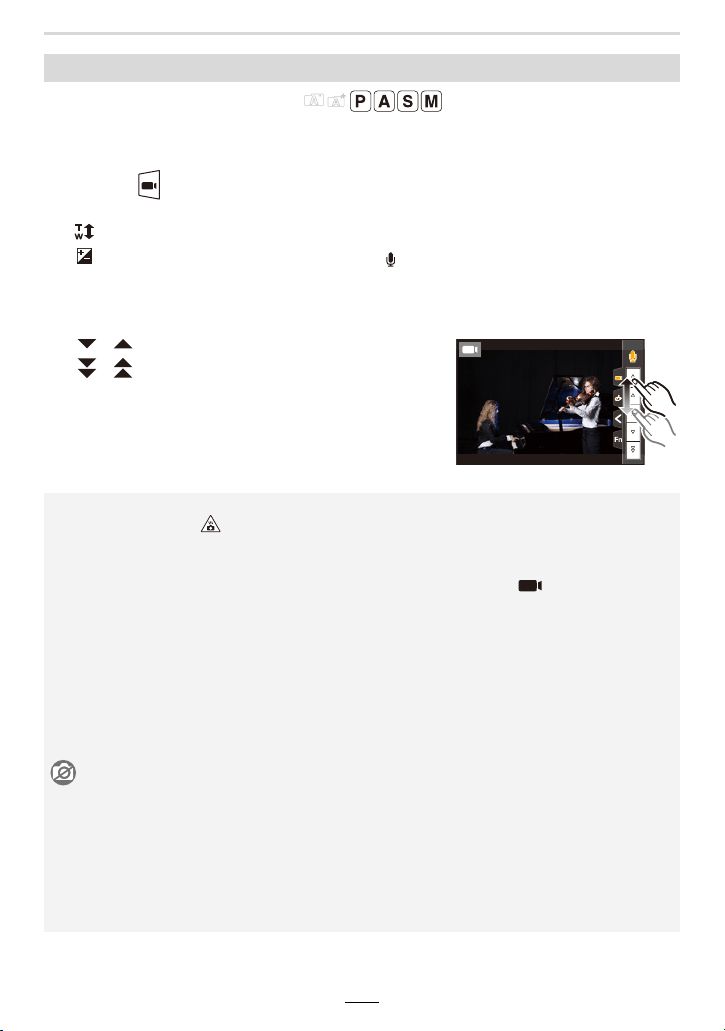
8. Recording Videos
153
Available in the following modes:
When you operate the zoom, buttons, etc. while recording videos, the sounds associated
with such operations may be recorded. Using touch operations allows silent operation.
Recording videos with reduced operational sounds
1 Touch [ ] while recording a video.
2 Touch the desired icon.
: Zoom
: Exposure compensation
¢
: ISO sensitivity
: Sound recording level adjustment
¢ It is displayed when [Exposure Comp.] is set in a function button. (>49)
3 Drag the slide bar to adjust the
setting.
[ ]/[ ]: Adjusts the setting slowly
[ ]/[ ]: Adjusts the setting quickly
• When the ambient temperature is high or a video is recorded for an extended time, the
camera may display [ ] and then stop the recording. Wait until the camera cools down.
• When the aspect ratio setting is different in still and videos, the angle of view changes at the
start of video recording.
When [Rec Area] in the [Custom] menu ([Monitor / Display]) is set to [ ], angle of view
during video recording is displayed.
• If the Extra Optical Zoom are used before pressing the video button, those settings will be
cleared, so the angle of view will change dramatically.
• The operational sound of the zoom or button operation may be recorded when it is operated
during the recording of a video.
• The zoom speed decreases during the recording of a video.
• Depending on the type of the card, the card access indication may appear for a while after
recording videos. This is not a malfunction.
Not available in these cases:
• Videos cannot be recorded in the following cases:
– When using [Rough Monochrome]/[Silky Monochrome]/[Soft Focus]/[Star Filter]/[Sunshine]
in [Filter Settings]
– When recording with the Post Focus function
– When using [Panorama Shot]
– When taking pictures with [Time Lapse Shot]
– When using [Stop Motion Animation]
ISO
154
8. Recording Videos
¢ 4K videos
∫ About the compatibility of the recorded videos
Videos in the MP4 format may not be played back even on devices that support the
format. In other cases, the videos may be played back with poor image or sound quality or
their recording information may not be displayed correctly. In these cases, play them back
on the camera.
• For details about 4K videos recorded with the camera, refer to “Watching/Saving 4K Videos on
an External Device” on (>254).
Setting the resolution/frame rate combination
> [Motion Picture] > [Rec Quality]
Item Size Recording frame rate Sensor output Bit rate
[4K/100M/30p]
¢
3840k2160 30p 30 frames/second 100 Mbps
[4K/100M/24p]
¢
3840k2160 24p 24 frames/second 100 Mbps
[FHD/28M/60p] 1920k1080 60p 60 frames/second 28 Mbps
[FHD/20M/30p] 1920k1080 30p 30 frames/second 20 Mbps
[HD/10M/30p] 1280k720 30p 30 frames/second 10 Mbps
• The higher the Bit rate value is, the higher the image quality becomes. Since the camera
employs the VBR recording method, the bit rate is changed automatically depending on the
subject to record. As a result, the recording time is shortened when a fast-moving subject is
recorded.
• 4K video settings are not available for [Miniature Effect] in [Filter Settings].
• When recording videos in 4K, use a card rated as UHS Speed Class 3.
• When you record 4K videos, the captured image area will be smaller than videos with other
resolutions.
• To ensure highly accurate focus, 4K videos are recorded at reduced Autofocus speeds. It may
be difficult to focus on the subject with Autofocus, but this is not a malfunction.
• Refer to (>30) for information about continuous recordable times.
MENU
8. Recording Videos
155
Available in the following modes:
The focusing procedure varies depending on the Focus mode setting and the [Continuous
AF] setting in the [Motion Picture] menu.
• When the focusing mode is set to [AFS], [AFF] or [AFC], if you press the shutter button halfway
while recording a video, the camera will re-adjust the focus continually as necessary.
• The operational noises may be recorded when Autofocus is operated while recording a video.
We recommend setting [Continuous AF] to [OFF] to avoid the noise.
• When using the lens' zoom function while recording videos, it may take time to come into focus.
How to set the focusing mode when recording a video ([Continuous AF])
> [Motion Picture] > [Continuous AF]
Focus mode [Continuous AF] Description of settings
[AFS]/[AFF]/
[AFC]
[ON]
The camera automatically keeps focusing on subjects
during recording.
[OFF]
The camera maintains the focus position at the start of
recording.
[MF] [ON]/[OFF] You can focus manually.
MENU
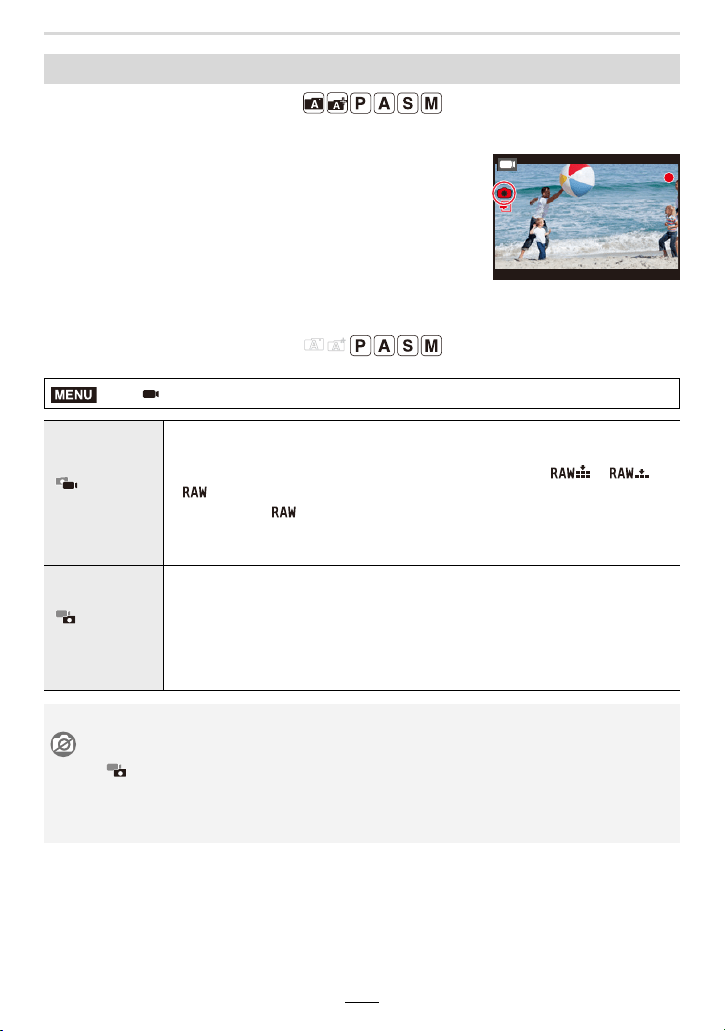
156
8. Recording Videos
Available in the following modes:
You can record pictures while recording a video. (Simultaneous recording)
During video recording, press the shutter button
fully to record a picture.
• Simultaneous recording indicator is displayed while recording
pictures.
• Recording with the Touch Shutter function is also available.
∫ Setting the video priority or picture priority mode
Available in the following modes:
Recording pictures while recording videos
> [Motion Picture] > [Picture Mode in Rec.]
[]
([Video Priority])
• Pictures will be recorded with a resolution determined by the [Rec Quality]
setting for videos.
• Only JPEG images are recorded when [Quality] is set to [ ], [ ] or
[].
(When set to [ ], pictures will be recorded in [Quality] of [A].)
• You can take up to 40 pictures.
(Up to 10 pictures during 4K video recording)
[]
([Photo Priority])
• Pictures will be recorded with the set resolution, format, and compression
rate.
• The screen will go dark while recording pictures. A picture will be recorded
in the video during that period, and audio is not recorded.
• You can take up to 10 pictures.
(Up to 5 pictures during 4K video recording)
• The aspect ratio will be fixed to [16:9].
Not available in these cases:
• When [ ] ([Photo Priority]) is set, simultaneous recording is not possible in the following
cases:
– When [Rec Quality] is set to [4K/100M/24p]
– When the shutter release mode is set to 4K Photo
13
13
13
MENU
8. Recording Videos
157
Available in the following modes:
The sound recording level is displayed on the recording screen.
Settings: [ON]/[OFF]
Available in the following modes:
The sound input level can be set to 4 different levels (j12 dB to i6dB).
• Displayed dB values are approximate.
Displaying/setting the sound recording level
[Sound Rec Level Disp.]
> [Motion Picture] > [Sound Rec Level Disp.]
Not available in these cases:
• [Sound Rec Level Disp.] is fixed to [OFF] in the following case:
– When using [Miniature Effect] in [Filter Settings]
[Sound Rec Level Adj.]
> [Motion Picture] > [Sound Rec Level Adj.]
Not available in these cases:
• [Sound Rec Level Adj.] does not work in the following case:
– When using [Miniature Effect] in [Filter Settings]
MENU
MENU
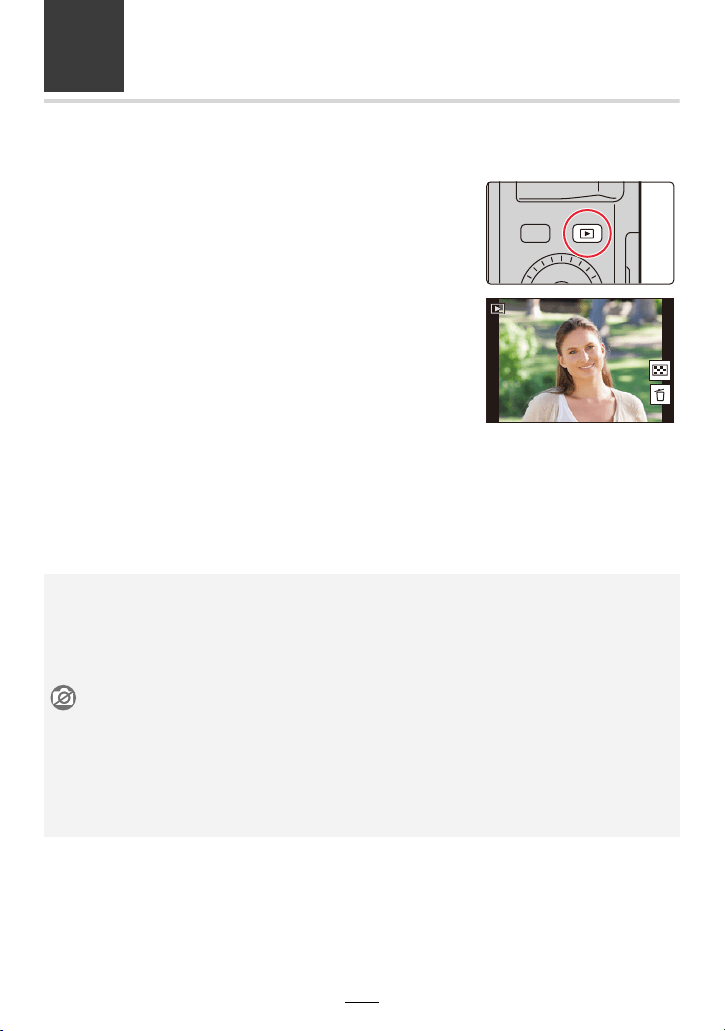
158
9. Playing Back and Editing Images
Playing Back Pictures
1
Press [(].
2
Press 2/1.
• If you press and hold 2/1, you can play back the
pictures in succession.
• Previuos or next pictures can also be accessed by
rotating the control dial or dragging the screen horizontally.
• You can access previous and next pictures continuously by keeping your finger on the
left or right sides of the screen after forwarding/rewinding a picture.
∫ To exit playback
Press [
(] again or press the shutter button halfway.
2: Plays back the previous picture
1: Plays back the next picture
• The playback screen is displayed if you set the camera on/off switch to [ON] while pressing
and holding [(].
• When [Lens Retraction] in the [Custom] ([Lens / Others]) menu is set to [ON], the lens barrel
will retract approx. 15 seconds after switching from the recording screen to the playback
screen.
Not available in these cases:
• The camera complies with the DCF standard “Design rule for Camera File system”
established by JEITA “Japan Electronics and Information Technology Industries Association”
and with Exif “Exchangeable Image File Format”.
The camera can only display pictures that comply with the DCF standard.
• The camera may not play back images recorded on other devices correctly, and the functions
of the camera may not be available for the images.
1/981/981/981/98
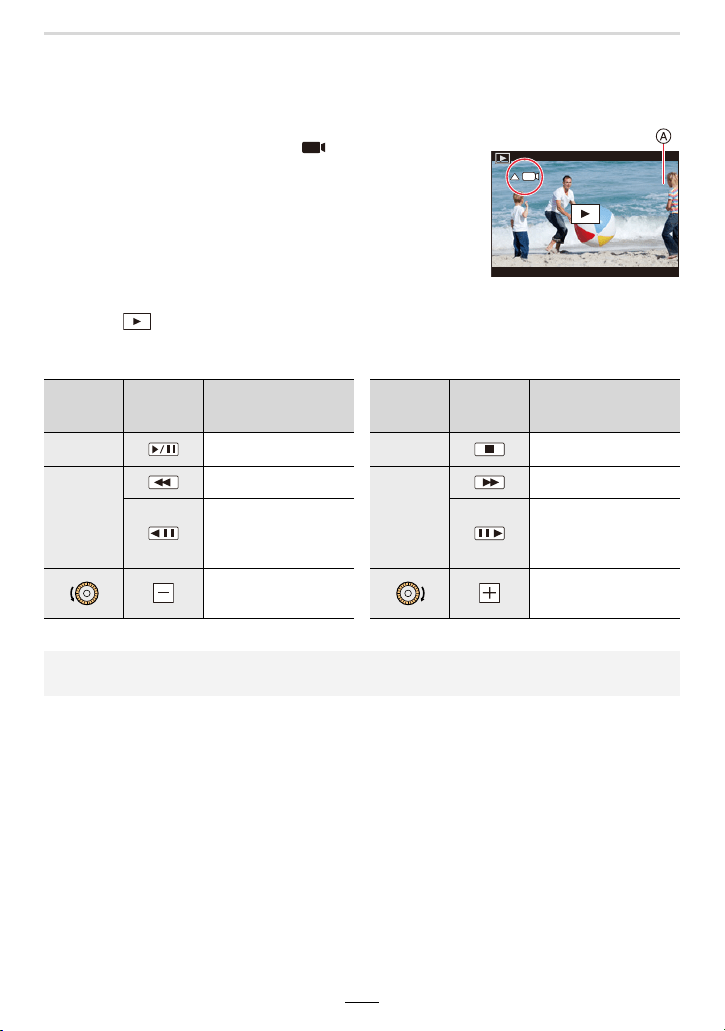
9. Playing Back and Editing Images
159
Playing Back Videos
The camera was designed to play videos using the MP4 format.
Select an icon indicated with [ ], and then press
3 to play it back.
A Video recording time
• After playback starts, the elapsed playback time is displayed on
the screen.
For example, 8 minutes and 30 seconds is displayed as
[8m30s].
• Touching [ ] in the middle of the screen allows you to play back videos.
∫ Operations during video playback
¢ The fast forward/rewind speed increases if you press 1/2 again.
Button
operation
Touch
operation
Description of
operation
Button
operation
Touch
operation
Description of
operation
3 Play/Pause 4 Stop
2
Fast rewind
¢
1
Fast forward
¢
Frame-by-frame
rewind
(while pausing)
Frame-by-frame
forward
(while pausing)
Reduce volume level
Increase volume
level
• Videos can be viewed on your computer using the software available after registering your
camera on the Leica Camera AG home page (>257).
12s12s
12s
12s
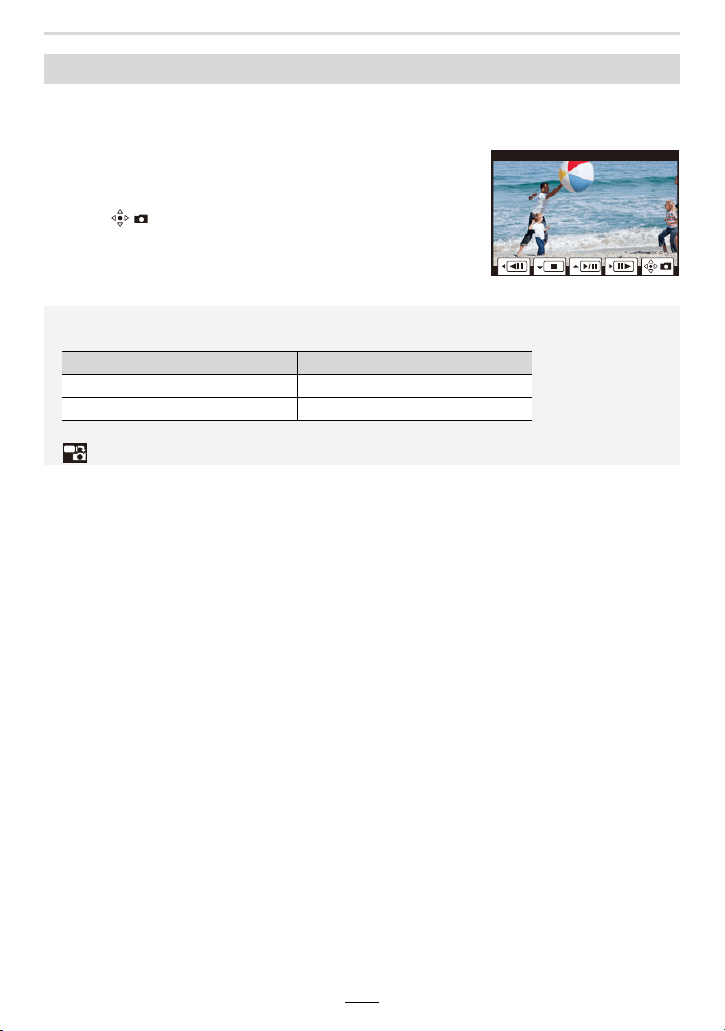
160
9. Playing Back and Editing Images
1
Press 3 to pause video playback.
• Press 2/1 to fine-adjust the pause position while the video is paused.
2
Press [MENU/SET].
• The same operation can be performed by touching
[].
Creating pictures from a video
• Pictures will be saved with aspect ratio set to [16:9] and [Quality] set to [A].
The resolution will differ according to the video you play back.
[Rec Quality] [Picture Size]
[4K] [M] (8M)
[FHD]/[HD] [S] (2M)
• Pictures created from a video may have a lower resolution than with normal picture quality.
• [ ] is displayed during playback of pictures created from videos.
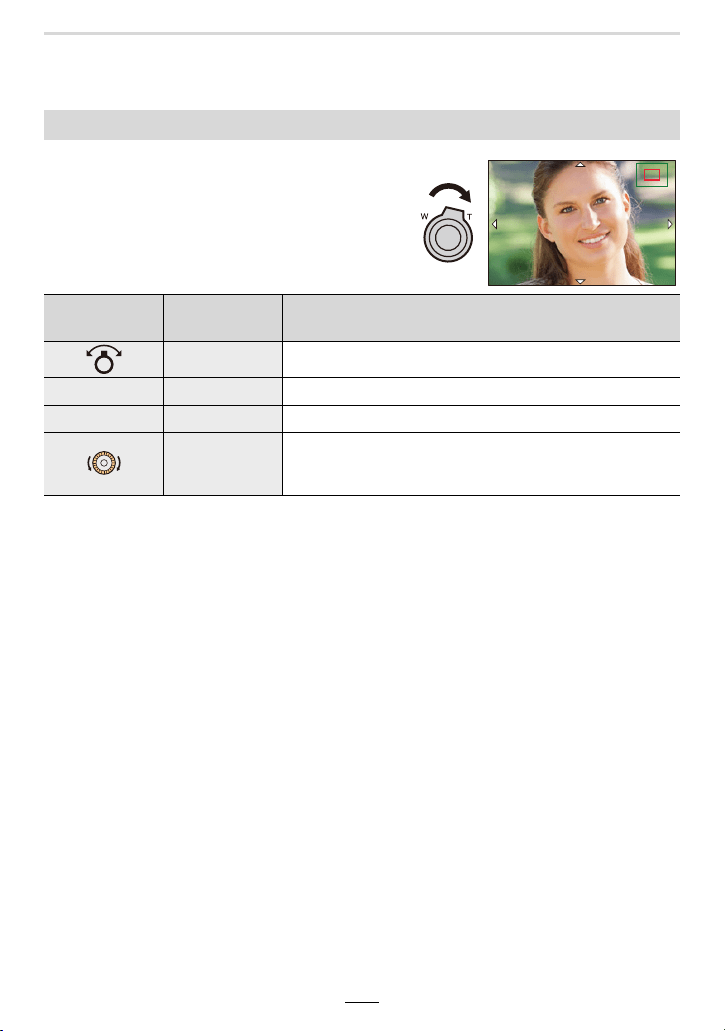
9. Playing Back and Editing Images
161
Switching the Playback Method
• Touch the screen twice to switch between the enlarged display and normal display.
Using the playback zoom
Rotate the zoom lever towards the [T] side.
1k > 2k > 4k > 8k > 16k
Button
operation
Touch
operation
Description of operation
s Enlarges/reduces the screen.
s Pinching out/in Enlarges/reduces the screen in small steps.
3/4/2/1 Dragging Moves the enlarged area (during enlarged display).
s
Calls up the previous or next image while maintaining the
same zoom magnification and zoom position (during
enlarged display).
2.0X2.0X
2.0X
2.0X
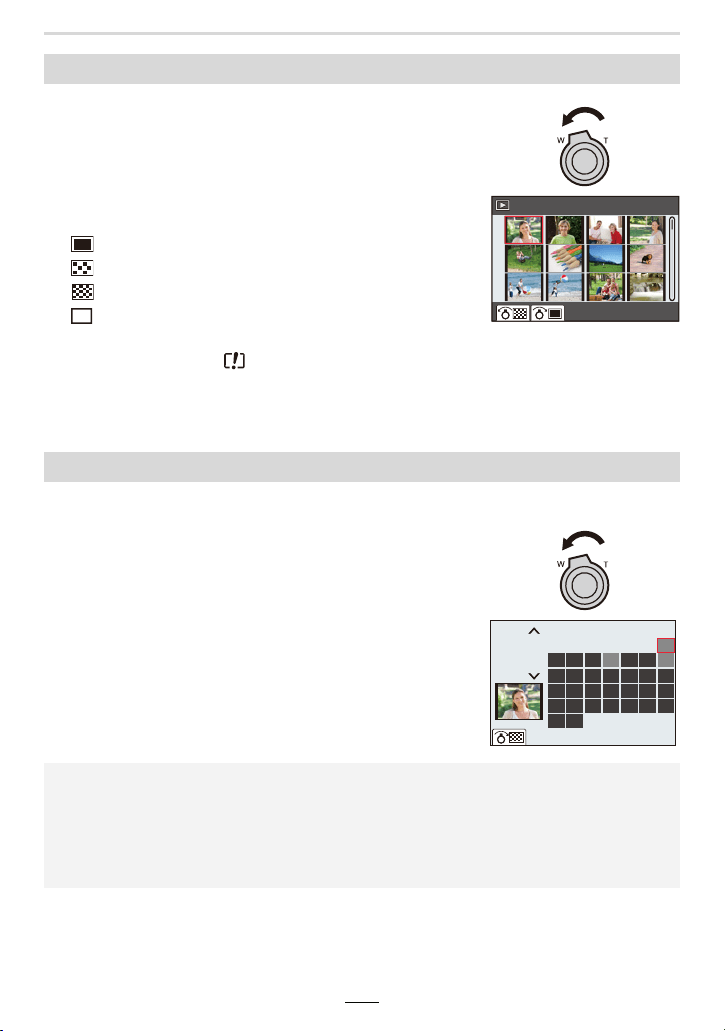
162
9. Playing Back and Editing Images
Displaying multiple screens (Multi Playback)
Rotate the zoom lever towards the [W] side.
1 screen > 12 screens > 30 screens > Calendar display
• Rotate the zoom lever to the [T] side to return to the previous
display mode.
• You can also switch the playback screen by touching the
following icons:
– [ ]: 1 screen
– [ ]: 12 screens
– [ ]: 30 screens
– [ ]: Calendar screen display
• You can also scroll the list display by dragging the screen up/down.
• Pictures displayed using [ ] cannot be played back.
∫ To return to normal playback
Press 3/4/2/1 to select a picture and then [MENU/SET].
• If you select a video, it will be played back automatically.
Displaying pictures by recording date (Calendar Playback)
1 Rotate the zoom lever to the [W] side to display the Calendar display.
2 Press 3/4/2/1 to select the recording date and
then [MENU/SET].
• Only the images recorded on that date will be displayed.
• To return to the Calendar display, rotate the zoom lever to
the [W] side.
3 Press 3/4/2/1 to select a picture and then [MENU/
SET].
• The recording date of the picture selected in the playback screen becomes the date selected
when the calendar screen is first displayed.
• You can display the calendar between January 2000 and December 2099.
• If the date is not set in the camera, the recording date is set as the 1st January, 2018.
• If you take pictures after setting the travel destination in [World Time], the pictures are
displayed by the dates at the travel destination in Calendar Playback.
CAL
1/98
8765432
1514131211109
22212019181716
29282726252423
1
SUN SATFRITHUWEDTUEMON
3130
2018
12
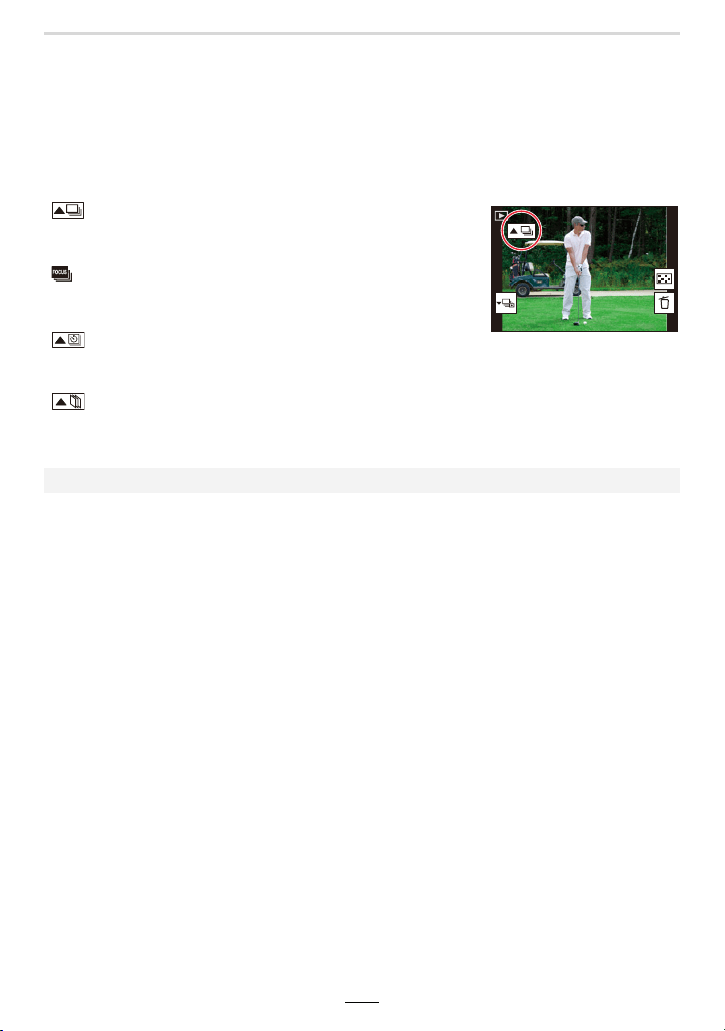
9. Playing Back and Editing Images
163
Playing Back Group Pictures
A picture group consists of multiple pictures. You can play back pictures in a group either
continuously or one by one.
• You can edit or delete all pictures in a group at once.
(For example, if you delete a picture group, all pictures in the group are deleted.)
[]:
A picture group saved simultaneously with [4K PHOTO Bulk
Saving].
[]:
A picture group consisting of pictures taken with Focus
Bracketing.
[]:
A picture group consisting of pictures taken in a Time Lapse
Shot.
[]:
A picture group consisting of pictures taken with Stop Motion
Animation.
• Pictures will not be grouped if recorded without setting the clock.
1/981/981/981/98
SLF
SLF
SLF
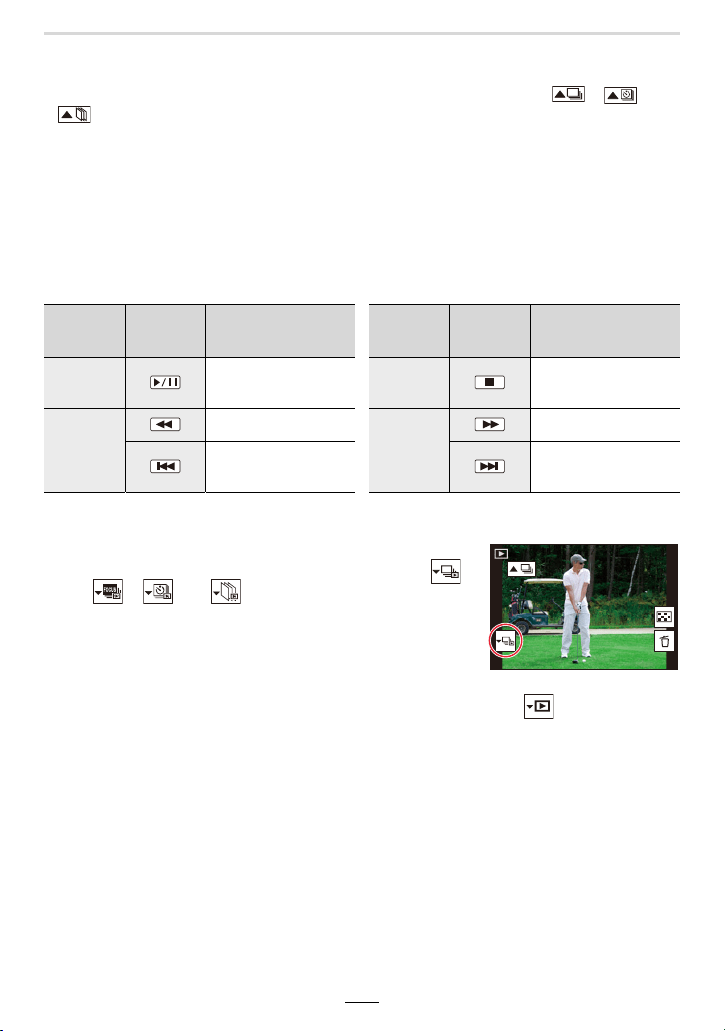
164
9. Playing Back and Editing Images
∫ Continuously playing back group pictures
Press 3.
• The same operation can be performed by touching the group picture icon ([ ], [ ],
[]).
• When playing back group pictures one at a time, options are displayed.
After selecting [Burst Play] (or [Sequential Play]), select either of the following playback
methods:
[From the first picture]:
Pictures are played back continuously from the first picture of the group.
[From the current picture]:
Pictures are played back continuously from the picture being played back.
• Operations during continuous playback
∫ Playing back group pictures one by one
1 Press 4.
• The same operation can be performed by touching [ ],
[], [], or [].
2 Press 2/1 to flip through images.
• To return to the normal playback screen, press 4 again or touch [ ].
• Each picture in a group can be treated the same as normal pictures when they are played
back. (Such as Multi Playback, Playback Zoom and deleting images)
Button
operation
Touch
operation
Description of
operation
Button
operation
Touch
operation
Description of
operation
3
Continuous
playback/Pause
4 Stop
2
Fast rewind
1
Fast forward
Rewind
(while pausing)
Forward
(while pausing)
1/981/98
1/98
1/98
SLF
SLF
SLF
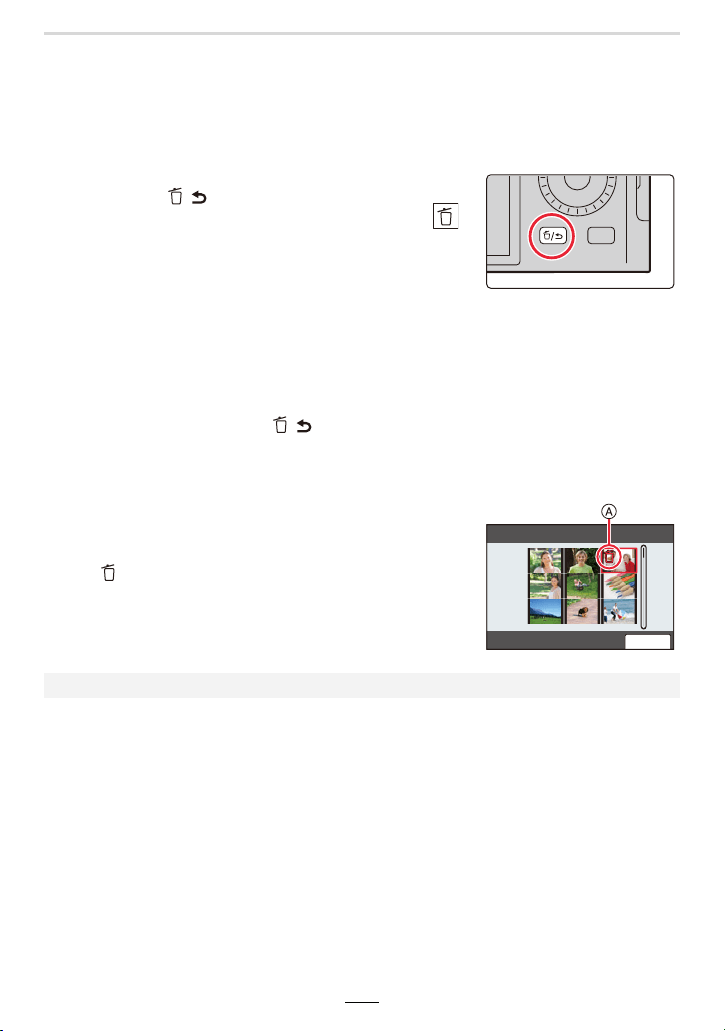
9. Playing Back and Editing Images
165
Deleting Pictures
Once deleted, pictures cannot be recovered.
∫ To delete a single picture
1 In playback mode, select the picture to delete and
then press [ / ].
• The same operation can be performed by touching [ ].
2 Press 3/4 to select [Delete Single] and then [MENU/SET].
∫ To delete multiple pictures (up to 100) or all the pictures
• Picture groups are treated as a single picture. (All the pictures in the selected picture group will
be deleted.)
1 In Playback Mode, press [ / ].
2 Press 3/4 to select [Delete Multi] or [Delete All] and then [MENU/SET].
• After selecting [Delete All], if you select [Delete All Non-rating], you can delete all pictures
except for those with ratings.
(When [Delete Multi] is selected)
3 Press 3/4/2/1 to select the picture, and then
[MENU/SET]. (Repeat this step.)
A Picture selected
• To cancel the selection, press [MENU/SET] again.
4 Press [DISP] to execute.
• Depending on the number of pictures to be deleted, it may take some time to delete them.
2.
ュリヴヱハ
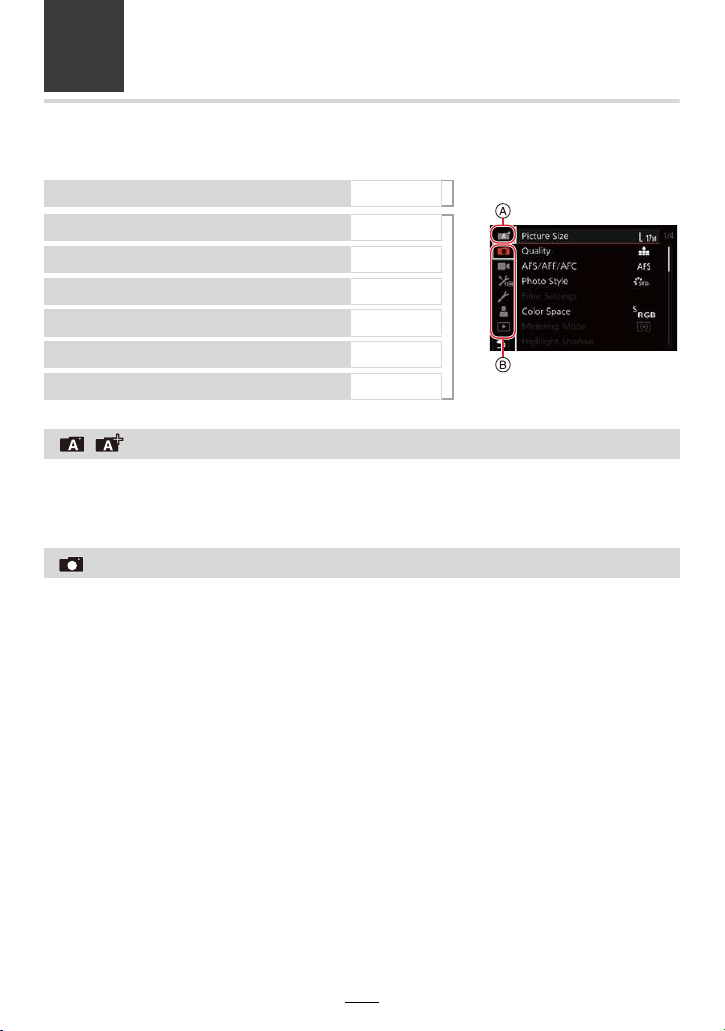
166
10. Using Menu Functions
Menu List
[Snapshot Mode] menu
(>166) A
[Rec] menu
(>166)
B
[Motion Picture] menu
(>179)
[Custom] menu
(>180)
[Setup] menu
(>195)
[My Menu] menu
(>204)
[Playback] menu
(>205)
:
[Snapshot Mode] menu
• [Snapshot Mode] (>57)
• [iHandheld Night Shot] (>59)
• [iHDR] (>59)
:
[Rec] menu
• [Picture Size] (>167)
• [Quality] (>168)
• [AFS/AFF/AFC] (>74)
• [Photo Style] (>169)
• [Filter Settings] (>122)
• [Color Space] (>171)
• [Metering Mode] (>171)
• [Highlight Shadow] (>172)
• [i.Dynamic] (>173)
• [i.Resolution] (>173)
• [Flash] (>149)
• [Red-Eye Removal] (>173)
• [ISO Auto Upper Limit (Photo)] (>174)
• [Min. Shtr Speed] (>174)
• [Long Shtr NR] (>174)
• [Diffraction Compensation] (>175)
• [Stabilizer] (>139)
•[i.Zoom] (>142)
• [Digital Zoom] (>143)
• [Burst Rate] (>98)
• [4K PHOTO] (>100)
• [Self Timer] (>115)
• [Time Lapse Shot] (>133)
• [Stop Motion Animation] (>136)
• [Panorama Settings] (>119)
• [Silent Mode] (>175)
• [Shutter Type] (>176)
• [Bracket] (>129)
• [HDR] (>177)
• [Multi Exp.] (>178)
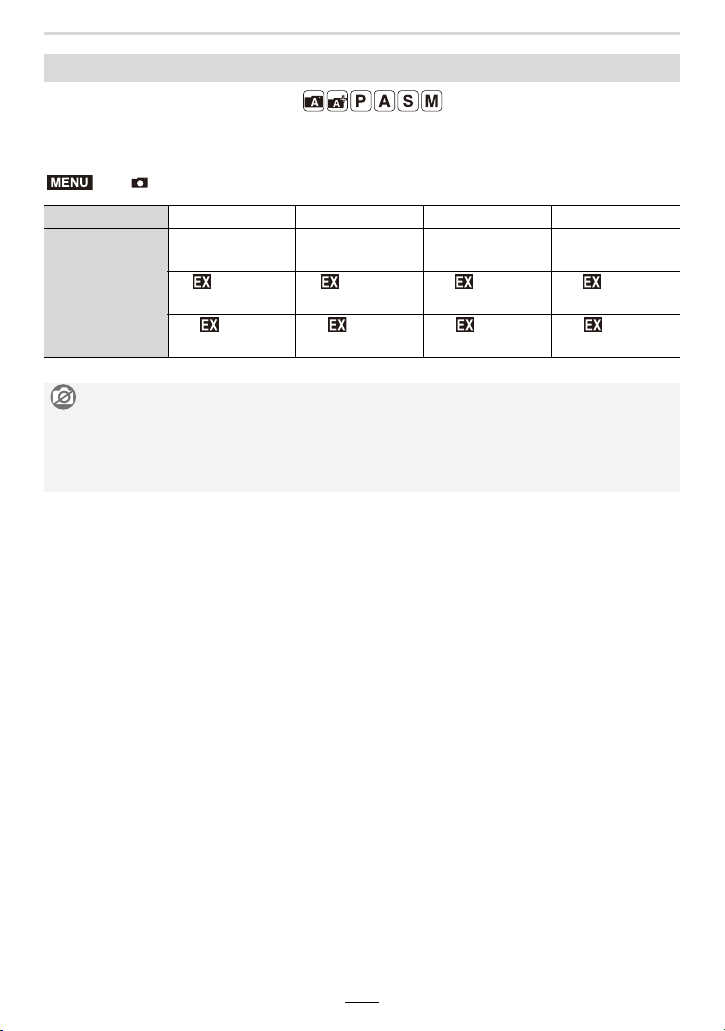
10. Using Menu Functions
167
Available in the following modes:
The higher the resolution (number of pixels), the finer the detail of the pictures will appear
even when they are printed in large formats.
[Picture Size]
> [Rec] > [Picture Size]
Aspect ratio [4:3] [1:1] [16:9] [3:2]
[Picture Size]
[L] (17M)
4736k3552
[L] (12.5M)
3552k3552
[L] (15M)
5152k2904
[L] (16M)
4928k3288
[ M] (8.5M)
3360k2520
[ M] (6.5M)
2528k2528
[ M] (8M)
3840k2160
[ M] (8M)
3504k2336
[ S] (4M)
2368k1776
[ S] (3M)
1776k1776
[ S] (2M)
1920k1080
[ S] (4M)
2496k1664
Not available in these cases:
• [Picture Size] cannot be set in the following cases:
– When using [Panorama Shot]
– When recording 4K pictures
– When recording with the Post Focus function
MENU
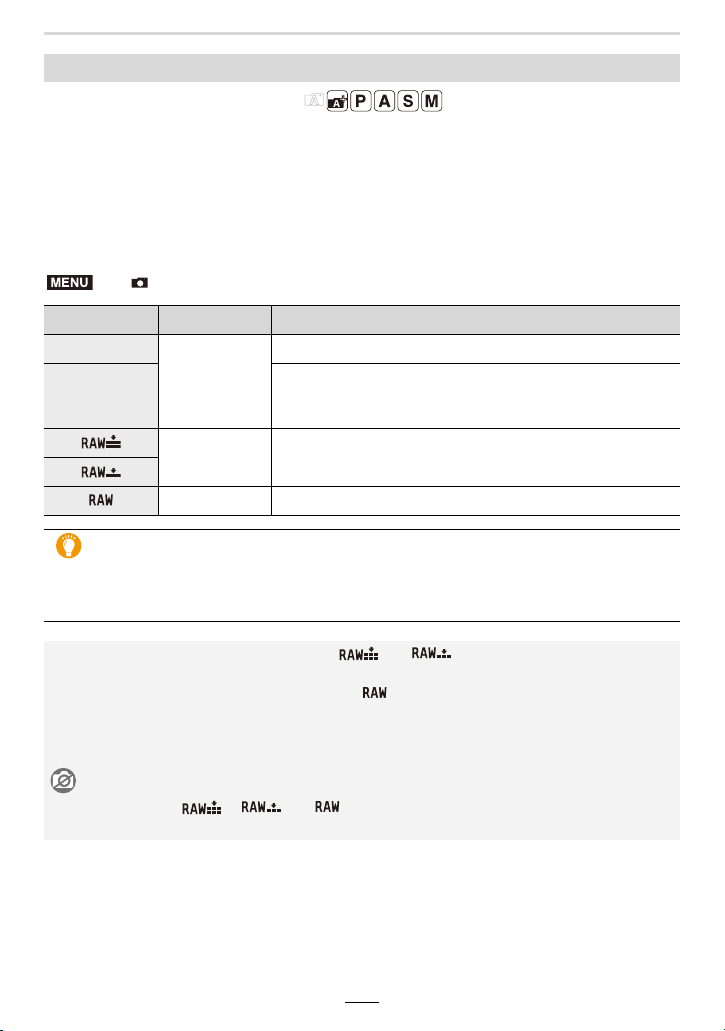
168
10. Using Menu Functions
Available in the following modes:
This function allows you to select the file format, e. g. JPEG and/or RAW, and in the case
of JPEG, the compression rate. RAW is especially suited for the subsequent
comprehensive editing of the image data using respective software, which is available
after registering your camera on the Leica Camera AG homepage (>257).The JPEG
setting [
A] delivers higher image quality than [›] due to its lower compression rate, while
the latter has the advantage of smaller files.
Set the compression rate at which the pictures are to be stored.
Setting the file format/compression rate ([Quality])
> [Rec] > [Quality]
Settings File format Description of settings
[A]
JPEG
A JPEG image in which image quality was given priority.
[›]
A standard image quality JPEG image.
This is useful for increasing the number of shots without
changing the resolution.
[]
RAWiJPEG
You can record a RAW image and a JPEG image ([A] or
[›]) simultaneously.
[]
[] RAW You can only record RAW images.
About RAW
The RAW format refers to a data format of images that have not been processed.
Playback and editing of RAW images require the camera or the dedicated software.
• You can process RAW images in [RAW Processing] in the [Playback] menu. (>210)
• When you delete an image recorded with [ ] or [ ], both the RAW and JPEG
images will be deleted simultaneously.
• When you play back an image recorded with [ ], gray areas corresponding to the aspect
ratio at the time of recording are displayed.
• The setting is fixed to [A] when recording is performed with the 4K Photo or Post Focus
function.
Not available in these cases:
• You cannot set to [ ], [ ] or [ ] in the following case:
– When using [Panorama Shot]
MENU
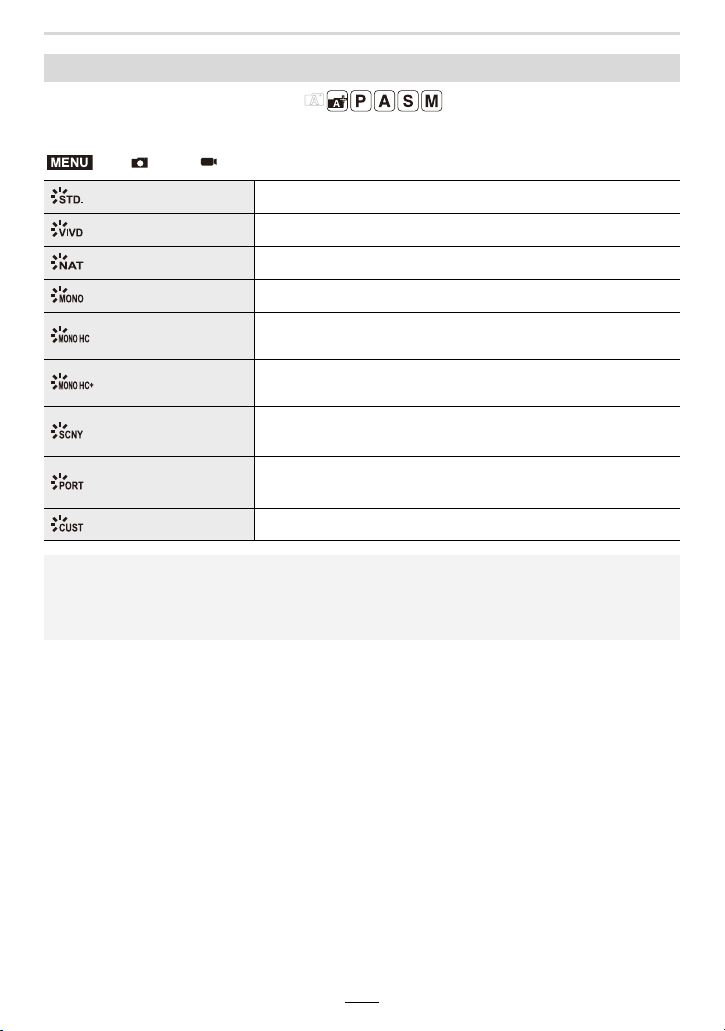
10. Using Menu Functions
169
Available in the following modes:
You can select color rendition effects to match the type of image you wish to record.
[Photo Style]
> [Rec]/ [Motion Picture] > [Photo Style]
[Standard]
This is the standard setting.
[Vivid]
Brilliant effect with higher saturation and contrast.
[Natural]
Soft effect with lower contrast.
[Monochrome]
Creates black-and-white pictures.
[Monochrome HC]
Creates black-and-white pictures with rich gradation and crisp
black accents.
[Monochrome HC+]
Creates black-and-white pictures with a dynamic impression
with enhanced highlights and shadows.
[Scenery]
An effect appropriate for sceneries with vivid blue skies and
greens.
[Portrait]
An effect appropriate for portraits with a healthy and beautiful
skin tone.
[Custom]
This uses a setting registered in advance.
• In Snapshot Plus mode:
– Only [Standard] or [Monochrome] can be set.
– The setting will be reset to [Standard] when the camera is switched to another exposure
control mode or turned off.
MENU
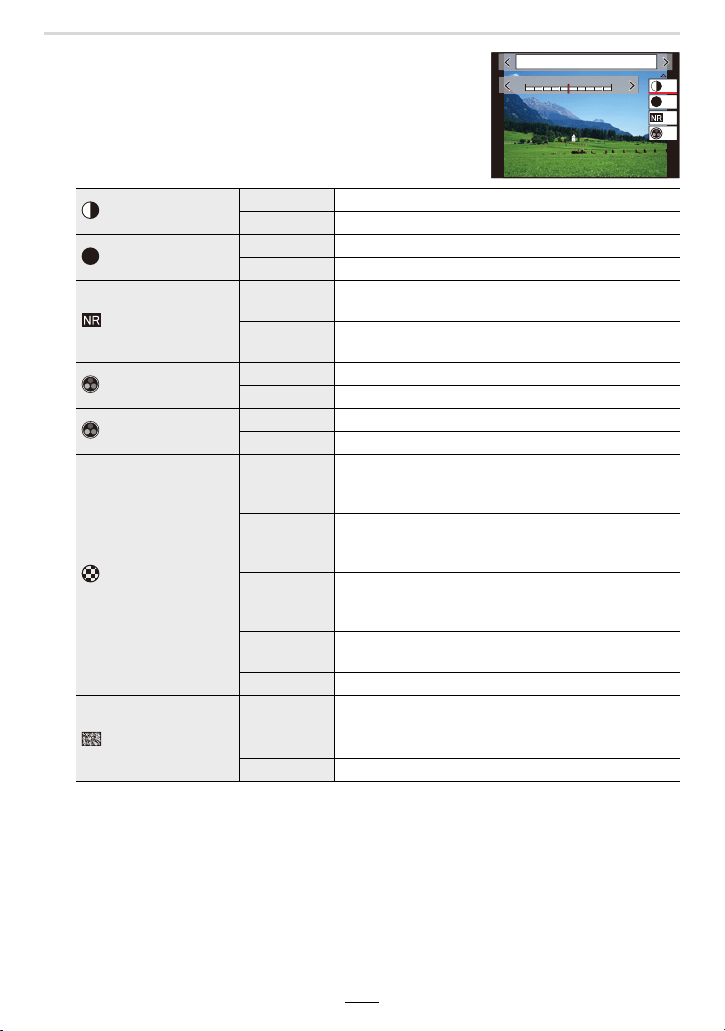
170
10. Using Menu Functions
∫ Adjusting the picture parameters
• You cannot adjust the picture parameters in Snapshot Plus
mode.
1 Press 2/1 to select the type of Photo Style.
2 Press 3/4 to select the items, and then 2/1 to
adjust.
¢1 [Color Tone] is displayed only when [Monochrome], [Monochrome HC] or [Monochrome
HC+] is selected. In other cases, [Saturation] will be displayed.
¢2 Displayed only when [Monochrome], [Monochrome HC] or [Monochrome HC+] is
selected.
• If you adjust the picture quality, [_] is displayed beside the Photo Style icon on the screen.
3 Press [MENU/SET].
∫ Registering settings to [Custom]
Press [DISP] in step
2 of “Adjusting the picture parameters”.
[Contrast]
[r] Increases the contrast in a picture.
[s] Decreases the contrast in a picture.
[Sharpness]
[r] Enhances the outlines in a picture.
[s] Softens the outlines in a picture.
[Noise Reduction]
[r]
Increases noise reduction to reduce noise.
This setting may slightly lower the resolution.
[s]
Lowers the noise reduction effect to achieve a
picture quality with clearer resolution.
[Saturation]
¢1
[r] Gaudy coloring.
[s] Subdued coloring.
[Color Tone]
¢1
[r] Adds a bluish tone.
[s] Adds a yellowish tone.
[Filter Effect]
¢2
[Yellow]
Enhances the contrast of an subject. (Effect:
Weak)
Records a blue sky clearly.
[Orange]
Enhances the contrast of an subject. (Effect:
Medium)
Records the sky in darker blue.
[Red]
Enhances the contrast of an subject. (Effect:
Strong)
Records the sky in a much darker blue.
[Green]
The skin and lips of people appear in natural tones.
Green leaves appear brighter and more enhanced.
[Off] —
[Grain Effect]
¢2
[Low]/
[Standard]/
[High]
Sets the graininess in a picture.
[Off] —
DISP.カスタム登録
-
5
-
500
+5+5
±0
±0
S
±0
±0
6WDQGDUG
S
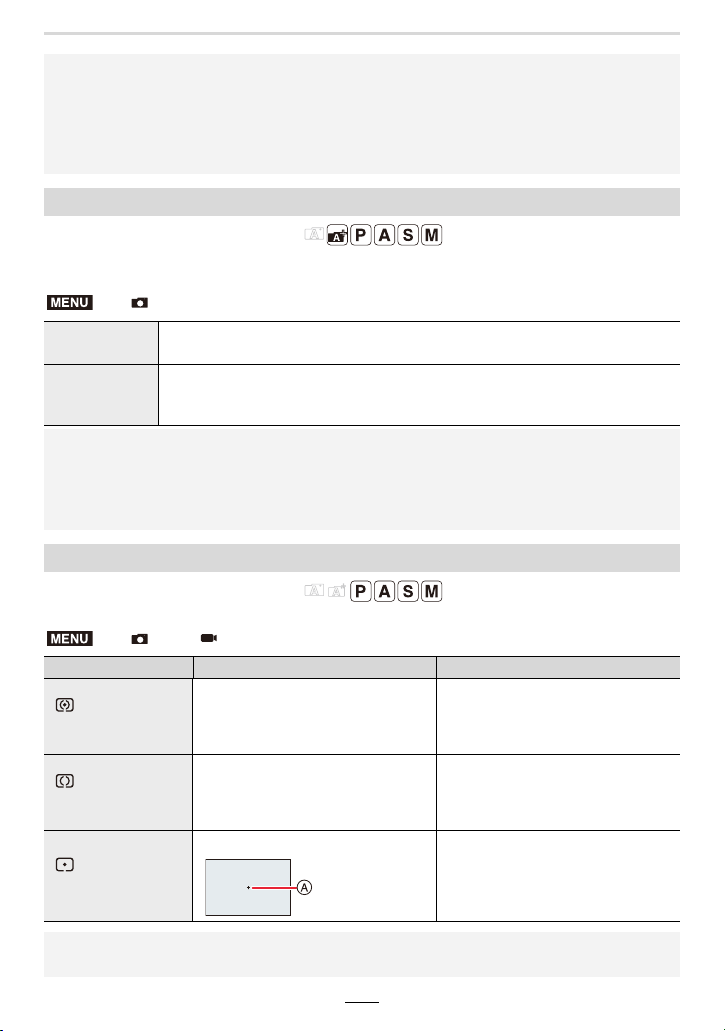
10. Using Menu Functions
171
Available in the following modes:
This mode allows setting the method for reproducing the correct colors to output the
recorded images to a computer screen or a device such as a printer.
Available in the following modes:
You can select between three different exposure metering methods.
• The effect of [Grain Effect] cannot be checked on the recording screen.
• [Grain Effect] is not available in the following cases.
– Panorama Shot mode
– When recording videos
– When recording 4K pictures
– When recording with the Post Focus function
[Color Space]
> [Rec] > [Color Space]
[sRGB]
The color space is set to sRGB.
This is widely used in computer related equipment.
[AdobeRGB]
The color space is set to AdobeRGB.
AdobeRGB is mainly used for business purposes such as professional
printing because it has a greater range of reproducible colors than sRGB.
• Set to [sRGB] if you are not very familiar with AdobeRGB.
• The setting is fixed to [sRGB] in the following cases:
– When recording videos
– When recording 4K pictures
– When recording with the Post Focus function
[Metering Mode]
> [Rec]/ [Motion Picture] > [Metering Mode]
[Metering Mode] Metering characteristics Conditions
[]
(Multiple)
The brightness is detected in
different sections of the frame.
The exposure is then based on the
probable main subject.
Normal usage
(high probability of automatically
correctly exposed main subjects even
with greater brightness differences)
[]
(Center weighted)
The metering sensitivity is
concentrated on the center while
also registering the rest of the frame.
Use when subject is in the center,
or to deliberately base the
exposure on an off-center subject
(provided, subject is of medium brightness)
[]
(Spot)
Center of [
i
] (spot metering target)
A
Use to base the exposure on very
small subject parts
(provided, these parts are of
medium brightness)
• If you set the spot metering target on the edge of the screen, the metering result may be
affected by the brightness around the location.
MENU
MENU
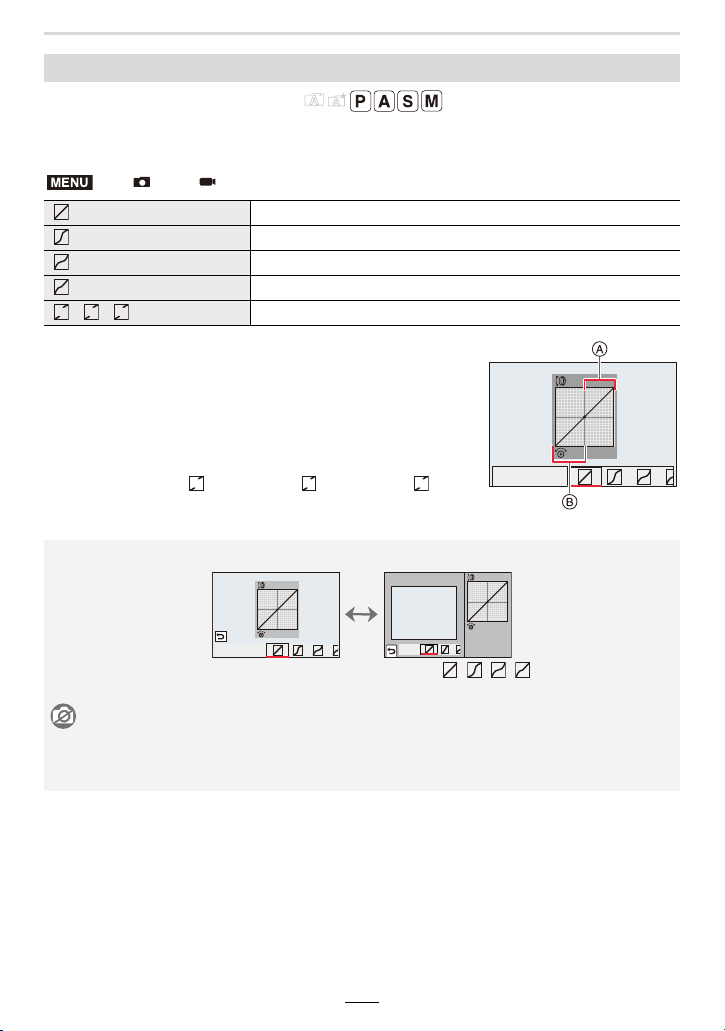
172
10. Using Menu Functions
Available in the following modes:
You can adjust the highlights and shadows in a picture while checking the results on the
screen.
1 Rotate the control ring to adjust the brightness of
bright areas / dark areas.
A Bright side
B Dark side
• Adjustments can also be made by dragging the graph.
• To register a preferred setting, press 3, and select the
destination where the custom setting will be registered to
([Custom1] ( )/[Custom2] ( )/[Custom3] ( )).
2 Press [MENU/SET].
[Highlight Shadow]
> [Rec]/ [Motion Picture] > [Highlight Shadow]
(Standard) No adjustments
(Raise the contrast) Bright areas are brightened, and dark areas are darkened.
(Lower the contrast) Bright areas are darkened, and dark areas are brightened.
(Brighten dark areas) Dark areas are brightened.
/ / (Custom) Registered custom settings can be applied.
• The screen display can be switched by pressing [DISP] on the brightness adjustment screen.
• Turning off the camera will return the setting adjusted with / / / back to the default
setting.
Not available in these cases:
• [Highlight Shadow] cannot be set in the following cases:
– When using [Panorama Shot]
– When using [Filter Settings]
MENU
ヒ
ヤ
ビ
ヤ
ピ
ヤ
ヒ
ヤ
ビ
ヤ
ピ
ヤ
10. Using Menu Functions
173
Available in the following modes:
This function automatically adjusts contrast and exposure to give more lifelike colors when
there is significant contrast between background and subject.
Settings: [AUTO]/[HIGH]/[STANDARD]/[LOW]/[OFF]
Available in the following modes:
You can use the camera’s Intelligent Resolution technology to record pictures with sharper
outlines and clearer resolution.
Settings: [HIGH]/[STANDARD]/[LOW]/[OFF]
Available in the following modes:
If you fire the flash when using Red-Eye Reduction ([ ] or [ ]), the camera
automatically detects red-eye and corrects the picture.
Settings: [ON]/[OFF]
[i.Dynamic]
> [Rec]/ [Motion Picture] > [i.Dynamic]
Not available in these cases:
• The compensation effect may not be achieved depending on the recording conditions.
• [i.Dynamic] does not work in the following cases:
– When using [Panorama Shot]
– When [HDR] is set to [ON]
[i.Resolution]
> [Rec]/ [Motion Picture] > [i.Resolution]
[Red-Eye Removal]
> [Rec] > [Red-Eye Removal]
• If you set this item to [ON], the icon will change to [ ] or [ ].
• Under certain circumstances, red-eye cannot be corrected.
MENU
MENU
MENU
174
10. Using Menu Functions
Available in the following modes:
You can set the upper limit of the ISO sensitivity when it is set to [AUTO] or [ ].
Settings: [AUTO]/[400]/[800]/[1600]/[3200]/[6400]/[12500]/[25000]
Available in the following modes:
You can set the minimum shutter speed when the ISO sensitivity is set to [AUTO] or [ ].
Settings: [AUTO]/[1/16000] to [1/1]
Available in the following modes:
The camera automatically removes noise that appears when using slower shutter speeds,
e.g. to take pictures of night or similar scenery.
Settings: [ON]/[OFF]
[ISO Auto Upper Limit (Photo)]
> [Rec] > [ISO Auto Upper Limit (Photo)]
[Min. Shtr Speed]
> [Rec] > [Min. Shtr Speed]
• The shutter speed may become slower than the set value in situations where proper exposure
cannot be obtained.
Not available in these cases:
• The desired compensation effect may not be achieved depending on the recording conditions.
• [Min. Shtr Speed] cannot be set in the following case:
– When using [Panorama Shot]
[Long Shtr NR]
> [Rec] > [Long Shtr NR]
• [Long shutter noise reduction ongoing] is displayed for the same time as the shutter speed for
signal processing.
Not available in these cases:
• This function is not available in the following cases:
– When recording videos
– When recording 4K pictures
– When recording with the Post Focus function
– When using [Panorama Shot]
– When using the electronic shutter function
MENU
MENU
MENU
10. Using Menu Functions
175
Available in the following modes:
The camera raises the resolution by correcting the blurriness caused by diffraction when
small apertures (high aperture values) are used.
Settings: [AUTO]/[OFF]
Available in the following modes:
This function allows disabling the beeps and firing the flash at the same time.
Settings: [ON]/[OFF]
• Audio from the speaker will be muted and flash operation and the AF Assist lamp will be
disabled.
The following settings are fixed.
– [Flash Mode]: [Œ] ([Forced Flash Off])
– [Shutter Type]: [ESHTR]
– [AF Assist Lamp]: [OFF]
– [Beep Volume]: [s] (OFF)
– [Shutter Vol.]: [ ] (OFF)
[Diffraction Compensation]
> [Rec]/ [Motion Picture] > [Diffraction Compensation]
• Noise may increase with higher ISO sensitivity.
[Silent Mode]
> [Rec] > [Silent Mode]
• Even when [ON] is set, the following functions light up/flash:
– WIRELESS connection lamp
– Self-timer indicator
• The operation sounds of the camera such as setting of the aperture are not muted.
• Be sure to pay special attention to the privacy, i.e. personal rights, etc. of the subject
when you use this function. Use at your own risk.
MENU
MENU
176
10. Using Menu Functions
Available in the following modes:
You can use either of the two shutter types to take pictures: the mechanical and the
electronic shutter function.
¢1 This setting is available only in manual exposure mode.
¢2 Up to an ISO sensitivity of [ISO3200]. When the setting is higher than [ISO3200], the shutter
speed will be faster than 1 second.
¢3 Electronic shutter sound settings can be changed in [Shutter Vol.] and [Shutter Tone].
• Electronic Shutter mode allows you to take pictures without the detrimental effects caused by
shutter vibration.
[Shutter Type]
> [Rec] > [Shutter Type]
[AUTO]
Switches the shutter type automatically depending on the recording
condition and shutter speed.
• The mechanical shutter mode has higher priority over the electronic
shutter mode because the mechanical shutter has less
function-related restrictions when recording with flash, etc.
[MSHTR] Takes pictures in Mechanical Shutter mode.
[ESHTR] Takes pictures in Electronic Shutter mode.
Mechanical shutter Electronic shutter function
Flash ± —
Shutter Speed [T] (Time)
¢1
/60s to 1/4000s 1s
¢2
to 1/16000s
Shutter sound
Mechanical shutter sound
i
Electronic shutter sound
¢3
Electronic shutter sound
¢3
• When [ ] is displayed on the screen, pictures will be taken with the electronic shutter
function.
• When [ESHTR] is set, if you take a picture of a moving subject, it may be rendered
distorted.
• When [ESHTR] is set, horizontal stripes may appear on pictures taken under lighting
such as a fluorescent or LED lighting fixtures. The horizontal stripes can be reduced if
you set a slower shutter speed.
MENU
10. Using Menu Functions
177
Available in the following modes:
The camera can combine 3 pictures taken at different exposures into a single picture with
a wide range of correctly rendered brightness levels. The individual pictures used to create
the HDR picture are not saved.
A combined HDR picture is saved in JPEG format.
Settings: [ON]/[OFF]/[SET]
∫ Changing settings
[HDR]
> [Rec] > [HDR]
[Dynamic Range]
[AUTO]: Automatically adjusts the exposure range according to the
differences between the bright and dark areas.
[n1EV]/[n2 EV]/[n3EV]:
Sets the exposures within the selected exposure
parameters.
[Auto Align]
[ON]: Automatically compensates camera shake and other
problems that can cause the images to misalign.
Recommended for use during hand-held shooting.
[OFF]: Image misalignment is not adjusted.
Recommended when a tripod is used.
• Do not move the camera during the exposure series after pressing the shutter button.
• You cannot take the next picture until the combination of pictures is complete.
• A moving subject may be recorded with unnatural blurs.
• The image size becomes smaller when [Auto Align] is set to [ON].
• Flash is fixed to [Œ] ([Forced Flash Off]).
Not available in these cases:
• [HDR] does not work for the pictures taken during a video recording.
• This function is not available in the following cases:
– When recording 4K pictures
– When recording with the Post Focus function
– When recording in Continuous mode
– When using [Panorama Shot]
– When recording with the Bracket function
– When [Quality] is set to [ ], [ ] or [ ]
– When using [Time Lapse Shot]
– When using [Stop Motion Animation] (only when [Auto Shooting] is set)
MENU
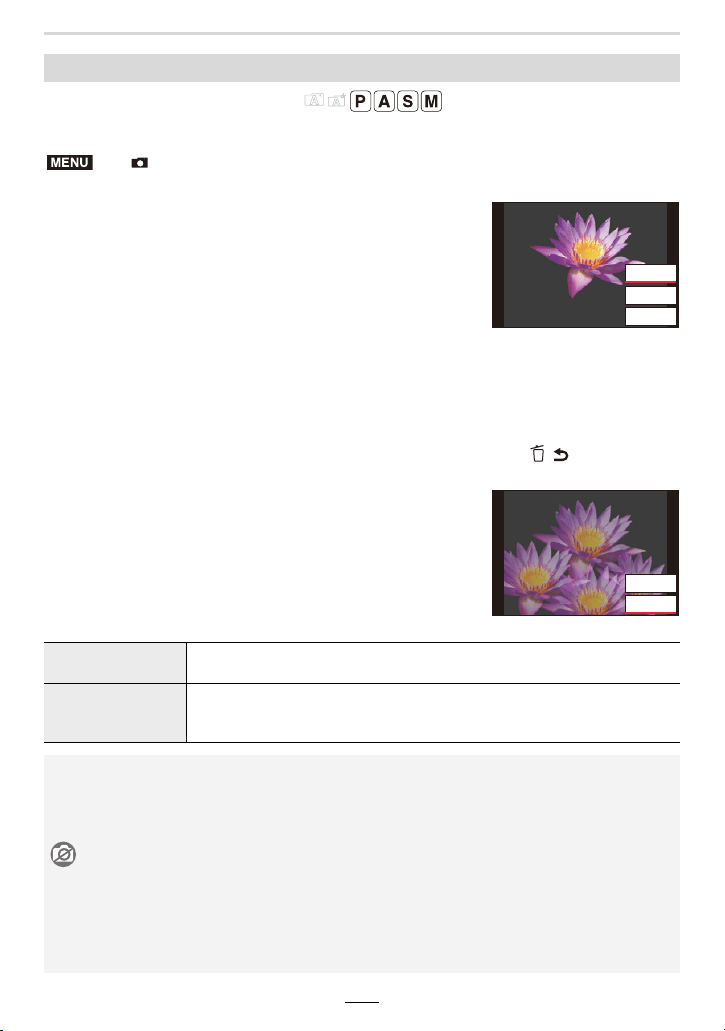
178
10. Using Menu Functions
Available in the following modes:
You can create pictures in which several exposures (up to 4) are superimposed over each other.
1 Press 3/4 to select [Start] and then [MENU/SET].
2 Decide on the composition, and take the first
picture.
• After taking the picture, press the shutter button halfway to
take the next picture.
• Press 3/4 to select the item and then [MENU/SET] for
one of the following operations.
3 Shooting the second, third, and fourth exposures.
• To save the recorded pictures and finish Multiple Exposure, press [ / ] / ([Fn3]) when
taking pictures.
4 Press 3/4 to select [Exit] and then [MENU/SET].
• You can also press the shutter button halfway to finish.
∫ Changing settings
[Multi Exp.]
> [Rec] > [Multi Exp.]
– [Next]: Advance to the next picture.
– [Retake]: Return to the first picture.
– [Exit]: Record the image of the first picture, and
finish the multiple exposure picture-taking
session.
[Auto Gain]
If you select [OFF], all exposure results are superimposed as they are.
If the subject calls for it, the exposures are adjusted accordingly.
[Overlay]
If you select [ON], you can apply Multi Exposure to previously recorded
images. After [Start] is selected, images on the card will be displayed.
Select a RAW image, and press [MENU/SET] to proceed to recording.
• You cannot use the lens' zoom function when taking the second and subsequent pictures.
• The recording information displayed for pictures taken with multiple exposures is that for the
last one taken.
• You can perform [Overlay] only for RAW images recorded with this camera.
Not available in these cases:
• This function is not available in the following cases:
– When using [Filter Settings]
– When using [Panorama Shot]
– When using [Time Lapse Shot]
– When using [Stop Motion Animation]
MENU
([LW
5HWDNH
1H[W
([LW
5HWDNH
10. Using Menu Functions
179
Available in the following modes:
You can set the upper limit of the ISO sensitivity when it is set to [AUTO] or [ ].
Settings: [AUTO]/[400]/[800]/[1600]/[3200]/[6400]
Available in the following modes:
If you hear wind noise during an audio recording, you can use [Wind Noise Canceller] to
effectively reduce it.
Settings: [HIGH]/[STANDARD]/[OFF]
• [HIGH] effectively reduces the wind noise by minimizing the low-pitched sound when a strong
wind is detected.
• [STANDARD] extracts and reduces only the wind noise without deteriorating the sound quality.
• You may not hear the full effect depending on the recording conditions.
:
[Motion Picture] menu
• [Rec Quality] (>154)
• [AFS/AFF/AFC] (>74)
• [Continuous AF] (>155)
• [Photo Style] (>169)
• [Filter Settings] (>122)
• [Metering Mode] (>171)
• [Highlight Shadow] (>172)
• [i.Dynamic] (>173)
• [i.Resolution] (>173)
• [ISO Auto Upper Limit (Video)] (>179)
• [Diffraction Compensation] (>175)
• [Stabilizer] (>139)
•[i.Zoom] (>142)
• [Digital Zoom] (>143)
• [Picture Mode in Rec.] (>156)
•
[Sound Rec Level Disp.] (>157)
•
[Sound Rec Level Adj.] (>157)
• [Wind Noise Canceller] (>179)
[ISO Auto Upper Limit (Video)]
> [Motion Picture] > [ISO Auto Upper Limit (Video)]
[Wind Noise Canceller]
> [Motion Picture] > [Wind Noise Canceller]
MENU
MENU

180
10. Using Menu Functions
:
[Custom] menu
[Exposure]
• [ISO Increments] (>181)
• [Extended ISO] (>181)
• [Exposure Comp. Reset] (>181)
[Focus / Release Shutter]
• [AF/AE Lock] (>89)
• [AF/AE Lock Hold] (>181)
• [Shutter AF] (>181)
• [Half Press Release] (>181)
• [Quick AF] (>181)
• [Eye Sensor AF] (>182)
• [Pinpoint AF Setting] (>182)
• [AF Assist Lamp] (>182)
• [Direct Focus Area] (>182)
• [Focus/Release Priority] (>183)
• [Focus Switching for Vert / Hor] (>183)
• [Loop Movement Focus Frame] (>183)
• [AF Area Display] (>183)
• [AF+MF] (>184)
• [MF Assist] (>184)
• [MF Assist Display] (>184)
[Operation]
• [Fn Button Set] (>49)
• [Q.MENU] (>185)
• [A Button Switch] (>185)
• [Control Ring] (>54)
• [Operation Lock Setting] (>185)
• [Video Button] (>185)
• [Touch Settings] (>185)
• [Dial Guide] (>186)
• [Zoom lever] (>186)
[Monitor / Display]
• [Auto Review] (>186)
• [Monochrome Live View] (>187)
• [Constant Preview] (>187)
• [Live View Boost] (>187)
• [Peaking] (>188)
• [Histogram] (>188)
• [Guide Line] (>189)
• [Center Marker] (>189)
• [Highlight] (>189)
• [Zebra Pattern] (>190)
• [Expo.Meter] (>190)
• [MF Guide] (>190)
• [EVF/Monitor Disp. Set] (>40)
• [Monitor Info. Disp.] (>191)
•[Rec Area] (>191)
• [Remaining Disp.] (>191)
[Lens / Others]
• [Lens Position Resume] (>191)
• [Lens Retraction] (>191)
• [Self Timer Auto Off] (>191)
• [Face Recog.] (>192)
• [Profile Setup] (>194)
10. Using Menu Functions
181
This item allows adjusting the increments used to set the ISO sensitivity.
Settings: [1/3 EV]/[1 EV]
This item allows setting the ISO sensitivity to a minimum of [ISO100].
This item allows resetting the exposure compensation value set with the function button
when you change the exposure control mode or turn off the camera.
When [ON] is selected, the focus and exposure settings stay locked even if you press and
release [AE/AF].
To clear the lock, press [AE/AF] again.
This item allows selecting whether or not focusing should start automatically when the
shutter button is pressed halfway.
When this mode is activated, the shutter will immediately fire when the shutter button is
pressed halfway.
This mode enables faster focusing when the shutter button is pressed.
> [Custom] > [Exposure]
[ISO Increments]
[Extended ISO]
[Exposure Comp. Reset]
> [Custom] > [Focus / Release Shutter]
[AF/AE Lock Hold]
[Shutter AF]
[Half Press Release]
[Quick AF]
• The battery will be drained faster than usual.
Not available in these cases:
– In Preview mode
– In low light situations
MENU
MENU
182
10. Using Menu Functions
When this mode is activated, the camera automatically starts focusing when the eye
sensor registers that the viewfinder is being used.
This item allows changing the setting for an enlarged display that appears when the
Autofocus mode is set to [ ].
With this mode active, the AF assist lamp lights up for easier focusing when you press the
shutter button halfway while recording in a dark location.
This mode allows moving the AF area or MF Assist using the cursor buttons when
recording.
[Eye Sensor AF]
• [Eye Sensor AF] may not work in dimly lit conditions.
[Pinpoint AF Setting]
[Pinpoint AF Time]
Sets the time for which the enlarged screen is displayed when the
shutter button is pressed halfway.
[Pinpoint AF Display]
Sets the display mode of the enlarged screen (windowed screen/full
screen).
[AF Assist Lamp]
• The effective range of the AF assist lamp is 1.5m (5 feet).
• [AF Assist Lamp] is fixed to [OFF] in the following case:
– When [Silent Mode] is set to [ON]
[Direct Focus Area]
• You can move the positions below with the cursor buttons.
– When [ ]/[ ]/[ ]/[Ø] is selected: AF area
– When [ ] is selected: lock-on position
– When [ ] is selected: enlarged area
• Use the Quick Menu (>47) or function buttons (>49) to set the functions assigned to the
cursor buttons, such as White Balance and ISO sensitivity.
• [Direct Focus Area] is fixed to [OFF] in the following case:
– When using [Filter Settings]
10. Using Menu Functions
183
This item allows selecting whether to give priority to focus or shutter release during
Autofocus operation.
• Different settings can be applied to different Focus Mode settings ([AFS/AFF], [AFC]).
This mode allows storing focus settings separately for the camera's horizontal and vertical
orientations.
When setting the AF area position or the MF Assist display position, this mode allows
jumping directly from one edge to the other edge of the screen.
This mode allows changing the AF area display setting for when the Autofocus mode is set
to [ ] ([49-Area]) or [ ], etc. ([Custom Multi]).
[Focus/Release Priority]
[FOCUS] Disables recording when a subject cannot be focused.
[BALANCE]
Performs recording while controlling the balance between focusing and
shutter release timing.
[RELEASE] Enables recording even when a subject is out of focus.
[Focus Switching for Vert / Hor]
[ON]
Memorizes separate positions for horizontal
and vertical orientations (two vertical
orientations, left and right, are available).
• The following last-specified positions will be
memorized.
– The last AF area position (when [ ], [Ø] or [ ] is used)
– The last MF Assist display position
[OFF] Sets the same setting for both horizontal and vertical orientations.
[Loop Movement Focus Frame]
[AF Area Display]
[ON]
Displays AF areas on the recording screen.
• AF areas are not displayed when the default AF area setting is applied to
[ ] ([49-Area]) or [ ], [ ] or [ ] in [Custom Multi].
[OFF]
Displays AF areas on the recording screen for just a few seconds after you
start using them.
• Even when [ON] is set, the same operation as [OFF] is performed in the following cases:
– When recording videos
– When recording 4K pictures
ヤヒヤビ
ヤピ
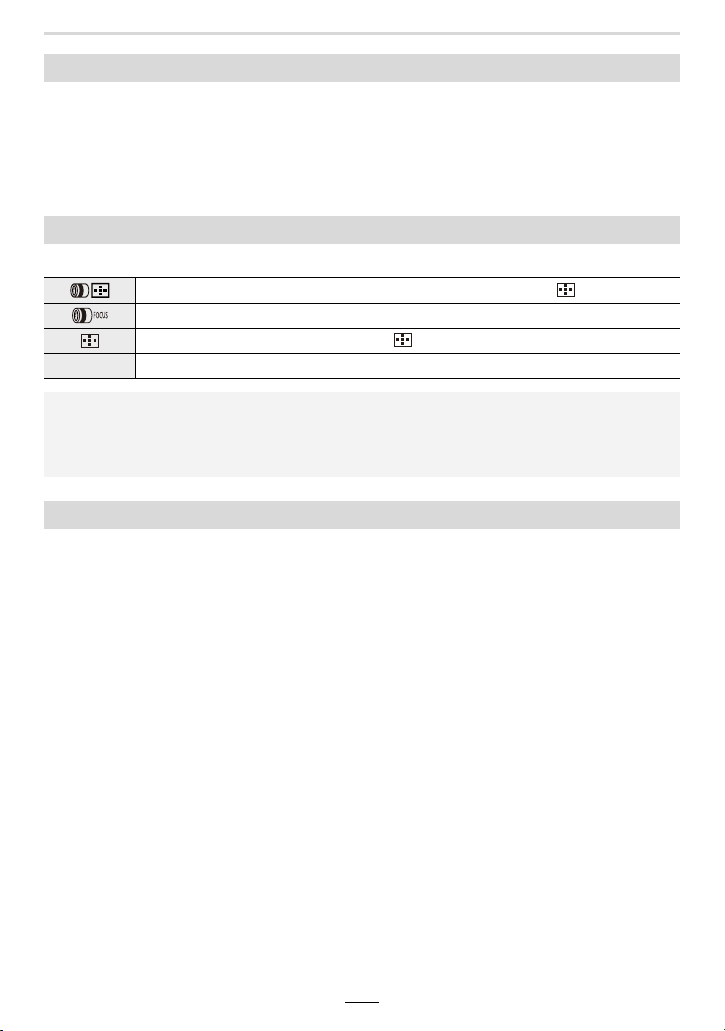
184
10. Using Menu Functions
With this mode active, you can fine-adjust the focus setting manually during AF lock (when
the following conditions are met).
– When [AFS/AFF/AFC] in the [Rec] menu is set to [AFS] and the shutter button is pressed
halfway.
– When [AE/AF] is pressed
This mode allows setting the display method of MF Assist (enlarged screen).
This mode allows setting whether MF Assist (enlarged screen) will appear in a windowed
screen display or in a full screen display.
[AF+MF]
[MF Assist]
[]Enlarges the display when you rotate the control ring or press [] (2).
[]Enlarges the display when you rotate the control ring.
[] Enlarges the display when you press [ ] (2).
[OFF] The screen is not be enlarged.
• MF Assist is not displayed in the following cases:
– When recording videos
– When recording with [4K Pre-Burst]
– When using Digital Zoom
[MF Assist Display]
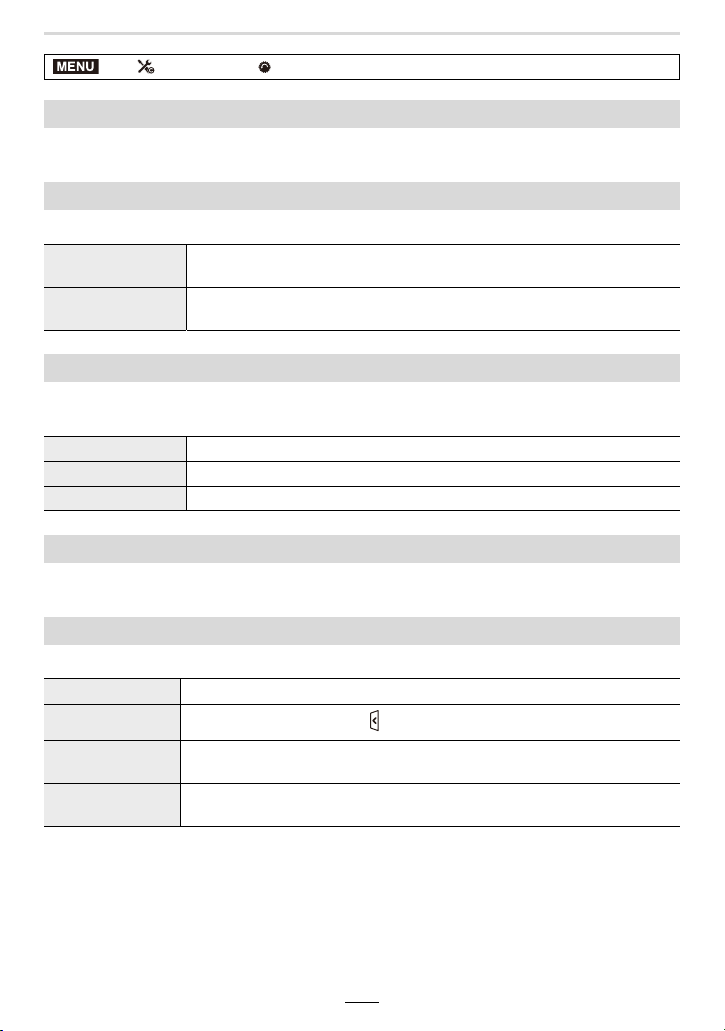
10. Using Menu Functions
185
By selecting [CUSTOM] in this item, you can customize the Quick Menu settings. (>48)
This mode allows changing the operation method of the [A] button.
This item allows setting which control functions will be disabled when [Operation Lock] is
set in [Fn Button Set] (>49) of the [Custom] ([Operation]) menu.
This item allows enabling/disabling the video button.
This item allows enabling/disabling touch operations.
> [Custom] > [Operation]
[Q.MENU]
[A Button Switch]
[Single Press]
Switches the camera between the Snapshot and the other exposure
control modes (P/A/S/M) when you press [A].
[Press and hold]
Switches the camera between the Snapshot and the other exposure
control modes (P/A/S/M) when you press and hold [A] for a short while.
[Operation Lock Setting]
[Cursor] Disables the functions of the cursor and the [MENU/SET] buttons.
[Touch Screen] Disables the touch functions of the monitor.
[Dial] Disables the functions of the control dial and control ring.
[Video Button]
[Touch Settings]
[Touch Screen] All touch operations.
[Touch Tab]
Operating of tabs, such as [ ] on the right side of the screen.
[Touch AF]
Bringing the subject you touch into focus ([AF]) or adjusting the focus and
brightness settings ([AF+AE]). (>85)
[Touch Pad AF]
Moving the AF area by touching the monitor when the viewfinder is in use.
(>84)
MENU
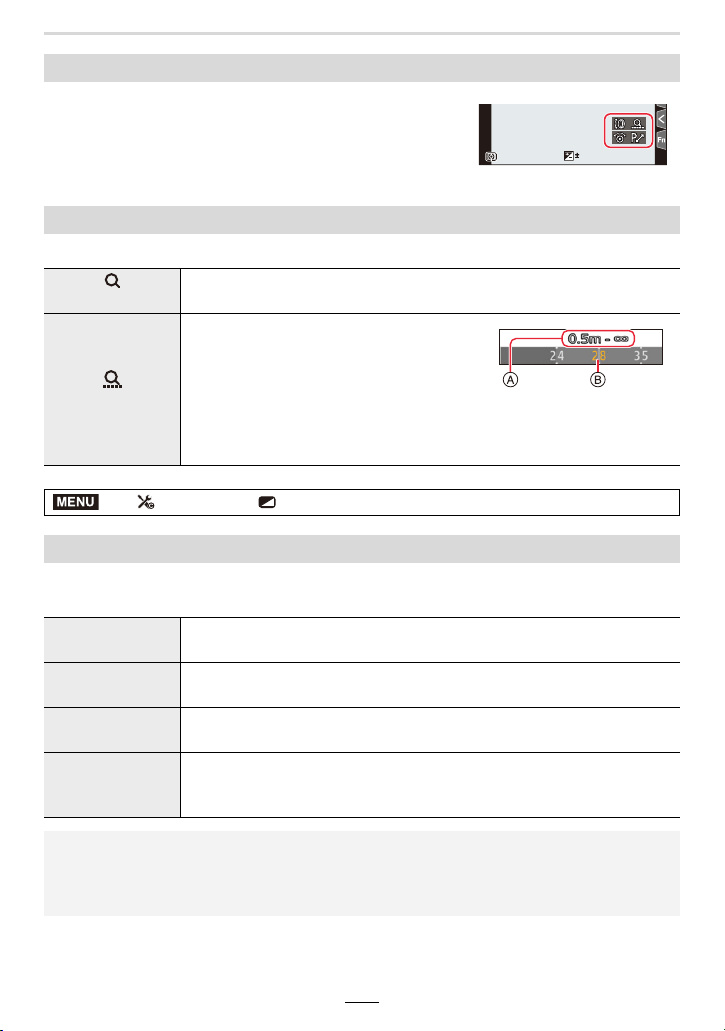
186
10. Using Menu Functions
This item allows enabling/disabling the operation guide
display when switching recording modes.
This item allows selecting which type of zoom operation is performed with the zoom lever.
This item allows selecting how a picture/which pictures is/are displayed immediately after
it/they is/are taken.
[Dial Guide]
[Zoom lever]
(Zoom)
Performs normal zooming.
(Step Zoom)
Stops zooming at the position for one of the
preset focal lengths each time you operate
the zoom lever.
• This does not work for video recording or
[4K Pre-Burst] recording.
A Focusing range
B Current zoom position
> [Custom] > [Monitor / Display]
[Auto Review]
[Duration Time
(photo)]
Sets the display time of the images recorded after picture-taking.
[Duration Time
(4K PHOTO)]
Sets whether to display/hide the images recorded after 4K photo
recording.
[Duration Time
(Post Focus)]
Sets whether to display/hide the recorded images after recording with the
Post Focus function.
[Playback
Operation
Priority]
Allows you to change or delete the playback image during Auto Review.
• When [Duration Time (photo)] is set to [HOLD], the images are displayed until the shutter
button is pressed halfway. [Playback Operation Priority] will be fixed to [ON].
• When [Grain Effect] is selected for [Photo Style], [Auto Review] is not displayed during [Time
Lapse Shot] and [Stop Motion Animation] recording.
989898
0
MENU

10. Using Menu Functions
187
This item allows you to select a black and white recording screen.
This is convenient for focusing manually.
This mode allows you to check the effects of the chosen aperture and shutter speed on the
recording screen in manual exposure mode.
With this mode activated, the monitor image is displayed brighter to make it easier to
check the composition, e.g. in low-light environments.
The screen is displayed brighter than the image to be recorded, so noise may become
noticeable.
• With [SET] you can change the exposure control mode that uses [Live View Boost] to display
the screen.
• Noise may be more noticeable in the screen than in the recorded image.
[Monochrome Live View]
• Recorded images will not be affected.
[Constant Preview]
• This function does not work when using flash.
[Live View Boost]
• [Live View Boost] does not work in the following cases:
– When adjusting the exposure (when the shutter button is pressed halfway, for example)
– When recording a video or 4K photo
– When using [Filter Settings]
– When using [Constant Preview]
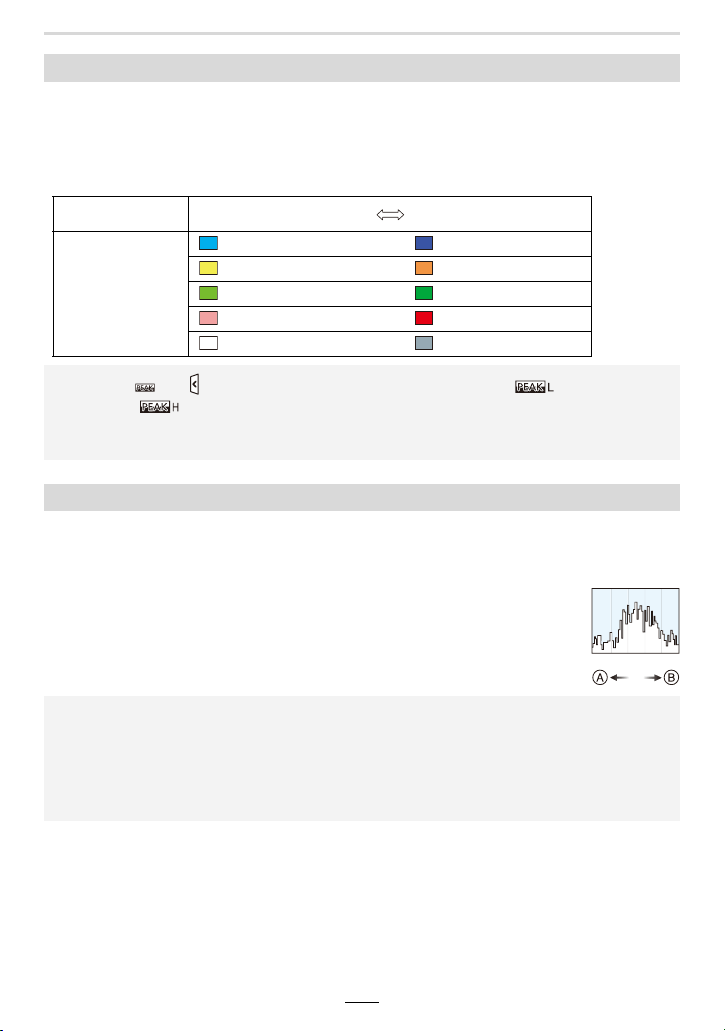
188
10. Using Menu Functions
With this item, you can have the edges of in-focus sections highlighted with color during
manual focusing.
• When [Detect Level] in [SET] is set to [HIGH], sections to be highlighted are reduced, allowing
you to achieve a more precise focus setting.
• Changing the [Detect Level] setting also changes the [Display Color] setting as follows.
When this item is activated, the histogram is displayed.
You can move the position by pressing 3/4/2/1.
• Direct touch operation is also possible on the recording screen.
• A histogram is a graph that displays brightness along the horizontal axis (black
to white) and the number of pixels at each brightness level on the vertical axis.
It allows you to easily check a picture’s exposure.
A darker
B brighter
[Peaking]
[Detect Level] [HIGH] [LOW]
[Display Color]
[ ] (Light blue) [ ] (Blue)
[ ] (Yellow) [ ] (Orange)
[ ] (Yellow-green) [ ] (Green)
[ ] (Pink) [ ] (Red)
[ ] (White) [ ] (Gray)
• Each time [ ] in [ ] is touched, the setting is switched in order of [ ] ([Detect Level]:
[LOW]) > [ ] ([Detect Level]: [HIGH]) > [OFF].
• [Peaking] is not available when using [Live View Boost]
• [Peaking] does not work with [Rough Monochrome] in [Filter Settings].
[Histogram]
• When the recorded picture and the histogram do not match each other under the
following conditions, the histogram is displayed in orange.
– When using Exposure Compensation
– When a flash unit is activated
– When the correct exposure is not achieved, such as when the lighting is low.
• The histogram is an approximation in the exposure control mode.
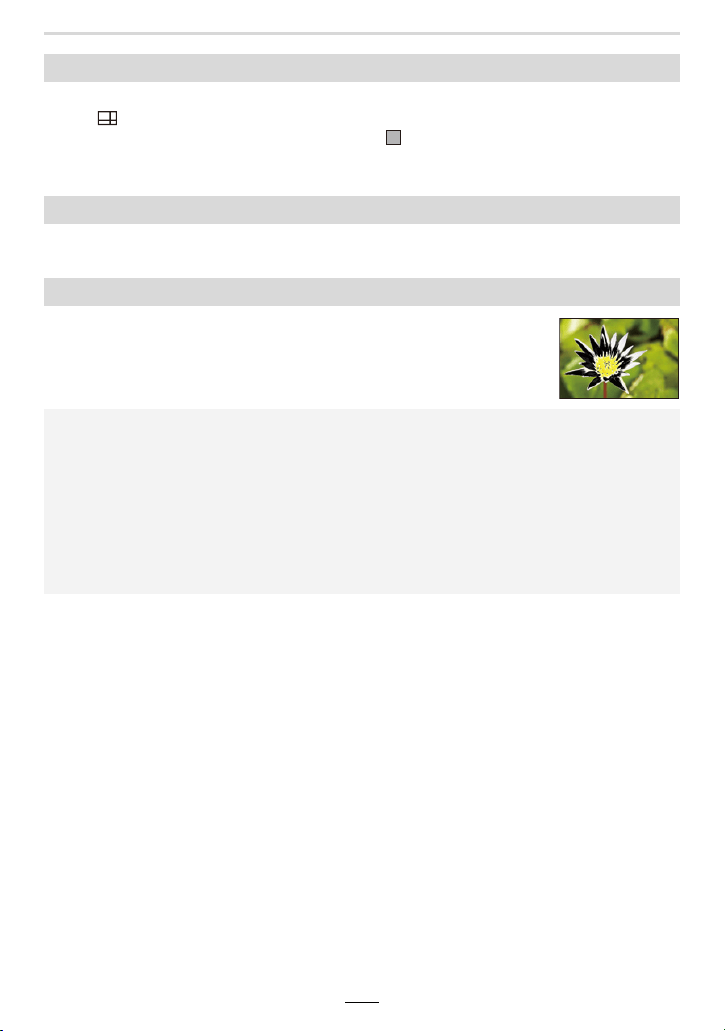
10. Using Menu Functions
189
This item allows guide lines to be displayed in selectable patterns when taking a picture.
When [ ] is set, guideline positions can be moved by pressing 3/4/2/1.
• You can also set the position directly by touching [ ] on the guideline of the recording screen.
• Guide lines are not displayed during panorama recording.
With this item activated, the center of the recording screen will be indicated by [+].
When this item is activated, totally overexposed areas flash in black
and white during [Auto Review] or playback.
[Guide Line]
[Center Marker]
[Highlight]
• If total overexposure is indicated, we recommend setting a negative exposure compensation
value referring to the histogram and then taking the picture again. It may result in a picture
suiting your preference better.
• The highlight display does not work in the following cases:
– During 4K photo playback
– During playback of images recorded with the Post Focus function
– During Multi Playback
– During Calendar Playback
– During Playback Zoom
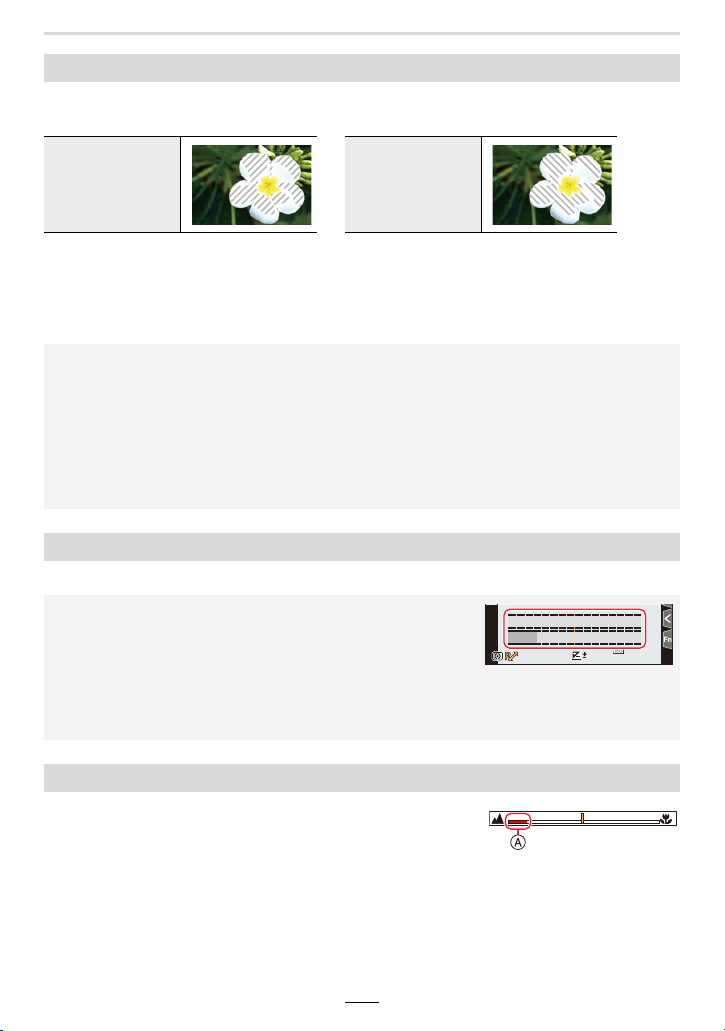
190
10. Using Menu Functions
This item allows you to select that subject parts which may be totally overexposed (bright
parts effectively all white) are indicated by a zebra pattern.
Select [SET] to set the brightness level to be indicated by a zebra pattern.
• You can select a brightness value between [50%] and [105%]. In [Zebra 2], you can select
[OFF]. If you select [100%] or [105%], only the areas that are already totally overexposed are
indicated by a zebra pattern. The smaller the value is, the wider the brightness range to be
indicated by a zebra pattern will be.
With this item you can select to display the exposure setting balance.
When you activate this mode and focus manually, an MF
guide that allows you to check the direction to achieve focus
is displayed.
A Indicator for ¶ (infinity)
[Zebra Pattern]
[ZEBRA1] [ZEBRA2]
• If there are any totally overexposed areas, we recommend setting a negative exposure
compensation referring to the histogram and then taking the picture.
• Displayed zebra patterns will not be recorded.
• If you assign [Zebra Pattern] to [Fn Button Set] in the [Custom] ([Operation]) menu, each time
you press the function button to which the setting is assigned, the zebra pattern toggles as
follows:
[Zebra 1]
> [Zebra 2] > [OFF].
If you set [Zebra 2] to [OFF], the pattern toggles in the order of [Zebra 1]
> [OFF]
[Expo.Meter]
• Set to [ON] to display the exposure setting balance when
performing Program Shift, setting aperture, and shutter speed.
• Unsuitable areas of the range are displayed in red.
• When the exposure setting balance is not displayed, switch the
display information for the screen by pressing [DISP].
• If no operations are performed for approximately 4 seconds, the exposure setting balance
disappears.
[MF Guide]
2
00
0
60602.82.8
989898
SSSSSS
FF
250 125 60 30 15
2.82.0 4.0 5.6
10. Using Menu Functions
191
This function is for displaying the recording information screen. (>40, 267)
With this item activated, the angle of view is changed during video and picture recording.
With this item activated, the display will switch between the number of recordable pictures
and the available recording time.
With this item activated, the zoom and focus positions will be resumed when you turn the
camera off and back on.
With this item activated, the lens barrel will retract shortly after you switch to the playback
screen.
This item allows you to set that the self-timer will be canceled when the camera is turned
off.
[Monitor Info. Disp.]
[Rec Area]
Displays the recording area according to the angle of view for picture recording.
Displays the recording area according to the angle of view for video recording.
• The recording area indicated is an approximation.
Not available in these cases:
• When recording with the 4K Photo function or Post Focus function, [Rec Area] is fixed to [ ].
[Remaining Disp.]
> [Custom] > [Lens / Others]
[Lens Position Resume]
[Lens Retraction]
[Self Timer Auto Off]
MENU
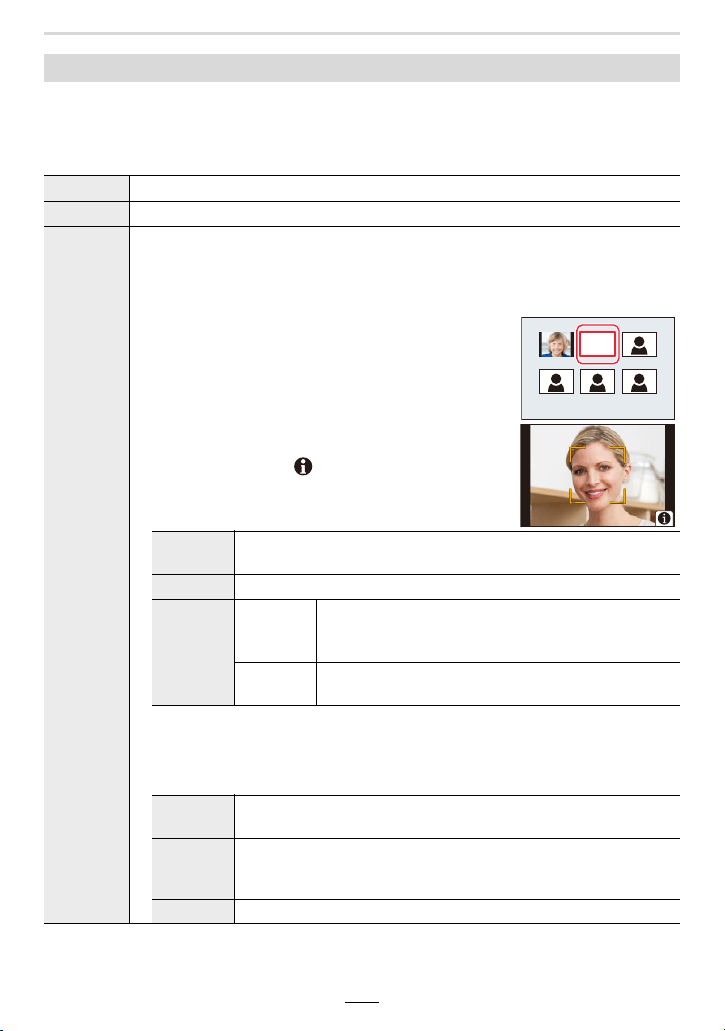
192
10. Using Menu Functions
Face Recognition is a function which finds a face resembling a registered face and
prioritizes the focus and exposure settings automatically. Even if the person is located
towards the back or at the end of a line in a group photo, the camera can still deliver that
face sharply focused.
[Face Recog.]
[ON] Enables the Face Recognition function.
[OFF] Disables the Face Recognition function.
[MEMORY]
Allows you to register face images, or edit or delete registered information.
Face Settings
You can register information such as names and birthdays for face images of up to
6 people.
1 Press 3/4/2/1 to select the Face Recognition
frame that is not registered, and then [MENU/
SET].
2 Take the picture adjusting the face with the guide.
• The faces of subjects other than people (pets, etc.)
cannot be registered.
• To display the description of the face registration,
press 1 or touch [ ].
3 Set the item.
• You can register up to 3 face images.
[Name]
Allows registering names.
• For information on how to enter characters, refer to (>55).
[Age] Allows registering birthdays.
[Add
Images]
(Add
Images)
For adding additional face images.
• Select a blank face image frame to register a new
image.
(Delete)
For deleting one of the face images.
• Select the face image you want to delete.
Changing or deleting the information for a registered person:
1 Press 3/4/2/1 to select the face image to edit or delete and then
[MENU/SET].
2 Set the item.
[Info Edit]
For changing the information of an already registered person.
• Perform step 3 in “Face Settings”.
[Priority]
The focus and exposure settings are preferentially allocated to the
faces registered as higher-priority.
• Rearrange and set the face priority.
[Delete] For deleting information of a registered person.
KEN
1HZ
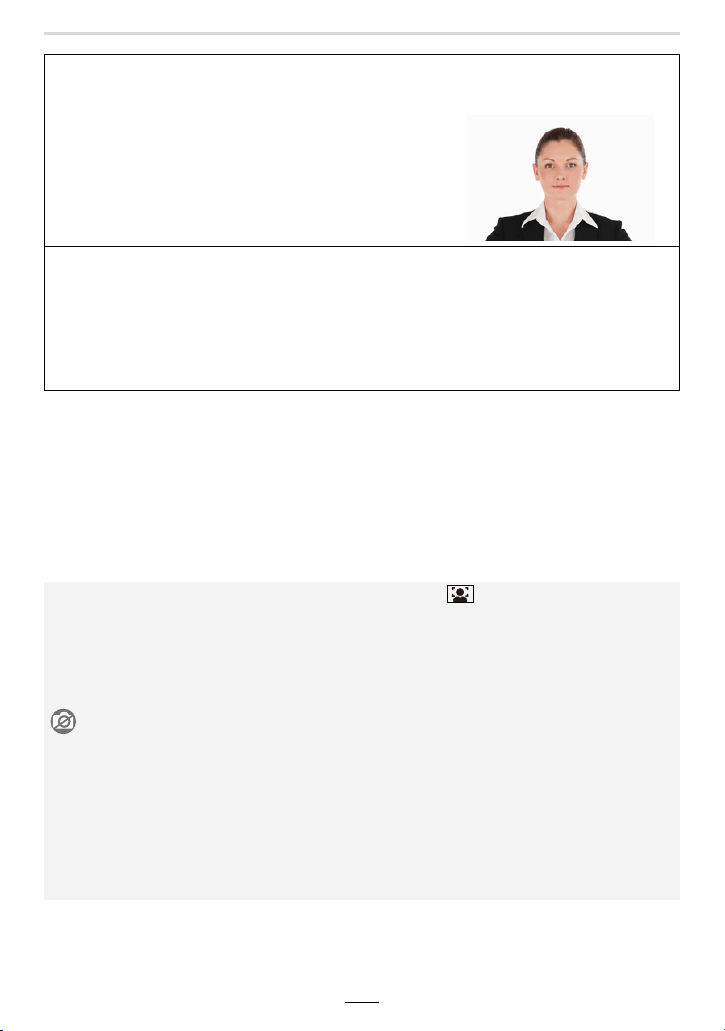
10. Using Menu Functions
193
• The following functions will also work with the Face Recognition function.
In Recording Mode
– Display of corresponding name when camera detects a registered face
¢
In Playback Mode
– Display of name and age
¢ Names of up to 3 people are displayed.
Precedence for the names displayed when taking pictures is determined according to the
order of registration.
Tips for successfully registering face images
• Have the person face forwards with eyes open and
mouth closed, making sure the outline of the face, the
eyes, or the eyebrows are not covered with hair.
• Make sure there is no extreme shading on the face when
registering.
(Flash will not operate during registration.)
(Good example for registering)
When a face is not recognized during recording
• Register the face of the same person indoors and outdoors, or with different expressions or
angles.
• Additionally register at the location of recording.
• When a person who is registered is not recognized, correct by re-registering.
• Face Recognition may not be possible or may not recognize faces correctly even for
registered faces, depending on the facial expression and environment.
• [Face Recog.] only works when the AF Mode is set to [ ].
– The function works only when a face has been detected.
– When you specify the person to be brought into focus, [Face Recog.] will not work.
• When using Continuous mode, [Face Recog.] picture information can be attached to only the
first picture.
• When group pictures are played back, the name of the first picture of the set is displayed.
Not available in these cases:
• [Face Recog.] does not work in the following cases:
– When using [Miniature Effect] in [Filter Settings]
– When recording videos
• [Face Recog.] cannot be set in the following cases:
– When recording 4K pictures
– When recording with the Post Focus function
– When using [Panorama Shot]
– When using [Time Lapse Shot]
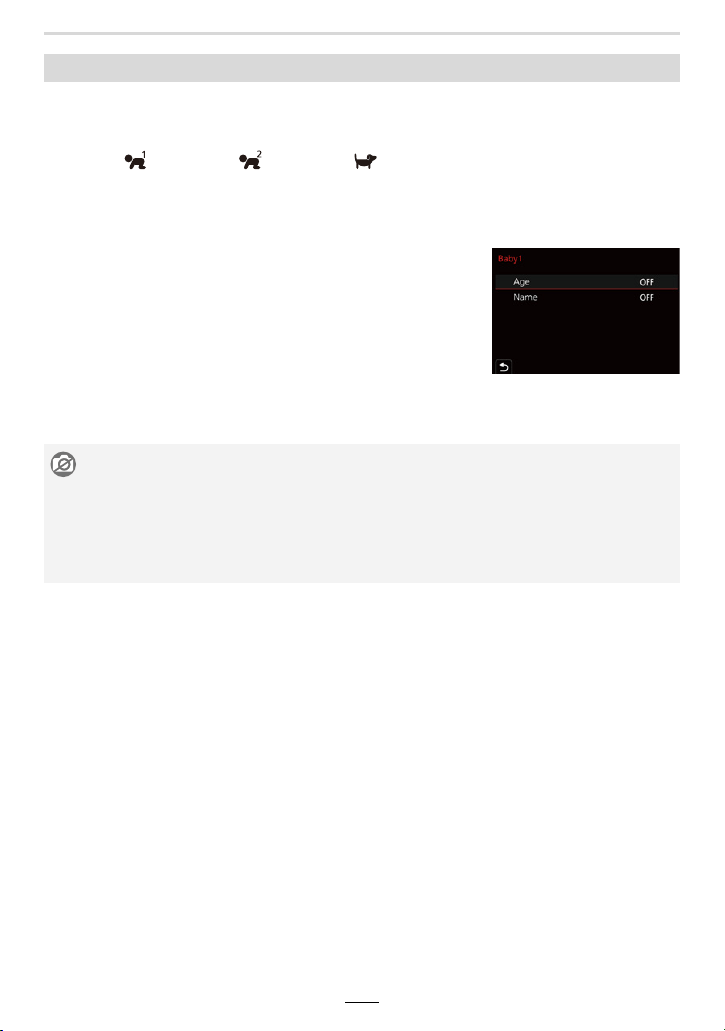
194
10. Using Menu Functions
This function allows you to set the name and birthday of your baby or pet in advance, so
you can record their name and age in months and years in the images.
You can display these at playback or stamp the recorded images using [Text Stamp].
Settings: [ ] ([Baby1])/[ ] ([Baby2])/[ ] ([Pet])/[OFF]/[SET]
∫ Setting [Age] or [Name]
1 Press 3/4 to select [SET] and then [MENU/SET].
2 Press 3/4 to select [Baby1], [Baby2] or [Pet] and then [MENU/SET].
3 Press 3/4 to select [Age] or [Name] and then
[MENU/SET].
4 Press 3/4 to select [SET] and then [MENU/SET].
∫ To cancel the display of [Age] and [Name]
Select [OFF] in [Profile Setup].
[Profile Setup]
Enter [Age] (birthday).
Enter [Name].
• For information on how to enter characters, refer to (>55).
Not available in these cases:
• [Profile Setup] is not available when recording is performed with the 4K Photo or Post Focus
function.
• Ages and names are not recorded in the following cases:
– When recording videos
– Pictures recorded during video recording
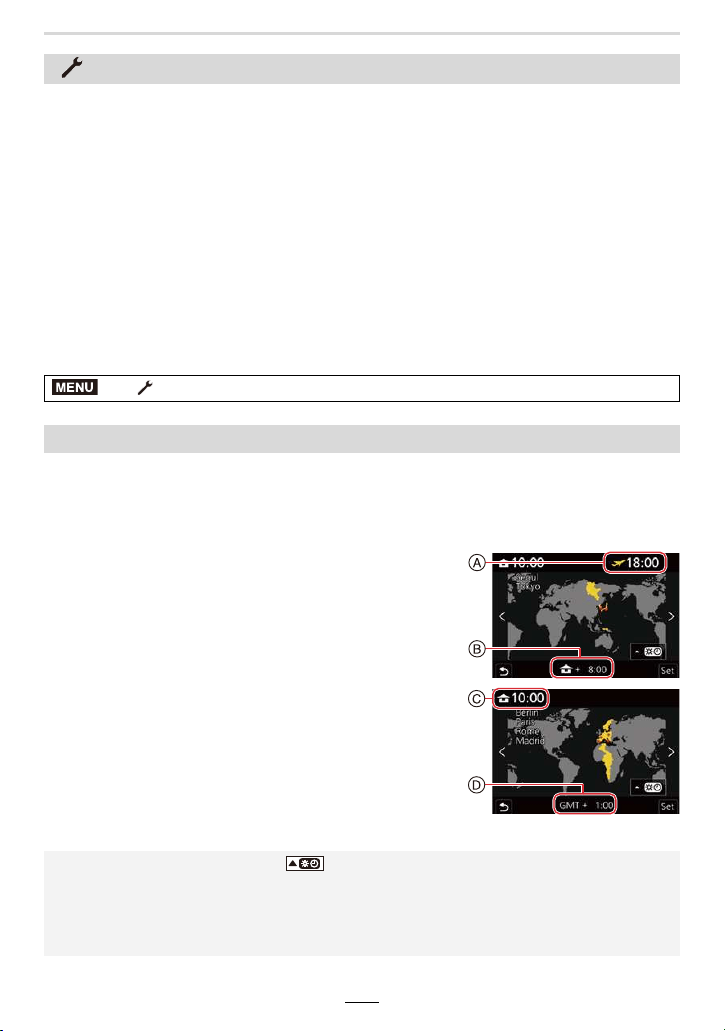
10. Using Menu Functions
195
This item is for setting the times for the region where you live and your holiday destination.
• [Destination] can be set after setting up [Home].
After selecting [Destination] or [Home], press 2/1 to select an area, and then
[MENU/SET] to set.
“ [Destination]:
Travel destination area
A Current time of the destination area
B Time difference from home area
– [Home]:
Your home area
C Current time
D Time difference from GMT (Greenwich Mean Time)
:
[Setup] menu
• [Utilize Custom Set feature] (>70)
• [Cust.Set Mem.] (>70)
• [Clock Set] (>31)
• [World Time] (>195)
• [Travel Date] (>196)
• [Wi-Fi] (>196)
• [Bluetooth] (>197)
• [Wireless Connection Lamp] (>197)
• [Beep] (>197)
• [Economy] (>198)
• [Monitor Display Speed] (>198)
• [EVF Display Speed] (>198)
• [Monitor Display]/[Viewfinder] (>199)
• [Monitor Luminance] (>199)
• [m/ft] (>199)
• [Eye Sensor] (>200)
• [USB Mode] (>200)
• [TV Connection] (>201)
• [Language] (>201)
• [Version Disp.] (>201)
• [Folder / File Settings] (>202)
• [No.Reset] (>203)
• [Reset] (>203)
• [Reset Network Settings] (>204)
• [Level Gauge Adjust.] (>204)
• [Format] (>28)
> [Setup]
[World Time]
• If you are using Daylight Savings [ ], press 3. (The time will move forward by 1 hour.)
To return to the normal time, press 3 again.
• Set to [Home] when you have returned from your travel destination.
• If you cannot find the travel destination in the areas displayed on the screen, set by the time
difference from the home area.
MENU
196
10. Using Menu Functions
∫ [Wi-Fi Function] (>222)
∫ [Wi-Fi Setup] (>253)
[Travel Date]
[Travel Setup]
This item allows you to set your travel schedule and record images, so the
elapsed days (how many days after) of the travel will be recorded.
[Location]
When [Travel Setup] is set, you can set your travel destination.
• For information on how to enter characters, refer to (>55).
• You can display the elapsed days and travel destination during playback or stamp them on
recorded pictures in [Text Stamp].
• The travel date is calculated using the date in the clock setting and the departure date you set.
If you set [World Time] to the travel destination, the travel date is calculated using the date in
the clock setting and the travel destination setting.
• When [Travel Setup] is set to [OFF], the number of days elapsed is not recorded. It is not
displayed even if [Travel Setup] is set to [SET] after recording.
• When the current date passes the return date, [Travel Setup] is automatically canceled.
• [Location] cannot be recorded in the following cases:
– When recording videos
– When recording 4K pictures
– When recording with the Post Focus function
[Wi-Fi]

10. Using Menu Functions
197
∫ [Bluetooth] (>226)
∫ [Remote Wakeup] (>233)
∫ [Returning from Sleep Mode] (>237)
∫ [Auto Transfer] (>239)
∫ [Location Logging] (>241)
∫ [Auto Clock Set] (>242)
∫ [Wi-Fi network settings]
Registers a wireless access point. (>247)
This item allows enabling/disabling the wireless connection lamp.
If you select [OFF], it will not light up/flash.
This item allows you to set the electronic sounds and the electronic shutter sound.
Settings: [Beep Volume]/[Shutter Vol.]/[Shutter Tone]
[Bluetooth]
• The wireless access point used for the Wi-Fi connection is automatically registered.
• Up to 17 wireless access points can be registered. If you try to register more than 17 access
points, the oldest registered access points will be deleted.
• Performing [Reset Network Settings] will delete registered wireless access points.
[Wireless Connection Lamp]
[Beep]
• [Beep] is not available when [Silent Mode] is set to [ON].
198
10. Using Menu Functions
This item allows setting the monitor/viewfinder refresh frame rate.
[Economy]
[Sleep Mode]
The camera is automatically turned off if it has not been used for the time
selected on the setting.
[Sleep
Mode(Wi-Fi)]
The camera is automatically turned off if it is not connected to a Wi-Fi
network and has not been used for 15 minutes (approx.).
[Auto EVF/
Monitor Off]
The monitor/viewfinder is automatically turned off if the camera has not
been used for the time selected on the setting.
• To cancel [Sleep Mode] or [Sleep Mode(Wi-Fi)], perform either of the following operations:
– Press the shutter button halfway.
– Turn the camera off and on.
• To turn the monitor/viewfinder on again, press any button.
• [Economy] does not work in the following cases:
– When connecting to a computer or a printer
– When recording or playing back videos
– During a slide show
– When recording with [4K Pre-Burst]
– When recording in [Multi Exp.]
– When using [Time Lapse Shot]
– When using [Stop Motion Animation] (only when [Auto Shooting] is set)
[Monitor Display Speed]/[EVF Display Speed]
[ECO30fps] Reduces the power consumption, extending the operating time.
[60fps]
Displays movements smoother.
This setting is ideal for recording fast-moving subjects.
• When [Monitor Display Speed] or [EVF Display Speed] (or both) is set to [ECO30fps], Digital
Zoom is not available.
• The [Monitor Display Speed]/[EVF Display Speed] setting does not affect the recorded picture.
• Images are displayed at [60fps] in the following cases:
– When recording 4K pictures
– When recording with the Post Focus function
10. Using Menu Functions
199
This item allows adjusting the brightness, color, or red or blue tint of the monitor/viewfinder.
1 Select the settings by pressing 3/4, and adjust with 2/1.
2 Press [MENU/SET] to set.
This item allows selecting how distance is displayed, in “ft” or “m”.
[Monitor Display]/[Viewfinder]
• When the monitor is in use, it is adjusted and the viewfinder when the viewfinder is in use.
• Some subjects may appear differently than in reality on the monitor. However, this does not
affect the recorded pictures.
[Monitor Luminance]
„ (Auto)
The brightness is adjusted automatically depending on how bright it
is around the camera.
(Mode 1)
Brightens the monitor image.
(Mode 2)
Set the monitor to the standard brightness.
(Mode 3)
Darkens the monitor image.
• Some subjects may appear differently than in reality on the monitor. However, this does not
affect the recorded pictures.
• The monitor automatically returns to standard brightness if no operations are performed for
30 seconds when recording in [ ]. It will light up brightly again with button or touch
operation.
• When [„] or [ ] is set, the usage time is reduced.
•[„] is only available in the Recording Mode.
[m/ft]
…
1
…
2
…
3
…
1
…
1
200
10. Using Menu Functions
This item allows setting the communication method when connecting using the USB cable.
[Eye Sensor]
[Sensitivity] This option is for setting the sensitivity of the eye sensor.
[EVF/Monitor Switch]
This option is for setting the method for switching between the
monitor and viewfinder.
[EVF/MON AUTO] (automatic switching between the monitor and
viewfinder)
[EVF] (viewfinder)
[MON] (monitor)
• If you press [EVF] to switch the display, the [EVF/Monitor Switch]
setting will also switch.
[USB Mode]
y [Select on
connection]
Select this option to select the USB communication system when
connecting to another device.
z [PC(Storage)] Select this option to export images to a connected computer.
{ [PictBridge(PTP)] Select this option when connecting to a printer supporting PictBridge.
10. Using Menu Functions
201
[HDMI Mode (Play)]:
This item allows setting the video format to be used for output in Playback mode when the
camera and a TV or monitor is connected with an HDMI micro cable.
[HDTV Link]:
If you select [ON], operations of the camera and the HDTV Link compatible equipment
connected to the camera with an HDMI micro cable are automatically linked, enabling you to
control the camera with the remote control of the HDTV Link compatible equipment.
This item allows setting the language displayed on the screen.
This item allows checking the firmware versions of the camera.
[TV Connection]
[AUTO]
Outputs images at an output resolution suited to the
connected TV.
[4K/30p]/[1080p]/[1080i]/[720p]/
[480p]
Outputs images at the selected resolution.
• The output resolution for [4K/30p] is 3840k2160.
• If no image appears on your TV when [AUTO] is set, switch to a setting other than [AUTO] that
can display images on the TV.
[Language]
• If you set a different language by mistake, select [~] from the menu icons to set the desired
language.
[Version Disp.]
• To display information about the software on the camera, press [MENU/SET] on the version
display screen.
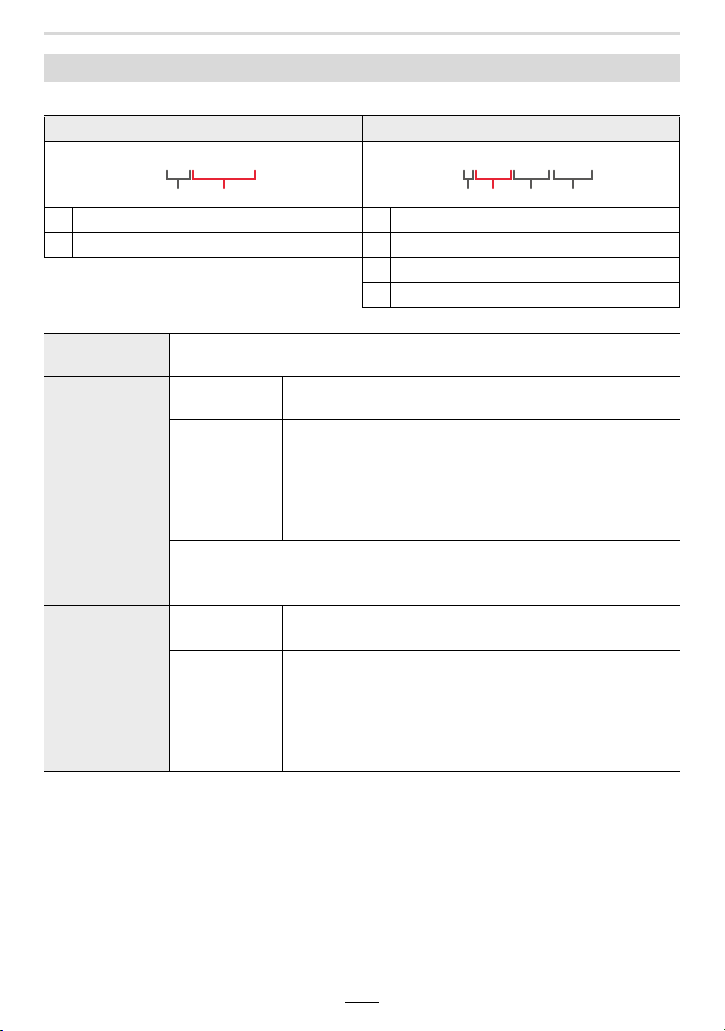
202
10. Using Menu Functions
This item allows setting the folder and file name patterns in which images are to be saved.
[Folder / File Settings]
Folder name File name
1
Folder number (3-digits, 100–999)
1
Color space ([L]: sRGB, [ _ ]: AdobeRGB)
2
5-digit user-defined segment
2
3-digit user-defined segment
3
File number (4-digits, 0001–9999)
4
File extension
[Select Folder]
Specifies the folder to which images are to be saved.
• The folder name is indicated with the number of files that can be stored.
[Create a New
Folder]
[OK]
Creates a new folder with the same 5-digit user-defined
segment as the current folder name setting.
[Change]
Allows you to redefine the 5-digit user-defined segment
before creating a new folder.
• Available characters: alphabet (upper case characters),
numbers, and [ _ ]
• For information on how to enter characters, refer to
(>55).
• A new folder with an incremented folder number is created.
• If there are no recordable folders in the card, a screen for resetting the
folder number is displayed.
[File Name
Setting]
[Folder
Number Link]
Uses the folder number of the folder name as the file
name’s 3-digit user-defined segment.
[User Setting]
Allows you to define and set the 3-digit user-defined
segment of the file name.
• Available characters: alphabet (upper case characters),
numbers, and [ _ ]
• For information on how to enter characters, refer to
(>55).
100ABCDE
LABC0001.JPG

10. Using Menu Functions
203
This item allows resetting the file number of the next recording to 0001.
This item allows resetting the following settings to the default:
– Recording settings and the drive mode.
– Setup settings ([Wi-Fi Setup] and [Bluetooth] settings)
– Custom settings ([Face Recog.] and [Profile Setup] settings)
– Setup/custom settings (except for [Wi-Fi Setup], [Bluetooth], [Face Recog.] and [Profile
Setup])
• Each folder can store up to 1000 files.
• File numbers are assigned sequentially from 0001 to 9999 in the order of recording. If you
change the storage folder, a continuing number from the last file number will be assigned.
• In the following cases, a new folder with an incremented folder number will be created
automatically when the next file is saved:
– The current folder contains 1000 files
– The current folder contains a file with the file number “9999”
• New folders cannot be created when there are folders numbered from 100 all the way up to
999. In this case, we recommend saving their data to a computer or similar device and
formatting the card.
[No.Reset]
• When recording is performed after resetting this item, the folder number is updated and the
file number starts from 0001.
• A folder number between 100 and 999 can be assigned.
The folder number should be reset before it reaches 999. We recommend formatting the card
after saving the data on a computer or elsewhere.
• To reset the folder number to 100:
1 Perform [Format] to format the card.
2 Perform [No.Reset] to reset the file number.
3 Select [Yes] on the folder number reset screen.
[Reset]
• When the setup/custom settings are reset, the following settings are also reset.
– The [World Time] setting
– The settings of [Travel Date] (departure date, return date, location)
– The settings of [Rotate Disp.], [Picture Sort] and [Delete Confirmation] in the [Playback]
menu
• Folder numbers and clock settings are not reset.
• When requesting a repair or transferring/disposing of the camera, refer to “About the personal
information” on 285.
204
10. Using Menu Functions
This item allows the following network settings to be reset to the default:
–[Wi-Fi Setup]
– Registered device information in [Bluetooth] and values in [Wi-Fi network settings]
For registering frequently-used menu items and displaying them in [My Menu]. You can
register up to 23 menu items.
[Reset Network Settings]
• When requesting a repair or transferring/disposing of the camera, refer to “About the personal
information” on 285.
[Level Gauge Adjust.]
[Adjust.]
Hold the camera in a horizontal position, and press [MENU/SET]. The
level gauge will be adjusted.
[Level Gauge
Value Reset]
Restores the default level gauge setting.
:
[My Menu] menu
[My Menu Setting]
> [My Menu] > [My Menu Setting]
[Add] Specifies the menu item to be displayed in My Menu to register it.
[Sorting]
Rearranges the menu items displayed in My Menu. Select the menu item
you want to move and set the destination.
[Delete]
Deletes registered menu items.
[Delete Item]: Deletes selected menu items.
[Delete All]: Deletes all of the menu items.
[Display from
My Menu]
Sets the first menu to be displayed when the menu screen is displayed.
[ON]: Displays My Menu.
[OFF]: Displays the last-used menu.
MENU
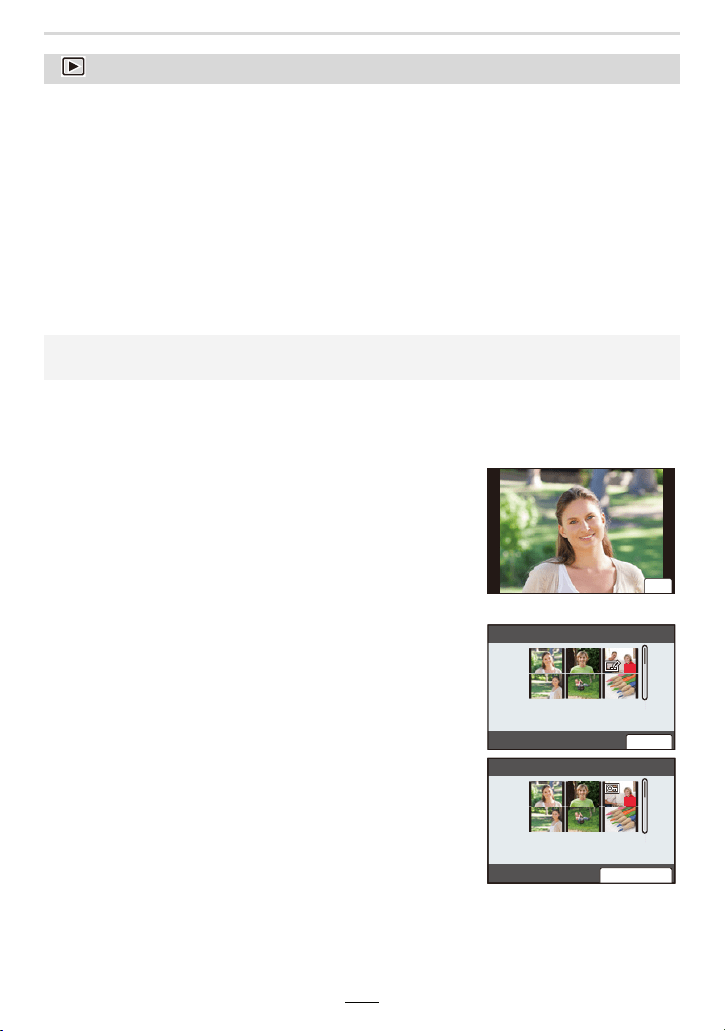
10. Using Menu Functions
205
∫ How to select an image(s) after selecting [Single] or [Multi]
• When [Single] and [Multi] are not available, select an image in the same way as when [Single]
is selected.
:
[Playback] menu
• [Slide Show] (>206)
• [Playback Mode] (>207)
• [Protect] (>208)
• [Rating] (>208)
• [Title Edit] (>209)
• [Face Rec Edit] (>209)
• [RAW Processing] (>210)
• [4K PHOTO Bulk Saving] (>212)
• [Light Composition] (>213)
• [Sequence Composition] (>214)
• [Clear Retouch] (>215)
• [Text Stamp] (>216)
• [Resize] (>217)
• [Cropping] (>218)
• [Rotate] (>219)
• [Video Divide] (>219)
• [Time Lapse Video] (>220)
• [Stop Motion Video] (>220)
• [Rotate Disp.] (>220)
• [Picture Sort] (>221)
• [Delete Confirmation] (>221)
• The camera may not play back images recorded on other devices correctly, and the functions
of the camera may not be available for the images.
[Single] setting
1 Press 2/1 to select the picture.
2 Press [MENU/SET].
• If [Set/Cancel] is displayed at the right bottom of the
screen, the setting is canceled when [MENU/SET] is
pressed again.
[Multi] setting
When a screen similar to the one on the right is displayed:
1 Press 3/4/2/1 to select the picture and then
[MENU/SET] (repeat).
• The setting is canceled when [MENU/SET] is pressed
again.
2 Press [DISP] to execute.
When a screen similar to the one on the right is displayed:
Press 3/4/2/1 to select the picture, and then [MENU/
SET] to set (repeat).
• The setting is canceled when [MENU/SET] is pressed again.
6HW
ュリヴヱハ
2.
6HW&DQFHO
206
10. Using Menu Functions
This item allows you to play back the pictures you have taken in synchronization with
music, and you can do this in sequence while leaving a fixed interval between each of the
pictures.
You can also put together a slide show composed of only pictures, only videos, etc.
We recommend this feature when you view your pictures by connecting the camera to a
TV.
1 Select the group to playback by pressing 3/4, and then [MENU/SET].
• If you select [Picture Only], 4K picture series files and images recorded with the Post
Focus function will also be played back.
• For images recorded with the Post Focus function, only an in-focus representative image
will be chosen and played back.
2 Press 3/4 to select [Start] and then [MENU/SET].
∫ Operations during a slide show
[Slide Show]
> [Playback] > [Slide Show]
Button
operation
Touch
operation
Description of
operation
Button
operation
Touch
operation
Description of
operation
3 Play/Pause 4 Exits the slide show
2
Returns to previous
picture
1
Advances to the next
picture
Reduces the volume
level
Increases the volume
level
MENU
10. Using Menu Functions
207
∫ Changing the slide show settings
You can change the settings for slide show playback by selecting [Effect] or [Setup] on the
slide show menu screen.
• The [Effect] setting does not work while the following images are played back in a slide show:
– 4K picture series files
– Images recorded with the Post Focus function
– Group pictures
• The [Duration] setting does not work while the following images are played back in a slide
show:
– Videos
– 4K picture series files
– Images recorded with the Post Focus function
– Panorama pictures
– Group pictures
This item allows you to select Playback in [Normal Play], [Picture Only] or [Video Only].
Select the group to play back by pressing 3/4, and then [MENU/SET].
• If you select [Picture Only], 4K picture series files and images recorded with the Post Focus
function will also be played back.
[Effect]
This allows you to select the screen effects when switching from one
picture to the next.
[Setup]
[Duration]
• [Duration] can be set only when [OFF] has been selected
as the [Effect] setting.
[Repeat] [ON]/[OFF]
[Sound]
[AUTO]:
Music is played when the pictures are played back, and
audio is played when the videos are played back.
[Music]:
Music is played back.
[Audio]:
Audio (only for videos) is played back.
[OFF]:
There will be no sound.
[Playback Mode]
> [Playback] > [Playback Mode]
MENU
208
10. Using Menu Functions
This item allows you to set protection for pictures you do not want to delete by mistake.
Select the picture. (>205)
• [999+] is displayed on the screen, if the total number of protects you set for group pictures is
more than 1000.
∫ Canceling all the [Protect] settings
Press 3/4 to select [Cancel], and then [MENU/SET].
This item allows you to set five different rating levels for images to do the following:
• Delete all unrated pictures.
• Checking the rating level on the file detail display of an operating system, such as Windows 10,
Windows 8.1, or Windows 8. (JPEG images only)
1 Select the picture. (>205)
2 Press 2/1 to set the rating level (1–5), and then [MENU/SET] to set.
• When [Multi] has been selected, repeat steps 1 and 2 for each picture.
(It is not possible to use the same setting for a multiple number of pictures.)
• The number of group pictures will be displayed, if you set for group pictures. [999+] is
displayed, if the group of pictures contains more than 1000 pictures.
∫ Canceling all the [Rating] settings
Press 3/4 to select [Cancel], and then [MENU/SET].
• [Cancel] cannot be selected when [Playback Mode] is set to [Picture Only] or [Video Only].
[Protect]
> [Playback] > [Protect]
If you set the write-protect switch on the card to [LOCK], images will not be deleted
even when protection is not set for them.
• Be aware that the [Protect] setting may not work on other devices.
• Even if you protect pictures on a card, they will be deleted if the card is formatted.
[Rating]
> [Playback] > [Rating]
MENU
MENU
10. Using Menu Functions
209
This item allows you to text (comments) to pictures. After text has been registered, it can
be stamped in prints using [Text Stamp].
1 Select the picture. (>205)
•[’] is displayed for pictures with titles already registered.
2 Enter the text. (>55)
This item allows you to clear and replace all information relating to face recognition in
selected images.
1 Press 3/4 to select [REPLACE] or [DELETE], and then [MENU/SET].
2 Press 2/1 to select the picture and then [MENU/SET].
3 Press 2/1 to select the person and then [MENU/SET].
4 (When [REPLACE] is selected)
Press 3/4/2/1 to select the person to replace and then [MENU/SET].
[Title Edit]
> [Playback] > [Title Edit]
• To delete the title, erase all the text in the text input screen.
• You can set up to 100 pictures at one time with [Multi].
Not available in these cases:
–Videos
– 4K picture series files
– Images recorded with the Post Focus function
– Images recorded with [Quality] set to [ ], [ ] or [ ]
[Face Rec Edit]
> [Playback] > [Face Rec Edit]
• Cleared information regarding the [Face Recog.] cannot be restored.
• The Face Recognition information of pictures in a group has to be edited at once.
(You cannot edit one picture at a time.)
• Editing of a group picture can be performed only on the first picture of each group.
MENU
MENU
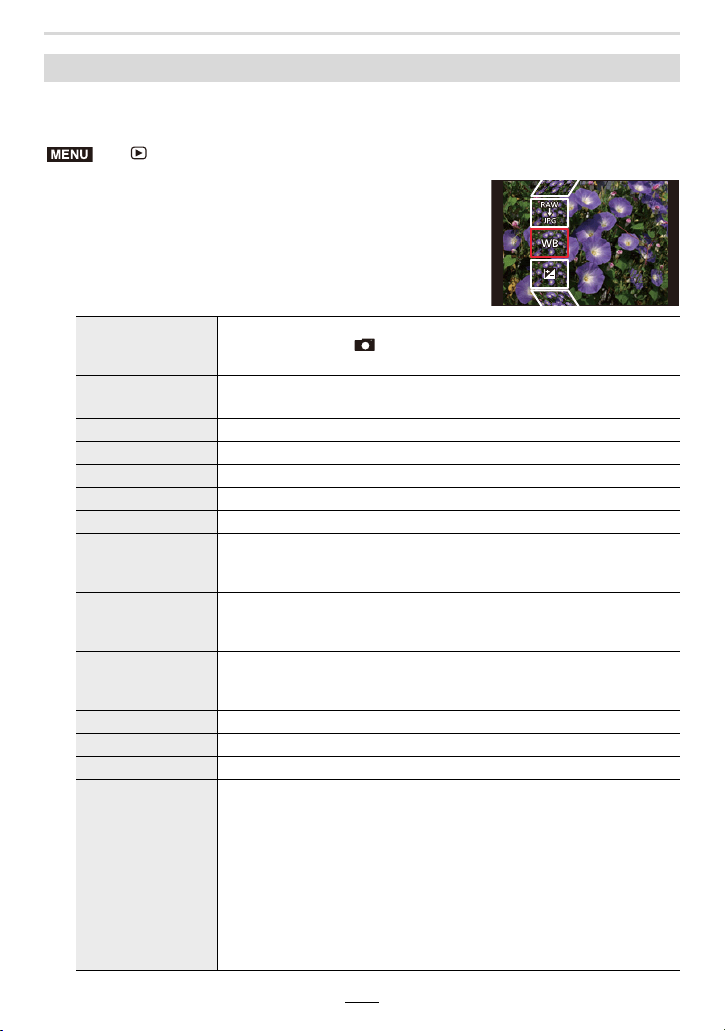
210
10. Using Menu Functions
This item allows you to process the pictures taken in RAW format in the camera. The
processed pictures will be saved in JPEG format.
1 Select RAW images with 2/1, and then press
[MENU/SET].
2 Press 3/4 to select an editing parameter.
• You can set the following items. The settings you used for
the recording are selected when you start setting these
items.
[RAW Processing]
> [Playback] > [RAW Processing]
[White Balance]
Allows you to select a White Balance preset and adjust it. If you
select an item with [ ], you can process the image with the setting
at the time of recording.
[Brightness
correction]
Allows you to correct the brightness within the range between j2EV
and i2EV.
[Photo Style] Allows you to select a photo style effect.
[i.Dynamic] Allows you to select an [i.Dynamic] setting.
[Contrast] Allows you to adjust the contrast.
[Highlight] Allows you to adjust the brightness of bright portions.
[Shadow] Allows you to adjust the brightness of dark portions.
[Saturation]/
[Color Tone]
Allows you to adjust the saturation. (When [Monochrome],
[Monochrome HC] or [Monochrome HC+] is selected in [Photo Style],
you can adjust the color tone.)
[Filter Effect]
Allows you to select a filter effect. (Only when [Monochrome],
[Monochrome HC] or [Monochrome HC+] is selected in [Photo
Style].)
[Grain Effect]
Allows you to set the graininess. (Only when [Monochrome],
[Monochrome HC] or [Monochrome HC+] is selected for [Photo
Style].)
[Noise Reduction] Allows you to adjust the noise reduction setting.
[i.Resolution] Allows you to select an [i.Resolution] setting.
[Sharpness] Allows you to adjust the resolution effect.
[More Settings]
Use 3/4 to select items and press [MENU/SET] to perform the
following operations.
[Reinstate Adjustments]:
Returns the settings to the ones you used during the recording.
[Color Space]:
Allows you to select a [Color Space] setting from [sRGB] or [Adobe
RGB].
[Picture Size]:
Allows you to select the size in which the image will be saved in
JPEG format.
MENU
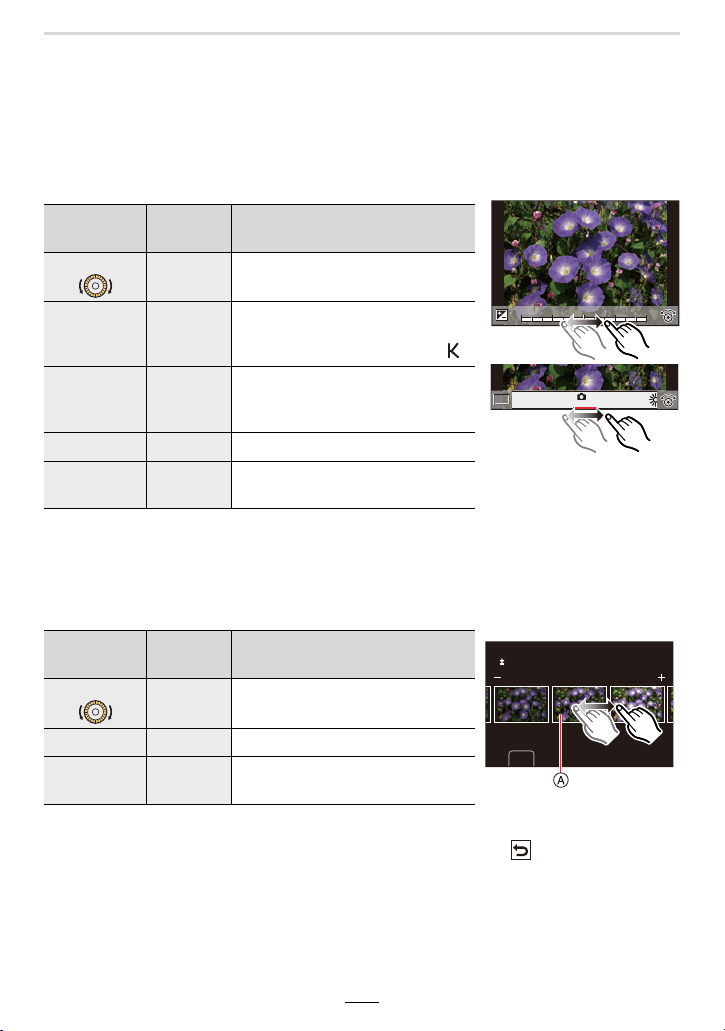
10. Using Menu Functions
211
3 Press [MENU/SET] and set.
• Refer to “How to set each item” on (>211).
4 Press [MENU/SET].
• This operation returns you to the screen in step
2. To set other items, repeat steps 2
through
4.
5 Select [Begin Processing] with 3/4, and then press [MENU/SET].
∫ How to set each item
• When [Noise Reduction], [i.Resolution] or [Sharpness] is selected, the comparison screen
cannot be displayed.
• Pictures can be enlarged with the zoom lever.
• Each time you touch the screen twice, the display switches between enlarged and normal view.
On the comparison screen, you can use the following operations to make adjustments:
• If you touch the picture at the center, it will be enlarged. If you touch [ ], the picture will be
reduced to the original size.
Button
operation
Touch
operation
Description of operation
2/1/
Dragging Selects a setting.
3
[WB K
Set]
Displays the screen that lets you
set the color temperature. (only
when [White Balance] is set to [ ])
4 [Adjust.]
Displays the screen that lets you
fine-adjust the White Balance.
(only when [White Balance] is set)
[DISP] [DISP.] Displays the comparison screen.
[MENU/SET] [Set]
Sets the adjusted level and returns
you to the item selection screen.
Button
operation
Touch
operation
Description of operation
2/1/
Dragging Selects a setting.
[DISP] [DISP.] Returns you to the setting screen.
[MENU/SET] [Set]
Sets the adjusted level and returns
you to the item selection screen.
A Current setting
+1
+1
+1 +2
+2
+2
-
2
-
2
-
2
-
1
-
1
-
10
0
0
DISP.
DISP.
AWBc
AWBc
AWB
AWB
WBWBWBWBWBWBWBWBWBWBWB
AWBAWB
DISP.
0

212
10. Using Menu Functions
This item allows you to save pictures of a 4K picture series file that were extracted from
any 5 second period at once.
1 Press 2/1 to select the 4K picture series files and then [MENU/SET].
• If the total recording time is 5 seconds or less, all frames will be saved as pictures.
2 Select the first frame of the pictures to be saved at once. (>106, 107)
• Pictures will be saved as a group of Continuous mode pictures in JPEG format. (>163)
• The [White Balance] setting of pictures taken with multiple exposures is fixed to the setting at
the time of recording.
• Edit group images one by one. The edited images will be saved as new images separate from
the original group images.
Not available in these cases:
• [RAW Processing] is not available when an HDMI micro cable is connected.
• RAW processing cannot be performed on RAW images recorded with other devices.
[4K PHOTO Bulk Saving]
> [Playback] > [4K PHOTO Bulk Saving]
MENU
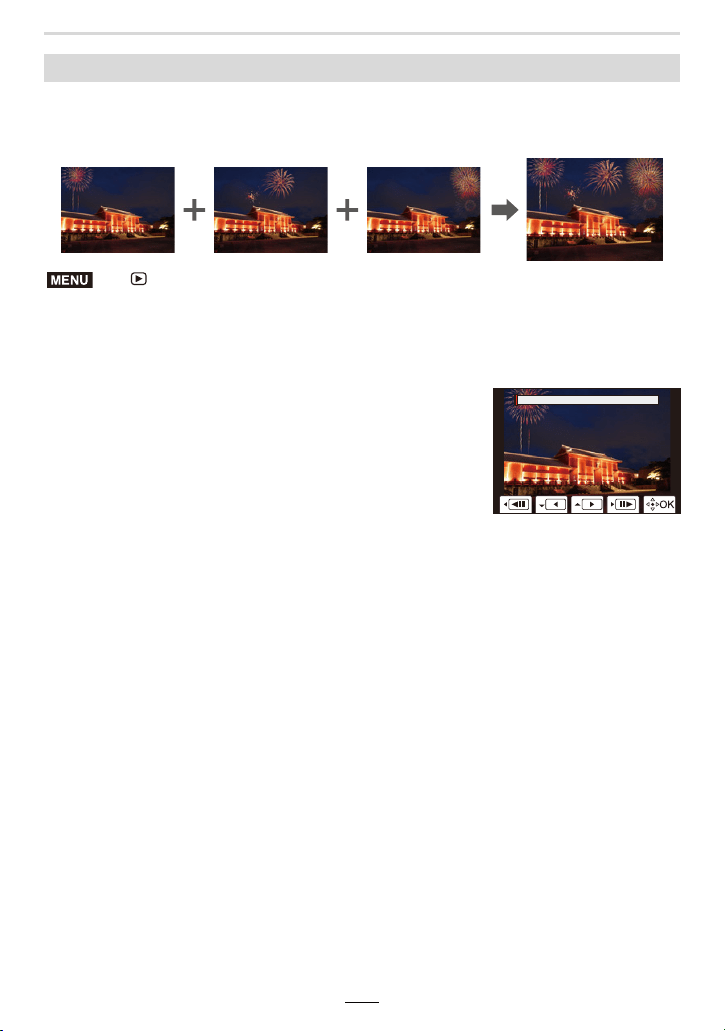
10. Using Menu Functions
213
This function allows you to select multiple frames from 4K picture series files that you wish
to merge. Parts of the image that are brighter than the preceding frame will be
superimposed on the preceding frame to merge the frames into one picture.
1 Press 2/1 to select the 4K picture series files and then [MENU/SET].
2 Choose the merging method, and then press [MENU/SET].
3 Select [Yes] at the confirmation screen, and then press [MENU/SET].
• Pictures are saved in JPEG format. Recording information (Exif information) of the first
frame such as shutter speed, aperture, and ISO sensitivity are also registered.
[Light Composition]
> [Playback] > [Light Composition]
[Composite Merging] setting
Select the frames you want to combine to superimpose brighter parts.
1 Drag the slide bar to select the desired pictures.
2 Press [MENU/SET].
• The selected frames are remembered, and the display
switches to the preview screen.
• Press 3/4 to select items and then [MENU/SET] to
perform the following operations.
–[Next]:
Lets you select more frames for merging.
– [Reselect]:
Cancels the frame selected immediately before and lets you select a different image.
3 Repeat steps 1 and 2 to select more frames to merge.
• You can select up to 40 frames.
4 Press 3/4 to select [Save], and then [MENU/SET].
[Range Merging] setting
Select the first and last frames to superimpose the brighter parts of the frames
between them.
1 Select the frame of the first picture, and press [MENU/SET].
• The selection method is the same as in step 1 of [Composite Merging] setting.
2 Select the frame of the last picture, and press [MENU/SET].
MENU
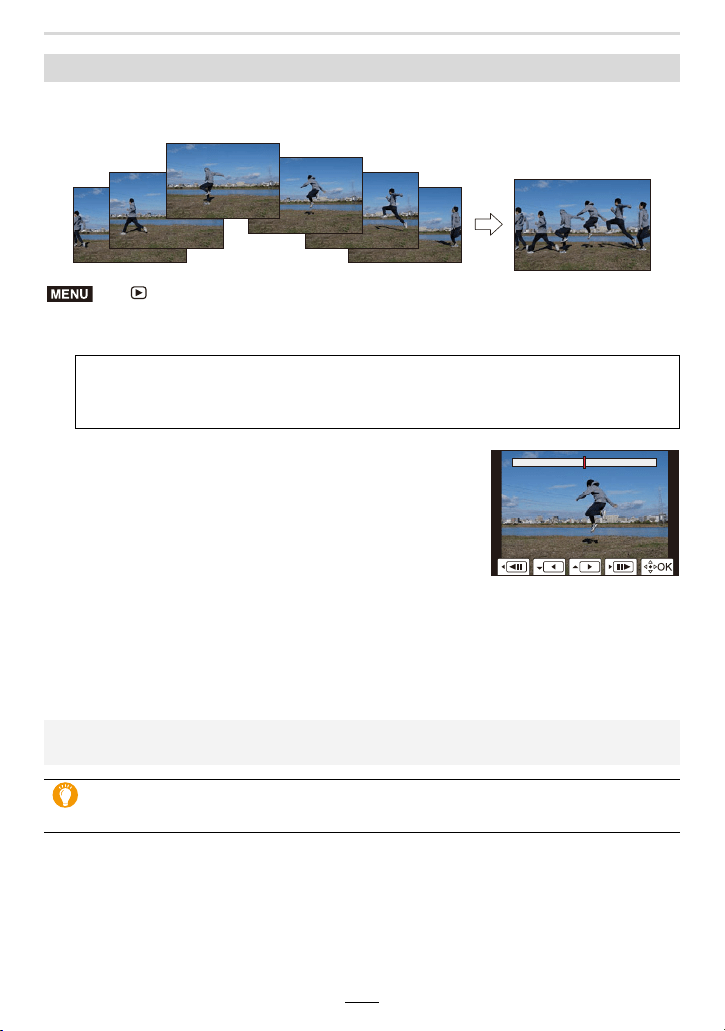
214
10. Using Menu Functions
This item allows you to select multiple frames from a 4K picture series file to create a
sequence composition of a moving subject into one picture.
1 Press 2/1 to select the 4K picture series files and then [MENU/SET].
2 Select frames to merge.
[Sequence Composition]
> [Playback] > [Sequence Composition]
Select the frames so that the moving subject will not overlap on the preceding or
subsequent frames. (The sequence composition may not be created properly if the
subject overlaps.)
1 Drag the slide bar to select the desired pictures.
2 Press [MENU/SET].
• The selected frames are remembered, and the display
goes to the preview screen.
• Press 3/4 to select items and then [MENU/SET] to
perform the following operations.
–[Next]:
Lets you select more frames for merging.
– [Reselect]:
Cancels the frame selected immediately before and lets you select a different image.
3 Repeat steps 1 and 2 to select more frames to merge.
• You can select 3 to 40 frames.
4 Press 3/4 to select [Save], and then [MENU/SET].
• Pictures are saved in JPEG format. Recording information (Exif information) of the first frame
such as shutter speed, aperture, and ISO sensitivity are also registered.
Tips for [Sequence Composition]
We recommend using a tripod to take pictures.
MENU
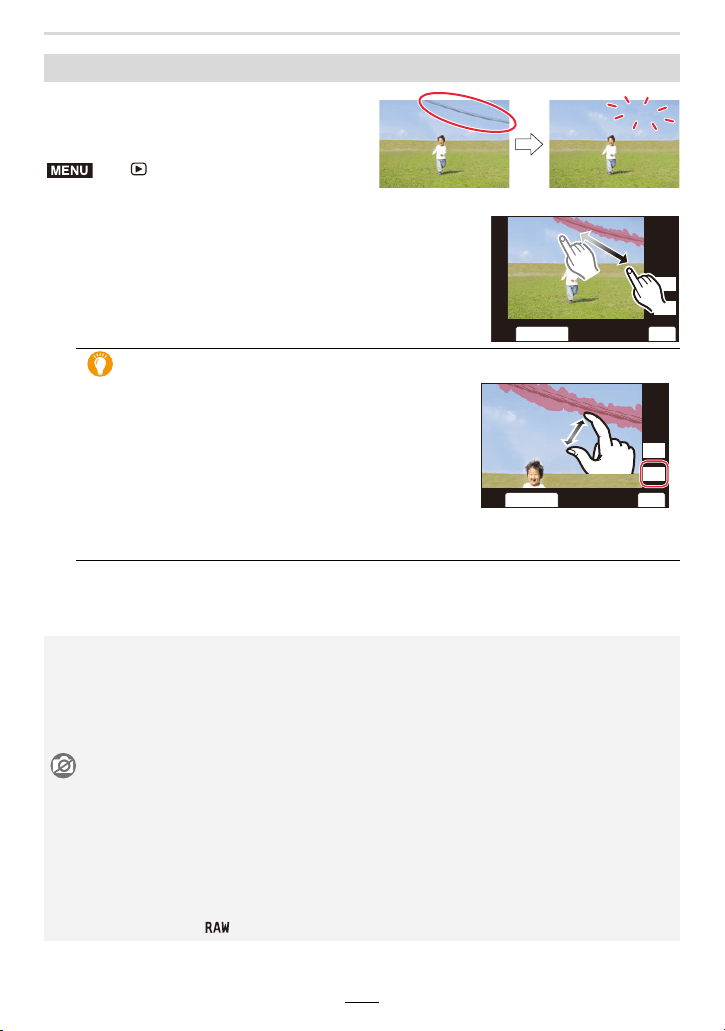
10. Using Menu Functions
215
• [Clear Retouch] is a setting to be used through
touch operations and automatically enables
touch operation.
1 Press 2/1 to select a picture, and then [MENU/SET].
2 Drag your finger over the part you want to delete.
• The parts to be erased are colored.
• To return the colored part back to its previous state, touch
[Undo].
3 Touch [Set].
4 Touch [Save] or press [MENU/SET].
[Clear Retouch]
> [Playback] >
[Clear Retouch]
Erasing details (enlarging the display)
1 Touch [SCALING].
• Pinching out/pinching in the screen allows you to
enlarge/reduce it.
• Dragging the screen allows you to move the
enlarged part.
2 Touch [REMOVE].
• This will bring you back to the operation of dragging
your finger over the part you want to delete. The part
you want to delete can be dragged even while the picture is enlarged.
• Pictures may appear unnatural because the background of deleted parts is artificially created.
• For group pictures, perform [Clear Retouch] on each picture.
(They cannot be edited at once.)
• When [Clear Retouch] is performed on group pictures, they are saved as new pictures
separate from the original ones.
Not available in these cases:
– When the viewfinder display is in use
– When an HDMI micro cable is connected
• This function is not available in the following cases:
–Videos
– 4K picture series files
– Images recorded with the Post Focus function
– Panorama pictures
– Pictures taken with [ ]
MENU
6&$/,1*
5(029(
6HW8QGR
6&$/,1*
5(029(
6HW8QGR
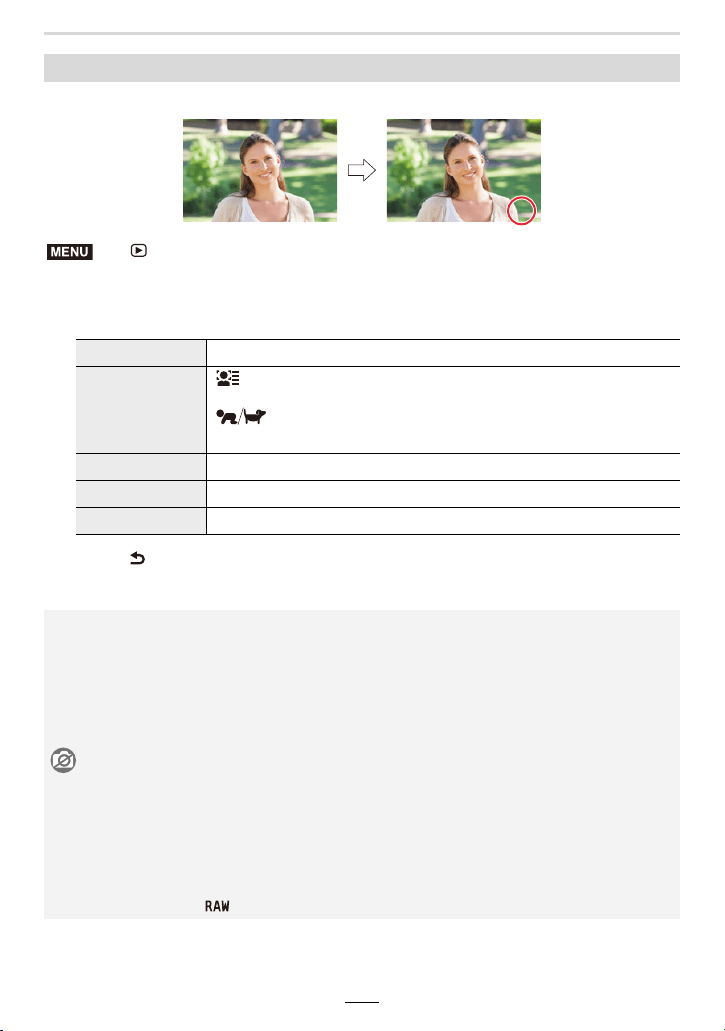
216
10. Using Menu Functions
This item allows you to stamp recording information on recorded images.
1 Select the picture. (>205)
•[‘] appears on screen if the picture is stamped with text.
2 Press 3/4 to select [Set], and then [MENU/SET].
3 Press [ ] to return to the previous screen.
4 Press 3/4 to select [OK], and then [MENU/SET].
[Text Stamp]
> [Playback] > [Text Stamp]
[Shooting Date] Stamps the recording date.
[Name]
[] (Face Recognition):
The name registered in [Face Recog.] will be stamped.
[] (Baby/Pet):
The name registered in [Profile Setup] will be stamped.
[Location] Stamps the travel destination name set under [Location].
[Travel Date] Stamps the travel date set under [Travel Date].
[Title] Title input in the [Title Edit] will be stamped.
• When you print pictures stamped with text, the date will be printed over the stamped text if you
specify printing of the date at the photo shop or on the printer.
• You can set up to 100 pictures at one time in [Multi].
• The picture quality may deteriorate when text stamping is carried out.
• When you stamp pictures in a group, the stamped ones are saved separately from the original
ones in the group.
Not available in these cases:
–Videos
– 4K picture series files
– Images recorded with the Post Focus function
– Panorama pictures
– Pictures recorded without setting the clock and title
– Pictures stamped with [Text Stamp]
– Pictures taken with [ ]
LISA
LISA
LISA
MENU
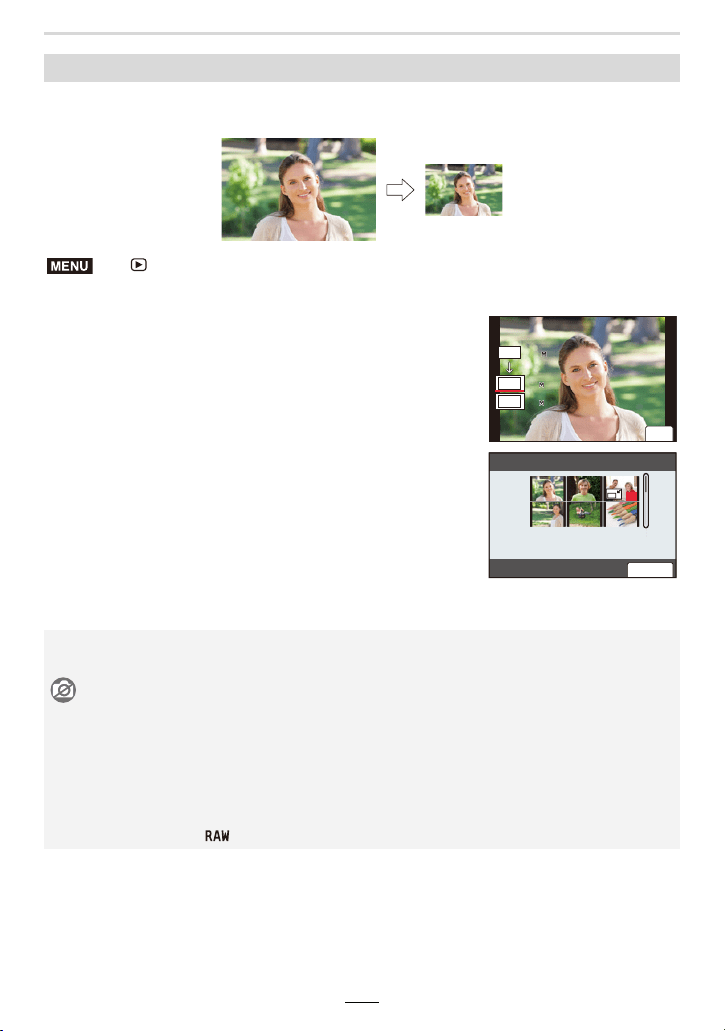
10. Using Menu Functions
217
This item allows you to reduce the resolution of pictures facilitating easy posting to web
pages, attachment to e-mail etc.
[Resize]
> [Playback] > [Resize]
Select the picture and resolution.
[Single] setting
1 Press 2/1 to select the picture, and then [MENU/
SET].
2 Press 3/4 to select the resolution, and then
[MENU/SET].
[Multi] setting
1 Press 3/4 to select the resolution, and then
[MENU/SET].
2 Press 3/4/2/1 to select the picture, and then
[MENU/SET] to set (repeat).
• The setting is canceled when [MENU/SET] is pressed
again.
3 Press [DISP] to execute.
• You can set up to 100 pictures at one time in [Multi].
• The picture quality of the resized picture will deteriorate.
Not available in these cases:
–Videos
– 4K picture series files
– Images recorded with the Post Focus function
– Panorama pictures
– Group Pictures
– Pictures stamped with [Text Stamp]
– Pictures taken with [ ]
MENU
17
17
17
4
4
8.5
8.5
8.5
L
4:3
M
4:3
S
4:3
6HW
ュリヴヱハ
2.
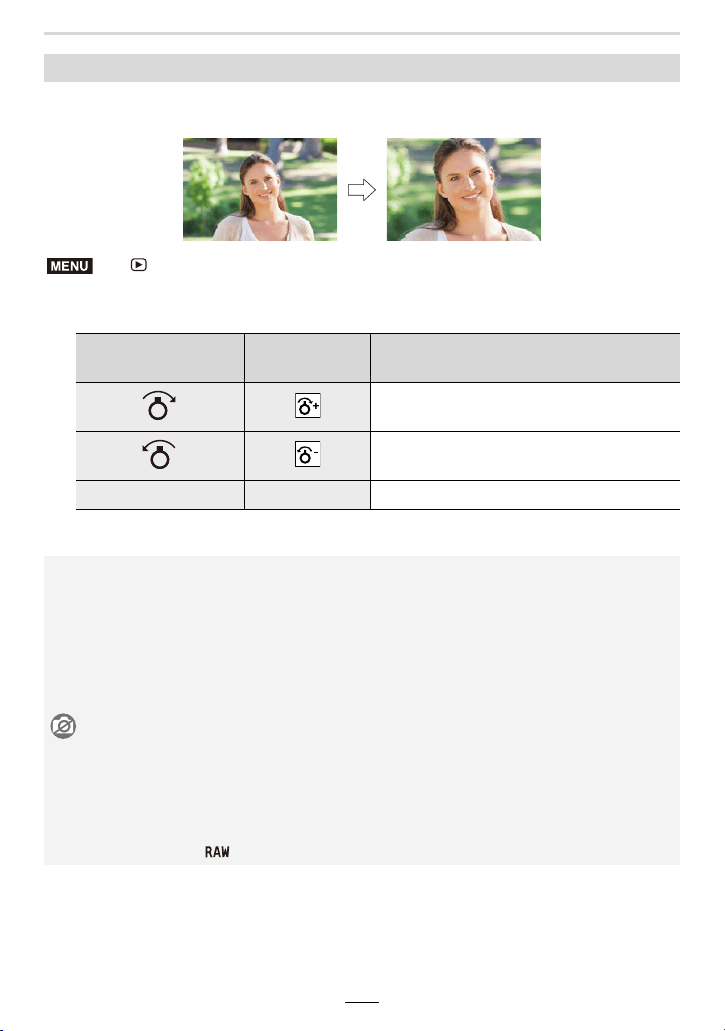
218
10. Using Menu Functions
This item allows you to enlarge and then clip the important part of the recorded picture.
1 Press 2/1 to select the picture, and then [MENU/SET].
2 Select the parts to be cropped.
3 Press [MENU/SET].
[Cropping]
> [Playback] > [Cropping]
Button operation
Touch
operation
Description of operation
Enlarges the picture
Reduces the picture
3/4/2/1 Drag Moves the enlarged area
• The picture quality of the cropped picture will deteriorate.
• Crop one picture at a time when you want to crop the pictures in a picture group.
(You cannot edit all pictures in a group at once.)
• When you crop pictures in a group, the cropped ones are saved separately from the original
ones in the group.
• Information regarding the Face Recognition in the original picture will not be copied to images
having undergone [Cropping].
Not available in these cases:
–Videos
– 4K picture series files
– Images recorded with the Post Focus function
– Panorama pictures
– Pictures stamped with [Text Stamp]
– Pictures taken with [ ]
MENU
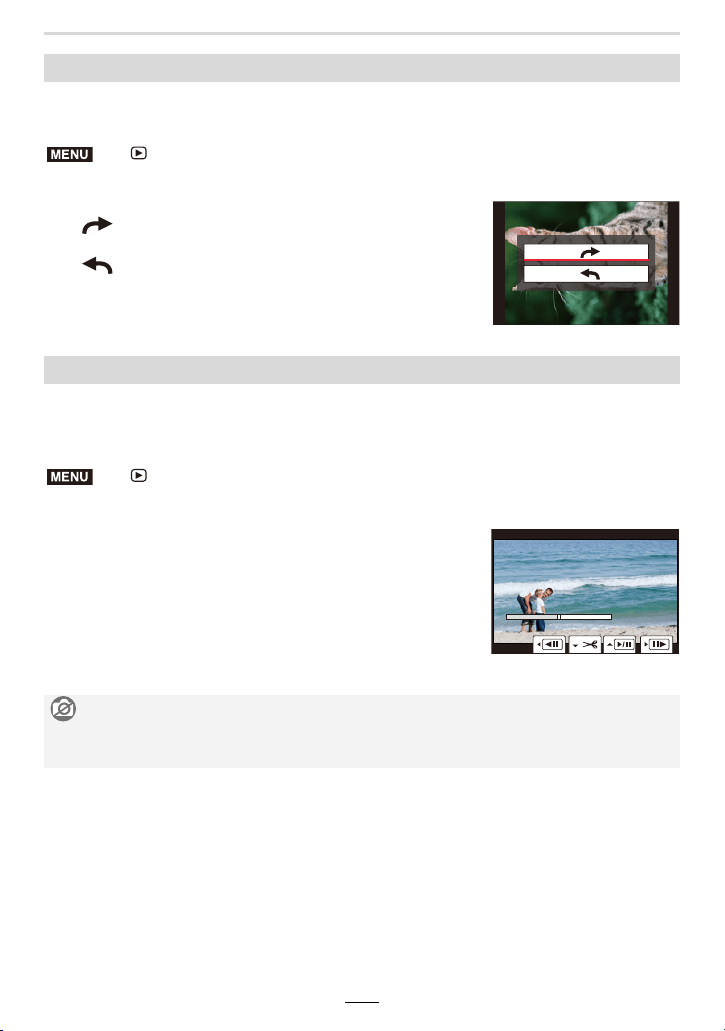
10. Using Menu Functions
219
This item allows you to rotate pictures manually in 90o steps.
• The [Rotate] function is disabled when [Rotate Disp.] is set to [OFF].
1 Press 2/1 to select the picture and then [MENU/SET].
2 Select the rotation direction.
[]:
The picture rotates clockwise in steps of 90o.
[]:
The picture rotates counter-clockwise in steps of 90o.
This item allows recorded video and 4K picture series files to be divided. It is
recommended for when you want to separate a part you need from one you do not need.
Dividing a file is permanent. Decide before you divide!
1 Press 2/1 to select the file to divide, and then [MENU/SET].
[Rotate] (The picture is rotated manually.)
> [Playback] > [Rotate]
[Video Divide]
> [Playback] > [Video Divide]
2 Press 3 at the location to divide.
• You can finely adjust the location for dividing by pressing
2/1 while the file is paused.
3 Press 4.
• The file may be lost if the card or battery is removed while
processing the dividing.
Not available in these cases:
• It may not be possible to divide a file at a point near the beginning or end.
• When the recording time is short.
MENU
MENU
220
10. Using Menu Functions
This function allows you to create a video from a picture group recorded with [Time Lapse
Shot].
1 Select the [Time Lapse Shot] picture group with 2/1, and then press [MENU/
SET].
2 Create a video by selecting the methods for creating it.
• Refer to (>134) for details.
This item allows you to create a video from group pictures taken with [Stop Motion
Animation].
1 Select the Stop Motion Animation group with 2/1, and then press [MENU/SET].
2 Create a video by selecting the methods for creating it.
• Refer to (>137) for details.
This mode allows you to display pictures vertically if they were recorded holding the
camera vertically.
[Time Lapse Video]
> [Playback] > [Time Lapse Video]
[Stop Motion Video]
> [Playback] > [Stop Motion Video]
[Rotate Disp.] (The picture is automatically rotated and displayed.)
> [Playback] > [Rotate Disp.] > [ON]
Not available in these cases:
• When you play back pictures on a computer, they cannot be displayed in the rotated direction
unless the OS or software is compatible with Exif.
Exif is a file format for pictures which allows recording information etc. to be added. It was
established by “JEITA (Japan Electronics and Information Technology Industries
Association)”.
MENU
MENU
MENU
10. Using Menu Functions
221
This item allows you to set the order in which the camera displays images during
playback.
This item allows you to set which option, [Yes] or [No], will be highlighted first when the
confirmation screen for deleting a picture is displayed.
It is set to [“No” first] at the time of purchase.
[Picture Sort]
> [Playback] > [Picture Sort]
[FILE NAME]
Displays images by folder name/file name. This display format allows you
to locate images in the card easily.
[DATE/TIME]
Displays images by recording date. If the card contains pictures taken with
more than one camera, this display format is convenient for looking for
images.
• When you insert another card, images may not be displayed by [DATE/TIME] first. The
images will be displayed by [DATE/TIME] if you wait for a while.
[Delete Confirmation]
> [Playback] > [Delete Confirmation]
[“Yes” first] [Yes] is highlighted first, so deletion can be done quickly.
[“No” first] [No] is highlighted first. Accidental deletion of pictures is avoided.
MENU
MENU
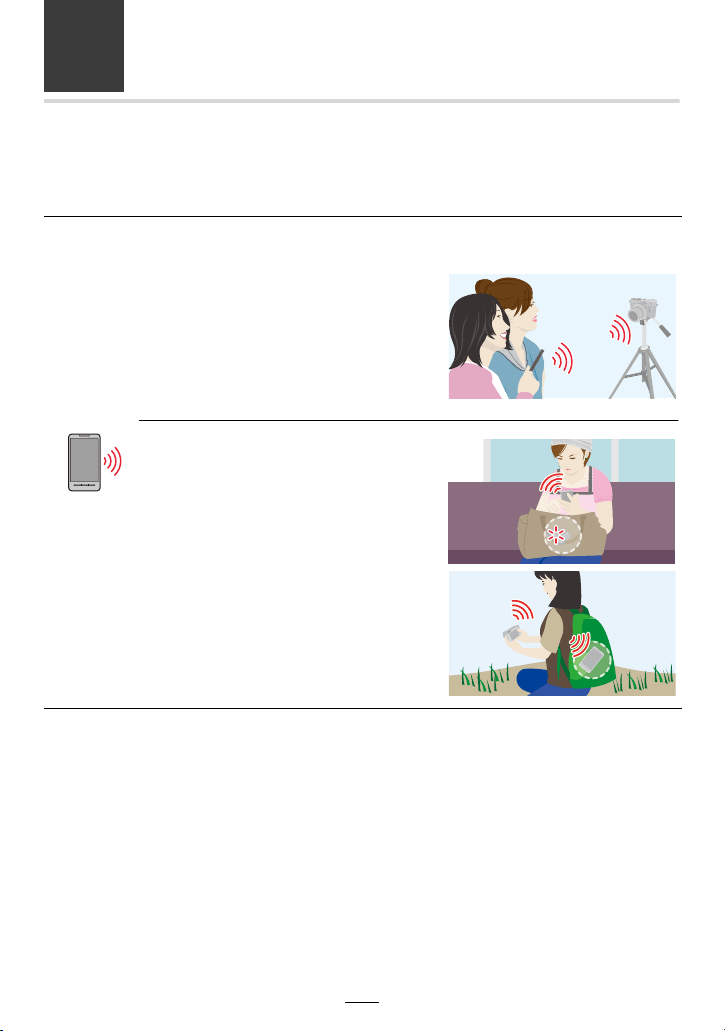
222
11. Using the Wi-Fi/Bluetooth function
What You Can Do with the Wi-Fi
®
/Bluetooth
®
Function
These instructions refer to both smartphones and tablets as smartphones from this point
on unless noted otherwise.
Operating the camera by connecting it to a Smartphone
(>233)
• Recording with a smartphone (>234)
• Playing back or saving images stored on
the camera, or uploading them on social
media sites (>238)
Connect to a smartphone that supports
Bluetooth low energy to expand the
scope of applications
• Pairing (connection setup) (>226)
• Turning on/off the camera using a
smartphone (>233)
• [B] (Bulb) recording (>236)
• Transferring recorded images to a
smartphone automatically (>239)
• Writing location information of a
smartphone on a recorded image (>241)
• Synchronizing the camera’s clock with a
smartphone (>242)
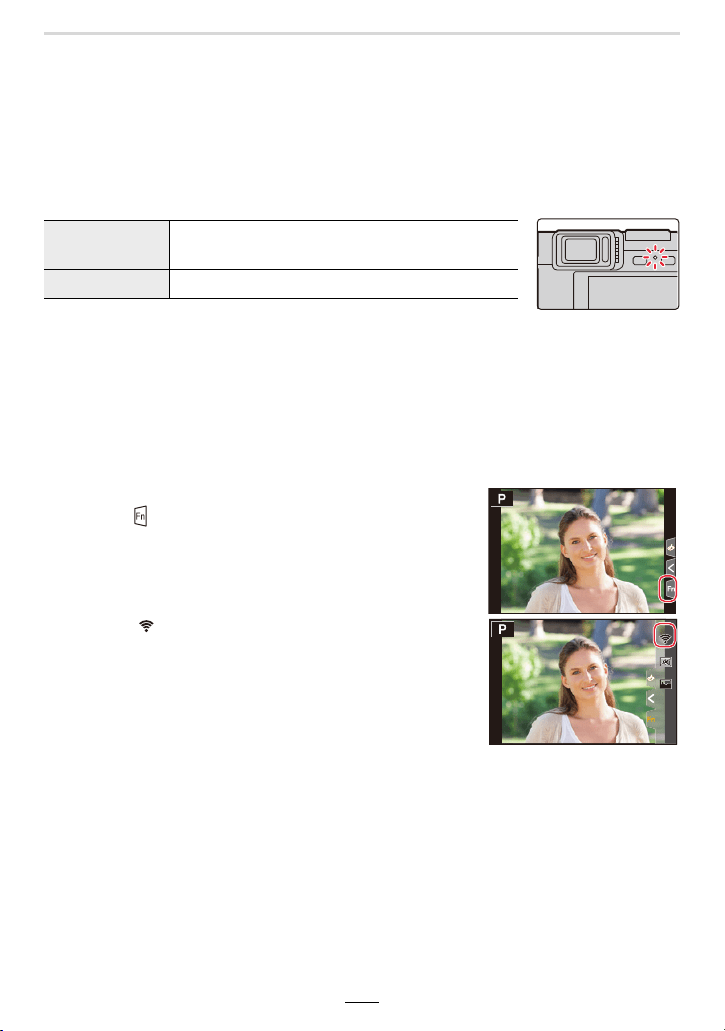
11. Using the Wi-Fi/Bluetooth function
223
Wi-Fi function/Bluetooth function
∫ Before Use
• Set the clock. (>31)
• To use the Wi-Fi function on the camera, a wireless access point or a destination device
equipped with the wireless LAN function is required.
∫ About the WIRELESS connection lamp
• In [Wireless Connection Lamp] in the [Setup] menu, you can set the
lamp so that it will not light up/flash. (>197)
∫ About the [Wi-Fi] button
In these instructions, a function button to which [Wi-Fi] is assigned is referred to as the
[Wi-Fi] button.
(By default, [Wi-Fi] is assigned to [Fn6] when the camera is in Recording mode, and to
[Fn1] when the camera is in Playback mode.)
• For information about the function button, refer to (>49).
Steps for pressing [Wi-Fi] (in Recording mode)
1 Touch [ ].
2 Touch [ ].
Lit blue
When the Wi-Fi/Bluetooth function is turned on or
connected
Flashing blue When sending image data by operating the camera
Fn10
Fn10
Fn10
Fn6
Fn6
Fn6
OFF
OFF
OFF
Fn8
Fn8
Fn8
Fn7
Fn7
Fn7
Fn9
Fn9
Fn9
OFF
OFF
OFF
Fn6
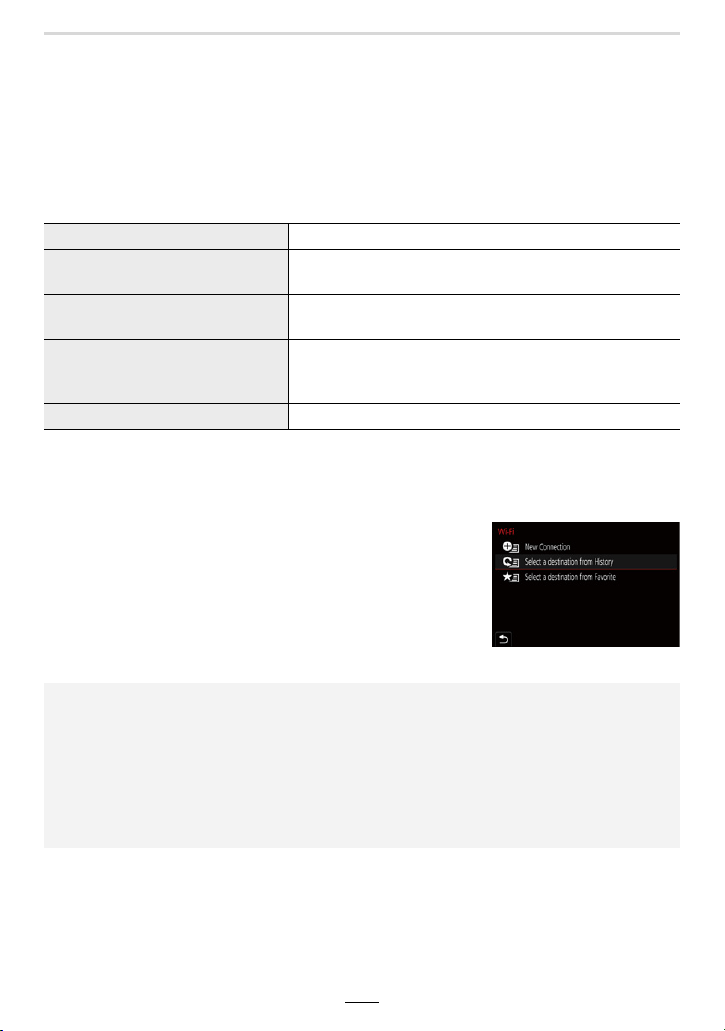
224
11. Using the Wi-Fi/Bluetooth function
∫ Operations that can be performed by pressing [Wi-Fi]
When the camera is not connected to Wi-Fi, press [Wi-Fi]. The camera will then be
ready to be connected to the smartphone. You can connect the camera directly to
the smartphone. (>230)
• When the camera is ready, you may find it convenient to press [DISP] to access History, which
stores previous connections, and connect quickly. (>251)
After connecting to a Wi-Fi network, you can perform the following operations by
pressing [Wi-Fi]:
• Depending on the Wi-Fi function being used or the connection destination, you may not be able
to perform some of these operations.
∫ Describing method
When “select [Select a destination from History]”, etc. is
described in a step, perform any of the following operations.
[Terminate the Connection] Terminates the Wi-Fi connection.
[Change the Destination]
Terminates the Wi-Fi connection, and allows you to select
a different one.
[Change Settings for Sending
Images]
Refer to (>246) for details.
[Register the Current Destination
to Favorite]
After registering the current connection destination or the
connection method, you can easily connect with the same
connection method next time.
[Network Address] (>253)
Button operation: Select [Select a destination from History]
with the cursor buttons, and then press
[MENU/SET].
Touch operation: Touch [Select a destination from History].
• Do not remove the card or battery or move to an area without any reception while
sending images.
• The camera cannot be used to connect to a public wireless LAN connection.
• It is recommended to use a fully charged battery when sending images.
• When sending images on a mobile network, high packet communication fees may be incurred
depending on the details of your contract.
• Pictures may not be completely sent depending on transmission conditions. If the connection
is terminated while sending pictures, pictures with missing sections may be sent.
11. Using the Wi-Fi/Bluetooth function
225
Connecting to a smartphone
You can remote control the camera using a smartphone.
The “Leica FOTOS” app must be installed on your smartphone.
The “Leica FOTOS” app is an application provided by Leica Camera AG that allows your
smartphone to perform the following operations of a Wi-Fi-compatible Leica compact
digital camera.
• Use the latest version.
• Supported OSs are current as of October 2018 and are subject to change.
• The service may not be able to be used properly depending on the type of smartphone being
used.
• When downloading the app on a mobile network, high packet communication fees may be
incurred depending on the details of your contract.
• Some of the screens and information provided in these instructions may differ from your device
depending on the supported OS and “Leica FOTOS” version.
Installing the smartphone/tablet “Leica FOTOS” app
For Android™ apps For iOS apps
Supported OS Android 6.0 or later
(Android 6.0 or higher is required to
use the Bluetooth function)
iOS 11.0 or later
(The Bluetooth function cannot be
used with the iPad 2)
Installation
procedure
1 Connect your Android device to
a network
2 Select “Google Play™ Store”
¢
3 Enter “Leica FOTOS” into the
search box
4 Select “Leica FOTOS” and
install it
• The icon will be added to the
menu.
¢ Not available in China. To
download in China, please visit
the site below:
www.leica-camera.com
1 Connect the iOS device to the
network
2 Select “App Store”
3 Enter “Leica FOTOS” into the
search box
4 Select “Leica FOTOS” and
install it
• The icon will be added to the
menu.
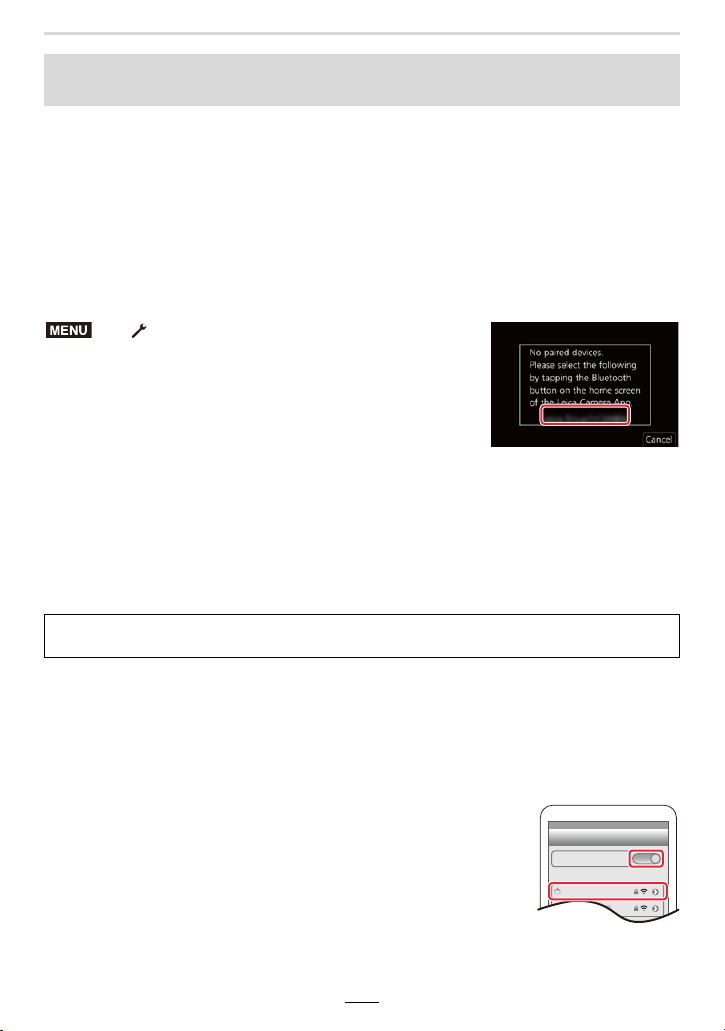
226
11. Using the Wi-Fi/Bluetooth function
You can connect the camera to a smartphone via a Bluetooth connection.
• Supported smartphones
∫ Connecting for the first time
Pairing needs to be set up only for the first connection. After pairing is set up, a Wi-Fi
connection will be made automatically.
(On the camera)
• The camera enters pairing standby mode and displays its device
name.
(On your smartphone)
1 Start the “Leica FOTOS” app.
• If a message is displayed indicating that the smartphone is
searching for cameras, close the message.
2 Select [Bluetooth].
3 Turn on Bluetooth.
4 Select the device name displayed on the camera’s screen from the [Camera
enable to be registered] list.
• A Bluetooth connection between the camera and the smartphone will be made.
(For Android devices) A Wi-Fi connection will be made by selecting [Connection].
5 Turn on the Wi-Fi function in the smartphone’s setting
menu.
6 On the Wi-Fi setting screen, select the SSID displayed on
the camera. (the device name selected in step
4)
• If the SSID is not displayed, it may be displayed after the Wi-Fi
function is turned off and on.
• When you need to change the connected device, follow the
on-screen message to change the setting.
Connecting the camera to a smartphone compatible with Bluetooth Low
Energy
Android: Android 5.0 or higher equipped with Bluetooth 4.0 or higher (excluding
those that do not support Bluetooth low energy)
iOS: iOS 9.0 or higher (excluding the iPad 2)
> [Setup] > [Bluetooth] > [Bluetooth] >
[SET] > [Pairing]
If you are using an Android device, follow the steps up to here to complete the setup.
Proceed to the steps below only if you are using an iOS device (iPhone/iPod touch/iPad).
• If [Wi-Fi Password] (>253) is set to [ON] on the camera, you need to install the profile. (At
the time of purchase, [Wi-Fi Password] is set to [ON])
• If [Wi-Fi Password] is set to [OFF] on the camera, select [Wi-Fi Setup].
1 Install the profile.
• If a pass code is set on the smartphone, you need to enter it.
2 Press the home button to close the browser.
MENU
Wi-Fi
0123456789ABC
11. Using the Wi-Fi/Bluetooth function
227
7 Start the “Leica FOTOS” app.
• The paired smartphone will be registered as a paired device after connected via Wi-Fi.
∫ Connecting to the paired smartphone (connecting for the second and subsequent
times)
(On the camera)
(On your smartphone)
1 Start the “Leica FOTOS” app.
• If a message is displayed indicating that the smartphone is searching for cameras, close
the message.
2 Select [Bluetooth].
3 Turn on the Bluetooth.
4 Select the camera (device name) you want to connect to from the [Camera
registered] list.
• Even if you set up pairing with more than one smartphone, you can only connect to one
smartphone at a time.
∫ Terminating the Bluetooth connection
• The connection will be terminated and the camera’s Bluetooth function will be deactivated.
• Even if you terminate the connection, the pairing information for it will not be deleted.
∫ Deleting pairing information
(On the camera)
1 Select the menu item.
2 Select the smartphone you want to delete.
(On your smartphone)
Select the camera (device name) for which to delete the pairing information from the
[Camera registered] list, and delete the registration.
> [Setup] > [Bluetooth] > [Bluetooth] > [ON]
> [Setup] > [Bluetooth] > [Bluetooth] > [OFF]
> [Setup] > [Bluetooth] > [Bluetooth] > [SET] > [Delete]
• [ ] is displayed on the recording screen during Bluetooth connection. When the Bluetooth
function is enabled, but a connection is not established, [ ] appears translucent.
• When it takes time to set up pairing between a smartphone and a camera, delete the pairing
information of both devices and register them again. This may enable the devices to be
recognized properly.
• Up to 16 smartphones can be registered. If you try to register more than 16 devices, the
smartphone with the oldest registration history will be replaced.
• Performing [Reset Network Settings] will delete registered device information.
MENU
MENU
MENU
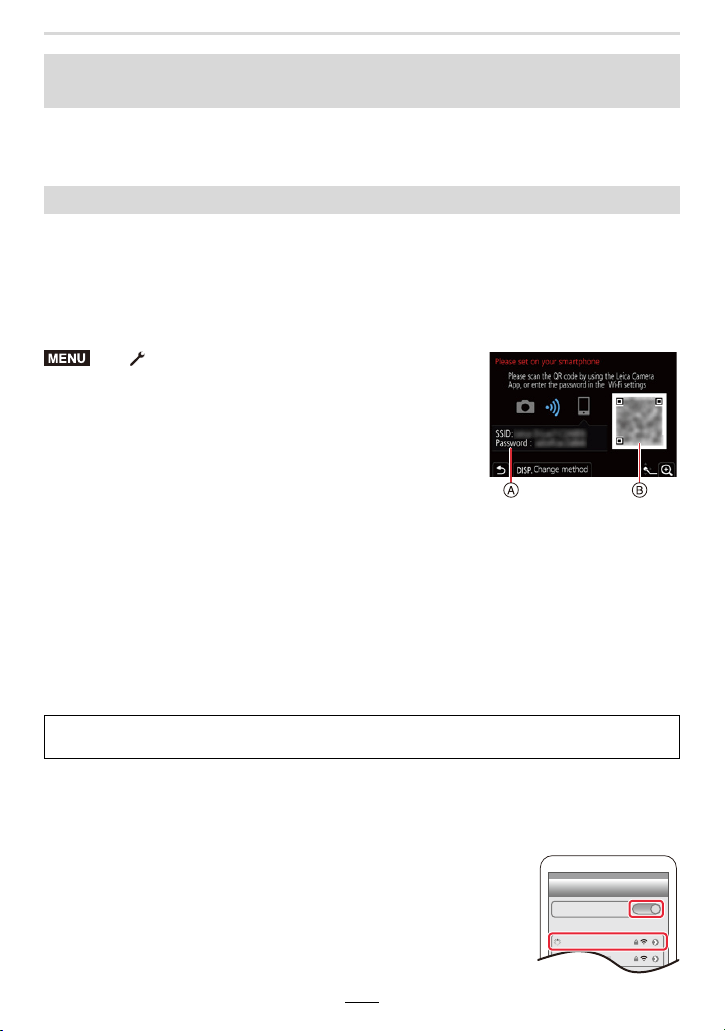
228
11. Using the Wi-Fi/Bluetooth function
Connect to a smartphone via Wi-Fi.
• You can also connect via Wi-Fi to a smartphone that supports Bluetooth Low Energy by
following the same steps.
When [Wi-Fi Password] is set to [ON], you can enhance security by using manual entry or
a QR code for password authentication.
([Wi-Fi Password] is set to [ON] at the time of purchase.)
∫ Using the QR code to set up a connection
(On the camera)
A SSID and password
B QR code
• The information (QR Code, SSID and Password) required for
directly connecting your smartphone to this camera is
displayed.
• You can also display the information by pressing [Wi-Fi] on the camera.
(On your smartphone)
1 Start the “Leica FOTOS” app.
2 Select [QR code].
• When the smartphone is connected to a wireless access point, it may take time to display
[QR code].
• (For iOS devices) A confirmation screen will be displayed. Select [OK] to proceed.
3
Use the “Leica FOTOS” app to scan the QR code displayed on the screen of the camera.
• To enlarge the QR code, press [MENU/SET] on the camera.
4 Install the profile.
• If a pass code is set on the smartphone, you need to enter it.
5 Press the home button to close the browser.
6 Turn on the Wi-Fi function in the smartphone’s setting menu.
7 On the Wi-Fi setting screen, select the SSID displayed on the
camera.
8 Start the “Leica FOTOS” app.
• (iOS devices) Steps 1 through 5 are not required from the second
time on.
Connecting the camera to a smartphone that does not support for
Bluetooth Low Energy
Using a password to set up a connection
> [Setup] > [Wi-Fi] > [Wi-Fi Function] >
[New Connection] > [Remote Shooting &
View]
If you are using an Android device, follow the steps up to here to complete the setup.
Proceed to the steps below only if you are using an iOS device (iPhone/iPod touch/iPad).
MENU
Wi-Fi
0123456789ABC
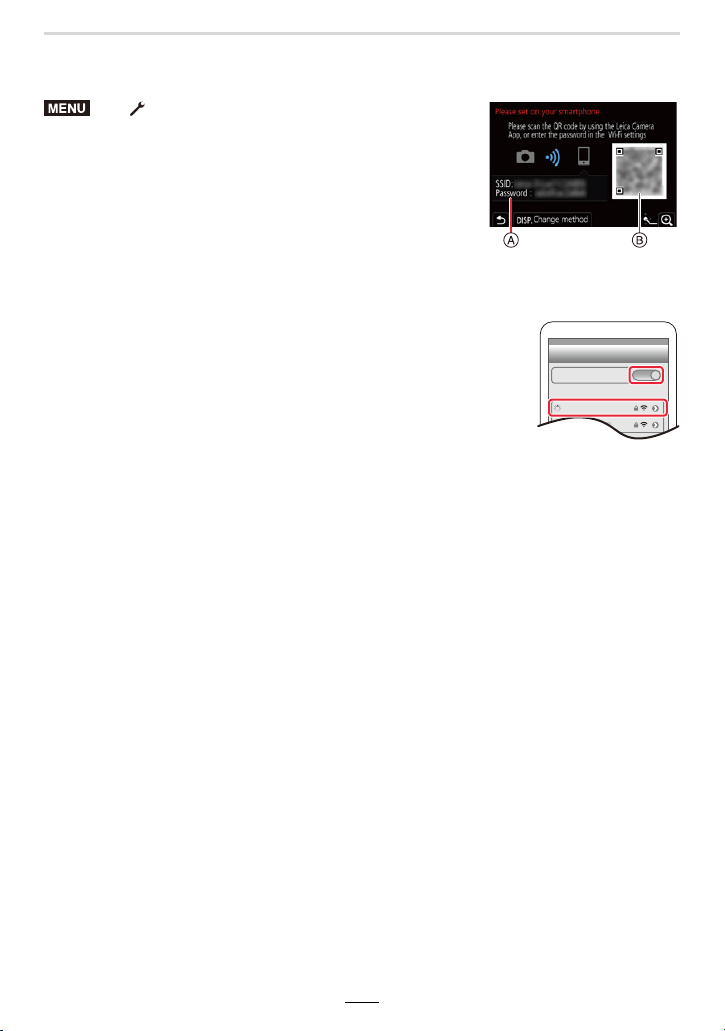
11. Using the Wi-Fi/Bluetooth function
229
∫ Manually entering a password to set up a connection
(On the camera)
A SSID and password
B QR code
• The information (QR Code, SSID and Password) required for
directly connecting your smartphone to this camera is
displayed.
• You can also display the information by pressing [Wi-Fi] on the camera.
(On your smartphone)
1 Turn on the Wi-Fi function in the smartphone’s setting menu.
2 On the Wi-Fi setting screen, select the SSID displayed on the
camera.
3 Enter the password displayed on the camera into the
smartphone. (For first time connection only)
4 Start the “Leica FOTOS” app.
> [Setup] > [Wi-Fi] > [Wi-Fi Function] >
[New Connection] > [Remote Shooting &
View]
MENU
Wi-Fi
0123456789ABC
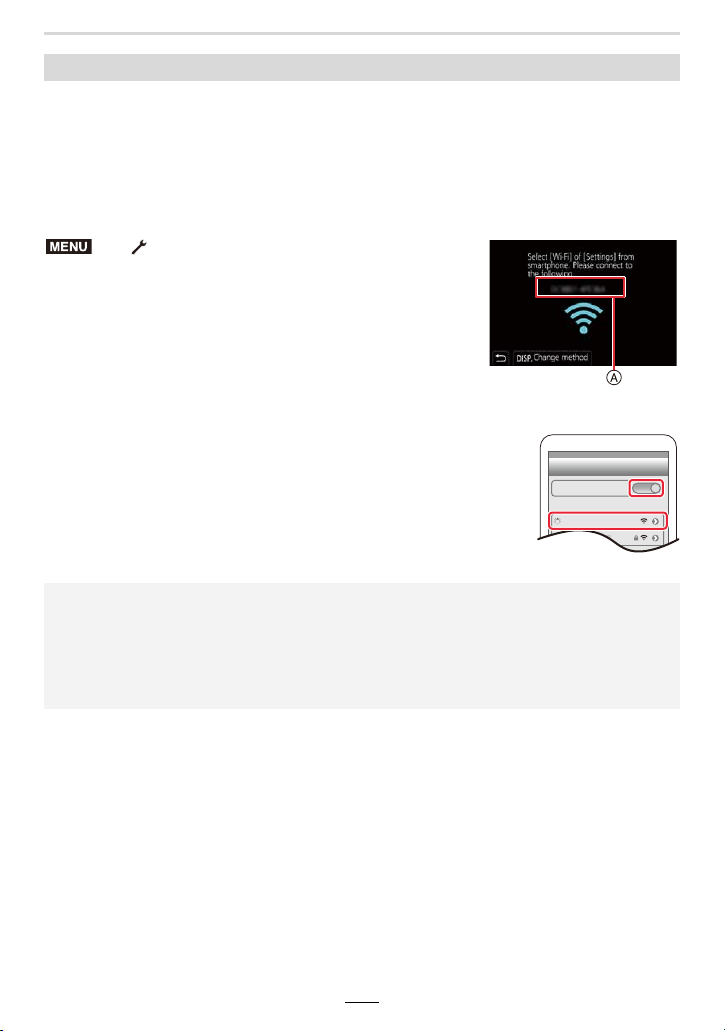
230
11. Using the Wi-Fi/Bluetooth function
You can easily establish a Wi-Fi connection on this camera without entering a password
on your smartphone.
Preparation
On the camera, set [Wi-Fi Password] to [OFF]. (>253)
(On the camera)
A SSID
• The information required for directly connecting your
smartphone to this camera (SSID) is displayed.
• You can also display the information by pressing [Wi-Fi] on the
camera.
(On your smartphone)
1 Turn on the Wi-Fi function in the setup menu.
2 On the Wi-Fi setting screen, select the SSID displayed on
the camera.
3 Start the “Leica FOTOS” app.
• When the connection confirmation screen is displayed on the
camera, select [Yes] to connect. (For first time connection only)
Connecting without using the password
> [Setup] > [Wi-Fi] > [Wi-Fi Function] >
[New Connection] > [Remote Shooting &
View]
When [Wi-Fi Password] is set to [OFF].
Before connecting to a Wi-Fi network, ensure that the device displayed on the connection
confirmation screen is the one you actually want to connect to. When a wrong device is
displayed, if you select [Yes], the camera will automatically connect to that device.
We recommend that you set [Wi-Fi Password] (>253) to [ON] if, for example, there is
another Wi-Fi device nearby.
MENU
Wi-Fi
0123456789ABC
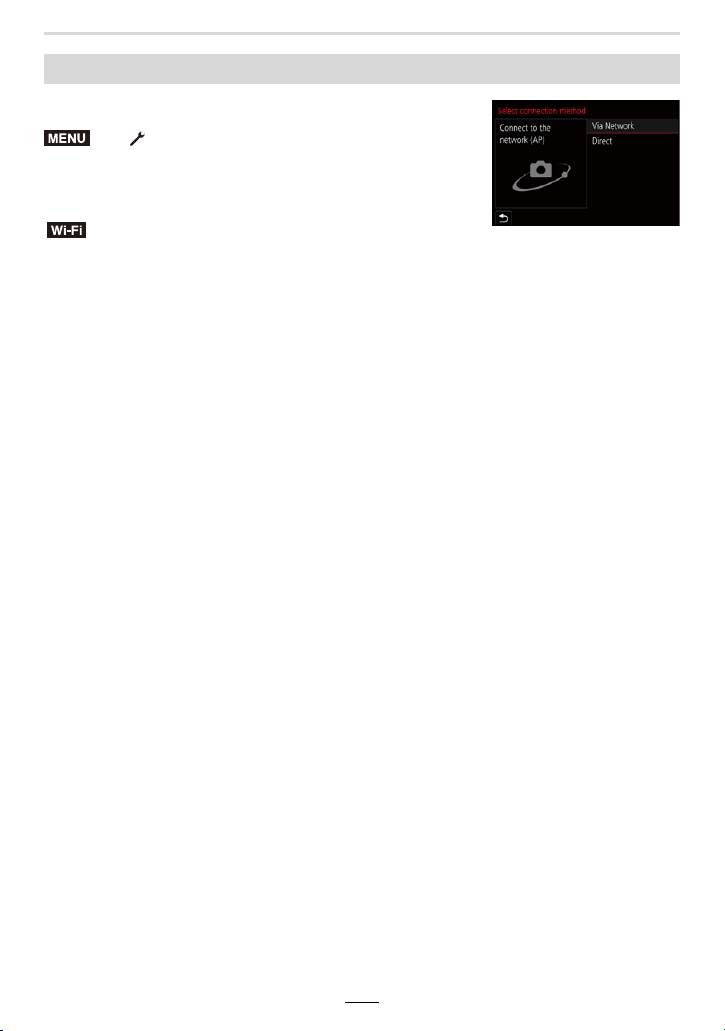
11. Using the Wi-Fi/Bluetooth function
231
To change the connection method, follow the steps below:
or
∫ When connecting via a wireless access point ([Via Network]):
(On the camera)
1 Select [Via Network].
• Follow the connection procedure described on (>248) to connect the camera to a
wireless access point.
(On your smartphone)
2 Turn on the Wi-Fi function in the smartphone’s setting menu.
3 Connect the smartphone to the wireless access point to which the camera is
connected.
4 Start the “Leica FOTOS” app.
∫ When directly connecting the camera and smartphone ([Direct]):
(On the camera)
1 Select [Direct].
• Follow the connection procedure described on (>250) to connect the camera to the
smartphone.
(On your smartphone)
2 Start the “Leica FOTOS” app.
Changing the Wi-Fi connection method
> [Setup] > [Wi-Fi] > [Wi-Fi Function] >
[New Connection] > [Remote Shooting &
View] > [DISP] button
> [DISP] button > [New Connection] >
[Remote Shooting & View] > [DISP] button
MENU
Wi-Fi
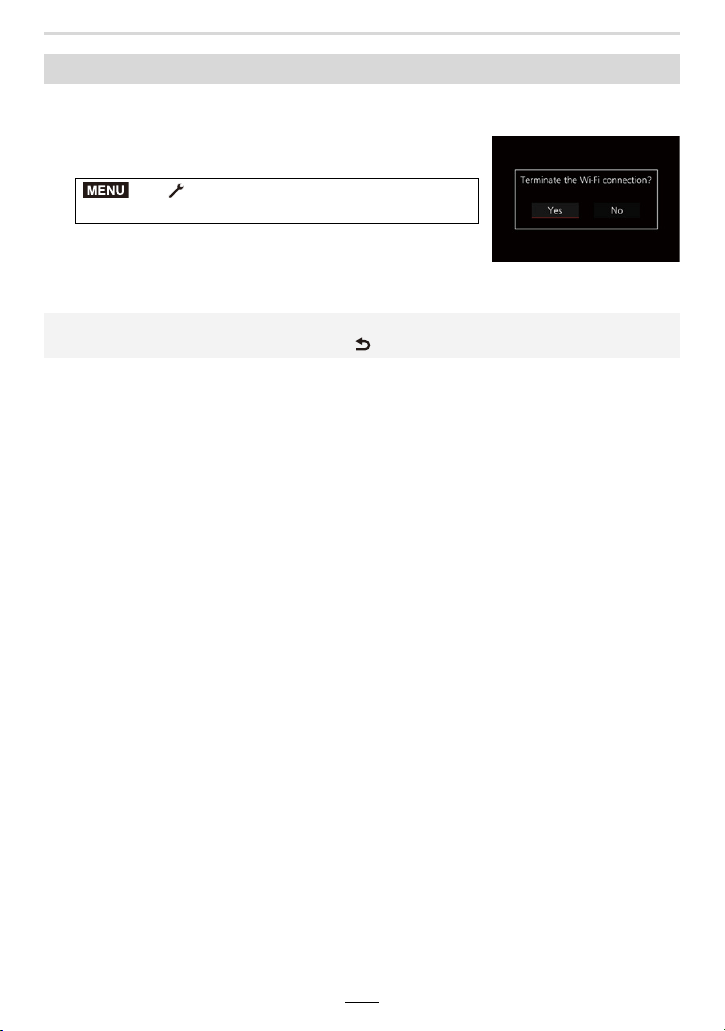
232
11. Using the Wi-Fi/Bluetooth function
1 Set the camera to Recording mode.
• Press the shutter button halfway to return to recording mode.
2 Select the camera’s menu items to terminate the
Wi-Fi connection.
• You can also terminate the connection by pressing [Wi-Fi]
on the camera.
3 On the smartphone, close the “Leica FOTOS” app.
Terminating the Wi-Fi connection
> [Setup] > [Wi-Fi] > [Wi-Fi Function]
> [Yes]
• When recording with [4K Pre-Burst] with the smartphone, terminate the connection only after
switching to 4K serial recording by pressing [ ] on the camera.
MENU
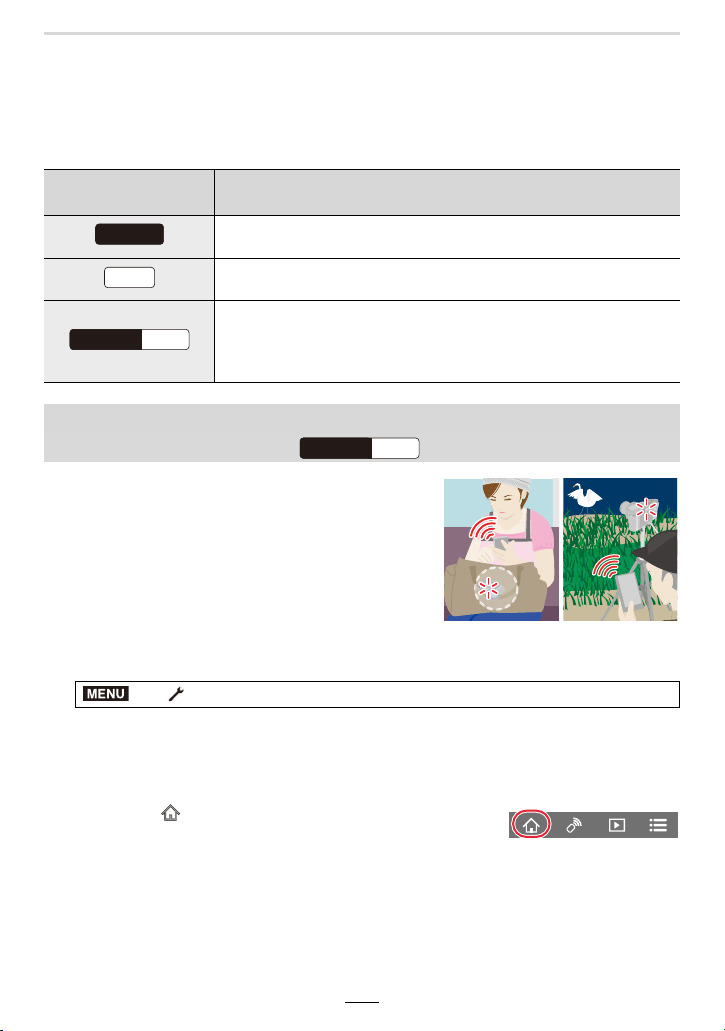
11. Using the Wi-Fi/Bluetooth function
233
Operating the Camera with a Smartphone
∫ Required wireless connectivity mode
The wireless connectivity mode required varies depending on the function to be used after
connecting to a smartphone.
Even when the camera is turned off, it can be started
up remotely and operated from your smartphone. You
can turn on the camera to record from a remote
location or view images even when the camera is in
your bag.
1 Make a Bluetooth connection to the smartphone. (>226)
2 Select the camera’s menu.
3 Set the camera on/off switch to [OFF].
4 On the smartphone, start up the “Leica FOTOS” app, and set the Bluetooth
function to a state in which a connection can be made (standby state).
5 Operate the smartphone.
• The camera automatically turns on, allowing it to make a Wi-Fi connection automatically.
– (iOS devices) Depending on the connection status of the smartphone, you may need to
change the connected device on the Wi-Fi setup screen. Follow the on-screen message
on the smartphone to change the setting.
Wireless connectivity
required
Support for Bluetooth low energy
Indicates that the function can be used with smartphones that
support Bluetooth Low Energy.
Indicates that the function can be used with smartphones that do not
support Bluetooth Low Energy.
Indicates that the function can be used with smartphones that
support Bluetooth Low Energy.
• Indicates that the function requires you to connect to a smartphone
using both Bluetooth and Wi-Fi.
Turning on/off the camera with a smartphone
Wireless connectivity required:
> [Setup] > [Bluetooth] > [Remote Wakeup] > [ON]
1 Select [ ].
2 Select [Remote operation].
Bluetooth
Wi-Fi
Wi-FiBluetooth
Wi-FiBluetooth
MENU
234
11. Using the Wi-Fi/Bluetooth function
∫ Turning off the camera with the smartphone
1 Connect to a smartphone. (>225)
2 Operate the smartphone.
1 Select [ ].
2 Select [ OFF].
• When [Remote Wakeup] is set to [ON], the Bluetooth function continues to operate even after
the camera is turned off, thus causing the battery to drain.
Taking images via a smartphone (remote recording)
Wireless connectivity required:
If the camera is already connected to the smartphone via Bluetooth, select [ ] →
[Remote operation].
(iOS devices)
Depending on the connection status of the smartphone, you may need to change the
connected device on the Wi-Fi setup screen. Follow the on-screen message on the
smartphone to change the setting.
1 Select [ ].
2 Record an image.
• The recorded images are saved in the camera.
• Some settings are not available.
Wi-Fi
11. Using the Wi-Fi/Bluetooth function
235
∫ Setting the higher priority between the camera and smartphone to perform
operations
• The setting of this function cannot be changed while the connection is active.
> [Setup] > [Wi-Fi] > [Wi-Fi Setup] > [Priority of Remote Device]
[Camera]
Allows you to perform operations with both the camera and the
smartphone.
• The camera’s dial settings, etc. cannot be changed with the
smartphone.
[Smartphone]
Allows you to perform operations only with the smartphone.
• The camera’s dial settings, etc. can be changed with the smartphone.
• To end remote recording, press any of the buttons on the camera to
turn on the screen, and select [End].
• The camera could tilt when the lens barrel extends. Make sure to secure the camera in place
with a tripod or by other means.
Not available in these cases:
• In the following cases, remote recording does not work:
– Panorama Shot mode
¢
– When using [Time Lapse Shot]
¢ When [Priority of Remote Device] is set to [ ] ([Smartphone]), you can temporarily switch
to Program mode for remote recording. The camera returns to normal operation after the
remote recording has finished.
MENU
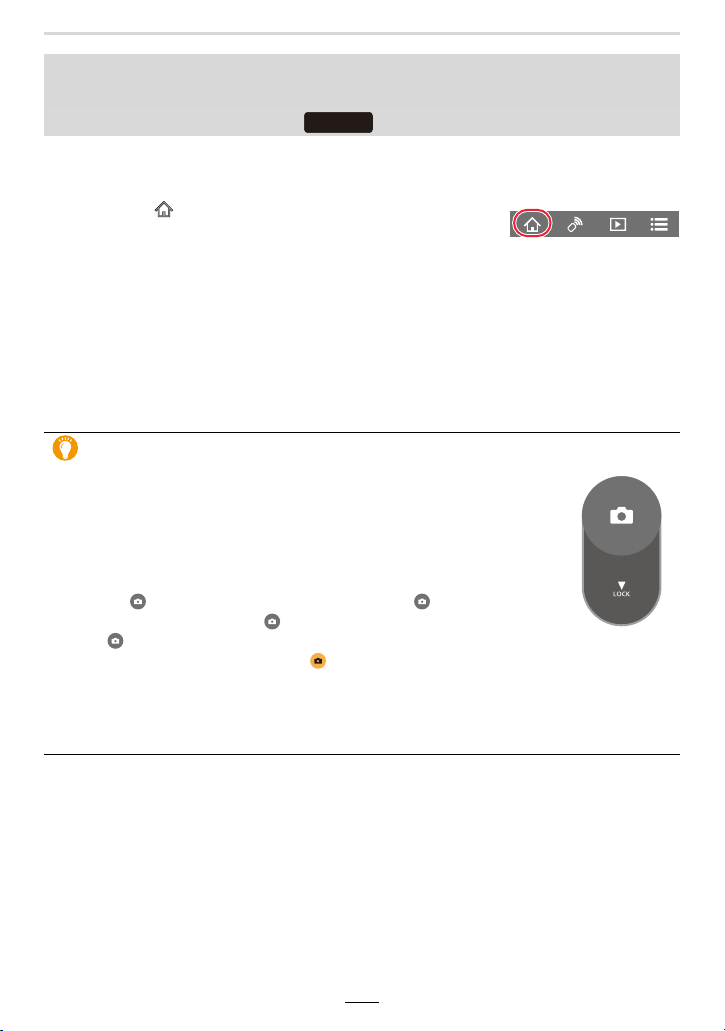
236
11. Using the Wi-Fi/Bluetooth function
1 Make a Bluetooth connection to the smartphone. (>226)
2 Operate the smartphone.
• When the camera turns off after [Sleep Mode] is activated during recording, you can reselect
[Shutter Remote Control] on the smartphone to turn it on again. (The following settings are
required.)
– [Remote Wakeup]: [ON]
– [Auto Transfer]: [OFF]
Operating the shutter button with a smartphone via a Bluetooth
connection alone
Wireless connectivity required:
1 Select [ ].
2 Select [Shutter Remote Control].
3 Take pic tures.
• [Shutter Remote Control] is available when the camera on/off switch is set to [ON].
• The monitor screen image of the camera is not available on the smartphone.
About [B] (Bulb)
When you set the shutter speed to [T] (Time), the shutter stays open after
the shutter button is pressed fully (up to approximately 29 minutes).
The shutter will close when the shutter button is pressed again.
Use this when you want to keep the shutter open for a long time to take
pictures of fireworks, a night scene etc.
Operate the smartphone
1 Press [ ] to start recording (Press and hold [ ])
2 Release your finger from [ ] to end recording
• Slide [ ] in the direction of [LOCK] to record with the shutter button fixed
in the fully pressed condition. (Slide [ ] back in the opposite direction or press the shutter
button of the camera to end recording.)
• If Bluetooth is disconnected during the [B] (Bulb) recording, reconnect Bluetooth and perform
the operation to end recording using the smartphone.
• [T] (Time) will be displayed on the camera screen.
Bluetooth
11. Using the Wi-Fi/Bluetooth function
237
∫ Reducing the time to recover from [Sleep Mode]
Select the smartphone function to be used as a priority function when waking the camera
from [Sleep Mode] with a smartphone.
Preparation:
Set [Bluetooth] and [Remote Wakeup] to [ON]. (>233)
> [Setup] > [Bluetooth] > [Returning from Sleep Mode]
[Remote / Transfer
Priority]
Shortens the time required to wake the camera with
[Remote operation] or [Transfer image].
[Shutter Remote Priority]
Shortens the time required to wake the camera with
[Shutter Remote Control].
MENU
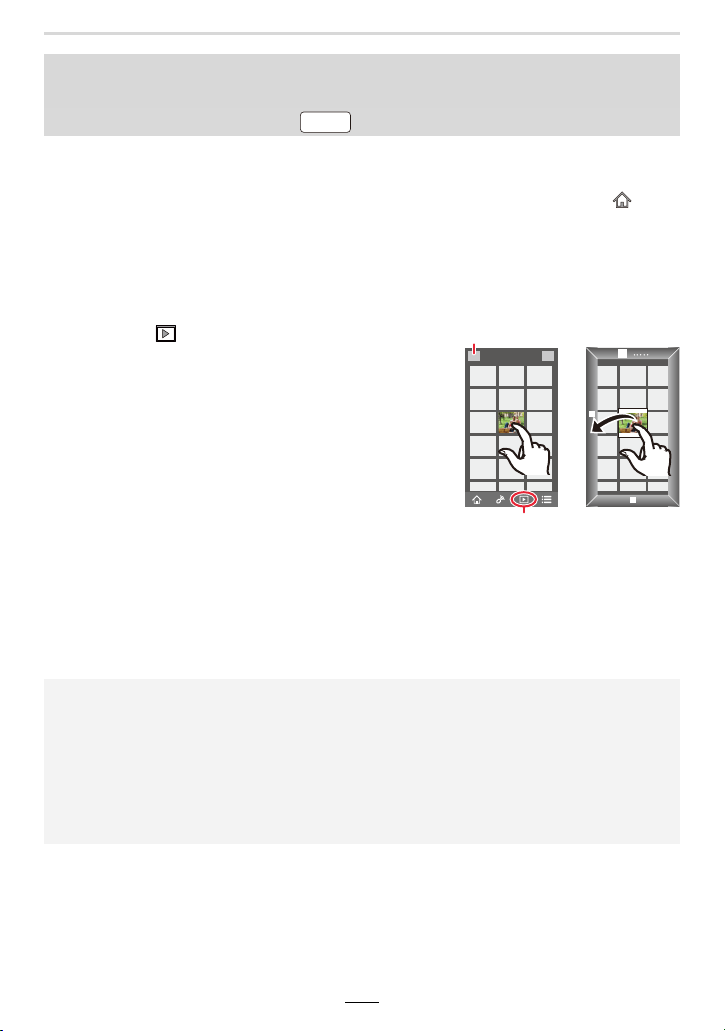
238
11. Using the Wi-Fi/Bluetooth function
1 Connect to a smartphone. (>225)
2 Operate the smartphone.
Playing back/saving images stored on the camera, or uploading them
on social media sites
Wireless connectivity required:
If the camera is already connected to the smartphone via Bluetooth, select [ ] →
[Remote operation].
(iOS devices)
Depending on the connection status of the smartphone, you may need to change the
connected device on the Wi-Fi setup screen. Follow the on-screen message on the
smartphone to change the setting.
1 Select [ ].
• You can switch the images to be displayed by
selecting the icon (A) on the top left of the screen.
To display images stored in the camera, select
[Leica].
(To play back the image)
2 Touch the image to enlarge it.
• When you play a video, image quality differs from
that of the actual recorded one. In addition,
depending on the smartphone or conditions of use,
the image quality may deteriorate or the sound may
skip during video or picture playback.
(To save the image or upload it on a social media site
or other web service)
¢
¢ For iOS devices, you can save a picture only to the
smartphone.
3 Touch and hold and then drag the image.
• An OS version of Android 7.0 or higher or iOS 10.0 or higher is required to save pictures in
RAW format.
• Depending on the smartphone or its OS version, pictures in RAW format may not be displayed
correctly.
• You cannot save the following types of images:
– Videos in the 4K format
– 4K picture series files
– Images recorded with the Post Focus function
Wi-Fi
11. Using the Wi-Fi/Bluetooth function
239
The camera automatically transfers recorded images to a Bluetooth-connected
smartphone via Wi-Fi.
1 Make a Bluetooth connection to the smartphone. (>226)
2 Select the camera’s menu.
• If a confirmation screen is displayed on the camera asking you to terminate the Wi-Fi
connection, select [Yes] to terminate it.
3 On the smartphone, select [Yes] (Android devices) or [Wi-Fi Setup] (iOS
devices).
• The camera automatically makes a Wi-Fi connection.
– (iOS devices) Follow the on-screen message on the smartphone to change the
connected device on the Wi-Fi setup screen.
4 Check the send settings on the camera, and select [Set].
• To change the send setting, press [DISP]. (>246)
• The camera will enter a mode where it can automatically transfer images and [ ] will be
displayed on the recording screen. (If it is not displayed, images cannot be transferred
automatically. Check the status of the Wi-Fi connection to the smartphone.)
5 Take pictures on the camera.
• Every time you take a picture, it is automatically sent to a specified device.
• While sending a file, [ ] is displayed on the recording screen.
∫ To stop the automatic transfer of images
Select [OFF] in step 2.
• A confirmation screen is displayed, asking you to terminate the Wi-Fi connection.
Transferring recorded images to a smartphone automatically
Wireless connectivity required:
> [Setup] > [Bluetooth] > [Auto Transfer] > [ON]
If you set [Auto Transfer] to [ON], the camera and the smartphone will be
connected via Wi-Fi/Bluetooth and automatic transfer will be enabled the next time
you turn on the camera and start the “Leica FOTOS” app on the smartphone.
Wi-FiBluetooth
MENU

240
11. Using the Wi-Fi/Bluetooth function
• When [Auto Transfer] is set to [ON], [Wi-Fi Function] in [Wi-Fi] in the [Setup] menu
cannot be used.
• If the camera turns off during image transfer and the file transfer is canceled, it will resend the
files as soon as it is turned on again.
– You may not be able to resend the files that did not get delivered if there is a change in their
storage status. For example, if you replace the card before turning on the camera again, the
files may not be resent.
– If the number of files that did not get delivered is large, it may not be possible to resend all of
the files.
• An OS version of Android 7.0 or higher or iOS 10.0 or higher is required to save pictures in
RAW format.
• Depending on the smartphone or its OS version, pictures in RAW format may not be displayed
correctly.
• You cannot automatically transfer the following types of images:
–Videos
– 4K picture series files
– Images recorded with the Post Focus function
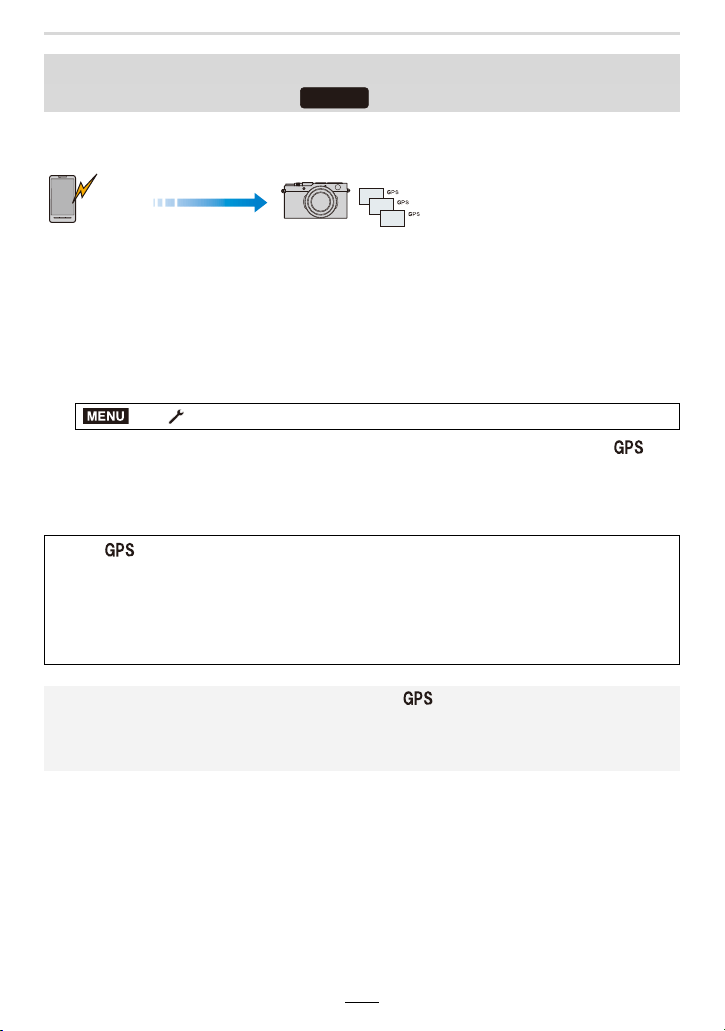
11. Using the Wi-Fi/Bluetooth function
241
The smartphone sends its location information to the camera via Bluetooth, and the
camera performs recording while writing the acquired location information.
Preparations:
Enable the GPS function on the smartphone.
1 Make a Bluetooth connection to the smartphone. (>226)
2 Select the camera’s menu.
• The camera will enter a mode where location information can be recorded and [ ] will
be displayed on the recording screen.
3 Take pictures on the camera.
• Location information will be written to the recorded pictures.
Writing location information of a smartphone on a recorded image
Wireless connectivity required:
A The smartphone acquires
location information.
B The smartphone sends the
location information.
C The camera performs recording
while writing the location
information.
> [Setup] > [Bluetooth] > [Location Logging] > [ON]
When [ ] appears translucent
Location information is not acquired, so data cannot be written. Positioning with GPS on the
smartphone may not be possible if it is in a location such as a building or a bag.
• Move the smartphone to a location where positioning performance can be optimized, such as
one that offers a wide view of the sky, to try positioning.
• Refer to the instructions of your smartphone.
• Images with location information are indicated with [ ].
• The smartphone drains its battery faster while acquiring location information.
• Be sure to pay special attention to the privacy, i.e. personal rights, etc. of the subject
when you use this function. Use at your own risk.
Bluetooth
GPS
Bluetooth
MENU
242
11. Using the Wi-Fi/Bluetooth function
Synchronize the [Clock Set] setting and the [Home] or [Destination] setting in [World
Time], which are all located in the [Setup] menu of the camera, with the corresponding
settings of a smartphone.
1 Make a Bluetooth connection to the smartphone. (>226)
2 Select the camera’s menu.
Synchronizing the camera’s clock with a smartphone
Wireless connectivity required:
> [Setup] > [Bluetooth] > [Auto Clock Set] > [ON]
Bluetooth
MENU
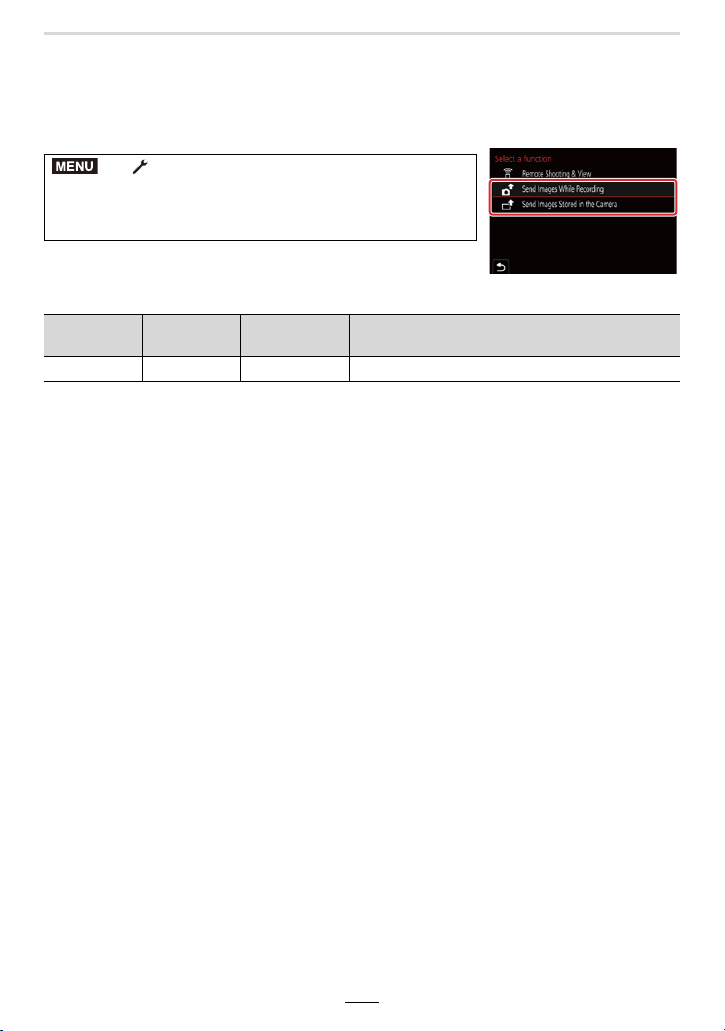
11. Using the Wi-Fi/Bluetooth function
243
Sending Images
When sending pictures, first select [New Connection], then select the method of sending
pictures.
∫ Images that can be sent
¢1 Sending by [Send Images While Recording] is not available.
¢2 An OS version of Android 7.0 or higher or iOS 10.0 or higher is required.
¢3 Excluding 4K videos
• Some images may not be played back or sent depending on the device.
• For details about playback of images, refer to the instructions for the destination device.
> [Setup] > [Wi-Fi] > [Wi-Fi Function] >
[New Connection] > [Send Images While
Recording] or [Send Images Stored in the
Camera]
JPEG RAW
¢2
MP4
¢1, 3
4K Picture Series File
¢1
Images recorded with the Post Focus function
¢1
±± ± —
MENU
244
11. Using the Wi-Fi/Bluetooth function
Preparations:
• Install the “Leica FOTOS” app in advance. (>225)
1
Select the menu item.
2
Select [Via Network] or [Direct], and connect. (>247, 250)
3
Select a device you want to connect.
4
Check the send settings, and select [Set].
• To change the send setting, press [DISP]. (>246)
> [Setup] > [Wi-Fi] > [Wi-Fi Function] > [New Connection] >
[Send Images While Recording] or [Send Images Stored in the
Camera]
(On your smartphone)
When connecting with [Via Network]:
1 Turn on the Wi-Fi function.
2 Select the wireless access point.
3 Start the “Leica FOTOS” app.
When connecting with [WPS Connection] in [Direct]:
1 Start the “Leica FOTOS” app.
When connecting with [Manual Connection] in [Direct]:
1 Turn on the Wi-Fi function.
2 Select the SSID that matches the one displayed on the screen of this camera.
3 Start the “Leica FOTOS” app.
5
When [Send Images While Recording] has been selected
Take pictures. (>245)
When [Send Images Stored in the Camera] has been selected
Select the picture. (>245)
Not available in these cases:
• When [Auto Transfer] in [Bluetooth] is set to [ON], [Wi-Fi Function] is not available.
MENU
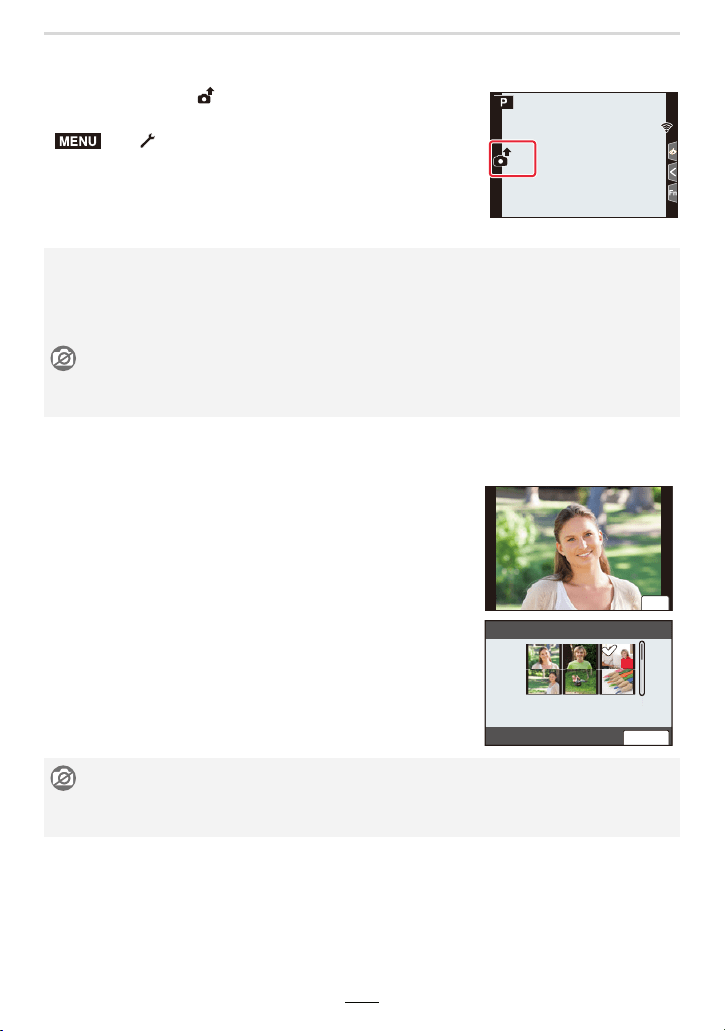
11. Using the Wi-Fi/Bluetooth function
245
∫ Sending pictures while recording
A picture can be automatically sent to a specified device every time you take one.
• While sending a file, [ ] is displayed on the recording screen.
• Set the menu to terminate the connection.
• You cannot change the sending settings while sending pictures.
∫ Sending pictures stored in the camera
Pictures can be selected and sent after recording.
> [Setup] > [Wi-Fi] > [Wi-Fi Function] > [Yes]
• Since the camera gives priority to recording, sending may take longer during the recording.
• If you turn off the camera or terminate the Wi-Fi connection before the transmission is
completed, unsent files will not be resent.
• You may not be able to delete files or use the playback menu while sending.
Not available in these cases:
• If you set [Time Lapse Shot], the Wi-Fi connection is terminated and you cannot use this
function.
[Single Select] setting
1 Select the picture.
2 Select [Set].
[Multi Select] setting
1 Select the picture. (repeat)
• The setting is canceled when the picture is selected again.
2 Select [OK].
• To close the connection, select [Exit].
Not available in these cases:
• It may not be possible to send pictures recorded with another device and those modified or
edited on a computer.
5
5
MENU
6HW
ュリヴヱハ
2.

246
11. Using the Wi-Fi/Bluetooth function
∫ Changing the settings for sending images
After the connection is established, you can change the send settings by pressing [DISP].
[Size]
Resize the image to send.
[Original]/[Auto]/[Change] ([M], [S] or [VGA])
• You can set this to [Auto] if the destination is [Web service].
It changes the resolution according to the status of the destination.
[File Format] [JPG]/[RAWiJPG]/[RAW]
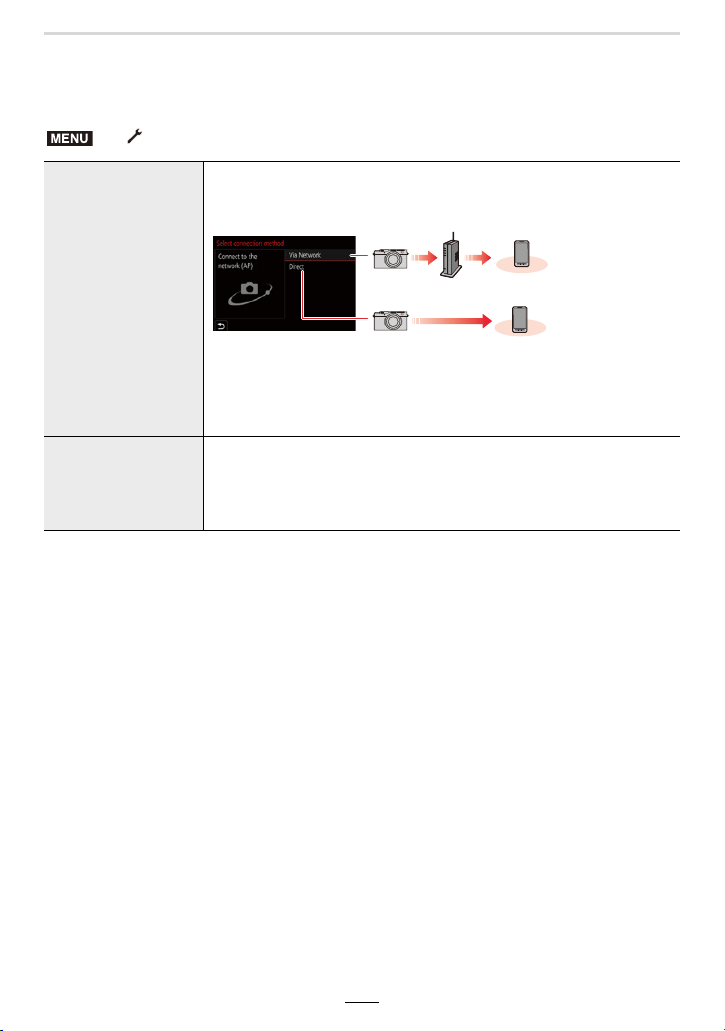
11. Using the Wi-Fi/Bluetooth function
247
About Wi-Fi Connections
The following types of connections are available.
> [Setup] > [Wi-Fi] > [Wi-Fi Function]
[New Connection]
This makes a connection after a Wi-Fi function and sending destination
is selected. When a screen similar to the one below is displayed, select
the connection method.
Wireless access point
• [Via Network] (>248):
Makes a connection via a wireless access point.
• [Direct] (>250):
Connects your device and the camera directly.
[Select a destination
from History]/[Select
a destination from
Favorite]
The connection is made using the same settings as the previous time.
(>251)
MENU
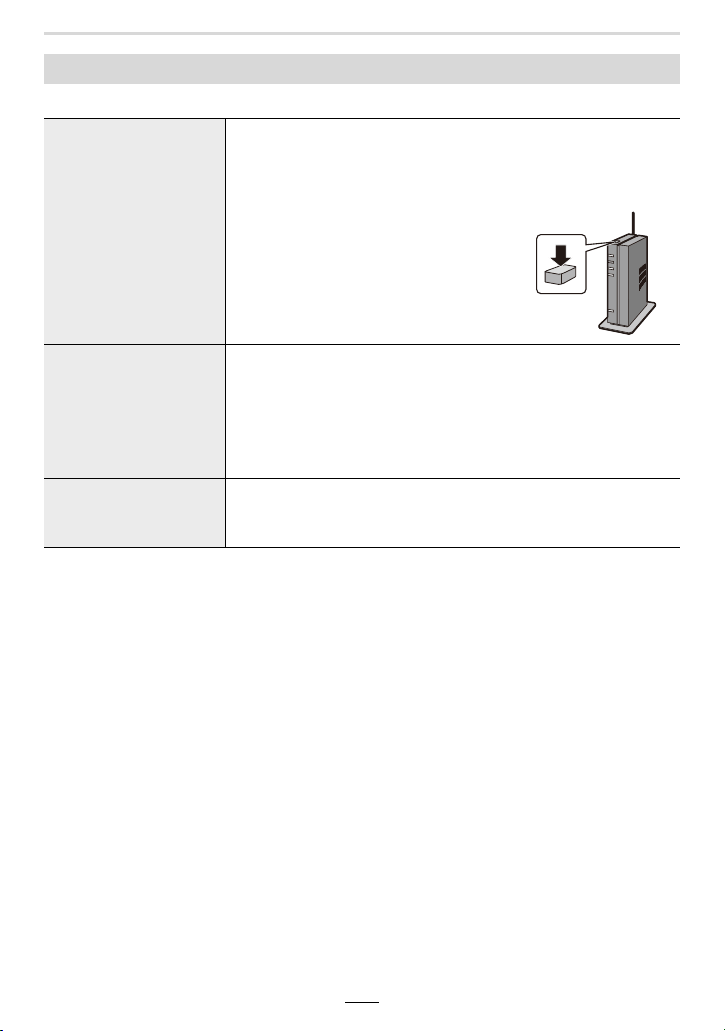
248
11. Using the Wi-Fi/Bluetooth function
Select a connection method to the wireless access point.
• Except for the first-time connection, the camera will connect to the previously-used wireless
access point.
To change the connection destination, press [DISP].
• WPS refers to a function that allows you to easily configure the settings related to the
connection and security of wireless LAN devices.
Refer to the instructions for the wireless access point for details about how to operate the WPS
function and whether it is supported.
Connecting via a wireless access point ([Via Network])
[WPS (Push-Button)]
For saving a push button type wireless access point that is
compatible with Wi-Fi Protected Setup™ with a WPS mark.
Press the wireless access point
WPS button until it switches to WPS
mode.
e.g.:
[WPS (PIN code)]
For registering a PIN code type wireless access point with a WPS
mark that supports Wi-Fi Protected Setup.
1 Select the wireless access point on the camera.
2 Enter the PIN code displayed on the camera screen
into the wireless access point.
3 Press [MENU/SET] of the camera.
[From List]
Select this option when you are not sure about the WPS
compatibility, or when you want to search for and connect to a
wireless access point. (>249)
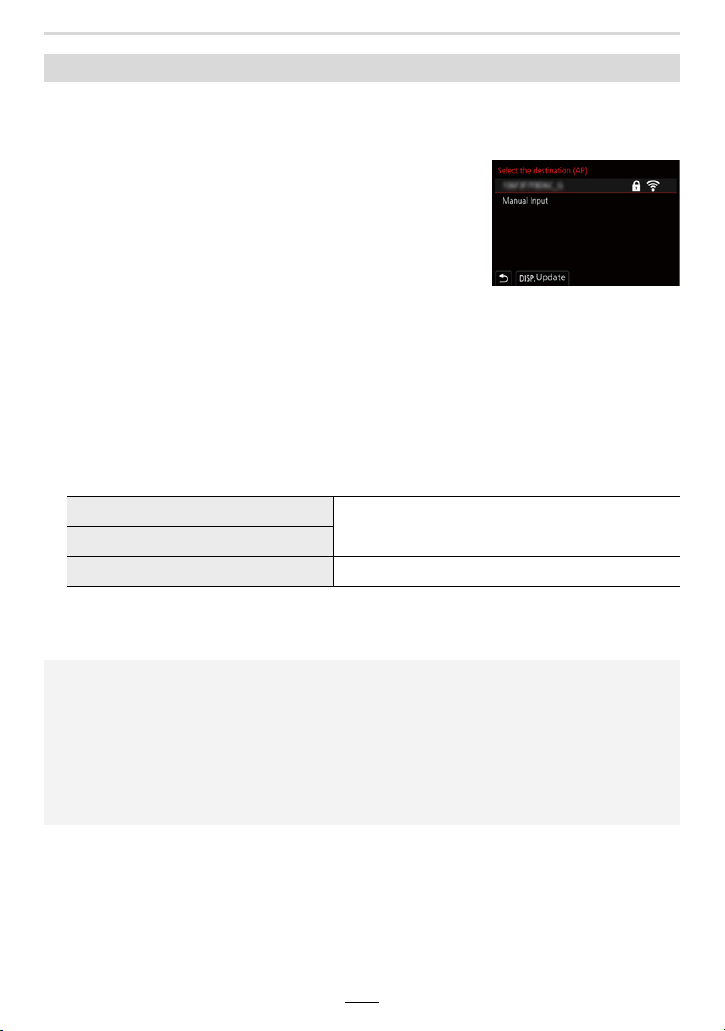
11. Using the Wi-Fi/Bluetooth function
249
Search for available wireless access points.
• Confirm the encryption key of the wireless access point if the network authentication is
encrypted.
1 Select the wireless access point.
• To search for wireless access points again, press [DISP].
• If no wireless access point is found, refer to “When
connecting with [Manual Input]” on (>249).
2 (If network authentication is encrypted)
Enter the encryption key.
• For information on how to enter characters, refer to (>55).
∫ When connecting with [Manual Input]
• Check the SSID, authentication type, encryption type, and encryption key of the wireless
access point to be connected.
1 On the screen displayed in step
1 of “If you are not sure about the WPS compatibility
([From List])”, select [Manual Input].
2 Enter the SSID of the wireless access point you are connecting to, then select [Set].
• For information on how to enter characters, refer to (>55).
3 Select the network authentication type.
4 (When an option other than [No Encryption] is selected)
Enter the encryption key.
If you are not sure about the WPS compatibility ([From List])
[WPA2-PSK]
Supported encryption methods: [TKIP], [AES]
[WPA2/WPA-PSK]
[No Encryption] —
• Check the wireless access points’ instructions and settings when saving a wireless access
point.
• If no connection can be established, the wireless access point’s transmission may be too
weak.
Refer to “Message Displays” (>270) and “Troubleshooting” (>272) for details.
• Depending on your environment, transmission speed between the camera and wireless
access point may decrease. In addition, the wireless access point may not be available for
use.
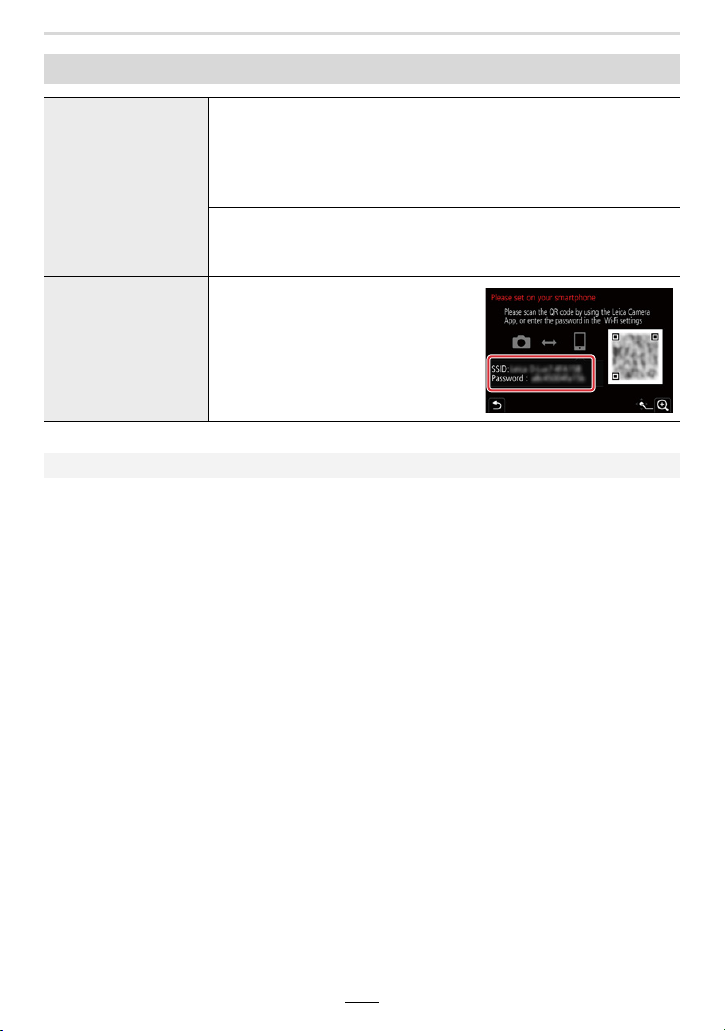
250
11. Using the Wi-Fi/Bluetooth function
Connecting the camera and another device directly ([Direct])
[WPS Connection]
[WPS (Push-Button)]
1 On the camera, select [WPS (Push-Button)].
2 Set the device to WPS mode.
• You can wait longer for a connection by pressing [DISP] on this
camera.
[WPS (PIN code)]
1 On the camera, select [WPS (PIN code)].
2 Enter the PIN code of the device into this camera.
[Manual Connection]
Enter the SSID and password
displayed on the camera.
• When [Wi-Fi Password] is set to
[OFF], the password is not displayed.
Select the SSID to establish a
connection. (>230)
• Please also refer to the instructions of the device to be connected.
11. Using the Wi-Fi/Bluetooth function
251
Wi-Fi connection history is saved in History when the Wi-Fi function is used. Connecting
from History allows you to easily connect with the same Wi-Fi settings as used previously.
• If the settings of the device to connect to have been changed, it may not be possible to connect
to the device.
1 Select the menu item.
2 Select the desired connection setting.
• You can display details of the connection by pressing [DISP].
∫ Registering History items to Favorites
1 Select the menu item.
2 Select the item you wish to register and press 1.
3 Enter a registration name.
• For information on how to enter characters, refer to (>55).
• A maximum of 30 characters can be entered. A two-byte character is treated as two
characters.
Connecting quickly with the same settings as the previous ones
([Select a destination from History]/[Select a destination from Favorite])
> [Setup] > [Wi-Fi] > [Wi-Fi Function]
[Select a destination from
History]
Connects with previously-used settings.
[Select a destination from
Favorite]
Connects with settings registered in Favorites.
> [Setup] > [Wi-Fi] > [Wi-Fi Function] >
[Select a destination from History]
MENU
MENU
252
11. Using the Wi-Fi/Bluetooth function
∫ Editing items registered in Favorites
1 Select the menu item.
2 Select the Favorites item you wish to edit and press 1.
> [Setup] > [Wi-Fi] > [Wi-Fi Function] >
[Select a destination from Favorite]
[Remove from Favorite] —
[Change the Order in
Favorite]
Select the destination.
[Change the Registered
Name]
• How to enter text (>55)
• Because the number of items that can be saved in History is limited, register frequently-used
connection settings to Favorites.
• Performing [Reset Network Settings] deletes data registered in History and Favorites.
• If the device you want to connect to (smartphone, etc.) is connected to a wireless access point
other than the camera, you cannot connect the device to the camera using [Direct]. Change
the Wi-Fi settings of the device you want to connect to so that the access point to be used is
set to the camera.
You can also select [New Connection] and reconnect the devices. (>225)
MENU
11. Using the Wi-Fi/Bluetooth function
253
[Wi-Fi Setup] Menu
The items in this menu section serve to configure the settings required for the Wi-Fi function.
The settings cannot be changed when connected to Wi-Fi.
This item allows setting the higher priority between the camera and smartphone to perform
operations during remote recording. (>235)
This item allows you to improve security by enabling password entry for a direct connection to a smartphone.
• When [ON] is selected, you can also set up a connection by scanning a QR code.
This item allows you to change the name (SSID) of this camera.
1 Press [DISP].
2 Enter the desired device name.
• For information on how to enter characters, refer to (>55).
• A maximum of 32 characters can be entered.
To prevent incorrect operation and use of the Wi-Fi function by a third party and to protect
saved personal information, we recommend protecting the Wi-Fi function with a password.
• Once a password is set, you are required to enter it each time you use the Wi-Fi function.
• If you forget the password, you can reset it with [Reset Network Settings] in the [Setup] menu.
This item displays the MAC address and IP address of this camera.
• A MAC Address is a unique address that is used to identify network equipment.
• IP address refers to a number that identifies a computer connected to a network such as the
Internet. Usually, the addresses for homes are automatically assigned by the DHCP function
such as a wireless access point. (Example: 192.168.0.87)
The technical compliance standard authentication number is displayed.
> [Setup] > [Wi-Fi] > [Wi-Fi Setup]
[Priority of Remote Device]
[Wi-Fi Password]
[ON]
Connects the camera and a smartphone using an SSID and password. (
>
228)
[OFF] Connects the camera and a smartphone using an SSID. (>230)
[Device Name]
[Wi-Fi Function Lock]
[Setup]
Enter any 4-digit numbers as the password.
• For information on how to enter characters, refer to (>55).
[Cancel] Cancel the password.
[Network Address]
[Approved Regulations]
MENU
254
12. Connecting to other equipment
Watching/Saving 4K Videos on an External
Device
∫ Playing Back on a TV Screen
You can enjoy finely-detailed 4K videos by connecting the camera and a TV that supports
4K video and playing back 4K videos recorded with the camera.
Although the output resolution will be lower, you can also play them back by connecting to
a device that does not support 4K video, such as a high-definition TV.
Preparation:
• Set [HDMI Mode (Play)] (>201) to [AUTO] or a resolution of [4K/30p].
• When connecting to a TV that does not support 4K video, select
[AUTO].
Connect the camera and a 4K-compatible TV with an HDMI micro cable,
and display the playback screen. (>255)
• The TV input will switch automatically and the playback screen will be displayed when you set
[HDTV Link] to [ON] and connect to a HDTV Link compatible TV. Refer to (>256) for details.
• You can also play back 4K videos by inserting the card into the SD card slot of a TV that
supports 4K.
• Read the instructions for the TV.
∫ Watching on a computer
• To play back and edit 4K videos, a high-performance computer environment is
required.
You can only dub 4K videos to a Blu-ray disc or DVD with the specific compatibility.
∫ Storing 4K videos on your computer
You can use the software available for downloading after registering your camera on the
Leica Camera AG homepage to import 4K videos to a computer. (>257)
• For details, refer to the software instructions.
Watching videos in 4K
Storing 4K videos
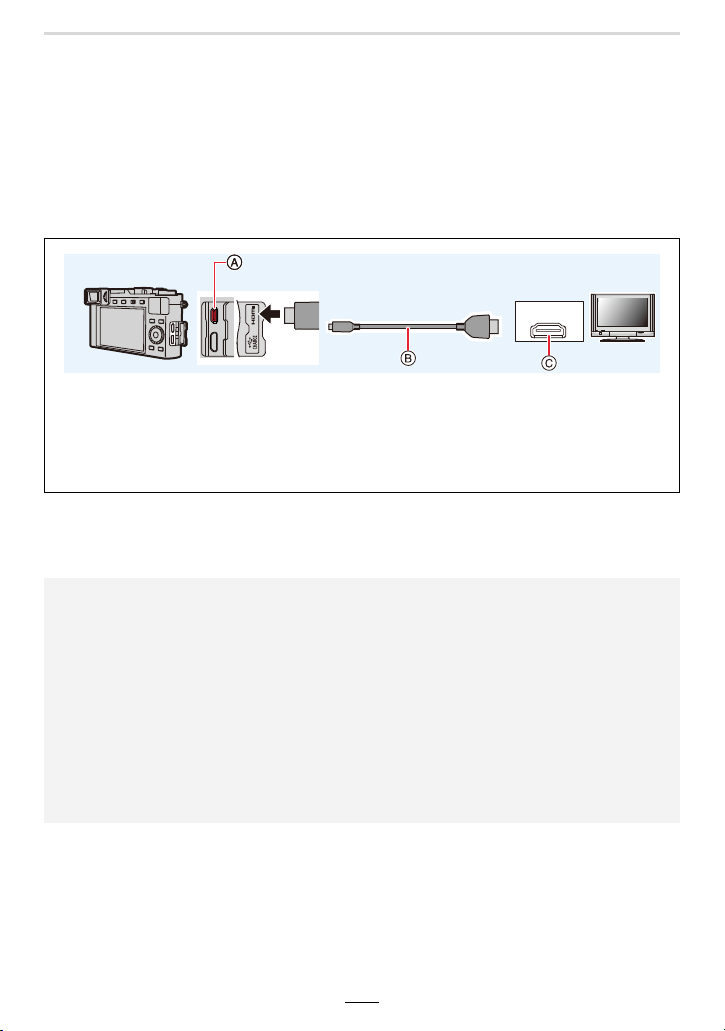
12. Connecting to other equipment
255
Playing Back on a TV
Preparations: Turn off the camera and the TV.
1
Connect the camera and the TV with an HDMI micro cable.
• Check the plugs orientations and insert them straight. (If they are inserted in the wrong
direction, the plug and socket pins could be bent and cause faulty operation.) Also, do
not insert into the wrong socket. Doing so may damage the camera.
2
Turn on the TV and select the input to match the input source in use.
3
Turn the camera on and then press [(].
A [HDMI] socket
B HDMI micro cable
C HDMI socket (on the TV)
• Use a “High Speed HDMI micro cable” with the HDMI logo.
Cables that do not comply with the HDMI standards will not work.
“High Speed HDMI micro cable” (Type D–Type A plug, up to 2m (6'6") long)
• Depending on the aspect ratio, black bars may be displayed on the top and bottom or the left
and right of the TV screen.
• Change the screen mode on your TV if the picture is displayed with the top or bottom cut off.
• Depending on the TV to be connected, video or 4K picture series files may not be played back
correctly.
• Check the [HDMI Mode (Play)]. (>201)
• To play back 24p videos, set [HDMI Mode (Play)] to [AUTO]. Otherwise, the picture is not
output at 24 frames per second.
• No image will be displayed on the monitor/viewfinder of the camera. In addition, no audio will
be output from the speaker of the camera.
• HDMI output will be canceled if a USB cable is connected simultaneously.
• Read the instructions for the TV.
HDMI
256
12. Connecting to other equipment
Preparations:
1 Connect the camera to an HDTV Link (HDMI)-compatible TV with an HDMI micro
cable (>255).
2 Turn the camera on and then press [(].
3 Operate the camera with the remote control for the TV.
Turning this camera off:
If you use the TV's remote control to turn the TV off, the camera is also turned off.
Automatic input switching:
• If you connect with an HDMI micro cable, turn the camera on, and then press [(], the input
channel on the TV automatically switches to the camera's screen. If the TV’s power is in
standby status, it will turn on automatically (if [Set] has been selected for the TV’s [Power on
link] setting).
Using HDTV Link (HDMI)
What is the HDTV Link (HDMI) (HDAVI Control™)?
• HDTV Link is a function that automatically links this camera to HDTV compatible devices via
HDMI micro cables for enabling easy operation with the HDTV remote control. (Some
operations are not available.)
• HDTV Link (HDMI) is an exclusive function added to the industry-standard HDMI control
functions known as HDMI CEC (Consumer Electronics Control). Operation is not guaranteed
when connecting with other HDMI CEC-compatible devices. Refer to your product’s
instructions to verify compatibility with HDTV Link (HDMI).
> [Setup] > [TV Connection] > [HDTV Link] > [ON]
• Operating the camera using its buttons will be limited.
• To play back the sound of a film during a slide show, set [Sound] to [AUTO] or [Audio] on the
Slide Show setting screen.
• Use a “High Speed HDMI micro cable” with the HDMI logo.
Cables that do not comply with the HDMI standards will not work.
“High Speed HDMI micro cable” (Type D–Type A plug, up to 2m (6'6") long)
• Refer to (>279) if HDTV Link is not operating correctly.
MENU

12. Connecting to other equipment
257
Copying the Recorded Image Data to a
Computer
With card readers (external)
• Some computers can read directly from the card taken from the camera, others require the use
of an external card reader. For details, refer to the instructions of the respective devices.
• If the computer being used does not support SDXC Memory Cards, a message prompting you
to format may appear. (Doing so would cause all recorded image data to be erased, so make
sure to select [NO].)
• With an external card reader, make sure it supports the type of card being used.
With a computer connected directly to the camera (using the available software).
∫ Computers that can be used:
Any model capable of recognizing a mass storage device.
Using the software available for downloading after registering your camera on the Leica
Camera AG homepage, you can import the image data for pictures and videos recorded
with this camera in all file formats to a computer.
∫ Installing the software
To utilize the software, it must be installed first. Three preparatory steps are necessary:
1 Register your camera on the Leica Camera AG homepage.
2 Install the software to your computer.
3 Activate the software with the key (numbers) you have received.
• Do so by following the respective instructions appearing after opening the software.
• For details on how to operate the software, refer to the online assistance.
• Windows support: Windows 7/Windows 8/Windows 8.1/Windows 10
• Mac support: OS X v10.5 to macOS 10.13
a. Open an account at http://owners.leica-camera.com. As a result, you will receive
access to the “Owners area”.
b. Register your camera at “My products” by entering its serial number. Do so by
following the respective instructions.
c. Then select “...software download...”. You will be requested to enter the TAN code
which you will find on a sticker on the Guarantee Card.
• The key with which you can activate the software will be sent to you by email.
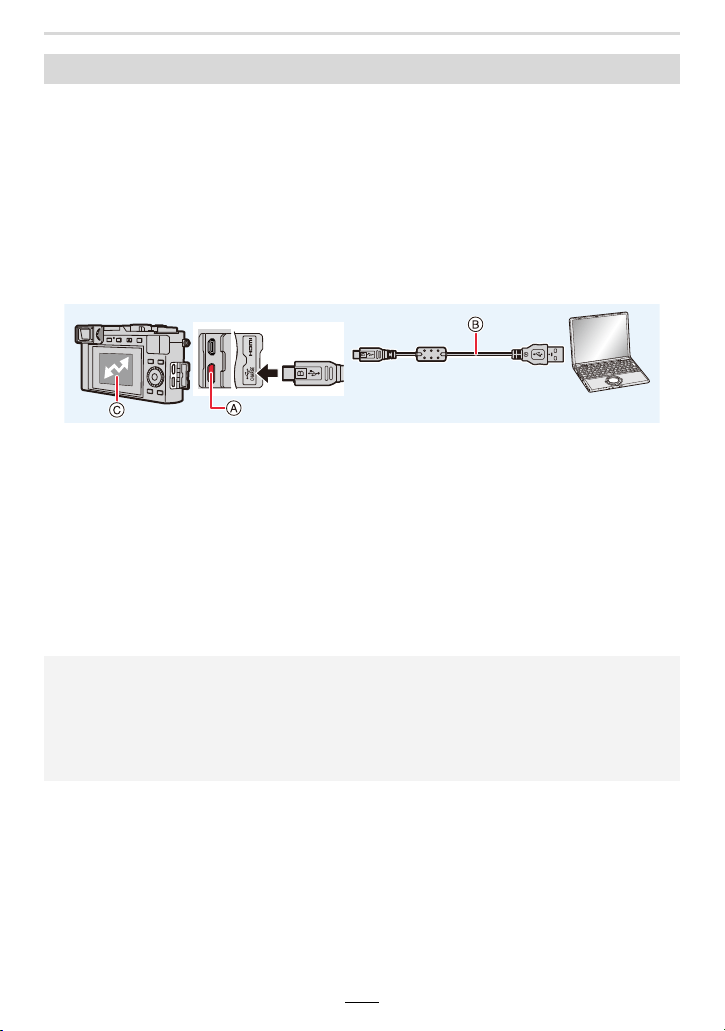
258
12. Connecting to other equipment
Preparations:
• Turn on the camera and computer.
1 Connect the computer and camera with the USB cable.
• Turn on the camera and your computer before connecting.
• Check the plugs orientations and insert them straight. (If they are inserted in the wrong
direction, the plug and socket pins could be bent and cause faulty operation.) Also, do not
insert into the wrong socket. Doing so may damage the camera.
• Do not use any other USB cables except the supplied one.
• A message about charging may be displayed. Wait until the display disappears.
A [USB/CHARGE] socket
B USB cable
C Communicating
• Do not disconnect the USB cable while this is displayed.
2 Press 3/4 to select [PC(Storage)], and then [MENU/SET].
• If [USB Mode] is set to [PC(Storage)] in the [Setup] menu in advance, the camera will be
automatically connected to the computer without displaying the [USB Mode] selection
screen.
3 Copy the images to the computer using the software available for downloading
after registering your camera on the Leica Camera AG homepage.
Transferring images to a computer
• Before removing or inserting the card, turn off the camera and disconnect the USB cable.
Otherwise, damage may be caused to the recorded data.
• Use a sufficiently charged battery.
• If the remaining battery power becomes low while the camera and the computer are
communicating, the alarm beeps.
Disconnect the USB cable safely. Otherwise, data may be destroyed.
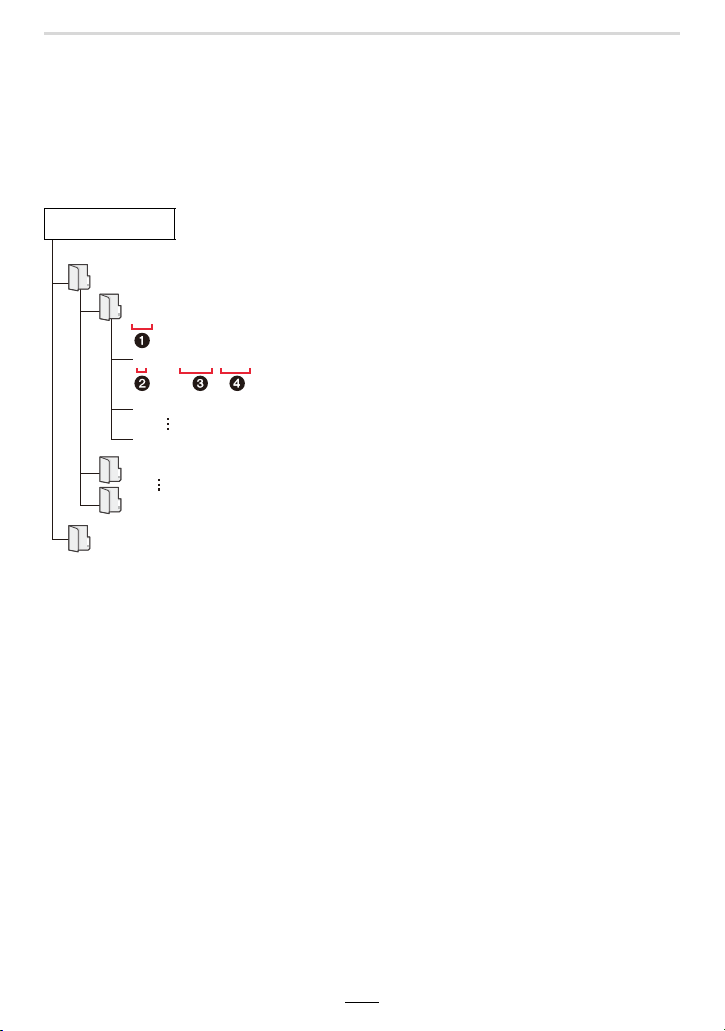
12. Connecting to other equipment
259
∫ Copying to your computer without using software
You can drag and drop the folders and files containing the images you want to transfer into
separate folders on your computer to save them.
• The content (folder structure) on the card of this camera is as follows.
For Windows: A drive ([LEICA]) is displayed in [Computer]
For Mac: A drive ([LEICA]) is displayed on the desktop
•Card
DCIM: Pictures/Videos
1 Folder number
2 Color space L: sRGB
_: AdobeRGB
3 File number
4 JPG: Pictures
RW2: Pictures in RAW files
MP4: [MP4] Videos
4K picture series files
DCIM
100XXXXX
101XXXXX
999XXXXX
LXXX0001.JPG
LXXX0002.JPG
LXXX1000.JPG
PRIVATE
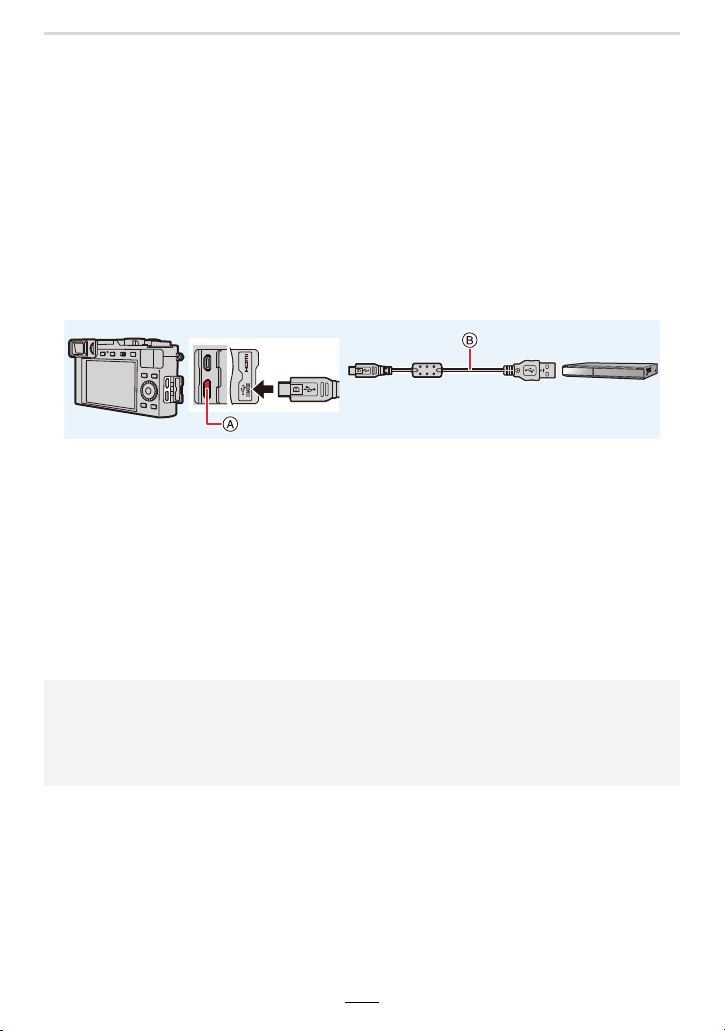
260
12. Connecting to other equipment
Saving Pictures and Videos on a Recorder
You can connect the camera to an accordingly equipped Blu-ray disc or DVD recorder and
store pictures and videos on it.
1
Connect the recorder and camera with the USB cable.
• Before connecting, turn on the camera and the recorder.
• Check the plugs orientations and insert them straight. (If they are inserted in the wrong
direction, the plug and socket pins could be bent and cause faulty operation.) Also, do
not insert into the wrong socket. Doing so may damage the camera.
• Do not use any other USB cables except the supplied one.
• A message about charging may be displayed. Wait until the display disappears.
A [USB/CHARGE] socket
B USB cable
2
Press 3/4 to select [PC(Storage)], and then [MENU/SET].
• If you set the [USB Mode] to [PC(Storage)] in the [Setup] menu, the [USB Mode]
selection screen will not be displayed and the camera will automatically connect to the
recorder.
3
Operate the recorder to copy.
• See the instructions for the recorder about the details about copying and playing back.
• Modes such as 4K video may not be supported depending on the recorder being used.
• Use a sufficiently charged battery or the charger. If the remaining battery power becomes low
while the camera and the recorder are communicating, the alarm beeps. In that case, cancel
copying immediately. Otherwise. damage may be caused to the data.
• Before removing or inserting the card, turn off the camera and disconnect the USB cable.
Otherwise, damage may be caused to the recorded data.
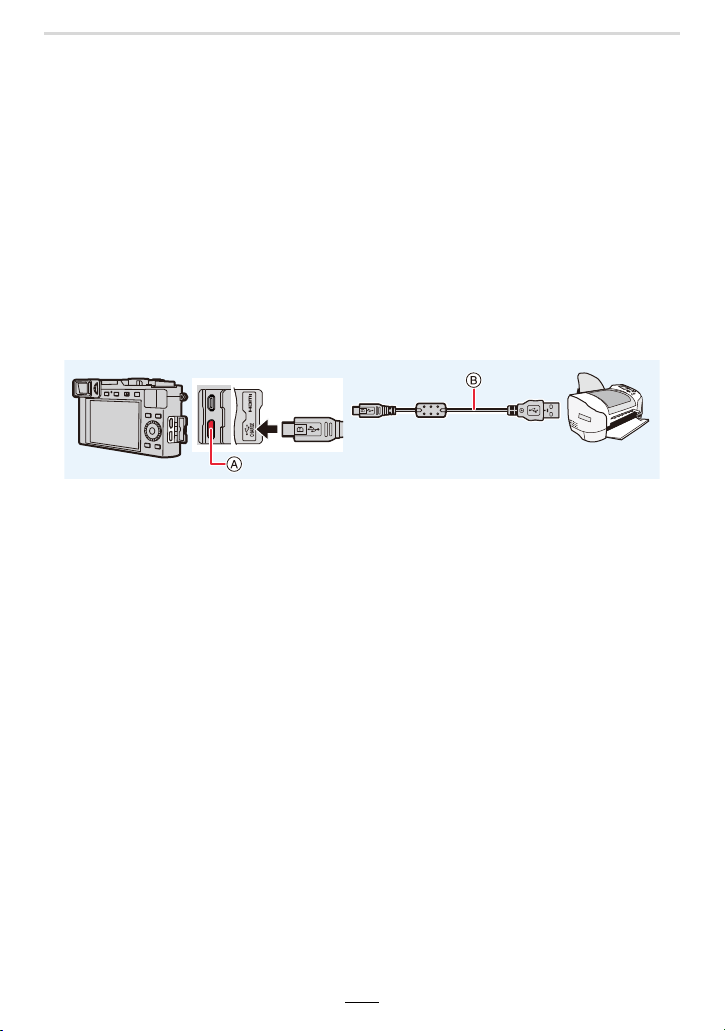
12. Connecting to other equipment
261
Printing Pictures
You can directly connect the camera to a PictBridge-supported printer for printing.
Preparations:
• Perform the print quality and other settings at the printer before printing the pictures.
• Turn on the camera and the printer.
1
Connect the printer and camera with the USB cable.
• Check the plugs orientations and insert them straight. (If they are inserted in the wrong
direction, the plug and socket pins could be bent and cause faulty operation.) Also, do
not insert into the wrong socket. Doing so may damage the camera.
• Do not use any other USB cables except the supplied one.
• A message about charging may be displayed. Wait until the display disappears.
A [USB/CHARGE] socket
B USB cable
• Do not disconnect the USB cable while [å] (Cable disconnect prohibit icon) is
displayed.
(May not be displayed depending on the type of printer used.)
2
Press 3/4 to select [PictBridge(PTP)], and then [MENU/SET].
3
Press 2/1 to select the picture and then [MENU/SET].
4
Press 3/4 to select [Print start] and then [MENU/SET].
262
12. Connecting to other equipment
1 Press 3 to select the multiple printing setting in step 3 of “Printing Pictures”
(>261).
2 Press 3/4 to select an item and then [MENU/SET].
3 Press 3/4 to select [Print start] and then [MENU/SET].
Selecting multiple pictures and printing them
[Multi Select]
Multiple pictures are printed at one time.
•Press 3/4/2/1 to select the pictures and then [MENU/SET].
(Press [MENU/SET] again to cancel the setting.)
• After the pictures have been selected, press [DISP].
[Select All] Prints all the stored pictures.
[Rating] Prints all images with [Rating] levels between [¿1] and [¿5].
• Group pictures will not be displayed as group pictures but as single pictures.
• Disconnect the USB cable after printing.
• Use a sufficiently charged battery. If the remaining battery power becomes low while the
camera and the printer are connected, the alarm beeps. If this happens during printing, stop
printing at once. If not printing, disconnect the USB cable.
• Before removing or inserting the card, turn off the camera and disconnect the USB cable.
Otherwise, damage may be caused to the recorded data.
• Some printers can print directly from the card removed from the camera. For details, refer to
the instructions of your printer.
• The camera is receiving an error message from the printer when the [¥] indication lights
yellow during printing. After finishing printing, make sure there are no problems with the
printer.
• If the number of prints is high, the pictures may be printed several times. In this case, the
remaining number of prints indicated may differ from the number set.
• Only pictures taken in JPEG format can be printed. Those taken in RAW will use the JPEG
pictures that were simultaneously created. If an equivalent JPEG picture is not available, no
print will take place.
Not available in these cases:
• Videos, 4K picture series files, and images recorded with the Post Focus function cannot be
printed.

12. Connecting to other equipment
263
∫ Making print settings on the camera
Setting options include the number of printed pictures and their size. Make settings before
selecting [Print start].
• If the printer does not support date printing, the date cannot be printed on the picture.
• Depending on the printer, the date print settings of the printer may take precedence so check if
this is the case.
• Items not supported by the printer are not displayed.
• When you want to print pictures on a paper size or a layout which is not supported by the
camera, set [Paper Size] or [Page Layout] to [{] and then set the paper size or the layout on
the printer.
(For details, refer to the instructions of the printer.)
You can use [Text Stamp] in the [Playback] menu to stamp date and time on pictures.
∫ Printing date without using [Text Stamp]
In-store printing:
Only the recording date can be printed. Order date printing at a store.
The characters entered using the following menus cannot be printed at a store.
• [Age] and [Name] in [Face Recog.] or [Profile Setup]
• [Location] in [Travel Date]
•[Title Edit]
Printing at home:
When using a printer that supports date printing, you can print the recording date and time
by setting [Print with Date] to [ON].
[Print with Date] [ON]/[OFF]
[Num.of prints] Sets number of pictures (up to 999 pictures).
[Paper Size] Sets the print size.
[Page Layout]
Sets whether or not to add borders and how many pictures to be
printed on each sheet of paper.
Adding date and text to pictures
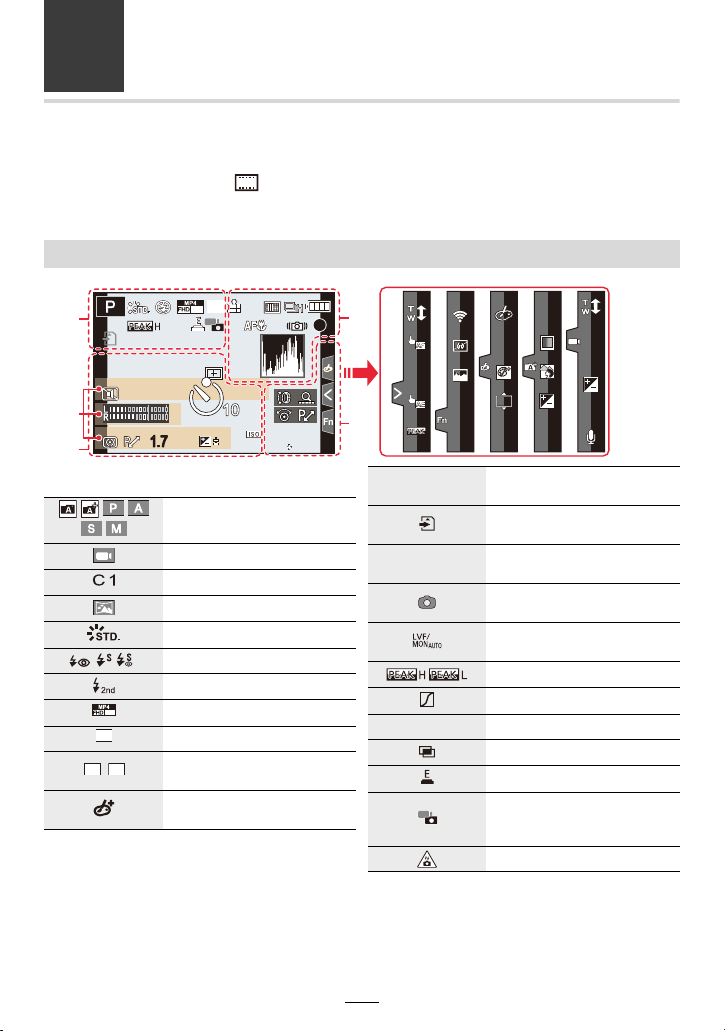
264
13. Others
Monitor Display/Viewfinder Display
Display example: When [ ] (monitor style) is set and the monitor display is in use
• The information displayed, such as histograms, magnifications, and numeric values, are only
for the purpose of reference.
In recording
98
98
98
2
00
00
2
00
2
00
60
60
601.7
L
4:3
0
0
BKT
BKT
BKT
AEL
AEL
AEL
BKT
BKT
BKT
AWB
AWB
AWB
ラュン
ラュン
BKT
BKT
BKT
60
p
Fn10
Fn10
Fn10Fn10
Fn6
Fn6
Fn6Fn6
Fn9
Fn9
Fn9Fn9
OFF
OFF
OFFOFF
OFF
OFF
OFFOFF
Fn7
Fn7
Fn7Fn7
Fn8
Fn8
Fn8Fn8
MINI
MINI
MINIMINI
ISO
ISO
AFS
AFS
AFS
BKT
BKT
BKT
1
Exposure control mode
(>37, 38)
Video recording mode (>37)
Custom settings (>70)
Panorama Shot mode (>117)
Photo Style (>169)
‰Œ
Flash Mode (>149)
Flash (>150)
Recording quality (>154)
Aspect Ratio/resolution (>167)
Picture size (Panorama Shot
Mode) (>117)
Image effect (filter) adjustment
display (>126)
60
p
L
4:3
STD.
WIDE
Image effect (filter) setting
(>122)
Card (displayed only during
recording) (>28)
Elapsed recording time
¢1
(>152)
Simultaneous recording
indicator (>156)
Automatic viewfinder/monitor
switching (>34)
Peaking (>188)
Highlight Shadow (>172)
HDR (>177)/iHDR (>59)
Multi exposure (>178)
Electronic shutter (>176)
Picture-taking during video
recording (Photo Priority)
(>156)
Overheat indicator (>272)
EXPS
8
m
30
s
ラュン
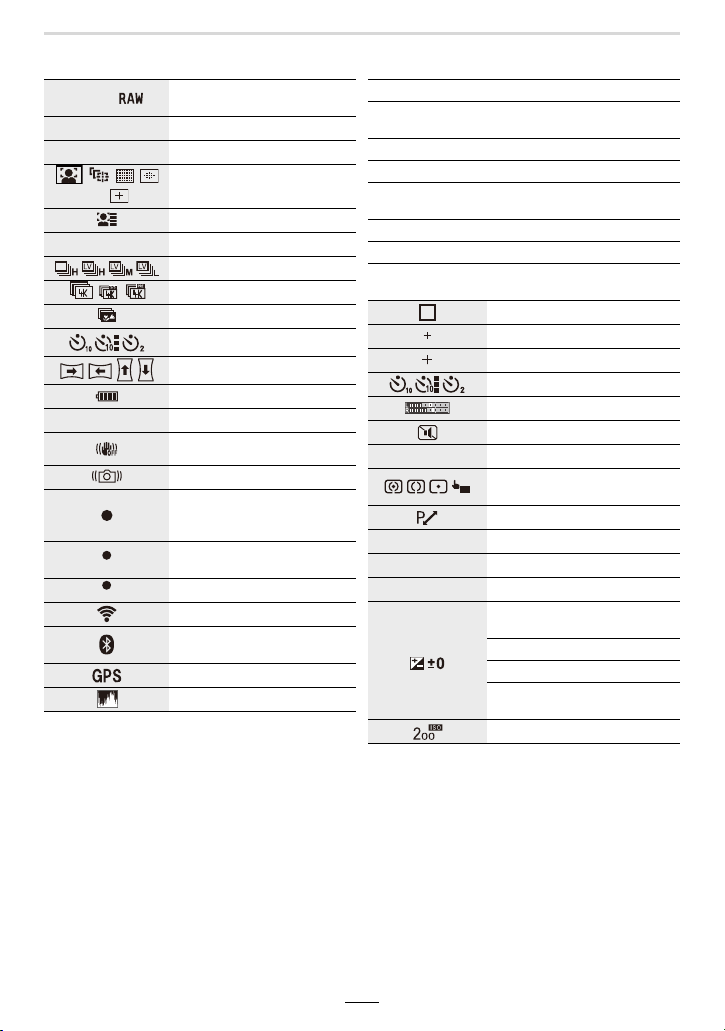
13. Others
265
2
A ›
File format/compression rate
(>168)
Focusing mode (>74, 87)
Focus Bracketing (>132)
Ø
AF metering mode (>75)
Face Recognition (>192)
AF Lock (>89)
Serial exposures (>98)
4K Photo (>100)
Post Focus (>110)
Self-timer (>115)
Panorama direction (>117)
Battery status (>23)
AF#
Macro recording (>86)
Image Stabilizer (>139)
Camera shake alert (>139)
Focus (Lights green.) (>36)/
Recording state (Flashes red.)
(>152)
Focus (Under low illumination)
(>72)
Focus (Starlight AF) (>72)
Connected to Wi-Fi
Connected to Bluetooth
(>227)
Location logging (>241)
Histogram (>188)
AFS
AFF AFC MF
AFS
BKT
AFL
LOW
STAR
3
Name
¢2
(>194)
Number of days that have passed since the
departure date
¢3
(>196)
Age
¢2
(>194)
Location
¢3
(>196)
Current date and time/Travel destination setting
¢3
:
“ (>196)
Exposure meter (>190)
Zoom (>141)
4
AF area (>81)
Spot metering target (>171)
Center marker display (>189)
Self-timer (>115)
Recording level display (>157)
Silent mode (>175)
AE Lock (>89)
Exposure metering mode
(>44, 171)
Program Shift (>62)
1.7
Aperture value (>36)
Aperture Bracketing (>131)
60
Shutter speed (>36)
Exposure compensation value
(>90)
Exposure Bracketing (>131)
Exposure (>60)
Manual Exposure Assistance
(>67)
ISO sensitivity (>92)
AEL
AE
1.7
BKT
BKT
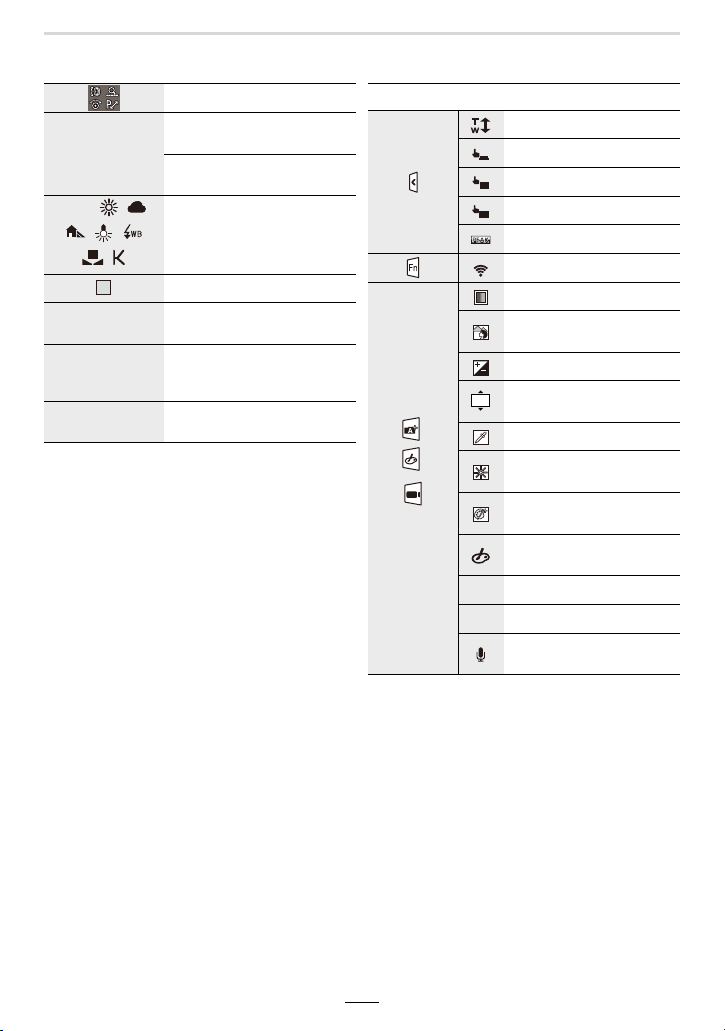
266
13. Others
¢1 m: minutes, s: seconds
¢2 This is displayed for about 5 seconds when the camera is turned on if the [Profile Setup]
setting is set.
¢3 This is displayed for about 5 seconds when the camera is turned on, after setting the clock
and after switching from Playback to Recording mode.
5
Dial guide (>186)
White Balance Bracketing
(>132)
White Balance Fine Adjustment
(>96)
White Balance (>94)
Color (>60)
98
Number of recordable pictures
(>29)
r20
Maximum number of pictures
that can be taken continuously
(>99)
R
Available recording time
¢1
(>29)
BKT
AWB
AWBc
1
8
m
30
s
6
Touch tab (>185)
Touch zoom (>145)
Touch Shutter (>43)
Touch AF (>43)
Touch AE (>44)
Peaking (>188)
Function button (>49)
/
/
(>153)
Color (>60)
Defocus control function
(>60)
Brightness (>60, 153)
Type of defocus ([Miniature
Effect]) (>125)
One point color (>125)
Position of the light source
(>126)
Image effect (filter)
adjustment (>128)
Image effect ON/OFF
(>128)
Image effect (filter) (>128)
ISO sensitivity (>153)
Sound recording level
adjustment (>153)
AF
AE
Fn6
MINIMINI
ISO
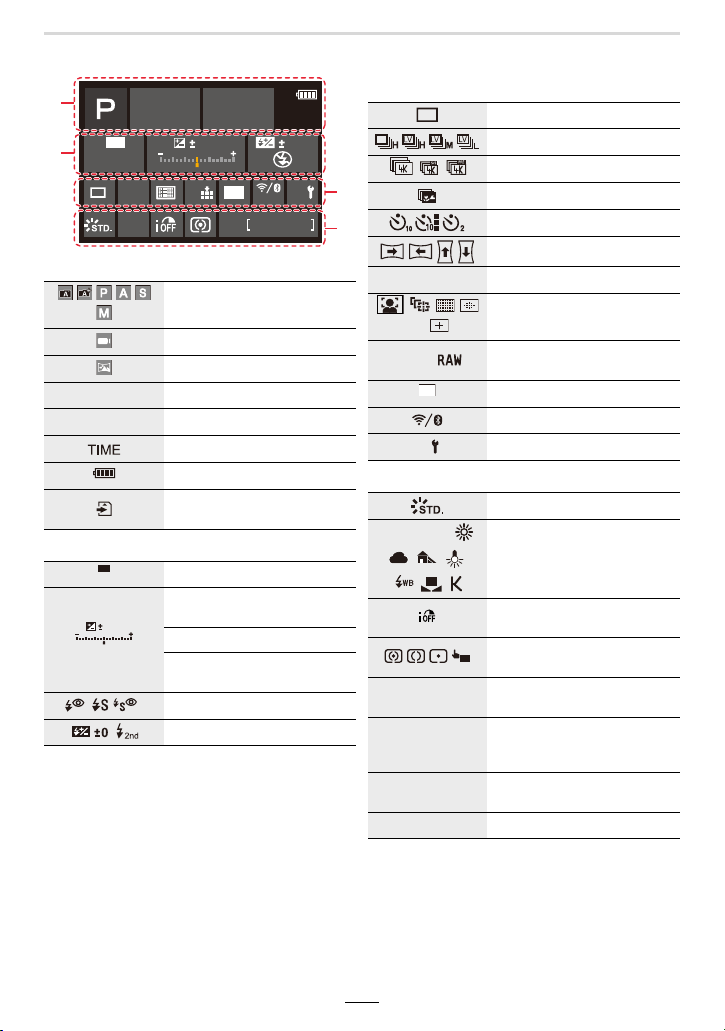
13. Others
267
On-monitor recording information
¢ m: minutes, s: seconds
1
Exposure control mode (>37)
Video recording mode (>37)
Panorama Shot mode (>117)
F1.7
Aperture value (>36)
1/60
Shutter speed (>36)
Time recording (>68)
Battery status (>23)
Card (displayed only during
recording)
2
ISO sensitivity setting (>92)
Exposure compensation value
(>90)
Exposure (>60)
Manual Exposure Assistance
(>67)
‰Œ
Flash mode (>149)
Flash (>150)
F1.7
AWB
1/60
0 0
0
Fn
98
ISO
AUTO
OFF
L
4:3
AFS
AFS
ISO
AUTO
0
0
3
Single (>97)
Serial exposures (>98)
4K Photo (>100)
Post Focus (>110)
Self-timer (>115)
Panorama direction (>117)
Focusing mode (>74, 87)
Ø
AF metering mode (>75)
A ›
File format/compression rate
(>168)
Aspect ratio/resolution (>167)
Wi-Fi/Bluetooth (>222)
Function button setting (>49)
4
Photo style (>169)
White Balance (>94)
Intelligent Dynamic Range
Control (>173)
Exposure metering mode
(>44, 171)
98
Number of recordable pictures
(>29)
r20
Maximum number of pictures
that can be taken continuously
(>99)
Available recording time
¢
(>29)
----
No card
AFS
AFF AFC MF
L
4:3
Fn
AWB
A
WBc
1
AE
R
8
m
30
s
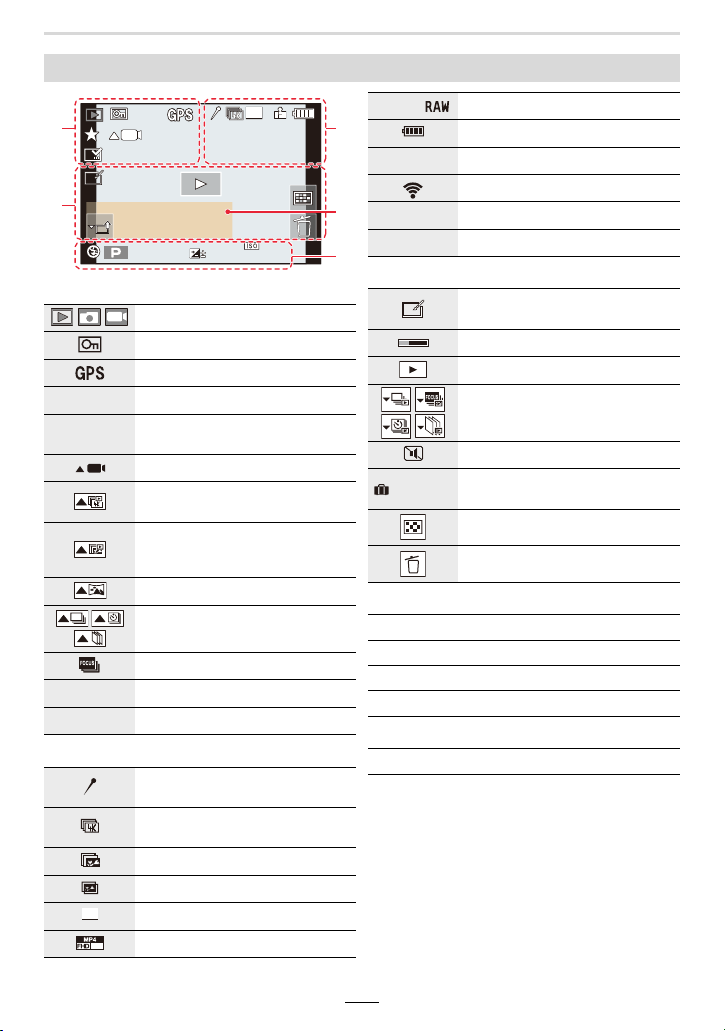
268
13. Others
¢1 m: minutes, s: seconds
¢2 It is displayed in order of [Title], [Location],
[Name] ([Baby1]/[Baby2], [Pet]), [Name]
([Face Recog.]).
In playback
1
Playback mode (>207)
Protected picture (>208)
Location logging (>241)
Ü3
Rating (>208)
å
Cable disconnect prohibit icon
(>261)
Video playback (>159)
Save pictures from the 4K picture
series file (>105)
Create pictures from an image
recorded with the Post Focus
function (>112)
Play panorama (>120)
Continuous group picture playback
(>164)
Focus Bracketing (>132, 163)
‘
Stamped with text indication (>216)
Elapsed playback time
¢1
(>159)
2
Icon indicating the presence of a
marker (>106)
4K Photo (4K picture series file)
(>100)
Post Focus (>110)
Focus Stacking (>113)
Aspect ratio/resolution (>167)
Recording quality (>154)
60
60
60F1.7
F1.7
F1.7
0
0
AWB
AWB
AWB
1/98
1/98
1/98
2
00
00
2
00
2
00
L
4:3
3
3
SLF
SLFSLF
SLF
8
m
30
s
L
4:3
60
p
A ›
Quality (>168)
Battery status (>23)
1/98
Picture number/Total pictures
Connected to Wi-Fi
Number of group pictures
Video recording time
¢1
(>159)
3
Clear Retouch completed icon
(>215)
Currently retrieving information icon
Playback (Videos) (>159)
Group Display (>164)
Silent mode (>175)
Number of days that have passed
since the departure date (>196)
Multi Playback (>162)
Delete (>165)
4
Name
¢2
(>192, 194)
Location
¢2
(>196)
Title
¢2
(>209)
Age (>192, 194)
5
Recording information
SLF
8
m
30
s
67'$<
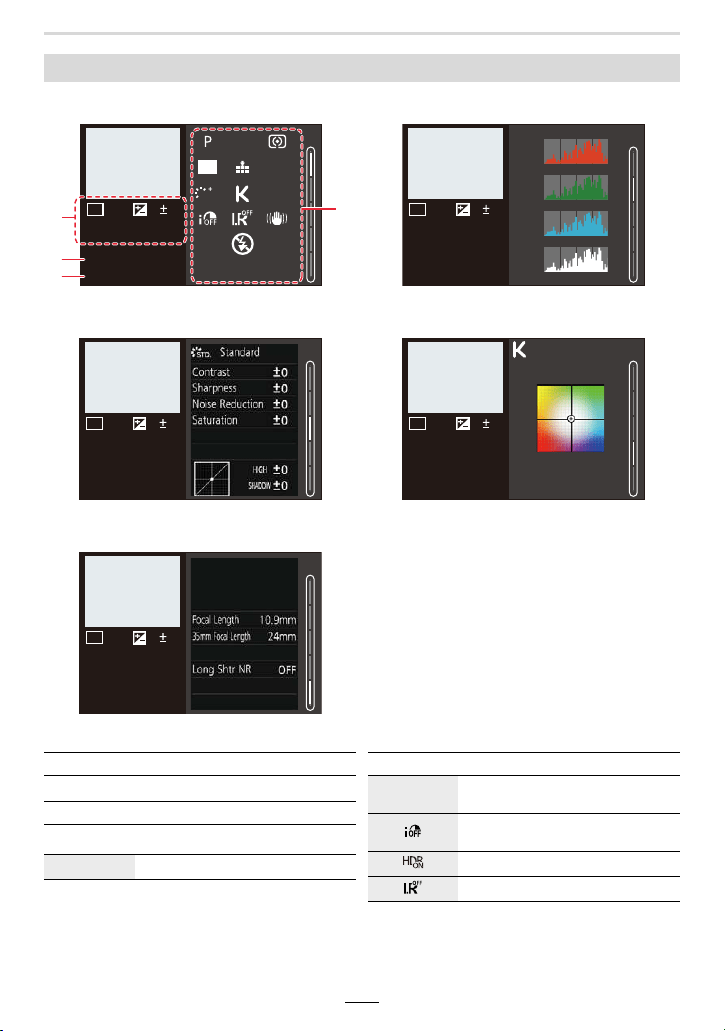
13. Others
269
In playback
Detailed information display Histogram display
Photo style, Highlight shadow display White balance display
Lens information display
s
RGB
1/5
AFS
200
L
4:3
100-0001
5500
STD.
ISOISO
0
F1.7
60
10:00 1.DEC.2018
2/5
200
100-0001
ISOISO
0
60
R
Y
B
G
F1.7
10:00 1.DEC.2018
3/5
200
100-0001
ISOISO
0
60
F1.7
10:00 1.DEC.2018
4/5
200
100-0001
ISOISO
0
60
F1.7
10:00 1.DEC.2018
5500K
G
M
AB
5/5
200
100-0001
ISOISO
0
60
F1.7
10:00 1.DEC.2018
1
Recording information (basic)
2
Recorded date and time/World Time (>195)
3
100-0001
Folder/File number (>259)
4
Recording information (advanced)
5500
White Balance (Color Temperature)
(>95)
Intelligent Dynamic Range Control
(>173)
HDR (>177)/iHDR (>59)
Intelligent Resolution (>173)

270
13. Others
Message Displays
The following explains the meaning of major messages displayed on the screen, and how
to respond to them.
∫ Memory cards
∫ Battery
[Memory Card Error]/[Format this card?]
• Insert a different card.
• Perform formatting
(>28) in this camera after saving necessary data on a computer, etc.
[Read Error]/[Write Error]/[Please check the card]
Remove the card after turning the camera off. Insert the card again, turn the camera on, and
try to read or write the data again.
• Check whether card has been inserted correctly. (>26)
• Insert a different card.
[Recording was cancelled due to the limitation of the writing speed of the card]
• Video recording and recording with the 4K Photo and Post Focus functions require the use of
cards with speed class ratings that support the corresponding types of recording. Be sure to
use a card of the recommended speed class. (>27)
• If recording stops even when you are using a card that meets the speed class rating, the data
writing speed is too slow. We recommend making a backup and then formatting the card
(>
28).
Depending on the type of the card, recording may stop in the middle.
[Memory Card Error]/[This memory card cannot be used]
• Use a card compatible with this camera. (>27)
[This battery cannot be used]
• Use a genuine Leica battery. Consult your dealer or your nearest Leica Customer Care center
if the display still remains.
• Wipe any dirt away from the battery terminals.

13. Others
271
∫ Wi-Fi function
∫ Others
[Failed to connect wireless access point]/[Connection failed]/[No destination
found]
• The wireless access point information set on the camera is wrong.
Check the authentication type, encryption type, and encryption key. (>249)
• It may not be possible to connect to a wireless access point depending on the transmission
condition of other devices. Check the status of other devices that are connected to the
wireless access point and devices that use the 2.4 GHz frequency.
[Connection failed. Please retry in a few minutes.]/[Network disconnected. Transfer
stopped.]
• Transmission from the wireless access point are getting weak.
Perform the connection closer to the wireless access point.
• Depending on the wireless access point, the connection may be automatically disconnected
after specific time has passed.
Reconnect the connection again.
[Connection failed]
• Change the access point to connect to in the smartphone Wi-Fi settings to the camera.
[Some pictures cannot be deleted]/[This picture cannot be deleted]
• This only with pictures that comply with the DCF standard (>158).
Perform formatting
(>28) on this camera after saving necessary data on a computer, etc.
[Cannot be set on this picture]
• Images that do not comply with the DCF standard (>158) cannot be edited on the camera.
[A folder cannot be created]
• A folder cannot be created because there are no remaining folder numbers that can be used.
Perform formatting
(>28) on this camera after saving necessary data on a computer, etc.
If you execute [No.Reset] in the [Setup] menu after formatting, the folder number is reset to
100. (>203)
[Please turn camera off and then on again]/[Lens not detected. Please turn camera
on again.]/[System Error]
• Turn the camera off and on. If the message is still displayed even after repeating this a few
times, contact the dealer where you purchased the camera.
272
13. Others
Troubleshooting
First, try out the following procedures (>272 to 280).
• When the ambient temperature is high or a video is recorded for an extended time, the
camera’s temperature will rise. In that case, the camera may display [ ] and then stop the
recording or temporarily disable the functions below. Wait until the camera cools down.
–[4K PHOTO]
– [Post Focus]
– [Motion Picture]
• Charging is being performed in a place with extremely high or low temperature.
> Reconnect the USB cable and retry charging in a place where the ambient temperature is
10°C to 30°C (50oF to 86oF) (temperature conditions also apply to the battery itself).
• Charging is not possible if the power supply capacity of the computer is low.
• The battery is exhausted. Charge the battery. (>20)
• [Economy] is enabled. (>198)
• When [ ] ([4K Pre-Burst]) is set for recording, the battery drains faster.
> Use these functions only when recording with them.
• Is a Wi-Fi connection being used for a long period of time?
The battery can become flat quickly when connected to Wi-Fi.
> Turn the camera off frequently by using the [Economy] etc. (>198)
If the problem cannot be resolved, it may help to select [Reset] (>203) on the
[Setup] menu.
Recording stops before finishing. Recording is not possible. Some functions are
not available.
Battery and power source
The charging lamp flashes.
Camera does not work even if the camera is turned on.
Camera switches off as soon as the camera is turned on.
This camera is turned off automatically.
The battery becomes flat too quickly.
13. Others
273
• This is characteristic of MOS sensors like the one in this camera.
This is not a malfunction.
• When using the electronic shutter (>176), lowering the shutter speed
may reduce the effect of the horizontal stripes.
• If noticeable flicker or horizontal stripes appear under lighting such as
a fluorescent or LED lighting fixtures during video recording, manually
adjust the shutter speed to 1/60s or 1/100s. Setting a fixed shutter speed can reduce the flicker
or horizontal stripes.
• Is [Focus/Release Priority] in the [Custom] menu set to [FOCUS]? (>183)
You cannot take a picture until the subject is brought into focus.
• The lens is dirty (fingerprints, etc.).
> Turn the camera on to extend lens barrel, and clean the front lens surface with a soft, dry
cloth.
• Is the AE Lock (>89) applied incorrectly?
• Drive mode is set to other than [Single]. (>97)
• Are you using the bracketing function? (>129)
• The subject is beyond the focusing range of the camera.
• Is [Shutter AF] in the [Custom] menu set to [OFF]? (>181)
• Is [Focus/Release Priority] in the [Custom] menu set to [RELEASE]? (>183)
• Is the AF Lock (>89) applied incorrectly?
• If there are fingerprints or dirt on the front lens, the focus may not be set on the subject.
Recording
Flicker or horizontal stripes may appear under lighting such as a fluorescent or
LED lighting fixtures.
Taking pictures is not possible.
The shutter will not operate immediately when the shutter button is pressed.
The recorded picture is whitish.
The recorded picture is too bright or dark.
Multiple pictures are taken at one time.
The subject is not focused properly.

274
13. Others
• The shutter speed will become slower and the Image Stabilizer function may not work properly
when taking pictures especially in dark places.
> We recommend using a tripod and the self-timer when taking pictures with a slow shutter
speed.
• Decrease the ISO sensitivity. (>92)
• Increase the setting for [Noise Reduction] in [Photo Style] or lower the setting for each of the
items other than [Noise Reduction]. (>170)
• Set the [Long Shtr NR] to [ON]. (>174)
• During recording with the electronic shutter, video recording and 4K photo recording, if you take
a picture of a moving subject, it may appear distorted on the picture.
This is characteristic of MOS sensors like the one in this camera. This is not a malfunction.
• When recording under fluorescent or LED lighting fixtures, etc., increasing the shutter speed
may introduce slight changes to brightness and color. These are a result of the characteristics
of the light source and do not indicate a malfunction.
• When recording subjects in extremely bright locations or recording under fluorescent lighting,
LED lighting fixtures, mercury lamps, sodium lighting, etc., the colors and screen brightness
may change or horizontal striping may appear on the screen.
The recorded picture is blurred.
The Image Stabilizer is not effective.
The recorded picture looks 'grainy'.
Noise appears on the picture.
The subject appears distorted on the picture.
The brightness or the hue of the recorded picture is different from the actual
scene.

13. Others
275
• You may not be able to record for a short while after turning the camera on when using a large
capacity card.
• Video recording requires cards with speed class ratings that support particular types of
recording. Be sure to use a card of the recommended speed class. (>27)
• This may occur when taking a picture by reducing the Autofocus speed in order to adjust the
focus setting with high precision. This is not a malfunction.
• With recording in a quiet environment, the sound of aperture and focus setting may be
recorded in videos. This is not a malfunction. The focus operation during recording of videos
can be set to [OFF] in [Continuous AF] (>155).
• While recording videos, if you block the microphone with your fingers, they may reduce the
level of audio recording or audio may not record at all. Also be careful because the operation
sound of the lens can easily be recorded at this time.
• If the operating sounds made during recording bother you, we recommend changing the
relevant setting through touch operations. (>153)
• Since videos are recorded until the video button is pressed again to stop recording, noticeable
operating sounds may be heard when they are played back.
To suppress this sound, we recommend trying the following method.
> Cut off the end part of a video using [Video Divide] (>219) in the [Playback] menu. In some
cases, videos cannot be cut off at a position close to the end of the video. To avoid this
problem, continue recording for an extra 3 seconds.
• Flash photography becomes unavailable in the following case.
> Flash set to [Œ]. (>146, 147, 149)
• When the electronic shutter function is used, flash is not activated. (>176)
• When [Silent Mode] is set to [ON], flash is not activated. (>175)
Videos
Recording videos is not possible.
Video recording stops in the middle.
Sometimes focus adjustment with Autofocus mode is difficult while recording
4K videos.
In videos, abnormal clicking and buzzing sounds are recorded.
The recorded sound is very quiet.
Operating sounds are recorded in a video.
Flash
No flash is emitted.
276
13. Others
• If no operations are performed during the set time period, [Auto EVF/Monitor Off] (>198) is
activated, and the monitor/viewfinder turns off.
• When an object or your hand is positioned near the eye sensor, the monitor display may switch
to the viewfinder display.
• This occurs due to the aperture of the lens changing when the shutter button is pressed
halfway, or when the brightness of the subject changes. This is not a malfunction.
• It is only displayed on the monitor when the camera is connected to a computer or printer.
• Is the card inserted in the camera?
• Is this a folder or picture which was processed in the computer?
If it is, it cannot be played back by this camera.
> It is recommended to use the software available for downloading after registering your
camera on the Leica Camera AG homepage (>257) to write pictures from computer to
card.
• Set [Playback Mode] to [Normal Play]. (>207)
• When Red-Eye Removal ([ ] or [ ]) is performed, red parts may be corrected to black.
> We recommend recording images with the flash mode set to [‰] or [Red-Eye Removal] set
to [OFF]. (>173)
Monitor/Viewfinder
The monitor/viewfinder turns off although the camera is turned on.
The monitor/viewfinder image may flicker for an instant or the brightness of the
screen may change significantly for an instant.
Pressing [EVF] does not switch between the monitor and viewfinder.
Playback
The picture is not played back.
There are no recorded pictures.
Red part of the recorded image has changed color to black.

13. Others
277
∫ General tips for using a Wi-Fi connection
• Use within the communication range of the device to be connected.
• Is any device, such as microwave oven, cordless phone, etc., that uses 2.4 GHz frequency
operated nearby?
> Transmission may get interrupted when used simultaneously. Use them sufficiently away
from the device.
• When the battery indicator is flashing red, the connection with other equipment may not start or
the connection may be disrupted.
(A message such as [Communication error] is displayed.)
• If you place the camera on a metal table or shelf, the transmission may be adversely affected.
In such cases, you may not be able to establish a connection. Move the camera away from the
metal surface.
∫ About a wireless access point
• Check if the wireless access point to connect is in an operating state.
• Check the transmission condition of the wireless access point.
> Perform the connection closer to the wireless access point.
> Change the location and orientation of the wireless access point.
• Depending on the setting of the wireless access point, it may not be displayed even if the
transmission exists.
> Turn off and on the wireless access point.
> When the network SSID of the wireless access point is set not to broadcast, the wireless
access point may not be detected. Enter the network SSID to start the connection (>249)
or enable the SSID broadcast of the wireless access point.
• From the Wi-Fi setting menu on the smartphone, turn the Wi-Fi function off and back on.
Wi-Fi function
A Wi-Fi connection cannot be established.
Transmission is interrupted.
The wireless access point is not displayed.
The camera is not displayed in the Wi-Fi setting screen of the smartphone.

278
13. Others
• Is the file size of the image too large?
> Transmit after dividing the video with [Video Divide] (>219).
> Reduce the resolution at [Size] (>246), and then send.
• It may take longer transmit when the distance to the wireless access point is greater.
> Transmit closer to the wireless access point.
• The file formats of videos that can be sent differ depending on the destination. (>243)
• Execute the [Reset Network Settings] in the [Setup] menu. (>204)
However, the information you have set on the [Wi-Fi Setup] or [Bluetooth] will be reset.
Transmission of the image fails midway. Some images cannot be transmitted.
I have forgotten the Wi-Fi password.

13. Others
279
• Is the camera connected to the TV correctly? (>255)
> Set the input selector of the TV to HDMI.
• Is the [HDTV Link] on this camera set to [ON]? (>201)
> Check the HDTV Link setting on the connected device.
> Turn the camera off and on.
• Set to [PC(Storage)] in [USB Mode]. (>200, 258)
• Turn the camera off and on.
• Check if your computer is compatible with SDXC memory cards.
• A message prompting to format the card may be displayed when connecting, but do not format.
• If the [Access] displayed on the monitor does not disappear, disconnect the USB cable after
turning this camera off.
• Pictures cannot be printed using a printer that does not support PictBridge.
• Set to [PictBridge(PTP)] in [USB Mode]. (>200, 261)
• Release any trimming or edgeless printing settings on a printer before printing.
• The aspect ratio of pictures is different from that of the paper used for printing.
> If printing in a shop, check if 16:9 sizes can be printed.
TV, computer and printer
No image on the TV. The TV screen is blurred or not colored.
HDTV Link does not work.
Cannot communicate with the computer.
The card is not recognized by the computer.
(An SDXC memory card is used.)
The picture cannot be printed when the camera is connected to a printer.
The ends of the pictures are cut at printing.

280
13. Others
• It is a sound of lens movement or aperture operation when the camera is turned on or off. This
is not a malfunction.
• This is the sound of automatic aperture adjustment, which occurs when a zoom operation, etc,
causes the brightness to change. It is not a malfunction.
• When using the Extra optical zoom, the zooming action will stop temporarily. This is not a
malfunction.
• In dark places, the AF Assist Lamp (>182) lights red to make it easier to focus on a subject.
• It may become somewhat warm during use, but this does not affect performance or quality.
• If you do not use the camera for a long time, the clock may be reset.
> Reset the clock. (>31)
Others
The lens makes a clicking noise.
Zooming stops instantaneously.
A red lamp sometimes turns on when the shutter button is pressed halfway.
The camera becomes warm.
The clock is reset.

13. Others
281
Usage Cautions and Notes
Keep the camera as far away as possible from electromagnetic equipment (such as
microwave ovens, TVs, video games etc.).
• If you use the camera on top of or near a TV, the pictures and/or sound may be disrupted by
electromagnetic fields.
• Do not use the camera near cell phones because doing so may result in noise adversely
affecting the pictures and/or sound.
• Recorded data may be damaged, or pictures may be distorted, by strong magnetic fields
created by speakers or large motors.
• Electromagnetic fields may adversely affect the camera, disturbing the pictures and/or sound.
• If the camera is adversely affected by electromagnetic equipment and stops functioning
properly, turn it off and remove the battery or disconnect the charger. Then reinsert the battery
or reconnect the charger and turn the camera on.
Do not use the camera near radio transmitters or high-voltage lines.
• If you record near radio transmitters or high-voltage lines, the recorded pictures and/or sound
may be adversely affected.
Always use the supplied cords and cables.
If you use optional accessories, use the cords and the cables supplied with them.
Do not extend the cords or the cables.
Do not keep objects that may be influenced magnetically close to the speaker.
• Magnetized objects such as bank cards, commuter passes, watches, may be adversely
affected by the magnetic influence of the speaker.
Do not spray the camera with insecticides or volatile chemicals.
• If the camera is sprayed with such chemicals, the body of the camera may be damaged and the
surface finish may peel off.
When in use

282
13. Others
Before cleaning the camera, remove the battery, and/or disconnect the power plug
from the outlet. Then wipe the camera with a dry, soft cloth.
• When the camera is soiled badly, it can be cleaned by wiping the dirt off with a wrung wet cloth,
and then with a dry cloth.
• Do not use solvents such as benzine, thinner, alcohol, kitchen detergents, etc., to clean the
camera, since it may damage the external casing or the coating may peel off.
• When using a chemical cloth, be sure to follow the accompanying instructions.
• Always remove the battery and the card from the camera.
• If the battery is left inserted in the camera, it will discharge even if the camera is turned off. If
the battery continues to be left in the camera, it will discharge excessively and may become
unusable even if charged.
• Do not keep rubber or plastic products in contact with the camera for a long period of time.
• We recommend storing the camera with a desiccant (silica gel) when you keep it in a closet or
a cabinet.
• Store the battery in a cool and dry place with a relatively stable temperature: (Recommended
temperature: 15oC to 25oC (59oF to 77oF), Recommended humidity: 40%RH to 60%RH)
• When storing the battery for a long period of time, we recommend charging it once a year.
Remove the battery out of the camera and store it again after it has completely discharged.
• Check all the parts before taking pictures when you have not used the camera for a long period
of time.
• Do not press the monitor with excessive force. Uneven colors may appear on the monitor and it
may malfunction.
• If the camera is cold when you turn it on, the image on the monitor/viewfinder will be slightly
darker than usual at first. However, the image will return to normal brightness when the internal
temperature of the camera increases.
Cleaning
When not using the camera for a long period of time
About the Monitor/Viewfinder
Extremely high precision technology is employed to produce the monitor/
viewfinder screen. However there may be some dark or bright spots (red, blue or
green) on the screen. This is not a malfunction. Though the Monitor/Viewfinder
screen parts are produced with highly controlled precision technology, some
pixels may be inactive or always lit. The spots will not be recorded on pictures
on a card.

13. Others
283
• Do not exert excessive force on the lens.
• Images may appear slightly white if the front lens is dirty (fingerprints, etc.). Turn the camera
on, hold the extended lens barrel with your fingers, and gently wipe the front lens surface with a
soft, dry cloth.
• Do not leave the camera with the lens facing the sun, as light rays from the sun may cause it to
malfunction. Also, be careful when placing the camera outside or near a window.
The battery is a rechargeable lithium ion battery. Its ability to generate power comes
from the chemical reaction that takes place inside it. This reaction is susceptible to
the surrounding temperature and humidity. If the temperature is too high or too low,
the operating time of the battery will become shorter.
Always remove the battery after use.
• Place the removed battery in a plastic bag, and store or keep it away from metal objects (clips,
etc.).
Bring along charged spare batteries when going out.
• Be aware that the operating time of the battery becomes shorter in low temperature conditions
such as in winter.
• When you travel, do not forget to bring the charger and the USB cable so that you can charge
the battery in the country that you are traveling in.
If you drop the battery accidentally, check to see if the body of the battery and the
terminals are damaged.
• Inserting a damaged battery in the camera will damage the camera.
Disposal of an unusable battery.
• The battery has a limited life.
• Do not throw the battery into fire because it may cause an explosion.
Do not allow battery terminals to come into contact with metal objects (such as
necklaces, hairpins, etc.).
• This can cause short-circuiting or heat generation and you may be badly burned if you touch
such a battery.
About the Lens
Battery

284
13. Others
• Keep at least 1m (3′ 3″) away from AM radios (may cause radio interference).
• The charger/AC adapter may generate whirring sounds when it is being used. This is not a
malfunction.
• After use, be sure to disconnect the power supply device from the electrical outlet. (A very
small amount of current is consumed if it is left connected.)
Do not leave the card where the temperature is high, where electromagnetic fields
or static electricity are easily generated or exposed to direct sunlight.
Do not bend or drop the card.
• The card may be damaged or the recorded content may be damaged or deleted.
• Put the card in the card case or the storage bag after use and when storing or carrying the
card.
• Do not allow dirt, dust, or water to get into the terminals on the back of the card and do not
touch the terminals with your fingers.
• Recorded data may be damaged or lost if the camera breaks down due to inappropriate
handling. Leica Camera AG will not be liable for any damage caused due to loss of recorded
data.
∫ Notice for when transferring to another party, or disposing of the memory card
• Formatting or deleting using the camera or a computer will only modify the file
management information, it will not erase the data in the memory card completely.
• It is recommended to physically destroy the memory card or use the commercially
available computer data deletion software to completely erase the data in the memory
card before transferring to another party or disposing.
• Management of data in the memory card is the responsibility of the user.
• When you use a tripod, make sure the tripod is stable when the camera is attached to it.
• You may not be able to remove the card or the battery when using a tripod or unipod.
• Make sure that the screw on the tripod or unipod is not at an angle when attaching or detaching
the camera. You may damage the thread in the camera if you use excessive force when turning
it. Also, the camera body and the rating label may be damaged or scratched if the camera is
attached too tightly to the tripod or unipod.
• Read the instructions for the tripod or unipod.
Charger/AC adapter
Card and data
About tripods or unipods

13. Others
285
We recommend that you enable [Wi-Fi Password] and [Wi-Fi Function Lock] to protect
personal information. (>253)
If a name or birthday is set for [Profile Setup]/Face Recognition function, this personal
information is kept in the camera and recorded in the image.
Be sure to pay special attention to the privacy, i.e. personal rights, etc. of a subject
and take your own responsibility when you use the [Silent Mode], or use functions
such as writing the location information and changing the shutter noise, etc.
Disclaimer
• Information including personal information may be altered or be deleted due to erroneous
operation, the effects of static electricity, an accident, a malfunction, a repair, or others.
Please note in advance that Leica Camera AG is not liable in any way for any direct or indirect
damage from the alteration or deletion of information or personal information.
When requesting a repair, transferring to another party, or disposing.
• After making a copy of personal information, always delete information such as personal
information and wireless LAN connection settings that you have saved within the camera with
[Reset Network Settings] (>204).
• Reset the settings to protect the personal information. (>203)
• Remove the memory card from the camera when requesting a repair.
• Settings may return to factory default when camera is repaired.
• If the above operations cannot be performed because of a camera malfunction, consult your
dealer or the nearest Leica Customer Care department.
When transferring to another party, or disposing of the memory card, please refer to
“Notice for when transferring to another party, or disposing of the memory card”.
(>284)
When uploading images on web services
• Images may contain information that can be used for identifying individuals such as titles,
recording dates, and location information. When uploading images on web services, check
carefully, and then upload.
About the personal information

286
13. Others
∫ Use of the camera as a wireless LAN device
When using equipment or computer systems that require more reliable security than
wireless LAN devices, ensure that the appropriate measures are taken for safety designs
and defects for the systems used. Leica Camera AG will not take any responsibility for any
damage that arises when using the camera for any purpose other than as a wireless LAN
device.
∫ Use of the Wi-Fi function of the camera is presumed to be in countries where this
camera is sold
There is the risk that the camera violates the transmission regulations if used in countries
other than those where this camera is sold, and Leica Camera AG takes no responsibility
for any violations.
∫ There is the risk that data sent and received via transmission may be intercepted
Please note that there is the risk that data sent and received via radio waves may be
intercepted by a third party. We strongly recommend that you set an encryption to maintain
information security.
∫ Do not use the camera in areas with magnetic fields, static electricity or
interference
• Do not use the camera in areas with magnetic fields, static electricity or interference, such as
near microwave ovens. These may cause the interruption of the transmission.
• Using the camera near devices such as microwave ovens or cordless telephones that use the
2.4 GHz transmission band may cause a decrease in performance in both devices.
∫ Do not connect to a wireless network you are not authorized to use
When the camera utilizes its Wi-Fi function, wireless networks will be searched for
automatically. When this happens, wireless networks that you are not authorized to use
(SSID
¢
) may be displayed, however do not attempt to connect to such a network as it may
be considered as attempted unauthorized access.
¢ SSID refers to the name that is used to identify a network over a wireless LAN connection. If
the SSID matches for both devices, transmission is possible.
Wi-Fi function

287
13. Others
• The SDXC Logo is a trademark of SD-3C, LLC.
• The terms HDMI and HDMI High-Definition Multimedia Interface, and the HDMI Logo are
trademarks or registered trademarks of HDMI Licensing Administrator, Inc. in the United
States and other countries.
• Dolby, Dolby Audio, and the double-D symbol are trademarks of Dolby Laboratories.
• Leica is a registered trademark of Leica Microsystems IR GmbH.
• Summilux is a registered trademark of Leica Camera AG.
• Adobe is a trademark or registered trademark of Adobe Systems Incorporated in the United
States and/or other countries.
• Windows is either registered trademark or trademark of Microsoft Corporation in the United
States and/or other countries.
• iMovie, Mac, OS X and macOS are trademarks of Apple Inc., registered in the U.S. and other
countries.
• iPad, iPhone, iPod, and iPod touch are trademarks of Apple Inc., registered in the U.S. and
other countries.
• App Store is a service mark of Apple Inc.
• Android and Google Play are trademarks or registered trademarks of Google Inc.
• The Bluetooth
®
word mark and logos are registered trademarks owned by the Bluetooth SIG,
Inc. and any use of such marks by Leica Camera AG is under license. Other trademarks and
trade names are those of their respective owners.
• The Wi-Fi CERTIFIED™ Logo is a certification mark of Wi-Fi Alliance
®
.
• The Wi-Fi Protected Setup™ Logo is a certification mark of Wi-Fi Alliance
®
.
•“Wi-Fi
®
” is a registered trademark of Wi-Fi Alliance
®
.
• “Wi-Fi Protected Setup™”, “WPA™”, and “WPA2™” are trademarks of Wi-Fi Alliance
®
.
• QR Code is a registered trademark of DENSO WAVE INCORPORATED.
• This product uses “DynaFont” from DynaComware Corporation. DynaFont is a registered
trademark of DynaComware Taiwan Inc.
• Other names, company names, and product names mentioned in these instructions are
trademarks or registered trademarks of the companies concerned.

288
13. Others
This product incorporates the following software:
The software categorized as (3) - (5) are distributed in the hope that it will be useful, but
WITHOUT ANY WARRANTY, without even the implied warranty of MERCHANTABILITY
or FITNESS FOR A PARTICULAR PURPOSE. Please refer to the detailed terms and
conditions thereof displayed by selecting [MENU/SET] → [Setup] → [Version Disp.] →
[Software info]
This product is licensed under the AVC Patent Portfolio License for the personal use of a
consumer or other uses in which it does not receive remuneration to (i) encode video in
compliance with the AVC Standard (“AVC Video”) and/or (ii) decode AVC Video that was
encoded by a consumer engaged in a personal activity and/or was obtained from a video
provider licensed to provide AVC Video. No license is granted or shall be implied for any other
use. Additional information may be obtained from MPEG LA, L.L.C.
See http://www.mpegla.com
(1) the software developed independently for Leica Camera AG,
(2) the software owned by third party and licensed to Leica Camera AG,
(3) the software licensed under the GNU General Public License, Version 2.0 (GPL
V2.0),
(4) the software licensed under the GNU LESSER General Public License, Version 2.1
(LGPL V2.1), and/or
(5) open source software other than the software licensed under the GPL V2.0 and/or
LGPL V2.1.

289
13. Others
Leica Service Addresses
Leica Product Support
The Leica Product Support department can provide you with answers to any technical
questions relating to Leica products, including software supplied, either in writing, on the
telephone or by e-mail.
It is also the contact point for purchasing advice and to order instructions.
Alternatively, you can send us your questions using the contact form on the Leica Camera
AG homepage.
Leica Camera AG
Product Support / Software Support
Am Leitz-Park 5
D-35578 Wetzlar
[email protected] / software-support@leica-camera.com
Leica Customer Care
For servicing your Leica equipment or in the event of damage, the Leica Camera AG
Customer Care department or the repair service provided by authorized Leica agents in
your country are available (for addresses, see the Leica Camera AG homepage).
Leica Camera AG
Customer Care
Am Leitz-Park 5
D-35578 Wetzlar
customer[email protected]
Telephone: +49 (0) 6441-2080-111 /-108
Fax: +49 (0) 6441-2080-490
Telephone: +49 (0) 6441-2080-189
Fax: +49 (0) 6441-2080-339

DAS WESENTLICHE.
Leica Camera AG
│
Am Leitz-Park 5
35578 WETZLAR
│
DEUTSCHLAND
Telefon +49(0)6441-2080-0
│
Telefax +49(0)6441-2080-333
www.leica-camera.com