Set Up Device
APP USER GUIDE
Wi-Fi 2.4GHz
Wi-Fi 5GHz
Wi-Fi 5GHz
WiFi 2.4GHz
NOTE: Only works with 2.4GHz Wi-Fi networks
Download the Feit Electric App.
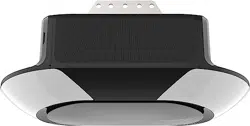
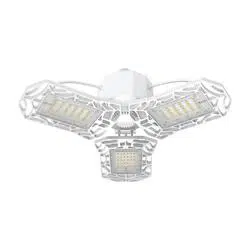
Smart
Garage Light
with Adjustable
Panels
Feit Electric
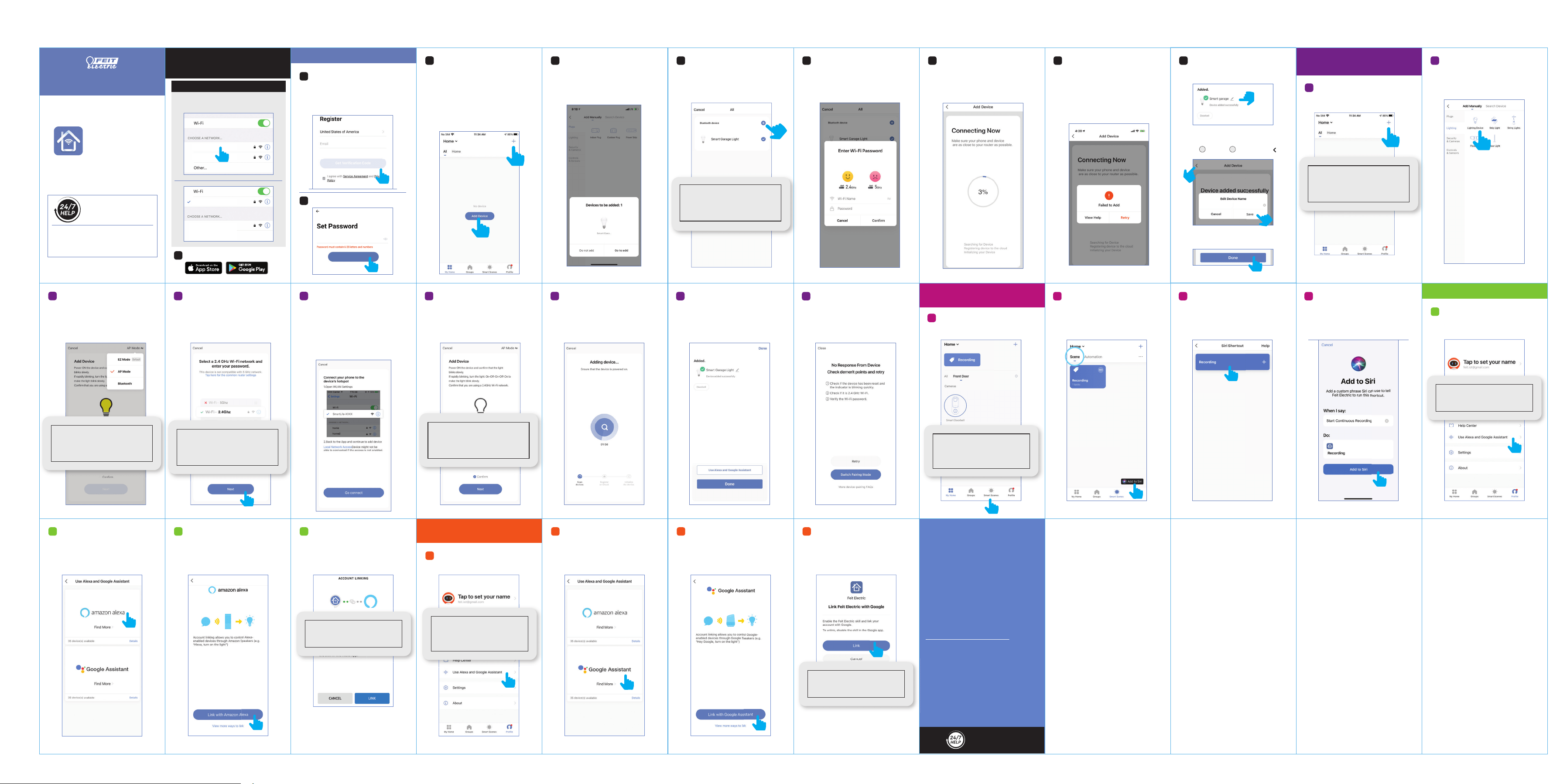
Launch the Feit Electric App.
Enter email address to register or log
into your account. Then tap Continue.
A verification code will be sent to
your email.
Create a password then tap Done.
As the light continues to blink, select it
from the list, then tap the plus (+) sign.
Adding Device
Your screen images may differ from this
user guide.
Make sure you are connected to a
2.4GHz Wi-Fi Network. The device
name(s) will pop up for simple pairing
enabled devices. Tap on Go to add.
Done
Go to your Wi-Fi settings and connect your
phone to your 2.4GHz Wi-Fi network.
BEFORE USING THIS USER GUIDE SEE
INCLUDED INSTALLATION GUIDE FOR
PROPER PRODUCT INSTALLATION.
System Requirements
Minimum: iOS 9.3, Android
™
4.4 KitKat
®
or higher
- Dedicated 2.4GHz Wi-Fi Network -
For 24/7 customer support,
visit
feit.com/help
Enable Bluetooth on your smart device
for simple pairing. Install your Smart
Adjustable Panel Garage Light and
power it ON-OFF-ON-OFF-ON.
Your light will begin to blink, entering
pairing mode. Tap Add Device or the
plus (+) sign on the upper right corner.
The Connecting Now status window
will appear. Wait until connection
is complete.
After confirming that you are on a
2.4GHz Wi-Fi network, enter your
password then tap Confirm.
If you see a Failed to Add
notification, check to be sure your
Wi-Fi password was entered correctly.
Close the app and repeat the previous
steps to try re-connecting or tap View
Help for further assistance.
Open up the Feit Electric App.
Tap plus (+) in the upper right corner.
Adding Your Device Using
AP Mode
Choose your device type.
Choose AP Mode.
Make sure your device is in AP pairing
mode (light should flash one time every
three seconds). Tap Confirm then tap
Next to go on to the next step.
Enter the name of your 2.4 GHz Wi-Fi
network, enter your password and tap
Next to begin connecting.
Tap Go connect. If you do not get
automatically redirected please visit
your phone wireless settings page to
pick the SmartLife-XXX network.
After you have connected to SmartLife,
return to the Feit Electric app.
Your device should begin connecting
using AP Mode.
If you see this screen your device was
added successfully.
If you see a No Response From Device
screen it means the network
connection failed. Try connecting again
or View Help.
Enable Siri Shortcuts
(for use with iPhone)
From the My Home page, tap Smart
Scenes
at the bottom of screen.
In the Scene Tab, tap Add to Siri
located at the bottom of the screen.
In the Siri Shortcut screen, tap on the
action you would like to add to
Siri.
On the Add to Siri screen, give it a
name. Then tap on
Add to Siri at the
bottom of the screen.
Tap on Amazon Alexa. Tap on Link with Amazon Alexa. Tap on Link. You will be linked
automatically to your Amazon Alexa app.
CONNECT TO GOOGLE
ASSISTANT
Tap on Profile bottom right. Tap on Use
Alexa and Google Assistant.
Tap on Google Assistant.
feit.com/help
Tap on Link with Google Assistant. Tap on Link. You will be linked
automatically to your Google Assistant app.
1
Then tap Done.
Smart Garage Light
Once device is successfully added,
tap the Pen icon to rename the device.
Once device has been renamed,
Tap Save then tap back “ ”.
21
A.
B.
CONNECT TO ALEXA
Tap on Profile at bottom right. Tap on
Use Alexa and Google Assistant.
Please refer to our online
resources at
www.feit.com/help
to learn about more
features & latest updates
Need Help?
feit.com/help
NOTE: If this is the first device
you are setting up you can also
select Add Device.
NOTE: The light will continue
blinking (pairing mode) for
approximately 20 seconds.
NOTE: After connecting your
device your phone will
automatically rejoin your
original 2.4 GHz network.
NOTE: Your Wi-Fi network name
and password are case sensitive.
NOTE: If your device is not
slowly flashing, View Help
for additional information
and instructions.
NOTE: Additional devices will
be added automatically when
added to the Feit Electric app.
NOTE: Sign in to Google
Assistant. If you do not have an
account with Google, please
create one.
NOTE: Additional devices will
be added automatically when
added to the Feit Electric app.
NOTE: Use Siri to execute an
action through voice control. If
you have not created an action,
see the Smart Scenes section.
NOTE: Sign in to Amazon Alexa.
If you do not have an account
with Amazon, please create one.
2
3
4
5 6 8
9
7
2
1
5
3 4
7
9
8
6
1
2 3 4
2 3 4
1
2 3
4
10
1