ES-G181199

USER MANUAL
Before using the TV, please read this manual
thoroughly and retain it for future reference.
ENGLISH
1
ENGLISH FRANÇAIS ESPAÑOL
Copyright Statement
© 2018 Hisense Company Ltd. All Rights Reserved.
All material in this User Manual is the property of Hisense Company Ltd. and its subsidiaries, and is protected under
US and International copyright and/or other intellectual property laws. Reproduction or transmission of the materials,
in whole or in part, in any manner, electronic, print, or otherwise, without the prior written consent of Hisense Company
Ltd., is a violation of Hisense Company Ltd. rights under the aforementioned laws.
No part of this publication may be stored, reproduced, transmitted or distributed, in whole or in part, in any manner,
electronic or otherwise, whether or not for a charge or other or no consideration, without the prior written permission of
Hisense Company Ltd. Requests for permission to store, reproduce, transmit or distribute materials may be made in
writing to the following address:
“Sharp™”, “Aquos™”, “Quattron™” and any and all other Sharp product names, logo’s, slogans or marks are registered
trademarks owned exclusively by Sharp Corporation.
“Hisense™”, and any and all other Hisense product names, logo’s, slogans or marks are registered trademarks and
intellectual property rights of Hisense Company Ltd. and its subsidiaries.
This product is sold to you under one or more license agreements between Sharp Corporation and Hisense International
(Hong Kong) America Investment Co. Ltd. All other trademarks are the property of their respective holders.

2
ENGLISH FRANÇAIS ESPAÑOL
Disclaimer Page
**Notwithstanding anything to the contrary, including in any or all descriptions, representations, statements or other
communications related to this Sharp, Aquos or Quattron device (hereinafter “Device”) made in any form whatsoever
and at any time, some or all of the pre-installed, or subsequently installed Application Services may not be available
or capable of functioning as intended by the provider of the Application Services in any or all usage areas for reasons
outside of the control of the licensors or manufacturer of this device, including but not limited to, Internet access, local
service limitations, etc. Any purchase or use of the Device, including any Application Services, is purely at the user’s
risk. Application Services are provided on an as-available basis without warranties of any kind, either expressed or
implied, that the Application Service will be uninterrupted or error-free, including but not limited to vagaries of weather,
disruption of Service, acts of God, warranties of title, local or regional limitations, no infringement, NOR IMPLIED
WARRANTIES OF MERCHANTABILITY OR FITNESS FOR A PARTICULAR PURPOSE. No advice or information given
by the licensors or manufacturers providers, affiliates, or contractors or their respective employees shall create such
a warranty. All licensors and the manufacturer of this device, jointly and separately, specifically disclaim any and all
responsibility for any or all Application Services from functioning at any time, and by purchasing the Device, you accept
such disclaimer without any claim on the licensors and manufacturer. You are solely responsible for providing an active
and working connection to the Internet, along with any and all hardware and/or software necessary to use the Device as
intended.
Disclaimer:
Images throughout this document are for illustrative purposes only and may differ from the actual product.
ENGLISH
3
Content
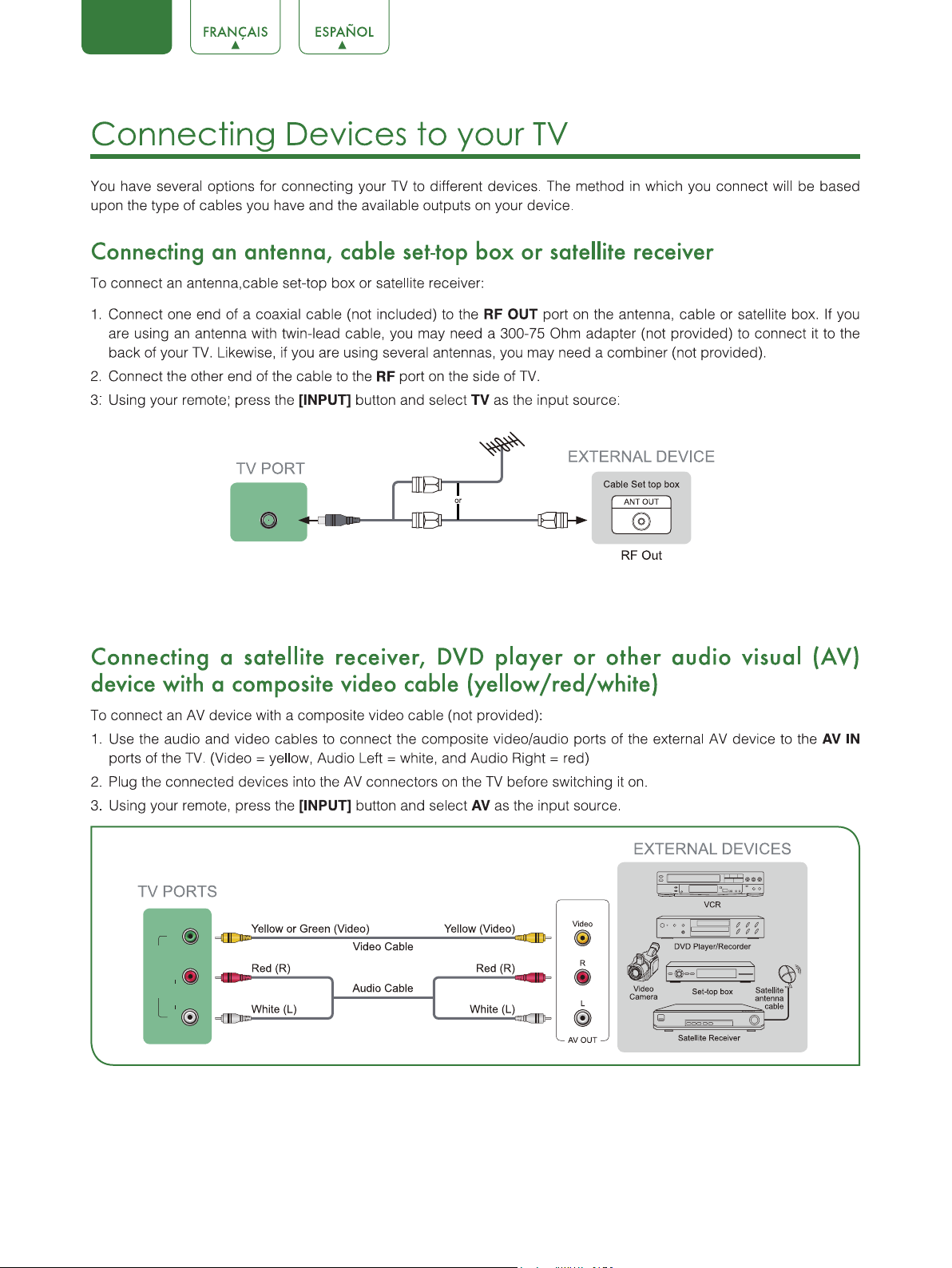
ENGLISH
RF
Audio
L R
AV IN/Component
Video / Y
AV IN/Component
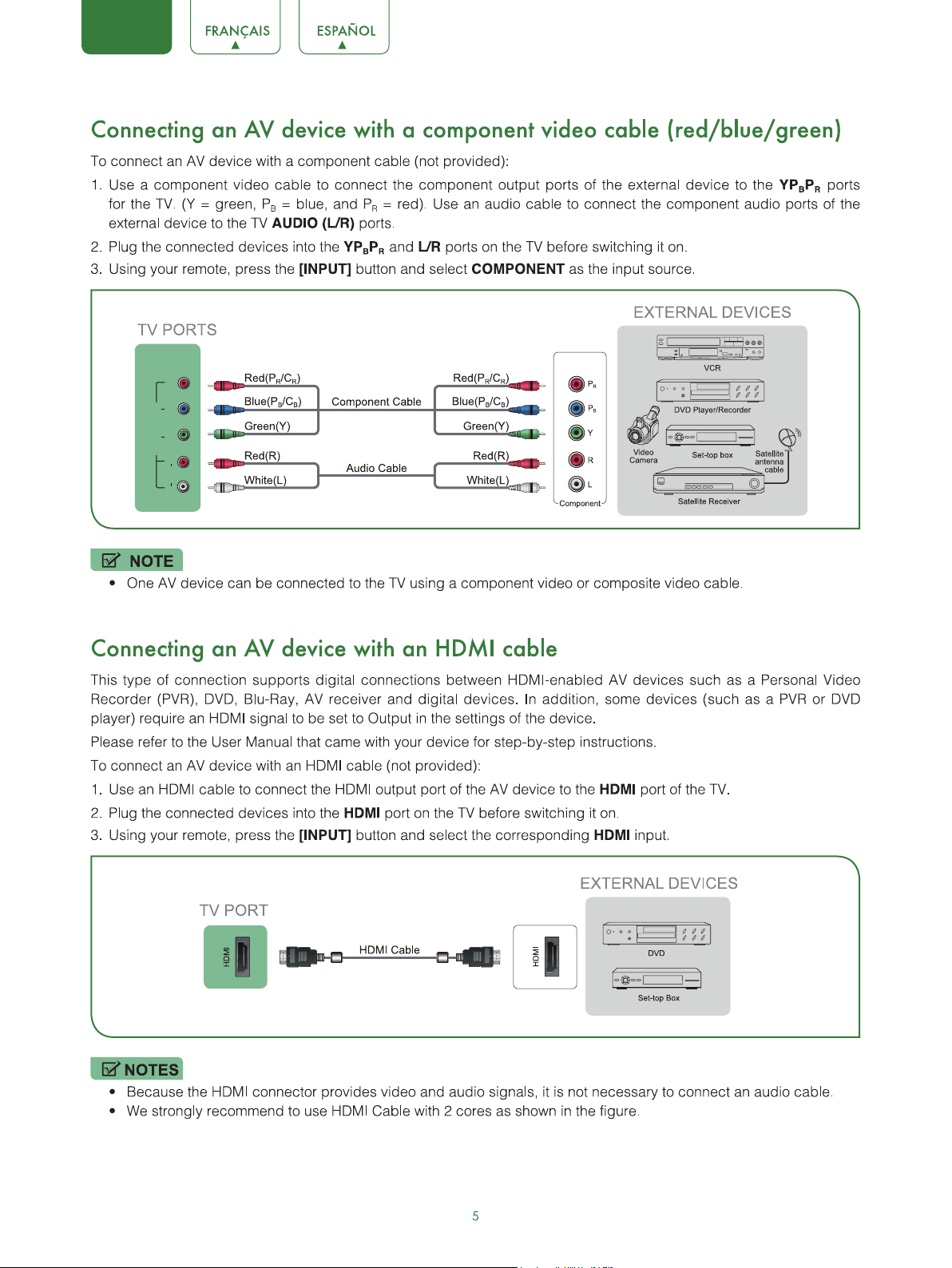
ENGLISH
Audio
L R Video / Y
AV IN/Component
P
b Pr
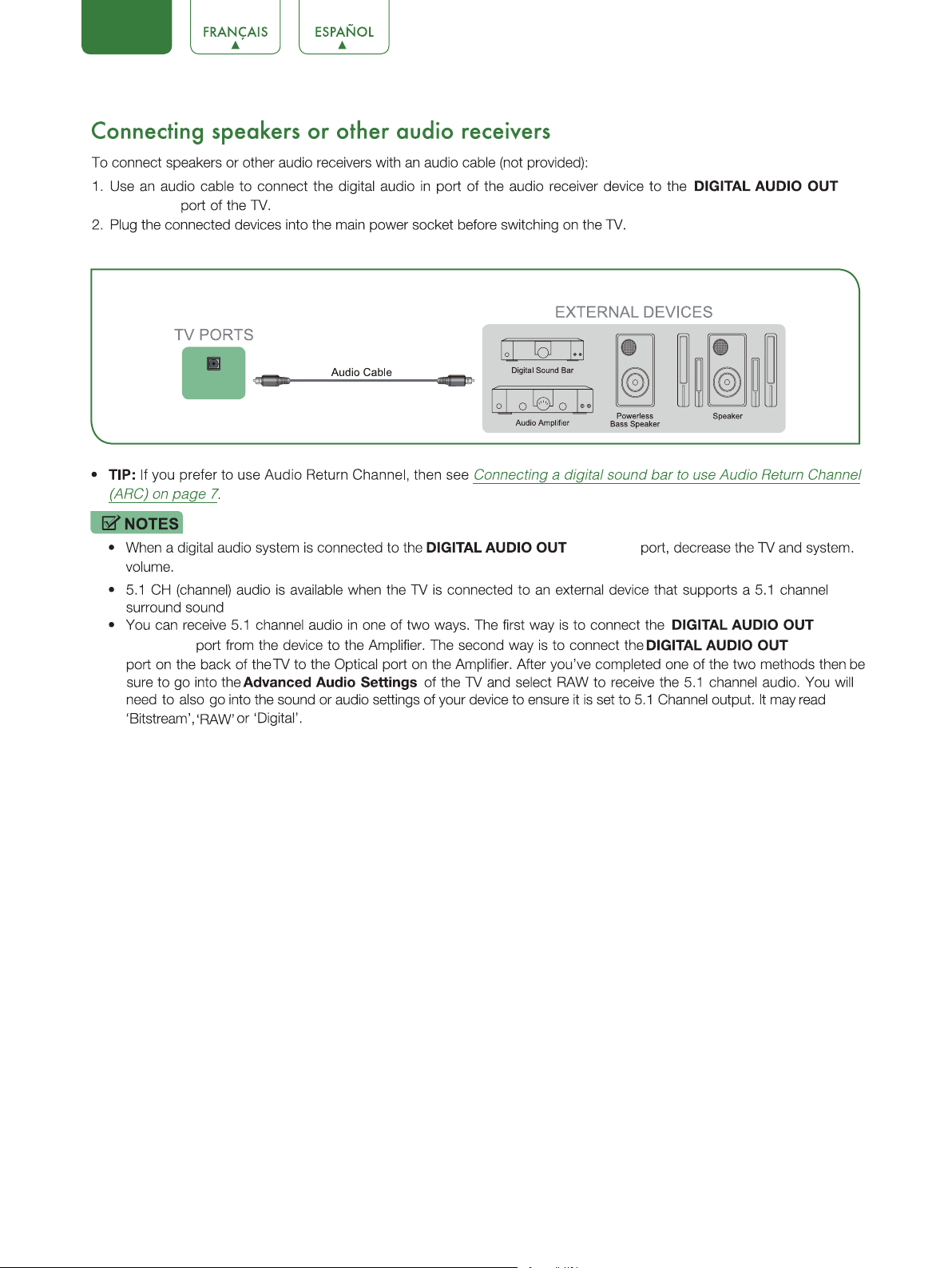
ENGLISH
Digital Audio Out
(OPTICAL)
(OPTICAL)
(OPTICAL)
(OPTICAL)
(OPTICAL)
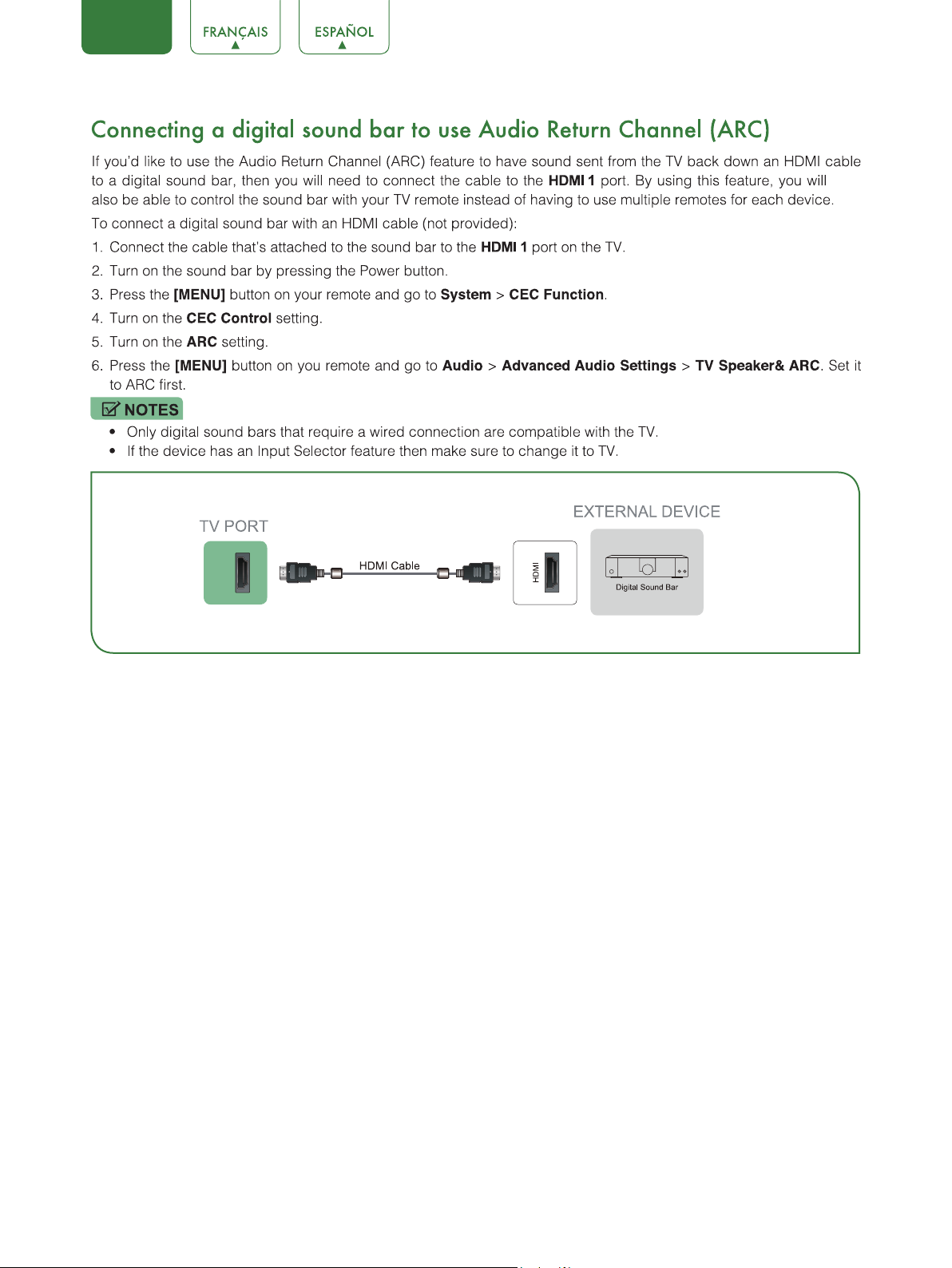
7
ENGLISH
HDMI 1
8
ENGLISH FRANÇAIS ESPAÑOL
Using Your TV Remote Control
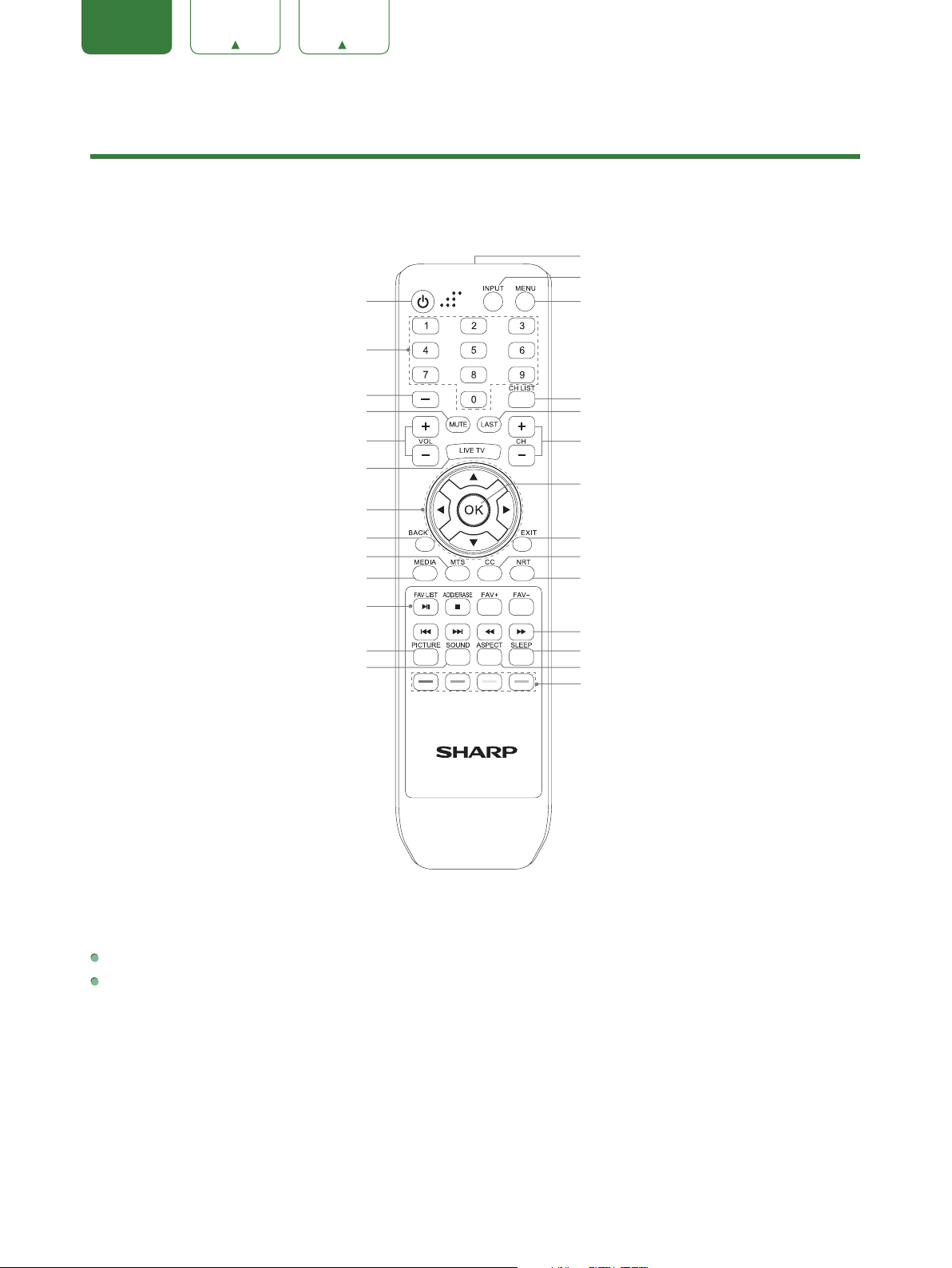
Buttons on your TV remote
Infrared transmitter
Power on / off
Enter Channels / input numbers
Media content control function buttons
Favorite program controlling button
& Media player button
Dash button / Select a digital
sub-channel
D-pad (up/down/left/right navigation
buttons)/Press Up display the Info menu
Volume (up/down)
Choose to leave the Video description
feature On or Off
Enter the Live TV
Return to the previous place in the menu
Change TV input source
The button for the Quick setup menu
Confirmation button/
Display the channel list
Channel (up/down)
Set the audio language(MTS)
Select picture mode
Select sound mode
Mute and restore sound
Exit the application
Turn Closed Caption On/Off
Special function buttons
(No available)
Media player button
Sleep timer button
Zoom button
Display the channel list
Go to the previous channel
Remote control range information
The remote control can work at a distance of up to 26 feet in front of the TV set.
It can work at a 30 degree horizontal or vertical angle.
9
ENGLISH FRANÇAIS ESPAÑOL
Begin using your remote
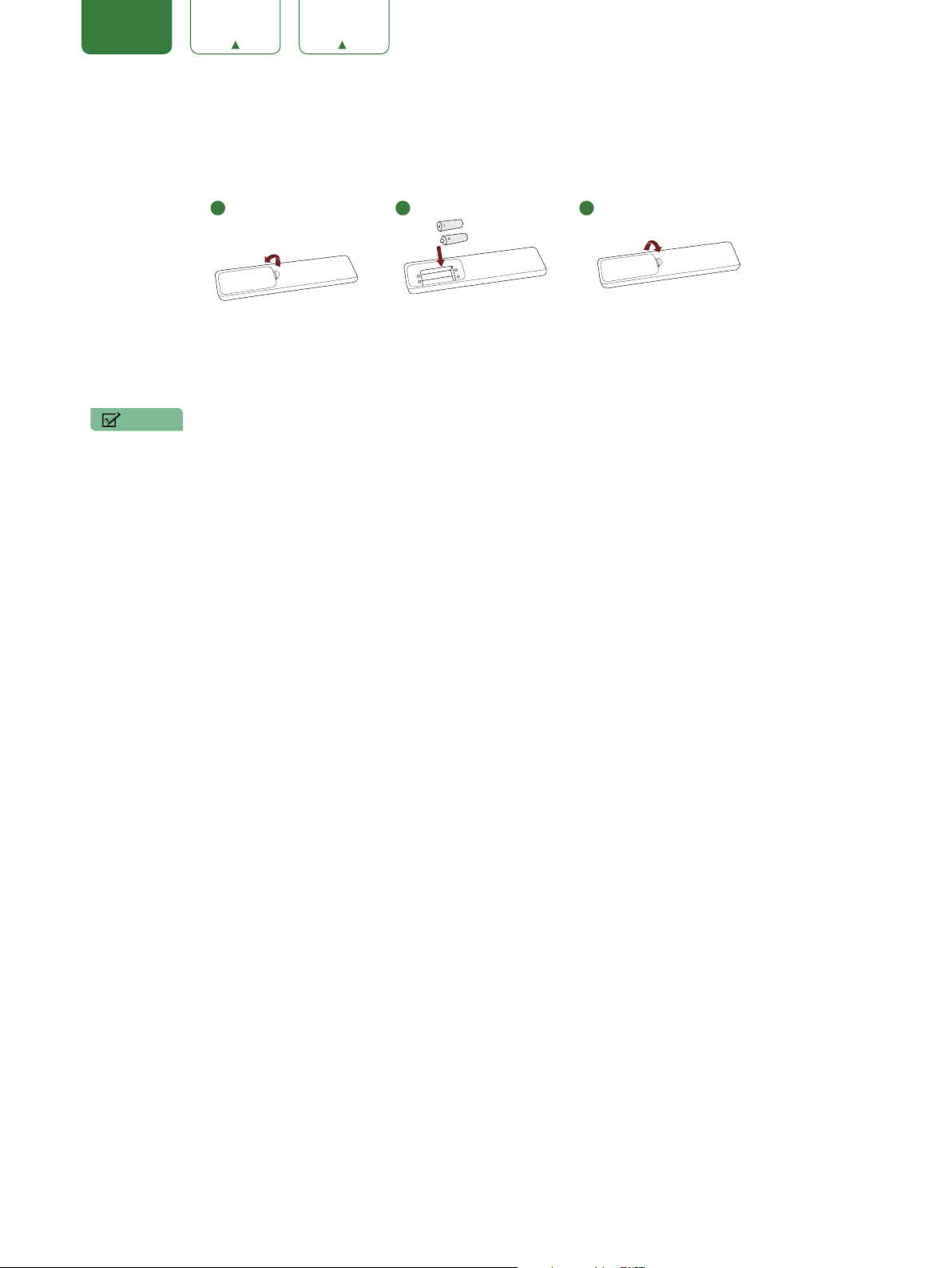
1. Press the battery case cover, when the cover is unlocked, pull it backward to open the battery compartment of the
remote control.
2. Insert two AAA size batteries. Make sure to match the (+) and (-) ends of the batteries with the (+) and (-) ends
indicated in the battery compartment.
3. Replace the battery compartment cover.
NOTES
• Discard batteries in a designated disposal area. Do not expose batteries (battery pack or batteries installed
)
to
excessive heat such as sunshine, fire or the like.
• Remove old batteries immediately to prevent them from leaking into the battery compartment.
• If you do not intend to use the remote control for a long time, remove the batteries.
• Battery chemicals can cause a rash. If the batteries leak, clean the battery compartment with a cloth. If chemicals
touch your skin then wash it immediately.
• Do not mix old and new batteries.
• Do not mix alkaline, standard (carbon-zinc) or rechargeable (NiCd, NiMH, etc.) batteries.
• Do not continue using the remote if it gets warm or hot.
• Call our Support Center immediately on the SHARP support website.
Program your universal cable or satellite remote control to operate your new SHARP television
(only for USA)
If you would like to program your other household remote controls to your new SHARP television,please refer to the
User’s Manual supplied by your Cable or Satellite provider. The Cable or Satellite providers’ User’s Manuals should
include instructions on how to program their remote to your television.
A list of SHARP codes for the most common Cable and Satellite providers are listed below. Use the SHARP code that is
associated with your Cable or Satellite provider (if applicable).
DIRECTV
0178, 10178, 10019, 10748, 11314, 11660, 11710, 11780, 12049, 10171, 11204, 11326, 11517, 11564, 11641, 11963,
12002, 12183
Time Warner Cable
386, 0178, 10178, 400, 450, 461, 456, 0748, 1463, 0463, 10463
Comcast
0178, 10178, 10463, 11463, 10748, 11314, 11660, 10171, 11204, 11326, 11517, 11641, 11780, 11785, 11892, 11963,
12002
Cox Communications
0178, 10178, 1326, 1463
Dish Network
505, 627, 538, 720, 659
If the SHARP code associated with your Cable or Satellite provider is not listed, does not work or you cannot locate the
instructions to program your remote, call your local Cable or Satellite provider’s customer service center.
If your Cable or Satellite provider does not have a SHARP code available, please contact us.
Using your cable set-top box or satellite receiver remote as a ‘Universal’ remote
If you prefer to use your Cable Set-top Box or Satellite Receiver Remote as a ‘Universal Remote’, then visit the Support
page to view a list of the codes.
1 2 3
Insert the batteriesPress and pull it Press the cover
10
ENGLISH FRANÇAIS ESPAÑOL
Completing the First-Time Setup Menu
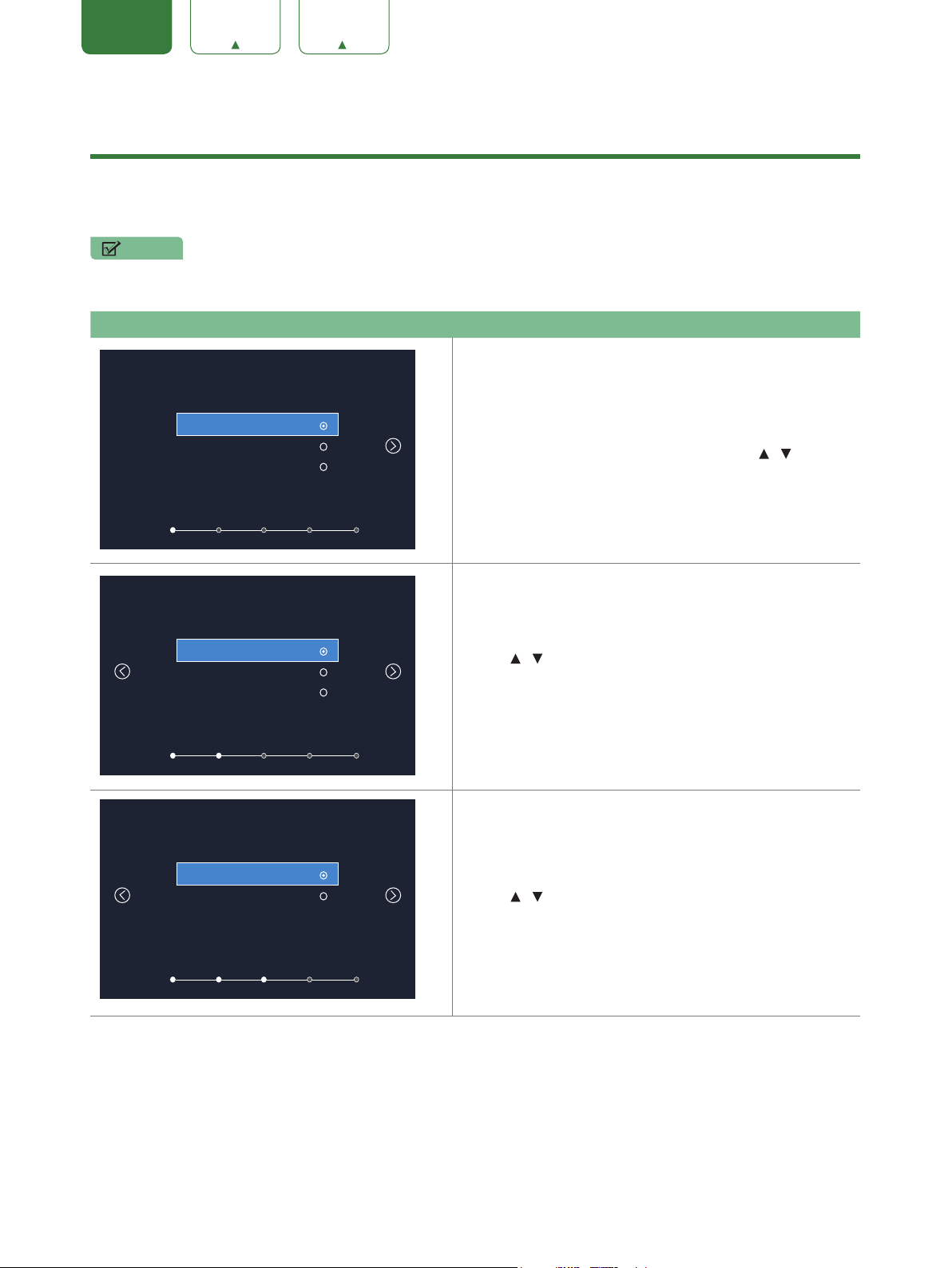
Now that you have attached the TV stand and connected your external devices, it’s time to complete the first-time setup menu.
The Setup Wizard menu appears the first time you turn on the TV. It will assist you to specify the menu language, Picture Mode,
TV Source and Channel Installation.
NOTE
• Before you get started, make sure that the antenna or cable is connected, batteries are in the remote control, and the
power cord is connected.
Screen Task
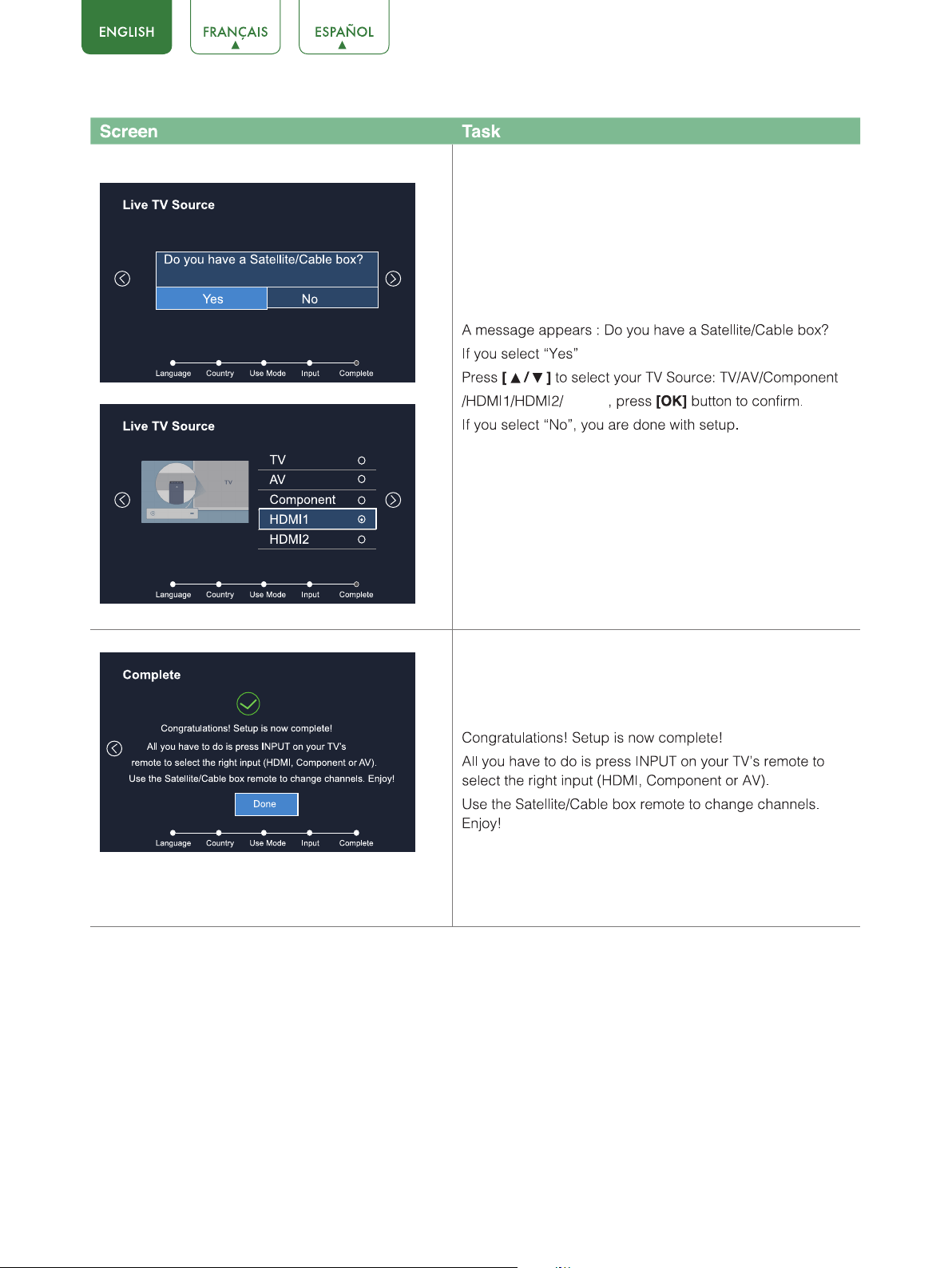
Language
Language
Country Use Mode Input Complete
English
Français
Español
Connect your TV’s Power cord to a power outlet, then press
power. The initial setup screen opens. Press
[
/ ]
button
to select your language, press
[OK]
button to confirm.
Country
Language
Country Use Mode Input Complete
USA
Canada
Mexico
Press
[
/ ]
button to select your
country, press
[OK]
button to confirm.
Use Mode
Language
Country Use Mode Input Complete
Home Mode
Store Mode
Press
[
/ ]
to select your Picture Mode: Home Mode or
Store Mode, press
[OK]
button to confirm.
11
MEDIA

12

13
ENGLISH FRANÇAIS ESPAÑOL
Basic Settings
Your SHARP TV comes with many TV setting features to allow you to customize the picture based on your viewing
preference and
environment.
Using the Menu
1. Press
[MENU]
to open the main menu.
2. Press
[
/ ]
to select a menu option, then press
[OK]
button to enter the menu.
3. In each menu, you can:
Press
[
/ ]
to select an item,
Press
[
/ ]
to adjust the value,
Press
[ OK]
to enter the submenu,
4. Press
[EXIT]
to exit the menu.
NOTE
• The menus in the user manual may vary slightly from the actual screen.
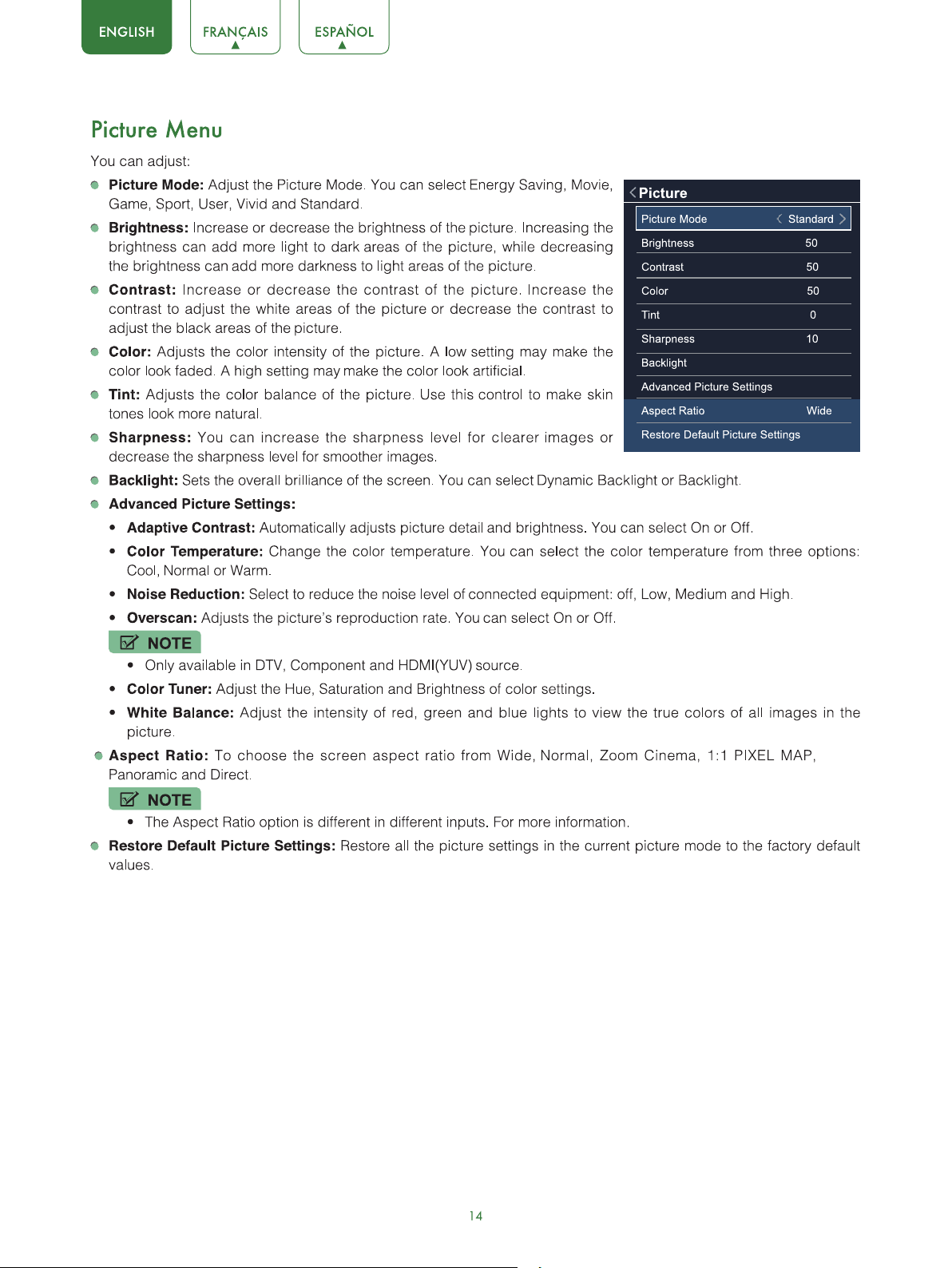
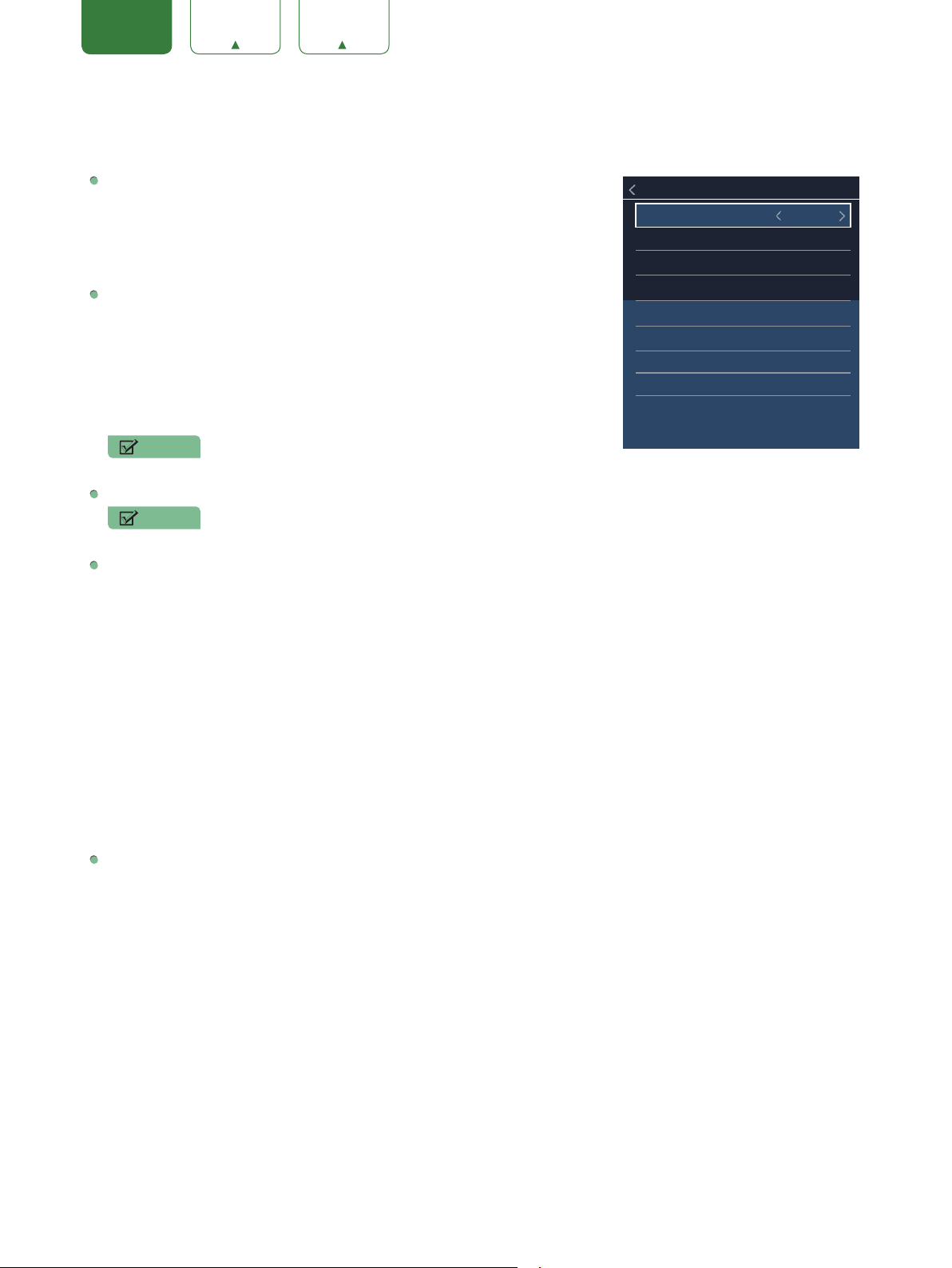
Settings
Picture
Audio
Channels
Accessibility
System
About TV
15
ENGLISH FRANÇAIS ESPAÑOL
Audio Menu
You can adjust:
Sound Mode:
Select the Sound Mode: Standard, Theater, Music, Speech,
Late Night or User.
•
Sound Surround :
Select the Sound Surround On or Off.
•
Dialog Clarity:
Select the Dialog Clarity High, Low or Medium.
•
Equalizer:
Soften or enhance the sound at specific frequency points.
SAP:
Select the default audio stream, you can select Mono, Stereo or SAP
(Second Audio Program).
Mono:
Select this option if there is noise or static on weak stereo
broadcasts.
Stereo:
Select this option for programs broadcast in stereo.
SAP:
Depending on the particular program being broadcast, you can
listen to a foreign-language translation.
NOTE
• Only available in Analog channels.
Preferred
Audio Language:
Change the default value for audio language.
NOTE
• Only available in Digital channels.
Advanced Audio Settings:
Access Advanced Audio settings such as AVC, Digital Audio Out, Digital Audio Delay,
Lip Sync, TV Speaker & ARC, Balance, or Audio Out.
•
AVC:
Select the AVC On or Off.
•
Digital Audio Out:
Send digital audio to an external audio system. You can select PCM, RAW or Off.
PCM:
PCM outputs two channel audio regardless of the input format.
RAW:
When the data stream carries Dolby signal,
digital SPDIF outputs Dolby data stream. When the
data
stream carries no Dolby signal, it transports PCM
data stream.
•
Digital Audio Delay:
Adjust the digital audio output delay time to sync sound from an external speaker with the
images on the TV.
•
Lip Sync:
Synchronize the displayed image with the audio output.
•
TV Speaker & ARC:
Selects where to play TV audio. You can select ARC First, Speaker or Off.
•
Balance:
Adjust the volume of the left and right speakers.
•
Audio Out:
Change the way audio is sent through the type of device that’s connected to your TV Audio Out port.
Restore Default Audio Settings:
Restore all of the Audio settings in current audio mode to the factory default
values.
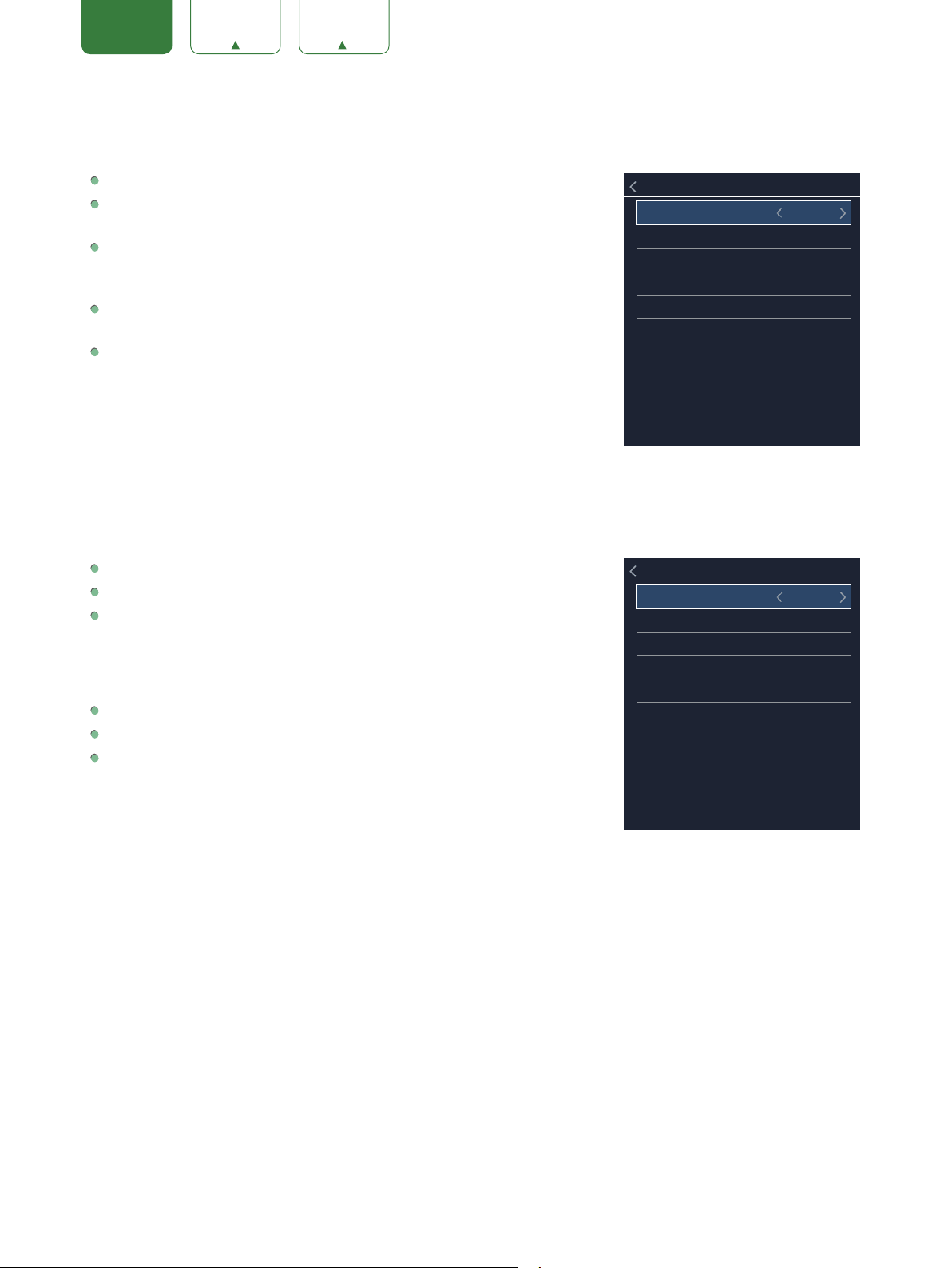
Sound Mode
Standard
Sound Surround On
Dialog Clarity Medium
Equalizer
SAP Stereo
Preferred
Audio Language English
Advanced Audio Settings
Restore Default Audio Settings
Audio
16
ENGLISH FRANÇAIS ESPAÑOL
Channels Menu
You can adjust:
Tuner Mode:
Select the TV signal source. You can select Antenna or Cable.
Auto Channel Scan:
Automatically scan for channels to view programming
from your TV source.
Manual Scan:
TV should support Manual Scan. User can input the channel
number that he want to search. Then TV can search include STD, HRC and
IRC.
Channel Skip:
Skip a channel that your TV picked up during a previous
channel scan search.
Favorite List:
Display your Favorite List. You can add or delete channels to
create your favorite list.
Accessibility Menu
You can adjust:
Video Description:
Choose to leave the Video description feature On or Off.
Menu Audio :
Choose to leave the Audio Menu Prompts On or Off.
Menu Audio Settings :
Adjust Menu Audio settings to your preference.
•
Volume:
Set the Menu Audio volume.
•
Rate:
Set the Menu Audio speed.
•
Pitch:
Set the Menu Audio pitch.
High Contrast Menu :
Choose to leave the high contrast menu On or Off.
Closed Caption :
Select the Closed Caption CC Off, CC On or CC On Mute.
Closed Caption Settings :
Adjust Closed Captioning settings.
•
Analog Caption:
Select an Analog Caption setting from CC1-CC4, Text
1-Text4.
•
CC1-CC4:
Closed captioning appears in a small banner across the bottom
of the screen. CC1 is usually the “printed” version of the audio. CC2-CC4
display content are provided by the broadcaster.
Text1-Text4:
Closed captioning that covers half or all of the screen. Text1-Text4 display content are provided
by the broadcaster.
•
Digital Caption:
Select a Digital Caption setting: Off, Service1-Service6.
•
Digital CC Setting:
There are two caption styles. One is the Automatic function set as the broadcaster, while the
other is the Custom style where you can adjust the Size, Font, Text Color, Text Opacity, Background Color etc.
Tuner Mode
Antenna
Auto Channel Scan
Manual Scan
Channel Skip
Favorite List
Channels
Video Description Off
Menu Audio On
Menu Audio Settings
High Contrast Menu Off
Closed Caption CC Off
Closed Caption Settings
Accessibility
17
On
18
ENGLISH FRANÇAIS ESPAÑOL
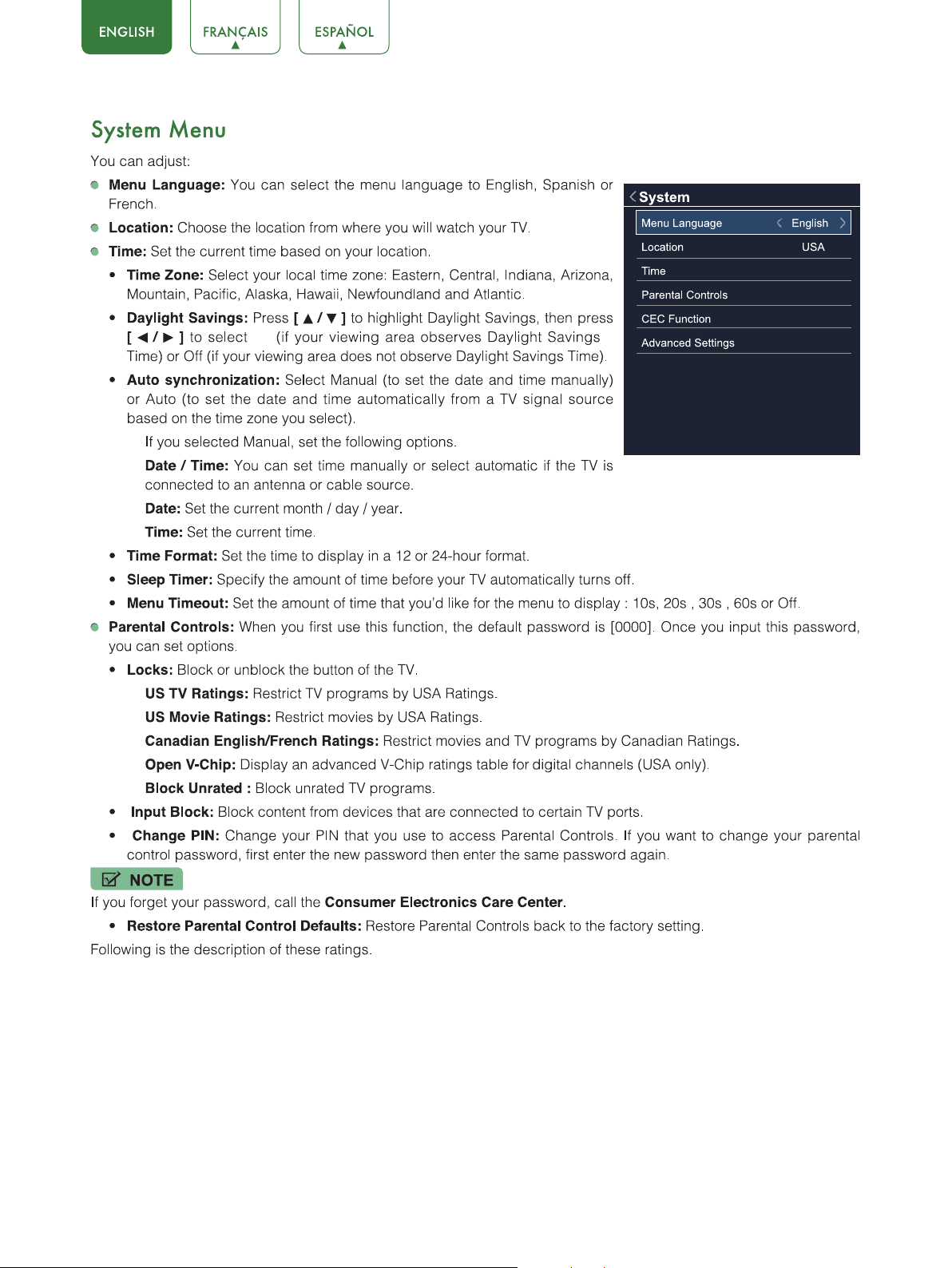
US TV Ratings
Age Defined as
TV-Y
All children
TV-Y7
Directed to older children
TV-G
General audience
TV-PG
Parental Guidance suggested
TV-14
Parents strongly cautioned
TV-MA
Mature Audience only
Content Defined as
ALL
All of the ratings below that rating set
blocked
automatically
D
Suggestive dialogue
L
Strong language
S
Sexual situations
V
Violence
FV
Fantasy Violence
US Movie Ratings
Rating Defined as
N/A
OFF
G
General audience
PG
Parental Guidance suggested
PG-13
Parents strongly cautioned
R
Restricted
NC-17
No one 17 and under admitted
X
Adult audience only
Canadian English Ratings
Rating Defined as
E
OFF
C
Children
C8+
Children 8 years and older
G
General programming, suitable for all audiences
PG
Parental Guidance
14+
Viewers 14 years and older
18+
Adult Programming
19
ENGLISH FRANÇAIS ESPAÑOL
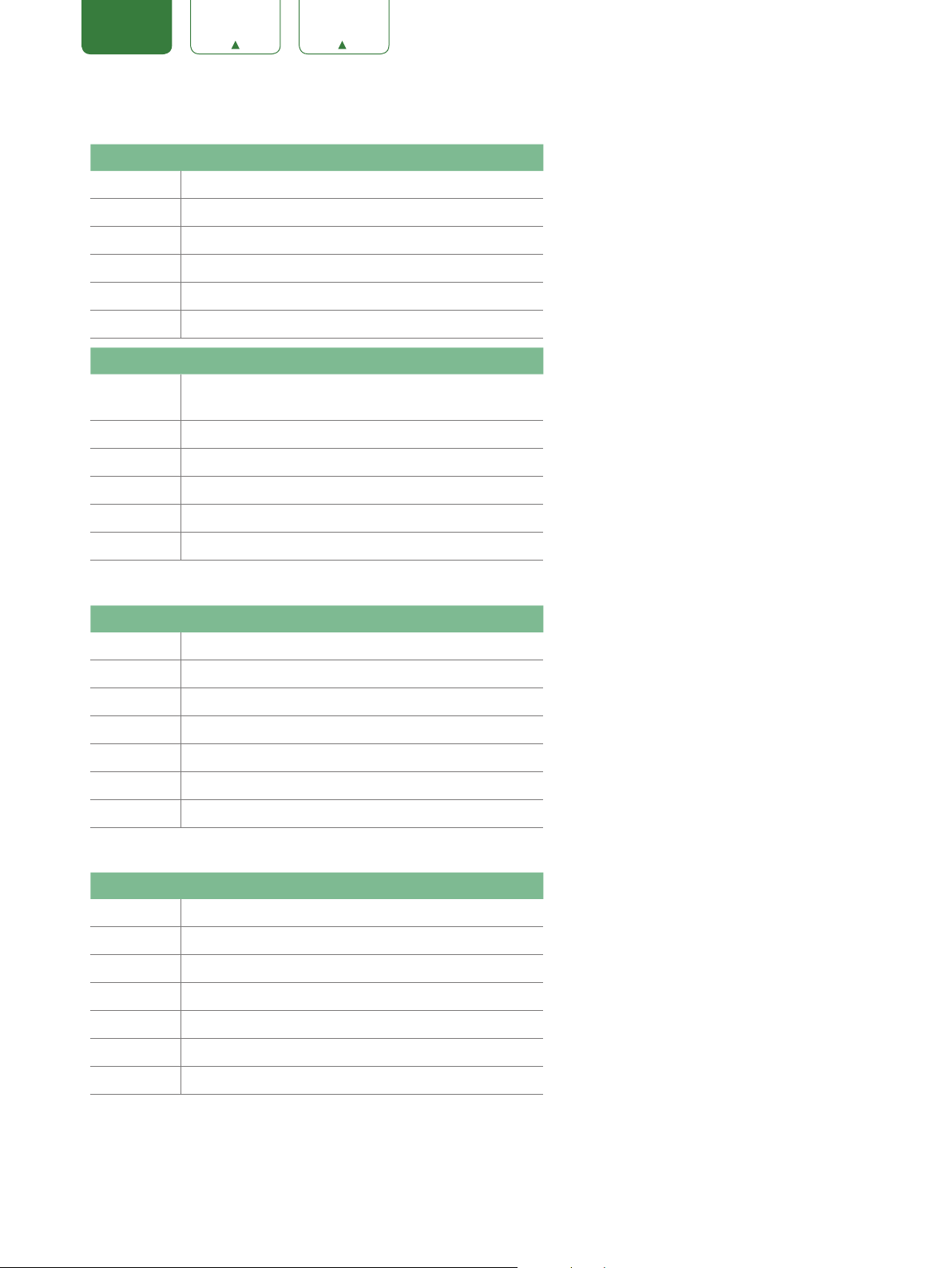
Canadian French Ratings
Rating Defined as
E
OFF
G
General
8
ans+
8+General; Not recommended for young
children
13
ans+
Programming may not be suitable for
children under
the age of 13
16
ans+
Programming is not be suitable for
children under the
age of 16
18
ans+
Programming restricted to adults
NOTE
• As you block ratings, all ratings higher than those that you selected are blocked too. For example, if you choose to
block the MPAA rating R, then the higher ratings (NC-17 and X) are also automatically blocked.
CEC Function:
CEC Function lets you control HDMI CEC-compatible devices connected to the HDMI ports on your
TV using the remote control that came with your TV. To use CEC Function, you must set the CEC Control setting to
On.
•
CEC Control:
Turning CEC function on or off.
•
Device Auto Power Off:
When HDMI-CEC is turned on, Device Auto Power Off turns off HDMI CEC devices when
you turn off your TV.
•
TV Auto Power On:
When CEC is turned on and you turn on an HDMI CEC device, TV Auto Power On turns on
your TV automatically.
•
Detect:
Search all the device connected to our TV.
•
Device List:
You can display a list of HDMI CEC devices that are connected to your TV and select the source you
want.
•
ARC:
You can select the ARC on or off.
Advanced Settings:
Access the Advanced Settings menu.
•
Audio Only:
You can select the Audio only On/Off.
•
Input Label:
Edit the input labels.
•
Live TV Source:
Select the default input selected by the remote control Live TV button.
•
Setup Wizard:
Use the Setup Wizard for instructions to help you set up your TV.
•
Use Mode:
You can select the Home Mode / Store Mode.
About TV Menu
Version:
View system information.
USB Firmware Upgrade:
You can update the software from the USB device.
Restore To Factory Default:
Restore your TV back to the factory default.
20
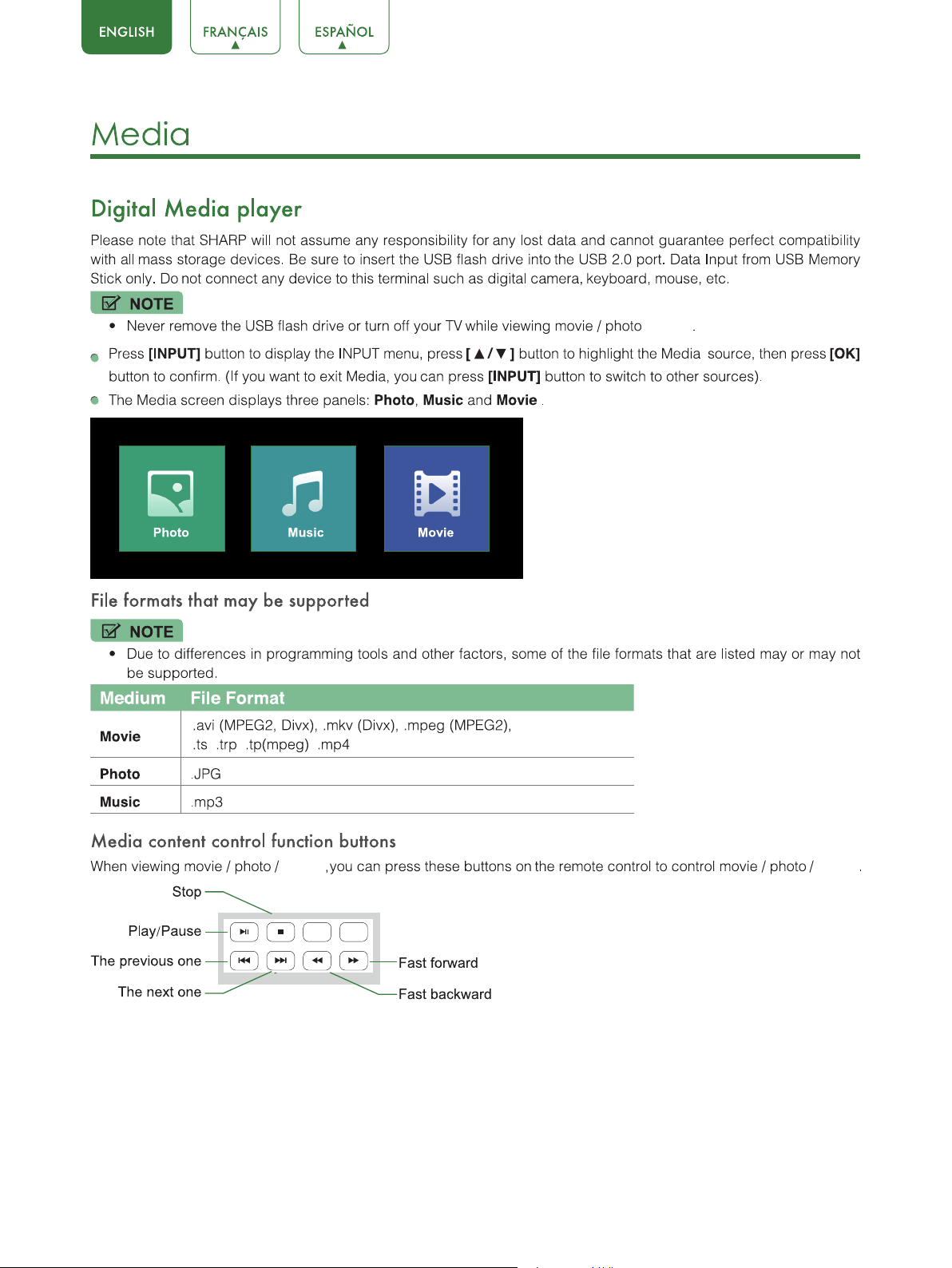
/music
music
music
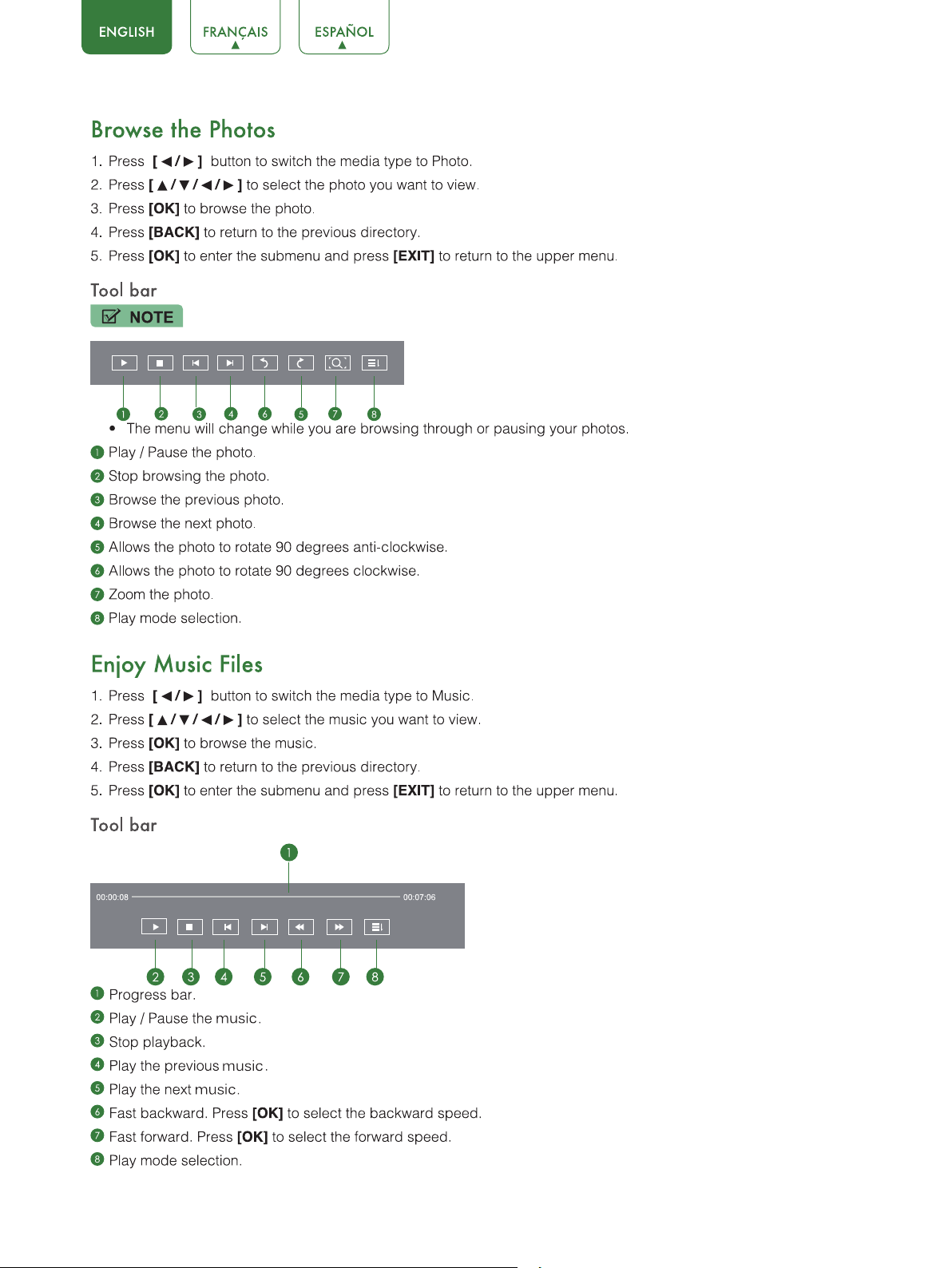
21
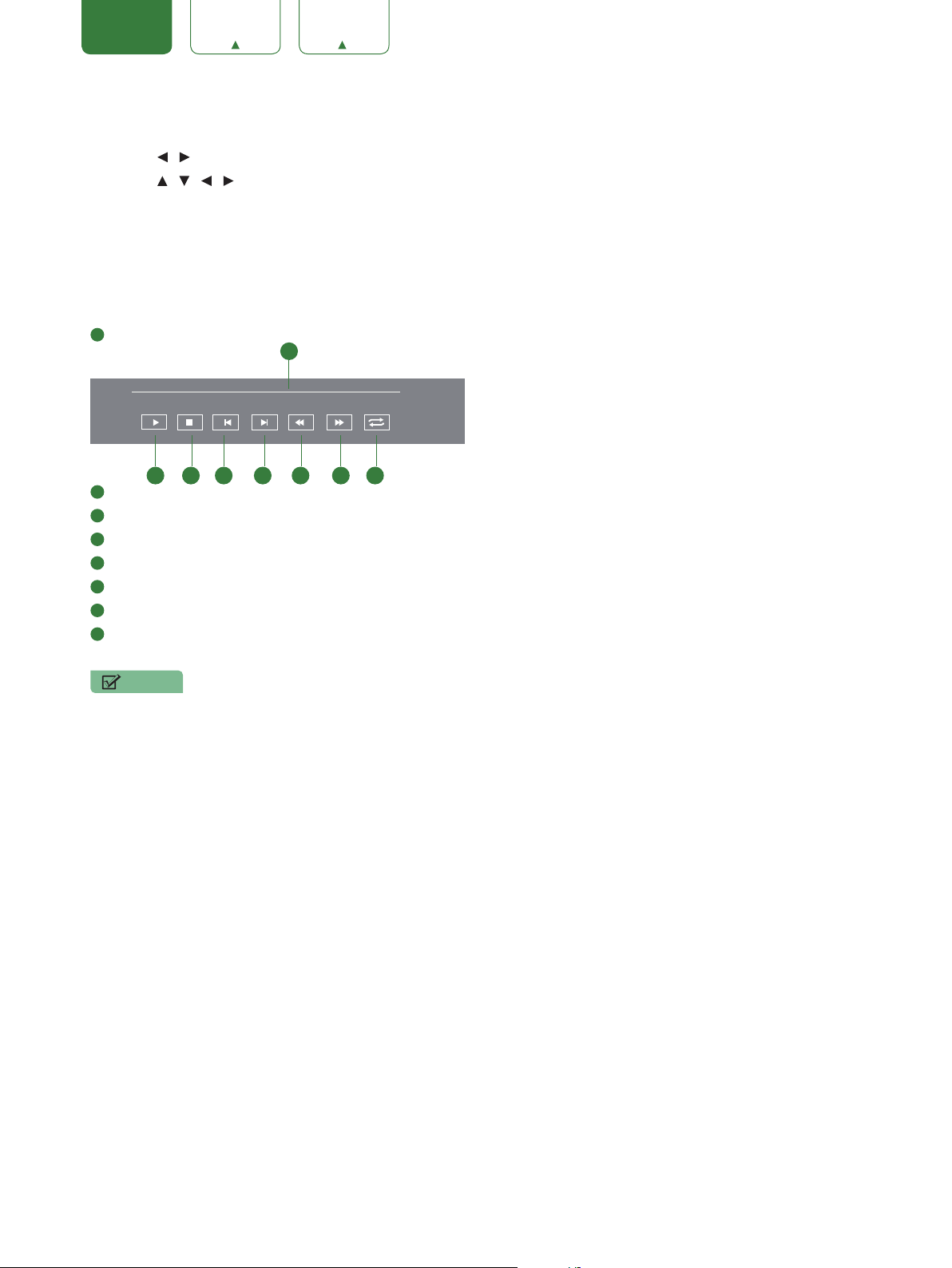
22
ENGLISH FRANÇAIS ESPAÑOL
Enjoy Movie Files
1. Press
[
/ ]
button to switch the media type to Movie.
2. Press
[
/ / / ]
to select the movie you want to view.
3. Press
[OK]
to play the movie.
4. Press
[BACK]
to exit the video and return to the previous directory.
5. When enjoying the video, press
[OK]
button to display the tool bar. Press
[EXIT]
to return to the upper menu.
Tool bar
1
Progress bar.
2
Play / Pause the video.
3
Stop playback.
4
Play the previous video.
5
Play the next video.
6
Fast backward. Press
[OK]
to select the backward speed.
7
Fast forward. Press
[OK]
to select the forward speed.
8
Loop the video
.
NOTES
• This TV will only recognize a USB Memory Stick.
• Do not use a USB hub or an extension cable to connect an external hard disk drive to the unit. (Not supported)
• Always insert a USB Memory Stick directly into the USB port.
• A USB Memory Stick is not supplied with this unit.
• We do not guarantee that all USB Memory Sticks can be supported by this unit.
• Be sure to keep a backup copy of the original files on your device before you play them back on this unit. We have
no responsibilities for damage or loss of your stored data.
• To protect your USB Memory Stick files from being erased place the write protect sliding tab in the protect
position.
• When you are ready to remove a USB Memory Stick, set the unit to go into Standby mode to avoid any damage to
your data and the unit.
• A USB Memory Stick that requires its own driver or the device with a special system such as fingerprint recognition
are not supported.
• This unit is not allowed to use the USB Memory Stick which requires an external power supply (500mA or more).
00:00:08 00:09:06
1
2 3 4 5 6 7 8
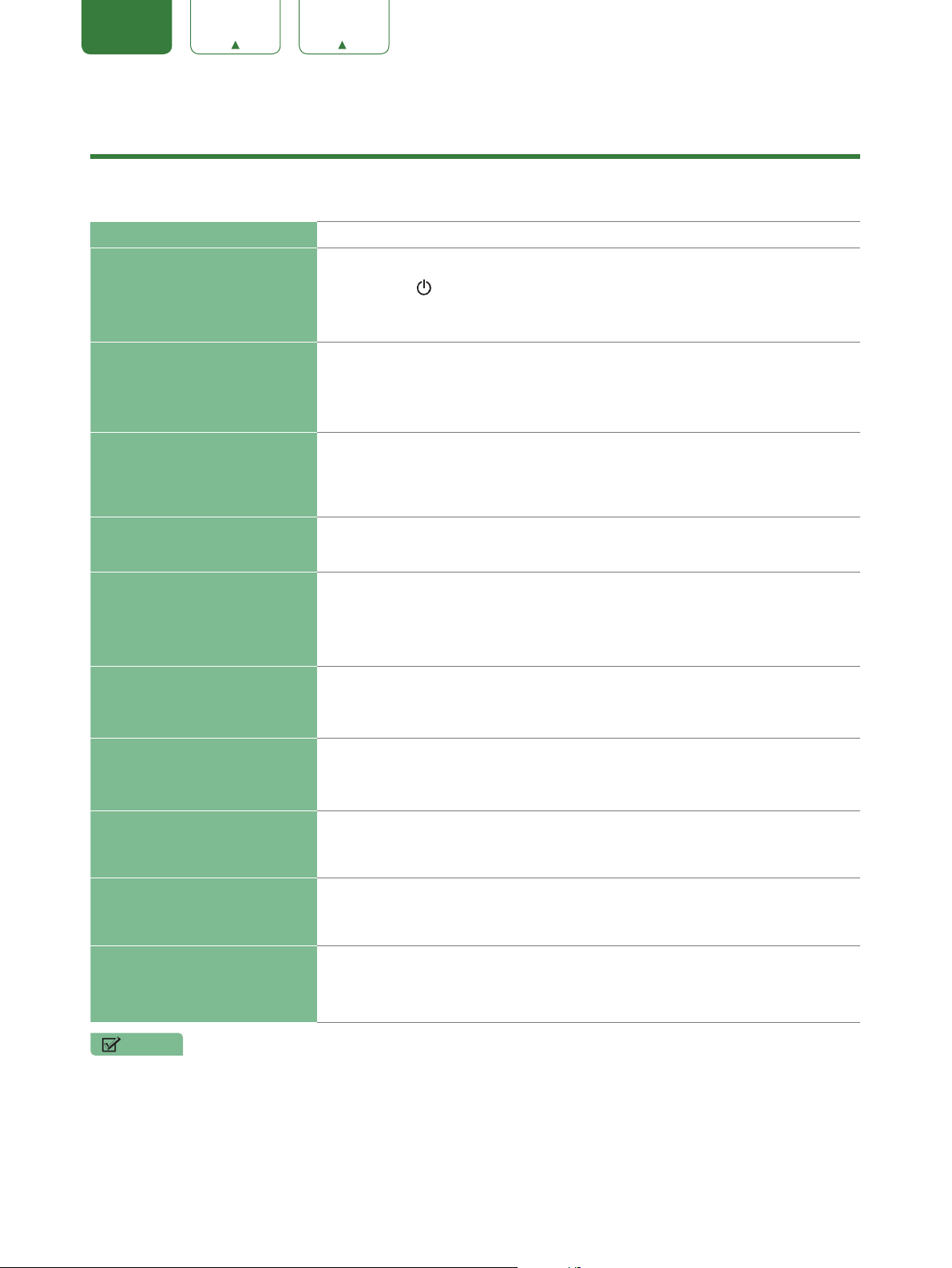
23
ENGLISH FRANÇAIS ESPAÑOL
Quick Problem-Solving Tips
When you experience an issue with your TV, turn it off and on again. If this does not resolve the problem, then refer to
the tips below. If the problem is still not resolved, then contact us.
ISSUES POSSIBLE SOLUTIONS
No sound or picture
• Check if the power cord is plugged into a powered AC outlet.
• Press the
[
]
button on the remote control to activate the unit from ‘Standby’
mode.
• Check to see if the LED light is on or not. If it is, then the TV is receiving power.
I have connected an external
source to my TV and I get no
picture and/or sound
• Check for the correct output connection on the external source and for the
correct input connection on the TV.
• Make sure you have made the correct selection for the input mode for the
incoming signal.
When I turn on my TV, there is a
delay for a few seconds before
the picture appears. Is this
normal?
• Yes, this is normal. The TV is initializing and searching for previous setting
information.
The picture is normal but there is
no sound
• Check the volume settings.
• Check if ‘Mute’ mode is set to On.
Sound but no picture or black
and white picture
• If the picture is black and white, unplug the TV from the AC outlet and replug it
after 60 seconds.
• Check that the Color is set to 50 or higher.
• Try different TV channels.
The sound and/or picture is
distorted or appears wavy
• An electric appliance may be affecting the TV. Turn off any appliances that are
nearby and move it farther away from the TV.
• Insert the power plug of the TV set into another power outlet.
The sound and picture is blurry
or cuts out
• If using an external antenna, check the direction, position and connection of the
antenna.
• Adjust the direction of your antenna or reset or fine tune the channel.
A horizontal or vertical stripe
appears on the picture and/or
the picture is shaking
• Check if there is an appliance or electric tool nearby that is causing
interference.
The plastic cabinet makes a
“clicking” type of sound
• The ‘click’ sound can occur when the temperature of the television changes.
This change causes the television cabinet to expand or contract, which makes
the sound. This is normal and the TV is OK.
The remote control does not
work
• Confirm that TV still has power and is operational.
• Change the batteries in the remote control.
• Check if the batteries are correctly installed.
NOTE
• For usage in Mexico , operation of this equipment is subject to the following two conditions : 1 ) it is possible that
this device doesn’t cause any detrimental interference and 2 ) this device must take any kind of interference,
including that which may cause its malfunctioning.

24
ENGLISH FRANÇAIS ESPAÑOL