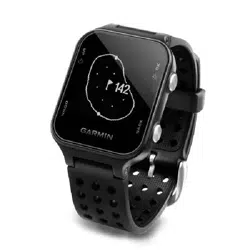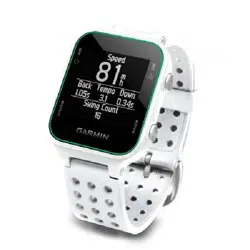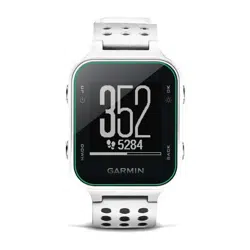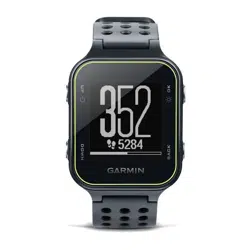
Approach
®
S20
Owner’s Manual

© 2016 Garmin Ltd. or its subsidiaries
All rights reserved. Under the copyright laws, this manual may not be copied, in whole or in part, without the written consent of Garmin. Garmin reserves the right to change or improve its
products and to make changes in the content of this manual without obligation to notify any person or organization of such changes or improvements. Go to www.garmin.com for current updates
and supplemental information concerning the use of this product.
Garmin
®
, the Garmin logo, and Approach
®
are trademarks of Garmin Ltd. or its subsidiaries, registered in the USA and other countries. Garmin Connect
™
, Garmin Express
™
, and Garmin Golf
™
are trademarks of Garmin Ltd. or its subsidiaries. These trademarks may not be used without the express permission of Garmin.
The Bluetooth
®
word mark and logos are owned by Bluetooth SIG, Inc. and any use of such marks by Garmin is under license. Other trademarks and trade names are those of their respective
owners.

Table of Contents
Getting Started............................................................... 1
Keys............................................................................................ 1
Turning On the Device................................................................ 1
Status Icons................................................................................ 1
Charging the Device................................................................... 1
Playing Golf.................................................................... 1
Hole View....................................................................................1
Moving the Pin............................................................................ 1
Viewing Measured Shots............................................................ 2
Viewing Hazards......................................................................... 2
Viewing Layup and Dogleg Distances........................................ 2
Using the Odometer....................................................................2
Keeping Score............................................................................ 2
Garmin Golf App............................................................. 2
Automatic Shot Detection........................................................... 2
Automatic Course Updates......................................................... 3
Pairing Your Smartphone.............................................. 3
Phone Notifications..................................................................... 3
Enabling or Disabling Notifications............................................. 3
Viewing Notifications...................................................................3
Activity Tracking............................................................ 3
Enabling or Disabling Activity Tracking.......................................3
Viewing Step Totals.................................................................... 3
Using the Move Alert.................................................................. 3
Hiding the Step Goal...................................................................3
TruSwing™......................................................................3
Viewing TruSwing Metrics on Your Device................................. 3
Changing Clubs.......................................................................... 3
Changing Handedness............................................................... 3
Disconnecting Your TruSwing Device........................................ 3
Customizing Your Device.............................................. 4
Setting an Alarm......................................................................... 4
System Settings.......................................................................... 4
Appendix......................................................................... 4
Device Care................................................................................ 4
Cleaning the Device....................................................................4
Specifications..............................................................................4
Viewing E-label Regulatory and Compliance Information.......... 4
Index................................................................................ 5
Table of Contents i

Getting Started
WARNING
See the Important Safety and Product Information guide in the
product box for product warnings and other important
information.
Keys
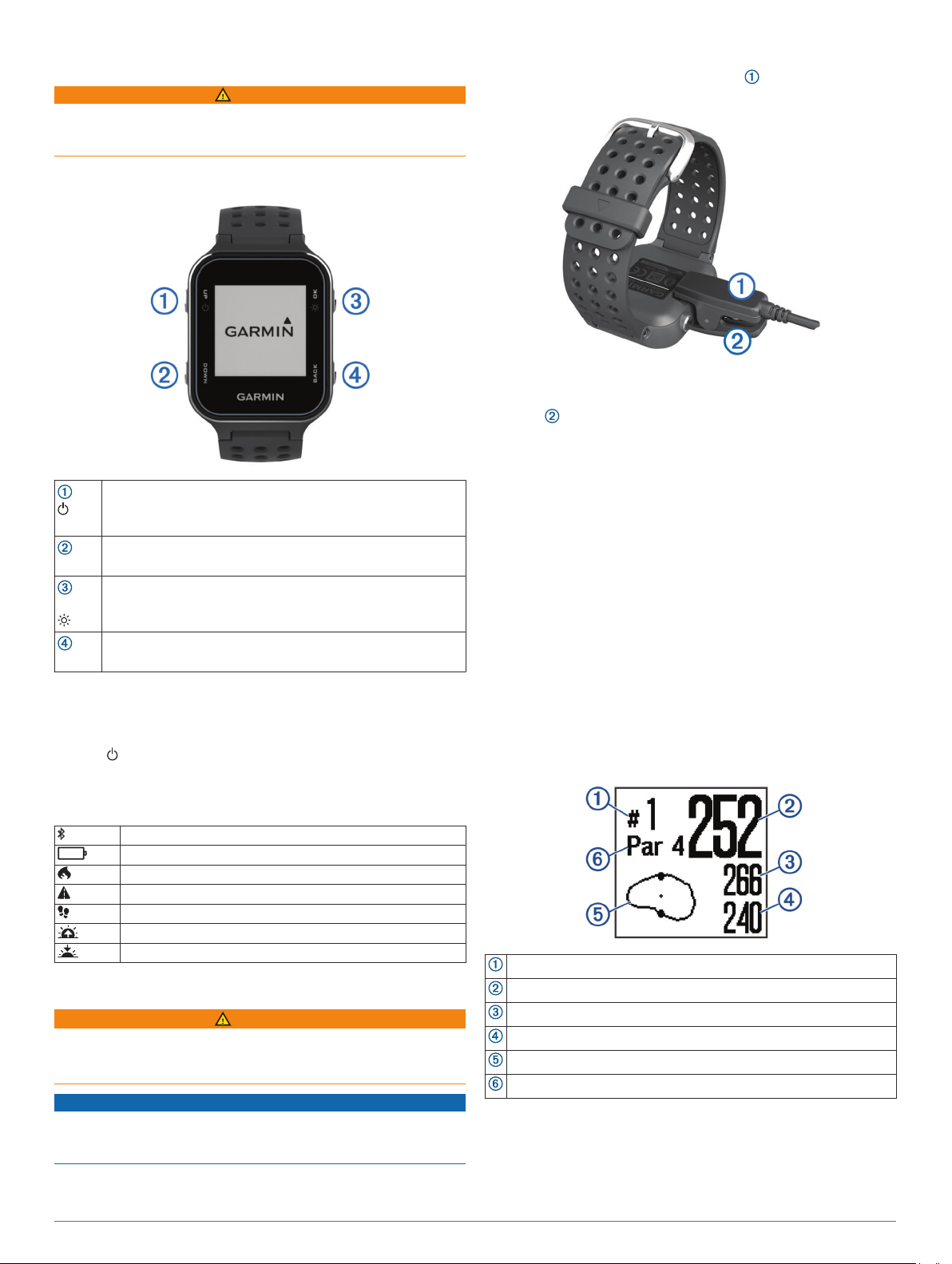
UP
Hold to turn the device on and off.
Select to scroll through menus, holes, and settings.
DOWN
Select to scroll through menus, holes, and settings.
OK
Select to choose menu options and acknowledge messages.
During play, select to access in-game features.
Hold to turn on the backlight.
BACK
Select to return to the previous menu.
Turning On the Device
The first time you turn on the device, you are prompted to
configure system settings.
1
Hold .
2
Follow the on-screen instructions.
Status Icons
Bluetooth
®
wireless signal status
Battery status
Calories burned
Distance traveled
Steps taken
Sunrise
Sunset
Charging the Device
WARNING
This device contains a lithium-ion battery. See the Important
Safety and Product Information guide in the product box for
product warnings and other important information.
NOTICE
To prevent corrosion, thoroughly clean and dry the contacts and
the surrounding area before charging or connecting to a
computer. Refer to the cleaning instructions in the appendix.
1
Align the charger posts with the contacts on the back of the
device, and connect the charging clip securely to the
device.
2
Plug the USB cable into a USB charging port.
3
Charge the device completely.
4
Press to remove the charger.
Playing Golf
Before you can play golf, you must wait until the device acquires
satellite signals, which may take 30 to 60 seconds.
1
Select OK.
2
Select Start Round.
The device locates satellites and calculates your location.
3
Select a course from the list.
4
Follow the on-screen instructions to complete the setup and
start a round.
Hole View
The device shows the current hole you are playing, and
automatically transitions when you move to a new hole.
NOTE: By default, the device calculates the distance to the
front, middle, and back of the green. If you know the location of
the pin, you can set it more precisely (Moving the Pin,
page 1).
Current hole number.
Distance to the pin location.
Distance to the back of the green.
Distance to the front of the green.
Approximate view of the green. The pin position is indicated with +.
Par for the hole.
Moving the Pin
You can take a closer look at the green and move the pin
location.
1
While playing golf, select OK.
Getting Started 1
2
Select Move Flag.
3
Select UP or DOWN to move the pin position.
4
Select OK.
Viewing Measured Shots
Before the device can automatically detect and measure shots,
you must enable scoring.
Your device features automatic shot detection and recording.
Each time you take a shot along the fairway, the device records
your shot distance so you can view it later.
TIP: Automatic shot detection works best when you wear the
device on your leading wrist and make good contact with the
ball. Putts are not detected.
1
While playing golf, select OK.
2
Select Measure Shot.
Your last shot distance appears.
NOTE: The distance automatically resets when you hit the
ball again, putt on the green, or move to the next hole.
3
Select DOWN to view all recorded shot distances.
Viewing Hazards
You can view distances to hazards along the fairway for par 4
and 5 holes. Hazards that affect shot selection are displayed
individually or in groups to help you determine the distance to
layup or carry.
1
While playing golf, select OK.
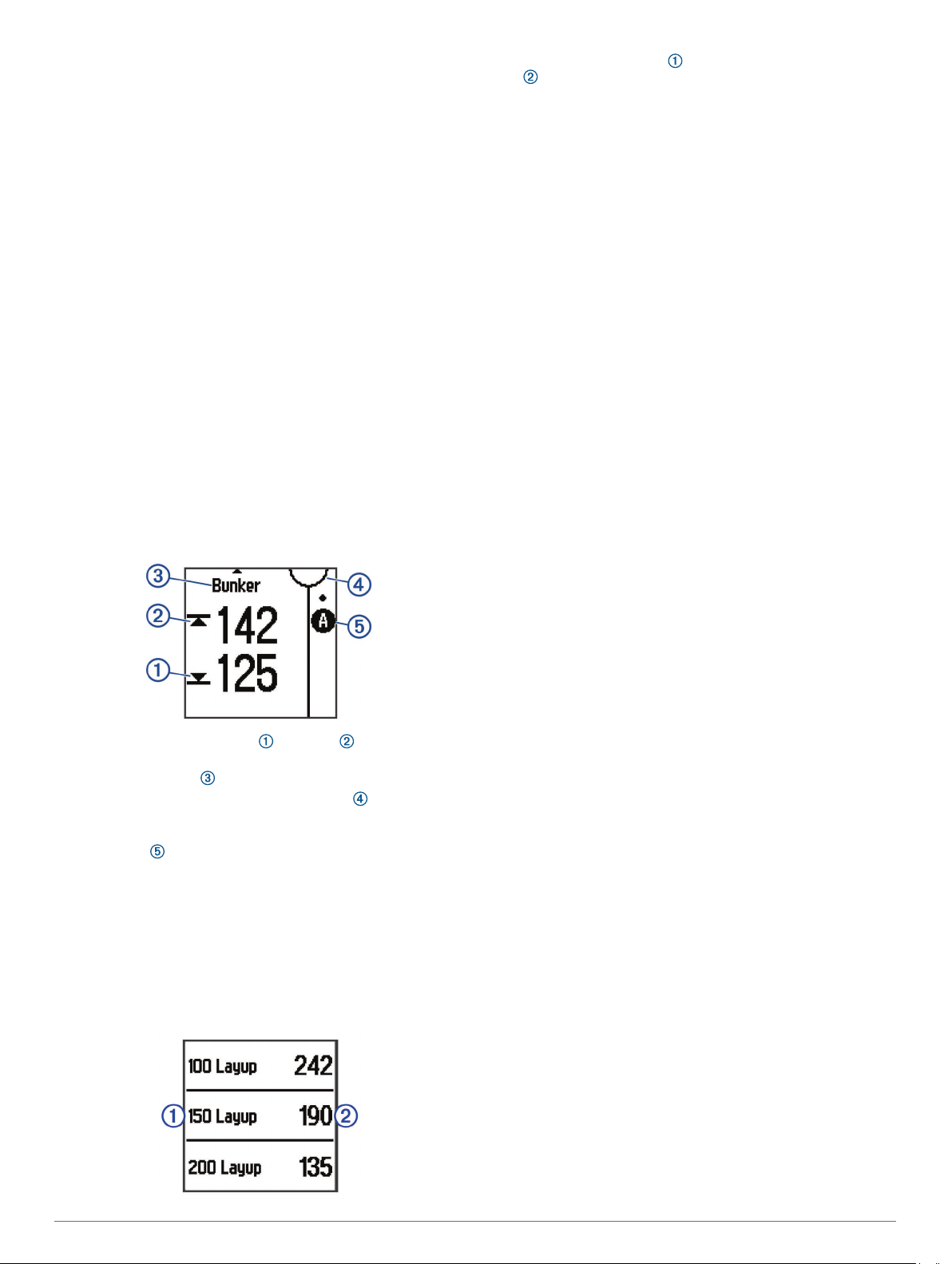
2
Select Hazards.
• The distances to the front and back of the nearest
hazard appear on the screen.
• The hazard type is listed at the top of the page.
• The green is represented as a half circle at the top of
the screen. The line below the green represents the center
of the fairway.
• Hazards are shown below the green in approximate
locations relative to the fairway.
3
Select UP or DOWN to view other hazards for the current
hole.
Viewing Layup and Dogleg Distances
You can view a list of layup and dogleg distances for par 4 and 5
holes.
1
While playing golf, select OK.
2
Select Layups.
Layup and dogleg distances and the distance to reach each
layup appear on the screen.
Using the Odometer
You can use the odometer to record the time and distance
traveled.
Select an option:
• If you are not currently playing a game, select Odometer
from the main menu.
• If you are playing a game, select OK > Odometer.
Resetting the Odometer
1
From the main menu, select Odometer.
2
Select OK.
3
Select Reset.
Turning Off the Odometer
1
From the main menu, select Odometer.
2
Select OK.
3
Select Turn Off.
Keeping Score
When scoring is enabled, you are prompted to enter your score
when you are on the green. You can adjust the score manually
at any time during a game.
1
While playing golf, select OK.
2
Select Scorecard.
3
Select UP or DOWN to select a hole, and select OK.
4
Select UP or DOWN to set the score, and select OK.
Recording Statistics
Before you can record statistics, you must enable statistics
tracking (System Settings, page 4).
1
While playing golf, select OK.
2
Select Scorecard.
3
Set the number of strokes taken, and select OK.
4
Set the number of putts taken, and select OK.
5
Select an option:
• If your shot from the tee hit the fairway, select In Fairway.
• If your shot from the tee missed the fairway, select Missed
Left or Missed Right.
Your statistics are recorded on your scorecard. You can view
your scorecard using the Garmin Connect
™
Mobile app and the
Garmin Golf
™
app.
Garmin Golf App
The Garmin Golf app allows golfers to compete with each other
at different courses. More than 41,000 courses have a weekly
leaderboard that anyone can join. You can set up a tournament
event and invite players to compete. You can upload scorecards
from your compatible Garmin
®
device to view detailed statistics
and shot analyses.
The Garmin Golf app syncs your data with your Garmin Connect
account. You can download the Garmin Golf app from the app
store on your smartphone.
Automatic Shot Detection
Your Approach device features automatic shot detection and
recording. Each time you take a shot along the fairway, the
device records your location so it can be viewed later on the
Garmin Connect Mobile app and the Garmin Golf app.
You must enable scoring to allow automatic shot detection
(System Settings, page 4).
2 Garmin Golf App

TIP: Automatic shot detection works best when you make good
contact with the ball. Putts are not detected.
Automatic Course Updates
Your Approach device features automatic course updates with
Garmin Connect Mobile. When you connect your device to your
smartphone, the golf courses you use most frequently are
updated automatically.
Pairing Your Smartphone
To get the most out of your Approach device, you should pair it
with your smartphone and complete the setup using the Garmin
Connect Mobile app.
NOTE: Unlike other Bluetooth devices that are paired from the
Bluetooth settings on your mobile device, your Approach device
must be paired directly through the Garmin Connect Mobile app.
1
On your compatible smartphone, download and install the
latest version of the Garmin Connect Mobile app.
2
Open the Garmin Connect Mobile app.
3
Select an option to add your device to your Garmin Connect
Mobile account:
• If this is the first device you are pairing with the Garmin
Connect Mobile app, follow the on-screen instructions.
• If you have already paired another device using the
Garmin Connect Mobile app, from the or menu,
select Garmin Devices > Add Device, and follow the on-
screen instructions.
4
On your Approach device, select OK.
5
On your Approach device, select Settings > Bluetooth >
Pair Smartphone.
Phone Notifications
Phone notifications require a compatible smartphone to be in
range and paired with the device. When your phone receives
messages, it sends notifications to your device.
Enabling or Disabling Notifications
1
From the main menu, select Settings > Bluetooth >
Notifications.
2
Select an option:
• To enable notifications, select Turn On.
• To disable notifications, select Turn Off.
Viewing Notifications
1
From the main menu, select Notifications.
2
Select a notification.
3
Select UP or DOWN to scroll through the contents of the
notification.
Activity Tracking
Enabling or Disabling Activity Tracking
The activity tracking feature records your daily step count, step
goal, distance traveled, and calories burned for each recorded
day. Your calories burned includes your base metabolism plus
activity calories.
You can enable or disable activity tracking at any time.
1
From the main menu, select Activity Tracking.
2
Select an option:
• To enable activity tracking features, select Turn On.
• To disable activity tracking features, select Turn Off.
Viewing Step Totals
Before you can view step totals, you must turn on activity
tracking (Enabling or Disabling Activity Tracking, page 3).
From the watch screen, select UP or DOWN to view the
accumulated step count, step goal, distance traveled, and
calories burned.
Using the Move Alert
Before you can use the move alert, you must turn on activity
tracking and the move alert (Enabling or Disabling Activity
Tracking, page 3).
Sitting for prolonged periods of time can trigger undesirable
metabolic state changes. The move alert reminds you to keep
moving. After one hour of inactivity, Move! and the move bar
appear. The device also beeps if audible tones are turned on
(Setting the Device Tones, page 4).
Go for a short walk (at least a couple of minutes) to reset the
move alert.
Hiding the Step Goal
You can hide the step goal from the screen.
From the main menu, select Activity Tracking > Goal >
Hide.
TruSwing
™
The TruSwing feature allows you to view swing metrics recorded
from your TruSwing device. Go to www.garmin.com/golf to
purchase a TruSwing device.
Viewing TruSwing Metrics on Your Device
Before you can use the TruSwing feature on your Approach
device, you must confirm your TruSwing device is securely
mounted to your club. See the owner's manual for your
TruSwing device for more information.
1
Turn on your TruSwing device.
2
On your Approach device, select TruSwing from the main
menu.
3
Select a club.
4
Hit a shot.
Swing measurements display on your Approach device after
each swing.
5
Select UP or DOWN to move through the recorded swing
metrics.
Changing Clubs
1
From the TruSwing menu on your Approach device, select
OK.
2
Select Change Club.
3
Select a club.
Changing Handedness
The TruSwing device uses your handedness to calculate the
correct swing analysis data. You can use your Approach device
to change your handedness at any time.
1
From the TruSwing menu on your Approach device, select
OK.
2
Select Golf Swing.
3
Select your handedness.
Disconnecting Your TruSwing Device
1
From the TruSwing menu on your Approach device, select
OK.
2
Select End TruSwing.
Pairing Your Smartphone 3
Customizing Your Device
Setting an Alarm
1
From the main menu, select Alarm.
2
Select an option:
• To set a new alarm, select Turn On, and follow the on-
screen instructions.
• To edit an existing alarm, select Edit Alarm, and follow
the on-screen instructions.
• To turn off the alarm, select Turn Off.
System Settings
From the main menu, select Settings.
Color Theme: Sets the color theme for the screen (Setting the
Color Theme, page 4).
User Profile: Sets the user profile for gender, birth year, height,
and weight (Setting Up Your User Profile, page 4).
Bluetooth: Enables Bluetooth technology and displays settings
for notifications.
Tones: Turns audible tones on or off (Setting the Device Tones,
page 4).
Stat. Tracking: Enables detailed statistics tracking while playing
golf.
Club Tracking: Enables you to track the clubs used and set the
driver distance.
Scoring: Enables scoring.
Time: Sets the time.
Language: Sets the device language.
NOTE: Changing the text language does not change the
language of user-entered data or map data.
Units: Sets the unit of measure for distance.
Software Update: Updates the device software when updates
are available.
NOTE: You must connect to Garmin Connect Mobile to
receive software updates.
Setting the Color Theme
1
From the main menu, select Settings > Color Theme.
2
Select an option:
• To show a dark background with light text, select Dark.
• To show a light background with dark text, select Light.
Setting Up Your User Profile
You can update your gender, birth year, height, and weight
settings. The device uses this information to calculate accurate
activity tracking settings.
1
From the main menu, select Settings > User Profile.
2
Select an option to adjust your profile settings.
Setting the Device Tones
1
From the main menu, select Settings > Tones.
2
Select an option:
• To enable or disable tones when pressing keys, select
Key Tones.
• To enable or disable tones for alerts, select Alert Tones.
Appendix
Device Care
NOTICE
Avoid extreme shock and harsh treatment, because it can
degrade the life of the product.
Avoid pressing the keys under water.
Do not use a sharp object to clean the device.
Avoid chemical cleaners, solvents, and insect repellents that can
damage plastic components and finishes.
Thoroughly rinse the device with fresh water after exposure to
chlorine, salt water, sunscreen, cosmetics, alcohol, or other
harsh chemicals. Prolonged exposure to these substances can
damage the case.
Do not store the device where prolonged exposure to extreme
temperatures can occur, because it can cause permanent
damage.
Cleaning the Device
NOTICE
Even small amounts of sweat or moisture can cause corrosion
of the electrical contacts when connected to a charger.
Corrosion can prevent charging and data transfer.
1
Wipe the device using a cloth dampened with a mild
detergent solution.
2
Wipe it dry.
After cleaning, allow the device to dry completely.
TIP: For more information, go to www.garmin.com/fitandcare.
Specifications
Battery type Rechargeable lithium-ion
Battery life Watch only: up to 8 wk.
Playing golf: up to 15 hr.
NOTE: The actual battery life of a fully charged
battery depends on how much time you use GPS,
the backlight, and power save mode. Exposure to
extremely cold temperatures also reduces battery
life.
Operating
temperature range
From -20º to 60ºC (from -4º to 140ºF)
Charging
temperature range
From 5º to 40ºC (from 40º to 104ºF)
Water rating 5 ATM
1
Wireless frequency/
protocol
2.4 GHz @ 0.7 dBm nominal
Viewing E-label Regulatory and Compliance
Information
The label for this device is provided electronically. The e-label
may provide regulatory information, such as identification
numbers provided by the FCC or regional compliance markings,
as well as applicable product and licensing information.
1
Select OK to view the main menu.
2
Select About.
1
*The device withstands pressure equivalent to a depth of 50 m. For more
information, go to www.garmin.com/waterrating.
4 Customizing Your Device

Index
A
activity tracking 3
alarms 4
applications 2
smartphone 3
B
battery 4
charging 1
Bluetooth technology 1, 3
C
charging 1
cleaning the device 4
Connect IQ 3
course
playing 1
selecting 1
customizing the device 4
D
data
storing 2
transferring 2
dogleg 2
G
Garmin Connect 2, 3
green view, pin location 1
H
hazards 2
history, sending to computer 2
I
icons 1
K
keys 1, 4
L
layup 2
M
measurements 3
measuring a shot 2
N
notifications 3
O
odometer 2
P
pairing, smartphone 3
S
scorecard 2
screen, settings 4
settings 1
smartphone 2
pairing 3
specifications 4
statistics 2
storing data 2
swing analysis 3
system settings 4
T
tones 4
U
user profile 1, 4
W
water rating 4
Index 5

support.garmin.com
GUID-5EF210B5-1650-4237-8669-78F8672C0B93 v3May 2020