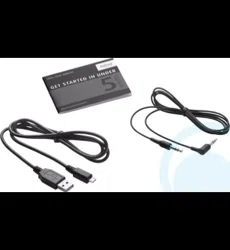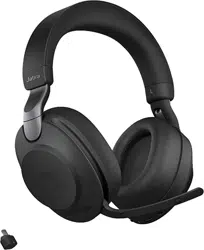

User manual
EVOLVE2 85

© 2020 GN Audio A/S. All rights reserved. Jabra
®
is a
trademark of GN Audio A/S. The Bluetooth
®
word mark and
logos are registered trademarks owned by the Bluetooth
SIG, Inc. and any use of such marks by GN Audio A/S is under
license.
Declaration of Conformity can be found on
www.jabra.com/doc
Made in China
MODEL: HSC120W

3
ENGLISH
1. Welcome ......................................... 5
2. JABRA EVOLVE2 85
OVERVIEW ..................................... 6
2.1 INCLUDED ACCESSORIES
2.2 OPTIONAL ACCESSORIES
3. HOW TO WEAR ............................8
3.1 ADJUSTING THE HEADSET
3.2 POSITIONING THE MICROPHONE
BOOM ARM
3.3 FOLD FLAT FOR STORAGE
4. HOW TO CHARGE .................... 11
4.1 CHARGE USING THE CHARGING STAND
OPTIONAL ACCESSORY
4.2 CHARGE USING USB CHARGING CABLE
4.3 SLEEP MODE
5. WHAT THE LEDS MEAN .......... 15
6. HOW TO CONNECT ................. 16
6.1 CONNECT TO COMPUTER
6.2 PAIR WITH A SMARTPHONE
6.3 CONNECT TO 3.5MM JACK PORT
7. HOW TO USE ............................ 19
7.1 POWER ONOFF
7.2 CALLS & MUSIC
7.3 ONEAR DETECTION

4
ENGLISH
7.4 SWITCHING MICROPHONES
7.5 VOICE ASSISTANT
7.6 BUSYLIGHTS
7.7 ACTIVE NOISE CANCELLATION ANC
7.8 HEARTHROUGH
TM
7.9 MUTEUNMUTE USING THE MICROPHONE
BOOM ARM
7.10 ANSWER CALL USING THE
MICROPHONE BOOM ARM
7.11 MULTIUSE
7.12 MULTIPLE CALL HANDLING
7.13 VOICE GUIDANCE
7.14 HOW TO RESET
8. SOFTWARE AND
FIRMWARE .................................. 36
8.1 JABRA SOUND+
8.2 JABRA DIRECT
8.3 UPDATE FIRMWARE
9. SUPPORT .................................... 38
9.1 FAQ
9.2 HOW TO CARE FOR YOUR HEADSET

5
ENGLISH
1. Welcome
Thank you for using the Jabra Evolve2 85. We
hope you will enjoy it!
Jabra Evolve2 85 features
• Designed for all day comfort
• Active Noise Cancellation (ANC)
• 4-microphone call technology
• Up to 37 hours wireless battery life
• 40mm speakers and AAC codec for
immersive music
• 360° busylight visible from all angles
• Up to 30m/100ft wireless range, with
significantly enhanced coverage and fewer
dropouts
• Works with all leading UC platforms,
Microsoft Teams-certified variants available
6
ENGLISH
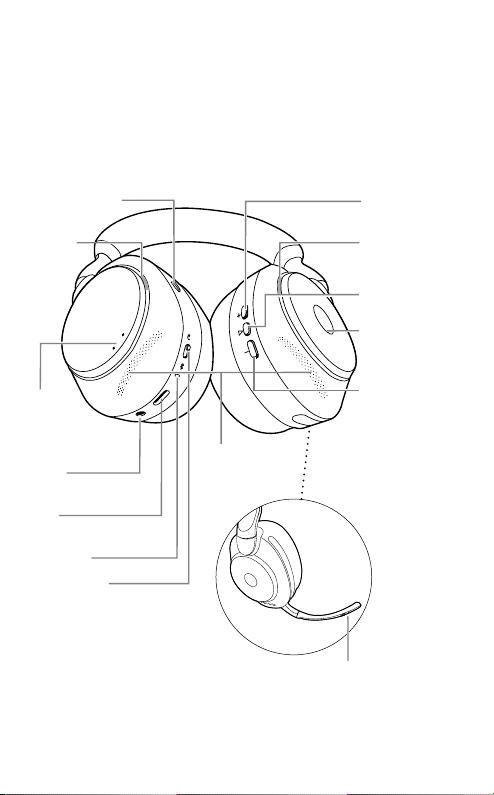
2. Jabra Evolve2 85
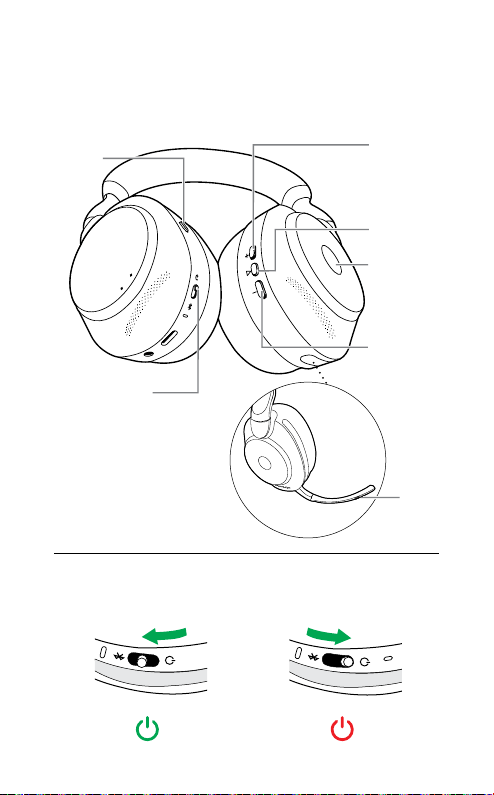
overview
*requires Microsoft Teams headset variant
Mute or unmute microphone/
Activate Voice Assistant
Status LED
USB-C
charge port
3.5mm
jack port
Power on or o/
Pairing
ANC/HearThrough
Busylight/
Microsoft* LED
Volume down/
Restart or
previous track
(hold 1 sec)
Volume up/
Next track
(hold 1 sec)
Play or Pause
music
Earcup
microphones
Answer or end call/
Open Microsoft
Teams notification*
Busylight/
Microsoft*
LED
Charging
pins for
charging stand
(optional accessory)
Left Right
7
ENGLISH
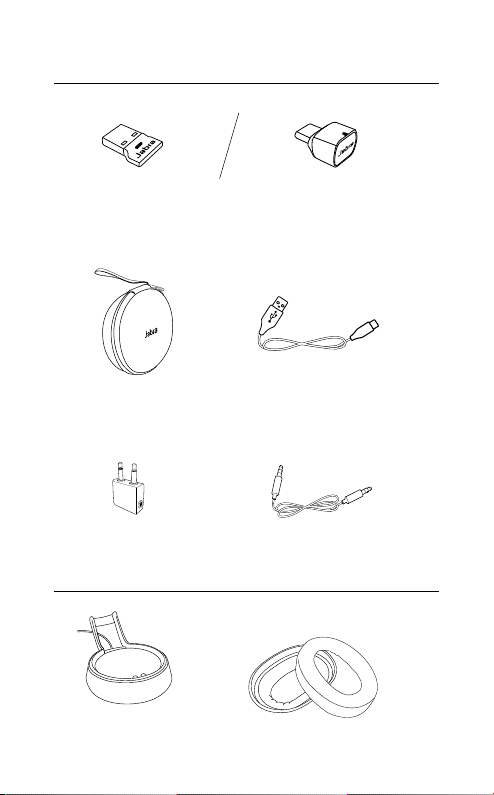
2.1 Included accessories
Jabra Link 380 USB-C
Bluetooth adapter
Jabra Link 380 USB-A
Bluetooth adapter
Carry case
USB-A to USB-C
cable
3.5mm jack cable
Flight adapter
2.2 Optional accessories
USB-A or USB-C
Charging Stand
Replacement ear cushions
8
ENGLISH
3. How to wear
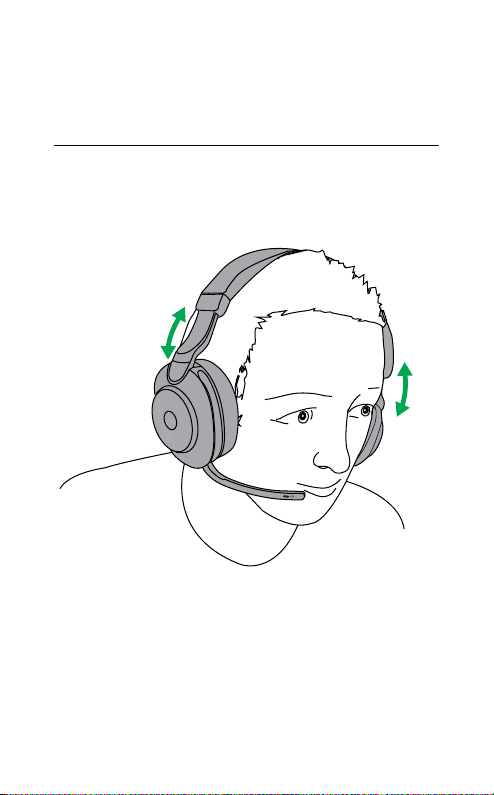
3.1 Adjusting the headset
Adjust the headband so that the headset fits
your head comfortably.
9
ENGLISH
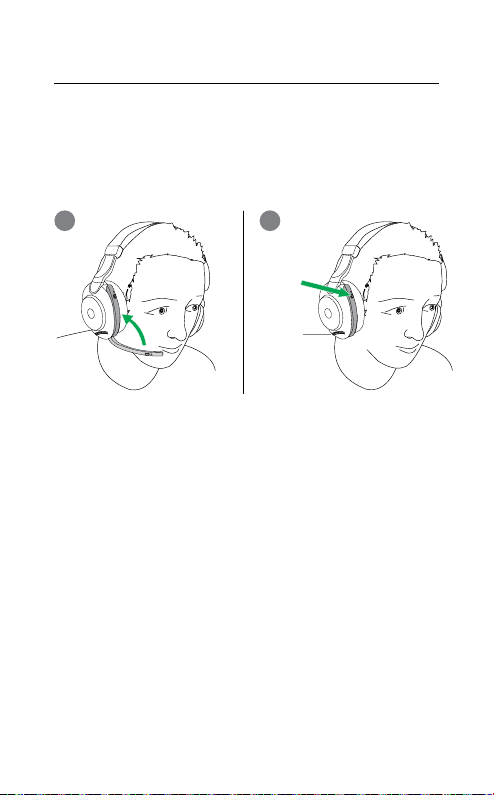
3.2 Positioning the microphone
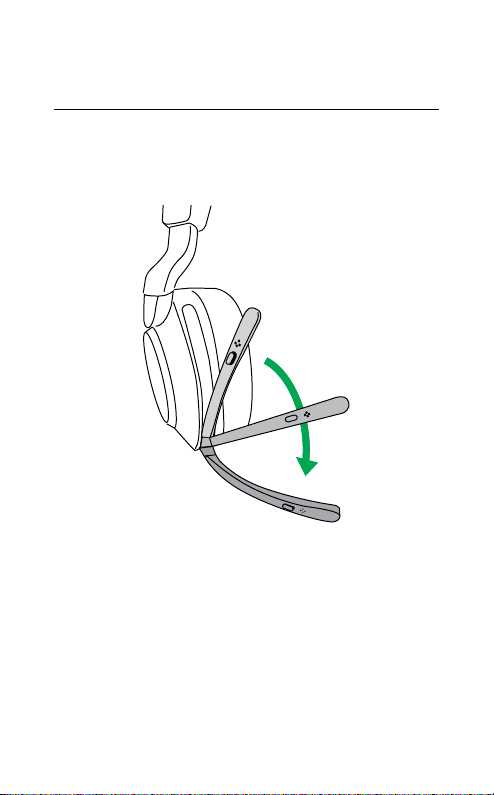
boom arm
Rotate the microphone boom arm down or up
in one smooth motion.
When using the microphone, the tip of the
boom arm should be positioned close to your
mouth.
10
ENGLISH
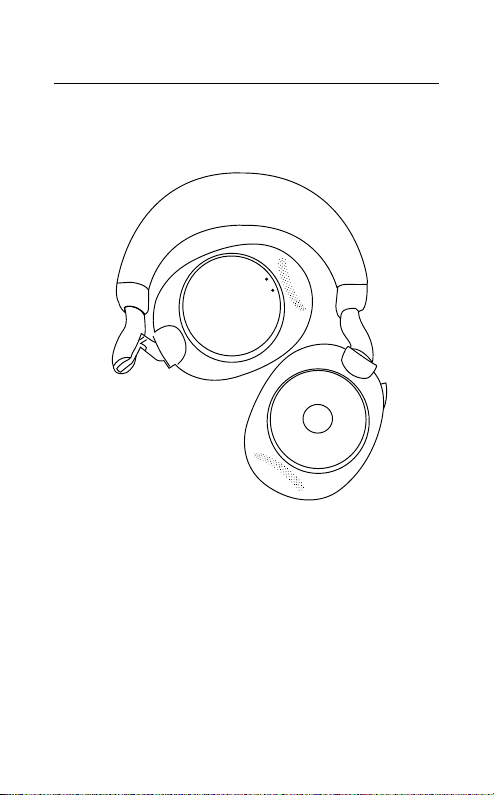
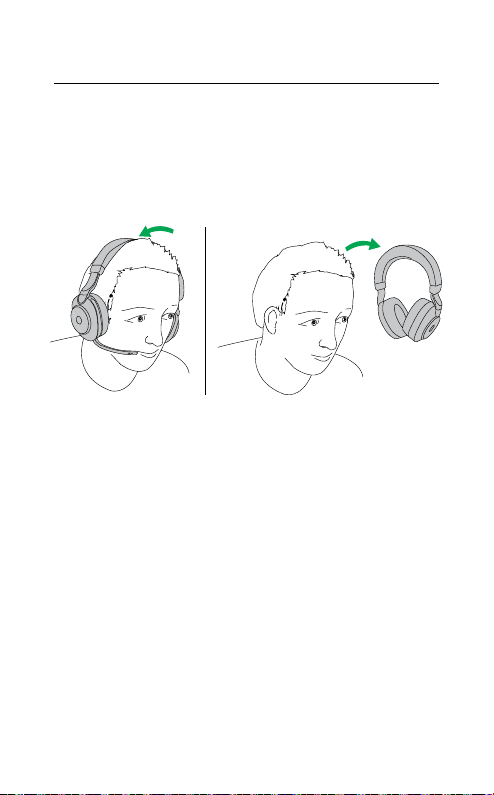
3.3 Fold flat for storage
The earcups can be folded flat for easy
storage inside the carry case.
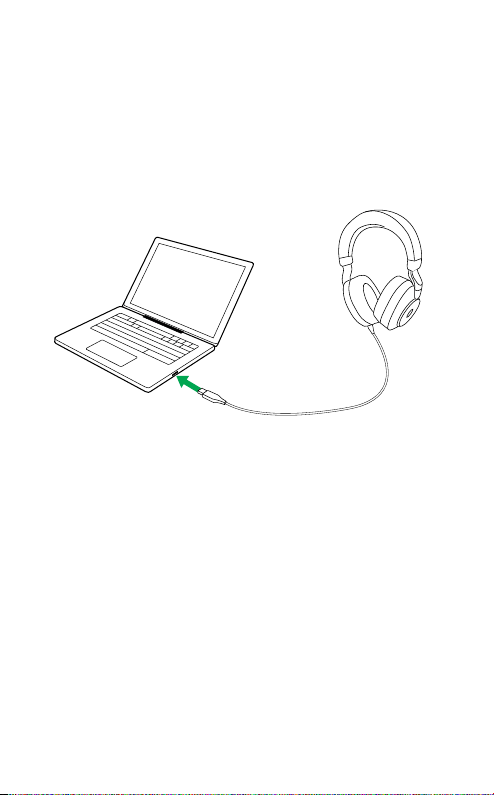
11
ENGLISH
4. How to charge
The headset can be charged using the optional
charging stand, or via a USB charging cable
plugged directly into the headset.
It takes approx. 2 hours and 20 minutes to fully
charge the battery. The headset battery life is
up to 37 hours. If the headset is out of battery,
they can be charged for 15 minutes to get 8
hours of battery life.
12
ENGLISH
4.1 Charge using the charging stand
(optional accessory)
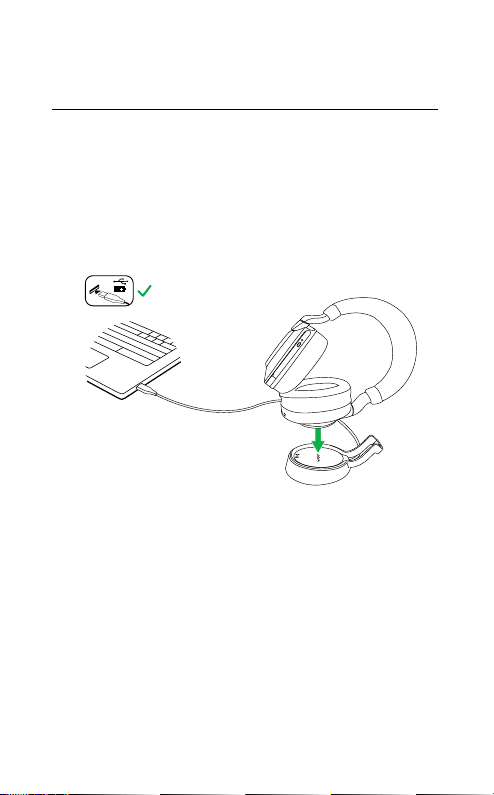
Connect the charging stand to a powered USB
port on your computer using the supplied USB
charging cable, and then dock the headset on
the charging stand.
Powered USB port
The status LED on the headset will flash white
briefly to indicate the headset has been
correctly docked with the charging stand.
The battery LED will then briefly flash green,
yellow or red to indicate the current battery
charging status. When the LED turns solid
green, the headset is fully charged.
13
ENGLISH
4.2 Charge using USB charging cable
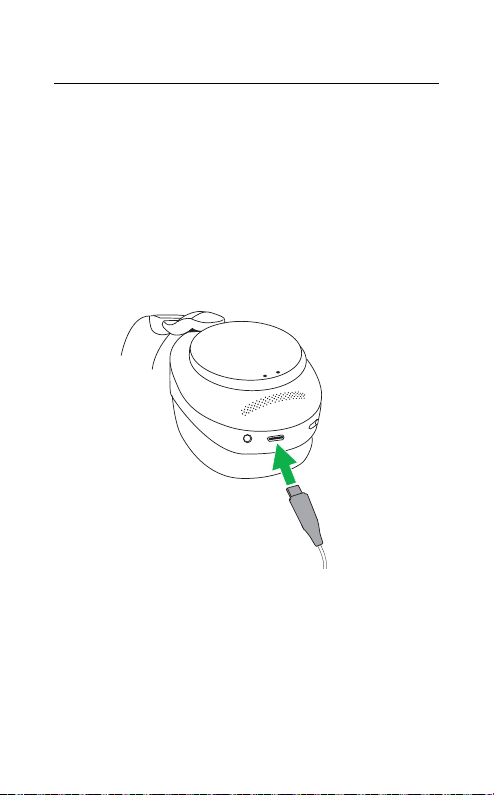
Plug the USB charging cable into the USB-C
charging port on the left earcup and any
available USB port on your computer. It is
recommended to charge the headset using the
supplied Jabra charging cable, however it is
possible to use a compatible charger.
Left earcup
14
ENGLISH
4.3 Sleep mode
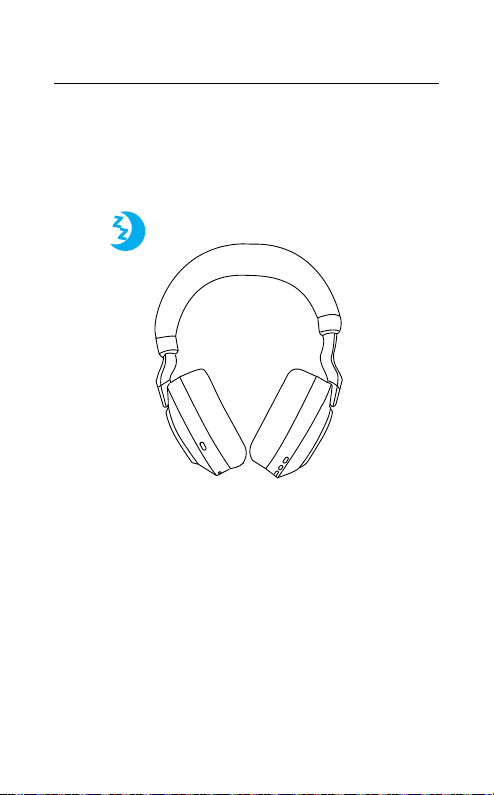
When the headset is powered on, but not being
worn, they will automatically enter sleep mode
after 8 hours to conserve battery. To exit sleep
mode, simply press any button.
The length of time before the headset enters
sleep mode can be adjusted using the Jabra
Sound+ app on your smartphone or Jabra
Direct on your computer.
After 24 hours of sleep mode, the headset will
power down completely. To power the headset
on, slide the On/Off switch to Off and then On.
15
ENGLISH
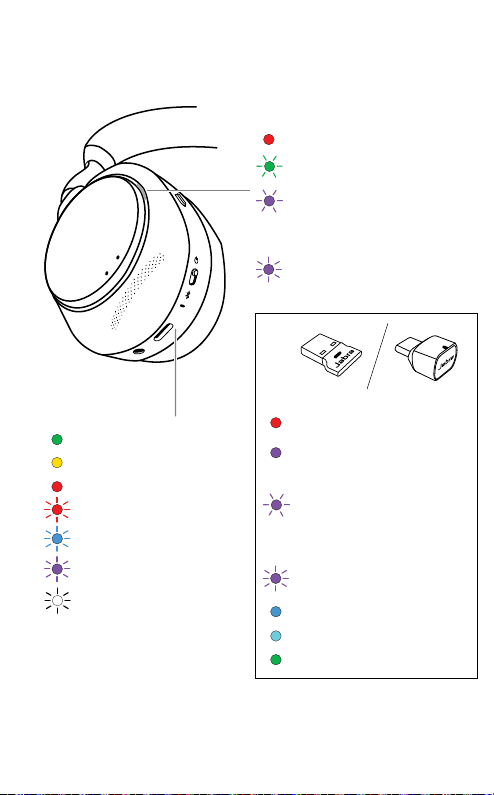
5. What the LEDs mean
BUSYLIGHTMICROSOFT* LED
Busylight
Incoming call
(slow flash) Headset is trying
to connect to Microsoft
Teams. Will time out after 10
seconds*
(fast flash) Microsoft Teams
notification*
STATUS LED (Left earcup)
Power on/Battery full
Battery medium
Battery low
Battery critically low
Pairing mode
Resetting/Firmware
updating
Headset docked in
optional charging stand
*requires Microsoft Teams headset variant
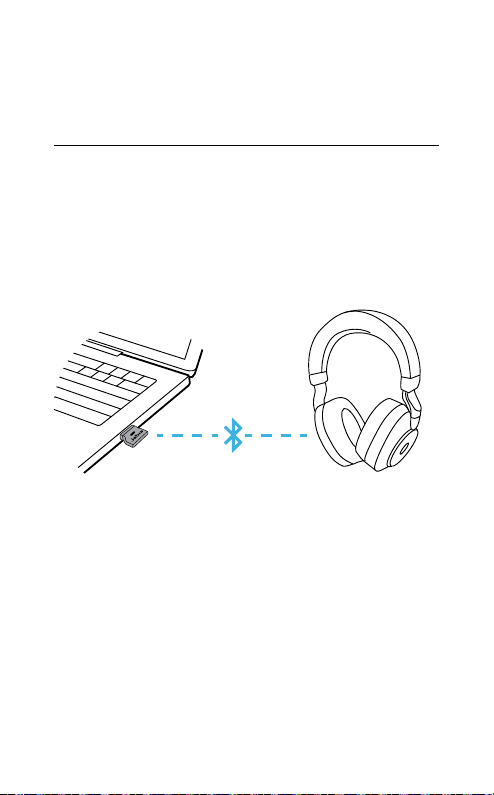
LED
Microphone muted
Plugged into computer
and signed into Microsoft
Teams*
(slow flash) Headset is
trying to connect to
Microsoft Teams. Will time
out after 10 seconds*
(fast flash) Microsoft
Teams notification*
Bluetooth connection
Streaming music/media
Incoming call/Active call
16
ENGLISH
6. How to connect
6.1 Connect to computer
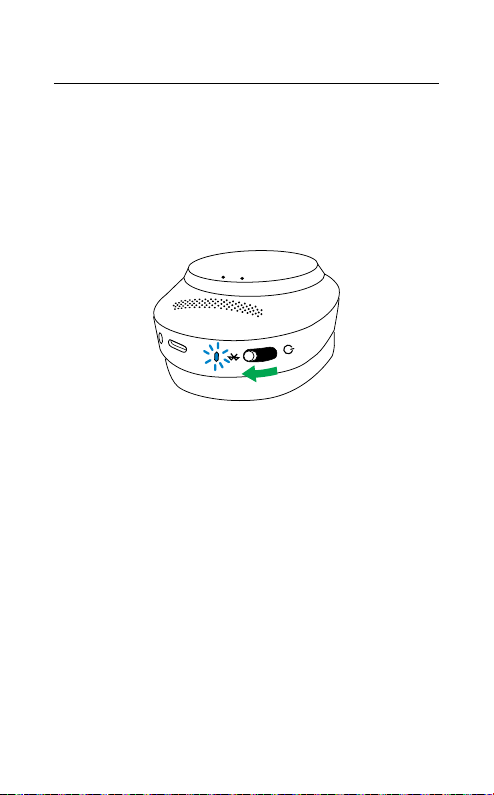
Plug the supplied Jabra Link 380 into a USB
port on your computer. The Jabra Evolve2 85
and the Jabra Link 380 are pre-paired and
ready for use out of the box. The Bluetooth
range is up to 30 meters or 100 feet.
To hear audio in the headset you may need to
select the Jabra Link 380 as the playback device
in your operating system’s audio settings.
To manually pair the Jabra Evolve2 85 with the
Jabra Link 380, download and use Jabra Direct.
17
ENGLISH
6.2 Pair with a smartphone
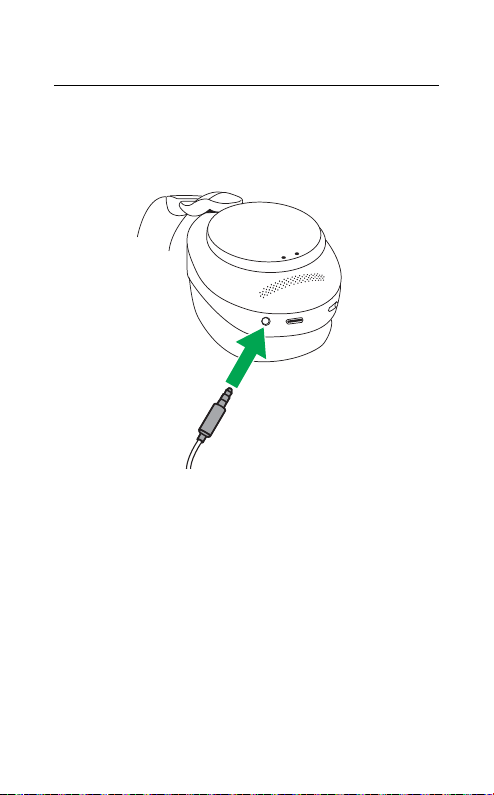
1. Slide the On/Off switch to the Bluetooth
position and hold it there until the LED
flashes blue and you hear an announcement
in the headset.
2. Go to the Bluetooth menu on your
smartphone and select the Jabra Evolve2 85
from the list of available devices.
Left earcup
18
ENGLISH
6.3 Connect to 3.5mm jack port
Plug the supplied audio jack cable into the
3.5mm audio jack port on the headset.
When connected to a device using the audio
jack cable, the headset microphone and
Bluetooth are disabled. If the headset is
plugged into a smartphone, the smartphone’s
microphone will be used for calls.
The volume and ANC/HearThrough can be
controlled using the buttons on the headset.
19
ENGLISH
7. How to use
Voice
button
Volume up
button
On/O switch
Answer/End call
button
Microsoft Teams
button*
Volume down
button
Play/Pause
button
Sound Modes
button
7.1 Power on/o
Slide the On/Off switch to the On or Off
position to power the headset on or off.
*requires Microsoft Teams variant
Left Right
20
ENGLISH
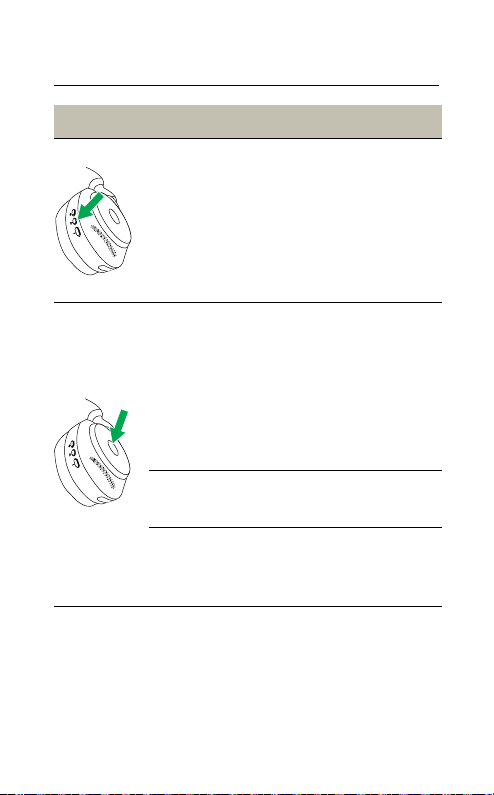
7. 2 Calls & music
Right earcup
Calls & music
Play/pause music
Press the Play/Pause
button
Answer call
Press the Answer/End
call button
Alternatively, move
the microphone boom
arm down to answer
an incoming call. See
section 7.10
End call
Press the Answer/End
call button
Reject call
Double-press the
Answer/End call
button
21
ENGLISH
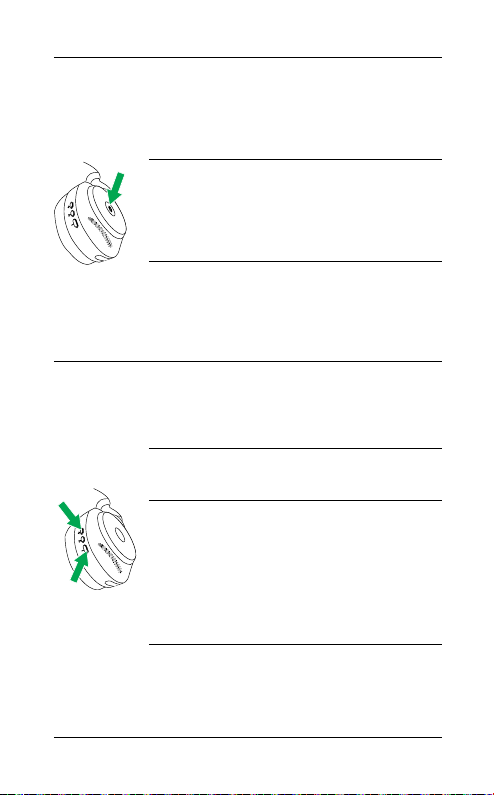
Bring Microsoft
Teams to
foreground on
computer
Press the Microsoft
Teams button* (when
signed into Microsoft
Teams)
Join active
Microsoft Teams
meeting
Press the Microsoft
Teams button* (when
signed into Microsoft
Teams)
View Microsoft
Teams missed
calls and
voicemails
Press the Microsoft
Teams button* (when
signed into Microsoft
Teams)
Adjust volume
Press the Volume up or
Volume down button,
when listening to music
or on a call
Next track
Press and hold (1 sec)
the Volume up button
Restart track
Press and hold (1 sec)
the Volume down
button to restart the
current track
Press and hold twice to
play the previous track
Hear battery and
connection status
Press the Volume up or
Volume down button,
when not listening to
music or on a call
22
ENGLISH
Activate Voice
Assistant (i.e. Siri,
Google Assistant)
Press the Voice button,
when not on a call
Mute/unmute
microphone
Press the Voice button,
when on a call
Alternatively, move the
microphone boom arm
up to mute, or down to
unmute. See section
7.9
Left earcup
Sound modes
Cycle between
Sound modes:
ANC, O,
HearThrough
Press the Sound
modes button
Cycle between
Moments in Jabra
Sound+
Press and hold (1 sec)
the Sound modes
button
Moments can be
customized in the
Jabra Sound+ app
23
ENGLISH
7. 3 On-ear detection
The headset has built-in sensors that can
detect when the headset is being worn and will
perform different actions depending on if the
headset is being worn or not.
AUTO-PAUSE MUSIC
When listening to music, taking off the headset
will automatically pause the music. Wear the
headset again to automatically resume the
music.
MUTE CALL
When you are on a call, taking off the headset
will automatically mute the call. Wear the
headset again to automatically unmute the
call.

24
ENGLISH
BUSYLIGHTS
The Busylight LEDs will only light up red when
the headset is being worn.
MICROSOFT TEAMS STATUS*
The Microsoft Teams status LED will only
indicate Microsoft notifications when the
headset is not being worn.
Head detection and each individual action can
be configured using the Jabra Sound+ app on
your smartphone or Jabra Direct on your
computer.
*requires Microsoft Teams headset variant
25
ENGLISH
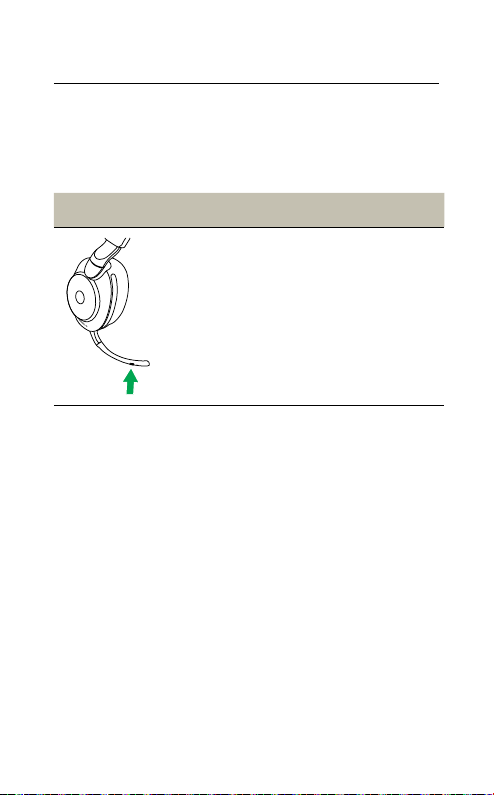
7.4 Switching microphones
To use the earcup microphones instead of the
boom arm microphone, raise the boom arm
and then press the Voice button on the boom
arm.
Earcup
microphone
Voice
button
1
2
To use the boom arm microphone instead of
the earcup microphones, lower the boom arm.
26
ENGLISH
7.5 Voice Assistant
The Jabra Evolve2 85 enables you to speak to
Siri, Google Assistant on your smartphone
using the Voice button.
Right earcup Voice Assistant
Activate Voice
Assistant (i.e.
Siri, Google
Assistant)
Press the Voice
button, when not
on a call
27
ENGLISH
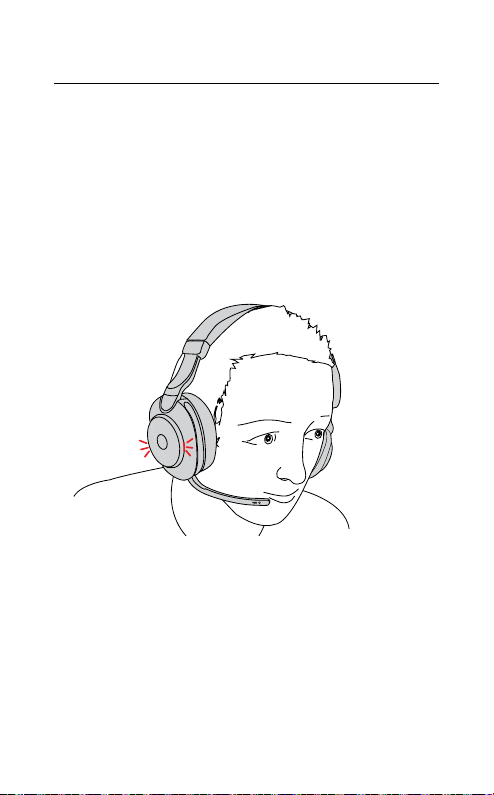
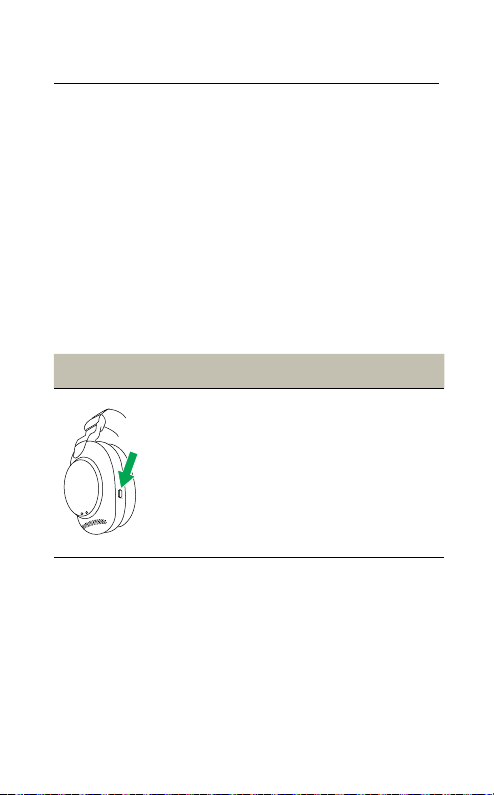
7.6 Busylights
The Busylights on the headset automatically
light up red when you are on a call to indicate
to colleagues that you are busy. To manually
switch the Busylights on/off, press the Volume
up and Volume down buttons at the same time.
Please note that the Busylights will only light
up when you are wearing the headset.
Busylight settings can be configured using the
Jabra Sound+ app on your smartphone or Jabra
Direct on your computer.
28
ENGLISH
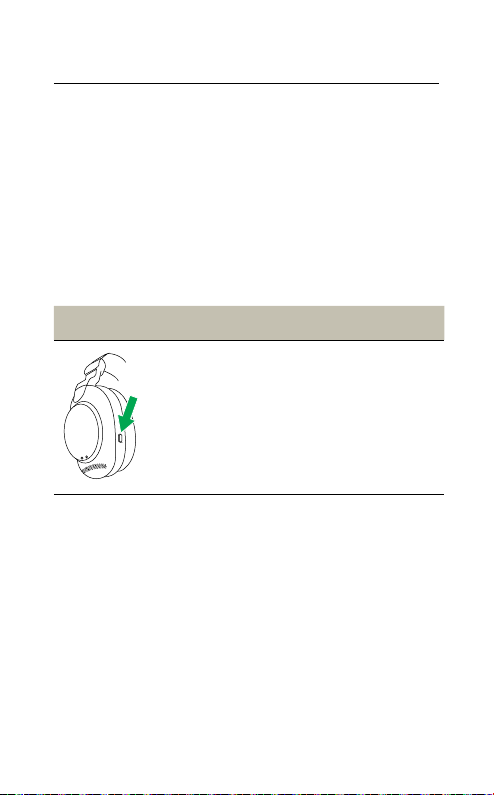
7.7 Active Noise Cancellation (ANC)
Active Noise Cancellation (ANC) counters
noise. It detects and analyzes the pattern of
incoming sound, and then generates an
antinoise signal to cancel it out. As a result, you
experience a drastically reduced level of
surrounding noise.
ANC settings can be configured using the Jabra
Sound+ app on your smartphone or Jabra
Direct on your computer.
Left earcup ANC
Turn on ANC
Press the Sound
modes button to cycle
through the available
Sound modes until
ANC is announced
29
ENGLISH
7.8 HearThrough
TM
HearThrough utilizes the built-in microphones
to enable you to pay attention to your
surroundings and engage in conversation
without needing to remove the headset.
HearThrough settings can be configured using
the Jabra Sound+ app on your smartphone or
Jabra Direct on your computer.
Left earcup HearThrough
Turn on
HearThrough
Press the Sound
modes button to cycle
through the available
Sound modes until
HearThrough is
announced
30
ENGLISH
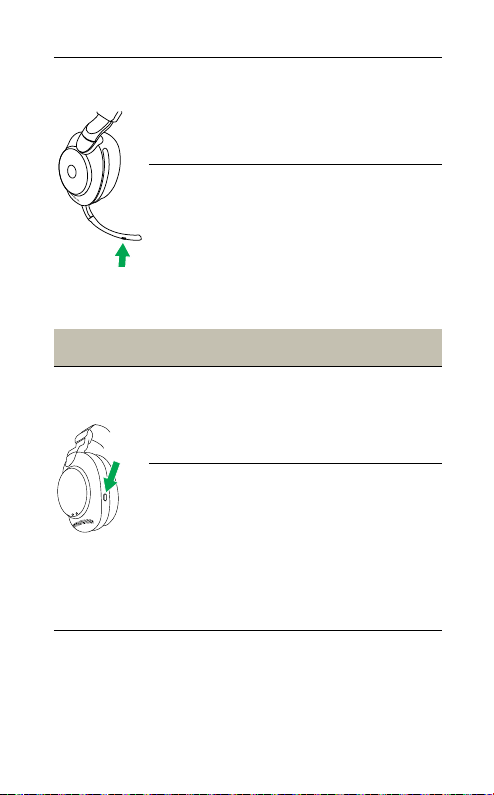
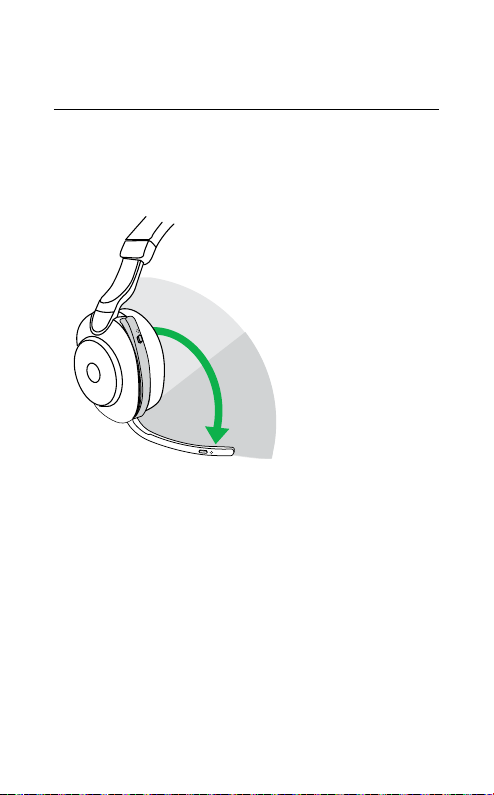
7.9 Mute/unmute using the
microphone boom arm
The headset microphone can be muted by
moving the microphone boom arm up, or
unmuted by moving it down.
Mute
microphone zone
Unmute
microphone zone
This feature is on by default, and can be
disabled using Jabra Sound+ on your
smartphone or Jabra Direct on your computer.
31
ENGLISH
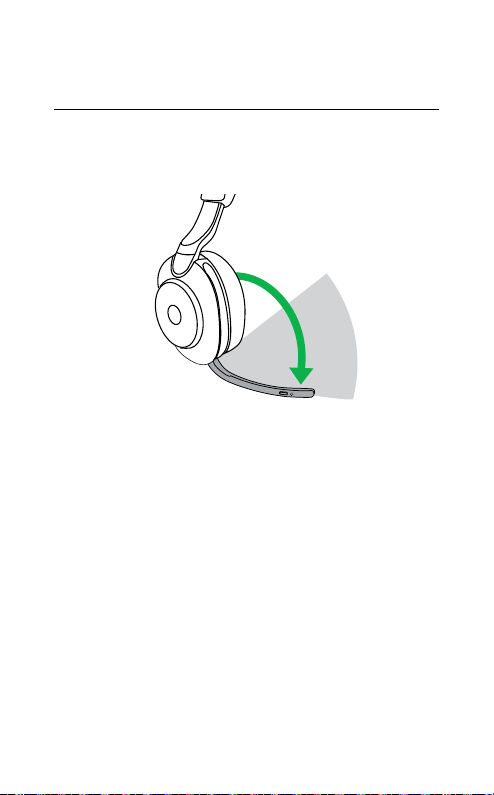
7.10 Answer call using the
microphone boom arm
An incoming call can be answered by moving
the microphone boom arm down.
Answer call zone
This feature is on by default, and can be
disabled using Jabra Sound+ on your
smartphone or Jabra Direct on your computer.

32
ENGLISH
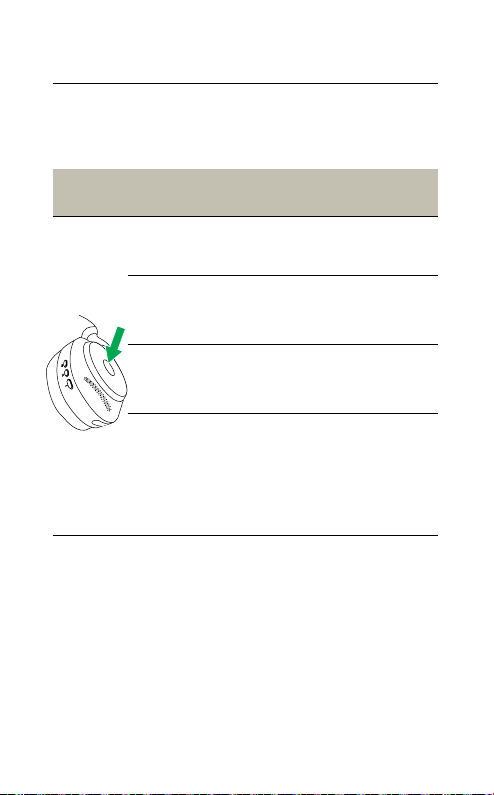
7.11 Multiuse
The headset can be paired to up to eight
Bluetooth devices and connected to two
Bluetooth devices at once (e.g. the Jabra Link
380 and a Smartphone, or two Bluetooth
devices). The headset can accept multiple
incoming calls from either device.
To pair to two Bluetooth devices, use the
normal pairing process separately for each
Bluetooth device (refer to section 6.2).
Note: Voice assistant will be activated on the last connected
Bluetooth device.
33
ENGLISH
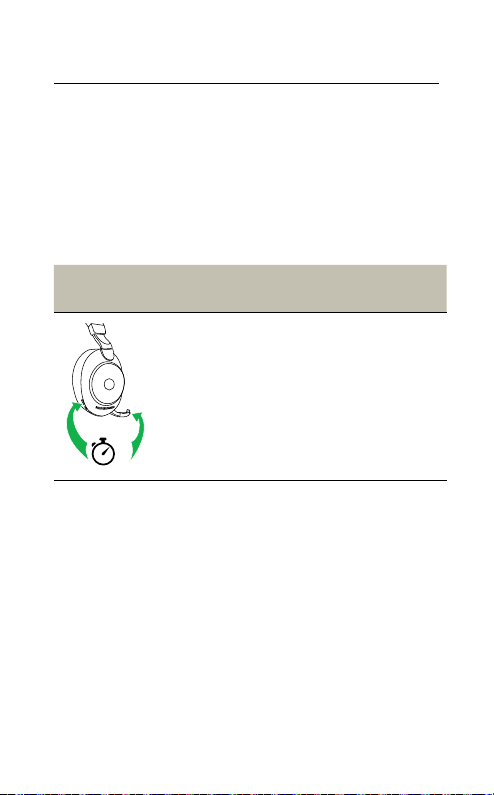
7.12 Multiple call handling
The headset can accept and handle multiple
calls at the same time.
Right
earcup
Multiple call handling
End current call and
answer incoming call
Press the Answer/
End call button
Put current call on
hold and answer
incoming call
Hold (2secs) the
Answer/End call
button*
Switch between held
call and active call
Hold (2secs) the
Answer/End call
button*
Reject incoming call,
when on a call
Double-press the
Answer/End call
button
*Non-Microsoft Teams headset variant only
34
ENGLISH
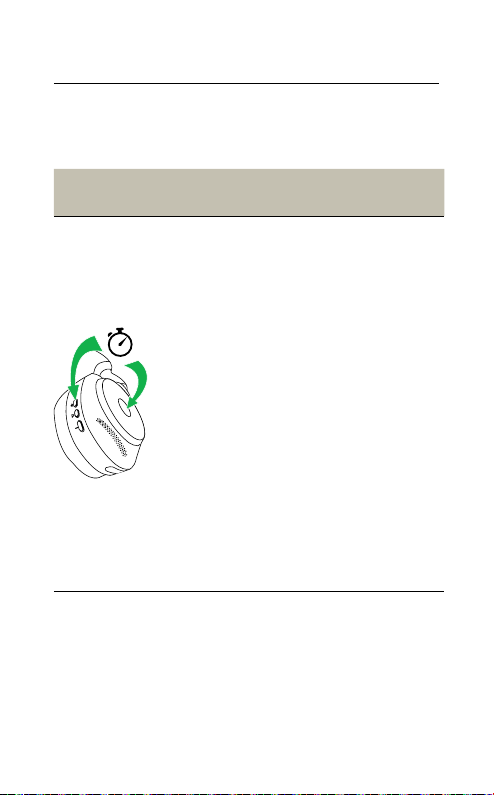
7.13 Voice guidance
Voice guidance are announcements that will
guide you through set up, or will give you
headphone status updates (e.g. connection
and battery status).
Voice guidance is enabled by default.
Right
earcup
Voice guidance
5
Turn Voice
guidance on/o
Press and hold
(5 sec) the Voice
button and the
Volume up button
until you hear an
announcement in the
headset
Alternatively, use the Jabra Sound+ app on your
smartphone or Jabra Direct on your computer
to turn Voice guidance on or off.
For the latest list of supported languages, refer
to the Jabra Sound+ or Jabra Direct.
35
ENGLISH
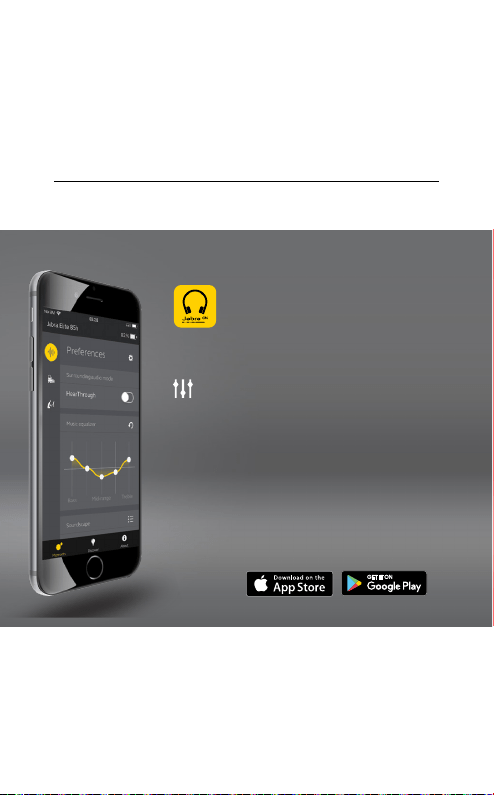
7.14 How to reset
Resetting the headset clears the list of paired
devices and resets all settings.
Right
earcup
Reset headset
3
Reset pairing
list and settings
Ensure the headset
is powered on and
you are not on a
call. Then press
and hold (3 sec)
the Multi-function
button and the
Volume up button
simultaneously until
the LED lights up
purple and your hear
an announcement in
the headset
You will need to
re-pair the headset
to the Jabra Link 380
using Jabra Direct, or
to your Smartphone
(see section 6.2)
36
ENGLISH
8. Software and
firmware
8.1 Jabra Sound+
Jabra Sound+ app
Personalize your music
and calls

37
ENGLISH
8.2 Jabra Direct
Jabra Direct is computer software designed to
support, manage and enable optimal
functionality for Jabra devices.
Download the latest free version from jabra.com/direct
8.3 Update firmware
Firmware updates improve performance or
add new functionality to Jabra devices.
The headset firmware can be updated using
either Jabra Direct on your computer or the
Jabra Sound+ app on your smartphone. Both
applications will notify you when a firmware
update is available.
The Jabra Link 380 Bluetooth adapter firmware
can be updated using Jabra Direct on your
computer.

38
ENGLISH
9. Support
9.1 FAQ
View the FAQs on Jabra.com/help/evolve2-85
9.2 How to care for your headset
• Always store the headset in the supplied
case.
• To prevent the depletion of the battery
lifetime or capacity, avoid storing the headset
in hot or cold environments, such as a closed
car in summer, or in winter conditions.
• When exposed to rain, allow the headset
sufficient time to dry. It may take up to one
hour for the headset to dry thoroughly and
power on.
• It is recommended to keep the headset
between 20°C and 55°C (-4°F and 131°F).
• Do not store the headset for extended
periods of time without recharging them
(max. three months).

REV. C
jabra.com/evolve2-85