User manual
Jabra
Elite 4 Active

© 2021 GN Audio A/S. All rights reserved. Jabra
®
is a
trademark of GN Audio A/S. The Bluetooth
®
word mark and
logos are registered trademarks owned by the Bluetooth
SIG, Inc. and any use of such marks by GN Audio A/S is under
license.
Declaration of Conformity can be found on
www.jabra.com/doc
Made in China
MODEL: OTE160ROTE160L
CPB160

3
ENGLISH
1. Welcome ......................................... 5
2. Jabra Elite 4 overview .................6
2.1 Included accessories
3. How to wear ................................... 8
3.1 Changing EarGels
4. How to charge ............................ 10
4.1 Charging the earbuds
4.2 Fast charge the earbuds
4.3 Charging the charging case using USB
5. What the LEDs mean ............... 13
6. How to pair .................................. 15
6.1 Pairing with a mobile device
7. How to use ................................. 16
7.1 Power the earbuds on/o
7.2 Music controls
7.3 Call controls
7.4 Voice assistant controls
7.5 Active Noise Cancellation
7.6 HearThrough
7.7 One-touch Spotify playback
7.8 Sidetone
7.9 Mono earbud mode

4
ENGLISH
7.10 Sleep mode
7.11 Multiple call handling
7.12 Update firmware
7.13 Reset the earbuds
8. Jabra Sound+ app ...................... 28
9. Support ........................................ 29
9.1 FAQ
9.2 How to care for your earbuds
9.3 Replacement accessories
9.4 Using replacement earbuds
9.5 Using a replacement charging case

5
ENGLISH
1. Welcome
Thank you for using the Jabra Elite 4 Active. We
hope you will enjoy it!
Jabra Elite 4 Active Features
• Secure fit for active lifestyles. With ergonomic,
wing-free design.
• Everyday durability. IP57-rated water and sweat
proof protection with a 2-year warranty*.
• Active Noise Cancellation (ANC). Block intrusive
sounds and stay in the zone.
• Your music your way. Boost the bass or turn up
the treble with the customizable equalizer.
• Stay alert with HearThrough. Hear what’s going
on around you.
• Clear calls in noisy places. 4 microphones for
great call clarity on the go.
• Small on size. Big on power. Up to 7 hours in
the buds, and up to 28 hours with the case +
fast charge.
• Use either earbud with mono mode.
• Seamless connectivity. Alexa Built-in or Spotify Tap
playback, and Google Fast Pair**.
* Against failure from dust and water with Jabra Sound+ app
registration
** Alexa Built-in, Spotify Tap playback and Google Fast Pair
compatible with Android OS 6.0 or higher
6
ENGLISH
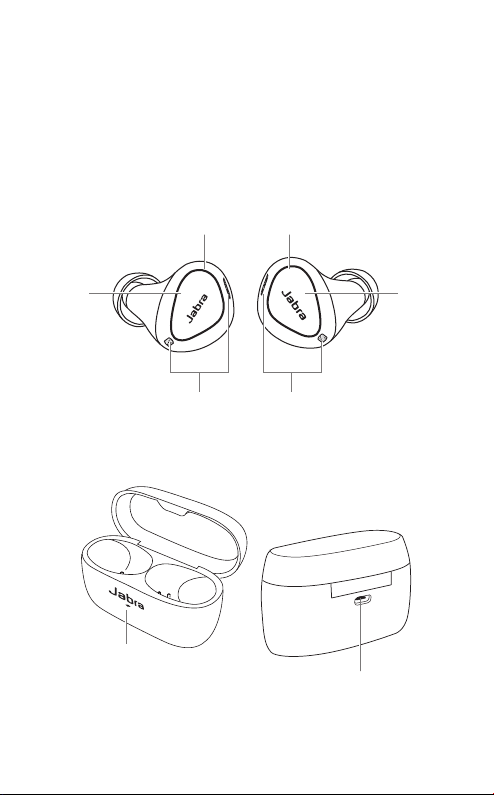
2. Jabra Elite 4 Active
overview
Jabra Elite 4 Active earbuds
Microphones
LED LED
Microphones
Left
button
Right
button
Charging case
Charging port
LED
LEFT EARBUD RIGHT EARBUD
7
ENGLISH
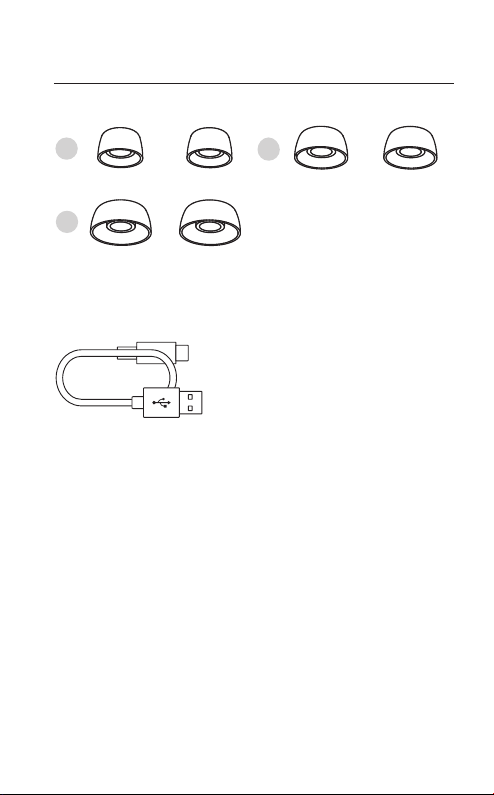
2.1 Included accessories
EarGels
L
S
M
pre-mounted on
the earbuds
USB-C charging cable
8
ENGLISH
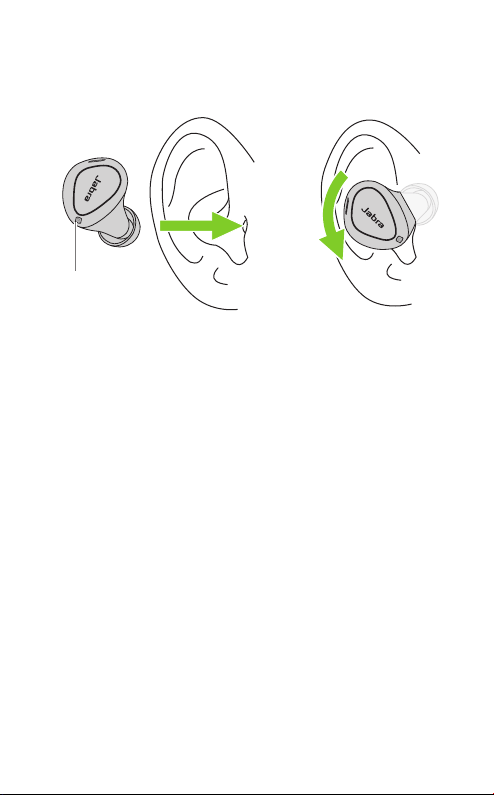
3. How to wear
Microphone
Carefully insert each earbud into your ear.
Position the microphones on the earbuds
towards your mouth.
9
ENGLISH
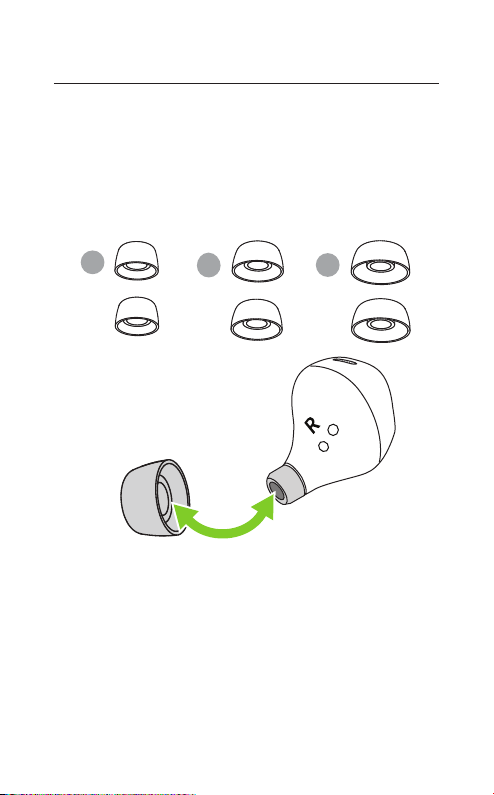
3.1 Changing EarGels
For the optimal audio experience, it is
recommended to try each of the different
EarGel sizes. The fit should feel light and
comfortable in your ear. The medium EarGels
are pre-mounted on the earbuds.
M
L
S
10
ENGLISH
4. How to charge
The Jabra Elite 4 Active offers up to 7 hours
of battery and up to 28 hours with the charging
case and fast charge.
4.1 Charging the earbuds
Place the earbuds in the charging case and
close the lid. It takes up to 2 hours to fully
recharge the earbuds.
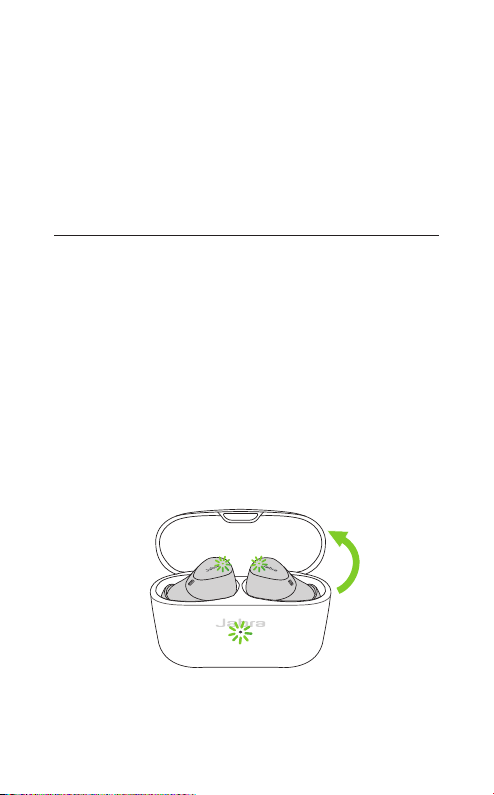
When the charging case lid is opened with the
earbuds inside, the LEDs on the earbuds will
light up red, yellow or green to indicate the
battery status of the earbuds. The LED on the
front of the charging case indicates the battery
status of the charging case.

11
ENGLISH
4.2 Fast charge the earbuds
Placing the earbuds in the charging case for 10
minutes when they are at low battery will fast
charge the earbuds, offering up to 60 minutes of
battery. Fast charging the earbuds requires that
the charging case has a minimum of 30% battery.
You can see the current battery status of the
earbuds using the Jabra Sound+ app.
12
ENGLISH
4.3 Charging the charging case
using USB
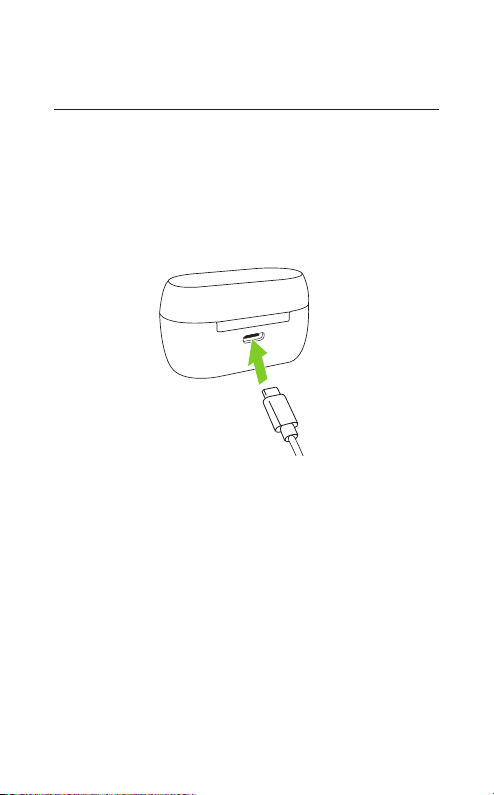
Plug the supplied USB-C charging cable into
the charging case and a USB-A power supply or
wall charger. It takes up to 3.5 hours to fully
charge the earbuds and the charging case
(depending on the charger used).
USB-C
It is recommended to use a power supply with
5V +-0.25V and maximum charging current
below 2A. It is not recommended to charge the
earbuds or charging case using a wall charger
with a higher voltage.
13
ENGLISH
5. What the LEDs mean
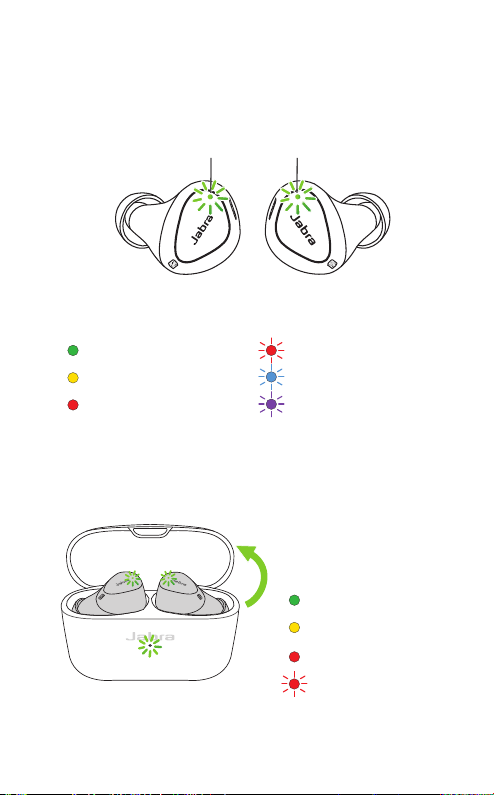
High battery
Medium battery
Low battery
Critically low battery
(earbuds not charging)
LED LED
EARBUD STATUS
BATTERY STATUS WHEN
OPENING CHARGING
CASE
High battery
Medium battery
Low battery
Power off
Pairing
Resetting/
Firmware updating
14
ENGLISH
Y
Z
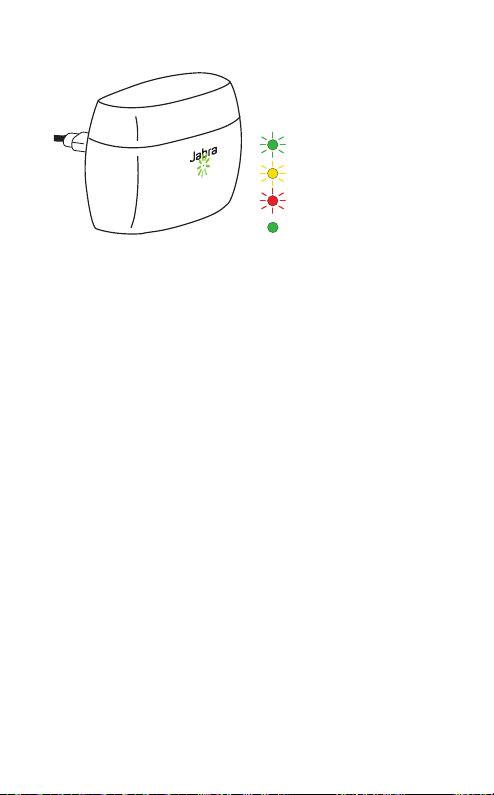
High battery
Medium battery
Low battery
Fully charged
CHARGING CASE STATUS
WHEN CONNECTED
WITH USB CABLE
15
ENGLISH
6. How to pair
6.1 Pairing with a mobile device
3 Sec
1. Power on the earbuds by removing them
from the charging case. Alternatively, press
the Left and Right buttons to power the
earbuds on.
2. Press and hold (3 sec) the Left and Right
buttons simultaneously until the earbud LED
flashes blue. The earbuds will now be ready
to pair to your phone.
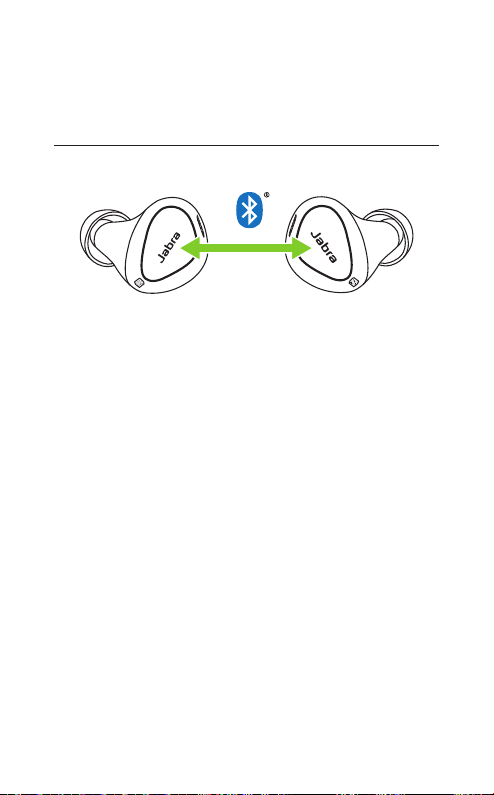
3. Go to the Bluetooth settings on your
smartphone and select the Jabra Elite 4
Active from the list of available devices to
complete the pairing.
16
ENGLISH
7. How to use
7.1 Power the earbuds on/o
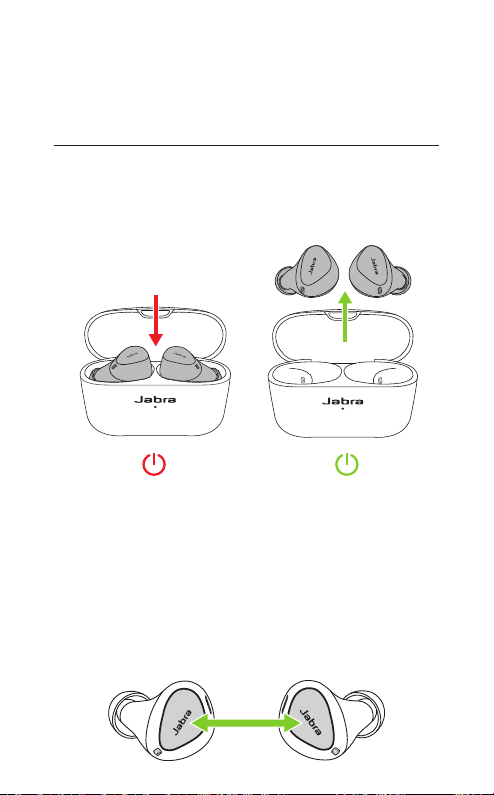
Place the earbuds in the charging case to
power off. Remove the earbuds from the
charging case to power on.
To power off the earbuds manually, press both
the Left and Right buttons simultaneously. To
power off an earbud in mono mode, press and
hold the button on the earbud for 5 seconds.
To power on the left or right earbud manually,
press the Left or Right button.
17
ENGLISH
7. 2 Music controls
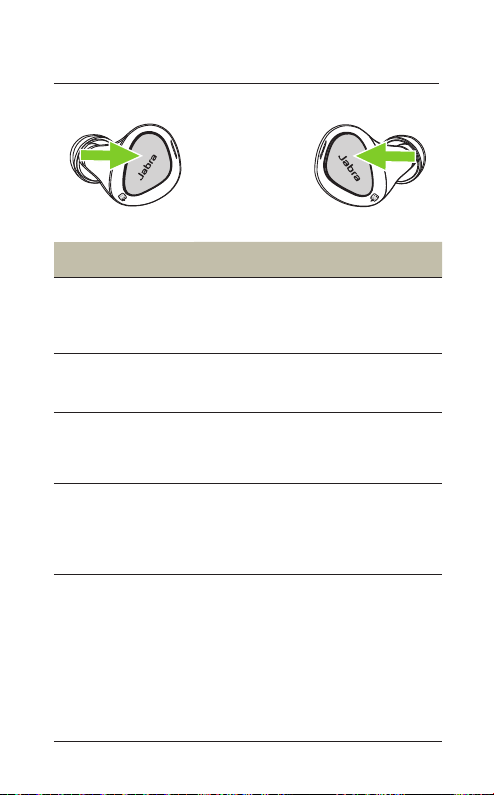
Left earbud Function Right earbud
Play/pause
music
Press the Right
button when not
on a call
Volume up
Press and hold
the Right button
Press and hold the
Left button
Volume down
Next track
Double-press
the Right button
when listening
to music
Restart track
or previous
track
Triple-press the
Right button
when listening
to music
Repeat to skip
to the previous
track
18
ENGLISH
7. 3 Call controls
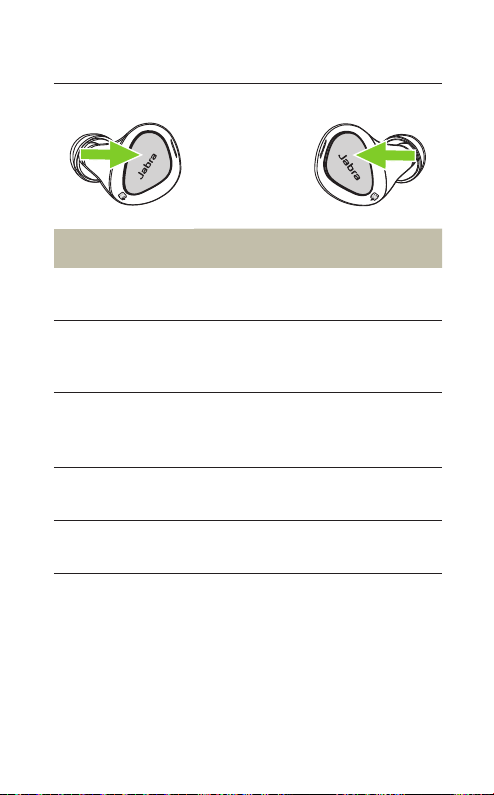
Left earbud Function Right earbud
Press the Left or
Right button
Answer call
Press the Left or
Right button
Double-press
the Left or Right
button
End/reject call
Double-press
the Left or Right
button
Press the Left or
Right button
Mute/unmute
microphone
Press the Left or
Right button
Volume up
Press and hold
the Right button
Press and hold the
Left button
Volume down

19
ENGLISH
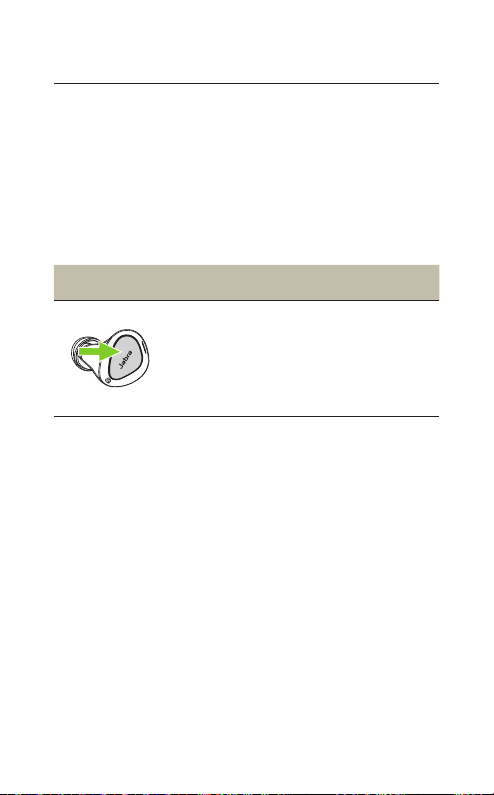
7.4 Voice assistant controls
Left button Voice assistant
Activate Voice
assistant
(Siri, Google
Assistant,
Amazon Alexa*)
Double-press the
Left button when
not on a call
* Alexa voice assistant and features only available for Android
version 6.0 or higher
20
ENGLISH
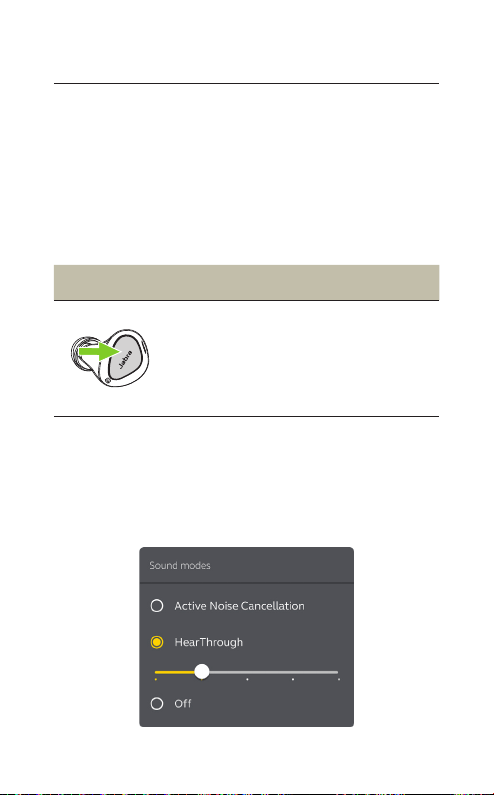
7.5 Active Noise Cancellation
Active Noise Cancellation (ANC) counters noise
by detecting and analyzing the pattern of
incoming sound, and then generating an anti-
noise signal to cancel noise out. As a result, you
experience a reduced level of surrounding
noise during music and media playback.
Left button Active Noise Cancellation
Cycle between
HearThrough, ANC
and O
Press the Left
button when
not on a call
ANC is disabled by default and can enabled and
personalized using the Jabra Sound+ app. A
firmware update may be required to enable
ANC.
21
ENGLISH
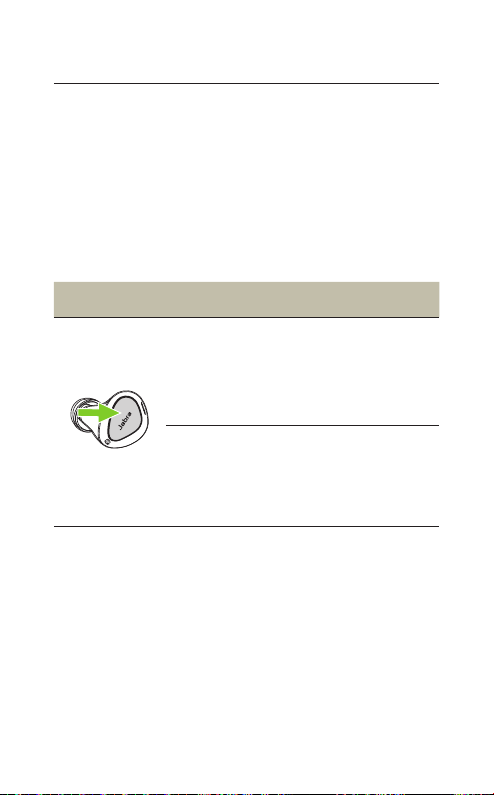
7.6 HearThrough
HearThrough lets you pay attention to your
surroundings and engage in conversation,
when not on a call, without needing to remove
the earbuds. The microphones pick up
surrounding sounds and transmit them to the
speakers.
Left button HearThrough
Cycle between
HearThrough, ANC
and O
Press the Left
button when
not on a call
HearThrough can be adjusted using the Jabra
Sound+ app. A firmware update may be
required to adjust HearThrough.
22
ENGLISH
7.7 One-touch Spotify playback
When configured using the Jabra Sound+ app
on an Android device, it is possible to control
one-touch Spotify playback using the left
earbud.
One-touch Spotify playback is off by default
and is available for Android devices.
Left button Spotify
Resume last
played Spotify
song
Double-press the
Left button when
not listening to
music or on a call
Play Spotify
recommended
song
Double-press the
Left button when
Spotify is open

23
ENGLISH
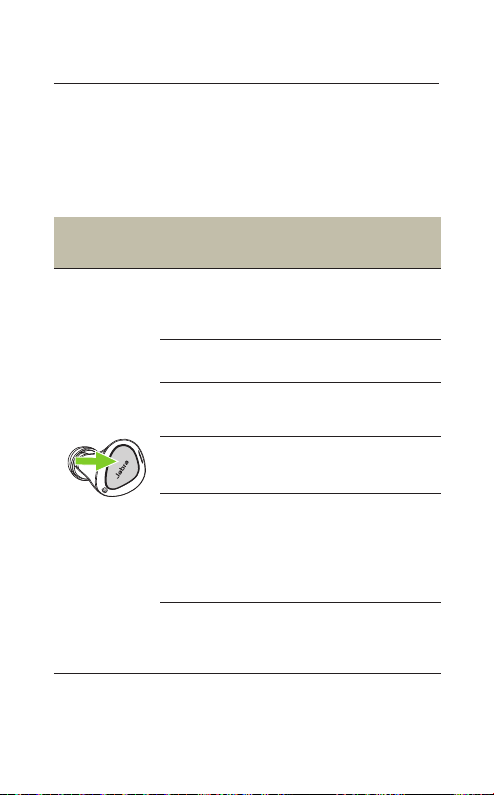
7.8 Sidetone
Sidetone enables you to hear your own voice
when you are on a call. The benefit of Sidetone
is that it enables you to determine how loud
you are speaking.
Sidetone is on by default during calls and can
be turned on/off using the Jabra Sound+ app.
24
ENGLISH
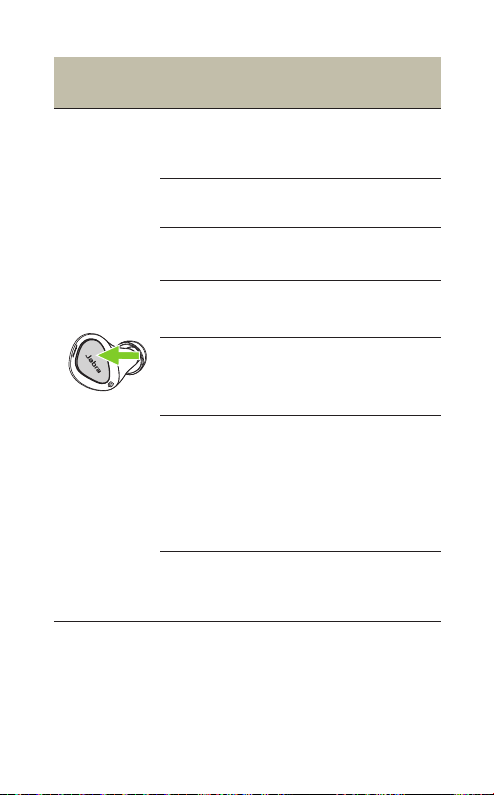
7.9 Mono earbud mode
The right or left earbud can be used individually
for music playback or for calls. To activate
mono earbud mode, place the unused earbud
into the charging case.
Left button Left earbud only
Play/pause
music
Press the Left button
when listening to
music
Answer call Press the Left button
End/reject call
Double-press the
Left button
Mute/unmute
microphone
Press the Left button
when on a call
Activate Voice
assistant or
one-touch
Spotify
playback
Double-press the Left
button when not on
a call
Adjust volume
Use the volume
controls on the paired
mobile device
25
ENGLISH
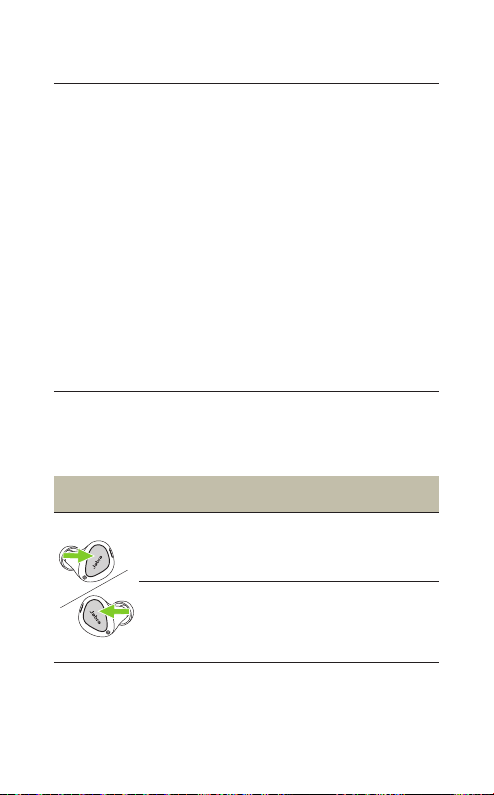
Right button Right earbud only
Play/pause
music
Press the Right button
when listening to
music
Answer call Press the Right button
End/reject call
Double-press the
Right button
Mute/unmute
microphone
Press the Right button
when on a call
Next track
Double-press the
Right button when
listening to music
Restart track
or previous
track
Triple-press the Right
button when listening
to music
Repeat to skip to the
previous track
Adjust volume
Use the volume
controls on the paired
mobile device
The left and right earbuds will automatically
relink when both are placed in your ears.
26
ENGLISH
7.10 Sleep mode
To conserve battery, the earbuds will
automatically power off when they are out of
range of your mobile device for 15 minutes and
are not in the charging case, or when they have
been inactive for 30 minutes.
To power the earbuds on, press the Left and
Right buttons. Alternatively, place the earbuds
in the charging case and then take them back
out.
7.11 Multiple call handling
The earbuds can accept and handle multiple
calls at the same time.
Multiple call handling
End current call and
answer incoming call
Press the
Left or Right
button
Reject incoming call,
when on a call
Double-press
the Left or Right
button

27
ENGLISH
7.12 Update firmware
The Jabra Elite 4 Active can be updated to the
latest firmware version using the Jabra Sound+
app.
If notifications are enabled in Jabra Sound+,
you will receive an automatic notification when
a firmware update is available. Follow the
instuctions in the app to firmware update the
earbuds.
7.13 Reset the earbuds
Resetting the earbuds clears the list of paired
devices and resets all settings.
1. Place both earbuds in the charging case.
2. Press and hold (10 sec) the Left and Right
buttons on the earbuds simultaneously until
the LEDs on the earbuds flash magenta.
3. When the LEDs stop flashing magenta the
earbuds have been reset.
The earbuds will need to be re-paired to your
mobile device. Remember to delete/forget the
pairing in the Bluetooth menu on your mobile
device.
28
ENGLISH
8. Jabra Sound+ app
Jabra Sound+ app
Personalize your music
Register your
2-year warranty

29
ENGLISH
9. Support
9.1 FAQ
View the FAQs on Jabra.com/help/elite4active
9.2 How to care for your earbuds
• Always store the earbuds in the charging case
and safely protected.
• To prevent the depletion of the battery
lifetime or capacity, avoid storing the earbuds
in hot or cold environments, such as a closed
car in summer, or in winter conditions.
• It is recommended to store the earbuds
between -20°C and 45°C (-4°F and 113°F).
• Do not store the earbuds for extended periods
of time without recharging them (max. three
months).
• If the earbuds or the charging case become
dirty, it is recommended to clean them with a
soft, lint-free cloth that has been dampened
with clean water.
• It is recommended to use a power supply
with 5V +-0.25V and maximum charging
current below 2A. It is not recommended to
charge the earbuds or charging case using a
wall charger with a higher voltage.
30
ENGLISH
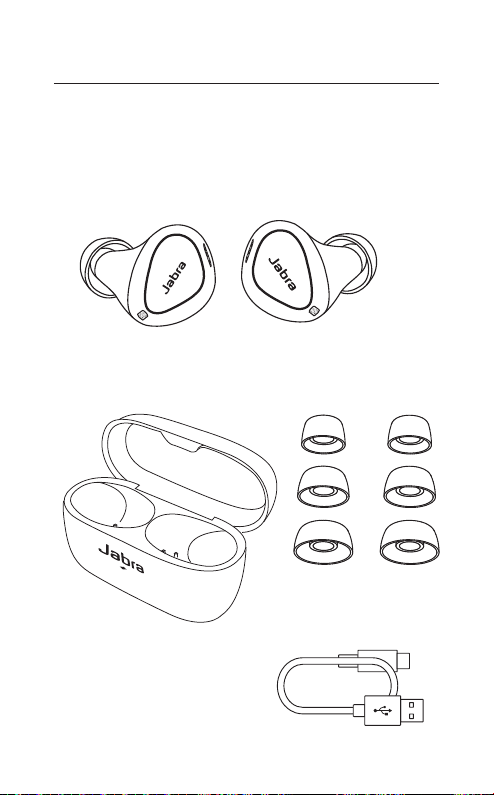
9.3 Replacement accessories
Replacement or additional accessories can be
purchased online at jabra.com/accessories.
Left and right earbud set
Charging case EarGels
M
S
L
USB-C charging cable

31
ENGLISH
9.4 Using replacement earbuds
1. Pair the replacement earbuds to your mobile
device (see section 6.1)
2. Update the earbud firmware using the Jabra
Sound+ app.
9.5 Using a replacement charging case
Before using a replacement charging case, it is
recommended to charge it for 1 hour.