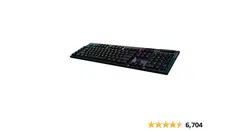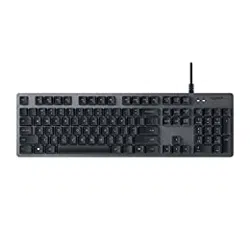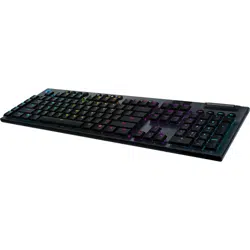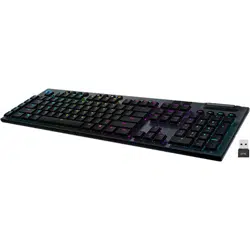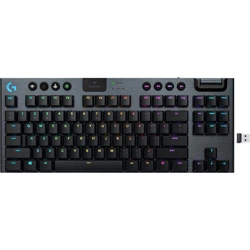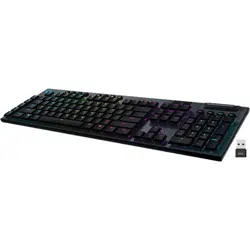
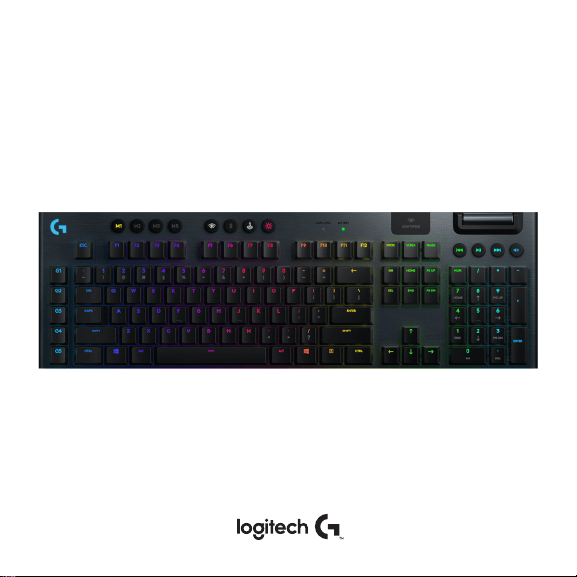
G915
Wireless RGB Mechanical Gaming Keyboard
Clavier gaming mécanique RVB sans l

CONTENTS
English . . . . . . . . . . . . . . . . 3
Français . . . . . . . . . . . . . . .15
Español . . . . . . . . . . . . . . .27
Português . . . . . . . . . . . . . 39
English 3
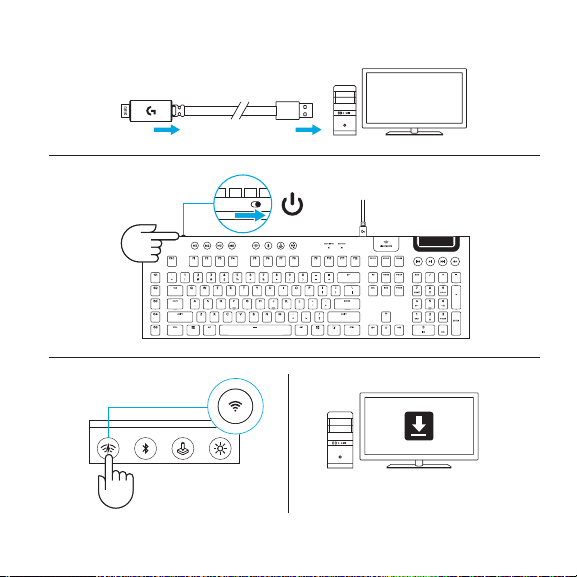
LIGHTSPEED CONNECTION
www.logitech.com/support/G915
4 English
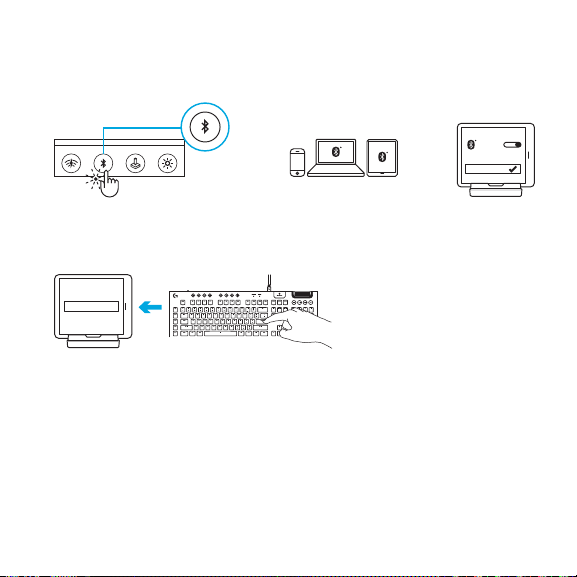
BLUETOOTH
®
CONNECTION
G915
3 Sec.
CODE
1 2 3
4
English 5
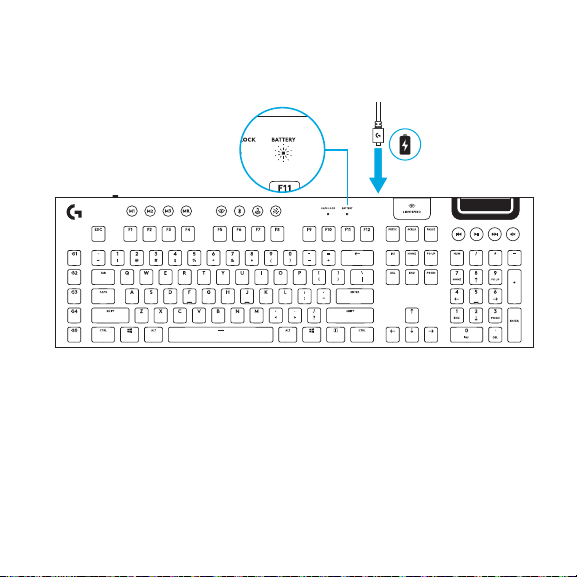
CHARGING
6 English
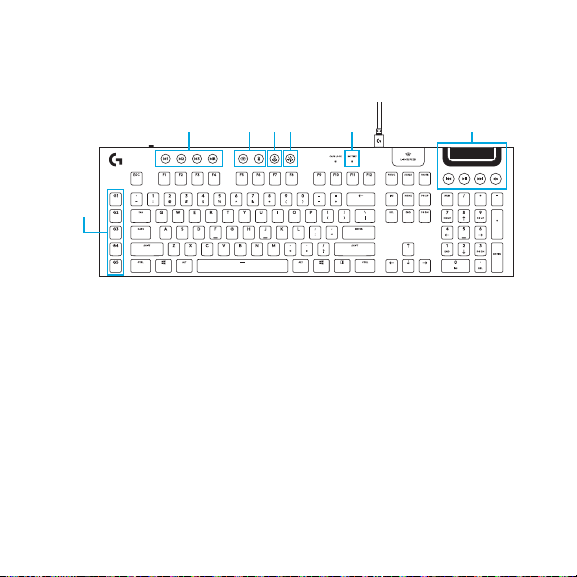
KEYBOARD FEATURES
1
2 3 4 5 6 7
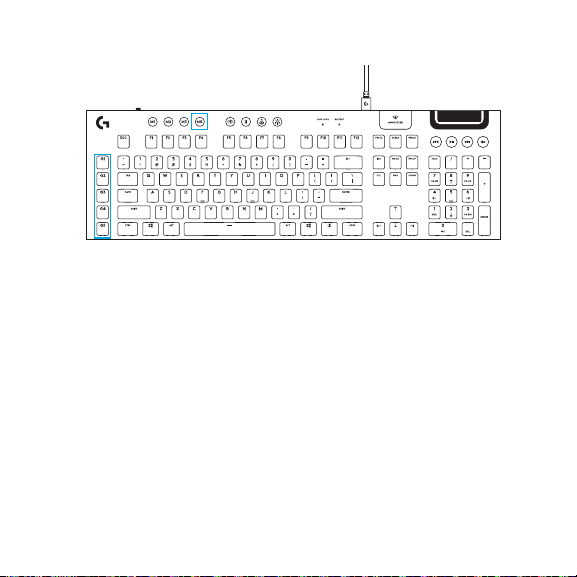
1. G-Keys
2. Mode Switches
3. LIGHTSPEED and Bluetooh
4. Game Mode
5. Brightness
6. Battery Light
7. Media Controls
English 7
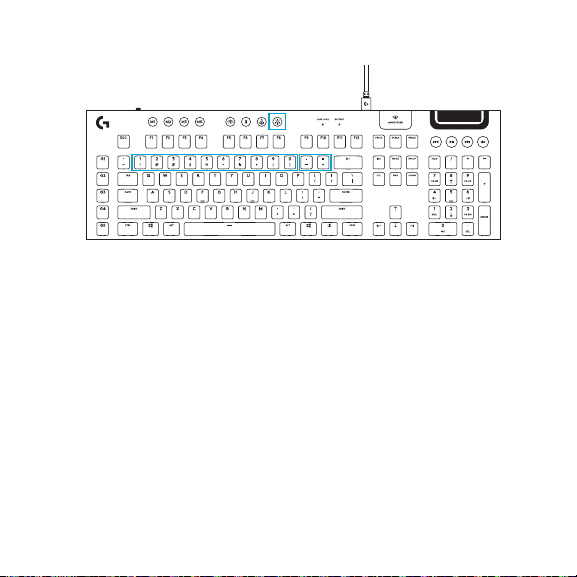
In addition to the lighting features available through G HUB software, G915 has onboard lighting
eects. To select these eects, press and hold the Brightness button while pressing the keyboard
number keys to select an eect:
• Brightness + key 1: Colorwave (left to right)
• Brightness + key 2: Colorwave (right to left)
• Brightness + key 3: Colorwave (center out)
• Brightness + key 4: Colorwave (bottom up)
• Brightness + key 5: Color cycle
• Brightness + key 6: Ripple
• Brightness + key 7: Breathing
• Brightness + key 8: User-stored lighting
• Brightness + key 9: User-stored lighting
• Brightness + key 0: Cyan blue
• Brightness + key -: Decreases eect speed
• Brightness + key +: Increased eect speed
User-stored eects are saved to the keyboard by G HUB software.
KEYBOARD FEATURES LIGHTING FUNCTIONS
8 English
• 5 programmable G-keys and three M-keys provide up to 15 unique functions per game.
• Customize the G-keys using Logitech G HUB Software.
• To record a macro:
1. Press the MR key
2. Press a G-key.
3. Type the keys to be recorded.
4. Press the MR key.
— To record a second macro to the same G-key, press M2 and repeat steps 1–4.
— For a third macro, press M3 and repeat steps 1–4.
Download and install Logitech G HUB software from logitechG.com/GHUB
KEYBOARD FEATURES GKEYS

English 9
GAME MODE BUTTON
KEYBOARD BACK LIGHTING
ONBOARD MEMORY
This button disables the standard Windows key and Menu key to prevent the Windows Start menu from
activating during a game, which might disrupt play. The game mode LED is lit during game mode.
Three onboard proles can be saved to G915. The proles are downloaded into the G915 through
GHUB software, and are accessed by selecting M1, M2, or M3 when the keyboard is in Onboard mode
(selected from G HUB software, or when G HUB software is o or not installed.
Adjust keyboard brightness by cycling the keyboard brightness button.
10 English
KEYBOARD FEATURES MEDIA CONTROLS
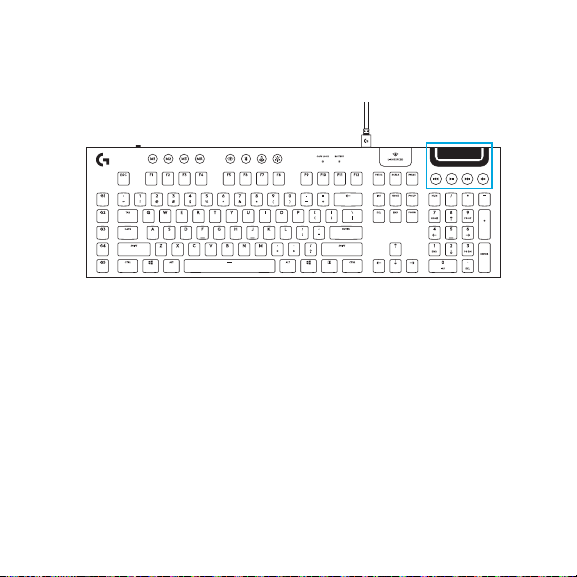
G915 has media controls, located in the upper right corner of the keyboard.
• Volume roller — controls volume of the active audio on your PC.
• Skip back — goes to the beginning of a track, or to a previous track, depending on
theapplication.
• Play/Pause — starts or stops the audio or video source playback.
• Skip forward — goes to the end of the track or to the next track, depending on
theapplication.
• Mute — stops audio output.
English 11
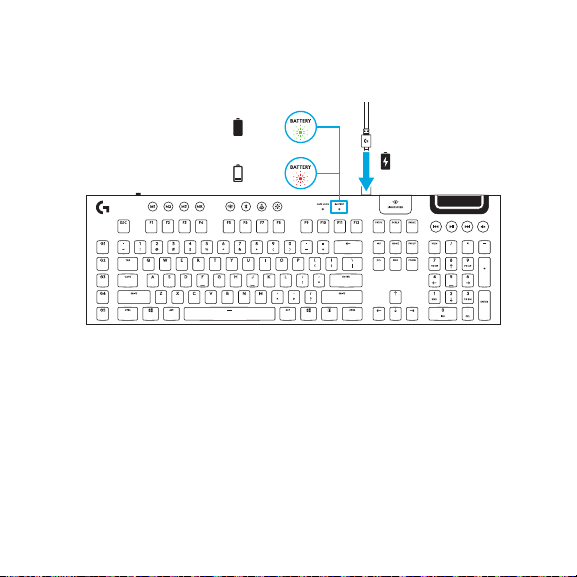
KEYBOARD FEATURES BATTERY INDICATOR
<15%
>15%
• Pulses green when charging.
• Shows green momentarily when started when battery is above 15%.
• Shows red when keyboard needs charging.
12 English
KEYBOARD FEATURES WIRELESS CONTROLS
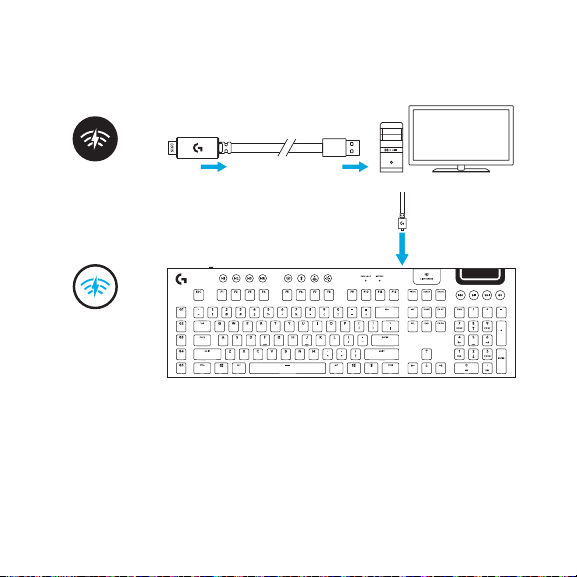
• LIGHTSPEED button selects LIGHTSPEED wireless connection, which connects to the PC or Mac
using the included receiver dongle. It shows white when connected, blue when wired connection.
English 13
KEYBOARD FEATURES BLUETOOTH
®
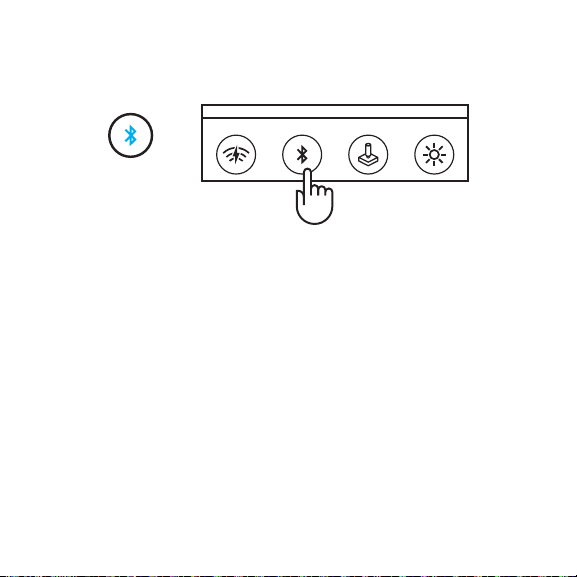
• Bluetooth button connects to devices via a Bluetooth connection. It shows blue when connected.
14 English
KEY CAP REMOVAL
+
REPLACEMENT
CARE AND CLEANING
To clean the keyboard, use a soft, lint-free or microber cloth. A damp cloth can be used.
Donotuseharsh cleaning solutions.
Do not immerse the keyboard or expose it to liquids.