vívofit
®
jr.
Owner’s Manual

© 2016 Garmin Ltd. or its subsidiaries
All rights reserved. Under the copyright laws, this manual may not be copied, in whole or in part, without the written consent of Garmin. Garmin reserves the right to change or
improve its products and to make changes in the content of this manual without obligation to notify any person or organization of such changes or improvements. Go to
www.garmin.com for current updates and supplemental information concerning the use of this product.
Garmin
®
, the Garmin logo, and vívofit
®
are trademarks of Garmin Ltd. or its subsidiaries, registered in the USA and other countries. Garmin Connect
™
is a trademark of Garmin Ltd. or
its subsidiaries. These trademarks may not be used without the express permission of Garmin.
The Bluetooth
®
word mark and logos are owned by Bluetooth SIG, Inc. and any use of such marks by Garmin is under license. Other trademarks and trade names are those of their
respective owners.
M/N: A03009

Table of Contents
Introduction..................................... 1
Using the Device..................................... 1
Pairing with Your Smartphone............... 1
vívofit jr. App........................................... 2
Garmin Connect...................................... 2
Icons........................................................ 2
Activity Goal........................................ 2
Chore Progress................................... 2
Coins Earned....................................... 3
Menu Options.......................................... 3
Using the Task Timer.......................... 3
Using the Stopwatch........................... 4
Move Bar................................................. 4
Sleep Tracking........................................ 4
History............................................. 5
Sending Data Manually to Your
Smartphone.............................................5
Customizing Your Device................. 5
vívofit jr. App Settings............................ 5
Device Information........................... 5
Specifications......................................... 5
Software Update..................................... 5
Viewing Device Information................... 6
Device Care............................................. 6
Cleaning the Device............................ 6
User Replaceable Batteries.................... 6
Replacing the Battery..........................7
Band Replacement..................................8
Replacing the Band............................. 8
Troubleshooting...............................9
My step count does not seem
accurate...................................................9
My device does not display the correct
time.......................................................... 9
Is my smartphone compatible with my
device?.....................................................9
Pairing Multiple Mobile Devices............ 9
How do I pair an additional device with
the vívofit jr. app?....................................9
Resetting the Device............................. 10
My device won't turn on....................... 10
Appendix........................................10
Getting More Information.....................10
Index..............................................11
Table of Contents i

Introduction
WARNING
See the Important Safety and Product Information guide in the product box for product warnings and other
important information.
Always consult your physician before you begin or modify any exercise program.
Using the Device
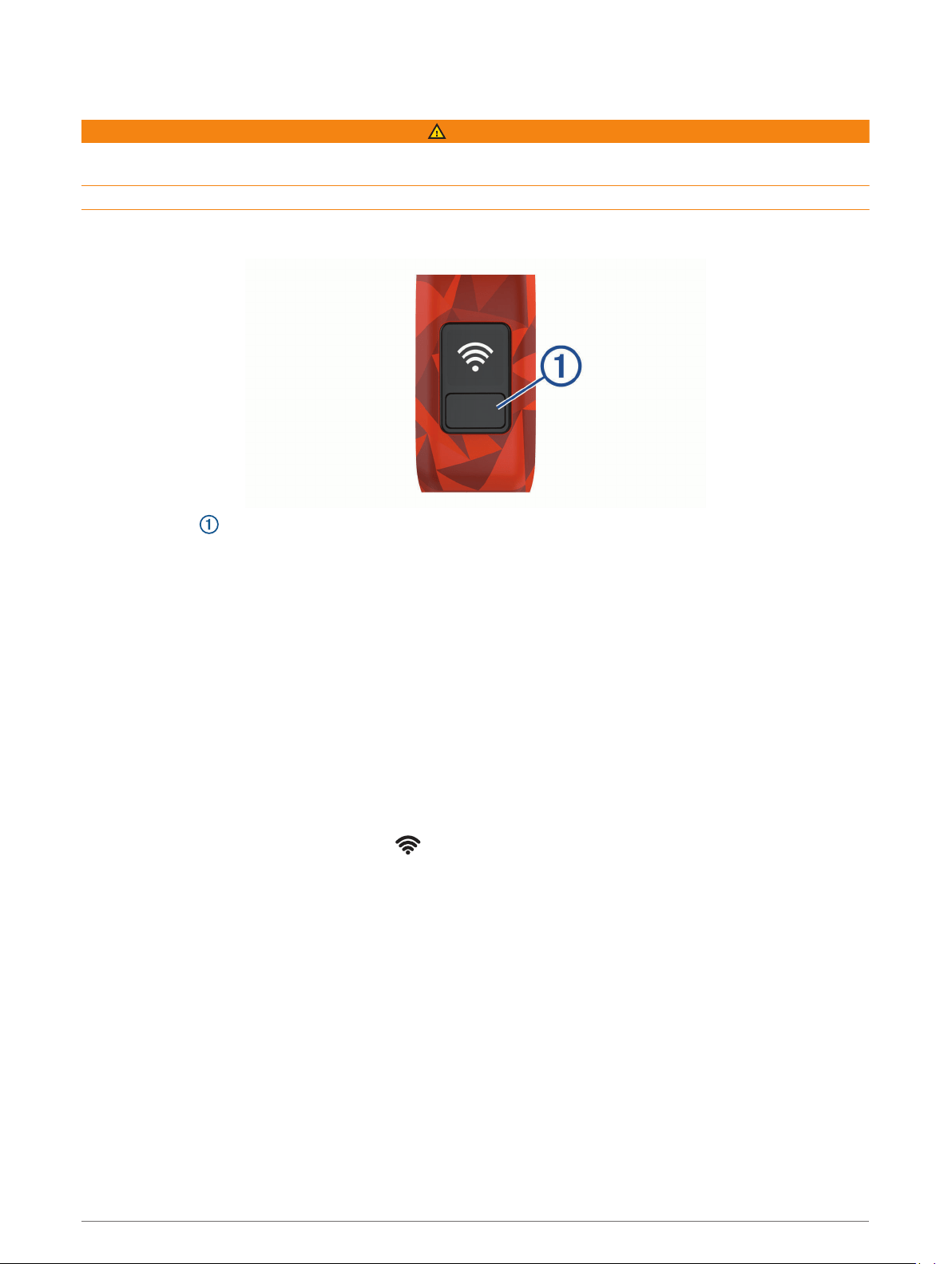
• Press the key to scroll through device features and menu options.
• Hold the key for 1 second to view the menu.
• Hold the key for 1 second to select menu options.
• Hold the key for less than 1 second to turn on the backlight.
The backlight turns off automatically.
Pairing with Your Smartphone
Before you can pair your vívofit jr. device with a smartphone, at least one parent or guardian must have a
Garmin Connect
™
account (Garmin Connect, page 2).
Your device must be paired directly through the vívofit jr. app, instead of from the Bluetooth
®
settings on your
smartphone.
1 From the app store on your smartphone, install and open the vívofit jr. app.
2 Log on using your Garmin Connect username and password.
3 Follow the instructions in the app to set up your family and add each child.
4 On the vívofit jr. device, hold the key until appears.
The device enters pairing mode.
5 Follow the instructions in the app to complete the setup process.
NOTE: You can pair multiple mobile devices, such as a tablet or another parent's smartphone (Pairing
Multiple Mobile Devices, page 9).
Introduction 1
vívofit jr. App
The free vívofit jr. app lets you track your children's daily activity and chore progress.
Activity tracking: Allows you to track your children's daily steps, active minutes, and sleep data.
Chore progress: Allows you to create and manage chores, award coins for chore completion, and redeem coins
for custom rewards.
Adventure map: Allows you to view your children's progress each day they reach the 60 minute activity goal,
revealing adventures.
Leaderboard: Allows you to compare steps for the whole family and connections from your Garmin Connect
community.
Settings: Allows you to customize your device and user settings, including alert tones, icons, profile pictures,
and more.
Garmin Connect
At least one parent must have a Garmin Connect account to use the vívofit jr. app. To sign up for a free
account, go to www.garminconnect.com/start. Your Garmin Connect account gives you the tools to track,
analyze, share, and encourage each other. Record the events of your active lifestyle and participate in family
challenges by connecting a compatible activity tracker with your Garmin Connect account.
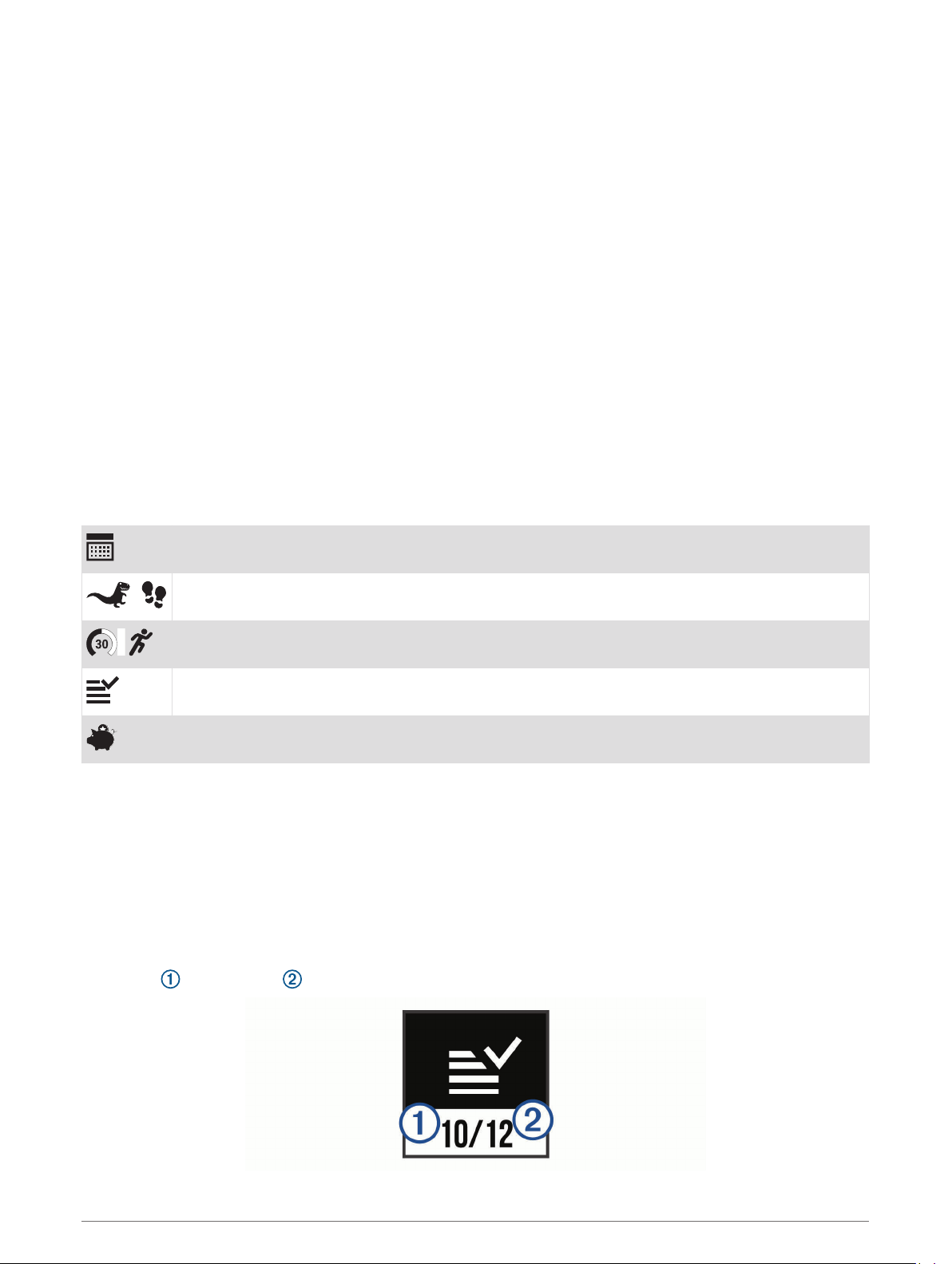
Icons
Icons represent the device features. You can press the key to scroll through the features.
The current date. The device updates the time and date when you send data to your smartphone.
The total number of steps taken for the day.
The total number of active minutes for the day and progress toward the 60 minute activity goal.
The number of chores completed and assigned for the day.
The total number of coins earned.
Activity Goal
To improve children's health, organizations such as the U.S. Centers for Disease Control and Prevention
recommend at least 60 minutes of physical activity each day. This can include moderate intensity activity, such
as brisk walking, or vigorous intensity activity, such as running.
The device encourages children to be active by displaying their progress toward the 60 minute daily goal.
Chore Progress
You can use the vívofit jr. app to create and assign chores, as well as update your children's chore progress.
When your vívofit jr. device is connected to a smartphone, the device displays the updated number of chores
completed and assigned for the day.
2 Introduction
Coins Earned
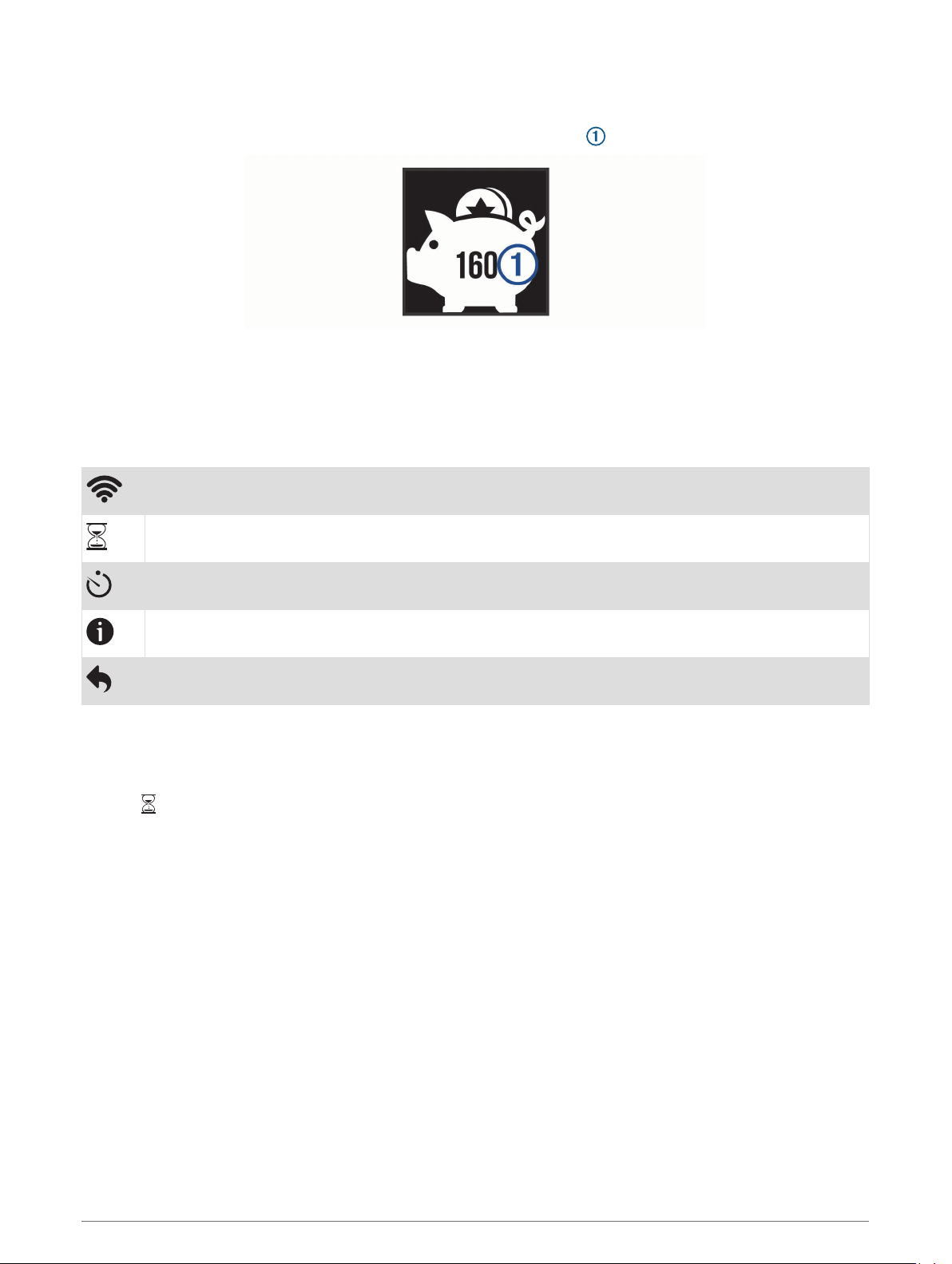
You can use the vívofit jr. app to award coins for chore completion. When your vívofit jr. device is connected to
a smartphone, the device displays the updated number of coins earned .
Coins can be redeemed for rewards in the vívofit jr. app. You can use the app to create custom rewards and set
the number of coins needed to redeem a reward. When you redeem coins in the app and connect your device to
a smartphone, the device displays the updated coin total.
Menu Options
You can hold the key to view the menu, and press the key to scroll through the options.
Pairs your device and sends data to your Bluetooth enabled smartphone.
Displays task timer options.
Starts the stopwatch.
Displays device information.
Returns to the previous screen.
Using the Task Timer
You can use your device to start a countdown timer.
1 Hold the key to view the menu.
2 Hold .
3 Press the key to scroll through the task timer options.
4 Hold the key to select and start a timer.
The device beeps, the timer begins counting down, and the device sends a notification to the nearest paired
smartphone. When 3 seconds remain, the device beeps until the time expires.
TIP: You can hold the key to stop the timer.
Introduction 3
Task Timer Options
Your device comes preloaded with task timers that can be used for common activities. For example, you can
use the two minute timer for brushing your teeth or any other task that takes two minutes. Each task is timed
for a preset number of minutes.
Icon Duration Example Activity
2 min. Brushing teeth
5 min. Sharing toys
10 min. Finish eating
15 min. Reading
20 min. Lesson or practice
30 min. Screen time
Using the Stopwatch
1 Hold the key to view the menu.
2 Hold .
3 Press to start the timer.
4 Press to stop the timer.
5 If necessary, press to reset the timer.
6 Hold the key to exit the timer.
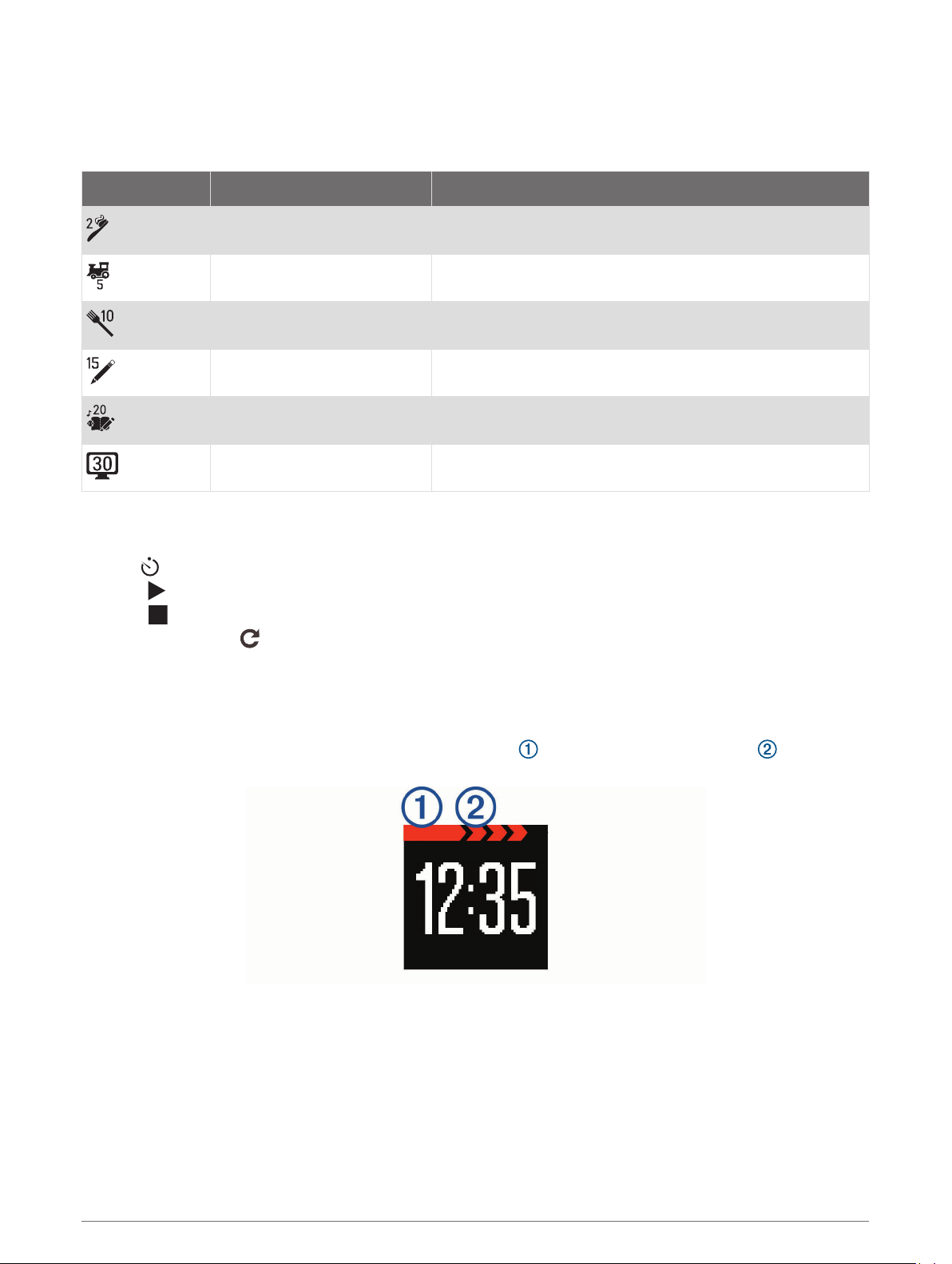
Move Bar
Sitting for prolonged periods of time can trigger undesirable metabolic state changes. The move bar reminds
you to keep moving. After one hour of inactivity, the move bar appears. Additional segments appear after
every 15 minutes of inactivity.
You can reset the move bar by walking a short distance.
Sleep Tracking
While you are sleeping, the device monitors your movement. You can set your normal sleep hours in the vívofit
jr. app settings. You can view your sleep statistics in the vívofit jr. app.
4 Introduction
History
Your device keeps track of your daily activity and sleep statistics. This history can be sent to the vívofit jr. app.
Your device stores your activity data for up to 4 weeks. When the data storage is full, the device deletes the
oldest files to make room for new data.
Sending Data Manually to Your Smartphone
Your device periodically sends data automatically to the nearest paired Bluetooth device. You can also
manually send data at any time. This allows you to view activities, chores, and coins in the vívofit jr. app.
1 Bring the device near your smartphone.
2 Open the vívofit jr. app.
3 On the vívofit jr. device, hold the key to view the menu.
4 Hold .
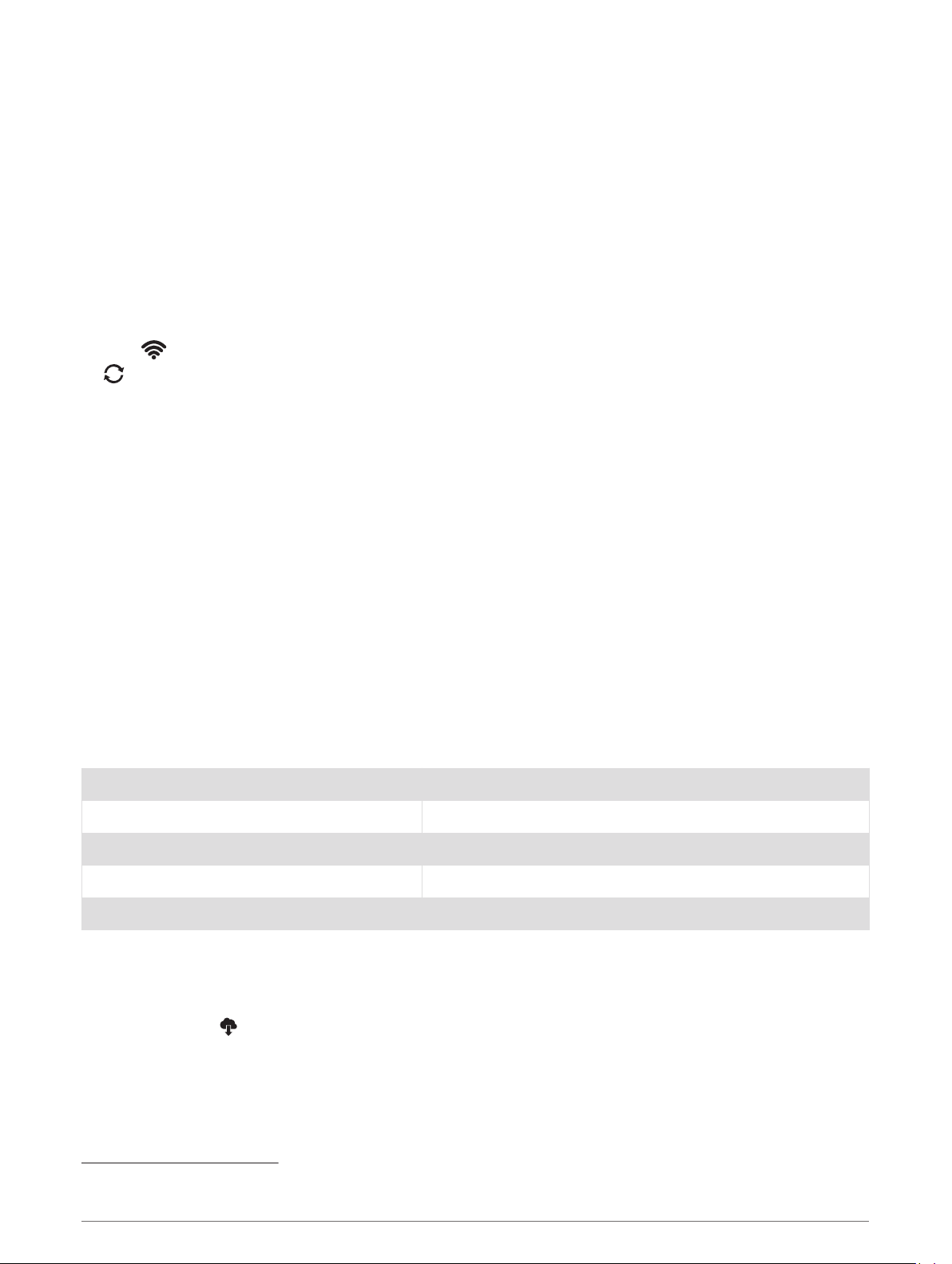
appears, and the red move bar is in motion while the device is sending data.
5 On your smartphone, swipe down to refresh the app.
Customizing Your Device
vívofit jr. App Settings
You can customize your device, user, and app settings in the vívofit jr. app.
From the vívofit jr. app, select More.
Family settings: Allows you to customize your family settings. For example, you can edit your family name or
invite additional parents or guardians.
App settings: Allows you to customize app settings, enable Kid Mode, and view legal and regulatory
information.
Help: Includes device care, videos, and other helpful information.
Device Information
Specifications
Battery type User-replaceable CR1632 battery
Battery life Up to 1 yr.
Operating temperature range From -10º to 60ºC (from 14º to 140ºF)
Wireless frequency/protocol 2.4 GHz @ 3 dBm nominal
Water rating 5 ATM
1
Software Update
When a software update is available, your device automatically downloads the update when you send data to
your smartphone (Sending Data Manually to Your Smartphone, page 5).
A progress bar and appear on the vívofit jr. device during the update process. The update can take several
minutes. You should keep the device near your smartphone during the update. When the update is complete,
your device restarts.
1
The device withstands pressure equivalent to a depth of 50 m. For more information, go to www.garmin.com/waterrating.
History 5
Viewing Device Information
You can view the unit ID and software version.
1 Hold the key to view the menu.
2 Hold .
Device Care
NOTICE
Avoid extreme shock and harsh treatment, because it can degrade the life of the product.
Avoid pressing the keys under water.
Do not use a sharp object to clean the device.
Avoid chemical cleaners, solvents, and insect repellents that can damage plastic components and finishes.
Thoroughly rinse the device with fresh water after exposure to chlorine, salt water, sunscreen, cosmetics,
alcohol, or other harsh chemicals. Prolonged exposure to these substances can damage the case.
Do not place in high temperature environments, such as a clothes dryer.
Do not store the device where prolonged exposure to extreme temperatures can occur, because it can cause
permanent damage.
Cleaning the Device
1 Wipe the device using a cloth dampened with a mild detergent solution.
2 Wipe it dry.
After cleaning, allow the device to dry completely.
TIP: For more information, go to www.garmin.com/fitandcare.
User Replaceable Batteries
WARNING
See the Important Safety and Product Information guide in the product box for product warnings and other
important information.
6 Device Information
Replacing the Battery
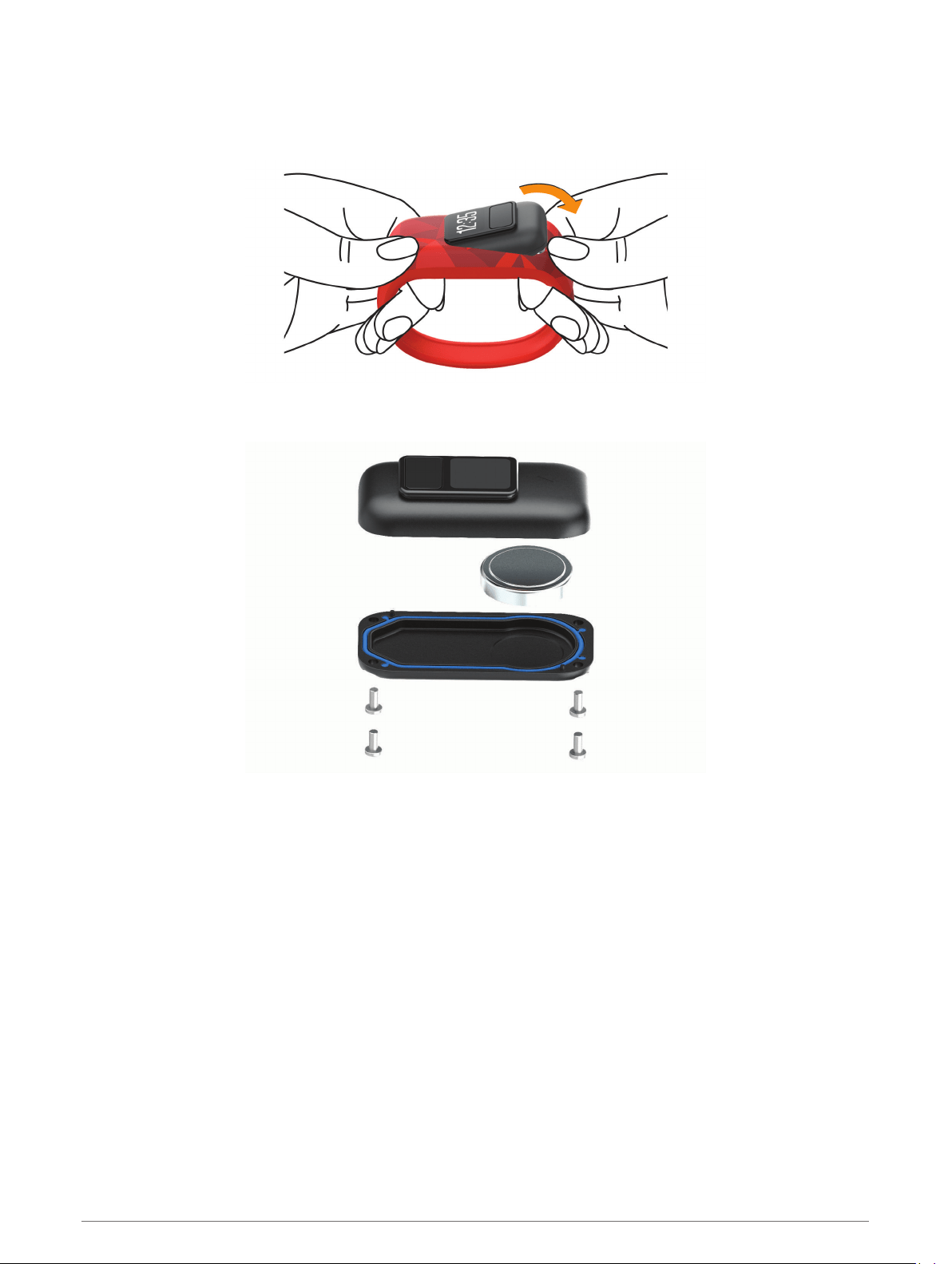
The device uses one CR1632 battery.
1 Remove the device from the band.
2 Use a small Phillips screwdriver to remove the four screws on the back of the device.
3 Remove the rear case and battery.
4 Insert the new battery with the negative side facing the inside of the front cover.
5 Verify the gasket is not damaged and that it is fully seated in the rear case.
6 Replace the rear case and the four screws.
7 Tighten the four screws equally and firmly.
8 Insert the device into the flexible silicone band by stretching the band material around the device.
The arrow on the device must be aligned with the arrow inside the band.
Device Information 7
Band Replacement
The stretchy band is designed to fit most children ages 4 to 7. The adjustable band is designed to fit children 6
and older. You can contact Garmin
®
customer support for information about optional accessories and
replacement parts. The removable device is compatible with vívofit 3 and vívofit jr. bands.
Replacing the Band
Go to buy.garmin.com, or contact your Garmin dealer for information about optional accessories.
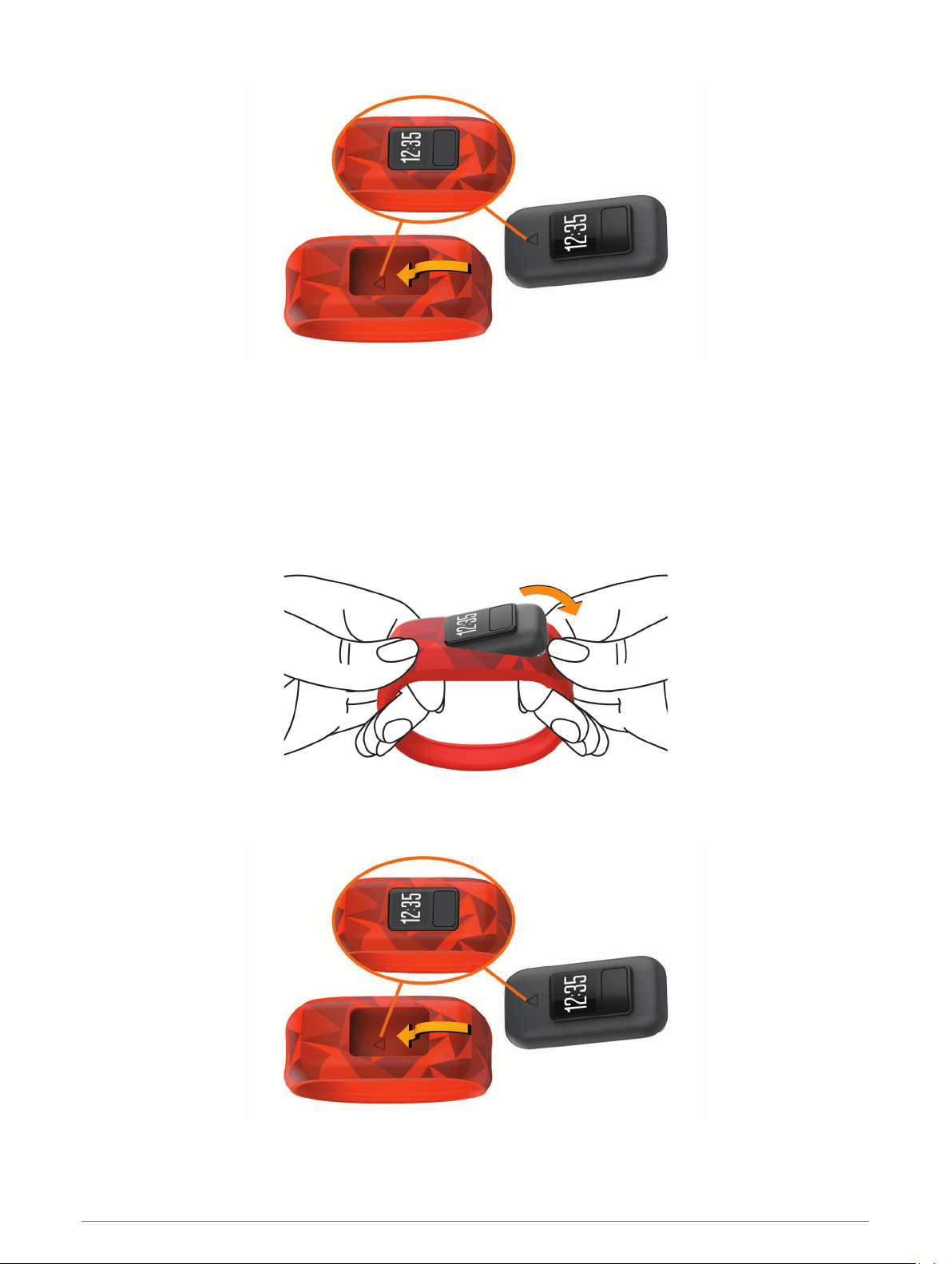
1 Remove the device from the band.
2 Insert the device into the flexible silicone band by stretching the band material around the device.
The arrow on the device must be aligned with the arrow inside the band.
8 Device Information

Troubleshooting
My step count does not seem accurate
If your step count does not seem accurate, you can try these tips.
• Go to http://garmin.com/ataccuracy.
• Wear the device on your non-dominant wrist.
• Carry the device in your pocket when actively using your hands or arms only.
NOTE: The device may interpret some repetitive motions, such as clapping your hands or brushing your
teeth, as steps.
My device does not display the correct time
The device updates the time and date when you send data to your smartphone. You should manually send data
to your smartphone to receive the correct time when you change time zones, and to update for daylight saving
time.
1 Confirm that your smartphone or mobile device displays the correct local time.
2 Send data to your smartphone (Sending Data Manually to Your Smartphone, page 5).
The time and date are updated automatically.
Is my smartphone compatible with my device?
The vívofit jr. device is compatible with smartphones using Bluetooth technology.
Go to www.garmin.com/ble for compatibility information.
Pairing Multiple Mobile Devices
After you complete the initial setup (Pairing with Your Smartphone, page 1), you can pair your vívofit jr. device
with up to two additional mobile devices, such as a tablet or another parent's smartphone.
1 From the app store on your smartphone or tablet, install and open the vívofit jr. app.
2 Log on using your Garmin Connect username and password.
3 Follow the instructions in the app to join an existing family.
4 Bring your mobile device within 3 m (10 ft.) of your vívofit jr. device.
NOTE: Stay 10 m (33 ft.) away from other mobile devices while pairing.
5 If necessary, turn off Bluetooth wireless technology on previously paired mobile devices.
6 On the vívofit jr. device, hold the key to view the menu.
7 Hold to enter pairing mode.
8 Follow the instructions in the app to complete the pairing process.
9 If necessary, repeat steps 1 through 8 for each additional mobile device.
How do I pair an additional device with the vívofit jr. app?
If you have already paired a device with the vívofit jr. app, you can add a new child and device from the kid
menu. You can pair up to eight devices.
NOTE: Each child can pair with one device.
1 Open the vívofit jr. app.
2 Select .
3 Follow the on-screen instructions.
Troubleshooting 9

Resetting the Device
If the device stops responding, you may need to reset it. This does not erase any of your data.
NOTE: Resetting the device also resets the move bar.
1 Hold the device key for 10 seconds until the screen turns off.
2 Release the device key.
The device resets, and the screen turns on.
My device won't turn on
If your device no longer turns on, you may need to replace the batteries.
Go to (Replacing the Battery, page 7).
Appendix
Getting More Information
• Go to support.garmin.com for additional manuals, articles, and software updates.
• Go to www.garmin.com/intosports.
• Go to www.garmin.com/learningcenter.
• Go to buy.garmin.com, or contact your Garmin dealer for information about optional accessories and
replacement parts.
10 Appendix

Index
A
accessories 10
activity tracking 2, 4
apps 1, 2
B
bands 8
battery, replacing 6, 7
Bluetooth technology 9
C
cleaning the device 6
customizing the device 5
D
data 2
transferring 2, 3
G
Garmin Connect 1, 2, 5
goals 2
H
history 5
I
icons 2, 4
K
keys 1, 3
M
menu 1
P
pairing, smartphone 9
R
replacement parts 8
replacing the battery 7
resetting the device 10
S
settings 5
sleep mode 4
smartphone 1, 2, 5, 9
pairing 9
software
updating 5
version 6
specifications 5
stopwatch 4
T
time of day 9
timer 3, 4
troubleshooting 9, 10
U
unit ID 6
updates, software 5
Index 11

support.garmin.com
GUID-244B87CF-CD9E-480E-A0FE-9725D3D5B4EA v5September 2020