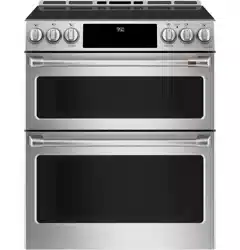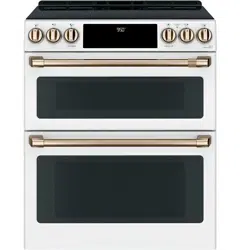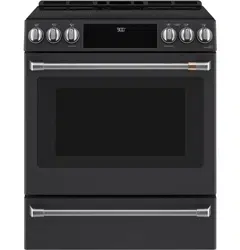
TM
Write the model and serial numbers here:
Model # _______________________________
Serial # _______________________________
You can find them on a label behind the door
or drawer.
49-2001001 Rev. 2 06-22 GEA
Owner's Manual
Español
Para consultar una version en español de este manual de instrucciones,
visite nuestro sitio de internet cafeappliances.com.
Induction Front Control Ranges
Models: CHS900M and CHS90XM
Contents
Safety Information ...............................3
Using the Range
Surface Units ..................................7
Cookware for Induction Cooktop ...................9
Precision Cooking .............................11
Oven Controls ................................18
Settings .....................................19
Sabbath Mode ................................21
Oven Racks ..................................22
Aluminum Foil and Oven Liners ...................23
Cookware ....................................23
Cooking Modes ...............................23
Oven Door Camera ............................24
Probe .......................................25
Cooking Guide ................................26
Air Fry Cooking Guide ..........................27
Care And Cleaning
Cleaning the Range – Exterior ....................28
Cleaning the Range – Interior ....................29
Glass Cooktop ................................30
Probe .......................................32
Oven Light ...................................32
Oven Doors ..................................33
Removable Storage Drawer ......................34
Troubleshooting Tips ...........................35
Limited Warranty ...............................42
Accessories ...................................43
Consumer Support .............................44

2 49-2001001 Rev. 2
TM
THANK YOU FOR MAKING CAFÉ A PART OF YOUR HOME.
We take pride in the craftsmanship, innovation and design that goes into every Café product, and
we think you will too. Among other things, registration of your appliance ensures that we can deliver
important product information and warranty details when you need them.
Register your Café appliance now online. Helpful websites are available in the Consumer Support
section of this Owner’s Manual. You may also mail in the pre-printed registration card included in the
packing material.
49-2001001 Rev. 2 3
READ AND SAVE THESE INSTRUCTIONS
IMPORTANT SAFETY INFORMATION
READ ALL INSTRUCTIONS BEFORE USING THE APPLIANCE
SAFETY INFORMATION
WARNING
Read all safety instructions before using the product. Failure to follow these instructions may result
in fire, electrical shock, serious injury or death.
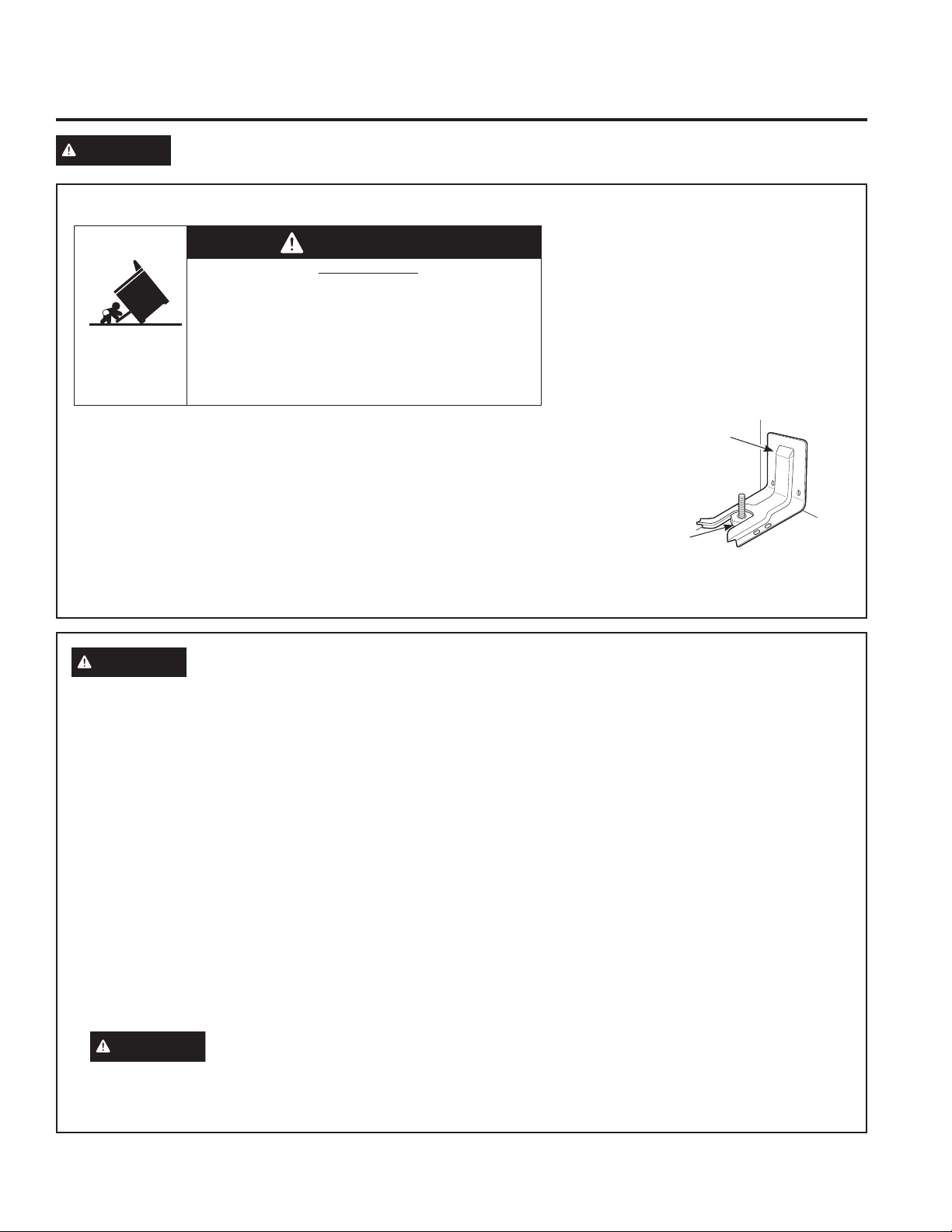
ANTI-TIP DEVICE
To reduce the risk of tipping the range,
the range must be secured by a properly
installed anti-tip bracket. See installation
instructions shipped with the bracket for
complete details before attempting to
install.
For Free-Standing and Slide-In Ranges
To check if the bracket is installed and
engaged properly, look underneath the
range to see that the rear leveling leg is engaged in the bracket. On
some models, the storage drawer or kick panel can be removed for easy
inspection. If visual inspection is not possible, slide the range forward,
confirm the anti-tip bracket is securely attached to the floor or wall, and
slide the range back so the rear leveling leg is under the anti-tip bracket.
If the range is pulled from the wall for any reason, always repeat this
procedure to verify the range is properly secured by the anti-tip bracket.
Never completely remove the leveling legs or the range will not be secured
to the anti-tip device properly.
• A child or adult can tip the range and be killed.
• Install the anti-tip bracket to the wall or floor.
• Engage the range to the anti-tip bracket by sliding the
range back such that the foot is engaged.
• Re-engage the anti-tip bracket if the range is moved.
• Failure to do so can result in death or serious burns
to children or adults.
Tip-Over Hazard
WARNING
Anti-Tip
Bracket
Leveling Leg
Free-Standing and Slide-In Ranges
WARNING
GENERAL SAFETY INSTRUCTIONS
■ Usethisapplianceonlyforitsintendedpurposeas
described in this Owner’s Manual.
■ Besureyourapplianceisproperlyinstalledand
grounded by a qualified installer in accordance with
the provided installation instructions.
■ Donotattempttorepairorreplaceanypartofyour
range unless it is specifically recommended in this
manual. All other servicing should be transferred to
a qualified technician.
■ Beforeperforminganyservice,unplugtherange
or disconnect the power supply at the household
distribution panel by removing the fuse or switching
off the circuit breaker.
■ Donotleavechildrenalone—childrenshouldnot
be left alone or unattended in an area where an
appliance is in use. They should never be allowed
to climb, sit or stand on any part of the appliance.
■
CAUTION
Do not store items of interest to
children above a range or on the backguard of a
range—childrenclimbingontherangetoreach
items could be seriously injured.
■ Useonlydrypotholders—moistordamppot
holders on hot surfaces may result in burns from
steam. Do not let pot holders touch hot surface
units or heating elements. Do not use a towel or
other bulky cloth in place of pot holders.
■ Neveruseyourapplianceforwarmingorheating
the room.
■ Donottouchthesurfaceunits,theheatingelements
or the interior surface of the oven. These surfaces
may be hot enough to burn even though they are
dark in color. During and after use, do not touch,
or let clothing or other flammable materials contact
the surface units, areas nearby the surface units or
any interior area of the oven; allow sufficient time
for cooling first. Other surfaces of the appliance
may become hot enough to cause burns. Potentially
hot surfaces include the cooktop, areas facing the
cooktop, oven vent opening, surfaces near the
opening and crevices around the oven door.
■ Donotheatunopenedfoodcontainers.Pressure
could build up and the container could burst,
causing an injury.
4 49-2001001 Rev. 2
READ AND SAVE THESE INSTRUCTIONS
IMPORTANT SAFETY INFORMATION
READ ALL INSTRUCTIONS BEFORE USING THE APPLIANCE
SAFETY INFORMATION
WARNING
KEEP FLAMMABLE MATERIALS AWAY FROM THE RANGE
Failure to do so may result in fire or personal injury.
■ Donotstoreoruseflammablematerialsinanoven
or near the cooktop, including paper, plastic, pot
holders, linens, wall coverings, curtains, drapes and
gasoline or other flammable vapors and liquids.
■ Neverwearloose-fittingorhanginggarmentswhile
using the appliance. These garments may ignite if
they contact hot surfaces causing severe burns.
■ Donotletcookinggreaseorotherflammable
materials accumulate in or near the range. Grease
in the oven or on the cooktop may ignite.
WARNING
IN THE EVENT OF A FIRE, TAKE THE FOLLOWING
STEPS TO PREVENT INJURY AND FIRE SPREADING
■ Donotusewaterongreasefires.Neverpickup
a flaming pan. Turn the controls off. Smother a
flaming pan on a surface unit by covering the pan
completely with a well-fitting lid, cookie sheet or flat
tray. Use a multi-purpose dry chemical or foam-type
fire extinguisher.
■ Ifthereisafireintheovenduringbaking,smother
the fire by closing the oven door and turning the
oven off or by using a multi-purpose dry chemical or
foam-type fire extinguisher.
■ Ifthereisafireintheovenduringself-clean,turn
the oven off and wait for the fire to go out. Do not
force the door open. Introduction of fresh air at
self-clean temperatures may lead to a burst of flame
from the oven. Failure to follow this instruction may
result in severe burns.
WARNING
COOKTOP SAFETY INSTRUCTIONS
■ Neverleavethesurfaceunitsunattended.Boilovers
cause smoking and greasy spillovers that may catch
on fire.
■ Neverleaveoilunattendedwhilefrying.Ifallowed
to heat beyond its smoking point, oil may ignite
resulting in fire that may spread to surrounding
cabinets. Use a deep fat thermometer whenever
possible to monitor oil temperature.
■ Toavoidoilspilloverandfire,useaminimum
amount of oil when shallow pan-frying and avoid
cooking frozen foods with excessive amounts of ice.
■ Onlycertaintypesofglass,glass/ceramic,
earthenware or other glazed containers are suitable
for cooktop service; others may break because of
the sudden change in temperature.
■ Tominimizethepossibilityofburns,ignitionof
flammable materials and spillage, the handle of a
container should be turned toward the center of the
range without extending over nearby surface units.
WARNING
GENERAL SAFETY INSTRUCTIONS (Cont.)
■ Donotuseanytypeoffoilorlinertocoverthe
oven bottom or anywhere in the oven, except as
described in this manual. Oven liners can trap heat
or melt, resulting in damage to the product and risk
of shock, smoke or fire.
■ Avoidscratchingorimpactingglassdoors,cook
tops or control panels. Doing so may lead to glass
breakage. Do not cook on a product with broken
glass. Shock, fire or cuts may occur.
■ Cookmeatandpoultrythoroughly—meattoatleast
an internal temperature of 160°F and poultry to at
least an internal temperature of 180°F. Cooking
to these temperatures usually protects against
foodborne illness.
■ Remote Operation - This appliance is configurable to
allow remote operation at any time. Do not store any
flammable materials or temperature sensitive items
inside, on top or near surface units of the appliance.

49-2001001 Rev. 2 5
READ AND SAVE THESE INSTRUCTIONS
IMPORTANT SAFETY INFORMATION
READ ALL INSTRUCTIONS BEFORE USING THE APPLIANCE
SAFETY INFORMATION
WARNING
GLASS COOKTOP SAFETY INSTRUCTIONS
■ Usecarewhentouchingthecooktop.Theglass
surface of the cooktop will retain heat after the
controls have been turned off.
■ Donotcookonabrokencooktop.Ifglasscooktop
should break, cleaning solutions and spillovers
may penetrate the broken cooktop and create a
risk of electric shock. Contact a qualified technician
immediately.
■ Avoidscratchingtheglasscooktop.Thecooktop
can be scratched with items such as knives, sharp
instruments, rings or other jewelry, and rivets on
clothing.
■ Useceramiccooktopcleanerandanon-scratch
cleaning pad to clean the cooktop. Wait until the
cooktop cools and the indicator light goes out
before cleaning. A wet sponge or cloth on a hot
surface can cause steam burns. Some cleaners can
produce noxious fumes if applied to a hot surface.
NOTE: Sugar spills are an exception. They should
be scraped off while still hot using an oven mitt
and a scraper. See the Cleaning the glass cooktop
section for detailed instructions.
■ Readandfollowallinstructionsandwarningsonthe
cleaning cream label.
■ Donotplaceorstoreitemsthatcanmeltorcatch
fire on the glass cooktop, even when it is not being
used. If the cooktop is inadvertently turned on, they
may ignite. Heat from the cooktop or oven vent after
it is turned off may cause them to ignite also.
■ Donotplacemetallicobjectssuchasknives,forks,
spoons and lids on the cooktop surface since they
can get hot.
WARNING
OVEN SAFETY INSTRUCTIONS
■ Standawayfromtherangewhenopeningtheoven
door. Hot air or steam which escapes can cause
burnstohands,faceand/oreyes.
■ Donotusetheovenifaheatingelementdevelops
a glowing spot during use or shows other signs
of damage. A glowing spot indicates the heating
element may fail and present a potential burn, fire,
or shock hazard. Turn the oven off immediately and
have the heating element replaced by a qualified
service technician.
■ Keeptheovenventunobstructed.
■ Keeptheovenfreefromgreasebuildup.Greasein
the oven may ignite.
■ Placeovenracksindesiredlocationwhileovenis
cool. If rack must be moved while oven is hot, do not
let pot holder contact hot heating element in oven.
■ Whenusingcookingorroastingbagsintheoven,
follow the manufacturer’s directions.
■ Pulltheovenracktothestop-lockpositionwhen
loading and unloading food from the oven. This
helps prevent burns from touching hot surfaces of
the door and oven walls.
■ Donotleaveitemssuchaspaper,cookingutensils
or food in the oven when not in use. Items stored in
an oven can ignite.
■ Neverplacecookingutensils,pizzaorbakingstones,
or any type of foil or liner on the oven floor. These
items can trap heat or melt, resulting in damage to
the product and risk of shock, smoke or fire.
WARNING
SELF-CLEANING OVEN SAFETY INSTRUCTIONS
The self-cleaning feature operates the oven at temperatures high enough to burn away food soils in the oven.
Follow these instructions for safe operation.
■ Donottouchovensurfacesduringself-clean
operation.Keepchildrenawayfromtheovenduring
self-cleaning. Failure to follow these instructions
may cause burns.
■ Beforeoperatingtheself-cleancycle,removepans,
shiny metal oven racks and other utensils from the
oven. Only gray porcelain-coated oven racks may
be left in the oven. Do not use self-clean to clean
other parts, such as drip pans or bowls.
■ Beforeoperatingtheself-cleancycle,wipegrease
and food soils from the oven. Excessive amount
of grease may ignite leading to smoke damage to
your home.
■ Iftheself-cleaningmodemalfunctions,turnthe
oven off and disconnect the power supply. Have it
serviced by a qualified technician.
■ Donotcleanthedoorgasket.Thedoorgasketis
essential for a good seal. Care should be taken not
to rub, damage or move the gasket.
■ Donotuseaprotectivecoatingtolinetheovenand
do not use commercial oven cleaner unless certified
for use in a self-cleaning oven.

6 49-2001001 Rev. 2
SAFETY INFORMATION
READ AND SAVE THESE INSTRUCTIONS
IMPORTANT SAFETY INFORMATION
READ ALL INSTRUCTIONS BEFORE USING THE APPLIANCE
How to Remove Protective Shipping Film and Packaging Tape
Carefully grasp a corner of the protective shipping film
with your fingers and slowly peel it from the appliance
surface. Do not use any sharp items to remove the film.
Remove all of the film before using the appliance for the
first time.
To assure no damage is done to the finish of the product,
the safest way to remove the adhesive from packaging
tape on new appliances is an application of a household
liquid dishwashing detergent. Apply with a soft cloth and
allow to soak.
NOTE: The adhesive must be removed from all parts. It
cannot be removed if it is baked on.
Consider recycling options for your appliance packaging
material.
Remote Enable Equipment
This device complies with part 15 of the FCC Rules.
Operation is subject to the following two conditions: (1)
This device may not cause harmful interference, and
(2) this device must accept any interference received,
including interference that may cause undesired operation.
The wireless communication equipment installed on this
range has been tested and found to comply with the
limits for a Class B digital device, pursuant to part 15 of
the FCC Rules. These limits are designed to:
(a) provide reasonable protection against harmful
interference in a residential installation. This equipment
generates, uses, and can radiate radio frequency energy
and, if not installed and used in accordance with the
instructions, may cause harmful interference to radio
communications. However, there is no guarantee that
interference will not occur in a particular installation. If
this equipment does cause harmful interference to radio
or television reception, which can be determined by
turning the equipment off and on, the user is encouraged
to try to correct the interference by one or more of the
following measures:
■Reorientorrelocatethereceivingantenna.
■Increasetheseparationbetweentheequipmentand
receiver.
■Connecttheequipmentintoanoutletonacircuit
different from that to which the receiver is connected.
■Consultthedealeroranexperiencedradio/TV
technician for help.
(b) accept any interference received, including interference
that may cause undesired operation of the device.
Note that any changes or modifications to the wireless
communication device installed on this oven that are not
expressly approved by the manufacturer could void the
user’s authority to operate the equipment.
PROPER DISPOSAL OF YOUR APPLIANCE
Dispose of or recycle your appliance in accordance with Federal and Local Regulations. Contact your local
authorities for the environmentally safe disposal or recycling of your appliance.
49-2001001 Rev. 2 7
USING THE RANGE: Surface Units
Surface Units
Operating the Cooktop Elements
WARNING
FIRE HAZARD: Never leave the
range unattended with the cooktop on. Keep
flammable items away from the cooktop. Turn off all
controls when done cooking. Failure to follow these
instructions can result in fire, serious injury or death.
Before using the cooktop for the first time, clean it with
ceramic cooktop cleaner. This helps protect the top and
makes cleanup easier.
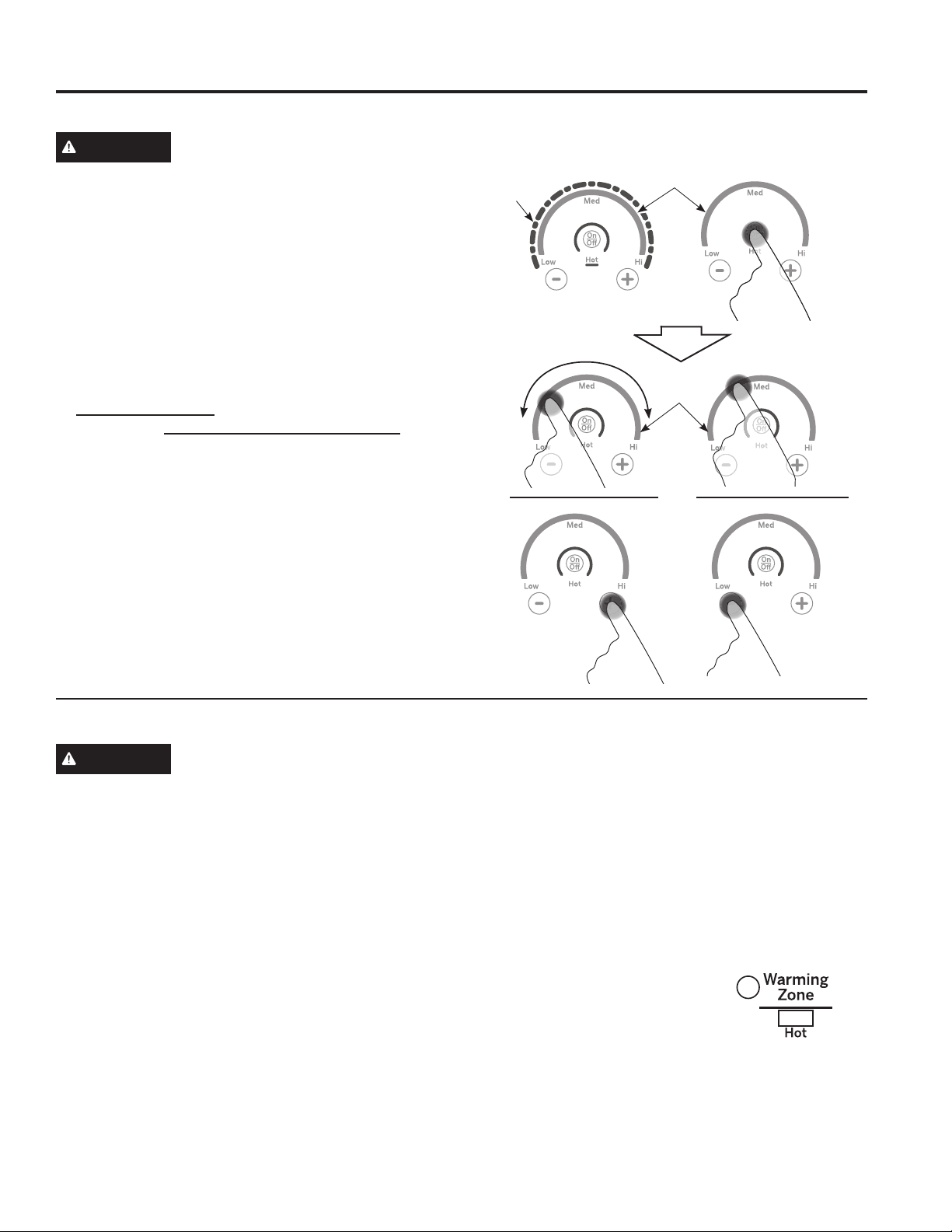
Turn element(s) On: Touch and hold On/Off pad about
half a second. A chime can be heard with each touch to
any pad.
Power level can be selected in any of the following ways:
1. Swipe the gray arc (on the graphics) to the desired
power level. There is no sensor on the LEDs, or;
2. Touch Anywhere along the gray arc, or;
3. Touch + or - pads to adjust power level, or;
4. Shortcut to Hi: Immediately after turning unit on, touch
the + pad, or;
5. Shortcut to Low: Immediately after turning unit on,
touch the - pad.
Graphics are representative;
your control may have alternate graphic details.
Using the Warming Zone
WARNING
FOOD POISON HAZARD: Bacteria may grow in food at
temperatures below 140°F.
■ Always start with hot food. Do not use warm setting to
heat cold food.
■ Do not use warm setting for more than 2 hours.
The WARMING ZONE, located in the back center of
the glass surface, will keep hot, cooked food at serving
temperature. Always start with hot food. Do not use to
heat cold food. Placing uncooked or cold food on the
WARMING ZONE could result in foodborne illness.
To use the WARMING ZONE:
Press the WARMING ZONE pad, select the desired level
(Low, Medium or High).
To turn off the WARMING ZONE:
Press the WARMING ZONE pad.
NOTE: Cancel/OffwillNOTturnoffthewarmingzone.
For best results, all foods on the WARMING ZONE
should be covered with a lid or aluminum foil. When
warming pastries or breads, the cover should be vented
to allow moisture to escape.
The initial temperature, type and amount of food, type of
pan, and the time held will affect the quality of the food.
Always use pot holders or oven
mitts when removing food from the
WARMING ZONE, since cookware
and plates will be hot.
NOTE: The surface warmer will not
glow red.
Gray Arc
Swipe Area
LED
Lights
Gray Arc
Swipe Area
OR

8 49-2001001 Rev. 2
Surface Units (Cont.)
How To Synchronize Left Elements
The left elements of the cooktop can be controlled
together via the Sync Burners feature. Sync Burners
feature is useful for cooking activities such as griddle
cooking.
The Sync Burners feature is only intended for cookware
that completely spans both burners.
To Turn On
Hold the Sync Burners pad for about half a second to
connect the two elements. Operate either element as
described in Operating the Cooktop Elements to adjust
power level.
To Turn Off
1. Touch the On/Off pad on either element to turn off the
Sync Burners.
or
2. Touch the Sync Burners to turn both elements off.
USING THE RANGE: SurfaceUnits/PrecisionCooking
49-2001001 Rev. 2 9
Cookware for Induction Cooktop
Suitable Cookware
Use quality cookware with heavier bottoms for better
heat distribution and even cooking results. Choose
cookware made of magnetic stainless steel, enamel
coated cast iron, enameled steel or combinations of
these materials.
Some cookware is specifically identified by the
manufacturer for use with induction cooktops. Use a
magnet to test if the cookware will work.
Flat-bottomed pans give best results. Pans with rims or
slight ridges can be used.
Round pans give best results. Pans with warped or
curved bottoms will not heat evenly.
For wok cooking, use a flat-bottomed wok. Do not use a
wok with a support ring.
NOTE: The warming zone is NOT an induction element
and will work with flat bottomed cookware that is NOT
ferrous.
Using the Correct Size Cookware
The induction coils require a minimum pan size to
function properly. Pans that are not ferrous or are too
small will not allow the induction elements to turn on, and
the ON indicator for that element location will flash for 25
seconds and then turn off. If a pan is removed from or not
centered on the induction coil for more than 30 seconds,
the power for that element will be shut off.
Cookware larger than the element ring may be used;
however, heat will only occur above the element.
For best results, the cookware must make FULL contact
with the glass surface. Cookware that is small may be
too light to compress the Precision Cooktop Sensor on
models with sensor on left front burner and should not
be used on that burner. Small pans with heavy handles
are likely to be incompatible with the Precision Cooktop
Sensor.
Do not allow the bottom of the pan or cookware to touch
the surrounding metal cooktop trim.
For best performance, match the pan size to the element
size. Using a smaller pot on a larger burner will generate
less power at any given setting.
Cookware “Sounds”
Slight sounds may be produced by different types of
cookware. Heavier pans such as enameled cast iron
produce less sound than a lighter weight multi-ply
stainless steel pan. The size of the pan, and the amount
of contents, can also contribute to the sound level.
When using adjacent elements that are set at certain
power level settings, magnetic fields may interact and
produce a high pitch whistle or intermittent “hum”. These
sounds can be reduced or eliminated by lowering or
raising the power level settings of one or both of the
elements. Pans that completely cover the element ring
will produce less sound.
A low “humming” sound is normal particularly on high
settings.
Sounds you may here: You may hear a slight “Buzz”
when cooking with Hi mode. This is normal. The sound
depends on the type of pot being used. Some pots will
“Buzz” louder depending on the material. A “Buzz” sound
may be heard if the pan contents are cold. As the pan
heats, the sound will decrease. If the power level is
reduced, the sound level will go down.
Power Control
If a surface unit is on power level H (high), for an
extended period of time or if multiple surface units are
on, there may be a slight reduction in power to the
surface unit. Water under pans may also cause the
controls to reduce the power delivered to the cookware.
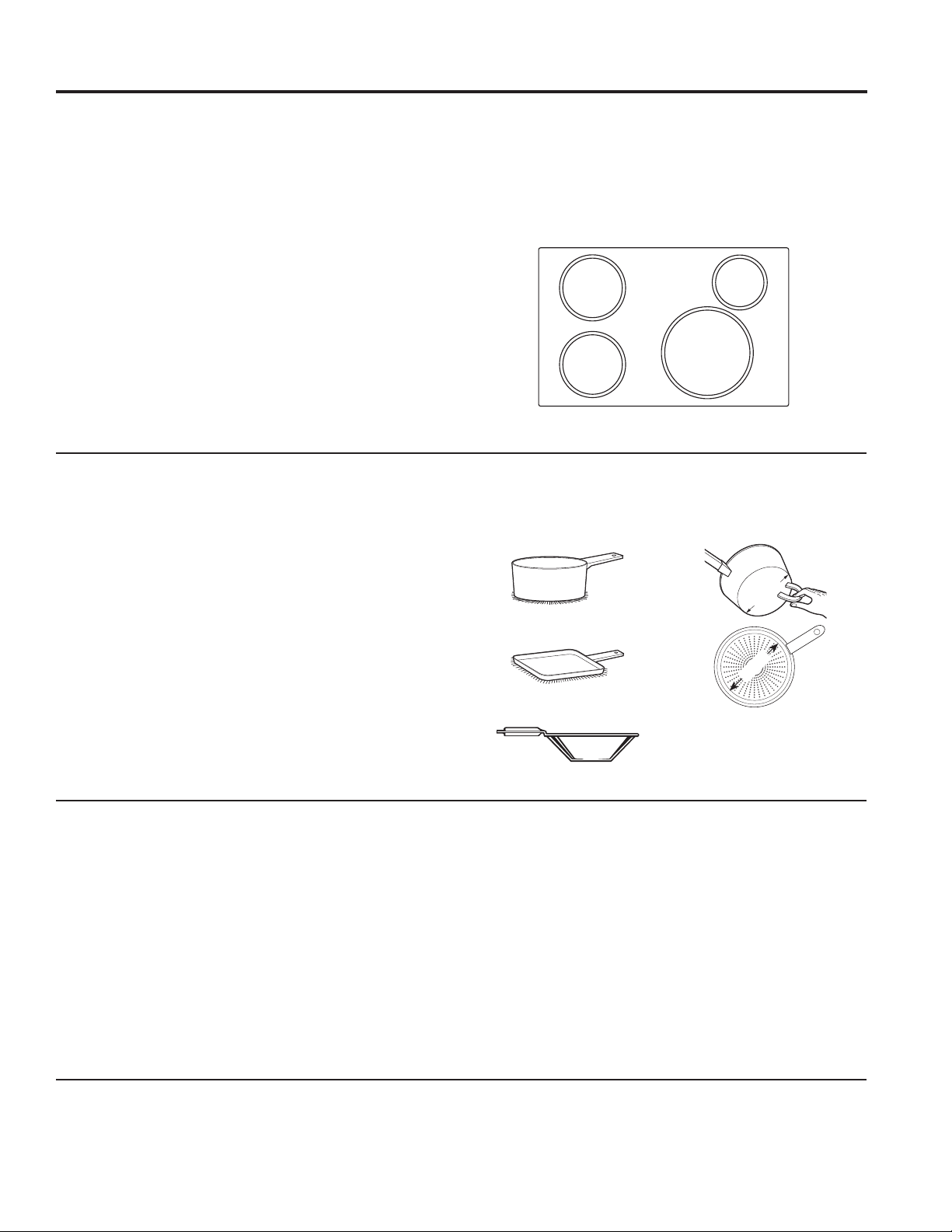
Use a griddle.
Use a flat-bottomed wok.
Use flat-bottomed pans.
Use the minimum size pan shown
for each cooking element.
5” Min. Dia.
Pan Size
5” Min. Dia.
Pan Size
4-1/2”
Min. Dia.
Pan Size
7” Min. Dia.
Pan Size
Min. Size
Use the minimum size
pan for the element. The
pan material is correct
if a magnet sticks to the
bottom.
Min. Size
USING THE RANGE: Cookware for Induction Cooktop
10 49-2001001 Rev. 2
Cookware for Induction Cooktop (Cont.)
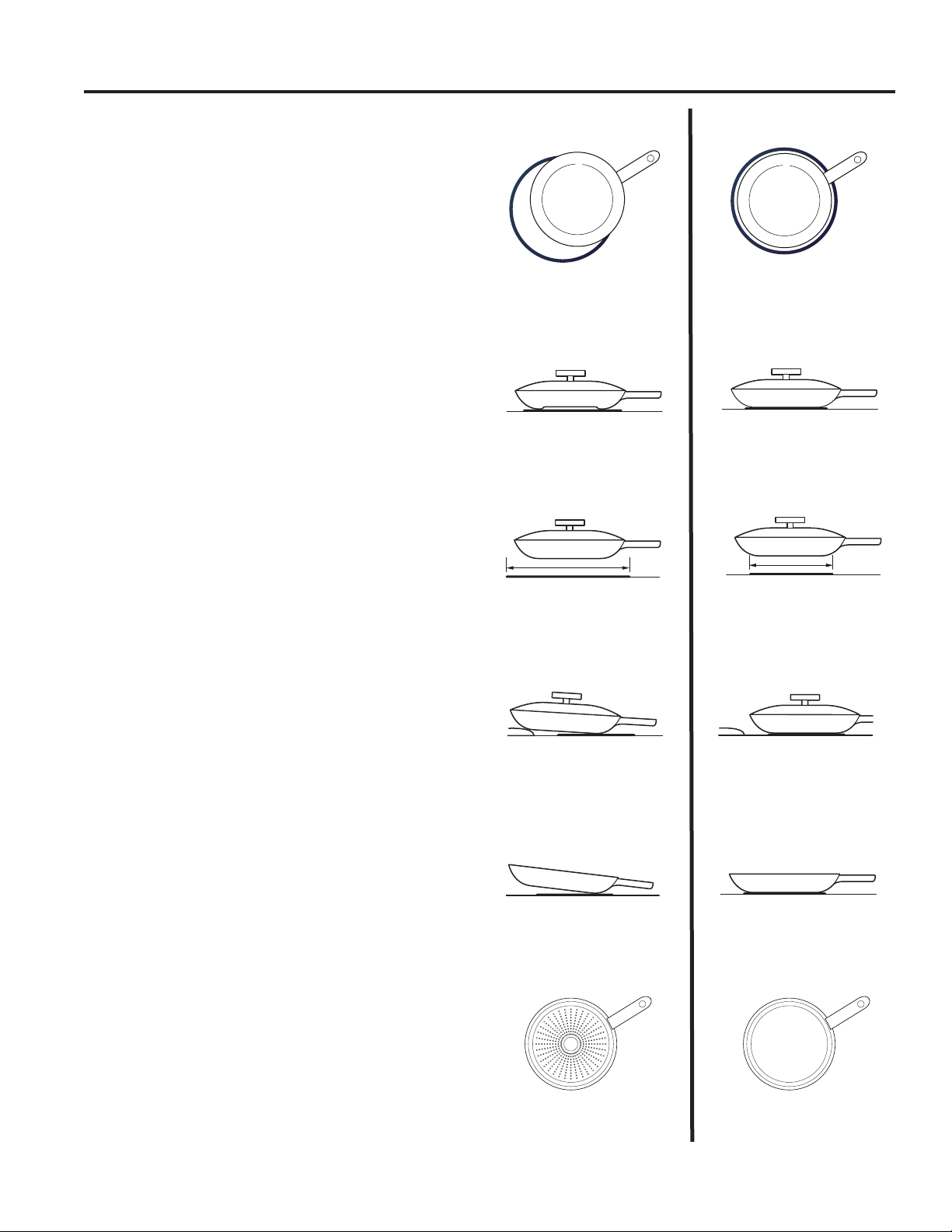
Cookware not centered on
cooking element surface.
Curved or warped pan bottoms
or sides.
Pan does not meet the minimum
size required for the cooking
element used.
Cookware centered correctly
on cooking element surface.
Flat pan bottom.
Pan size meets or exceeds the
recommended minimum size
for the cooking element used.
INCORRECT
CORRECT
Pan bottom rests on cooktop
trim or does not rest completely
on the cooktop surface.
Heavy handle tilts pan.
Pan is partially magnetic
on the bottom.
Pan is completely magnetic
on the bottom.
Pan bottom rests completely on
the cooktop surface.
Pan is properly balanced.
Cookware Recommendations
Cookware must fully contact the surface of the cooking
element.
Use flat-bottomed pans sized to fit the cooking element
and also to the amount of food being prepared.
Induction interface disks are NOT recommended.
USING THE RANGE: Cookware for Induction Cooktop

49-2001001 Rev. 2 11
Precision Cooking
The Precision Cooking feature allows precise
temperature control for improved results. This feature
may be used with the Precision Cooktop Sensor on
the front left burner or with compatible Bluetooth paired
cooking devices on any burner. Only one burner may
operate in precision cook mode at a time.
Pairing a Bluetooth
®
Device
To pair a Bluetooth device, refer to Settings section.
For WiFi Connected Ranges
If the range is Wi-Fi connected, then the Precision
Cooktop temperature may be set from the SmartHQ
mobile app instead of the burner control. At any time,
controls on the range may be used to turn Off or override
a temperature setting. See Settings - Wi-Fi & Remote
Enable
Device Works on. . . How it works. . . Use this for. . . Temperature
range.
Additional information
Precision
Cooking
Cooktop
Sensor
Front left burner
only
Controls cookware
temperature based
on the temperature
of the cooktop
sensor. Cookware
must be in good
contact with the
sensor
Precise control
of cookware
temperature
100°F-425°F Cooktop sensor temperature
can be set with the range
controls or through the
SmartHQ app. See SmartHQ
Appforrecommendedfood/
technique temperature settings.
Good for pan frying, sauteing,
and searing. For boiling,
simmering and similar liquid
based cooking, traditional
power control settings are
recommended rather than
temperature based control
(temperature of a large liquid
load will be lower than the
temperature of the cookware).
Hestan Cue
Cookware
All burners except
the warming
zone. NOTE:
only one burner
may operate in
precision cook
mode at a time
Controls cookware
temperature based
on a sensor in the
cookware
Precise control
of cookware
temperature
and Hestan Cue
Guided Cooking
recipes
Small to medium
elements (A):
100°F-500°F
Large elements
(B): 150°F-500°F
Left front element:
100°F-425°F
Can be set with the range
controls, with the SmartHQ app,
or with the Hestan Cue app.
Precision
Cooktop
Probe
All burners except
the warming
zone. NOTE:
only one burner
may operate in
precision cook
mode at a time
Controls the
temperature of
liquid loads based
on a sensor in the
probe. The probe
tip must be in good
contact with the
liquid load
Precise control
of liquid load
temperature
for sous-vide
cooking or other
low temperature
liquid cooking
Small to medium
element (A):
100°F-200°F
Large element
(B): 100°F-200°F
See the Smart HQ app for
recommendedsettingsfood/
technique temperature settings
If you are experiencing
trouble maintaining lower set
temperatures try changing your
set up by:
• Remove the lid from the pot.
• Use a larger diameter pot.
• Use a smaller burner with a
pot larger than the burner.
Can also be used to hold
foods at a specific temperature
for applications like melted
chocolate for dipping or fondue.
If using for these scenarios,
use traditional power control
settings to bring the item to the
target temperature first, then
use the precision probe to hold.
NOTE: only one precision cooking device may operate at a time
USING THE RANGE: Precision Cooking

12 49-2001001 Rev. 2
Precision Cooking (Cont.)
USING THE RANGE: Precision Cooking
Precision Cooking Control Modes
There are two control modes available:
■App Control - the user interacts with SmartHQ or
Hestan Cue mobile app.
■Local Control - the user interacts with the burner to
set a target temperature and no App use is required.
App Control
After activating your device on your selected burner,
open the SmartHQ mobile app designed to control
the selected device. Depending on the device and
application, the set temperature may be shown in the
unit display, in the SmartHQ mobile app, or hidden from
view. NOTE: Use of Local Control mode is blocked upon
entering App Control mode.
Local Control
After activating your device on your selected burner,
use glide touch control to set temperature. The set
temperature will be shown in the display. To use Hestan
Cue
®
for temperature control and recipes, open the
Hestan Cue
®
app and follow on screen instructions.
NOTE: Use of App Control mode is blocked upon
entering Local Control mode
Precision Cooktop Sensor
Cookware needs to make contact with the sensor for
proper operation of the left front burner on models
with the precision cooktop sensor. Cookware will
bow naturally during heating therefore cookware with
recessed bottoms including griddles should not be used
due to risk of not having proper contact with sensor.
Bowed cookware is at risk of improper contact with the
sensor and poor cooking performance and damage to
the sensor are likely.
49-2001001 Rev. 2 13
Precision Cooking (Cont.)
USING THE RANGE: Precision Cooking
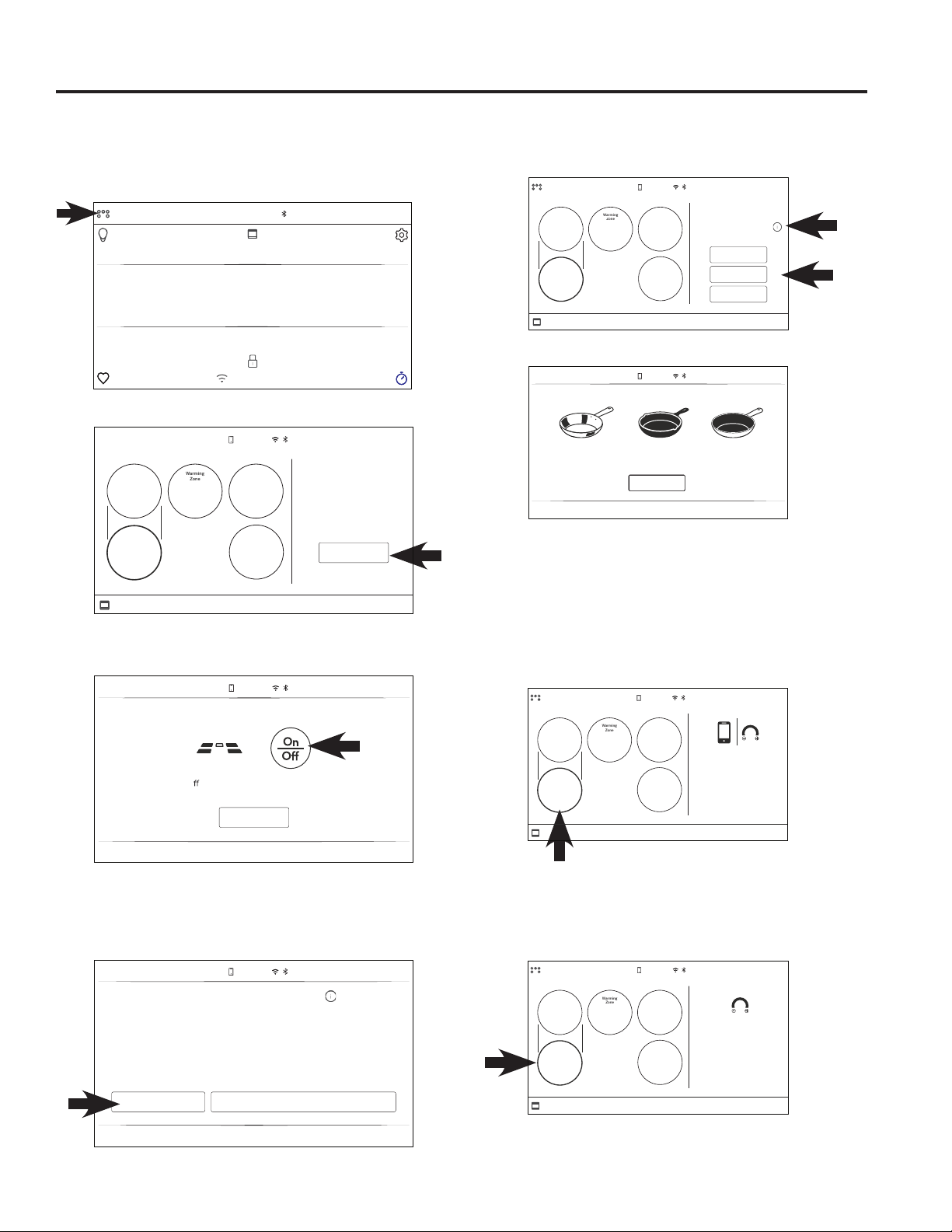
Use Precision Cooking with the Precision Cooktop Sensor (on some models)
1. The front left burner should be turned OFF to begin
2. Touch the TO COOKTOP banner at the top of the
display.
3. Touch Start.
4. When prompted, touch the On/Off button on the left
front burner.
5. If the range has a Bluetooth pan or probe paired, it
will prompt for you to choose which type of cookware
you wish to use. To use the Precision Cooktop Sensor,
choose CONVENTIONAL.
6. For optimal cooking performance, choose the type that
best matches the cookware you are using.
7. Touch the (i) icon for help selecting the closest match.
8.
When screen below shows, you adjust the temperature
level at the burner control, the desired temperature will
appear on the display. Temperature level can also be
adjusted in the SmartHQ app by selecting Precision
Cooking and typing in the desired temperature. See
section Surface Units – Operating the Cooktop Elements.
When the burner is On, the LCD display shows an
orange outline.
When the display shows “PREHEATING” the
cookware temperature is increasing. When it reaches
the desired set temperature, the word “PREHEATING”
will disappear.
TO COOKTOP
10:35 AM
OVEN
Bake Broil Convection
Precision
Cooking
More
Smart
Home
GET CONNECTED
TO OVEN
START
Perfectly prepare a
gourmet recipe with
confidence using
Precision Cooking
10:35 AM
OFF OFF
OFF
OFF
Warming
Zone
OFF
CANCEL
SELECT BURNER
Press On/O button on desired burner or press Sync
Burners button to join the two left burners.
10:35 AM
SELECT COOKWARE TYPE
The selected burner may be used with conventional
cookware or with Precision Cooking compatible
Bluetooth cookware.
BLUETOOTH COOKWARE/PROBE
CONVENTIONAL
10:35 AM
TO OVEN
STAINLESS
CAST IRON
OTHER
For optimal performance,
select material that best
describes your cookware.
COOKTOP
10:35 AM
OFF OFF
OFF
OFF
Warming
Zone
READY
10:35 AM
COOKWARE MATERIAL
Stainless Steel
Typically shiny. May
have non-stick coating.
Cast Iron
Typically black and
rough or enamel coated.
Other
Cookware that does
not fit either category.
DISMISS
COOKTOP
10:35 AM
TO OVEN
Use burner controls or
mobile app to to set the
Precision Cooking
temperature.
OFF OFF
OFF
OFF
Warming
Zone
READY
OFF OFF
OFF
OFF
Warming
Zone
COOKTOP
10:35 AM
TO OVEN
Use burner controls to
update Precision Cooking
temperature
Optimized for:
Cast iron cookware
175
°F
PREHEATING
14 49-2001001 Rev. 2
Precision Cooking (Cont.)
USING THE RANGE: Precision Cooking
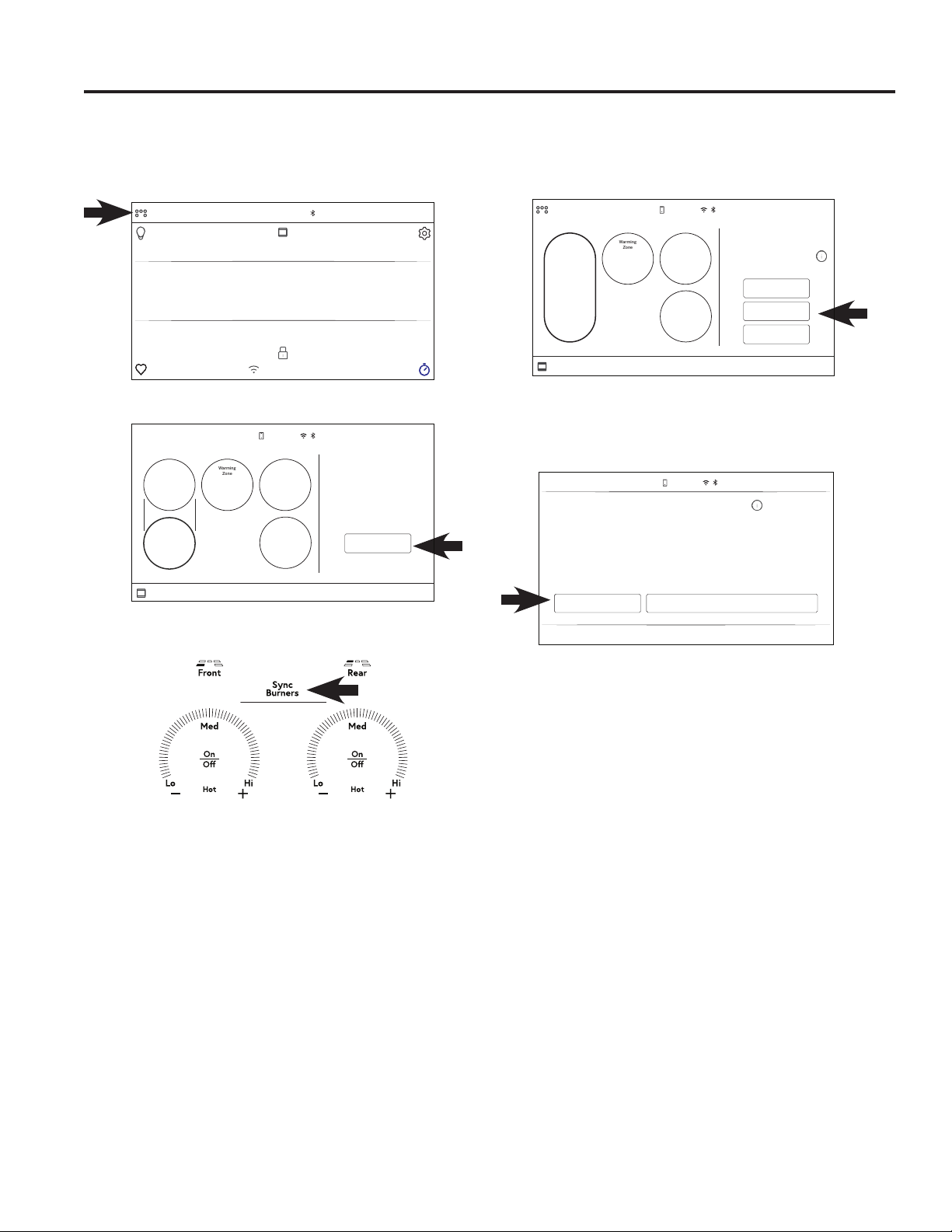
To Use Two Burners in Sync for Large Cookware (on some models)
1. The front left burner should be turned OFF to begin.
2. Touch the TO COOKTOP banner at the top of the
display
3. Touch Start
4. When prompted, touch the Sync Burners.
The display will indicate when the two burners are
ready. Setting the temperature will control both front
and left burners.
5. If the range has a Bluetooth pan or probe paired, it
will prompt for you to choose which type of cookware
you wish to use. To use the Precision Cooktop Sensor,
choose CONVENTIONAL.
6. Follow steps 6 - 8 from page 13 to complete.
TO COOKTOP
10:35 AM
OVEN
Bake Broil Convection
Precision
Cooking
More
Smart
Home
GET CONNECTED
TO OVEN
START
Perfectly prepare a
gourmet recipe with
confidence using
Precision Cooking
10:35 AM
OFF OFF
OFF
OFF
Warming
Zone
OFF
COOKTOP
10:35 AM
TO OVEN
OFF OFF
OFF
Warming
Zone
STAINLESS
CAST IRON
OTHER
For optimal performance,
select material that best
describes your cookware.
READY
SELECT COOKWARE TYPE
The selected burner may be used with conventional
cookware or with Precision Cooking compatible
Bluetooth cookware.
BLUETOOTH COOKWARE/PROBE
CONVENTIONAL
10:35 AM
49-2001001 Rev. 2 15
Precision Cooking with Compatible Bluetooth Devices
The range is able to communicate via Bluetooth with
smart accessories such as Hestan Cue
®
cookware or the
Precision Probe. Each smart accessory must be paired
with the range to establish the Bluetooth connection.
See Settings – Bluetooth.
Once paired, the Hestan Cue
®
cookware and Precision
probe becomes available as a Precision Cooking option
for any burner. Multiple smart accessories may be
paired. You will be prompted to choose one to activate
each time you use Precision cooking.
(Precision cooking is not available on the warming zone.)
Hestan Cue
®
Cookware or Precision
Probe
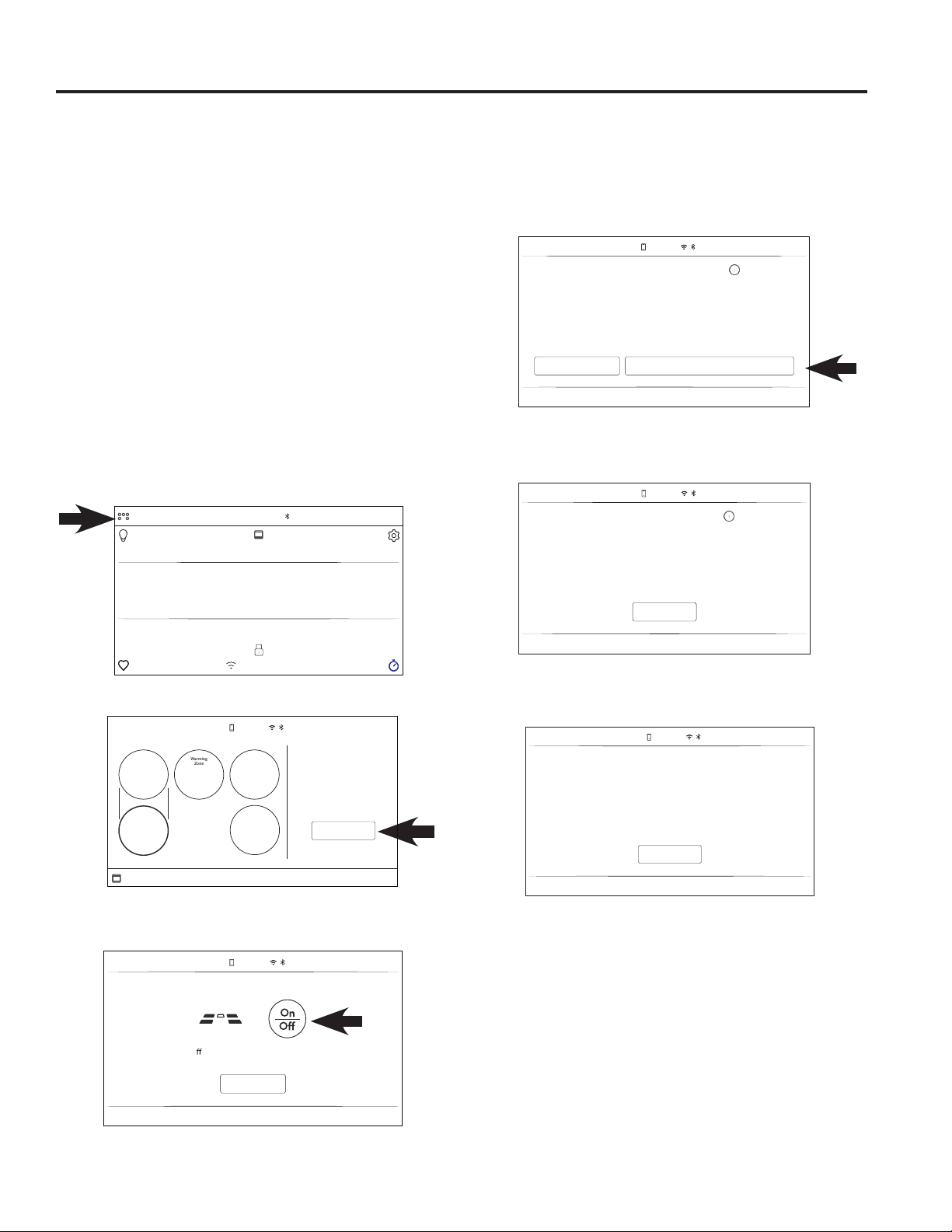
1. The burner desired for use should be turned OFF to
begin.
2. Touch the TO COOKTOP banner at the top of the
display.
3. Touch Start.
4. When prompted, touch the On/Off button of the
desired burner.
5. If you choose the rear burners or front right, the range
will search for your paired smart accessory.
6. On some models, if you choose the front left burner,
the LCD will prompt for you to choose which type
of cookware you wish to use. To use Hestan Cue
®
cookware or Precision Probe, choose BLUETOOTH
COOKWARE/PROBE.
7. When your paired cookware or probe is detected, you
will be prompted to activate it. This turns it on so it is
ready for cooking.
8. If no paired accessories are found, Precision Cooking
will cancel. Refer to Settings – Bluetooth to pair
Hestan Cue
®
cookware or Precision probe.
TO COOKTOP
10:35 AM
OVEN
Bake Broil Convection
Precision
Cooking
More
Smart
Home
GET CONNECTED
TO OVEN
START
Perfectly prepare a
gourmet recipe with
confidence using
Precision Cooking
10:35 AM
OFF OFF
OFF
OFF
Warming
Zone
OFF
Precision Cooking (Cont.)
USING THE RANGE: Precision Cooking
SELECT COOKWARE TYPE
The selected burner may be used with conventional
cookware or with Precision Cooking compatible
Bluetooth cookware.
BLUETOOTH COOKWARE/PROBE
CONVENTIONAL
10:35 AM
CANCEL
SELECT BURNER
Press On/O
button on desired burner or press Sync
Burners button to join the two left burners.
10:35 AM
CANCEL
10:35 AM
NO COOKWARE PAIRED
This burner works only with compatible Bluetooth
cookware or probe.
10:35 AM
CANCEL
ACTIVATE COOKWARE
Activate Precision Cooking compatible cookware or
Precision Cooking probe
. Cookware should be large
enough to span both burners.
16 49-2001001 Rev. 2
Precision Cooking (Cont.)
Hestan Cue
®
Cookware or Precision Probe (Cont.)
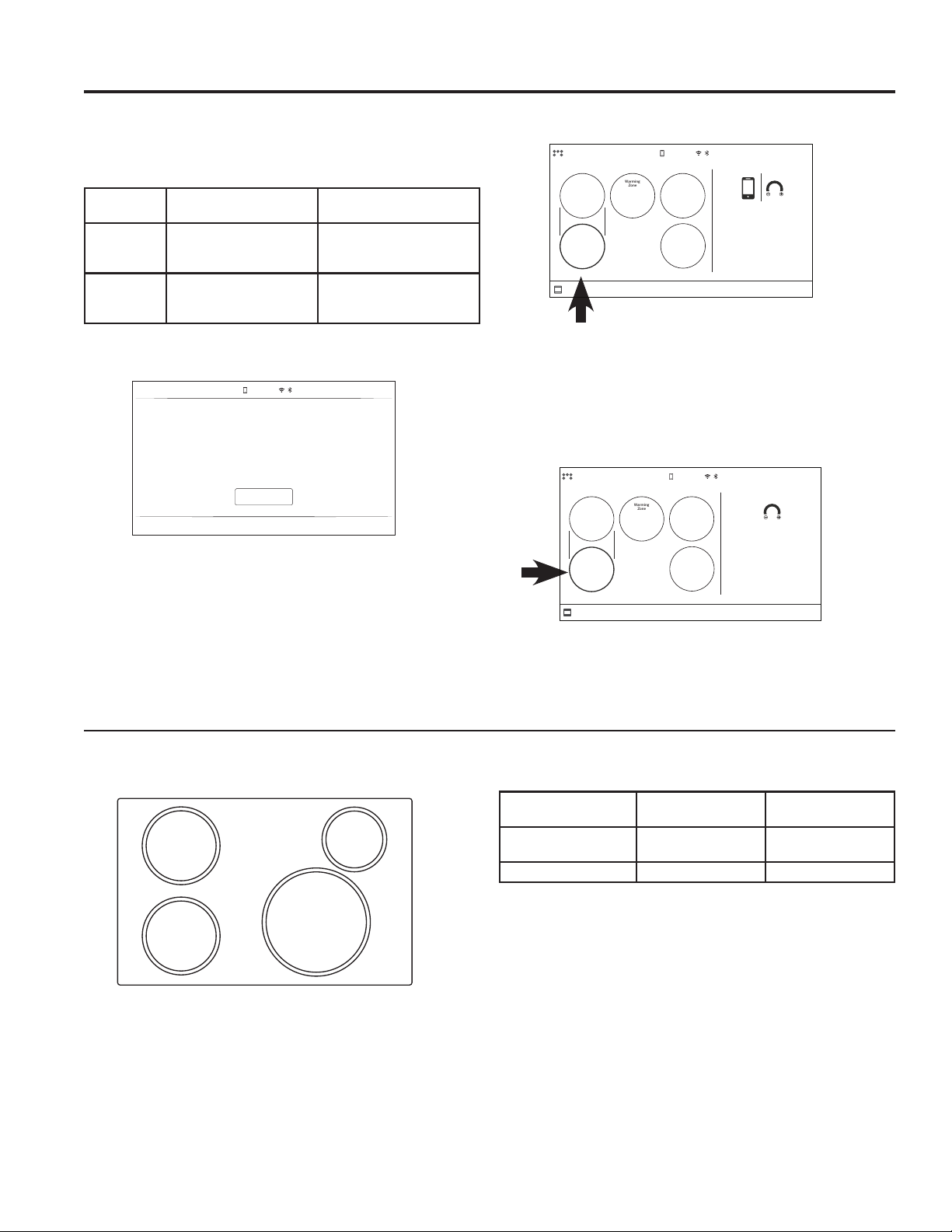
9. Activate your Hestan Cue
®
cookware or Precision
Probe. Refer to the table for instructions for each
device.
If it is not activated within 2 minutes, the Precision
Cook mode will timeout.
10. When this screen shows, your Hestan Cue
®
cookware or Precision probe is ready to select the
cooking temperature. As you adjust the temperature
level at the burner control or in the SmartHQ app,
the desired temperature will appear on the display.
See section Surface Units – Operating the Cooktop
Elements. To use Hestan Cue for temperature control
and recipes, open the Hestan Cue app and follow on
screen instructions.
When the burner is On, the LCD display shows an
orange outline.
When the display shows “PREHEATING” the
cookware temperature is increasing. When it reaches
the desired set temperature, the word “PREHEATING”
will disappear.
10:35 AM
OK
NO COOKWARE ACTIVATED
Unable to detect active Bluetooth cookware or
Precision Cooking probe.
COOKTOP
10:35 AM
TO OVEN
Use burner controls or
mobile app to to set the
Precision Cooking
temperature.
OFF OFF
OFF
OFF
Warming
Zone
READY
OFF OFF
OFF
OFF
Warming
Zone
COOKTOP
10:35 AM
TO OVEN
Use burner controls to
update Precision Cooking
temperature
175
°F
PREHEATING
USING THE RANGE: Precision Cooking
Precision Device Minimum Temperatures
Device temperature ranges are dependent on burner size:
Using the Precision Probe at low temperatures
If you are experiencing trouble maintaining lower set
temperatures with a precision probe, try changing your
set-up by:
■ Removethelidfromthepot
■ Usealargerdiameterpot
■ Useasmallerburnerwithapotlargerthanthe
burner.
A
A
B
A
Device
Small to Medium
Burners (A) Large Burners (B)
Hestan Cue
®
cookware 100°F – 500°F 150°F – 500°F
Precision Probe 100°F – 200°F 120°F – 200°F
Supported
Devices How to Activate Control with this App
Hestan
Cue
®
cookware
Firmly double tap the
black plastic endcap
Hestan Cue®
(by Hestan Smart Cooking)
Precision
Probe Press side button once
Hestan Cue®
(by Hestan Smart Cooking)
or SmartHQ
49-2001001 Rev. 2 17
USING THE RANGE: Precision Cooking
Food Variation
Temp. (F)
Butter Melt 240
Melt and Hold 150
Brown 350
Clarify 240
Chocolate Melt and Hold 115
Crepes 375
Eggs Fried - white and
tender
250
Fried - browned and
crispy
350
Omelette 275
Scrambled 275
French Toast - 0.5-
0.875” thick
375
French Toast - 1-1.5”
thick
350
Grilled Sandwiches -
0.5-1” thick
375
Grilled Sandwiches -
1.125-2.5” thick
350
Pancakes 375
Potatoes Diced - 0.5-1” thick 375
Patties 375
Shredded 375
Food Thickness
(in)
Temp. (F)
Bacon 375
Beef - ground 350
Beef - patties 0.5 - 0.875
375
1 - 1.5 350
Beef - steak (rare) 0.5 - 0.875 400
1 - 1.5 375
Beef - steak (medium rare) 0.5 - 0.875 400
1 - 1.5 375
Beef - steak (medium) 0.5 - 0.875 375
1 - 1.5 350
Beef - steak (medium well) 0.5 - 0.875 375
1 - 1.5 350
Beef - steak (well) 0.5 - 0.875 375
1 - 1.5 350
Chicken - breasts 0.5 - 0.875 375
1 - 1.5 350
Chicken - thighs 0.5 - 0.875 375
1 - 1.5 350
Chicken - ground 350
Pork - chops 0.5 - 0.875 375
1 - 1.5 350
Pork - ground 350
Sausage - ground 350
Sausage - links 0.25 - 0.875 350
1 - 1.5 325
Sausage - patties 0.25 - 0.875 375
Seafood - fish fillet or steak 0.25 - 0.875 425
1 - 1.5 400
Seafood - scallops 425
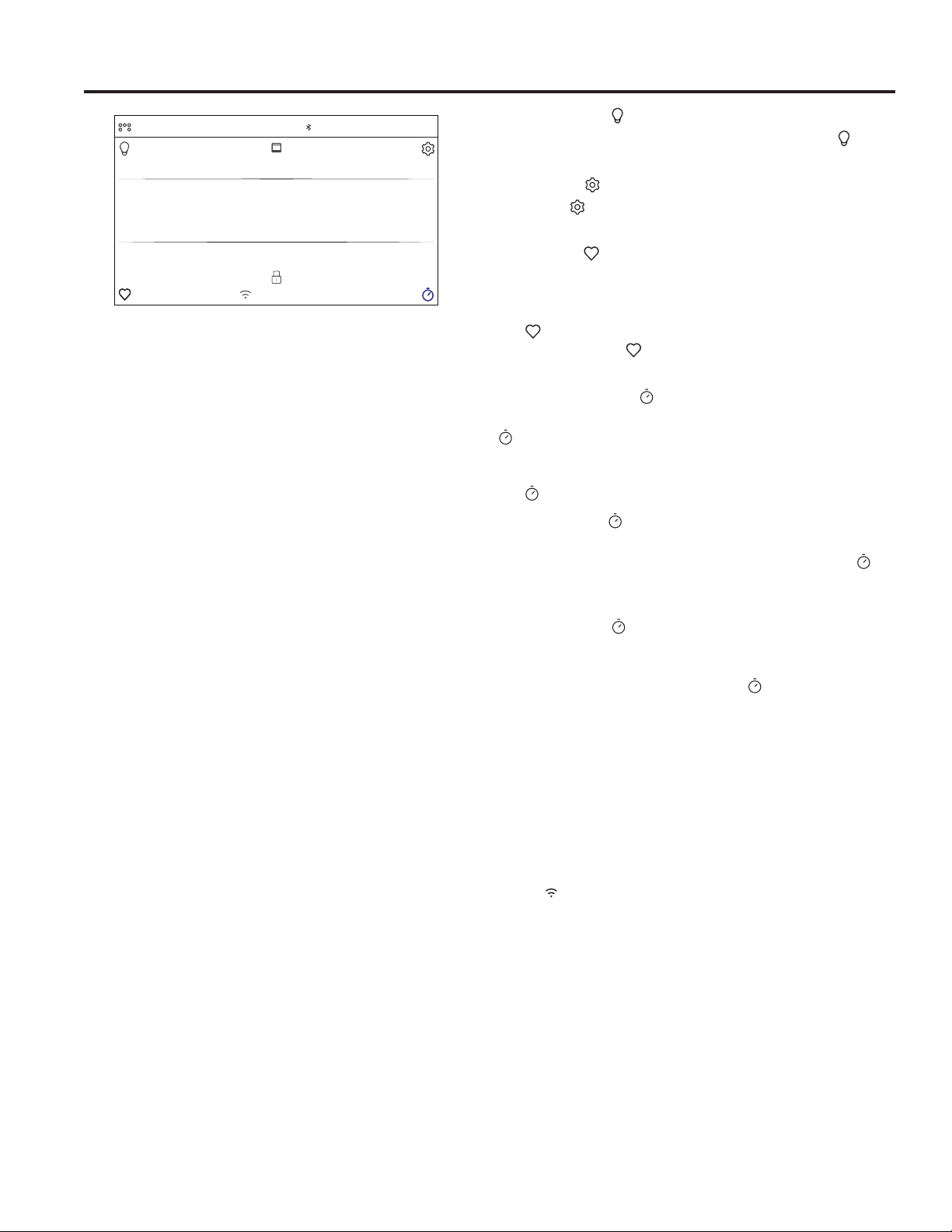
Suggested Cooking Temperatures for Common Foods
Precision Cooking (Cont.)
18 49-2001001 Rev. 2
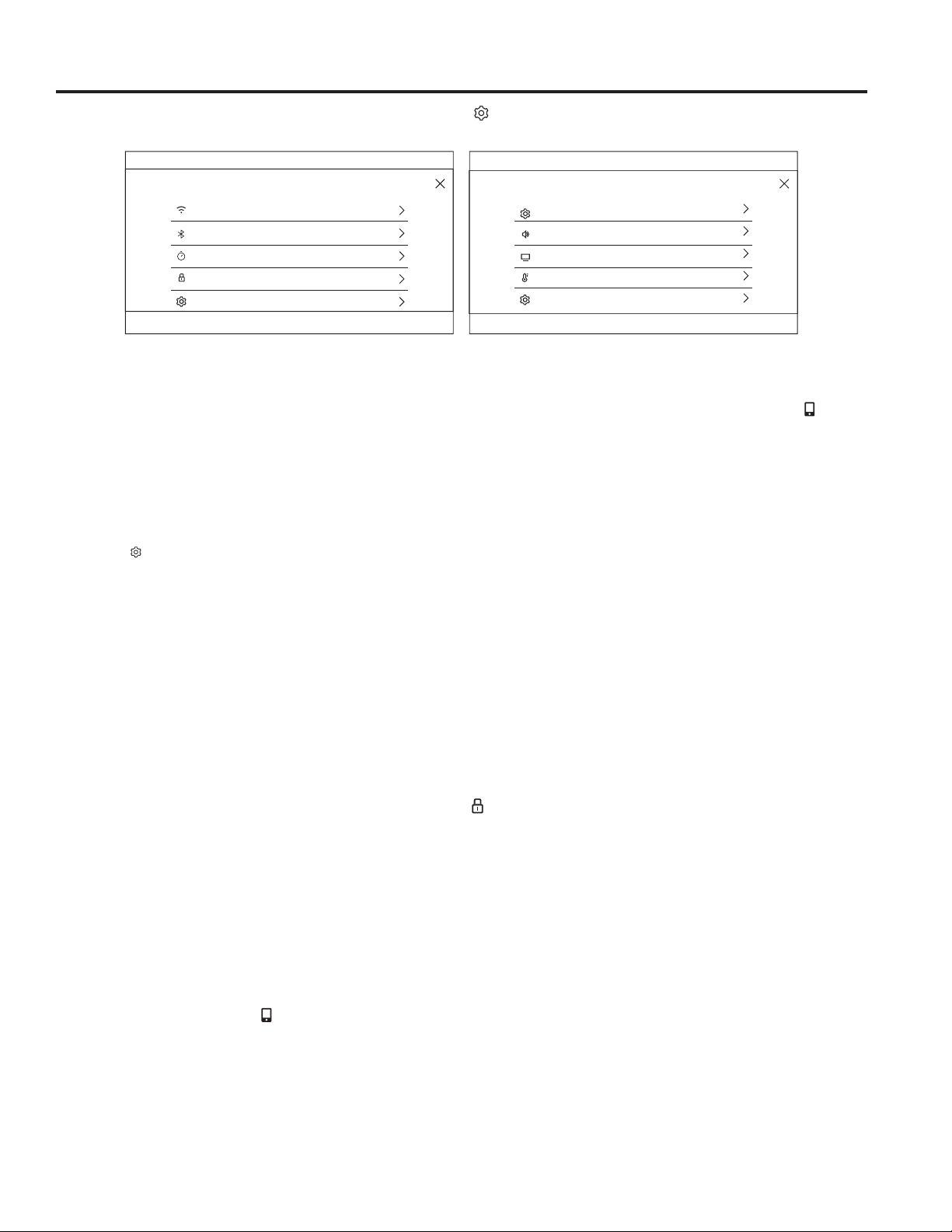
Oven Controls
USING THE RANGE: Oven Controls
Bake
This option allows the user to access traditional the
traditional bake mode.
Broil
Broil can be selected to access Broil Low and Broil High.
See the Cooking Modes section for more information.
Convection
This option allows you to utilize the convection system
to cook in a variety of modes. See the Cooking Modes
section for more information.
Convection Bake is enabled on your oven. Use WiFi
Connect to enable the Convect Roast feature.
Precision Cooking
Precision Cooking is a suite of customized cooking
cycles that have been designed for specific foods. The
display will guide you through setting the oven and food
appropriately for the cycle selected. Precision cooking
cycles vary based on food type; see the Cooking Modes
section for more detailed information.
Use WiFi Connect to enable the Precision Cooking
feature.
Smart Home
This option connects you to resources detailing GE
Appliances Smart Home solutions and connected
partners. Life’s more convenient when you’re connected.
It enables you to manage everyday tasks with ease
when you can control your appliances from your smart
device. With our WiFi Connect appliances and our
SmartHQ mobile app, among other things you can:
▪Preheatyourovenonyourwayhomefromwork.
▪Changetheoventemperaturewhileyouhelpwith
homework.
▪SetandadjustcookingtimersduringyourfavoriteTV
show.
See the WiFi Connect section for instructions on
connecting your smart device.
More
Select this option to access the Proof, Warm, Self Clean,
and Steam Clean options.
Oven Light
To turn on or off the oven cavity lights, press the . Both
cavity lights will be illuminated if using a double oven.
Settings
Press the to access the Settings. See the Settings
section for more information.
Favorite
This option allows the user to save their favorite cycles
for easy access in the future. After selecting a cooking
mode and setting the temperature and any timers, press
the to save it as a favorite for future use. After saving
a cycle, press the on the main menu to quickly access
the saved mode.
Kitchen Timer
This feature works as a countdown timer. Press the
, select the amount of time for the timer to operate, and
press Start. The oven will continue to operate once the
timer countdown is complete. To turn off the timer, select
the and press Clear.
Cook Time
This function counts down cooking time and turns off the
oven when the cooking time is complete. Press the
during a cycle, select the amount of cooking time, and
press Start.
Delay Time
This feature delays the start time for an oven cycle. Use
this feature to set a time when you want the oven to
start. Select a cycle, then press the
. Select the time of
day for the oven to turn on and press Start. A cook time
can also be programmed if desired.
NOTE: Foodsthatspoileasily—suchasmilk,eggs,fish,
stuffings,poultryandpork—shouldnotbeallowedto
sit for more than 1 hour before or after cooking. Room
temperature promotes the growth of harmful bacteria. Be
sure that the oven light is off because heat from the bulb
will speed harmful bacteria growth.
Wi-Fi & Remote Enable
Press
GET CONNECTED
to connect your oven to Wi-Fi.
This option allows you to download content to your
oven and control it remotely. The oven must be
connected to Wi-Fi before Remote Enable can be
activated. For instructions on how to connect your oven,
seetheWi-FiConnect/RemoteEnablesectionunder
Settings in this manual.
Air Fry (on some models)
Air Fry is a special, no-preheat, cooking mode that is
designed to produce foods with a crispier exterior than
traditional oven cooking. The Air Fry mode is intended
for single rack cooking only.
Use WiFi Connect to enable the Air Fry feature.
TO COOKTOP
10:35 AM
OVEN
Bake Broil Convection
Precision
Cooking
More
Smart
Home
GET CONNECTED
49-2001001 Rev. 2 19
USING THE RANGE: Settings
* Compatible Apple or Android devices and home WiFi network required.
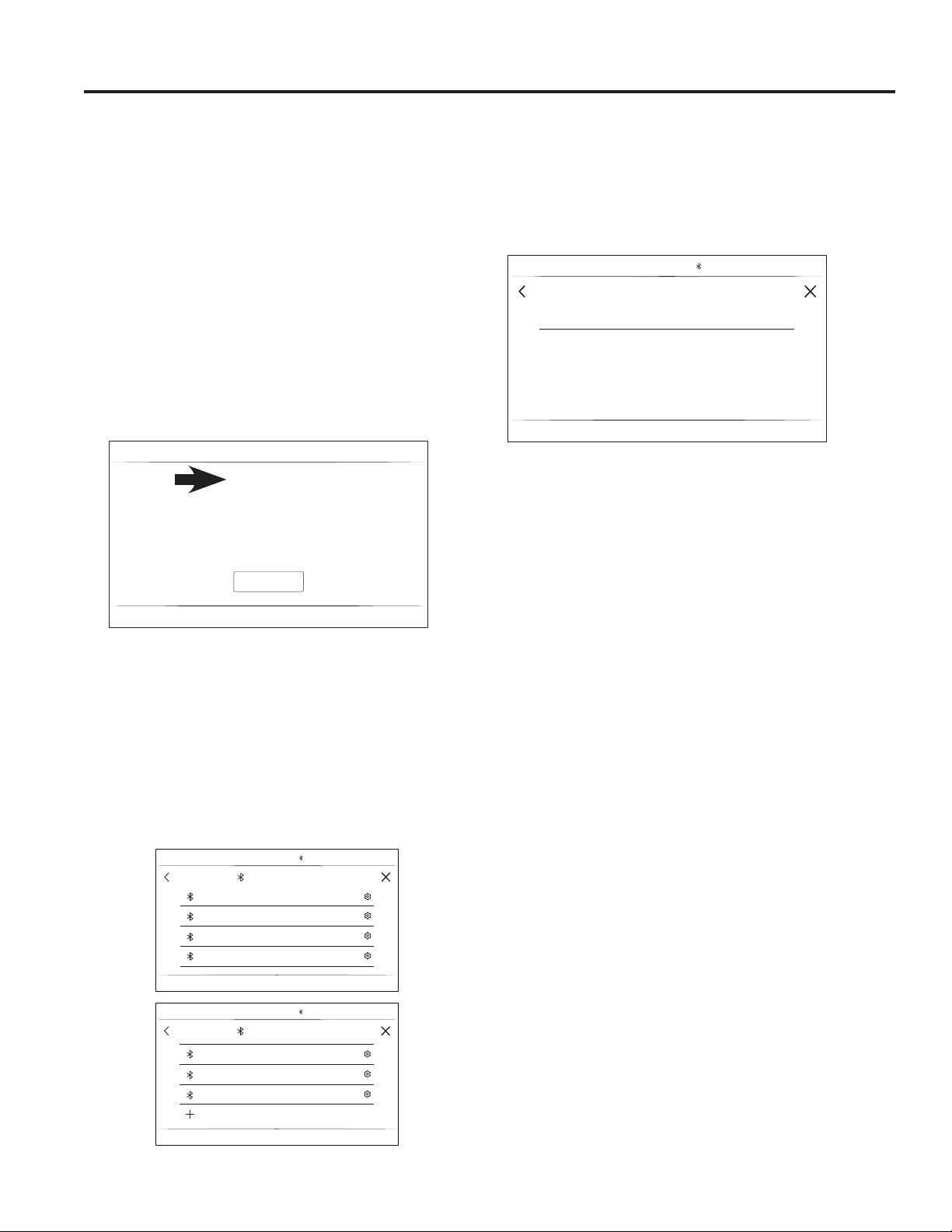
There are numerous settings that are accessed by pressing
in the top right corner of the main screen.
Wi-Fi & Remote Enable
This appliance is configurable to allow remote operation
at any time. Do not store any flammable materials or
temperature sensitive items inside or on top of this
appliance. By using the Wi-Fi Connect feature, you will
be able to control essential oven operations such as
temperature settings, timers and cooking modes using
your smart device.*
Select the then Wi-Fi & Remote Enable - follow the
instructions on your oven display and smart device app.
It is necessary to turn on Wi-Fi before using Remote
Enable on your oven.
Connecting your Wi-Fi Connect Enabled oven
1. Have your smart device ready with the ability to
access the internet and download apps.
2. You will need to know the password of your home
Wi-Fi router. Have this password ready while you are
setting up your GE Appliances oven.
3. On your smart device, visit
cafeappliances.com/connect to learn more about
connected appliance features and to download the
SmartHQ mobile app to connect to your oven.
4. Follow the onscreen instructions in the SmartHQ
mobile app to connect your GE Appliances oven.
When connected, your oven should show that it is
connected to your home Wi-Fi network.
5. If there are issues connecting wirelessly to your oven,
please call 800.220.6899 and ask for assistance
regarding oven wireless connectivity.
To connect additional smart devices, repeat steps 3 and 4.
Remote Starting your Oven
To be able to start the oven remotely once connected
to Wi-Fi, press Remote Enable on the main menu or
access Wi-Fi & Remote Enable in the settings menu
and turn Remote Enable on. The oven can now be
started remotely using a connected device. The
icon
must be active to start the oven remotely. To disconnect
your smart device from Remote Enable, access the
Wi-Fi & Remote Enable settings and turn Remote
Enable off.
NOTE: Foodsthatspoileasily—suchasmilk,eggs,fish,
stuffings,poultryandpork—shouldnotbeallowedto
sit for more than 1 hour before or after cooking. Room
temperature promotes the growth of harmful bacteria. Be
sure that the oven light is off because heat from the bulb
will speed harmful bacteria growth.
Set Clock
This feature allows you to set the clock and specifies
how the time of day will be displayed. Options are for a
standard 12-hour clock with AM and PM selections or
24-hour military time display.
Lock Control
Select this option in order to lock the LCD from any
undesired screen selections. To unlock the screen, press
and press Unlock on the next screen.
Sabbath
Sabbath mode disables the oven lights (the oven light
will not turn on when the door is opened), all sounds
(the control will not beep when the screen is pressed),
Convection modes, Broil modes, Warm, Proof, and
all time functions. Sabbath mode can only be used
with traditional Bake. This feature conforms to Jewish
Sabbath requirements. Please reference the Sabbath
Mode section for more information.
Sound
This setting screen allows you to change the volume, the
end of cycle tone, and turn on or off the touch sound.
Slide up and down to access all the settings
Settings
COOKING
SYSTEM
SETTINGS
SABBATH
SOUND
DISPLAY
12:30 PM
SETTINGS
12:30 PM
Wi-Fi & REMOTE ENABLE
BLUETOOTH
SET CLOCK
SABBATH
LOCK CONTROL
20 49-2001001 Rev. 2
Bluetooth
®
Pairing
Connected features such as the Precision Cooking Probe
and Chef Connect enabled products like an over-the-range
microwave oven or range hood can be paired using the
Bluetooth
®
feature. To pair those products to the range,
press the Settings pad and select Bluetooth
®
. Select
Pair and follow the corresponding instructions included
with the mating Bluetooth
®
enabled product. The range will
cancel pairing mode after two minutes if no mating device is
detected. Select Remove to confirm product is paired or to
un-pair from range.
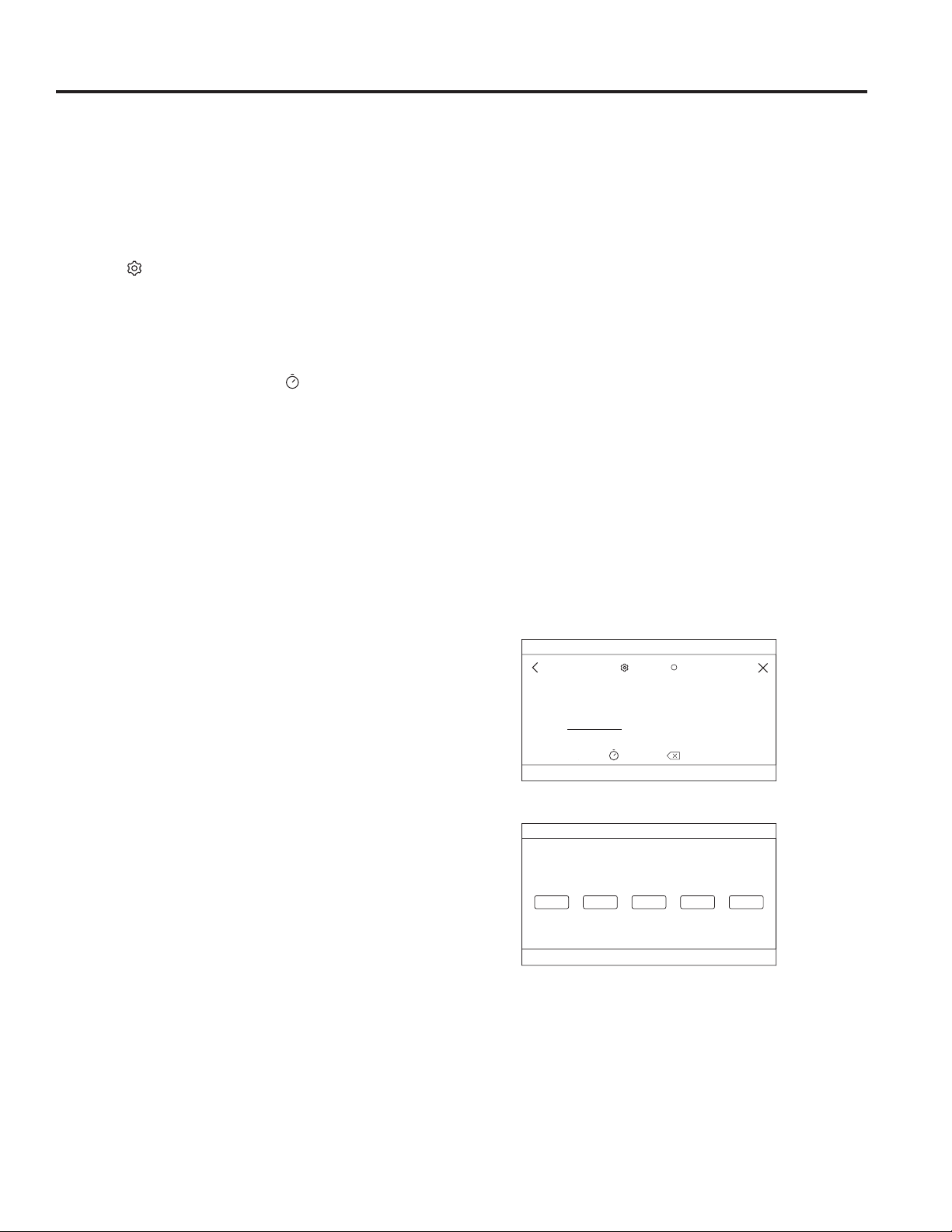
1. Touch Gear for Settings Menu.
2. Touch Bluetooth in Settings Menu.
When no device is paired, the range will search
automatically. This will timeout after 2 minutes if no device is
found.
3. Follow the instructions for device you wish to pair.
a. For Chef Connect - Follow the instructions on the
mating Chef Connect enabled product. When a Chef
Connect product is paired, the Clock time of day will
sync automatically across products.
b. For Precision Probe - Press side button once.
c. For Hestan Cue
®
cookware Firmly double tap the
black plastic endcap.
When devices are paired, they appear in a list that scrolls.
To pair a new Bluetooth device:
1.Scrolldownthelistto+PAIRNEWDEVICEtoadd
another.
To remove a Bluetooth device:
1. Touch the device name.
2. Touch FORGET THIS DEVICE.
Display
This screen shows the options for brightness, clock off,
and energy saver. Clock off will remove the clock from
the display when the screen is inactive, but it will be
shown after pressing the screen.
Cooking
■ The oven is set to Fahrenheit, however, in this setting
the cooking unit can be changed to Celsius.
■ Auto Recipe Conversion can be turned on in order
to automatically reduce the programmed cooking
temperature for Convection Bake or Convection Bake
Multi. Note that this will only reduce the cooking
temperature, not the baking time. When the 12 Hour
Shut Off option is turned on, it will automatically shut
off the oven after 12 hours of continuous use.
■ Adjust Temperature allows the oven temperature to
be adjusted up to 35°F hotter or down to 35°F cooler.
Use this feature if you believe your oven temperature
is too hot or cold and wish to change it. For double
ovens, the upper and lower oven temperatures are
adjusted separately.
System
This screen allows you to clear your saved user data and
shows the current software version.
Settings (Cont.)
CANCEL
BLUETOOTH
10:35 AM
Scannning for compatiable bluetooth devices…
Turn device on and put it in pairing mode.
PROBE
PAN 1
PAN 2
MWO_VENT 1
BLUETOOTH
10:35 AM
BLUETOOTH
10:35 AM
PAIR NEW DEVICES
MWO_VENT 1
PAN 2
MWO_VENT 2
MWO_VENT 2
10:35 AM
FORGET THIS DEVICE
USING THE RANGE: Settings
49-2001001 Rev. 2 21
USING THE RANGE: Sabbath
Sabbath mode disables the oven lights (the oven light will not turn on when the door is opened), all sounds
(the control will not beep when the screen is pressed), Convection modes, Broil modes, Warm, Proof, and all
time functions. Sabbath mode can only be used with traditional Bake. This feature conforms to Jewish Sabbath
requirements.
NOTE: If a power outage occurs during when the oven is in Sabbath Mode, the unit will return to Sabbath Mode
when power is restored.
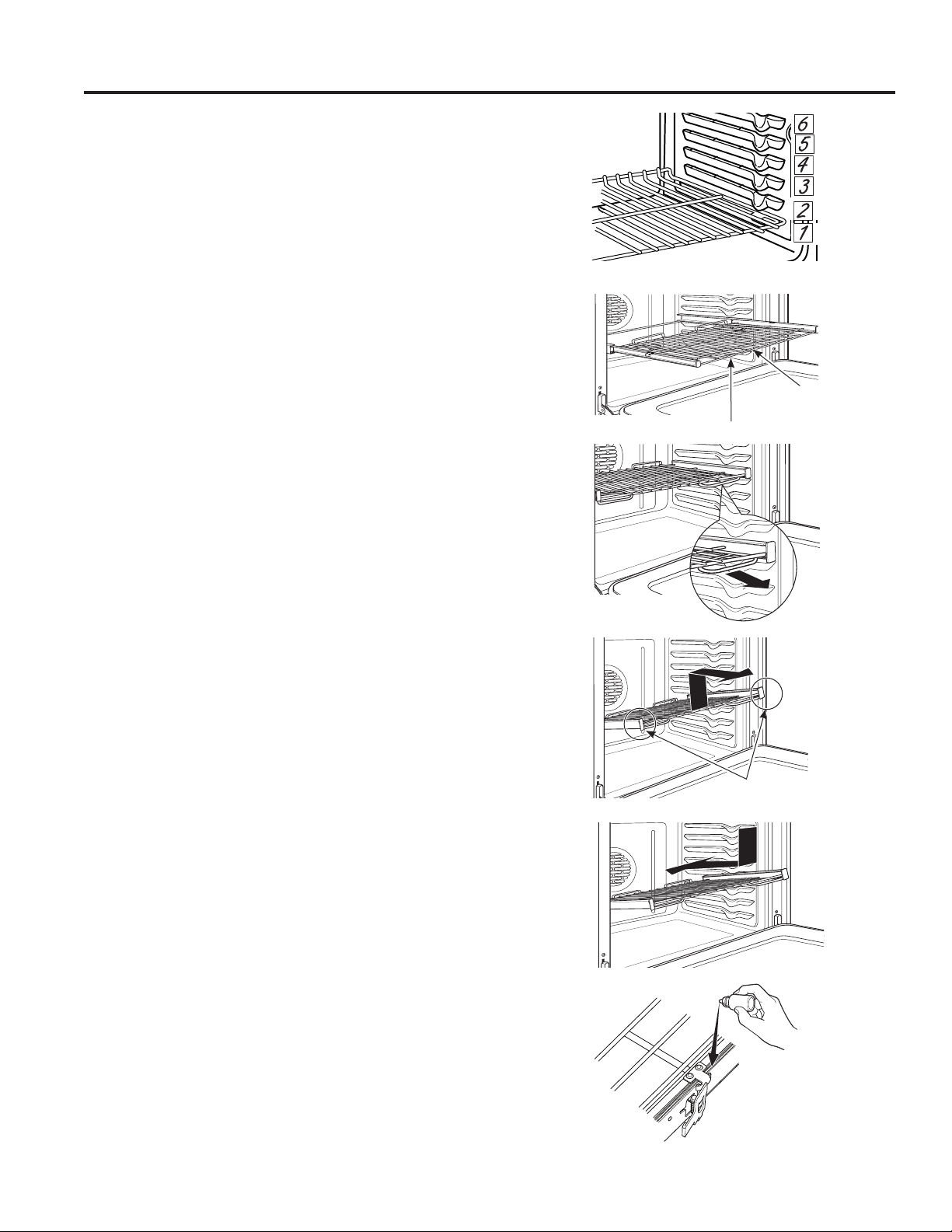
Entering Sabbath Mode
Press the
on the main screen to access the Settings
menu and scroll down to Sabbath.
Start a Sabbath Bake
Use the keypad on the screen to enter the temperature
that you would like to use for Sabbath Bake. Once
the temperature is set, press the
to set the cook
time for the cycle in hours and minutes. If using a
double oven, you can then set the temperature and
time desired for the other cavity by selecting it to the
left of the temperature display. If a timer is not set, the
oven will start a bake cycle during Sabbath mode and
continue until Sabbath mode is turned off. Once you
have programmed the temperature and time, press
Start. The next screen will display the settings that you
programmed for your Sabbath Bake.
Adjusting the Temperature During a
Sabbath Bake
If the temperature needs to be adjusted after
programming the oven for a Sabbath Bake, press one
of the temperature icons displayed on the Sabbath cycle
screen and press Enter. This will allow you to adjust the
temperature for the cycle. Note that the display will not
show that the oven temperature has been changed.
Exit the Sabbath Mode
To exit Sabbath mode, either press the X in the upper
right corner if in the programming screen, or press Exit
Sabbath if in the cycle screen. There is also an option to
turn off the cycle when on the cycle screen by pressing
Turn Off, but your oven will still remain in Sabbath mode
until you exit the mode. NOTE: If a power outage occurs
while the oven is in Sabbath Mode, the unit will return
to Sabbath Mode when power is restored, however
the oven will return to the off state even if it was in the
middle of a bake cycle when the power outage occurred.
Sabbath
SABBATH
ENTER TURN OFFOven On
EXIT SABBATH
12:30 PM
Select temperature, then press ENTER to edit.
200°F 250°F 300°F 350°F 400°F
Programming Screen
Sabbath Cycle Screen
12:30 PM
SABBATH
BAKE TEMP
1 2 3
4 5 6
7 8 9
0
i
---
°F
STA RT
22 49-2001001 Rev. 2
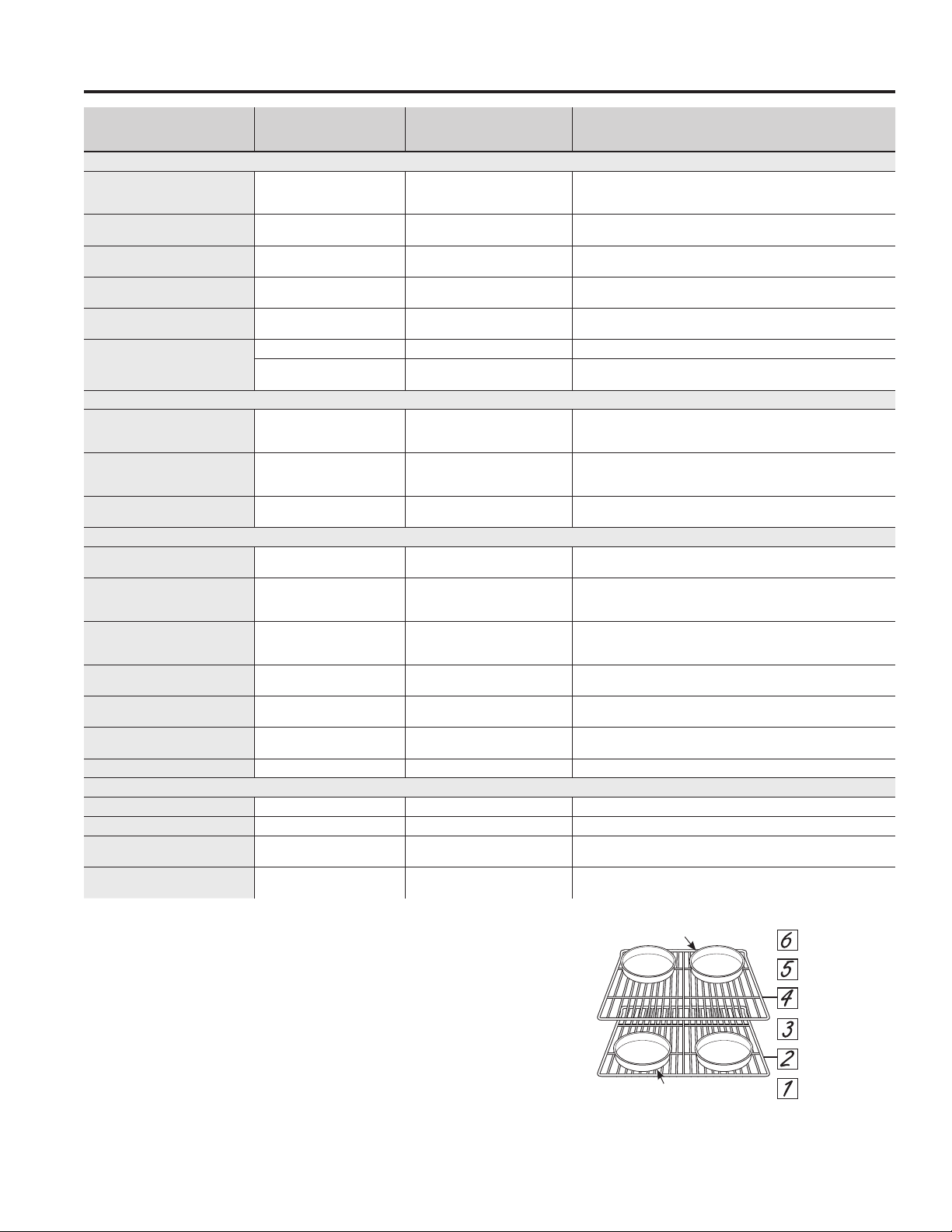
The number of rack positions may vary by model.
Upper Front
Rail
Fully Open Position
Grasp here
Oven Racks
Recommended rack positions for various types of
foods are provided in the Cooking Guide. Adjusting
rack position is one way to impact cooking results. For
example, if you would prefer darker tops on cakes,
muffins, or cookies, try moving food one rack position
higher. If you find foods are too brown on top try moving
them down next time.
When baking with multiple pans and on multiple racks,
ensure there is at least 1½" between pans to allow
sufficient space for air to flow.
YourOvenmayhaveextensionracksand/ortraditional
flat racks.
To avoid possible burns, place the racks in the desired
position before you turn the oven on.
Extension Racks
Always pull the rack out by its upper front rail to its fully
open position, when placing or removing cookware.
If extension racks are difficult to extend, lubricate the
racks with the graphite lubricant provided with your
oven. Remove the rack from the oven, remove debris in
the side tracks with a paper towel, shake the graphite
lubricant and place 4 small drops on the two bottom
tracks of the left and right sides. Open and close the
rack several times to distribute the lubricant.
To order additional graphite lubricant, see the
Accessories and Consumer Support sections at the end
of this manual.
To Remove An Extension Rack:
1. Make sure the rack is pushed all the way into the
oven so that side paddles on the rack disengage from
the oven support.
2. Slide the rack toward you to the bump (stop position)
on the rack support.
3. Firmly grasp both sides of the rack frame and the
sliding rack, tilt the front end up and pull it out.
To Replace An Extension Rack:
1. Firmly grasp both sides of the rack frame and the
sliding rack.
2. Place the curved end of the rack (stop-locks) onto the
oven supports, tilt up the front of the rack and push it
in as far as it will go.
If extension racks are difficult to replace or remove, wipe
the oven rack supports with vegetable oil. Do not wipe oil
on the rack slides.
To Lubricate the Paddle:
Shake lubricant and apply to the moving parts of the
paddle mechanisms as shown.
USING THE RANGE: Oven Racks

49-2001001 Rev. 2 23
Cookware
Cookware Guidelines
The material, finish, and size of cookware affect baking
performance.
Dark, coated and dull pans absorb heat more readily
than light, shiny pans. Pans that absorb heat more
readily can result in a browner, crisper, and thicker crust.
If using dark and coated cookware check food earlier
than minimum cook time. If undesirable results are
obtained with this type of cookware consider reducing
oven temperature by 25°F next time.
Shiny pans can produce more evenly cooked baked
goods such as cakes and cookies.
Glass and ceramic pans heat slowly but retain heat well.
These types of pans work well for dishes such as pies
and custards.
Air insulated pans heat slowly and can reduce bottom
browning.
Keepcookwarecleantopromoteevenheating.
Stoneware heats slowly and retains heat well. It is
recommended to preheat this type of cookware if
possible. Additional cook time may be required.
CAUTION
Do not use any type of foil or oven liner to cover the oven bottom. These items can trap heat
or melt, resulting in damage to the product and risk of shock, smoke or fire. Damage from improper use of
these items is not covered by the product warranty.
Foil may be used to catch spills by placing a sheet on a lower rack, several inches below the food. Do not use more
foilthannecessaryandneverentirelycoveranovenrackwithaluminumfoil.Keepfoilatleast1-1/2”fromovenwalls
to prevent poor heat circulation.
Aluminum Foil and Oven Liners
Cooking Modes
Your new oven has a variety of cooking modes to help you get the best results. These modes are described below.
Refer to the Cooking Guide section for recommendations for specific foods. Remember, your new oven may perform
differently than the oven it is replacing.
Temperature Setting
When selecting a temperature, the traditional preset
temperatures are shown and can be selected by
scrolling horizontally and selecting the desired
temperature. If you wish to cook at an alternate
temperature, press the temperature in the middle of the
screen and a number pad will appear so the desired
temperature can be input.
Bake
The traditional bake mode is intended for single rack
cooking. This mode uses heat primarily from the lower
element but also from the upper element to cook food.
To use this mode press the Bake option on the main
menu and scroll to the desired temperature and press
Start. Preheating is generally recommended when using
this mode.
Broiling Modes
Always broil with the door closed. The broil element in
this oven is very powerful. Monitor food closely while
broiling. Use caution when broiling on upper rack
positions as placing food closer to the broil element
increases smoking, spattering, and the possibility
of fats igniting. Broiling on rack position 6 is not
recommended.
Broiling can be used for foods that would typically be
grilled. Adjust the rack position in order to vary the
intensity of the heat to the food. Place foods closer to the
broil element when a seared surface and rare interior are
desired. For best performance, center the food below the
broil heating element.
Broil
Select Broil on the main menu, then select High or Low
depending on the amount of searing and the internal
temperature that is preferred. The High setting is best for
thinnercutsofmeatand/orfoodsyoupreferlessdoneon
the interior. The Low setting is preferred for thicker cuts of
meat and foods you like to be cooked all the way through.
It is not necessary to preheat the oven for these modes.
Convection Modes
These modes utilize heat from the traditional upper and
lower elements combined with the convection element
and consistent airflow to enhance evenness. Your oven
is equipped with Auto Recipe Conversion so that it
automatically adjusts the amount of heat to maintain
the proper temperature when using the modes with
specified temperatures. Preheating is recommended for
these modes.
USING THE RANGE: Aluminum Foil and Oven Liners /Cookware/CookingModes

24 49-2001001 Rev. 2
USING THE RANGE:CookingModes/OvenDoorCamera
Cooking Modes (Cont.)
Convection Bake Multi Rack
This mode has been designed to allow for more even
cooking when multiple racks are utilized. Baking time
may be slightly longer than what would be expected for
a single rack. To use this mode, select Convect, then
Bake Multi-Rack, scroll to the desired temperature, and
press Start. Preheating is generally recommended when
using this mode.
Convection Roast
This mode is intended for roasting whole cuts of meat
on a single rack. The utilization of all three elements and
direct airflow down from the top of the oven improves
browning and reduces cooking time. Check food earlier
than the recipe suggests or use the probe when using
this mode. To use this mode, select Convect, then press
Roast, scroll to the desired temperature, and press
Start.
Proof
Proof mode is designed for rising (fermenting and
proofing) bread doughs. Press the More option on the
main menu, then Proof, then Start. Cover dough well to
prevent drying out. Bread will rise more rapidly than at
room temperature. NOTE: Do not use the Proof mode
for warming food or keeping food hot. The proofing oven
temperature is not hot enough to hold foods at safe
temperatures.
Warm
Warm mode is designed to keep hot foods at a higher
temperature for up to 3 hours. To use this mode, select
More from the main menu, then Warm, then press Start.
Preheating is not required. Do not use warm to heat cold
food other than crisping crackers, chips, or dry cereal.
It is also recommended that food not be kept warm for
more than 2 hours.
Precision Cooking
These modes provide guidance or pre-set cooking
algorithms to assist the user in cooking various types of
food. The selection you make in the Precision Cooking
menu will guide you to input the information required to
help cook your food. At the end of estimated cooking
time, check the food to see if it is done to your liking.
Note that differences in food shape, preparation and
preferences for doneness can impact the time required
to cook the food.
Some cycles require the food temperature probe
supplied with your oven. The target temperature for the
probe is automatically set based on selections made
for each food. Always check foods using a secondary
food thermometer as probe placement can impact the
measured temperature. See Probe section for more
details on using and positioning the probe properly.
On some pages
TH
i
will show up. Press
TH
i
to access
additional information that pertains to the cooking cycles
within that category.
Additional cycles will be available through software
updates. Connect your oven to have access to these
updates. See the Wi-Fi Connect section for details on
how to connect your oven.
Pre-Heat
Proper preheating ensures that the oven is hot enough
to begin baking. Improper preheating (that is, cooking
in the oven that has not come up to set temperature)
can negatively affect cooking. Depending on the recipe
recommendations, the temperature of your foods when
they go into the oven may determine your final baking
time and baking results; if you put your food, such as
biscuits or breads, in during Pre-heat, they may over
brown on top or burn.
IMPORTANT: The more items to be heated in the oven
during preheat (this includes multiple racks, baking
stones, etc.) will affect the length of your pre-heat time.
Always begin baking after the pre-heat signal. The signal
will be a beep, indicaotr light or chime. This lets you
know your oven is at your needed baking temperature.
For best results, turn the oven On before you begin your
prep work.
Oven Door Camera (on some models)
The Oven Door Camera allows for remote viewing of the
center of the oven cavity using the SmartHQ mobile app.
Download the SmartHQ mobile app and follow instructions
in the SmartHQ mobile app to connect your range. From
the app's home page, select your range, then tap on the
camera icon to start the camera stream to your smart
device. The oven lights will illuminate while the camera is
streaming. The camera stream will stop if the oven door is
opened, and is not allowed during certain modes such as
Proof and Self Clean.
Soils on the oven door glass and oven cavity light cover
may cause an unclear oven camera image. Refer to Care
and Cleaning section for door glass cleaning instructions.
For best results, clean door glass immediately after
spillage once the oven has cooled.

49-2001001 Rev. 2 25
Probe
Proper Probe Placement
After preparing the meat and placing it on the cooking
pan follow these instructions for proper probe placement.
■ Inserttheprobeintothefood,sothatthetipofthe
probe will rest in the center of the thickest part of
the food. For best performance the probe should
be fully inserted into the food. If the probe is not
located properly, it may not accurately measure the
temperature of the coolest portion of the food. Some
foods, particularly small items, are not well suited for
cooking with the probe due to their shape or size.
■ Theprobeshouldnottouchbone,fatorgristle.
■ Forwholepoultryinserttheprobeintothethickest
part of the breast.
■ Forbonelessroasts,inserttheprobeintothecenter
of the roast.
■ Forbone-inhamorlamb,inserttheprobeintothe
center of the lowest large muscle or joint.
■ Forcasserolesordishessuchasmeatloaf,insertthe
probe into the center of the dish.
■ Forfish,inserttheprobefromjustabovethegillinto
the meatiest area, parallel to the backbone.
Probe Usage
To use the probe without preheating:
1. Insert the probe into the food (see Proper Probe
Placement).
2. Place the food in the oven and connect the probe into
the probe outlet in the oven.
3. Select the desired cooking mode and temperature.
Before pressing start, press the Probe icon at the
bottom left of the screen. The probe setting screen
will be displayed. Enter the desired internal food
temperature and press Start. The probe temperature
can be set between 100°F and 200°F.
To use the probe with preheating:
1. Press the desired cook mode (Traditional Bake,
Convection Bake, or Convection Roast) pad and
enter the desired cooking temperature.
2. Insert the probe into the food (see Proper Probe
Placement).
3. Once the oven is preheated, place the food in the
oven and connect the probe to the probe outlet,
making sure it is fully inserted. Use caution, the oven
walls and probe outlet are hot.
4. The oven will detect that the probe has been inserted
and the probe setting screen will be displayed. Enter
the desired internal food temperature and press
Start. The probe temperature can be set between
100°F and 200°F.
Probe Care Guidelines
■ Useofprobesotherthantheoneprovidedwiththis
product may result in damage to the probe input jack.
■ Usethehandlesoftheprobeandplugwheninserting
and removing them from the meat and outlet
■ Toavoiddamagingyourprobe,donotusetongsto
pull on the cable when removing it.
■ Toavoidbreakingtheprobe,makesurefoodis
completely defrosted before inserting the probe.
■ Topreventpossibleburns,donotunplugtheprobe
from the outlet until the oven has cooled.
■ Neverleavetheprobeinsidetheovenduringaselfor
steam clean cycle.
■ Donotstoretheprobeintheoven.
WARNING
Consuming undercooked food can result in foodborne illness. Use probe according to
the following instructions to ensure all portions of the food reach minimum safe cooking temperatures.
Recommendations for minimum safe food temperatures can be found at foodsafety.gov or IsItDoneYet.gov.
Internal food temperature is frequently used as an indicator of doneness, especially for roasts and
poultry. The Probe mode monitors the internal food temperature and turns the oven off when the internal
food temperature reaches the programmed temperature.
Always check the temperature at multiple locations in the food with a food thermometer after cooking to
ensure that all portions of the food have reached the minimum safe internal temperature for that food.
USING THE RANGE: Probe
26 49-2001001 Rev. 2
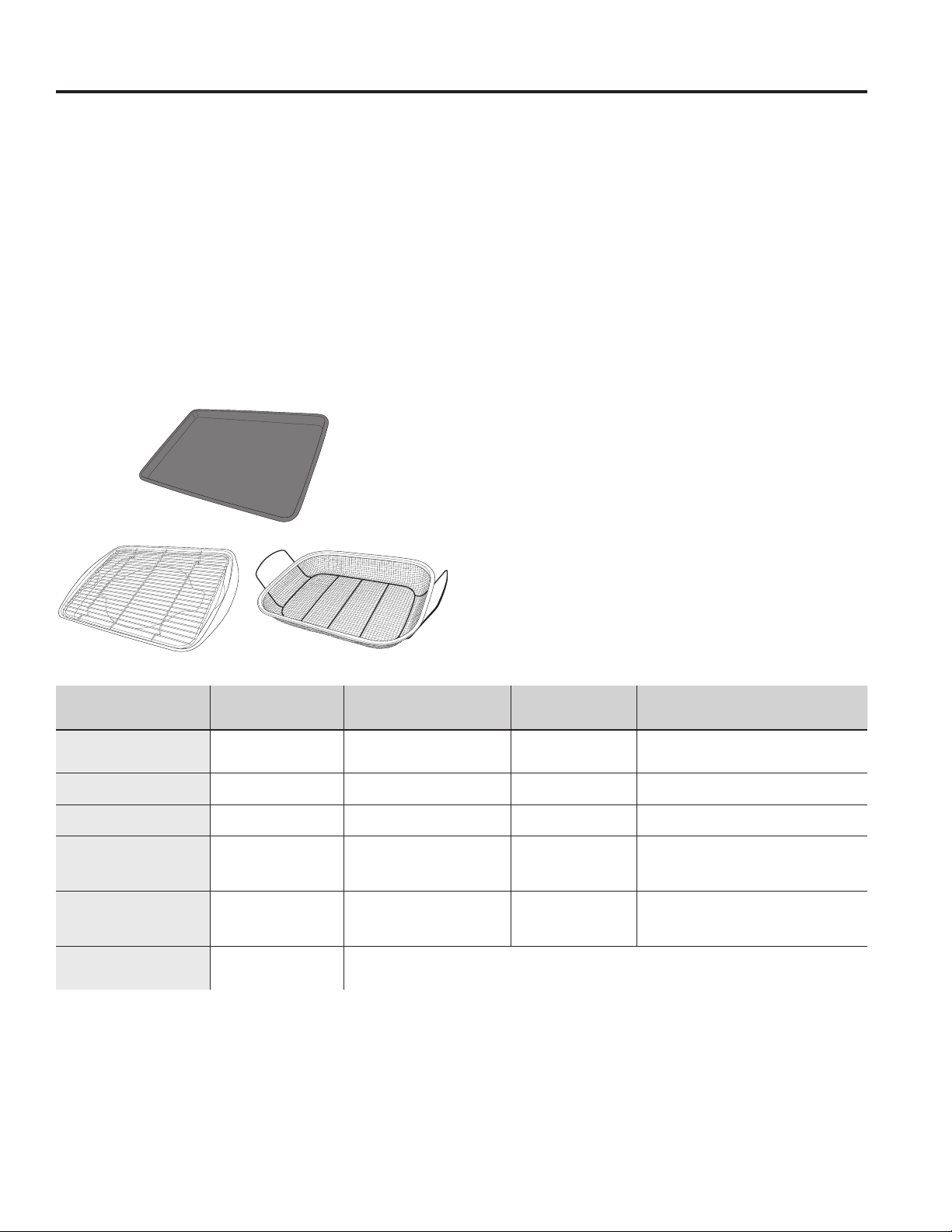
FOOD TYPE
RECOMMENDED
MODE(S)
RECOMMENDED
RACK POSITION(S) ADDITIONAL SUGGESTIONS
Baked Goods
Layer cakes, sheet cakes, bundt
cakes, muffins, quick breads on a
Single Rack
Bake
Bake Goods
3 Use shiny cookware.
Layer cakes* on Multiple Racks
Bake
Convection Bake
2 and 4 Use shiny cookware. Ensure adequate airflow (see illustration below).
Chiffon cakes (angel food)
Bake
Bake Goods
1 Use shiny cookware.
Cookies, biscuits, scones on a
Single Rack
Bake
Bake Goods
3 Use shiny cookware.
Cookies, biscuits, scones on
Multiple Racks
Convection Bake
2 and 4
2, 4, and 6
Use shiny cookware. Ensure adequate airflow.
Yeast Breads
Proof 2 or 3 Cover dough loosely.
Bake
Bake Goods
3
Beef & Pork
Hamburgers Broil High 6
Useabroilpan;movefooddownformoredoneness/lesssearing.
Watch food closely when broiling. For best performance center food
below the broil heater.
Steaks & Chops Broil High 5 or 6
Useabroilpan;movefooddownformoredoneness/lesssearing.
Watch food closely when broiling. For best performance center food
below the broil heater.
Roasts
Bake
Convection Roast
2 or 3 Use a low sided pan such as a broil pan. Preheating is not necessary.
Poultry
Whole chicken
Bake
Convection Roast
2 or 3 Use a low sided pan such as a broil pan. Preheating is not necessary.
Bone-in chicken breasts, legs,
thighs
Broil Low
Bake
3
If breaded or coated in sauce avoid Broil High modes. Broil skin side
down first. Watch food closely when broiling. For best performance
when broiling, center food below the broil heater.
Boneless chicken breasts
Broil Low
Bake
3
Movefooddownformoredoneness/lesssearingandupforgreater
searing/browningwhenbroiling.Forbestperformancewhenbroiling,
center food below the broil heater.
Whole turkey
Bake
Convection Roast
1 Use a low sided pan such as a broil pan. Preheating is not necessary.
Turkey Breast
Bake
Convection Roast
3 Use a low sided pan such as a broil pan. Preheating is not necessary.
Fish Broil Low
6(1/2inchthickorless)
5(>1/2inch)
Watch food closely when broiling. For best performance center food
below the broil heater.
Casseroles Bake 3 or 4
Frozen Convenience Foods
Pizza on a Single Rack Frozen Pizza Single 3 Place food in oven prior to starting mode.
Pizza on Multiple Racks Frozen Pizza Multi 2 and 4 Stagger pizzas left to right, do not place directly over each other.
Potato products, chicken nuggets,
appetizers on a Single Rack
Frozen Snacks Single 4 or 5
Donotpreheat.Usedarkcookwareformorebrowning/crisping;
use shiny cookware for less browning.
Potato products, chicken nuggets,
appetizers on Multiple Racks
Frozen Snacks Multi 2 and 4
Usedarkcookwareformorebrowning/crisping;useshinycookware
for less browning.
*When baking four cake layers at a time use racks 2
and 4. Place the pans as shown so that one pan is not
directly above another.
Cook food thoroughly to help protect against food
borne illness. Minimum safe food temperature
recommendations for food safety can be found at
IsItDoneYet.gov. Make sure to use a food thermometer
to take food temperatures.
Rear Placement
Front Placement
Cooking Guide
USING THE RANGE: Cooking Guide
49-2001001 Rev. 2 27
USING THE RANGE: Air Fry Cooking Guide
Air Fry Cooking Guide (on some models)
Air Fry is a special, no-preheat, cooking mode that
is designed to produce foods with a crispier exterior
than traditional oven cooking. Select Air Fry, then
input the desired set temperature and press Start. The
temperature can be set between 300°F and 500°F.
Air Fry Cookware Guidelines
• Only use broil safe cookware when using Air Fry mode.
• A dark sheet pan is recommended. A dark pan
promotes better browning and crisping.
• Oven baking baskets and baking grids can also be
used. A sheet pan should be placed on the rack below
the foods to catch any drippings when using a baking
basket.
General Tips for Air Fry Mode
• The Air Fry mode is designed for cooking on a single
rack.
• The Air Fry mode is designed to be used without
preheating.
• Rack position 4 is recommended for most foods. Use
rack position 3 for thicker foods.
• Foods may cook faster than expected if the oven is
already hot when food is placed in the oven.
• When air frying foods with sauce, it is recommended to
apply the sauce at the end of cooking.
• If foods are browning too quickly, try a lower rack
position or lower oven set temperature.
• For packaged foods, use traditional oven cooking
instructions for set temperature and expected cook
time.
• It is not necessary to flip or stir food during cooking
• Arrange food in a single layer on the pan, do not
overload the pan.
• Always check internal food temperature to confirm
minimum safe temperatures have been reached.
Minimum safe food temperatures can be found on
packages and at IsItDoneYet.gov.
FOOD TYPE
RECOMMENDED
RACK POSITION(S)
RECOMMENDED
SET TEMPERATURES (F°)
RECOMMENDED
COOK TIME (MIN) NOTES
Fresh boneless fish or
poultry pieces, breaded such
as nuggets, tenders, fillets
4 375-400 15-30
User lower set temperatures for larger pieces.
Use shiny cookware.
Fresh bone in
chicken wings
4 375-400 25-40
Salt wings or coat in a dry rub, if using sauce
apply after cooking or toward the end of cooking
Fresh bone in chicken
drumsticks or thighs
3 or 4 375-400 30-55 User lower set temperatures for larger pieces.
Fresh French fries,
thin (< ½ inch)
4 400-425 15-30
Parchment paper is recommended when
preparing fresh French fries. For crispier fries,
toss fries in corn starch or rice flour before
cooking.
Fresh French fries,
thick (> ½ inch)
3 or 4 375-400 20-35
Parchment paper is recommended when
preparing fresh French fries. For crispier fries,
toss fries in corn starch or rice flour before
cooking.
Frozen packaged
foods
3 or 4
(use rack position 3 for
thicker foods)
Use traditional oven(not Air Fry) cooking instructions as a guideline for set temperature and cook time. Additional
cook time beyond recommended package time may be required for some foods. If oven is hot when starting, food
may cook faster than the minimum package time.
Primary recommended cookware
Alternate cookware options

28 49-2001001 Rev. 2
Cleaning the Range – Exterior
Control Lockout
If desired, the touch pads may be deactivated before
cleaning.
See Lock Controls in the Oven Controls section in this
manual.
Clean up splatters with a damp cloth.
You may also use a glass cleaner.
Remove heavier soil with warm, soapy water. Do not use
abrasives of any kind.
Reactivate the touch pads after cleaning.
Control Panel
It’s a good idea to wipe the control panel after each use.
Clean with mild soap and water or vinegar and water,
rinse with clean water and polish dry with a soft cloth.
Do not use abrasive cleansers, strong liquid cleansers,
plastic scouring pads or oven cleaners on the control
panel—theywilldamagethefinish,includingBlack
Stainless Steel.
Oven Exterior
Do not use oven cleaners, abrasive cleaners, strong
liquid cleansers, steel wool, plastic scouring pads, or
cleaning powders on the exterior of the oven. Clean with
a mild soap and water or vinegar and water solution.
Rinse with clean water and dry with a soft cloth. When
cleaning surfaces, make sure that they are at room
temperature and not in direct sunlight.
If stain on the door vent trim is persistent, use a mild
abrasive cleaner and a sponge-scrubber for best results.
Spillage of marinades, fruit juices, tomato sauces and
basting liquids containing acids may cause discoloration
and should be wiped up immediately. Let hot surfaces
cool, then clean and rinse.
Painted Surfaces and Black Stainless Steel
Painted surfaces include the sides of the range and the
door, top of control panel and the drawer front. Clean
these with soap and water or a vinegar and water solution.
Do not use commercial oven cleaners, cleaning
powders, steel wool or harsh abrasives on any painted
surface, including Black Stainless Steel.
Stainless Steel - Excluding Black Stainless Steel (on some models)
Do not use a steel wool pad; it will scratch the surface.
To clean the stainless steel surface, use warm sudsy
water or a stainless steel cleaner or polish. Always wipe
the surface in the direction of the grain. Follow the cleaner
instructions for cleaning the stainless steel surface.
To inquire about purchasing cleaning products including
stainless steel appliance cleaner or polish, see the
Accessories and Consumer Support sections at the end
of this manual.
WARNING
If your range is removed for cleaning, servicing or any reason, be sure the
anti-tip device is reengaged properly when the range is replaced. Failure to
take this precaution could result in tipping of the range and can result in death
or serious burns to children or adults.
Be sure all controls are off and all surfaces are cool before cleaning any part of the range.
CARE AND CLEANING: Cleaning the Range – Exterior

49-2001001 Rev. 2 29
CARE AND CLEANING: Cleaning the Range – Interior
Cleaning the Range – Interior
Racks
All racks can be washed with warm, soapy water.
Enameled (not shiny) racks can be left in the cavity
during self clean.
Racks may be more difficult to slide, especially after
a self-clean. Put some vegetable oil on a soft cloth or
paper towel and rub onto the left and right edges.
The interior of your new oven can be cleaned manually or by using Steam Clean or Self Clean modes.
Spillage of marinades, fruit juices, tomato sauces and basting liquids containing acids may cause discoloration and
should be wiped up immediately. Let hot surfaces cool, then clean and rinse.
IMPORTANT: For models with Oven Camera in the door: If door glass or oven cavity light cover is not clean, camera
image clarity may be affected. Please follow directions below to properly clean the door glass. For best results, clean
door glass and oven light cover immediately after spillage once the oven has cooled.
Manual Cleaning
Do not use oven cleaners (unless certified for self-
cleaning oven), abrasive cleaners, strong liquid
cleansers, steel wool, or scouring pads on the interior
of the oven. For soils on the oven bottom and other
enameled surfaces, use a gentle abrasive containing
oxalicacid,suchasBarKeepersFriend
®
, with a
non-scratch sponge. Take care not to apply any abrasive
cleaners or sponges to the door glass, as it will scratch
the reflective coating. The oven interior and door glass
may be cleaned using a soft cloth with a mild soap and
water, or vinegar and water solution. After cleaning, rinse
with clean water and dry with a soft cloth.
Steam Clean Mode
The Steam Clean feature is for cleaning light soil from
your oven at a lower temperature than Self Clean.
To use the Steam Clean feature:
1. Start with the oven at room temperature.
2. Wipe excess grease and soils from the oven.
3. Pour one cup of water onto the bottom of the oven.
4. Close the door.
5. Touch the LCD screen, select Oven. Select More,
and then select Steam Clean.
Do not open the door during the 30 minute steam clean
as this will decrease the steam clean performance. At
the end of the Steam Clean cycle, soak up the remaining
water, and wipe the moisture-softened soil from the oven
walls and door.
Self Clean Mode
Read Self-Cleaning Oven Safety Instructions at the
beginning of this manual before using the Self Clean
Mode. Self Clean uses very high temperatures to clean
the oven interior. For a moderately soiled oven, run a
3 hour self-clean cycle. For a heavily soiled oven, run
a 5 hour self-clean cycle. Only self-clean (black) racks
and grates may remain in the oven during the self-clean
cycle. All other items, including nickel plated (silver) racks,
should be removed. If nickel plated (silver) racks are left
in the oven during a self-clean cycle, the racks will tarnish.
If either type of rack is left in the oven during a self-clean
cycle, the rack may become difficult to slide. See the
Oven Racks section for instructions on how to improve.
IMPORTANT: The health of some birds is extremely
sensitive to the fumes given off during the self-cleaning
cycle of any range. Move birds to another well-
ventilated room.
To use the Self Clean feature:
1. Start with the oven at room temperature.
2. Wipe excess grease and soils from the oven and
interior door.
3. Remove all items other than self-clean (black)
racks and grates, if desired. See Cleaning the
Cooktop to determine if your grates may be self-
cleaned and for important details regarding grate
placement.
4. Close the door.
5. Press the Clean pad, select Self Clean and then
press Start/Enter.
You cannot open the door during the self-clean cycle. The
door will remain locked after the self-clean cycle until the
oven cools below the unlocking temperature. At the end
of the self-clean cycle, allow the oven to cool and wipe
any ash out of the oven.
To Stop a Self-Clean Cycle
PresstheCancel/Offpad.Waituntiltheovenhascooled
below the locking temperature to unlatch the door. You
will not be able to open the door right away unless the
oven has cooled below the locking temperature.
On Some Models:
The surface units are automatically disabled during the
self-clean cycle. Make sure that all surface unit controls
are turned off at all times during the self-clean cycle.
Wait until the self-clean cycle is finished to set and use
the surface units.
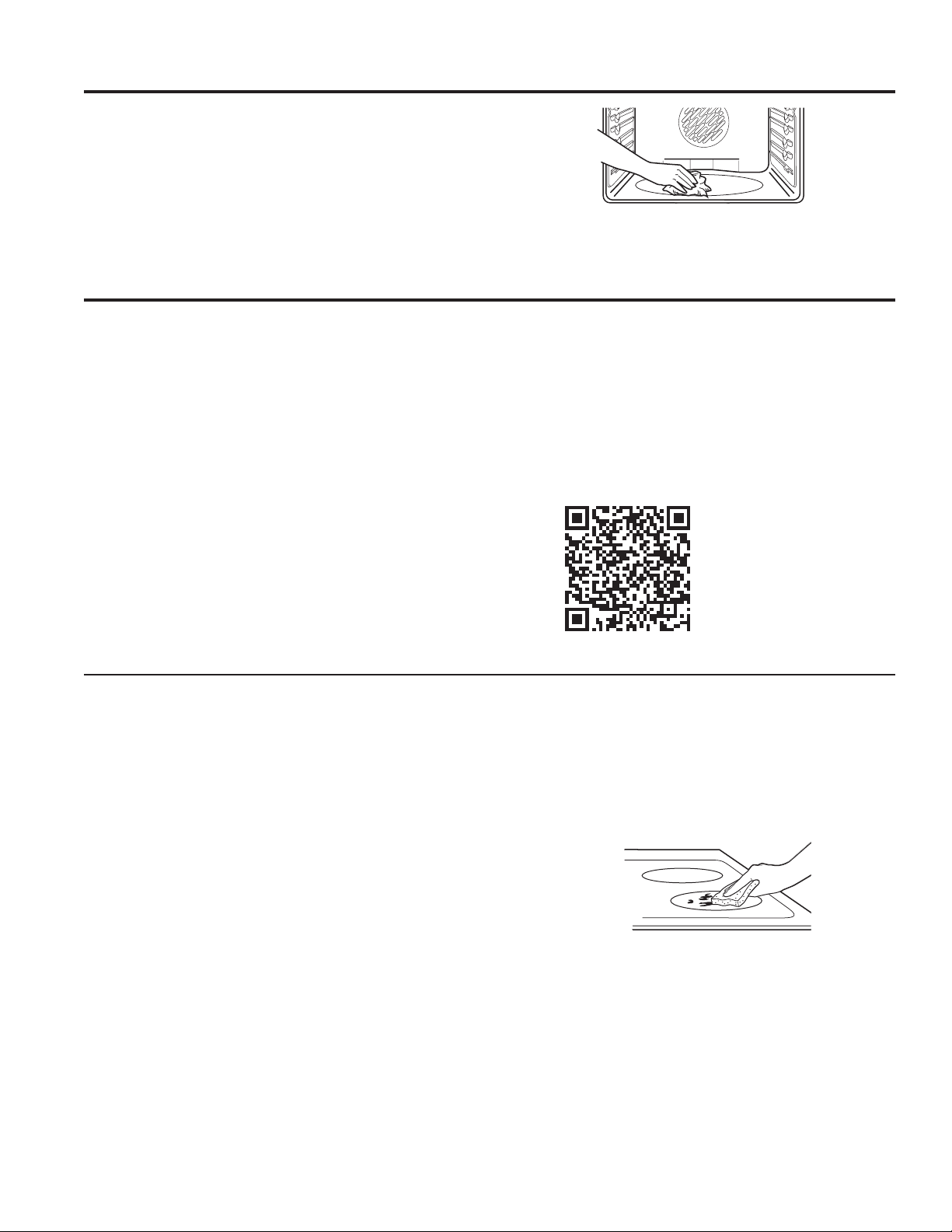
30 49-2001001 Rev. 2
Cleaning the Range – Interior (Cont.)
Oven Heating Elements
Do not clean the bake element or the broil element. Any
soil will burn off when the elements are heated.
The bake element is not exposed and is under the oven
floor. Clean the oven floor with warm, soapy water.
Wipe up heavy soil on the oven bottom.
Normal Daily Use Cleaning
For models with Precision Cooktop Sensor on the
left front element: ONLY use water and dish detergent
on the Precision Cooktop Sensor. Do not use cream
based cleaners. Cleaners that have grit can cause build
up around sensor and restrict its ability to move freely.
To maintain and protect the surface of your glass
cooktop, follow these steps:
1. Before using the cooktop for the first time, clean it
with ceramic cooktop cleaner. This helps protect the
top and makes cleanup easier.
2. Regular use of ceramic cooktop cleaner will help keep
the cooktop looking new.
3. Shake the cleaning cream well. Apply a few drops of
a ceramic cooktop cleaner directly to the cooktop.
4. Use a paper towel or non-scratch cleaning pad
for Ceramic Cooktops to clean the entire cooktop
surface.
5. Use a dry cloth or paper towel to remove all cleaning
residue. No need to rinse.
NOTE: It is very important that you DO NOT heat the
cooktop until it has been cleaned thoroughly.
Burned-On Residue
NOTE: DAMAGE to your glass surface may occur if you
use scrub pads other than those recommended.
For models with Precision Cooktop Sensor on the
left front element: ONLY use non-scratch pads to clean
the surface of the Precision Cooktop Sensor. DAMAGE
to the sensor surface may occur if you use scrub pads
that are abrasive.
1. Allow the cooktop to cool.
2. Spread a few drops of ceramic cooktop cleaner on
the entire burned residue area.
3. Using the included non-scratch cleaning pad for
ceramic cooktops, rub the residue area, applying
pressure as needed.
4. If any residue remains, repeat the steps listed above
as needed.
5. For additional protection, after all residue has been
removed, polish the entire surface with ceramic
cooktop cleaner and a paper towel.
Glass Cooktop
Use a non-scratch cleaning pad for
Ceramic Cooktops.
CARE AND CLEANING:CleaningtheRange–Interior/GlassCooktop
For cleaning videos and
instructions, scan the QR
code with your device.

49-2001001 Rev. 2 31
CARE AND CLEANING: Glass Cooktop
Heavy, Burned-On Residue
For models with Precision Cooktop Sensor on the
left front element: ONLY use non-scratch pads to clean
the surface of the Precision Cooktop Sensor. DAMAGE
to the sensor surface may occur if you use scrub pads
that are abrasive.
1. Allow the cooktop to cool.
2. Use a single-edge razor blade scraper at approximately
a 45° angle against the glass surface and scrape the
soil. It will be necessary to apply pressure to the razor
scraper in order to remove the residue.
3. After scraping with the razor scraper, spread a few
drops of ceramic cooktop cleaner on the entire burned
residue area. Use the non-scratch cleaning pad to
remove any remaining residue.
4. For additional protection,
after all residue has been
removed, polish the entire
surface with ceramic
cooktop cleaner and a
paper towel.
The ceramic cooktop scraper and all recommended supplies
are available through our Parts Center. See the Accessories
and Consumer Support sections at the end of this manual.
NOTE: Do not use a dull or nicked blade.
Metal Marks and Scratches
1. Be careful not to slide pots and pans across
your cooktop. It will leave metal markings on the
cooktop surface.
These marks are removable using the ceramic
cooktop cleaner with the non-scratch cleaning pad for
Ceramic Cooktops.
2. If pots with a thin overlay of aluminum or copper
are allowed to boil dry, the overlay may leave black
discoloration on the cooktop.
This should be removed immediately before heating
again or the discoloration may be permanent.
NOTE: Carefully check the bottom of pans for roughness
that would scratch the cooktop.
3. Be careful not to place aluminum baking sheets or
aluminum frozen entrée containers on a hot cooktop
surface. It will leave shinny dots or markings on the
cooktop surface. These markings are permanent and
cannot be cleaned off.
Damage from Sugary Spills and Melted Plastic
Special care should be taken when removing hot substances to avoid permanent damage of the glass surface.
Sugary spillovers (such as jellies, fudge, candy, syrups) or melted plastics can cause pitting of the surface of your
cooktop (not covered by the warranty) unless the spill is removed while still hot. Special care should be taken when
removing hot substances.
Be sure to use a new, sharp razor scraper.
Do not use a dull or nicked blade.
1. Turn off all surface units. Remove hot pans.
2. Wearing an oven mitt:
a. Use a single-edge razor blade scraper to move
the spill to a cool area on the cooktop.
b. Remove the spill with paper towels.
3. Any remaining spillover should be left until the surface
of the cooktop has cooled.
4. Don’t use the surface units again until all of the
residue has been completely removed.
NOTE: If pitting or indentation in the glass surface has
already occurred, the cooktop glass will have to be
replaced. In this case, service will be necessary.
Glass Cooktop (Cont.)
Precision Cooktop Sensor
1. Allow cooktop to cool.
2. Apply soapy water to a non-abrasive sponge and
spread across any residue on the sensor.
3. Using the sponge, rub the residue area applying
pressure as needed
4. If any residue remains, repeat the steps listed above
as needed.
5. Wipe the sensor with a wet towel or sponge to remove
any soap.
6. Dry the sensor after cleaning using dry towel.
IMPORTANT: Make sure sensor is dry before cooking. If
sensor is not clean and dry cooking performance could
be affected. Do not use cream based cleaners, abrasive
pads or razor blades on sensor surfaces.
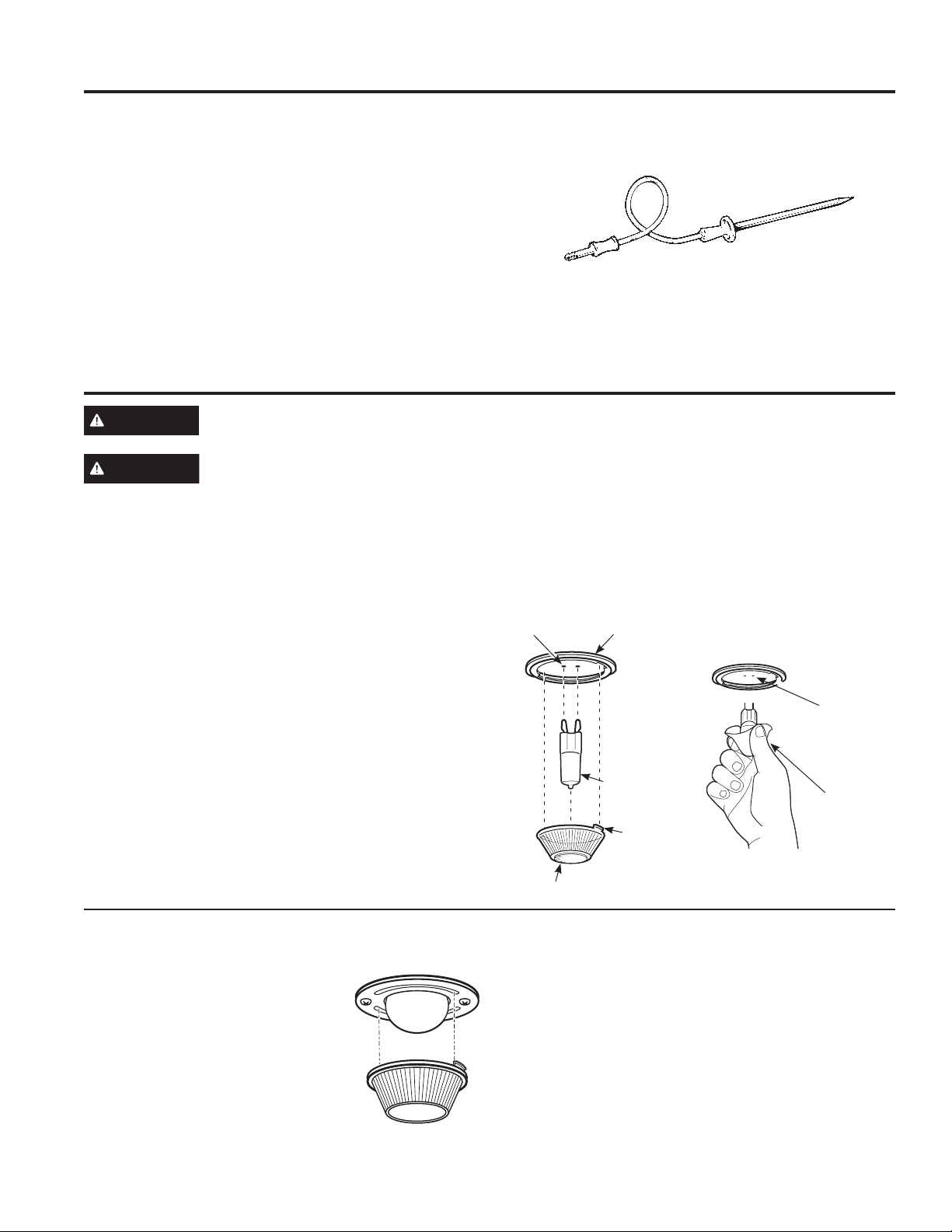
32 49-2001001 Rev. 2
Oven Light
Oven Probe
The temperature probe may be cleaned with soap and
water or a soap-filled scouring pad. Cool the temperature
probe before cleaning. Scour stubborn spots with a
soap-filled scouring pad, rinse and dry.
To order additional temperature probes, see the
Accessories and Consumer Support sections at the end
of this manual.
■ Do not immerse the temperature probe in water.
■ Do not store the temperature probe in the oven.
■ Do not leave the temperature probe inside the oven
during a self or steam clean cycle.
CARE AND CLEANING:OvenProbe/OvenLight
WARNING
SHOCK OR BURN HAZARD: Before replacing oven light bulb, disconnect the electrical power to the
range at the main fuse or circuit breaker panel. Failure to do so may result in electric shock or burn.
CAUTION
BURN HAZARD: The glass cover and bulb should be removed when cool. Touching hot glass with
bare hands or a damp cloth can cause burns.
Oven Light Replacement (on some models)
To remove:
1. Turntheglasscovercounterclockwise1/4turnuntilthetabs
of the glass cover clear the grooves of the socket. Wearing
latex gloves may offer a better grip.
2. Using gloves or a dry cloth, remove the bulb by pulling it
straight out.
To replace:
1. Useanew120/130-volthalogenbulb,nottoexceed50
watts. Replace the bulb with the same type of bulb that was
removed. Be sure the replacement bulb is rated 120 volts or
130 volts (NOT 12 volts).
2. Using gloves or a dry cloth, remove the bulb from its
packaging. Do not touch the bulb with bare fingers. Oil from
skin will damage the bulb and shorten its life.
3. Push the bulb straight into the receptacle all the way.
4. Place the tabs of the glass cover into the grooves of the
socket.Turntheglasscoverclockwise1/4turn.
For improved lighting inside the oven, clean the glass cover
frequently using a wet cloth. This should be done when the
oven is completely cool.
5. Reconnect electrical power to the oven.
Oven Light Replacement (on some models)
To remove:
1. Turn the glass cover counterclockwise
1/4turnuntilthetabsoftheglass
cover clear the grooves of the socket.
Wearing latex gloves may offer a better
grip.
2. Remove the bulb by turning it counter-
clockwise.
To replace:
1. Replace bulb with a new 40-watt appliance bulb. Insert the
bulb and turn it clockwise until it is tight.
2. Place the tabs of the glass cover into the grooves of the
socket.Turntheglasscoverclockwise1/4turn.
For improved lighting inside the oven, clean the glass cover
frequently using a wet cloth. This should be done when the
oven is completely cool.
3. Reconnect electrical power to the oven.
G9 Bulb
Socket
Tab
Glass cover
Receptacle
Use gloves
or cloth
Receptacle
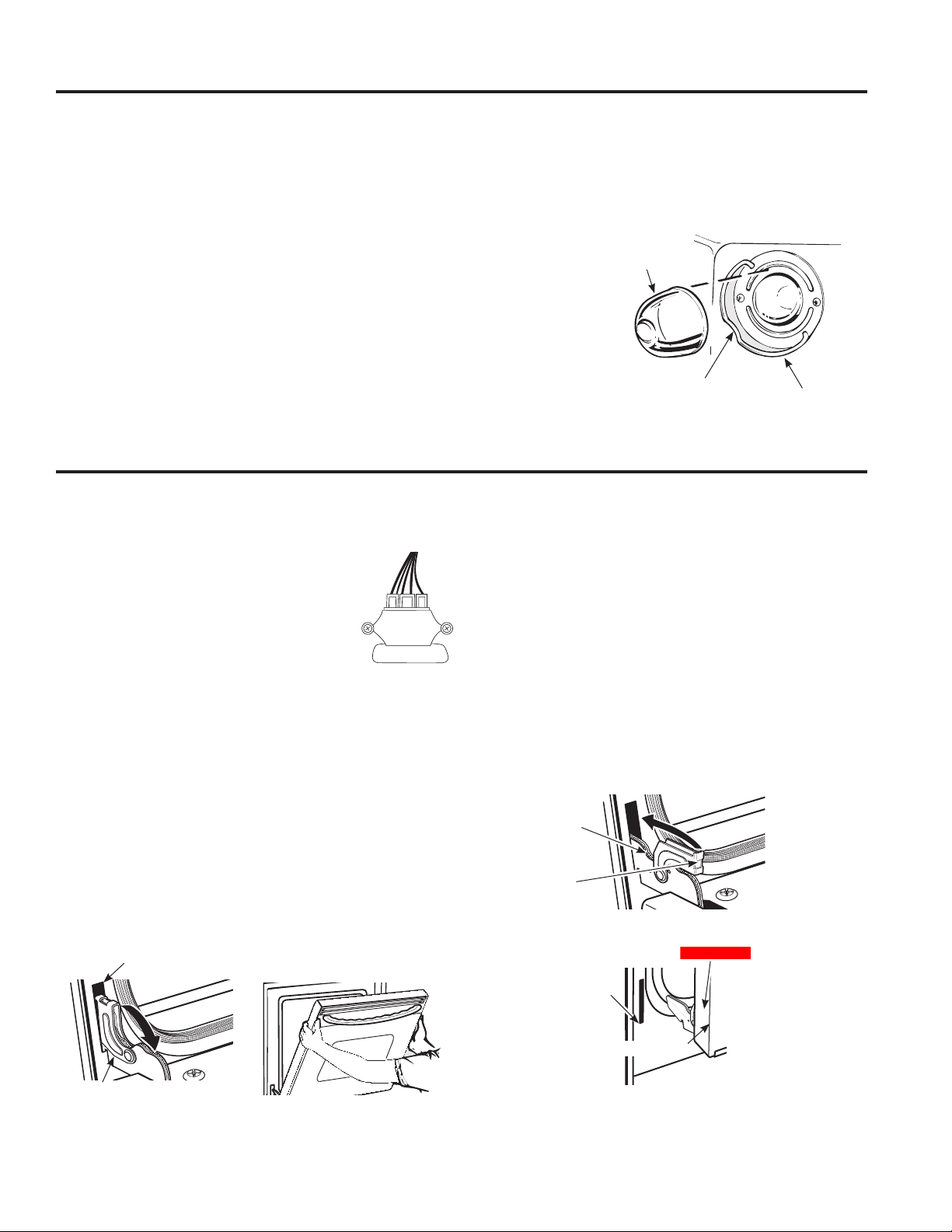
49-2001001 Rev. 2 33
Oven Light (Cont.)
CARE AND CLEANING:OvenLight/OvenDoors
Lift-Off Lower Oven Door
The door is very heavy. Be careful when removing and
lifting the door.
Do not lift the door by the handle.
For models with oven camera, the camera
harness must be removed before removing
the door. Open the warming drawer
and disconnect the camera harness by
unhooking the connector that is snapped
into the front frame bracket before door removal.
To remove the door:
1. Fully open the door.
2. Pull the hinge locks down toward the door frame,
to the unlocked position. A tool, such as a small
flat-blade screwdriver, may be required.
3. Firmly grasp both sides of the door at the top.
4. Close door to the door removal position. The door
should be open approximately 3" with no obstruction
above the door.
5. Lift door up and out until both hinge arms are clear of
the slots.
To replace the door:
1. Firmly grasp both sides of the door at the top.
2. Starting on the left side, with the door at the same
angle as the removal position, seat the indentation of
the hinge arm into the bottom edge of the hinge slot.
The notch in the hinge arm must be fully seated into
the bottom of the slot. Repeat for right side.
3. Fully open the door. If the door will not fully open, the
indentation is not seated correctly in the bottom edge
of the slot.
4. Push the hinge locks up against the front frame of the
oven cavity, to the locked position.
5. Close the oven door.
Removal position
Oven Doors
Hinge lock
Slot
Pull hinge locks down to unlock
Push hinge locks up to lock
Hinge
lock
Hinge
arm
Indentation
Bottom
edge of
slot
Hinge arm
Oven Light Replacement (on some models)
The oven light bulb is covered with a removable glass cover that is held in place with a bail-shaped wire. Remove
the oven door, if desired, to reach the cover easily. See the Lift-Off Oven Door section for detailed oven door removal
instructions.
Replacing the Light Bulb:
1. Disconnect electrical power to the range.
2. Hold the glass cover stable, so it doesn’t fall when
released.
3. Slide near the indent of the cover holder until the
cover is released. Do not remove any screws to
release the glass cover.
4. Replace bulb with a 40-watt household appliance
bulb. Do not touch hot bulb with hand or wet
cloth. Only remove bulb when it is cool.
5. Hold glass cover stable over new bulb.
6. Pull the wire cover holder near the indent until the
indent in the
wire cover
holder is located
in the indent of
the glass cover.
7. Connect
electrical power
to range.
Wire cover holder
Indent
Glass cover
(on self clean
model only)
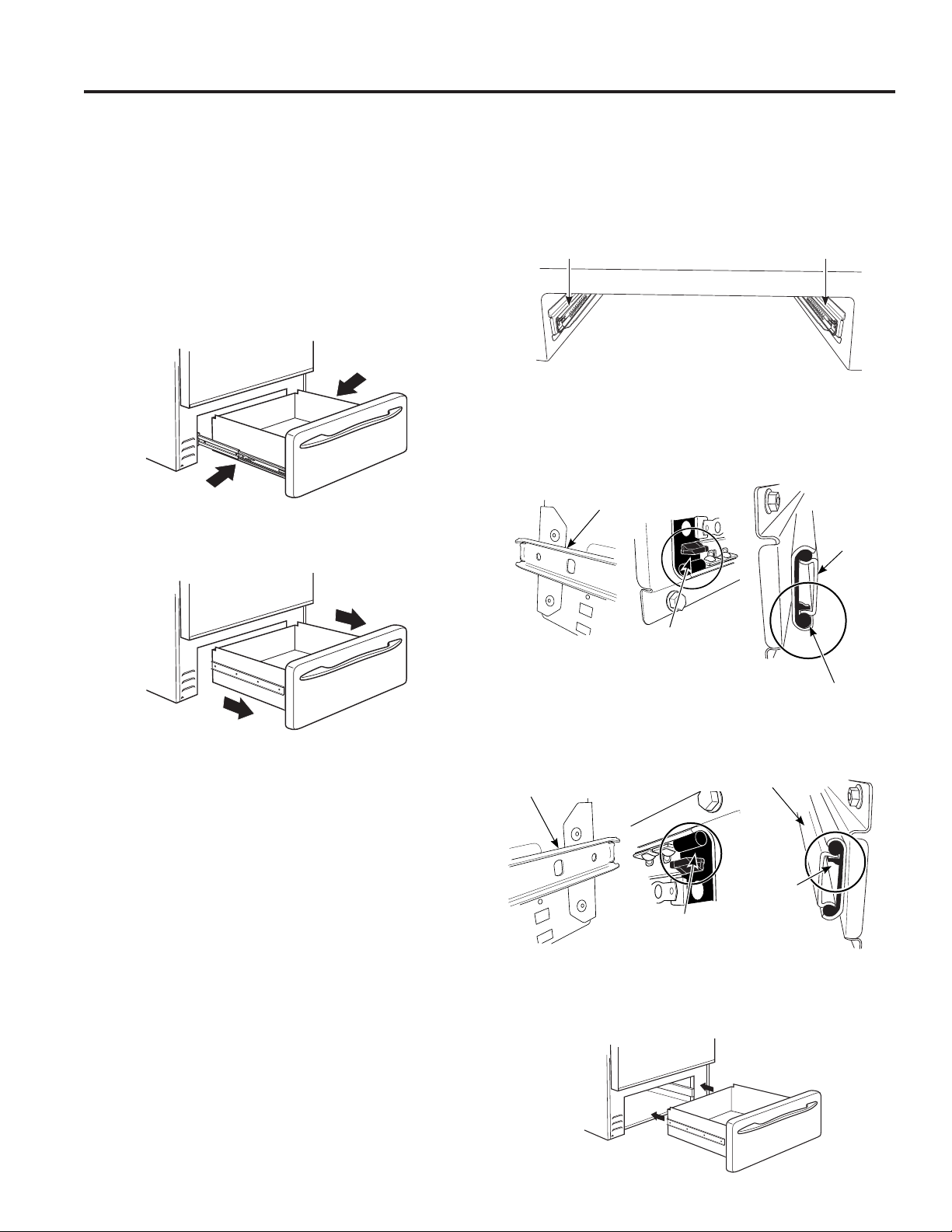
34 49-2001001 Rev. 2
Removable Storage Drawer
The storage drawer is a good place to store cookware and bakeware. Do not store plastics or flammable material in
the drawer.
The storage drawer may be removed for cleaning under the range. Clean the storage drawer with a damp cloth or
sponge. Never use harsh abrasives or scouring pads.
Removing the Push to Open Storage Drawer:
1. Push the center of the drawer in and allow it to slide
out.
2. Pull drawer straight out until it stops.
3. While pushing in the left rail release tab and the right
rail release tab, continue to pull the drawer forward.
4. Continue to pull forward until it is completely detached
from the oven.
Replacing the Storage Drawer:
1. Move ball bearing slide to the front of both the rail
guides.
2. Rest the left drawer rail inside the inner left rail guide
channel at the bottom and slide it in slightly.
3. Place the right drawer rail inside the inner right rail
guide channel at the top and slide it in slightly.
4. Keepthedrawerstraight(noneedtotilt)andslidethe
drawer all the way in.
Right drawer
rail guide
Left drawer
rail guide
Left drawer rail
Drawer rail
Drawer rail in channel
Rail channel (Make
sure rail is completely
in the channel before
sliding drawer in
slightly.)
Right drawer rail
Drawer rail
Drawer rail
in channel
Rail channel (Make sure
rail is completely in the
channel before sliding
drawer in slightly.)
CARE AND CLEANING: Removable Storage Drawer
49-2001001 Rev. 2 35
Problem Possible Cause What To Do
Surface units do not
work properly or
flashing power setting.
Improper cookware being used. Wrong pan type. Use a magnet to check that cookware is induction-
compatible. Use a flat induction-capable pan that meets the minimum
size for the element being used. See the Pan size and shape section.
Pan is too small. Pan size is below the minimum size for the element. See the Pan size
and shape section. Use smaller element.
Pan not positioned correctly. Center the pan in the cooking zone.
Pan is not in full contact with glass surface.
Pan must be flat.
In some areas, the power (voltage) may
be low.
Cover pan with a lid until desired heat is obtained.
A fuse in your home may be blown or
the circuit breaker tripped.
Replace the fuse or reset the circuit breaker.
Cooktop controls improperly set. Check to see that the control is set properly. Press On then + or -
Surface unit setting
changed or turned off
unexpectedly.
High cooktop temperature. Allow the internal fan to cool the cooktop. Check if pan boiled dry.
Scratches (may appear
as cracks) on cooktop
glass surface.
Incorrect cleaning methods being used. Scratches are not removable. Tiny scratches will become less visible in
time as a result of cleaning.
Cookware with rough bottoms being
used or coarse particles (salt or sand)
were between the cookware and the
surface of the cooktop. Cookware has
been slid across the cooktop surface.
To avoid scratches, use the recommended cleaning procedures. Make
sure bottoms of cookware are clean before use, and use cookware with
smooth bottoms.
Areas of discoloration
on the cooktop.
Food spillovers not cleaned before next
use.
See the Cleaning the glass cooktop section.
Hot surface on a model with a light-
colored cooktop.
This is normal. The surface may appear discolored when it is hot. This is
temporary and will disappear as the glass cools.
Plastic melted to the
surface.
Hot cooktop came into contact with
plastic placed on the hot cooktop.
SeetheGlasssurface—potentialforpermanentdamagesectioninthe
Cleaning the glass cooktop section.
Pitting (or indentation)
of the cooktop.
Hot sugar mixture spilled on the cooktop. Call a qualified technician for replacement.
My new oven doesn't
cook like my old one.
Is something wrong
with the temperature
settings?
Your new oven has a different cooking
system from your old oven and therefore
may cook differently than your old oven.
For the first few uses, follow your recipe times and temperatures
carefully. If you still think your new oven is too hot or too cold, you
can adjust the temperature yourself to meet your specific cooking
preference. NOTE: This adjustment affects Bake, and Convection Bake
temperatures; it will not affect Broil or Clean.
Food does not bake
properly.
Oven controls improperly set. See the Cooking Modes section.
Rack position is incorrect or rack is not
level.
See the Cooking Modes section and Cooking Guide.
Incorrect cookware or cookware of
improper size being used.
See the Cookware section.
Oven temperature needs adjustment. See the Special Features section.
Ingredient substitution. Substituting ingredients can change the recipe outcome.
Food does not broil
properly.
Oven controls improperly set. Make sure you select the appropriate broil mode.
Improper rack position being used. See Cooking Guide for rack location suggestions.
Food being cooked in a hot pan. Make sure cookware is cool.
Cookware not suited for broiling. Use a pan specifically designed for broiling.
The probe is plugged into the outlet in
the oven.
Unplug and remove the probe from the oven.
Aluminum foil used on the broiling pan
and grid has not been fitted properly
and slit as recommended.
If using aluminum foil conform to pan slits.
In some areas the power (voltage) may
be low.
Preheat the broil element for 10 minutes.
Oven temperature too
hot or too cold.
Oven temperature needs adjustment. See the Special Features section.
Save time and money! Review the charts on the following pages first and you may not need to schedule service. Check out
self-help videos and FAQ at cafeappliances.com/support.
Troubleshooting tips ... Before you schedule service
TROUBLESHOOTING TIPS
36 49-2001001 Rev. 2
Problem Possible Cause What To Do
Oven does not work or
appears not to work.
Plug on range is not completely inserted in
the electrical outlet.
Make sure electrical plug is plugged into a live, properly
grounded outlet.
A fuse in your home may be blown or the
circuit breaker tripped.
Replace the fuse or reset the circuit breaker.
Oven controls improperly set. See the Using the Oven section.
Oven is in Sabbath Mode. Verify,thattheovenisnotinSabbathMode.SeetheSpecial
Features section.
“Crackling” or “popping”
sound.
This is the sound of the metal heating
and cooling during both the cooking and
cleaning functions.
This is normal.
Why is my range making a
"clicking" noise when using
my oven?
Your range cycles the heating elements by
turning relays on and off to maintain the
oven temperature.
This is normal.
Clock and timer do not
work.
A fuse in your home may be blown or the
circuit breaker tripped.
Replace the fuse or reset the circuit breaker.
Plug on range is not completely inserted in
the electrical outlet.
Make sure electrical plug is plugged into a live, properly
grounded outlet.
Oven controls improperly set. See the Using the kitchen timer section.
Oven door is crooked. The door is out of position. Because the oven door is removable, it sometimes gets out of
position during installation. To straighten the door, re-install the
door. See the "Lift-Off Oven Door" instructions in the "Care and
Cleaning" section.
Oven light does not work. Light bulb is loose or defective. Tighten or replace bulb.
Pad operating light is broken. Call for service.
Oven will not self-clean. The temperature is too high to set a
self-clean operation.
Allow the oven to cool and reset the controls.
Oven controls improperly set. See the Cleaning the Oven section.
The probe is plugged into the outlet in the
oven.
Remove the probe from the oven.
Oven will not steam clean. Display flashes HOT. Allow the oven to cool to room temperature and reset the
controls.
Oven controls improperly set. See the Using Steam Clean section.
Oven door is not closed. Make sure you close the door to start steam clean cycle.
Excessive smoking during
clean cycle.
Excessive soil or grease. Press the Cancel/Off pad. Open the windows to rid the room
of smoke. Wait until the LOCKED light goes off. Wipe up the
excess soil and reset the clean cycle.
Excessive smoking during
broiling.
Food too close to burner element. Lower the rack position of the food.
Oven door will not open
after a clean cycle.
Oven too hot. Allow the oven to cool below locking temperature.
Oven not clean after a clean
cycle.
Oven controls improperly set. See the Cleaning the Oven section.
Oven was heavily soiled. Clean up heavy spillovers before starting the clean cycle.
Heavily soiled ovens may need to self-clean again or for a
longer period of time.
"LOCK DOOR" flashes in
the display.
The self-clean cycle has been selected but
the door is not closed.
Close the oven door.
DOOR LOCK light is on
when you want to cook.
The oven door is locked because the
temperature inside the oven has not
dropped below the locking temperature.
Press the Cancel/Off pad. Allow the oven to cool.
“F— and a number or letter”
flash in the display.
You have a function error code. Press the Cancel/Off pad. Allow the oven to cool for one hour.
Put the oven back into operation.
If the function code repeats. Disconnect all power to the oven for at least 30 seconds and
then reconnect power. If the function error code repeats, visit
cafeappliances.com/service.
Troubleshooting tips ... Before you schedule service
TROUBLESHOOTING TIPS

49-2001001 Rev. 2 37
TROUBLESHOOTING TIPS
Problem Possible Cause What To Do
Display goes blank. A fuse in your home may be blown or the
circuit breaker tripped.
Replace the fuse or reset the circuit breaker.
The clock is turned off. See the Special features section.
Oven or cooktop will not stay
set.
Function error. Disconnect all power for at least 30 seconds and then
reconnect power. If repeating, visit cafeappliances.com/
service.
Power outage, clock flashes. Power outage or surge. Reset the clock. If the oven was in use, you must reset it by
pressing the Cancel/Off pad, setting the clock and resetting
any cooking function.
“Burning” or “oily” odor
emitting from the vent.
This is normal in a new oven and will
disappear in time.
To speed the process, set a self-clean cycle for a minimum of
3 hours. See the Cleaning the Oven section.
Strong odor. An odor from the insulation around the
inside of the oven is normal for the first few
times the oven is used.
This is temporary and will go away after several uses or a
self-clean cycle.
Fan noise. A convection fan may automatically turn on
and off.
This is normal. The fan is designed to operate intermittently to
maximize cooking evenness. The convection fan will operate
during preheat of the bake cycle. The fan will turn off after the
oven is heated to the set temperature. This is normal.
A cooling fan may automatically turn on
and off.
This is normal. The cooling fan will turn off and on to cool
internal parts. It may run after the oven is turned off.
My oven door glass appears
to be "tinted" or have a
"rainbow" color. Is this
defective?
No. The inner oven glass is coated with
a heat barrier to reflect the heat back into
the oven to prevent heat loss and keep the
outer door cool while baking.
This is normal. Under certain light or angles, you may see this
tint or rainbow color.
Sometimes the oven takes
longer to preheat to the same
temperature.
Cookware or food in oven. The cookware or food in the oven will cause the oven to take
longer to preheat. Remove items to reduce preheat time.
Number of racks in oven. Adding more racks to the oven will cause the oven to take
longer to preheat. Remove some racks.
Different cooking modes. The different cooking modes use different preheat methods to
heat the oven for the specific cooking mode. Some modes will
take longer than others (i.e. convection bake).
Display flashes. Power failure. Reset the clock.
Control signals after entering
cooking time or start time.
You forgot to enter a bake temperature or
cleaning time.
Touch the Bake pad and desired temperature or the Self
Clean pad and desired clean time.
Oven racks are difficult to
slide.
The shiny, silver-colored racks were
cleaned in a self-clean cycle.
Apply a small amount of vegetable oil to a paper towel and
wipe the edges of the oven racks with the paper towel. Do not
spray with Pam
®
or other lubricant sprays.
Steam from the vent. When using the ovens, it is normal to see
steam coming out of the oven vents. As the
number of racks or amount of food being
cooked increases, the amount of visible
steam will increase.
This is normal.
Water remaining on oven floor
after Steam Clean cycle.
This is normal. Remove any remaining water with a dry cloth or sponge.
Oven will not work remotely Router issues, no wireless signal, etc. For assistance with oven wireless network connectivity, please
call 1-800-220-6899.
Oven is not connected.
Remote enable is off Turn remote enable on (see Settings section of this manual)
“Probe” appears in the
display.
This is reminding you to enter a probe
temperature after plugging in the probe.
Enter a probe temperature.
Precision probe actual
temperature is not stable
while charger is inserted
Electrical noise is impacting the signal. Probe should be charged before cooking. Do not leave probe
plugged in while cooking.
Troubleshooting tips ... Before you schedule service

38 49-2001001 Rev. 2
Problem Possible Cause What To Do
My precision probe
JXSOUSV1 won't pair
Existing precision probes are not compatible
with new features.
Connect a model compatible precision probe.
My precision probe is not
accurately maintaining low
temperatures
Thepotsize,potset-up,and/orburnersize
you are using may be unsuitable to hold low
temperatures.
Remove the lid, use a larger diameter pot, or use a smaller
burner. Please keep your unit connected and install upcoming
updates to improve performance.
Pan won't pair or activate
when tapping handle
Tapping force is too light. Double tap the pan with firm taps (or knock) on the black
plastic endcap.
Battery in pan is low or dead. Replace AAA battery, installing with positive end out of handle.
Using different pan hardware. Check that your pan has a black endcap that unscrews from
the end of the handle. Pans with an oval module reading
"Hestan Cue
®
" will not work with Café appliances.
Experiencing performance
or minor technical issues
including seeing 20°F or
100°F as set temperature
Old unit or pan software. Connect your unit to the SmartHQ mobile app and update
unit software. Connect your unit and pan to the Hestan Smart
Cooking app and update pan software.
The unit cancelled my
precision cooking mode
Battery in device is low or dead. Replace AAA battery in pan, or charge probe.
Old unit or pan software. Connect your unit to the SmartHQ mobile app and update
unit software. Connect your unit and pan to the Hestan Smart
Cooking app and update pan software.
Your precision cooking device has gone out
of range.
This could indicate a problem with the device. If the problem
persists, please contact the device manufacturer.
Your precision cooking device had a
computation malfunction.
The unit lost communication with your
precision cooking device.
This could indicate a problem with the device or the unit.
If the problem persists, please contact the device or unit
manufacturer.
Some cooking techniques and set
temperatures in combination may trigger a
fault in the temperature sensing algorithm.
Re-start the precision cooking mode and if problem persists
under the same conditions but is not consistent in other use
cases, contact the unit manufacturer.
Unable to reach set
temperature in Precision
Cooking mode
Boiling water or cooking liquid based
foods at high temperatures will result
in temperature stalls close to the set
temperature.
Use temperature settings for pan frying, sautéing, and searing
when using Hestan Cue cookware or built-in conventional
Precision Cooktop Sensor. The Precision Cooking Probe
accessory can be used to control liquid temperatures between
100-200 degrees F for slow cooking, simmering, and advanced
cookingtechniqueslikeSousVide.
Hestan Cue cookware battery
life does not last as long as
expected
Limitation of Hestan Cue cookware design Replace battery
Oven camera image is not
clear
Oven door glass is dirty Follow directions in Care and Cleaning section to properly
clean oven door glass.
No image on oven camera
app
Camera cable unplugged Check to make sure camera cable is plugged into bottom of
door.
Camera stream color
fluctuates between red and
green tint
Auto white balancing of camera if fluctuation occurs for longer than 30 seconds, reach out
to service. If internet connection is suboptimal, you may
experience frequent resetting of the camera stream, which will
trigger color fluctuation
Reflection of the kitchen or
reflections of the door mask
pattern are visible in the
camera image.
Reflections are likely when kitchen has very
bright lighting that shines onto the oven
door or onto surfaces in front of the oven.
Dim kitchen lights and or close window blinds when using the
oven camera. If lighting modification is not possible, then a
kitchen towel could be hung off door handle to block ambient
light.
Camera stops and starts
intermittently while
streaming. Sometimes stream
is disconnected and must be
manually restarted.
Poor/suboptimalinternetconnection Check internet connection. If internet connection is suboptimal,
you may experience frequent resetting of the camera stream
Camera image appears darker
than when camera stream
started
Optimized camera settings need to be
re-set
Open and close oven door or STOP and restart camera
stream.
Troubleshooting tips ... Before you schedule service
TROUBLESHOOTING TIPS

49-2001001 Rev. 2 39
Notes

40 49-2001001 Rev. 2
Notes

49-2001001 Rev. 2 41
Notes
42 49-2001001 Rev. 2
Staple your receipt here. Proof of the original purchase
date is needed to obtain service under the warranty.
LIMITED WARRANTY
cafeappliances.com
All warranty service is provided by our Factory Service Centers, or an authorized service technician. To schedule service
online, visit us at cafeappliances.com/service. Please have your serial number and your model number available when
scheduling service.
Servicing your appliance may require the use of the onboard data port for diagnostics. This gives a Café factory service
technician the ability to quickly diagnose any issues with your appliance and helps Café improve its products by providing
Café with information on your appliance. If you do not want your appliance data to be sent to Café, please advise your
technician not to submit the data to Café at the time of service.
What Café will not cover:
■ Service trips to your home to teach you how to use
the product.
■ Improperinstallation,deliveryormaintenance.
■ Failureoftheproductifitisabused,misused,
modified or used for other than the intended purpose
or used commercially.
■ Damagetotheglasscooktopcausedbyuseof
cleaners other than the recommended cleaning
creams and pads.
■ Damagetotheglasscooktopcausedbyhardenedspills
of sugary materials or melted plastic that are not cleaned
according to the directions in the Owner's Manual.
■ Replacementofhousefusesorresettingofcircuit
breakers.
■ Damagetotheproductcausedbyaccident,fire,
floods or acts of God.
■ Damagetofinish,suchassurfacerust,tarnish,orsmall
blemishes not reported within 48 hours of delivery.
■ Incidentalorconsequentialdamagecausedby
possible defects with this appliance.
■ Damagecausedafterdelivery.
■ Productnotaccessibletoproviderequiredservice.
■ Servicetorepairorreplacelightbulbs,exceptfor
LED lamps.
■ EffectiveJanuary1,2022,cosmeticdamagetothe
glass cooktop such as, but not limited to, chips,
scratches, or baked on residue not reported within 90
days of installation.
■ EffectiveJanuary1,2022,
damage to the glass cooktop
due to impact or misuse. See
example.
Café Electric Range Limited Warranty
EXCLUSION OF IMPLIED WARRANTIES
Your sole and exclusive remedy is product repair as provided in this Limited Warranty. Any implied warranties,
including the implied warranties of merchantability or fitness for a particular purpose, are limited to one year or
the shortest period allowed by law.
This limited warranty is extended to the original purchaser and any succeeding owner for products purchased for home
use within the USA. If the product is located in an area where service by a Café Authorized Servicer is not available, you
may be responsible for a trip charge or you may be required to bring the product to an Authorized Café Service location
for service. In Alaska, the limited warranty excludes the cost of shipping or service calls to your home.
Some states do not allow the exclusion or limitation of incidental or consequential damages. This limited warranty
gives you specific legal rights, and you may also have other rights which vary from state to state. To know what your
legal rights are, consult your local or state consumer affairs office or your state’s Attorney General.
Warrantor: GE Appliances, a Haier company
Louisville,KY40225
Extended Warranties: Purchase a Café extended warranty and learn about special discounts that are available while
your warranty is still in effect. You can purchase it online anytime at
cafeappliances.com/extended-warranty
Café Service will still be there after your warranty expires.
For the period of Café will replace
One year
From the date
of the original
purchase
Any part of the range which fails due to a defect in materials or workmanship. During this
limited one-year warranty, Café will provide, free of charge, all labor and in-home service to
replace the defective part.

49-2001001 Rev. 2 43
ACCESSORIES
Accessories
Custom Handles
Small Broiler Pan (8 ¾ ” x 1 ¼” x 13 ½ “)
Large Broiler Pan (12 ¾ ” x 1 ¼” x 16 ½ “)
XLBroilerPan(17”x1¼”x191/4“)
Parts
Oven racks
Oven elements
Light bulbs
Probe
Cleaning Supplies
CitruShine™ Stainless Steel Wipes
Stainless Steel Appliance Cleaner
Non-scratch Cleaning Pads for Ceramic Cooktops
Ceramic Cooktop Cleaner
Ceramic Cooktop Scraper
Kit(Kitincludescreamandcooktopscraper)
*Thelargebroilerpandoesnotfitin20”/24”ranges.
**TheXLbroilerpandoesnotfitin24”wallovens,27”drop-insor20”/24”range.
NOTE: Go to cafeappliances.com to view recommended
cleaners.
Looking For Something More?
Café offers a variety of accessories to improve your
cooking and maintenance experiences!
Refer to the Consumer Support page for website
information.
The following products and more are available:
Accessories

44 49-2001001 Rev. 2
Printed in the United States
Consumer Support
CONSUMER SUPPORT
Café Website
Have a question or need assistance with your appliance? Try the Café website 24 hours a day, any day of the year!
You can also shop for more great Café products and take advantage of all our on-line support services designed for
your convenience. In the US: cafeappliances.com
Register Your Appliance
Register your new appliance on-line at your convenience! Timely product registration will allow for enhanced
communication and prompt service under the terms of your warranty, should the need arise. You may also mail in the
pre-printed registration card included in the packing material. In the US: cafeappliances.com/register
Schedule Service
Expert Café repair service is only one step away from your door. Get on-line and schedule your service at your
convenience any day of the year. In the US: cafeappliances.com/service
Extended Warranties
Purchase a Café extended warranty and learn about special discounts that are available while your warranty is still in
effect. You can purchase it on-line anytime. Café Service will still be there after your warranty expires.
In the US: cafeappliances.com/extended-warranty
Remote Connectivity
For assistance with wireless network connectivity (for models with remote enable),
visit our website at cafeappliances.com/connect
Parts and Accessories
Individuals qualified to service their own appliances can have parts or accessories sent directly to their homes
(VISA,MasterCardandDiscovercardsareaccepted).Orderon-linetoday24hourseveryday.
In the US: cafeappliances.com/parts
Instructions contained in this manual cover procedures to be performed by any user. Other servicing
generally should be referred to qualified service personnel. Caution must be exercised, since improper
servicing may cause unsafe operation.
Contact Us
If you are not satisfied with the service you receive from Café, contact us on our website with all the details including
your phone number, or write to:
IntheUS:GeneralManager,CustomerRelations|CaféAppliances,AppliancePark|Louisville,KY40225
cafeappliances.com/contact