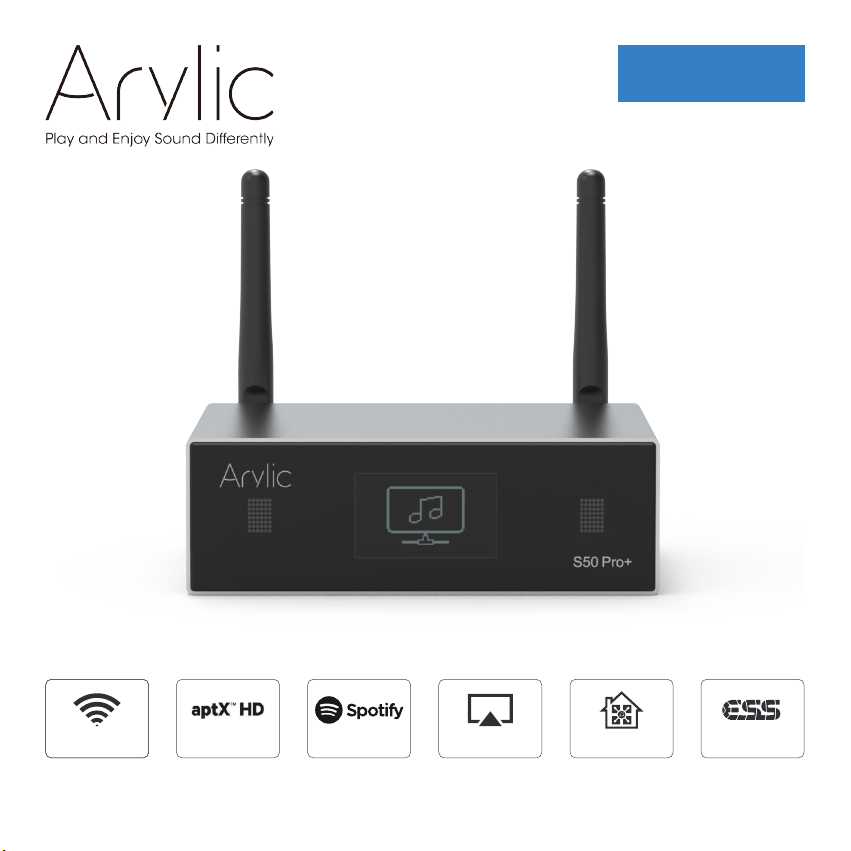
S50 Pro+
User's Manual
www.arylic.com
Wireless Streaming Preamplier
WiFi aptX HD Spotify AirPlay Multi-Room ESS SABRE


Table of Contents
1. Introduction .............................................................................................................................................. 1
2. What's in the box .....................................................................................................................................1
3. Main Features .........................................................................................................................................2
4. Specication ............................................................................................................................................3
5. Interface...................................................................................................................................................4
6. Remote controller ....................................................................................................................................5
7. Connection diagram ................................................................................................................................6
8. How to use...............................................................................................................................................6
8.1 App download .................................................................................................................................... 6
8.2 Connection ........................................................................................................................................7
8.2.1 Option 1 - Connection via app .................................................................................................. 7
8.2.2 Option 2 - Connection via LAN ................................................................................................ 9
8.2.3 Option 3 - Bluetooth pair ..........................................................................................................9
8.3 App features ....................................................................................................................................10
8.3.1 Device setting ......................................................................................................................... 10
8.3.2 To play local storage music ....................................................................................................10
8.3.3 To play music from NAS ......................................................................................................... 11
8.3.4 To play in line in mode ........................................................................................................... 11
8.3.5 To play in optical in mode ....................................................................................................... 11
8.3.6 To play in bluetooth mode ....................................................................................................... 11
8.4 Streaming services .......................................................................................................................... 12
8.4.1 Spotify.....................................................................................................................................12
8.4.2 AirPlay ....................................................................................................................................13
8.4.3 Qplay ......................................................................................................................................13
8.5 Multiroom and Multizone .................................................................................................................13
8.6 Left and right channel ...................................................................................................................... 14
8.7 Preset ..............................................................................................................................................14
8.8 Source mode change .....................................................................................................................14
8.9 Restore factory setting.....................................................................................................................15
8.10 Firmware update............................................................................................................................15
9. Play on PC.............................................................................................................................................15
9.1 To play music from iTunes on Mac and Windows PC......................................................................15
9.2 To play music from Windows PC via Foobar2000 ...........................................................................16
10. Web Player Interface ...........................................................................................................................17
FAQ ...........................................................................................................................................................19
1
S50 Pro+ is a highend audio streaming preamplier with network and Bluetooth aptX HD connectivity.
Applying S50 Pro+ to your current stereo system will enable you to stream music from your smart device,
USB, NAS or streaming services, such as Spotify, Tidal or Qobuz in high resolution by 4STREAM App,
AirPlay, Bluetooth or other third party compatible apps. Lots of Hi-Fi hardware components, such as
ESS9023 DAC, Cirrus Logic ADC are implemented to make a great sound quality, Adding more units to
your home audio system can set up a wireless multiroom or multizone whole house audio system, it will
give you totally new and great experience to play and enjoy music.
1. Introduction
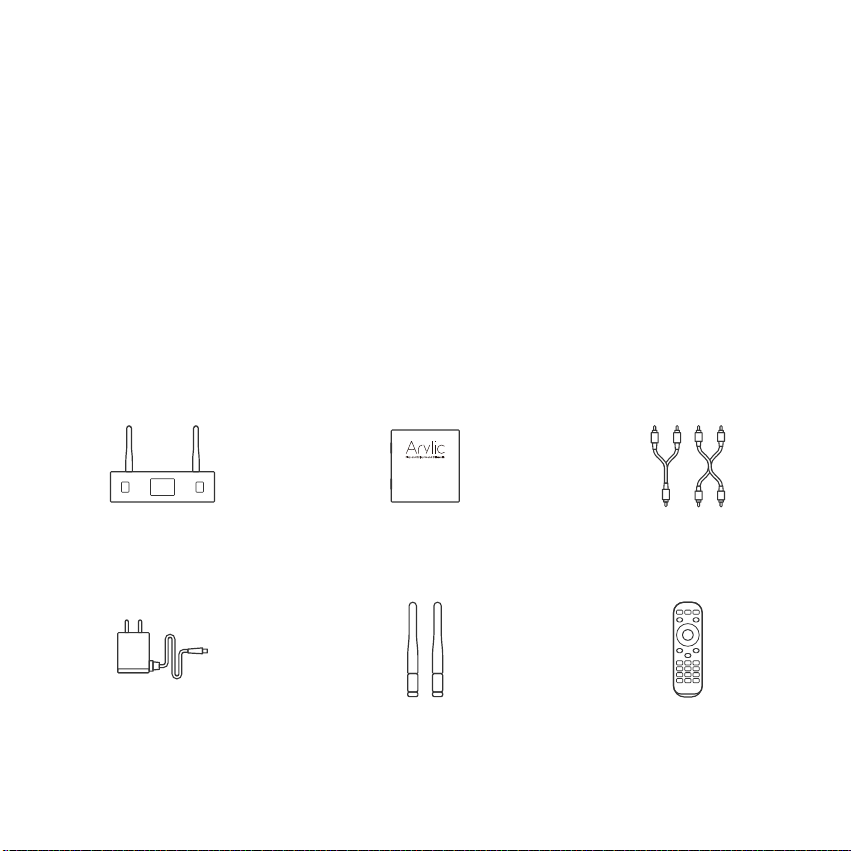
2. What's in the box
Main Unit x1
Power Adapter x1
User's Manual x1
Antenna(3dB) x2
2-2RCA Cable x1
2-1RCA Cable x1
Remote Control x1

2
3. Main Features
- Streaming music via network without distance limitation or Bluetooth5.0 up to 15 meters.
- Bluetooth 5.0 aptX HD for true high resolution music.
- Spotify connect, Airplay
,
Qplay, DLNA, UPnP streaming protocols supported.
- Support streaming source from online services, smart device memory, USB pen drive, NAS, Bluetooth
and line in.
- Multiroom and multizone streaming enabled by mutiple units connected in same network.
- All music sources can be restreamed in sync to other models from us.
- Airplay,Spotify Connect, Qplay, DLNA, UPnP protocol and 3rd party app compatible.
- High quality music streaming support, sample rate decoding up to 24bit, 192kHz.
- Coaxial and Optical to provide digital audio output.
- Spotify, Deezer, Tidal, Qobuz, iHeartRadio, TuneIn, Napster, lots of online streaming services integrated
to use in the app.
- Free iOS and Android app available.
- Free global online update for new features.
- Full function remote controller to use without cellphone.
- Digital and Analog inputs for more possible external audio input.
- Subwoofer output for external active subwoofer.
- OLED display panel for display info.
- EQ adjustment via app or remote controller.
- Preset playlist is availble and short buttons on remote controller for one button play.
- iTunes working with PC streaming.

3
4. Specication
Connectivity
Wireless network IEEE802.11 b/g/n 2.4G
Ethernet Single 10/100M RJ45
Bluetooth 5.0 Qualcomm aptX-HD
USB Host Play music from USB pen drive
Frequency response 20Hz to 20kHz
Digital output
Coaxial output
Optical output
Analog output 1x RCA, 1x Subwoofer
Audio input 1x RCA, 1x Optical in
Power supply
12V/1A
Decoding Up to 24bit/192kHz
Music format FLAC/MP3/AAC/AAC+/ALAC/APE/WAV
SNR 110dB
THD 0.03%
Remote IR remote controler
LED RED-Standby mode
Diplay panel Status info
Dimensions 12x11.3x3.7CM(4.72x4.45x1.46in)
Weight 0.4kg(0.88lb)
4
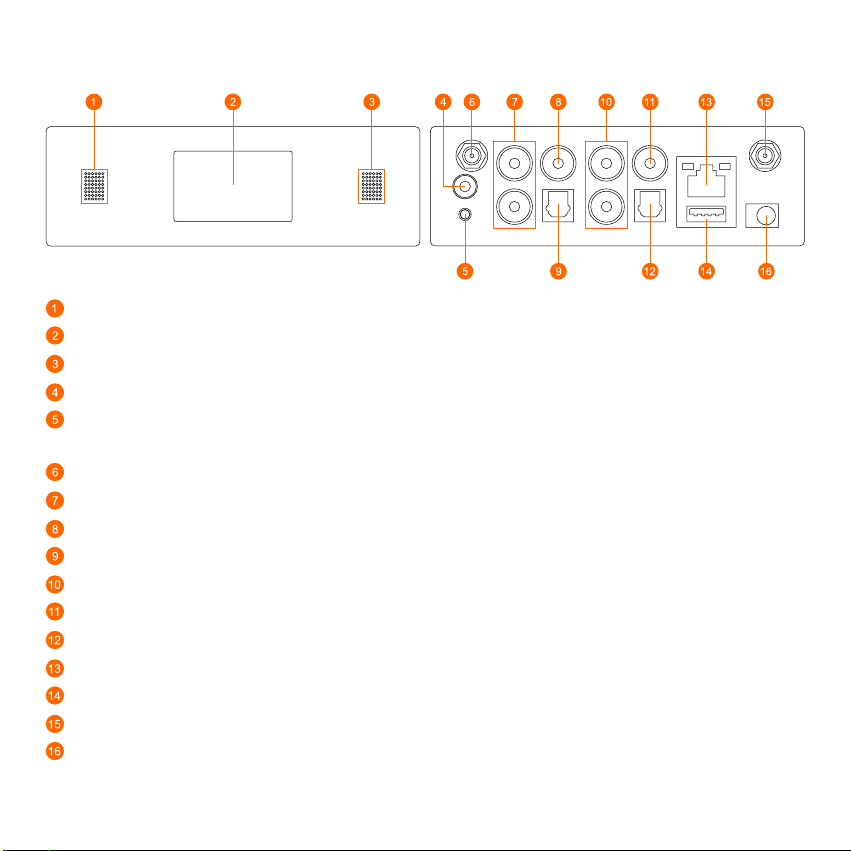
5. Interface
LED: To show the device status.
Display Panel: Display status info.
IR Receiver: For remote control.
Trigger: 12V trigger output to use with other device.
Reset: Short press to switch source input. Quickly press twice to reset WiFi/Bluetooth connection.
Quickly Press three times to do factory reset. Long press to turn device o and press again to turn on.
Bluetooth antenna: External Bluetooth antenna for better Bluetooth signal strength.
Line Input: For external audio sources from TV, CD player and so on.
Sub Output: To connect active subwoofer.
OPTICAL Input: For digital input source.
Line Output: To provide analog audio to other devices.
Coax Output: To provide digital audio output to ampliers.
OPTICAL: Digital audio output.
LAN: Wired connection to your router.
USB Host : to connect USB pen drive (1024 tracks at most).
WiFi antenna: external WiFi antenna for better signal strength.
DC in: 12V/1A DC input.
5
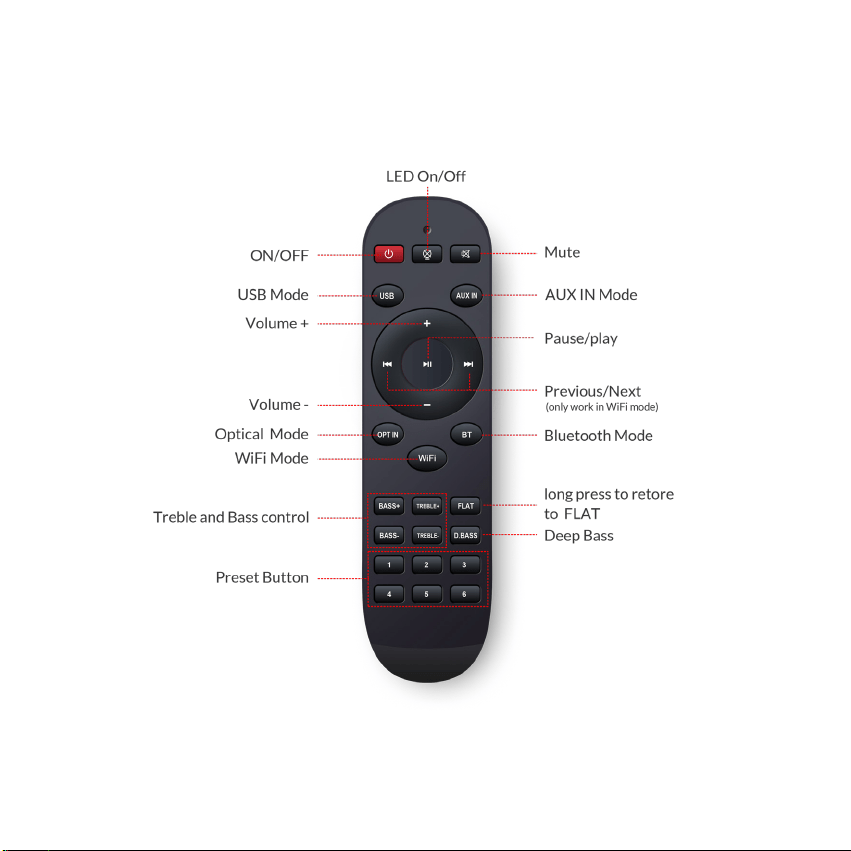
6. Remote Controller
6
8.1 App Download
Download the 4STREAM application from App Store for iOS based devices and Google Play Store for
Android based devices.
The application supports English, Spanish, French, German, Italian, Portugese, Korean, Simplied
Chinese, Traditional Chinese and Japanese.
Once power up, the device is in standby mode (red LED is on), use the power button on remote controller
or press the reset button to turn it on.
8. How to use
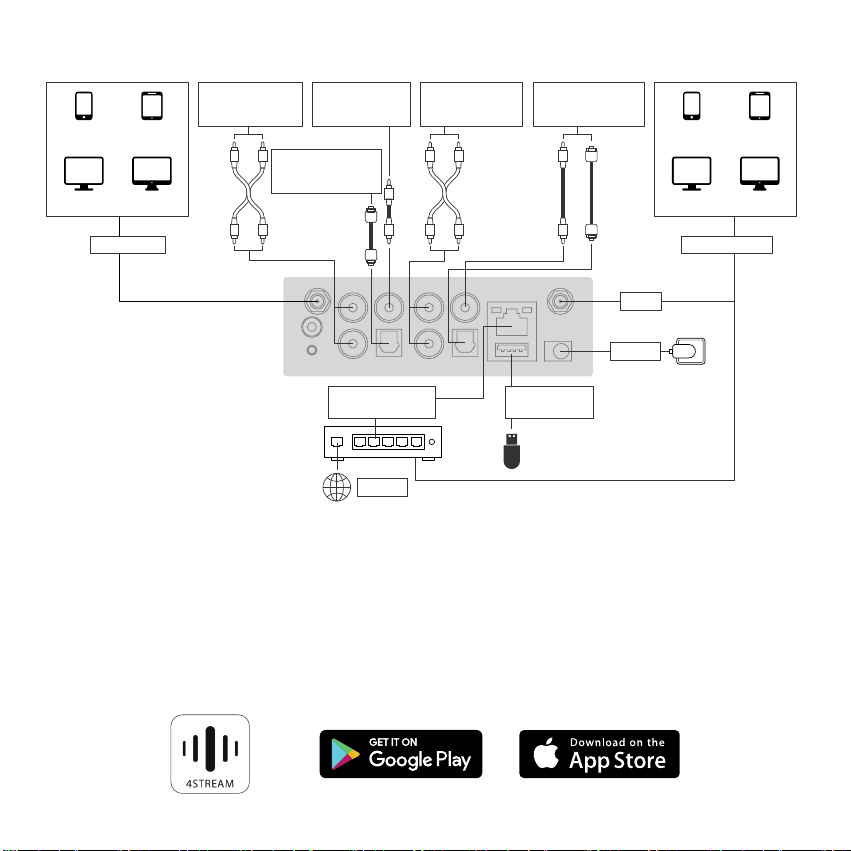
7. Connection Diagram
Smart Phone Smart Tablet
Windows PC iMAC
Smart Phone Smart Tablet
Windows PC iMAC
Router
Analog device
Audio RCA output
Analog device
Audio RCA input
Digital device audio
Coax/Optical input
Active Subwoofer
RCA
Digital device audio
Optical output
DC input
Internet
Wi-Fi
Ethernet RJ 45
connect to network
Connect to USB
pen drive
BT Connnect Wi-Fi Connnect
7
8.2 Connection
8.2.1 Connection via app
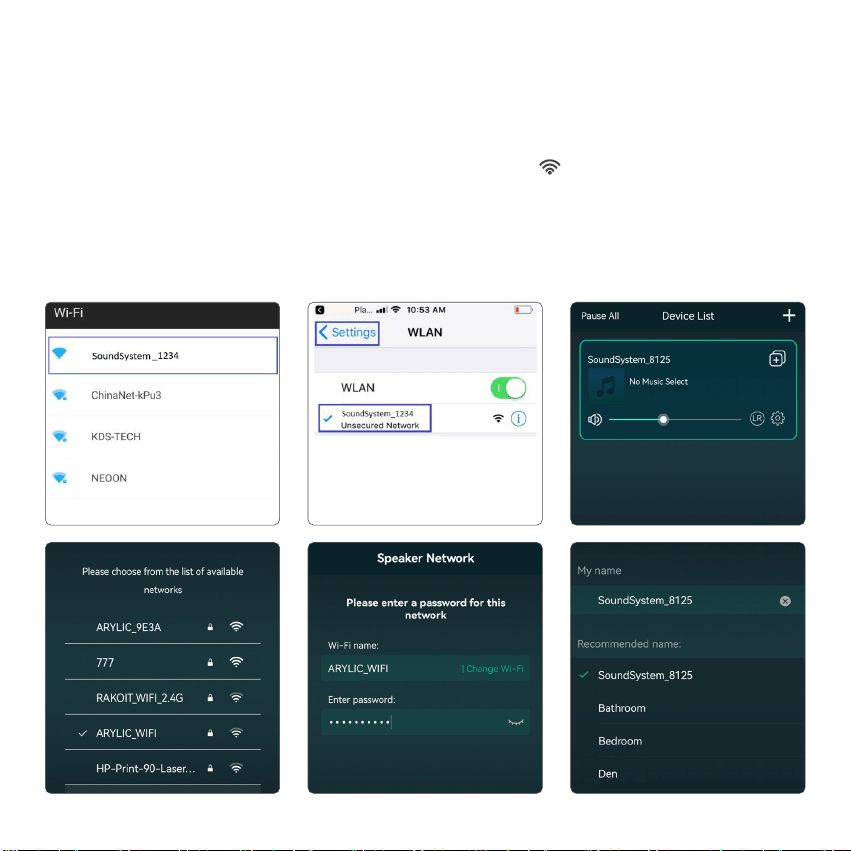
1. Power the device.
2. Connect your mobile devices to your network.
3. Go for mobile device WLAN settings> Connect
mobile device to hotspot SoundSystem_xxxx you will see a WiFi logo
.
(short press the reset button if
the hotspot is not found).
4. Open the 4STREAM application, follow the guides, or if you see the device in the device list, click on the
+ icon on top right corner.
5. Choose the 2.4G network (Only 2.4G network will appear), Enter router password>wait for the device to
be congured.
*For multiple units connecting to same router, router password will be saved.
8
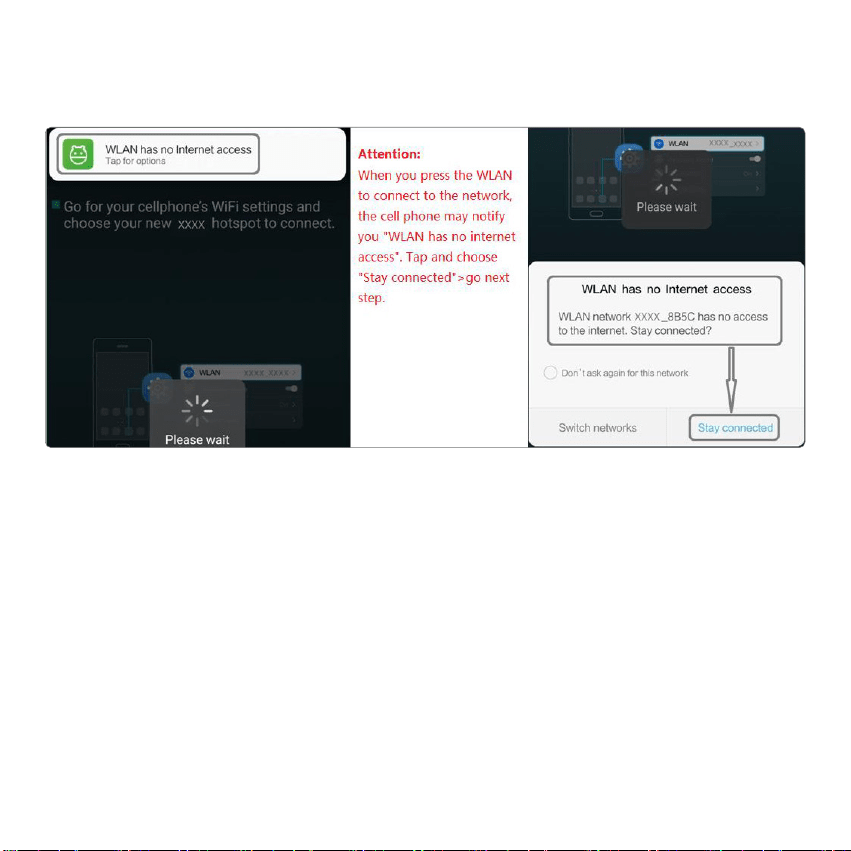
*Attention for Android users.
Dierent Brand Mobile Phones May ask you to Allow to Use SoundSystem WiFi Network, Please Choose
yes, If not, You may Not Able to Set up Successfully.
9
8.2.2 Connection via LAN
8.2.3 Bluethooth
Plug in the wired cable to the RJ45 Ethernet, the device will show on the app in about 10 seconds.
(Note: The mobile phone and the device must be in the same network)
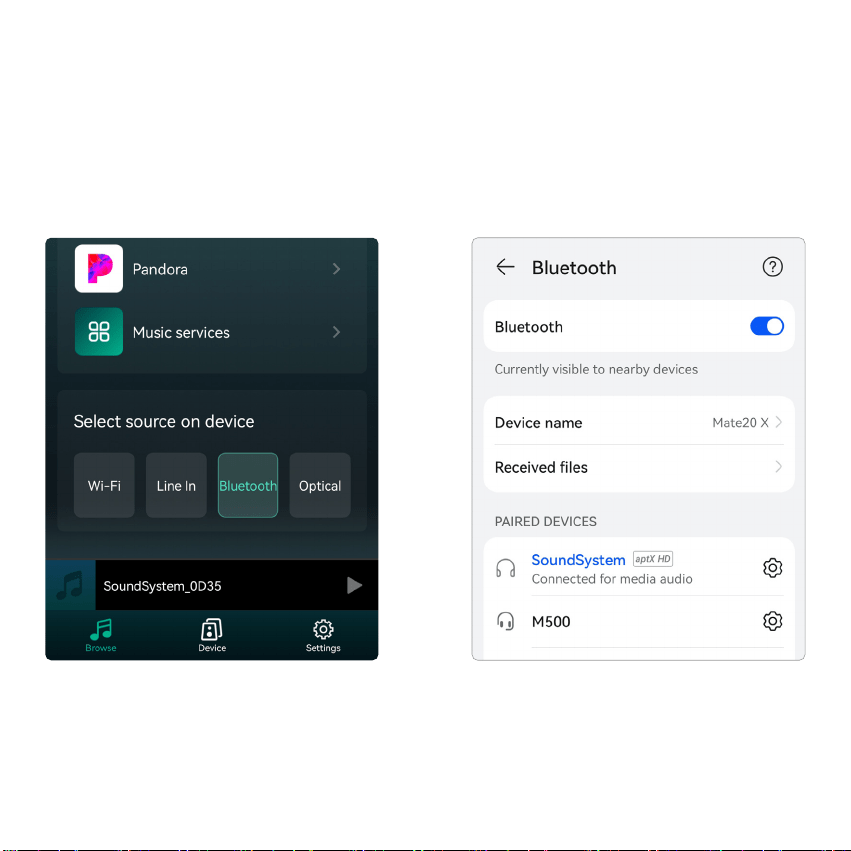
To use Bluetooth, please swtich to bluetooth via app or by remote controller, then nd bluetooth device
SoundSystem
from your phone bluetooth setting and pair it .
10
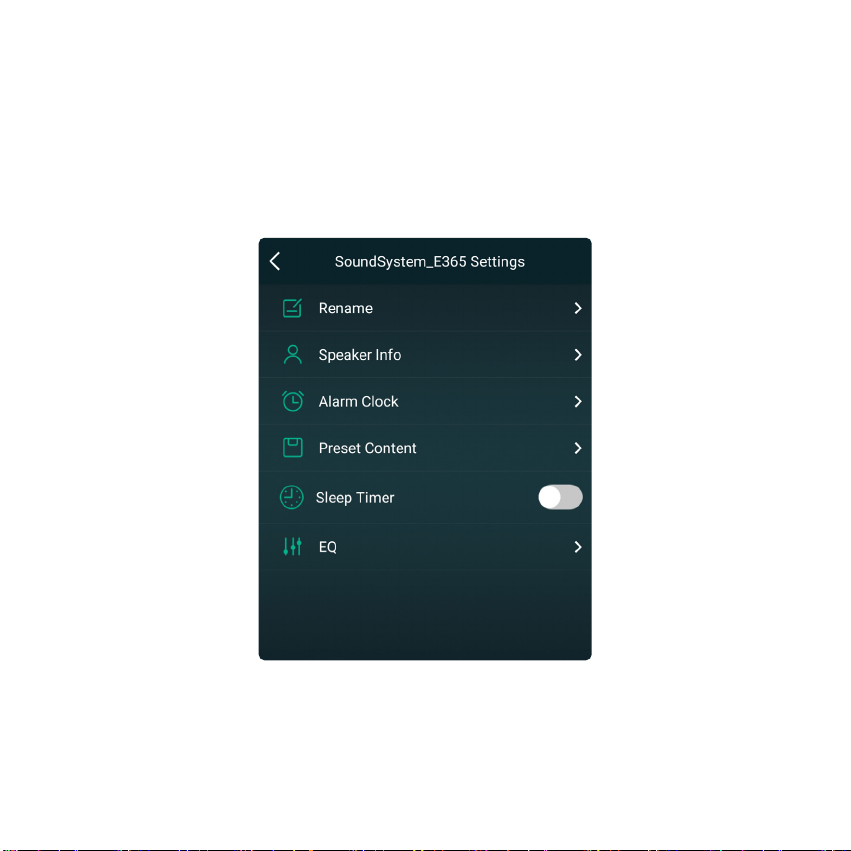
Rename:
Change the device name.
Speaker info:
Display device information like IP address, Mac address, SSID, rmware version, factory reset, etc.
Alarm Clock:
Setup up to 4 dierent alarm clocks with music of your choice.
Preset Content:
10 Preset content buttons.
Sleep Timer:
Countdown to turn o the device.
8.3 App Features
8.3.1 Device setting
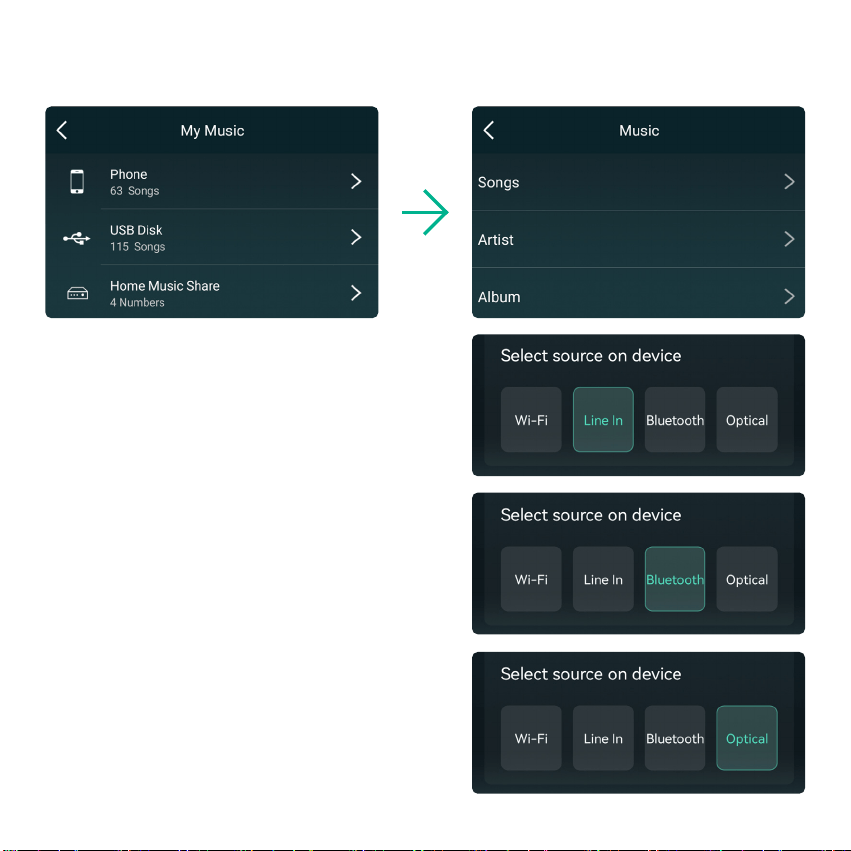
8.3.2 To play local storage music
Click the
“My Music”
on the Application and choose the Music ready there.
NOTES:
The iOS based devices have blocked the access to iTunes library.
11
8.3.3 To Play Music From NAS
8.3.5 To Play Bluetooth Mode
8.3.6 To Play Optical in Mode
8.3.4 To Play Line in Mode
Please note that our system only support NAS with DLNA feature.
Connect the AUX cables to the TV or other audio sources.
Choose line in mode on the application or remote control.
Choose the Bluetooth mode on the application or remote control,
the LED will change to blue.
Open the Bluetooth on your mobile device.
Pair the device Bluetooth (
SoundSystem
) and play.
Connect a optical cable to the TV or other audio sources Choose
Optical mode on the application or remote control.
12
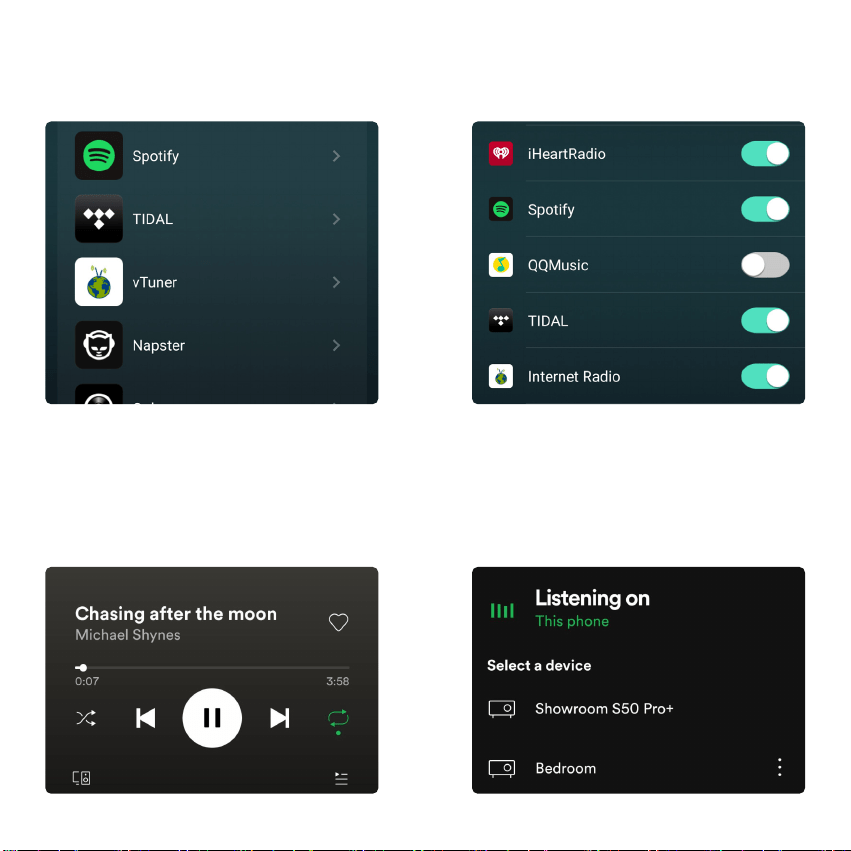
To use the online streaming services, iHeartRadio, Spotify, Tidal, Qobuz and Deezer may need to register account at the
service provider platform.
To use Spotify, you have to own spotify premium account.
You will nd the device in the device list on the Spotify application and choose the device you want to play.
NOTE: one Spotify account can only streaming to one device at a time.
8.4 Streaming Services
8.4.1 Spotify
13
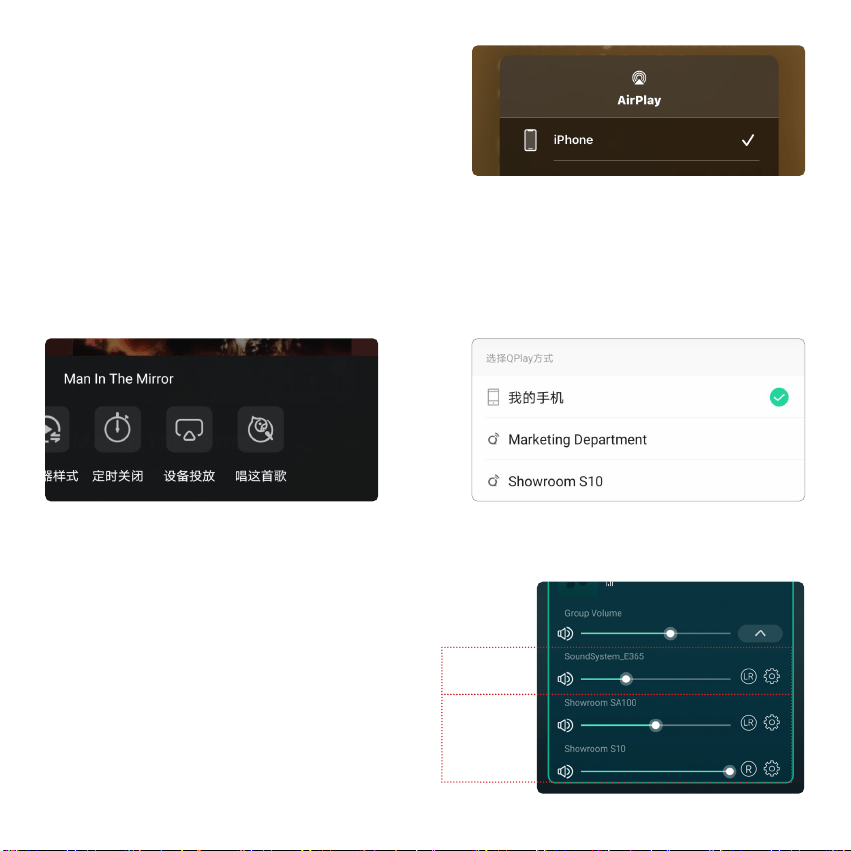
Our Devices Support QQ Music using the Qplay protocol, you have to turn on the Qplay in the QQ Music player setting
and then nd the device in the Qplay list.
8.4.3 Qplay
Users can group multiple rooms and zones on the
application. For example, you can group devices 1,
2 and 3 to play the same music in sync, or group
devices 1 and 2 as zone A and devices 3 and 4 as
zone B, and play dierent music in zones A and B.
1
Master
Slave
2
3
8.5 Multiroom and Multizone
The Device Supports AirPlay1, You can Choose the
AirPlay and Play Music.
8.4.2 AirPlay
14
Method 1: Change on Application
Users can change play mode on the application, WiFi, Bluetooth, Line input and USB. To change from Bluetooth/line input/
USB to WiFi, only need choose the online streaming services such as Tidal, Qobuz or Spotify or cell phone local storage
music or any music via DLNA or UPnP streaming.
Method 2: Change with remote control
Users can use the remote control to change the play modes-WiFi, Bluetooth, Line input and USB.
Method 3: Press the Reset Button
User can press the reset button once to switch source mode, WiFi, Bluetooth, Line input, USB.
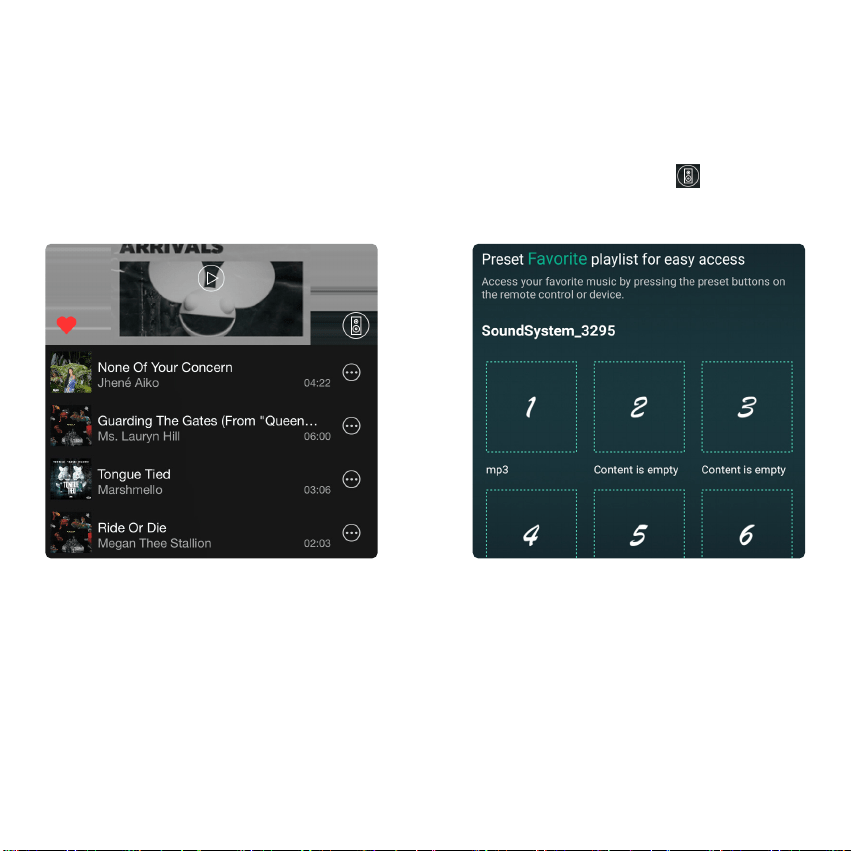
There are 6 buttons on the remote control, users can preset play lists (Only the lists with speaker icon can preset) on
the application from 1~6 for example, then when you press button 1 on the remote, the preset list 1 will play.
(Users can Preset 10 Playlists on the Application, but the remote control can only save from 1-6).
Users can choose the right channel or left channel or stereo mode on the application, or choose left channel on device A
and choose right channel on device B, and group them together and play in sync to make stereo.
8.6 Left and Right Channel
8.7 Preset
8.8 Source mode Change
15
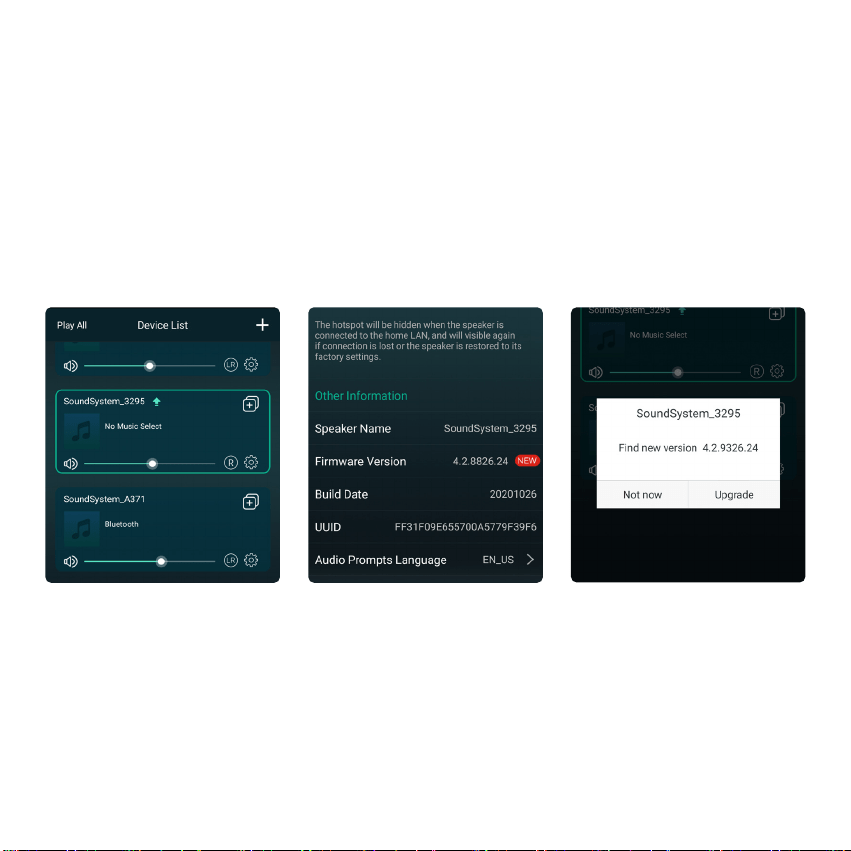
The application will notify you in app when there is a new reware version available. It's recommended to update reware
whenever available as this might not only correct bugs or improve security,but also can add new features or services.
Two methods to restore device to factory setting
Method 1: Quickly press the reset button 3 times to restore factory settings.
Method 2: Go for "App setting - speaker info - restore factory setting"
8.9 Restore Factory Setting
8.10 Firmware Update
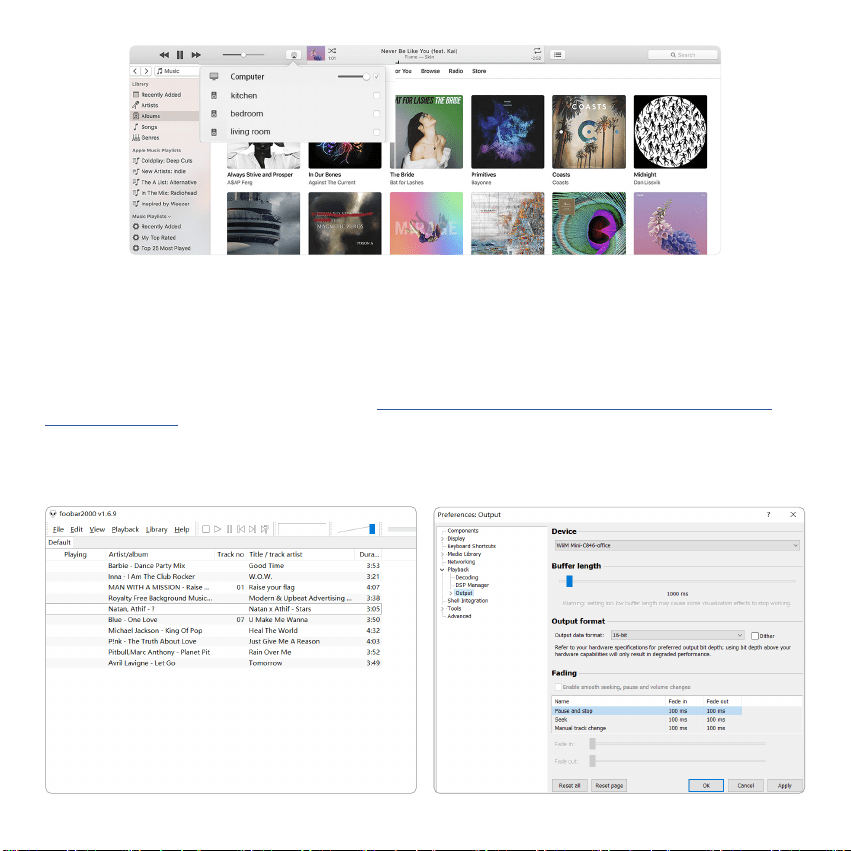
Our devices can stream audio sources from local storage, media library in Mac and Windows PC and online services from
iTunes. Users can easily play and switch music, control volume and choose the audio devices to group and upgroup the
audio devices.
There are Several Tools to Play Music from the PC
9.1 To Play Music From iTunes on Mac and Windows PC
9. Play on PC
16
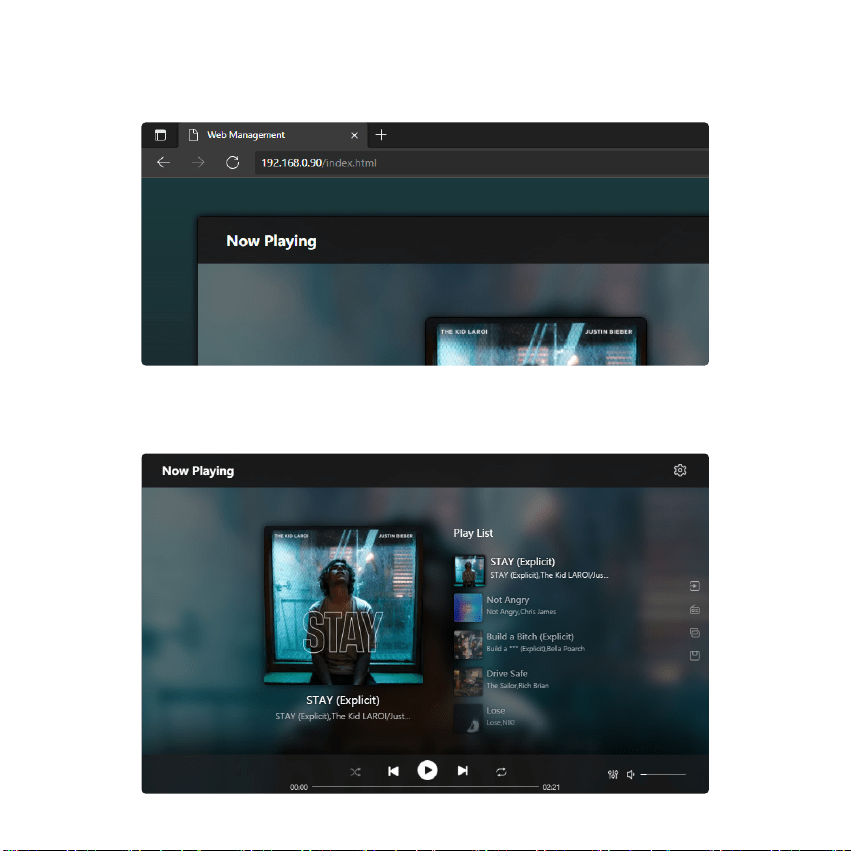
Our Devices Support UPnP Protocol, With the Popular Foobar2000, You can Play Music from Windows PC to Our Devices.
Please follow the steps below:
1. Download the Foobar2000 and install it.
2. Refer to the doc how to add UPnP component at our website download column.
3. Refer the link below how to add UPnP Component
http://wiki.hydrogenaud.io/index.php?title=Foobar2000:How_to_
install_a_component
4. Restart the Foobar2000, Then Check:
Library> congure> output> device, you will see the PLAYER in device option
column.
5. Choose the Device to Play the Music.
9.2 To Play Music From Windows PC via Foobar2000
17
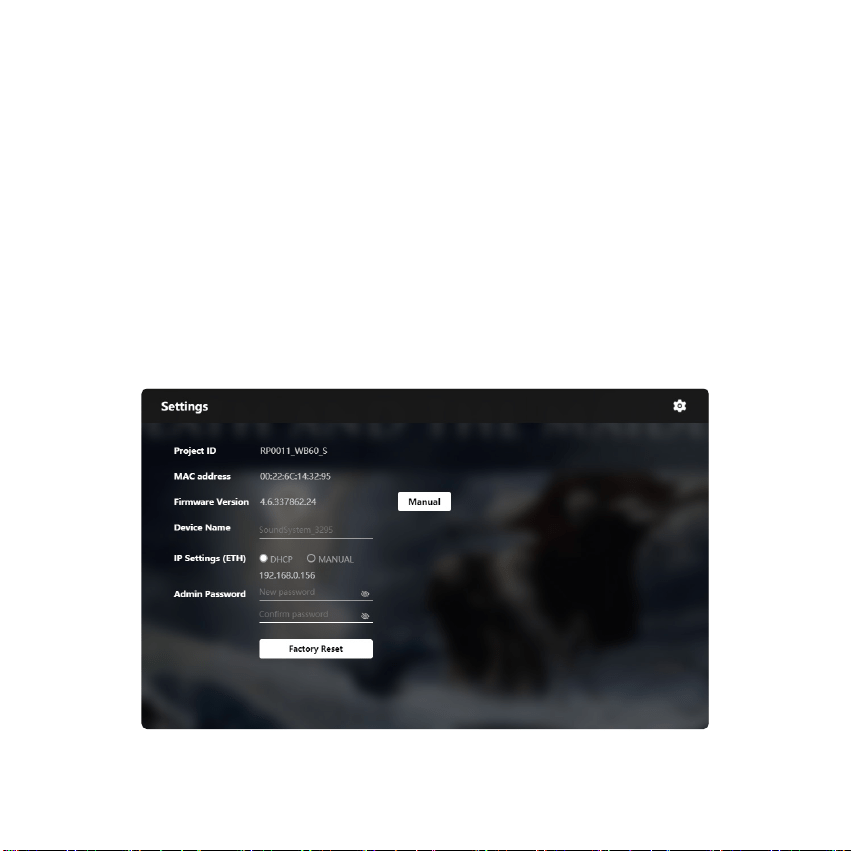
You can access the web player interface by entering the ip address of the device to a web broswer.
*You can nd the device ip address by clicking on device setup icon, then select Speaker Info.
You can control the volume, Play/Pause, previous/next song, repeat and shue function for songs or station you currently
playing or access the preset songs/stations you have setup.
You can also change the input source of the device.
10. Web Player Interface
18
In the setup menu, you can do couple of things:
* When entering the setup interface, a admin password is required. The default password is: admin
- Manual update the device rmware
- Change the Device Name
- Setup WiFi connection
- Setup Static IP Address
- Change Admin password
**If you want to setup the WiFi connection for the rst time without using other method.
1. After power up the devie, connect your mobile/PC WiFi to the device SSID: SoundSystem_xxxx.
2. In the web broswer input 10.10.10.254 (this is the default ip address when there is no network being setup)
3. Goto setings and click on connect button under Connect to AP option.
4. Select the router SSID you want to connect to.
5. Enter the password if required and click on connect button.
6. Now your device is connected to your network, you will need to enter the new ip address to continue to use the web
player. (since the ip address is not 10.10.10.254 anymore)

19
FAQ
Q: Do your devices support airplay and third-party DLNA apps?
A: Yes. They support airplay and third-party apps like foobar2000, musicbee...
Q: How many zones can you group in one system?
A: 12 rooms is the maximum, while 8 zones are recommended.
Q: What distance can your wireless audio system cover?
A: Once the system is connected to your WiFi router, you can stream your music anywhere there is a WiFi signal.
Q: Can it play high resolution music?
A: Yes. Our devices can play APE and FLAC within the normal bit rate range. They also support decoding
24bit/192kHz music les.
Q: How many languages do you support?
A: Our devices will auto-detect your mobile device language and change automatically. Currently, we support
English, French, German, Spanish, Chinese, Portuguese, Korean and Japanese and more on the way.
Q: What online music services do you support?
A: Spotify, Deezer,Quboz, Tidal, iHeartRadio, TuneIn, Napster, and more, with more pending.
Q: Can I play local music?
A: Yes. You can play music from “MY MUSIC” on the application from local storage devices such
as mobile device storage, USB thumb drives and NAS.
Q: Can the device work with Windows devices?
A: The Windows application is not available at the moment, but on the Windows PC, users can use iTunes,
Foobar2000 and Spotify connect.
Q: Can all music sources play in multiroom mode?
A: Yes, the online streaming music, line input and Bluetooth all can play multiroom mode.
Q: Does your device support Google Assistant or Alexa?
A: Our devices donot support Alexa, yet through Bluetooth, our device can work with Google Assistant.


@Copyright 2022 by Arylic. All Rights Reserved.
The information contained in this guide is believed to be accurate and reliable. Arylic assumes no
responsibility for any errors contained in this guide. Arylic reserves the rights to make changes in the
specications and/or design of the above mentioned product without prior notice. The diagrams contained
in this guide may also not fully represent the product that you are using and they are for illustration
purposed. Arylic assumes no responsibility for any dierences between the product mentioned in this guide
and the product you may have.
Scan the QR codes below for more
www.arylic.com
Support and After Service : [email protected]
4STREAM App Facebook
:
arylicme YouTube:Arylic