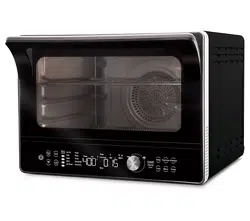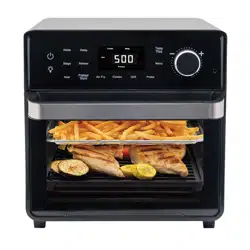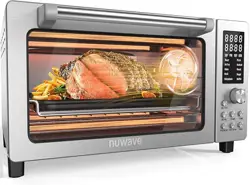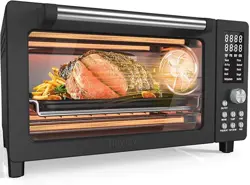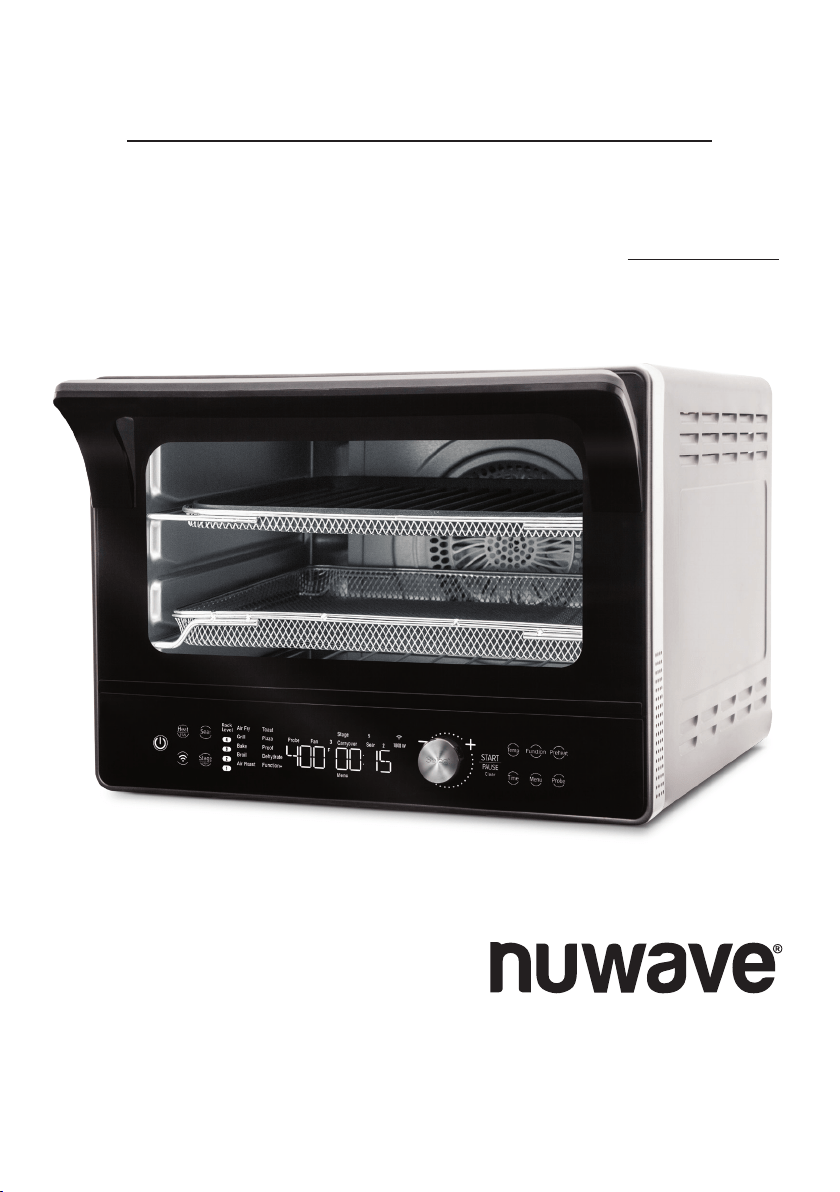
Engineered by
Questions or Concerns?
Toll Free: 1-877-689-2838 • help@nuwavenow.com
(Mon-Fri 7:30am-4:30pm CST)
Owner’s Manual
Model: 20902 / 20901 / 20906 / 20905
PRO-SMART™ OVEN
TODD ENGLISH
2 | nuwavenow.com
PRODUCT REGISTRATION
Thank you for purchasing the Todd English Pro-Smart Oven
and welcome to the Todd English Cooking Family!
Congratulations on getting your new Todd
English Pro-Smart Oven! I am incredibly
excited for you and want to make sure you
get the most out of your new oven and
your cooking experience.
That’s what this manual is all about.
In it, we have provided detailed operating
and care instructions covering every as-
pect of your new Todd English Pro-Smart
Oven to make sure it fully meets your
needs.
I’m also thrilled to be working with Nu-
Wave, a company that prides itself on the
relationships it builds with its customers
- a relationship that only begins with the
purchase. So, if you have any questions,
comments, or concerns, please don’t hes-
itate to contact Customer Service. They’ll
take good care of you!
I’m glad you’re with us, and I know that you
will be, too!
Chef Todd English
REGISTER YOUR PURCHASE
1. Visit
nuwavenow.com/QR
2. Scan the QR code using your
mobile device.
3. Fill in the information requested on the
website.
RECORD THIS INFORMATION
Model Number: _________________
Serial Number: __________________
Date of Purchase ________________
(Keep receipt)
Store of Purchase _______________
TECHNICAL SPECIFICATIONS
Voltage: 120V, 60Hz
Wattage: 1800 watts
TIP: You can locate the model and serial
numbers, as well as the QR code, on the
label on the back of the unit.
Connect with Us!
#nuwavenow
Visit
nuwavenow.com
to see other
great products and accessories.
WELCOME
REGISTER
NOW!
CUSTOMER SERVICE
Phone: 1-877-689-2838
(Mon-Fri 7:30am - 4:30pm CST)
Email:
help@nuwavenow.com

nuwavenow.com | 3
TABLE OF CONTENTS
Meet Todd English
Todd English began his cooking career
at the young age of 15 when he rst
entered the doors of a professional
kitchen. At 20, he attended the Culinary
Institute of America and graduated in
1982 with honors. He continued to hone
his craft with Jean Jacques Rachou at
New York’s La Cote Basque and then
relocated to Italy where he apprenticed
at the well-established Dal Pescatore
in Canneto sull’Oglio and Paracucchi in
Locanda dell’Angelo.
It was in Italy that Todd, drawing from
his Italian heritage, developed his
unique style and approach to cooking.
English returned to the United States at
25 and was asked to be the Executive
Chef of the award-winning Northern Ital-
ian restaurant Michela’s in Cambridge,
Massachusetts. He served there as an
executive chef for three years, garnering
high praise from both the press and the
public.
In the spring of 1991, English caught
the culinary world’s eye when the
James Beard Foundation named him
their National Rising Star Chef. English
followed through on that promise, as the
James Beard Foundation subsequently
named him Best Chef in the Northeast
in 1994. Nation’s Restaurant News
named English one of their Top 50 Tas-
temakers in 1999. In 2001, English was
awarded Bon Appetit’s Restaurateur of
the Year award and was named one of
People Magazine’s 50 Most Beautiful
People. Todd also has been named to
the James Beard Foundation’s Who’s
Who in Food and Beverage in America.
Safeguards & Information ..................... 4-6
Power-Supply Cords................................ 6
Parts & Accessories .............................. 7
Ordering Parts ......................................... 7
Assembly Guide .................................... 8-9
Before First Use....................................... 8
Accessories ............................................. 8
Rack Positions ......................................... 9
Connectivity ........................................... 10-11
NuWave Connect App ............................. 10
Wi-Fi Activation ........................................ 10
Extending Control .................................... 11
Getting Started ....................................... 12-17
Key Features ........................................... 12
Control Panel ........................................... 12
Helpful Tips .............................................. 13
Primary Controls ...................................... 14
Basic Key Functions ................................ 15
Using the Accessories ............................. 16
Selectable Cooking Time ......................... 16
Quick Start ............................................... 17
Adjusting Default Temp & Time ............... 17
Basic Functions ..................................... 18-26
Time and Temperature............................. 18
Heat Sources and Fan............................. 18
Cooking Functions ................................... 19-21
The Menu Function.................................. 22-23
The Preheat Function .............................. 23-24
The Probe Function ................................. 24-25
The Mute Feature .................................... 26
The Clock Feature ................................... 26
The Lock Feature .................................... 26
The Wattage Feature ............................... 26
Advanced Functions ............................. 27-29
Stage Cooking ......................................... 27
The Sear Function ................................... 27-28
The Slow Cook Function ......................... 28-29
Care & Maintenance .............................. 30-32
Before First Use....................................... 30
After Each Use ........................................ 30
Storage .................................................... 30
Replacing the Lightbulb ........................... 31
Error Messages ....................................... 31
Troubleshooting ....................................... 32
Limited Warranty ................................... 33-34
Para la versión en español de este manual, visita www.nuwavenow.com

4 | nuwavenow.com
SAFEGUARDS & INFORMATION
READ ALL INSTRUCTIONS and WARNINGS The failure to follow any of the import-
ant safeguards, warnings, or instructions for safe use is a misuse of the Todd English
Pro-Smart Oven that can void your warranty and create the risk of serious injury. When
using the Pro-Smart Oven, only use the appliance as intended and for no other use, and
always follow basic safety precautions.
ALWAYS KEEP THIS MANUAL HANDY FOR FUTURE REFERENCE.
1. Read all instructions.
2. Ensure the Pro-Smart Oven and all parts are clean and dry before each use.
3. Do not touch hot surfaces. The appliance’s surfaces may be hot during and after use.
Use handles.
4. Discard the protective plastic covering the power plug before use.
5. Do not let the electrical cord touch hot surfaces or hang over any edge.
6. Do not immerse cord, plug, or appliance in water or other liquid.
7. Close supervision is necessary when any appliance is used near children. This ap-
pliance is not intended for use by persons with reduced physical, sensory or mental
capabilities, children, or persons with a lack of experience or knowledge, unless super-
vised or instructed in the use of the appliance by one responsible for their safety.
8. Do not operate if the Pro-Smart Oven or cord malfunctions or has been damaged
in any way. Return the unit to the nearest authorized service facility for examination,
repair, or adjustment.
9. Use only on a clean, stable, dry, and level surface.
10. Do not use accessories or attachments not recommended by the
manufacturer.
11. DO NOT USE OUTDOORS. FOR INDOOR USE ONLY.
12. Do not place on or near a hot gas or electric burner, or in a heated oven.
13. Unplug the appliance when not in use and allow the appliance to cool completely
before cleaning or removing/replacing parts.
14. Do not cover or block the intake air vents located in the back and sides of the Pro-
Smart Oven, as doing so can prevent proper ventilation. There should be at least 5
inches of free space behind, to the sides of, and on top of the Pro-Smart Oven.
15. Use aluminum foil to wrap foods that produce oil or juice when operating and attach
the Grill/Griddle or use the Drip/Baking Pan to catch drippings and prevent re.
16. To prevent re, do not allow any foil to touch the heating elements.
17. Do not alter or modify any part of the Pro-Smart Oven or use attachments
or accessories not recommended by the manufacturer.
18. It is normal for some smoke to escape the Pro-Smart Oven when heating for the rst
time.
19. If excess smoke is escaping from the air vent during operation, unplug the Pro-Smart
Oven immediately and contact NuWave Customer Service at 1-877-689-2838 or email
help@nuwavenow.com

nuwavenow.com | 5
SAFEGUARDS & INFORMATION
ALWAYS KEEP THIS MANUAL HANDY FOR FUTURE REFERENCE.
20. During use, steam may be released from the air outlet vents. Keep your hands and
face away from these vents. Be careful of hot steam escaping when opening the Pro-
Smart Oven.
21. Avoid placing your face near the glass door during use.
22. Never touch the insides of the Pro-Smart Oven while it is operating.
23. Use extreme caution when moving an appliance containing hot oil or other hot liquids.
24. Never leave the Pro-Smart Oven unattended during use.
25. Do not disassemble the Pro-Smart Oven.
26. Allow the Pro-Smart Oven to cool before putting in or pulling out items or before clean-
ing.
27. Keep this manual handy for future reference.
28. Always make sure your ngers are clean and dry when pressing the
buttons.
Toaster Oven Warnings (UL Standard 1026, Section 71.7):
1. Oversize foods or metal utensils must not be inserted in a toaster oven as they may
create a re or risk of electric shock.
2. A re may occur if the toaster-oven is covered or touching ammable material, includ-
ing curtains, draperies, walls, and the like, when in operation. Do not store any item
on top of the appliance when in operation.
3. Do not clean with metal scouring pads. Pieces can break o the pad and touch electri-
cal parts creating a risk of electric shock.
4. Extreme caution should be exercised when using containers constructed of materials
other than metal or glass.
5. Do not store any materials, other than the manufacturers recommended accessories,
in this oven when not in use.
6. Do not place any of the following materials in the oven: paper, cardboard, plastic,
cloth, wood, ammable materials, sealed containers, and the like.
7. Do not cover the crumb tray or any part of the oven with metal foil. This will cause
overheating of the oven.
8. Turn o the Pro-Smart Oven by pressing the Power Icon before unplugging the unit
from the wall socket.
Question about your Pro-Smart Oven?
Contact our friendly customer service sta from 7:30am to 4:30pm CST, Monday-Fri-
day at 877-689-2838 or reach us via email anytime at
help@nuwavenow.com
6 | nuwavenow.com
SAFEGUARDS & INFORMATION
A short power-supply cord (or detachable power-supply cord) is provided to reduce
the risk of becoming entangled in, or tripping over, a longer cord. Longer detachable pow-
er-supply cords or extension cords are available and may be used if care is
exercised in their use. If a longer detachable power-supply cord or extension cord is used:
1. The marked electrical rating of the extension cord should be at least as great as the
electrical rating of the appliance.
2. The longer cord should be arranged so that it will not drape over any countertop or
tabletop where it could be pulled on or tripped over unintentionally.
3. The Pro-Smart Oven should be operated on a separate electrical outlet from other
operating appliances due to wattage limitations.
4. This appliance is of the 3-pin grounded type, so the cord set or extension cord should
also be a grounding type 3-wire cord.
SAVE THESE INSTRUCTIONS: Read and understand the entire manual before using the
Pro-Smart Oven.
Power-Supply Cords
WARNING
To reduce the risk of electric shock, do not perform any servicing other than
that which is contained in these instructions.
To disconnect the Pro-Smart Oven, turn it o by pressing the Power Icon and
then remove the plug from the wall outlet.
NEVER use the Pro-Smart Oven with loose, damaged, or missing parts.
While cooking, ALWAYS use oven mitts and allow accessories to cool before
washing.
nuwavenow.com | 7
PARTS & ACCESSORIES
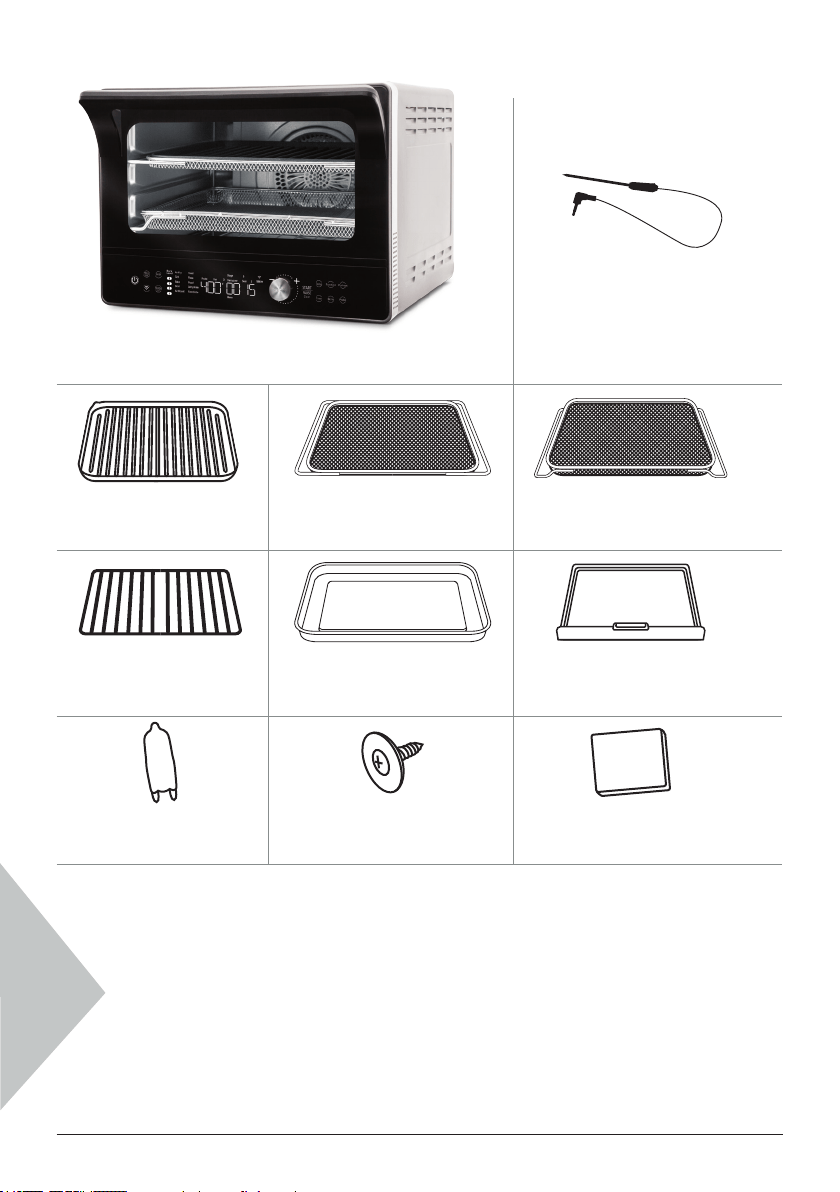
Over the lifetime of your Todd English Pro-Smart Oven, you may nd yourself needing
a new part or accessory, and if you do, NuWave has you covered.
Ordering new parts and accessories is quick and easy. Simply take down the name and
number for the part you want, then contact Customer Service. You can do that by:
• Phone at 877-689-2838 (M‒F, 7:30am‒4:30pm CST), or
• Email at
help@nuwavenow.com
You can even order directly online. Just visit
www.nuwavenow.com
ORDERING PARTS
Wire Rack
Part #: BEA6
Grill/Griddle
Part #: BEA3
Air Fry Basket
Part #: BEA5
Crumb Tray
Part #: BEA7
Temperature Probe
Part #: BEP3
Grill/Griddle Rack
Part #: BEA4
Light Bulb
Part #: BEP1
Light Cover Screw
Part #: BEP4
Light Bulb Cover
Part #: BEP2
Baking and Drip Pan
Part #: BEA8
Stainless-Steel Power Base
Part #: BEA2
Black Power Base
Part #: BEA1
8 | nuwavenow.com
ASSEMBLY GUIDE
1. Remove and discard any packaging material from the unit.
2. Remove all accessories from their packaging and wash them in warm, soapy water
or in the dishwasher, top rack only, except for the Probe. NEVER submerge the
main unit in water.
While most of the accessories are dishwasher-safe, the Probe is not. Hand washing is,
therefore, highly recommended. Frequent dishwasher cleaning may lead to premature
wear.
Before First Use
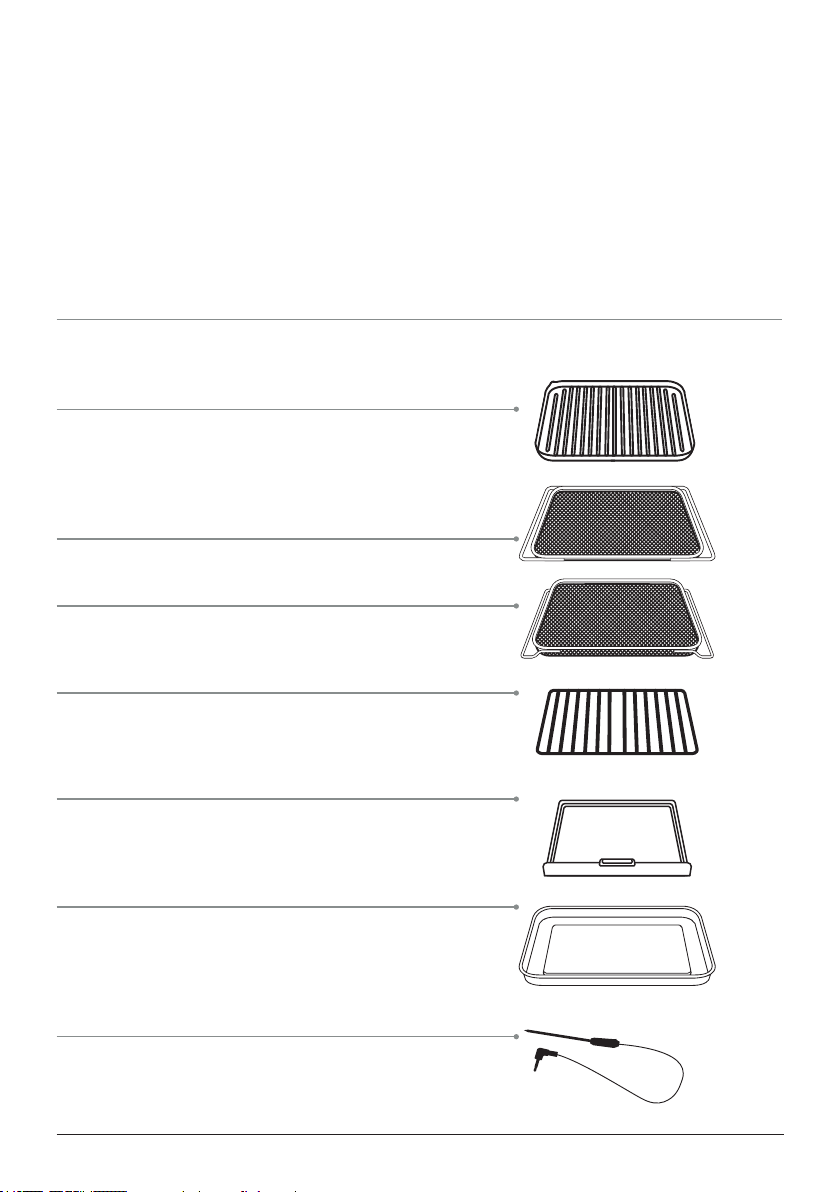
Grill/Griddle
For grilling steaks and roasting vegetables.
Flip it to the Griddle side for baking. The
Grill/Griddle must be used with the Grill/
Griddle Rack.
Grill/Griddle Rack
½-inch depth is ideal for dehydrating.
Air Fry Basket
1-inch depth is perfect for making crispy
chicken, fries, and more.
Wire Rack
Can be used to hold cooking or baking
pans, or simply place your food directly on
the rack.
Crumb Tray
Catches crumbs and drippings and must
remain in the unit at all times while cook-
ing.
Baking and Drip Tray
Ideal for baking, roasting, and as a drip
pan when air frying, protecting the bottom
heating elements from dripping oils and
fats.
Temperature Probe
Eliminates the guesswork of cooking.
Consult the temperature guide in the Probe
section for more information.
Accessories
nuwavenow.com | 9
ASSEMBLY GUIDE
Rack Positions
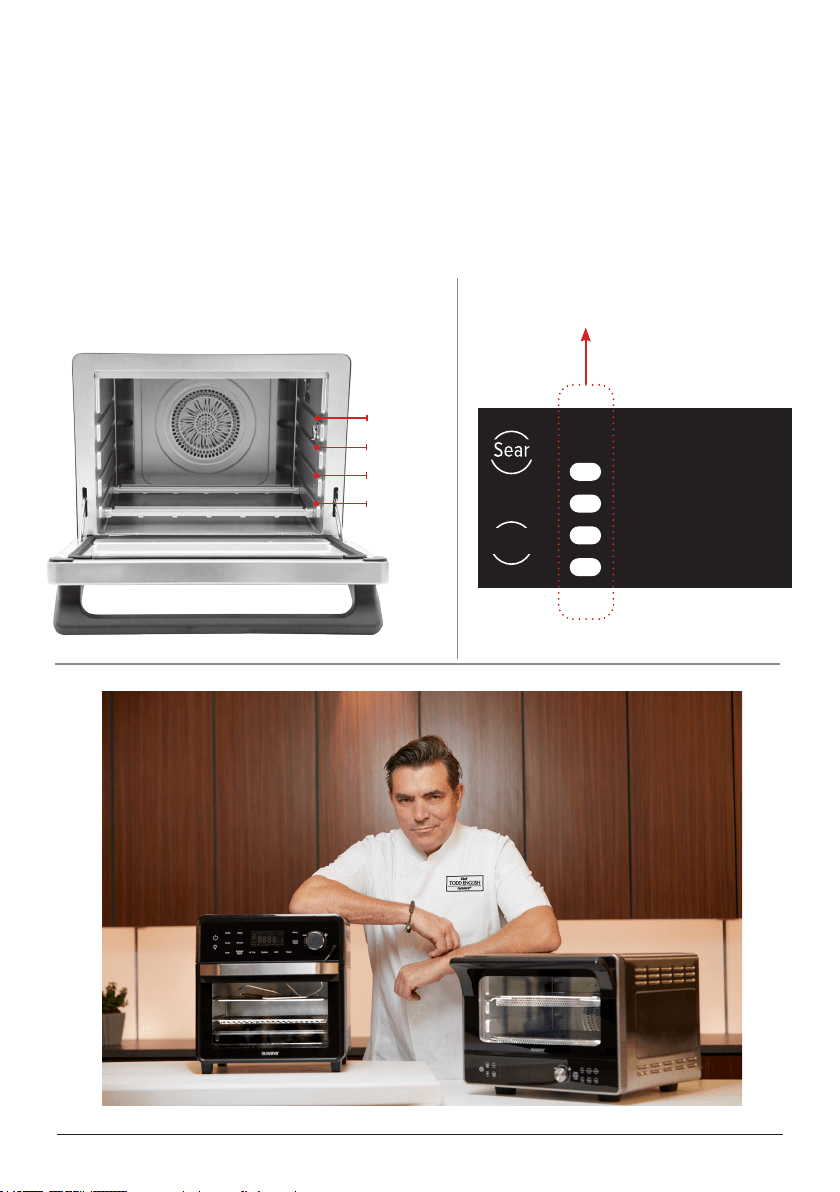
The Todd English Pro-Smart Oven has 4 rack positions, with Position 1 at the bottom and
Position 4 at the top, where most of your accessories can slide into the unit.
When you select a cooking function, the appropriate rack number(s) will illuminate on the
control panel. These numbers coincide with those on the frame of the unit.
Position 4
Position 3
Position 2
Position 1
Position numbers on the control panelPosition numbers on the frame of the unit.
Rack
Level
Air Fry
Grill
Bake
Broil
Air Roast
Toast
Pizza
Proof
Dehydrate
Function+
1
2
3
4
Preheat Ready Stage
Probe
Fan
Carryover Sear
Rear TopShade Menu Bottom Slice
STAGE
Light

10 | nuwavenow.com
CONNECTIVITY
NuWave Connect App
WiFi Activation
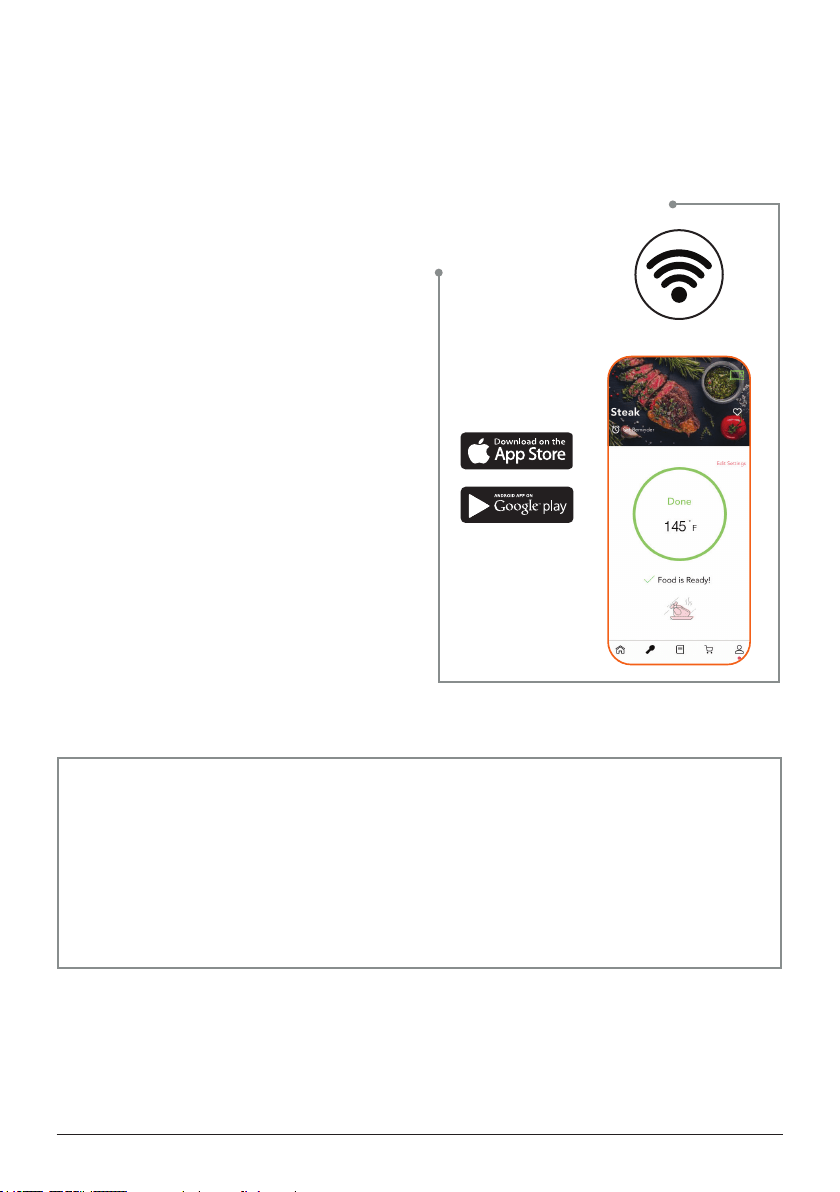
With the NuWave Connect App, you can operate your Todd English Pro-Smart Oven with
your Smart Device using your home Wi-Fi network.
Downloading the NuWave Connect App
Using the built-in QR reader in your Cam-
era App:
1. Scan the QR code below. It will take
you to the App’s download page on
either the Google Play Store or the
Apple AppStore.
2. Follow the app download and installa-
tion instructions.
If your phone does not have QR
scanning capability built-in, simply down-
load a third-party QR Scanning App before
scanning the NuWave QR code and you
are ready to go.
1. Open your mobile app store (App
Store, Google Play).
2. Search for “QR code readers.”
3. Simply download the QR code reader
to your phone, open it, scan the code,
and you are ready to go.
Once the NuWave Connect App is down-
loaded and properly installed, make sure
that your smart device is connected to your
home Wi-Fi 2.4GHz network and that the
Pro-Smart Oven is in Standby Mode. Then,
follow these steps:
1. On the Oven, press and hold WIFI for
up to 5 second to activate the built-in
WiFI. will be blinking rapidly.
2. Open the app and follow the in-app
verication instructions.
3. Once the verication is complete,
press the + in the upper right hand
corner, then press the Pro-Smart
Oven icon.
4. Press the WIFI icon until the WIFI
icons is rapidly blinking. Once suc-
cessful, press Done.
5. Enter the WIFI password. touch Next
and the pairing will begin.
If the connection process fails, or the WiFi
is disconnected, the Wi-Fi light will turn o.
Notes
• Sometimes the user may need to
hold the WiFi button again to return to
Wi-Fi pairing mode even if there was
previously a successful connection.
• If the incorrect WIFI network appears,
go to your smart device settings to
select the correct WIFI network.
• Make sure the Pro-Smart Oven Wi-Fi
is active and connected with your Wi-
Fi 2.4GHz network.
nuwavenow.com | 11
Extending Control
A New Level
of Cooking
Remote control
using WiFi
Controlling the Pro-Smart Oven with your
smart device is both easy and convenient
with the NuWave Connect App.
1. Make sure that the NuWave Connect
App is installed on your smart device.
2. Make sure the Pro-Smart Oven Wi-Fi
is active and connected with your Wi-
Fi 2.4GHz network.
3. Press WIFI. This will extend control of
the Pro-Smart Oven to the NuWave
Connect App.
Notes
You will only have to do this once. After
control has been extended, it will remain
extended, and to use it, you will only have
to bring up the Pro-Smart Oven on the
NuWave Connect App.
Question?
The Answer is at Your Fingertips
If you can’t nd your answer here in the
Owner’s Manual, just contact our friendly
and knowledgable Customer Service sta from
7:30am‒4:30pm CST, Monday‒Friday
at 877-689-2838 or reach us via email anytime at
help@nuwavenow.com
CONNECTIVITY
12 | nuwavenow.com
GETTING STARTED
KEY FEATURES
CONTROL PANEL
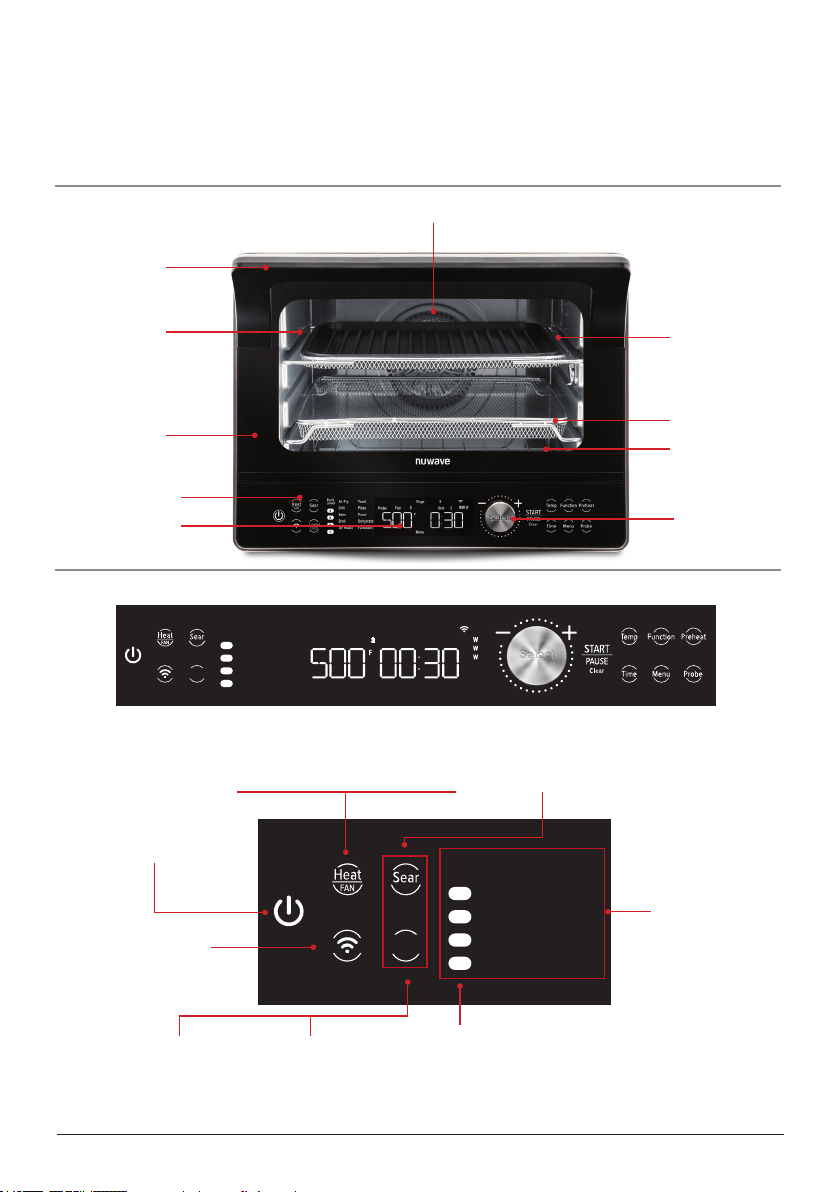
Door Handle
Rear Fan/Heating Element
The easy-to-use functionality of the Pro-Smart Oven is divided into Basic and Advanced
functions, with the former oering the full cooking functionality of the unit and the latter
giving you control over fan and heat strength and allowing you to program dierent cook-
ing stages, features you will primarily use to create your own cooking Presets.
Door Window
LED Display
Control Panel
Wire Rack
Air Fry Basket
Grill/Griddle in the
Grill/Griddle Rack
Door
Select Dial
Rack
Level
Air Fry
Grill
Bake
Broil
Air Roast
Toast
Pizza
Proof
Dehydrate
Function+
1
2
3
4
Preheat Ready Stage
Probe
Fan
Carryover Sear
Rear TopShade Menu Bottom Slice
STAGE
Light
Rack
Level
Air Fry
Grill
Bake
Broil
Air Roast
Toast
Pizza
Proof
Dehydrate
Function+
1
2
3
4
Preheat Ready Stage
Probe
Fan
Carryover Sear
Rear TopShade Menu Bottom Slice
STAGE
Light
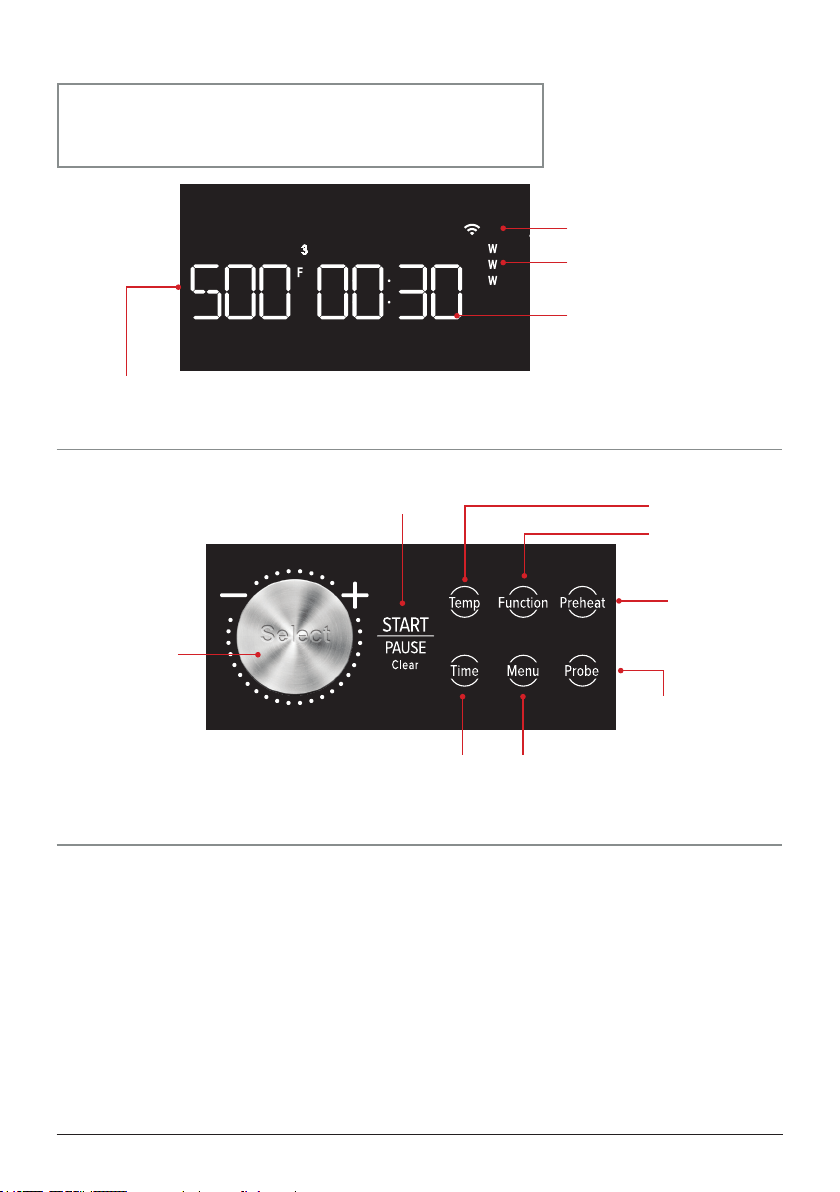
Heat:
Controls Top,
Bottom and Rear
heat.
FAN:
Choose between
3 fan speeds.
Power:
Turns the oven on.
Wi-Fi:
Connects the oven to your
home Internet network,
allowing you to connect to
the NuWave Connect App.
Sear:
Choose between
3 Sear settings.
STAGE:
Press and hold Light /
STAGE to program up
to 5 cooking stages.
Light:
Press Light /STAGE to turn
the oven’s light on and o.
Rack Level:
The oven will highlight a rack
corresponding to the selected
preset.
Cooking
Functions:
Choose between
9 programmed
functions, plus an
additional 11 with
Function+.
nuwavenow.com | 13
GETTING STARTED
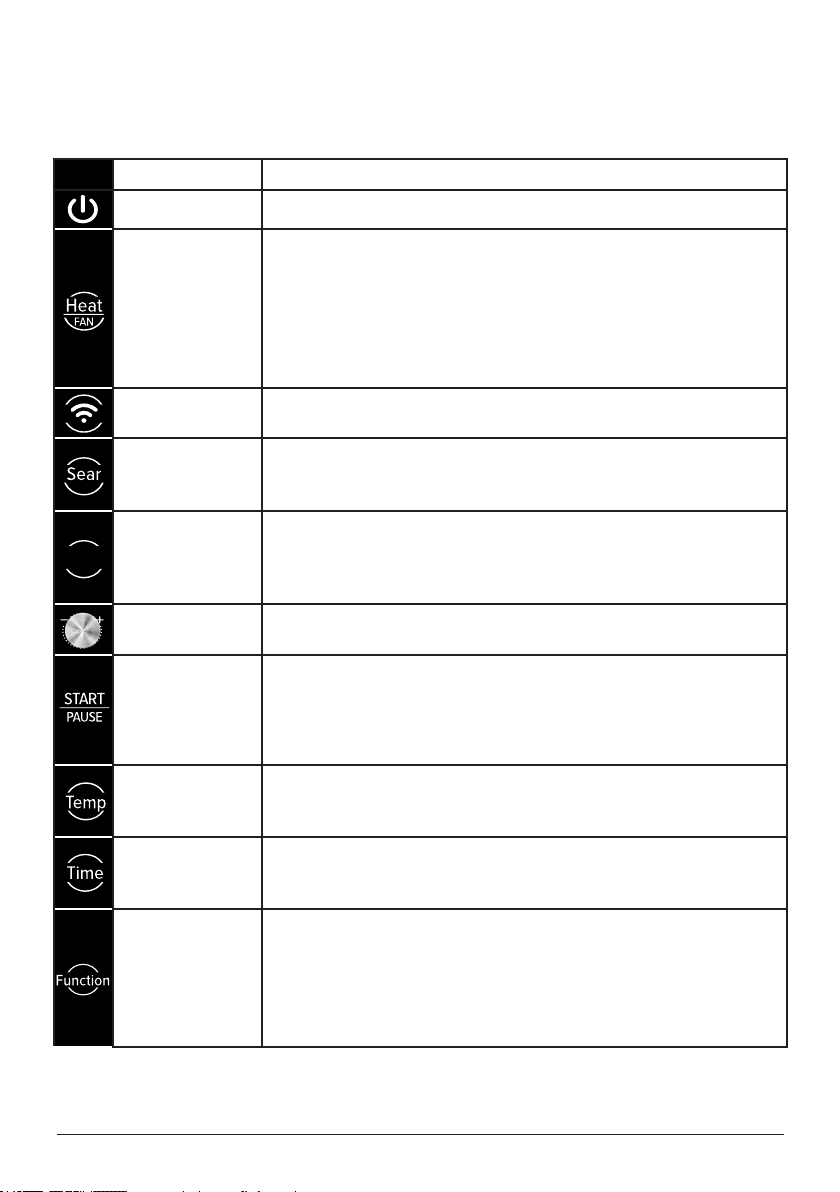
The LED Function Indicators—Preheat, Ready, Stage,
Probe, Fan, Carryover, Sear, Rear, Top, Bottom, Menu,
Shade and Slice—will light when that function is selected.
1. To add more time during the current cooking cycle, turn the Select dial clockwise.
Monitor your food to ensure it doesn’t overcook.
2. Some moisture may appear on the Pro-Smart Oven’s door during certain cooking
cycles. This is normal and no cause for worry.
3. When air-frying, food can be lightly coated with oil beforehand to boost crispiness
and browning.
4. When using your own recipes, especially those written for a conventional oven,
cooking times can be dierent. So, until you know how your recipe will work in the
Pro-Smart Oven, make sure to check on your food to keep it from overcooking.
Helpful Tips
Rack
Level
Air Fry
Grill
Bake
Broil
Air Roast
Toast
Pizza
Proof
Dehydrate
Function+
1
2
3
4
Preheat Ready Stage
Probe
Fan
Carryover Sear
Rear TopShade Menu Bottom Slice
STAGE
Light
Wi-Fi:
Operate your NuWave
Pro-Smart Oven with your
Smart Device.
Watts:
The selected wattage will be
displayed on the screen.
Cooking Time:
HOURS:MINUTES
The Time format can be
changed, see page 16.
Cooking Temperature:
The default will be set to Fahrenheit, but it
can be changed to Celsius, see page 16.
Rack
Level
Air Fry
Grill
Bake
Broil
Air Roast
Toast
Pizza
Proof
Dehydrate
Function+
1
2
3
4
Preheat Ready Stage
Probe
Fan
Carryover Sear
Rear TopShade Menu Bottom Slice
STAGE
Light
Select Dial:
The Select
dial adjusts the
cooking time and
temperature,
scrolls between the
cooking functions
and menu presets.
START/PAUSE:
Initiates and pauses and clears
cooking process.
Temp:
Adjusts the cooking
temperature.
Time:
Adjusts the
cooking time.
Function:
Scrolls through
the 20 functions.
Menu:
Select up to 100
presets and save up
50 of your own.
Preheat:
Preheats your
oven for better
results.
Probe:
Cooks by the
food's internal
temperature.
14 | nuwavenow.com
Primary Controls
GETTING STARTED
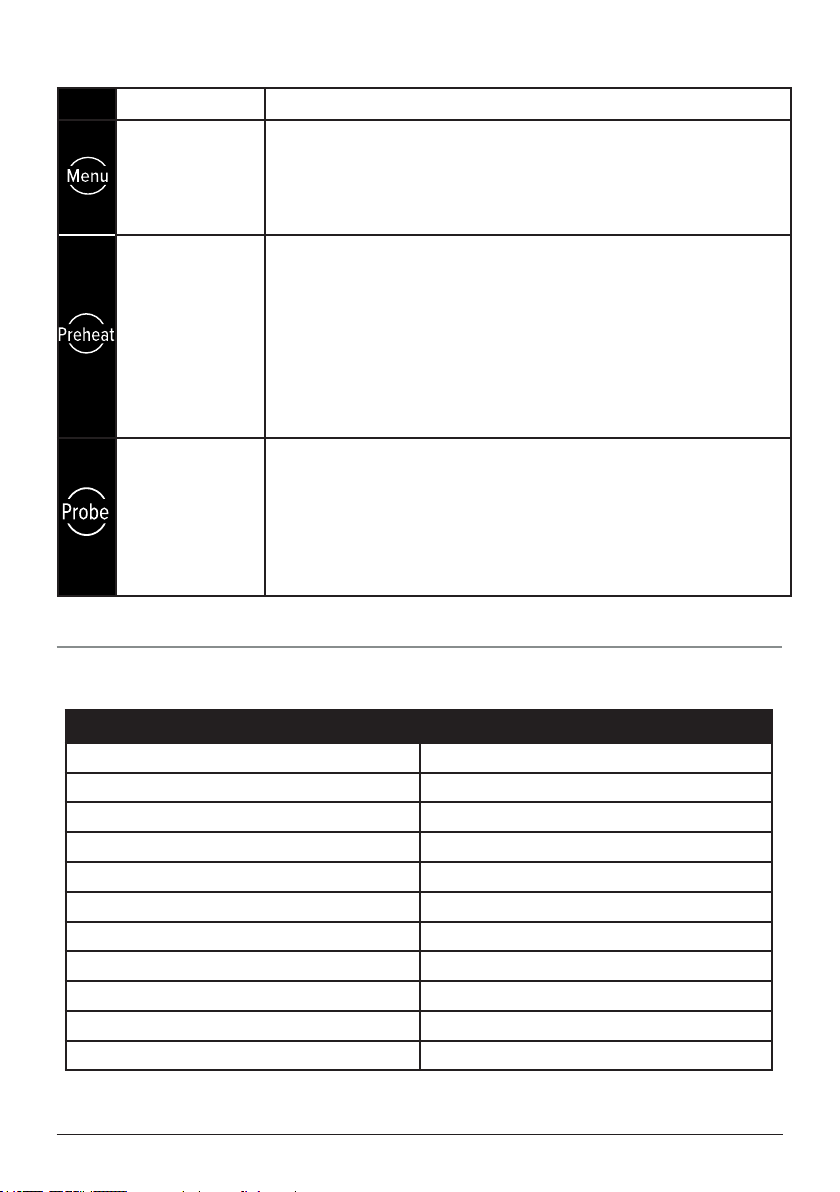
Control
Function
Power
The Power button turns the Pro-Smart Oven on and o.
Heat/FAN
Heat: Press Heat/FAN until the heater to be changed appears,
then adjust the rear, top, and/or bottom heat using the Select
dial. The odd percentage of Top/Bottom heat defaults to the
bottom.
Fan: Press and hold Heat/FAN and use the Select dial to
adjust the fan speed from 0–3. Note: If you are using the rear
heater, the fan speed must be 1 or more.
WiFi
Press WiFi to connect to your local wi- network and, through
that, to the NuWave Connect App.
Sear
Press Sear, then adjust the Sear temperature and time, if de-
sired, and press START/PAUSE to begin cooking. Sear defaults
to 450°F for 5 minutes.
Light/STAGE
Light: Press Light/STAGE once to turn on the oven lamp.
Press it again to turn it o.
STAGE: Press and hold Light/STAGE to access Stage Cook-
ing. You can program up to 5 cooking stages.
Select Dial
Used to change cooking times and temperatures, as well as to
scroll through and select cooking functions and presets.
START/
PAUSE
Clear
Once the cooking parameters are set, this starts and pauses
the cooking process. Pressing and holding the button allows
you to clear any selections.
Temp
Allows you to adjust the cooking temperature before and
during the cooking process. Press Temp and use the Select
dial to adjust the temperature.
Time
Allows you to adjust the cooking time before and during the
cooking process. Press Time and use the Select dial to adjust
the time.
Function
Allows you to choose from among 20 cooking functions, 9 on
the LED display and 11 under “Function+”. Press Function
and scroll through the cooking functions. At “Function+”, press
the Select dial for functions 10–20. Continue scrolling until you
reach the Function you want, then press the Select dial and
START/PAUSE to begin cooking.
STAGE
Light
Clear
nuwavenow.com | 15
Basic Key Functions
GETTING STARTED
Function Button(s)
Slow Cook Probe + Menu
Probe Target Temperature Press and hold Probe
Sear (as an independent function) Press and hold Sear
Automatic Preheat Preheat + Menu
Mute/Unmute Sear + STAGE
Mute/Unmute Door Press and hold Function
Clock Preheat + Time
Lock Menu + STAGE
Time Format Change ‒ Min:Sec Press and hold Time (4 sec.)
Temperature Format Change ˚F to ˚C Press and hold Temp (4 sec.)
Wattage WiFi + Light
Control
Function
Menu
Provides access to the unit’s Cooking Presets. Press Menu
once for Presets 1–100, or twice for Presets 101–150. Once
the Preset is selected press START/PAUSE to begin cooking.
Refer to the 100 Presets on the back of the Quick Start Guide.
You can save 50 of your own.
Preheat
Ensures the Pro-Smart Oven is at the set cooking temperature
at the start of the main cooking cycle, giving you better results.
The default is 400°F (default cooking temperature). Once the
set temperature is reached, the Pro-Smart Oven will beep
twice, countdown for 10 seconds, beep once more, and then
start cooking automatically. To deactivate automatic Preheat,
press Menu + Preheat prior to cooking. Repeat to reactivate
automatic Preheat.
Probe
Allows you to accurately cook your food to a set internal tem-
perature. The Probe jack is on the upper right-hand side of the
cooking chamber. The default is 165°F. Plug the Probe into the
jack, then press and hold Probe for 1 second to set the Probe
target temperature using the Select dial. Insert the other end
of the Probe into your food at the thickest part not touching the
bone. Press START/PAUSE to begin cooking.
Control
Function
Power
The Power button turns the Pro-Smart Oven on and o.
Heat/FAN
Heat: Press Heat/FAN until the heater to be changed appears,
then adjust the rear, top, and/or bottom heat using the Select
dial. The odd percentage of Top/Bottom heat defaults to the
bottom.
Fan: Press and hold Heat/FAN and use the Select dial to
adjust the fan speed from 0–3. Note: If you are using the rear
heater, the fan speed must be 1 or more.
WiFi
Press WiFi to connect to your local wi- network and, through
that, to the NuWave Connect App.
Sear
Press Sear, then adjust the Sear temperature and time, if de-
sired, and press START/PAUSE to begin cooking. Sear defaults
to 450°F for 5 minutes.
Light/STAGE
Light: Press Light/STAGE once to turn on the oven lamp.
Press it again to turn it o.
STAGE: Press and hold Light/STAGE to access Stage Cook-
ing. You can program up to 5 cooking stages.
Select Dial
Used to change cooking times and temperatures, as well as to
scroll through and select cooking functions and presets.
START/
PAUSE
Clear
Once the cooking parameters are set, this starts and pauses
the cooking process. Pressing and holding the button allows
you to clear any selections.
Temp
Allows you to adjust the cooking temperature before and
during the cooking process. Press Temp and use the Select
dial to adjust the temperature.
Time
Allows you to adjust the cooking time before and during the
cooking process. Press Time and use the Select dial to adjust
the time.
Function
Allows you to choose from among 20 cooking functions, 9 on
the LED display and 11 under “Function+”. Press Function
and scroll through the cooking functions. At “Function+”, press
the Select dial for functions 10–20. Continue scrolling until you
reach the Function you want, then press the Select dial and
START/PAUSE to begin cooking.
16 | nuwavenow.com
Using the Accessories
GETTING STARTED
Function Grill/Griddle
Grill/Griddle
Rack
Air Fry
Basket
Wire Rack
Air Fry Yes Yes
Grill Yes
Bake* Yes Yes
Broil* Yes Yes
Air Roast Yes Yes Yes
Toast Yes Yes Yes
Pizza* Yes Yes
Proof Yes
Dehydrate Yes Yes
Cookie* Yes Yes
Defrost* Yes Yes Yes
D.I.Y. Yes Yes Yes Yes
Oven Poach* Yes Yes Yes
Rawtarian* Yes Yes Yes
Reheat* Yes Yes Yes
Sanitize* Yes Yes Yes
Slow Cook* Yes Yes Yes
Slow Roast* Yes Yes Yes
Warm* Yes Yes Yes
Whole Roast*
Yes Yes Yes Yes
*Use an oven-safe baking/cooking pan when using the Wire Rack. For best
results, use the Grill/Griddle and Grill/Griddle Rack. Flip the Grill/Griddle to the
Griddle side.
Selectable Cooking Time
Cooking Temperature Selectable Cooking Time
50°F–275°F 00:00–99:59
280°F–350°F 00:00–24:00
355°F–400°F 00:00–04:00
405°F–450°F 00:00–01:00
455°F–500°F 00:00–00:30

nuwavenow.com | 17
GETTING STARTED
1. Press the Power button to turn the Pro-
Smart Oven on or o.
• Each function will ash in turn
before defaulting to Air Fry.
• The default cooking time and tem-
perature will be displayed.
• If that function has Preheat, then
“Preheat” will be lit.
2. Press Light/STAGE to turn on the lamp
inside the Oven and press it again to
turn the lamp o.
3. Press Temp, then turn the Select dial
to adjust the cooking temperature.
Press Time and turn the Select dial to
adjust the cooking time.
• Temperature, time, and heating
source(s) can be adjusted before
and while cooking.
4. Open the oven door and place your
food in the Pro-Smart Oven.
• While cooking, opening the door
will pause cooking and turn on the
oven lamp.
• Closing the door again will resume
cooking and turn o the oven light.
• If the door remains open for 30
minutes or more, the Oven will turn
o.
5. Press START/PAUSE. The Oven will
begin cooking and the screen will show
the cooking temperature and count-
down Time. “:” will ash.
• Press START/PAUSE again to
pause cooking, and again to
resume it.
• Press and hold START/PAUSE
to clear all settings. The unit will
display “END”. Press it again to
return to the default settings.
• Once the Pro-Smart Oven has n-
ished cooking, it will beep 3 times
and the screen will show “END”.
Adjusting Default
Temp & Time Formats
Default Temperature Format
To change the default temperature format
from Fahrenheit to Celsius and back again,
press and hold Temp.
The Pro-Smart Oven will switch from “F”
(Fahrenheit) to “C” (Celsius), and the
temperature gure will change with the
temperature format.
• The temperature format cannot be
switched while cooking.
• The temperature format can only be
switched when the temperature is
displayed.
• If you switch the format, the unit will
maintain that format, even if unplugged,
until you change it back.
Default Time Format
To change the default Time format from
hours:minutes (hh:mm) to minutes:seconds
(mm:ss:) and back again, press and hold
Time.
• The time format cannot be switched
while cooking.
• The time format can only be switched
when the time is displayed.
• If you switch time formats, the Pro-
Smart Oven will maintain that format,
even if unplugged, until you change it
back.
• The maximum time setting in hh:mm
format is 99-hrs.; 59 min.
Quick Start
18 | nuwavenow.com
BASIC FUNCTIONS
With its numerous Cooking Presets and fea-
tures, the Pro-Smart Oven’s suite of Basic
Functions oers you all you need to make
delicious, healthy meals quickly and easily.
Time and
Temperature
You should, of course, set the cooking time
and temperature before cooking, but you
can always adjust them while you are cook-
ing as well.
To Set the Cooking Temperature and
Time Before Cooking:
1. Press the Power button. The screen
will show a cooking function, the
cooking temperature, the cooking count
down time (i.e., “00:15”), and “Pre-
heat” (if active). The “:” will also be lit.
2. Press Temp. Turn the Select dial to
adjust the cooking temperature.
3. Press Time. Turn the Select dial to
adjust the cooking time.
4. Press START/PAUSE to begin cooking
at the set temperature and time.
5. When nished, the screen will show
“END” and the Pro-Smart Oven will
beep 3 times.
To Adjust the Cooking Temperature and
Time While Cooking:
1. Press Temp. Use the Select dial to
adjust the cooking temperature.
2. Press Time. Use the Select dial to
adjust the cooking time.
3. The Pro-Smart Oven will now cook at
the new temperature and time.
4. When nished, the screen will show
“END” and Oven will beep 3 times.
The Todd English Pro-Smart Oven has three
heat sources, Top, Bottom, and Rear. The
Rear heater is part of the large rear fan
assembly.
The default heat settings are, in order:
80% (rear) / 10% (top) / 10% (bottom). All 3
heaters combined will always equal 100%.
To adjust these settings:
1. Press Heat/FAN for the defaults to ap-
pear. Continue to press HEAT/FAN until
the heater you wish to change appears
on the LED display.
2. Turn the Select dial to adjust the power
for the selected heater from 0–100%, in
5% increments.
3. Once all adjustments are made, press
START/PAUSE to begin.
The default fan setting is 3. To adjust that:
1. Press and hold Heat/FAN until the fan
speed ashes.
2. Turn the Select dial to adjust the fan
speed from 3 to OFF.
3. Press the Select dial to lock in the
change.
Notes
• Changing the power of one heater will
automatically adjust one or both of the
others, so they always total 100%.
• When the dierence is only ±5%:
• Rear Heater: The dierence is
applied to the bottom heater.
• Top Heater: The dierence is ap-
plied to the rear heater.
• Bottom Heater: The dierence is
applied to the rear heater.
• Whenever the percentage is 10% or
more, the dierence is split between the
2 remaining heaters.
• The fan can only be turned o if the
rear heater is o.
Heat and Fan
nuwavenow.com | 19
BASIC FUNCTIONS
Cooking Functions
The Pro-Smart Oven has 20 Cooking Functions to help take the guesswork out of cooking.
Air Fry is the default function, but to access the remaining 11, begin by pressing Function.
1. The highlighted function will change from “Air Fry” to “Grill”. Now, turn the Select
dial or continue to press Function until you reach the Cooking Function you want.
2. To reach Cooking Functions 10–20, turn the Select dial until “Function+” is lit. Then,
press the Select dial. “10” will appear on the screen. Continue scrolling until you nd
the function you want and press the Select dial again. You will see the cooking time
and temperature, and the fan speed for that Cooking Function.
3. Once the desired Cooking Function is chosen, press START/PAUSE to start cooking.
#1 Air Fry To fry with superheated circulating air while using little to no oil.
Defaults Heat Fan Rack Position
Temp: 400°F
Time: 15 min.
Top: 10%
Bottom: 10%
Rear: 80%
3 2 or 3
#2. Grill To use contact and radiant heat to cook foods quickly on a direct heat source.
Defaults Heat Fan Rack Position
Temp: 450°F
Time: 15 min.
Top: 25%
Bottom: 25%
Rear: 50%
3 3
#3. Bake To cook rising foods in an oven using high heat.
Defaults Heat Fan Rack Position
Temp: 350°F
Time: 25 min.
Top: 40%
Bottom: 40%
Rear: 20%
1 2
#4. Broil To cook at high heat, top side only.
Defaults Heat Fan Rack Position
Temp: 500°F
Time: 5 min.
Top: 80%
Bottom: 0%
Rear: 20%
3 4
#5. Air Roast Using superheated air surrounding the food to cook it evenly.
Defaults Heat Fan Rack Position
Temp: 350°F
Time: 30 min.
Top: 30%
Bottom: 30%
Rear: 40%
3 2
#6. Toast To brown bread slices on both sides.
Defaults Heat Fan Rack Position
Temp: 425°F
Time: 5 min.
Top: 50%
Bottom: 50%
Rear: 0%
1 3
The Cooking Functions operate according to the following parameters:
20 | nuwavenow.com
#7. Pizza Flattened dough with a combination of toppings that is baked.
Defaults Heat Fan Rack Position
Temp: 400°F
Time: 15 min.
Top: 0%
Bottom: 70%
Rear: 30%
3 1 or 2
#8. Proof Resting raw, kneaded dough to allow it to rise before baking.
Defaults Heat Fan Rack Position
Temp: 90°F
Time: 30 min.
Top: 50%
Bottom: 50%
Rear: 0%
0 2 or 3
#9. Dehydrate To remove moisture from food to preserve and store it.
Defaults Heat Fan Rack Position
Temp: 100°F
Time: 2 hrs.
Top: 50%
Bottom: 50%
Rear: 0%
1 ANY
#10. Cookie Small baked goods made from a variety of ingredients.
Defaults Heat Fan Rack Position
Temp: 325°F
Time: 15 min.
Top: 40%
Bottom: 40%
Rear: 20%
2 2 or 3
#11. Defrost To thaw frozen foods to prepare them for cooking.
Defaults Heat Fan Rack Position
Temp: 50°F
Time: 30 min.
Top: 50%
Bottom: 50%
Rear: 0%
3 ANY
#12. D.I.Y. Allows you to create your own Cooking Function.
Defaults Heat Fan Rack Position
Temp: 350°F
Time: 15 min.
Top: 50%
Bottom: 50%
Rear: 0%
3 ANY
Notes
• To change the default Temp and Time in D.I.Y. (#12), press Temp or Time and adjust
to the new default. Then press and hold the Select dial for 1 second.
• With the Toast Function (#6), use the Select dial to choose the shade from 1 (lightest)
to 10 (darkest) and then press Select to lock in your choice. The default is 5. Turn the
Select dial again for the number of slices (1–6). The default is 2.
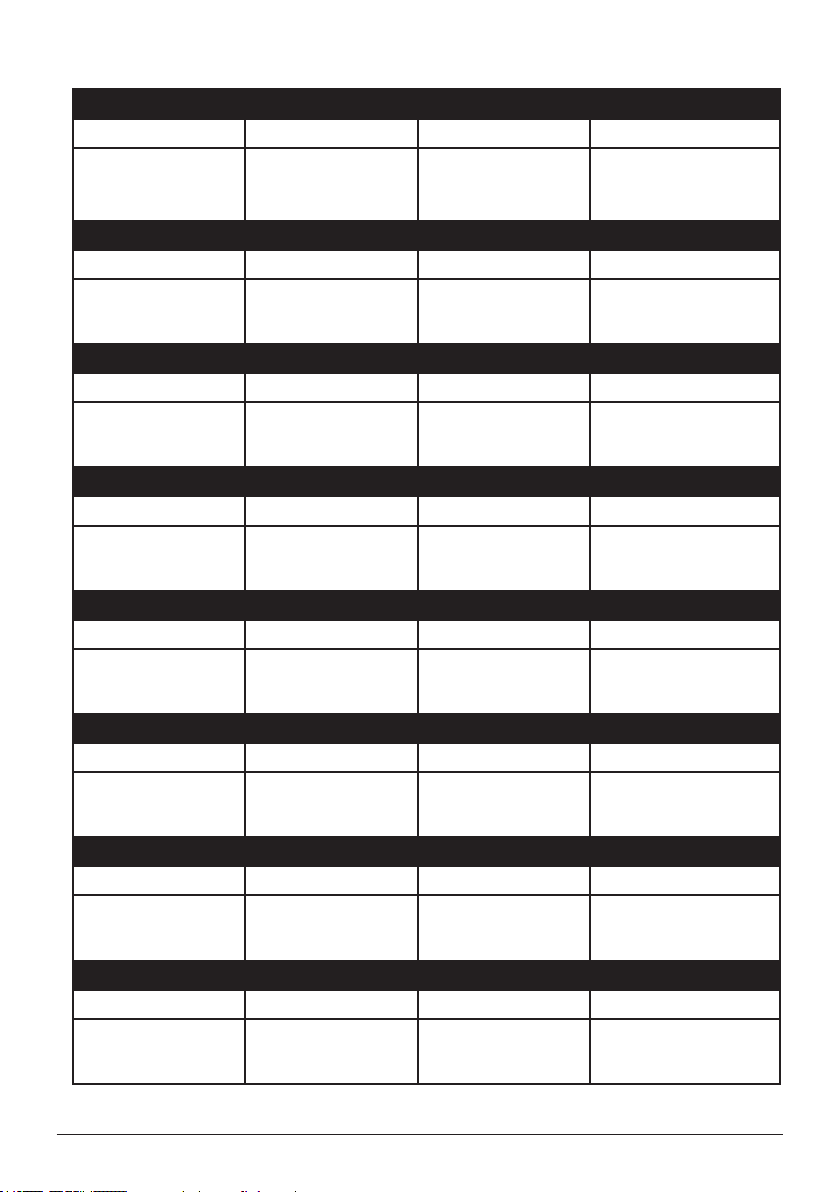
• All defaults (Temp, Time, Heat, Fan, and Rack Position) are guides. You may need to
adjust one or more to reach your desired results.
BASIC FUNCTIONS
nuwavenow.com | 21
#13. Oven Poach To cook with a small amount of liquid.
Defaults Heat Fan Rack Position
Temp: 300°F
Time: 20 min.
Top: 50%
Bottom: 50%
Rear: 0%
0 2 or 3
#14. Rawtarian To cook foods at temperatures between 104F–118F.
Defaults Heat Fan Rack Position
Temp: 115°F
Time: 60 min.
Top: 50%
Bottom: 50%
Rear: 0%
1 ANY
#15. Reheat To heat through previously cooked foods, such as leftovers.
Defaults Heat Fan Rack Position
Temp: 350°F
Time: 10 min.
Top: 50%
Bottom: 50%
Rear: 0%
3 1 or 2
#16. Sanitize Used to ensure that vessels used for canning and fermenting foods are clean.
Defaults Heat Fan Rack Position
Temp: 200°F
Time: 20 min.
Top: 50%
Bottom: 50%
Rear: 0%
1 1
#17. Slow Cook To cook at a low temperature for a long period of time.
Defaults Heat Fan Rack Position
Temp: 190°F
Probe: 165°F
Time: 60 min.
Top: 50%
Bottom: 50%
Rear: 0%
3 1 or 2
#18. Slow Roast To cook food from all sides, with minimal moisture loss.
Defaults Heat Fan Rack Position
Temp: 275°F
Probe: 165°F
Time: 60 min.
Top: 50%
Bottom: 50%
Rear: 0%
3 1
#19. Warm To keep food heated at a low temperature until served.
Defaults Heat Fan Rack Position
Temp: 140°F
Time: 60 min.
Top: 50%
Bottom: 50%
Rear: 0%
0 1 or 2
#20. Whole Roast To cook food whole, not cut up.
Defaults Heat Fan Rack Position
Temp: 325°F
Time: 60 min.
Top: 30%
Bottom: 30%
Rear: 40%
2 1
BASIC FUNCTIONS

22 | nuwavenow.com
The Menu Function
The Menu button allows you to save and
recall pre-programmed cooking sequenc-
es called Presets. They are stored with a
unique number, which you can access by
pressing Menu.
• NuWave Presets 1–100: These are for
our most popular recipes. They can be
temporarily adjusted but not changed or
overwritten.
• User Presets 101–150: These are
open memory slots in which you can
save your own Presets. They can be
overwritten.
Using the Menu Function
1. Press Menu. The screen will show (Nu-
wave Presets 1–100) “Menu” and “1”.
Press Menu again will show “101” and
“Menu” (for User Presets 101–150).
2. Choose the Preset number by turning
the Select dial to scroll through the
Menu, then pressing Select to choose.
3. Once the Preset is chosen, press
START/PAUSE. The Pro-Smart Oven
will cook according to the selected
Preset’s programming.
Notes
When a Preset uses stage cooking, all stag-
es will show as solid except for the current
or selected stage, which will ash.
Programming Your Own Preset
You can program your own Presets into
memory slots 101–150.
4. Select your Cooking Function and ad-
just your settings (Temp, Time, Preheat,
Sear, etc.)
5. Press Menu twice. The screen will
show “Menu” and “101”.
6. Choose the Preset number from the
Menu (101–150) by turning the Select
dial.
7. Once the desired Preset number is
chosen, press and hold Menu again to
save it. “SAVE” and the Preset number
will be displayed.
8. Press START/PAUSE and the Pro-
Smart Oven will begin cooking. You
will be able to recall your new Preset
as long as you don’t overwrite it with a
dierent one.
Notes
If stage cooking, see page 28.
Memory Recall
1. Press Menu. The screen will show
“Menu” and “1”. Press Menu again
and it will show “Menu” and “101”.
2. Scroll through the Menu using the
Select dial until you nd the Preset
number (1–150) you want.
3. Press START/PAUSE. The Oven will
cook according to the selected Preset’s
programming.
Notes
While the screen shows “Menu” and a
Preset number, press Menu again to switch
the number between 1 and 101.
To Review Menu Presets
You can verify the preset cooking cycle
before cook begins or while cooking (“:” will
ash).
1. Press Menu and select the Preset
number from 1–150.
2. Press the Select dial, then press and
hold for Light/STAGE, to view details
or make any adjustments to the Temp
or Time.
3. If the Preset has multiple stages, press
and hold Light/STAGE repeatedly until
you reach the stage to review or adjust.
4. Once the cooking has nished, “END”
is displayed, and the unit will beep three
times.
Notes
If there is only one cooking phase, “Stage”
will not appear.
BASIC FUNCTIONS

nuwavenow.com | 23
Modifying Previously Saved
Presets While Cooking
1. Press Menu twice and select the
saved Preset from 101–150.
2. Press START/PAUSE to see the
tem perature and Time.
3. To adjust these, press and hold Light/
STAGE, then turn the Select dial to
make the adjustment.
4. When cooking is nished, the Pro-
Smart Oven will display “END”, beep
three (3) times, and then display
“SAVE”.
5. Press Menu twice, choose the Preset
number to which to save the chang-
es, then press and hold Menu. The
changed preset will be saved.
Notes
If you are Stage cooking, press and hold
Light/STAGE repeatedly until the stage
number you wish to review or modify
shows on the display. Do this for each
stage to be modied.
Save an Edited Preset Before Cooking
1. Press Menu and select the preset
number to edit.
2. Press and hold Light/STAGE to the
cooking stage to be changed. Use the
Select dial to make adjustments for
the cooking temperature and/or time.
3. Continue as above if other stages
need to be modied.
4. The functions Sear and Preheat can
be taken o by pressing that function.
The Heat//Fan can also be adjusted.
5. Press Menu twice, then choose the
Preset number to which the changes
will be saved.
6. Press and hold Menu, the Menu num-
ber and “SAVE” will display.
Notes
• If a Preset is edited during cooking,
at the end of cooking, the Pro-Smart
Oven will display “SAVE”. The user
will then press Menu twice, choose a
Preset number, and press and hold
Menu again.
• If you choose to save a Preset in a
slot that is already taken by another
user-saved Preset, the new Preset will
overwrite the old one.
• NuWave Presets 1–100 cannot be
overwritten.
BASIC FUNCTIONS
The Preheat
Function
Preheating your oven, whether it is this Todd
English Pro-Smart Oven or a conventional
gas or electric model, is important. It allows
your food to go into the oven at the correct
temperature, makes it easier and faster for
foods to reach a safe internal temperature,
gives your food better texture and taste, and
is absolutely mandatory for baking.
That said, with the Pro-Smart Oven, whether
you Preheat or not, do it for some recipes
and not for others, is entirely your call.
Using Preheat
1. If the Preheat function does not auto-
matically come on, press Preheat before
cooking.
2. Set the cooking temperature and time.
3. Press START/PAUSE and the Pro-Smart
Oven will begin preheating to the set cook-
ing temperature.
• “Preheat” will ash while the Pro-Smart
Oven is Preheating.
• When the Pro-Smart Oven reaches the
set cooking temperature, it will go into a
10-second hold to allow you to put in your
food, after which the Pro-Smart Oven will
begin cooking.
• During the hold, the Pro-Smart oven will
beep twice, the screen will show a 10-sec-
ond countdown and “Ready”, and then,
when the countdown nishes, the Pro-Smart
Oven will beep once.
24 | nuwavenow.com
The Probe
Function
Using the Probe
1. Press Temp and set the cooking
temperature.
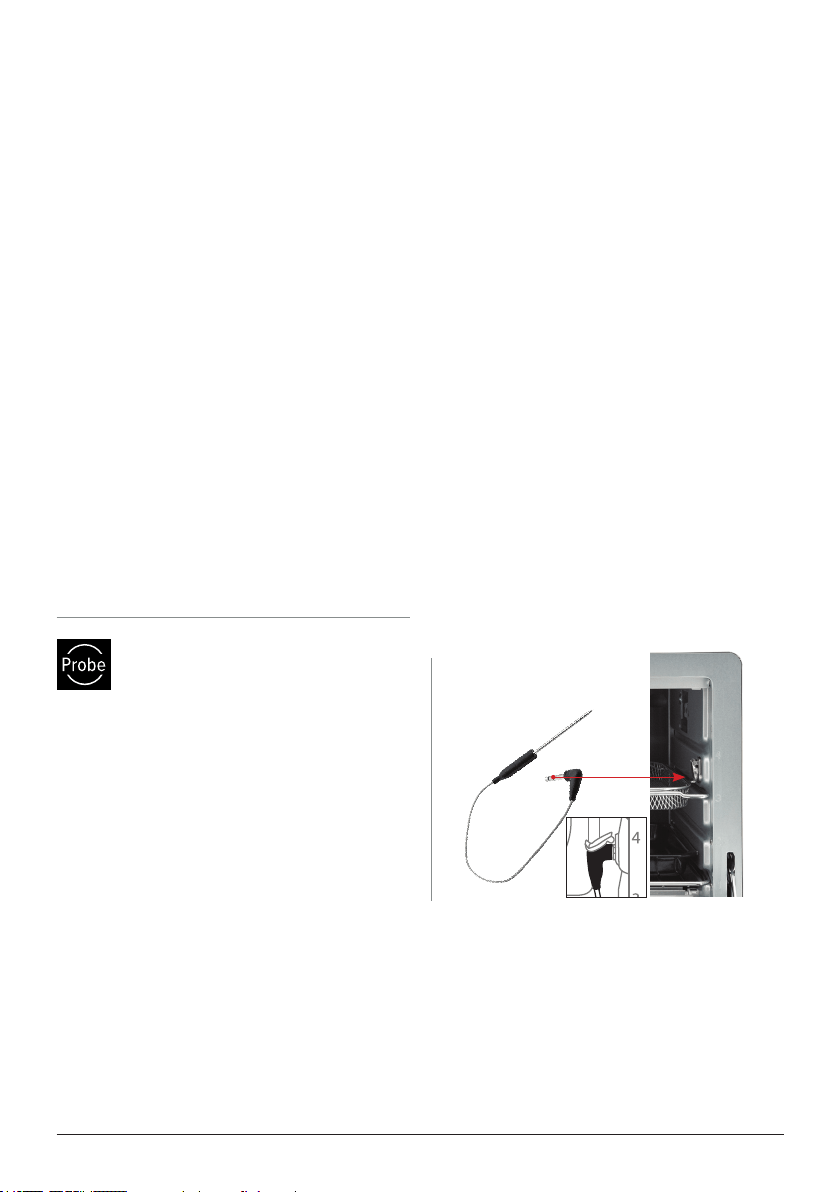
2. Connect the Probe (component) to the
Pro-Smart Oven. (See Illustration).
3. To read the temperature of the Probe
at any time, press Probe once and
the screen will show the current Probe
temperature, regardless of the Cook-
ing Function.
4. To set the Probe target temperature,
press and hold Probe. The screen will
show “Probe”, and “165°F”. Turn the
Select dial to adjust the Probe target
temperature.
5. Insert the Probe into the food, then
push START/PAUSE. The Pro-Smart
Oven will start to cook to the set Probe
target temperature.
Notes
• While cooking, the current Probe tem-
perature will be displayed along with
“Probe”.
• Press Temp and the set oven tempera-
ture will be displayed.
• Press and hold Probe. The screen will
show the set Probe target temperature,
which is adjustable using the Select dial
before or while cooking.
Carryover Cooking & Crispy Finish
When the Pro-Smart Oven reaches a set
temperature (10°F default) under the Probe
target temperature, it will alert you with 3
sets of short beeps, 2 beeps each. This will
happen every time the Probe is in use.
Using the Probe with Stage Cooking
Each stage can have a dierent Probe tar-
get temperature and cooking temperature.
Simply set the Probe target temperature
for each stage and the Pro-Smart Oven
will cook each stage until that temperature
is achieved and then move on to the next
stage. Once the Probe target temperature
of the last stage is reached, the Pro-Smart
Oven will shut-o.
The Pro-Smart Oven’s digital Probe lets
you cook according to the internal tempera-
ture of the food. The default Probe target
temperature is 165°F with a setting range
between of 50°F–212°F, which is adjust-
able in 1°F increments, or it can be turned
o. The Pro-Smart Oven will cook until the
Probe target temperature is reached, even if
the cooking Time ends rst.
1
lift the cover to connect
the Probe
4
3
2
BASIC FUNCTIONS
• When the Pro-Smart Oven has nished
cooking, the screen will show “END” and
the Pro-Smart Oven will beep three (3)
times.
Automatic Preheat
The default Preheat setting for the Pro-
Smart Oven is ON for those functions and
Menu Presets that have Preheat, and OFF
for those that do not.
1. Press Menu + Preheat at the same time
to turn o the Automatic Preheat function.
The Pro-Smart Oven will beep twice.
2. Press Menu + Preheat at the same time
again to turn on the Automatic Preheat func-
tion. The Pro-Smart Oven will beep twice.
3. If Automatic Preheat is engaged, press
Preheat to cancel it.
• If the Pro-Smart Oven is turned o and un-
plugged, it will retain the last Preheat setting
used when it is plugged back in
and turned on again.
• Pressing Preheat will add or remove
Preheat.
nuwavenow.com | 25
BASIC FUNCTIONS
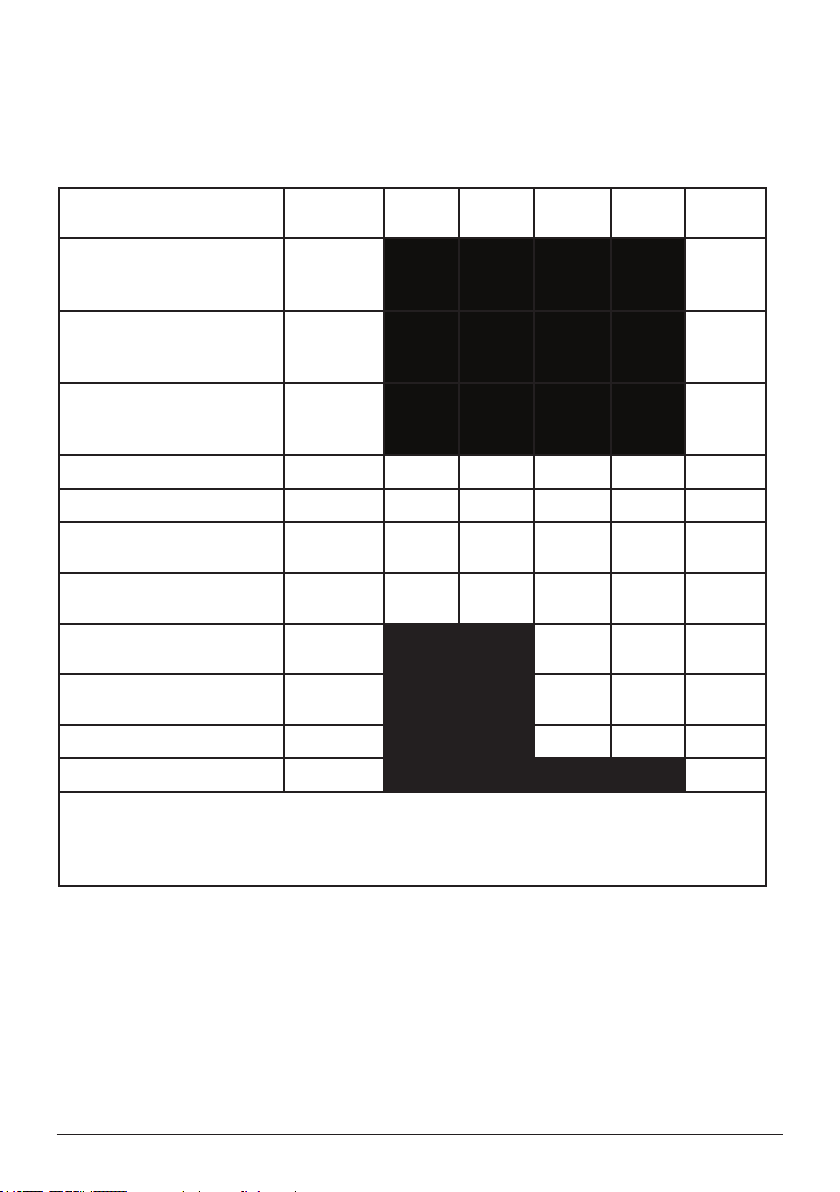
Meats Temp Rare
Med.
Rare
Med.
Med.
Well
Well
Chicken, breast
Turkey, breast
Duck, breast
360°F 165°F
Chicken, whole
Turkey, whole
Duck, whole
360°F 165°F
Chicken, thigh
Turkey, thigh
Duck, thigh
360°F 165°F
Steak, 1-inch thick*
450°F 120°F 130°F 135°F 145°F 165°F
Burgers, ½ lb.*
450°F 120°F 130°F 135°F 145°F 165°F
Roast Beef (bone-in)*
Roast Beef (boneless)*
350°F 120°F 130°F 135°F 145°F 165°F
Lamb (bone-in)*
Lamb (boneless) *
350°F 125°F 135°F 145°F 150°F 160°F
Pork (bone-in)*
Pork (boneless)*
350°F 145°F 150°F 165°F
Salmon, Tuna, Halibut,
Swordsh*
450°F 145°F 150°F 160°F
Fish Steaks, 1-inch thick*
450°F 145°F 150°F 160°F
Sausage
450°F 160°F
Cooking times may vary. Consuming raw or undercooked meat, poultry, or seafood
may increase your risk of food borne illness.
*To reduce the risk, cook your food to USDA-safe temperatures.
Notes
Avoid touching any bone when inserting the Probe. When air frying, make sure to insert
the Probe directly into the center (from the side) of any meat you plan to ip. Avoid
inserting the Probe at an angle.
Probe Temperature Guide

26 | nuwavenow.com
The Mute Feature
The Clock Feature
The Lock Feature
The Wattage Feature
To mute or unmute the Pro-Smart Oven’s
alert sounds, press Sear + STAGE. To
mute or unmute the door alarm sounds,
press and hold Function.
Notes
The alert sounds for the end of a cooking
cycle and carryover cooking cannot be
muted.
Setting the Clock
1. Press Preheat + Time. The screen will
show 12:00pm.
2. Turn the Select dial to the right for pm
or to the left for am to select the time.
3. Press Select to lock in the selected
time or wait for 3 seconds for it to lock
automatically.
• The clock may be set as long as the
Pro-Smart Oven is plugged in, wheth
er it is on or o.
• While cooking, press Preheat + Time
to show the clock time.
Setting the Clock While
Cooking or in Standby Mode
1. Press Preheat + Time to display the
current time.
2. Adjust the clock time by turning the
Select dial.
3. To stop the clock display, press Pre-
heat + Time again.
The Lock Feature is used to disable the Pro-
Smart Oven’s keypad, preventing
it from responding to most actions until
either the keypad is unlocked or
cooking has nished.
1. To activate the keypad lock, press
Menu + STAGE. The screen will show
“LOCk” in the temperature section, in-
dicating that the keypad is now locked.
2. While the keypad is locked, no buttons
will function except Light, Power, and
the Menu + STAGE combination (to
unlock).
To change the wattage used by the Pro-
Smart Oven from its 1,800W default:
1. Press and hold STAGE + WiFi.
2. Turn the Select dial to the desired
wattage from 1,800 to 1,500 to 700
Watts.
3. Press the Select dial to conrm the
new wattage setting.
The Pro-Smart Oven will remain at that
wattage until it is changed again.
Questions about your
Pro-Smart Oven?
Help is Just a Phone call Away!
Contact our friendly customer
service sta from 7:30am to 4:30pm CST,
Monday ‒ Friday at 877-689-2838 or reach us via email anytime at
help@nuwavenow.com
.
BASIC FUNCTIONS
nuwavenow.com | 27
ADVANCED FUNCTIONS
The Todd English Pro-Smart Oven’s Ad-
vanced Features are primarily for expe-
rienced cooks who are trying to achieve
specic results by using stage or slow
cooking for juciest and tastiest results, or
searing the outside for that delicious crisp.
They are not needed to achieve amazing
results with this unit.
These features are complex and are not
for novices. Those who choose to use
them do so at their own risk.
Stage Cooking
The Sear Function
You can program up to 5 cooking stages
to ensure your meals are cooked the way
you want.
1. Press Function. Use the Select dial to
choose a function. For example, “Air
Fry”. This is Stage 1. The cooking
temperature and time can be adjusted
by pressing Temp or Time and turning
the Select dial.
2. Press and hold Light/STAGE. “Stage
2” will ash. The time will show 00:00
minutes while the temperature is
retained from Stage 1. Adjust the time
and temperature as needed. You can
add a total of 5 cooking stages. When
nished, press START/PAUSE..
3. To return to Stage 1, press and hold
Light/STAGE until “Stage 1” ashes.
Notes
• In this example, Air Fry was the cook-
ing function, but you can select any
of the 20 cooking functions and follow
the same steps.
• If the temperature in Stage 1 is
changed, the default temperature for
all other stages will be that function’s
default temperature, not the changed
temperature.
• If a time is not entered in a Stage but
other stages are set, it will skip to the
next Stage.
The Sear Function uses the Top and Bottom
heaters to seal in avor and juices. You can
sear your meat before, after, or both before
and after, the regular cooking stages. Sear
Function temperatures and times can easily
be adjusted prior to, and during, the searing
process.
• Sear Default Settings: 450°F for 5-min-
utes.
• Selectable Sear Temperature Range:
50°F–500°F
• Selectable Sear Time Range:
0–30 minutes (00:00–00:30)
STAGE
Light
Stage with Probe
Each stage can have a dierent Probe tar-
get temperature and cooking temperature.
Set the Probe target temperature for
each stage and the Pro-Smart Oven will
cook each stage until that temperature is
achieved and then move on to the next
stage. Once the Probe target temperature
of the last stage is reached, the Pro-Smart
Oven will shut-o.
• When setting the Probe temperature,
you do not need to set a cooking time.
• To view Probe settings for each stage,
press Probe twice to view the present
stage and probe temperature. Press
Stage for all stages used. The unit will
display the Probe temperature until
another function is pressed.
• If you do not want a Probe setting for a
stage, press and hold Probe, turn the
Select dial to the left, past 50°F, until
“OFF” is displayed.

28 | nuwavenow.com
ADVANCED FUNCTIONS
2. Cooking Cycle Begins
• Sear 1 / Toast
• Function / Menu / Probe / Stage 1–5
(Function/Menu can be one of stages)
• Sear 2
3. Cooking Cycle Ends
4. Warm
Sear as an Independent Function
Sear temperatures and times can be adjust-
ed prior to, and during, the searing process.
1. Press and hold Sear.
• The Pro-Smart Oven will begin
to sear at 450°F for 5 minutes
(00:05).
• The user can then adjust the Sear
temperature and time.
2. The screen will show “Sear”.
3. The Pro-Smart Oven will sear at the set
temperature and time, and then beep
three times and display “END”.
Notes
To set the main cooking time or temperature
after pressing Sear, press and hold STAGE.
The screen will show “Stage 1”, “350°F”,
“00:15”. Even though the Pro-Smart Oven
is no longer in Sear mode, it remembers
that Sear 1 has been set.
The Sear Function uses the Top and Bottom
heaters to seal in avor and juices. You can
sear your meat before, after, or both before
and after, the regular cooking stages. Sear
Function temperatures and times can easily
be adjusted prior to, and during, the searing
process.
• Sear Default Settings: 450°F for 5-min-
utes.
• Selectable Sear Temperature Range:
50°F–500°F
• Selectable Sear Time Range:
0–30 minutes (00:00–00:30)
The Three Sear Settings
• Sear 1: ALWAYS the function right BE-
FORE the regular cooking stages.
• Sear 1 & 2: ALWAYS right BEFORE
and right AFTER the regular cooking
stages.
• Sear 2: ALWAYS right AFTER the regu-
lar cooking stages.
Using the Sear Function
1. Press Sear once for Sear 1, press twice
for Sear 1 & 2 and three times for Sear
2.
2. Select the cooking function and make
any changes to the temperature and
time, if needed.This can be done before
or during the cooking cycle.
3. Press the START/PAUSE to begin the
cooking cycle. When the cooking cycle
has nished the unit will beep 3 times
and display “END”.
Preheating with the Sear Function
If you are Preheating, that will precede Sear,
which begins the cooking cycle. The unit will
always cook in the following sequence:
1. Preheat
The Slow Cook function gives you tender,
avorful results by cooking at lower tem-
peratures for longer periods of time. The
default Slow Cook temperature is 190°F.
The Slow Cook Probe target temperature
range is 50°F–212°F and the Slow Cook
temperature range is 175°F–235°F.
Slow Cook

nuwavenow.com | 29
Questions about your
Pro-Smart Oven?
Help is Just a Phone call Away!
Contact our friendly customer
service sta from 7:30am to 4:30pm CST,
Monday ‒ Friday at 877-689-2838 or reach us via email anytime at
help@nuwavenow.com
You may set the Slow Cook Function to
cook for a set amount of time AFTER reach-
ing the Slow Cook Probe target tempera-
ture:
1. Press and hold Probe. It will show the
Probe target temperature default of
165°F.
2. If needed, adjust the Probe target
temperature with the Select dial. Press
Probe + Menu. the Oven will beep
twice, one short and one long, and the
screen will show the default 1 hour
cooking time (01:00).
3. Use the Select dial to adjust the
amount of time, up to 02:00 (2 hours),
you want the food to maintain the Probe
temperature.
Notes
The Pro-Smart Oven will automatically cook
at a temperature 25°F higher than the set
target Slow Cook Probe temperature. In this
example it will cook at 190°F.
If the user wants to change the Slow Cook
cooking temperature:
1. Press the Temp button. The screen
will read 190°F. This is the default Slow
Cook cooking temperature.
2. Use the Select dial to adjust the Slow
Cook cooking temperature between
180°F–235°F.
ADVANCED FUNCTIONS
• The Slow Cook cooking tempera-
ture shall be at least 10°F higher
than the Probe target temperature.
If the Probe target temperature
was set at 170°F, then the cook
temperature range that user can
choose from is 180°F–235°F (The
user cannot choose between
50°F–175°F).
3. Press START/PAUSE. The Oven will
reach the Probe target temperature of
170°F and then maintain that tempera-
ture for 02:00 (2 hours).
• Once the time runs out, the Pro-
Smart Oven will display “END”
and beep 3 times.
• IF THE TARGET TEMPERATURE
IS NOT REACHED AFTER 6 HRS
OF COOKING, THE PRO-SMART
OVEN WILL AUTOMATICALLY
TURN OFF TO AVOID CONTINU-
AL COOKING.
• If the user unplugs the probe
during the Slow Cook Function,
the Pro-Smart Oven will continue
cooking with the set cook tempera-
ture until time runs out. If the user
plugs in the probe, the Pro-Smart
Oven will verify the food tempera-
ture and go back to the Slow Cook
Function.

30 | nuwavenow.com
CARE AND MAINTENANCE
Before First Use
After Each Use
1. Remove all the packaging
materials.
2. Remove the tape and labels on
the appliance.
3. Clean the Wire Rack, Grill/Griddle
Rack, Grill/Griddle, Air Fry Basket,
Crumb Tray, Baking and Drip Pan thor-
oughly with hot water, a nonabrasive
sponge, and mild dish detergent, or in
the dishwasher, top rack only.
4. Wipe the Digital Temperature Probe
and the inside and outside of the
Pro-Smart Oven with a damp dishcloth
or wet cloth and dry thoroughly.
1. Allow the Pro-Smart Oven to cool com-
pletely before cleaning.
2. Always unplug the Pro-Smart Oven
from the electrical outlet prior to clean-
ing. NEVER clean the Pro-Smart Oven
while it is plugged in.
3. Never use harsh abrasive or corrosive
cleaning products, as they may dam-
age the nish or oven surface. Wipe
the exterior with a clean, damp cloth
and dry thoroughly. NEVER spray a
solution directly on the unit, especially
the control panel.
4. Apply the cleaning agent directly to a
cloth towel.
5. To clean the interior, use a damp cloth,
mild liquid soap, and a clean cloth.
6. Never use steel wool pads, etc., on
the interior or exterior of the Pro-Smart
Oven.
7. NEVER HANDLE A HOT GRILL/
GRIDDLE. Allow the Grill/Griddle to
completely cool before cleaning. Once
cooled, wipe it with a clean damp towel
then rinse it in a sink with cool water
and dry it completely. WARNING:
NEVER submerge or rinse a hot Grill/
Griddle in water. The Grill/Griddle may
warp or break underwater.
8. When the glass window is completely
cool, spray glass cleaner on a clean
cloth towel. Clean both the inside and
outside of the window. Use a damp
cloth to rinse the window then dry it
completely with a clean dry towel.
9. To remove crumbs, slide out the
Crumb Tray and discard the crumbs.
Wipe it clean and replace it after each
use. Never operate the oven without
the Crumb Tray in place.
10. To remove baked-on grease, soak the
Wire Rack, Grill/Griddle Rack, Grill/
Griddle, Air Fry Basket, and/or Crumb
Tray, Baking and Drip Pan, in hot,
soapy water for a minimum of 10 min-
utes. Rinse and dry thoroughly.
IMPORTANT–Do not put the Digital
Temperature Probe in the dishwasher or
immerse in water. Doing so can damage
the components. HAND WASH ONLY.
Storage
• Unplug the Pro-Smart Oven and let it
cool down completely.
• Make sure that all parts are clean and
dry.
• Never wrap the cord around the Pro-
Smart Oven.
IMPORTANT - Do not immerse the
Pro-Smart Oven in water or attempt to put
it through the dishwasher. The outer sur-
face may be cleaned by wiping it carefully
with a damp dishcloth or sponge. Make
sure the Pro-Smart Oven has cooled
completely prior to cleaning.
nuwavenow.com | 31
CARE & MAINTENANCE
Replacing
the Lightbulb
Allow the interior of the oven to fully
cool before replacing the oven’s halogen-
light bulb. Failure to do so could result in
burns or damage to the glass cover or
the light bulb itself. Always wear rubber
gloves when changing the lightbulb and be
careful of sharp edges.
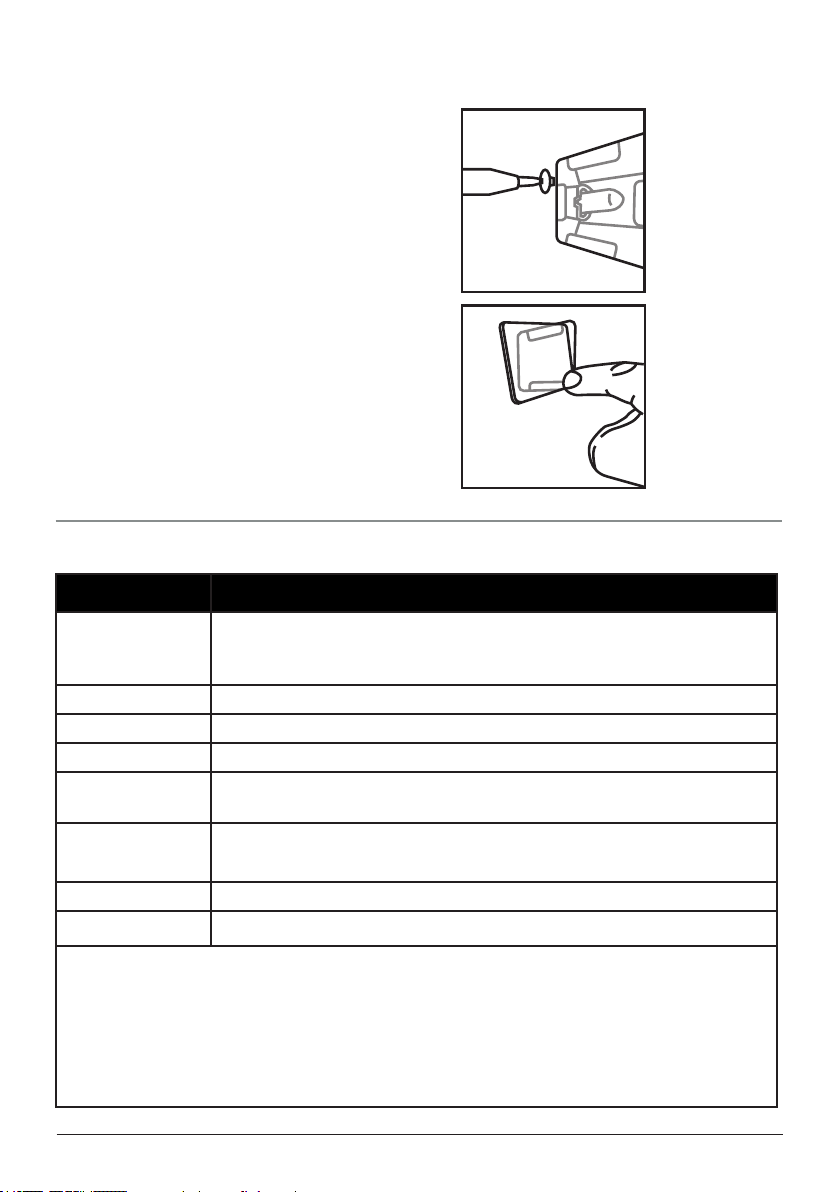
1. Using a Phillips head screwdriver,
unscrew the retaining bolt halfway.
2. Using your ngers, manually unscrew
it the rest of the way.
3. Gently press on the lower corner of
the glass cover to swing it open.
4. Pull the bulb straight out from the
socket to remove it.
Error Messages
Error Message Solution(s)
Er1
The NTC Temperature Sensor has overheated. Turn the Pro-Smart
Oven o and allow it to cool. If the Pro-Smart Oven is still not work-
ing after it cools down, contact NuWave Customer Service.
Err1 The NTC Temperature Sensor has short circuited. Contact NuWave.
Err2 The NTC Temperature Sensor is open. Contact NuWave.
Err8 A button may be jammed.
No PRB
The Probe is unplugged when Probe was pressed, or the Probe was
unplugged while cooking. Plug in the Probe.
Prb2
The Probe target temperature is set higher than the set cooking
temperature.
Prb3 The Probe has short-circuited. Contact NuWave Customer Service
Prb4 The Probe sensor has detected no temperature increase.
• When error code “ErX” or “PrbX” is displayed, the unit can be used after the abnor-
mal status is removed, or restart the unit.
• When error code “ErrX” is displayed, the unit cannot be used until it’s repaired. User
needs to contact with NW service to solve the problem.
For further assistance, please contact NuWave’s Customer Service Department at
1-877-689-2838 (Mon–Fri 7:30am–4:30pm CST), or at
help@nuwavenow.com
Unscrewing the
Retaining Bolt
Opening the
Glass Cover
to reveal the
lightbulb.

32 | nuwavenow.com
TROUBLESHOOTING
The Pro-Smart Oven is engineered with an automatic shut-o feature to prevent overheat-
ing during use. If the Pro-Smart Oven shuts o to cool itself down, an odor may be detect-
ed. Unplug the Pro-Smart Oven and wait for it to completely cool down. To prevent the
Pro-Smart Oven from overheating, do not cook foods at higher temperatures or for longer
times than recommended.
The Pro-Smart Oven Does Not Work
The Pro-Smart Oven may not be plugged-in or turned on.
Insert the plug into an appropriate grounded power socket. Press Power. If the Pro-Smart Oven
is still not working, contact Customer Service.
The Pro-Smart Oven Door Will Not Close Completely
The food item you are trying to cook is too large, or the Oven Racks or accessories are not
properly set in place.
Decrease the size or amount of food being cooked. Make sure the Racks and Pans are properly
placed and pushed to the back of the Pro-Smart Oven.
The Food is Fried Unevenly
The food you are cooking needs to be shaken or ipped halfway through the process.
Halfway through cooking, open the Oven and shake or ip your food.
The Crumb Tray Does Not Fit Properly in the Pro-Smart Oven
The Crumb Tray may not be correctly placed into the slot, or something may be blocking it.
Remove the Crumb Tray and clean away any food items that may have accumulated in the back
of the Pro-Smart Oven.
White Smoke is Coming Out of the Pro-Smart Oven
You are cooking greasy foods, or the Cooking Rack, Chrome Mesh Rack and/or Grill/Griddle
may be carrying greasy residue from previous uses.
Clean the Cooking Rack, Chrome Mesh Rack, Grill/Griddle and Crumb Tray regularly between
uses.
The LED Display is Blank
The Pro-Smart Oven may have overheated and then shut down to cool o, or some required ac-
tion was not taken and the Oven shut down. Finally, the Control Panel itself may not be working
correctly.
Unplug the Pro-Smart Oven and allow it to completely cool. Plug it in and see if it is working. If
the screen remains blank, contact Customer Service.
The Pro-Smart Oven is Not Heating
The Pro-Smart Oven may be unplugged. It may have also overheated or the heating elements
may not be working.
Make sure the Pro-Smart Oven is plugged in and has completely cooled. Start a cooking cycle
and see if the unit comes up to the correct temperature. If the Pro-Smart Oven still fails to heat
up, contact Customer Service.
For further assistance, please contact NuWave’s Customer Service Department at
1-877-689-2838 (Mon–Fri 7:30am–4:30pm CST), or at
help@nuwavenow.com
.

nuwavenow.com | 33
LIMITED WARRANTY
THE MANUFACTURER WARRANTS
NuWave, LLC warrants that Pro-Smart Oven will be free from manufacturer defects for 1 year from the
date of purchase, under normal household use, and when operated in accordance with the Manufac-
turer’s written instructions. The Limited Warranty covers the Original Purchaser only. The Manufacturer
will provide the neces¬sary parts and labor to repair the product at the NuWave LLC Service Depart-
ment. After the expiration of the warranty, the cost of the parts and labor will be the responsibility of the
owner.
THE WARRANTY DOES NOT COVER
The Limited Warranty is voided if repairs are made by an unauthorized dealer, or the serial number
data plate is removed or defaced. Normal deterioration of nish due to use or exposure is not covered
by this Warranty. This Limited Warranty does not cover failure, damages, or inadequate performance
due to accident, acts of God (such as lightning), uctuations in electric power, alterations, abuse,
misuse, misapplications, corrosive-type atmospheres, improper installation, failure to operate in
accordance with the Manufacturer’s written instructions, abnormal use, commercial or rental uses, or
resold units. NuWave LLC reserves the right to void the Limited Warranty, where allowable by law, for
products purchased from an unauthorized dealer.
TO OBTAIN SERVICE
The owner shall have the obligation and responsibility to pay for all services and parts not covered by
the warranty; prepay the freight to and from Service Department for any part or system returned under
this warranty; and carefully package the product using adequate padding material to prevent damage
in transit. The original container is ideal for this purpose. Include in the package the owner’s name,
address, daytime telephone number, a detailed description of the problem, and your Return Goods
Authorization (RGA) number. Call
1-877-689-2838 or email help@nuwavenow.com to obtain the RGA number. Provide the cooking sys-
tem model & serial number and proof of date of purchase (a copy of the receipt) when making claims
under this warranty.
MANUFACTURER’S OBLIGATION
The Manufacturer’s obligation under this Limited Warranty is limited, to the extent allowable by law, to
repairing or replacing any part covered by this Limited Warranty which upon examination is found to
be defective under normal use. The Limited Warranty is applicable only within the continental United
States and only to the original purchaser of the manufacturer’s authorized channels of distribution.
THE LIMITED WARRANTY MAY NOT BE ALTERED, VARIED OR EXTENDED EXCEPT BY A
WRITTEN INSTRUMENT EXECUTED BY THE MANUFACTURER. THE REMEDY OF REPAIR
OR REPLACEMENT AS PROVIDED UNDER THIS LIMITED WARRANTY IS EXCLUSIVE. IN NO
EVENT SHALL THE MANUFACTURER BE LIABLE FOR ANY CONSEQUENTIAL OR INCIDENTAL
DAMAGES TO ANY PERSON, WHETHER OR NOT OCCASIONED BY NEGLIGENCE OF THE
MANUFACTURER, INCLUDING WITHOUT LIMITATION, DAMAGES FOR LOSS OF USE, COSTS
OF SUBSTITUTION, PROPERTY DAMAGE, OR OTHER MONEY LOSS.
Some states do not allow the exclusion or limitation of incidental or consequential damages, so the
above limitation exclusions may not apply. This Limited Warranty gives specic legal rights, and
there may also be other rights which vary from state to state. EXCEPT AS OTHERWISE EXPRESS-
LY PROVIDED ABOVE, THE MANUFACTURER MAKES NO WARRANTIES EXPRESSED OR
IMPLIED ARISING BY LAW OR OTHERWISE, INCLUDING WITHOUT LIMITATION, THE IMPLIED
WARRANTIES OF MERCHANTABILITY AND FITNESS FOR A PARTICULAR PURPOSE TO ANY
OTHER PERSON. READ YOUR OWNER’S MANUAL. IF YOU STILL HAVE ANY QUESTIONS
ABOUT OPERATION OR WARRANTY OF THE PRODUCT, PLEASE CONTACT NUWAVE LLC.

34 | nuwavenow.com
LIMITED WARRANTY
READ YOUR OWNER’S MANUAL
If you still have any questions about operation or warranty of this product, please contact NuWave LLC at
1-877-689-2838 (Mon–Fri 7:30am–4:30pm CST), or email help@nuwavenow.com.
DISPUTE RESOLUTION PROCEDURE
For disputes relating to use of the website or use or purchase of a NuWave product or service (collec-
tively “Disputes”), you agree to rst contact NuWave LLC at (877) 689-2838, or legal@nuwavenow.
com. If we cannot resolve your dispute informally, any and all disputes shall be submitted to nal and
binding arbitration. You may start the arbitration process by submitting in writing a demand to the
American Arbitration Association (“AAA”) and sending a copy to NuWave. NuWave will pay all ling
costs. A single arbitrator of the AAA will conduct the arbitration in a location convenient to you or by
phone. The arbitrator’s award will be binding and may be entered as a judgment in a court of compe-
tent jurisdiction. The arbitra¬tion will be conducted in accordance with the provisions of AAA’s Com-
mercial Arbitration Rules and Mediation Procedures in eect at the time of submission of your demand
for arbitration. See https:// www.adr.org/sites/default/les/ CommercialRules_Web.pdf. Except as may
be required by law as determined by an arbitrator, no party or arbitrator may disclose the existence,
content, or results of any arbitration hereunder without prior written consent of both parties.
A. WAIVER OF RIGHT TO SUE. By agreeing to arbitration, you understand that, to the maximum extent permitted
by law, you are agreeing to waive your right to le suit in any court, to a court hearing, a judge trial, or a jury trial.
B. CLASS ACTION WAIVER. To the maximum extent permitted by law, you expressly agree to refrain from bringing
or joining any claims in any representative or class-wide capacity, including but not limited to, bringing or joining any
claims in any class action or class-wide arbitration.
C. OPT OUT PROCEDURE. To request to opt out of arbitration you must contact NuWave LLC at 1-877-689-2838
(Mon–Fri 7:30am–4:30pm CST), or email help@nuwavenow.com. You will have 30 days from the date of product
delivery to opt out of arbitration with respect to any dispute arising out of or relating to use or purchase of any Nu-
Wave product. If more than 30 days have passed, you are not eligible to opt out of arbitration and will have waived
your right to sue or participate in a class action with respect to the dispute arising out of your purchase or use of a
NuWave product. For any dispute arising out of your use of NuWave’s website, you have 30 days from the date you
provided information to the website to opt out of arbitration. If more than 30 days have passed, you are not eligible
to opt out of arbitration and you will have waived your right to sue and participate in a class action with respect to
the dispute arising out of your use of NuWave’s website.
D. SOME MATTERS ARE NOT SUBJECT TO ARBITRATION. Notwithstanding the foregoing, the following shall
not be subject to arbitration and may be adjudi¬cated only in the state and federal courts of Illinois: (i) any dispute,
controversy, or claim relating to or contesting the validity of our intellectual property rights and proprietary rights,
including without limitation, patents, trademarks, service marks, copyrights, or trade secrets; (ii) an action by a party
for temporary, preliminary, or permanent injunctive relief, whether prohibitive or mandatory, or other provisional
relief; or (iii) interactions with governmental and regulatory authorities. You expressly agree to refrain from bringing
or joining any claims in any representative or class-wide capacity, including but not limited to, bringing or joining any
claims in any class action or any class-wide arbitration.
STATE OF CALIFORNIA PROPOSITION 65
This product can expose you to chemicals including lead, which is known to the State of California
to cause cancer, and Bisphenol A (BPA) and lead, which are known to the State of California to
cause birth defects or other reproductive harm.
For more information go to: www.P65Warnings.ca.gov.
Este producto puede exponerle a químicos, incluídos el plomo, el cual es conocido en el Estado de
California por causar cáncer y Bisfenol A (BPA) y plomo, los cuales son conocidos en el Estado de
California por causar defectos de nacimiento u otros daños reproductivos.
Para mayor información, visite: www.P65Warnings.ca.gov.
WARNING
ADVERTENCIA

nuwavenow.com | 35
NOTES

Item: BM20902 / BM20901/ BM20906/ BM20905
JL-Rev.02
09-19-22
FOR HOUSEHOLD USE ONLY
120VAC, 60Hz, 1800 Watts
Model: 20902 / 20901 / 20906 / 20905
Para la versión en español de este manual,
visita www.nuwavenow.com.
For patent information please go to:
www.nuwavenow.com/legal/patent
Designed in France & Developed in USA
NuWave LLC
560 Bunker Ct.
Vernon Hills, IL 60061, U.S.A.
Tel: 1-877-689-2838
Mon - Fri 7:30 am to 4:30 pm (CST)
Email:
help@nuwavenow.com
Made in China
TODD ENGLISH