Introduction
5
Before your begin
6
System requirements
6
Network requirements
6
Controller requirements
7
Getting to know your HEOS Amp
8
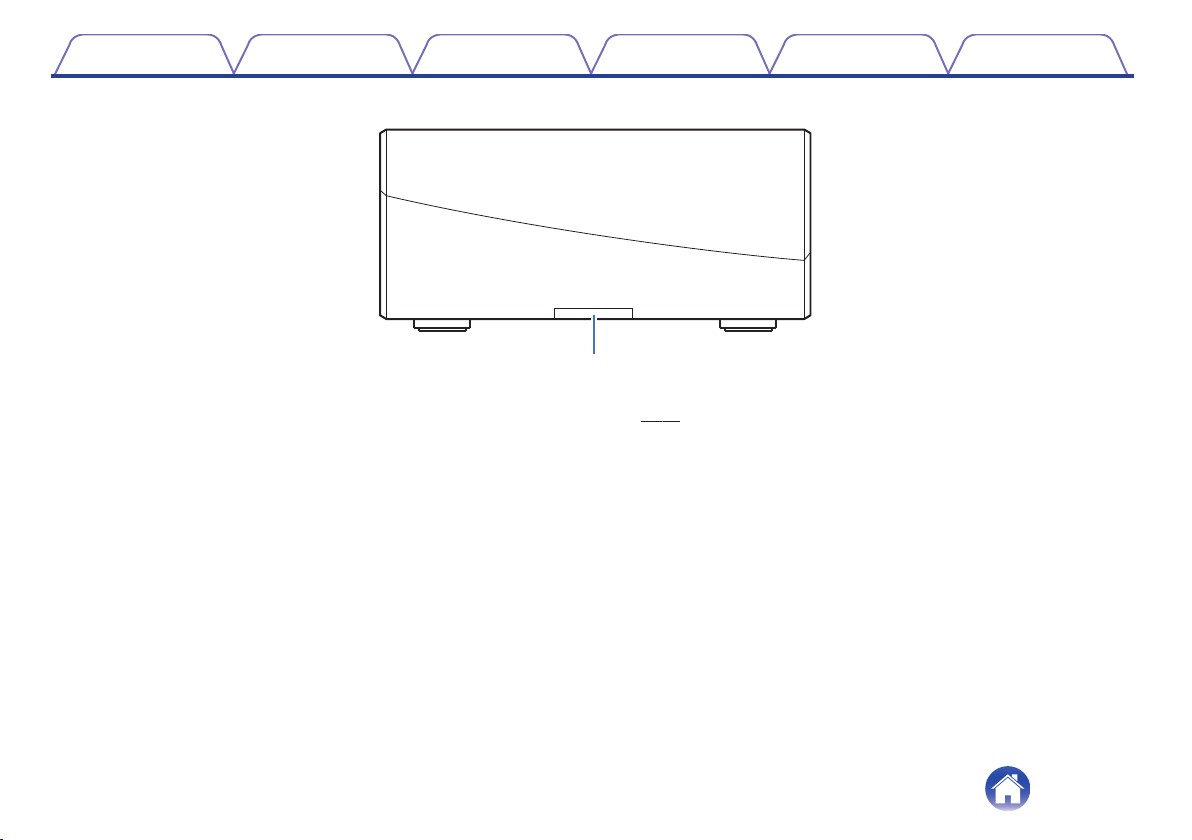
Front panel
9
Controls
10
Back panel
11
Placing your HEOS Amp
12
Connecting external devices
13
Connecting speakers
13
Connecting a subwoofer
14
Connecting an audio playback device
14
Connecting a USB storage device
15
Powering your HEOS Amp
16
Getting the HEOS app
16
Setting up your first HEOS Amp
17
Adding more HEOS devices
18
Adding wired HEOS devices
18
Adding wireless HEOS devices
18
Using your HEOS Amp
19
Selecting a room
19
Listening to radio
20
Playing music stored on your mobile device
20
Playing music from your networked PC or NAS
21
Playing music from an external audio device
22
Streaming an external audio device to any HEOS device
23
Playing music from a USB device
24
Playing music from Bluetooth device
25
Pairing the HEOS device with your Bluetooth devices
25
HEOS account
26
What is a HEOS account?
26
Why do I need a HEOS account?
26
Signing up for a HEOS account
26
Changing your HEOS account
26
Playing from streaming music services
27
Adding a music service
27
Changing music service settings
27
Managing inputs
28
Changing the name of the inputs
28
Hiding an input
28
Managing your phone
29
Listening to the same music in multiple rooms
30
Grouping rooms
30
Ungrouping rooms
31
Grouping all rooms (party mode)
32
Ungrouping all rooms
33
Using the now playing queue
34
Play Now
34
Play Now & Replace Queue
34
Play Next
34
Add to End of Queue
34
Rearranging the now playing queue
35
Deleting songs from the play queue
35
Deleting all songs from the play queue
36
Saving playlists
36
Performing repeat and shuffle playback
36
Contents Setup Use Troubleshooting Status LED Appendix
Contents
2
Using the favorite
37
Adding to HEOS favorite
37
Deleting station from the HEOS favorite
37
Making adjustments
38
Changing the name of a HEOS Amp
38
Changing the wireless network connection
38
Adjusting the equalizer
39
Adjusting the balance
39
Adjusting the audio quality
39
Adjusting the volume limit
40
Adjusting the status light brightness
40
Advanced settings
41
Network settings
41
About wireless power saving
41
Firmware upgrade
42
About
42
Contents Setup Use Troubleshooting Status LED Appendix
3
Updating your system
43
Advanced features
44
Sharing music from your mobile device
44
Wireless performance
44
Submit diagnostics
45
Resetting your controller app
45
Power management
46
Power modes
46
Quick Start Mode
46
Deep Standby
47
Off
47
Basic troubleshooting
48
My HEOS device won’t connect to my network using the audio
cable
48
Cannot pair a Bluetooth mobile device with the HEOS device
49
Cannot hear Bluetooth music
49
My HEOS device turns off and the status LED flashes in red
50
Music cuts out or delays sometimes
51
I hear a delay when using the external input with my TV
51
I hear distortion when using the AUX input
52
Connecting to a WPS network
52
Resetting your HEOS device
53
Restoring the HEOS device to factory defaults
53
Contact Denon
54
Status LED table
55
Supported file types and codecs
62
Supported audio formats (Optical)
62
Specifications
63
Information
65
Trademarks
65
Contents Setup Use Troubleshooting Status LED Appendix
4
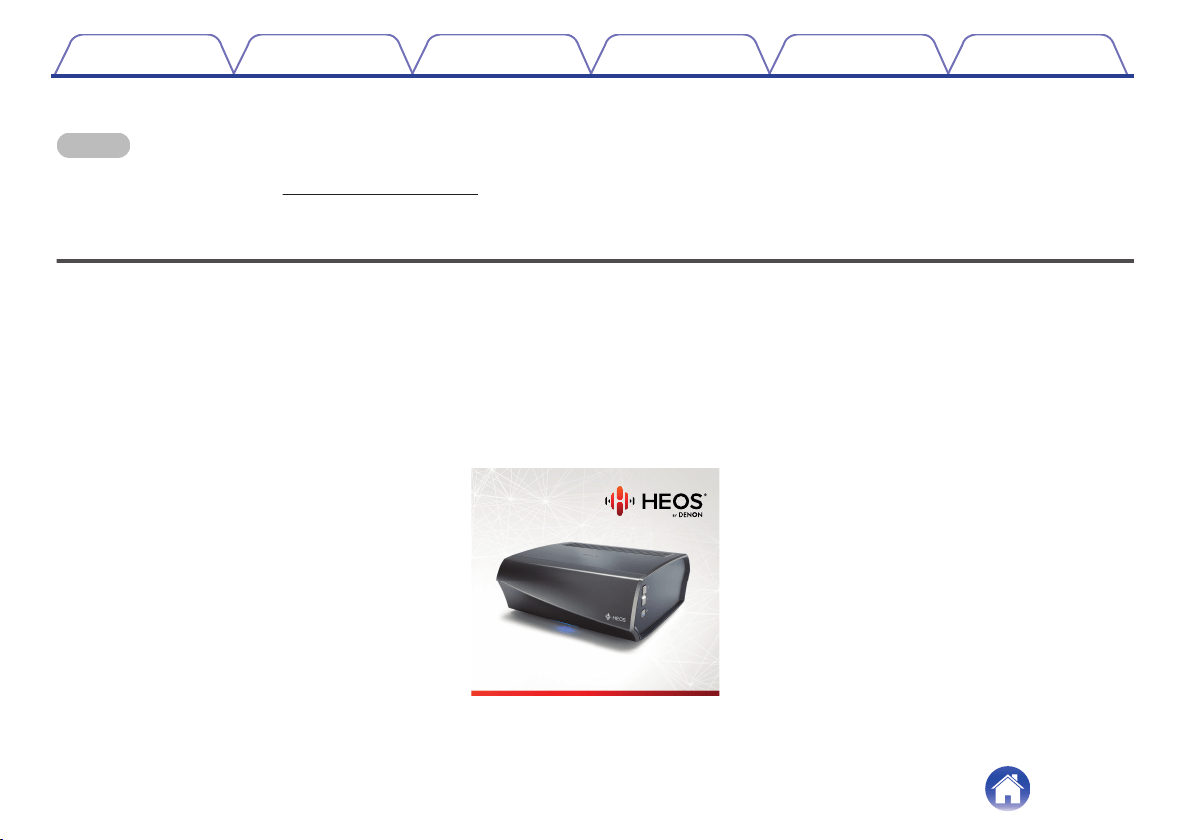
Thank you for purchasing this HEOS product. To ensure proper operation, please read this owner’s manual carefully before using the product.
NOTE
0
THIS DOCUMENT CONTAINS INFORMATION THAT IS SUBJECT TO CHANGE WITHOUT NOTICE.
For latest information, please visit http://www.HEOSbyDenon.com
Introduction
The HEOS Amp is part of the HEOS wireless multi-room sound system that enables you to enjoy your favorite music anywhere and everywhere around
your home. By utilizing your existing home network and the HEOS app on your iOS or Android™ device, you can explore, browse, and play music from
your own music library or from many online streaming music services.
0
True multi-room audio - play different songs in different rooms or the same song in every room
0
Utilizes your existing home wireless network for quick and easy setup
0
Industry leading microsecond audio synchronization between HEOS device
0
Legendary Denon audio quality
0
If you are in a hurry, you can be enjoying great sounding music in no time by following the steps outlined in the HEOS Quick Start Guide (packaged with
your HEOS device).
.
HEOS Amp QUICK START GUIDE
HS2
Please continue reading this Owner’s Manual for more detailed information about the features and benefits of your HEOS Amp.
Contents
Setup Use Troubleshooting Status LED Appendix
5
Before your begin
NOTE
0
If you have already installed at least one HEOS device, please skip to the section “Adding more HEOS devices”. (v p. 18)
System requirements
Before you begin installing your first HEOS device, please make sure you understand and meet a few basic requirements.
o
Network requirements
Wireless Router - In order to use your HEOS music system, you must have a working wireless (Wi-Fi) or ethernet network in your home. Even when
connected to an Ethernet network, a Wi-Fi connection to the router is required to control the system using the HEOS Control app. If you do not have a
wireless network, please contact your local Denon dealer or electronics retailer to assist you with purchasing and installing a wireless network in your
home.
High Speed Internet Connection - HEOS accesses the Internet to stream music to your home from many popular online music services. HEOS is
also designed to provide you with software updates, which are delivered via your home Internet connection. DSL, Cable, and Fiber services will
provide the best experience and reliability. You may experience performance issues with slower Internet connections like satellite based services.
Contents
Setup Use Troubleshooting Status LED Appendix
6
o
Controller requirements
You can control your HEOS wireless multi-room sound system using the free HEOS app on any iOS or Android mobile device that meets these
minimum requirements:
.
iOS Minimum Requirements
0
iOS version 8.0 or later
0
iPhone
®
4S or newer
0
iPad
®
2 or newer
0
iPod touch
®
(5th generation) or newer
.
Android Minimum Requirements
0
Android OS version 4.0 or later
0
All resolutions
Contents Setup Use Troubleshooting Status LED Appendix
7
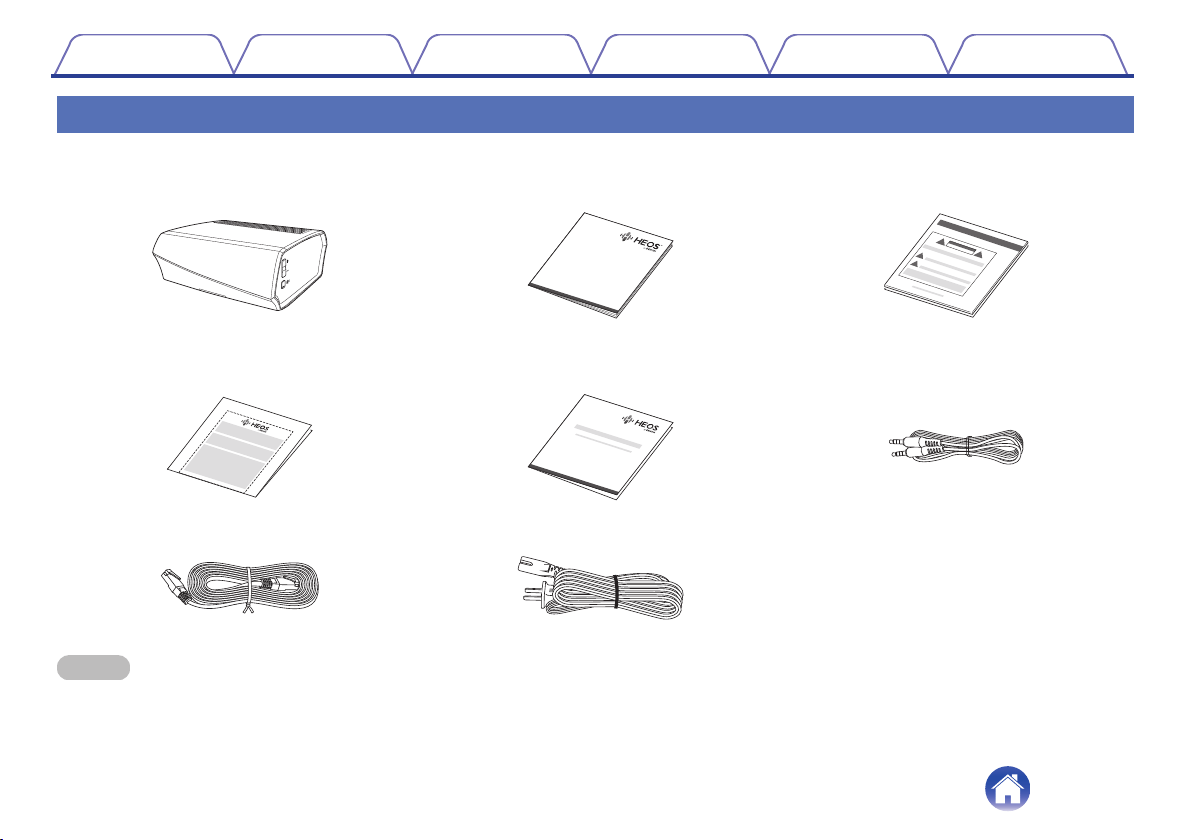
Getting to know your HEOS Amp
Unpack your HEOS Amp from the box and verify that the following items are included:
A HEOS Amp B Quick Start Guide C Safety Instructions
.
.
QUICK STRT GUIDE
.
D Warranty (North America model only) E Extended Protection Plan
(North America model only)
F Audio/Setup cable
.
.
.
G Ethernet cable H Power cord
.
.
NOTE
0
Please use the power cord included in the box for your device.
Contents Setup Use Troubleshooting Status LED Appendix
8

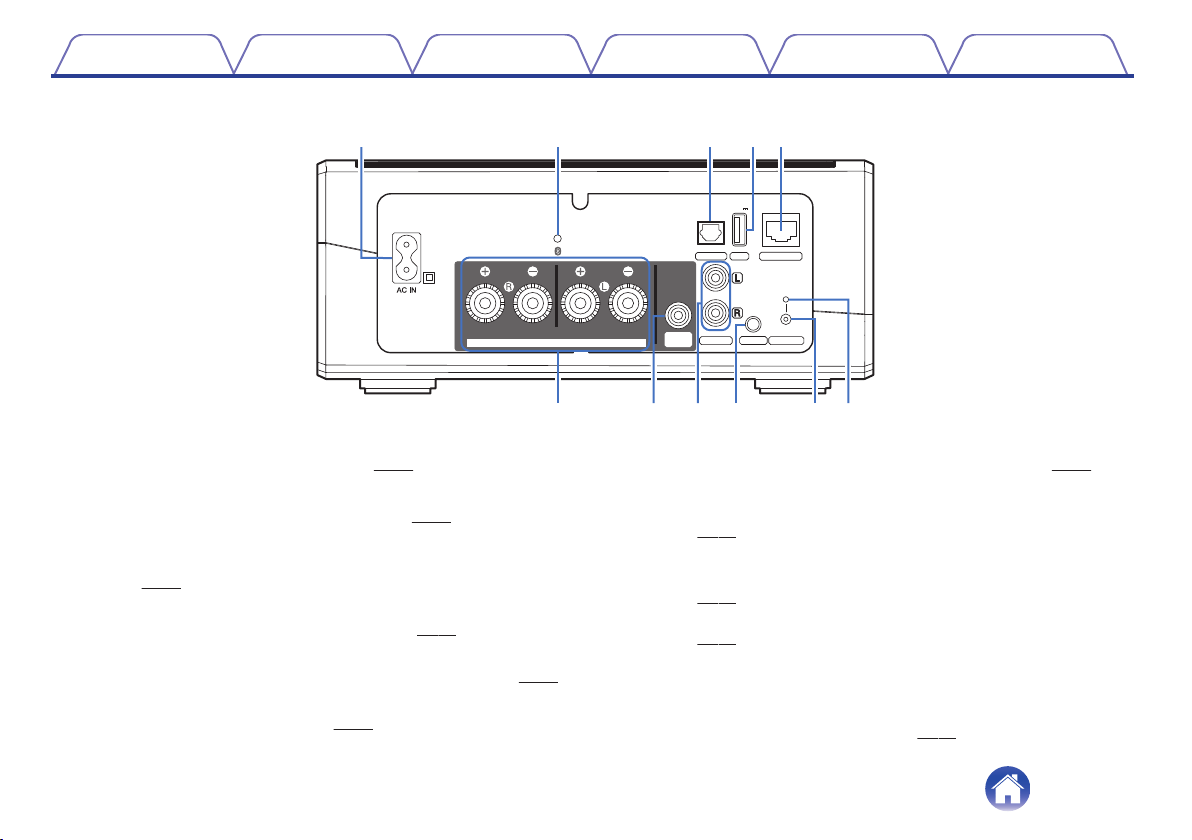
o
Back panel
.
IMPEDANCE : 4㹼16
Ȑ
Class 2 Wiring
WOOFER
SUB
SPEAKERS
NETWORK
OPTICAL IN
USB
CONNECT
AUX IN
LINE IN
5V1A
q
y
u o Q
0
i
r tew
Q
1
A
AC inlet (AC IN)
Used to connect the power cord. (v
p. 16)
B
Bluetooth button (V)
Used in the Bluetooth pairing settings. (v p. 25)
C
Digital Audio Input (OPTICAL IN)
Used to connect audio devices with a digital optical cable.
(v
p. 14)
D
USB Input (USB 5 V/1 A)
Used to connect USB storage devices. (v p. 15)
E
NETWORK connector
Used to connect this unit to a wired Ethernet network. (v
p. 18)
F
Speaker terminals (SPEAKERS)
Used to connect speakers. (v p. 13)
G
Subwoofer connector (SUBWOOFER)
Used to connect this unit to a powered subwoofer. (v
p. 14)
H
Analog audio connectors (LINE IN)
Used to connect audio devices with a stereo RCA cable.
(v
p. 14)
I
AUX jack (AUX IN)
Used to connect audio devices with a 1/8 inch (3.5 mm) cable.
(v
p. 14)
Used to add the HEOS device to your wireless network.
(v
p. 17)
J
CONNECT button
Used for Wi-Fi setup.
K
Connect in status LED
Indicates the status of this unit. (v p. 55)
Contents
Setup Use Troubleshooting Status LED Appendix
11
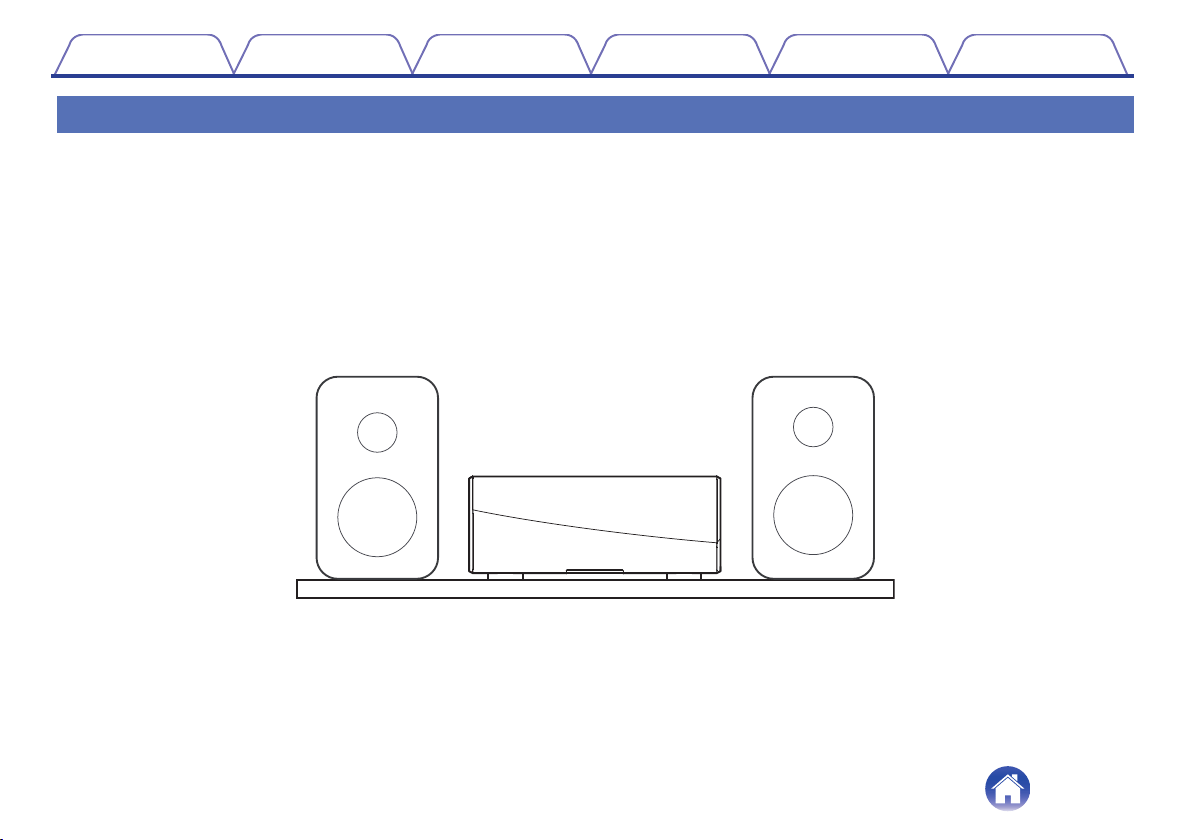
Placing your HEOS Amp
The HEOS Amp is designed to add HEOS multi-room audio functionality to an external device which offers audio amplification. You should place your
HEOS Amp in a convenient location near the speakers you are connecting it to.
0
The HEOS Amp must be within range of your wireless network.
0
The HEOS Amp is not waterproof. Do not place it near any water source and do not leave it outside in the rain or snow.
Contents
Setup Use Troubleshooting Status LED Appendix
12
Connecting external devices
o
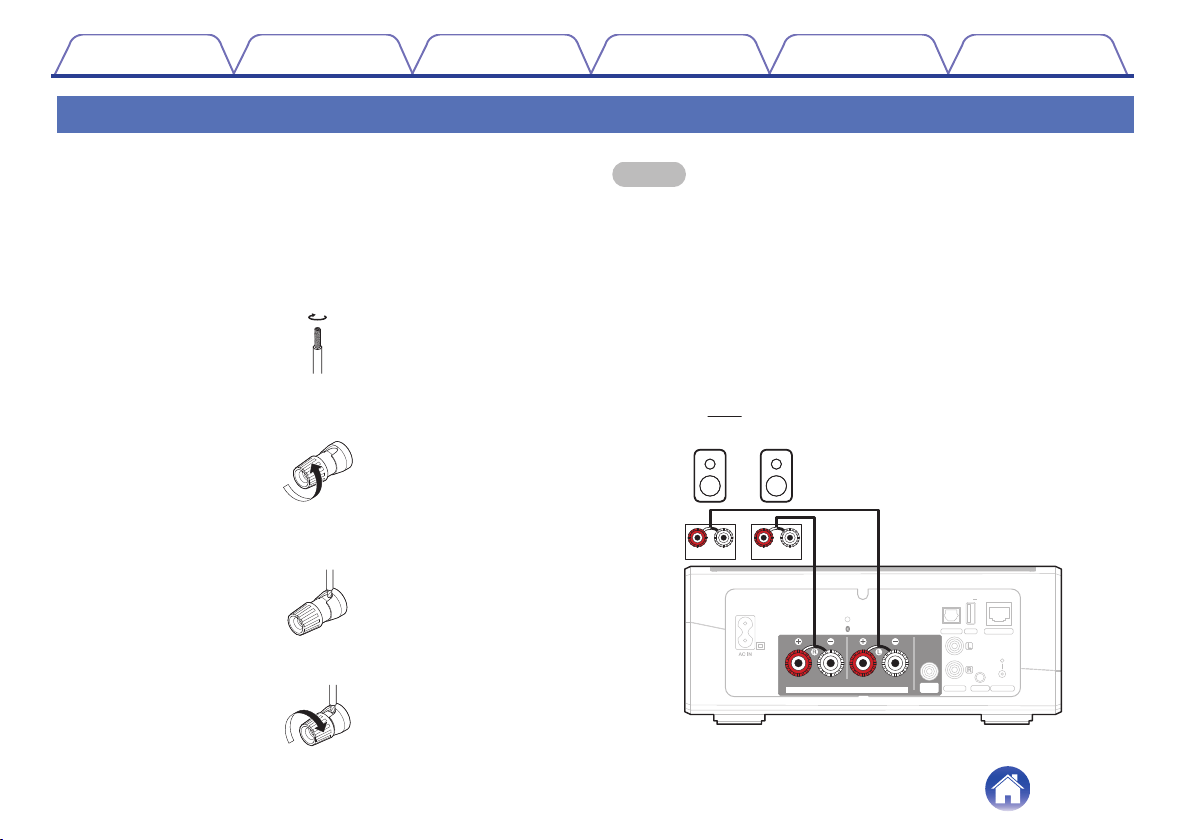
Connecting speakers
Carefully check the left (L) and right (R) channels and + (red) and –
(black) polarities on the speakers being connected to this unit, and be
sure to connect the channels and polarities correctly.
1
Peel off about 3/8 inch (10 mm) of sheathing from the
tip of the speaker cable, then either twist the core wire
tightly or terminate it.
.
2
Turn the speaker terminal counterclockwise to loosen
it.
.
3
Insert the speaker cable’s core wire to the hilt into the
speaker terminal.
.
4
Turn the speaker terminal clockwise to tighten it.
.
NOTE
0
Disconnect this unit’s power plug from the power outlet before connecting the
speakers. Also, turn off any connected powered subwoofers.
0
Connect so that the speaker cable core wires do not protrude from the speaker
terminal. The protection circuit may be activated if the core wires touch the rear
panel or if the + and – sides touch each other.
0
Never touch the speaker terminals while the power cord is connected. Doing so
could result in electric shock.
0
Use speakers with an impedance of 4 – 16 Ω/ohms. The protection circuit may be
activated if speakers with an impedance other than specified are used.
0
Depending on the speakers that are connected, the protection circuit may activate
and the power may be turned off when music is played at a high volume (The
Status indicator flashes in red). If this happens, configure the “Volume Limit”
setting. (v
p. 40)
.
IMPEDANCE : 4㹼16
Ȑ
Class 2 Wiring
SPEAKERS
NETWORK
OPTICAL IN
USB
CONNEC T
AUX IN
LINE IN
5V1A
WOOFER
SUB
wq
(R)
wq
(L)
Contents
Setup Use Troubleshooting Status LED Appendix
13
o
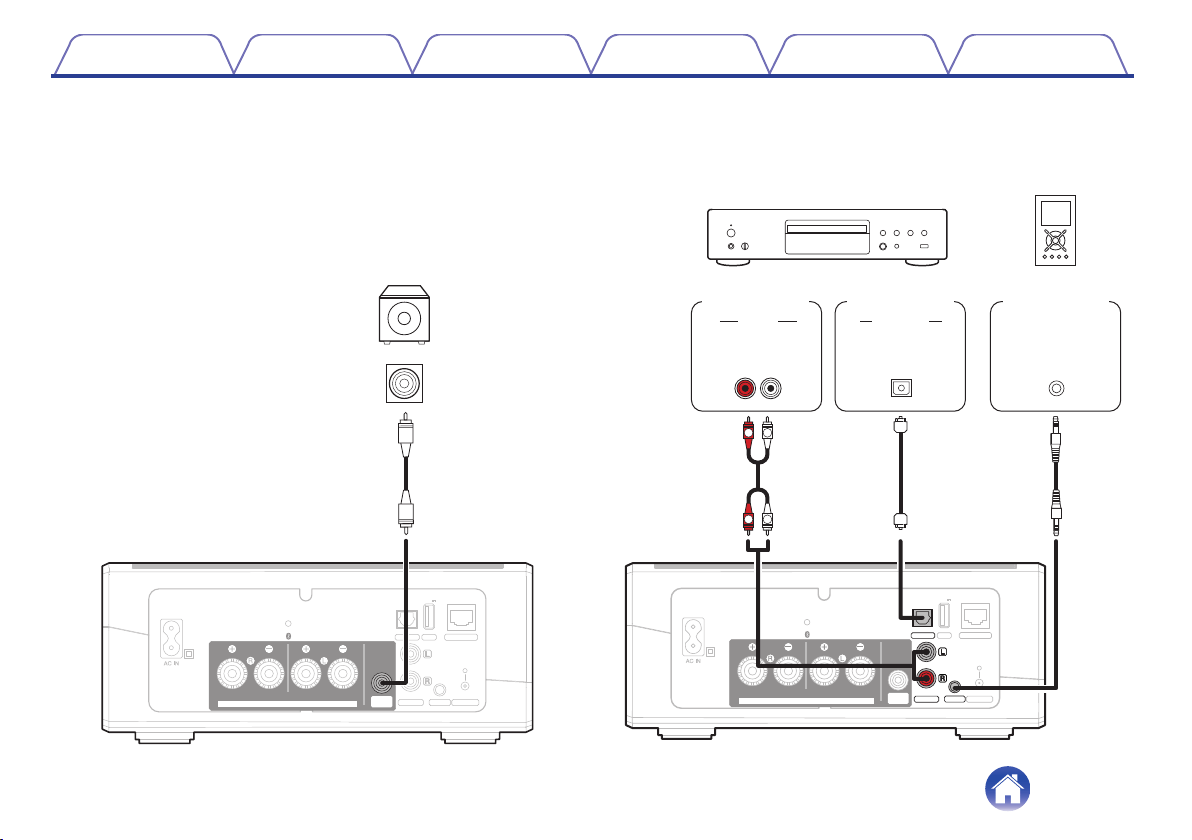
Connecting a subwoofer
Connect the SUB WOOFER output to an input on your powered
subwoofer or your subwoofer amplifier.
IMPEDANCE : 4㹼16
Ȑ
Class 2 Wiring
SPEAKERS
NETWORK
OPTICAL IN
USB
CONNEC T
AUX IN
LINE IN
5V1A
WOOFER
SUB
IN
Subwoofer
with built-in
amplifier
o
Connecting an audio playback device
Connect the LINE IN, AUX IN or OPTICAL IN input to an audio
playback device (CD player, portable music player, etc...) using the
appropriate cables.
.
IMPEDANCE : 4㹼16
Ȑ
Class 2 Wiring
WOOFER
SUB
SPEAKERS
NETWORK
OPTICAL IN
USB
CONNEC T
AUX IN
LINE IN
5V1A
R
L
R
L
AUDIO
AUDIO
RL
OUT
OUT
OPTICAL
AUDIO
HEADPHONE
Portable
audio
Digital
device
Analog
device
Contents
Setup Use Troubleshooting Status LED Appendix
14
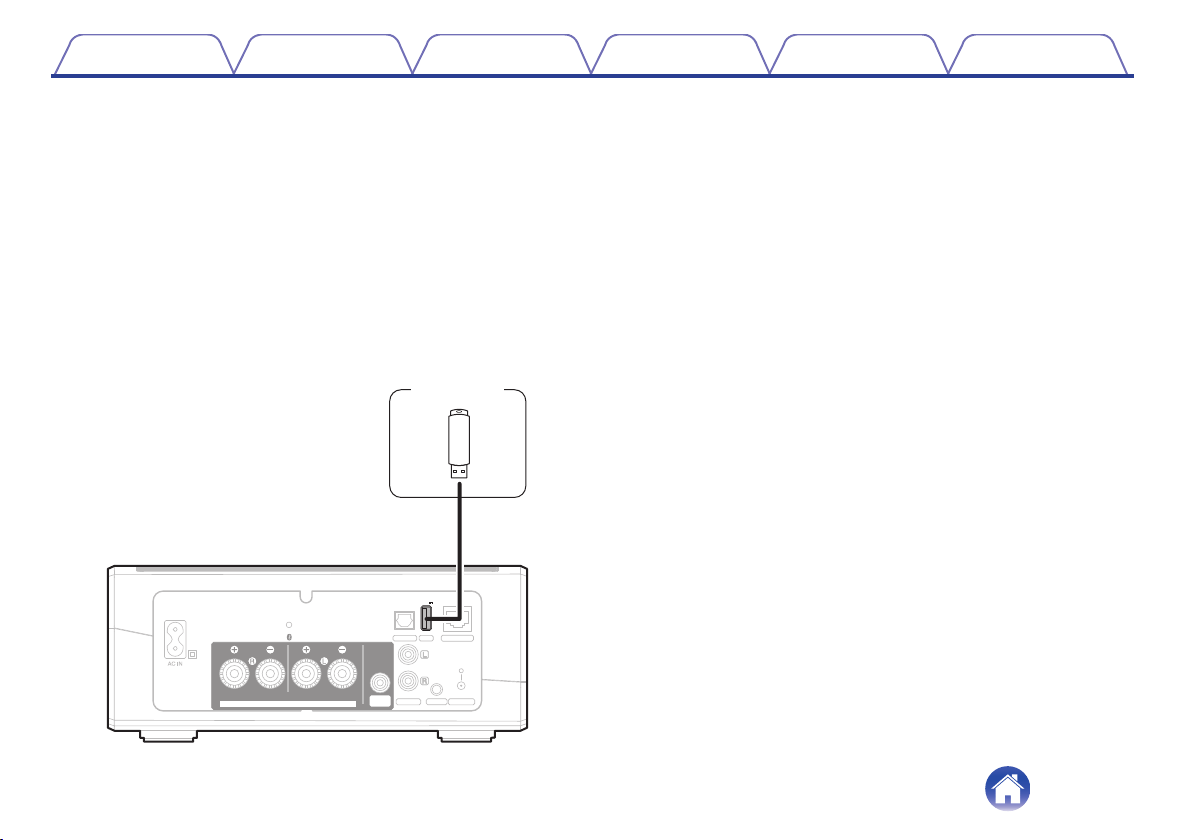
Powering your HEOS Amp
Connect the power cord included in the box to the back of the HEOS Amp and the plug to a wall outlet.
.
IMPEDANCE : 4㹼16
Ȑ
Class 2 Wiring
WOOFER
SUB
SPEAKERS
NETWORK
OPTICAL IN
USB
CONNECT
AUX IN
LINE IN
5V1A
for North America
(AC 120 V, 60 Hz)
for Europe
(AC 220 - 240 V, 50/60 Hz)
Getting the HEOS app
The HEOS app is the heart of the HEOS experience. Using your mobile device and the HEOS app, you can setup, browse, explore, and control your
HEOS system right in the palm of your hand, from anywhere in your home.
Download the HEOS app for iOS or Android by searching App Store
®
, Google Play™ store or Amazon App Store for “HEOS”.
.
For the purpose of improvement, the specifications and design are subject to change without notice.
Contents
Setup Use Troubleshooting Status LED Appendix
16
Setting up your first HEOS Amp
Once you have placed your HEOS Amp in your listening room and have downloaded the HEOS app, you are ready to configure your HEOS Amp for
music playback. This involves following a few simple steps to get the HEOS Amp connected to your existing home network:
Caution
0
DO NOT connect the Ethernet cable if you are connecting your HEOS Amp to a wireless network. If you are connecting the HEOS Amp to a wired
network, use an Ethernet cable to connect the HEOS Amp to your network or router.
1
Make sure your mobile device is connected to your
wireless network (the same network you want your
HEOS Amp connected to).
You can check this in the Settings - Wi-Fi menu of your iOS or
Android device.
NOTE
0
If your wireless network is secure, make sure you know the password to join
your network.
2
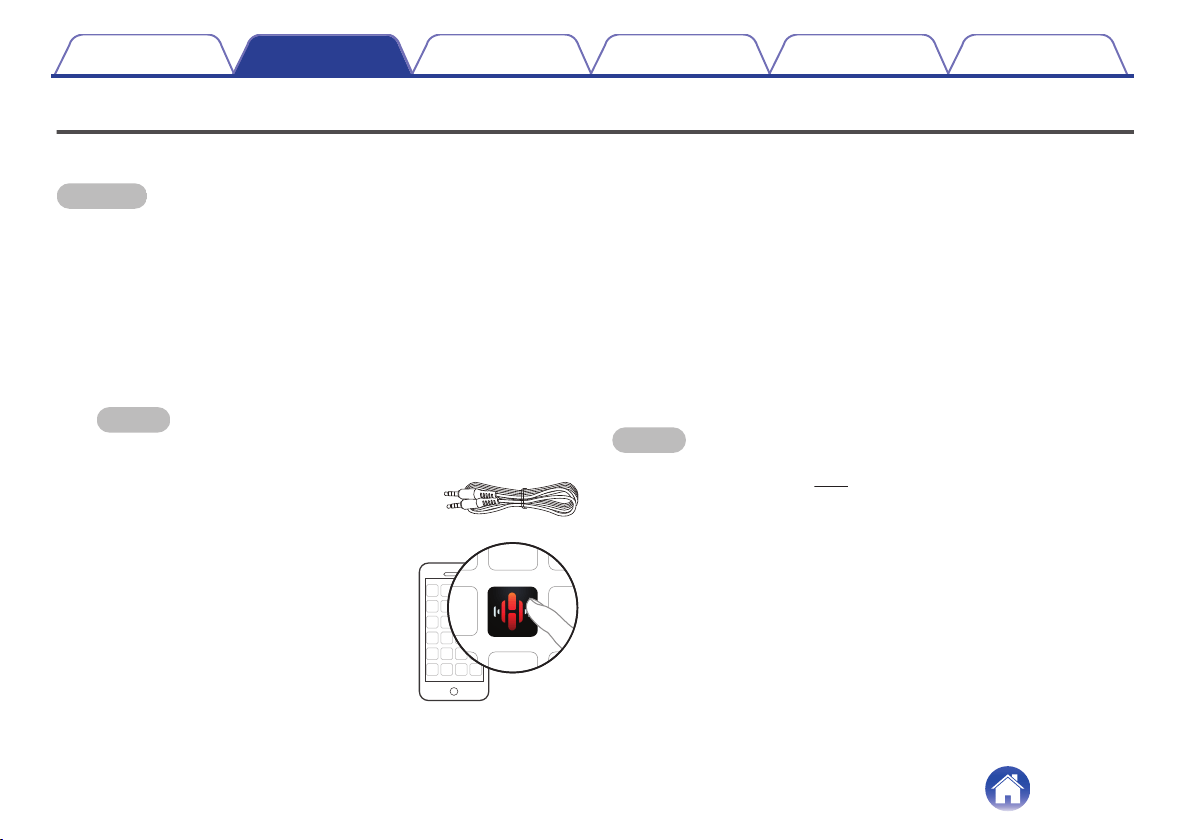
Make sure you have the included
Audio/Setup cable handy.
3
Launch the HEOS app on your
mobile device.
4
Tap the “Setup Now” button at the top of the screen.
5
Follow the instructions to add the HEOS Amp to your
wireless network.
The Wi-Fi settings from your mobile device will be copied to the
HEOS Amp via the audio cable.
NOTE
0
If you have any problems connecting your HEOS device, jump to the
Troubleshooting section. (v p. 48)
Contents Setup Use Troubleshooting Status LED Appendix
Setup
17

Adding more HEOS devices
The HEOS wireless multi-room sound system is a true multiroom audio system that automatically synchronizes audio playback between multiple HEOS
devices so that the audio coming from different rooms is perfectly in sync and always sounds amazing! You can easily add up to 32 devices to your HEOS
system.
Adding wired HEOS devices
Just connect the HEOS devices to your home network using an Ethernet cable and the HEOS devices will appear on your HEOS app as a new room in
the “Rooms” screen.
At your convenience, you can assign a name to the HEOS devices to indicate which room you have it placed in.
0
Use only a shielded STP or ScTP LAN cable which is easily available at electronics stores (CAT-5 or greater recommended).
0
Do not connect a Network Connector directly to the LAN port/Ethernet connector on your computer.
Adding wireless HEOS devices
You can add additional wireless HEOS devices to your HEOS system by selecting “Add Device” from the HEOS app’s settings menu and follow the
instructions:
.
1
2
Add Device
SettingsMusic
Contents
Setup Use Troubleshooting Status LED Appendix
18
Using your HEOS Amp
Once you have your HEOS device connected to your network and the HEOS app installed on your mobile device, it’s easy to start enjoying your favorite
music. You can listen to something different in every room or the same music perfectly synchronized in all rooms. It’s up to you!
Selecting a room
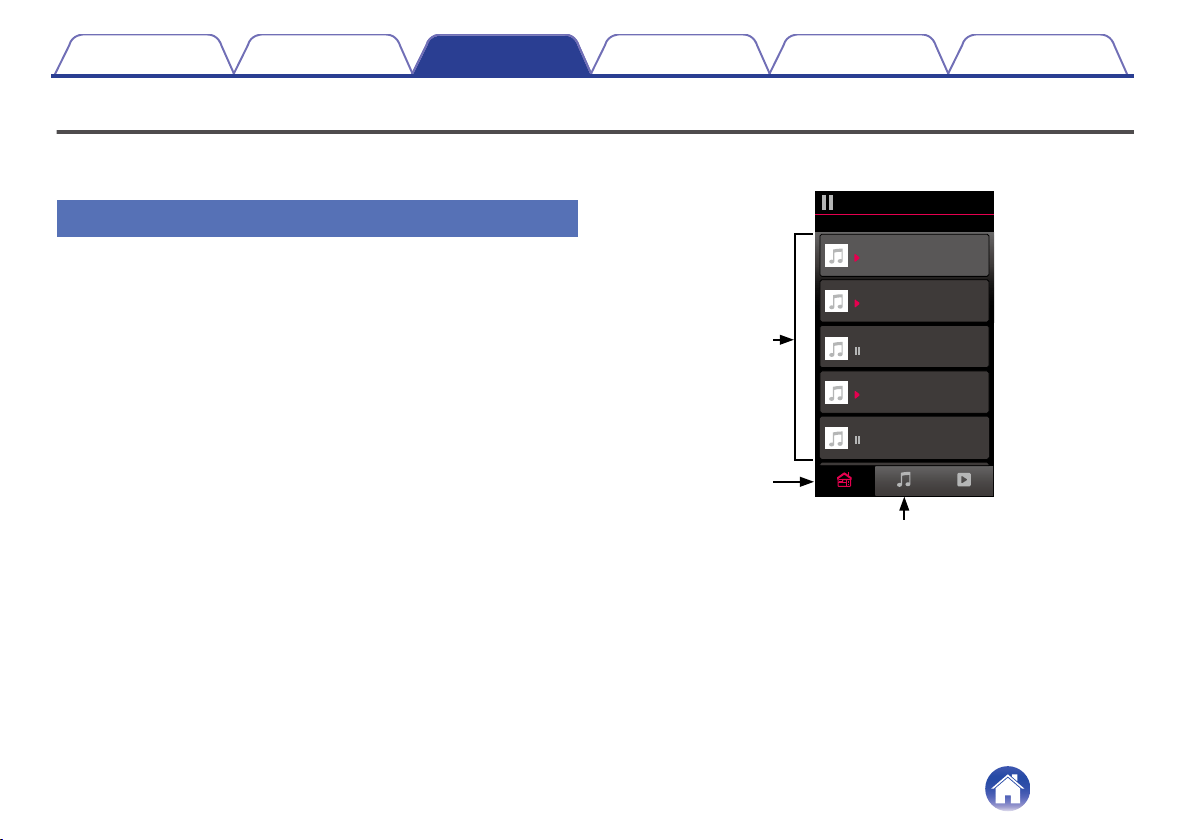
If you have more than one HEOS device, you must tell the HEOS system
which one you want to control:
1
Tap the “Rooms” tab.
2
Select the Room you want to control.
3
Select the “Music” tab to select a music source or the
“Now Playing” tab to control what is currently playing
in the selected room.
.
1
2
3
Now PlayingMusicRooms
Song Name 5
Song Name 4
Song Name 3
Song Name 2
Song Name 1
Outside
Bedroom
Dining
Living
Kitchen
Drag one room into another to group them
Rooms
Contents
Setup Use Troubleshooting Status LED Appendix
Use
19
Listening to radio
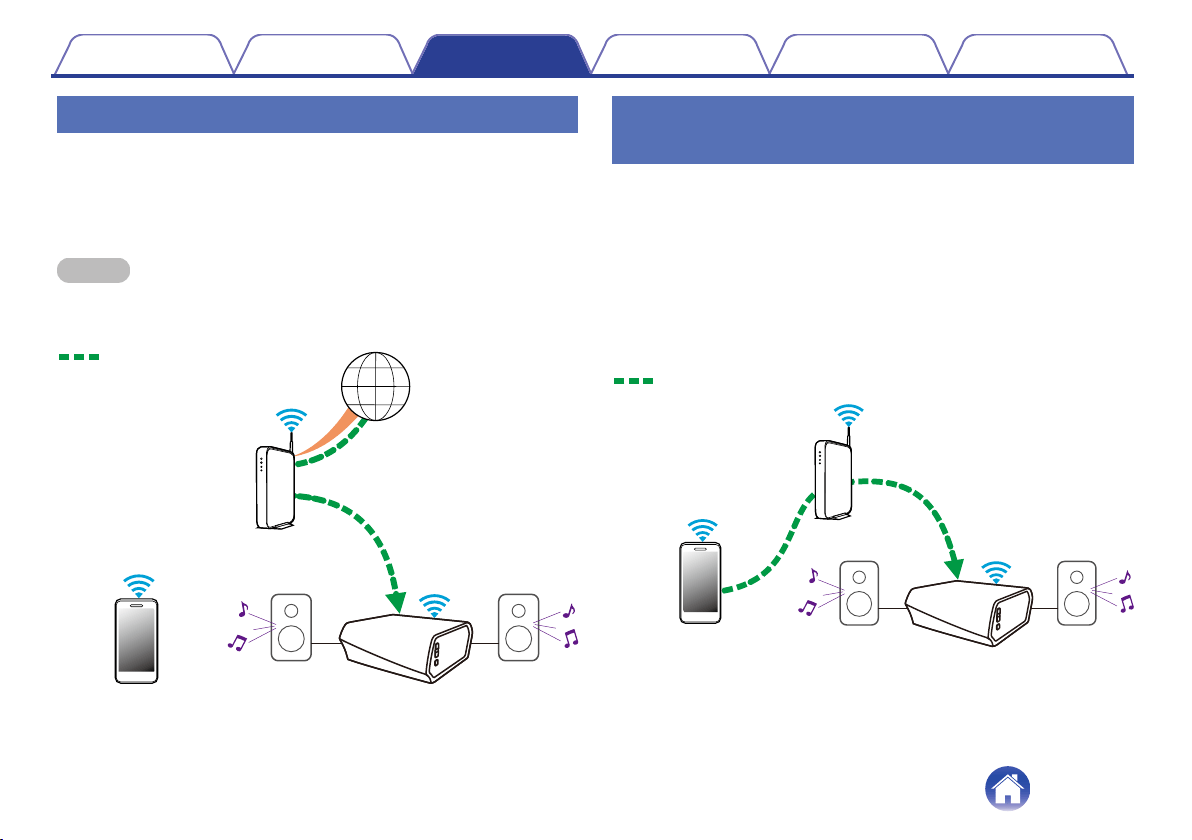
The HEOS system includes access to more than 100,000 free internet
radio streams from all corners of the globe via the TuneIn radio service.
Just select the TuneIn logo from the main “Music” menu and browse
among the 100,000 stations neatly organized into popular categories and
select a station that appeals to your mood.
NOTE
0
If you have a TuneIn account, you can sign into the TuneIn service under
“Settings” - “Music Sources” - TuneIn, and access all of your “My Favorites” TuneIn
stations.
.
Audio signal
Playing music stored on your mobile
device
1
Tap the “Music” tab.
2
Select “This iPhone/iPod/iPad/Phone”.
3
Browse the local music on your phone and select
something to play.
Audio signal
Contents Setup Use Troubleshooting Status LED Appendix
20
Playing music from your networked PC
or NAS
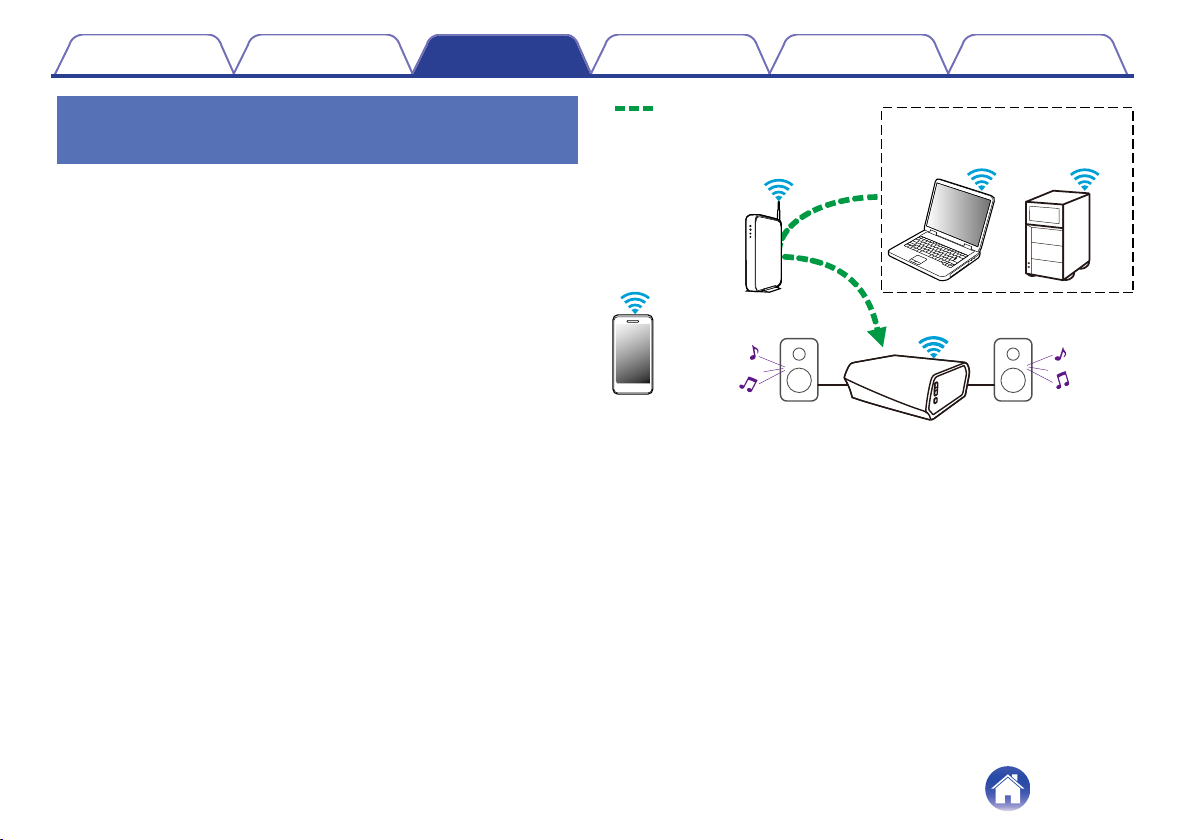
1
Select “Music Servers” from the “Music” tab.
2
Select the name of your networked PC or NAS
(Network Attached Storage) server.
3
Browse the music on your PC/NAS and select
something to play.
.
NAS
(Network Attached
PC Storage)
PC
Audio signal
Contents
Setup Use Troubleshooting Status LED Appendix
21

Playing music from an external audio
device
1
Connect an external audio device to the digital optical,
analog RCA stereo or analog 3.5mm stereo input on the
back of the HEOS Amp.
2
Select “Inputs” from the “Music” tab.
3
Select the name of the HEOS Amp and which input to
which you connected the audio device in step 1.
4
Initiate playback on the audio device.
NOTE
0
When a stereo audio cable is connected to AUX IN, the source automatically
switches to Inputs.
.
Audio signal
Contents
Setup Use Troubleshooting Status LED Appendix
22
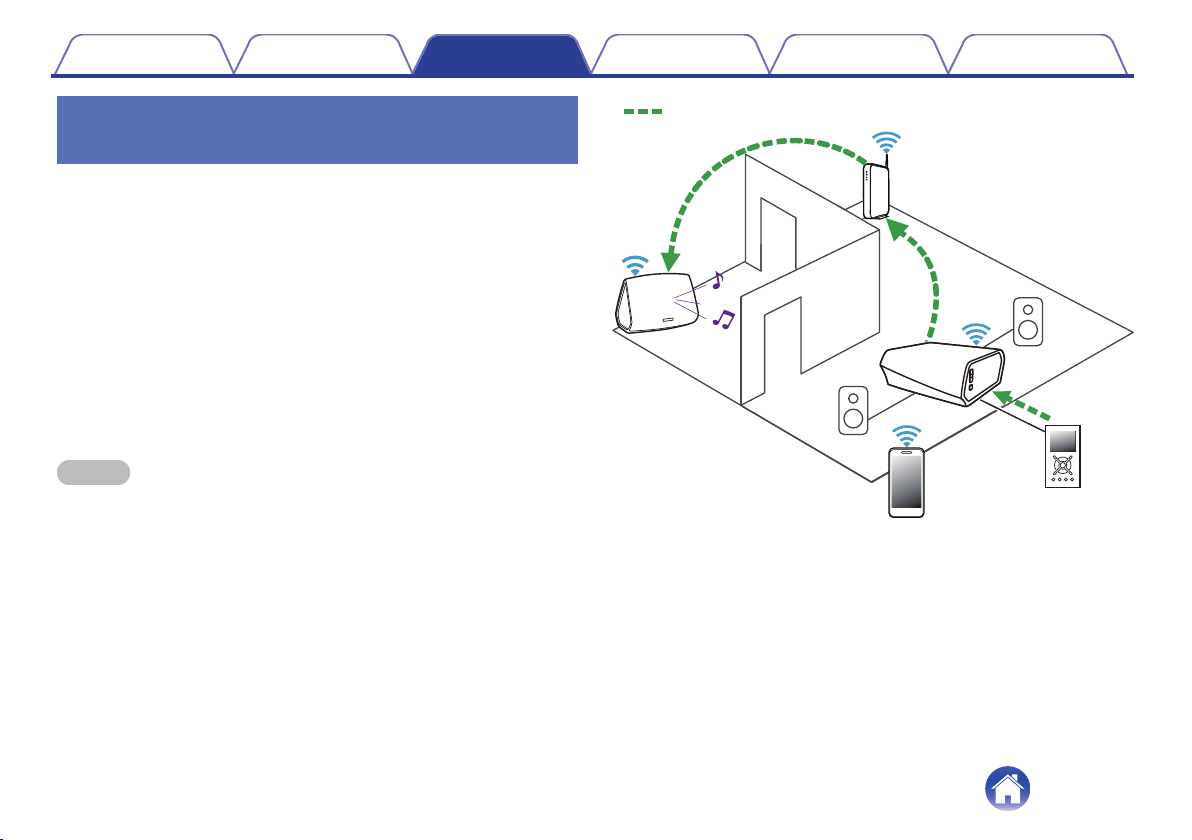
Streaming an external audio device to
any HEOS device
The sound from the audio device can be played directly on the selected
device or digitized and sent over your network to other HEOS devices.
1
Connect an external audio device to the digital optical,
analog RCA stereo or analog 3.5mm stereo inputs on
the back of the HEOS Amp.
2
Select “Inputs” from the “Music” tab.
3
Select the name of the HEOS Amp and which input to
which you connected the audio device in step 1.
4
Initiate playback on the audio device.
NOTE
0
When a stereo audio cable is connected to AUX IN, the source automatically
switches to Inputs.
.
Audio signal
Contents
Setup Use Troubleshooting Status LED Appendix
23
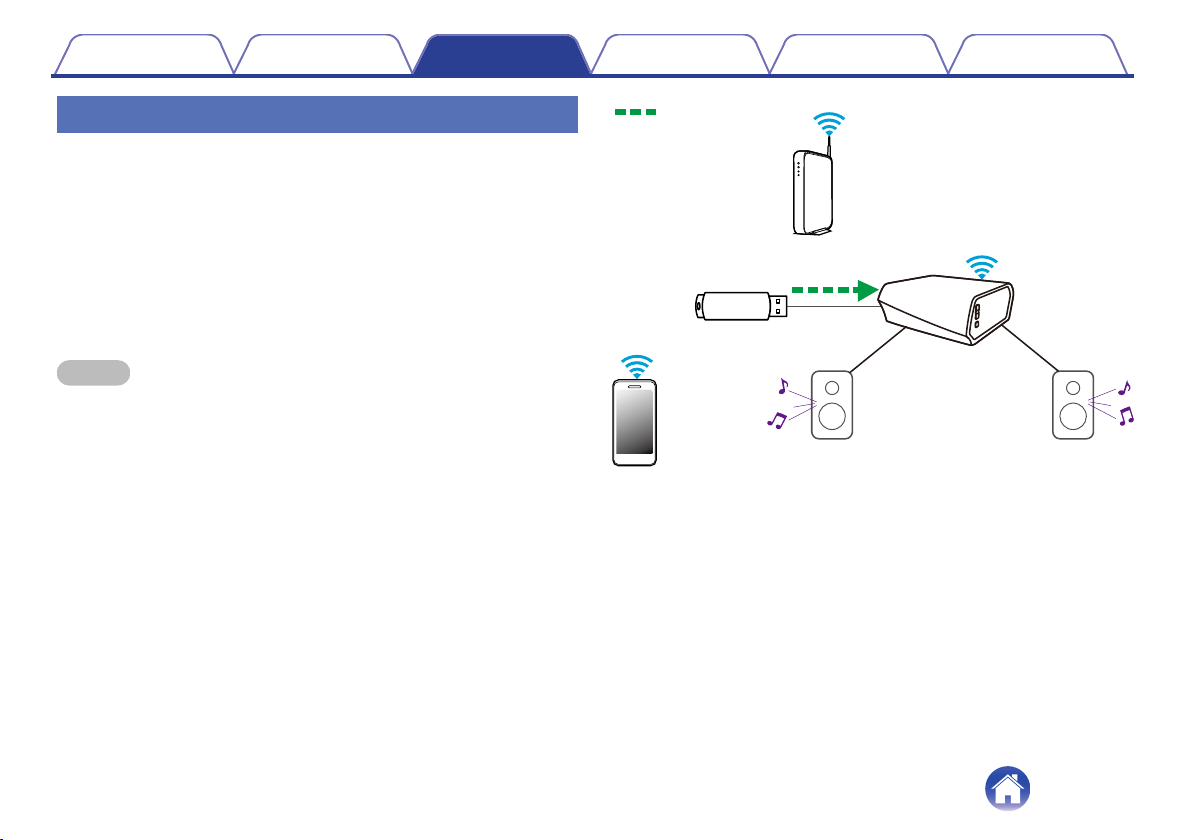
Playing music from a USB device
1
Insert a FAT32 formatted USB device into the USB port
on the back of the HEOS Amp.
2
Select “USB Music” from the “Music” tab.
3
Select the name of your HEOS device.
4
Browse the music on your USB device and select
something to play.
NOTE
0
It may take several minutes for the name of your HEOS device to appear in the
“USB Music” list if you have a large number of files on your USB device.
0
It is not possible to connect and use a computer via the USB port of this unit using
a USB cable.
.
Audio signal
Contents
Setup Use Troubleshooting Status LED Appendix
24
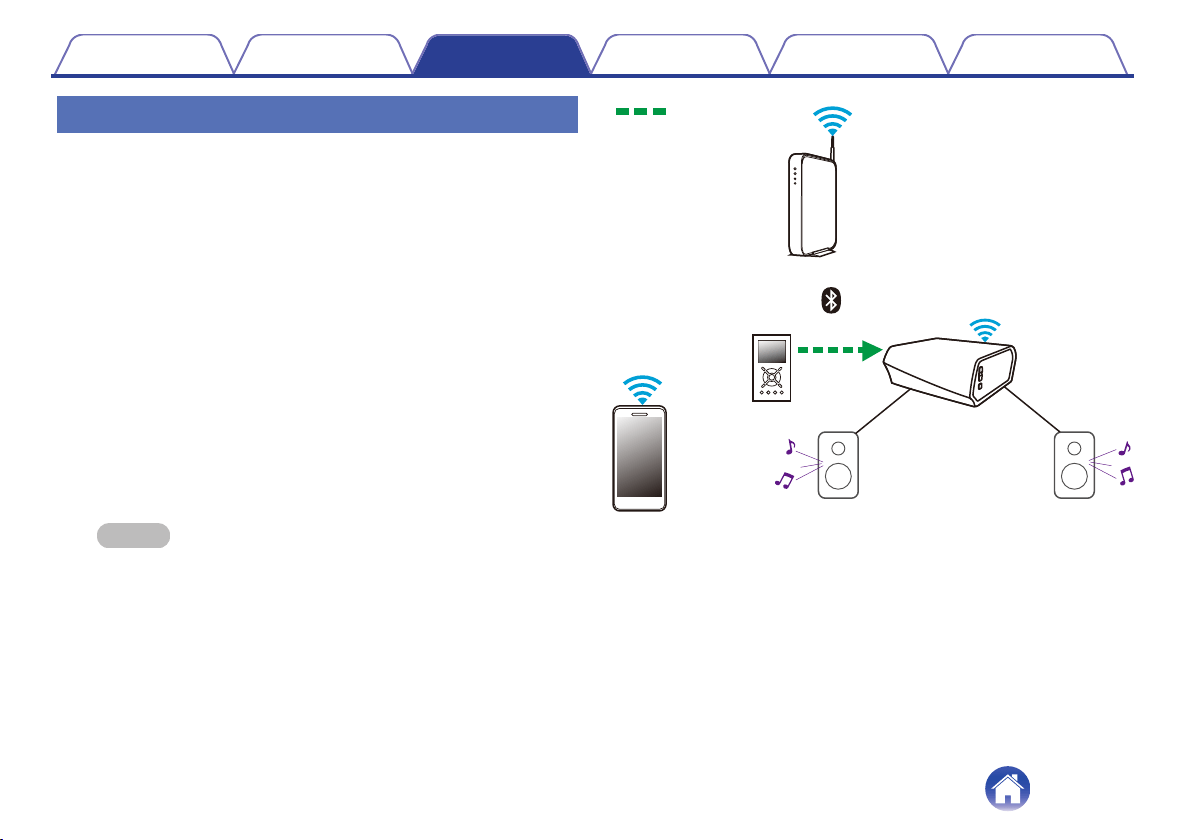
Playing music from Bluetooth device
o
Pairing the HEOS device with your Bluetooth
devices
1
Activate the Bluetooth setting on your mobile device.
2
Press and hold the Bluetooth button (V) located on the
back of the HEOS Amp for 3 seconds and release the
button when you see a pattern of two green flashes on
the status LED.
3
Select “HEOS Amp“ from the list of available Bluetooth
devices.
In a few seconds your mobile device will indicate that it is connected
to your HEOS Amp.
4
Play music using any app on your device. The sound
will now play from the HEOS Amp.
NOTE
0
Disconnect and reconnect Bluetooth connections from your Bluetooth
device.
.
Audio signal
Contents
Setup Use Troubleshooting Status LED Appendix
25
HEOS account
o
What is a HEOS account?
A HEOS account is master account or “keychain” for managing all of
your HEOS music services with one single username and password.
o
Why do I need a HEOS account?
With the HEOS account you just have to enter your music services
login names and passwords one time. This allows you to easily and
quickly use multiple controller apps on different devices. You just log
into your HEOS account on any device and you will have access to all
of your associated music services, play history and custom playlists,
even if you are at a friend’s house listening to music on their HEOS
system.
o
Signing up for a HEOS account
You will be instructed to signup for a HEOS account the first time you
try to access any music service from the main “Music” menu of the
HEOS app.
o
Changing your HEOS account
1
Tap the “Music” tab.
2
Select the Settings a icon in the upper left corner of
the screen.
3
Select “HEOS Account”.
4
Change your location, change your password, delete
your account or sign out of your account.
Contents Setup Use Troubleshooting Status LED Appendix
26
Playing from streaming music services
A music service is an online music company that provides access to vast
music collections via free and/or paid subscriptions. Depending upon your
geographical location, there are several options to choose from. For more
information about which services are available in your area please visit
http://www.HEOSbyDenon.com
o
Adding a music service
Once you’ve setup your HEOS account, you can add supported music
services to your HEOS system by tapping on the music service logo in
the “Music” tab.
Follow the instructions on the screen to add your username and
password for the selected music service. You only have to enter your
account information once as the HEOS account service will securely
remember your login information so you don’t have to enter it each
time you want to play music from the music service.
Additional music services may be available under “Settings” - “Music
Sources” - “Online Music”.
o
Changing music service settings
1
Tap the “Music” tab.
2
Select the Settings a icon in the upper left corner of
the screen.
3
Select “Music Sources”.
4
Select “Online Music”.
5
Select the name of the online music service you want
to edit.
6
Sign out, then sign in again to associate your
username and password with your HEOS account.
7
Select “Hide for Now” to prevent the service logo from
appearing on the main “Music” menu.
Contents Setup Use Troubleshooting Status LED Appendix
27
Managing inputs
If you connected external audio source components to any of your HEOS
devices inputs, you can rename the default input names to describe the
actual source or hide any inputs that are not being used.
1
Select the Settings a icon located in the upper left
corner of the main “Music” menu to display the
Settings menu.
2
Select “Music Sources”.
3
Select “Inputs”.
4
Select the HEOS devices which you connect your
external audio source device to.
o
Changing the name of the inputs
1
Select the name of the input you want to edit.
2
Select “Name”.
3
Select or enter a new name to describe the source that
you connected.
4
Select the Save button to save your changes.
o
Hiding an input
1
Select the name of the input you want to edit.
2
Toggle “Hide Input” to ON to prevent this input from
appearing under the Inputs tile on the main “Music”
menu.
Contents Setup Use Troubleshooting Status LED Appendix
28
Managing your phone
Your smartphone or tablet can be hidden if it does not need to be in the
“Music Sources” menu.
1
Select the Settings a icon located in the upper left
corner of the main “Music” menu to display the
Settings menu.
2
Select “Music Sources”.
3
Select “This iPhone/iPod/iPad/Phone”.
4
Toggle “This iPhone/iPod/iPad/Phone” to OFF to
prevent the service logo from appearing on the main
“Music” menu.
Contents Setup Use Troubleshooting Status LED Appendix
29
Listening to the same music in multiple
rooms
The HEOS system is a true multiroom audio system that automatically
synchronizes audio playback between multiple devices so that the audio
coming from different rooms is perfectly in sync and always sounds
amazing!
You can easily add up to 32 devices to your HEOS system.
You can join or group up to 16 individual HEOS devices into a group of
HEOS devices that function as if they were a single HEOS device.
o
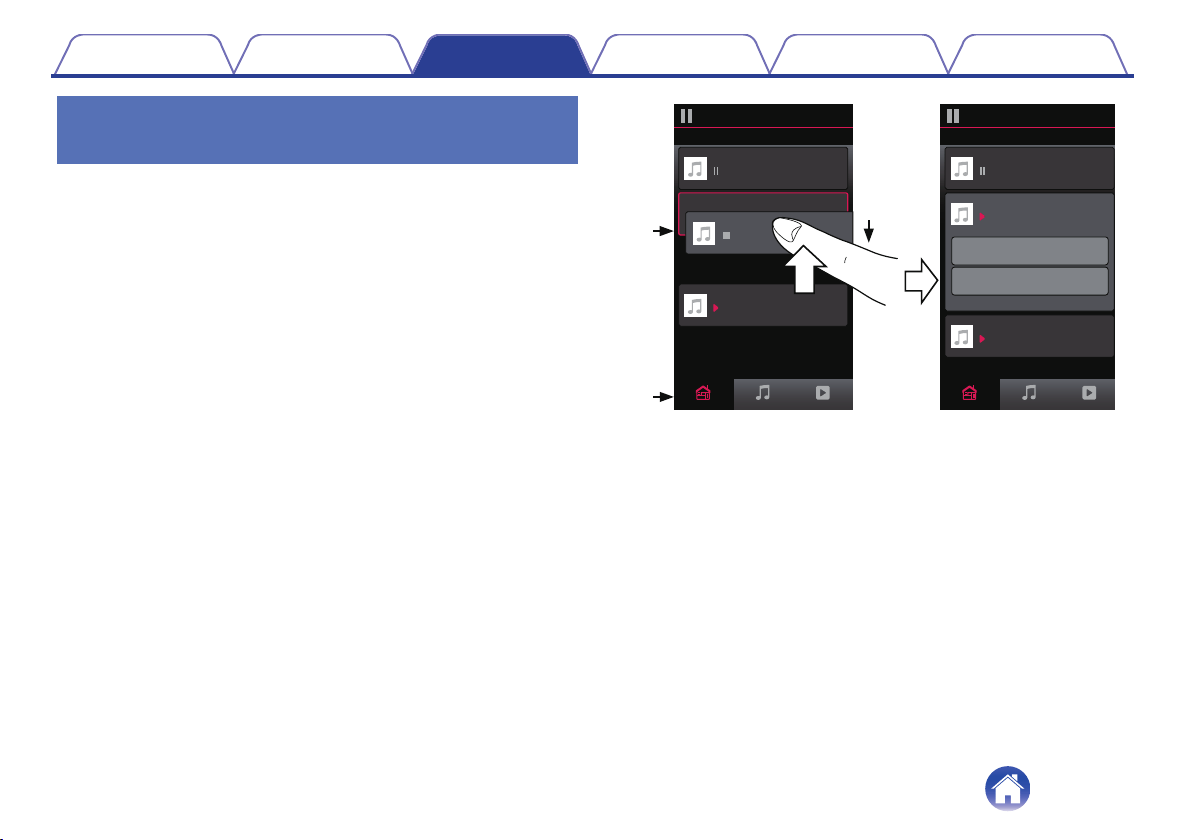
Grouping rooms
1
Tap the “Rooms” tab.
2
Press and hold your finger on room that is not playing
music.
3
Drag it into the room that is playing music (indicated by
the red outline) and lift your finger.
The two rooms will be grouped together into a single device group
and both rooms will be playing the same music in perfect sync.
.
1
3
2
Now PlayingMusicRooms
Song Name 1
Dining
Kitchen
Drag one room into another to group them
Rooms
Now PlayingMusicRooms
Song Name 3
Song Name 3
Song Name 2
Song Name 2
Song Name 1
Bedroom
Bedroom
Dining
Living
Kitchen
Drag one room into another to group them
Rooms
Living
Drag a room out of this group to ungroup it
Living+Kitchen
Contents
Setup Use Troubleshooting Status LED Appendix
30

o
Ungrouping rooms
1
Tap the “Rooms” tab.
2
Press and hold your finger on room that you want to
remove from the group.
NOTE
0
You can not remove the first room that started playing the music before
grouping.
3
Drag it out of the group and lift your finger.
Music will stop playing in the room you dragged out of the group but
will continue playing in any remaining rooms.
.
1
3
2
Now PlayingMusicRooms
Song Name 3
Song Name 2
Song Name 1
Bedroom
Dining
Living
Kitchen
Drag one room into another to group them
Rooms
Now PlayingMusicRooms
Song Name 4
Song Name 3
Song Name 2
Song Name 1
Bedroom
Dining
Living
Kitchen
Drag one room into another to group them
Rooms
Living
Contents
Setup Use Troubleshooting Status LED Appendix
31
o
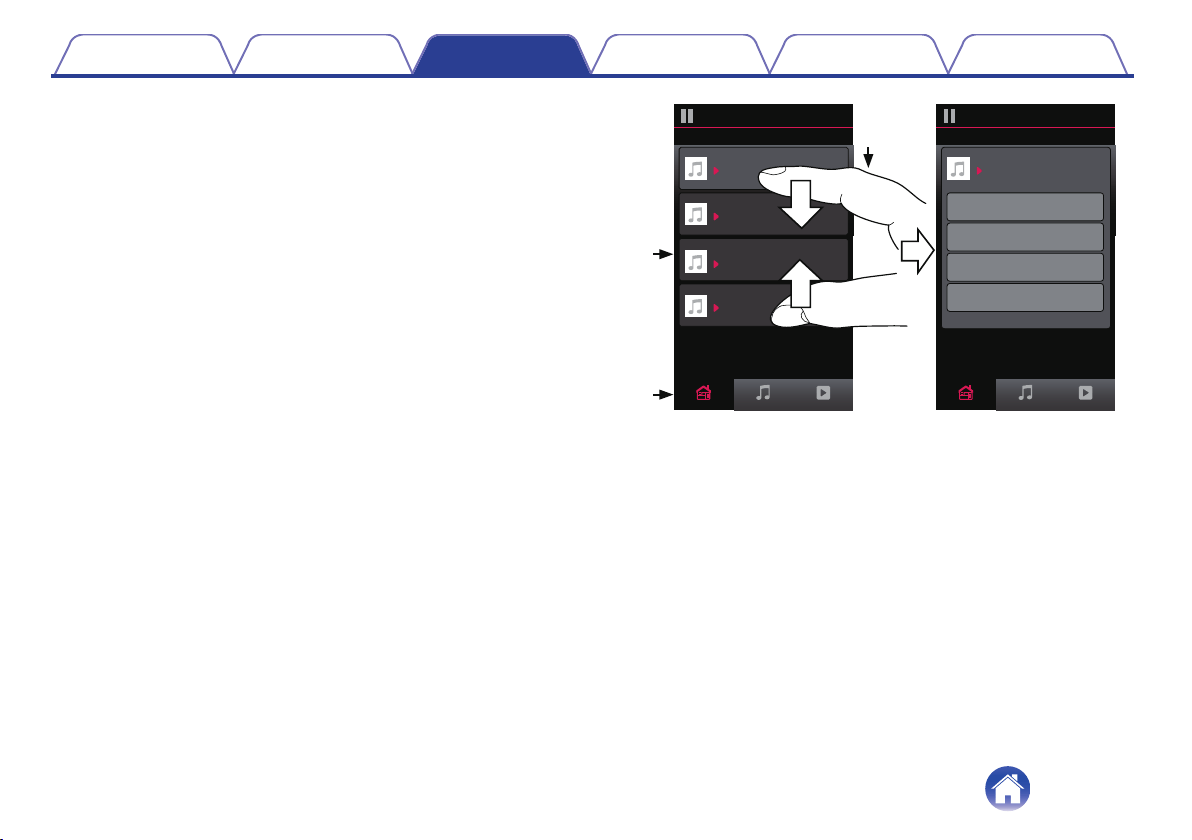
Grouping all rooms (party mode)
You can easily group 16 rooms together into Party Mode by using a
“pinch” gesture.
1
Tap the “Rooms” tab.
2
Place two fingers on the screen over the list of rooms.
3
Quickly pinch your two fingers together and release.
All of your rooms will be joined together and begin playing the same
music in perfect sync.
.
1
2
3
Now PlayingMusicRooms
Song Name 1
Bedroom
Dining
Kitchen
Drag one room into another to group them
Rooms
Now PlayingMusicRooms
Song Name 4
Song Name 3
Song Name 2
Song Name 1
Bedroom
Dining
Living
Kitchen
Drag one room into another to group them
Rooms
Living
Drag a room out of this group to ungroup it
Dining+Living+...
Contents
Setup Use Troubleshooting Status LED Appendix
32
o
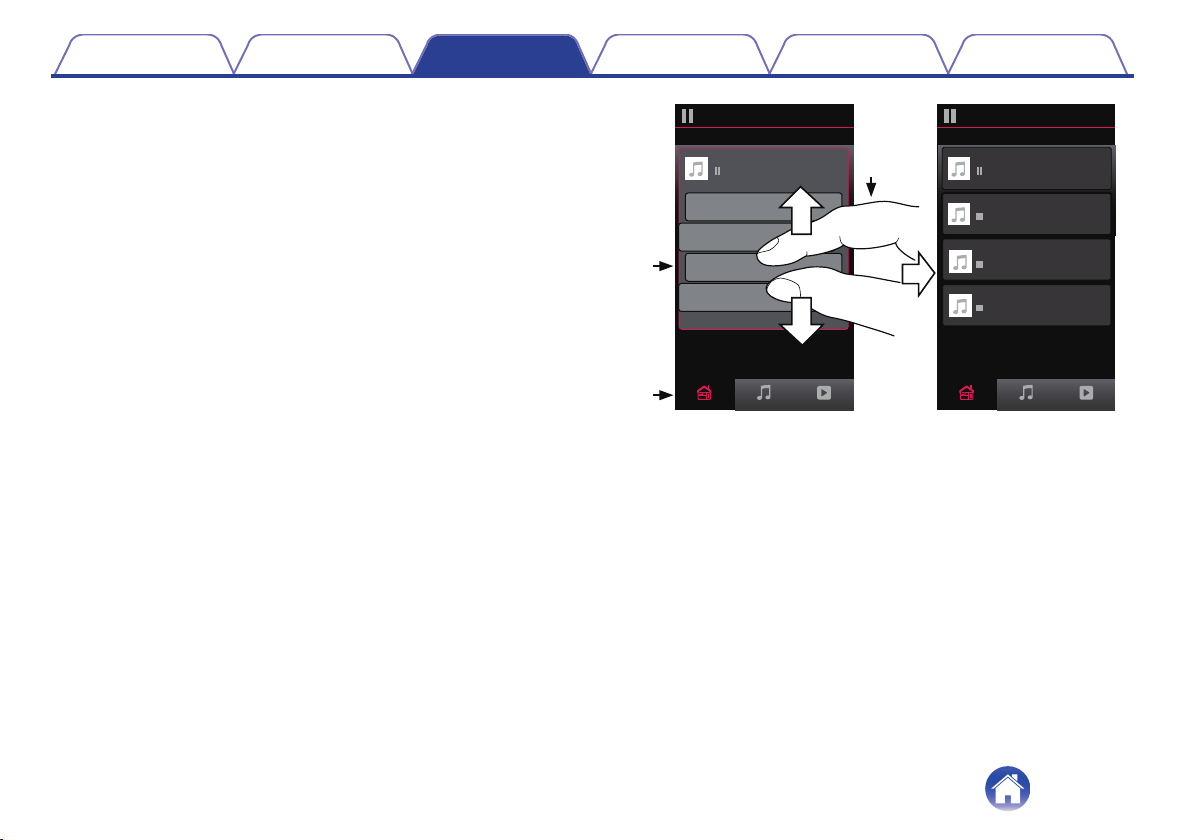
Ungrouping all rooms
You can easily ungroup all of your rooms and exit Party Mode by using
a “spread” gesture.
1
Tap the “Rooms” tab.
2
Place two fingers close together on the screen over list
of rooms.
3
Quickly spread your two fingers apart from each other
and release.
All of your rooms will be ungrouped and music will stop playing in
every room (except the original “master” room that was playing
before you grouped the rooms together).
.
1
2
3
Now PlayingMusicRooms
Song Name 1
Bedroom
Dining
Dining
Kitchen
Drag one room into another to group them
Rooms
Now PlayingMusicRooms
Song Name 4
Song Name 3
Song Name 2
Song Name 1
Bedroom
Dining
Living
Kitchen
Drag one room into another to group them
Rooms
Living
Drag a room out of this group to ungroup it
Contents
Setup Use Troubleshooting Status LED Appendix
33
Using the now playing queue
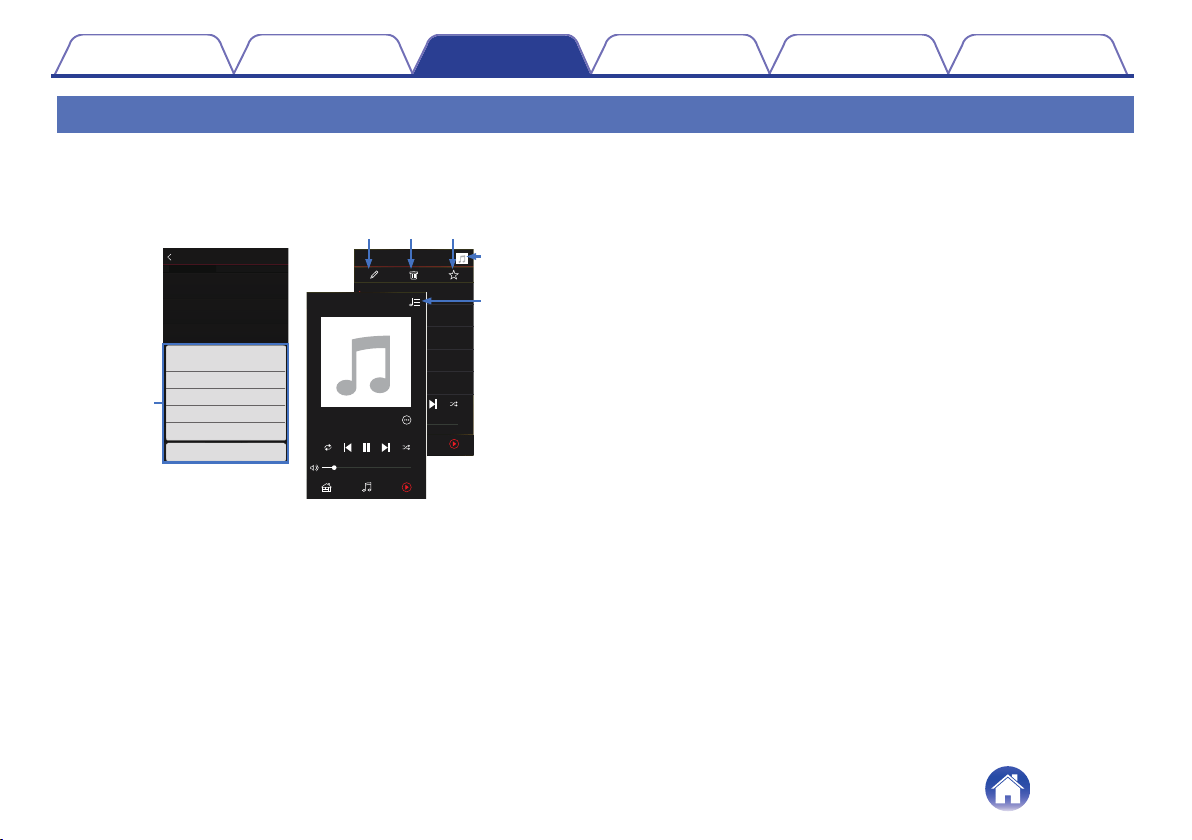
HEOS uses a Now Playing “Queue” to line up music that you want to listen to. Music can be selected from any of your local or online music sources (as
long as they are not preprogrammed “radio” or “station” type streams). This feature works similarly to how a jukebox works. You select something to play
(a song, album, playlist or even your entire music collection) and add it to the “Queue”. When you select something to play you will be asked how you want
to queue up your music.
.
Play AIbum
Track 6
6
0:20
Play Now
MusicRooms Now Playing
Cancel
Play Now & Replace Queue
Play Next
Add to End of Queue
Track 1
1
Track 2
2
Track 1
HEOS Device
0:20
0:20
Album
Now PlayingMusicRooms
Queue
3:14
Charlie Puth
Tra c k 1
3:19
Charlie Puth
Dangerously
3:10
Charlie Puth
Marvin Gaye
3:32
Charlie Puth
Losing My Mind
3:37
Charlie Puth
We Don’t Talk Any
e r t
w
y
q
Now PlayingMusic
Artist
Album
Track 1
Rooms
Now Playing
0:10
-
3:04
A
Queue Menu
When you select something to play you will be asked how you want to
queue up your music.
B
Queue icon
C
Pencil icon
D
Delete icon
E
Save icon
F
Cover art or HEOS icon
You can return to the “Now Playing” screen display by tapping the
cover art or the HEOS icon.
o
Play Now
Inserts the item into the queue after the currently playing track and
plays the selected item immediately.
o
Play Now & Replace Queue
Clears the queue and plays the selected item immediately.
o
Play Next
Inserts the item into the queue after the current song and plays it when
the current song ends.
o
Add to End of Queue
Adds the item to the end of the queue.
Contents
Setup Use Troubleshooting Status LED Appendix
34
Rearranging the now playing queue
Once you have songs lined up in your queue, you might want to rearrange
the order or remove some songs:
1
Tap the “Now Playing” tab.
2
Tap the Queue d icon in the upper right corner of the
screen.
3
Tap the Pencil e icon to enter Edit mode.
4
Rearrange the order of your queue by dragging the list
f icon (on the right side of each track row) up or
down.
Deleting songs from the play queue
You can remove songs one at a time from the Now Playing Queue:
1
Tap the “Now Playing” tab.
2
Tap the Queue d icon in the upper right corner of the
screen.
3
Tap the Pencil e icon to enter Edit mode.
4
Tap the track(s) that you want to delete.
5
Tap the Delete g icon to delete all of the selected
tracks from the play queue.
Contents Setup Use Troubleshooting Status LED Appendix
35
Deleting all songs from the play queue
You can remove all of the songs from the Now Playing Queue:
1
Tap the “Now Playing” tab.
2
Tap the Queue d icon in the upper right corner of the
screen.
3
Tap the Delete g icon to confirm that you want to
delete all songs from the queue.
Saving playlists
You can save the Now Playing Queue as a HEOS Playlist that you can
recall later. The new playlist will be available from the Playlists button on
the “Music” tab on every controller app connected to your HEOS system.
1
Tap the “Now Playing” tab.
2
Tap the Queue d icon in the upper right corner of the
screen.
3
Tap on the Save h icon.
4
Enter a name for your Playlist and tap the i icon.
Performing repeat and shuffle playback
The playback controls are visible on the “Now Playing” screen.
1
Tap the “Now Playing” tab.
2
Tap the repeat b and shuffle c controls.
Contents Setup Use Troubleshooting Status LED Appendix
36
Using the favorite
HEOS uses a "HEOS Favorites" to line up station you want to start play
quickly the favorite stations.
Station can be selected from online music sources such as "Radio" or
"Station" type streams. "HEOS Favorites" will display a list of the stations
of various services.
o
Adding to HEOS favorite
Select a station of an online music source. When the action menu
screen is displayed, select “Add Station to HEOS Favorites”.
NOTE
0
This can also be done by selecting “Add Station to HEOS Favorites” from the
station menu of the station being played.
o
Deleting station from the HEOS favorite
1
Tap the “Music” tab.
2
Select “Favorites”.
3
Tap the Pencil e icon to enter Edit mode.
4
Tap the "Delete" that you want to delete station.
Contents Setup Use Troubleshooting Status LED Appendix
37
Making adjustments
You can adjust specific settings for each of your HEOS Amps in your
system:
1
Select the Settings a icon located in the upper left
corner of the main “Music” menu to display the
Settings menu.
2
Select “My Devices” to display a list of your HEOS
devices.
3
Select the HEOS Amp you want to adjust.
Changing the name of a HEOS Amp
1
Select “Name”.
2
Select or enter a new name for your HEOS Amp.
3
Tap the i icon to save your changes.
Changing the wireless network
connection
1
Select “Network”.
2
A list of wireless networks that your HEOS Amp can
access is displayed.
3
Select the network you want your HEOS Amp to join.
4
Wait as the HEOS Amp’s network connection is
changed.
NOTE
0
Wired networking is automatically selected when the device is connected to a
wired Ethernet network. To switch back to using a wireless network you must
remove the Ethernet cable from the back of the device.
Contents Setup Use Troubleshooting Status LED Appendix
38
Adjusting the equalizer
1
Select “EQ”.
2
Adjust the “Treble” or “Bass” up or down.
0
Select the Reset button to restore the default settings.
Adjusting the balance
1
Select “Balance”.
2
Adjust the Balance to the left or right.
Adjusting the audio quality
Selects the transcoding option for rebroadcasting audio from one HEOS
device to another HEOS device (or group of devices) across the network.
When set to high bit rate audio sources originating from the first device
(such as Analog input, WAV, FLAC and PCM) will be transcoded to
ensure the highest level of reliability for the audio stream. (v p. 23)
1
Select “Quality”.
2
Select “Normal” (default) or “High”.
0
If you have selected High and you experience audio dropouts when streaming
sources from one device to other devices, please select Normal (default).
Contents Setup Use Troubleshooting Status LED Appendix
39
Adjusting the volume limit
You can set the maximum volume of the HEOS amplifiers to prevent
sudden loud volume.
1
Select “Volume Limit”.
2
Select the maximum volume percentage (95, 90, 85,
80).
NOTE
0
Depending on the speakers that are connected, the protection circuit may activate
and the power may be turned off when music is played at a high volume. (The
Status indicator flashes in red.) If this happens, configure the “Volume Limit”
setting.
Adjusting the status light brightness
1
Select “Status Light”.
2
Adjust the brightness up or down or set the slider to
the OFF position to completely disable the status light.
Contents Setup Use Troubleshooting Status LED Appendix
40

Advanced settings
Caution
0
Adjusting these settings may disconnect your device from your network
and possibly render your device unusable. Do not use these features
unless you are comfortable making advanced adjustments.
o
Network settings
1
Select “Advanced”.
2
Select “NETWORK SETTINGS” tab.
3
Scroll down to see all of the options for
a. Network Interface (Ethernet or Wireless)
b. Wireless Settings
c. IP Address Settings (Automatic or Manual)
d. Wireless Power Saving
4
Select “Save Settings” to apply the new settings or
“Cancel Changes” to revert to the previous settings.
o
About wireless power saving
The Wireless Power Saving feature saves power by turning off power to
the wireless radio inside the HEOS device when the device is
connected to an Ethernet network. If you disconnect the Ethernet cable
from the HEOS device, Wireless Power Saving will automatically turn
off and the wireless radio will turn on so that the HEOS device can be
discovered over your wireless network.
NOTE
0
If Wireless Power Savings is ON, Wi-Fi power will be temporarily turned on when
accessing the My Devices - (My Devices) - Network screen in the HEOS app or
whenever the Connect button on the device is pressed.
Contents Setup Use Troubleshooting Status LED Appendix
41
o
Firmware upgrade
1
Select “Advanced”.
2
Select “FIRMWARE UPDATE” tab.
n
Update status
Manually check for a firmware upgrade.
n
Allow updates
ON
(Default):
Allows updates
OFF: Does not allow updates
3
Select “Save Settings” to apply the new settings or
“Cancel Changes” to revert to the previous settings.
o
About
Viewing technical details about the HEOS device.
1
Select “Advanced”.
2
Select “ABOUT” tab.
3
Scroll down to see information about the device’s
a. Hardware
b. Software
c. Device
Contents Setup Use Troubleshooting Status LED Appendix
42
Updating your system
HEOS has the ability to add enhancements and updated functionality via your high speed Internet connection. Follow the instructions on the
screen to update the HEOS device and/or your controller App.
1
Select the Settings a icon located in the upper left
corner of the main “Music” menu to display the
Settings menu.
2
Select “Software Update”.
n
Check for Update
Follow the instructions on screen to install any available
updates to your HEOS system.
n
Auto-Update
ON
(Default):
Valid updates are performed
automatically.
OFF:
You will be notified of valid updates on
the HEOS app.
Contents Setup Use Troubleshooting Status LED Appendix
43
Advanced features
There are a few advanced features of the HEOS system that you may want to explore once you become familiar with the basic operations. You can
access the advanced features of the HEOS system by following these steps:
1
Select the Settings a icon located in the upper left
corner of the main “Music” menu to display the
Settings menu.
2
Select “Advanced Settings” to display a list the
available settings.
Sharing music from your mobile device
The HEOS app has a feature called “Music Sharing” which can share the
local music stored on your mobile device to other HEOS app users on your
local network. To enable this feature, select “Music Sharing”, and set it on
“ON”.
The name of the device you are sharing from will appear as a music server
allowing other HEOS controller apps to browse and play music from the
your device.
Wireless performance
You can check the wireless connection status of your HEOS device.
n
Quality
Excellent / Good / Poor
NOTE
0
If the quality level of your HEOS device is ”Poor”, make sure your HEOS devices
are not located near other electronic devices that could interfere with it’s wireless
connectivity (like microwave ovens, cordless phones, TVs, etc…)
n
Signal
Excellent / Good / Poor
NOTE
0
If the signal level of your HEOS device is ”Poor”, make sure your HEOS devices
are within range of your wireless network.
Contents Setup Use Troubleshooting Status LED Appendix
44
Submit diagnostics
If you are having trouble with your network or HEOS system, you may be
asked by Denon technical support personnel to select this option. This
feature will automatically send Denon technical support diagnostic
information about your HEOS system.
NOTE
0
No personal information is sent and your information will never be shared with
anyone.
Resetting your controller app
This feature will reset the control app to its original state when you first
installed it on your mobile device without requiring you to remove,
download, and reinstall it from the app store.
Contents
Setup Use Troubleshooting Status LED Appendix
45
Power management
Power modes
o
Quick Start Mode
HEOS device automatically enters "Quick Start Mode" to save power
in the following cases. This unit will automatically resume to full power
whenever the device is selected and playing music.
The status LED dims when the mode is switched to Quick Start Mode.
n
Ethernet
After around 20 minutes of no operation and no network access after
playing music via Ethernet.
n
Wi-Fi
After around 20 minutes of no operation and no network access after
playing music via Wi-Fi.
n
USB
After around 20 minutes of no operation and no network access after
playing music from a USB memory device.
n
Bluetooth
After the Bluetooth connection is disconnected and there is around 20
minutes of no operation and no network access after playing music via
Bluetooth.
n
AUX IN
After around 20 minutes of no operation after AUX cable is
disconnected.
n
OPT IN
After around 20 minutes of no operation after optical device playback
is stopped in the HEOS app.
Contents Setup Use Troubleshooting Status LED Appendix
46
o
Deep Standby
The device also has the ability to automatically enter “Deep Standby”
whenever the wired or wireless network connection is removed for
more than 60 minutes in "Quick Start Mode". The front panel LED will
turn off during Deep Standby.
To “wake” a HEOS device from Deep Standby, you must press the
volume or mute buttons which will immediately turn on the front panel
LED.
0
You also push the mute button for 3 seconds, the device enters the Deep
Standby.
o
Off
To completely turn off the power to the device you must remove the
mains plug from the power outlet.
Contents
Setup Use Troubleshooting Status LED Appendix
47
Basic troubleshooting
My HEOS device won’t connect to my network using the audio cable
Solution Refer to Page
0
Make sure your mobile device is connected to your wireless network before setting up your device. 17
0
Alternatively, you can connect your device to your network router using the included Ethernet cable. Once connected via
Ethernet, the HEOS App should recognize the device and you can manually move it to your wireless network using Settings/My
Devices/Device_Name/Advanced/Network Settings.
18
Contents Setup Use Troubleshooting Status LED Appendix
Troubleshooting
48
Cannot pair a Bluetooth mobile device with the HEOS device
Solution Refer to Page
0
The connection from the Bluetooth mobile device is malfunctioning. Power cycle the mobile device, remove the pairing
information and re-pair the HEOS Amp to the mobile device.
–
Cannot hear Bluetooth music
Solution Refer to Page
0
Your Bluetooth mobile device is not paired with HEOS device. Re-pair the HEOS device to the mobile device. 25
0
The HEOS device is Wi-Fi mode or Aux-in mode etc. Pair and connect Bluetooth device to HEOS device. -
0
The Bluetooth mobile device is connected to another audio device. Make sure your Bluetooth device is connected to HEOS
device.
-
0
The volume on Bluetooth mobile device is too low. Check the volume on the Bluetooth mobile device. Check the volume on the
HEOS device.
-
Contents Setup Use Troubleshooting Status LED Appendix
49
My HEOS device turns off and the status LED flashes in red
Solution Refer to Page
0
The protection circuit has been activated due to a rise in temperature within your HEOS device. Turn the power off, wait about
an hour until this device cools down sufficiently, and then turn the power on again.
–
0
Check the speaker connections. The protection circuit may have been activated because speaker cable core wires came in
contact with each other or a core wire was disconnected from the connector and came in contact with the rear panel of this
device. After unplugging the power cord, take corrective action such as firmly re-twisting the core wire or taking care of the
connector, and then reconnect the wire.
13
Contents Setup Use Troubleshooting Status LED Appendix
50
Music cuts out or delays sometimes
Solution Refer to Page
0
Make sure your Internet connection is operating correctly. If you are sharing your network with other users or devices, they may
be using most of your bandwidth (especially if they are streaming video).
6
0
Make sure your HEOS devices are within range of your wireless network. 44
0
Make sure your HEOS devices are not located near other electronic devices that could interfere with it’s wireless connectivity
(like microwave ovens, cordless phones, TVs, etc…).
44
I hear a delay when using the external input with my TV
Solution Refer to Page
0
If you are connecting the External input with your cable or satellite box for enjoying TV audio through multiple HEOS devices,
you may hear a delay between when you see someone speak and when you hear the audio. This is because the HEOS system
must buffer the audio before it sends it out to the HEOS devices so that it arrives at all devices at the same time.
-
0
You can avoid this delay by listening only to the device which is directly connected to the set top box. -
Contents Setup Use Troubleshooting Status LED Appendix
51
I hear distortion when using the AUX input
Solution Refer to Page
0
The analog output signals from some sources can be fairly strong. If the input level of the source device is turned up high, it
could overload the inputs of the HEOS device. This is unlikely to cause damage, but can cause distorted sound. Initially, set the
volume of the source to a medium – low level, then turn it up as needed. If you hear distortion, turn down the device’s volume
control.
-
Connecting to a WPS network
Solution Refer to Page
If your wireless router support WPS (Wi-Fi Protected Setup™) your HEOS wireless device can optionally connect to your network
using the “Push Button” method by following these steps:
Wi-Fi Protected Setup™ is trademarks of Wi-Fi Alliance.
1. Press the WPS button on your router.
2. Within 2 minutes, press and hold the Connect button on the rear panel of the HEOS device for 3 seconds.
3. The LED on the front of the device will flash green for several seconds as it connects to your WPS router.
4. When the connection is complete, the LED on the front of the device will turn solid blue.
6
Contents Setup Use Troubleshooting Status LED Appendix
52
Resetting your HEOS device
Solution Refer to Page
Resetting your HEOS device will clear out the wireless network info, EQ, and name but retain it’s current software. You will have to
use Settings - Add Device to reconnect the HEOS device to your home network before it can be used.
To reset your HEOS device, press and hold the Connect and Bluetooth buttons located on the back of the HEOS device for 5
seconds until the front LED begins to flash amber.
–
Restoring the HEOS device to factory defaults
Solution Refer to Page
Restoring the HEOS device to its factory defaults will clear all of the settings and restore the original software which was installed
at the factory.
Caution
0
All settings will be erased and the software will likely be downgraded!
To restore your HEOS device to the factory defaults, unplug the power cable from the power outlet. Press and hold the Bluetooth
button located on the back of the HEOS device, reconnect the power cable, and hold it in until the front LED begins to flash
amber.
–
* For further information, please visit http://www.HEOSbyDenon.com
Contents
Setup Use Troubleshooting Status LED Appendix
53
Contact Denon
For U.S. & Canada only:
If you need further assistance with your HEOS product, please contact HEOS by Denon Customer Support Services below:
Website: www.HEOSbyDenon.com/Support
Email: [email protected]
Live Chat: www.HEOSbyDenon.com/LiveChat
Telephone: Toll Free (855) 499 2820
(M-F 10:00AM to 10:00PM EST / Sat 12:00PM to 8:00PM EST)
For the other region:
If you need additional help in solving problems, please contact Denon customer service in your area or visit
http://www.HEOSbyDenon.com
Contents Setup Use Troubleshooting Status LED Appendix
54
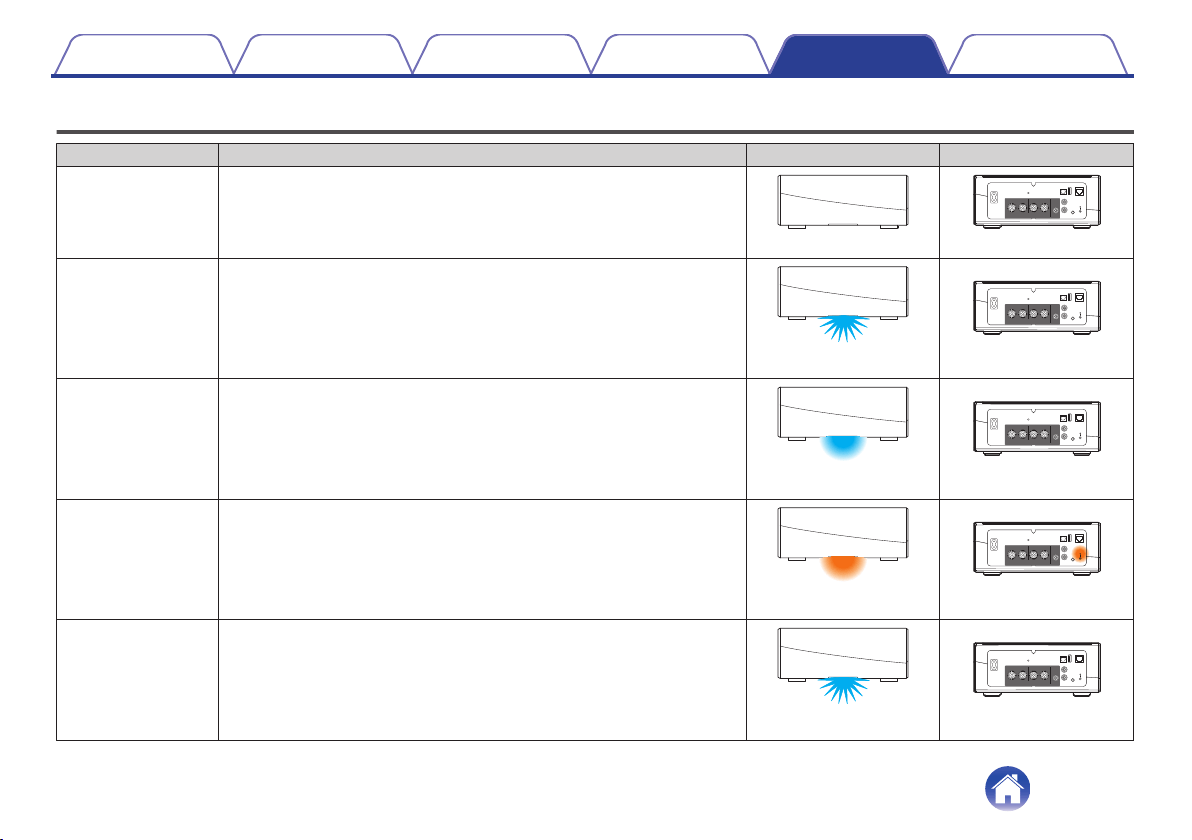
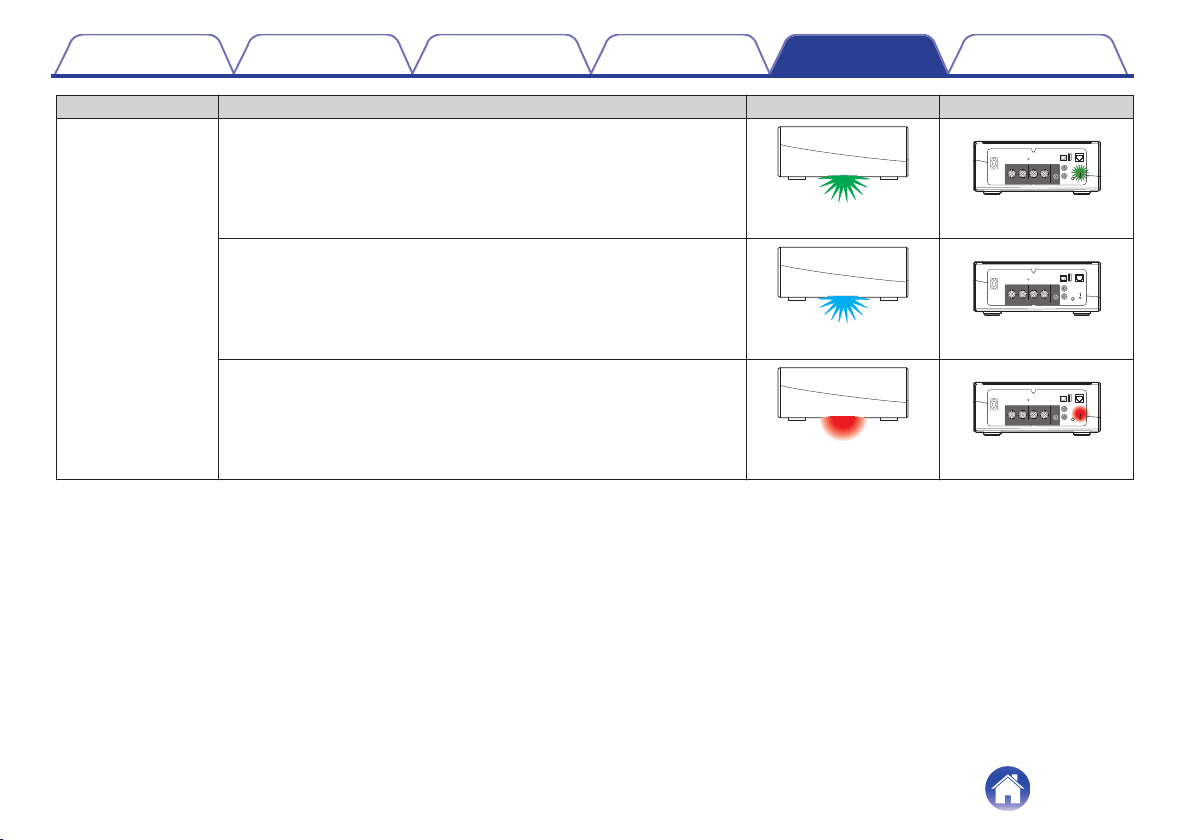
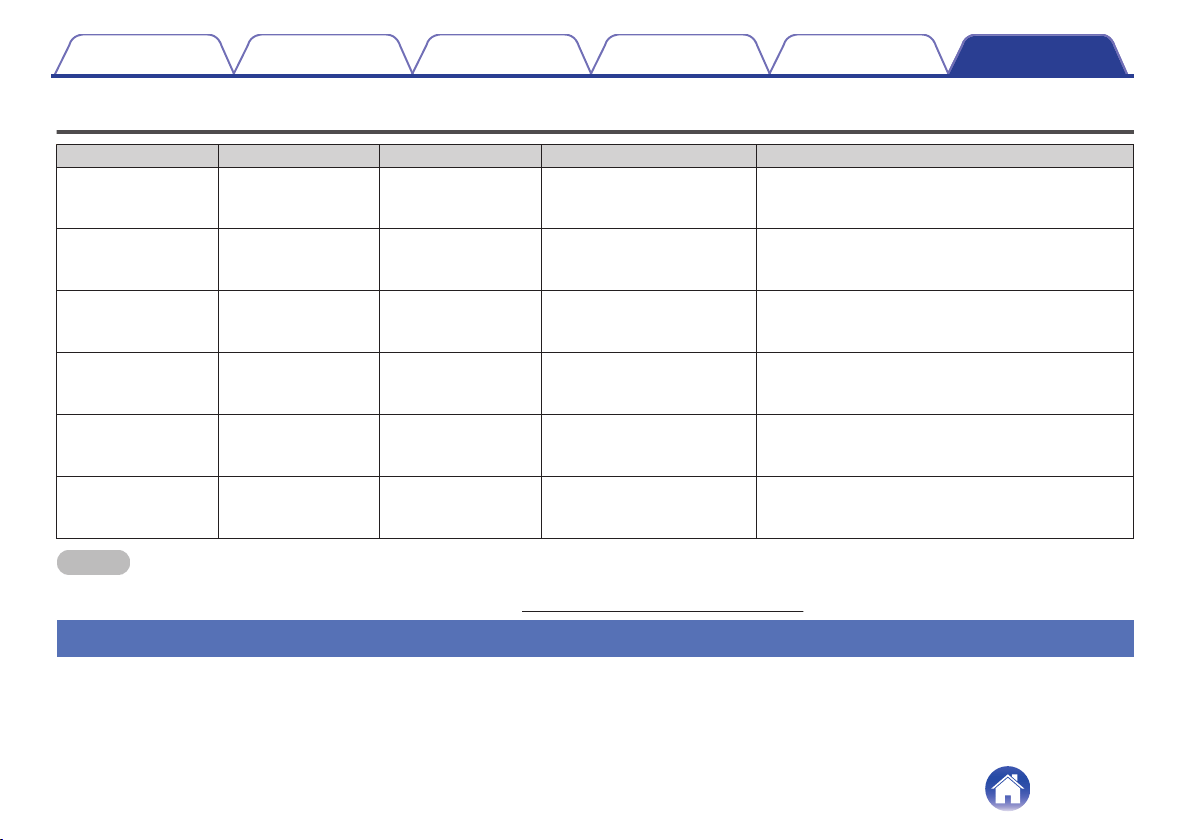
Status LED table
Device Operation Description Front LED Action Rear LED Action
Off No AC power or Deep Standby
.
(off)
.
(off)
Plug in Booting
.
(blink)
.
(off)
On Ready-Configured and connected to your network
.
(solid)
.
(off)
On Not Connected to your network
.
(solid)
.
(solid)
Change Network Connecting to your network
.
(blink)
.
(off)
Contents Setup Use Troubleshooting Status LED Appendix
Status LED
55
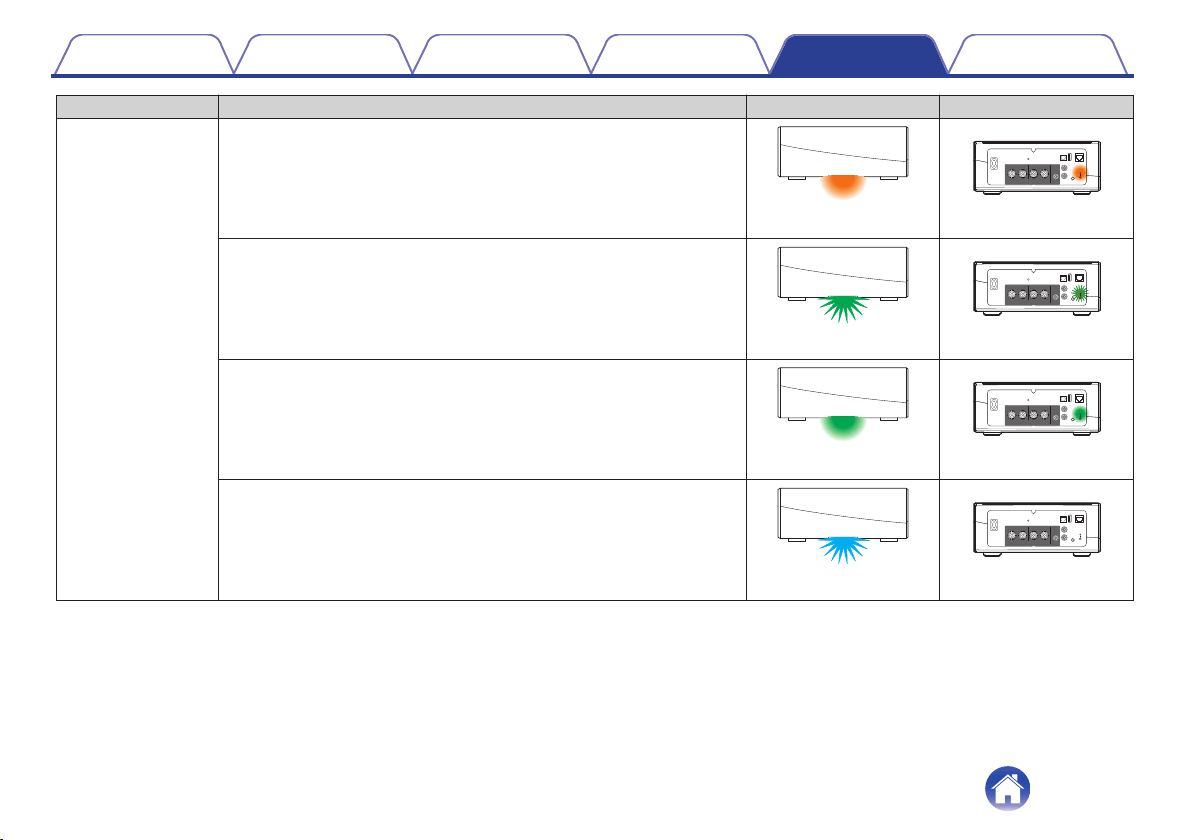
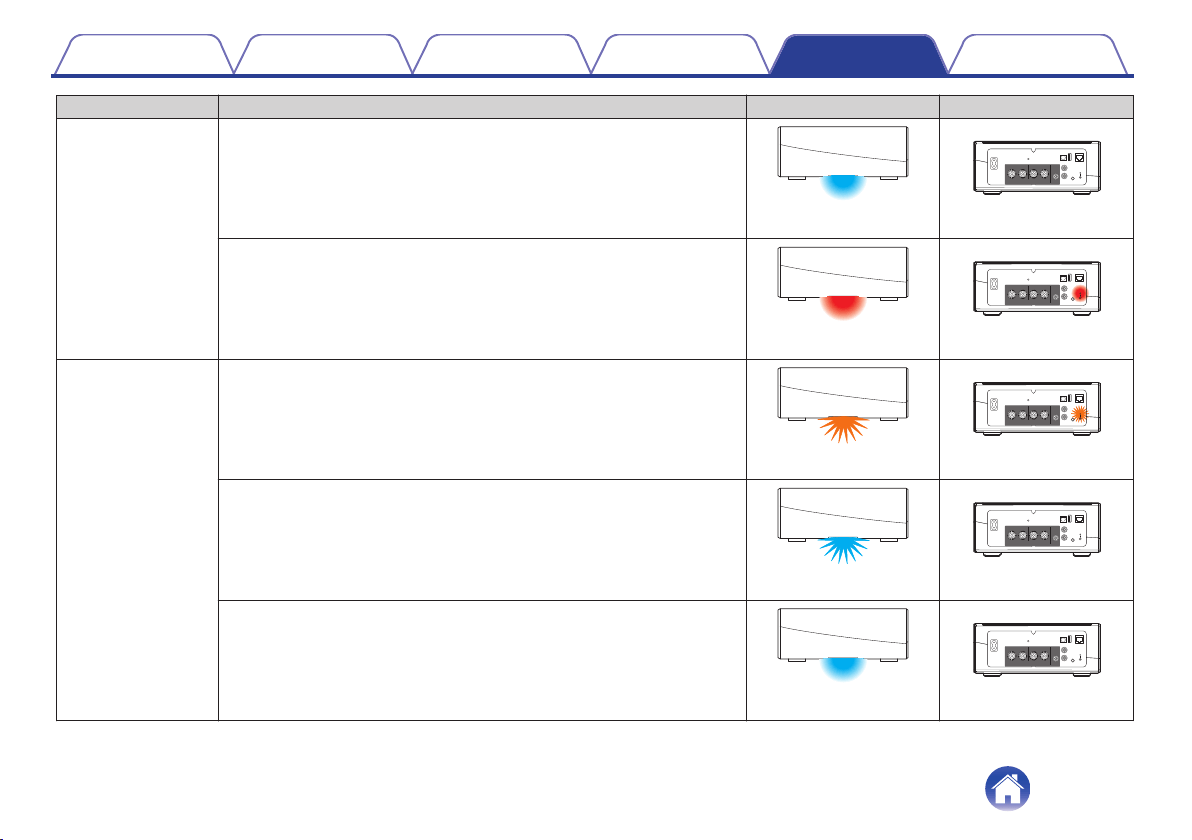
Device Operation Description Front LED Action Rear LED Action
Setup
Configured and connected to your network
.
(solid)
.
(off)
Error
.
(solid)
.
(solid)
Update
Updating
.
(blink)
.
(blink)
Rebooting
.
(blink)
.
(off)
Ready-Configured and connected to your network
.
(solid)
.
(off)
Contents Setup Use Troubleshooting Status LED Appendix
57
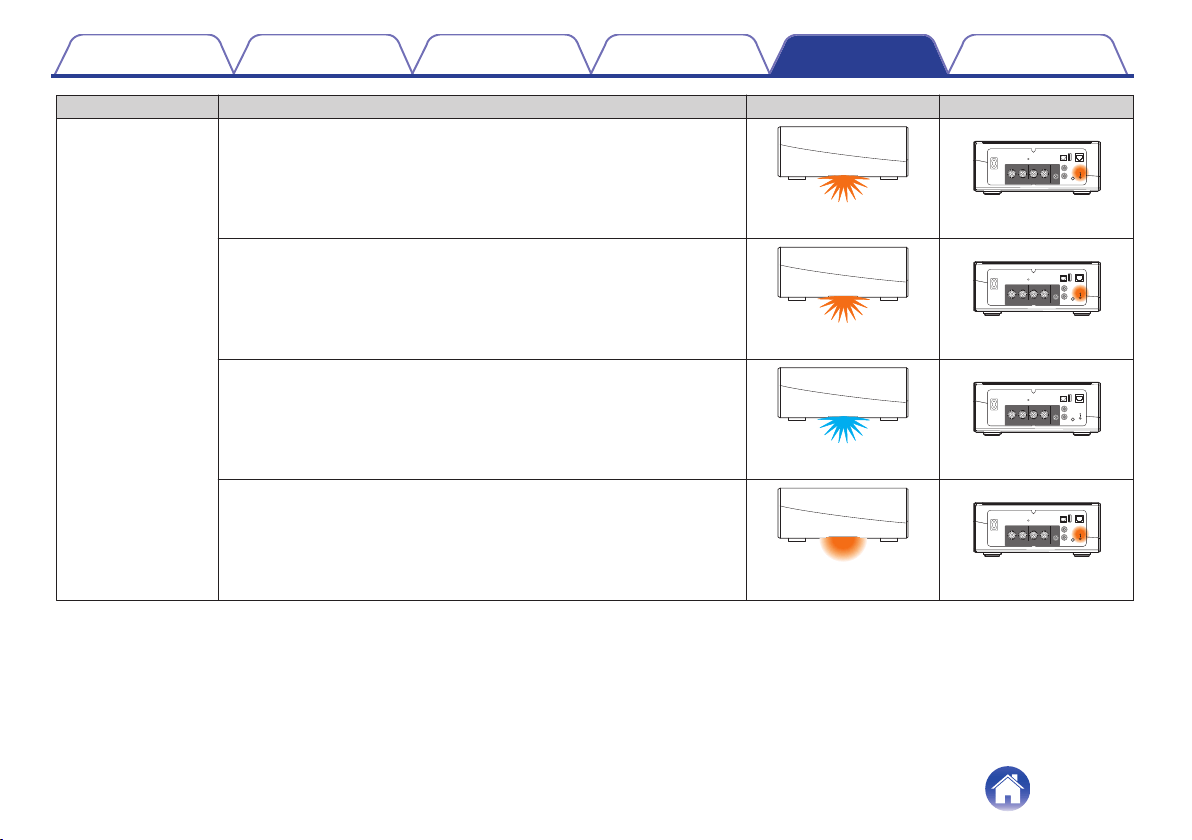
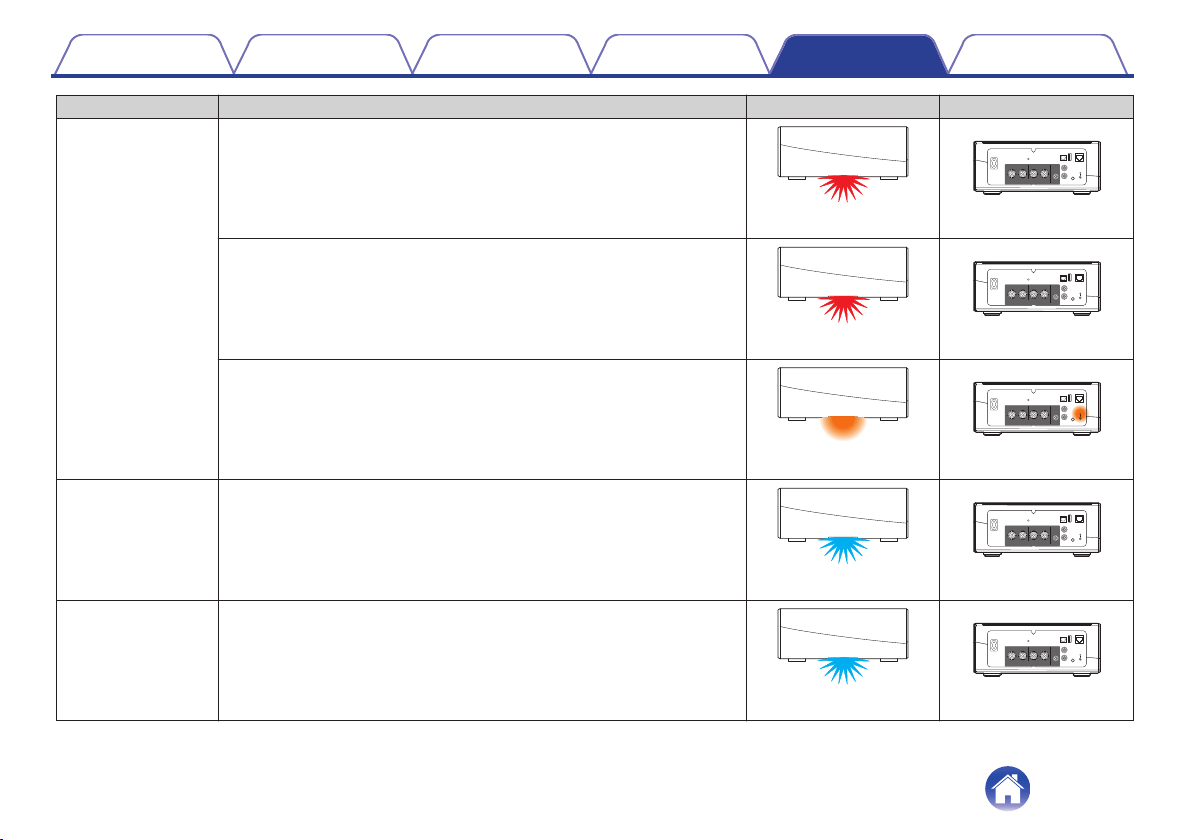
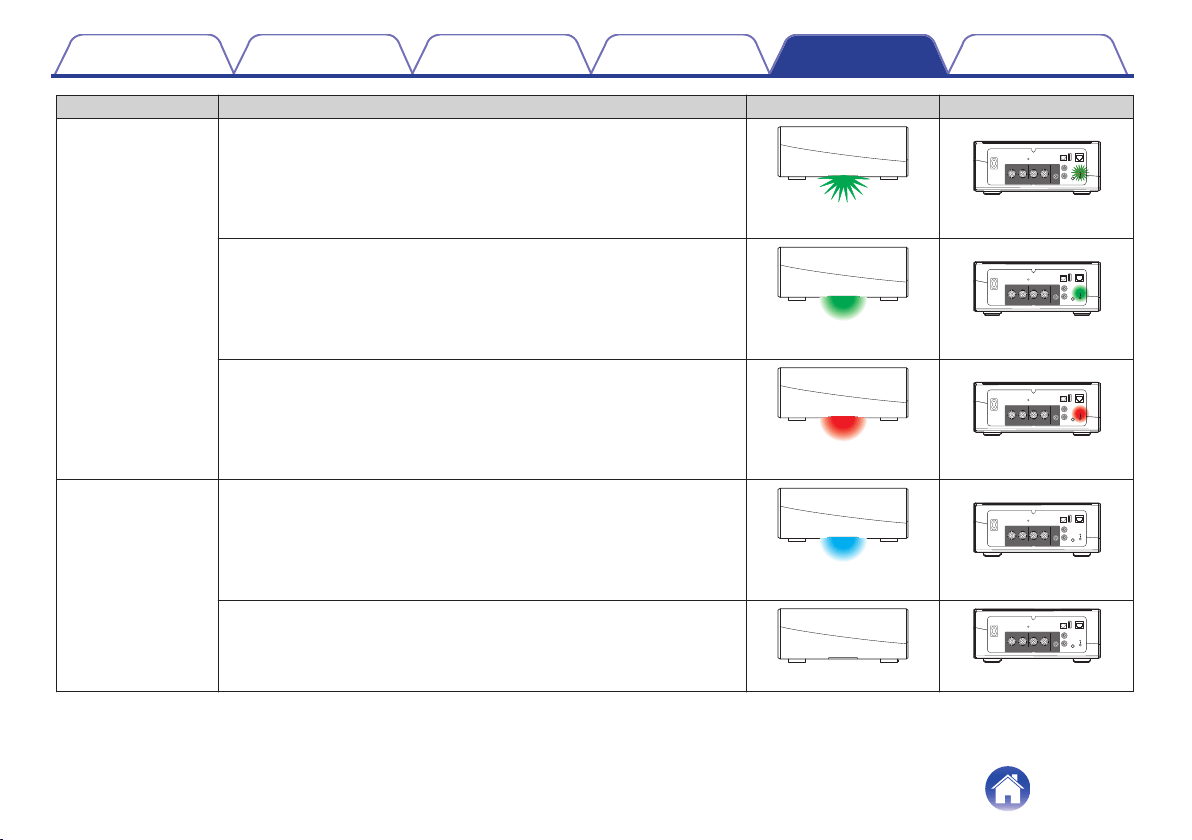
Device Operation Description Front LED Action Rear LED Action
WPS
a WPS session is active
.
(fast blink)
.
(fast blink)
WPS connected
.
(for 3 sec. solid)
.
(solid)
WPS time-out
.
(for 3 sec. solid)
.
(solid)
Power Management
Quick Start Mode
.
(dimmed solid)
.
(off)
Deep Standby
.
(off)
.
(off)
Contents Setup Use Troubleshooting Status LED Appendix
60
Supported file types and codecs
Frequency Sample Rate File Extension Codec Bit Rates
32/44.1/48
88.2/96/176.4
192 kHz
16/24 bit wav PCM ---
32 kHz
44.1 kHz
48 kHz
16 bit mp3
MPEG-1 Audio Layer 3
CBR/VBR
32 - 320 kbps
32 kHz
44.1 kHz
48 kHz
16 bit
m4a
aac
AAC-LC 48 - 320 kbps
32 kHz
44.1 kHz
48 kHz
16 bit wma
wma9
CBR
CBR:48 - 192 kbps
44.1/48
88.2/96/176.4
192 kHz
16/24 bit flac flac ---
44.1/48
88.2/96/176.4
192 kHz
16/24 bit m4a ALAC ---
NOTE
0
Files protected by DRM such as Apple’s Fairplay DRM, are not supported.
0
The ALAC decoder is distributed under the Apache License, Version 2.0 (
http://www.apache.org/licenses/LICENSE-2.0)
Supported audio formats (Optical)
2-channel Linear PCM:2-channel, 32 kHz – 192 kHz, 16/20/24 bit
Contents
Setup Use Troubleshooting Status LED Appendix
Appendix
62
Specifications
o
Audio section
Power amplifier Rated output: 2-channel driving
100 W+100 W (6 Ω/ohms, 1 kHz, T.H.D. 0.7 %)
Output connectors: 4 – 16 Ω/ohms
THD+N: ANALOG IN: 0.5 %(1 kHz)
S/N ratio (10 W, 6 Ω/ohms, IHF-A): ANALOG IN: 86 dB(IHF–A weighted)
Frequency response: 10 Hz to 40 kHz: +1, -3 dB
o
Wireless LAN section
Network type: Conforming to IEEE 802.11a/b/g/n/ac
Used frequency range: 2.4 GHz, 5 GHz
o
General
Operating temperature: 41 °F - 95 °F (5 °C - 35 °C)
Power supply: AC 120 V, 60 Hz (for North America)
AC 220 - 240 V, 50/60 Hz (for Europe)
Power consumption: 60 W
Power consumption in Quick Start Mode: * 4.1 W (Wi-Fi)
3.5 W (Ethernet)
4.2 W (USB)
3.8 W (Bluetooth)
Power consumption in Deep Standby Mode: * 0.3 W
*Cable to AUX IN must be disconnected to enter Quick Start Mode and Deep Standby Mode.
Contents
Setup Use Troubleshooting Status LED Appendix
63
o
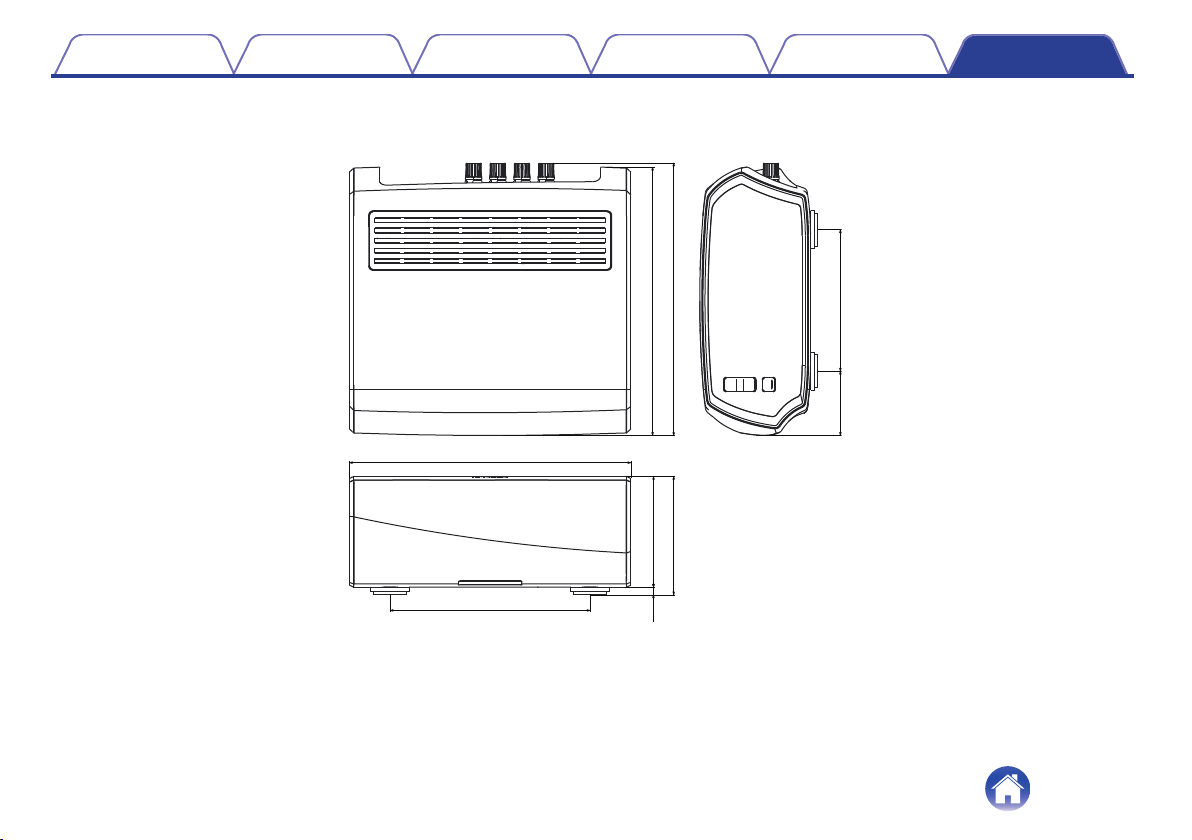
Dimensions (Unit : in. (mm))
.
6 3/16 (157)
8 45/64 (221)
15/64
(6)
3 27/64 (87)
3 21/32 (93)
8 5/16 (211)
8 27/64 (214)
1 31/32 (50) 4 3/8 (111)
DENON
DENON
o
Weight : 6 lbs 3 oz (2.8 kg)
For the purpose of improvement, the specifications and design are subject to change without notice.
Contents
Setup Use Troubleshooting Status LED Appendix
64
Information
Trademarks
.
Google Play and the Google Play logo are trademarks of Google LLC.
.
Apple, the Apple logo, iPad, iPhone, and iPod touch are trademarks of
Apple Inc., registered in the U.S. and other countries. App Store is a
service mark of Apple Inc.
.
Amazon, Kindle, Echo, Alexa, Dash, Fire and all related logos are
trademarks of Amazon.com, Inc. or its affiliates.
.
The Bluetooth
®
word mark and logos are registered trademarks owned
by Bluetooth SIG, Inc. and any use of such marks by D&M Holdings Inc.
is under license. Other trademarks and trade names are those of their
respective owners.
Contents Setup Use Troubleshooting Status LED Appendix
65

HEOSbyDenon.com
3520 10430 00ADE
Copyright © 2016 D&M Holdings Inc. All Rights Reserved.
77